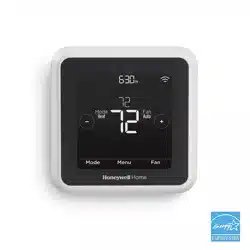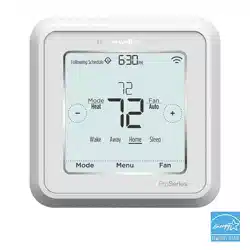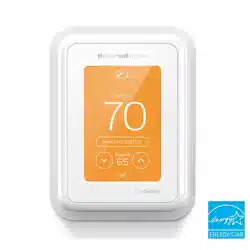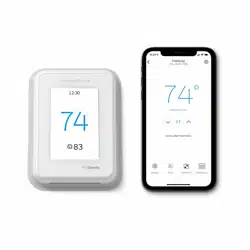
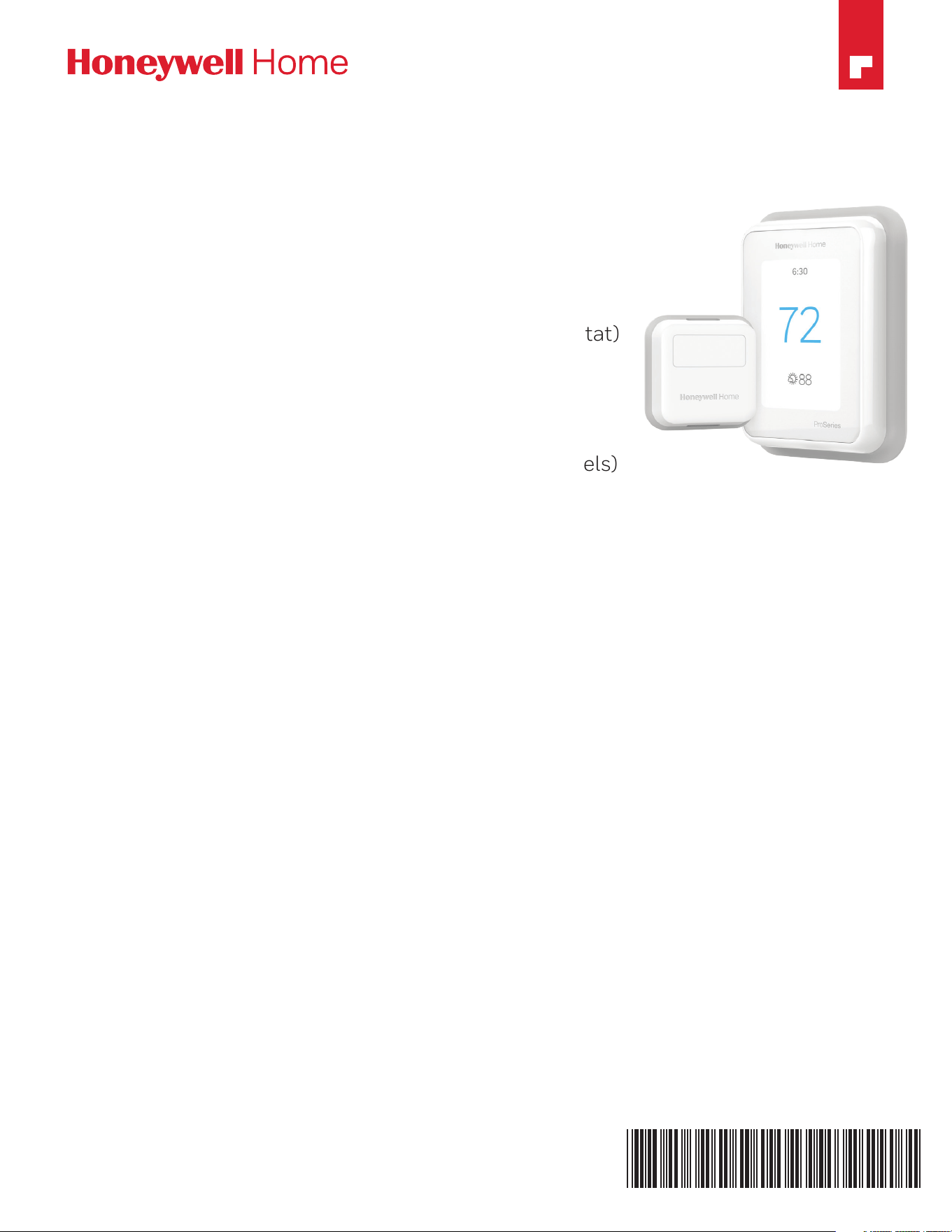
T10 & T10+ Pro Smart thermostat with RedLINK® 3.0
User Guide
THX321WFS3001W (T10+ with Sensor included)
THX321WF3003W (T10+ No sensor)
THX321WFS2001W (T10 with Sensor included)
THX321WF2003W (T10 No sensor)
THX321WF2001W (Number on back of T10 thermostat)
C7189R3002-2 (2 pack wireless
temperature/humidity/motion sensor)
C7189R2002-2 (2 pack wireless
temperature/humidity/motion sensor)
C7089R3013 (wireless outdoor sensor for T10+ models)
Note: T10+ models available in YTHM1004R kits
with EIM and accessories
33-00428S-05
Welcome
This user guide is designed to help you get acquanted with your new T10 & T10+ Pro Smart thermostat with RedLINK 3.0.
Check out the table of contents on page 2 to browse by topic.
Need help? Get in touch.
WEB: honeywellhome.com
PHONE: 1-800-633-3991
SOCIAL: Twitter: @HoneywellHome, Facebook: Honeywell Home

33-00428–05 2
TABLE OF CONTENTS
Thermostat Features .......................................................................... page 3
Thermostat overview .......................................................................... page 4
Resideo App overview ........................................................................page 5
Basic thermostat operation
Main thermostat menu options ....................................................page 6
Using Priority for sensors ................................................................page 6
Selecting system mode ..................................................................... page 8
Auto changeover mode .....................................................................page 9
Emergency heat mode ......................................................................page 9
Setting the fan ................................................................................... page 10
Setting the Time/Date .................................................................... page 11
WiFi settings and connectivity
Connecting to a WiFi network ..................................................... page 12
Disconnecting and reconnecting to a WiFi network .......... page 13
Turning thermostat WiFi on and off ........................................ page 13
Apple® HomeKit™ Setup ................................................................. page 13
Scheduling options
Scheduling on thermostat ............................................................ page 14
Scheduling on App ....................................................................page 15-16
Geofence and Smart scheduling ............................................... page 16
Schedule override on device ........................................................ page 17
Setting Preferences (language, time/date, F/C, etc.) ....... page 18
Cleaning the display ....................................................................... page 19
Security settings ............................................................................... page 19
IAQ Control
Humidification settings ................................................................. page 20
Dehumidification settings ............................................................ page 21
Ventilation settings ......................................................................... page 22
Advanced features
Adaptive Intelligent Recovery ...................................................... page 23
Compressor protection .................................................................. page 23
P + I control ......................................................................................... page 23
Alerts and notifications ...........................................................page 24-25
Maintenance reminders ................................................................ page 26
Identifying a wireless sensor ....................................................... page 27
Replace sensor batteries ............................................................... page 28
Frequently Asked Questions (FAQs) ..................................page 29-30
Troubleshooting ................................................................................ page 31
Regulatory information .................................................................. page 32
Specifications .................................................................................... page 32
Warranty information ..................................................................... page 33

3 33-00428–05
Thermostat Features
Flexible scheduling: You can choose to use location-based temperature control (geofence technology), program a set schedule or
use a combination of both to make sure your home is always comfortable.
• Location-based temperature control: Using geofence technology, the T10 & T10+ Pro Smart thermostat will automatically
use your smartphone’s location, which can save you energy when you leave and make your home comfortable by the time
you return.
• Smart Scheduling: Adds a Sleep period to location-based temperature control.
• Time-based scheduling: You can program a schedule where every day is different, a schedule where weekdays and
weekends are different or a schedule where every day is the same. There are four adjustable periods per day: Wake, Away,
Home, and Sleep.
• No schedule: You can also choose not to set a schedule and adjust the thermostat manually.
• You can also choose not to set a schedule and adjust the thermostat manually
• Schedule Using Sensors
• Up to 20 wireless indoor temperature/humidity/motion sensors per thermostat.
• Sensor Priority for each program period or when used manually.
Tip: The Resideo app can be used to manage multiple thermostat and multiple users in a household.
!
Smart Alerts: The T10 & T10+ Pro Smart thermostat will send alerts for things like extreme indoor temperatures and
reminders for things like filter changes.
Auto change from heat to cool: When Auto mode is selected, the T10 & T10+ Pro Smart thermostat can automatically
determine whether your home needs heating or cooling to reach the desired temperature.
Adaptive Intelligent Recovery: The T10 & T10+ Pro Smart thermostat learns your heating and cooling cycle times to make
sure the system delivers the temperature you want, when you want it.
33-00428–05 4
Getting the most from the T10 & T10+ PRO Smart Thermostat
Prioritize Rooms
Prioritize a specific room or multiple rooms, or let comfort follow your move using built-in motion detection.
Control on the Go
Adjust your thermostat from anywhere using your tablet or smartphone.
Save Energy
With geofencing, you can save money on the most expensive part of your energy bill while you’re away.
Simple Installation
The thermostat automatically programs itself. Just answer a few simple questions and you’ll be up and running in no time.
Whole-Home Range
With a 200-foot range, 20 sensors with temperature, humidity, and occupancy detection can connect to your thermostat from
throughout your home.
Know Your Home Is Safe
Get customizable alerts on your mobile device when the basement is so cold a pipe could burst, or if the baby’s room is getting
too hot.
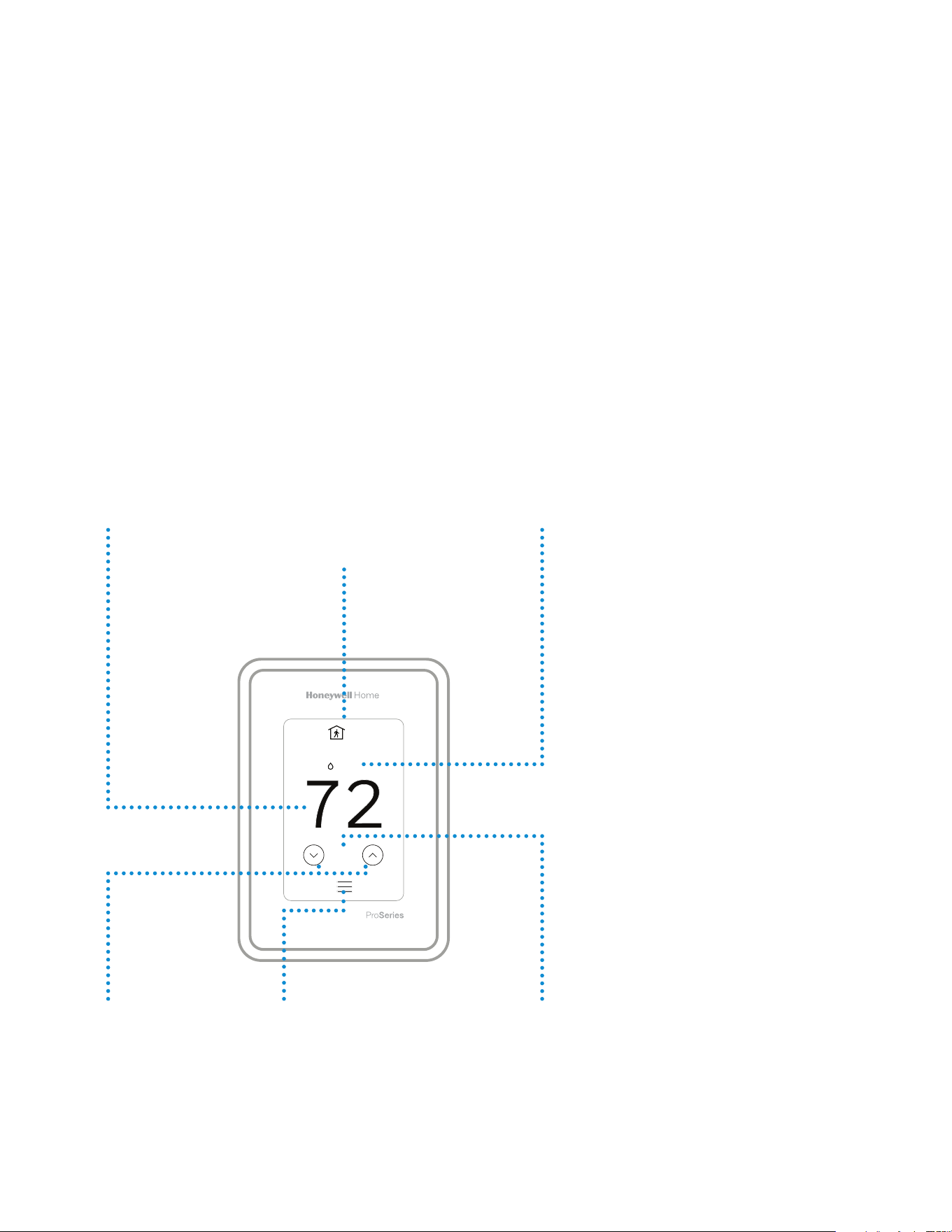
Using Your Thermostat
The screen will wake up by pressing the center area of the displayed temperature.
74
2
18%
Indoor Temperature
Displays the current
indoor temperature.
Adjust Temperature
Touch the up and
down arrows to
set your desired
temperature.
Current Priority
Displays the type of
priority and number
of rooms being
prioritized.
Menu
Contains features
such as mode, fan,
schedule, priority,
and other thermostat
settings.
Indoor Humidity
Displays the current
indoor humidity.
Desired
Temperature
Displays the desired
temperature.
5 33-00428–05
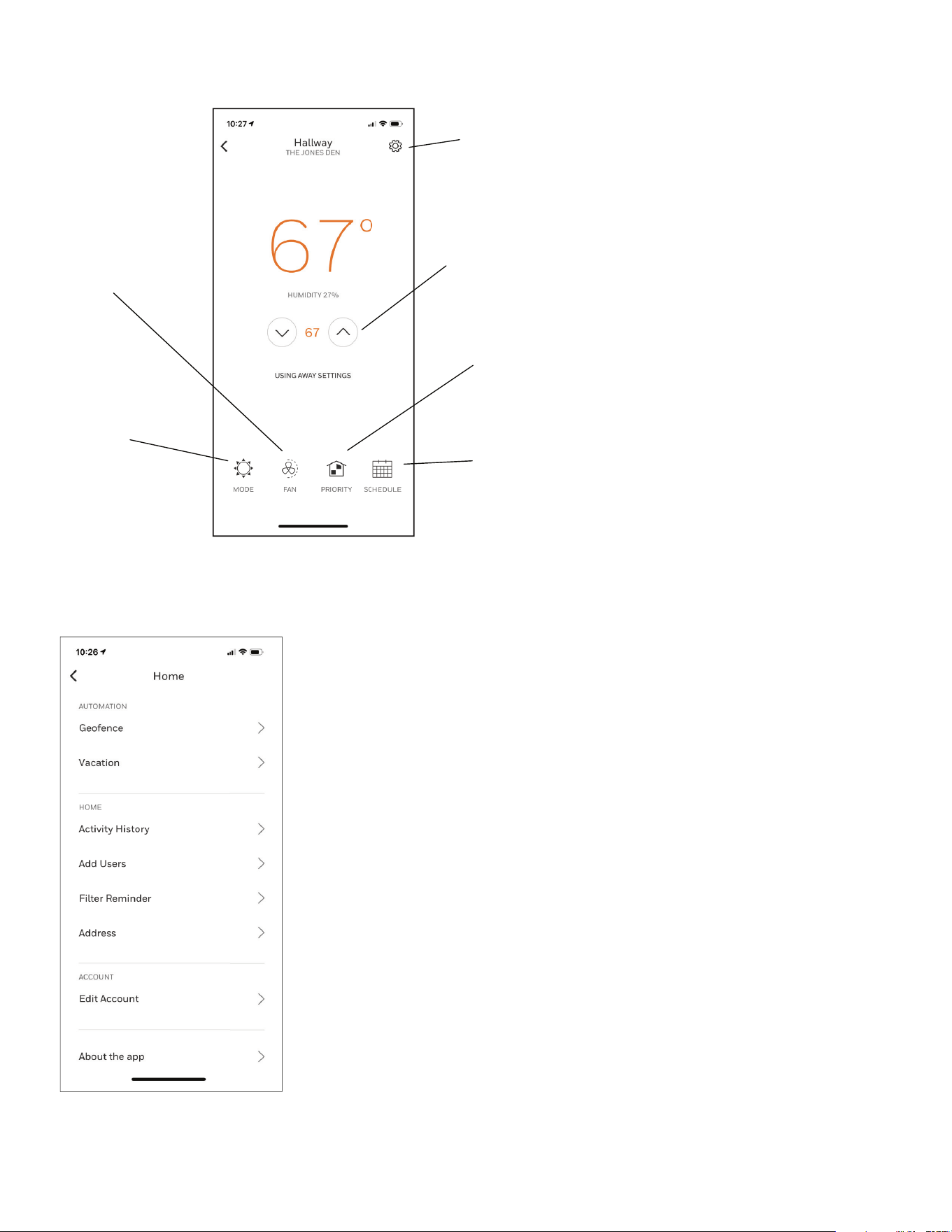
Using the Resideo App
Cha
nge System
Mo
de
Ch
ange Fan
Se
tting
Set Desired
Temperature
Set Sensor Priority
Change Schedule
Type
Access Menu
Options
Available options
shown in screens
below
Home Screen
The Resideo App is regularly enhanced and may change.
Menu Options
33-00428–05 6
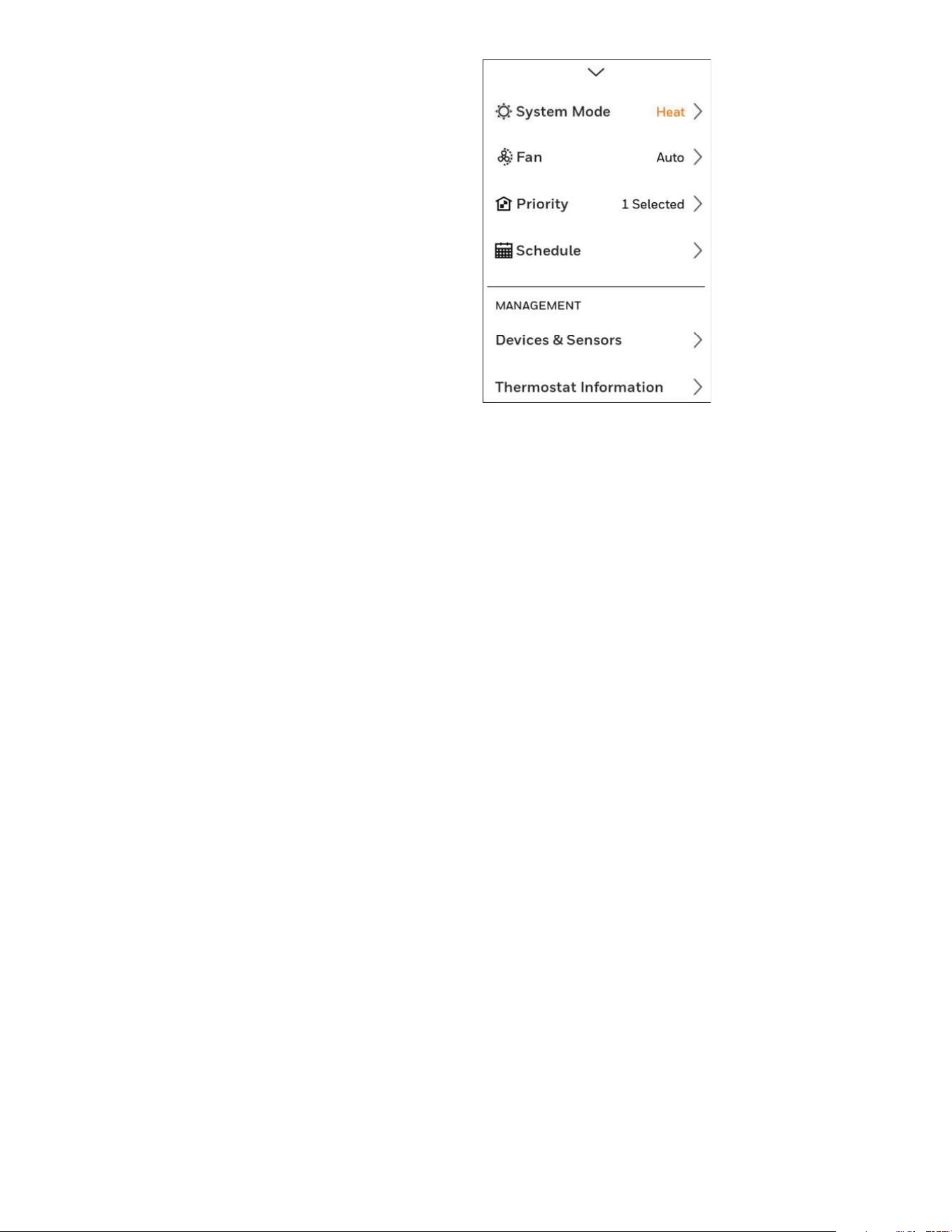
Main Menu on Thermostat
From Home Screen, press the menu icon at bottom of the
display (3 horizontal lines). If this is not shown at home
screen, touch screen to wake display first.
Main Menu options
System mode (Available modes vary depending on how the
thermostat was configured)
• Heat
• Off
• Cool
• Auto – Operation on page 9.
• Em Heat – Operation on page 9.
Fan (Fan setting not available for all system types)
• Auto (Fan only runs with a call for heat or cool, or if set to
run with Hum, Dehum, or Vent call)
• On (fan runs continous)
• Circulate (fan runs randomly approx. 33% of the time)
Priority
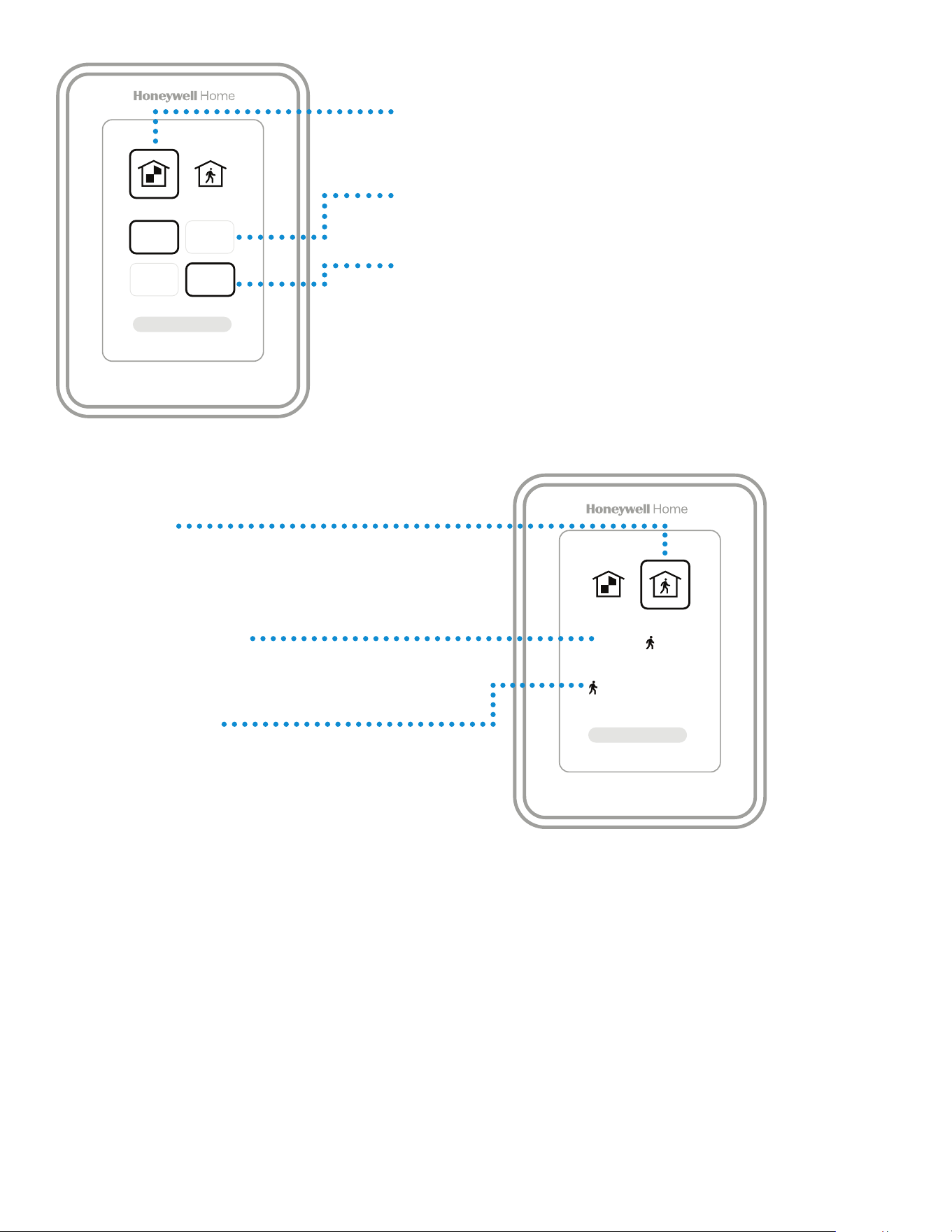
If wireless indoor temperature/humidity/motion sensors are
used, select which sensors are used for temperature control.
You can choose active sensor (ones detecting motion) or
manually select which sensors to use.
Schedule
• Create new schedule (Set a time-based schedule)
• Disable schedule
• Reset to default Schedule
NOTE: To enable geofencing, use the Resideo app.
Management:
Devices & Sensors
• View the temperature and humidity reading from
individual sensors
• Identify a wireless indoor sensor
• Add a new wireless indoor sensor
• Remove a wireless indoor sensor
Thermostat information
• Mac Address
• IP Address
• Date Code
• Model Number
• Build Date
• Collection Version
• WiFi Bootloader Version
• WiFi Application Version
• RedLINK Application Version
Equipment Status
• System mode
• Heat stages (on or off)
• Cool stages (on or off)
• Fan on or off
• IAQ (Hum, Dehum, or Vent) on or off
Dealer Information
• Model number
• Date code
• Dealer company name and contact information if
provided by installer.
Configuration:
• WiFi
• Connect App
• Connect HomeKit
• Security
• Preferences
• Installer Options
Scroll down to see more options
7 33-00428–05
Selected Rooms
Rooms you manually select create an average
temperature in your home.
Unselected Room
Will not contribute to the average temperature.
Selected Room
Will contribute to the average temperature.
72 72
72 72
72 72
72 72
ProSeries
ProSeries
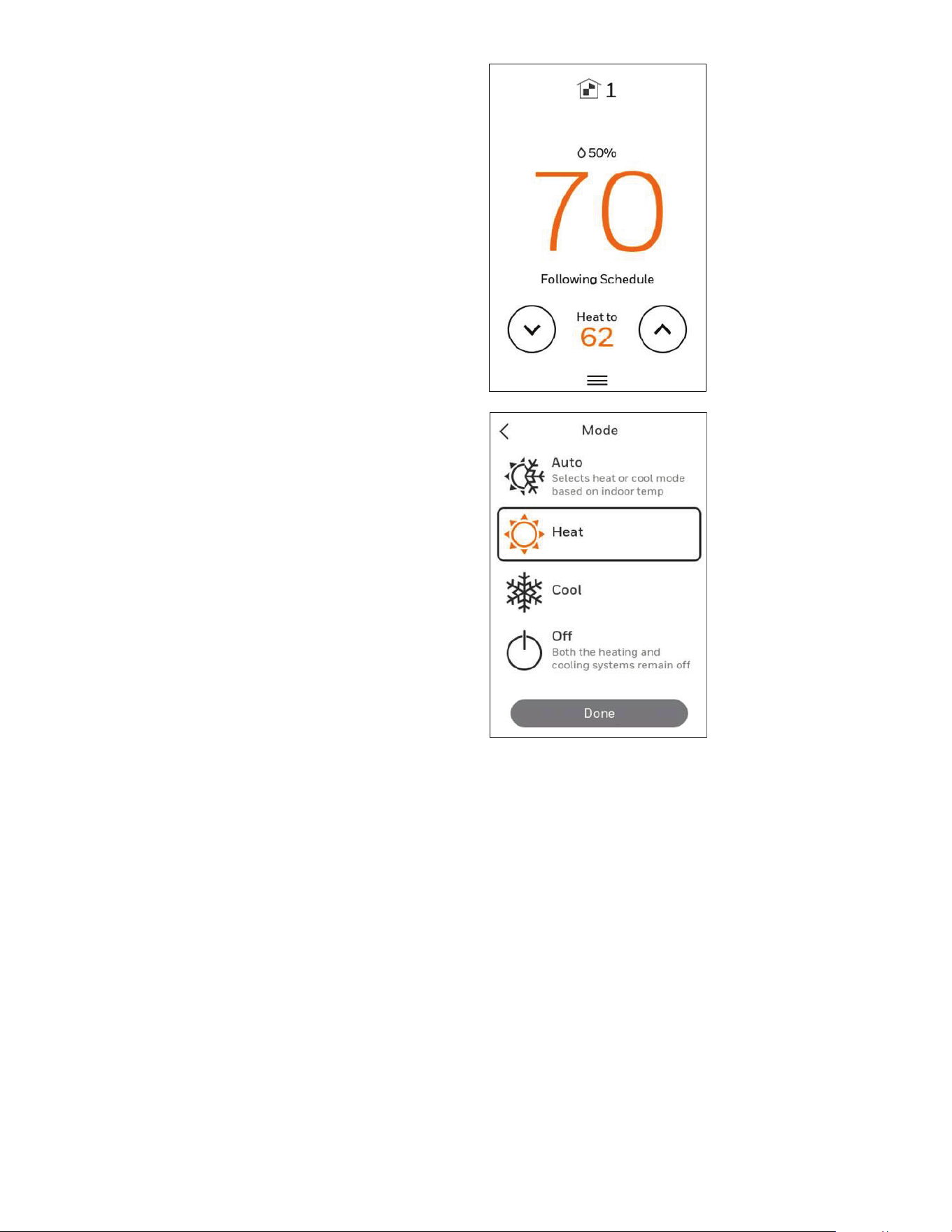
Active Rooms
Rooms with detected motion are automatically
selected to create an average temperature in
your home
.
Room without Activit
y
No motion is detected. Will not contribute to
the average temperature.
Room with Activit
y
Motion is detected. Will contribute to the
average temperature.
33-00428–05 8
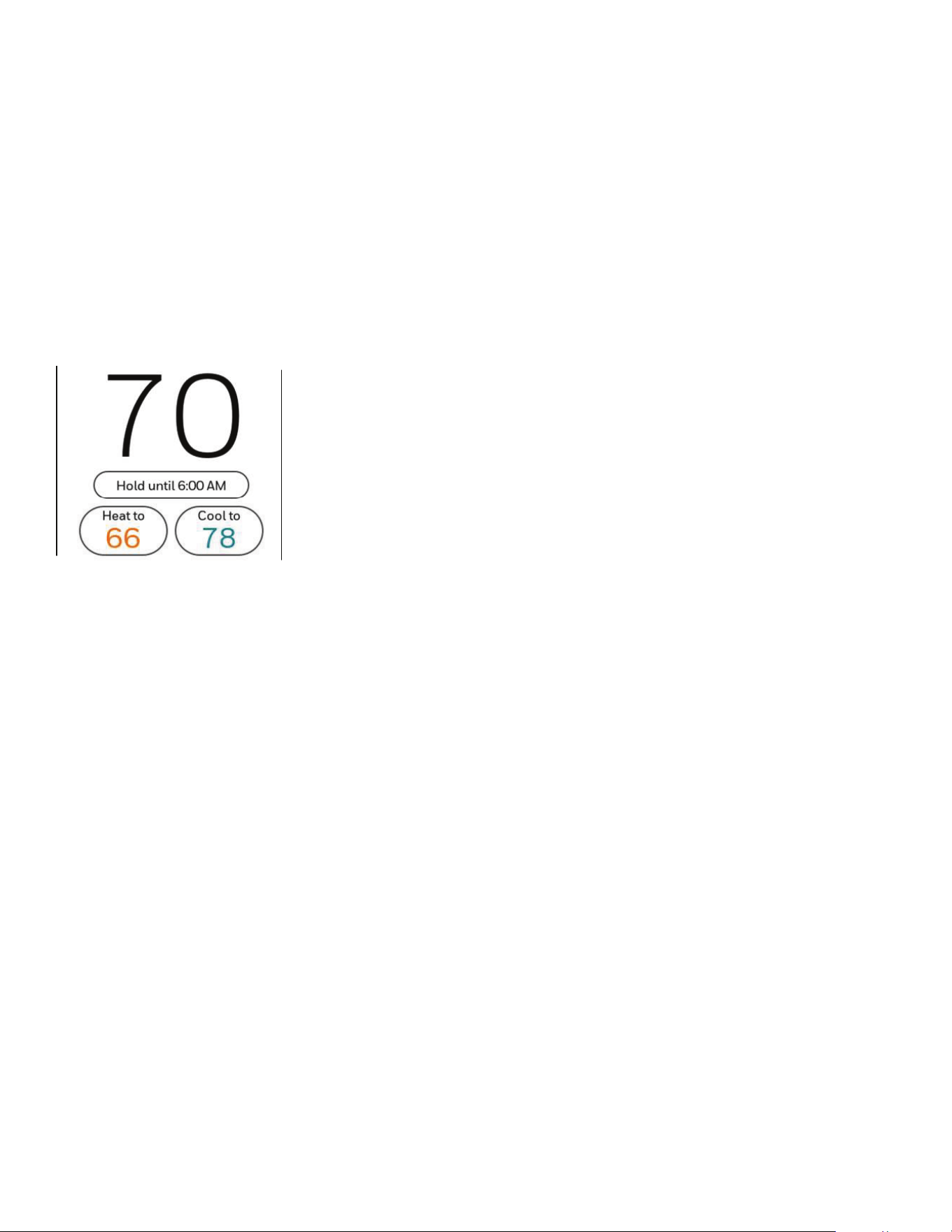
Selecting system mode
Touch homescreen to wake the thermostat.
Touch the menu icon and then touch “Select Mode.”
• Heat: Controls the heating system.
• Cool: Controls the cooling system.
• Off: Turns the heating and cooling systems off.
• Auto: When enabled, the thermostat will automatically
use heating or cooling to reach the desired temperature.
Operation on page 9.
• Em Heat: Controls auxiliary or emergency heat; only
available on systems with a heat pump. Operation on
page 9.
Notes:
• All available modes may not be shown for some
applications. Scroll down to see more mode options (if
available).
• Auto mode may not appear on the thermostat screen or
in the app depending on your equipment, and how your
thermostat is configured.
• When Auto is selected, “Heat to” and “Cool to” will both
be shown from the “active” home screen.
• Em Heat is only available for heat pump systems. The
thermostat must also be configured to control a heat
pump and an auxiliary/emergency heat stage.
• When Auto is selected, “Heat to” and “Cool to” will both
be shown from the “active” home screen.
9 33-00428–05
Auto Changeover operation
Auto changeover is available if the thermostat is configured for at least 1 heat stage and 1 cool stage and the installer enabled
auto changeover.
When configured this way, you can select “Auto” as one of the options under “System mode”.
When in auto mode, the customer can always set the heat and cool setpoint to the same temperature, regardless of the
differential setting although most customer prefer to have a cool setpoint that is at least 3 degrees above the heat setpoint.
When configured for 0 differential by the installer, we enforce a 1.5°F differential behind the scenes to ensure the heat doesn’t
come on after cooling shuts off or vice-versa.
The differential is the minimum number of degrees the temperature needs to rise or fall before switching from heat to cool while
in auto changeover mode. Example: With a 3 degree differential, If heat and cool were both set for 70, and heat had been used
last, the temperature would need to rise at least 3 degrees above the heat setpoint before the thermostat would turn on cooling.
Then it would cycle cooling on and off to maintain setpoint and the temp would need to drop at least 3 degrees below the cool
setpoint before heat could come on.
If the AC is used for dehumidification then we enforce an additional temp drop below the overcooling amount, prior to switching
back to heat.
Em Heat mode
Emergency heat runs when you manually switch the thermostat to the em heat mode. When the thermostat is in emergency heat
mode, the heat pump is locked out. When the thermostat is set to em heat mode, the heat pump is locked out and the backup
heat is used to maintain the heat setpoint.
Emergency heat mode is only available when the thermostat was configured for a heat pump with Backup heat by the installer.
From home screen touch the menu icon and then “system Mode”. You can set the thermostat to heat, off, cool, emergency heat,
or auto (auto only available if configured by installer).
33-00428–05 10
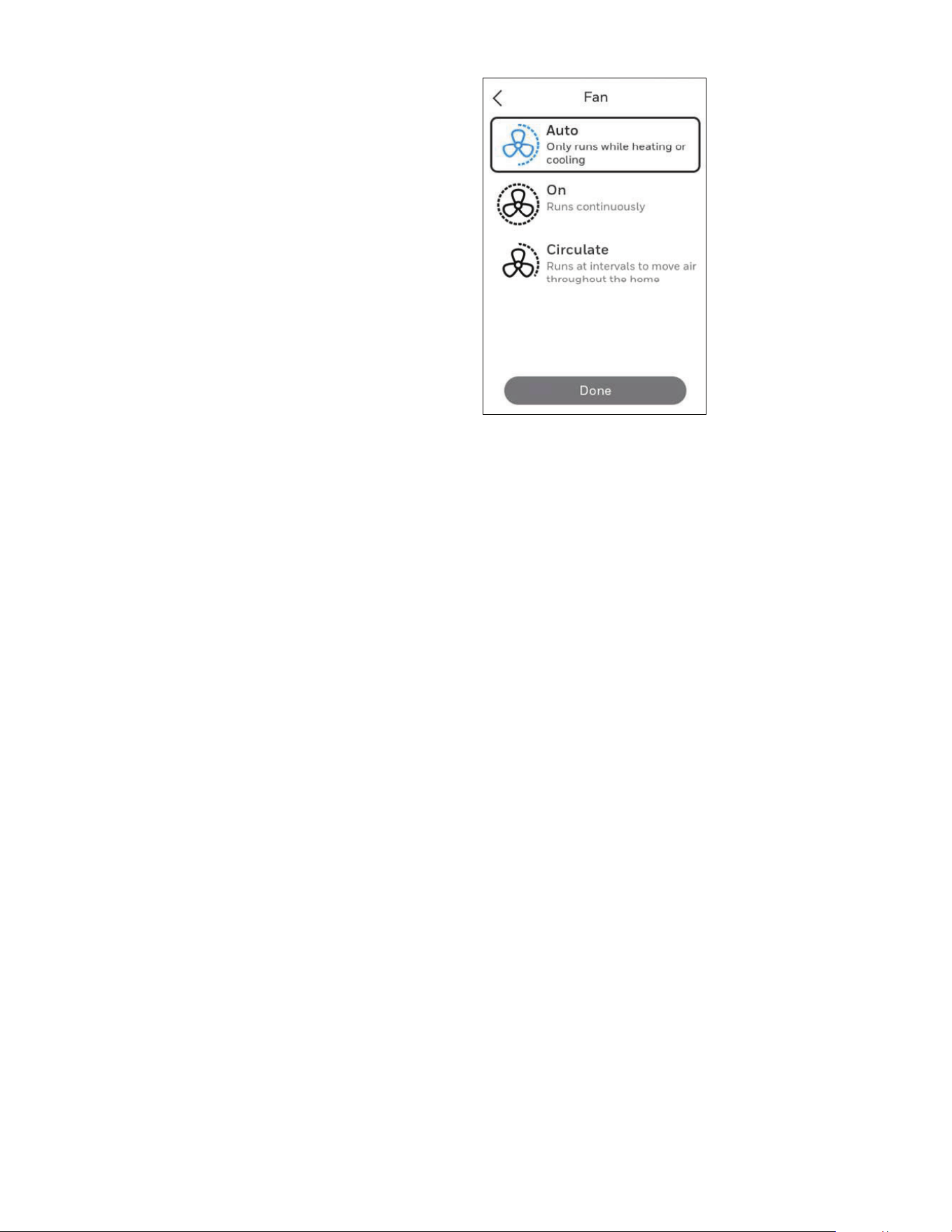
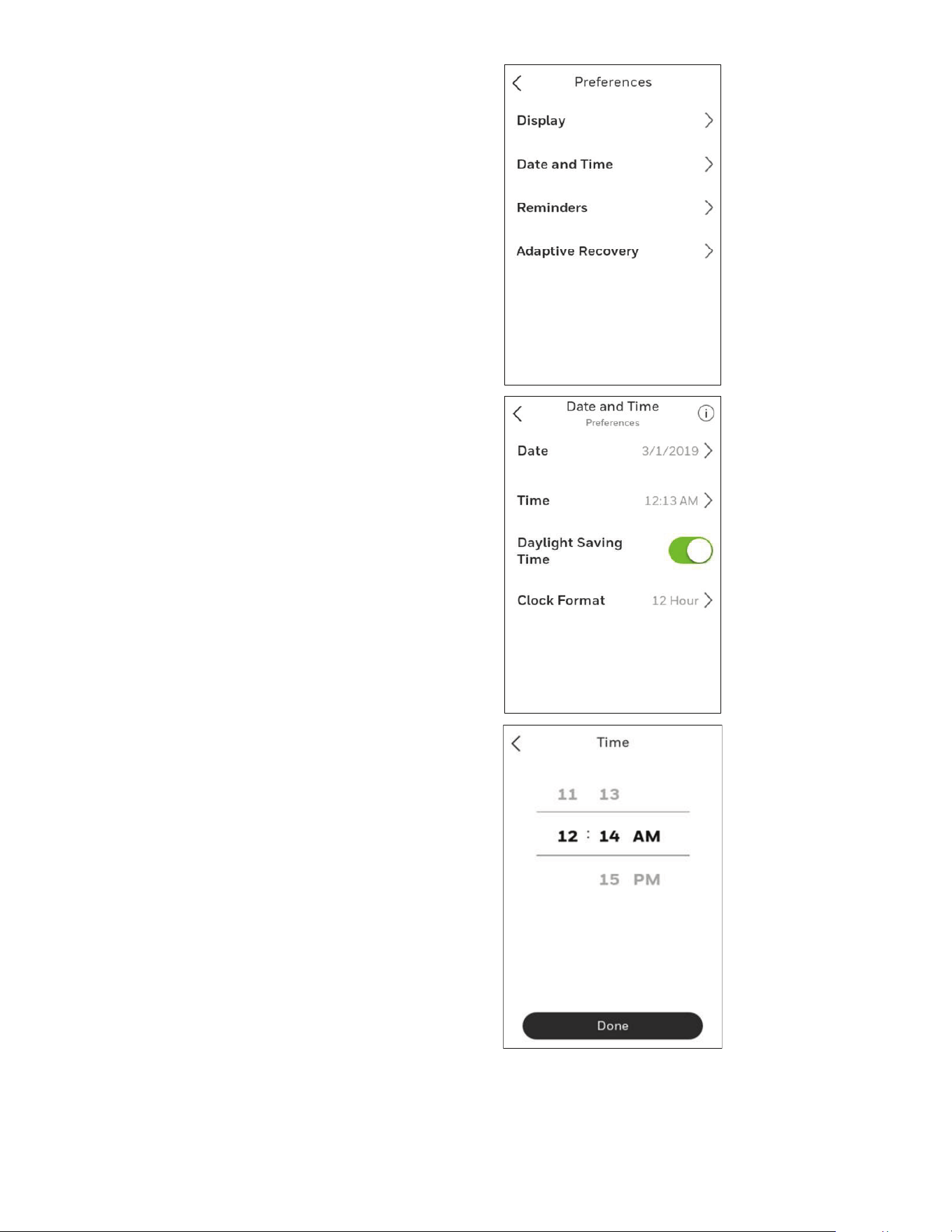
Setting the Fan
Note: Fan setting not available for all system types.
1. Touch any part of the display to wake the thermostat.
2. Touch the MENU icon at the bottom of the screen.
3. Touch Fan
Choose on, auto, or circulate.
Touch arrow in upper left to return to previous screen.
Auto setting only runs the fan with the heating or cooling
system.*
On setting runs the fan continuously.
Circ setting runs the fan approx 33% of the time to ensure air
circulation.
* The fan may also run with the humidifier, humidifier, or
ventilator depending on how the thermostat was configured.
Scheduling the Fan
You can set the fan to on, auto, or circ for each program when
using time-based scheduling or geofencing.
11 33-00428–05
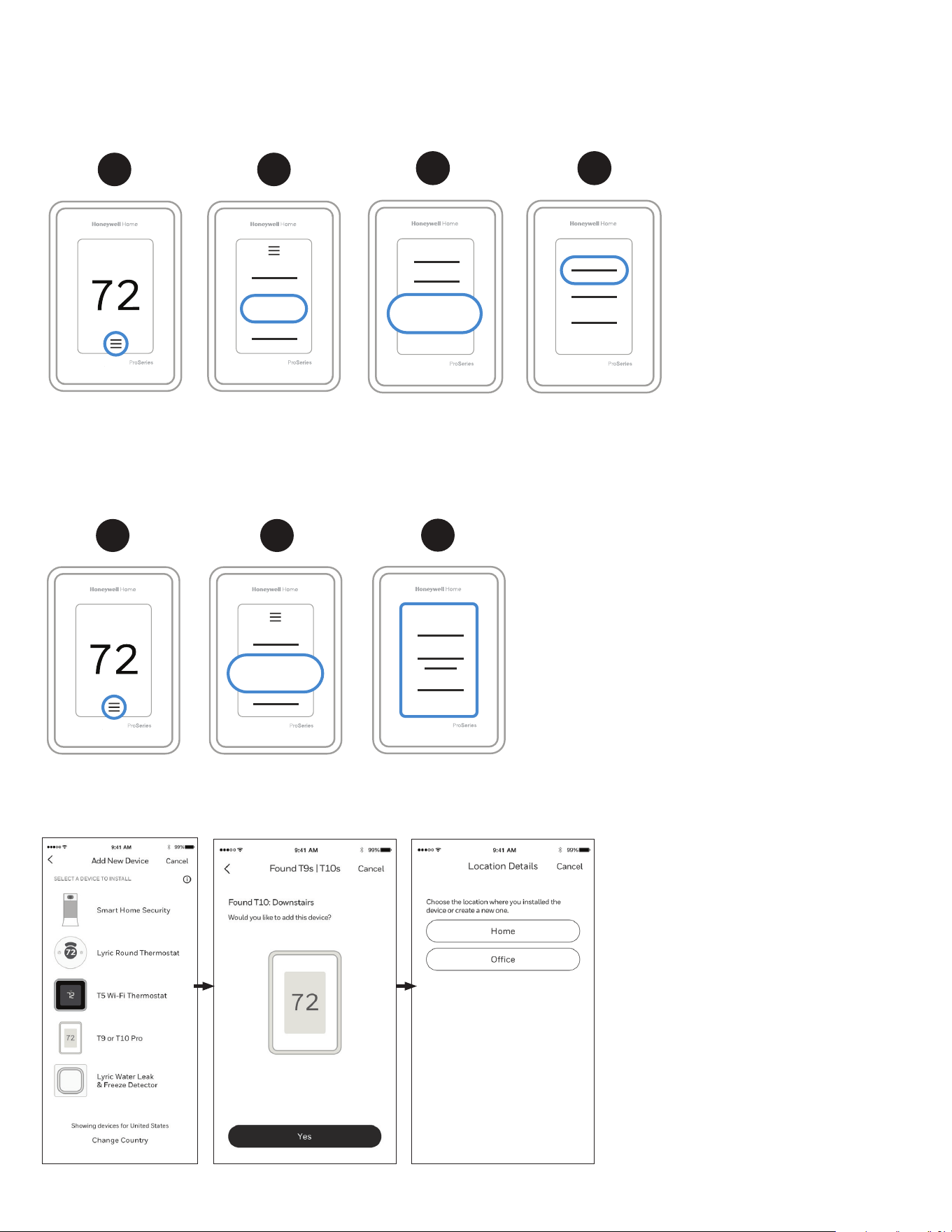
Setting the Time/Date
When the thermostat is linked to the home WiFi router and
registered to an account using the Resideo app, the date and
time will update automatically.
If not using WiFi you can set the time/date as follows:
1. Touch any part of the display to wake the thermostat.
2. Touch the MENU icon at the bottom of the screen.
3. Scroll down and select “Preferences”.
4. Select “Date and Time”.
5. Date and time information are displayed.
Set date
• If the date shown is incorrect, touch “date”.
• Scroll up or down on the left of the display until the
correct month is in the middle of screen.
• Scroll up or down on the center of the display until the
correct day is in the middle of screen.
• Scroll up or down on the right of the display until the
correct year is in the middle of screen.
• Touch “Done”.
Set time
• If the time shown is incorrect, touch “time”.
• Scroll up or down on the left of the display until the
current hour is in the middle of screen.
• Scroll up or down on the center of the display until the
current minutes are in the middle of screen.
• Scroll up or down on the right of the display until the
correct am or pm is in the middle of screen.
• Touch “Done”.
After touching “Done”. Use the arrow at the top of the display
to return to the previous menu. To return to home screen from
main menu, press the arrow at top center of display.
33-00428–05 12
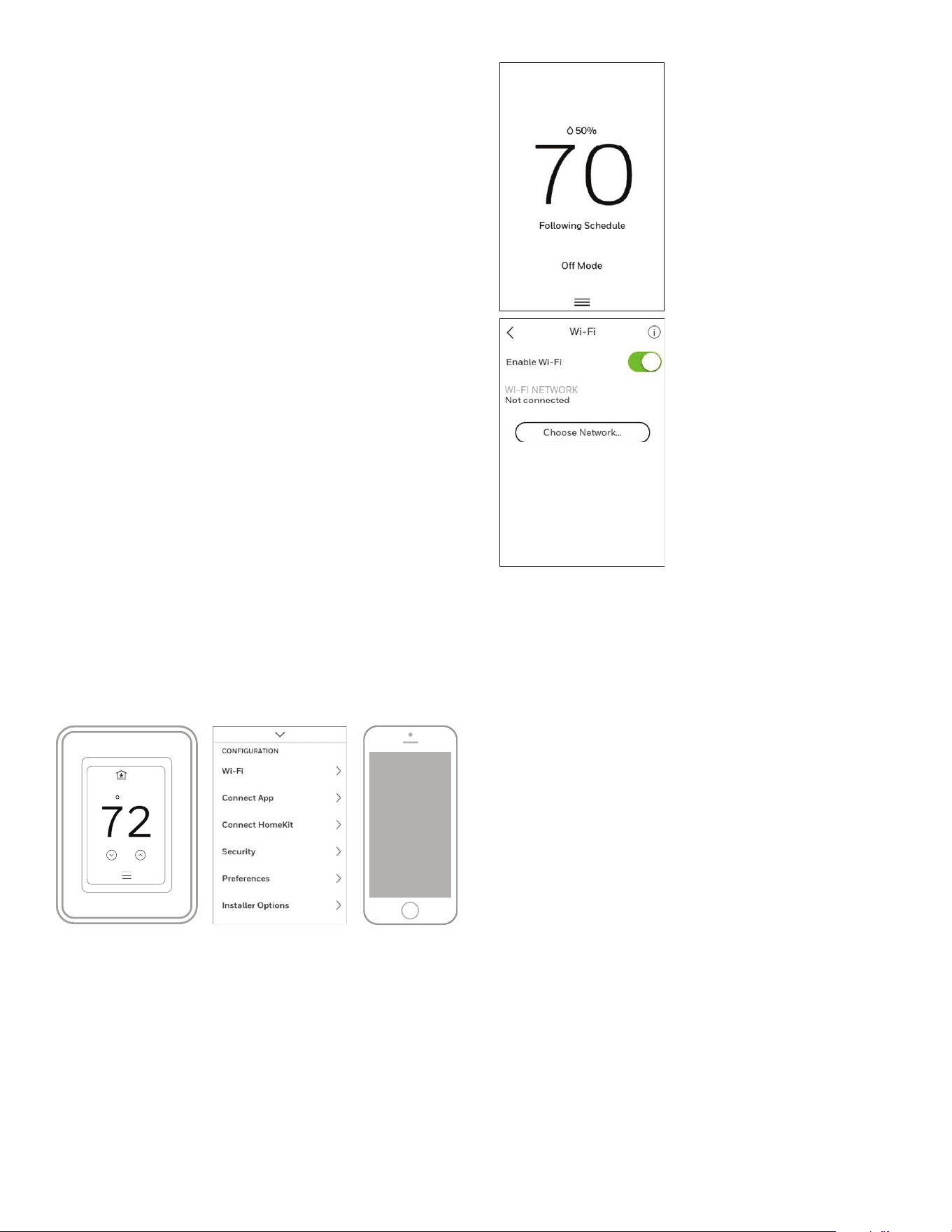
Connect to WiFi
1. Open the Menu
2. Scroll to and select “WiFi”
3. Tap “Choose Network”
4. Select a network
1 2
Wi-Fi
3
Choose
Network
4
Connect to the Resideo App
1. Open the Menu
2. Tap “Connect App”
3. Follow the on-screen instructions
1 2
Connect
App
3
1. Select thermostat model
2. Select location where the thermostat is installed or create a new location.
13 33-00428–05
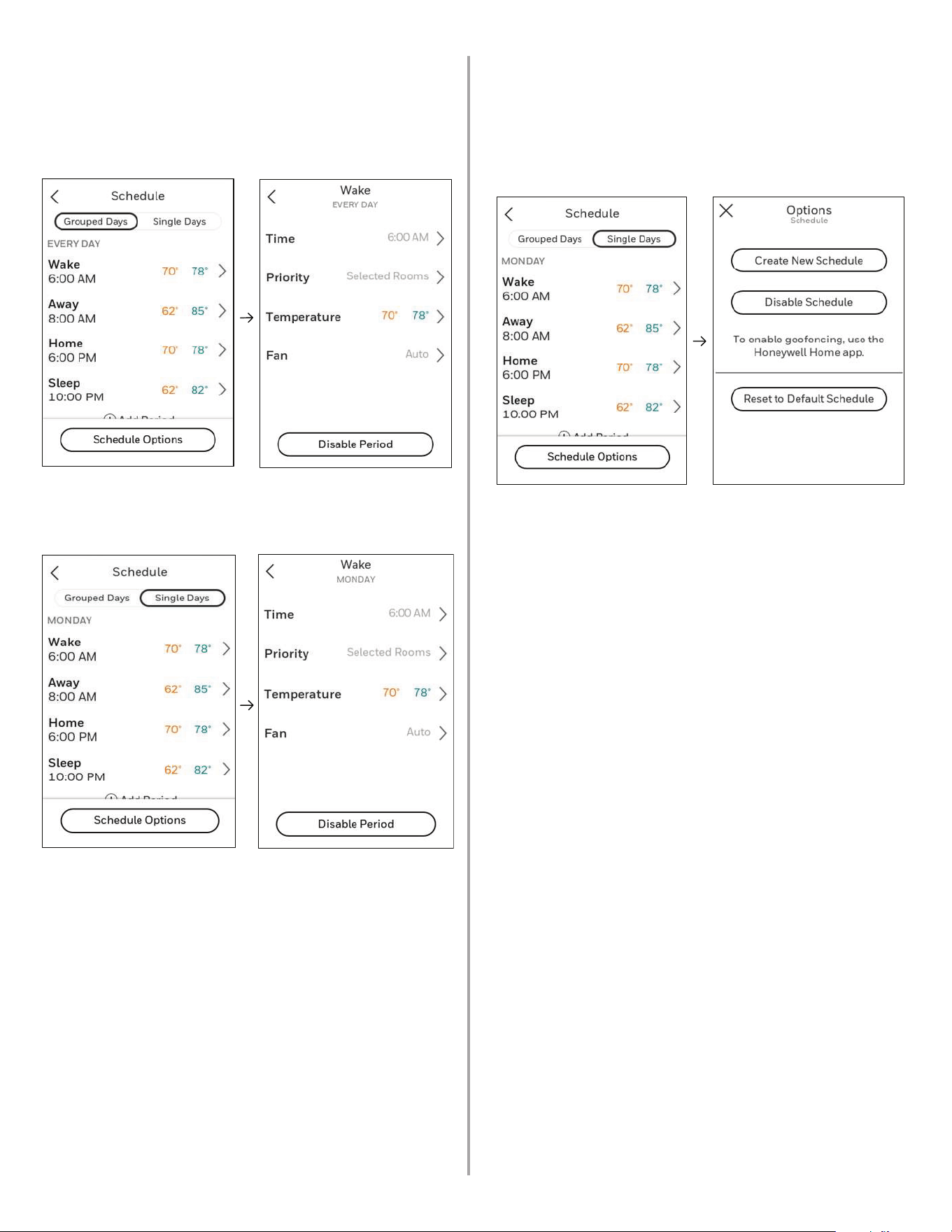
Enabling or disabling WiFi and
Disconnecting and reconnecting to a WiFi
network
On thermostat
Enable WiFi
1. Touch any part of the display to wake the thermostat.
2. Touch the MENU icon at the bottom of the screen.
3. Scroll down and select “WiFi”
4. Verify “Enable” is selected.
Connecting to a WiFi network
1. Verify WiFi is enabled using steps above.
2. Touch “Choose network”
3. Select the network you wish to connect to from the list and
enter the password.
Disable WiFi
1. Touch any part of the display to wake the thermostat.
2. Touch the MENU icon at the bottom of the screen.
3. Scroll down and select “WiFi”
4. Verify “Enable” is de-selected.
Disconnecting from a WiFi network
1. Touch any part of the display to wake the thermostat.
2. Touch the MENU icon at the bottom of the screen.
3. Scroll down and select “WiFi”.
4. Touch “Choose network”
5. Select the network you wish to connect to from the list and
enter the password.
Apple® HomeKit™ Setup
1. Touch Menu icon at the bottom of the T10 home screen.
2. Scroll down and select “Connect HomeKit”.
3. Use the Apple Home App and select “Add Accessory”. Scan
the code shown on your thermostat with your phone.
4. Follow the instructions on your phone.
74
2
18%
33-00428–05 14
Setting a schedule on thermostat
Select the menu icon at the bottom of the homescreen
display. Then select Schedule.
• If you want all days the same, select “grouped days.”
• Touch the period you wish to edit (Wake, Away, Home, or
sleep).
• If you want all days separate, select “Single days.”
• Touch the period of the day you wish to edit (Wake, Away,
Home, or sleep). Scroll down to see additional days).
• If you want weekdays grouped but weekend days
separate, or if you do not want to use a schedule, select
“Schedule
• Touch “create new schedule”. The thermostat will then
walk you through the schedule setup.
• Touch “Time” to edit the time for that schedule period.
• Touch “priority” to select which sensors will be used for
that period.
• Touch “Temperature” to set the heat and cool setpoints
for that period.
• Touch “Fan” to select fan on, auto, or circ for that period
(See page 10).
NOTE: to utilize Geofencing, set the schedule through the app
15 33-00428–05
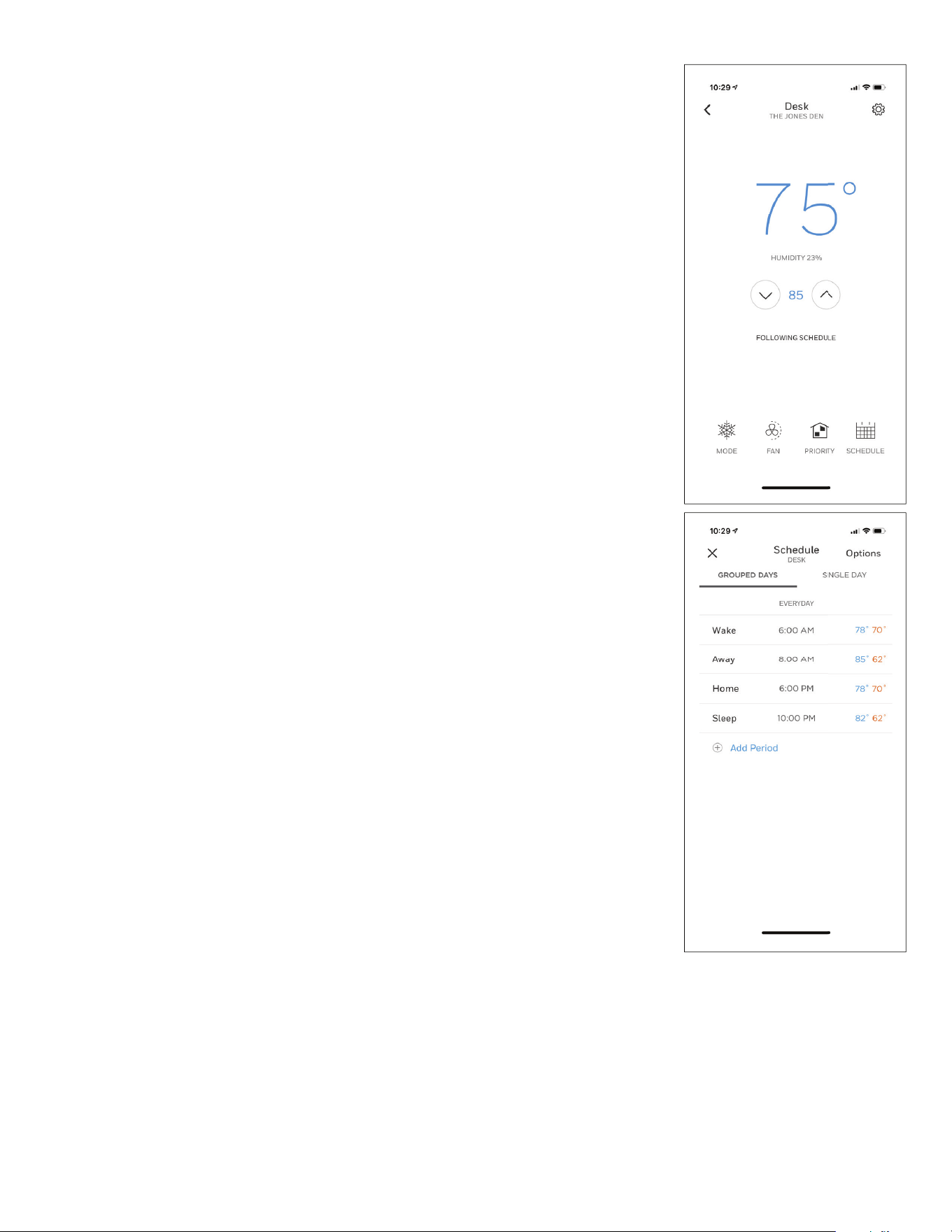
Scheduling through the app
Flexible scheduling: You can choose to use location-based temperature
control (geofence technology), time-based scheduling, or use a combination
of both to make sure your home is always comfortable.
• Location-based temperature control: Using geofencing technology,
the T10 & T10+ Pro Smart thermostat will automatically use your
smartphone’s location, which can save energy when you leave and
make your home comfortable by the time you return.
• Smart scheduling: Adds a Sleep period to location-based temperature
control.
• Time-based scheduling: You can program a schedule where every day
is different, a schedule where weekdays and weekends are different, or a
schedule where every day is the same. There are four adjustable periods
per day: Wake, Away, Home, and Sleep.
• No schedule: You can also choose not to set a schedule and adjust the
thermostat manually.
• Sensor Priority: Select which sensors are used for each program period
or when used manually.
1. In the Resideo app, select the thermostat you wish to schedule. Touch the
calendar icon in the lower right of the display
2. Select Grouped days for all days the same or Single day if you want some
days to be scheduled different than others.
33-00428–05 16
Scheduling through the app (continued)
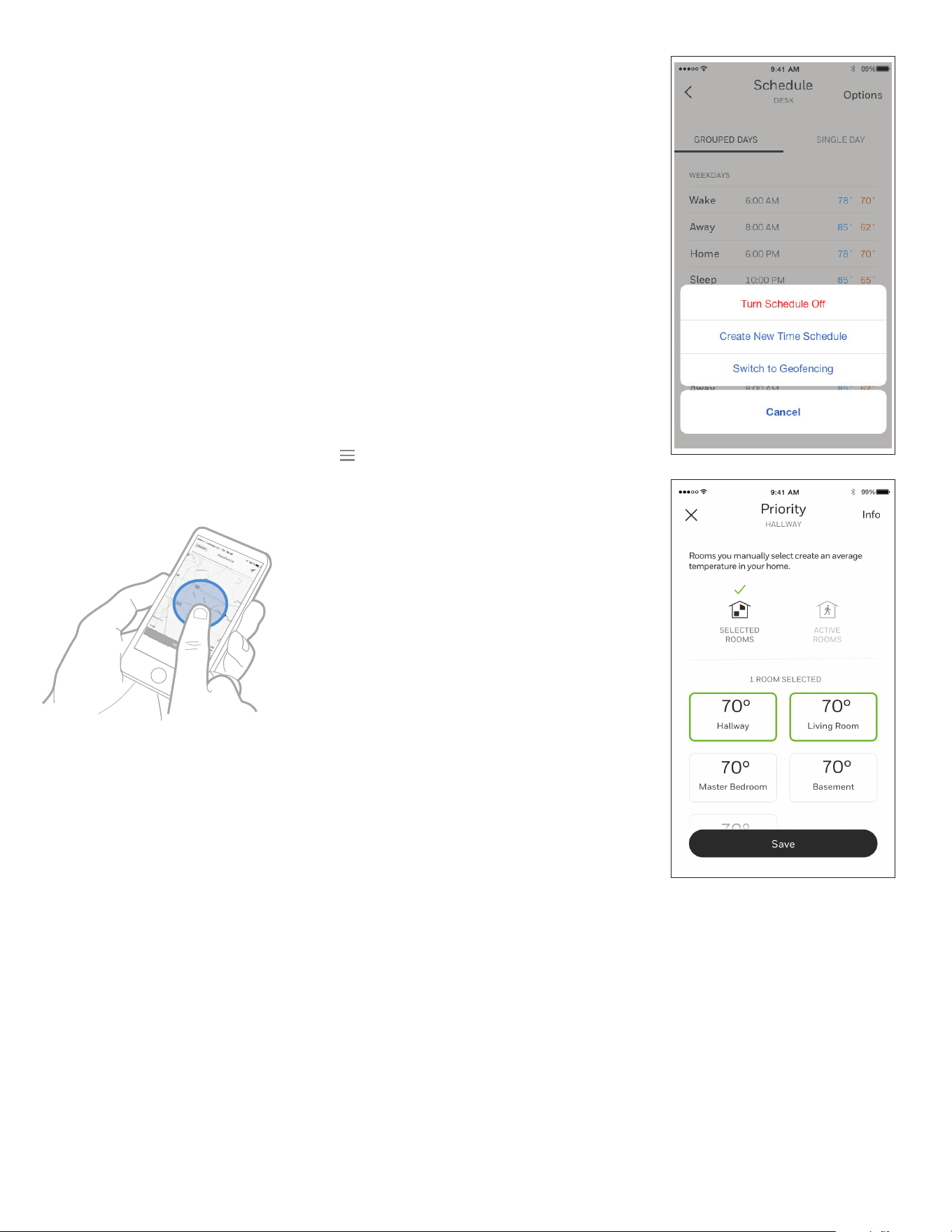
1. Select “Options” to turn schedule off, create a new time-based
schedule, or switch to Geofencing.
2. Set priority sensor(s) for each program.
When location-based temperature control is used, the thermostat active
homescreen display will show ”Using Home settings”, “Using Away
Settings” or “Using “sleep settings” below the room temperature. If you set
an additional Sleep period in the Resideo app, you’ll also see the Following
Schedule in the upper left corner of the thermostat screen.
If you manually change the temperature when location-based temperature
control is active, the new temperature will remain in effect until you cross
the geofence.
To adjust the geofence boundary, follow the steps below.
1. Open the Resideo app, tap the menu icon
in the upper left corner
and then tap Geofence.
2. Tap Geofence Radius, and when the map and current geofence appear,
touch, hold and drag the black dot to adjust the geofence boundary.
3. Tap SAVE to finish.
17 33-00428–05
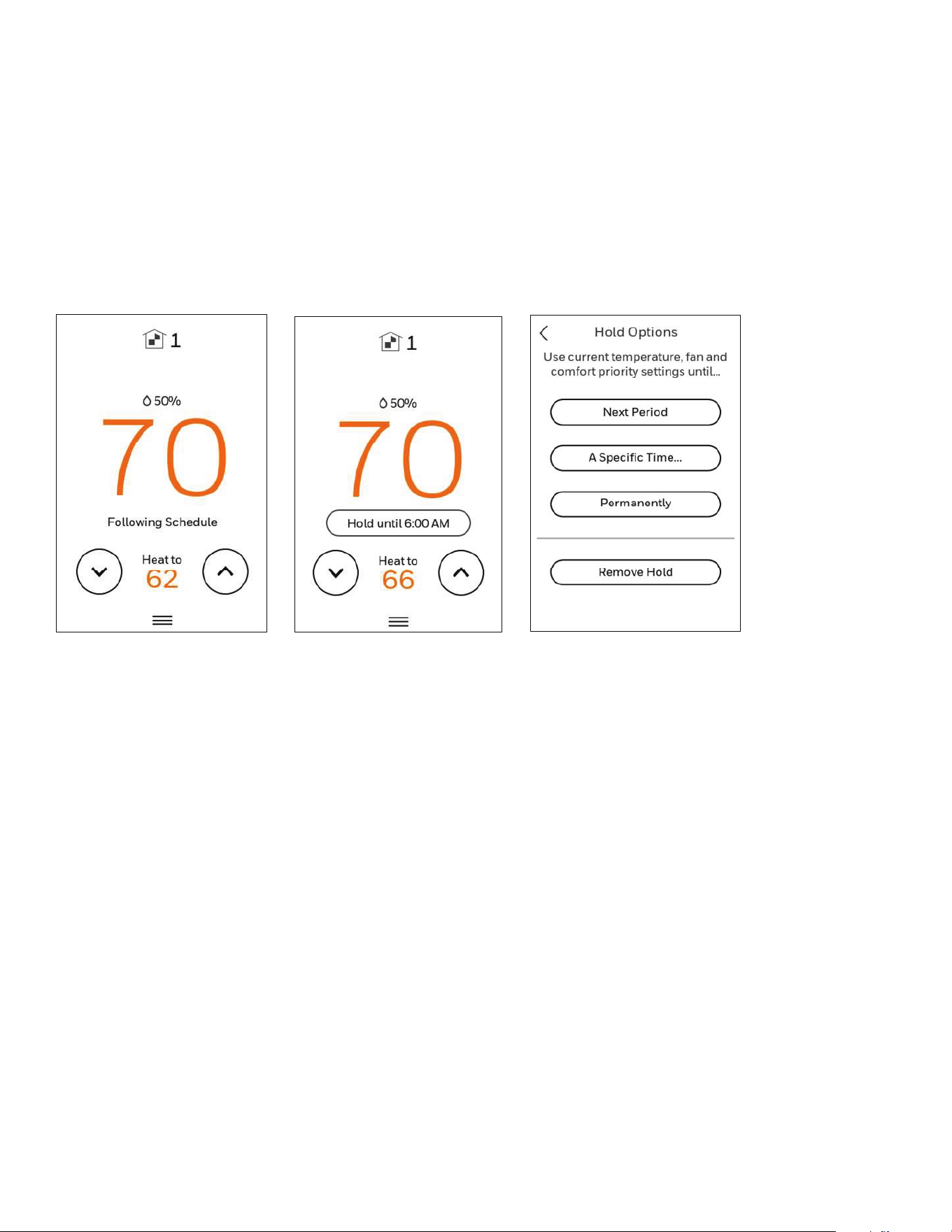
Schedule override on Device
With thermostat in heat, cool, auto, or em heat mode, press the up or down arrow to change the setpoint. (if thermostat is in auto
mode, you need to press “heat to” or “cool to” first).
If scheduling is enabled it will say “Hold until” and show a time at the bottom of the screen. Touch this.
Display says “Use current temperature, fan, and comfort priority settings until…”
Options are:
• Next Period
• A Specific Time
• Permanently
• Remove hold
Choose the appropriate option. If you chose “A Specific time” Select the time you want to hold to.
Press “Done” to return to Home screen.
33-00428–05 18
Setting Preferences
Preference menu options let you select how the thermostat
displays information or responds to certain situations.
To access the Preferences menu:
1. Touch any part of the display to wake the thermostat.
2. Touch the MENU icon at the bottom of the screen.
3. Scroll down and select “preferences”.
Select an option and follow prompts:
Display
• Temperature units (Fahrenheit or Celsius)
• Language (English French or Spanish)
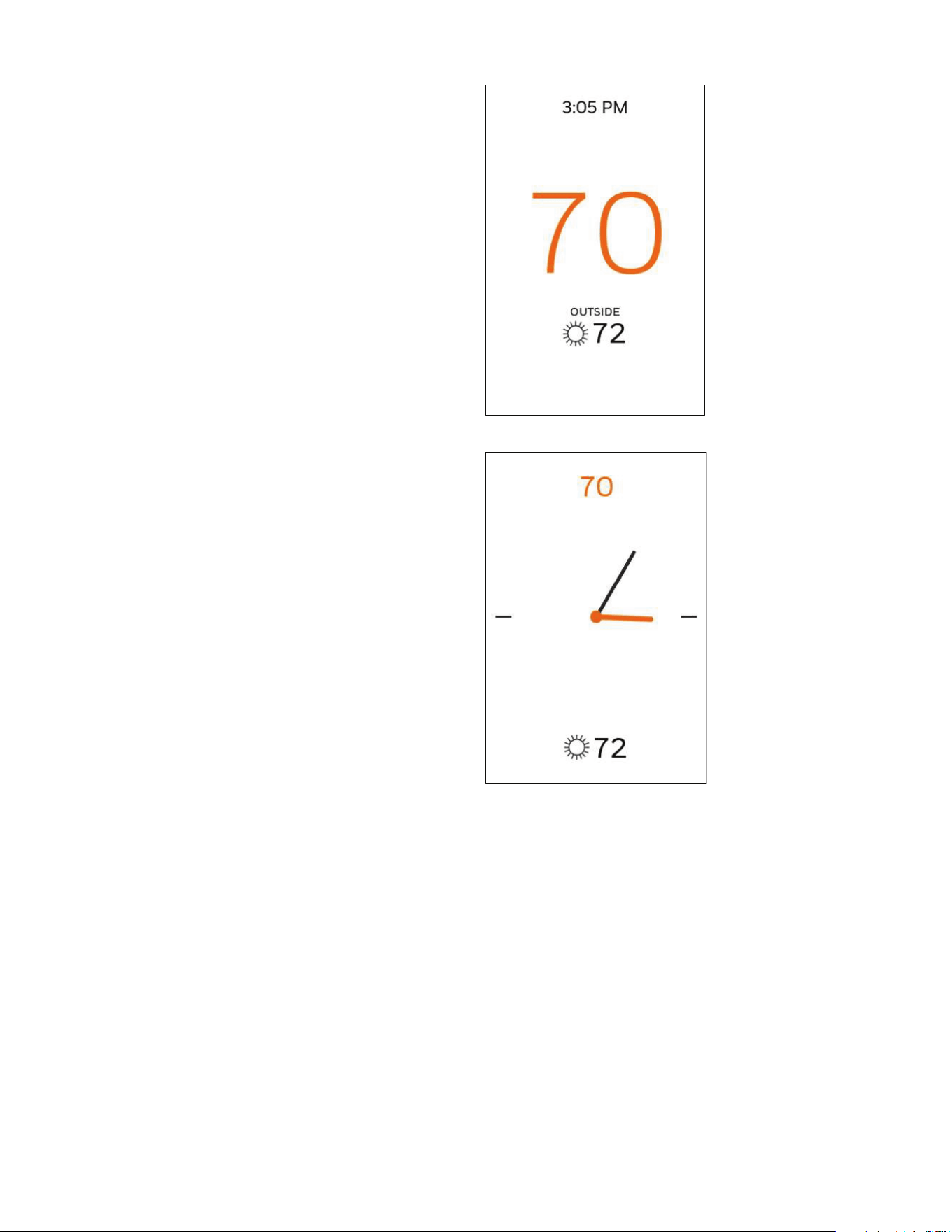
• Idle Screen Style (Temperature or Analog Clock)
• Inactive backlight setting (0% to 100%)
• Inactive Sleep backlight setting (0% to 100% and
inactive sleep time settings. Note: these can be set
different than the schedule sleep times)
• Indoor display offsets (temperature and humidity)
• Clean screen (allows you 30 seconds to clean display
without accidently adjusting a setting)
Date and Time
• Set date
• Set time
• Set to 12 or 24 hour clock
• Set for daylight savings time
Reminders (these vary based on ISU settings)
• Air Filter 1
• Air Filter 2
• Electronic Air Cleaner cells
• Electronic Air Cleaner Pre-Filter
• Electronic Air Cleaner Post-Filter
• Humidifier Tank / Water Filter
• Humidifier Pad
• Dehumidifier Filter
• Ventilator Core
• Ventilator Filter
• UV Bulb 1
• UV Bulb 2
Adaptive recovery
• On or Off
Touch Done to save your settings.
Idle Screen Style - Analog clock
Idle Screen Style - Temperature
19 33-00428–05
Cleaning the Thermostat Screen
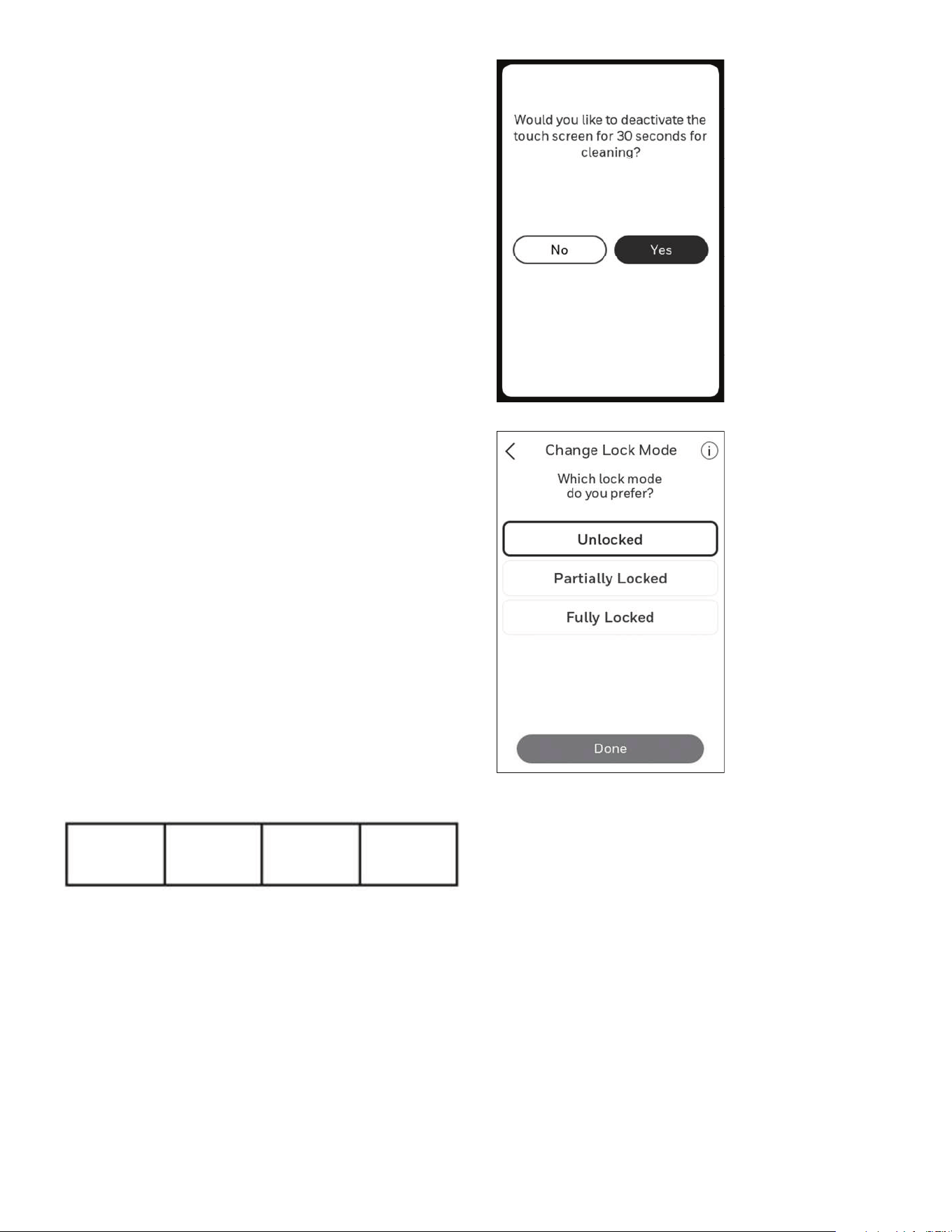
When you select the Clean Screen option, the screen is locked
to prevent accidental changes to the thermostat while you
clean the screen.
1. Touch any part of the display to wake the thermostat.
2. Touch the MENU icon at the bottom of the screen.
3. Scroll down and select “Preferences”.
4. Select “Display”.
5. Select “Clean Screen”
A prompt asks if you want to clean the screen for 30 seconds.
6. Touch Yes. A countdown timer displays elapsed time until
the screen is reactivated.
NOTE: Do NOT spray any liquid directly on the thermostat.
Spray liquids onto cloth, then use the damp cloth to clean the
screen. Use water or household glass cleaner. Avoid abrasive
cleansers.
Adjusting Security Settings
You can adjust security options to prevent unauthorized
changes to system settings.
1. Touch any part of the display to wake the thermostat.
2. Touch the MENU icon at the bottom of the screen.
3. Scroll down and select Security.
4. Select “Change lock mode” or “create password”.
Lock mode options
• Unlocked: Full access allowed.
• Partially locked: Only temperature can be changed.
• Fully locked: No access allowed.
NOTE: If you choose to create a password for additional
security, write it down for reference.
33-00428–05 20
Indoor Air Quality control
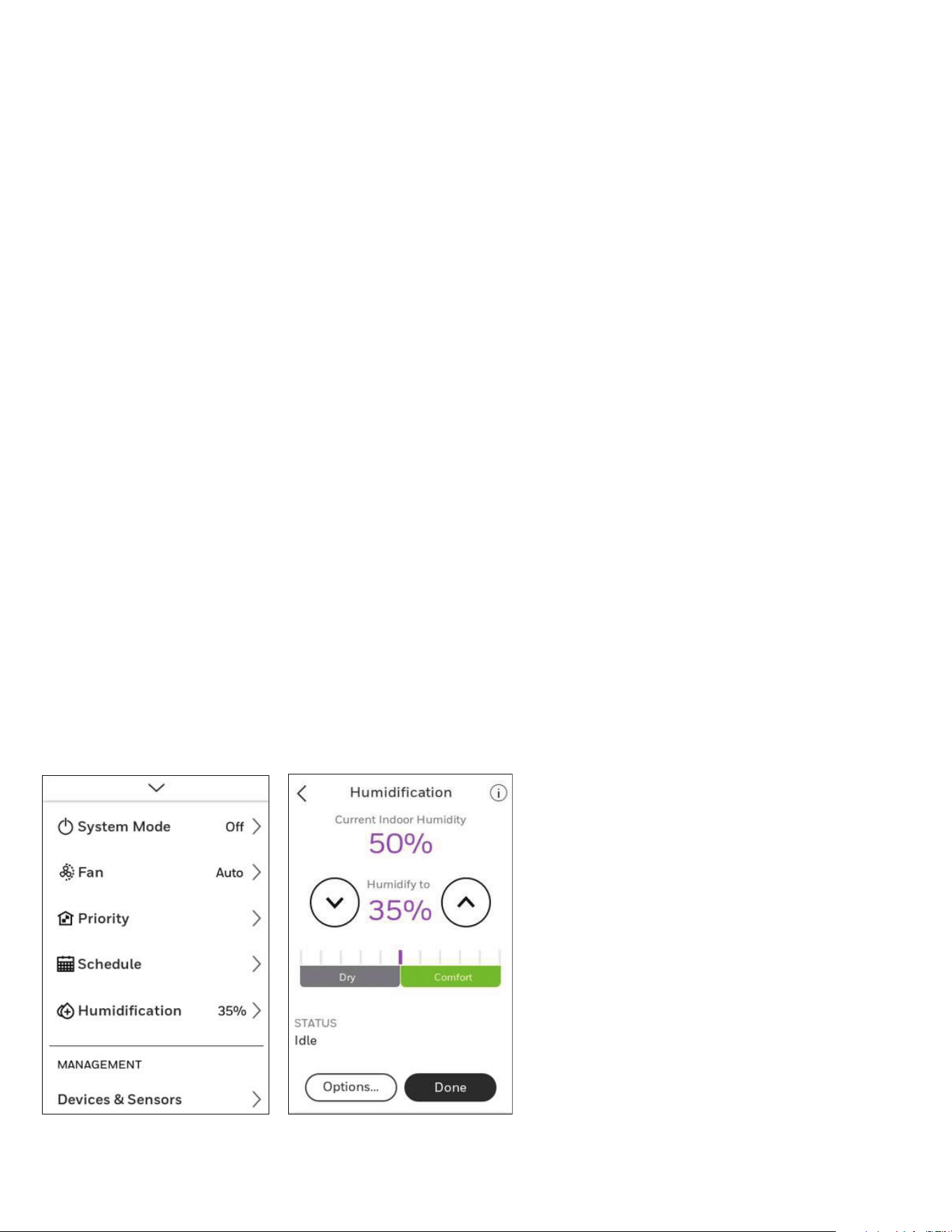
Humidification
The thermostat reads the indoor humidity level and allows the user to set a humidification setting with or without window
protection.
Control Humidification Level
1. Touch any part of the display to wake the thermostat.
2. Touch the MENU icon at the bottom of the screen.
3. Select Humidification.
4. Touch ^ or v to select humidity level.
5. Touch Done to save your settings.
6. If frost or condensation appears on the windows, press MENU, scroll down and select “options”. Then select “Window
Protection Level.”
Window Protection is set on a scale from 1–10. A setting of 1 represents poorly insulated windows and a setting of 10 represents
well insulated windows. A lower number automatically reduces the humidity to help prevent frost or condensation on your
windows. Use a higher number if indoor air seems too dry. To prevent frost/condensation on your windows during cold outdoor
temperatures, poorly insulated windows require a lower Window Protection setting, which will limit how much your humidifier
can run.
7. After you set the Window Protection setting, check for frost/condensation on your windows in the morning. If frost/
condensation is present, adjust the Window Protection setting to the next lowest number and check for frost/condensation on
your windows the next morning. Continue to adjust the Window Protection setting to a lower number until frost/condensation
is no longer present.
NOTE: Window Protection option is only available if a wired outdoor sensor or Internet is used to provide outdoor temperature
and the installer configured the thermostat for window protection on.
Window Protection
Window Protection limits the amount of humidity to prevent frost or condensation on windows. Window Protection requires
either an outdoor sensor or use of Internet weather. The thermostat prevents frost or condensation on windows by not allowing
the humidifier to run above a certain level. To prevent frost or condensation, the thermostat may turn off the humidifier before
the humidity setting is reached.
If Window protection is enabled by the installer, you can adjust this setting by pressing MENU, then scroll down and select
Humidification-Options-Window Protection Level. Window Protection is set on a scale from 1-10. A setting of “1” represents
poorly insulated windows and a setting of “10” represents well insulated windows. A lower number automatically reduces the
humidity to help prevent frost or condensation on your windows. Use a higher number if indoor air seems too dry. To prevent
frost/condensation on your windows during cold outdoor temperatures, poorly insulated windows require a lower Window
Protection setting, which will limit how much your humidifier can run.
After you set the Window Protection setting, check for frost/condensation on your windows in the morning. If frost/condensation
is present, adjust the Window Protection setting to the next lowest number and check for frost/condensation on your windows
the next morning.
Continue to adjust the Window Protection setting to a lower number until frost/condensation is no longer present If Window
Protection is turned Off, the thermostat controls the humidity level to the user’s desired humidity setting. Frost or condensation
may appear on windows.
21 33-00428–05
Dehumidification
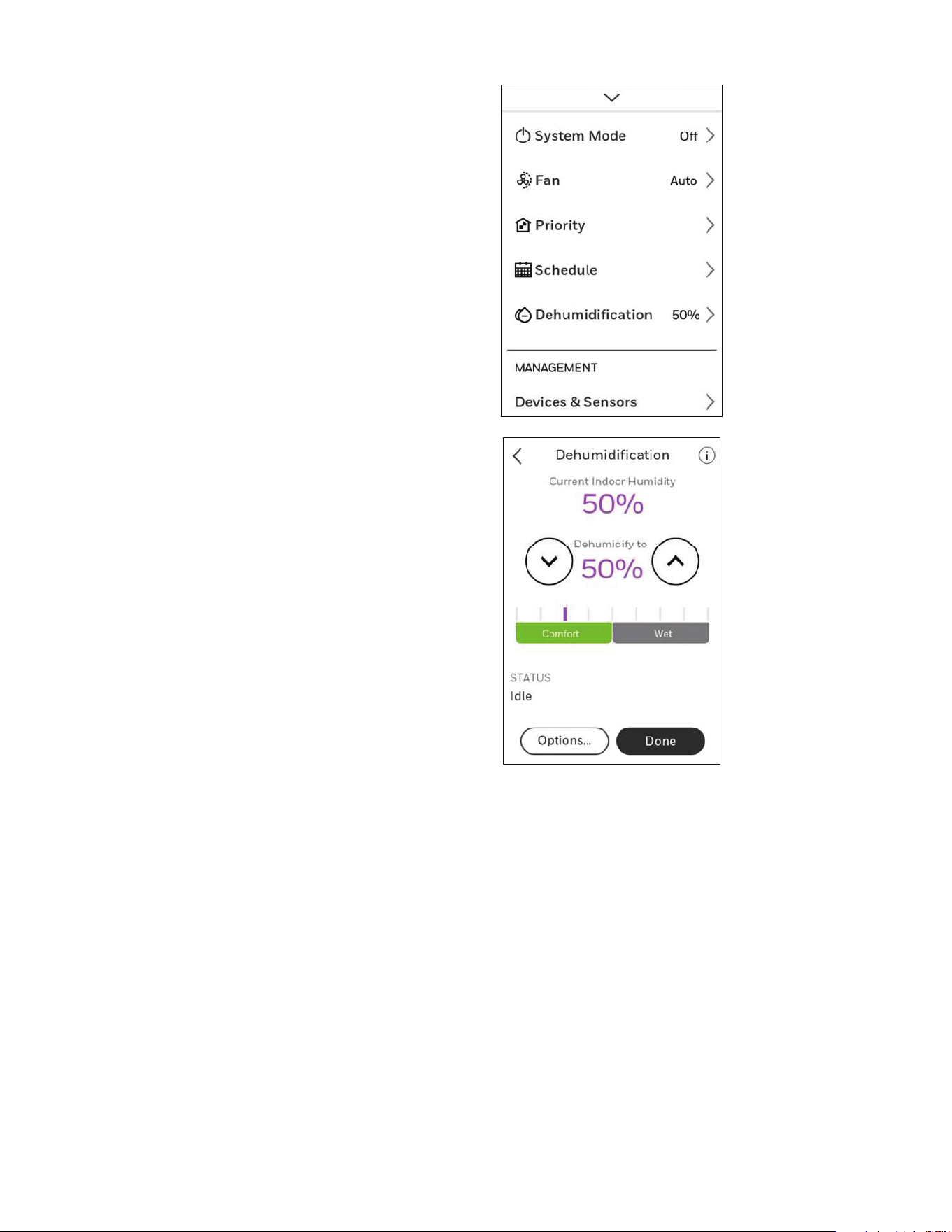
The thermostat reads the indoor humidity level and allows
the user to set a dehumidification setting. The thermostat
controls the humidity level using the cooling system or a
whole house dehumidifier.
Control Dehumidification Level
1. Touch any part of the display to wake the thermostat.
2. Touch the MENU icon at the bottom of the screen.
3. Select Dehumidification.
4. Touch ^ or v to select dehumidity level.
5. Touch options if you want to enable/disable the
dehumidifier.
When disabled, the display will show “off” when viewing the
dehumidifier setting screen.
6. Touch Done to save your settings.
NOTE: If your air conditioner is used to control humidity, the
temperature may drop up to 3° F below your temperature
setting until humidity reaches the desired level.
NOTE: If humidification and dehumidification are setup
to operate in the same system mode (Off) the thermostat
will automatically enforce a 15% deadband between the
humidification and dehumidification settings. The thermostat
will automatically switch between humidification and
dehumidification to maintain the desired humidity level.
Dehumidification overcooling limit (cooling droop)
If the thermostat was configured to use the air-conditioning
to dehumidify, the thermostat allows the cooling system
to lower the temperature up to 5° F below the current cool
setpoint until the desired humidity is reached. The Dehum
Over Cooling Limit range is from 1° to 5° F.
Dehum setting range: 25% RH to 80% RH.
Models made prior to October 2019 had a minimum of 40%
RH but if connected to Wi Fi and registered to Resideo App the
minimum setting is automatically updated to 25% RH. This
would not affect any range stop settings.
33-00428–05 22
Ventilation
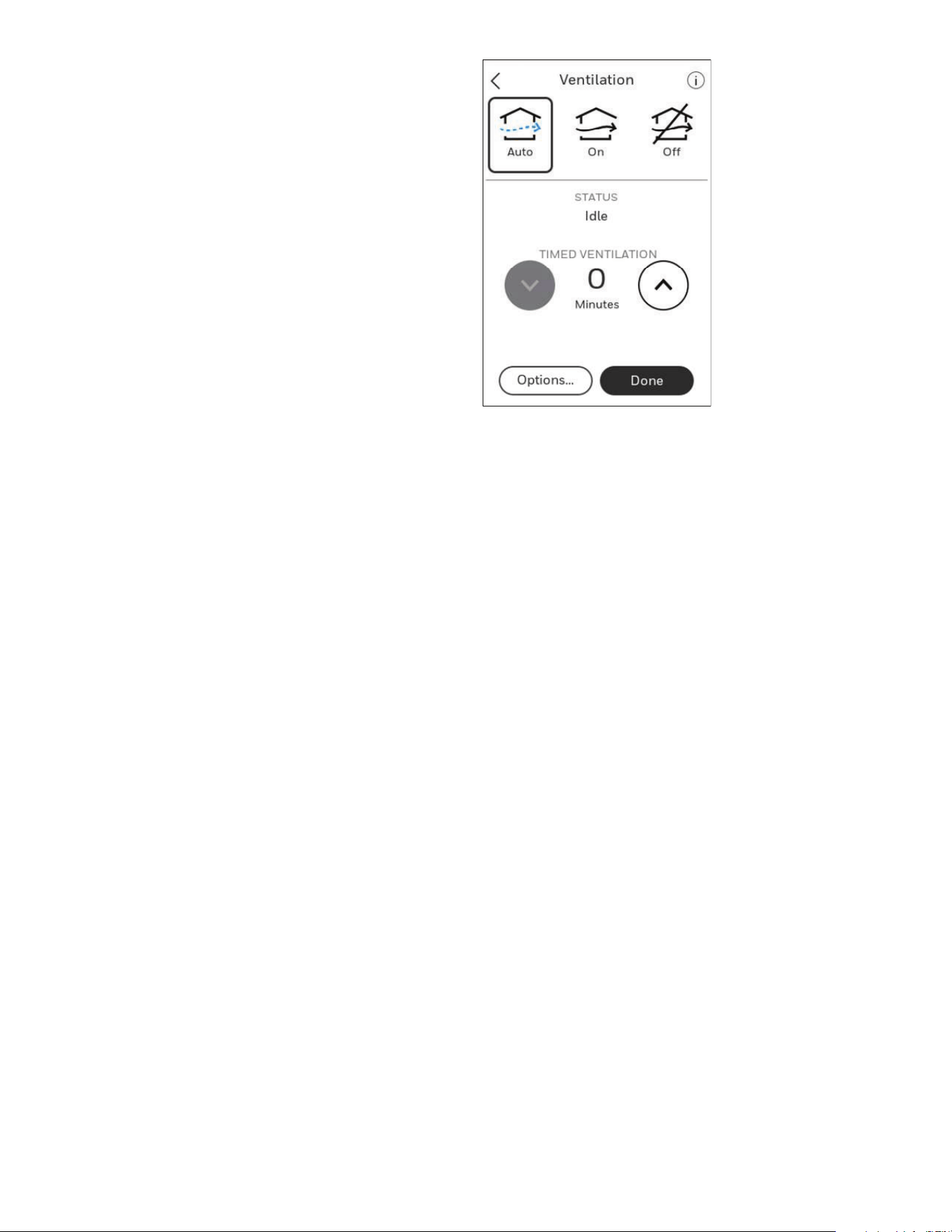
Control Ventilation Level
1. Touch any part of the display to wake the thermostat.
2. Touch the MENU icon at the bottom of the screen.
3. Select Ventilation. You can check or change the ventilation
mode
Mode:
• Auto: Ventilation runs as programmed by the installer.
• On: Ventilation is always on.
• Off: Ventilation remains off unless turned on using the
timer.
The display will show whether the ventilator is currently
running under “status”.
To temporarily turn the ventilator on, use the up arrow to set
the number of minutes you want the ventilator to run (0-180
minutes).
To cancel a temporary setting, press “Cancel Timed
Ventilation”.
NOTE: The Timed Ventilation setting is not available when
ventilator is set to “on”.
4. Touch Done to save your settings. Touch Cancel to ignore
changes.
Lockout During Sleep:
Under the ventilation menu, touch “options”. Select or deselect
“disable during Sleep”. Touch the back arrow in upper left of
display to return to previous screen.
Lockouts and run ventilation:
When using this option, it is recommended to increase the
rate (CFM) of the ventilation equipment to meet the ASHRAE
62.2 ventilation standard in a shorter run time.
NOTES: The ability to lockout ventilation during the “Sleep”
program periods is not an option when the installer set the
thermostat for “ASHRAE is Priority”.

23 33-00428–05
Advanced Features
ADAPTIVE INTELLIGENT RECOVERY
Over time, the T10 thermostat “learns” how long it takes your system to reach your programmed temperature setting.
The thermostat turns on the heating/cooling system early and assures that the programmed temperature setting is reached at
the programmed time regardless of weather conditions. For example, if the Wake program period is set to 6:00 am with a heat
setting of 70 degrees, the heat will turn on before 6:00 am, so the temperature is 70 degrees at 6:00 am. The thermostat displays
“In Recovery” when it turns the system on early.
Adaptive Intelligent Recovery® calculates the recovery ramp based on how far the room temperature is away from the
temperature setting, previous equipment performance and weather history, allowing the thermostat to start recovery at the
optimal time so it can reach the programmed temperature setting at the programmed time.
The T10 thermostat uses two recovery ramps when setup to control a heat pump system with electric aux heat and droop set
to “Comfort”. One ramp for the compressor and one ramp for the auxiliary heat. Once the room temperature intersects the
compressor ramp, the compressor turns on until the setpoint is reached. If the room temperature does not rise quickly enough
and intersects the second ramp, the auxiliary heat turns on. It takes about one week for the thermostat to adjust to weather
conditions, equipment performance and construction of the home. If the temperature setting is reached too early or too late, the
ramp is adjusted for the next day’s recovery.
COMPRESSOR PROTECTION
The thermostat keeps the compressor off for a few minutes before restarting, to prevent equipment damage. During this “off”
time, the message “Waiting for Equipment” is displayed on screen.
P + I CONTROL
A conventional mechanical thermostat does not control temperature precisely at setpoint. Typically there is an offset (droop)*
in the control point as the system load changes. Many factors contribute to offset including the switch differential, thermal lag,
overshoot, cycle rates and system load.
The T10 thermostat however, works much differently than a conventional mechanical thermostat. Droop is always set to comfort
and not adjustable when controlling a 2 stage furnace or 2 stage heat pump without aux heat. The proprietary algorithm in the
thermostat eliminates the factors causing offset (droop). This makes temperature control more accurate than the conventional
mechanical or electronic thermostat. The temperature control algorithm is called proportional plus integral (P + I) control.
The thermostat sensor or indoor sensor senses the current space temperature. The proportional error is calculated by comparing
the sensed temperature to the setpoint temperature. The deviation from the setpoint is the proportional error.
The thermostat also determines integral error, which is a deviation based on the length of error time (how long the sensed room
temperature has been away from the setpoint temperature). The sum of the two errors is the (P + I) error. The cycle rate used to
reach and maintain the setpoint temperature is computed using the P + I control algorithm. The addition of the integral error is
what differentiates the thermostat from mechanical thermostats.
* The T10 only uses droop for control of the aux heat on systems with a heat pump and either electric heat strips or a gas/oil
furnace as backup heat. In these cases the droop setting locks out the aux heat unless the droop condition or upstage timer
setting allows the aux heat to run. When electric strips are used as the aux heat, a “Comfort” setting is typically used instead of a
droop setting. This is configured by the installer.
33-00428–05 24
Alerts and notifications
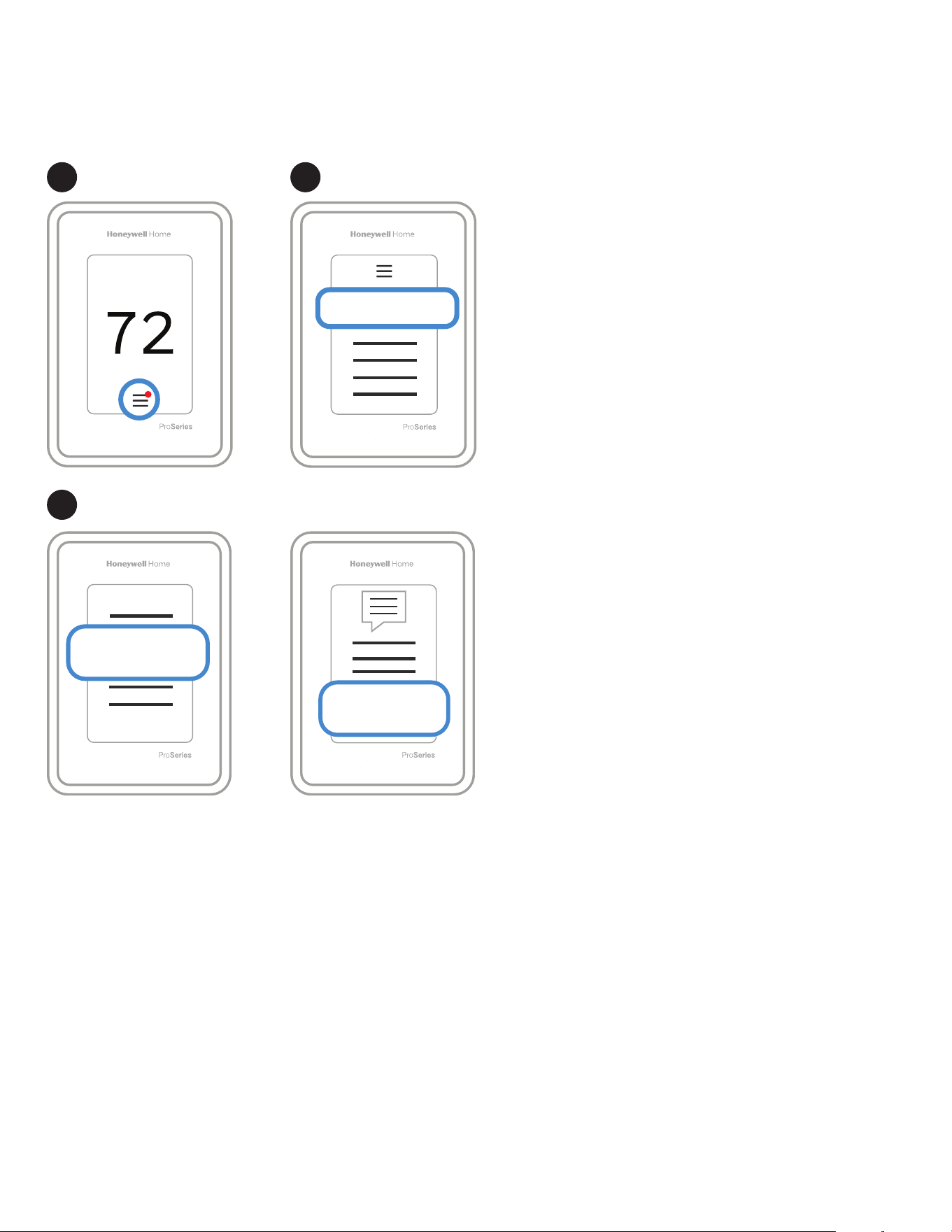
1. The red dot above the Menu icon indicates an active alert or notification. Touch the Menu icon to view active Alerts &
Notifications.
2. Touch Notifications to open this menu.
3. Touch the alert message to see more information about the alert.
Notifications
Set the Date
and Time
Notifications
Set the Date
and Time
1 2
3
When there is an active alert or notification, you must select the notification banner and acknowledge the message before you
are allowed to access the menu icon.
25 33-00428–05
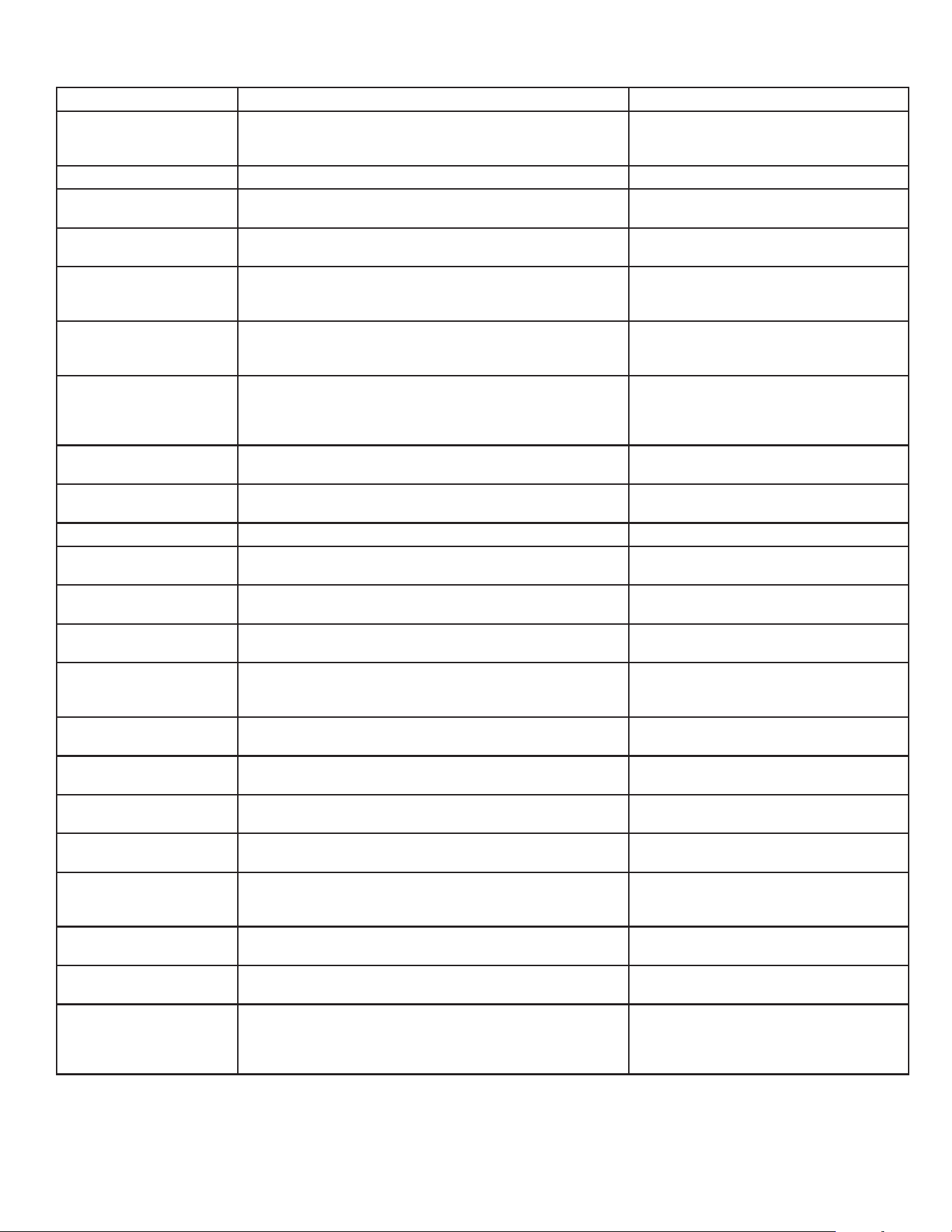
Alerts
Alert Message Meaning Action
SET DATE AND TIME Date and time are required for features such as schedule Touch “Set Date and Time” button below
alert message or register thermostat to
Resideo account.
WIFI MODULE ERROR There is a failure of the WiFi module in the thermostat. Replace the thermostat
NEED TO REGISTER
ONLINE
Sign in to the Resideo App and follow the instructions to
add a thermostat.
NO INTERNET
CONNECTION
The thermostat is connected to (Network name) but can’t
reach the Internet.
Try checking your router and modem.
WiFi SIGNAL LOST The WiFi connection has been lost. Try reconnecting or
choosing a new network.
Touch “View WiFi settings” below
the message on screen and follow
instructions.
WiFi NOT CONFIGURED WiFi has not been configured on this thermostat. Touch “View WiFi Settings” under alert
to either connect to a network or disable
WiFi.
INTERNET REQUIRED
FOR OUTDOOR
TEMPERATURE
To receive outdoor temperature, the thermostat needs
to be connected to the Internet. The installer may have
configured the thermostat to use outdoor temperature
for equipment lockouts.
Touch “View WiFi settings”below alert
message to link thermostat to network.
POWER RESTORED There was an interruption in the power to the thermostat,
but it has been restored.
No Action Required.
HEAT PUMP FAILURE An issue was detected. Contact professional to diagnose
and service your heat pump. (L wire energized).
Call contractor to determine what is
wrong with heat pump.
MEMORY ERROR There is a failure of the memory chip in the thermostat. Replace the thermostat
INTERNAL SENSOR
ERROR
There is a failure of the sensor in the thermostat. Replace the thermostat
INTERNAL HUM TEMP
FAILURE
There is a failure of the sensor in the thermostat. Replace the thermostat
THERMOSTAT MEMORY
ERROR
Internal issue with thermostat memory chip. Replace the thermostat
THERMOSTAT
UNKNOWN TIME
Power was lost and the time is not able to update
through WiFi either because the thermostat was not
registered or there is poor WiFi communication.
Reset the time or Verify WiFi connection.
LOW SENSOR
BATTERIES
Display says, “Change the batteries in the (Sensor name)
soon”
Replace the AAA Alkaline batteries for
the sensor named in alert message
INDOOR SENSOR
ERROR
An issue with the wireless (SENSOR NAME) was
detected. The sensor may need to be replaced.
Replace the sensor
INDOOR SENSOR
CONNECTION ERROR
(SENSOR NAME) is no longer connected. Replace the batteries and make sure it
is placed in an acceptable location.
OUTDOOR SENSOR
ERROR
The outdoor temperature sensor is no longer detected. Check the outdoor sensor and wiring.
FLOOR TEMPERATURE
SENSOR ERROR (T10+
models only)
The Floor temperature sensor is no longer detected. Check the floor sensor and wiring.
WIRED INDOOR TEMP
SENSOR FAILURE
The wired indoor temperature sensor is no longer
detected.
Check the indoor sensor and wiring.
WIRED OUTDOOR TEMP
SENSOR FAILURE
The wired outdoor temperature sensor is no longer
detected.
Check the outdoor sensor and wiring.
REDLINK RF TOOLKIT
NOT RESPONDING
The wireless sensor RF network is not operating. Wireless
sensor features are not available at this time. Please
contact Customer Care for assistance.
This is an error that is usually caused
because the radio has died or the
connection between the thermostat and
the radio has been somehow severed.

33-00428–05 26
IAQ REMINDERS
You can set up IAQ reminders in the thermostat to remind users when filters, pads, UV bulbs, etc. need cleaning or replacement.
The available reminders vary based on the ISU settings. For example, if the thermostat is configured to control a flow through
humidifier, it will have the humidifier pad reminder but not the humidifier tank reminder:
• Air Filter 1
• Air Filter 2
• Electronic Air Cleaner Pre-Filter
• Electronic Air Cleaner Post-Filter
• Humidifier Tank / Water Filter
• Humidifier Pad
• Dehumidifier Filter
• Ventilator Core
• Ventilator Filter
• UV Bulb 1
• UV Bulb 2
Reminders that are displayed under preferences will change based on the IAQ equipment installed. Reminders for equipment
that is already set up can be set using the steps below. Reminders for IAQ equipment that is not yet set up must be turned on
from the installer setup.
If you want to disable the alert, go MENU-PREFERENCES-REMINDERS to turn reminder off.
NOTE: Air Filter, Humidifier Pad, Dehumidifier Filter, and Ventilator Filter are displayed under Preferences even if they have not
been set up. Humidifier Pad is not displayed if a steam humidifier has been installed.
To access or adjust the reminder settings
1. Touch any part of the display to wake the thermostat.
2. Touch the MENU icon at the bottom of the screen.
3. Scroll down and select “preferences.”
4. Select the reminder you want to set from the list (shown above).
5. Press ^ or v to set the timer length. Ranges, increments, and units will change based on the reminder.
6. Press Done to save the reminder.
7. Press Reset Timer when you have completed the recommended maintenance or you can extend the timer setting to turn off
the alert and remind you later to do the recommended maintenance.
• Repeat these steps for all reminders you want to set
NOTE: When set for run time days, the thermostat tracks the amount of time the fan has run and compares that time against the
number of run time days selected. Fan run time is counted when there is a call for forced air heating, cooling, or fan.
Dehum setting range: 25% RH to 80% RH.
Models made prior to October 2019 had a minimum of 40% RH but if connected to Wi Fi and registered to Resideo App the
minimum setting is automatically updated to 25% RH. This would not affect any range stop settings.
27 33-00428–05
Wireless Sensor information
When one or more wireless temperature/humidity/motion sensors have been linked to the thermostat by the installer, you can
check the status of the sensor using the following steps.
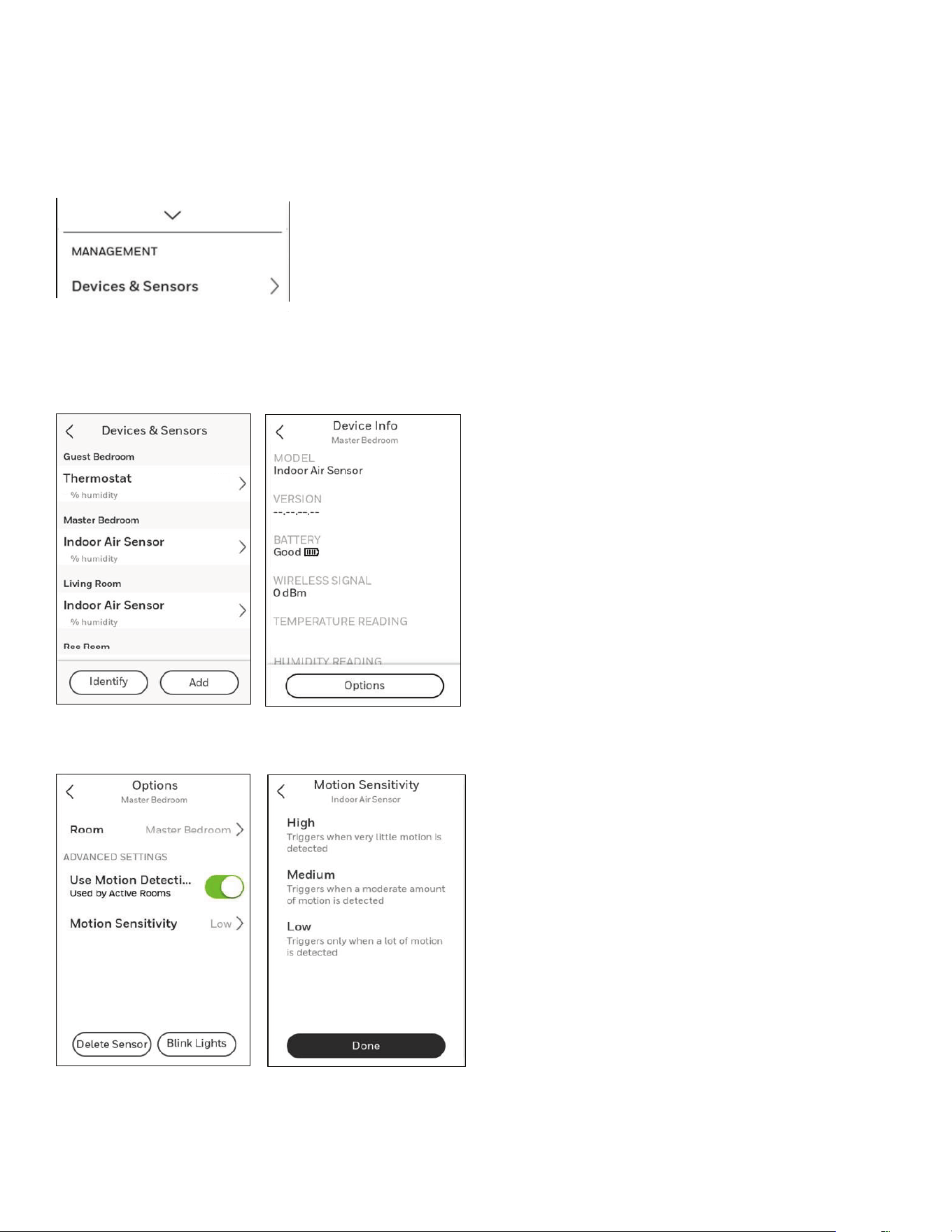
Checking the status of a sensor
1. Touch any part of the display to wake the thermostat.
2. Touch the MENU icon at the bottom of the screen.
3. Scroll down and touch “Devices and Sensors”.
• View the sensors, add a sensor or identify a sensor
• To identify a sensor, touch “Identify” and then remove the cover from a sensor and press the button on that sensor. The
thermostat will indicate the room name of that sensor.
• Touch a sensor name from the list to get information on that sensor
3
2
3
2
3
4
71 °
72°
69°
72°
• Touch Motion Sensitivity to adjust setting
• Touch “Blink lights” to make the light on the selected sensor flash for 5 seconds.

33-00428–05 28
Battery Replacement (indoor sensor)
The T10 thermostat does not use any batteries. It is powered by 24 volts from the HVAC transformer using the C (common) wire.
The wireless indoor sensors use AAA Alkaline batteries.
Batteries:
Replace batteries in your indoor sensor when a warning appears on the thermostat screen, about 60 days before batteries are
depleted.
When the sensor status light begins flashing red, battery power is critically low and will be depleted within 2–3 weeks. During
normal operation, the status light remains off.
To replace the batteries:
1. Remove cover from sensor.
2. Install 2 fresh AAA alkaline batteries. If the status light flashes green, batteries are good; if it flashes red, you must use fresh
batteries.
3. Snap cover back on sensor. The sensor will restore communication with the thermostat a few seconds after new batteries are
installed.

29 33-00428–05
Frequently Asked Questions (FAQs)
WiFi connection questions
Q: Will the thermostat still work if the WiFi connection is lost?
A: Yes, you can still manually adjust the temperature at the thermostat. However, some features such as location-based
temperature control (geofencing technology) can only be managed through the Resideo app and will not function without a WiFi
connection. The thermostat will automatically reconnect to WiFi once the network is restored.
Q: Is there a way to extend the strength of my WiFi signal?
A: The range (distance) of your WiFi signal is determined by your router. Try moving your router closer to the location of the
thermostat, or use a router with a stronger signal range.
Q: There’s an alert that says “WiFi signal lost” - what should I do?
A: Wait 5 minutes for the thermostat to reconnect or select an alternate network (if you have one) in the Resideo app
configuration menu. If the thermostat isn’t able to reconnect, you’ll need to troubleshoot the router to determine the cause.
Resideo account and app questions
Q: Why haven’t I received an account activation email?
A: If you haven’t received an activation email after 5 minutes, check your Spam folder and look for an email from Connected-
[email protected]. If you don’t see it, tap Resend to have the activation email resent. If you still don’t receive it, please contact
the Technical Support team at 1-800-633-3991.
Q: Can I set up my thermostat with multiple users?
A: Yes. To add users, log into the Resideo app and tap the menu icon in the upper left corner. Select Manage Users, tap Add User
and type in the email addresses of the people you’d like to invite. If they already have a Resideo account set up, the thermostat
and its location will automatically be added to their account. If they don’t have an account, they’ll receive an email prompting
them to download the Resideo app and create a new account.
Q: Can I set up location-based temperature control with multiple users?
A: Yes. Location-based temperature control (geofence technology) will activate based on the last person who leaves and the first
person to return. Each user will need to create their own Resideo account with a login ID and password. Two users should not
share the same account. Each user will then need to enable location-based temperature control.
Q: Why doesn’t a change I made in the app show up on the thermostat?
A: There may be a short delay when you make temperature and settings changes in the Resideo app. Wait a few minutes, and if
you still don’t see your changes on the thermostat, make sure the thermostat is still connected to WiFi and restart your Resideo
app.
Software and security questions
Q: How can I be sure my thermostat is running the most up-to-date firmware?
A: When your thermostat is connected to WiFi, it will automatically receive over-the-air firmware updates from the Resideo app.
These firmware updates contain things such as new features as well as security upgrades. Keep your thermostat connected to
WiFi to ensure it receives these updates.
Q: How can I prevent a cybercriminal from making unathorized changes to my thermostat?
A: If a cybercriminal gains access to your WiFi router, they can tamper with a wide range of online activities, including the
settings on your connected devices. Make sure you change the default password on your WiFi router, and when you select a new
password, make sure it uses multiple upper- and lower-case letters and special characters.

33-00428–05 30
Other questions
Q: How can I safely remove my thermostat?
A: Thermostat removal should ideally by handled by a trained professional as improper removal can cause electrical shock
and equipment damage. If you wish to remove the thermostat yourself, be sure to turn off the circuit breaker that controls your
heating or cooling equipment before you disconnect any wires. If you don’t know which breaker controls your equipment, you can
shut off the main breaker.
Q: How can I uninstall my T10 & T10+ Pro Smart thermostat with RedLINK 3.0?
A: If you want to replace your T10 & T10+ Pro Smart thermostat with RedLINK 3.0, or if you’re moving out of your home and
leaving the thermostat behind, you’ll first want to clear out the personal settings that are stored on the thermostat. (Even when
disconnected from power, the thermostat will keep your settings and home router information in memory.) We recommend
resetting the thermostat’s WiFi and HomeKit settings (if previously connected).
Q: Is there a motion sensor in the thermostat?
A: There is not a motion sensor in the thermostat. In most homes, the thermostat is mounted in a hallway, so when using active
rooms for priority sensing, we would want to exclude the thermostat.
Q: What happens if “Active rooms” is used and no motion is detected in any of the rooms with sensors?
A: If the thermostat is set to control by active rooms, and no motion is detected, the sensor in the thermostat is used and the
remote sensors are excluded. Most people schedule the sleep period to use “Selected sensors” rather than “active sensors” and
choose the bedrooms for the sleep schedule.
Q: When using active rooms, how long are those rooms considered after motion has last been detected?
A: The sensor has a dynamic occupancy algorithm based on how many motion events it sees within a certain timeframe. If
someone walks through a room, then the room will be occupied for 10 minutes. If someone is in a room longer, then the timeout
will be increased automatically.
Q: How do the wireless indoor sensors detects motion.
A: The sensors use a Passive Infrared Sensor (PIR) detector.
Q: How does motion-based priority work with multiple people in the house?
A: If the thermostat priority setting is set to ‘Active Rooms’, then any room that detects motion will become prioritized, and those
Rooms’ temperatures will be averaged together to be used as the effective indoor temperature. If people leave the room, then the
sensor will need to wait for the timeout.
Q: What’s the range of detection on the motion sensor?
A: There are many factors that can affect this (height, body size, layers of clothing, temperature of clothing, angle, etc.). The
typical range of our sensor is 20-30 feet.

31 33-00428–05
Troubleshooting
If you have difficulty with your thermostat, please try the following suggestions. Most problems can be corrected quickly and
easily.
Display is blank
• Check circuit breaker and reset if necessary.
• Make sure power switch for heating and cooling is on.
• Make sure furnace door is closed securely.
• Make sure the C-wire is connected.
• Make sure R/Rc slider tab is set correctly (see wiring diagrams).
Heating or cooling system does not respond
• Press Menu > System Mode > Heat > Done to set the system to Heat mode. Make sure the desired temperature is higher
than the indoor temperature.
• Press Menu > System Mode > Cool > Done to set the system to Cool mode. Make sure the desired temperature is lower than
the indoor temperature.
• Check circuit breaker and reset if necessary.
• Make sure power switch for heating and cooling system is on.
• Make sure furnace door is closed securely.
• Wait 5 minutes for the system to respond.
Temperature settings do not change
Make sure desired temperature is within acceptable ranges:
• Heat: 40 °F to 90 °F (4.5 °C to 32.0 °C)
• Cool: 50 °F to 99 °F (10.0 °C to 37.0 °C)
Aux heat runs in cooling
• For heat pump systems, verify there is not a wire attached to W on the UWP.
Cool runs with a call for heat
• For heat pump systems, verify there is not a wire attached to W on the UWP.
Sensor will not connect
• Press and hold Connect on the wireless sensor for 15 seconds. The LED will turn Amber. Return to the thermotat menu and
press Menu > Devices and Sensors. Follow the on-screen instructions to add the sensor.

33-00428–05 32
Specifications
Temperature Ranges
• Heat: 40 °F to 90 °F (4.5 °C to 32.0 °C)
• Cool: 50 °F to 99 °F (10.0 °C to 37.0 °C)
Operating Ambient Temperature
• 32 °F to 120 °F (0 °C to 48.9 °C)
Shipping Temperature
• -20 °F to 120 °F (-28.9 °C to 48.9 °C)
Operating Relative Humidity
• 5% to 90% (non-condensing)
Humidity setting range
• 10% to 60% RH.
Dehumidity setting range
• Originally 40% to 80% RH. Lowered to 25% RH min on
Oct 3 2019. Also updated via app.
Physical Dimensions in inches (mm) (H x W x D)
• T10 & T10+ PRO WiFi Thermostat:
4.9” x 3.7” x 0.93” (125.4 x 94.1 x 23.68)
• UWP Mounting System (included):
2-9/32” x 2-13/64” x 2-43/64” (58 x 56 x 10)
• Wireless temperature, humidity, and motion sensor:
2.6” x 2.6” x .78” (66.25 x 66.25 x 19.7)
• Cover Plate (included with THX321WFS2001W):
5 11/64” x 5 1/2” x 11/16” (131.4 x 139.7 x 17.5)
• Cover Plate (included with THX321WF2003W):
6 7/64” x 6 7/64” x 9/32” (155 x 155 x 7)
Electrical Ratings
Terminal Voltage
(50/60Hz)
Running
Current
W Heating 20-30 Vac 0.02-1.0 A
W2 (Aux) Heating 20-30 Vac 0.02-1.0 A
E Emergency Heat 20-30 Vac 0.02-0.5 A
Y Compressor Stage 1 20-30 Vac 0.02-1.0 A
Y2 Compressor Stage 2 20-30 Vac 0.02-1.0 A
G Fan 20-30 Vac 0.02-0.5 A
O/B Changeover 20-30 Vac 0.02-0.5 A
L/A Input 20-30 Vac 0.02-0.5 A
U 20-30 Vac 0.02-0.5 A
Power Consumption
3 VA
Regulatory Information
FCC REGULATIONS
§ 15.19 (a)(3)
This device complies with part 15 of the FCC Rules. Operation
is subject to the following two conditions:
1. This device may not cause harmful interference, and
2. This device must accept any interference received,
including interference that may cause undesired operation.
IC REGULATIONS
RSS-GEN
This device complies with Industry Canada’s license-exempt
RSSs.
Operation is subject to the following two conditions:
1. This device may not cause interference; and
2. This device must accept any interference, including
interference that may cause undesired operation of the
device.
FCC Warning (Part 15.21) (USA only)
Changes or modifications not expressly approved by the party
responsible for compliance could void the user’s authority to
operate the equipment.
This product should not be disposed of with other household
waste. Check for the nearest authorized collection centers
or authorized recyclers. The correct disposal of end-of-life
equipment will help prevent potential negative consequences
for the environment and human health.

33 33-00428–05
5-year limited warranty
Resideo warrants this product, excluding battery, to be free from defects in workmanship or materials, under normal use and
service, for a period of five (5) years from the date of first purchase by the original purchaser. If at any time during the warranty
period the product is determined to be defective due to workmanship or materials, Resideo shall repair or replace it (at Resideo’s
option).
If the product is defective,
(i) return it, with a bill of sale or other dated proof of purchase, to the place from which you purchased it; or
(ii) call Resideo Customer Care at 1-800-633-3991. Customer Care will make the determination whether the product should
be returned to the following address: Resideo Return Goods, 1985 Douglas Dr. N., Golden Valley, MN 55422, or whether a
replacement product can be sent to you.
This warranty does not cover removal or reinstallation costs. This warranty shall not apply if it is shown by Resideo that the defect
was caused by damage which occurred while the product was in the possession of a consumer.
Resideo’s sole responsibility shall be to repair or replace the product within the terms stated above. RESIDEO SHALL NOT BE
LIABLE FOR ANY LOSS OR DAMAGE OF ANY KIND, INCLUDING ANY INCIDENTAL OR CONSEQUENTIAL DAMAGES RESULTING,
DIRECTLY OR INDIRECTLY, FROM ANY BREACH OF ANY WARRANTY, EXPRESS OR IMPLIED, OR ANY OTHER FAILURE OF THIS
PRODUCT.
Some states do not allow the exclusion or limitation of incidental or consequential damages, so this limitation may not apply to
you.
THIS WARRANTY IS THE ONLY EXPRESS WARRANTY RESIDEO MAKES ON THIS PRODUCT. THE DURATION OF ANY IMPLIED
WARRANTIES, INCLUDING THE WARRANTIES OF MERCHANTABILITY AND FITNESS FOR A PARTICULAR PURPOSE, IS HEREBY
LIMITED TO THE FIVE YEAR DURATION OF THIS WARRANTY. Some states do not allow limitations on how long an implied
warranty lasts, so the above limitation may not apply to you.
This warranty gives you specific legal rights, and you may have other rights which vary from state to state. If you have any
questions concerning this warranty, please write Resideo Customer Care, 1985 Douglas Dr, Golden Valley, MN 55422 or call
1-800-633-3991.

33-00428–05 34

35 33-00428–05

www.resideo.com
© 2023 Resideo Technologies, Inc. All rights reserved.
The Honeywell Home trademark is used under license from Honeywell International, Inc. This product is manufactured by Resideo Technologies, Inc. and its affiliates.
Use of the Works with Apple badge means that an accessory has been designed to work specifically with the technology identified in the badge and has been certified by the developer to meet Apple performance standards. Apple is not
responsible for the operation of this device or its compliance with safety and regulatory standards.
AirPlay, iPad, iPad Air, iPad Pro, iPhone and iPod touch are trademarks of Apple Inc., registered in the U.S. and other countries. HomePod is a trademark of Apple Inc.
Resideo Technologies Inc.
1985 Douglas Drive North, Golden Valley, MN 55422
1-800-468-1502
33-00428–05 SA Rev. 5-23 | Printed in United States