
Module Door Staon
User Manual

Legal Informaon
©2022 Hangzhou Hikvision Digital Technology Co., Ltd. All rights reserved.
About this Manual
The Manual includes instrucons for using and managing the Product. Pictures, charts, images and
all other informaon hereinaer are for descripon and explanaon only. The informaon
contained in the Manual is subject to change, without noce, due to rmware updates or other
reasons. Please nd the latest version of this Manual at the Hikvision website ( hps://
www.hikvision.com/ ).
Please use this Manual with the guidance and assistance of professionals trained in supporng the
Product.
Trademarks
and other Hikvision's trademarks and logos are the properes of
Hikvision in various jurisdicons.
Other trademarks and logos menoned are the properes of their respecve owners.
Disclaimer
TO THE MAXIMUM EXTENT PERMITTED BY APPLICABLE LAW, THIS MANUAL AND THE PRODUCT
DESCRIBED, WITH ITS HARDWARE, SOFTWARE AND FIRMWARE, ARE PROVIDED "AS IS" AND "WITH
ALL FAULTS AND ERRORS". HIKVISION MAKES NO WARRANTIES, EXPRESS OR IMPLIED, INCLUDING
WITHOUT LIMITATION, MERCHANTABILITY, SATISFACTORY QUALITY, OR FITNESS FOR A PARTICULAR
PURPOSE. THE USE OF THE PRODUCT BY YOU IS AT YOUR OWN RISK. IN NO EVENT WILL HIKVISION
BE LIABLE TO YOU FOR ANY SPECIAL, CONSEQUENTIAL, INCIDENTAL, OR INDIRECT DAMAGES,
INCLUDING, AMONG OTHERS, DAMAGES FOR LOSS OF BUSINESS PROFITS, BUSINESS
INTERRUPTION, OR LOSS OF DATA, CORRUPTION OF SYSTEMS, OR LOSS OF DOCUMENTATION,
WHETHER BASED ON BREACH OF CONTRACT, TORT (INCLUDING NEGLIGENCE), PRODUCT LIABILITY,
OR OTHERWISE, IN CONNECTION WITH THE USE OF THE PRODUCT, EVEN IF HIKVISION HAS BEEN
ADVISED OF THE POSSIBILITY OF SUCH DAMAGES OR LOSS.
YOU ACKNOWLEDGE THAT THE NATURE OF THE INTERNET PROVIDES FOR INHERENT SECURITY
RISKS, AND HIKVISION SHALL NOT TAKE ANY RESPONSIBILITIES FOR ABNORMAL OPERATION,
PRIVACY LEAKAGE OR OTHER DAMAGES RESULTING FROM CYBER-ATTACK, HACKER ATTACK, VIRUS
INFECTION, OR OTHER INTERNET SECURITY RISKS; HOWEVER, HIKVISION WILL PROVIDE TIMELY
TECHNICAL SUPPORT IF REQUIRED.
YOU AGREE TO USE THIS PRODUCT IN COMPLIANCE WITH ALL APPLICABLE LAWS, AND YOU ARE
SOLELY RESPONSIBLE FOR ENSURING THAT YOUR USE CONFORMS TO THE APPLICABLE LAW.
ESPECIALLY, YOU ARE RESPONSIBLE, FOR USING THIS PRODUCT IN A MANNER THAT DOES NOT
INFRINGE ON THE RIGHTS OF THIRD PARTIES, INCLUDING WITHOUT LIMITATION, RIGHTS OF
PUBLICITY, INTELLECTUAL PROPERTY RIGHTS, OR DATA PROTECTION AND OTHER PRIVACY RIGHTS.
YOU SHALL NOT USE THIS PRODUCT FOR ANY PROHIBITED END-USES, INCLUDING THE
Module Door Staon User Manual
i

DEVELOPMENT OR PRODUCTION OF WEAPONS OF MASS DESTRUCTION, THE DEVELOPMENT OR
PRODUCTION OF CHEMICAL OR BIOLOGICAL WEAPONS, ANY ACTIVITIES IN THE CONTEXT RELATED
TO ANY NUCLEAR EXPLOSIVE OR UNSAFE NUCLEAR FUEL-CYCLE, OR IN SUPPORT OF HUMAN
RIGHTS ABUSES.
IN THE EVENT OF ANY CONFLICTS BETWEEN THIS MANUAL AND THE APPLICABLE LAW, THE LATTER
PREVAILS.
Data Protecon
During the use of device, personal data will be collected, stored and processed. To protect data,
the development of Hikvision devices incorporates privacy by design principles. For example, for
device with facial recognion features, biometrics data is stored in your device with encrypon
method; for ngerprint device, only ngerprint template will be saved, which is impossible to
reconstruct a ngerprint image.
As data controller, you are advised to collect, store, process and transfer data in accordance with
the applicable data protecon laws and regulaons, including without limitaon, conducng
security controls to safeguard personal data, such as, implemenng reasonable administrave and
physical security controls, conduct periodic reviews and assessments of the eecveness of your
security controls.
Module Door Staon User Manual
ii
Symbol Convenons
The symbols that may be found in this document are dened as follows.
Symbol Descripon
Danger
Indicates a hazardous situaon which, if not avoided, will or could
result in death or serious injury.
Cauon
Indicates a potenally hazardous situaon which, if not avoided, could
result in equipment damage, data loss, performance degradaon, or
unexpected results.
Note
Provides addional informaon to emphasize or supplement
important points of the main text.
Module Door Staon User Manual
iii

Regulatory Informaon
FCC Informaon
Please take aenon that changes or modicaon not expressly approved by the party responsible
for compliance could void the user's authority to operate the equipment.
FCC compliance: This equipment has been tested and found to comply with the limits for a Class B
digital device, pursuant to part 15 of the FCC Rules. These limits are designed to provide
reasonable protecon against harmful interference in a residenal installaon. This equipment
generates, uses and can radiate radio frequency energy and, if not installed and used in accordance
with the instrucons, may cause harmful interference to radio communicaons. However, there is
no guarantee that interference will not occur in a parcular installaon. If this equipment does
cause harmful interference to radio or television recepon, which can be determined by turning
the equipment o and on, the user is encouraged to try to correct the interference by one or more
of the following measures:
—Reorient or relocate the receiving antenna.
—Increase the separaon between the equipment and receiver.
—Connect the equipment into an outlet on a circuit dierent from that to which the receiver is
connected.
—Consult the dealer or an experienced radio/TV technician for help
FCC Condions
This device complies with part 15 of the FCC Rules. Operaon is subject to the following two
condions:
1. This device may not cause harmful interference.
2. This device must accept any interference received, including interference that may cause
undesired operaon.
Module Door Staon User Manual
iv
EU Conformity Statement
This product and - if applicable - the supplied accessories too are marked with "CE"
and comply therefore with the applicable harmonized European standards listed
under the EMC Direcve 2014/30/EU, the RoHS Direcve 2011/65/EU
2012/19/EU (WEEE direcve): Products marked with this symbol cannot be disposed
of as unsorted municipal waste in the European Union. For proper recycling, return
this product to your local supplier upon the purchase of equivalent new equipment,
or dispose of it at designated collecon points. For more informaon see:
www.recyclethis.info
2006/66/EC (baery direcve): This product contains a baery that cannot be
disposed of as unsorted municipal waste in the European Union. See the product
documentaon for specic baery informaon. The baery is marked with this
symbol, which may include leering to indicate cadmium (Cd), lead (Pb), or mercury
(Hg). For proper recycling, return the baery to your supplier or to a designated
collecon point. For more informaon see:www.recyclethis.info
Industry Canada ICES-003 Compliance
This device meets the CAN ICES-3 (B)/NMB-3(B) standards requirements.
This device complies with Industry Canada licence-exempt RSS standard(s). Operaon is subject to
the following two condions:
1. this device may not cause interference, and
2. this device must accept any interference, including interference that may cause undesired
operaon of the device.
Le présent appareil est conforme aux CNR d'Industrie Canada applicables aux appareils
radioexempts de licence. L'exploitaon est autorisée aux deux condions suivantes :
1. l'appareil ne doit pas produire de brouillage, et
2. l'ulisateur de l'appareil doit accepter tout brouillage radioélectrique subi, même si le brouillage
est suscepble d'en compromere le fonconnement.
Under Industry Canada regulaons, this radio transmier may only operate using an antenna of a
type and maximum (or lesser) gain approved for the transmier by Industry Canada. To reduce
potenal radio interference to other users, the antenna type and its gain should be so chosen that
the equivalent isotropically radiated power (e.i.r.p.) is not more than that necessary for successful
communicaon.
Conformément à la réglementaon d'Industrie Canada, le présent émeeur radio peut fonconner
avec une antenne d'un type et d'un gain maximal (ou inférieur) approuvé pour l'émeeur par
Industrie Canada. Dans le but de réduire les risques de brouillage radioélectrique à l'intenon des
autres ulisateurs, il faut choisir le type d'antenne et son gain de sorte que la puissance isotrope
Module Door Staon User Manual
v

rayonnée équivalente (p.i.r.e.) ne dépasse pas l'intensité nécessaire à l'établissement d'une
communicaon sasfaisante.
This equipment should be installed and operated with a minimum distance 20cm between the
radiator and your body.
Cet équipement doit être installé et ulisé à une distance minimale de 20 cm entre le radiateur et
votre corps.
Power Source Detail
The power source should be qualied and meet limited power source or PS2 requirements
according to IEC 60950-1 or IEC 62368-1 standard.
Module Door Staon User Manual
vi

Contents
Chapter 1 Introducon ............................................................................................................... 1
Chapter 2 Appearance ................................................................................................................ 2
Chapter 3 Terminal and Wiring ................................................................................................... 4
3.1 Terminal Descripon .............................................................................................................. 4
3.2 Alarm Input Device Wiring ..................................................................................................... 5
Chapter 4 Installaon ................................................................................................................. 6
4.1 Congure Alarm In Module Address ...................................................................................... 6
4.2 Alarm In Module Installaon ................................................................................................. 7
4.3 Typical Applicaon ................................................................................................................. 8
Chapter 5 Acvaon ................................................................................................................... 9
5.1 Acvate Device via Client Soware ........................................................................................ 9
5.2 Edit Network Parameters ....................................................................................................... 9
Chapter 6 Remote Conguraon via Web ................................................................................. 11
6.1 Live View .............................................................................................................................. 11
6.2 User Management ............................................................................................................... 11
6.3 Device Management ............................................................................................................ 13
6.4 Parameters Sengs ............................................................................................................. 13
6.4.1 Local Parameters Sengs ........................................................................................... 14
6.4.2 System Sengs ........................................................................................................... 15
6.4.3 Network Sengs ......................................................................................................... 17
6.4.4 Video & Audio Sengs ............................................................................................... 22
6.4.5 Image Sengs ............................................................................................................. 25
6.4.6 Event Sengs .............................................................................................................. 28
6.4.7 Schedule Sengs ........................................................................................................ 32
6.4.8 Intercom Sengs ........................................................................................................ 33
6.4.9 Access Control Sengs ............................................................................................... 38
Module Door Staon User Manual
vii

Chapter 7 Conguraon via Client Soware ............................................................................. 42
7.1 Device Management ............................................................................................................ 42
7.1.1 Add Online Device ....................................................................................................... 42
7.1.2 Add Device by IP Address ............................................................................................ 44
7.1.3 Add Device by IP Segment .......................................................................................... 44
7.2 Live View via Door Staon ................................................................................................... 44
7.3 Parameters Sengs ............................................................................................................. 44
7.3.1 Device Management ................................................................................................... 44
7.3.2 Local Parameters Sengs ........................................................................................... 45
7.3.3 System Sengs ........................................................................................................... 47
7.3.4 Network Sengs ......................................................................................................... 49
7.3.5 Video & Audio Sengs ............................................................................................... 54
7.3.6 Image Sengs ............................................................................................................. 57
7.3.7 Schedule Sengs ........................................................................................................ 60
7.3.8 Intercom Sengs ........................................................................................................ 61
7.3.9 Access Control Sengs ............................................................................................... 66
7.4 Organizaon Management .................................................................................................. 70
7.4.1 Add Organizaon ........................................................................................................ 70
7.4.2 Modify and Delete Organizaon ................................................................................. 70
7.5 Person Management ............................................................................................................ 70
7.5.1 Add Person .................................................................................................................. 71
7.5.2 Modify and Delete Person .......................................................................................... 72
7.5.3 Import and Export Person Informaon ....................................................................... 72
7.5.4 Get Person Informaon from Device .......................................................................... 72
7.5.5 Change Person to Other Organizaon ........................................................................ 73
7.5.6 Issue Card in Batch ...................................................................................................... 73
7.5.7 Permission Sengs ..................................................................................................... 76
Module Door Staon User Manual
viii

Appendix A. Relevant Instrucons for External Power Supply and Wiring of 2-wire Video
Intercom Products (2020-1-20) ................................................................................................. 77
Appendix B. Communicaon Matrix and Device Command ...................................................... 80
Module Door Staon User Manual
ix
Chapter 1 Introducon
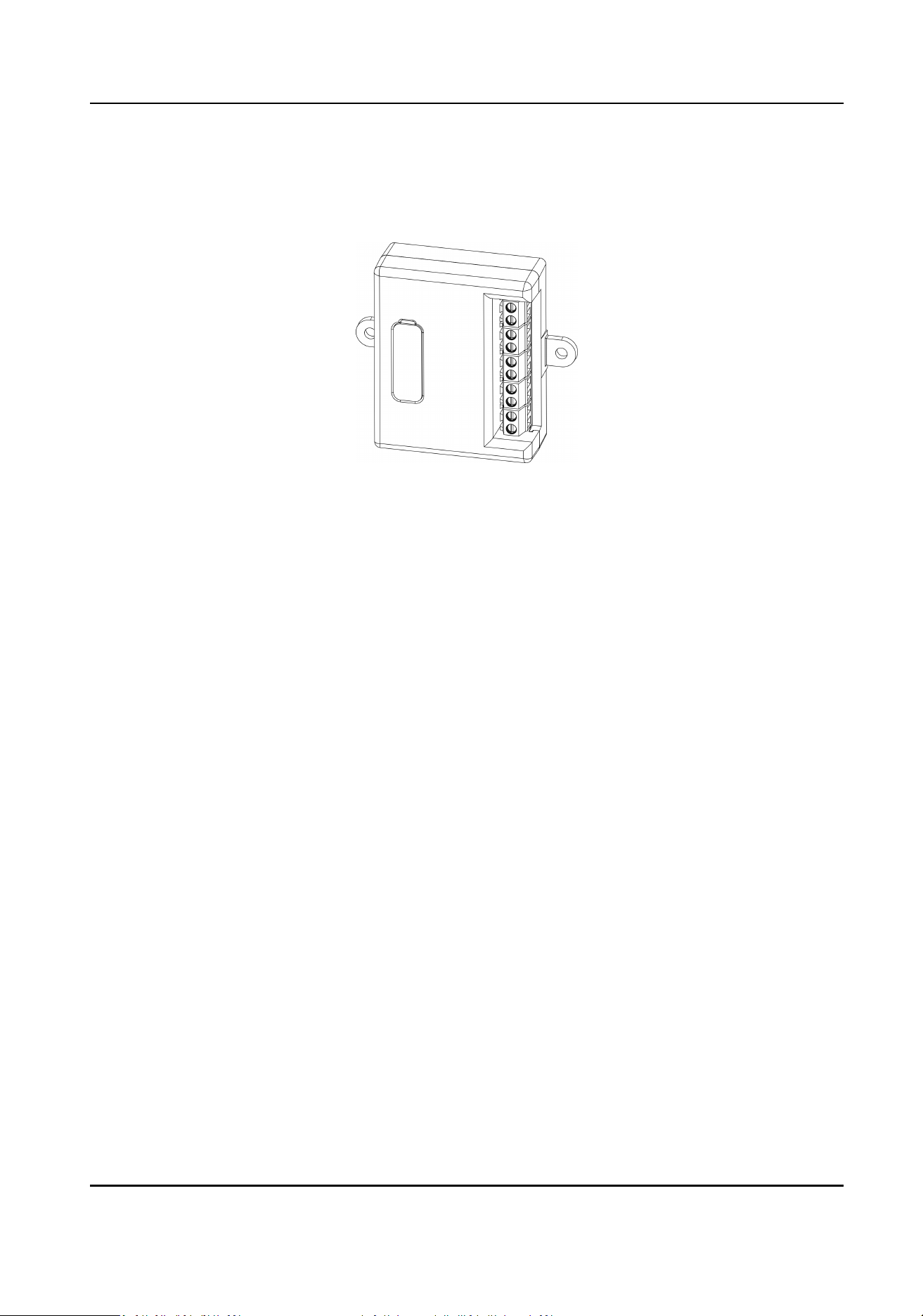
The alarm in module is designed for connecng extended call buons. Aer conguraon, you can
press the connected buons to call the corresponding indoor staons.
Module Door Staon User Manual
1
Chapter 2 Appearance
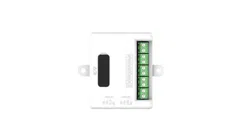
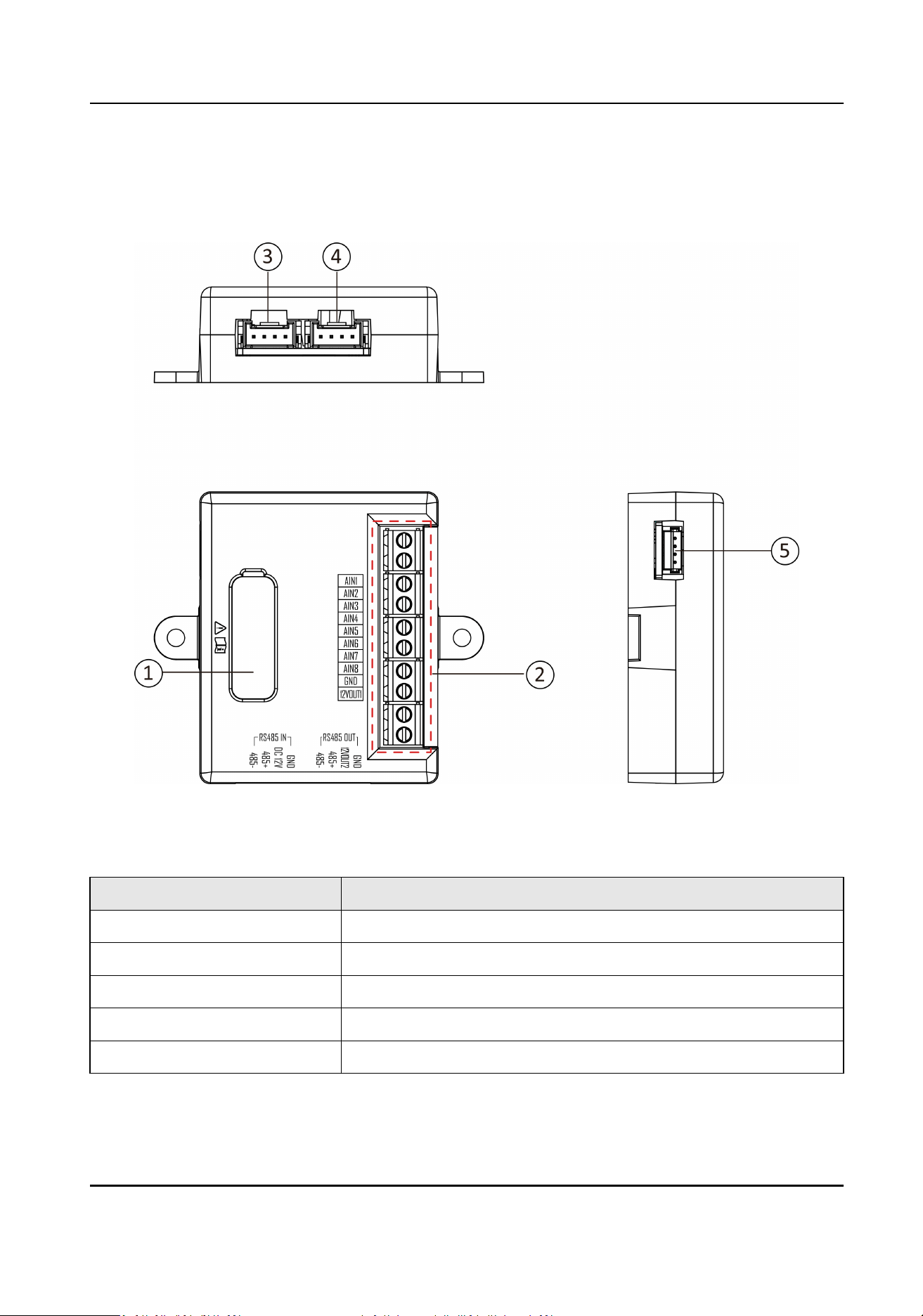
Figure 2-1 Alarm In Module
Table 2-1 Appearance Descripon
No. Descripon
1 DIP Switch
2 Alarm In Terminals
3 Module-connecng Interface (Input)
4 Module-connecng Interface (Output)
5 Debugging Port
Module Door Staon User Manual
2
No. Descripon
Note
The port is for debugging use only.
Module Door Staon User Manual
3
Chapter 3 Terminal and Wiring
3.1 Terminal Descripon
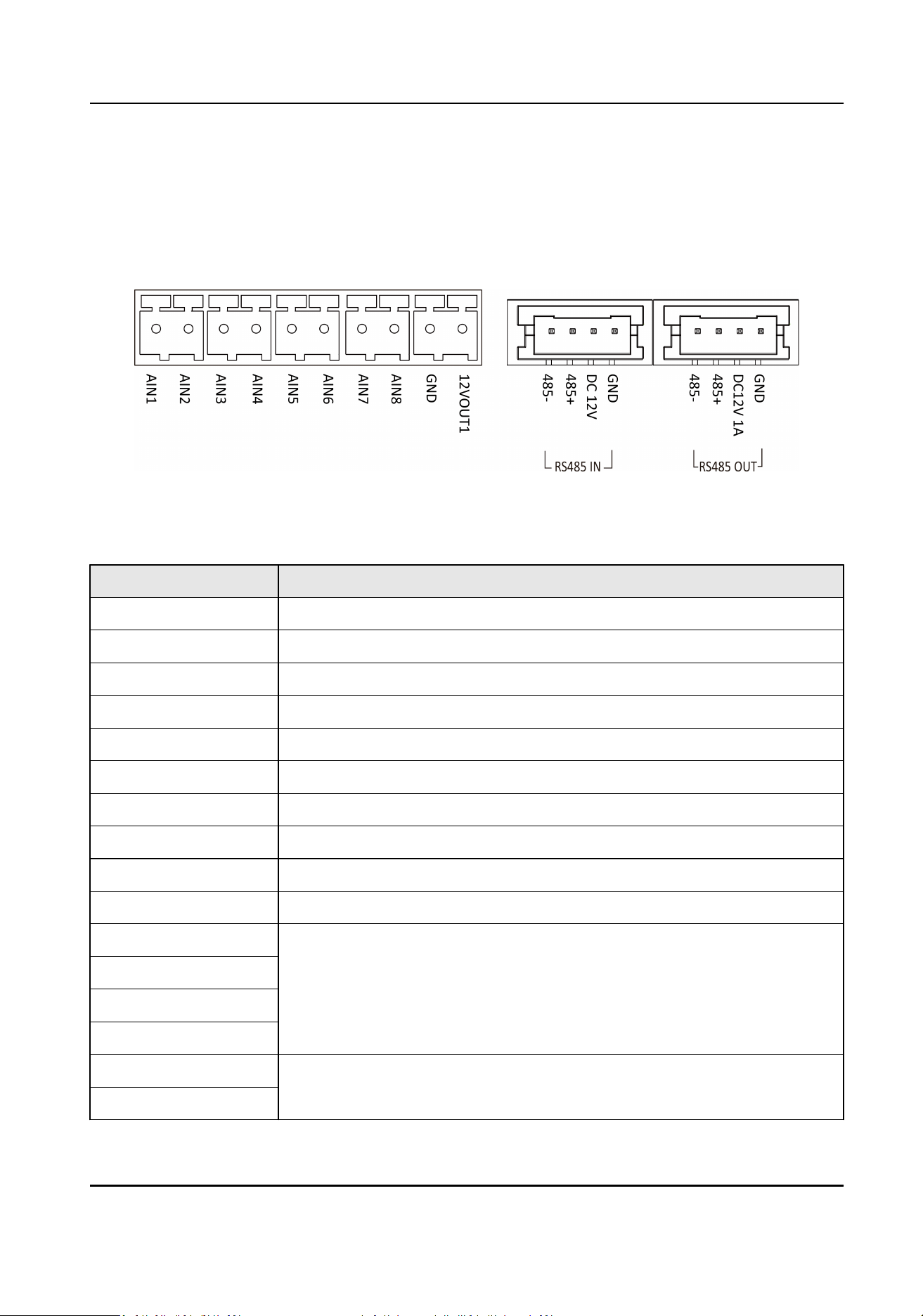
Figure 3-1 Alarm In Module Terminals
Table 3-1 Descripon
Interface Descripon
AIN1 Alarm In Interface for Call Buon 1
AIN2 Alarm In Interface for Call Buon 2
AIN3 Alarm In Interface for Call Buon 3
AIN4 Alarm In Interface for Call Buon 4
AIN5 Alarm In Interface for Call Buon 5
AIN6 Alarm In Interface for Call Buon 6
AIN7 Alarm In Interface for Call Buon 7
AIN8 Alarm In Interface for Call Buon 8
GND Grounding
12VOUT1 12 VDC Power Output
485- Module-Connecng Interface (Input)
485+
12V IN
GND
485- Module-Connecng Interface (Output)
485+
Module Door Staon User Manual
4
Interface Descripon
12V OUT
GND
3.2 Alarm Input Device Wiring
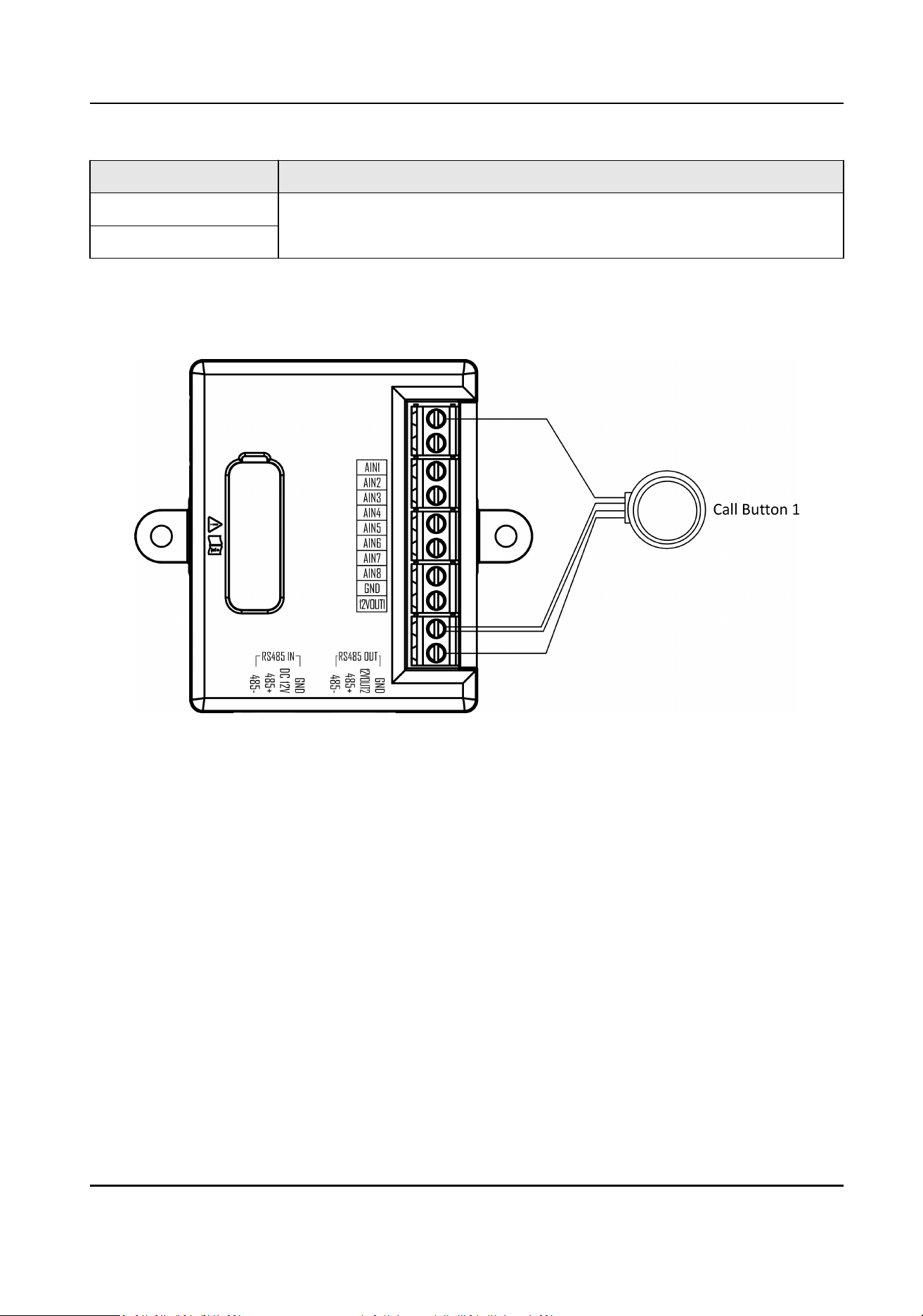
Figure 3-2 Call Buon Wiring
8 call buons can be connected to the alarm in module. Here takes one buon connecng to AIN1
interface for example.
Module Door Staon User Manual
5
Chapter 4 Installaon
Note
●
Make sure the device in the package is in good condion and all the assembly parts are included.
●
Sub module must work along with the main unit.
●
Set the sub module address before start the installaon steps.
●
Make sure the place for surface mounng is at.
●
Make sure all the related equipment is power-o during the installaon.
●
Tools that you need to prepare for installaon:
Drill (ø6), cross screwdriver (PH1*150 mm), and gradienter.
4.1 Congure Alarm In Module Address
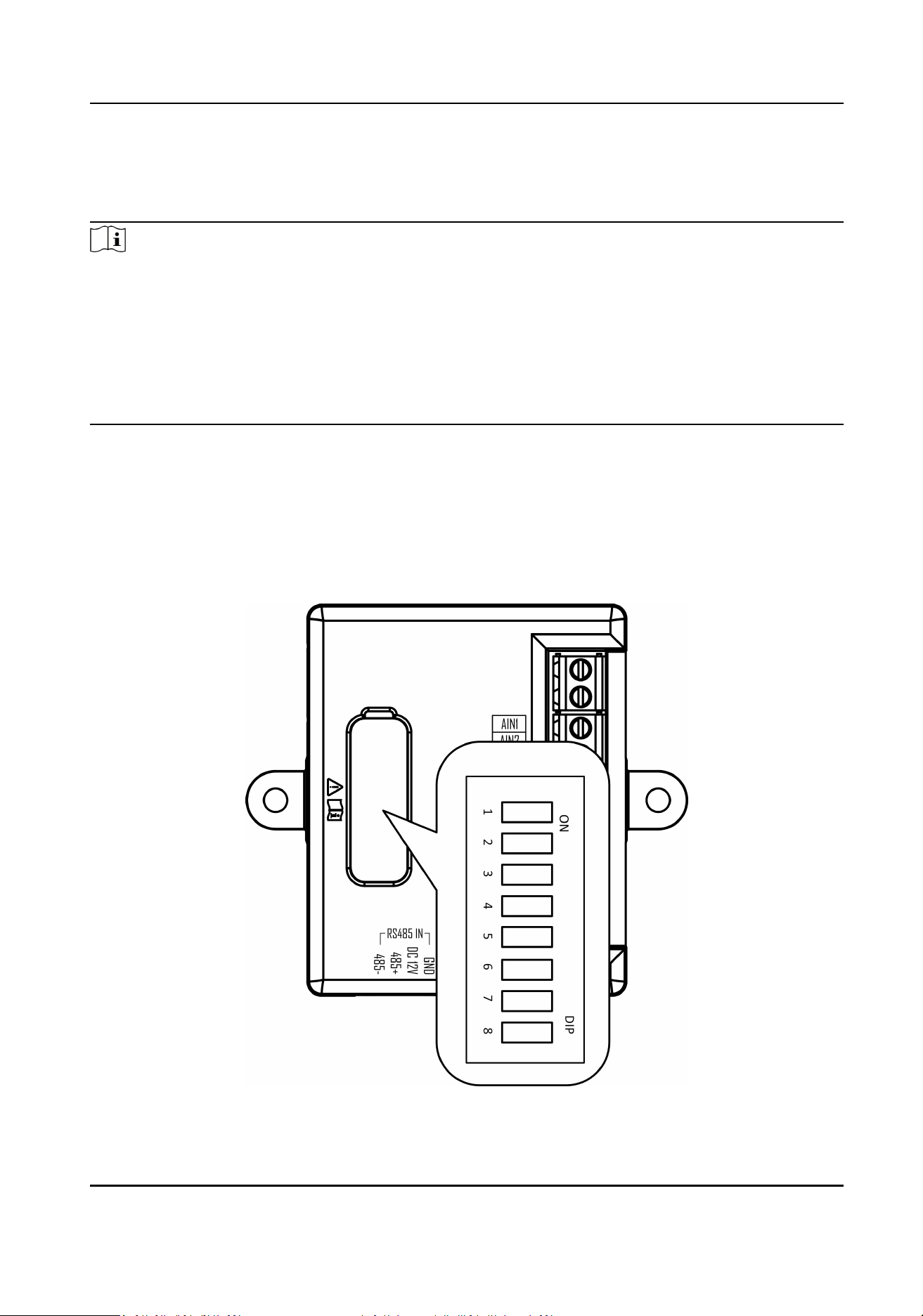
You need to set the alarm in module address via DIP switch before installaon.
Steps
1.
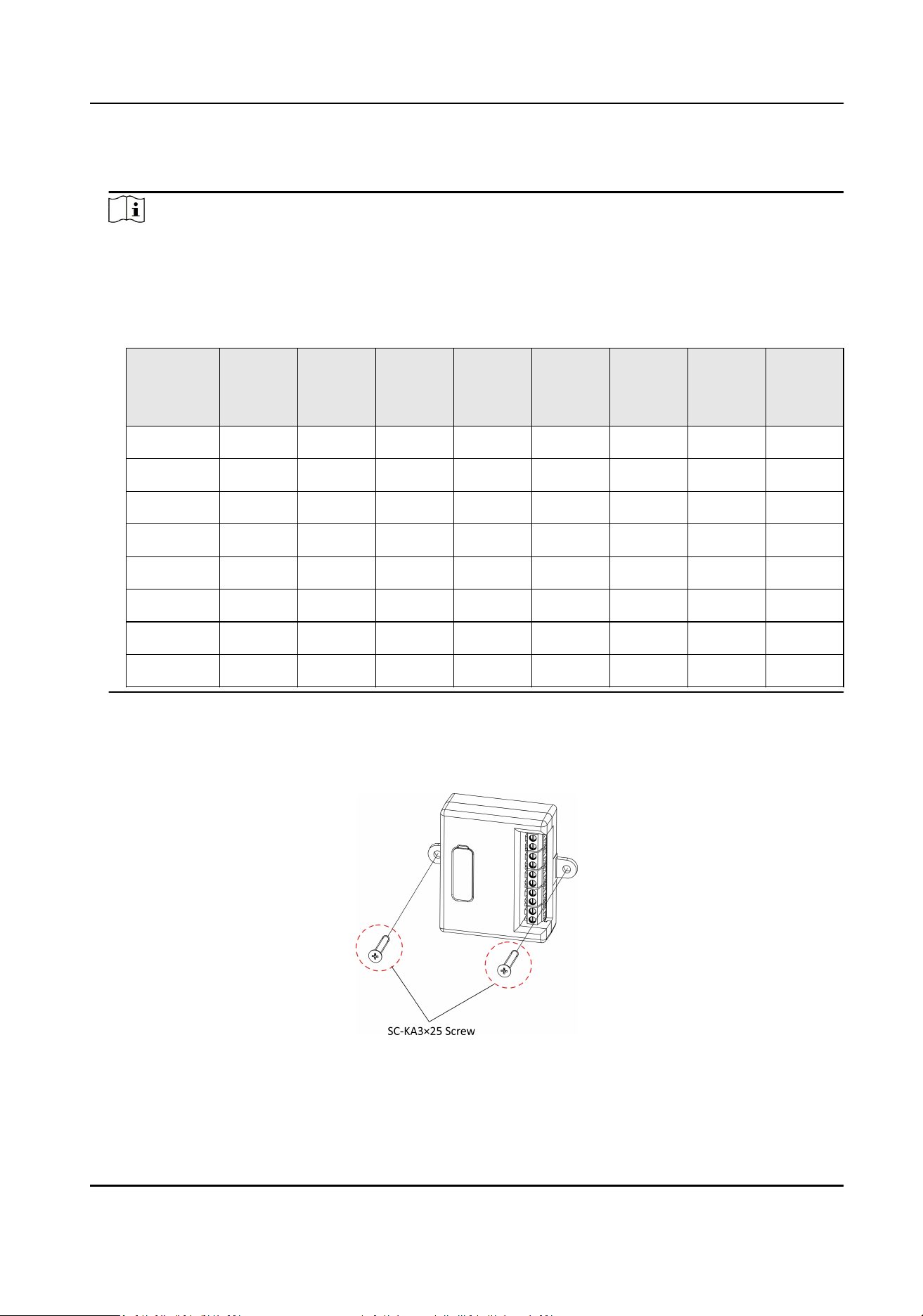
Remove the rubber cover to expose the DIP switch.
Figure 4-1 DIP Switch
Module Door Staon User Manual
6
2.
Set the address for each alarm in module according to the DIP rules, and install the rubber cover
back.
Note
●
Valid sub module address is from 1 to 8. Each address is a binary code and should be unique
for connecng to the main unit.
The address and its corresponding switch status are displayed as below. Up to 20 alarm in
modules can be cascaded and here takes 8 module addresses for example.
Alarm In
Module
Address
DIP 1 DIP 2 DIP 3 DIP 4 DIP 5 DIP 6 DIP 7 DIP 8
Module 1 ON OFF OFF OFF OFF OFF OFF OFF
Module 2 OFF ON OFF OFF OFF OFF OFF OFF
Module 3 ON ON OFF OFF OFF OFF OFF OFF
Module 4 OFF OFF ON OFF OFF OFF OFF OFF
Module 5 ON OFF ON OFF OFF OFF OFF OFF
Module 6 OFF ON ON OFF OFF OFF OFF OFF
Module 7 ON ON ON OFF OFF OFF OFF OFF
Module 8 OFF OFF OFF ON OFF OFF OFF OFF
4.2 Alarm In Module Installaon
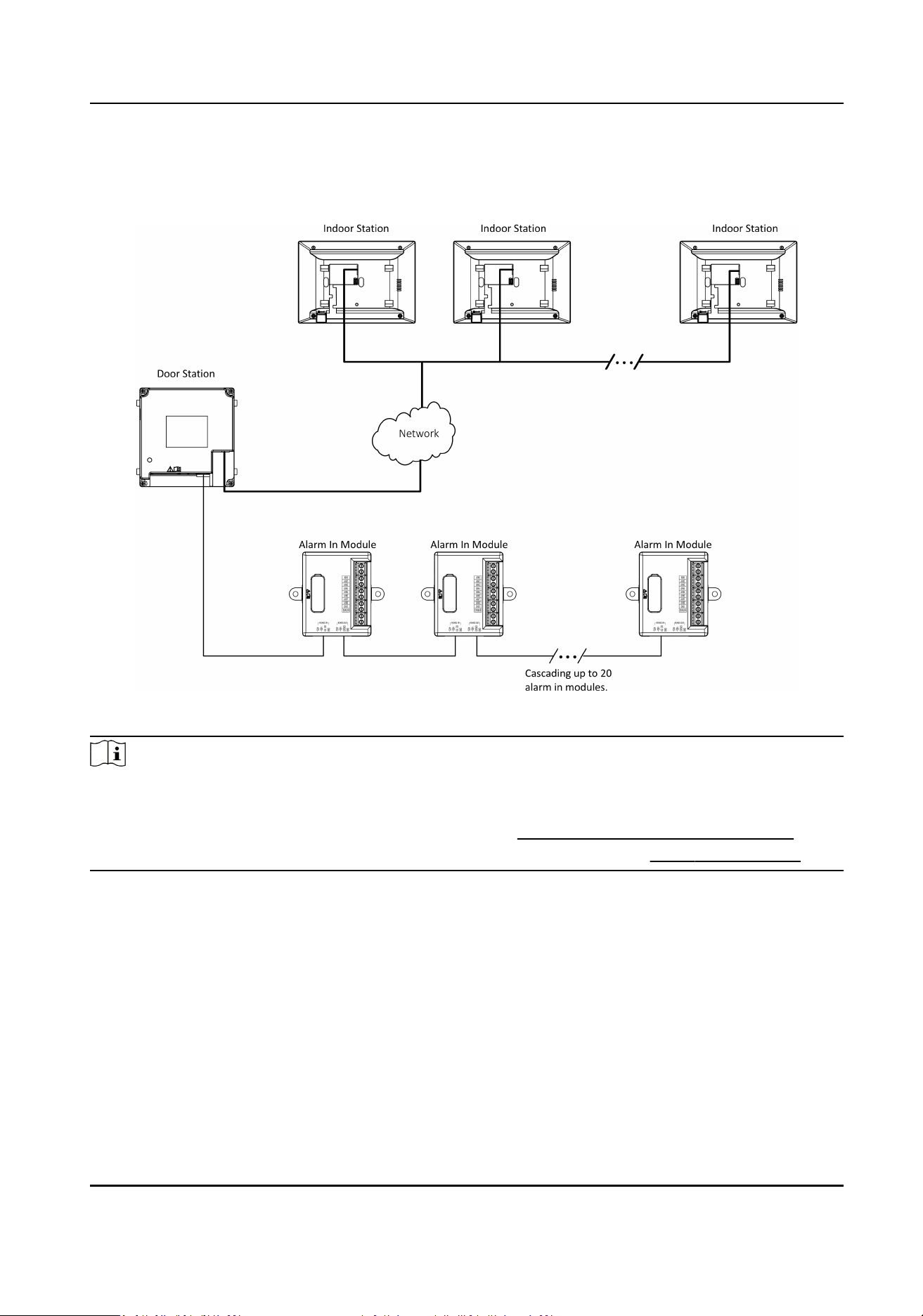
Figure 4-2 Install Alarm In Module
Fix the alarm in module to at surface with 2 SC-KA3×25 screws.
Module Door Staon User Manual
7
4.3 Typical Applicaon
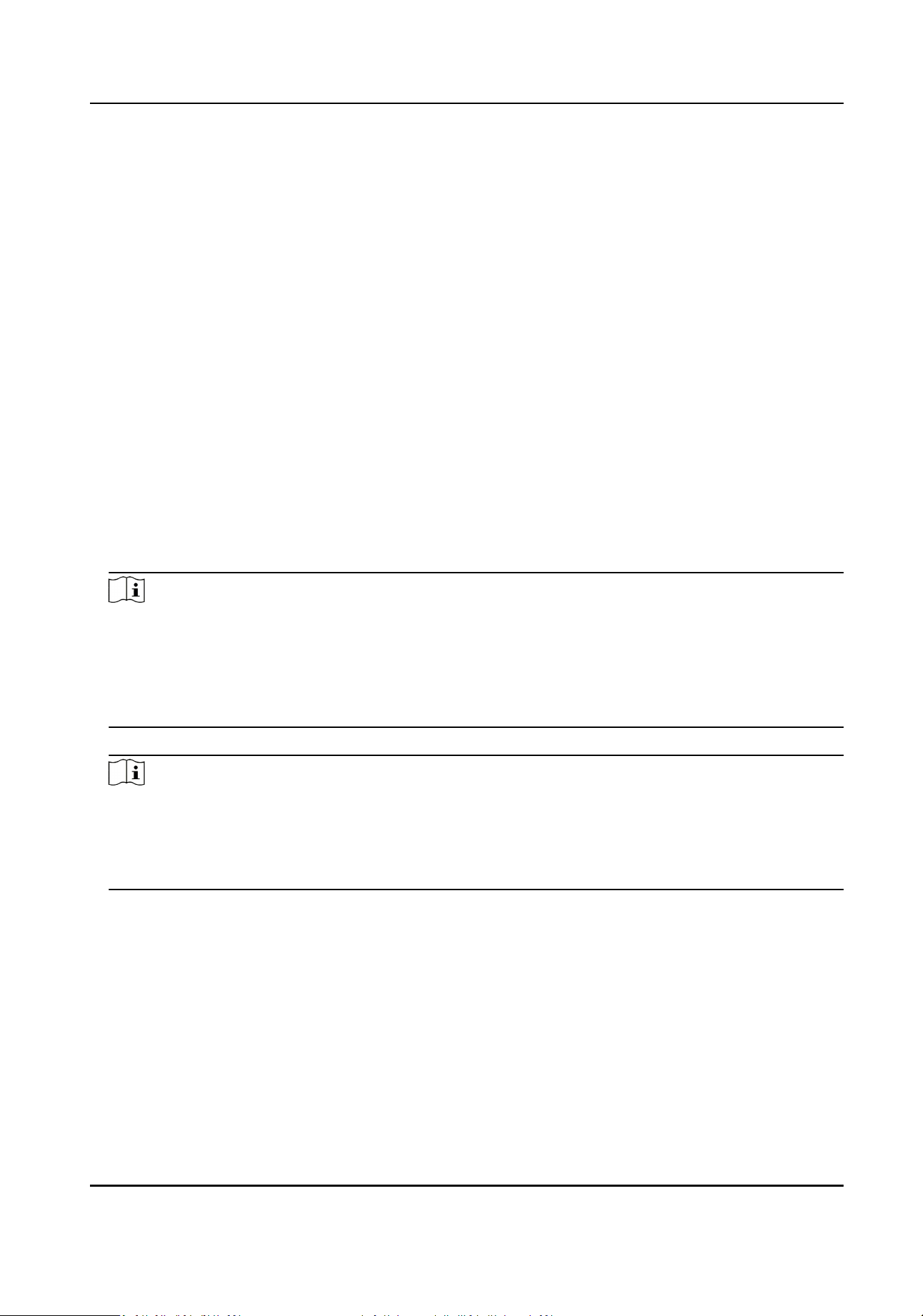
Figure 4-3 Typical Applicaon
Note
●
Up to 20 alarm in modules can be cascaded.
●
Make sure the indoor staons are acvated and linked to the door staon.
●
Set address for each alarm in module. For details, see Congure Alarm In Module Address .
●
Congure room No. for each alarm in interface on web. For details, see Press Buon to Call .
Module Door Staon User Manual
8
Chapter 5 Acvaon
5.1 Acvate Device via Client Soware
You can only congure and operate the door staon aer creang a password for the device
acvaon.
Default parameters of door staon are as follows:
●
Default IP Address: 192.0.0.65.
●
Default Port No.: 8000.
●
Default User Name: admin.
Steps
1.
Run the client soware, click Maintenance and Management → Device Management → Device
to enter the page.
2.
Click Online Device.
3.
Select an inacvated device and click Acvate.
4.
Create a password, and conrm the password.
Note
We highly recommend you to create a strong password of your own choosing (using a minimum
of 8 characters, including at least three kinds of following categories: upper case leers, lower
case leers, numbers, and special characters) in order to increase the security of your product.
And we recommend you change your password regularly, especially in the high security system,
changing the password monthly or weekly can beer protect your product.
5.
Click OK to acvate the device.
Note
●
When the device is not acvated, the basic operaon and remote operaon of device cannot
be performed.
●
You can hold the Ctrl or Shi key to select mulple devices in the online devices, and click the
Acvate buon to acvate devices in batch.
5.2 Edit Network Parameters
To operate and congure the device via LAN (Local Area Network), you need connect the device in
the same subnet with your PC. You can edit network parameters via iVMS-4200 client soware.
Steps
1.
Select an online acvated device and click the Modify Nenfo.
2.
Edit the device IP address and gateway address to the same subnet with your computer.
3.
Enter the password and click OK to save the network parameters modicaon.
Module Door Staon User Manual
9

Note
●
The default port No. is 8000.
●
The default IP address of the door staon is 192.0.0.65.
●
Aer eding the network parameters of device, you should add the devices to the device list
again.
Module Door Staon User Manual
10
Chapter 6 Remote Conguraon via Web
6.1 Live View
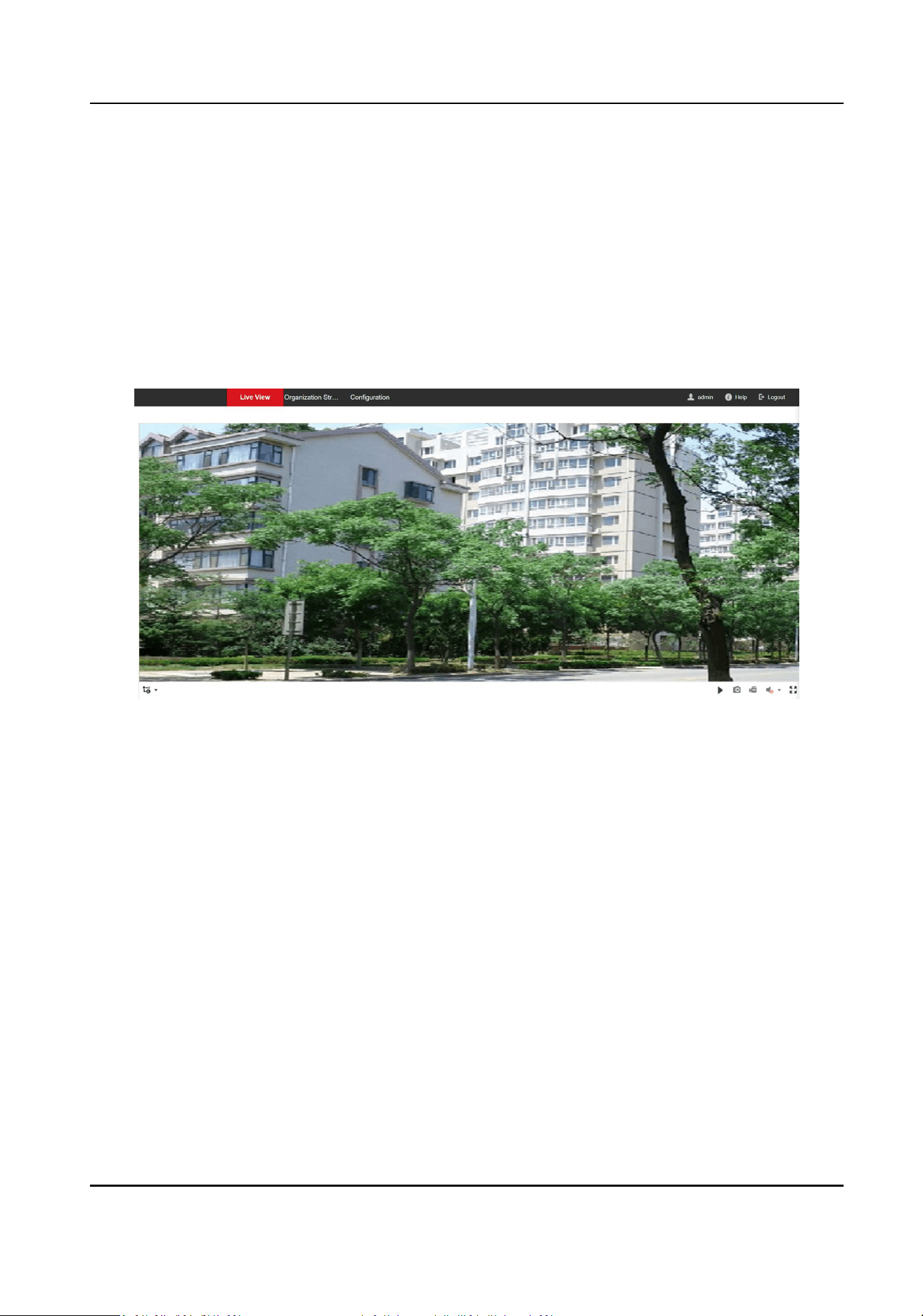
In the browser address bar, enter the IP address of the device, and press the Enter key to enter the
login page.
Enter the user name and password and click Login to enter the Live View page. Or you can click
Live View to enter the page.
Figure 6-1 Live View
●
You can start/stop live view, capture, record, audio on/o, two-way audio, etc.
●
The stream type can be set as main stream or sub stream.
●
For IE (Internet Explorer) users, the device support two-way audio communicaon.
6.2 User Management
You can add, delete or search the informaon of the user.
Click User to enter the sengs page.
Module Door Staon User Manual
11
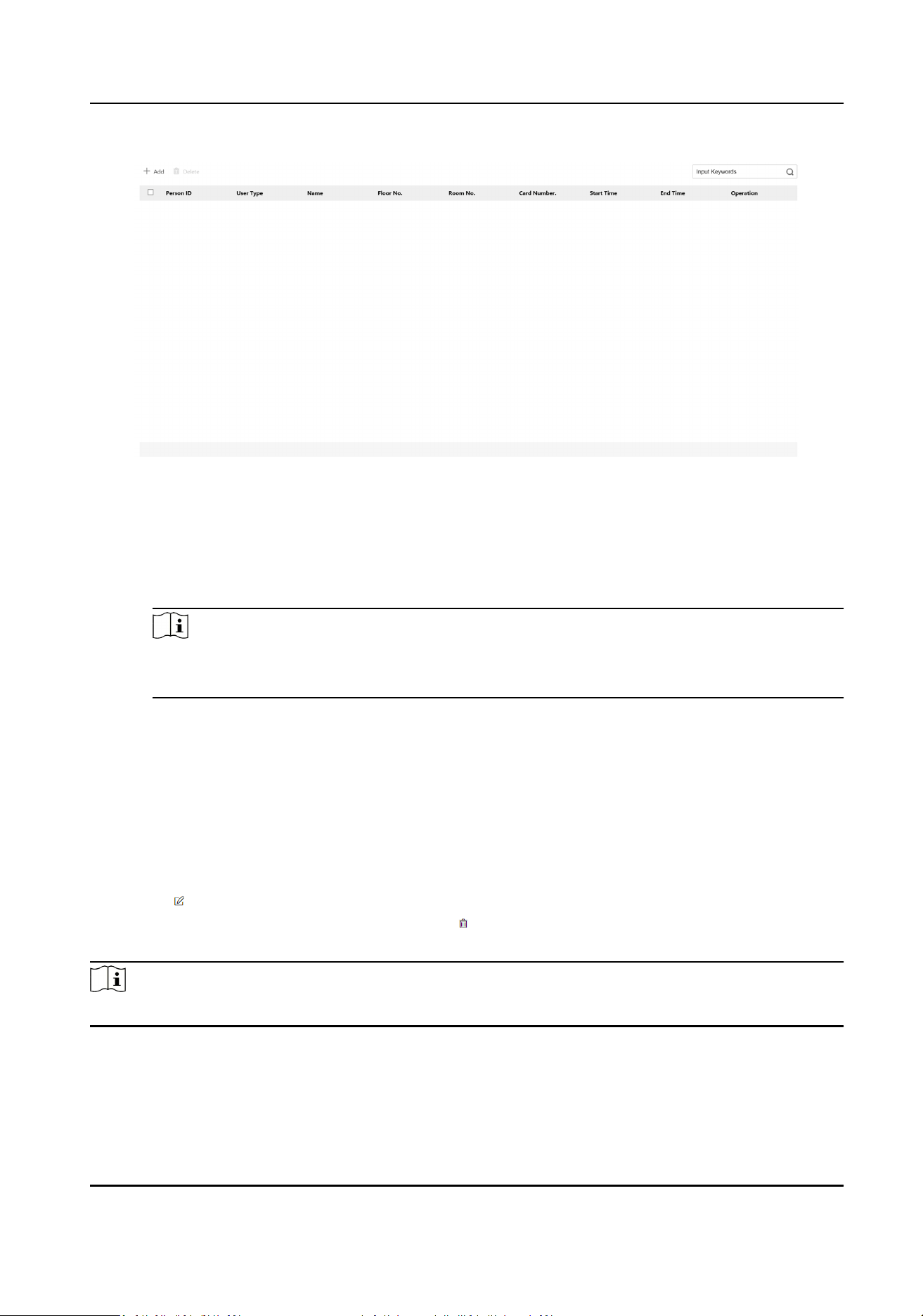
Figure 6-2 User Management
Add User
Basic Informaon
●
Click Add to add users. Enter the Employee ID, Name, Floor No. and Room No., Set the
Start Time and End Time. You can set the user as Administrator.
Note
○
If you disable Always Valid, seng start me and end me is necessary.
○
No more than 5 room No. can be added per user.
Card Sengs
Click Add Card. Manually enter the card No. or click Read and put your card on the card
reading area for the device to idenfy the card No. automacally. Select card Property. Click
OK to save the card informaon.
Door Permission
You can check the door status and choose door permission.
Other Operaon
●
Click to modify the informaon of the user.
●
Check the box of the user and click Delete to delete the selected user.
●
Enter the keyword and click search icon. The informaon will display in the list.
Note
User management funcon may vary with dierent models. Please refer to the actual product.
Module Door Staon User Manual
12
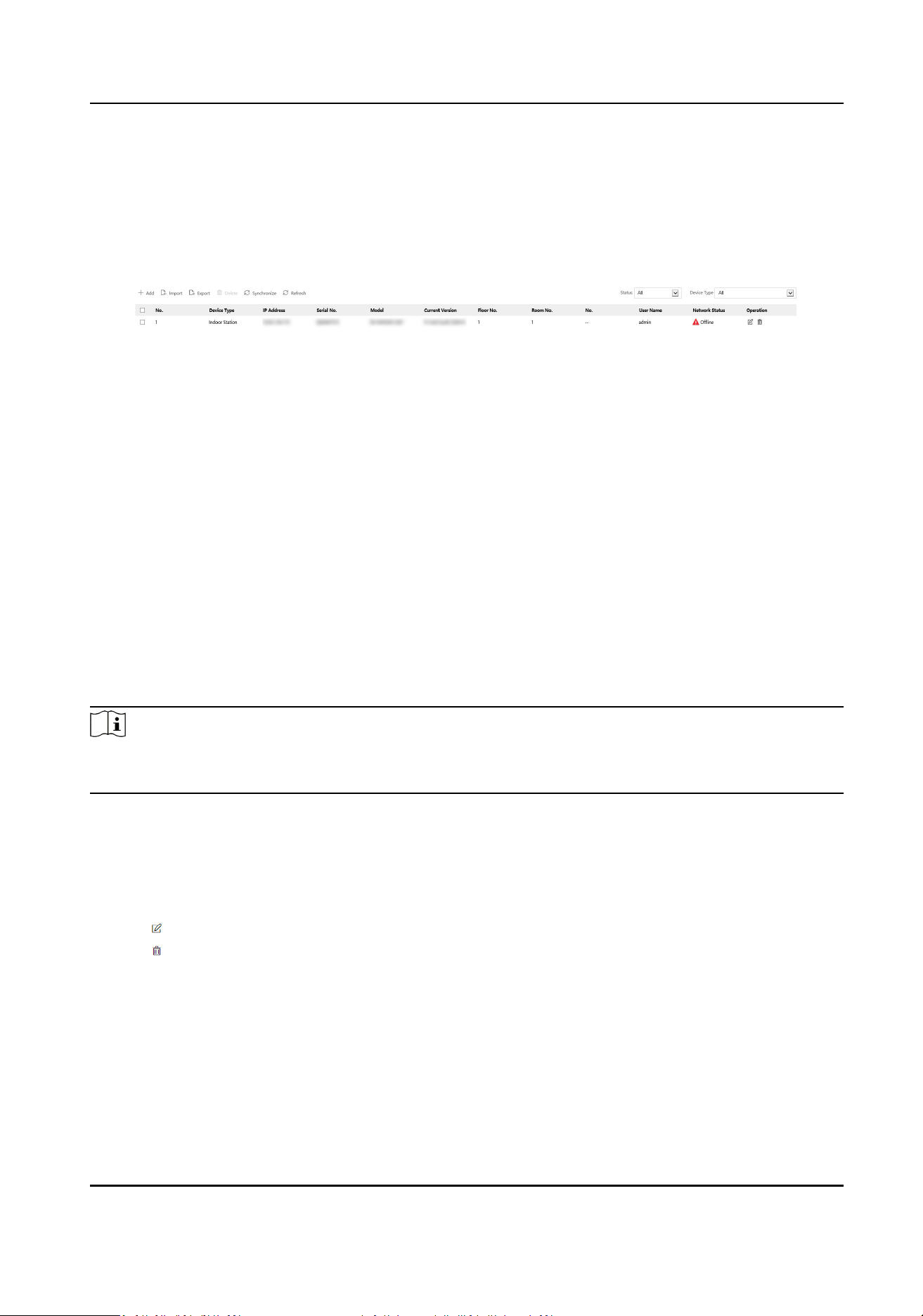
6.3 Device Management
You can manage the linked device on the page.
Click Device Management to enter the sengs page.
Figure 6-3 Device Management
Add Device
●
Click Add to add the indoor staon, sub door staon or decoder staon. Enter the parameters
and click OK to add.
●
Click Import. Enter the informaon of the device in the template to import devices in batch.
Export
Click Export to export the informaon to the PC.
Delete
Select the device and click Delete to remove the selected device from the list.
Synchronize
Click Synchronize and enable Synchronize for device synchronizaon.
Note
When enabling the funcon, the acvated devices will synchronize parameters. Inacvated devices
synchronize parameters whether the funcon is enabled or not.
Refresh
Click Refresh to get the device informaon.
Oponal: Set device informaon.
●
Click to edit device informaon.
●
Click to delete device informaon from the list.
●
Select Status and Device Type to search devices.
6.4 Parameters Sengs
Click Conguraon to set the parameters of the device.
Module Door Staon User Manual
13
Remote conguraon in iVMS-4200 and Batch Conguraon Tool is the same as that in Web. Here
takes the conguraon in web for example.
Note
Run the browser, click → Internet Opons → Security to disable the Protected Mode.
6.4.1 Local Parameters Sengs
You can congure the parameters of the live view, record les and captured pictures. The record
les and captured pictures are the ones you record and capture by using the web browser. You can
also set and view the saving paths of the captured pictures and recorded videos on the PC that
running the web browser.
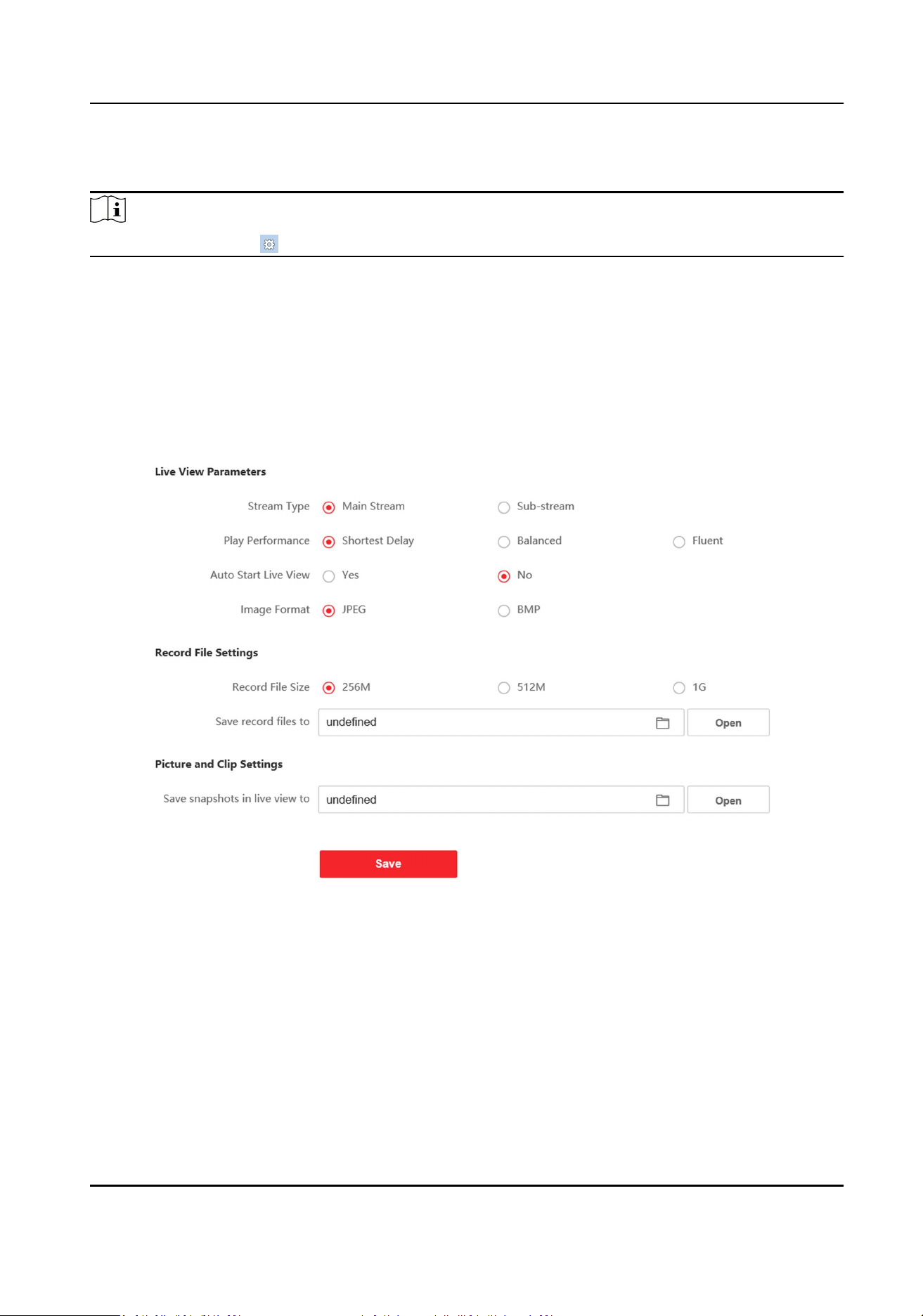
Figure 6-4 Local Parameters
Live View Parameters
Stream Type
Set the stream type as Main Stream or Sub-stream.
Play Performance
Set the live view performance to Shortest Delay, Balanced or Fluent.
Auto Start Live View
Module Door Staon User Manual
14
Check Yes to enable the funcon.
Image Format
Select the image format for picture capture.
Click Save to enable the sengs.
Record File Parameters
Record File Size
Select the packed size of the manually recorded and downloaded video les to 256M, 512M or
1G. Aer the selecon, the maximum record le size is the value you selected.
Save record les to
Set the saving path for the manually recorded video les.
Click Save to enable the sengs.
Picture and Clip Sengs
Save snapshots in live view to
Set the saving path of the manually captured pictures in live view mode.
Note
You can click Browse to change the directory for saving the clips and pictures, and click Open to
open the set folder of clips and picture saving.
Click Save to enable the sengs.
6.4.2 System Sengs
Follow the instrucons below to congure the system sengs, include System Sengs,
Maintenance, Security, and User Management, etc.
Click System to enter the sengs page.
Basic Informaon
Click System Sengs → Basic Informaon to enter the sengs page. On the page, you can edit
Device Name and Device No. Set the Language according to your needs.
You can view the quanes of added users and cards in Capacity.
Click Save to enable the sengs.
Time Sengs
Click System Sengs → Time Sengs to enter the sengs page. Select the Time Zone of your
locaon from the drop-down list.
●
Enable NTP, set the Server Address, NTP Port and Interval.
●
Enable Manual Time Sync., set the me manually or check the Sync. with computer me.
Module Door Staon User Manual
15
Click Save to enable the sengs.
DST
Click System Sengs → DST to check Enable DST. Set the parameters according to your needs and
click Save to enable the sengs.
About
Click System Sengs → About and click View Licenses to view open source soware licenses.
Maintenance
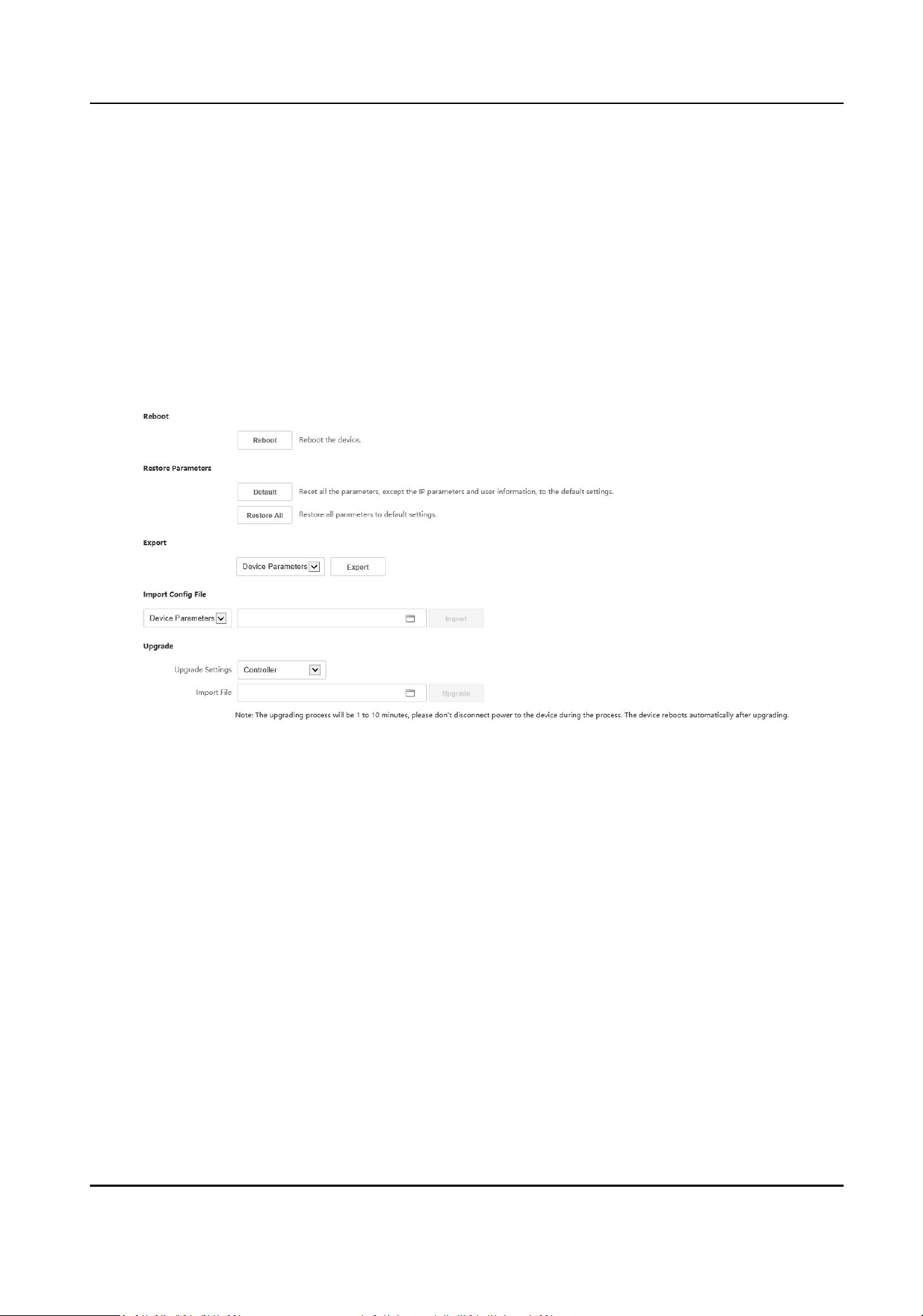
Click Maintenance → Upgrade & Maintenance to enter the sengs page.
Figure 6-5 Upgrade & Maintenance
●
Reboot: Click Reboot to reboot the device.
●
Default
Click Default to reset all the parameters, except the IP parameters and user informaon, to
the default sengs.
Restore All
Click Restore All to restore all parameters to default sengs.
●
Export parameters:
1. Select Device Parameters, and click Export to pop up the dialog box.
2. Set and conrm the encrypon password.
3. Click OK to export parameters.
●
Import Cong. File:
1. Click browse icon to select the conguraon le.
2. Click Import and enter the encrypon password to import.
●
Upgrade: Click browse icon to select the upgrade le.
Module Door Staon User Manual
16
Note
The upgrading process will last 1 to 10 minutes, do not power o during the upgrading. The
device reboots automacally aer upgrading.
Security Service
Click Security → Security Service to enter the sengs page. On the page, you can enable SSH
according to your actual needs.
Click Save to enable the sengs.
User Management
Click User Management to enter the sengs page.
Administrator can edit the permission for the users.
Note
We highly recommend you to create a strong password of your own choosing (using a minimum of
8 characters, including at least three kinds of following categories: upper case leers, lower case
leers, numbers, and special characters) in order to increase the security of your product. And we
recommend you change your password regularly, especially in the high security system, changing
the password monthly or weekly can beer protect your product.
Online Users
Click User Management → Online Users to enter the page.
Click Refresh to get the present informaon.
Arming/Disarming Informaon
Click User Management → Arming/Disarming Informaon to view the informaon. Click Refresh
to get the present informaon.
6.4.3 Network Sengs
TCP/IP Sengs
TCP/IP sengs must be properly congured before you operate the device over network. The
device supports IPv4.
Steps
1.
Click Network → Basic Sengs → TCP/IP to enter the sengs page.
Module Door Staon User Manual
17
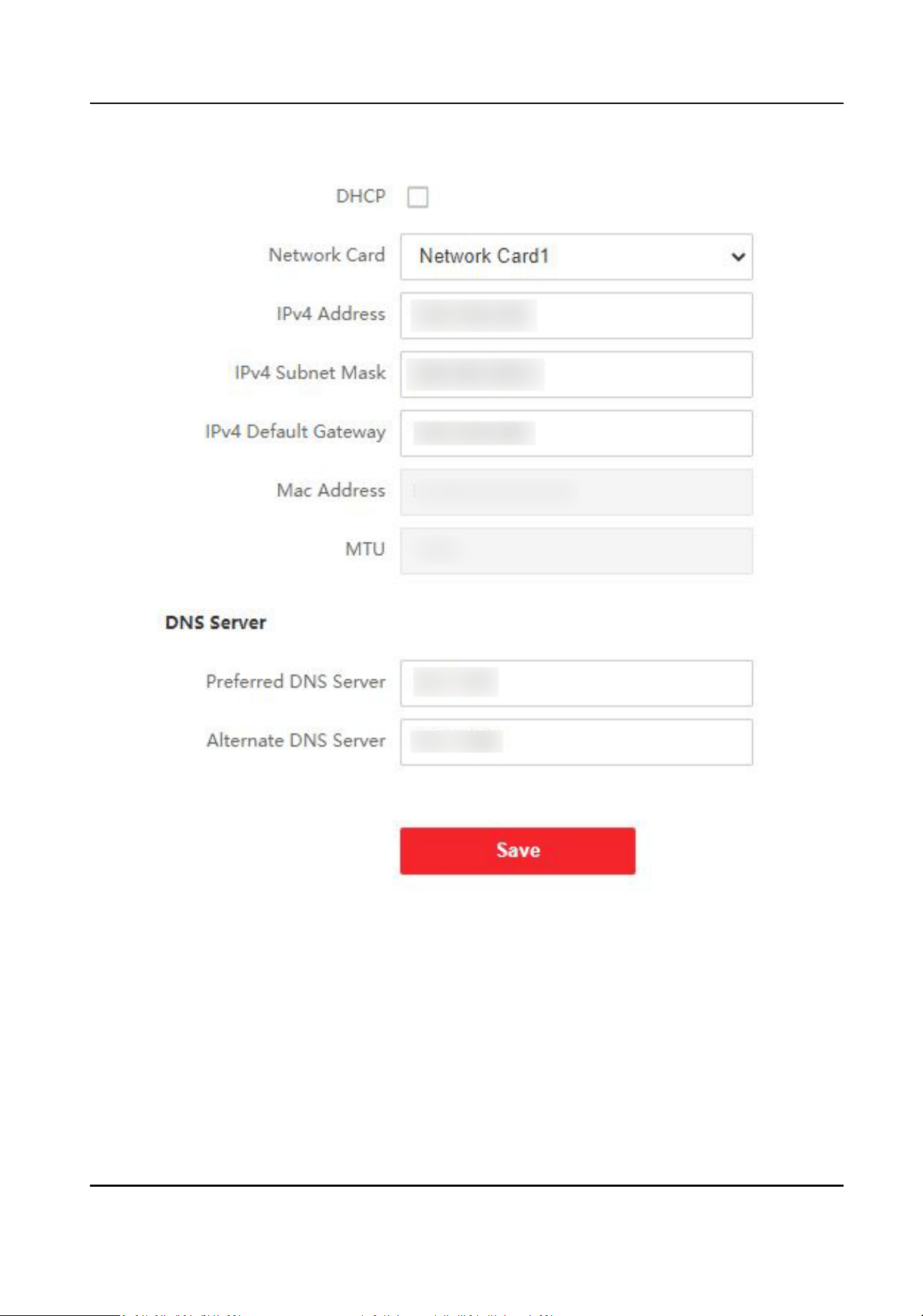
Figure 6-6 TCP/IP Sengs
2.
Congure the network parameters.
-
Enable DHCP and the device will get the parameters automacally.
-
Disable DHCP and set the IPv4 Address, IPv4 Subnet Mask and IPv4 Default Gateway
manually.
3.
Congure the corresponding DNS server parameters.
4.
Click Save to enable the sengs.
Module Door Staon User Manual
18
Port Sengs
Steps
1.
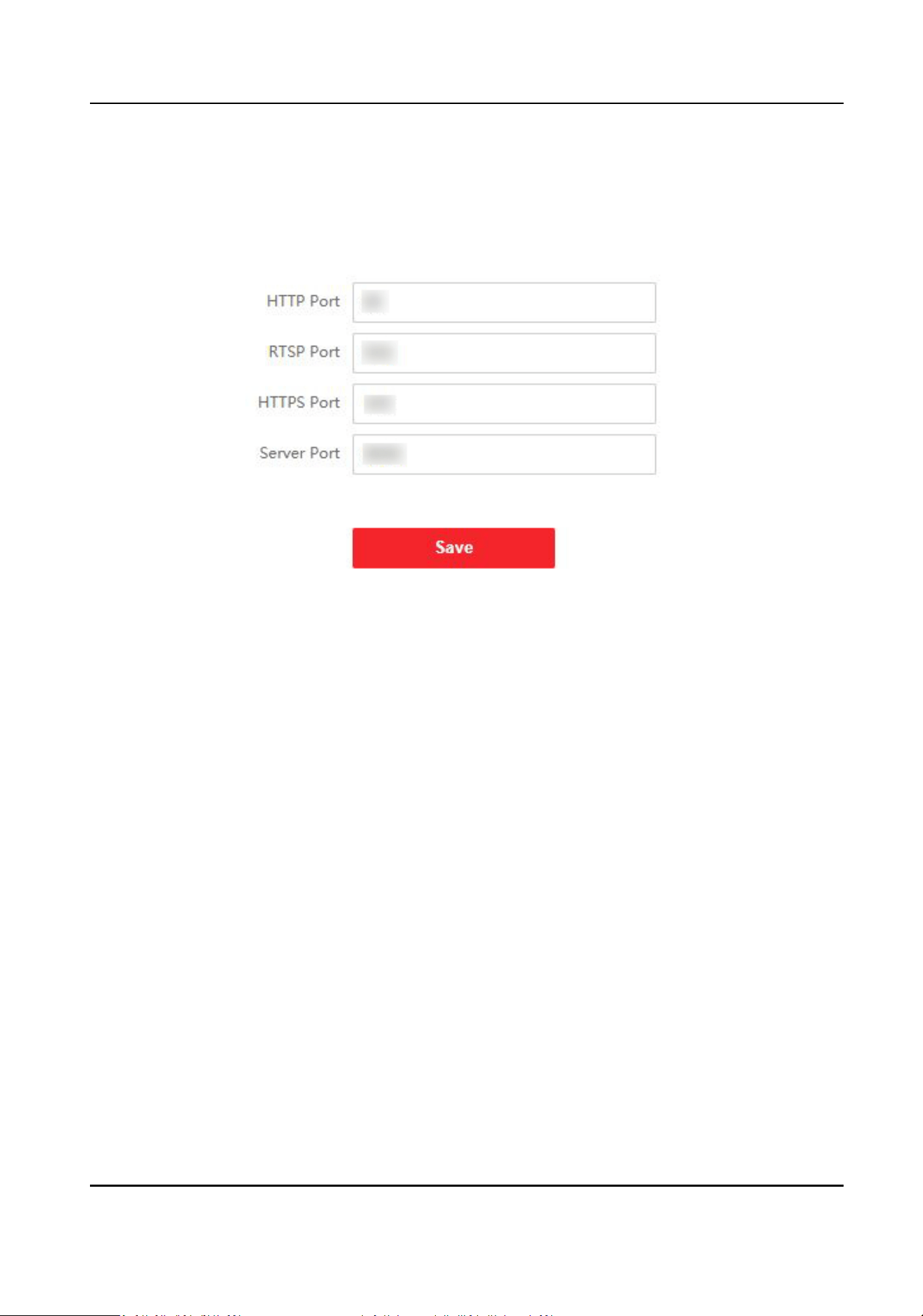
Click Network → Basic Sengs → Port to enter the sengs page.
Figure 6-7 Port Sengs
2.
Set the ports of the device.
HTTP Port
The default port number is 80, and it can be changed to any port No. which is not occupied.
RTSP Port
The default port number is 554.
HTTPS Port
The default port number is 443, and it can be changed to any port No. which is not occupied.
Server Port
The default server port number is 8000, and it can be changed to any port No. ranges from
2000 to 65535.
3.
Click Save to enable the sengs.
SIP Seng
Steps
1.
Click Network → Basic Sengs → SIP to enter the sengs page.
Module Door Staon User Manual
19
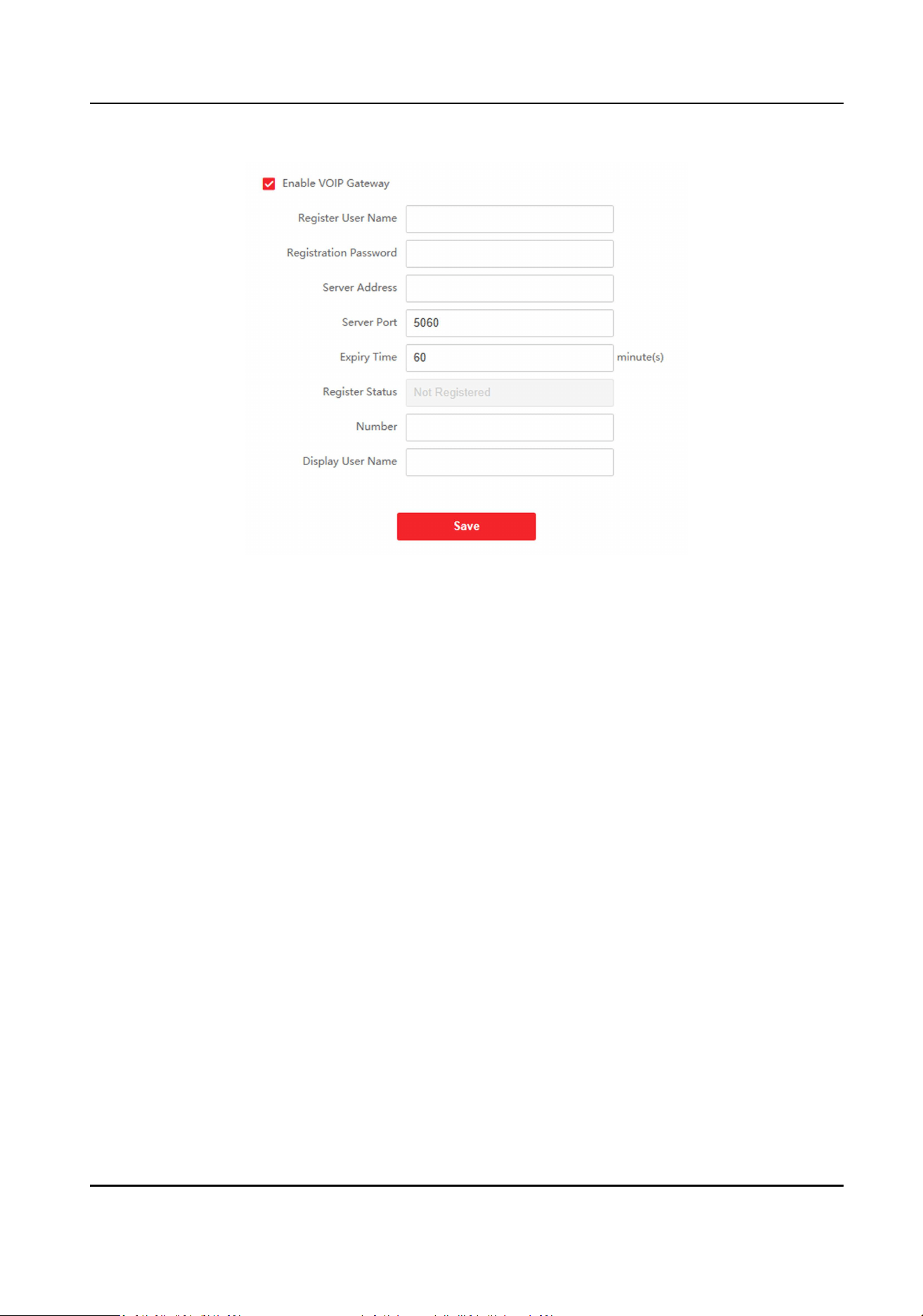
Figure 6-8 SIP Sengs
2.
Check Enable VOIP Gateway.
3.
Congure the SIP parameters.
4.
Click Save to enable the sengs.
FTP Sengs
Steps
1.
Click Network → Advanced → FTP to enter the sengs page.
Module Door Staon User Manual
20
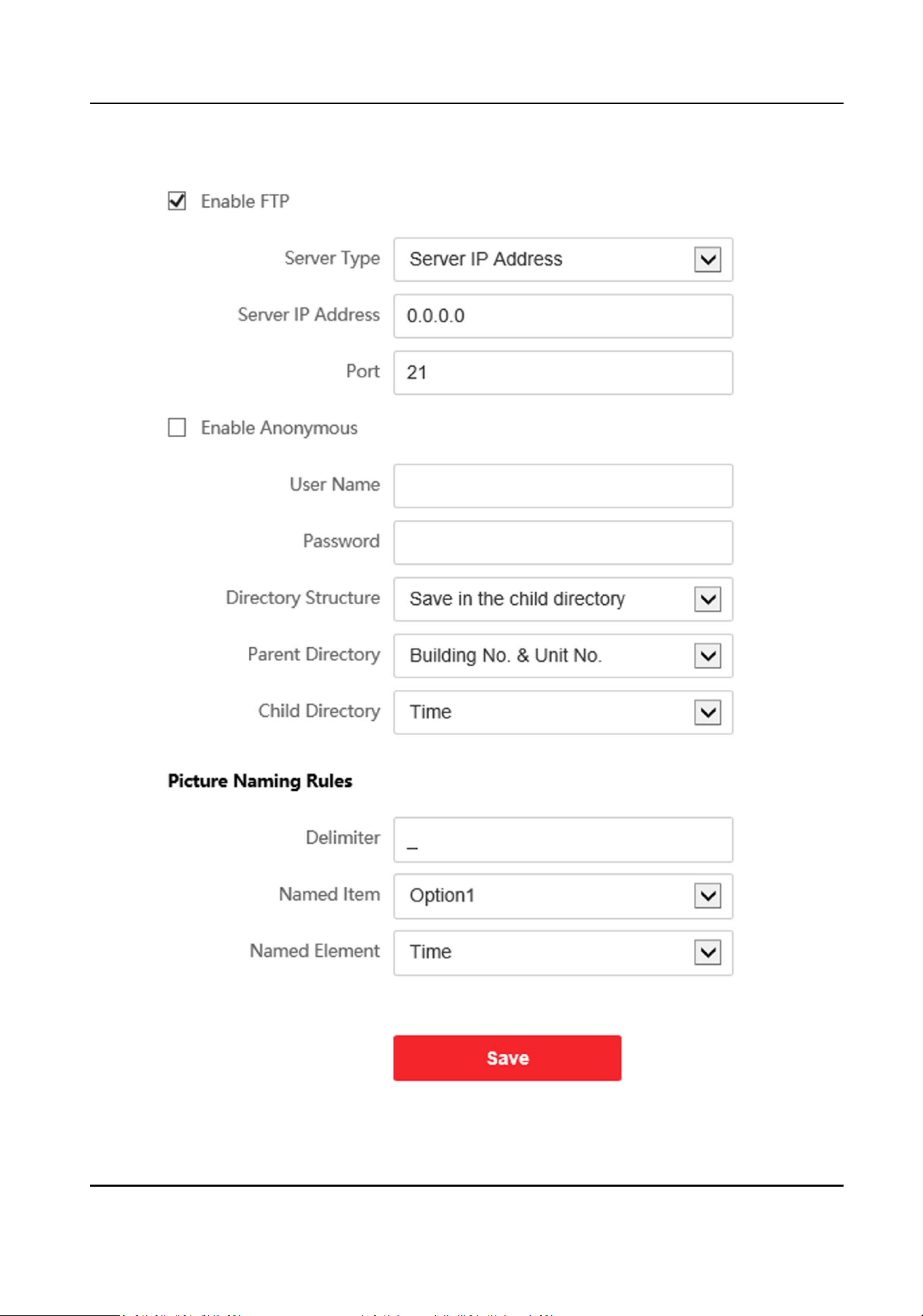
Figure 6-9 FTP Sengs
Module Door Staon User Manual
21
2.
Check Enable FTP.
3.
Select Server Type.
4.
Input the Server IP Address and Port.
5.
Congure the FTP Sengs, and the user name and password are required for the server login.
6.
Set the Directory Structure, Parent Directory and Child Directory.
7.
Set the picture naming rules.
8.
Click Save to enable the sengs.
6.4.4 Video & Audio Sengs
Video Parameters
Steps
1.
Click Video/Audio → Video to enter the sengs page.
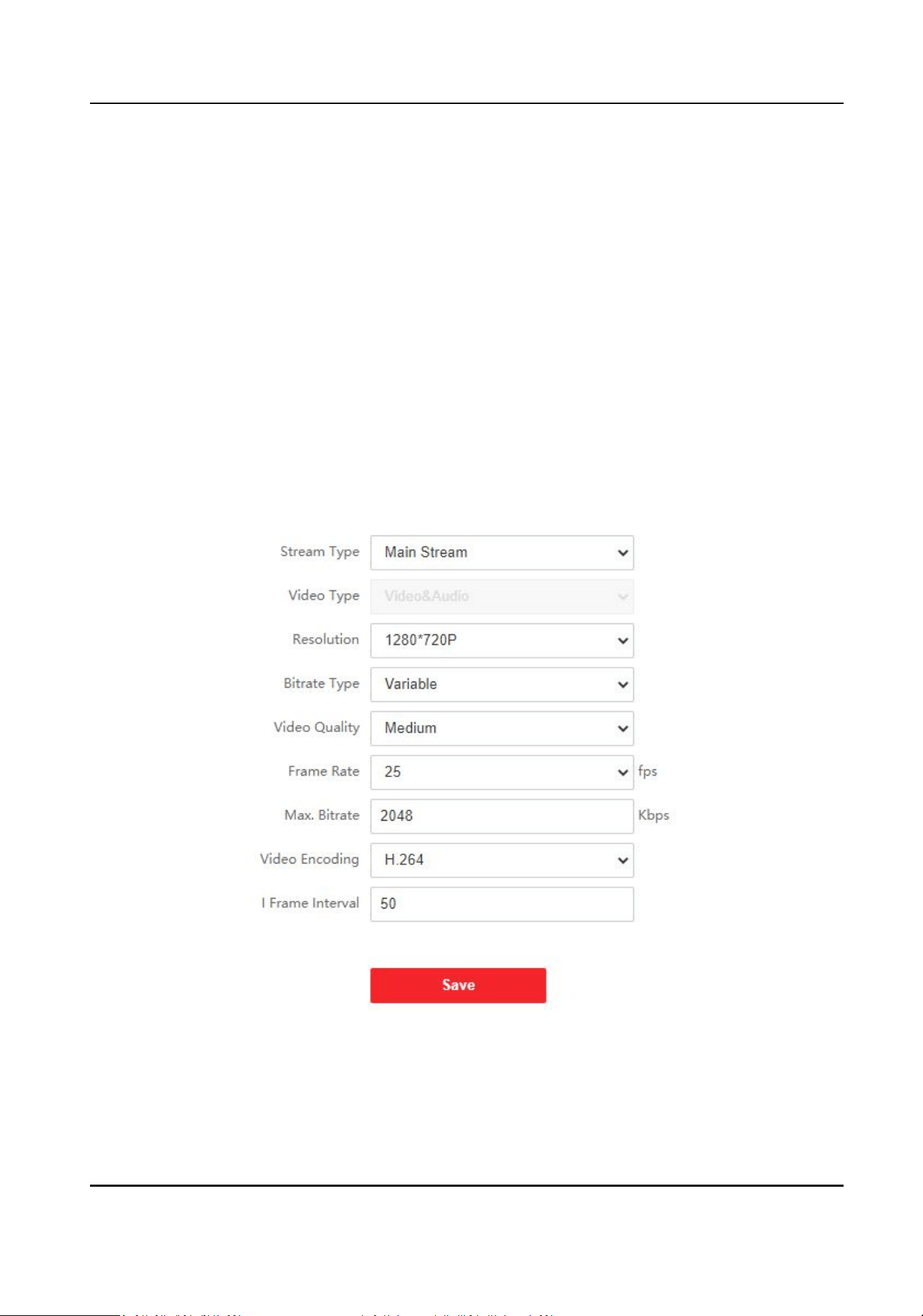
Figure 6-10 Video Parameters
2.
Select the Stream Type.
3.
Congure the video parameters.
Module Door Staon User Manual
22

Stream Type
Select the stream type to main stream or sub stream.
Video Type
Select the stream type to video stream, or video & audio composite stream. The audio signal
will be recorded only when the Video Type is Video & Audio.
The video type is video & audio read only by default.
Resoluon
Select the resoluon of the video output.
Bitrate Type
Select the bitrate type as constant or variable.
Video Quality
When bitrate type is selected as Variable, 6 levels of video quality are selectable.
Frame Rate
Set the frame rate. The frame rate is to describe the frequency at which the video stream is
updated and it is measured by frames per second (fps). A higher frame rate is advantageous
when there is movement in the video stream, as it maintains image quality throughout.
Max. Bitrate
Set the max. bitrate from 32 to 16384 Kbps. The higher value corresponds to the higher video
quality, but the beer bandwidth is required.
Video Encoding
The device supports H.264.
I Frame Interval
Set I Frame Interval from 1 to 400.
4.
Click Save to save the sengs.
Audio Parameters
Steps
1.
Click Video/Audio → Audio to enter the sengs page.
Module Door Staon User Manual
23
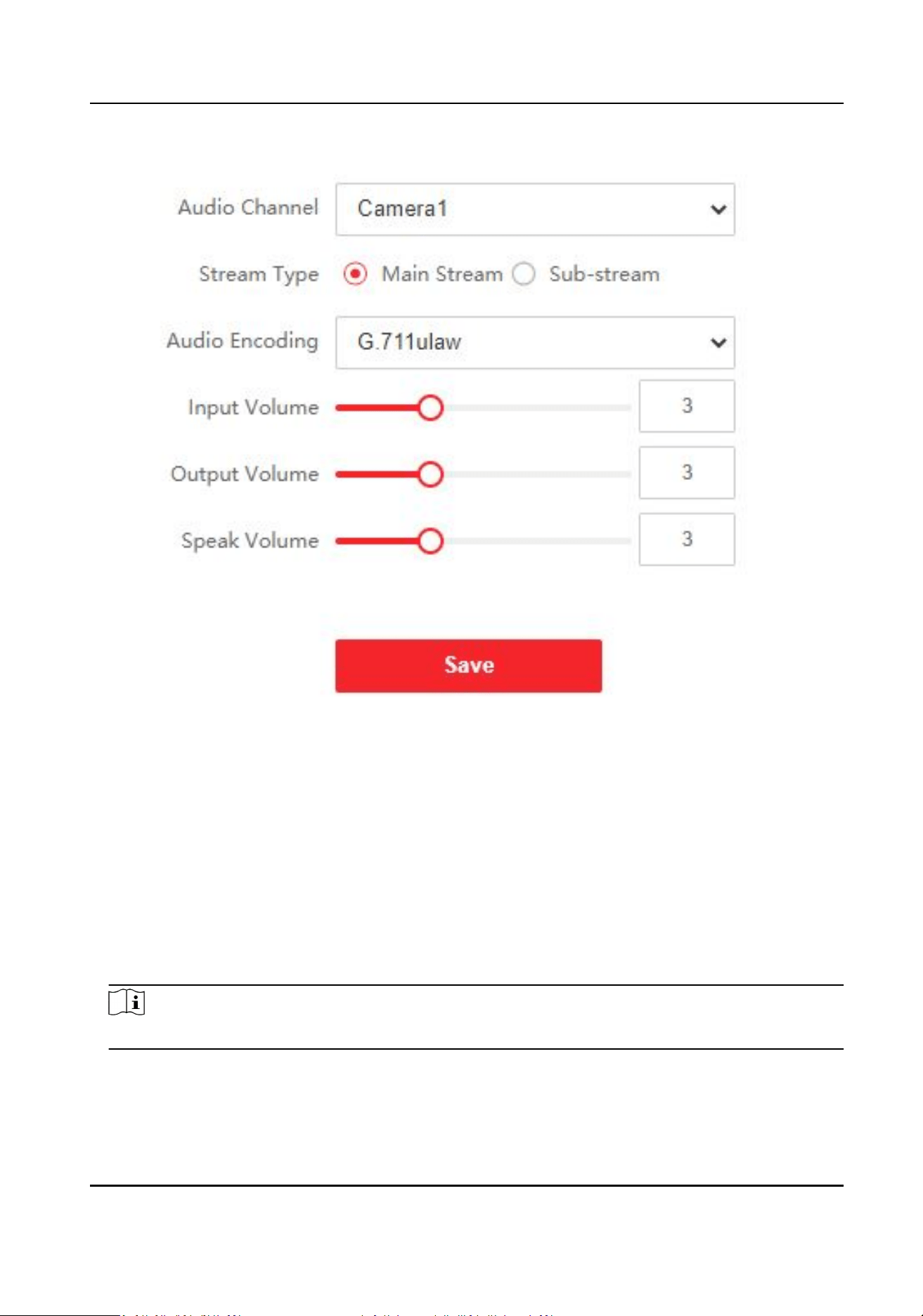
Figure 6-11 Audio Sengs
2.
Congure the stream type and the audio encoding type.
Audio Channel
Select the audio channel to adjust the audio parameters.
Stream Type
Select the stream type to main stream or sub stream.
Audio Encoding
The device support G.711ulaw and G.711 alaw.
3.
Adjust the Input Volume, Output Volume and Speak Volume.
Note
Available range of volume: 0 to 10.
4.
Click Save to save the sengs.
Module Door Staon User Manual
24
6.4.5 Image Sengs
Display Sengs
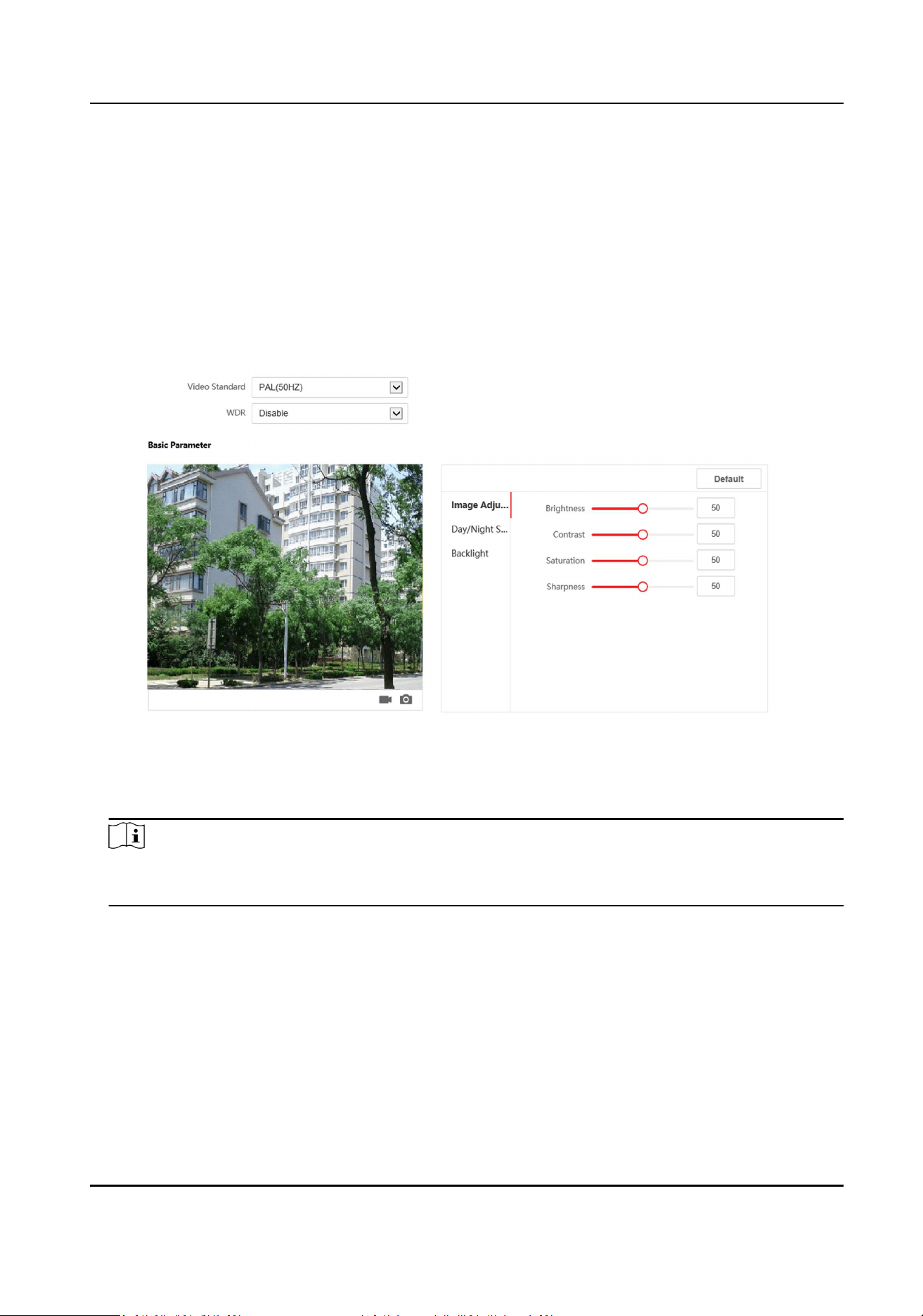
Congure the image adjustment, backlight sengs and other parameters in display sengs.
Steps
1.
Click Image → Display Sengs to enter the display sengs page.
Figure 6-12 Display Sengs
2.
Select the Video Standard.
3.
Select to enable or disable WDR.
Note
Wide Dynamic Range can be used when there is a high contrast of the bright area and the dark
area of the scene.
4.
Set the basic parameters.
Brightness
Brightness describes bright of the image, which ranges from 1 to 100.
Contrast
Contrast describes the contrast of the image, which ranges from 1 to 100.
Saturaon
Saturaon describes the colorfulness of the image color, which ranges from 1 to 100.
Module Door Staon User Manual
25
Sharpness
Sharpness describes the edge contrast of the image, which ranges from 1 to 100.
5.
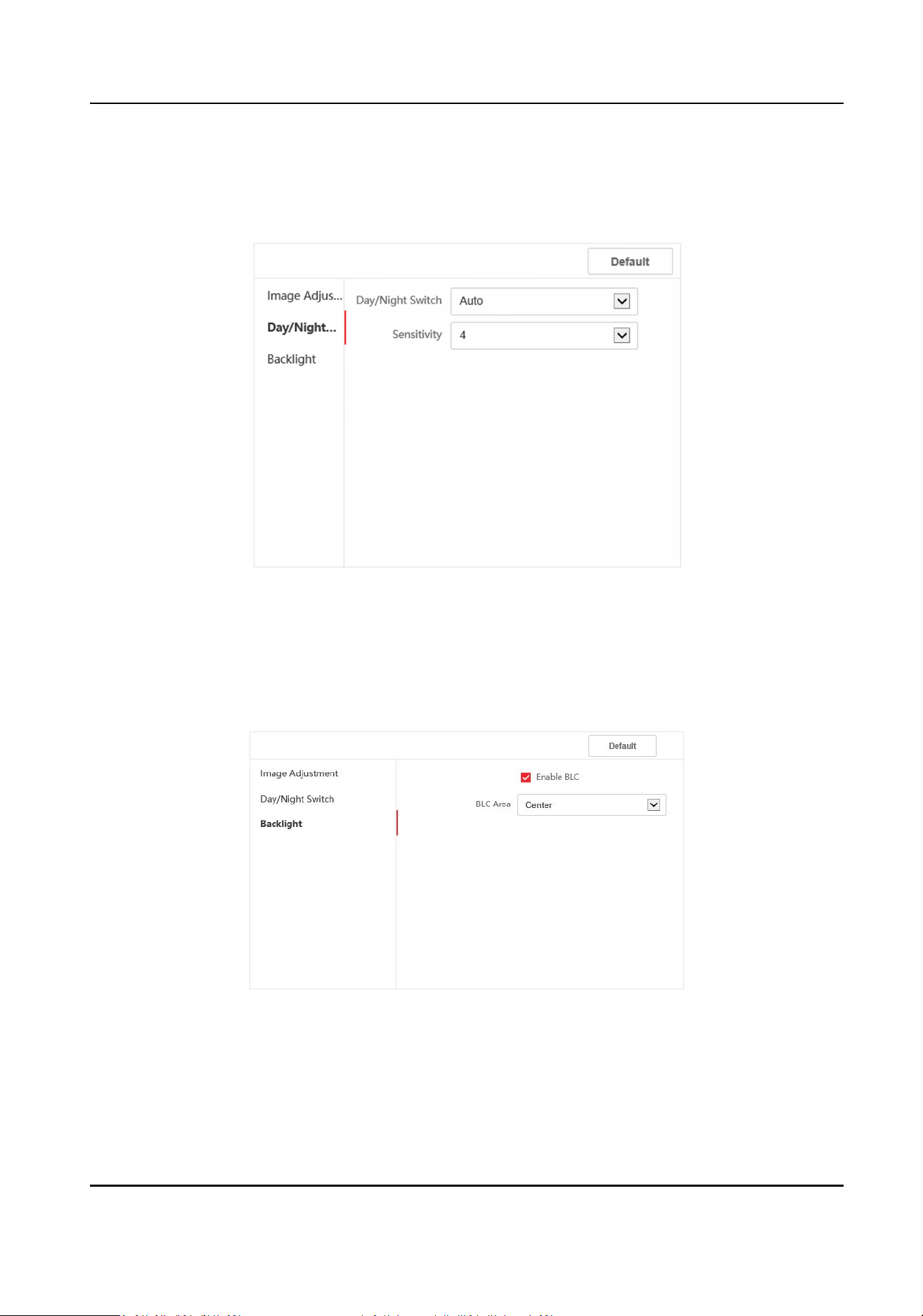
Set the Day/Night Switch.
Figure 6-13 Day/Night Switch
-
Set Dayme or Night.
-
Set the mode as Auto and edit the sensivity according to your needs.
-
Set the mode as Scheduled-Switch. Set the start me and end me.
6.
Set the backlight parameters.
Figure 6-14 Backlight
1) Check to enable BLC.
2) Select BLC Area.
Module Door Staon User Manual
26
OSD Sengs
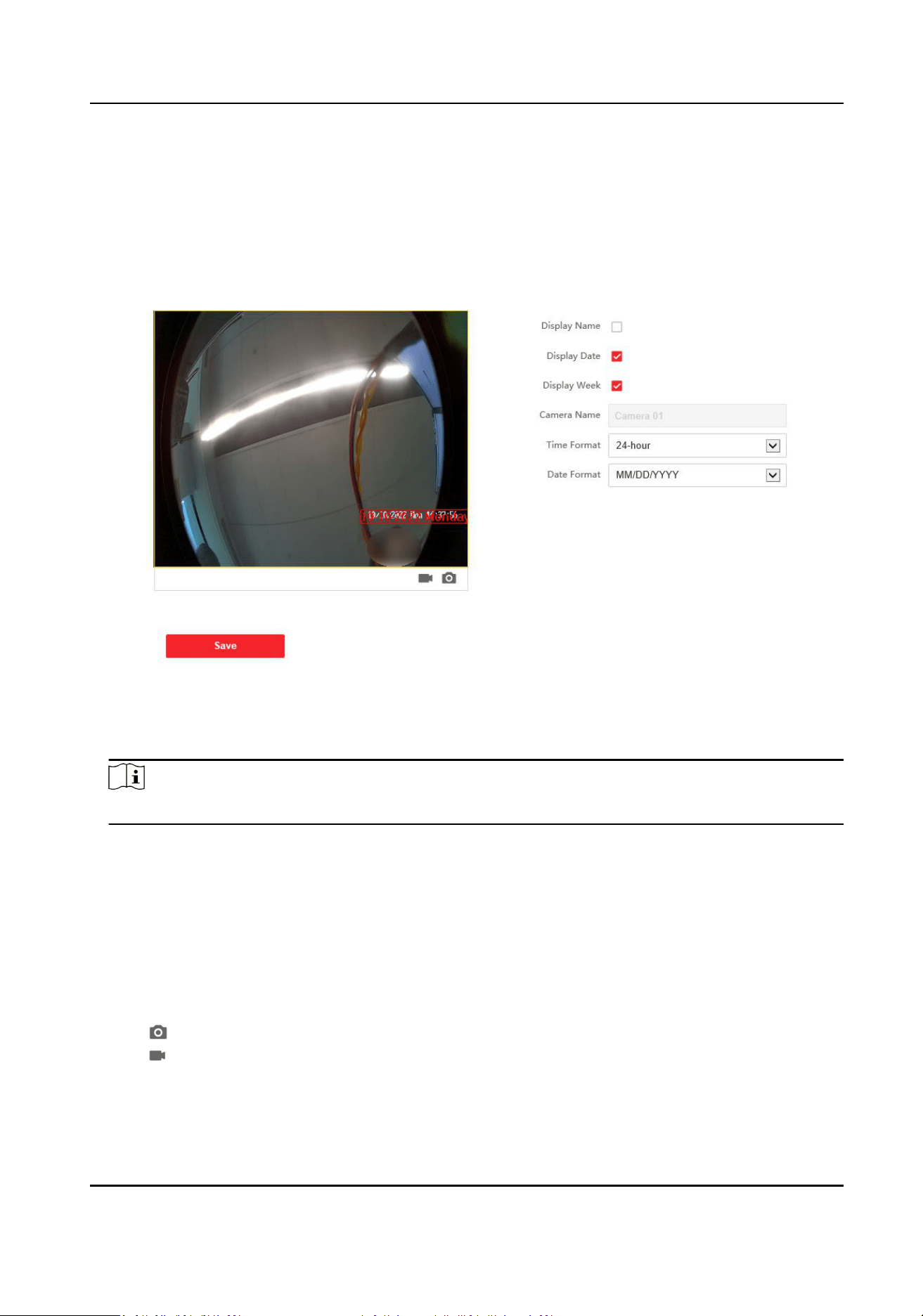
You can customize the camera name, me/date format on the live view.
Steps
1.
Click Image → OSD to enter the sengs page.
Figure 6-15 OSD
2.
Check to enable Display Name, Display Date or Display Week at your actual needs.
3.
Edit the Camera Name.
Note
You can edit the camera name only when Display Name is enabled.
4.
Select from the drop-down list to set the Time Format and Date Format.
5.
Click Save to enable the sengs.
Target Cropping
Steps
1.
Click Image → Crop to enter the page.
2.
Check Enable Target Cropping to enable the funcon.
3.
Click to capture photo.
4.
Click to start recording.
5.
Select Cropping Resoluon.
6.
Click Save.
Module Door Staon User Manual
27

Note
●
You can select Cropping Resoluon as 704*576, 1280*720, or 1920*1080.
●
You can zoom in or zoom out the image by selecng Cropping Resoluon aer clicking Save.
6.4.6 Event Sengs
Moon Detecon
Moon detecon detects the moving objects in the congured security area, and a series of
acons can be taken when the alarm is triggered.
Steps
1.
Click Event → Basic Event → Moon to enter the sengs page.
Module Door Staon User Manual
28
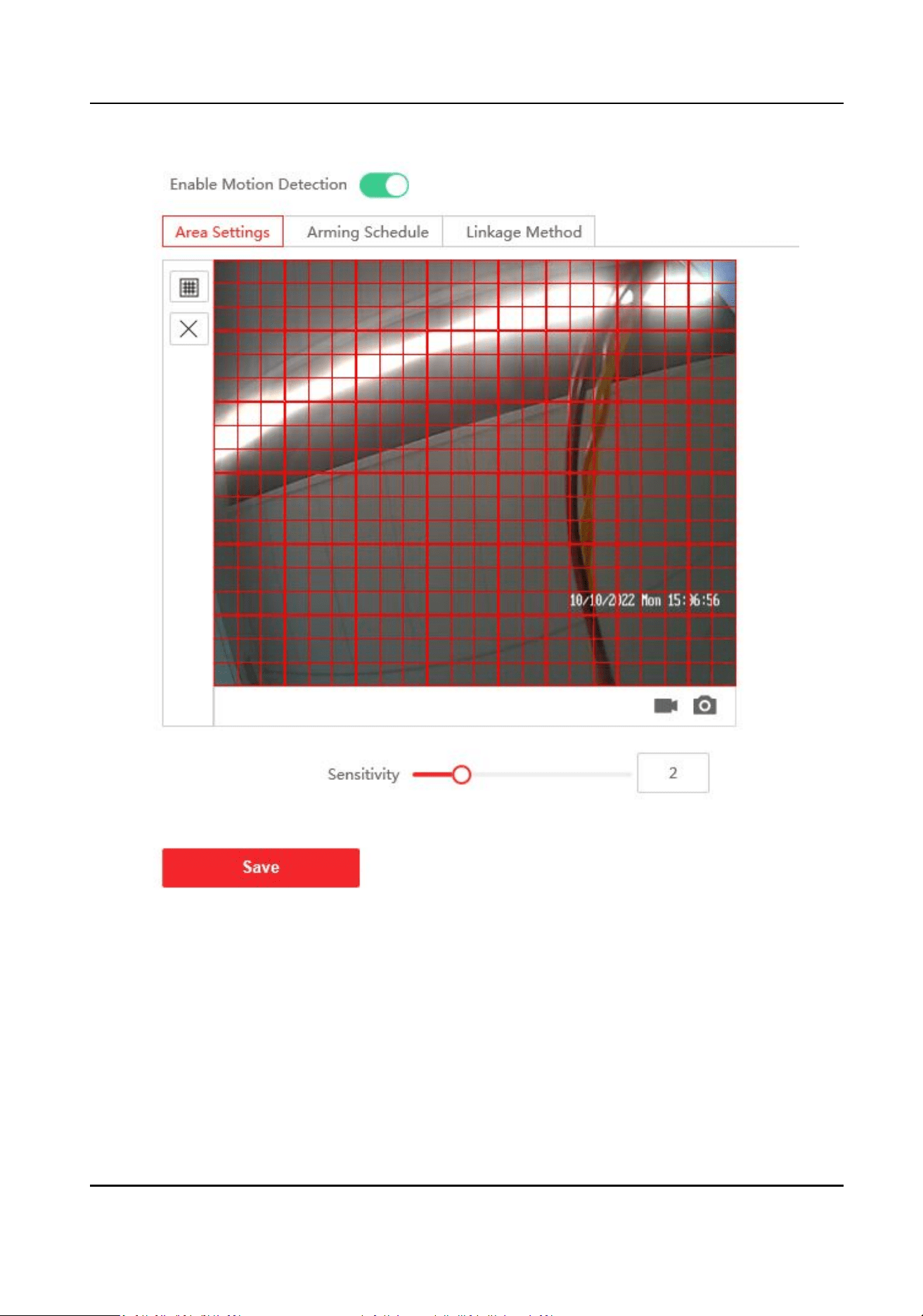
Figure 6-16 Moon Detecon
2.
Click to Enable Moon Detecon.
3.
Click Draw Area. Click and drag to draw a moon detecon area.
Clear Area Click Clear All to clear all of the areas.
Adjust Sensivity Move the slider to set the sensivity of the detecon.
4.
Click Arming Schedule to edit the arming schedule.
5.
Click on the me bar and drag to select the me period. Click Save to save the sengs.
Module Door Staon User Manual
29

Delete Schedule Click Delete to delete the current arming schedule.
6.
Click Linkage Method to enable the linkages.
Nofy Security Center
Send an excepon or alarm signal to the remote management soware when an event
occurs.
7.
Click Save to enable the sengs.
Event Linkage
Steps
1.
Click Event → Basic Event → Event Linkage to enter the sengs page.
Module Door Staon User Manual
30
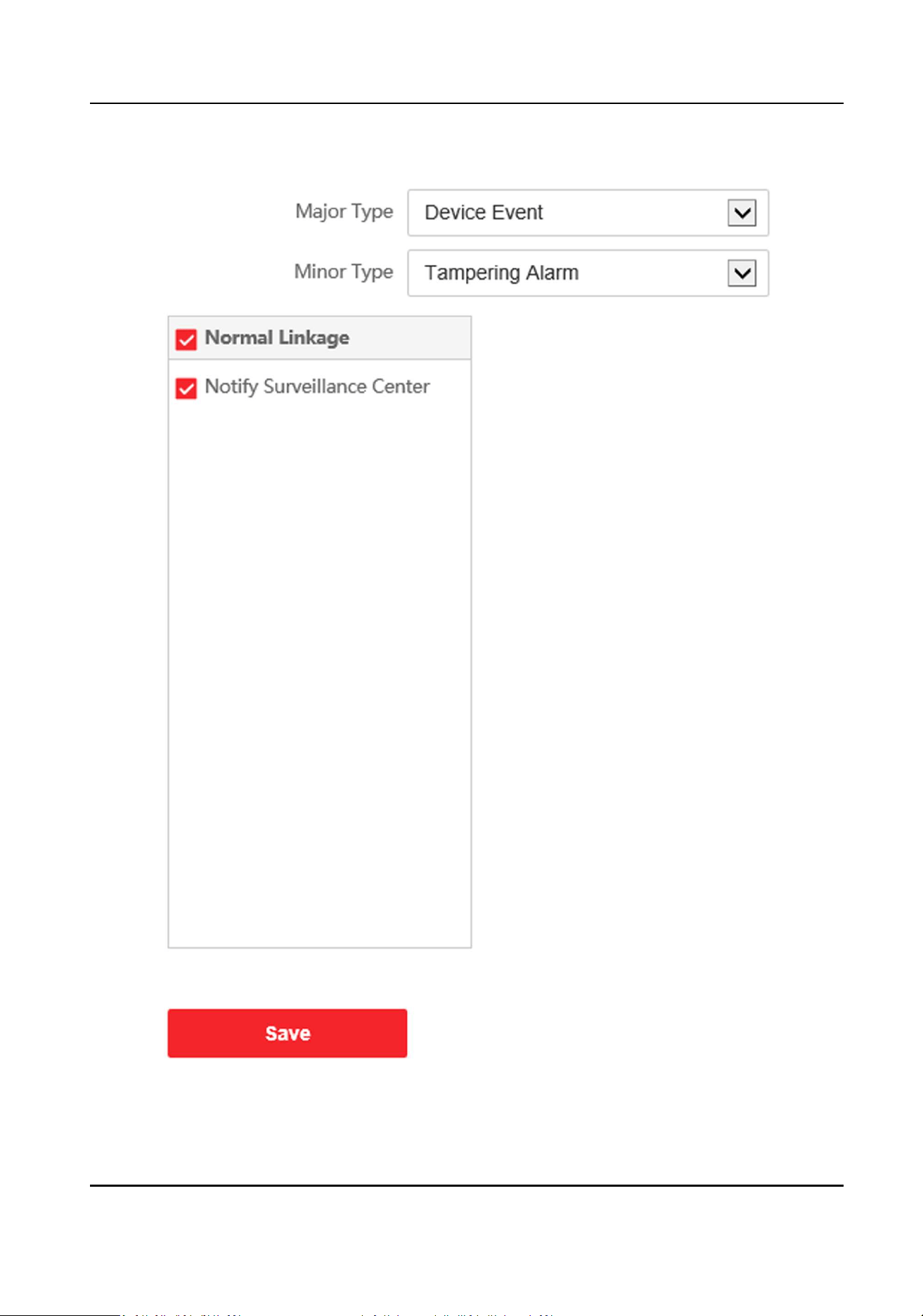
Figure 6-17 Event Linkage
Module Door Staon User Manual
31
2.
Select the Major Type as Device Event or Door Event.
3.
Select the type of the Normal Linkage for the event.
4.
Click Save to enable the sengs.
6.4.7 Schedule Sengs
You can create call schedule, or else the device will call indoor staon all day by default.
Steps
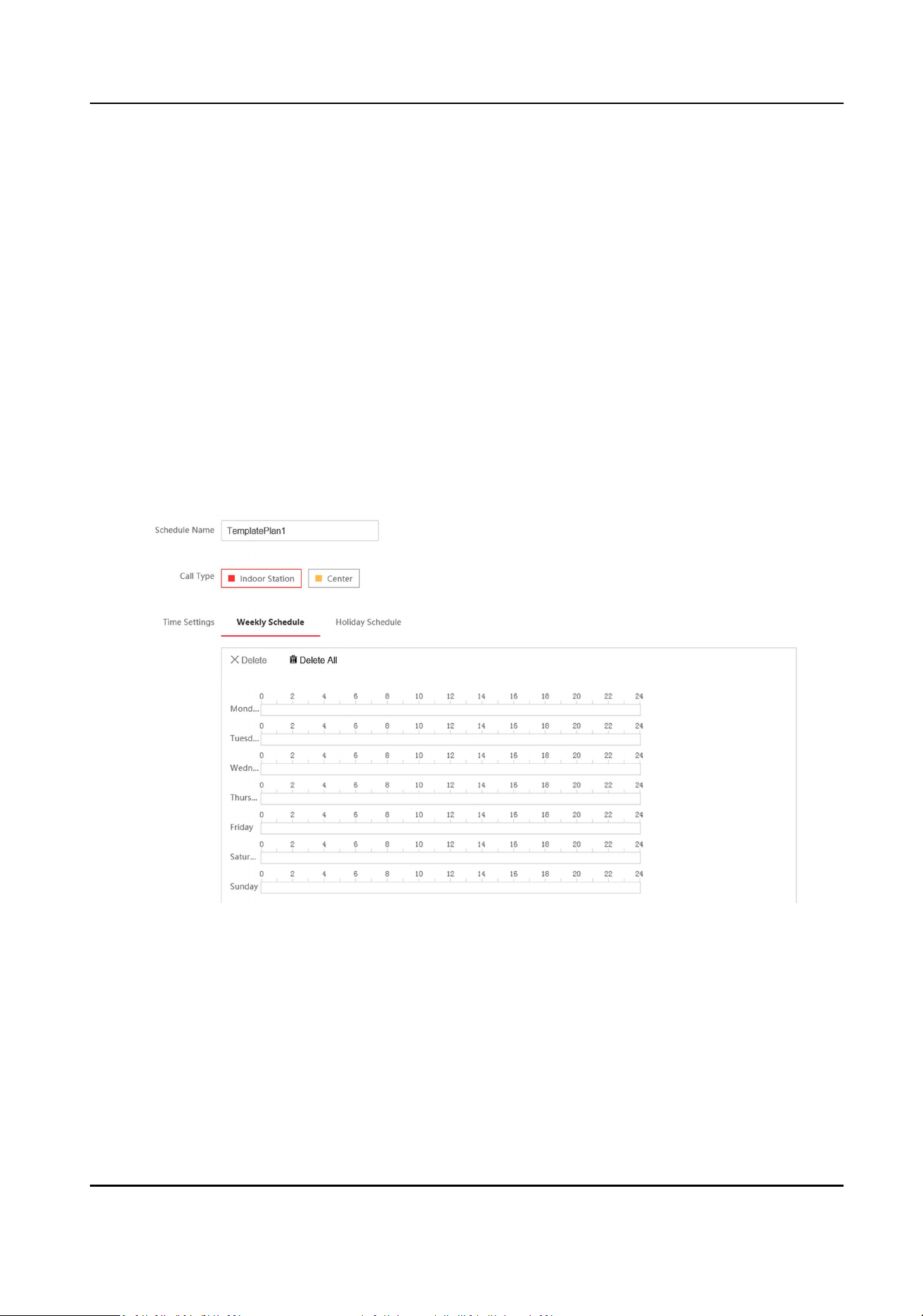
1.
Click Schedule → Video Intercom → Call Schedule .
2.
Click the next row below Enable Indoor Staon All Day by Default.
3.
Enter Schedule Name.
4.
Select Call Type.
5.
Set Weekly Schedule.
1) Click Weekly Schedule.
Figure 6-18 Weekly Schedule
2) Drag mouse to set the schedule according to the actual needs.
3) Oponal: Click the copy icon to copy the schedule to other days according to the actual
needs.
4) Click Save.
6.
Set Holiday Schedule.
1) Click Holiday Schedule.
Module Door Staon User Manual
32
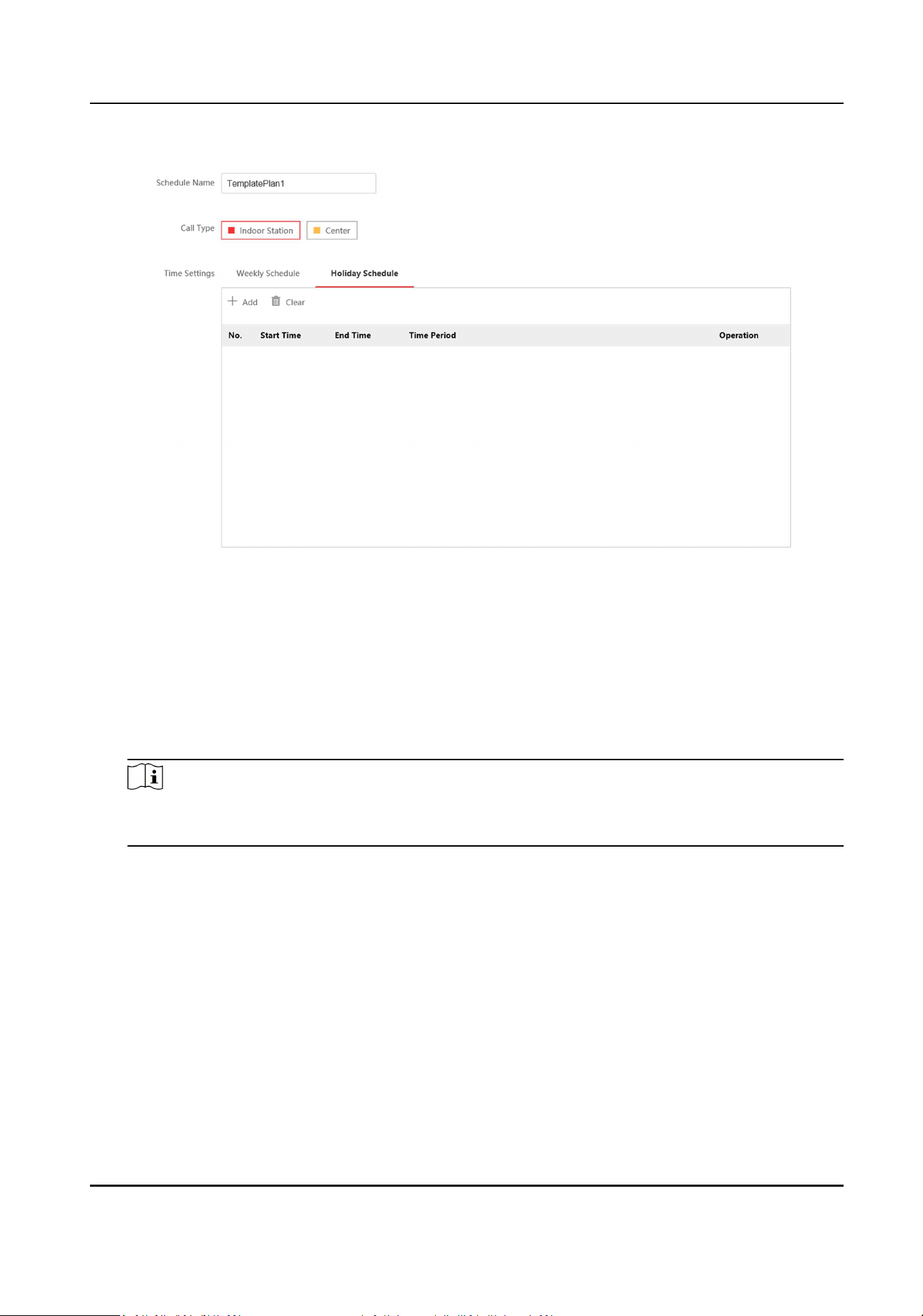
Figure 6-19 Holiday Schedule
2) Click Add.
3) Set Start Time and End Time.
4) Select Call Type.
5) Drag mouse to set the schedule according to the actual needs.
6) Click OK.
7) You can edit or delete the schedule according to the actual needs.
8) Click Save.
Note
The holiday schedule have higher priority than weekly schedule when you set the two
schedule at the same me.
6.4.8 Intercom Sengs
Device No. Conguraon
Set the No. of the device, and linked devices can build a communicaon.
Steps
1.
Click Intercom → Device No. to enter the sengs page.
Module Door Staon User Manual
33
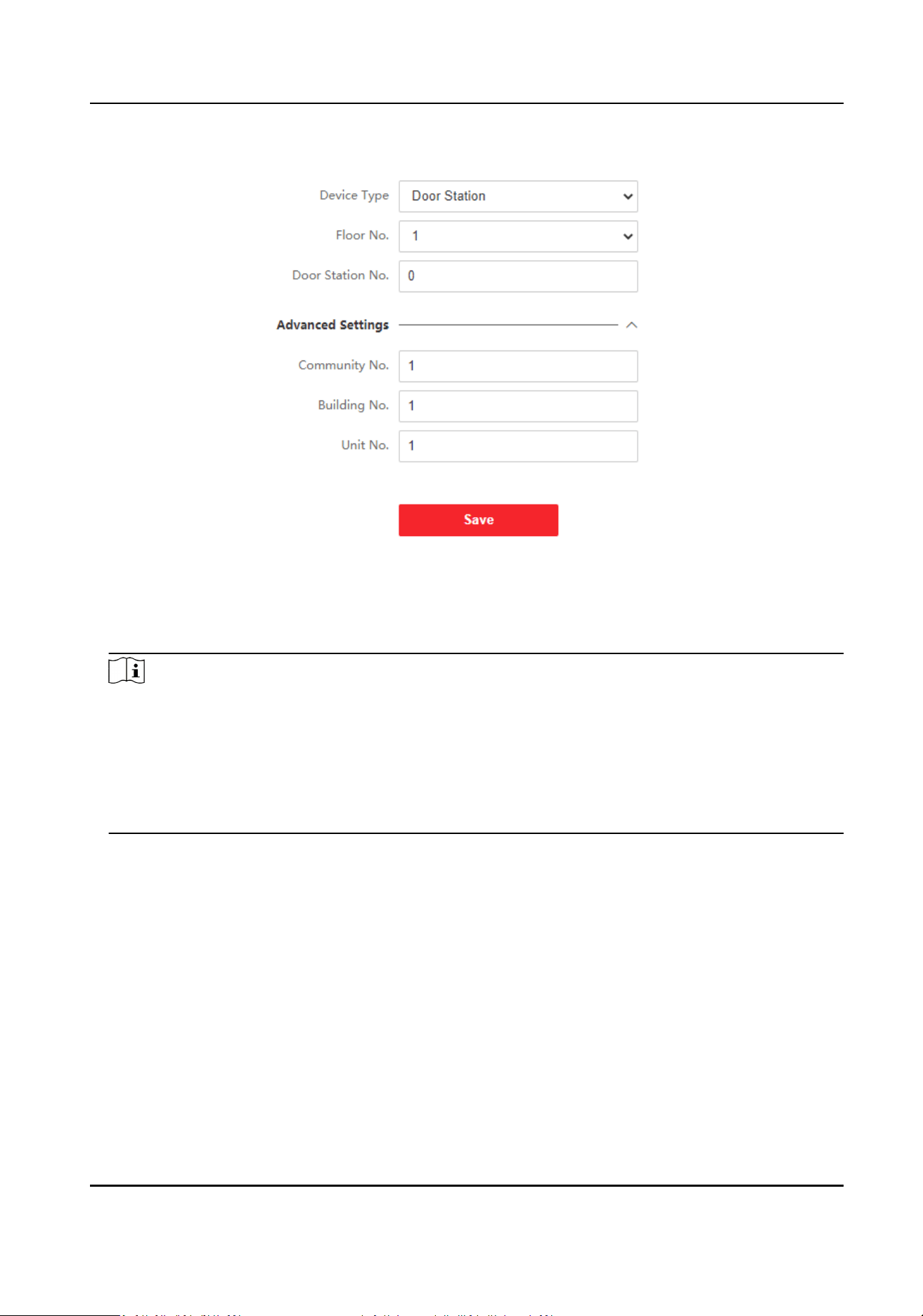
Figure 6-20 Device No. Sengs
2.
Select the device type from the drop-down list, and set the corresponding informaon.
3.
Click Save to enable the device number conguraon.
Note
●
For main door staon (D series or V series), the serial No. is 0.
●
For sub door staon (D series or V series), the serial No. cannot be 0. Serial No. ranges from 1
to 99.
●
For each villa or building, at least one main door staon (D series or V series) should be
congured, and one sub door staons (D series or V series) can be customized.
●
For one main door staon (D series or V series), up to 8 sub door staons can be congured.
Linked Network Sengs
Steps
1.
Click Intercom → Session Sengs to enter the sengs page.
Module Door Staon User Manual
34
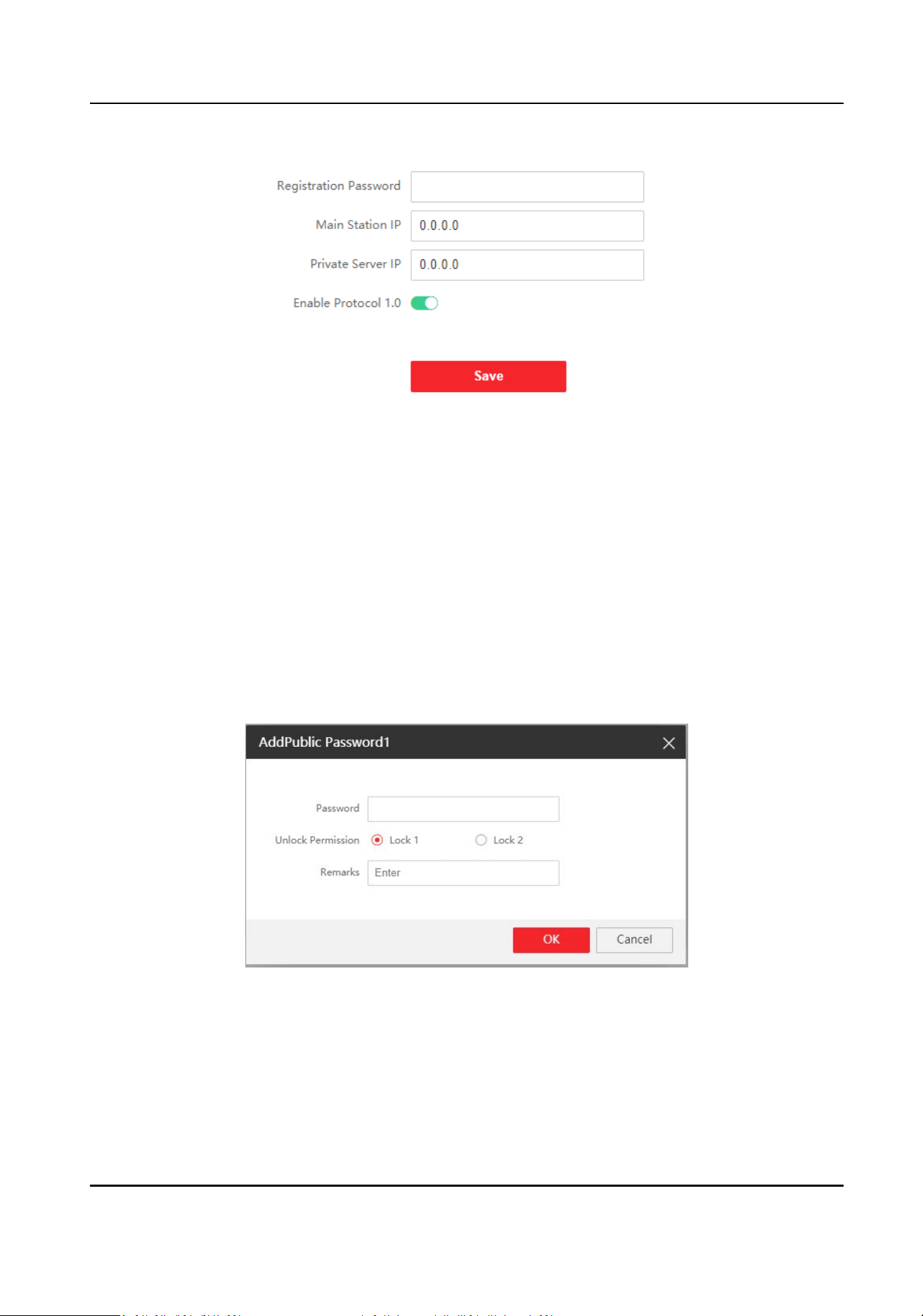
Figure 6-21 Session Sengs
2.
Set Registraon Password.
3.
Set Main Staon IP and Video Intercom Server IP.
4.
Click to enable Protocol 1.0.
5.
Click Save to enable the sengs.
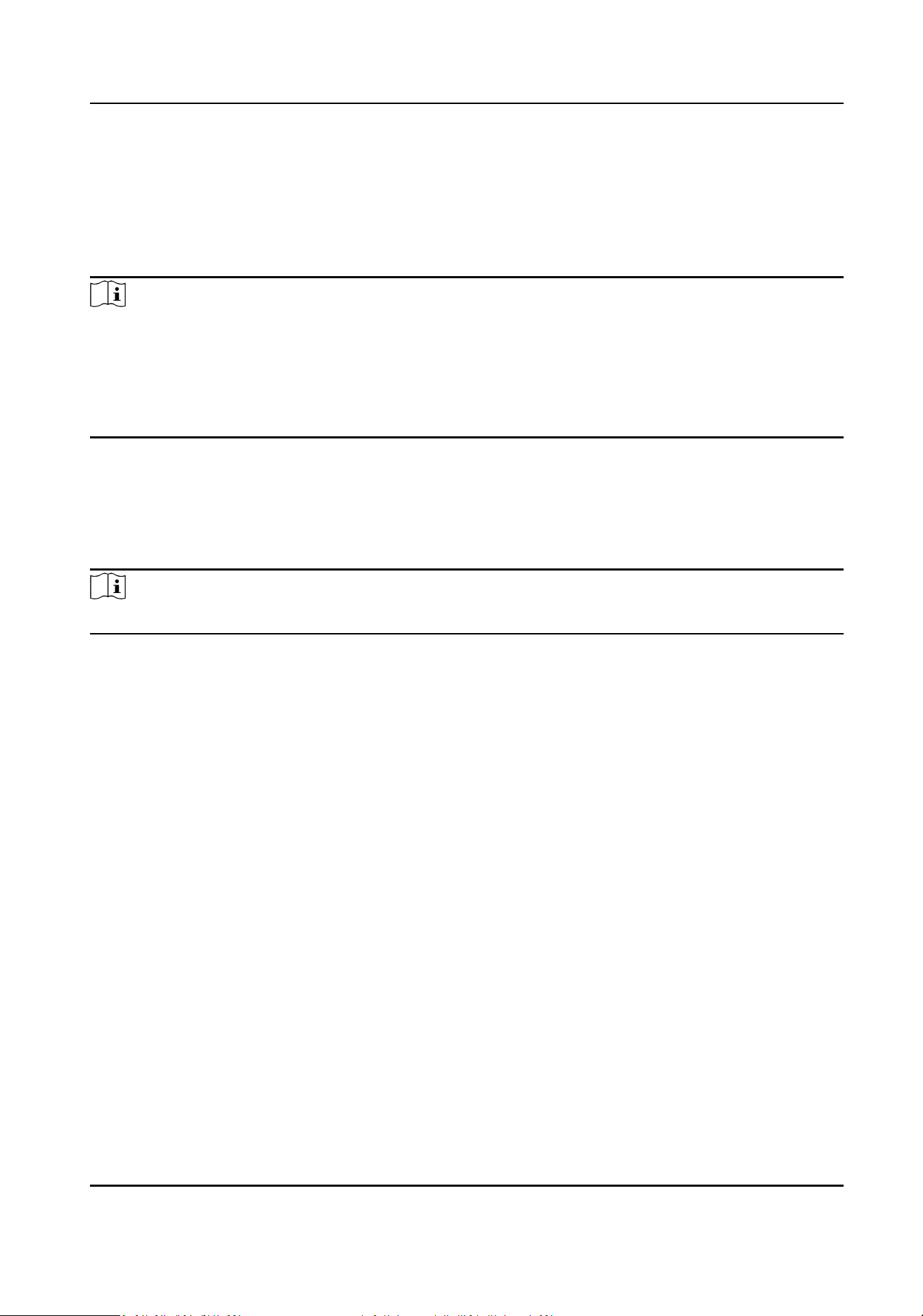
Password Sengs
Set public password.
Click Intercom → Password Sengs to enter the page.
Click Add to add password.
Figure 6-22 Add Password
Set password and remarks and click to enable electric lock.
Click Save to save the sengs.
Module Door Staon User Manual
35
Call Sengs
Go to Intercom → Call Sengs to enter the page.
Congure Max. Call Communicaon, Max. Message Duraon and Max. Ring Duraon, and click
Save.
Note
●
Max. call duraon between the module indoor staon and client ranges from 90 s to 120 s. The
call will end automacally when the actual calling duraon is longer than the congured one.
●
Max. message duraon ranges from 30 s to 60 s. The message will end automacally when the
actual message duraon is longer than the congured one.
●
Max. ring duraon ranges from 65 s to 255 s.
Ring-Back Tone Sengs
Click Intercom → Ringbacktone Sengs to enter the sengs page.
Click Add to select the ring tone from PC.
Note
Available Audio Format: WAV、AAC, Size: Less than 600 KB, Sample Rate: 8000Hz, Mono.
Press Buon to Call
Steps
1.
Click Intercom → Press Buon to Call to enter the page.
2.
Select Main Unit or Sub Module to set the buons.
Main Unit
If you select Main Unit, you should congure Buon Sengs and select Link Time Schedule
as Template Plan 1 or Enable Indoor Staon All Day by Default.
Sub Unit
●
When you select Sub Unit, all connected sub modules will be listed.
●
No. represents the address of each sub module.
●
Enter room No. of indoor staon in the Buon Sengs column for each alarm in interface.
3.
Click Save to enable the sengs.
I/O Sengs
Steps
1.
Click Intercom → I/O Sengs to enter the I/O input and output sengs page.
Module Door Staon User Manual
36
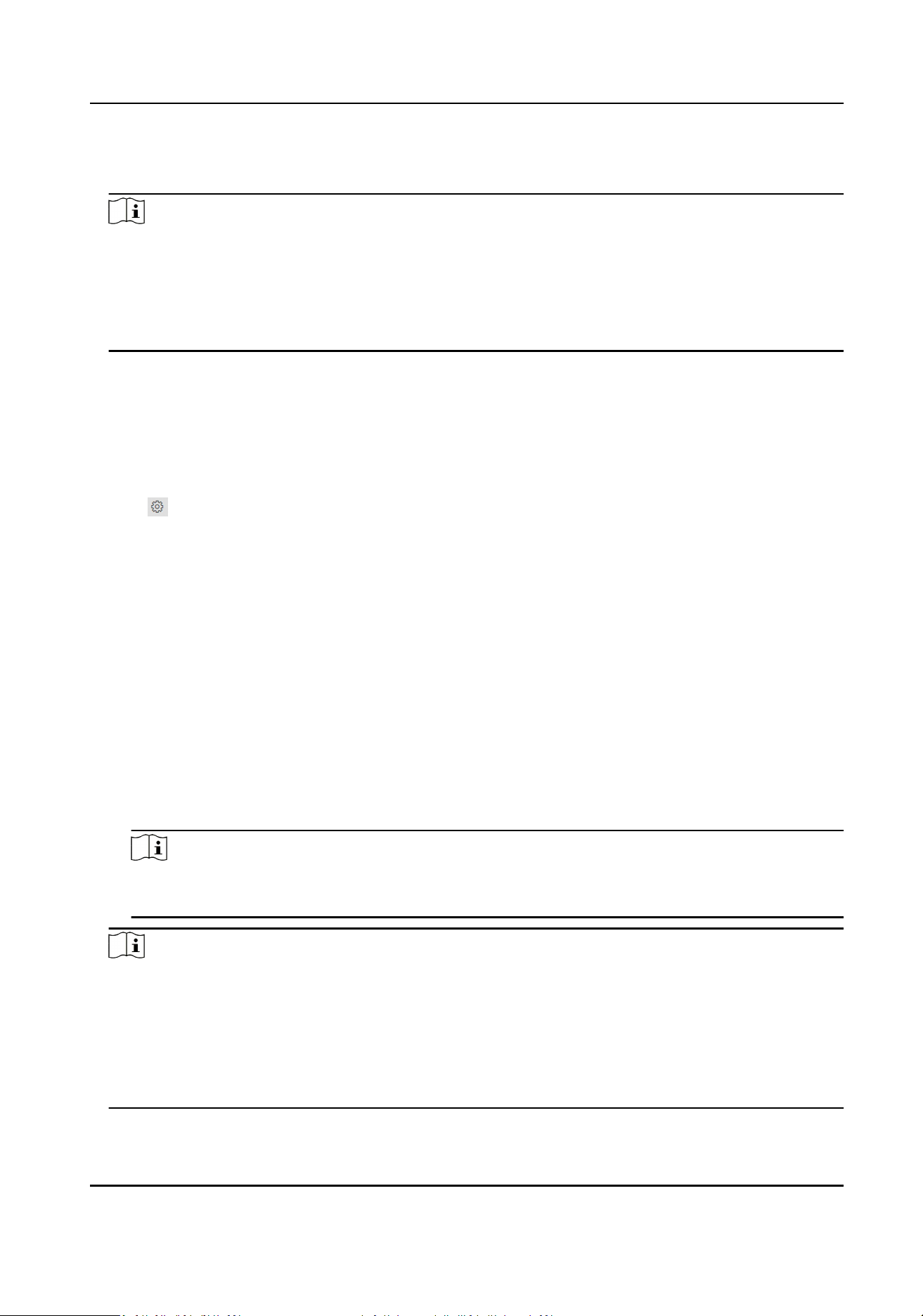
2.
Select I/O input No., input mode, output No., and output mode.
3.
Click Save to enable the sengs.
Note
●
For door staon, there are 4 I/O input terminals. By default, Terminal 1 and 2 correspond to
Door Status. Terminal 3 and 4 correspond to interfaces of Door Switch.
●
For door staon, there are 2 I/O Output Terminals. Terminal 1 and 2 correspond to Door
interfaces (NO1/COM/NC1; NO2/COM/NC2) of door staon. Door 1 is enabled by default. You
can enable/disable IO Out according to needs.
Sub Module Conguraon
Steps
1.
Click Intercom → Sub Module Conguraon , and you can view the sub module informaon,
including No., module type, status, and version.
2.
Click to edit the sub module.
Display Module
●
Slide to adjust Screen Backlight Brightness.
●
Slide Enable Buzzer to enable the funcon.
Touch-Display Module
●
Slide to adjust Screen Backlight Brightness.
●
Slide Enable Buzzer to enable the funcon.
●
Select Address Book Display Mode according to actual needs.
●
Enable Homepage Shortcut Dial, you can tap contact on the main page to call.
●
Click Add to add custom buons.
PMR Module
Click to enable power consumpon selecon.
You can select 8 W, 6 W or 4 W for the PMR Module.
Note
If the system power goes o, an external power supply of 12 V, 2 A for the main unit is
necessary.
Note
●
The module address is used to dierenate the sub modules. See Congure Sub Module
Address for detailed conguraon instrucons.
●
For the other sub modules (indicator module, keypad module and card reader module), it
prompts Not supported.
●
The room No. for the main unit's call buon is 1 by default; and the room No. for the nametag
modules call buons are 2 to 7 by default.
Module Door Staon User Manual
37

Number Sengs
Link the room No. and SIP numbers.
Click Number Sengs to enter the page.
Figure 6-23 Number Sengs
Click Add, set the Room No. and SIP numbers in the pop-up dialog box.
6.4.9 Access Control Sengs
Door Parameters
Set the parameters of the door which is linked to the device.
Steps
1.
Click Access Control → Door Parameters to enter the sengs page.
Module Door Staon User Manual
38
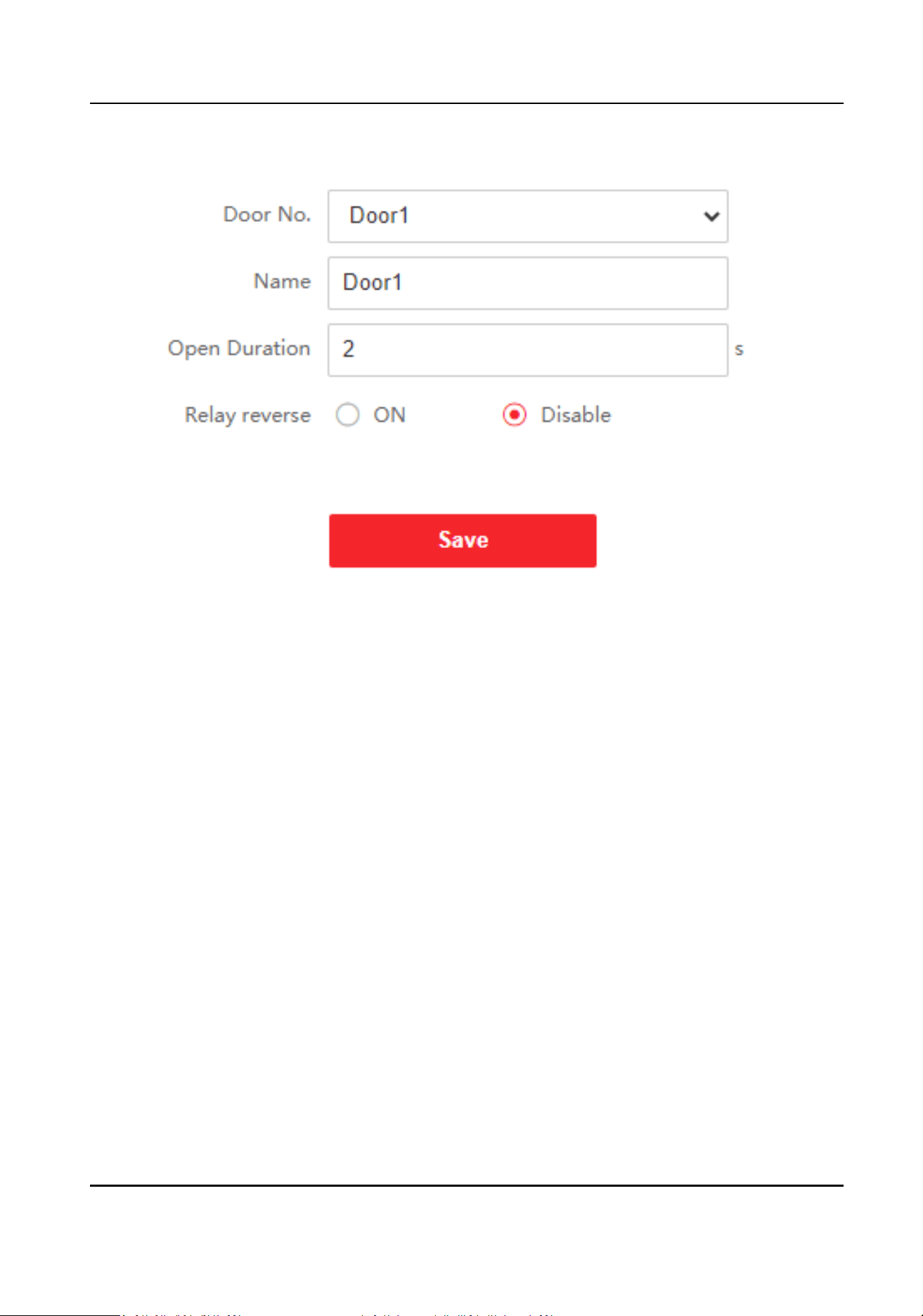
Figure 6-24 Door Parameters
2.
Select Door No., and edit the Name.
3.
Set Open Duraon. When the me to open over the open duraon you set, the door will be
locked again.
4.
Select Relay Reverse as ON or Disable.
5.
Click Save to enable the sengs.
Elevator Control
Before You Start
Make sure that the door staon is in the mode of main door staon. Only the main door staon
supports elevator control funcon.
Steps
1.
Click Access Control → Elevator Control Parameter to enter the sengs page.
Module Door Staon User Manual
39
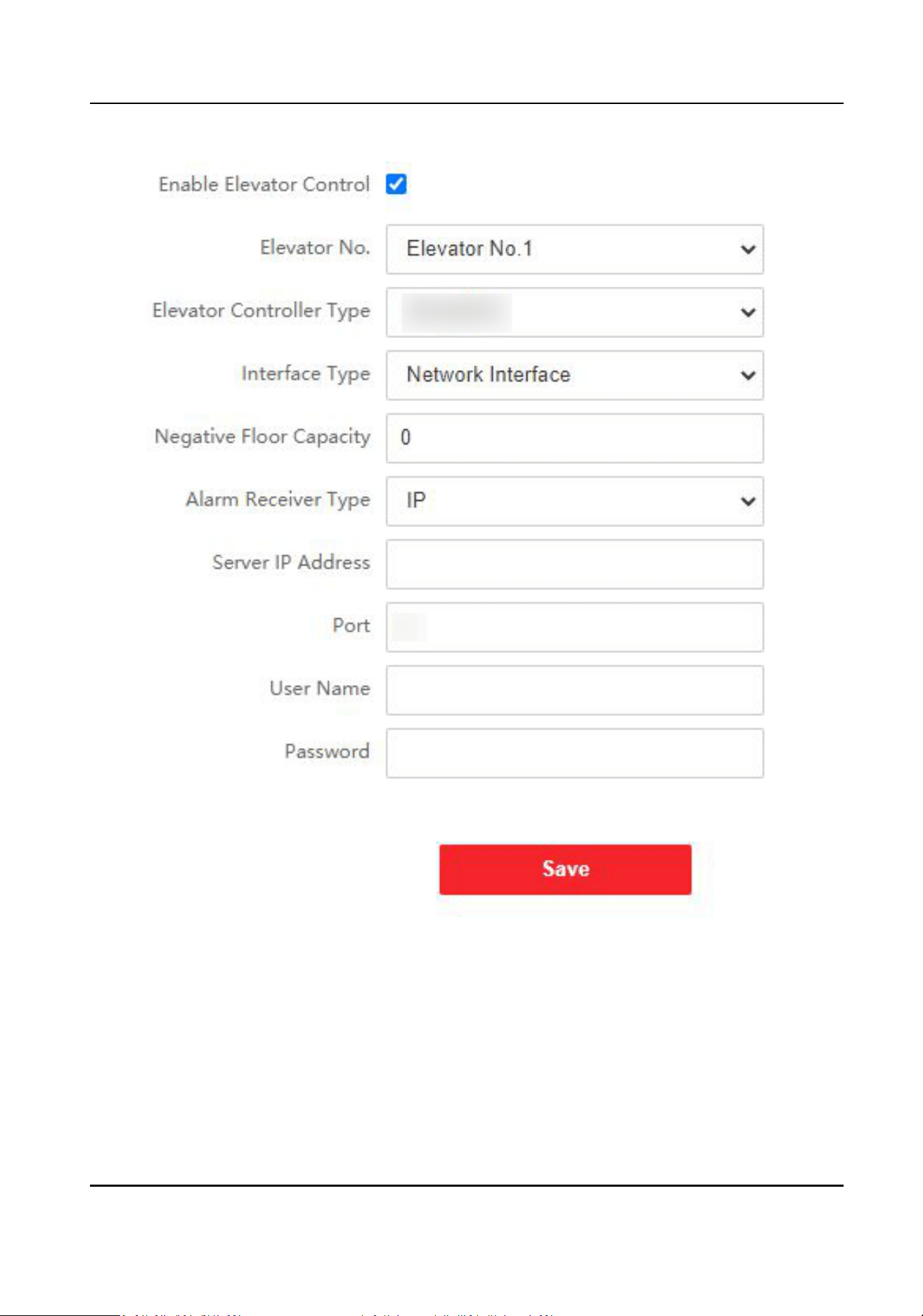
Figure 6-25 Elevator Control
2.
Check to enable elevator control funcon.
3.
Select an Elevator No., and select an elevator controller.
4.
Select Interface Type.
5.
Enter Negave Floor Capacity, and select Alarm Receiver Type.
6.
Enter the elevator controller's Server IP Address, Port No., User Name, and Password.
7.
Click Save to enable the sengs.
Module Door Staon User Manual
40

Note
●
Up to 4 elevator controllers can be connected to one door staon.
●
Up to 10 negave oors can be added.
●
Make sure the interface types of elevator controllers, which are connected to the same door
staon are consistent.
Module Door Staon User Manual
41

Chapter 7 Conguraon via Client Soware
7.1 Device Management
Device management includes device acvaon, adding device, eding device, and deleng device,
and so on.
Aer running the iVMS-4200, video intercom devices should be added to the client soware for
remote conguraon and management.
7.1.1 Add Online Device
Before You Start
Make sure the device to be added is in the same subnet with your computer. Otherwise, please
edit network parameters rst.
Steps
1.
Click Online Device to select an acve online device.
2.
Click Add.
3.
Enter corresponding informaon, and click Add.
Module Door Staon User Manual
42
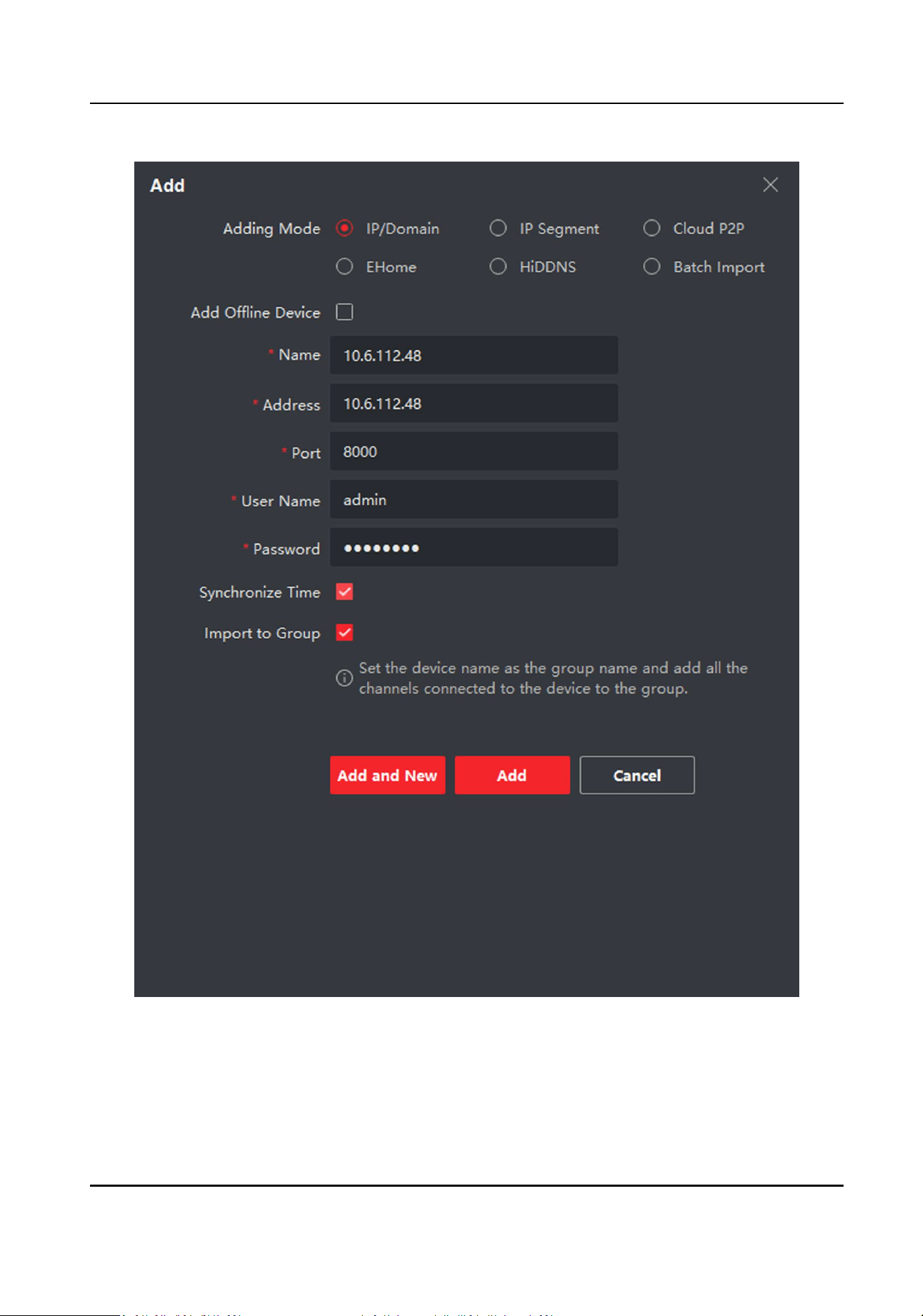
Figure 7-1 Add to the Client
Module Door Staon User Manual
43
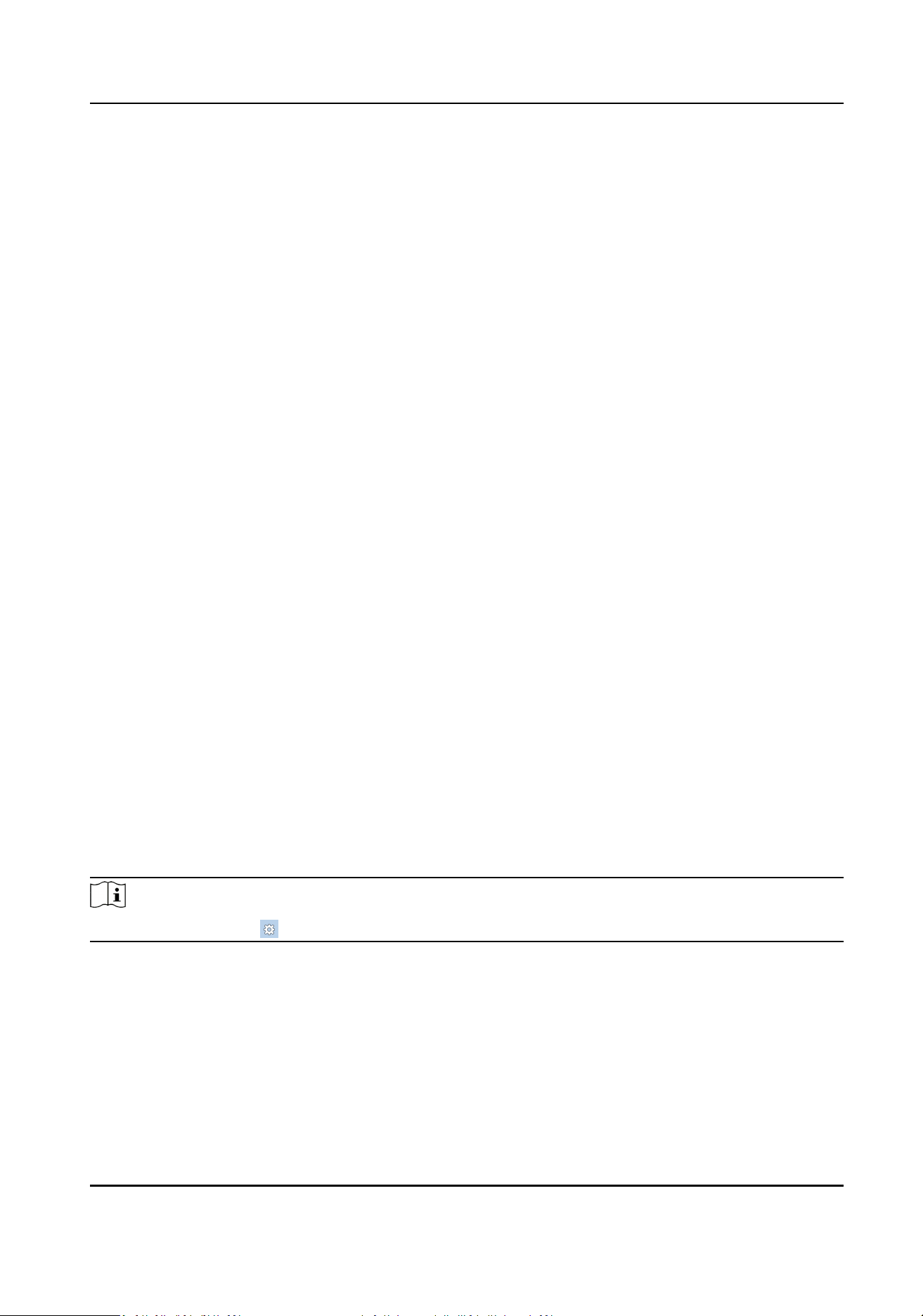
7.1.2 Add Device by IP Address
Steps
1.
Click +Add to pop up the adding devices dialog box.
2.
Select IP/Domain as Adding Mode.
3.
Enter corresponding informaon.
4.
Click Add.
7.1.3 Add Device by IP Segment
You can add many devices at once whose IP addresses are among the IP segment.
Steps
1.
Click +Add to pop up the dialog box.
2.
Select IP Segment as Adding Mode.
3.
Enter corresponding informaon, and click Add.
7.2 Live View via Door Staon
Steps
1.
On the main page of the client soware, click Main View to enter the Live View page.
2.
In the le list of the window, double-click the device IP or click the play icon to live view.
3.
Oponal: On the Live View page, control-click and select Capture to get the picture of the live
view.
7.3 Parameters Sengs
Click Conguraon to set the parameters of the device.
Remote conguraon in iVMS-4200 and Batch Conguraon Tool is the same as that in Web. Here
takes the conguraon in web for example.
Note
Run the browser, click → Internet Opons → Security to disable the Protected Mode.
7.3.1 Device Management
You can manage the linked device on the page.
Click Device Management to enter the sengs page.
Module Door Staon User Manual
44

Figure 7-2 Device Management
Add Device
●
Click Add to add the indoor staon, sub door staon or decoder staon. Enter the parameters
and click OK to add.
●
Click Import. Enter the informaon of the device in the template to import devices in batch.
Export
Click Export to export the informaon to the PC.
Delete
Select the device and click Delete to remove the selected device from the list.
Synchronize
Click Synchronize and enable Synchronize for device synchronizaon.
Note
When enabling the funcon, the acvated devices will synchronize parameters. Inacvated devices
synchronize parameters whether the funcon is enabled or not.
Refresh
Click Refresh to get the device informaon.
Oponal: Set device informaon.
●
Click to edit device informaon.
●
Click to delete device informaon from the list.
●
Select Status and Device Type to search devices.
7.3.2 Local Parameters Sengs
You can congure the parameters of the live view, record les and captured pictures. The record
les and captured pictures are the ones you record and capture by using the web browser. You can
also set and view the saving paths of the captured pictures and recorded videos on the PC that
running the web browser.
Module Door Staon User Manual
45
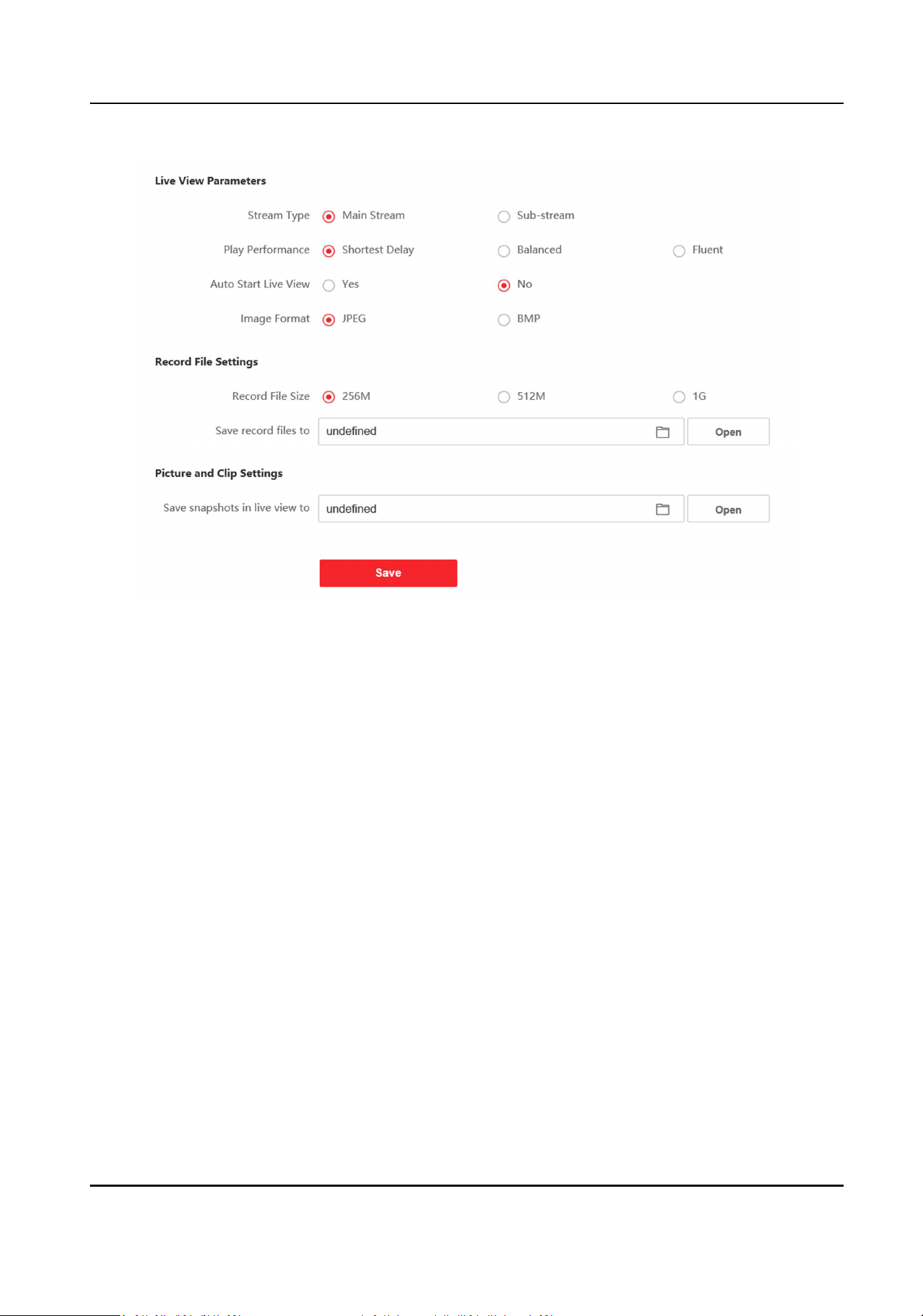
Figure 7-3 Local Parameters
Live View Parameters
Stream Type
Set the stream type as Main Stream or Sub-stream.
Play Performance
Set the live view performance to Shortest Delay, Balanced or Fluent.
Auto Start Live View
Check Yes to enable the funcon.
Image Format
Select the image format for picture capture.
Click Save to enable the sengs.
Record File Parameters
Record File Size
Select the packed size of the manually recorded and downloaded video les to 256M, 512M or
1G. Aer the selecon, the maximum record le size is the value you selected.
Save record les to
Set the saving path for the manually recorded video les.
Module Door Staon User Manual
46

Click Save to enable the sengs.
Picture and Clip Sengs
Save snapshots in live view to
Set the saving path of the manually captured pictures in live view mode.
Note
You can click Browse to change the directory for saving the clips and pictures, and click Open to
open the set folder of clips and picture saving.
Click Save to enable the sengs.
7.3.3 System Sengs
Follow the instrucons below to congure the system sengs, include System Sengs,
Maintenance, Security, and User Management, etc.
Click System to enter the sengs page.
Basic Informaon
Click System Sengs → Basic Informaon to enter the sengs page. On the page, you can edit
Device Name and Device No. Set the Language according to your needs.
You can view the quanes of added users and cards in Capacity.
Click Save to enable the sengs.
Time Sengs
Click System Sengs → Time Sengs to enter the sengs page. Select the Time Zone of your
locaon from the drop-down list.
●
Enable NTP, set the Server Address, NTP Port and Interval.
●
Enable Manual Time Sync., set the me manually or check the Sync. with computer me.
Click Save to enable the sengs.
DST
Click System Sengs → DST to check Enable DST. Set the parameters according to your needs and
click Save to enable the sengs.
About
Click System Sengs → About and click View Licenses to view open source soware licenses.
Maintenance
Click Maintenance → Upgrade & Maintenance to enter the sengs page.
Module Door Staon User Manual
47
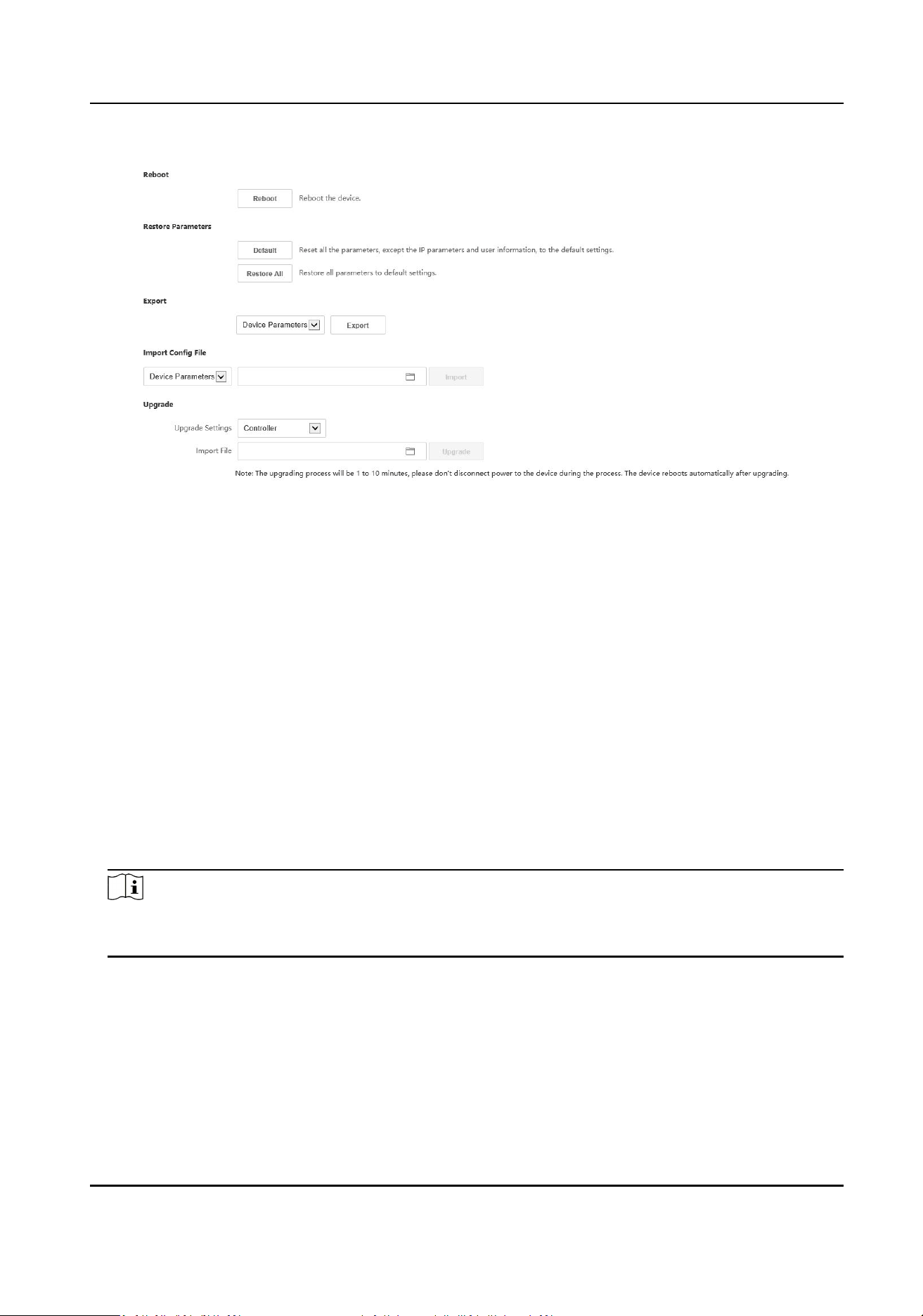
Figure 7-4 Upgrade & Maintenance
●
Reboot: Click Reboot to reboot the device.
●
Default
Click Default to reset all the parameters, except the IP parameters and user informaon, to
the default sengs.
Restore All
Click Restore All to restore all parameters to default sengs.
●
Export parameters:
1. Select Device Parameters, and click Export to pop up the dialog box.
2. Set and conrm the encrypon password.
3. Click OK to export parameters.
●
Import Cong. File:
1. Click browse icon to select the conguraon le.
2. Click Import and enter the encrypon password to import.
●
Upgrade: Click browse icon to select the upgrade le.
Note
The upgrading process will last 1 to 10 minutes, do not power o during the upgrading. The
device reboots automacally aer upgrading.
Security Service
Click Security → Security Service to enter the sengs page. On the page, you can enable SSH
according to your actual needs.
Click Save to enable the sengs.
Module Door Staon User Manual
48

User Management
Click User Management to enter the sengs page.
Administrator can edit the permission for the users.
Note
We highly recommend you to create a strong password of your own choosing (using a minimum of
8 characters, including at least three kinds of following categories: upper case leers, lower case
leers, numbers, and special characters) in order to increase the security of your product. And we
recommend you change your password regularly, especially in the high security system, changing
the password monthly or weekly can beer protect your product.
Online Users
Click User Management → Online Users to enter the page.
Click Refresh to get the present informaon.
Arming/Disarming Informaon
Click User Management → Arming/Disarming Informaon to view the informaon. Click Refresh
to get the present informaon.
7.3.4 Network Sengs
TCP/IP Sengs
TCP/IP sengs must be properly congured before you operate the device over network. The
device supports IPv4.
Steps
1.
Click Network → Basic Sengs → TCP/IP to enter the sengs page.
Module Door Staon User Manual
49
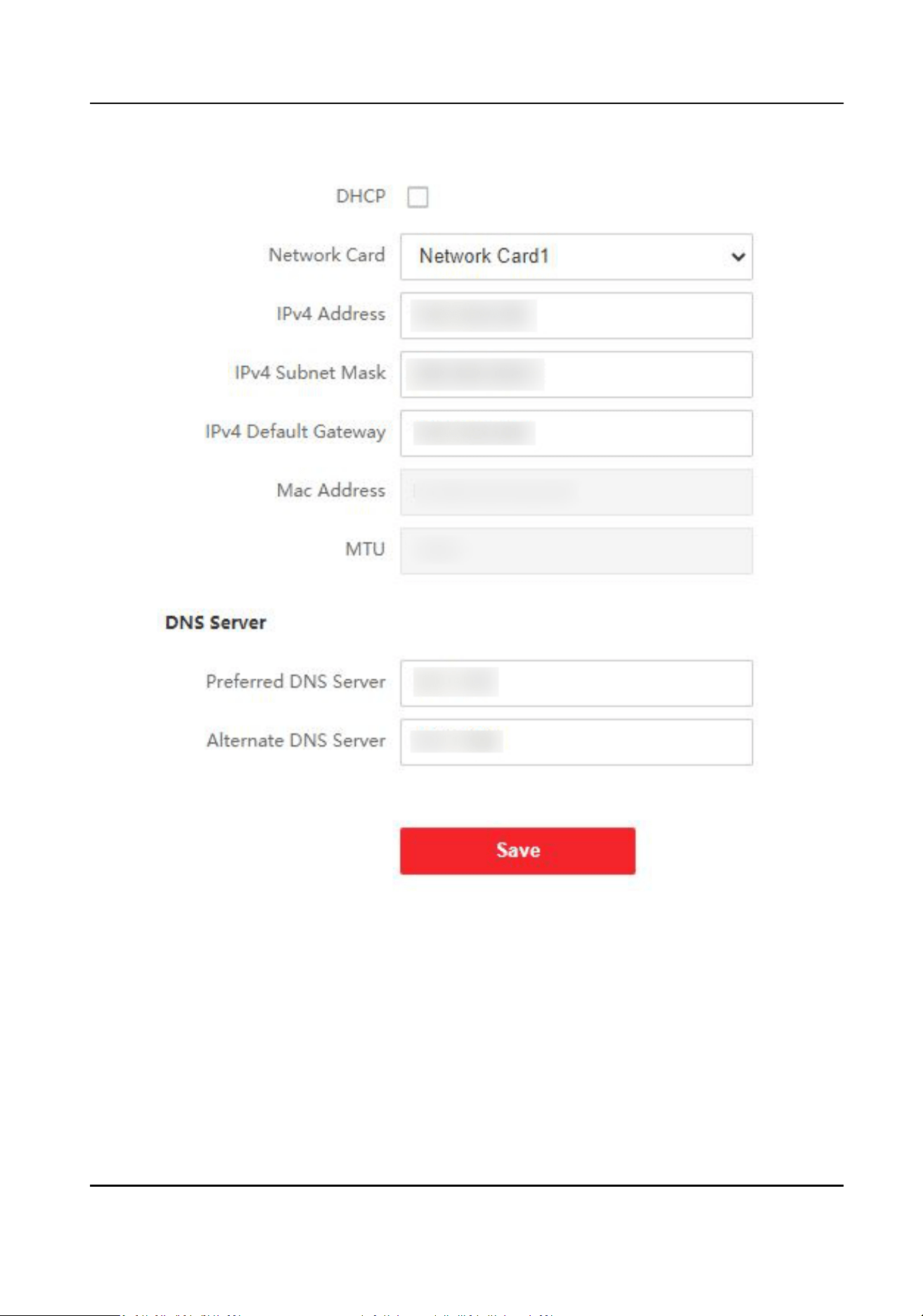
Figure 7-5 TCP/IP Sengs
2.
Congure the network parameters.
-
Enable DHCP and the device will get the parameters automacally.
-
Disable DHCP and set the IPv4 Address, IPv4 Subnet Mask and IPv4 Default Gateway
manually.
3.
Congure the corresponding DNS server parameters.
4.
Click Save to enable the sengs.
Module Door Staon User Manual
50
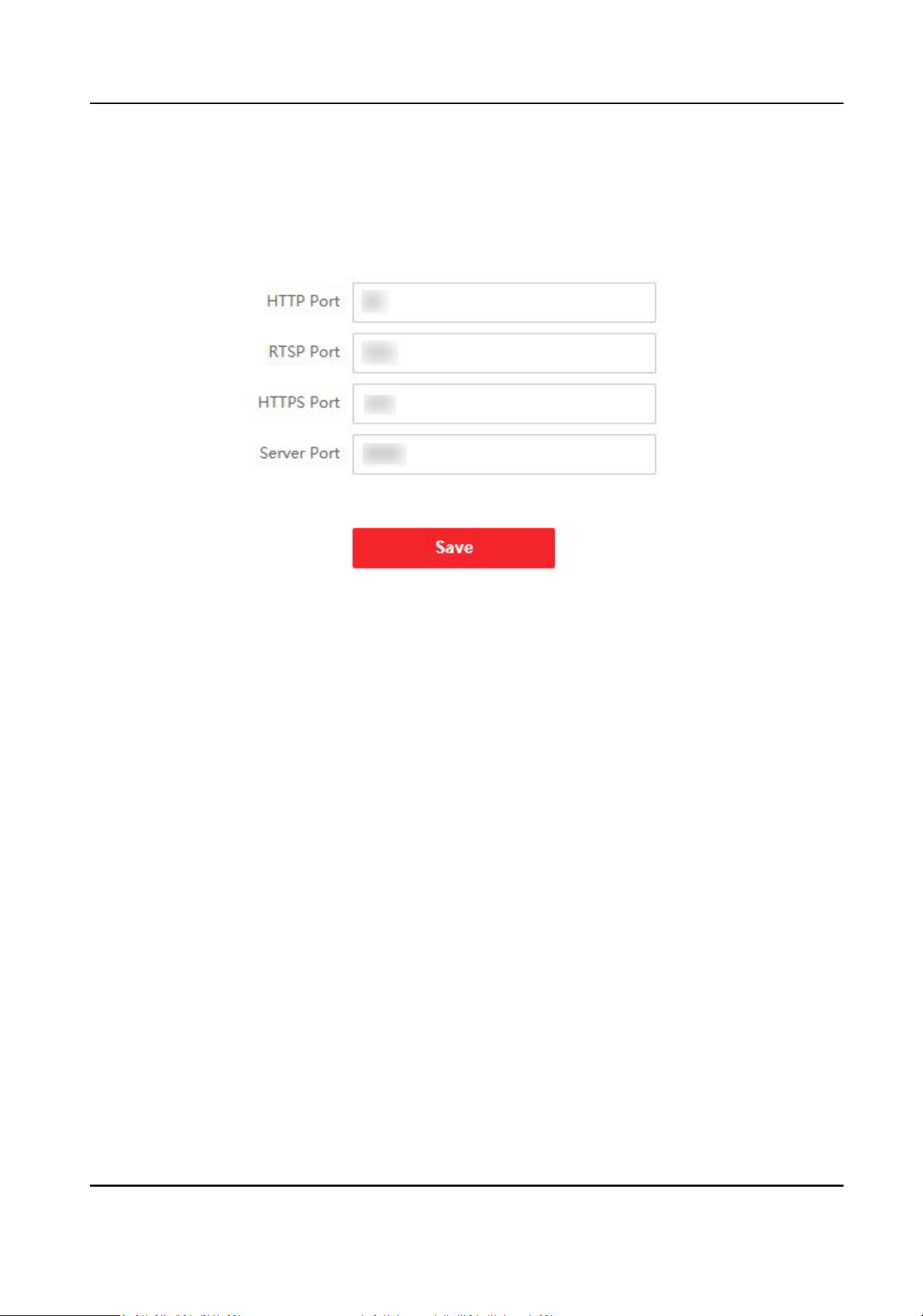
Port Sengs
Steps
1.
Click Network → Basic Sengs → Port to enter the sengs page.
Figure 7-6 Port Sengs
2.
Set the ports of the device.
HTTP Port
The default port number is 80, and it can be changed to any port No. which is not occupied.
RTSP Port
The default port number is 554.
HTTPS Port
The default port number is 443, and it can be changed to any port No. which is not occupied.
Server Port
The default server port number is 8000, and it can be changed to any port No. ranges from
2000 to 65535.
3.
Click Save to enable the sengs.
SIP Seng
Steps
1.
Click Network → Basic Sengs → SIP to enter the sengs page.
Module Door Staon User Manual
51
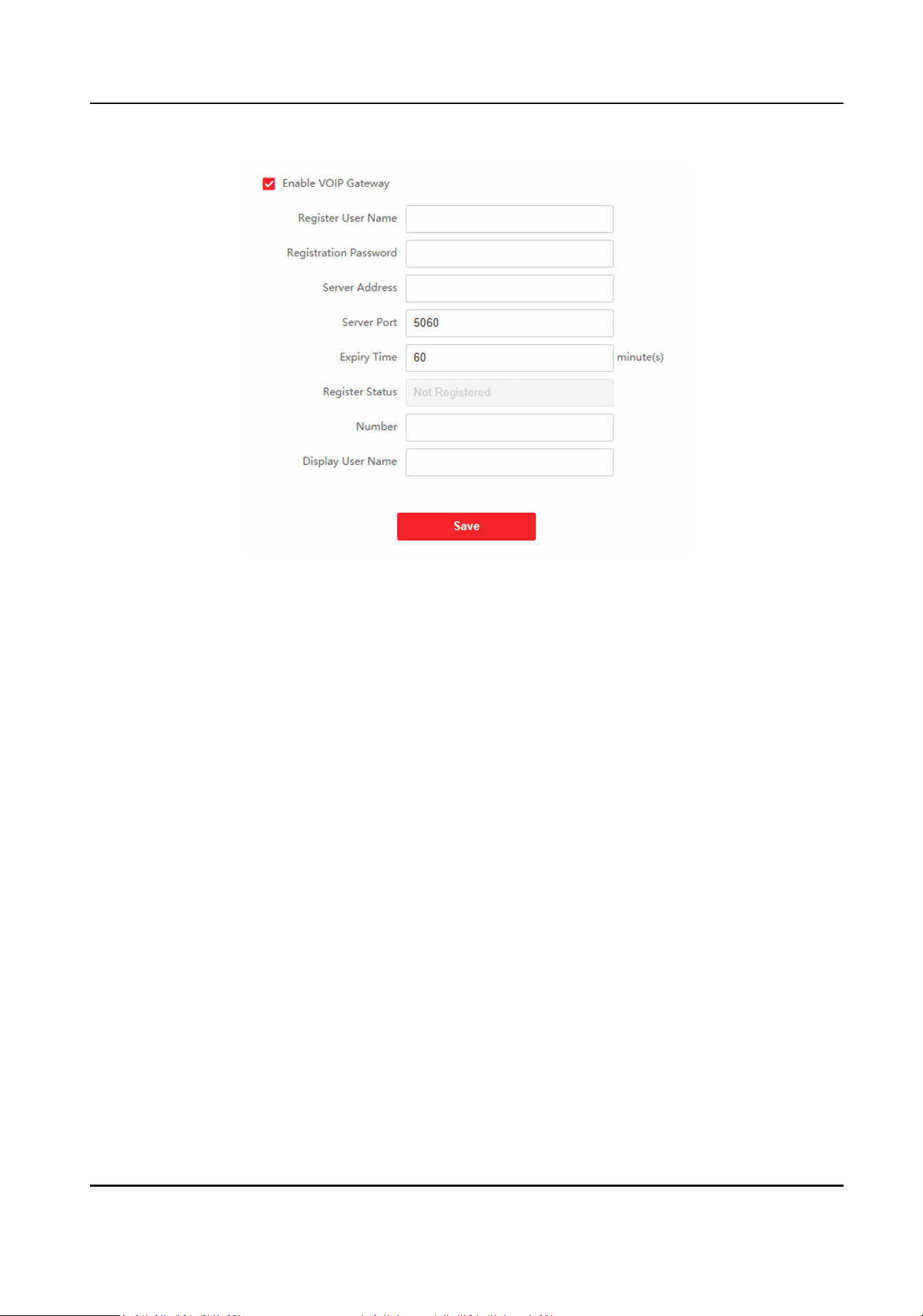
Figure 7-7 SIP Sengs
2.
Check Enable VOIP Gateway.
3.
Congure the SIP parameters.
4.
Click Save to enable the sengs.
FTP Sengs
Steps
1.
Click Network → Advanced → FTP to enter the sengs page.
Module Door Staon User Manual
52
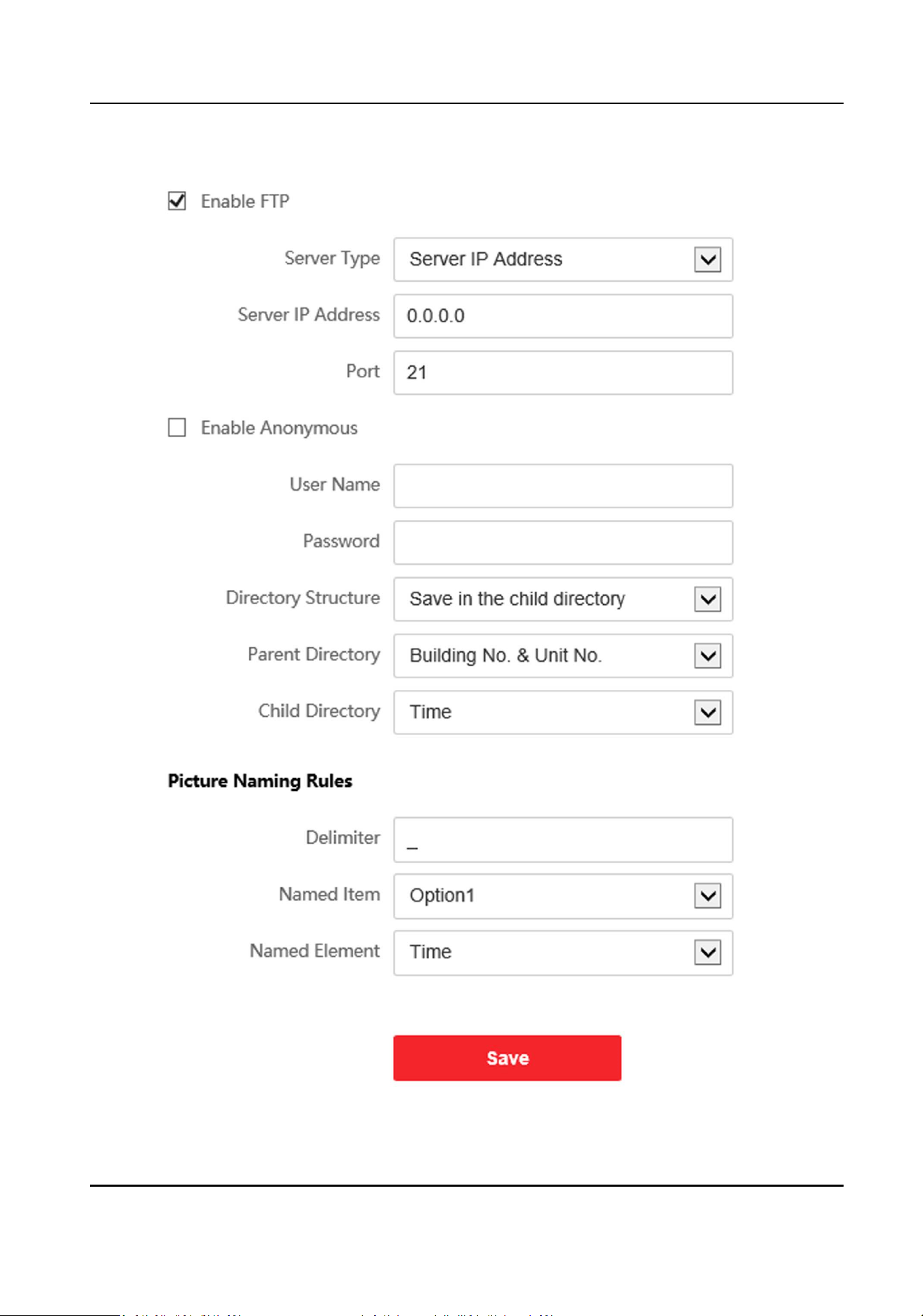
Figure 7-8 FTP Sengs
Module Door Staon User Manual
53
2.
Check Enable FTP.
3.
Select Server Type.
4.
Input the Server IP Address and Port.
5.
Congure the FTP Sengs, and the user name and password are required for the server login.
6.
Set the Directory Structure, Parent Directory and Child Directory.
7.
Set the picture naming rules.
8.
Click Save to enable the sengs.
7.3.5 Video & Audio Sengs
Video Parameters
Steps
1.
Click Video/Audio → Video to enter the sengs page.
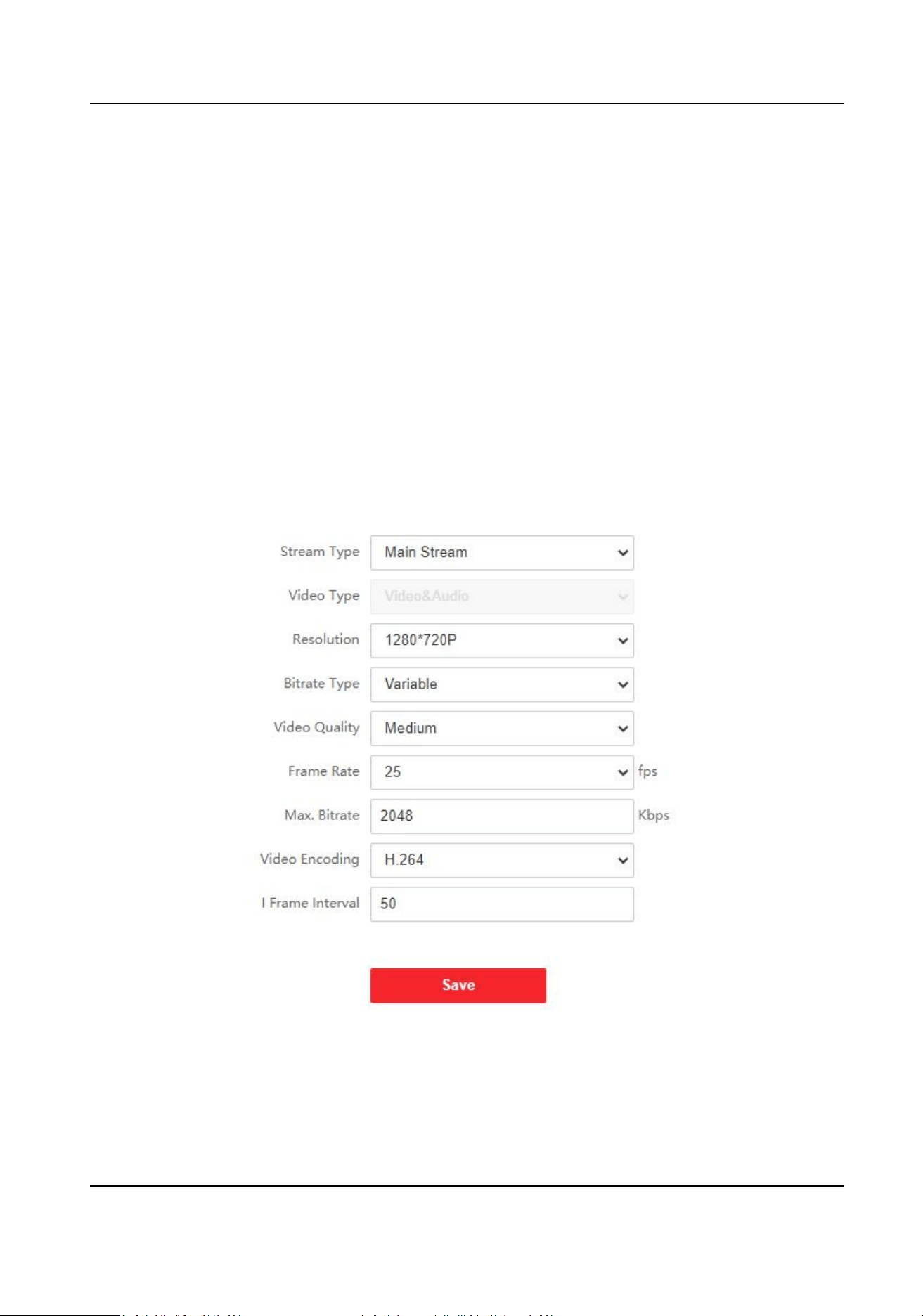
Figure 7-9 Video Parameters
2.
Select the Stream Type.
3.
Congure the video parameters.
Module Door Staon User Manual
54

Stream Type
Select the stream type to main stream or sub stream.
Video Type
Select the stream type to video stream, or video & audio composite stream. The audio signal
will be recorded only when the Video Type is Video & Audio.
The video type is video & audio read only by default.
Resoluon
Select the resoluon of the video output.
Bitrate Type
Select the bitrate type as constant or variable.
Video Quality
When bitrate type is selected as Variable, 6 levels of video quality are selectable.
Frame Rate
Set the frame rate. The frame rate is to describe the frequency at which the video stream is
updated and it is measured by frames per second (fps). A higher frame rate is advantageous
when there is movement in the video stream, as it maintains image quality throughout.
Max. Bitrate
Set the max. bitrate from 32 to 16384 Kbps. The higher value corresponds to the higher video
quality, but the beer bandwidth is required.
Video Encoding
The device supports H.264.
I Frame Interval
Set I Frame Interval from 1 to 400.
4.
Click Save to save the sengs.
Audio Parameters
Steps
1.
Click Video/Audio → Audio to enter the sengs page.
Module Door Staon User Manual
55
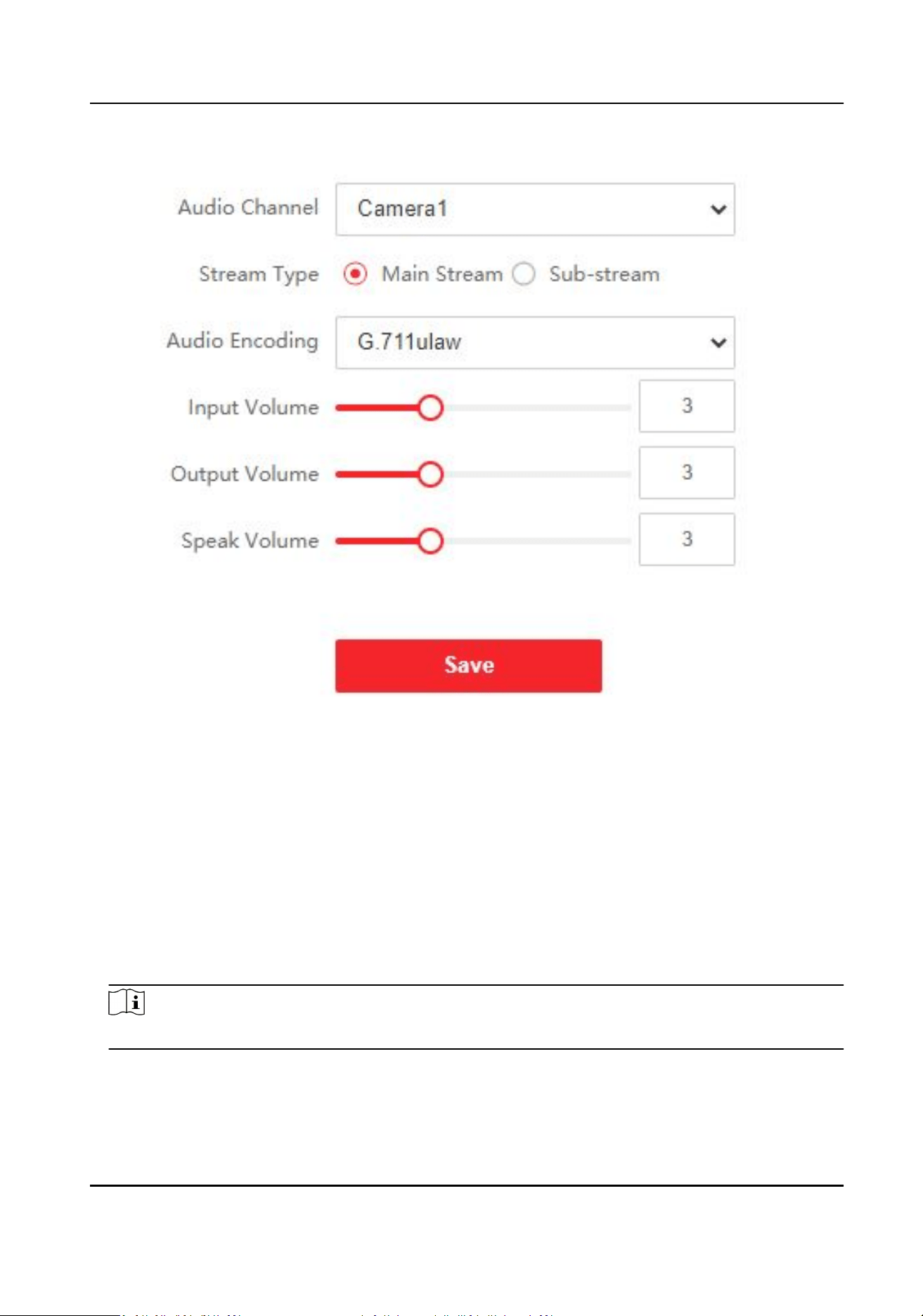
Figure 7-10 Audio Sengs
2.
Congure the stream type and the audio encoding type.
Audio Channel
Select the audio channel to adjust the audio parameters.
Stream Type
Select the stream type to main stream or sub stream.
Audio Encoding
The device support G.711ulaw and G.711 alaw.
3.
Adjust the Input Volume, Output Volume and Speak Volume.
Note
Available range of volume: 0 to 10.
4.
Click Save to save the sengs.
Module Door Staon User Manual
56
7.3.6 Image Sengs
Display Sengs
Congure the image adjustment, backlight sengs and other parameters in display sengs.
Steps
1.
Click Image → Display Sengs to enter the display sengs page.
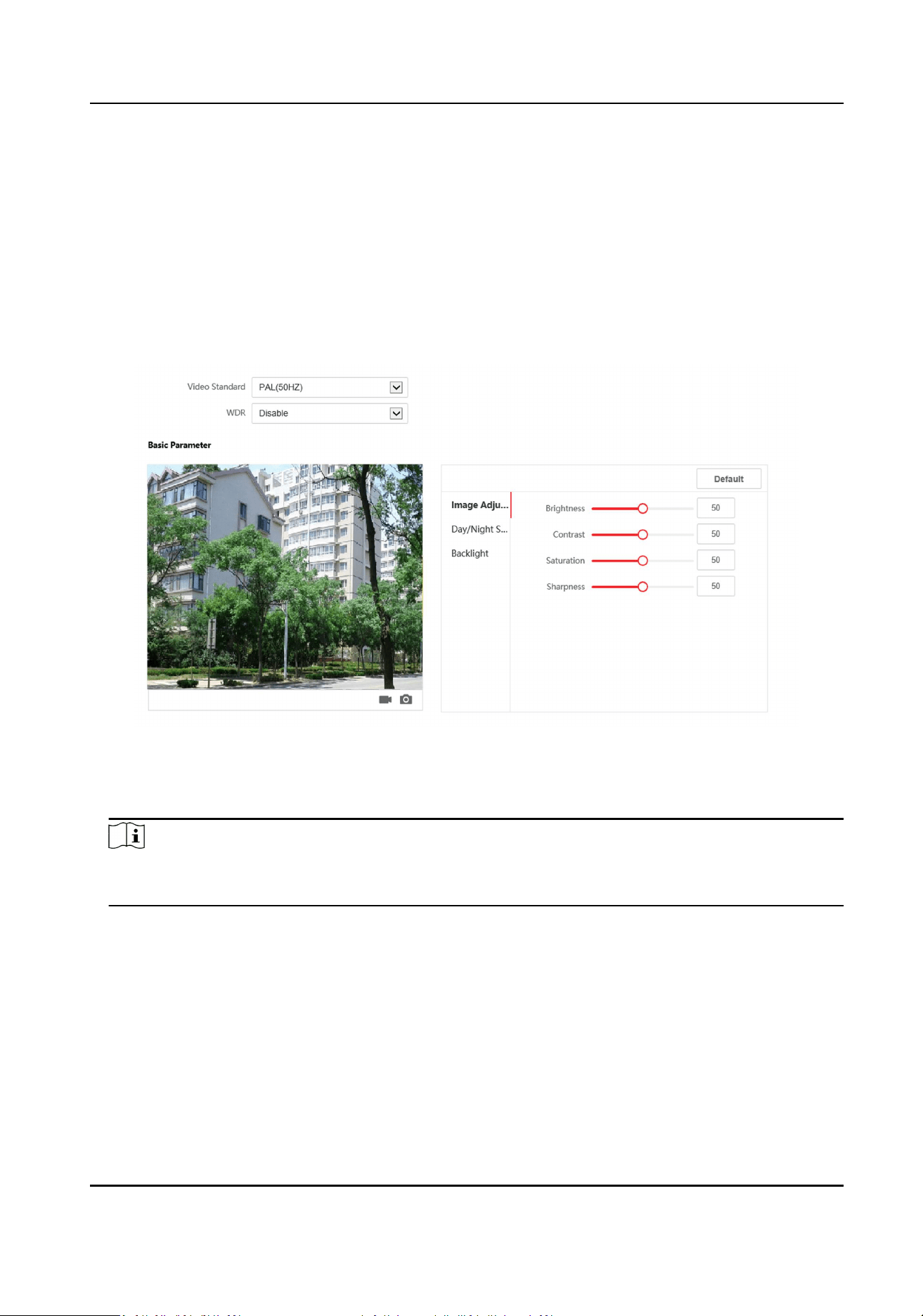
Figure 7-11 Display Sengs
2.
Select the Video Standard.
3.
Select to enable or disable WDR.
Note
Wide Dynamic Range can be used when there is a high contrast of the bright area and the dark
area of the scene.
4.
Set the basic parameters.
Brightness
Brightness describes bright of the image, which ranges from 1 to 100.
Contrast
Contrast describes the contrast of the image, which ranges from 1 to 100.
Saturaon
Saturaon describes the colorfulness of the image color, which ranges from 1 to 100.
Module Door Staon User Manual
57
Sharpness
Sharpness describes the edge contrast of the image, which ranges from 1 to 100.
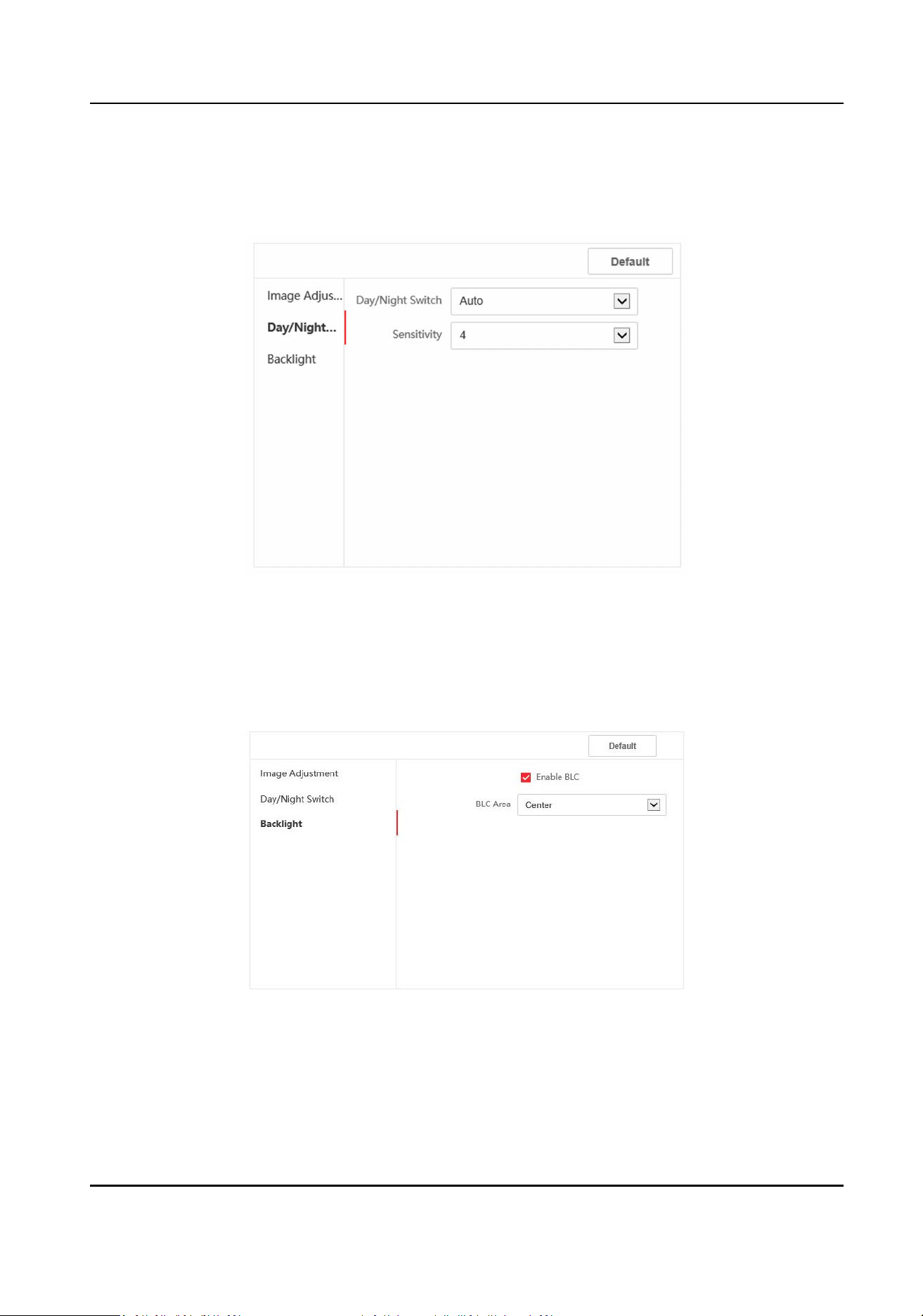
5.
Set the Day/Night Switch.
Figure 7-12 Day/Night Switch
-
Set Dayme or Night.
-
Set the mode as Auto and edit the sensivity according to your needs.
-
Set the mode as Scheduled-Switch. Set the start me and end me.
6.
Set the backlight parameters.
Figure 7-13 Backlight
1) Check to enable BLC.
2) Select BLC Area.
Module Door Staon User Manual
58
OSD Sengs
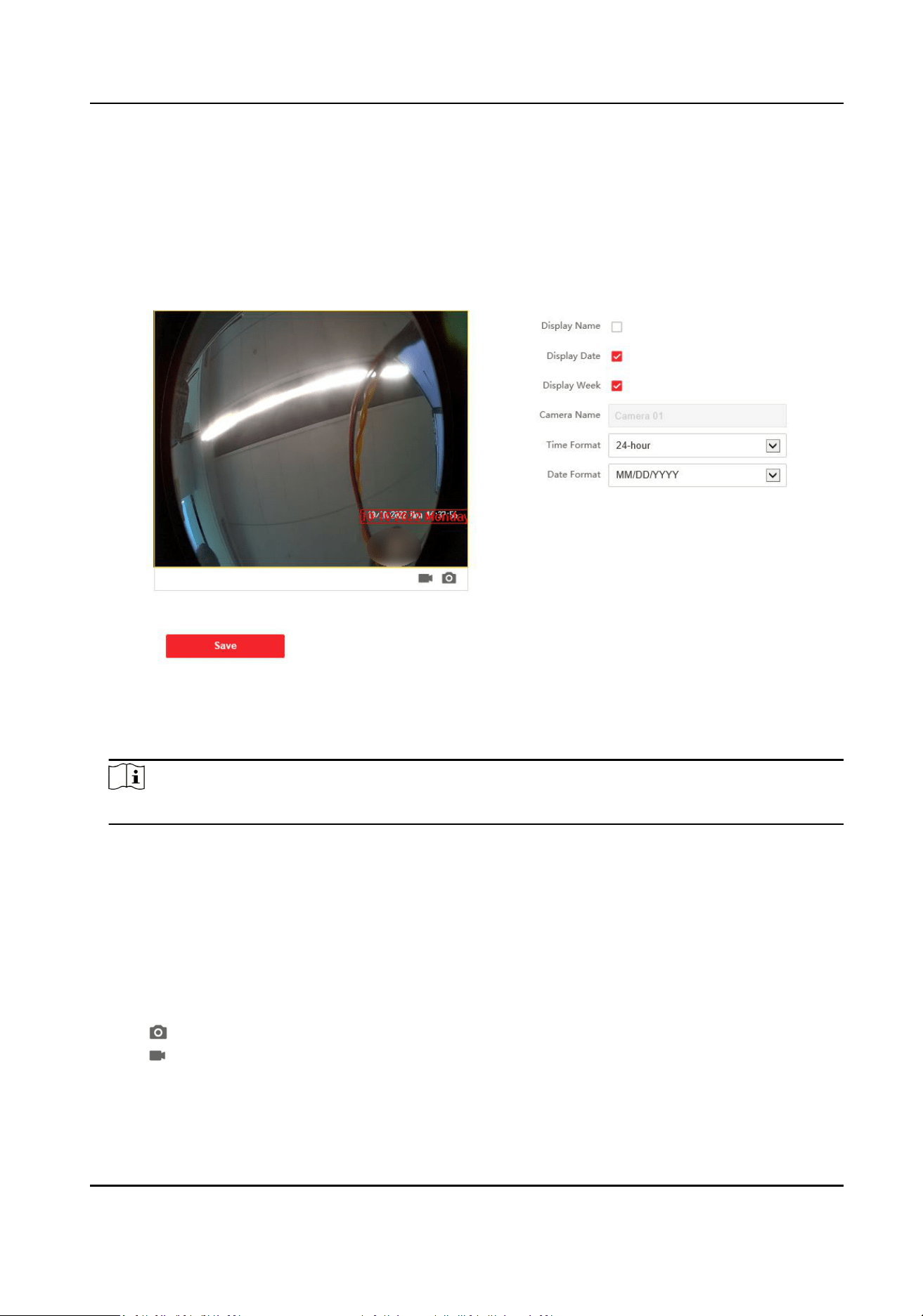
You can customize the camera name, me/date format on the live view.
Steps
1.
Click Image → OSD to enter the sengs page.
Figure 7-14 OSD
2.
Check to enable Display Name, Display Date or Display Week at your actual needs.
3.
Edit the Camera Name.
Note
You can edit the camera name only when Display Name is enabled.
4.
Select from the drop-down list to set the Time Format and Date Format.
5.
Click Save to enable the sengs.
Target Cropping
Steps
1.
Click Image → Crop to enter the page.
2.
Check Enable Target Cropping to enable the funcon.
3.
Click to capture photo.
4.
Click to start recording.
5.
Select Cropping Resoluon.
6.
Click Save.
Module Door Staon User Manual
59
Note
●
You can select Cropping Resoluon as 704*576, 1280*720, or 1920*1080.
●
You can zoom in or zoom out the image by selecng Cropping Resoluon aer clicking Save.
7.3.7 Schedule Sengs
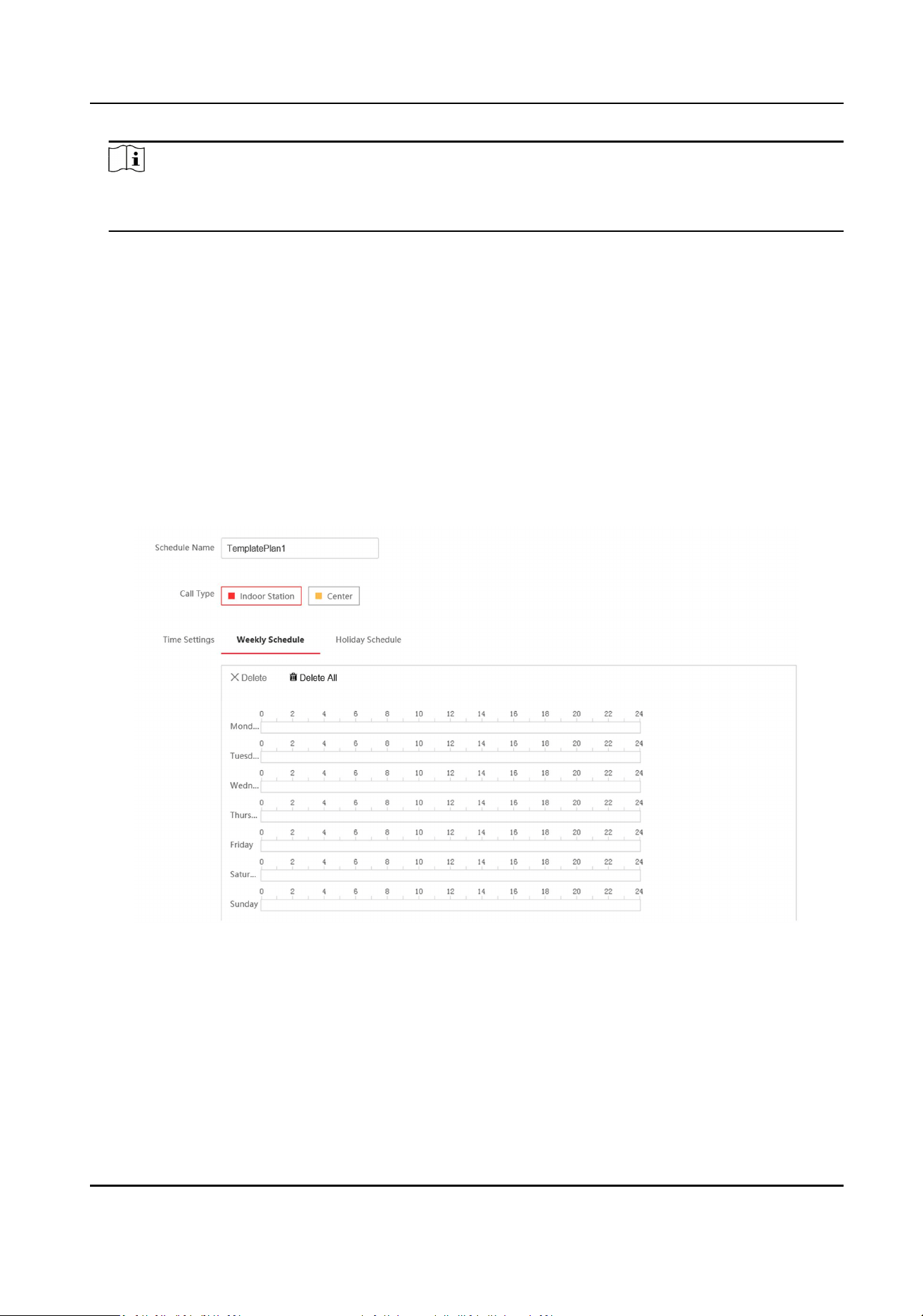
You can create call schedule, or else the device will call indoor staon all day by default.
Steps
1.
Click Schedule → Video Intercom → Call Schedule .
2.
Click the next row below Enable Indoor Staon All Day by Default.
3.
Enter Schedule Name.
4.
Select Call Type.
5.
Set Weekly Schedule.
1) Click Weekly Schedule.
Figure 7-15 Weekly Schedule
2) Drag mouse to set the schedule according to the actual needs.
3) Oponal: Click the copy icon to copy the schedule to other days according to the actual
needs.
4) Click Save.
6.
Set Holiday Schedule.
1) Click Holiday Schedule.
Module Door Staon User Manual
60
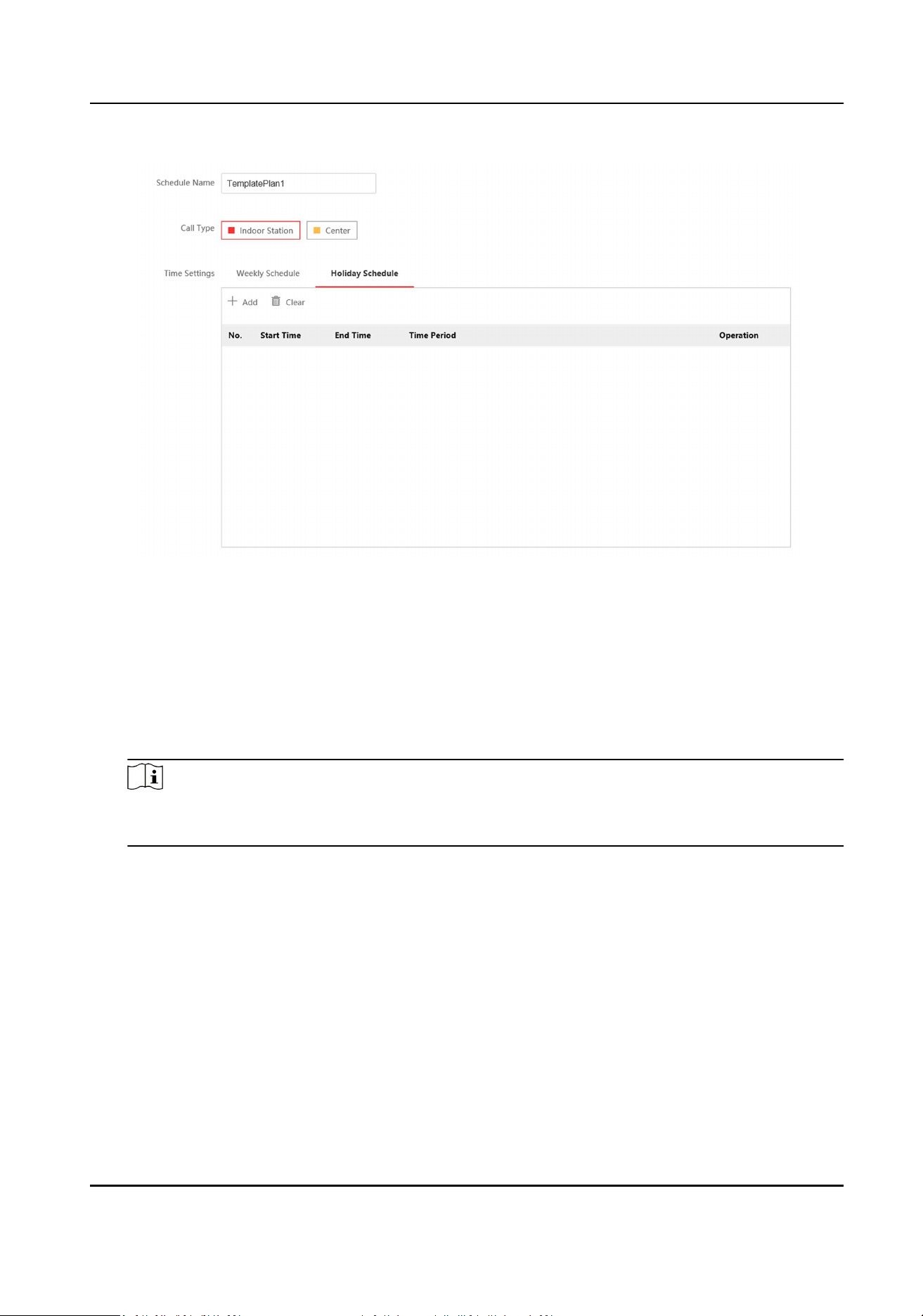
Figure 7-16 Holiday Schedule
2) Click Add.
3) Set Start Time and End Time.
4) Select Call Type.
5) Drag mouse to set the schedule according to the actual needs.
6) Click OK.
7) You can edit or delete the schedule according to the actual needs.
8) Click Save.
Note
The holiday schedule have higher priority than weekly schedule when you set the two
schedule at the same me.
7.3.8 Intercom Sengs
Device No. Conguraon
Set the No. of the device, and linked devices can build a communicaon.
Steps
1.
Click Intercom → Device No. to enter the sengs page.
Module Door Staon User Manual
61
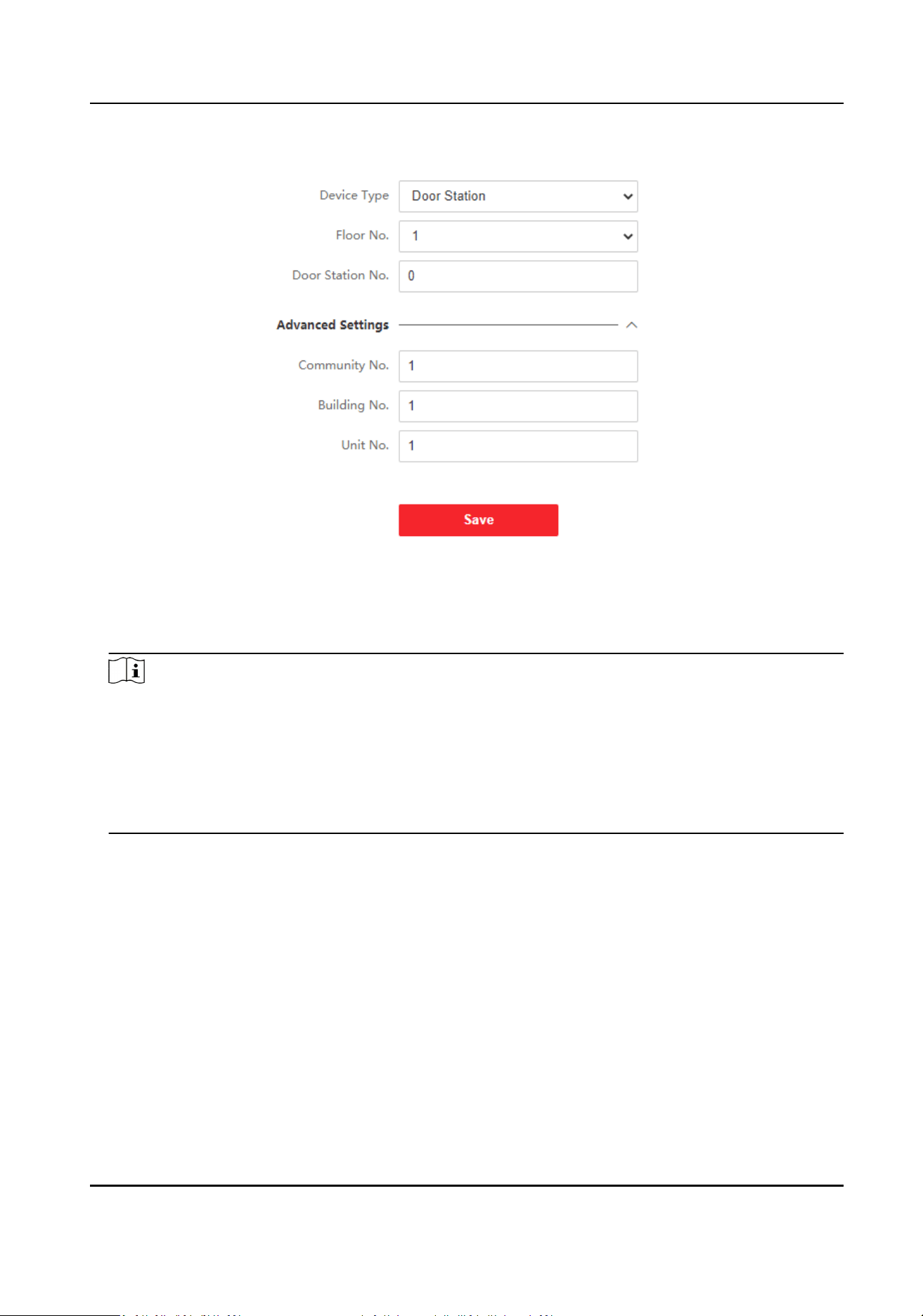
Figure 7-17 Device No. Sengs
2.
Select the device type from the drop-down list, and set the corresponding informaon.
3.
Click Save to enable the device number conguraon.
Note
●
For main door staon (D series or V series), the serial No. is 0.
●
For sub door staon (D series or V series), the serial No. cannot be 0. Serial No. ranges from 1
to 99.
●
For each villa or building, at least one main door staon (D series or V series) should be
congured, and one sub door staons (D series or V series) can be customized.
●
For one main door staon (D series or V series), up to 8 sub door staons can be congured.
Linked Network Sengs
Steps
1.
Click Intercom → Session Sengs to enter the sengs page.
Module Door Staon User Manual
62
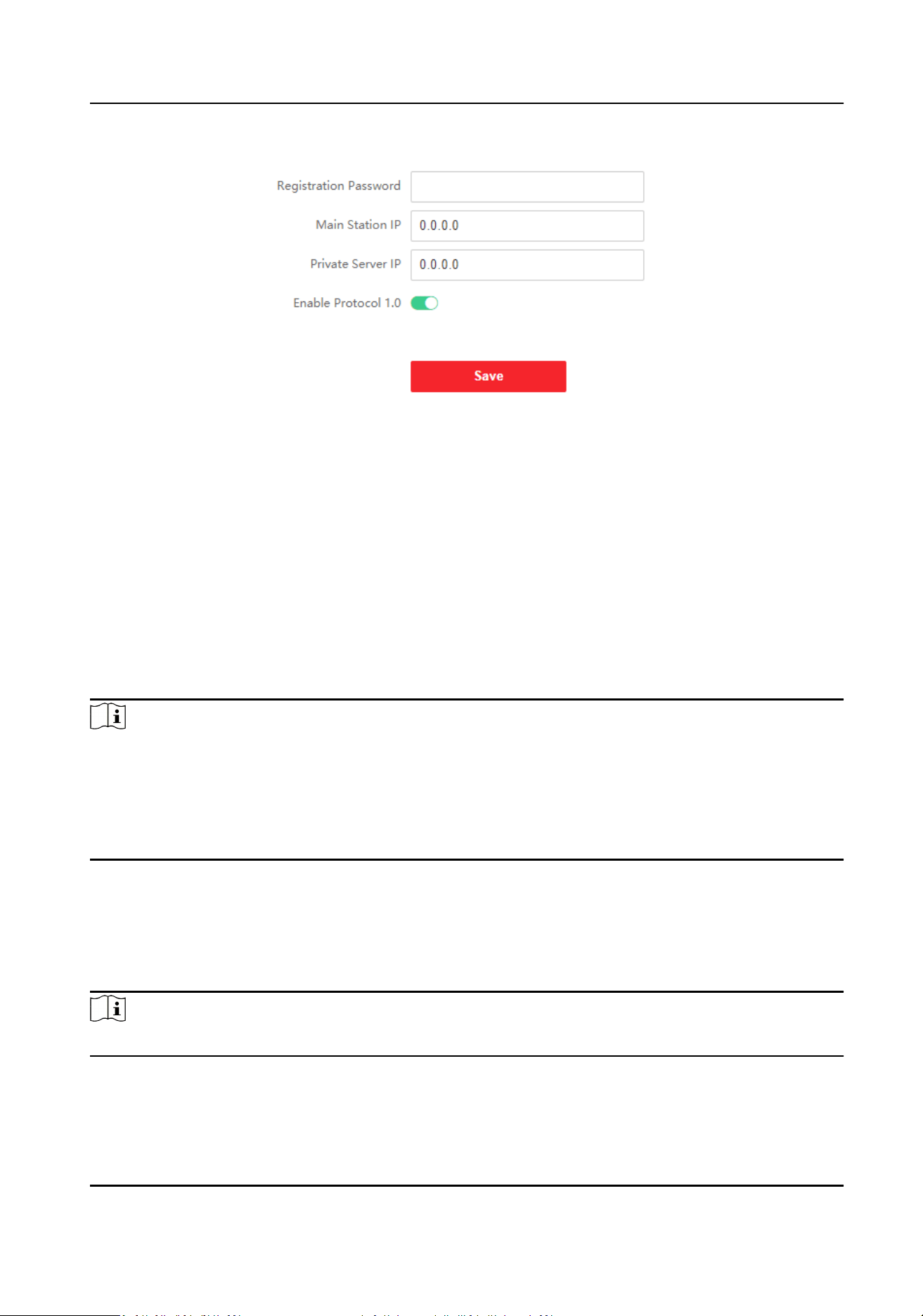
Figure 7-18 Session Sengs
2.
Set Registraon Password.
3.
Set Main Staon IP and Video Intercom Server IP.
4.
Click to enable Protocol 1.0.
5.
Click Save to enable the sengs.
Call Sengs
Go to Intercom → Call Sengs to enter the page.
Congure Max. Call Communicaon, Max. Message Duraon and Max. Ring Duraon, and click
Save.
Note
●
Max. call duraon between the module indoor staon and client ranges from 90 s to 120 s. The
call will end automacally when the actual calling duraon is longer than the congured one.
●
Max. message duraon ranges from 30 s to 60 s. The message will end automacally when the
actual message duraon is longer than the congured one.
●
Max. ring duraon ranges from 65 s to 255 s.
Ring-Back Tone Sengs
Click Intercom → Ringbacktone Sengs to enter the sengs page.
Click Add to select the ring tone from PC.
Note
Available Audio Format: WAV、AAC, Size: Less than 600 KB, Sample Rate: 8000Hz, Mono.
Module Door Staon User Manual
63
Press Buon to Call
Steps
1.
Click Intercom → Press Buon to Call to enter the page.
2.
Select Main Unit or Sub Module to set the buons.
Main Unit
If you select Main Unit, you should congure Buon Sengs and select Link Time Schedule
as Template Plan 1 or Enable Indoor Staon All Day by Default.
Sub Unit
●
When you select Sub Unit, all connected sub modules will be listed.
●
No. represents the address of each sub module.
●
Enter room No. of indoor staon in the Buon Sengs column for each alarm in interface.
3.
Click Save to enable the sengs.
Input and Output
Go to Intercom → I/O Sengs to enter the sengs page.
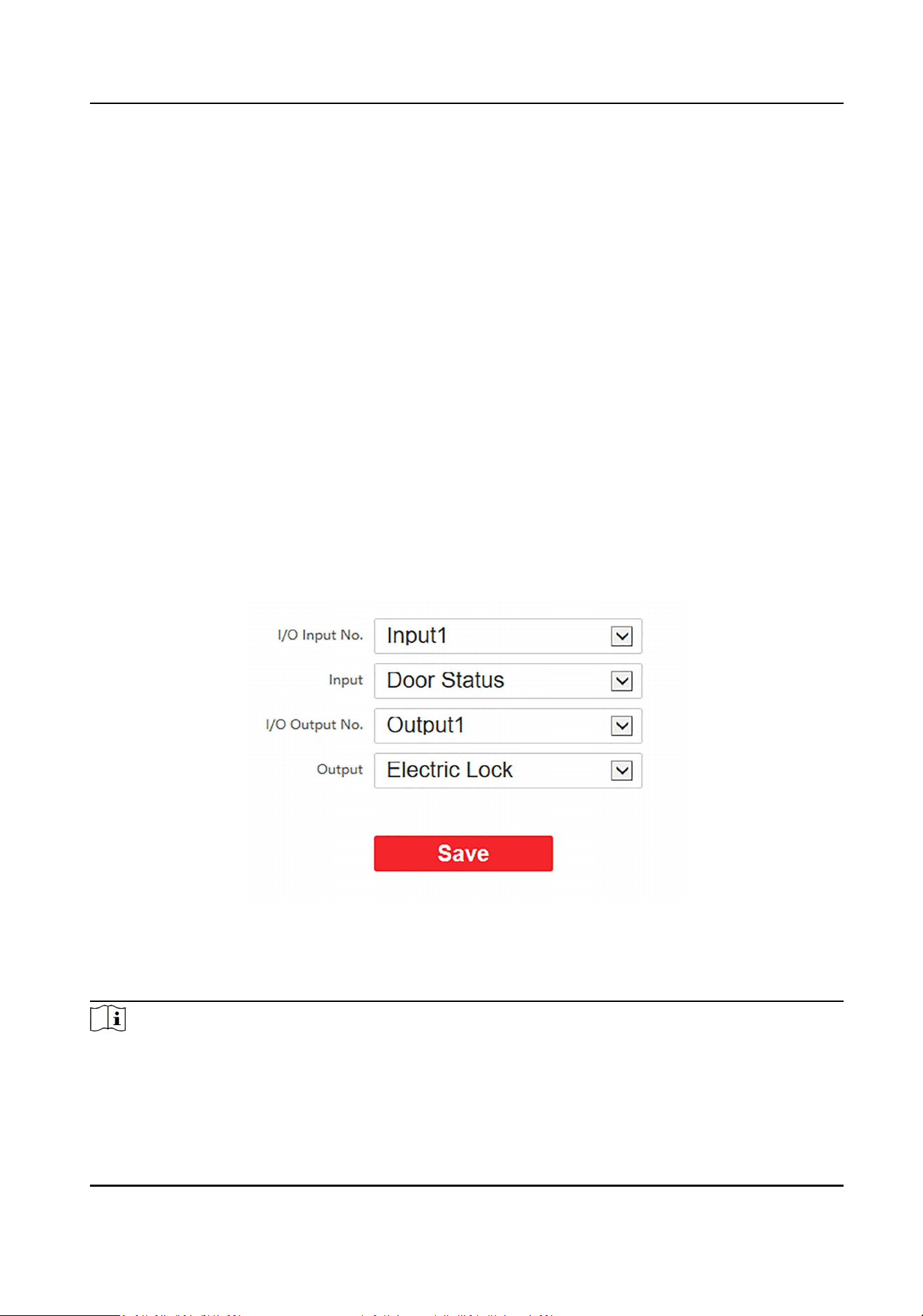
Figure 7-19 IO Input and Output
Select I/O Input No., Input, I/O Output No. and Output.
Click Save to enable the sengs.
Note
●
I/O Input supports 4-channel inputs.
Module Door Staon User Manual
64
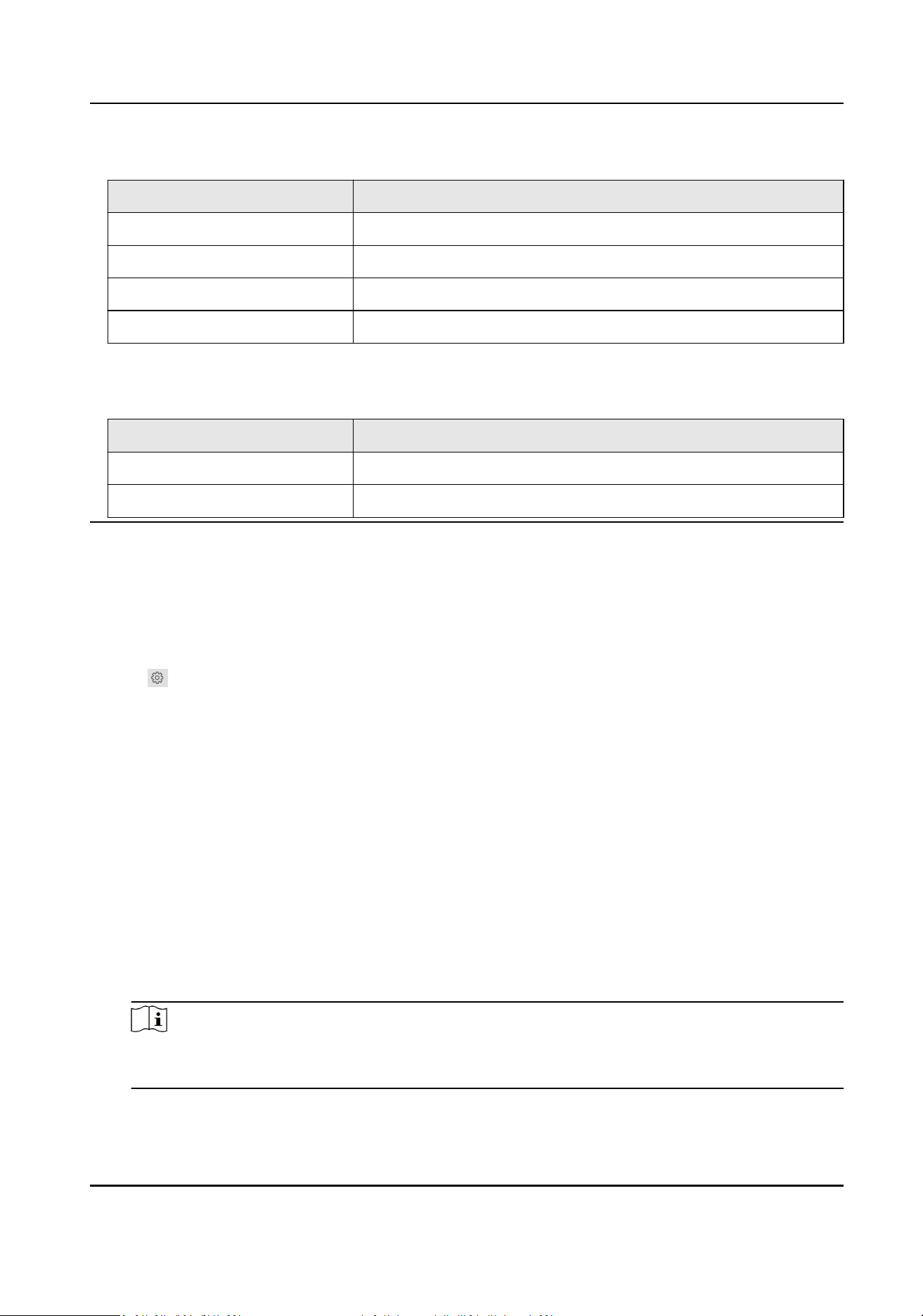
Table 7-1 I/O Input
I/O Input No. Input
1 Door Status
2 Disable/Door Status
3 Exit Buon
4 Disable/Exit Buon
●
I/O Output supports 2-channel outputs.
Table 7-2 I/O Output
I/O Output No. Output
1 Electric Lock
2 Disable/Electric Lock
Sub Module Conguraon
Steps
1.
Click Intercom → Sub Module Conguraon , and you can view the sub module informaon,
including No., module type, status, and version.
2.
Click to edit the sub module.
Display Module
●
Slide to adjust Screen Backlight Brightness.
●
Slide Enable Buzzer to enable the funcon.
Touch-Display Module
●
Slide to adjust Screen Backlight Brightness.
●
Slide Enable Buzzer to enable the funcon.
●
Select Address Book Display Mode according to actual needs.
●
Enable Homepage Shortcut Dial, you can tap contact on the main page to call.
●
Click Add to add custom buons.
PMR Module
Click to enable power consumpon selecon.
You can select 8 W, 6 W or 4 W for the PMR Module.
Note
If the system power goes o, an external power supply of 12 V, 2 A for the main unit is
necessary.
Module Door Staon User Manual
65

Note
●
The module address is used to dierenate the sub modules. See Congure Sub Module
Address for detailed conguraon instrucons.
●
For the other sub modules (indicator module, keypad module and card reader module), it
prompts Not supported.
●
The room No. for the main unit's call buon is 1 by default; and the room No. for the nametag
modules call buons are 2 to 7 by default.
Number Sengs
Steps
1.
Click Intercom → Number Sengs , and you can view the No., room No., and SIP number.
2.
Add the number.
1) Click Add.
2) Enter Room No., and SIP.
3) Oponal: Click Add to add SIP according to the actual needs.
4) Click OK.
3.
Oponal: Click to edit the number.
7.3.9 Access Control Sengs
Permission Password
Steps
1.
Click Access Control → Password Sengs to enter the sengs page.
Module Door Staon User Manual
66
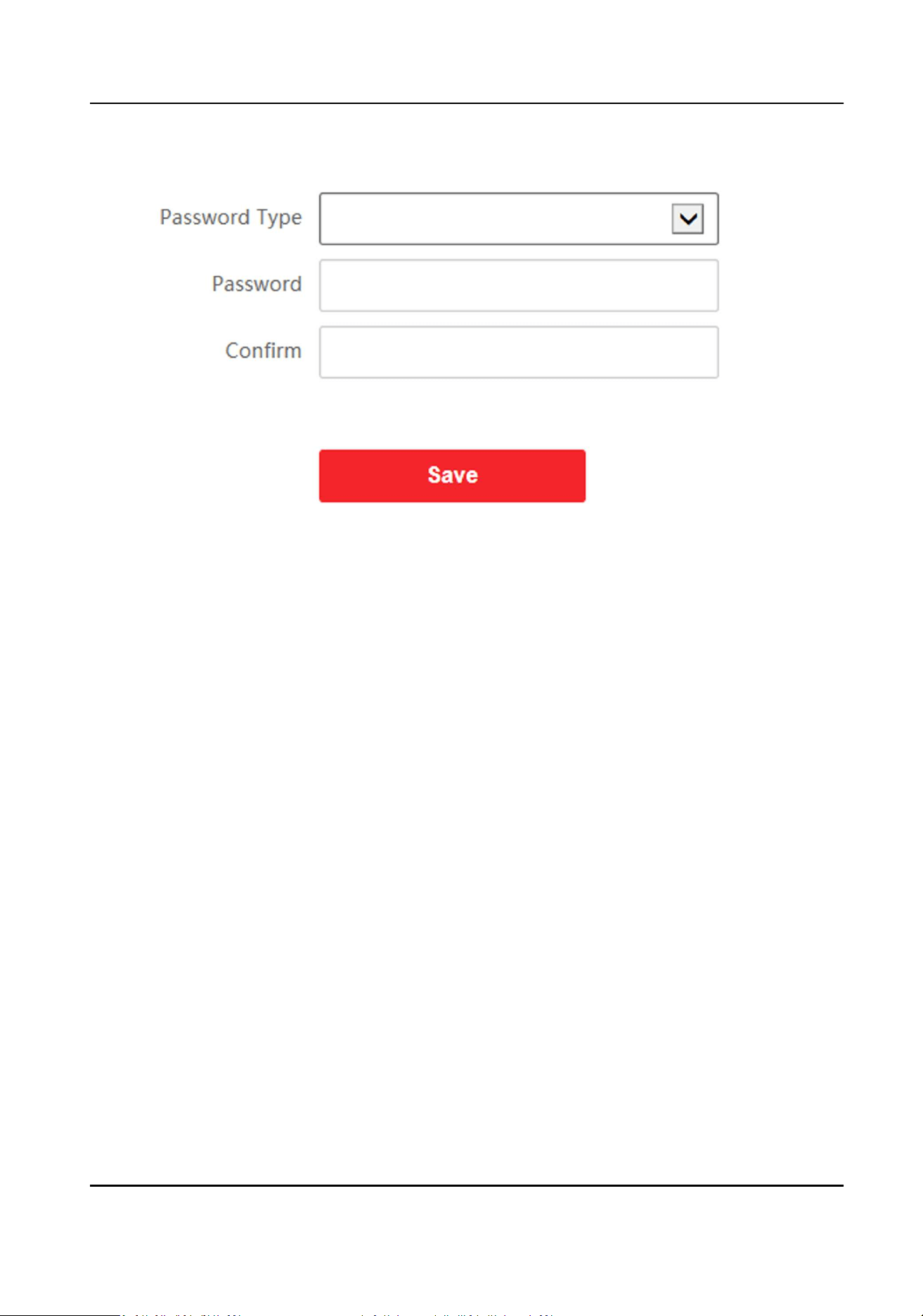
Figure 7-20 Password Sengs
2.
Select Password Type.
3.
Enter and conrm the password.
4.
Click Save to enable the sengs.
Door Parameters
Set the parameters of the door which is linked to the device.
Steps
1.
Click Access Control → Door Parameters to enter the sengs page.
Module Door Staon User Manual
67
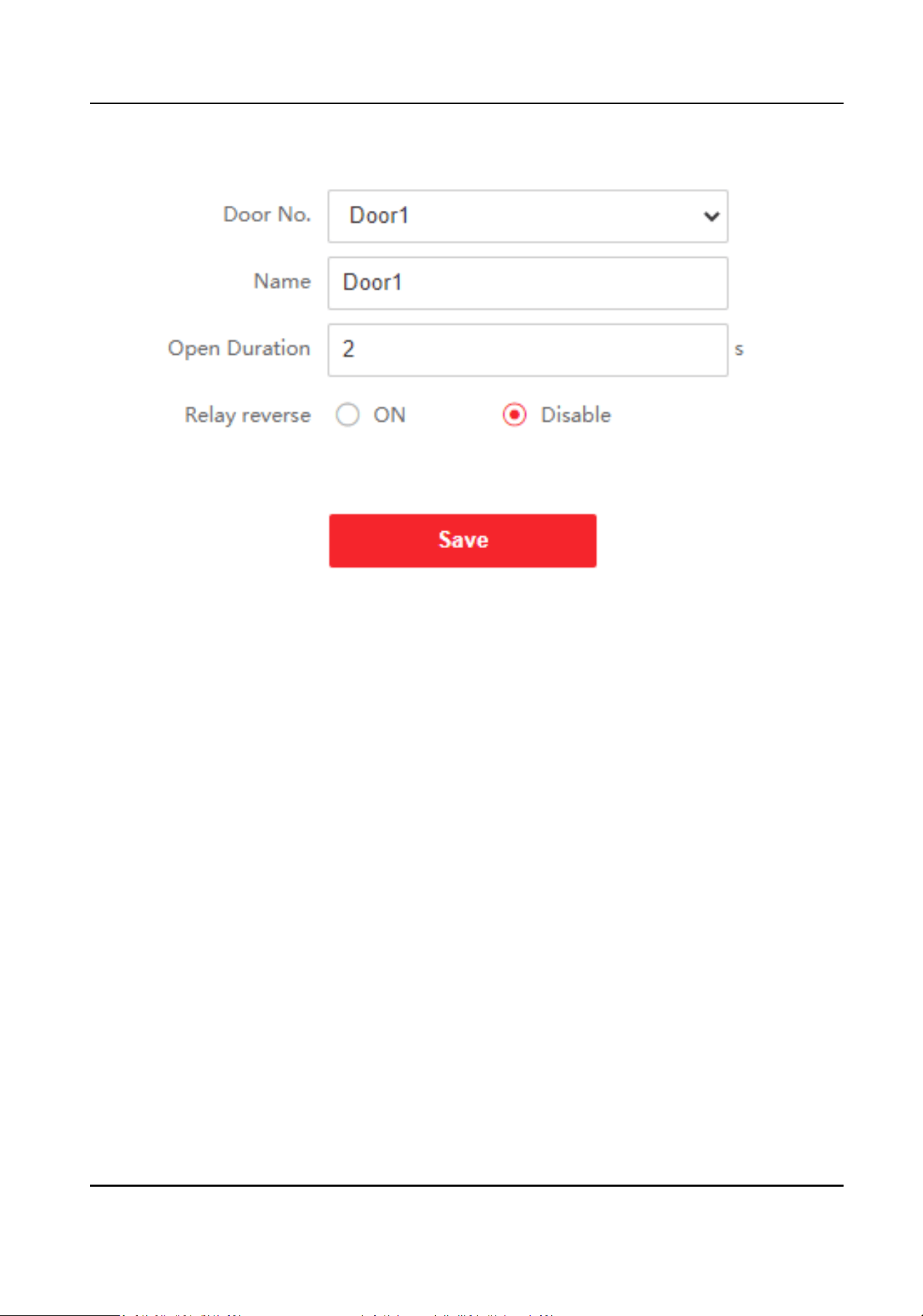
Figure 7-21 Door Parameters
2.
Select Door No., and edit the Name.
3.
Set Open Duraon. When the me to open over the open duraon you set, the door will be
locked again.
4.
Select Relay Reverse as ON or Disable.
5.
Click Save to enable the sengs.
Card Security
Click Access Control → Card Security to enter the sengs page.
Slide to enable card encrypon parameters.
Click Save to enable the sengs.
Elevator Control
Before You Start
Make sure that the door staon is in the mode of main door staon. Only the main door staon
supports elevator control funcon.
Steps
1.
Click Access Control → Elevator Control Parameter to enter the sengs page.
Module Door Staon User Manual
68
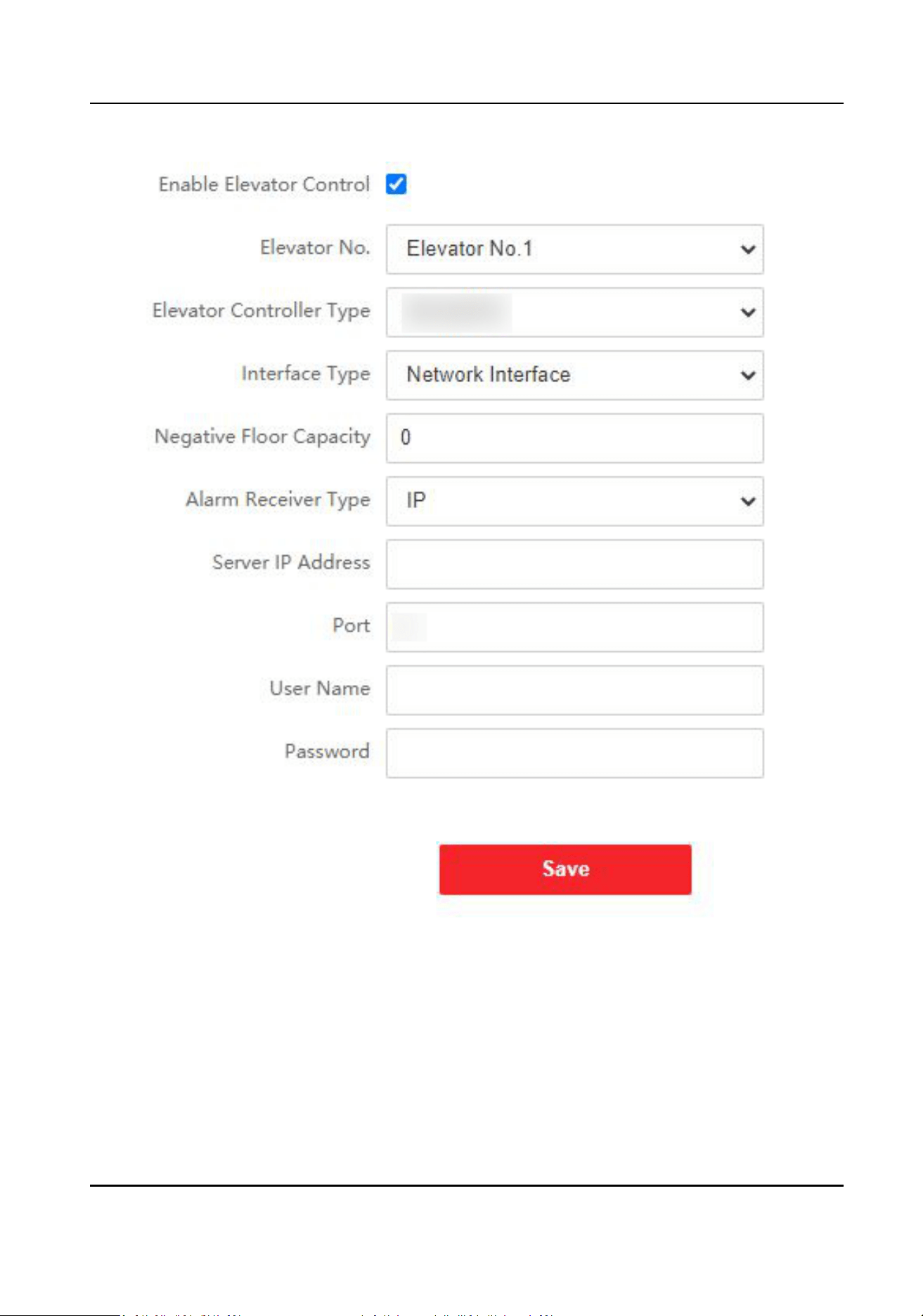
Figure 7-22 Elevator Control
2.
Check to enable elevator control funcon.
3.
Select an Elevator No., and select an elevator controller.
4.
Select Interface Type.
5.
Enter Negave Floor Capacity, and select Alarm Receiver Type.
6.
Enter the elevator controller's Server IP Address, Port No., User Name, and Password.
7.
Click Save to enable the sengs.
Module Door Staon User Manual
69
Note
●
Up to 4 elevator controllers can be connected to one door staon.
●
Up to 10 negave oors can be added.
●
Make sure the interface types of elevator controllers, which are connected to the same door
staon are consistent.
7.4 Organizaon Management
On the main page of the Client Soware, click PersonalManagement to enter the
conguraon page.
7.4.1 Add Organizaon
Steps
1.
In the organizaon list on the le, click +Add.
2.
Enter the Organizaon Name as desired.
3.
Click OK to save the adding.
4.
Oponal: You can add mulple levels of organizaons according to the actual needs.
1) You can add mulple levels of organizaons according to the actual needs.
2) Then the added organizaon will be the sub-organizaon of the upper-level organizaon.
Note
Up to 10 levels of organizaons can be created.
7.4.2 Modify and Delete Organizaon
You can select the added organizaon and click to modify its name.
You can select an organizaon, and click X buon to delete it.
Note
●
The lower-level organizaons will be deleted as well if you delete an organizaon.
●
Make sure there is no person added under the organizaon, or the organizaon cannot be
deleted.
7.5 Person Management
Aer adding the organizaon, you can add person to the organizaon and manage the added
person such as issuing cards in batch, imporng and exporng person's informaon in batch, etc.
Module Door Staon User Manual
70
Note
●
Up to 2,000 persons can be added.
●
Up to 5 cards can be added to each person.
7.5.1 Add Person
Person informaon is necessary for the video intercom system. And when you set linked device for
the person, the intercom between intercom devices can be realized.
Steps
1.
Select an organizaon in the organizaon list and click Add on the Person panel to pop up the
adding person dialog.
Note
The Person No. will be generated automacally and is editable.
2.
Set basic person informaon.
1) Enter basic informaon: name, tel, birthday details, eecve period and email address.
Note
The length of person name should be less than 15 characters.
2) Click Add face to upload the photo.
Note
The picture should be in *.jpg format.
Click Upload Select the person picture from the local PC to upload it to the
client.
Click Take Phone Take the person's photo with the PC camera.
Click Remote Collecon Take the person's photo with the collecon device.
3.
Issue the card for the person.
1) Click Credenal → Card .
2) Click + to pop up the Add Card dialog.
3) Select Normal Card as Card Type.
4) Enter the Card No.
5) Click Read and the card(s) will be issued to the person.
4.
Link the device to the person.
1) Set the linked devices.
Linked Device
You can bind the indoor staon to the person.
Module Door Staon User Manual
71
Note
If you select Analog Indoor Staon in the Linked Device, the Door Staon eld will display
and you are required to select the door staon to communicate with the analog indoor
staon.
Room No.
You can enter the room No. of the person.
2) Click OK to save the sengs.
5.
Click Add to save the sengs.
7.5.2 Modify and Delete Person
Select the person and click Edit to open the eding person dialog.
To delete the person, select a person and click Delete to delete it.
Note
If a card is issued to the current person, the linkage will be invalid aer the person is deleted.
7.5.3 Import and Export Person Informaon
The person informaon can be imported and exported in batch.
Steps
1.
Exporng Person: You can export the added persons' informaon in Excel format to the local PC.
1) Aer adding the person, you can click Export Person to pop up the following dialog.
2) Click ... to select the path of saving the exported Excel le.
3) Check the checkboxes to select the person informaon to export.
4) Click OK to start exporng.
2.
Imporng Person: You can import the Excel le with persons informaon in batch from the local
PC.
1) Click Import Person.
2) You can click Download Template for Imporng Person to download the template rst.
3) Input the person informaon to the downloaded template.
4) Click ... to select the Excel le with person informaon.
5) Click OK to start imporng.
7.5.4 Get Person Informaon from Device
If the added device has been congured with person informaon (including person details,
ngerprint, issued card informaon), you can get the person informaon from the device and
import to the client for further operaon.
Module Door Staon User Manual
72
Steps
Note
This funcon is only supported by the device the connecon mothod of which is TCP/IP when
adding the device.
1.
In the organizaon list on the le, click to select an organizaon to import the persons.
2.
Click Get from Device to pop up the dialog box.
3.
The added device will be displayed.
4.
Click to select the device and then click Get to start geng the person informaon from the
device.
Note
●
The person informaon, including person details, person's ngerprint informaon (if
congured), and the linked card (if congured), will be imported to the selected organizaon.
●
If the person name stored in the device is empty, the person name will be lled with the
issued card No. aer imporng to the client.
7.5.5 Change Person to Other Organizaon
You can move the person to another organizaon if needed.
Steps
1.
Select the person in the list and click Change Organizaon.
2.
Select the organizaon to move the person to.
3.
Click OK to save the sengs.
7.5.6 Issue Card in Batch
You can issue mulple cards for the person with no card issued in batch.
Steps
1.
Click Batch Issue Cards to enter the dialog page. All the added person with no card issued will
display in the Person(s) with No Card Issued list.
Module Door Staon User Manual
73
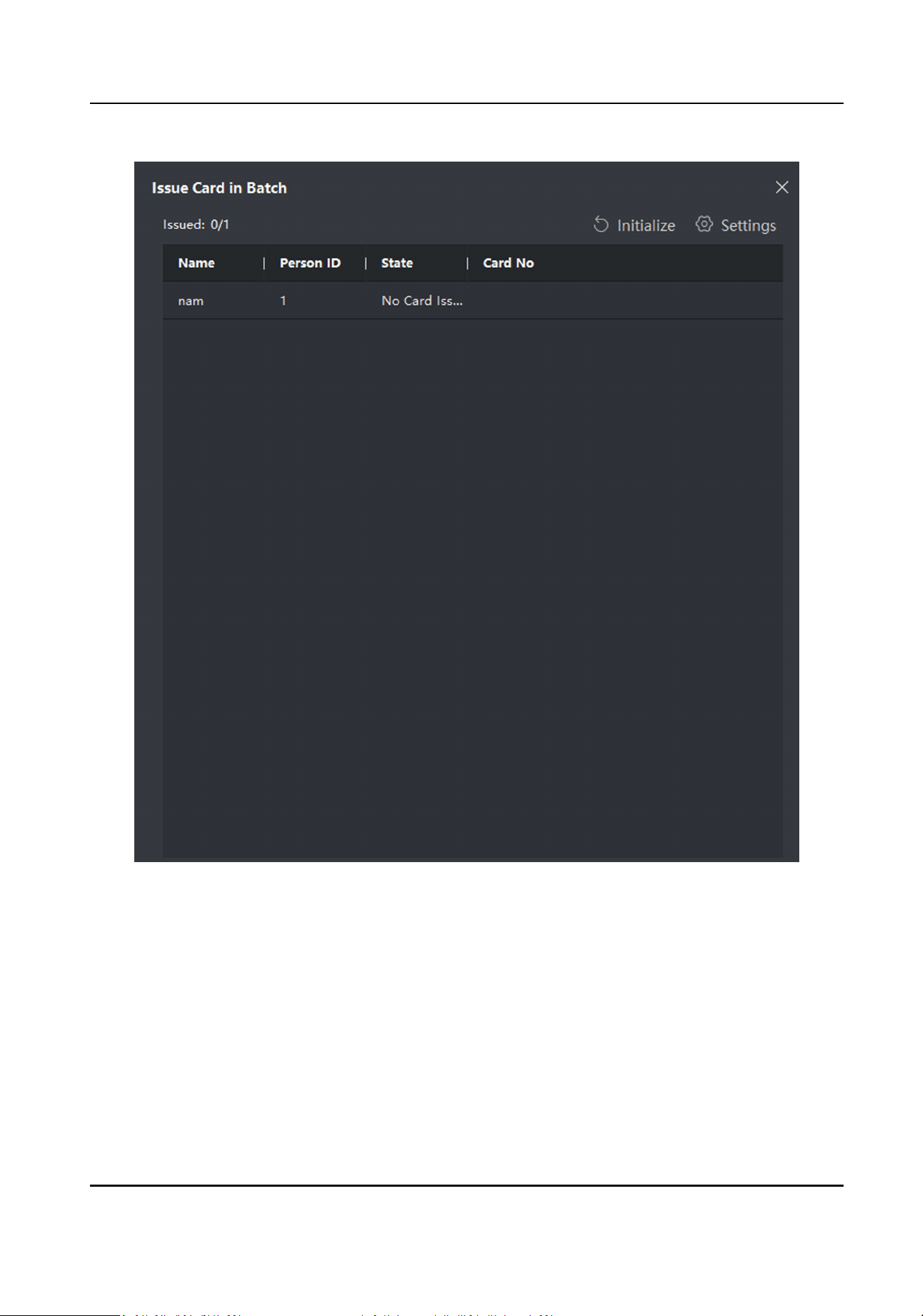
Figure 7-23 Issue Card in Batch
2.
Click Sengs.
Module Door Staon User Manual
74
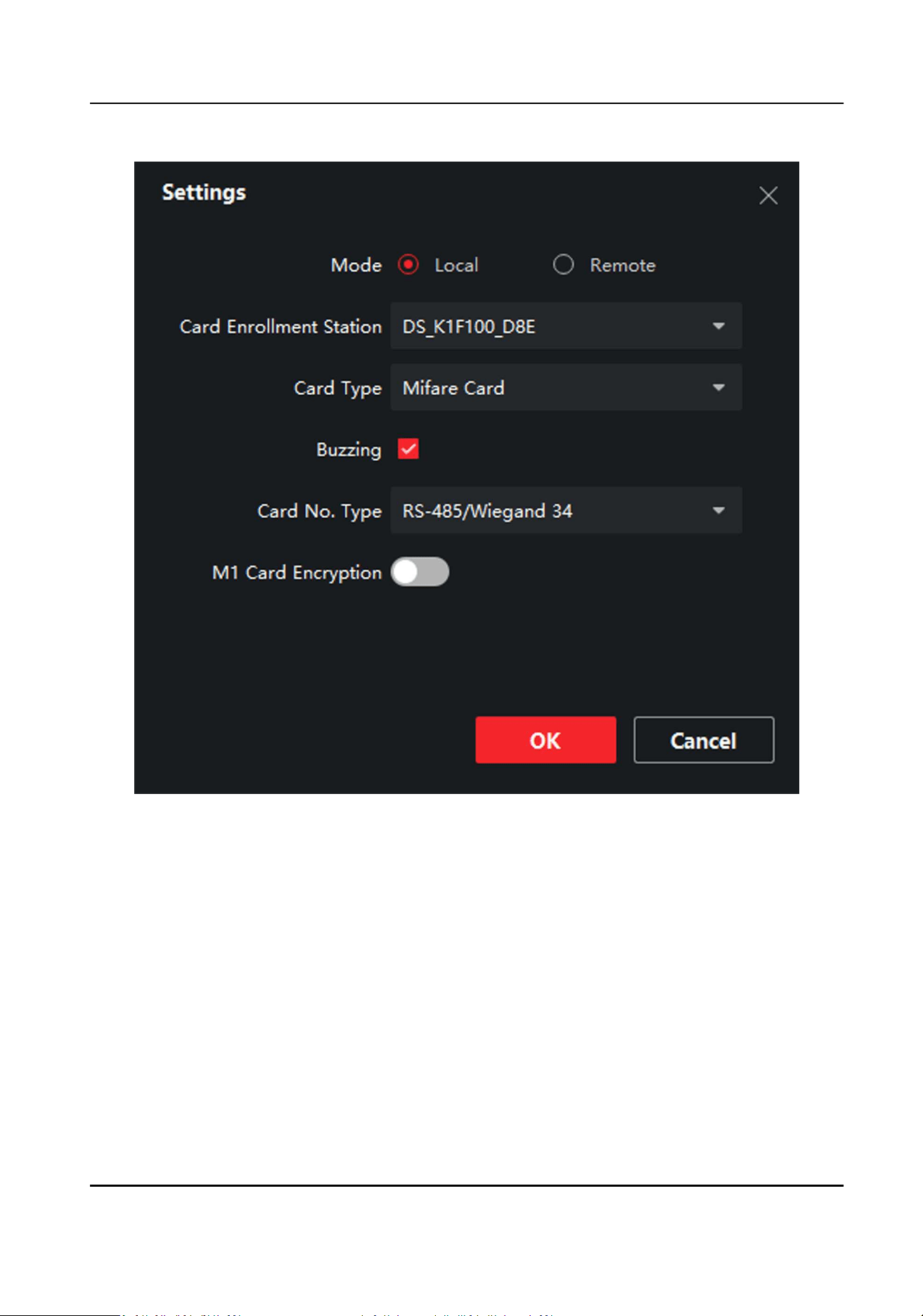
Figure 7-24 Card Sengs
3.
Select Card Type and Card No. Type.
4.
Click OK to save the sengs.
Result
Aer issuing the card to the person, the person and card informaon will display in the Person(s)
with Card Issued list.
Module Door Staon User Manual
75

7.5.7 Permission Sengs
Add Permissions
Steps
1.
On the main page, click AccessControlInfo → Access Group to enter the page.
2.
Click +Add to pop up the adding dialog box.
3.
Congure the parameters.
1) Enter the Name of the permission.
2) Select the Template of the schedule.
3) Check the person to Selected according to your needs.
4) Check the device to Selected according to your needs.
4.
Click Save.
5.
Check the permission and click Apply All to Device.
The status of the permission displays as Applied.
6.
Oponal: Click Applying Status to check the details.
Modify/Delete Permissions
On the page of the permission sengs, click to edit the parameters of the permission.
Select one or more permissions, click Delete to remove the permissions.
Module Door Staon User Manual
76

Appendix A. Relevant Instrucons for External
Power Supply and Wiring of 2-wire Video Intercom
Products (2020-1-20)
Power Descripon
2-Wire Distributor
DS-KAD706 CH6 CH1 to CH5
16 W 6 W
DS-KAD704 CH4 CH1 to CH3
16 W 6 W
Modular Door Staon
The main module & the sub-module maximum power consumpon.
Model Stable Power Consumpon
DS-KD8003-IME2 4 W
DS-KD-KK 0.8 W
DS-KD-KP 1 W
DS-KD-DIS 2.5 W
DS-KD-E 0.8 W
DS-KD-M 0.8 W
DS-KD-INFO 1.5 W
DS-KD-PMR 8 W, 6 W or 4 W adjustable
Indoor Staon
Model Stable Power Consumpon
DS-KH6320-WTE2 6 W
Example of the Calculaon Model of the Modular Door Staon Sub-Module
The sum of the power consumpon of each module must be less than the total power
consumpon of the power supply.
Module Door Staon User Manual
77

2-Wire
Model DS-KD8003-
IME2
DS-KD-DIS DS-KD-KP DS-KD-M /
Quanty 1 1 2 2 /
Power 4 W 2.5 W 2 W 1.6 W Total: 10.1 W
Because 10.1 W ≤ 16 W, we can support powering this device through KAD706 channel 6 or
KAD704 channel 4.
2-Wire
Model DS-KD8003-IME2 DS-KD-M DS-KD-KK /
Quanty 1 1 12 /
Power 4 W 0.8 W 9.6 W Total: 14.4 W
Because 14.4 W ≤ 16 W, we can support powering this device through KAD706 channel 6 or
KAD704 channel 4.
Wire Tesng Standards
●
When there are mulple cores in one parallel line, only one pair of closed cores are allowed to
transmit signal. It is not allowed to use mulple pair of cores in one cable to transmit signal.
●
When using parallel lines, it is suggested to use those with shielding layer. If dual core or mulple
core parallel lines without shielding layer are routed, stability of signal transmission can be
eected. You need to run a test before installaon.
●
Impedance of twist pair in network cable are over 42 Ω/100 m, so network cable cannot
transmit enough power to indoor staon. Network cable is not allowed to use during
installaon.
●
Strong electricity and weak electricity cannot be wired in the same route, they need to be wired
separately and the distance should be more than 0.5 meter.
Module Door Staon User Manual
78
Table A-1 Table A
Roung Path Twisted Pair :
24 AWG (0.2
mm
2
)
Twisted Pair :
20 AWG (0.5
mm
2
)
Twisted Pair :
18AWG (0.8
mm
2
)
Twisted Pair :
16AWG (1
mm
2
)
Parallel lines
(0.5 mm
2
to
0.8 mm
2
)
DS-KAD706-S-
DS-KAD706
Transmission
Distance ≤ 60
m
Transmission
Distance ≤ 60
m
Transmission
Distance ≤ 60
m
Transmission
Distance ≤ 50
m
Transmission
Distance ≤ 35
m
DS-KAD706-
DS-KAD706
Transmission
Distance ≤ 60
m
Transmission
Distance ≤ 60
m
Transmission
Distance ≤ 60
m
Transmission
Distance ≤ 50
m
Transmission
Distance ≤ 35
m
DS-KAD706-
DS-KD8003-
IME2
Transmission
Distance ≤ 35
m
Transmission
Distance ≤ 60
m
Transmission
Distance ≤ 60
m
Transmission
Distance ≤ 50
m
Transmission
Distance ≤ 35
m
DS-KAD706-
DS- KH6320-
WTE2
Transmission
Distance ≤ 35
m
Transmission
Distance ≤ 100
m
Transmission
Distance ≤ 100
m
Transmission
Distance ≤ 100
m
More
parameters in
Table B
Roung Path Parallel lines: 24
AWG (0.2 mm
2
)
Parallel lines: 20
AWG (0.5 mm
2
)
Parallel lines: 18
AWG (0.8 mm
2
)
Parallel lines: 16
AWG (1 mm
2
)
DS-KAD706- DS-
KH6320-WTE2
Transmission
Distance ≤ 50 m
Transmission
Distance ≤ 100 m
Transmission
Distance ≤ 100 m
Transmission
Distance ≤ 100 m
Device Installaon
●
Installaon environment (temperature, moisture etc.) need to follow requirements in
specicaon or power output can be eected.
●
Power consumpon of modular door staon (main module and sub modules) should be less
than 12W. Please reach local technical support if you are not sure about power consumpon of
each module. Door staon should be connected to CH6 of the video/audio distributor. If
modular door staon is connected to any terminal of CH1 to CH5, up to 3 sub modules can be
connected.
●
Indoor staon should be connected to any terminal of CH1 to CH5 of the video/audio distributor.
●
Up to 15 video/audio distributor can be cascaded. If more distributors are needed, you should
cascade network switch supporng 1000 Mbps. The whole 2-wire system can have up to 500
devices.
●
Power supply must be cered by Hikvision.
●
Indoor staon needs to use rmware released aer October, 2019.
Module Door Staon User Manual
79
Appendix B. Communicaon Matrix and Device
Command
Communicaon Matrix
Scan the following QR code to get the device communicaon matrix.
Note that the matrix contains all communicaon ports of Hikvision access control and video
intercom devices.
Figure B-1 QR Code of Communicaon Matrix
Device Command
Scan the following QR code to get the device common serial port commands.
Note that the command list contains all commonly used serial ports commands for all Hikvision
access control and video intercom devices.
Figure B-2 Device Command
Module Door Staon User Manual
80

UD31293B