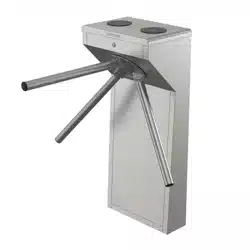

DS-K3G501SX Series Tripod Turnsle
User Manual

Legal Informaon
©2020 Hangzhou Hikvision Digital Technology Co., Ltd. All rights reserved.
About this Manual
The Manual includes instrucons for using and managing the Product. Pictures, charts, images and
all other informaon hereinaer are for descripon and explanaon only. The informaon
contained in the Manual is subject to change, without noce, due to rmware updates or other
reasons. Please nd the latest version of this Manual at the Hikvision website ( hps://
www.hikvision.com/ ).
Please use this Manual with the guidance and assistance of professionals trained in supporng the
Product.
Trademarks
and other Hikvision's trademarks and logos are the properes of
Hikvision in various jurisdicons.
Other trademarks and logos menoned are the properes of their respecve owners.
Disclaimer
TO THE MAXIMUM EXTENT PERMITTED BY APPLICABLE LAW, THIS MANUAL AND THE PRODUCT
DESCRIBED, WITH ITS HARDWARE, SOFTWARE AND FIRMWARE, ARE PROVIDED “AS IS” AND “WITH
ALL FAULTS AND ERRORS”. HIKVISION MAKES NO WARRANTIES, EXPRESS OR IMPLIED, INCLUDING
WITHOUT LIMITATION, MERCHANTABILITY, SATISFACTORY QUALITY, OR FITNESS FOR A PARTICULAR
PURPOSE. THE USE OF THE PRODUCT BY YOU IS AT YOUR OWN RISK. IN NO EVENT WILL HIKVISION
BE LIABLE TO YOU FOR ANY SPECIAL, CONSEQUENTIAL, INCIDENTAL, OR INDIRECT DAMAGES,
INCLUDING, AMONG OTHERS, DAMAGES FOR LOSS OF BUSINESS PROFITS, BUSINESS
INTERRUPTION, OR LOSS OF DATA, CORRUPTION OF SYSTEMS, OR LOSS OF DOCUMENTATION,
WHETHER BASED ON BREACH OF CONTRACT, TORT (INCLUDING NEGLIGENCE), PRODUCT LIABILITY,
OR OTHERWISE, IN CONNECTION WITH THE USE OF THE PRODUCT, EVEN IF HIKVISION HAS BEEN
ADVISED OF THE POSSIBILITY OF SUCH DAMAGES OR LOSS.
YOU ACKNOWLEDGE THAT THE NATURE OF INTERNET PROVIDES FOR INHERENT SECURITY RISKS,
AND HIKVISION SHALL NOT TAKE ANY RESPONSIBILITIES FOR ABNORMAL OPERATION, PRIVACY
LEAKAGE OR OTHER DAMAGES RESULTING FROM CYBER-ATTACK, HACKER ATTACK, VIRUS
INSPECTION, OR OTHER INTERNET SECURITY RISKS; HOWEVER, HIKVISION WILL PROVIDE TIMELY
TECHNICAL SUPPORT IF REQUIRED.
YOU AGREE TO USE THIS PRODUCT IN COMPLIANCE WITH ALL APPLICABLE LAWS, AND YOU ARE
SOLELY RESPONSIBLE FOR ENSURING THAT YOUR USE CONFORMS TO THE APPLICABLE LAW.
ESPECIALLY, YOU ARE RESPONSIBLE, FOR USING THIS PRODUCT IN A MANNER THAT DOES NOT
INFRINGE ON THE RIGHTS OF THIRD PARTIES, INCLUDING WITHOUT LIMITATION, RIGHTS OF
PUBLICITY, INTELLECTUAL PROPERTY RIGHTS, OR DATA PROTECTION AND OTHER PRIVACY RIGHTS.
YOU SHALL NOT USE THIS PRODUCT FOR ANY PROHIBITED END-USES, INCLUDING THE
DS-K3G501SX Series Tripod Turnsle User Manual
i

DEVELOPMENT OR PRODUCTION OF WEAPONS OF MASS DESTRUCTION, THE DEVELOPMENT OR
PRODUCTION OF CHEMICAL OR BIOLOGICAL WEAPONS, ANY ACTIVITIES IN THE CONTEXT RELATED
TO ANY NUCLEAR EXPLOSIVE OR UNSAFE NUCLEAR FUEL-CYCLE, OR IN SUPPORT OF HUMAN
RIGHTS ABUSES.
IN THE EVENT OF ANY CONFLICTS BETWEEN THIS MANUAL AND THE APPLICABLE LAW, THE LATER
PREVAILS.
Data Protecon
During the use of device, personal data will be collected, stored and processed. To protect data,
the development of Hikvision devices incorporates privacy by design principles. For example, for
device with facial recognion features, biometrics data is stored in your device with encrypon
method; for ngerprint device, only ngerprint template will be saved, which is impossible to
reconstruct a ngerprint image.
As data controller, you are advised to collect, store, process and transfer data in accordance with
the applicable data protecon laws and regulaons, including without limitaon, conducng
security controls to safeguard personal data, such as, implemenng reasonable administrave and
physical security controls, conduct periodic reviews and assessments of the eecveness of your
security controls.
DS-K3G501SX Series Tripod Turnsle User Manual
ii

Regulatory Informaon
FCC Informaon
Please take aenon that changes or modicaon not expressly approved by the party responsible
for compliance could void the user’s authority to operate the equipment.
FCC compliance: This equipment has been tested and found to comply with the limits for a Class B
digital device, pursuant to part 15 of the FCC Rules. These limits are designed to provide
reasonable protecon against harmful interference in a residenal installaon. This equipment
generates, uses and can radiate radio frequency energy and, if not installed and used in accordance
with the instrucons, may cause harmful interference to radio communicaons. However, there is
no guarantee that interference will not occur in a parcular installaon. If this equipment does
cause harmful interference to radio or television recepon, which can be determined by turning
the equipment o and on, the user is encouraged to try to correct the interference by one or more
of the following measures:
—Reorient or relocate the receiving antenna.
—Increase the separaon between the equipment and receiver.
—Connect the equipment into an outlet on a circuit dierent from that to which the receiver is
connected.
—Consult the dealer or an experienced radio/TV technician for help
This equipment should be installed and operated with a minimum distance 20cm between the
radiator and your body.
FCC Condions
This device complies with part 15 of the FCC Rules. Operaon is subject to the following two
condions:
1. This device may not cause harmful interference.
2. This device must accept any interference received, including interference that may cause
undesired operaon.
EU Conformity Statement
This product and - if applicable - the supplied accessories too are marked with "CE"
and comply therefore with the applicable harmonized European standards listed
DS-K3G501SX Series Tripod Turnsle User Manual
iii

under the EMC Direcve 2014/30/EU, RE Direcve 2014/53/EU,the RoHS Direcve
2011/65/EU
2012/19/EU (WEEE direcve): Products marked with this symbol cannot be disposed
of as unsorted municipal waste in the European Union. For proper recycling, return
this product to your local supplier upon the purchase of equivalent new equipment,
or dispose of it at designated collecon points. For more informaon see:
www.recyclethis.info
2006/66/EC (baery direcve): This product contains a baery that cannot be
disposed of as unsorted municipal waste in the European Union. See the product
documentaon for specic baery informaon. The baery is marked with this
symbol, which may include leering to indicate cadmium (Cd), lead (Pb), or mercury
(Hg). For proper recycling, return the baery to your supplier or to a designated
collecon point. For more informaon see:www.recyclethis.info
DS-K3G501SX Series Tripod Turnsle User Manual
iv

Safety Instrucon
These instrucons are intended to ensure that user can use the product correctly to avoid danger
or property loss.
The precauon measure is divided into Dangers and Cauons:
Dangers: Neglecng any of the warnings may cause serious injury or death.
Cauons: Neglecng any of the cauons may cause injury or equipment damage.
Dangers: Follow these safeguards to prevent
serious injury or death.
Cauons: Follow these precauons to prevent
potenal injury or material damage.
Danger:
●
In the use of the product, you must be in strict compliance with the electrical safety regulaons
of the naon and region.
●
The equipment must be connected to an earthed mains socket-outlet.
●
Shock hazard! Disconnect all power sources before maintenance.
●
Do not touch the bare metal contacts of the inlets aer the circuit breaker is turned o.
Electricity sll exists.
●
indicates hazardous live and the external wiring connected to the terminals requires
installaon by an instructed person.
●
Keep body parts away from fan blades. Disconnect the power source during servicing.
●
Keep body parts away from motors. Disconnect the power source during servicing.
●
To prevent possible hearing damage, do not listen at high volume levels for long periods.
●
All the electronic operaon should be strictly compliance with the electrical safety regulaons,
re prevenon regulaons and other related regulaons in your local region.
●
Do not connect several devices to one power adapter as adapter overload may cause over-heat
or re hazard.
●
Please make sure that the power has been disconnected before you wire, install or dismantle the
device.
If the top caps should be open and the device should be powered on for maintenance, make
sure:
1. Power o the fan to prevent the operator from geng injured accidentally.
2. Do not touch bare high-voltage components.
3. Make sure the switch’s wiring sequence is correct aer maintenance.
●
Please make sure that the power has been disconnected before you wire, install or dismantle the
device.
●
When the product is installed on wall or ceiling, the device shall be rmly xed.
●
If smoke, odors or noise rise from the device, turn o the power at once and unplug the power
cable, and then please contact the service center.
DS-K3G501SX Series Tripod Turnsle User Manual
v

●
Do not ingest baery, Chemical Burn Hazard.
This product contains a coin/buon cell baery. If the coin/buon cell baery is swallowed, it
can cause severe internal burns in just 2 hours and can lead to death.
Keep new and used baeries away from children. If the baery compartment does not close
securely, stop using the product and keep it away from children. If you think baeries might have
been swallowed or placed inside any part of the body, seek immediate medical aenon.
●
If the product does not work properly, please contact your dealer or the nearest service center.
Never aempt to disassemble the device yourself. (We shall not assume any responsibility for
problems caused by unauthorized repair or maintenance.)
●
Operaon of this equipment in a residenal environment could cause radio interference.
●
The device do not support the PoE network switch. Connecng with the PoE network switch may
damage the control board.
Cauons:
●
The equipment shall not be exposed to dripping or splashing and that no objects lled with
liquids, such as vases, shall be placed on the equipment.
●
Ensure correct wiring of the terminals for connecon to an AC mains supply.
●
The equipment has been designed, when required, modied for connecon to an IT power
distribuon system.
●
+ idenes the posive terminal(s) of equipment which is used with, or generates direct current.
+ idenes the negave terminal(s) of equipment which is used with, or generates direct
current.
●
No naked ame sources, such as lighted candles, should be placed on the equipment.
●
This equipment is suitable for mounng on concrete or other non-combusble surface only.
●
Install the equipment according to the instrucons in this manual.
●
To prevent injury, this equipment must be securely aached to the oor/wall in accordance with
the installaon instrucons.
●
The main element of the turnsle is stainless steel, which is rustless (anoxidant) and corrosion
resistant (The an corrosion ability in the medium of acid, alkali, and salt). In order to keep the
stainless steel from being oxidized or corroded, you should clean and care the turnsle surface
periodically.
The instrucons and ps for maintaining the turnsle are as follows:
○
Select dierent stainless steel types according to the variety of the environments. You can
select 304 stainless steel for common circumstances and 316 stainless steel for the scenarios
of seasides and chemical plants.
○
Keep the device surface clean and dry.
○
Use non-woven cloth and ethyl alcohol to clean the dirt on the device surface.
○
Use sourcing pad (do not use mesh cleaning ball) to clean the rust on the device surface by
following the wire drawing on the stainless steel. And then use non-woven cloth and stainless
steel cleaner to wipe the device surface.
○
Clean and maintain the device by using non-woven cloth and stainless steel cleaner
periodically. It is suggest to clean the device every month in common circumstances and every
week for severe environments (seaside and chemical plants for instance.
DS-K3G501SX Series Tripod Turnsle User Manual
vi

●
Do not drop the device or subject it to physical shock, and do not expose it to high
electromagnesm radiaon. Avoid the equipment installaon on vibraons surface or places
subject to shock (ignorance can cause equipment damage).
●
Do not place the device in extremely hot (refer to the specicaon of the device for the detailed
operang temperature), cold, dusty or damp locaons, and do not expose it to high
electromagnec radiaon.
●
The device cover for indoor use shall be kept from rain and moisture.
●
Exposing the equipment to direct sun light, low venlaon or heat source such as heater or
radiator is forbidden (ignorance can cause re danger).
●
Do not aim the device at the sun or extra bright places. A blooming or smear may occur
otherwise (which is not a malfuncon however), and aecng the endurance of sensor at the
same me.
●
Please use the provided glove when open up the device cover, avoid direct contact with the
device cover, because the acidic sweat of the ngers may erode the surface coang of the device
cover.
●
Please use a so and dry cloth when clean inside and outside surfaces of the device cover, do
not use alkaline detergents.
●
Please keep all wrappers aer unpack them for future use. In case of any failure occurred, you
need to return the device to the factory with the original wrapper. Transportaon without the
original wrapper may result in damage on the device and lead to addional costs.
●
Improper use or replacement of the baery may result in hazard of explosion. Replace with the
same or equivalent type only. Dispose of used baeries according to the instrucons provided by
the baery manufacturer.
●
Biometric recognion products are not completely applicable to an-spoong environments. If
you require a higher security level, use mulple authencaon modes.
●
Do not stay in the lane when the device is reboong.
●
RISK OF EXPLOSION IF BATTERY IS REPLACED BY AN INCORRECT TYPE. DISPOSE OF USED
BATTERIES ACCORDING TO THE INSTRUCTIONS.
●
SUITABLE FOR MOUNTING ON CONCRETE OR OTHER NON-COMBUSTIBLE SURFACE ONLY.
●
The instrucons shall require connecon of the equipment protecve earthing conductor to the
installaon protecve earthing conductor.
DS-K3G501SX Series Tripod Turnsle User Manual
vii

Available Models
Product Name Model
Tripod Turnsle DS-K3G501S
DS-K3G501SX Series Tripod Turnsle User Manual
viii

Contents
Chapter 1 Overview .................................................................................................................... 1
1.1 Introducon ........................................................................................................................... 1
1.2 Main Features ........................................................................................................................ 1
Chapter 2 System Wiring ............................................................................................................ 3
Chapter 3 Installaon ................................................................................................................. 5
3.1 Disassemble Pedestals ........................................................................................................... 5
3.2 Install Pedestals ..................................................................................................................... 5
Chapter 4 General Wiring ........................................................................................................... 9
4.1 Components Introducon ...................................................................................................... 9
4.2 Wiring Electric Supply ............................................................................................................ 9
4.3 Terminal Descripon ............................................................................................................ 10
4.3.1 Access Control Board Terminal and BUS Descripon .................................................. 10
4.3.2 Access Control Board Serial Port ID Descripon ......................................................... 15
4.3.3 RS-485 Wiring ............................................................................................................. 17
4.3.4 RS-232 Wiring ............................................................................................................. 18
4.3.5 Wiegand Wiring .......................................................................................................... 19
4.3.6 Barrier Control Wiring ................................................................................................. 19
4.3.7 Alarm Output Wiring ................................................................................................... 21
4.3.8 Exit Buon Wiring ....................................................................................................... 22
Chapter 5 Device Sengs ......................................................................................................... 23
5.1 Pair Keyfob (Oponal) .......................................................................................................... 23
5.2 Inialize Device .................................................................................................................... 24
5.3 Switch to RS-485/RS-232 Mode ........................................................................................... 25
5.4 Alarm Relay Output Mode (NO/NC) .................................................................................... 26
Chapter 6 Acvaon ................................................................................................................. 27
6.1 Acvate via SADP ................................................................................................................. 27
DS-K3G501SX Series Tripod Turnsle User Manual
ix

6.2 Acvate Device via iVMS-4200 Client Soware ................................................................... 28
Chapter 7 Client Soware Conguraon ................................................................................... 30
7.1 Conguraon Flow of Client Soware ................................................................................. 30
7.2 Device Management ............................................................................................................ 30
7.2.1 Add Device .................................................................................................................. 31
7.2.2 Reset Device Password ................................................................................................ 38
7.3 Group Management ............................................................................................................. 38
7.3.1 Add Group ................................................................................................................... 39
7.3.2 Import Resources to Group ......................................................................................... 39
7.3.3 Edit Resource Parameters ........................................................................................... 39
7.3.4 Remove Resources from Group .................................................................................. 40
7.4 Person Management ............................................................................................................ 40
7.4.1 Add Organizaon ........................................................................................................ 40
7.4.2 Congure Basic Informaon ....................................................................................... 41
7.4.3 Issue a Card by Local Mode ......................................................................................... 41
7.4.4 Upload a Face Photo from Local PC ............................................................................ 43
7.4.5 Take a Photo via Client ................................................................................................ 44
7.4.6 Collect Face via Access Control Device ....................................................................... 45
7.4.7 Collect Fingerprint via Client ....................................................................................... 46
7.4.8 Congure Access Control Informaon ........................................................................ 47
7.4.9 Customize Person Informaon .................................................................................... 48
7.4.10 Congure Resident Informaon ................................................................................ 49
7.4.11 Congure Addional Informaon ............................................................................. 50
7.4.12 Import and Export Person Idenfy Informaon ........................................................ 50
7.4.13 Import Person Informaon ....................................................................................... 50
7.4.14 Import Person Pictures ............................................................................................. 51
7.4.15 Export Person Informaon ........................................................................................ 51
7.4.16 Export Person Pictures .............................................................................................. 52
DS-K3G501SX Series Tripod Turnsle User Manual
x

7.4.17 Get Person Informaon from Access Control Device ................................................ 52
7.4.18 Move Persons to Another Organizaon .................................................................... 53
7.4.19 Issue Cards to Persons in Batch ................................................................................. 53
7.4.20 Report Card Loss ....................................................................................................... 54
7.4.21 Set Card Issuing Parameters ...................................................................................... 54
7.5 Congure Schedule and Template ....................................................................................... 55
7.5.1 Add Holiday ................................................................................................................. 55
7.5.2 Add Template .............................................................................................................. 56
7.6 Set Access Group to Assign Access Authorizaon to Persons .............................................. 57
7.7 Congure Advanced Funcons ............................................................................................ 60
7.7.1 Congure Device Parameters ...................................................................................... 60
7.7.2 Congure Remaining Open/Closed ............................................................................. 65
7.7.3 Congure Mul-Factor Authencaon ....................................................................... 67
7.7.4 Congure Custom Wiegand Rule ................................................................................ 69
7.7.5 Congure Card Reader Authencaon Mode and Schedule ...................................... 71
7.7.6 Congure First Person In ............................................................................................. 73
7.7.7 Congure An-Passback ............................................................................................. 74
7.7.8 Congure Device Parameters ...................................................................................... 75
7.8 Congure Linkage Acons for Access Control ...................................................................... 76
7.8.1 Congure Client Acons for Access Event ................................................................... 76
7.8.2 Congure Device Acons for Access Event ................................................................. 77
7.8.3 Congure Device Acons for Card Swiping ................................................................. 79
7.9 Door Control ........................................................................................................................ 80
7.9.1 Control Door Status ..................................................................................................... 80
7.9.2 Check Real-Time Access Records ................................................................................ 81
7.10 Event Center ...................................................................................................................... 82
7.10.1 Enable Receiving Events from Devices ...................................................................... 82
7.10.2 View Real-Time Events .............................................................................................. 83
DS-K3G501SX Series Tripod Turnsle User Manual
xi

7.10.3 Search Historical Events ............................................................................................ 84
7.11 Time and Aendance ......................................................................................................... 87
7.11.1 Congure Aendance Parameters ............................................................................ 87
7.11.2 Add General Timetable ............................................................................................. 93
7.11.3 Add Shi .................................................................................................................... 95
7.11.4 Manage Shi Schedule ............................................................................................. 98
7.11.5 Manually Correct Check-in/out Record ................................................................... 101
7.11.6 Add Leave and Business Trip ................................................................................... 102
7.11.7 Calculate Aendance Data ...................................................................................... 103
7.11.8 Aendance Stascs .............................................................................................. 104
7.12 Remote Conguraon via Client Soware ....................................................................... 107
7.12.1 Check Device Informaon ....................................................................................... 107
7.12.2 Edit Device Name .................................................................................................... 107
7.12.3 Edit Time ................................................................................................................. 108
7.12.4 Set System Maintenance ......................................................................................... 108
7.12.5 Manage Network User ............................................................................................ 109
7.12.6 Manage Keyfob User ............................................................................................... 109
7.12.7 Set Security ............................................................................................................. 109
7.12.8 Congure Screen Parameters .................................................................................. 110
7.12.9 Congure Screen Parameters .................................................................................. 111
7.12.10 Congure Advanced Network ............................................................................... 111
7.12.11 Congure Audio File .............................................................................................. 112
7.12.12 View Relay Status .................................................................................................. 112
Appendix A. Tips for Scanning Fingerprint ............................................................................... 113
Appendix B. DIP Switch ........................................................................................................... 115
B.1 DIP Switch Descripon ....................................................................................................... 115
B.2 DIP Switch Corresponded Funcons .................................................................................. 115
Appendix C. Event and Alarm Type ......................................................................................... 117
DS-K3G501SX Series Tripod Turnsle User Manual
xii

Chapter 1 Overview
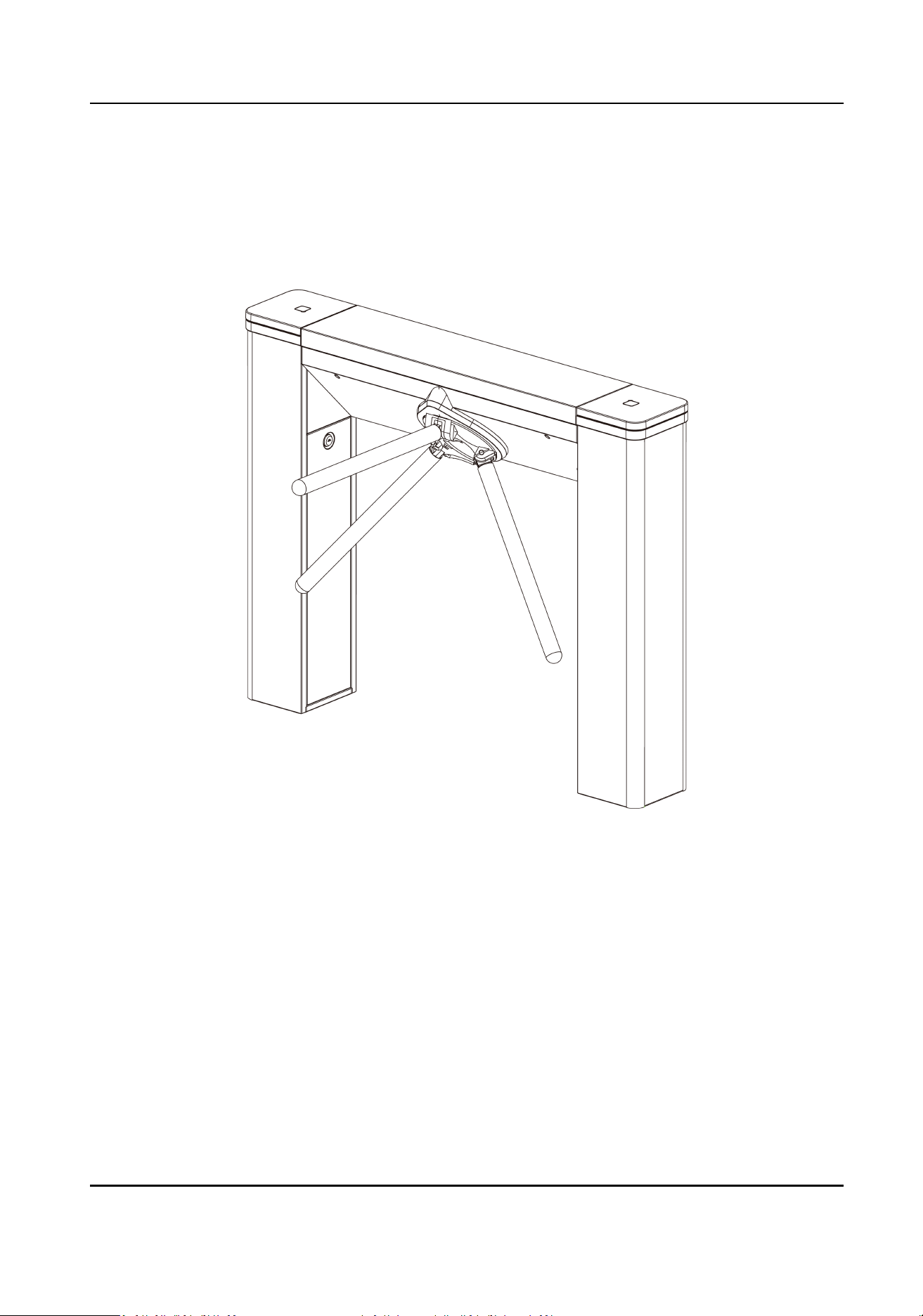
1.1 Introducon
The tripod turnsle is designed to detect unauthorized entrance or exit. By adopng the turnsle
integratedly with the access control system, person should authencate to pass through the lane
via swiping IC or ID card, scanning QR code, etc. It is widely used in aracons, stadiums,
construcon sites, residences, etc.
1.2 Main Features
●
32-bit high-speed processor
●
TCP/IP network communicaon
The communicaon data is specially encrypted to relieve the concern of privacy leak
●
Remaining open/closed mode selectable
●
Bidireconal (Entering/Exing) lane
The barrier opening and closing speed can be congured according to the visitor ow
DS-K3G501SX Series Tripod Turnsle User Manual
1

●
Self-detecon, Self-diagnoscs, and automac alarm
●
Remote control and management
●
Online/oine operaon
●
LED indicates the entrance/exit and passing status
●
Barrier is in free status when powered down. People can pass through the lane along single/both
singe and double direcons
●
Fire alarm passing
When the re alarm is triggered, the barrier will be dropped down automacally for emergency
evacuaon
●
Valid passing duraon sengs
System will cancel the passing permission if a person does not pass through the lane within the
valid passing duraon
●
Opens/Closes barrier according to the schedule template
●
Up to 3000 visitor cards and up to 60,000 cards except for visitor cards can be added
●
Up to 180,000 presenng card events can be recorded
●
Adjustable strip light brightness
DS-K3G501SX Series Tripod Turnsle User Manual
2
Chapter 2 System Wiring
The preparaon before installaon and general wiring.
Steps
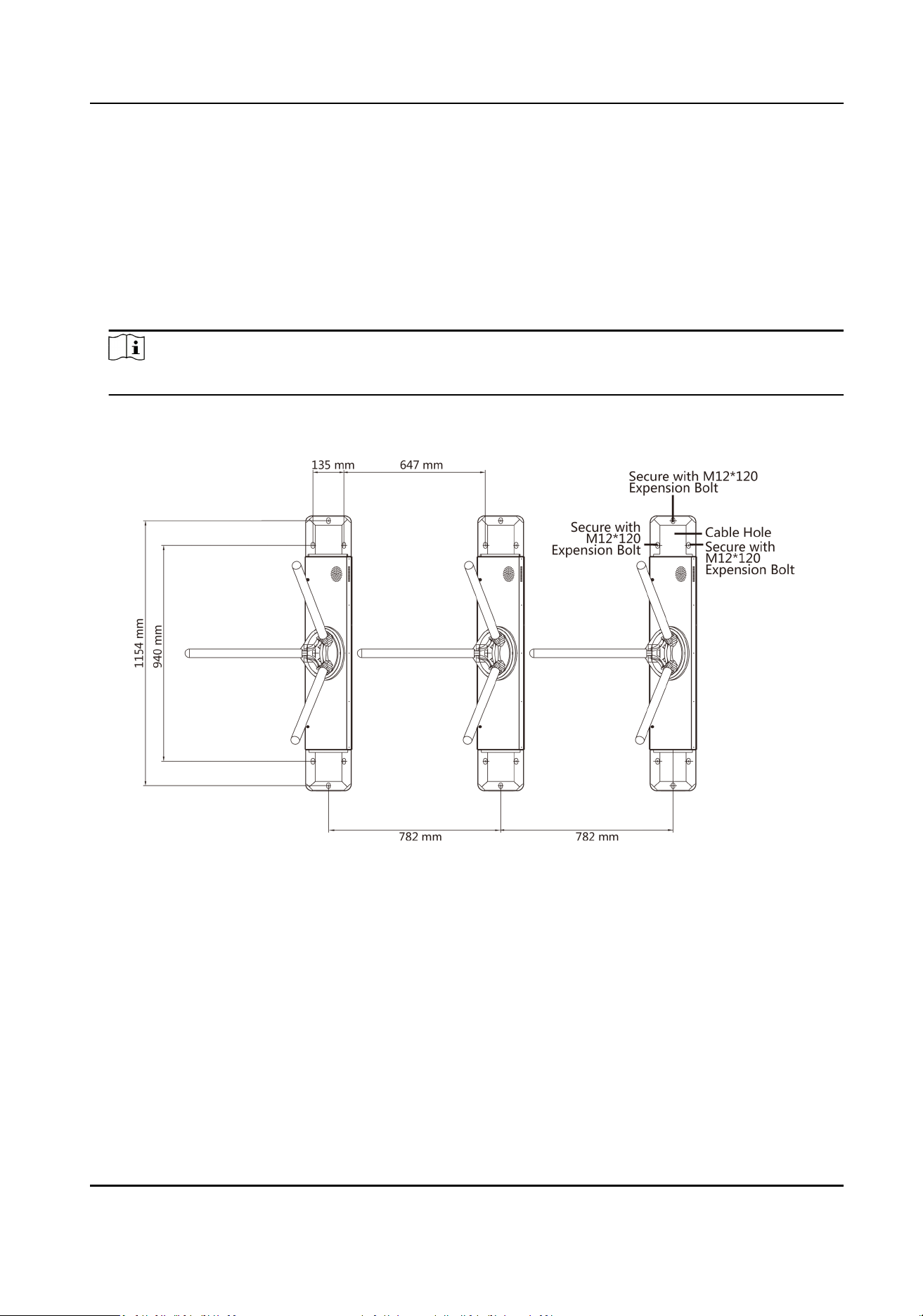
1.
Draw a central line on the installaon surface of the le or right pedestal.
2.
Draw other parallel lines for installing the other pedestals.
Note
The distance between the nearest two line is 782 mm. L represents the lane width.
3.
Slong on the installaon surface and dig installaon holes according to the hole posion
diagram.
Figure 2-1 Hole Posion Diagram
4.
Bury cables. Each lane buries 1 network cable and 1 high voltage cable. For details, see the
system wiring diagram below.
DS-K3G501SX Series Tripod Turnsle User Manual
3
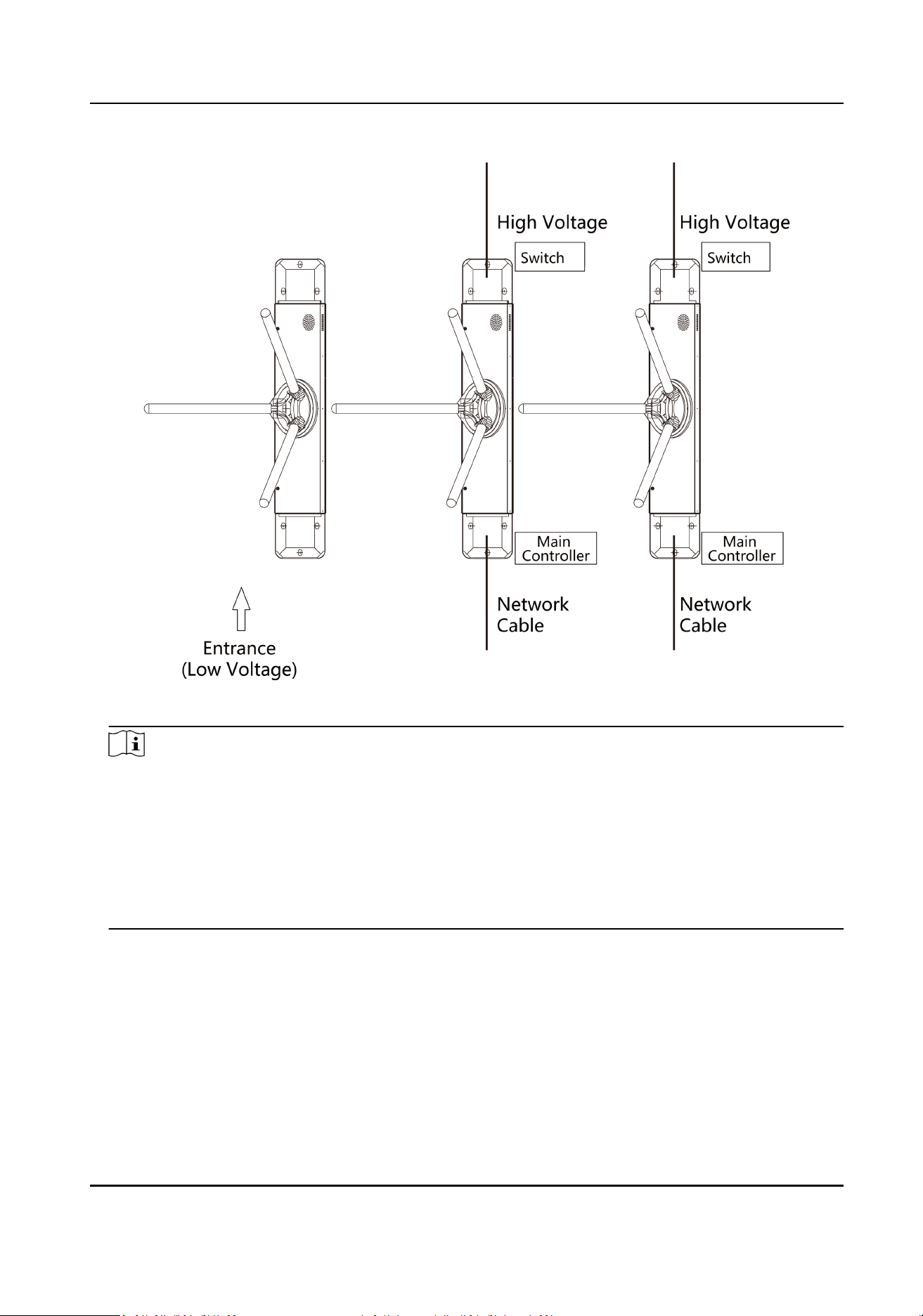
Figure 2-2 System Wiring Diagram
Note
●
The suggested inner diameter of the low voltage conduit is larger than 30 mm.
●
If the face recognion module are required to be connected on the le lane, you should
increase the conduit diameter or bury another conduit for the external cables.
●
You should bury one network cable and one high voltage conduit for the right and middle
lane.
●
The network cable must be CAT5e or the network cable has beer performance. And the
suggested network cable length should be less than 100 m.
DS-K3G501SX Series Tripod Turnsle User Manual
4
Chapter 3 Installaon
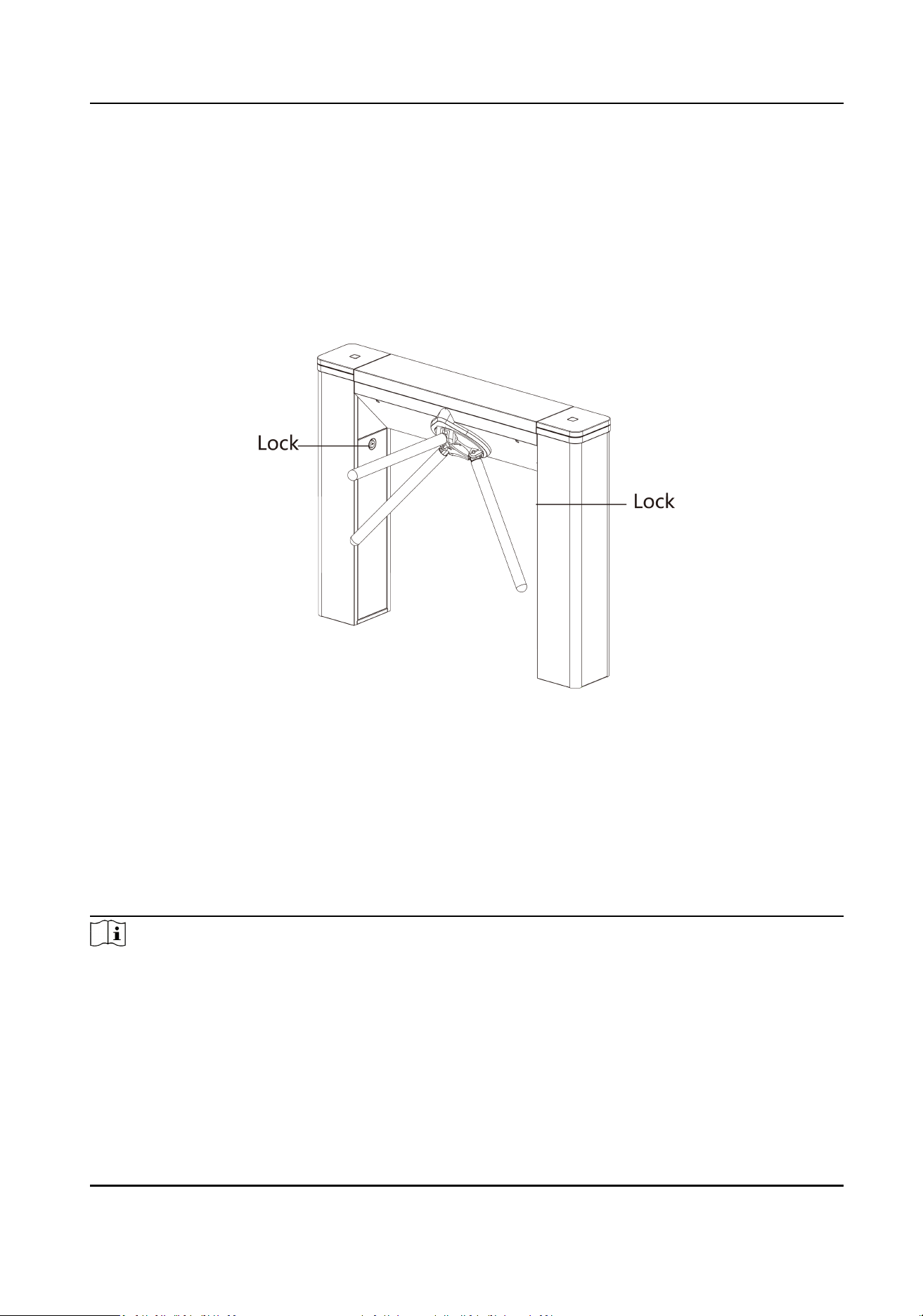
3.1 Disassemble Pedestals
Before installaon, you should use the key to open the pedestals.
View the pictures below to nd the lock holes.
Figure 3-1 Lock Holes
3.2 Install Pedestals
Before You Start
Prepare for the installaon tools, check the device and the accessories, and clear the installaon
base.
Steps
Note
●
The device should be installed on the concrete surface or other non-ammable surfaces.
●
No face recognion terminal installed: If the installaon area is too close to the wall, make sure
the distance between the pedestal and the wall should be more than 25 mm, or the surface may
be scratched.
DS-K3G501SX Series Tripod Turnsle User Manual
5
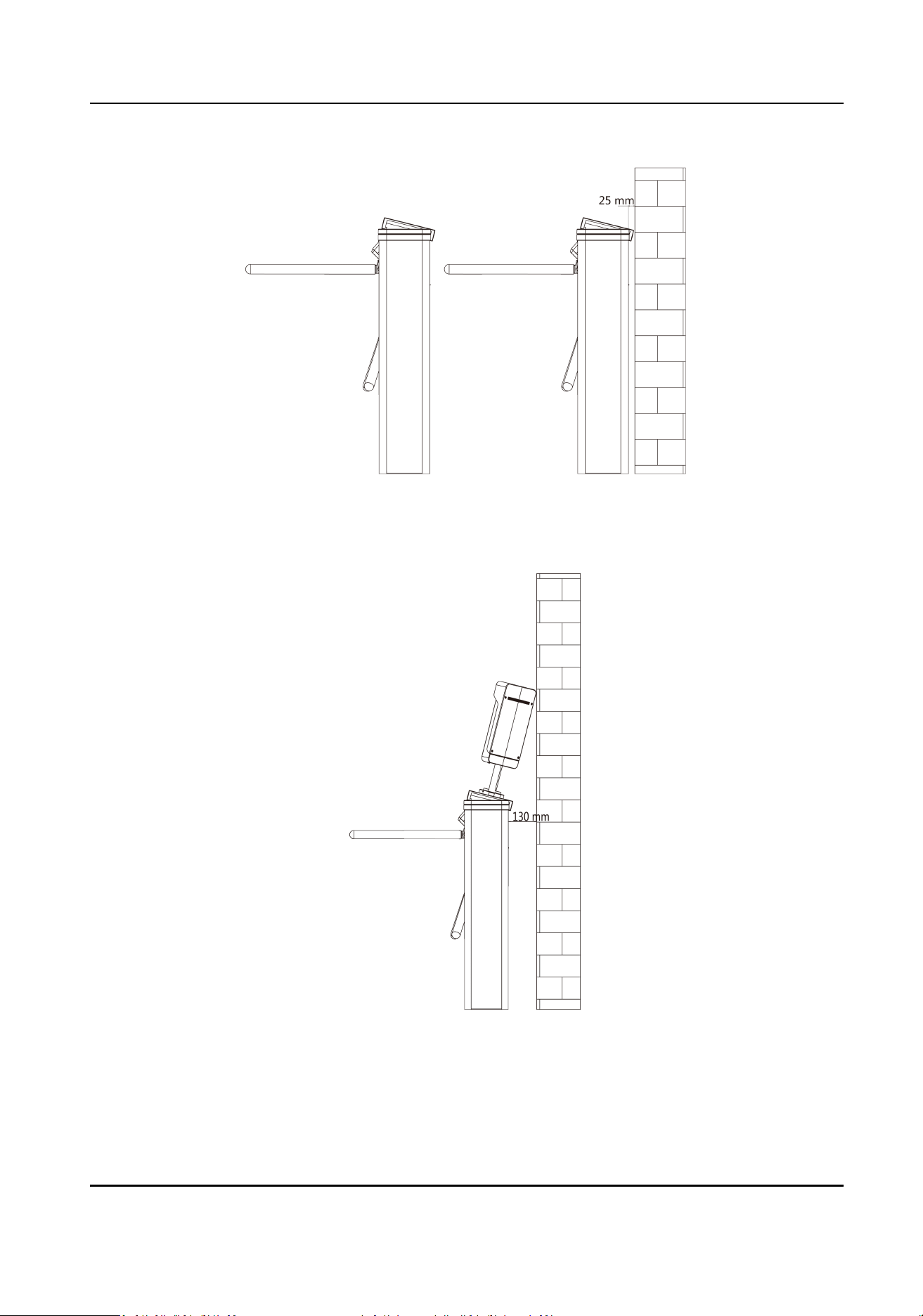
Face recognion terminal installed: If the installaon area is too close to the wall, make sure the
distance between the pedestal and the wall should be more than 130 mm, or the surface may be
scratched.
●
The dimension is as follows.
DS-K3G501SX Series Tripod Turnsle User Manual
6
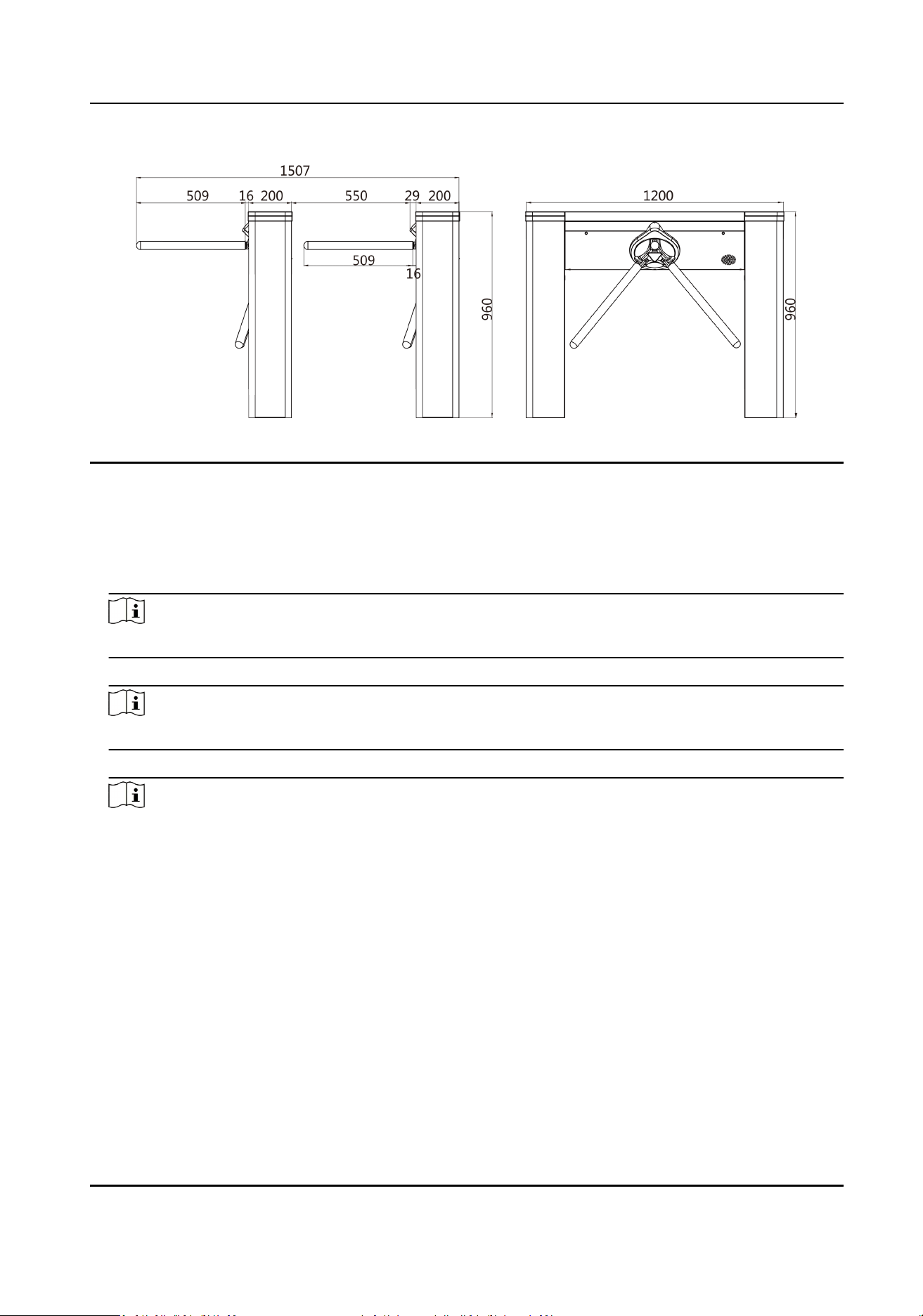
Figure 3-2 Dimension
1.
Prepare for the installaon tools, check the components, and prepare for the installaon base.
2.
Drill holes on the ground according to the installaon holes on the pedestals and insert the
expansion sleeves.
3.
According to the entrance and exit marks on the pedestals, move the pedestals to the
corresponded posions.
Note
Make sure the installaon holes on the pedestals and the base are aligned with each other.
4.
Seal the boom of the turnsle to avoid water from entering.
Note
Make sure the installaon holes on the pedestals and the base are aligned with each other.
5.
Secure the pedestals with expansion bolts.
Note
●
Do not immerse the pedestal in the water. In special circumstances, the immersed height
should be no more than 690 mm.
●
The installaon footprint is as follows:
DS-K3G501SX Series Tripod Turnsle User Manual
7
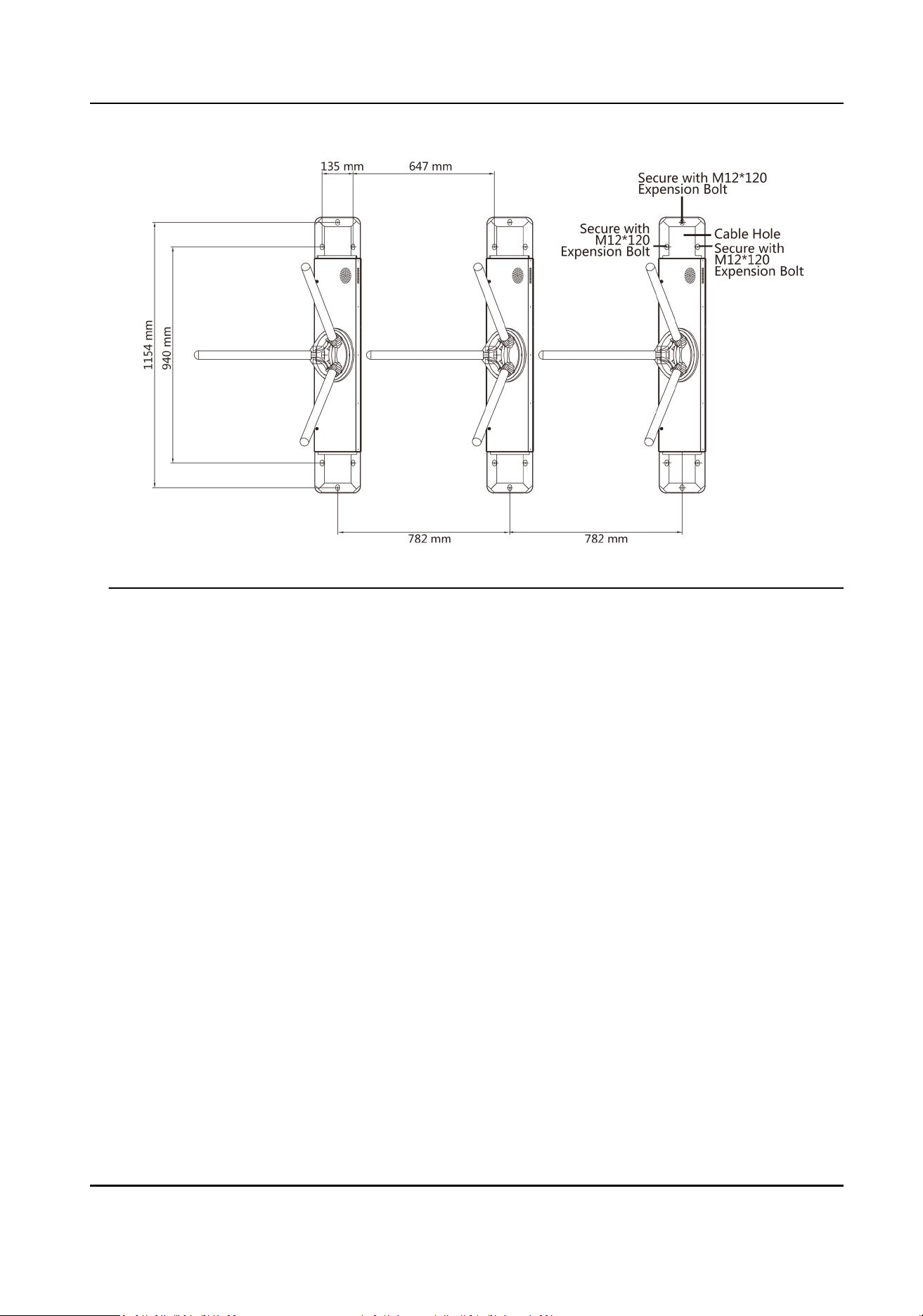
Figure 3-3 Installaon Footprint
DS-K3G501SX Series Tripod Turnsle User Manual
8
Chapter 4 General Wiring
4.1 Components Introducon
By default, basic components of the turnsle are connected well. The turnsle supports wiring the
AC electric supply for the whole system's power supply.
Note
The voltage uctuaon of the electric supply is between 100 VAC and 220 VAC, 50 to 60 Hz.
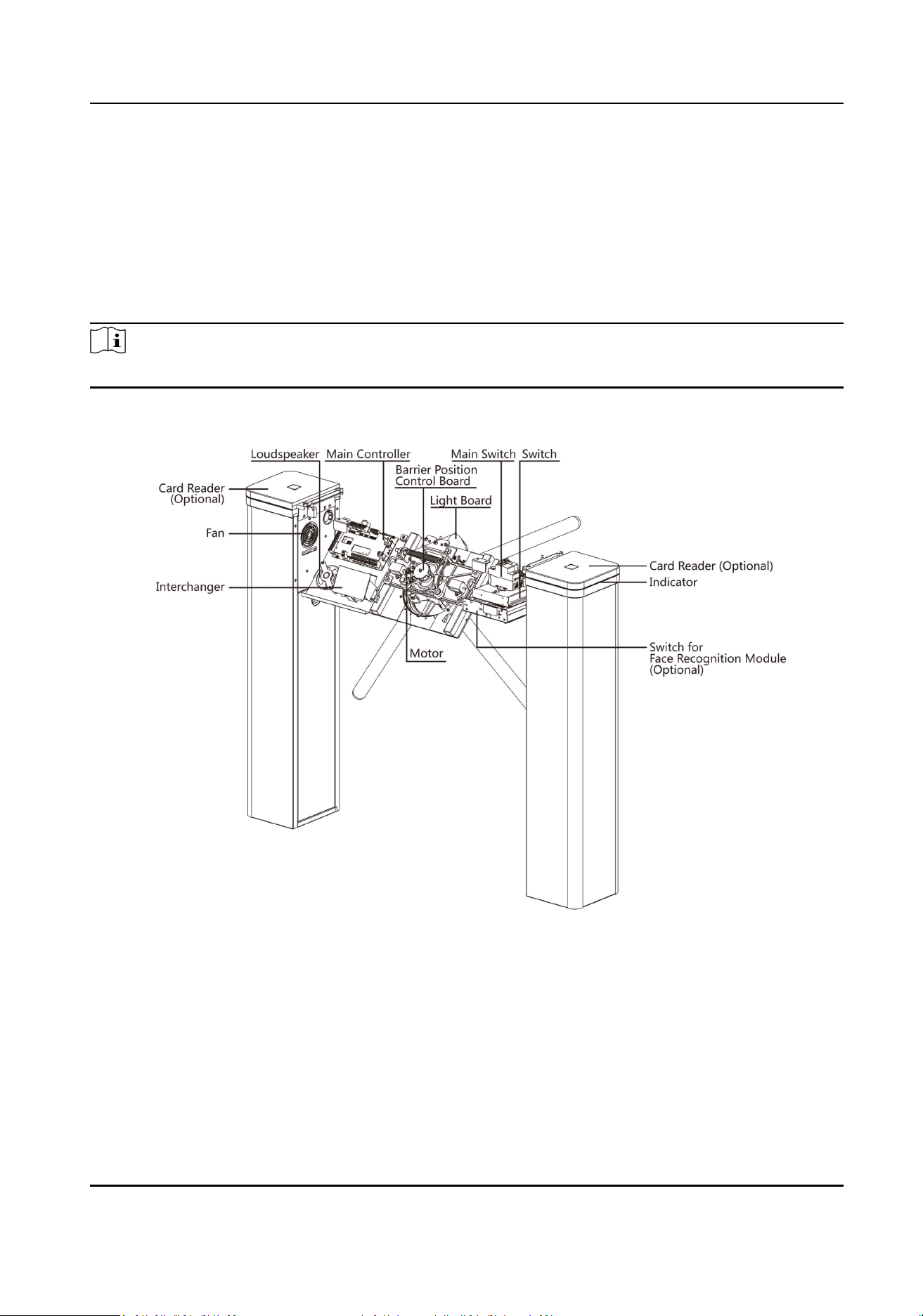
The picture displayed below describes each component's posion on the turnsle.
Figure 4-1 Components Diagram 1
4.2 Wiring Electric Supply
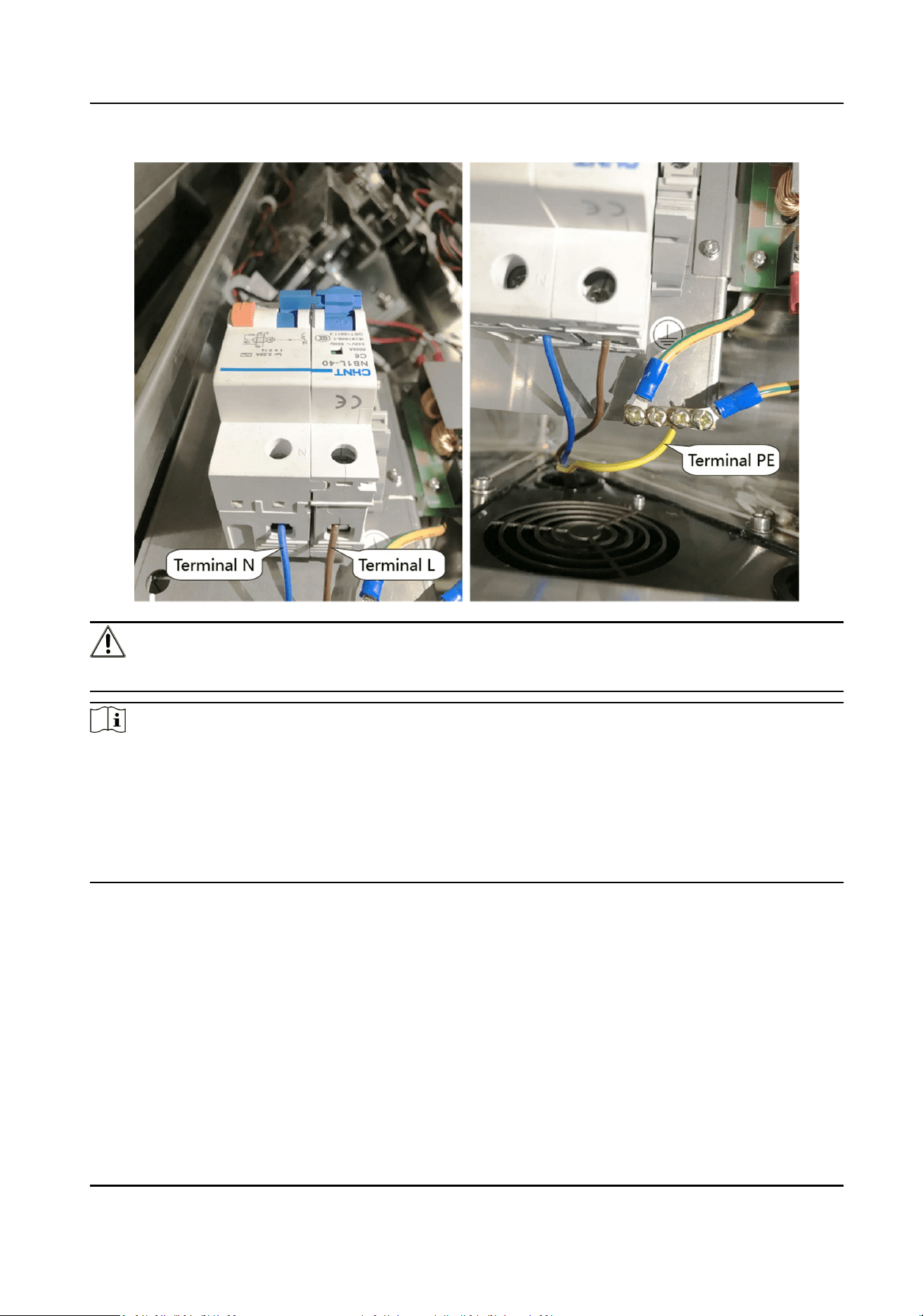
Wire electric supply with the switch in the pedestal. Terminal L and terminal N are on the switch,
while terminal PE should connect to a ground wire (yellow and green wire).
DS-K3G501SX Series Tripod Turnsle User Manual
9
Warning
Terminal PE should connect to a ground wire to avoid hazard when people touching the device.
Note
●
The cable bare part should be no more than 8 mm. If possible, wear an insulaon cap at the end
of the bare cable. Make sure there’s no bare copper or cable aer the wiring.
●
The Terminal L and the Terminal N cannot be wired reversely. Do not wire the input and output
terminal reversely.
●
To avoid people injury and device damage, when tesng, the ground resistance of the
equipotenal points should not be larger than 2 Ω。
4.3 Terminal Descripon
4.3.1 Access Control Board Terminal and BUS Descripon
Access Control Board Terminal Descripon
You can view the access control board's terminals.
DS-K3G501SX Series Tripod Turnsle User Manual
10
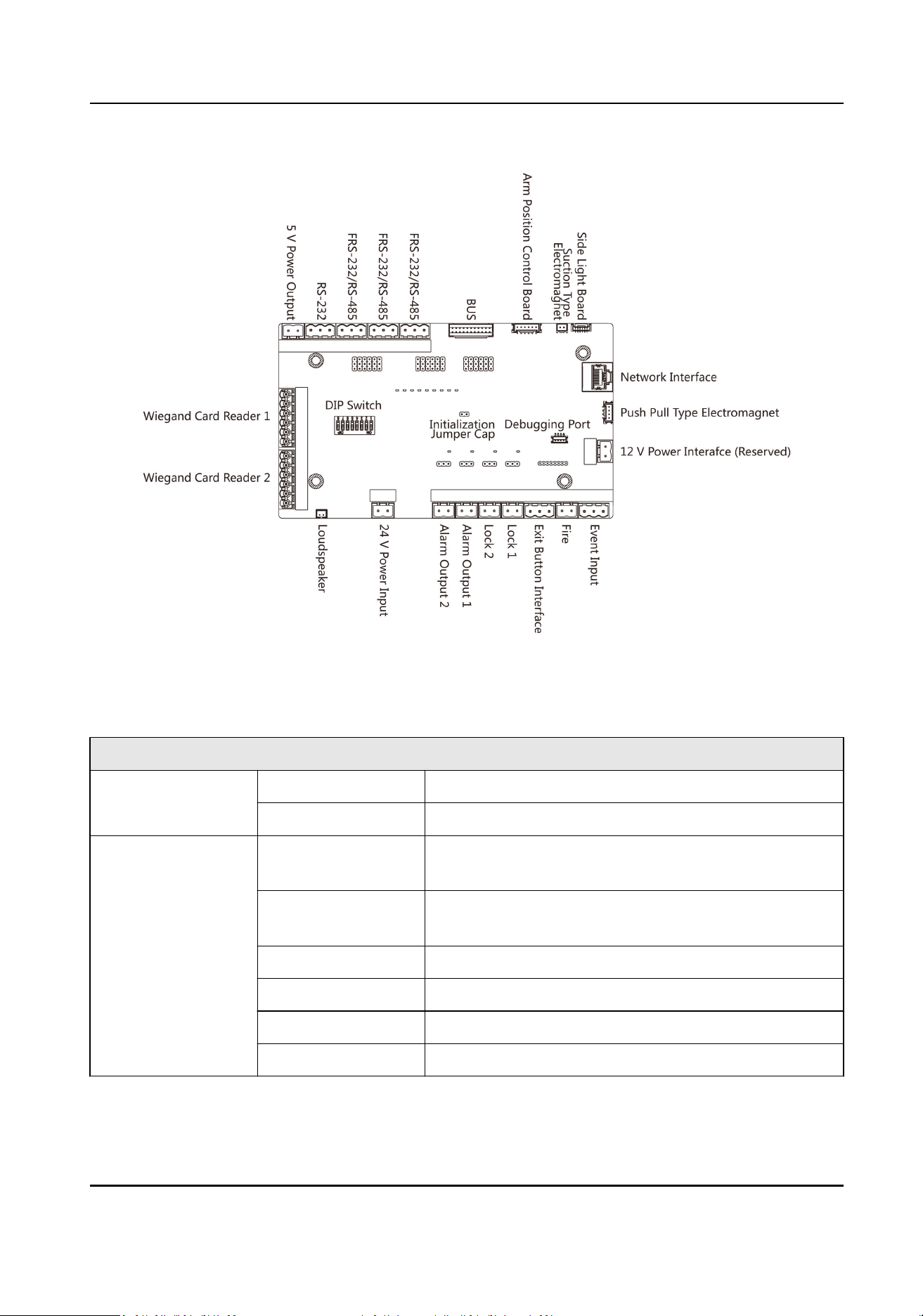
Figure 4-2 Access Control Board Diagram
Table 4-1 Table of Access Control Board Terminal Descripon
Access Control Board Terminal Descripon
24 V Power Input +24 V Power Input
GND Grounding
Wiegand Card
Reader 1
OK Indicator of Card Reader Control Output (Invalid Card
Output)
ERR Indicator of Card Reader Control Output (Valid Card
Output)
BZ Card Reader Buzzer Control Output
W1 Wiegand Head Read Data Input Data1
W0 Wiegand Head Read Data Input Data0
GND Grounding
DS-K3G501SX Series Tripod Turnsle User Manual
11

Access Control Board Terminal Descripon
Wiegand Card
Reader 2
OK Indicator of Card Reader Control Output (Invalid Card
Output)
ERR Indicator of Card Reader Control Output (Valid Card
Output)
BZ Card Reader Buzzer Control Output
W1 Wiegand Head Read Data Input Data1
W0 Wiegand Head Read Data Input Data0
GND Grounding
RS-485 Interface (In
the BUS)
GND Grounding
RS-485 B- Connect to Card Reader RS485-
RS-485 B+ Connect to Card Reader RS485+
GND Grounding
RS-485 A- Connect to Card Reader RS485-
RS-485 A+ Connect to Card Reader RS485+
5 V Power Output 5 V 5 VDC Power Output
GND 5 VDC Grounding
RS-232 Interface
(QR Code Scanner
Interface, Parts of
Interfaces are in the
BUS)
GND Grounding
RS-232 G- Connect to Card Reader RS232-
RS-232 G+ Connect to Card Reader RS232+
GND Grounding
RS-232 H- Connect to Card Reader RS232-
RS-232 H+ Connect to Card Reader RS232+
Fire XF Connect to Fire Module
GND Grounding
Event Input C1 Event Alarm Input 1
GND Grounding
C2 Event Alarm Input 2
Exit Buon K2 Door 2 Signal Input
GND Grounding
DS-K3G501SX Series Tripod Turnsle User Manual
12

Access Control Board Terminal Descripon
K1 Door 1 Signal Input
Door Lock D1- Door 1 Relay Output (Dry Contact)
D1+
D2- Door 2 Relay Output (Dry Contact)
D2+
Alarm Output1/
Alarm Output 2
NO/NC1 Alarm Output Relay 1 (Dry Contact)
COM1
NO/NC2 Alarm Output Relay 2 (Dry Contact)
COM2
Network Interface LAN Network Accessing
Note
●
The alarm input hardware interface is normally open by default. So only the normally open
signal is allowed. It can be linked to the buzzer of the card reader and access controller, and the
alarm relay output and open door relay output.
●
The DIP of RS485 card ID is set as 1 and 4 by default. 1 is for entering, and 4 is for exing. Set the
DIP as 3 for connecng visitor card reader.
●
The Wiegand card reader 1 and 2 respecvely refer to the entering and exing card reader.
●
The alarm output supports relay output.
●
For detailed informaon about the DIP switch, see DIP Switch Descripon.
BUS Descripon
You can use the BUS to connect card reader, ngerprint module, etc.
Table 4-2 Table of BUS Terminal Descripon
Terminal Group Terminal Name Color Descripon
Fingerprint Module
Terminal Group
5V Red 5 V Power Terminal
485/232+ Purple Connect to Fingerprint
Module RS-485+
485/232- Yellow Connect to Fingerprint
Module RS-485-
GND Black Grounding
DS-K3G501SX Series Tripod Turnsle User Manual
13

Terminal Group Terminal Name Color Descripon
QR Code Scanner
Terminal Group
5V Red 5 V Power Terminal
232+ Blue Connect to QR Code
Scanner RS-232+
232- Green Connect to QR Code
Scanner RS-232-
GND Black Grounding
Tamper Terminal
(Connected)
TAMPER Brown Tamper Terminal
Fan Power Terminal
Group (Connected)
12_FS Red Connect to Fan
GND Black Grounding
Card Reader Terminal
Group (Entrance)
12V Red 12 V Power Terminal
485/232+ Yellow Connect to Card
Reader RS-485+
485/232- Blue Connect to Card
Reader RS-485-
GND Black Grounding
Card Reader Terminal
Group (Exit)
12V Red 12 V Power Terminal
485/232+ Yellow Connect to Card
Reader RS-485+
485/232- Blue Connect to Card
Reader RS-485-
GND Black Grounding
Light Board Terminal
Group (Connected)
12V Red 12 V Power Terminal
485+ Yellow Connect to Light Board
RS-485+
485- Blue Connect to Light Board
RS-485-
GND Black Grounding
DS-K3G501SX Series Tripod Turnsle User Manual
14
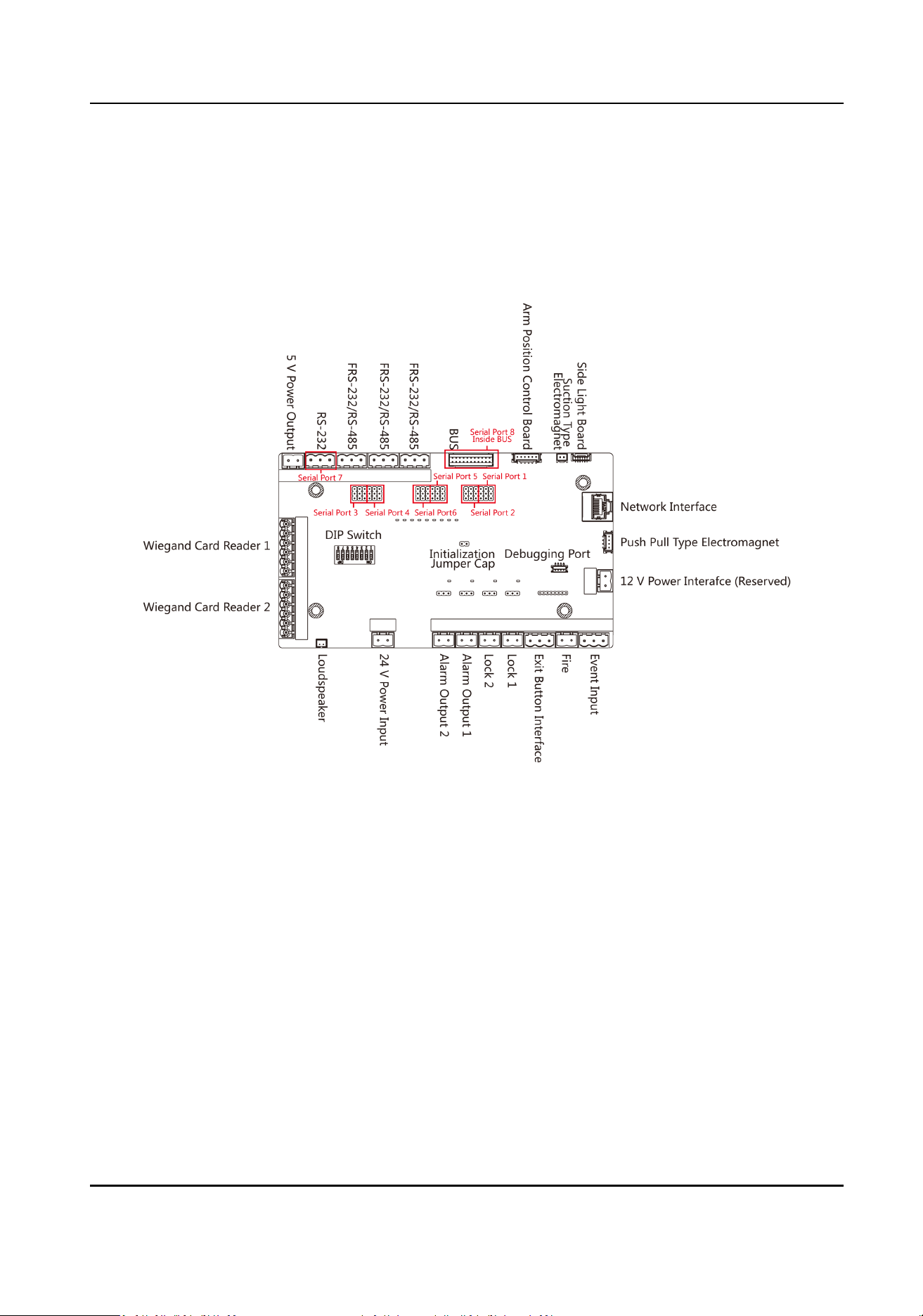
4.3.2 Access Control Board Serial Port ID Descripon
You can use the jumper cap on the access control board to switch the interface communicaon
mode. For details about switching between RS-232 and RS-485 communicaon type, see Switching
RS-485/RS-232 Mode.
Figure 4-3 Access Control Board
According to the picture above, the serial port 1 to 6 refers to the RS-485/RS-232 interface. You can
use the jumper cap to change the communicaon type.
The access control board descripons are as follows:
Serial Port 1
RS-485 communicaon interface. You can connect RS-485 card reader and so on.
Serial Port 5 Jumper Cap
Use the jumper cap to switch the serial port communicaon mode. You can switch between the
RS-485 communicaon mode and the RS-232 communicaon mode. By default, it is in RS-485
communicaon mode.
Serial Port 2
RS-232 communicaon interface. You can connect the ngerprint and so on.
DS-K3G501SX Series Tripod Turnsle User Manual
15

Serial Port 3 Jumper Cap
Use the jumper cap to switch the serial port communicaon mode. You can switch between the
RS-232 communicaon mode and the RS-485 communicaon mode. By default, it is in RS-232
communicaon mode. Use the serial port to connect with ngerprint module.
Serial Port 4/Serial Port 6 Jumper Cap
Use the jumper cap to switch the serial port communicaon mode. You can switch between the
RS-485 communicaon mode and the RS-232 communicaon mode. By default, it is in RS-485
communicaon mode. Use the serial port to connect with face recognion module.
Serial Port 7/Serial Port 8
The serial port has a xed RS-232 communicaon mode. It has no jumper cap and cannot
change the communicaon mode. The RS-232 interface's QR code transmission database should
no more than 64 bit.
DS-K3G501SX Series Tripod Turnsle User Manual
16
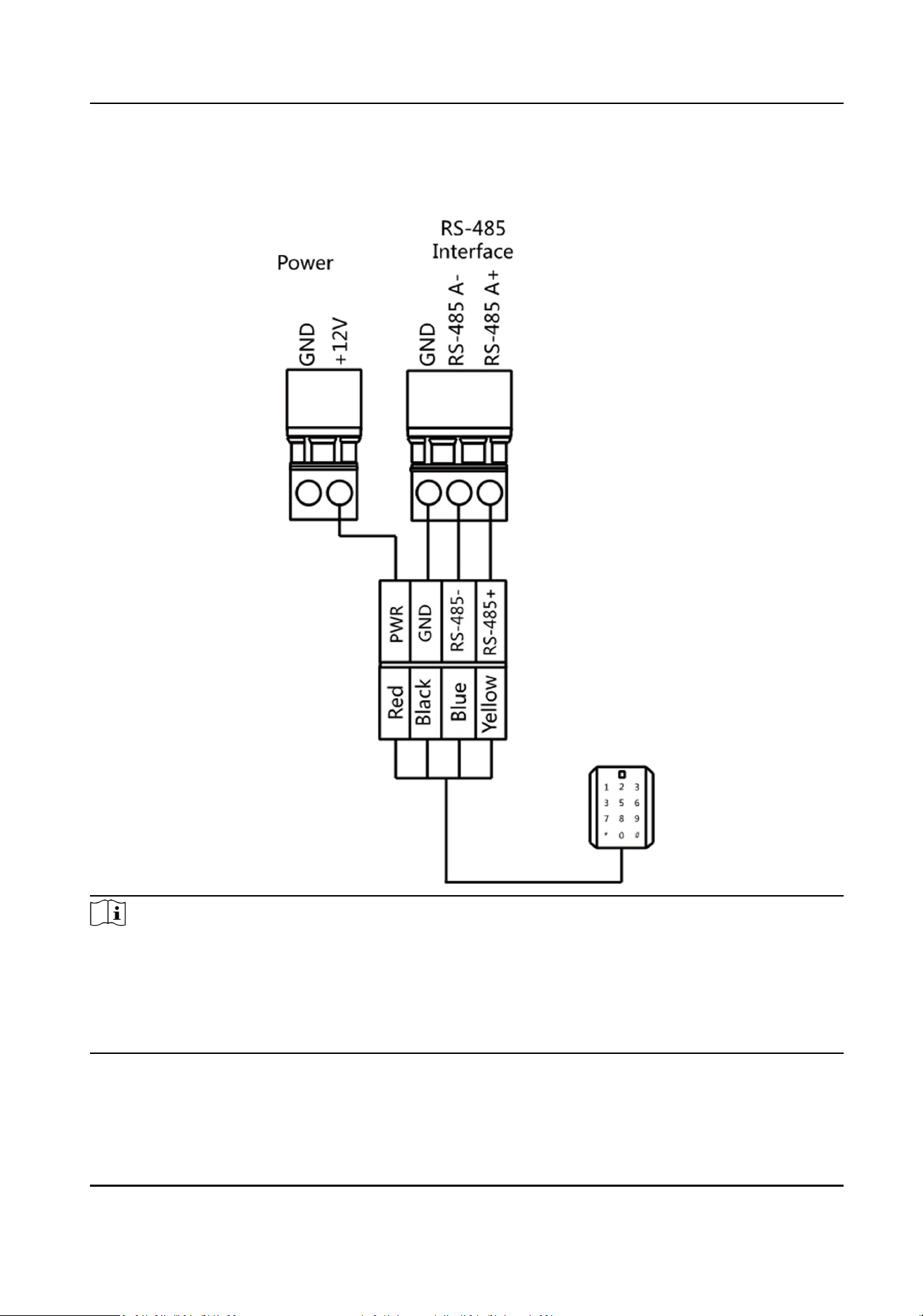
4.3.3 RS-485 Wiring
Note
●
There are four RS-485 interfaces, which are for connecng ID card reader, IC card reader, QR
code scanner, ngerprint and card reader, card recycler, text screen, ngerprint reader, and face
recognion terminal. Take the wiring of RS-485 card reader as an example.
●
For details about text screen, see Conguring Screen Parameters in User Manual of iVMS-4200
AC Client Soware.
DS-K3G501SX Series Tripod Turnsle User Manual
17
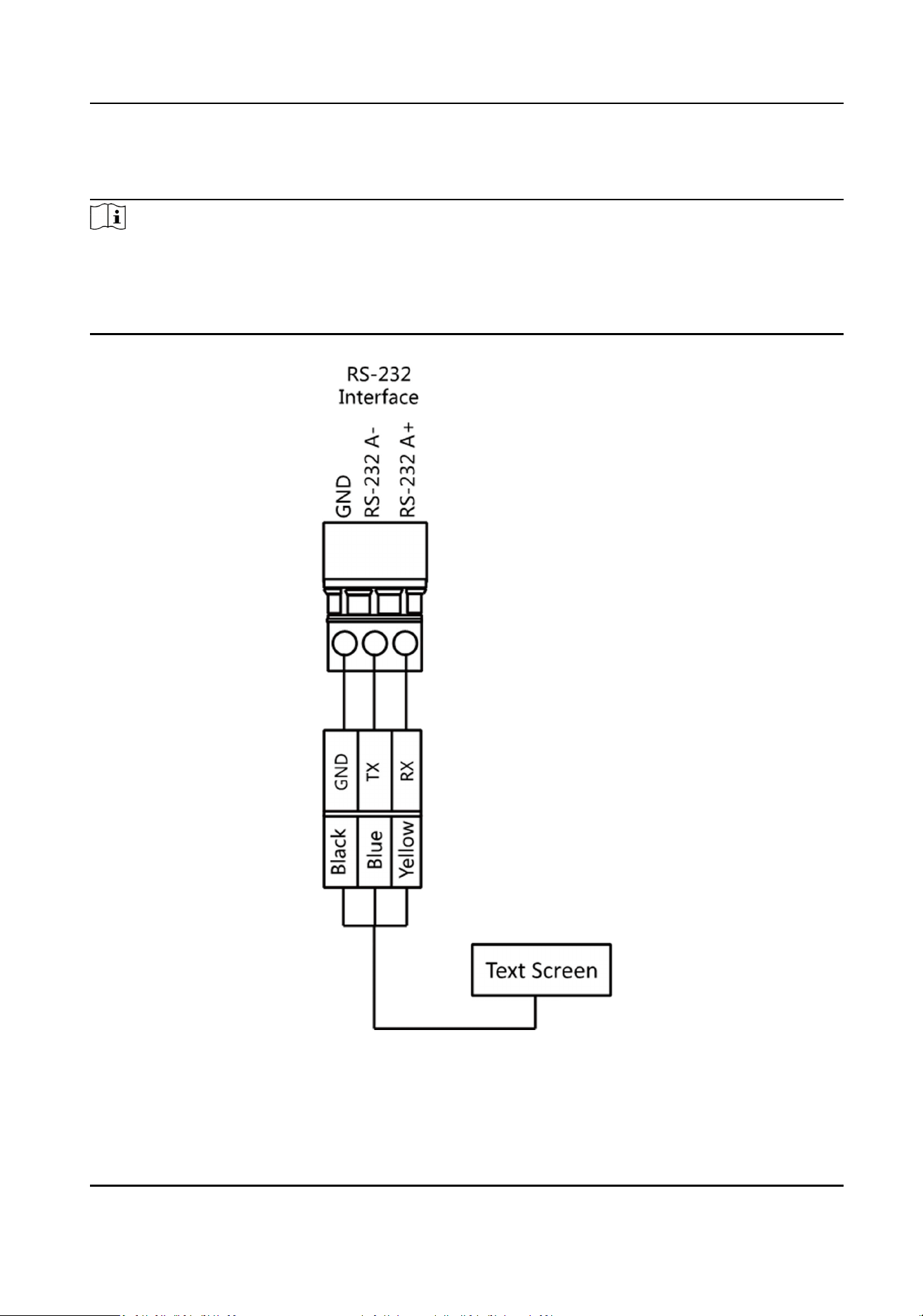
4.3.4 RS-232 Wiring
Note
●
The RS-232 interfaces can connect QR code scanner, and card recycler.
●
For details about text screen, see Conguring Screen Parameters in User Manual of iVMS-4200
AC Client Soware.
●
Take the wiring of text screen as an example.
DS-K3G501SX Series Tripod Turnsle User Manual
18
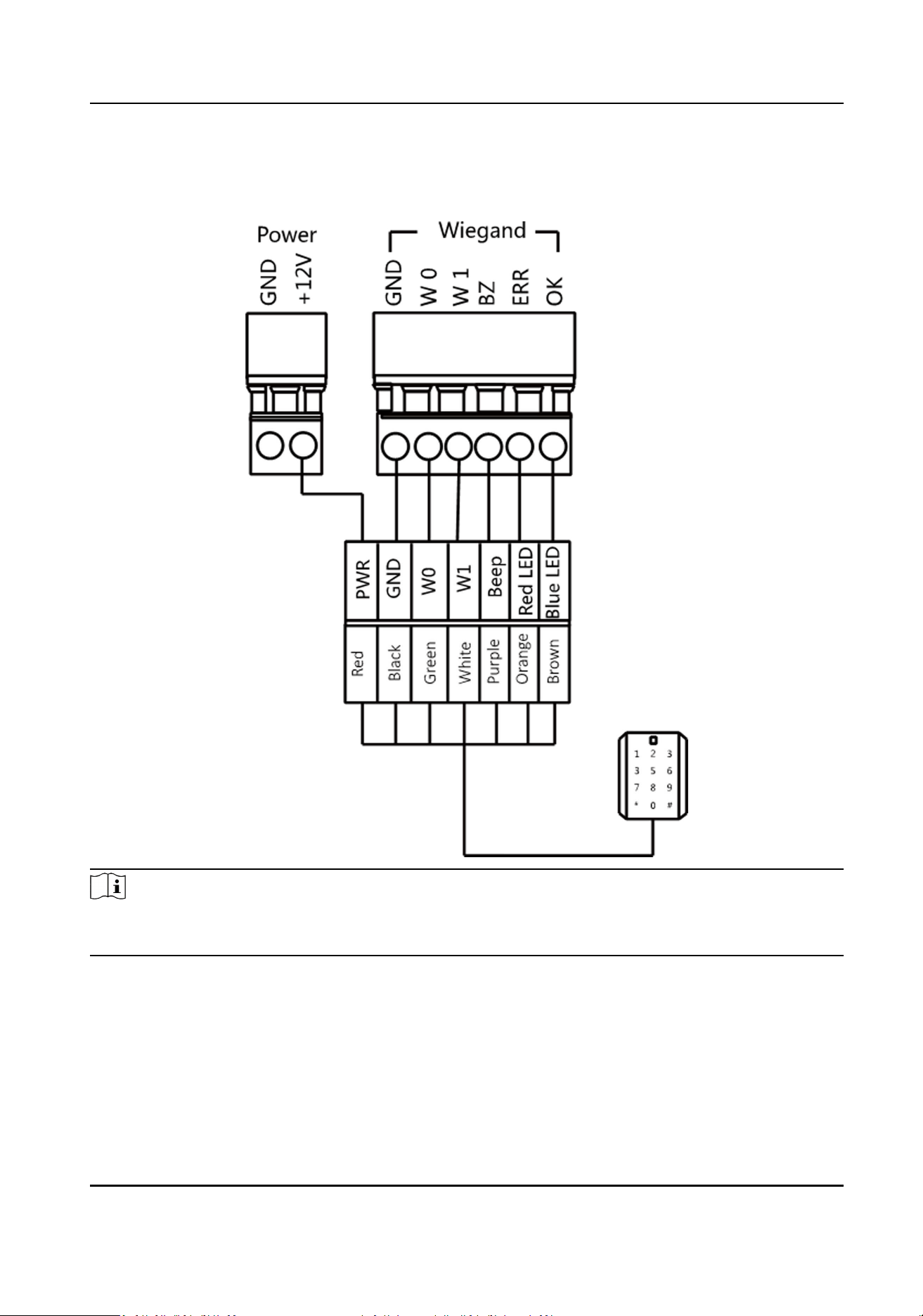
4.3.5 Wiegand Wiring
Note
Connect the OK/ERR/BZ if the access controller should control the LED and buzzer of the Wiegand
card reader.
4.3.6 Barrier Control Wiring
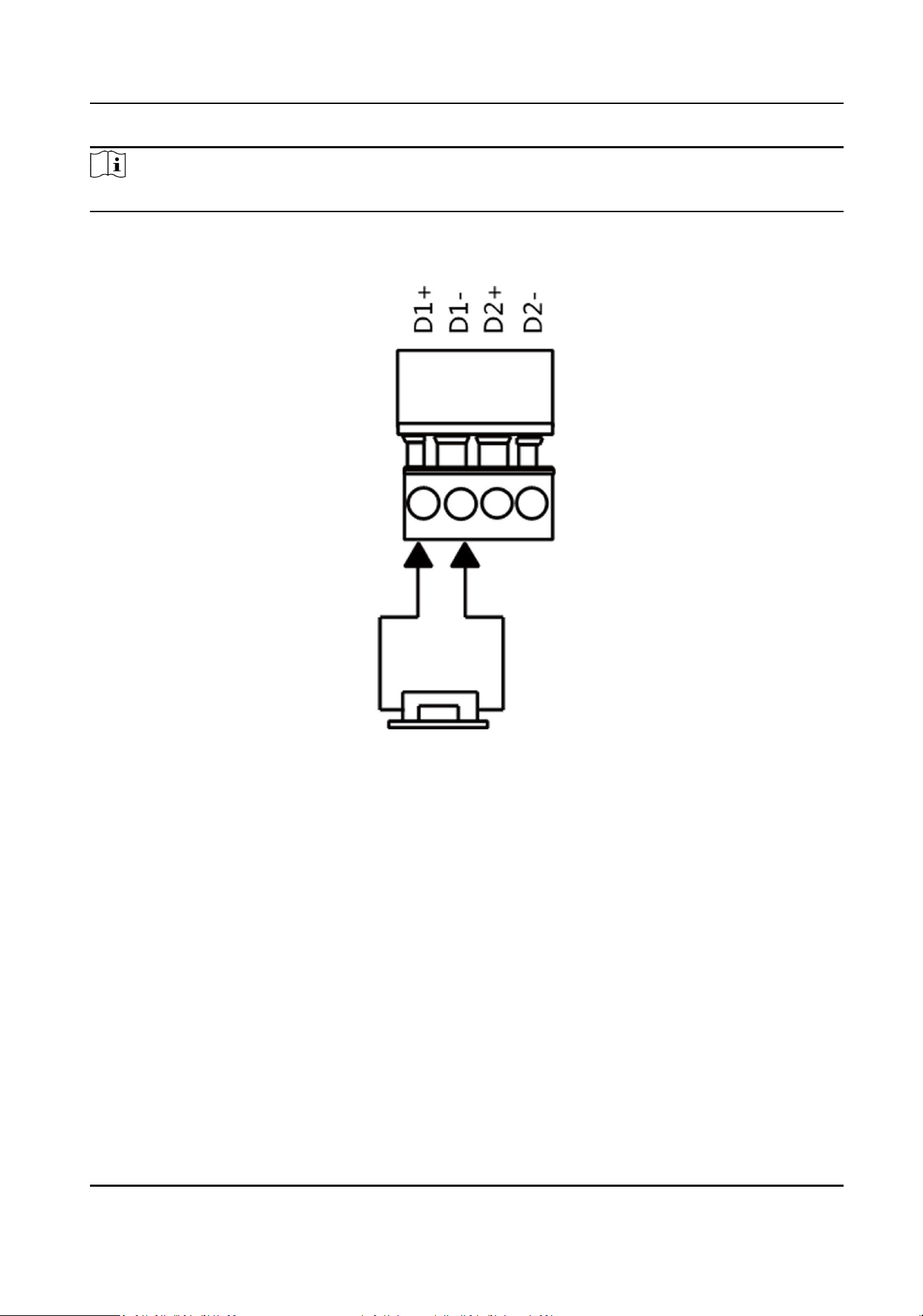
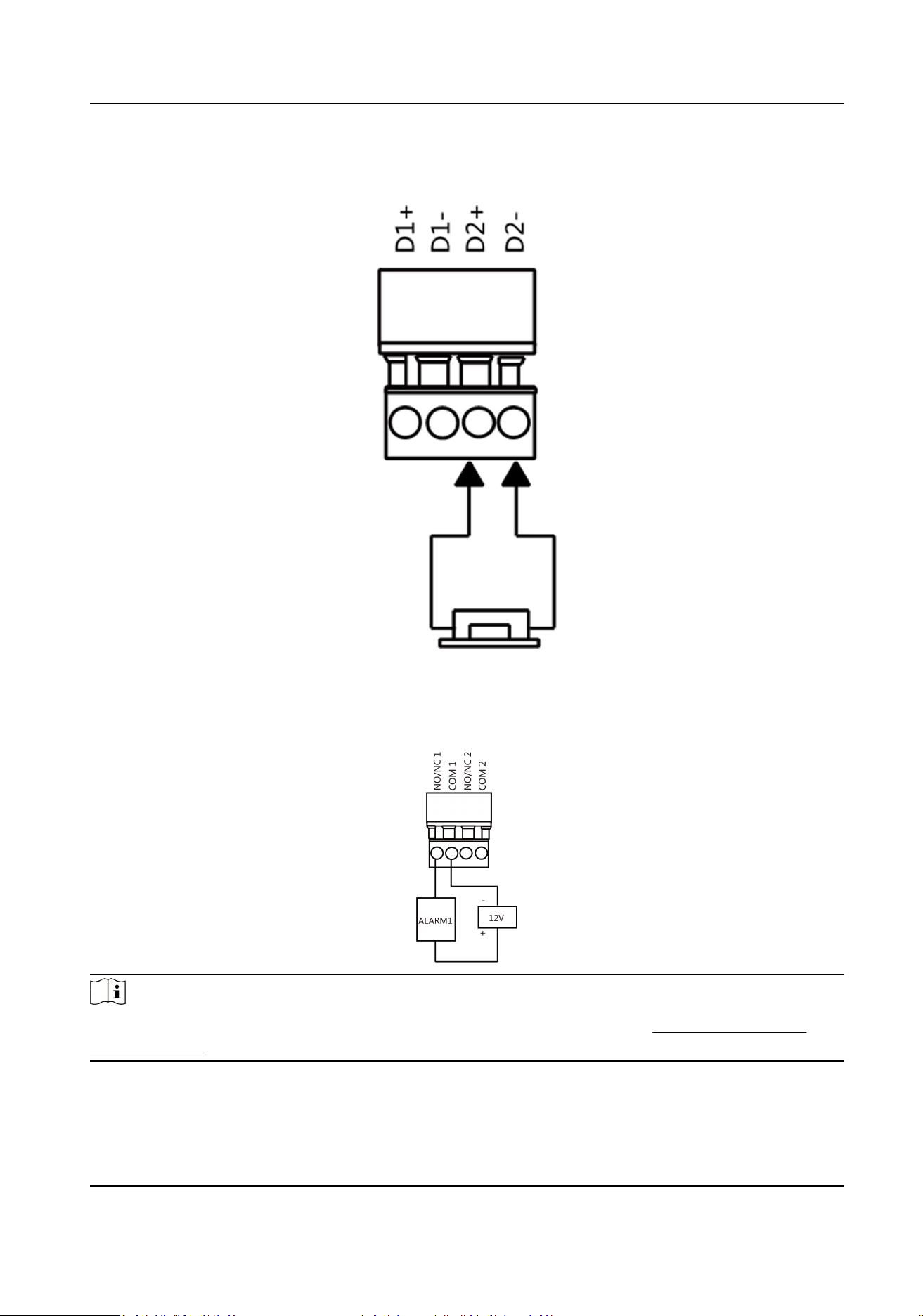
By default, the barrier has connected with the access control board. If possible, the device can
connect with a third party control board to control the third party barriers. Interface D1 controls
barrier opening for entrance, while interface D2 controls barrier opening for exit.
DS-K3G501SX Series Tripod Turnsle User Manual
19
Note
The output signal is relay. The terminals cannot connect with the devices carrying voltage.
Entering Wiring
DS-K3G501SX Series Tripod Turnsle User Manual
20
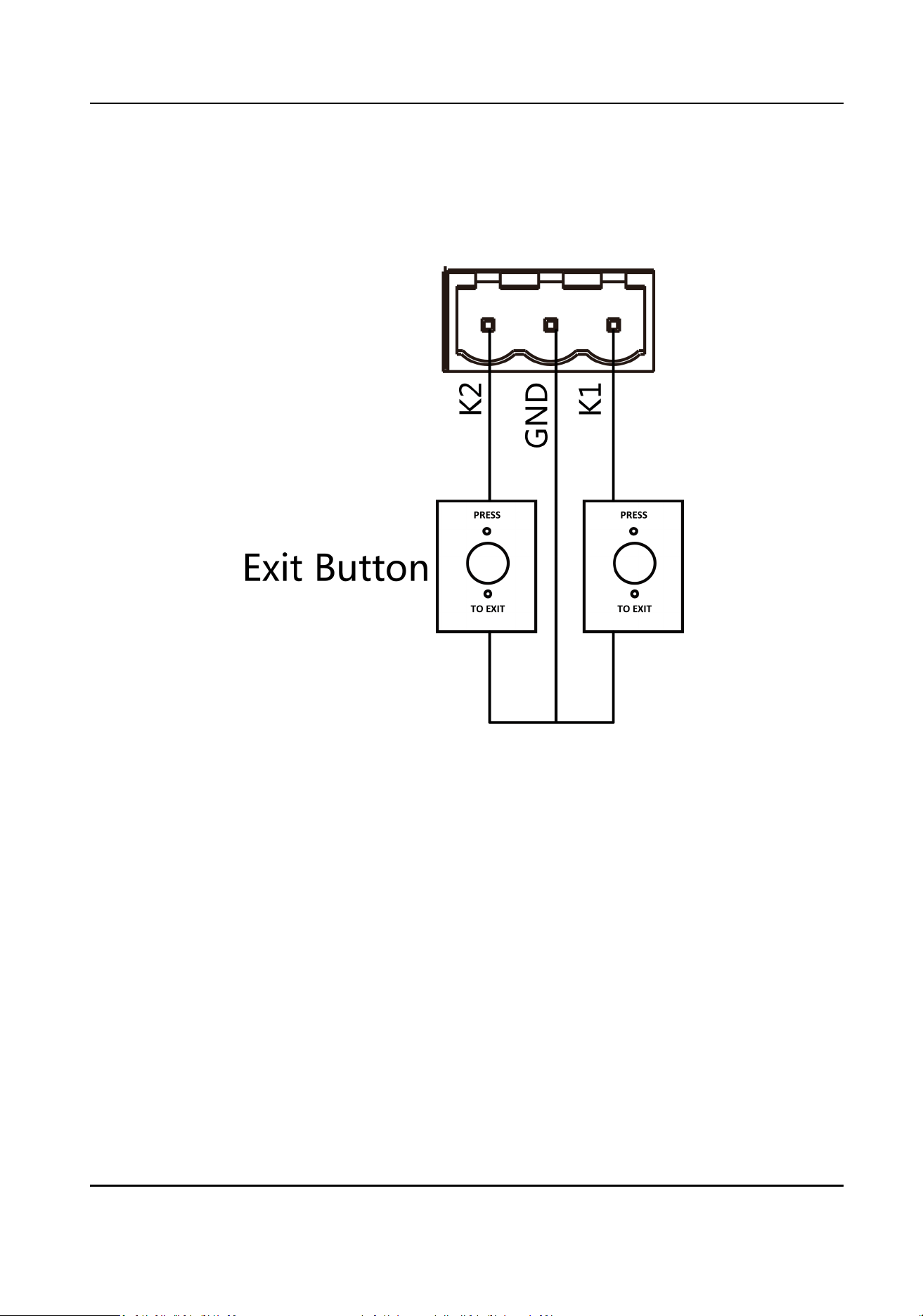
4.3.8 Exit Buon Wiring
You can view the exit buon wiring diagram.
Figure 4-4 Exit Buon Wiring
DS-K3G501SX Series Tripod Turnsle User Manual
22

Chapter 5 Device Sengs
You can also set the turnsle to passing mode and memory mode, pair the keyfob, inialize the
hardware, switching between RS-485 communicaon mode and RS-232 communicaon mode, and
view relay output NO/NC diagram by seng the DIP switch on the access control board.
●
Normal Mode: The device will work properly.
●
Passing Mode: There are 9 passing modes, including controlled bi-direcon, controlled entrance
and prohibited exit, controlled entrance and free exit, free bi-direcon, free entrance and
controlled exit, free entrance and prohibited exit, prohibited bi-direcon, prohibited entrance
and free exit.
●
Memory Mode: By default, the memory mode is enabled. When mulple cards are presented
and authencated, it allows mulple persons passing through the lane. When it counts the
passing people number is equal to the card presented mes, or no person passing through the
lane aer the last person passing, the barriers will be closed.
Note
You can also set the DIP switch on the access control board to control the entrance and exit
controlling type, keyfob pairing, etc. For details about the DIP switch value, see DIP Switch .
5.1 Pair Keyfob (Oponal)
Pair the remote control to the device through DIP switch to open/close the barrier remotely.
Before You Start
Ask our technique supports or sales and purchase the keyfob.
Steps
Note
●
Up to 32 keyfobs can be added to the turnsle.
●
You can set the keyfob to one-to-one mode or one-to-many mode via the DIP switch on the
keyfob. Here takes one-to-one mode as an example to explain. For one-to-many mode, see the
keyfob user manual.
One-to-One Mode
By default, the keyfob is in one-to-one mode. The keyfob's DIP switch is towards 1 (OFF). The
keyfob can control only one turnsle.
One-to-Many Mode
The keyfob's DIP switch is ON. In this mode, the keyfob can control mulple turnsles.
1.
Power o the turnsle.
2.
Set the No.4 switch of the DIP Switch on the access control board to the ON side.
DS-K3G501SX Series Tripod Turnsle User Manual
23

3.
Power on the turnsle and it will enter the keyfob pairing mode.
4.
Hold the Close buon for more than 10 seconds. Or pair turnsle and keyfob in the client
soware, see Manage Keyfob User for more details.
The keyfob's indicator of the will ash twice if the pairing is completed.
5.
Set the No.4 switch to OFF, and reboot the turnsle to take eect.
Note
●
Only one turnsle can pair the keyfob. If mulple turnsles are in the pairing mode, the
keyfob will select only one of them to pair.
●
For details about DIP switch value and meaning, see Access Control Board Serial Port ID
Descripon .
6.
Oponal: Go to System → User → Keyfob User on the remote control page of the client
soware to delete the keyfob.
5.2 Inialize Device
Steps
1.
Remove the jumper cap of inializaon pin on the access control board.
DS-K3G501SX Series Tripod Turnsle User Manual
24
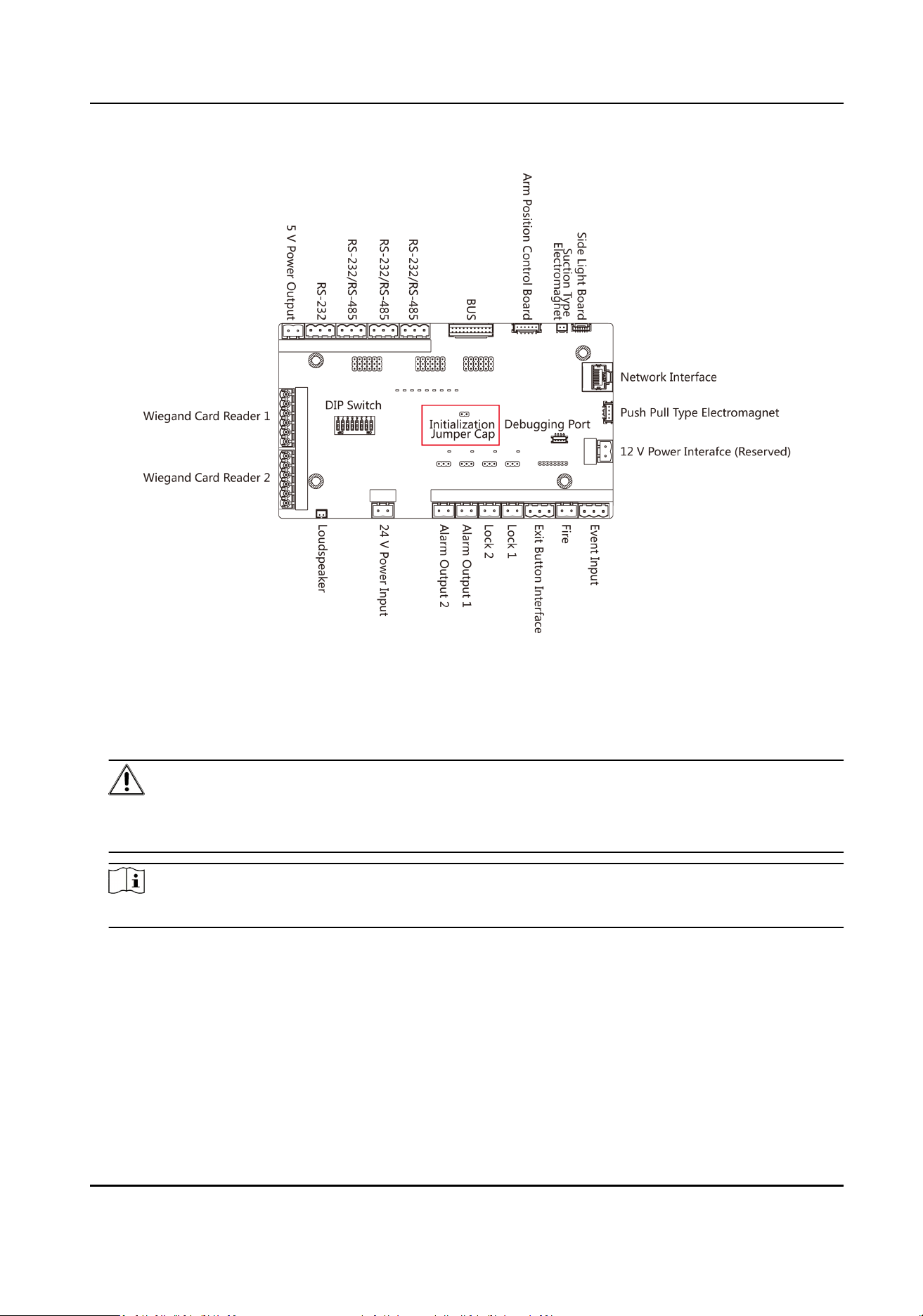
Figure 5-1 Inializaon Jumper Cap
2.
Disconnect the power and reboot the device. The device buzzer buzzes a long beep.
3.
When the beep stopped, plug the jumper cap back.
4.
Disconnect the power and power on the device again.
Cauon
The inializaon of the device will restore all the parameters to the default seng and all the
device events are deleted.
Note
Make sure no persons are in the lane when powering on the device.
5.3 Switch to RS-485/RS-232 Mode
Take the Serial Port 4 and on the access control board as an example. If the Jumper cap's posion is
like the picture displayed below. (The black part is the jumper cap.) The serial port is in RS-485
communicaon mode.
DS-K3G501SX Series Tripod Turnsle User Manual
25
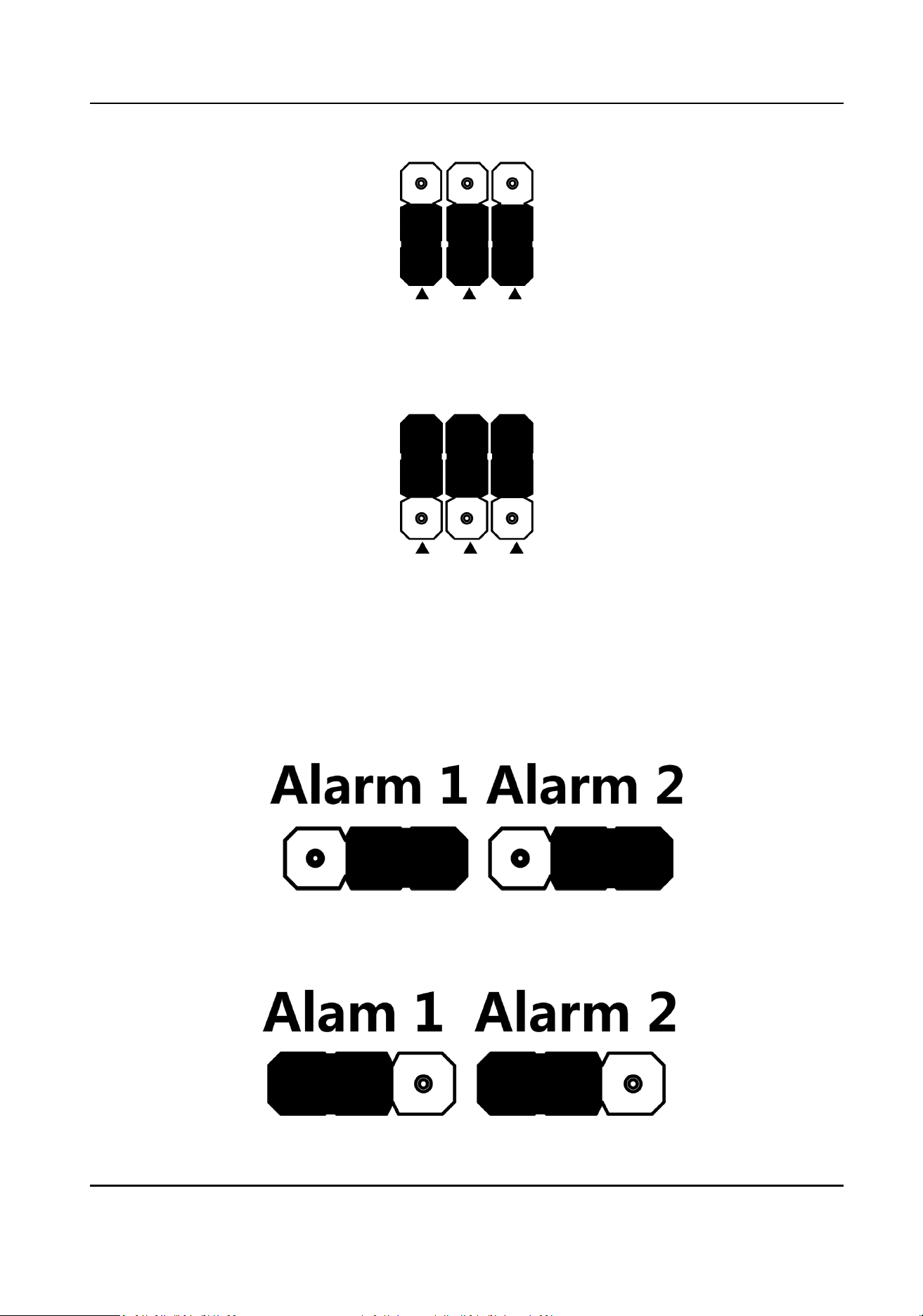
Figure 5-2 Jumper Cap Status of RS-485 Interface
If the Jumper cap's posion is like the picture displayed below. (The black part is the jumper cap.)
The serial port is in RS-232 communicaon mode.
Figure 5-3 Jumper Cap Status of RS-232 Interface
5.4 Alarm Relay Output Mode (NO/NC)
Alarm Relay Output Mode (NO):
Alarm Relay Output Mode (NC):
DS-K3G501SX Series Tripod Turnsle User Manual
26

Chapter 6 Acvaon
You should acvate the device before the rst login.
6.1 Acvate via SADP
SADP is a tool to detect, acvate and modify the IP address of the device over the LAN.
Before You Start
●
Get the SADP soware from the supplied disk or the ocial website hp://
www.hikvision.com/en/ , and install the SADP according to the prompts.
●
The device and the PC that runs the SADP tool should be within the same subnet.
The following steps show how to acvate a device and modify its IP address. For batch acvaon
and IP addresses modicaon, refer to User Manual of SADP for details.
Steps
1.
Run the SADP soware and search the online devices.
2.
Find and select your device in online device list.
3.
Input new password (admin password) and conrm the password.
Cauon
STRONG PASSWORD RECOMMENDED-We highly recommend you create a strong password of
your own choosing (using a minimum of 8 characters, including upper case leers, lower case
leers, numbers, and special characters) in order to increase the security of your product. And
we recommend you reset your password regularly, especially in the high security system,
reseng the password monthly or weekly can beer protect your product.
Note
Characters containing admin and nimda are not supported to be set as acvaon password.
4.
Click Acvate to start acvaon.
DS-K3G501SX Series Tripod Turnsle User Manual
27
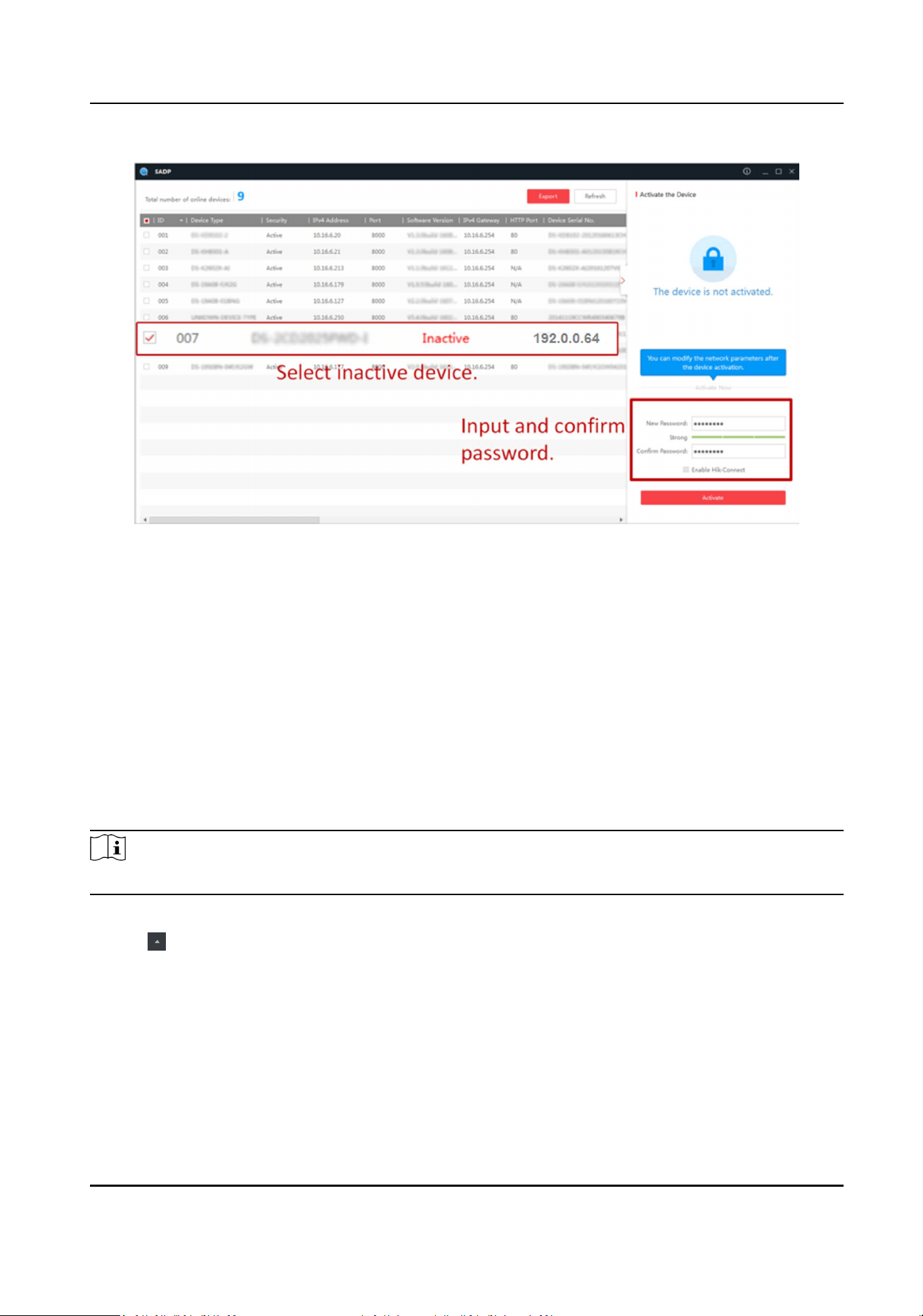
Status of the device becomes Acve aer successful acvaon.
5.
Modify IP address of the device.
1) Select the device.
2) Change the device IP address to the same subnet as your computer by either modifying the IP
address manually or checking Enable DHCP.
3) Input the admin password and click Modify to acvate your IP address modicaon.
6.2 Acvate Device via iVMS-4200 Client Soware
For some devices, you are required to create the password to acvate them before they can be
added to the iVMS-4200 soware and work properly.
Steps
Note
This funcon should be supported by the device.
1.
Enter the Device Management page.
2.
Click on the right of Device Management and select Device.
3.
Click Online Device to show the online device area.
The searched online devices are displayed in the list.
4.
Check the device status (shown on Security Level column) and select an inacve device.
5.
Click Acvate to open the Acvaon dialog.
6.
Create a password in the password eld, and conrm the password.
DS-K3G501SX Series Tripod Turnsle User Manual
28

Cauon
The password strength of the device can be automacally checked. We highly recommend you
change the password of your own choosing (using a minimum of 8 characters, including at least
three kinds of following categories: upper case leers, lower case leers, numbers, and special
characters) in order to increase the security of your product. And we recommend you change
your password regularly, especially in the high security system, changing the password monthly
or weekly can beer protect your product.
Proper conguraon of all passwords and other security sengs is the responsibility of the
installer and/or end-user.
Note
Characters containing admin and nimda are not supported to be set as acvaon password.
7.
Click OK to acvate the device.
DS-K3G501SX Series Tripod Turnsle User Manual
29
Chapter 7 Client Soware Conguraon
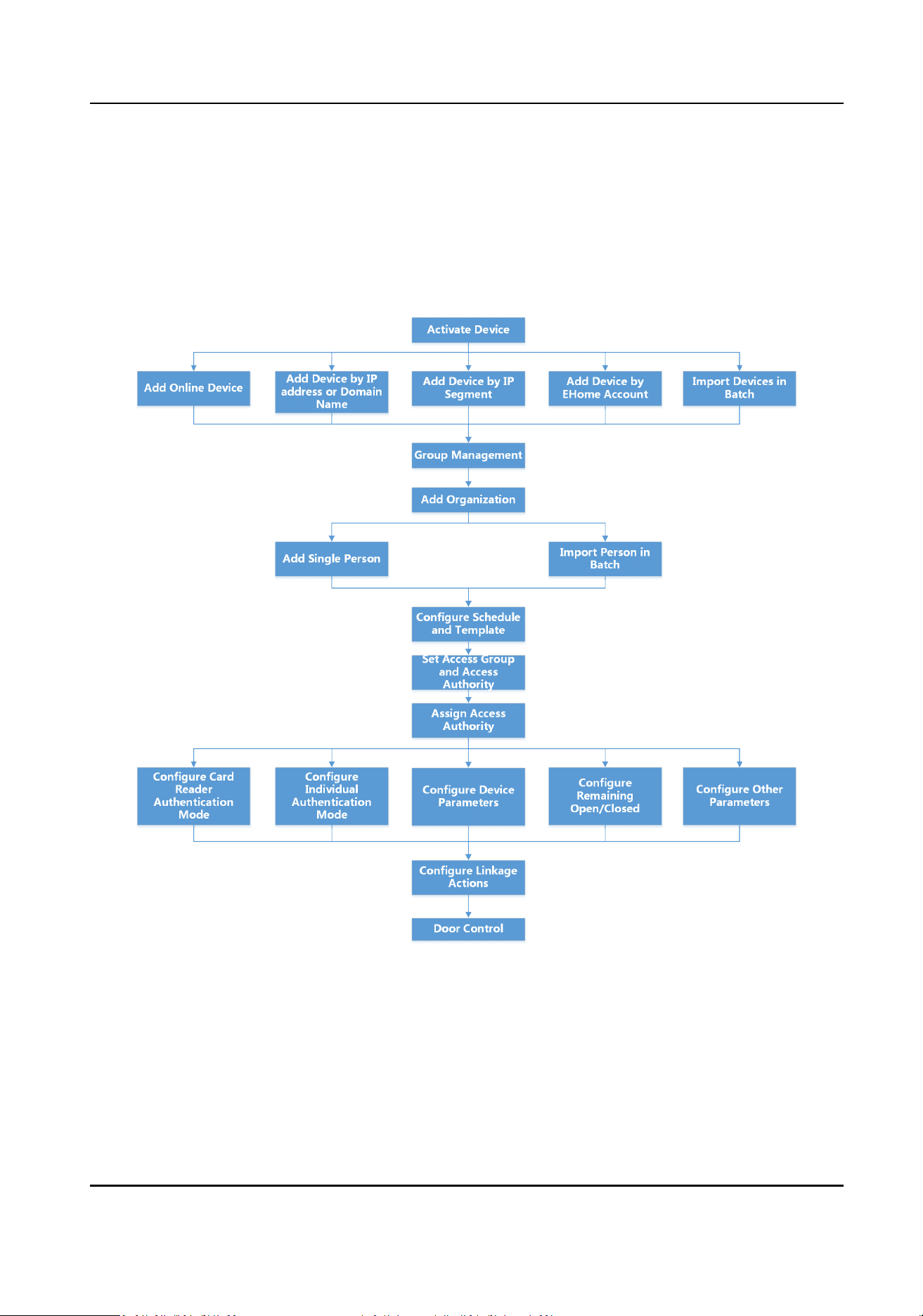
7.1 Conguraon Flow of Client Soware
Follow the ow diagram below to congure on the client soware.
Figure 7-1 Flow Diagram of Conguraon on Client Soware
7.2 Device Management
The client supports managing access control devices and video intercom devices.
DS-K3G501SX Series Tripod Turnsle User Manual
30

Example
You can control entrance & exit and manage aendance aer adding access control devices to the
client; you can perform video intercom with the indoor staons and door staons.
7.2.1 Add Device
The client provides three device adding modes including by IP/domain, IP segment, and ISUP
protocol. The client also supports imporng mulple devices in a batch when there are large
amount of devices to be added.
Add Online Device
The acve online devices in the same local subnet with the client soware will be displayed on the
Online Device area. You can click Refresh Every 60s to refresh the informaon of the online
devices.
Add Single Online Device
You can add single online device to the client soware.
Steps
1.
Enter the Device Management module.
2.
Oponal: Click on the right of Device Management and select Device.
3.
Click Online Device to show the online device area.
The searched online devices are displayed in the list.
4.
Select an online device from the Online Device area.
Note
For the inacve device, you need to create the password for it before you can add the device
properly. For detailed steps, refer to Acvaon .
5.
Click Add to open the device adding window.
6.
Enter the required informaon.
Name
Enter a descripve name for the device.
Address
The IP address of the device is obtained automacally in this adding mode.
Port
The port number is obtained automacally.
User Name
By default, the user name is admin.
DS-K3G501SX Series Tripod Turnsle User Manual
31

Password
Enter the device password.
Cauon
The password strength of the device can be automacally checked. We highly recommend
you change the password of your own choosing (using a minimum of 8 characters, including
at least three kinds of following categories: upper case leers, lower case leers, numbers,
and special characters) in order to increase the security of your product. And we recommend
you change your password regularly, especially in the high security system, changing the
password monthly or weekly can beer protect your product.
Proper conguraon of all passwords and other security sengs is the responsibility of the
installer and/or end-user.
7.
Oponal: Check Synchronize Time to synchronize the device me with the PC running the client
aer adding the device to the client.
8.
Oponal: Check Import to Group to create a group by the device name.
Note
You can import all the channels of the device to the corresponding group by default.
9.
Click OK to add the device.
Add Mulple Online Devices
You can add mulple online devices to the client soware.
Steps
1.
Enter the Device Management module.
2.
Click
on the right of Device Management and select Device.
3.
Click Online Device to show the online device area.
The searched online devices are displayed in the list.
4.
Select mulple devices.
Note
For the inacve device, you need to create the password for it before you can add the device
properly. For detailed steps, refer to Acvaon .
5.
Click Add to open the device adding window.
6.
Enter the required informaon.
User Name
By default, the user name is admin.
Password
Enter the device password.
DS-K3G501SX Series Tripod Turnsle User Manual
32

Cauon
The password strength of the device can be automacally checked. We highly recommend
you change the password of your own choosing (using a minimum of 8 characters, including
at least three kinds of following categories: upper case leers, lower case leers, numbers,
and special characters) in order to increase the security of your product. And we recommend
you change your password regularly, especially in the high security system, changing the
password monthly or weekly can beer protect your product.
Proper conguraon of all passwords and other security sengs is the responsibility of the
installer and/or end-user.
7.
Oponal: Check Synchronize Time to synchronize the device me with the PC running the client
aer adding the devices to the client.
8.
Oponal: Check Import to Group to create a group by the device name.
Note
You can import all the channels of the device to the corresponding group by default.
9.
Click OK to add the devices.
Add Device by IP Address or Domain Name
When you know the IP address or domain name of the device to add, you can add devices to the
client by specifying the IP address (or domain name), user name, password, etc.
Steps
1.
Enter Device Management module.
2.
Click Device tab on the top of the right panel.
The added devices are displayed on the right panel.
3.
Click Add to open the Add window, and then select IP/Domain as the adding mode.
4.
Enter the required informaon.
Name
Create a descripve name for the device. For example, you can use a nickname that can show
the locaon or feature of the device.
Address
The IP address or domain name of the device.
Port
The devices to add share the same port number. The default value is 8000.
User Name
Enter the device user name. By default, the user name is admin.
Password
Enter the device password.
DS-K3G501SX Series Tripod Turnsle User Manual
33
Cauon
The password strength of the device can be automacally checked. We highly recommend
you change the password of your own choosing (using a minimum of 8 characters, including
at least three kinds of following categories: upper case leers, lower case leers, numbers,
and special characters) in order to increase the security of your product. And we recommend
you change your password regularly, especially in the high security system, changing the
password monthly or weekly can beer protect your product.
Proper conguraon of all passwords and other security sengs is the responsibility of the
installer and/or end-user.
5.
Oponal: Add the oine devices.
1) Check Add Oine Device.
2) Enter the required informaon, including the device channel number and alarm input
number.
Note
When the oine device comes online, the soware will connect it automacally.
6.
Check Synchronize Time to synchronize the device me with the PC running the client aer
adding the device to the client.
7.
Oponal: Check Import to Group to create a group by the device name.
8.
Finish adding the device.
-
Click Add to add the device and back to the device list page.
-
Click Add and Connue to save the sengs and connue to add other device.
9.
Oponal: Perform the following operaon(s).
Remote
Conguraon
Click
on Operaon column to set remote conguraon of the
corresponding device.
Note
For detail operaon steps for the remote conguraon, see the user
manual of the device.
Device Status Click on Operaon column to view device status, including cameras,
recording status, signal status, hardware status, etc.
Edit Device
Informaon
Click
on Operaon column to edit the device informaon, such as IP
address, user name, and password.
Check Online User Click
on Operaon column to check the online users who access the
device, such as user name, user type, user's IP address, and login me.
Refresh Click
on Operaon column to get the latest device informaon.
Delete Device Select one or mulple devices and click Delete to delete the selected
device(s) from the client.
DS-K3G501SX Series Tripod Turnsle User Manual
34

Add Devices by IP Segment
If the devices share the same port No., user name and password, and their IP addresses are
sharing an IP segment. You can specify the start IP address and the end IP address, port No., user
name, password, etc of the devices to add them to the client.
Steps
1.
Enter the Device Management module.
2.
Click Device tab on the top of the right panel.
The added devices are displayed on the right panel.
3.
Click Add to open the Add window.
4.
Select IP Segment as the adding mode.
5.
Enter the required informaon.
Start IP
Enter a start IP address.
End IP
Enter an end IP address in the same network segment with the start IP.
Port
Enter the device port No. The default value is 8000.
User Name
By default, the user name is admin.
Password
Enter the device password.
Cauon
The password strength of the device can be automacally checked. We highly recommend
you change the password of your own choosing (using a minimum of 8 characters, including
at least three kinds of following categories: upper case leers, lower case leers, numbers,
and special characters) in order to increase the security of your product. And we recommend
you change your password regularly, especially in the high security system, changing the
password monthly or weekly can beer protect your product.
Proper conguraon of all passwords and other security sengs is the responsibility of the
installer and/or end-user.
6.
Oponal: Add the oine devices.
1) Check Add Oine Device.
2) Enter the required informaon, including the device channel number and alarm input
number.
Note
When the oine device comes online, the soware will connect it automacally.
DS-K3G501SX Series Tripod Turnsle User Manual
35

7.
Check Synchronize Time to synchronize the device me with the PC running the client aer
adding the device to the client.
8.
Oponal: Check Import to Group to create a group by the device name.
9.
Finish adding the device.
-
Click Add to add the device and back to the device list page.
-
Click Add and Connue to save the sengs and connue to add other device.
10.
Oponal: Perform the following operaon(s).
Remote
Conguraon
Click
on Operaon column to set remote conguraon of the
corresponding device.
Note
For detail operaon steps for the remote conguraon, see the user
manual of the device.
Device Status Click on Operaon column to view device status, including
cameras, recording status, signal status, hardware status, etc.
Edit Device
Informaon
Click
on Operaon column to edit the device informaon, such as
IP address, user name, and password.
Check Online User Click
on Operaon column to check the online users who access
the device, such as user name, user type, user's IP address, and
login me.
Refresh Click
on Operaon column to get the latest device informaon.
Delete Device Select one or mulple devices and click Delete to delete the
selected device(s) from the client.
Import Devices in a Batch
You can add mulple devices to the client in a batch by entering the device parameters in a pre-
dened CSV le.
Steps
1.
Enter the Device Management module.
2.
Click Device tab on the top of the right panel.
3.
Click Add to open the Add window, and then select Batch Import as the adding mode.
4.
Click Export Template and then save the pre-dened template (CSV le) on your PC.
5.
Open the exported template le and enter the required informaon of the devices to be added
on the corresponding column.
Note
For detailed descripon of the required elds, refer to the introducons in the template.
DS-K3G501SX Series Tripod Turnsle User Manual
36

Adding Mode
Enter 0 or 1 or 2.
Address
Edit the address of the device.
Port
Enter the device port number. The default port number is 8000.
User Name
Enter the device user name. By default, the user name is admin.
Password
Enter the device password.
Cauon
The password strength of the device can be automacally checked. We highly recommend
you change the password of your own choosing (using a minimum of 8 characters, including
at least three kinds of following categories: upper case leers, lower case leers, numbers,
and special characters) in order to increase the security of your product. And we recommend
you change your password regularly, especially in the high security system, changing the
password monthly or weekly can beer protect your product.
Proper conguraon of all passwords and other security sengs is the responsibility of the
installer and/or end-user.
Import to Group
Enter 1 to create a group by the device name. All the channels of the device will be imported
to the corresponding group by default. Enter 0 to disable this funcon.
6.
Click and select the template le.
7.
Click Add to import the devices.
8.
Oponal: Perform the following operaon(s).
Remote
Conguraon
Click
on Operaon column to set remote conguraon of the
corresponding device.
Note
For detail operaon steps for the remote conguraon, see the user
manual of the device.
Device Status Click on Operaon column to view device status, including cameras,
recording status, signal status, hardware status, etc.
Edit Device
Informaon
Click
on Operaon column to edit the device informaon, such as IP
address, user name, and password.
Check Online User Click
on Operaon column to check the online users who access the
device, such as user name, user type, user's IP address, and login me.
DS-K3G501SX Series Tripod Turnsle User Manual
37

Refresh Click on Operaon column to get the latest device informaon.
Delete Device Select one or mulple devices and click Delete to delete the selected
device(s) from the client.
7.2.2 Reset Device Password
If you forgot the password of the detected online devices, you can reset the device password via
the client.
Steps
1.
Enter Device Management page.
2.
Click Online Device to show the online device area.
All the online devices sharing the same subnet will be displayed in the list.
3.
Select the device from the list and click
on the Operaon column.
4.
Reset the device password.
-
Click Generate to pop up the QR Code window and click Download to save the QR code to
your PC. You can also take a photo of the QR code to save it to your phone. Send the picture
to our technical support.
Note
For the following operaons for reseng the password, contact our technical support.
Cauon
The password strength of the device can be automacally checked. We highly recommend you
change the password of your own choosing (using a minimum of 8 characters, including at least
three kinds of following categories: upper case leers, lower case leers, numbers, and special
characters) in order to increase the security of your product. And we recommend you change
your password regularly, especially in the high security system, changing the password monthly
or weekly can beer protect your product.
Proper conguraon of all passwords and other security sengs is the responsibility of the
installer and/or end-user.
7.3 Group Management
The client provides groups to manage the added resources in dierent groups. You can group the
resources into dierent groups according to the resources' locaons.
Example
For example, on the 1st oor, there mounted 16 doors, 64 alarm inputs, and 16 alarm outputs. You
can organize these resources into one group (named 1st Floor) for convenient management. You
can control door status, and do some other operaons of the devices aer managing the resources
by groups.
DS-K3G501SX Series Tripod Turnsle User Manual
38

7.3.1 Add Group
You can add group to organize the added device for convenient management.
Steps
1.
Enter the Device Management module.
2.
Click Device Management → Group to enter the group management page.
3.
Create a group.
-
Click Add Group and enter a group name as you want.
-
Click Create Group by Device Name and select an added device to create a new group by the
name of the selected device.
Note
The resources (such as alarm inputs/outputs, access points, etc.) of this device will be
imported to the group by default.
7.3.2 Import Resources to Group
You can import the device resources (such as alarm inputs/outputs, access points, etc.) to the
added group in a batch.
Before You Start
Add a group for managing devices. Refer to
Add Group .
Steps
1.
Enter the Device Management module.
2.
Click Device Management → Group to enter the group management page.
3.
Select a group from the group list and select the resource type as Access Point, Alarm Input,
Alarm Output, etc.
4.
Click Import.
5.
Select the thumbnails/names of the resources in the thumbnail/list view.
Note
You can click or to switch the resource display mode to thumbnail view or to list view.
6.
Click Import to import the selected resources to the group.
7.3.3 Edit Resource Parameters
Aer imporng the resources to the group, you can edit the resource parameters. For access point,
you can edit the access point name. For alarm input, you can edit the alarm input name. Here we
take access point as an example.
DS-K3G501SX Series Tripod Turnsle User Manual
39

Before You Start
Import the resources to group.
Steps
1.
Enter the Device Management module.
2.
Click Device Management → Group to enter the group management page.
All the added groups are displayed on the le.
3.
Select a group on the group list and click Access Point.
The access points imported to the group will display.
4.
Click in the Operaon column to open the Edit Resource window.
5.
Edit the resource name.
6.
Click OK to save the new sengs.
7.3.4 Remove Resources from Group
You can remove the added resources from the group.
Steps
1.
Enter the Device Management module.
2.
Click Device Management → Group to enter the group management page.
All the added groups are displayed on the le.
3.
Click a group to show the resources added to this group.
4.
Select the resource(s) and click Delete to remove the resource(s) from the group.
7.4 Person Management
You can add person informaon to the system for further operaons such as access control, video
intercom, me and aendance, etc. You can manage the added persons such as issuing cards to
them in a batch, imporng and exporng person informaon in a batch, etc.
7.4.1 Add Organizaon
You can add an organizaon and import person informaon to the organizaon for eecve
management of the persons. You can also add a surbodinate organizaon for the added one.
Steps
1.
Enter Person module.
2.
Select a parent organizaon in the le column and click Add in the upper-le corner to add an
organizaon.
3.
Create a name for the added organizaon.
DS-K3G501SX Series Tripod Turnsle User Manual
40

Note
Up to 10 levels of organizaons can be added.
4.
Oponal: Perform the following operaon(s).
Edit Organizaon Hover the mouse on an added organizaon and click
to edit its name.
Delete
Organizaon
Hover the mouse on an added organizaon and click
to delete it.
Note
●
The lower-level organizaons will be deleted as well if you delete an
organizaon.
●
Make sure there is no person added under the organizaon, or the
organizaon cannot be deleted.
Show Persons in
Sub Organizaon
Check Show Persons in Sub Organizaon and select an organizaon to
show persons in its sub organizaons.
7.4.2 Congure Basic Informaon
You can add person to the client one by one and congure the person's basic informaon such as
name, email, phone number, etc.
Steps
1.
Enter Person module.
2.
Select an organizaon in the organizaon list to add the person.
3.
Click Add to open the adding person window.
The Person ID will be generated automacally.
4.
Enter the basic informaon including person name, telephone number, email address, validity
period, etc.
5.
Conrm to add the person.
-
Click Add to add the person and close the Add Person window.
-
Click Add and New to add the person and connue to add other persons.
7.4.3 Issue a Card by Local Mode
If a card enrollment staon is available, you can issue a card by local mode. To read the card
number, you should connect the card enrollment staon to the PC running the client by USB
interface or COM, and place the card on the card enrollment staon.
Steps
1.
Enter Person module.
2.
Select an organizaon in the organizaon list to add the person and click Add to enter Add
Person panel.
DS-K3G501SX Series Tripod Turnsle User Manual
41
Note
Enter the person's basic informaon rst. For details about conguring person's basic
informaon, refer to Congure Basic Informaon .
3.
In the Credenal → Card area, click +.
4.
Click Sengs to enter the Sengs page.
5.
Select Local as the card issuing mode.
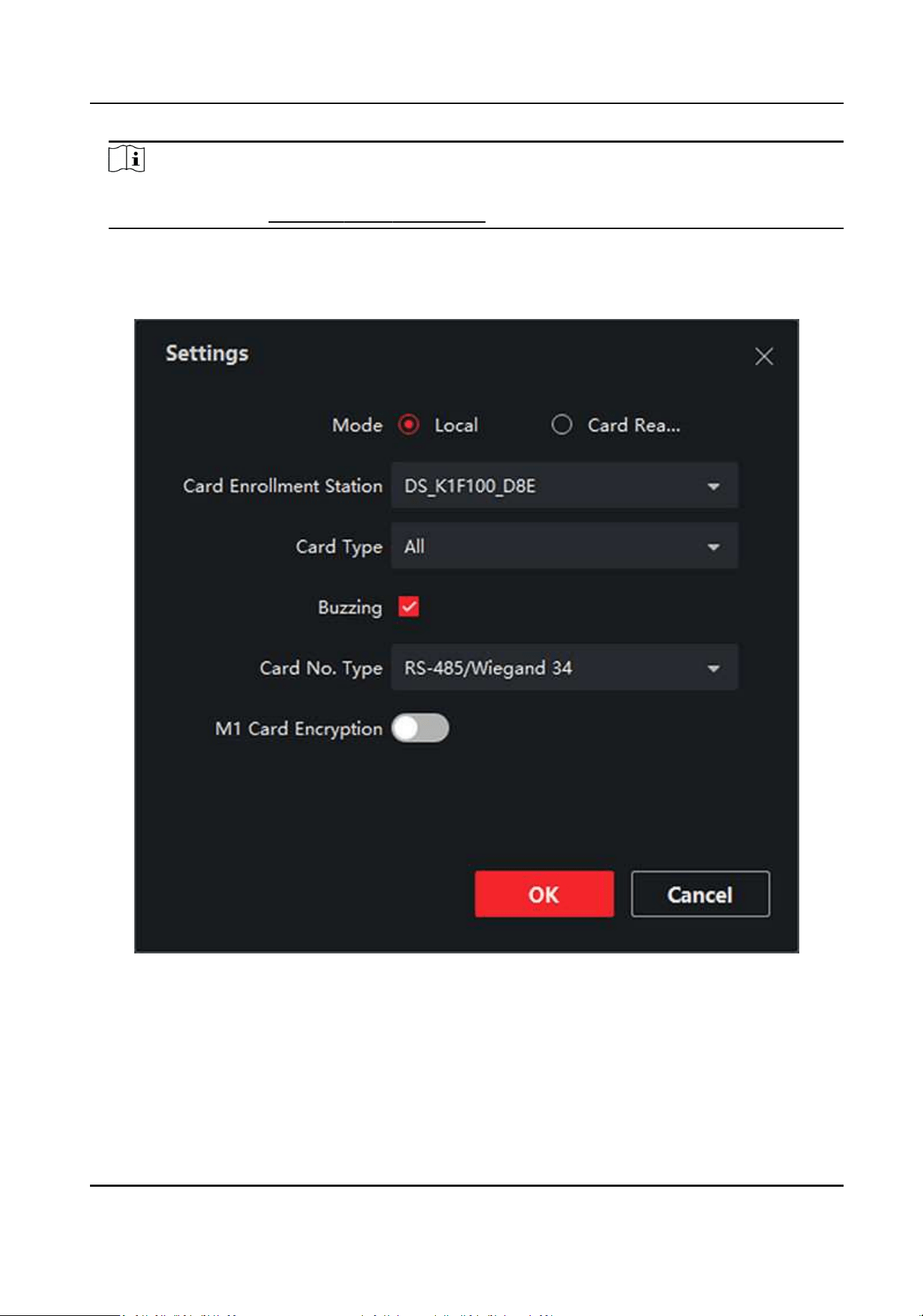
Figure 7-2 Issue a Card by Local Mode
6.
Set other related parameters.
Card Enrollment Staon
Select the model of the connected card enrollment staon.
DS-K3G501SX Series Tripod Turnsle User Manual
42

Note
Currently, the supported card enrollment staon models include DS-K1F100-D8, DS-K1F100-
M, DS-K1F100-D8E, and DS-K1F180-D8E.
Card Type
This eld is only available when the model is DS-K1F100-D8E or DS-K1F180-D8E. Select the
card type as EM card or Mifare card according to the actual card type.
Buzzing
Enable or disable the buzzing when the card number is read successfully.
Card No. Type
Select the type of the card number according to actual needs.
M1 Card Encrypon
This eld is only available when the model is DS-K1F100-D8, DS-K1F100-D8E, or DS-K1F180-
D8E. If the card is M1 card, then you can enable the M1 Card Encrypon funcon and select
the sector of the card to encrypt.
7.
Click OK to conrm the operaon.
8.
Place the card on the card enrollment staon, and click Read to get the card number.
The card number will display in the Card No. eld automacally.
9.
Click Add.
The card will be issued to the person.
7.4.4 Upload a Face Photo from Local PC
When adding person, you can upload a face photo stored in local PC to the client as the person's
prole.
Steps
1.
Enter Person module.
2.
Select an organizaon in the organizaon list to add the person and click Add.
Note
Enter the person's basic informaon rst. For details about conguring person's basic
informaon, refer to Congure Basic Informaon .
3.
Click Add Face in the Basic Informaon panel.
4.
Select Upload.
5.
Select a picture from the PC running the client.
Note
The picture should be in JPG or JPEG format and smaller than 200 KB.
DS-K3G501SX Series Tripod Turnsle User Manual
43

6.
Oponal: Enable Verify by Device to check whether the facial recognion device managed in
the client can recognize the face in the photo.
7.
Conrm to add the person.
-
Click Add to add the person and close the Add Person window.
-
Click Add and New to add the person and connue to add other persons .
7.4.5 Take a Photo via Client
When adding a person, you can take a photo of the her/him via the client and set this photo as the
person's prole.
Before You Start
Make sure PC running the client has a camera or you have connected other USB camera to the PC.
Steps
1.
Enter Person module.
2.
Select an organizaon in the organizaon list to add the person and click Add to enter Add
Person window.
Note
Enter the person's basic informaon rst. For details, refer to Congure Basic Informaon .
3.
Click Add Face in the Basic Informaon area.
4.
Select Take Photo to enter Take Photo window.
5.
Oponal: Enable Verify by Device to check whether the captured face photo can meet the
uploading requirements.
6.
Take a photo.
1) Face to the camera and make sure your face is in the middle of the collecng window.
2) Click to capture a face photo.
3) Oponal: Click to capture again.
4) Click OK to save the captured photo.
DS-K3G501SX Series Tripod Turnsle User Manual
44
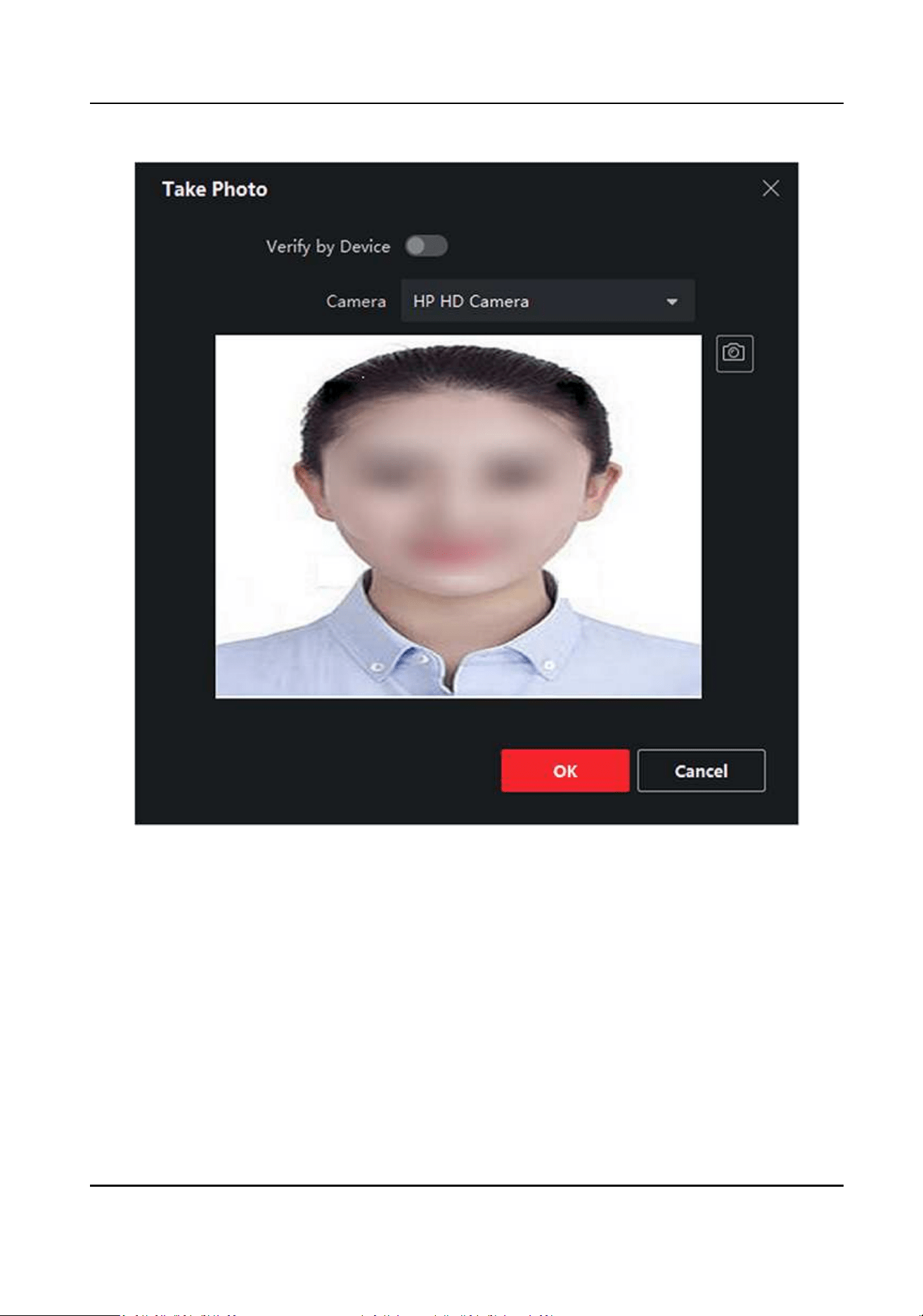
Figure 7-3 Take a Photo via Client
7.
Conrm to add the person.
-
Click Add to add the person and close the Add Person window.
-
Click Add and New to add the person and connue to add other persons.
7.4.6 Collect Face via Access Control Device
When adding person, you can collect the person's face via access control device added to the client
which supports facial recognion funcon.
Steps
1.
Enter Person module.
DS-K3G501SX Series Tripod Turnsle User Manual
45

2.
Select an organizaon in the organizaon list to add the person and click Add.
Note
Enter the person's basic informaon rst. For details about conguring person's basic
informaon, refer to Congure Basic Informaon .
3.
Click Add Face in the Basic Informaon panel.
4.
Select Remote Collecon.
5.
Select an access control device which supports face recognion funcon from the drop-down
list.
6.
Collect face.
1) Face to the camera of the selected access control device and make sure your face is in the
middle of the collecng window.
2) Click to capture a photo.
3) Click OK to save the captured photo.
7.
Conrm to add the person.
-
Click Add to add the person and close the Add Person window.
-
Click Add and New to add the person and connue to add other persons .
7.4.7 Collect Fingerprint via Client
Collecng ngerprints locally means you can collect the ngerprint via the ngerprint recorder
connected directly to the PC running the client. The ngerprints recorded can be used as
credenals of the persons to access the authorized doors.
Before You Start
Connect the ngerprint recorder to the PC running the client.
Steps
1.
Enter Person module.
2.
Select an organizaon in the organizaon list to add the person and click Add.
Note
Enter the person's basic informaon rst. For details about conguring person's basic
informaon, refer to Congure Basic Informaon .
3.
In the Credenal → Fingerprint panel, click +.
4.
In the pop-up window, select the collecon mode as Local.
5.
Select the model of the connected ngerprint recorder.
Note
If the ngerprint recorder is DS-K1F800-F, you can click Sengs to select the COM the
ngerprint recorder connects to.
6.
Collect the ngerprint.
1) Click Start.
DS-K3G501SX Series Tripod Turnsle User Manual
46
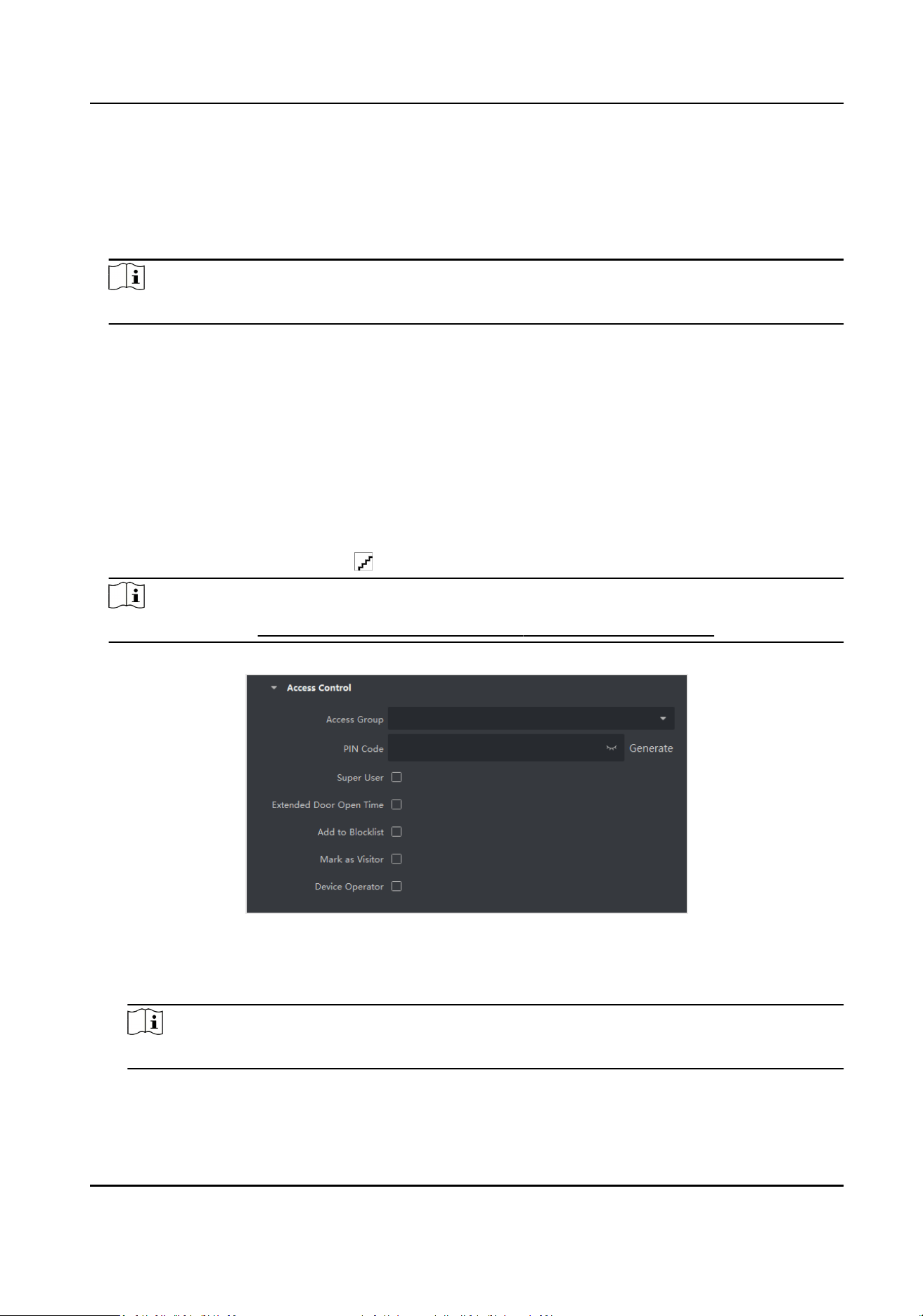
2) Place and li your ngerprint on the ngerprint recorder to collect the ngerprint.
3) Click Add to save the recorded ngerprint.
7.
Conrm to add the person.
-
Click Add to add the person and close the Add Person window.
-
Click Add and New to add the person and connue to add other persons.
Note
Once the ngerprint is added, the ngerprint type cannot be changed.
7.4.8 Congure Access Control Informaon
When adding a person, you can set her/his access control informaon, such as binding an access
control group with the person, conguring PIN code, seng the person as a visitor, a blocklist
person, or a super user, etc.
Steps
1.
Enter Person module.
2.
Select an organizaon in the organizaon list to add the person and click Add.
3.
In the Access Control area, click to select access group(s) for the person.
Note
For details, refer to Set Access Group to Assign Access Authorizaon to Persons .
Figure 7-4 Congure Access Control Informaon
4.
Set a unique PIN code for the person which can be used for access authencaon.
-
Manually enter a PIN code containing 4 to 8 digits.
Note
Persons' PIN codes cannot be repeated.
-
Click Generate to randomly generate an unrepeated PIN code of 6 digits.
DS-K3G501SX Series Tripod Turnsle User Manual
47

Note
If there are repeated PIN codes, a prompt will pop up on the client. The admin can generate a
new PIN code to replace the repeated PIN code and nofy related persons.
5.
Check the person's operaon permissions.
Super User
If the person is set as a super user, he/she will have authorizaon to access all the doors/
oors and will be exempted from remaining closed restricons, all an-passback rules, and
rst person authorizaon.
Extended Door Open Time
Use this funcon for persons with reduced mobility. When accessing the door, the person will
have more me than others to pass through doors.
For details about seng the door's open duraon, refer to Congure Parameters for Door .
Add to Blocklist
Add the person to the blocklist and when the person tries to access doors/oors, an event
will be triggered and sent to the client to nofy the security personnel.
Mark as Visitor
If the person is a visitor, you should set the her/his valid mes for visit.
Note
The valid mes for visit is between 1 and 100. You can also check No Limit, then there are no
limited mes for the visitor to access doors/oors.
Device Operator
For person with device operator role, he/she is authorized to operate on the access control
devices.
Note
The Super User, Extended Door Open Time, Add to Blocklist, and Mark as Visitor funcons
cannot be enabled concurrently. For example, if one person is set as super user, you cannot
enable extended door open me for her/him, add her/him to the blocklist, or set her/him as
visitor.
6.
Conrm to add the person.
-
Click Add to add the person and close the Add Person window.
-
Click Add and New to add the person and connue to add other persons.
7.4.9 Customize Person Informaon
You can customize the person properes which are not pre-dened in the client according to actual
needs, e.g., place of birth. Aer customizing, when add a person, you can enter the custom
informaon to make the person informaon complete.
DS-K3G501SX Series Tripod Turnsle User Manual
48

Steps
1.
Enter Person module.
2.
Set the elds of custom informaon.
1) Click Custom Property.
2) Click Add to add a new property.
3) Enter the property name.
4) Click OK.
3.
Set the custom informaon when adding a person.
1) Select an organizaon in the organizaon list to add the person and click Add.
Note
Enter the person's basic informaon rst. For details about conguring person's basic
informaon, refer to Congure Basic Informaon .
2) In the Custom Informaon panel, enter the person informaon.
3) Click Add to add the person and close the Add Person window, or click Add and New to add
the person and connue to add other persons.
7.4.10 Congure Resident Informaon
If the person is resident, for video intercom purpose, you need to set the room number for
her/him and bind an indoor staon. Aer bound, you can call this person by calling the indoor
staon and perform video intercom with her/him.
Steps
1.
Enter Person module.
2.
Select an organizaon in the organizaon list to add the person and click Add.
Note
Enter the person's basic informaon rst. For details about conguring person's basic
informaon, refer to Congure Basic Informaon .
3.
In the Resident Informaon panel, select the indoor staon to bind it to the person.
Note
If you select Analog Indoor Staon, the Door Staon eld will display and you are required to
select the door staon to communicate with the analog indoor staon.
4.
Enter the oor No. and room No. of the person.
5.
Conrm to add the person.
-
Click Add to add the person and close the Add Person window.
-
Click Add and New to add the person and connue to add other persons.
DS-K3G501SX Series Tripod Turnsle User Manual
49

7.4.11 Congure Addional Informaon
When adding person, you can congure the addional informaon for the person, such as person's
identy type, identy No., country, etc., according to actual needs.
Steps
1.
Enter Person module.
2.
Select an organizaon in the organizaon list to add the person and click Add.
Note
Enter the person's basic informaon rst. For details about conguring person's basic
informaon, refer to Congure Basic Informaon .
3.
In the Addional Informaon panel, enter the addional informaon of the person, including
person's ID type, ID No., job tle, etc., according to actual needs.
4.
Conrm to add the person.
-
Click Add to add the person and close the Add Person window.
-
Click Add and New to add the person and connue to add other persons .
7.4.12 Import and Export Person Idenfy Informaon
You can import the informaon and pictures of mulple persons to the client soware in a batch.
Meanwhile, you can also export the person informaon and pictures and save them in your PC.
7.4.13 Import Person Informaon
You can enter the informaon of mulple persons in a predened template (a CSV le) to import
the informaon to the client in a batch.
Steps
1.
Enter the Person module.
2.
Select an added organizaon in the list, or click Add in the upper-le corner to add an
organizaon and then select it.
3.
Click Import to open the Import panel.
4.
Select Person Informaon as the imporng mode.
5.
Click Download Template for Imporng Person to download the template.
6.
Enter the person informaon in the downloaded template.
Note
●
If the person has mulple cards, separate the card No. with semicolon.
●
Items with asterisk are required.
●
By default, the Hire Date is the current date.
7.
Click to select the CSV le with person informaon.
DS-K3G501SX Series Tripod Turnsle User Manual
50

8.
Click Import to start imporng.
Note
●
If a person No. already exists in the client's database, delete the exisng informaon before
imporng.
●
You can import informaon of no more than 10,000 persons.
7.4.14 Import Person Pictures
Aer imporng face pictures for the added persons to the client, the persons in the pictures can be
idened by an added face recognion terminal. You can either import person pictures one by
one, or import mulple pictures at a me according to your need.
Before You Start
Be sure to have imported person informaon to the client beforehand.
Steps
1.
Enter the Person module.
2.
Select an added organizaon in the list, or click Add in the upper-le corner to add an
organizaon and then select it.
3.
Click Import to open the Import panel and check Face.
4.
Oponal: Enable Verify by Device to check whether face recognion device managed in the
client can recognize the face in the photo.
5.
Click to select a face picture le.
Note
●
The (folder of) face pictures should be in ZIP format.
●
Each picture le should be in JPG format and should be no larger than 200 KB.
●
Each picture le should be named as "Person ID_Name". The Person ID should be the same
with that of the imported person informaon.
6.
Click Import to start imporng.
The imporng progress and result will be displayed.
7.4.15 Export Person Informaon
You can export the added persons' informaon to local PC as a CSV le.
Before You Start
Make sure you have added persons to an organizaon.
Steps
1.
Enter the Person module.
2.
Oponal: Select an organizaon in the list.
DS-K3G501SX Series Tripod Turnsle User Manual
51

Note
All persons' informaon will be exported if you do not select any organizaon.
3.
Click Export to open the Export panel and check Person Informaon as the content to export.
4.
Check desired items to export.
5.
Click Export to save the exported CSV le in your PC.
7.4.16 Export Person Pictures
You can export face picture le of the added persons and save in your PC.
Before You Start
Make sure you have added persons and their face pictures to an organizaon.
Steps
1.
Enter the Person module.
2.
Oponal: Select an organizaon in the list.
Note
All persons' face pictures will be exported if you do not select any organizaon.
3.
Click Export to open the Export panel and check Face as the content to export.
4.
Click Export to start exporng.
Note
●
The exported le is in ZIP format.
●
The exported face picture is named as "Person ID_Name_0" ("0" is for a full-frontal face).
7.4.17 Get Person Informaon from Access Control Device
If the added access control device has been congured with person informaon (including person
details, ngerprint, and issued card informaon), you can get the person informaon from the
device and import them to the client for further operaons.
Steps
Note
●
If the person name stored in the device is empty, the person name will be lled with the issued
card No. aer imporng to the client.
●
If the card number or person ID (employee ID) stored on the device already exists in the client
database, the person with this card number or person ID will not be imported to the client.
1.
Enter Person module.
2.
Select an organizaon to import the persons.
3.
Click Get from Device.
DS-K3G501SX Series Tripod Turnsle User Manual
52

4.
Select the access control device from the drop-down list.
5.
Click Get to start imporng the person informaon to the client.
The person informaon, including person details, person's ngerprint informaon (if
congured), and the linked cards (if congured), will be imported to the selected organizaon.
7.4.18 Move Persons to Another Organizaon
You can move the added persons to another organizaon if you need.
Before You Start
●
Make sure you have added at least two organizaons.
●
Make sure you have imported person informaon.
Steps
1.
Enter Person module.
2.
Select an organizaon in the le panel.
The persons under the organizaon will be displayed in the right panel.
3.
Select the person to move.
4.
Click Change Organizaon.
5.
Select the organizaon to move persons to.
6.
Click OK.
7.4.19 Issue Cards to Persons in Batch
The client provides a convenient way to issue cards to mulple persons in a batch.
Steps
1.
Enter Person module.
2.
Click Batch Issue Cards.
All the added persons with no card issued will be displayed in the right panel.
3.
Oponal: Enter key words (name or person ID) in the input box to lter the person(s) that need
issuing cards.
4.
Oponal: Click Sengs to set the card issuing parameters. For details, refer to .
5.
Click Inialize to inialize the card enrollment staon or card reader to make it ready for issuing
cards.
6.
Click the Card No. column and enter the card number.
-
Place the card on the card enrollment staon.
-
Swipe the card on the card reader.
-
Manually enter the card number and press the Enter key.
The person(s) in the list will be issued with card(s).
DS-K3G501SX Series Tripod Turnsle User Manual
53

7.4.20 Report Card Loss
If the person lost his/her card, you can report the card loss so that the card's related access
authorizaon will be inacve.
Steps
1.
Enter Person module.
2.
Select the person you want to report card loss for and click Edit to open the Edit Person window.
3.
In the Credenal → Card panel, click on the added card to set this card as lost card.
Aer reporng card loss, the access authorizaon of this card will be invalid and inacve. Other
person who gets this card cannot access the doors by swiping this lost card.
4.
Oponal: If the lost card is found, you can click to cancel the loss.
Aer cancelling card loss, the access authorizaon of the person will be valid and acve.
5.
If the lost card is added in one access group and the access group is applied to the device
already, aer reporng card loss or cancelling card loss, a window will pop up to nofy you to
apply the changes to the device. Aer applying to device, these changes can take eect on the
device.
7.4.21 Set Card Issuing Parameters
The client provides two modes for reading a card's number: via card enrollment staon or via the
card reader of the access control device. If a card enrollment staon is available, connect it to the
PC running the client by USB interface or COM, and place the card on the card enrollment to read
the card number. If not, you can also swipe the card on the card reader of the added access control
device to get the card number. As a result, before issuing a card to one person, you need to set the
card issuing parameters including the issuing mode and related parameters.
When adding a card to one person, click Sengs to open the Card Issuing Sengs window.
Local Mode: Issue Card by Card Enrollment Staon
Connect a card enrollment staon to the PC running the client. You can place the card on the card
enrollment staon to get the card number.
Card Enrollment Staon
Select the model of the connected card enrollment staon
Note
Currently, the supported card enrollment staon models include DS-K1F100-D8, DS-K1F100-M,
DS-K1F100-D8E, and DS-K1F180-D8E.
Card Type
This eld is only available when the model is DS-K1F100-D8E or DS-K1F180-D8E.
Select the card type as EM card or IC card according to the actual card type.
DS-K3G501SX Series Tripod Turnsle User Manual
54

Serial Port
It is only available when the model is DS-K1F100-M.
Select the COM the card enrollment staon connects to.
Buzzing
Enable or disable the buzzing when the card number is read successfully.
Card No. Type
Select the type of the card number according to actual needs.
M1 Card Encrypon
This eld is only available when the model is DS-K1F100-D8, DS-K1F100-D8E, or DS-K1F180-D8E.
If the card is M1 card, and if you need to enable the M1 Card Encrypon funcon, you should
enable this funcon and select the sector of the card to encrypt.
Remote Mode: Issue Card by Card Reader
Select an access control device added in the client and swipe the card on its card reader to read
the card number.
7.5 Congure Schedule and Template
You can congure the template including holiday and week schedule. Aer seng the template,
you can adopt the congured template to access groups when seng the access groups, so that
the access group will take eect in the me duraons of the template.
Note
For access group sengs, refer to Set Access Group to Assign Access Authorizaon to Persons .
7.5.1 Add Holiday
You can create holidays and set the days in the holidays, including start date, end date, and holiday
duraon in one day.
Steps
Note
You can add up to 64 holidays in the soware system.
1.
Click Access Control → Schedule → Holiday to enter the Holiday page.
2.
Click Add on the le panel.
3.
Create a name for the holiday.
4.
Oponal: Enter the descripons or some nocaons of this holiday in the Remark box.
5.
Add a holiday period to the holiday list and congure the holiday duraon.
DS-K3G501SX Series Tripod Turnsle User Manual
55

Note
Up to 16 holiday periods can be added to one holiday.
1) Click Add in the Holiday List eld.
2) Drag the cursor to draw the me duraon, which means in that duraon of me, the
congured access group is acvated.
Note
Up to 8 me duraons can be set to one holiday period.
3) Oponal: Perform the following operaons to edit the me duraons.
●
Move the cursor to the me duraon and drag the me duraon on the meline bar to the
desired posion when the cursor turns to .
●
Click the me duraon and directly edit the start/end me in the appeared dialog.
●
Move the cursor to the start or the end of me duraon and drag to lengthen or shorten
the me duraon when the cursor turns to .
4) Oponal: Select the me duraon(s) that need to be deleted, and then click in the
Operaon column to delete the selected me duraon(s).
5) Oponal: Click in the Operaon column to clear all the me duraon(s) in the me bar.
6) Oponal: Click in the Operaon column to delete this added holiday period from the
holiday list.
6.
Click Save.
7.5.2 Add Template
Template includes week schedule and holiday. You can set week schedule and assign the me
duraon of access authorizaon for dierent person or group. You can also select the added
holiday(s) for the template.
Steps
Note
You can add up to 255 templates in the soware system.
1.
Click Access Control → Schedule → Template to enter the Template page.
Note
There are two default templates: All-Day Authorized and All-Day Denied, and they cannot be
edited or deleted.
All-Day Authorized
The access authorizaon is valid in each day of the week and it has no holiday.
All-Day Denied
DS-K3G501SX Series Tripod Turnsle User Manual
56

The access authorizaon is invalid in each day of the week and it has no holiday.
2.
Click Add on the le panel to create a new template.
3.
Create a name for the template.
4.
Enter the descripons or some nocaon of this template in the Remark box.
5.
Edit the week schedule to apply it to the template.
1) Click Week Schedule tab on the lower panel.
2) Select a day of the week and draw me duraon(s) on the meline bar.
Note
Up to 8 me duraon(s) can be set for each day in the week schedule.
3) Oponal: Perform the following operaons to edit the me duraons.
●
Move the cursor to the me duraon and drag the me duraon on the meline bar to the
desired posion when the cursor turns to .
●
Click the me duraon and directly edit the start/end me in the appeared dialog.
●
Move the cursor to the start or the end of me duraon and drag to lengthen or shorten
the me duraon when the cursor turns to .
4) Repeat the two steps above to draw more me duraons on the other days of the week.
6.
Add a holiday to apply it to the template.
Note
Up to 4 holidays can be added to one template.
1) Click Holiday tab.
2) Select a holiday in the le list and it will be added to the selected list on the right panel.
3) Oponal: Click Add to add a new holiday.
Note
For details about adding a holiday, refer to Add Holiday .
4) Oponal: Select a selected holiday in the right list and click to remove the selected one, or
click Clear to clear all the selected holiday(s) in the right list.
7.
Click Save to save the sengs and nish adding the template.
7.6 Set Access Group to Assign Access Authorizaon to Persons
Aer adding the person and conguring the person's credenals, you can create the access groups
to dene which person(s) can get access to which door(s) and then apply the access group to the
access control device to take eect.
DS-K3G501SX Series Tripod Turnsle User Manual
57

Before You Start
●
Add person to the client.
●
Add access control device to the client and group access points. For details, refer to Group
Management .
●
Add template.
Steps
When the access group sengs are changed, you need to apply the access groups to the devices
again to take eect. The access group changes include changes of template, access group sengs,
person's access group sengs, and related person details (including card number, ngerprint, face
picture, linkage between card number and ngerprint, linkage between card number and
ngerprint, card password, card eecve period, etc).
1.
Click Access Control → Authorizaon → Access Group to enter the Access Group interface.
2.
Click Add to open the Add window.
3.
In the Name text eld, create a name for the access group as you want.
4.
Select a template for the access group.
Note
You should congure the template before access group sengs. Refer to Congure Schedule
and Template for details.
5.
In the le list of the Select Person eld, select person(s) to assign access authority.
6.
In the le list of the Select Access Point eld, select door(s), door staon(s) or oor(s) for the
selected persons to access.
7.
Click Save.
You can view the selected person(s) and the selected access point(s) on the right side of the
interface.
DS-K3G501SX Series Tripod Turnsle User Manual
58
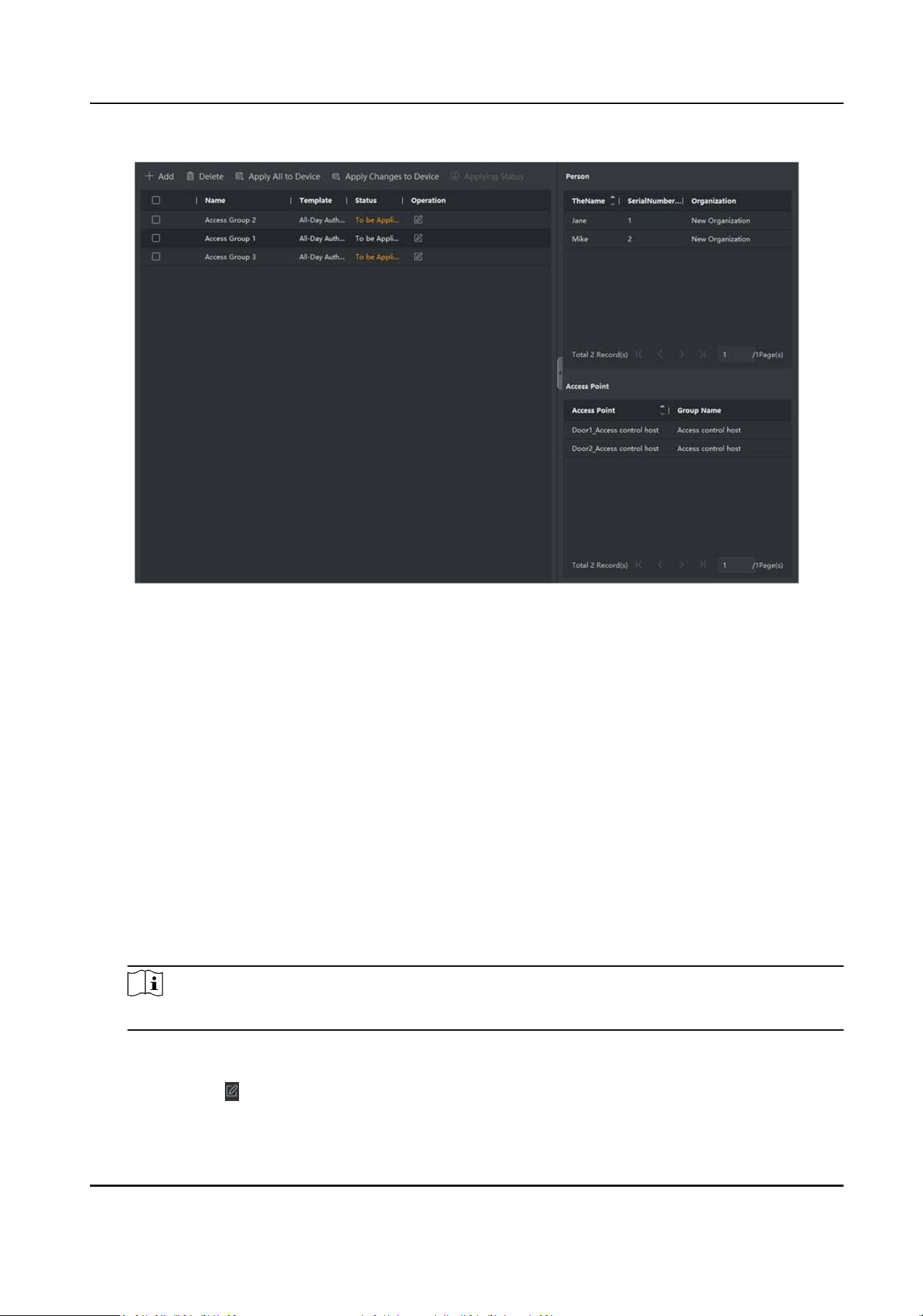
Figure 7-5 Display the Selected Person(s) and Access Point(s)
8.
Aer adding the access groups, you need to apply them to the access control device to take
eect.
1) Select the access group(s) to apply to the access control device.
2) Click Apply All to Devices start applying all the selected access group(s) to the access control
device or door staon.
3) Click Apply All to Devices or Apply Changes to Devices.
Apply All to Devices
This operaon will clear all the existed access groups of the selected devices and then
apply the new access group to the device.
Apply Changes to Devices
This operaon will not clear the existed access groups of the selected devices and only
apply the changed part of the selected access group(s) to the device(s).
4) View the applying status in the Status column or click Applying Status to view all the applied
access group(s).
Note
You can check Display Failure Only to lter the applying results.
The selected persons in the applied access groups will have the authorizaon to enter/exit the
selected doors/door staons with their linked card(s) or ngerprints.
9.
Oponal: Click to edit the access group if necessary.
DS-K3G501SX Series Tripod Turnsle User Manual
59
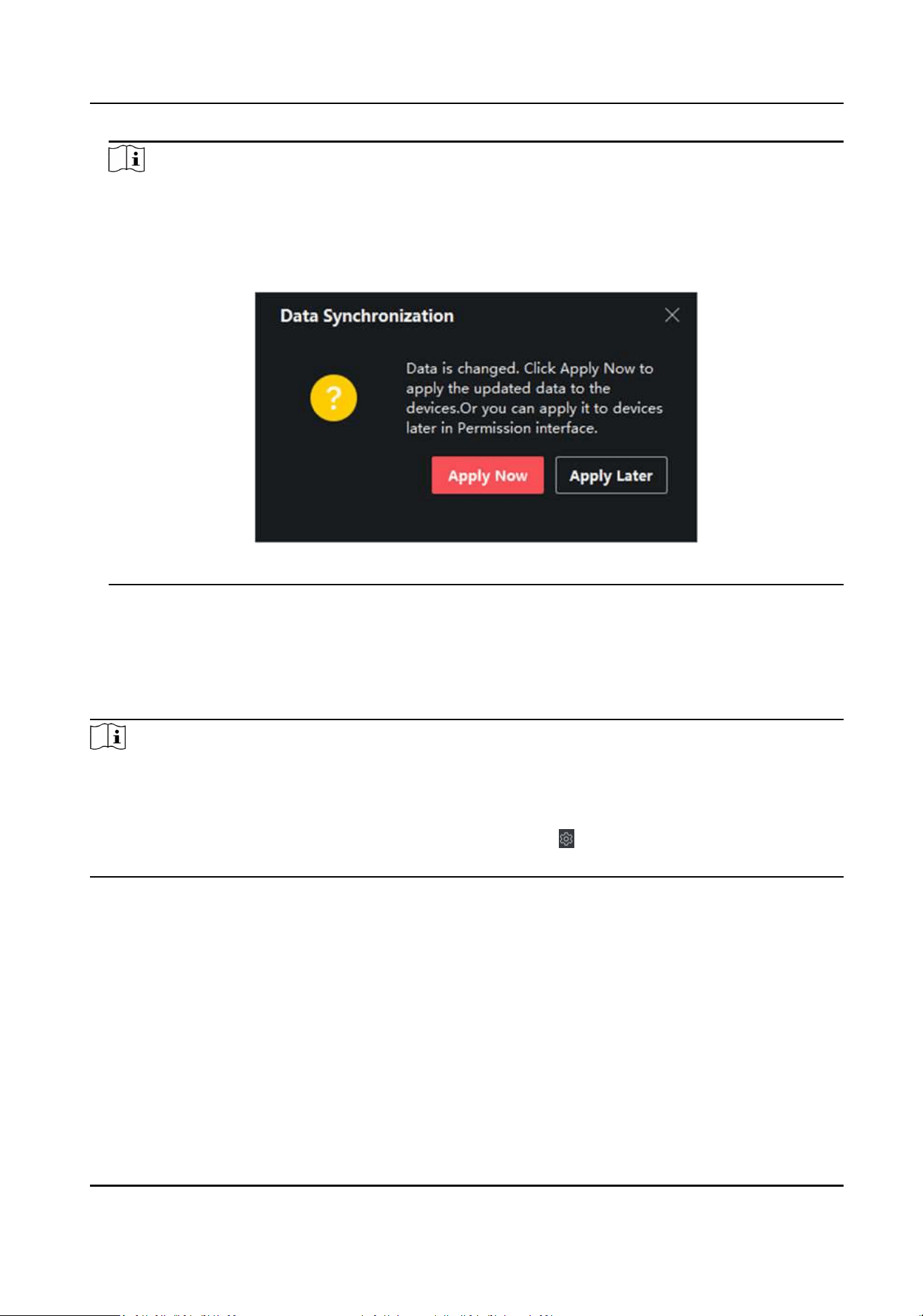
Note
If you change the persons' access informaon or other related informaon, you will view the
promptAccess Group to Be Applied on the right corner of the client.
You can click the prompt to apply the changed data to the device. You can select either Apply
Now or Apply Later.
Figure 7-6 Data Synchronizaon
7.7 Congure Advanced Funcons
You can congure the advanced funcons of access control to meet some special requirements in
dierent scene.
Note
●
For the card related funcons(the type of access control card), only the card(s) with access group
applied will be listed when adding cards.
●
The advanced funcons should be supported by the device.
●
Hover the cursor on the Advanced Funcon, and then Click to customize the advanced
funcon(s) to be displayed.
7.7.1 Congure Device Parameters
Aer adding the access control device, you can congure the parameters of access control device
(access controller), access control points (door or oor), alarm inputs, alarm outputs, card readers
and lane controller.
DS-K3G501SX Series Tripod Turnsle User Manual
60

Congure Parameters for Access Control Device
Aer adding the access control device, you can congure its parameters.
Steps
1.
Click Access Control → Advanced Funcon → Device Parameter .
Note
If you can nd Device Parameter in the Advanced Funcon list, Hover the cursor on the
Advanced Funcon, and then Click to select the Device Parameter to be displayed.
2.
Select an access device to show its parameters on the right page.
3.
Turn the switch to ON to enable the corresponding funcons.
Note
The displayed parameters may vary for dierent access control devices.
RS-485 Communicaon Redundancy
You should enable this funcon if you wire the RS-485 card reader to the access control
device redundantly.
Enable NFC
If enable the funcon, the device can recognize the NFC card. You can present NFC card on
the device.
Enable M1 Card
If enable the funcon, the device can recognize the M1 card. You can present M1 card on the
device.
Enable EM Card
If enable the funcon, the device can recognize the EM card. You can present EM card on the
device.
Enable CPU Card
Reserved. If enable the funcon, the device can recognize the CPU card. You can present CPU
card on the device.
Enable ID Card
Reserved. If enable the funcon, the device can recognize the ID card. You can present ID
card on the device.
4.
Click OK.
5.
Oponal: Click Copy to, and then select the access control device(s) to copy the parameters in
the page to the selected device(s).
DS-K3G501SX Series Tripod Turnsle User Manual
61

Congure Parameters for Door
Aer adding the access control device, you can congure its access point door parameters.
Steps
1.
Click Access Control → Advanced Funcon → Device Parameter .
2.
Select an access control device on the le panel, and then click to show the doors or oors of
the selected device.
3.
Select a door or oor to show its parameters on the right page.
4.
Edit the door or oor parameters.
Note
s
The displayed parameters may vary for dierent access control devices.
Name
Edit the card reader name as desired.
Exit Buon Type
You can set the exit buon as remaining closed or remaining open. Usually, it is remaining
open.
Open Duraon
Aer swiping the normal card and relay acon, the me for locking the door starts working.
Door Le Open Timeout Alarm
The alarm can be triggered if the door has not been closed in a congured me period. If it is
set as 0, no alarm will be triggered.
Super Password
The specic person can open the door by inpung the super password.
5.
Some of the following parameters are not listed in the Basic Informaon page, click Advanced to
edit the parameters.
Duress Code
The door can open by inpung the duress code when there is duress. At the same me, the
client can report the duress event.
Dismiss Code
Create a dismiss code which can be used to stop the buzzer of the card reader (by entering
the dismiss code on the keypad).
DS-K3G501SX Series Tripod Turnsle User Manual
62

Note
●
The duress code, super code, and dismiss code should be dierent.
●
The duress code, super password, and the dismiss code should be dierent from the
authencaon password.
●
The length of duress code, super password, and the dismiss code is according the device,
usually it should contains 4 to 8 digits.
6.
Click OK.
7.
Oponal: Click Copy to , and then select the door(s) to copy the parameters in the page to the
selected doors(s).
Note
The door's status duraon sengs will be copied to the selected door(s) as well.
Congure Parameters for Card Reader
Aer adding the access control device, you can congure its card reader parameters.
Steps
1.
Click Access Control → Advanced Funcon → Device Parameter .
2.
In the device list on the le, click to expand the door, select a card reader and you can edit the
card reader's parameters on the right.
3.
Edit the card reader basic parameters in the Basic Informaon page.
Note
The displayed parameters may vary for dierent access control devices. There are part of
parameters listed as follows. Refer to the user manual of the device for more details.
Name
Edit the card reader name as desired.
Minimum Card Swiping Interval
If the interval between card swiping of the same card is less than the set value, the card
swiping is invalid. You can set it as 0 to 255.
Alarm of Max. Failed Aempts
Enable to report alarm when the card reading aempts reach the set value.
Card Reader Type/Card Reader Descripon
Get card reader type and descripon. They are read-only.
4.
Oponal: Some of the following parameters are not listed in the Basic Informaon page, click
Advanced to edit the parameters.
Enable Card Reader
DS-K3G501SX Series Tripod Turnsle User Manual
63

If enabling the funcon, user can present card on the card reader. If disabling the funcon,
the card reader for entrance cannot be used.
OK LED Polarity/Error LED Polarity/Buzzer Polarity
Set OK LED Polarity/Error LED Polarity/Buzzer LED Polarity of main board according to the
card reader parameters. Generally, adopts the default sengs.
Buzzing Time
Set the card reader buzzing me. The available me ranges from 0 to 5,999s. 0 represents
connuous buzzing.
Max. Interval When Entering PWD
When you inpung the password on the card reader, if the interval between pressing two
digits is larger than the set value, the digits you pressed before will be cleared automacally.
Tampering Detecon
Enable the an-tamper detecon for the card reader.
Communicate with Controller Every
When the access control device cannot connect with the card reader for longer than the set
me, the card reader will turn oine automacally.
Fingerprint Recognion Level
Select the ngerprint recognion level in the drop-down list.
5.
Click OK.
6.
Oponal: Click Copy to, and then select the card reader(s) to copy the parameters in the page to
the selected card reader(s).
Congure Parameters for Alarm Output
Aer adding the access control device, if the device links to alarm outputs, you can congure the
parameters.
Before You Start
Add access control device to the client, and make sure the device supports alarm output.
Steps
1.
Click Access Control → Advanced Funcon → Device Parameter to enter access control
parameter conguraon page.
2.
In the device list on the le, click
to expand the door, select an alarm input and you can edit
the alarm input's parameters on the right.
3.
Set the alarm output parameters.
Name
Edit the card reader name as desired.
Alarm Output Acve Time
How long the alarm output will last aer triggered.
DS-K3G501SX Series Tripod Turnsle User Manual
64

4.
Click OK.
5.
Oponal: Set the switch on the upper right corner to ON to trigger the alarm output.
Congure Parameters for Lane Controller
Aer adding the lane controller to the client, you can congure its parameters for passing through
the lane.
Steps
1.
Click Access Control → Advanced Funcon → Device Parameter to enter Parameter Sengs
page.
2.
In the device list on the le, select a lane controller and you can edit the lane controller's
parameters on the right.
3.
Edit the parameters.
Passing Mode
Select the controller which will control the barrier status of the device.
Note
You can select either According to Device's Passing Mode or According to Door's Schedule
Sengs.
●
If you select According to Device's Passing Mode, the device will follow the lane
controller's passing mode, which can be congured in remote control sengs page, to
control the barrier.
●
If you select According to Door's Schedule Sengs, the device will follow the sengs of
the soware to control the barrier.
Audible Prompt Duraon
Set how long the audio will last, which is played when an alarm is triggered .
Note
0 refers to the alarm audio will be played unl the alarm is ended.
Temperature Unit
Select the temperature unit that displayed in the device status.
Lightboard Brightness
Set the strip light brightness.
4.
Click OK.
7.7.2 Congure Remaining Open/Closed
You can set the status of the door as open or closed. For example, you can set the door remaining
closed in the holiday, and set the door remaining open in the specied period of the work day.
DS-K3G501SX Series Tripod Turnsle User Manual
65

Before You Start
Add the access control devices to the system.
Steps
1.
Click Access Control → Advanced Funcon → Remain Open/Closed to enter the Remain Open/
Closed page.
2.
Select the door that need to be congured on the le panel.
3.
To set the door status during the work day, click the Week Schedule and perform the following
operaons.
1) Click Remain Open or Remain Closed.
2) Drag the cursor to draw the me duraon, which means in that duraon of me, the
congured access group is acvated.
Note
Up to 8 me duraons can be set to each day in the week schedule.
3) Oponal: Perform the following operaons to edit the me duraons.
●
Move the cursor to the me duraon and drag the me duraon on the meline bar to the
desired posion when the cursor turns to .
●
Click the me duraon and directly edit the start/end me in the appeared dialog.
●
Move the cursor to the start or the end of me duraon and drag to lengthen or shorten
the me duraon when the cursor turns to .
4) Click Save.
Related Operaons
Copy to Whole
Week
Select one duraon on the me bar, click Copy to Whole Week to copy all
the duraon sengs on this me bar to other week days.
Delete Selected Select one duraon on the me bar, click Delete Selected to delete this
duraon.
Clear Click Clear to clear all the duraon sengs in the week schedule.
4.
To set the door status during the holiday, click the Holiday and perform the following operaons.
1) Click Remain Open or Remain Closed.
2) Click Add.
3) Enter the start date and end date.
4) Drag the cursor to draw the me duraon, which means in that duraon of me, the
congured access group is acvated.
Note
Up to 8 me duraons can be set to one holiday period.
5) Perform the following operaons to edit the me duraons.
DS-K3G501SX Series Tripod Turnsle User Manual
66

●
Move the cursor to the me duraon and drag the me duraon on the meline bar to the
desired posion when the cursor turns to .
●
Click the me duraon and directly edit the start/end me in the appeared dialog.
●
Move the cursor to the start or the end of me duraon and drag to lengthen or shorten
the me duraon when the cursor turns to .
6) Oponal: Select the me duraon(s) that need to be deleted, and then click in the
Operaon column to delete the selected me duraon(s).
7) Oponal: Click in the Operaon column to clear all the me duraon(s) in the me bar.
8) Oponal: Click in the Operaon column to delete this added holiday period from the
holiday list.
9) Click Save.
5.
Oponal: Click Copy to to copy the door status sengs of this door to other door(s).
7.7.3 Congure Mul-Factor Authencaon
You can manage the persons by group and set the authencaon for mulple persons of one
access control point (door).
Before You Start
Set access group and apply the access group to the access control device. For details, refer to Set
Access Group to Assign Access Authorizaon to Persons .
Perform this task when you want to set authencaons for mulple cards of one access control
point (door).
Steps
1.
Click Access Control → Advanced Funcon → Mul-Factor Auth .
2.
Select an access control device in device list on the le panel.
3.
Add a person/card group for the access control device.
1) Click Add on the right panel.
2) Create a name for the group as desired.
3) Specify the start me and end me of the eecve period for the person/card group.
4) Select members(s) and card(s) in the Available list, and the selected member(s) and card(s)
will be added to the Selected list.
Note
Make sure you have issue card to the person.
Make sure you have set access group and apply the access group to the access control device
successfully.
5) Click Save.
6) Oponal: Select the person/card group(s), and then click Delete to delete it(them).
7) Oponal: Select the person/card group(s), and then click Apply to re-apply access group that
failed to be applied previously to the access control device.
4.
Select an access control point (door) of selected device on the le panel.
DS-K3G501SX Series Tripod Turnsle User Manual
67
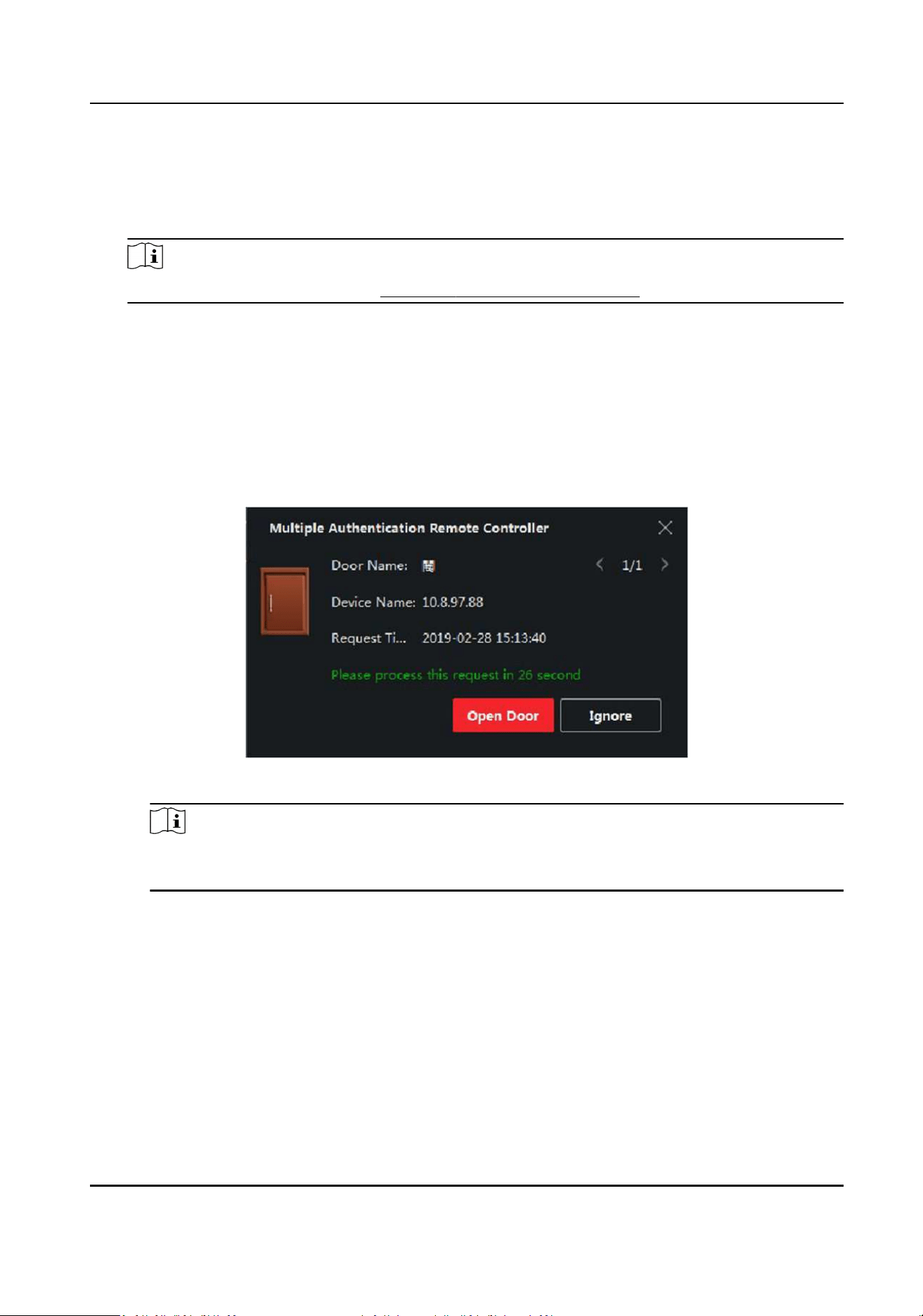
5.
Enter the maximum interval when entering password.
6.
Add an authencaon group for the selected access control point.
1) Click Add on the Authencaon Groups panel.
2) Select a congured template as the authencaon template from the drop-down list.
Note
For seng the template, refer to Congure Schedule and Template .
3) Select the authencaon type as Local Authencaon, Local Authencaon and Remotely
Open Door, or Local Authencaon and Super Password from the drop-down list.
Local Authencaon
Authencaon by the access control device.
Local Authencaon and Remotely Open Door
Authencaon by the access control device and by the client. When the person swipes the
card on the device, a window will pop up. You can unlock the door via the client.
Figure 7-7 Remotely Open Door
Note
You can check Oine Authencaon to enable the super password authencaon when
the access control device is disconnected with the client.
Local Authencaon and Super Password
Authencaon by the access control device and by the super password.
4) Select the added person/card group in the le list below and it will be added to the Selected
list on the right as the authencaon group.
5) Click the added authencaon group in the right list to set authencaon mes in the Auth
Times column.
DS-K3G501SX Series Tripod Turnsle User Manual
68

Note
●
The authencaon mes should be larger than 0 and smaller than the added personnel
quanty in the personnel group.
●
The maximum value of authencaon mes is 16.
6) Click Save.
Note
●
For each access control point (door), up to four authencaon groups can be added.
●
For the authencaon group of which authencaon type is Local Authencaon, up to 8
person/card groups can be added to the authencaon group.
●
For the authencaon group of which authencaon type is Local Authencaon and Super
Password or Local Authencaon and Remotely Open Door, up to 7 person/card groups can
be added to the authencaon group.
7.
Click Save.
7.7.4 Congure Custom Wiegand Rule
Based on the knowledge of uploading rule for the third party Wiegand, you can set mulple
customized Wiegand rules to communicate between the device and the third party card readers.
Before You Start
Wire the third party card readers to the device.
Steps
Note
●
By default, the device disables the custom wiegand funcon. If the device enables the custom
Wiegand funcon, all wiegand interfaces in the device will use the customized wiegand protocol.
●
Up to 5 custom Wiegands can be set.
●
For details about the custom Wiegand, see .
1.
Click Access Control → Advanced Funcon → Custom Wiegand to enter the Custom Wiegand
page.
2.
Select a custom Wiegand on the le.
3.
Create a Wiegand name.
Note
Up to 32 characters are allowed in the custom Wiegand name.
4.
Click Select Device to select the access control device for seng the custom wiegand.
5.
Set the parity mode according to the property of the third party card reader.
DS-K3G501SX Series Tripod Turnsle User Manual
69
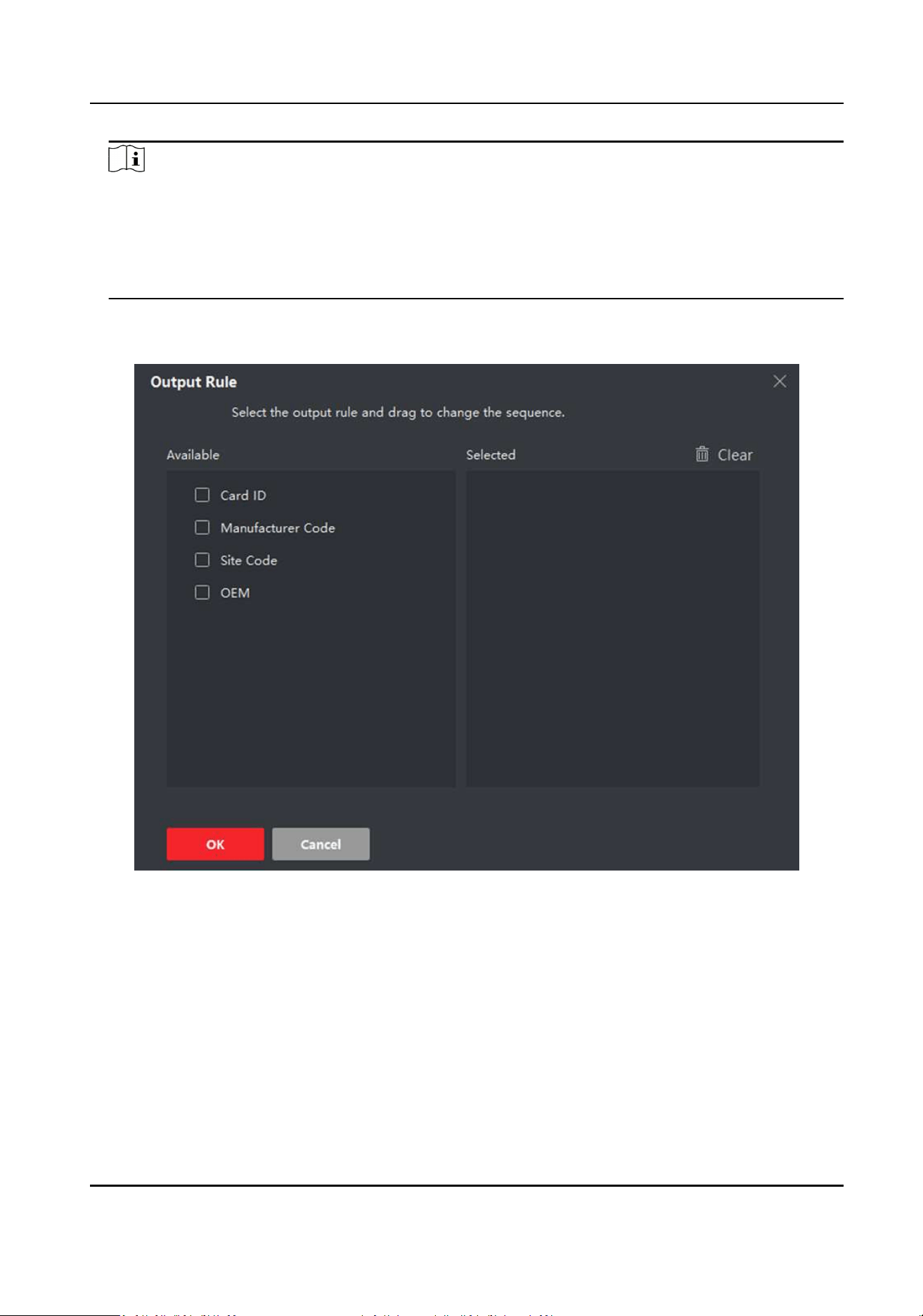
Note
●
Up to 80 bits are allowed in the total length.
●
The odd parity start bit, the odd parity length, the even parity start bit and the even parity
length range from 1 to 80 bit.
●
The start bit of the card ID, the manufacturer code, the site code, and the OEM should range
from 1 to 80 bit.
6.
Set output transformaon rule.
1) Click Set Rule to open the Set Output Transformaon Rules window.
Figure 7-8 Set Output Transformaon Rule
2) Select rules on the le list.
The selected rules will be added to the right list.
3) Oponal: Drag the rules to change the rule order.
4) Click OK.
5) In the Custom Wiegand tab, set the rule's start bit, length, and the decimal digit.
7.
Click Save.
DS-K3G501SX Series Tripod Turnsle User Manual
70

7.7.5 Congure Card Reader Authencaon Mode and Schedule
You can set the passing rules for the card reader of the access control device according to your
actual needs.
Steps
1.
Click Access Control → Advanced Funcon → Authencaon to enter the authencaon mode
conguraon page.
2.
Select a card reader on the le to congure.
3.
Set card reader authencaon mode.
1) Click Conguraon.
DS-K3G501SX Series Tripod Turnsle User Manual
71
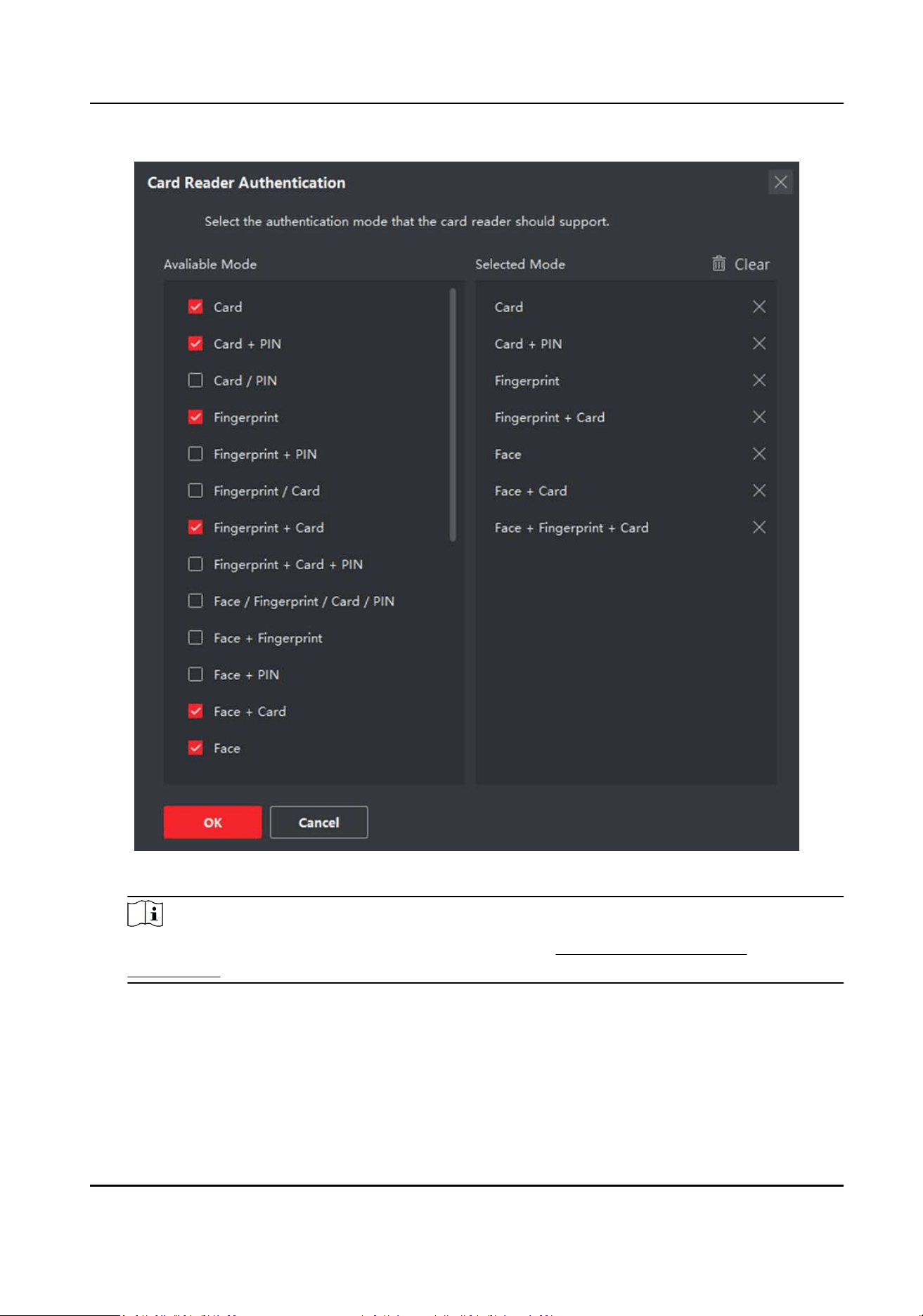
Figure 7-9 Select Card Reader Authencaon Mode
Note
PIN refers to the PIN code set to open the door. Refer to Congure Access Control
Informaon .
2) Check the modes in the Available Mode list and they will be added to the selected modes list.
3) Click OK.
Aer selecng the modes, the selected modes will display as icons with dierent color.
4.
Click the icon to select a card reader authencaon mode, and drag the cursor to draw a color
bar on the schedule, which means in that period of me, the card reader authencaon is valid.
5.
Repeat the above step to set other me periods.
DS-K3G501SX Series Tripod Turnsle User Manual
72
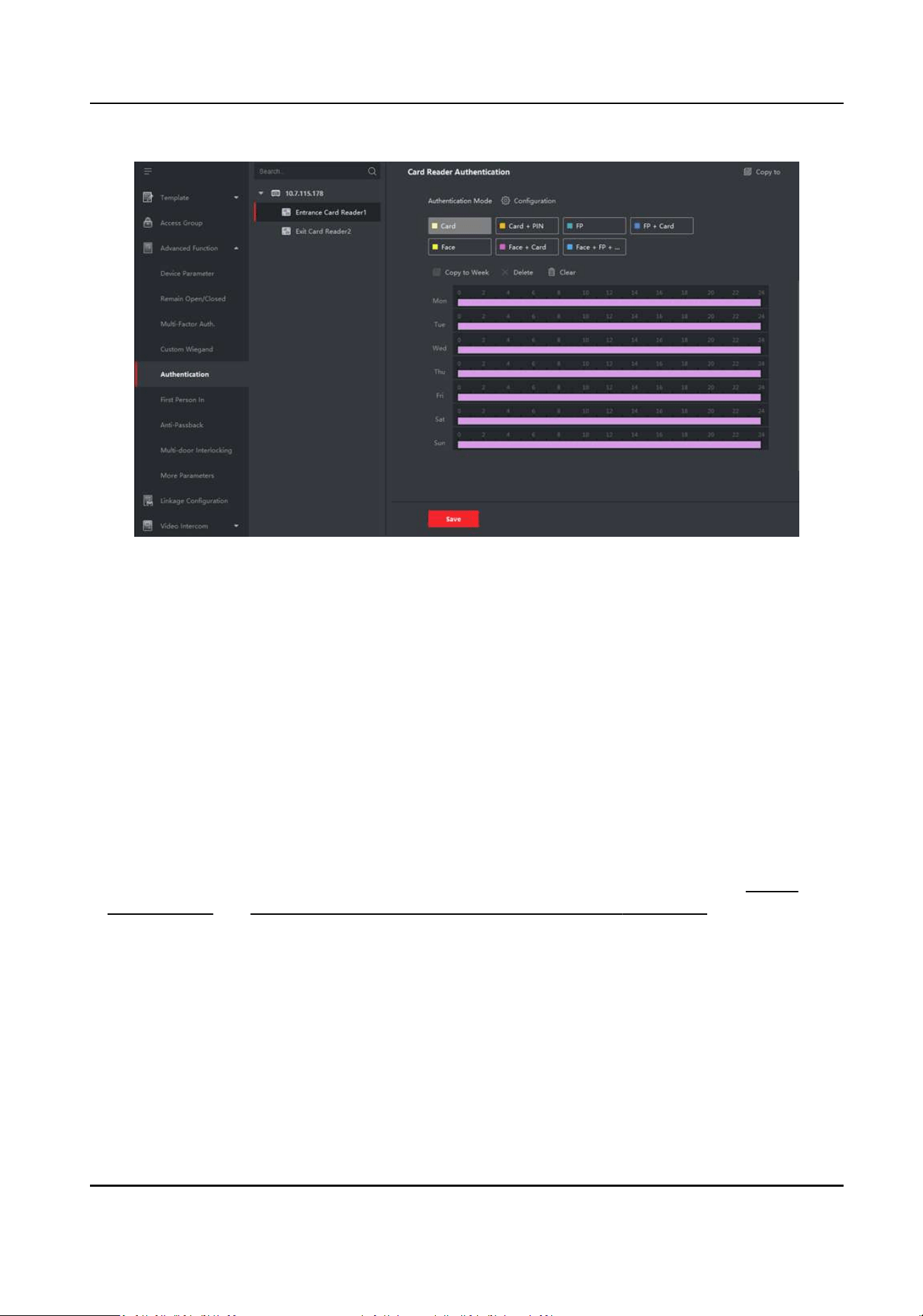
Figure 7-10 Set Authencaon Modes for Card Readers
6.
Oponal: Select a congured day and click Copy to Week to copy the same sengs to the whole
week.
7.
Oponal: Click Copy to to copy the sengs to other card readers.
8.
Click Save.
7.7.6 Congure First Person In
You can set mulple rst persons for one access control point. Aer the rst person is authorized,
it allows mulple persons access the door or other authencaon acons.
Before You Start
●
Add access control device to the client, and make sure the device supports the rst person in
funcon.
●
Add person and assign access authorizaon to designed person. For details, refer to
Person
Management and Set Access Group to Assign Access Authorizaon to Persons .
Steps
1.
Click Access Control → Advanced Funcon → First Person In to enter the First Person In page.
2.
Select an access control device in the list on the le panel.
3.
Select the current mode as Enable Remaining Open aer First Person, Disable Remaining Open
aer First Person, or Authorizaon by First Person from the drop-down list for each access
control point of the selected device.
Enable Remaining Open aer First Person
DS-K3G501SX Series Tripod Turnsle User Manual
73

The door remains open for the congured me duraon aer the rst person is authorized
unl the remain open duraon ends. If you select this mode, you should set the remain open
duraon.
Note
The remain open duraon should be between 0 and 1440 minutes. By default, the remain
open duraon is 10 minutes.
Disable Remaining Open aer First Person
Disable the funcon of rst person in, namely normal authencaon.
Authorizaon by First Person
All authencaons (except for the authencaons of super card, super password, duress
card, and duress code) are allowed only aer the rst person authorizaon.
Note
You can authencate by the rst person again to disable the rst person mode.
4.
Click Add on the First Person List panel.
5.
Select person(s) in the le list and the person(s) will be add to the selected persons as the rst
person(s) of the doors.
The added rst person(s) will list in the First Person List
6.
Oponal: Select a rst person from the list and click Delete to remove the person from the rst
person list.
7.
Click Save.
7.7.7 Congure An-Passback
You can set to only pass the access control point according to the specied path and only one
person could pass the access control point aer swiping the card.
Before You Start
Enable the an-passing back funcon of the access control device.
Perform this task when you want to congure the an-passing back for the access control device.
Steps
Note
Either the an-passing back or mul-door interlocking funcon can be congured for an access
control device at the same me. For the conguraon of mul-door interlocking, refer to .
1.
Click Access Control → Advanced Funcon → An-Passback to enter the An-Passpack Sengs
page.
2.
Select an access control device on the le panel.
3.
Select a card reader as the beginning of the path in the First Card Reader eld.
DS-K3G501SX Series Tripod Turnsle User Manual
74

4.
Click of the selected rst card reader in the Card Reader Aerward column to open the select
card reader dialog.
5.
Select the aerward card readers for the rst card reader.
Note
Up to four aerward card readers can be added as aerward card readers for one card reader.
6.
Click OK in the dialog to save the selecons.
7.
Click Save in the An-Passback Sengs page to save the sengs and take eect.
Example
Set Card Swiping Path
If you select Reader In_01 as the beginning, and select Reader In_02, Reader Out_04 as the linked
card readers. Then you can only get through the access control point by swiping the card in the
order as Reader In_01, Reader In_02 and Reader Out_04.
7.7.8 Congure Device Parameters
Aer adding the access control device, you can set its parameters such as network parameters.
Set RS-485 Parameters
You can set the access control device's RS-485 parameters including the baud rate, data bit, the
stop bit, parity type, ow control type, communicaon mode, work mode, and connecon mode.
Steps
Note
The RS-485 Sengs should be supported by the device.
1.
Enter the Access Control module.
2.
On the navigaon bar on the le, enter Advanced Funcon → More Parameters .
3.
Select an access control device in the device list and click RS-485 to enter the RS-485 Sengs
page.
4.
Select the serial port number from the drop-down list to set the RS-485 parameters.
5.
Set the serial number, peripheral, authencaon center, baud rate, data bit, the stop bit, parity
type, communicaon mode, working mode, and connecon mode in the drop-down list.
6.
Click Save.
●
The congured parameters will be applied to the device automacally.
●
When you change the working mode or connecon mode, the device will reboot
automacally.
DS-K3G501SX Series Tripod Turnsle User Manual
75

Enable M1 Card Encrypon
M1 card encrypon can improve the security level of authencaon.
Steps
Note
The funcon should be supported by the access control device and the card reader.
1.
Enter the Access Control module.
2.
On the navigaon bar on the le, enter Advanced Funcon → More Parameters .
3.
Select an access control device in the device list and click M1 Card Encrypon Vericaon to
enter the M1 Card Encrypon Vericaon page.
4.
Set the switch to on to enable the M1 card encrypon funcon.
5.
Set the sector ID.
Note
●
The sector ID ranges from 1 to 100.
●
By default, Sector 13 is encrypted. It is recommended to encrypt sector 13.
6.
Click Save to save the sengs.
7.8 Congure Linkage Acons for Access Control
You can congure dierent linkage acons for the event detected by the access control device.
Aer that, linkage acons will be triggered once the event happens. This mechanism is used for
nofying the security personnel the event, or triggering automac access control in real me.
Two types of linkage acons are supported:
●
Client Acons: When the event is detected, it will trigger the acons on the client, such as the
client making an audible warning..
●
Device Acons: When the event is detected, it will trigger the acons of a specic device, such
as buzzing of a card reader and, opening/closing of a door, ..
7.8.1 Congure Client Acons for Access Event
Even if you are far away from an access point, you can sll know what happens and how urgent the
event is by conguring linked acons of access event on the client. You will be noed on the client
once an event is triggered, so that you can response to the event instantly. You can also congure
client acons of access points in a batch at a me.
DS-K3G501SX Series Tripod Turnsle User Manual
76

Steps
Note
The linkage acons here refer to the linkage of the client soware's own acons such as audible
warning, email linkage, etc.
1.
Click Event Management → Access Control Event .
The added access control devices will display in the device list.
2.
Select a resource (including device, alarm input, door/elevator, and card reader) from the device
list.
The event types which the selected resource supports will display.
3.
Select the event(s) and click Edit Priority to dene the priority for the event(s), which can be
used to lter events in the Event Center.
4.
Set the linkage acons of the event.
1) Select the event(s) and click Edit Linkage to set the client acons when the events triggered.
Audible Warning
The client soware gives an audible warning when alarm is triggered. You can select the
alarm sound for audible warning.
Note
For seng the alarm sound, please refer to Set Alarm Sound in the user manual of client
soware..
Send Email
Send an email nocaon of the alarm informaon to one or more receivers.
For details about seng email parameters, refer to Set Email Parameters in the user
manual of client soware..
2) Click OK.
5.
Enable the event so that when the event is detected, en event will be sent to the client and the
linkage acons will be triggered.
6.
Oponal: Click Copy to... to copy the event sengs to other access control device, alarm input,
door, or card reader.
7.8.2 Congure Device Acons for Access Event
You can set the access control device's linkage acons for the access control device's triggered
event. Aer that, when an event is triggered, it can trigger the alarm output, buzzer on access
controller, and other acons.
DS-K3G501SX Series Tripod Turnsle User Manual
77

Steps
Note
The linkage acons should be supported by the device.
1.
Click Access Control → Linkage Conguraon .
2.
Select the access control device from the list on the le.
3.
Click Add to add a new linkage.
4.
Select Event Linkage as the event source.
5.
select the event type and detailed event to set the linkage.
6.
In the Linkage Target area, set the property target to enable this acon.
Buzzer on Controller
The audible warning of access control device will be triggered.
Capture
An event-related picture will be captured when the selected event happens.
Recording
An event-related picture will be captured when the selected event happens.
Note
The device should support recording.
Buzzer on Reader
The audible warning of card reader will be triggered.
Alarm Output
The alarm output will be triggered for nocaon when the selected event happens
Alarm Input
Arm or disarm the alarm input.
Note
The device should support alarm input funcon.
Access Point
The door status of open, close, remain open, or remain close will be triggered.
Note
The target door and the source door cannot be the same one.
Audio Play
The audio prompt will be triggered. And the select audio index related audio content will be
played according to the congured play mode.
7.
Click Save.
DS-K3G501SX Series Tripod Turnsle User Manual
78

8.
Oponal: Aer adding the device linkage, you can do one or more of the followings:
Edit Linkage
Sengs
Select the congured linkage sengs in the device list and you can edit its
event source parameters, including event source and linkage target.
Delete Linkage
Sengs
Select the congured linkage sengs in the device list and click Delete to
delete it.
7.8.3 Congure Device Acons for Card Swiping
You enable access control device's linkage acons (such as disarming a zone and triggering audio
prompt) for the swiping of a specic card, In this way, you can monitor the card holder's behaviors
and whereabouts.
Steps
Note
It should be supported by the device.
1.
Click Access Control → Linkage Conguraon .
2.
Select the access control device from the list on the le.
3.
Click Add to add a new linkage.
4.
Select Card Linkage as the event source.
5.
Enter the card number or select the card from the drop-down list.
6.
Select the card reader where the card swipes.
7.
In the Linkage Target area, set the property target to enable this acon.
Buzzer on Controller
The audible warning of access control device will be triggered.
Buzzer on Reader
The audible warning of card reader will be triggered.
Capture
An event-related picture will be captured when the selected event happens.
Recording
An event-related picture will be captured when the selected event happens.
Note
The device should support recording.
Alarm Output
The alarm output will be triggered for nocaon.
Alarm Input
Arm or disarm the alarm input.
DS-K3G501SX Series Tripod Turnsle User Manual
79

Note
The device should support alarm input funcon.
Access Point
The door status of open, close, remain open, or remain closed will be triggered.
Audio Play
The audio prompt will be triggered. And the select audio index related audio content will be
played according to the congured play mode.
8.
Click Save.
When the card (congured in Step 5) swipes on the card reader (congured in Step 6), it can
trigger the linked acons (congured in step 7).
9.
Oponal: Aer adding the device linkage, you can do one or more of the followings:
Delete Linkage
Sengs
Select the congured linkage sengs in the device list and click Delete to
delete it.
Edit Linkage
Sengs
Select the congured linkage sengs in the device list and you can edit its
event source parameters, including event source and linkage target.
7.9 Door Control
In Monitoring module, you can view the real-me status of the doors managed by the added
access control device. You can also control the doors such as open/close the door, or remain the
door open/closed via the client remotely. The real-me access event are displayed in this module.
You can view the access details and person details.
Note
For the user with door control permission, the user can enter the Monitoring module and control
the door. Or the icons used for control will not show. For seng the user permission, refer to
Person Management .
7.9.1 Control Door Status
You can control the status for a single door, including opening door, closing door, remaining the
door open, and remaining the door closed.
Steps
1.
Click Monitoring to enter the status monitoring page.
2.
Select an access point group on the upper-right corner.
DS-K3G501SX Series Tripod Turnsle User Manual
80

Note
For managing the access point group, refer to Group Management in the user manual of the
client soware.
The doors in the selected access control group will display.
3.
Click a door icon to select a door, or press Ctrl and select mulple doors.
4.
Click the following buons to control the door.
Open Door
When the door is locked, unlock it and it will be open for once. Aer the open duraon, the
door will be closed and locked again automacally.
Close Door
When the door is unlocked, lock it and it will be closed. The person who has the access
authorizaon can access the door with credenals.
Remain Open
The door will be unlocked (no maer closed or open). All the persons can access the door
with no credenals required.
Remain Closed
The door will be closed and locked. No person can access the door even if he/she has the
authorized credenals, except the super users.
Capture
Capture a picture manually.
Note
The Capture buon is available when the device supports capture funcon. The picture is
saved in the PC running the client. For seng the saving path, refer to Set File Saving Path in
the user manual of the client soware.
Result
The icon of the doors will change in real-me according to the operaon if the operaon is
succeeded.
7.9.2 Check Real-Time Access Records
The access records will display in real me, including card swiping records, face recognions
records, ngerprint comparison records, etc. You can view the person informaon and view the
picture captured during access.
Steps
1.
Click Monitoring and select a group from the drop-down list on the upper-right corner.
DS-K3G501SX Series Tripod Turnsle User Manual
81

The access records triggered at the doors in the selected group will display in real me. You can
view the details of the records, including card No., person name, organizaon, event me, etc.
2.
Oponal: Check the event type and event status so that these events will show in the list if the
events are detected. The events of unchecked type or status will not be displayed in the list.
3.
Oponal: Check Show Latest Event and the latest access record will be selected and displayed at
the top of the record list.
4.
Oponal: Click the event to view the accessed person details, including person pictures
(captured picture and prole), person No., person name, organizaon, phone, contact address,
etc.
Note
You can double click the captured picture to enlarge it to view the details.
5.
Oponal: Right click on the column name of the access event table to show or hide the column
according to actual needs.
7.10 Event Center
The event informaon (for example, device oine) received by the client displays. In the Event
Center, you can check the detailed informaon of the real-me and historical events, view the
event linked video, handle the events, and so on.
Before the client can receive the event informaon from the device, you need to enable the events
of the resource and arm the device rst. For details, refer to and Enable Receiving Events from
Devices .
7.10.1 Enable Receiving Events from Devices
Before the client can receive the event informaon from the device, you need to arm the device
rst.
Steps
1.
Click → Tool → Device Arming Control open Device Arming Control page.
All the added devices display on this page.
2.
In the Operaon column, turn on the switch to enable auto-arming, or click Arm All to arm all
the devices.
DS-K3G501SX Series Tripod Turnsle User Manual
82
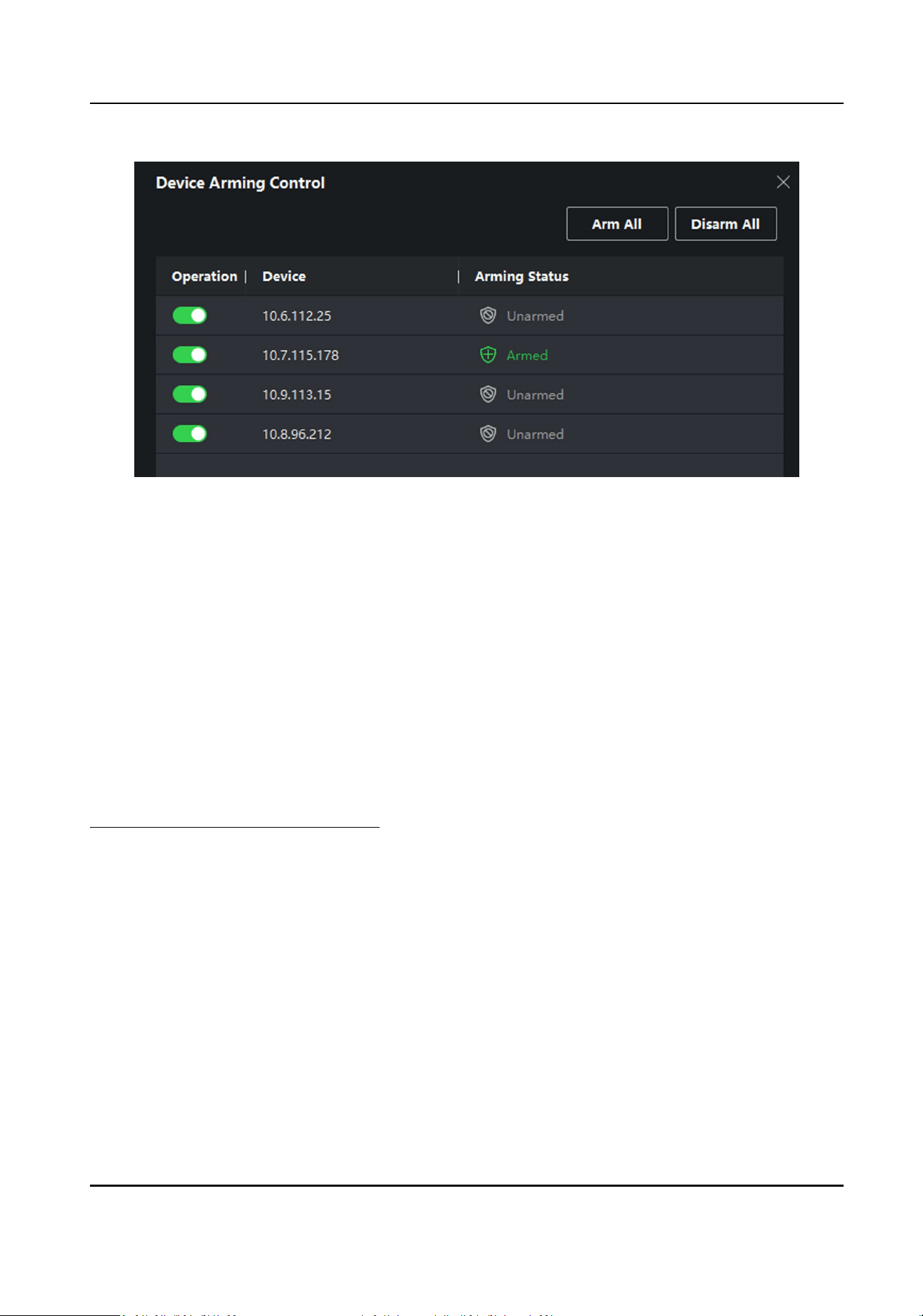
Figure 7-11 Device Arming Control
3.
View the arming status of each device in the Arming Status column.
Result
The events of armed device(s) are automacally uploaded to the client when the event is
triggered.
7.10.2 View Real-Time Events
The real-me event informaon received by the client of the connected resources are displayed.
You can check the real-me event informaon, including event source, event me, priority, etc.
Before You Start
Enable receiving events from devices before the client can receive event from the device, see
Enable Receiving Events from Devices for details.
Steps
1.
Click Event Center → Real-me Event to enter the real-me event page and you can view the
real-me events received by the client.
Event Time
For encoding device, event me is the client me when it receives the event. For other device
types, event me is the me when the event is triggered.
Priority
Priority represents the emergency degree of the event.
2.
Filter the events.
Filter by Device Type and (or)
Priority
Select device type(s) and (or) priories to lter
events.
DS-K3G501SX Series Tripod Turnsle User Manual
83

Filter by Keywords Enter the keywords to lter the events.
3.
Oponal: Right-click the table header of the event list to customize the event related items to be
displayed in the event list.
4.
View the event details.
1) Select an event in the event list.
2) Click Expand in the right-lower corner of the page.
3) View the detail descripon and handing records of the event.
5.
Oponal: Perform the following operaons if necessary.
Handle Single Event Click Handle to enter the processing suggeson, and then click
Commit.
Note
Aer an event is handled, the Handle buon will become Add
Remark. Click Add Remark to add more remarks for this handled
event.
Handle Events in a
Batch
Select events that need to be processed, and then click Handle in
Batch. Enter the processing suggeson, and then click Commit.
Enable/Disable Alarm
Audio
Click Enable Audio/Disable Audio to enable/disable the audio of the
event.
Select the Latest
Event Automacally
Check Auto-Select Latest Event to select the latest event
automacally and the event informaon details is displayed.
Clear Events Click Clear to clear the all the events in the event list.
Send Email Select an event and then click Send Email, and the informaon
details of this event will be sent by email.
Note
You should congure the email parameters rst, see for details.
7.10.3 Search Historical Events
In the Event Search module of the event center page, you can search the historical events via me,
device type, and other condions according to the specied device type, and then process the
events.
Before You Start
Enable receiving events from devices before the client can receive event informaon from the
device,see Enable Receiving Events from Devices for details.
Steps
1.
Click Event Center → Event Search to enter the event search page.
DS-K3G501SX Series Tripod Turnsle User Manual
84
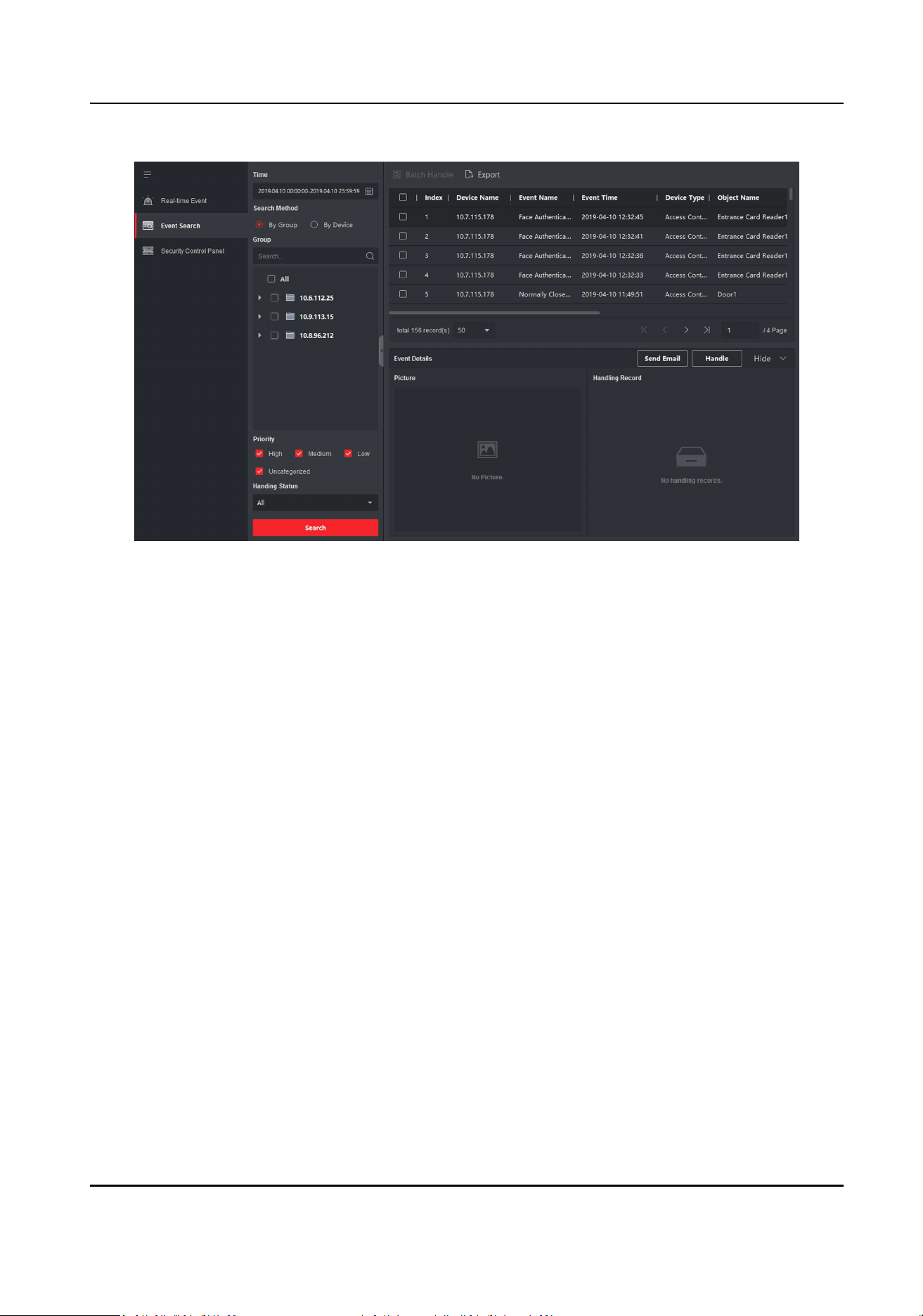
Figure 7-12 Search History Event
2.
Set the lter condions to display the required events only.
Time
The client me when the event starts.
Search by
Group: Search the events occurred on the resources in the selected group.
Device: Search the events occurred on the selected device.
Device Type
The type of device that occurred the event.
All
All the device types, and you can set the following lter condions: group, priority, and
status.
Video Intercom
For the events of video intercom, you need to select searching scope: All Record and Only
Unlocking.
●
All Records: You can lter the events from all the video intercom events, and you need
to set the following lter condions: device, priority, status.
●
Only Unlocking: You can lter the events from all the video intercom unlocking events,
and you need to set the following lter condions: device, unlocking type.
Access Control
DS-K3G501SX Series Tripod Turnsle User Manual
85
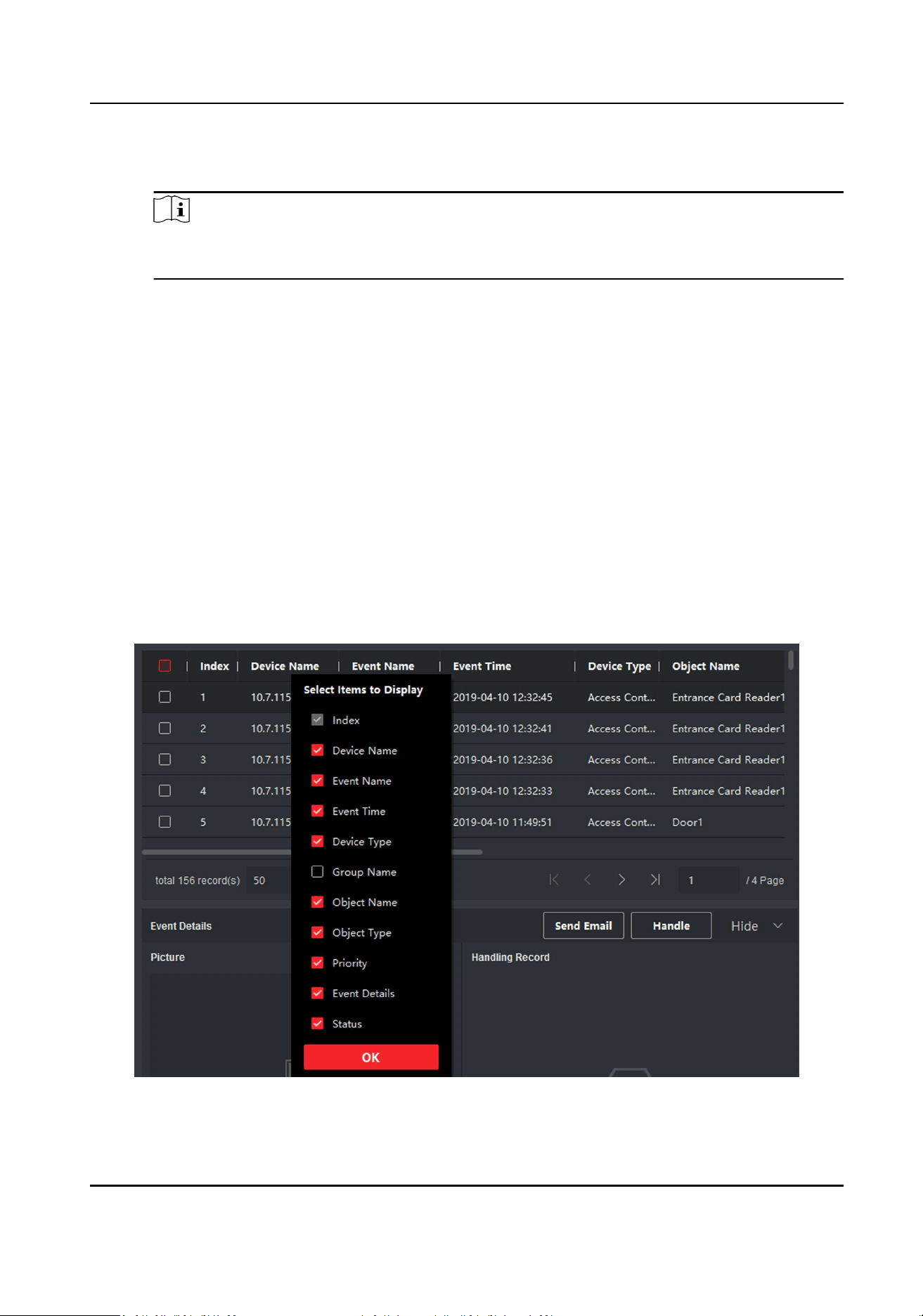
For the events of access control, you can set the following lter condions: device, priority,
status, event type, card reader type, person name, card no., organizaon.
Note
Click Show More to set the event type, card reader type, person name, card no.,
organizaon.
Group
The group of the device that occurred the event. You should set the group as condion only
when you select the Device Type as All.
Device
The device that occurred the event.
Priority
The priority including low, medium, high and uncategorized which indicates the urgent
degree of the event.
Status
The handling status of the event.
3.
Click Search to search the events according the condions you set.
4.
Oponal: Right click the table header of the event list to customize the event related items to be
displayed in the event list.
Figure 7-13 Customize Event Related Items to be Displayed
DS-K3G501SX Series Tripod Turnsle User Manual
86

5.
Oponal: Handle the event(s).
-
Handle single event: Select one event that need to be processed, and then click Handle in the
event informaon details page, and enter the processing suggeson.
-
Handle events in a batch: Select the events which need to be processed, and then click
Handle in Batch, and enter the processing suggeson.
Note
Aer an event is handled, the Handle buon will become Add Remark, click Add Remark to add
more remarks for this handled event.
6.
Oponal: Select an event and then click Send Email, and the informaon details of this event
will be sent by email.
Note
You should congure the email parameters rst, see Set Email Parameters in the user manual of
client soware for details.
7.
Oponal: Click Export to export the event log or event pictures to the local PC in CSV format.
You can set the saving path manually.
8.
Hover the cursor on the related picture, and then click the download icon on the upper-right
corner of the picture to download it to the local PC. You can set the saving path manually.
7.11 Time and Aendance
The Time and Aendance module provides mulple funconalies to track and monitor when
employees start and stop work, and full control of employees working hours such as late arrivals,
early departures, me taken on breaks and absenteeism.
Note
In this secon, we introduce the conguraons before you can geng the aendance reports. The
access records recorded aer these conguraons will be calculated in the stascs.
7.11.1 Congure Aendance Parameters
You can congure the aendance parameters, including the general rule, overme parameters,
aendance check point, holiday, leave type, etc.
Set Weekend
The days of weekends may vary in dierent countries and regions. The client provides weekends
denion funcon. You can select one or more days as the weekends according to actual
requirements, and set dierent aendance rules for weekends from workdays.
DS-K3G501SX Series Tripod Turnsle User Manual
87

Steps
Note
The parameters congured here will be set as default for the newly added me period. It will not
aect the existed one(s).
1.
Enter Time & Aendance module.
2.
Click Aendance Sengs → General Rule .
3.
Select the day(s) as weekend, such as Saturday and Sunday.
4.
Click Save.
Congure Overme Parameters
You can congure the overme parameters for workday and weekend, including overme level,
work hour rate, aendance status for overme, etc.
Steps
1.
Click Time & Aendance → Aendance Sengs → Overme .
2.
Set required informaon.
Overme Level for Workday
When you work for a certain period aer end-work me on workday, you will reach dierent
overme level: overme level 1, overme level 2 and overme level 3. You can set dierent
work hour rate for three overme levels, respecvely.
Work Hour Rate
Work Hour Rate is used to calculate work hours by mulplying it by overme. When you work
for a certain period aer end-work me on workday, you will reach dierent overme level.
You can set dierent work hour rates (1-10, can be a decimal) for three overme levels. For
example, your valid overme is one hour (in overme level 1), and the work hour rate of
overme level 1 is set as 2, then the work hours in the period will be calculated as 2 hours.
Overme Rule for Weekend
You can enable overme rule for weekend and set calculaon mode.
3.
Click Save.
Congure Aendance Check Point
You can set the card reader(s) of the access point as the aendance check point, so that the
authencaon on the card readers will be recorded for aendance .
Before You Start
You should add access control device before conguring aendance check point. For details, refer
to Add Device .
DS-K3G501SX Series Tripod Turnsle User Manual
88

Steps
Note
By default, all card readers of the added access control devices are set as aendance checkpoint.
1.
Enter the Time & Aendance module.
2.
Click Aendance Sengs → Aendance Check Point to enter the Aendance Check Point
Sengs page.
3.
Oponal: Set Set All Card Readers as Check Points switch to o.
Only the card readers in the list will be set as the aendance check points.
4.
Check the desired card reader(s) in the device list as aendance check point(s).
5.
Set check point funcon as Start/End-Work, Start-Work or End-Work.
6.
Click Set as Check Point.
The congured aendance check point displays on the right list.
Congure Holiday
You can add the holiday during which the check-in or check-out will not be recorded.
Add Regular Holiday
You can congure a holiday which will take eect annually on regular days during the eecve
period, such as New Year's Day, Independence Day, Christmas Day, etc.
Steps
1.
Enter the Time & Aendance module.
2.
Click Aendance Sengs → Holiday to enter the Holiday Sengs page.
3.
Check Regular Holiday as holiday type.
4.
Custom a name for the holiday.
5.
Set the rst day of the holiday.
6.
Enter the number of the holiday days.
7.
Set the aendance status if the employee works on holiday.
8.
Oponal: Check Repeat Annually to make this holiday seng eecve every year.
9.
Click OK.
The added holiday will display in the holiday list and calendar.
If the date is selected as dierent holidays, it will be recorded as the rst-added holiday.
10.
Oponal: Aer adding the holiday, perform one of the following operaons.
Edit Holiday Click
to edit the holiday informaon.
Delete Holiday Select one or more added holidays, and click Delete to delete the
holiday(s) from the holiday list.
DS-K3G501SX Series Tripod Turnsle User Manual
89

Add Irregular Holiday
You can congure a holiday which will take eect annually on irregular days during the eecve
period, such as Bank Holiday.
Steps
1.
Enter the Time & Aendance module.
2.
Click Aendance Sengs → Holiday to enter the Holiday Sengs page.
3.
Click Add to open the Add Holiday page.
4.
Check Irregular Holiday as holiday type.
5.
Custom a name for the holiday.
6.
Set the start date of the holiday.
Example
If you want to set the forth Thursday in November, 2019 as the Thanksgiving Day holiday, you
should select 2019, November, 4th, and Thursday from the four drop-down lists.
7.
Enter the number of the holiday days.
8.
Set the aendance status if the employee works on holiday.
9.
Oponal: Check Repeat Annually to make this holiday seng eecve every year
10.
Click OK.
The added holiday will display in the holiday list and calendar.
If the date is selected as dierent holidays, it will be recorded as the rst-added holiday.
11.
Oponal: Aer adding the holiday, perform one of the following operaons.
Edit Holiday Click
to edit the holiday informaon.
Delete Holiday Select one or more added holidays, and click Delete to delete the
holiday(s) from the holiday list.
Congure Leave Type
You can customize the leave type (major leave type and minor leave type) according to actual
needs. You can also edit or delete the leave type.
Steps
1.
Enter the Time & Aendance module.
2.
Click Aendance Sengs → Leave Type to enter the Leave Type Sengs page.
3.
Click Add on the le to add a major leave type.
4.
Oponal: Perform one of the following operaons for major leave type.
Edit Move the cursor over the major leave type and click to edit the major leave type.
Delete Select one major leave type and click Delete on the le to delete the major leave
type.
5.
Click Add on the right to add a minor leave type.
DS-K3G501SX Series Tripod Turnsle User Manual
90

6.
Oponal: Perform one of the following operaons for minor leave type.
Edit Move the cursor over the minor leave type and click
to edit the minor leave type.
Delete Select one or mulple major leave types and click Delete on the right to delete the
selected minor leave type(s).
Synchronize Authencaon Record to Third-Party Database
The aendance data recorded in client soware can be used by other system for calculaon or
some other operaons. You can enable synchronizaon funcon to apply the authencaon record
from client soware to the third-party database automacally.
Steps
1.
Enter Time & Aendance module.
2.
Click Aendance Sengs → Third-Party Database .
3.
Set Apply to Database switch to on to enable synchronizaon funcon.
4.
Select database Type as SQLServer or MySql.
Note
If you select MySql, you should import the conguraon le (libmysql.dll) from local PC.
5.
Set the other required parameters of the third-party database, including server IP address,
database name, user name and password.
6.
Set table parameters of database according to the actual conguraon.
1) Enter the table name of the third-party database.
2) Set the mapped table elds between the client soware and the third-party database.
7.
Click Save to test whether database can be connected and save the sengs for the successful
connecon.
●
The aendance data will be wrien to the third-party database.
●
During synchronizaon, if the client disconnects with the third-party database, the client will
start reconnecon every 30 mins. Aer being reconnected, the client will synchronize the data
recorded during the disconnected me period to the third-party database.
Congure Break Time
You can add break me and set start me, end me, duraon, calculaon mode and other
parameters for the break. The added break me can also be edited or deleted.
Steps
1.
Click Time & Aendance → Timetable .
The added metables are displayed in the list.
2.
Select an added metable or click Add to enter seng metable page.
3.
Click Break Time to enter Break Time page.
4.
Click Break Time Sengs.
DS-K3G501SX Series Tripod Turnsle User Manual
91

5.
Add break me.
1) Click Add.
2) Enter a name for the break me.
3) Set related parameters for the break me.
Start Time / End Time
Set the me when the break starts and ends.
No Earlier Than / No Later Than
Set the earliest swiping me for starng break and the latest swiping me for ending
break.
Break Duraon
The duraon from start me to end me of the break.
Calculaon
Auto Deduct
The xed break duraon will be excluded from work hours.
Must Check
The break duraon will be calculated and excluded from work hours according to actual
check-in and check-out me.
Note
If you select Must Check as calculaon method, you need to set aendance status for
late or early returning from break.
6.
Click Save to save the sengs.
7.
Oponal: Click Add to connue adding break me.
Congure Report Display
You can congure display contents displayed in the aendance report, such as the company name,
logo, date format, me format, and mark.
Steps
1.
Enter Time & Aendance module.
2.
Click Aendance Stascs → Report Display .
3.
Set the display sengs for aendance report.
Company Name
Enter a company name to display the name in the report.
Aendance Status Mark
Enter the mark and select the color. The related elds of aendance status in the report will
display with the mark and color.
Weekend Mark
DS-K3G501SX Series Tripod Turnsle User Manual
92
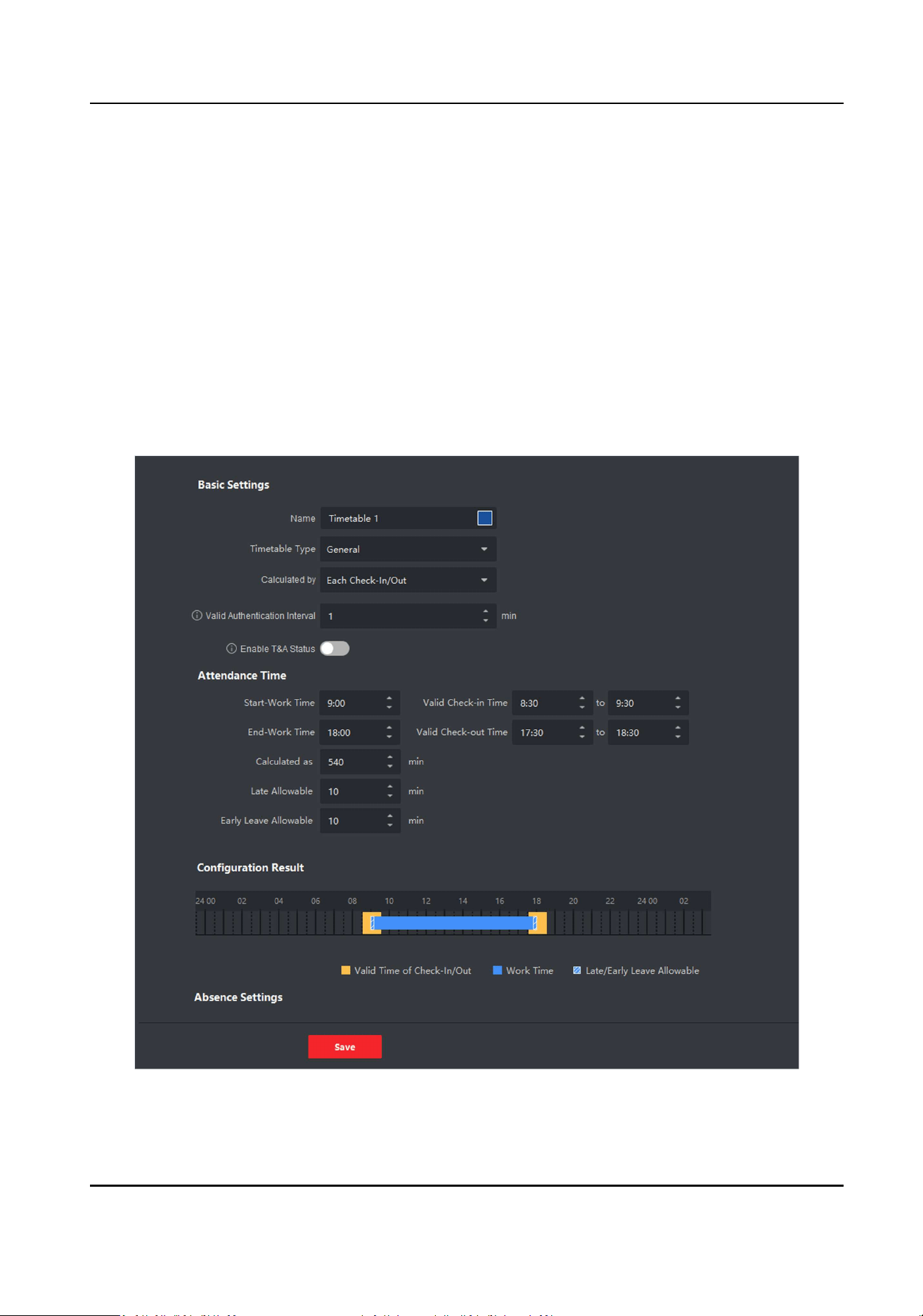
Enter the mark and select the color. The weekend elds in the report will display with the
mark and color.
4.
Click Save.
7.11.2 Add General Timetable
On the metable page, you can add general metable for employees, which requires the xed
start-work me and end-work me. Also, you can set valid check-in/out me, allowable metable
for being late and leaving early.
Steps
1.
Click Time and Aendance → Timetable to enter the metable sengs page.
2.
Click Add to enter add metable page.
Figure 7-14 Add Timetable
DS-K3G501SX Series Tripod Turnsle User Manual
93

3.
Create a name for the metable.
Note
You can click the color icon beside the name to customize the color for the valid metable on
the me bar in the Conguraon Result area.
4.
Select the metable type as general.
5.
Select calculaon method.
First In & Last Out
The rst check-in me is recorded as start work me and the last check-out me is recorded
as the end-work me.
Each Check-In/Out
Each check-in me and check-out me is valid and the sum of all periods between adjacent
check-in and check-out me will be recorded as the valid working duraon.
You need to set Valid Authencaon Interval for this calculaon method. For example, if the
interval between card swiping of the same card is less than the set value, the card swiping is
invalid.
6.
Oponal: Set Enable T&A Status switch to on to calculate according to aendance status of the
device.
Note
This funcon should be supported by the device.
7.
Set the related aendance me parameters as the following:
Start/End-Work Time
Set the start-work me and end-work-me.
Valid Check-in/out Time
On the me bar, adjust the yellow bar to set the metable during which the check-in or
check-out is valid.
Calculated as
Set the duraon calculated as the actual work duraon.
Late/Early Leave Allowable
Set the metable for late or early leave.
8.
Set absence related parameters.
Check-In, Late for
You can set the late me duraon for the employee who has checked in but is late for work. If
the employee exceeds the required me period, his/her aendance data will be marked as
absent.
Check-Out, Early Leave for
You can set the early leave me duraon for the employee who checks out earlier than the
normal leave me, and his/her aendance data will be marked as absent.
DS-K3G501SX Series Tripod Turnsle User Manual
94

No Check-in
If the employee does not check in, his/her aendance data may be marked as absent or late.
No Check-Out
If the employee does not check out, his/her aendance data may be marked as absent or
early leave.
9.
Click Save to add the metable.
10.
Oponal: Perform one or more following operaons aer adding metable.
Edit Timetable Select a metable from the list to edit related informaon.
Delete Timetable Select a metable from the list and click Delete to delete it.
7.11.3 Add Shi
You can add shi for employees including seng shi period (day, week, month) and the eecve
aendance me. According to the actual requirements, you can adding mulple metables in one
shi for employees, which requires them to check in and check out for each metable.
Before You Start
Add a metable rst. See
Add General Timetable for details.
Steps
1.
Click Time & Aendance → Shi to enter shi sengs page.
2.
Click Add to enter Add Shi page.
3.
Enter the name for shi.
4.
Select the shi period from the drop-down list.
5.
Select the added metable and click on the me bar to apply the metable.
DS-K3G501SX Series Tripod Turnsle User Manual
95
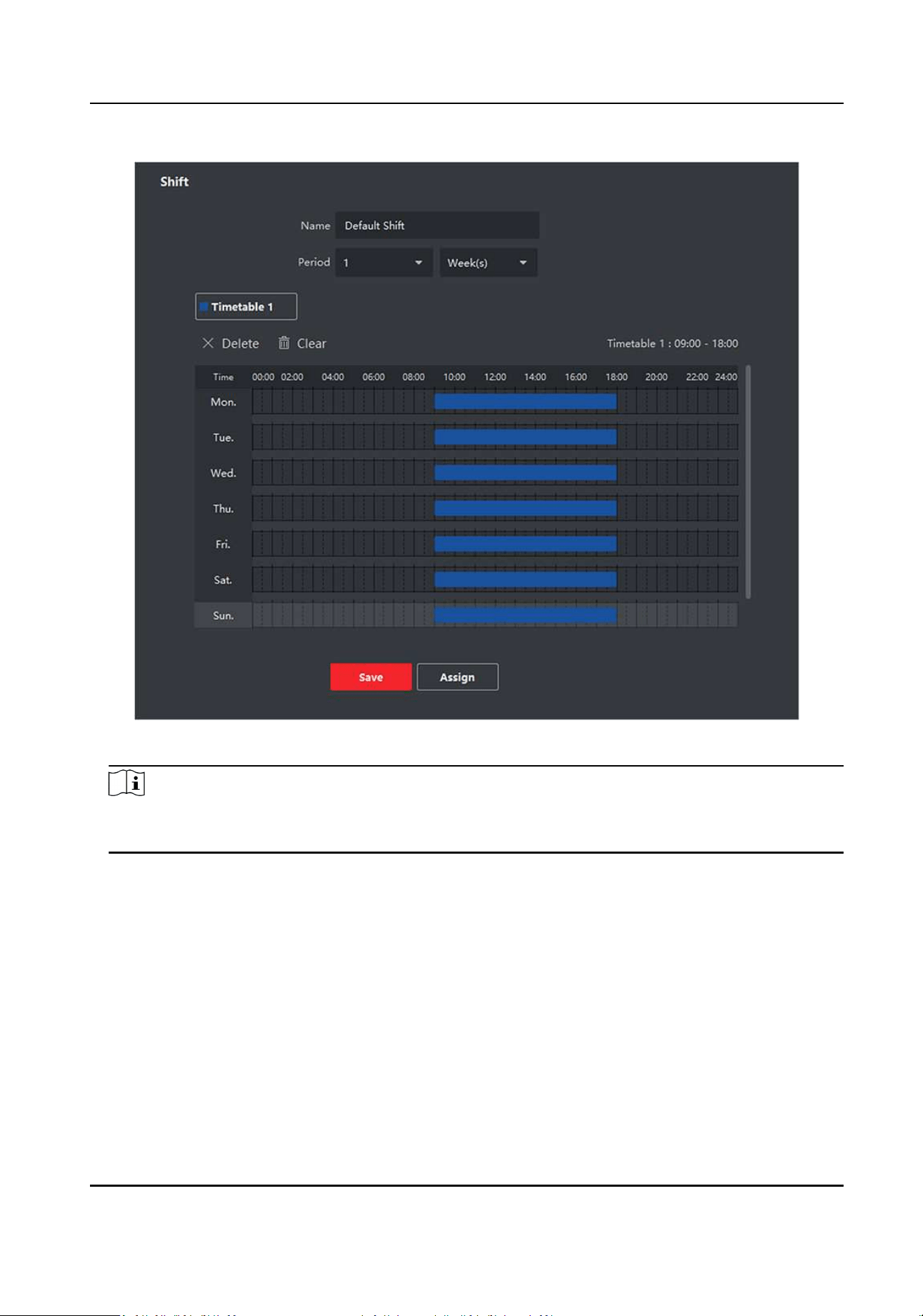
Figure 7-15 Add Shi
Note
You can select more than one metables. The start and end work me and the valid check-in
and out me in dierent me tables can not be overlapped.
DS-K3G501SX Series Tripod Turnsle User Manual
96
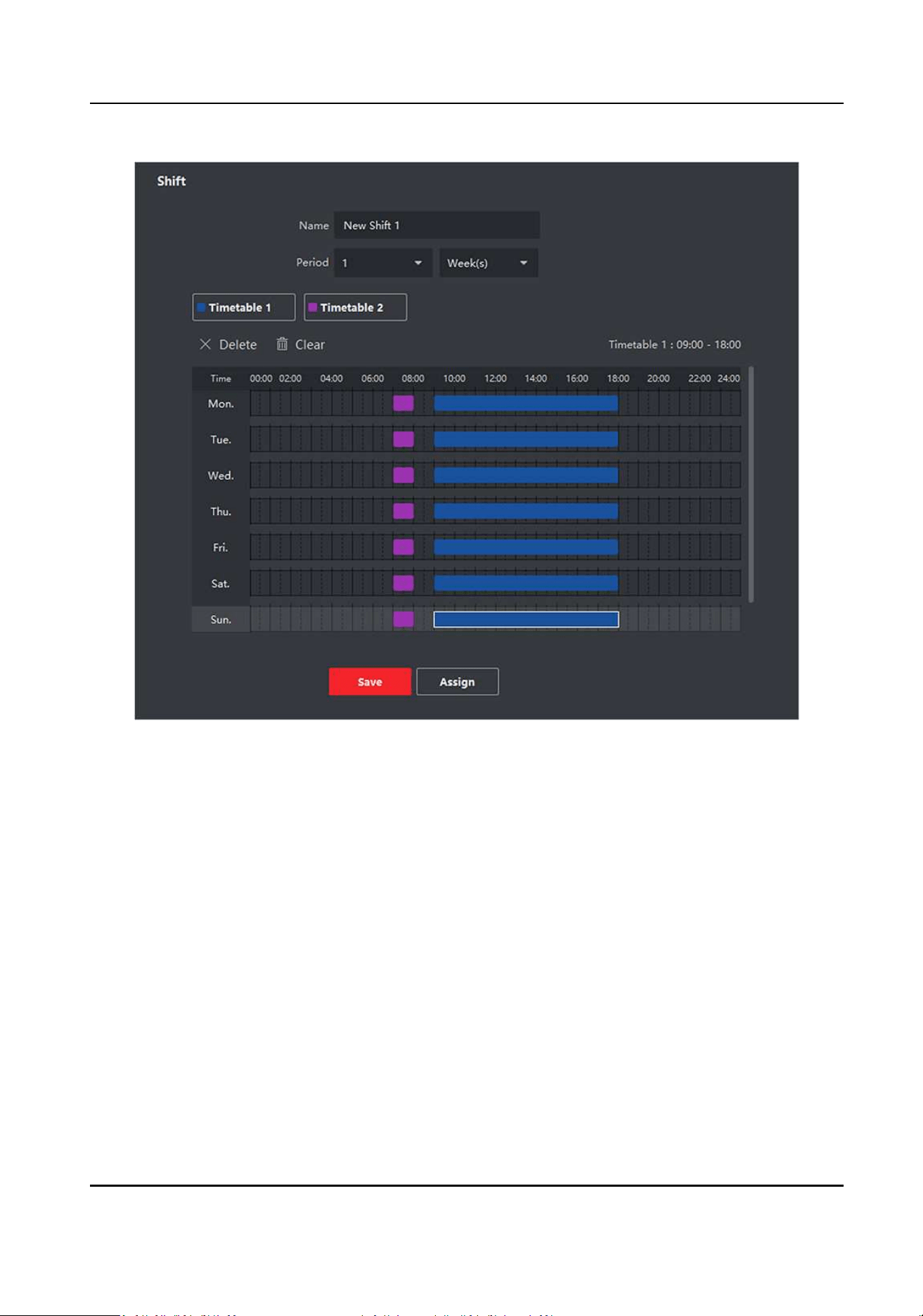
Figure 7-16 Add Mulple Timetables
6.
Click Save.
The added shi lists on the le panel of the page. At most 64 shis can be added.
7.
Oponal: Assign the shi to organizaon or person for a quick shi schedule.
1) Click Assign.
2) Select Organizaon or Person tab and check the desired organizaon(s) or person(s) box.
The selected organizaons or persons will list on the right page.
3) Set the Expire Date for the shi schedule.
4) Set other parameters for the schedule.
Check-in Not Required
Persons in this schedule do not need to check-in when they come to work.
Check-out Not Required
Persons in this schedule do not need to check-out when they end work.
Scheduled on Holidays
DS-K3G501SX Series Tripod Turnsle User Manual
97

On the holidays, this schedule is sll eecve and the persons needs to go to work
according to the schedule.
Eecve for Overme
The persons' overme will be recorded for this schedule.
5) Click Save to save the quick shi schedule.
7.11.4 Manage Shi Schedule
Shi work is an employment pracce designed to make use of all 24 hours of the clock each day of
the week. The pracce typically sees the day divided into shis, set periods of me during which
dierent shis perform their dues.
You can set department schedule, person schedule, and temporary schedule.
Set Department Schedule
You can set the shi schedule for one department, and all the persons in the department will be
assigned with the shi schedule.
Before You Start
In Time & Aendance module, the department list is the same with the organizaon. You should
add organizaon and persons in Person module rst. See Person Management for details.
Steps
1.
Click Time & Aendance → Shi Schedule to enter the Shi Schedule Management page.
2.
Click Department Schedule to enter Department Schedule page.
3.
Select the department from the organizaon list on the le.
Note
If Include Sub Organizaon is checked, when selecng the organizaon, its sub organizaons are
selected at the same me.
4.
Select the shi from the drop-down list.
5.
Oponal: Enable Mulple Shi Schedules and select the eecve me period(s) from the
added metables for the persons.
Note
This is only available for shi with only one metable.
Mulple Shi Schedules
It contains more than one metables. The person can check in/out in any of the metables
and the aendance will be eecve.
DS-K3G501SX Series Tripod Turnsle User Manual
98

If the mulple shi schedules contains three metables: 00:00 to 07:00, 08:00 to 15:00 and
16:00 to 23:00. The aendance of the person adopng this mulple shi schedules will be
eecve in any of the three metables. If the person checks in at 07:50, it will apply the
nearest metable 08:00 to 15:00 to the person's aendance.
6.
Set the start date and end date.
7.
Set other parameters for the schedule.
Check-in Not Required
Persons in this schedule do not need to check-in when they come to work.
Check-out Not Required
Persons in this schedule do not need to check-out when they end work.
Scheduled on Holidays
On the holidays, this schedule is sll eecve and the persons needs to go to work according
to the schedule.
Eecve for Overme
The persons' overme will be recorded for this schedule.
8.
Click Save.
Set Person Schedule
You can assign the shi schedule to one or more persons. You can also view and edit the person
schedule details.
Before You Start
Add department and person in Person module. See
Person Management for details.
Steps
Note
The person schedule has the higher priority than department schedule.
1.
Click Time & Aendance → Shi Schedule to enter the Shi Schedule page.
2.
Click Person Schedule to enter Person Schedule page.
3.
Select the organizaon and select the person(s).
4.
Select the shi from the drop-down list.
5.
Oponal: Enable Mulple Shi Schedules and select the eecve me period(s) from the
added metables for the persons.
Note
This is only available for shi with only one metable.
Mulple Shi Schedules
DS-K3G501SX Series Tripod Turnsle User Manual
99

It contains more than one metables. The person can check in/out in any of the metables
and the aendance will be eecve.
If the mulple shi schedules contains three metables: 00:00 to 07:00, 08:00 to 15:00 and
16:00 to 23:00. The aendance of the person adopng this mulple shi schedules will be
eecve in any of the three metables. If the person checks in at 07:50, it will apply the
nearest metable 08:00 to 15:00 to the person's aendance.
6.
Set the start date and end date.
7.
Set other parameters for the schedule.
Check-in Not Required
Persons in this schedule do not need to check-in when they come to work.
Check-out Not Required
Persons in this schedule do not need to check-out when they end work.
Scheduled on Holidays
On the holidays, this schedule is sll eecve and the persons needs to go to work according
to the schedule.
Eecve for Overme
The persons' overme will be recorded for this schedule.
8.
Click Save.
Set Temporary Schedule
You can add a temporary schedule for the person and the person will be assigned with the shi
schedule temporarily. You can also view and edit the temporary schedule details.
Before You Start
Add department and person in Person module. See
Person Management for details.
Steps
Note
The temporary schedule has higher priority than department schedule and person schedule.
1.
Click Time & Aendance → Shi Schedule to enter the Shi Schedule Management page.
2.
Click Temporary Schedule to enter Temporary Schedule page.
3.
Select the organizaon and select the person(s).
4.
Click one date or click and drag to select mulple dates for the temporary schedule.
5.
Select Workday or Non-Workday from drop-down list.
If Non-Workday is selected, you need to set the following parameters.
Calculated as
Select normal or overme level to mark the aendance status for temporary schedule.
DS-K3G501SX Series Tripod Turnsle User Manual
100

Timetable
Select a metable from drop-down list.
Mulple Shi Schedule
It contains more than one metables. The person can check in/out in any of the metables
and the aendance will be eecve.
If the mulple shi schedules contains three metables: 00:00 to 07:00, 08:00 to 15:00 and
16:00 to 23:00. The aendance of the person adopng this mulple shi schedules will be
eecve in any of the three metables. If the person checks in at 07:50, it will apply the
nearest metable 08:00 to 15:00 to the person's aendance.
Rule
Set other rule for the schedule, such as Check-in Not Required, andCheck-out Not Required.
6.
Click Save.
Check Shi Schedule
You can check the shi schedule in calendar or list mode. You ca also edit or delete the shi
schedule.
Steps
1.
Click Time & Aendance → Shi Schedule to enter the Shi Schedule Management page.
2.
Select the organizaon and corresponding person(s).
3.
Click or to view the shi schedule in calendar or list mode.
Calendar
In calendar mode, you can view the shi schedule for each day in one month. You can click
the temporary schedule for one day to edit or delete it.
List
In list mode, you can view the shi schedule details about one person or organizaon, such as
shi name, type, eecve period and so on. Check the shi schedule(s), and click Delete to
delete the selected shi schedule(s).
7.11.5 Manually Correct Check-in/out Record
If the aendance status is not correct, you can manually correct the check-in or check out record.
You can also edit, delete, search, or export the check-in or check-out record.
Before You Start
●
You should add organizaons and persons in Person module. For details, refer to Person
Management .
●
The person's aendance status is incorrect.
DS-K3G501SX Series Tripod Turnsle User Manual
101

Steps
1.
Click Time & Aendance → Aendance Handling to enter aendance handling page.
2.
Click Correct Check-In/Out to enter adding the check-in/out correcon page.
3.
Select person from le list for correcon.
4.
Select the correcon date.
5.
Set the check-in/out correcon parameters.
-
Select Check-in and set the actual start-work me.
-
Select Check-out and set the actual end-work me.
Note
You can click to add mulple check in/out items. At most 8 check-in/out items can be
supported.
6.
Oponal: Enter the remark informaon as desired.
7.
Click Save.
8.
Oponal: Aer adding the check-in/out correcon, perform one of the following operaons.
View Click
or to view the added aendance handling informaon in calendar or list
mode.
Note
In calendar mode, you need to click Calculate to get the aendance status of the
person in one month.
Edit
●
In calendar mode, click the related label on date to edit the details.
●
In list mode, double-click the related led in Date, Handling Type, Time, or Remark
column to edit the informaon.
Delete Delete the selected items.
Export Export the aendance handling details to local PC.
Note
The exported details are saved in CSV format.
7.11.6 Add Leave and Business Trip
You can add leave and business trip when the employee want to ask for leave or go on a business
trip.
Before You Start
You should add organizaons and persons in the Person module. For details, refer to
Person
Management .
Steps
1.
Click Time & Aendance → Aendance Handling to enter aendance handling page.
DS-K3G501SX Series Tripod Turnsle User Manual
102

2.
Click Apply for Leave/Business Trip to enter adding the leave/business trip page.
3.
Select person from le list.
4.
Set the date(s) for your leave or business trip.
5.
Select the major leave type and minor leave type from the drop-down list.
Note
You can set the leave type in Aendance Sengs. For details, refer to Congure Leave Type .
6.
Set the me for leave.
7.
Oponal: Enter the remark informaon as desired.
8.
Click Save.
9.
Oponal: Aer adding the leave and business trip, perform one of the following operaons.
View Click
or to view the added aendance handling informaon in calendar or list
mode.
Note
In calendar mode, you need to click Calculate to get the aendance status of the
person in one month.
Edit
●
In calendar mode, click the related label on date to edit the details.
●
In list mode, double-click the led in Date, Handling Type, Time, or Remark column
to edit the related informaon.
Delete Delete the selected items.
Export Export the aendance handling details to local PC.
Note
The exported details are saved in CSV format.
7.11.7 Calculate Aendance Data
You need to calculate the aendance data before searching and viewing the overview of the
aendance data, employees' detailed aendance data, employees' abnormal aendance data, the
employees' overme working data, and card swiping log.
Automacally Calculate Aendance Data
You can set a schedule so that the client can automacally calculate aendance data of the
previous day at the me you congured every day.
DS-K3G501SX Series Tripod Turnsle User Manual
103

Steps
Note
1.
Enter the Time & Aendance module.
2.
Click Aendance Sengs → General Rule .
3.
In the Auto-Calculate Aendance area, set the me that you want the client to calculate the
data.
4.
Click Save.
The client will calculate the aendance data of the previous day from the me you have
congured.
Manually Calculate Aendance Data
You can calculate the aendance data manually by seng the data range.
Steps
1.
Enter the Time & Aendance module.
2.
Click Aendance Stascs → Calculaon .
3.
Set the start me and end me to dene the aendance data range.
4.
Set other condions, including department, name, person ID and aendance status.
5.
Click Calculate.
Note
It can only calculate the aendance data within three months.
6.
Perform one of the following operaons.
Correct Check-in/out Click Correct Check-in/out to add check-in/out correcon.
Select Items to
Display
Click
, or right-click the tles of dierent items to select items to be
displayed in the report.
Generate Report Click Report to generate the aendance report.
Export Report Click Export to export aendance data to local PC.
Note
The exported details are saved in .CSV format.
7.11.8 Aendance Stascs
You can check the original aendance record, generate and export the aendance report based on
the calculated aendance data.
DS-K3G501SX Series Tripod Turnsle User Manual
104

Get an Overview of Employees' Aendance Data
You can search and view the employee's aendance records on the client, including aendance
me, aendance status, check point, etc.
Before You Start
●
You should add organizaons and persons in Person module and the persons have swiped cards.
For details, refer to Person Management .
●
Calculate the aendance data.
Note
○
The client will automacally calculate the previous day's aendance data at 1:00 am on the
next day.
○
Keep the client running at 1:00 am or it cannot calculate the previous day's aendance data
automacally. If not calculated automacally, you can calculate the aendance data manually.
For details, refer to Manually Calculate Aendance Data .
Steps
1.
Enter the Time & Aendance module.
2.
Click Aendance Stascs → Aendance Record .
3.
Set the aendance start me and end me that you want to search.
4.
Set other search condions, including department, name, and person ID.
5.
Select data source as Original Records on Device or Manual Handling Records.
6.
Oponal: Click Get Events from Device to get the aendance data from the device.
7.
Oponal: Click Reset to reset all the search condions and edit the search condions again.
8.
Click Search.
The result displays on the page. You can view the employee's required aendance status and
check point.
9.
Oponal: Aer searching the result, perform one of the following operaons.
Generate Report Click Report to generate the aendance report.
Export Report Click Export to export the results to the local PC.
Custom Export For details, refer to .
Generate Instant Report
It supports to generate the a series of aendance reports manually to view the employees'
aendance results.
Before You Start
Calculate the aendance data.
DS-K3G501SX Series Tripod Turnsle User Manual
105

Note
You can calculate the aendance data manually, or set the schedule so that the client can calculate
the data automacally every day. For details, refer to Calculate Aendance Data .
Steps
1.
Enter the Time & Aendance module.
2.
Click Aendance Stascs → Report .
3.
Select a report type.
4.
Select the department or person to view the aendance report.
5.
Set the start me and end me during which the aendance data will be displayed in the report.
6.
Click Report to generate the stascs report and open it.
Custom Aendance Report
The client supports mulple report types and you can pre-dene the report content and it can
send the report automacally to the email address you congured.
Steps
Note
Set the email parameters before you want to enable auto-sending email funcons. For details,
refer to Set Email Parameters in the user manual of the client soware.
1.
Enter the Time & Aendance module.
2.
Click Aendance Stascs → Custom Report .
3.
Click Add to pre-dene a report.
4.
Set the report content.
Report Name
Enter a name for the report.
Report Type
Select one report type and this report will be generated.
Report Time
The me to be selected may vary for dierent report type.
Person
Select the added person(s) whose aendance records will be generated for the report.
5.
Oponal: Set the schedule to send the report to the email address(es) automacally.
1) Check the Auto-Sending Email to enable this funcon.
2) Set the eecve period during which the client will send the report on the selected sending
date(s).
3) Select the date(s) on which the client will send the report.
4) Set the me at which the client will send the report.
DS-K3G501SX Series Tripod Turnsle User Manual
106

Example
If you set the eecve period as 2018/3/10 to 2018/4/10, select Friday as the sending date,
and set the sending me as 20:00:00, the client will send the report at 8 p.m. on Fridays
during 2018/3/10 to 2018/4/10.
Note
Make sure the aendance records are calculated before the sending me. You can calculate
the aendance data manually, or set the schedule so that the client can calculate the data
automacally every day. For details, refer to Calculate Aendance Data .
5) Enter the receiver email address(es).
Note
You can click + to add a new email address. Up to 5 email addresses are allowed.
6) Oponal: Click Preview to view the email details.
6.
Click OK.
7.
Oponal: Aer adding the custom report, you can do one or more of the followings:
Edit Report Select one added report and click Edit to edit its sengs.
Delete Report Select one added report and click Delete to delete it.
Generate Report Select one added report and click Report to generate the report instantly
and you can view the report details.
7.12 Remote Conguraon via Client Soware
Congure device parameters remotely.
7.12.1 Check Device Informaon
Steps
1.
Click Maintenance and Management → Device Management → Device to enter the device list.
2.
Click
to enter the remote conguraon page.
3.
Click System → Device Informaon and view the device basic informaon and the device
version informaon.
7.12.2 Edit Device Name
Click Maintenance and Management → Device Management → Device to enter the device list.
Click to enter the remote conguraon page.
Click System → General to congure the device name and overwrite record les parameter.
Click Save.
DS-K3G501SX Series Tripod Turnsle User Manual
107

7.12.3 Edit Time
Steps
1.
Click Maintenance and Management → Device Management → Device to enter the device list.
2.
Click to enter the remote conguraon page.
3.
Click System → Time to congure the me zone.
4.
Oponal: Check Enable NTP and set the NTP server address, the NTP port, and the
synchronizaon interval.
5.
Oponal: Check Enable DST and set the DST start me, end me and the bias.
6.
Click Save.
7.12.4 Set System Maintenance
You can reboot the device remotely, restore the device to default sengs, etc.
Steps
1.
Click Maintenance and Management → Device Management → Device to enter the device list.
2.
Click to enter the remote conguraon page.
3.
Click System → System Maintenance .
4.
Maintain the device.
Reboot
The device starts reboong.
Restore Default Sengs
Restore the device sengs to the default ones, excluding the IP address.
Restore All
Restore the device parameters to the default ones. The device should be acvated aer
restoring.
5.
Remotely upgrade the device.
1) In the Remote Upgrade part, select an upgrade type.
Note
●
You need to set the device ID before upgrading if you select Controller Upgrade File as the
remote upgrade type.
●
Only the card reader that connected via RS-485 protocol supports upgrading.
2) Click ... to select an upgrade le.
3) Click Upgrade to start upgrading.
Note
Do not power o during the upgrading.
DS-K3G501SX Series Tripod Turnsle User Manual
108

7.12.5 Manage Network User
Steps
1.
Click Maintenance and Management → Device Management → Device to enter the device list.
2.
Click to enter the remote conguraon page.
3.
Click System → User → Network User .
4.
Click Add to add the user.
5.
Oponal: Select a user in the user list and click Edit to edit the user.
You are able to edit the user password, the IP address, the MAC address and the user
permission.
6.
Click OK.
7.12.6 Manage Keyfob User
Steps
1.
Click Maintenance and Management → Device Management → Device to enter the device list.
2.
Click to enter the remote conguraon page.
3.
Click System → User → Keyfob User .
4.
Click Add to add the user.
5.
Check Enable in the pop-up window and set the keyfob's serial No.
6.
Oponal: Enable the Remain Open Status of the turnsle.
Note
If enabling this funcon, aer the keyfob is matching completed, you can set the barrier as
remaining open by using the keyfob.
7.
Set the door open direcon
8.
Click OK.
Note
Up to 32 keyfob users can be added.
7.12.7 Set Security
Steps
1.
Click Maintenance and Management → Device to enter the device list.
2.
Click to enter the remote conguraon page.
3.
Click System → Security .
4.
Select the encrypon mode in the dropdown list.
5.
You can select Compable Mode or Encrypon Mode.
Compable Mode
DS-K3G501SX Series Tripod Turnsle User Manual
109

The user informaon vericaon is compable with the old client soware version when
logging in.
Encrypon Mode
High security level during the user informaon vericaon when logging in.
6.
Oponal: Check Enable SSH.
7.
Click Save.
7.12.8 Congure Screen Parameters
The device can connect to a text screen. You can set the display parameters on this page.
Steps
1.
Click Maintenance and Management → Device Management → Device to enter the device list.
2.
Click to enter the remote conguraon page.
3.
Click System → Screen Conguraon .
4.
Set the screen parameters.
Note
For beer performance, it is suggested to use the default parameters.
Screen Posion
Select the screen's posion on the device. If select Exit from the drop-down list, the screen
will be installed at the exit posion of the device.
Screen Model
Select the screen model from the drop-down list.
Font Size
Select the text font size in the screen.
Screen Orientaon
Select the text orientaon on the screen.
Line Space
Set the space between two lines.
Column Spacing
Set the space between two columns.
Inial Posion
Set the rst character's posion displayed on the screen.
5.
Click Save.
DS-K3G501SX Series Tripod Turnsle User Manual
110

7.12.9 Congure Screen Parameters
You can set the people counng's parameters and aer the conguraon.
Steps
1.
Click Maintenance and Management → Device Management → Device to enter the device list.
2.
Click to enter the remote conguraon page.
3.
Click System → People Counng .
4.
Set the people counng parameters.
Clear Counted Number
Click Clear and the counted people number will be restored to zero.
Device People Counng
Click Enable or Disable to enable or disable the people counng funcon.
Oine People Counng
Click Enable or Disable to enable or disable funcon of the oine people counng on the
client.
If enabling the funcon and if the device is oine, the device will connue counng the
people and the number will be stored in the device. When the device is online, the client will
read the updated number from the device automacally.
People Counng Type
You can select from Invalid, By Detecon, and By Authencaon Number.
Invalid
The device will not count people. If the device people counng funcon is enabled, the
people counng funcon is sll disabled.
By Detecon
The device will count the people who passing through the device depending on the
detecon result.
By Authencaon Number
The device will count the people who authencang on the device.
The failed authencaon will also count as once.
5.
Click Save.
7.12.10 Congure Advanced Network
Click Maintenance and Management → Device Management → Device to enter the device list.
Click to enter the remote conguraon page.
Click Network → Advanced Sengs and you can congure the DNS IP address 1 and the DNS IP
address.
DS-K3G501SX Series Tripod Turnsle User Manual
111

Click Save to save the sengs.
7.12.11 Congure Audio File
You can relate the audio le to the corresponding playing scene. You can also export the audio le
from the system and import the audio le from the local.
Steps
1.
Click Maintenance and Management → Device Management → Device to enter the device list.
2.
Click to enter the remote conguraon page.
3.
Click Other → Audio File .
Note
By default, the system contains the audio content. For details about the index related audio
content, see Table of Audio Index Related Content .
4.
Select the index (the playing content) corresponded play scene.
5.
Oponal: Input the descripons of the play scene.
6.
Click Save Parameters to save the relaonship between the index (the playing content) and the
play scene.
7.
Oponal: Click Export to export the default audio le to the local computer.
8.
Oponal: Click ... and select audio le from the local computer. Click Import to import the le to
the device.
Note
●
The imported audio le should be in MEM format.
●
For details about converng other format of the audio le to MEM format, see the audio
conversion manual.
●
If you use the third part soware to create or edit an audio le, the volume of the audio le
should be no less than 0 × 68. If the volume is less than the value, it will exceed the
loudspeaker's power consumpon, so that damage the loudspeaker.
7.12.12 View Relay Status
Click Maintenance and Management → Device Management → Device to enter the device list.
Click to enter the remote conguraon page.
Click Status → Relay and you can view the relay status.
DS-K3G501SX Series Tripod Turnsle User Manual
112
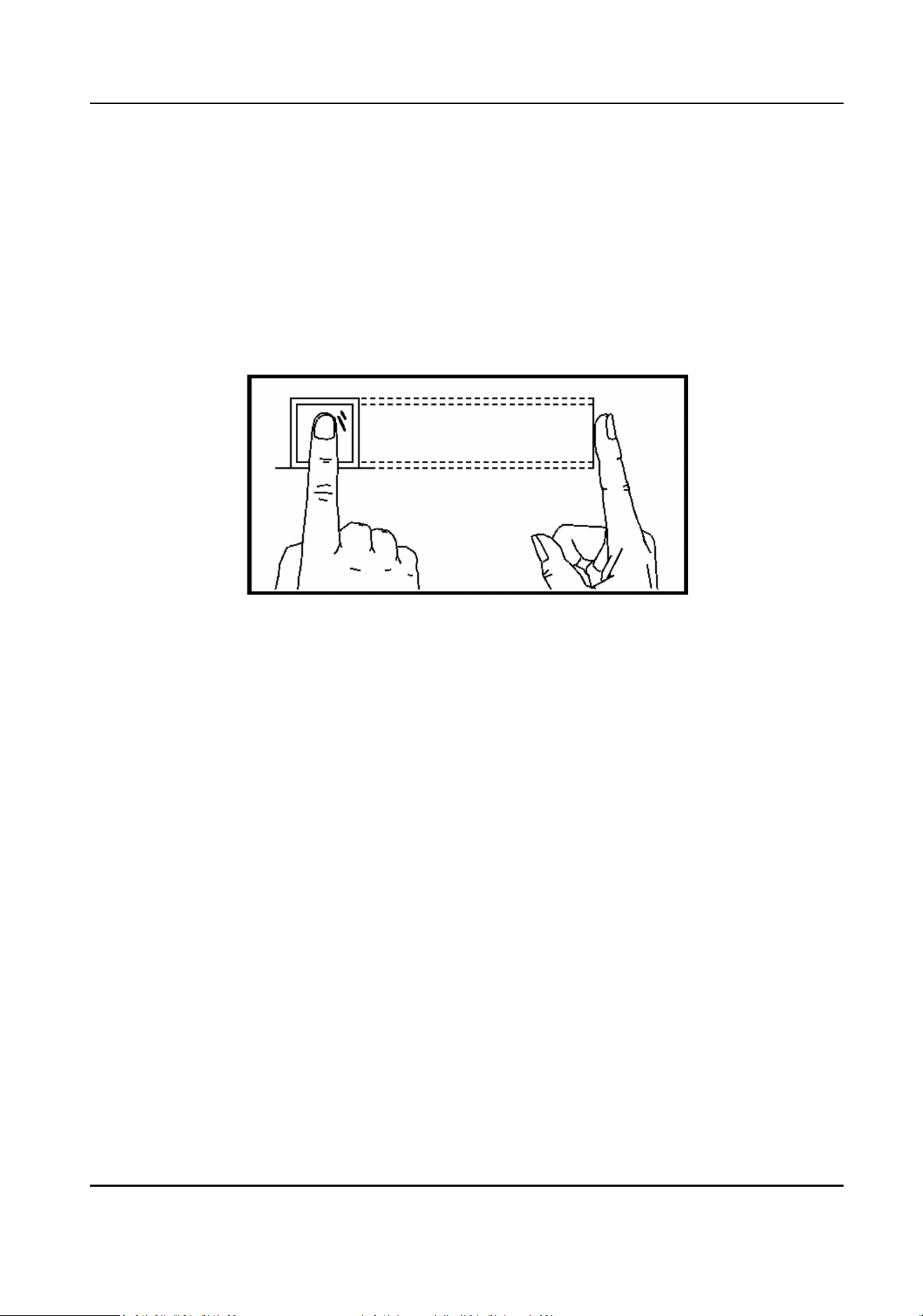
Appendix A. Tips for Scanning Fingerprint
Recommended Finger
Forenger, middle nger or the third nger.
Correct Scanning
The gure displayed below is the correct way to scan your nger:
You should press your nger on the scanner horizontally. The center of your scanned nger should
align with the scanner center.
Incorrect Scanning
The gures of scanning ngerprint displayed below are incorrect:
DS-K3G501SX Series Tripod Turnsle User Manual
113
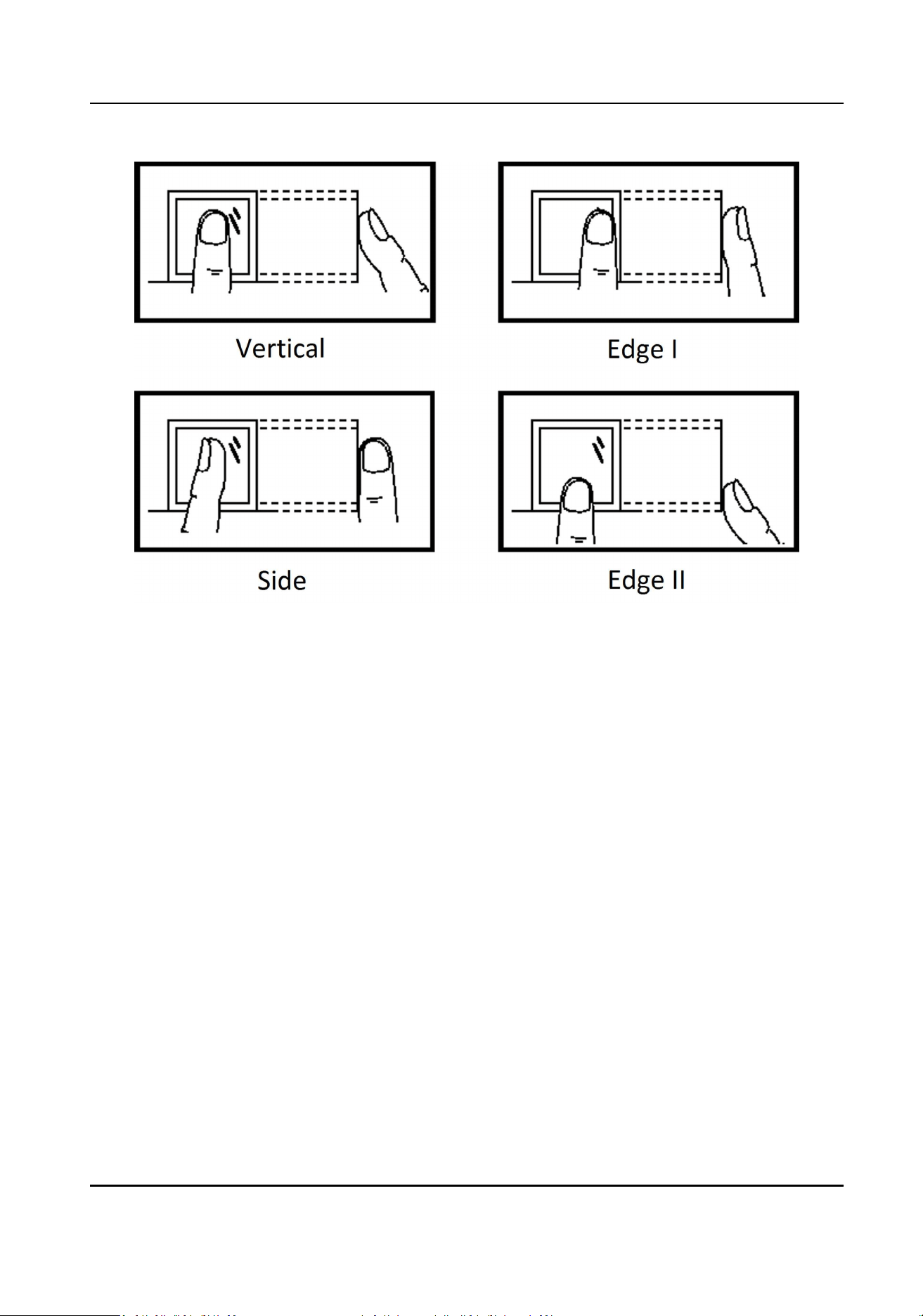
Environment
The scanner should avoid direct sun light, high temperature, humid condions and rain.
When it is dry, the scanner may not recognize your ngerprint successfully. You can blow your
nger and scan again.
Others
If your ngerprint is shallow, or it is hard to scan your ngerprint, we recommend you to use other
authencaon methods.
If you have injuries on the scanned nger, the scanner may not recognize. You can change another
nger and try again.
DS-K3G501SX Series Tripod Turnsle User Manual
114
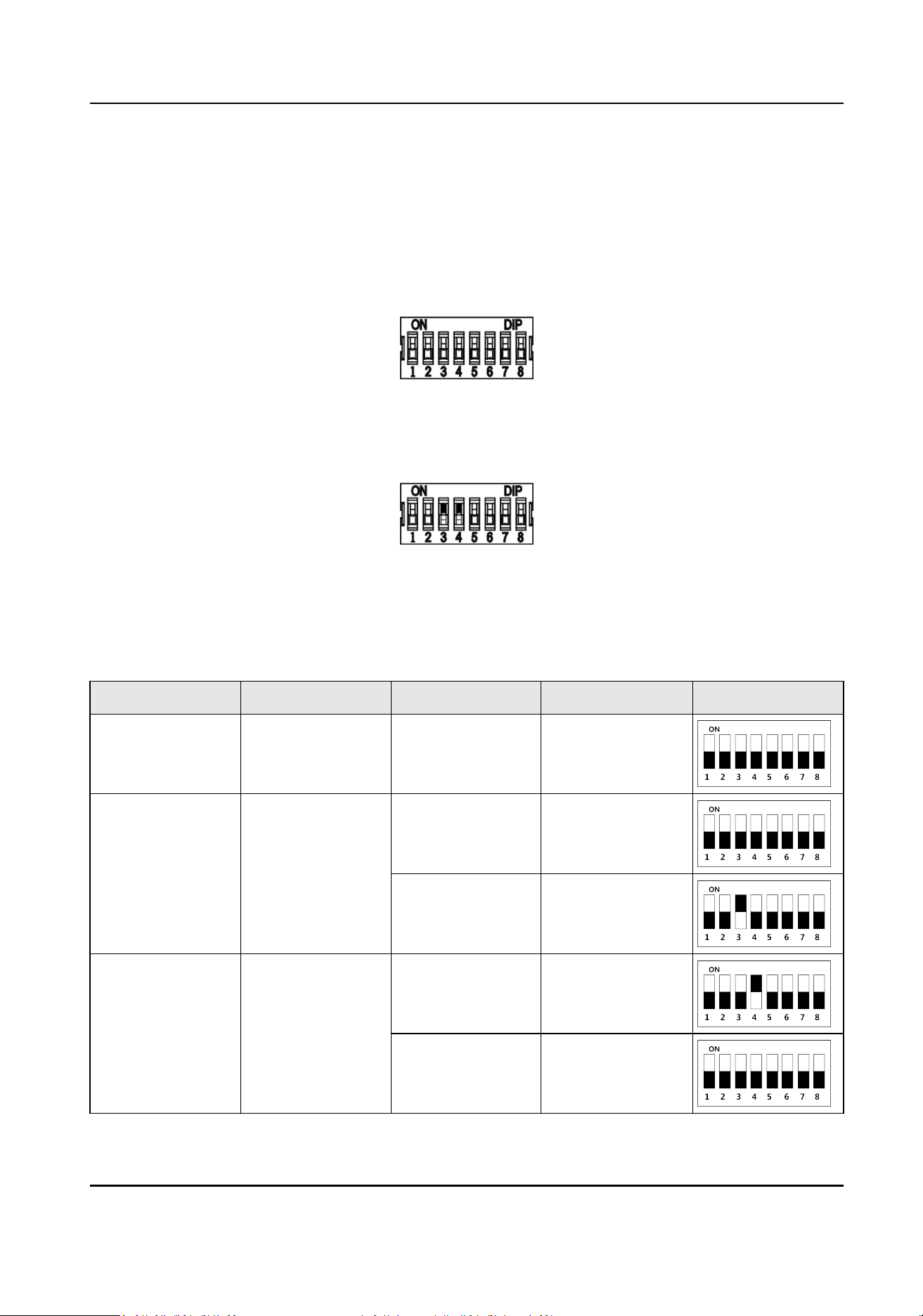
Appendix B. DIP Switch
B.1 DIP Switch Descripon
The DIP switch is on the access control board. No.1 to No 8 is from the low bit to the high bit.
When the switch is towards ON, it means the switch is enabled, otherwise, the switch is o. If you
set the DIP switch like the gure displayed below, its binary value is 00001100, and its decimal
value is 12.
B.2 DIP Switch Corresponded Funcons
The 8-bit DIP switch corresponded funcons on the access control board are as follows:
Bit Device Mode Funcon Decimal Value Binary Value
1 to 2 Work Mode Normal Mode 0
3 Memory Mode Enable Memory
Mode
0
Disable Memory
Mode
1
4 Keyfob Paring
Mode
Enable Keyfob
Paring Mode
1
Disable Keyfob
Paring Mode
0
DS-K3G501SX Series Tripod Turnsle User Manual
115

Bit Device Mode Funcon Decimal Value Binary Value
5 to 8 Passing Mode Controlled Bi-
direcon
0
Controlled
Entrance and
Prohibit Exit
1
Controlled
Entrance and Free
Exit
2
Free Bi-direcon 3
Free Entrance and
Controlled Exit
4
Free Entrance and
Prohibit Exit
5
Prohibited Bi-
direcon
6
Prohibit Entrance
and Controlled
Exit
7
Prohibit Entrance
and Free Exit
8
DS-K3G501SX Series Tripod Turnsle User Manual
116

Appendix C. Event and Alarm Type
Event Alarm Type
Passing Timeout None
DS-K3G501SX Series Tripod Turnsle User Manual
117

Appendix D. Table of Audio Index Related Content
Index Content
1 Authencated.
2 Card No. does not exist.
3 Card No. and ngerprint mismatch.
4 Passing meout.
5 No permissions.
6 Authencaon me out.
7 Authencaon failed.
8 Expired card.
DS-K3G501SX Series Tripod Turnsle User Manual
118

Appendix E. Communicaon Matrix and Device
Command
Communicaon Matrix
Scan the following QR code to get the device communicaon matrix.
Note that the matrix contains all communicaon ports of Hikvision access control and video
intercom devices.
Figure E-1 QR Code of Communicaon Matrix
Device Command
Scan the following QR code to get the device common serial port commands.
Note that the command list contains all commonly used serial ports commands for all Hikvision
access control and video intercom devices.
Figure E-2 Device Command
DS-K3G501SX Series Tripod Turnsle User Manual
119

UD25711B