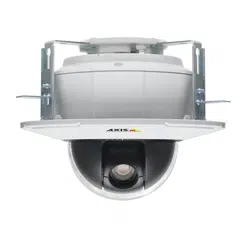

AXISP5654-ENetworkCamera
UserManual

AXISP5654-ENetworkCamera
TableofContents
Productoverview...........................................3
Findthedeviceonthenetwork................................4
Accessthedevice...............................................4
Securepasswords...............................................4
Setup.....................................................5
Needmorehelp?................................................5
Imagequality...................................................5
Streamingandstorage...........................................7
Overlays.......................................................9
Pan,tilt,andzoom(PTZ)..........................................9
Events........................................................10
Applications....................................................12
Troubleshooting............................................13
Resettofactorydefaultsettings...................................13
Checkthecurrentrmware.......................................13
Upgradethermware............................................13
Technicalissues,cluesandsolutions................................14
Performanceconsiderations.......................................15
Specications..............................................
17
LEDindicators..................................................
17
SDcardslot....................................................
17
Buttons.......................................................
17
Connectors....................................................
17
2
AXISP5654-ENetworkCamera
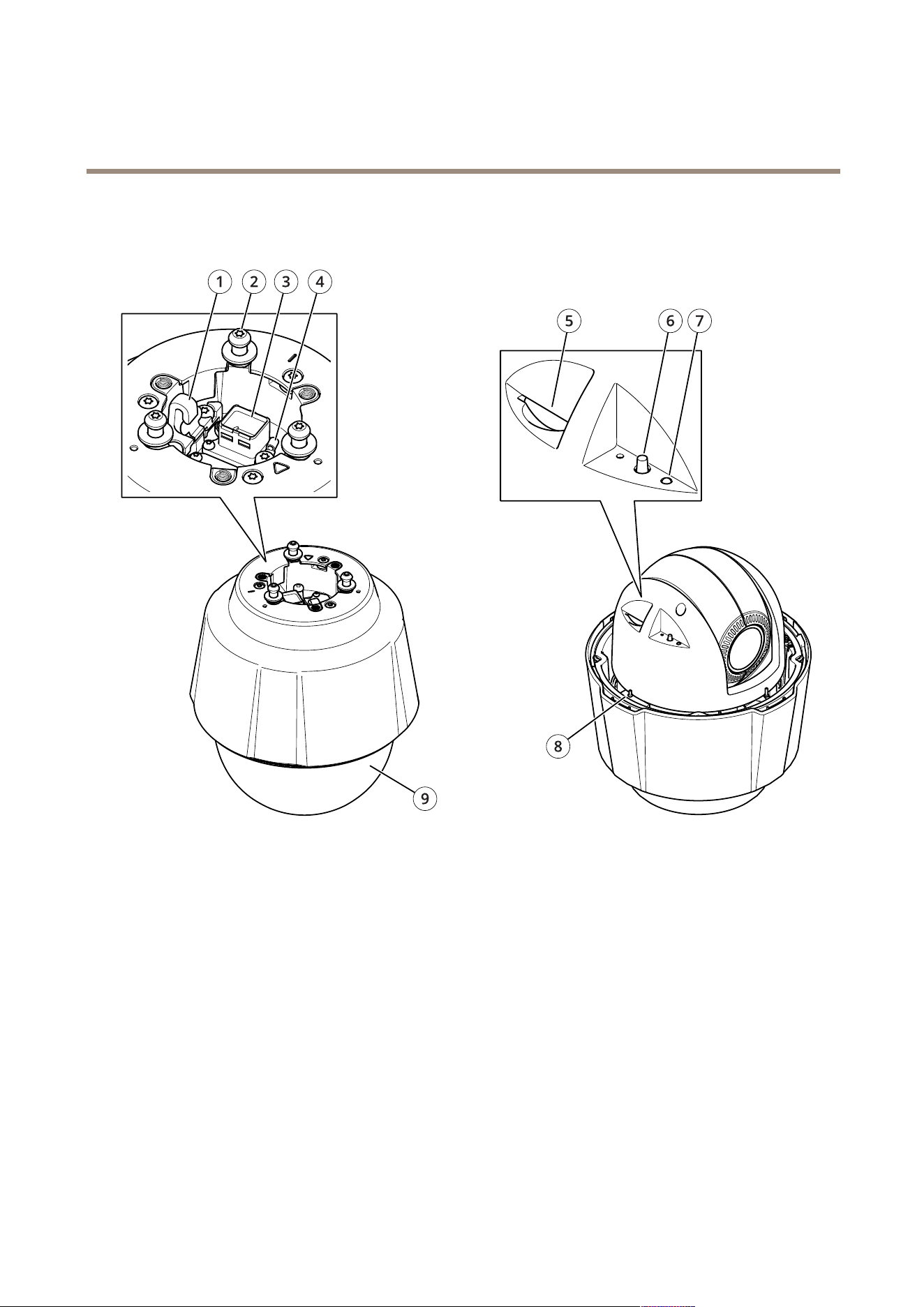
Productoverview
Productoverview
1
Hookforsafetywire
2
Mountingscrews(x3)
3
Networkconnector(PoE+)
4
Groundscrew
5
SDmemorycardslot
6
Controlbutton
7
StatusLEDindicator
8
Powerbutton
9
Dome
3

AXISP5654-ENetworkCamera
Findthedeviceonthenetwork
Findthedeviceonthenetwork
TondAxisdevicesonthenetworkandassignthemIPaddressesinWindows®,useAXISIPUtilityorAXISDeviceManager.Both
applicationsarefreeandcanbedownloadedfromaxis.com/support.
FormoreinformationabouthowtondandassignIPaddresses,seethedocumentHowtoassignanIPaddressandaccessyour
deviceonthedevicepageataxis.com.
Accessthedevice
1.OpenabrowserandentertheIPaddressorhostnameoftheAxisdevice.
IfyouhaveaMaccomputer(OSX),gotoSafari,clickBonjourandselectthedevicefromthedrop-downlist.Toadd
Bonjourasabrowserbookmark,gotoSafari>Preferences.
IfyoudonotknowtheIPaddress,useAXISIPUtilityorAXISDeviceManagertondthedeviceonthenetwork.
2.Entertheusernameandpassword.Ifyouaccessthedeviceforthersttime,youmustsettherootpassword.See
Setasecurepasswordfortherootaccountonpage4.
3.Theliveviewpageopensinyourbrowser.
Securepasswords
Important
Axisdevicessendtheinitiallysetpasswordincleartextoverthenetwork.Toprotectyourdeviceaftertherstlogin,set
upasecureandencryptedHTTPSconnectionandthenchangethepassword.
Thedevicepasswordistheprimaryprotectionforyourdataandservices.Axisdevicesdonotimposeapasswordpolicyasthey
maybeusedinvarioustypesofinstallations.
Toprotectyourdatawestronglyrecommendthatyou:
•Useapasswordwithatleast8characters,preferablycreatedbyapasswordgenerator.
•Don’texposethepassword.
•Changethepasswordatarecurringinterval,atleastonceayear.
Setasecurepasswordfortherootaccount
Important
Thedefaultadministratorusernameisroot.Ifthepasswordforrootislost,resetthedevicetofactorydefaultsettings.
1.Typeapassword.Followtheinstructionsaboutsecurepasswords.SeeSecurepasswordsonpage4.
2.Retypethepasswordtoconrmthespelling.
3.ClickCreatelogin.Thepasswordhasnowbeencongured.
4

AXISP5654-ENetworkCamera
Setup
Setup
Needmorehelp?
Youcanaccessthebuilt-inhelpfromthedevice’swebpage.Thehelpprovidesmoredetailedinformationonthedevice’sfeaturesand
theirsettings.
Imagequality
Adjustthefocusfasterwithfocusrecallareas
Tosavethefocussettingsataspecicpan/tiltrange,addafocusrecallarea.Eachtimethecameramovesintothatareaitrecallsthe
previouslysavedfocus.It’senoughtocoverhalfofthefocusrecallareaintheliveview.
Werecommendthefocusrecallfeatureinthefollowingscenarios:
•Whenthereisalotofmanualoperationinliveview,forexamplewithajoystick.
•WherePTZpresetpositionswithmanualfocusarenotefcient,forexamplemovementswherethefocussettingchanges
continuously.
•Inlow-lightscenarios,wheretheautofocusischallengedbythelightingconditions.
Important
•Thefocusrecalloverridesthecamera’sautofocusatthespecicpan/tiltrange.
•Apresetpositionoverridesthefocussettingsavedinthefocusrecallarea.
•Themaximumnumberoffocusrecallareasis20.
Createafocusrecallarea
1.Pan,tilt,andzoomintotheareawhereyouwouldliketohavefocus.
Aslongasthefocusrecallbuttonshowsaplus
,youcanaddafocusrecallareainthatposition.
2.Adjustthefocus.
3.Clickthefocusrecallbutton.
Deleteafocusrecallarea
1.Pan,tilt,andzoomintothefocusrecallareayouwanttodelete.
Thefocusrecallbuttontogglestominuswhenthecameradetectsafocusrecallarea.
5

AXISP5654-ENetworkCamera
Setup
2.Clickthefocusrecallbutton.
Handlesceneswithstrongbacklight
Dynamicrangeisthedifferenceinlightlevelsinanimage.Insomecasesthedifferencebetweenthedarkestandthebrightest
areascanbesignicant.Theresultisoftenanimagewhereeitherthedarkorthebrightareasarevisible.Widedynamicrange
(WDR)makesbothdarkandbrightareasoftheimagevisible.
1.GotoSettings>Image>Widedynamicrange.
2.Ifrequired,turnonWDR.
3.UsetheLocalcontrastslidertoadjusttheamountofWDR.
ImagewithoutWDR.
ImagewithWDR.
Note
WDRmaycauseartifactsintheimage.
FindoutmoreaboutWDRandhowtouseitataxis.com/web-articles/wdr.
Hidepartsoftheimagewithprivacymasks
Createaprivacymasktohideapartoftheimage:
1.GotoSettings>Privacymask.
2.ClickNew.
6

AXISP5654-ENetworkCamera
Setup
Streamingandstorage
Bitratecontrol
Bysettingthebitratecontrolyoucanmanagethebandwidthconsumptionforyourvideostream.
Variablebitrate(VBR)
Withvariablebitratethebandwidthvariesbasedonthelevelofactivityinthescene.Themoreactivityinthescene,themore
bandwidthisrequired.Thisoptionguaranteesthatimagequalityisconstantbutrequiresstoragemargins.
X
Y
XBitrate
YTime
Maximumbitrate(MBR)
Themaximumbitrateoptionallowsyoutosetatargetbitratevaluetobeabletohandlesystembitratelimitations.Tokeepthe
instantaneousbitratebelowthespeciedtargetbitrate,theremaybeadecreaseinimagequalityortheframeratemaydecrease.
Youhavetheoptiontoprioritizeeitherimagequalityorframerate.Itisrecommendedtocongurethetargetbitratehigherthanthe
expectedbitratetohavemarginsforadditionalcomplexitythatneedstobecaptured.
X
Y
A
XBitrate
YTime
ATargetbitrate
Averagebitrate(ABR)
Withaveragebitrate,thebitrateisautomaticallyadjustedoveralongertimescaletomeetthespeciedtargetandprovidethebest
qualityonthevideostreambasedonavailablestorage.Bitrateishigherinsceneswithactivities,comparedtostaticscenes.The
probabilityofgettingbetterimagequalitywhendesiredishigherwhenusingtheaveragebitrateoption.Theaveragebitrateoption
allowsyoutodenethetotalstoragerequiredtostorethevideostreamforaspeciedamountoftime(retentiontime)whenimage
qualityisadjustedtomeetthespeciedtargetbitrate.Specifytheaveragebitratesettingsinoneofthefollowingways:
•Setthetargetbitrateandtheretentiontimetocalculatetheestimatedstorageneed.
•Usethetargetbitratecalculatortocalculatetheaveragebitrate,basedonavailablestorageanddesiredretentiontime.
7

AXISP5654-ENetworkCamera
Setup
X
Y
A
B
Youhavealsotheoptiontoturnonmaximumbitratetospecifyabitratelimit.
X
Y
A
B
XBitrate
YTime
ATargetbitrate
BActualaveragebitrate
Videocompressionformats
Decidewhichcompressionmethodtousebasedonyourviewingrequirements,andonthepropertiesofyournetwork.The
availableoptionsare:
MotionJPEG
MotionJPEG,orMJPEG,isadigitalvideosequencethatismadeupofaseriesofindividualJPEGimages.Theseimagesarethen
displayedandupdatedataratesufcienttocreateastreamthatshowsconstantlyupdatedmotion.Fortheviewertoperceivemotion
videotheratemustbeatleast16imageframespersecond.Fullmotionvideoisperceivedat30(NTSC)or25(PAL)framespersecond.
TheMotionJPEGstreamusesconsiderableamountsofbandwidth,butprovidesexcellentimagequalityandaccesstoeveryimage
containedinthestream.
H.264orMPEG-4Part10/AVC
Note
H.264isalicensedtechnology.TheAxisproductincludesoneH.264viewingclientlicense.Toinstalladditionalunlicensed
copiesoftheclientisprohibited.Topurchaseadditionallicenses,contactyourAxisreseller.
H.264can,withoutcompromisingimagequality,reducethesizeofadigitalvideolebymorethan80%comparedtotheMotion
JPEGformatandbyasmuchas50%comparedtotheMPEG-4standard.Thismeansthatlessnetworkbandwidthandstoragespace
arerequiredforavideole.Orseenanotherway,highervideoqualitycanbeachievedforagivenbitrate.
H.265orMPEG-HPart2/HEVC
8

AXISP5654-ENetworkCamera
Setup
Note
H.265islicensedtechnology.TheAxisproductincludesoneH.265viewingclientlicense.Toinstalladditionalunlicensed
copiesoftheclientisprohibited.Topurchaseadditionallicenses,contactyourAxisreseller.
Reducebandwidthandstorage
Important
Ifyoureducethebandwidthitcanresultinlossofdetailsinthepicture.
1.GotoliveviewandselectH.264.
2.GotoSettings>Stream.
3.Dooneormoreofthefollowing:
-TurnontheZipstreamfunctionalityandselectthedesiredlevel.
Note
ThezipstreamsettingsareusedforbothH.264andH.265.
-TurnondynamicGOPandsetahighGOPlengthvalue.
-Increasethecompression.
-TurnondynamicFPS.
Note
WebbrowsersdonotsupportH.265decoding.UseavideomanagementsystemorapplicationsupportingH.265decoding.
Overlays
Overlaysaresuperimposedoverthevideostream.Theyareusedtoprovideextrainformationduringrecordings,suchasatimestamp,
orduringproductinstallationandconguration.Youcanaddeithertextoranimage.
Showthepanortiltpositionasatextoverlay
Youcanshowthepanortiltpositionasanoverlayintheimage.
1.GotoSettings>OverlayandclickCreateoverlay.
2.SelectTextandclickCreate.
3.Inthetexteld,type#xtoshowthepanposition.
Type#ytoshowthetiltposition.
4.Chooseappearance,textsize,andalignment.
5.Includethetextoverlay.
6.Thecurrentpanandtiltpositionsshowupintheliveviewimageandintherecording.
Pan,tilt,andzoom(PTZ)
Limitthepan,tilt,andzoommovements
Iftherearepartsofthescenethatyoudon’twantthecameratoreach,youcanlimitthepan,tilt,andzoommovements.For
example,youwanttoprotecttheprivacyofresidentsinanapartmentbuilding,whichislocatedclosetoaparkinglotthatyouintend
tomonitor.Tolimitthemovements,gotoSettings>PTZ>Limits.
9

AXISP5654-ENetworkCamera
Setup
Guardtours
Aguardtourdisplaysthevideostreamfromdifferentpresetpositionseitherinapredeterminedorrandomorder,andforcongurable
periodsoftime.Oncestarted,aguardtourcontinuestorununtilstopped,evenwhentherearenoclients(webbrowsers)viewingthe
images.
Createaguardtourwithpresetpositions
Aguardtourdisplaysthevideostreamfromdifferentpresetpositionseitherinapredeterminedorrandomorder,andforcongurable
periodsoftime.
1.GotoSettings>PTZ>Guardtours.
2.Click+.
3.SelectPresetposition.
4.Toedittheguardtour’sproperties,click
.
5.Typeanamefortheguardtourandspecifythepauselengthinminutesbetweeneachtour.
6.Ifyouwanttheguardtourtogotothepresetpositionsinarandomorder,turnonShufe.
7.ClickDone.
8.ClickAddtoaddthepresetpositionsthatyouwantinyourguardtour.
9.ClickDonetoexittheguardtoursettings.
10.Toscheduletheguardtour,gotoSystem>Events.
Events
Setuprulesandalerts
Youcancreaterulestomakeyourdeviceperformanactionwhencertaineventsoccur.Aruleconsistsofconditionsandactions.
Theconditionscanbeusedtotriggertheactions.Forexample,thedevicecanstartarecordingorsendanemailwhenitdetects
motion,orshowanoverlaytextwhenitrecords.
Directthecameratoapresetpositionwhenthecameradetectsmotion
Thisexampleexplainshowtosetupthecameratogotoapresetpositionwhenitdetectsmotionintheimage.
MakesuretheAXISVideoMotionDetectionapplicationisrunning:
1.GotoSettings>Apps>AXISVideoMotionDetection.
2.Starttheapplicationifitisnotalreadyrunning.
3.Makesureyouhavesetuptheapplicationaccordingtoyourneeds.
Addapresetposition:
GotoSettings>PTZandsetwhereyouwantthecameratobedirectedbycreatingapresetposition.
Createarule:
1.GotoSettings>System>Events>Rulesandaddarule.
2.Typeanamefortherule.
3.Inthelistofconditions,selectavideomotiondetectionconditionunderApplication.
10

AXISP5654-ENetworkCamera
Setup
4.Fromthelistofactions,selectGotopresetposition.
5.Selectthepresetpositionyouwantthecameratogoto.
6.ClickSave.
Zoominonaspecicareaautomaticallywithgatekeeper
Thisexampleexplainshowtousethegatekeeperfunctionalitytomakethecamerazoominautomaticallyonthelicenseplateofa
carthatpassesthroughagate.Whenthecarhaspassed,thecamerazoomsouttothehomeposition.
Createthepresetpositions:
1.GotoSettings>PTZ>Presetpositions.
2.Createthehomepositionthatincludestheentranceofthegate.
3.Createthezoomed-inpresetpositionsothatitcoverstheareaintheimagewhereyouassumethatthelicenseplate
willappear.
Createamotiondetectionprole:
1.GotoSettings>AppsandopenAXISVideoMotionDetection.
2.Createaprolethatcoverstheentranceofthegateandthensavetheprole.
Createarule:
1.GotoSettings>System>Eventsandaddarule.
2.Nametherule“Gatekeeper”.
3.Inthelistofconditions,underApplication,selectthemotiondetectionprole.
4.Inthelistofactions,underPresetpositions,selectGotopresetposition.
5.SelectaVideochannel.
6.SelectthePresetposition.
7.Tomakethecamerawaitawhilebeforeitreturnstothehomeposition,selectHometimeout,andsetatime.
8.ClickSave.
Recordvideowhenthecameradetectsimpact
Shockdetectionallowsthecameratodetecttamperingcausedbyvibrationsorshock.Vibrationsduetotheenvironmentortoan
objectcantriggeranactiondependingontheshocksensitivityrange,whichcanbesetfrom0to100.Inthisscenario,someoneis
throwingrocksatthecameraafterhoursandyouwouldliketogetavideoclipoftheevent.
Turnonshockdetection:
1.GotoSettings>System>Detectors.
2.Turnonshockdetection,andsetavaluefortheshocksensitivity.
Createarule:
1.GotoSettings>System>Eventsandaddarule.
2.Typeanamefortherule.
3.Inthelistofconditions,underDevicestatus,selectShockdetected.
4.Click+toaddasecondcondition.
11

AXISP5654-ENetworkCamera
Setup
5.Inthelistofconditions,underScheduledandrecurring,selectScheduledevent.
6.Inthelistofschedules,seletAfterhours.
7.Inthelistofactions,underRecordings,selectRecordvideowhiletheruleisactive.
8.SelectaCamera.
9.Settheprebuffertimeto5seconds.
10.Setthepostbuffertimeto60seconds.
11.Selectwheretosavetherecordings.
12.ClickSave.
Applications
Applications
AXISCameraApplicationPlatform(ACAP)isanopenplatformthatenablesthirdpartiestodevelopanalyticsandotherapplications
forAxisproducts.Tondoutmoreaboutavailableapplications,downloads,trialsandlicenses,gotoaxis.com/applications.
TondtheusermanualsforAxisapplications,gotoaxis.com.
Note
•Severalapplicationscanrunatthesametimebutsomeapplicationsmightnotbecompatiblewitheachother.Certain
combinationsofapplicationsmightrequiretoomuchprocessingpowerormemoryresourceswhenruninparallel.Verify
thattheapplicationsworktogetherbeforedeployment.
12

AXISP5654-ENetworkCamera
Troubleshooting
Troubleshooting
Ifyoucan’tndwhatyou’relookingforhere,trythetroubleshootingsectionataxis.com/support.
Resettofactorydefaultsettings
Important
Resettofactorydefaultshouldbeusedwithcaution.Aresettofactorydefaultresetsallsettings,includingtheIPaddress,to
thefactorydefaultvalues.
Toresettheproducttothefactorydefaultsettings:
1.Pressandholdthecontrolbuttonandthepowerbuttonfor15–30secondsuntilthestatusLEDindicatorashesamber.
SeeProductoverviewonpage3.
2.ReleasethecontrolbuttonbutcontinuetoholddownthepowerbuttonuntilthestatusLEDindicatorturnsgreen.
3.Releasethepowerbuttonandassembletheproduct.
4.Theprocessisnowcomplete.Theproducthasbeenresettothefactorydefaultsettings.IfnoDHCPserverisavailableon
thenetwork,thedefaultIPaddressis192.168.0.90.
5.UsingtheinstallationandmanagementsoftwaretoolstoassignanIPaddress,setthepasswordandaccessthevideo
stream.
Itisalsopossibletoresetparameterstofactorydefaultthroughthewebinterface.GotoSettings>System>Maintenanceand
clickDefault.
Checkthecurrentrmware
Firmwareisthesoftwarethatdeterminesthefunctionalityofnetworkdevices.Oneofyourrstactionswhentroubleshootinga
problemshouldbetocheckthecurrentrmwareversion.Thelatestversionmaycontainacorrectionthatxesyourparticular
problem.
Tocheckthecurrentrmware:
1.Gototheproduct’swebpage.
2.Clickonthehelpmenu.
3.ClickAbout.
Upgradethermware
Important
Preconguredandcustomizedsettingsaresavedwhenthermwareisupgraded(providedthatthefeaturesareavailablein
thenewrmware)althoughthisisnotguaranteedbyAxisCommunicationsAB.
Important
Makesurethecoverisattachedduringupgradetoavoidinstallationfailure.
Important
Makesuretheproductremainsconnectedtothepowersourcethroughouttheupgradeprocess.
13

AXISP5654-ENetworkCamera
Troubleshooting
Note
Whenyouupgradetheproductwiththelatestrmwareintheactivetrack,theproductreceivesthelatestfunctionality
available.Alwaysreadtheupgradeinstructionsandreleasenotesavailablewitheachnewreleasebeforeupgradingthe
rmware.Tondthelatestrmwareandthereleasenotes,gotoaxis.com/support/rmware.
1.Downloadthermwareletoyourcomputer,availablefreeofchargeataxis.com/support/rmware.
2.Logintotheproductasanadministrator.
3.GotoSettings>System>Maintenance.Followtheinstructionsonthepage.Whentheupgradehasnished,the
productrestartsautomatically.
AXISDeviceManagercanbeusedformultipleupgrades.Findoutmoreataxis.com/products/axis-device-manager.
Technicalissues,cluesandsolutions
Ifyoucan’tndwhatyou’relookingforhere,trythetroubleshootingsectionataxis.com/support.
Problemsupgradingthermware
FirmwareupgradefailureIfthermwareupgradefails,thedevicereloadsthepreviousrmware.Themostcommonreason
isthatthewrongrmwarelehasbeenuploaded.Checkthatthenameofthermwarele
correspondstoyourdeviceandtryagain.
ProblemssettingtheIPaddress
Thedeviceislocatedona
differentsubnet
IftheIPaddressintendedforthedeviceandtheIPaddressofthecomputerusedtoaccessthe
devicearelocatedondifferentsubnets,youcannotsettheIPaddress.Contactyournetwork
administratortoobtainanIPaddress.
TheIPaddressisbeingused
byanotherdevice
DisconnecttheAxisdevicefromthenetwork.Runthepingcommand(inaCommand/DOSwindow,
typepingandtheIPaddressofthedevice):
•Ifyoureceive:Replyfrom<IPaddress>:bytes=32;time=10...
thismeansthattheIPaddressmayalreadybeinusebyanotherdeviceonthenetwork.
ObtainanewIPaddressfromthenetworkadministratorandreinstallthedevice.
•Ifyoureceive:Requesttimedout,thismeansthattheIPaddressisavailable
forusewiththeAxisdevice.Checkallcablingandreinstallthedevice.
PossibleIPaddressconict
withanotherdeviceonthe
samesubnet
ThestaticIPaddressintheAxisdeviceisusedbeforetheDHCPserversetsadynamicaddress.
ThismeansthatifthesamedefaultstaticIPaddressisalsousedbyanotherdevice,theremay
beproblemsaccessingthedevice.
Thedevicecannotbeaccessedfromabrowser
Cannotlogin
WhenHTTPSisenabled,ensurethatthecorrectprotocol(HTTPorHTTPS)isusedwhenattempting
tologin.Youmayneedtomanuallytypehttporhttpsinthebrowser’saddresseld.
Ifthepasswordfortheuserrootislost,thedevicemustberesettothefactorydefaultsettings.
SeeResettofactorydefaultsettingsonpage13.
TheIPaddresshasbeen
changedbyDHCP
IPaddressesobtainedfromaDHCPserveraredynamicandmaychange.IftheIPaddresshasbeen
changed,useAXISIPUtilityorAXISDeviceManagertolocatethedeviceonthenetwork.Identify
thedeviceusingitsmodelorserialnumber,orbytheDNSname(ifthenamehasbeencongured).
Ifrequired,astaticIPaddresscanbeassignedmanually.Forinstructions,gotoaxis.com/support.
Certicateerrorwhenusing
IEEE802.1X
Forauthenticationtoworkproperly,thedateandtimesettingsintheAxisdevicemustbe
synchronizedwithanNTPserver.GotoSettings>System>Dateandtime.
14

AXISP5654-ENetworkCamera
Troubleshooting
Thedeviceisaccessiblelocallybutnotexternally
Toaccessthedeviceexternally,werecommendusingoneofthefollowingapplicationsforWindows
®
:
•AXISCompanion:freeofcharge,idealforsmallsystemswithbasicsurveillanceneeds.
•AXISCameraStation:30-daytrialversionfreeofcharge,idealforsmalltomid-sizesystems.
Forinstructionsanddownload,gotoaxis.com/products/axis-companion.
Problemswithstreaming
MulticastH.264only
accessiblebylocalclients
Checkifyourroutersupportsmulticasting,oriftheroutersettingsbetweentheclientandthe
deviceneedtobecongured.TheTTL(TimeToLive)valuemayneedtobeincreased.
NomulticastH.264
displayedintheclient
CheckwithyournetworkadministratorthatthemulticastaddressesusedbytheAxisdevice
arevalidforyournetwork.
Checkwithyournetworkadministratortoseeifthereisarewallpreventingviewing.
PoorrenderingofH.264
images
Ensurethatyourgraphicscardisusingthelatestdriver.Thelatestdriverscanusuallybe
downloadedfromthemanufacturer’swebsite.
Colorsaturationisdifferent
inH.264andMotionJPEG
Modifythesettingsforyourgraphicsadapter.Gototheadapter’sdocumentationformore
information.
Lowerframeratethan
expected
•SeePerformanceconsiderationsonpage15.
•Reducethenumberofapplicationsrunningontheclientcomputer.
•Limitthenumberofsimultaneousviewers.
•Checkwiththenetworkadministratorthatthereisenoughbandwidthavailable.
•Lowertheimageresolution.
Can'tselectH.265encoding
inliveview
WebbrowsersdonotsupportH.265decoding.Useavideomanagementsystemorapplication
supportingH.265decoding.
Performanceconsiderations
Whensettingupyoursystem,itisimportanttoconsiderhowvarioussettingsandsituationsaffecttheperformance.Somefactors
affecttheamountofbandwidth(thebitrate)required,otherscanaffecttheframerate,andsomeaffectboth.Iftheloadonthe
CPUreachesitsmaximum,thisalsoaffectstheframerate.
Thefollowingfactorsarethemostimportanttoconsider:
•Highimageresolutionorlowercompressionlevelsresultinimagescontainingmoredatawhichinturnaffectsthe
bandwidth.
•RotatingtheimageintheGUIwillincreasetheproduct'sCPUload.
•Removingorattachingthecoverwillrestartthecamera.
•AccessbylargenumbersofMotionJPEGorunicastH.264clientsaffectsthebandwidth.
•Simultaneousviewingofdifferentstreams(resolution,compression)bydifferentclientsaffectsbothframerateand
bandwidth.
Useidenticalstreamswhereverpossibletomaintainahighframerate.Streamprolescanbeusedtoensurethat
streamsareidentical.
•AccessingMotionJPEGandH.264videostreamssimultaneouslyaffectsbothframerateandbandwidth.
•Heavyusageofeventsettingsaffectstheproduct’sCPUloadwhichinturnaffectstheframerate.
•UsingHTTPSmayreduceframerate,inparticularifstreamingMotionJPEG.
•Heavynetworkutilizationduetopoorinfrastructureaffectsthebandwidth.
15

AXISP5654-ENetworkCamera
Troubleshooting
•Viewingonpoorlyperformingclientcomputerslowersperceivedperformanceandaffectsframerate.
•RunningmultipleAXISCameraApplicationPlatform(ACAP)applicationssimultaneouslymayaffecttheframerateand
thegeneralperformance.
16

AXISP5654-ENetworkCamera
Specifications
Specifications
Tondthelatestversionoftheproduct’sdatasheet,gototheproductpageataxis.comandlocateSupport&Documentation.
LEDindicators
StatusLED
Indication
Unlit
Connectionandnormaloperation.
GreenShowssteadygreenfor10secondsfornormaloperationafterstartupcompleted.
Amber
Steadyduringstartup.Flashesduringrmwareupgradeorresettofactorydefault.
Amber/RedFlashesamber/redifnetworkconnectionisunavailableorlost.
SDcardslot
NO NO
NO
TICE TICE
TICE
•RiskofdamagetoSDcard.Donotusesharptools,metalobjects,orexcessiveforcewheninsertingorremovingthe
SDcard.Useyourngerstoinsertandremovethecard.
•Riskofdatalossandcorruptedrecordings.DonotremovetheSDcardwhiletheproductisrunning.UnmounttheSDcard
fromtheproduct’swebpagebeforeremoval.
ThisproductsupportsSD/SDHC/SDXCcards.
ForSDcardrecommendations,seeaxis.com.
SD,SDHC,andSDXCLogosaretrademarksofSD-3CLLC.SD,SDHCandSDXCaretrademarksorregistered
trademarksofSD-3C,LLCintheUnitedStates,othercountriesorboth.
Buttons
Controlbutton
Thecontrolbuttonisusedfor:
•Resettingtheproducttofactorydefaultsettings.SeeResettofactorydefaultsettingsonpage13.
•ConnectingtoanAXISVideoHostingSystemservice.Toconnect,pressandholdthebuttonforabout3secondsuntilthe
statusLEDashesgreen.
Powerbutton
Pressandholdthepowerbuttontotemporarilypowertheproductwhenthedomecoverisremoved.Thepowerbuttonisalsoused
withthecontrolbuttontoresetthecameratofactorydefaultsettings.Seepage13.
Connectors
Networkconnector
RJ45EthernetconnectorwithPoweroverEthernetPlus(PoE+).
17

UserManualVer.M1.7
AXISP5654-ENetworkCameraDate:October2019
©AxisCommunicationsAB,2019
PartNo.T10143864