Help Guide
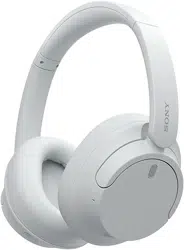
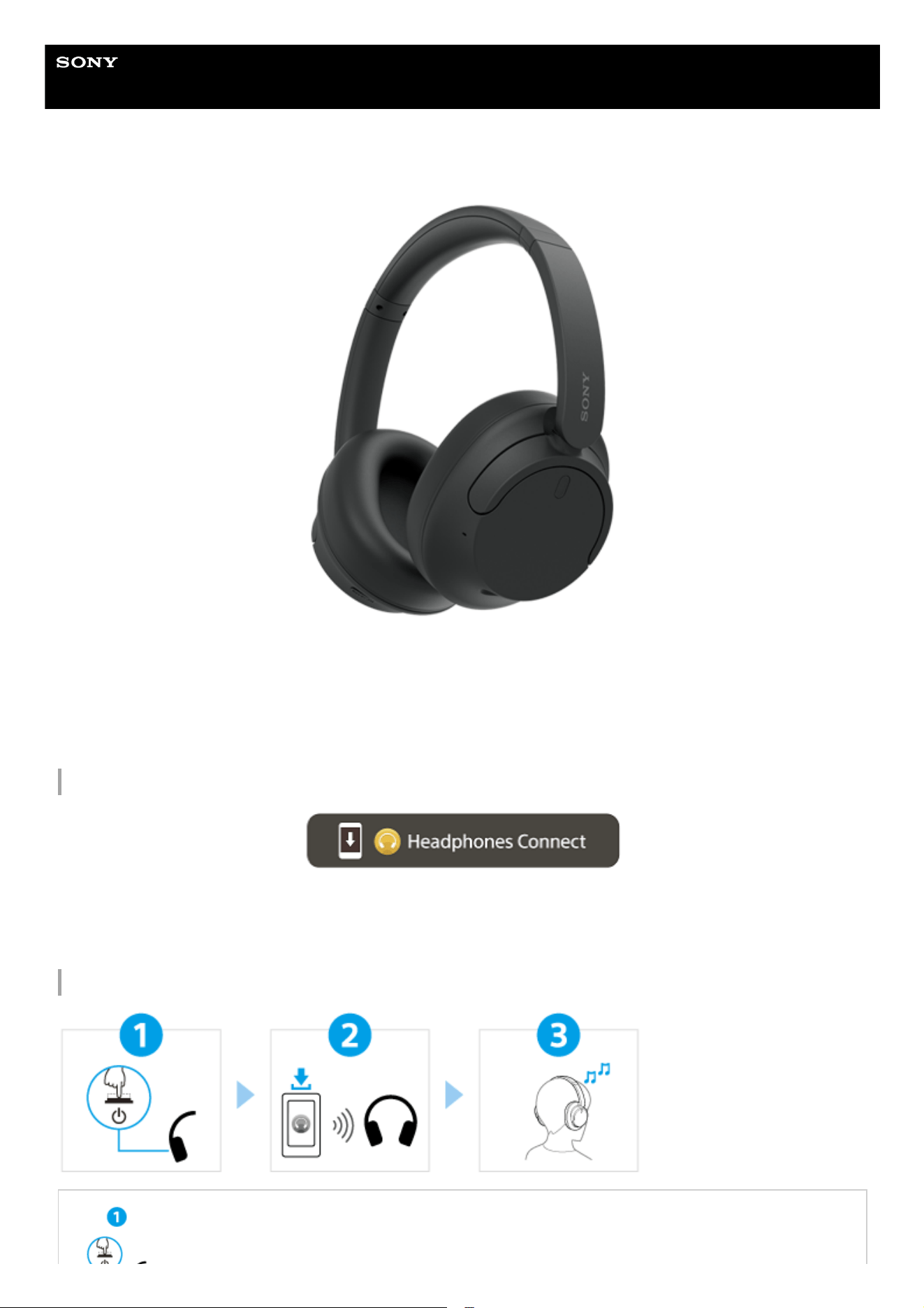
Wireless Noise Canceling Stereo Headset
WH-CH720N
Model: YY2966
Quick Start Guide
Download the app, and set up the headset
To use all functions and improved performances, update the software of the headset and “Sony | Headphones Connect”
app to the latest version. For details, refer to the following:
https://www.sony.net/elesupport/
Let’s start to use
Turning on the headset
1

To prevent burning or malfunction due to getting wet
The headset is not waterproof.
If the headset is charged while it is wet with rain or sweat, etc., this can result in burnout or malfunction.
Related information
Wearing the headset
Establishing a Bluetooth connection manually
Charging the headset
Press and hold the (power) button for about 2 seconds or more until the indicator (blue) flashes.
The headset enters pairing mode automatically when you turn on the headset for the first time after
purchase.
Establishing a BLUETOOTH® connection
Follow the downloaded “Sony | Headphones Connect” app instructions.
Operating the headset
You can use the buttons on the right unit of the headset to perform the following operations.
(play/next/previous) button
Press once briefly while paused: Play
Press once briefly during playback: Pause
Press twice briefly: Skip to the beginning of the next track
Press 3 times briefly: Skip to the beginning of the previous track (or the current track during
playback)
+ (volume +)/ – (volume –) buttons
Adjust the volume
For more details on operations, refer to “Controlling the audio device (Bluetooth connection)”.
Getting started
What you can do with the Bluetooth function
About the voice guidance
Supplied accessories
Checking the package contents
Parts and controls
Location and function of parts
About the indicator
2

Wearing the headset
Power/Charging
Charging the headset
Available operating time
Checking the remaining battery charge
Turning on the headset
Turning off the headset
Making connections
How to make a wireless connection to Bluetooth devices
Easy setup with app
Connecting with the “Sony | Headphones Connect” app
Android smartphone
Pairing and connecting with an Android smartphone
Connecting to a paired Android smartphone
iPhone (iOS devices)
Pairing and connecting with an iPhone
Connecting to a paired iPhone
Computers
Pairing and connecting with a computer (Windows® 11)
Pairing and connecting with a computer (Windows 10)
Pairing and connecting with a computer (Mac)
Connecting to a paired computer (Windows 11)
Connecting to a paired computer (Windows 10)
Connecting to a paired computer (Mac)
Other Bluetooth devices
Pairing and connecting with a Bluetooth device
Connecting to a paired Bluetooth device
Multipoint connection
Connecting the headset to 2 devices simultaneously (multipoint connection)
3

Using the supplied headphone cable
Listening to music
Listening to music via a Bluetooth connection
Listening to music from a device via Bluetooth connection
Controlling the audio device (Bluetooth connection)
Disconnecting Bluetooth connection (after use)
About 360 Reality Audio
Noise canceling function
What is noise canceling?
Using the noise canceling function
Listening to ambient sound
Listening to ambient sound during music playback (Ambient Sound Mode)
Sound quality mode
About the sound quality mode
Supported codecs
About the DSEE function
Making phone calls
Receiving a call
Making a call
Functions for a phone call
Making a video call on your computer
Disconnecting Bluetooth connection (after use)
Using the voice assist function
Using Google Assistant (with button)
Using Amazon Alexa
Using Google Assistant (with voice activation)
Using the voice assist function (Siri)
Using the apps
4

What you can do with the “Sony | Headphones Connect” app
Installing the “Sony | Headphones Connect” app
Accessing support information from the “Sony | Headphones Connect” app
How to keep the software up-to-date (for comfortable use of the headset)
Important information
Precautions
To prevent burning or malfunction due to getting wet
Licenses
Trademarks
Customer support websites
Troubleshooting
What can I do to solve a problem?
Power/Charging
Unable to turn on the headset.
Charging cannot be done.
Charging time is too long.
The available operating time is short (the duration of the battery is short).
Sound
No sound
Low sound level
Low sound quality, or noise or unusual sound can be heard.
Sound skips frequently.
The effect of noise canceling is not sufficient.
Bluetooth connection
Pairing cannot be done.
Unable to make a Bluetooth connection.
The headset cannot be operated.
Cannot hear the other person or the call volume is low during calls/The other person cannot hear you or their call volume is low
during calls.
5

Help Guide
Wireless Noise Canceling Stereo Headset
WH-CH720N
What you can do with the Bluetooth function
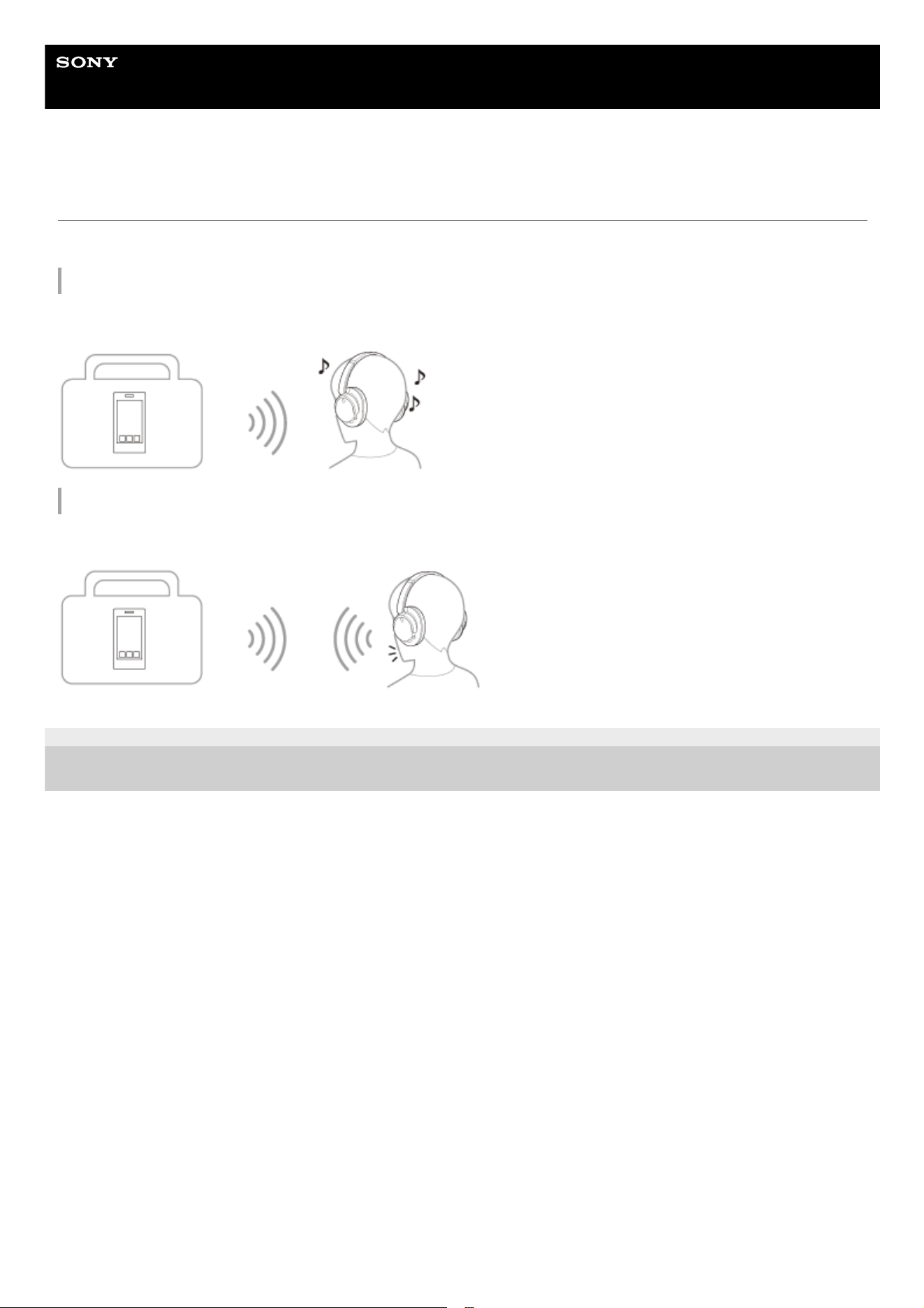
The headset uses Bluetooth wireless technology, allowing you to do the following.
Listening to music
You can enjoy music wirelessly from a smartphone or music player, etc.
Talking on the phone
You can make and receive calls hands-free, while leaving your smartphone or mobile phone in your bag or pocket.
5-045-500-11(1) Copyright 2023 Sony Corporation
7

Help Guide
Wireless Noise Canceling Stereo Headset
WH-CH720N
About the voice guidance
In the factory settings, you will hear the English voice guidance in the following situations via the headset.
You can change the language of the voice guidance and turn on/off the voice guidance using “Sony | Headphones
Connect” app. For more details, refer to the “Sony | Headphones Connect” app help guide.
https://rd1.sony.net/help/mdr/hpc/h_zz/
When entering pairing mode: “Pairing”
When informing the remaining battery charge: “Battery about XX %” (The “XX” value indicates the approximate
remaining charge. Use it as a rough estimate.) / “Battery fully charged”
When the remaining battery charge is low: “Low battery”
When automatically turning off due to low battery: “Battery is empty”
When Google™ Assistant is not available on the smartphone connected to the headset even if you operate the
headset: “Google Assistant is not connected”
When Amazon Alexa is not available on the smartphone connected to the headset even if you operate the headset:
“Either your mobile device isn’t connected; or you need to open the Alexa App and try again”
Note
It takes about 10 minutes when you change the language of the voice guidance.
If the voice guidance is not heard after changing the voice guidance language or updating the software, turn the headset off and
on again.
5-045-500-11(1) Copyright 2023 Sony Corporation
8

Help Guide
Wireless Noise Canceling Stereo Headset
WH-CH720N
Checking the package contents
After opening the package, check that all of the items in the list are included. If any items are missing, contact your
dealer.
Numbers in ( ) indicate the item amount.
Wireless Noise Canceling Stereo Headset
USB Type-C® cable (USB-A to USB-C®) (approx. 20 cm (7.88 in.)) (1)
Headphone cable (approx. 1.2 m (47.25 in.)) (1)
5-045-500-11(1) Copyright 2023 Sony Corporation
9

Help Guide
Wireless Noise Canceling Stereo Headset
WH-CH720N
Location and function of parts
Headband1.
(left) mark2.
Tactile dot
There is a tactile dot on the left unit.
3.
Noise canceling function microphones (left, right)
Pick up the sound of the noise when the noise canceling function is in use.
4.
Built-in antenna
A Bluetooth antenna is built into the headset.
5.
Left unit6.
Sliders (left, right)
Slide to adjust the length of the headband.
7.
(right) mark8.
Right unit9.
Power/
(Bluetooth) indicator (blue/orange)
Lights up in blue or orange to indicate the power or communication status of the headset.
10.
10

Related Topic
About the indicator
Checking the remaining battery charge
5-045-500-11(1) Copyright 2023 Sony Corporation
(power) button11.
USB Type-C port
Connect the headset to a computer, or to an AC outlet via a commercially available USB AC adaptor, with the
supplied USB Type-C cable to charge the headset.
12.
Headphone cable input jack
Connect a music player, etc. using the supplied headphone cable. Make sure that you insert the cable until it clicks. If
the plug is not connected correctly, you may not hear the sound properly.
13.
Call microphone
Picks up the sound of your voice when talking on the phone.
14.
+ (volume +) button
There is a tactile dot on the + button. Use this dot as a guide when operating the headset.
15.
(play/call/next/previous) button16.
– (volume –) button17.
NC/AMB (noise canceling/Ambient Sound Mode) button18.
11

Help Guide
Wireless Noise Canceling Stereo Headset
WH-CH720N
About the indicator
You can check various statuses of the headset by the indicator.
: Turns on in blue / : Turns on in orange / -: Turns off
Turning on
-- -- (flashes twice in blue)
In this case, when the remaining battery charge is 10% or lower (requires charging), the indicator lights successively as
follows.
-- -- (repeatedly flashes slowly in orange for about 15 seconds)
Turning off
---- (lights up in blue for about 2 seconds)
Displaying the remaining battery charge
Remaining charge: More than 10%
-- -- (flashes twice in blue)
Remaining charge: 10% or lower (requires charging)
-- -- (repeatedly flashes slowly in orange for about 15 seconds)
For details, see “Checking the remaining battery charge”.
When the remaining battery charge becomes low
-- -- (repeatedly flashes slowly in orange for about 15 seconds)
Charging
While charging
(lights up in orange)
The indicator turns off after charging is complete.
Abnormal temperature
- --- - --- - (repeatedly flashes twice in orange)
Abnormal charging
-- -- -- (repeatedly flashes slowly in orange)
Bluetooth function
Pairing mode
- ---- - ---- - (repeatedly flashes twice in blue)
Not connected
---- ---- (repeatedly flashes in blue at about 1-second intervals)
Connection process completed
- - - - - - - - (repeatedly flashes quickly in blue for about 5 seconds)
Connected
- - - - - - - - (repeatedly flashes in blue at about 5-second intervals)
Incoming call
-- -- -- -- -- -- (repeatedly flashes quickly in blue)
12

The unconnected and connected status indications automatically turn off after a period of time has passed. They start
flashing again for a period of time when some operation is performed. When the remaining battery charge becomes low,
the indicator starts flashing in orange.
Other
Headphone cable connected (power is turned on)
- - - - - - - - (repeatedly flashes in blue at about 5-second intervals)
The indicator turns off automatically after a period of time has passed. When the remaining battery charge becomes
low, the indicator starts flashing in orange.
Updating software
--- --- (repeatedly flashes slowly in blue)
Initialization completed
- - - - (flashes 4 times in blue)
For details, see “Initializing the headset to restore factory settings”.
Related Topic
Checking the remaining battery charge
Initializing the headset to restore factory settings
5-045-500-11(1) Copyright 2023 Sony Corporation
13

Help Guide
Wireless Noise Canceling Stereo Headset
WH-CH720N
Wearing the headset
Put the headset on your ears.
1
Check the left and right units of the headset.
There is a tactile dot on the
(left) mark side.
A: Tactile dot
1.
Extend the slider.
Extend the slider to its full length before putting on the headset.
2.
Put on the headset.
Put on the headset with the earpads fitting snugly over your ears.
3.
Adjust the length of the slider.
Adjust the slider to a length where the headband touches the top of your head.
4.
14

5-045-500-11(1) Copyright 2023 Sony Corporation
Adjust the orientation of the units.
Adjust the orientation of the left and right units so that the earpads fit snugly all around your ears.
If you put on the headset without adjusting the slider, the headset may not be positioned properly on your head,
resulting in discomfort or a weak noise canceling effect.
5.
15

Help Guide
Wireless Noise Canceling Stereo Headset
WH-CH720N
Charging the headset
The headset contains a built-in lithium-ion rechargeable battery. Use the supplied USB Type-C cable to charge the
headset before use.
System requirements for battery charge using USB
USB AC adaptor
A commercially available USB AC adaptor capable of supplying an output current of 0.5 A (500 mA) or more
Personal computer
Personal computer with a standard USB port
We do not guarantee operation on all computers.
Operations using a custom-built or homebuilt computer are not guaranteed.
Hint
The headset can be also charged by connecting the headset to a running computer using the supplied USB Type-C cable.
If charging starts while the headset is on, the headset will turn off automatically.
Connect the headset to an AC outlet.
Use the supplied USB Type-C cable and a commercially available USB AC adaptor.
A: USB AC adaptor
The indicator (orange) on the headset lights up.
Charging is completed in about 3.5 hours
*
and the indicator turns off automatically.
After charging is complete, disconnect the USB Type-C cable.
1
Time required for charging the empty battery to its full capacity. The charging time may differ depending on the conditions of use.
*
16

Note
Charging may not be successful with cables other than the supplied USB Type-C cable.
Charging may not be successful depending on the type of USB AC adaptor.
When the headset is connected to an AC outlet or computer, all operations such as turning on the headset, registering or
connecting to Bluetooth devices, and music playback cannot be performed.
The headset cannot be charged when the computer goes into standby (sleep) or hibernation mode. In this case, change the
computer settings, and start charging once again.
If the headset is not used for a long time, the rechargeable battery usage hours may be reduced. However, the battery life will
improve after charging and discharging several times. If you store the headset for a long time, charge the battery once every 6
months to avoid over-discharge.
If the headset is not used for a long time, it may take longer to charge the battery.
If the headset detects a problem while charging due to the following causes, the indicator (orange) flashes. In this case, charge
once again within the charging temperature range. If the problem persists, consult your nearest Sony dealer.
Ambient temperature exceeds the charging temperature range of 5 °C - 35 °C (41 °F - 95 °F).
There is a problem with the rechargeable battery.
If the headset is not used for a long time, the indicator (orange) may not immediately light up when the headset starts charging.
Please wait a moment until the indicator lights up.
If the usage hours of the built-in rechargeable battery decrease significantly, the battery should be replaced. Consult your nearest
Sony dealer.
Avoid exposure to extreme temperature changes, direct sunlight, moisture, sand, dust, and electrical shock. Never leave the
headset in a parked vehicle.
When connecting the headset to a computer, use only the supplied USB Type-C cable, and make sure to connect them directly.
Charging will not be properly completed when the headset is connected through a USB hub.
5-045-500-11(1) Copyright 2023 Sony Corporation
17

Help Guide
Wireless Noise Canceling Stereo Headset
WH-CH720N
Available operating time
The available operating times of the headset with the battery fully charged are as follows:
Bluetooth connection
Music playback time
About 60 minutes of music playback is possible after 3 minutes charging. About 4.5 hours of music playback is
possible after 10 minutes charging as well.
Communication time
Headphone cable connected (power is turned on)
Hint
By using the “Sony | Headphones Connect” app, you can check which codec is used for a connection or switch the DSEE™
function.
Note
Codec Noise canceling function/Ambient Sound Mode Available operating time
AAC Noise canceling function: ON Max. 35 hours
AAC Ambient Sound Mode: ON Max. 35 hours
AAC OFF Max. 50 hours
SBC Noise canceling function: ON Max. 35 hours
SBC Ambient Sound Mode: ON Max. 35 hours
SBC OFF Max. 50 hours
Noise canceling function/Ambient Sound Mode Available operating time
Noise canceling function: ON Max. 35 hours
Ambient Sound Mode: ON Max. 35 hours
OFF Max. 40 hours
Noise canceling function/Ambient Sound Mode Available operating time
Noise canceling function: ON Max. 35 hours
Ambient Sound Mode: ON Max. 35 hours
OFF Max. 50 hours
18

Usage hours may be different from the time described above depending on the settings for the headset functions and usage
conditions.
If you set the following functions, the available operating time of the battery becomes shorter than the ones described above.
Equalizer
DSEE
Function to launch the voice assistant by your voice
If you run the above settings at the same time, the available operating time of the battery becomes even shorter.
Related Topic
Supported codecs
About the DSEE function
What you can do with the “Sony | Headphones Connect” app
5-045-500-11(1) Copyright 2023 Sony Corporation
19

Help Guide
Wireless Noise Canceling Stereo Headset
WH-CH720N
Checking the remaining battery charge
You can check the remaining battery charge of the rechargeable battery by the following way.
When you press the
(power) button while the headset is on, a voice guidance indicating the remaining battery
charge can be heard.
“Battery about XX %” (The “XX” value indicates the approximate remaining charge.)
“Battery fully charged”
The remaining battery charge indicated by the voice guidance may differ from the actual remaining charge in some
cases. Use it as a rough estimate.
The indicator (orange) also flashes for about 15 seconds if the remaining battery charge is 10% or lower when the
headset is turned on.
When the remaining charge becomes low
When you are using an iPhone or iPod touch
When the headset is connected to an iPhone or iPod touch over an HFP (Hands-free Profile) Bluetooth connection, it will
show an icon that indicates the remaining battery charge of the headset on the screen of the iPhone or iPod touch.
The display position is an example.
A: Remaining battery charge of the headset
The approximate remaining charge is shown at 10 different levels. B through E are display examples.
B: 100%
C: 70%
D: 50%
E: 20% or lower (requires charging)
The remaining battery charge of the headset is also displayed on the widget of an iPhone or iPod touch running iOS 11
or later.
For more details, refer to the operating instructions supplied with the iPhone or iPod touch.
The remaining charge which is displayed may differ from the actual remaining charge in some cases. Use it as a rough
estimate.
When you are using an Android™ smartphone (OS 8.1 or later)
When the headset is connected to an Android smartphone via HFP Bluetooth connection, select [Settings] - [Device
connection] - [Bluetooth] to display the remaining battery charge of the headset in 10 different levels such as “100%”,
“70%”, “50%” or “10%” in the connected Bluetooth device column. The operation above is an example. For details, refer
to the operating instructions of the Android smartphone.
The remaining charge which is displayed may differ from the actual remaining charge in some cases. Use it as a rough
estimate.
Hint
20

You can also check the remaining battery charge of the headset with the “Sony | Headphones Connect” app. Android
smartphones and iPhone/iPod touch both support this app.
Note
If the headset and smartphone are not connected with HFP, the remaining battery charge will not be correctly displayed.
If you connect the headset to an iPhone/iPod touch or Android smartphone with “Media audio” (A2DP) only in a multipoint
connection, the remaining battery charge will not be displayed correctly.
The remaining battery charge may not be properly displayed immediately after a software update or if the headset has not been
used for a long time. In this case, repeatedly charge and discharge the battery multiple times to properly display the remaining
battery charge.
Related Topic
About the indicator
5-045-500-11(1) Copyright 2023 Sony Corporation
21


Help Guide
Wireless Noise Canceling Stereo Headset
WH-CH720N
Turning off the headset
Hint
You can also turn off the headset with the “Sony | Headphones Connect” app.
Related Topic
Turning on the headset
5-045-500-11(1) Copyright 2023 Sony Corporation
Press and hold the
(power) button for about 2 seconds or more until the indicator (blue) turns off.
1
23

Help Guide
Wireless Noise Canceling Stereo Headset
WH-CH720N
How to make a wireless connection to Bluetooth devices
You can enjoy music and hands-free calling with the headset wirelessly by using your Bluetooth device’s Bluetooth
function.
Pairing
To use the Bluetooth function, both of the connecting devices must be registered in advance. The operation to register a
device is called “pairing”.
Pair the headset and the device manually.
Connecting to a paired device
Once a device is paired, it is not necessary to pair it again. Connect to devices already paired with the headset using the
methods necessary for each device.
Related Topic
Pairing and connecting with an Android smartphone
Pairing and connecting with an iPhone
Pairing and connecting with a computer (Windows® 11)
Pairing and connecting with a computer (Windows 10)
Pairing and connecting with a computer (Mac)
Pairing and connecting with a Bluetooth device
Connecting to a paired Android smartphone
Connecting to a paired iPhone
Connecting to a paired computer (Windows 11)
Connecting to a paired computer (Windows 10)
Connecting to a paired computer (Mac)
Connecting to a paired Bluetooth device
5-045-500-11(1) Copyright 2023 Sony Corporation
24

Help Guide
Wireless Noise Canceling Stereo Headset
WH-CH720N
Connecting with the “Sony | Headphones Connect” app
Launch the “Sony | Headphones Connect” app on your Android smartphone/iPhone to connect the headset to a
smartphone or iPhone. For more details, refer to the “Sony | Headphones Connect” app help guide.
https://rd1.sony.net/help/mdr/hpc/h_zz/
Note
The connection with some smartphones and iPhone devices may become unstable when connecting using the “Sony |
Headphones Connect” app. In that case, follow the procedures in “Connecting to a paired Android smartphone”, or “Connecting
to a paired iPhone ” to connect to the headset.
Related Topic
Pairing and connecting with an Android smartphone
Pairing and connecting with an iPhone
Pairing and connecting with a computer (Windows® 11)
Pairing and connecting with a computer (Windows 10)
Pairing and connecting with a computer (Mac)
Connecting to a paired Android smartphone
Connecting to a paired iPhone
What you can do with the “Sony | Headphones Connect” app
Installing the “Sony | Headphones Connect” app
5-045-500-11(1) Copyright 2023 Sony Corporation
25

Help Guide
Wireless Noise Canceling Stereo Headset
WH-CH720N
Pairing and connecting with an Android smartphone
The operation to register the device that you wish to connect to is called “pairing”. First, pair a device to use it with the
headset for the first time.
Before starting the operation, make sure of the following:
The Android smartphone is placed within 1 m (3.2 ft) of the headset.
The headset is charged sufficiently.
The operating instructions of the Android smartphone is in hand.
Enter pairing mode on this headset.
Turn on the headset when you pair the headset with a device for the first time after you bought it or after you
initialized the headset (the headset has no pairing information). The headset enters pairing mode automatically. In
this case, proceed to step
.
When you pair a second or subsequent device (the headset already has pairing information for other devices),
press and hold the
(power) button for about 5 seconds or more to enter pairing mode manually.
The indicator (blue) repeatedly flashes twice in a row. You will hear the voice guidance say, “Pairing”.
1
0:00
Unlock the screen of the Android smartphone if it is locked.
2
Find the headset on the Android smartphone.
3
Select [Settings] - [Device connection] - [Bluetooth].
1.
26

Hint
The operation above is an example. For more details, refer to the operating instructions supplied with the Android smartphone.
To delete all Bluetooth pairing information, see “Initializing the headset to restore factory settings”.
Note
If pairing is not established within 5 minutes, pairing mode is canceled. In this case, turn off the power and start the operation
again from step
.
Once Bluetooth devices are paired, there is no need to pair them again, except in the following cases:
Pairing information has been deleted after repair, etc.
When a 9th device is paired.
The headset can be paired with up to 8 devices. If a new device is paired after 8 devices are already paired, the registration
information of the paired device with the oldest connection date is overwritten with the information for the new device.
When the pairing information for the headset has been deleted from the Bluetooth device.
When the headset is initialized.
All of the pairing information is deleted. In this case, delete the pairing information for the headset from the connected device
and then pair them again.
The headset can be paired with multiple devices, but can only play music from 1 paired device at a time.
Touch the switch to turn on the Bluetooth function.
2.
Touch [WH-CH720N].
If Passkey
*
input is required, input “0000”.
The headset and smartphone are paired and connected with each other.
You will hear a notification sound indicating that the connection is established.
If they are not connected, see “Connecting to a paired Android smartphone”.
If [WH-CH720N] does not appear on your Android smartphone screen, try again from the beginning of step
.
4
A Passkey may be called “Passcode”, “PIN code”, “PIN number”, or “Password”.
*
27

Related Topic
How to make a wireless connection to Bluetooth devices
Connecting to a paired Android smartphone
Listening to music from a device via Bluetooth connection
Disconnecting Bluetooth connection (after use)
Initializing the headset to restore factory settings
5-045-500-11(1) Copyright 2023 Sony Corporation
28

Help Guide
Wireless Noise Canceling Stereo Headset
WH-CH720N
Connecting to a paired Android smartphone
Unlock the screen of the Android smartphone if it is locked.
1
Turn on the headset.
Press and hold the
(power) button for about 2 seconds or more.
You will hear a notification sound indicating that the headset is turned on.
The indicator (blue) continues to flash even after you release your finger from the button.
If the headset has automatically connected to the last connected device, you will hear a notification sound indicating
that the connection is established.
Check the connection status on the Android smartphone. If it is not connected, proceed to step
.
2
Display the devices paired with the Android smartphone.
3
Select [Settings] - [Device connection] - [Bluetooth].
1.
Touch the switch to turn on the Bluetooth function.
2.
29

Hint
The operation above is an example. For more details, refer to the operating instructions supplied with the Android smartphone.
Note
When connecting, [WH-CH720N], [LE_WH-CH720N], or both may be displayed on the connecting device. When both or [WH-
CH720N] is displayed, select [WH-CH720N]; when [LE_WH-CH720N] is displayed, select [LE_WH-CH720N].
If the last-connected Bluetooth device is placed near the headset, the headset may connect automatically to the device by simply
turning on the headset. If this is the case, deactivate the Bluetooth function on the last-connected device or turn off the power.
If you cannot connect your smartphone to the headset, delete the headset pairing information on your smartphone and perform
the pairing again. As for the operations on your smartphone, refer to the operating instructions supplied with the smartphone.
Related Topic
How to make a wireless connection to Bluetooth devices
Pairing and connecting with an Android smartphone
Listening to music from a device via Bluetooth connection
Disconnecting Bluetooth connection (after use)
5-045-500-11(1) Copyright 2023 Sony Corporation
Touch [WH-CH720N].
You will hear a notification sound indicating that the connection is established.
4
30

Help Guide
Wireless Noise Canceling Stereo Headset
WH-CH720N
Pairing and connecting with an iPhone
The operation to register the device that you wish to connect to is called “pairing”. First, pair a device to use it with the
headset for the first time.
Before starting the operation, make sure of the following:
The iPhone is placed within 1 m (3.2 ft) of the headset.
The headset is charged sufficiently.
The operating instructions of the iPhone is in hand.
Enter pairing mode on this headset.
Turn on the headset when you pair the headset with a device for the first time after you bought it or after you
initialized the headset (the headset has no pairing information). The headset enters pairing mode automatically. In
this case, proceed to step
.
When you pair a second or subsequent device (the headset already has pairing information for other devices),
press and hold the
(power) button for about 5 seconds or more to enter pairing mode manually.
The indicator (blue) repeatedly flashes twice in a row. You will hear the voice guidance say, “Pairing”.
1
0:00
Unlock the screen of the iPhone if it is locked.
2
Find the headset on the iPhone.
3
Select [Settings].
1.
31

Hint
The operation above is an example. For more details, refer to the operating instructions supplied with the iPhone.
To delete all Bluetooth pairing information, see “Initializing the headset to restore factory settings”.
Note
If pairing is not established within 5 minutes, pairing mode is canceled. In this case, turn off the power and start the operation
again from step
.
Once Bluetooth devices are paired, there is no need to pair them again, except in the following cases:
Pairing information has been deleted after repair, etc.
When a 9th device is paired.
The headset can be paired with up to 8 devices. If a new device is paired after 8 devices are already paired, the registration
information of the paired device with the oldest connection date is overwritten with the information for the new device.
When the pairing information for the headset has been deleted from the Bluetooth device.
When the headset is initialized.
All of the pairing information is deleted. In this case, delete the pairing information for the headset from the connected device
and then pair them again.
Touch [Bluetooth].
2.
Touch the switch to turn on the Bluetooth function.
3.
Touch [WH-CH720N].
If Passkey
*
input is required, input “0000”.
The headset and iPhone are paired and connected with each other.
You will hear a notification sound indicating that the connection is established.
If they are not connected, see “Connecting to a paired iPhone ”.
If [WH-CH720N] does not appear on your iPhone screen, try again from the beginning of step
.
4
A Passkey may be called “Passcode”, “PIN code”, “PIN number”, or “Password”.
*
32

The headset can be paired with multiple devices, but can only play music from 1 paired device at a time.
Related Topic
How to make a wireless connection to Bluetooth devices
Connecting to a paired iPhone
Listening to music from a device via Bluetooth connection
Disconnecting Bluetooth connection (after use)
Initializing the headset to restore factory settings
5-045-500-11(1) Copyright 2023 Sony Corporation
33

Help Guide
Wireless Noise Canceling Stereo Headset
WH-CH720N
Connecting to a paired iPhone
Unlock the screen of the iPhone if it is locked.
1
Turn on the headset.
Press and hold the
(power) button for about 2 seconds or more.
You will hear a notification sound indicating that the headset is turned on.
The indicator (blue) continues to flash even after you release your finger from the button.
If the headset has automatically connected to the last connected device, you will hear a notification sound indicating
that the connection is established.
Check the connection status on the iPhone. If it is not connected, proceed to step
.
2
Display the devices paired with the iPhone.
3
Select [Settings].
1.
Touch [Bluetooth].
2.
Touch the switch to turn on the Bluetooth function.
3.
34

Hint
The operation above is an example. For more details, refer to the operating instructions supplied with the iPhone.
Note
When connecting, [WH-CH720N], [LE_WH-CH720N], or both may be displayed on the connecting device. When both or [WH-
CH720N] is displayed, select [WH-CH720N]; when [LE_WH-CH720N] is displayed, select [LE_WH-CH720N].
If the last-connected Bluetooth device is placed near the headset, the headset may connect automatically to the device by simply
turning on the headset. If this is the case, deactivate the Bluetooth function on the last-connected device or turn off the power.
If you cannot connect your iPhone to the headset, delete the headset pairing information on your iPhone and perform the pairing
again. As for the operations on your iPhone, refer to the operating instructions supplied with the iPhone.
Related Topic
How to make a wireless connection to Bluetooth devices
Pairing and connecting with an iPhone
Listening to music from a device via Bluetooth connection
Disconnecting Bluetooth connection (after use)
5-045-500-11(1) Copyright 2023 Sony Corporation
Touch [WH-CH720N].
You will hear a notification sound indicating that the connection is established.
4
35
Help Guide
Wireless Noise Canceling Stereo Headset
WH-CH720N
Pairing and connecting with a computer (Windows® 11)
The operation to register the device that you wish to connect to is called “pairing”. First, pair a device to use it with the
headset for the first time.
Before starting the operation, make sure of the following:
Your computer has a Bluetooth function that supports music playback connections (A2DP).
When you use a video calling application on your computer, your computer has a Bluetooth function that supports
calling connections (HFP/HSP).
The computer is placed within 1 m (3.2 ft) of the headset.
The headset is charged sufficiently.
The operating instructions of the computer is in hand.
Depending on the computer you are using, the built-in Bluetooth adaptor may need to be turned on. If you do not
know how to turn on the Bluetooth adaptor or are unsure if your computer has a built-in Bluetooth adaptor, refer to
the operating instructions supplied with the computer.
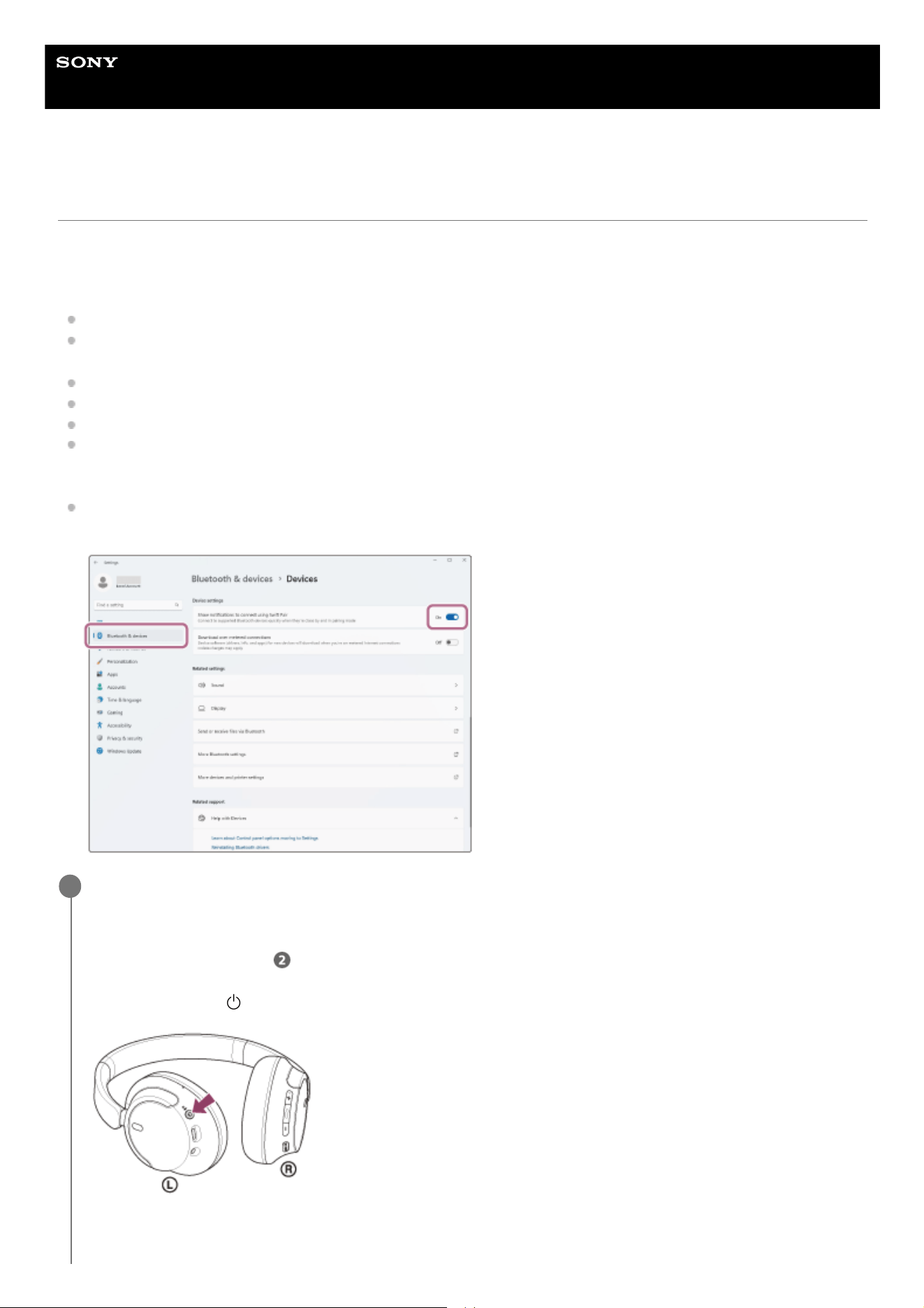
The Swift Pair function makes pairing easier. To use the Swift Pair function, click the [Start] button - [Settings] -
[Bluetooth & devices] - [Show notifications to connect using Swift Pair] switch to turn on the Swift Pair function.
Enter pairing mode on this headset.
Turn on the headset when you pair the headset with a device for the first time after you bought it or after you
initialized the headset (the headset has no pairing information). The headset enters pairing mode automatically. In
this case, proceed to step
.
When you pair a second or subsequent device (the headset already has pairing information for other devices),
press and hold the
(power) button for about 5 seconds or more to enter pairing mode manually.
The indicator (blue) repeatedly flashes twice in a row. You will hear the voice guidance say, “Pairing”.
1
36

0:00
Wake the computer up if the computer is in standby (sleep) or hibernation mode.
2
Pair the headset using the computer.
To connect using the Swift Pair function
To connect without using the Swift Pair function
3
Select [Connect] from the pop-up menu displayed on your computer screen.1.
Click the [Start] button, then [Settings].1.
Click [Bluetooth & devices].
2.
Click the [Bluetooth] switch to turn on the Bluetooth function, then click [Add device].3.
37

If Passkey
*
input is required, input “0000”.
The headset and computer are paired and connected with each other.
You will hear a notification sound indicating that the connection is established.
If they are not connected, see “Connecting to a paired computer (Windows 11)”.
If [WH-CH720N] does not appear on your computer screen, try again from “To connect without using the Swift Pair
function” of step
.
Click [Bluetooth].4.
Click [WH-CH720N].
5.
A Passkey may be called “Passcode”, “PIN code”, “PIN number”, or “Password”.
*
38

Hint
The operation above is an example. For more details, refer to the operating instructions supplied with the computer.
To delete all Bluetooth pairing information, see “Initializing the headset to restore factory settings”.
Note
If pairing is not established within 5 minutes, pairing mode is canceled. In this case, turn off the power and start the operation
again from step
.
Once Bluetooth devices are paired, there is no need to pair them again, except in the following cases:
Pairing information has been deleted after repair, etc.
When a 9th device is paired.
The headset can be paired with up to 8 devices. If a new device is paired after 8 devices are already paired, the registration
information of the paired device with the oldest connection date is overwritten with the information for the new device.
When the pairing information for the headset has been deleted from the Bluetooth device.
When the headset is initialized.
All of the pairing information is deleted. In this case, delete the pairing information for the headset from the connected device
and then pair them again.
The headset can be paired with multiple devices, but can only play music from 1 paired device at a time.
Related Topic
How to make a wireless connection to Bluetooth devices
Connecting to a paired computer (Windows 11)
Listening to music from a device via Bluetooth connection
Making a video call on your computer
Disconnecting Bluetooth connection (after use)
Initializing the headset to restore factory settings
5-045-500-11(1) Copyright 2023 Sony Corporation
39

Help Guide
Wireless Noise Canceling Stereo Headset
WH-CH720N
Pairing and connecting with a computer (Windows 10)
The operation to register the device that you wish to connect to is called “pairing”. First, pair a device to use it with the
headset for the first time.
Before starting the operation, make sure of the following:
Your computer has a Bluetooth function that supports music playback connections (A2DP).
When you use a video calling application on your computer, your computer has a Bluetooth function that supports
calling connections (HFP/HSP).
The computer is placed within 1 m (3.2 ft) of the headset.
The headset is charged sufficiently.
The operating instructions of the computer is in hand.
Depending on the computer you are using, the built-in Bluetooth adaptor may need to be turned on. If you do not
know how to turn on the Bluetooth adaptor or are unsure if your computer has a built-in Bluetooth adaptor, refer to
the operating instructions supplied with the computer.
If your OS version is Windows 10 version 1803 or later, the Swift Pair function will make pairing easier. To use the
Swift Pair function, click the [Start] button - [Settings] - [Devices] - [Bluetooth & other devices], and check [Show
notifications to connect using Swift Pair].
Enter pairing mode on this headset.
Turn on the headset when you pair the headset with a device for the first time after you bought it or after you
initialized the headset (the headset has no pairing information). The headset enters pairing mode automatically. In
this case, proceed to step
.
When you pair a second or subsequent device (the headset already has pairing information for other devices),
press and hold the
(power) button for about 5 seconds or more to enter pairing mode manually.
The indicator (blue) repeatedly flashes twice in a row. You will hear the voice guidance say, “Pairing”.
1
40

0:00
Wake the computer up if the computer is in standby (sleep) or hibernation mode.
2
Pair the headset using the computer.
To connect using the Swift Pair function
To connect without using the Swift Pair function
3
Select [Connect] from the pop-up menu displayed on your computer screen.1.
Click the [Start] button, then [Settings].1.
Click [Devices].2.
41

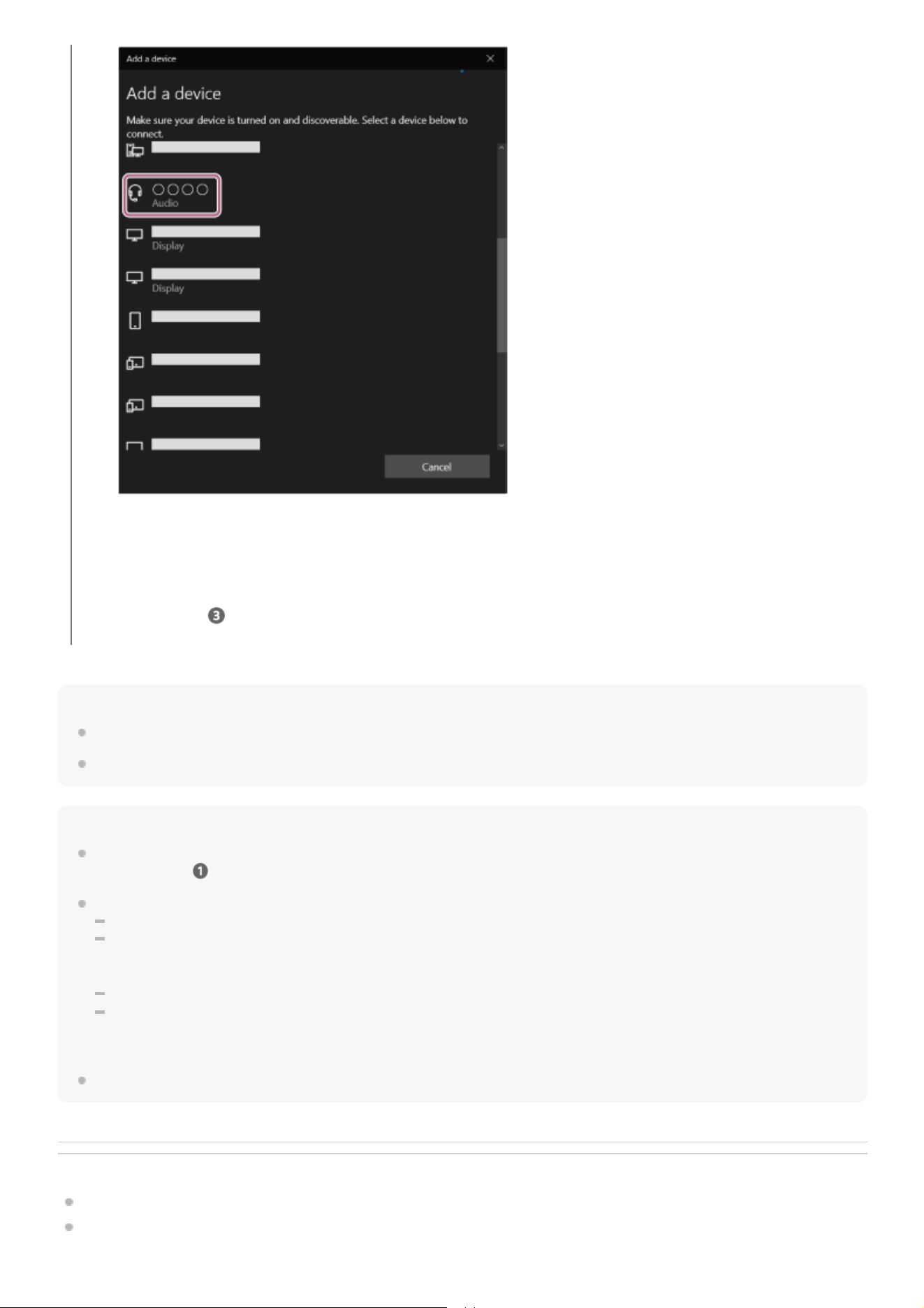
Click the [Bluetooth & other devices] tab, click the [Bluetooth] switch to turn on the Bluetooth function, then click
[Add Bluetooth or other device].
3.
Click [Bluetooth].
4.
Click [WH-CH720N].5.
42
Hint
The operation above is an example. For more details, refer to the operating instructions supplied with the computer.
To delete all Bluetooth pairing information, see “Initializing the headset to restore factory settings”.
Note
If pairing is not established within 5 minutes, pairing mode is canceled. In this case, turn off the power and start the operation
again from step
.
Once Bluetooth devices are paired, there is no need to pair them again, except in the following cases:
Pairing information has been deleted after repair, etc.
When a 9th device is paired.
The headset can be paired with up to 8 devices. If a new device is paired after 8 devices are already paired, the registration
information of the paired device with the oldest connection date is overwritten with the information for the new device.
When the pairing information for the headset has been deleted from the Bluetooth device.
When the headset is initialized.
All of the pairing information is deleted. In this case, delete the pairing information for the headset from the connected device
and then pair them again.
The headset can be paired with multiple devices, but can only play music from 1 paired device at a time.
Related Topic
How to make a wireless connection to Bluetooth devices
Connecting to a paired computer (Windows 10)
If Passkey
*
input is required, input “0000”.
The headset and computer are paired and connected with each other.
You will hear a notification sound indicating that the connection is established.
If they are not connected, see “Connecting to a paired computer (Windows 10)”.
If [WH-CH720N] does not appear on your computer screen, try again from “To connect without using the Swift Pair
function” of step
.
A Passkey may be called “Passcode”, “PIN code”, “PIN number”, or “Password”.
*
43


Help Guide
Wireless Noise Canceling Stereo Headset
WH-CH720N
Pairing and connecting with a computer (Mac)
The operation to register the device that you wish to connect to is called “pairing”. First, pair a device to use it with the
headset for the first time.
Compatible OS
macOS (version 11 or later)
Before starting the operation, make sure of the following:
Your computer has a Bluetooth function that supports music playback connections (A2DP).
When you use a video calling application on your computer, your computer has a Bluetooth function that supports
calling connections (HFP/HSP).
The computer is placed within 1 m (3.2 ft) of the headset.
The headset is charged sufficiently.
The operating instructions of the computer is in hand.
Depending on the computer you are using, the built-in Bluetooth adaptor may need to be turned on. If you do not
know how to turn on the Bluetooth adaptor or are unsure if your computer has a built-in Bluetooth adaptor, refer to
the operating instructions supplied with the computer.
Set the computer speaker to the ON mode.
If the computer speaker is set to the
“OFF” mode, no sound is heard from the headset.
Computer speaker in the ON mode
Enter pairing mode on this headset.
Turn on the headset when you pair the headset with a device for the first time after you bought it or after you
initialized the headset (the headset has no pairing information). The headset enters pairing mode automatically. In
this case, proceed to step
.
When you pair a second or subsequent device (the headset already has pairing information for other devices),
press and hold the
(power) button for about 5 seconds or more to enter pairing mode manually.
The indicator (blue) repeatedly flashes twice in a row. You will hear the voice guidance say, “Pairing”.
1
45

0:00
Wake the computer up if the computer is in standby (sleep) or hibernation mode.
2
Pair the headset using the computer.
If Passkey
*
input is required, input “0000”.
The headset and computer are paired and connected with each other.
You will hear a notification sound indicating that the connection is established.
If they are not connected, see “Connecting to a paired computer (Mac)”.
If [WH-CH720N] does not appear on your computer screen, try again from the beginning of step
.
3
Select [
(System Preferences)] - [Bluetooth] from the Dock at the bottom of the screen.
1.
Select [WH-CH720N] of the [Bluetooth] screen and click [Connect].
2.
46

Hint
The operation above is an example. For more details, refer to the operating instructions supplied with the computer.
To delete all Bluetooth pairing information, see “Initializing the headset to restore factory settings”.
Note
If pairing is not established within 5 minutes, pairing mode is canceled. In this case, turn off the power and start the operation
again from step
.
Once Bluetooth devices are paired, there is no need to pair them again, except in the following cases:
Pairing information has been deleted after repair, etc.
When a 9th device is paired.
The headset can be paired with up to 8 devices. If a new device is paired after 8 devices are already paired, the registration
information of the paired device with the oldest connection date is overwritten with the information for the new device.
When the pairing information for the headset has been deleted from the Bluetooth device.
When the headset is initialized.
All of the pairing information is deleted. In this case, delete the pairing information for the headset from the connected device
and then pair them again.
The headset can be paired with multiple devices, but can only play music from 1 paired device at a time.
Related Topic
How to make a wireless connection to Bluetooth devices
Connecting to a paired computer (Mac)
Listening to music from a device via Bluetooth connection
Making a video call on your computer
Disconnecting Bluetooth connection (after use)
Initializing the headset to restore factory settings
5-045-500-11(1) Copyright 2023 Sony Corporation
A Passkey may be called “Passcode”, “PIN code”, “PIN number”, or “Password”.
*
47

Help Guide
Wireless Noise Canceling Stereo Headset
WH-CH720N
Connecting to a paired computer (Windows 11)
Before starting the operation, make sure of the following:
Depending on the computer you are using, the built-in Bluetooth adaptor may need to be turned on. If you do not
know how to turn on the Bluetooth adaptor or are unsure if your computer has a built-in Bluetooth adaptor, refer to
the operating instructions supplied with the computer.
Wake the computer up if the computer is in standby (sleep) or hibernation mode.
1
Turn on the headset.
Press and hold the
(power) button for about 2 seconds or more.
You will hear a notification sound indicating that the headset is turned on.
The indicator (blue) continues to flash even after you release your finger from the button.
If the headset has automatically connected to the last connected device, you will hear a notification sound indicating
that the connection is established.
Check the connection status on the computer. If it is not connected, proceed to step
.
2
Select the headset using the computer.
3
Right-click the speaker icon on the toolbar, then select [Sound settings].1.
48

On the [Sound] screen, select [WH-CH720N] for [Output] and [Input].
If [WH-CH720N] is not displayed for [Output] and [Input], proceed to step 3.
2.
Click [More sound settings].
3.
On the [Playback] tab on the [Sound] screen, select [WH-CH720N], right-click it, and select [Connect] from the
displayed menu.
4.
49

Hint
The operation above is an example. For more details, refer to the operating instructions supplied with the computer.
Note
If the music playback sound quality is poor, check that the A2DP function which supports music playback connections is enabled
in the computer settings. For more details, refer to the operating instructions supplied with the computer.
If the last-connected Bluetooth device is placed near the headset, the headset may connect automatically to the device by simply
turning on the headset. If this is the case, deactivate the Bluetooth function on the last-connected device or turn off the power.
If you cannot connect your computer to the headset, delete the headset pairing information on your computer and perform the
pairing again. As for the operations on your computer, refer to the operating instructions supplied with the computer.
You will hear a notification sound indicating that the connection is established.
On the [Recording] tab, select [WH-CH720N], right-click it, and select [Connect] from the displayed menu.
5.
50


Help Guide
Wireless Noise Canceling Stereo Headset
WH-CH720N
Connecting to a paired computer (Windows 10)
Before starting the operation, make sure of the following:
Depending on the computer you are using, the built-in Bluetooth adaptor may need to be turned on. If you do not
know how to turn on the Bluetooth adaptor or are unsure if your computer has a built-in Bluetooth adaptor, refer to
the operating instructions supplied with the computer.
Wake the computer up if the computer is in standby (sleep) or hibernation mode.
1
Turn on the headset.
Press and hold the
(power) button for about 2 seconds or more.
You will hear a notification sound indicating that the headset is turned on.
The indicator (blue) continues to flash even after you release your finger from the button.
If the headset has automatically connected to the last connected device, you will hear a notification sound indicating
that the connection is established.
Check the connection status on the computer. If it is not connected, proceed to step
.
2
Select the headset using the computer.
3
Right-click the speaker icon on the toolbar, then select [Open Sound settings].1.
52

From the [Choose your output device] drop-down menu, select [Headphones (WH-CH720N Stereo)].
If [Headphones (WH-CH720N Stereo)] is not displayed on the drop-down menu, proceed to step 3.
2.
Click [Sound Control Panel], right-click on the [Playback] tab on the [Sound] screen, and check the [Show
Disconnected Devices] checkbox.
3.
Select [Connect] from the displayed menu.4.
53

Hint
The operation above is an example. For more details, refer to the operating instructions supplied with the computer.
You will hear a notification sound indicating that the connection is established.
54

Note
If the music playback sound quality is poor, check that the A2DP function which supports music playback connections is enabled
in the computer settings. For more details, refer to the operating instructions supplied with the computer.
If the last-connected Bluetooth device is placed near the headset, the headset may connect automatically to the device by simply
turning on the headset. If this is the case, deactivate the Bluetooth function on the last-connected device or turn off the power.
If you cannot connect your computer to the headset, delete the headset pairing information on your computer and perform the
pairing again. As for the operations on your computer, refer to the operating instructions supplied with the computer.
Related Topic
How to make a wireless connection to Bluetooth devices
Pairing and connecting with a computer (Windows 10)
Listening to music from a device via Bluetooth connection
Disconnecting Bluetooth connection (after use)
5-045-500-11(1) Copyright 2023 Sony Corporation
55

Help Guide
Wireless Noise Canceling Stereo Headset
WH-CH720N
Connecting to a paired computer (Mac)
Compatible OS
macOS (version 11 or later)
Before starting the operation, make sure of the following:
Depending on the computer you are using, the built-in Bluetooth adaptor may need to be turned on. If you do not
know how to turn on the Bluetooth adaptor or are unsure if your computer has a built-in Bluetooth adaptor, refer to
the operating instructions supplied with the computer.
Set the computer speaker to the ON mode.
If the computer speaker is set to the
“OFF” mode, no sound is heard from the headset.
Computer speaker in the ON mode
Wake the computer up if the computer is in standby (sleep) or hibernation mode.
1
Turn on the headset.
Press and hold the
(power) button for about 2 seconds or more.
You will hear a notification sound indicating that the headset is turned on.
The indicator (blue) continues to flash even after you release your finger from the button.
If the headset has automatically connected to the last connected device, you will hear a notification sound indicating
that the connection is established.
Check the connection status on the computer. If it is not connected, proceed to step
.
2
56

Hint
The operation above is an example. For more details, refer to the operating instructions supplied with the computer.
Note
If the music playback sound quality is poor, check that the A2DP function which supports music playback connections is enabled
in the computer settings. For more details, refer to the operating instructions supplied with the computer.
If the last-connected Bluetooth device is placed near the headset, the headset may connect automatically to the device by simply
turning on the headset. If this is the case, deactivate the Bluetooth function on the last-connected device or turn off the power.
If you cannot connect your computer to the headset, delete the headset pairing information on your computer and perform the
pairing again. As for the operations on your computer, refer to the operating instructions supplied with the computer.
Related Topic
How to make a wireless connection to Bluetooth devices
Pairing and connecting with a computer (Mac)
Listening to music from a device via Bluetooth connection
Select the headset using the computer.
3
Select [
(System Preferences)] - [Bluetooth] from the Dock at the bottom of the screen.
1.
Click [WH-CH720N] on the [Bluetooth] screen while pressing the computer Control button and select [Connect]
from the pop-up menu.
The connection is established.
You will hear a notification sound indicating that the connection is established.
2.
57


Help Guide
Wireless Noise Canceling Stereo Headset
WH-CH720N
Pairing and connecting with a Bluetooth device
The operation to register the device that you wish to connect to is called “pairing”. First, pair a device to use it with the
headset for the first time.
Before starting the operation, make sure of the following:
The Bluetooth device is placed within 1 m (3.2 ft) of the headset.
The headset is charged sufficiently.
The operating instructions of the Bluetooth device is in hand.
Enter pairing mode on this headset.
Turn on the headset when you pair the headset with a device for the first time after you bought it or after you
initialized the headset (the headset has no pairing information). The headset enters pairing mode automatically. In
this case, proceed to step
.
When you pair a second or subsequent device (the headset already has pairing information for other devices),
press and hold the
(power) button for about 5 seconds or more to enter pairing mode manually.
The indicator (blue) repeatedly flashes twice in a row. You will hear the voice guidance say, “Pairing”.
1
0:00
Perform the pairing procedure on the Bluetooth device to search for this headset.
[WH-CH720N] will be displayed on the list of detected devices on the screen of the Bluetooth device.
If it is not displayed, repeat from step
.
2
59

Hint
The operation above is an example. For more details, refer to the operating instructions supplied with the Bluetooth device.
To delete all Bluetooth pairing information, see “Initializing the headset to restore factory settings”.
Note
If pairing is not established within 5 minutes, pairing mode is canceled. In this case, turn off the power and start the operation
again from step
.
Once Bluetooth devices are paired, there is no need to pair them again, except in the following cases:
Pairing information has been deleted after repair, etc.
When a 9th device is paired.
The headset can be paired with up to 8 devices. If a new device is paired after 8 devices are already paired, the registration
information of the paired device with the oldest connection date is overwritten with the information for the new device.
When the pairing information for the headset has been deleted from the Bluetooth device.
When the headset is initialized.
All of the pairing information is deleted. In this case, delete the pairing information for the headset from the connected device
and then pair them again.
The headset can be paired with multiple devices, but can only play music from 1 paired device at a time.
Related Topic
How to make a wireless connection to Bluetooth devices
Connecting to a paired Bluetooth device
Listening to music from a device via Bluetooth connection
Disconnecting Bluetooth connection (after use)
Initializing the headset to restore factory settings
5-045-500-11(1) Copyright 2023 Sony Corporation
Select [WH-CH720N] displayed on the screen of the Bluetooth device for pairing.
If Passkey
*
input is required, input “0000”.
3
A Passkey may be called “Passcode”, “PIN code”, “PIN number”, or “Password”.
*
Make the Bluetooth connection from the Bluetooth device.
Some devices automatically connect with the headset when pairing is complete.
You will hear a notification sound indicating that the connection is established.
If they are not connected, see “Connecting to a paired Bluetooth device”.
4
60

Help Guide
Wireless Noise Canceling Stereo Headset
WH-CH720N
Connecting to a paired Bluetooth device
Hint
The operation above is an example. For more details, refer to the operating instructions supplied with the Bluetooth device.
Note
When connecting, [WH-CH720N], [LE_WH-CH720N], or both may be displayed on the connecting device. When both or [WH-
CH720N] is displayed, select [WH-CH720N]; when [LE_WH-CH720N] is displayed, select [LE_WH-CH720N].
If the last-connected Bluetooth device is placed near the headset, the headset may connect automatically to the device by simply
turning on the headset. If this is the case, deactivate the Bluetooth function on the last-connected device or turn off the power.
Turn on the headset.
Press and hold the
(power) button for about 2 seconds or more.
You will hear a notification sound indicating that the headset is turned on.
The indicator (blue) continues to flash even after you release your finger from the button.
If the headset has automatically connected to the last connected device, you will hear a notification sound indicating
that the connection is established.
Check the connection status on the Bluetooth device. If it is not connected, proceed to step
.
1
Make the Bluetooth connection from the Bluetooth device.
As for the operations on your Bluetooth device, refer to the operating instructions supplied with the Bluetooth
device.
When connected, you will hear a notification sound indicating that the connection is established.
2
61

If you cannot connect your Bluetooth device to the headset, delete the headset pairing information on your Bluetooth device and
perform the pairing again. As for the operations on your Bluetooth device, refer to the operating instructions supplied with the
Bluetooth device.
Related Topic
How to make a wireless connection to Bluetooth devices
Pairing and connecting with a Bluetooth device
Listening to music from a device via Bluetooth connection
Disconnecting Bluetooth connection (after use)
5-045-500-11(1) Copyright 2023 Sony Corporation
62

Help Guide
Wireless Noise Canceling Stereo Headset
WH-CH720N
Connecting the headset to 2 devices simultaneously (multipoint connection)
When [Connect to 2 devices simultaneously] is turned on with the “Sony | Headphones Connect” app, the headset can
connect to 2 devices via Bluetooth connections simultaneously, allowing you to do the following.
Waiting for an incoming call for 2 smartphones
You can listen to music played on one smartphone with the headset, wait for an incoming call for both smartphones,
and talk if an incoming call arrives.
Switching music playback between 2 devices
You can switch the music playback from one device to the other without performing a Bluetooth reconnection.
Connecting the headset to 2 devices via Bluetooth connections simultaneously
Before connecting, make sure that the “Sony | Headphones Connect” app is installed on one of the 2 devices.
Pair the headset with 2 devices, respectively.
1
Operate the device on which the “Sony | Headphones Connect” app is installed to establish a Bluetooth
connection with the headset.
2
Turn on [Connect to 2 devices simultaneously] with the “Sony | Headphones Connect” app.
3
Operate the second device to establish a Bluetooth connection with the headset.
4
63

When Bluetooth connections are established between 2 devices and the headset, another paired device can be
connected via Bluetooth connection.
If you try to make a Bluetooth connection with the headset by operating the third device, the Bluetooth connection with
the last device that played music will be maintained, and the Bluetooth connection with the other device will be
disconnected. Then a Bluetooth connection between the third device and the headset is established.
Music playback when the headset is connected to 2 devices via Bluetooth connections
When playing music by operating the headset, the music is played from the device that played last.
If you want to play music from the other device, stop playback on the device that is playing the music, and start
playback by operating the other device.
Even if you start playback by operating the second device while playing music on the first device, the music from the
first device will continue to be heard via the headset. In this state, if you stop playback on the first device, you can
listen to music from the second device via the headset.
Talking on the phone when the headset is connected to 2 devices via Bluetooth connections
When the headset is connected to 2 smartphones, etc. via Bluetooth connections simultaneously, both devices will
be in standby mode.
When an incoming call arrives to the first device, a ring tone is heard via the headset.
When an incoming call arrives to the second device while talking on the headset, a ring tone is heard via the second
device. If you finish the call on the first device, the ring tone from the second device will be heard via the headset.
Related Topic
What you can do with the “Sony | Headphones Connect” app
How to make a wireless connection to Bluetooth devices
5-045-500-11(1) Copyright 2023 Sony Corporation
64

Help Guide
Wireless Noise Canceling Stereo Headset
WH-CH720N
Using the supplied headphone cable
If you use the headset at a place where it is restricted to use Bluetooth devices such as on an airplane, you can use the
headset as noise canceling headphones while the headset is connected to a device via the supplied headphone cable
and the headset is turned on.
Hint
You can listen to music even if the headset is turned off. In this case, the noise canceling function cannot be used.
To use the noise canceling function/Ambient Sound Mode, turn the headset on.
The headset turns off automatically if you disconnect the supplied headphone cable from the headset while it is turned on.
When an incoming call arrives, a ring tone is heard via the headset. Answer the call using your smartphone or mobile phone, and
talk using the microphone of the phone. You can hear the caller’s voice from the headset. If you disconnect the headphone cable
from the smartphone or mobile phone, you can talk using the microphone and speaker of the phone.
Note
Use the supplied headphone cable only.
Make sure that you insert the cable until it clicks. If the plug is not connected correctly, you may not hear the sound properly.
When using the headphone cable, the Bluetooth function cannot be used.
The NC/AMB (noise canceling/Ambient Sound Mode) button cannot be used when the headset is turned off.
The + (volume +)/– (volume –) and
(play/call/next/previous) buttons cannot be used. Perform operations, such as adjusting
the volume and play/pause, on the playback device.
Related Topic
Using the noise canceling function
Listening to ambient sound during music playback (Ambient Sound Mode)
5-045-500-11(1) Copyright 2023 Sony Corporation
Connect a playback device to the headphone cable input jack with the supplied headphone cable.
Be sure to connect the L-shaped plug into the connecting device.
1
65

Help Guide
Wireless Noise Canceling Stereo Headset
WH-CH720N
Listening to music from a device via Bluetooth connection
If your Bluetooth device supports the following profiles, you can enjoy listening to music and control the device from your
headset via Bluetooth connection.
A2DP (Advanced Audio Distribution Profile)
You can enjoy high-quality music wirelessly.
AVRCP (Audio Video Remote Control Profile)
You can adjust the volume, etc.
The operation may vary depending on the Bluetooth device. Refer to the operating instructions supplied with the
Bluetooth device.
Connect the headset to a Bluetooth device.
1
Put the headset on your ears.
2
Check the left and right units of the headset.
There is a tactile dot on the
(left) mark side.
A: Tactile dot
1.
Extend the slider.
Extend the slider to its full length before putting on the headset.
2.
Put on the headset.
Put on the headset with the earpads fitting snugly over your ears.
3.
66

Hint
Adjust the length of the slider.
Adjust the slider to a length where the headband touches the top of your head.
4.
Adjust the orientation of the units.
Adjust the orientation of the left and right units so that the earpads fit snugly all around your ears.
If you put on the headset without adjusting the slider, the headset may not be positioned properly on your head,
resulting in discomfort or a weak noise canceling effect.
5.
Operate the Bluetooth device to start playback and adjust the volume to a moderate level.
3
Adjust the volume by pressing the + (volume +)/– (volume –) buttons of the headset.
There is a tactile dot on the + button.
B: Tactile dot
When the volume reaches the maximum or minimum, an alarm sounds.
4
67

The headset supports SCMS-T content protection. You can enjoy music and other audio on the headset from a device such as a
mobile phone or portable TV that supports SCMS-T content protection.
Depending on the Bluetooth device, it may be necessary to adjust the volume or set the audio output setting on the device.
The headset volume during a call and during music playback can be independently adjusted. Changing the call volume does not
change the volume of music playback and vice versa.
Note
If the communication condition is poor, the Bluetooth device may react incorrectly to the operation on the headset.
Related Topic
How to make a wireless connection to Bluetooth devices
Controlling the audio device (Bluetooth connection)
Using the noise canceling function
5-045-500-11(1) Copyright 2023 Sony Corporation
68

Help Guide
Wireless Noise Canceling Stereo Headset
WH-CH720N
Controlling the audio device (Bluetooth connection)
If your Bluetooth device supports the device operating function (compatible profile: AVRCP), the following operations are
available. The available functions may vary depending on the Bluetooth device, so refer to the operating instructions
supplied with the device.
Each button has the following function:
(play/next/previous)
Play: Press once briefly while paused.
Pause: Press once briefly during playback.
Skip to the beginning of the next track: Press twice quickly. (
)
Skip to the beginning of the previous track (or the current track during playback): Press 3 times quickly. (
)
Fast-forward: Press twice quickly, holding the second press. Release the button at the desired playback point. (
)
Fast-reverse: Press 3 times quickly, holding the third press. Release the button at the desired playback point. (
)
+ (volume +)/– (volume –)
Adjust the volume.
Note
If the communication condition is poor, the Bluetooth device may react incorrectly to the operation on the headset.
The available functions may vary depending on the connected device, the music software, or app used. In some cases, it may
operate differently or may not work even when the operations described above are performed.
When you use an iPhone, Siri may be activated by pressing and holding the
(play/next/previous) button.
5-045-500-11(1) Copyright 2023 Sony Corporation
69

Help Guide
Wireless Noise Canceling Stereo Headset
WH-CH720N
Disconnecting Bluetooth connection (after use)
Hint
When you finish playing music, the Bluetooth connection may terminate automatically depending on the Bluetooth device.
Related Topic
Turning off the headset
5-045-500-11(1) Copyright 2023 Sony Corporation
Disconnect the Bluetooth connection by operating the Bluetooth device.
You will hear a notification sound.
1
Turn off the headset.
You will hear a notification sound.
2
70

Help Guide
Wireless Noise Canceling Stereo Headset
WH-CH720N
About 360 Reality Audio
What is 360 Reality Audio?
360 Reality Audio is a new music experience using Sony’s 360 three-dimensional audio technology.
Positional information is attached to each sound source such as vocals, chorus, and musical instruments, and are placed
in a spherical space.
Listeners can experience a three-dimensional sound field as if they are immersed in a live performance of the artists.
Conditions of use
Download and use a music streaming service (charged) app that supports 360 Reality Audio on your smartphone or
tablet equipped with iOS or Android.
By optimizing the sound field and the acoustic feature of headset with the “Sony | Headphones Connect” app, you can
enjoy a more realistic sense of reality.
For details on 360 Reality Audio, refer to the following URL.
https://www.sony.net/360RA/
Note
Service is not available in certain countries and regions.
5-045-500-11(1) Copyright 2023 Sony Corporation
71

Help Guide
Wireless Noise Canceling Stereo Headset
WH-CH720N
What is noise canceling?
The noise canceling function generates antiphase sound against outside surrounding noises (such as noises in vehicles
or noises from air conditioners indoors) to reduce the surrounding noises by canceling them out.
Note
Depending on the type of noise or if it is used in a very quiet environment, you may not feel the effect of noise canceling, or you
may feel that some noise is increased.
When you are wearing the headset, depending on how you wear the headset, the effect of noise canceling may be decreased or
a beeping sound (feedback) may be heard. In this case, take off the headset and put it on again.
The noise canceling function works primarily on noise in the low frequency band such as vehicles and air conditioning. While
noise is reduced, it is not completely canceled.
When you use the headset in a car or a bus, noise may occur depending on street conditions.
Mobile phones may cause interference and noise. Should this occur, move the headset further away from the mobile phone.
Do not cover the microphones on the left and right units of the headset with your hand, etc. If they are covered, the effect of the
noise canceling or the Ambient Sound Mode may not perform properly, or a beeping sound (feedback) may occur. If any of this is
the case, remove your hands, etc. from the left and right microphones.
A: Microphones (left, right)
Related Topic
Using the noise canceling function
5-045-500-11(1) Copyright 2023 Sony Corporation
72

Help Guide
Wireless Noise Canceling Stereo Headset
WH-CH720N
Using the noise canceling function
If you use the noise canceling function, you can enjoy music without being disturbed by ambient noise.
About the instruction manual video
Watch the video to find out how to use the noise canceling function.
https://rd1.sony.net/help/mdr/mov0051/h_zz/
Hint
If you connect the supplied headphone cable while using the noise canceling function with a Bluetooth connection, the Bluetooth
function is turned off, but you can continue to use the noise canceling function.
When you use the headset as ordinary headphones, turn off the headset and use the supplied headphone cable.
You can also change the settings of the noise canceling function and Ambient Sound Mode with the “Sony | Headphones
Connect” app.
You can select one of the following on the “Sony | Headphones Connect” app to set how you want the functions to change when
you press the NC/AMB (noise canceling/Ambient Sound Mode) button.
Noise canceling function: ON
Ambient Sound Mode: ON Noise canceling function: OFF/Ambient Sound Mode: OFF
Noise canceling function: ON
Ambient Sound Mode: ON
Ambient Sound Mode: ON
Noise canceling function: OFF/Ambient Sound Mode: OFF
Turn on the headset.
You will hear a notification sound indicating that the headset is turned on.
When you use the headset for the first time after purchase or just after initializing the headset, the noise canceling
function is turned on automatically when you turn on the headset. Any changes made to the settings are retained
from this point on.
1
Press the NC/AMB (noise canceling/Ambient Sound Mode) button to change the settings of the noise
canceling function.
Each time the button is pressed, the function switches as follows.
Ambient Sound Mode: ON
You will hear a notification sound.
Noise canceling function: ON
You will hear a notification sound.
2
73

Noise canceling function: ON Noise canceling function: OFF/Ambient Sound Mode: OFF
Related Topic
About the voice guidance
Turning on the headset
What is noise canceling?
Listening to ambient sound during music playback (Ambient Sound Mode)
What you can do with the “Sony | Headphones Connect” app
5-045-500-11(1) Copyright 2023 Sony Corporation
74
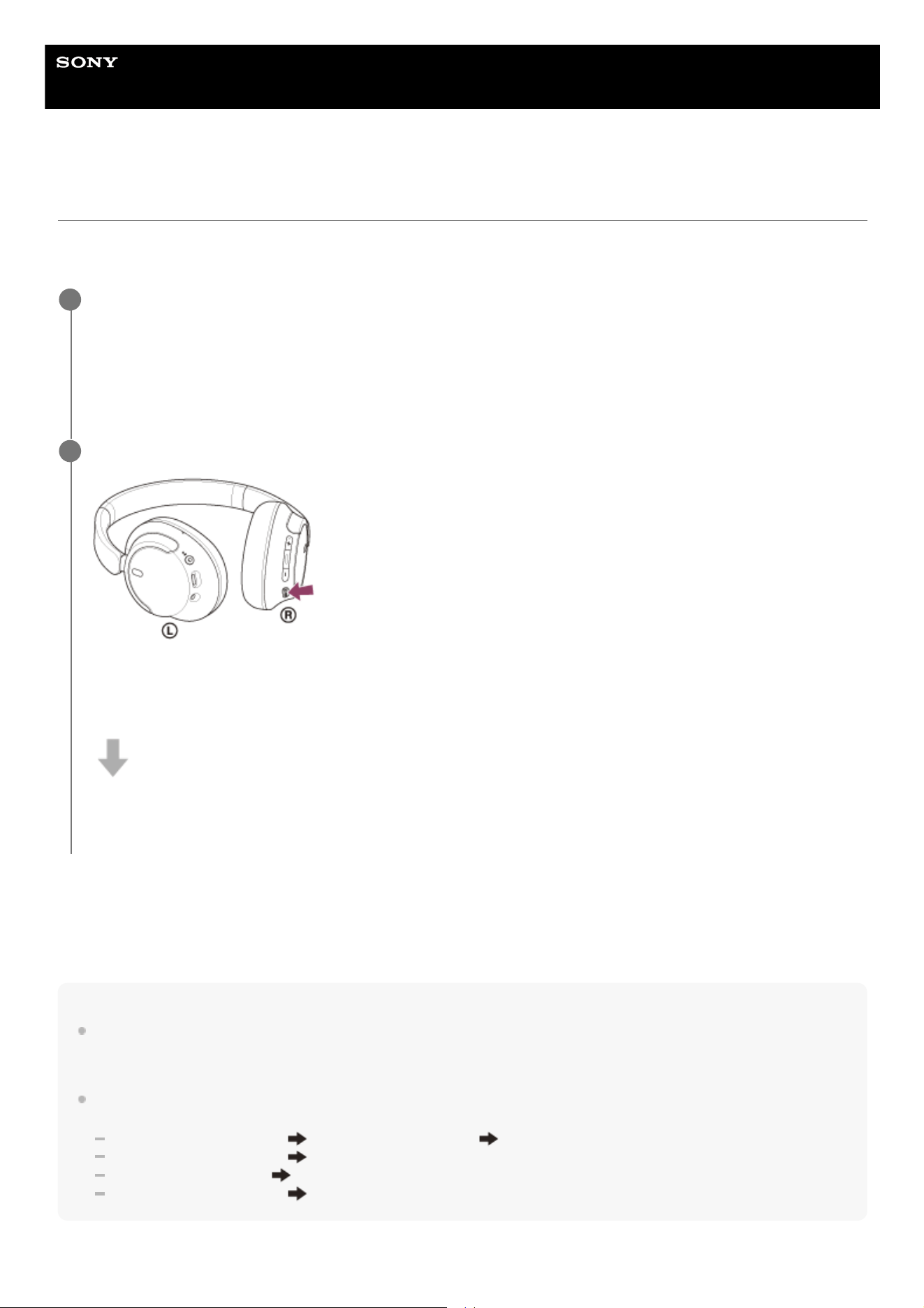
Help Guide
Wireless Noise Canceling Stereo Headset
WH-CH720N
Listening to ambient sound during music playback (Ambient Sound Mode)
You can hear ambient sound through the microphones embedded in the left and right units of the headset while enjoying
music.
About the instruction manual video
Watch the video to find out how to use the Ambient Sound Mode.
https://rd1.sony.net/help/mdr/mov0051/h_zz/
Hint
Ambient Sound Mode settings changed with the “Sony | Headphones Connect” app are stored in the headset. You can enjoy
music with the stored settings of the Ambient Sound Mode even when the headset is connected to other devices which do not
have the “Sony | Headphones Connect” app installed.
You can select one of the following on the “Sony | Headphones Connect” app to set how you want the functions to change when
you press the NC/AMB (noise canceling/Ambient Sound Mode) button.
Noise canceling function: ON
Ambient Sound Mode: ON Noise canceling function: OFF/Ambient Sound Mode: OFF
Noise canceling function: ON
Ambient Sound Mode: ON
Ambient Sound Mode: ON
Noise canceling function: OFF/Ambient Sound Mode: OFF
Noise canceling function: ON
Noise canceling function: OFF/Ambient Sound Mode: OFF
Turn on the headset.
You will hear a notification sound indicating that the headset is turned on.
When you use the headset for the first time after purchase or just after initializing the headset, the noise canceling
function is turned on automatically when you turn on the headset. Any changes made to the settings are retained
from this point on.
1
Press the NC/AMB (noise canceling/Ambient Sound Mode) button to switch to the Ambient Sound Mode.
Each time the button is pressed, the function switches as follows.
Noise canceling function: ON
You will hear a notification sound.
Ambient Sound Mode: ON
You will hear a notification sound.
2
75

Note
Depending on the ambient condition and the type/volume of audio playback, the ambient sound may not be heard even when
using the Ambient Sound Mode. Do not use the headset in places where it would be dangerous if you are unable to hear ambient
sounds such as on a road with car and bicycle traffic.
If the headset is not worn properly, the Ambient Sound Mode may not work correctly. Wear the headset properly.
Depending on the surrounding environment, wind noise may increase when the Ambient Sound Mode is turned on. In that case,
change the Ambient Sound Mode settings from Normal mode to Voice mode using the “Sony | Headphones Connect” app. If the
wind noise is still significant, turn off the Ambient Sound Mode.
Related Topic
About the voice guidance
Using the noise canceling function
What you can do with the “Sony | Headphones Connect” app
5-045-500-11(1) Copyright 2023 Sony Corporation
76

Help Guide
Wireless Noise Canceling Stereo Headset
WH-CH720N
About the sound quality mode
The following 2 sound quality modes during Bluetooth playback can be selected. You can switch the settings and check
the sound quality mode with the “Sony | Headphones Connect” app.
Priority on sound quality: Prioritizes the sound quality (default).
Priority on stable connection: Prioritizes the stable connection.
When you want to prioritize the sound quality, select “Priority on sound quality”.
If the connection is unstable, such as when producing only intermittent sound, select “Priority on stable connection”.
Note
The playback time may shorten depending on the sound quality and the conditions under which you are using the headset.
Depending on the ambient conditions in the area where you are using the headset, intermittent sound may still occur even if
“Priority on stable connection” is selected.
Related Topic
What you can do with the “Sony | Headphones Connect” app
5-045-500-11(1) Copyright 2023 Sony Corporation
77

Help Guide
Wireless Noise Canceling Stereo Headset
WH-CH720N
Supported codecs
A codec is an “audio coding algorithm” used when transmitting sound wirelessly via Bluetooth connection.
The headset supports the following 2 codecs for music playback via an A2DP connection: SBC and AAC.
SBC
This is an abbreviation for Subband Codec.
SBC is the standard audio coding technology used in Bluetooth devices.
All Bluetooth devices support SBC.
AAC
This is an abbreviation for Advanced Audio Coding.
AAC is mainly used in Apple products such as iPhone that can provide a higher sound quality than that of SBC.
When music in one of the above codecs is transmitted from a connected device, the headset switches to that codec
automatically and plays back the music in the same codec.
If the connected device supports a codec of higher sound quality than SBC, you may need to set the device beforehand
to enjoy music with the desired codec from the supported codecs.
Refer to the operating instructions supplied with the device regarding setting the codec.
Related Topic
About the sound quality mode
5-045-500-11(1) Copyright 2023 Sony Corporation
78

Help Guide
Wireless Noise Canceling Stereo Headset
WH-CH720N
About the DSEE function
The DSEE function complements the high-range sound, which is often lost from compressed sound sources, in the
headset to the equivalent of CD sound quality.
Sound sources compressed by streaming playback, MP3, Bluetooth transmission codec, etc. are played with natural and
expansive sound.
The DSEE function can be set up on the “Sony | Headphones Connect” app, and is only available when connected to the
headset via Bluetooth connection.
Note
When DSEE is set to [Auto], the available operating time is reduced.
Related Topic
What you can do with the “Sony | Headphones Connect” app
5-045-500-11(1) Copyright 2023 Sony Corporation
79

Help Guide
Wireless Noise Canceling Stereo Headset
WH-CH720N
Receiving a call
You can enjoy a hands-free call with a smartphone or mobile phone that supports the Bluetooth profile HFP (Hands-free
Profile) or HSP (Headset Profile), via Bluetooth connection.
If your smartphone or mobile phone supports both HFP and HSP, set it to HFP.
The operation may vary depending on the smartphone or mobile phone. Refer to the operating instructions supplied
with the smartphone or mobile phone.
Depending on the connected device or the application you are using, the functions may not work properly even if you
try to operate them with the headset.
Ring tone
When an incoming call arrives, a ring tone will be heard from the headset, and the indicator (blue) flashes quickly.
You will hear either of following ring tones, depending on your smartphone or mobile phone.
Ring tone set on the headset
Ring tone set on the smartphone or mobile phone
Ring tone only for a Bluetooth connection set on the smartphone or mobile phone
Connect the headset to a smartphone or mobile phone via Bluetooth connection beforehand.
1
When you hear the ring tone, press the
(call) button on the headset and receive the call.
When you receive an incoming call during music playback, playback pauses and a ring tone will be heard from the
headset.
You can talk using the microphone on the left unit.
A: Microphone
If no ring tone is heard via the headset
2
80

Hint
When receiving a call on a smartphone or mobile phone, some smartphones or mobile phones may receive a call on the phone
instead of the headset. With an HFP or HSP connection, switch the call to the headset by using your smartphone or mobile
phone.
Volume for a call can be adjusted during a telephone conversation only.
The headset volume during a call and during music playback can be independently adjusted. Even if you change the volume
during a call, the volume of music playback does not change.
Note
Depending on the connected device or playback application you are using, when you receive an incoming call during music
playback, playback may not resume automatically even after you finish the call.
Use a smartphone or mobile phone at least 50 cm (19.69 in.) away from the headset. Noise may result if the smartphone or
mobile phone is too close to the headset.
Your voice will be heard from the headset through the headset’s microphone (Sidetone function). In this case, ambient sounds or
the sounds of the headset operation may be heard through the headset, but this is not a malfunction.
Related Topic
How to make a wireless connection to Bluetooth devices
Making a call
Functions for a phone call
5-045-500-11(1) Copyright 2023 Sony Corporation
The headset may not be connected with the smartphone or mobile phone over HFP or HSP. Check the
connection status on the smartphone or mobile phone.
If music playback does not pause automatically, operate the headset to pause playback.
Adjust the volume by pressing the + (volume +)/– (volume –) buttons of the headset.
When the volume reaches the maximum or minimum, an alarm sounds.
3
When you finish your phone call, press the
(call) button on the headset to end the call.
If you received a call during music playback, music playback resumes automatically after ending the call.
4
81

Help Guide
Wireless Noise Canceling Stereo Headset
WH-CH720N
Making a call
You can enjoy a hands-free call with a smartphone or mobile phone that supports the Bluetooth profile HFP (Hands-free
Profile) or HSP (Headset Profile), via Bluetooth connection.
If your smartphone or mobile phone supports both HFP and HSP, set it to HFP.
The operation may vary depending on the smartphone or mobile phone. Refer to the operating instructions supplied
with the smartphone or mobile phone.
Depending on the connected device or the application you are using, the functions may not work properly even if you
try to operate them with the headset.
Connect the headset to a smartphone or mobile phone via Bluetooth connection.
1
Operate your smartphone or mobile phone to make a call.
When you make a call, the dial tone is heard from the headset.
If you make a call during music playback, playback pauses.
If no dial tone is heard via the headset, switch the call device to the headset using your smartphone or mobile
phone.
You can talk using the microphone on the left unit.
A: Microphone
2
Adjust the volume by pressing the + (volume +)/– (volume –) buttons of the headset.
When the volume reaches the maximum or minimum, an alarm sounds.
3
When you finish your phone call, press the
(call) button on the headset to end the call.
If you made a call during music playback, music playback resumes automatically after ending the call.
4
82

Hint
Volume for a call can be adjusted during a telephone conversation only.
The headset volume during a call and during music playback can be independently adjusted. Even if you change the volume
during a call, the volume of music playback does not change.
Note
Depending on the connected device or playback application you are using, when you make a call during music playback,
playback may not resume automatically even after you finish the call.
Use a smartphone or mobile phone at least 50 cm (19.69 in.) away from the headset. Noise may result if the smartphone or
mobile phone is too close to the headset.
Your voice will be heard from the headset through the headset’s microphone (Sidetone function). In this case, ambient sounds or
the sounds of the headset operation may be heard through the headset, but this is not a malfunction.
Related Topic
How to make a wireless connection to Bluetooth devices
Receiving a call
Functions for a phone call
5-045-500-11(1) Copyright 2023 Sony Corporation
83

Help Guide
Wireless Noise Canceling Stereo Headset
WH-CH720N
Functions for a phone call
The functions available during a call may vary depending on the profile supported by your smartphone or mobile phone.
In addition, even if the profile is the same, the available functions may vary depending on the smartphone or mobile
phone.
Depending on the connected device or the application you are using, the functions may not work properly even if you try
to operate them with the headset.
Refer to the operating instructions supplied with the smartphone or mobile phone.
Supported profile: HFP (Hands-free Profile)
During standby/music playback
Press and hold the
(call) button to start up the voice dial function of the smartphone/mobile phone, or activate the
Google app on the Android smartphone or Siri on the iPhone.
Outgoing call
Press the
(call) button once to cancel an outgoing call.
Incoming call
Press the
(call) button once to answer a call.
Press and hold the
(call) button for about 2 seconds or more to reject a call.
During call
Press the
(call) button once to finish a call.
Supported profile: HSP (Headset Profile)
Outgoing call
Press the
(call) button once to cancel an outgoing call.
Incoming call
Press the
(call) button once to answer a call.
During call
Press the
(call) button once to finish a call.
Note
84

If the function when you press and hold the (call) button is set to [Google Assistant], you cannot start up the voice dial function
of the smartphone/mobile phone. The voice assist function (Google app, Siri) is also not available.
If the function when you press and hold the
(call) button is set to [Amazon Alexa], you cannot start up the voice dial function of
the smartphone/mobile phone. The voice assist function (Google app, Siri) is also not available.
Related Topic
Receiving a call
Making a call
5-045-500-11(1) Copyright 2023 Sony Corporation
85

Help Guide
Wireless Noise Canceling Stereo Headset
WH-CH720N
Making a video call on your computer
When you make a video call on your computer, you can talk wirelessly from your headset.
Hint
When the settings of the video calling application cannot be checked or calling connections [Headset (WH-CH720N Hands-Free)]
cannot be selected, select [Headset (WH-CH720N Hands-Free)] on the settings of your computer to make connections. See
“Connecting to a paired computer (Windows 11)”, “Connecting to a paired computer (Windows 10)” or “Connecting to a paired
computer (Mac)”.
Note
Depending on the computer or application you are using, the headset may not work properly during a video call. This may be
improved by restarting the computer.
Related Topic
How to make a wireless connection to Bluetooth devices
Pairing and connecting with a computer (Windows® 11)
Pairing and connecting with a computer (Windows 10)
Pairing and connecting with a computer (Mac)
Connecting to a paired computer (Windows 11)
Connecting to a paired computer (Windows 10)
Connecting to a paired computer (Mac)
Connect the headset to your computer via Bluetooth connection.
1
Launch the video calling application on your computer.
2
Check the settings
*
of the video calling application.
When you make a video call on your computer, select calling connections (HFP/HSP) and not music playback
connections (A2DP). If you select music playback connections, a video call may not be available.
On the speaker settings, select calling connections [Headset (WH-CH720N Hands-Free)]
**
. ([Headphones (WH-
CH720N Stereo)]
**
is for music playback connections.)
On the microphone settings, select calling connections [Headset (WH-CH720N Hands-Free)]
**
.
Depending on the video calling application you are using, calling connections [Headset (WH-CH720N Hands-
Free)]
**
or music playback connections [Headphones (WH-CH720N Stereo)]
**
may not be selectable on the
speaker or microphone settings, and only [WH-CH720N] may be displayed. If this is the case, select [WH-
CH720N].
As for frequently asked questions and answers, refer to the customer support website.
3
Depending on the video calling application you are using, this function may not be available.
*
Names may vary according to the computer or the video calling application you are using.
**
86


Help Guide
Wireless Noise Canceling Stereo Headset
WH-CH720N
Disconnecting Bluetooth connection (after use)
Hint
When you finish playing music, the Bluetooth connection may terminate automatically depending on the Bluetooth device.
Related Topic
Turning off the headset
5-045-500-11(1) Copyright 2023 Sony Corporation
Disconnect the Bluetooth connection by operating the Bluetooth device.
You will hear a notification sound.
1
Turn off the headset.
You will hear a notification sound.
2
88

Help Guide
Wireless Noise Canceling Stereo Headset
WH-CH720N
Using Google Assistant (with button)
By using Google Assistant feature that comes with the smartphone, you can speak to the headset’s microphone to
operate the smartphone or perform a search.
Compatible smartphones
Smartphones installed with Android™ 6.0 or later
For details on Google Assistant, refer to the following website:
https://assistant.google.com
https://g.co/headphones/help
Operating the headset with Google Assistant
By saying specific words on Google Assistant, you can perform noise canceling settings or other operations of the
headset.
For details, refer to the following website
*
:
https://support.google.com/assistant/answer/7172842#headphones
Hint
Check or update the software version of the headset with the “Sony | Headphones Connect” app.
When Google Assistant is not available for reasons such as not being connected to the network, the voice guidance “Google
Assistant is not connected” is heard.
Launch the “Sony | Headphones Connect” app, and set the function when you press and hold the
(play/call) button to [Google Assistant].
When using Google Assistant for the first time, launch the Google Assistant app and touch [Finish headphones
setup] on the Conversation View, and follow the on-screen instructions to complete initial setup for Google
Assistant.
For details on the “Sony | Headphones Connect” app, refer to the following URL.
https://rd1.sony.net/help/mdr/hpc/h_zz/
1
Operate the (play/call) button to use Google Assistant.
Press and hold the button to input a voice command, and release the button to finish the voice command.
If no voice command is detected while you press and hold the button, notifications are read out when you
release the button.
2
It is not the case that the headset is compatible with all the specifications described in the web site.
*
89

If you do not see [Finish headphones setup] on the Conversation View of Google Assistant app, delete the pairing information for
the headset from the Bluetooth settings of your smartphone and redo the pairing process.
Note
If the function when you press and hold the
(play/call) button is set to [Google Assistant], Amazon Alexa cannot be operated
from the headset.
If the function when you press and hold the
(play/call) button is set to [Google Assistant], the voice assist function (Google
app, Siri) cannot be operated from the headset.
Google Assistant is not available in certain languages, countries and region.
The function to operate the headset with Google Assistant depends on the specifications of Google Assistant.
The specifications of Google Assistant are subject to change without notice.
For details on the services provided by other companies such as Google Assistant or Amazon Alexa, consult each service
provider directly.
Sony shall assume no responsibility for any problems such as misunderstandings related to the services provided by other
companies.
5-045-500-11(1) Copyright 2023 Sony Corporation
90

Help Guide
Wireless Noise Canceling Stereo Headset
WH-CH720N
Using Amazon Alexa
By using the Amazon Alexa app installed on a mobile device such as a smartphone, you can speak to the headset’s
microphone to operate the mobile device or perform a search.
Compatible mobile devices
The OS version which supports the latest version of the Amazon Alexa app on Android or iOS
Installation of the latest Amazon Alexa app is required.
Open the app store on your mobile device.1.
Search for Amazon Alexa app.2.
Select Install.3.
Select Open.4.
Turn on the headset and connect the headset to the mobile device via Bluetooth connection.
1
Launch the Amazon Alexa app.
When you use Amazon Alexa for the first time, you will need to login with your Amazon account, and proceed to
step
to set up your headset to the Amazon Alexa app.
If you have already set up Amazon Alexa before, but have configured the function when you press and hold the
(play/call) button to a function other than Amazon Alexa, refer to the hint section below to reconfigure the
(play/call) button to Amazon Alexa.
2
Perform the initial setup for Amazon Alexa.
3
Touch the [More] icon in the lower right corner of the Amazon Alexa app screen, and touch [Add a Device].
1.
On the [Which device would you like to set up?] screen, select [Headphones].2.
91

From [AVAILABLE DEVICES] on the [Select your device] screen, select [WH-CH720N].3.
On the [Set up Alexa on your WH-CH720N] screen, touch [CONTINUE].
4.
If the [This will override the current voice assistant on this accessory] screen appears, touch [CONTINUE].
5.
On the [Setup Complete] screen, touch [DONE].
6.
92

For details on Amazon Alexa and its capability, refer to the following website:
https://www.amazon.com/b?node=16067214011
Hint
When you set up the headset to Amazon Alexa, the function when you press and hold the
(play/call) button will be
automatically configured for Amazon Alexa. You can restore the button back to its previous functions by changing its settings on
the “Sony | Headphones Connect” app. Similarly, you can reconfigure the button back to Amazon Alexa if you have previously
connected to Amazon Alexa, but have changed the function to another one.
Check or update the software version of the headset with the “Sony | Headphones Connect” app.
When Amazon Alexa is not available for reasons such as not being connected to the network, the voice guidance “Either your
mobile device isn’t connected; or you need to open the Alexa App and try again” is heard.
Note
If the function when you press and hold the
(play/call) button is set to [Amazon Alexa], Google Assistant function cannot be
operated from the headset.
If the function when you press and hold the
(play/call) button is set to [Amazon Alexa], the voice assist function (Google app,
Siri) cannot be operated from the headset.
Amazon Alexa is not available in all languages and countries/regions. Alexa features and functionality may vary by location.
For details on the services provided by other companies such as Google Assistant or Amazon Alexa, consult each service
provider directly.
Sony shall assume no responsibility for any problems such as misunderstandings related to the services provided by other
companies.
5-045-500-11(1) Copyright 2023 Sony Corporation
When the initial settings are complete, the function when you press and hold the (play/call) button is set as
Amazon Alexa.
Say the wake word
*
(“Alexa”) or operate the
(play/call) button to use Amazon Alexa.
Press and hold the button to input a voice command.
If there is no voice, it will be automatically canceled.
4
To set the wake word, enable [Activate Voice Assistant with your Voice] with the “Sony | Headphones Connect” app.
*
93

Help Guide
Wireless Noise Canceling Stereo Headset
WH-CH720N
Using Google Assistant (with voice activation)
By using the Google app that comes with the Android smartphone, you can speak to the headset’s microphone to
operate the Android smartphone.
Set the assist and voice input selection to the Google app.
On the Android smartphone, select [Settings] - [Apps & notifications] - [Advanced] - [Default apps] - [Assist & voice
input], and set [Assist app] to the Google app.
The operation above is an example. For details, refer to the operating instructions of the Android smartphone.
Note: The latest version of the Google app may be required.
For details on the Google app, refer to the operating instructions or the support website of the Android smartphone,
or the Google Play store website.
The Google app may not be activated from the headset depending on specifications of the Android smartphone.
1
Connect the headset to the Android smartphone via Bluetooth connection.
2
When the Android smartphone is in standby or playing music, press and hold the
(play/call) button on
the headset for about 2 seconds or more.
The Google app is activated.
3
Talk to Google through the app using the headset’s microphone.
A: Microphone
For details on the apps which work with the Google app, refer to the operating instructions of the Android
smartphone.
After activating the Google app, the voice command is canceled when a certain time has passed without requests.
4
94

Note
If the function when you press and hold the
(play/call) button is set to [Google Assistant], the voice assist function (Google
app) is not available.
If the function when you press and hold the
(play/call) button is set to [Amazon Alexa], the voice assist function (Google app)
is not available.
The Google app cannot be activated when you say “Ok Google” even when the Android smartphone’s “Ok Google” setting is on.
When using the voice assist function, your voice will be heard from the headset through the headset’s microphone (Sidetone
function). In this case, ambient sounds or the sounds of the headset operation may be heard through the headset, but this is not
a malfunction.
The Google app may not be activated depending on specifications of the smartphone or application version.
The Google app does not work when connected to a device not compatible with the voice assist function.
5-045-500-11(1) Copyright 2023 Sony Corporation
95

Help Guide
Wireless Noise Canceling Stereo Headset
WH-CH720N
Using the voice assist function (Siri)
By using Siri that comes with iPhone, you can speak to the headset’s microphone to operate the iPhone.
Note
If the function when you press and hold the
(play/call) button is set to [Google Assistant], the voice assist function (Siri) is not
available.
If the function when you press and hold the
(play/call) button is set to [Amazon Alexa], the voice assist function (Siri) is not
available.
Turn Siri on.
On iPhone, select [Settings] - [Siri & Search] to turn [Press Home for Siri] and [Allow Siri When Locked] on.
The operation above is an example. For details, refer to the operating instructions of the iPhone.
Note: For details on Siri, refer to the operating instructions or support website of the iPhone.
1
Connect the headset to the iPhone via Bluetooth connection.
2
When the iPhone is in standby or playing music, press and hold the
(play/call) button on the headset
until Siri is activated.
Siri is activated.
3
Make a request to Siri through the headset’s microphone.
A: Microphone
For details on the apps which work with Siri, refer to the operating instructions of the iPhone.
After activating Siri, when a certain time has passed without requests, Siri will be deactivated.
4
96

Siri cannot be activated when you say “Hey Siri” even when the iPhone’s “Hey Siri” setting is on.
When using the voice assist function, your voice will be heard from the headset through the headset’s microphone (Sidetone
function). In this case, ambient sounds or the sounds of the headset operation may be heard through the headset, but this is not
a malfunction.
Siri may not be activated depending on specifications of the smartphone or application version.
5-045-500-11(1) Copyright 2023 Sony Corporation
97

Help Guide
Wireless Noise Canceling Stereo Headset
WH-CH720N
What you can do with the “Sony | Headphones Connect” app
When you connect the smartphone with the “Sony | Headphones Connect” app installed and the headset via Bluetooth
connection, you can do the following.
Update the headset software
Set the automatic download of software
Switch the voice guidance language
Turn the voice guidance on/off
Set the voice assistant
Turn the wake word of Amazon Alexa on/off
Set the Bluetooth connection mode (sound quality mode)
Turn off the headset
Set the auto power off
Check the connection status and the settings of the headset
Set the multipoint connection (connecting the headset to 2 devices simultaneously)
Initialize the headset
Check the headset software version
Display the Bluetooth connection codec
Display the DSEE function setting status
Set the DSEE function
Display the remaining battery charge of the headset
Set the Equalizer/CLEAR BASS setting
Customize the Equalizer setting
Adjust the noise canceling function and Ambient Sound Mode (ambient sound control)
Select the switching pattern when switching the noise canceling function/Ambient Sound Mode on the headset
Use auto adjustment of the noise canceling function by behavior recognition (Adaptive Sound Control)
Adjust the volume during music playback/phone call
Play/pause music or skip to the beginning of the previous track (or the current track during playback)/skip to the
beginning of the next track
Easy pairing
Record and display information on the usage of the headset
Set the 360 Reality Audio function
For details on the “Sony | Headphones Connect” app, refer to the following URL.
https://rd1.sony.net/help/mdr/hpc/h_zz/
Hint
The operation of the “Sony | Headphones Connect” app differs depending on the audio device. The app specifications and screen
design may change without prior notice.
Related Topic
Installing the “Sony | Headphones Connect” app
Checking the remaining battery charge
Using the noise canceling function
Listening to ambient sound during music playback (Ambient Sound Mode)
About the sound quality mode
98


Help Guide
Wireless Noise Canceling Stereo Headset
WH-CH720N
Installing the “Sony | Headphones Connect” app
Related Topic
What you can do with the “Sony | Headphones Connect” app
5-045-500-11(1) Copyright 2023 Sony Corporation
Download the “Sony | Headphones Connect” app from the Google Play store or App Store, and install the
app on your smartphone.
For details on the “Sony | Headphones Connect” app, refer to the following URL.
https://rd1.sony.net/help/mdr/hpc/h_zz/
1
After installing the app, launch the “Sony | Headphones Connect” app.
2
100

Help Guide
Wireless Noise Canceling Stereo Headset
WH-CH720N
Accessing support information from the “Sony | Headphones Connect” app
You can access the latest support information from the “Sony | Headphones Connect” app.
5-045-500-11(1) Copyright 2023 Sony Corporation
Select [Help] on the “Sony | Headphones Connect” app screen.
1
The [Headphones Connect Help] screen appears and support information is displayed.
2
Select the desired item.
3
101

Help Guide
Wireless Noise Canceling Stereo Headset
WH-CH720N
How to keep the software up-to-date (for comfortable use of the headset)
Install the latest headset software using the “Sony | Headphones Connect” app to enjoy new functions or to resolve a
certain number of issues with the headset.
Always use the headset with the latest software installed.
For details on the latest headset software and how to update the software, refer to the information on the support
website.
When the [Automatic download of software] setting is enabled (default setting) on the “Sony | Headphones Connect”
app, the download and transfer of the software will start automatically.
You can also update the headset software in the following way.
Note
It is recommended to disable the automatic power off function of the headset before the update.
In the factory settings, when the headset is not connected via Bluetooth connection for about 15 minutes, the headset turns off
automatically. This setting can be changed using the “Sony | Headphones Connect” app.
When the mobile device used for the update has any other Bluetooth devices connected to it, turn off all the Bluetooth devices
until the update is complete.
Software may not be updated when the mobile device is connected with other devices compatible with Bluetooth Low Energy
(such as wearable devices, smart watches, etc.).
Note the following if the update cannot be completed.
Close all the apps installed on the mobile device except the “Sony | Headphones Connect” app.
Fully charge the headset and the mobile device.
Put the headset and the mobile device being used for the update as close to each other as possible before starting the update.
Keep wireless LAN devices and other Bluetooth devices away from the headset when updating.
Turn off the power saving mode
*
of your mobile device before updating the software.
Depending on the OS version of your mobile device, the update may not be completed under the power saving mode.
Related Topic
What you can do with the “Sony | Headphones Connect” app
5-045-500-11(1) Copyright 2023 Sony Corporation
Download the update software from the server to a mobile device such as a smartphone on which the
“Sony | Headphones Connect” app is installed.
1
Transfer the update software from the mobile device to the headset.
2
Update the headset software following the on-screen instructions.
3
Names may vary according to the mobile device you are using.*
102

Help Guide
Wireless Noise Canceling Stereo Headset
WH-CH720N
Precautions
On Bluetooth communications
Bluetooth wireless technology operates within a range of about 10 m (32.8 ft). The maximum communication
distance may vary depending on the presence of obstacles (people, metal objects, walls, etc.) or the electromagnetic
environment.
Microwaves emitting from a Bluetooth device may affect the operation of electronic medical devices. Turn off the
headset and other Bluetooth devices in the following locations, as it may cause an accident:
in hospitals, near priority seating in trains, locations where inflammable gas is present, near automatic doors, or
near fire alarms.
This product emits radio waves when used in wireless mode. When used in wireless mode on an airplane, follow
flight crew directions regarding permissible use of products in wireless mode.
The audio playback on the headset may be delayed from that on the transmitting device, due to the characteristics of
Bluetooth wireless technology. As a result, the sound may not be in sync with the image when viewing movies or
playing games.
The headset supports security functions that comply with the Bluetooth standard as a means of ensuring security
during communication using Bluetooth wireless technology. However, depending on the configured settings and other
factors, this security may not be sufficient. Be careful when communicating using Bluetooth wireless technology.
Sony shall assume no responsibility for any damages or loss resulting from information leaks that occur when using
Bluetooth communications.
Bluetooth connections with all Bluetooth devices cannot be guaranteed.
Bluetooth devices connected with the headset must comply with the Bluetooth standard prescribed by Bluetooth
SIG, Inc., and must be certified as compliant.
Even when a connected device complies with the Bluetooth standard, there may be cases where the
characteristics or specifications of the Bluetooth device make it unable to connect, or result in different control
methods, display, or operation.
When using the headset to perform hands-free talking on the phone, noise may occur depending on the
connected device or the communication environment.
Depending on the device to be connected, it may require some time to start communications.
Note on static electricity
If you use the headset when the air is dry, you may experience discomfort due to static electricity accumulated on
your body. This is not a malfunction of the headset. You can reduce the effect by wearing clothes made of natural
materials that do not easily generate static electricity.
Notes on wearing the headset
Because the headset achieves a tight seal over the ears, forcibly pressing it against your ears or quickly pulling it off
can result in eardrum damage. When putting on the headset, the speaker diaphragm may produce a click sound.
This is not a malfunction.
Other notes
Do not subject the headset to excessive shock as it is a precision device.
When you use the headset as wired headphones, use the supplied headphone cable only. Make sure that the
headphone cable is firmly inserted.
The Bluetooth function may not work with a mobile phone, depending on the signal conditions and the surrounding
environment.
103

Do not apply weight or pressure to the headset for long periods, including when it is stored, as it may cause
deformation.
If you experience discomfort while using the headset, stop using it immediately.
The earpads may be damaged or deteriorate with long-term use and storage.
The headset is not waterproof. If water or foreign matter enters the headset, it may result in fire or electric shock. If
water or foreign matter enters the headset, stop use immediately and consult your nearest Sony dealer.
Cleaning the headset
When the headset exterior is dirty, wipe it clean with a soft dry cloth. If the headset is particularly dirty, soak a cloth in
diluted neutral detergent, and wring it well before using it to clean the headset. Do not use solvents such as thinner,
benzene, or alcohol, as they may damage the finish on the surface of the headset or cause other damages.
Do not use the headset near medical devices
Radio waves can affect cardiac pacemakers and medical devices. Do not use the headset in crowded places such as
crowded trains or inside a medical institution.
The headset has magnet(s) which may interfere with pacemakers, programmable shunt valves for hydrocephalus
treatment, or other medical devices. Do not place the headset close to persons who use such medical devices.
Consult your doctor before using the headset if you use any such medical device.
Keep the headset away from the magnetic card
The headset has magnets. If you bring a magnetic card close to the headset, the card magnet may be affected and
become unusable.
5-045-500-11(1) Copyright 2023 Sony Corporation
104

Help Guide
Wireless Noise Canceling Stereo Headset
WH-CH720N
To prevent burning or malfunction due to getting wet
On waterproof performance of the headset
The headset is not waterproof. If water or foreign matter enters the headset, this can result in burnout or malfunction.
Avoid situations such as the following and be careful not to get moisture or dirt on the headset.
Using the headset in the rain or snow
Touching the headset without drying wet hands after doing housework in the kitchen or washing hands in the
washroom
105

Touching the headset with sweaty hands, or using the headset in situations where the headset may get soaked in
sweat
Putting the headset in a bag with a cold PET bottle
If the headset gets wet, or water enters the headset
If a wet headset is charged or turned on, this can result in burnout or malfunction. While subjecting the headset to as
little vibration as possible, turn the earpads downward slowly, and let water drain from the earpads. Then, position the
headset upright and put a dry cloth under the USB Type-C port and headphone cable input jack until no more water
comes out from the inside. After that, leave the headset in a shaded, well-ventilated place until it is completely dry.
106

A: USB Type-C port
B: Headphone cable input jack
5-045-500-11(1) Copyright 2023 Sony Corporation
107

Help Guide
Wireless Noise Canceling Stereo Headset
WH-CH720N
Licenses
This product contains software that Sony uses under a licensing agreement with the owner of its copyright. We are
obligated to announce the contents of the agreement to customers under requirement by the owner of copyright for
the software. Please access the following URL and read the contents of the license.
https://rd1.sony.net/help/mdr/sl/23/
Services offered by third parties may be changed, suspended, or terminated without prior notice. Sony does not bear
any responsibility in these sorts of situations.
5-045-500-11(1) Copyright 2023 Sony Corporation
108

Help Guide
Wireless Noise Canceling Stereo Headset
WH-CH720N
Trademarks
Microsoft, Windows and Windows Media are either trademarks or registered trademarks of Microsoft Corporation in
the United States and/or other countries.
iPhone, iPod touch, macOS, Mac and Siri are trademarks of Apple Inc., registered in the U.S. and other countries.
App Store is a service mark of Apple Inc., registered in the U.S. and other countries.
IOS is a trademark or registered trademark of Cisco in the U.S. and other countries and is used under license.
Google, Android and Google Play are trademarks of Google LLC.
Amazon, Alexa and all related logos are trademarks of Amazon.com, Inc. or its affiliates.
The Bluetooth® word mark and logos are registered trademarks owned by Bluetooth SIG, Inc. and any use of such
marks by Sony Group Corporation and its subsidiaries is under license.
USB Type-C® and USB-C® are registered trademarks of USB Implementers Forum.
DSEE is a trademark or registered trademark of Sony Group Corporation or its affiliates.
All other trademarks and registered trademarks are trademarks or registered trademarks of their respective holders.
In this manual, TM and ® marks are not specified.
5-045-500-11(1) Copyright 2023 Sony Corporation
109

Help Guide
Wireless Noise Canceling Stereo Headset
WH-CH720N
Customer support websites
For customers in the U.S.A, Canada, and Latin America:
https://www.sony.com/am/support
For customers in European countries:
https://www.sony.eu/support
For customers in China:
https://service.sony.com.cn
For customers in other countries/regions:
https://www.sony-asia.com/support
5-045-500-11(1) Copyright 2023 Sony Corporation
110

Help Guide
Wireless Noise Canceling Stereo Headset
WH-CH720N
What can I do to solve a problem?
If the headset does not function as expected, try the following steps to resolve the issue.
Find the symptoms of the issue in this Help Guide, and try any corrective actions listed.
Charge the headset.
You may be able to resolve some issues by charging the headset battery.
Restart the device that is being connected to the headset.
You may be able to resolve some issues by restarting the device being connected such as your computer or
smartphone.
Reset the headset.
Initialize the headset.
This operation resets volume settings, etc. to the factory settings, and deletes all pairing information.
Look up information on the issue on the customer support website.
If the operations above do not work, consult your nearest Sony dealer.
Related Topic
Charging the headset
Customer support websites
Resetting the headset
Initializing the headset to restore factory settings
5-045-500-11(1) Copyright 2023 Sony Corporation
111

Help Guide
Wireless Noise Canceling Stereo Headset
WH-CH720N
Unable to turn on the headset.
Make sure the battery is fully charged.
The headset cannot be turned on while charging the battery. Remove the USB Type-C cable and turn on the
headset.
Reset the headset.
Initialize the headset, and pair the headset and the device again.
Related Topic
Charging the headset
Checking the remaining battery charge
Turning on the headset
Resetting the headset
Initializing the headset to restore factory settings
5-045-500-11(1) Copyright 2023 Sony Corporation
112

Help Guide
Wireless Noise Canceling Stereo Headset
WH-CH720N
Charging cannot be done.
Common
Be sure to use the supplied USB Type-C cable.
It is recommended to charge in a place with an ambient temperature between 15 °C and 35 °C (59 °F - 95 °F).
Efficient charging may not be possible beyond this range.
Reset the headset.
Initialize the headset, and pair the headset and the device again.
When charging with a USB AC adaptor
Make sure that the USB AC adaptor is firmly connected to the AC outlet.
When using a commercially available USB AC adaptor, use one capable of supplying an output current of 0.5 A (500
mA) or more.
When charging with a computer
Check that the supplied USB Type-C cable is properly connected to the USB port of the computer.
Check that the computer is turned on. Wake the computer up if the computer is in standby (sleep) or hibernation
mode.
Check that the headset and the computer are directly connected, and not via a USB hub.
There may be a problem with the USB port of the connected computer. Try connecting to another USB port on the
computer if one is available.
Update the OS of the computer.
Restart the computer and try the USB connection procedure again in cases other than those stated above.
Related Topic
Charging the headset
Resetting the headset
Initializing the headset to restore factory settings
5-045-500-11(1) Copyright 2023 Sony Corporation
113
Help Guide
Wireless Noise Canceling Stereo Headset
WH-CH720N
Charging time is too long.
When charging with a computer, check that the headset and the computer are directly connected, and not via a USB
hub. Also, this may be improved by restarting the computer and trying the USB connection again.
Check that you are using the supplied USB Type-C cable.
It is recommended to charge in a place with an ambient temperature between 15 °C and 35 °C (59 °F - 95 °F).
Efficient charging may not be possible beyond this range.
Related Topic
Charging the headset
5-045-500-11(1) Copyright 2023 Sony Corporation
114

Help Guide
Wireless Noise Canceling Stereo Headset
WH-CH720N
The available operating time is short (the duration of the battery is short).
If you set the following functions, the available operating time of the battery becomes short.
Sound quality mode during Bluetooth playback: Priority on sound quality
Noise canceling function/Ambient Sound Mode
Equalizer
DSEE
Function to launch the voice assistant by your voice
If you run the above settings at the same time, the available operating time of the battery becomes even shorter.
If the headset is not used for a long time, the rechargeable battery usage hours may be reduced. However, the
battery life will improve after charging and discharging several times. If you store the headset for a long time, charge
the battery once every 6 months to avoid over-discharge.
It is recommended to charge in a place with an ambient temperature between 15 °C and 35 °C (59 °F - 95 °F).
Efficient charging may not be possible beyond this range. If the problem persists, consult your nearest Sony dealer.
If the usage hours of the built-in rechargeable battery decrease significantly, the battery should be replaced. Consult
your nearest Sony dealer.
Related Topic
Available operating time
5-045-500-11(1) Copyright 2023 Sony Corporation
115

Help Guide
Wireless Noise Canceling Stereo Headset
WH-CH720N
No sound
Check that both the headset and the connected device are turned on.
When playing music, check that the headset and the transmitting Bluetooth device are connected via an A2DP
Bluetooth connection.
When using a video calling application on a computer, check that the headset and the computer are connected via an
HFP or HSP Bluetooth connection.
Depending on the video calling application you are using, microphone settings may not be available.
When you connect the headset to 2 devices simultaneously with multipoint connection, depending on the connected
device, the device may keep sending the silent signal even if the playback of the music or video is stopped. In this
case, the headset remains connected with the device, and the connection may not be changed to another device. If
the sound from the second device cannot be heard after the playback is stopped on the first device, operate in the
following order and check whether the situation has improved.
Check with the “Sony | Headphones Connect” app that the setting of [Connect to 2 devices simultaneously] is on.
Stop the playback of the application on the first device.
Shut down the application on the first device.
Turn up the volume if it is too low.
Check that the connected device is playing back.
If you are connecting a computer to the headset, make sure the audio output on the computer is set for a Bluetooth
device.
Pair the headset and the Bluetooth device again.
When you use the supplied headphone cable, check that the headphone cable is connected firmly.
Restart the smartphone or the computer you use.
Reset the headset.
Initialize the headset, and pair the headset and the device again.
Related Topic
How to make a wireless connection to Bluetooth devices
Using the supplied headphone cable
Listening to music from a device via Bluetooth connection
Resetting the headset
Initializing the headset to restore factory settings
5-045-500-11(1) Copyright 2023 Sony Corporation
116

Help Guide
Wireless Noise Canceling Stereo Headset
WH-CH720N
Low sound level
Adjust the volume of the headset and the connected device.
Connect the Bluetooth device to the headset once again.
Reset the headset.
Initialize the headset, and pair the headset and the device again.
Note
Depending on the connected device, the volume of the device and the headset may or may not be synced. If the volume on a
device is not synced to the volume on the headset, it will not be possible to use the device to turn up the volume on the headset
once the volume is turned down on the headset.
In that case, turn up the volume of both the headset and the connected device.
If the sound is still low even after adjusting the volume on the connected device, adjust the volume with the “Sony | Headphones
Connect” app.
Related Topic
Resetting the headset
Initializing the headset to restore factory settings
5-045-500-11(1) Copyright 2023 Sony Corporation
117
Help Guide
Wireless Noise Canceling Stereo Headset
WH-CH720N
Low sound quality, or noise or unusual sound can be heard.
Turn down the volume of the playback device if it is too loud.
When playing music, check the connection status of the headset and the transmitting Bluetooth device. When the
headset and the transmitting Bluetooth device are connected via an HFP or HSP Bluetooth connection, switch the
Bluetooth connection to A2DP with the connected device.
Some devices that emit ultrasonic sound waves designed to repel rodents may occasionally be installed at the
entrances of commercial facilities or subway stations. Near such devices, the ultrasonic sound waves may cause
noise or unusual sound to be heard from the headset. Leave the place where the noise or unusual sound is heard.
Or turn off the noise canceling function/Ambient Sound Mode from the “Sony | Headphones Connect” app.
When using a video calling application on a computer, switch the Bluetooth connection to HFP or HSP by operating
the computer.
During a video call, sound quality may become low due to the conditions of the communication line.
If the headset connects to the previously connected Bluetooth device, the headset may only establish the HFP/HSP
Bluetooth connection when it is turned on. Use the connected device to connect via an A2DP Bluetooth connection.
When listening to music from a computer on the headset, the sound quality may be poor (difficult to hear the singer’s
voice, etc.) for the first few seconds after a connection is established. This is due to the computer specifications
(priority on stable connection at the start of transmission and then switches to priority on sound quality several
seconds later) and is not a headset malfunction.
If the sound quality does not improve after a few seconds, use the computer to establish an A2DP connection. As for
the operations on your computer, refer to the operating instructions supplied with the computer.
Related Topic
Listening to music from a device via Bluetooth connection
Making a video call on your computer
5-045-500-11(1) Copyright 2023 Sony Corporation
118
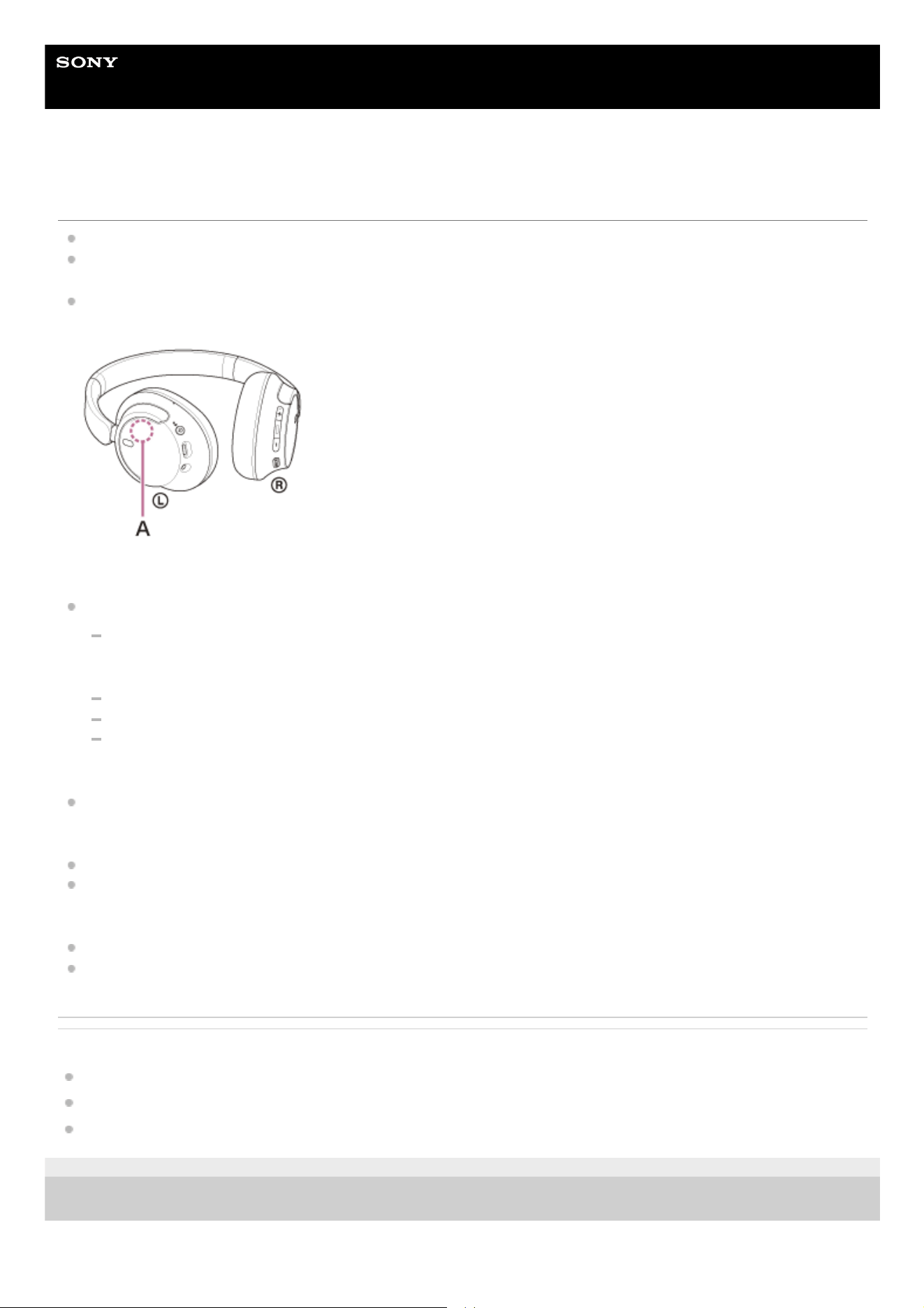
Help Guide
Wireless Noise Canceling Stereo Headset
WH-CH720N
Sound skips frequently.
Set the headset to “Priority on stable connection”. For details, see “About the sound quality mode”.
This issue can be improved by changing the wireless playback quality settings on the transmitting device. For details,
refer to the operating instructions supplied with the transmitting device.
Remove any obstacles between the antenna of the connecting Bluetooth device and the built-in antenna of the
headset. The antenna of the headset is built into the part shown in the dotted line below.
A: Location of the built-in antenna
Bluetooth communications may be disabled, or noise or audio dropout may occur under the following conditions.
When there is a human body between the headset and the Bluetooth device
When this is the case, turn the Bluetooth device to face the same direction as the antenna of the headset to
improve the Bluetooth communications.
When there is an obstacle, such as metal or a wall, between the headset and the Bluetooth device
In places with wireless LAN, where a microwave oven is used, electromagnetic waves are generated, etc.
Where there are other wireless communication audio devices or other people nearby, such as in train station
premises or on a crowded train
If you are enjoying music with your smartphone, the situation may be improved by closing unnecessary apps or
restarting your smartphone. If you are enjoying music with your computer, close unnecessary applications or
windows and restart the computer.
Connect the headset and the Bluetooth device once again.
When the Adaptive Sound Control is turned on, the headset detects the wearer's actions and adjusts the noise
canceling function automatically. When this setting is changed, music may pause momentarily. This is not a
malfunction.
Reset the headset.
Initialize the headset, and pair the headset and the device again.
Related Topic
About the sound quality mode
Resetting the headset
Initializing the headset to restore factory settings
5-045-500-11(1) Copyright 2023 Sony Corporation
119

Help Guide
Wireless Noise Canceling Stereo Headset
WH-CH720N
The effect of noise canceling is not sufficient.
Make sure the noise canceling function is turned on.
Adjust the headset into a comfortable position.
The noise canceling function is effective in low frequency ranges such as airplanes, trains, offices, near air-
conditioning, and is not as effective for higher frequencies, such as human voices.
When the Adaptive Sound Control on the “Sony | Headphones Connect” app is turned on, the wearer's actions, like
walking or running, are detected. The noise canceling function is automatically adjusted and the Ambient Sound
Mode may be activated according to these actions.
To make the most of the noise canceling function, turn off the Adaptive Sound Control, and try to turn on the noise
canceling function manually when you need it.
With the “Sony | Headphones Connect” app, check the setting of [Ambient Sound Control]. If it is set to [Ambient
Sound], the effect of noise canceling is reduced. Set it to the noise canceling mode.
Related Topic
What is noise canceling?
Using the noise canceling function
Wearing the headset
What you can do with the “Sony | Headphones Connect” app
5-045-500-11(1) Copyright 2023 Sony Corporation
120

Help Guide
Wireless Noise Canceling Stereo Headset
WH-CH720N
Pairing cannot be done.
Bring the headset and the Bluetooth device within 1 m (3.2 ft) from each other.
When pairing a device for the first time after purchase or after initializing or repairing the headset, turn on the headset
and the headset automatically enters pairing mode.
When you pair a second or subsequent device (the headset already has pairing information for other devices), press
and hold the
(power) button for about 5 seconds or more to enter pairing mode manually.
When pairing a device once again after initializing or repairing the headset, you may be unable to pair the device if it
retains pairing information for the headset (iPhone or other device). In this case, delete the pairing information for the
headset from the device and pair them again.
Restart the connected device such as a smartphone or a computer you use, and pair the headset and the device
again.
Reset the headset.
Initialize the headset, and pair the headset and the device again.
Related Topic
How to make a wireless connection to Bluetooth devices
Resetting the headset
Initializing the headset to restore factory settings
5-045-500-11(1) Copyright 2023 Sony Corporation
121

Help Guide
Wireless Noise Canceling Stereo Headset
WH-CH720N
Unable to make a Bluetooth connection.
Check that the headset is turned on.
Check that the Bluetooth device is turned on and the Bluetooth function is on.
If the headset automatically connects to the last connected Bluetooth device, you may fail to connect the headset to
other devices via Bluetooth connection. If this is the case, operate the last connected Bluetooth device and
disconnect the Bluetooth connection.
Check if the Bluetooth device is in sleep mode. If the device is in sleep mode, cancel the sleep mode.
Check if the Bluetooth connection has been terminated. If terminated, make the Bluetooth connection again.
If the pairing information for the headset has been deleted on the Bluetooth device, pair the headset with the device
again.
Reset the headset.
Initialize the headset, and pair the headset and the device again.
Related Topic
How to make a wireless connection to Bluetooth devices
Resetting the headset
Initializing the headset to restore factory settings
5-045-500-11(1) Copyright 2023 Sony Corporation
122

Help Guide
Wireless Noise Canceling Stereo Headset
WH-CH720N
The headset cannot be operated.
Reset the headset. This operation does not delete pairing information.
If the headset does not operate properly even if you reset the headset, initialize the headset.
While the headset is connected to a device via the supplied headphone cable and the headset is turned on, you
cannot perform operations such as volume adjustment or play/pause.
Related Topic
Resetting the headset
Initializing the headset to restore factory settings
5-045-500-11(1) Copyright 2023 Sony Corporation
123

Help Guide
Wireless Noise Canceling Stereo Headset
WH-CH720N
Cannot hear the other person or the call volume is low during calls/The other person
cannot hear you or their call volume is low during calls.
Check that both the headset and the connected device are turned on.
Turn up the volume of the connected device and the volume of the headset if they are too low.
When you use the video calling application, open the settings
*
of the video calling application, and check that the
speaker or microphone setting is specified as [Headset (WH-CH720N Hands-Free)]
**
. When the settings of the video
calling application cannot be checked or calling connections [Headset (WH-CH720N Hands-Free)] cannot be
selected, select [Headset (WH-CH720N Hands-Free)] on the settings of your computer to make connections.
Operate the Bluetooth device to re-establish the connection. Select HFP or HSP for the profile.
If you are listening to music with the headset, stop playback and press the
(call) button to respond to an incoming
call.
Reset the headset.
Initialize the headset, and pair the headset and the device again.
Related Topic
How to make a wireless connection to Bluetooth devices
Receiving a call
Making a call
Resetting the headset
Initializing the headset to restore factory settings
5-045-500-11(1) Copyright 2023 Sony Corporation
Depending on the video calling application you are using, this function may not be available.
*
Names may vary according to the computer or the video calling application you are using.
**
124

Help Guide
Wireless Noise Canceling Stereo Headset
WH-CH720N
Resetting the headset
If the headset cannot be turned on or cannot be operated even when it is turned on, reset the headset.
The pairing information and other settings are retained.
If the headset does not operate correctly even after resetting, initialize the headset to restore factory settings.
Related Topic
Initializing the headset to restore factory settings
Connect the headset to an AC outlet.
Use the supplied USB Type-C cable and a commercially available USB AC adaptor.
A: USB AC adaptor
1
Press the
(power) button and the NC/AMB (noise canceling/Ambient Sound Mode) button
simultaneously.
The headset will be reset.
2
125

5-045-500-11(1) Copyright 2023 Sony Corporation
126

Help Guide
Wireless Noise Canceling Stereo Headset
WH-CH720N
Initializing the headset to restore factory settings
If the headset does not operate correctly even after resetting, initialize the headset.
This operation resets volume settings, etc. to the factory settings, and deletes all pairing information. In this case, delete
the pairing information for the headset from the connected device and then pair them again.
If the headset does not operate correctly even after initializing, consult your nearest Sony dealer.
Related Topic
Turning off the headset
Resetting the headset
5-045-500-11(1) Copyright 2023 Sony Corporation
Turn off the headset.
Remove the USB Type-C cable.
1
Press and hold the
(power) button and (play/call) button for about 10 seconds or more.
When the initializing is complete, the indicator (blue) flashes 4 times ( - - - -).
2
127

Help Guide
Wireless Noise Canceling Stereo Headset
WH-CH720N
Specifications
Headset
Power source:
DC 3.85 V: Built-in lithium-ion rechargeable battery
DC 5 V: When charged using USB
Operating temperature:
0 °C to 40 °C (32 °F to 104 °F)
Charging time:
Approx. 3.5 hours
(About 60 minutes of music playback is possible after 3 minutes charging. About 4.5 hours of music playback is possible
after 10 minutes charging.)
Note
Charging and usage hours may be different depending on the conditions of use.
Charging temperature:
5 °C to 35 °C (41 °F to 95 °F)
Mass:
Approx. 192 g (6.8 oz)
Impedance:
325 Ω (1 kHz) (when connecting via the headphone cable with the headset turned on)
31 Ω (1 kHz) (when connecting via the headphone cable with the headset turned off)
Sensitivity:
108 dB/mW (when connecting via the headphone cable with the headset turned on)
99 dB/mW (when connecting via the headphone cable with the headset turned off)
Frequency response:
7 Hz - 20 000 Hz (JEITA)
(when connecting via the headphone cable with the headset turned on)
Communication specification
Communication system:
Bluetooth Specification version 5.2
Output:
Bluetooth Specification Power Class 1
Maximum communication range:
128

Line of sight approx. 10 m (32.8 ft)
1)
Frequency band:
2.4 GHz band (2.400 0 GHz - 2.483 5 GHz)
Compatible Bluetooth profiles
2)
:
A2DP
AVRCP
HFP
HSP
Supported Codec
3)
:
SBC
AAC
Transmission range (A2DP):
20 Hz - 20 000 Hz (Sampling frequency 44.1 kHz)
Design and specifications are subject to change without notice.
Compatible iPhone/iPod models
iPhone SE (3rd generation)
iPhone 13 Pro Max
iPhone 13 Pro
iPhone 13
iPhone 13 mini
iPhone 12 Pro Max
iPhone 12 Pro
iPhone 12
iPhone 12 mini
iPhone SE (2nd generation)
iPhone 11 Pro Max
iPhone 11 Pro
iPhone 11
iPhone XS Max
iPhone XS
iPhone XR
iPhone X
iPhone 8 Plus
iPhone 8
iPhone 7 Plus
iPhone 7
iPhone SE
iPhone 6s Plus
iPhone 6s
iPod touch (7th generation)
(As of May 2022)
5-045-500-11(1) Copyright 2023 Sony Corporation
The actual range will vary depending on factors such as obstacles between devices, magnetic fields around a microwave oven, static electricity,
reception sensitivity, antenna’s performance, operating system, software application, etc.
1)
Bluetooth standard profiles indicate the purpose of Bluetooth communications between devices.
2)
Codec: Audio signal compression and conversion format
3)
129
