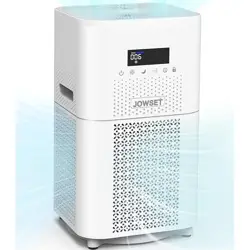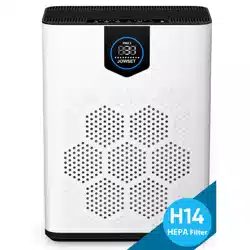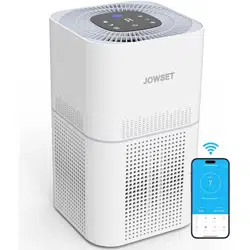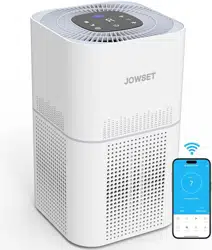

Important Tip
APP Downloading and Installation
Scan the QR codes below to download and install Quickly
Important Tip
01
Visit www.jowset.com today to discover the world of possibilities waiting for you.
APP Downloading and Installation
Scan the QR codes below to download and install Quickly
For iOS
For Android
Option :
Note:
Search for “Smart home life” from App Store
TM
/Google Play
TM
then download and install it on your mobile device.
All other trademarks are the property of their respective owners.
Apple and the Apple logoare trademarks of Apple lnc.
Google Play and Google are trademarks of Google lnc.
Amazon, Alexa and all related logos are trademarks of Amazon.com,lnc. or its affiliates.
!

APP Registration and Login
02
Launch the "Smart home life" APP, create an account using a working email address or your mobile number,
and then log in.
Wi-Fi Connection
For an optimized Air Purifier and Wi-Fi Network setup, follow these steps:
For Wi-Fi Network Connection:
Make sure the Air Purifier has enough power and the Power Switch of the Air Purifier is pressed to ON.
Check Mobile Device Connection: Make sure your mobile device is connected to a 2.4GHz Wi-Fi network.
If your router supports dual-band, select the 2.4GHz network specifically for the Air Purifier setup.
①
Verify Wi-Fi Name and Password: Double-check that you have entered the correct Wi-Fi network name
and password when connecting the Air Purifier. Accuracy is key!
②
Avoid Special Characters: Avoid using emojis, special characters, or symbols in your Wi-Fi name and
password.Stick to alphanumeric characters for seamless connectivity.
③
Disable VPN or Proxy: It is recommended to disable any VPN (Virtual Private Network) or Proxy
Server settings on your mobile device. These can interfere with the Air Purifier's connection process.
④
Proximity to Router: Ensure that both the Air Purifier and your mobile device are within close proximity
to the router during the setup process.This proximity enhances the strength and stability of the connection.
⑤
Wi-Fi Activation: Press and hold the power button on the Air Purifier for 3-5 seconds.
Wait for the display to show the Wi-Fi icon, indicating that the Air Purifier is ready to connect to your network.
⑥
Note:
For a successful connection, please allow APP to use your WLAN & Cellular Data when running it.
Ensure Sufficient Power: Make sure that the Air Purifier is adequately powered and that the Power
Switch is pressed ON.
!
WiFi Status Indicator.
⑦
Flash WiFi
Long bright state
Without WiFi Status icon
Ready for AP Mode Connection
Wifi Connected
Not mached the APP device
②
③
④
①
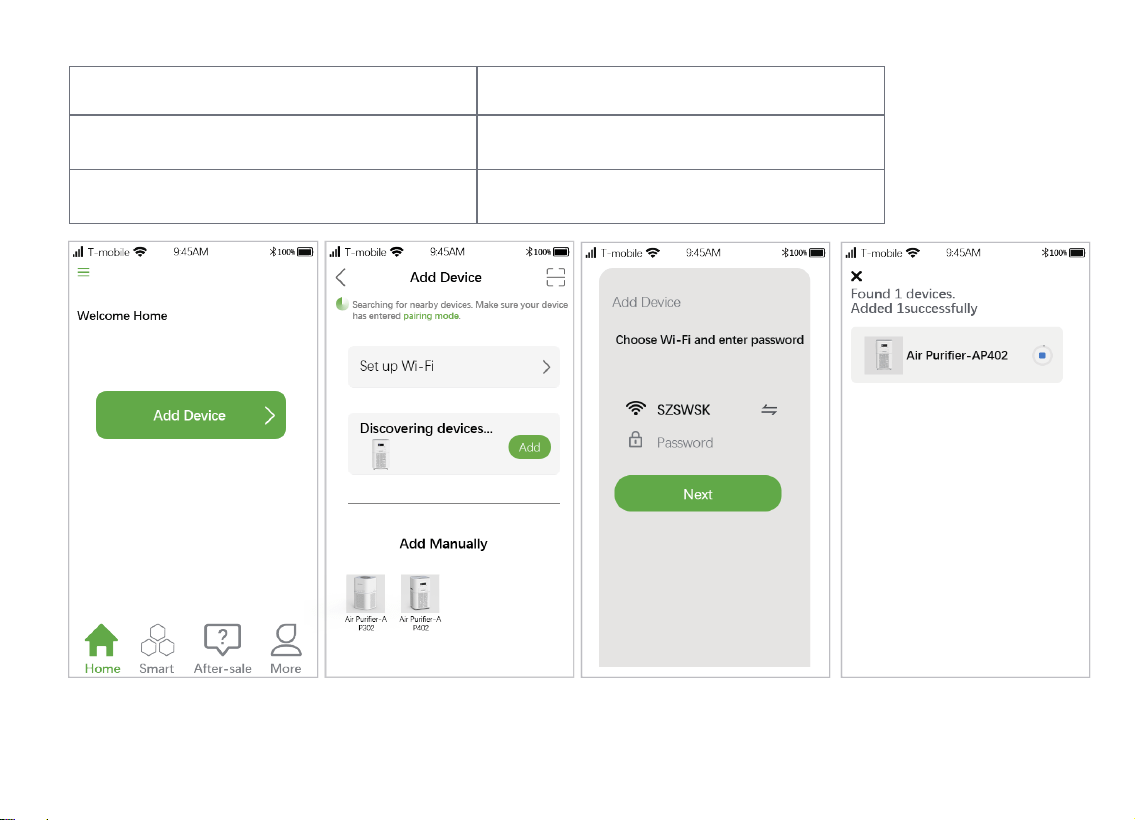
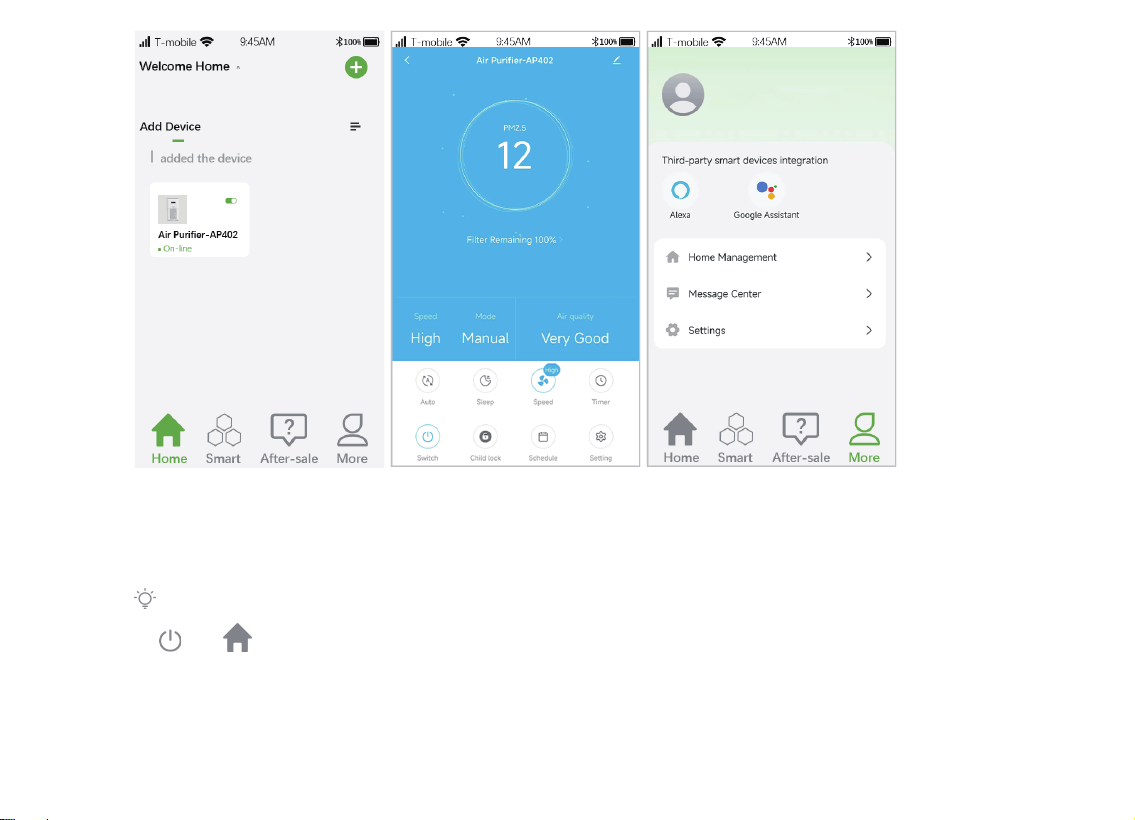
Tap Add Device.
Select the model of your
Air Purifier.
Select the same router's
WiFi and enter the correct
password.
Make sure the WiFi Status
Indicator is flashing.
03
⑤ ⑥
Connecting. Connected.
04
and on the Air Purifier for 3s until
you hear two beeps from the Air Purifier.
If the indicator doesn't flash;Please simultaneously press and hold the button

Make sure the Air Purifier has enough power and the Power Switch of the robot is pressed to ON.
Sign in with your Amazon account to the Alexa app, tap the upper-left corner of the home screen,
and then select Skills and Games.
①
You have connected the Air Purifier to “Smart home life’’ APP.
②
Make sure you've installed Alexa APP on your mobile device.
③
Make sure the WiFi connection is stable.
④
Make sure the Air Purifier and your mobile device are close to the router when connecting.
⑤
Press the power button for 3-5 seconds,wait for the display to display the WiFi icon.
⑥
WiFi Status Indicator.
⑦
Control the Air Purifier with Amazon Alexa
05
Important:
Step 1:
Search and select Smart Life, then enable it by tapping ENABLE TO US.
Step 2:
Enter the email address and password for logging in to the “Smart home life” APP, then tap Authorize to continue.
Step 3:
Tap Done to close the page, then tap DISCOVER DEVICES to discover the Air Purifier which has been
connected in Smart home life APP.
Step 4:
After the Air Purifier is discovered, please tap CHOOSE DEVICE to set up your device.
Step 5:
Tap and allow Alexa APP to access the microphone of your mobile device.
Step 6:
Search for “Smart home life” from App Store
TM
/Google Play
TM
,then download and install it on your mobile device.

06
Make sure the air Purifier has enough power and the Power Switch of the air Purifier is pressed to ON.
①
You have connected the air Purifier to "Smart home life"APP.
②
Make sure you've installed Google Home APP on your mobile device.
③
Make sure the WiFi connection is stable.
④
Control the Air Purifier with Google Assistant
"Alexa, turn on air Purifier(or your air Purifier's name if you changed the device name)."
"Alexa, turn off the air Purifier."
Then you can say the following voice commands to your mobile device, Air Purifier will respond accordingly.
Log in to your Echo device with the same Amazon account for logging into Alexa APP.
Step 1:
Tap Devices on the bottom,then tap Echo & Alexa to show your Echo device. Then you can speak
the voice commands mentioned above,and the air Purifier will respond accordingly as well.
if you have an Echo device at hand, please follow the steps below to make it available for voice commands
Step 2:
Launch Google Home APP,then follow the in-app instructions to set up your Google account.
Step 1:
Tap Settings on the main page, then scroll down to the bottom to tap "Works with Google."
Step 2:
Tap on the upper right corner,then search and select Smart Life.
Step 3:
Note:
!
Important:

Enter the email address and password for logging in to “Smart home life.”
07
Step 4:
Tap Link Now and Authorize,it will show you Smart Life is linked
Step 5:
Follow the instructions to set up the device to finish the settings
Step 6:
Tap and allow Google Home to access the microphone on your mobile device.
Step 7:
"OK Google, turn on the air Purifier(or your air Purifier's name if you changed the device name)."
"OK Google, turn off the air Purifier."
"OK Google, where is the air Purifier."
Then you can say the following voice commands to your mobile device,and the air purifier will respond accordingly.
Plug your Google Home Speaker into the socket.
Step 1:
Tap + on the upper left corner of the main page,then select Set up device.
if you have a Google Home Speaker at hand.Please follow the steps below to make it available for voice commands.
Step 2:
Tap Setup new devices, and then select Next to search for devices.
Step 3:
Follow the instructions of Google Home APP to connect your Google Home Speaker to WiFi.
Then you can speak the voice commands mentioned above,and the air Purifier will respond accordingly as well.
Step 4:
Note:
!

Note:
!
*You can set 7 schedules via Smart APP by tapping Settings> Schedule. But you can change as needed.
Troubleshooting Guide
08
Q1.How many schedules can I set by the APP?
*Make sure you have switched on the air Purifier.
*Check the network connection of your mobile device.
Q2. Why does the air Purifier show that it's offline?
*Make sure you've entered the right password.
*Keep the air Purifier,mobile device and your router being as close as possible.
*Make sure you selected a 2.4GHz WiFi.
Q3.Why cannot the air Purifier connect to WiFi?
*Please check the network connection of your mobile device.
*Make sure you've connected theair Purifier to “Smart home life” APP.
*Make sure your air Purifier has been discovered in Alexa APP.
*Make sure you start the voice command with "Alexa, ....
Q4. Why can not control the air Purifier with Alexa?
*Please check the network connection of your mobile device.
*Make sure you've connected the air Purifier to Smart home life APP.
*Make sure your air Purifier has been discovered in Google Home APP.
*Make sure you start the voice command with "OK Google ..." or "Hey Google, ....
Q5.Why can not control the air Purifier with Google Assistant?
*There is no limitation on the number of air Purifier.
Q6. How many air Purifier can l connect to the same account?
If you have any problem,please contact us with email:[email protected]

Model:
"Alexa,set the Mode on the <device name> to Auto/sleep."
"Alexa,set the Mode to manual/Auto /sleep."
"Alexa,what's the Mode on the <device name> ?"
"Alexa,increase the Mode on the <device name> ."
Alexa Example of voice commands
09
Fan Speed:
"Alexa,set the Fan Speed on the <device name> to Low/Medium/High/turbo."
"Alexa,set the Fan Speed to Low/Medium /High /turbo."
"Alexa,what's the Fan Speed on the <device name> ?"
"Alexa,increase the Fan Speed on the <device name>."
Child LOCK:
"Alexa,turn off child lock on the <device name>."
"Alexa,turn on child lock on the <device name>."
"Alexa,is child lock on for <device name> ?"
Power switch:
"Alexa,turn off <device name> ."
"Alexa,turn on <device name>."

Model:
10
"OK Google, set mode to manual/auto/sleep on <device name>"
Google Assistant Example of voice commands
CONTACT US
09
Fan Speed:
"OK Google, set the <device name> to medium"
"OK Google, set the <device name> to low"
"OK Google, set the <device name> to turbo"
"OK Google, set the <device name> to high"
Child LOCK:
"OK Google,turn off child lock for the <device name>"
"OK Google,turn on child lock for the <device name>"
Power switch:
"OK Google, turn off <devcie name>."
"OK Google, turn on <devcie name>."
WWW.JOWSET.COM
vip@jowset.com
FB:@Jowset
Ins:@jowset.ocial
YouTube:@Jowsetocial