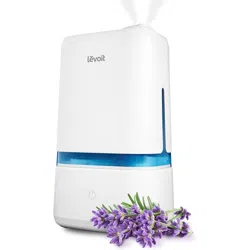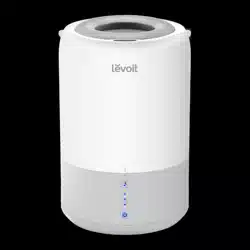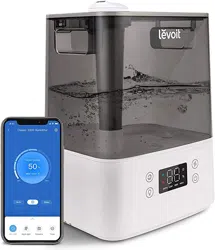
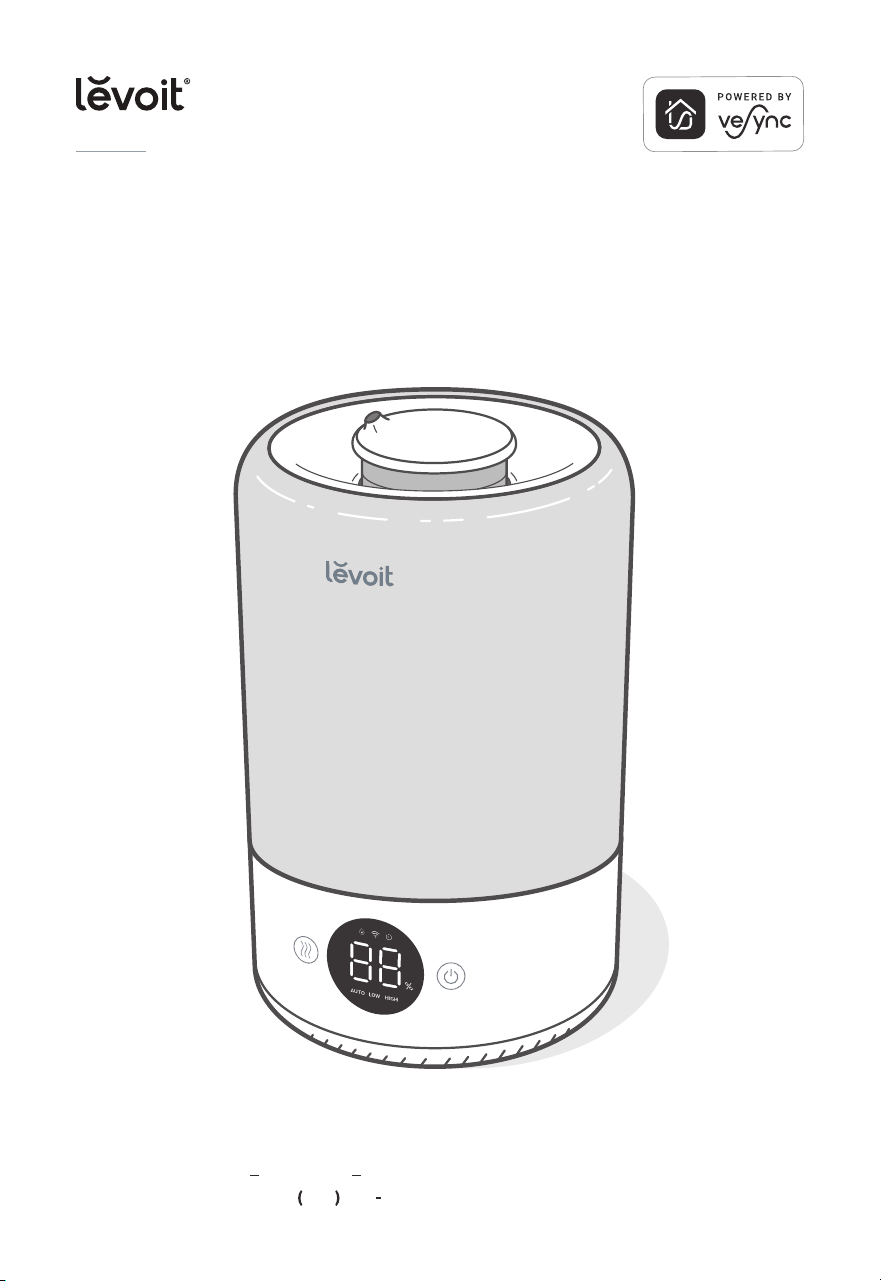
VeSync Dual 200S Smart Top-Fill Humidifier
Model: Dual 200S
Questions or Concerns?
Please contact us Mon Fri, 9:00 am 5:00 pm PST/PDT
at [email protected] or at 888 726 8520.
USER MANUAL
2
Table of Contents
Package Contents
Specifications
Safety Information
Getting to Know Your Smart Humidifier
Controls & Display
Getting Started
VeSync App Setup
Using Your Smart Humidifier
Care & Maintenance
Troubleshooting
VeSync App Troubleshooting
Warranty Information
Customer Support
1 × Smart Top-Fill Humidifier
2 × Water Filter Sponge (1 Pre-Installed)
1 ×
1 ×
Cleaning Brush
User Manual
1 × Quick Start Guide
2
2
3
5
7
8
11
12
15
20
22
24
25
Specifications
Package Contents
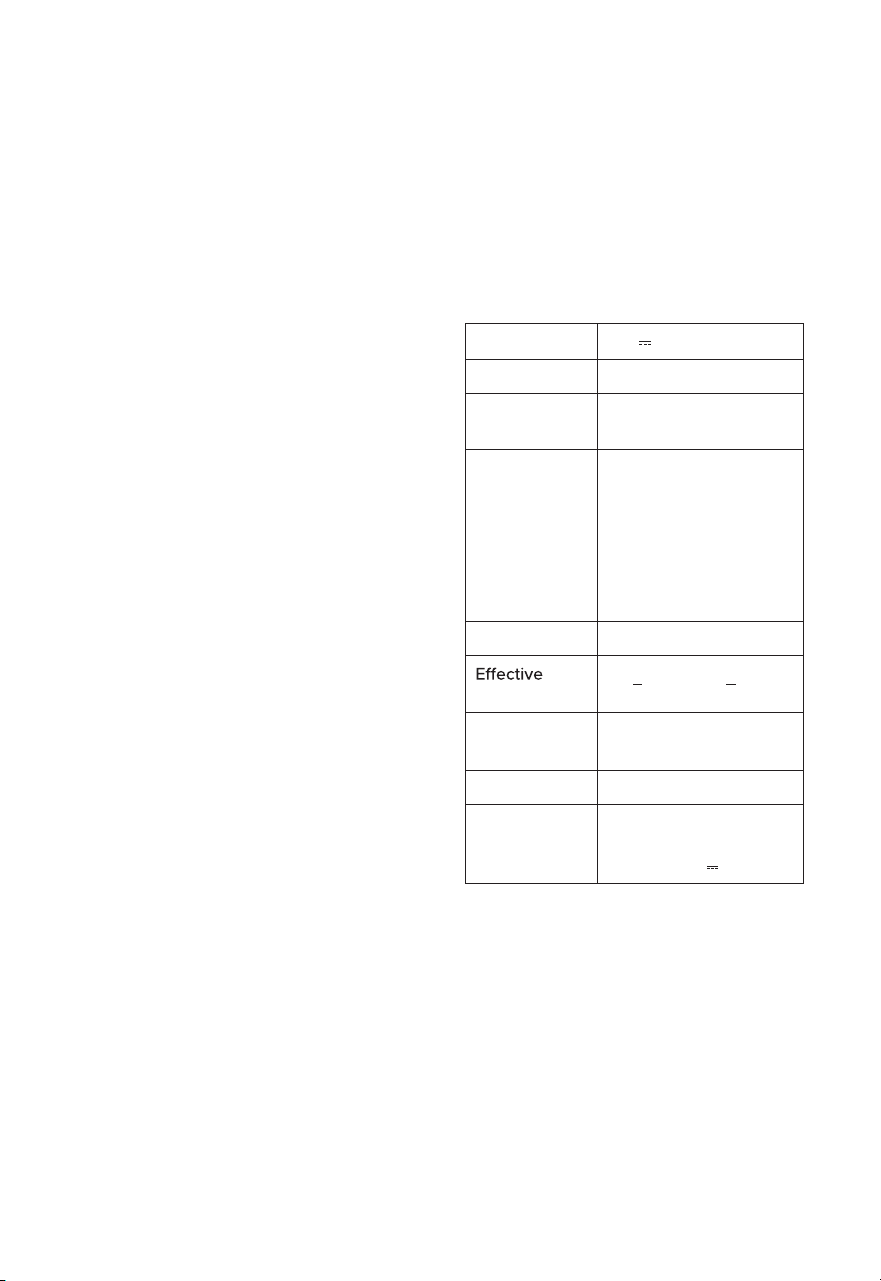
Power Supply 24V 1A
Rated Power 24W
Water Tank
Capacity
0.79 gal / 3 L
Max Run Time
Up to 25 hours on low
mist setting
Note: The humidifier may
run for a longer or shorter
time depending on the
environmental temperature
and humidity.
Noise Level ≤ 28dB
Range
107 290 ft² / 10 27 m²
Dimensions
7.1 × 7.1 × 11.8 in /
18 × 18 × 30 cm
Weight 3 lb / 1.4 kg
Power
Adapter
Input: 100-240V
~
50/60Hz
Output:
Note:
To access additional smart humidifier
functions, download the free VeSync app
(see page 11).
24V 1A

3
SAFETY INFORMATION
• Only use the humidifier as
described in this manual.
• Place the humidifier and cord so
that it will not be knocked over.
Do not place near large pieces of
furniture or in high-trac areas.
• When not in use, turn the humidifier
o and disconnnect from power by
removing the plug from the outlet.
• Do not use the humidifier in wet
environments.
• Keep the humidifier out of reach
from children.
• Do not open the base or
remove the water level sensor
for self-servicing.
• Always unplug your humidifier from
the power outlet before cleaning
your humidifier or detaching the
water tank from the humidifier base.
• Always make sure to place the
humidifier on a flat, level surface
before operation.
• Only fill the water tank with clean
water. Never fill the water tank with
any other liquids.
• Do not place the humidifier near
sources of heat, such as stovetops,
ovens, or radiators.
• Do not place the humidifier directly
on floors, carpets, or rugs.
To reduce the risk of fire, electric shock, or other injury, follow all instructions
and safety guidelines.
General Safety
• Do not use other items as
replacement parts for this product.
• Do not cover the nozzle while
the humidifier is on. Doing so may
damage the humidifier.
• Remove the water tank from the
base before moving the humidifier.
• Do not immerse the humidifier
base, power cord, or plug in water.
• If the humidifier is damaged or is
not functioning properly, stop using
it and contact Customer Support
immediately (see page 25).
• Not for commercial use.
Household use only.
•
This humidifier is not to be used by
persons (including children) with
reduced physical, sensory or
mental capabilities, or lack of
experience and knowledge,
unless they have been given
supervision or instruction concern-
ing use of the appliance by a
person responsible for their safety.
• Supervise children when they are
near the humidifier.
• Children should not clean or
perform maintenance on the
humidifier without supervision.
•
Children should be supervised to
ensure that they do not play with
the humidifier.
READ AND SAVE THESE
INSTRUCTIONS
4
Power & Cord
• Ensure that the plug fits properly
into a polarized socket.
• Do not handle the power cord or
plug with wet hands. Keep the plug
and power cord away from liquids.
• Your humidifier has a polarized plug
(one prong is wider than the other),
which fits into a polarized outlet only
one way. This is a safety feature to
reduce the risk of electric shock. If
the plug does not fit, reverse the
plug. If it still does not fit, do not
use the plug in that outlet. Do not
bypass this safety feature.
• If the power supply cord is damaged,
it must be replaced by Arovast
Corporation or similarly qualified
persons in order to avoid an electric
or fire hazard. Please contact
Customer Support (page 25).
• Unplugging the power cord
will disable remote control of
the humidifier and temporarily
disconnect the humidifier from
VeSync and other third-party apps.
Do not add supplemental
water treatment liquids into the
water tank or base chamber.
This will damage the humidifier
and cause leaks.
Caution: Risk of Leaks
and Electric Shock
5
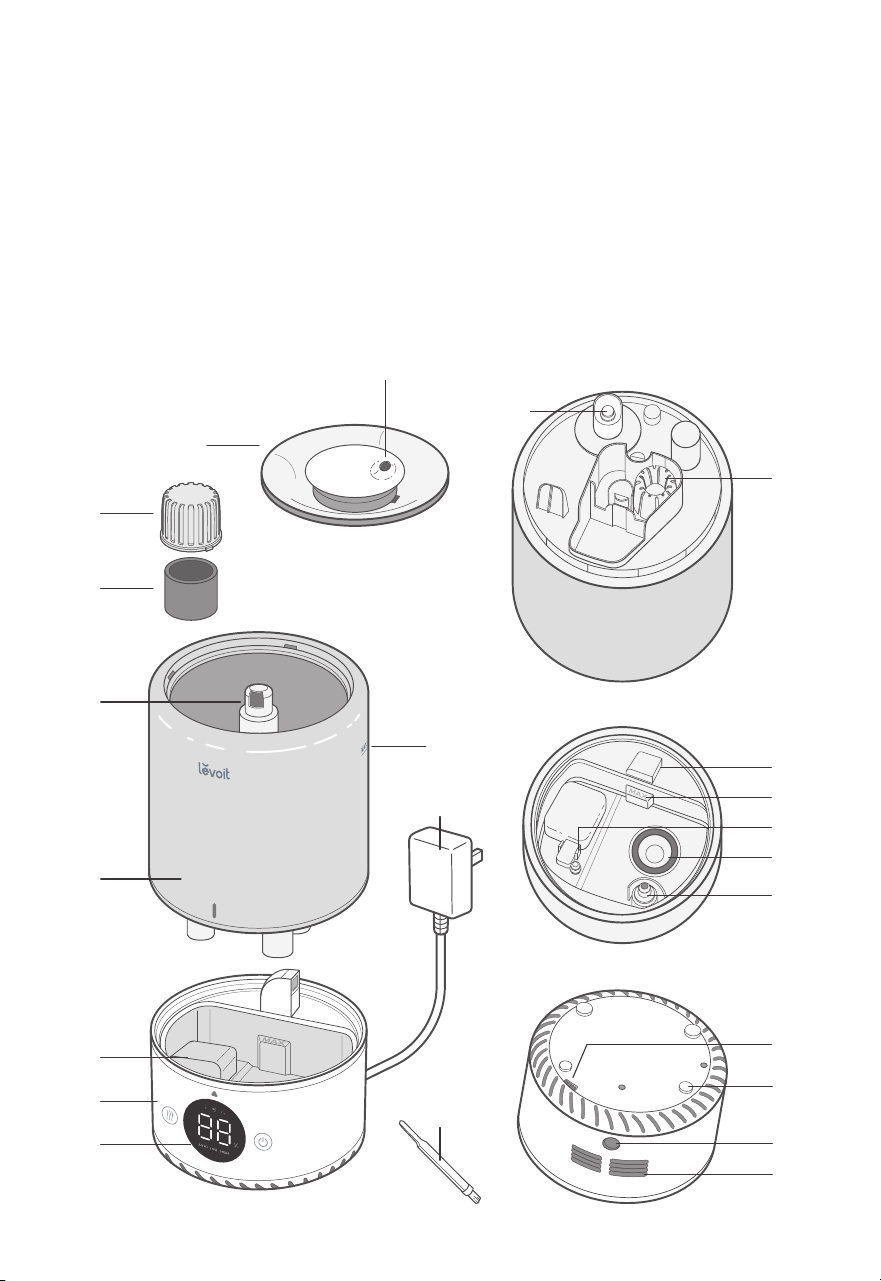
GETTING TO KNOW YOUR SMART HUMIDIFIER
A. Nozzle
B. Water Tank Cover
C. Water Filter Housing
D. Water Filter
E. Mist Tube
F. Water Tank
G. Float
H. Base
I. Display
J. Cleaning Brush
K. Power Adapter
L. Max Water Line (Tank)
M. Water Outlet Valve
N. Noise Silencer
O. Air Outlet
P. Max Water Line (Base)
Q. Float Brackets
R. Transducer
S. Secondary Float
T. Humidity Sensor
U. Feet
V. Power Adapter Input
W. Air Inlet
A
B
M
G
K
W
T
U
S
R
J
D
N
L
F
E
C
H
I
O
P
Q
V
Water tank, upside down
6
Getting To Know Your Smart Humidifier (cont.)
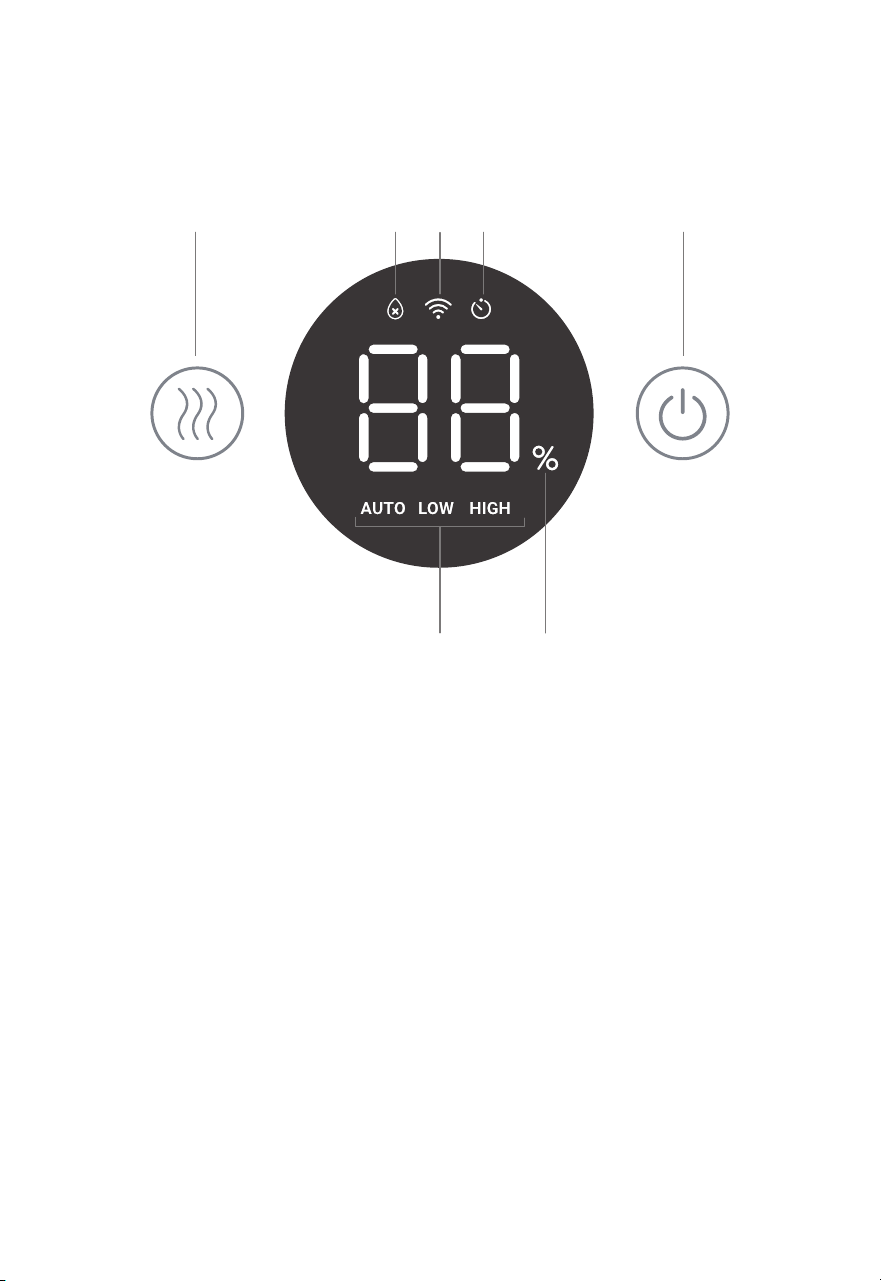
A B DC
G F
E
A. Mist Level Button
B. No Water Indicator
C. Wi-Fi® Indicator
D. Timer Indicator
Note:
The timer must be
set in the VeSync app.
E. Power Button
F. Humidity Level Indicator
G. Mist Level Indicator
7
C ONTROLS & DISPLAY
Note:
You can also control these functions using
the VeSync app, as well as additional functions
(see page 13).
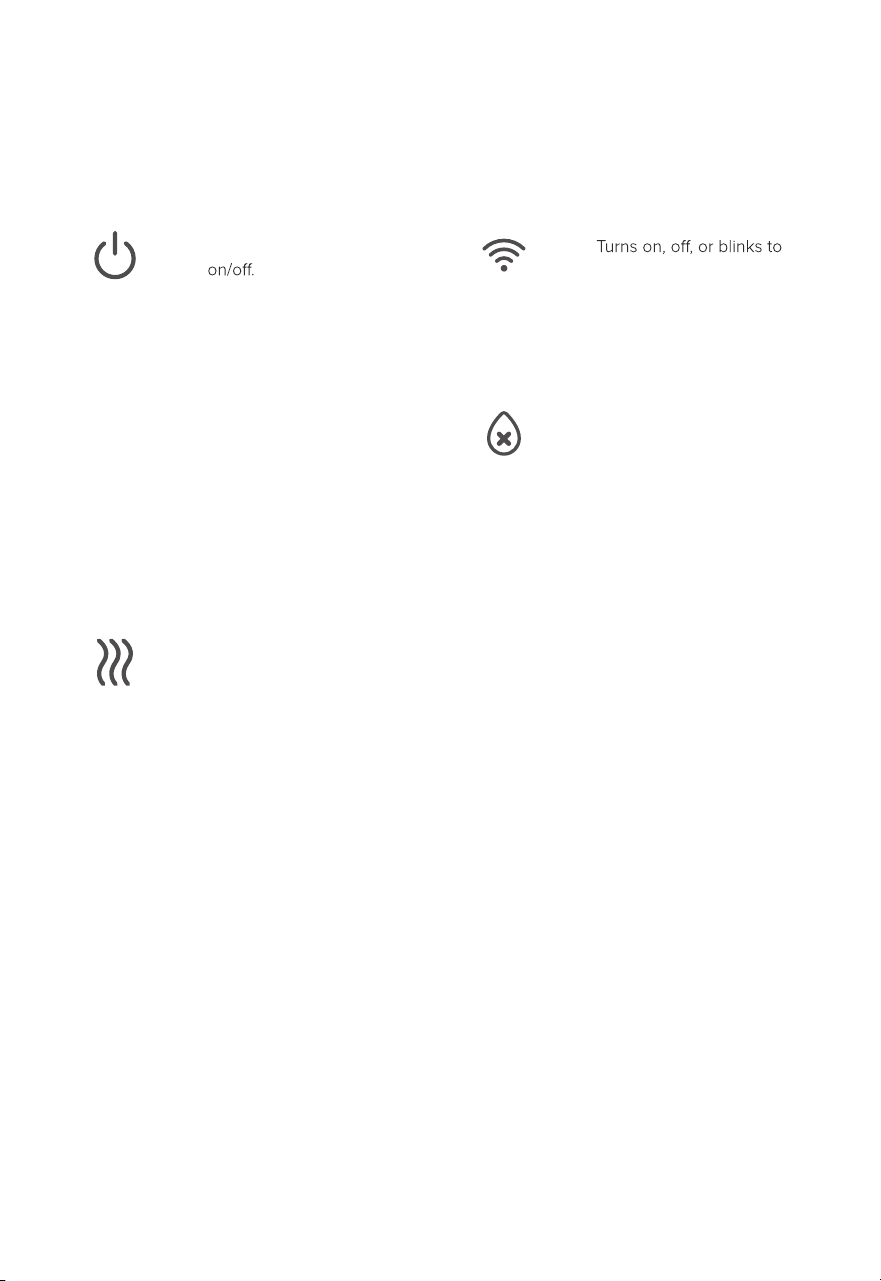
Power Button
•
Press to turn the humidifier
• Press and hold for 5
seconds to pair with the
VeSync app. See the
VeSync in-app instructions
for more information.
• Press and hold for 15
seconds to reset the
humidifier. This will restore
the humidifier’s default
settings and disconnect
it from Wi-Fi® and the
VeSync app (see page 11).
Wi-Fi Indicator
•
indicate pairing status.
See the VeSync in-app
instructions for more
information.
No Water Indicator
•
Blinks when there is no
water in the tank. After
this indicator blinks 10
times, the humidifier
will turn o. Refill the
tank and properly
place it on the base to
use your humidifier.
•
Lights up when the
water tank is removed.
Remains on until the
tank is replaced.
Mist Level Button
•
Press repeatedly to cycle
through mist level settings:
Low, High, and Auto Mode.
(For more details on Auto
Mode, see page 13.)
•
Press and hold for 3
seconds to turn o the
humidifier display.
8
G ETTING STA RT ED
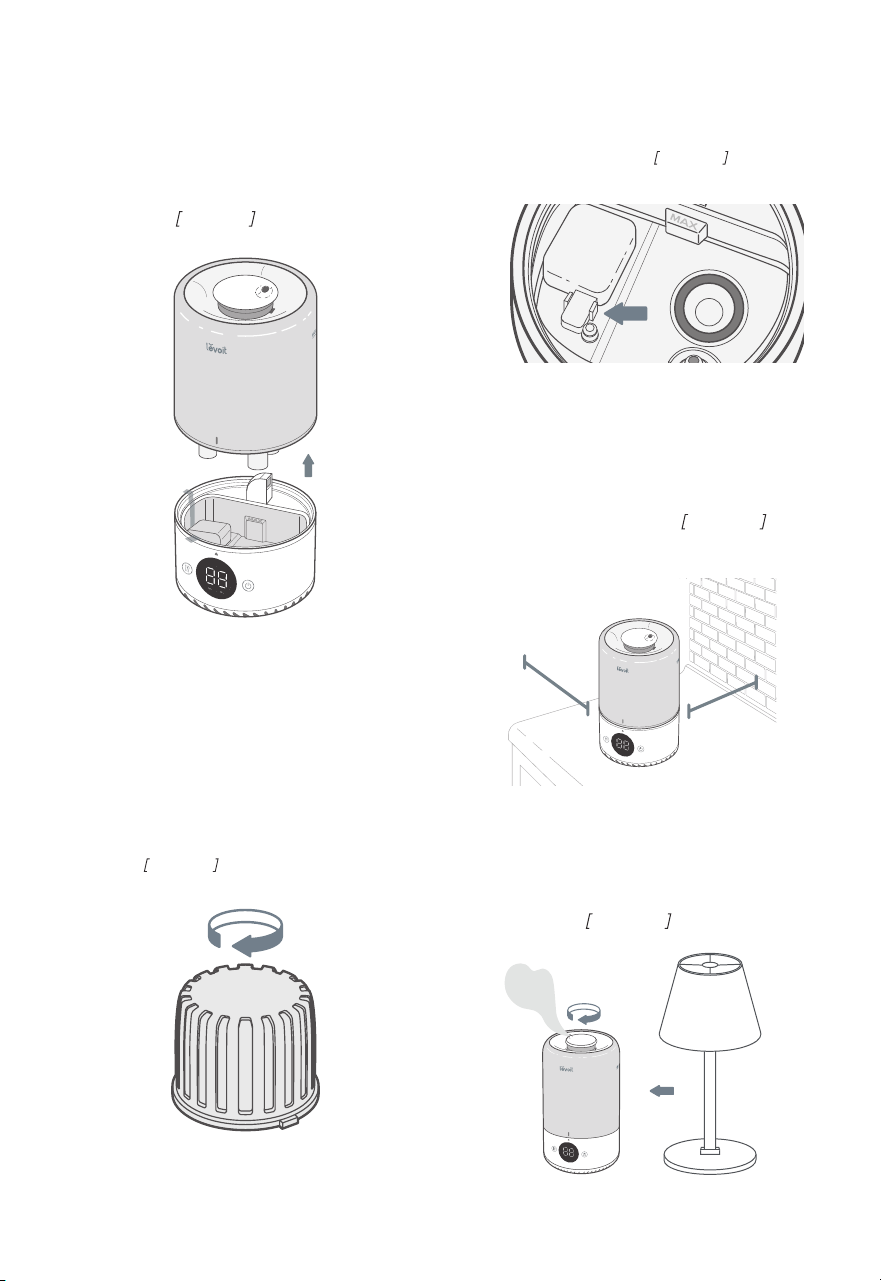
1. Remove all packaging.
Take the water tank o of the base and
2.
remove all tape, including any tape on
the float.
Figure 1.1
Figure 1.3
Figure 1.1
Figure 1.4
Figure 1.5
Figure 1.2
3. Rinse and reassemble all parts before
first use (see Cleaning, page 15).
Note:
• Check to make sure that the water filter
is correctly in place. If not, then rotate
the filter clockwise to secure it in place.
Figure 1.2
4. Choose a hard, flat location for the
humidifier at least 12 inches / 30 cm
away from any walls. The surface
must be water-resistant.
Figure 1.4
5. Mist should be directed away
from walls, furniture, bedding, and
appliances.
Figure 1.5
• Check to make sure that the float is
securely in place.
Figure 1.3
12 in /
30 cm
12 in /
30 cm
9
Filling & Refilling
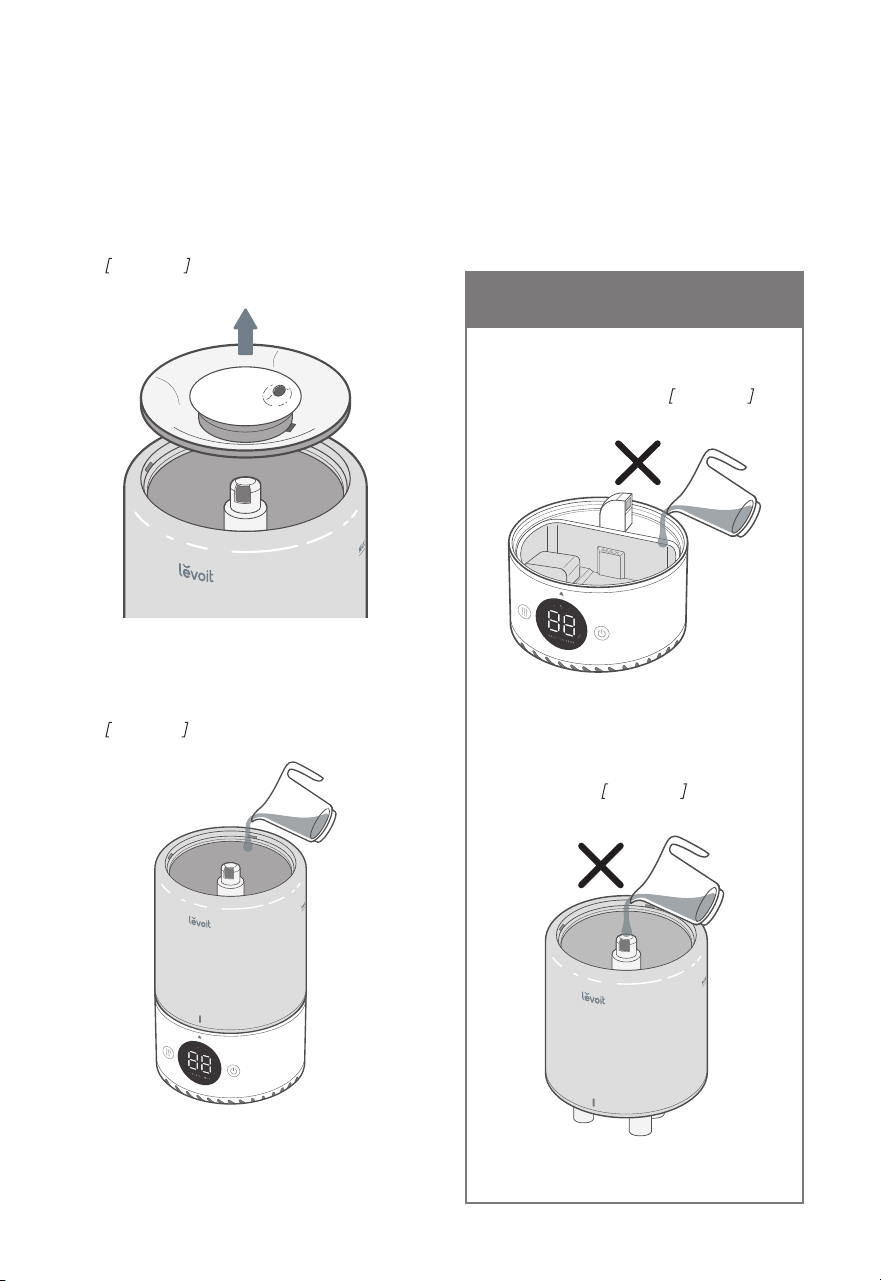
1. Remove the water tank cover by
holding the nozzle and pulling upward.
Figure 1.6
Figure 1.6
Figure 1.7
2. Fill the tank with room-temperature water.
Figure 1.7 Do not fill with hot water.
Note:
• We recommend using purified or distilled
water to fill the tank.
•
Do not
fill past the tank’s max water line.
Figure 1.8
Figure 1.9
• Do not add water directly into
the base chamber.
Figure 1.8
CAUTION
Note:
Make sure the water tank is clean
before filling.
• Do not add water through the
mist tube.
Figure 1.9
10
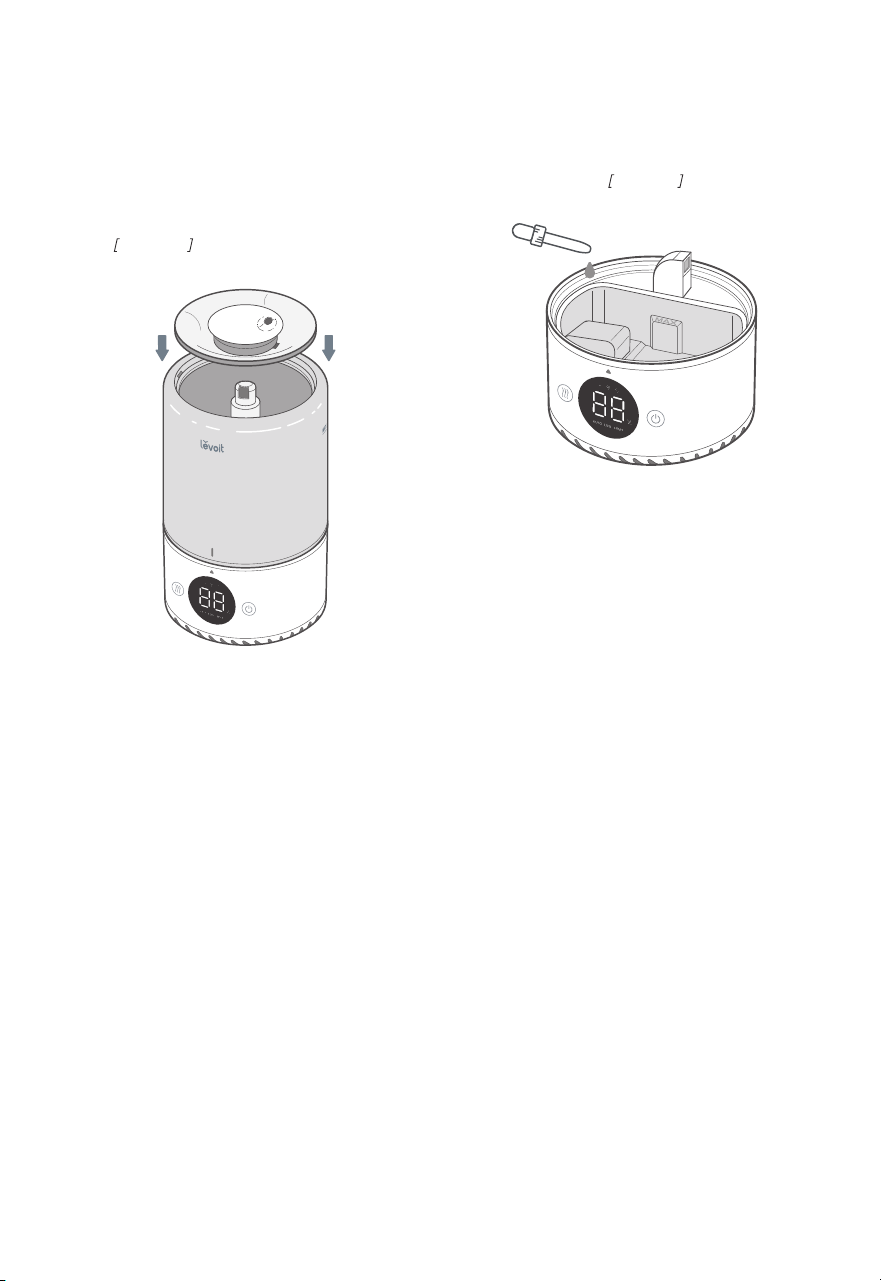
Figure 1.10
Figure 1.11
Note:
Make sure the nozzle on the water
tank cover is placed over the mist tube,
or the humidifier may not work correctly.
Figure 1.10
Note:
For best results, we recommend using
pure essential oil.
Filling & Refilling (cont.)
3. Replace the water tank cover. 4. Optionally, add 10–15 drops of
essential oil into the base chamber for
aromatherapy.
Figure 1.11

11
Figure 2.1
Note:
Due to ongoing updates and improvements,
the VeSync app may be slightly dierent than
shown in the manual. In case of any dierences,
follow the in-app instructions.
Note:
For Android™ users, choose “Allow”
to use VeSync.
Note:
You must create your own VeSync
account to use third-party services and
products. These will not work with a guest
account. With a VeSync account, you can
also allow your family and friends to control
your smart humidifier.
1. To download the VeSync app, scan
the QR code or search “VeSync” in the
Apple App Store® or Google Play Store.
Figure 2.1
V ES YNC A P P S ET U P
2. Open the VeSync app. If you already
have an account, tap
Log In. To create a
new account, tap
Sign Up.
3. Follow the in-app instructions to set up
your smart humidifier.
Wi-Fi Connection:
• To disconnect Wi-Fi, press and hold
for 15 seconds until the Wi-Fi
smart humidifier’s default settings and
indicator turns o. This will restore the
disconnect it from the VeSync app.
• To reconnect, please follow the
instructions in the VeSync app for adding
a device.
Note:
• You can use the VeSync app to connect
your smart humidifier to Amazon Alexa
or Google Assistant™. Follow the in-app
instructions to connect VeSync to your
voice assistant.
• Your phone must have Location turned
on while your phone is connecting to
your smart humidifier. This is required
to establish the Bluetooth® connection.
You can turn Location o after your
smart humidifier is finished connecting
to the VeSync app.
12
USING YO UR S M AR T H UMIDIF IER
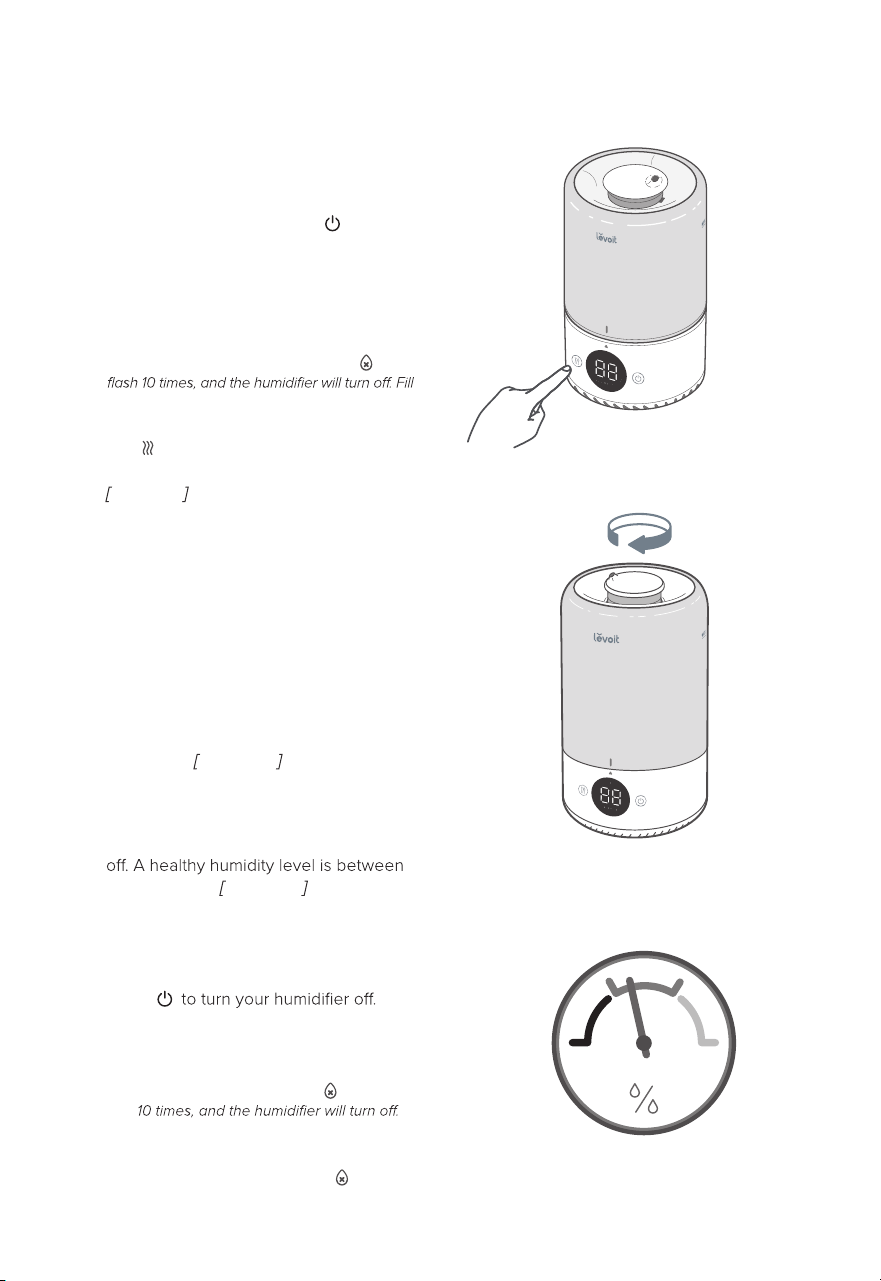
1. Plug in the humidifier. Press to turn
your humidifier on. The humidifier will
automatically begin misting on high
for 3 seconds, then change to the low
mist setting.
2. Tap repeatedly to cycle through mist
settings: Auto Mode, Low, and High.
Figure 3.1
3. Rotate the nozzle to adjust the direction
of the mist.
Figure 3.2
4. When your room has reached your
preferred humidity level, turn the
humidifier to a lower setting, or turn it
40% and 50%. Figure 3.3
5. Press
Figure 3.1
Figure 3.2
Figure 3.3
Note:
Using the VeSync app allows you to control
your smart humidifier remotely and access additional
functions and features (see page 13).
Note:
You can also use Auto Mode to keep
the humidity level between 40% and 50%.
Note:
If there is no water in the tank,
will
the water tank (see Getting Started, page 8).
Note:
• The humidifier will not mist in Auto Mode
if the humidity level is above 50%. If
you want the humidifier to keep misting,
change the mist setting, or change the
Auto Mode settings in the VeSync app.
• For more information about Auto Mode,
see page 13.
Note:
• If there is no water in the tank, the
humidifier will stop misting,
will flash
Refill the tank and properly place it on
the base to use your humidifier.
• If the water tank is removed, will
remain on until the tank is replaced.

13
Auto Mode
Auto Mode uses the humidifier’s sensor to
automatically adjust the mist level (or turn it
o) to maintain a comfortable and healthy
level of humidity.
•
Auto Mode automatically adjusts the
mist level to maintain 40–50% relative
humidity. You can change the target
humidity level in the VeSync app.
• By default, Auto Mode uses Automatic
Stop. The humidifier will stop misting
when the highest target humidity level is
reached. If the humidity drops below the
target humidity level, the humidifier will
begin misting again.
• In the VeSync app, you can turn
Automatic Stop on/o. If Automatic Stop
is o, the humidifier will keep running on
Low mist level when the highest target
humidity level is reached.
• If Auto Mode is selected when the
humidity is higher than the target
humidity range, the humidifier will not
start misting until the humidity lowers.
Note:
The VeSync app is continually updated
and app features will expand.
The VeSync app allows you to access
additional smart functions, including those
listed below.
Remote Control
•
your phone.
Turn the humidifier on/o from
• Cycle through mist levels and turn
on/o Auto Mode from your phone.
Turn the display lights on/o from
•
your phone.
• Customize Auto Mode settings
like target humidity and auto-o.
Monitor Humidity Levels
•
Check current humidity levels in the
humidifier’s environment.
Set Timers & Schedules
•
Program individual timers or create a
schedule for your smart humidifier.
Third-Party Voice Control
•
Compatible with Amazon Alexa and
Google Assistant™ for voice commands.
VeSync App Functions
14
Figure 3.4
Figure 3.5
Figure 3.6
Important Tips
Your humidifier must have the correct level of
water in the base chamber to work properly. If
there is too much water in the base chamber,
the humidifier cannot create mist.
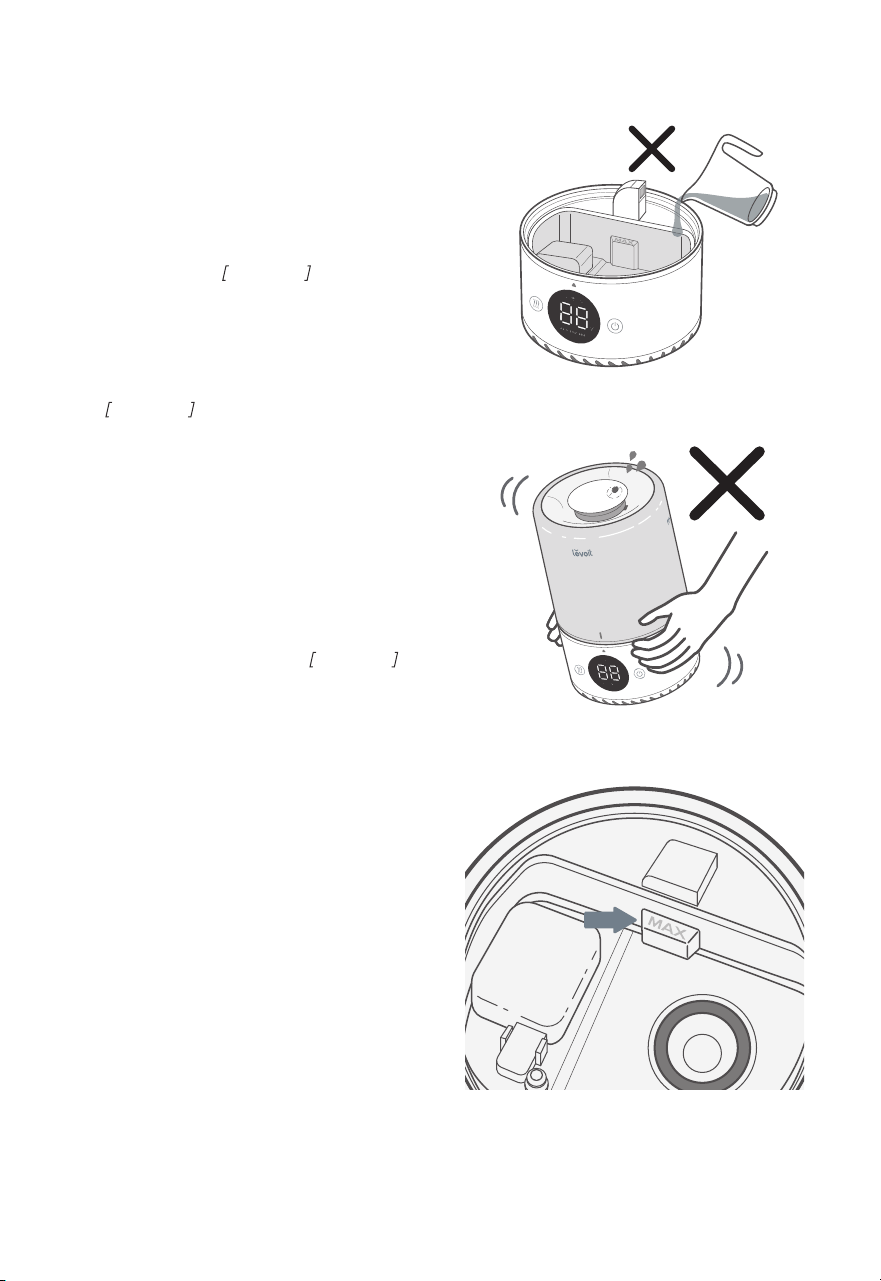
• Never pour water directly into the
base chamber.
Figure 3.4 Only add
water to the water tank. The humidifier
will automatically release the correct
amount of water into the base chamber.
• Avoid moving or shaking the humidifier.
Figure 3.5 This may cause the water
tank to release too much water into the
base chamber.
•
unplug it, and remove the water tank.
Before moving the humidifier, turn it o,
• If your humidifier doesn’t produce mist
correctly, check the max water line to
see if there is too much water in the
base chamber. Pour out extra water if
water is over the max line.
Figure 3.6
Note:
The max water line is
only
for this purpose.
Do not pour water into the base chamber.
15
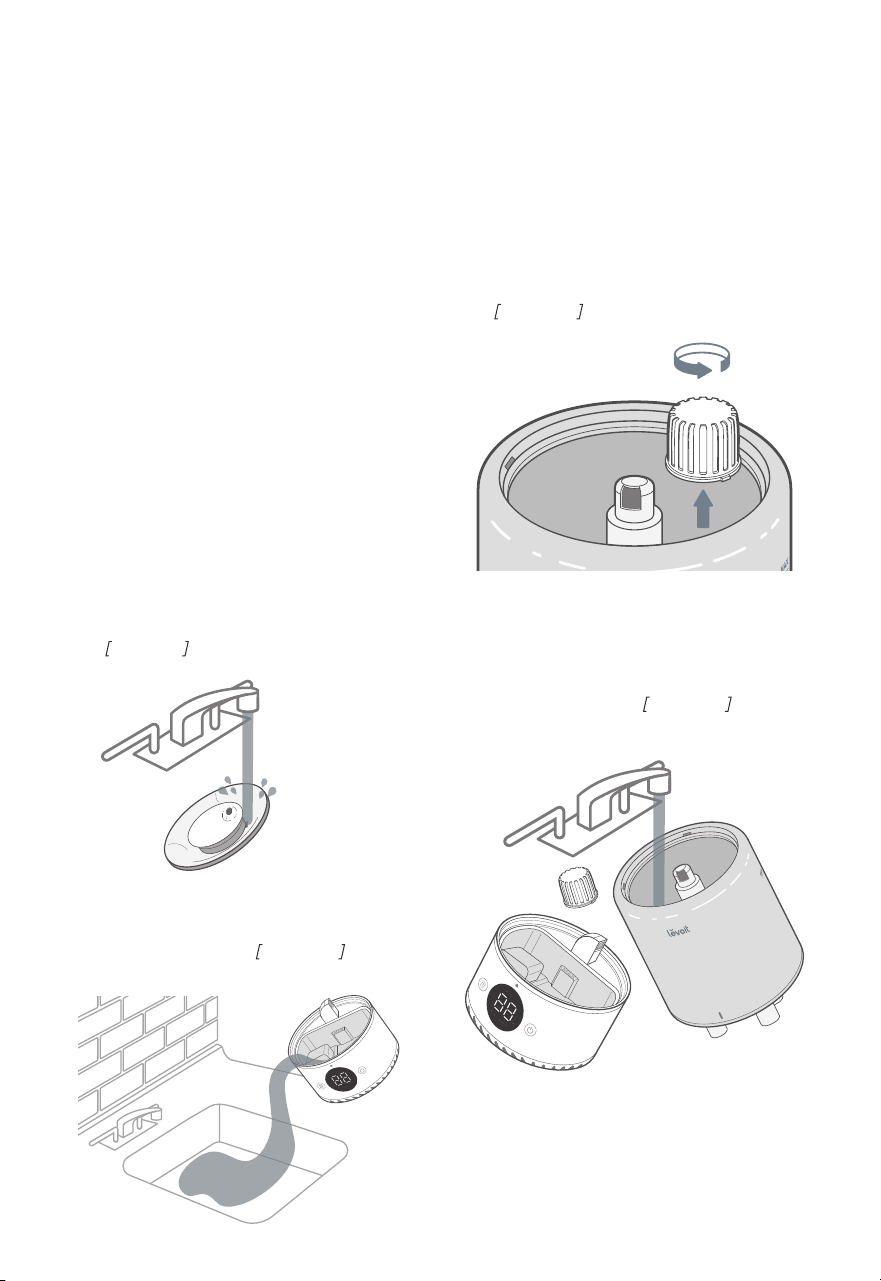
Figure 4.1
Figure 4.2
Figure 4.3
Figure 4.4
CARE & MAINTE NANC E
Note:
• All maintenance should be done on a water-
resistant surface, such as a kitchen counter.
• Change the water daily to avoid bacteria growth.
• Use a tissue or cloth to clean the nozzle regularly.
• If not using the humidifier for 1 week or longer,
do not leave water inside. Clean and dry the
humidifier instead.
Note: When pouring out water, hold
down the float to ensure that it does
not fall out of the base chamber.
Note:
• Never immerse the base in water or liquid.
• Do not use detergents to clean the humidifier.
•
Do not put the water filter in the dishwasher
or it may become discolored.
•
The water tank, water tank cover, water filter housing,
nozzle, float, and silencer are dishwasher safe.
Cleaning
You should clean your humidifier water tank and
base chamber ever week, and when you’re ready
to store it.
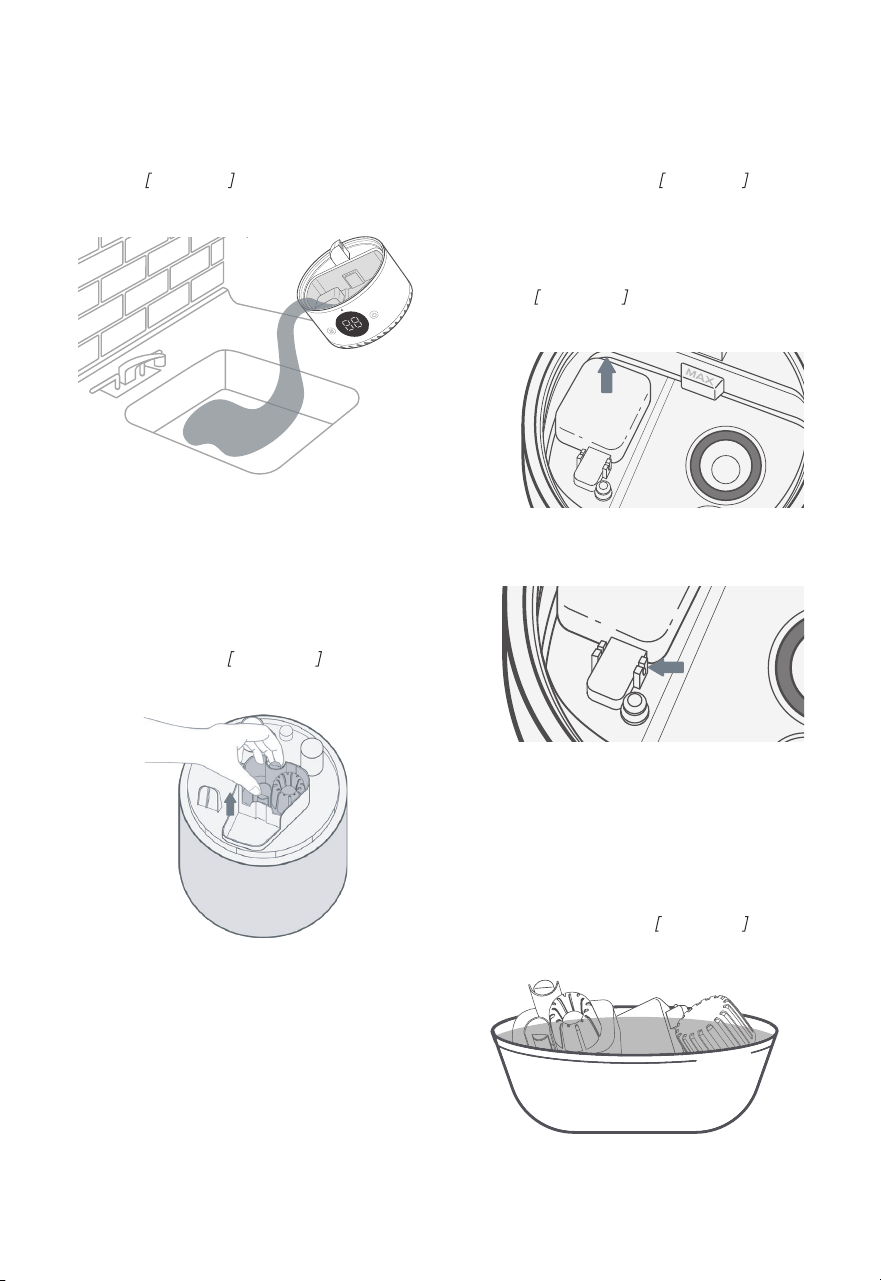
1. Unplug the humidifier.
2. Remove and rinse the water tank cover.
Figure 4.1
4. Remove the water filter assembly
from the tank by rotating it
counterclockwise and lifting it out.
Figure 4.3
5. Rinse the tank, water filter assembly,
and base chamber with room
temperature water.
Figure 4.4
3. Remove the water tank from the base
and pour out any water from the tank
and base chamber.
Figure 4.2
16
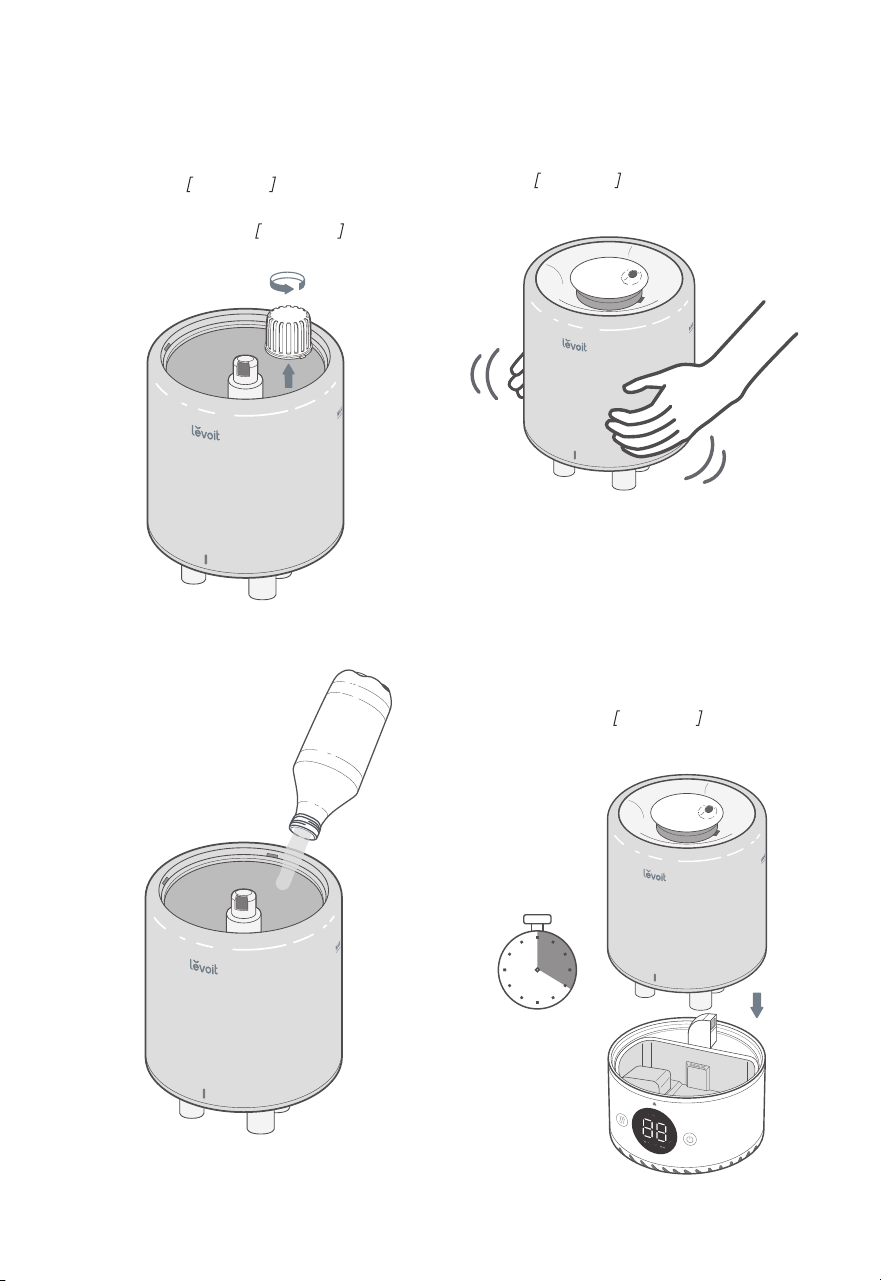
6. To descale the humidifier:
a. Remove the water filter from the
tank.
Figure 4.5 Fill the tank with
3 US cups / 710 mL of distilled
white vinegar.
Figure 4.6
Figure 4.5
Figure 4.6
b. Replace the tank cover and swish
the vinegar around the tank.
Figure 4.7
c. Place the tank on the base and
soak for 15–20 minutes. Vinegar
will drain into the base chamber
and loosen scale (mineral buildup)
in the tank and in the base
chamber (including the transducer
and float).
Figure 4.8
Figure 4.7
Cleaning (cont.)
Figure 4.8
17
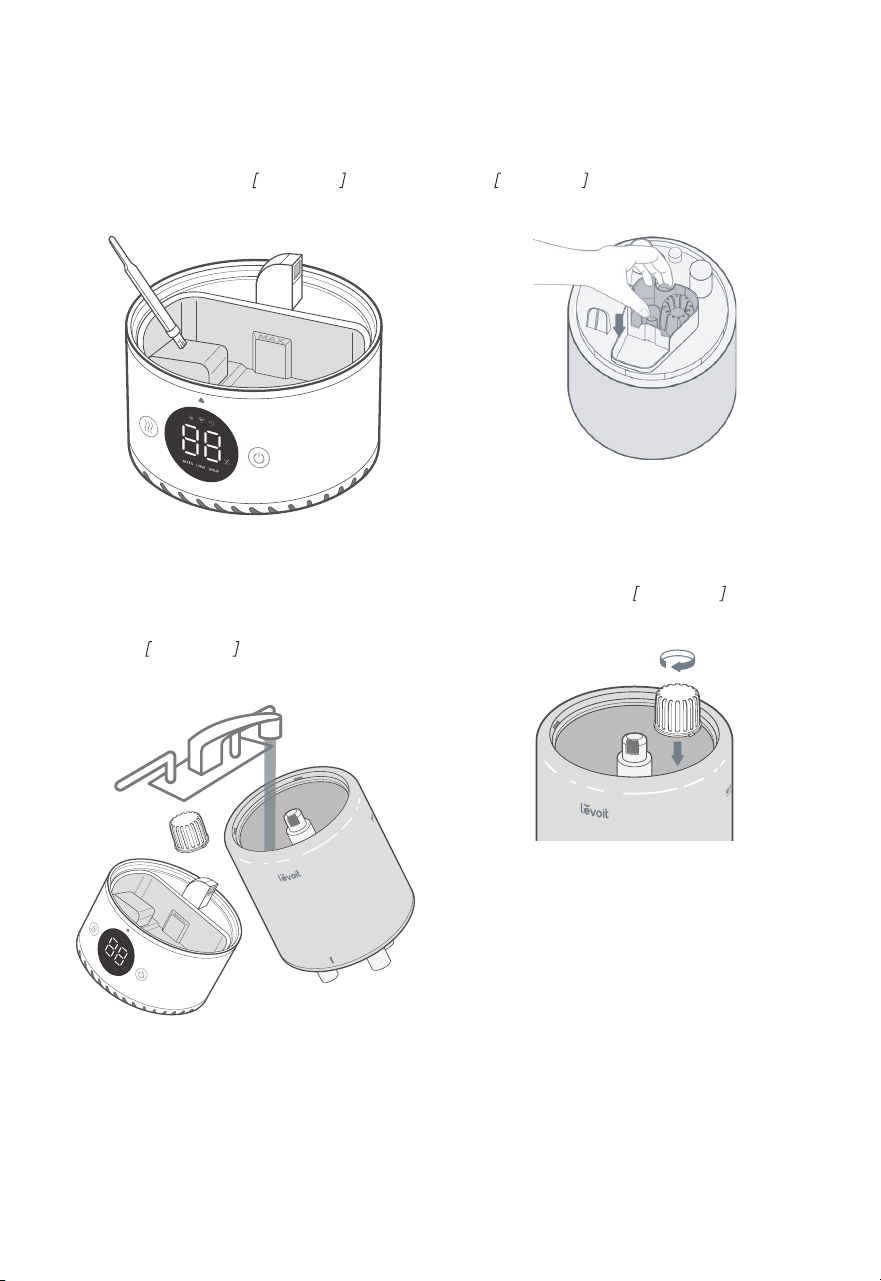
Figure 4.10
Figure 4.11
Figure 4.12
Figure 4.13
f. Remove the float from the base
chamber by pulling up one
end of the float
Figure 4.11 and
pulling the shaft out from the float
brackets. One side of the float
brackets is open (U-shaped) to
allow the shaft to be removed.
Figure 4.12
e. Flip the tank over and remove
the noise silencer. To remove the
noise silencer, press the release
tabs and gently pull away from the
humidifier.
Figure 4.10
g. Place the float, water filter
assembly, and noise silencer in a
small container. Fill with enough
vinegar to cover them. Soak for
15–20 minutes.
Figure 4.13
d. Remove the tank, remove the tank
cover, and pour out any vinegar.
Figure 4.9
Cleaning (cont.)
Figure 4.9
18
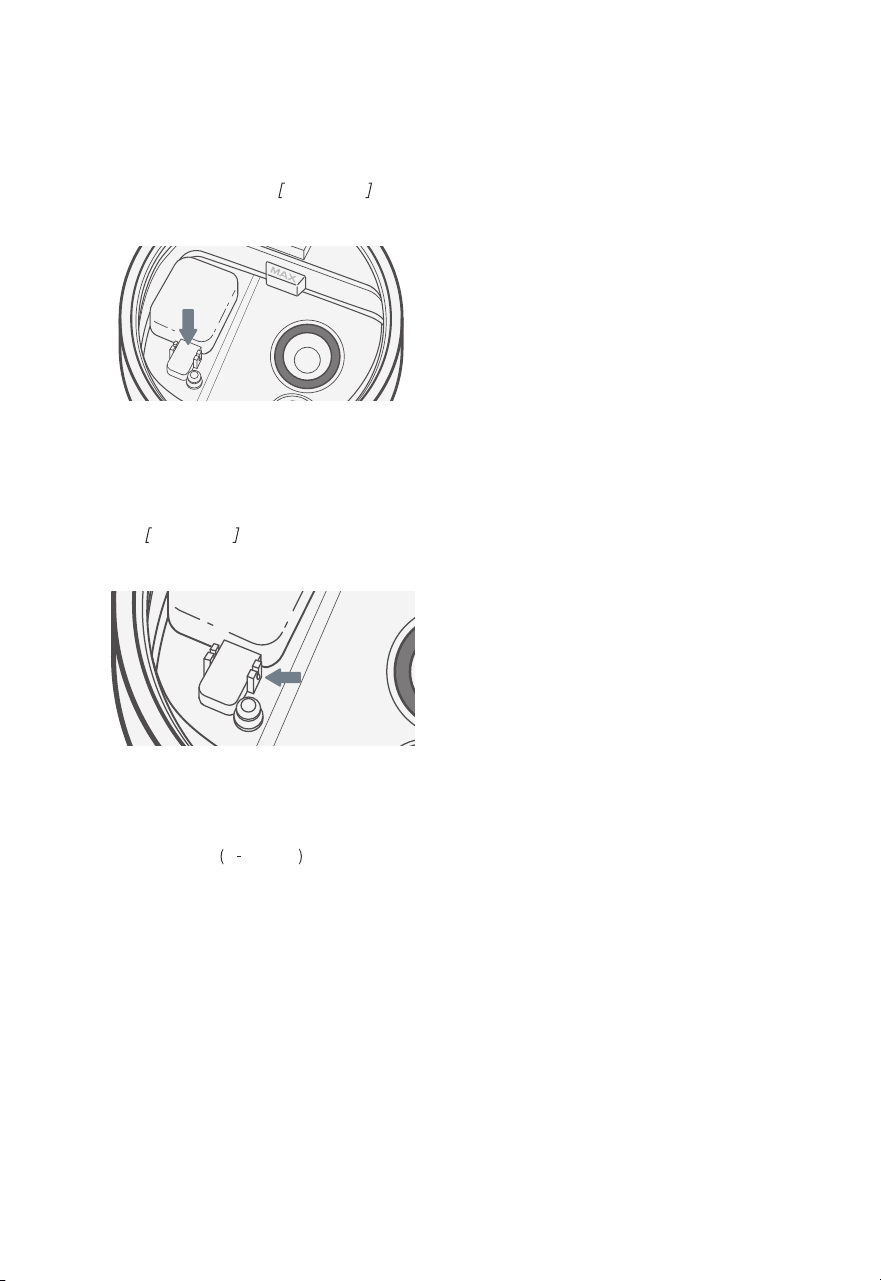
Figure 4.14
Figure 4.15
h. Use a soft cloth and the included
cleaning brush to remove scale
from all parts.
Figure 4.14
i. Rinse all parts until any vinegar
smell is completely gone.
Figure 4.15
Cleaning (cont.)
7. Dry all parts with a cloth. Make sure
all parts are completely dry before
reassembling or storing.
Reassembling
1. Flip the water tank over and place
the noise silencer back into the tank.
Figure 4.16
2. Place the water filter assembly back
into the tank and rotate it clockwise to
secure it in place.
Figure 4.17
Figure 4.16
Figure 4.17
19
Reassembling (cont.)
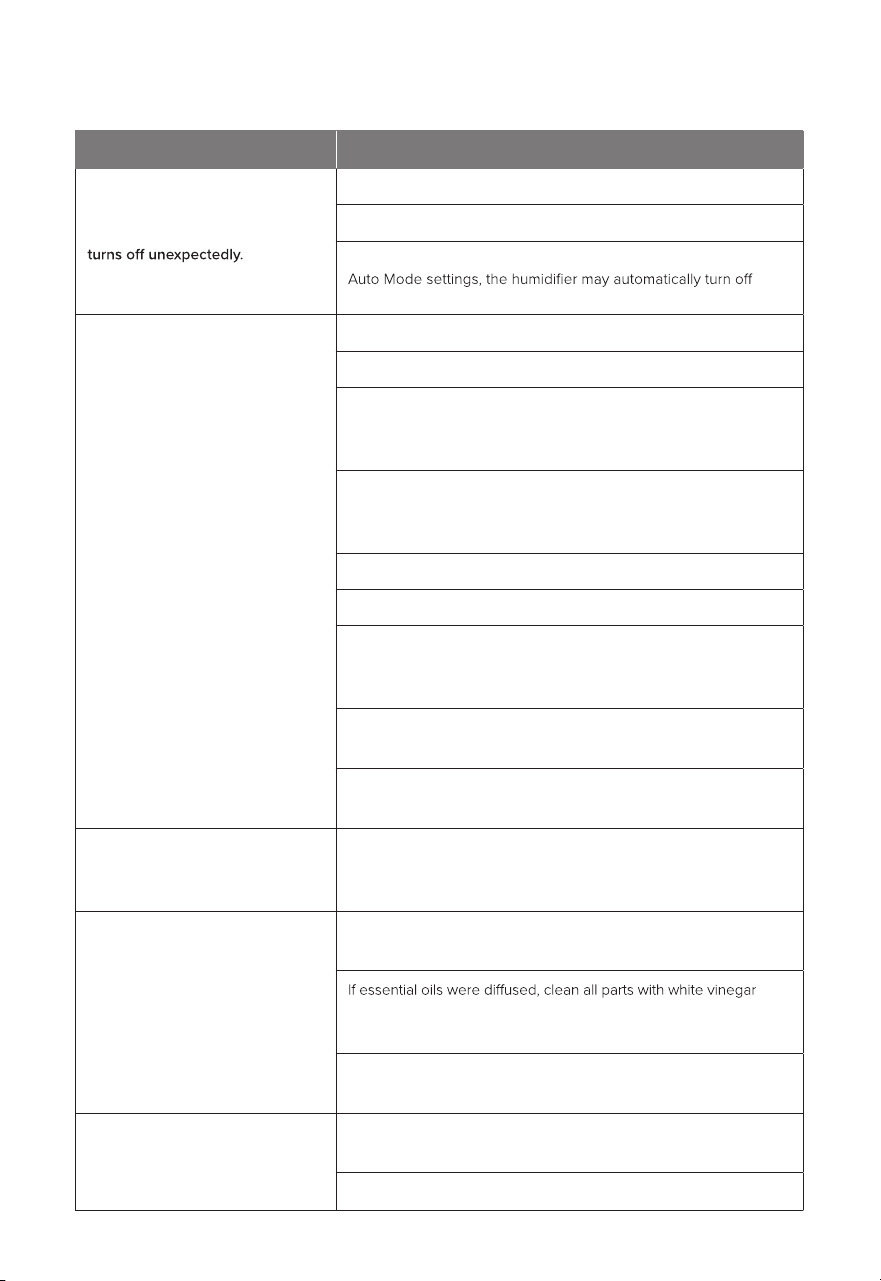
Figure 4.18
Figure 4.19
c. Place the larger prong into
the open
U shaped side of
the float brackets.
4. Place the tank back on the base. Refill
the tank, if necessary.
5. Place the tank properly on the base and
place the tank cover on the water tank.
b. Insert the smaller prong into the
closed side of the float brackets.
Figure 4.19
Storing
Replacing the Filter Assembly
Follow the cleaning instructions (see page 15)
and allow all parts to dry completely before
storing. Store in a cool, dry location.
If the filter assembly is damaged or water
cannot flow into the base chamber, the filter
or filter assembly needs to be replaced.
For more information, contact Customer
Support (see page 25).
3. Place the float back into the base chamber:
a. Make sure the correct side of the
float is facing up.
Figure 4.18
20
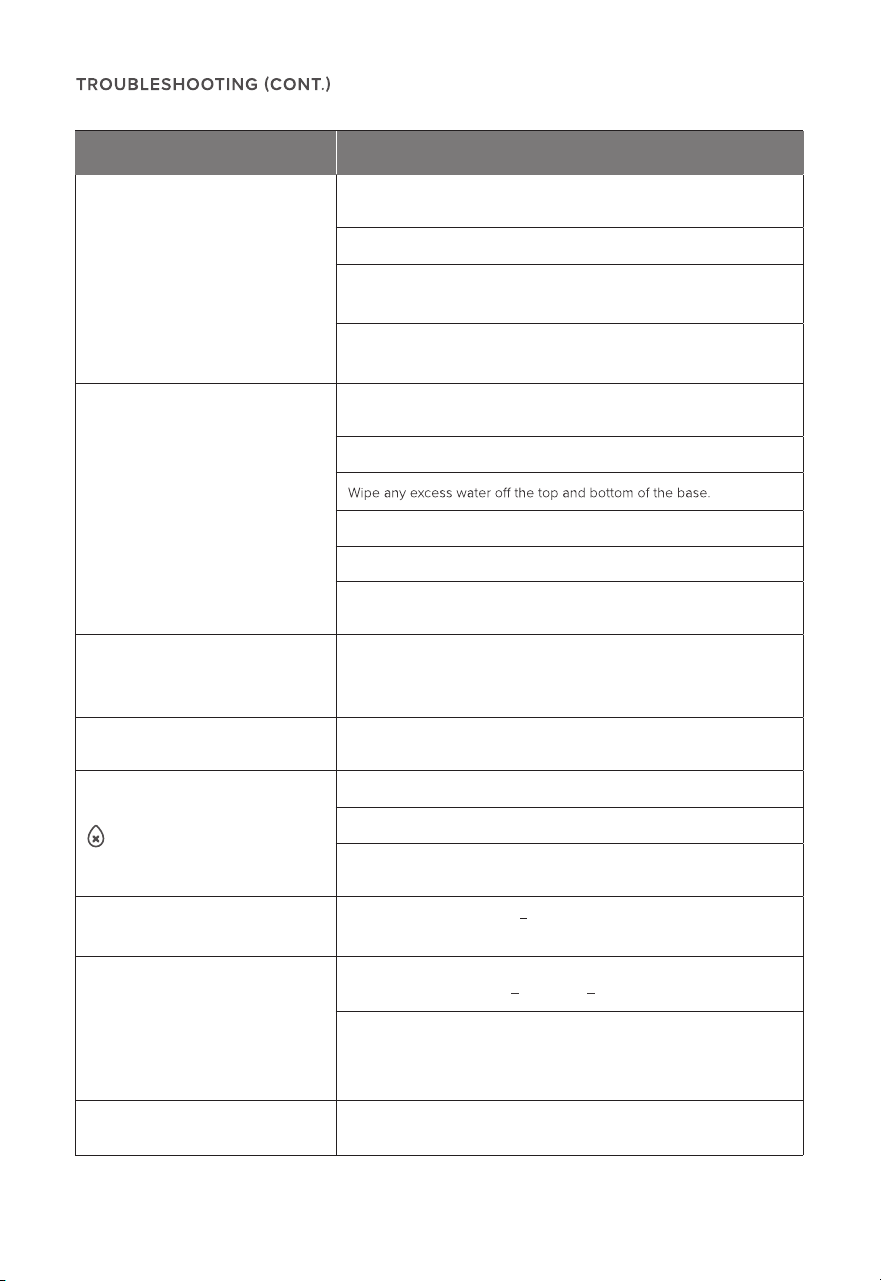
Problem Possible Solution
Humidifier doesn’t turn on, or
Plug in the humidifier and turn it on.
Add purified or distilled water to the water tank.
Check to see if the humidifier is in Auto Mode. Depending on
when the humidity level is above the target level.
Little or no mist comes out.
Turn the mist level to a higher setting.
Fill the water tank.
There may be too much water in the base chamber. Empty the
base chamber. Refill the water tank (not the base chamber) and
place the water tank properly onto the base.
Make sure the air inlet on the bottom of the base is not blocked.
The humidifier should not be set on carpet or other surfaces that
may block the air inlet.
Make sure the nozzle is not blocked or clogged.
Make sure the humidifier is on a level surface.
The water temperature may be too low. Turn the mist level to
the highest setting and let the humidifier run for a while, then
adjust to the desired setting.
If the water tank or base was washed with detergent, rinse
thoroughly with clean water to remove any detergent.
Clean the water filter assembly (see page 15) or replace it with
a new one (see page 25).
Humidifier uses water too quickly.
The humidifier uses up water based on the environmental
temperature and humidity. If your environment is cold and/or
dry, the humidifier will run out of water faster.
Humidifier produces an
unusual smell.
If the humidifier is new, unplug and rinse all parts, then place in a
cool, dry place for 12 hours.
(follow the descaling instructions on page 16), and allow the
humidifier to dry.
Clean the water tank and base chamber (see Care & Maintenance,
page 15).
White dust appears around the
humidifier.
We recommend using purified or distilled water to fill the
humidifier. Avoid using water with high mineral content.
Clean the humidifier (see Care & Maintenance, page 15).
TROUBLESHO OTING
21
If your problem is not listed, please contact Customer Support (see page 25).
Problem Possible Solution
Humidifier makes a loud or
unusual noise.
Make sure the water tank is properly in place (see Getting Started,
page 8).
Set mist level to a lower setting.
Empty the base chamber. Refill the water tank (not the base chamber)
and place the water tank properly onto the base.
The humidifier may be malfunctioning. Stop using the humidifier and
contact Customer Support (see page 25).
Water leaks from the humidifier.
Make sure the silicone sealing ring around the water outlet valve
is secure.
Avoid running the humidifier in a room with over 60% relative humidity.
Do not shake the humidifier.
Make sure to place the humidifier on a flat, level surface.
Check the water tank for leaks. If there are leaks, contact Customer
Support (see page 25).
Condensation forms around
humidifier or windows.
humidifier, or open a door or window to the room.
Humidity may be too high. Turn down the mist level, turn o the
Mold grows inside the humidifier.
Clean the water tank and base chamber regularly
(see Care & Maintenance, page 15).
is red.
Fill the water tank.
Place the water tank properly on the base.
Clean the water filter (see page 15) or replace it with a new one. To
request a new water filter, contact Customer Support (see page 25).
Essential oil has little or no smell.
Make sure you’ve added 10 15 drops of oil into the base chamber. For
best results, use pure essential oil.
Display shows an incorrect
humidity percentage.
to a room smaller than 107
The room may be larger than the humidifier’s eective range. Move
290 ft² / 10 27 m².
humidifier and allow the sensor to air dry. Make sure the nozzle is facing
Moisture may have built up inside the humidity sensor. Turn o the
away from the sensor so that mist does not settle on the sensor (see
diagram in Getting To Know Your Smart Humidifier, page 5).
Display shows Error Code “E1”.
The humidifier is malfunctioning. Contact Customer Support
(see page 25).
22
V ES YNC A P P TROUBLESHO OTING
Why isn’t my humidifier connecting to the
VeSync app?
•
Make sure your phone has Bluetooth®
turned on and is not currently connected
to another Bluetooth device.
• During the setup process, you must
be on a secure 2.4GHz Wi
Fi network.
Confirm that the network is working
correctly.
• During the setup process, your phone
must have Location turned on. This is
required to establish the Bluetooth®
connection and allow your phone to
connect to your humidifier. You can turn
Location o after your smart humidifier is
finished connecting to the VeSync app.
• Make sure the Wi Fi password you
entered is correct.
• Make sure your humidifier and phone are
within 30 ft / 10 m of each other.
• Reset the humidifier by pressing and
holding
for 15 seconds. Then try
connecting again.
• Make sure the humidifier is plugged
in. The humidifier may appear to be
oine if it is unplugged, or if the outlet
does not have power.
• Refresh the VeSync menu by swiping
down on the screen.
• Make sure your router is connected to
the internet and your phone’s network
connection is working.
• Reset the humidifier using one of
these options:
a. Delete the humidifier from the
VeSync app. Swipe left (iOS®) or
press and hold (Android), then tap
Delete. Then reconfigure your
humidifier with the VeSync app.
b. Press and hold for 15 seconds.
Then reconfigure your humidifier
with the VeSync app.
The VeSync app is displaying an incorrect
humidity percentage while the humidifier
is turned on.
•
The room may be larger than the
humidifier’s eective range. Move to a
room smaller than 290 ft² / 27 m².
• Moisture may have built up inside the
humidity sensor. Turn o the humidifier
and allow the sensor to air dry. Make sure
the nozzle is facing away from the sensor
so that mist does not settle on the sensor
(see diagram in
Getting To Know Your
Smart Humidifier, page 5).
Note: Power outages, internet outages,
or changing Wi
humidifier to go oine.
Fi routers may cause your
If your problem is not listed, please contact
Customer Support (see page 26).

23
F ED E RAL COMMUNIC ATIO N COMMISSION
INTERFER EN C E STAT EMEN T - PART 15
F CC RADIATIO N EXPOSU R E S TATEMENT
This device complies with Part 15 of the FCC Rules. Operation is subject to the following two
conditions:
1. This device may not cause harmful interference, and
2. This device must accept any interference received, including interference that may
cause undesired operation.
NOTE: This equipment has been tested and found to comply with the limits for a Class B digital
device, pursuant to Part 15 of the FCC Rules. These limits are designed to provide reasonable
protection against harmful interference in a residential installation. This equipment generates,
uses and can radiate radio frequency energy and, if not installed and used in accordance with
the instructions, may cause harmful interference to radio communications. However, there is
no guarantee that interference will not occur in a particular installation. If this equipment does
cause harmful interference to radio or television reception, which can be determined by turning
the equipment o and on, the users is encouraged to try to correct the interference by one or
more of the following measures:
• Reorient or relocate the receiving antenna.
• Increase the separation between the equipment and receiver.
Connect the equipment into an outlet on a circuit dierent from that to a which the
•
receiver is connected.
• Consult the dealer or an experienced radio/TV technician for help.
FCC Caution: Any changes or modifications not expressly approved by the party responsible
for compliance could void the user’s authority to operate this equipment.
This equipment complies with FCC radiation exposure limits set forth for an uncontrolled
environment. End users must follow the specific operating instructions for satisfying RF exposure
compliance. To maintain compliance with FCC RF exposure compliance requirements, please
follow operation instructions as documented in this manual. This transmitter must not be co-
located or operating in conjunction with any other antenna or transmitter. This equipment should
be installed and operated with a minimum distance of 20 cm between the radiator and your
body. The availability of some specific channels and/or operational frequency bands are country
dependent and are firmware programmed at the factory to match the intended destination. The
firmware setting is not accessible by the end user.

24
F ED E RAL COMMUNIC ATIO N COMMISSION
INTERFER EN C E STAT EMEN T - PART 18
F CC SDOC SUPPLIER’S DECLARATION
OF CONFORMITY
This device complies with Part 18 of the FCC Rules.
This equipment generates and uses ISM frequency energy and if not installed and used properly,
that is in strict accordance with the manufacturer’s instructions, may cause interference to radio
and television reception. It has been type tested and found to comply with limits for an ISM
Equipment pursuant to part 18 of FCC Rules, which are designed to provide reasonable protection
against such interference in a residential installation. However, there is no guarantee that
interference will not occur in a particular installation. If this equipment does cause interference to
radio or television reception, which can be determined by tuning the equipment o and on, the
user is encouraged to try to correct the interference by one or more of the following:
Conduct only the user maintenance found in this manual. Other maintenance and servicing can
cause harmful interference and can void the required FCC compliance. The manufacturer is not
responsible for any radio or TV interference cause by unauthorized modification to the equipment.
It is the responsibility of the user to correct such interference.
• Reorient the receiving antenna of radio or television.
• Relocate the equipment with respect to the receiver.
• Move the equipment away from receiver.
• Plug the equipment into a dierent outlet so that the equipment and receiver are on
dierent branch circuits.
Arovast Corporation hereby declares that this equipment is in compliance with the FCC Part 18
Subpart B. The declaration of conformity may be consulted in the support section of our website,
accessible from www.levoit.com

25
Terms & Policy
Arovast Corporation (“Arovast”) warrants this
product to the original purchaser to be free from
defects in material and workmanship, under
normal use and conditions, for a period of 2 years
from the date of original purchase.
Arovast agrees, at our option during the
warranty period, to repair any defect in material
or workmanship or furnish an equal product in
exchange without charge, subject to verification
of the defect or malfunction and proof of the date
of purchase.
There is no other express warranty. This warranty
does not apply:
• If the product has been modified from its
original condition;
• If the product has not been used in
accordance with directions and instructions
in the user manual;
• To damages or defects caused by accident,
abuse, misuse or improper or inadequate
maintenance;
• To damages or defects caused by service
or repair of the product performed by an
unauthorized service provider or by anyone
other than Arovast;
• To damages or defects occurring during
commercial use, rental use, or any use for
which the product is not intended;
• To damages or defects exceeding the cost
of the product.
Arovast will not be liable for indirect, incidental,
or consequential damages in connection with the
use of the product covered by this warranty.
This warranty extends only to the original
consumer purchaser of the product and is
not transferable to any subsequent owner
of the product regardless of whether the
product is transferred during the specified
term of the warranty.
This warranty does not extend to products
purchased from unauthorized sellers. Arovast’s
warranty extends only to products purchased
from authorized sellers that are subject to
Arovast’s quality controls and have agreed to
follow its quality controls.
All implied warranties are limited to the period of
this limited warranty.
This warranty gives you specific legal rights
and you may also have other rights which
vary from state to state. Some states do not
allow the exclusion or limitation of incidental
or consequential damages, so the above
limitation or exclusion may not apply to you.
If you discover that your product is
defective within the specified warranty
period, please contact Customer Support
via [email protected]. DO NOT dispose
of your product before contacting us. Once
our Customer Support Team has approved
your request, please return the product
with a copy of the invoice and order ID.
Product
Smart Top-Fill Humidifier
Model Dual 200S
For your own reference, we strongly recommend
that you record your order ID and date of purchase.
Date of Purchase
Order ID
WARRANTY INFORM ATION
Every Levoit product automatically includes a
2-year warranty. To make the customer support
process quick and easy, register your product online
at www.levoit.com/warranty.
This warranty is made by:
Arovast Corporation
1202 N. Miller St., Suite A
Anaheim, CA 92806

26
C US TOMER SUPPORT
If you have any questions or concerns
about your new product, please contact our
helpful Customer Support Team.
Distributed by Arovast Corporation
1202 N. Miller St., Suite A
Anaheim, CA 92806
Email: [email protected]
Toll-Free:
888 726 8520
Mon
Fri, 9:00 am 5:00 pm PST/PDT
Support Hours
*Please have your order invoice and order ID
ready before contacting Customer Support.
ATTRIBUTIO N S
Apple App Store is a trademark of Apple Inc.
Google, Android, and Google Play are trademarks of Google LLC.
Wi
Fi® is a registered trademark of Wi-Fi Alliance®.
and certain other countries.
The Bluetooth® word mark and logos are registered trademarks owned by Bluetooth SIG, Inc.
and any use of such marks by Arovast Corporation is under license. Other trademarks and
trade names are those of their respective owners.

Notes

A3-02.00_S_21K12_US
/LE VOITLIFE STY LE
/LE VOIT
/LE VOIT
/LE VOIT
LEVOIT. COM