Visit our website at: http://www.harborfreight.com
Email our technical support at: [email protected]
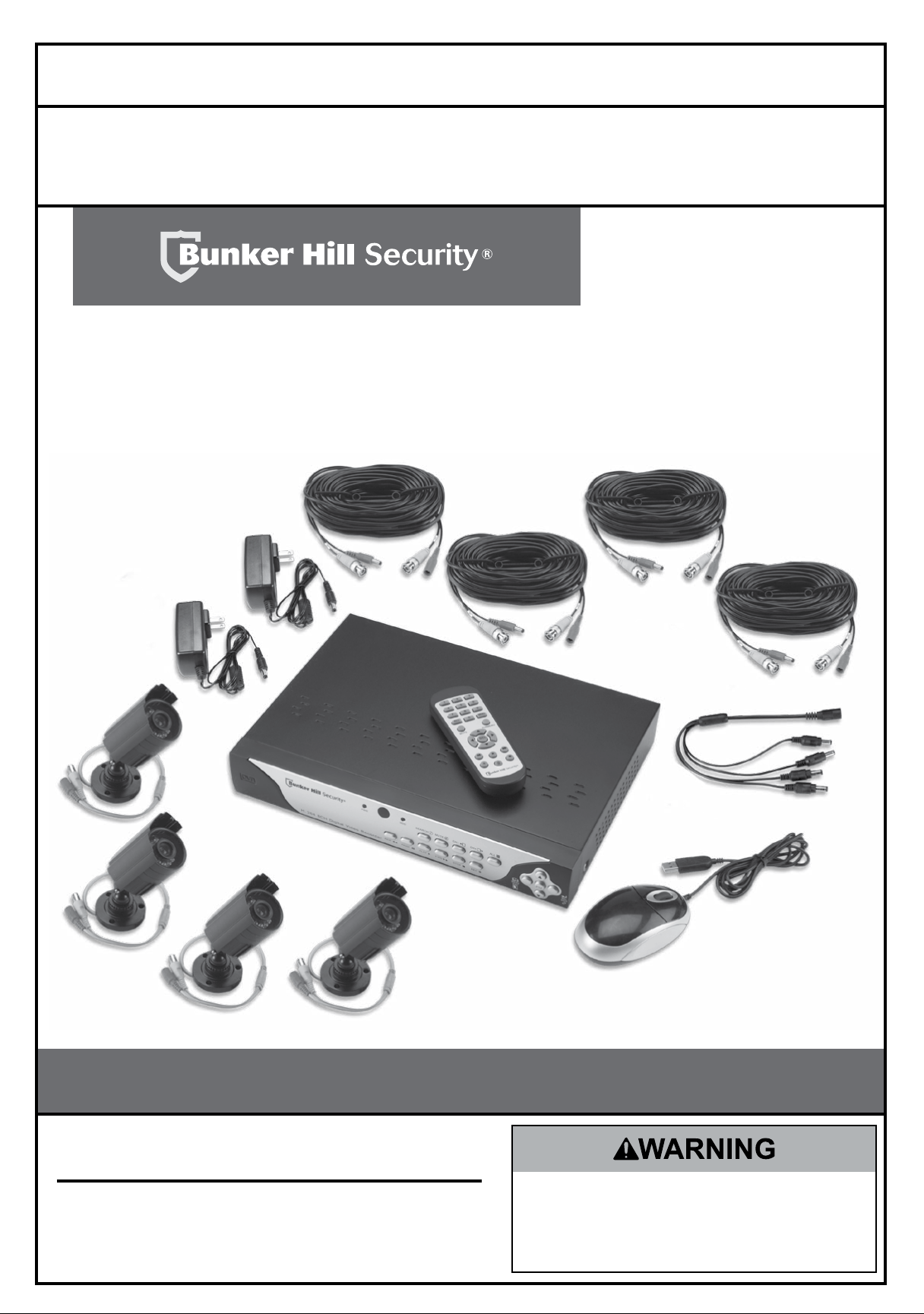
ITEM 61229
8-Channel
Surveillance DVR
Owner’s Manual & Safety Instructions
Save This Manual Keep this manual for the safety warnings and precautions, assembly,
operating, inspection, maintenance and cleaning procedures. Write the product’s serial number in the
back of the manual near the assembly diagram (or month and year of purchase if product has no number).
Keep this manual and the receipt in a safe and dry place for future reference.
When unpacking, make sure that the product is intact
and undamaged. If any parts are missing or broken,
please call 1-800-444-3353 as soon as possible.
Copyright
©
2013 by Harbor Freight Tools
®
. All rights reserved.
No portion of this manual or any artwork contained herein may be reproduced in
any shape or form without the express written consent of Harbor Freight Tools.
Diagrams within this manual may not be drawn proportionally. Due to continuing
improvements, actual product may differ slightly from the product described herein.
Tools required for assembly and service may not be included.
Read this material before using this product.
Failure to do so can result in serious injury.
SaVE thiS manual.
Downloaded from www.ManualsFile.com manuals search engine
Page 2 For technical questions, please call 1-800-444-3353. Item 61229
table of Contents
Safety ......................................................... 3
Specifications ........................................... 5
Set up - Before use .................................. 6
Quick Start Guide Flow Charts ................ 8
DVR Equipment Connections ................. 12
DVR Settings ............................................ 15
Pop-Up Menu .......................................... 15
Main Menu ............................................... 15
Main Menu Map ....................................... 16
Main Settings ........................................... 17
Recording Schedule ................................ 18
Motion Detection...................................... 19
Users ....................................................... 20
System Information.................................. 21
Display Settings ....................................... 21
Display Output ......................................... 22
Privacy Zones .......................................... 22
Recording Parameters............................. 23
Video Stream ........................................... 23
Maintain Hard Drive ................................. 24
Alerts........................................................ 24
DVR Operating instructions .................... 2
Search Recordings .................................. 25
Backup Recordings ................................. 26
Format Drives .......................................... 27
PTZ Camera ............................................ 27
local area network Setup ...................... 28
Set up Remote Video Stream .................. 29
Set up Email Capability ........................... 29
Set up Smartphone Capability ................. 29
Wide area network Setup ....................... 30
Software ................................................... 31
DVR Client ............................................... 31
Video Player ............................................ 32
MAC Record Player ................................. 32
AVI Generator .......................................... 32
Smartphone ............................................. 32
maintenance instructions ....................... 33
troubleshooting ...................................... 34
Parts list .................................................. 35
Warranty ................................................... 36
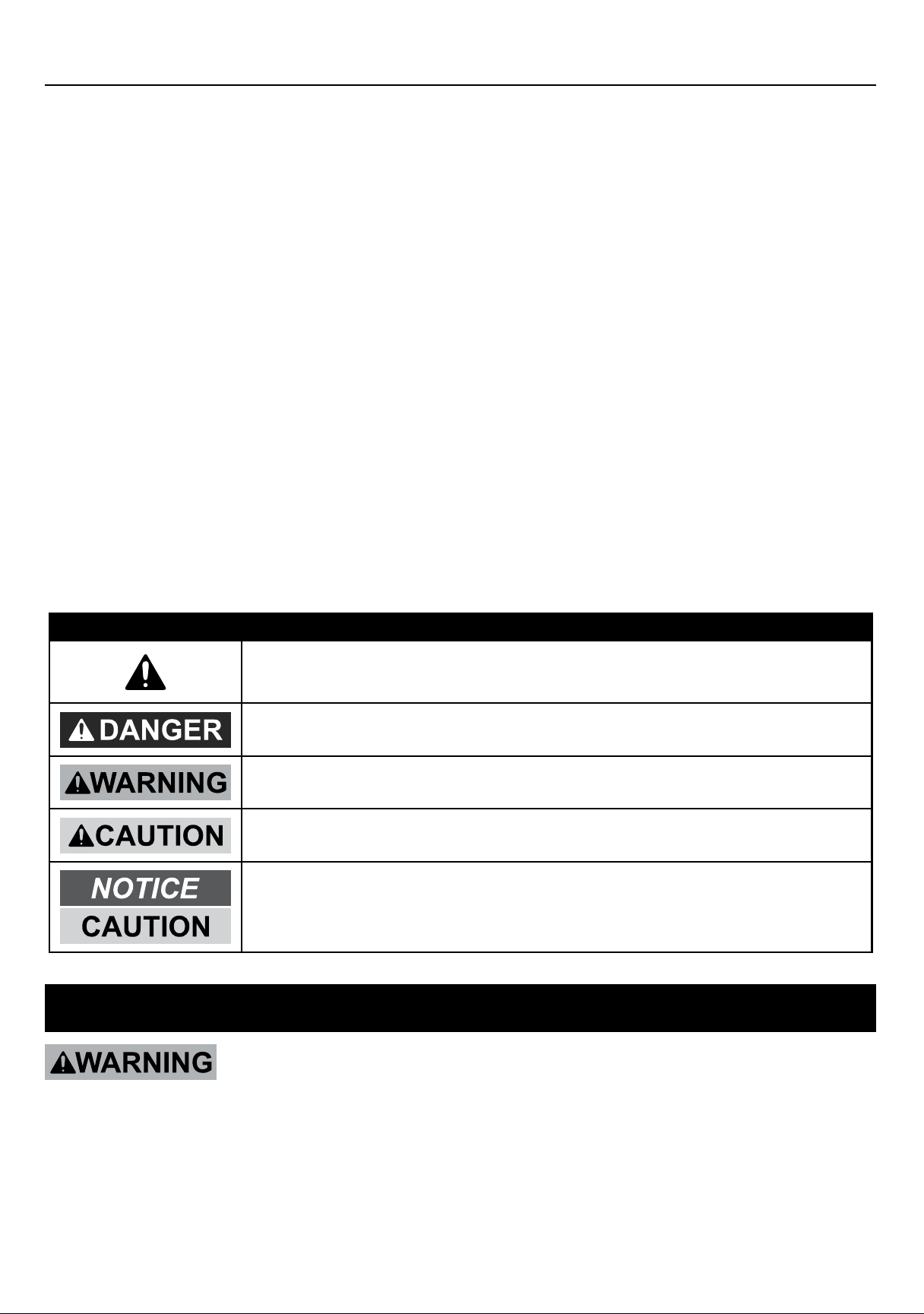
WaRninG SYmBOlS anD DEFinitiOnS
This is the safety alert symbol. It is used to alert you to potential
personal injury hazards. Obey all safety messages that follow
this symbol to avoid possible injury or death.
Indicates a hazardous situation which, if not avoided,
will result in death or serious injury.
Indicates a hazardous situation which, if not avoided,
could result in death or serious injury.
Indicates a hazardous situation which, if not avoided,
could result in minor or moderate injury.
Addresses practices not related to personal injury.
imPORtant SaFEtY inFORmatiOn
Read all safety warnings and instructions.
Failure to follow the warnings and instructions may result in electric shock, fire and/or serious injury.
Save all warnings and instructions for future reference.
Downloaded from www.ManualsFile.com manuals search engine

Page 3For technical questions, please call 1-800-444-3353.Item 61229
SaFEtYOPERatiOnnEtWORk SEttinGS
installation Precautions
1. Check federal, state and local surveillance laws
before installing video
and/or audio surveillance equipment.
2. Install only according to these instructions.
Improper installation can create hazards.
3. Do not overreach when installing this product.
keep proper footing and balance at all times.
This enables better control in unexpected situations.
4. Wear ANSI-approved safety goggles
during installation.
5. Keep installation area clean and well lit.
6. Keep children and bystanders out of
the area during installation.
7. Do not install when tired or when under the
influence of alcohol, drugs or medication.
use Precautions
1. This product is not a toy. Do not allow
children to play with or near this item.
2. Use as intended only.
3. Do not modify.
4. Maintain product labels and nameplates.
These carry important safety information.
If unreadable or missing, contact
Harbor Freight Tools for a replacement.
Electrical Safety
1. Power adapter plugs must match
the outlet. never modify the plug in
any way. Unmodified plugs and matching
outlets will reduce risk of electric shock.
2. Do not expose DVR unit to rain or wet
conditions. Water entering the DVR will
increase the risk of electric shock.
3. Do not abuse the cord. never use the cord
for carrying, pulling or unplugging the
power tool. keep cord away from heat, oil,
sharp edges or moving parts. Damaged or
entangled cords increase the risk of electric shock.
Service
have your DVR equipment serviced by a qualified repair person using only identical replacement parts.
This will ensure that the safety of the equipment is maintained.
Camera Safety Warnings
1. To prevent electric shock, do not attempt
to disassemble Camera. There are
no serviceable parts inside.
2. Use supplied Power Adapter only.
3. Do not expose the Power adapter to rain
or wet conditions. Water entering the Power
Adapter will increase the risk of electric shock.
4. Do not abuse the Power adapter cord. never
use the cord for unplugging the plug from the
outlet. keep cord away from heat, oil, sharp
edges or moving parts. Damaged or entangled
cords increase the risk of electric shock.
5. Handle Camera with care. Camera could be
damaged by improper handling or storage.
Downloaded from www.ManualsFile.com manuals search engine
Page 4 For technical questions, please call 1-800-444-3353. Item 61229
SaFEtY OPERatiOn nEtWORkSEttinGS
DVR Safety Warnings
1. Maintain adequate airflow around DVR.
2. Use supplied Power Adapter only.
3. Do not expose the Power adapter or DVR
console to rain or wet conditions. Water
entering the Power Adapter or DVR console
will increase the risk of electric shock.
4. Do not abuse the Power adapter cord. never
use the cord for unplugging the plug from the
outlet. keep cord away from heat, oil, sharp
edges or moving parts. Damaged or entangled
cords increase the risk of electric shock.
5. Maintain labels and nameplates on the unit.
These carry important safety information. If
unreadable or missing, contact Harbor
Freight Tools for a replacement.
6. WARNING: Handling the cord on this product will
expose you to lead, a chemical known to the State
of California to cause cancer, and birth defects or
other reproductive harm. Wash hands after handling.
(California Health & Safety Code § 25249.5, et seq.)
7. The warnings, precautions, and instructions
discussed in this instruction manual cannot
cover all possible conditions and situations
that may occur. It must be understood by the
operator that common sense and caution are
factors which cannot be built into this product,
but must be supplied by the operator.
SaVE thESE inStRuCtiOnS.
Grounding
tO PREVEnt ElECtRiC ShOCk anD DEath FROm
inCORRECt GROunDinG WiRE COnnECtiOn:
Check with a qualified electrician if you are in doubt as to whether the outlet is properly
grounded. Do not modify the power cord plug provided with the tool. never remove the
grounding prong from the plug. Do not use the tool if the power cord or plug is damaged. if damaged, have
it repaired by a service facility before use. if the plug will not fit the outlet, have a proper outlet installed by
a qualified electrician.
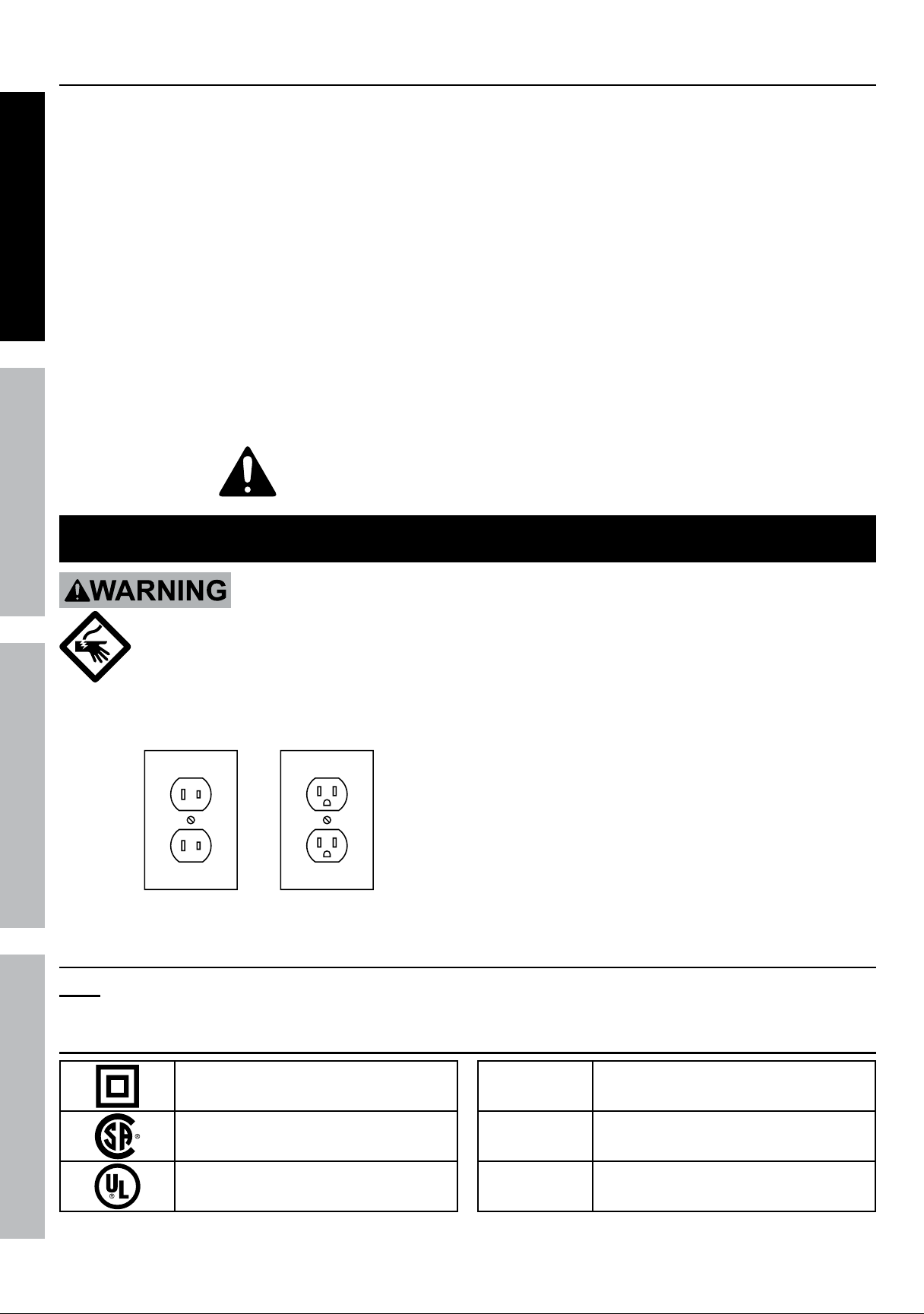
Figure a: Outlets for 2-Prong Plug
1. The included Power Adapters do
not require grounding.
2. The Power Adapters may be used in
either of the 120 volt outlets shown in the
preceding illustration. (See Figure a.)
Extension Cords
note: Do not use an extension cord with the Power Adapters.
Symbology
Double Insulated
Canadian Standards Association
Underwriters Laboratories, Inc.
V
Volts
~
Alternating Current
a
Amperes
Downloaded from www.ManualsFile.com manuals search engine
Page 5For technical questions, please call 1-800-444-3353.Item 61229
SaFEtYOPERatiOnnEtWORk SEttinGS
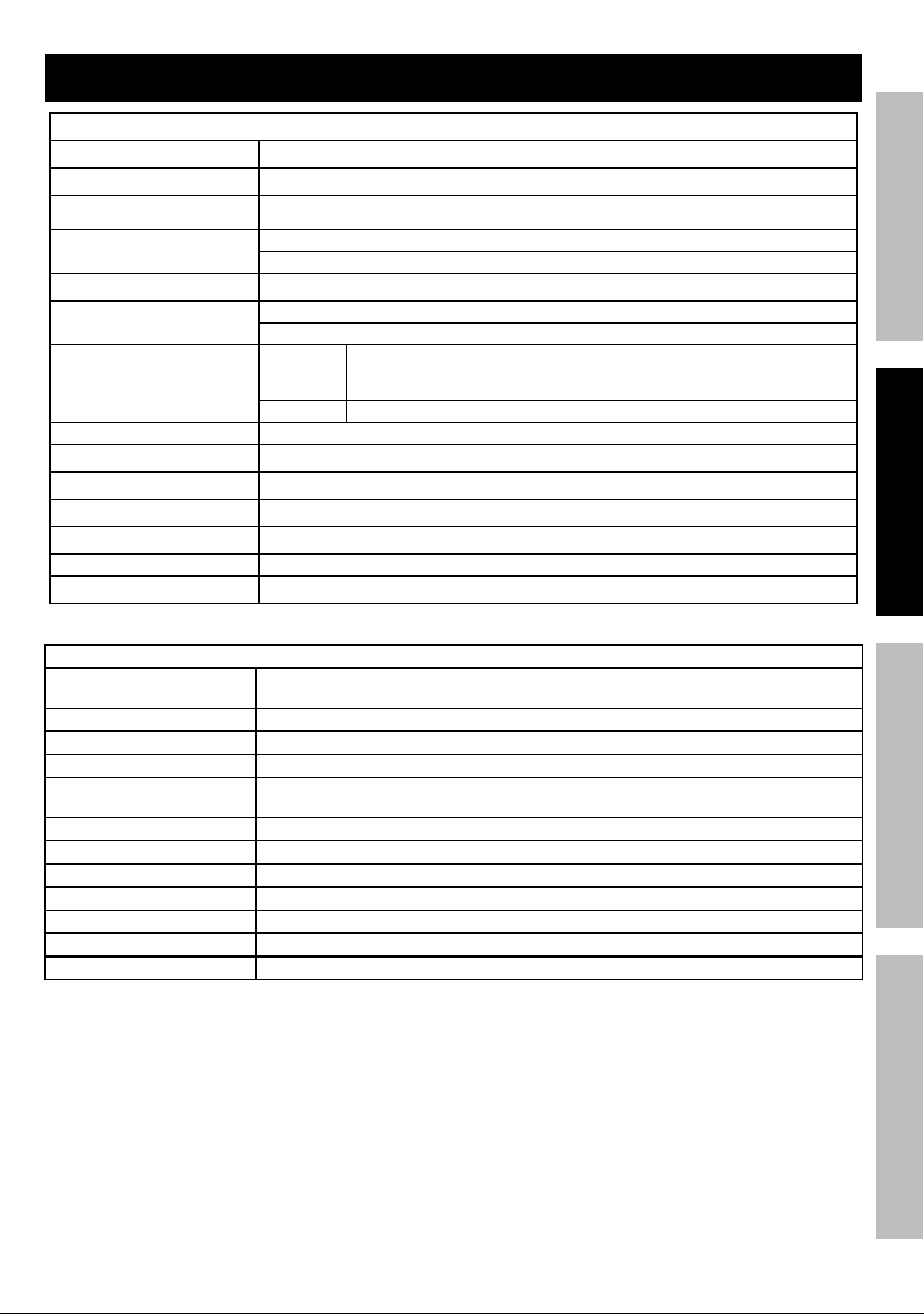
Specifications
DVR
Hard Drive 500 GB
Video Standard NTSC / PAL
Video Codec H.264
Video I/O
Input: 8 BNC
Output: 2 BNC / 1 VGA
Audio Codec G.711
Audio I/O
Input: 1 RCA
Output: 1 RCA
Recording
Resolution
CIF: 352 x 240;
HD1: 704 x 240;
D1: 704 x 480
Frame Rate Up to 30 fps each channel
Recording Mode Manual / Schedule / Motion Detection / Remote
Motion Detection Selectable Area and Sensitivity Detection
PTZ Interface RS485 - Supports Pelco-D/P camera (sold separately)
Network Interface RJ-45 10m/100m Ethernet Interface
USB Interface USB 2.0
DVR Input Rating 12VDC / 2A
Operating Temperature 32º - 131ºF
Cameras
Lens Types 2 Cameras with fixed 6 mm lenses
2 Cameras with fixed 3.6 mm lenses
Horizontal Resolution 400 TVL
Effective Pixels 648H x 488V
Night Vision Type Infrared LEDs with Low Light Sensor
Image Type Daylight: Color
Infrared: Black & White
Infrared Wavelength 850nm
Infrared Distance 30 ft. (indoors)
Ingress Protection Rating IP65 - Protected from low pressure water jets
Video Connector BNC
Camera Input Rating 12VDC / 500 mA
Cable Length 60 ft.
Operating Temperature 14° - 122°F
Downloaded from www.ManualsFile.com manuals search engine
Page 6 For technical questions, please call 1-800-444-3353. Item 61229
SaFEtY OPERatiOn nEtWORkSEttinGS
Set up - Before use:
Read the EntiRE imPORtant SaFEtY inFORmatiOn section at the beginning of this
manual including all text under subheadings therein before set up or use of this product.
Components and Controls
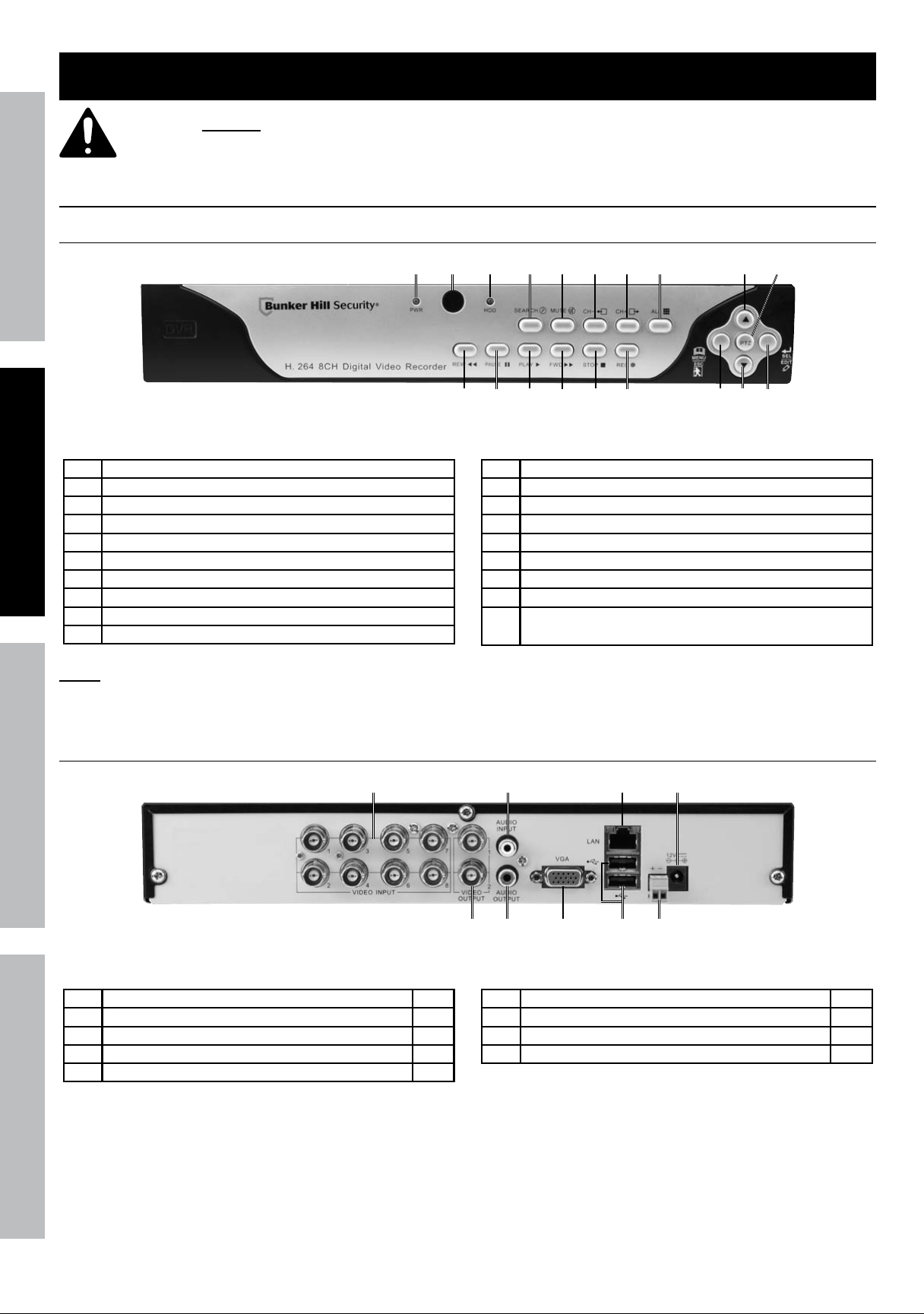
DVR Front Panel
9 10
1
18
1711
12 13 14
15
16 19
2
3
4 5
6 7
8
Figure B
1 Green Power Indicator
2 Remote Control IR Receiver
3 Red Hard Disk Drive Activity Indicator
4 Search Recordings
5 Mute
6 Previous Channel
7 Next Channel
8 Toggle 4 and 9 Screen Displays
9 Menu Up / PTZ Up
10 PTZ Control Mode
11 Rewind / Activate Controls
12 Pause
13 Play
14 Fast Forward
15 Stop
16 Start Manual Recording
17 Open Menu / Escape / PTZ Left
18 Menu Down / PTZ Down
19 Conrm Selection / Edit Selected Setting / PTZ
Right
note: Controls for PTZ mode are italicized.
DVR Back Panel
1
5
2
3 4
6
7 8 9
Figure C
1 BNC Video Input 8
2 RCA Audio Input 1
3 RJ45 LAN Ethernet Port 1
4 12VDC Power Input 1
5 BNC Video Output 2
6 RCA Audio Output 1
7 VGA Port 1
8 USB 2.0 Port 2
9 RS485 PTZ Connector 1
Downloaded from www.ManualsFile.com manuals search engine
Page 7For technical questions, please call 1-800-444-3353.Item 61229
SaFEtYOPERatiOnnEtWORk SEttinGS
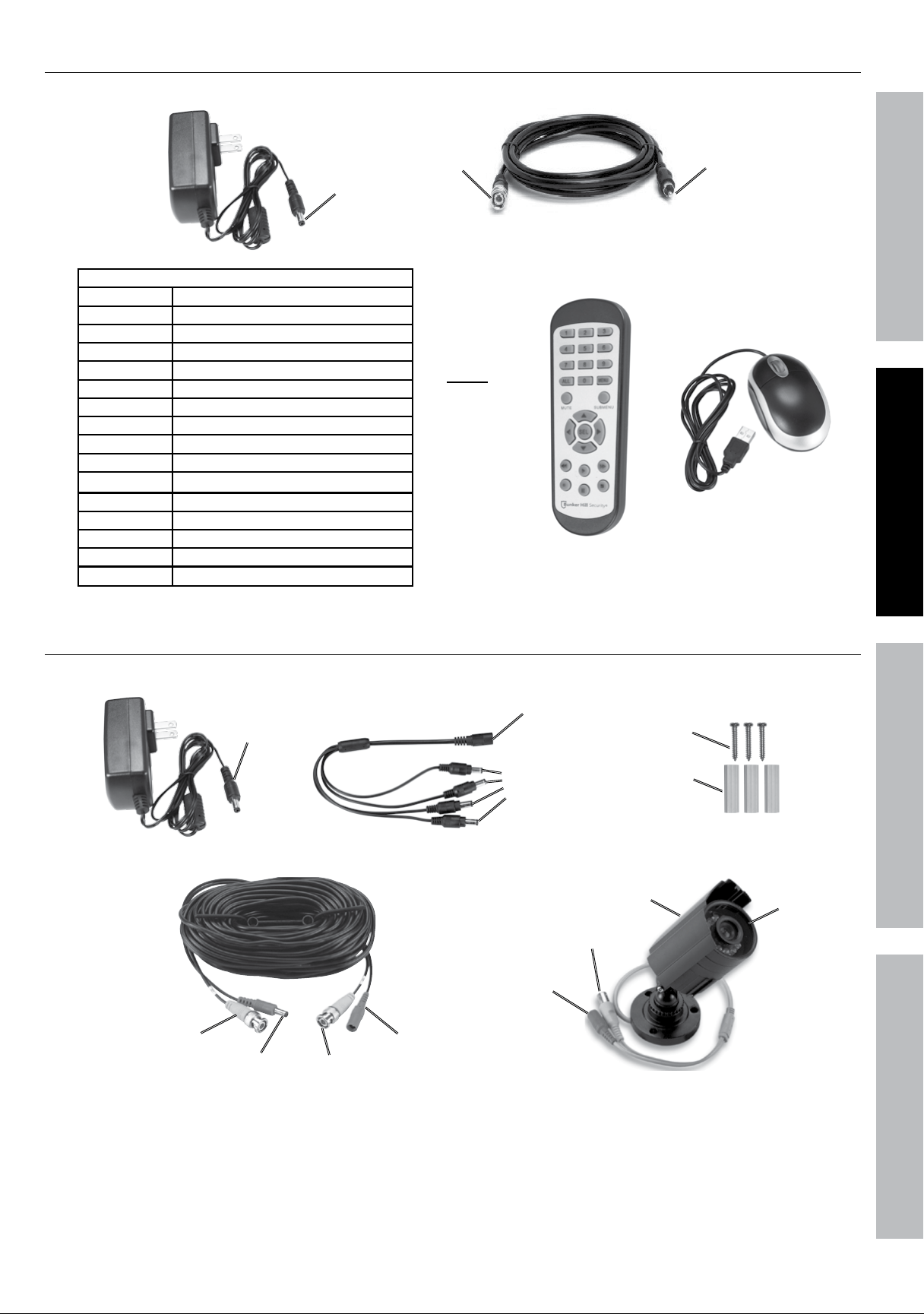
DVR accessories
Power Adapter
Power
(to DVR)
BNC to RCA Cable
BnC
(to DVR)
RCa (to
monitor)
Mouse
note:
2 AAA
batteries
included.
Remote
Remote Control Functions
1 - 8 Select Channel
all Toggle 4 and 9 Screen Displays
mEnu Open Menu
mutE Mute
SuBmEnu Open Pop-Up Menu
▲ Menu Up
▼ Menu Down
◄ Menu Left
► Menu Right
SEl Confirm Selected Operation
◄◄ Rewind
► Play / Search Records
►► Fast Forward
● Record
ll Pause
■
Stop
Figure D
Camera and accessories
Video
(from Camera)
Video
(to DVR)
Power
(to Camera)
Power
(from Splitter)
Cable - 60 ft.
Screws
anchors
Mounting Hardware
Power
(from Cable)
Video
(to Cable)
Camera
hood
lens
Power Adapter
Power
(to Splitter)
Power Splitter
Power
(from adapter)
Power
(to Cables)
Figure E
Downloaded from www.ManualsFile.com manuals search engine
Page 8 For technical questions, please call 1-800-444-3353. Item 61229
SaFEtY OPERatiOn nEtWORkSEttinGS
Quick Start Guide Flow Charts
Read the EntiRE imPORtant SaFEtY inFORmatiOn section at the beginning of this manual
including all text under subheadings therein before set up or use of this product.
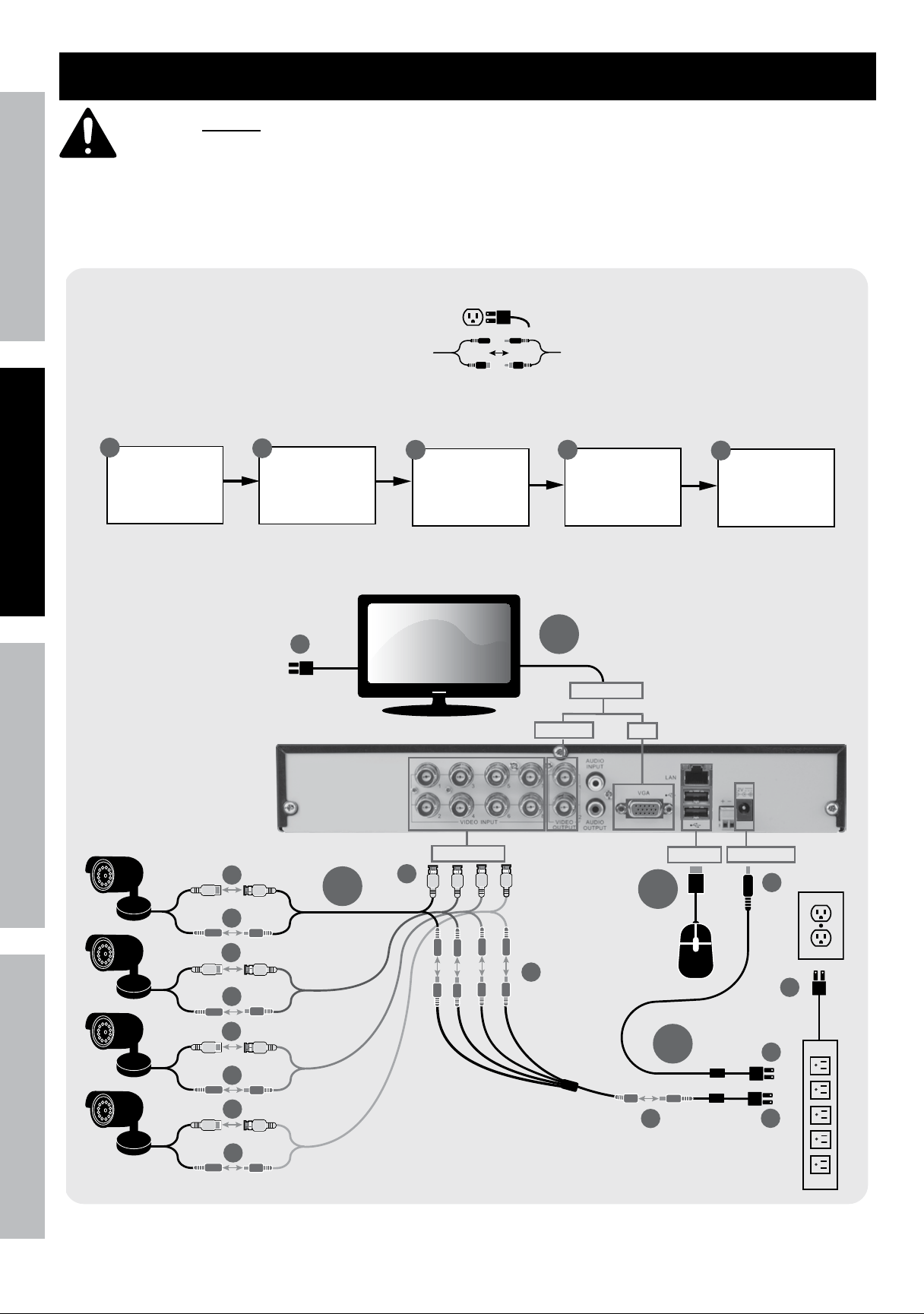
Use the following flow charts to help make the cable connections, navigate the system and set up or change the unit
settings. Refer to the individual setup sections in this manual for detailed instructions on specific tasks.
INITIAL SETUP
Physical Connections
1
B1
B2
B3
B4
D2
D3
D4
B5
B1
B2
B1
B2
B1
B2
D5
D1
USB Port
Video Input
A
B
C
B
C
D
A
Connect
Monitor
Connect
Cameras
Connect
Mouse
Power Input
Video Output
Connect
Power
D
BNC/RCA
VGA
E
Mount
Cameras
Note: Monitor and
Surge Protector
sold separately.
See Page 12
Downloaded from www.ManualsFile.com manuals search engine
Page 9For technical questions, please call 1-800-444-3353.Item 61229
SaFEtYOPERatiOnnEtWORk SEttinGS
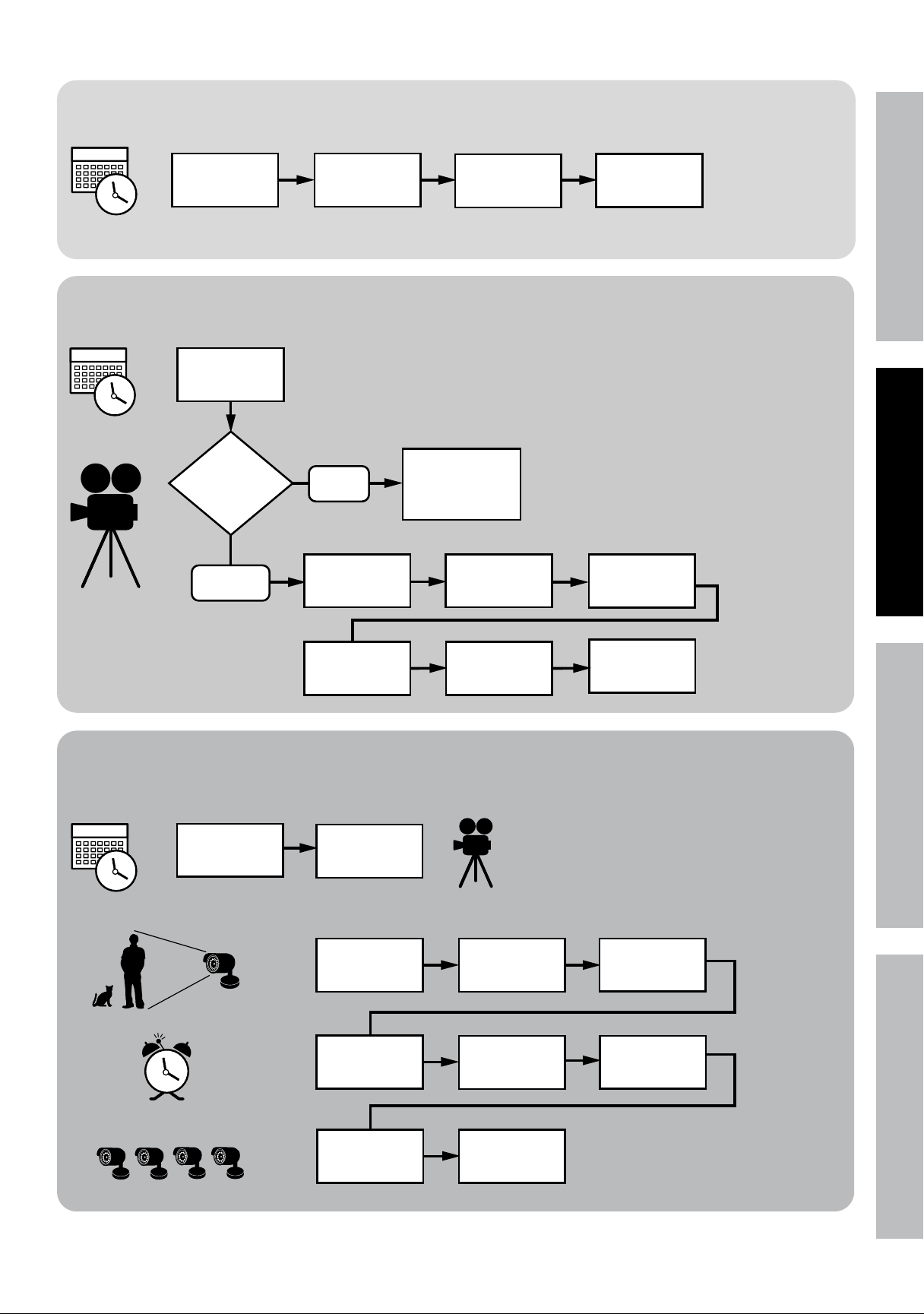
Set Date and Time
In DVR
Main Menu
Select System
Set Recording Mode
Motion Detection Settings
Manual
Which
Recording
mode?
2
4
Select
General
Set Date and
Time above
Set Date and
Time
Click Apply
then OK
Scheduled
In DVR
Main Menu
select Record
Press REC on
front of DVR -
red light will
flash
Select
Schedule
Select Channel
and Day of
Week
Select boxes
for Normal and
Motion
3
Repeat for all
Days and all
Channels
Click Apply
then OK
In DVR
Main Menu
Select Alarm
Select
Motion
Select
Channel
Set Sensitivity
Level
Select Area
Select which
Channels
will record
Click Apply
then OK
Set Buzzer for
audible alarm
Set Date and
Time above
Set Recording
Mode above
See main Settings on Page 17
See Recording Schedule on Page 18
See motion Detection on Page 19
Downloaded from www.ManualsFile.com manuals search engine
Page 10 For technical questions, please call 1-800-444-3353. Item 61229
SaFEtY OPERatiOn nEtWORkSEttinGS
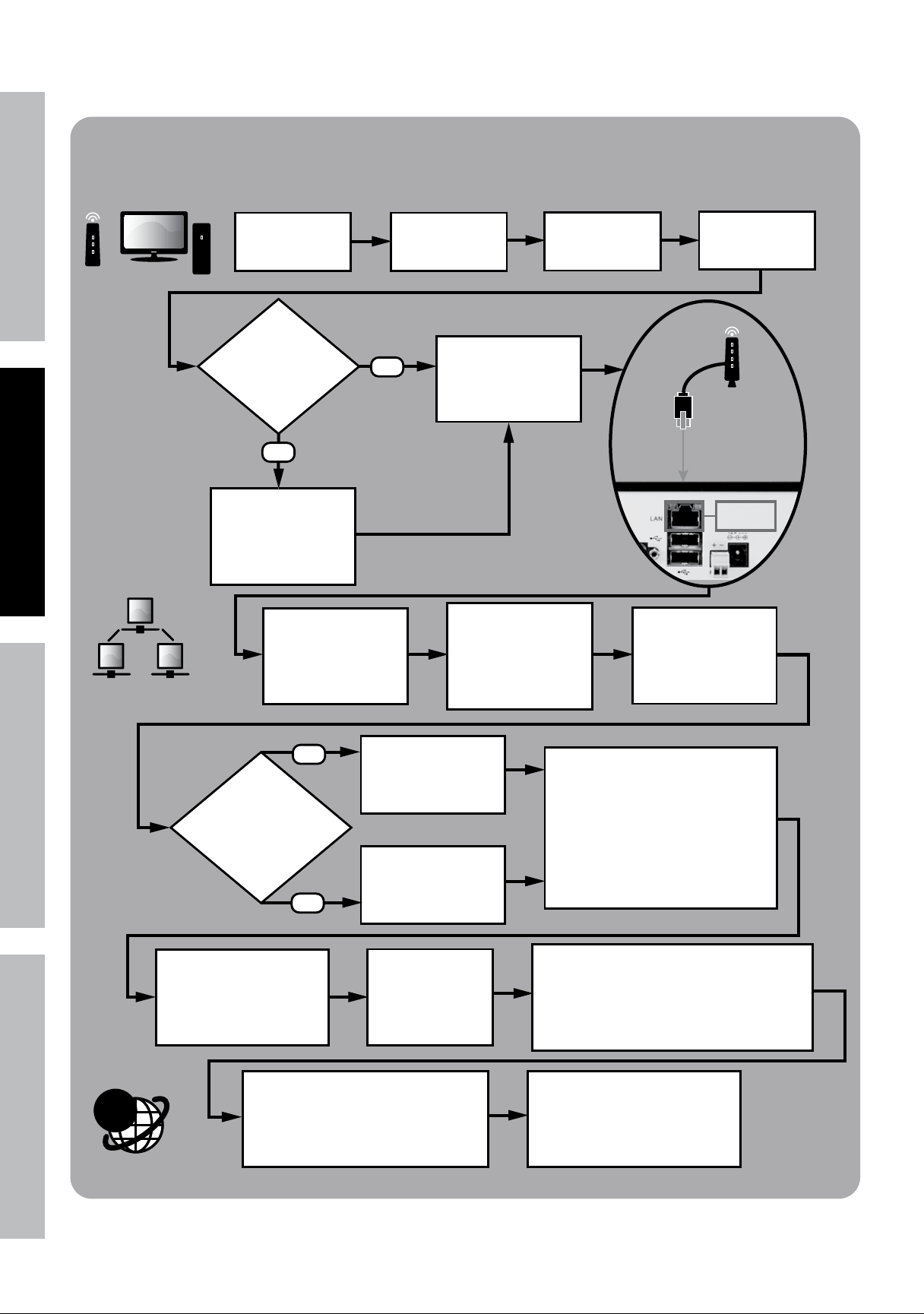
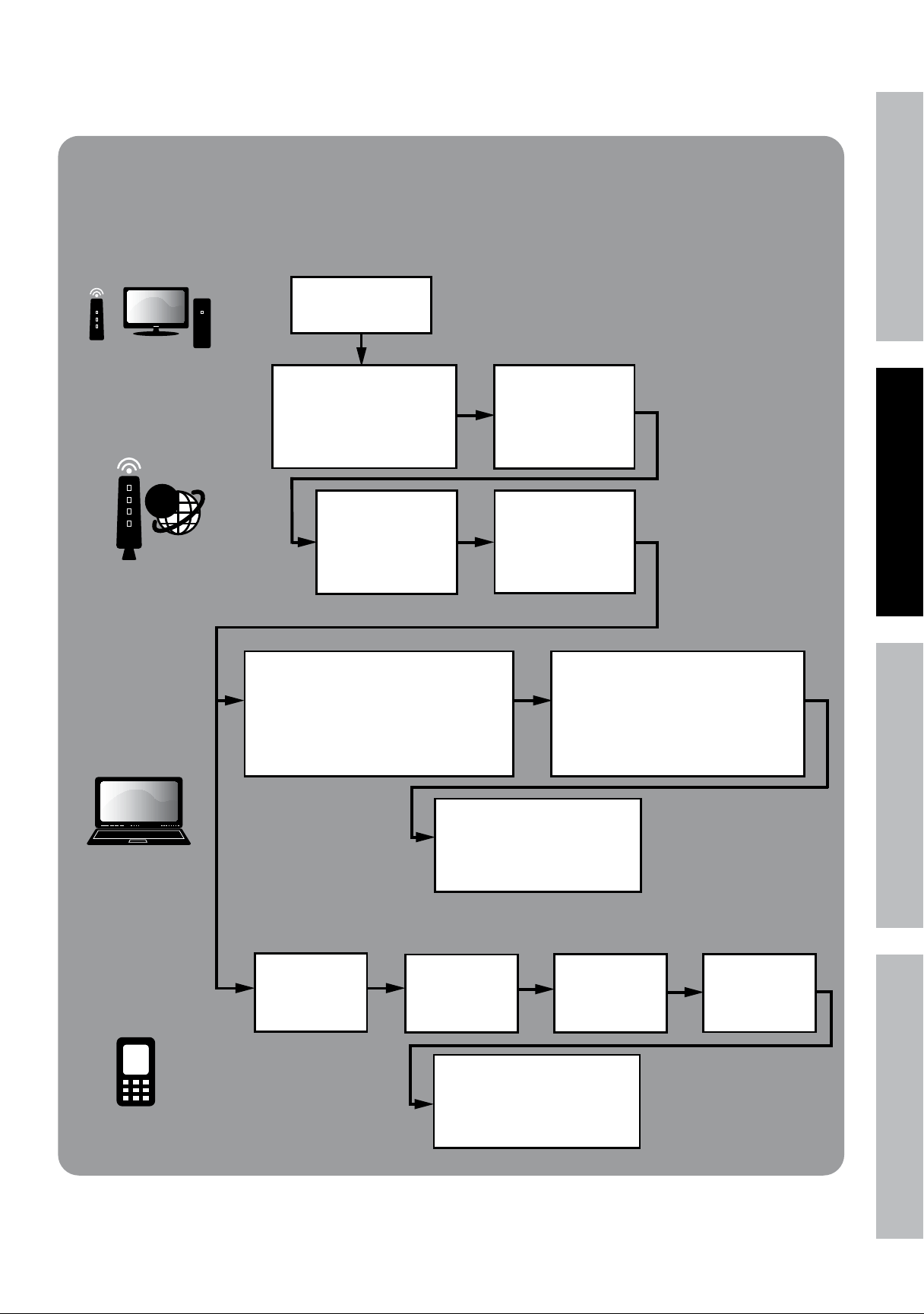
Local Area Network (LAN) Setup
On PC, go to Start
Menu, click Run.
In DOS window
type “cmd”, click OK.
type “ipconfig”
press ENTER
STOP
Ensure you have a
Windows® PC with
Internet Explorer®
and a Router before
proceeding.
NO
Connect DVR to
Router via
Ethernet Cable
(Sold Separately)
From DVR Main Menu
select
Network > Network
Type = Static
Find the Router’s LAN
Write down:
1. Subnet Mask
2. Default Gateway
(Router’s IP Address)
In DVR Network > Network
change settings:
1. Client Port: 3000
2. HTTP Port: 3001
3. New IP Address
4. Subnet Mask you wrote down
5. Default Gateway you wrote down
6. DNS1 same as Gateway
Change last 3 digits
to a number between
200 and 255
Change last 3 digits
to a number between
100 and 255
Click Apply then OK
to save changes.
Click Exit, DVR will prompt
restart. Click OK.
After restart,
on DVR go to
Network > Network
to view settings.
Open Internet Explorer®.
In address bar, type in
DVR’s IP Address and HTTP Port:
http://xxx.xxx.xxx.xxx:3001
(where x = IP Address and 3001 = HTTP Port)
Press Enter.
Allow ActiveX Control to install.
You may need to adjust the settings in
Internet Explorer® by adding the http
address to Trusted Sites and modifying
ActiveX controls to allow installation.
After ActiveX Control installs,
Log in to DVR
with User Name and Password.
@
In DVR
Main Menu
Select System
Select
Users
Set User Name
and Password
Click Apply
then OK
Do you have a
Windows® PC with
Internet Explorer®
and a Router?
YES
YES
NO
Create New IP
Address:
Are last 3 digits of
Default Gateway
between 0-99?
Ethernet
Connection
See Page 28
Downloaded from www.ManualsFile.com manuals search engine
Page 11For technical questions, please call 1-800-444-3353.Item 61229
SaFEtYOPERatiOnnEtWORk SEttinGS
FOR ADVANCED USERS
Internet Setup for Remote Use
Wide Area Network (WAN) Setup
PORT FORWARDING
SMARTPHONE
ACCESS
@
REMOTE
COMPUTER
ACCESS
Set up LAN
according to
instructions above.
Log in to the Router
and go to
Port Forwarding or
Applications and
Gaming.
Set start port to 3000
and end port to 3002.
Set up both UDP and
TCP protocols if the
option is given.
Open Internet Explorer®.
In address bar, type in
Default Gateway
(from LAN Setup above).
Example: xxx.xxx.xxx.xxx
Press Enter.
Find the Router’s IP
Address by going to
whatsmyip.com.
Write it down.
On remote computer,
Open Internet Explorer®. In address bar,
type in Router’s IP Address
and HTTP Port (from LAN Setup above):
http://xx.xxx.xxx.xxx:3001
(where x = IP Address and 3001 = HTTP Port)
Press Enter.
Allow ActiveX Control to install.
You may need to adjust the settings
in Internet Explorer® by adding the
http address to Trusted Sites and
modifying ActiveX controls to allow
installation.
After ActiveX Control installs,
Log in to DVR
with User Name and Password
(from LAN Setup above).
Insert supplied CD
into computer and look in
Mobile Software
folder for instructions.
In DVR
Main Menu
Select Network
then Mobile
Set User Name
and Password
Set Mobile Port
to 3002
Click Apply
then OK
See Page 30
Downloaded from www.ManualsFile.com manuals search engine
Page 12 For technical questions, please call 1-800-444-3353. Item 61229
SaFEtY OPERatiOn nEtWORkSEttinGS
DVR Equipment Connections
Read the EntiRE imPORtant SaFEtY inFORmatiOn section at the beginning of this manual
including all text under subheadings therein before set up or use of this product.
Check federal, state and local surveillance laws before installing video and/or audio surveillance equipment.
Connect and test all equipment and camera locations before installing cameras.
use a surge protector (sold separately) to protect equipment.
INITIAL SETUP
Physical Connections
1
B1
B2
B3
B4
D2
D3
D4
B5
B1
B2
B1
B2
B1
B2
D5
D1
USB Port
Video Input
A
B
C
B
C
D
A
Connect
Monitor
Connect
Cameras
Connect
Mouse
Power Input
Video Output
Connect
Power
D
BNC/RCA
VGA
E
Mount
Cameras
Note: Monitor and
Surge Protector
sold separately.
Downloaded from www.ManualsFile.com manuals search engine

Page 13For technical questions, please call 1-800-444-3353.Item 61229
SaFEtYOPERatiOnnEtWORk SEttinGS
Designate location for DVR and monitor
When planning location for DVR and Monitor:
1. Choose a clean, dry location indoors
with a 120V outlet nearby.
2. For network viewing, make sure the
DVR is located close to a router.
3. Take into consideration the length
of the Camera Cables.
CautiOn! Route the Cables so as
to avoid a tripping hazard.
4. Make sure location will remain within
Operating Temperature.
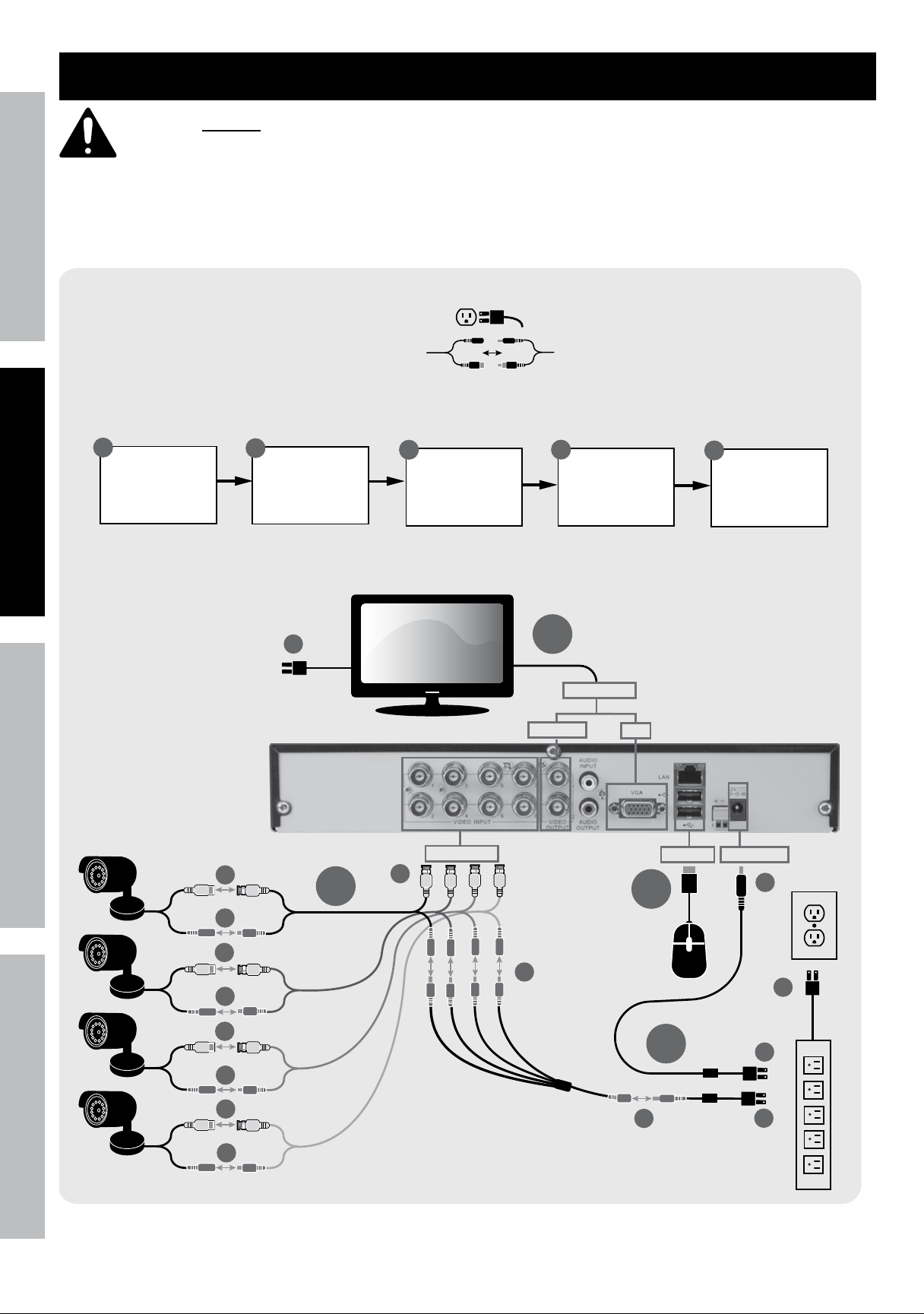
a. Connect monitor
Connect TV or PC monitor (sold separately) to DVR using BNC to RCA
cable (included) or VGA cable (sold separately).
B. Connect Cameras
1. Connect Video (Yellow) from Cameras to Cables.
2. Connect Power (Red) from Cameras to Cables.
3. Connect Video (Yellow) from Cables to DVR.
4. Connect Power from Cables to Splitter.
5. Connect Splitter to Camera Adapter.
C. Connect mouse
Plug the Mouse in one of the USB ports.
D. Connect Power
note: Only use supplied Power Adapters
and a surge protector (sold separately).
1. Plug Monitor into surge protector.
2. Plug DVR Adapter into Power Input on DVR.
3. Plug DVR Adapter plug into surge protector.
4. Plug Camera Splitter plug into surge protector.
5. Plug surge protector into 120V outlet.
CautiOn! The Power Adapters MUST be
plugged in indoors in a clean, dry location.
6. System will boot up.
initializing
1. After boot up, system will initialize.
2. After initialization is complete, system
will beep, then display Main Interface
with live images from cameras.
3. Press and hold the REW button until
it beeps to activate the controls.
4. Make sure that all cameras are operating.
Downloaded from www.ManualsFile.com manuals search engine
Page 14 For technical questions, please call 1-800-444-3353. Item 61229
SaFEtY OPERatiOn nEtWORkSEttinGS
Cameras - Before mounting
1. Place Cameras in intended locations. When
planning mounting locations and angles:
a. Take into consideration the length of the Cables.
CautiOn! Route the Cables so as
to avoid a tripping hazard.
b. Choose locations high enough so that
they are out of reach of children, but still
cover the desired viewing areas.
c. Verify that installation surfaces have no hidden
utility lines before drilling or driving screws.
d. To avoid mounting the Cameras upside down,
make sure the Hood is above the Lens.
e. Make sure no strong light will shine
directly into Camera Lenses.
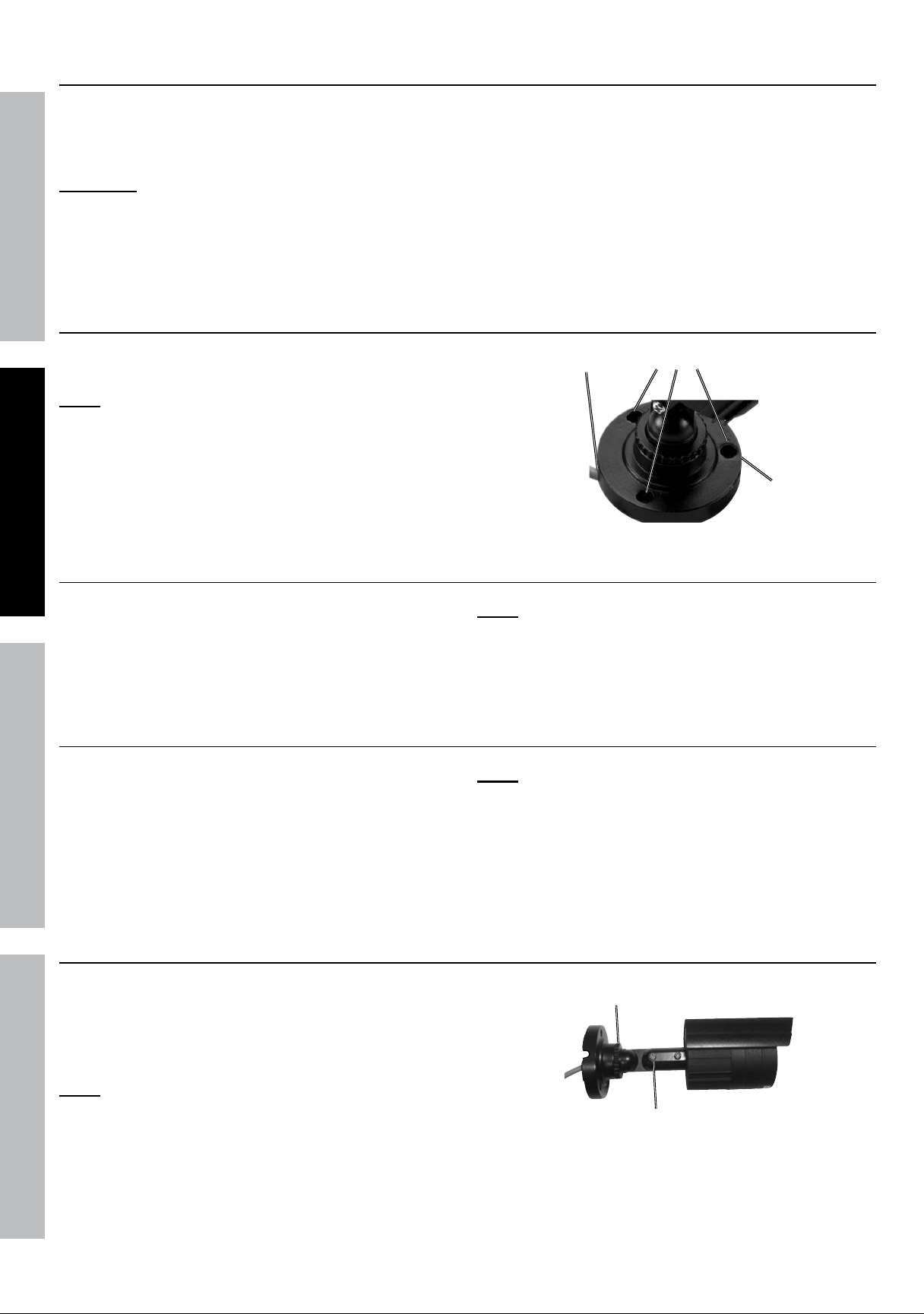
E. mount Cameras
Using the Base as a template, mark locations
of mounting holes on mounting surface.
note: Route Cable through slot on Base to keep Base
flush with mounting surface while marking holes.
mounting
holes
Cable
Slot
Base
Figure F
Solid Surface
1. Using a drill bit slightly smaller than the Screws,
drill pilot holes into the marked locations.
2. Position Camera so that mounting
holes align with pilot holes.
note: Route Cable through slot on Base to
keep Base flush with mounting surface.
3. Drive Screws through mounting holes in
Base and into pilot holes until the Camera is
securely attached to the mounting surface.
hollow Surface
1. Using a drill bit slightly smaller than the
Anchors, drill holes in the marked locations.
2. Tap Anchors into the holes until they are
almost flush with mounting surface.
3. Position Camera so that mounting
holes align with anchors.
note: Route Cable through slot on Base to
keep Base flush with mounting surface.
4. Drive Screws through mounting holes in
Base and into anchors until the Camera is
securely attached to the mounting surface.
Camera adjustment
1. Loosen Adjustment Wheel, rotate Camera as
needed, then tighten Adjustment Wheel.
2. Loosen Adjustment Screw, tilt Camera as
needed, then tighten Adjustment Screw.
note: Only loosen Adjustment Screw
slightly, do not remove it.
adjustment
Wheel
adjustment
Screw
Figure G
Downloaded from www.ManualsFile.com manuals search engine
Page 15For technical questions, please call 1-800-444-3353.Item 61229
SaFEtYOPERatiOnnEtWORk SEttinGS
DVR Settings
Read the EntiRE imPORtant SaFEtY inFORmatiOn section at the beginning of this
manual including all text under subheadings therein before set up or use of this product.
note: in all of the following instructions, the mouse will be used for navigating all system menus.
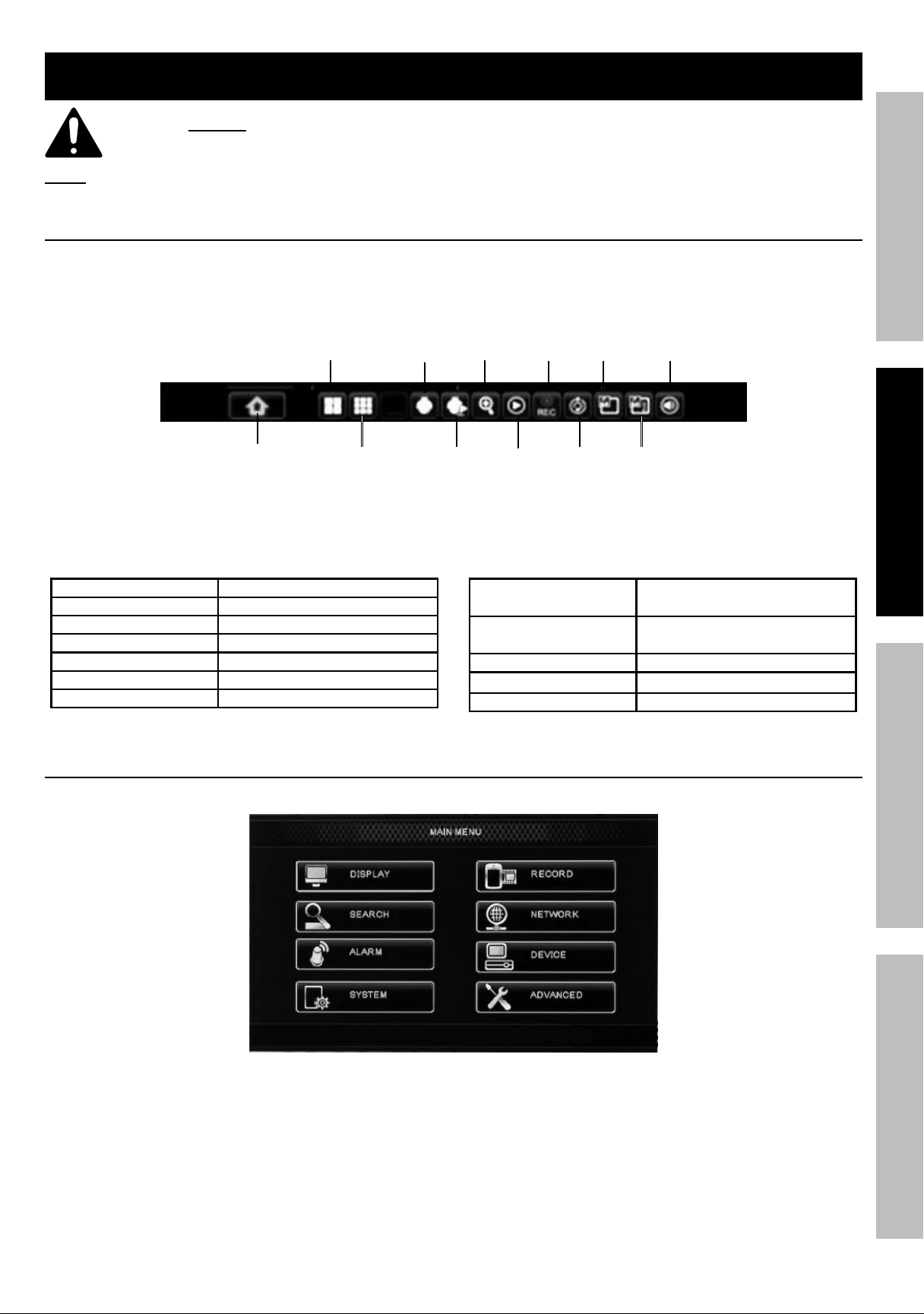
Pop-up menu
To access Pop-Up Menu, right-click anywhere on screen or hover over bottom of screen.
main
menu
4-way
Split
Screen
Start
PtZ
Cruise
PtZ
9-way
Split
Screen
Record
Search
Zoom
Record/
Stop
Record
Start
SEQ
PiP
x1
PiP
x2
Volume
Figure h
main menu Shortcut To Main Menu
4-way Split Screen Display Up To 4 Live Images
9-way Split Screen Display Up To 8 Live Images
PtZ Go To PTZ Controls
Start Cruise Start programmed PTZ Cruise
Zoom Zoom PTZ Camera
Record Search Go To Record Search
Record/Stop Record Start Recording/
Stop Recording
Start SEQ/Stop SEQ Rotate Through Live
Images/Stop Rotation
PiPx1 Picture In Picture
PiPx2 Two Pictures In Picture
Volume Sound Level
main menu
To access Main Menu, bring up Pop-up menu then click on Main Menu icon.
Figure i
Downloaded from www.ManualsFile.com manuals search engine
Page 16 For technical questions, please call 1-800-444-3353. Item 61229
SaFEtY OPERatiOn nEtWORkSEttinGS
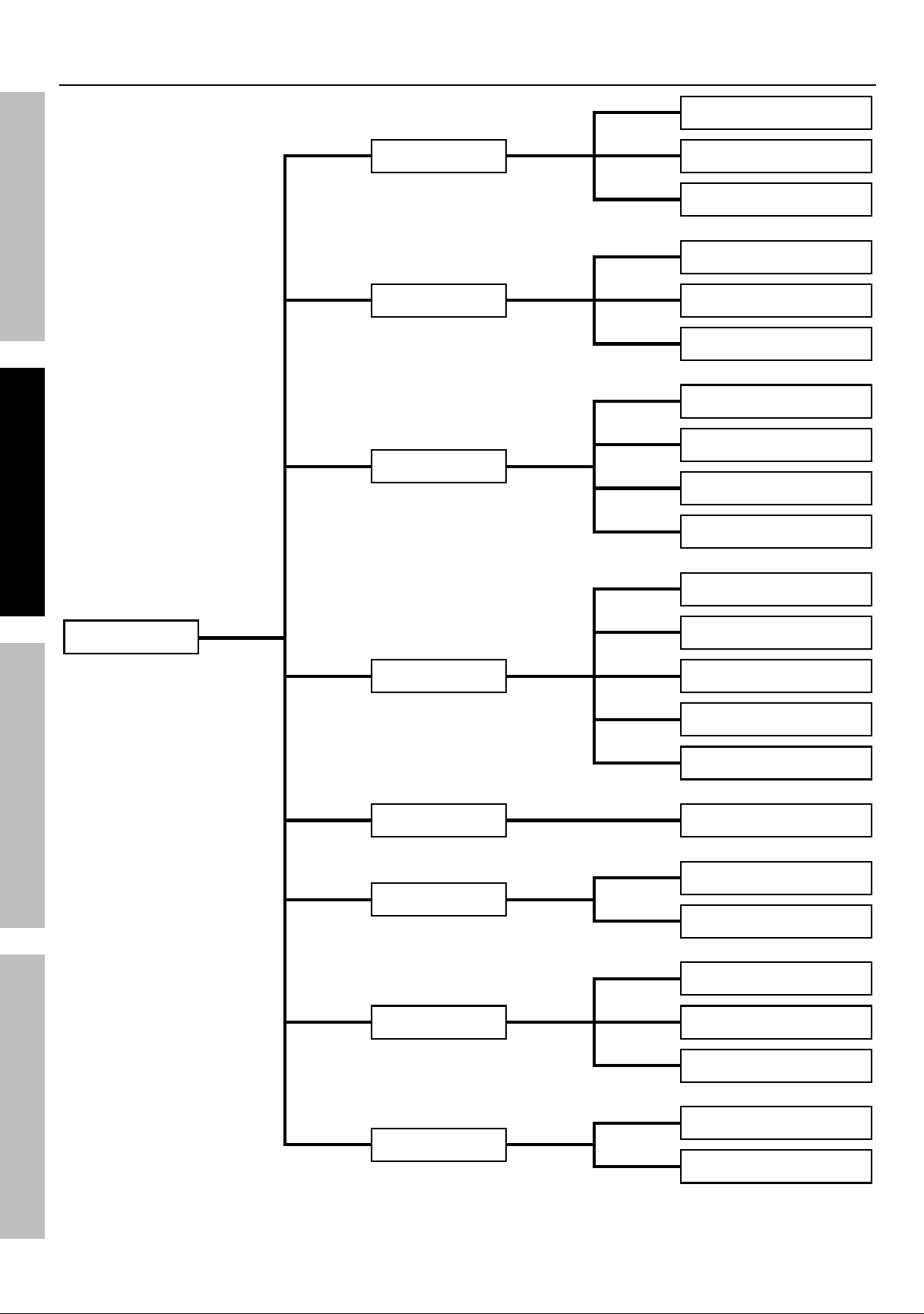
main menu map
Main Menu
Display
Privacy Zone p. 22
Output p. 22
Live p. 21
Record
MainStream p. 23
Schedule p. 18
Rec Para p. 23
Search
Log p. 26
Backup p. 26
Event Search p. 26
Record Search p. 26
Network DDNS p. 30
SubStream p. 29
Network p. 28
Email p. 29
Mobile p. 29
Device
HDD p. 27
PTZ p. 27
System
General p. 17
Users p. 20
Version p. 21
Advanced
Maintain p. 24
Events p. 24
Alarm Motion p. 19
Figure J
Downloaded from www.ManualsFile.com manuals search engine
Page 17For technical questions, please call 1-800-444-3353.Item 61229
SaFEtYOPERatiOnnEtWORk SEttinGS
Set Date and Time
2
main Settings
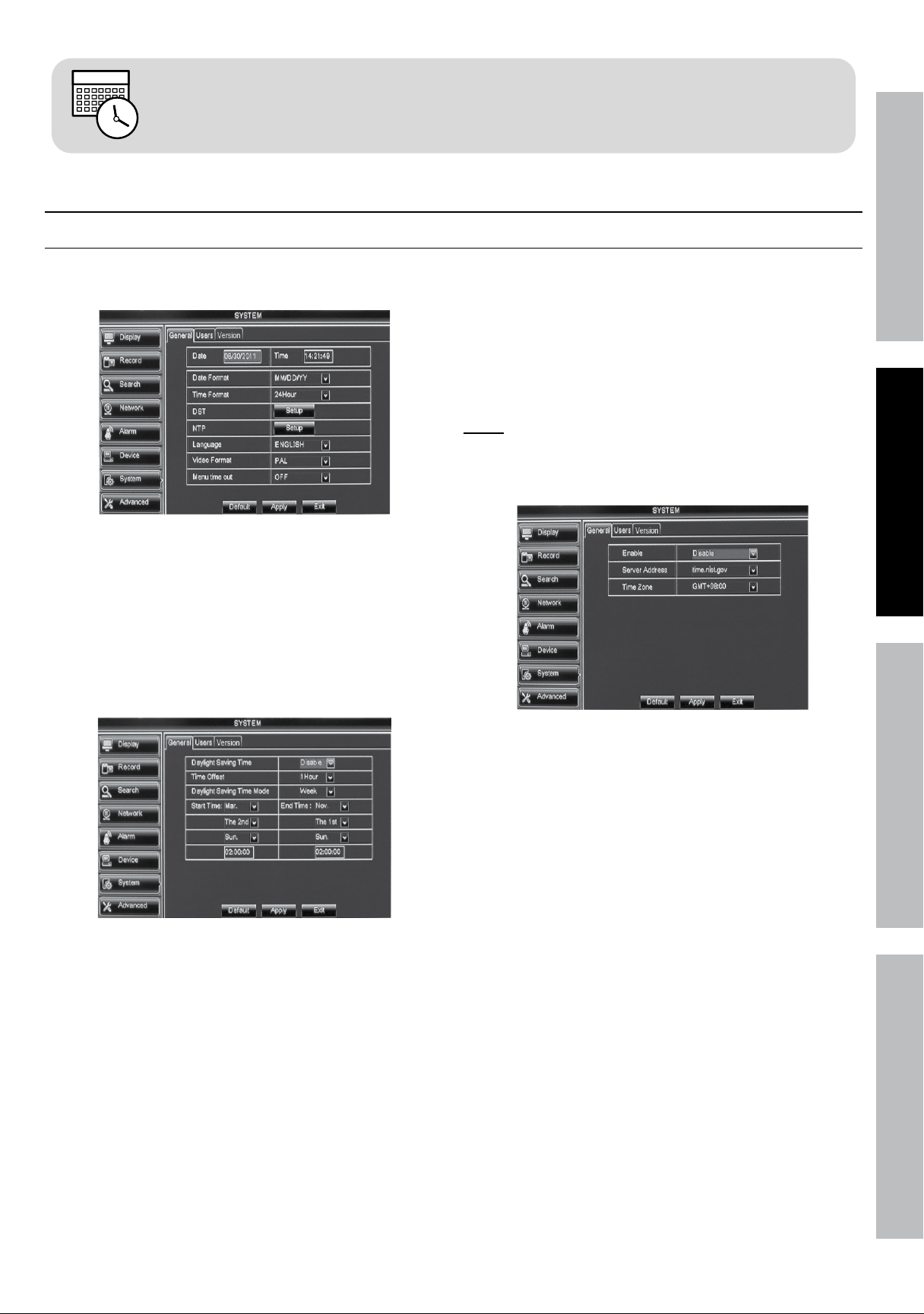
System > General
Set Date and Time, Daylight Saving Time, Network
Time Protocol, Language, and Video Format
Figure k
1. Date: Set current date.
2. System time: Set current time.
3. Date Format: Select date format.
4. time Format: Select time format.
5. DSt Setup: Click to open setup window.
Figure l
6. Daylight Saving time: Select Enable or Disable.
a. time Offset: Select 1Hour or 2Hour.
b. Daylight Saving time mode:
• Week: Set month, week, day of week
and time for change to occur.
• Date: Set date and time for change to occur.
Changes will not be saved unless
you click apply then Ok!
Click Exit to return to System and
discard unsaved changes.
7. ntP (network time Protocol) Setup:
Click to open set up window.
note: This feature sets the internal clock from an
Internet server. The DVR must be connected to
the Internet for this feature to work. (See local
area network (lan) Setup on page 28.)
Figure m
a. Server address: Select server.
b. time Zone: Select time zone.
c. Click update now.
Changes will not be saved unless
you click apply then Ok!
Click Exit to return to System and
discard unsaved changes.
8. language: Select preferred language.
9. Video Format: Default is ntSC, which is the
standard in the United States. Leave it set to ntSC.
10. menu time Out: Select how long menu will display.
Changes will not be saved unless
you click apply then Ok!
Click Exit to return to System and
discard unsaved changes.
Downloaded from www.ManualsFile.com manuals search engine
Page 18 For technical questions, please call 1-800-444-3353. Item 61229
SaFEtY OPERatiOn nEtWORkSEttinGS
Set Recording Mode
3
Recording Schedule
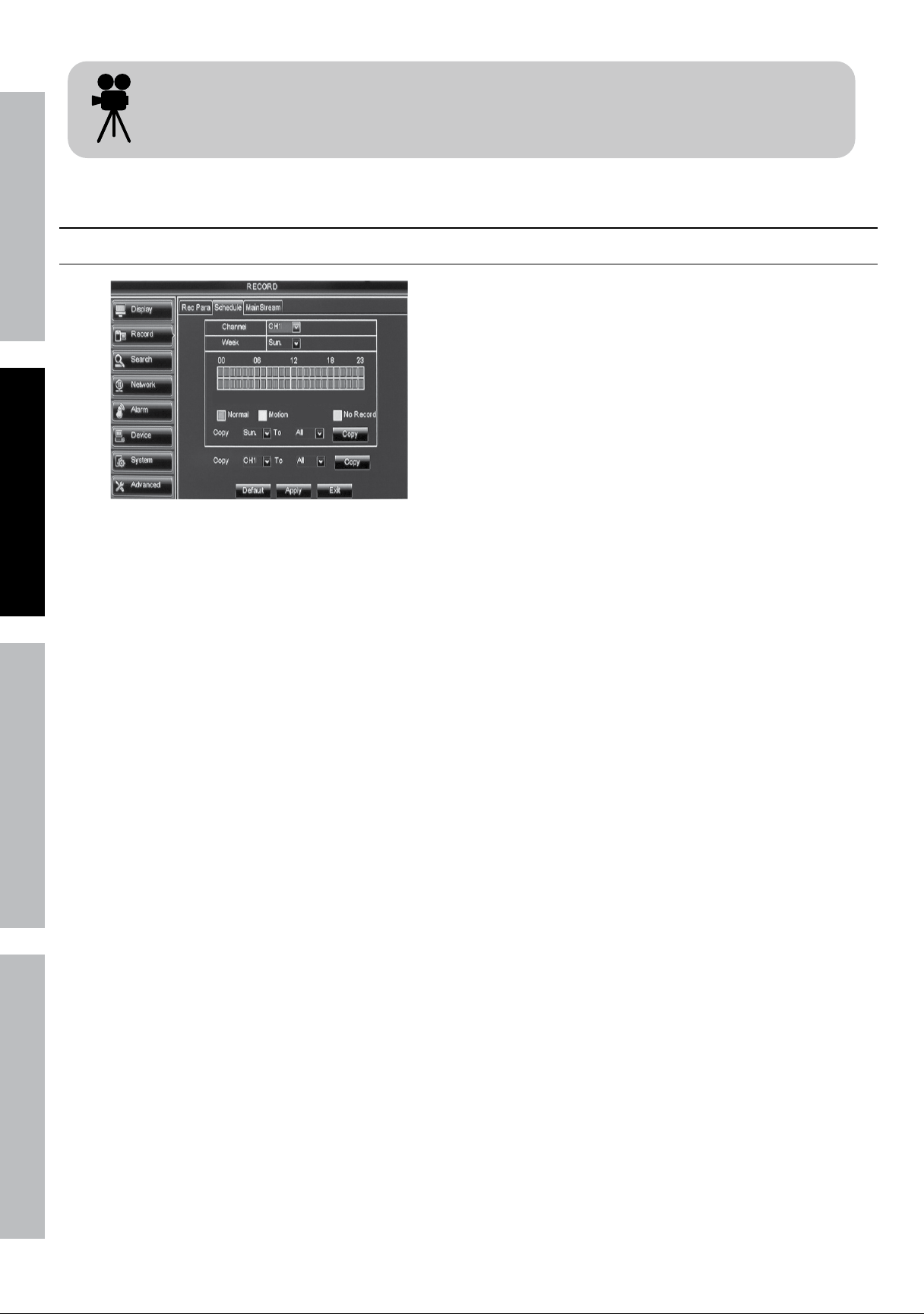
Record > Schedule
Figure n
1. Channel: Select Channel.
2. Week: Select day of week.
3. Schedule table:
a. 00 - 23 represent 24 hours of the day.
b. Two rows of boxes below represent
corresponding hours.
• top row: When selected, boxes will
turn green to indicate normal continuous
recording. This is the Default setting.
• Bottom row: When selected, boxes
will turn yellow to indicate recording will
be triggered by motion Detection.
c. Copy (Date): Copy parameters
from one Day to other Days.
d. Select Day to copy from.
e. Select Day to copy to or select all.
f. Click Copy, then click Ok.
4. Copy (Channel): Copy parameters from
one Channel to other Channels.
a. Select Channel to copy from.
b. Select Channel to copy to or select all.
c. Click Copy, then click Ok.
Changes will not be saved unless
you click apply then Ok!
Click Exit to return to System and
discard unsaved changes.
Downloaded from www.ManualsFile.com manuals search engine
Page 19For technical questions, please call 1-800-444-3353.Item 61229
SaFEtYOPERatiOnnEtWORk SEttinGS
Motion Detection Settings
4
motion Detection
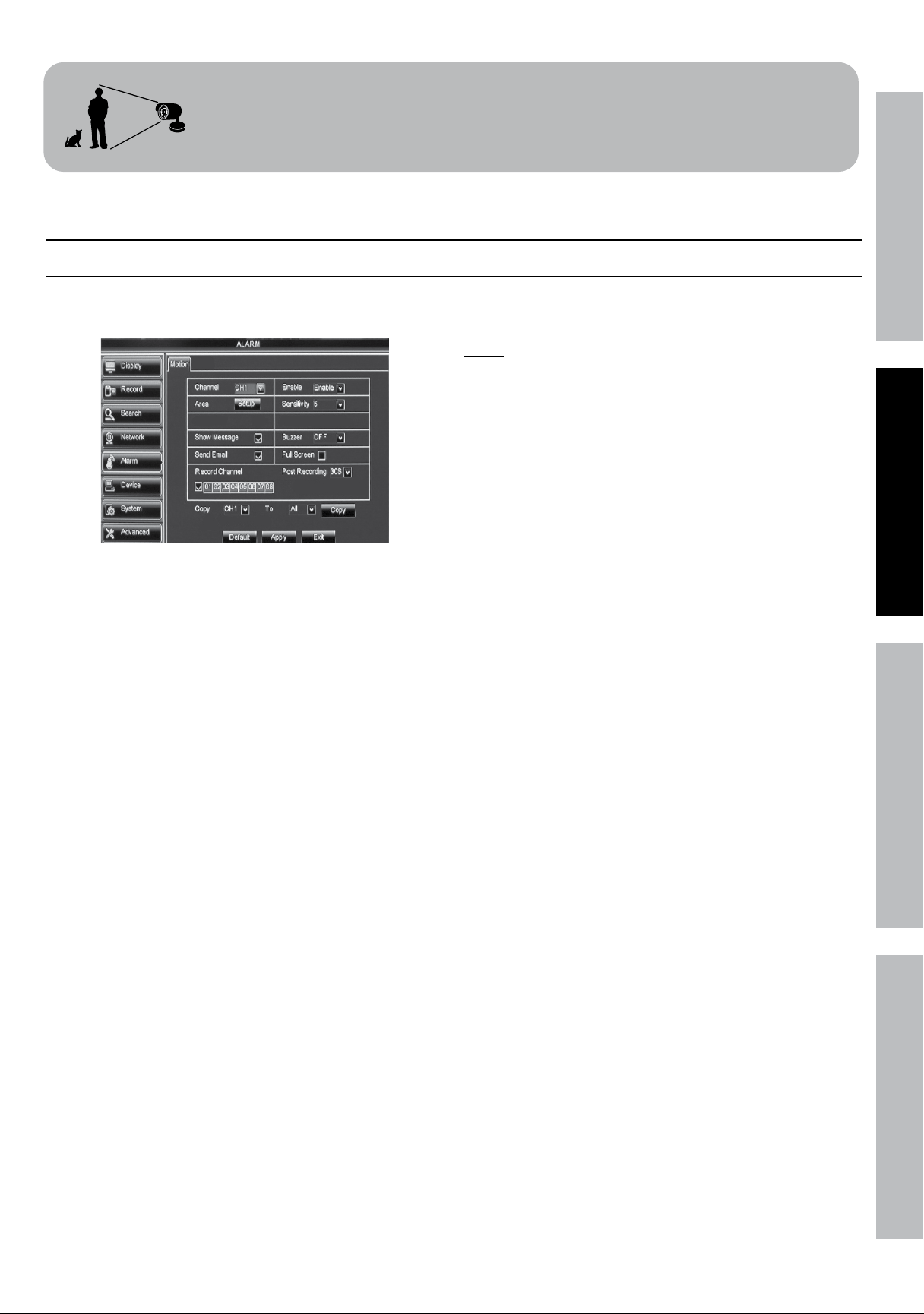
alarm > motion
Set up parameters for triggering
recordings by Motion Detection.
Figure O
1. Channel: Select Channel.
2. Enable: Select Enable or Disable.
3. area: Click to set area where motion is detected.
4. Sensitivity: Set sensitivity level.
5. Show message: Check box to show message
on screen when Motion Detection is triggered.
6. Buzzer: Check box to hear audible alarm
when Motion Detection is triggered.
7. Send Email: Check box to have email sent
when Motion Detection is triggered.
note: The DVR must be connected to the
Internet for this function to work. (See Wide
area network (Wan) Setup on page 30).
8. Full Screen: Check box so that when
Motion Detection is triggered, the Camera’s
view will display in full screen mode.
9. Record Channel: Check box to Enable/Disable
motion recording. Highlight Channels to link
recording to this Channel's motion alarm.
10. Post Recording: Select how long recording will
continue after motion is no longer detected.
11. Copy: Copy parameters from one
Channel to other Channels.
a. Select Channel to copy from.
b. Select Channel to copy to or select all.
c. Click Copy, then click Ok.
Changes will not be saved unless
you click apply then Ok!
Click Exit to return to System and
discard unsaved changes.
Downloaded from www.ManualsFile.com manuals search engine
Page 20 For technical questions, please call 1-800-444-3353. Item 61229
SaFEtY OPERatiOn nEtWORkSEttinGS
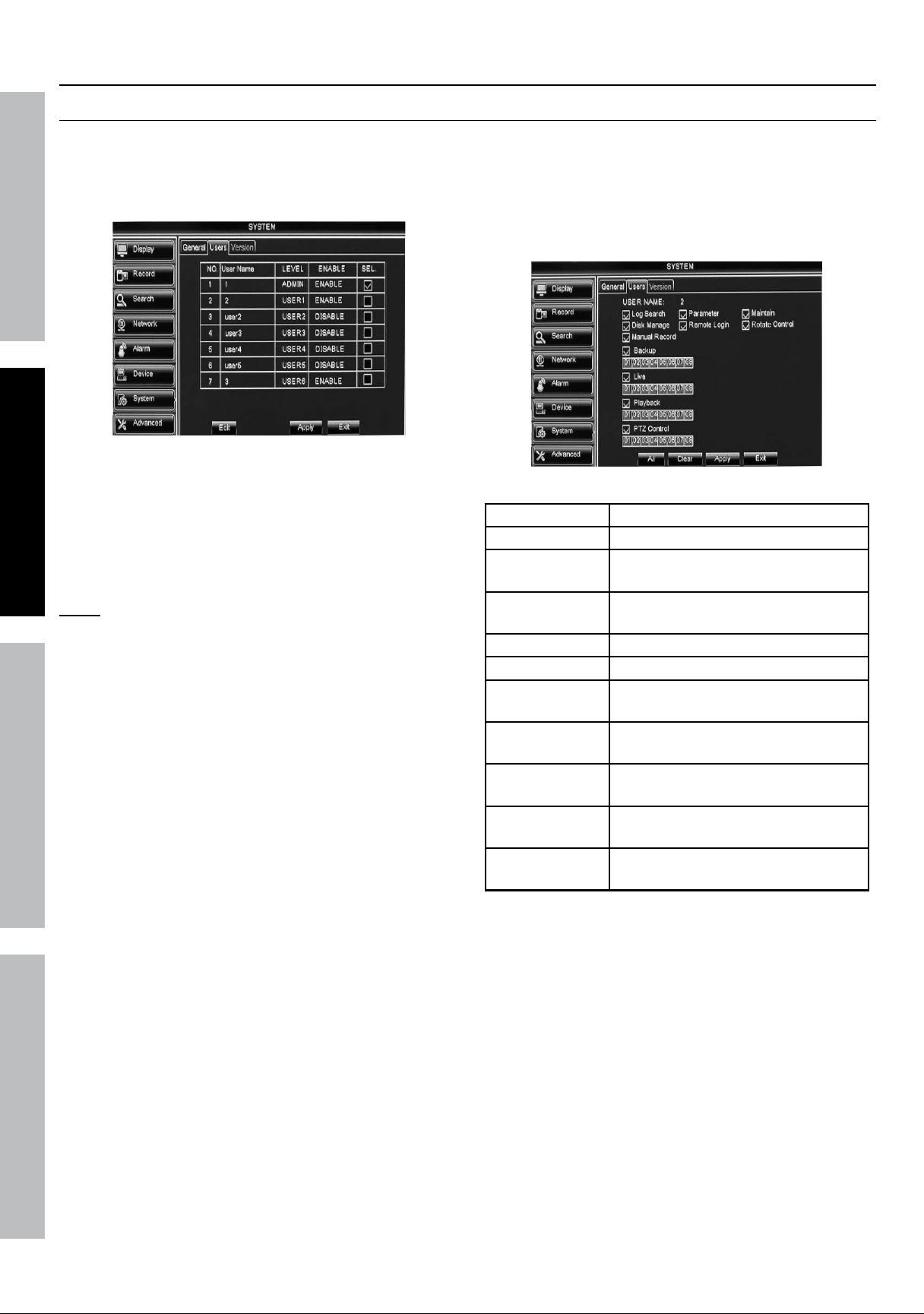
users
System > users
The system supports one administrator and
six users. The administrator has permission
to perform all activities and is authorized to
set up permissions for all other users.
Figure P
Set up administrator
1. Select admin and click Edit.
2. user name: Set User Name (up to 8 characters).
3. Password Enable: Select Enable or Disable.
note: When Password is Enabled, a key
icon will appear on Pop-Up Menu. Click
on key to enable Menu Lock.
a. Password: Enter Password
(must be 6 numbers).
b. Confirm: Enter Password again to confirm.
Changes will not be saved unless
you click apply then Ok!
Click Exit to return to System and
discard unsaved changes.
Set up additional users
4. Select user1 then click Edit.
5. user Enable: Select Enable.
6. user name: Enter User Name (up to 8 characters).
7. Password Enable: Select Enable or Disable.
a. Password: Enter Password
(must be 6 numbers).
b. Confirm: Enter Password again to confirm.
Changes will not be saved unless
you click apply then Ok!
Click Exit to return to System and
discard unsaved changes.
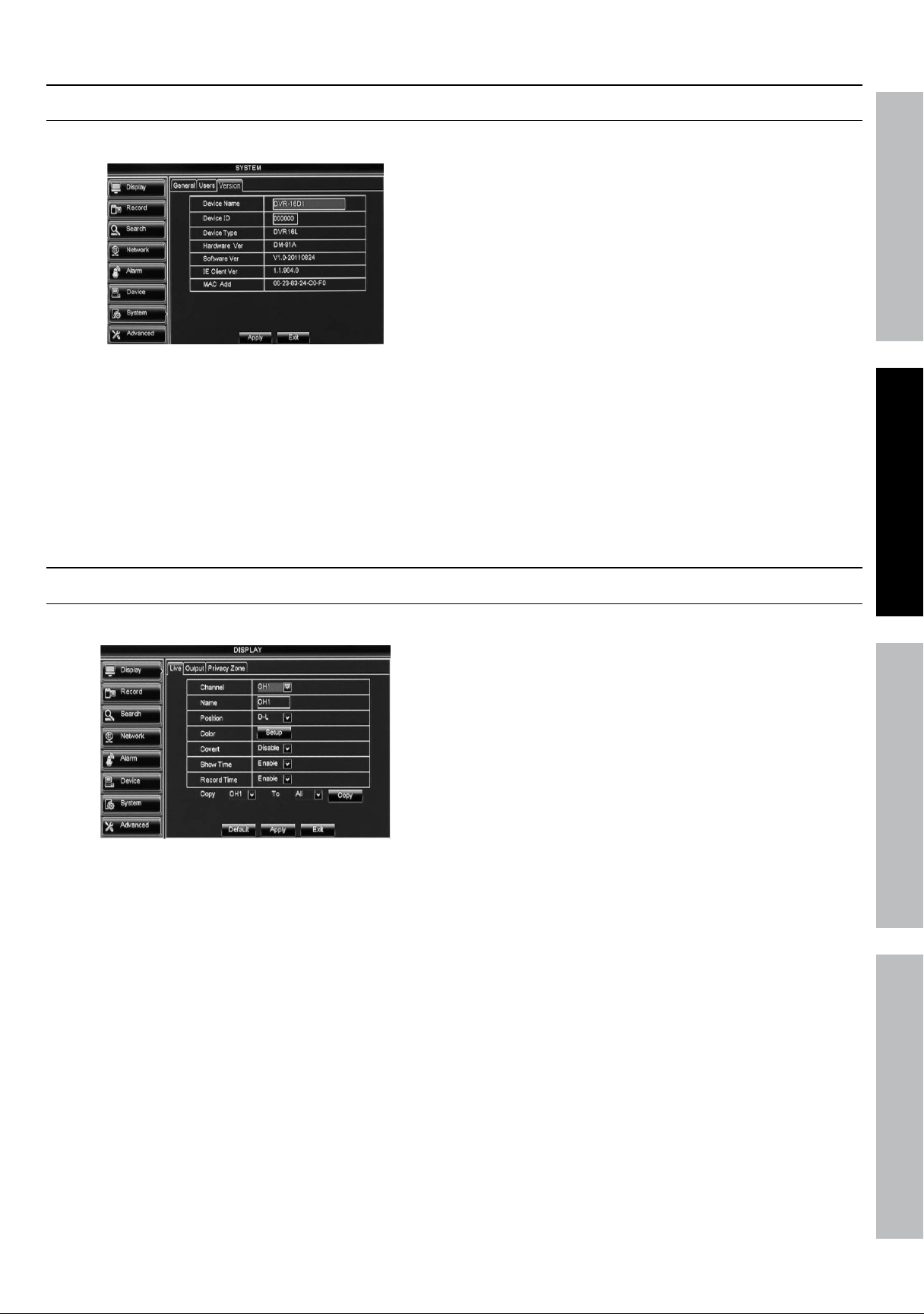
8. Select User that was just named
and click Permission.
a. Click in boxes to select specific permissions.
b. Click all to select all permissions.
c. Click Clear to remove all permissions.
Figure Q
log Search Check entire system log
Parameter Set all parameters
maintain
Update version, recover factory
presets, reboot and shut down
Disk manage
Manage Hard Drives,
including deleting data
Remote login Log in remotely
Rotate Control Manage Sequence
manual
Record
Manually start and stop recording
Backup
Backup recordings of
selected channels
live
View live images of
selected channels
Playback
Playback recordings of
select channels
PtZ Control
Perform PTZ operation
(PTZ camera sold separately)
Figure R
Changes will not be saved unless
you click apply then Ok!
Click Exit to return to System and
discard unsaved changes.
9. Repeat steps above for other Users.
Changes will not be saved unless
you click apply then Ok!
Click Exit to return to System and
discard unsaved changes.
Downloaded from www.ManualsFile.com manuals search engine
Page 21For technical questions, please call 1-800-444-3353.Item 61229
SaFEtYOPERatiOnnEtWORk SEttinGS
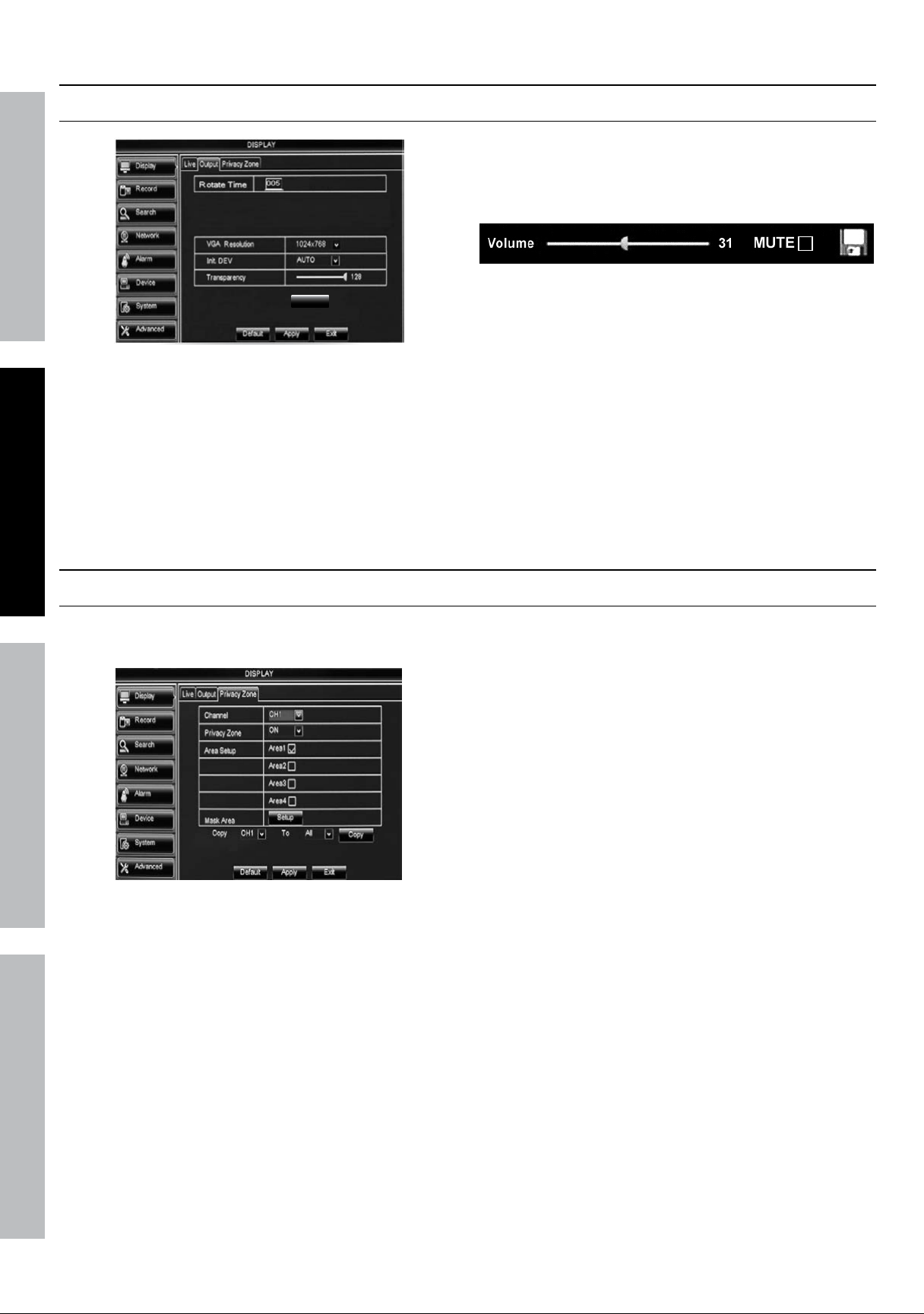
System information
System > Version
View and Set Device Information.
Figure S
1. Device name: Set Device Name
(up to 21 characters).
2. Device iD: Set Device ID number (up to 6 numbers
3. Device type: Cannot modify.
4. hardware Ver: Cannot modify.
5. Software Ver: Cannot modify.
6. iE Client Ver: Cannot modify.
7. maC add: Media Access Control address.
MAC Address needs to be changed when
multiple DVRs are on the same network.
Changes will not be saved unless
you click apply then Ok!
Click Exit to return to System and
discard unsaved changes.
Display Settings
Display > live
Set how Camera information will display.
Figure t
1. Channel: Select Channel.
2. name: Set Channel name (up to 8 characters).
3. Position: Select position where Channel
name will appear on the screen.
a. u-l: Upper Left
b. D-l: Lower Left.
c. u-R: Upper Right.
d. D-R: Lower Right.
e. Close: No name will appear.
4. Color: Click Setup to adjust Hue,
Brightness, Contrast, and Saturation.
Changes will not be saved unless
you click apply then Ok!
Click Exit to return to System and
discard unsaved changes.
5. Covert: Enable to conceal live image.
6. Show time: Toggles date and time display.
7. Record time: Enable to record date and time.
Changes will not be saved unless
you click apply then Ok!
Click Exit to return to System and
discard unsaved changes.
8. Copy: Copy parameters from one
Channel to other Channels.
a. Select Channel to copy from.
b. Select Channel to copy to or select all.
c. Click Copy, then click Ok.
Changes will not be saved unless
you click apply then Ok!
Click Exit to return to System and
discard unsaved changes.
Downloaded from www.ManualsFile.com manuals search engine
Page 22 For technical questions, please call 1-800-444-3353. Item 61229
SaFEtY OPERatiOn nEtWORkSEttinGS
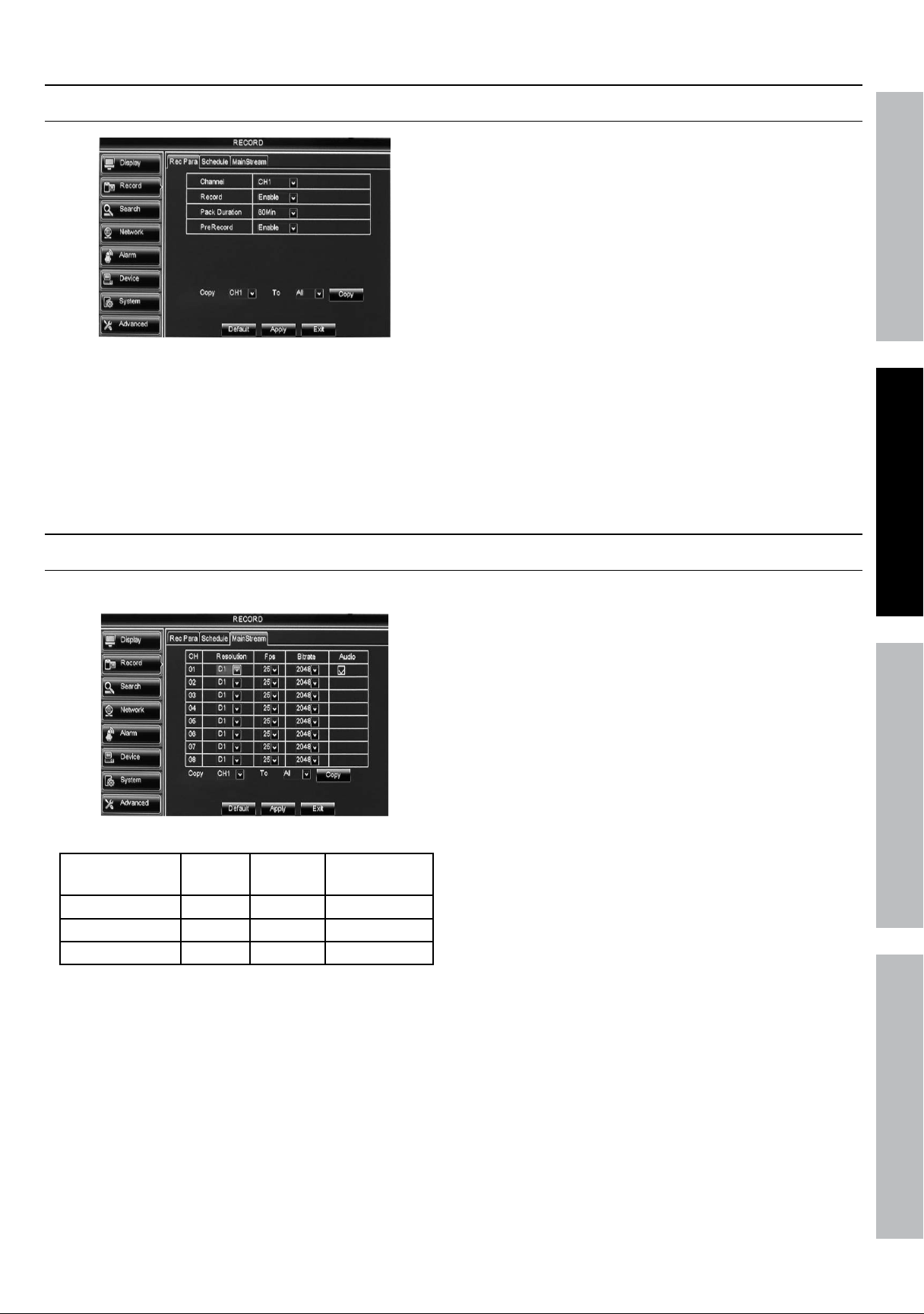
Display Output
Display > Output
Volume
Figure u
1. Rotate time: Amount of time, in seconds, that
each Channel will display in Live View when
Start SEQ is activated from the Pop-Up Menu.
2. VGa Resolution: Select resolution.
3. init. DEV: Select Video Output port.
4. transparency: Select Transparency of the Menus.
5. Volume: Press Volume button
to open Volume Control.
Figure V
a. Set Volume (if audio hooked up).
b. Check mute box to turn off sound.
c. Click save icon on right to save
settings, then click Ok.
d. Right click to return to Output.
Changes will not be saved unless
you click apply then Ok!
Click Exit to return to System and
discard unsaved changes.
Privacy Zones
Display > Privacy Zone
Allows selection of up to four areas to be
blocked from being viewed or recorded.
Figure W
1. Channel: Select Channel.
2. Privacy Zone: Toggles Privacy Zones.
3. area Setup: Select up to 4 areas to block.
4. mask area: Select Setup, then click
and drag green square(s) to move
and resize areas to be blocked.
5. Right click anywhere to return to Privacy Zone.
Click apply then Ok to save changes!
6. Repeat steps above for other Channels.
7. Copy: Copy parameters from one
Channel to other Channels.
a. Select Channel to copy from.
b. Select Channel to copy to or select all.
c. Click Copy, then click Ok.
Changes will not be saved unless
you click apply then Ok!
Click Exit to return to System and
discard unsaved changes.
Downloaded from www.ManualsFile.com manuals search engine
Page 23For technical questions, please call 1-800-444-3353.Item 61229
SaFEtYOPERatiOnnEtWORk SEttinGS
Recording Parameters
Record > Rec Para
Figure X
1. Channel: Select Channel.
2. Record: Select Enable or Disable.
3. Pack Duration: Select continuous recording
time for each pack (recording segment).
4. PreRecord: Enable to start Motion Detection
recordings immediately before motion is detected.
keep this enabled in most circumstances.
5. Copy: Copy parameters from one
Channel to other Channels.
a. Select Channel to copy from.
b. Select Channel to copy to or select all.
c. Click Copy, then click Ok.
Changes will not be saved unless
you click apply then Ok!
Click Exit to return to System and
discard unsaved changes.
Video Stream
Record > mainStream
Set Resolution, Frames Per Second, Bitrate, Audio.
Figure Y
Resolution Quality
Fps
Range
Bitrate
Range
CIF - 352X240 Low 1 - 30 224 - 768
HDI - 704x240 Better 1 - 15 80 - 448
D1 - 704x480 Best 1- 7 80 - 448
Figure Z
1. Resolution: Select CiF, D1 or hD1.
2. Fps (Frames per second): Set as desired.
3. Bitrate (kbps): Set as desired.
4. audio - Check box to record audio if microphone
(sold separately) has been connected.
This is only available on Channel 1.
5. Copy: Copy parameters from one
Channel to other Channels.
a. Select Channel to copy from.
b. Select Channel to copy to or select all.
c. Click Copy, then click Ok.
Changes will not be saved unless
you click apply then Ok!
Click Exit to return to System and
discard unsaved changes.
Downloaded from www.ManualsFile.com manuals search engine
Page 24 For technical questions, please call 1-800-444-3353. Item 61229
SaFEtY OPERatiOn nEtWORkSEttinGS
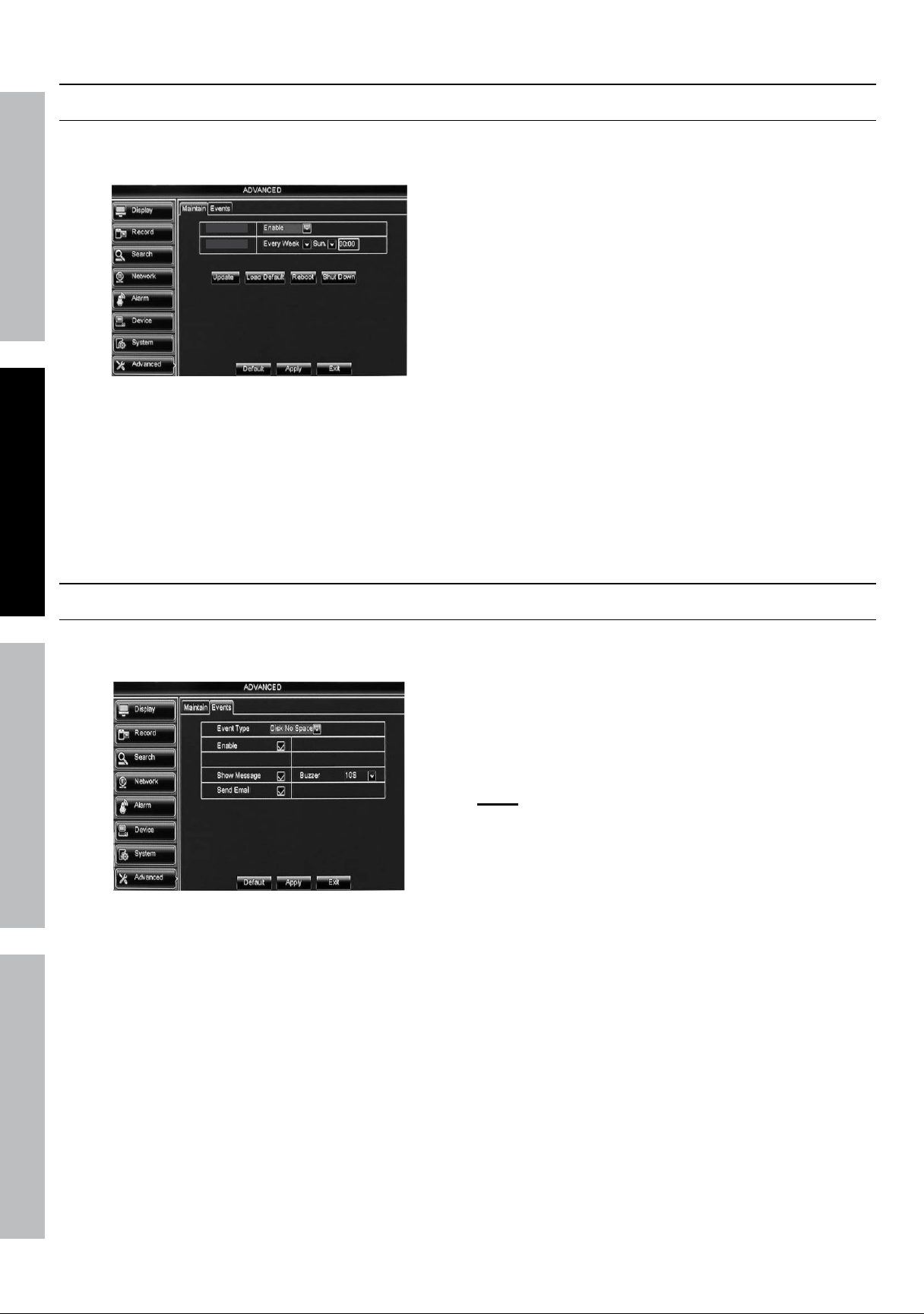
maintain hard Drive
advanced> maintain
Set up Reboot Cycle, Update Software, Manually
Restore Default Settings, Reboot And Shut Down.
Auto Maintain
Auto Reboot
Figure aa
1. auto maintain: Enables auto Reboot.
2. auto Reboot: Select when to Reboot system.
a. Everyday: Enter time for Reboot.
b. Every Week: Enter day of week
and time for reboot.
c. Every month: Enter day of
month and time for reboot.
3. update: Used for updating firmware using
a USB drive. Do not update firmware
unless device is not working properly and
Customer Service instructs you to do so.
4. load Default: Click to restore all
system default settings.
5. Reboot: Click to manually reboot system.
6. Shut Down: Click to manually shut down system.
Changes will not be saved unless
you click apply then Ok!
Click Exit to return to System and
discard unsaved changes.
alerts
advanced > Events
Set up alerts for when the hard drive has no disk space,
when there is a disk error or a camera loses video.
Figure aB
1. Event type: Select Event type.
2. Enable: Check box to Enable
or uncheck to Disable.
3. Show message: Check box to show a
message or uncheck to not show a message.
4. Buzzer: Click drop-down box to choose
Buzzer duration or turn Buzzer off.
5. Send Email: Check box to send an email
or uncheck to not send an email.
note: The DVR must be connected to the
Internet for email function to work. (See
network > network on page 22.)
Changes will not be saved unless
you click apply then Ok!
Click Exit to return to System and
discard unsaved changes.
Downloaded from www.ManualsFile.com manuals search engine
Page 25For technical questions, please call 1-800-444-3353.Item 61229
SaFEtYOPERatiOnnEtWORk SEttinGS
DVR Operating instructions
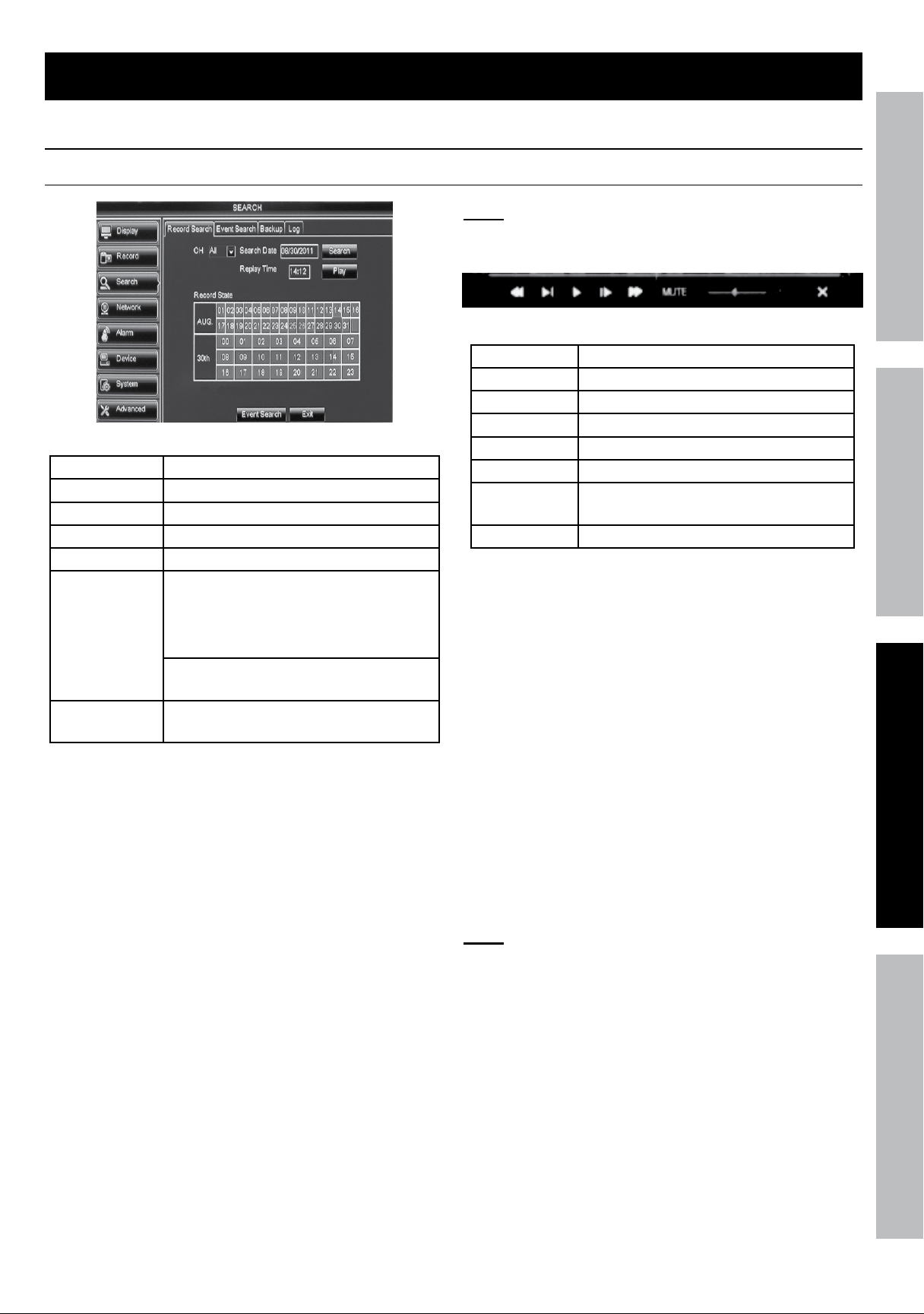
Search Recordings
Search > Record Search
Figure aC
Ch Select channel
Search Date Select date
Search Click to populate Record State table
Replay time Select time of day
Play Click to play selected recording
Record State
table
(Month) shows all days in selected
month where there are recordings
Green = Normal recording
Red = Motion Detection recording
(Date) Shows all hours in selected
day where there are recordings
Event Search
Go to Event Search (See
Backup Recordings section)
Figure aD
Search by Date
1. Search Date: Enter desired search date
and click Search to populate table.
a. Click on box for date to search.
b. Click on box for hour to search. This
will bring up the channel list.
2. Select Channel(s): Click on box(es) for
channel(s) to view, then click Play.
3. The Playback Control Bar will pop-
up on bottom of screen.
note: The Playback Control Bar will automatically
disappear when the mouse stops moving. To
recall Playback Control Bar, move the mouse.
Figure aE
◄◄ Rewind 2X, 4X, 8X, 16X
►
│ Play 1/2, 1/4, 1/8 speed
► Play normal speed
│► Pause
►► Fast Forward 2X, 4X, 8X, 16X
MUTE Turn off sound (if audio hooked up)
Volume
Control
Control volume (if audio hooked up)
X Exit recording
Figure aF
to exit recording, click X on Playback Control
Bar, then click Exit to return to Record Search.
Search by time
To find a specific event when the date
and time of event are known:
1. Search Date:
Enter the date of the recording.
2. Replay time: Enter the time of the recording.
3. Click Play to bring up the channel list.
4. Select Channel(s): Click on channel
boxes, then click Play.
5. The Playback Control Bar will pop-up on bottom of
screen. (See Figure aE and Figure aF above.)
note: To recall Playback Control
Bar, move the mouse.
to exit recording, click X on Playback Control
Bar, then click Exit to return to Record Search.
Downloaded from www.ManualsFile.com manuals search engine
Page 26 For technical questions, please call 1-800-444-3353. Item 61229
SaFEtY OPERatiOn nEtWORkSEttinGS
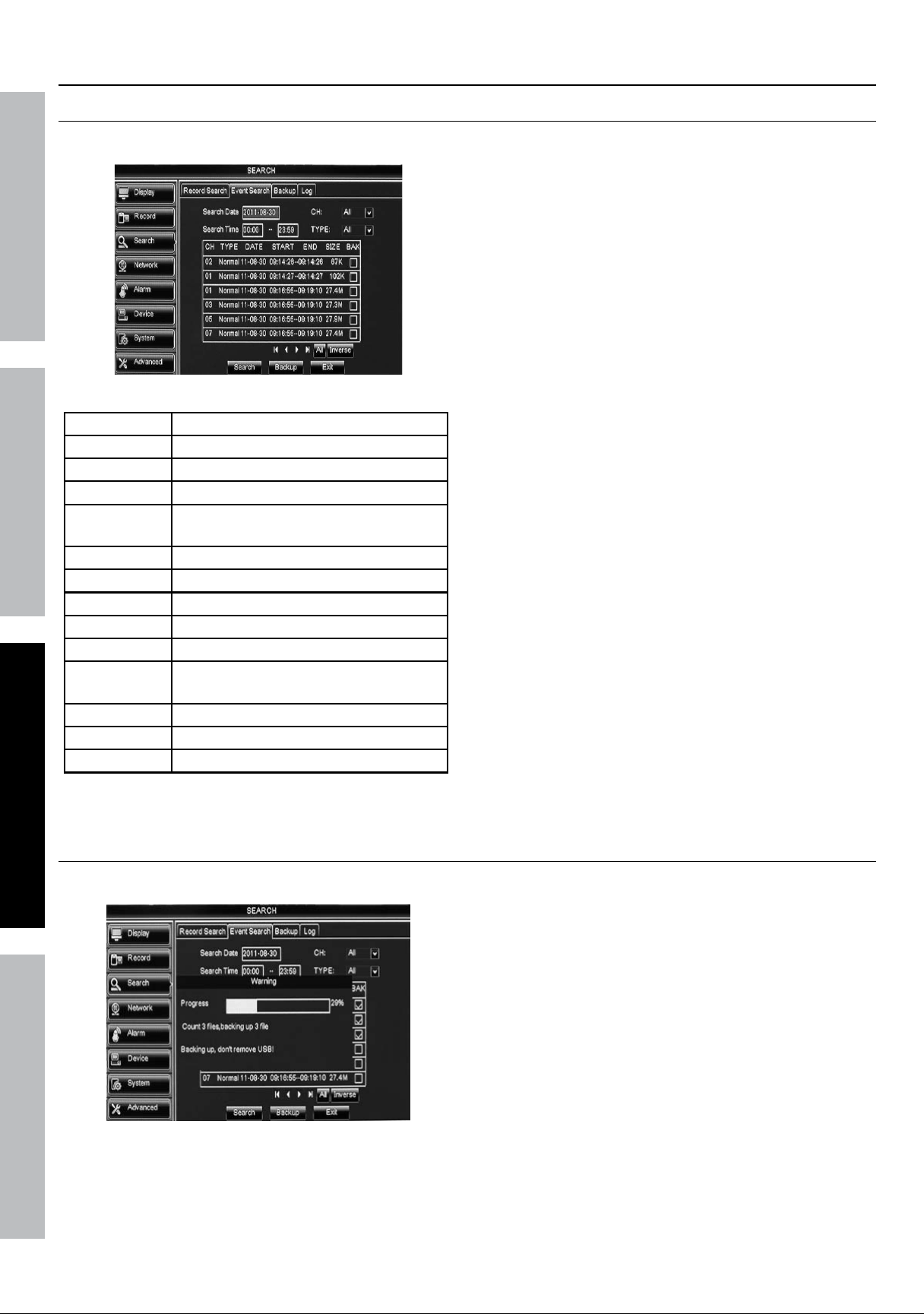
Backup Recordings
Search > Event Search
Playback and Back up recordings.
Figure aG
Search Date Enter date
Ch Select Channel
Search time Set start and stop times
tYPE Select type of event
Bak
Check box for each
recording to back up
│◄ Go to first set of recordings
◄ Go to previous set of recordings
► Go to next set of recordings
►
│ Go to last set of recordings
all Select all recordings in current set
inverse
Deselect selected recordings
and select opposite recordings
Search Search for selected recordings
Backup Perform Back up
Exit Go back to Record Search
Figure ah
1. Search Date: Set date to search.
2. Ch: Select Channel.
3. Search time: Enter beginning search time in
first box and ending search time in second box.
4. tYPE: Select all, normal, or alarm recordings.
a. normal recordings are scheduled
or manual recordings.
b. alarm recordings are recordings started
automatically by motion detection.
5. Click Search to populate table.
6. Select recordings to backup:
a. To mark all recordings for backup, click all.
b. To mark recordings for backup, click
on Bak box for each selection.
c. Click Backup and click Ok to
backup selected recordings.
Search > Backup
Back up recordings.
Figure ai
1. Search Date: Set date to search.
2. Ch: Select Channel.
3. Search time: Enter beginning search time in
first box and ending search time in second box.
4. tYPE: Select all, normal, or alarm recordings.
a. normal recordings are scheduled
or manual recordings.
b. alarm recordings are recordings started
automatically by motion detection.
5. Click Search to populate table.
6. Select recordings to backup:
a. To mark all recordings for backup, click all.
b. To mark recordings for backup, click
on Bak box for each selection.
c. Click Backup and click Ok to
backup selected recordings.
Downloaded from www.ManualsFile.com manuals search engine
Page 27For technical questions, please call 1-800-444-3353.Item 61229
SaFEtYOPERatiOnnEtWORk SEttinGS
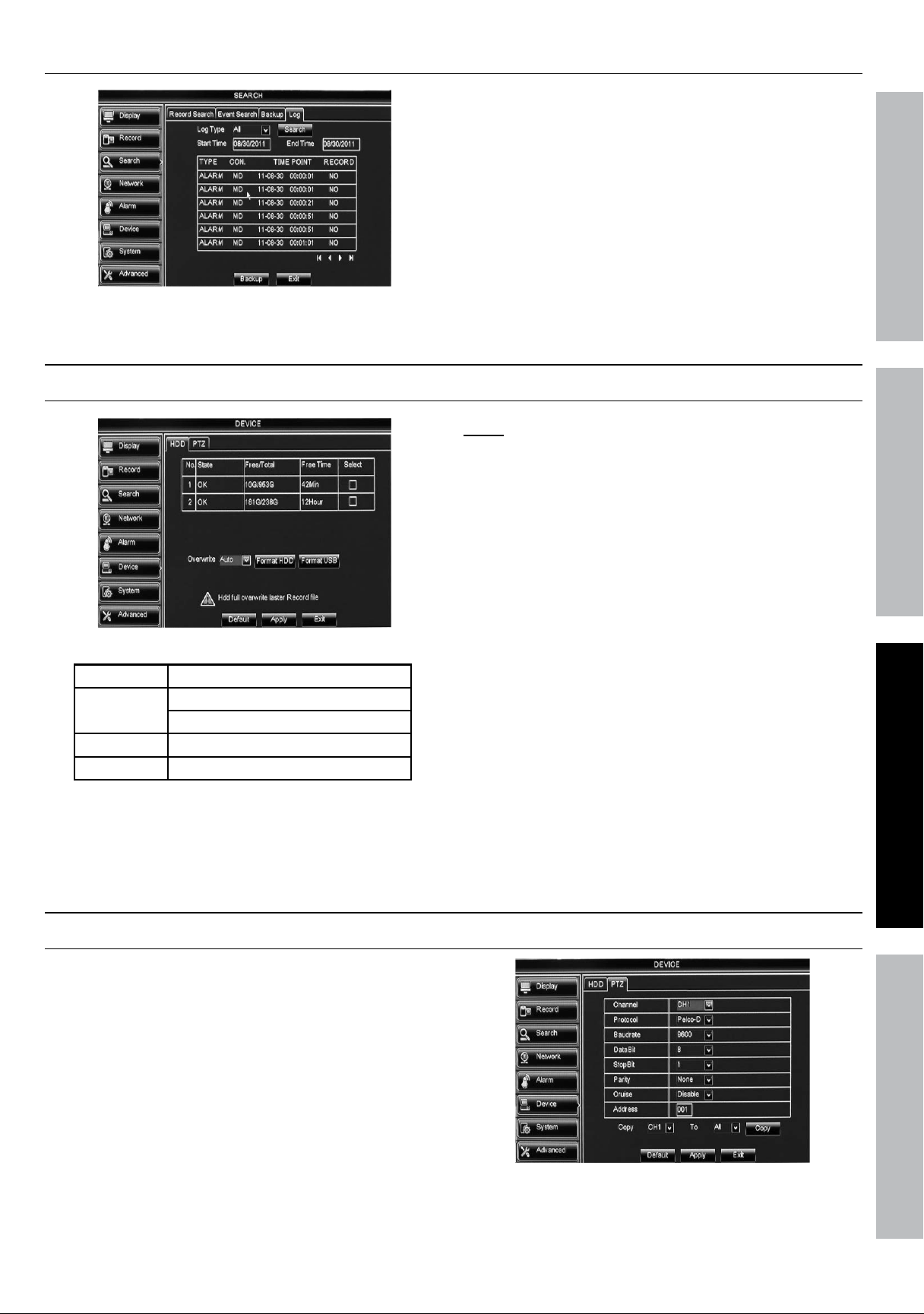
Search > log
Figure aJ
1. log type: Select Log type.
2. Start time (Date): Enter start date.
3. End time (Date): Enter end date.
4. Click Search to populate table.
5. Click Backup to backup log file, then
click OK when backup finished.
Format Drives
Device > hDD
Figure ak
no. ID number of drives
State
Ok - Hard drive installed
no disk - No hard drive installed
Free/total Free Space/Total Space
Free time Recording time available
Figure al
1. Overwrite: Select how long to save recordings
on Hard Disk Drive before overwriting.
note: The drive will save recordings as long as
possible before overwriting while in auto mode. If
Close is selected, the drive will not be overwritten.
2. Format hard Drive:
a. Click Select box for drive to format.
b. Click Format hDD.
c. Click Ok.
d. When formatting is finished, click Ok.
3. Format uSB Drive:
a. Install drive into USB port.
b. Click Format uSB.
c. Click Ok.
d. When formatting is finished, click Ok.
Changes will not be saved unless
you click apply then Ok!
Click Exit to return to System and
discard unsaved changes.
PtZ Camera
Device > PtZSetings for PtZ (Pan, tilt, Zoom) camera (sold separately).
Input information according to PTZ
camera manufacturer instructions.
Figure am
Downloaded from www.ManualsFile.com manuals search engine
Page 28 For technical questions, please call 1-800-444-3353. Item 61229
SaFEtY OPERatiOn nEtWORkSEttinGS
local area network (lan) Setup
Read the EntiRE imPORtant SaFEtY inFORmatiOn section at the beginning of this manual
including all text under subheadings therein before set up or use of this product.
note: This setup allows you to connect to the DVR through the Internet within your home network.
This setup requires the use of a Windows
®
PC (sold separately) with Internet Explorer
®
,
an Ethernet Cable (sold separately) and a Router (sold separately).
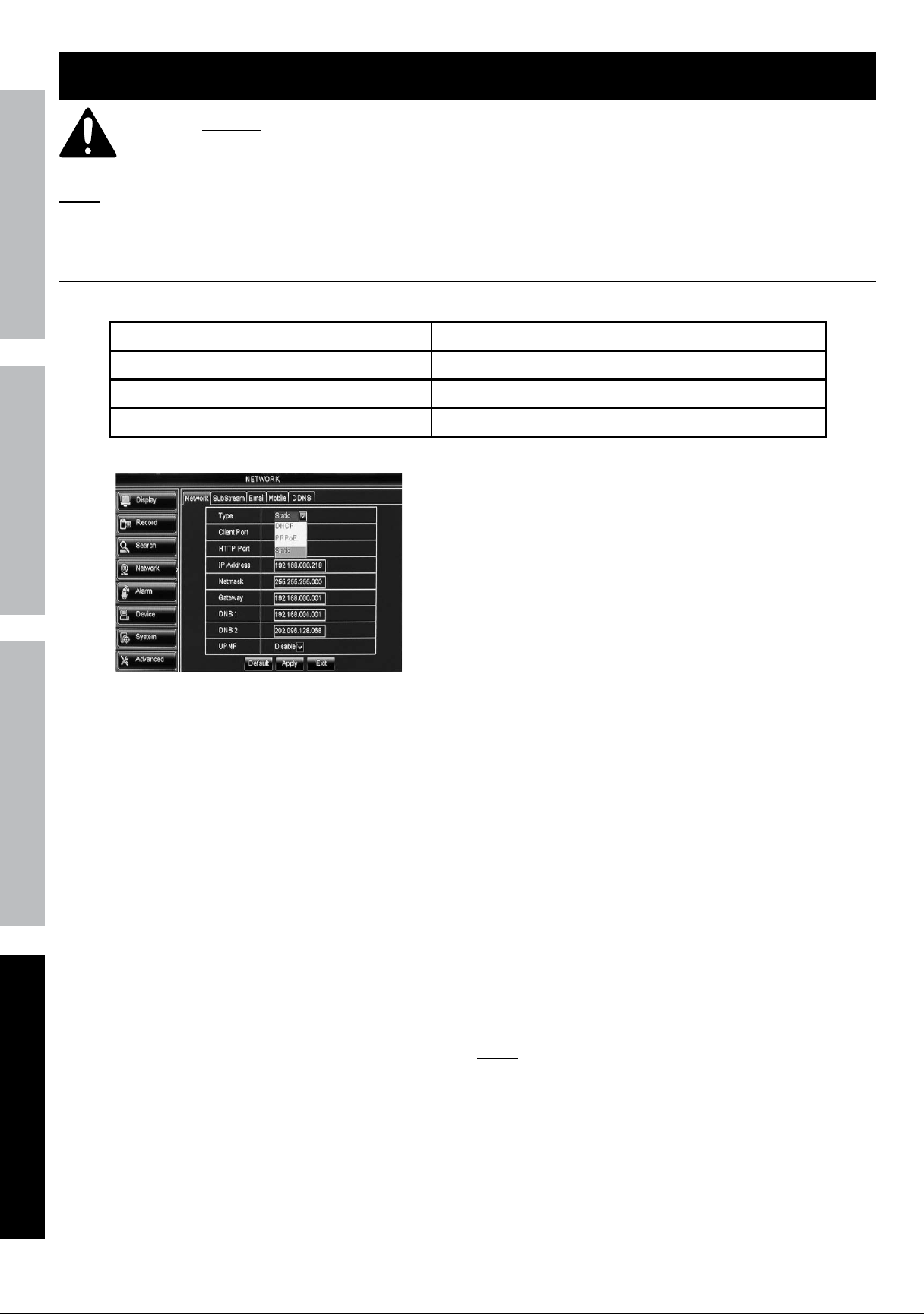
network > network
Use the chart below to record the information you will need to set up your LAN.
Subnet mask
Default Gateway (Router’s iP address)
new DVR iP address
DVR’s lan address
Figure an
Figure aO
1. Connect DVR to Router via Ethernet Cable.
2. On PC, go to Start menu, then click Run.
a. Type “cmd” then click Ok. A
DOS window will open.
b. Type “ipconfig” then press Enter.
c. You will see the Local Area
Connection of the Router.
d. In the chart above, write down the
numbers corresponding to:
• Subnet Mask
• Default Gateway (Router’s IP Address).
3. Create a new DVR iP address:
a. If last 3 digits of Default Gateway
are 0-99, change last 3 digits to a
number between 100 and 255.
b. If last 3 digits of Default Gateway are
100 or more, change last 3 digits to a
number between 200 and 255.
c. new DVR iP address will be xxx.xxx.xxx.yyy
where x = first 3 sets of current Default
Gateway (Router’s IP Address) and
y = new set created in 3.a. or b.
d. Write the new DVR iP address
in the chart above.
4. On DVR, go to network > network:
a. Change type to Static.
b. Change Client Port to 3000.
c. Change httP Port to 3001.
d. Change iP address to the new DVR
iP address from the chart.
e. Change Subnet mask and (Default)
Gateway to the ones from the chart.
f. Change DnS1 to be the same as Gateway.
g. Click apply, then Exit. DVR will
prompt restart. Click Ok.
5. After restart, go back to network >
network to view the settings.
6. Open Internet Explorer
®
and type in the iP
address and httP Port in the address bar:
a. http://xxx.xxx.xxx.xxx:3001
where x = iP address and 3001 = httP Port.
Write this address on chart under
DVR’s lan address.
b. Press Enter.
c. Allow ActiveX control to install.
note: You my need to adjust the settings in
Internet Explorer
®
by adding the http address to
Trusted Sites and modifying ActiveX controls.
7. After ActiveX Control installs, Log in to DVR
using User DVR’s user name and Password.
8. The DVR can now be controlled by a
computer in your home network.
Downloaded from www.ManualsFile.com manuals search engine
Page 29For technical questions, please call 1-800-444-3353.Item 61229
SaFEtYOPERatiOnnEtWORk SEttinGS
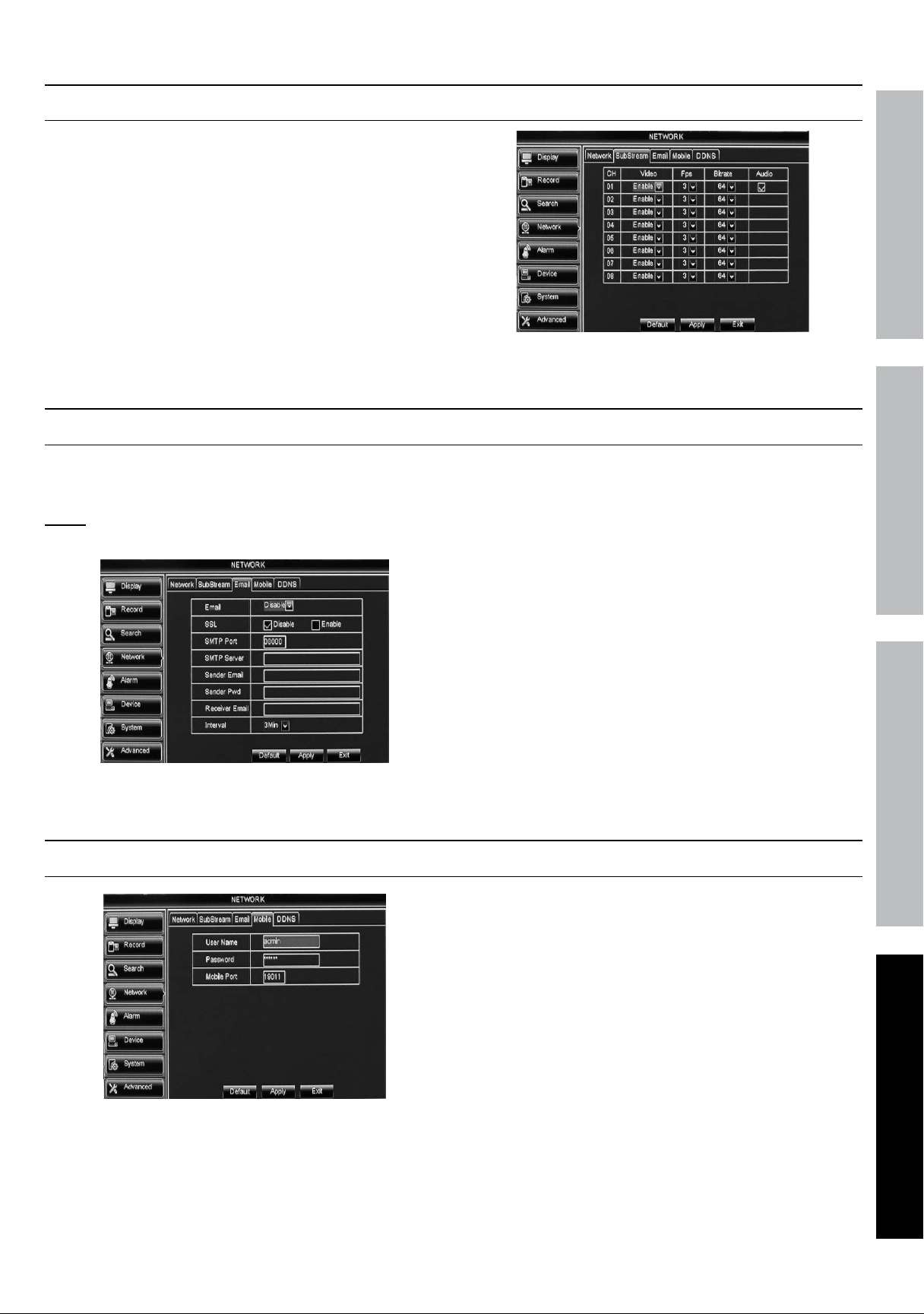
Set up Remote Video Stream
network > SubStream
Select channels to export through network connection.
Figure aP
Set up Email Capability
network > Email
Enables email to be sent when
Motion Detection is triggered.
note: Follow instructions from email
provider to set up this feature.
Figure aQ
1. Sender Email: The email address that
the notification will be sent from.
2. Sender Pwd: The password for the email
account that the notification will be sent from.
3. Receiver Email: The email address
that the notification will be sent to.
Changes will not be saved unless
you click apply then Ok!
Click Exit to return to System and
discard unsaved changes.
Set up Smartphone Capability
network > mobile
Figure aR
1. user name: Set User Name.
2. Password: Set Password.
3. mobile Port: Set Port to 3002.
Changes will not be saved unless
you click apply then Ok!
Click Exit to return to System and
discard unsaved changes.
Downloaded from www.ManualsFile.com manuals search engine

Page 30 For technical questions, please call 1-800-444-3353. Item 61229
SaFEtY OPERatiOn nEtWORkSEttinGS
Wide area network (Wan) Setup
Read the EntiRE imPORtant SaFEtY inFORmatiOn section at the beginning of this manual
including all text under subheadings therein before set up or use of this product.
this setup allows you to connect to the DVR from a remote computer or smartphone.
this is an advanced setup. You may need to consult your Router’s manual and/or call the
manufacturer or internet Service Provider for instructions on Port Forwarding.
1. Set up local area network first.
2. Open Internet Explorer
®
and type the
Default Gateway (Router’s iP address)
in the address bar and press Enter. This
will bring up your Router’s Log in.
3. Login to your Router and check
your connection type.
a. If Static, the IP Address will not change
and your connection will remain stable.
Proceed to Port Forwarding.
b. If DhCP, the IP Address will change at
some point in time. When it changes you
will then need to use the new IP Address to
connect to the DVR. Other options are:
• Contact your ISP and request a Static IP
Address, for which there may be a charge.
• Set up a Dynamic Domain Naming
System. This is outside the scope of
this manual. Settings can be accessed
on the network > DDnS tab.
4. Go to Port Forwarding or
applications and Gaming.
5. Set start port to 3000 and end port to 3002. Set up
both UDP and TCP protocols if the option is given.
6. Open Internet Explorer
®
and type in the
Router’s iP address and httP Port:
a. http://xx.xxx.xxx.xxx:yyyy
where x = iP address and y = httP Port.
This is the DVR’s Public iP address, write it
below:
_________________________________
b. Press Enter.
c. Allow ActiveX control to install.
note: You my need to adjust the settings in
Internet Explorer
®
by adding the http address to
Trusted Sites and modifying ActiveX controls.
7. After ActiveX Control installs, Log in to
DVR using User Name and Password.
8. The DVR can now be controlled by a
remote computer or smartphone.
Downloaded from www.ManualsFile.com manuals search engine
Page 31For technical questions, please call 1-800-444-3353.Item 61229
SaFEtYOPERatiOnnEtWORk SEttinGS
Software
Read the EntiRE imPORtant SaFEtY inFORmatiOn section at the beginning of this manual
including all text under subheadings therein before set up or use of this product.
the supplied CD contains the software needed to connect to the DVR
and play back recordings on a computer or smartphone.
DVR Client
For use with a local or remote PC to set up connection to the DVR.
For local computer, the lan needs to be set up first.
For remote computer, both the lan and Wan need to be set up first.
System Requirements
CPu Intel Pentium 4 or higher, 3GHz
Ram Min. 2GB
Operating
System
Windows XP Professional
®
, Windows
Vista
®
, Windows 7
®
, Windows 8
®
Disk Space Min. 10GB
installation
1. Insert supplied CD into computer, open
Video_Client and follow instructions
to install the program.
2. Create Administrator User Name and Password.
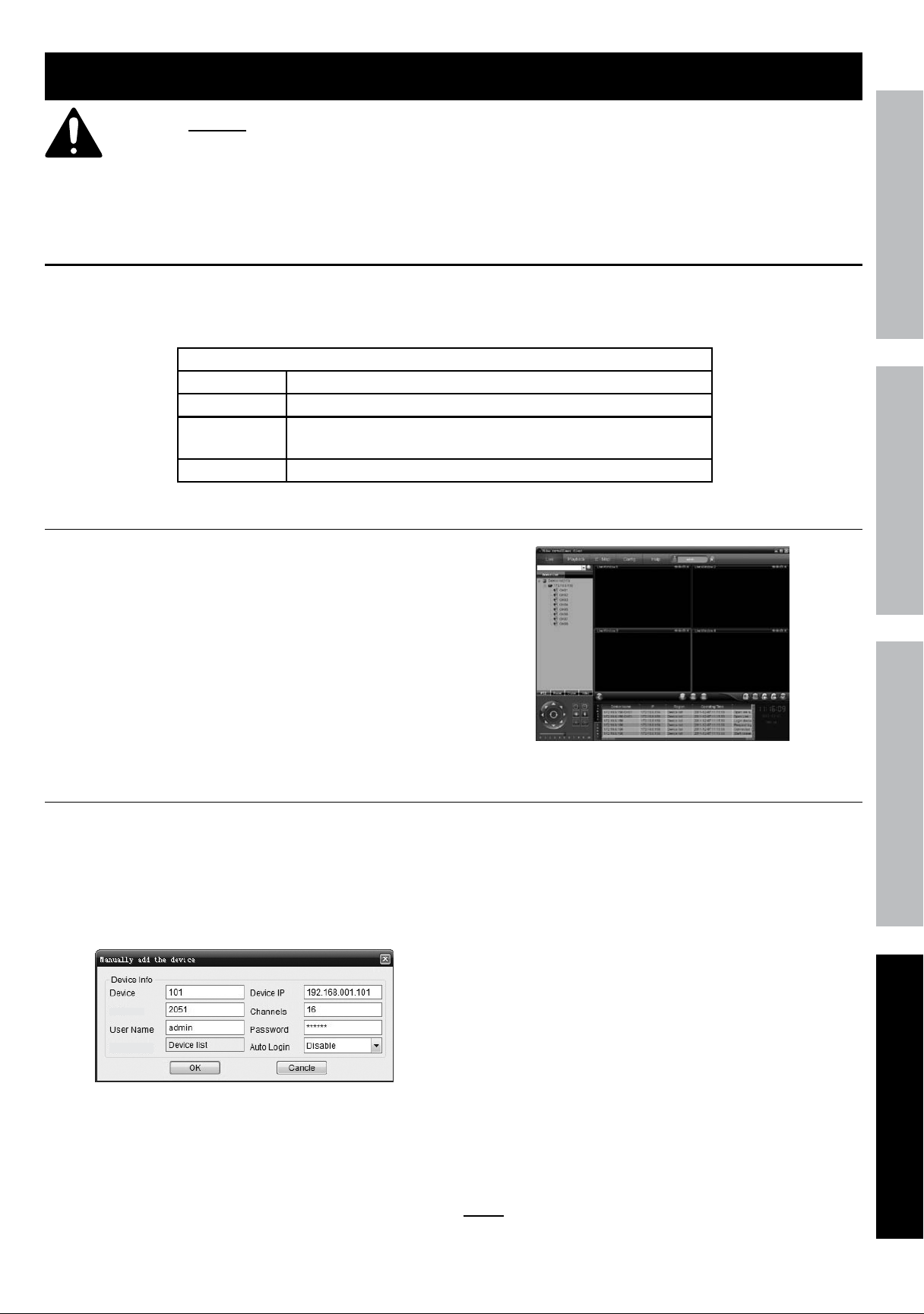
3. Video surveillance client will open.
Figure aS
add DVR
1. Click Config to open local parameter
configuration window.
2. Click on Device manage.
3. Right click on Device list, then click add Device.
This will open manually add the device window.
Client Port
Area Name
Figure at
a. Device: Assign name to DVR.
b. Device iP:
• LAN computer - use DVR’s lan
address from chart on page 28.
• Remote computer - use DVR’s Public
iP address from page 28.
c. Client Port. Enter Client Port from
network > network settings on DVR.
d. Channels: Enter how many Cameras to view.
e. user name: Enter User Name for DVR.
f. Password Enter Password for DVR.
g. auto login: Enable automatic log in to
the DVR when DVR Client is launched.
h. Click Ok, the device will appear
on the Device info list.
4. Exit out of local parameter configuration window.
5. On Device list, right click on the DVR icon (the
name you assigned to DVR) and click login, then
right click again and click Open all channels.
6. The DVR can now be controlled
through the software.
note: For more instructions, refer to DvrClient
user manual included on the supplied CD.
Downloaded from www.ManualsFile.com manuals search engine

Page 32 For technical questions, please call 1-800-444-3353. Item 61229
SaFEtY OPERatiOn nEtWORkSEttinGS
Video Player
For playing back recordings on a Windows
®
PC in h.264 format.
Insert supplied CD into computer, open
Video_Client and follow instructions.
maC Record Player
For playing back recordings on a maC in h.264 format.
Insert supplied CD into computer, open
maC_Record Player and follow instructions.
aVi Generator
For converting recordings from h.264 to aVi format.
Insert supplied CD into computer, open
aViGenerator and follow instructions.
Smartphone
For connecting to the DVR from a smartphone. to use this feature, the Wan needs to be set up first.
1. Insert supplied CD into computer
and open mobile Software folder for
instructions according to phone type.
note: The phone's Unknown Sources setting
MUST be enabled to allow installation. Depending
on Android version, installed software and
settings, additional software may be required
to allow installation of viewing software.
2. Go to network > mobile to view the
Mobile Port settings you will need.
Downloaded from www.ManualsFile.com manuals search engine

Page 33For technical questions, please call 1-800-444-3353.Item 61229
maintenance instructions
Procedures not specifically explained in this manual must be performed only by a qualified
technician.
Camera maintenance
tO PREVEnt SERiOuS inJuRY FROm ElECtRiC ShOCk:
unplug the Power adapter from its electrical outlet
before inspection, maintenance, or cleaning.
1. PERiODiCallY, inspect the general
condition of the Camera. Check for:
• loose hardware,
• damaged cord/electrical wiring,
• cracked or broken parts, and
• any other condition that may
affect its safe operation.
2. PERiODiCallY, wipe external surfaces
of Camera with clean cloth.
3. Maintain area surrounding Camera,
making sure obstacles don’t interfere with
visibility, such as overgrown bushes.
Downloaded from www.ManualsFile.com manuals search engine

Page 34 For technical questions, please call 1-800-444-3353. Item 61229
troubleshooting
Problem Possible Causes likely Solutions
Controls stop
working on DVR
Lost connection
with DVR.
Press REW button on front of DVR until beep sounds.
Monitor does not
display image
1. Loose or incorrect
connections.
2. Monitor needs
adjustment.
1. Check that all connections are secure
and in the correct location.
2. Adjust the image settings on the monitor.
Poor quality images
Setting(s) are incorrect. Adjust settings for Video Stream on page 23.
Error codes when
trying to install
DvrClient software
Incompatibility with
Operating System.
Check System Requirements on page Video Client (DvrClient)
on page 32 to make sure your Operating System is supported.
Password not
working
Incorrect password. Contact Customer service (1-800-444-3353)
for instructions on resetting password.
Downloaded from www.ManualsFile.com manuals search engine

Page 35For technical questions, please call 1-800-444-3353.Item 61229
Parts list
Part Description Qty.
1 DVR Console 1
2 Power Adapter
Input: 100-240V~, 1.5A Max., 50/60 Hz
Output: 12VDC, 2A
2
3 BNC to RCA Cable 1
4 Remote Control 1
Part Description Qty.
5 Mouse 1
6 Power Splitter 1
7 Camera Mounting Hardware 1
8 3.6 mm Lens Camera 2
9 6.0 mm Lens Camera 2
10 Cable - 60 ft. 4
Record Serial number here:
note: If product has no serial number, record
month and year of purchase instead.
note: Some parts are listed and shown for
illustration purposes only, and are not available
individually as replacement parts.
Downloaded from www.ManualsFile.com manuals search engine

3491 Mission Oaks Blvd. • PO Box 6009 • Camarillo, CA 93011 • (800) 444-3353
limited 90 Day Warranty
Harbor Freight Tools Co. makes every effort to assure that its products meet high quality and durability
standards, and warrants to the original purchaser that this product is free from defects in materials and
workmanship for the period of 90 days from the date of purchase. This warranty does not apply to damage
due directly or indirectly, to misuse, abuse, negligence or accidents, repairs or alterations outside our facilities,
criminal activity, improper installation, normal wear and tear, or to lack of maintenance. We shall in no event
be liable for death, injuries to persons or property, or for incidental, contingent, special or consequential
damages arising from the use of our product. To the extent that this product is used with software other than
what is provided, we shall in no event be liable for any damage to your computer or loss of data. Some states
do not allow the exclusion or limitation of incidental or consequential damages, so the above limitation of
exclusion may not apply to you. THIS WARRANTY IS EXPRESSLY IN LIEU OF ALL OTHER WARRANTIES,
EXPRESS OR IMPLIED, INCLUDING THE WARRANTIES OF MERCHANTABILITY AND FITNESS.
To take advantage of this warranty, the product or part must be returned to us with transportation charges
prepaid. Proof of purchase date and an explanation of the complaint must accompany the merchandise.
If our inspection verifies the defect, we will either repair or replace the product at our election or we may
elect to refund the purchase price if we cannot readily and quickly provide you with a replacement. We will
return repaired products at our expense, but if we determine there is no defect, or that the defect resulted
from causes not within the scope of our warranty, then you must bear the cost of returning the product.
This warranty gives you specific legal rights and you may also have other rights which vary from state to state.
FCC StatEmEnt
This device complies with part 15 of the FCC Rules. Operation is subject to the following two
conditions: (1) This device may not cause harmful interference, and (2) this device must accept
any interference received, including interference that may cause undesired operation.
Downloaded from www.ManualsFile.com manuals search engine