
0
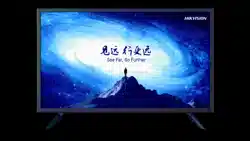
32-Inch Monitor
User Manual
32-Inch Monitor • User Manual
i
Legal Information
About this Document
● This Document includes instructions for using and managing the Product. Pictures, charts,
images and all other information hereinafter are for description and explanation only.
● The information contained in the Document is subject to change, without notice, due to
firmware updates or other reasons. Please find the latest version of the Document at the
Hikvision website (https://www.hikvision.com). Unless otherwise agreed, Hangzhou Hikvision
Digital Technology Co., Ltd. or its affiliates (hereinafter referred to as "Hikvision") makes no
warranties, express or implied.
● Please use the Document with the guidance and assistance of professionals trained in
supporting the Product.
About this Product
This product can only enjoy the after-sales service support in the country or region where the
purchase is made.
Acknowledgment of Intellectual Property Rights
● Hikvision owns the copyrights and/or patents related to the technology embodied in the
Products described in this Document, which may include licenses obtained from third parties.
● Any part of the Document, including text, pictures, graphics, etc., belongs to Hikvision. No part
of this Document may be excerpted, copied, translated, or modified in whole or in part by any
means without written permission.
● and other Hikvision's trademarks and logos are the properties of Hikvision in
various jurisdictions.
● Other trademarks and logos mentioned are the properties of their respective owners.
● The terms HDMI and HDMI High-Definition Multimedia Interface, and the HDMI Logo
are trademarks or registered trademarks of HDMI Licensing Administrator, Inc. in the United
States and other countries.
LEGAL DISCLAIMER
● TO THE MAXIMUM EXTENT PERMITTED BY APPLICABLE LAW, THIS DOCUMENT AND THE
PRODUCT DESCRIBED, WITH ITS HARDWARE, SOFTWARE AND FIRMWARE, ARE PROVIDED "AS
IS" AND "WITH ALL FAULTS AND ERRORS". HIKVISION MAKES NO WARRANTIES, EXPRESS OR
IMPLIED, INCLUDING WITHOUT LIMITATION, MERCHANTABILITY, SATISFACTORY QUALITY, OR
FITNESS FOR A PARTICULAR PURPOSE. THE USE OF THE PRODUCT BY YOU IS AT YOUR OWN RISK.
IN NO EVENT WILL HIKVISION BE LIABLE TO YOU FOR ANY SPECIAL, CONSEQUENTIAL,
INCIDENTAL, OR INDIRECT DAMAGES, INCLUDING, AMONG OTHERS, DAMAGES FOR LOSS OF

32-Inch Monitor • User Manual
ii
BUSINESS PROFITS, BUSINESS INTERRUPTION, OR LOSS OF DATA, CORRUPTION OF SYSTEMS, OR
LOSS OF DOCUMENTATION, WHETHER BASED ON BREACH OF CONTRACT, TORT (INCLUDING
NEGLIGENCE), PRODUCT LIABILITY, OR OTHERWISE, IN CONNECTION WITH THE USE OF THE
PRODUCT, EVEN IF HIKVISION HAS BEEN ADVISED OF THE POSSIBILITY OF SUCH DAMAGES OR
LOSS.
● YOU ACKNOWLEDGE THAT THE NATURE OF THE INTERNET PROVIDES FOR INHERENT SECURITY
RISKS, AND HIKVISION SHALL NOT TAKE ANY RESPONSIBILITIES FOR ABNORMAL OPERATION,
PRIVACY LEAKAGE OR OTHER DAMAGES RESULTING FROM CYBER-ATTACK, HACKER ATTACK,
VIRUS INFECTION, OR OTHER INTERNET SECURITY RISKS; HOWEVER, HIKVISION WILL PROVIDE
TIMELY TECHNICAL SUPPORT IF REQUIRED.
● YOU AGREE TO USE THIS PRODUCT IN COMPLIANCE WITH ALL APPLICABLE LAWS, AND YOU ARE
SOLELY RESPONSIBLE FOR ENSURING THAT YOUR USE CONFORMS TO THE APPLICABLE LAW.
ESPECIALLY, YOU ARE RESPONSIBLE, FOR USING THIS PRODUCT IN A MANNER THAT DOES NOT
INFRINGE ON THE RIGHTS OF THIRD PARTIES, INCLUDING WITHOUT LIMITATION, RIGHTS OF
PUBLICITY, INTELLECTUAL PROPERTY RIGHTS, OR DATA PROTECTION AND OTHER PRIVACY
RIGHTS. YOU SHALL NOT USE THIS PRODUCT FOR ANY PROHIBITED END-USES, INCLUDING THE
DEVELOPMENT OR PRODUCTION OF WEAPONS OF MASS DESTRUCTION, THE DEVELOPMENT OR
PRODUCTION OF CHEMICAL OR BIOLOGICAL WEAPONS, ANY ACTIVITIES IN THE CONTEXT
RELATED TO ANY NUCLEAR EXPLOSIVE OR UNSAFE NUCLEAR FUEL-CYCLE, OR IN SUPPORT OF
HUMAN RIGHTS ABUSES.
● IN THE EVENT OF ANY CONFLICTS BETWEEN THIS DOCUMENT AND THE APPLICABLE LAW, THE
LATTER PREVAILS.
© Hangzhou Hikvision Digital Technology Co., Ltd. All rights reserved.
32-Inch Monitor • User Manual
iii
Applicable Models
This manual is applicable to 32-inch monitor.
Symbol Conventions
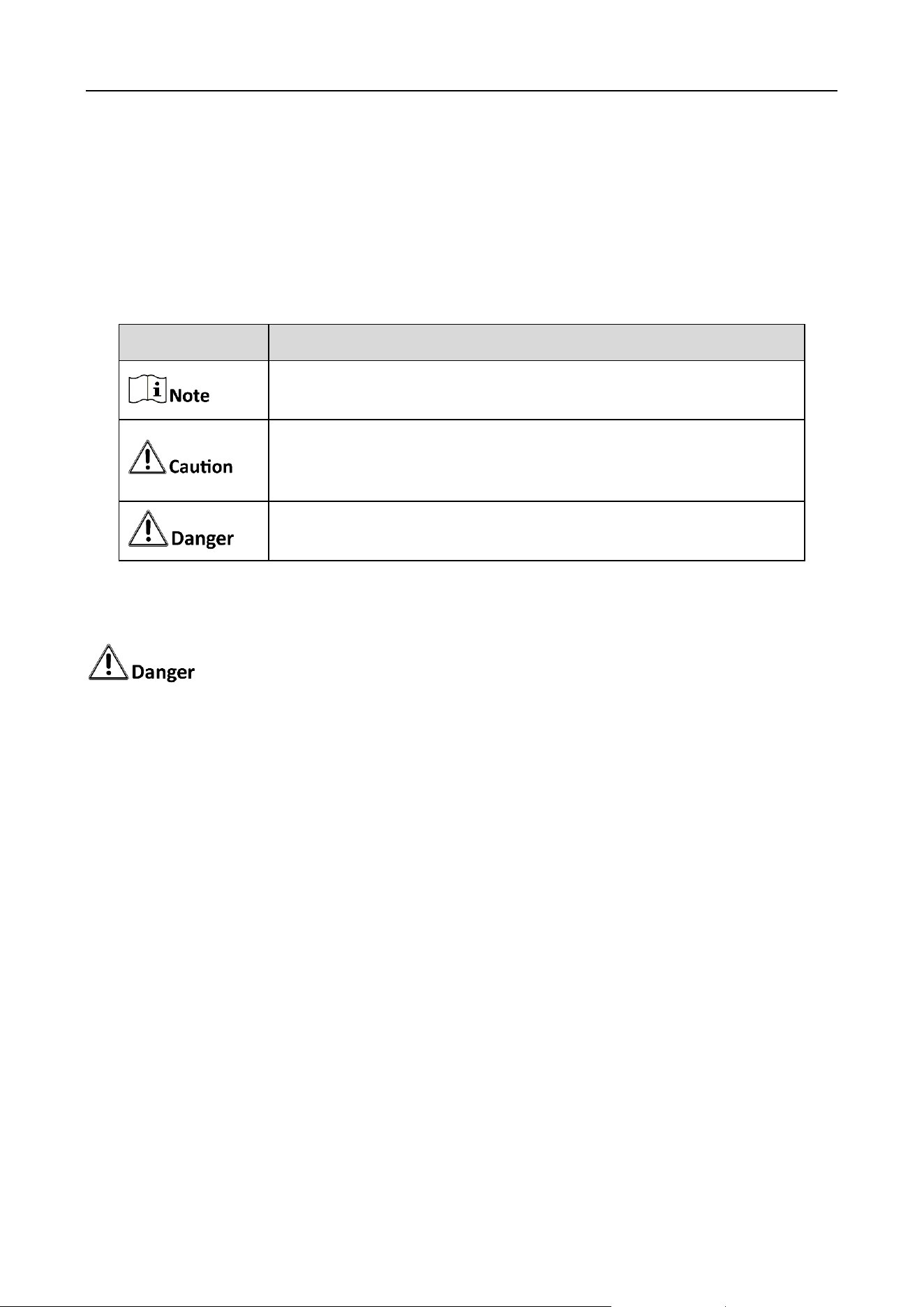
The symbols that may be found in this document are defined as follows.
Safety Instructions
Caution: The device may generate radio interference in indoor environment. Necessary
precautions may be required.
In the use of the product, you must be in strict compliance with the electrical safety
regulations of the nation and region.
Input voltage should meet both the SELV (Safety Extra Low Voltage) and the Limited Power
Source with 100 to 240 VAC or 12 VDC/2 A according to the IEC60950-1 standard.
CAUTION: Replace the fuse only with the same model to reduce the risk of fire or electric
shock.
The device must be connected to an earthed mains socket-outlet.
Make sure that the power has been disconnected before you wire, install, or disassemble the
device.
CAUTION: This device is for use only with specified bracket (Hikvision's monitor stand). Use
with other (carts, stands, or carriers) may result in instability causing injury.
To prevent possible hearing damage, do not listen at high volume levels for long periods.
If the device is not working properly, contact the store where the device was purchased or the
nearest service center and do not remove or modify the device in any way. (Our company is
not responsible for problems caused by unauthorized modifications or repairs.)
Symbol
Description
Provides additional information to emphasize or supplement
important points of the main text.
Indicates a potentially hazardous situation, which if not avoided,
could result in equipment damage, data loss, performance
degradation, or unexpected results.
Indicates a hazard with a high level of risk, which if not avoided, will
result in death or serious injury.
32-Inch Monitor • User Manual
iv
Do not connect several devices to one power adapter as adapter overload may cause over-
heating or a fire hazard.
The device shall not be exposed to water dripping or splashing and that no objects filled with
liquids, such as vases, shall be placed on the equipment.
Ensure correct wiring of the terminals for connection to an AC mains supply.
The device has been designed, when required, modified for connection to an IT power
distribution system.
identifies the battery holder itself and identifies the positioning of the cell(s) inside the
battery holder.
+ identifies the positive terminal(s) of equipment which is used with, or generates direct
current. - identifies the negative terminal(s) of device which is used with, or generates direct
current.
No naked flame sources, such as lighted candles, should be placed on the equipment.
The ventilation should not be impeded by covering the ventilation openings with items, such
as newspapers, tablecloths, curtains, etc. The openings shall never be blocked by placing the
equipment on a bed, sofa, rug or other similar surface.
Keep product surface clean and dry. Do not operate in humid or explosive environment.
Avoid contact with exposed circuits. Do not touch exposed contacts or components when
powering on the product.
The USB port of the device is used for connecting to a mouse, a keyboard, or a USB flash drive
only.
Install the device according to the instructions in this manual.
To prevent injury, this device must be securely attached to the floor/wall in accordance with
the installation instructions.
Do not cause objects to fall on the device or shake the device vigorously, and keep the device
away from areas where magnetic field interference exists. Avoid installing the device in a place
where the surface vibrates or is vulnerable to shock.
Do not install the device at high temperatures (above 40 ° C) or low temperatures (below -10 °
C) or high humidity.
Keep vertical when moving or using the device.
Proper configuration of all passwords and other security settings is the responsibility of the
installer and/or end-user.
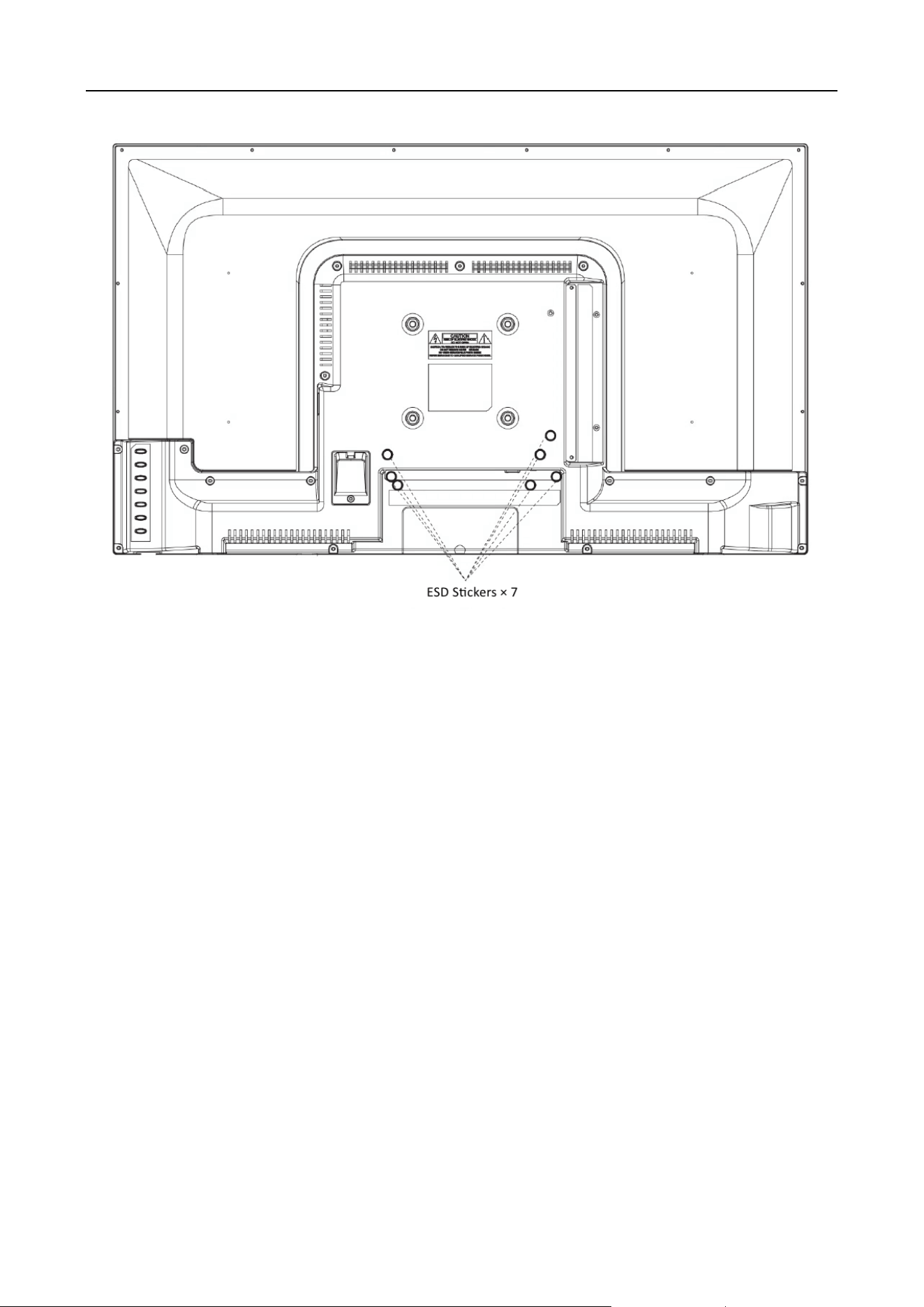
Seven ESD stickers are attached to the back of the device.
32-Inch Monitor • User Manual
v

32-Inch Monitor • User Manual
vi
Contents
Chapter 1 Product Introduction .................................................................................................. 1
Buttons on Front Panel ......................................................................................................................................... 1
Interfaces on Rear Panel ....................................................................................................................................... 1
Chapter 2 Installation ................................................................................................................. 2
Chapter 3 Power On ................................................................................................................... 4
Chapter 4 Remote Controller ...................................................................................................... 5
Chapter 5 Basic Operations ........................................................................................................ 6
5.1 Select the Signal Source ........................................................................................................................................ 6
5.2 Main Menu ........................................................................................................................................................... 6
5.2.1 Image Settings ............................................................................................................................................ 6
5.2.2 VGA Settings .............................................................................................................................................. 8
5.2.3 System Settings .......................................................................................................................................... 9
5.2.4 OSD Settings ............................................................................................................................................. 10
5.2.5 Software Version ...................................................................................................................................... 11
32-Inch Monitor • User Manual
1
Chapter 1 Product Introduction
Buttons on Front Panel
The buttons at the bottom-right corner of the front panel are shown as follows.
Button Description
Button
Description
POWER /
Power indicator. When the power is on, short press to
confirm and long press to turn off. When the power is off,
short press to turn on.
MENU /
MENU page / Exit the current page
SOURCE /
Call on the signal source list
▲ / ▼ /
◀
/
▶
Up/Bottom/Left/Right button
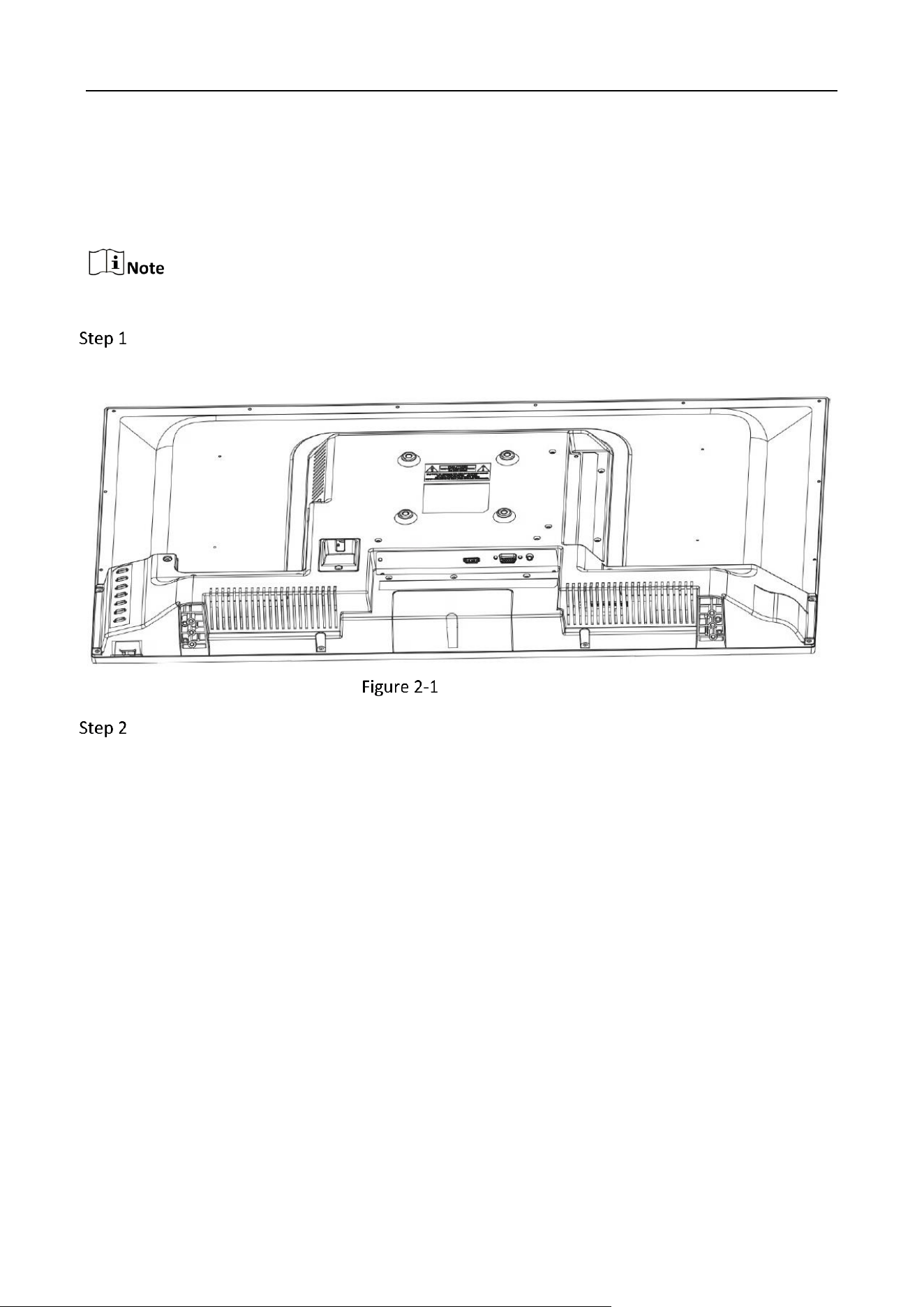
Interfaces on Rear Panel
The panel appearances and interfaces vary with different models.
Insulating paint has been sprayed on the interface baffle.
Rear Panel
Interface Description
Interface
Description
Interface
Description
HDMI
HDMI digital signal input interface
AUDIO OUT
Audio output interface
VGA
VGA analog signal input interface
POWER
Power adapter interface
32-Inch Monitor • User Manual
2
Chapter 2 Installation
You can install the device on the desktop.
The installation drawings are for reference only.
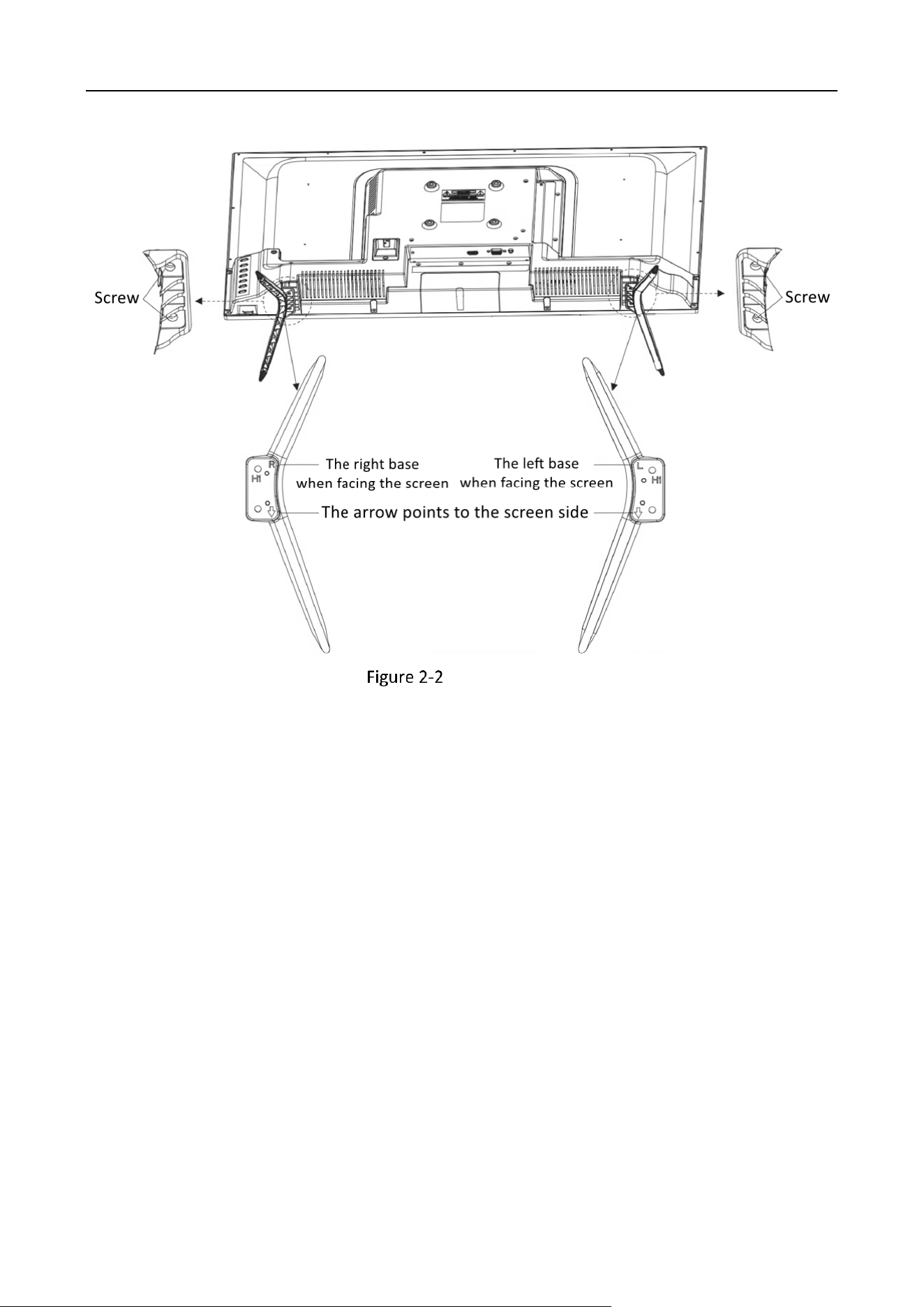
Gently lift the device. Place the screen down on a stable surface covered with a thick soft
cloth.
Place the Device
Take out the base and screws from the package, align the base with the mounting holes at
the bottom of the device as shown in the figure below, and install the base to the
corresponding positions, lock two screws on each side.
32-Inch Monitor • User Manual
3
Install the Base
32-Inch Monitor • User Manual
4
Chapter 3 Power On
The 32-inch monitor is an AC device. Plug the device's two-pronged power cord into the power
strip and turn on the switch to power on.
AC power supply for the adapter: 220 V, 50/60 Hz
Power off the device and disconnect the plug if it is not in use for a long time.
32-Inch Monitor • User Manual
5
Chapter 4 Remote Controller
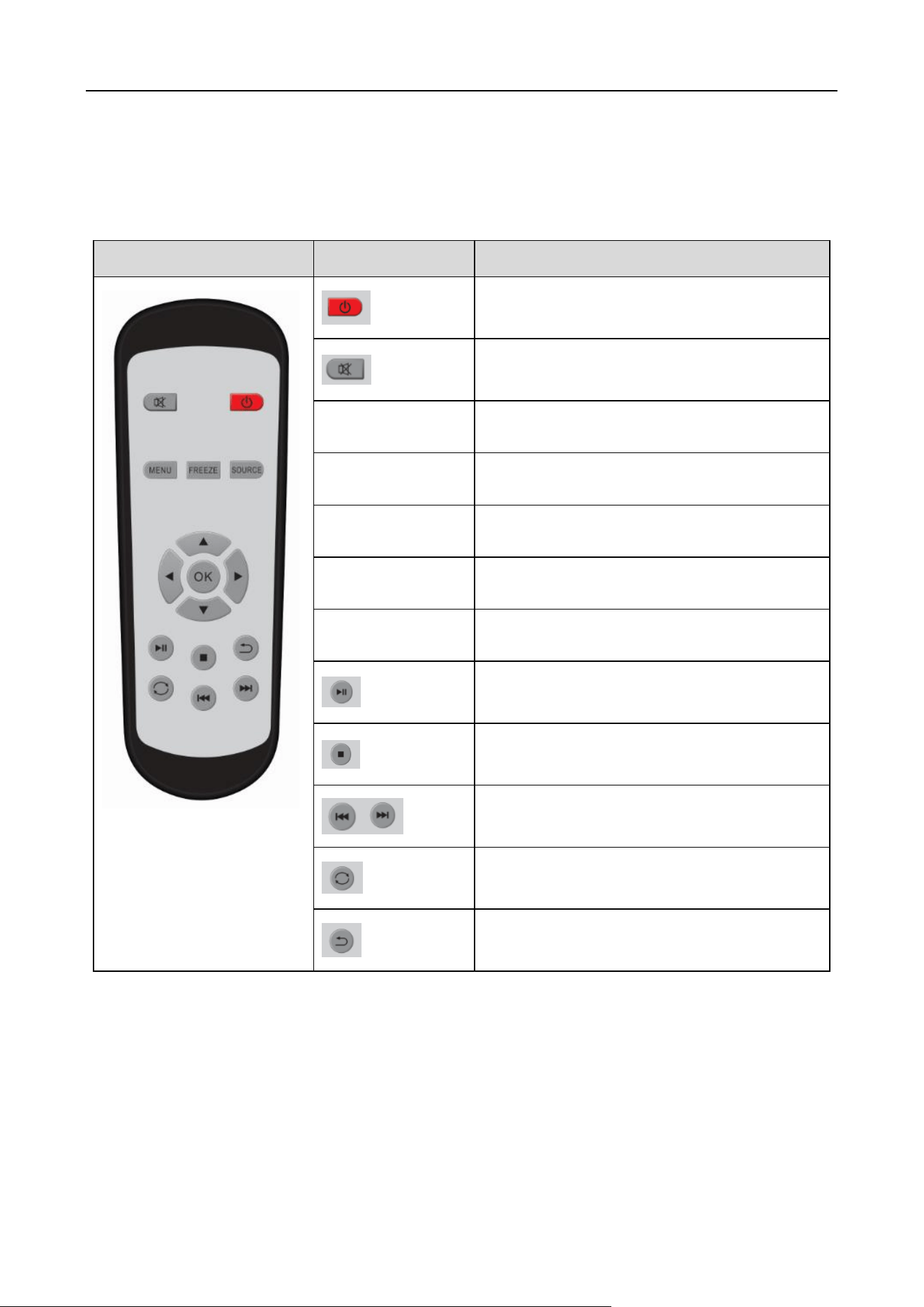
Table 4-1 Description of Buttons on Remote Controller
Outlook
Button
Description
Turn on/off the device
Turn on/off the sound
【FREEZE】
Freeze the screen
【MENU】
Enter menu or return
【SOURCE】
Input signal source menu
【Direction Key】
Up/Down, Left/Right
【OK】
Confirm/Enter
Play/Pause
Stop
Previous/Next
Replay
Return
32-Inch Monitor • User Manual
6
Chapter 5 Basic Operations
The display pages vary with different models. The figures followed are for illustration purpose only.
5.1 Select the Signal Source
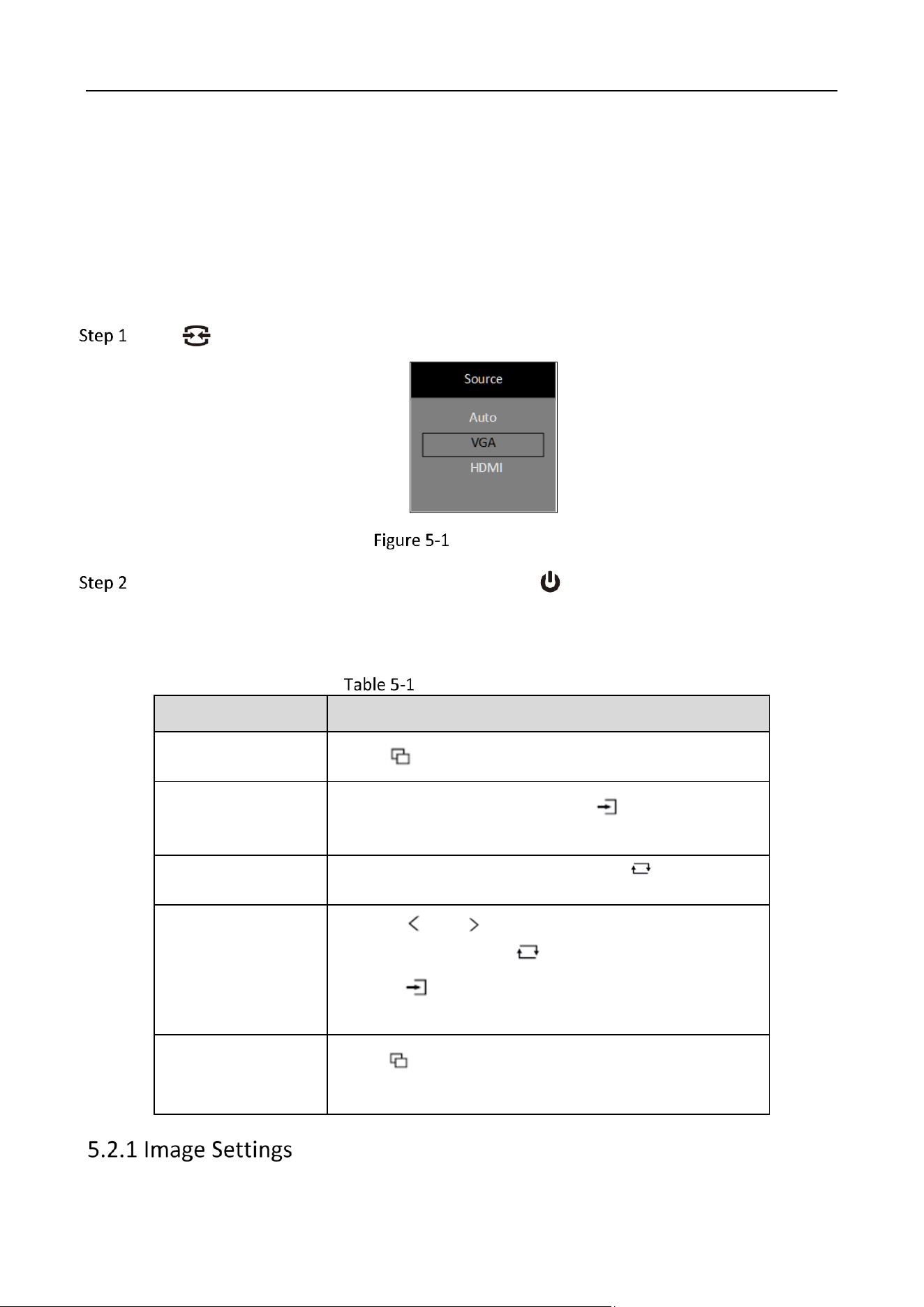
Connect the power cable and confirm that there is a video signal input, turn on the display.
Press and show the signal source menu.
Signal Source
Press
▲
/
▼
to switch input sources, and short press to confirm.
5.2 Main Menu
Operation Description
Operation
Description
Enter MENU page
Press
to enter the main menu page.
View the first-level
MENU
On the main menu page, press to switch to the
different first-level menu.
View Parameters
On the first-level menu page, press to enter the
right-side parameters page.
Adjust Parameters
Press or to adjust the value of the current
parameter and press to confirm.
Press to switch to other parameters on the
current page.
Back to the upper-
level menu
Press to return to the upper-level menu on any
page.
32-Inch Monitor • User Manual
7
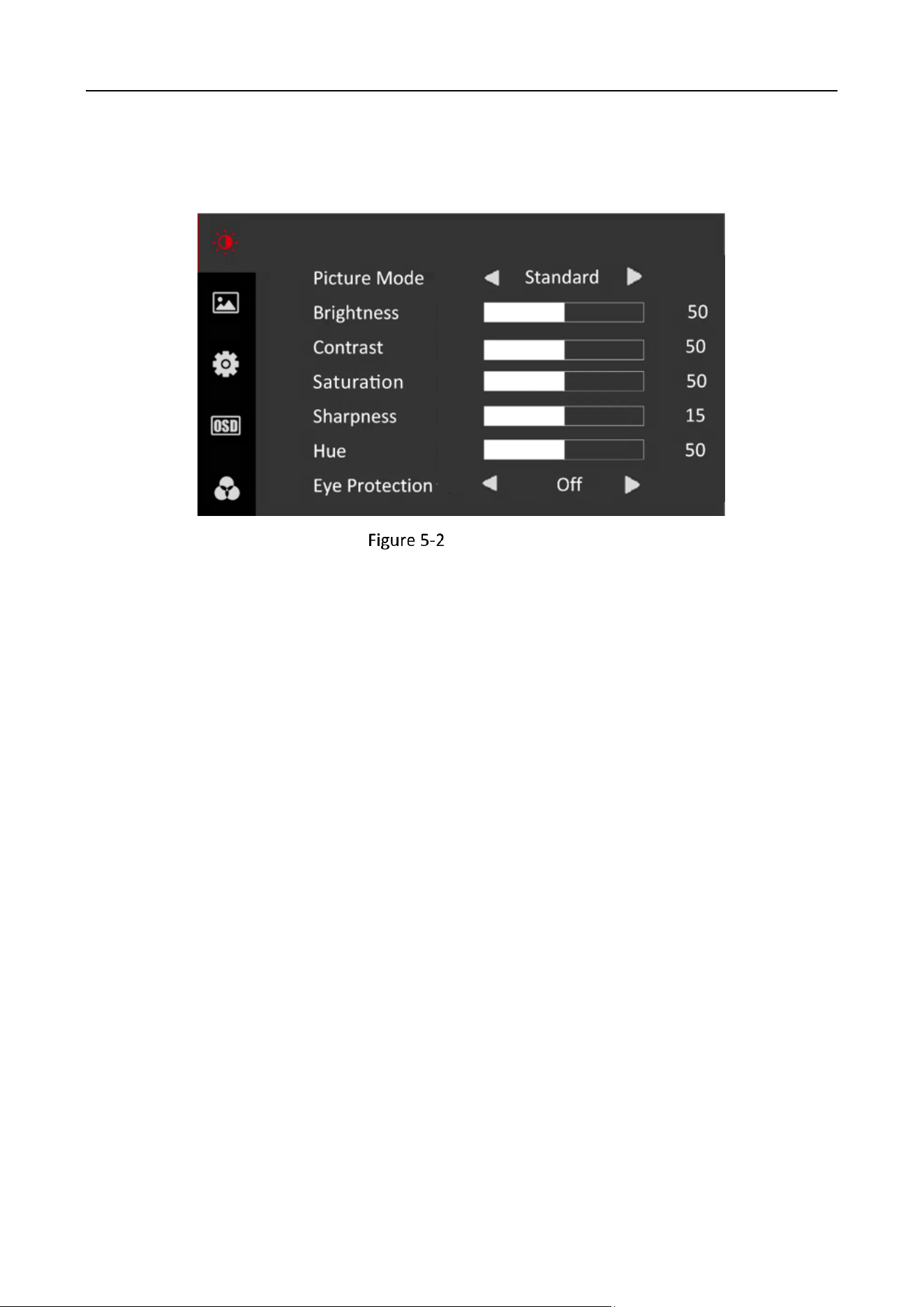
You can switch picture modes and adjust image parameters including contrast, brightness,
saturation, sharpness, and hue. The adjustable parameters will change when you switch from a
picture mode to another.
Image Settings
32-Inch Monitor • User Manual
8
Image Parameters
Parameter
Description
Picture Mode
Standard: Suitable for a normal environment. It is set as the
default picture mode.
Soft: Suitable for a dark room.
Dynamic: Suitable for a bright room.
User: Set the brightness, contrast, color, sharpness or hue to
adjust display effect.
Brightness
Ranges from 0 to 100. The higher the value is, the brighter the
image will be.
Contrast
Ranges from 0 to 100. The higher the value is, the clearer the image
will be.
Saturation
Ranges from 0 to 100. The higher the value is, the more colorful
the image will be.
Sharpness
Ranges from 0 to 30. Rise the value up to make the image more
vivid.
Hue
Ranges from 0 to 100. It determines the contrast degree between
the bright and dark.
Eye Protect
Off/Weak/Medium/Strong. It can effectively reduce blue light
radiation, alleviate eye fatigue, and protect vision.
Under other modes, only brightness and contrast are adjustable.
Parameters in white bar are adjustable. If the parameter bar is gray, it indicates that the
parameter is not adjustable under the current mode or input source.
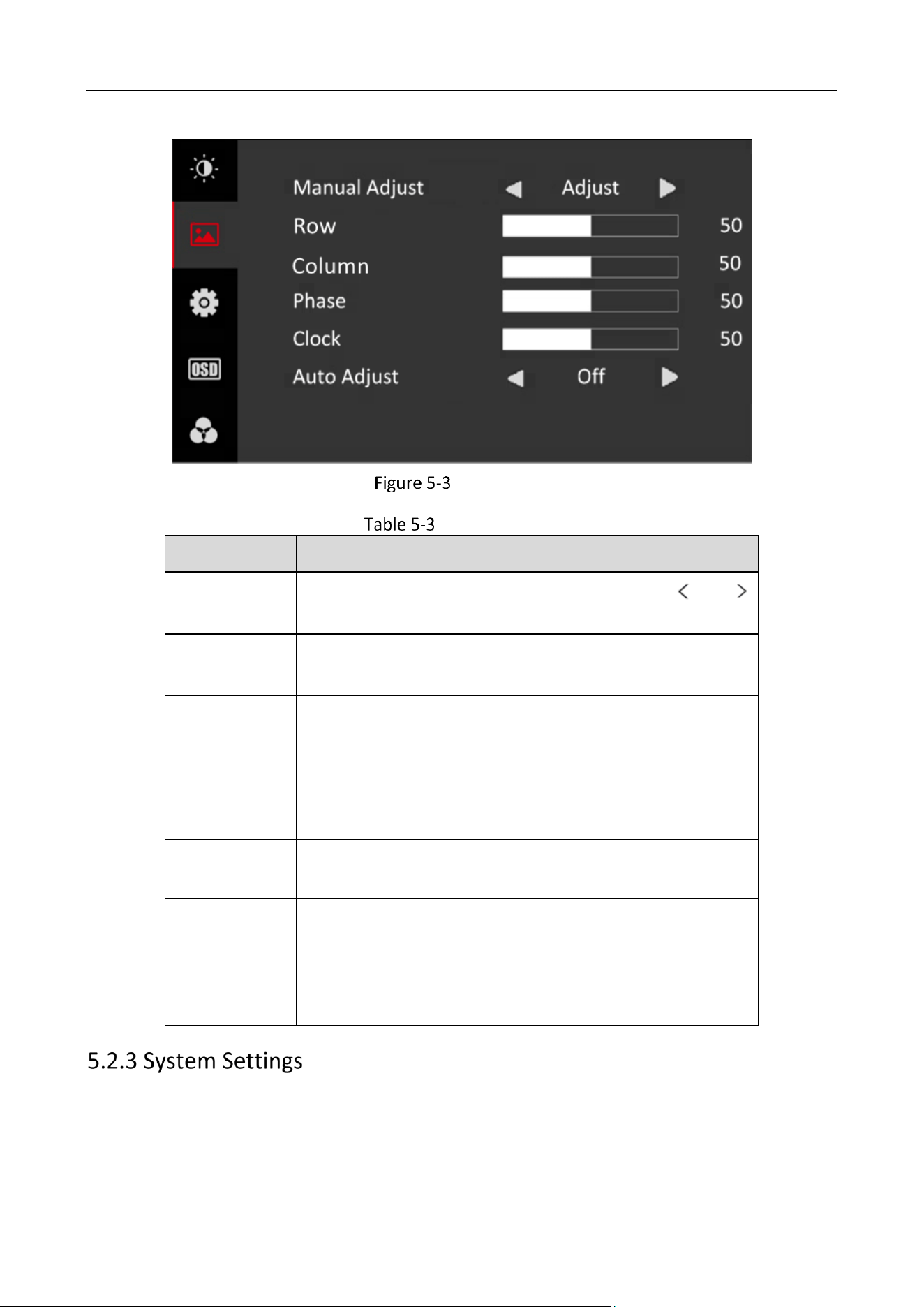
When you select VGA as the input source, you can adjust VGA parameters to make the picture
show in the correct position.
32-Inch Monitor • User Manual
9
VGA Settings
VGA Parameters
Parameter
Description
Manual Adjust
Adjust the size and position of the image. Press or
to enable or disable.
Row
Ranges from 0 to 100. Move the image position to the left
or right.
Column
Ranges from 0 to 100. Move the image position to the top
or bottom.
Phase
Ranges from 0 to 100. Adjusting the value of Phase will
change the image position in a slight extent at the
horizontal level.
Clock
Ranges from 0 to 100. Changing the value of Clock will
stretch or narrow the image.
Auto Adjust
Off/On. If Auto Adjust is enabled, the related parameters
will self-adjust under the following 3 circumstances. The
device is restarted, a VGA input source is accessed, and the
input source is switched to VGA. VGA parameters cannot be
changed when Auto Adjust is disabled.
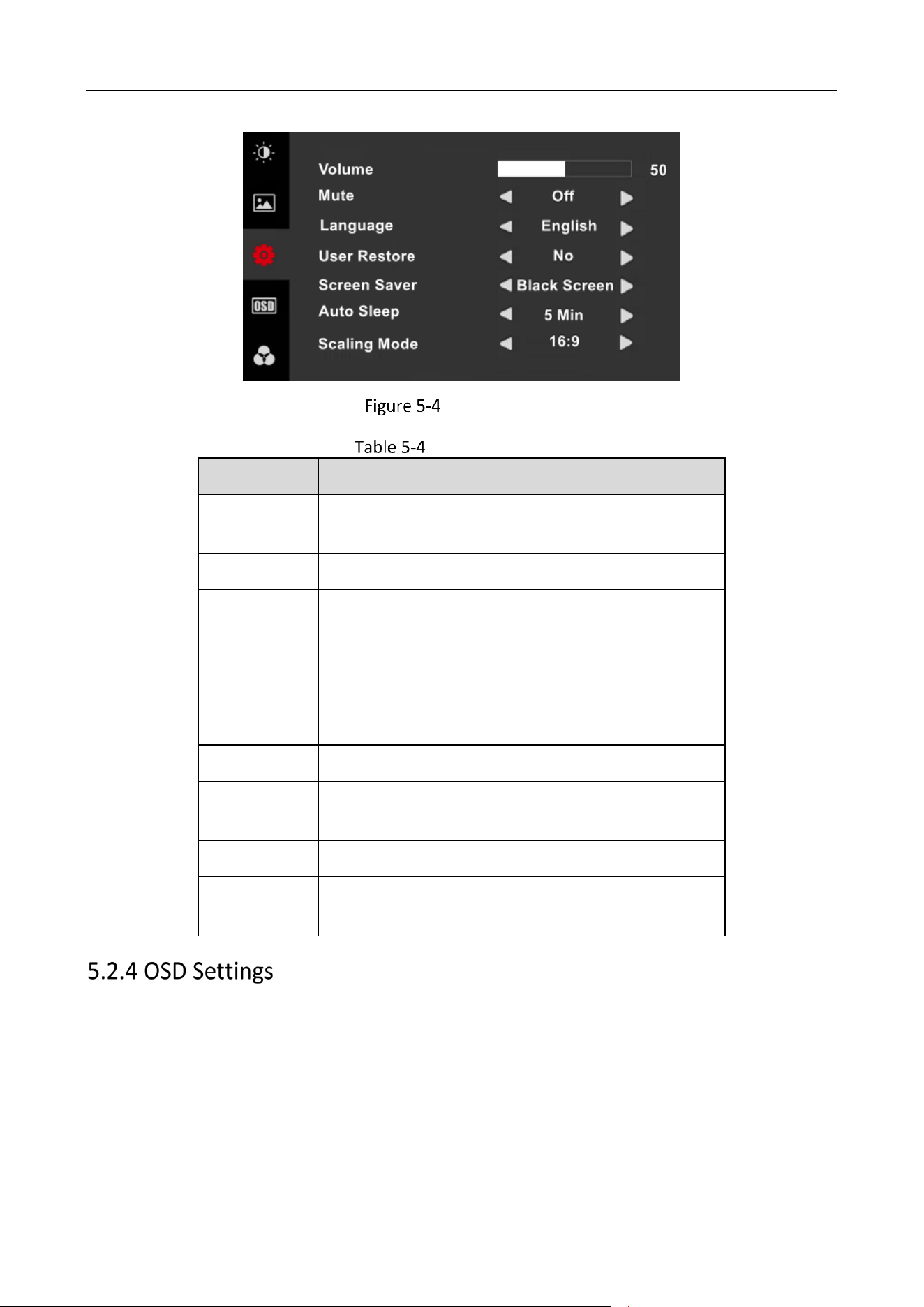
You can change the settings of language, screen saver, volume, and other parameters on the
system settings page. Volume settings is only available to part of the product models.
32-Inch Monitor • User Manual
10
System Settings
System Parameters
Parameter
Description
Volume
Ranges from 0 to 100. Adjust the volume of the
monitor.
Mute
OFF/ON
Language
中文
/English/
한국어/
日本語/ Р у с с к и й
/Deutsch/Italiano/Français/
Nederlands/Português/Español/Tiếng Việt/
Български/Magyar/Ελληνικά/Čeština/Slovenčina/
Polski/Română/Dansk/Svenska/Norsk/Suomi
User Restore
No/Yes. Restore default settings except Language.
Screen Saver
Black Screen/Blue Screen. The background color of
the screen when there is no signal.
Auto Sleep
Off/30 S/1 Min/5 Min/10 Min/30 Min/1 H
Scaling Mode
16:9/4:3. Adjust the image scale: the ratio between
the width and height of the image.
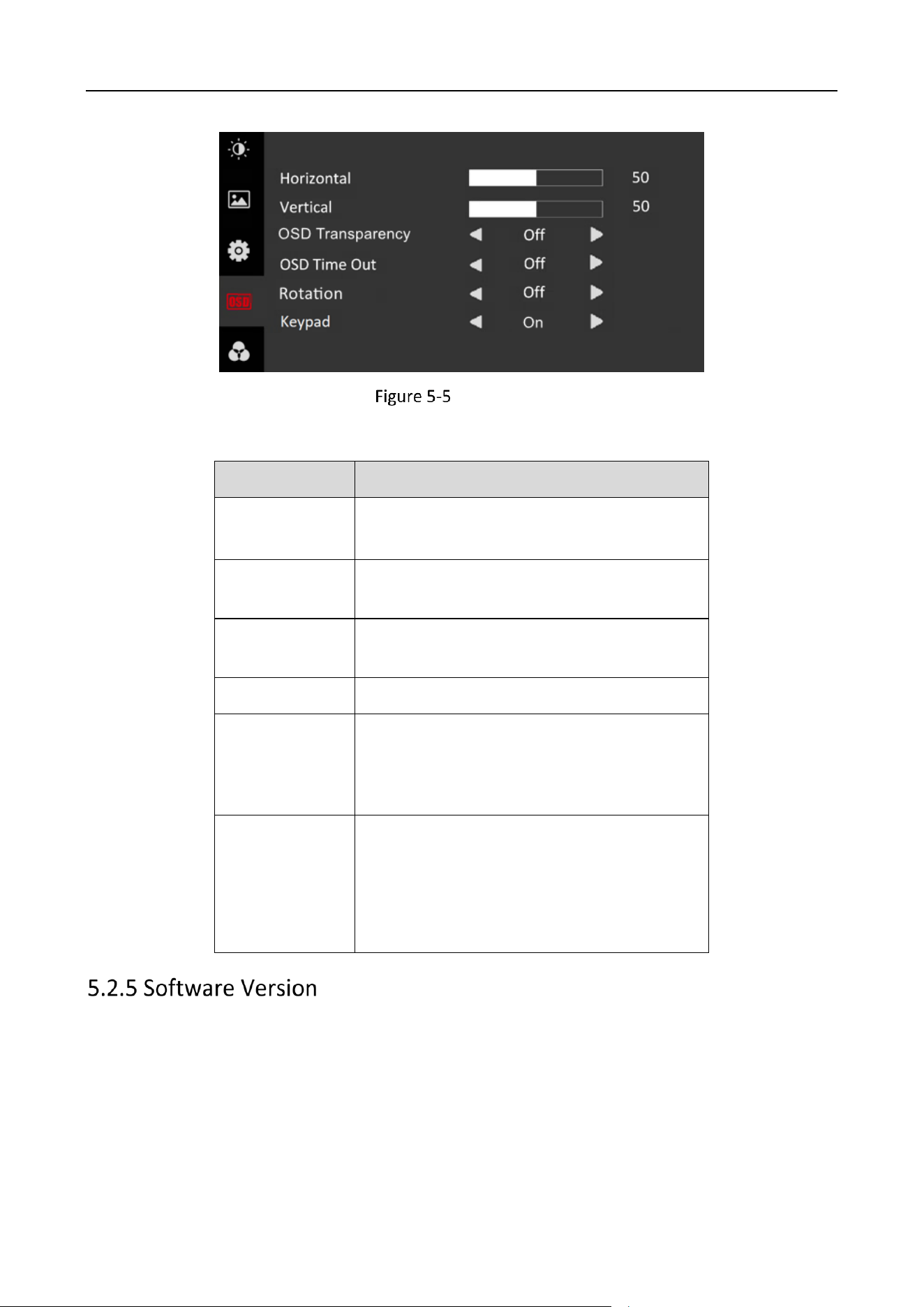
OSD parameters concern the display effect of OSD, such as position, transparency, and rotation.
32-Inch Monitor • User Manual
11
OSD Settings
Table 5-5 OSD Parameters
Parameter
Description
Horizontal
Ranges from 0 to 100. Adjust the OSD at the
horizontal level.
Vertical
Ranges from 0 to 100. Adjust the OSD at the
vertical level.
Transparency
Off/Weak/Medium/Strong. Adjust the
transparent degree of the OSD.
OSD Time Out
Off/5 S/15 S/30 S/1 Min
Rotation
Off/On. If Rotation is enabled, the OSD will
rotate 270 degrees clockwise, and the point
(0, 0) represents the original point and is at
the bottom-left corner.
Keypad
Set to On by default. If set to Off, OSD will
change within 5 seconds. If there is no
operation within 5 seconds, the system will
exit OSD mode and you can press any
button to see unlock prompt. You can follow
the prompt and hold Menu to unlock.
32-Inch Monitor • User Manual
12
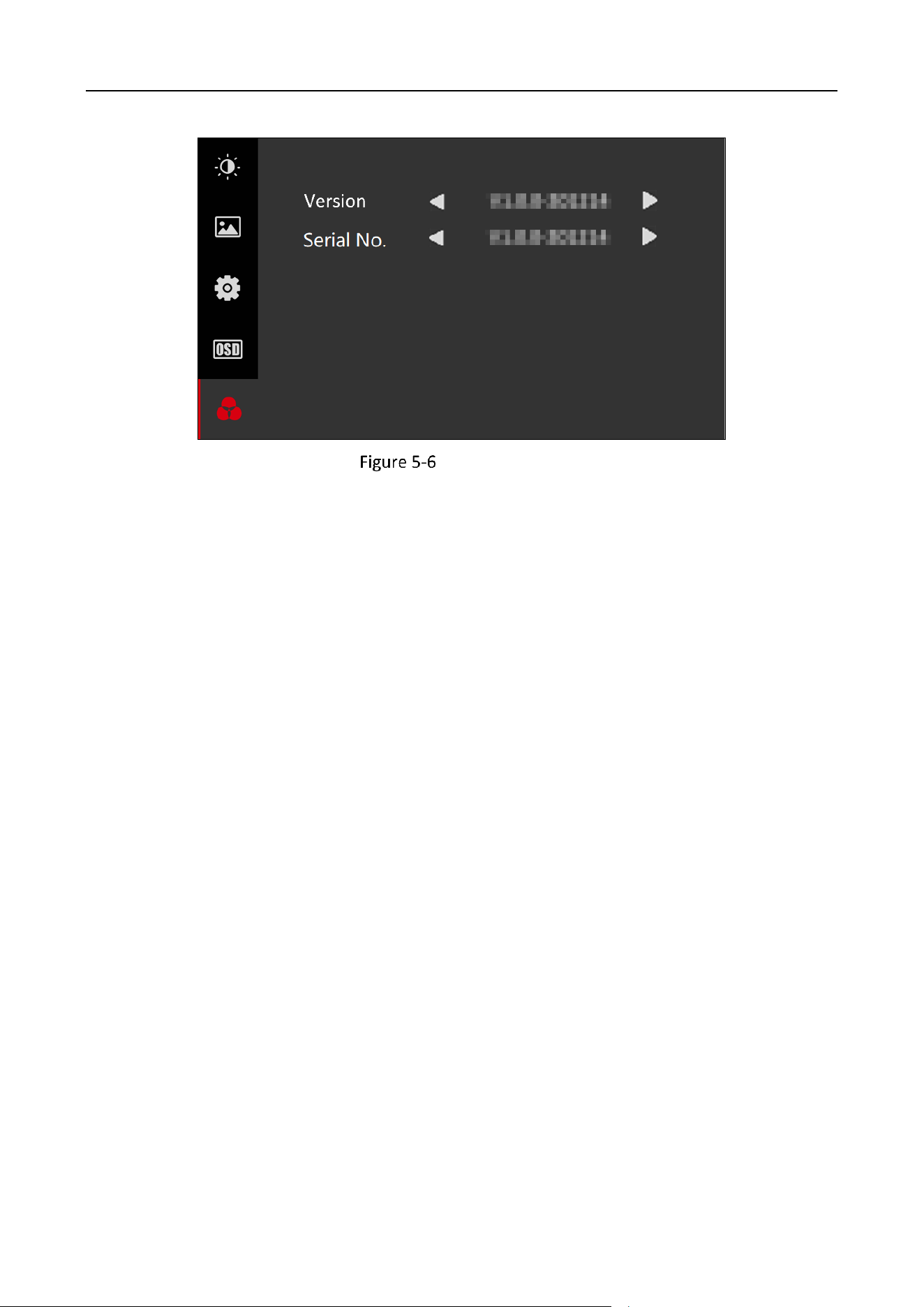
Software Version

0
UD35535B-A