Before using your new product, please read these instructions to prevent any damage.
Antes de usar su producto nuevo, lea este instructivo para prevenir cualquier daño.
USER GUIDE
GUÍA DEL USUARIO
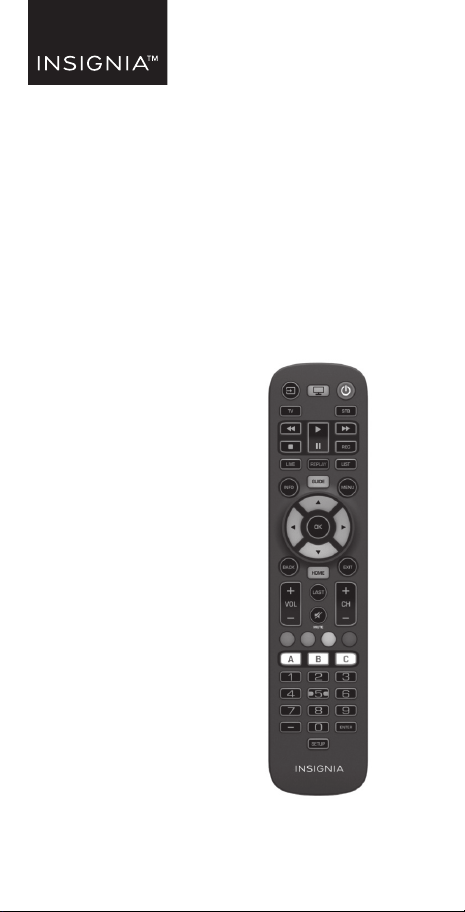
Three-device
Universal Remote
Control remoto universal
para tres dispositivos
NS-RMT3D21

www.insigniaproducts.com
2
English
Contents
Introduction . . . . . . . . . . . . . . . . . . . . . . . . . . . . . . . . . . . 2
IMPORTANT SAFEGUARDS. . . . . . . . . . . . . . . . . . . . . . 2
Features . . . . . . . . . . . . . . . . . . . . . . . . . . . . . . . . . . . . . . . 3
Package contents. . . . . . . . . . . . . . . . . . . . . . . . . . . . . 3
Remote control buttons . . . . . . . . . . . . . . . . . . . . . . 4
Setting up your universal remote control . . . . . . . 6
Installing the batteries. . . . . . . . . . . . . . . . . . . . . . . . 6
Programming and using your remote control. . 6
Controlling the volume on your sound bar or
audio receiver . . . . . . . . . . . . . . . . . . 11
Using channel shortcut macros. . . . . . . . . . . . . . . . 14
Using app shortcut macros . . . . . . . . . . . . . . . . . . . . 15
Understanding and using Activities. . . . . . . . . . . . 17
Troubleshooting . . . . . . . . . . . . . . . . . . . . . . . . . . . . . . 18
Specifications. . . . . . . . . . . . . . . . . . . . . . . . . . . . . . . . . 19
ONE-YEAR LIMITED WARRANTY . . . . . . . . . . . . . . . . 20
ESPAÑOL . . . . . . . . . . . . . . . . . . . . . . . . . . . . . . . . . . . . . 22
Introduction
Thank you for purchasing the Insignia Three-device
Universal Remote Control. This remote can be used to
control a TV, a set top box, and a sound bar or audio
receiver, and boasts several extra features to make the
most of your living room experience.
This manual will help you to set up your Insignia
universal remote control to control three of your
devices and take advantage of its features.
IMPORTANT SAFEGUARDS
1 Read these instructions.
2 Keep these instructions.
3 Heed all warnings.
4 Follow all instructions.

3
Three-device Universal Remote
www.insigniaproducts.com
5 Refer all servicing to qualified service personnel.
6 Remote control batteries should not be exposed to
excessive heat such as sunshine, fire, or the like.
Features
• Controls up to 3 devices – your TV, soundbar and
cable box/satellite receiver
• Easy pre-programing connects to your major brand
devices without needing a code
• A long 30 ft. (9.1 m) range helps you to minimize
remote switching
• Learn-ability feature enables this remote to learn
additional functions from your original remote
• Shortcuts let you program specific keys for quick
access to your favorite channels and streaming
apps
• Audio lock feature adjusts the volume of your
soundbar without changing devices
• Premiere design blends ergonomics and key layout
for easy, enjoyable use
• 2 AAA batteries required (not included)
Package contents
• Three-device universal remote control
•User Guide
• Device Codes
4
www.insigniaproducts.com
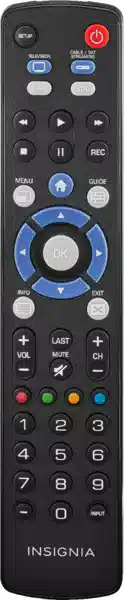
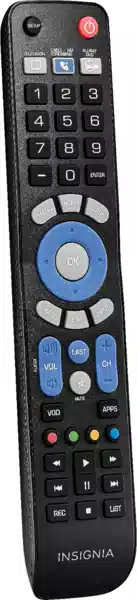
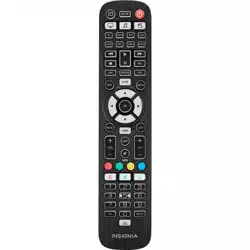
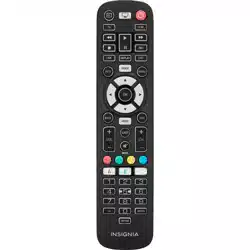
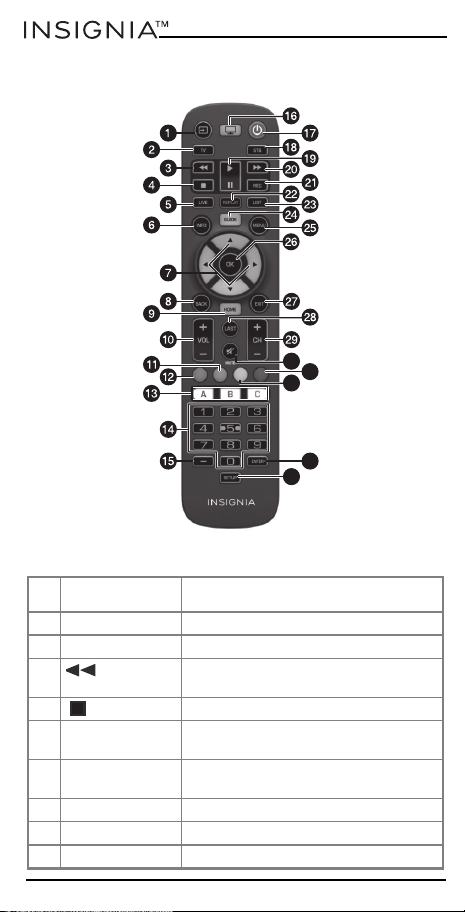
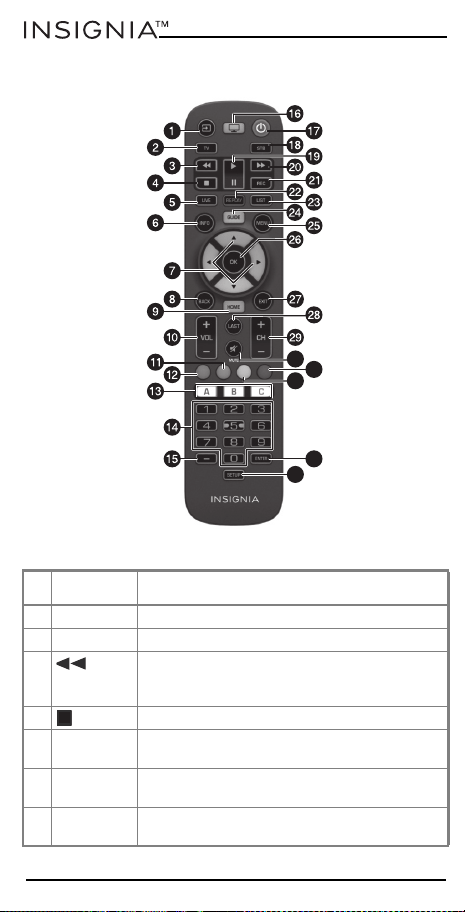
Remote control buttons
# BUTTON PRESS TO...
1 Input Change the signal source.
2 TV Control your TV.
3 (fast
reverse)
Fast reverse device playback.
4 (stop) Stop device playback.
5 LIVE Return to live TV from time shift or
recording.
6 INFO Display information about current
shows or channel.
7 Menu navigation Navigate onscreen menus.
8 BACK Go back one step in an onscreen menu.
9 HOME Go to the home menu.
31
33
34
32
30
5
Three-device Universal Remote
www.insigniaproducts.com
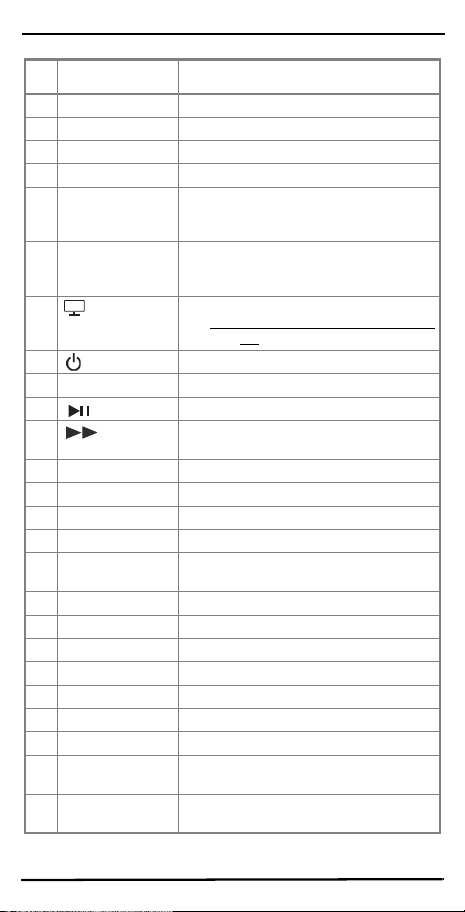
10 VOL + / VOL - Increase or decrease the volume.
11 Green Access news channels.
12 Red Access sports channels.
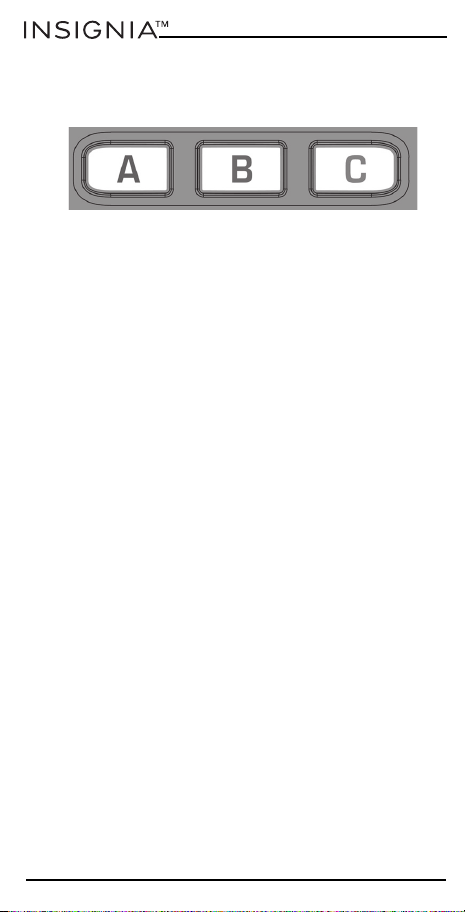
13 A, B, and C Access programmable app shortcuts.
14 Number buttons Select channels on the current device.
On audio devices, press to select
inputs.
15 Dash Select sub-channels or select extra
functions in the Menu mode of your set
top box.
16 (Watch TV) Combines control of your TV and STB.
See Understanding and using Activities
on page 17.
17 (power) Turn on selected device.
18 STB Control your set top box.
19 (play/pause) Play or pause device playback.
20 (fast
forward)
Fast forward device playback.
21 REC Record content.
22 REPLAY Repeat the last 30 seconds.
23 LIST Show a list of recordings.
24 GUIDE Display the program guide.
25 MENU Show the setup menu for the selected
device.
26 OK Select items on the menu.
27 EXIT Exit the menu.
28 LAST Go to the last channel viewed.
29 CH +/ CH - Go to the next or last channel.
30 MUTE Mute the volume of the current device.
31 Blue Access kids channels.
32 Yellow Access movie channels.
33 ENTER Enter the channel selected on the
numeric buttons.
34 SETUP Enter the setup menu for your Insignia
universal remote control.
# BUTTON PRESS TO...
6
www.insigniaproducts.com
Setting up your universal remote control
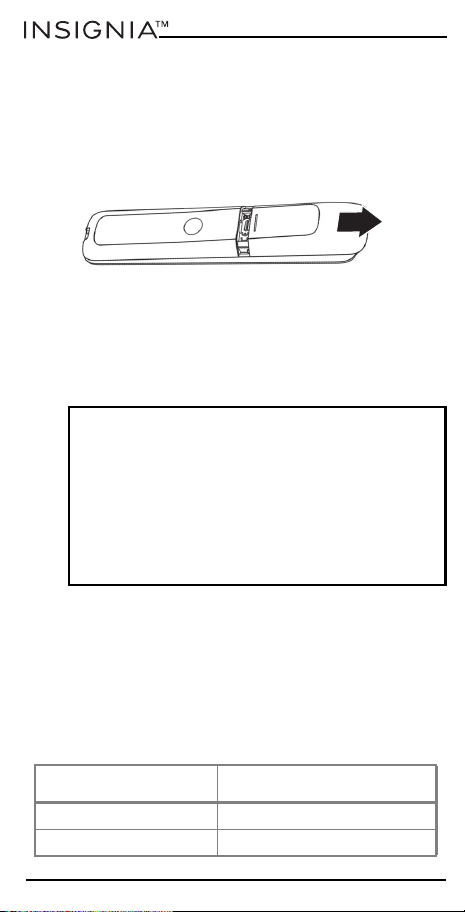
Installing the batteries
Your remote control requires two AAA batteries.
1 Remove the battery compartment cover from the
back of your remote control.
2 Insert two AAA batteries (not included) into the
battery compartment, making sure that the + and -
symbols on the batteries match the + and - symbols
inside the battery compartment.
3 Replace the battery compartment cover.
Programming and using your remote control
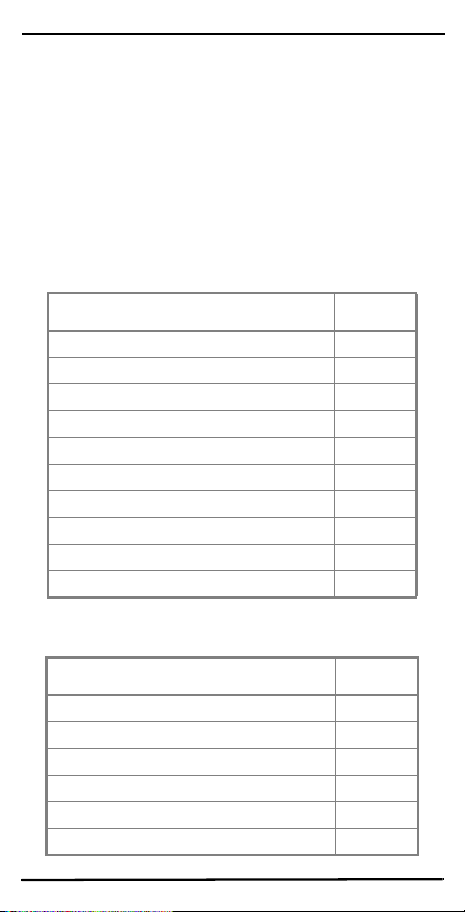
Your Insignia universal remote control is
pre-programmed to control three of the most popular
devices, right out of the box. If you have one of the
following devices, try putting the batteries in and
pressing the corresponding device button (for
example TV or STB), and then press a few function
buttons to see if your remote controls your device.
CAUTIONS:
• Do not spill water or any liquid on your remote
control.
• Do not place your remote control on a wet surface.
• Do not place your remote control in direct sunlight
or near sources of excessive heat.
• If your remote control is not going to be used for a
long time, remove the batteries to avoid any
damage that may be caused by leakage and
corrosion.
PRESS THIS BUTTON DEVICE CONTROLLED
TV Samsung TV
STB Comcast Xfinity Set Top Box
7
Three-device Universal Remote
www.insigniaproducts.com
If your device is not one of those listed above, or you
have extra devices to set up, there are three ways to do
this. The easiest is SimpleSet which is used for the
most common brands and devices.
Setup method 1 - SimpleSet
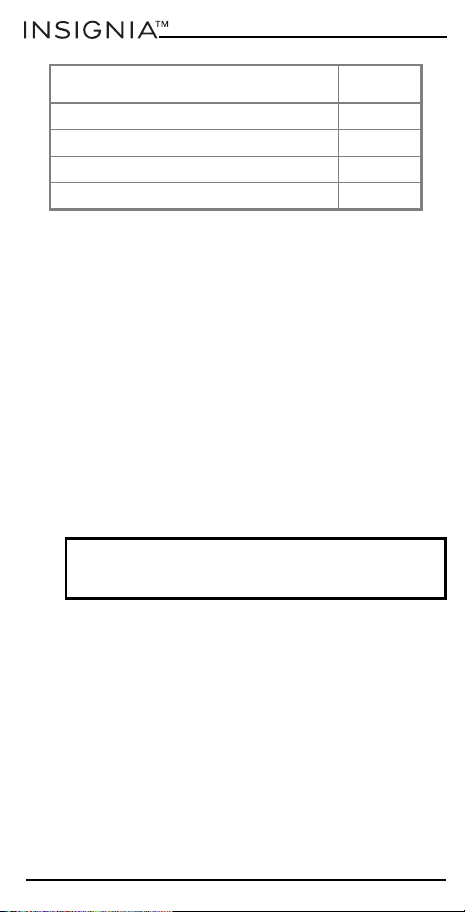
If the brand of your device is shown in the SimpleSet
tables below, you can use the SimpleSet system.
Locate the brand of your device and note the numeric
button associated with it.
TV
STB (set top box)
TV BRAND PRESS
LG 1
Insignia 2
Phillips, Magnavox 3
Roku, Element 4
Samsung, Panasonic 5
Sharp, Hisense 6
Sony, Sanyo 7
TCL, RCA 8
Toshiba, Westinghouse 9
VIZIO 0
STB BRAND PRESS
Bell, Bell Fibe TV, Bell MTS, Sasktel 1
Comcast/Xfinity 2
Cox Communications 3
DIRECTV, AT&T, Sky Mexico 4
DISH Network, Dish Mexico, Izzi Telecom 5
Optimum, Suddenlink, Altice USA 6
8
www.insigniaproducts.com
1 Turn on your device and point the Insignia universal
remote control at it (if you are setting up a
streaming device, make sure a movie or TV program
is playing).
2 Press the device button you want to set up (for
example TV).
3 Press and hold the SETUP button until the LED on
your remote button blinks twice.
4 Press and hold the number button for your brand
and device, as listed in the tables above (or
example, 3 for a Phillips TV). Your remote will send
the power signal every three seconds.
5 Release the button as soon as your device turns off.
The LED blinks twice and your remote will now
operate your device.
Setup method 2 - device codes
If your device brand is not listed in the SimpleSet tables,
you can set up your device by using device codes.
1 Turn on your device and point the Insignia universal
remote control at it.
2 Press the device button you wish to set up (for
example - TV).
3 Press and hold the SETUP button until the LED on
your remote button blinks twice.
Rogers, Cogeco, Vidéotron 7
Shaw, Cable Axion, Eastlink 8
Spectrum 9
Verizon, Frontier Communications, TELUS 0
Note: If one or more buttons do not work as expected,
start again at step 2. Your remote will start with the next
code in memory.
STB BRAND PRESS

9
Three-device Universal Remote
www.insigniaproducts.com
4 Enter the first four-number code listed for your
brand (for example, 1840 for LG). The LED blinks
twice when the last number of the code is entered.
5 Point your remote towards your device and press
the
(power) button. If the device turns off, your
remote is ready to use. If not, repeat steps 2-5 with
the next code in the list.
Setup method 3 - function learning
Your Insignia universal remote control can learn any
function from any other working remote control. This
is a one-time setup that lets you control any infrared
controlled device you have. It also lets you add a
button function that may be missing to a spare button
on the universal remote control.
To do this, make sure that you have all of your original
remote controls handy, and that they have fresh
batteries.
1 Point the original remote control at your Insignia
universal remote control from approximately two
inches away.
2 Press the button on the original remote control for
the device you want to learn functions.
3 Press and hold the SETUP button on your Insignia
universal remote control until the LED under the
device button blinks twice.
4 Press 975. The LED blinks twice.
5 Press the button you want to learn (for example the
TV Power button). The LED begins to blink rapidly.
6 Press the corresponding button on the original
remote (for example the
[power] button). The
LED blinks twice to indicate the button has learned
correctly.

10
www.insigniaproducts.com
7 Repeat steps 5 and 6 for each button you want to
learn.
8 When your remote has learned all the functions you
want, press and hold the SETUP button until the
LED under the device button blinks twice.
Hints
• If the LED shows one long blink at step 6, the
function was not learned. Try again, beginning at
step 5.
• If you find one or more buttons don’t work properly
after set up, you can re-enter the learning mode at
any time by repeating the procedure from step 1.
• If one or more of your original remotes aren’t
working, you can still set up the Insignia universal
remote control by using SimpleSet or the device
code setup.
Deleting a learned function
You can delete a learned function and return that
button to its original state.
1 Press the button for the device for which you want
to delete the function.
2 Press and hold the SETUP button until the LED
under the device button blinks twice.
3 Enter 976. The LED blinks twice.
4 Press the button you want to reset twice. The LED
blinks twice and the learned function has been
deleted.
Notes:
• Your Insignia universal remote can learn from
multiple remotes, but there can only be one
function per button.
• Some remotes send commands differently. If you
find that a function cannot be learned, try holding
down the button on the original remote instead of
pressing and releasing.

11
Three-device Universal Remote
www.insigniaproducts.com
Locking the volume control
If you primarily use one device for controlling volume,
for example the TV, it’s possible to program your
Insignia universal remote control to only control that
device when you use the VOL +, VOL -, or MUTE
buttons.
1 Press and hold the SETUP button until the LED on
your remote button blinks twice.
2 Enter 993. The LED blinks twice.
3 Press the device button for the device to always
control the volume (for example TV). The LED blinks
twice.
Now, pressing the VOL +, VOL -, or MUTE buttons
controls the audio device, no matter what device you
are controlling.
Unlocking the volume control
You can unlock the volume control and return your
Insignia universal remote control to controlling each
device’s volume individually.
1 Press and hold the SETUP button until the LED
under the device button blinks twice.
2 Enter 993. The LED blinks twice. The volume control
is now unlocked.
Controlling the volume on your sound bar or
audio receiver
If you have your TV connected to a sound bar or audio
receiver, you can set up your Insignia universal remote
control to control the volume and mute of those
devices.
12
www.insigniaproducts.com
Using audio SimpleSet
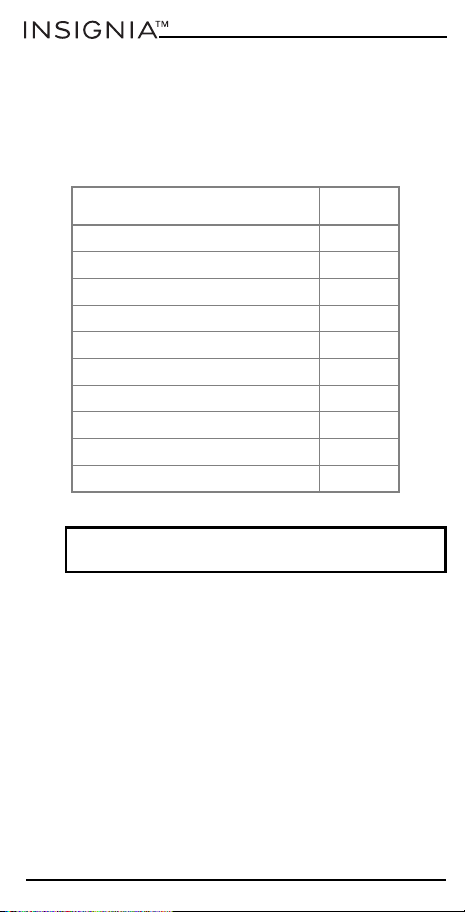
If you have a sound bar or audio device from one of
the brands listed in the table below, you can use the
SimpleSet method to program your remote to control
it. If you do not have one of the brands on the chart,
proceed to the next section.
You can set up your Insignia universal remote control
to control your sound bar or audio device.
1 Make sure that your TV and sound bar or audio
device are both powered on and that there is
something playing that you can hear (this
procedure will test the Mute function).
2 Press and hold the SETUP and VOL + buttons
together until the LED under the TV button blinks
twice.
BRAND PRESS
Bose 1
Denon 2
JBL, Polk Audio 3
LG 4
Insignia 5
Onkyo 6
Samsung 7
Sony 8
Yamaha 9
VIZIO, Sonos 0
Note: Each of the brands has a number associated with
it, for example 4 for LG.

13
Three-device Universal Remote
www.insigniaproducts.com
3 Point the Insignia universal remote control at your
sound bar or audio device and hold down the
number button (from the SimpleSet table) for your
audio device brand (for example 4 for LG). Your
remote sends the mute signal to your device every
three seconds.
4 As soon as your sound bar or audio device mutes
the volume, release the number button. The LED
under the TV button blinks twice. Your remote has
found the correct code for your audio device.
5 Press and hold the SETUP and VOL - buttons until
the LED blinks twice. The VOL +, VOL -, and MUTE
buttons now control your audio device.
Using audio setup codes
If your sound bar or audio device is not one of the
brands listed on the SimpleSet table, you can set up
your Insignia universal remote control to control it by
entering a four-number code.
1 Locate the brand of your sound bar or audio system
in the code list.
2 Press and hold the SETUP and VOL - buttons until
the LED under the TV button blinks twice. Your
remote is now ready to be programmed.
3 Enter the first four-number code for your sound bar
or audio device. The LED blinks twice when the last
number is entered.
4 Try the VOL +, VOL -, and MUTE buttons to
determine if they control your sound bar or audio
device. If they work, your remote is set up. If not, try
again from step 1 using the next code in the list.
Resetting volume control
You can reset the volume control to the original
settings.
• Press and hold the SETUP and VOL - buttons until
the LED under the device button blinks four times.
The volume control is now reset.
14
www.insigniaproducts.com
If you have set up your Insignia universal remote
control to control the volume of a sound bar or audio
device, the Watch TV Activity (see Understanding and
using Activities on page 17) will automatically control
the volume of this device.
Using channel shortcut macros
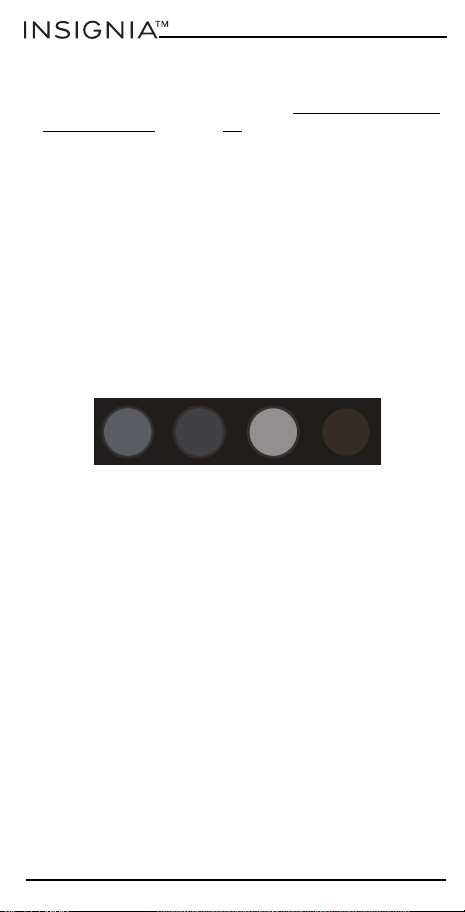
In addition to their normal functionality, the red,
green, yellow and blue buttons can be reprogrammed
to select your favorite channels by genre. Initially, if
you press each of these buttons, they have the same
function as your original remote. However, you can
reprogram them so that when the buttons are held
down for three seconds they send a channel number,
then when held down again for three seconds, they
will send another channel number. You can group
these channels by genre, such as sports, news, movies,
and kids.
Adding channel shortcut macros
For example, if the first three sports channels are 200,
201, and 239, you can assign shortcuts to these
channels on the red (Sports) button.
1 Select the device you normally use to watch live TV.
For example, the STB button to select your set top
box.
2 Hold down the SETUP button and the red (Sports)
button until the LED blinks twice.
3 Enter the first channel number. In this case, 200.
4 Press and release the red (Sports) button.
5 Enter the next channel number. In this example
201.
6 Press and release the red (Sports) button again.
RED
GREEN YELLOW
BLUE

15
Three-device Universal Remote
www.insigniaproducts.com
7 Repeat steps 3 and 4 for each channel shortcut you
want to add.
8 After entering the last channel number you want,
press and hold the SETUP button. The red LED
blinks twice and the shortcuts are now
programmed.
When watching live TV, hold down the red (Sports)
button for three seconds and the first programmed
channel is selected (in this example channel 200). Hold
down the red (Sports) button again for three seconds
and the next programmed channel is selected (in this
example channel 201).
Using the same procedure, you can program each of
the colored buttons with different groups of channel
numbers. Each colored button has a different icon
(sports, news, movies, and kids) to help you remember
the types of channels that you have programmed
there. You can program up to 10 different channel
numbers per button.
Canceling channel shortcut macros
You can also reset the colored buttons to default.
1 Press the device button you have programmed (for
example STB).
2 Press and hold the SETUP button and the colored
button you want to reset (for example the green
[News] button) until the LED blinks twice.
3 Press the green (News) button again.
4 Press and hold the SETUP button until the LED
blinks twice. The button is now reset.
Using app shortcut macros
Your Insignia universal remote control features three
app shortcut buttons that can be used to open apps
on your smart devices. If your original remote control
has a Netflix, Amazon Prime Video, and/or YouTube
button, the app shortcut buttons can be programmed
to perform the same function. Even if your original
remote control did not have buttons like this, but still
16
www.insigniaproducts.com
had the ability to connect to a streaming service, you
can use these buttons as shortcuts by programming a
macro to them.
Most AV devices which are connected to the internet,
such as smart TVs, have one or more applications they
can run to access TV viewing via the internet.
Examples of these would be Netflix, YouTube, Amazon
Prime, or Hulu.
Adding app shortcut macros
To program the macro, you need to know the device
you normally use to access the service, and the
sequence of buttons you need to press to bring up the
service you want. For example, some Panasonic TVs
can start Netflix by pressing the Apps button, then
Menu Down twice, and finally the OK button.
1 Determin
e the sequence required for your device,
then turn the device on.
2 Hold down the app shortcut button (A, B, or C) until
the LED blinks twice and stays lit.
3 Press the device button for the device you want to
use for the macro (for example TV).
4 Press the appropriate buttons in the normal
sequence. Your remote will operate your device and
the macro is recorded in real time.
5 After you have finished the sequence and the
streaming service has started on your device, hold
down the app shortcut button (A, B, or C) until the
LED blinks twice and turns off. The macro is now
stored.

17
Three-device Universal Remote
www.insigniaproducts.com
Tips
• Make sure that the Insignia universal remote
control Is operating the device you want to use to
access the streaming service before programming.
• If the macro doesn't work as expected, repeat the
same sequence to try to program it again.
• When programming, wait for your device to
respond. Your remote will remember the timing.
• The app shortcut macro is tied to one device. Make
sure you are watching the correct device.
Understanding and using Activities
Using a standard universal remote control, if you want
to control several different devices you need to press
different device buttons in order to control each
device individually. Using the Insignia universal
remote control, you can create an Activity, with which
you can group a combination of devices and not have
to switch control between them.
For example, if want to control the input of your TV,
the channels and guide of your DirecTV STB, and the
volume of your sound bar, you would need to swap
between these devices by pressing the TV and STB
buttons. On the Insignia universal remote control,
these devices can be grouped into a single Activity. So
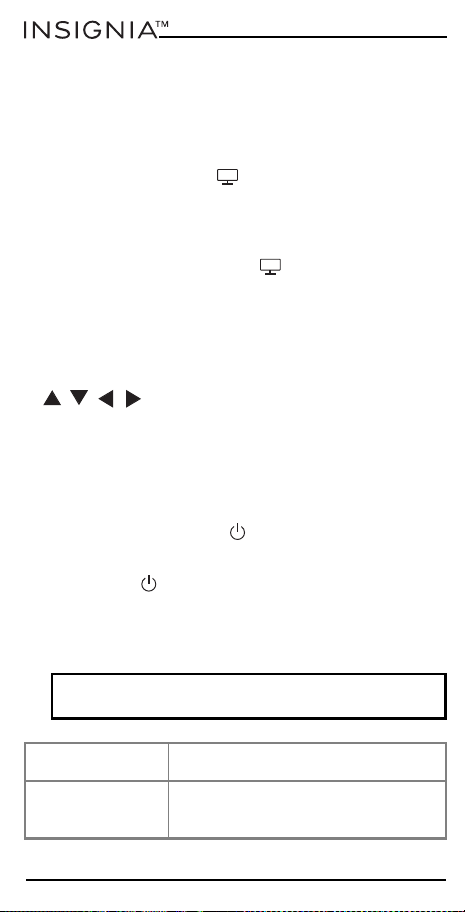
by pressing the button for the Watch TV Activity (
),
the input button will control the TV, the VOL +, VOL -,
and MUTE buttons will control the sound bar, and all
of the other buttons will control the set top box.
There are several devices you can combine.
• Combination 1 – TV + STB + AUDIO (default)
• Combination 2 – TV + STB
• Combination 3 – TV + AUDIO
If you set the default devices for any Activity on the
Insignia universal remote control (for example TV, STB,
and Audio for the Watch TV Activity), that Activity will
be set up automatically on your remote.
If you have set up your remote to control the volume
of a sound bar or audio device (see Controlling the
volume on your sound bar or audio receiver on page
11), the Watch TV Activity will automatically control
the volume of that device.
18
www.insigniaproducts.com
You can also program Activities yourself.
1 Press and hold the SETUP button until the LED
under the device button blinks twice. The LED
under the current device button stays lit.
2 Press the Activity button you want to set up (for
example, Watch TV (
)).
3 Press the number of the combination you want to
set (for example 3, for TV + audio in the Watch TV
Activity). The LED blinks twice.
4 Press the Activity button (
). You can return to
controlling by device by using any device button.
Using the AV shift
The INPUT button selects the input on your TV (most
TVs use a menu to select from a list of inputs). When
the INPUT button is pressed in an Activity, the MENU
,
, , , and OK buttons temporarily (10
seconds) control the TV. If the OK button is pressed, or
no button is pressed for ten seconds, these buttons
revert to controlling the relevant device for the Activity
(for example STB in the Watch TV Activity).
Using the power macro
If you press and hold the
(power) button for two
seconds in any Activity, your remote sends the power
signal to each device within that Activity. For example,
pressing the
(power) button in the default setting
for the Watch TV Activity turns both the TV and set top
box on or off.
Troubleshooting
CAUTION: Do not try to repair your remote yourself.
Doing so invalidates the warranty.
PROBLEM SOLUTION
The LED does not
turn on when a
button is pressed.
Replace the batteries.
19
Three-device Universal Remote
www.insigniaproducts.com
Specifications
The LED turns on,
but my remote does
not control my
device.
• Make sure that your remote is
programmed to your device.
• Make sure that your remote is set to
the correct mode (TV or STB).
I have tried all of the
codes for my
device’s brand, but
none of them work.
See Setup method 2 - device codes
on
page 8
.
After programming,
some of my
remote’s functions
don’t work
If you still have your original (working)
remote, you can teach your new remote
its functions. See Setup method 3 -
function learning on page 9.
Dimensions
(HxWxD)
1.8 x .8 x 8 in. (45.7 x 20.3 x 203.2 mm)
Range 30 ft. (9.1 m)
Control Three devices
Power requirements Two AAA batteries (not provided)
PROBLEM SOLUTION

20
www.insigniaproducts.com
ONE-YEAR LIMITED WARRANTY
Definitions:
The Distributor* of Insignia branded products warrants to you, the
original purchaser of this new Insignia-branded product (“Product”), that
the Product shall be free of defects in the original manufacturer of the
material or workmanship for a period of one (1) year from the date of
your purchase of the Product (“Warranty Period”).
For this warranty to apply, your Product must be purchased in the United
States or Canada from a Best Buy branded retail store or online at
www.bestbuy.com or www.bestbuy.ca and is packaged with this
warranty statement.
How long does the coverage last?
The Warranty Period lasts for 1 year (365 days) from the date you
purchased the Product. Your purchase date is printed on the receipt you
received with the Product.
What does this warranty cover?
During the Warranty Period, if the original manufacture of the material or
workmanship of the Product is determined to be defective by an
authorized Insignia repair center or store personnel, Insignia will (at its
sole option): (1) repair the Product with new or rebuilt parts; or (2)
replace the Product at no charge with new or rebuilt comparable
products or parts. Products and parts replaced under this warranty
become the property of Insignia and are not returned to you. If service of
Products or parts are required after the Warranty Period expires, you
must pay all labor and parts charges. This warranty lasts as long as you
own your Insignia Product during the Warranty Period. Warranty
coverage terminates if you sell or otherwise transfer the Product.
How to obtain warranty service?
If you purchased the Product at a Best Buy retail store location or from a
Best Buy online website (www.bestbuy.com or www.bestbuy.ca), please
take your original receipt and the Product to any Best Buy store. Make
sure that you place the Product in its original packaging or packaging
that provides the same amount of protection as the original packaging.
To obtain warranty service, in the United States and Canada call
1-877-467-4289. Call agents may diagnose and correct the issue over the
phone.
Where is the warranty valid?
This warranty is valid only in the United States and Canada at Best Buy
branded retail stores or websites to the original purchaser of the product
in the country where the original purchase was made.
What does the warranty not cover?
This warranty does not cover:
• Food, beverage, and or medicine loss/spoilage.
• Customer instruction/education
•Installation
• Set up adjustments

21
Three-device Universal Remote
www.insigniaproducts.com
• Cosmetic damage
• Damage due to weather, lightning, and other acts of God, such as
power surges
• Accidental damage
•Misuse
•Abuse
•Negligence
• Commercial purposes/use, including but not limited to use in a place
of business or in communal areas of a multiple dwelling
condominium or apartment complex, or otherwise used in a place of
other than a private home.
• Modification of any part of the Product, including the antenna
• Display panel damaged by static (non-moving) images applied for
lengthy periods (burn-in).
• Damage due to incorrect operation or maintenance
• Connection to an incorrect voltage or power supply
• Attempted repair by any person not authorized by Insignia to service
the Product
• Products sold “as is” or “with all faults”
• Consumables, including but not limited to batteries (i.e. AA, AAA, C
etc.)
• Products where the factory applied serial number has been altered
or removed
• Loss or Theft of this product or any part of the product
• Display panels containing up to three (3) pixel failures (dots that are
dark or incorrectly illuminated) grouped in an area smaller than one
tenth (1/10) of the display size or up to five (5) pixel failures
throughout the display. (Pixel based displays may contain a limited
number of pixels that may not function normally.)
• Failures or Damage caused by any contact including but not limited
to liquids, gels or pastes.
REPAIR REPLACEMENT AS PROVIDED UNDER THIS WARRANTY IS YOUR
EXCLUSIVE REMEDY FOR BREACH OF WARRANTY. INSIGNIA SHALL NOT
BE LIABLE FOR ANY INCIDENTAL OR CONSEQUENTIAL DAMAGES FOR
THE BREACH OF ANY EXPRESS OR IMPLIED WARRANTY ON THIS
PRODUCT, INCLUDING, BUT NOT LIMITED TO, LOST DATA, LOSS OF USE
OF YOUR PRODUCT, LOST BUSINESS OR LOST PROFITS. INSIGNIA
PRODUCTS MAKES NO OTHER EXPRESS WARRANTIES WITH RESPECT TO
THE PRODUCT, ALL EXPRESS AND IMPLIED WARRANTIES FOR THE
PRODUCT, INCLUDING BUT NOT LIMITED TO ANY IMPLIED WARRANTIES
OF AND CONDITIONS OF MERCHANTABILITY AND FITNESS FOR A
PARTICULAR PURPOSE, ARE LIMITED IN DURATION TO THE WARRANTY
PERIOD SET FORTH ABOVE AND NO WARRANTIES, WHETHER EXPRESS
OR IMPLIED, WILL APPLY AFTER THE WARRANTY PERIOD. SOME STATES,
PROVINCES AND JURISDICTIONS DO NOT ALLOW LIMITATIONS ON HOW
LONG AN IMPLIED WARRANTY LASTS, SO THE ABOVE LIMITATION MAY
NOT APPLY TO YOU. THIS WARRANTY GIVES YOU SPECIFIC LEGAL
RIGHTS, AND YOU MAY ALSO HAVE OTHER RIGHTS, WHICH VARY FROM
STATE TO STATE OR PROVINCE TO PROVINCE.
Contact Insignia:
1-877-467-4289
www.insigniaproducts.com
INSIGNIA is a trademark of Best Buy and its affiliated companies.
*Distributed by Best Buy Purchasing, LLC
7601 Penn Ave South, Richfield, MN 55423 U.S.A
©2022 Best Buy. All rights reserved.

22
www.insigniaproducts.com
ESPAÑOL
Índice
Introducción . . . . . . . . . . . . . . . . . . . . . . . . . . . . . . . . . . 22
MEDIDAS DE SEGURIDAD IMPORTANTES . . . . . . . 22
Características. . . . . . . . . . . . . . . . . . . . . . . . . . . . . . . . . 23
Contenido del paquete. . . . . . . . . . . . . . . . . . . . . . . 23
Botones del control remoto . . . . . . . . . . . . . . . . . . 24
Configuración del control remoto universal . . . . 26
Instalación de las pilas . . . . . . . . . . . . . . . . . . . . . . . 26
Programación y uso de su control remoto
universal . . . . . . . . . . . . . . . . . . . . . . . . . . . . . . . . 27
Cómo controlar el volumen de la barra de sonido
o del receptor de audio. . . . . . . . . . . . . . . . . . . . . 32
Uso de macros de acceso directo al canal. . . . . . . 35
Uso de macros de acceso directo a la aplicación 37
Comprensión y uso de las actividades . . . . . . . . . . 38
Localización y corrección de fallas. . . . . . . . . . . . . . 40
Especificaciones . . . . . . . . . . . . . . . . . . . . . . . . . . . . . . . 41
GARANTÍA LIMITADA DE UN AÑO . . . . . . . . . . . . . . 42
Introducción
Gracias por comprar el control remoto universal de
tres dispositivos Insignia. Este control remoto puede
utilizarse para controlar un televisor, un descodificador
y una barra de sonido o un receptor de audio, y cuenta
con varias funciones adicionales para aprovechar al
máximo su experiencia en la habitación.
Este manual le ayudará a configurar su control remoto
universal Insignia para controlar tres de sus
dispositivos y aprovechar sus funciones.
MEDIDAS DE SEGURIDAD IMPORTANTES
1 Lea estas instrucciones.
2 Conserve estas instrucciones.
3 Preste atención a todas las advertencias.
4 Siga todas las instrucciones.
5 Remita todas las reparaciones a personal de
servicio calificado.

23
Control remoto universal para tres dispositivos
www.insigniaproducts.com
6 Las pilas del control remoto no deben ser expuestas
al calor excesivo tales como la luz del sol, el fuego,
etc.
Características
• Controla hasta 3 dispositivos: el televisor, la barra
de sonido y el receptor de cable/satélite
• La preprogramación práctica se conecta a los
dispositivos de las principales marcas sin necesidad
de un código
• Un largo alcance de 30 pies (9.1 m) le ayuda a
minimizar la conmutación remota
• La función de aprendizaje permite a este control
remoto aprender funciones adicionales de su
control remoto original
• Los accesos directos le permiten programar
botones específicos para acceder rápidamente a
sus canales y aplicaciones de transmisión en
continuo favoritas
• La función de bloqueo de audio ajusta el volumen
de la barra de sonido sin cambiar de dispositivo
• El diseño de vanguardia combina la ergonomía y la
disposición de las teclas para un uso fácil y
agradable
• Se necesitan 2 pilas AAA (no incluidas)
Contenido del paquete
• Control remoto universal para tres dispositivos
•Guía del usuario
• Códigos De Los Dispositivos
24
www.insigniaproducts.com
Botones del control remoto
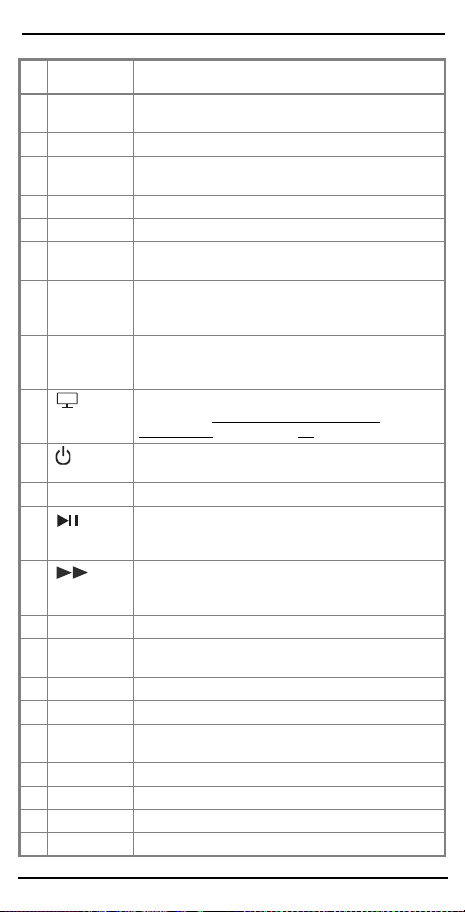
N.°
BOTÓN PRESIONE PARA...
1 Entrada Cambiar la fuente de la señal.
2 Televisor Controlar su televisor
3
(rebobinad
o rápido)
Reproducir rápida del dispositivo en reversa.
4 (detener) Detener la reproducción del dispositivo.
5 EN DIRECTO Volver a la televisión en directo desde el
cambio de hora o la grabación.
6 INFO Mostrar información sobre los programas o
canales actuales.
7Navegación
del menú
Navegar por los menús en pantalla.
31
33
34
32
30
25
Control remoto universal para tres dispositivos
www.insigniaproducts.com
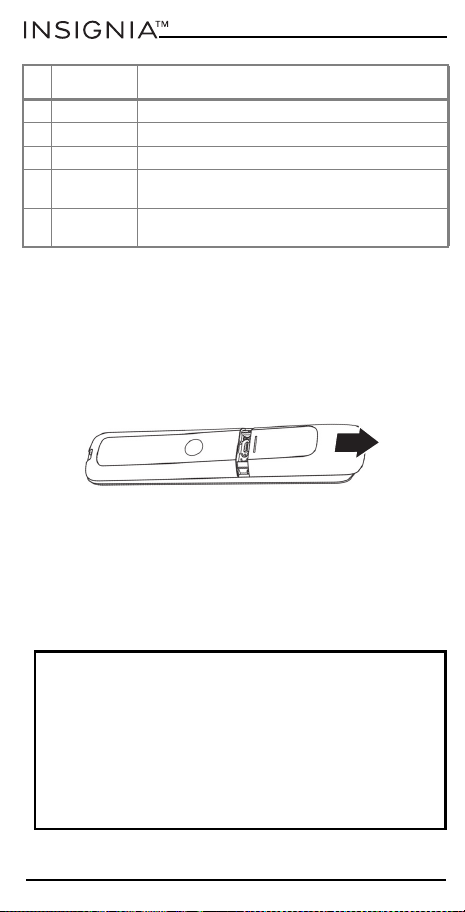
8PARTE
POSTERIOR
Retroceder un paso en un menú en pantalla.
9 INICIO Ir al menú de inicio.
10 VOL + /
VOL -
Aumentar o disminuir el volumen.
11 Verde Acceder a los canales noticiosos.
12 Rojo Acceder a los canales de deportes.
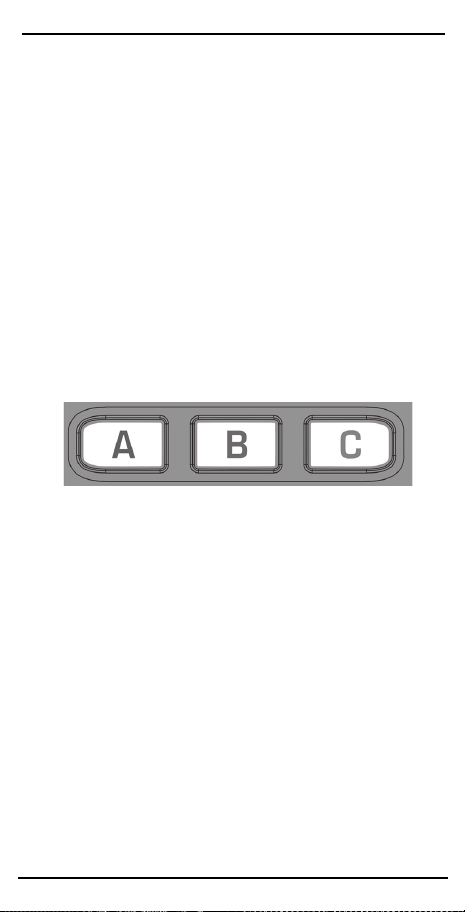
13 A, B y C Acceder a los accesos directos programables
de las aplicaciones.
14 Botones
numéricos
Seleccionar los canales en el dispositivo actual.
En los dispositivos de audio, presione para
seleccionar las entradas.
15 Guion Seleccionar los subcanales o las funciones
adicionales en el modo Menú de su
descodificador.
16 (Ver
televisión)
Combinar el control de su televisor y STB.
Refiérase a Comprensión y uso de las
actividades en la página 38.
17
(encendido)
Encender el dispositivo seleccionado.
18 STB Controlar su decodificador.
19
(reproducir/
pausar)
Reproducir o pausar la reproducción del
dispositivo.
20
(avance
rápido)
Avanzar rápido la reproducción del dispositivo.
21 GRABAR Grabar el contenido.
22 REPRODUC
CIÓN
Repetir los últimos 30 segundos.
23 LISTA Muestra una lista de grabaciones.
24 GUÍA Muestra la guía de programas.
25 MENÚ Mostrar el menú de configuración del
dispositivo seleccionado.
26 ACEPTAR Seleccionar los elementos del menú.
27 SALIR Salir del menú.
28 ÚLTIMO Ir al último canal visto.
29 CH +/ CH - Ir al canal siguiente o al último.
N.°
BOTÓN PRESIONE PARA...
26
www.insigniaproducts.com
Configuración del control remoto
universal
Instalación de las pilas
El control remoto necesita dos pilas AAA.
1 Retire la tapa del compartimento de las pilas de la
parte posterior del control remoto.
2 Inserte dos pilas AAA (no incluidas) en el
compartimento de las pilas, asegurándose de que
los símbolos + y - de las pilas coinciden con los
símbolos + y - del interior del compartimento.
3 Vuelva a colocar la cubierta del compartimiento de
la pila.
30 SILENCIAR Silenciar el volumen del dispositivo actual.
31 Azul Acceder a los canales infantiles.
32 Amarillo Acceder a los canales de películas.
33 ENTRAR Introducir el canal seleccionado en los botones
numéricos.
34 CONFIGUR
ACIÓN
Programar de su control remoto universal
Insignia
PRECAUCIONES:
• No derrame agua ni coloque ningún líquido sobre su
control remoto.
• No coloque su control remoto sobre una superficie
mojada.
• No coloque su control remoto bajo la luz solar directa o
cerca de fuentes que produzcan excesivo calor.
• Si no va a usar su control remoto por un tiempo
extendido, retire las pilas para evitar cualquier daño que
pueda ser causado por fuga y corrosión.
N.°
BOTÓN PRESIONE PARA...

27
Control remoto universal para tres dispositivos
www.insigniaproducts.com
Programación y uso de su control remoto
universal
Su control remoto universal Insignia está
preprogramado para controlar tres de los dispositivos
más populares, nada más al sacarlo de la caja. Si tiene
uno de los siguientes dispositivos, pruebe a poner las
pilas y a presionar el botón del dispositivo
correspondiente (por ejemplo, TV o STB) y presione
algunos botones de función para ver si el control
remoto universal controla su dispositivo.
Si su dispositivo no es uno de los mencionados
anteriormente, o tiene dispositivos adicionales que
configurar, hay tres maneras de hacerlo. El más sencillo
es SimpleSet, que se utiliza para las marcas y
dispositivos más comunes.
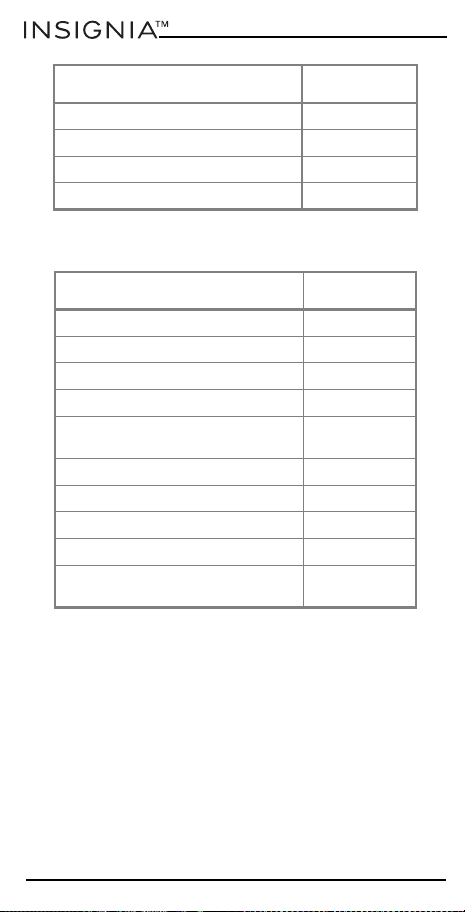
Método de configuración 1 - SimpleSet
Si la marca de su dispositivo aparece en las tablas de
SimpleSet, puede utilizar el sistema SimpleSet.
Localice la marca de su dispositivo y anote el botón
numérico asociado a ella.
Telev isor
PRESIONE ESTE
BOTÓN
DISPOSITIVO CONTROLADO
Televisor Samsung TV
STB Descodificador Comcast Xfinity
MARCA DE TELEVISOR PRESIONE
LG 1
Insignia 2
Phillips, Magnavox 3
Roku, Element 4
Samsung, Panasonic 5
Sharp, Hisense 6
28
www.insigniaproducts.com
STB (Caja decodificadora)
1 Encienda su dispositivo y apunte el control remoto
universal Insignia hacia él (si está configurando un
dispositivo de transmisión en continuo, asegúrese
de que se esté reproduciendo una película o un
programa de televisión).
2 Presione el botón del dispositivo que desee
configurar (por ejemplo TV).
3 Mantenga presionado el botón SETUP hasta que el
LED en su control remoto parpadee dos veces.
Sony, Sanyo 7
TCL, RCA 8
Toshiba, Westinghouse 9
VIZIO 0
MARCA STB PRESIONE
Bell, Bell Fibe TV, Bell MTS, Sasktel 1
Comcast/Xfinity 2
Cox Communications 3
DIRECTV, AT&T, Sky Mexico 4
DISH Network, Dish Mexico, Izzi
Tele com
5
Optimum, Suddenlink, Altice USA 6
Rogers, Cogeco, Vidéotron 7
Shaw, Cable Axion, Eastlink 8
Spectrum 9
Verizon, Frontier Communications,
TELUS
0
MARCA DE TELEVISOR PRESIONE

29
Control remoto universal para tres dispositivos
www.insigniaproducts.com
4 Mantenga presionado el botón numérico
correspondiente a su marca y dispositivo, como se
indica en las tablas anteriores (o ejemplo, 3 para un
televisor Phillips). El control remoto enviará la señal
de encendido cada tres segundos.
5 Suelte el botón en cuanto su dispositivo se apague.
El LED parpadea dos veces y el control remoto ya
puede hacer funcionar el aparato.
Método de configuración 2 - códigos de dispositivo
Si la marca de su dispositivo no aparece en las tablas
de SimpleSet, puede configurar su dispositivo
utilizando códigos del dispositivo.
1 Encienda su dispositivo y apunte el control remoto
universal Insignia hacia él.
2 Presione el botón del dispositivo que desee
configurar (por ejemplo TV).
3 Mantenga presionado el botón SETUP hasta que el
LED en su control remoto parpadee dos veces.
4 Introduzca el primer código de cuatro números de
su marca (por ejemplo, 1840 para LG). El LED
parpadea dos veces cuando se introduce el último
número del código.
5 Apunte el control remoto hacia su dispositivo y
presione el botón
(encendido). Si el dispositivo
se apaga, su control remoto está listo para ser
utilizado. Si no es así, repita los pasos 2-5 con el
siguiente código de la lista.
Nota: Si uno o más botones no funcionan como se
espera, comience de nuevo en el paso 2. Su control
remoto comenzará con el siguiente código en la
memoria.

30
www.insigniaproducts.com
Método de configuración 3 - aprendizaje de
funciones
Su control remoto universal Insignia puede aprender
cualquier función de cualquier otro control remoto
que funcione. Esta es una configuración única que le
permite controlar cualquier dispositivo controlado por
infrarrojos que tenga. También le permite añadir una
función de botón que pueda faltar a un botón libre del
control remoto universal.
Para ello, asegúrese de tener a mano todos los
controles remotos originales y de que tengan pilas
nuevas.
1 Apunte el control remoto original hacia su control
remoto universal Insignia a unas dos pulgadas de
distancia.
2 Presione el botón del control remoto original para
el dispositivo que desea aprender las funciones.
3 Mantenga presionado el botón SETUP de su
control remoto universal Insignia hasta que el LED
situado debajo del botón del dispositivo parpadee
dos veces.
4 Presione 975. El indicador LED parpadeará dos
veces.
5 Presione el botón que desea que aprenda (por
ejemplo, el botón de encendido del televisor). El
LED comienza a parpadear rápidamente.
6 Presione el botón correspondiente del control
remoto original (por ejemplo, el botón
[encendido]). El LED parpadea dos veces para
indicar que el botón se ha aprendido
correctamente.

31
Control remoto universal para tres dispositivos
www.insigniaproducts.com
7 Repita los pasos 5 a 6 para cada botón que quiere
que se aprenda.
8 Cuando el control remoto haya aprendido todas las
funciones que desea, mantenga presionado el
botón SETUP (Configuración) hasta que el LED
debajo del botón del dispositivo parpadee dos
veces.
Consejos:
• Si el LED muestra un parpadeo largo en el paso 6,
no se aprendió la función. Pruebe de nuevo,
empezando por el paso 5.
• Si después de la configuración, uno o varios
botones no funcionan correctamente, puede volver
a entrar en el modo de aprendizaje en cualquier
momento repitiendo el procedimiento desde el
paso 1.
• Si uno o varios de sus controles remotos originales
no funcionan, aun puede configurar el control
remoto universal Insignia utilizando SimpleSet o la
configuración del código del dispositivo.
Eliminación de una función aprendida
Puede eliminar una función aprendida y devolver ese
botón a su estado original.
1 Presione el botón del aparato cuya función desea
eliminar.
2 Mantenga presionado el botón SETUP
(Configuración) hasta que el LED debajo del botón
del dispositivo parpadee dos veces.
3 Ingrese 976. El indicador LED parpadeará dos
veces.
Notas:
• Su control remoto universal Insignia puede aprender
de varios controles remotos, pero sólo puede haber
una función por botón.
• Algunos controles remotos envían comandos
diferentes. Si encuentra que una función no puede
ser aprendida, intente mantener presionado el
botón del control remoto original en lugar de
presionar y soltar.

32
www.insigniaproducts.com
4 Presione dos veces el botón que desea restablecer.
El LED parpadea dos veces y la función aprendida
se ha borrado.
Bloqueo del control de volumen
Si utiliza principalmente un dispositivo para controlar
el volumen, por ejemplo el televisor, es posible
programar el control remoto universal Insignia para
que sólo controle ese dispositivo cuando utilice los
botones VOL +, VOL - o MUTE.
1 Mantenga presionado el botón SETUP hasta que el
LED en su control remoto parpadee dos veces.
2 Ingrese 993. El indicador LED parpadeará dos
veces.
3 Presione el botón del dispositivo para controlar
siempre el volumen (por ejemplo, el televisor). El
indicador LED parpadeará dos veces.
Ahora, al presionar los botones VOL +, VOL - o MUTE
se controla el dispositivo de audio,
independientemente del dispositivo que esté
controlando.
Desbloqueo del control de volumen
Puede desbloquear el control de volumen y hacer que
su control remoto universal Insignia vuelva a controlar
el volumen de cada dispositivo individualmente.
1 Mantenga presionado el botón SETUP
(Configuración) hasta que el LED debajo del botón
del dispositivo parpadee dos veces.
2 Ingrese 993. El indicador LED parpadeará dos
veces. El control de volumen está ahora
desbloqueado.
Cómo controlar el volumen de la barra de
sonido o del receptor de audio
Si tiene su televisor conectado a una barra de sonido o
a un receptor de audio, puede configurar su control
remoto universal Insignia para controlar el volumen y
el silencio de esos dispositivos.
33
Control remoto universal para tres dispositivos
www.insigniaproducts.com
Utilización del audio SimpleSet
Si tiene una barra de sonido o un dispositivo de audio
de una de las marcas que aparecen en la tabla
siguiente, puede utilizar el método SimpleSet para
programar su control remoto para controlarlo. Si no
tiene una de las marcas de la tabla, pase a la sección
siguiente.
Puedes configurar su control remoto universal Insignia
para controlar su barra de sonido o dispositivo de
audio.
1 Asegúrese de que el televisor y la barra de sonido o
el dispositivo de audio estén ambos encendidos y
de que se esté reproduciendo algo que se pueda oír
(este procedimiento probará la función de silencio).
2 Mantenga presionado los botones SETUP y VOL +
(Configuración y volumen) hasta que el LED debajo
del botón TV parpadee dos veces.
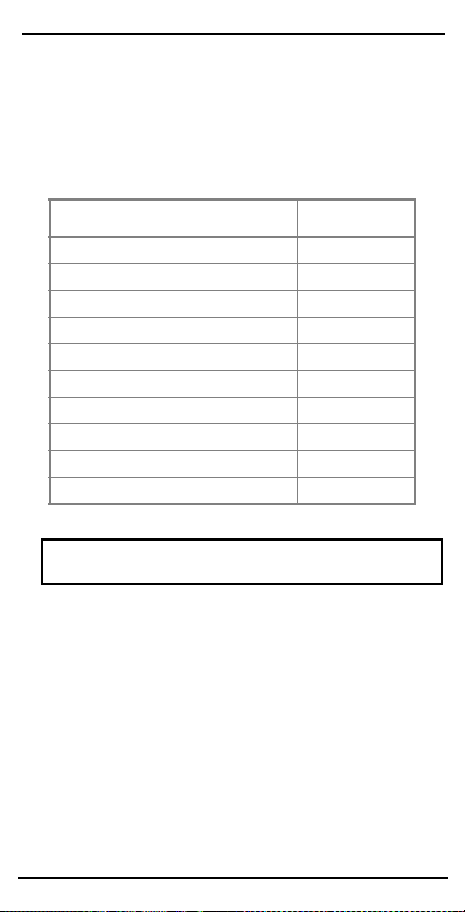
MARCA PRESIONE
Bose 1
Denon 2
JBL, Polk Audio 3
LG 4
Insignia 5
Onkyo 6
Samsung 7
Sony 8
Yamaha 9
VIZIO, Sonos 0
Nota: Cada una de las marcas tiene un número asociado,
por ejemplo 4 para LG.

34
www.insigniaproducts.com
3 Apunte el control remoto universal Insignia a su
barra de sonido o dispositivo de audio y mantén
presionado el botón numérico (de la tabla
SimpleSet) correspondiente a la marca de su
dispositivo de audio (por ejemplo, el 4 para LG). El
control remoto envía la señal de silenciar al
dispositivo cada tres segundos.
4 En cuanto su barra de sonido o dispositivo de audio
silencie el volumen, suelte el botón numérico. El
LED debajo del botón TV parpadea dos veces. Su
control remoto ha encontrado el código correcto
para su dispositivo de audio.
5 Mantenga presionado el botón SETUP y VOL -
(Configuración y volumen -) hasta que el LED
parpadee dos veces. Los botones VOL +, VOL - y
MUTE (Silenciar) controlan ahora su dispositivo de
audio.
Uso de los códigos de configuración de audio
Si su barra de sonido o dispositivo de audio no es una
de las marcas que aparecen en la tabla de SimpleSet,
puede configurar su control remoto universal Insignia
para controlarlo introduciendo un código de cuatro
números.
1 Localice la marca de su barra de sonido o sistema
de audio en la lista de códigos.
2 Mantenga presionado los botones SETUP y VOL -
(Configuración y volumen-) hasta que el LED
debajo del botón TV parpadee dos veces. Su
control remoto está ahora listo para ser
programado.
3 Introduzca el primer código de cuatro números de
su barra de sonido o dispositivo de audio. El LED
parpadea dos veces cuando se introduce el último
número.
4 Los botones VOL +, VOL - y MUTE (Silenciar) para
determinar si controlan su barra de sonido o
dispositivo de audio. Si funcionan, su control
remoto está configurado. Si no es así, inténtelo de
nuevo desde el paso 1 utilizando el código
siguiente de la lista.

35
Control remoto universal para tres dispositivos
www.insigniaproducts.com
Restablecimiento del control de volumen
Puedes restablecer el control de volumen a la
configuración original.
• Mantenga presionados los botones SETUP y VOL -
hasta que el LED debajo del botón del dispositivo
parpadee cuatro veces. El control de volumen se ha
restablecido.
Si ha configurado el control remoto universal Insignia
para controlar el volumen de una barra de sonido o de
un dispositivo de audio, la Actividad Ver TV (ver
Comprensión y uso de las actividades
en la página 38)
controlará automáticamente el volumen de este
dispositivo.
Uso de macros de acceso directo al canal
Además de su funcionalidad normal, los botones rojo,
verde, amarillo y azul pueden reprogramarse para
seleccionar sus canales favoritos por género. Al
principio, si presiona cada uno de estos botones,
tienen la misma función que su control remoto
original. Sin embargo, puede reprogramarlos para que
cuando los botones se presionan durante tres
segundos envíen un número de canal, y cuando se
vuelvan a mantener presionados durante tres
segundos, envíen otro número de canal. Puede
agrupar estos canales por género, como deportes,
noticias, películas y infantiles.
Adición de macros de acceso directo al canal
Por ejemplo, si los tres primeros canales de deportes
son 200, 201 y 239, puede asignar accesos directo a
estos canales en el botón rojo (Deportes).
1 Seleccione el dispositivo que utiliza normalmente
para ver la televisión en directo. Por ejemplo, el
botón STB para seleccionar su descodificador.
ROJO
VERDE AMARILLO
AZUL

36
www.insigniaproducts.com
2 Mantenga presionado el botón SETUP
(Configuración) y el botón rojo (Deportes) hasta
que el LED parpadee dos veces.
3 Introduzca el primer número de canal. En este caso,
200.
4 Presione y suelte el botón rojo (Deportes).
5 Introduzca el número de canal siguiente. En este
ejemplo 201.
6 Presione y suelte de nuevo el botón rojo (Deportes).
7 Repita los pasos 3 y 4 para cada acceso directo de
canal que desee añadir.
8 Después de introducir el último número de canal
que desee, mantenga presionado el botón SETUP.
El LED rojo parpadea dos veces y los accesos
directos ya están programados.
Cuando vea la televisión en vivo, presione el botón
rojo (Deportes) durante tres segundos y se
seleccionará el primer canal programado (en este
ejemplo el canal 200). Presione de nuevo el botón rojo
(Deportes) durante tres segundos y se seleccionará el
siguiente canal programado (en este ejemplo el canal
201).
Utilizando el mismo procedimiento, puede programar
cada uno de los botones de color con diferentes
grupos de números de canales. Cada botón de color
tiene un icono diferente (deportes, noticias, películas y
infantiles) para ayudarle a recordar los tipos de canales
que has programado allí. Puedes programar hasta 10
números de canal diferentes por botón.
Cancelación de las macros de acceso directo al canal
También puedes restablecer los botones de color de
forma predeterminada.
1 Presione el botón del dispositivo que haya
programado (por ejemplo STB).
2 Mantenga presionado el botón SETUP y el botón
de color que desee restablecer (por ejemplo, el
botón verde [Noticias]) hasta que el LED parpadee
dos veces.
37
Control remoto universal para tres dispositivos
www.insigniaproducts.com
3 Presione de nuevo el botón verde (Noticias).
4 Mantenga presionado el botón SETUP hasta que el
LED parpadee dos veces. El botón se ha
restablecido.
Uso de macros de acceso directo a la aplicación
Su control remoto universal Insignia cuenta con tres
botones de acceso directo app que pueden utilizarse
para abrir aplicaciones en sus dispositivos inteligentes.
Si su control remoto universal original tiene un botón
de Netflix, Amazon Prime Video o YouTube, los
botones de acceso directo de la aplicación pueden
programarse para realizar la misma función. Incluso si
su control remoto universal original no tenía botones
como éste, pero sí la capacidad de conectarse a un
servicio de reproducción en continuo, puede utilizar
estos botones como accesos directos programando
una macro para ellos.
La mayoría de los dispositivos audiovisuales que se
conectan a Internet, como los televisores inteligentes,
tienen una o varias aplicaciones que pueden ejecutar
para acceder a la visualización de la televisión a través
de Internet. Algunos ejemplos serían Netflix, YouTube,
Amazon Prime o Hulu.
Adición de macros de acceso directo a la aplicación
Para programar la macro, necesita conocer el
dispositivo que utiliza normalmente para acceder al
servicio, y la secuencia de botones que debe presionar
para que aparezca el servicio que desea. Por ejemplo,
algunos televisores Panasonic pueden iniciar Netflix
presionando el botón Apps, luego Menu Down dos
veces, y finalmente el botón OK.
1 Determine la secuencia requerida para su
dispositivo, luego encienda el dispositivo.

38
www.insigniaproducts.com
2 Mantenga presionado un botón de acceso directo
de la aplicación (A, B o C) hasta que el LED
parpadee dos veces y se quede iluminado.
3 Presione el botón del dispositivo que desea utilizar
para la macro (por ejemplo TV).
4 Presione los botones correspondientes en la
secuencia normal. El control remoto universal
operará el dispositivo y la macro se grabará en
tiempo real.
5 Cuando haya terminado la secuencia y el servicio
de transmisión se haya iniciado en su dispositivo,
mantenga presionado el botón de acceso directo a
la aplicación (A, B o C) hasta que el LED parpadee
dos veces y se apague. La macro está ahora
guardada.
Consejos
• Asegúrese de que el control remoto universal
Insignia esté operando el dispositivo que desea
utilizar para acceder al servicio de transmisión antes
de programarlo.
• Si la macro no funciona como se esperaba, repita la
misma secuencia para intentar programarla de
nuevo.
• Al programar, espere a que su dispositivo responda.
Su control remoto recordará el tiempo.
• La macro de acceso directo a la aplicación está
vinculada a un dispositivo. Asegúrese de que esté
viendo el dispositivo correcto.
Comprensión y uso de las actividades
Con un control remoto universal estándar, si desea
controlar varios dispositivos diferentes tiene que
presionar diferentes botones de dispositivos para
controlar cada uno de ellos individualmente. Con el
control remoto universal Insignia, puede crear una
Activity, (Actividad), con la que puede agrupar una
combinación de dispositivos y no tener que cambiar el
control entre ellos.
Por ejemplo, si desea controlar la entrada de su
televisor, los canales y la guía de su DirecTV STB, y el
volumen de su barra de sonido, tendría que cambiar

39
Control remoto universal para tres dispositivos
www.insigniaproducts.com
entre estos dispositivos presionando los botones TV y
STB. En el control remoto universal Insignia, estos
dispositivos pueden agruparse en una sola actividad.
Así, al presionar el botón Watch TV Activity (
), el
botón de entrada controlará el TELEVISOR, los
botones VOL +, VOL - y MUTE controlarán la barra de
sonido, y todos los demás botones controlarán el
descodificador.
Hay varios dispositivos que puede combinar.
• 1 combinación - TV + STB + AUDIO
(predeterminada)
• 2 combinación - TV + STB
• 3 combinación - TV + AUDIO
Si establece los dispositivos predeterminados para
cualquier Actividad en el control remoto universal
Insignia (por ejemplo, TV, STB y Audio para la Actividad
Ver TV), esa Actividad se configurará automáticamente
en su control remoto.
Si ha configurado el control remoto universal para
controlar el volumen de una barra de sonido o de un
dispositivo de audio (ver Cómo controlar el volumen
de la barra de sonido o del receptor de audio en la
página 32), la Actividad ver TV controlará
automáticamente el volumen de ese dispositivo.
También puede programar usted mismo las
Actividades.
1 Mantenga presionado el botón SETUP
(Configuración) hasta que el LED debajo del botón
del dispositivo parpadee dos veces. El LED bajo el
botón del dispositivo actual permanece encendido.
2 Presione el botón de actividad que desea
configurar (por ejemplo, Ver TV (
)).
3 Presione el número de la combinación que desee
establecer (por ejemplo 3, para TV + audio en la
actividad Ver TV). El indicador LED parpadeará dos
veces.
4 Presione el botón de Actividad (
). Puede volver
al control por dispositivo utilizando cualquier
botón del dispositivo.
40
www.insigniaproducts.com
Utilización de AV shift
El botón INPUT selecciona la entrada de su televisor
(la mayoría de los televisores utilizan un menú para
seleccionar entre una lista de entradas). Cuando se
presiona el botón INPUT en una actividad, los botones
MENU ,
, , , y OK controlan temporalmente
(10 segundos) el televisor. Si se presiona el botón OK, o
no se presiona ningún botón durante diez segundos,
estos botones vuelven a controlar el dispositivo
correspondiente a la Actividad (por ejemplo STB en la
Actividad Ver TV).
Uso de la macro de encendido
Si presione el botón
(encendido) por dos segundos
en cualquiera Actividad, su control remoto envía la
señal de encendido a cada dispositivo dentro de esa
Actividad. Por ejemplo, al presionar el botón
(encendido) en la configuración predeterminada de la
actividad Ver TV, se encienden o apagan tanto el
televisor como el descodificador.
Localización y corrección de fallas
CUIDADO: No intente reparar su control remoto usted
mismo. Al hacer esto invalida la garantía.
PROBLEMA SOLUCIÓN
El LED no se
enciende
cuando se
presiona un
botón.
Sustituya las pilas.
El LED se
enciende, pero
mi control
remoto no
controla mi
dispositivo.
• Asegúrese de que su control remoto esté
programado para su dispositivo.
• Asegúrese de que su control remoto esté
ajustado en el modo correcto (TV o STB).
41
Control remoto universal para tres dispositivos
www.insigniaproducts.com
Especificaciones
He probado
todos los
códigos para la
marca de mi
dispositivo,
pero ninguno
de ellos
funciona.
Refiérase a Método de configuración 2 -
códigos de dispositivo en la página 29.
Después de la
programación,
algunas de las
funciones de
mi control
remoto no
funcionan
Si todavía tenga su control remoto original
(funcionando), se puede aprender a su nuevo
control remoto sus funciones. Refiérase a
Método de configuración 3 - aprendizaje de
funciones en la página 30.
Dimensiones (alto
x ancho x prof.)
1.8 x 0.8 x 8 pulg. (45.7 x 20.3 x 203.2 mm)
Rango 30 pies (9.1 m)
Control Tres dispositivos
Requisitos de
potencia
Requiere dos pilas AAA (no incluidas)
PROBLEMA SOLUCIÓN

42
www.insigniaproducts.com
GARANTÍA LIMITADA DE UN AÑO
Descripción:
El distribuidor* de los productos de la marca Insignia le garantiza a usted,
el comprador original de este producto nuevo de la marca Insignia
(“Producto”), que éste se encontrará libre de defectos de material o de
mano de obra en su fabricación original por un período de un (1) año a
partir de la fecha de compra del Producto (“Período de garantía”).
Para que esta garantía se aplique, su Producto tiene que haberse
comprado en los Estados Unidos o en Canadá con un detallista de la
marca Best Buy o en línea en los sitios www.bestbuy.com o
www.bestbuy.ca y empacado con esta declaración de garantía.
¿Cuánto dura la garantía?
El Período de garantía dura por 1 año (365 días) a partir de la fecha en
que compró el Producto. La fecha de compra se encuentra impresa en el
recibo que recibió con el Producto.
¿Qué es lo que cubre esta garantía?
Durante el Período de garantía, si un centro de reparación autorizado de
Insignia concluye que la fabricación original del material o la mano de
obra del Producto se encuentran defectuosos Insignia (cómo su opción
exclusiva): (1) reparará el Producto con repuestos nuevos o
reconstruidos; o (2) reemplazará el Producto sin costo alguno por un
producto nuevo o reconstruido con características similares. Los
Productos y repuestos reemplazados bajo esta garantía se volverán
propiedad de Insignia y no se le regresarán a usted. Si se requiere la
reparación de Productos o partes después de que se vence el Período de
garantía, usted deberá pagar todos los costos de mano de obra y de
repuestos. Esta garantía estará vigente tanto como usted sea el dueño de
su producto Insignia durante el período de garantía. La cobertura de la
garantía se anula si usted vende o transfiere el Producto.
¿Cómo se obtiene el servicio de garantía?
Si se compró el Producto en una tienda de Best Buy, o en un sitio Web de
Best Buy (www.bestbuy.com o www.bestbuy.ca), lleve su recibo original
y el Producto a cualquier tienda de Best Buy. Asegúrese de volver a
colocar el Producto en su empaque original o en un empaque que
provea la misma protección que el original.
Para obtener servicio de garantía, llame al 1-877-467-4289 en los Estados
Unidos y Canadá. Los agentes de soporte técnico diagnosticarán y
corregirán el problema por teléfono.
¿Dónde es válida la garantía?
Esta garantía sólo es válida en los Estados Unidos y Canadá en las tiendas
de Best Buy o en sus sitios Web para el comprador original del producto
en el país donde se realizó la compra.
¿Qué es lo que no cubre la garantía?
Esta garantía no cubre:
• Pérdida/Deterioro de alimentos, bebidas y o medicamentos.
• Capacitación o instrucción del cliente
•Instalación
• Ajustes de configuración
• Daños cosméticos

43
Control remoto universal para tres dispositivos
www.insigniaproducts.com
• Daños debidos al clima, relámpagos, causas de fuerza mayor, tales
como sobretensiones
• Danos accidentales
• Uso inapropiado
•Abuso
•Negligencia
• Uso o propósito comercial, incluyendo pero no limitado al uso en
centros comerciales o lugares comunes de un condominio de varios
pisos o un edificio de departamentos, o cualquier uso en un lugar
que no sea una casa privada.
• Modificación de alguna parte del Producto, incluyendo la antena
• Un panel de pantalla dañado por la persistencia de imágenes
estáticas (sin movimiento), mostradas por períodos de tiempo
extendido (efecto “burn-in”).
• Daño debido al uso o mantenimiento inapropiado
• Conexión a una fuente de voltaje o de alimentación incorrecta
• Intento de reparación por cualquier persona que no sea autorizada
por Insignia para reparar el Producto
• Productos vendidos “tal cual” (en el estado en que se encuentran) o
“con todas sus fallas”
• Consumibles, incluyendo pero no limitado a pilas (tipo AA, AAA, C
etc.)
• Productos en los cuales el número de serie asignado en la fábrica ha
sido alterado o removido
• Pérdida o robo de este producto o cualquier parte de sus
componentes
• Las pantallas con hasta tres (3) pixels defectuosos (puntos oscuros o
incorrectamente iluminados) agrupados en una superficie más
pequeña que la décima parte (1/10) del tamaño de la pantalla ni
hasta cinco (5) pixels defectuosos en toda la superficie de la pantalla.
(Las pantallas basadas en píxeles pueden contener un número
limitado de píxeles que pueden no funcionar normalmente).
• Los defectos o daños causados cómo resultado de cualquier
contacto, sin limitarse a líquidos, geles o pastas.
EL REEMPLAZO O LA REPARACIÓN ESTIPULADOS BAJO ESTA GARANTÍA
SON SU RECURSO EXCLUSIVO POR CUALQUIER VIOLACIÓN DE LA
GARANTÍA. INSIGNIA NO SERÁ RESPONSABLE POR DAÑOS
INCIDENTALES O CONSECUENTES DEBIDO AL INCUMPLIMIENTO DE
CUALQUIER GARANTÍA EXPRESA O IMPLÍCITA RELACIONADA CON ESTE
PRODUCTO, INCLUYENDO PERO SIN LIMITARSE A LA PÉRDIDA DE
INFORMACIÓN, LA PÉRDIDA DE NEGOCIOS O DE GANANCIAS. INSIGNIA
PRODUCTS NO HACE NINGUNA OTRA GARANTÍA EXPRESA E IMPLÍCITA
RELACIONADA A ESTE PRODUCTO, INCLUYENDO PERO SIN LIMITARSE A,
CUALQUIER GARANTÍA IMPLÍCITA Y CONDICIONES DE
COMERCIALIZACIÓN Y IDONEIDAD PARA UN USO PARTICULAR, ESTÁN
LIMITADAS EN DURACIÓN AL PERÍODO DE GARANTÍA DECLARADO
ANTERIORMENTE Y NINGUNA GARANTÍA YA SEA EXPRESA O IMPLÍCITA
SE APLICARÁ DESPUÉS DEL PERÍODO DE GARANTÍA. ALGUNOS ESTADOS,
PROVINCIAS Y JURISDICCIONES NO PERMITEN RESTRICCIONES EN
CUANTO A LA DURACIÓN DE UNA GARANTÍA IMPLÍCITA, ASÍ QUE LA
RESTRICCIÓN ANTERIOR PUEDE NO APLICARSE EN SU CASO. ESTA
GARANTÍA LE DA DERECHOS LEGALES ESPECÍFICOS, Y USTED PUEDE
POSEER OTROS DERECHOS QUE VARÍAN DE ESTADO A ESTADO, O DE
PROVINCIA A PROVINCIA.
Comuníquese con Insignia:
1-877-467-4289
www.insigniaproducts.com
INSIGNIA es una marca comercial de Best Buy y sus compañías asociadas.
* Distribuido por Best Buy Purchasing, LLC
7601 Penn Avenue South, Richfield, MN 55423 E.U.A.
© 2022 Best Buy. Todos los derechos reservados.

V2 ENGLISH/
ESPAÑOL
22-0129
www.insigniaproducts.com
1-877-467-4289 (U.S. and Canada/EE.UU. y Canadá)
INSIGNIA is a trademark of Best Buy and its affiliated companies.
Distributed by Best Buy Purchasing, LLC
7601 Penn Ave South, Richfield, MN 55423 U.S.A
©2022 Best Buy. All rights reserved.
INSIGNIA es una marca comercial de Best Buy y sus compañías asociadas.
Distribuida por Best Buy Purchasing, LLC
7601 Penn Avenue South, Richfield, MN 55423 E.U.A.
© 2022 Best Buy. Todos los derechos reservados.