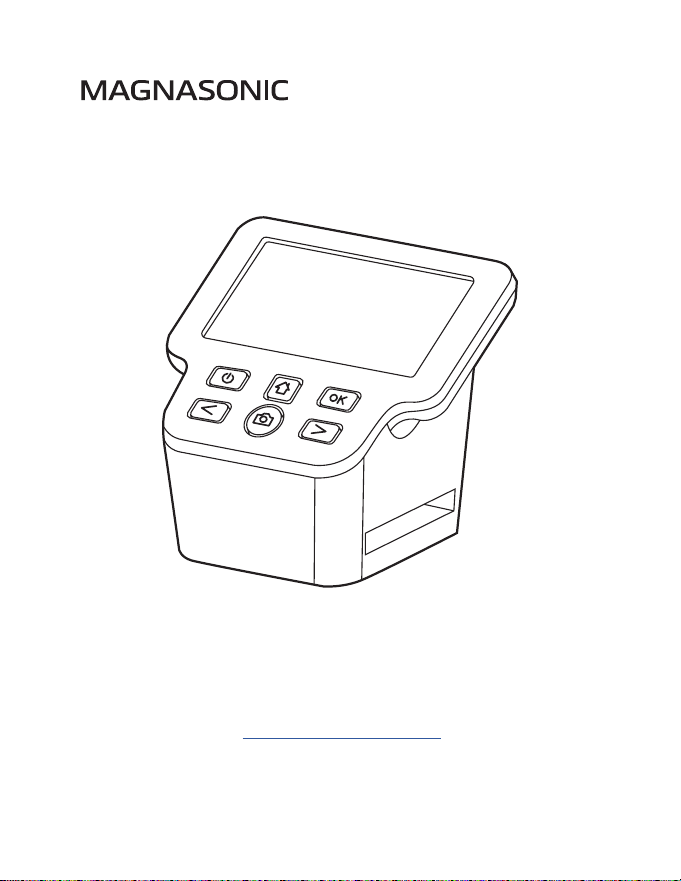
FS71 User Manual v1.2
All-In-One 24MP Film Scanner with HDMI
Thank you for your purchase of this Magnasonic product. Please read
this user manual carefully before using product to ensure proper use.
Keep this manual in a safe place for future reference.
magnasonic.com/support
We reserve the right to change models, congurations, or specication without notice or liability. Product may not
be exactly as shown. © MAGNASONIC®, MAGNASONIC®, the MAGNASONIC® marks may be registered. All other
trademarks are property of their respective owners
Since 1954, Magnasonic has been a leader in developing innovative and unique products. We
are dedicated to empowering people using six key fundamentals: superior quality, performance,
simplicity, style, value and a fanatical obsession with outstanding customer service.
At Magnasonic, our mission is a simple one – create people-driven products that make life’s daily
adventures easier and more fun. We believe everyday experiences should be extraordinary.
Thank you for your purchase of this Magnasonic
®
product.
We hope you enjoy your experience.
Questions?
Give us a chance to help, we’re just a click away.
www.youtube.com/magnasonic
Magnasonic.com/support
Magnasonic.com/contact
Don’t forget to register your product with us!
Magnasonic.com/registration

3
Table Of Contents
What’s Included.....................................................................................................................3
Product Information ............................................................................................................4
Operating Instructions .......................................................................................................6
Main Menu Icons .........................................................................................................6
Cleaning and Care.......................................................................................................7
Powering On Your Film Scanner ............................................................................7
Changing The Language ..........................................................................................8
Prepping Your Film/Slides ........................................................................................8
Using an SD Card .........................................................................................................9
Scanning Your Images ...............................................................................................9
Viewing Your Scanned Images ...............................................................................10
Watching Saved Images From a TV Screen ........................................................11
Downloading Images To Your Computer ...........................................................11
Formatting Your SD Card ..........................................................................................12
FAQ / Troubleshooting........................................................................................................13
Specications .........................................................................................................................14
Magnasonic® Warranty .......................................................................................................15
Important Safety Instructions ..........................................................................................17
Safety Alerts ..................................................................................................................17
Best Practices for Safe Use .......................................................................................17
Cleaning and Care.......................................................................................................18
FCC/HDMI Information .......................................................................................................19
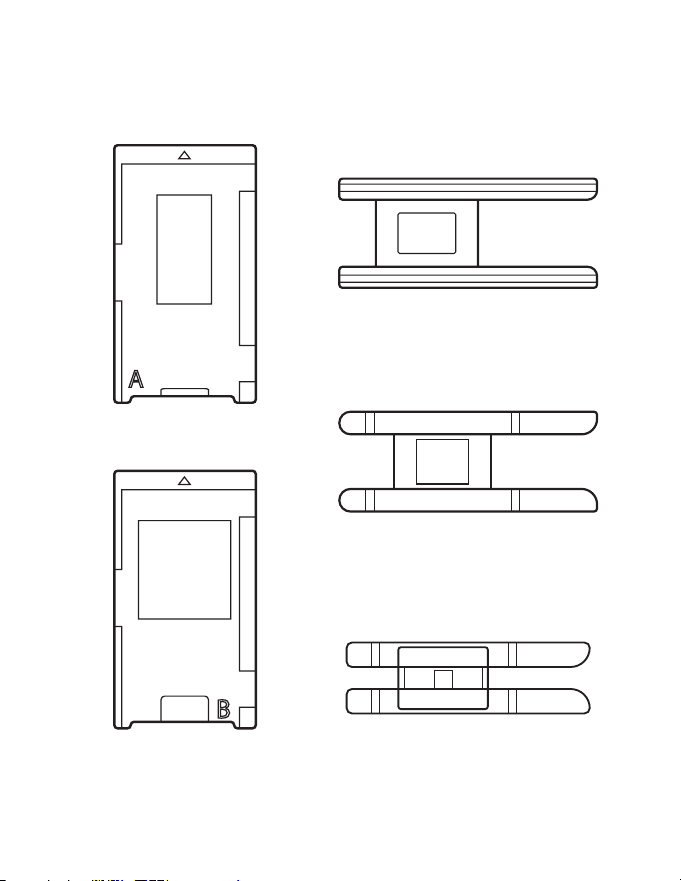
What’s Included
• 24MP All-In-One HDMI Film Scanner
• Slide Adapter
• Negative Film Adapter
• 110 Slide Insert
• 110 Film Insert
• Super 8/8mm Insert
• Mini USB-to-USB Cable
• Cleaning Brush
4
Product Information
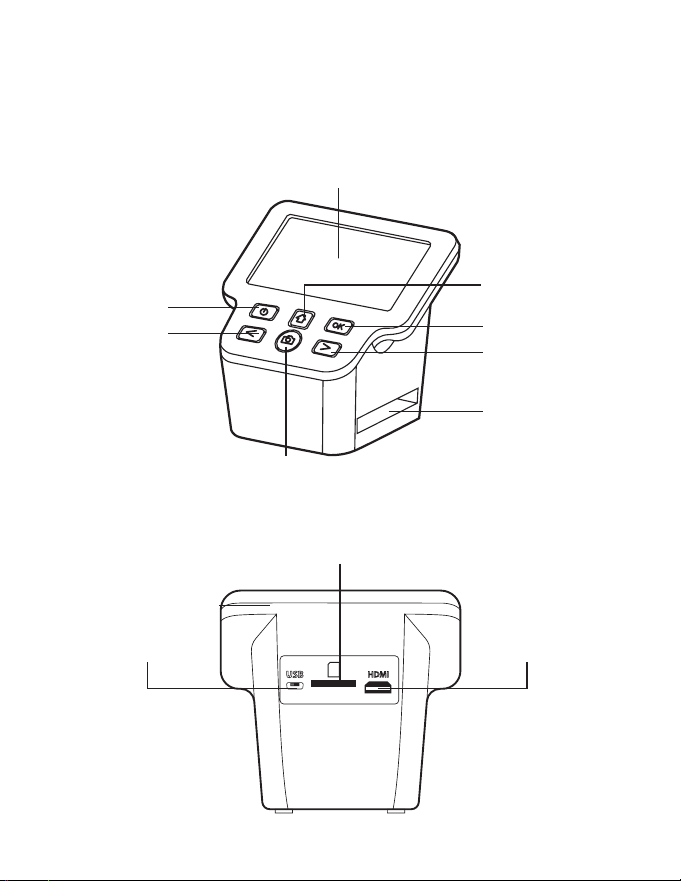
Slide Adapter
Negative Adapter
110 Slide Insert
Super 8/8mm Insert
110 Film Insert
5
Product Information
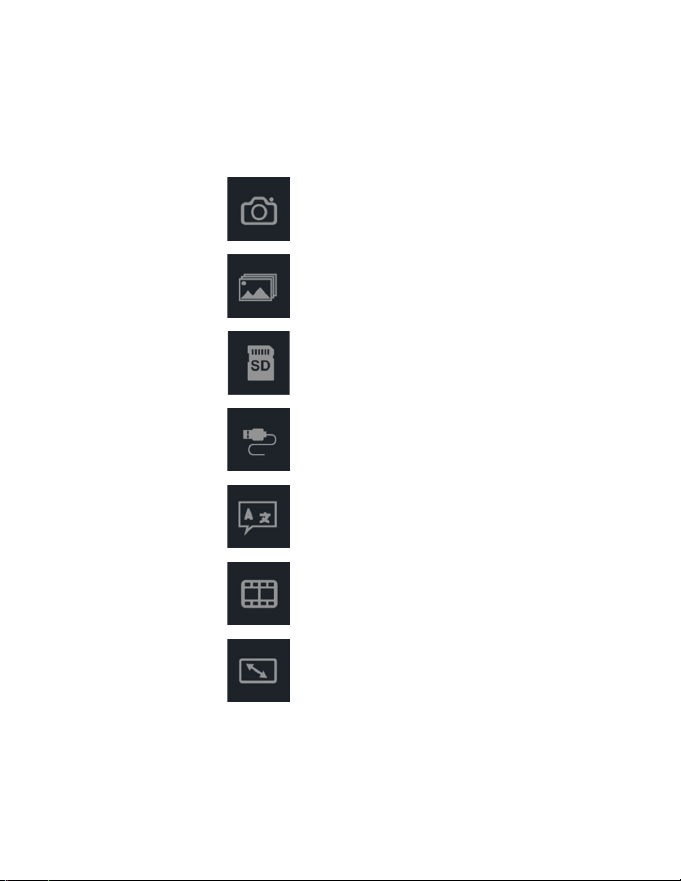
Home Button
OK/Image Settings
Button
Forward/Flip Button
Film/Slide Adapter Slot
Capture Button
Power Button
Back/Mirror
Button
HDMI PortMini USB Port
LCD Screen
SD Card Slot
Front
Back
6
Main Menu Icons
Format SD Card
Connect to PC
Language Setting
Resolution Setting
Capture Images
Gallery
Film Type Setting
7
Operating Instructions
Cleaning and Care
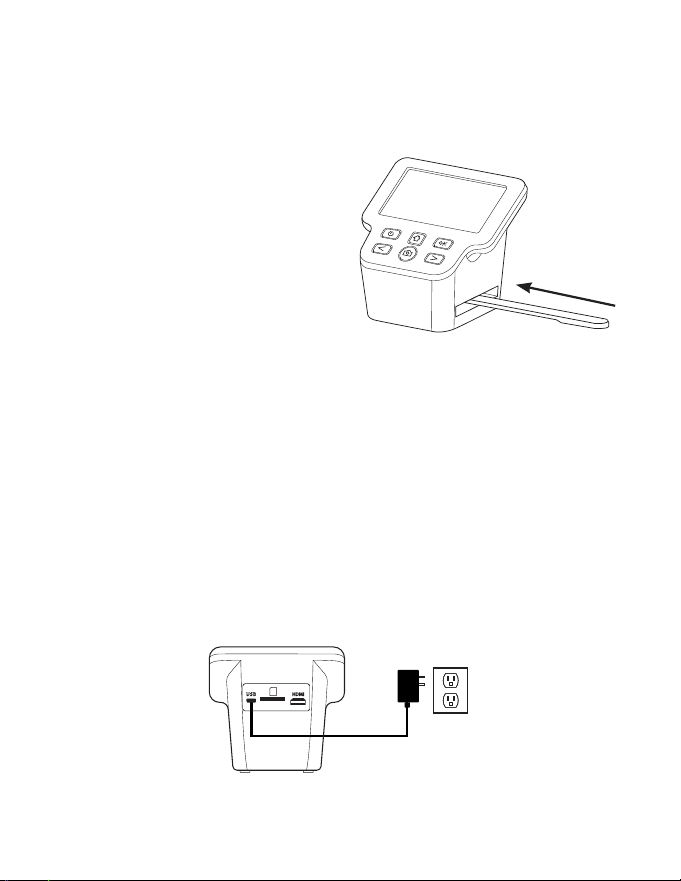
Use the included cleaning brush to
ensure there is no dust or debris on the
lens. Insert the soft end of the brush,
face down, into the lm/slide holder
slot. Carefully push the brush around
inside to get rid of any dust or debris
that may be on the LED backlight.
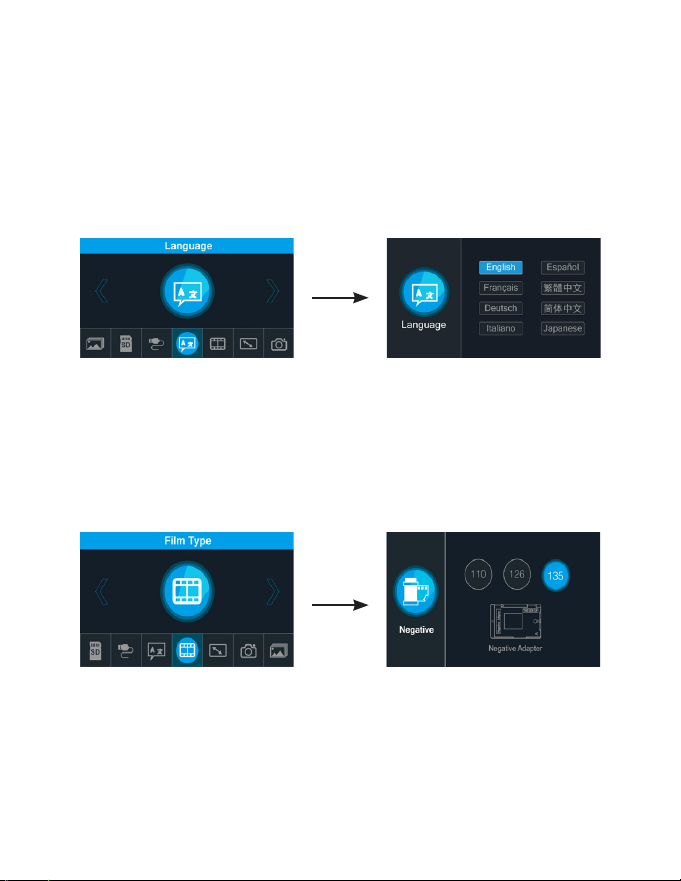
Powering On Your Film Scanner
1. Using the included mini USB to USB cable, connect the mini USB plug to the
mini USB port on the lm scanner.
2. Connect the other end of the USB cable into a USB wall adapter (not
included) or USB power source (5V 1A).
3. Press the power button on the scanner to turn it on.
8
Changing The Language
1. On the main menu, go to Language.
2. You may now select the language of your choice by using the < and >
buttons to scroll between the available selections.
3. Press the OK button to select the language.
Prepping Your Film/Slides
1. Insert your slide or lm into the appropriate slide or lm adapter. If you are
unsure what adapter to use, on the lm scanner menu go to Film Type then
choose the lm or slide type you are going to scan. There will be images of
the corresponding lm or slide adapter you can reference.
2. Ensure the slide/lm is facing the correct way and is not bent.
3. Close the slide or lm adapter and press the edges so that it locks into place.
Note: This scanner has 128MB of built-in memory available to store approximately 50 scanned
images. This lm scanner will also accept SD, SDHC, and SDXC cards with a maximum of 128GB for
extra memory.
9
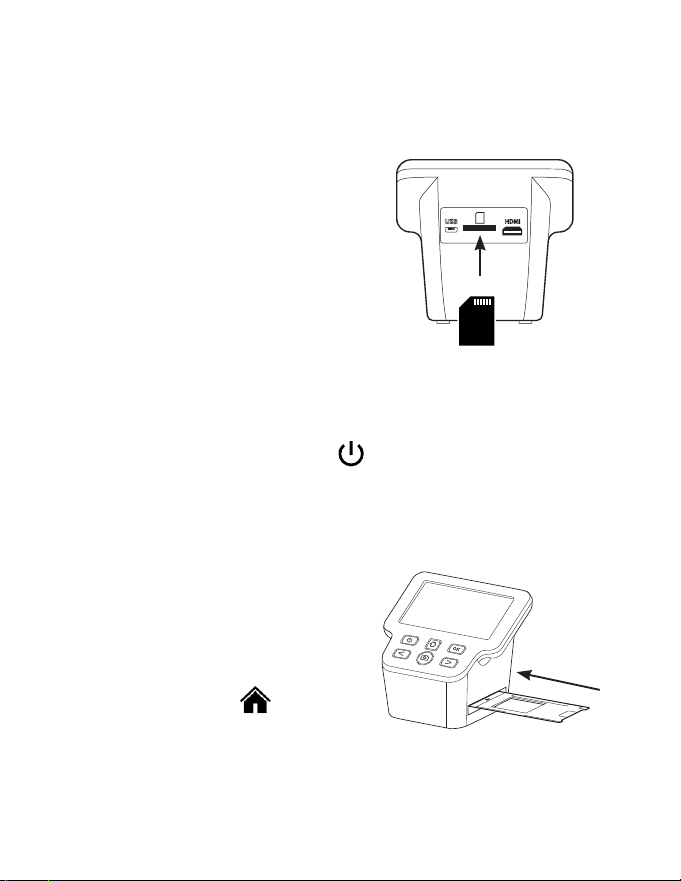
Using an SD Card
Insert the SD card, face down, into the
SD card slot located at the back of the
lm scanner. The SD card will click in
automatically if inserted properly.
Remove the SD card by pressing on it
until it clicks and pops out, then remove
it from the slot.
Scanning Your Images
1. Press and hold the power button for 3 seconds on the scanner to turn
it on.
2. Insert the prepared lm or slide adapter into the slot on the right side of the
lm scanner.
3. Select your lm/slide type that you
are scanning by going into Film
Type on the scanner’s menu, go to
your corresponding lm/slide and
press the OK button.
4. Once you have selected your lm or
slide type, hit the button to
go back to the main menu.
5. Go to Capture to begin scanning your images. Press the OK button.
6. You should now see your lm or slide image on the screen.
Note: If you are using a 128GB SD card, it may need to be formatted before using for the rst time.
Please see page 12 for formatting instructions.
10
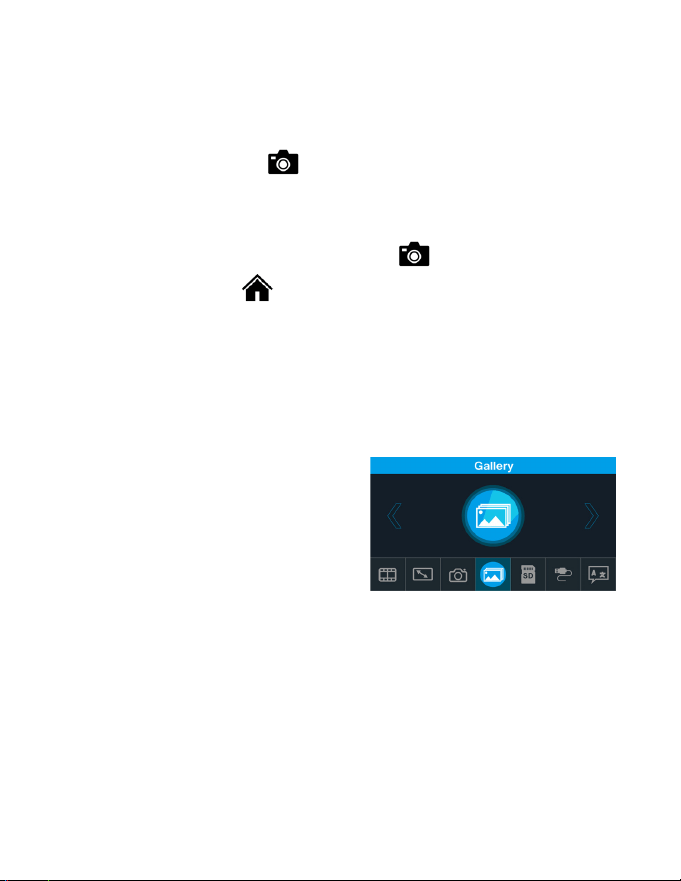
Viewing Your Scanned Images
1. To view your scanned images, go
to Gallery and press the OK button.
2. Your images will play
automatically.
3. To manually review your saved
images and stop the auto-play,
press the OK button again.
4. Use the left and right buttons to scroll through each saved image.
5. To delete the scanned image press the OK button to open the menu, then
press the right arrow and press OK to select Delete. The image will be
permanently deleted from the scanner.
7. To adjust brightness or color, press the OK button. Use the left and right
arrow buttons to move between brightness, red, green, or blue. Press the
OK button to adjust them up or down.
8. When ready, press the button to return to your image.
9. You can also mirror or ip your image prior to scanning and saving your
image by pressing the left (mirror) or right (ip) buttons.
10. To capture and save your image, press the button again.
11. You can press the button to return back to the main menu when
your scanning is done.
11
Watching Saved Images From a TV Screen
1. Turn on the lm scanner.
2. Using an HDMI to HDMI cable (not included), connect the HDMI plug into the
HDMI port at the back of the lm scanner.
3. Connect the other end of the HDMI cable into the HDMI port on your TV.
Note: When you connect the lm scanner to your TV via HDMI, the scanner’s LCD screen will turn
o automatically.
4. Ensure that your TV is set to the proper HDMI input/video source.
5. You should now see your saved images on your TV.
Downloading Images To Your Computer
1. Ensure your computer is powered on.
2. Connect the lm scanner to your computer via the included mini USB cable.
3. Turn on the lm scanner.
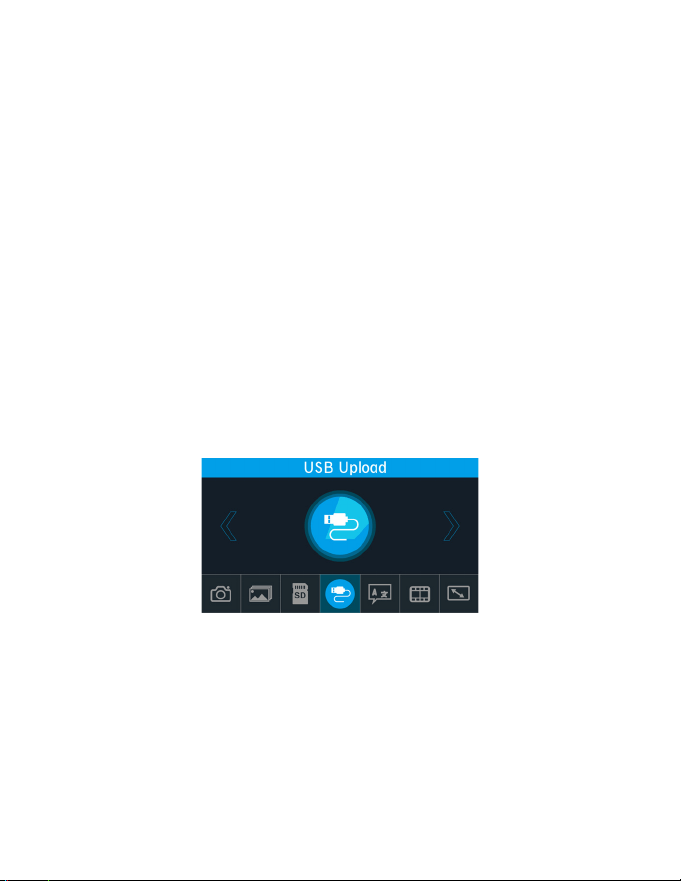
4. In the lm scanner menu, select USB Upload.
5. A new folder will appear on your computer. Your saved images can be found
here. You can now move these images from your scanner directly onto your
computer.
12
Formatting Your SD Card
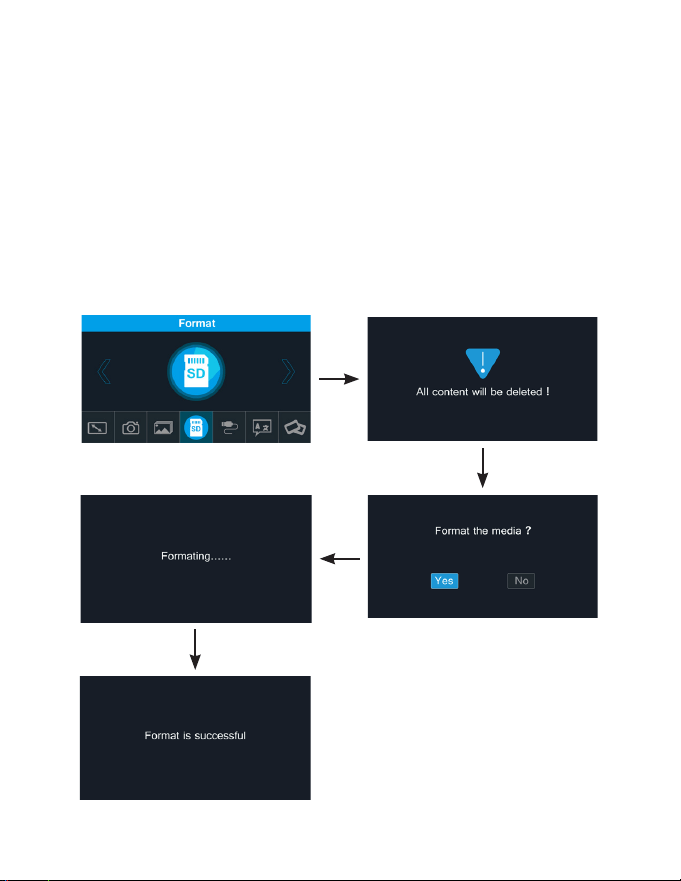
WARNING: Formatting your SD card will delete all les stored on the SD card. Download your les
from your SD card to your computer before formatting.
1. In the main menu, go to Format press the OK button.
2. When prompted if you would like to format the media, use the < button to
choose “Yes”. Press the OK button to begin formatting the SD card.
13
FAQ / Troubleshooting
Issue Solution
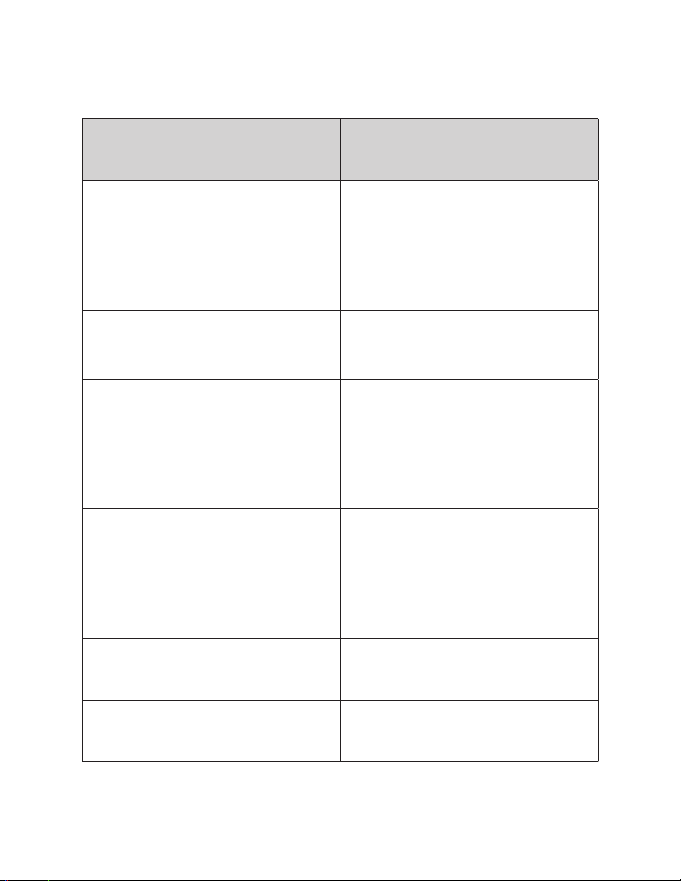
How can I get the best quality scan
possible?
Ensure the lm/slides are clean and
that you clean the inside of the
scanner with the included cleaning
brush immediately before scanning.
See pg. 7 for instructions on how to
use the cleaning brush.
How should I prepare the lm/slides
to ensure the best possible scan?
The lm/slide should be free of any
dust/ngerprints. This can be done
with an appropriate cleaning cloth.
I’ve noticed a consistent spot
on every slide I have scanned. Is
something wrong with my scanner?
There is likely a small amount
of dust inside your unit. Use the
included cleaning brush to ensure
there is no foreign debris. See pg. 7
for instructions on how to use the
cleaning brush.
Do I need a computer to begin
scanning?
Everything is plug-and-play right
out of the box. You can save images
to an SD card (up to 128GB) or the
scanner’s internal memory (64MB).
You can then export to a computer
at a time that is more convenient.
What le format are the images
saved as?
The les are automatically saved in
JPG format.
Can I use this to scan raw lm or do I
need to develop the negatives rst?
The scanner will work for developed
lm only.
Specications
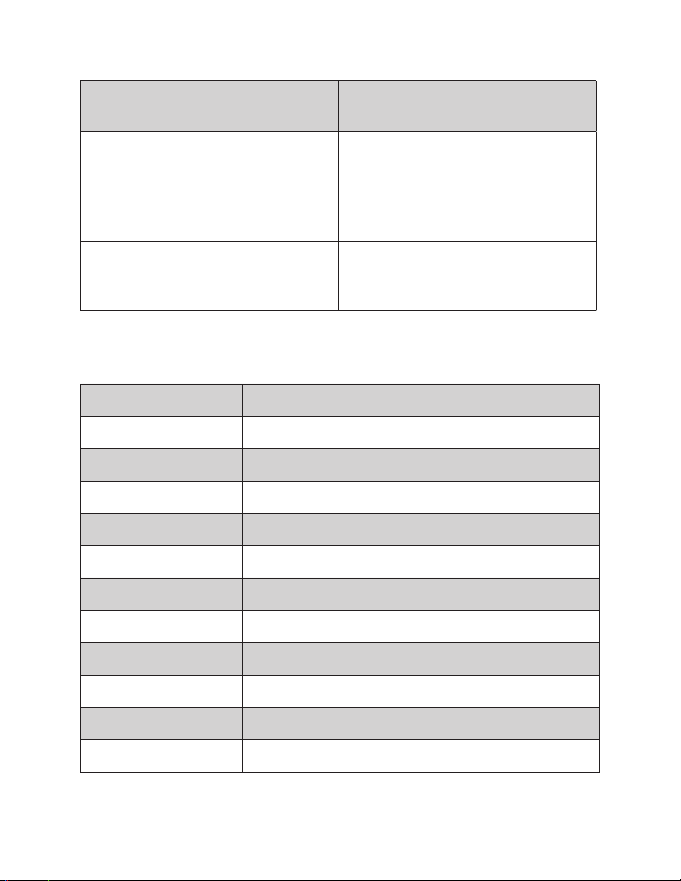
Image Sensor
16.0 Mega Pixels (4920*3280) 1/2.3” CMOS sensor
Display
5” TFT LCD
Supported Film Type
Film: 35mm, 110, 126, and Super 8 Slides: 135, 110, and 126
Resolution
16.0 Megapixels/24 Megapixels (interpolation)
Picture Aspect Ratio
135/3:2, 126/1:1, 110/4:3, Super8/4:3
Image File Format
JPEG
Scanning Speed
2-3 Seconds
Internal Memory
128 MB (51 images)
External Memory Card
SD card up to 128GB
Power Input
DC 5V 1A
Dimensions
4.9 x 5.4 x 4.4 inches / 124.5 x 137.2 x 111.8 mm (HxWxD)
Weight
0.83 lbs
Issue Solution
The scanner screen is black but it
has power.
Ensure an HDMI cable is not
connected to the back of the lm
scanner. Conrm the USB power
source is 5V 1A and test with another
USB power source.
There are red lines on the display
and no image preview.
Conrm the USB power source is 5V
1A and test with another USB power
source.

15
Magnasonic® Warranty
Thank you for choosing Magnasonic! We guarantee your investment in our
products is a solid one. Our products come with a complete one-year parts
and labor warranty. High performance components combined with quality
craftsmanship allow us to maintain the highest possible production standards.
All items are guaranteed against defects in materials and craftsmanship.
Magnasonic has outstanding quality control; if something should go wrong with
any of our products, we will repair it free of charge within the warranty period.
If the product cannot be repaired, we will replace the product. In the event that
Magnasonic replaces a product under warranty, the replacement would only
carry the original warranty from the original date of purchase.
Warranty Exclusions
Magnasonic products are warrantied for parts and labor for one year from
date of original purchase, and are subject to the terms and conditions of
the warranty. Any refurbished products that are discontinued hold a 90 day
warranty from the date of original purchase. Magnasonic warranties are valid for
the original owner and are non-transferable.
- Any defects caused or repairs required as a result of abusive operation,
negligence, accident, improper installation or inappropriate use as outlined
in the owner’s manual.
- Any Magnasonic product tampered with, modied, adjusted, or repaired by
any party other than Magnasonic.
- Any cosmetic damage to the surface or exterior that has been defaced or
caused by normal wear and tear.
- Any damage caused by external or environmental conditions, including but
not limited to, transmission line/power line voltage or liquid spillage.
- Any product received without an appropriate model and serial number.
- Any products used for rental or commercial purposes.
- Any installation, set up and/or programming charges.
- Defect or damage as a result of connecting a product to an outlet with the
incorrect voltage. Voltage converters must be used where applicable.
(paid by customer).

16
To Obtain Warranty Service
Should your product require warranty service, please contact us at
www.magnasonic.com/contact to set up a Return Authorization. Products
returned without a valid Return Authorization number will be refused.
Magnasonic products must be returned in their original packaging. Our products
are packaged specially to protect them from any damage during shipping, and
without this packaging the return shipment could get damaged.
This warranty does not cover the shipping cost, insurance, or any other incidental
charges. Products shipped for warranty service must be pre-paid by the
customer, and Magnasonic will cover the cost to ship the repaired or replaced
product back to the customer.

17
Important Safety Instructions
Safety Alerts
If any of the following conditions are present, stop using immediately, unplug
the power cord, and refer to a qualied service professional for servicing:
A. If there is any smoke or unusual smell while using.
B. If the product has been exposed to rain, water, or other liquids.
C. If the product does not operate normally by following the operating
instructions.
D. If the product exhibits a distinct change in performance.
E. If the product has been dropped or damaged in any way.
Best Practices for Safe Use
1. Only use lms of standard size.
2. Only use attachments/accessories specied by the manufacturer.
3. Unwind and straighten the USB cord before use.
4. Check that the power voltage stated on the rating label corresponds to
your local electricity supply.
5. Unplug the power adapter from the wall when the product is unused for a
long period of time and during thunderstorms.
6. Do not use this product near water.
7. Do not immerse this product, the power cord, or any accessories in water
or any other liquid.
8. Do not block any ventilation openings.
9. Do not place this product near any heat sources such as radiators, heat
registers, stoves, or other apparatus (including ampliers) that produce
heat.
10. Do not attempt to service or disassemble this product yourself as opening
or removing covers may expose you to dangerous voltages or other
hazards.

18
Cleaning and Care
1. Please make sure the scanner is clean before using.
2. Do not use liquid cleaners.
3. Do not use organic solvents such as alcohol, gasoline, or thinner, to clean
the equipment.
4. Clean outside of the product only with a dry cloth.
5. Do not clean the inside of this product with anything except for the
included cleaning brush.

19
FCC Information
This equipment has been tested and found to comply with the
limits for a Class B digital device, pursuant to part 15 of the FCC
Rules. These limits are designed to provide reasonable protection
against harmful interference in a residential installation. This
equipment generates, uses and can radiate radio frequency energy and, if not
installed and used in accordance with the instructions, may cause harmful
interference to radio communications. However, there is no guarantee that
interference will not occur in a particular installation. If this equipment does
cause harmful interference to radio or television reception, which can be
determined by turning the equipment o and on, the user is encouraged to try
to correct the interference by one or more of the following measures:
• Reorient or relocate the receiving antenna.
• Increase the separation between the equipment and receiver.
• Connect the equipment into an outlet on a circuit dierent from
that to which the receiver is connected.
• Consult the dealer or an experienced radio/TV technician for help.
NOTE: This unit may contain a microcomputer for signal processing and control
function. In very rare situations, severe interference, noise from an external
source, or static electricity may cause it to lockup. In the unlikely event that this
should happen, turn o the unit, wait at least ve seconds, and then turn it back
on again.
HDMI Information
The terms HDMI and HDMI High-Denition
Multimedia Interface, and the HDMI Logo are
trademarks or registered trademarks of HDMI Licensing Administrator, Inc. LLC
in the United States and other countries.

magnasonic.com