

VIVOTEK
2 - User's Manual
Table of Contents
Revision History ................................................................................................4
Overview ...................................................................................................................... 5
Read Before Use ................................................................................................5
Package Contents ..............................................................................................5
Physical Description ...........................................................................................6
Network Deployment ........................................................................................10
Software Installation .........................................................................................12
Ready to Use ....................................................................................................13
Accessing the Video Server ....................................................................................... 14
Using Web Browsers ........................................................................................14
Using RTSP Players .........................................................................................16
Using 3GPP-compatible Mobile Devices ..........................................................17
Using VIVOTEK Recording Software ...............................................................18
Main Page .................................................................................................................. 19
Client settings ............................................................................................................. 22
Conguration .............................................................................................................. 25
System .............................................................................................................26
Security ............................................................................................................28
HTTPS (Hypertext Transfer Protocol over SSL) ..............................................29
SNMP (Simple Network Management Protocol) .............................................34
Network ............................................................................................................35
Express link ......................................................................................................50
DDNS ...............................................................................................................51
Access list .......................................................................................................53
Digital I/O .........................................................................................................55
Audio and video ................................................................................................56
Motion detection ...............................................................................................65
Camera tampering detection ...........................................................................67
Camera control .................................................................................................68
Homepage layout ............................................................................................75
Application .......................................................................................................78
Recording > Recording settings ......................................................................92
Local storage > SD card management .............................................................96
Local storage > Content management .............................................................97
System log .......................................................................................................99
View parameters ...........................................................................................100
Maintenance ...................................................................................................101
Appendix .................................................................................................................. 105
URL Commands for the Network Camera/Video Server ................................ 105
Technical Specications .................................................................................176

VIVOTEK
User's Manual - 3
Technology License Notice .............................................................................177
Electromagnetic Compatibility (EMC) .............................................................178

VIVOTEK
4 - User's Manual
Revision History
1. Rev. 1.0: Initial release.
2. Rev. 1.1: Most modications are made to reect functional changes on the user interface.
* Modied the description for the expandable/Collapsible functional menus.
* Added the Recording to SD/SDHC details. (SD local storage is now available on VS8401)
* Added Local Storage options.
* Added the Quad View setting options.
* Added the joystick conguration options.

VIVOTEK
User's Manual - 5
Overview
VIVOTEK VS8801/8401, the new milestone in video server security performing 8-CH or 4-CH high
resolution with high frame rate in H.264, are able to convert analog video into digital video with the
highest quality. The H.264 compression format drastically reduces the file sizes and conserves
valuable bandwidth and storage space. The VS8401 supports simultaneous dual streams, while the
VS8801 supports single stream to be transmitted in H.264, MPEG-4 and MJPEG formats for versatile
applications. The stream
can also be individually congured with frame rates, resolution, and image quality so as to meet different
platforms or bandwidth constraints.
Featured with intelligent video functions, such as motion detection & tamper detection, the VS8801/8401
are capable of upgrading analog cameras into intelligent cameras. The tamper detection feature can
detect events such as blockage, redirection, defocus, and spray-painting of camera lens, making it an
intelligent solution to possible camera obstruction. Furthermore, the video server also upgrades the
security level of the IP surveillance system with the network security protocols, HTTPS and 802.1x. It is
also designed with Giga LAN for large transmission need and DC 12V / AC 24V compatible power input
design. These features make VS8801/8401 easy to install and integrate with the existing analog system.
Monitoring with VIVOTEK’s ST7501 as the video management software for better scalability and easy-
to-use operation is another delightful benet. Most importantly, it is designed for rack mount solution for
easy installation. The solution for video server is a pioneering idea in the world. The innovative vision of
video server, VS8801/8401, help you easily upgrade to a full-featured, high-end IP surveillance solution!
Read Before Use
The use of surveillance devices may be prohibited by law in your country. The video server is not only
a high-performance web-ready camera but can also be part of a exible surveillance system. It is the
user’s responsibility to ensure that the operation of such devices is legal before installing this unit for its
intended use.
It is important to rst verify that all contents received are complete according to the Package Contents
listed below. Take note of the warnings in the Quick Installation Guide before the video server is installed;
then carefully read and follow the instructions in the Installation chapter to avoid damage due to faulty
assembly and installation. This also ensures the product is used properly as intended.
The video server is a network device and its use should be straightforward for those who have basic
networking knowledge. It is designed for various applications including video sharing, general security/
surveillance, etc. The Conguration chapter suggests ways to best utilize the video server and ensure
proper operations. For creative and professional developers, the URL Commands of the video server
section serves as a helpful reference to customizing existing homepages or integrating with the current
web server.
Package Contents
■ VS8801/8401
■ Power Adapter
■ Software CD
■ Warranty Card
■ Quick Installation Guide
■ Terminal blocks
VIVOTEK
6 - User's Manual
Physical Description
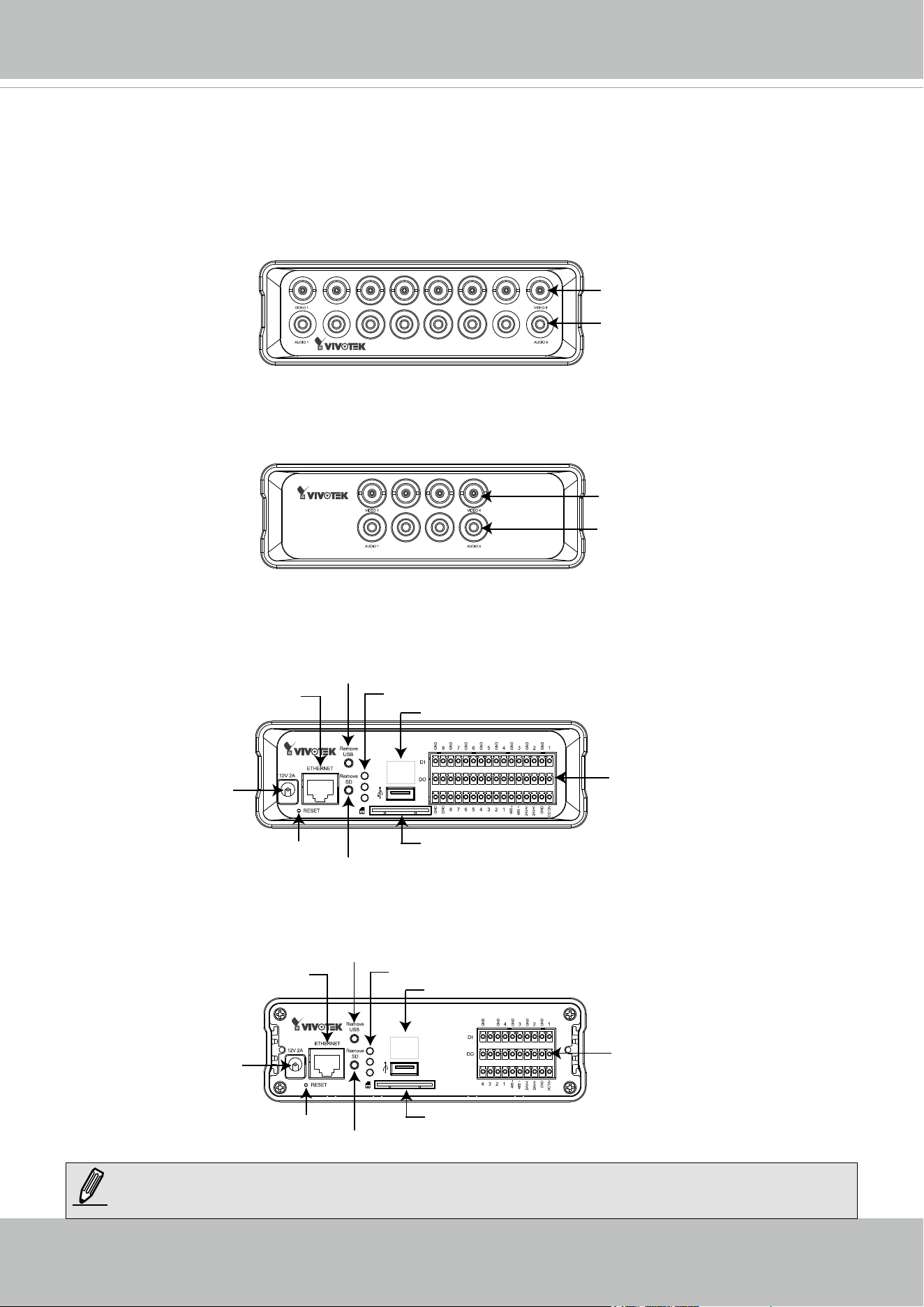
Front Panel
Back Panel
RCA Audio Input
BNC Video Input
■ VS8801
■ VS8401
RCA Audio Input
BNC Video Input
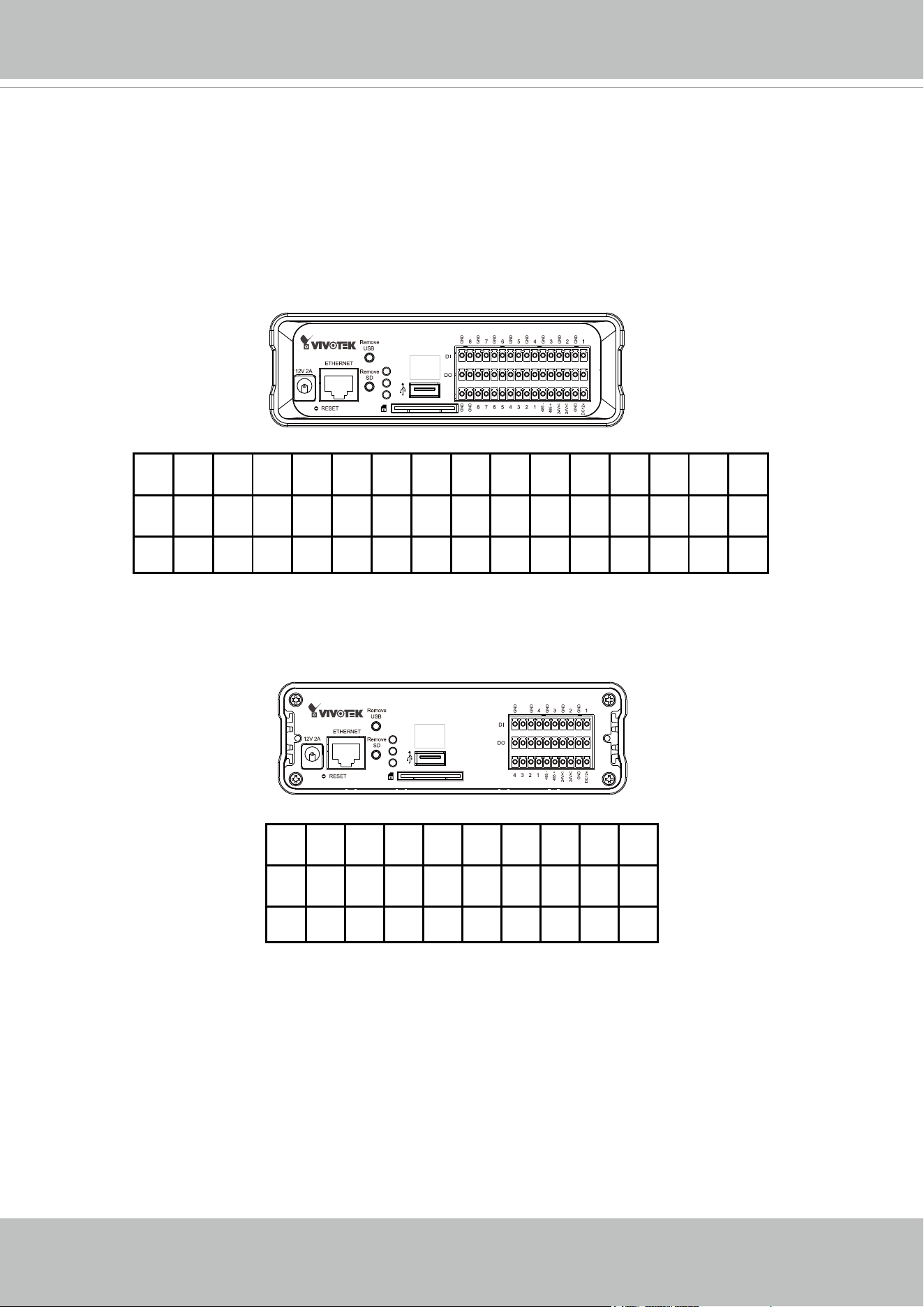
USB & SD card
functions
are not available
on this unit.
SD/SDHC Card Slot
USB Socket
Status LEDs
General I/O
Terminal Block
Recessed Reset Button
Click this button before removing the ash drive
Ethernet 10/100/1000
RJ45 Socket
Power Cord
Socket
Click this button before removing the SD/SDHC card
■ VS8801
■ VS8401
USB function
is not available
on this unit.
SD/SDHC Card Slot
USB Socket
Status LEDs
General I/O
Terminal Block
Recessed Reset Button
Click this button before removing the ash drive
Ethernet 10/100/1000
RJ45 Socket
Power Cord
Socket
Click this button before removing the SD/SDHC card
NOTE:
The USB socket is for maintenance purposes only.
VIVOTEK
User's Manual - 7
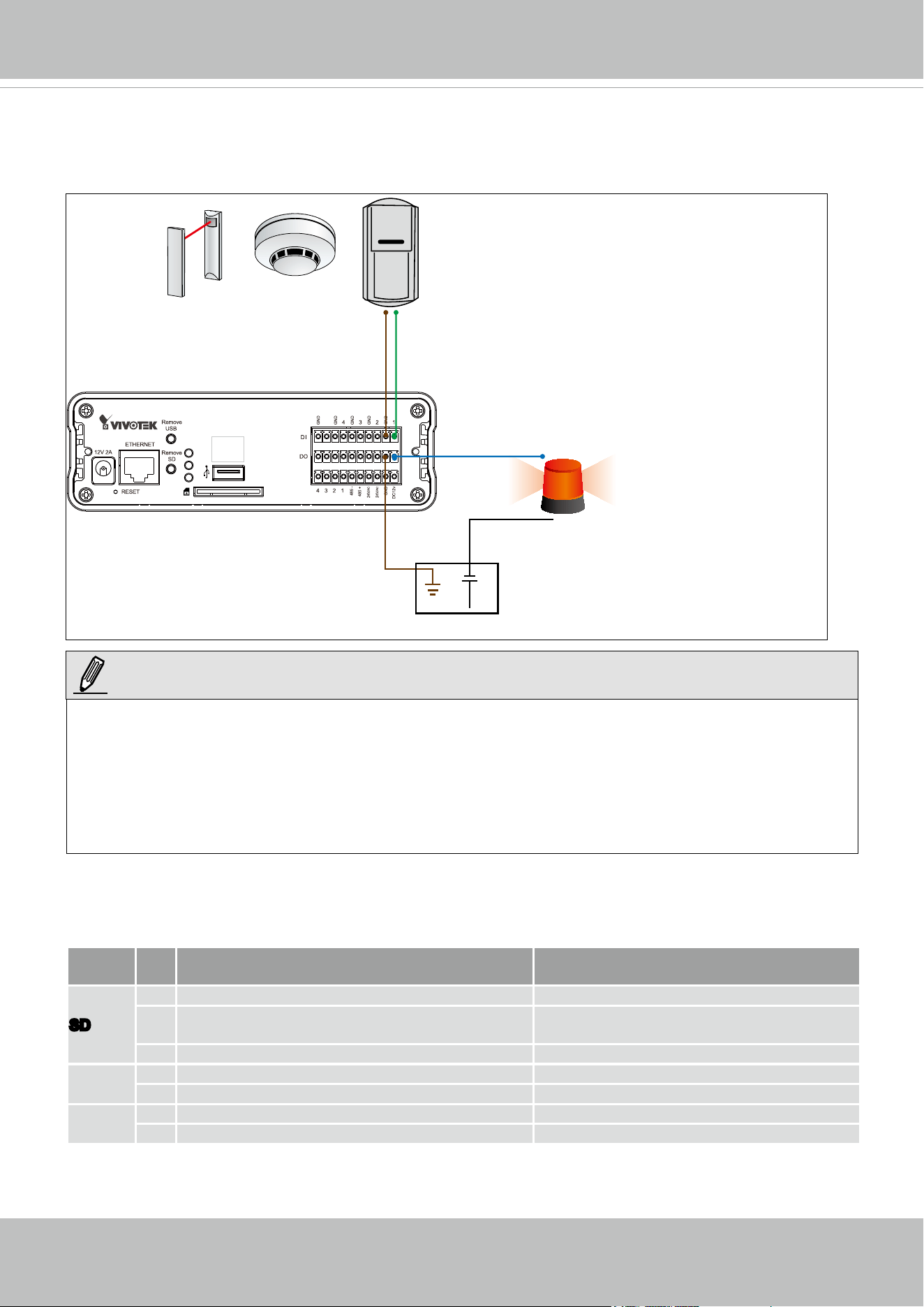
General I/O Terminal Block
This video server provides a general I/O terminal block which is used to connect external input /
output devices. The pin denitions are described below.
CH 8
GND
CH 8
DI
CH 7
GND
CH 7
DI
CH 6
GND
CH 6
DI
CH 5
GND
CH 5
DI
CH 4
GND
CH 4
DI
CH 3
GND
CH 3
DI
CH 2
GND
CH 2
DI
CH 1
GND
CH 1
DI
CH 8
GND
CH 8
DO
CH 7
GND
CH 7
DO
CH 6
GND
CH 6
DO
CH 5
GND
CH 5
DO
CH 4
GND
CH 4
DO
CH 3
GND
CH 3
DO
CH 2
GND
CH 2
DO
CH 1
GND
CH 1
DO
GND GND
CH 8
Audio
out
CH 7
Audio
out
CH 6
Audio
out
CH 5
Audio
out
CH 4
Audio
out
CH 3
Audio
out
CH 2
Audio
out
CH 1
Audio
out
RS
485-
RS
485+
24V
AC
24V
AC
GND
DC
12V
USB & SD card
functions
are not available
on this unit.
■ VS8801
■ VS8401
GND N/A
CH 4
GND
CH 4
DI
CH 3
GND
CH 3
DI
CH 2
GND
CH 2
DI
CH 1
GND
CH 1
DI
GND N/A
CH 4
GND
CH 4
DO
CH 3
GND
CH 3
DO
CH 2
GND
CH 2
DO
CH 1
GND
CH 1
DO
CH 4
Audio
out
CH 3
Audio
out
CH 2
Audio
out
CH 1
Audio
out
RS
485-
RS
485+
24V
AC
24V
AC
GND
DC
12V
USB function
is not available
on this unit.
VIVOTEK
8 - User's Manual
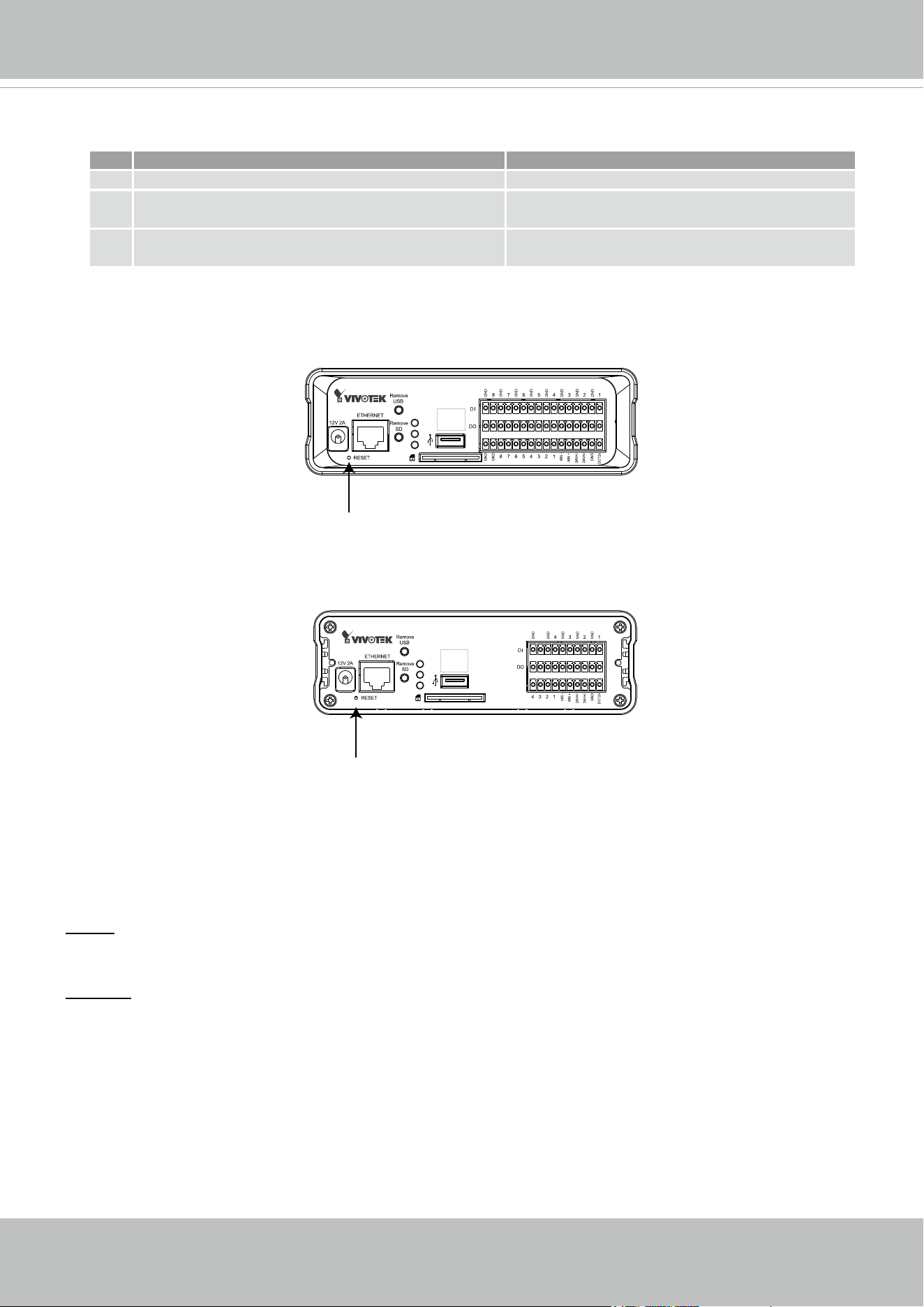
DI/DO Diagram
Please refer to the following illustration for the connection method.
Status LED
The LED indicates the status of the video server. The table below shows the statuses of the
Yellow (SD), Green (Network), and Red (Power) LEDs.
LED
Name
Item LED status Description
SD
1 Steady Yellow SD card is present and functioning normally
2 Blinking Yellow
SD card is present yet problems occurred with
data access
3 LED Off No SD card in the socket
Network
1 Blinking Green every 1 sec. Network activity (heartbeat)
2 Green LED Off Network failed
Power
1 Steady Red Power on and during system boot
2 Red LED Off Power off
►
External alarms or other devices that connect to the digital outputs require external power supply, e.g.,
DC power from a power adapter.
►
12V Ground should connect to Video Server ground termail block. For detailed pin denition,
please refer to page 7.
►
It is recommended to keep the current running through each of the DO lines under 1A.
NOTE:
USB function
is not available
on this unit.
Digital Inputs
Digital Outputs
DC PowerGND
Sensors/detectors
Alarms
Power Source
GND
VIVOTEK
User's Manual - 9
Below are the definitions for other combinations of LEDs:
Item LED status Description
1 Blinking Green every 2 sec. Audio mute (heartbeat)
2
Blinking Red every 0.15 sec. + Blinking Green every
1 sec.
Upgrading Firmware
3
Blinking Red every 0.15 sec. + Blinking Green every
0.15 sec.
Restoring default
Hardware Reset
The reset button is used to reset the system or restore the factory default settings. Sometimes
resetting the system can return the video server to normal operation. If the system problems
remain after reset, restore the factory settings and install again.
Reset: Press and release the recessed reset button using a straightened paper clip. Wait for the
video server to reboot.
Restore: Press and hold the reset button down until the status LED rapidly blinks. It takes about
30 seconds. Note that all settings will be restored to factory default. Upon successful restore,
the status LED will blink green and red during normal operation.
Recessed Reset Button
USB & SD card
functions
are not available
on this unit.
■ VS8801
■ VS8401
USB function
is not available
on this unit.
Recessed Reset Button
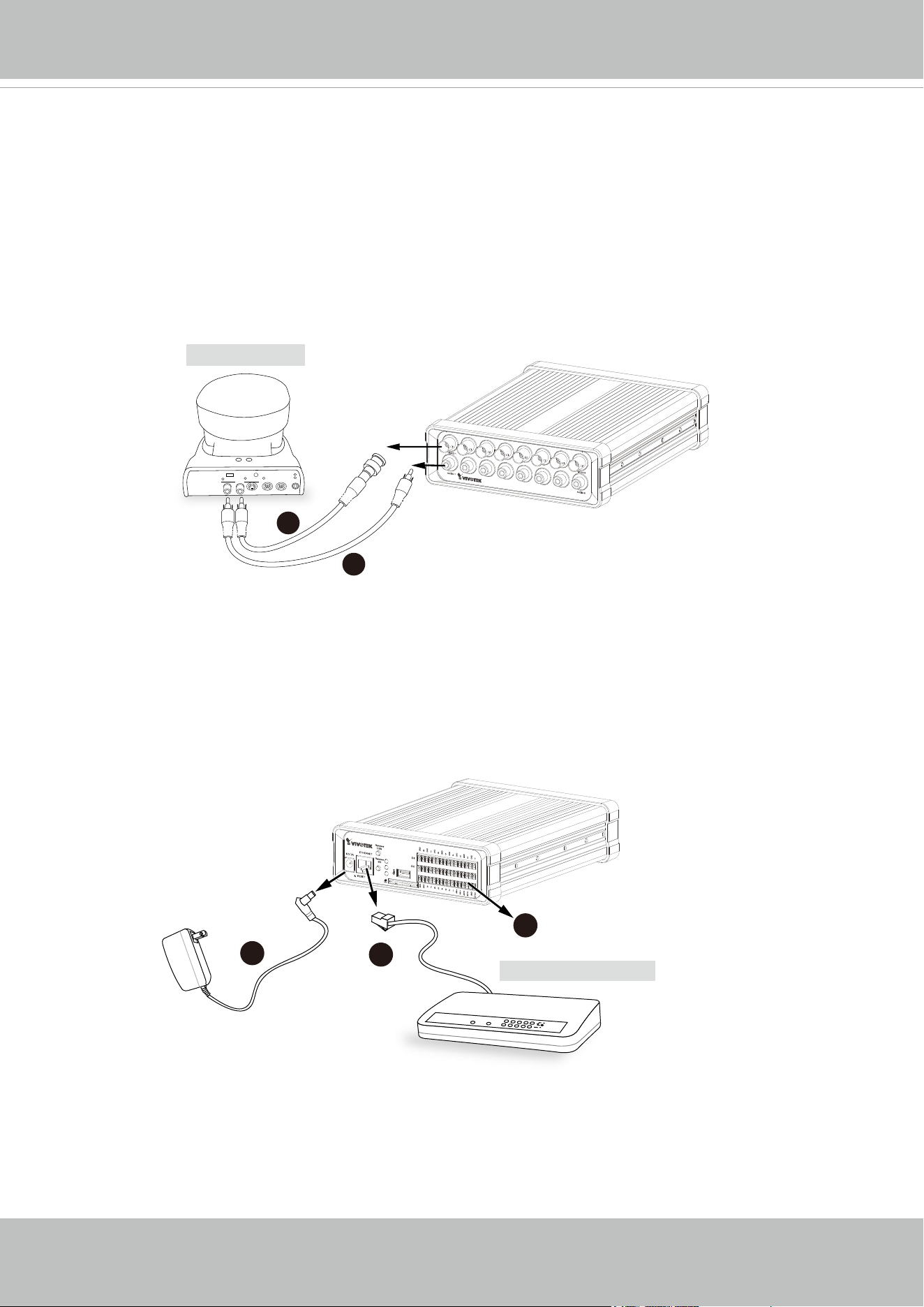
VIVOTEK
10 - User's Manual
Network Deployment
Setting up the Video Server over the Internet
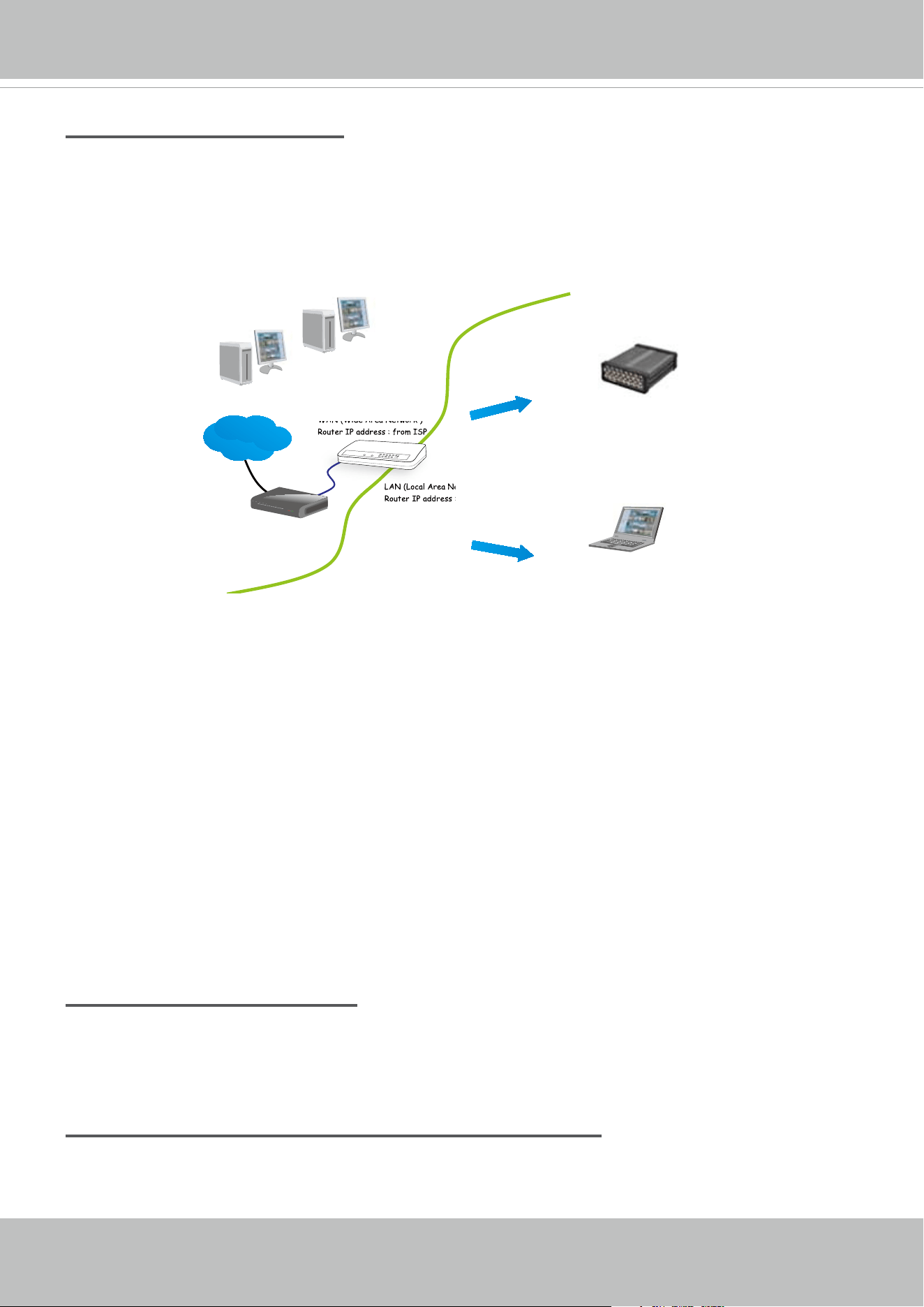
This section explains how to congure the video server to an Internet connection.
1. Make video connection from the camera to the BNC video input.
2. Make audio connection from the Line-Out audio source to the RCA audio input.
3. Connect the Video Server to a switch via Ethernet cable.
4. Connect the power cable from the Video Server to a power outlet.
5. If you have external devices such as sensors and alarms, connect them to the general I/O
terminal block. For detailed pin denition, please refer to the next page.
There are several ways to set up the video server over the Internet. The rst way is to set up
the
video server behind a router. The second way is to utilize a static IP. The third way is to use
PPPoE
.
OUT
CAMERA NO.
MIC
POWER
INVIDEO OUT
1 2 3
OFF ON
2
1
POWER
COLLISION
LINK
RECEIV E
PARTITION
1
2
3
4
5
3
4
5
GbE Ethernet Switch
Analog Camera
VIVOTEK
User's Manual - 11
Internet connection via a router
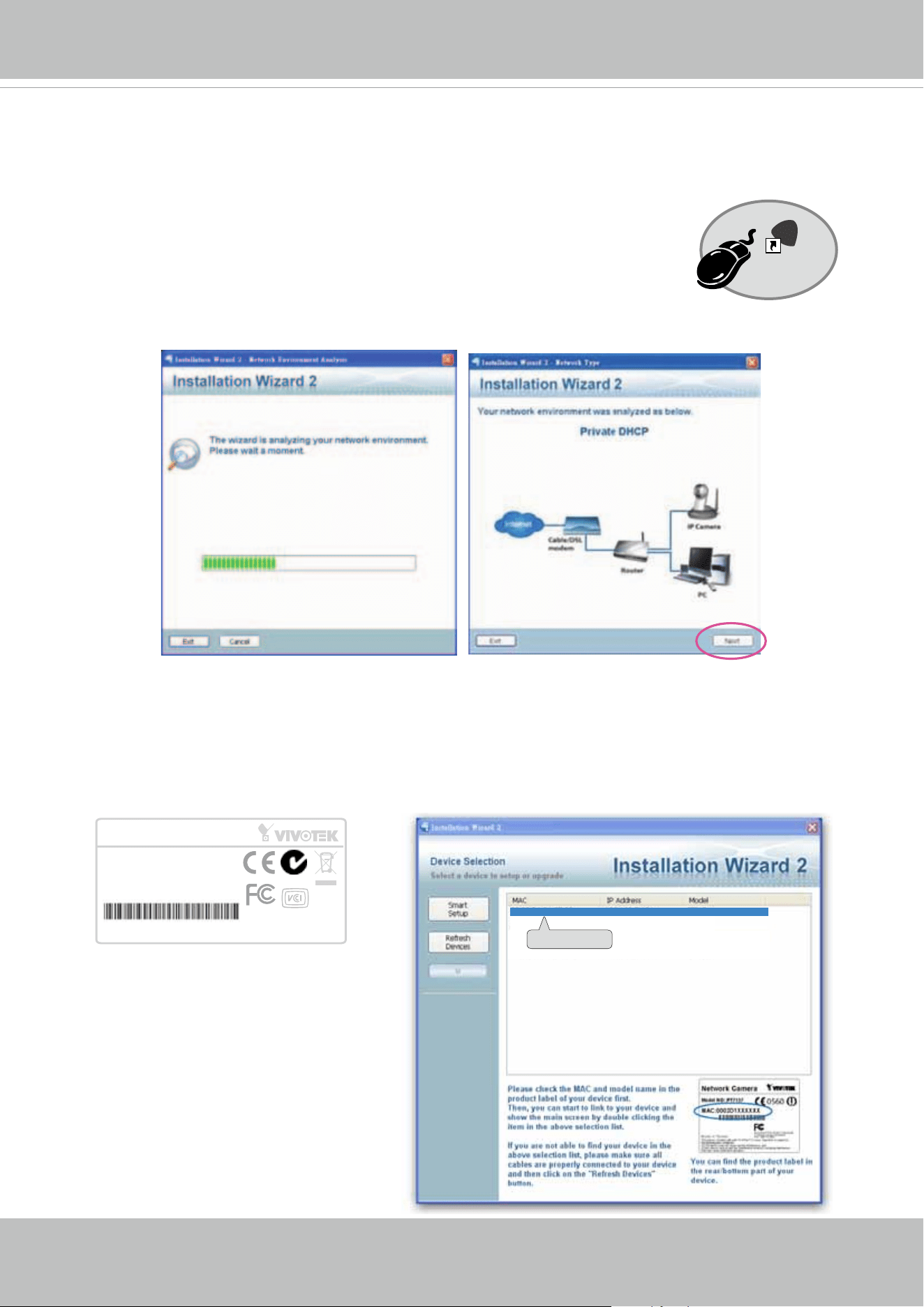
Before setting up the video server over the Internet, make sure you have a router and follow the
steps below.
1. Connect your video server behind a router, the Internet environment is illustrated below.
Regarding how to obtain your IP address, please refer to Software Installation on page 12 for
details.
IP address : 192.168.0.3
Subnet mask : 255.255.255.0
Default router : 192.168.0.1
IP address : 192.168.0.2
Subnet mask : 255.255.255.0
Default router : 192.168.0.1
LAN (Local Area Network)
Router IP address : 192.168.0.1
WAN (Wide Area Network )
Router IP address : from ISP
Cable or DSL Modem
POWER
COLLISION
LINK
RECEIVE
PARTITION
1
2
3
4
5
Internet
2. In this case, if the Local Area Network (LAN) IP address of your Video server is
192.168.0.3, please forward the following ports for the Video server on the router.
■ HTTP port
■ RTSP port
■ RTP port for audio
■ RTCP port for audio
■ RTP port for video
■ RTCP port for video
If you have changed the port numbers on the Network page, please open the ports accordingly
on your router. For information on how to forward ports on the router, please refer to your
router’s user’s manual.
3. Find out the public IP address of your router provided by your ISP (Internet Service Provider).
Use the public IP and the secondary HTTP port to access the Video server from the
Internet. Please refer to Network Type on page 35 for details.
Internet connection with static IP
Choose this connection type if you are required to use a static IP for the Video server. Please
refer to LAN on page 35 for details.
Internet connection via PPPoE (Point-to-Point over Ethernet)
Choose this connection type if you are connected to the Internet via a DSL Line. Please refer to
PPPoE on page 36 for details.
VIVOTEK
12 - User's Manual
Software Installation
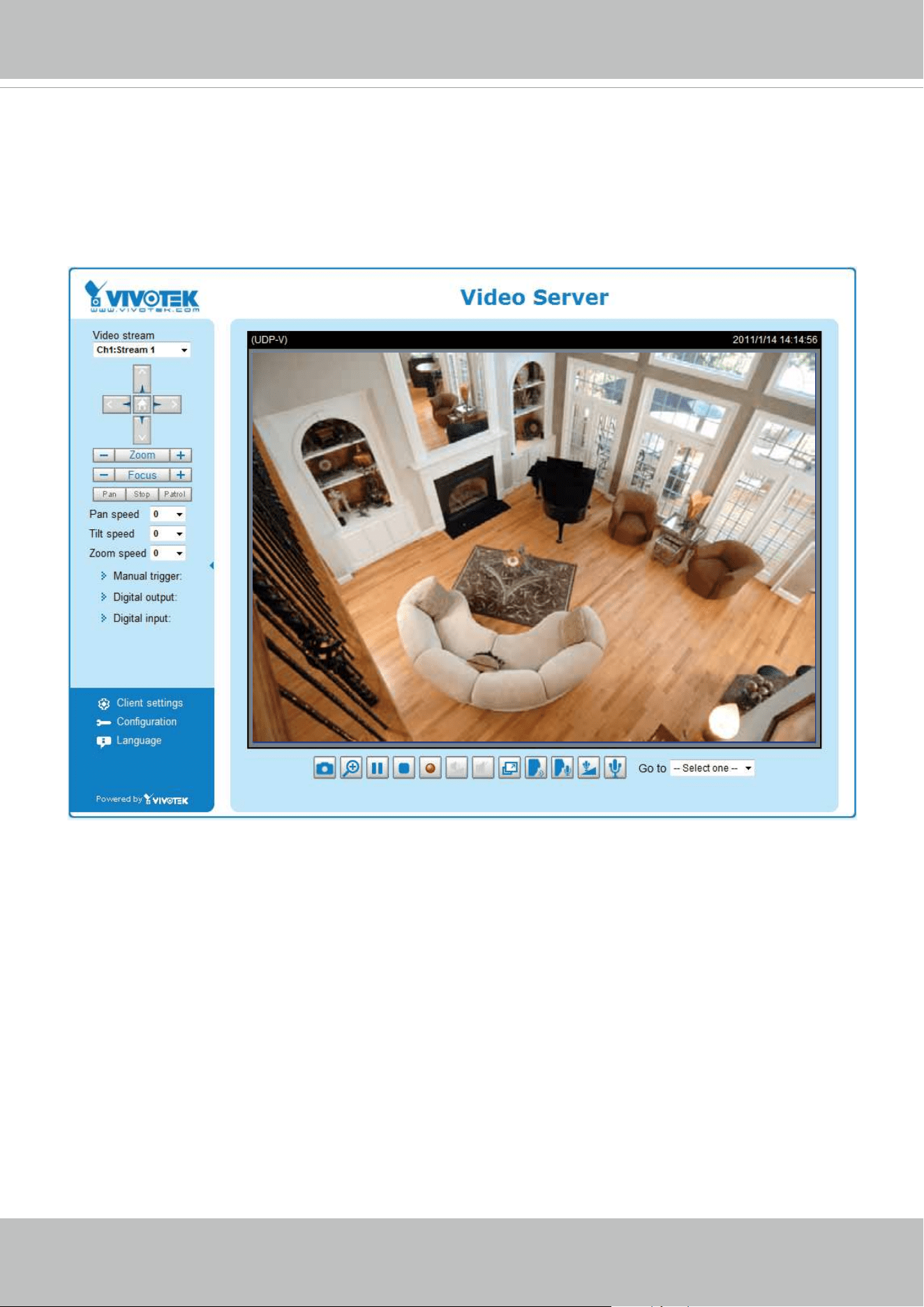
Installation Wizard 2 (IW2), free-bundled software included on the product CD, helps you set up
your video server on the LAN.
1. Install IW2 under the Software Utility directory from the software CD.
Double click the IW2 shortcut on your desktop to launch the program.
2. The program will conduct an analysis of your network environment.
After your network environment is analyzed, please click Next to continue the program.
3. The program will search for all VIVOTEK network devices on the same LAN.
4.
After a brief search, the main installer window will prompt. Double-click on the MAC and
model name which matches the product label on your device to connect to the Network
Camera via a web browser.
0002D1730202
00-02-D1-73-02-02 192.168.5.151 VS8801
Installation
Wizard 2
IW
2
Video Server
Model No: VS8801
Made in Taiwan
MAC:0002D1730202
R o HS
Class A
xxxxx
VIVOTEK
User's Manual - 13
Ready to Use
1. A browser session with the Video Server should prompt as shown below.
2. You should be able to see live video from your camera. You may also install the 32-channel
recording software from the software CD in a deployment consisting of multiple cameras. For
its installation details, please refer to its related documents.
VIVOTEK
14 - User's Manual
Accessing the Video Server
This chapter explains how to access the video server through web browsers, RTSP players,
3GPP-compatible mobile devices, and VIVOTEK recording software.
Using Web Browsers
Use Installation Wizard 2 (IW2) to access to the video servers on the LAN.
If your network environment is not a LAN, follow these steps to access the Netwotk Camera:
1. Launch your web browser (ex. Microsoft
®
Internet Explorer, Mozilla Firefox, or Netscape).
2. Enter the IP address of the video server in the address eld. Press Enter.
3. The live video will be displayed in your web browser.
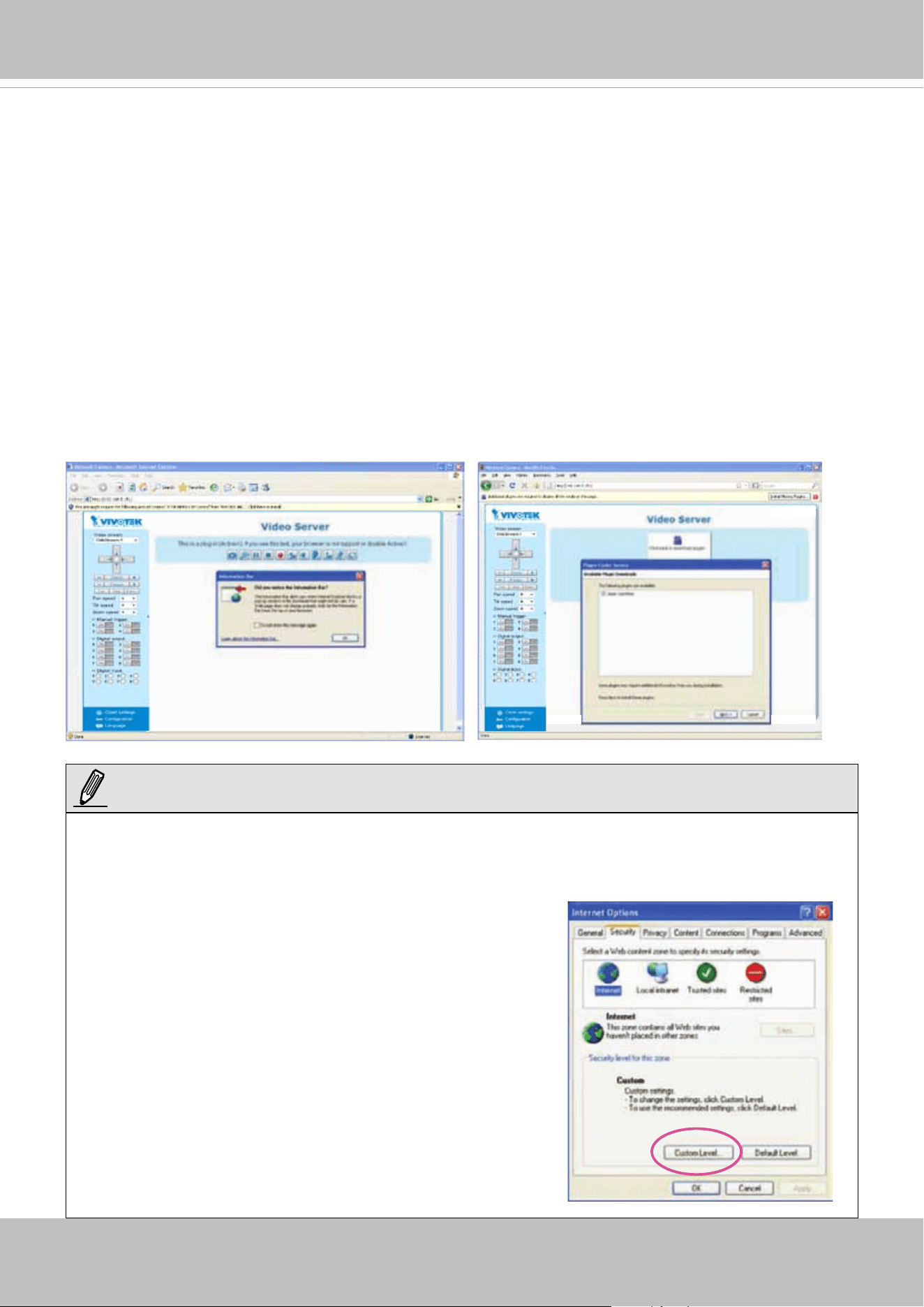
4. If it is the rst time installing the VIVOTEK video server, an information bar will pop up as
shown below. Follow the instructions to install the required plug-ins on your computer.
► By default, the video server is not password-protected. To prevent unauthorized access, it is
highly recommended to set a password for the video server. For more information about how
to enable password protection, please refer to Security on page 28.
► If you see a dialog box indicating that your security
settings prohibit running ActiveX
®
Controls, please
enable the ActiveX
®
Controls for your browser.
1. Choose Tools > Internet Options > Security
> Custom Level.
NOTE:
VIVOTEK
User's Manual - 15
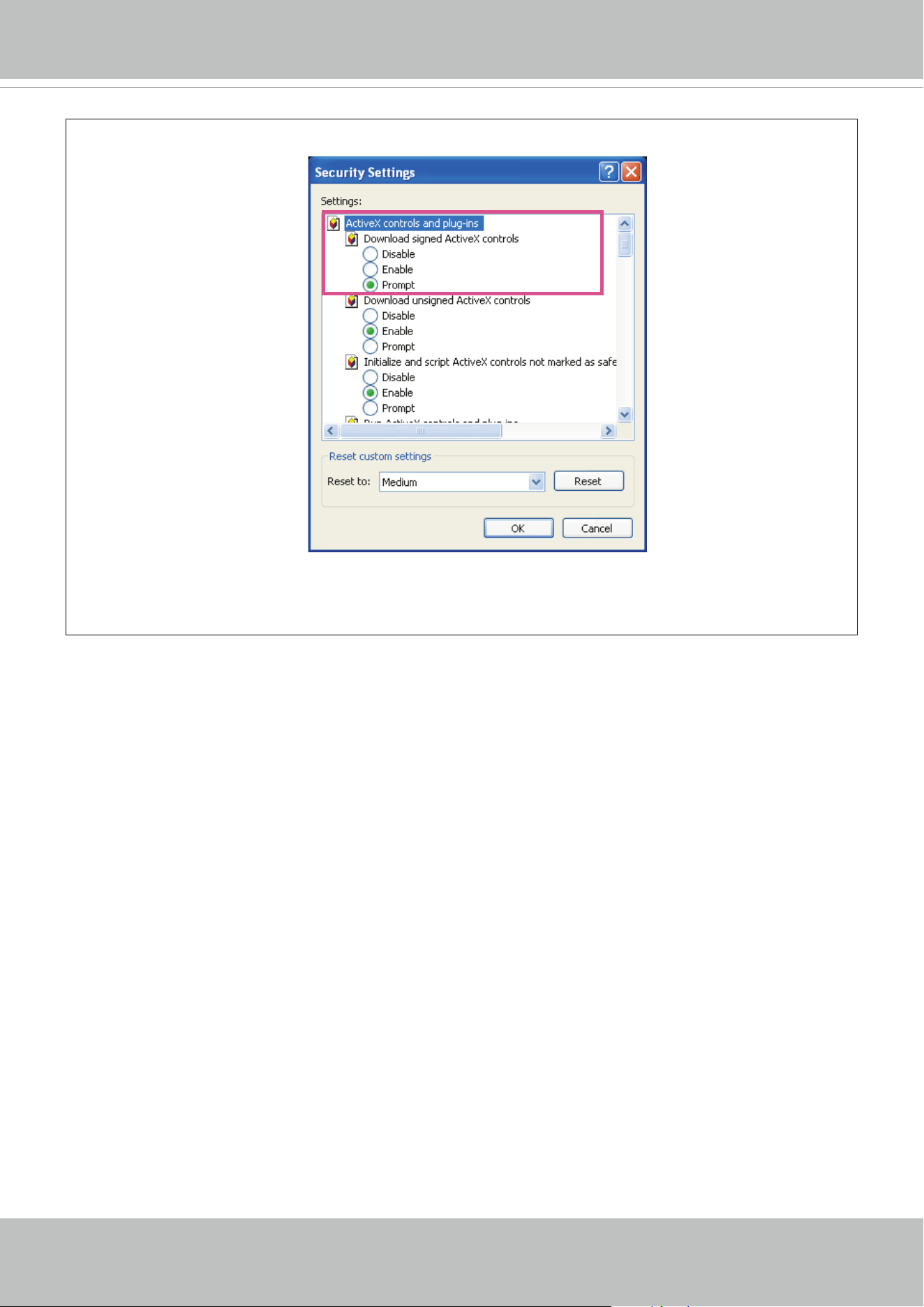
2. Look for Download signed ActiveX
®
controls; select Enable or Prompt. Click OK.
3. Refresh your web browser, then install the Active X
®
control. Follow the instructions to
complete installation.
VIVOTEK
16 - User's Manual
Using RTSP Players
To view the MPEG-4 streaming media using RTSP players, you can use one of the following
players that support RTSP streaming.
Quick Time Player
Real Player
VLC media player
mpegable Player
pvPlayer
As most ISPs and players only allow RTSP streaming through port number 554, please set the
RTSP port to 554. For more information, please refer to RTSP Streaming on page 48.
For example:
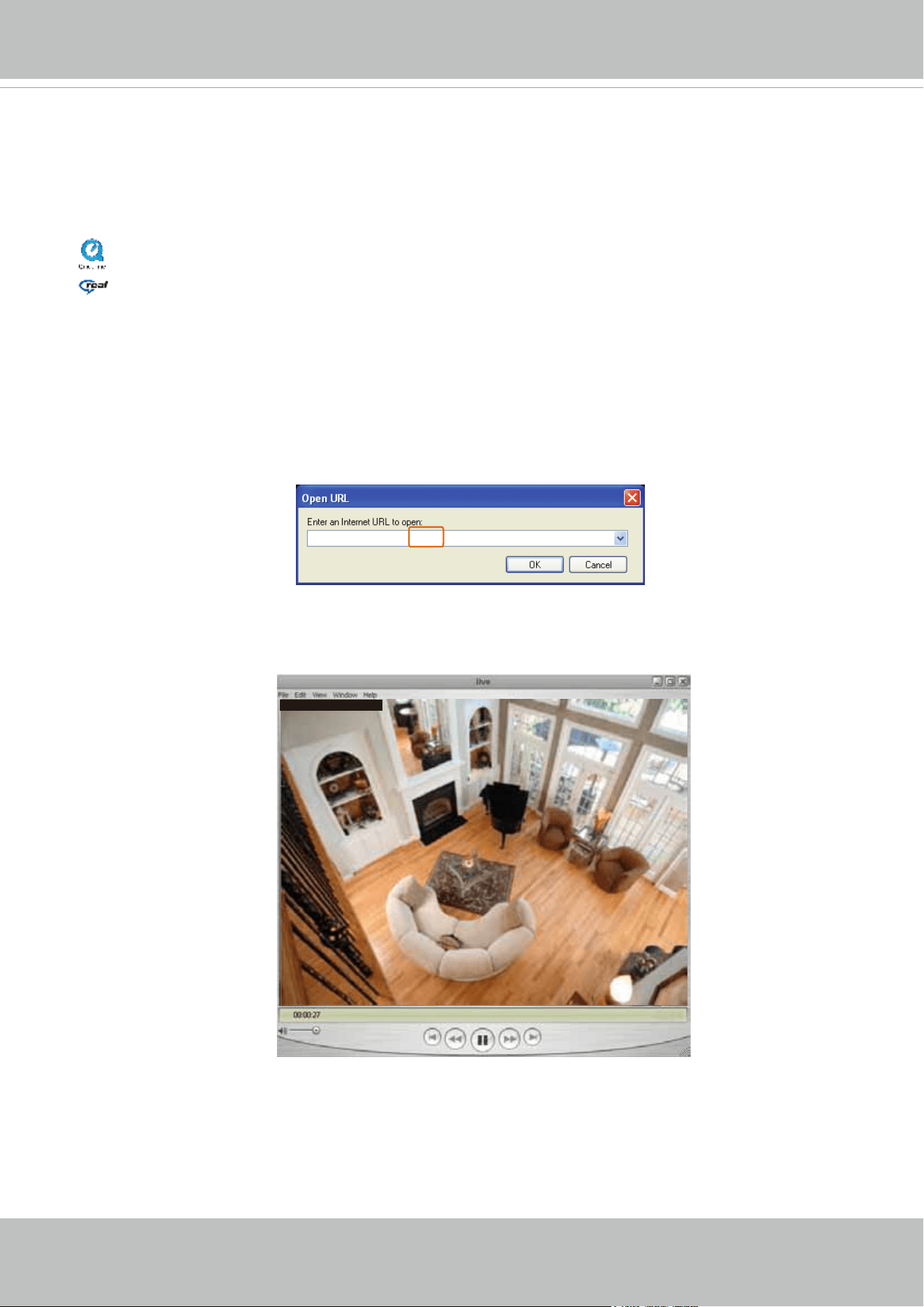
4. The live video will be displayed in your player.
For more information on how to configure the RTSP access name,
please refer to RTSP
Streaming on page 48
for details.
rtsp://192.168.5.151:554/live.sdp
Video 16:38:01 2011/03/10
1. Launch the RTSP player.
2. Choose File > Open URL. A URL dialog box will pop up.
3. The address format is rtsp://<ip address>:<rtsp port>/<RTSP streaming access name for
stream1 or stream2>

VIVOTEK
User's Manual - 17
Using 3GPP-compatible Mobile Devices
To view the streaming media through 3GPP-compatible mobile devices, make sure the video
server can be accessed over the Internet. For more information on how to set up the video
se
rver over the Internet, please refer to Setup the video server over the Internet on page 10.
To utilize this feature, please check the following settings on your video server:
1. Because most players on 3GPP mobile phones do not support RTSP authentication, make
sure the authentication mode of RTSP streaming is set to disable.
For more information, please refer to RTSP Streaming on page 48.
2. As the the bandwidth on 3G networks is limited, you will not be able to use a large video size.
Please set the video and audio streaming parameters as listed below.
Video Mode MPEG-4
Frame size QCIF
Maximum frame rate 5 fps
Intra frame period 1S
Video quality (Constant bit rate) 40kbps
Audio type (G.711) 64kbps
3. As most ISPs and players only allow RTSP streaming through port number 554, please set
the RTSP port to 554. For more information,
please refer to RTSP Streaming on page 48
.
4. Launch the player on the 3GPP-compatible mobile devices (ex. Real Player).
5. Type the following URL commands into the player.
The address format is rtsp://<public ip address of your camera>:<rtsp port>/<RTSP streaming
access name for stream 3>.
For example:
rtsp://192.168.5.151:554/live.sdp
VIVOTEK
18 - User's Manual
Using VIVOTEK Recording Software
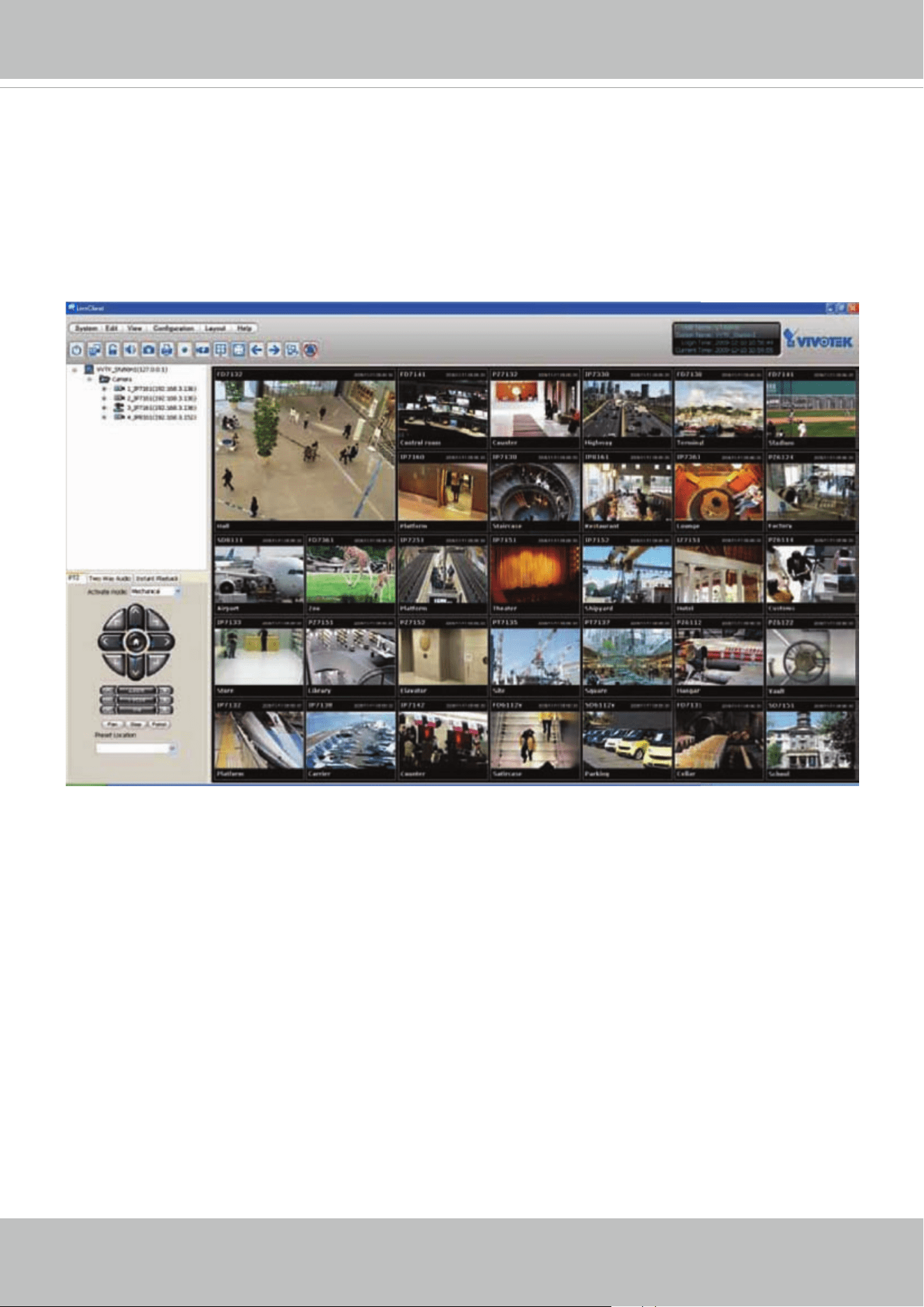
The product software CD also contains recording software, allowing simultaneous monitoring
and video recording for multiple video servers. Please install the recording software; then launch
the program to add the video server to the Channel list. For detailed information about how to
use the recording software, please refer to the user’s manual of the software or download it from
http://www.vivotek.com.
VIVOTEK
User's Manual - 19
Main Page
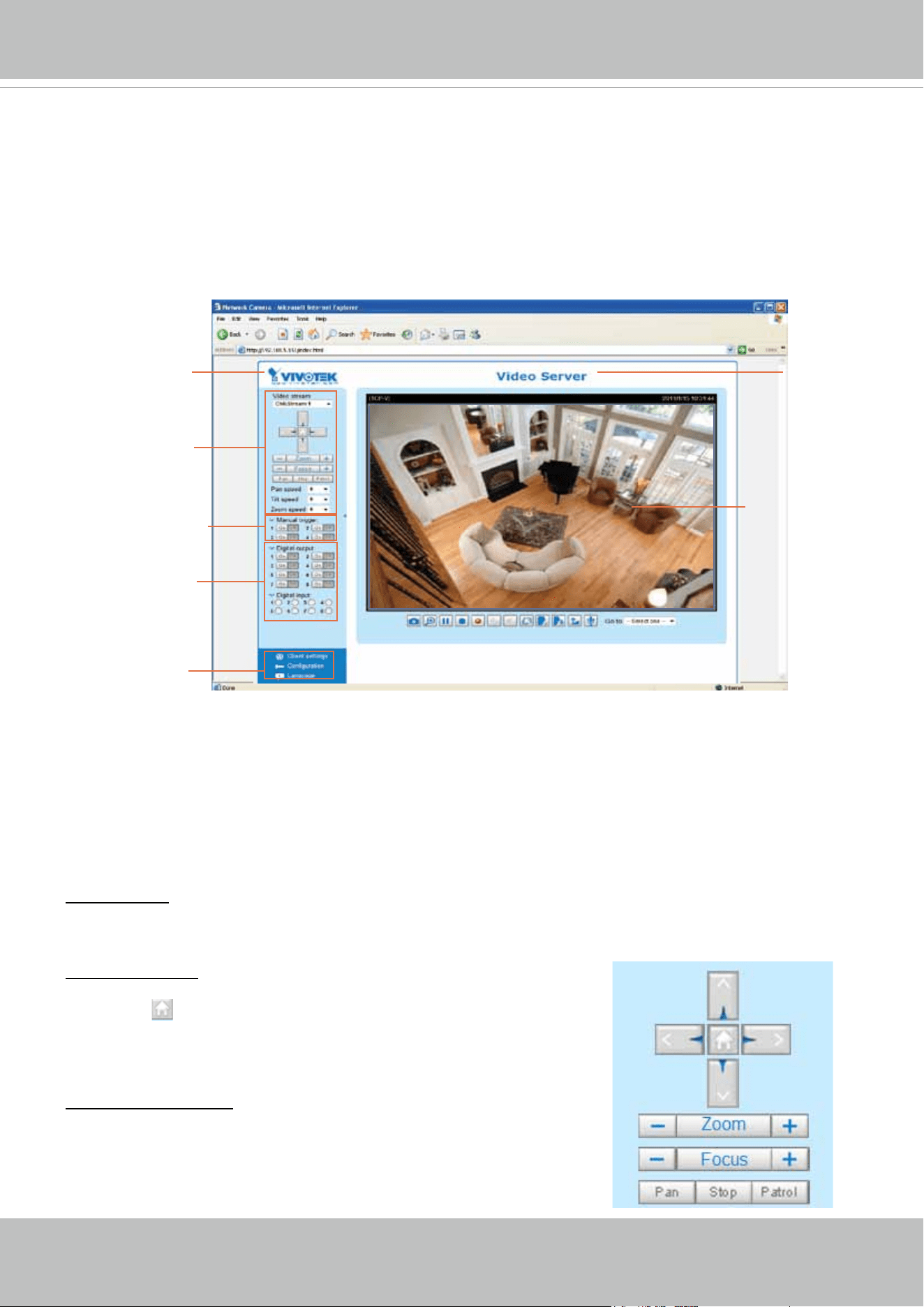
This chapter explains the layout of the main page. It is composed of the following sections:
VIVOTEK INC. Logo, Host Name, Camera Control Area, Configuration Area, Menu, and
Live Video Window. The Manual Trigger and Digital Input/Digital Output control menus are
expandable and collapsible, while the PTZ navigation panel is available only when a PTZ
camera is attached.
VIVOTEK INC. Logo
Click this logo to visit the VIVOTEK website.
Host Name
The host name can be customized to t your needs. For more information,
please refer to
System settings
on page 26.
Live View Window
VIVOTEK INC. Logo
Camera Control Area
Configuration Area
Manual Trigger Area
DI/O Control Area
Host Name
Camera Control Area
Video Stream: VS8401 supports 4 channels for video live viewing, as VS8801 supports 8 channels. Each
channel allows you to view only one stream. There are channel1,2,3,4,(5,6,7,8),and Quad View for you
to choose. For more information about video settings, please refer to page 56 for detailed information.
PTZ Control Area: The up/down/left/right/zoom/focus/pan buttons allow
you to adjust the video in the viewing window to the spot you wish
to watch.
Home button allows you to resume the center of the
screen. Click Patrol to move from one point to another; click it again to
stop patroling. Click Stop to stop the pan movement. Please refer to
Conguration > Camera Control on page 68 for more information.
Pan/Tilt/Zoom Speed: In the drop-down list, the speed ranges from
-5~5 (slow/fast).
VIVOTEK
20 - User's Manual
Conguration Area
Client Settings: Click this button to access the client setting page. For more information, please refer to
Client Settings on page 22.
Conguration: Click this button to access the conguration page of the video server. It is suggested that
a password be applied to the video server so that only the administrator can congure the video server.
For more information, please refer to Conguration on page 25.
Language: Click this button to choose a language for the user interface. Language options are available
in: English, Deutsch, Español, Français, Italiano,
日本語
, Português,
簡体中文
, and
繁體中文
.
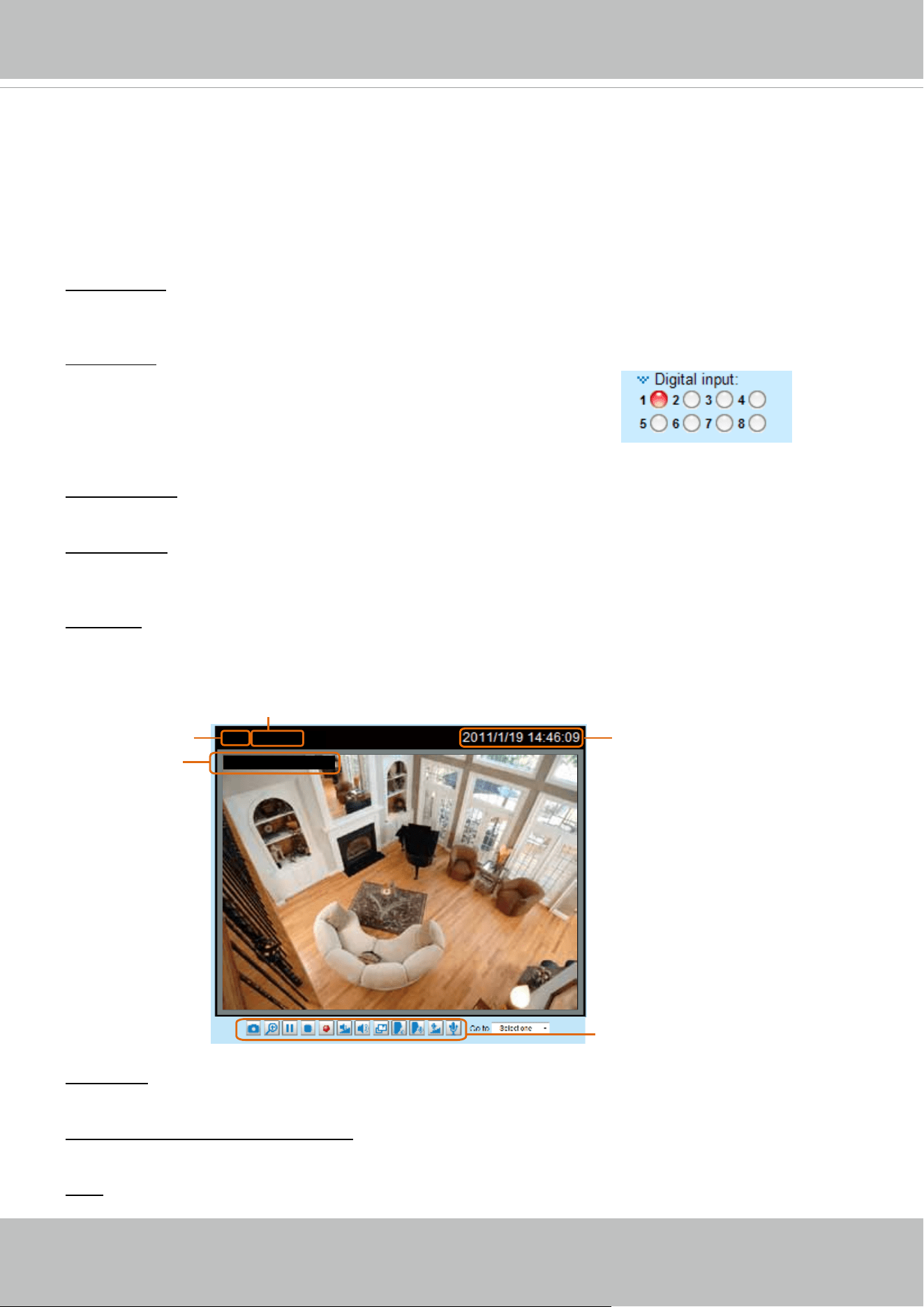
Live Video Window
Video Title: The video title can be congured. For more information, please refer to Video settings on
page 56.
MPEG-4 Protocol and Media Options: The transmission protocol and media options for MPEG-4 video
streaming. For further conguration, please refer to Client settings on page 22.
Time: Display the current time. For further conguration, please refer to Video settings on page 56.
Video (UDP-AV)
Video 14:46:09 2011/01/19
Video and Audio Control Buttons
MPEG-4 Protocol and Media Options
Video Title
Time
Title and Time
Manual Trigger Area
Click to enable/disable an event trigger manually. Please congure an event setting on Application page
before enable this function. A total of 4 event settings can be congured. For more information about
event settings, please refer to page 79.
If you want to hide this item on the homepage, please go to the Homepage layout page to uncheck “show
manual trigger button”. Please refer to page 75 for detail.
DI/O Control Area
Digital output: There are 4 (VS8401)
or 8 (VS8801) digital output switches; click to turn the digital output
device on or off. Switch 1 is for channel 1 digital output control, switch 2 is for channel 2 digital output
control, and so on.
Digital input: There are 4 (VS8401)
or 8 (VS8801) digital input status indicators. A Red indicator shows
the digital input status is active, while the white indicator shows inactive.
VIVOTEK
User's Manual - 21
Title and Time: The video title and time can be stamped on the streaming video. For further conguration,
please refer to Video settings on page 56.
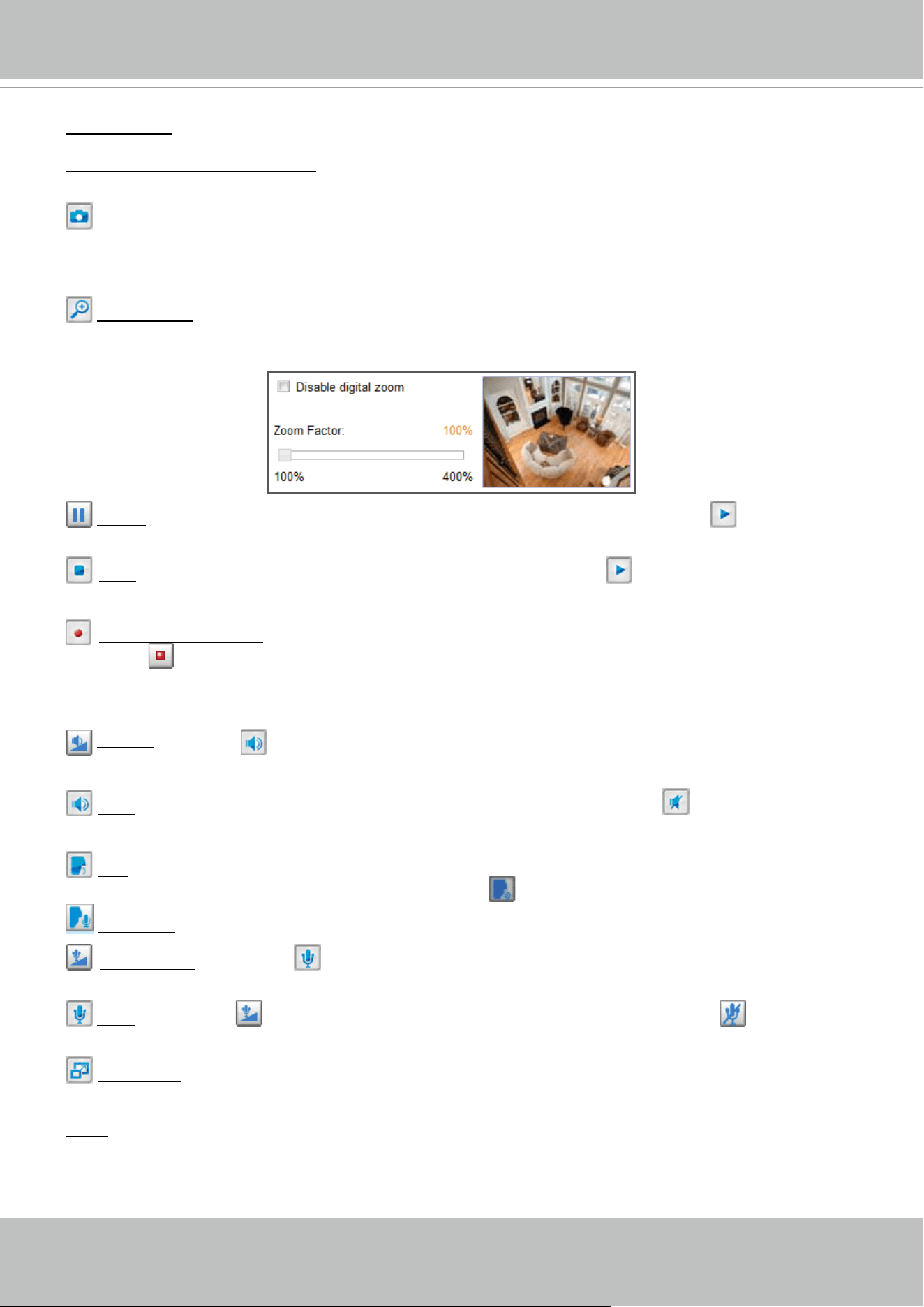
Video and Audio Control Buttons: Depending on the video server model and video server conguration,
some buttons may not be available.
Snapshot: Click this button to capture and save still images. The captured images will be displayed
in a pop-up window. Right-click the image and choose Save Picture As to save it in JPEG (*.jpg) or BMP
(*.bmp) format.
Digital Zoom: Click and uncheck “Disable digital zoom” to enable the zoom operation. The navigation
screen indicates the part of the image being magnied. To control the zoom level, drag the slider bar. To
move to a different area you want to magnify, drag the navigation screen.
Pause: Pause the transmission of the streaming media. The button becomes the Resume button
after clicking the Pause button.
Stop: Stop the transmission of the streaming media. Click the Resume button to continue
transmission.
Start MP4 Recording: Click this button to record video clips in MP4 file format to your computer.
Press the
Start MP4 Recording
Stop MP4 Recording button to end recording. When you exit the web browser, video
recording stops accordingly. To specify the storage destination and le name, please refer to MP4 saving
options on page 23 for details.
Volume: When the Mute function is not activated, move the slider bar to adjust the volume on the
local computer.
Mute: Turn off the volume on the local computer. The button becomes the Audio On button after
clicking the Mute button.
Talk: Click this button to talk to people around the video server. Audio will project from the external
speaker connected to the video server. Click this button
: Click this button to talk to people around the video server. Audio will project from the external
again to end talking transmission.
Broadcast: Click this button to broadcast to all channels.
Mic Volume: When the Mute function is not activated, move the slider bar to adjust the
microphone volume on the local computer.
Mute: Turn off the Mic volume on the local computer. The button becomes the Mic On button
after clicking the Mute button.
Full Screen: Click this button to switch to full screen mode. Press the “Esc” key to switch back to normal
mode.
Go to: The drop-down menu enables you to locate and move to a preset location instantly on the viewing
window.
VIVOTEK
22 - User's Manual
Client settings
This chapter explains how to select the stream transmission mode and saving options on the
local computer. When completed with the settings on this page, click Save on the page bottom
to enable the settings.
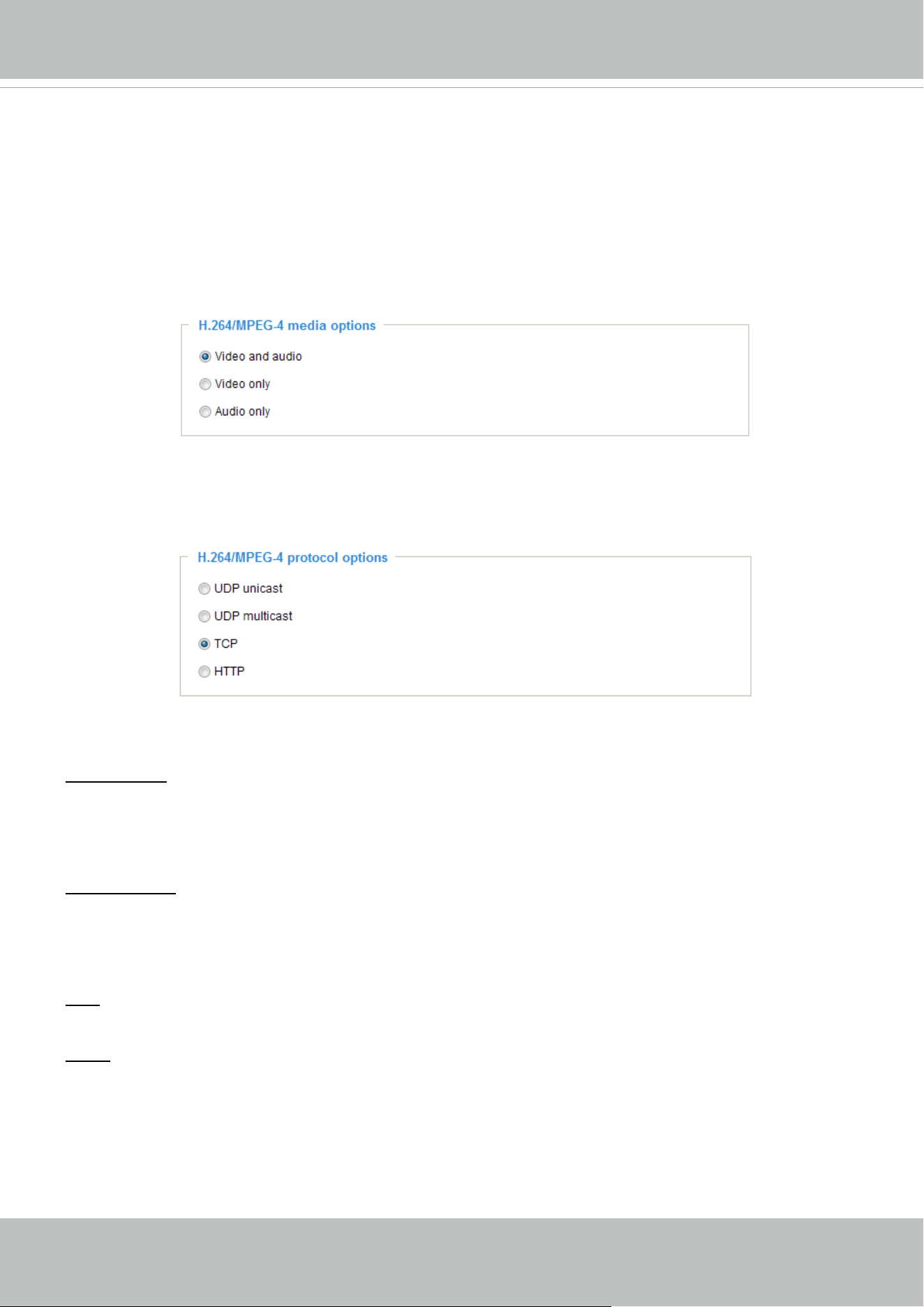
H.264 / MPEG-4 media options
Select to stream video or audio data or both. This is enabled only when the video mode is set to H.264 or
MPEG-4.
H.264 / MPEG-4 protocol options
Depending on your network environment, there are four transmission modes of H.264 or MPEG-4
streaming:
UDP unicast: This protocol allows for more real-time audio and video streams. However, network
packets may be lost due to network burst trafc and images may be broken. Activate UDP connection
when occasions require time-sensitive responses and the video quality is less important. Note that each
unicast client connecting to the server takes up additional bandwidth and the video server allows up to
ten simultaneous accesses.
UDP multicast: This protocol allows multicast-enabled routers to forward network packets to all clients
requesting streaming media. This helps to reduce the network transmission load of the video server
while serving multiple clients at the same time. Note that to utilize this feature, the video server must be
congured to enable multicast streaming at the same time. For more information, please refer to RTSP
Streaming on page 48.
TCP: This protocol guarantees the complete delivery of streaming data and thus provides better video
quality. The downside of this protocol is that its real-time effect is not as good as that of the UDP protocol.
HTTP: This protocol allows the same quality as TCP protocol without needing to open specic ports for
streaming under some network environments. Users inside a firewall can utilize this protocol to allow
streaming data through.
VIVOTEK
User's Manual - 23
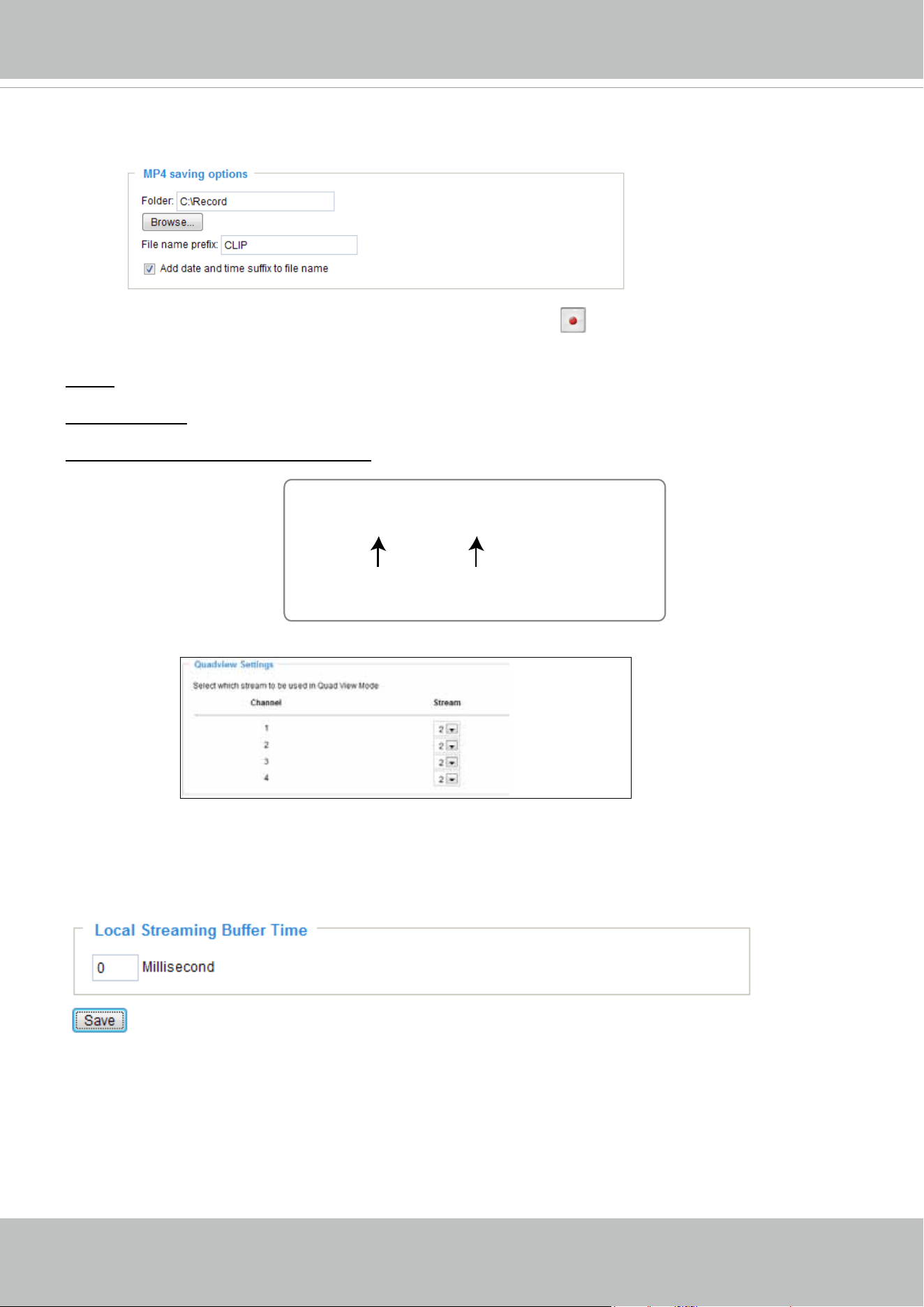
MP4 saving options
Users can record live video as they are watching it by clicking Start MP4 Recording on the main
page. Here, you can specify the storage destination and le name.
Folder: Specify a storage destination for the recorded video les.
File name prex: Enter the text that will be appended to the front of the video le name.
Add date and time sufx to the le name: Select this option to append the date and time to the end of the
le name.
Quadview settings
Here is where you congure which video streams will be displayed in the Quad View window.
The default is the stream 2 with a lower resolution.
Local Streaming Buffer Time
Due to the unsteady bandwidth ow, the live streaming may lag and not be very smoothly. If you enable
this option, the live streaming will be stored on the camera’s buffer area for a few seconds before playing
on the live viewing window. This will help you see the streaming more smoothly. If you enter 3000
Millisecond, the streaming will delay 3 seconds.
CLIP_20110114-180853
Date and time suffix
The format is: YYYYMMDD_HHMMSS
File name prefix
VIVOTEK
24 - User's Manual
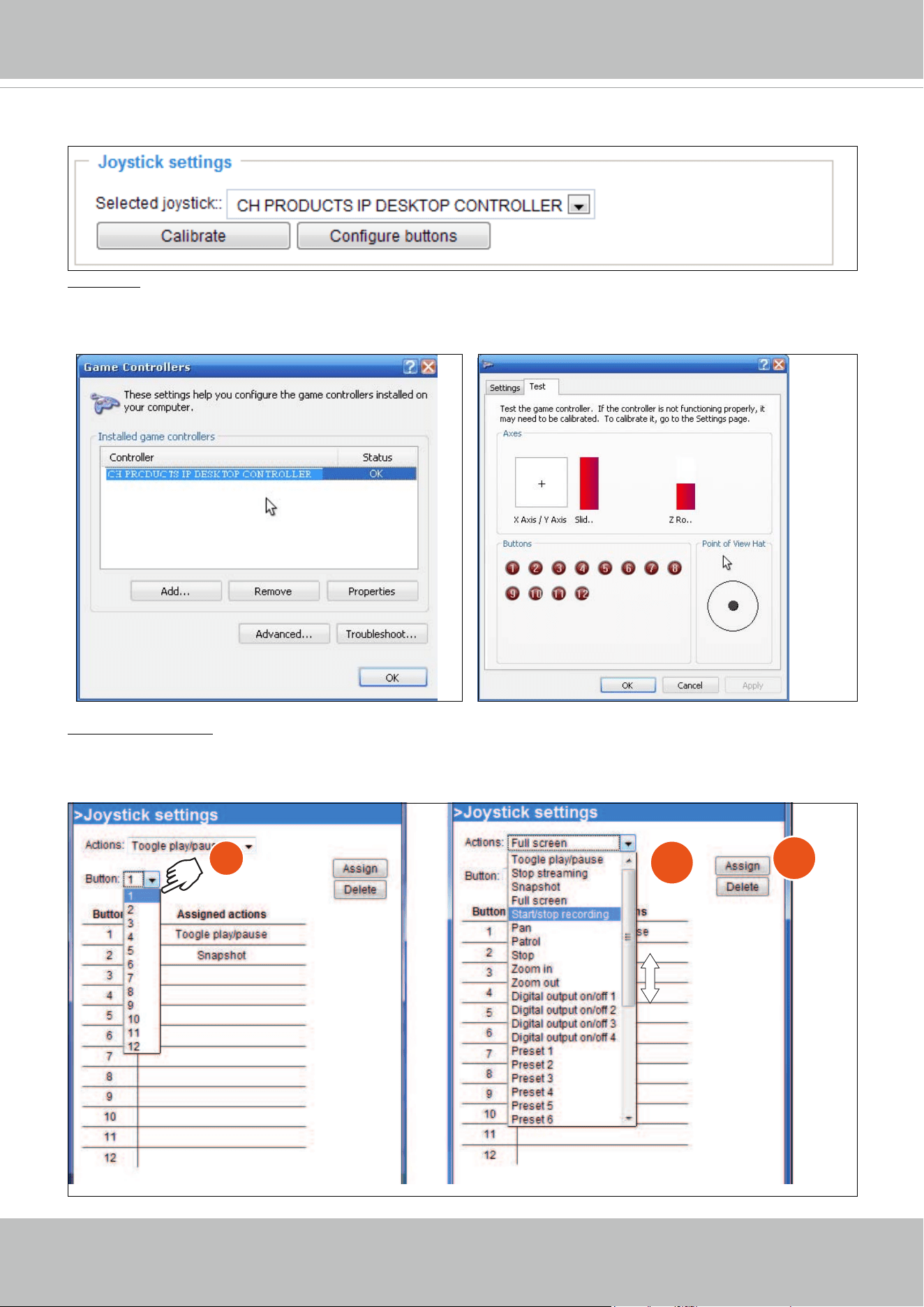
Joystick settings
Calibrate: Make sure a joystick is already attached to your COM port or USB port on your client
computer. Click on the Calibrate button and the Windows Game Controller function will be started.
If properly connected, your operating system should have already detected the joystick. Follow the
onscreen instructions to calibrate your joystick.
Configure buttons: You can define individual joystick buttons using this function. Click to open a
configuration window and assign functions to joystick buttons using the following steps: 1. Select a
button uing the pull-down menu. 2. Select an Action to be toggled by the button. 3. Click on the Assign
button, and then repeat the process to dene other buttons.
1
2
3
VIVOTEK
User's Manual - 25
Conguration
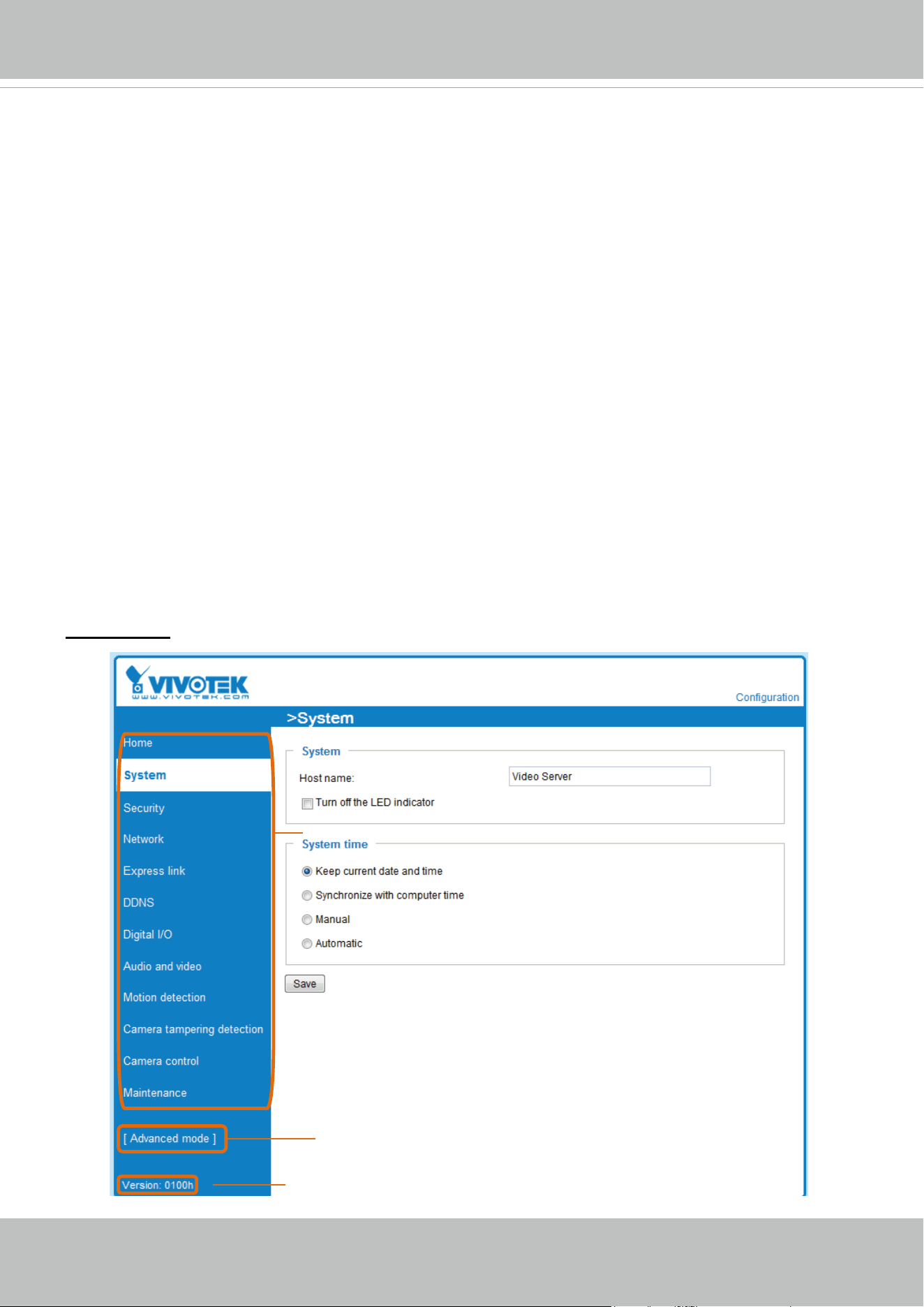
Click Configuration on the main page to enter the camera setting pages. Note that only
Administrators can access the conguration page.
VIVOTEK offers an easy-to-use user interface that helps you set up your video server with
minimal effort. To simplify the setting procedure, two types of user interfaces are available:
Advanced Mode for professional users and Basic Mode for entry-level users. Some advanced
functions (HTTPS/
SNMP/ Access list/ Homepage layout/ Application/ System log/ View
parameters) are not displayed in Basic Mode.
If you want to set up advanced functions, please click [Advanced mode] on the bottom of the
conguration list to quickly switch to Advanced Mode.
In order to simplify the user interface, the detailed information will be hidden unless you click on
the function item. When you click on the rst sub-item, the detailed information for the rst sub-
item will be displayed; when you click on the second sub-item, the detailed information for the
second sub-item will be displayed and that of the rst sub-item will be hidden.
The following is the interface of the Basic mode and the Advanced mode:
Basic mode
Click to switch to Advanced Mode
Firmware Version
Configuration List
VIVOTEK
26 - User's Manual
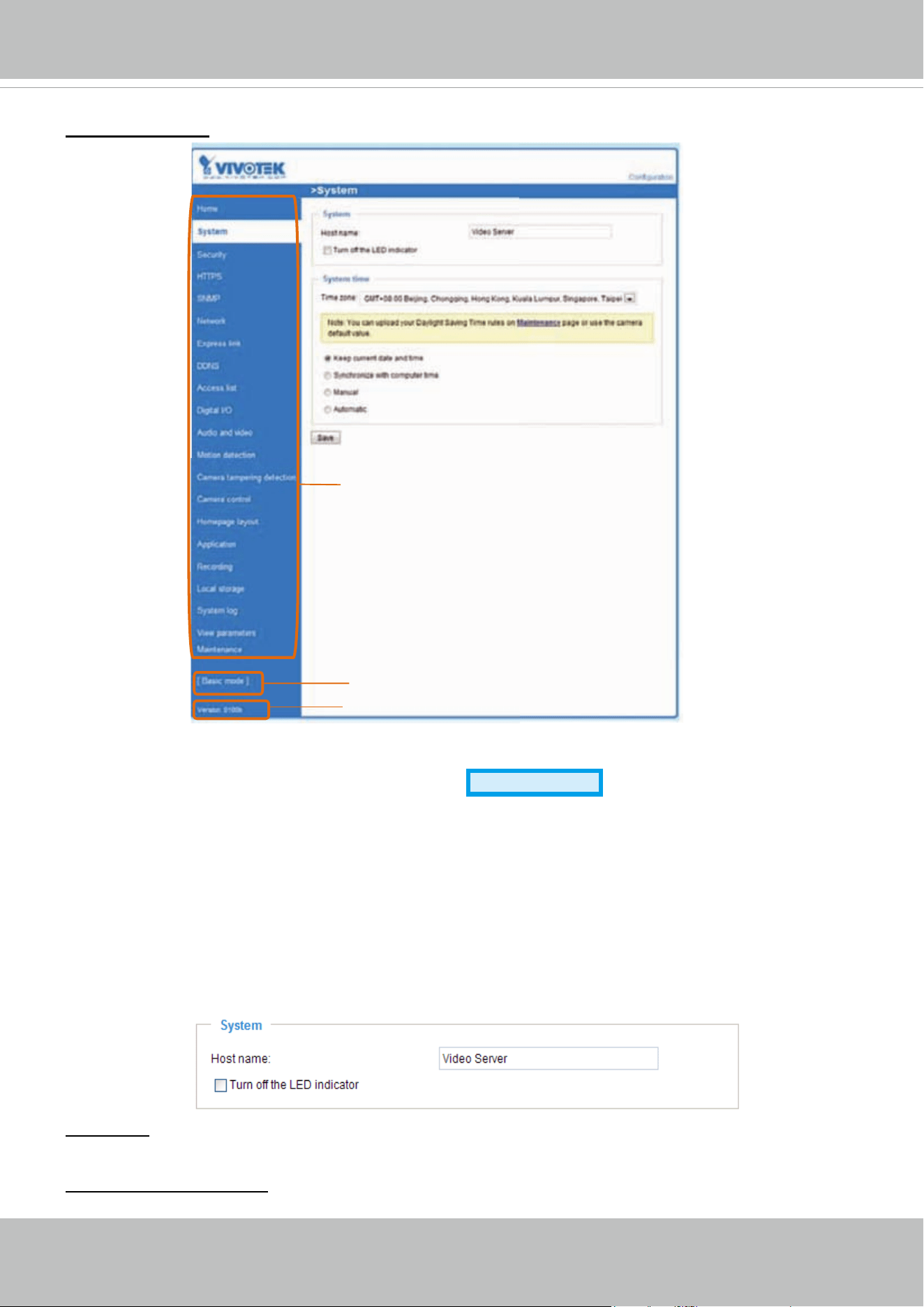
Advanced mode
Each function on the conguration list will be explained in the following sections. Those functions that are
displayed only in Advanced Mode are marked with
Advanced mode
. If you want to set up advanced
functions, please click
[Advanced Mode] at the bottom of the conguration list to quickly switch over.
System
This section explains how to congure the basic settings for the video server, such as the host
name and system time. It is composed of the following three columns: System, System Time
and DI and DO. When nished with the settings on this page, click Save at the bottom of the
page to enable the settings.
System
Host name: Enter a desired name for the video server. The text will be displayed at the top of the main
page.
Turn off the LED indicators: If you do not want to let others know that the video server is in operation, you
can select this option to turn off the LED indicators.
Firmware Version
Configuration List
Click to switch to Basic Mode
VIVOTEK
User's Manual - 27
System time
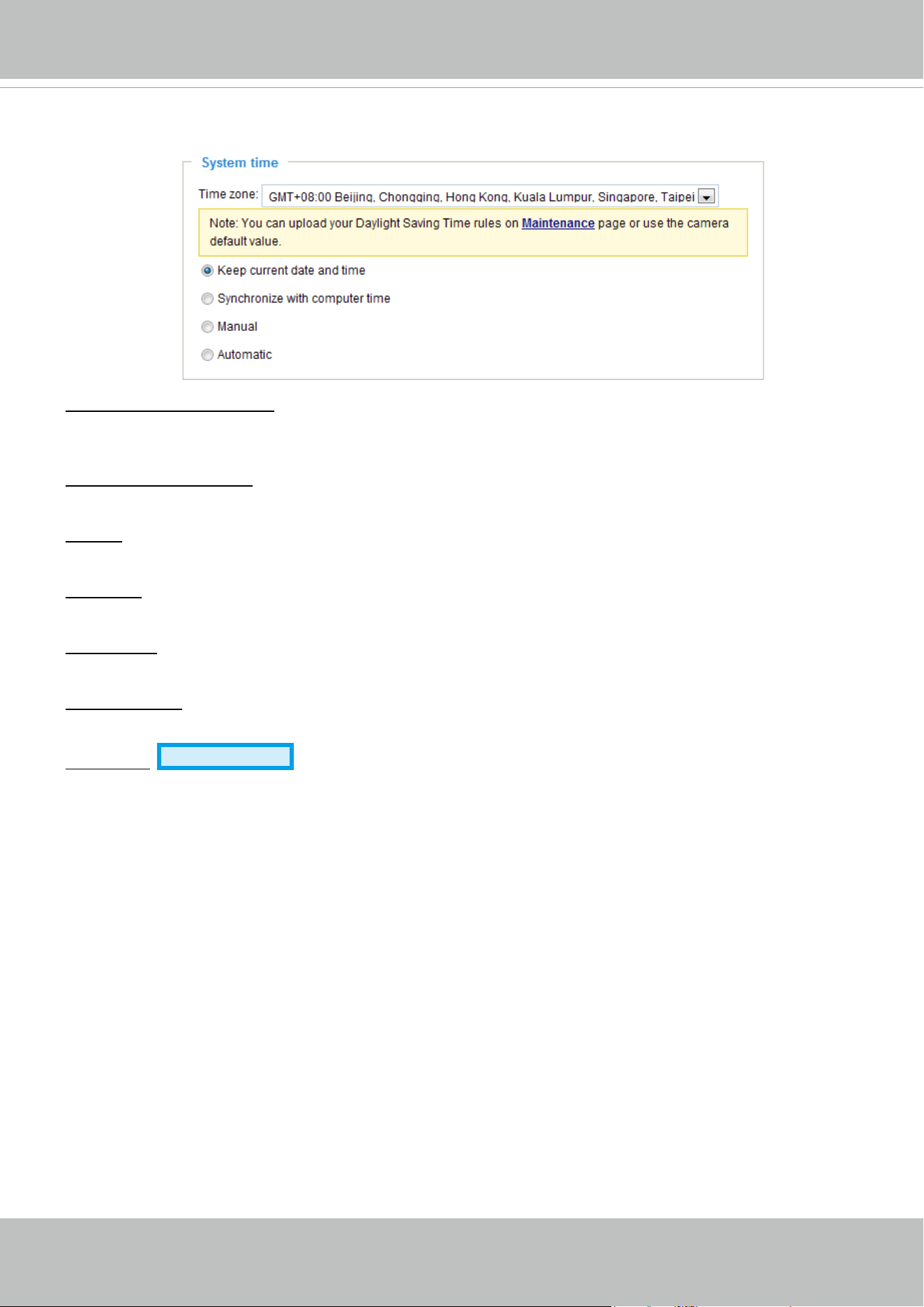
Keep current date and time: Select this option to preserve the current date and time of the Video server.
The video server’s internal real-time clock maintains the date and time even when the power of the
system is turned off.
Sync with computer time: Select this option to synchronize the date and time of the video server with the
local computer. The read-only date and time of the PC is displayed as updated.
Manual: The administrator can enter the date and time manually. Note that the date and time format are
[yyyy/mm/dd] and [hh:mm:ss].
Automatic: The Network Time Protocol is a protocol which synchronizes computer clocks by periodically
querying an NTP Server.
NTP server: Assign the IP address or domain name of the time-server. Leaving the text box blank
connects the video server to the default time servers.
Update interval: Select to update the time using the NTP server on an hourly, daily, weekly, or monthly
basis.
Time zone
Advanced Mode
: Select the appropriate time zone from the list. If you want to upload
Daylight Savings Time rules on the Maintenance page, please refer to Upload / Export daylight saving
time conguration le on page 102 for details.
VIVOTEK
28 - User's Manual
Security
This section explains how to enable password protection and create multiple accounts.
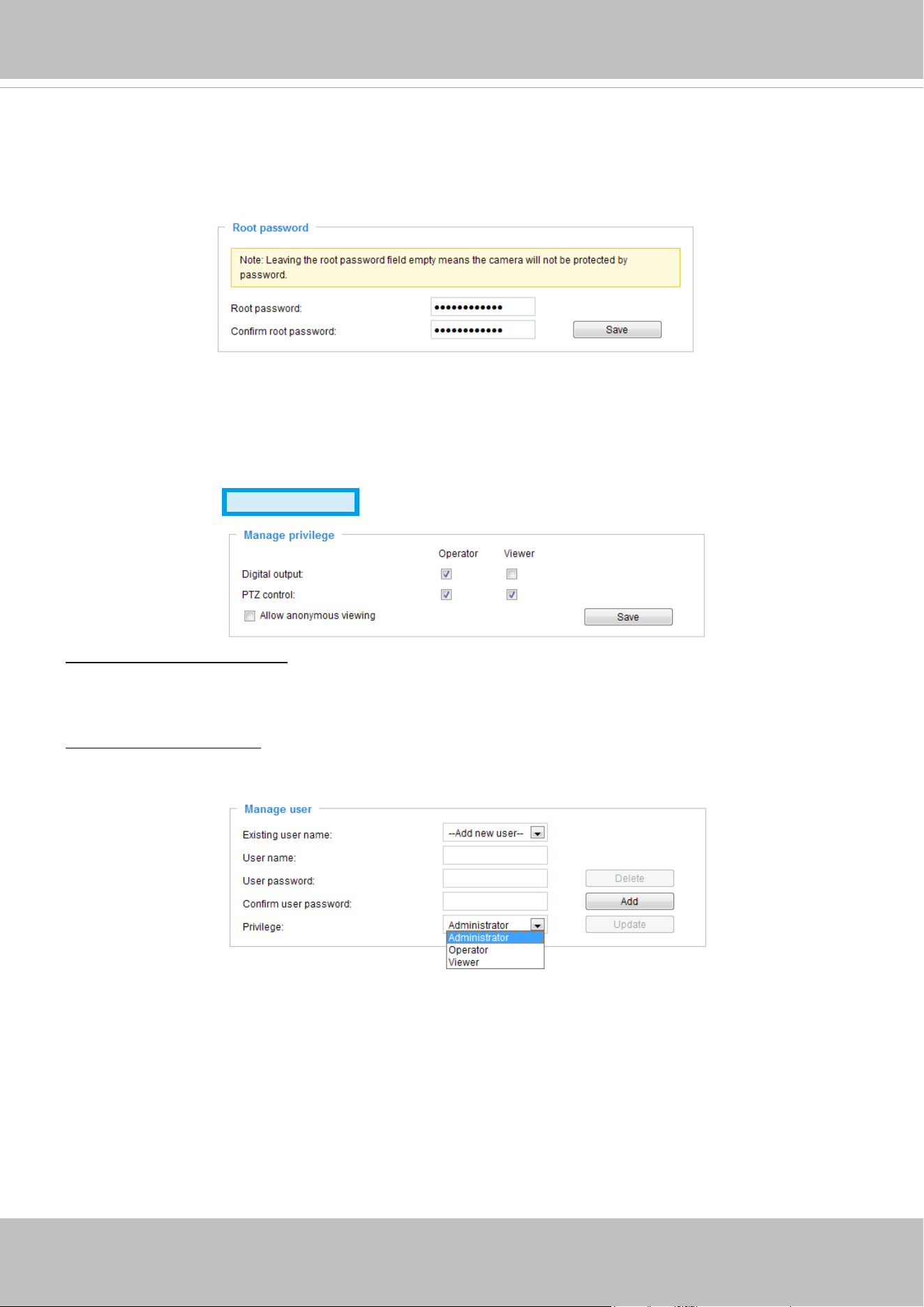
Root password
The administrator account name is “root”, which is permanent and can not be deleted. If you want to add
more accounts in the Manage User column, please apply the password for the “root” account rst.
1. Type the password identically in both text boxes, then click Save to enable password protection.
2. A window will be prompted for authentication; type the correct user’s name and password in their
respective elds to access the video server.
Manage privilege
Advanced Mode
Digital Output & PTZ control: You can modify the manage privilege of operators or viewers. Check or
uncheck the item, then click Save to enable the settings. If you give Viewers the privilege, Operators will
also have the ability to control the video server through the main page. (Please refer to Main Page on
page 19.)
Allow anonymous viewing: If you check this item, any client can access the live stream without entering a
User ID and Password.
Manage user
Administrators can add up to 20 user accounts.
1. Input the new user’s name and password.
2. Select the privilege level for the new user account. Click Add to enable the setting.
Access rights are sorted by user privilege (Administrator, Operator, and Viewer). Only administrators can
access the Conguration page. Though operators cannot access the Conguration page, they can use
the URL Commands to get and set the value of parameters. For more information, please refer to URL
Commands of the video server on page 105. Viewers access only the main page for live viewing.
Here you also can change a user’s access rights or delete user accounts.
1. Select an existing account to modify.
2. Make necessary changes and click Update or Delete to enable the setting.
VIVOTEK
User's Manual - 29
HTTPS (Hypertext Transfer Protocol over SSL)
Advanced Mode
This section explains how to enable authentication and encrypted communication over SSL
(Secure Socket Layer). It helps protect streaming data transmission over the Internet on higher
security level.
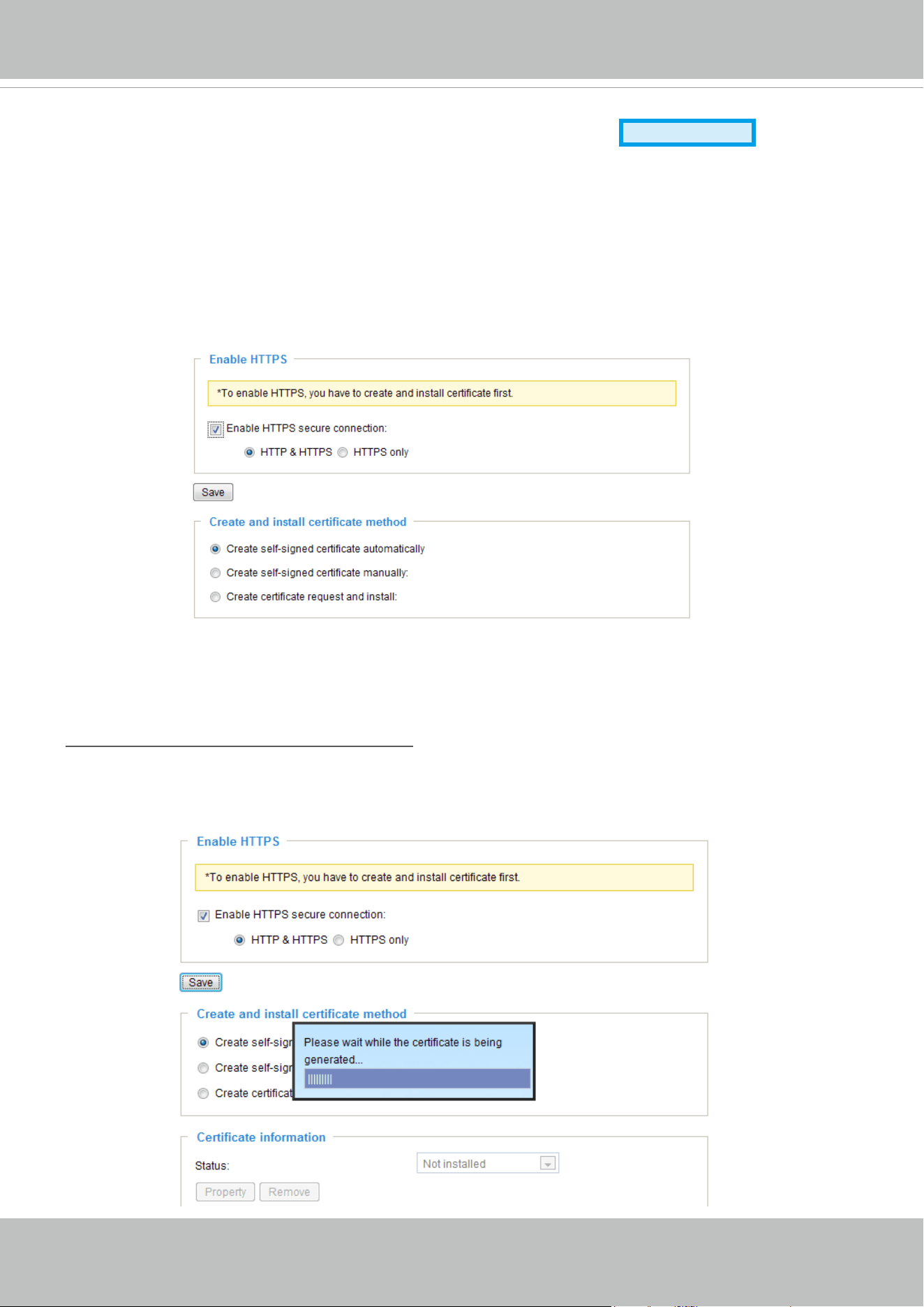
Enable HTTPS
Check this item to enable HTTPS communication, then select a connection option: "HTTP & HTTPS"
or "HTTPS only". Note that you have to create and install a certicate rst in the second column before
clicking the Save button.
Create and install certicate method
Before using HTTPS for communication with the video server, a Certicate must be created rst. There
are three ways to create and install a certicate:
Create self-signed certificate automatically
1. Select this option.
2. In the rst column, check Enable HTTPS secure connection, then select a connection option: “HTTP
& HTTPS” or “HTTPS only”.
3. Click Save to generate a certicate.
VIVOTEK
30 - User's Manual
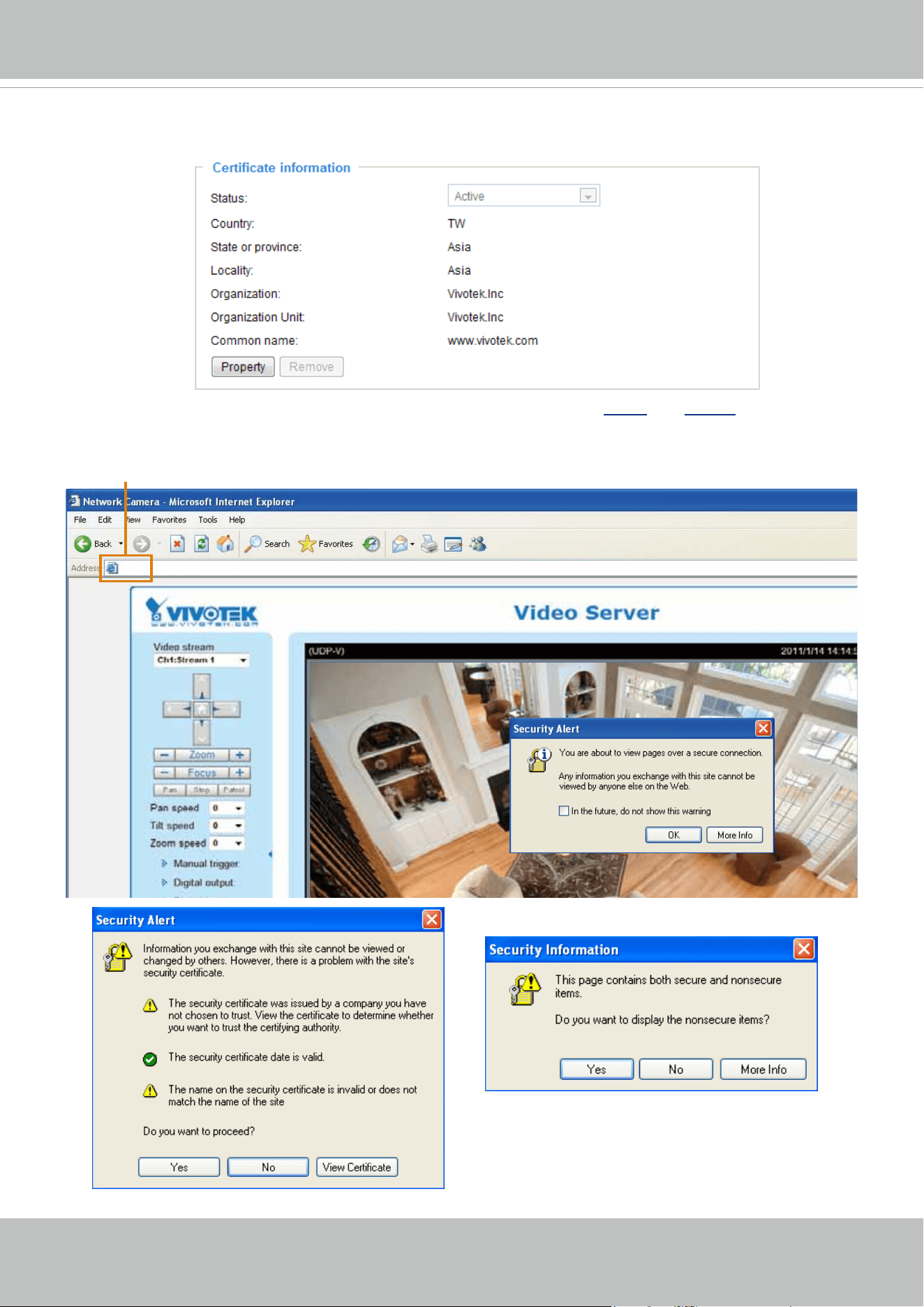
4. The Certicate Information will automatically de displayed in the third column as shown below. You can
click Property to view detailed information about the certicate.
5. Click Home to return to the main page. Change the address from “
http://” to “https://“ in the address
bar and press Enter on your keyboard. Some Security Alert dialogs will pop up. Click OK or Yes to
enable HTTPS.
https://192.168.5.151/index.html
https://
VIVOTEK
User's Manual - 31
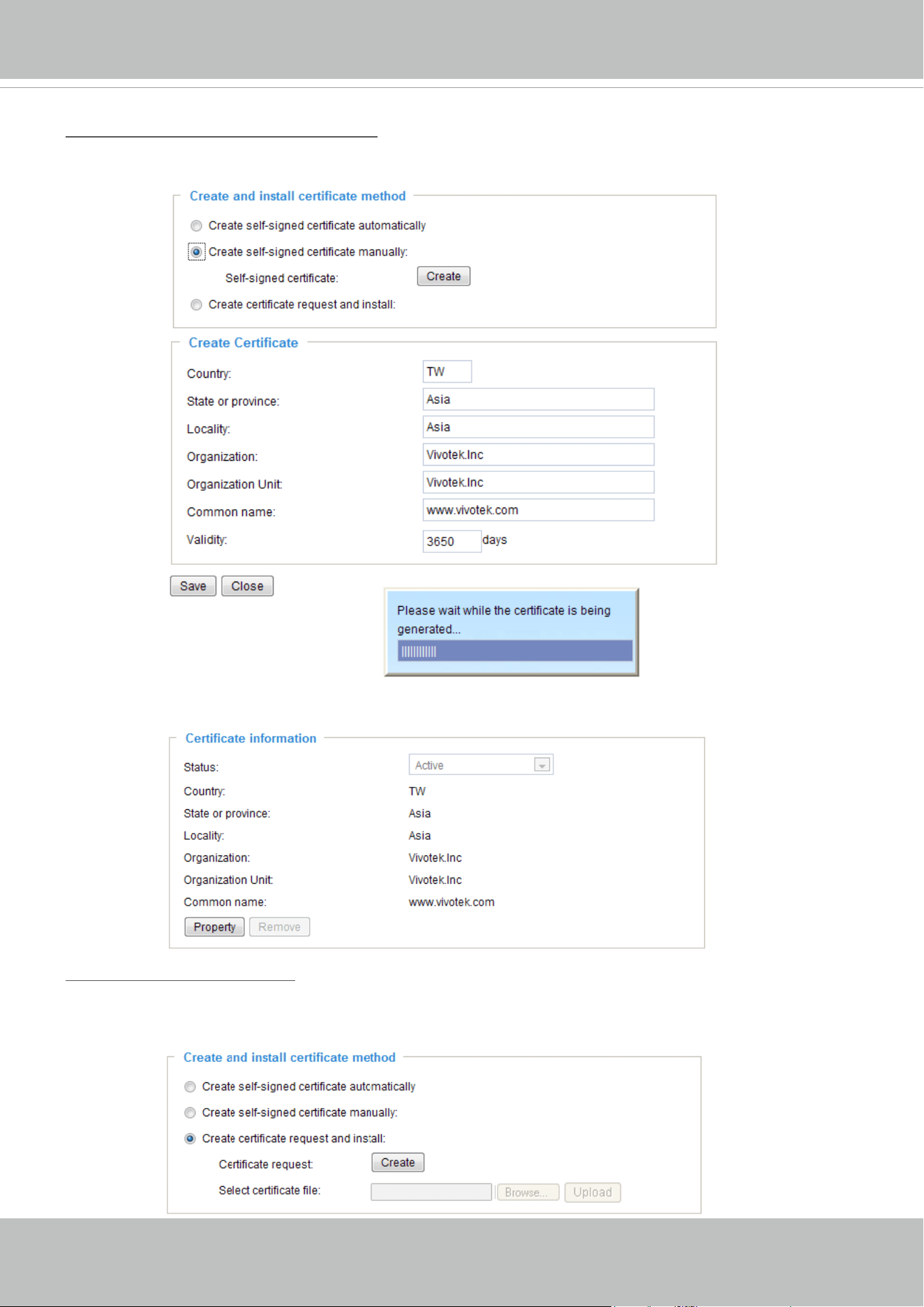
Create self-signed certificate manually
1. Select this option.
2. Click Create to open the Create Certicate page, then click Save to generate the certicate.
3. The Certicate Information will automatically be displayed in the third column as shown below. You
can click Property to see detailed information about the certicate.
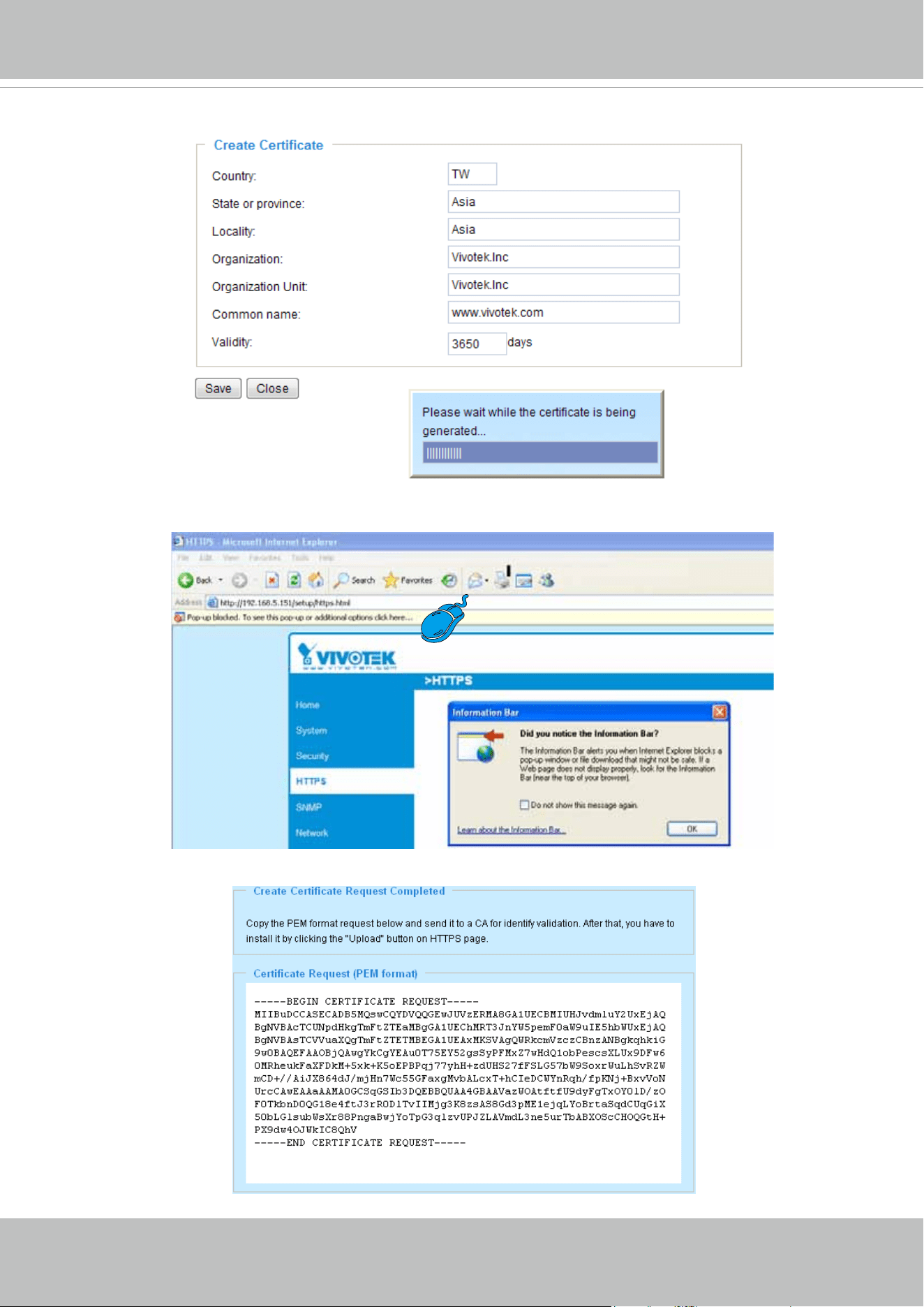
Create certificate and install : Select this option if you want to create a certicate from a certicate
authority.
1. Select this option.
2. Click Create to open the Create Certicate page, then click Save to generate the certicate.
VIVOTEK
32 - User's Manual
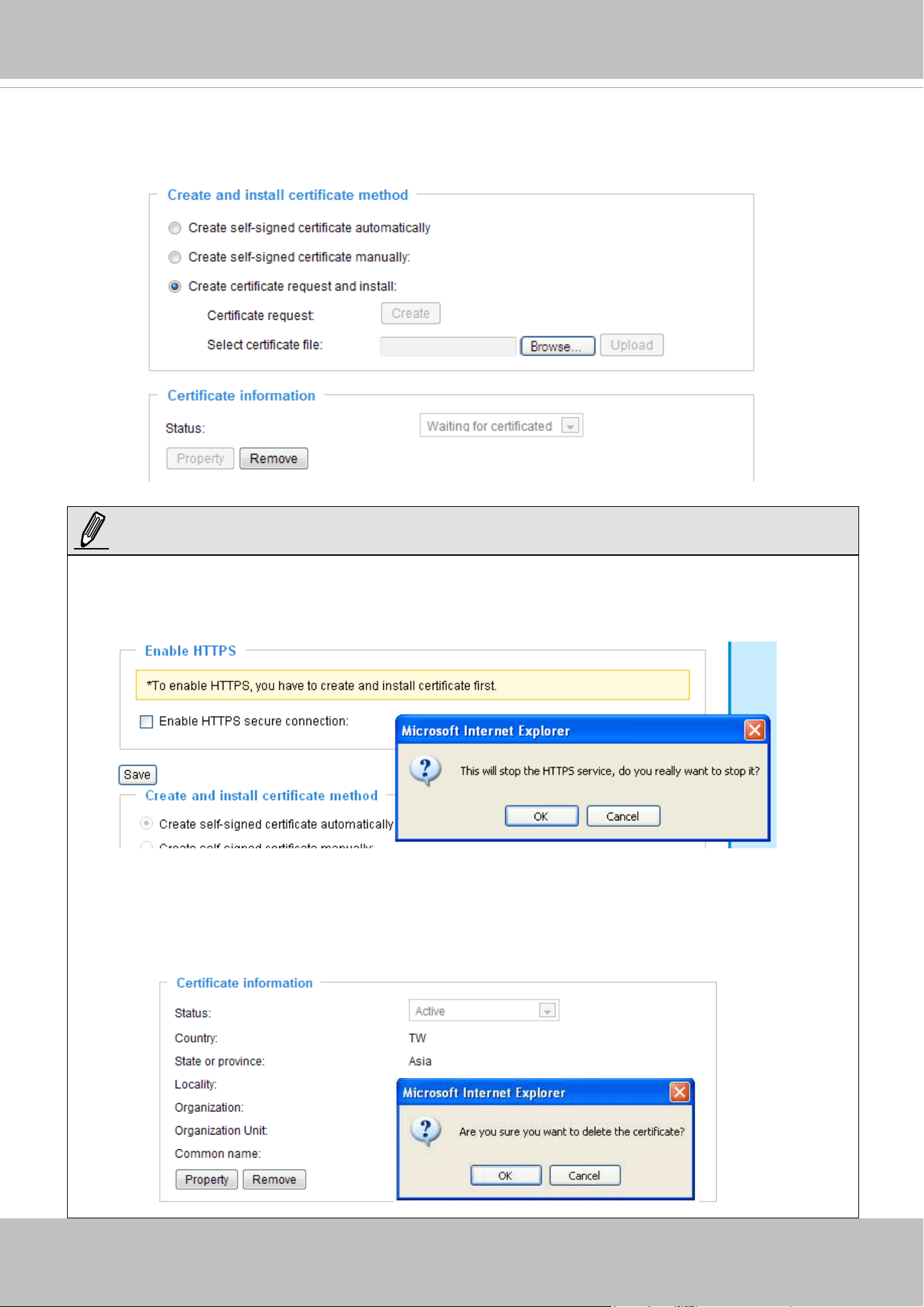
3. If you see the following Information bar, click OK and click on the Information bar at the top of the page
to allow pop-ups.
4. The pop-up window shows an example of a certicate request.
VIVOTEK
User's Manual - 33
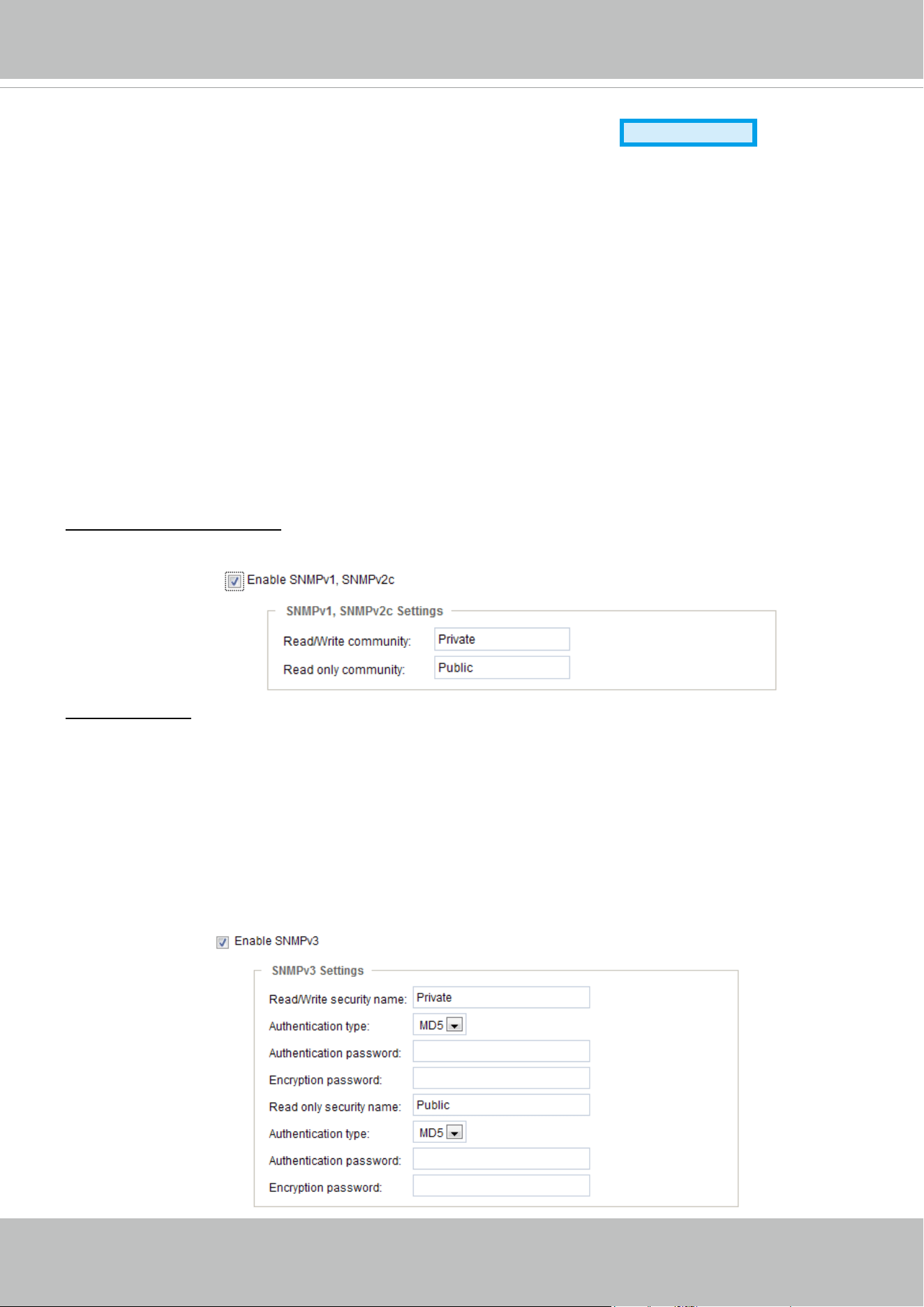
5. Look for a trusted certicate authority that issues digital certicates. Enroll the video server. Wait for
the certicate authority to issue a SSL certicate; click Browse... to search for the issued certicate,
then click Upload in the second column.
► How do I cancel the HTTPS settings?
1. Uncheck Enable HTTPS secure connection in the rst column and click Save; a warning dialog
will pop up.
2. Click OK to disable HTTPS.
3. The webpage will redirect to a non-HTTPS page automatically.
► If you want to create and install other certificates, please remove the existing one. To remove the
signed certificate, uncheck Enable HTTPS secure connection in the first column and click Save.
Then click Remove to erase the certicate.
NOTE:
VIVOTEK
34 - User's Manual
SNMP (Simple Network Management Protocol)
Advanced Mode
This section explains how to use the SNMP on the video server. The Simple Network
Management Protocol is an application layer protocol that facilitates the exchange of
management information between network devices. It helps network administrators to remotely
manage network devices and nd, solve network problems with ease.
■ The SNMP consists of the following three key components:
1. Manager: Network-management station (NMS), a server which executes applications that monitor and
control managed devices.
2. Agent: A network-management software module on a managed device which transfers the status of
managed devices to the NMS.
3. Managed device: A network node on a managed network. For example: routers, switches, bridges,
hubs, computer hosts, printers, IP telephones, video servers, web server, and database.
Before conguring SNMP settings on the this page, please enable your NMS rst.
SNMP Conguration
Enable SNMPv1, SNMPv2c
Select this option and enter the names of Read/Write community and Read Only community according to
your NMS settings.
Enable SNMPv3
This option contains cryptographic security, a higher security level, which allows you to set the
Authentication password and the Encryption password.
■ Security name: According to your NMS settings, choose Read/Write or Read Only and enter the
community name.
■ Authentication type: Select MD5 or SHA as the authentication method.
■ Authentication password: Enter the password for authenrication (at least 8 characters).
■ Encryption password: Enter a password for ecryption (at least 8 characters).
VIVOTEK
User's Manual - 35
Network
This section explains how to congure a wired network connection for the video server.
Network type
LAN
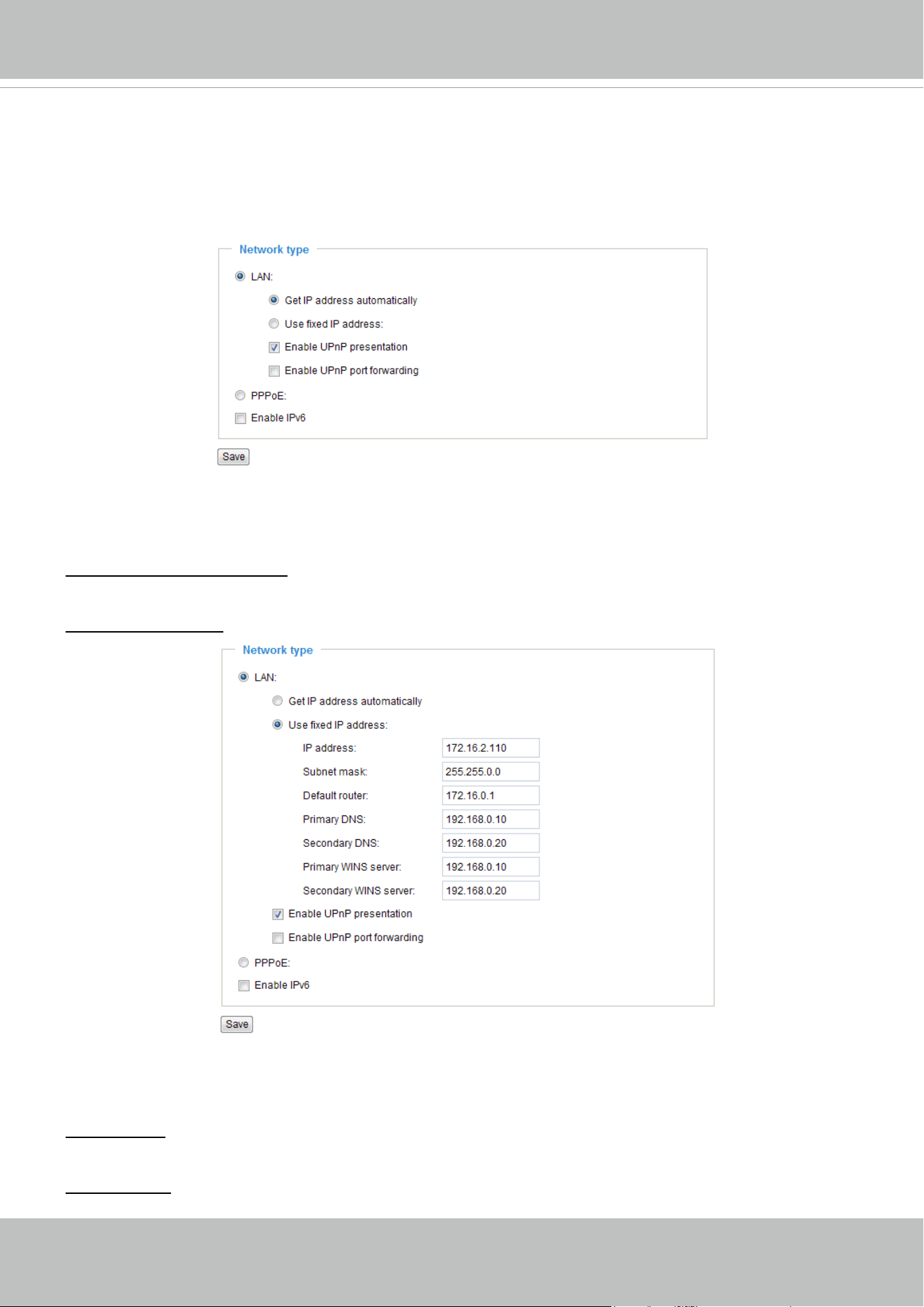
Select this option when the video server is deployed on a local area network (LAN) and is intended to be
accessed by local computers. The default setting for the Network Type is LAN. Rememer to click Save
when you complete the Network setting.
Get IP address automatically: Select this option to obtain an available dynamic IP address assigned by
the DHCP server each time the camera is connected to the LAN.
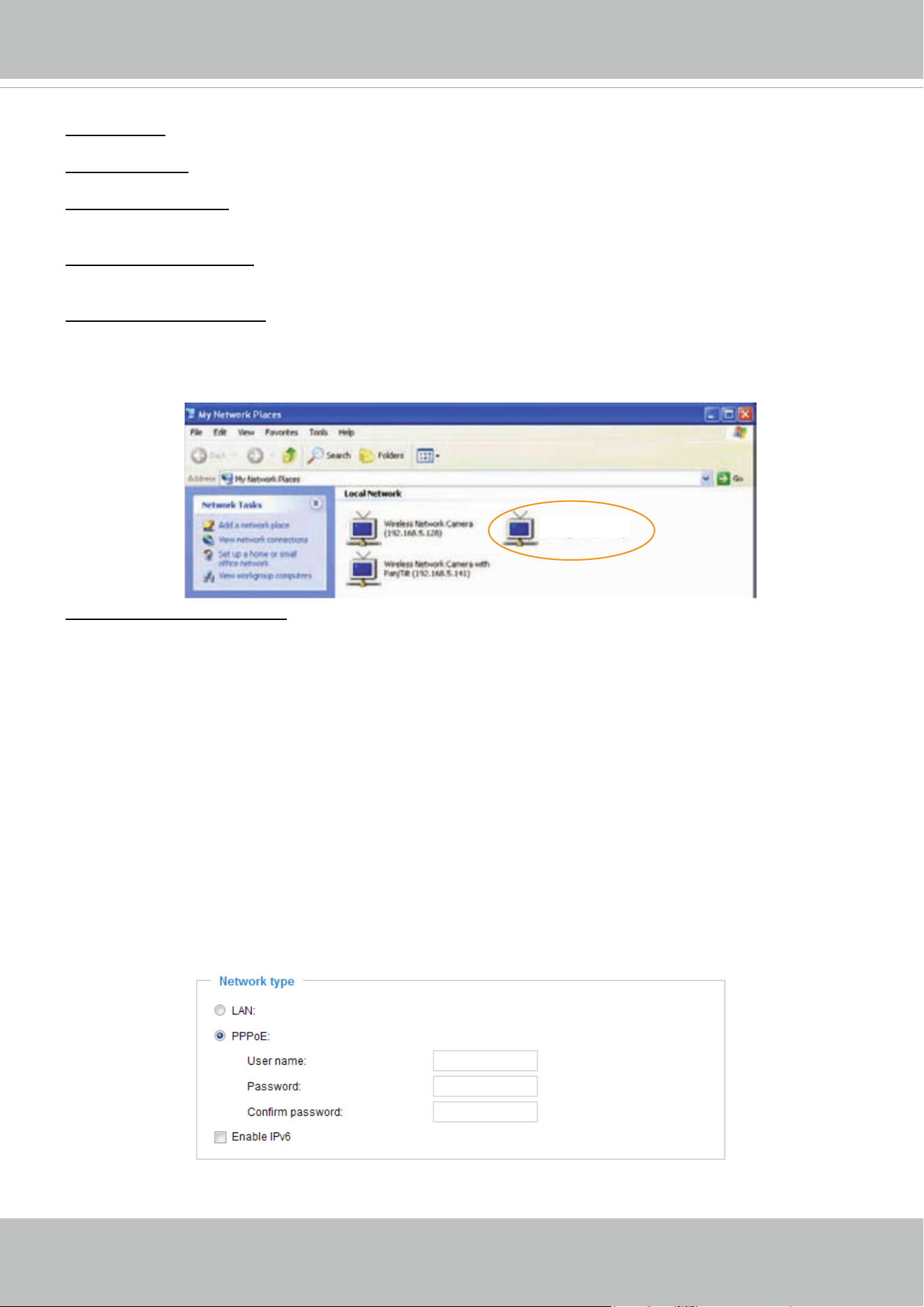
Use xed IP address: Select this option to manually assign a static IP address to the video server.
1. You can make use of VIVOTEK Installation Wizard 2 on the software CD to easily set up the Network
Camera on LAN. Please refer to Software Installation on page 12 for details.
2. Enter the Static IP, Subnet mask, Default router, and Primary DNS provided by your ISP.
Subnet mask: This is used to determine if the destination is in the same subnet. The default value is
“255.255.255.0”.
Default router: This is the gateway used to forward frames to destinations in a different subnet. Invalid
router setting will fail the transmission to destinations in different subnet.
VIVOTEK
36 - User's Manual
Primary DNS: The primary domain name server that translates hostnames into IP addresses.
Secondary DNS: Secondary domain name server that backups the Primary DNS.
Primary WINS server: The primary WINS server that maintains the database of computer name and IP
address.
Secondary WINS server: The secondary WINS server that maintains the database of computer name
and IP address.
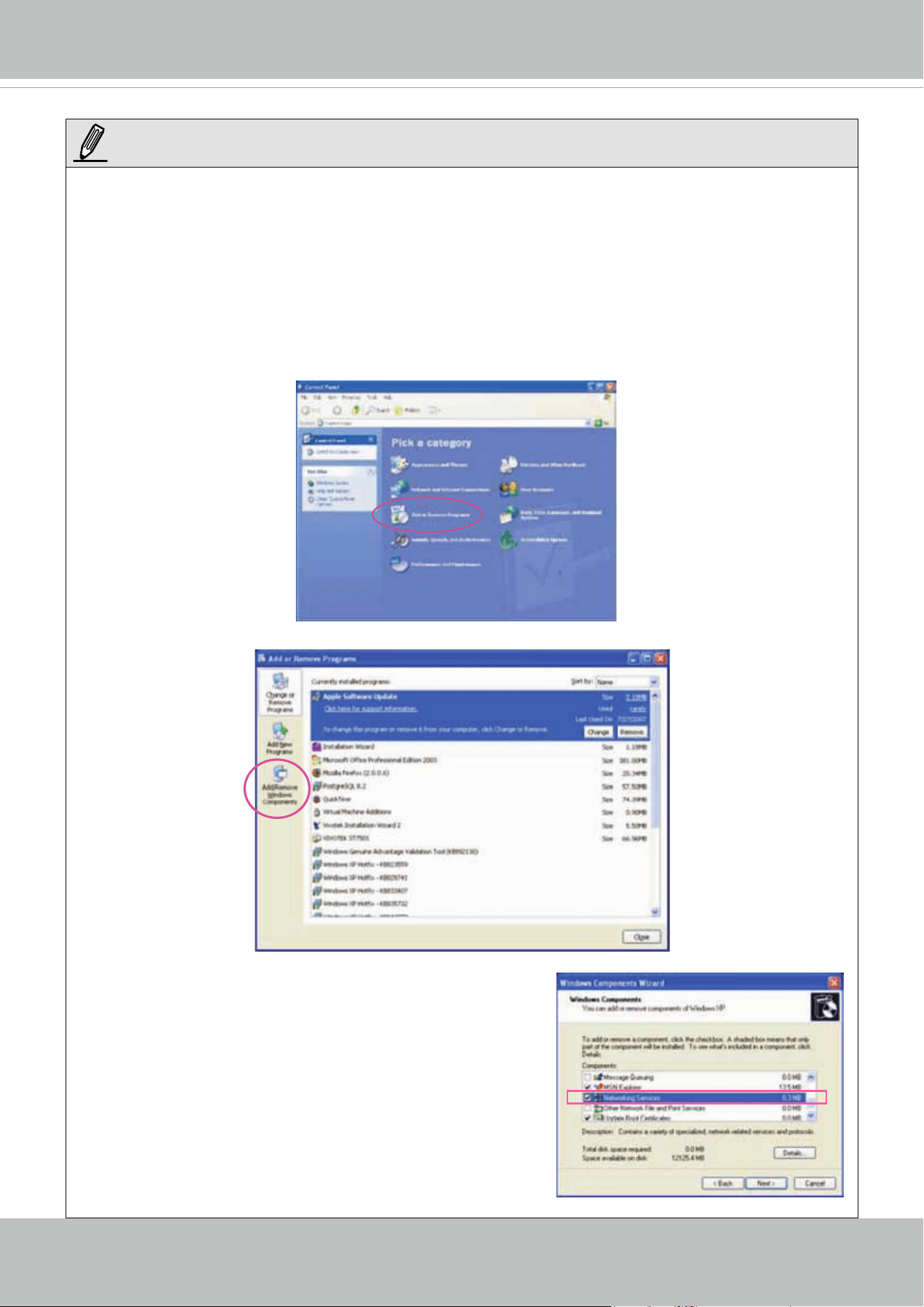
Enable UPnP presentation: Select this option to enable UPnP
TM
presentation for your video server so that
whenever a video server is presented to the LAN, shortcuts of connected video servers will be listed in
My Network Places. You can click the shortcut to link to the web browser. Currently, UPnP
TM
is supported
by Windows XP or later. Note that to utilize this feature, please make sure the UPnP
TM
component is
installed on your computer.
Enable UPnP port forwarding: To access the video server from the Internet, select this option to allow the
video server to open ports on the router automatically so that video streams can be sent out from a LAN.
To utilize of this feature, make sure that your router supports UPnP
TM
and it is activated.
PPPoE (Point-to-point over Ethernet)
Select this option to congure your video server to make it accessible from anywhere as long as there is
an Internet connection. Note that to utilize this feature, it requires an account provided by your ISP.
Follow the steps below to acquire your video server’s public IP address.
1. Set up the video server on the LAN.
2. Go to Home > Conguration > Application > Server Settings (please refer to Server settings on page
85) to add a new email or FTP server.
3. Go to Conguration > Application > Media Settings (please refer to Media Settings on page 88). Select
System log so that you will receive the system log in TXT le format which contains the Network
Camera’s public IP address in your email or on the FTP server.
4. Go to Conguration > Network > Network Type. Select PPPoE and enter the user name and password
provided by your ISP. Click Save to enable the setting.
5. The video server will reboot.
6. Disconnect the power to the video server; remove it from the LAN environment.
Video Server (192.168.5.151)
VIVOTEK
User's Manual - 37
► If the default ports are already used by other devices connected to the same router, the video server
will select other ports for the video server.
► If UPnP
TM
is not supported by your router, you will see the following message:
Error: Router does not support UPnP port forwarding.
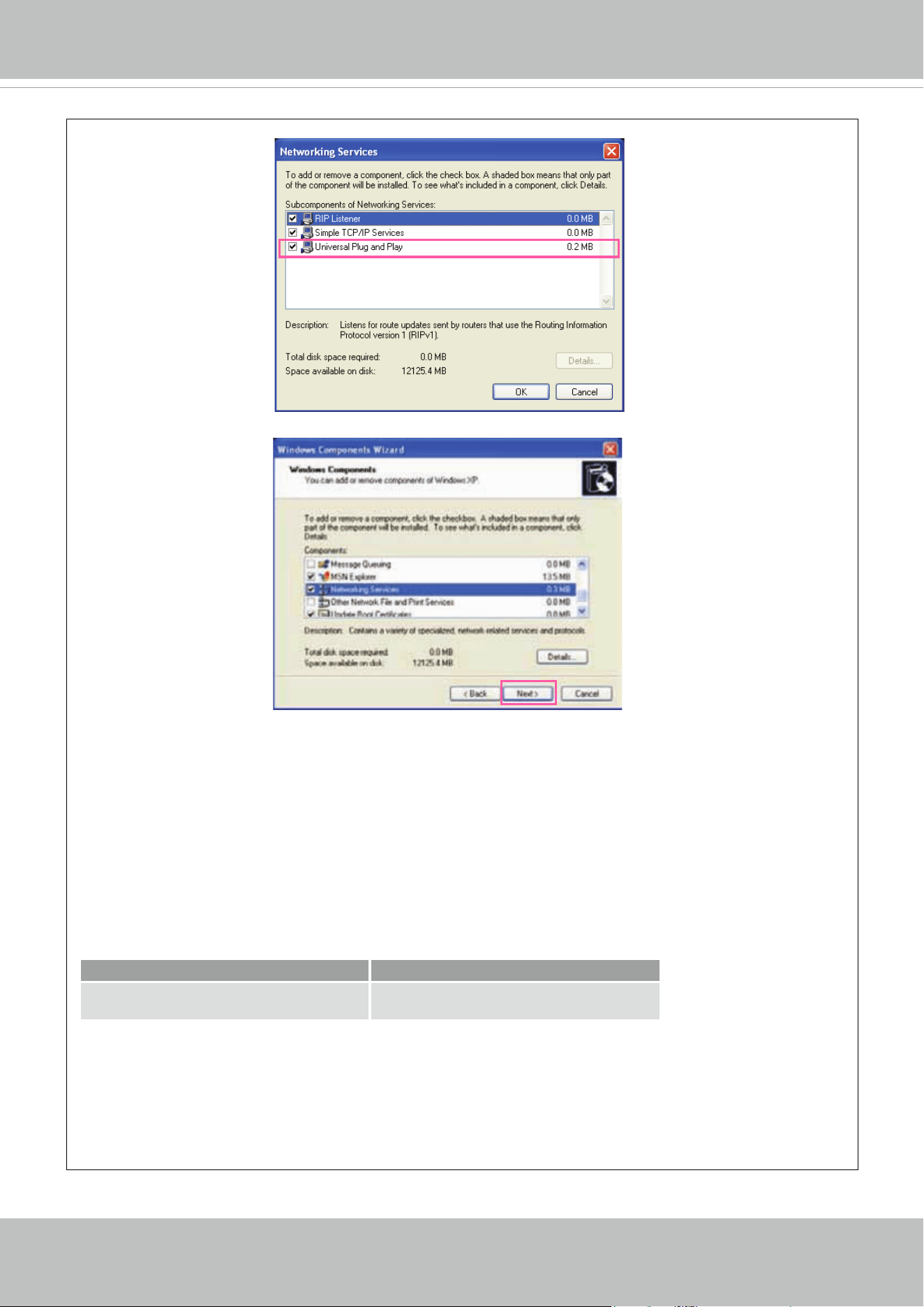
► Steps to enable the UPnP
TM
user interface on your computer:
Note that you must log on to the computer as a system administrator to install the UPnP
TM
components.
1. Go to Start, click Control Panel, then click Add or Remove Programs.
2. In the Add or Remove Programs dialog box, click Add/Remove Windows Components.
3.
In the Windows Components Wizard dialog box, select
Networking Services and click Details.
NOTE:
VIVOTEK
38 - User's Manual
4. In the Networking Services dialog box, select Universal Plug and Play and click OK.
5. Click Next in the following window.
6. Click Finish. UPnP
TM
is enabled.
► How does UPnP
TM
work?
UPnP
TM
networking technology provides automatic IP conguration and dynamic discovery of devices
added to a network. Services and capabilities offered by networked devices, such as printing and le
sharing, are available among each other without the need for cumbersome network conguration. In
the case of video servers, you will see video server shortcuts under My Network Places.
► Enabling UPnP port forwarding allows the video server to open a secondary HTTP port on the router-
not HTTP port-meaning that you have to add the secondary HTTP port number to the video server’s
public address in order to access the video server from the Internet. For example, when the HTTP
port is set to 80 and the secondary HTTP port is set to 8080, refer to the list below for the video
server’s IP address.
From the Internet In LAN
http://203.67.124.123:8080 http://192.168.4.160 or
http://192.168.4.160:8080
► If the PPPoE settings are incorrectly configured or the Internet access is not working, restore the
video server to factory default; please refer to Restore on page 101 for details. After the video server
is reset to factory default, it will be accessible on the LAN.
VIVOTEK
User's Manual - 39
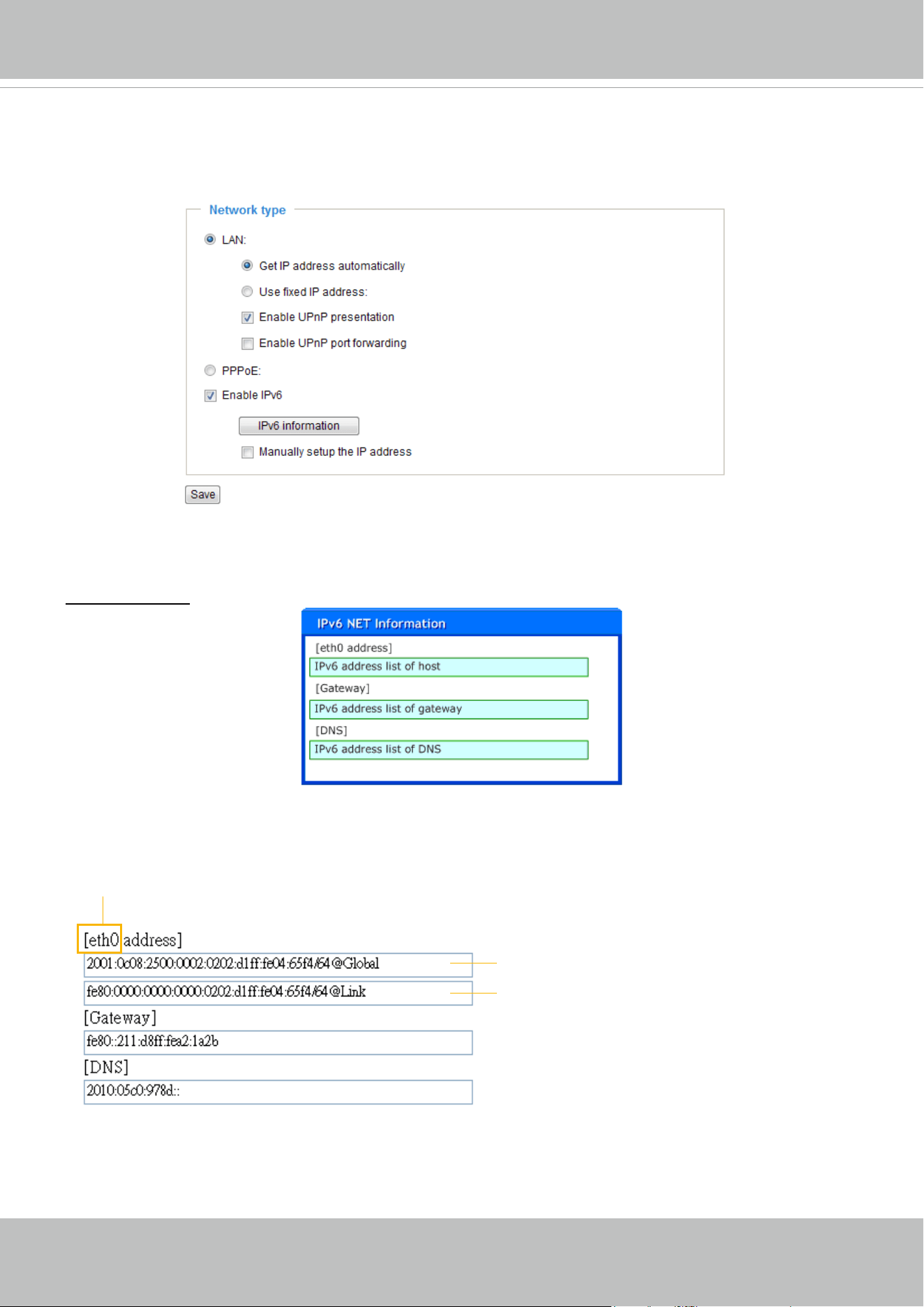
Enable IPv6
Select this option and click Save to enable IPv6 settings.
Please note that this only works if your network environment and hardware equipment support IPv6. The
browser should be Microsoft
®
Internet Explorer 6.5, Mozilla Firefox 3.0 or above.
When IPv6 is enabled, by default, the video server will listen to router advertisements and be assigned
with a link-local IPv6 address accordingly.
IPv6 Information: Click this button to obtain the IPv6 information as shown below.
If your IPv6 settings are successful, the IPv6 address list will be listed in the pop-up window. The IPv6
address will be displayed as follows:
Link-global IPv6 address/network mask
Link-local IPv6 address/network mask
Refers to Ethernet
VIVOTEK
40 - User's Manual
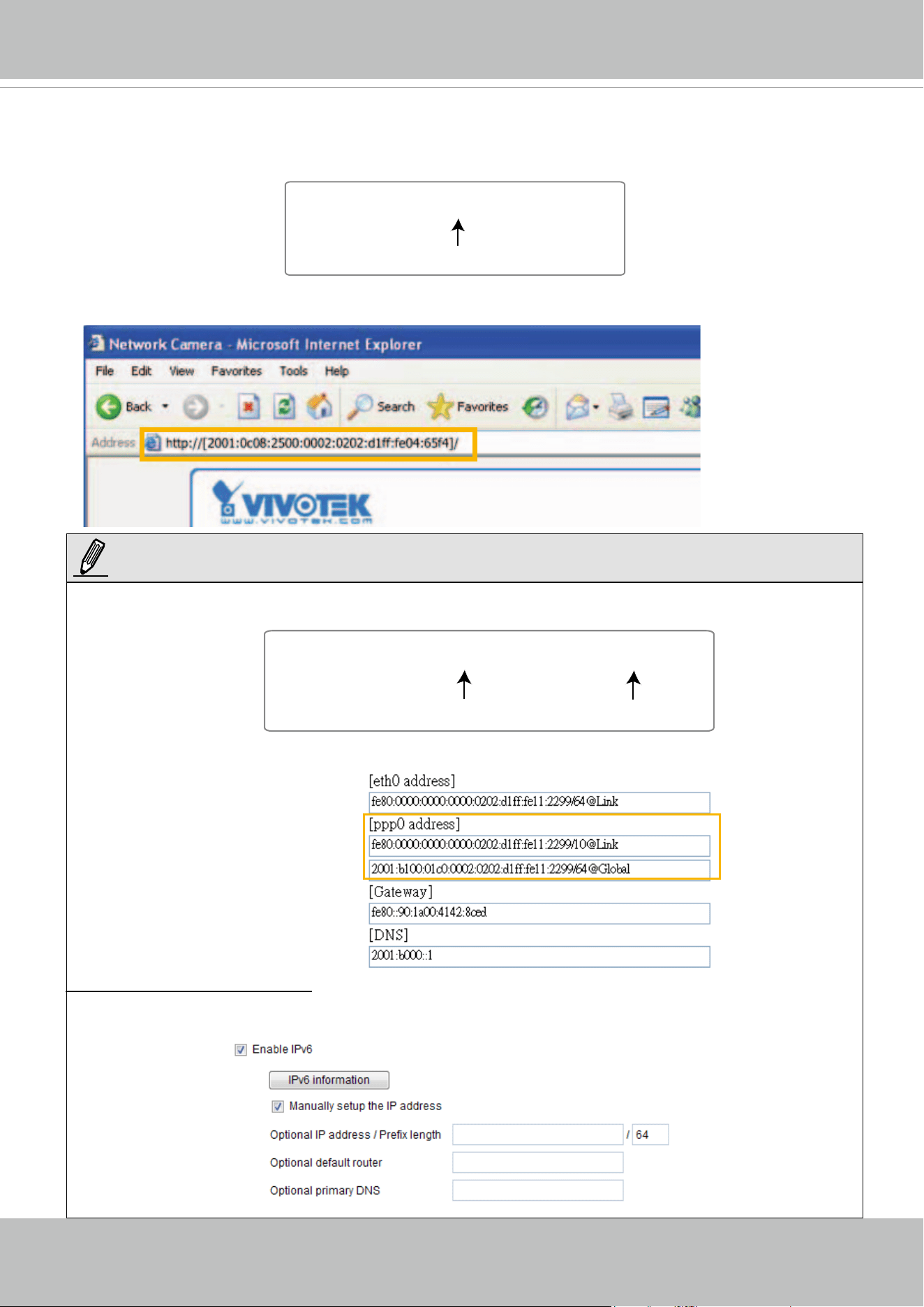
Please follow the steps below to link to an IPv6 address:
1. Open your web browser.
2. Enter the link-global or link-local IPv6 address in the address bar of your web browser.
3. The format should be:
4. Press Enter on the keyboard or click Refresh button to refresh the webpage.
For example:
► If you have a Secondary HTTP port (the default value is 8080), you can also link to the webpage in
the following address format: ( Please refer to HTTP on page 46 for detailed information.)
► If you choose PPPoE as the Network Type, the [
PPP0 address] will be displayed in the IPv6
information column as shown below.
Manually setup the IP address: Select this option to manually set up IPv6 settings if your network
environment does not have DHCPv6 server and router advertisements-enabled routers.
If you check this item, the following blanks will be displayed for you to enter the corresponding
information:
http://[2001:0c08:2500:0002:0202:d1ff:fe04:65f4]/
IPv6 address
http://[2001:0c08:2500:0002:0202:d1ff:fe04:65f4]/:8080
IPv6 address
Secondary HTTP port
NOTE:
VIVOTEK
User's Manual - 41
IEEE 802.1x
Advanced Mode
Enable this function if your network environment uses IEEE 802.1x, which is a port-based network
access control. The network devices, intermediary switch/access point/hub, and RADIUS server must
support and enable 802.1x settings.
The 802.1x standard is designed to enhance the security of local area networks, which provides
authentication to network devices (clients) attached to a network port (wired or wireless). If all certicates
between client and server are veried, a point-to-point connection will be enabled; if authentication fails,
access on that port will be prohibited. 802.1x utilizes an existing protocol, the Extensible Authentication
Protocol (EAP), to facilitate communication.
■
The components of a protected network with 802.1x authentication:
1.
Supplicant: A client end user (video server), which requests authentication.
2.
Authenticator (an access point or a switch): A “go between” which restricts unauthorized end users
from communicating with the authentication server.
3.
Authentication server (usually a RADIUS server): Checks the client certicate and decides whether to
accept the end user’s access request.
■
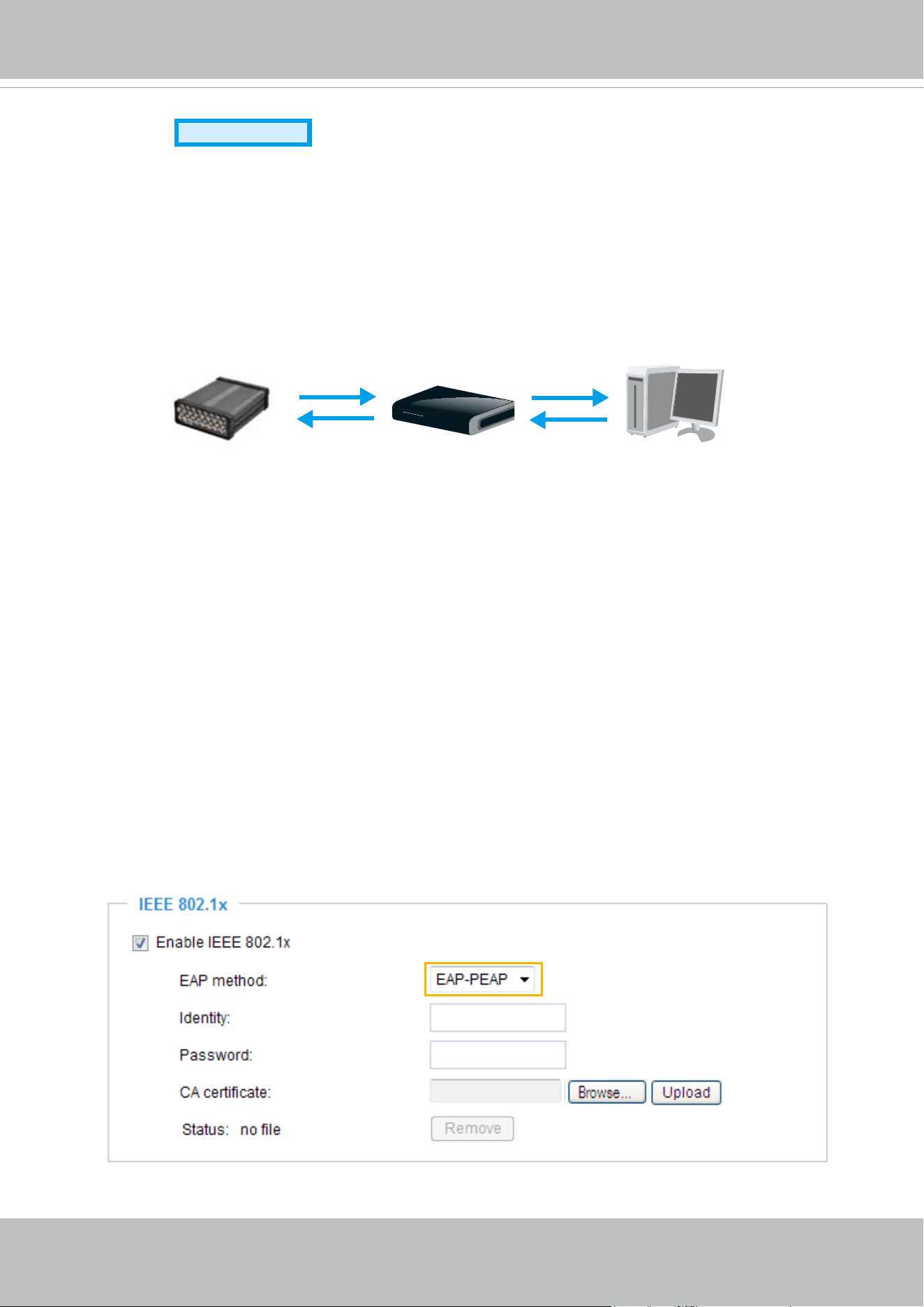
VIVOTEK video servers support two types of EAP methods to perform authentication: EAP-PEAP and
EAP-TLS.
Please follow the steps below to enable 802.1x settings:
1. Before connecting the video server to the protected network with 802.1x, please apply a digital
certicate from a Certicate Authority (ie. MIS of your company) which can be validated by a RADIUS
server.
2. Connect the video server to a PC or notebook outside of the protected LAN. Open the conguration
page of the video server as shown below. Select EAP-PEAP or EAP-TLS as the EAP method. In the
following blanks, enter your ID and password issued by the CA, then upload related certicate(s).
Supplicant
(Video Server)
Authenticator
(Network Switch)
Authentication Server
(RADIUS Server)
VIVOTEK
42 - User's Manual
3. When all settings are complete, move the video server to the protected LAN by connecting it to an
802.1x enabled switch. The devices will then start the authentication automatically.
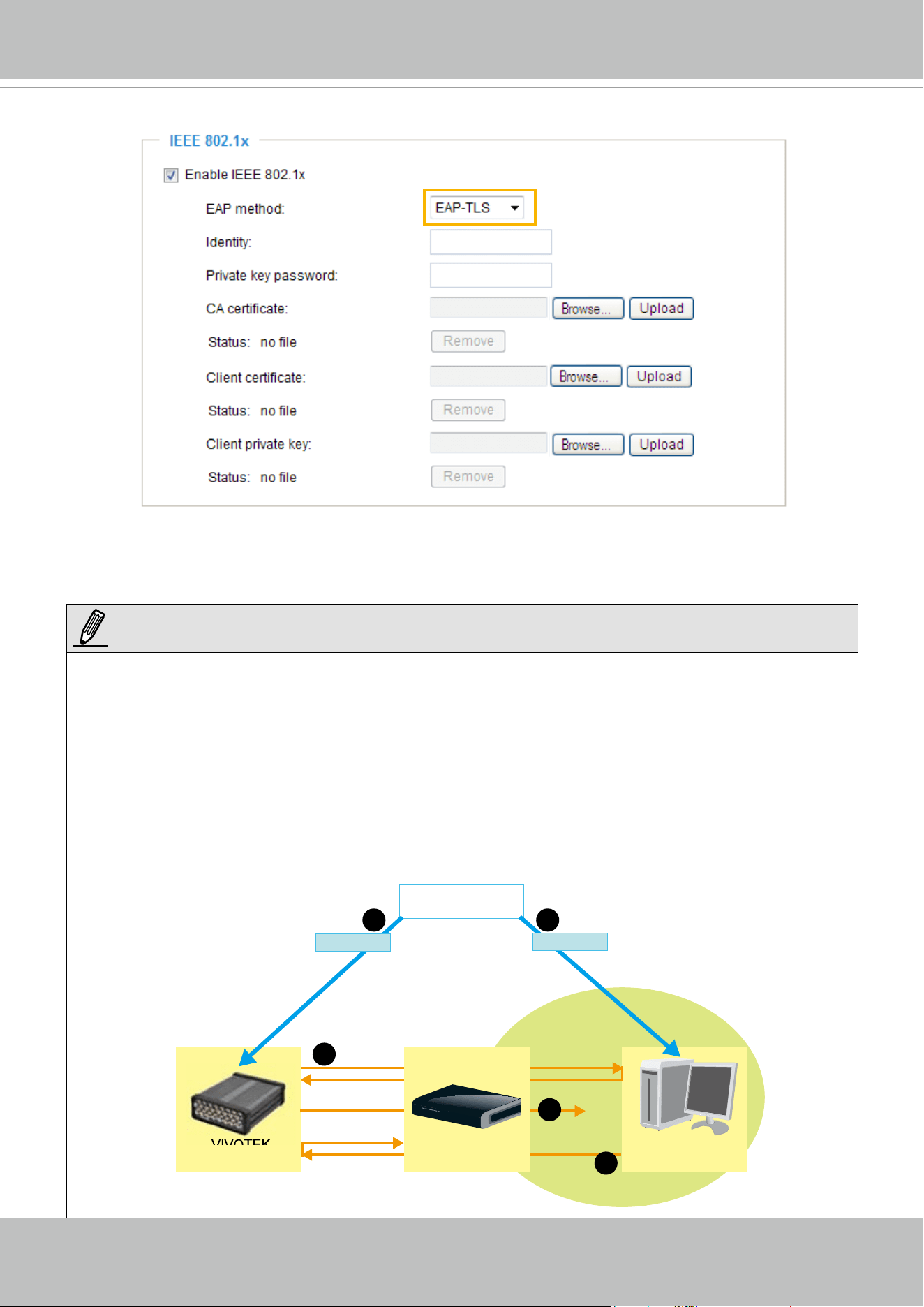
► The authentication process for 802.1x:
1. The Certificate Authority (CA) provides the required signed certificates to the video server (the
supplicant) and the RADIUS Server (the authentication server).
2. A video server requests access to the protected LAN using 802.1X via a switch (the authenticator).
The client offers its identity and client certicate, which is then forwarded by the switch to the RADIUS
Server, which uses an algorithm to authenticate the video server and returns an acceptance or
rejection back to the switch.
3. The switch also forwards the RADIUS Server’s certicate to the video server.
4. Assuming all certicates are validated, the switch then changes the video server’s state to authorized
and is allowed access to the protected network via a pre-congured port.
VIVOTEK
Video Server
RADIUS Server
Certificate Authority
(CA)
Protected LAN
Certificate
11
2
3
4
Network Switch
Certificate
NOTE:
VIVOTEK
User's Manual - 43
QoS (Quality of Service)
Advanced Mode
Quality of Service refers to a resource reservation control mechanism, which guarantees a certain quality
to different services on the network. Quality of service guarantees are important if the network capacity
is insufcient, especially for real-time streaming multimedia applications. Quality can be dened as, for
instance, a maintained level of bit rate, low latency, no packet dropping, etc.
The following are the main benets of a QoS-aware network:
■
The ability to prioritize trafc and guarantee a certain level of performance to the data ow.
■
The ability to control the amount of bandwidth each application may use, and thus provide higher
reliability and stability on the network.
Requirements for QoS
To utilize QoS in a network environment, the following requirements must be met:
■
All network switches and routers in the network must include support for QoS.
■
The network video devices used in the network must be QoS-enabled.
QoS models
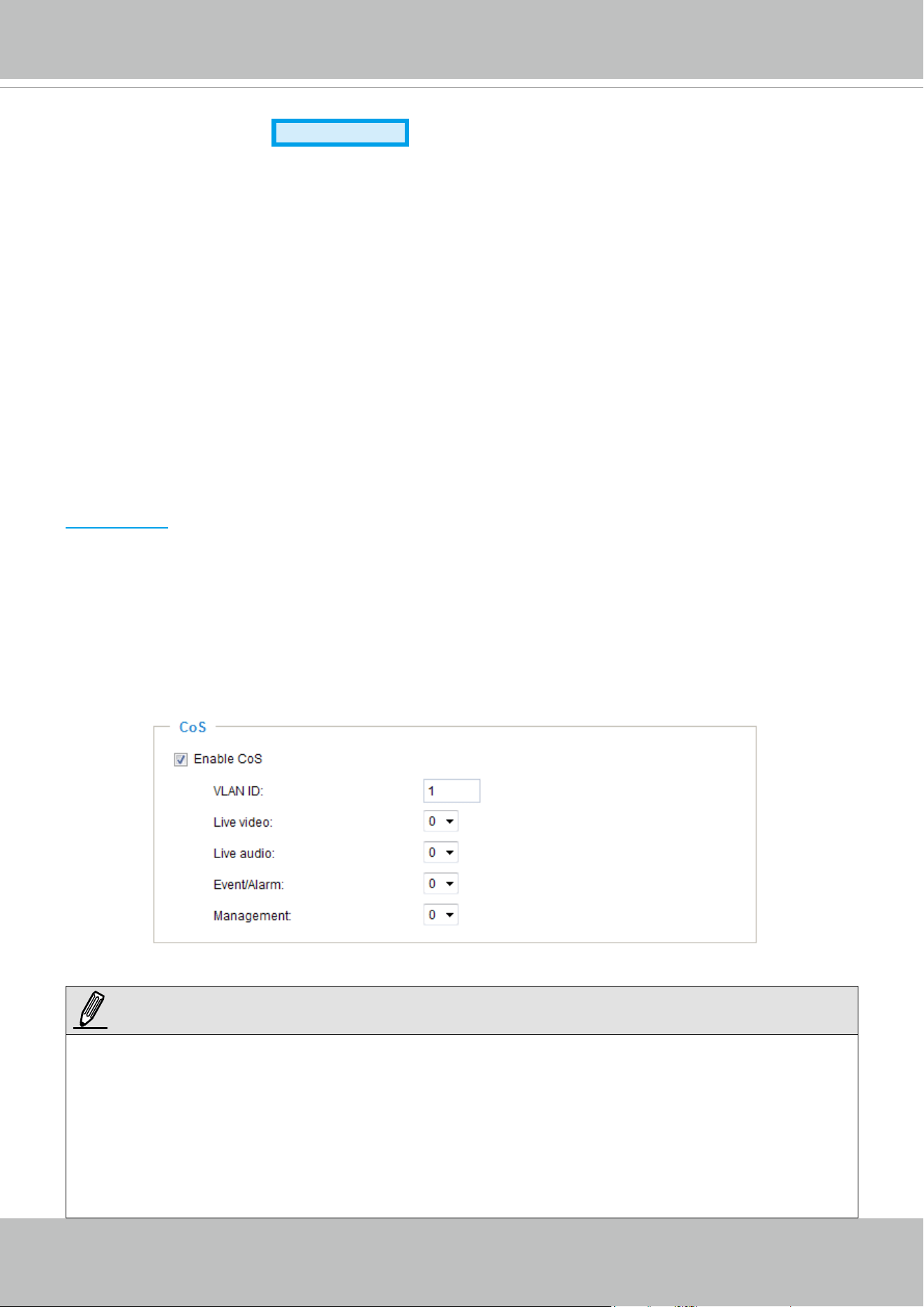
CoS (the VLAN 802.1p model)
IEEE802.1p defines a QoS model at OSI Layer 2 (Data Link Layer), which is called CoS, Class of
Service. It adds a 3-bit value to the VLAN MAC header, which indicates prioritization from 0~7 (Eight
different classes of service are available). The priority is set up on the network switches, which then use
different queuing disciplines to forward the packets.
Below is the setting column for CoS. Enter the VLAN ID of your switch (0~4095) and choose the priority
for each application (0~7).
If you assign Video the highest level, the switch will handle video packets rst.
► The web browsing may fail if the CoS setting is incorrect.
► Class of Service technologies do not guarantee a level of service in terms of bandwidth and delivery
time; they offer a "best-effort." Users can think of CoS as "coarsely-grained" trafc control and QoS
as "nely-grained" trafc control.
► Although CoS is simple to manage, it lacks scalability and does not offer end-to-end quarantees
since it is based on L2 protocol.
NOTE:
VIVOTEK
44 - User's Manual
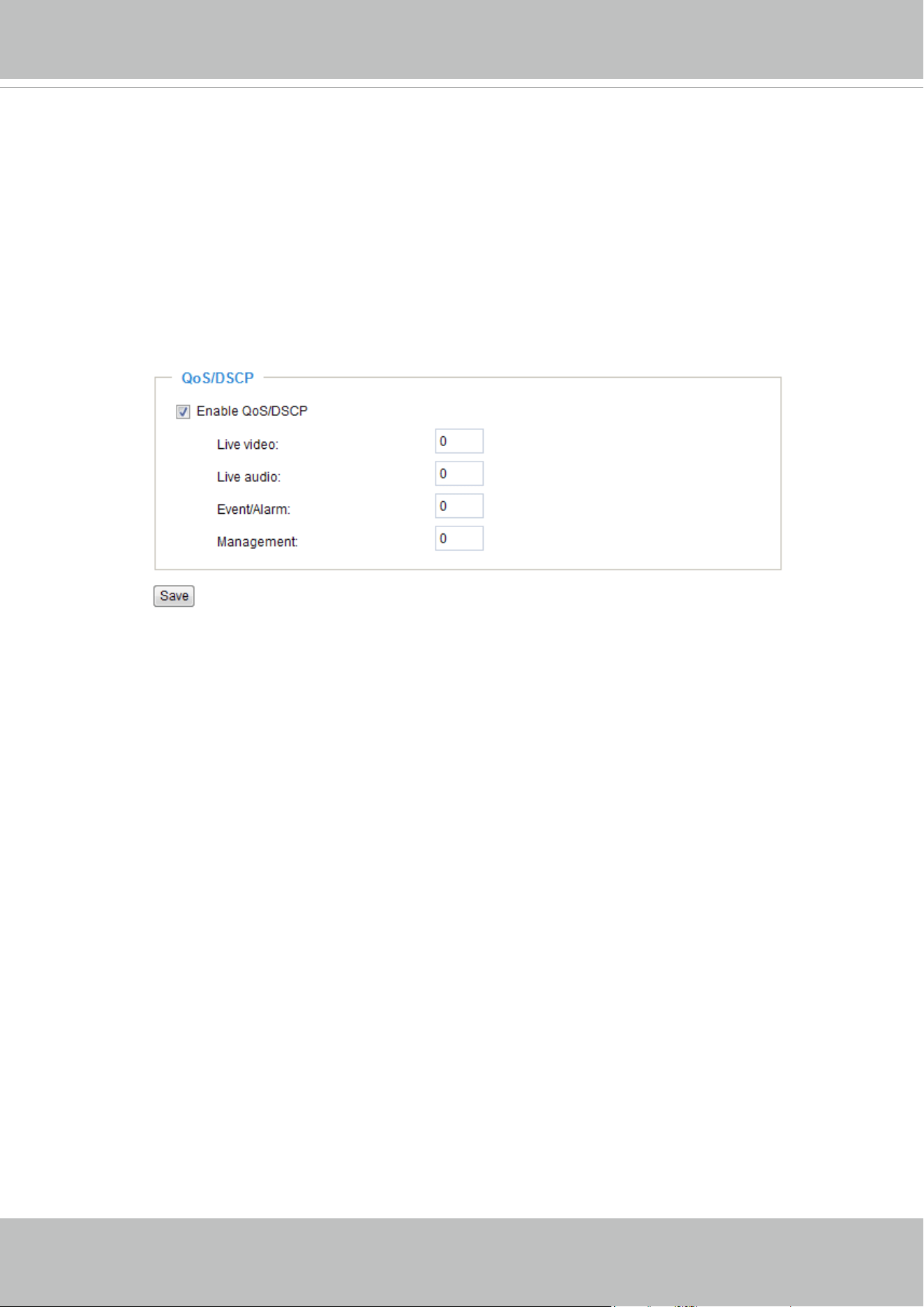
QoS/DSCP (the DiffServ model)
DSCP-ECN defines QoS at Layer 3 (Network Layer). The Differentiated Services (DiffServ) model is
based on packet marking and router queuing disciplines. The marking is done by adding a eld to the
IP header, called the DSCP (Differentiated Services Codepoint). This is a 6-bit field that provides 64
different class IDs. It gives an indication of how a given packet is to be forwarded, known as the Per Hop
Behavior (PHB). The PHB describes a particular service level in terms of bandwidth, queueing theory,
and dropping (discarding the packet) decisions. Routers at each network node classify packets according
to their DSCP value and give them a particular forwarding treatment; for example, how much bandwidth
to reserve for it.
Below are the setting options of DSCP (DiffServ Codepoint). Specify the DSCP value for each application
(0~63).
VIVOTEK
User's Manual - 45
HTTP
Advanced Mode
To utilize HTTP authentication, make sure that your have set a password for the video server rst; please
refer to Security on page 28 for details.
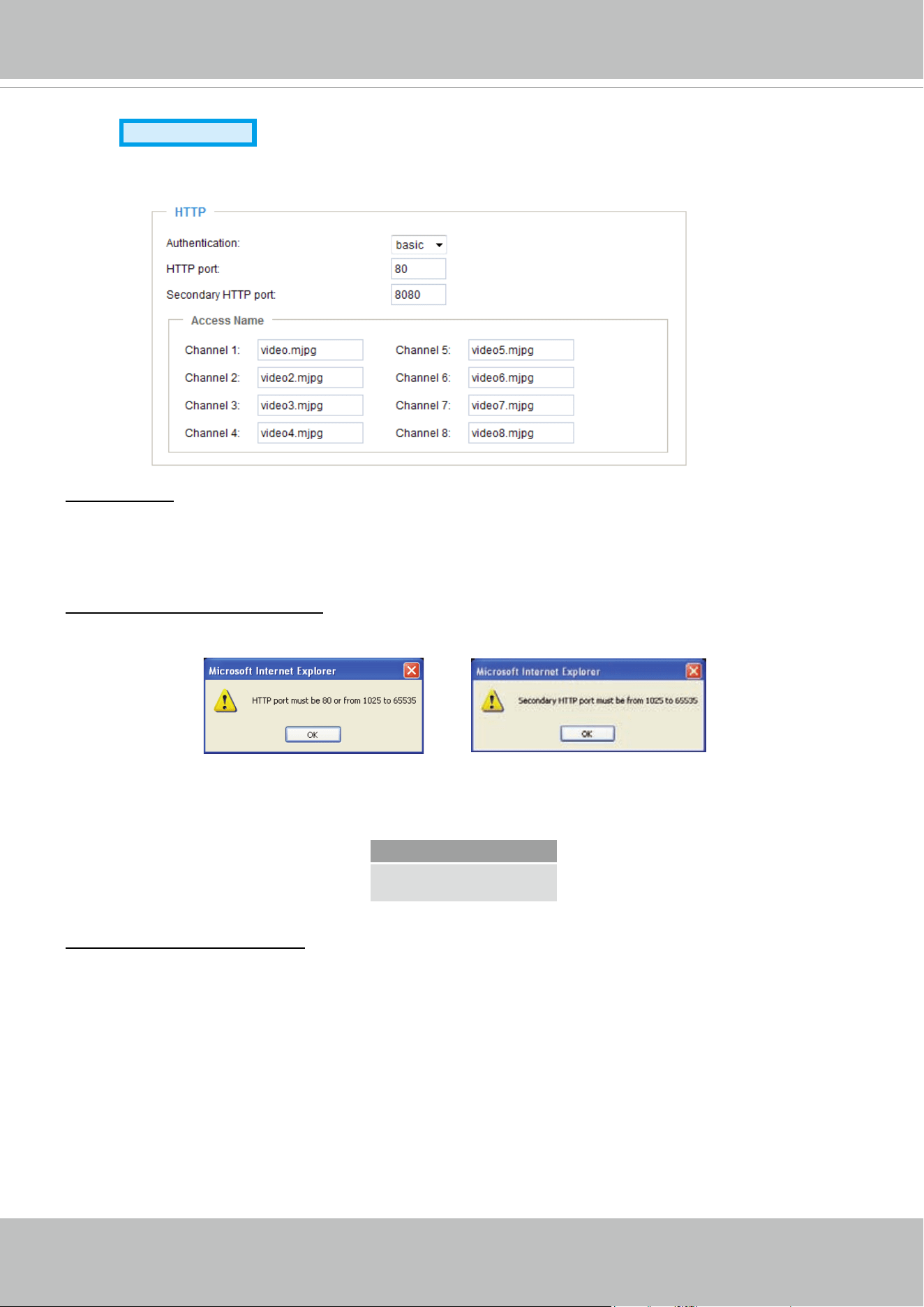
Authentication: Depending on your network security requirements, the video server provides two types of
security settings for an HTTP transaction: basic and digest.
If
basic authentication is selected, the password is sent in plain text format and there can be potential
risks of being intercepted. If
digest authentication is selected, user credentials are encrypted using MD5
algorithm and thus provide better protection against unauthorized accesses.
HTTP port / Secondary HTTP port: By default, the HTTP port is set to 80 and the secondary HTTP port is
set to 8080. They can also be assigned to another port number between 1025 and 65535. If the ports are
incorrectly assigned, the following warning messages will be displayed:
To access the video server on the LAN, both the HTTP port and secondary HTTP port can be used to
access the video server. For example, when the HTTP port is set to 80 and the secondary HTTP port is
set to 8080, refer to the list below for the video server’s IP address.
Access name for channel 1~4/8: VS8401 supports 4 channels for video live viewing, as VS8801 supports
8 channels. Each channel allows you to view only one stream. The access name is used to differentiate
the streaming source. Users can go to Conguration > Audio and video > Video settings to set up the
video quality of linked streams.
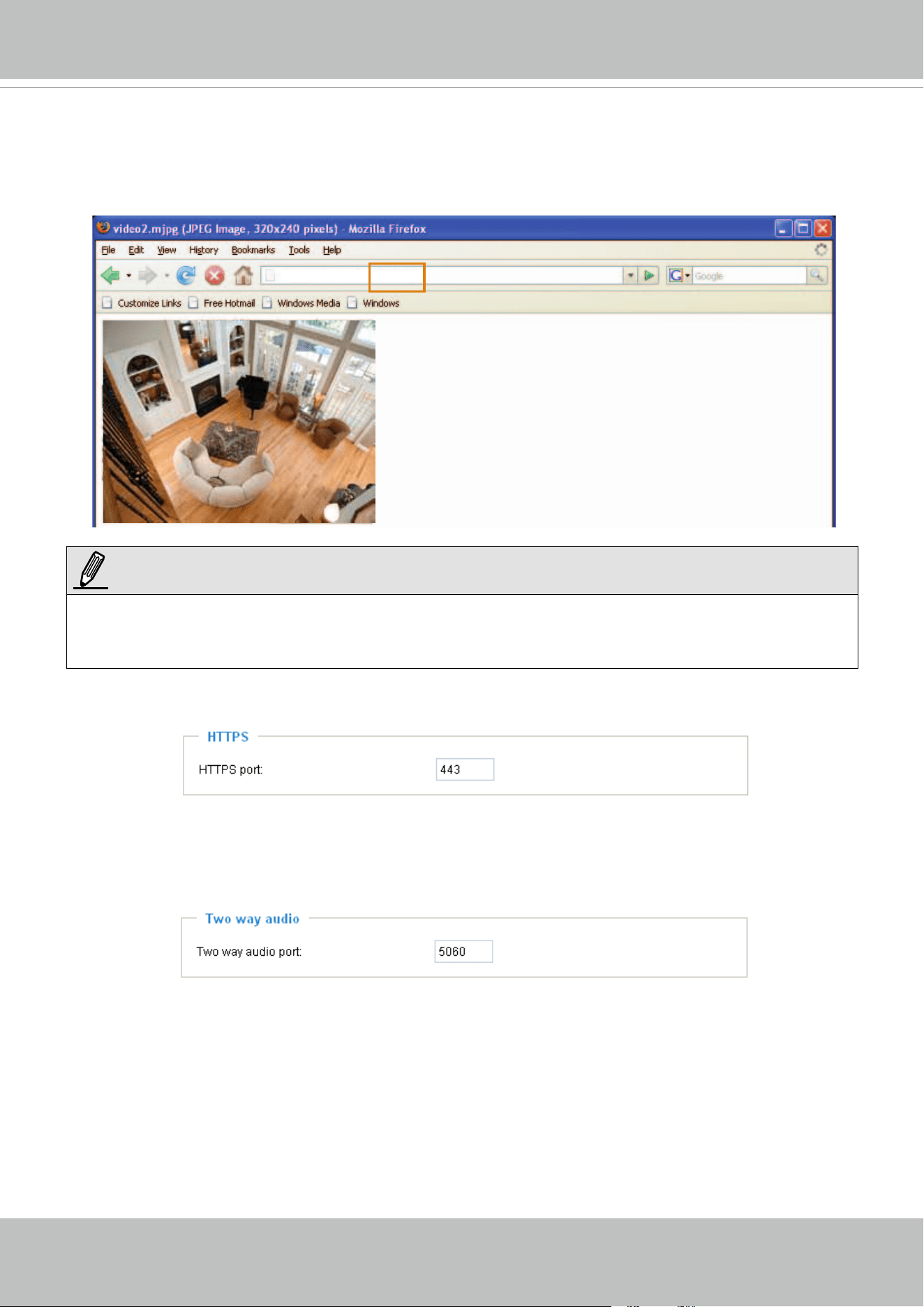
When using Mozilla Firefox or Netscape to access the video server and the video mode is set to JPEG,
users will receive video comprised of continuous JPEG images. This technology, known as “server push”,
allows the video server to feed live pictures to Mozilla Firefox and Netscape.
on a LAN
http://192.168.4.160 or
http://192.168.4.160:8080
VIVOTEK
46 - User's Manual
URL command -- http://<ip address>:<http port>/<access name for channel 1 ~ 4/8>
For example, when the Access name for stream 2 is set to video2.mjpg:
1. Launch Mozilla Firefox or Netscape.
2. Type the above URL command in the address bar. Press Enter.
3. The JPEG images will be displayed in your web browser.
► Microsoft
®
Internet Explorer does not support server push technology; therefore, using http://<ip
address>:<http port>/<access name for
channel 1 ~ 4/8> will fail to access the video server.
HTTPS
By default, the HTTPS port is set to 443. It can also be assigned to another port number between 1025
and 65535.
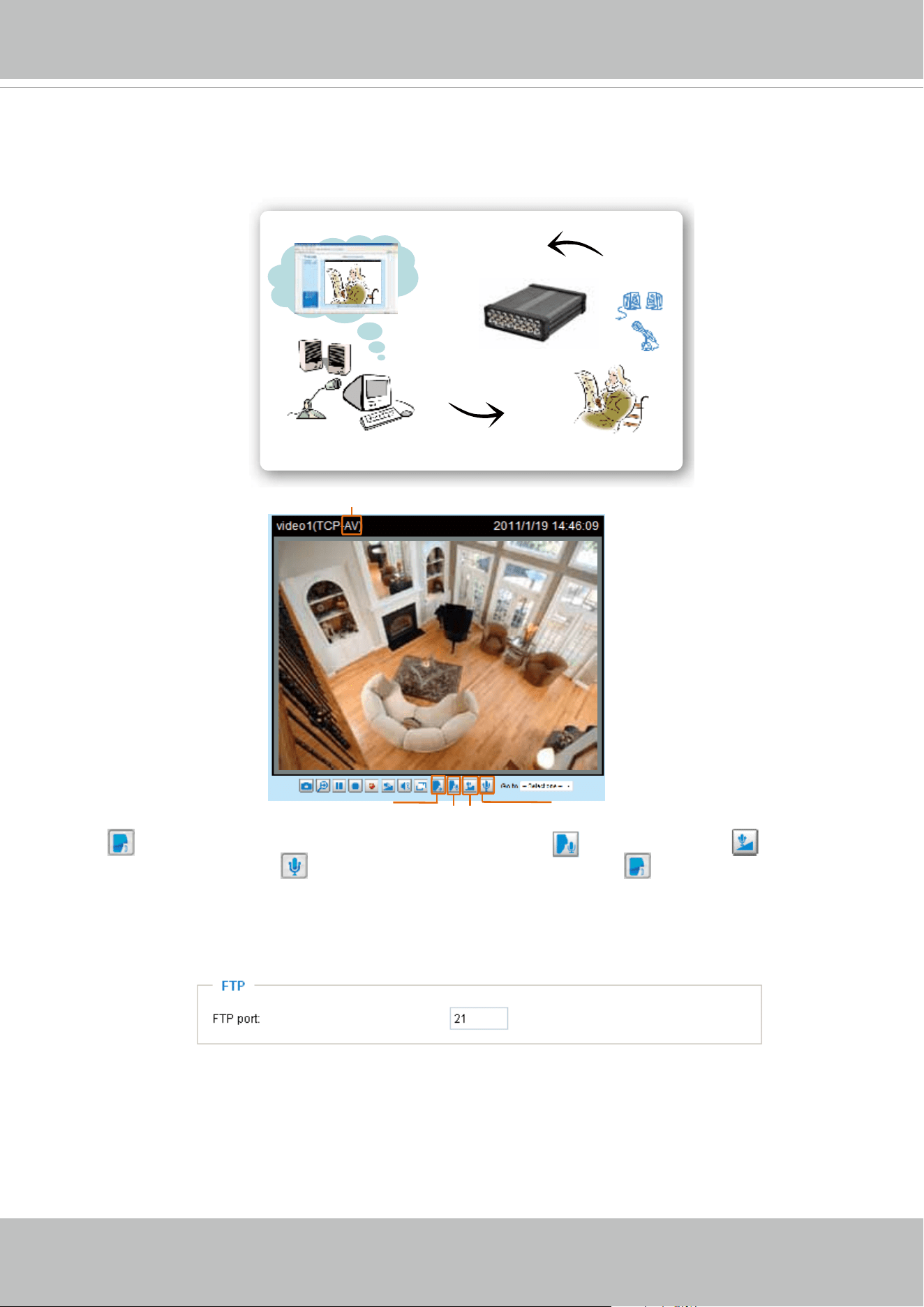
Two way audio
By default, the two way audio port is set to 5060. Also, it can also be assigned to another port number
between 1025 and 65535.
The video server supports two way audio communication so that operators can transmit and receive
audio simultaneously. By using the video server’s built-in or external microphone and an external
speaker, you can communicate with people around the video server.
http://192.168.5.151/video2.mjpg
NOTE:
VIVOTEK
User's Manual - 47
Note that as JPEG only transmits a series of JPEG images to the client, to enable the two-way audio
function, make sure the video mode is set to “MPEG-4” on the Audio and Video Settings page and the
media option is set to “Video and Audio” on the Client Settings page. Please refer to Client settings on
page 22 and Audio and video settings on page 56.
Click
to enable audio transmission to the video server; click to broadcast; click to adjust the
volume of microphone; click
to turn off the audio. To stop talking, click again.
FTP
The FTP server allows the user to save recorded video clips. You can utilize VIVOTEK's Installation
Wizard 2 to upgrade the rmware via FTP server. By default, the FTP port is set to 21. It also can be
assigned to another port number between 1025 and 65535.
Audio transmitted from operators
Audio transmitted to operators
America
Taiwan
Mute
Audio is being transmitted to the Network Camera
Mic Volume
Talk Button
Broadcast
VIVOTEK
48 - User's Manual
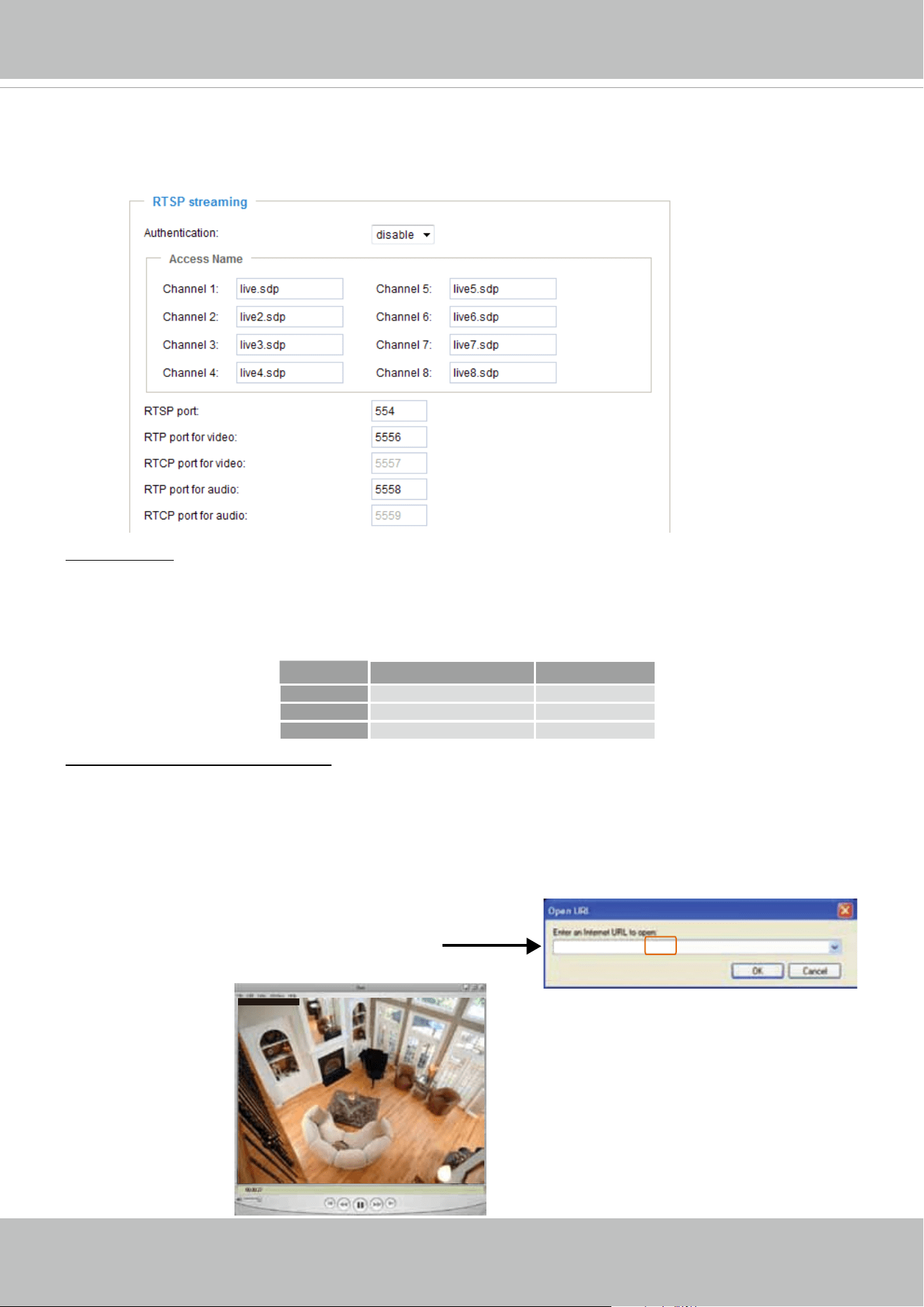
RTSP streaming
To utilize RTSP streaming authentication, make sure that you have set a password for the video server
rst; please refer to Security on page 28 for details.
Authentication: Depending on your network security requirements, the video server provides three types
of security settings for streaming via RTSP protocol: disable, basic, and digest.
If
basic authentication is selected, the password is sent in plain text format, but there can be potential
risks of it being intercepted. If
digest authentication is selected, user credentials are encrypted using
MD5 algorithm, thus providing better protection against unauthorized access.
The availability of the RTSP streaming for the three authentication modes is listed in the following table:
Access name for channel 1 ~4/8: VS8401 supports 4 channels for video live viewing, as VS8801
supports 8 channels. Each channel allows you to view only one stream. The access name is used to
differentiate the streaming source.
If you want to use an
RTSP player to access the video server, you have to set the video mode to MPEG-
4
and use the following RTSP URL command to request transmission of the streaming data.
rtsp://<ip address>:<rtsp port>/<access name for stream1 ~ channel 1 ~4/8>
For example, when the access name for stream 1 is set to live.sdp:
1. Launch an RTSP player.
2. Choose File > Open URL. A URL dialog box will pop up.
3. Type the above URL command in the text box.
4. The live video will be displayed in your player as shown
below.
rtsp://192.168.5.151:554/live.sdp
Quick Time player Real Player
Disable O O
Basic O O
Digest O X
Video 16:38:01 2011/03/10
VIVOTEK
User's Manual - 49
RTSP port /RTP port for video, audio/ RTCP port for video, audio
■ RTSP (Real-Time Streaming Protocol) controls the delivery of streaming media. By default, the port
number is set to 554.
■ The RTP (Real-time Transport Protocol) is used to deliver video and audio data to the clients. By
default, the RTP port for video is set to 5556 and the RTP port for audio is set to 5558.
■ The RTCP (Real-time Transport Control Protocol) allows the video server to transmit the data by
monitoring the Internet trafc volume. By default, the RTCP port for video is set to 5557 and the RTCP
port for audio is set to 5559.
The ports can be changed to values between 1025 and 65535. The RTP port must be an even number
and the RTCP port is the RTP port number plus one, and thus is always an odd number. When the RTP
port changes, the RTCP port will change accordingly.
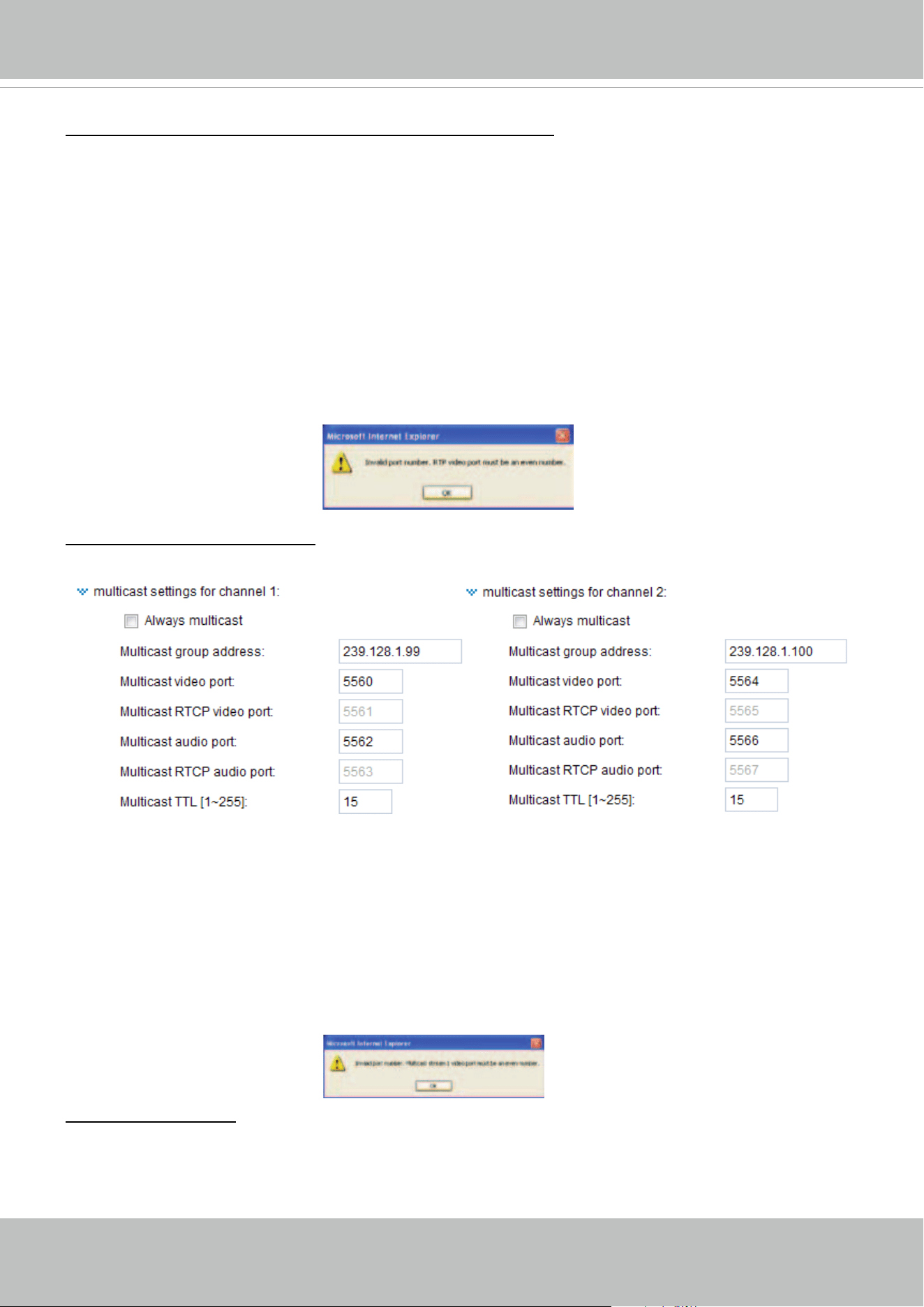
If the RTP ports are incorrectly assigned, the following warning message will be displayed:
Multicast settings channel 1 ~4/8: Click the items to display the detailed conguration information. Select
the Always multicast option to enable multicast for channel 1~4/8.
Unicast video transmission delivers a stream through point-to-point transmission; multicast, on the other
hand, sends a stream to the multicast group address and allows multiple clients to acquire the stream at
the same time by requesting a copy from the multicast group address. Therefore, enabling multicast can
effectively save Internet bandwith.
The ports can be changed to values between 1025 and 65535. The multicast RTP port must be an even
number and the multicast RTCP port number is the multicast RTP port number plus one, and thus is
always odd. When the multicast RTP port changes, the multicast RTCP port will change accordingly.
If the multicast RTP video ports are incorrectly assigned, the following warning message will be
displayed:
Multicast TTL [1~255]: The multicast TTL (Time To Live) is the value that tells the router the range a
packet can be forwarded.
VIVOTEK
50 - User's Manual
Express link
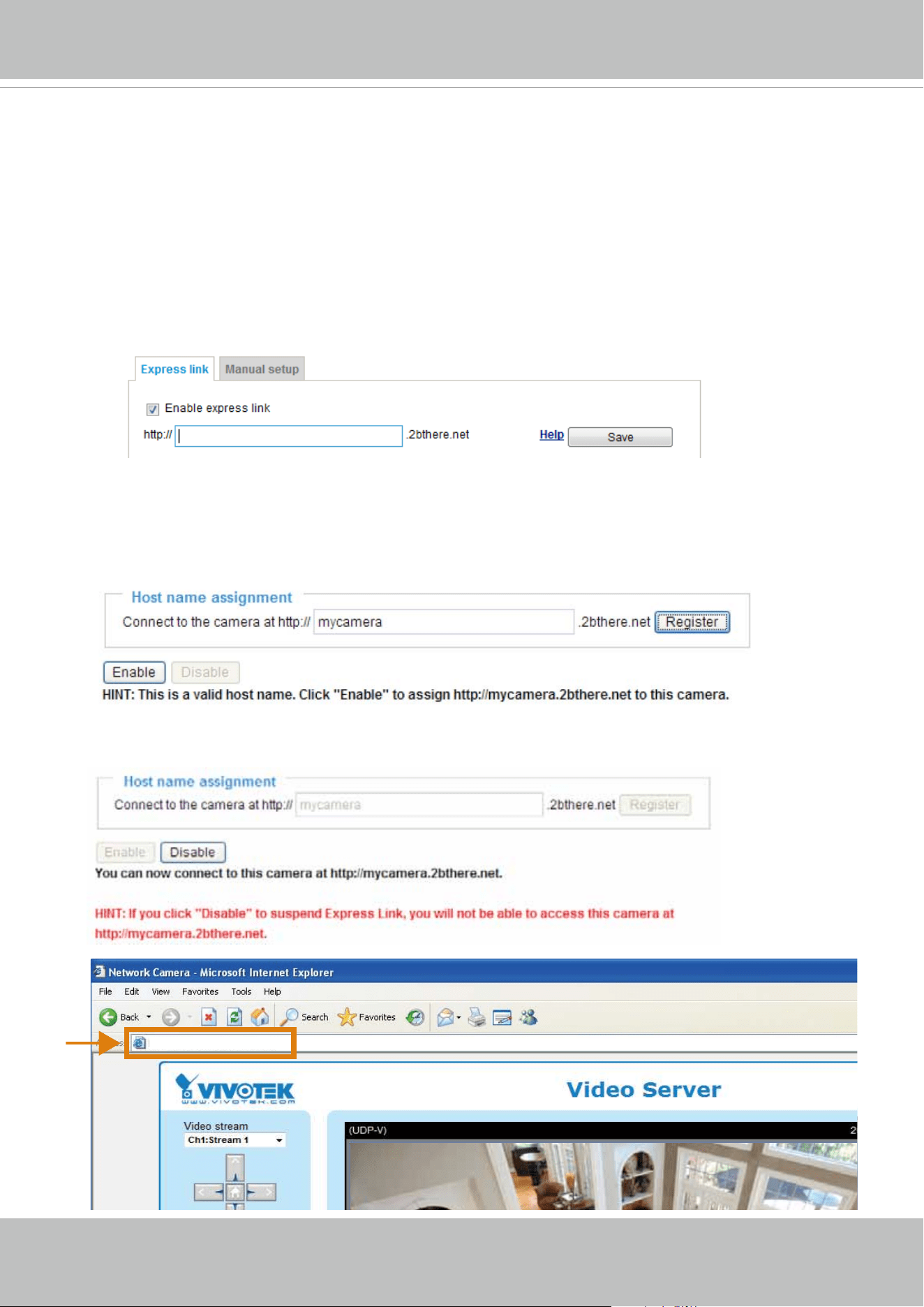
Express link is a free service provided by VIVOTEK server, which allows users to register an
domain name for a network device. One URL can only be mapped to one Mac address. This
service will check out if the host name is valid and automatically open a port on your router.
Unlike DDNS, the user has to manually check out UPnP port forwarding, Express link is more
convenient and easy to set up.
Host name assignment
Please follow the steps below to enable Express link:
1. Make sure that your router supports UPnP port forwarding and it is activated.
2. Enter a host name for the network device and click Register. If the host name has been used by
another device, a warning message will show up. If the host name is valid, it will show an error
message.
3. Click Enable to validate your setting. To access the camera, enter its express link address in a
browser’s URL eld.
https://mycamera.2bthere.net
VIVOTEK
User's Manual - 51
DDNS
This section explains how to congure the dynamic domain name service for the video server.
DDNS is a service that allows your video server, especially when assigned with a dynamic IP
address, to have a xed host and domain name.
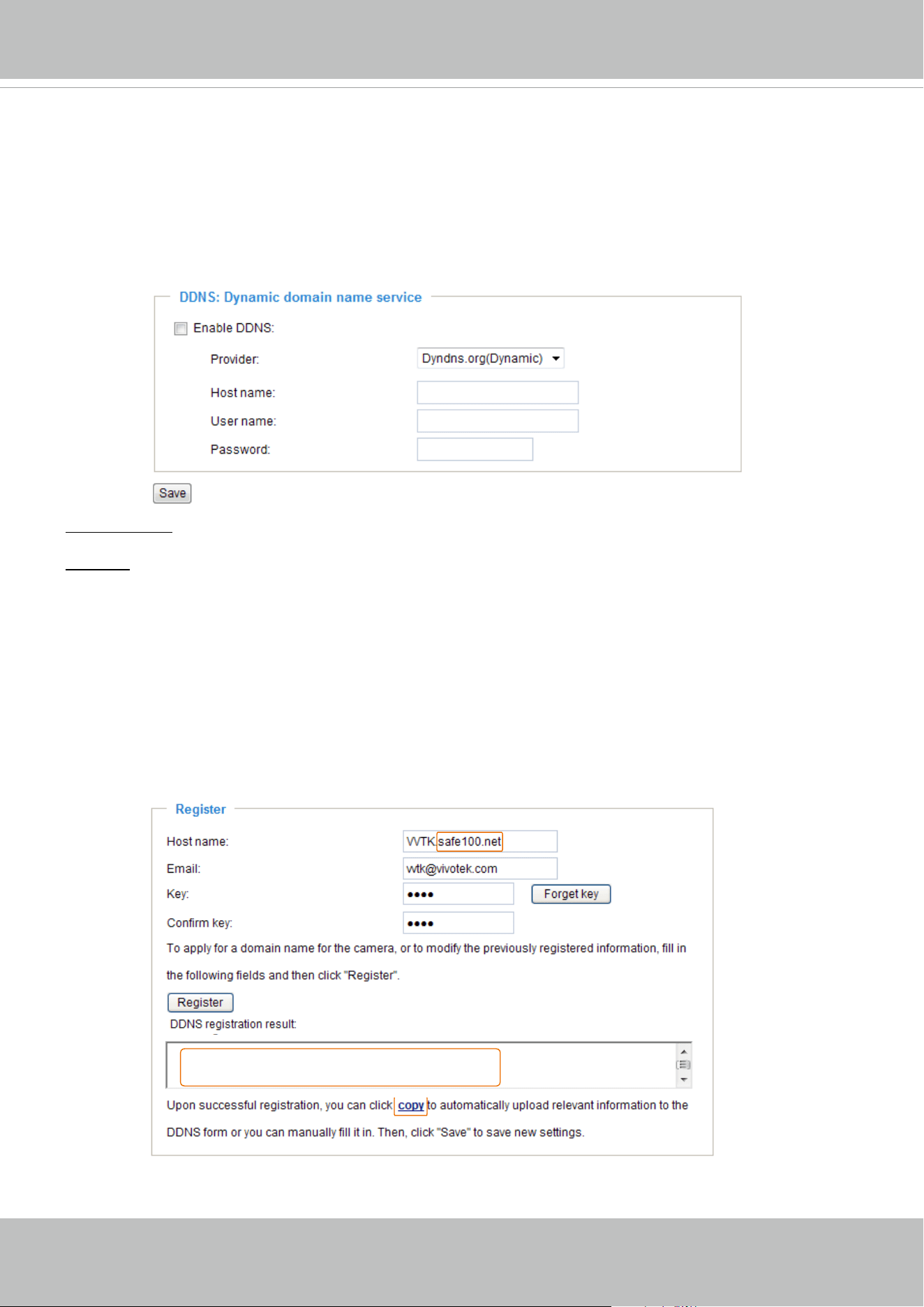
DDNS: Dynamic domain name service
Enable DDNS: Select this option to enable the DDNS setting.
Provider: Select a DDNS provider from the provider drop-down list.
VIVOTEK offers
Safe100.net, a free dynamic domain name service, to VIVOTEK customers. It is
recommended that you register
Safe100.net to access VIVOTEK’s video servers from the Internet.
Additionally, we offer other DDNS providers, such as Dyndns.org(Dynamic), Dyndns.org(Custom), TZO.
com, DHS.org, CustomSafe100, dyn-interfree.it.
Note that before utilizing this function, please apply for a dynamic domain account rst.
■
Safe100.net
1. In the DDNS column, select Safe100.net from the drop-down list. Click I accept after reviewing the
terms of the Service Agreement.
2. In the Register column, ll in the Host name (xxxx.safe100.net), Email, Key, and Conrm Key, and
click Register. After a host name has been successfully created, a success message will be displayed
in the DDNS Registration Result column.
3. Click Copy and all the registered information will automatically be uploaded to the corresponding elds
in the DDNS column at the top of the page as seen in the picture.
[Register] Successfully Your account information has
been mailed to registered e-mail address
VIVOTEK
52 - User's Manual
4. Select Enable DDNS and click Save to enable the setting.
■
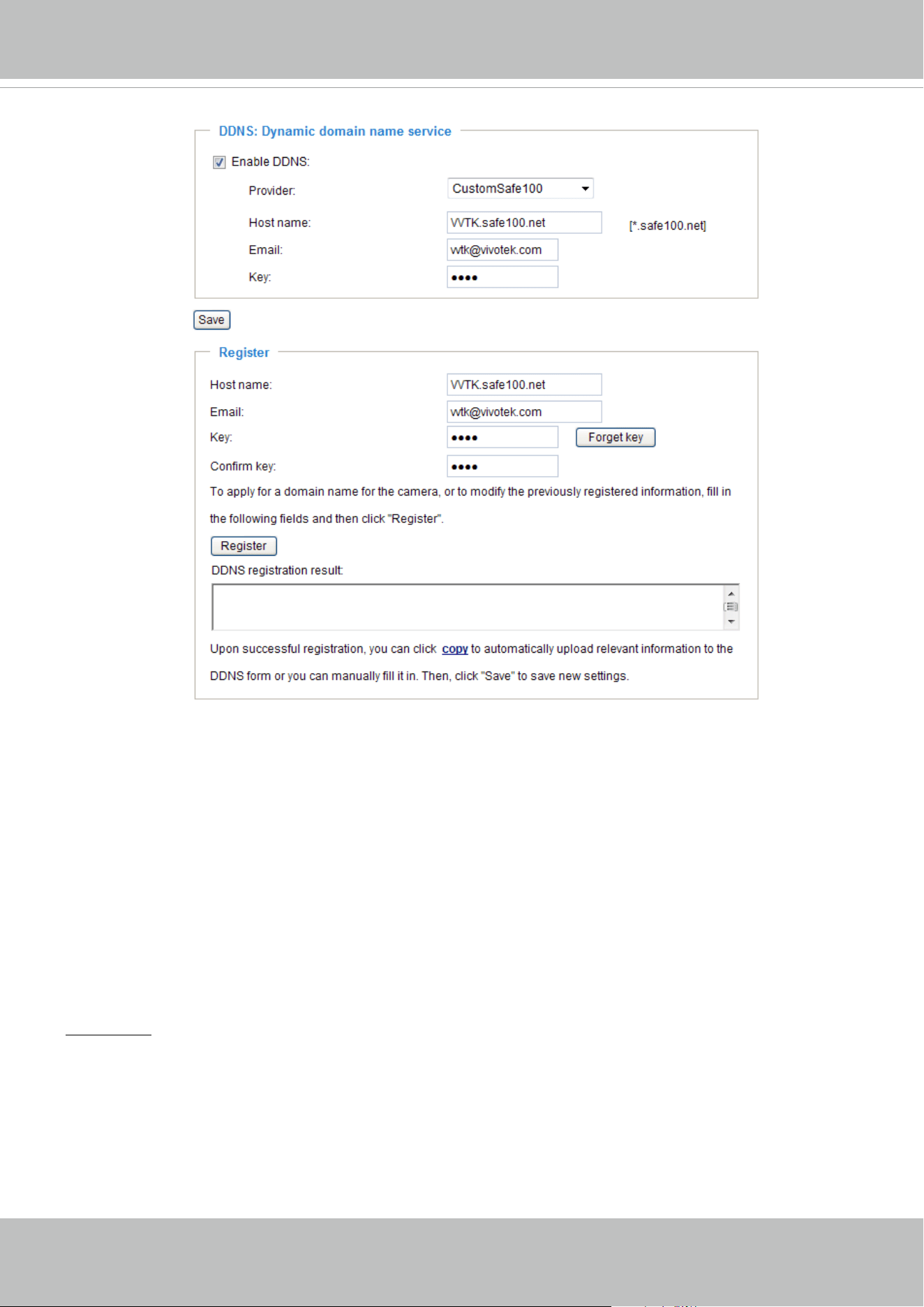
CustomSafe100
VIVOTEK offers documents to establish a CustomSafe100 DDNS server for distributors and system
integrators. You can use CustomSafe100 to register a dynamic domain name if your distributor or system
integrators offer such services.
1. In the DDNS column, select CustomSafe100 from the drop-down list.
2. In the Register column, ll in the Host name, Email, Key, and Conrm Key; then click Register. After a
host name has been successfully created, you will see a success message in the DDNS Registration
Result column.
3. Click Copy and all for the registered information will be uploaded to the corresponding elds in the
DDNS column.
4. Select Enable DDNS and click Save to enable the setting.
Forget key: Click this button if you have forgotten the key to Safe100.net or CustomSafe100. Your
account information will be sent to your email address.
Refer to the following links to apply for a dynamic domain account when selecting other DDNS
providers:
■
Dyndns.org(Dynamic) / Dyndns.org(Custom): visit http://www.dyndns.com/
■ TZO.com: visit http://www.tzo.com/
■ DHS.org: visit http://www.dhs.org/
■ dyn-interfree.it: visit http://dyn-interfree.it/
[Register] Successfully Your account information has
been mailed to registered e-mail address
VIVOTEK
User's Manual - 53
Access list
Advanced Mode
This section explains how to control access permission by verifying the client PC’s IP address.
General settings
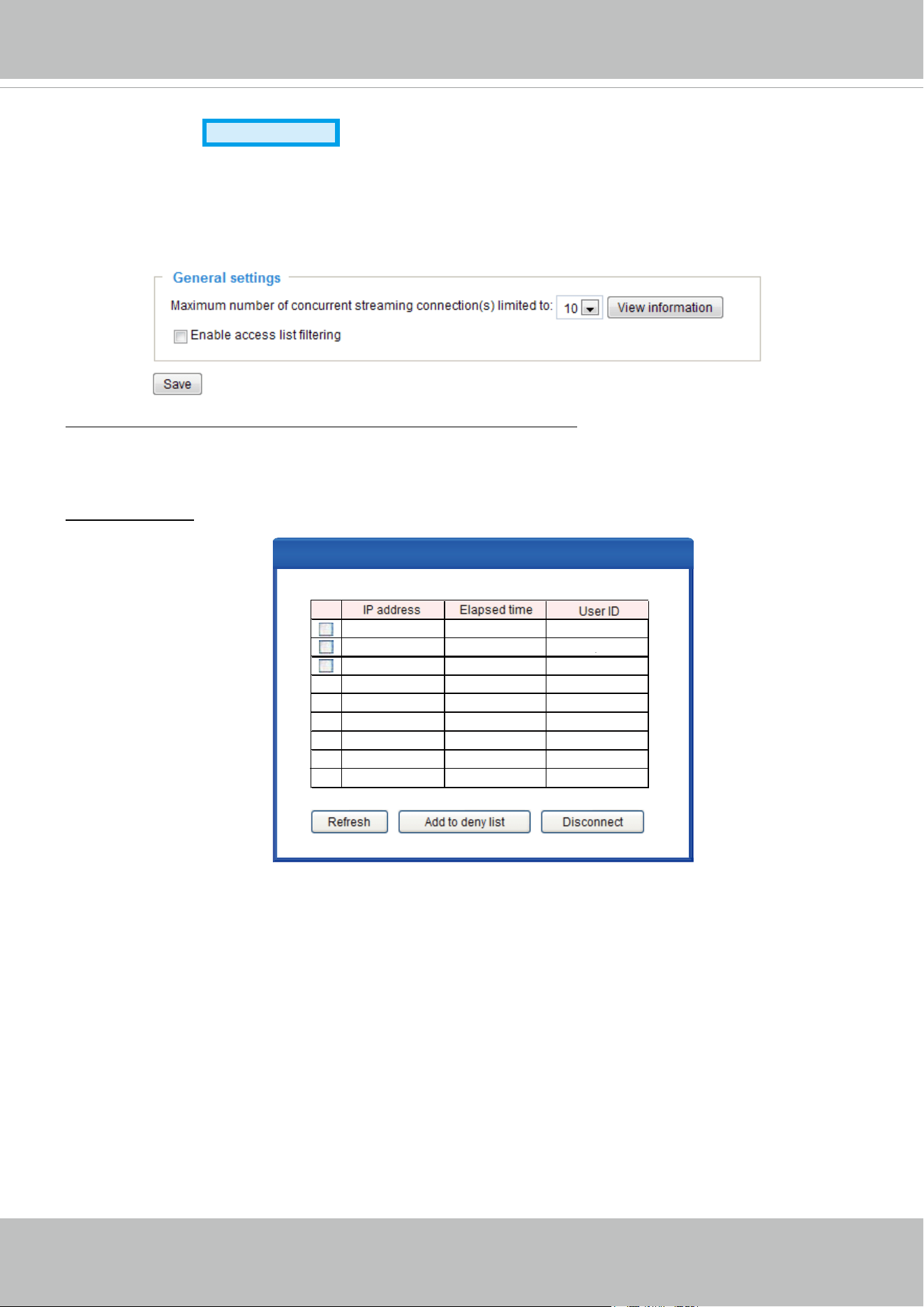
Maximum number of concurrent streaming connection(s) limited to: Simultaneous live viewing for 1~10
clients (including stream 1 and stream 2). The default value is 10. If you modify the value and click Save,
all current connections will be disconnected and automatically attempt to re-link (IE Explore or Quick
Time Player).
View Information: Click this button to display the connection status window showing a list of the current
connections.
For example:
■ IP address: Current connections to the Video server.
■ Elapsed time: How much time the client has been at the webpage.
■ User ID: If the administrator has set a password for the webpage, the clients have to enter a user name
and password to access the live video. The user name will be displayed in the User ID column. If the
administrator allows clients to link to the webpage without a user name and password, the User ID
column will be empty.
There are some situations which allow clients access to the live video without a user name and
password:
1. The administrator does not set up a root password. For more information about how to set up a root
password and manage user accounts, please refer to Security on page 28.
2. The administrator has set up a root password, but set RTSP authentication to “disable“. For more
information about RTSP authentication, please refer to RTSP Streaming on page 48.
3. The administrator has set up a root password, but allows anonymous viewing. For more information
about Allow Anonymous Viewing, please refer to Security on page 28.
Connection status
Connection status
192.168.3.25
61.22.15.3
192.168.1.147
IP address
45:00:34
00:10:09
12:20:34
Elapsed time
greg
anonymous
root
User ID
Add to Deny List DisconnectRefresh
VIVOTEK
54 - User's Manual
■ Refresh: Click this button to refresh all current connections.
■ Add to deny list: You can select entries from the Connection Status list and add them to the Deny List
to deny access. Please note that those checked connections will only be disconnected temporarily
and will automatically try to re-link again (IE Explore or Quick Time Player). If you want to enable the
denied list, please check Enable access list ltering and click Save in the rst column.
■ Disconnect: If you want to break off the current connections, please select them and click this
button. Please note that those checked connections will only be disconnected temporarily and will
automatically try to re-link again (IE Explore or Quick Time Player).
Enable access list ltering: Check this item and click Save if you want to enable the access list ltering
function.
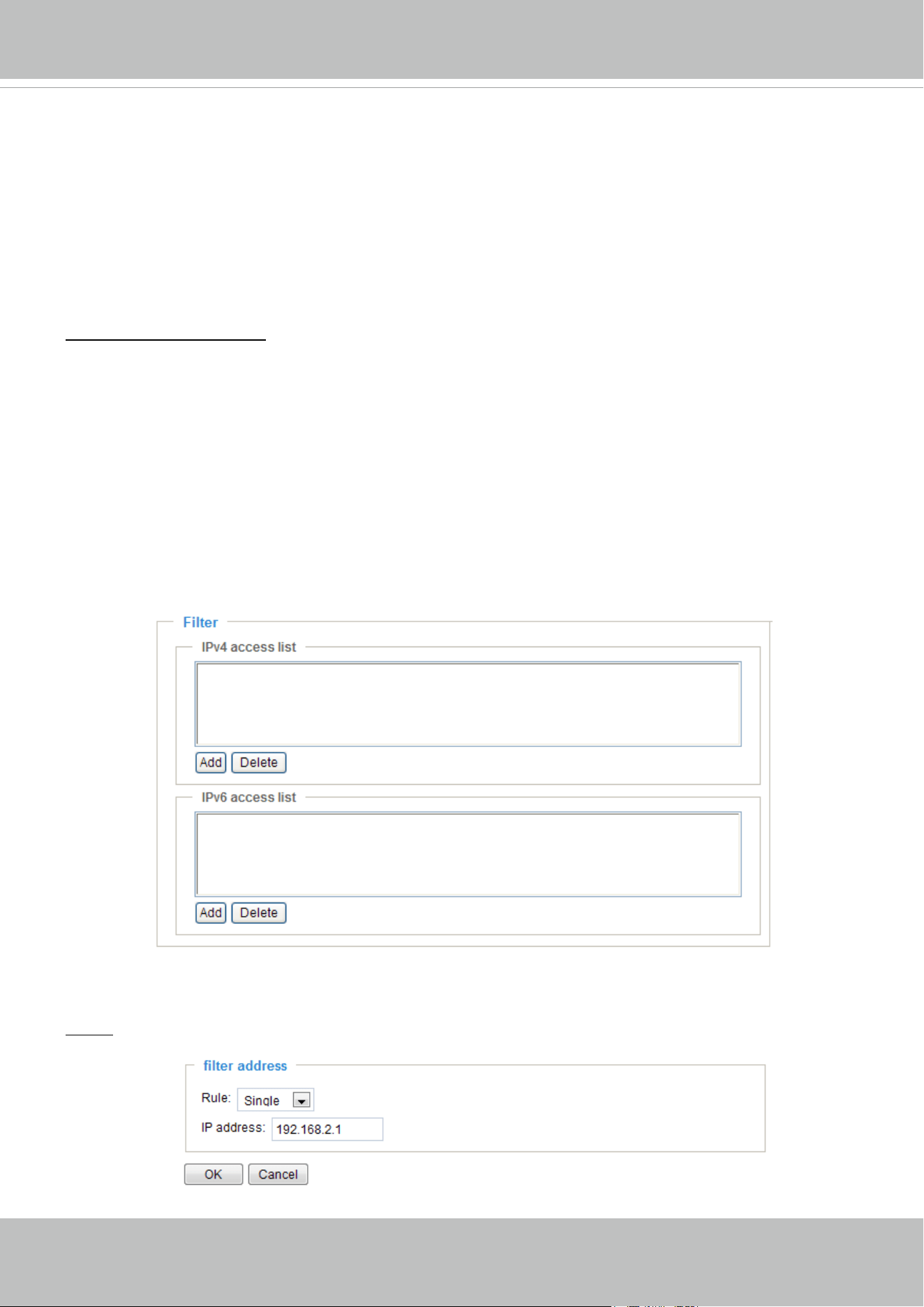
Filter type
Select Allow or Deny as the lter type. If you choose Allow Type, only those clients whose IP addresses
are on the Access List below can access the Network Camera, and the others cannot access. On the
contrary, if you choose Deny Type, those clients whose IP addresses are on the Access List below will
not be allowed to access the Network Camera, and the others can access.
Filter
Then you can add a rule to the following Access List. Please note that the IPv6 access list column will not
be displayed unless you enable IPv6 on the Network page. For more information about IPv6 Settings,
please refer to page 39 for detailed information.
■ Add a rule to Allowed/Denied list: Click Add to add a rule to Allowed/Denied list.
There are three types of rules:
Single: This rule allows the user to add an IP address to the Allowed/Denied list.
For example:
VIVOTEK
User's Manual - 55
Digital I/O
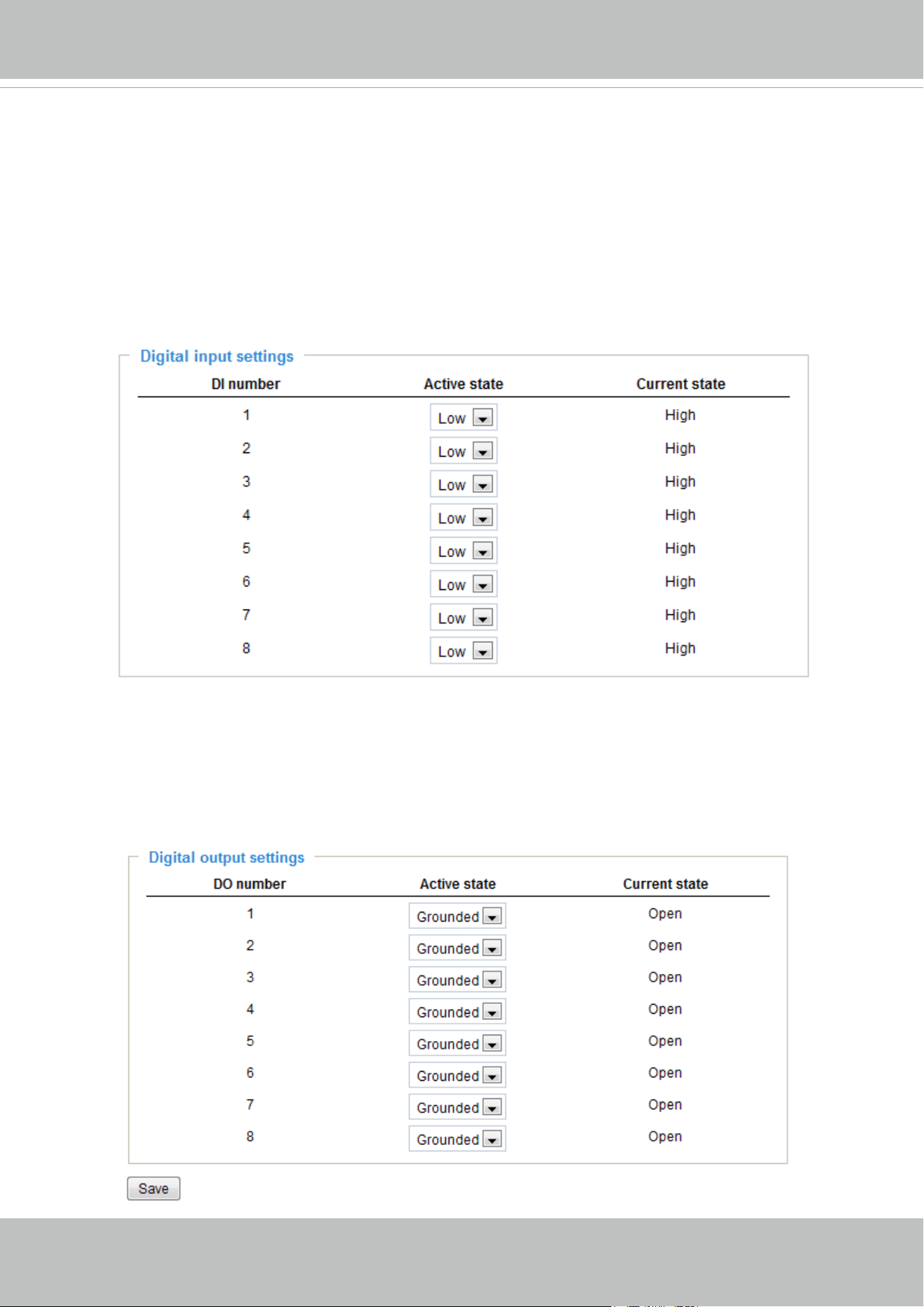
This section explains how to change digital input and digital output settings.
Digital input settings
You can select High or Low to dene normal status for the digital input. The video server will
report the current status.
Digital output settings
You can select Grounded or Open to define normal status for the digital output. The video
server will show the trigger is activated or not.
VIVOTEK
56 - User's Manual
Audio and video
This section explains how to cogure the audio and video settings of the video server.
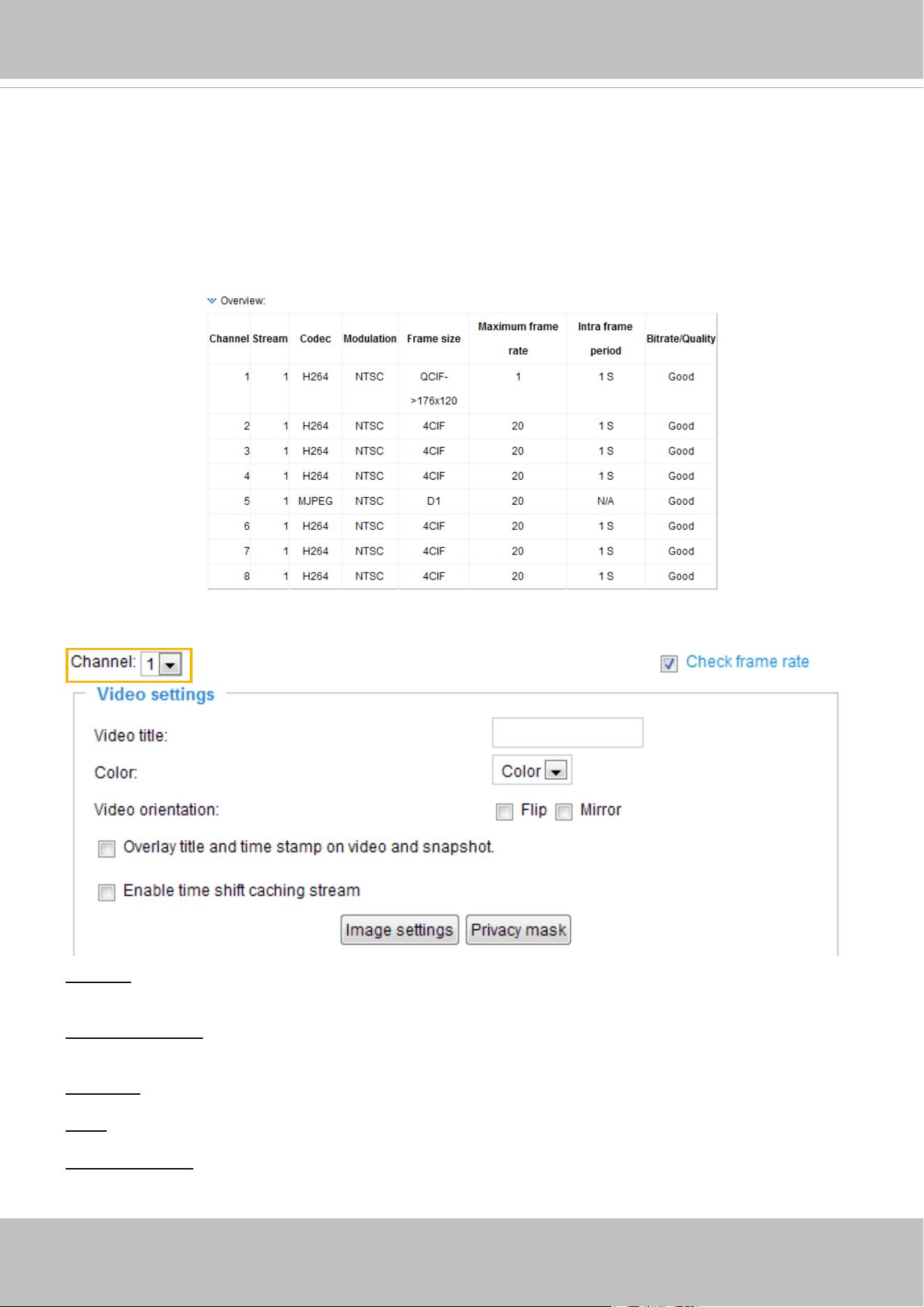
Overview
This table shows all stream settings of each channel.
Video settings
Channel: In the drop-down list, there are channel 1~4/8, select one to set video settings on it in the
column below.
Check frame rate: Check Check frame rate to display the current available frame rate status for all
frame sizes. Please refer to page 63 for details.
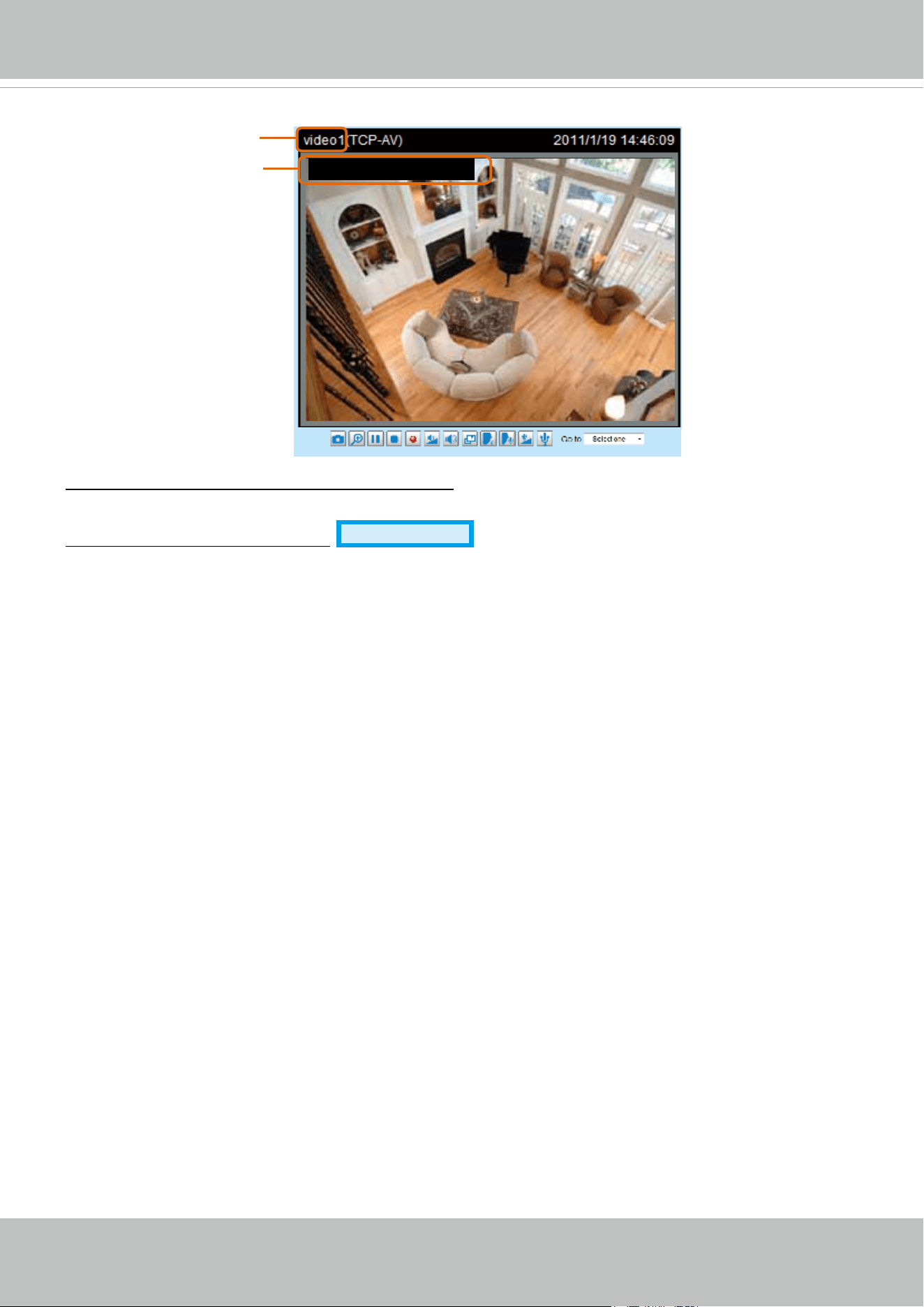
Video title: Enter a name that will be displayed on the title bar of the live video.
Color: Select to display color or black/white video streams.
Video orientation: Flip--vertically reect the display of the live video; Mirror--horizontally reect the display
of the live video. Select both options if the linked device is installed upside-down (e.g., on the ceiling) to
correct the image orientation.
VIVOTEK
User's Manual - 57
Video Title
Title and Time
Video 14:46:09 2011/1/19
Overlay title and time stamp on video and snapshot: Select this option to place the video title and time on
the video streams.
Enable time shift caching stream
Advanced Mode
: Check this item to enable the time shift cache
stream on the video server, which will stores video in the video server’s embedded memory for a period
of time depending on the cache memory size of each video server. This function can work seamlessly
with VIVOTEK’s ST7501 recording software. When an event occurs, the recording software can request
time shift cache stream from the camera, which allows the user to retrieve pre-event video data.
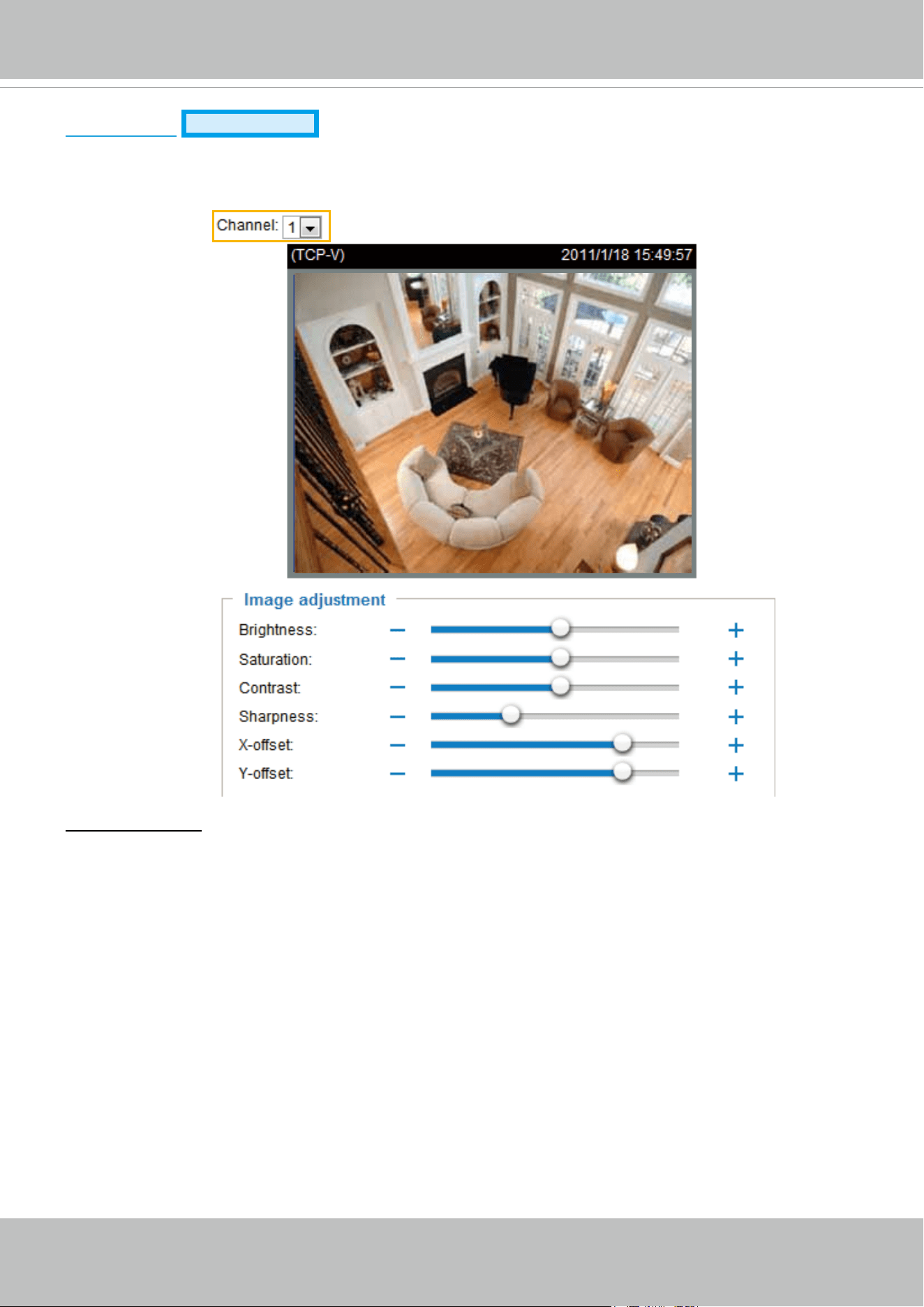
VIVOTEK
58 - User's Manual
Image settings
Advanced Mode
Click Image Settings to open the Image Settings page. On this page, you can tune the White balance,
Brightness, Saturation, Contrast, and Sharpness settings for the video. Please choose the Channel rst.
Image adjustment
■ Brightness: To adjust the image brightness level, please drag the slider bar to the right (+) to increase
the effect, or to the left (-) to reduce the effect.
■ Saturation:
To a
djust the image saturation level,
please drag the slider bar to the right (+) to increase
the effect, or to the left(-) to reduce the effect.
■ Contrast:
To a
djust the image contrast level,
please drag the slider bar to the right (+) to increase
the effect, or to the left(-) to reduce the effect.
■ Sharpness:
To a
djust the image sharpness level,
please drag the slider bar to the right (+) to increase
the effect, or to the left(-) to reduce the effect.
■ X-offset: Adjust the image to the proper position horizontally.
■ Y-offset: Adjust the image to the proper position vertically.
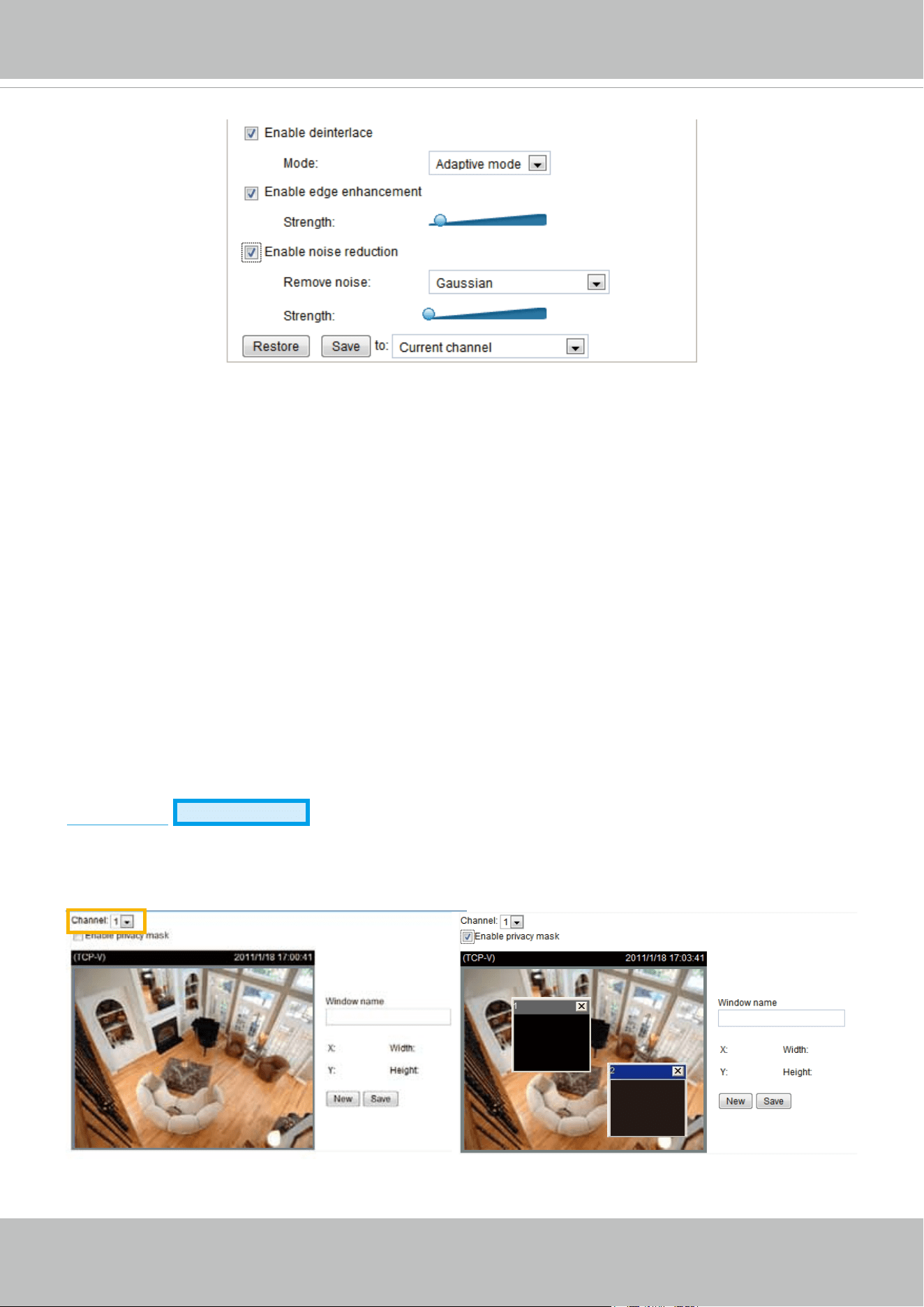
VIVOTEK
User's Manual - 59
■ Enable deinterlace: Check to enable deinterlace, and choose Adaptive mode or Blend mode in the
drop-down list. Adaptive mode provides the best image quality, while Blend mode provides better
image quality (than not using the deinterlace function at all). Note that applying this function to all
channels at the same time will consume quite a lot computing power.
■ Enable edge enhancement: Check to enable edge enhancement, and drag the slider bar to adjust the
strength. Note that applying this function to all channels at the same time will consume quite a lot of
computing power.
■ Enable noise reduction: Check to enable noise reduction, and you can also choose to reduce
Gaussian noise, impulse noise, or Gaussian and impulse noise in the drop-down list. Drag the
slide bar to adjust the strength. Noted that applying this function to all channels at the same time will
consume quite a lot of computing power.
■ Restore: Click to restore the default setting.
■ Save: When nished with the setting, you can choose to apply the settings to Current channel, All
channels, Current channel and channel 2, etc. in the drop-down list. Then click Save to enable the
settings.
Privacy Mask
Advanced Mode
Click Privacy Mask to open the settings page. On this page, you can block out sensitive zones to
address privacy concerns. Please choose the Channel rst.
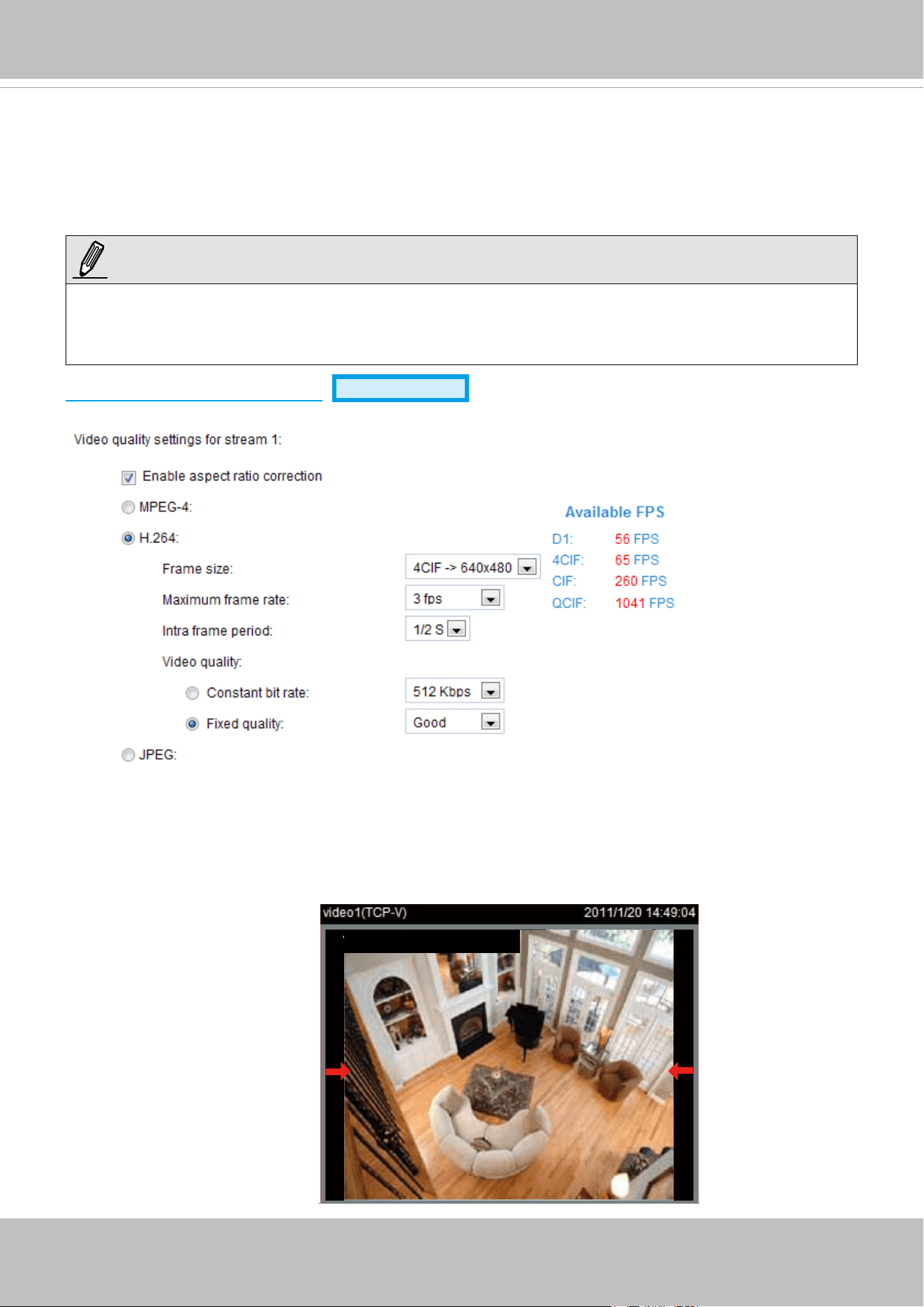
VIVOTEK
60 - User's Manual
■ To set the privacy mask windows, follow the steps below:
1. Click New to add a new window.
2. Use the mouse to size and drag-drop the window, which is recommended to be at least twice the size
of the object (height and width) you want to cover.
3. Enter a Window Name and click Save to enable the setting.
4. Select Enable privacy mask to enable this function.
►
Up to 5 privacy mask windows can be set up on the same screen.
► If you want to delete a
privacy mask
window, please click on the ‘x’ mark at the upper right corner of
the window.
Video quality settings for stream 1
Advanced Mode
Click the items to display the detailed video quality settings.
■ Enable aspect ratio correction:
In the default settings, the size of the video window will change according to the layout of the live
viewing window you choose. However, the frame size may be distorted. If you check Enable aspect
ratio correction, the video window will be adjusted to the same frame size as the preview window. This
function is disabled as default.
Video 14:49:04 2011/1/20
NOTE:
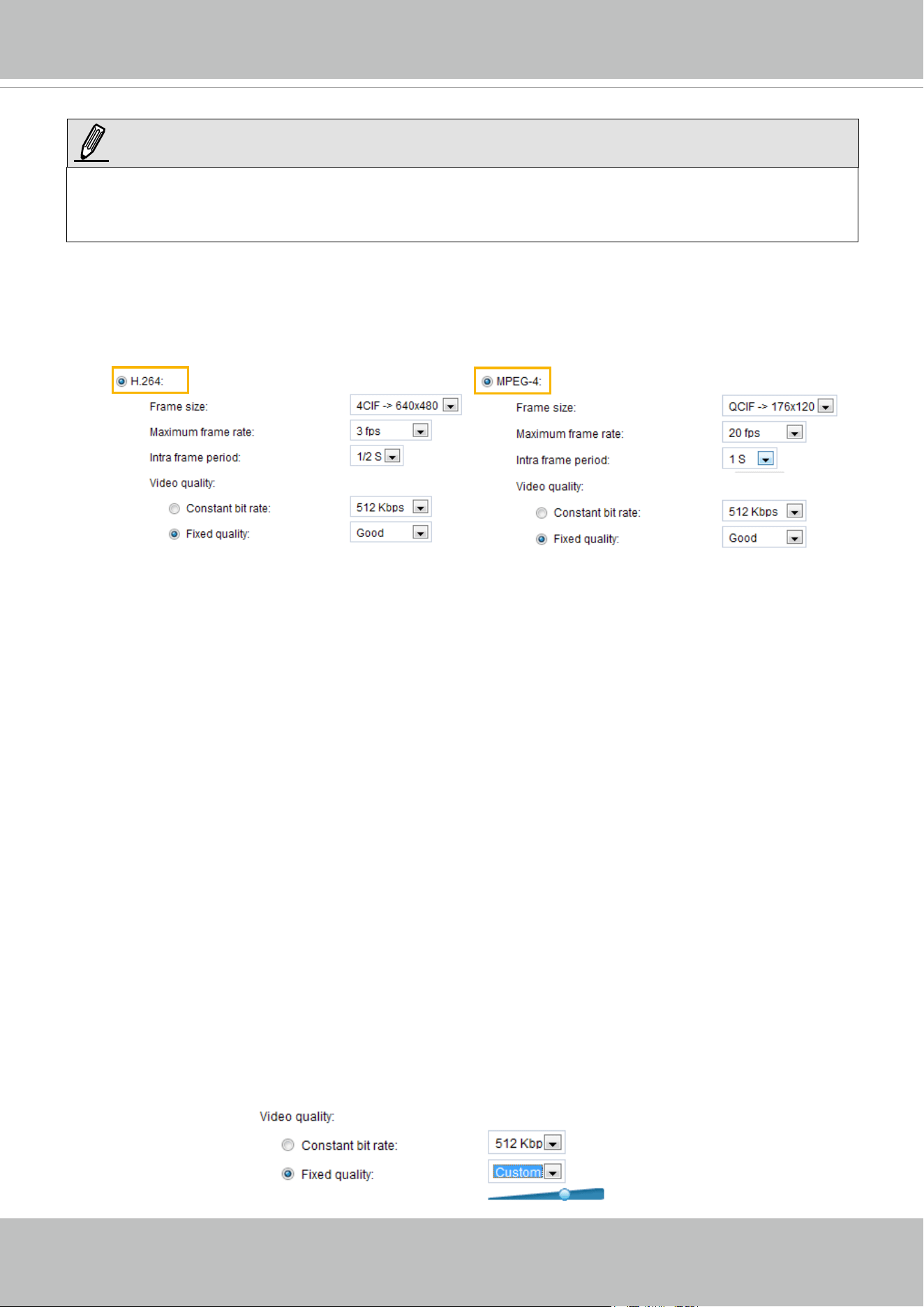
VIVOTEK
User's Manual - 61
This video server offers real-time H.264, MPEG-4, and MJPEG compression standards (Triple Codec)
for real-time viewing.
If
H.264 / MPEG-4 mode is selected, the video is streamed via RTSP protocol. There are four parameters
for you to adjust the video performance:
■ Frame size
You can set up different video resolution for different viewing devices. For example, set a smaller
frame size and lower bit rate for remote viewing on mobile phones and a larger video size and a higher
bit rate for live viewing on web browsers. Note that a larger frame size takes up more bandwidth. The
frame sizes are selectable in the following resolutions: QCIF, CIF, 4CIF, and D1.
■ Maximum frame rate
This limits the maximum refresh frame rate per second. Set the frame rate higher for smoother video
quality. You can also select Customize and manually enter a value. The frame rate will decrease if you
select a higher resolution.
■ Intra frame period
Determine how often to plant an I frame. The shorter the duration, the more likely you will get better
video quality, but at the cost of higher network bandwidth consumption. Select the intra frame period
from the following durations: 1/4 second, 1/2 second, 1 second, 2 seconds, 3 seconds, and 4 seconds.
■ Video quality
A complex scene generally produces a larger le size, meaning that higher bandwidth will be needed
for data transmission. Therefore, if Constant bit rate is selected, the bandwidth utilization is xed at
a selected level, resulting in mutable video quality performance. The bit rates are selectable at the
following rates: 20Kbps, 30Kbps, 40Kbps, 50Kbps, 64Kbps, 128Kbps, 256Kbps, 512Kbps, 768Kbps,
1Mbps, 2Mbps, 3Mbps, and 4Mbps. You can also select Customize and manually enter a value.
On the other hand, if Fixed quality is selected, all frames are transmitted with the same quality;
bandwidth utilization is therefore unpredictable. The video quality can be adjusted to the following
settings: Medium, Standard, Good, Detailed, and Excellent. You can also select Customize and
manually adjust the slider bar. You may adjust the slider bar to the right to have better video quality.
►
Aspect ratio correction doesn’t support QCIF.
►
When aspect ratio correction takes effect, the frame size for D1 will be adjusted to 640x480.
NOTE:
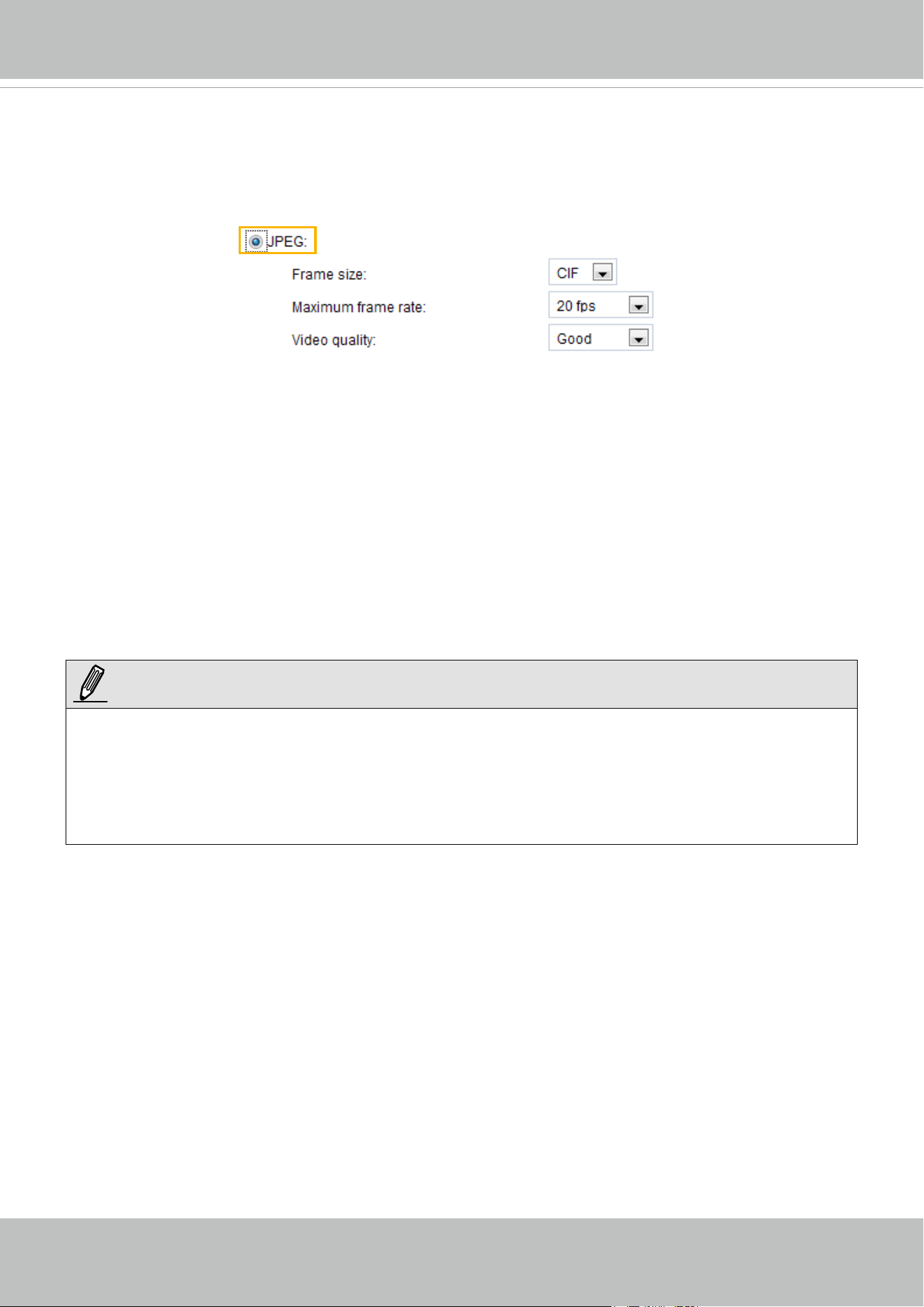
VIVOTEK
62 - User's Manual
If JPEG mode is selected, the video server continuously sends JPEG images to the client, producing
a moving effect similar to a filmstrip. Every single JPEG image transmitted guarantees the same
image quality, which in turn comes at the expense of variable bandwidth usage. Because the media
contents are a combination of JPEG images, no audio data is transmitted to the client. There are three
parameters provided in MJPEG mode to control the video performance:
■ Frame size
You can set up different video resolution for different viewing devices. For example, set a smaller
frame size and lower bit rate for remote viewing on mobile phones and a larger video size and a higher
bit rate for live viewing on web browsers. Note that a larger frame size takes up more bandwidth. The
frame sizes are selectable in the following resolutions: QCIF, CIF, 4CIF, and D1.
■ Maximum frame rate
This limits the maximum refresh frame rate per second. Set the frame rate higher for smoother video
quality.
You can also select Customize and manually enter a value. The frame rate will decrease if you select
a higher resolution.
■ Video quality
The video quality can be adjusted to the following settings: Medium, Standard, Good, Detailed, and
Excellent. You can also select Customize and manually enter a value.
►
Video quality and fixed quality refers to the compression rate, so a lower value will produce higher
quality.
►
Converting high-quality video may significantly increase the CPU loading, and you may encounter
streaming disconnection or video loss while capturing a complicated scene. In the event of occurance,
we suggest you customize a lower video resolution or reduce the frame rate to obtain smooth video.
NOTE:
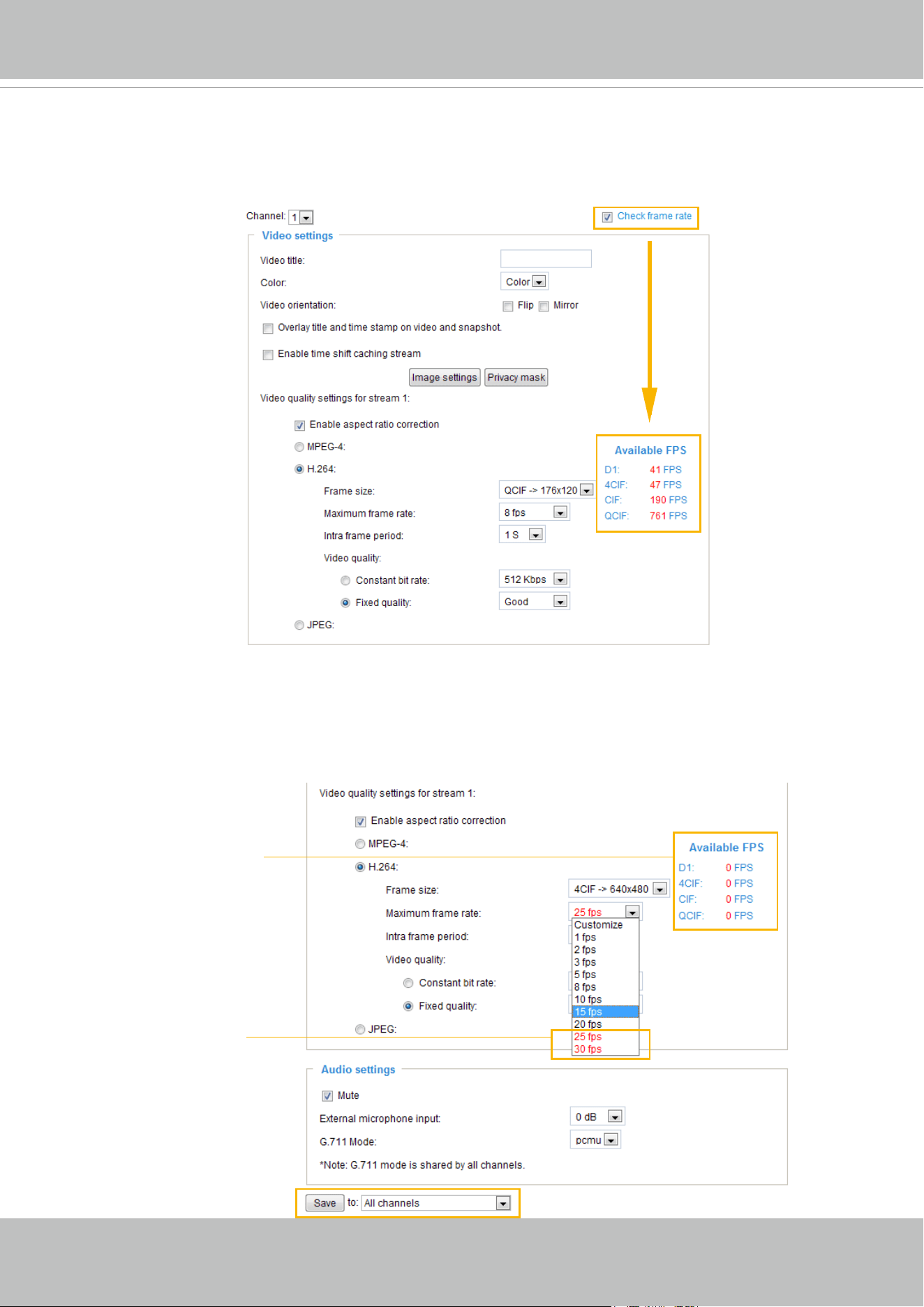
VIVOTEK
User's Manual - 63
■ Available FPS
Check Check frame rate to display the current available frame rate status (Available FPS). Available
FPS provides the information of the unused encoding capability with available frame rate in different
frame size.
The embedded Soc (System-on-Chip) has limited encoding capability, so you may set the video quality
according to the available FPS. Due to the limited encoding capability, the maximum frame rate for 4CIF
in H.264 or MPEG-4 codec can only support up to 23 FPS when all channels are applied to this setting
and being used. If the total amount of frame rate exceeds encoding capability, a warning message
"Frame rate is not guaranteed" will show up in a pop-up window. Also the frame rate that cannot be
reached for each stream will be marked in red color in the "Overview" column.
the frame rate that
cannot be reached is
marked in red color.
No available FPS due
to the total amount of
frame rate exceeds the
encoding capability.
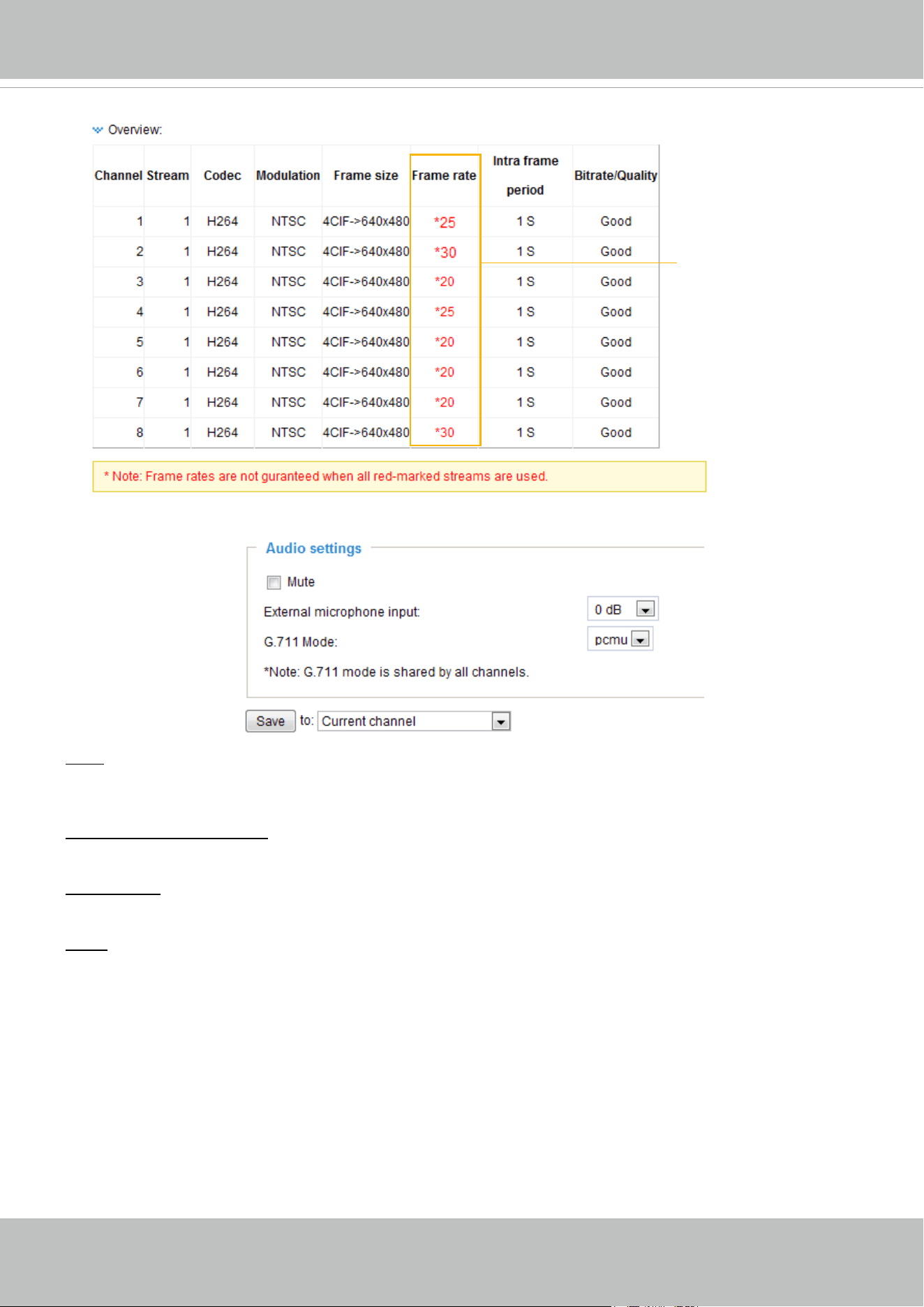
VIVOTEK
64 - User's Manual
Audio settings
Mute: Select this option to disable audio transmission from the video server to all clients. Note that if
mute mode is turned on, no audio data will be transmitted even if audio transmission is enabled on the
Client Settings page. In that case, the following message is displayed:
External microphone input: Select the gain of the internal audio input according to ambient conditions.
Adjust the gain from +9 db (most sensitive) ~ -12 db (least sensitive).
G.711 Mode: G.711 also provides good sound quality and requires about 64Kbps. Select pcmu (Pulse
code Modulation μ-Law) or pcma (A-Law) mode.
Save: When finishing the setting, you can choose to apply the settings to Current channel, All
channels, Current channel and channel 2, etc. in the drop-down list. Then click Save to enable the
settings.
the frame rate that
cannot be reached is
marked in red color.
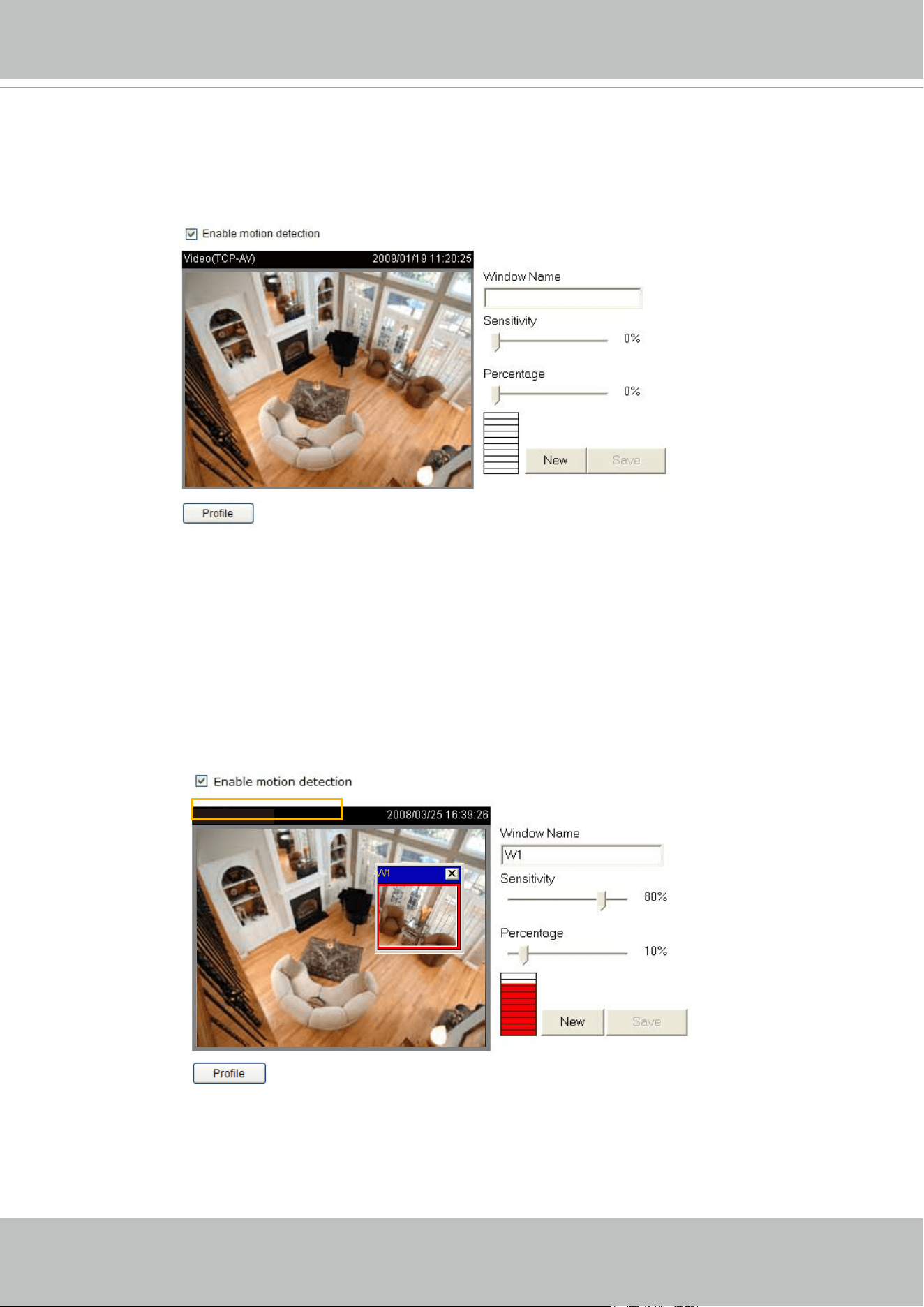
VIVOTEK
User's Manual - 65
Motion detection
This section explains how to congure the Video Server to enable motion detection. A total of
three motion detection windows can be congured for each channel.
Follow the steps below to enable motion detection:
1. Select Channel.
2. Click New to add a new motion detection window.
3. In the Window Name text box, enter a name for the motion detection window.
■ To move and resize the window, drag and drop your mouse on the window.
■ To delete window, click X on the upper right corner of the window.
4. Define the sensitivity to moving objects and the space ratio of all alerted pixels by moving the
Sensitivity and Percentage slider bar.
5. Click Save to enable the settings.
6. Check Enable motion detection to enable this function.
For example:
The Percentage Indicator will rise or fall depending on the variation between sequential images. When
motions are detected by the Network Camera and are judged to exceed the defined threshold, the
red bar rises. Meanwhile, the motion detection window will be outlined in red. Photos or videos can be
captured instantly and congured to be sent to a remote server (Email, FTP) by utilizing this feature as a
trigger source. For more information on how to set an event, please refer to Application on page 78.
Video(TCP-AV)
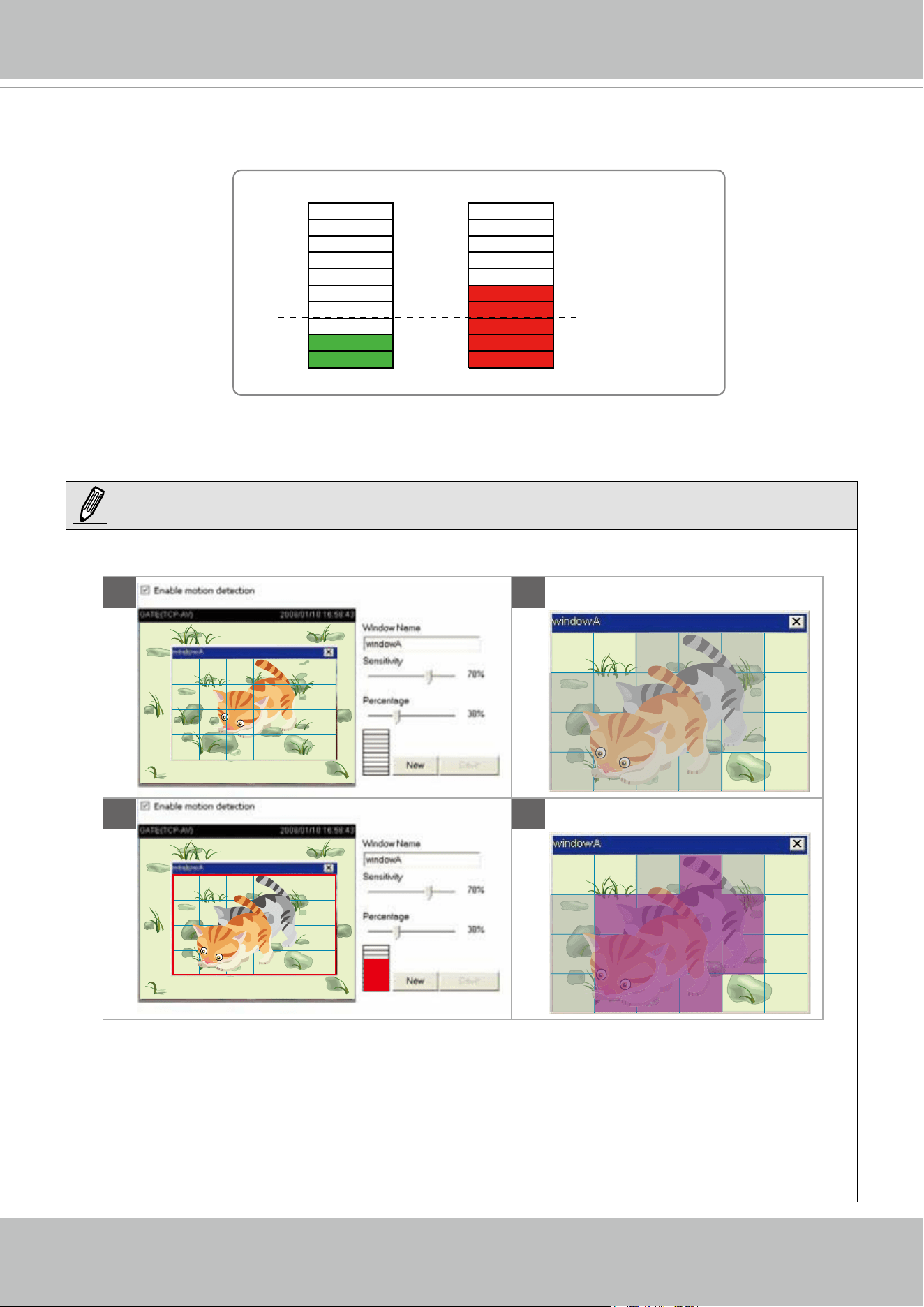
VIVOTEK
66 - User's Manual
A green bar indicates that even though motions have been detected, the event has not been triggered
because the image variations still fall under the dened threshold.
This motion detection window will also be displayed on the Event Settings page. You can go to
Application > Event Settings > Trigger to choose it as a trigger source. Please refer to page 79 for
detailed information
.
Percentage = 30%
A
B D
C
► How does motion detection work?
There are two motion detection parameters: Sensitivity and Percentage. In the illustration above,
frame A and frame B are two sequential images. Pixel differences between the two frames are
detected and highlighted in gray (frame C) and will be compared with the sensitivity setting. Sensitivity
is a value that expresses the sensitivity to moving objects. Higher sensitivity settings are expected to
detect slight movements while smaller sensitivity settings will neglect them. When the sensitivity is set
to 70%, the Network Camera denes the pixels in the purple areas as “alerted pixels” (frame D).
NOTE:
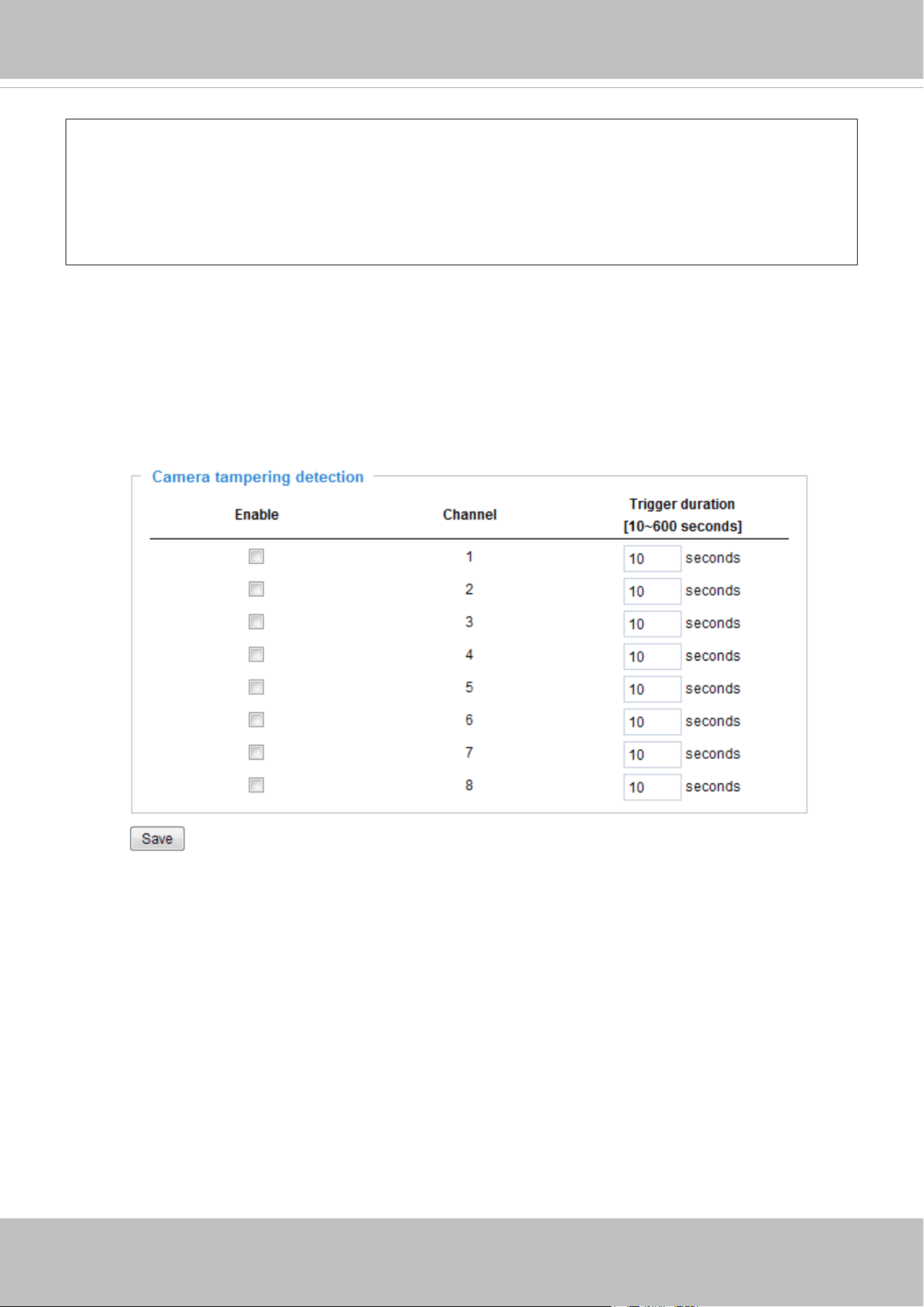
VIVOTEK
User's Manual - 67
Percentage is a value that expresses the proportion of “alerted pixels” to all pixels in the motion
detection window. In this case, 50% of pixels are identied as “alerted pixels”. When the percentage is
set to 30%, the motions are judged to exceed the dened threshold; therefore, the motion window will
be outlined in red.
For applications that require a high level of security management, it is suggested to use higher
sensitivity settings and smaller percentage values.
Camera tampering detection
This section explains how to set up camera tempering detection. With tampering detection, the
camera is capable of detecting incidents such as redirection, blocking or defocusing, or even
spray paint.
Please follow the steps below to set up the camera tampering detection function:
1. Check Enable camera tampering detection.
2. Enter the trigger duration. (10 sec. ~ 10 min.) The alarm will be triggered only when the tampering
factor (the difference between current frame and pre-saved background) exceeds the trigger threshold.
3. Set up the event source as Camera tampering detection on Application > Event settings > Trigger.
Please refer to page 79 for detailed information.
4. Click on Save to take effect.
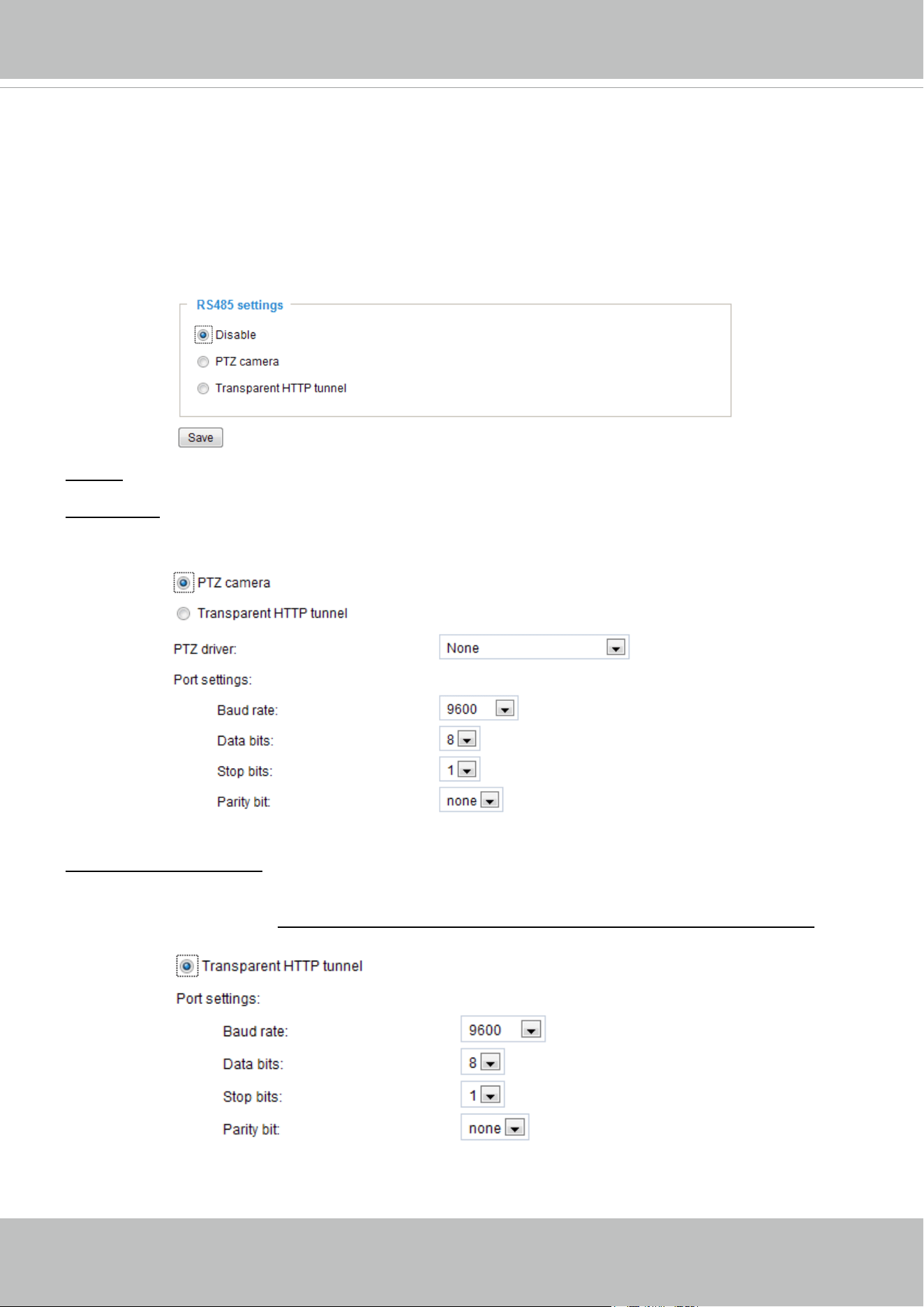
VIVOTEK
68 - User's Manual
Camera control
This section explains how to control the Network Camera’s Pan/Tilt/Zoom operation by
connecting to a PTZ driver or scanner via RS485 interface.
RS485 settings
Disable: Select this option to disable this function.
PTZ camera: Select this option to enable PTZ operation.
To utilize this feature, please connect the Network Camera to a PTZ driver or scanner via RS485
interface rst. Then you can congure the PTZ driver and RS485 port with the following settings.
Transparent HTTP Tunnel: If you want to use your own RS-485 device, you can use UART commands to
build a Transparent HTTP Tunnel. The UART commands will be sent through HTTP tunnel established
between the RS-485 device and the linked camera. For detailed application notes, please refer to URL
Commands on page 105 or http://www.vivotek.com/downloadles/support/faq/172_document_2.pdf.
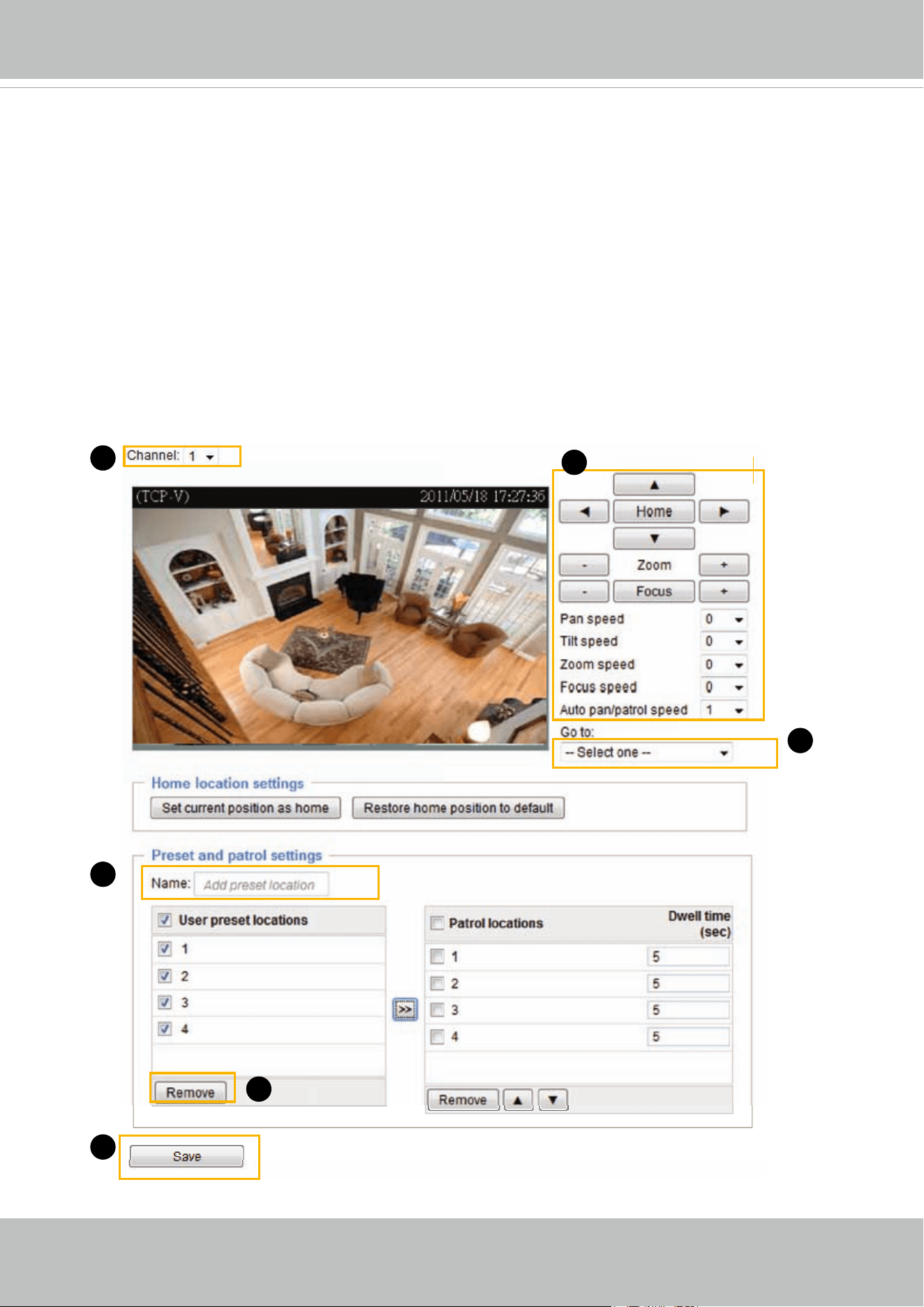
VIVOTEK
User's Manual - 69
Preset positions
If you select DynaDome/SmartDOME, Lilin PIH-7x00, or Pelco D, Pelco P protocol, Samsung scc643
protocol
protocol as the PTZ driver and click the Save button, the Preset Position button will be enabled.
Click Preset Position to open the settings page. You can also select preset positions for the camera to
patrol. A total of 20 preset positions can be congured.
Please follow the steps below to preset a position:
1. Select Channel in the drop-down list.
2. Adjust the shooting area to the desired position by using the buttons on the right.
The default Home
position is set as the center position.
3. Enter a name for the preset position, which allows up to forty characters. Click Add to enable the
settings. The preset positions will be displayed under User preset locations.
4. To add additional preset positions, please repeat steps 1~2.
5. Select the preset positions and click on Save to enable the settings.
6. The positions saved will show up in Go to drop down list on the Home page. See next page
7. To remove a preset position from the list, select it and click Remove.
Functions are the same
as the Control Panel on
the home page
1
3
6
5
2
7
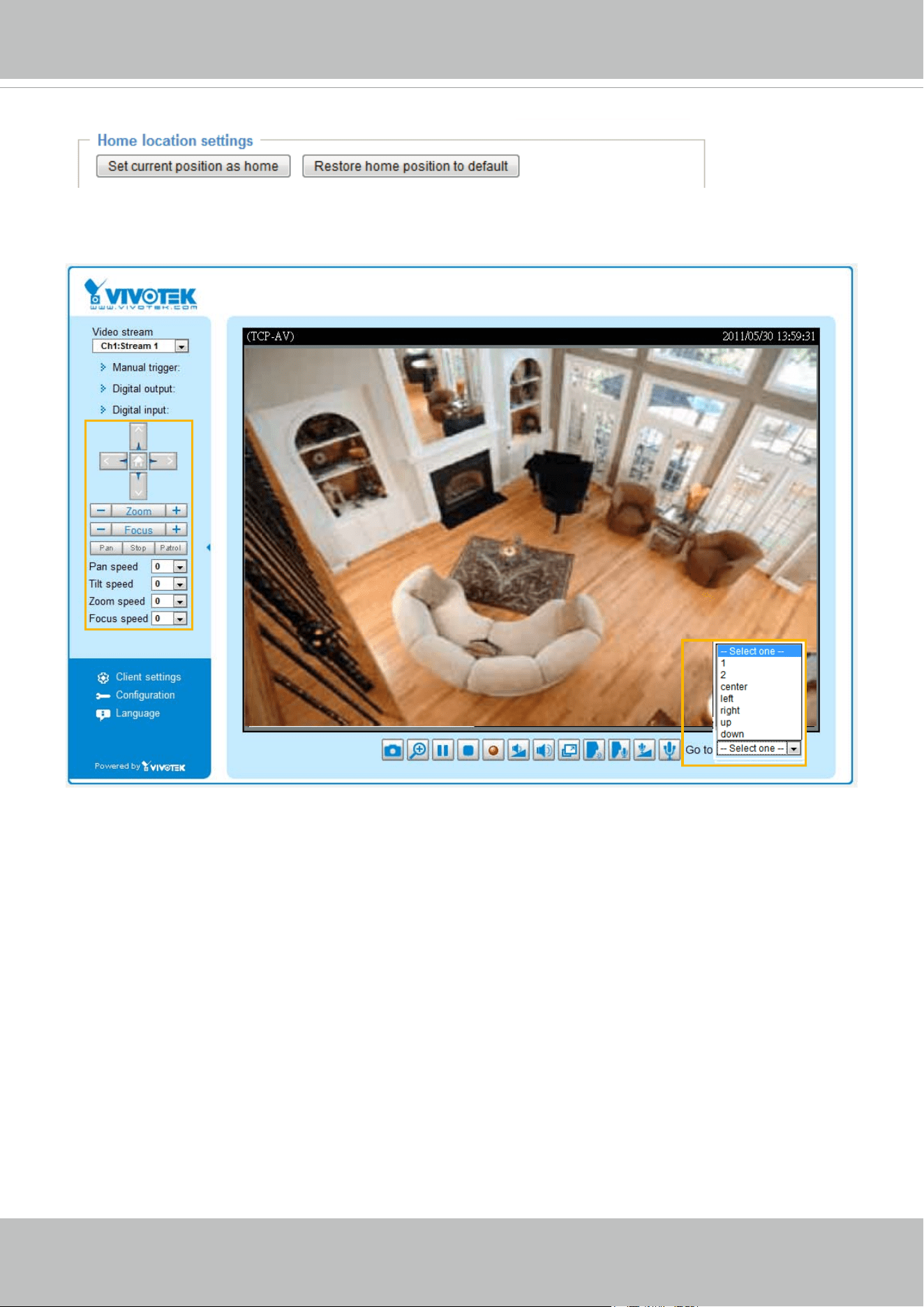
VIVOTEK
70 - User's Manual
■ Home location settings: You can congure the Home location by clicking on Set current position
as home. Click on Restore home position to default, and the Home position will be set as the
center position.
■ The Camera Control Panel and Preset positions will be displayed on the home page:
■ Click Go to: Select one from the drop-down list, and the Network Camera will move to the selected
preset position.
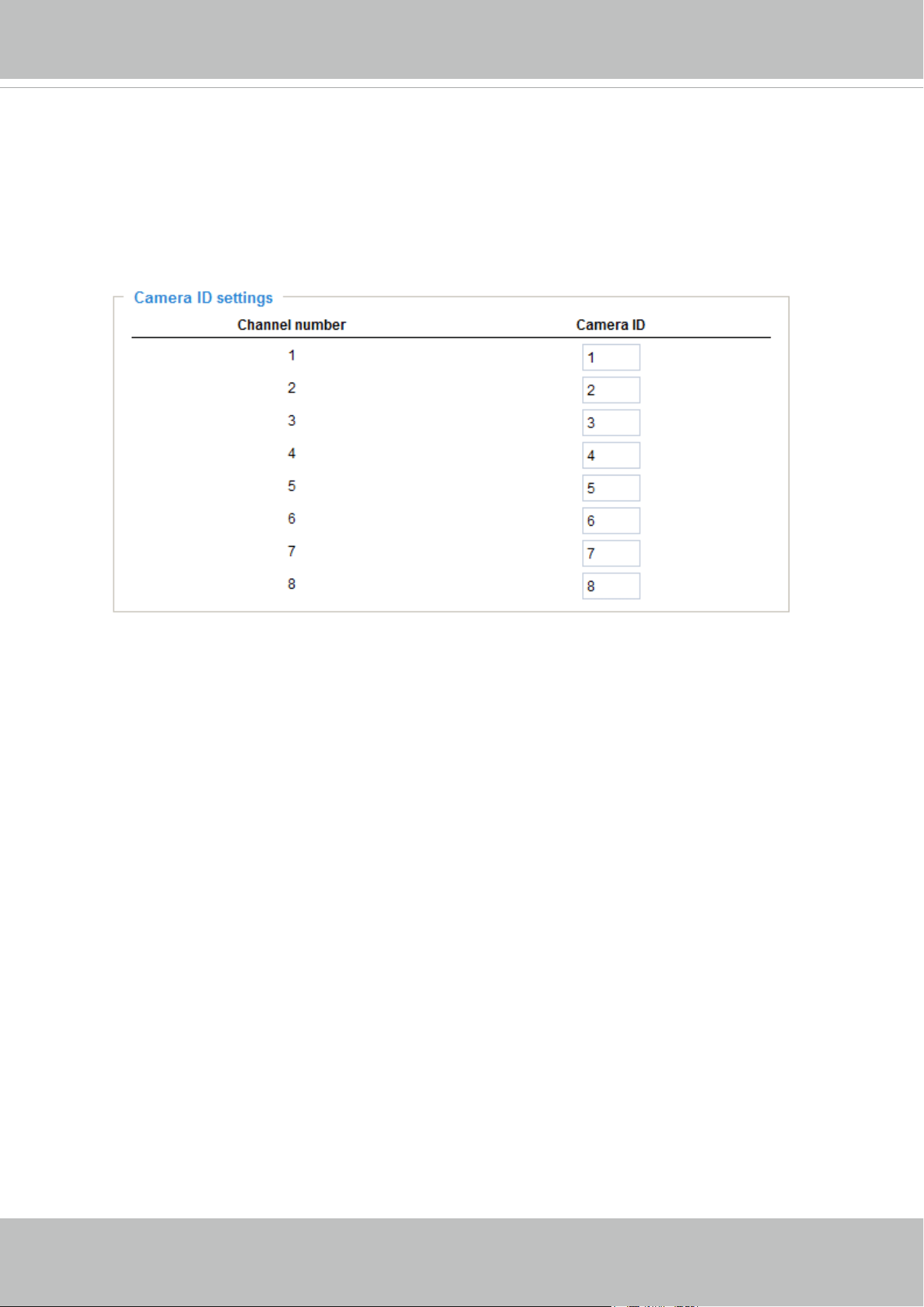
VIVOTEK
User's Manual - 71
VIVOTEK offers five PTZ drivers: DynaDome/SmartDOME, Lilin PIH-7x00, Pelco D protocol, Pelco P
protocol, and Samsung scc643 protocol. If none of the above PTZ drivers is supported by your PTZ
scanner, please select Custom camera (scanner). Please refer to the user’s manual of your PTZ
scanner to determine the Camera ID, PTZ driver, and Port settings. The Camera ID is necessary to
control multiple cameras. If you click Save to enable this function, the camera control panel will be
displayed on the main page. Please refer to the illustration on page 70.
Camera ID settings
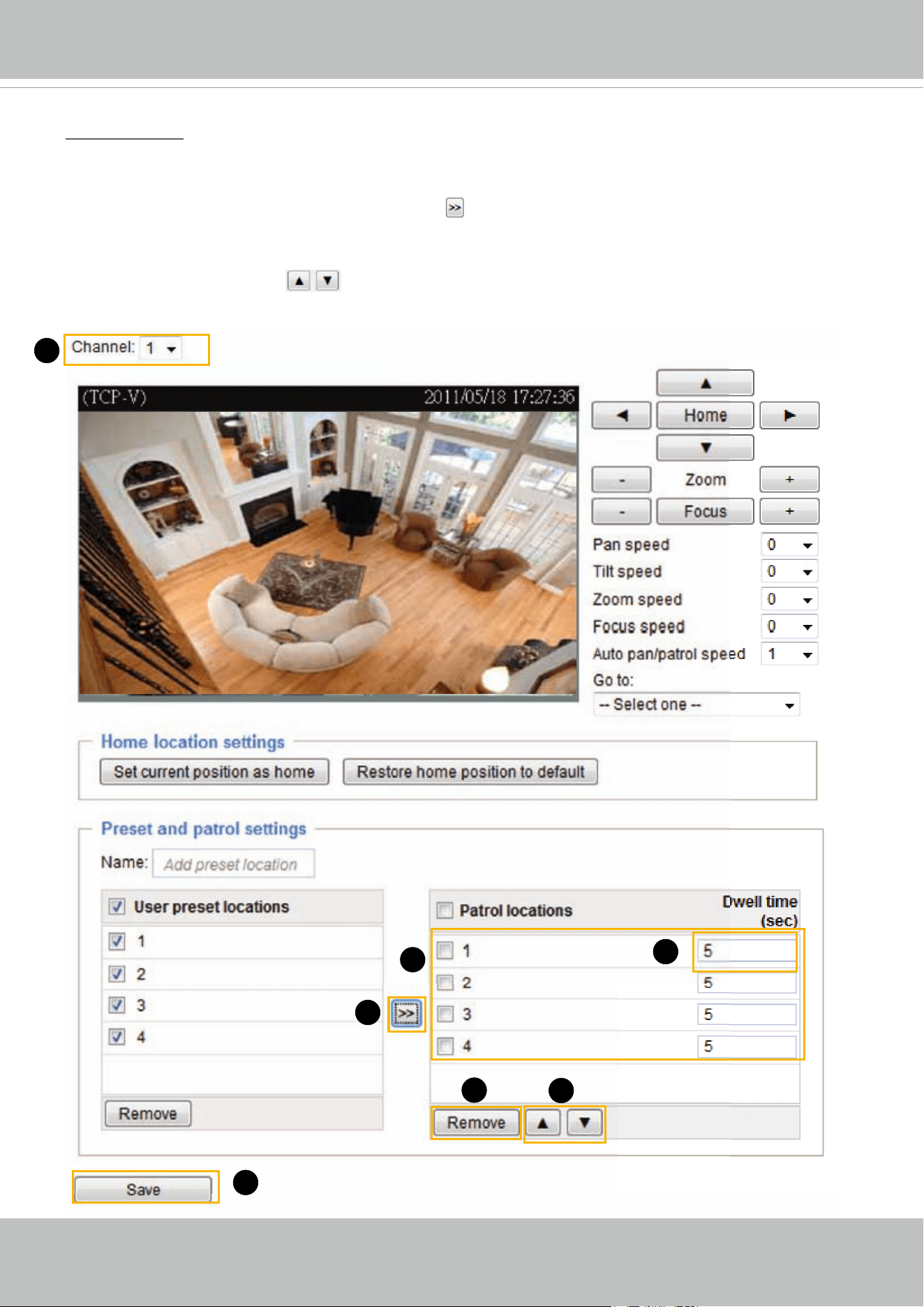
VIVOTEK
72 - User's Manual
Patrol settings
You can select some preset positions for the Network Camera to patrol.
Please follow the steps below to set up a patrol schedule:
1. Select Channel in the drop-down list.
2. Select the preset locations on the list, and click
.
3. The selected preset locations will be displayed on the Patrol locations list.
4. Set the Dwelling time for the preset location during auto patrol.
5. If you want to delete a preset location from the Patrol locations list, select it and click Remove.
6. Select a location and click
to rearrange the patrol order.
7. Select patrol locations you want to save in the list and click Save to enable the patrol settings.
8. To implement the patrol schedule, please go to homepage and click on Patrol button.
1
2
65
4
3
7
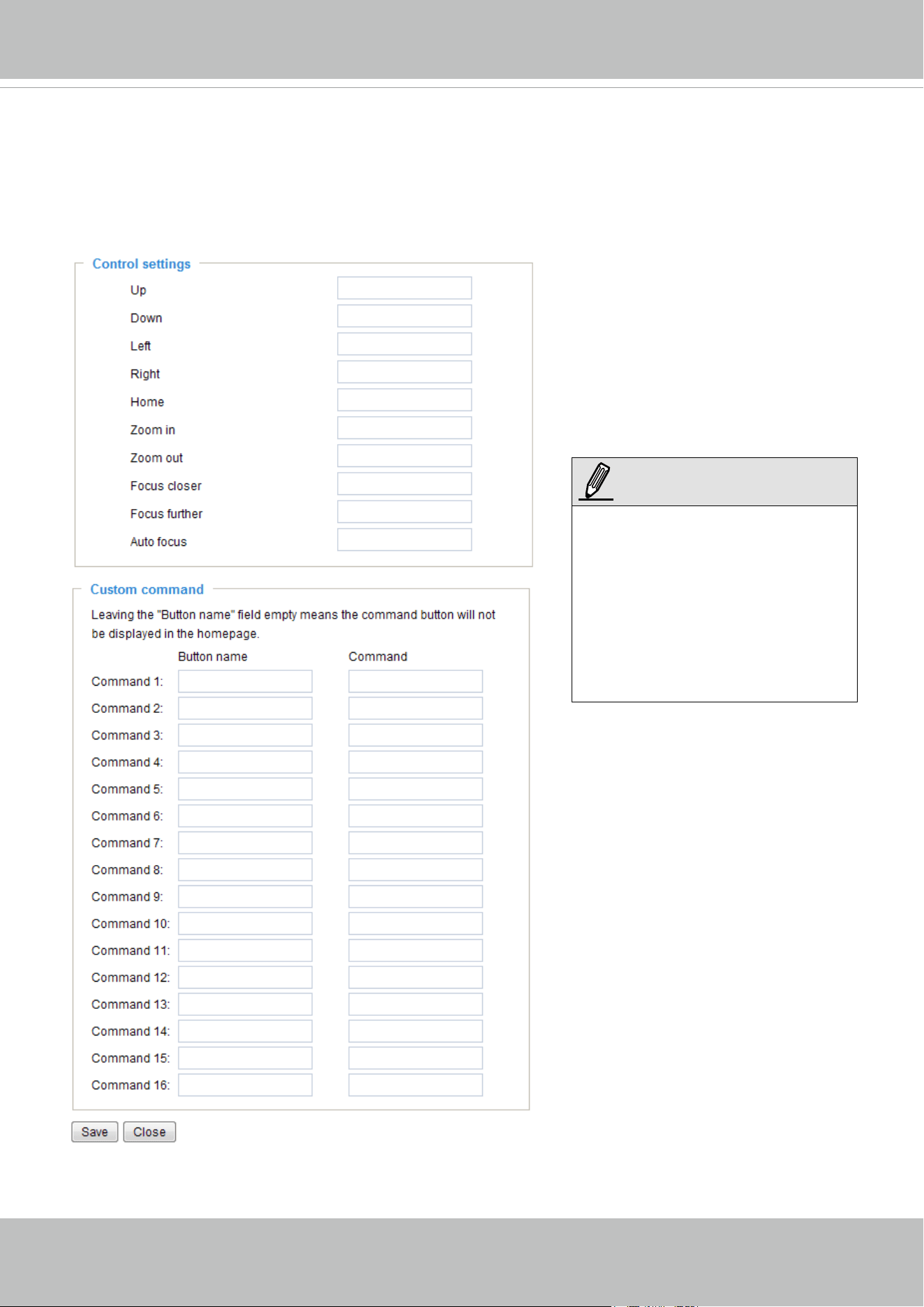
VIVOTEK
User's Manual - 73
Custom Command
If Custom Camera (scanner) is selected as the PTZ driver, the Preset Position and PTZ Control
Panel on the main page will be disabled. You will need to congure command buttons to control the PTZ
scanner. Click Custom Command to open the Custom Command page to set the commands in the
Control Settings session. Please refer to your PTZ scanner user's manual to enter the commands in the
following elds. Click Save to enable the settings and click Close to exit the page.
►If you select DynaDome/
SmartDOME, Lilin PIH-7x00,
or Pelco D protocol as the PTZ
driver, the Control Settings
column will not be displayed.
►For all PTZ drivers, a total
of five additional command
buttons can be configured.
NOTE:
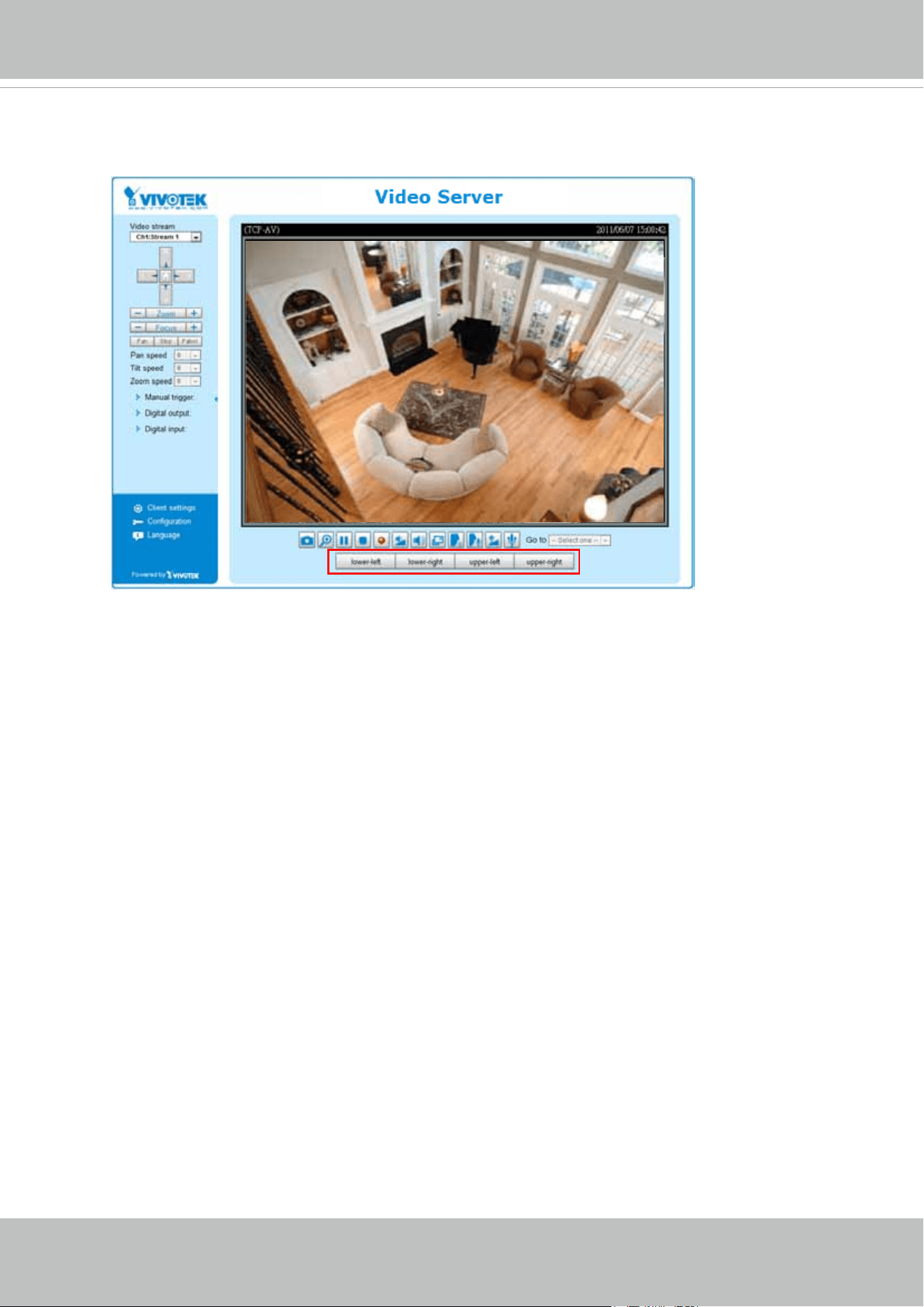
VIVOTEK
74 - User's Manual
►The command buttons will be displayed on the main page:
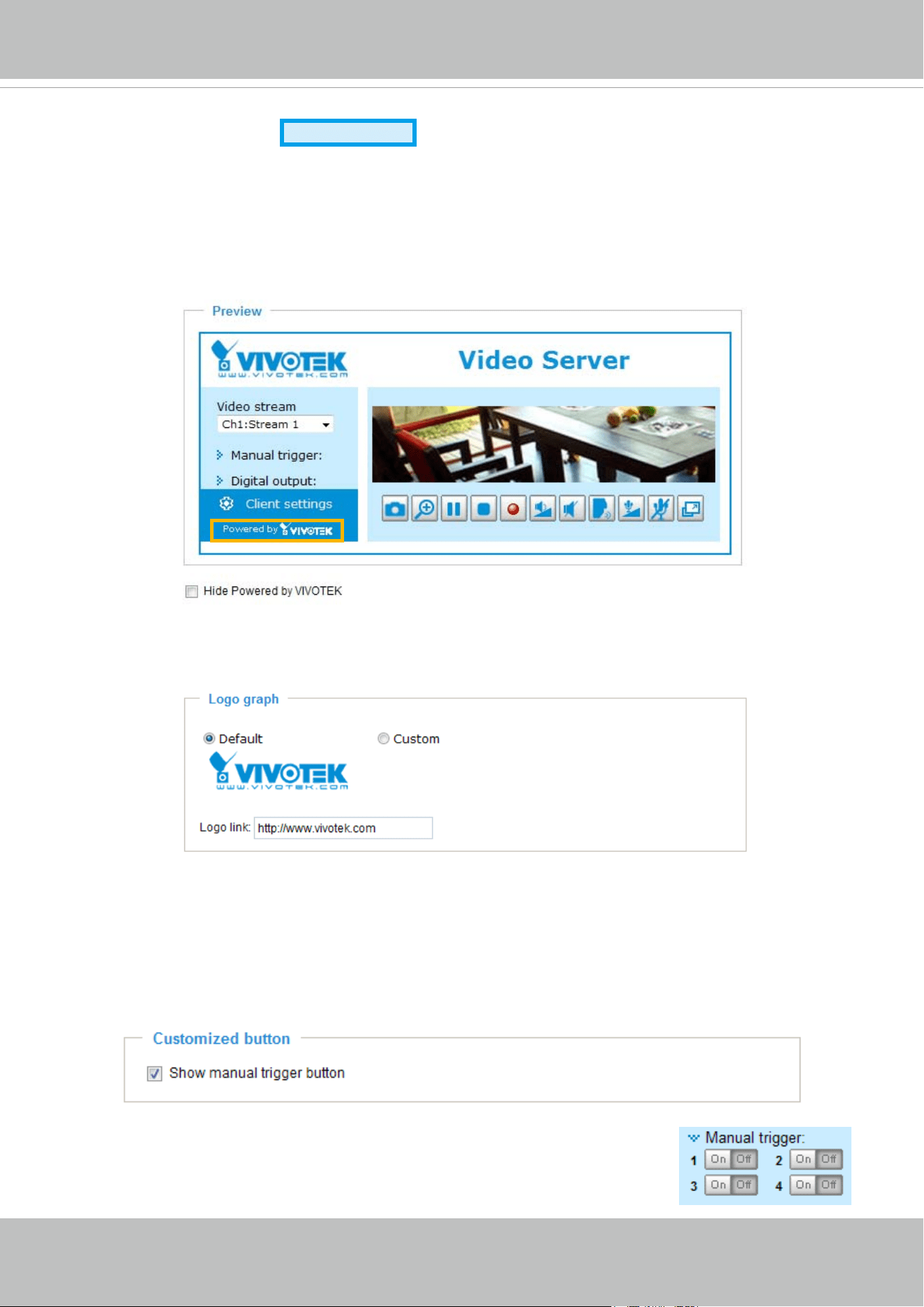
VIVOTEK
User's Manual - 75
Homepage layout
Advanced Mode
This section explains how to set up your own customized homepage layout.
Preview
This column shows the settings of your homepage layout. You can manually select the background and
font colors in Theme Options (the third column on this page). The settings will be displayed automatically
in this Preview eld. The following shows the homepage using the default settings:
■ Hide Powered by VIVOTEK: If you check this item, it will be removed from the homepage.
Logo
Here you can change the logo at the top of your homepage.
Follow the steps below to upload a new logo:
1. Click Custom and the Browse eld will appear.
2. Select a logo from your les.
3. Click Upload to replace the existing logo with a new one.
4. Enter a website link if necessary.
5. Click Save to enable the settings.
Customized button
Check Show manual trigger button, and it will be displayed on the Home page.
Uncheck Show manual trigger button to hide this function on the Home page.
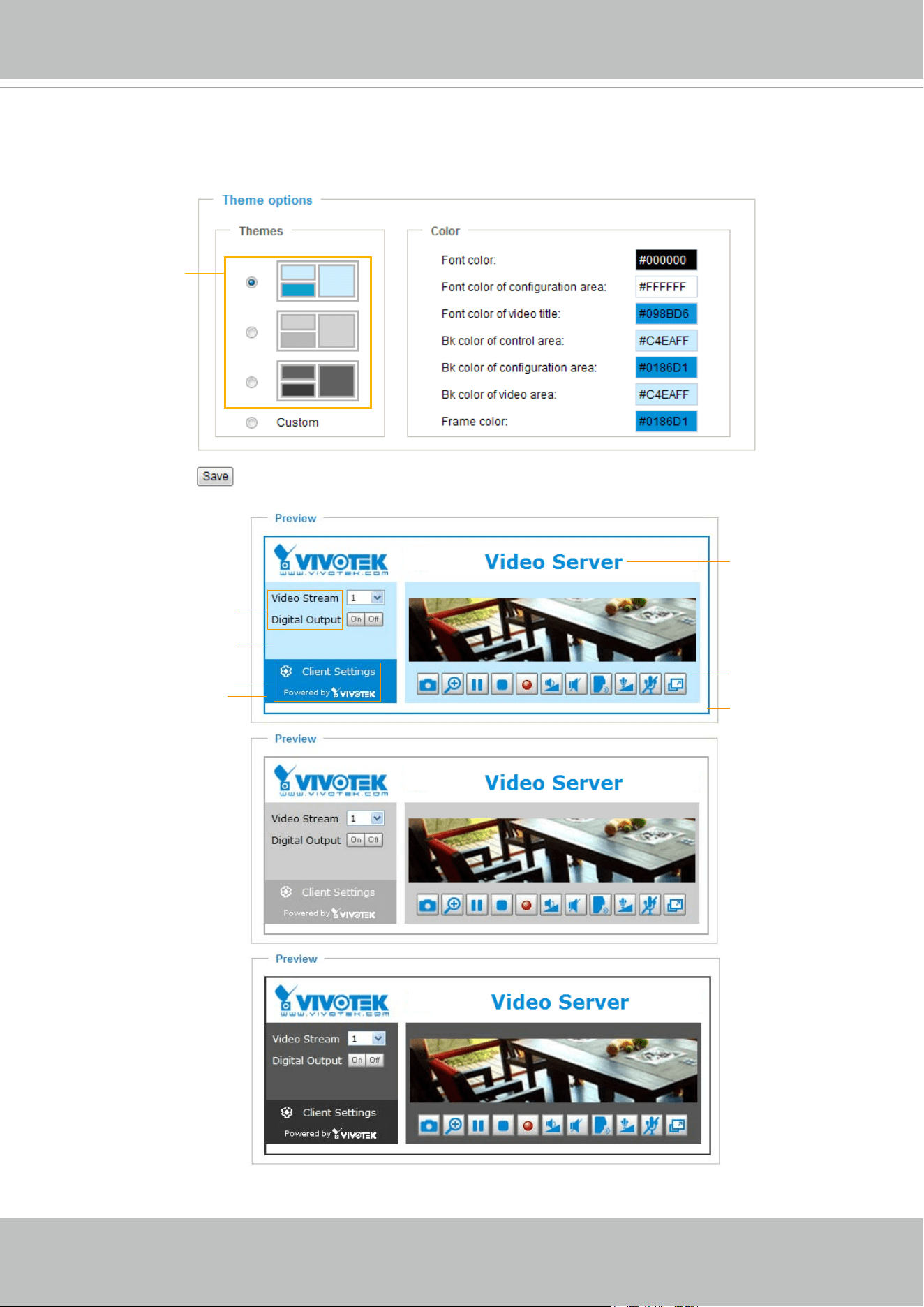
VIVOTEK
76 - User's Manual
Theme options
Here you can change the color of your homepage layout. There are three types of preset patterns for you
to choose from. The new layout will simultaneously appear in the Preview led. Click Save to enable the
settings.
Font Color of the Video
Title
Font Color
Background Color of the
Control Area
Font Color of the Configuration Area
Background Color of the
Configuration Area
Background Color of the
Video Area
Frame Color
Preset Patterns
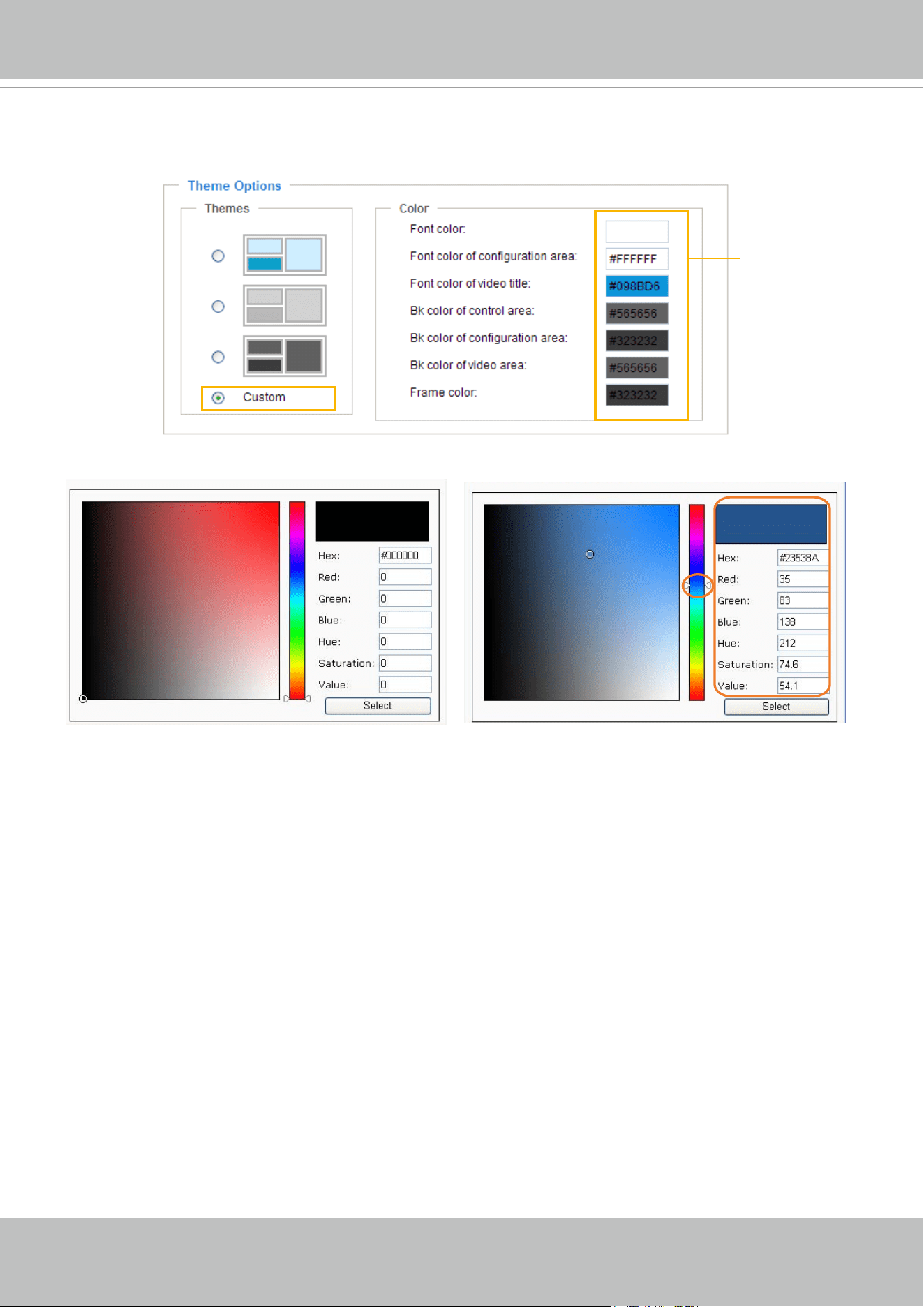
VIVOTEK
User's Manual - 77
■ Follow the steps below to set up the customed homepage:
1. Click Custom on the left column.
2. Click the eld where you want to change the color on the right column.
3. The palette window will pop up as shown below.
4. Drag the slider bar and click on the left square to select a desired color.
5. The selected color will be displayed in the corresponding elds and in the Preview column.
6. Click Save to enable the settings.
1
2
3
4
Color Selector
Custom
Pattern
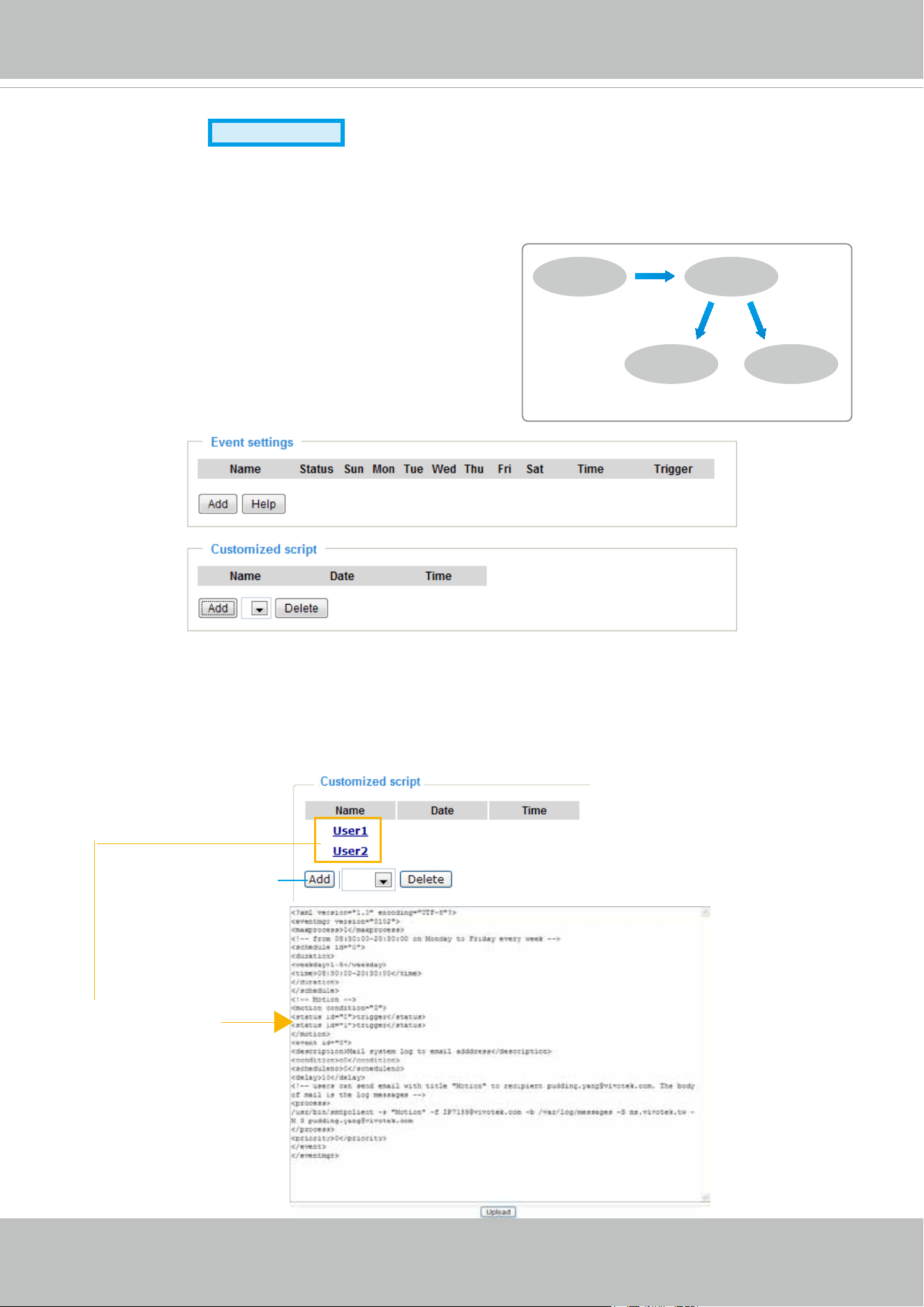
VIVOTEK
78 - User's Manual
Application
Advanced Mode
This section explains how to configure the video server to respond to particular situations
(event). A typical application is that when a motion is detected, the video server sends buffered
images to an FTP server or e-mail address as notications.
Customized script
This function allows you to upload a sample script (.xml le) to the webpage, which will save your time on
conguring the settings. Please note that there is a limited number of customized scripts you can upload;
if the current amount of customized scripts has reached the limit, an alert message will pop up. If you
need more information, please contact VIVOTEK’s technical support.
As illustrated on the right, an event can be triggered
by many sources, such as motion detection or external
digital input devices. When an event is triggered, you
can specify what type of action that will be performed.
You can congure the video server to send snapshots
or videos to your email address or FTP site.
ex. Motion Detection,
Digital Input,
System Reboot
Event Trigger
ex. Snapshot, Video Clips,
System Log, Digital Output
ex. Email, FTP, HTTP Server,
Network Storage
Media
(what to send)
Server
(where to send)
Action
Click to upload a le
Click to modify the
script online
User1
20110224
20110224
18:13:49
18:11:42
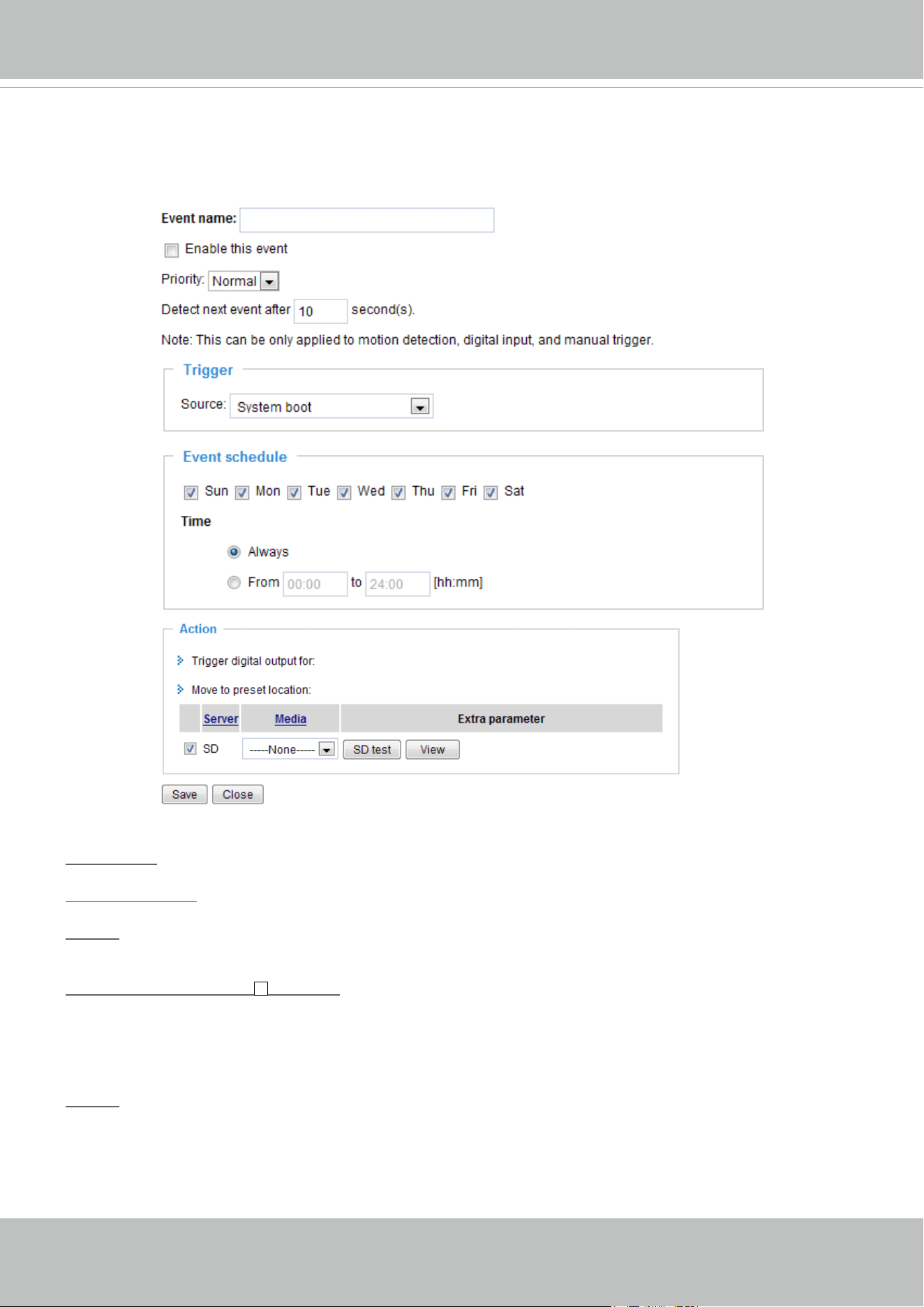
VIVOTEK
User's Manual - 79
Event settings
In the Event settings column, click Add to open the Event settings page. On this page, you can
arrange three elements -- Trigger, Schedule, and Action to set an event. A total of 3 event settings can be
congured.
Event name: Enter a name for the event setting.
Enable this event: Select this option to enable the event setting.
Priority: Select the relative importance of this event (High, Normal, or Low). Events with a higher priority
setting will be executed rst.
Detect next event after
seconds: Enter the duration in seconds to pause motion detection after a
motion is detected.
An event is an action initiated by a user-defined trigger source; it is the causal arrangement of the
following three elements: Trigger, Event Schedule, and Action.
Trigger
This is the cause or stimulus which denes when to trigger the video server. The trigger source can be
congured to use the video server’s built-in motion detection mechanism or external digital input devices.
There are several choices of trigger sources as shown below.
Select the item to display the detailed
conguration options.
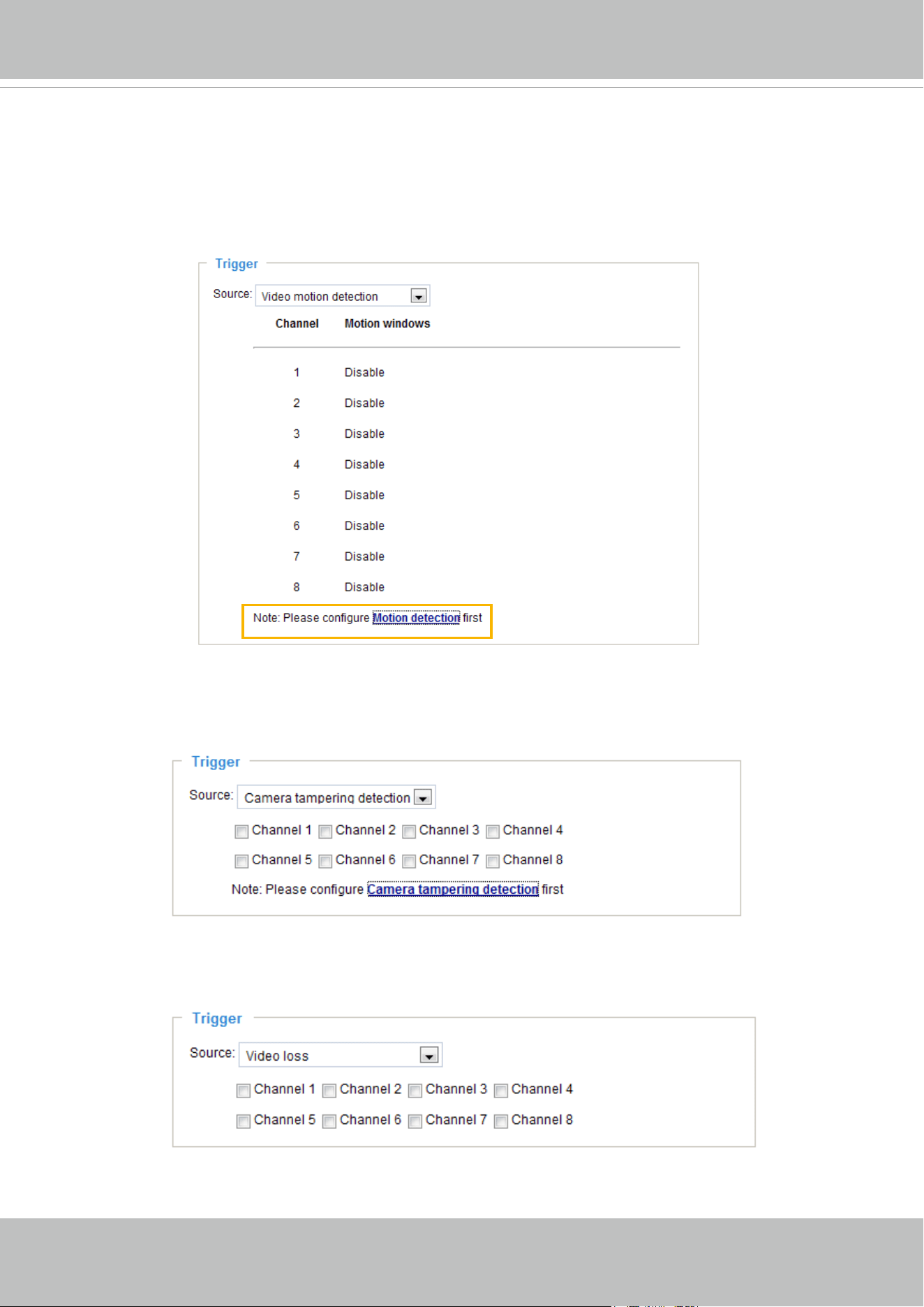
VIVOTEK
80 - User's Manual
■ System boot
This option triggers the video server when the power to the video server is disconnected.
■ Video motion detection
This option makes use of the built-in motion detection mechanism as a trigger source. To enable this
function, you need to congure a Motion Detection Window rst. For more information, please refer to
Motion detection on page 65 for details.
■ Camera tampering detection
This option allows the video server to trigger when the camera detects that is is being tampered with.
To enable this function, you need to configure the Camera tampering detection option first. Please
refer to page 67 for detailed information.
■ Video loss
This option triggers the video server when the transmitted media les are missing. Check to enable the
trigger source.
■ Video restore
This option triggers the video server when the camera starts to transmit video les.
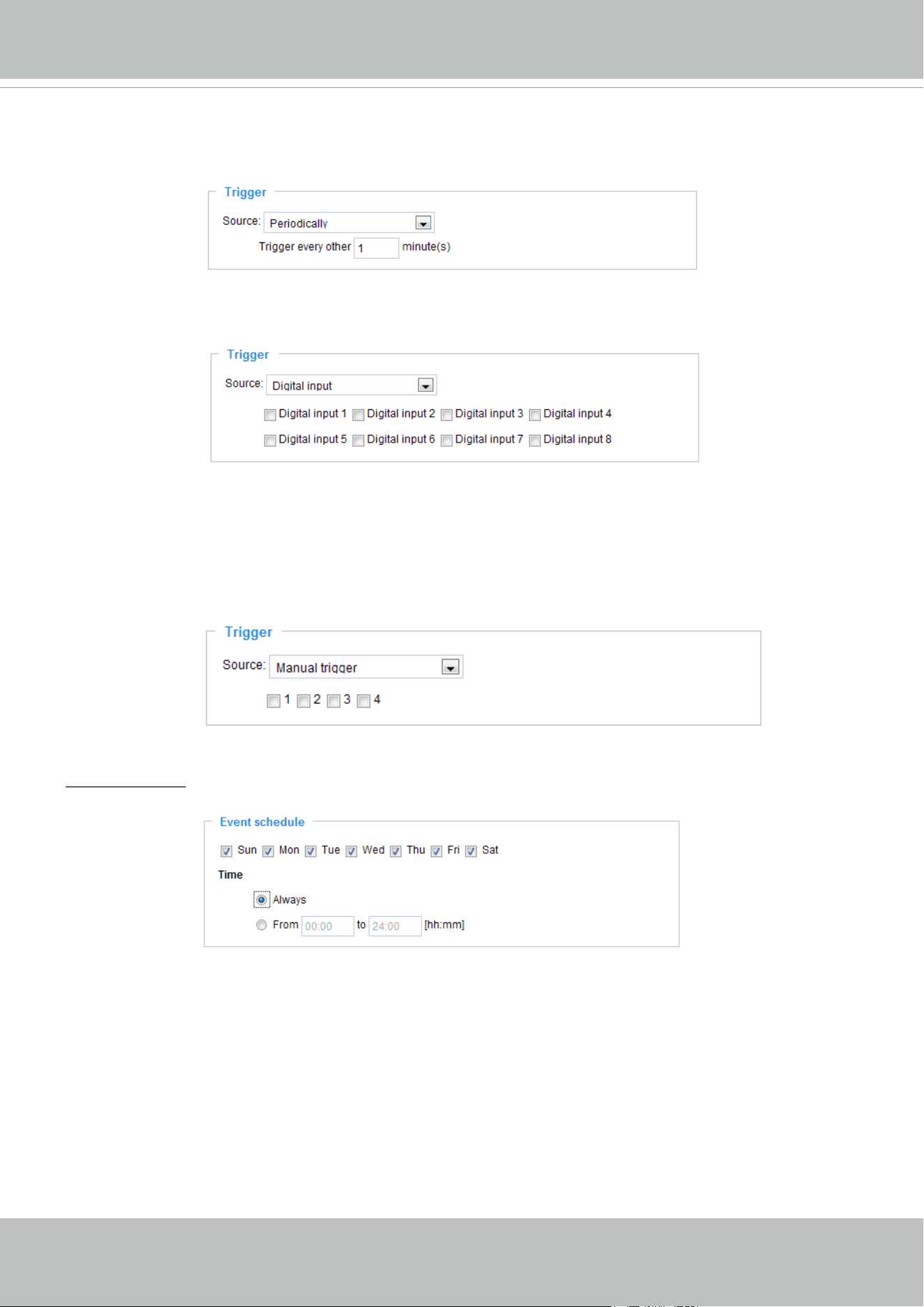
VIVOTEK
User's Manual - 81
■ Periodically
This option allows the video server to trigger periodically for every other dened minute. Up to 999
minutes are allowed.
■ Digital input
This option allows the video server to use an external digital input device or sensor as a trigger source.
Depending on your application, there are many choices of digital input devices on the market which
helps to detect changes in temperature, vibration, sound, and light, etc.
■ Recording notify
This option allows the video server to trigger when the recording disk is full or when recording starts to
rewrite older data.
■ Manual trigger
This option allows user to enable event triggers manually by clicking the on/off button on the
homepage. Please congure 1 ~ 3 events before using this function.
Event Schedule
Specify the period for the event.
■ Select the days of the week.
■ Select the recording schedule in 24-hr time format.
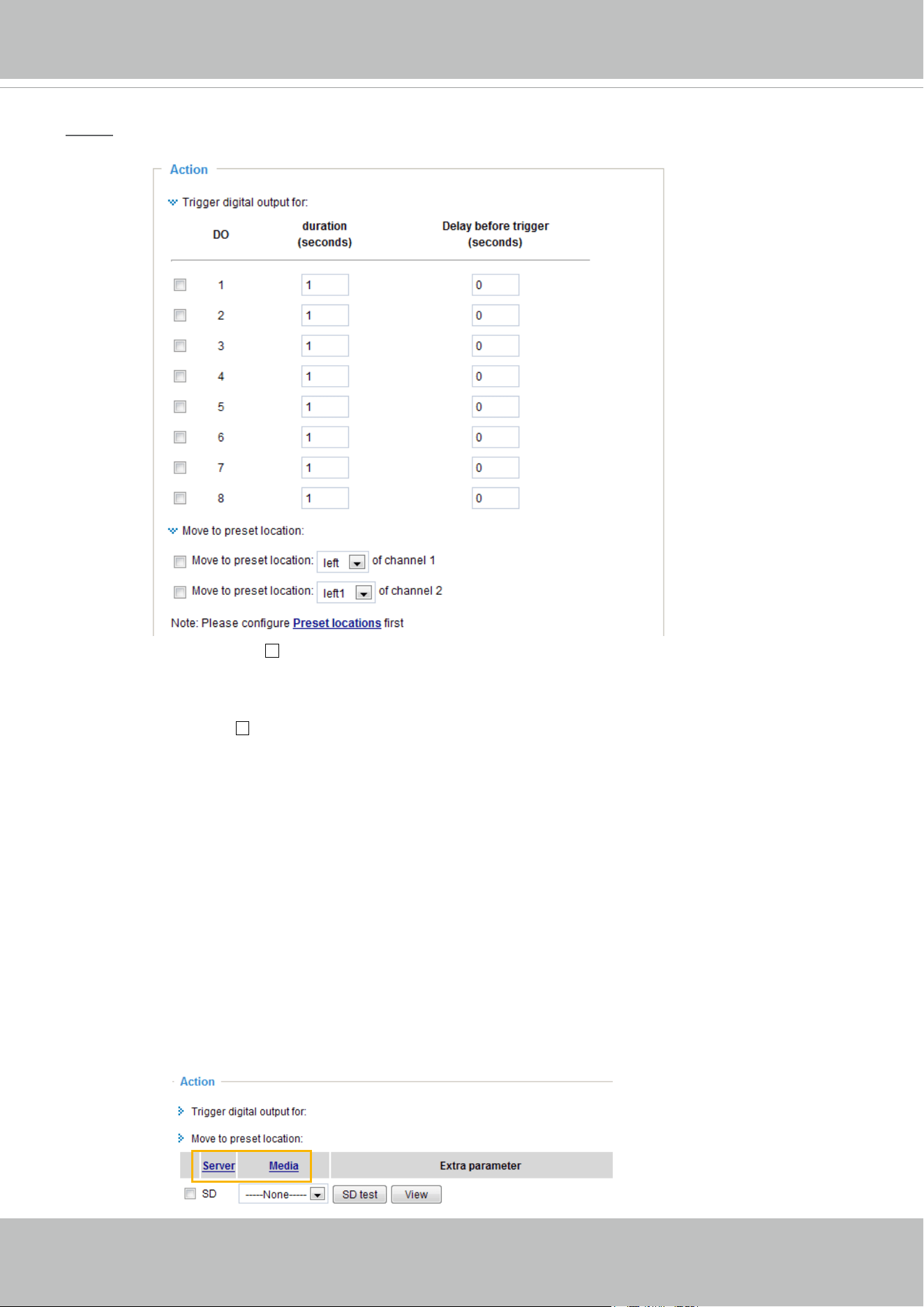
VIVOTEK
82 - User's Manual
Action
Dene the actions to be performed by the video server when a trigger is activated.
■ Trigger digital output for
seconds
Check the desired DO to turn on the external digital output device when a trigger is activated. Specify
the length (seconds) of the trigger interval in the text box.
■ Delay the trigger for
seconds
Check the desired DO to turn on the external digital output device when a trigger is activated. Specify
the length (seconds) of the delay for the trigger after the event has been detected.
■ Move to preset location
Select this option, the Network Camera will move to the preset location when a trigger is activated.
Please setup the preset locations rst. You can setup more preset locations for each channel (Network
Camera) by clicking on Preset locations. To know more details about preset locations settings please
refer to page 69.
To set an event with recorded video or snapshots, it is necessary to congure the server and
media settings so that the video server will know what action to take (such as which server to
send the media files to) when a trigger is activated.
■
Server / Media
Click Server to configure Server settings. For more information, please refer to Server settings on
page 85.
Click Media to configure Media settings. For more information, please refer to Media settings on page
88.
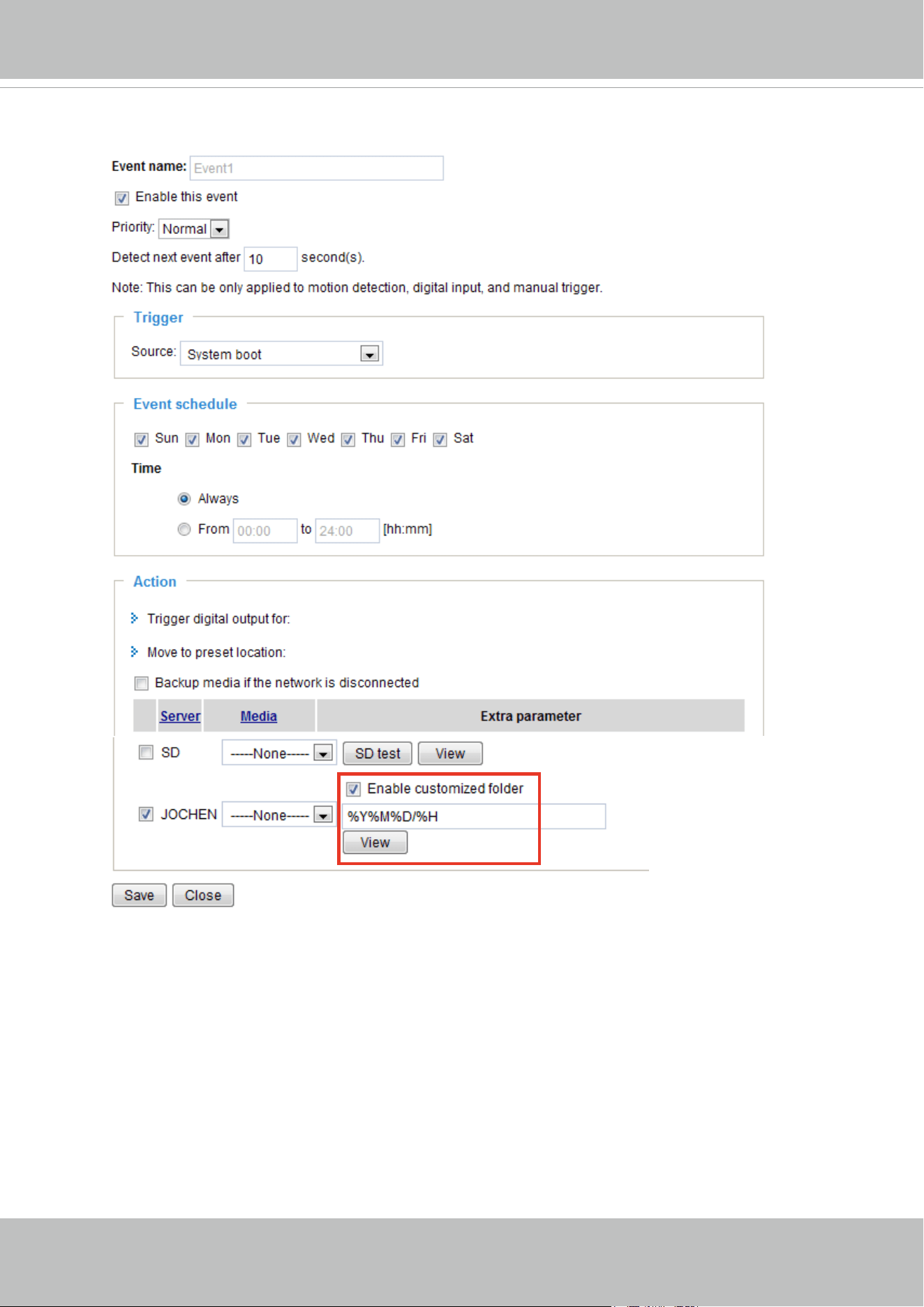
VIVOTEK
User's Manual - 83
Here is an example of the Event settings page:
When completed, click Save to enable the settings and click Close to exit Event Settings page. The new
Event settings / Server settings / Media settings will appear in the event drop-down list on the Application
page.
SD Test: If you have an SD card, click the button to test the availability. Your camera will display a
message indicating a success or failure. If you want to use your SD card for local storage, please format
it before use. Please refer to page 109 for more information.
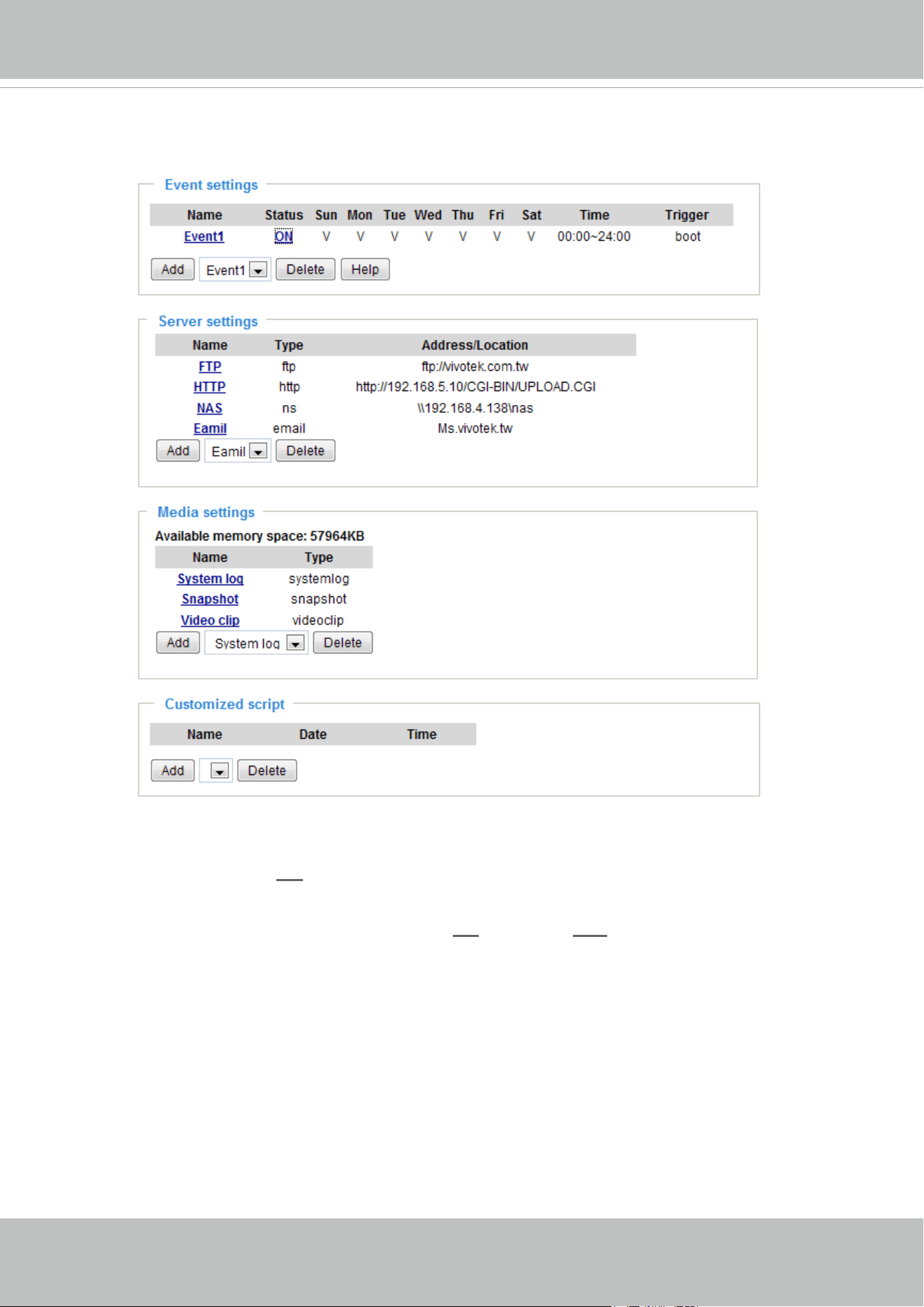
VIVOTEK
84 - User's Manual
Here is an example of the Application page with an event setting:
When the Event Status is ON, once an event is triggered by motion detection, the video server will
automatically send snapshots via e-mail.
If you want to stop the event trigger, you can click
ON to turn it to OFF status or click Delete to remove
the event setting.
To remove a server setting from the list, select a server name from the drop-down list and click Delete.
Note that only when the server setting is not being applied to an event setting can it be deleted.
To remove a media setting from the list, select a media name from the drop-down list and click Delete.
Note that only when the media setting is not being applied to an event setting can it be deleted.

VIVOTEK
User's Manual - 85
Server settings
Click Server on Event Settings page to open the Server Setting page. On this page, you can specify
where the notication messages are sent when a trigger is activated. A total of 5 server settings can be
congured.
Server name: Enter a name for the server setting.
Server type
There are four choices of server types available: Email, FTP, HTTP, and Network storage.
Select the item
to display the detailed conguration options. You can congure either one or all of them.
Email: Select to send the media les via email when a trigger is activated.
■ Sender email address: Enter the email address of the sender.
■ Recipient email address: Enter the email address of the recipient.
■ Server address: Enter the domain name or IP address of the email server.
■ User name: Enter the user name of the email account if necessary.
■ Password: Enter the password of the email account if necessary.
■ Server port: The default mail server port is set to 25. You can also manually set another port.
If your SMTP server requires a secure connection (SSL), check This server requires a secure
connection (SSL).
To verify if the email settings are correctly congured, click Test. The result will be shown in a pop-up
window. If successful, you will also receive an email indicating the result.
Click Save to enable the settings, then click Close to exit the page.
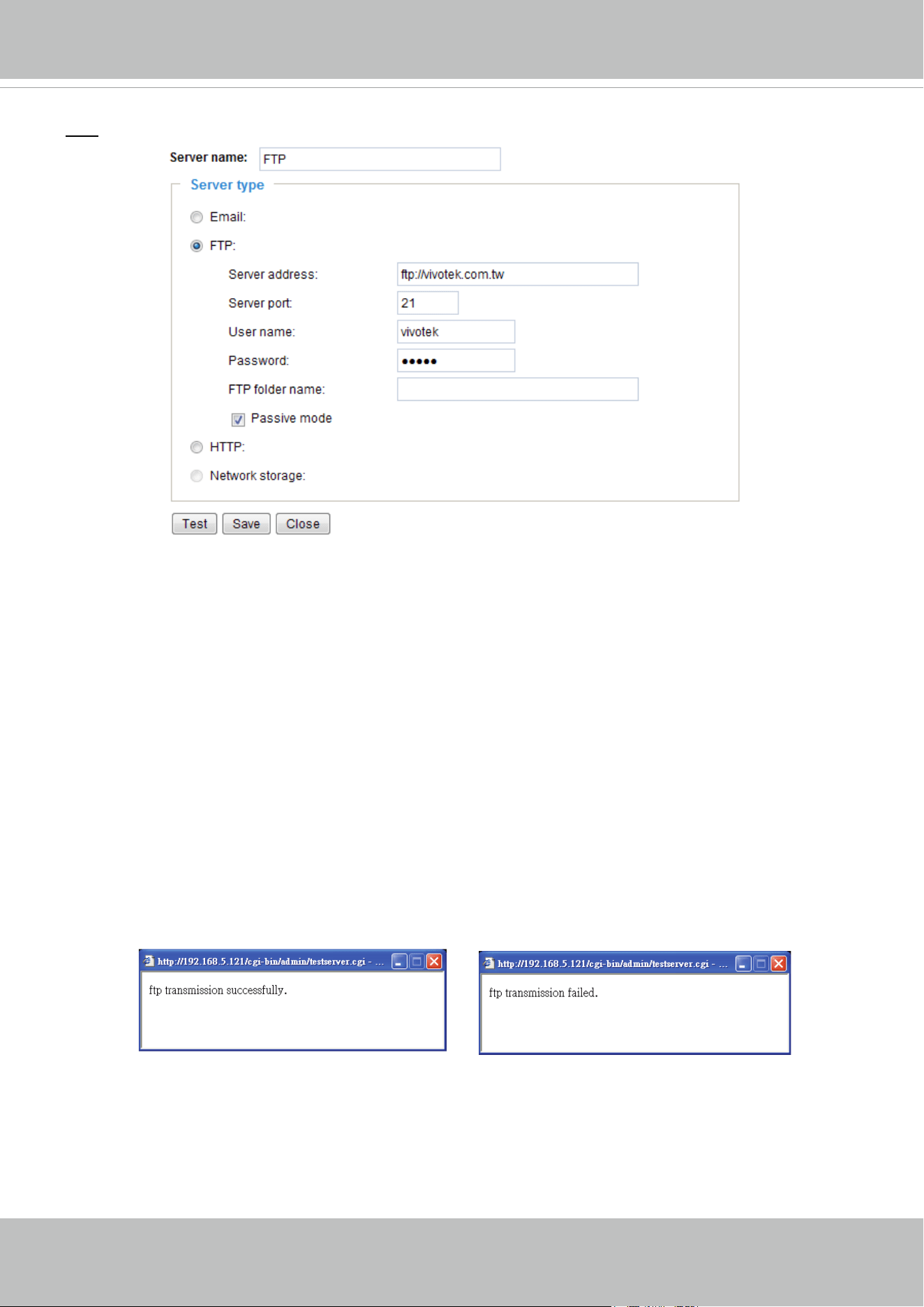
VIVOTEK
86 - User's Manual
FTP: Select to send the media les to an FTP server when a trigger is activated.
■ Server address: Enter the domain name or IP address of the FTP server.
■ Server port
By default, the FTP server port is set to 21. It can also be assigned to another port number between
1025 and 65535.
■ User name: Enter the login name of the FTP account.
■ Password: Enter the password of the FTP account.
■ FTP folder name
Enter the folder where the media le will be placed. If the folder name does not exist, the video server
will create one on the FTP server.
■ Passive mode
Most firewalls do not accept new connections initiated from external requests. If the FTP server
supports passive mode, select this option to enable passive mode FTP and allow data transmission to
pass through the rewall.
To verify if the FTP settings are correctly congured, click Test. The result will be shown in a pop-up
window as shown below. If successful, you will also receive a test.txt le on the FTP server.
Click Save to enable the settings, then click Close to exit the page.
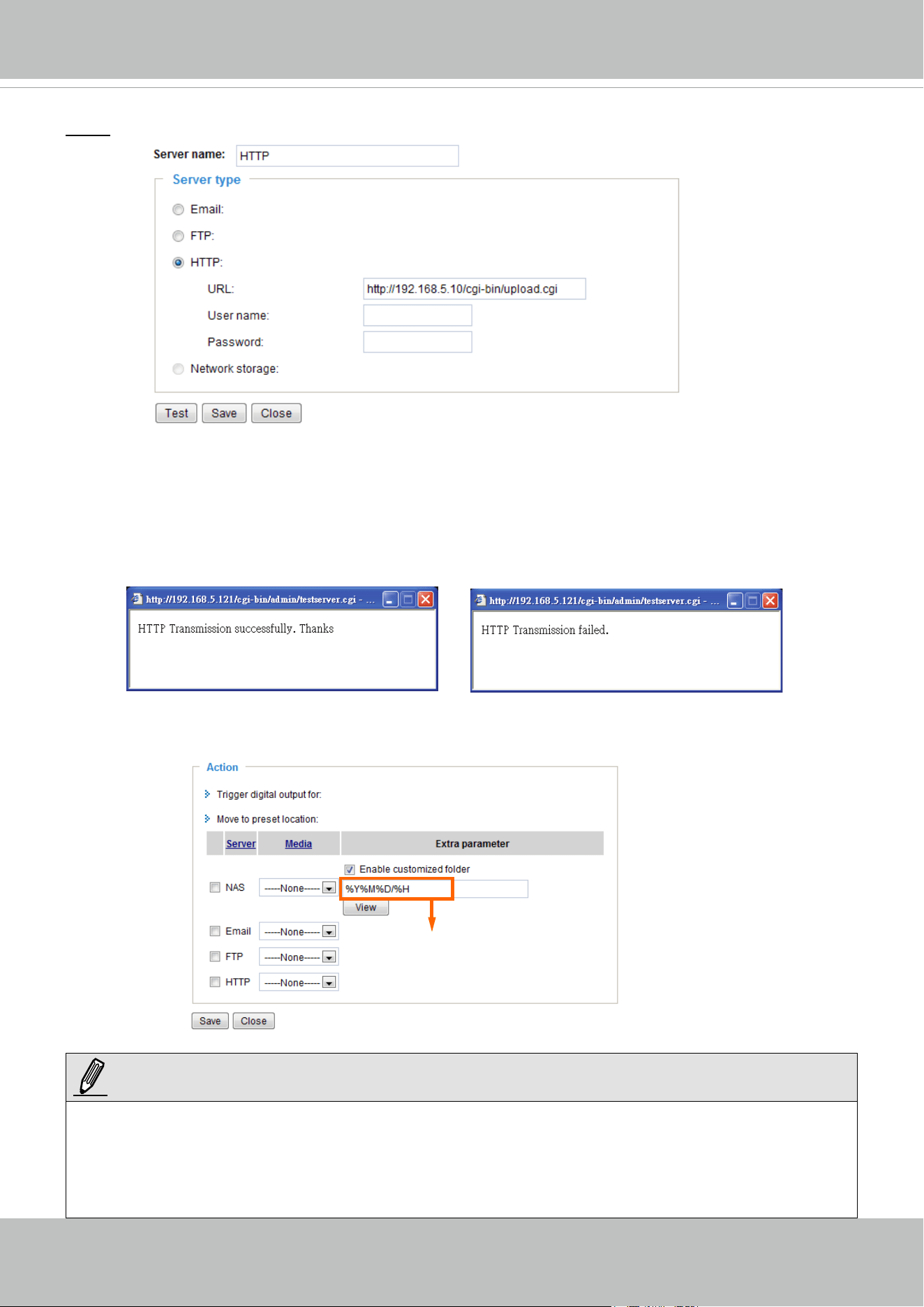
VIVOTEK
User's Manual - 87
HTTP: Select to send the media les to an HTTP server when a trigger is activated.
■ URL: Enter the URL of the HTTP server.
■ User name: Enter the user name if necessary.
■ Password: Enter the password if necessary.
To verify if the HTTP settings are correctly congured, click Test. The result will be shown in a pop-up
window as below. If successful, you will receive a test.txt le on the HTTP server.
Click Save to enable the settings, then click Close to exit the page.
When completed, the new server settings will automatically be displayed on the Event Settings page.
For example:
►
By default, the folder is named after the date and hour; " %Y%M%D%H" refers to Year/
Month/Date/Hour. Your saved media les will be automatically classied in folders named
after the date and hour, if you keep the default setting. You may also create the customized
folder by any other desired name, but all media les will be saved in the same folder.
NOTE:
By default, the folder is named
after the date and hour. For more
information about file destination,
please refer to page 90.
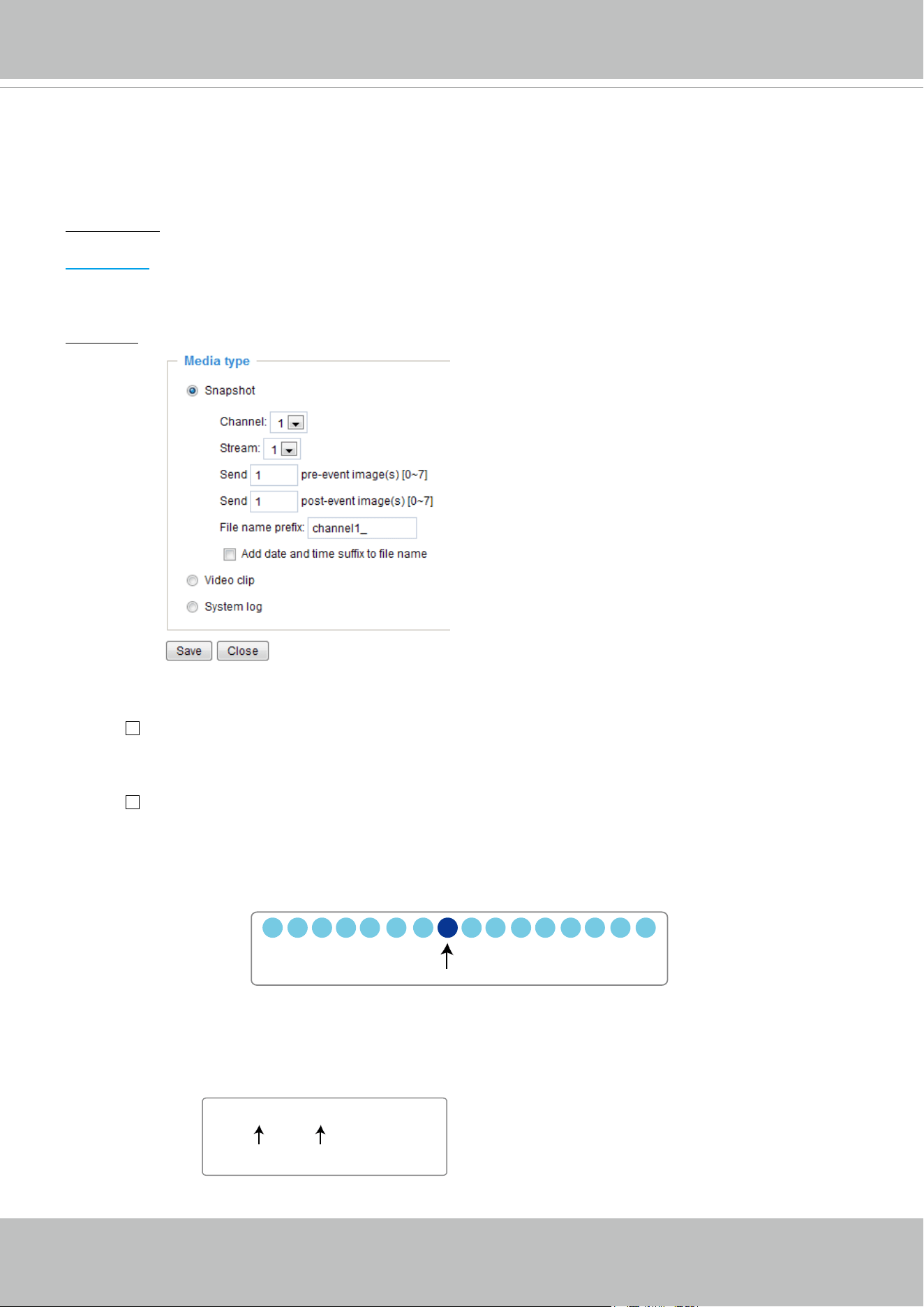
VIVOTEK
88 - User's Manual
Media settings
Click Media on the Event Settings page to open the Media Settings page. On this page, you can
specify the type of media that will be sent when a trigger is activated. A total of 5 media settings can be
congured.
Media name: Enter a name for the media setting.
Media type
There are three choices of media types available: Snapshot, Video Clip, and System log.
Select the item
to display the detailed conguration options. You can congure either one or all of them.
Snapshot: Select to send snapshots when a trigger is activated.
■ Channel: Select to take snapshots from stream 1 ~ 4.
■ Send
pre-event images
The video server has a buffer area; it temporarily holds data up to a certain limit. Enter a number to
decide how many images to capture before a trigger is activated. Up to 7 images can be generated.
■ Send
post-event images
Enter a number to decide how many images to capture after a trigger is activated. Up to 7 images can
be generated.
For example, if both the Send pre-event images and Send post-event images are set to 7, a total of 15
images are generated after a trigger is activated.
■ File name prex
Enter the text that will be appended to the front of the le name.
■ Add date and time sufx to the le name
Select this option to add a date/time sufx to the le name.
For example:
Click Save to enable the settings, then click Close to exit the page.
1 pic. 2 pic. 3 pic. 4 pic. 5 pic. 6 pic. 7 pic. 8 pic. 9 pic.
10 pic. 11 pic. 10 pic. 12 pic. 13 pic. 14 pic. 15 pic.
Trigger Activation
Snapshot_20080104_100341
Date and time suffix
The format is: YYYYMMDD_HHMMSS
File name prefix
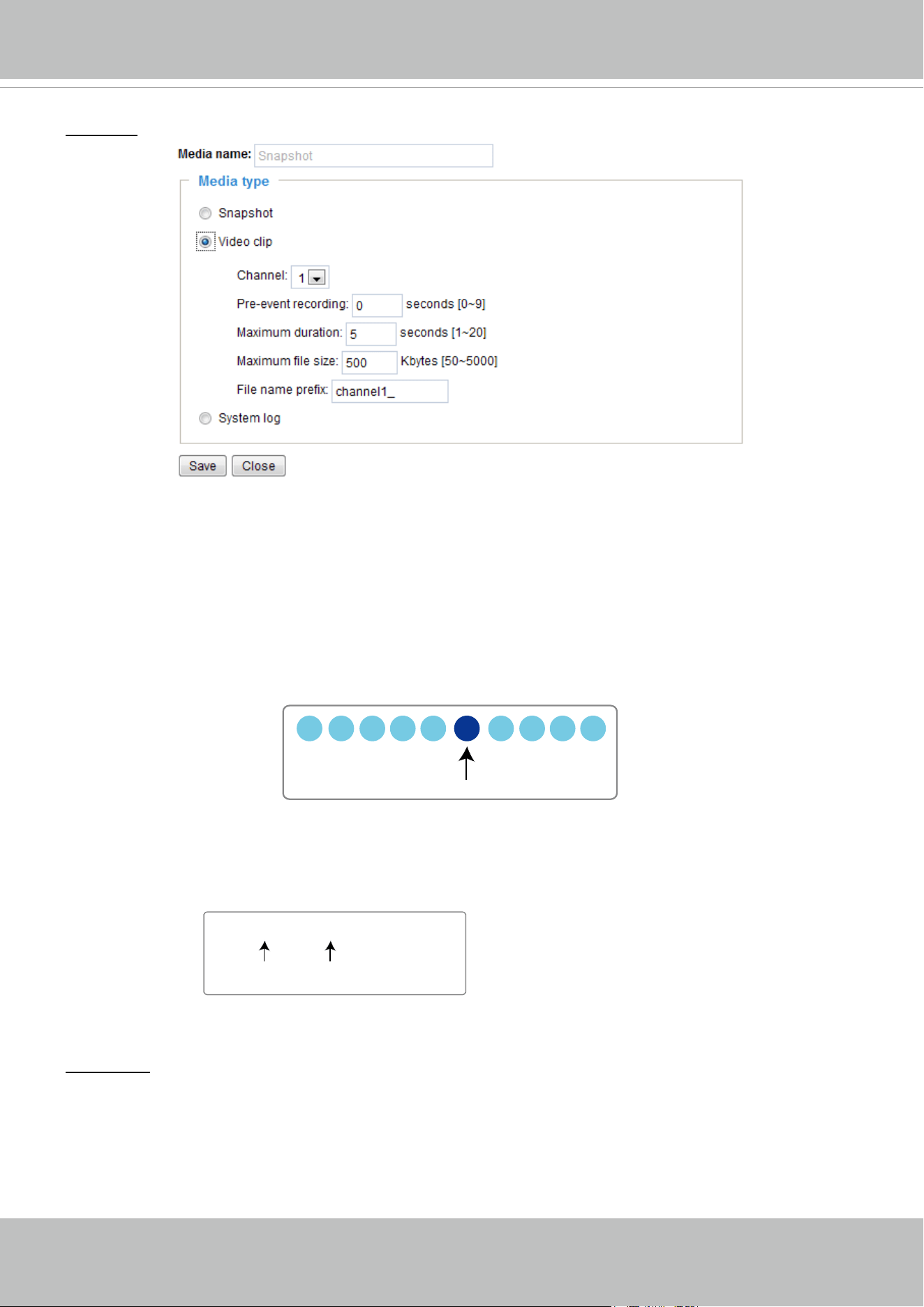
VIVOTEK
User's Manual - 89
Video clip: Select to send video clips when a trigger is activated.
■ Channel: The video source. The stream source will be identical to the preset time shift caching stream.
For more information about time shift caching stream, please refer to page 57.
■ Pre-event recording
The video server has a buffer area; it temporarily holds data up to a certain limit. Enter a number to
decide the duration of recording before a trigger is activated. Up to 9 seconds can be set.
■ Maximum duration
Specify the maximum recording duration in seconds. Up to 10 seconds can be set.
For example, if pre-event recording is set to five seconds and the maximum duration is set to ten
seconds, the video server continues to record for another 4 seconds after a trigger is activated.
■ Maximum le size
Specify the maximum le size allowed.
■ File name prex
Enter the text that will be appended to the front of the le name.
For example:
Click Save to enable the settings, then click Close to exit the page.
System log: Select to send a system log when a trigger is activated.
Click Save to enable the settings, then click Close to exit the page.
When completed, click Save to enable the settings and click Close to exit this page. The new media
settings will appear on the Event settings page.
Video_20110120_100341
Date and time suffix
The format is: YYYYMMDD_HHMMSS
File name prefix
1 sec. 2 sec. 3 sec. 4 sec. 5 sec. 6 sec. 7 sec. 8 sec. 9 sec. 10 sec.
Trigger Activation
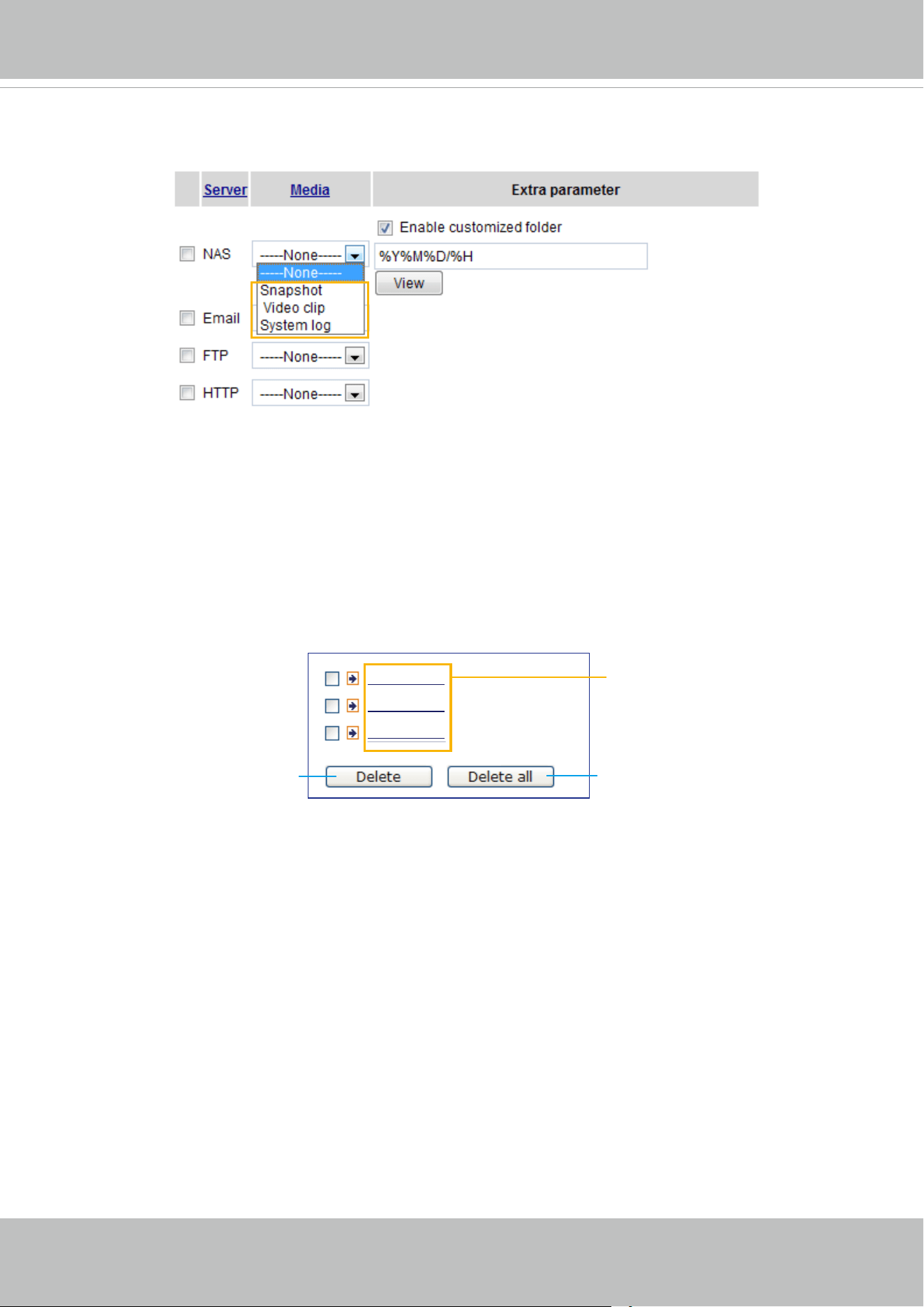
VIVOTEK
90 - User's Manual
You can continue to select a server and media type for the event. Please go back to page 79 for detailed
information.
■ Enable customized folder: Create folders by date, time, and hour automatically: If you check this item,
the system will generate folders automatically by date.
■ View: Click this button to open a le list window. This function is only for Network Storage (NAS) and
SD/SDHC card.
If you click the View button of Network storage, a le directory window will pop up for you to view
recorded data on Network storage.
The following is an example of a le destination with video clips:
20110120
20110121
20110122
Click to delete selected items
Click to delete all recorded data
The format is: YYYYMMDD
Click to open the directory
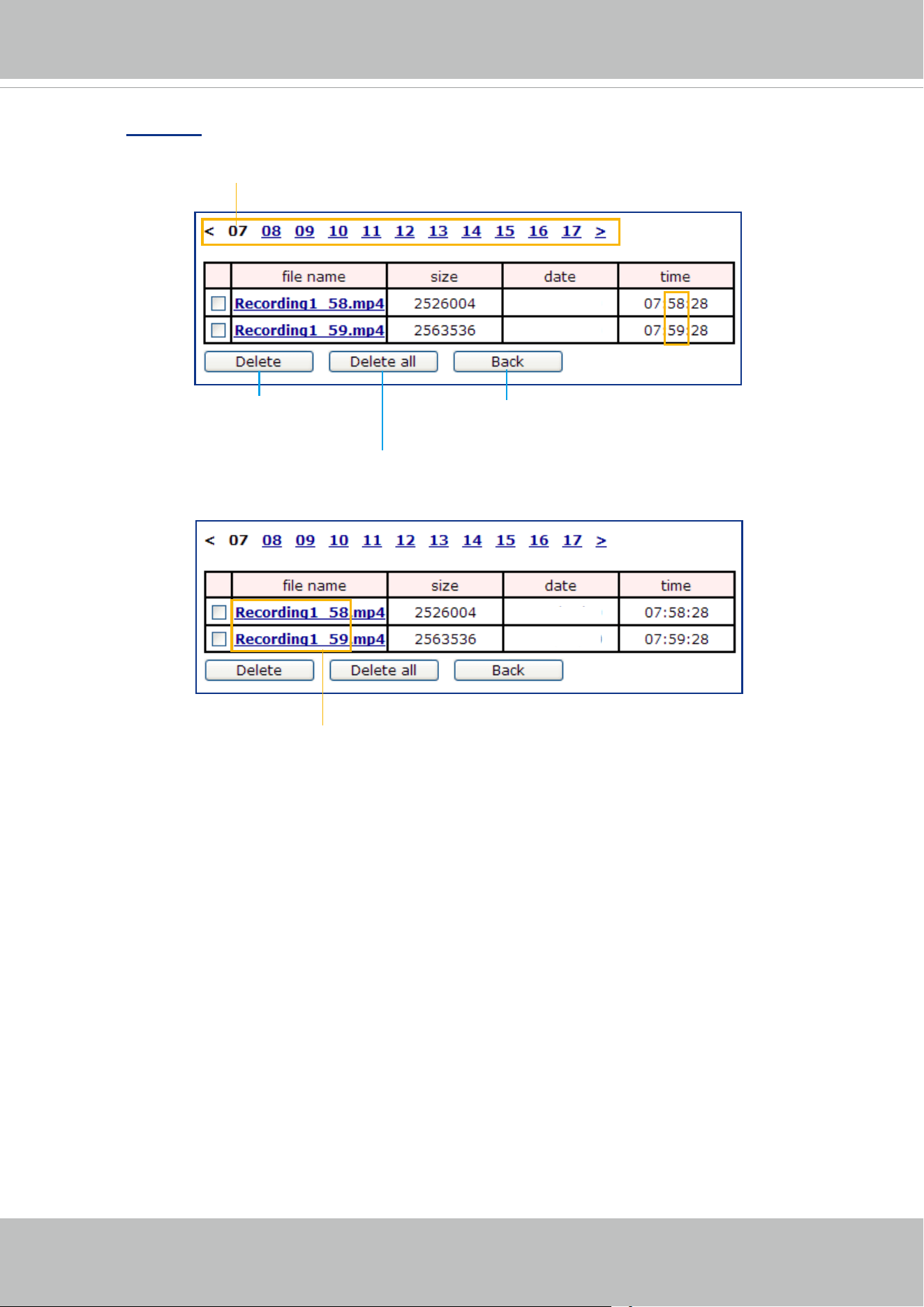
VIVOTEK
User's Manual - 91
Click 20110120 to open the directory:
Click to delete
selected items
Click to delete all
recorded data
Click to go back to the previous
level of the directory
The format is: HH (24r)
Click to open the le list for that hour
The format is: File name prex + Minute (mm)
You can set up the le name prex on Media Settings page.
Please refer to page 88 for detailed information.
2011/01/20
2011/01/20
2011/01/20
2011/01/20
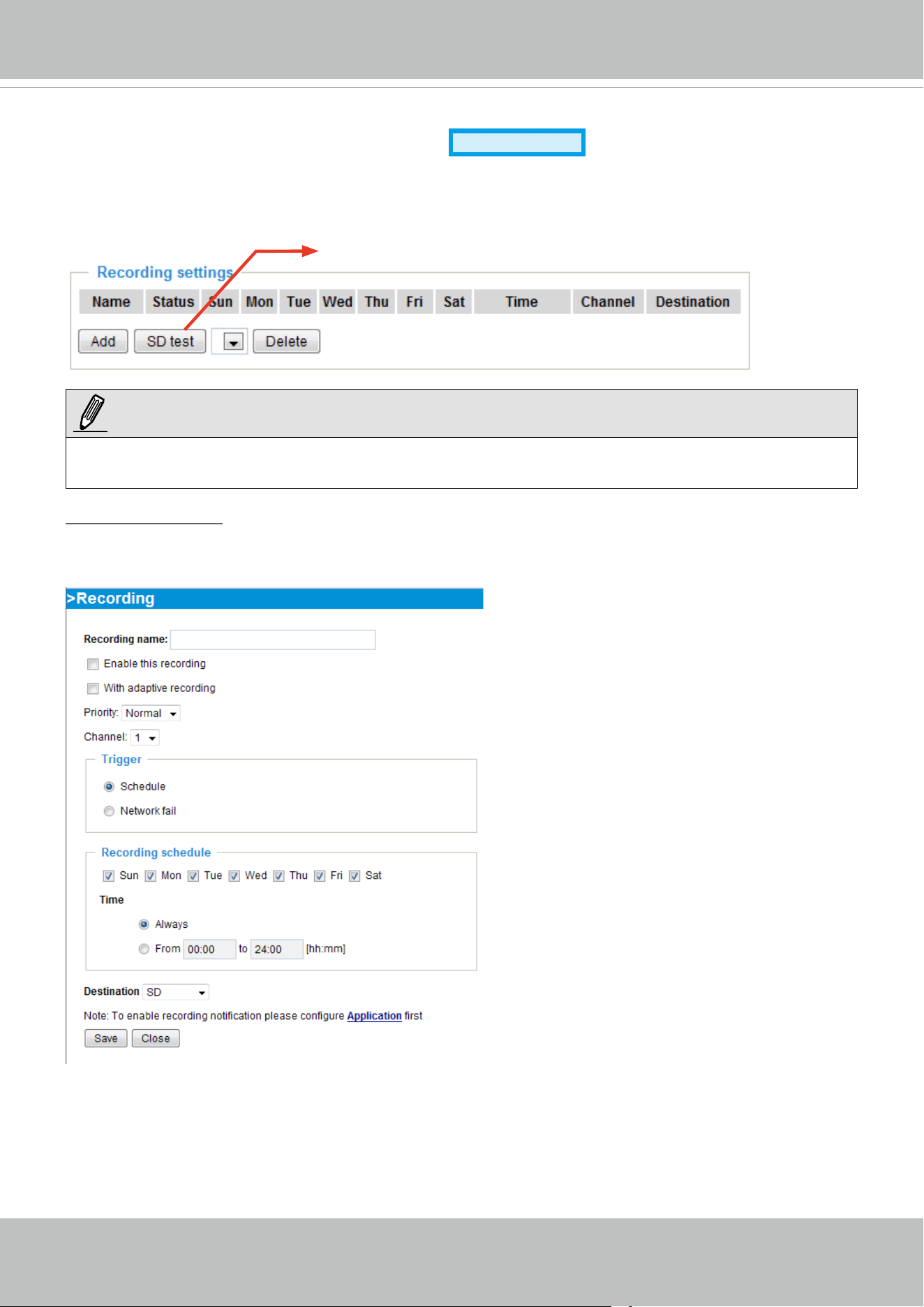
VIVOTEK
92 - User's Manual
Recording > Recording settings
Advanced Mode
This section explains how to congure the recording settings for the Video Server.
Recording Settings
Recording Settings
Click Add to open the recording setting window. On this page, you can dene the adaptive recording,
recording sources, recording schedule, and recording capacity. A total of 2 recording settings can be
congured.
► Please remember to format your SD card when using it for the rst time. Please refer to page 109 for
detailed information.
NOTE:
Insert your SD card and click here to test
■ Recording name: Enter a name for the
recording setting.
■ Enable this recording: Select this option to
enable video recording.
■ With adaptive recording:
Selecting this option will activate the frame
rate control according to alarm trigger. The
frame rate control means that when there
is a triggered alarm, the frame rate will
raise up to the value you’ve set on Stream
setting page. Please refer to page 53 for
more information.
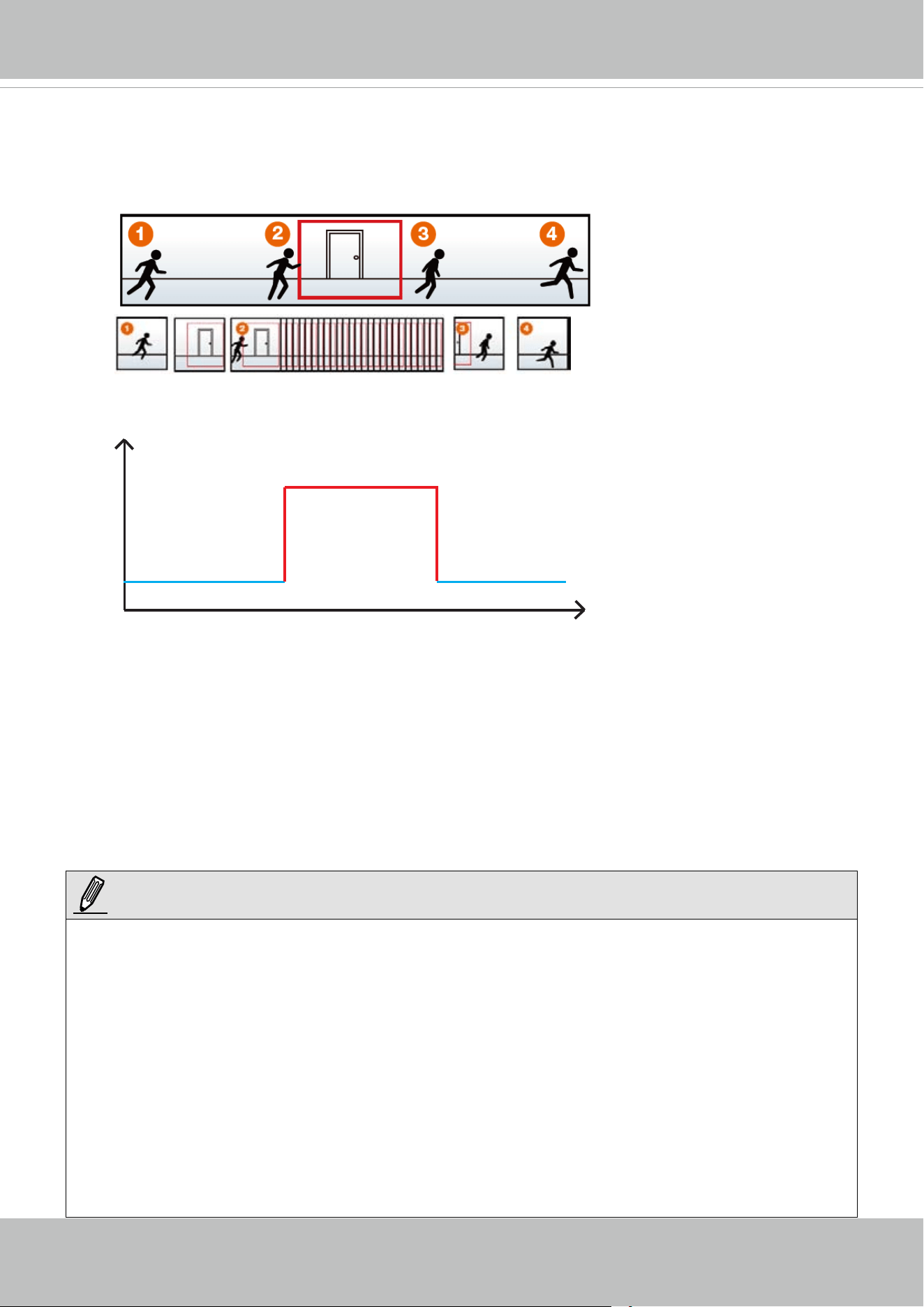
VIVOTEK
User's Manual - 93
If you enalbe the adaptive recording and enable time-shift cache stream on Camera A, only when an
event takes place on Camera A will the server records the streaming data at the full frame rate. This
methodology only requires transferring the Intra frame data during normal operation, and full-frame-rate
videos in the occurrences of events, and thus saving users of network bandwidth and storage space.
The alarm trigger includes: motion detection and DI dection. Please refer to Event settings on page 87.
■ Pre-event recording and post-event recording:
The Video Server has a buffer area; it temporarily holds data up to a certain limit. Enter a number to
decide the duration of recording before and after a trigger is activated.
■ Priority: Select the relative importance of this recording (High, Normal, or Low). Recording with a higher
priority setting will be executed rst.
■ Source: Select a stream as the recording source.
Time
Bandwidth
Bandwidth
Activity Adaptive Streaming
for Dynamic Frame Rate Control
I frame ---> Full frame rate ---> I frame
Continuous recording
► To enable adaptive recording, please make sure you have setup the triggering sources such as
Motion Detection, DI devices, or Manual Triggers.
► When there is no alarm trigger:
- JPEG mode: records 1 frame per second.
- H.264 mode: record one I frame only.
- MPEG-4mation.
► When the I frame period is <1s on Video settings page, it should be forced to make the I frame period
to 1s when adaptive recording is activated.
► To enable adaptive recording, please also enable time shift caching stream and select a caching
stream on page 56, Audio and Video settings.
► To enable recording notication please congure Event Settings rst. Please refer to page 79.
NOTE:
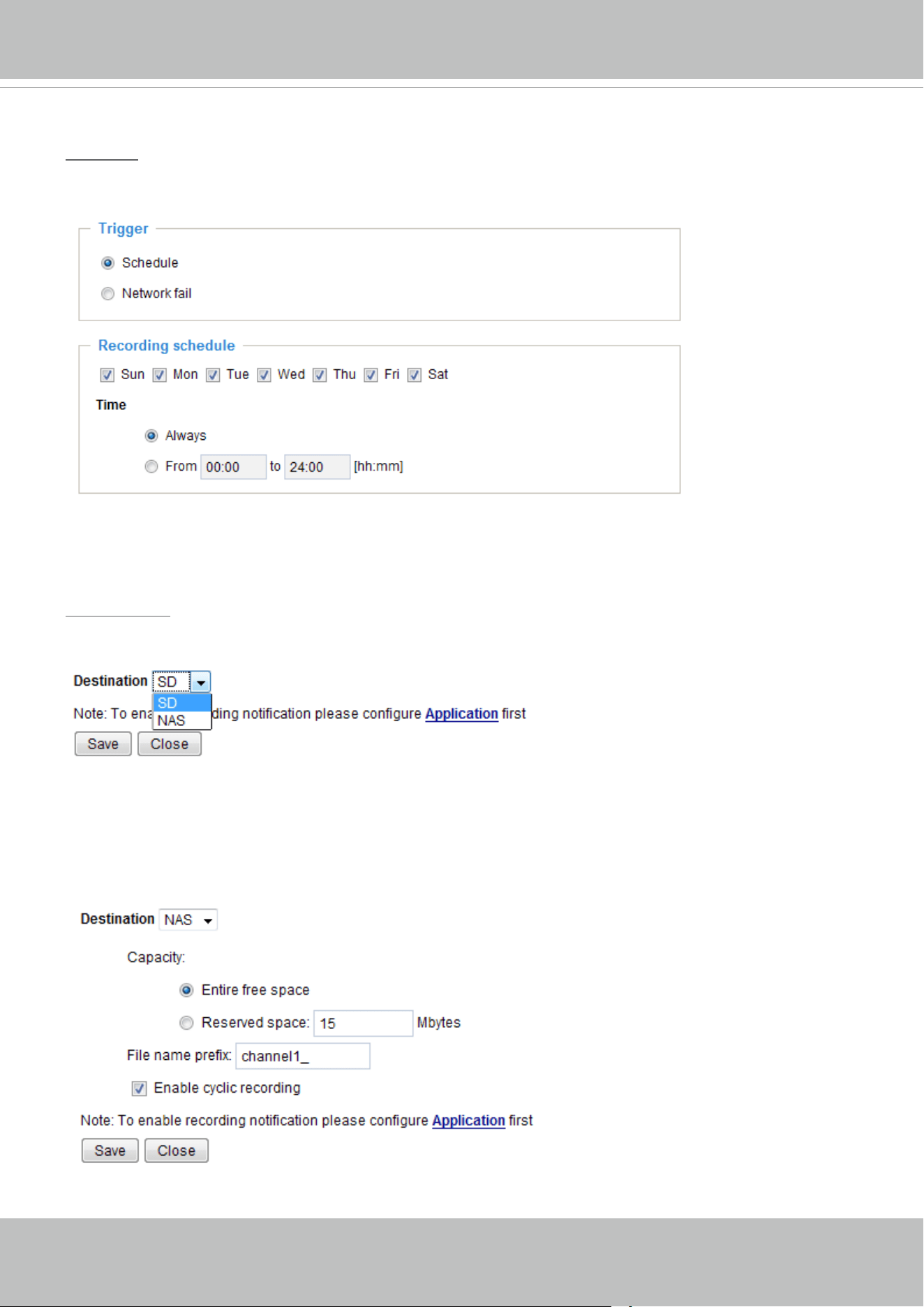
VIVOTEK
94 - User's Manual
Please follow steps 1 to 2 below to set up a recording setting:
1. Trigger
Select a triggering condition: For example, event triggers might not make sense in a place full of human
trafc during the ofce hours. You may want to enable the triggering conditions during the night.
■ Schedule: The server to start recording les onto local storage or networked storage (NAS).
■ Network fail: Starts recording to the local storage (SD card) in the event of network failures.
2. Destination
You can either select an SD card or a networked storage (NAS) to store the recorded videos.
To add a NAS server, move to the Application > Event > and Add Event setting page. Please note that
only one NAS server can be congured as the recording destination.
If you have selected a NAS server as the recording destination, you should configure the following
options: Capacity, File name prex, and Cyclic recording.
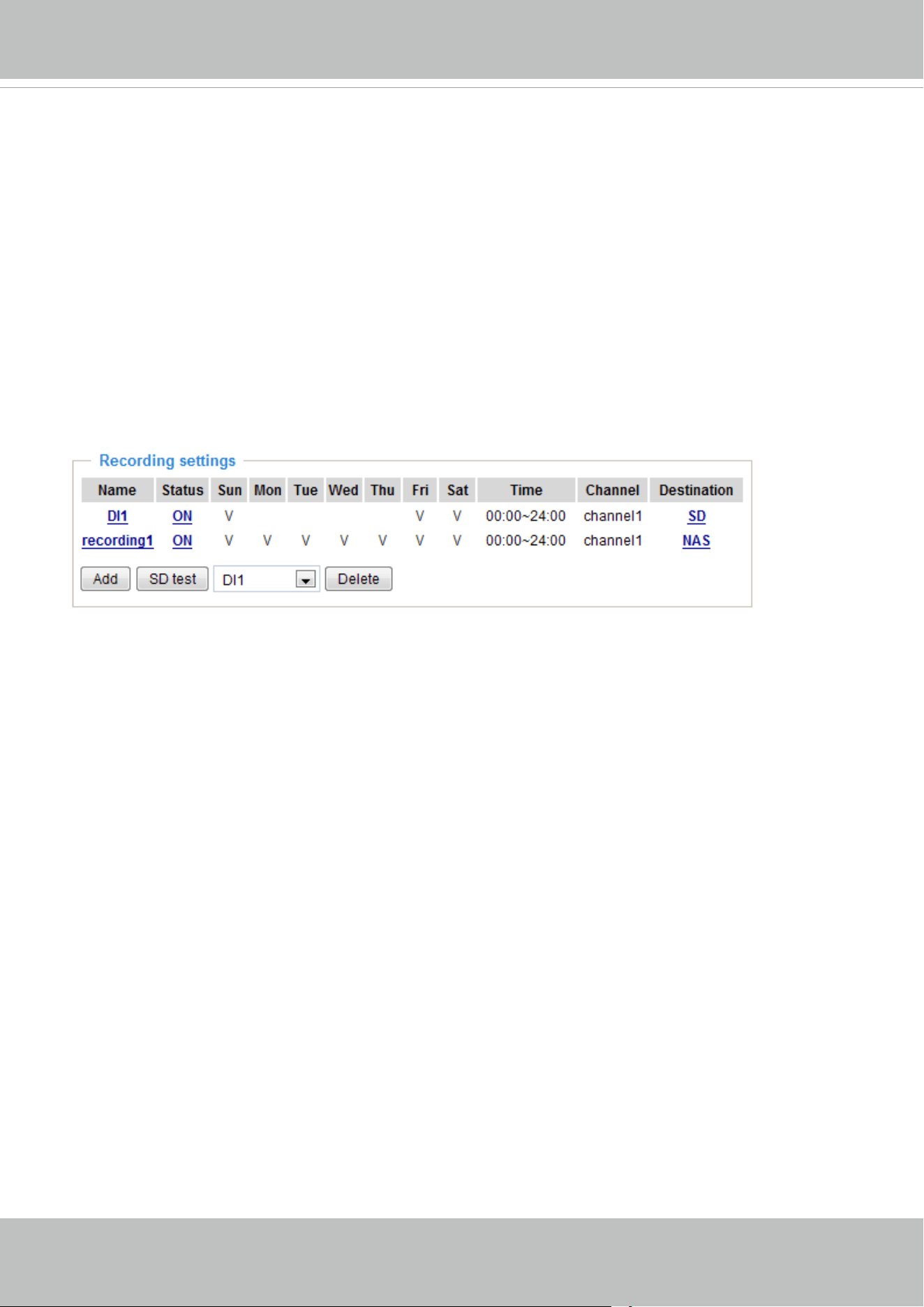
VIVOTEK
User's Manual - 95
■ Capacity: You can select either the entire storage space available or specify a reserved space. The
recording size limit must be larger than the reserved space for cyclic recording. The reserved space is
used for cyclic recording to prevent malfunctions that might occur during the transaction stage when
the video feeds are about to ll up the storage space. This value must be larger than 15 MBytes.
■ File name prex: Enter the text that will be appended to the front of the le name.
■ Enable cyclic recording: If your check this item, when the maximum capacity is reached, the oldest le
will be overwritten by the latest ones.
If you want to enable recording notication, please refer to Event > Event Settings on page 79 for more
details.
When completed, select Enable this recording. Click Save to enable the setting and click Close to
exit. When the system begins recording, it will send the recorded les to the networked storage or SD
card. The new recording conguration will appear on the recording page as shown below. To move a
congured setting, click on the Delete button.
Below are legends on the Recording Settings page:
Name: Click to open and edit an existing conguration.
ON (Status): Click to enable or disable the recording task.
NAS or SD: Click to open the le list produced by the recording tasks. For more information about folder
naming, please refer to page 90 for details. A le list window will prompt showing previously recorded
les.
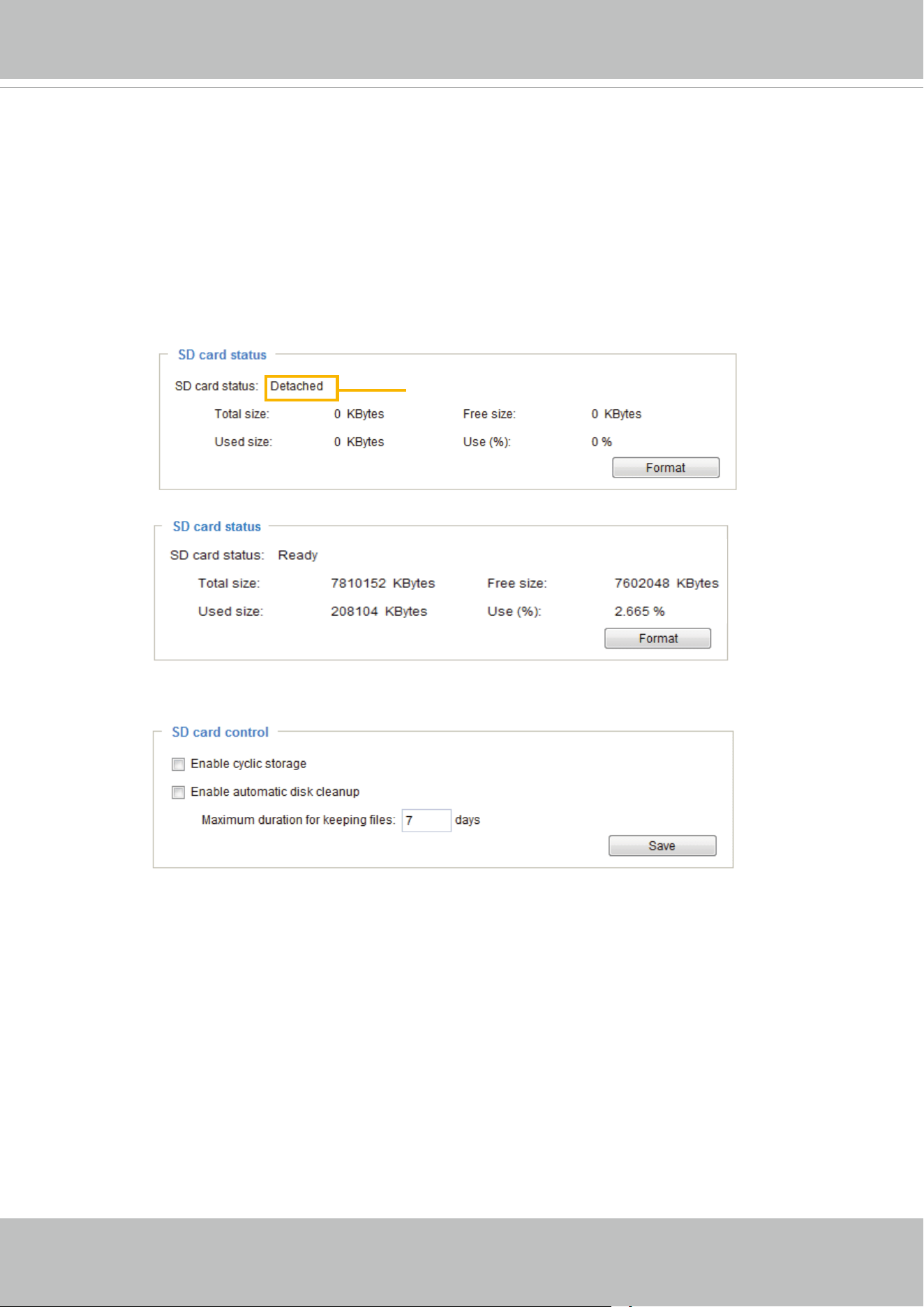
VIVOTEK
96 - User's Manual
Local storage > SD card management
This section explains how to manage the local storage on the Network Camera. Here you can
view SD card status, and implement SD card control.
SD card staus
This column shows the status and reserved space of your SD card. Please remember to format the SD
card when using for the rst time.
SD card control
■ Enable cyclic storage: Check this item if you want to enable cyclic recording. When the maximum
capacity is reached, the oldest le will be overwritten by the latest one.
■ Enable automatic disk cleanup: Check this item and enter the number of days you wish to retain a le.
For example, if you enter “7 days”, the recorded les will be stored on the SD card for 7 days.
When all settings are completed, click Save to enable your settings.
no SD card
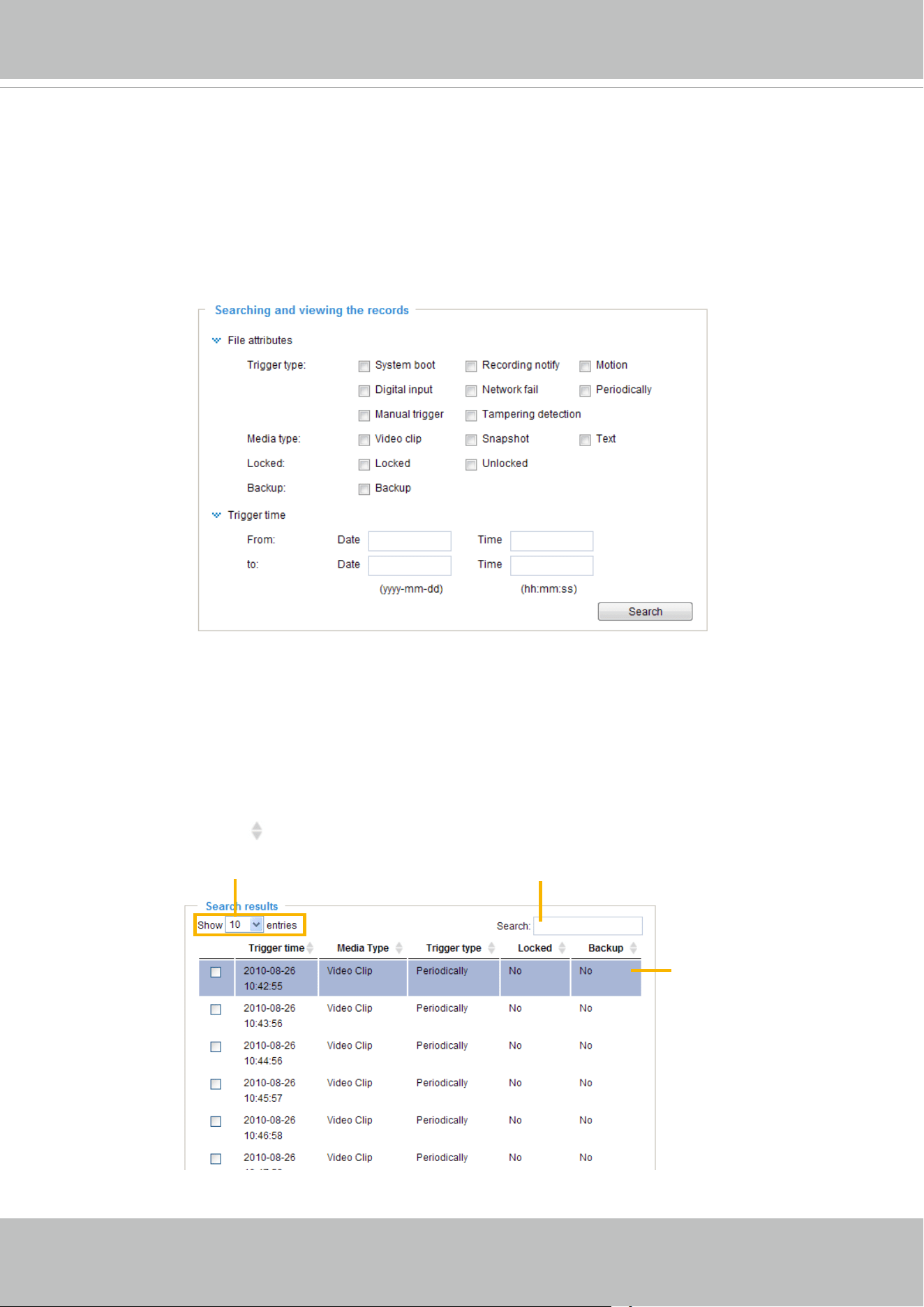
VIVOTEK
User's Manual - 97
Local storage > Content management
This section explains how to manage the content of recorded videos on the Network Camera. Here you
can search and view the records and view the searched results.
Searching and Viewing the Records
This column allows the user to set up search criteria for recorded data. If you do not select any criteria
and click Search button, all recorded data will be listed in the Search Results cloumn.
■ File attributes: Select one or more items as your search criteria.
■ Trigger time: Manually enter the time range you want to search.
Click Search and the recorded data corresponding to the search criteria will be listed in Search Results
window.
Search Results
The following is an example of search results. There are four columns: Trigger time, Media type, Trigger
type, and Locked. Click
to sort the search results in either direction.
Numbers of entries displayed
on one page
Enter a key word to lter the
search results
Highlight an item
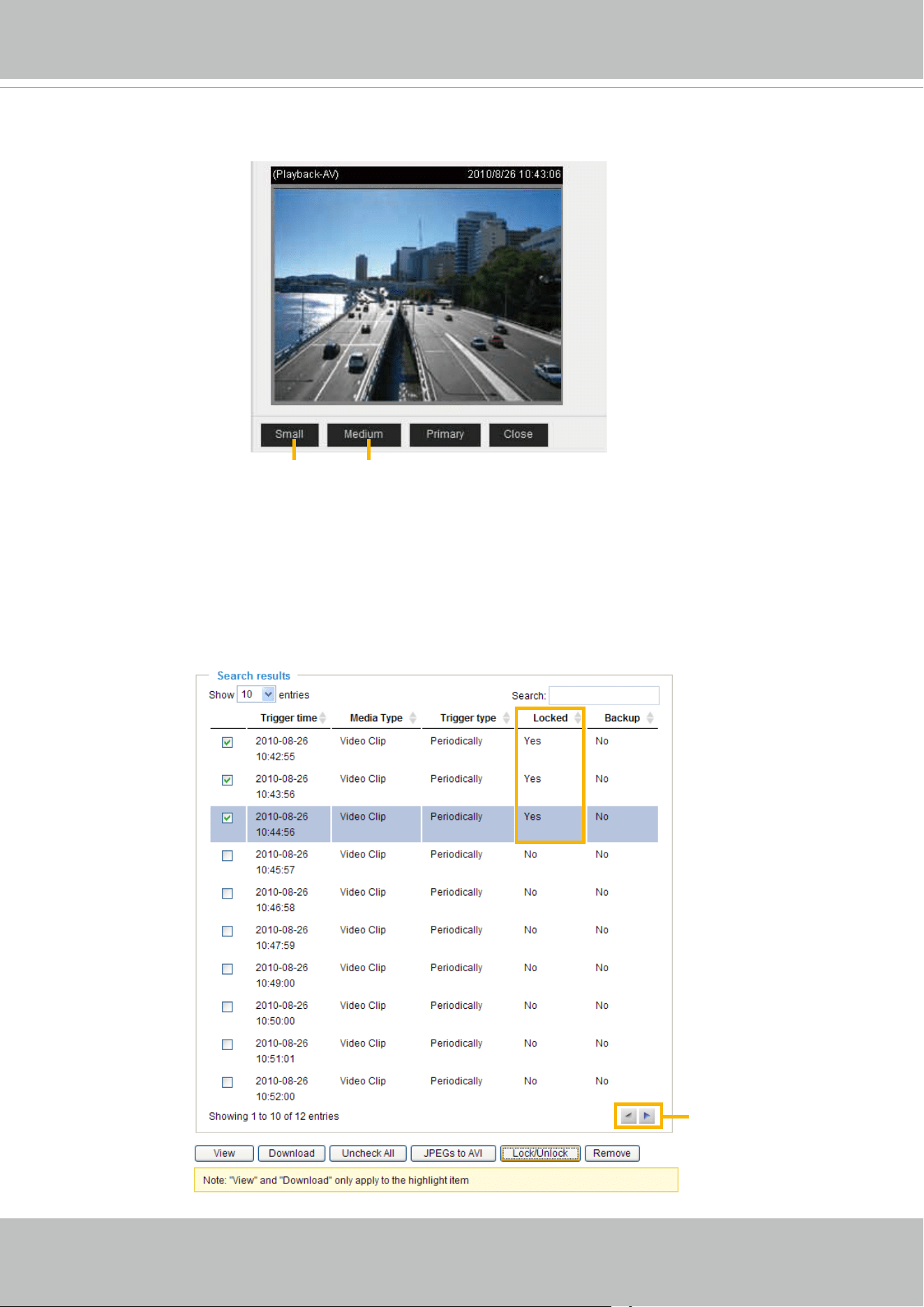
VIVOTEK
98 - User's Manual
■ View: Click on a search result which will highlight the selected item in purple as shown above. Click the
View button and a media window will pop up to play back the selected le.
For example:
■ Download: Click on a search result to highlight the selected item in purple as shown above. Then click
the Download button and a le download window will pop up for you to save the le.
■ JPEGs to AVI: This functions only applies to “JPEG“ format les such as snapshots. You can select
several snapshots from the list, then click this button. Those snapshots will be converted into an AVI
le.
■ Lock/Unlock: Select the desired search results, then click this button. The selected items will become
Locked, which will not be deleted during cyclic recoroding. You can click again to unlock the selections.
For example:
■ Remove: Select the desired search results, then click this button to delete the les.
Click to adjust the image size
Click to switch
pages
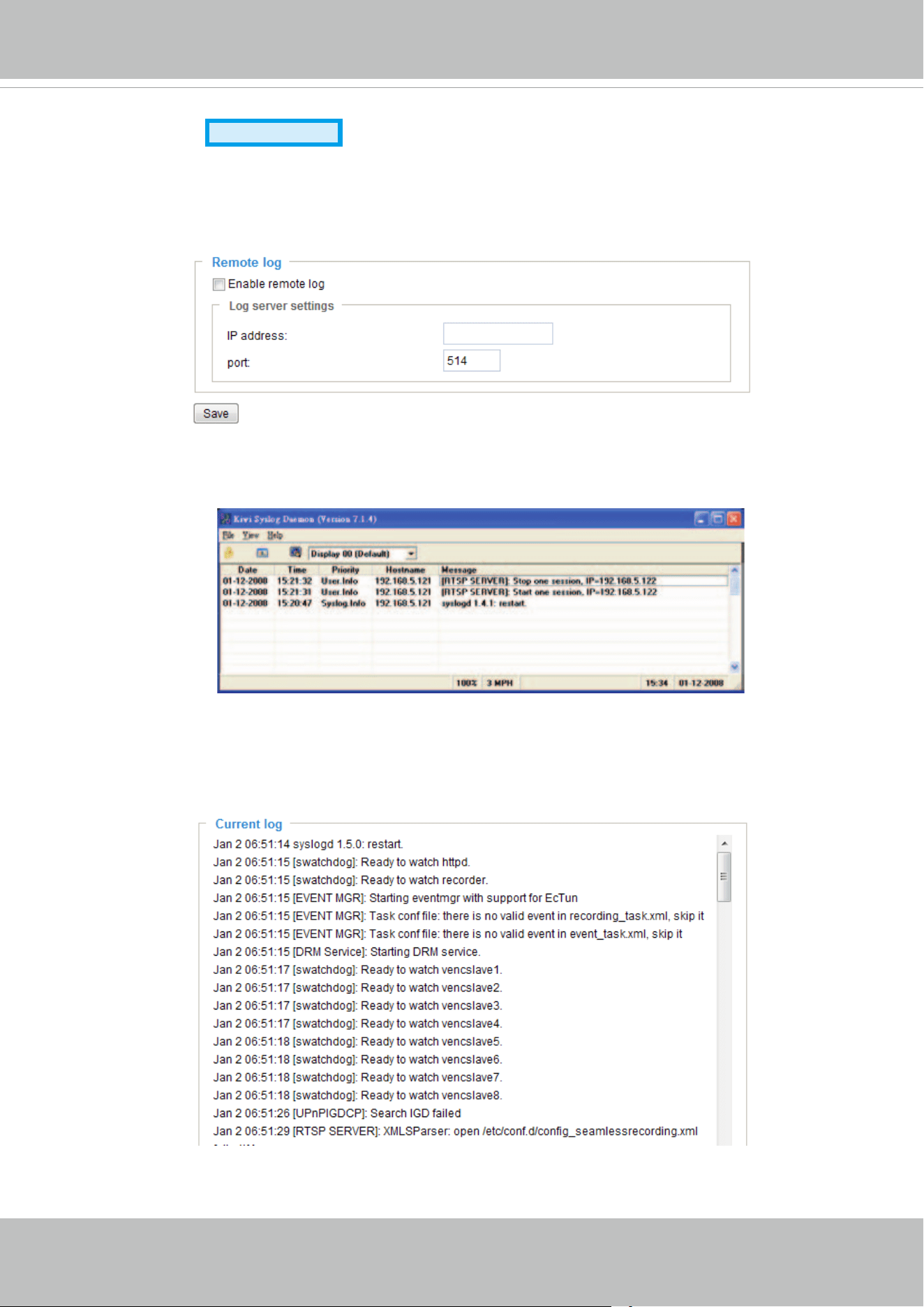
VIVOTEK
User's Manual - 99
System log
Advanced Mode
This section explains how to congure the video server to send the system log to the remote
server as backup.
Remote log
You can configure the video server to send the system log file to a remote server as a log backup.
Before utilizing this feature, it is suggested that the user install a log-recording tool to receive system log
messages from the video server. An example is Kiwi Syslog Daemon. Visit
http://www.kiwisyslog.com/
kiwi-syslog-daemon-overview/
.
Follow the steps below to set up the remote log:
1. In the IP address text box, enter the IP address of the remote server.
2. In the port text box, enter the port number of the remote server.
3. When completed, select Enable remote log and click Save to enable the setting.
Current log
This column displays the system log in chronological order. The system log is stored in the video server’s
buffer area and will be overwritten when reaching a certain limit.
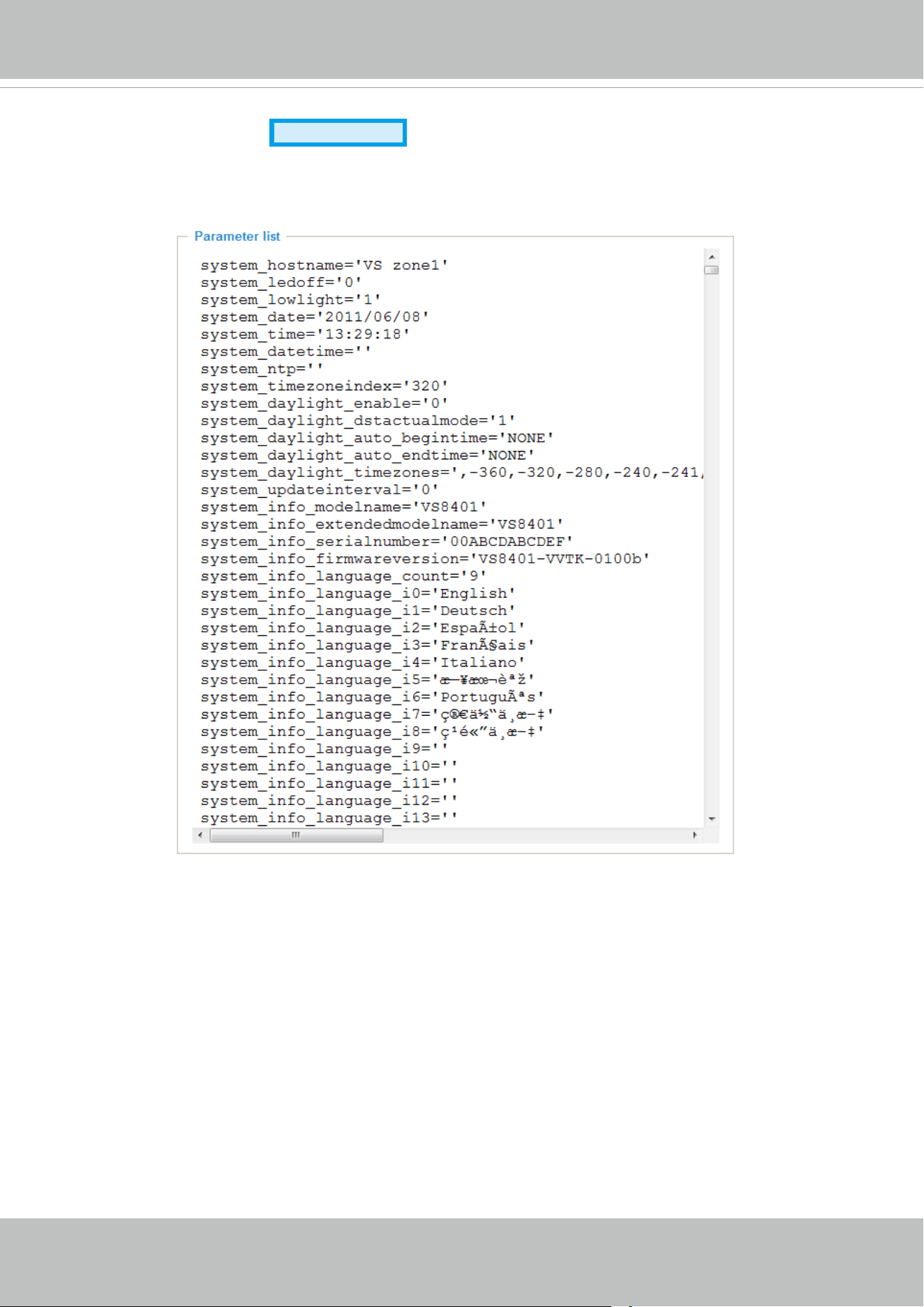
VIVOTEK
100 - User's Manual
View parameters
Advanced Mode
The View Parameters page lists the entire system’s parameters in alphabetical order. If you
need technical assistance, please provide the information listed on this page.
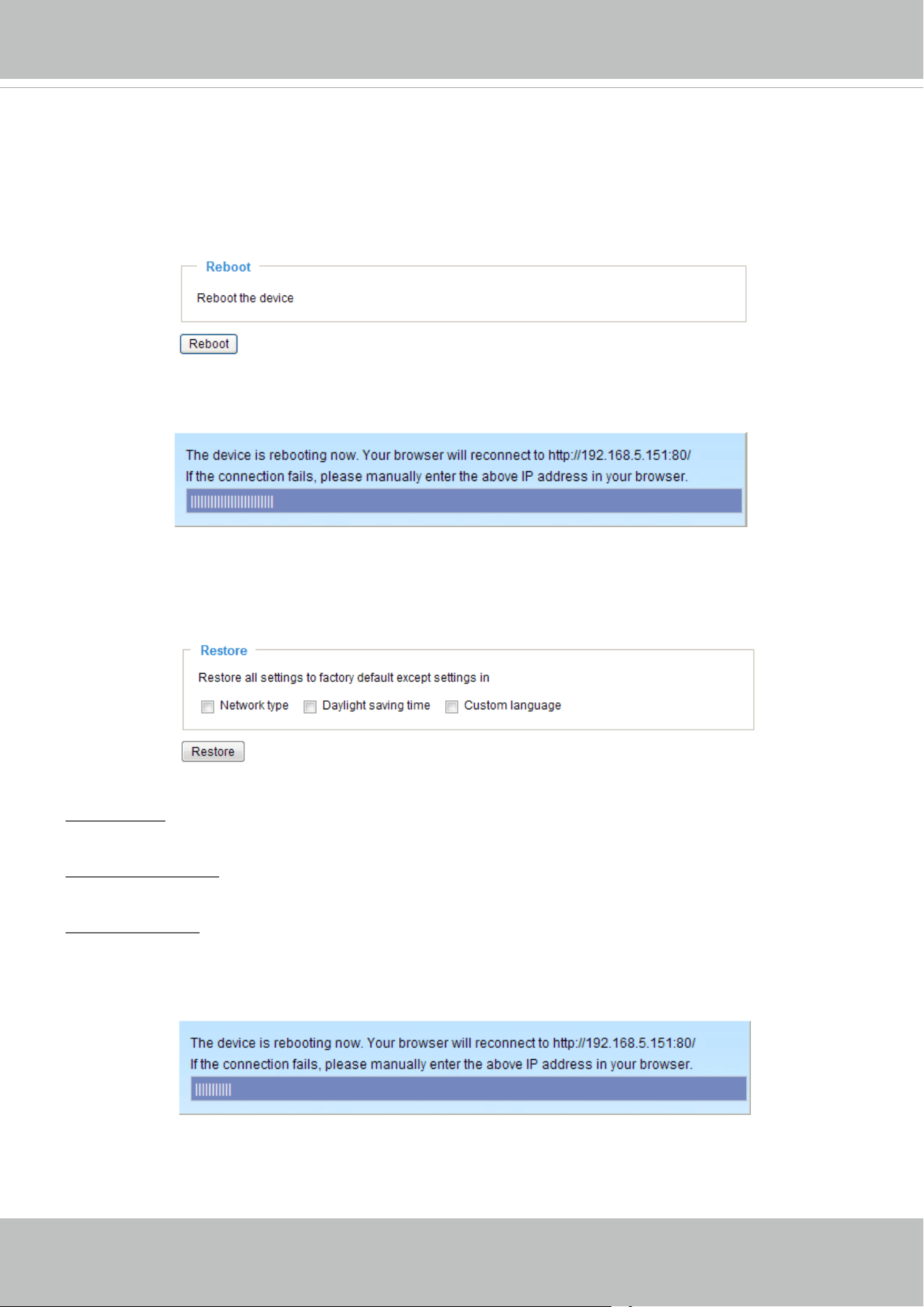
VIVOTEK
User's Manual - 101
Maintenance
This chapter explains how to restore the video server to factory default, upgrade firmware
version, etc.
Reboot
This feature allows you to reboot the video server, which takes about one minute to complete. When
completed, the live video page will be displayed in your browser. The following message will be displayed
during the reboot process.
If the connection fails after rebooting, manually enter the IP address of the video server in the address
eld to resume the connection.
Restore
This feature allows you to restore the video server to factory default settings.
Network type: Select this option to retain the Network type settings (please refer to Network type on page
35).
Daylight saving time: Select this option to retain the Daylight saving time settings (please refer to System
on page 26)
Custom language: Select this option to retain the Custom Language settings.
If none of the options is selected, all settings will be restored to factory default.
The following message is displayed during the restoring process.
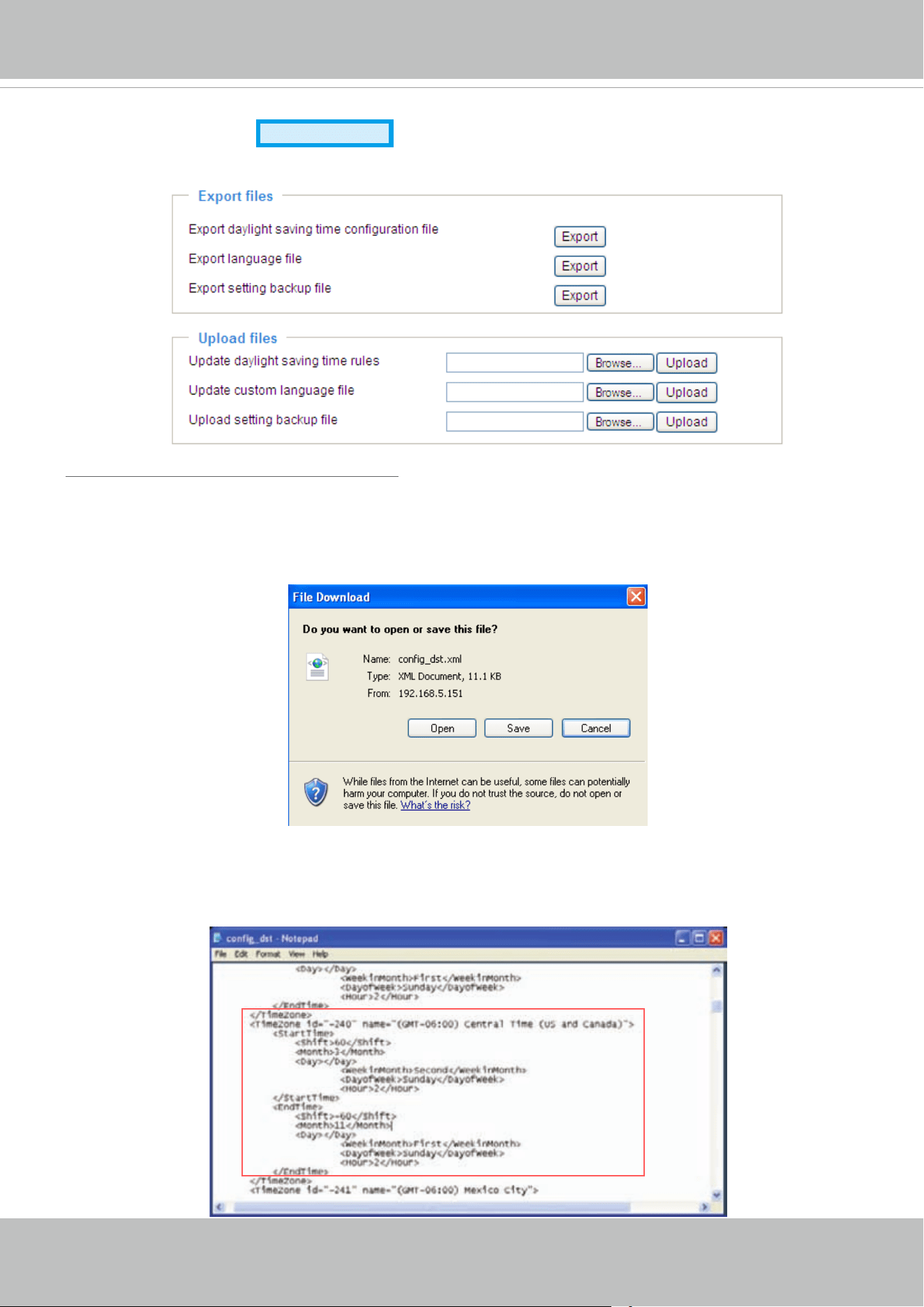
VIVOTEK
102 - User's Manual
Export / Upload Files
Advanced Mode
This feature allows you to Export / Upload daylight saving time rules, custom language les, and setting
backup les.
Export daylight saving time conguration le: Click to set the start and end time of DST.
Follow the steps below to export:
1. In the Export les column, click Export to export the daylight saving time conguration le from the
video server.
2. A le download dialog will pop up as shown below. Click Open to review the XML le or click Save to
store the le for editing.
3. Open the le with Microsoft
®
Notepad and locate your time zone; set the start and end time of DST.
When completed, save the le.
In the example below, DST begins each year at 2:00 a.m. on the second Sunday in March and ends at
2:00 a.m. on the rst Sunday in November.
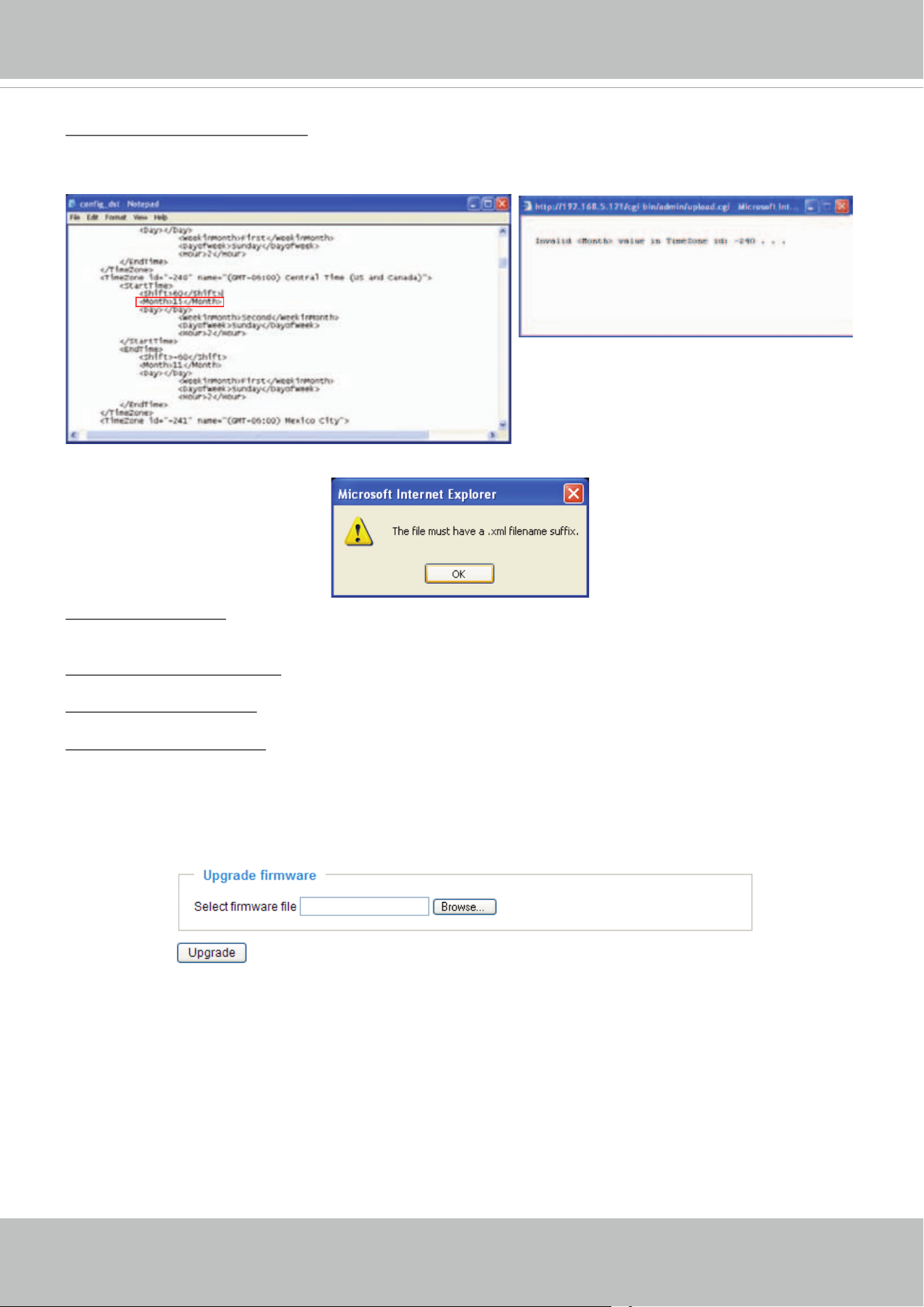
VIVOTEK
User's Manual - 103
Upload daylight saving time rule: Click Browse… and specify the XML le to upload.
If the incorrect date and time are assigned, you will see the following warning message when uploading
the le to the video server.
The following message is displayed when attempting to upload an incorrect le format.
Export language file: Click to export language strings. VIVOTEK provides nine languages: English,
Deutsch, Español, Français, Italiano,
日本語
, Português,
簡体中文
, and
繁體中文
.
Upload custom language le: Click Browse… and specify your own custom language le to upload.
Export setting backup le: Click to export all parameters for the device and user-dened scripts.
Upload setting backup le: Click Browse… to upload a setting backup le. Please note that the model
and rmware version of the device should be the same as the setting backup le. If you have set up a
xed IP or other special settings for your device, it is not suggested to upload a settings backup le.
Upgrade rmware
This feature allows you to upgrade the rmware of your video server. It takes a few minutes to complete
the process.
Note: Do not power off the video server during the upgrade!
Follow the steps below to upgrade the rmware:
1. Download the latest rmware le from the VIVOTEK website. The le is in .pkg le format.
2. Click Browse… and specify the rmware le.
3. Click Upgrade. The video server starts to upgrade and will reboot automatically when the upgrade
completes.
If the upgrade is successful, you will see “Reboot system now!! This connection will close”. After that, re-
access the video server.
VIVOTEK
104 - User's Manual
The following message is displayed when the upgrade has succeeded.
The following message is displayed when you have selected an incorrect rmware le.
Starting firmware upgrade...
Do not power down the server during the upgrade.
The server will restart automatically after the upgrade is
completed.
This will take about 1 - 5 minutes.
Wrong PKG file format
Unpack fail
Reboot system now!!
This connection will close.

VIVOTEK
User's Manual - 105
Appendix
URL Commands for the Network Camera/Video Server
1. Overview
For some customers who already have their own web site or web control application, the Network
Camera/Video Server can be easily integrated through URL syntax. This section specifies the external
HTTP-based application programming interface. The HTTP-based camera interface provides the
functionality to request a single image, control camera functions (PTZ, output relay etc.), and get and set
internal parameter values. The image and CGI-requests are handled by the built-in Web server.
2. Style Convention
In URL syntax and in descriptions of CGI parameters, text within angle brackets denotes content that
is to be replaced with either a value or a string. When replacing the text string, the angle brackets
should also be replaced. An example of this is the description of the name for the server, denoted with
<servername> in the URL syntax description below, that is replaced with the string myserver in the URL
syntax example further down in the page.
URL syntax is denoted with the word "Syntax:" written in bold face followed by a box with the referenced
syntax as shown below. For example, name of the server is written as <servername> and is intended to
be replaced with the name of the actual server. This can either be a name, e.g., "mywebcam" or "thecam.
adomain.net" or the associated IP number for the server, e.g., 192.168.0.220.
Syntax:
http://<servername>/cgi-bin/viewer/video.jpg
Description of returned data is written with "Return:" in bold face followed by the returned data in a box. All data is
returned in HTTP format, i.e., each line is separated with a Carriage Return and Line Feed (CRLF) printed as \r\n.
Return:
HTTP/1.0 <HTTP code> <HTTP text>\r\n
URL syntax examples are written with "Example:" in bold face followed by a short description and a light grey box
with the example.
Example: request a single snapshot image
http://mywebserver/cgi-bin/viewer/video.jpg
VIVOTEK
106 - User's Manual
7
3.GeneralCGIURLSyntaxandParameters
When the CGI request includes internal camera parameters, these parameters must be written
exactly as they are named in the camera or video server. The CGIs are organized in
functionally-related directories under the cgi-bin directory. The file extension .cgi is required.
Syntax:
http://<servername>/cgi-bin/<subdir>[/<subdir>...]/<cgi>.<ext>
[?<parameter>=<value>[&<parameter>=<value>...]]
Example: Set digital output #1 to active
http://mywebserver/cgi-bin/dido/setdo.cgi?do1=1

VIVOTEK
User's Manual - 107
8
4.SecurityLevel
SECURITY
LEVEL
SUB-DIRECTORY DESCRIPTION
0 anonymous Unprotected.
1 [view] anonymous, viewer,
dido, camctrl
1. Can view, listen, talk to camera.
2. Can control DI/DO, PTZ of the camera.
4 [operator] anonymous, viewer,
dido, camctrl, operator
Operator access rights can modify most of the camera’s
parameters except some privileges and network
options.
6 [admin] anonymous, viewer,
dido, camctrl, operator,
admin
Administrator access rights can fully control the
camera’s operations.
7 N/A Internal parameters. Unable to be changed by any
external interfaces.

VIVOTEK
108 - User's Manual
9
5.GetServerParameterValues
Note: The access right depends on the URL directory.
Method: GET/POST
Syntax:
http://<servername>/cgi-bin/
anonymous/getparam.cgi?[<parameter>]
[&<parameter>…]
http://<servername>/cgi-bin/viewer/getparam.cgi?[<parameter>]
[&<parameter>…]
http://<servername>/cgi-bin/operator/getparam.cgi?[<parameter>]
[&<parameter>…]
http://<servername>/cgi-bin/admin/getparam.cgi?[<parameter>]
[&<parameter>…]
Where the <parameter> should be <group>[_<name>]. If you do not specify any parameters, all
the parameters on the server will be returned. If you specify only <group>, the parameters of the
related group will be returned.
When querying parameter values, the current parameter values are returned.
A successful control request returns parameter pairs as follows:
Return:
HTTP/1.0 200 OK\r\n
Content-Type: text/html\r\n
Context-Length: <length>\r\n
\r\n
<parameter pair>
where <parameter pair> is
<parameter>=<value>\r\n
[<parameter pair>]
<length> is the actual length of content.
Example: Request IP address and its response
Request:
http://192.168.0.123/cgi-bin/admin/getparam.cgi?network_ipaddress

VIVOTEK
User's Manual - 109
10
Response:
HTTP/1.0 200 OK\r\n
Content-Type: text/html\r\n
Context-Length: 33\r\n
\r\n
network_ipaddress=192.168.0.123\r\n

VIVOTEK
110 - User's Manual
11
6.SetServerParameterValues
Note: The access right depends on the URL directory.
Method: GET/POST
Syntax:
http://<servername>/cgi-bin/
anonymous/setparam.cgi? <parameter>=<value>
[&<parameter>=<value>…][&return=<return page>]
http://<servername>/cgi-bin/viewer/setparam.cgi? <parameter>=<value>
[&<parameter>=<value>…][&return=<return page>]
http://<servername>/cgi-bin/operator/setparam.cgi? <parameter>=<value>
[&<parameter>=<value>…][&return=<return page>]
http://<servername>/cgi-bin/admin/setparam.cgi? <parameter>=<value>
[&<parameter>=<value>…][&return=<return page>]
PARAMETER VALUE DESCRIPTION
<group>_<name>
value to assigned Assign <value> to the parameter <group>_<name>.
return
<return page> Redirect to the page <return page> after the parameter is
assigned. The <return page> can be a full URL path or
relative path according to the current path. If you omit this
parameter, it will redirect to an empty page.
(Note: The return page can be a general HTML file
(.htm, .html). It cannot be a CGI command or have any
extra parameters. This parameter must be placed at the end
of the parameter list
Return:
HTTP/1.0 200 OK\r\n
Content-Type: text/html\r\n
Context-Length: <length>\r\n
\r\n
<parameter pair>
where <parameter pair> is
<parameter>=<value>\r\n
[<parameter pair>]
Only the parameters that you set and are readable will be returned.

VIVOTEK
User's Manual - 111
12
Example: Set the IP address of server to 192.168.0.123:
Request:
http://myserver/cgi-bin/admin/setparam.cgi?network_ipaddress=192.168.0.123
Response:
HTTP/1.0 200 OK\r\n
Content-Type: text/html\r\n
Context-Length: 33\r\n
\r\n
network_ipaddress=192.168.0.123\r\n

VIVOTEK
112 - User's Manual
13
7.Availableparametersontheserver
This chapter defines all the parameters which can be configured or retrieved from VIVOTEK
network camera or video server. The general format of description is listed in the table below
Valid values:
VALID VALUES DESCRIPTION
string[<n>] Text strings shorter than ‘n’ characters. The characters “,’, <,>,& are
invalid.
string[n~m] Text strings longer than `n’ characters and shorter than `m’ characters.
The characters “,’, <,>,& are invalid.
password[<n>] The same as string but displays ‘*’ instead.
integer Any number between (-2
31
– 1) and (2
31
– 1).
positive integer Any number between 0 and (2
32
– 1).
<m> ~ <n> Any number between ‘m’ and ‘n’.
domain name[<n>] A string limited to a domain name shorter than ‘n’ characters (eg.
www.ibm.com).
email address [<n>] A string limited to an email address shorter than ‘n’ characters (eg.
joe@www.ibm.com).
ip address A string limited to an IP address (eg. 192.168.1.1).
mac address A string limited to contain a MAC address without hyphens or colons.
boolean A boolean value of 1 or 0 represents [Yes or No], [True or False],
[Enable or Disable].
<value1>,
<value2>,
<value3>,
…
Enumeration. Only given values are valid.
blank A blank string.
everything inside <> A description
integer primary key SQLite data type. A 32-bit signed integer. The value is assigned a unique
integer by the server.
text SQLite data type. The value is a text string, stored using the database
encoding (UTF-8, UTF-16BE or UTF-16-LE).
coordinate x, y coordinate (eg. 0,0)
window size window width and height (eg. 800x600)
NOTE: The camera should not be restarted when parameters are changed.

VIVOTEK
User's Manual - 113
14
7.1System
Group: system
NAME VALUE DEFAULT SECURITY
(get/set)
DESCRIPTION
hostname string[40] “Video Server” 1/6 Host name of server
(Network Camera,
Wireless Network Camera,
Video Server,
Wireless Video Server).
ledoff <boolean> 0 6/6 Turn on (0) or turn off (1) all
led indicators.
date <YYYY/MM/
DD>,
keep,
auto
<current date> 6/6 Current date of system. Set to
‘keep’ to keep date
unchanged. Set to ‘auto’ to
use NTP to synchronize date.
time <hh:mm:ss>,
keep,
auto
<current time> 6/6 Current time of the system.
Set to ‘keep’ to keep time
unchanged. Set to ‘auto’ to
use NTP to synchronize time.
datetime <MMDDhhm
mYYYY.ss>
<current time> 6/6 Another current time format
of the system.
ntp <domain
name>,
<ip address>,
<blank>
<blank> 6/6 NTP server.
*Do not use “skip to invoke
default server” for default
value.
timezoneindex -489 ~ 529 0 6/6 Indicate timezone and area.
-480: GMT-12:00 Eniwetok,
Kwajalein
-440: GMT-11:00 Midway
Island, Samoa
-400: GMT-10:00 Hawaii
-360: GMT-09:00 Alaska
-320: GMT-08:00 Las Vegas,
San_Francisco,
Vancouver
-280: GMT-07:00 Mountain
Time, Denver
-281: GMT-07:00 Arizona

VIVOTEK
114 - User's Manual
15
-240: GMT-06:00 Central
America, Central Time,
Mexico City, Saskatchewan
-200: GMT-05:00 Eastern
Time, New York, Toronto
-201: GMT-05:00 Bogota,
Lima, Quito, Indiana
-180: GMT-04:30 Caracas
-160: GMT-04:00 Atlantic
Time, Canada, La Paz,
Santiago
-140: GMT-03:30
Newfoundland
-120: GMT-03:00 Brasilia,
Buenos Aires,
Georgetown, Greenland
-80: GMT-02:00
Mid-Atlantic
-40: GMT-01:00 Azores,
Cape_Verde_IS.
0: GMT Casablanca,
Greenwich Mean Time:
Dublin,
Edinburgh, Lisbon, London
40: GMT 01:00 Amsterdam,
Berlin, Rome, Stockholm,
Vienna, Madrid, Paris
41: GMT 01:00 Warsaw,
Budapest, Bern
80: GMT 02:00 Athens,
Helsinki, Istanbul, Riga
81: GMT 02:00 Cairo
82: GMT 02:00 Lebanon,
Minsk
83: GMT 02:00 Israel
120: GMT 03:00 Baghdad,
Kuwait, Riyadh, Moscow, St.
Petersburg, Nairobi
121: GMT 03:00 Iraq
140: GMT 03:30 Tehran

VIVOTEK
User's Manual - 115
16
160: GMT 04:00 Abu Dhabi,
Muscat, Baku,
Tbilisi, Yerevan
180: GMT 04:30 Kabul
200: GMT 05:00
Ekaterinburg, Islamabad,
Karachi, Tashkent
220: GMT 05:30 Calcutta,
Chennai, Mumbai, New
Delhi
230: GMT 05:45 Kathmandu
240: GMT 06:00 Almaty,
Novosibirsk, Astana, Dhaka,
Sri Jayawardenepura
260: GMT 06:30 Rangoon
280: GMT 07:00 Bangkok,
Hanoi, Jakarta, Krasnoyarsk
320: GMT 08:00 Beijing,
Chongging, Hong Kong,
Kuala Lumpur, Singapore,
Taipei
360: GMT 09:00 Osaka,
Sapporo, Tokyo, Seoul,
Yakutsk
380: GMT 09:30 Adelaide,
Darwin
400: GMT 10:00 Brisbane,
Canberra, Melbourne,
Sydney, Guam, Vladivostok
440: GMT 11:00 Magadan,
Solomon Is., New Caledonia
480: GMT 12:00 Auckland,
Wellington, Fiji, Kamchatka,
Marshall Is.
520: GMT 13:00 Nuku’alofa
daylight_enable <boolean> 0 6/6 Enable automatic daylight
saving time in time zone.
daylight_auto_begi
ntime
string[19] NONE 6/7 Display the current daylight
saving start time.
daylight_auto_endti string[19] NONE 6/7 Display the current daylight

VIVOTEK
116 - User's Manual
17
me saving end time.
daylight_timezones string ,-360,-320,
-280,-240,
-241,-200,
-201,-160,
-140,-120,
-80,-40,0,
40,41,80,
81,82,83,
120,140,
380,400,480
6/6 List time zone index which
support daylight saving time.
updateinterval 0,
3600,
86400,
604800,
2592000
0 6/6 0 to Disable automatic time
adjustment, otherwise, it
indicates the seconds
between NTP automatic
update intervals.
restore 0,
<positive
integer>
N/A 7/6 Restore the system
parameters to default values
after <value> seconds.
reset 0,
<positive
integer>
N/A 7/6 Restart the server after
<value> seconds if <value>
is non-negative.
restoreexceptnet <Any value> N/A 7/6 Restore the system
parameters to default values
except (ipaddress, subnet,
router, dns1, dns2, pppoe).
This command can cooperate
with other
“restoreexceptXYZ”
commands. When
cooperating with others, the
system parameters will be
restored to the default value
except for a union of the
combined results.
restoreexceptdst <Any value> N/A 7/6 Restore the system
parameters to default values
except all daylight saving
time settings.
This command can cooperate

VIVOTEK
User's Manual - 117
18
with other
“restoreexceptXYZ”
commands. When
cooperating with others, the
system parameters will be
restored to default values
except for a union of
combined results.
restoreexceptlang <Any Value> N/A 7/6 Restore the system
parameters to default values
except the custom language
file the user has uploaded.
This command can cooperate
with other
“restoreexceptXYZ”
commands. When
cooperating with others, the
system parameters will be
restored to the default value
except for a union of the
combined results.
7.1.1 system.info
Subgroup of system: info (The fields in this group are unchangeable.)
NAME VALUE DEFAULT SECURITY
(get/set)
DESCRIPTION
modelname string[40] VS8401 0/7 Internal model name of the
server (e.g. IP7139)
extendedmodelname string[40] VS8401 0/7 ODM specific model name of
server (e.g. DCS-5610). If it is
not an ODM model, this field
will be equal to “modelname”
serialnumber <mac
address>
<product
mac
address>
0/7 12 characters MAC address
(without hyphens).
firmwareversion string[40] 0/7 Firmware version, including
model, company, and version
number in the format:

VIVOTEK
118 - User's Manual
19
<MODEL-BRAND-VERSIO
N>
language_count <integer> 9 0/7 Number of webpage languages
available on the server.
language_i<0~(count-1)> string[16] English,
Deutsch,
Español,
Français,
Italiano,
日本語,
Português,
简体中文,
繁體中文
0/7 Available language lists.
customlanguage_maxcount <integer> 1 0/6 Maximum number of custom
languages supported on the
server.
customlanguage_count <integer> 0 0/6 Number of custom languages
which have been uploaded to
the server.
customlanguage_i<0~(max
count-1)>
string N/A 0/6 Custom language name.
7.2Status
Group: status
NAME VALUE DEFAULT SECURITY
(get/set)
DESCRIPTION
signal_c<0~(nvideoin-1)> <Boolean> 0 1/7 0=> No signal.
1=> Signal detected.
videomode_c<0~(nvideoin-1)> ntsc,
pal
ntsc 1/7 Video modulation type
di_i<0~(ndi-1)> <boolean> 0 1/7 0 => Inactive, normal
1 => Active, triggered
(capability.ndi > 0)
do_i<0~(ndo-1)> <boolean> 0 1/7 0 => Inactive, normal
1 => Active, triggered
(capability.ndo > 0)
onlinenum_rtsp integer 0 6/7 Current number of RTSP
connections.
onlinenum_httppush integer 0 6/7 Current number of HTTP

VIVOTEK
User's Manual - 119
20
push server connections.
eth_i0 <string> <blank> 1/7 Get network information
from mii-tool.
vi_i<0~(nvi-1)> <boolean> 0 1/7 Virtual input
0 => Inactive
1 => Active
(capability.nvi > 0)
7.3Digitalinputbehaviordefine
Group: di_i<0~(ndi-1)> (capability.ndi > 0)
NAME VALUE DEFAULT SECURITY
(get/set)
DESCRIPTION
normalstate high,
low
high 1/1 Indicates open circuit or
closed circuit (inactive
status)
7.4Digitaloutputbehaviordefine
Group: do_i<0~(ndo-1)> (capability.ndo > 0)
NAME VALUE DEFAULT SECURITY
(get/set)
DESCRIPTION
normalstate open,
grounded
open 1/1 Indicate open circuit or
closed circuit (inactive
status)
7.5Security
Group: security
NAME VALUE DEFAULT SECURITY
(get/set)
DESCRIPTION
privilege_do view, operator,
admin
operator 6/6 Indicate which privileges and
above can control digital
output
(capability.ndo > 0)
privilege_camctrl view, operator,
admin
view 6/6 Indicate which privileges and
above can control PTZ
(capability.ptzenabled > 0 or
capability.eptz > 0)
user_i0_name string[64] root 6/7 User name of root

VIVOTEK
120 - User's Manual
21
user_i<1~20>_name string[64] <blank> 6/7 User name
user_i0_pass password[64] <blank> 6/6 Root password
user_i<1~20>_pass password[64] <blank> 7/6 User password
user_i0_privilege viewer,
operator,
admin
admin 6/7 Root privilege
user_i<1~20>_
privilege
viewer,
operator,
admin
<blank> 6/6 User privilege
7.6Network
Group: network
NAME VALUE DEFAULT SECURITY
(get/set)
DESCRIPTION
preprocess <positive
integer>
NULL 7/6 An 32-bit integer, each bit can be set separately
as follows:
Bit 0 => HTTP service;
Bit 1=> HTTPS service;
Bit 2=> FTP service;
Bit 3 => Two way audio and RTSP Streaming
service;
To stop service before changing its port
settings. It’s recommended to set this
parameter when change a service port to the
port occupied by another service currently.
Otherwise, the service may fail.
Stopped service will auto-start after changing
port settings.
Ex:
Change HTTP port from 80 to 5556, and
change RTP port for video from 5556 to 20480.
Then, set preprocess=9 to stop both service
first.
”/cgi-bin/admin/setparam.cgi?
network_preprocess=9&network_http_port=55
56& network_rtp_videoport=20480”
type lan,
pppoe
lan 6/6 Network connection type.

VIVOTEK
User's Manual - 121
22
resetip <boolean> 1 6/6 1 => Get ipaddress, subnet, router, dns1, dns2
from DHCP server at next reboot.
0 => Use preset ipaddress, subnet, rounter,
dns1, and dns2.
ipaddress <ip
address>
192.168.0.9
9
6/6 IP address of server.
subnet <ip
address>
<blank> 6/6 Subnet mask.
router <ip
address>
<blank> 6/6 Default gateway.
dns1 <ip
address>
<blank> 6/6 Primary DNS server.
dns2 <ip
address>
<blank> 6/6 Secondary DNS server.
wins1 <ip
address>
<blank> 6/6 Primary WINS server.
wins2 <ip
address>
<blank> 6/6 Secondary WINS server.
7.6.1 802.1x
Subgroup of network: ieee8021x (capability.protocol.ieee8021x > 0)
NAME VALUE DEFAULT SECURITY
(get/set)
DESCRIPTION
enable <boolean> 0 6/6 Enable/disable IEEE 802.1x
eapmethod eap-peap,
eap-tls
eap-peap 6/6 Selected EAP method
identity_peap String[64] <blank> 6/6 PEAP identity
identity_tls String[64] <blank> 6/6 TLS identity
password String[254] <blank> 6/6 Password for TLS
privatekeypassword String[254] <blank> 6/6 Password for PEAP
ca_exist <boolean> 0 6/6 CA installed flag
ca_time <integer> 0 6/7 CA installed time. Represented
in EPOCH
ca_size <integer> 0 6/7 CA file size (in bytes)
certificate_exist <boolean> 0 6/6 Certificate installed flag (for
TLS)
certificate_time <integer> 0 6/7 Certificate installed time.
Represented in EPOCH

VIVOTEK
122 - User's Manual
23
certificate_size <integer> 0 6/7 Certificate file size (in bytes)
privatekey_exist <boolean> 0 6/6 Private key installed flag (for
TLS)
privatekey_time <integer> 0 6/7 Private key installed time.
Represented in EPOCH
privatekey_size <integer> 0 6/7 Private key file size (in bytes)
7.6.2 QOS
Subgroup of network: qos_cos (capability.protocol.qos.cos > 0)
NAME VALUE DEFAULT SECURITY
(get/set)
DESCRIPTION
enable <boolean> 0 6/6 Enable/disable CoS (IEEE 802.1p)
vlanid 1~4095 1 6/6 VLAN ID
video 0~7 0 6/6 Video channel for CoS
audio 0~7 0 6/6 Audio channel for CoS
(capability.naudio > 0)
eventalarm 0~7 0 6/6 Event/alarm channel for CoS
management 0~7 0 6/6 Management channel for CoS
eventtunnel 0~7 0 6/6 Event/Control channel for CoS
Subgroup of network: qos_dscp (capability.protocol.qos.dscp > 0)
NAME VALUE DEFAULT SECURITY
(get/set)
DESCRIPTION
enable <boolean> 0 6/6 Enable/disable DSCP
video 0~63 0 6/6 Video channel for DSCP
audio 0~63 0 6/6 Audio channel for DSCP
(capability.naudio > 0)
eventalarm 0~63 0 6/6 Event/alarm channel for DSCP
management 0~63 0 6/6 Management channel for DSCP
eventtunnel 0~63 0 6/6 Event/Control channel for DSCP
7.6.3 IPV6
Subgroup of network: ipv6 (capability.protocol.ipv6 > 0)
NAME VALUE DEFAULT SECURITY
(get/set)
DESCRIPTION
enable <boolean> 0 6/6 Enable IPv6.
addonipaddress <ip address> <blank> 6/6 IPv6 IP address.

VIVOTEK
User's Manual - 123
24
addonprefixlen 0~128 64 6/6 IPv6 prefix length.
addonrouter <ip address> <blank> 6/6 IPv6 router address.
addondns <ip address> <blank> 6/6 IPv6 DNS address.
allowoptional <boolean> 0 6/6 Allow manually setup of IP
address setting.
7.6.4 FTP
Subgroup of network: ftp
NAME VALUE DEFAULT SECURITY
(get/set)
DESCRIPTION
port 21, 1025~65535 21 6/6 Local ftp server port.
7.6.5 HTTP
Subgroup of network: http
NAME VALUE DEFAULT SECURITY
(get/set)
DESCRIPTION
port
80, 1025 ~
65535
80 6/6 HTTP port.
alternateport 1025~65535 8080 6/6 Alternate HTTP port.
authmode basic,
digest
basic 1/6 HTTP authentication mode.
anonymousviewing <boolean> 0 1/6 Enable anoymous streaming
viewing.
Subgroup of network: http_c<0~(n-1)> for n channel products and c is channel count[1~n]
NAME VALUE DEFAULT SECURITY
(get/set)
DESCRIPTION
s0_accessname string[32] “video.mjpg”
for c = 1.
”video2.mjpg”
for c = 2.
”video3.mjpg”
for c = 3, and so
on.
1/6 HTTP server push access name
for channel c stream 1.
(capability.protocol.spush_mjpe
g =1 and
capability.nmediastream > 0)
s1_accessname string[32] “video1-2.mjpg
” for c = 1.
”video2-2.mjpg
” for c = 2, and
1/6 HTTP server push access name
for channel c stream 2.
(capability.protocol.spush_mjpe
g =1 and

VIVOTEK
124 - User's Manual
25
so on. capability.nmediastream > 1)
For compatibility, network_http_s<0~(t-1)>_accessname are reserved, t = n*m for n channel
products, and m is stream number per channel.
*Note: We can get n by (capability.nvideoin), and get m by (capability.nmediastream).
Besides, we map the first stream of each channel: network_http_c<0~(n-1)>_s0_accessname to
network_http_s<0~(n-1)>_accessname and map the second stream of each channel:
network_http_c<0~(n-1)>_s1_accessname to network_http_s<n~(n*2-1)>_accessname and so
on.
Take VS8401 as an example, channel 1 stream 1: network_http_c0_s0_accessname is mapped to
network_http_s0_accessname and channel 1 stream 2: network_http_c0_s1_accessname is
mapped to network_http_s4_accessname.
7.6.6 HTTPS port
Subgroup of network: https_port (capability.protocol.https > 0)
NAME VALUE DEFAULT SECURITY
(get/set)
DESCRIPTION
port 443, 1025 ~
65535
443 6/6 HTTPS port.
7.6.7 RTSP
Subgroup of network: rtsp (capability.protocol.rtsp > 0)
NAME VALUE DEFAULT SECURITY
(get/set)
DESCRIPTION
port 554, 1025 ~
65535
554 1/6 RTSP port.
(capability.protocol.rtsp=1)
anonymousviewing <boolean> 0 1/6 Enable anoymous streaming
viewing.
authmode disable,
basic,
digest
disable 1/6 RTSP authentication mode.
(capability.protocol.rtsp=1)
Subgroup of network: rtsp_c<0~(n-1)> for n channel products and c is channel count[1~n]
(capability.protocol.rtsp > 0)
NAME VALUE DEFAULT SECURITY
(get/set)
DESCRIPTION
s0_accessname string[32] “live.sdp”
for c = 1.
1/6 RTSP access name for channel
c stream 1.

VIVOTEK
User's Manual - 125
26
“live2.sdp”
for c = 2.
“live3.sdp”
for c = 3,
and so on.
(capability.protocol.rtsp=1 and
capability.nmediastream > 0)
s1_accessname string[32] “live1-2.sdp”
for c = 1.
“live2-2.sdp”
for c = 2,
and so on.
1/6 RTSP access name for channel
c stream 2.
(capability.protocol.rtsp=1 and
capability.nmediastream > 1)
For compatibility, network_rtsp_s<0~(t-1)>_accessname are reserved, t = n*m for n channel
products, and m is stream number per channel.
*Note: We can get n by (capability.nvideoin), and get m by (capability.nmediastream).
Besides, we map the first stream of each channel: network_rtsp_c<0~(n-1)>_s0_accessname to
network_rtsp_s<0~(n-1)>_accessname and map the second stream of each channel:
network_rtsp_c<0~(n-1)>_s1_accessname to network_rtsp_s<n~(n*2-1)>_accessname and so
on.
Take VS8401 as an example, channel 1 stream 1: network_rtsp_c0_s0_accessname is mapped to
network_rtsp_s0_accessname and channel 1 stream 2: network_rtsp_c0_s1_accessname is
mapped to network_rtsp_s4_accessname.
7.6.7.1 RTSP multicast
Subgroup of network_rtsp_c<0~(n-1)>_s<0~(m-1)>_multicast for n channel products, and m is
stream number per channel, c is channel count[1~n], s is stream count[1~m]
(capability.protocol.rtp.multicast > 0)
NAME VALUE DEFAULT SECURITY
(get/set)
DESCRIPTION
alwaysmulticast <boolean> 0 4/4 Enable always multicast.
ipaddress <ip address> For stream 1 of all
channels:
239.128.1.99 for
channel 1 stream 1.
239.128.1.100 for
channe 2 stream 1, and
so on.
4/4 Multicast IP address.

VIVOTEK
126 - User's Manual
27
For stream 2 of all
channels:
239.128.1.(99+n) for
channel 1 stream 2.
239.128.1.(100+n) for
channel 2 stream 2, and
so on.
For stream 3 of all
channels:
239.128.1.(99+n*2) for
channel 1 stream 3.
239.128.1.(100+n*2) for
channel 2 stream 3, and
so on.
videoport 1025 ~ 65535 For stream 1 of all
channels:
5560+(c-1)*4
For stream 2 of all
channels:
5560+n*4*(s-1)+(c-1)*4
And so on.
4/4 Multicast video port.
audioport 1025 ~ 65535 For stream 1 of all
channels:
5562+(c-1)*4
For stream 2 of all
channels:
5562+n*4+(c-1)*4
And so on.
4/4 Multicast audio port.
(capability.naudio > 0)
ttl 1 ~ 255 15 4/4 Mutlicast time to live
value.
For compatibility, network_rtsp_s<0~(t-1)>_multicast are reserved, t = n*m for n channel
products, and m is stream number per channel.
*Note: We can get n by (capability.nvideoin), and get m by (capability.nmediastream).
Besides, we map the first stream of each channel: network_rtsp_c<0~(n-1)>_s0_multicast to
network_rtsp_s<0~(n-1)>_multicast and map the second stream of each channel:
network_rtsp_c<0~(n-1)>_s1_multicast to network_rtsp_s<n~(n*2-1)>_multicast and so on.

VIVOTEK
User's Manual - 127
28
Take VS8401 as an example, channel 1 stream 1 is mapped to network_rtsp_s0_multicast and
channel 1 stream 2 is mapped to network_rtsp_s4_multicast.
7.6.8 SIP port
Subgroup of network: sip (capability.protocol.sip> 0)
NAME VALUE DEFAULT SECURITY
(get/set)
DESCRIPTION
port 1025 ~ 65535 5060 1/6 SIP port.
7.6.9 RTP port
Subgroup of network: rtp
NAME VALUE DEFAULT SECURITY
(get/set)
DESCRIPTION
videoport 1025 ~ 65535 5556 6/6 Video channel port for RTP.
(capability.protocol.rtp_unicast=1)
audioport 1025 ~ 65535 5558 6/6 Audio channel port for RTP.
(capability.protocol.rtp_unicast=1)
7.6.10 PPPoE
Subgroup of network: pppoe (capability.protocol.pppoe > 0)
NAME VALUE DEFAULT SECURITY
(get/set)
DESCRIPTION
user string[128] <blank> 6/6 PPPoE account user name.
pass password[64] <blank> 6/6 PPPoE account password.
7.7IpfilterforONVIF
Group: ipfilter
NAME VALUE DEFAULT SECURITY
(get/set)
DESCRIPTION
enable <boolean> 0 6/6 Enable access list
filtering.
admin_enable <boolean> 0 6/6 Enable administrator IP
address.
admin_ip String[44] <blank> 6/6 Administrator IP
address.

VIVOTEK
128 - User's Manual
29
maxconnection 1~10 10 6/6 Maximum number of
concurrent streaming
connection(s).
type 0, 1
1
6/6 Ipfilter policy :
0 => allow
1 => deny
ipv4list_i<0~9> Single address:
<ip address>
Network
address: <ip
address /
network mask>
Range
address:<start ip
address - end ip
address>
<blank>
6/6 IPv4 address list.
ipv6list_i<0~9> String[44]
<blank>
6/6 IPv6 address list.
7.8Videoinputsettingperchannel
Group: videoin_c<0~(n-1)> for n channel products, and m is stream number
NAME VALUE DEFAULT SECURITY
(get/set)
DESCRIPTION
whitebalance auto, manual auto 4/4 “auto” indicates auto
white balance.
“manual” indicates keep
current value.
color 0, 1 1 4/4 0 =>monochrome
1 => color
flip <boolean> 0 4/4 Flip the image.
mirror <boolean> 0 4/4 Mirror the image.
ptzstatus <integer> 2 1/7 A 32-bit integer, each bit
can be set separately as
follows:
Bit 0 => Support camera
control function; 0(not
support), 1(support)
Bit 1 => Built-in or
external camera; 0
(external), 1(built-in)

VIVOTEK
User's Manual - 129
30
Bit 2 => Support pan
operation; 0(not support),
1(support)
Bit 3 => Support tilt
operation; 0(not support),
1(support)
Bit 4 => Support zoom
operation; 0(not support),
1(support)
Bit 5 => Support focus
operation; 0(not support),
1(support)
text string[16] <blank> 1/4 Enclose caption.
imprinttimestamp <boolean> 0 4/4 Overlay time stamp and
enclose caption on video.
s<0~(m-1)>_codectype mpeg4,
mjpeg,
h264
h264 1/4 Video codec type.
s<0~(m-1)>_resolution D1,
4CIF,
CIF,
QCIF
4CIF 1/4 Video resolution in
pixels.
s<0~(m-1)>_ratiocorrect <boolean> 0 1/4 Change resolution to fit
4:3 ratio.
For PAL:
D1/4CIF(720/704x576)
-> (768x576)
CIF(352x288)->(384x288
)
For NTSC:
D1/4CIF(720/704x480)
-> (640x480)
CIF(352x240)->(320x240
)
s<0~(m-1)>_mpeg4_intraperi
od
250, 500, 1000,
2000, 3000,
4000
1000 4/4 Intra frame period in
milliseconds.
s<0~(m-1)>_mpeg4_ratecont
rolmode
cbr, vbr vbr 4/4 cbr, constant bitrate
vbr, fix quality

VIVOTEK
130 - User's Manual
31
s<0~(m-1)>_mpeg4_quant 0~5
99,
100
3 4/4 Quality of video when
choosing vbr in
“ratecontrolmode”.
0, 99,100 is the
customized manual input
setting.
1 = worst quality, 5 = best
quality.
s<0~(m-1)>_mpeg4_qvalue 1~31 7 4/4 Manual video quality
level input.
(s<0~(m-1)>_mpeg4_qua
nt = 0, 99)
*Note: This is reserved
for campatibility, and we
recommend changing to
use
“s<0~(m-1)>_mpeg4_qpe
rcent”.
s<0~(m-1)>_mpeg4_qpercent 1~100 29 4/4 Set quality by percentage.
1: Worst quality
100: Best quality
(s<0~(m-1)>_mpeg4_qua
nt = 100)
s<0~(m-1)>_mpeg4_bitrate 1000~4000000 51200 4/4 Set bit rate in bps when
choosing cbr in
“ratecontrolmode”.
s<0~(m-1)>_mpeg4_maxfra
me
1~30 20 1/4 Set maximum frame rate
in fps (for MPEG-4).
s<0~(m-1)>_h264_intraperio
d
250, 500, 1000,
2000, 3000,
4000
1000 4/4 Intra frame period in
milliseconds.
s<0~(m-1)>_h264_ratecontro
lmode
cbr, vbr vbr 4/4 cbr, constant bitrate
vbr, fix quality
s<0~(m-1)>_h264_quant 0~5,99,100 3 4/4 Quality of video when
choosing vbr in
“ratecontrolmode”.
0, 99 and 100 is the
customized manual input
setting.
1 = worst quality, 5 = best

VIVOTEK
User's Manual - 131
32
quality.
s<0~(m-1)>_h264_qvalue 0~51 26 4/4 Manual video quality
level input.
(s<0~(m-1)>_h264_quant
= 0, 99)
*Note: This is reserved
for campatibility, and we
recommend changing to
use
“s<0~(m-1)>_h264_qperc
ent”.
s<0~(m-1)>_h264_qpercent 1~100 45 4/4 Set quality by percentage.
1: Worst quality
100: Best quality
(s<0~(m-1)>_h264_quant
= 100)
s<0~(m-1)>_h264_bitrate 1000~4000000 512000 4/4 Set bit rate in bps when
choosing cbr in
“ratecontrolmode”.
s<0~(m-1)>_h264_maxframe 1~30 20 1/4 Set maximum frame rate
in fps (for h264).
s<0~(m-1)>_h264_profile 0~2 1 1/4 Indicate H264 profiles
0: baseline
1: main profile
2: high profile
s<0~(m-1)>_mjpeg_quant 0 ~ 5,99, 100 3 4/4 Quality of JPEG video.
0, 99 and 100 is the
customized manual input
setting.
1 = worst quality, 5 = best
quality.
s<0~(m-1)>_mjpeg_qvalue 0~200 50 4/4 Manual video quality
level input.
(s<0~(m-1)>_mjpeg_qua
nt = 0, 99)
*Note: This is reserved
for campatibility, we
recommend changing to
use
“s<0~(m-1)>_mjpeg_qpe

VIVOTEK
132 - User's Manual
33
rcent”.
s<0~(m-1)>_mjpeg_qpercent 1~100 49 4/4 Set quality by percentage.
1: Worst quality
100: Best quality
(s<0~(m-1)>_mjpeg_qua
nt = 100)
s<0~(m-1)>_mjpeg_maxfram
e
1~30 20 1/4 Set maximum frame rate
in fps (for JPEG).
7.9Imagesettingperchannel
Group: image_c<0~(n-1)> for n channel products
NAME VALUE DEFAULT SECURITY
(get/set)
DESCRIPTION
brightness -5 ~ 5, 100 100 4/4 Adjust brightness of image
according to mode settings.
100 means using
“brightnesspercent”.
*Note: This is reserved for
campatibility, and we recommend
changing to use
“brightnesspercent”.
saturation -5 ~ 5, 100 100 4/4 Adjust saturation of image
according to mode settings.
100 means using
“saturationpercent”.
*Note: This is reserved for
campatibility, and we recommend
changing to use
“saturationpercent”.
contrast -5 ~ 5, 100 100 4/4 Adjust contrast of image
according to mode settings.
100 means using
“contrastpercent”.
*Note: This is reserved for
campatibility, and we recommend
changing to use “contrastpercent”.

VIVOTEK
User's Manual - 133
34
sharpness -5 ~ 5, 100 100 4/4 Adjust sharpness of image
according to mode settings.
100 means using
“sharpnesspercent”.
*Note: This is reserved for
campatibility, and we recommend
changing to use
“sharpnesspercent”.
brightnesspercent 0 ~ 100 50 4/4 Adjust brightness of image by
percentage.
Darker 0 <-> 100 Brighter
saturationpercent 0 ~ 100 50 4/4 Adjust saturation of image by
percentage.
Less 0 <-> 100 More saturation
contrastpercent 0 ~ 100 50 4/4 Adjust contrast of image by
percentage.
Less 0 <-> 100 More contrast
sharpnesspercent 0~100 30 4/4 Adjust sharpness of image by
percentage.
Softer 0 <-> 100 Sharper
xoffset -4 ~ 4 2 4/4 Change start point of input image
in horizontal.
yoffset -4 ~ 4 2 4/4 Change start point of input image
in vertical.
deinterlace_enable <boolean> 1 4/4 Enable de-interlace
deinterlace_mode adaptive,
blend
adaptive 4/4 Adaptive: Detect moving area and
perform de-interlace on it. This
mode leads to better image quality,
but consumes more resource.
Blend: Use blend method to
perform de-interlace.
IBPE_edgeenable <boolean> 0 4/4 Enable edge enhancement.
IBPE_edgestrength 1 ~ 128 14 4/4 Adjust edge enhancement
strength. 1 is minimum and 128 is
maximum.
IBPE_nrenable <boolean> 0 4/4 Enable noise reduction.
IBPE_nrmode 1 ~ 3 1 4/4 Adjust noise reduction mode.
1 => DeGaussian
2 => DeImpulse

VIVOTEK
134 - User's Manual
35
3 => DeGaussian + DeImpulse
IBPE_nrstrength 1 ~ 63 1 4/4 Adjust noise reduction strength. 1
is minimum and 63 is maximum.
*Note: Saving value between -5~+5 to “brightness” will save its corresponding value to
“brightnesspercent” automatically, and then the value of
“brightness” will be set back to 100 to take effect..
Saving value to “saturation”, “contrast”, or “sharpness” has the same behavior.
7.10Audioinputperchannel
Group: audioin_c<0~(n-1)> for n channel products
(capability.audioin>0)
NAME VALUE DEFAULT SECURITY
(get/set)
DESCRIPTION
mute 0, 1 1 1/4 Enable audio mute.
gain 0~15 8 4/4 Gain of input.
s0_g711_mode pcmu,
pcma
pcmu 4/4 Set G.711 mode.
7.11TimeShiftsettings
Group: timeshift, c for n channel products, m is stream number (capability.timeshift > 0)
NAME VALUE DEFAULT SECURITY
(get/set)
DESCRIPTION
enable <boolean> 0 4/4 Enable time shift streaming.
c<0~(n-1)>_s<0~(
m-1)>_allow
<boolean> 0 4/4 Enable time shift streaming for
specific stream.
7.12Motiondetectionsettings
Group: motion_c<0~(n-1)> for n channel product
NAME VALUE DEFAULT SECURITY
(get/set)
DESCRIPTION
enable <boolean> 0 4/4 Enable motion detection.
win_i<0~2>_enable <boolean> 0 4/4 Enable motion window 1~3.
win_i<0~2>_name string[40] <blank> 4/4 Name of motion window 1~3.
win_i<0~2>_left 0 ~ 320 0 4/4 Left coordinate of window
position.
win_i<0~2>_top 0 ~ 240 0 4/4 Top coordinate of window
position.
win_i<0~2>_width 0 ~ 320 0 4/4 Width of motion detection

VIVOTEK
User's Manual - 135
36
window.
win_i<0~2>_height 0 ~ 240 0 4/4 Height of motion detection
window.
win_i<0~2>_objsize 0 ~ 100 0 4/4 Percent of motion detection
window.
win_i<0~2>_sensitivity 0 ~ 100 0 4/4 Sensitivity of motion detection
window.
7.13Tamperingdetectionsettings
Group: tampering_c<0~(n-1)> for n channel product (capability.tampering > 0)
NAME VALUE DEFAULT SECURITY
(get/set)
DESCRIPTION
enable <boolean> 0 4/4 Enable or disable tamper detection.
threshold 0 ~ 255 32 1/99 Threshold of tamper detection.
duration 10 ~ 600 10 4/4 If tampering value exceeds the ‘threshold’
for more than ‘duration’ second(s), then
tamper detection is triggered.
7.14DDNS
Group: ddns (capability.ddns > 0)
NAME VALUE DEFAULT SECURITY
(get/set)
DESCRIPTION
enable <boolean> 0 6/6 Enable or disable the dynamic
DNS.
provider Safe100,
DyndnsDynamic,
DyndnsCustom,
TZO,
DHS,
DynInterfree,
CustomSafe100
DyndnsDy
namic
6/6 Safe100 => safe100.net
DyndnsDynamic => dyndns.org
(dynamic)
DyndnsCustom => dyndns.org
(custom)
TZO => tzo.com
DHS => dhs.org
DynInterfree =>dyn-interfree.it
CustomSafe100 =>
Custom server using safe100
method
<provider>_h
ostname
string[128] <blank> 6/6 Your DDNS hostname.
<provider>_use string[64] <blank> 6/6 Your user name or email to login

VIVOTEK
136 - User's Manual
37
rnameemail to the DDNS service provider
<provider>_pas
swordkey
string[64] <blank> 6/6 Your password or key to login to
the DDNS service provider.
<provider>_ser
vername
string[128]
<blank> 6/6 The server name for safe100.
(This field only exists if the
provider is customsafe100)
7.15UPnPpresentation
Group: upnppresentation
NAME VALUE DEFAULT SECURITY
(get/set)
DESCRIPTION
enable <boolean> 1 6/6 Enable or disable the UPnP
presentation service.
7.16UPnPportforwarding
Group: upnpportforwarding
NAME VALUE DEFAULT SECURITY
(get/set)
DESCRIPTION
enable <boolean> 0 6/6 Enable or disable the UPnP port
forwarding service.
upnpnatstatus 0~3 0 6/7 The status of UPnP port
forwarding, used internally.
0 = OK, 1 = FAIL, 2 = no IGD
router, 3 = no need for port
forwarding
7.17Expresslink
Group:expresslink
NAME VALUE DEFAULT SECURITY
(get/set)
DESCRIPTION
state onlycheck,
onlyoffline,
checkonline,
badnetwork
<blank> 6/6 “onlycheck” : You have to input
the host name of your camera and
press "Register" button to register
it.
“onlyoffline” : Express link is
active, you can now connect to
this camera at expresslink_url.

VIVOTEK
User's Manual - 137
38
“checkonline” : Express link is not
active.
“badnetwork” : Express Link is
not supported under this network
environment.
url string[64] <blank> 6/6 The URL to connect to this
camera by express link.
7.18Systemlog
Group: syslog
NAME VALUE DEFAULT SECURITY
(get/set)
DESCRIPTION
enableremotelog <boolean> 0 6/6 Enable remote log.
serverip <IP address> <blank> 6/6 Log server IP address.
serverport 514, 1025~65535 514 6/6 Server port used for log.
level 0~7 6 6/6 Levels used to distinguish
the importance of the
information:
0: LOG_EMERG
1: LOG_ALERT
2: LOG_CRIT
3: LOG_ERR
4: LOG_WARNING
5: LOG_NOTICE
6: LOG_INFO
7: LOG_DEBUG
7.19CameraPTZcontrol
Group: camctrl (capability.camctrl.httptunnel > 0)
NAME VALUE DEFAULT SECURITY
(get/set)
DESCRIPTION
enablehttptunnel <boolean> 0 4/4 Enable HTTP tunnel for
camera control.
Group: camctrl_c<0~(n-1)> for n channel product (capability.ptzenabled)
NAME VALUE DEFAULT SECURITY
(get/set)
DESCRIPTION
panspeed -5 ~ 5 0 1/4 Pan speed

VIVOTEK
138 - User's Manual
39
tiltspeed -5 ~ 5 0 1/4 Tilt speed
zoomspeed -5 ~ 5 0 1/4 Zoom speed
focusspeed -5 ~ 5 0 1/4 Auto focus speed
preset_i<0~(npreset-1)
>_name
string[40] <blank> 1/4 Name of the preset location.
uart 0 ~ (m-1), m
is UART
count
0 1/4 Select corresponding uart
(capability.nuart>0).
cameraid 0~255 1 1/4 Camera ID controlling external
PTZ camera.
hometype <boolean> 0 1/4 The attribute defines whether
the HOME command
emulation is enabled.
0: Use the preset position 0 as
the home position
1: Use HOME command (if
the camera supports it.)
isptz 0 ~ 2 0 1/4 0: disable PTZ commands.
1: enable PTZ commands with
PTZ driver.
2: enable PTZ commands with
UART tunnel.
disablemdonptz <boolean> 0 1/4 Disable motion detection on
PTZ operation.
patrolseq string[120] <blank> 1/4 (For external device)
The indexes of patrol points,
separated by “,”
patroldwelling string[160] <blank> 1/4 (For external device)
The dwelling time of each
patrol point, separated by “,”
7.20UARTcontrol
Group: uart (capability.nuart > 0)
NAME VALUE DEFAULT SECURITY
(get/set)
DESCRIPTION
ptzdrivers_i<0~19,
127>_name
string[40] <blank> 1/4 Name of the PTZ driver.
ptzdrivers_i<0~19,
127>_location
string[128] <blank> 1/4 Full path of the PTZ driver.

VIVOTEK
User's Manual - 139
40
enablehttptunnel <boolean> 0 4/4 Enable HTTP tunnel channel
to control UART.
Group: uart_i<0~(n-1)> n is uart port count (capability.nuart > 0)
NAME VALUE DEFAULT SECURITY
(get/set)
DESCRIPTION
baudrate 110,300,600,120
0,2400,3600,480
0,7200,9600,192
00,38400,57600,
115200
9600 4/4 Set baud rate of COM port.
databit 5,6,7,8 8 4/4 Data bits in a character
frame.
paritybit none,
odd,
even
none 4/4 For error checking.
stopbit 1,2 1 4/4 1
2-1.5 , data bit is 5
2-2
uartmode rs485,
rs232
rs485 4/4 RS485 or RS232.
customdrvcmd_i<0~9
>
string[128] <blank> 1/4 PTZ command for custom
camera.
speedlink_i<0~15>_n
ame
string[40] <blank> 1/4 Additional PTZ command
name.
speedlink_i<0~15>_c
md
string[40] <blank> 1/4 Additional PTZ command
list.
ptzdriver 0~19,
127 (custom),
128 (no driver)
128
(no driver)
4/4 The PTZ driver is used by
this COM port.
7.21SNMP
Group: snmp (capability.snmp > 0)
NAME VALUE DEFAULT SECURITY
(get/set)
DESCRIPTION
v2 0~1 0 6/6 SNMP v2 enabled. 0 for disable,
1 for enable
v3 0~1 0 6/6 SNMP v3 enabled. 0 for disable,

VIVOTEK
140 - User's Manual
41
1 for enable
secnamerw string[31] Private 6/6 Read/write security name
secnamero string[31] Public 6/6 Read only security name
authpwrw string[8~128] <blank> 6/6 Read/write authentication
password
authpwro string[8~128] <blank> 6/6 Read only authentication
password
authtyperw MD5,SHA MD5 6/6 Read/write authentication type
authtypero MD5,SHA MD5 6/6 Read only authentication type
encryptpwrw string[8~128] <blank> 6/6 Read/write password
encryptpwro string[8~128] <blank> 6/6 Read only password
encrypttyperw DES <blank> 6/6 Read/write encryption type
encrypttypero DES <blank> 6/6 Read only encryption type
rwcommunity string[31] Private 6/6 Read/write community
rocommunity string[31] Public 6/6 Ready only community
7.22Layoutconfiguration
Group: layout
NAME VALUE DEFAULT SECURIT
Y
(get/set)
DESCRIPTION
logo_default <boolean> 1 1/6 0 => Custom logo
1 => Default logo
logo_link string[40] http://www.
vivotek.co
m
1/6 Hyperlink of the logo
logo_powerbyvvtk_hidden <boolean> 0 1/6 0 => display the power by
vivotek logo
1 => hide the power by
vivotek logo
theme_option 1~4 1 1/6 1~3: One of the default
themes.
4: Custom definition.
theme_color_font string[7] #ffffff 1/6 Font color

VIVOTEK
User's Manual - 141
42
theme_color_configfont string[7] #ffffff 1/6 Font color of configuration
area.
theme_color_titlefont string[7] #098bd6 1/6 Font color of video title.
theme_color_controlbackgroun
d
string[7] #565656 1/6 Background color of control
area.
theme_color_configbackground string[7] #323232 1/6 Background color of
configuration area.
theme_color_videobackground string[7] #565656 1/6 Background color of video
area.
theme_color_case string[7] #323232 1/6 Frame color
custombutton_manualtrigger_s
how
<boolean> 1 1/6 Show or hide manual trigger
(VI) button in homepage
0 -> Hidden
1 -> Visible
7.23Privacymask
Group: privacymask_c<0~(n-1)> for n channel product
NAME VALUE DEFAULT SECURITY
(get/set)
DESCRIPTION
enable <boolean> 0 4/4 Enable privacy mask.
win_i<0~4>_enable <boolean> 0 4/4 Enable privacy mask window.
win_i<0~4>_name string[14] <blank> 4/4 Name of the privacy mask
window.
win_i<0~4>_left 0 ~ 320/352 0 4/4 Left coordinate of window
position.
win_i<0~4>_top 0 ~ 240/288 0 4/4 Top coordinate of window
position.
win_i<0~4>_width 0 ~ 320/352 0 4/4 Width of privacy mask window.
win_i<0~4>_height 0 ~ 240/288 0 4/4 Height of privacy mask
window.
7.24Capability
Group: capability
NAME VALUE DEFAULT SECURITY
(get/set)
DESCRIPTION
api_httpversion 0200a 0200a 0/7 The HTTP API version.

VIVOTEK
142 - User's Manual
43
bootuptime <positive
integer>
60 0/7 Server bootup time.
nir 0,
<positive
integer>
0 0/7 Number of IR interfaces.
(Recommend to use ir for
built-in IR and extir for
external IR)
npir 0,
<positive
integer>
0 0/7 Number of PIRs.
ndi 0,
<positive
integer>
4 0/7 Number of digital inputs.
nvi 0,
<positive
integer>
4 0/7 Number of virtual inputs
(manual trigger)
ndo 0,
<positive
integer>
4 0/7 Number of digital outputs.
naudioin 0,
<positive
integer>
4 0/7 Number of audio inputs.
naudioout 0,
<positive
integer>
4 0/7 Number of audio outputs.
nvideoin <positive
integer>
4 0/7 Number of video inputs.
nvideoinprofile <positive
integer>
0 0/7 Number of video input
profiles.
nmediastream <positive
integer>
2 0/7 Number of media stream per
channels.
nvideosetting <positive
integer>
1 0/7 Number of video settings per
channel.
naudiosetting <positive
integer>
1 0/7 Number of audio settings per
channel.
nuart 0,
<positive
integer>
1 0/7 Number of UART interfaces.
nmotionprofile 0, <positive
integer>
0 0/7 Number of motion profiles.

VIVOTEK
User's Manual - 143
44
ptzenabled 0, <positive
integer>
189 0/7 An 32-bit integer, each bit can
be set separately as follows:
Bit 0 => Support camera
control function;
0(not support), 1(support)
Bit 1 => Built-in or external
camera;
0(external), 1(built-in)
Bit 2 => Support pan
operation, 0(not support),
1(support)
Bit 3 => Support tilt operation;
0(not support), 1(support)
Bit 4 => Support zoom
operation;
0(not support), 1(support)
Bit 5 => Support focus
operation;
0(not support), 1(support)
Bit 6 => Support iris
operation;
0(not support), 1(support)
Bit 7 => External or built-in
PT; 0(built-in), 1(external)
Bit 8 => Invalidate bit 1 ~ 7;
0(bit 1 ~ 7 are valid),
1(bit 1 ~ 7 are invalid)
Bit 9 => Reserved bit;
Invalidate lens_pan, lens_tilt,
lens_zoon, lens_focus,
len_iris.
0(fields are valid),
1(fields are invalid)
windowless <boolean> 1 0/7 Indicate whether to support
windowless plug-in.
eptz 0, <positive
integer>
0 0/7 A 32-bit integer, each bit can
be set separately as follows:
Bit 0 => stream 1 supports
ePTZ or not.
Bit 1 => stream 2 supports

VIVOTEK
144 - User's Manual
45
ePTZ or not.
The rest may be deduced by
analogy
lens_pan 0, <positive
integer>
0 0/7 A 32-bit integer, each bit can
be set separately as follows:
Bit 0 => Support pan.
Bit 1 => Support pan in UI.
Bit 2 => External or built-in
pan function; 0(built-in),
1(external).
lens_tilt 0, <positive
integer>
0 0/7 A 32-bit integer, each bit can
be set separately as follows:
Bit 0 => Support tilt.
Bit 1 => Support tilt in UI.
Bit 2 => External or built-in
tilt function; 0(built-in),
1(external).
lens_zoom 0, <positive
integer>
0 0/7 A 32-bit integer, each bit can
be set separately as follows:
Bit 0 => Support zoom
Bit 1 => Support zoom in UI
Bit 2 => External or built-in
zoom function; 0(built-in),
1(external).
lens_focus 0, <positive
integer>
0 0/7 A 32-bit integer, each bit can
be set separately as follows:
Bit 0 => Support focus.
Bit 1 => Support focus in UI.
Bit 2 => External or built-in
focus function; 0(built-in),
1(external).
Bit 3 => Support auto focus in
UI.
lens_iris 0, <positive
integer>
0 0/7 A 32-bit integer, each bit can
be set separately as follows:
Bit 0 => Support iris.
Bit 1 => Support iris in UI.
Bit 2 => External or build-in
iris function; 0(build-in),
1(external).

VIVOTEK
User's Manual - 145
46
Bit 3 => Support auto iris in
UI.
npreset 0, <positive
integer>
20 0/7 Number of preset locations.
protocol_https < boolean > 1 0/7 Indicate whether to support
HTTP over SSL.
protocol_rtsp < boolean > 1 0/7 Indicate whether to support
RTSP.
protocol_sip <boolean> 1 0/7 Indicate whether to support
SIP.
protocol_maxconnect
ion
<positive
integer>
10 0/7 The maximum allowed
simultaneous connections.
protocol_maxgencon
nection
<positive
integer>
10 0/7 The maximum general
streaming connections .
protocol_maxmegaco
nnection
<positive
integer>
0 0/7 The maximum megapixel
streaming connections.
protocol_rtp_multica
st_
scalable
<boolean> 1 0/7 Indicate whether to support
scalable multicast.
protocol_rtp_multica
st_
backchannel
<boolean> 0 0/7 Indicate whether to support
backchannel multicast.
protocol_rtp_tcp <boolean> 1 0/7 Indicate whether to support
RTP over TCP.
protocol_rtp_http <boolean> 1 0/7 Indicate whether to support
RTP over HTTP.
protocol_spush_mjpe
g
<boolean> 1 0/7 Indicate whether to support
server push MJPEG.
protocol_snmp <boolean> 1 0/7 Indicate whether to support
SNMP.
protocol_ipv6 <boolean> 1 0/7 Indicate whether to support
IPv6.
protocol_pppoe <boolean> 1 0/7 Indicate whether to support
PPPoE.
protocol_ieee8021x <boolean> 1 0/7 Indicate whether to support
IEEE802.1x.
protocol_qos_cos <boolean> 1 0/7 Indicate whether to support
CoS.
protocol_qos_dscp <boolean> 1 0/7 Indicate whether to support

VIVOTEK
146 - User's Manual
47
QoS/DSCP.
protocol_ddns <boolean> 1 0/7 Indicate whether to support
DDNS.
videoin_type 0, 1, 2 0 0/7 0 => Interlaced CCD
1 => Progressive CCD
2 => CMOS
videoin_resolution <a list of
available
resolution
separated by
commas>
QCIF,
CIF,
4CIF,
D1
0/7 Available resolutions list.
videoin_maxframerat
e
<a list of
available
maximum frame
rate separated
by commas>
30,
30,
30,
30
0/7 Available maximum frame list.
videoin_codec
mpeg4. mjpeg,
h264
mpeg4,
mjpeg,
h264
0/7 Available codec list.
timeshift
<boolean> 1 0/7 Indicate whether to support
time shift caching stream.
audio_aec <boolean> 0 0/7 Indicate whether to support
acoustic echo cancellation.
audio_extmic <boolean> 1 0/7 Indicate whether to support
external microphone input.
audio_linein <boolean> 0 0/7 Indicate whether to support
external line input.
(It will be replaced by
audio_mic and audio_extmic.)
audio_lineout
<boolean> 0 0/7 Indicate whether to support
line output.
audio_headphoneout <boolean> 0 0/7 Indicate whether to support
headphone output.
audioin_codec
aac4, gamr,
g711
g711 0/7 Available codec list for audio
input.
uart_httptunnel <boolean> 1 0/7 Indicate whether to support
HTTP tunnel for UART
transfer.
camctrl_httptunnel <boolean> 1 0/7 The attribute indicates whether

VIVOTEK
User's Manual - 147
48
sending camera control
commands through HTTP
tunnel is supported.
0: Not supported
1: Supported
camctrl_privilege <boolean> 1 0/7 Indicate whether to support
“Manage Privilege” of PTZ
control in the Security page.
1: support both
/cgi-bin/camctrl/camctrl.cgi
and
/cgi-bin/viewer/camctrl.cgi
0: support only
/cgi-bin/viewer/camctrl.cgi
transmission_mode
Tx,
Rx,
Both
Tx 0/7 Indicate transmission mode of
the machine: TX = server, Rx
= receiver box, Both = DVR.
network_wire <boolean> 1 0/7 Indicate whether to support
Ethernet.
network_wireless <boolean> 0 0/7 Indicate whether to support
wireless.
derivative_brand <boolean> 1 0/7 Indicate whether to support the
upgrade function for the
derivative brand. For example,
if the value is true, the VVTK
product can be upgraded to
VVXX. (TCVV<->TCXX is
excepted)
evctrlchannel <boolean> 1 0/7 Indicate whether to support
HTTP tunnel for event/control
transfer.
joystick <boolean> 0 0/7 Indicate whether to support
joystick control.
storage_dbenabled <boolean> 0 0/7 Media files are indexed in
database.
nanystream 0, <positive
integer>
0 0/7 number of any media stream
per channel
iva <boolean> 0 0/7 Indicate whether to support
Intelligent Video analysis

VIVOTEK
148 - User's Manual
49
version_onvifdaemo
n
<string> <blank> 0/7 Indicate ONVIF daemon
version
version_onvifevent <string> <blank> 0/7 Indicate ONVIF event version
media_totalspace <positive
integer>
60000 0/7 Available memory space (KB)
for media.
media_snapshot_size
persecond
<positive
integer>
512 0/7 Maximum size (KB) of one
snapshot image.
media_snapshot_max
preevent
<positive
integer>
7 0/7 Maximum snapshot number
before event occurred.
media_snapshot_max
postevent
<positive
integer>
7 0/7 Maximum snapshot number
after event occurred.
media_videoclip_ma
xsize
<positive
integer>
5000 0/7 Maximum size (KB) of a
videoclip.
media_videoclip_ma
xlength
<positive
integer>
20 0/7 Maximum length (second) of a
videoclip.
media_videoclip_ma
xpreevent
<positive
integer>
9 0/7 Maximum duration (second)
after event occurred in a
videoclip.
7.25Customizedeventscript
Group: event_customtaskfile_i<0~2>
PARAMETER VALUE Default SECURITY
(get/set)
DESCRIPTION
name string[41] NULL 6/7 Custom script identification of this
entry.
date string[17] NULL 6/7 Date of custom script.
time string[17] NULL 6/7 Time of custom script.
7.26Eventsetting
Group: event_i<0~2>
PARAMETER VALUE Default SECURITY
(get/set)
DESCRIPTION
name string[40] NULL 6/6 Identification of this entry.
enable 0, 1 0 6/6 Enable or disable this event.

VIVOTEK
User's Manual - 149
50
priority 0, 1, 2 1 6/6 Indicate the priority of this event:
“0” = low priority
“1” = normal priority
“2” = high priority
delay 1~999 20 6/6 Delay in seconds before detecting
the next event.
trigger boot,
di,
motion,
seq,
recnotify,
tampering,
visignal,
virestore,
vi
boot 6/6 Indicate the trigger condition:
“boot” = System boot
“di”= Digital input
“motion” = Video motion
detection
“seq” = Periodic condition
“recnotify” = Recording
notification.
“tampering” = Tamper detection.
“visignal” = Video input signal
loss.
“virestore” = Video input signal
restore
“vi”= Virtual input (Manual
trigger)
triggerstatus <string> trigger 6/6 The status for event trigger
di <integer> 0 6/6 Indicate the source id of di trigger.
This field is required when trigger
condition is “di”.
One bit represents one digital
input. The LSB indicates DI 0.
vi <integer> 0 6/6 Indicate the source id of vi trigger.
This field is required when trigger
condition is “vi”.
One bit represents one digital
input. The LSB indicates VI 0.
tampering 0 ~ 255 0 6/6 Indicate the source of the
tampering detection. Each bit
represents one channel, and the
LSB indicates channel 1.

VIVOTEK
150 - User's Manual
51
visignal 0 ~ 255 0 6/6 Indicate the source of video input
signal loss. Each bit represents one
channel, and the LSB indicates
channel 1.
virestore 0 ~ 255 0 6/6 Indicate the source of video input
signal restore. Each bit represents
one channel, and the LSB
indicates channel 1.
mdwin <integer> 0 6/6 Indicate the source window id of
motion detection.
This field is required when trigger
condition is “md”.
One bit represents one window.
The LSB indicates the 1
st
window.
For example, to detect the 1
st
and
3
rd
windows, set mdwin as 5.
inter 1~999 1 6/6 Interval of snapshots in minutes.
This field is used when trigger
condition is “seq”.
weekday 0~127 127 6/6 Indicate which weekday is
scheduled.
One bit represents one weekday.
bit0 (LSB) = Saturday
bit1 = Friday
bit2 = Thursday
bit3 = Wednesday
bit4 = Tuesday
bit5 = Monday
bit6 = Sunday
For example, to detect events on
Friday and Sunday, set weekday as
66.
begintime hh:mm 00:00 6/6 Begin time of the weekly
schedule.
endtime hh:mm 24:00 6/6 End time of the weekly schedule.
(00:00 ~ 24:00 sets schedule as
always on)
action_do_i<0~(ndo-1)>
_enable
0, 1 0 6/6 Enable or disable trigger digital
output.

VIVOTEK
User's Manual - 151
52
action_do_i<0~(ndo-1)>
_duration
1~999 1 6/6 Duration of the digital output
trigger in seconds.
action_do_i<0~(ndo-1)>
_delay
0~999 0 6/6 The delay time needed before
triggering the digital output (in
seconds)
action_goto_c<0~(nvideo
in-1)>_enable
<boolean> 0 6/6 Indicate whether recalling the
preset position is enabled.
0: Disabled
1: Enabled
action_goto_c<0~(nvideo
in-1)>_name
string[40] <blank> 6/6 The preset position name used for
recalling.
action_cf_enable 0. 1 0 6/6 Enable media write on CF or other
local storage media
action_cf_folder string[128] NULL 6/6 Path to store media.
action_cf_media 0~7, 101 NULL 6/6 Index of the attached media.
action_cf_datefolder <boolean> 1 6/6 Enable this to create folders by
date, time, and hour automatically.
action_cf_backup <boolean> 0 6/6 Enable the capability of backing
up recorded files to the SD card
when network is lost.
0: Disabled
1: Enabled
action_server_i<0~4>_en
able
0, 1 0 6/6 Enable or disable this server
action.
action_server_i<0~4>_m
edia
0~7, 101 NULL 6/6 Index of the attached media.
action_server_i<0~4>_da
tefolder
<boolean> 0 6/6 Enable this to create folders by
date, time, and hour automatically.
0: Disabled
1: Enabled
action_server_i<0~4>_fo
ldername
string[40] %Y%M%D%
H
6/6 The template of the folder name to
be created. Slashes can be used in
the template, and following
placeholders can also be used:
%Y: Year (e.g. 2010)
%M: Month
%D: Date
%H: Hour

VIVOTEK
152 - User's Manual
53
7.27Serversettingforeventaction
Group: server_i<0~4>
PARAMETER VALUE DEFAULT SECURITY
(get/set)
DESCRIPTION
name string[40] NULL 6/6 Identification of this entry
type email,
ftp,
http,
ns
email 6/6 Indicate the server type:
“email” = email server
“ftp” = FTP server
“http” = HTTP server
“ns” = network storage
http_url string[128] http:// 6/6 URL of the HTTP server to
upload.
http_username string[64] NULL 6/6 Username to log in to the server.
http_passwd string[64] NULL 6/6 Password of the user.
ftp_address string[128] NULL 6/6 FTP server address.
ftp_username string[64] NULL 6/6 Username to log in to the server.
ftp_passwd string[64] NULL 6/6 Password of the user.
ftp_port 0~65535 21 6/6 Port to connect to the server.
ftp_location string[128] NULL 6/6 Location to upload or store the
media.
ftp_passive 0, 1 1 6/6 Enable or disable passive mode.
0 = disable passive mode
1 = enable passive mode
email_address string[128] NULL 6/6 Email server address.
email_sslmode 0, 1 0 6/6 Enable support SSL.
email_port 0~65535 25 6/6 Port to connect to the server.
email_username string[64] NULL 6/6 Username to log in to the server.
email_passwd string[64] NULL 6/6 Password of the user.
email_senderemail string[128] NULL 6/6 Email address of the sender.
email_recipientemail string[128] NULL 6/6 Email address of the recipient.
ns_location string[128] NULL 6/6 Location to upload or store the
media.
ns_username string[64] NULL 6/6 Username to log in to the server.
ns_passwd string[64] NULL 6/6 Password of the user.
ns_workgroup string[64] NULL 6/6 Workgroup for network storage.

VIVOTEK
User's Manual - 153
54
7.28Mediasettingforeventaction
Group: media_i<0~4> (media_freespace is used internally.)
PARAMETER VALUE DEFAULT SECURITY
(get/set)
DESCRIPTION
name string[40] NULL 6/6 Identification of this entry
type snapshot,
systemlog,
videoclip,
recordmsg
snapshot 6/6 Media type to send to the server or
store on the server.
snapshot_source <integer> 0 6/6 Indicate the source of media
stream.
0 means the first stream.
1 means the second stream and etc.
2 means the third stream and etc.
3 means the fourth stream and etc.
snapshot_prefix string[16] 6/6 Indicate the prefix of the filename.
snapshot_datesuffix 0, 1 0 6/6 Add date and time suffix to
filename:
1 = Add date and time suffix.
0 = Do not add.
snapshot_preevent 0 ~ 7 1 6/6 Indicates the number of pre-event
images.
snapshot_postevent 0 ~ 7 1 6/6 The number of post-event images.
snapshot_channel 0 ~ 7 0 6/6 Indicates the channel of media
source. 0~7 for 8 channels.
0 = channel 1,
1 = channel 2,
…
7 = channel 8, etc.
videoclip_source <integer> 0 6/6 Indicate the source of media
stream.
0 means the first stream.
1 means the second stream and etc.
2 means the third stream and etc.
3 means the fourth stream and etc.
videoclip_prefix string[16] 6/6 Indicate the prefix of the filename.

VIVOTEK
154 - User's Manual
55
videoclip_preevent 0 ~ 9 0 6/6 Indicates the time for pre-event
recording in seconds.
videoclip_maxduration 1 ~ 20 5 6/6 Maximum duration of one video
clip in seconds.
videoclip_maxsize 50 ~ 5000 1000 6/6 Maximum size of one video clip
file in Kbytes.
videoclip_channel 0 ~ 7 0 6/6 Indicates the channel of media
source. 0~7 for 8 channels.
0 = channel 1,
1 = channel 2,
…
7 = channel 8, etc.
7.29Recording
Group: recording_i<0~1>
PARAMETER VALUE DEFAULT SECURITY
(get/set)
DESCRIPTION
name string[40] NULL 6/6 Identification of this entry.
enable 0, 1 0 6/6 Enable or disable this recording.
priority 0, 1, 2 1 6/6 Indicate the priority of this
recording:
“0” indicates low priority.
“1” indicates normal priority.
“2” indicates high priority.
channel 0~4 0 6/6 Indicate which channel is used for
recording.
source 0 0 6/6 Indicate the source of media
stream.
0 means the first stream.
1 means the second stream and so
on.
limitsize 0,1 0 6/6 0: Entire free space mechanism
1: Limit recording size mechanism
cyclic 0,1 0 6/6 0: Disable cyclic recording
1: Enable cyclic recording
notify 0,1 1 6/6 0: Disable recording notification
1: Enable recording notification

VIVOTEK
User's Manual - 155
56
notifyserver 0~31 0 6/6 Indicate which notification server
is scheduled.
One bit represents one application
server (server_i0~i4).
bit0 (LSB) = server_i0.
bit1 = server_i1.
bit2 = server_i2.
bit3 = server_i3.
bit4 = server_i4.
For example, enable server_i0,
server_i2, and server_i4 as
notification servers; the
notifyserver value is 21.
weekday 0~127 127 6/6 Indicate which weekday is
scheduled.
One bit represents one weekday.
bit0 (LSB) = Saturday
bit1 = Friday
bit2 = Thursday
bit3 = Wednesday
bit4 = Tuesday
bit5 = Monday
bit6 = Sunday
For example, to detect events on
Friday and Sunday, set weekday as
66.
begintime hh:mm 00:00 6/6 Start time of the weekly schedule.
endtime hh:mm 24:00 6/6 End time of the weekly schedule.
(00:00~24:00 indicates schedule
always on)
prefix string[16] <blank> 6/6 Indicate the prefix of the filename.
cyclesize 16~ 100 6/6 The maximum size for cycle
recording in Kbytes when
choosing to limit recording size.
reserveamount 0~15000000 15 6/6 The reserved amount in Mbytes
when choosing cyclic recording
mechanism.

VIVOTEK
156 - User's Manual
57
dest cf,
0~4
cf 6/6 The destination to store the
recorded data.
“cf” means local storage (CF or
SD card).
“0” means the index of the
network storage.
cffolder string[128] NULL 6/6 Folder name.
trigger schedule,
networkfail
schedule 6/6 The event trigger type
schedule: The event is triggered by
schedule
networkfail: The event is triggered
by the failure of network
connection.
adaptive_enable 0,1 0 6/6 Indicate whether the adaptive
recording is enabled
adaptive_preevent 0~9 5 6/6 Indicate when is the adaptive
recording started before the event
trigger point (seconds)
adaptive_postevent 0~10 5 6/6 Indicate when is the adaptive
recording stopped after the event
trigger point (seconds)
7.30HTTPS
Group: https (capability.protocol.https > 0)
NAME VALUE DEFAULT SECURITY
(get/set)
DESCRIPTION
enable <boolean> 0 6/6 To enable or disable secure
HTTP.
policy <Boolean> 0 6/6 If the value is 1, it will force
HTTP connection redirect to
HTTPS connection
method auto,
manual,
install
Auto 6/6 auto => Create self-signed
certificate automatically.
manual => Create
self-signed certificate
manually.
install => Create certificate
request and install.

VIVOTEK
User's Manual - 157
58
status -3 ~ 1 0 6/7 Specify the https status.
-3 = Certificate not installed
-2 = Invalid public key
-1 = Waiting for certificate
0 = Not installed
1 = Active
countryname string[2] TW 6/6 Country name in the
certificate information.
stateorprovincename string[128] Asia 6/6 State or province name in the
certificate information.
localityname string[128] Asia 6/6 The locality name in the
certificate information.
organizationname string[64] Vivotek.Inc 6/6 Organization name in the
certificate information.
unit string[32] Vivotek.Inc 6/6 Organizational unit name in
the certificate information.
commonname string[64] www.vivotek
.com
6/6 Common name in the
certificate information.
validdays 0 ~ 3650 3650 6/6 Valid period for the
certification.
7.31Storagemanagementsetting
Currently it’s for local storage (SD, CF card)
Group: disk_i<0~(n-1)> n is the total number of storage devices. (capability.storage.dbenabled > 0)
cyclic_enabled <boolean> 0 6/6 Enable cyclic storage method.
autocleanup_enabled <boolean> 0 6/6 Enable automatic clean up method.
Expired and not locked media files
will be deleted.
autocleanup_maxage <positive
integer>
7 6/6 To specify the expired days for
automatic clean up.
VIVOTEK
158 - User's Manual
59
8.UsefulFunctions
8.1DrivetheDigitalOutput
(capability.ndo>0)
Note: This request requires Viewer privileges.
Method: GET/POST
Syntax:
http://<servername>/cgi-bin/dido/setdo.cgi?do1=<state>[&do2=<state>]
[&do3=<state>][&do4=<state>]
Where state is 0 or 1; “0” means inactive or normal state, while “1” means active or triggered state.
PARAMETER VALUE DESCRIPTION
do<num> 0, 1 0 – Inactive, normal state
1 – Active, triggered state
Example: Drive the digital output 1 to triggered state and redirect to an empty page.
http://myserver/cgi-bin/dido/setdo.cgi?do1=1
8.2QueryStatusoftheDigitalInput(capability.ndi>0)
Note: This request requires Viewer privileges
Method: GET/POST
Syntax:
http://<servername>/cgi-bin/dido/getdi.cgi?[di0][&di1][&di2][&di3]
If no parameter is specified, all of the digital input statuses will be returned.
Return:
HTTP/1.0 200 OK\r\n
Content-Type: text/plain\r\n
Content-Length: <length>\r\n
\r\n
[di0=<state>]\r\n
[di1=<state>]\r\n
[di2=<state>]\r\n
[di3=<state>]\r\n
where <state> can be 0 or 1.

VIVOTEK
User's Manual - 159
60
Example: Query the status of digital input 1 .
Request:
http://myserver/cgi-bin/dido/getdi.cgi?di1
Response:
HTTP/1.0 200 OK\r\n
Content-Type: text/plain\r\n
Content-Length: 7\r\n
\r\n
di1=1\r\n
8.3QueryStatusoftheDigitalOutput
(capability.ndo>0)
Note: This request requires Viewer privileges
Method: GET/POST
Syntax:
http://<servername>/cgi-bin/dido/getdo.cgi?[do0][&do1][&do2][&do3]
If no parameter is specified, all the digital output statuses will be returned.
Return:
HTTP/1.0 200 OK\r\n
Content-Type: text/plain\r\n
Content-Length: <length>\r\n
\r\n
[do0=<state>]\r\n
[do1=<state>]\r\n
[do2=<state>]\r\n
[do3=<state>]\r\n
where <state> can be 0 or 1.
Example: Query the status of digital output 1.
Request:
http://myserver/cgi-bin/dido/getdo.cgi?do1
Response:
HTTP/1.0 200 OK\r\n
Content-Type: text/plain\r\n
Content-Length: 7\r\n
VIVOTEK
160 - User's Manual
61
\r\n
do1=1\r\n
8.4CaptureSingleSnapshot
Note: This request requires Normal User privileges.
Method: GET/POST
Syntax:
http://<servername>/cgi-bin/viewer/video.jpg?[channel=<value>][&resolution=<value>]
[&quality=<value>][&streamid=<value>]
If the user requests a size larger than all stream settings on the server, this request will fail.
PARAMETER VALUE DEFAULT DESCRIPTION
channel 0~(n-1) 0 The channel number of the video source.
resolution <available
resolution>
0 The resolution of the image.
quality 1~5 3 The quality of the image.
streamid 0~(m-1) 0 The stream number.
The server will return the most up-to-date snapshot of the selected channel and stream in JPEG
format. The size and quality of the image will be set according to the video settings on the server.
Return:
HTTP/1.0 200 OK\r\n
Content-Type: image/jpeg\r\n
[Content-Length: <image size>\r\n]
<binary JPEG image data>
8.5AccountManagement
Note: This request requires Administrator privileges.
Method: GET/POST
Syntax:
http://<servername>/cgi-bin/admin/editaccount.cgi?
method=<value>&username=<name>[&userpass=<value>][&privilege=<value>]
[&privilege=<value>][…][&return=<return page>]

VIVOTEK
User's Manual - 161
62
PARAMETER VALUE DESCRIPTION
method Add Add an account to the server. When using this method, the
“username” field is necessary. It will use the default value
of other fields if not specified.
Delete Remove an account from the server. When using this
method, the “username” field is necessary, and others are
ignored.
edit Modify the account password and privilege. When using
this method, the “username” field is necessary, and other
fields are optional. If not specified, it will keep the original
settings.
username <name> The name of the user to add, delete, or edit.
userpass <value> The password of the new user to add or that of the old user
to modify. The default value is an empty string.
Privilege <value> The privilege of the user to add or to modify.
viewer Viewer privilege.
operator Operator privilege.
admin Administrator privilege.
Return <return page> Redirect to the page <return page> after the parameter is
assigned. The <return page> can be a full URL path or
relative path according to the current path. If you omit this
parameter, it will redirect to an empty page.
8.6SystemLogs
Note: This request require Administrator privileges.
Method: GET/POST
Syntax:
http://<servername>/cgi-bin/admin/syslog.cgi
Server will return the most up-to-date system log.
Return:
HTTP/1.0 200 OK\r\n
Content-Type: text/plain\r\n
Content-Length: <syslog length>\r\n
\r\n
VIVOTEK
162 - User's Manual
63
<system log information>\r\n
8.7UpgradeFirmware
Note: This request requires Administrator privileges.
Method: POST
Syntax:
http://<servername>/cgi-bin/admin/upgrade.cgi
Post data:
fimage=<file name>[&return=<return page>]\r\n
\r\n
<multipart encoded form data>
Server will accept the file named <file name> to upgrade the firmware and return with <return
page> if indicated.
8.8CameraControl(capability.ptzenabled)
Note: This request requires Viewer privileges.
Method: GET/POST
Syntax:
http://<servername>/cgi-bin/viewer/camctrl.cgi?[channel=<value>][&camid=<value>]
[&move=<value>]
– Move home, up, down, left, right
[&focus=<value>] – Focus operation
[&iris=<value>] – Iris operation
[&auto=<value>] – Auto pan, patrol
[&zoom=<value>] – Zoom in, out
[&zooming=<value>&zs=<value>] – Zoom without stopping, used for joystick
[&vx=<value>&vy=<value>&vs=<value>] – Shift without stopping, used for joystick
[&x=<value>&y=<value>&videosize=<value>&resolution=<value>&stretch=<value>] – Click on
image
(Move the center of image to the coordination (x,y) based on resolution or videosize.)
[ [&speedpan=<value>][&speedtilt=<value>][&speedzoom=<value>][&speedapp=<value>][&spee
dlink=<value>] ] – Set speeds
[&return=<return page>]
Example:

VIVOTEK
User's Manual - 163
64
http://myserver/cgi-bin/viewer/camctrl.cgi?channel=0&camid=1&move=right
http://myserver/cgi-bin/viewer/camctrl.cgi?channel=0&camid=1&zoom=tele
http://myserver/cgi-bin/viewer/camctrl.cgi?channel=0&camid=1&x=300&y=200&resolution=704x
480&videosize=704x480&strech=1
PARAMETER VALUE DESCRIPTION
channel <0~(n-1)> Channel of video source.
camid 0,<positive integer> Camera ID.
move home Move to camera to home position.
up Move camera up.
down Move camera down.
left Move camera left.
right Move camera right.
speedpan -5 ~ 5 Set the pan speed.
speedtilt -5 ~ 5 Set the tilt speed.
speedzoom -5 ~ 5 Set the zoom speed.
speedfocus -5 ~ 5 Set the focus speed.
speedapp -5 ~ 5 Set the auto pan/patrol speed.
auto pan Auto pan.
patrol Auto patrol.
stop Stop camera.
zoom wide Zoom larger view with current speed.
tele Zoom further with current speed.
stop Stop zoom.
zooming wide or tele Zoom without stopping for larger view or further view with
zs speed, used for joystick control.
zs 0 ~ 6
0 ~ 15 <SD81X1>
Set the speed of zooming, “0” means stop.
vx <integer , excluding
0>
The slope of movement = vy/vx, used for joystick control.
vy <integer>
vs 0 ~ 7
0 ~ 15 <SD81X1>
Set the speed of movement, “0” means stop.
x <integer> x-coordinate clicked by user.
It will be the x-coordinate of center after movement.

VIVOTEK
164 - User's Manual
65
y <integer> y-coordinate clicked by user.
It will be the y-coordinate of center after movement.
videosize <window size> The size of plug-in (ActiveX) window in web page
resolution <window size> The resolution of streaming.
stretch <boolean>
0 indicates that it uses resolution (streaming size) as the
range of the coordinate system.
1 indicates that it uses videosize (plug-in size) as the range
of the coordinate system.
focus auto Auto focus.
far Focus on further distance.
near Focus on closer distance.
iris auto Let the Network Camera control iris size.
open Manually control the iris for bigger size.
close Manually control the iris for smaller size.
speedlink 0 ~ 4 Issue speed link command.
gaptime 0~32768 The gaptime between two consecutive ptz commands for
device. (unit: ms)
return <return page> Redirect to the page <return page> after the parameter is
assigned. The <return page> can be a full URL path or
relative path according to the current path. If you omit this
parameter, it will redirect to an empty page.
8.9Recall(capability.ptzenabled)
Note: This request requires Viewer privileges.
Method: GET
Syntax:
http://<servername>/cgi-bin/viewer/recall.cgi?
recall=<value>[&channel=<value>][&return=<return page>]
PARAMETER VALUE DESCRIPTION
recall Text string less than
30 characters
One of the present positions to recall.

VIVOTEK
User's Manual - 165
66
channel <0~(n-1)> Channel of the video source.
return <return page> Redirect to the page <return page> after the parameter is
assigned. The <return page> can be a full URL path or
relative path according to the current path. If you omit this
parameter, it will redirect to an empty page.
8.10PresetLocations(capability.ptzenabled)
Note: This request requires Operator privileges.
Method: GET/POST
Syntax:
http://<servername>/cgi-bin/operator/preset.cgi?[channel=<value>]
[&addpos=<value>][&delpos=<value>][&return=<return page>]
PARAMETER VALUE DESCRIPTION
addpos <Text string less than
30 characters>
Add one preset location to the preset list.
channel <0~(n-1)> Channel of the video source.
delpos <Text string less than
30 characters>
Delete preset location from preset list.
return <return page> Redirect to the page <return page> after the parameter is
assigned. The <return page> can be a full URL path or
relative path according to the current path. If you omit this
parameter, it will redirect to an empty page.
8.11IPFiltering
Note: This request requires Administrator access privileges.
Method: GET/POST
Syntax:
http://<servername>/cgi-bin/admin/ipfilter.cgi?
method=<value>&[start=<ipaddress>&end=<ipaddress>][&index=<value>]
[&return=<return page>]

VIVOTEK
166 - User's Manual
67
PARAMETER VALUE DESCRIPTION
method addallow Add allowed IP address range to the server. Start and end
parameters must be specified. If the index parameter is
specified, it will try to add starting from the index position.
adddeny Add denied IP address range to the server. Start and end
parameters must be specified. If the index parameter is
specified, it will try to add starting from the index position.
deleteallow Remove allowed IP address range from server. If start and
end parameters are specified, it will try to remove the
matched IP address. If index is specified, it will try to
remove the address from given index position. [start, end]
parameters have higher priority then the [index] parameter.
deletedeny Remove denied IP address range from server. If start and
end parameters are specified, it will try to remove the
matched IP address. If index is specified, it will try to
remove the address from given index position. [start, end]
parameters have higher priority then the [index] parameter.
start <ip address> The starting IP address to add or to delete.
end <ip address> The ending IP address to add or to delete.
index <value> The start position to add or to delete.
return <return page> Redirect to the page <return page> after the parameter is
assigned. The <return page> can be a full URL path or
relative path according to the current path. If you omit this
parameter, it will redirect to an empty page.
8.11.1 IP Filtering for ONVIF
Syntax:
<product dependent>
http://<servername>/cgi-bin/admin/ipfilter.cgi?type[=<value>]
http://<servername>/cgi-bin/admin/ipfilter.cgi?method=add<v4/v6>&ip=<ipaddress>[&index=<val
ue>][&return=<return page>]
http://<servername>/cgi-bin/admin/ipfilter.cgi?method=del<v4/v6>&index=<value>[&return=<retu
rn page>]
PARAMETER VALUE DESCRIPTION
type NULL Get IP filter type
allow, deny Set IP filter type
method addv4 Add IPv4 address into access list.
addv6 Add IPv6 address into access list.

VIVOTEK
User's Manual - 167
68
delv4 Delete IPv4 address from access list.
delv6 Delete IPv6 address from access list.
ip <IP address> Single address: <IP address>
Network address: <IP address / network mask>
Range address:<start IP address - end IP address>
index <value> The start position to add or to delete.
return <return page> Redirect to the page <return page> after the parameter is
assigned. The <return page> can be a full URL path or
relative path according to the current path. If you omit this
parameter, it will redirect to an empty page.
8.12UARTHTTPTunnelChannel(capability.nuart>0)
Note: This request requires Operator privileges.
Method: GET and POST
Syntax:
http://<servername>/cgi-bin/operator/uartchannel.cgi?[channel=<value>]
-------------------------------------------------------------------------
GET /cgi-bin/operator/uartchannel.cgi?[channel=<value>]
x-sessioncookie: string[22]
accept: application/x-vvtk-tunnelled
pragma: no-cache
cache-control: no-cache
-------------------------------------------------------------------------
POST /cgi-bin/operator/uartchannel.cgi
x-sessioncookie: string[22]
content-type: application/x-vvtk-tunnelled
pragma : no-cache
cache-control : no-cache
content-length: 32767
expires: Sun, 9 Jam 1972 00:00:00 GMT
User must use GET and POST to establish two channels for downstream and upstream. The
x-sessioncookie in GET and POST should be the same to be recognized as a pair for one session.
The contents of upstream should be base64 encoded to be able to pass through a proxy server.
This channel will help to transfer the raw data of UART over the network.

VIVOTEK
168 - User's Manual
69
Please see UART tunnel spec for detail information
PARAMETER VALUE DESCRIPTION
channel 0 ~ (n-1) The channel number of UART.
8.13Event/ControlHTTPTunnelChannel(capability.
evctrlchannel>0)
Note: This request requires Administrator privileges.
Method: GET and POST
Syntax:
http://<servername>/cgi-bin/admin/ctrlevent.cgi
-------------------------------------------------------------------------
GET /cgi-bin/admin/ctrlevent.cgi
x-sessioncookie: string[22]
accept: application/x-vvtk-tunnelled
pragma: no-cache
cache-control: no-cache
-------------------------------------------------------------------------
POST /cgi-bin/admin/ ctrlevent.cgi
x-sessioncookie: string[22]
content-type: application/x-vvtk-tunnelled
pragma : no-cache
cache-control : no-cache
content-length: 32767
expires: Sun, 9 Jam 1972 00:00:00 GMT
User must use GET and POST to establish two channels for downstream and upstream. The
x-sessioncookie in GET and POST should be the same to be recognized as a pair for one session.
The contents of upstream should be base64 encoded to be able to pass through the proxy server.
This channel will help perform real-time event subscription and notification as well as camera
control more efficiently. The event and control formats are described in another document.
See Event/control tunnel spec for detail information

VIVOTEK
User's Manual - 169
70
8.14GetSDPofStreams
Note: This request requires Viewer access privileges.
Method: GET/POST
Syntax:
http://<servername>/<network_rtsp_s<0~m-1>_accessname>
“m” is the stream number.
“network_accessname_<0~(m-1)>” is the accessname for stream “1” to stream “m”. Please refer to
the “subgroup of network: rtsp” for setting the accessname of SDP.
You can get the SDP by HTTP GET.
When using scalable multicast, Get SDP file which contains the multicast information via HTTP.
8.15OpentheNetworkStream
Note: This request requires Viewer access privileges.
Syntax:
For HTTP push server (MJPEG):
http://<servername>/<network_http_s<0~m-1>_accessname>
For RTSP (MP4), the user needs to input the URL below into an RTSP compatible player.
rtsp://<servername>/<network_rtsp_s<0~m-1>_accessname>
“m” is the stream number.
For details on streaming protocol, please refer to the “control signaling” and “data format”
documents.
8.16Senddata
(capability.nuart>0)
Note: This request requires Viewer privileges.
Method: GET/POST
Syntax:
http://<servername>/cgi-bin/viewer/senddata.cgi?
[com=<value>][&data=<value>][&flush=<value>] [&wait=<value>] [&read=<value>]
PARAMETER VALUE DESCRIPTION

VIVOTEK
170 - User's Manual
71
com 1 ~ <max. com port
number>
The target COM/RS485 port number.
data <hex decimal
data>[,<hex decimal
data>]
The <hex decimal data> is a series of digits from 0 ~ 9, A ~
F. Each comma separates the commands by 200
milliseconds.
flush yes,no yes: Receive data buffer of the COM port will be cleared
before read.
no: Do not clear the receive data buffer.
wait
1 ~ 65535
Wait time in milliseconds before read data.
read
1 ~ 128
The data length in bytes to read. The read data will be in the
return page.
Return:
HTTP/1.0 200 OK\r\n
Content-Type: text/plain\r\n
Content-Length: <system information length>\r\n
\r\n
<hex decimal data>\r\n
Where hexadecimal data is digits from 0 ~ 9, A ~ F.
8.17Storagemanagements
(capability.storage.dbenabled>0)
Note: This request requires administrator privileges.
Method: GET and POST
Syntax:
http://<servername>/cgi-bin/admin/lsctrl.cgi?cmd=<cmd_type>[&<parameter>=<value>…]
The commands usage and their input arguments are as follows.
PARAMETER VALUE DESCRIPTION
cmd_type <string> Required.
Command to be executed, including search, insert,
delete, update, and queryStatus.
Command: search
PARAMETER VALUE DESCRIPTION
label <integer primary key> Optional.
The integer primary key column will automatically be

VIVOTEK
User's Manual - 171
72
assigned a unique integer.
triggerType <text> Optional.
Indicate the event trigger type.
Please embrace your input value with single quotes.
Ex. mediaType=’motion’
Support trigger types are product dependent.
mediaType <text> Optional.
Indicate the file media type.
Please embrace your input value with single quotes.
Ex. mediaType=’videoclip’
Support trigger types are product dependent.
destPath <text> Optional.
Indicate the file location in camera.
Please embrace your input value with single quotes.
Ex. destPath =’/mnt/auto/CF/NCMF/abc.mp4’
resolution <text> Optional.
Indicate the media file resolution.
Please embrace your input value with single quotes.
Ex. resolution=’800x600’
isLocked <boolean> Optional.
Indicate if the file is locked or not.
0: file is not locked.
1: file is locked.
A locked file would not be removed from UI or cyclic
storage.
triggerTime <text> Optional.
Indicate the event trigger time. (not the file created
time)
Format is “YYYY-MM-DD HH:MM:SS”
Please embrace your input value with single quotes.
Ex. triggerTime=’2008-01-01 00:00:00’
If you want to search for a time period, please apply
“TO” operation.
Ex. triggerTime=’2008-01-01
00:00:00’+TO+’2008-01-01 23:59:59’ is to search for
records from the start of Jan 1
st
2008 to the end of Jan
1
st
2008.
limit <positive integer> Optional.
Limit the maximum number of returned search records.
offset <positive integer> Optional.

VIVOTEK
172 - User's Manual
73
Specifies how many rows to skip at the beginning of
the matched records.
Note that the offset keyword is used after limit
keyword.
To increase the flexibility of search command, you may use “OR” connectors for logical “OR”
search operations. Moreover, to search for a specific time period, you can use “TO” connector.
Ex. To search records triggered by motion or di or sequential and also triggered between
2008-01-01 00:00:00 and 2008-01-01 23:59:59.
http://<servername>/cgi-bin/admin/lsctrl.cgi?cmd=search&triggerType=’motion’+OR+’di’+OR+’s
eq’&triggerTime=’2008-01-01 00:00:00’+TO+’2008-01-01 23:59:59’
Command: delete
PARAMETER VALUE DESCRIPTION
label <integer primary key> Required.
Identify the designated record.
Ex. label=1
Ex. Delete records whose key numbers are 1, 4, and 8.
http://<servername>/cgi-bin/admin/lsctrl.cgi?cmd=delete&label=1&label=4&label=8
Command: update
PARAMETER VALUE DESCRIPTION
label <integer primary key> Required.
Identify the designated record.
Ex. label=1
isLocked <boolean> Required.
Indicate if the file is locked or not.
Ex. Update records whose key numbers are 1 and 5 to be locked status.
http://<servername>/cgi-bin/admin/lsctrl.cgi?cmd=update&isLocked=1&label=1&label=5
Ex. Update records whose key numbers are 2 and 3 to be unlocked status.
http://<servername>/cgi-bin/admin/lsctrl.cgi?cmd=update&isLocked=0&label=2&label=3
Command: queryStatus
PARAMETER VALUE DESCRIPTION
retType xml or javascript Optional.

VIVOTEK
User's Manual - 173
74
Ex. retype=javascript
The default return message is in XML format.
Ex. Query local storage status and call for javascript format return message.
http://<servername>/cgi-bin/admin/lsctrl.cgi?cmd=queryStatus&retType=javascript
8.18Virtualinput(capability.nvi>0)
Note: Change virtual input (manual trigger) status.
Method: GET
Syntax:
http://<servername>/cgi-bin/admin/setvi.cgi?vi0=<value>[&vi1=<value>][&vi2=<value>]
[&return=<return page>]
PARAMETER VALUE DESCRIPTION
vi<num> state[(duration)nstate]
Where "state" is 0, 1. “0”
means inactive or
normal state while “1”
means active or
triggered state.
Where "nstate" is next
state after duration.
Ex: vi0=1
Setting virtual input 0 to trigger state
Ex: vi0=0(200)1
Setting virtual input 0 to normal state, waiting 200
milliseconds, setting it to trigger state.
Note that when the virtual input is waiting for next
state, it cannot accept new requests.
return
<return page>
Redirect to the page <return page> after the
request is completely assigned. The <return
page> can be a full URL path or relative path
according the current path. If you omit this
parameter, it will redirect to an empty page.
Return Code Description
200 The request is successfully executed.
400 The request cannot be assigned, ex. incorrect parameters.
Examples:
1. setvi.cgi?vi0=0(10000)1(15000)0(20000)1

VIVOTEK
174 - User's Manual
75
No multiple duration.
2. setvi.cgi?vi3=0
VI index is out of range.
3. setvi.cgi?vi=1
No VI index is specified.
503 The resource is unavailable, ex. Virtual input is waiting for next state.
Examples:
1. setvi.cgi?vi0=0(15000)1
2. setvi.cgi?vi0=1
Request 2 will not be accepted during the execution time(15 seconds).
8.19OpenTimeshiftStream(capability.timeshift>0,
timeshift_enable=1,timeshift_c<n>_s<m>_allow=1)
Note: This request requires Viewer access privileges.
Syntax:
For HTTP push server (MJPEG):
http://<servername>/<network_http_s<m>_accessname>?maxsft=<value>[&tsmode=<value>&refti
me=<value>&forcechk&minsft=<value>]
For RTSP (MP4 and H264), the user needs to input the URL below into an RTSP compatible player.
rtsp://<servername>/<network_rtsp_s<m>_accessname>?maxsft=<value>[&tsmode=<value>&refti
me=<value>&forcechk&minsft=<value>]
“n” is the channel index.
“m” is the timeshift stream index.
For details on timeshift stream, please refer to the “TimeshiftCaching” documents.
PARAMETER VALUE DEFAULT DESCRIPTION
maxsft <positive
integer>
0 Request cached stream at most how many seconds
ago.
tsmode normal,
adaptive
normal Streaming mode:
normal => Full FPS all the time.
adaptive => Default send only I-frame for MP4 and
H.264, and send 1 FPS for MJPEG. If DI
, VI or
motion window are triggered, the streaming is
changed to send full FPS for 10 seconds.
(*Note: this parameter also works on non-timeshift
VIVOTEK
User's Manual - 175
76
streams.)
reftime mm:ss The time
camera
receives the
request.
Reference time for maxsft and minsft.
(This provides more precise time control to eliminate
the inaccuracy due to network latency.)
Ex: Request the streaming from 12:20
rtsp://10.0.0.1/live.sdp?maxsft=10&reftime=12:30
forcechk N/A N/A Check if the requested stream enables timeshift,
feature and if minsft is achievable.
If false, return “415 Unsupported Media Type”.
minsft <positive
integer>
0 How many seconds of cached stream client can
accept at least.
(Used by forcechk)
Return Code Description
400 Bad Request Request is rejected because some parameter values are illegal.
415 Unsupported Media Type Returned, if forcechk appears, when minsft is not achievable or
the timeshift feature of the target stream is not enabled.
<End of document>
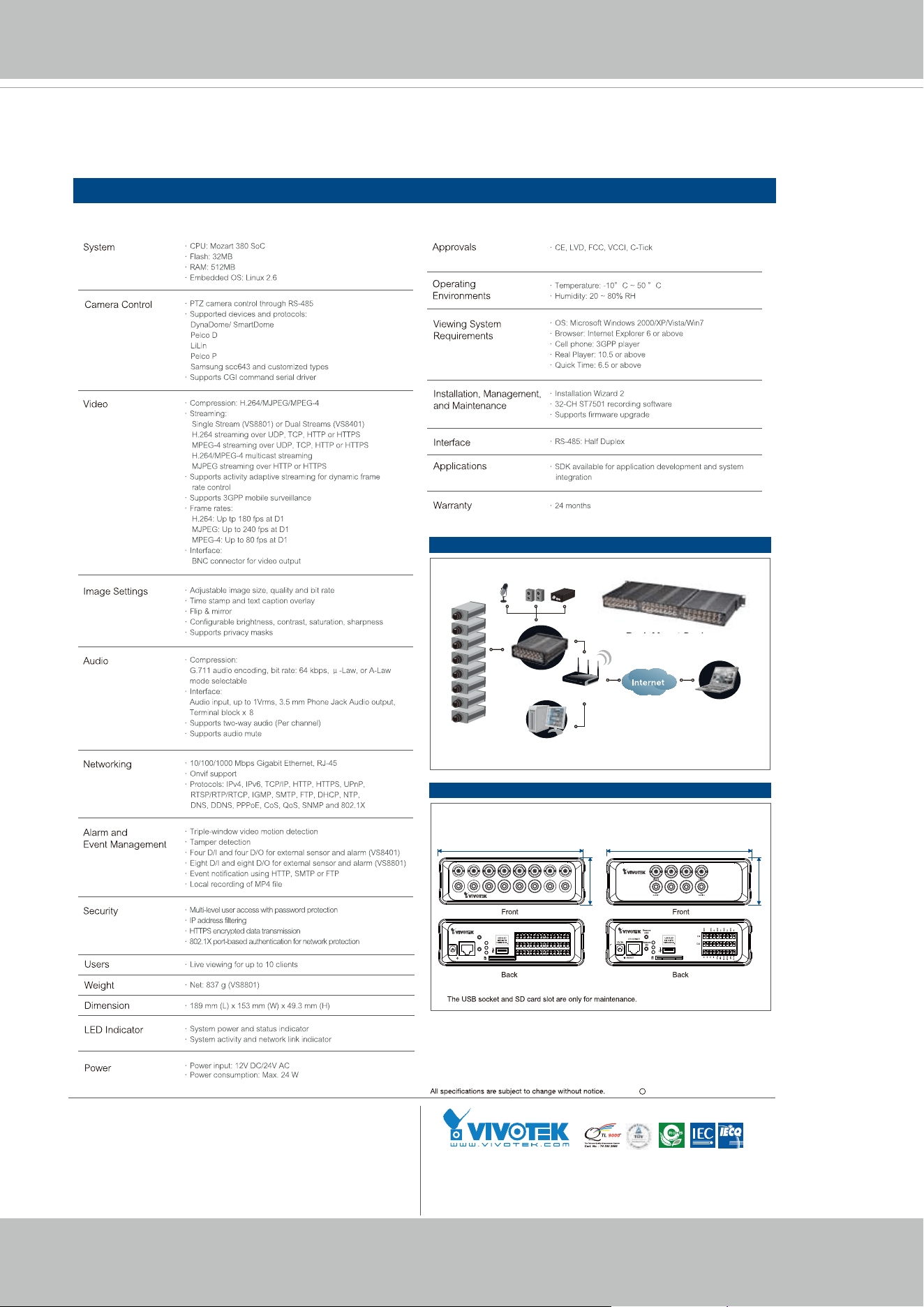
VIVOTEK
176 - User's Manual
Technical Specications
Specifications
Copyright 2011 VIVOTEK INC. All rights reserved.
c
Ver. 1.0
External View
System Overview
Pre-amplifier
Analog
Camera
PC with
VAST
External
Microphone
VS8801 VS8401
Speaker
Router
Notebook with
Web Browser
VS8801
Rack Mount Design
189 mm
49.3 mm
AUDIO 8
VIDEO 8
AUDIO 1
VIDEO 1
Remove
USB
Remove
SD
87654321
87654321
ETHERNET
12V 2A
GND
GND
GND
GND
GND
GND
GND
GNDGND
GND
GND
DC12v
485 -
485 +
24V
AC
24V
AC
DI
DO
RESET
ack Mount Desig
189 mm
49.3 mm
Distributed by:
VIVOTEK INC.
6F, No.192, Lien-Cheng Rd., Chung-Ho, New Taipei City, 235, Taiwan, R.O.C.
|T: +886-2-82455282| F: +886-2-82455532| E: sales@vivotek.com
VIVOTEK USA, INC.
470 Lakeside Drive Suite C, Sunnyvale, CA 94085 USA
|T: 408-773-8686|F: 408-773-8298| E: salesusa@vivotek.com

VIVOTEK
User's Manual - 177
Technology License Notice
MPEG-4 AAC Technology
THIS PRODUCT IS LICENSED UNDER THE MPEG-4 AAC AUDIO PATENT LICENSE. THIS PRODUCT MAY
NOT BE DECOMPILED, REVERSE-ENGINEERED OR COPIED, EXCEPT WITH REGARD TO PC SOFTWARE,
OF WHICH YOU MAY MAKE SINGLE COPIES FOR ARCHIVAL PURPOSES. FOR MORE INFORMATION,
PLEASE REFER TO HTTP://WWW.VIALICENSING.COM.
MPEG-4 Visual Technology
THIS PRODUCT IS LICENSED UNDER THE MPEG-4 VISUAL PATENT PORTFOLIO LICENSE FOR THE
PERSONAL AND NON-COMMERCIAL USE OF A CONSUMER FOR (i) ENCODING VIDEO IN COMPLIANCE
WITH THE MPEG-4 VISUAL STANDARD ("MPEG-4 VIDEO") AND/OR (ii) DECODING MPEG-4 VIDEO THAT
WAS ENCODED BY A CONSUMER ENGAGED IN A PERSONAL AND NON-COMMERCIAL ACTIVITY AND/
OR WAS OBTAINED FROM A VIDEO PROVIDER LICENSED BY MPEG LA TO PROVIDE MPEG-4 VIDEO.
NO LICENSE IS GRANTED OR SHALL BE IMPLIED FOR ANY OTHER USE. ADDITIONAL INFORMATION
INCLUDING THAT RELATING TO PROMOTIONAL, INTERNAL AND COMMERCIAL USES AND LICENSING MAY
BE OBTAINED FROM MPEG LA, LLC. PLEASE REFER TO HTTP://WWW.MPEGLA.COM.
AMR-NB Standard
THIS PRODUCT IS LICENSED UNDER THE AMR-NB STANDARD PATENT LICENSE AGREEMENT. WITH
RESPECT TO THE USE OF THIS PRODUCT, THE FOLLOWING LICENSORS’ PATENTS MAY APPLY:
TELEFONAKIEBOLAGET ERICSSON AB: US PAT. 6192335; 6275798; 6029125; 6424938; 6058359. NOKIA
CORPORATION: US PAT. 5946651; 6199035. VOICEAGE CORPORATION: AT PAT. 0516621; BE PAT. 0516621;
CA PAT. 2010830; CH PAT. 0516621; DE PAT. 0516621; DK PAT. 0516621; ES PAT. 0516621; FR PAT. 0516621;
GB PAT. 0516621; GR PAT. 0516621; IT PAT. 0516621; LI PAT. 0516621; LU PAT. 0516621; NL PAT. 0516621;
SE PAT 0516621; US PAT 5444816; AT PAT. 819303/AT E 198805T1; AU PAT. 697256; BE PAT. 819303; BR PAT.
9604838-7; CA PAT. 2216315; CH PAT. 819303; CN PAT. ZL96193827.7; DE PAT. 819303/DE69611607T2; DK
PAT. 819303; ES PAT. 819303; EP PAT. 819303; FR PAT. 819303; GB PAT. 819303; IT PAT. 819303; JP PAT. APP.
8-529817; NL PAT. 819303; SE PAT. 819303; US PAT. 5664053. THE LIST MAY BE UPDATED FROM TIME TO
TIME BY LICENSORS AND A CURRENT VERSION OF WHICH IS AVAILABLE ON LICENSOR’S WEBSITE AT
HTTP://WWW.VOICEAGE.COM.

VIVOTEK
178 - User's Manual
Electromagnetic Compatibility (EMC)
FCC Statement
This device compiles with FCC Rules Part 15. Operation is subject to the following two conditions.
■ This device may not cause harmful interference, and
■ This device must accept any interference received, including interference that may cause undesired
operation.
This equipment has been tested and found to comply with the limits for a Class A digital device, pursuant
to Part 15 of the FCC Rules. These limits are designed to provide reasonable protection against
harmful interference when the equipment is operated in a commercial environment. This equipment
generates, uses, and can radiate radio frequency energy and, if not installed and used in accordance
with the installation manual, may cause harmful interference to radio communications. Operation of this
equipment in a residential area is likely to cause harmful interference, in which case the user will be
required to correct the interference at his own expense.
CE Mark Warning
This is a Class A product. In a domestic environment, this product may cause radio interference, in which
case the user may be required to take adequate measures.
VCCI Warning
この装置は、クラスA情報技術装置です。この装置を家庭環境で使用すると電波妨害を引き起こすこと
があいます。この場合には使用者が適切な対策を講ずるよう要求されるこたがあります。
Liability
VIVOTEK Inc. cannot be held responsible for any technical or typographical errors and reserves the right
to make changes to the product and manuals without prior notice. VIVOTEK Inc. makes no warranty
of any kind with regard to the material contained within this document, including, but not limited to, the
implied warranties of merchantability and fitness for any particular purpose.