
FAX
OPERATION GUIDE
PRINT COPY SCAN FAX
ECOSYS M2635dn
ECOSYS M2635dw
ECOSYS M2540dn
ECOSYS M2540dw

i
Contents
Contents ....................................................................................................................................i
Preface .....................................................................................................................................v
About the FAX Operation Guide (this Guide) ...........................................................................v
Structure of the guide .....................................................................................................v
Conventions Used in This Guide ................................................................................... vi
1 Legal and Safety Information .............................................. 1-1
Notice ................................................................................................................................... 1-2
Safety Conventions in This Guide .............................................................................. 1-2
About this Operation Guide ........................................................................................ 1-3
Legal Notice ............................................................................................................... 1-3
FCC PART 68 REQUIREMENTS .............................................................................. 1-3
IMPORTANT SAFETY INSTRUCTIONS ................................................................... 1-4
IMPORTANTES MESURES DE SECURITE ............................................................. 1-4
CANADIAN IC REQUIREMENTS .............................................................................. 1-5
CONDITIONS DE L'IC CANADIENNE ....................................................................... 1-5
Declarations to European Directives .......................................................................... 1-5
Technical regulations for terminal equipment ............................................................ 1-6
Network Compatibility Declaration ............................................................................. 1-6
Trademark Information ............................................................................................... 1-6
2 Before Using the Fax Machine ............................................. 2-1
Part Names and Functions ................................................................................................... 2-2
Machine ...................................................................................................................... 2-2
Operation Panel ......................................................................................................... 2-4
Operation Method ...................................................................................................... 2-6
Setting Date and Time ..........................................................................................................2-7
Local FAX Information Entry ................................................................................................ 2-8
TTI (Transmit Terminal Identification) ........................................................................ 2-8
Local FAX Name ........................................................................................................ 2-8
Local FAX ID .............................................................................................................. 2-9
Local FAX Number ..................................................................................................... 2-9
FAX Dialing Mode .................................................................................................... 2-10
ECM TX .................................................................................................................... 2-10
TX Start Speed ......................................................................................................... 2-10
PBX Setting (Europe only) ................................................................................................. 2-11
Registering Destinations in the Address Book ................................................................... 2-12
Adding a Destination (Address Book) ...................................................................... 2-12
Adding a Destination on One Touch Key ................................................................. 2-17
3 Sending Faxes ...................................................................... 3-1
Basic transmission procedure .............................................................................................. 3-2
Using redial ................................................................................................................ 3-3
Checking and Editing Destinations ............................................................................ 3-4
Checking the Send Status .......................................................................................... 3-5
Cancelling Memory Transmission (while originals are being scanned) ...................... 3-5
Cancelling Memory Transmission (during communication) ........................................ 3-5
Cancelling Transmission (Disconnection of Communication) .................................... 3-6
Methods For Entering the Destination .................................................................................. 3-7
Entering the destination fax number with the numeric keys ....................................... 3-7
Choosing from the Address Book .............................................................................. 3-9
Choosing by One Touch Key ................................................................................... 3-10
Broadcast Transmission ........................................................................................... 3-11
Login/Logout ....................................................................................................................... 3-13
Logging in when User Login Administration has been Enabled ............................... 3-13

ii
Logging in when Job Accounting has been Enabled ............................................... 3-14
Fax transmission functions ................................................................................................. 3-15
Original Size ....................................................................................................................... 3-16
Original Image .................................................................................................................... 3-16
FAX Resolution .................................................................................................................. 3-16
Original Orientation ............................................................................................................ 3-17
Continuous Scan ................................................................................................................3-17
File Name Entry .................................................................................................................. 3-17
Job Finish Notice ................................................................................................................ 3-18
FAX Delayed Transmission ................................................................................................ 3-19
Cancelling Delayed Transmissions (Queued) .......................................................... 3-20
Immediate transmission ........................................................................................... 3-20
FAX Direct Transmission .................................................................................................... 3-20
Cancelling Direct Transmission ................................................................................ 3-20
FAX TX Report ................................................................................................................... 3-21
Density ............................................................................................................................... 3-21
Duplex (Only on models with a duplex scanning function.) ................................................ 3-21
Manual Send ...................................................................................................................... 3-22
Standby Transmission ........................................................................................................ 3-23
Interrupt Send ..................................................................................................................... 3-24
Using chain dial .................................................................................................................. 3-25
Using Programs .................................................................................................................. 3-27
4 Receiving Faxes ................................................................... 4-1
FAX Reception ..................................................................................................................... 4-2
Reception Method ...................................................................................................... 4-2
Set the Reception Method .......................................................................................... 4-2
Automatic Reception ............................................................................................................4-3
Flow of automatic reception ....................................................................................... 4-3
Canceling reception (Disconnection of communication) ............................................ 4-3
Manual Reception ................................................................................................................ 4-4
Flow of manual reception ........................................................................................... 4-4
Fax reception functions ........................................................................................................4-5
Media Type for Print Output ................................................................................................. 4-6
Reception Date/Time ............................................................................................................4-7
2 in 1 Print ............................................................................................................................ 4-7
Batch Print ............................................................................................................................ 4-7
Duplex Printing ..................................................................................................................... 4-7
5 Using Convenient Fax Functions ......................................... 5-1
Forward Settings .................................................................................................................. 5-2
Type of Forwarding Destination ................................................................................. 5-2
Setting Forwarding ..................................................................................................... 5-2
Registering Forwarding Destination ........................................................................... 5-2
Changing Registration Contents ................................................................................ 5-3
Deleting Registration Contents .................................................................................. 5-3
File Format Setting ..................................................................................................... 5-4
E-mail Subject Add. Info. Setting ............................................................................... 5-4
FTP Encrypted TX Setting ......................................................................................... 5-4
Forwarding Time Setting ............................................................................................ 5-5
File Name Registration ............................................................................................... 5-6
Print Setting ................................................................................................................ 5-6
Settings for Forwarding from Command Center RX (Forward Settings) .................... 5-7
Sub Address Box Function ................................................................................................... 5-8
Sub Address Box ....................................................................................................... 5-8
Sub Address Communication ..................................................................................... 5-8
Registering a Sub Address Box ................................................................................. 5-9
Changing Sub Address Box ..................................................................................... 5-10

iii
Deleting Sub Address Box ....................................................................................... 5-11
Printing Originals from a Sub Address Box .............................................................. 5-12
Checking Details ...................................................................................................... 5-13
Deleting Originals after Printing from a Sub Address Box ....................................... 5-13
Deleting Originals from a Sub Address Box ............................................................. 5-14
Printing a Sub Address Box List ............................................................................... 5-15
Sub Address Transmission ...................................................................................... 5-16
Polling Communication ....................................................................................................... 5-17
Polling Transmission ................................................................................................ 5-17
Polling Reception ..................................................................................................... 5-19
Printing from a Polling Box ....................................................................................... 5-21
Checking Details ...................................................................................................... 5-22
Deleting Originals in a Polling Box ........................................................................... 5-22
Encryption .......................................................................................................................... 5-23
Registering an Encryption Key ................................................................................. 5-24
Changing Registration Contents of Encryption Key ................................................. 5-24
Deleting Registration Contents of Encryption Key ................................................... 5-25
Using the Encrypted Transmission .......................................................................... 5-25
Setting the Encrypted Reception .............................................................................. 5-26
Using a Connected Telephone ........................................................................................... 5-27
FAX/TEL Auto Switch Reception ............................................................................. 5-27
FAX/Answering Machine Auto Switch Reception ..................................................... 5-29
DRD Reception (Available for some countries.) ....................................................... 5-31
Manual Send ............................................................................................................ 5-33
Manual Reception .................................................................................................... 5-34
Remote Switch Function .......................................................................................... 5-35
6 Sending Faxes from PC ........................................................ 6-1
Flow of Network FAX Sending ............................................................................................. 6-2
Flow of Network FAX Receiving ........................................................................................... 6-2
Setup .................................................................................................................................... 6-3
Installing the FAX Driver ............................................................................................ 6-4
Uninstalling the FAX Driver ........................................................................................ 6-7
Basic Transmission .............................................................................................................. 6-8
Configuring the Driver Default Settings .................................................................... 6-11
Default Settings Dialog Box ..................................................................................... 6-12
Changing Transmit Settings ..................................................................................... 6-15
Using Cover Pages .................................................................................................. 6-20
Cover Page Registration (Default Settings) ............................................................. 6-25
Transmission Control ............................................................................................... 6-30
7 Managing Jobs ..................................................................... 7-1
Various Tools for Checking Transmission Results and Registration Status ......................... 7-2
Checking FAX Job History ................................................................................................... 7-3
Displaying Job Log Screen ........................................................................................ 7-3
Printing Administrative Reports (Result Report Setting) ...................................................... 7-4
Send Result Reports .................................................................................................. 7-4
Report for Job Canceled before Sending ................................................................... 7-5
Recipient Format ........................................................................................................ 7-5
FAX RX Result Reports ............................................................................................. 7-6
Activity Report (Outgoing FAX Report and Incoming FAX Report) ...................................... 7-7
Printing Activity Reports ............................................................................................. 7-7
Automatic Printout ...................................................................................................... 7-7
Status Page .......................................................................................................................... 7-8
Reporting FAX Receipt Result by E-mail ............................................................................. 7-9
Confirmation Screen of Destinations .................................................................................. 7-11

iv
8 Fax Settings ......................................................................... 8-1
Default fax settings ............................................................................................................... 8-2
Operation method ...................................................................................................... 8-2
System Menu Settings ............................................................................................... 8-3
Report ........................................................................................................................ 8-4
Common Settings ....................................................................................................... 8-5
FAX ............................................................................................................................8-6
Transmission Restriction .................................................................................................... 8-10
Registering Permit FAX No. ..................................................................................... 8-11
Changing Permit FAX No. ........................................................................................ 8-12
Deleting Permit FAX No. .......................................................................................... 8-12
Registering Reject FAX No. ..................................................................................... 8-13
Changing Reject FAX No. ........................................................................................ 8-13
Deleting Reject FAX No. .......................................................................................... 8-14
Registering Permit ID No. ........................................................................................ 8-14
Changing Permit ID No. ........................................................................................... 8-15
Deleting Permit ID No. ............................................................................................. 8-15
Setting Send Restriction ........................................................................................... 8-16
Setting Reception Restriction ................................................................................... 8-16
Unknown Number Reception ................................................................................... 8-16
Unusable Time ................................................................................................................... 8-17
Account Management ........................................................................................................ 8-19
9 Troubleshooting ................................................................... 9-1
Indicators During Sending/Receiving Operation .................................................................. 9-2
Responding to an Attention Indicator Flashes ...................................................................... 9-2
Precautions When Turning Power OFF ............................................................................... 9-3
Messages ............................................................................................................................. 9-4
Error Code List ..................................................................................................................... 9-6
Troubleshooting .................................................................................................................... 9-9
Common inquiries .............................................................................................................. 9-11
10 Appendix ............................................................................. 10-1
Character Entry Method ..................................................................................................... 10-2
Using the Keys ......................................................................................................... 10-2
Selecting Type of Characters ................................................................................... 10-3
Characters That Can be Entered Using the Numeric Keys ...................................... 10-3
Entering Symbols ..................................................................................................... 10-4
Entering Characters ................................................................................................. 10-4
Specifications ..................................................................................................................... 10-6
Menu Map .......................................................................................................................... 10-8
Received FAX Sizes and Paper Priority (Metric Model) ................................................... 10-12
Received FAX Sizes and Paper Priority (Inch Model) ...................................................... 10-13
Index ...............................................................................................................................Index-1
v
Preface
This Operation Guide is intended to help you operate the machine correctly, perform routine maintenance and take a
simple troubleshooting action as necessary, so that you can always use the machine in good condition.
Please read the Operation Guide before using the facsimile. Keep it close to the facsimile for easy reference.
About the FAX Operation Guide (this Guide)
Structure of the guide
This Operation Guide contains the following chapters.
Chapter Contents
1 Legal and Safety Information Provides precautions regarding use of the machine and trademark information.
2 Before Using the Fax Machine Explains the part names and the settings required before using fax.
3 Sending Faxes Explains the general methods for sending faxes and transmission functions.
4 Receiving Faxes Explains the general methods for receiving faxes and reception functions.
5 Using Convenient Fax Functions Explains convenient fax functions such as storing received faxes in boxes in the
memory, forwarding received faxes, and polling communication (a function that allows
the receiving party to call and initiate fax reception).
6 Sending Faxes from PC Explains how to send a FAX from a PC.
7 Managing Jobs Explains how to check the status of recently performed transmission and reception
operations in the message display.
Also explains how to print administrative reports showing communication results,
machine settings, and registered information.
8 Fax Settings Explains various settings for controlling fax usage, such as restricting transmission
destinations, blocking fax reception, and setting prohibited use times.
9 Troubleshooting Explains what to do when errors are displayed or other problems occur.
10 Appendix Explains how to enter characters, and lists the fax specifications.
vi
Conventions Used in This Guide
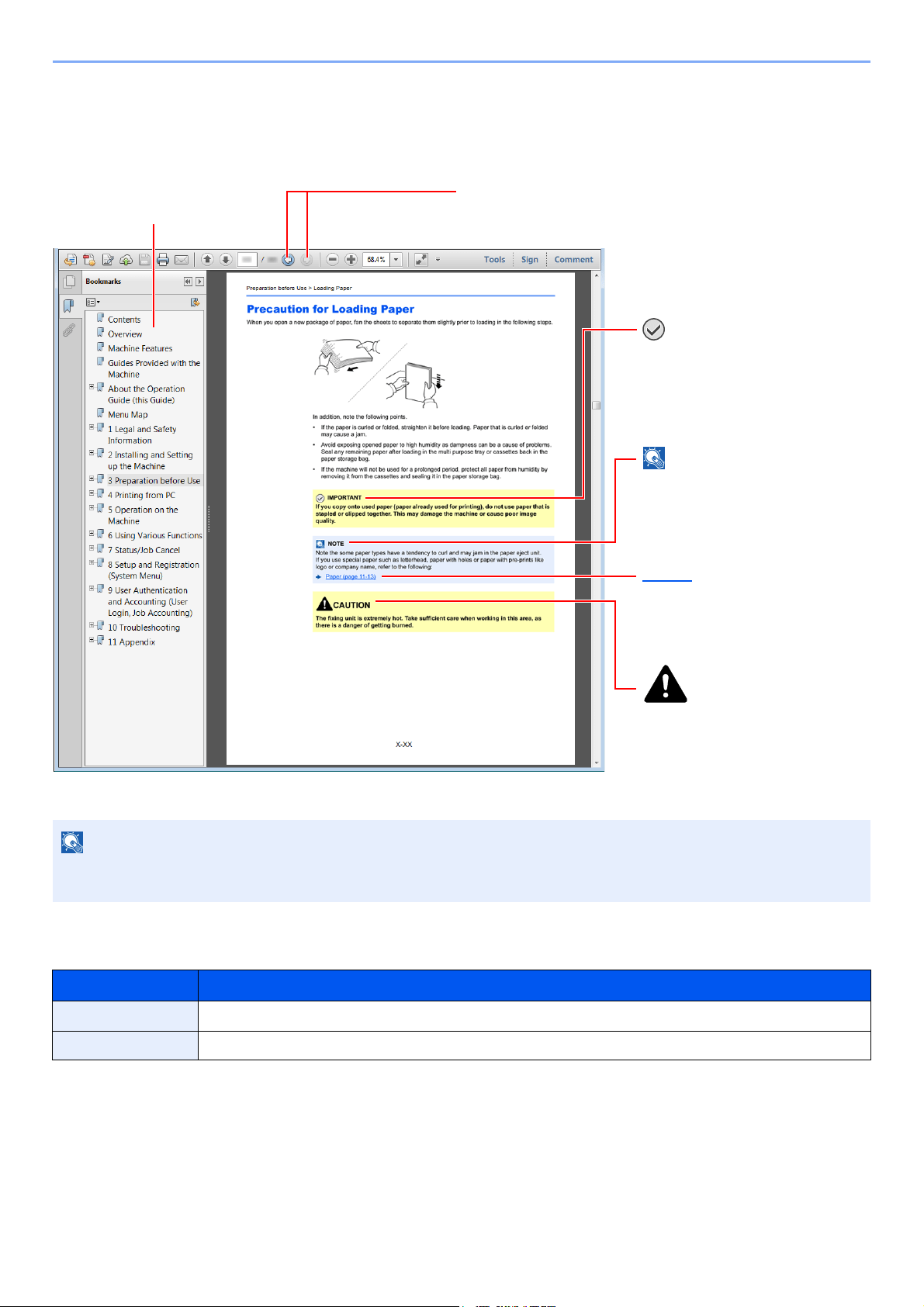
Adobe Reader XI is used as an example in the explanations below.
Certain items are indicated in this guide by the conventions described below.
NOTE
The items that appear in Adobe Reader vary depending on how it is used. If the Table of Contents or tools do not
appear, refer to Adobe Reader Help.
Convention Description
[Bold] Indicates keys and buttons.
"Regular" Indicates a message or setting.
Click to move from the current page to the previously
displayed page. This is convenient when you want to return
to the page from which you jumped to the current page.
Click an item in the Table of
Contents to jump to the
corresponding page.
CAUTION
Indicates that personal injury or
mechanical damage may result
from insufficient attention to or
incorrect compliance with the
related points.
NOTE
Indicates supplemental
explanations and reference
information for operations.
IMPORTANT
Indicates operational requirements
and restrictions to operate the
machine correctly, and avoid
damage to the machine or property.
Refer to
Click the underlined text to jump to
the corresponding page.

vii
Conventions used in procedures for operating the machine
In this Operation Guide, continuous operation is as follows:
Actual procedure Procedure indicated in this guide
Select the [System Menu/Counter] key
Select the [▲] or [▼] key to select [Common settings]
Select the [OK] key
[System Menu/Counter] key > [▲] [▼] key >
[Common Settings] > [OK]

1-1
1 Legal and Safety
Information
Please read this information before using your machine. This chapter provides information on the following topics.
Notice ................................................................................................................................................................. 1-2
Safety Conventions in This Guide ........................................................................................................... 1-2
About this Operation Guide ..................................................................................................................... 1-3
Legal Notice ............................................................................................................................................. 1-3
FCC PART 68 REQUIREMENTS ............................................................................................................ 1-3
IMPORTANT SAFETY INSTRUCTIONS ................................................................................................. 1-4
IMPORTANTES MESURES DE SECURITE ........................................................................................... 1-4
CANADIAN IC REQUIREMENTS ............................................................................................................ 1-5
CONDITIONS DE L'IC CANADIENNE .................................................................................................... 1-5
Declarations to European Directives ....................................................................................................... 1-5
Technical regulations for terminal equipment .......................................................................................... 1-6
Network Compatibility Declaration ........................................................................................................... 1-6
Trademark Information ............................................................................................................................. 1-6
1-2
Legal and Safety Information > Notice
Notice
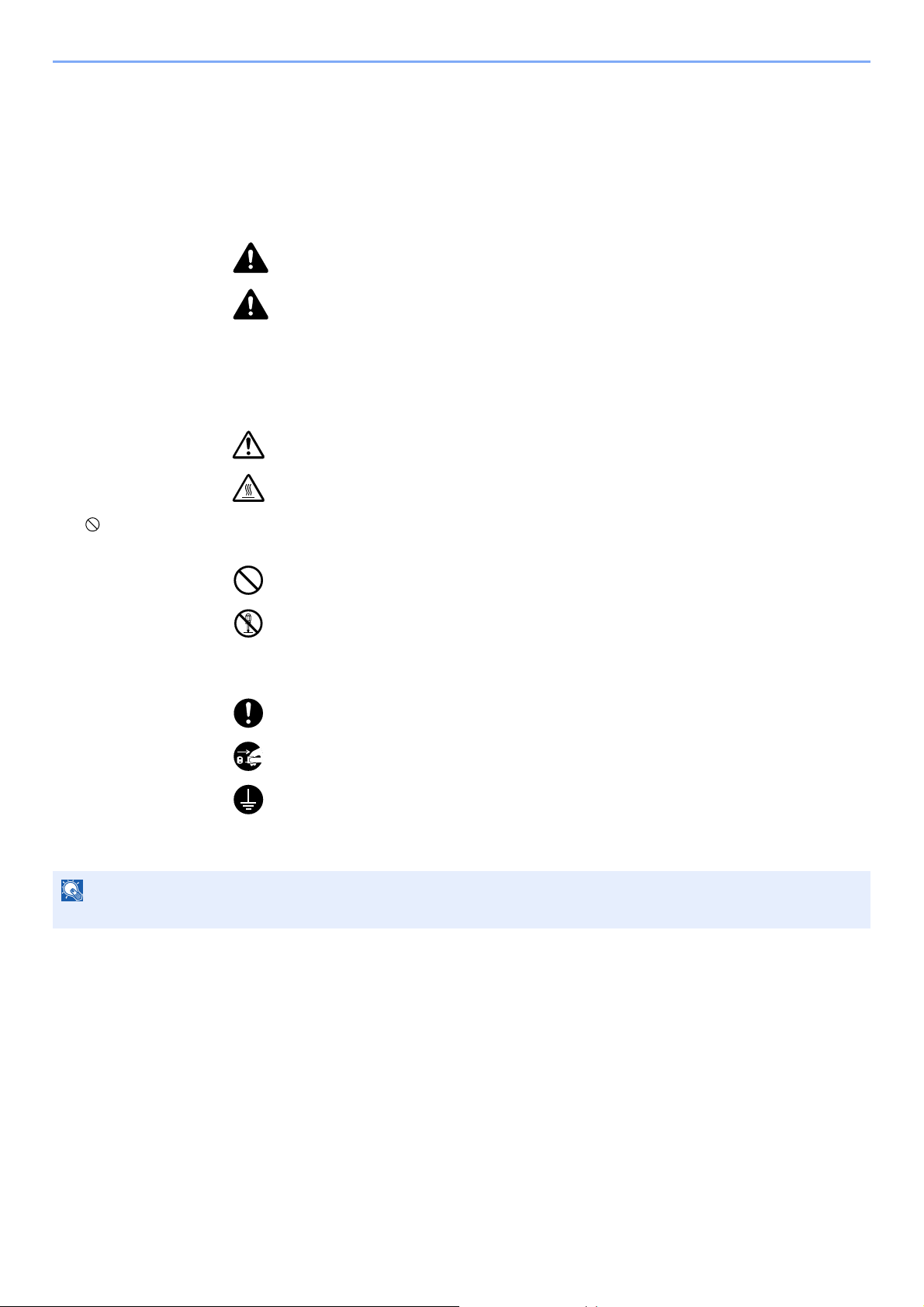
Safety Conventions in This Guide
The sections of this handbook and parts of the facsimile marked with symbols are safety warnings meant to protect the
user, other individuals and surrounding objects, and ensure correct and safe usage of the facsimile.
WARNING: Indicates that serious injury or even death may result from insufficient
attention to or incorrect compliance with the related points.
CAUTION: Indicates that personal injury or mechanical damage may result from
insufficient attention to or incorrect compliance with the related points.
Symbols
The symbol indicates that the related section includes safety warnings. Specific points of attention are indicated
inside the symbol.
... [General warning]
... [Warning of high temperature]
The symbol indicates that the related section includes information on prohibited actions. Specifics of the prohibited
action are indicated inside the symbol.
... [Warning of prohibited action]
... [Disassembly prohibited]
The symbol indicates that the related section includes information on actions which must be performed. Specifics of
the required action are indicated inside the symbol.
... [Alert of required action]
... [Remove the power plug from the outlet]
... [Always connect the machine to an outlet with a ground connection]
Please contact your service representative to order a replacement if the safety warnings in this Operation Guide are
illegible or if the guide itself is missing (fee required).
NOTE
Due to performance updating, information in this Operation Guide is subject to change without notice.

1-3
Legal and Safety Information > Notice
About this Operation Guide
This Operation Guide contains information on using the facsimile functions of this machine.
Please read the Operation Guide before you start using the machine.
During use, refer to the Operation Guide for your machine for information regarding the sections listed below.
Legal Notice
WE SHALL HAVE NO LIABILITY FOR LOSS, WHETHER OR PARTIAL, OF RECEIVED DOCUMENTS WHEN SUCH
LOSS IS CAUSED BY DAMAGES TO THE FAX SYSTEM, MALFUNCTIONS, MISUSE, OR EXTERNAL FACTORS
SUCH AS POWER OUTAGES; OR FOR PURELY ECONOMIC LOSSES OR LOST PROFITS RESULTING FROM
MISSED OPPORTUNITIES ATTRIBUTABLE TO MISSED CALLS OR RECORDED MESSAGES RESULTING
THEREFROM.
FCC PART 68 REQUIREMENTS
1 This equipment complies with Part 68 of the FCC rules and the requirements adopted by the ACTA. On the left side
of the equipment to install Assembly Board is a label that contains, among other information, a product identifier in
the format US:AAAEQ##TXXXX. If requested, this number must be provided to the telephone company.
2 This equipment connects to the network via USOC RJ11C.
3 A plug and jack used to connect this equipment to the premises wiring and telephone network must comply with the
applicable FCC Part 68 rules and requirements adopted by the ACTA. A compliant telephone cord and modular plug
is provided with this product. It is designed to be connected to a compatible modular jack that is also compliant. See
installation instructions for details.
4 The REN is used to determine the number of devices that may be connected to a telephone line. Excessive RENs on
a telephone line may result in the devices not ringing in response to an incoming call. In most but not all areas, the
sum of RENs should not exceed five (5.0). To be certain of the number of devices that may be connected to a line, as
determined by the total RENs, contact the local telephone company. For products approved after July 23, 2001, the
REN for this product is part of the product identifier that has the format US:AAAEQ##TXXXX. The digits represented
by ## are the REN without a decimal point (e.g., 03 is a REN of 0.3). For earlier products, the REN is separately
shown on the label.
5 If this equipment causes harm to the telephone network, the telephone company will notify you in advance that
temporary discontinuance of service may be required. But if advance notice isn't practical, the telephone company
will notify the customer as soon as possible. Also, you will be advised of your right to file a complaint with the FCC if
you believe it is necessary.
6 The telephone company may make changes in its facilities, equipment, operations or procedures that could affect the
operation of the equipment. If this happens the telephone company will provide advance notice in order for you to
make necessary modifications to maintain uninterrupted service.
Environment
Precautions for Use
Loading Paper
Cleaning
Toner Container Replacement
Solving Malfunctions
Responding to Error Messages
Clearing Paper Jams

1-4
Legal and Safety Information > Notice
7 If trouble is experienced with this equipment, please contact the following company for repair and (or) warranty
information:
If the equipment is causing harm to the telephone network, the telephone company may request that you disconnect
the equipment until the problem is resolved.
8 This equipment cannot be used on public coin service provided by the telephone company. Connection to Party line
service is subject to state tariffs. Contact the state public utility commission, public service commission or corporation
commission for information.
9 If your home has specially wired alarm equipment connected to the telephone line, ensure the installation of this
equipment does not disable your alarm equipment. If you have questions about what will disable alarm equipment,
consult your telephone company or a qualified installer.
10 The Telephone Consumer Protection Act of 1991 makes it unlawful for any person to use a computer or other
electronic device, including FAX machines, to send any message unless such message clearly contains in a margin
at the top or bottom of each transmitted page or on the first page of the transmission, the date and time it is sent and
an identification of the business or other entity, or other individual sending the message and the telephone number of
the sending machine or such business, other entity, or individual. (The telephone number provided may not be a 900
number or any other number for which charges exceed local or long-distance transmission charges.)
IMPORTANT SAFETY INSTRUCTIONS
When using your telephone equipment, basic safety precautions should always be followed to reduce the risk of fire,
electric shock and injury to persons, including the following:
CAUTION: To reduce the risk of fire, use only No.26 AWG or larger UL listed or CSA certified telecommunication line cord.
1 Do not use this product near water, for example, near a bath tub, wash bowl, kitchen sink or laundry tub, in a wet
basement or near a swimming pool.
2 Avoid using a telephone (other than a cordless type) during an electrical storm. There may be a remote risk of
electric shock from lightning.
3 Do not use the telephone to report a gas leak in the vicinity of the leak.
4 Use only the power cord and batteries indicated in this manual. Do not dispose of batteries in a fire. They may
explode. Check with local codes for possible special disposal instructions.
SAVE THESE INSTRUCTIONS
IMPORTANTES MESURES DE SECURITE
Certaines mesures de sécurité doivent être prises pendant l'utilisation de matériel téléphonique afin de réduire les risques
d'incendie, de choc électrique et de blessures. En voici quelques unes:
1 Ne pas utiliser l'appareil près de l'eau, p. ex., près d'une baignoire, d'un lavabo, d'un évier de cuisine, d'un bac à
laver, dans un sous-sol humide ou près d'une piscine.
2 Eviter d'utiliser le téléphone (sauf s'il s'agit d'un appareil sans fil) pendant un orage électrique. Ceci peut présenter un
risque de choc électrique causé par la foudre.
3 Ne pas utiliser l'appareil téléphonique pour signaler une fuite de gaz s'il est situé près de la fuite.
In order to program this information into your FAX machine, you should complete the following steps: (Insure that it
will be transmitted, see Local FAX Name
on page 2-8, Local FAX Number on page 2-9, TTI (Transmit Terminal
Identification) on page 2-8 and Setting Date and Time on page 2-7.)
KYOCERA Document Solutions America, Inc.
225 Sand Road,
Fairfield, New Jersey 07004-0008, USA
Phone: +1-973-808-8444
Fax: +1-973-882-6000
1-5
Legal and Safety Information > Notice
4 Utiliser seulement le cordon d'alimentation et le type de piles indiqués dans ce manuel. Ne pas jeter les piles dans le
feu: elles peuvent exploser. Se conformer aux règlements pertinents quant à l'élimination des piles.
CONSERVER CES INSTRUCTIONS
CANADIAN IC REQUIREMENTS
"This product meets the applicable Innovation, Science and Economic Development Canada technical specifications."
"The Ringer Equivalence Number (REN) indicates the maximum number of devices allowed to be connected to a
telephone interface. The termination of an interface may consist of any combination of devices subject only to the
requirement that the sum of the RENs of all the devices not exceed five."
The REN (CANADA) of this product is 0.4.
CONDITIONS DE L'IC CANADIENNE
"Le présent produit est conforme aux spécifications techniques applicables d'Innovation, Sciences et Développement
économique Canada."
"L'indice d'équivalence de la sonnerie (IES) sert à indiquer le nombre maximal de dispositifs qui peuvent être raccordés
à une interface téléphonique. La terminaison d'une interface peut consister en une combinaison quelconque de
dispositifs, à la seule condition que la somme des IES de tous les dispositifs n'excède pas cinq."
Le IES (CANADA) pour ce produit est 0.4.
Declarations to European Directives
DECLARATION OF CONFORMITY TO 93/68/EEC, 1999/5/EC and 2009/125/EC
We declare under our sole responsibility that the product to which this declaration relates is in conformity with the following
specifications.
Terminal Equipment (TE);
Attachment requirements for pan-European
approval for connection to the analogue Public
Switched Telephone Networks (PSTNs) of TE
(excluding TE supporting the voice telephony
service) in which network addressing, if provided,
is by means of Dual Tone Multi Frequency (DTMF)
signalling
TBR 21

1-6
Legal and Safety Information > Notice
Technical regulations for terminal equipment
This terminal equipment complies with:
Network Compatibility Declaration
The manufacturer declares that the equipment has been designed to operate in the public switched telephone networks
(PSTN) in the following countries:
Trademark Information
• Microsoft, Windows, Windows XP, Windows Server 2003, Windows Vista, Windows Server 2008, Windows 7,
Windows Server 2012, Windows 8, Windows 8.1, Windows 10 and Internet Explorer are registered trademarks or
trademarks of Microsoft Corporation in the U.S.A. and/or other countries.
• Adobe Acrobat, Adobe Reader and PostScript are trademarks of Adobe Systems Incorporated.
• Ethernet is a registered trademark of Xerox Corporation.
• IBM and IBM PC/AT are trademarks of International Business Machines Corporation.
All other company and product names in this Operation Guide are trademarks or registered trademarks of their
respective companies. The designations™ and ® are omitted in this guide.
• TBR21 • DE 05R00 National AN for D
• AN 01R00 AN for P • DE 08R00 National AN for D
• AN 02R01 AN for CH and N • DE 09R00 National AN for D
• AN 05R01 AN for D, E, GR, P and N • DE 12R00 National AN for D
• AN 06R00 AN for D, GR and P • DE 14R00 National AN for D
• AN 07R01 AN for D, E, P and N • ES 01R01 National AN for E
• AN 09R00 AN for D • GR 01R00 National AN for GR
• AN 10R00 AN for D • GR 03R00 National AN for GR
• AN 11R00 AN for P • GR 04R00 National AN for GR
• AN 12R00 AN for E • NO 01R00 National AN for N
• AN 16R00 General Advisory Note • NO 02R00 National AN for N
• DE 03R00 National AN for D • P 03R00 National AN for P
• DE 04R00 National AN for D • P 08R00 National AN for P
Austria France Liechtenstein Slovakia
Belgium Germany Lithuania Slovenia
Bulgaria Greece Luxembourg Spain
Cyprus Hungary Malta Sweden
Czech Iceland Norway Switzerland
Denmark Ireland Poland The Netherlands
Estonia Italy Portugal United Kingdom
Finland Latvia Romania

2-1
2 Before Using the Fax
Machine
This chapter explains the following topics:
Part Names and Functions ................................................................................................................................ 2-2
Machine ................................................................................................................................................... 2-2
Operation Panel ....................................................................................................................................... 2-4
Operation Method .................................................................................................................................... 2-6
Setting Date and Time ....................................................................................................................................... 2-7
Local FAX Information Entry .............................................................................................................................. 2-8
TTI (Transmit Terminal Identification) ...................................................................................................... 2-8
Local FAX Name ...................................................................................................................................... 2-8
Local FAX ID ............................................................................................................................................ 2-9
Local FAX Number ................................................................................................................................... 2-9
FAX Dialing Mode .................................................................................................................................. 2-10
ECM TX ................................................................................................................................................. 2-10
TX Start Speed ....................................................................................................................................... 2-10
PBX Setting (Europe only) ................................................................................................................................ 2-11
Registering Destinations in the Address Book ................................................................................................. 2-12
Adding a Destination (Address Book) .................................................................................................... 2-12
Adding a Destination on One Touch Key ............................................................................................... 2-17
2-2
Before Using the Fax Machine > Part Names and Functions
Part Names and Functions
Machine
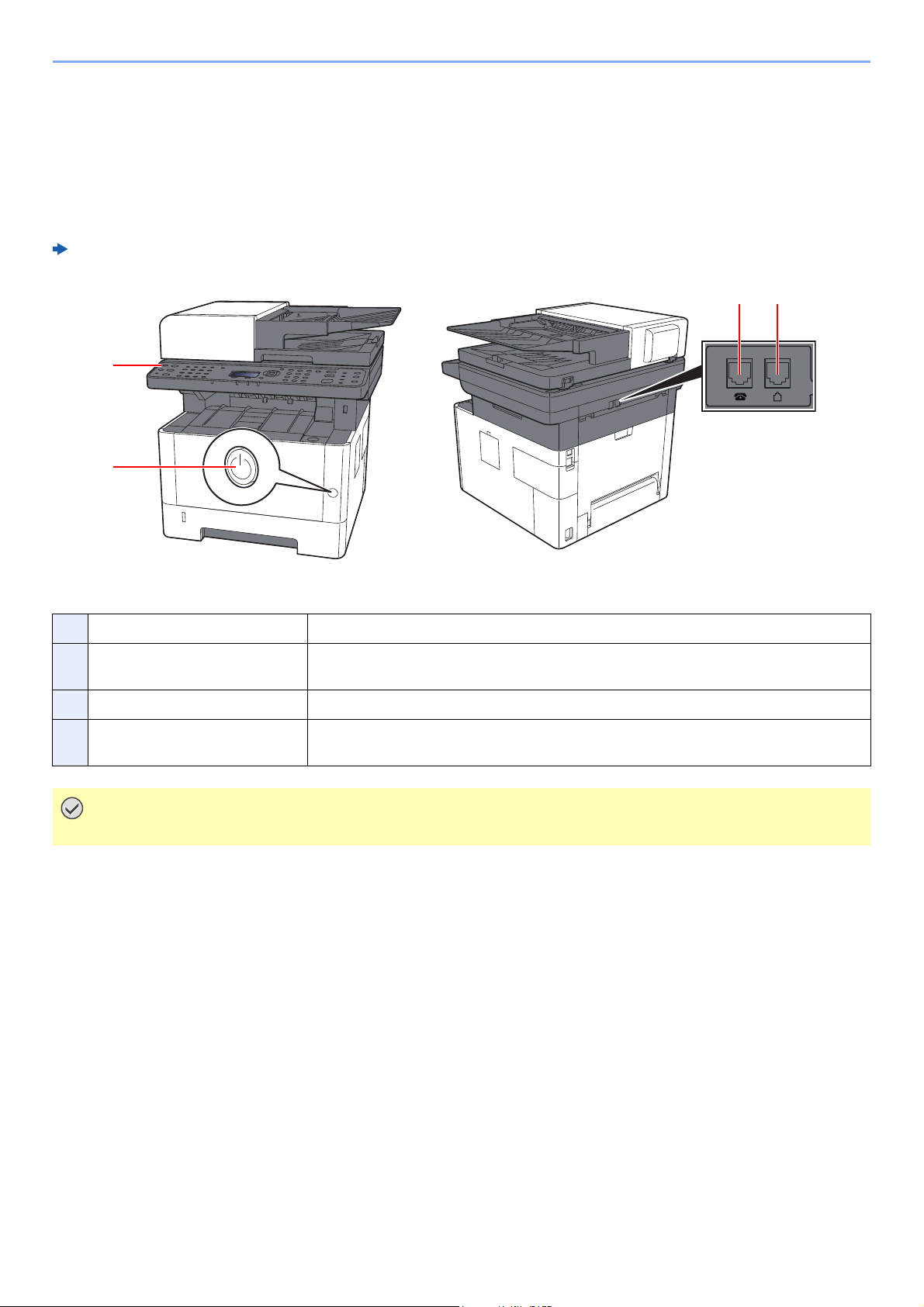
This chapter explains the names of parts when the machine is used as a fax machine. For the parts required when
functions other than FAX are used, refer to the following:
Machine’s Operation Guide
1 Operation panel Perform the fax operation with this panel.
2 Power switch Set this switch to the ON side when performing the fax or copier operation. The message
display lights to enable operation.
3 LINE connector Connect the modular cord for the telephone line to this connector.
4 TEL connector When using a commercially available telephone set, connect the modular cord to this
connector.
IMPORTANT
You cannot automatically receive a fax when the power switch is turned off.
1
43
2
2-3
Before Using the Fax Machine > Part Names and Functions
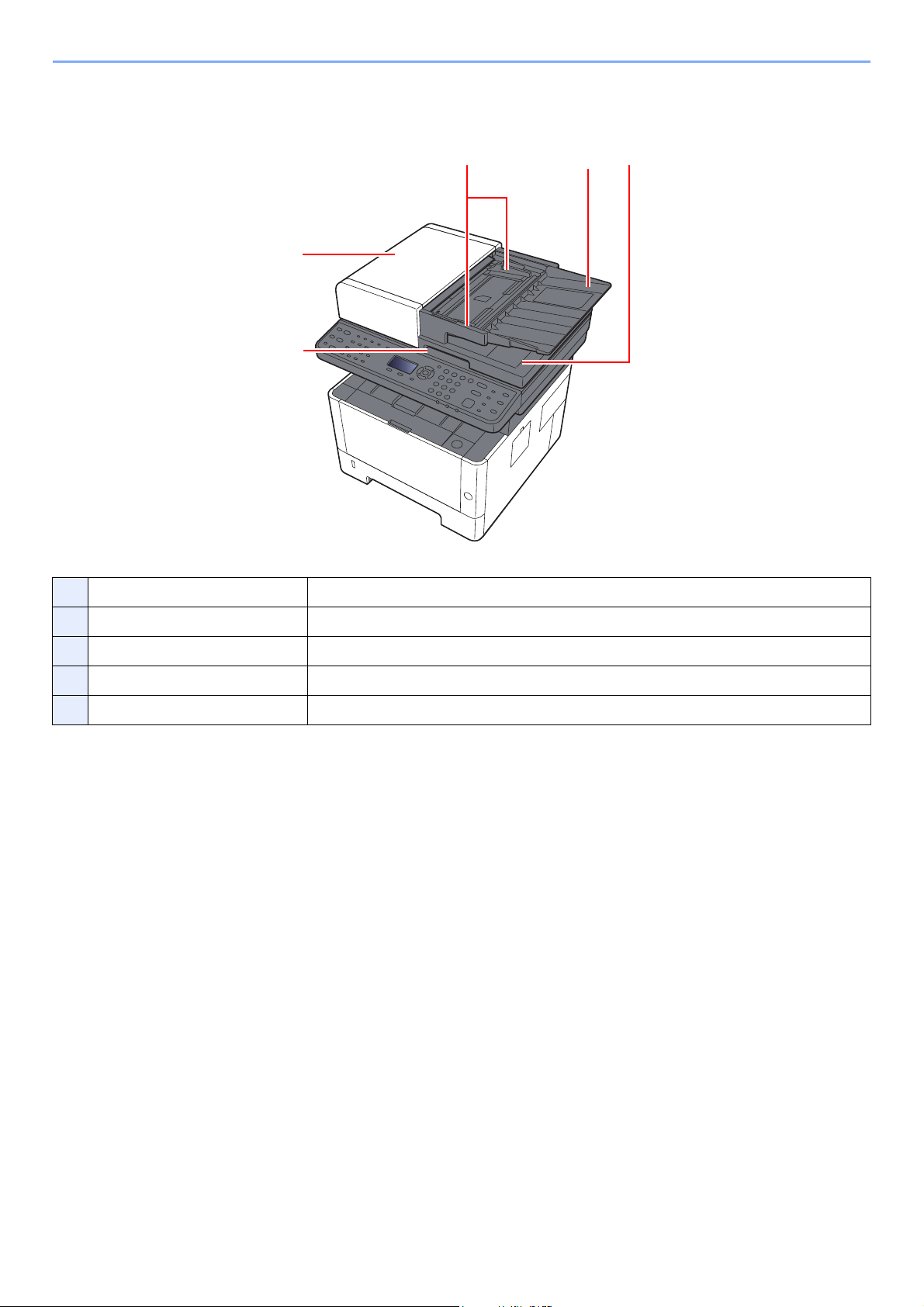
Document Processor
5 Top cover Open this cover when the original jammed in the Document Processor.
6 Opening handle Hold this handle when opening or closing the Document Processor.
7 Original eject table Read originals are ejected onto this table.
8 Original table Stack the sheet originals on this table.
9 Original width guides Adjust these guides according to the original width.
987
6
5
2-4
Before Using the Fax Machine > Part Names and Functions
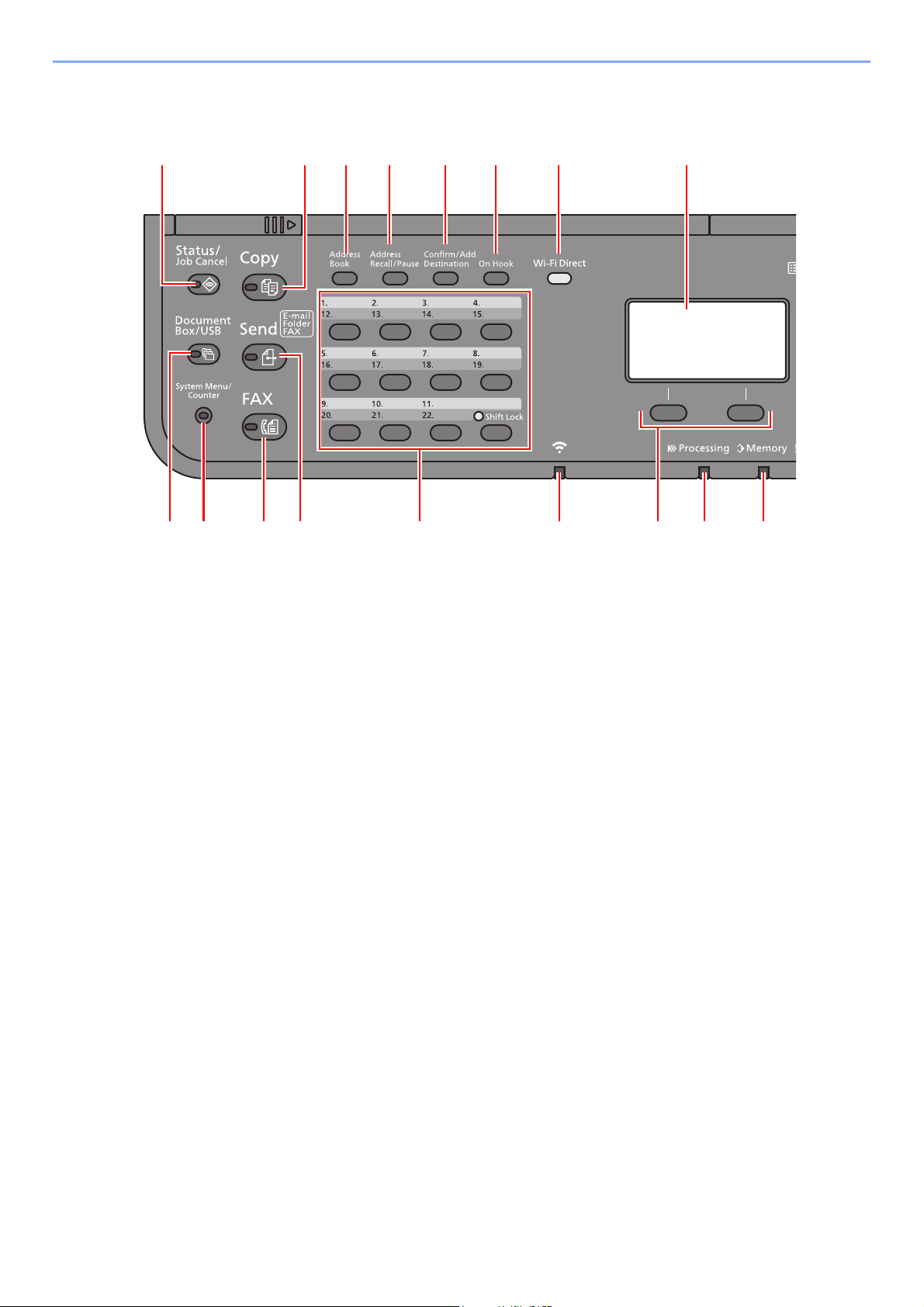
Operation Panel
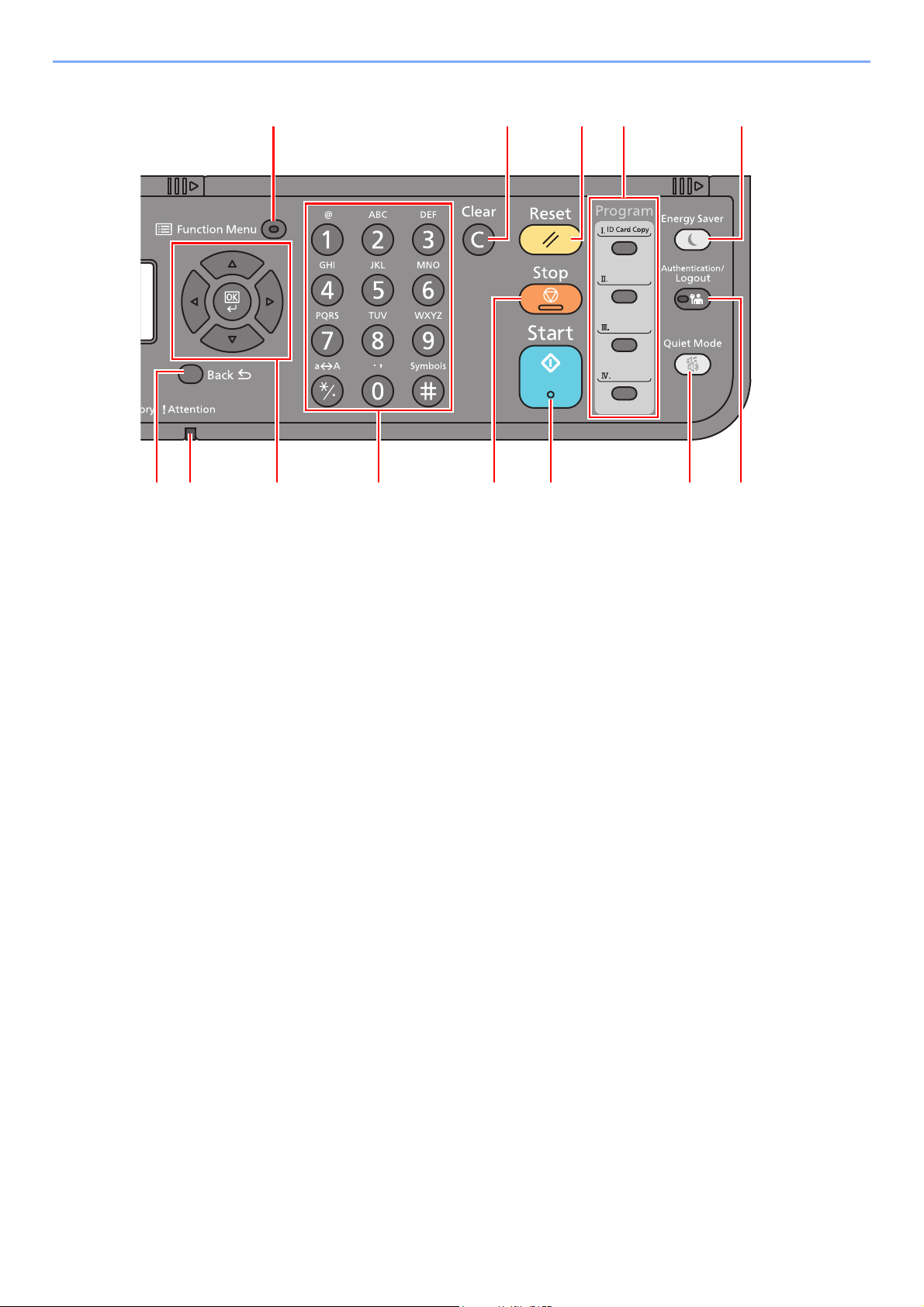
1[Status/Job Cancel] key: Displays the Status/Job Cancel screen.
2[Document Box/USB] key: Displays the Document Box/USB screen.
3[System Menu/Counter] key: Displays the System Menu/Counter screen.
4[FAX] key: Displays the FAX screen.
5[Send] key: Displays the screen for sending. You can change it to display the Address Book screen.
6 One Touch keys: Recalls the destination registered for One Touch Keys.
7[Wi-Fi] indicator
*
1
: Blinks during Wi-Fi connection.
8 Select keys: Selects the menu displayed at the bottom of the message display.
9[Processing] indicator: Blinks while printing or sending/receiving.
10 [Memory] indicator: Blinks while the machine is accessing the machine memory, fax memory or USB memory
(general purpose item).
11 Message display: Displays the setting menu, machine status, and error messages.
12 [Wi-Fi Direct] key
*
1
: Set Wi-Fi Direct, and show information necessary for connection and the connection status.
13 [On Hook] key: Switches between on-hook and off-hook when manually sending/receiving a FAX.
14 [Confirm/Add Destination] key: Confirms the destination or adds a destination.
15 [Address Recall/Pause] key: Calls the previous destination. Also used to enter a pause when entering a FAX
number.
16 [Address Book] key: Displays the Address Book screen.
17 [Copy] key: Displays the Copy screen.
*1 Only for models with Wi-Fi.
1
3 4 6 7 9 10
15 14 13 1216 11
82
17
5
2-5
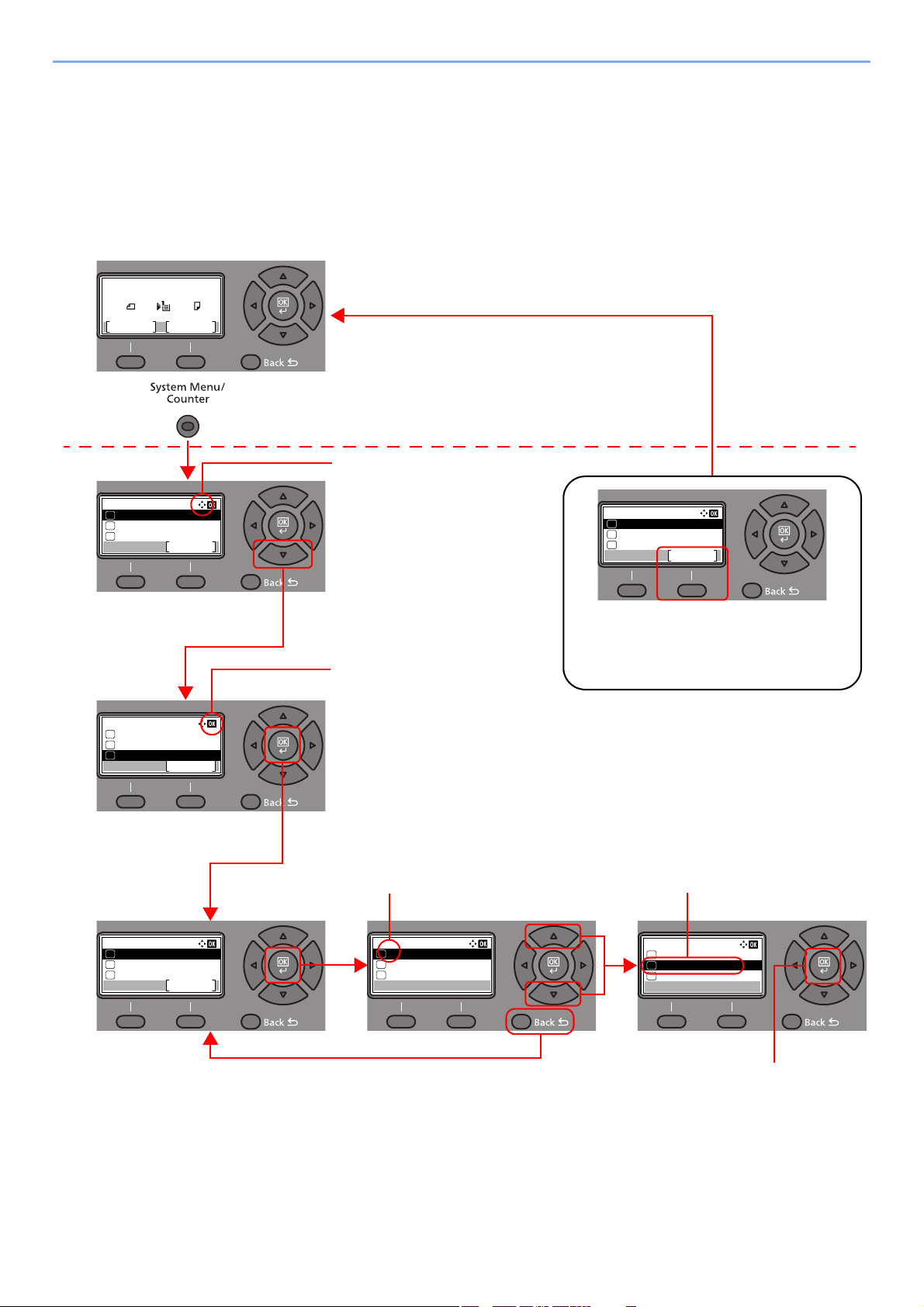
Before Using the Fax Machine > Part Names and Functions
18 [Function Menu] key: Displays the function menu screen.
19 [Back] key: Returns to the previous display.
20 [Attention] indicator: Lights or blinks when an error occurs and a job is stopped.
21 Arrow keys: Increments or decrements numbers, or selects menu in the message display. In addition, moves the
cursor when entering the characters.
22 [OK] key: Finalizes a function or menu, and numbers that have been entered.
23 Numeric keys: Enter numbers and symbols.
24 [Stop] key: Cancels or pauses the job in progress.
25 [Start] key: Starts copying and scanning operations and processing for setting operations.
26 [Quiet Mode] key: Lower print speed for quiet processing.
27 [Authentication/Logout] key: Authenticates user, and exits the operation for the current user (i.e. log out).
28 [Energy Saver] key: Puts the machine into Sleep Mode. Recovers from Sleep if in Sleep Mode.
29 Program keys: Used to register or recall programs.
30 [Reset] key: Returns settings to their default states.
31 [Clear] key: Clears entered numbers and characters.
18
20 21, 22 23 25 26 2719 24
28293031
2-6
Before Using the Fax Machine > Part Names and Functions
Operation Method
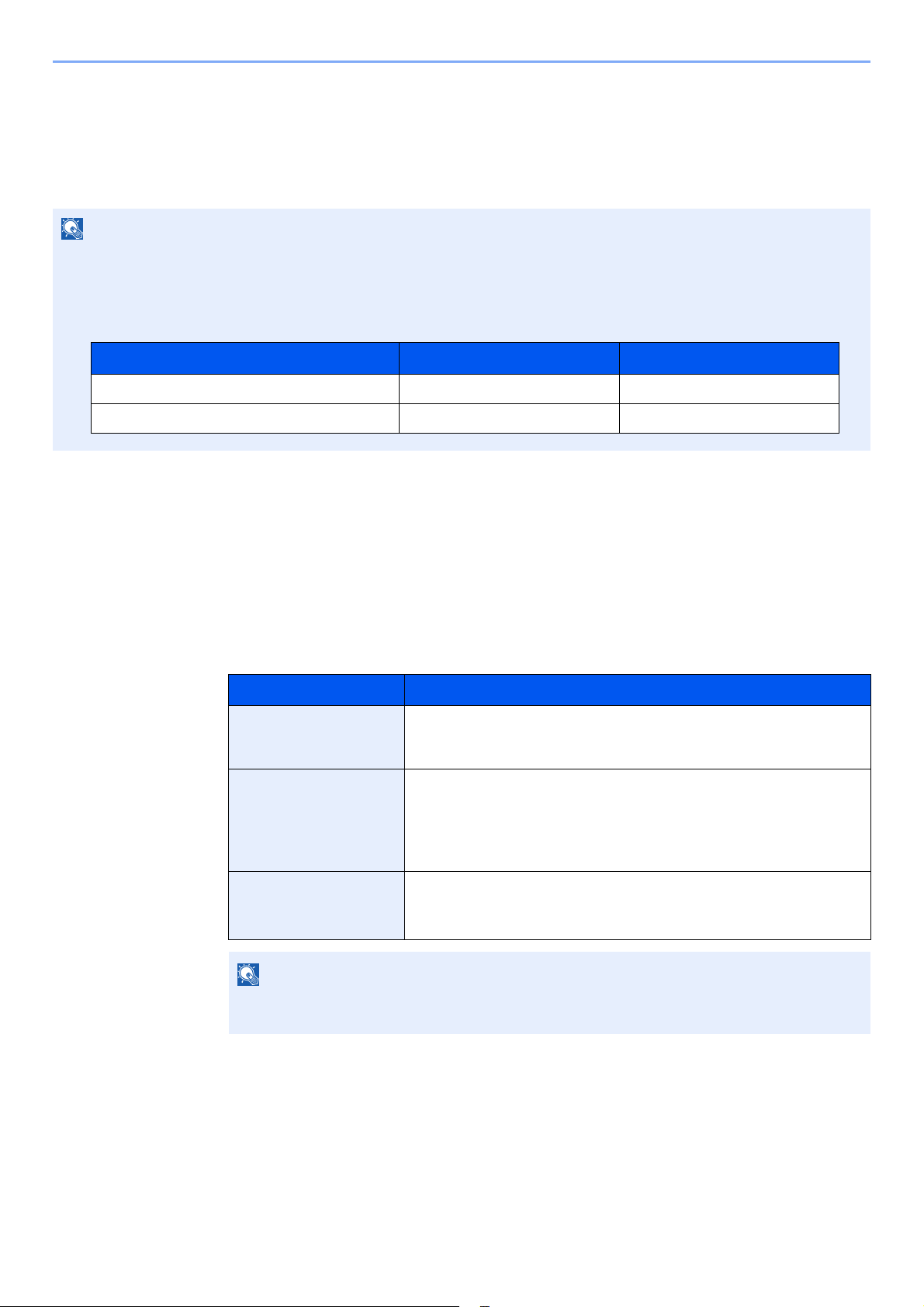
This section explains how to operate the setting menus on the message display.
Displaying the Menus and Configuring Settings
Select the [System Menu/Counter] key or [Function Menu] key to display the setting menus. Select the [▲] key, [▼]
key, [◄] key, [►] key, [OK] key, or [Back] key to select a menu, and perform settings.
Sys. Menu/Count.:
User/Job Account
Exit
04
User Property
05
Common Settings
06
Language:
English
01
Deutsch
02
Francais
03
*
Language:
English
01
Deutsch
02
Francais
03
*
Common Settings:
Language
Exit
01
Default Screen
02
Sound
03
Sys. Menu/Count.:
System/Network
Exit
03
Counter
02
01
Report
Select the [System Menu/Counter] key or
[Function Menu] key to display the setting
menus.
The directions of usable arrow
keys are shown on the screen
displayed.
When the [▲] or [▼] key is
selected, the selection moves
line by line.
When the [◄] or [►] key is
selected, the selection moves in
units of one page.
When [OK] is displayed, select
the [OK] key to confirm the
selection.
Select the [OK] key to display
the selected menu.
The selected item is displayed with
[*] (asterisk) at the beginning.
Select the [OK] key to confirm
the selected setting.
When the [▲] or [▼] key is
selected, the selection moves
line by line.
Select the [Back] key to return to
the screen one level higher.
Setting menus
Normal screen
Exiting the menu operation
When [Exit] is displayed, select [Exit] to exit
the setting menu and return to the normal
screen.
Sys. Menu/Count.:
System/Network
Exit
03
Counter
02
01
Report
Ready to copy.
A4 A4
1
Zoom
Paper
Copies
100%
:
2-7
Before Using the Fax Machine > Setting Date and Time
Setting Date and Time
Set the local date and time at the place of installation.
When you send a fax using the transmission function, the date and time as set here will be printed in the header of the
fax. Set the date, time and time difference from GMT of the region where the machine is used.
1
Display the screen.
[System Menu/Counter] key > [▲] [▼] key > [Common Settings] > [OK] key > [▲] [▼] key >
[Date Setting] > [OK] key
2
Configure the settings.
[▲] [▼] key > [Time Zone] > [OK] key > Select the time zone > [OK] key > [▲] [] key >
[Date/Time] > [OK] key > Set the date/time > [OK] key > [▲] [] key > [Date Format] >
[OK] key > Select the Date Format > [OK] key
NOTE
Be sure to set the time difference before setting the date and time.
If the login user name entry screen appears during operations, log in by referring to the machine's Operation Guide for
Administrator User Name and Password.
The factory default login user name and login password are set as shown below.
Item Description
Time Zone Set the time difference from GMT. Choose the nearest listed location from
the list. If you select a region that utilizes summer time, configure settings
for summer time.
Date/Time Set the date and time for the location where you use the machine. If you
perform Send as E-mail, the date and time set here will be displayed on
the header.
Value: Year (2000 to 2037), Month (1 to 12), Day (1 to 31),
Hour (00 to 23), Minute (00 to 59), Second (00 to 59)
Date Format Select the display format of year, month, and date. The year is displayed
in Western notation.
Value: Month/Day/Year, Day/Month/Year, Year/Month/Day
NOTE
Select the [▲] or [▼] key to enter a number.
Select the [◄] or [►] key to move the position being entered, which is shown highlighted.
Model Name Login User Name Login Password
ECOSYS M2635dn/ECOSYS M2635dw 3500 3500
ECOSYS M2540dn/ECOSYS M2540dw 4000 4000
2-8
Before Using the Fax Machine > Local FAX Information Entry
Local FAX Information Entry
Register the local FAX information below.
TTI (Transmit Terminal Identification)
Select whether or not to print the local fax information on the fax on the receiving system.
1
Display the screen.
[System Menu/Counter] key > [▲] [▼] key > [FAX] > [OK] key > [▲] [▼] key >
[Transmission] > [OK] key > [▲] [▼] key > [TTI] > [OK] key
2
Set the TTI.
1 Select the desired location for printing the information or [Off] if you don't want to print it.
2 Select the [OK] key.
Local FAX Name
Register the local fax name printed on the fax on the receiving system.
1
Display the screen.
[System Menu/Counter] key > [▲] [▼] key > [FAX] > [OK] key > [▲] [▼] key >
[Transmission] > [OK] key > [▲] [▼] key > [Local FAX Name] > [OK] key
2
Set the Local FAX Name
1 Enter the local fax name.
2 Select the [OK] key.
NOTE
Up to 32 characters can be entered.
For details on entering characters, refer to the following:
Character Entry Method (page 10-2)
2-9
Before Using the Fax Machine > Local FAX Information Entry
Local FAX ID
Enter the local fax ID. The local fax ID can limit other parties with which you can communicate. The Local FAX ID is used
for transmission limit purposes. For details of the local fax ID, refer to the following:
Transmission Restriction (page 8-10)
1
Display the screen.
[System Menu/Counter] key > [▲] [▼] key > [FAX] > [OK] key > [▲] [▼] key >
[Transmission] > [OK] key > [▲] [▼] key > [Local FAX ID] > [OK] key
2
Local FAX ID Number Entry
1 Enter the local FAX ID number.
2 Select the [OK] key.
Local FAX Number
Enter the local fax number to be printed on the fax on the receiving system.
1
Display the screen.
[System Menu/Counter] key > [▲] [▼] key > [FAX] > [OK] key > [▲] [▼] key >
[Transmission] > [OK] key > [▲] [▼] key > [Local FAX Number] > [OK] key
2
Local FAX Number Entry
1 Enter the local fax number.
2 Select the [OK] key.
NOTE
Up to 4 digits number can be entered.
Select the [▲] or [▼] key or the numeric keys to enter a number.
NOTE
Up to 20 digits can be entered as the local fax number.
Use the numeric keys to enter a number.
Select the [*/.] keys on numeric keys to enter "+".

2-10
Before Using the Fax Machine > Local FAX Information Entry
FAX Dialing Mode
Select the dialing mode according to the line type.
1
Display the screen.
[System Menu/Counter] key > [▲] [▼] key > [FAX] > [OK] key > [▲] [▼] key >
[Transmission] > [OK] key > [▲] [▼] key > [FAX Dialing Mode] > [OK] key
2
Set the FAX Dialing Mode.
[Tone(DTMF)] or [Pulse(10pps)] > [OK] key
ECM TX
Set whether ECM TX is performed. ECM is a communication mode specified by the ITU-T (International
Telecommunication Union) that retransmits data when an error occurs. Fax machines that have ECM mode check for
errors as they communicate, preventing distortion of the image due to noise on the line and other conditions.
1
Display the screen.
[System Menu/Counter] key > [▲] [▼] key > [FAX] > [OK] key > [▲] [▼] key >
[Transmission] > [OK] key > [▲] [▼] key > [ECM TX] > [OK] key
2
Configure the settings.
[On] or [Off] > [OK] key
TX Start Speed
Set the TX Start Speed. When communication conditions are bad, the fax may not be transmitted correctly. In that case,
set a lower TX Start Speed.
1
Display the screen.
[System Menu/Counter] key > [▲] [▼] key > [FAX] > [OK] key > [▲] [▼] key >
[Transmission] > [OK] key > [▲] [▼] key > [TX Start Speed] > [OK] key
2
Configure the settings.
[9600bps], [14400bps] or [33600bps] > [OK] key
NOTE
This setting does not appear in some regions.
NOTE
When there is a large amount of noise on the line, communication may take slightly longer than when [Off] is selected.
NOTE
Normally this should be used with the default setting.
2-11
Before Using the Fax Machine > PBX Setting (Europe only)
PBX Setting (Europe only)
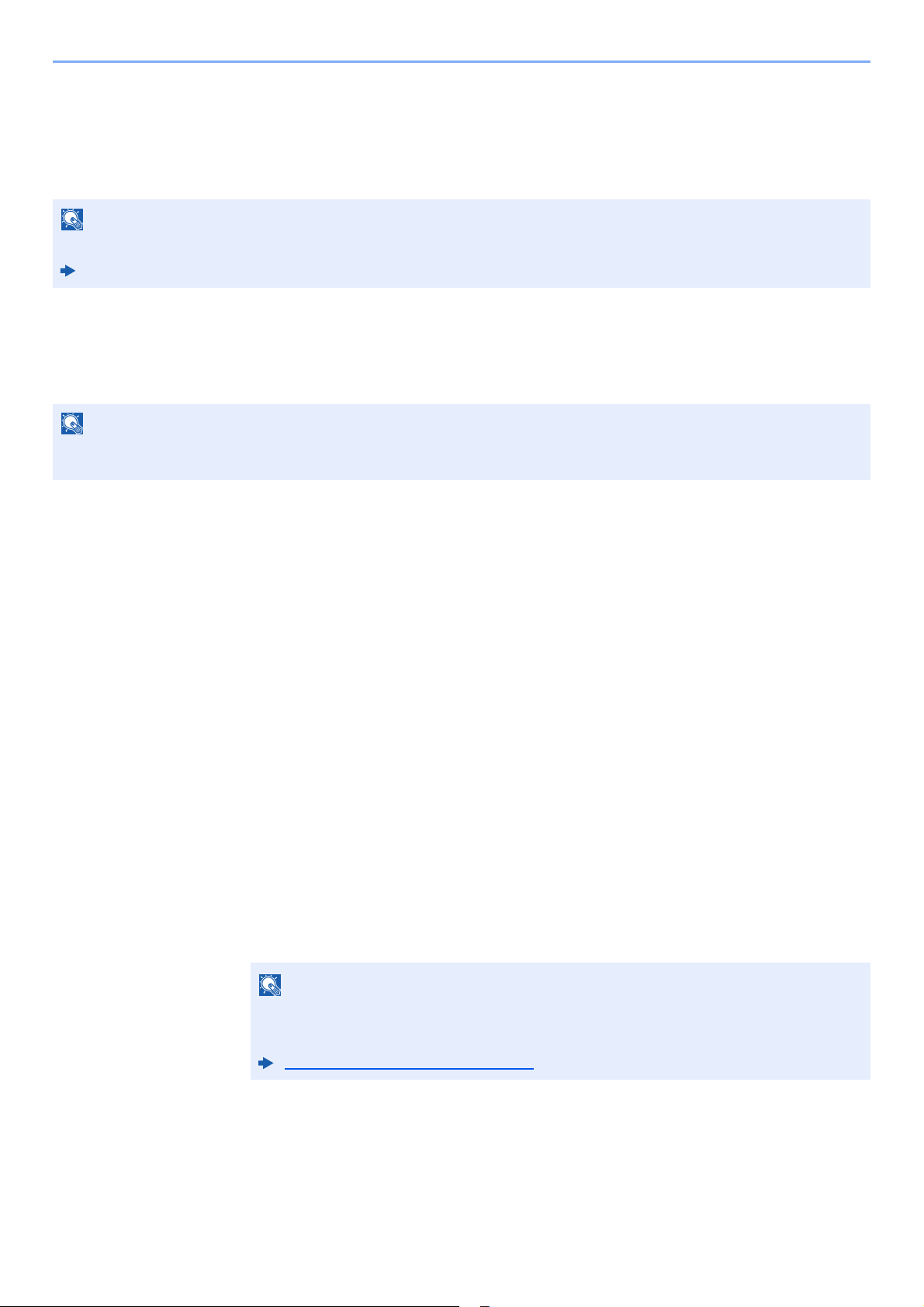
When using this machine in environment in which PBX for connection to multiple phones for business use is installed,
perform the following PBX setting.
NOTE
Before connecting this machine to PBX, it is recommended to contact the company that installed the PBX system to
request connection of this machine. Note that correct operation cannot be guaranteed in environment in which this
machine is connected to PBX because the functions of this machine may be restricted.
Item Setting value Description
Exchange Select. PSTN Use when connecting this machine to a public switched telephone network
(default).
PBX Use when connecting this machine to PBX.
Dial No. to PSTN 0-9
00-99
Set a number to access an outside line. For the number, contact the PBX
administrator.
2-12
Before Using the Fax Machine > Registering Destinations in the Address Book
Registering Destinations in the Address Book
Save frequently used destinations to the Address Book or One Touch Key. The saved destinations can be changed. The
destinations are available for Send as E-mail, Send to Folder, and Fax Transmission.
Adding a Destination (Address Book)
Add a new destination to the Address Book. There are two registering methods, contacts and groups. When adding a
group, enter the group name and select group members from the Address Book.
Adding a contact
A maximum of 200 contact addresses can be registered. Destination name, fax number, sub address communication,
encryption, transmission start speed, and ECM can be registered for each destination.
1
Display the screen.
[System Menu/Counter] key > [▲] [▼] key > [Edit Destination] > [OK] key > [▲] [▼] key >
[Address Book] > [OK] key
2
Adds a new destination.
[Menu] > [▲] [▼] key > [Add Address] > [OK] key
3
Select the registration method.
[▲] [▼] key > [Contact] > [OK] key
4
Enter the contact name.
1 [◄] [►] key > [Contact Name] > [Edit]
2 Enter the destination name.
3 Select the [OK] key.
NOTE
Registering and editing of the Address Book can also be done in Command Center RX.
Machine’s Operation Guide
NOTE
If user login administration is enabled, you can only edit destinations in the Address Book by logging in with
administrator privileges.
NOTE
Up to 32 characters can be entered.
For details on character entry, refer to the following:
Character Entry Method (page 10-2)
2-13
Before Using the Fax Machine > Registering Destinations in the Address Book
5
Enter the fax number.
1 [◄] [►] key > [FAX Number] > [Edit]
2 Enter the fax number.
6
Select transmission settings.
Sub address communication, encrypted transmission, transmission start speed and ECM can
be set.
1 Select [Detail].
2 Select the item to change the settings for and then select [Edit] or [Change].
3 [OK] key > [OK] key
7
Enter the address number.
1 [◄] [►] key > [Address Number] > [Edit]
2 Enter the address number.
3 Select the [OK] key.
NOTE
Up to 32 characters can be entered.
Use the numeric keys to enter a number.
Selecting the [
Address Recall/Pause
] key adds about three seconds of waiting time
during dialing. For example, when dialing the receiving system on an external line, you can
use this method to insert a pause before resuming dialing after you dial a specific number.
Item Description
Sub Address Set this to transmit using a Sub Address.
Sub Address Transmission (page 5-16)
Encrypted TX This is set when using encrypted transmission to send the data.
Using the Encrypted Transmission (page 5-25)
TX Start Speed This is set to change the transmission start speed. Select the speed from
33,600 bps, 14,400 bps, and 9,600 bps.
NOTE
Normally the default setting should be used.
ECM
ECM is a communication mode specified by the ITU-T (International
Telecommunication Union) that retransmits data when an error occurs. Fax
machines that have ECM mode check for errors as they communicate,
preventing distortion of the image due to noise on the line and other conditions.
NOTE
You can set any value between 1 and 250.
Select the [▲] or [▼] key or the numeric keys to enter a number.
Address Number is an ID for a destination. You can select any available number for groups.
If you specify an address number that is already in use, an error message appears when
you select the [OK] key and the number cannot be registered.
2-14
Before Using the Fax Machine > Registering Destinations in the Address Book
8
Register the destination.
Select the [OK] key.
[Completed.] is displayed and the destination is registered.
Adding a Group
Compile two or more contacts into a group. Designations in the group can be added at the same time. When adding a
group, a maximum of 50 groups can be added in the Address Book.
Before adding a group in the Address Book, the contacts to be included in the group must be added first.
1
Display the screen.
[System Menu/Counter] key > [▲] [▼] key > [Edit Destination] > [OK] key > [▲] [▼] key >
[Address Book] > [OK] key
2
Adds a new destination.
[Menu] > [▲] [▼] key > [Add Address] > [OK] key
3
Select the registration method.
[▲] [▼] key > [Group] > [OK] key
4
Enter the group name.
1 [◄] [►] key > [Group Name] > [Edit]
2 Enter the group name.
3 Select the [OK] key.
5
Select the members (destinations).
1 [◄] [►] key > [Group Member] > [Edit] > [Menu] > [▲] [▼] key > [Add Member] >
[OK]key
2 Select the member you want to add > [OK] key
The fax number and address of the member selected are displayed.
3 Select the [OK] key.
The selected member is added to Group Member.
Members can be added by repeating steps 5-1 to 5-3.
NOTE
If user login administration is enabled, you can only edit destinations in the Address Book by logging in with
administrator privileges.
NOTE
Up to 32 characters can be entered.
For details on character entry, refer to the following:
Character Entry Method (page 10-2)
NOTE
When checking information of the destination, select [Menu] > [Details] > [OK] key.

2-15
Before Using the Fax Machine > Registering Destinations in the Address Book
6
Delete the members.
1 Select the member you want to delete.
2 [Menu] > [▲] [▼] key > [Delete] > [OK] key > [Yes]
The selected member is deleted from Group Member.
7
Confirm the registered member.
Select the [Back] key when all members are registered.
8
Enter the address number.
1 [◄] [►] key > [Address Number] > [Edit]
2 Enter the address number.
9
Register the group.
Select the [OK] key.
[Completed.] is displayed and the group is registered.
Editing and Deleting Address Book Entries
Edit and delete the destinations (contacts) you added to the Address Book.
Changing the Address Book
1
Display the screen.
1 [System Menu/Counter] key > [▲] [▼] key > [Edit Destination] > [OK] key >
[▲][▼]key> [Address Book] > [OK] key
2 Select the destination (contacts) or group to edit, select the [OK] key.
2
Edit the destination.
1 Select the item to change.
2 Select [Edit].
3 After you have completed the changes, [OK] key > [Yes].
NOTE
You can set any value between 1 and 250.
Select the [▲] or [▼] key or the numeric keys to enter a number.
Address Number is an ID for a destination. You can select any available number for
groups.
If you specify an address number that is already in use, an error message appears when
you select the [OK] key and the number cannot be registered.
Adding a contact (page 2-12)
Adding a Group (page 2-14)
2-16
Before Using the Fax Machine > Registering Destinations in the Address Book
Deleting a Contact or Group
1
Display the screen.
1 [System Menu/Counter] key > [▲] [▼] key > [Edit Destination] > [OK] key >
[▲][▼]key> [Address Book] > [OK] key
2
Delete the destination.
1 Select the destination (contacts) or group to delete.
2 [Menu] > [▲] [▼] key > [Delete] > [OK] key > [Yes]
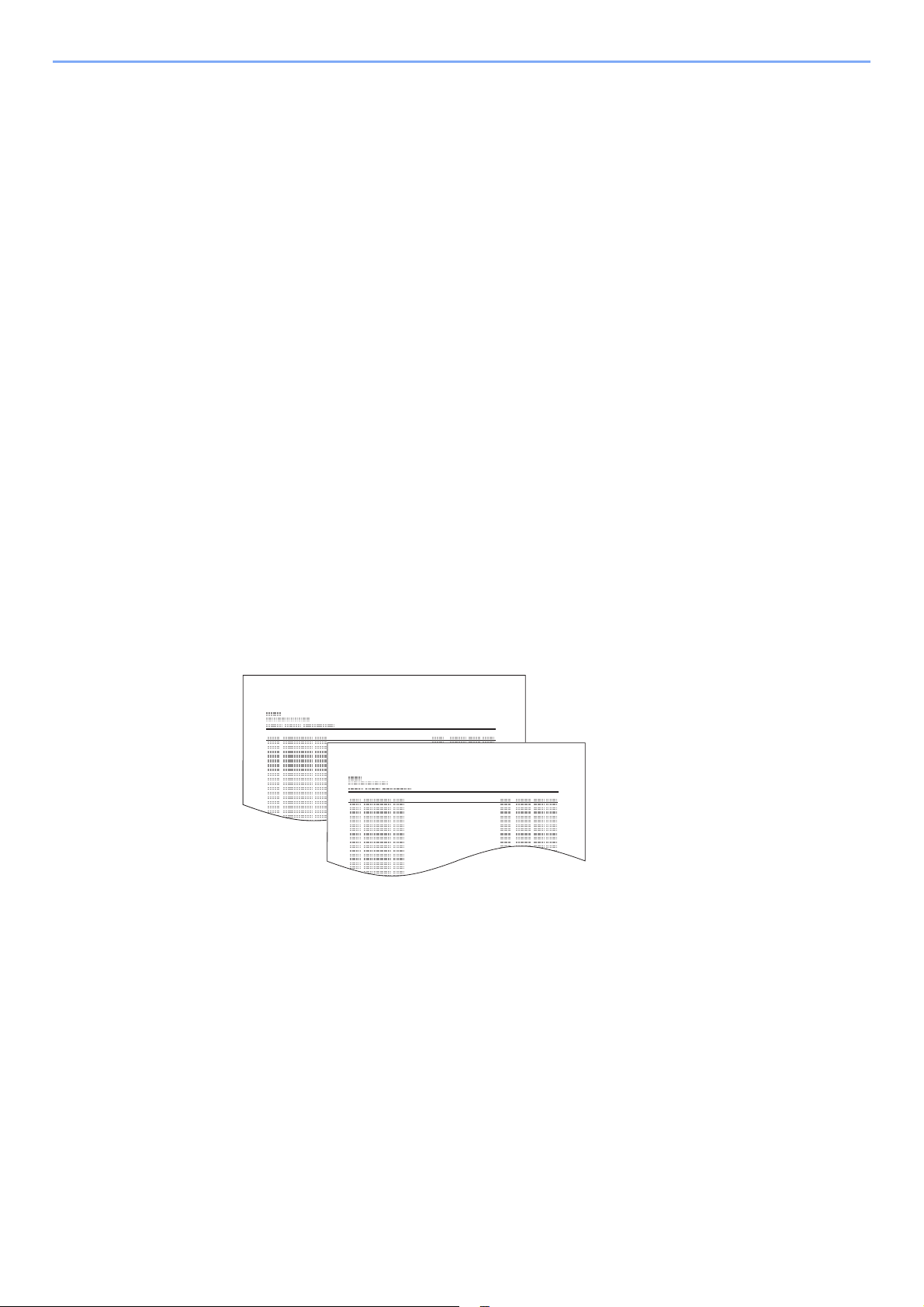
Printing Address List
You can print the list of destinations registered in the Address Book.
You can sort the list in the order of index or address numbers of the destinations.
1
Display the screen.
[System Menu/Counter] key > [▲] [▼] key > [Edit Destination] > [OK] key > [▲] [▼] key >
[Print List] > [OK] key
2
Print
[FAX List (Index)] or [FAX List (No.)] > [OK] key > [Yes]
The list is printed.
FAX Address List (Index)
FAX Address List (No.)
2-17
Before Using the Fax Machine > Registering Destinations in the Address Book
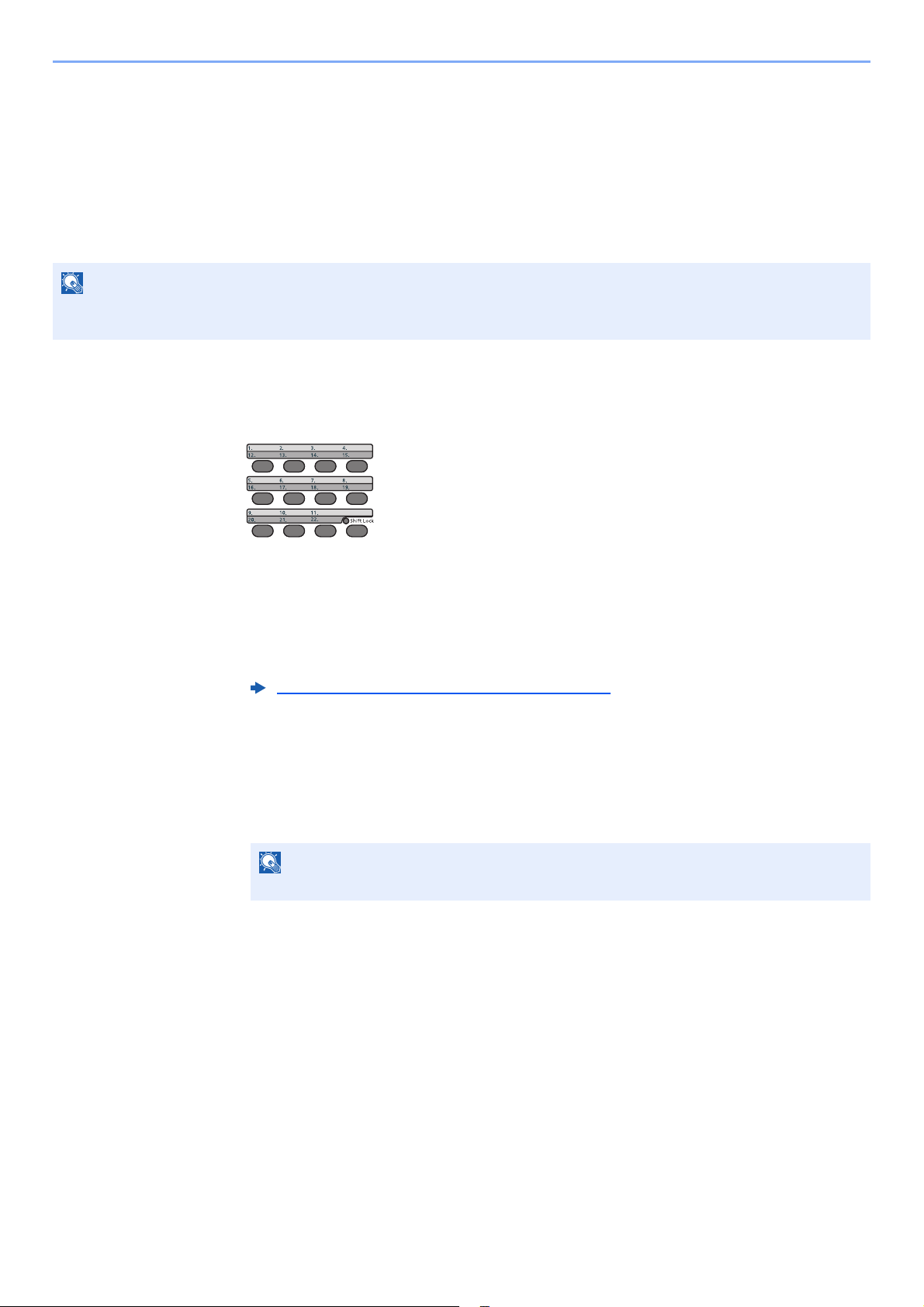
Adding a Destination on One Touch Key
Adding a Destination
Add a new destination (contact or group). A maximum of 22 destinations can be registered. Register fax destinations in
the Fax screen.
To register a destination to a One Touch Key, it must first be registered in the Address Book. Register one or more
destinations as needed before proceeding.
1
Select the One Touch Key to be registered.
1 Press the One Touch Key that you want to register and hold it (2 seconds or more).
2 Select a key number, select the [OK] key.
When a unregistered One Touch Key number is selected, the Address Book appears. Go
to the next step.
When the registered One Touch Key number is selected, the Key Edit screen appears.
Select another key number or edit or delete the One Touch Key.
For edition and deletion of the One Touch Key, refer to the following:
2
Select the destinations.
1 Select the destination (contact or group) you want to register to the One Touch Key from
the Address Book, select the [OK] key.
The fax number and address of the destination selected are displayed.
2 Select the [OK] key.
[Registered.] is displayed and One Touch Key is registered.
NOTE
Numbers 1 to 11 are the One Touch Key numbers while the [Shift Lock] indicator is switched off. Numbers 12 to 22
are the One Touch Key numbers while the [Shift Lock] indicator is switched on by selecting the [Shift Lock] key.
Editing and Deleting One Touch Key (page 2-18)
NOTE
Select [Menu] and select [Search(Name)] to search using a name.
2-18
Before Using the Fax Machine > Registering Destinations in the Address Book
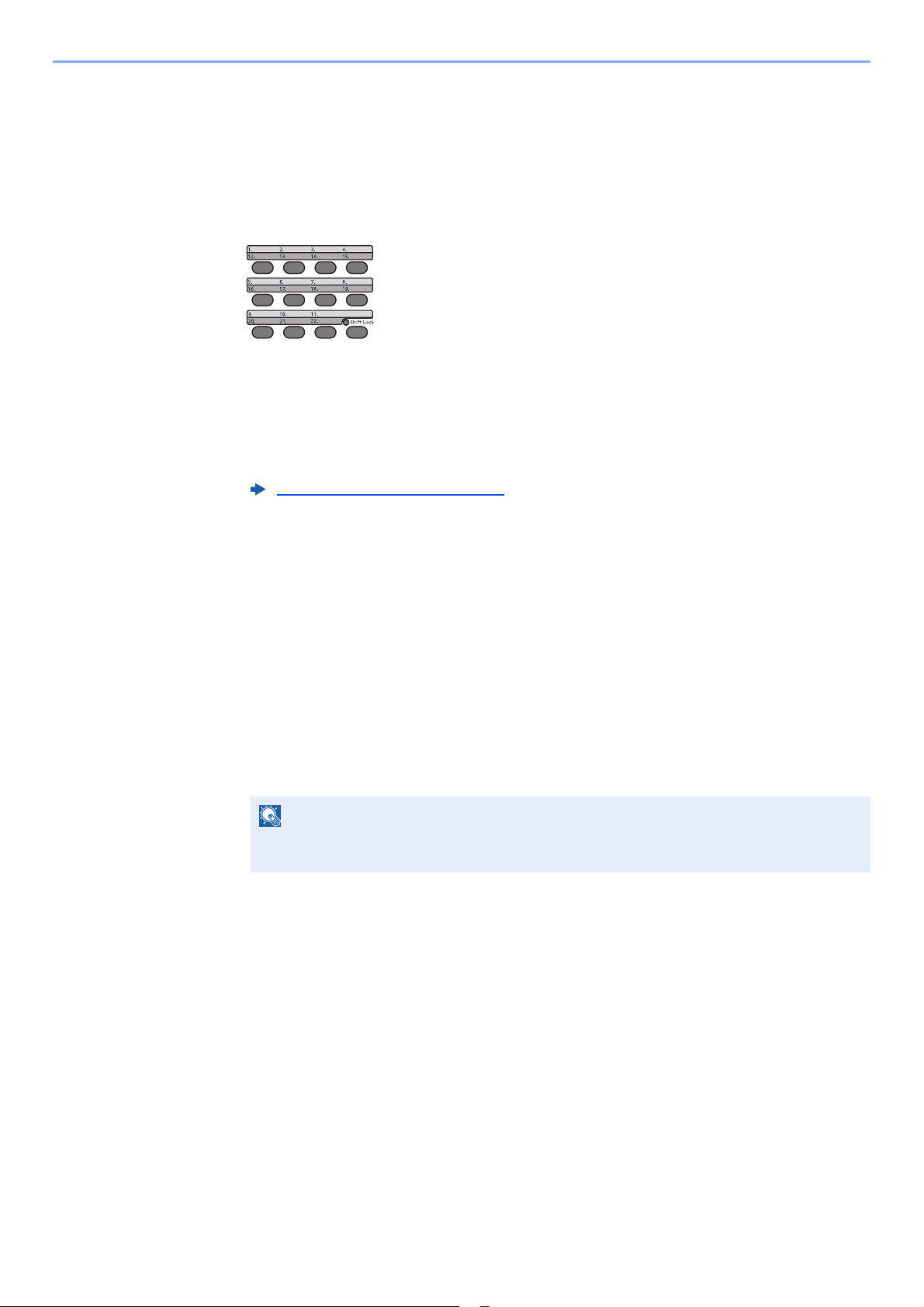
Editing and Deleting One Touch Key
Edit and delete the destinations you added to One Touch Key.
1
Select the One Touch Key to be edited or deleted.
1 Press the One Touch Key to be edited or deleted (2 seconds or more).
2 Select a key number, select the [OK] key.
When a registered One Touch Key number is selected, the Key Edit screen appears. Go to
the next step.
When an unregistered One Touch Key number is selected, the Address Book appears. The
One Touch Key can be registered by selecting the destination from the Address Book.
For registration of the One Touch Key, refer to the following:
2
Edit or delete the destination.
When checking the registered destination
1 [▲] [▼] key > [Detail] > [OK] key
The destination name is displayed.
2 Select the [OK] key.
When changing the destination to another destination
1 [▲] [▼] key > [Edit] > [OK] key
2 Select the new destination.
3 Select the [OK] key.
The fax number and address of the destination selected are displayed.
4 Select the [OK] key.
[Registered.] is displayed and the destination is changed.
When deleting registration contents
[▲] [▼] key > [Delete] > [OK] key > [Yes]
[Completed.] is displayed and One Touch Key becomes unregistered.
Adding a Destination (page 2-17)
NOTE
When checking information of the destination, select [Menu], [Details], and then select
the [OK] key.

3-1
3 Sending Faxes
This chapter explains the following topics:
Basic transmission procedure ............................................................................................................................ 3-2
Using redial .............................................................................................................................................. 3-3
Checking and Editing Destinations .......................................................................................................... 3-4
Checking the Send Status ....................................................................................................................... 3-5
Cancelling Memory Transmission (while originals are being scanned) ................................................... 3-5
Cancelling Memory Transmission (during communication) ..................................................................... 3-5
Cancelling Transmission (Disconnection of Communication) .................................................................. 3-6
Methods For Entering the Destination ............................................................................................................... 3-7
Entering the destination fax number with the numeric keys .................................................................... 3-7
Choosing from the Address Book ............................................................................................................ 3-9
Choosing by One Touch Key ................................................................................................................. 3-10
Broadcast Transmission ......................................................................................................................... 3-11
Login/Logout .................................................................................................................................................... 3-13
Logging in when User Login Administration has been Enabled ............................................................ 3-13
Logging in when Job Accounting has been Enabled ............................................................................. 3-14
Fax transmission functions .............................................................................................................................. 3-15
Original Size ..................................................................................................................................................... 3-16
Original Image .................................................................................................................................................. 3-16
FAX Resolution ................................................................................................................................................ 3-16
Original Orientation .......................................................................................................................................... 3-17
Continuous Scan .............................................................................................................................................. 3-17
File Name Entry ............................................................................................................................................... 3-17
Job Finish Notice ............................................................................................................................................. 3-18
FAX Delayed Transmission .............................................................................................................................. 3-19
Cancelling Delayed Transmissions (Queued) ........................................................................................ 3-20
Immediate transmission ......................................................................................................................... 3-20
FAX Direct Transmission .................................................................................................................................. 3-20
Cancelling Direct Transmission ............................................................................................................. 3-20
FAX TX Report ................................................................................................................................................. 3-21
Density ............................................................................................................................................................. 3-21
Duplex (Only on models with a duplex scanning function.) ............................................................................. 3-21
Manual Send .................................................................................................................................................... 3-22
Standby Transmission ...................................................................................................................................... 3-23
Interrupt Send .................................................................................................................................................. 3-24
Using chain dial ................................................................................................................................................ 3-25
Using Programs ............................................................................................................................................... 3-27
3-2
Sending Faxes > Basic transmission procedure
Basic transmission procedure
1
Select the [FAX] key.
The base screen for fax appears.
2
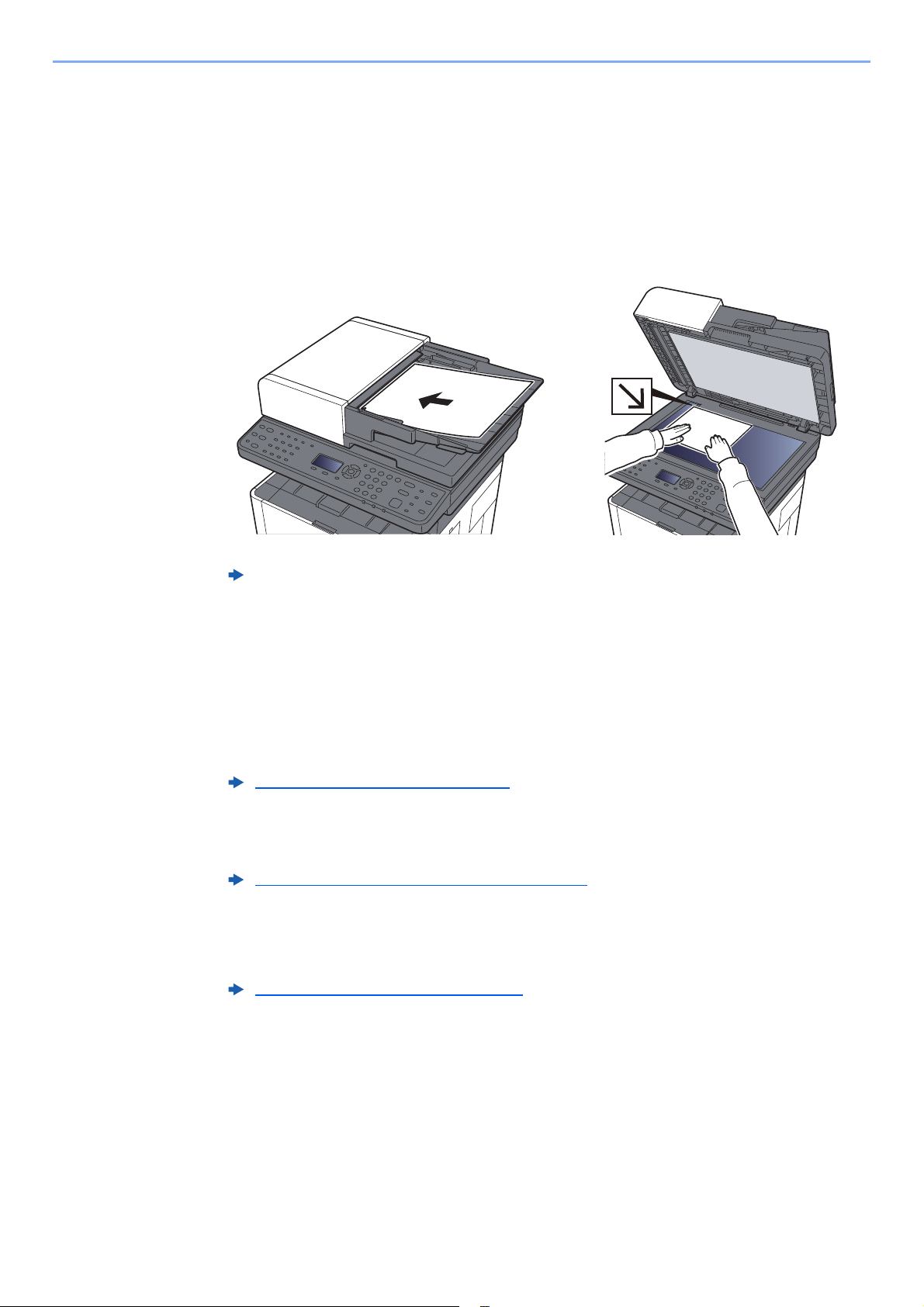
Place the originals.
For placing originals, refer to the following:
3
Select the transmission method.
There are 2 transmission methods: memory transmission and direct transmission.
Memory transmission: The original is scanned into memory before communication starts.
Memory transmission is selected by default.
Direct transmission: The destination is dialed and communication starts before the original is
scanned.
4
Specify the destination.
Specify the transmission destination.
5
Selecting the functions.
Select [Functions Menu] key, and set transmitting functions that can be used.
Machine’s Operation Guide
FAX Direct Transmission (page 3-20)
Methods For Entering the Destination (page 3-7)
Fax transmission functions (page 3-15)
3-3
Sending Faxes > Basic transmission procedure
6
Send Start.
Press the [Start] key.
When scanning finishes, transmission starts.
When originals are placed in the document processor
After originals placed in the document processor are scanned and stored in the memory,
the receiving system is dialed.
When originals are placed on the glass surface
After originals placed on the glass surface are scanned and stored in the memory,
the receiving system is dialed.
Using redial
Redial is a function allowing you to dial the last entered number once again.
Use this when the receiving system does not respond when you have tried to send a fax. When you want to send the fax
to the same receiving system, select [Address Recall/Pause] key, and you can call the receiving system you dialed on
the destination list.
1
[FAX] key > [Address Recall/Pause] key
2
Press the [Start] key.
The transmission will start.
NOTE
When continuous scan is set, you can continue with scanning of a next original after an
original on the glass surface has been stored in memory. Every time one page is scanned,
you perform an operation to allow continued scanning, and after all the originals have been
stored in memory, the receiving system is dialed.
Continuous Scan (page 3-17)
NOTE
Recall information is canceled in the following conditions.
• When you turn the power off
• When you send a next fax (new recall information is registered)
• When you log out
3-4
Sending Faxes > Basic transmission procedure
Checking and Editing Destinations
Check and edit a selected destination.
1
[FAX] key > [Confirm/Add Destination] key
2
Check the destination.
1 Select the destination you want to check, select the [OK] key.
2 [▲] [▼] key > [Detail/Edit] > [OK] key
Information of the destination is displayed.
3 Select the [OK] key when checking of the destination is complete.
3
Change the FAX number.
1 Select the destination that you want to change the FAX number for, select the [OK] key.
2 [▲] [▼] key > [Detail/Edit] > [OK] key
3 Reenter the FAX number using the numeric keys.
4 Select the [OK] key.
4
Add the destination (when entering the FAX number using the numeric
keys).
1 Select [Add].
2 Enter the fax number of the receiving system using the numeric keys.
3 Select the [OK] key.
5
Delete the destination.
1 Select the destination you want to delete, select the [OK] key.
2 [Delete] > [OK] key > [Yes]
[Completed.] is displayed and the destination is removed.
6
Exit the operation.
Select [Exit].
NOTE
When checking information of the destination, select [Details].
NOTE
To edit a destination registered in the Address Book or a One Touch Key, refer to the following:
Editing and Deleting Address Book Entries (page 2-15)
Editing and Deleting One Touch Key (page 2-18)
NOTE
For the procedure for entering the FAX number using the numeric keys, refer to the following:
Entering the destination fax number with the numeric keys (page 3-7)

3-5
Sending Faxes > Basic transmission procedure
Checking the Send Status
1
Select the [Status/Job Cancel] key.
2
Display the send job status screen.
[▲] [▼] key > [Send Job Status] > [OK] key
Display the send job status screen.
3
Check the details of the transmission job.
1 Select the job you want to check.
2 [Menu] > [▲] [▼] key > [Detail] > [OK] key
3 Check the details of the job.
4 Select the [OK] key when checking of the job is complete.
Cancelling Memory Transmission (while originals are being
scanned)
1
Select the [Stop] key.
During memory transmission, to cancel scanning while originals are being scanned, select the
[Stop] key on the operation panel.
Scanning of originals is canceled, and the originals are ejected. When originals remain in the
document processor, take them out from the original output table.
Cancelling Memory Transmission (during communication)
1
Select the [Stop] key.
2
Display the cancel send job list screen.
[Cancel Send Job] > [OK] key
Display the cancel send job list screen.
3
Canceling Transmission.
1 Select the job to cancel.
2 [Menu] > [▲] [▼] key > [Cancel Job] > [OK] key > [Yes]
The selected job is deleted.
NOTE
Even if transmission is canceled, there is a possibility that pages scanned prior to cancelation were sent to the
receiving party. Check with the receiving party to see if pages were accidentally sent.
3-6
Sending Faxes > Basic transmission procedure
Cancelling Transmission (Disconnection of Communication)
Follow this procedure to break the connection and stop transmission/reception.
1
Select the [Status/Job Cancel] key.
2
Disconnection of communication.
1 [FAX] > [OK] key
2 Check the status of communication.
3 Select [Line Off].
When communication is disconnected, transmission stops.
To cancel direct transmission, refer to the following:
To cancel a delayed transmission or send a fax by immediate transmission, refer to the following:
To cancel polling transmission, refer to the following:
NOTE
To cancel direct transmission, delayed transmission, or polling transmission, refer to the
section for that function.
Cancelling Direct Transmission (page 3-20)
Cancelling Delayed Transmissions (Queued) (page 3-20)
Polling Reception (page 5-19)
3-7
Sending Faxes > Methods For Entering the Destination
Methods For Entering the Destination
Entering the destination fax number with the numeric keys
The procedure for entering the destination fax number with the numeric keys is explained below.
1
Select the [FAX] key.
2
Enter the fax number of the receiving system.
NOTE
If [Dest. Entry(FAX)] is set to [Prohibit], it is not possible to directly enter a fax number.
Select the destination from the Address Book or the One Touch Key.
Dest. Entry(FAX) (page 8-9)
NOTE
Up to 64 digits can be entered.
Use the numeric keys to enter a number.
Key Description
[Address Recall/
Pause] key
Selecting the [Address Recall/Pause] key adds about three seconds of waiting
time during dialing. For example, when dialing the receiving system on an
external line, you can use this method to insert a pause before resuming dialing
after you dial a specific number.
3-8
Sending Faxes > Methods For Entering the Destination
3
Select transmission settings.
Sub address communication, encrypted transmission, transmission start speed and ECM can
be set.
1 Select [Detail].
2 Select the item to change the settings for and then select [Edit] or [Change].
3 Select the [OK] key.
4
Select the [OK] key.
Entry of the destination finishes.
Key Description
Sub Address Set this to transmit using a Sub Address.
Sub Address Transmission (page 5-16)
Encrypted Transmission This is set when using encrypted transmission to send the
data.
Encryption (page 5-23)
TX Start Speed This is set to change the transmission start speed. Select the
speed from 33,600 bps, 14,400 bps, and 9,600 bps.
NOTE
Normally this should be used with the default setting.
ECM ECM is a communication mode specified by the ITU-T
(International Telecommunication Union) that retransmits data
when an error occurs. Fax machines that have ECM mode
check for errors as they communicate, preventing distortion of
the image due to noise on the line and other conditions.
NOTE
When [On] is selected in [Check New Dest.], a confirmation screen is displayed for the
entered FAX number. Re-enter the same FAX number and select [OK].
Machine’s Operation Guide
You can enter the next fax number.
Broadcast Transmission (page 3-11)
In addition to a fax, you can include e-mail transmission and folder (SMB/FTP) transmission
to send as one job.
Machine’s Operation Guide
3-9
Sending Faxes > Methods For Entering the Destination
Choosing from the Address Book
1
[FAX] key > [Address Book] key
2
Select the destination.
Destination Search
The destination can be searched by name.
1 [Menu] > [▲] [▼] key > [Search (Name)] > [OK] key
2 Enter characters to search using the numeric keys.
3 Select the [OK] key.
The searched destination is displayed.
3
Select the [OK] key.
To send to multiple destinations, repeat steps 2 to 3. You can send to as many as 100
destinations at once.
NOTE
For more information about how to register destinations in the Address Book, refer to the following:
Registering Destinations in the Address Book (page 2-12)
For details on the external address book, refer to the following:
Command Center RX User Guide
NOTE
When checking information of the destination, select [Menu] > [Details] > [OK] key.
NOTE
For details on character entry, refer to the following:
Character Entry Method (page 10-2)
NOTE
To check or change a selected destination, refer to the following:
Checking and Editing Destinations (page 3-4)
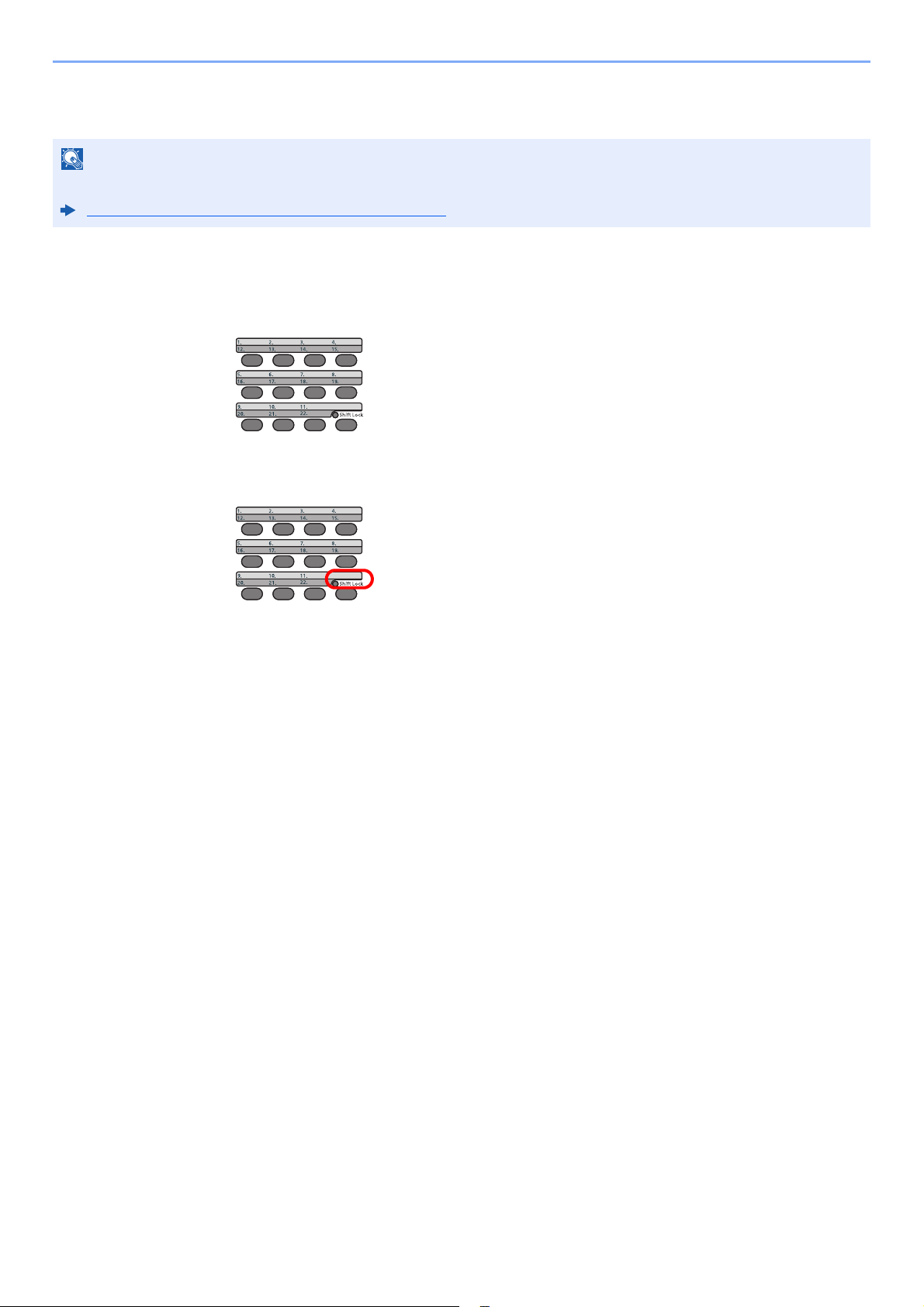
3-10
Sending Faxes > Methods For Entering the Destination
Choosing by One Touch Key
1
Select the [FAX] key.
2
Select the One Touch Key where the destination is registered.
When selecting One Touch Key numbers 12 to 22, the One Touch Key needs to be selected
after switching on the [Shift Lock] indicator by selecting the [Shift Lock] key.
NOTE
For more information on adding One Touch Key, refer to the following:
Adding a Destination on One Touch Key (page 2-17)
3-11
Sending Faxes > Methods For Entering the Destination
Broadcast Transmission
This function allows you to send the same originals to several destinations in one operation. The machine stores
(memorizes) originals to send in memory temporarily, and automatically repeats dialing and transmission to the
set destination afterwards.
1
Select the [FAX] key.
2
Specify the destination.
Enter the fax number
1 Enter the fax number of the receiving system.
2 Select the [OK] key.
Another fax number can be entered.
NOTE
When using a group for the destination, you can send originals to up to 100 destinations in one operation.
You can use this function together with sub address communication and delayed transmission.
When direct transmission has been selected, it changes to memory transmission at the time of transmission.
NOTE
If [Dest. Entry(FAX)] is set to [Prohibit], it is not possible to directly enter a fax number.
Select the destination from the Address Book or the One Touch Key.
Dest. Entry(FAX) (page 8-9)
NOTE
Up to 64 digits can be entered.
Use the numeric keys to enter a number.
Key Description
[Address Recall/
Pause] key
Selecting the [Address Recall/Pause] key adds about 3 seconds of waiting
time during dialing. For example, when dialing the receiving system on an
external line, you can use this method to insert a pause before resuming
dialing after you dial a specific number.
NOTE
When [On] is selected in [Check New Dest.], a confirmation screen is displayed for the
entered FAX number. Re-enter the same FAX number and select [OK].
Machine’s Operation Guide
3-12
Sending Faxes > Methods For Entering the Destination
Select the destination from the Address Book
1 Select the [Address Book] key.
2 Select the destination.
3 Select the [OK] key.
To add destinations, repeat steps 2 to 3.
Select the destination from the One Touch Key
Select all the One Touch Key to which necessary destinations are registered.
3
After selecting all the destinations, press the [Start] key.
NOTE
For details of the Address Book, refer to the following:
Choosing from the Address Book (page 3-9)
NOTE
For details of One Touch Key, refer to the following:
Choosing by One Touch Key (page 3-10)
3-13
Sending Faxes > Login/Logout
Login/Logout
Logging in when User Login Administration has been
Enabled
When user login administration has been enabled, you need to enter a User ID and Password to use the machine.
Login
1
Enter the login user name.
1 If this screen is displayed during operations, select the [OK] key while the column for
entering a login user name is selected.
2 Enter the login user name using the numeric keys and select the [OK] key.
2
Enter the login password.
1 Select the login password and select the [OK] key.
2 Enter the login password and select the [OK] key.
3
Select [Login].
Logout
To logout from the machine, select the [Authentication/Logout] key to return to the login user
name/login password entry screen.
Users are automatically logged out in the following circumstances:
• When the machine enters the sleep state.
• When the auto panel reset function is activated.
NOTE
• If [Netwk Authentic.] is selected as the user authentication method, [Menu] is
displayed. Select [Menu] and select [Login Type] and then it is possible to select the
authentication destination as [Local Authentic.] or [Netwk Authentic.].
•Select [Menu] and select [Domain] and then it is possible to select from the domains
registered.
NOTE
If “Login Operation” is [Select Character], then the screen is displayed to enter details
by selecting from the characters on the message display.
Machine’s Operation Guide
Character Entry Method (page 10-2)
Character Entry Method (page 10-2)
3-14
Sending Faxes > Login/Logout
Logging in when Job Accounting has been Enabled
When job accounting has been enabled, you need to enter an Account ID when using the machine.
Login
In the account ID entry screen, enter the account ID using the numeric keys and select [OK]
key.
Logout
When the operations are complete, select the [Authentication/Logout] key to return to the
account ID entry screen.
NOTE
• If you entered a wrong character, select the [Clear] key and enter the account ID again.
• If the entered account ID does not match the registered ID, a warning beep will sound and
login will fail. Enter the correct account ID.
• By selecting [Counter], you can refer to the number of pages printed and the number of
pages scanned.
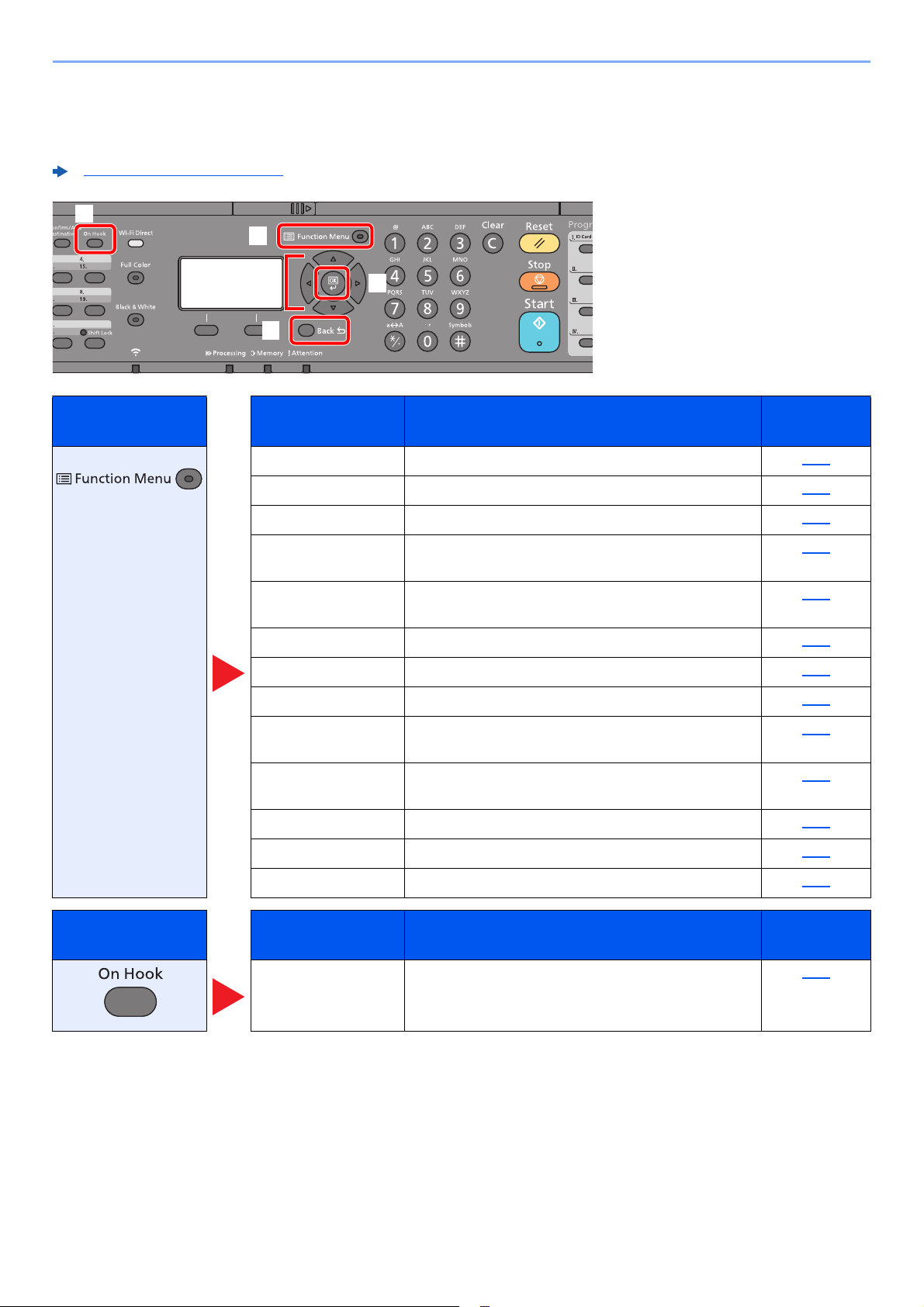
3-15
Sending Faxes > Fax transmission functions
Fax transmission functions
To configure the settings for functions, select the [Function Menu] key.
Operation Method (page 2-6)
1 Displays the function menu.
2 Selects the item displayed or changes
the numeric value.
3 Confirms the selected setting.
4 Cancels the current menu setting to
return to the menu one level higher.
5 Switches between on-hook and off-
hook when manually sending a FAX.
Key Function Description
Reference
page
Original Size Specify the original size to be scanned. 3-16
Original Image Select original image type. 3-16
FAX Resolution Set the resolution at which to scan originals. 3-16
Orig.Orientation Select the orientation of the original document top edge
to scan correct direction.
3-17
Continuous Scan Scan a large number of originals separately and then
produce as one job.
3-17
File Name Entry Adds a file name. 3-17
JobFinish Notice Send notice by e-mail when a job is complete. 3-18
FAX Delayed TX Specify a time for transmission. 3-19
FAX Direct TX Connect to the destination first and then scan the
original.
3-20
FAX RX Polling Dial the destination and receive documents for Polling
Transmission stored in the polling box.
5-17
FAX TX Report Print a report of FAX transmission results. 3-21
Density Adjust density. 3-21
Duplex Automatically scan 2-sided originals. 3-21
Key Function Description
Reference
page
Manual Send This method allows you to send originals by pressing
the [Start] key after confirming that the telephone line
has connected to the receiving system.
3-22
5
1
2
4
3
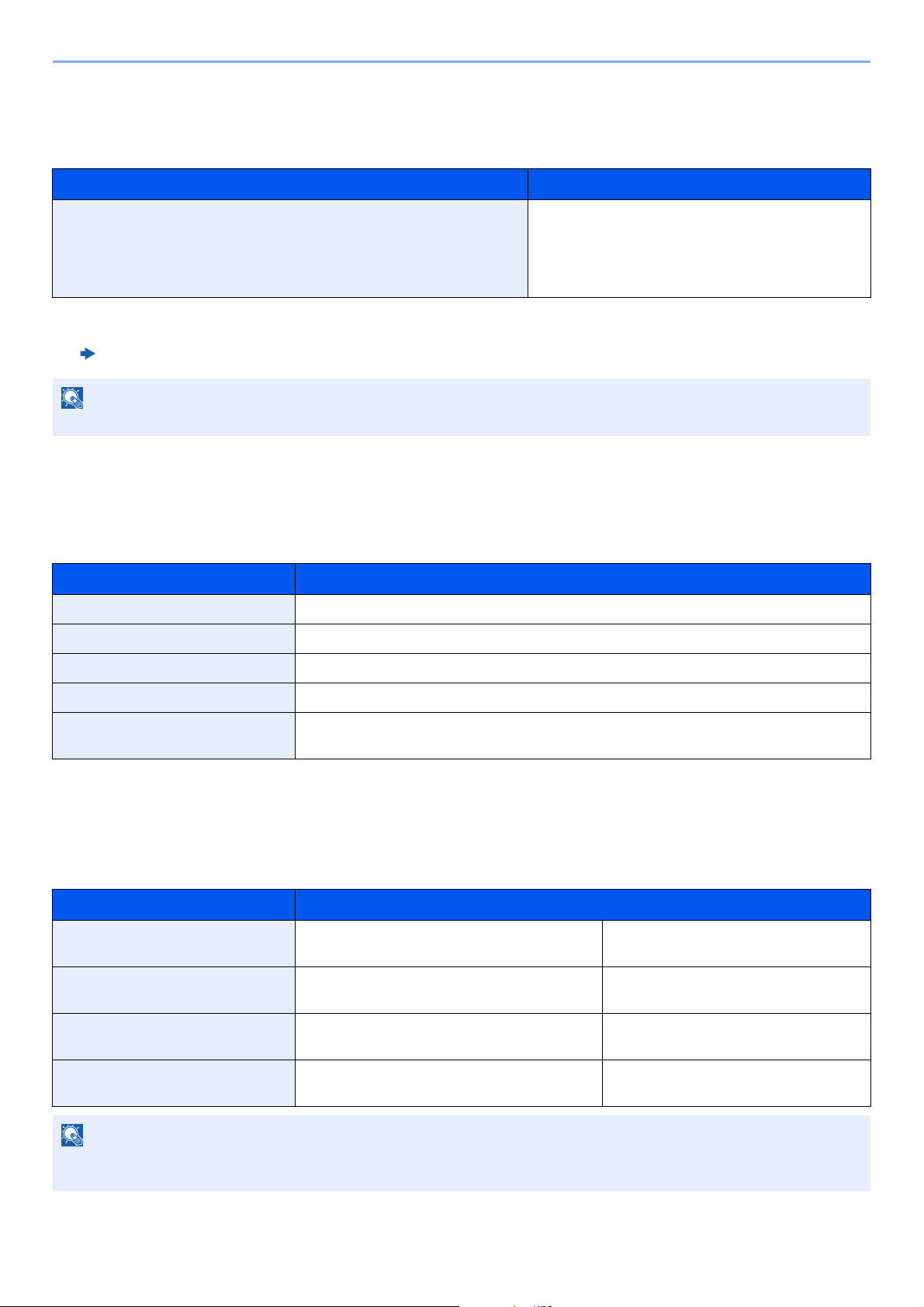
3-16
Sending Faxes > Original Size
Original Size
Specify the original size to be scanned.
Original Image
Select original image type for best results.
FAX Resolution
Select fineness of images when sending FAX. The larger the number, the better the image resolution. However, better
resolution also means larger file sizes and longer send times.
Item Description
Auto (DP)
*
, A4, A5, A6, B5, B6, Folio, 216 × 340 mm, Letter, Legal,
Statement, Executive, Oficio II, 16K, ISO B5, Envelope #10,
Envelope #9, Envelope #6, Envelope Monarch, Envelope DL,
Envelope C5, Hagaki (Cardstock), Oufuku Hagaki (Return postcard),
Youkei 4, Youkei 2, Custom
**
* This cannot be used when [Off] is set for [Auto Detect].
** For instructions on how to specify the custom original size, refer to the following:
Machine’s Operation Guide
Have the size of original detected automatically, or
select from standard sizes and custom size.
NOTE
Be sure to always specify the original size when using custom size originals.
Item Description
Text+Photo Best for mixed text and photo documents.
Photo Best for photos taken with a camera.
Text Best for documents that are mostly text.
for OCR Scanning produces an image that is suitable for OCR.
Light Text/Line Clearly reproduces faint characters written in pencil, etc., and thin lines on map originals or
diagrams.
Item Description
200x100dpi Norm. when sending originals with standard size
characters
Typical character size: 10.5 point
(example:
Resolution Resolution)
200x200dpi Fine when sending originals with relatively small
characters and thin lines
Typical character size: 8 point
(example:
Resolution Resolution)
200x400dpi S.Fin when sending originals with minute characters
and lines
Typical character size: 6 point
(example:
Resolution Resolution)
400x400dpi U.Fin when sending originals with minute characters
and lines more finely
Typical character size: 6 point
(example:
Resolution Resolution)
NOTE
The default setting is [200x100dpi Norm.]. The higher the resolution, the clearer the image, but the fax transmission
time is longer.
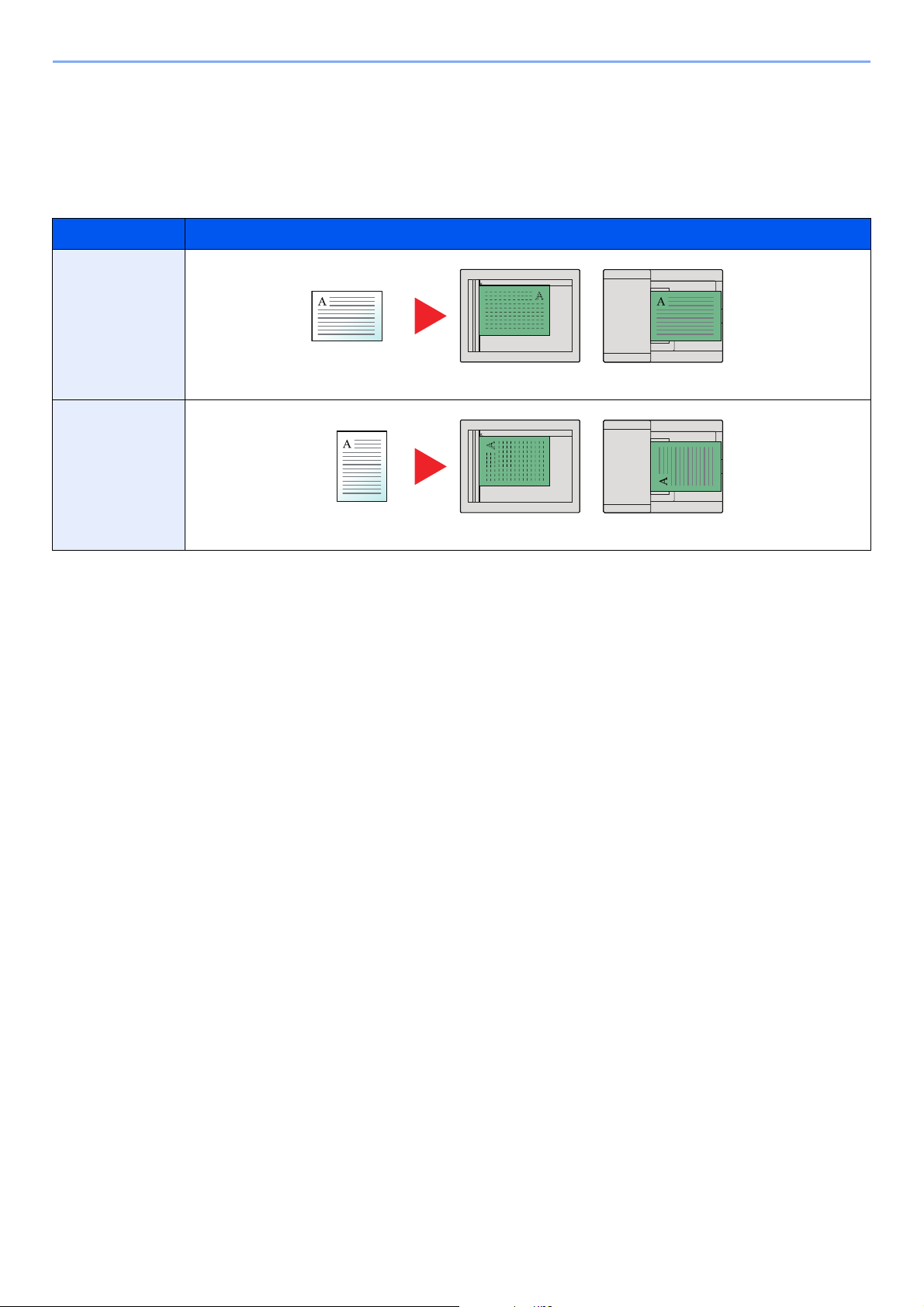
3-17
Sending Faxes > Original Orientation
Original Orientation
To scan the original in the correct orientation, specify which side of the original is the top. To set a 2-sided original,
the orientation of the placed original must be set.
Select original orientation from [Top Edge on Top] or [Top Edge on Left].
Continuous Scan
Scans a large number of originals in separate batches and then produce as one job.
Originals will be scanned continuously until you select [End Scan].
(Value: [Off] / [On])
File Name Entry
Adds a file name.
Additional information such as job number and date and time can also be set. You can check a job history or job status
using the file name, date and time, or job number specified here.
Enter the file name (
up to 32 characters), and select the [OK] key.
To add date and time, select [Date] and the [OK] key. To add job number, select [Job No.] and the [OK] key. To add
both, select [Job No. + Date] or [Date + Job No.] and the [OK] key.
Item Image
Top Edge on Top
Top Edge on Left
Original Original orientation
Original Original orientation

3-18
Sending Faxes > Job Finish Notice
Job Finish Notice
Sends E-mail notice when a job is complete.
Users can be notified of the completion of a job while working at a remote desk, saving the time spent waiting beside the
machine to finish.
It is possible to attach an image to the e-mail notice.
Job Finish Notice (page 8-4)
NOTE
PC should be configured in advance so that E-mail can be used.
Machine’s Operation Guide
E-mail can be sent to a single destination.
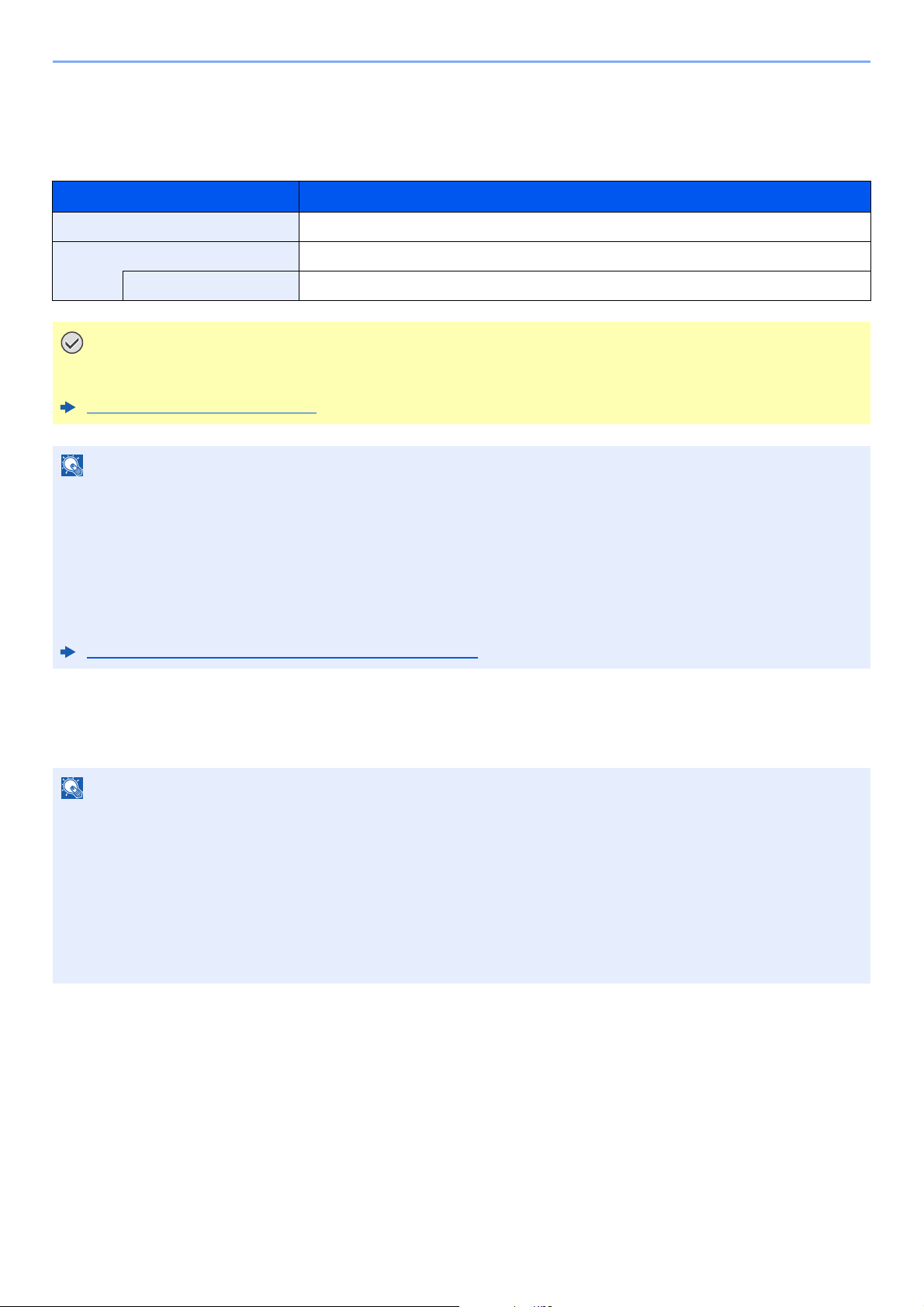
3-19
Sending Faxes > FAX Delayed Transmission
FAX Delayed Transmission
Set a send time. You can use delayed transmission together with the broadcast transmission function, etc.
Batch Transmission Function
When fax originals to be sent to the same destination are set to the same transmission start time with delayed
transmission, you can send up to 10 groups of originals using batch transmission. This function prevents repeated
communication to the same destination and reduces the communication cost.
Item Description
Off Does not use the delayed transmission.
On Uses the delayed transmission.
Start Time Set the time from between 00:00 and 23:59 in one-minute increments.
IMPORTANT
If the current time displayed on the message display is not correct, you cannot send originals correctly at the
preset time. In this case, adjust the time.
Setting Date and Time (page 2-7)
NOTE
You cannot select direct transmission.
You can set up to 30 destinations for delayed transmission.
When 2 or more delayed transmissions are set for the same time, the communication will start in the order that the
delayed transmissions have been set. When delayed transmissions have been set in reverse order, however, sending
of originals to be sent to the same destination is prioritized over the ones to be sent to different destinations.
You can cancel a delayed transmission any time before the specified transmission time. You can also send a delayed
transmission before the specified time.
Cancelling Delayed Transmissions (Queued) (page 3-20)
NOTE
You cannot send originals as a batch transmission in the case of direct transmission.
In the case of broadcast transmission, when you have set 2 or more groups of originals to the same transmission start
time, and each group includes the same receiving system fax number, you cannot send the originals as a batch
transmission.
When the transmission start time has come, and there are fax originals waiting for redial to the same receiving
system, the waiting originals are also sent together as a batch transmission.
When job accounting is ON, only the originals with the same account ID set using delayed transmission are sent as a
batch transmission.
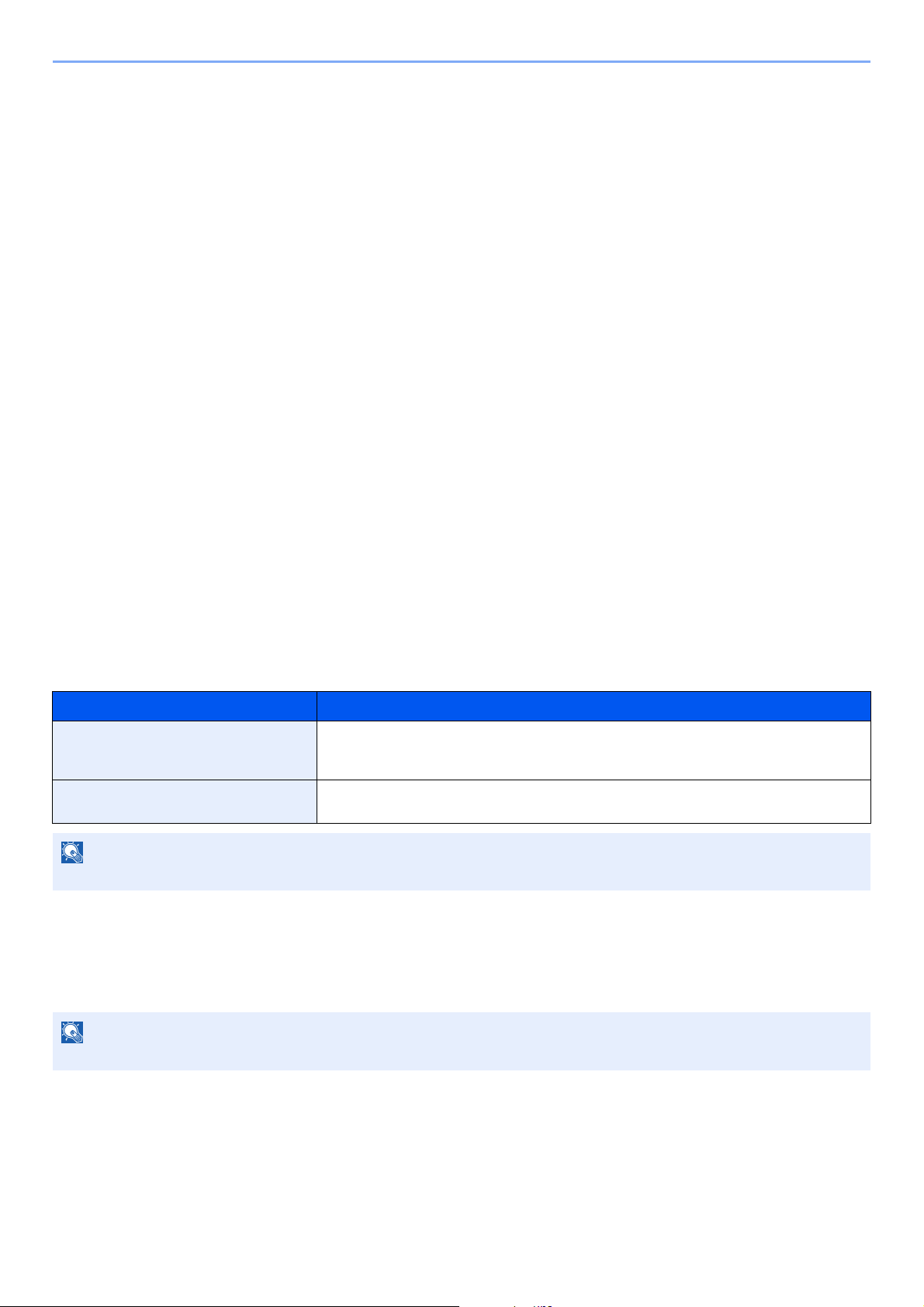
3-20
Sending Faxes > FAX Direct Transmission
Cancelling Delayed Transmissions (Queued)
1
Display the screen.
[Status/Job Cancel] key > [▲] [▼] key > [Scheduled Job] > [OK] key
Display the scheduled job screen.
2
Canceling a job.
Select the job you want to cancel and select [Cancel] > [Yes].
The selected job is deleted.
Immediate transmission
1
Display the screen.
[Status/Job Cancel] key > [▲] [▼] key > [Scheduled Job] > [OK] key
Display the scheduled job screen.
2
Immediate transmission.
Select the job you want to send by immediate transmission, select [Menu] > [▲] [▼] key >
[Start Now] > [OK] key > [Yes].
The transmission will start.
FAX Direct Transmission
The destination is dialed and communication starts before the original is scanned, allowing you to verify that each page
of the fax has been properly sent.
Cancelling Direct Transmission
During direct transmission, to cancel communication during transmission, select the [Stop] key on the operation panel.
The originals that have been scanned are ejected, and the screen returns to the send default screen. When originals
remain in the document processor, take them out.
Setting for Direct transmission Description
On Starts direct transmission.
Dials the receiving system, and after the communication has started, originals are
scanned.
Off Starts memory transmission.
After originals are scanned into memory, the communication starts.
NOTE
In direct transmission, you can designate only one destination for one transmission.
NOTE
In some cases, transmission may take place even if the [Stop] key is selected.
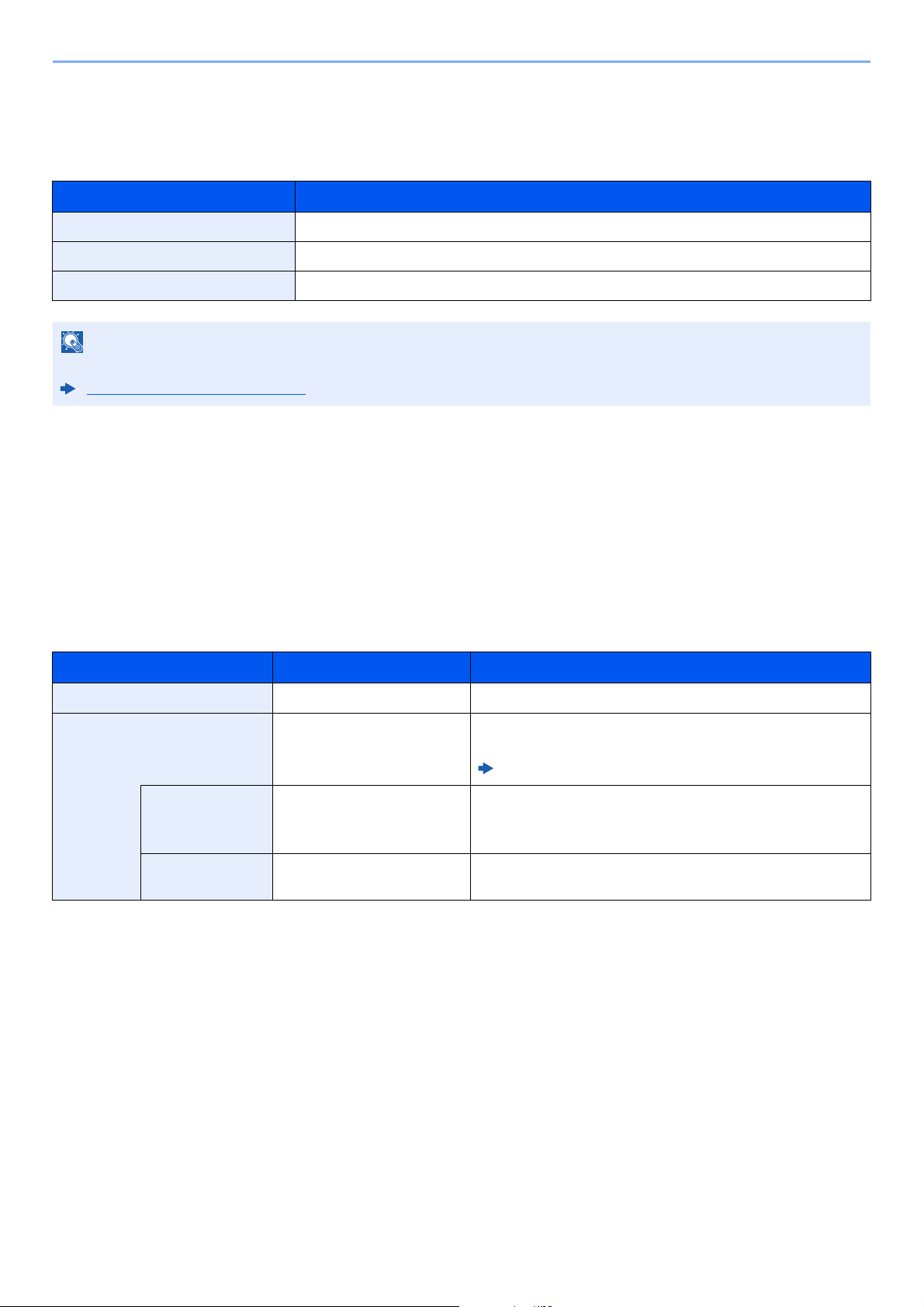
3-21
Sending Faxes > FAX TX Report
FAX TX Report
You can check whether FAX was transmitted properly by printing the report after transmission.
Density
Adjust density.
(Value: [-4] to [+4] (Lighter to Darker)))
Duplex (Only on models with a duplex scanning function.)
Select the type and orientation of the binding based on the original.
Item Description
Off Does not print reports.
On Prints reports.
Error Only Prints reports only if an error occurs.
NOTE
This setting is displayed if FAX TX Result Reports is set to [Specify Each Job].
Send Result Reports (page 7-4)
Item Value Description
1-sided ― Disables the function.
2-sided ― Select the [OK] key to scan the original with the default setting.
For the default settings, refer to the following:
Machine’s Operation Guide
Orig. Binding Left/Right, Top Select [Detail] to display the [Orig. Binding] screen.
Select the binding direction of originals, and select the [OK]
key.
Orig. Orientation Top Edge Top, Top Edge Left Select the orientation of the original document top edge to
scan correct direction, and select the [OK] key.
3-22
Sending Faxes > Manual Send
Manual Send
This method allows you to send originals by pressing the [Start] key after confirming that the telephone line has
connected to the receiving system.
1
Select the [FAX] key.
2
Place the originals.
3
Select the [On Hook] key.
4
Use the numeric keys to enter the number of the receiving system.
5
Press the [Start] key.
When you hear the fax tone, the telephone line has connected to the receiving system.
Press the [Start] key. Transmission begins.
NOTE
Connecting a telephone set (commercially available product) to this machine enables you to talk with the person at the
receiving system before sending originals.
Manual Send (page 5-33)
NOTE
To cancel the operation, select [Line Off].
3-23
Sending Faxes > Standby Transmission
Standby Transmission
During a communication, you can scan originals and schedule a next transmission. When the first communication is
completed, the machine automatically starts the scheduled next transmission. When using standby transmission, you do
not need to wait when a communication has prolonged due to broadcast transmission.
1
Select the [FAX] key.
2
Place the originals.
3
Select the destination, and set transmitting functions if you want to use
any.
4
Press the [Start] key.
Scanning of the originals starts, and the next transmission is scheduled.
5
When the communication is completed, the scheduled transmission will
begin.
NOTE
Together with delayed transmission and interrupt send, up to 35 transmissions can be scheduled.
You can use the broadcast transmission function.
NOTE
When [On] is selected in [Check beforeSend], a destination confirmation screen is
displayed when you press the [Start] key.
Confirmation Screen of Destinations (page 7-11)
3-24
Sending Faxes > Interrupt Send
Interrupt Send
During communication, when you scan originals by selecting direct transmission, you can use interrupt send. Even when
the communication is prolonged due to broadcast transmission or a next transmission being scheduled, the machine will
first send originals for which interrupt send has been set.
1
Select the [FAX] key.
2
Load the originals to be sent using Interrupt Send.
3
[Function Menu] key > [▲] [▼] key > [FAX Direct TX] > [OK] key >
[▲][▼] key > [On] > [OK] key
For operation of direct transmission, refer to the following:
4
Set the destination, and press the [Start] key.
The originals are left in queue, and the transmission will start when transmission becomes
possible.
5
When the interrupt send is completed, the waiting communication and
standby transmission will automatically resume.
NOTE
When the total number of standby transmissions and delayed transmissions has already reached 35, you cannot use
interrupt send.
FAX Direct Transmission (page 3-20)
NOTE
When [On] is selected in [Check beforeSend], a destination confirmation screen is
displayed when you press the [Start] key.
Confirmation Screen of Destinations (page 7-11)
To cancel transmission while waiting for interrupt send, select the [Stop] key on the
operation panel.
Cancelling Direct Transmission (page 3-20)
3-25
Sending Faxes > Using chain dial
Using chain dial
Chain dial is a function that allows you to dial by linking fax numbers of the receiving systems with a chain number
created with a number common to several destinations.
By setting multiple phone numbers from several telephone companies to a chain number, you can later choose the one
that costs the least to send the fax to a remote or international destination.
As an example, when using ‘212’ as the chain number
1
Select the [FAX] key.
2
Select the chain dial number.
To use a One Touch Key, select the destination in which "212" is registered.
3
Select [Chain].
4
Enter the fax number to be added to the chain number.
Select fax number from the Address Book
1 Select the [Address Book] key.
2 Select the [OK] key.
For the procedure for selecting a destination in the address book, refer to the following:
Select fax number from One Touch Key
1 Select the [One Touch] key.
2 Select the [OK] key.
NOTE
It is convenient to register chain numbers that are used frequently to the Address Book or One Touch Key.
For registration to the Address Book, refer to the following:
Adding a Destination (Address Book) (page 2-12)
For registration to One Touch Key, refer to the following:
Adding a Destination on One Touch Key (page 2-17)
NOTE
To use the Address Book, select the destination in which "212" is registered as explained in
Choosing from the Address Book.
Choosing from the Address Book (page 3-9)
To enter using the numeric keys, enter "212", and select [OK].
Choosing from the Address Book (page 3-9)

3-26
Sending Faxes > Using chain dial
Use the numeric keys to enter a fax number
1 "212" is already entered, so continue by entering the fax number.
2 Select the [OK] key.
To select the next fax number, repeat steps from step 2.
NOTE
When [On] is selected in [Check New Dest.], a confirmation screen is displayed for the
entered FAX number. Re-enter the same FAX number and select [OK].
Machine’s Operation Guide
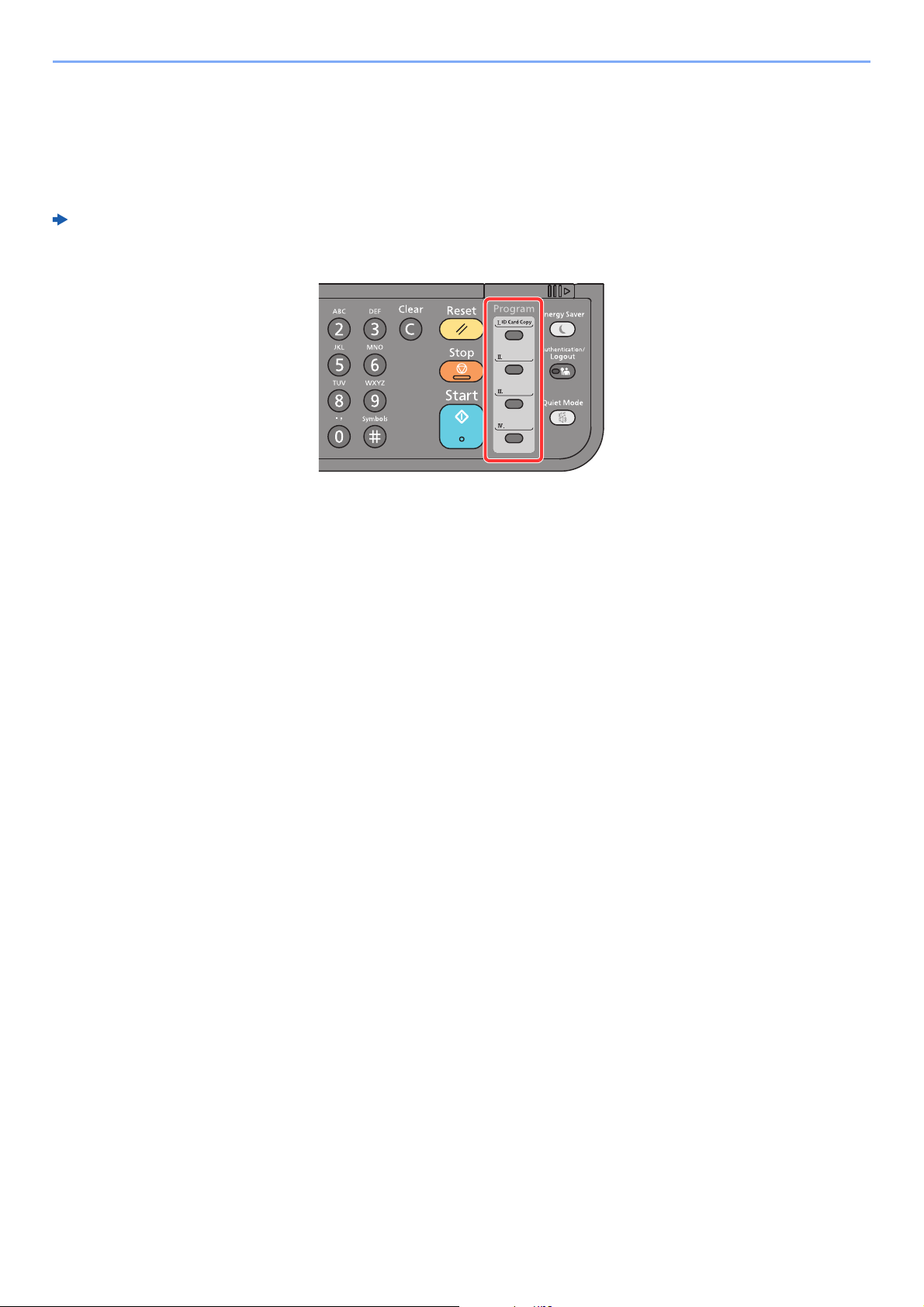
3-27
Sending Faxes > Using Programs
Using Programs
By registering sets of frequently used functions as a single program, you can simply select one of the [Program I] to
[Program IV] keys as needed to recall those functions.
For the procedure for registering programs, refer to the following:
Machine’s Operation Guide

4-1
4 Receiving Faxes
This chapter explains the following topics:
FAX Reception ................................................................................................................................................... 4-2
Reception Method .................................................................................................................................... 4-2
Set the Reception Method ....................................................................................................................... 4-2
Automatic Reception .......................................................................................................................................... 4-3
Flow of automatic reception ..................................................................................................................... 4-3
Canceling reception (Disconnection of communication) .......................................................................... 4-3
Manual Reception .............................................................................................................................................. 4-4
Flow of manual reception ......................................................................................................................... 4-4
Fax reception functions ...................................................................................................................................... 4-5
Media Type for Print Output ............................................................................................................................... 4-6
Reception Date/Time ......................................................................................................................................... 4-7
2 in 1 Print .......................................................................................................................................................... 4-7
Batch Print ......................................................................................................................................................... 4-7
Duplex Printing ................................................................................................................................................... 4-7

4-2
Receiving Faxes > FAX Reception
FAX Reception
When using this machine as a FAX-dedicated machine that does not receive telephone calls, set the machine to
automatic reception. No special operation is required when receiving faxes.
Reception Method
The methods for receiving faxes on the machine are shown below.
• Auto (Normal)
• Auto (FAX/TEL) (Refer to 5-27
.)
• Auto (Answering machine) (Refer to 5-29
.)
• Manual (Refer to 4-4
.)
• Auto (DRD) (Available for some countries.) (Refer to 5-31
.)
Set the Reception Method
1
Display the screen.
[System Menu/Counter] key > [▲] [▼] key > [FAX] > [OK] key > [▲] [▼] key > [Reception] >
[OK] key > [▲] [▼] key > [RX Settings] > [OK] key
2
Select the reception method.
1 Select the reception method.
For FAX Automatic Reception, select [Auto(Normal)].
2 Select the [OK] key.
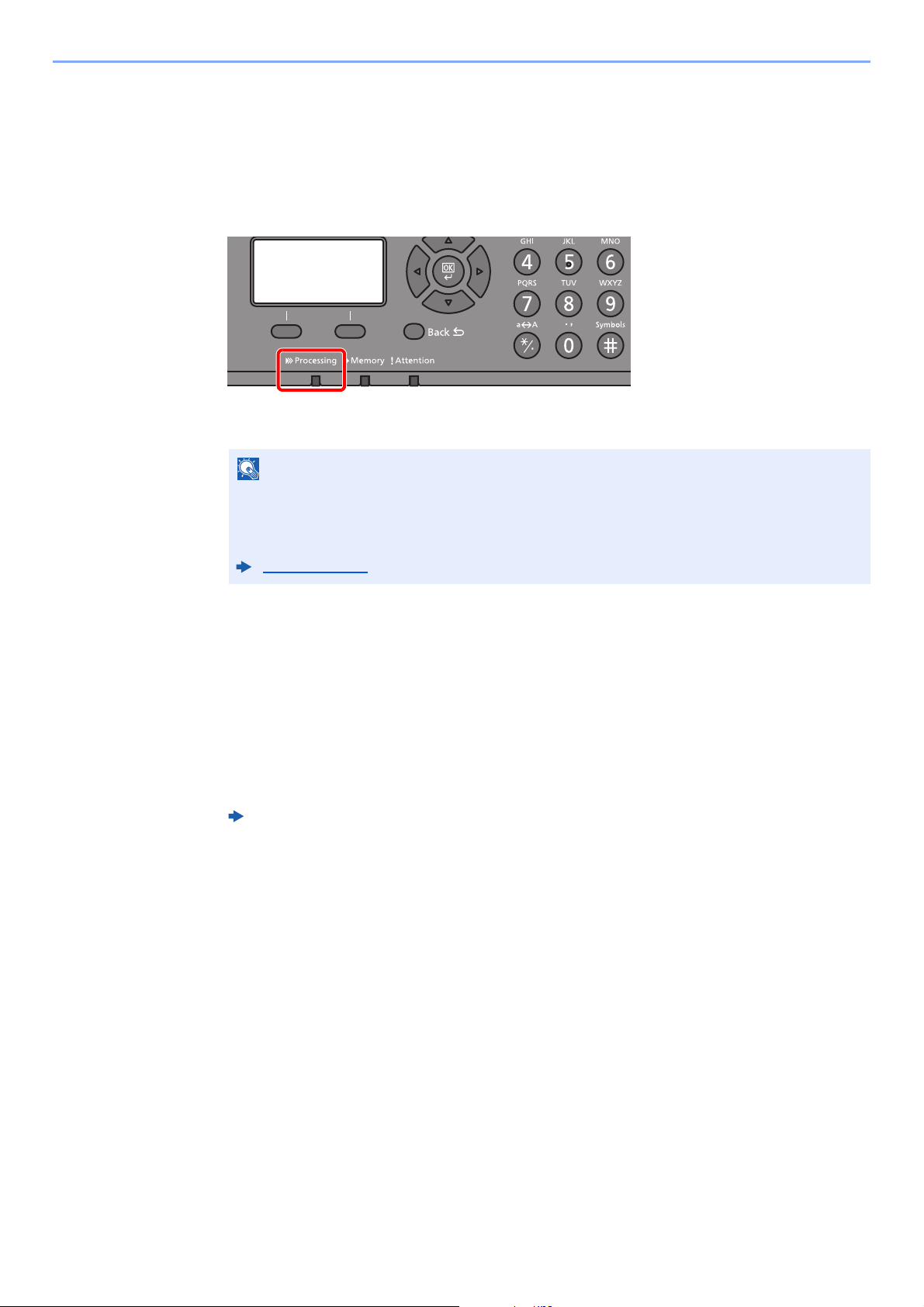
4-3
Receiving Faxes > Automatic Reception
Automatic Reception
Flow of automatic reception
1
Reception Starts
When a fax comes in, the [Processing] indicator blinks and reception automatically begins.
.
Memory Reception
When the machine cannot print a fax due to paper running out or a paper jams, it temporarily
stores originals that have been sent in the image memory. When the machine returns to the
printable state, printing starts.
The number of pages that can be stored depends on the pages. As a general guideline, about
256 or more A4 size pages at normal resolution can be stored.
During memory reception, FAX Reception Printing Jobs are displayed on Printing Jobs of the
Status screen. To print the received originals, supply paper or remove jammed paper.
For the Status screen, refer to the following:
2
Reception Print
Received faxes are output to the inner tray with the printed side facing down.
Canceling reception (Disconnection of communication)
When you cancel receiving by disconnecting the telephone line during communication, use the following procedure.
1
Select the [Status/Job Cancel] key.
2
Disconnection of communication.
[▲] [▼] key > [FAX] > [OK] key > [Line Off]
When communication is disconnected, reception stops.
NOTE
When a telephone (commercially available product) is connected to the machine, reception
starts after the telephone rings.
You can change the number of times the ringing tone rings.
FAX (page 8-6)
Machine’s Operation Guide
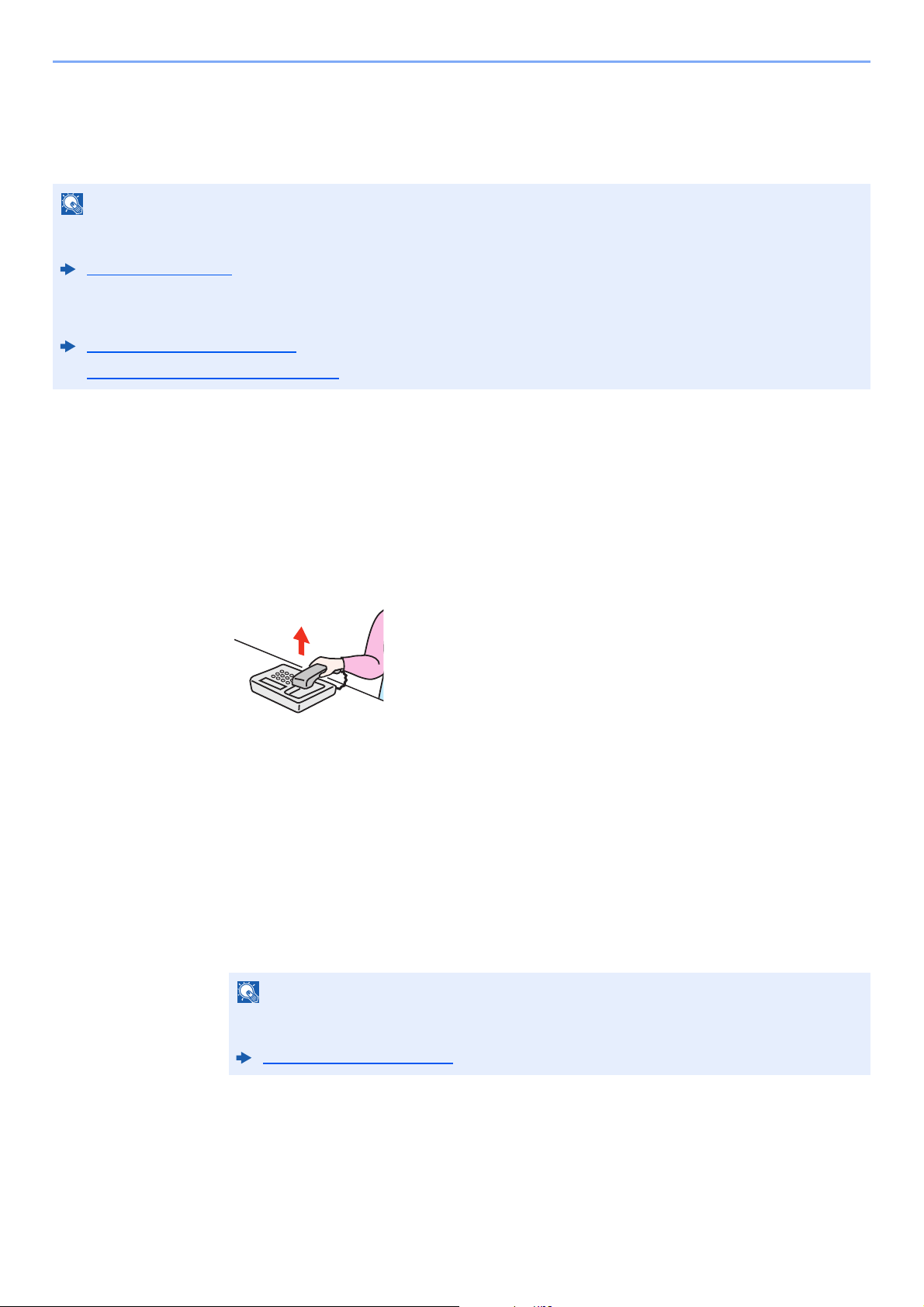
4-4
Receiving Faxes > Manual Reception
Manual Reception
This method allows you to receive faxes by selecting [Manual RX] after confirming that the telephone line has
connected to the sending system.
Flow of manual reception
1
The telephone rings.
When there is an incoming call, the telephone connected to the machine makes a ringing tone.
2
Lift the handset.
Lift the handset of the telephone.
3
Check if the telephone line has connected to the fax of the sending
system.
If the destination is a fax machine, you will hear soft beep sounds. If a person answers, you
can talk to that person.
4
[FAX] key > [On Hook] key > [Manual RX]
Reception will start.
5
Replace the handset.
When reception starts, return the handset to its original position.
NOTE
To use manual reception, a handset (commercially available) must be connected to the machine and the reception
mode must be changed to manual reception. To change to manual mode, refer to the following:
Reception (page 8-8)
Connecting a telephone set (commercially available product) to this machine enables you to receive originals after
talking to the person at the sending system.
Manual Reception (page 5-34)
Remote Switch Function (page 5-35)
NOTE
When using a telephone set that can send tone signals, use the telephone to start the
reception of originals with the remote switch function.
Remote SW Dial (page 8-8)
4-5
Receiving Faxes > Fax reception functions
Fax reception functions
The reception method and fax printing method can be set.
What do you want to do? Reference Page
Restrict the type of paper that can be used. Media Type for Print Output page 4-6
Connection to PBX (Private Branch Exchange). (Europe only) PBX Setting (Europe only) page 2-11
Forward received faxes to another fax machine or a computer. Forward Settings page 5-2
Print the date and time of reception and other information. Reception Date/Time page 4-7
Receive a two-page fax on one page. 2 in 1 Print page 4-7
Print received faxes together as a batch. Batch Print page 4-7
Encrypt an original to send it safely. Encryption page 5-23
Print received faxes on both sides of the paper. Duplex Printing page 4-7
Store received faxes in the machine without printing them. Sub Address Box Function page 5-8
Initiate reception of a fax by controlling the receiving machine. Polling Communication page 5-17
4-6
Receiving Faxes > Media Type for Print Output
Media Type for Print Output
Specify the paper type to be used for print output of the received fax.
For more information about configuring settings, refer to the following:
Setting the cassette for the print output of received faxes
By specifying the media type, faxes can be received on the corresponding cassette.
1
Display the screen.
1 [System Menu/Counter] key > [▲] [▼] key > [Common Settings] > [OK] key >
[▲][▼]key > [Orig./Paper Set.] > [OK] key
2 Select the cassette ([Cassette 1 (to 3) Set.] or [MP Tray Set.]) you want to use for fax
reception.
3 Select the [OK] key.
2
Selecting the paper size.
1 [Cassette 1 (to 3) Size] or [MP Tray Size] > [OK] key
2 Select the paper size.
3 Select the [OK] key.
To specify the paper size, refer to the following:
3
Selecting the paper type.
1 [Cassette 1 (to 3) Type] or [MP Tray Type] > [OK] key
2 Select the paper type you want to use for fax reception.
3 Select the [OK] key.
4
Set the paper type.
Configure paper settings for fax reception. When selecting the paper type, select the same
paper type as you selected in step 3.
For more information about configuring settings, refer to the following:
Supported paper types All Media Types, Plain, Rough, Vellum, Labels, Recycled, Bond,
Cardstock, Color, Envelope, Thick, High Quality, Custom 1-8
FAX Media Type (page 8-8)
IMPORTANT
The following paper sizes can be used for fax reception.
Inch models: Letter, Legal, Statement
Metric models: A4, B5, A5-R, A5, Folio
Machine’s Operation Guide
FAX Media Type (page 8-8)
4-7
Receiving Faxes > Reception Date/Time
Reception Date/Time
Reception Date/Time function adds the reception date/time, sender information and number of pages on the top of each
page when the received fax is printed out. It is useful for confirming the time of reception if the fax is from a different time
zone.
For more information about configuring settings, refer to the following:
2 in 1 Print
When you receive a multi-page Statement or A5 size original, this function prints 2 pages of the original at a time on one
Letter or A4 size sheet of paper. If you specify 2 in 1 reception and duplex printing at the same time, 2 in 1 reception is
disabled.
For more information about configuring settings, refer to the following:
Batch Print
When a multi-page fax is received, the pages are printed in a batch after all pages are received.
For more information about configuring settings, refer to the following:
Duplex Printing
When received multiple pages of data are the same width, they can be printed out on both sides of paper having the
same width as the data.
For more information about configuring settings, refer to the following:
NOTE
When the received fax data is forwarded after retrieving it from memory, the reception date/
time is not added to the forwarded data.
When the received data is printed on divided pages, the reception date/time is printed on
the first page only. It is not printed on the pages that follow.
On Print the reception date/time.
Off Do not print the reception date/time.
Reception Date/Time (page 8-8)
On Print 2 in 1.
Off Do not print 2 in 1.
2 in 1 Printing (page 8-8)
On Print as a batch after all pages are received.
Off Print each page as it is received.
Batch Print (page 8-8)
On Print on both sides.
Off Do not print on both sides.
RX Settings (page 8-8)

5-1
5 Using Convenient Fax
Functions
This chapter explains the following topics:
Forward Settings ........................................... 5-2
Type of Forwarding Destination .......... 5-2
Setting Forwarding .............................. 5-2
Registering Forwarding
Destination .......................................... 5-2
Changing Registration Contents ......... 5-3
Deleting Registration Contents ........... 5-3
File Format Setting ............................. 5-4
E-mail Subject Add. Info. Setting ........ 5-4
FTP Encrypted TX Setting .................. 5-4
Forwarding Time Setting ..................... 5-5
File Name Registration ....................... 5-6
Print Setting ........................................ 5-6
Settings for Forwarding from Command
Center RX (Forward Settings) ............ 5-7
Sub Address Box Function ........................... 5-8
Sub Address Box ................................ 5-8
Sub Address Communication ............. 5-8
Registering a Sub Address Box .......... 5-9
Changing Sub Address Box .............. 5-10
Deleting Sub Address Box ................. 5-11
Printing Originals from a Sub
Address Box ..................................... 5-12
Checking Details ............................... 5-13
Deleting Originals after
Printing from a Sub Address Box ...... 5-13
Deleting Originals from a Sub
Address Box ..................................... 5-14
Printing a Sub Address Box List ....... 5-15
Sub Address Transmission ............... 5-16
Polling Communication ............................... 5-17
Polling Transmission ......................... 5-17
Polling Reception .............................. 5-19
Printing from a Polling Box ............... 5-21
Checking Details ............................... 5-22
Deleting Originals in a Polling Box .... 5-22
Encryption ................................................... 5-23
Registering an Encryption Key ......... 5-24
Changing Registration Contents of
Encryption Key .................................. 5-24
Deleting Registration Contents of
Encryption Key .................................. 5-25
Using the Encrypted Transmission ... 5-25
Setting the Encrypted Reception ...... 5-26
Using a Connected Telephone .................... 5-27
FAX/TEL Auto Switch Reception ...... 5-27
FAX/Answering Machine Auto Switch
Reception .......................................... 5-29
DRD Reception (Available for some
countries.) ......................................... 5-31
Manual Send ..................................... 5-33
Manual Reception ............................. 5-34
Remote Switch Function ................... 5-35

5-2
Using Convenient Fax Functions > Forward Settings
Forward Settings
When you have received a fax, you can forward the received image to other fax machines or computers, or set printing.
Type of Forwarding Destination
Only one forwarding destination can be specified. When forwarding is set to [On], all received documents will be
forwarded to the specified destination.
You can forward the document to other fax machines or for e-mail transmission or folder (SMB or FTP) transmission.
Setting Forwarding
1
Display the screen.
[System Menu/Counter] key > [▲] [▼] key > [FAX] > [OK] key > [▲] [▼] key > [Reception] >
[OK] key > [▲] [▼] key > [Forward Settings] > [OK] key > [▲] [▼] key > [Forwarding] >
[OK]key
2
Configure the function.
To set Forwarding, select [▲] [▼] key > [On] > [OK] key.
Registering Forwarding Destination
1
Display the screen.
[System Menu/Counter] key > [▲] [▼] key > [FAX] > [OK] key > [▲] [▼] key > [Reception] >
[OK] key > [▲] [▼] key > [Forward Settings] > [OK] key > [▲] [▼] key > [Forward Dest.] >
[OK] key
2
Registering Forwarding Destination
Selecting Forwarding Destination from Address Book
1 [▲] [▼] key > [Register] > [OK] key > [▲] [▼] key > [Address Book] > [OK] key
2 Select the destination.
3 Select the [OK] key.
NOTE
When not using Forwarding, select [Off].
NOTE
When selecting the destination, select [Menu] > [Search(Name)] > [OK] key.
The Search screen is displayed.
When checking details of the destination, select the destination to check details, select
[Menu] > [Details] > [OK] key.
Detailed information is displayed.

5-3
Using Convenient Fax Functions > Forward Settings
Entering Forwarding Destination Directly
1 [▲] [▼] key > [Register] > [OK] key > [▲] [▼] key > [Address Entry] > [OK] key
2 [FAX], [E-mail], [Folder(SMB)] or [Folder(FTP)] > [OK] key
3 Enter the address to be registered as a forwarding destination.
4 Select the [OK] key.
Changing Registration Contents
1
Display the screen.
1 [System Menu/Counter] key > [▲] [▼] key > [FAX] > [OK] key > [▲] [▼] key >
[Reception] > [OK] key > [▲] [▼] key > [Forward Settings] > [OK] key > [▲] [▼] key >
[Forward Dest.] > [OK] key > [▲] [▼] key > [Confirmation] > [OK] key
2 Check the destination you want to change.
3 Select the [OK] key.
2
Edit the destination.
1 [▲] [▼] key > [Detail/Edit] > [OK] key
2 Repeat the entry of the forwarding destination information.
3 Select the [OK] key.
Deleting Registration Contents
1
Display the screen.
1 [System Menu/Counter] key > [▲] [▼] key > [FAX] > [OK] key > [▲] [▼] key >
[Reception] > [OK] key > [▲] [▼] key > [Forward Settings] > [OK] key > [▲] [▼] key >
[Forward Dest.] > [OK] key > [▲] [▼] key > [Confirmation] > [OK] key
2 Check the destination you want to change.
3 Select the [OK] key.
2
Delete the destination.
[▲] [▼] key > [Delete] > [OK] key > [Yes]
5-4
Using Convenient Fax Functions > Forward Settings
File Format Setting
If you are sending the file as an E-mail attachment or transferring it to a folder (SMB or FTP), select PDF, TIFF, XPS, or
OpenXPS as the file format.
1
Display the screen.
[System Menu/Counter] key > [▲] [▼] key > [FAX] > [OK] key > [▲] [▼] key > [Reception] >
[OK] key > [▲] [▼] key > [Forward Settings] > [OK] key > [▲] [▼] key > [File Format] >
[OK]key
2
Configure the function.
[PDF], [TIFF], [XPS] or [OpenXPS] > [OK] key
E-mail Subject Add. Info. Setting
Specify whether any information will be added to the subject of the E-mail. When adding information, you can select
either Sender Name or Sender.
1
Display the screen.
[System Menu/Counter] key > [▲] [▼] key > [FAX] > [OK] key > [▲] [▼] key > [Reception] >
[OK] key > [▲] [▼] key > [Forward Settings] > [OK] key > [▲] [▼] key >
[Subject Add.Info]> [OK] key
2
Configure the function.
[Sender Name], [Sender FAX/Add.] or [Off] > [OK] key
FTP Encrypted TX Setting
Specify whether to use FTP encryption when you send data.
1
Display the screen.
[System Menu/Counter] key > [▲] [▼] key > [FAX] > [OK] key > [▲] [▼] key > [Reception] >
[OK] key > [▲] [▼] key > [Forward Settings] > [OK] key > [▲] [▼] key >
[FTP Encrypted TX]> [OK] key
2
Configure the function.
[On] or [Off] > [OK] key
NOTE
If you have selected [PDF] for file format, PDF Encryption functions are available.
Machine’s Operation Guide
NOTE
To use FTP encryption, set SSL to [On] in the Secure Settings.
Machine’s Operation Guide
5-5
Using Convenient Fax Functions > Forward Settings
Forwarding Time Setting
Register the start time and end time between which forwarding is enabled.
1
Display the screen.
[System Menu/Counter] key > [▲] [▼] key > [FAX] > [OK] key > [▲] [▼] key > [Reception] >
[OK] key > [▲] [▼] key > [Forward Settings] > [OK] key > [▲] [▼] key > [Forward Time] >
[OK] key
2
Configure the function.
1 Select [All day] or [Preset Time].
To forward all day, select [All day] and select the [OK] key.
To set a forwarding start time and end time, select [Preset Time] > [OK] key, and then set
the start time and end time.
Forwarding start time and end time settings
1 Set the hours and minutes of the start time.
2 Select the [OK] key.
3 Set the hours and minutes of the end time.
4 Select the [OK] key.
NOTE
Select the [▲] or [▼] key to enter a number.
Select the [◄] or [►] key to move the position being entered, which is shown highlighted.
NOTE
Select the [▲] or [▼] key to enter a number.
Select the [◄] or [►] key to move the position being entered, which is shown highlighted.
5-6
Using Convenient Fax Functions > Forward Settings
File Name Registration
You can set the file name to be created when forwarding. You can append information such as the date/time and the job
number or fax number.
1
Display the screen.
[System Menu/Counter] key > [▲] [▼] key > [FAX] > [OK] key > [▲] [▼] key > [Reception] >
[OK] key > [▲] [▼] key > [Forward Settings] > [OK] key > [▲] [▼] key > [File Name Entry] >
[OK] key
2
Configure the function.
1 Enter the file name.
2 Select the [OK] key.
3 Set additional information.
If you do not want to add information to the document name, select [Date], and set [Off] or [On] for
sender name information addition. To add document information, select [Date and Time], [Job No.],
[Job No. + Date], or [Date + Job No.], and set [None], [Add.Info.+Sender], or [Sender+Add.Info.]
for sender name information addition.
File name sample
Example: doc00352720140826181723.pdf
doc (file name) + 6-digit job number + year/month/day/hour/minute/second +file format (default
setting is .pdf)
4 Select the [OK] key.
Print Setting
You can set whether the machine should print received originals when forwarding them.
1
Display the screen.
[System Menu/Counter] key > [▲] [▼] key > [FAX] > [OK] key > [▲] [▼] key > [Reception] >
[OK] key > [▲] [▼] key > [Forward Settings] > [OK] key > [▲] [▼] key > [Print] > [OK] key
2
Configure the function.
[On] (print) or [Off] (do not print) > [OK] key
NOTE
For details on character entry, refer to the following:
Character Entry Method (page 10-2)
NOTE
Please note that when you have not add any additional information, file names become
the same, and, therefore, old files are overwritten when received originals are forwarded
with folder (SMB) transmission and folder (FTP) transmission.
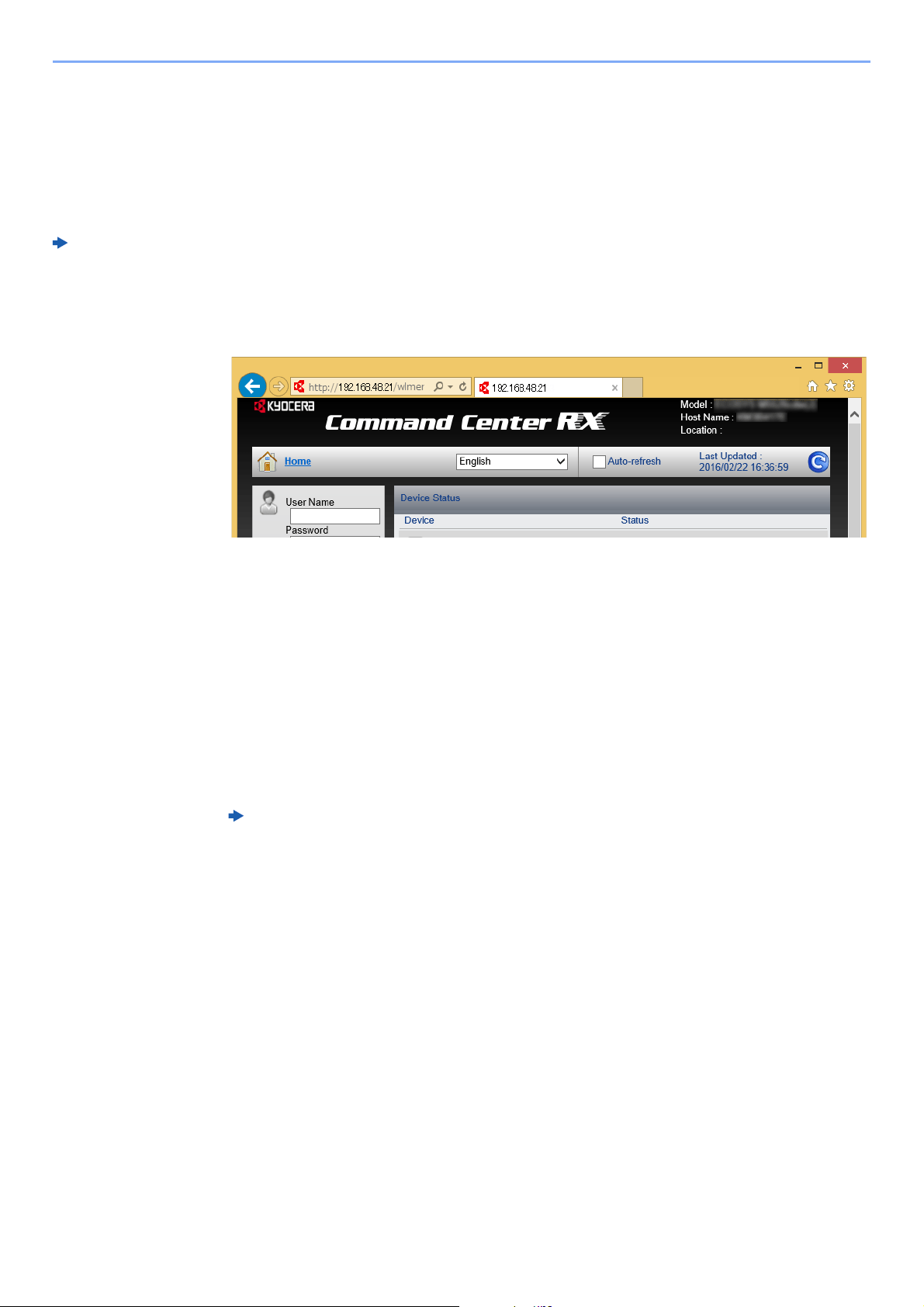
5-7
Using Convenient Fax Functions > Forward Settings
Settings for Forwarding from Command Center RX (Forward
Settings)
You can use Command Center RX on a computer connected to the network to specify the forwarding settings on this
machine.
For information on the network settings, refer to the followings:
Accessing Command Center RX
1
Display Command Center RX.
1 Open the web browser.
2 In the Address or Location bar, enter the machine’s IP address as the URL,
e.g. 192.168.48.21/.
The web page displays basic information about the machine and Command Center RX as
well as the current status of the machine.
2
Select settings in Command Center RX.
Select a category from the navigation bar on the left to view and set values for that particular
category.
If administrator privileges have been enabled on Command Center RX, remember to enter the
correct user name and password when trying to access the relevant screens.
Machine’s Operation Guide
Command Center RX User Guide

5-8
Using Convenient Fax Functions > Sub Address Box Function
Sub Address Box Function
Sub Address Box
A Sub Address Box is a box for storing received originals on the machine to which the FAX System is to be installed.
Using sub address reception function, you can store received originals in a personal Sub Address Box.
For the method for using a Sub Address Box, see the next section.
• Registering a Sub Address Box page 5-9
• Changing Sub Address Box page 5-10
• Deleting Sub Address Box page 5-11
For the method for manipulating a received fax stored in a Sub Address Box, see the next section.
• Printing Originals from a Sub Address Box page 5-12
• Checking Details page 5-13
• Deleting Originals after Printing from a Sub Address Box page 5-13
• Deleting Originals from a Sub Address Box page 5-14
• Printing a Sub Address Box List page 5-15
For the method for transmitting to a Sub Address Box, see the next section.
• Sub Address Transmission page 5-16
Sub Address Communication
Sub address communication is communication in which data is sent and received with sub addresses and passwords
attached in conformance with the ITU-T (International Telecommunication Union) recommendations. Sub addresses
enable communication modes with third-party machines that were previously only possible between our brand
machines. These include confidential delivery (sending originals to an original delivery box set up in the receiving
system) and polling communication (reception of documents from a source machine that is controlled from the receiving
machine). Using sub address communication on this machine also allows advanced communication functions such as
storing received originals in Sub Address Boxes.
Sub address-based communication can be used together with various kind of functional communication.
When registering a sub address and sub address password in the Address Book and One Touch Key, you can omit their
entry before transmission. For details, refer to the explanations in the procedure of each communication method and
registration method.
Sub Address
With the machine, sub address and sub address passwords are called sub address.
Sub Address
Use the numbers from 0 to 9, ‘ (space)’, and ‘#’ and ‘*’ characters to enter a sub address of up to 20 digits. When the
machine receives faxes, a sub address is used to specify the Sub Address Box.
Sub Address Password
Use the numbers from 0 to 9, alphabets, ‘ (space)’, and ‘#’ and ‘*’ characters to enter a sub address password of up to
20 digits. When the machine receives originals, a sub address password is not used.
For the procedure for setting a sub address, refer to the following:
Sub Address Transmission (page 5-16)
NOTE
In order to conduct sub address communication, the other party’s system also needs to be equipped with sub address
communication functions of the same type.
5-9
Using Convenient Fax Functions > Sub Address Box Function
Registering a Sub Address Box
Up to 20 Sub Address Boxes can be registered.
1
Display the screen.
[System Menu/Counter] key > [▲] [▼] key > [Document Box] > [OK] key > [▲] [▼] key >
[Sub Address Box] > [OK] key > [▲] [▼] key > [Detail/Edit] > [OK] key
2
Create a sub address box.
1 [Menu] > [▲] [▼] key > [Add Box] > [OK] key
2 Enter the sub address using the numeric keys.
3 Select the [OK] key.
4 Enter the box name using the numeric keys.
5 Select the [OK] key.
6 Enter a box number.
7 Select the [OK] key.
8 To finish the registration of a box, select [Exit] > [OK] key.
To register further box information, select [Detail] > [OK] key.
Proceed to next step.
NOTE
If user login administration is enabled, you can only edit destinations in the Address Book by logging in with
administrator privileges.
NOTE
You can use up to 20 digits including the numbers from 0 to 9, ‘ (space)’, ‘#’ and ‘*’
characters to enter a sub address.
NOTE
Up to 32 characters can be entered.
For details on character entry, refer to the following:
Character Entry Method (page 10-2)
NOTE
You can set any value between 01 and 20.
Select the [▲] or [▼] key or the numeric keys to enter a number.
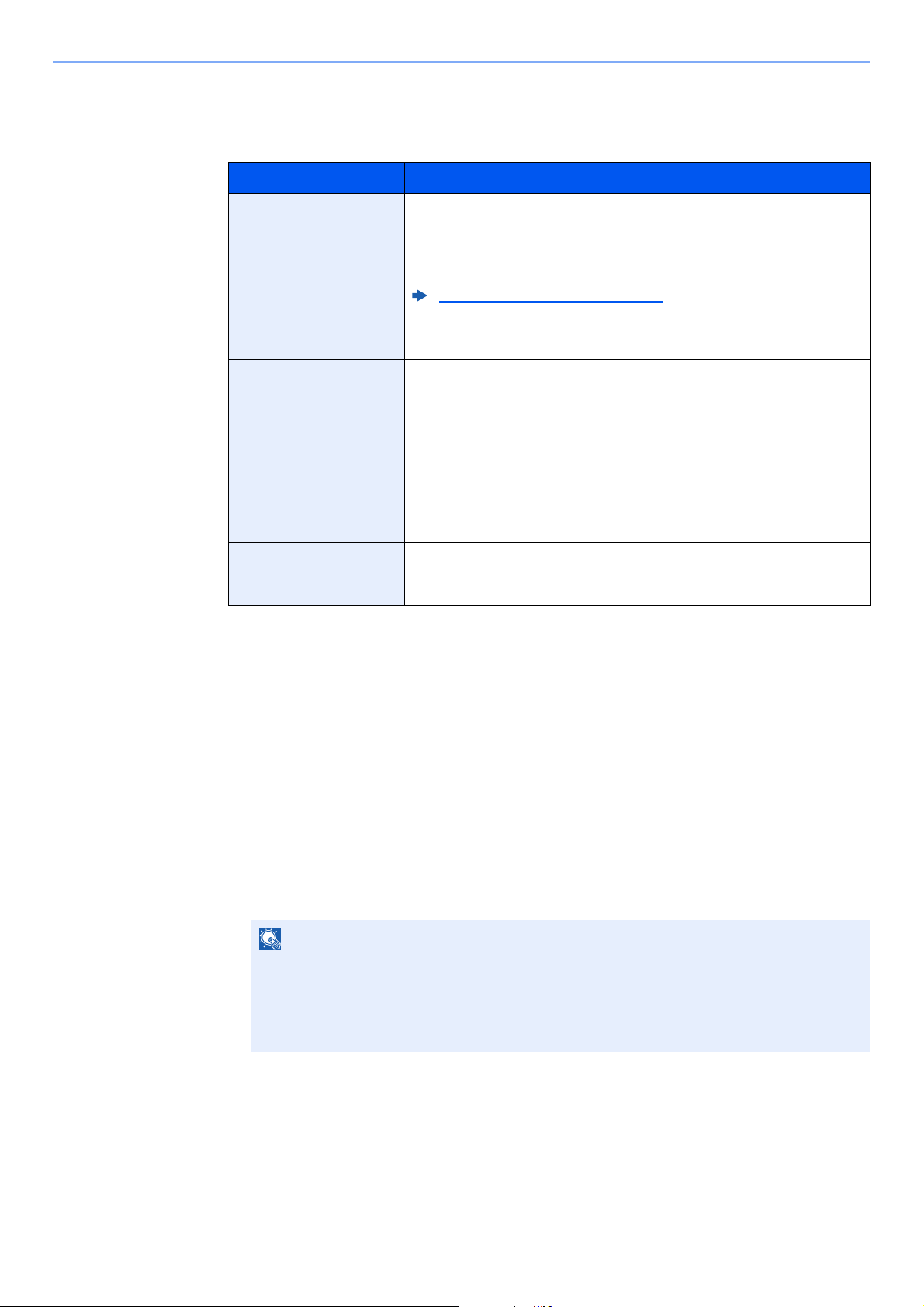
5-10
Using Convenient Fax Functions > Sub Address Box Function
3
Enter the box information.
The table below lists the items to be set. Enter the information for each item and select the
[OK] key.
Changing Sub Address Box
1
Display the screen.
[System Menu/Counter] key > [▲] [▼] key > [Document Box] > [OK] key > [▲] [▼] key >
[Sub Address Box] > [OK] key > [▲] [▼] key > [Detail/Edit] > [OK] key
2
Changing.
1 Select the box you want to edit.
2 Select the [OK] key.
Item Description
Sub Address You can use up to 20 digits including the numbers from 0 to 9, ‘ (space)’,
‘#’ and ‘*’ characters to enter a sub address.
Box Name Enter a box name consisting of up to 32 characters. For details on
character entry, refer to the following:
Character Entry Method (page 10-2)
User Name
* **
* Displayed when the user login administration is enabled.
** Displayed when logged in with administrator privileges.
Set the user name of the box. Select the user from the user list that
appears.
Permission
*
Select whether to share the box.
Box Password User access to the box can be restricted by specifying a password to
protect the box. Entering a password is not mandatory.
Enter a password of up to 16 characters and select the [OK] key. Reenter
the same password for confirmation and select the [OK] key.
This can be set if [Shared] is selected in Permission.
Box Number Enter the box number by using the numeric keys or selecting the [▲] or
[▼] key. The box number can be from 01 to 20.
Del. afterPrint Automatically delete a document from the box once printing is complete.
To delete the document, select [On] > [OK] key.
To retain the document, select [Off] > [OK] key.
NOTE
• When you have logged in as a user, you can only edit the box whose owner is set to that
user.
• When you have logged in as administrator, you can edit all boxes.
• If a sub address box is protected by a password, enter the correct password.
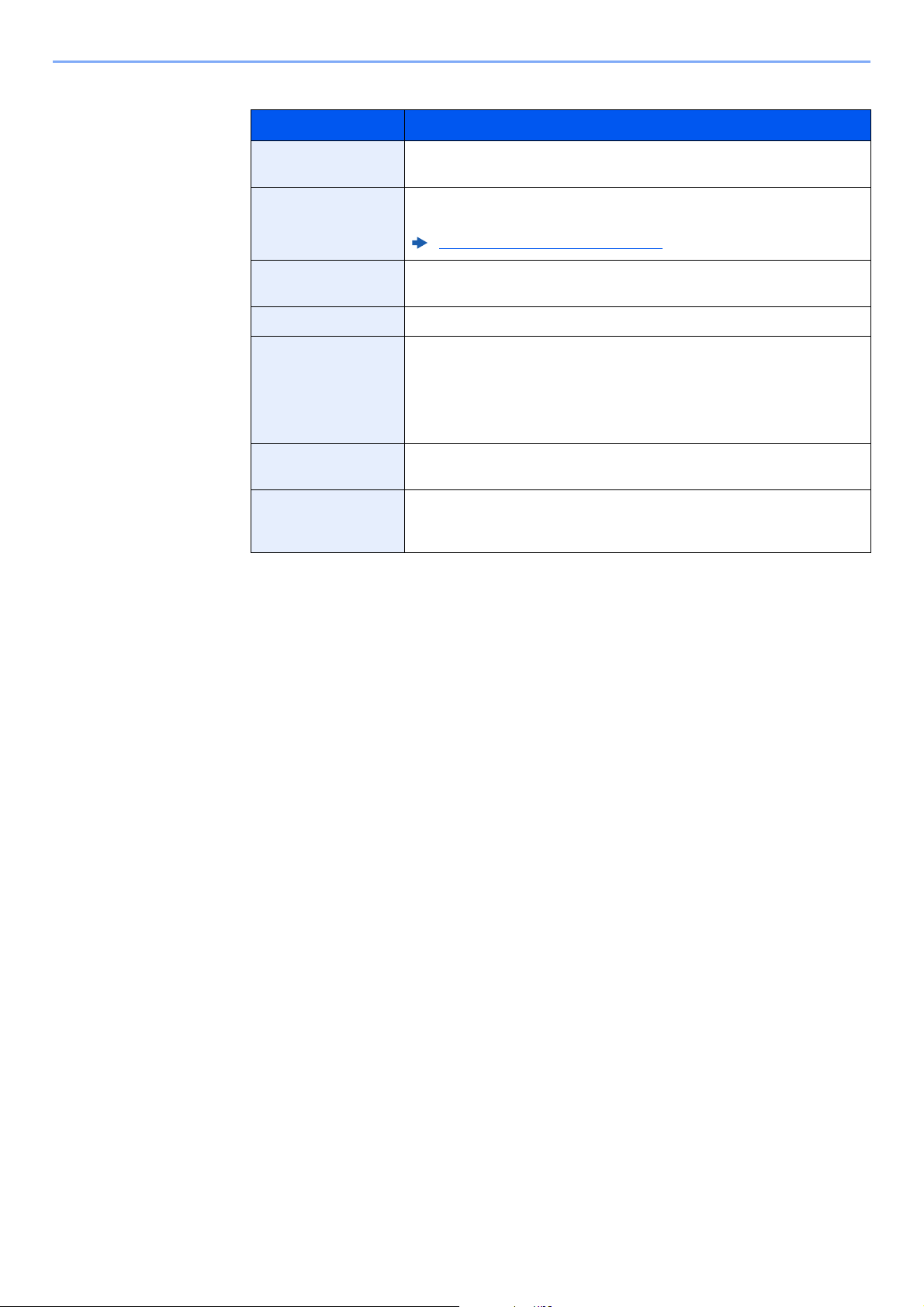
5-11
Using Convenient Fax Functions > Sub Address Box Function
3 Change the box information.
Deleting Sub Address Box
1
Display the screen.
[System Menu/Counter] key > [▲] [▼] key > [Document Box] > [OK] key > [▲] [▼] key >
[Sub Address Box] > [OK] key > [▲] [▼] key > [Detail/Edit] > [OK] key
2
Deleting.
Select the box you want to delete > [Menu] > [▲] [▼] key > [Delete] > [OK] key > [Yes]
Item Description
Sub Address You can use up to 20 digits including the numbers from 0 to 9, ‘ (space)’,
‘#’ and ‘*’ characters to enter a sub address.
Box Name Enter a box name consisting of up to 32 characters. For details on
character entry, refer to the following:
Character Entry Method (page 10-2)
User Name
* **
* Displayed when the user login administration is enabled.
** Displayed when logged in with administrator privileges.
Set the user name of the box. Select the user from the user list that
appears.
Permission
*
Select whether to share the box.
Box Password User access to the box can be restricted by specifying a password to
protect the box. Entering a password is not mandatory.
Enter a password of up to 16 characters and select the [OK] key. Reenter
the same password for confirmation and select the [OK] key.
This can be set if [Shared] is selected in Permission.
Box Number Enter the box number by using the numeric keys or selecting the [▲] or
[▼] key. The box number can be from 01 to 20.
Del. afterPrint Automatically delete a document from the box once printing is complete.
To delete the document, select [On] > [OK] key.
To retain the document, select [Off] > [OK] key.
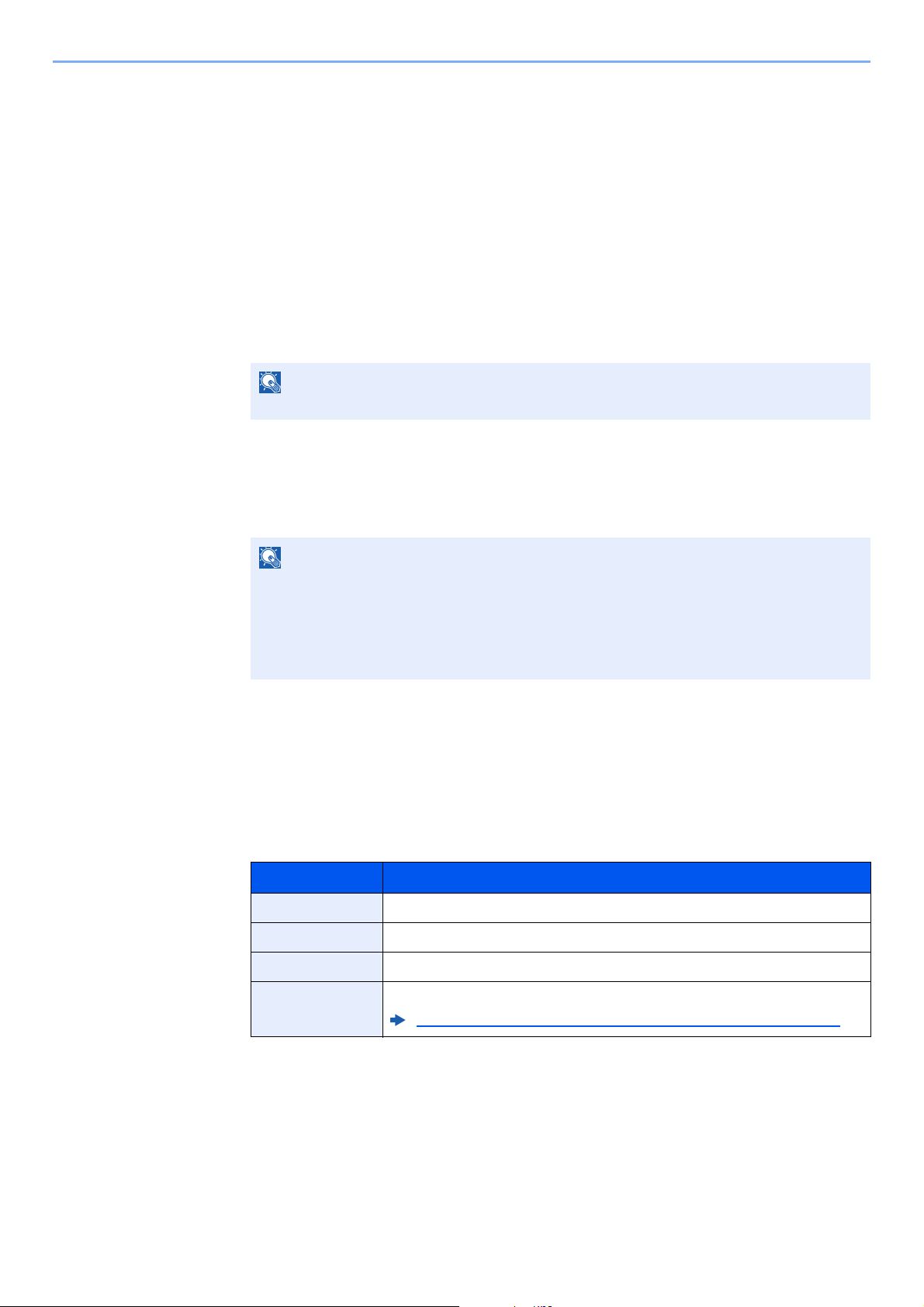
5-12
Using Convenient Fax Functions > Sub Address Box Function
Printing Originals from a Sub Address Box
To print the originals that have been sent to a Sub Address Box, use the following operation.
1
Display the screen.
[Document Box/USB] key > [▲] [▼] key > [Sub Address Box] > [OK] key
2
Selecting the Originals.
1 Select the box containing the document you want to print.
2 Select the [OK] key.
3 Select the document you want to print.
4 Select [Select].
A checkmark will be placed on the right of the selected file. Select the checkmarked file and
select [Select] again to cancel the selection.
5 Select the [OK] key.
3
Print
1 [Print] > [OK] key
2 Use the numeric keys to change the number of sheets to be printed. To change the print
settings, select the [Function Menu] key then change the settings and select the [OK] key.
3 Press the [Start] key. Printing starts.
NOTE
If a Sub Address Box is protected by a password, enter the correct password.
NOTE
The following operations are possible when [Menu] is selected.
•[Select All]: Select all the files.
•[Clear All]: Cancel all the file selections.
•[Detail / Edit]: The file information can be checked.
Item Description
File Name Entry Adds a file name.
Job Finish Notice Sends E-mail notice when a job is complete.
Priority Override Suspends the current job and gives a new job top priority.
Delete afterPrint The original is deleted after printing.
Deleting Originals after Printing from a Sub Address Box (page 5-13)

5-13
Using Convenient Fax Functions > Sub Address Box Function
Checking Details
You can use the procedure below to check the details of documents forwarded to a Sub Address Box.
1
Display the screen.
[Document Box/USB] key > [▲] [▼] key > [Sub Address Box] > [OK] key
2
Selecting the Originals.
1 Select the box containing the document you want to check.
2 Select the [OK] key.
3 Select the document you want to check.
4 [Menu] > [▲] [▼] key > [Detail/Edit] > [OK] key.
The details of the selected document are displayed.
Deleting Originals after Printing from a Sub Address Box
To automatically delete the originals printed form the Sub Address Box, use the following operation.
1
Display the screen.
[Document Box/USB] key > [▲] [▼] key > [Sub Address Box] > [OK] key
2
Selecting the Originals.
1 Select the box containing the document you want to print.
2 Select the [OK] key.
3 Select the document you want to print.
4 Select [Select].
A checkmark will be placed on the right of the selected file. Select the checkmarked file and
select [Select] again to cancel the selection.
5 Select the [OK] key.
3
Configure the function.
[Print] > [OK] key > [Function Menu] key > [▲] [▼] key > [Del. after Print] > [OK] key >
[On]> [OK] key
4
Print.
Press the [Start] key.
The original is deleted after printing.
NOTE
If a Sub Address Box is protected by a password, enter the correct password.
NOTE
If a Sub Address Box is protected by a password, enter the correct password.

5-14
Using Convenient Fax Functions > Sub Address Box Function
Deleting Originals from a Sub Address Box
1
Display the screen.
[Document Box/USB] key > [▲] [▼] key > [Sub Address Box] > [OK] key
2
Selecting the Originals.
1 Select the box containing the document you want to delete.
2 Select the [OK] key.
3 Select the document you want to delete.
4 Select [Select].
A checkmark will be placed on the right of the selected file.
Select the checkmarked file and select [Select] again to cancel the selection.
5 Select the [OK] key.
3
Deleting.
[Delete] > [OK] key > [Yes]
NOTE
If a Sub Address Box is protected by a password, enter the correct password.
5-15
Using Convenient Fax Functions > Sub Address Box Function
Printing a Sub Address Box List
You can print the Sub Address Box list in which the list of Box No.’s and Box names of the registered Sub Address
Boxes are described. When there are originals in the Sub Address Boxes, the number of pages is displayed.
1
Display the screen.
[System Menu/Counter] > [▲] [▼] key > [Document Box] > [OK] key > [▲] [▼] key >
[Sub Address Box] > [OK] key
2
Print
[▲] [▼] key > [SubAddr Box List] > [OK] key > [Yes]
The list is printed.
NOTE
The list can be printed when user login administration has been enabled and the machine is logged in with
administrator privileges.
FAX Reception Box
5-16
Using Convenient Fax Functions > Sub Address Box Function
Sub Address Transmission
For the setting method when the machine receives originals, refer to the following:
Sub Address Box Function (page 5-8)
1
Select the [FAX] key.
2
Place the originals.
3
Specify the destination.
Enter the fax number of the other party using the numeric keys.
4
Configure the function.
1 [Detail] > [Sub Address] > [Edit]
2 Enter the sub address using the numeric keys.
3 Select the [OK] key.
4 Enter the sub address password using the numeric keys.
5 [OK] key > [OK] key
5
Send Start.
Check the destination and press the [Start] key.
NOTE
To use sub address transmission, check that a sub address and password have been set in the receiving system in
advance.
Encrypted transmission cannot be used in sub address transmission.
NOTE
When a sub address has been registered to the destination of the Address Book, you can
use the destination. When a sub address-registered destination in the Address Book is used
for a One Touch Key, you can also use the One Touch Key.
NOTE
You can use up to 20 digits including the numbers from 0 to 9, ‘ (space)’, ‘#’ and ‘*’
characters to enter a sub address.
NOTE
You can use up to 20 digits including the numbers from 0 to 9, ‘ (space)’, ‘#’ and ‘*’
characters to enter a sub address password.
NOTE
When [On] is selected in [Check beforeSend], a destination confirmation screen is
displayed when you press the [Start] key.
Confirmation Screen of Destinations (page 7-11)
5-17
Using Convenient Fax Functions > Polling Communication
Polling Communication
Polling communication is a communication mode in which the transmission of originals on the sending machine is
controlled by the receiving machine. This allows the receiving machine to tailor the reception of originals to its own
circumstances. This machine supports both polling transmission and polling reception.
Polling Transmission
Originals to be used in polling transmissions should be stored in a Polling box. When a polling request is received from
the destination, the stored originals are sent automatically.
Once originals intended for polling transmission have been sent to the destination, they are automatically deleted.
However, if you set Delete Transmitted File to [Off], the originals are stored in the Polling box until you delete them.
You can use polling transmission with the same originals as many times as you wish.
Deleting Originals After Polling Transmission (page 5-17)
Deleting Originals After Polling Transmission
Originals intended for polling transmission are automatically deleted after they have been sent to the destination.
To allow polling transmission of the same original to multiple destinations, set this option to [Off].
1
Display the screen.
[System Menu/Counter] key > [▲] [▼] key > [Document Box] > [OK] key > [▲] [▼] key >
[Polling Box] > [OK] key
2
Configure the function.
[▲] [▼] key > [Delete TX File] > [OK] key > [On] or [Off] > [OK] key
Overwrite Setting
To allow overwriting, set this option to [Allowed].
Use the procedure below to overwrite the existing document if the same name is added to the new file.
If this option is set to [Not Allowed], the existing document will not be overwritten if the same file name is set.
1
Display the screen.
[System Menu/Counter] key > [▲] [▼] key > [Document Box] > [OK] key > [▲] [▼] key >
[Polling Box] > [OK] key
2
Configure the function.
[▲] [▼] key > [OverwriteSetting] > [OK] key > [Allowed] or [Not Allowed] > [OK] key
IMPORTANT
Because the receiving machine dials the sending machine in polling communication, call charges are
normally borne by the recipient.
NOTE
You can store up to 10 originals for polling transmission.
You can also add to or overwrite originals up until a polling request arrives from the destination.
Overwrite Setting (page 5-17)
5-18
Using Convenient Fax Functions > Polling Communication
Using Polling Transmission
1
Select the [Document Box/USB] key.
2
Place the originals.
3
Display the screen.
[▲] [▼] key > [Polling Box] > [OK] key > [Store File] > [OK] key
4
Select the type of originals, scanning density, etc., as necessary.
1 Select the [Function Menu] key.
2 It is possible to set the following functions. Select the [OK] key when the setting is
complete.
For each of the functions, refer to the following:
5
Start storing.
Press the [Start] key. The originals are scanned and stored in the Polling box.
Cancelling Polling Transmissions
To cancel a polling transmission, delete the polling transmission original saved in the polling
box. For information on how to delete the saved original, refer to the following:
Function Description
Original Size Select the size of originals to be scanned.
Original Image Select original image type.
Scan Resolution Set the resolution at which to scan originals.
Orig. Orientation Select the orientation of the original document top edge to
scan correct direction.
Continuous Scan Scan a large number of originals separately and then
produce as one job.
File Name Entry Allows you to rename the files created from scanned
originals.
Job Finish Notice Sends a notice by an e-mail when a transmission is
complete.
Density Adjust density.
Duplex
*
* Only on models with a duplex scanning function.
Select the type and binding of originals.
Skip Blank Page When there are blank pages in a scanned document, this
function skips the blank pages and prints only pages that
are not blank.
Sending Faxes (page 3-1)
Machine’s Operation Guide
Deleting Originals in a Polling Box (page 5-22)
5-19
Using Convenient Fax Functions > Polling Communication
Polling Reception
This function automatically triggers transmission of originals stored on the sending machine when the receiving machine
dials the sending machine’s number.
Using sub addresses at the same time allows the communication modes described below.
Sub Address Bulletin Board Reception
If the recipient’s machine has a sub address bulletin board function, you can use sub addresses to communicate with
that machine even if it is a third-party machine. (With the machine, sub address and sub address passwords are called
sub address.)
NOTE
If you specified a destination for which encrypted communication is registered, encrypted communication is disabled
for polling reception.
To use polling reception, you must first ensure that the sending machine is set up for polling transmission.
IMPORTANT
The recipient’s machine must also be equipped with a sub address bulletin board
function. Some fax machines cannot store originals and some do not support polling
transmission. Check both the sending and receiving machines beforehand to ensure
that they each have the required functionality.
Ask the recipient for the sub address and password that are registered in the
recipient’s machine.
NOTE
For more information on sub addresses, refer to the following:
Sub Address Communication (page 5-8)
For information on how to receive files using sub address bulletin board communication,
refer to the following:
Using Polling Reception with Sub Addresses (page 5-20)
Sub Address example:
3333
External FAX
5-20
Using Convenient Fax Functions > Polling Communication
Using Polling Reception
1
Select the [FAX] key.
2
Turn on polling reception.
[Function Menu] key > [▲] [▼] key > [FAX RX Polling] > [OK] key > [▲] [▼] key > [On] >
[OK] key
3
Specify the destination.
4
Press the [Start] key.
The operations for reception begin.
Using Polling Reception with Sub Addresses
For polling reception, enter the sub address (on this machine, sub address and sub address password) set at the
sending machine. This communication is still possible when the other party is using a third-party machine provided it is
equipped with the same type of sub address communication function.
1
Select the [FAX] key.
2
Turn on polling reception.
To turn on polling reception, refer to the following:
3
Select the destination, and entering the sub address.
For the procedure for setting a sub address, refer to the following:
For the procedure for selecting a destination, refer to the following:
NOTE
When the other party is using sub addresses, refer to Using Polling Reception with Sub
Addresses below.
Methods For Entering the Destination (page 3-7)
NOTE
When [On] is selected in [Check beforeSend], a destination confirmation screen is
displayed when you press the [Start] key.
Confirmation Screen of Destinations (page 7-11)
IMPORTANT
Check the sub address set by the sender beforehand.
Polling Reception (page 5-19)
Sub Address Transmission (page 5-16)
Methods For Entering the Destination (page 3-7)
NOTE
You can select destinations using a combination of numeric keys input, One Touch Key
selection and selection from the Address Book containing registered sub addresses.
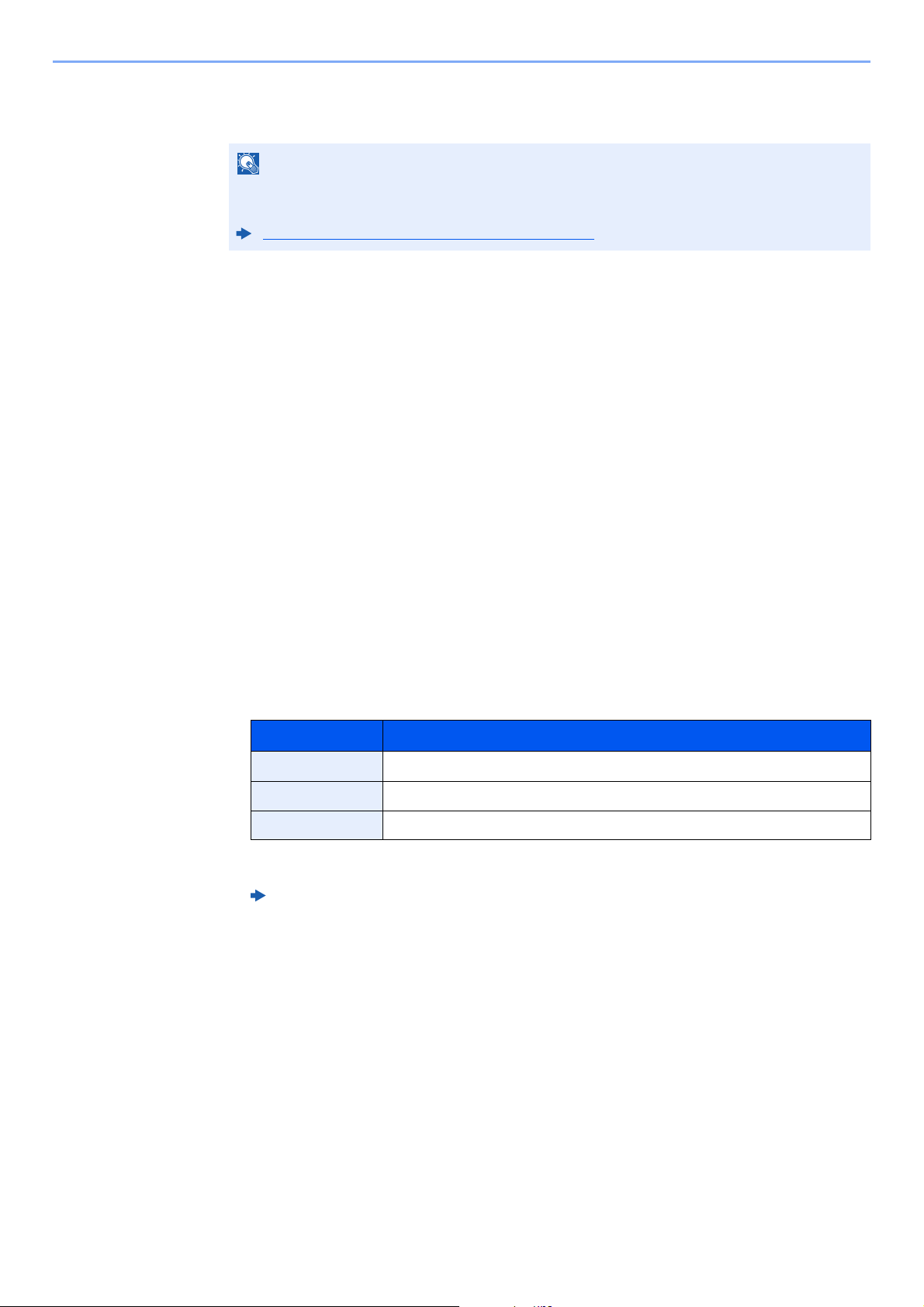
5-21
Using Convenient Fax Functions > Polling Communication
4
Press the [Start] key.
The operations for reception begin.
Printing from a Polling Box
1
Display the screen.
[Document Box/USB] key > [▲] [▼] key > [Polling Box] > [OK] key
2
Select the original.
1 Select the document you want to print.
2 Select [Select].
A checkmark will be placed on the right of the selected file. Select the checkmarked file and
select [Select] again to cancel the selection.
3 Select the [OK] key.
3
Print.
1 [Print] > [OK] key
2 Use the numeric keys to change the number of sheets to be printed. To change the print
settings, select the [Function Menu] key then change the settings and select the [OK] key.
For each of the functions, refer to the following:
3 Press the [Start] key.
Printing starts.
NOTE
When [On] is selected in [Check beforeSend], a destination confirmation screen is
displayed when you press the [Start] key.
Confirmation Screen of Destinations (page 7-11)
Item Description
File Name Entry Adds a file name.
Job Finish Notice Sends E-mail notice when a job is complete.
Priority Override Suspends the current job and gives a new job top priority.
Machine’s Operation Guide
5-22
Using Convenient Fax Functions > Polling Communication
Checking Details
1
Display the screen.
[Document Box/USB] key > [▲] [▼] key > [Polling Box] > [OK] key
2
Select the original.
1 Select the document you want to check.
2 [Menu] > [▲] [▼] key > [Detail/Edit] > [OK] key
The details of the selected document are displayed.
Deleting Originals in a Polling Box
1
Display the screen.
[Document Box/USB] key > [▲] [▼] key > [Polling Box] > [OK] key
2
Selecting the Originals.
1 Select the document you want to delete.
2 Select [Select].
A checkmark will be placed on the right of the selected file. Select the checkmarked file and
select [Select] again to cancel the selection.
3 Select the [OK] key.
3
To delete
[Delete] > [OK] key > [Yes]
NOTE
If [Delete Transmitted File] is set to [On], originals are automatically deleted following
polling transmitted.
Deleting Originals After Polling Transmission (page 5-17)
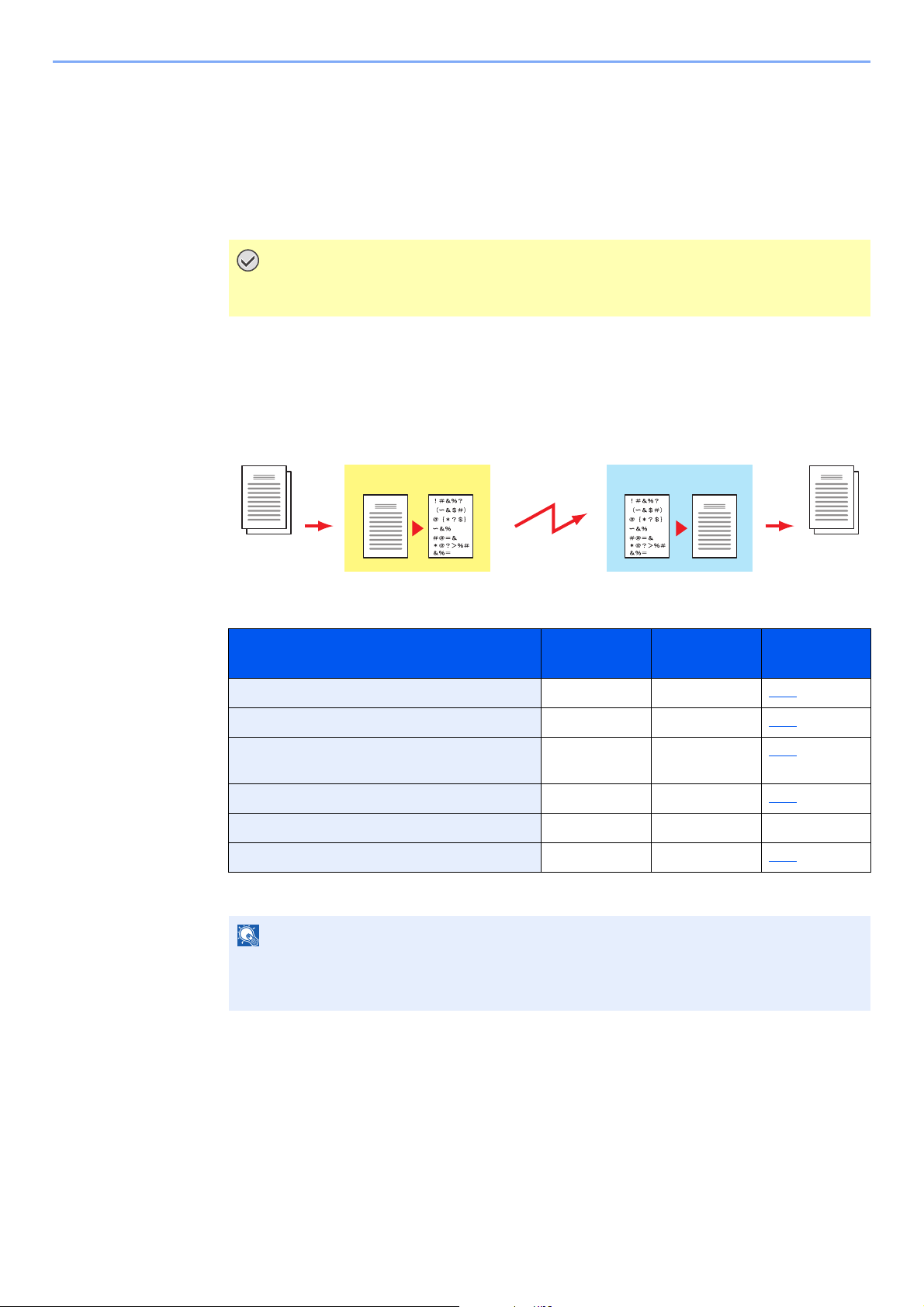
5-23
Using Convenient Fax Functions > Encryption
Encryption
This method allows you to communicate with originals encrypted by the sending system. Therefore, even when a third
party tries to view the originals in the middle of communication by some means, the third party is prevented from
knowing the actual contents of the originals. The originals received are reverted to the originals as they were before
transmission (decrypted) by the receiving system, and printed. This is an extremely effective communication method for
sending confidential documents that are not to be opened by a third party.
In encryption communication, in order to encrypt and decrypt originals, the sending and
receiving systems must use the same 16-digit encryption key. When the encryption key differs
between the sending system and the receiving system, the encryption cannot be conducted.
Therefore, the sending system and the receiving system need to have the same encryption
key and 2-digit key No. registered in advance.
Description of settings at sending and receiving systems
IMPORTANT
In order to use encryption communication, the fax of the other party needs to be an
our-brand system with the same type of encryption functions.
Settings
Sending
system
Receiving
system
Reference
page
Encryption Key No. (A) 2 digits (B) 2 digits 5-24
Encryption Key (C) 16 digits (C) 16 digits 5-24
Key No. of Address Book (or when the number
is directly dialed)
(A) 2 digits ― 5-25
Receiving system encryption box number
*
* When the machine receives originals, the Encryption Box is not used.
(D) 4 digits ― 5-25
Encryption Box No.* ― (D) 4 digits ―
Key No. in reception setting ― (B) 2 digits 5-26
NOTE
Set the same characters for the numbers indicated by the same letter in parentheses.
For example, the same characters should be used as the encryption key (C) in both the
sending and receiving systems.
Output originals
Decrypt
Receiving system
Encryption
Encrypt
Sending system
Scan originals

5-24
Using Convenient Fax Functions > Encryption
Registering an Encryption Key
An encryption key is required when registering the Address Book used for encryption
communication (the other party is directly entered using the numeric keys) in the sending
system and when setting encryption in the receiving system.
For the creation of the encryption key, numbers from 0 to 9 and letters from A to F are
arranged to form 16 numbers and/or letters arbitrarily. The created encryption key is registered
with a 2-digit key No. (01 to 20).
1
Display the screen.
[System Menu/Counter] key > [▲] [▼] key > [FAX] > [OK] key > [▲] [▼] key >
[TX/RX Common] > [OK] key > [Encryption Key] > [OK] key
2
Configure the function.
1 Select an encryption key not yet registered.
2 Select the [OK] key.
3 Enter the 16-digit encryption key using the numeric keys.
4 Select the [OK] key.
5 To register other encryption keys, repeat Steps 2-1 to 2-4.
Changing Registration Contents of Encryption Key
1
Display the screen.
[System Menu/Counter] key > [▲] [▼] key > [FAX] > [OK] key > [▲] [▼] key >
[TX/RX Common] > [OK] key > [Encryption Key] > [OK] key
2
Changing.
1 Select the encryption key you want to change.
2 Select the [OK] key.
3 Enter the new encryption key using the numeric keys.
4 [OK] key > [Yes]
NOTE
Up to 20 encryption keys can be registered.
NOTE
Use numbers (0 to 9) and alphabetical letters (A to F) to register the encryption key.
5-25
Using Convenient Fax Functions > Encryption
Deleting Registration Contents of Encryption Key
1
Display the screen.
[System Menu/Counter] key > [▲] [▼] key > [FAX] > [OK] key > [▲] [▼] key >
[TX/RX Common] > [OK] key > [Encryption Key] > [OK] key
2
Deleting.
1 Select the encryption key you want to delete.
2 [Menu] > [▲] [▼] key > [Delete] > [OK] key > [Yes]
Using the Encrypted Transmission
When sending originals by encrypted transmission, use the Address Book registered for encryption or set encrypted
transmission when dialing directly using the numeric keys.
1
Register the encryption key ahead of time.
Register the encryption key that you decided upon with the recipient.
For the procedure for registering an encryption key, refer to the following:
2
Select the [FAX] key.
3
Place the originals.
4
Specify the destination.
Enter the fax number of the receiving system using the numeric keys.
5
Turn on encrypted transmission.
1 [Detail] > [Encrypted TX] > [Change] > [▲] [▼] key > [On] > [OK] key
2 Select the encryption key number that you used to register the encryption key that you
decided upon with the recipient.
For the procedure for registering an encryption key, refer to the following:
3 Select the [OK] key.
NOTE
Encrypted transmission can be also used in broadcast transmission. With encryption
communication, you cannot conduct sub address transmission.
Registering an Encryption Key (page 5-24)
NOTE
When encrypted transmission has been set to a destination in the Address Book or One
Touch Key, you can use the destination.
Registering an Encryption Key (page 5-24)
5-26
Using Convenient Fax Functions > Encryption
4 Select whether or not to use an encryption box.
To use an encryption box
Select [On] > [OK] key. Select an encryption box using the procedure below.
To not use an encryption box
Select [Off] > [OK] key. Proceed to step 7.
6
Select the encryption box.
If you need to select an encryption box, set the box.
1 Enter the box number (0000 to 9999) with the numeric keys.
2 Select the [OK] key.
7
Finish the encrypted transmission settings.
Select the [OK] key.
8
Send Start.
Press the [Start] key.
The transmission will start.
Setting the Encrypted Reception
To conduct encryption communication operating the receiving system, follow the steps below.
1
Register the encryption key ahead of time.
Register the encryption key that you decided upon with the sender.
For the procedure for registering an encryption key, refer to the following:
2
Display the screen.
[System Menu/Counter] key > [▲] [▼] key > [FAX] > [OK] key > [▲] [▼] key > [Reception] >
[OK] key > [▲] [▼] key > [Encryption RX] > [OK] key
3
Turn on encrypted reception.
1 [On] > [OK] key
2 Select the encryption key number that you used to register the encryption key that you
decided upon with the sender.
3 Select the [OK] key.
The machine receives the encrypted originals from the sender of the specified encryption
key.
NOTE
When [On] is selected in [Check beforeSend], a destination confirmation screen is
displayed when you press the [Start] key.
Confirmation Screen of Destinations (page 7-11)
Registering an Encryption Key (page 5-24)
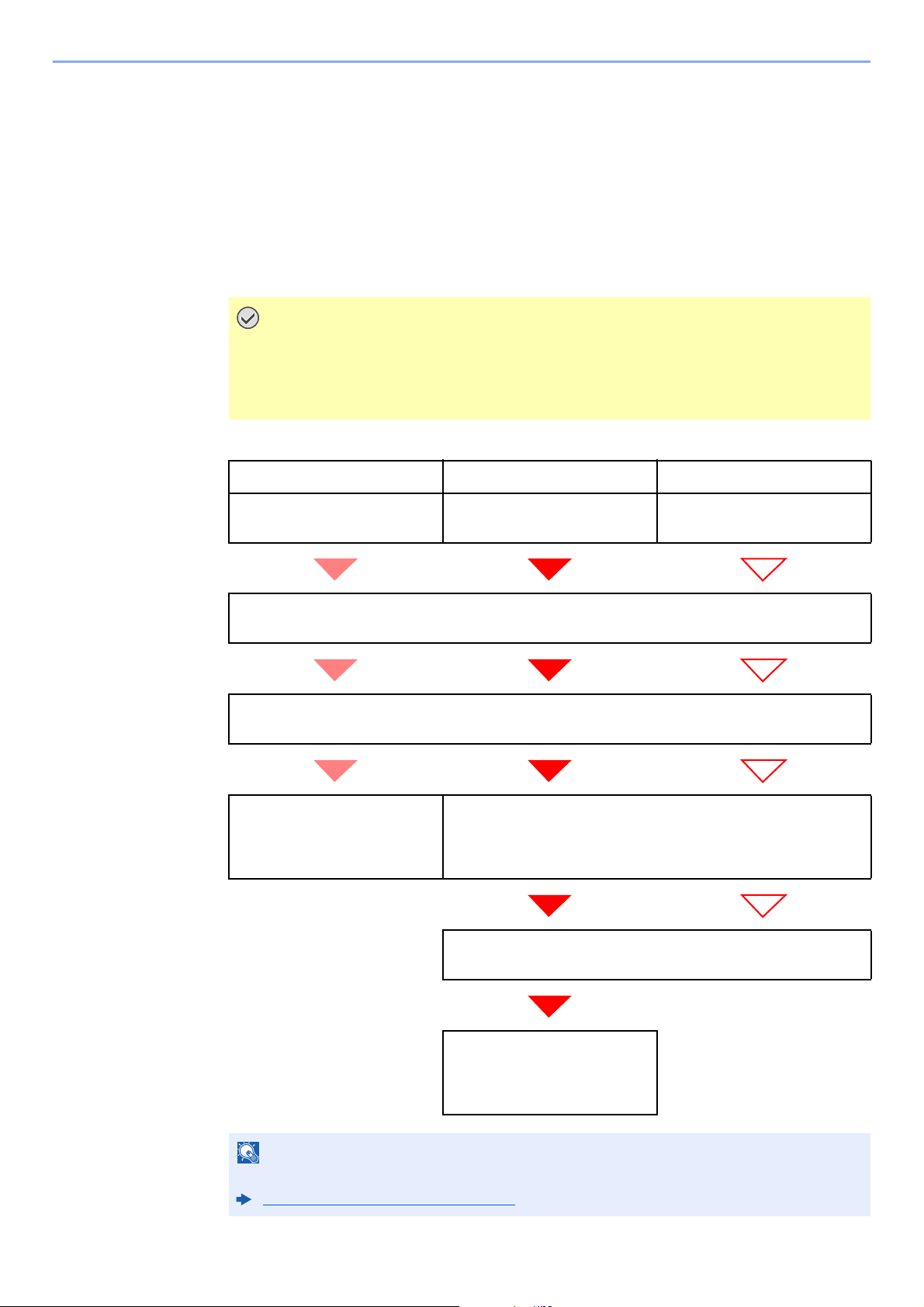
5-27
Using Convenient Fax Functions > Using a Connected Telephone
Using a Connected Telephone
It is possible to connect a telephone (a commercially available item) to this machine and use various functions.
FAX/TEL Auto Switch Reception
This reception method is convenient when using both telephone and fax on a single telephone line. When fax originals
have been sent, the machine automatically receives them, and when the other party is calling from a telephone,
the machine makes a ringing tone urging the user to respond.
Flow of reception
IMPORTANT
In order to use FAX/TEL Auto Switch Reception, it is necessary to connect a
telephone set (commercially available product) to the machine.
After the telephone has made a ringing tone for the preset number of times, the other
party is required to pay phone line charges even if the receiving system does not respond.
FAX FAX Telephone
When the other party has sent
originals with automatic send
When the other party has sent
originals with manual send
When the other party is calling
from a telephone
Receives incoming call without making ringing tone.
(The other party is required to pay the phone line charge from this point.)
Makes ringing tone twice.
(Only the other party can hear the ringing tone.)
Receive originals from the other
party automatically (FAX
Automatic Reception)
Makes ringing tone. (Both the other party and the receiving
machine can hear the ringing tone.)
(If you do not lift the handset within 30 seconds, the machine
switches to fax reception.)
When you lift the handset of the connected telephone set, you can
talk to the other party.
After the end of the
conversation, you can receive
faxes by using the Remote
Switch Function.
NOTE
At the end of the conversation, you can also receive faxes by using the Remote Switch Function.
Remote Switch Function (page 5-35)
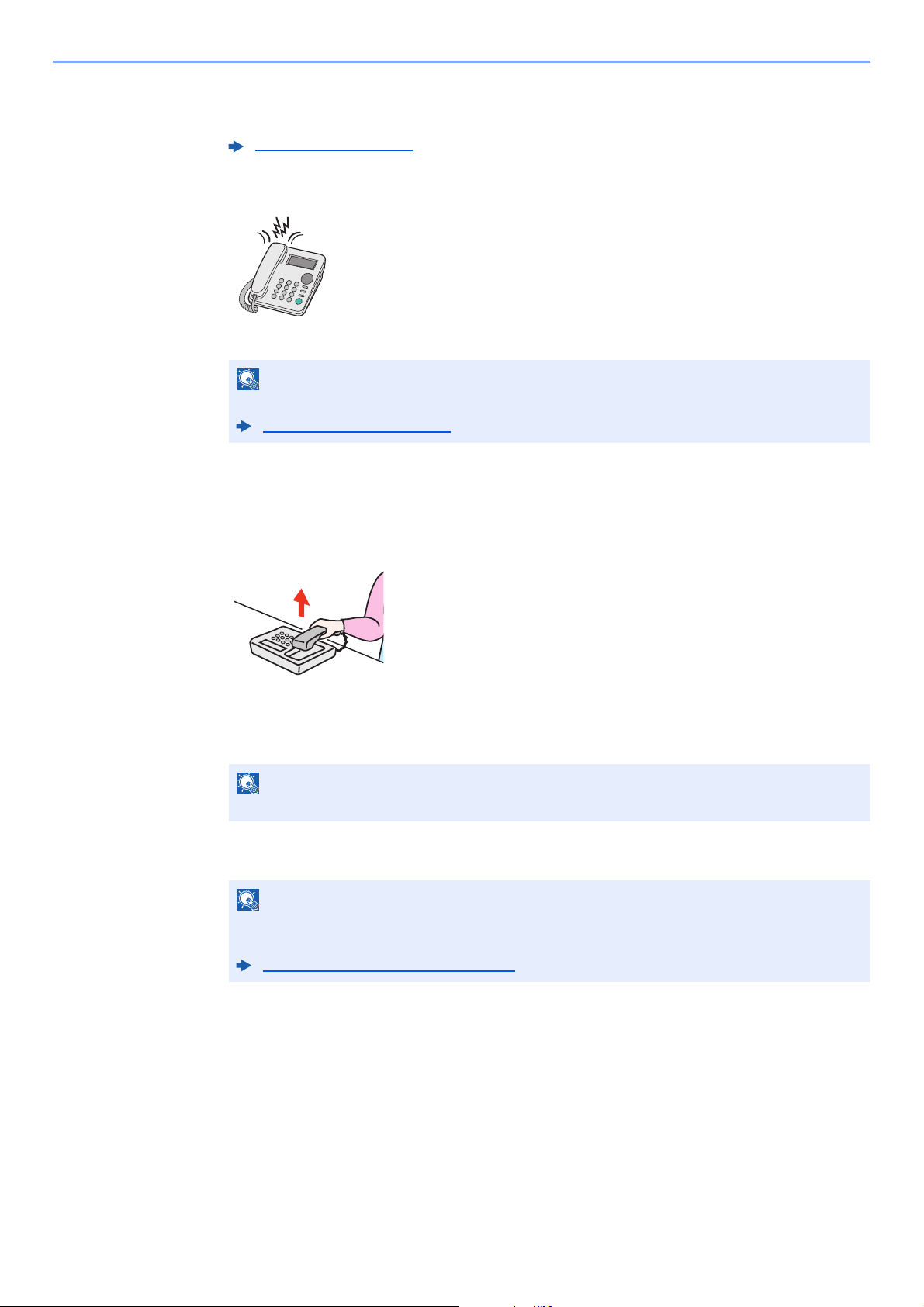
5-28
Using Convenient Fax Functions > Using a Connected Telephone
Preparation:
Select [Auto (FAX/TEL)].
1
The telephone rings.
The connected telephone set makes a ringing tone.
2
Answer the call.
When the call is from a telephone
1 The machine makes a ringing tone urging the user to respond. Lift the handset of the
telephone within 30 seconds.
2 Talk to the other party.
When the call is from a fax
The machine starts receiving fax originals.
RX Settings (page 8-8)
NOTE
You can change the number of times the ringing tone rings.
Rings(FAX/TEL) (page 8-8)
NOTE
If you do not lift the handset within 30 seconds, the machine switches to fax reception.
NOTE
At the end of the conversation, you can also receive faxes by using the Remote Switch
Function.
Remote Switch Function (page 5-35)
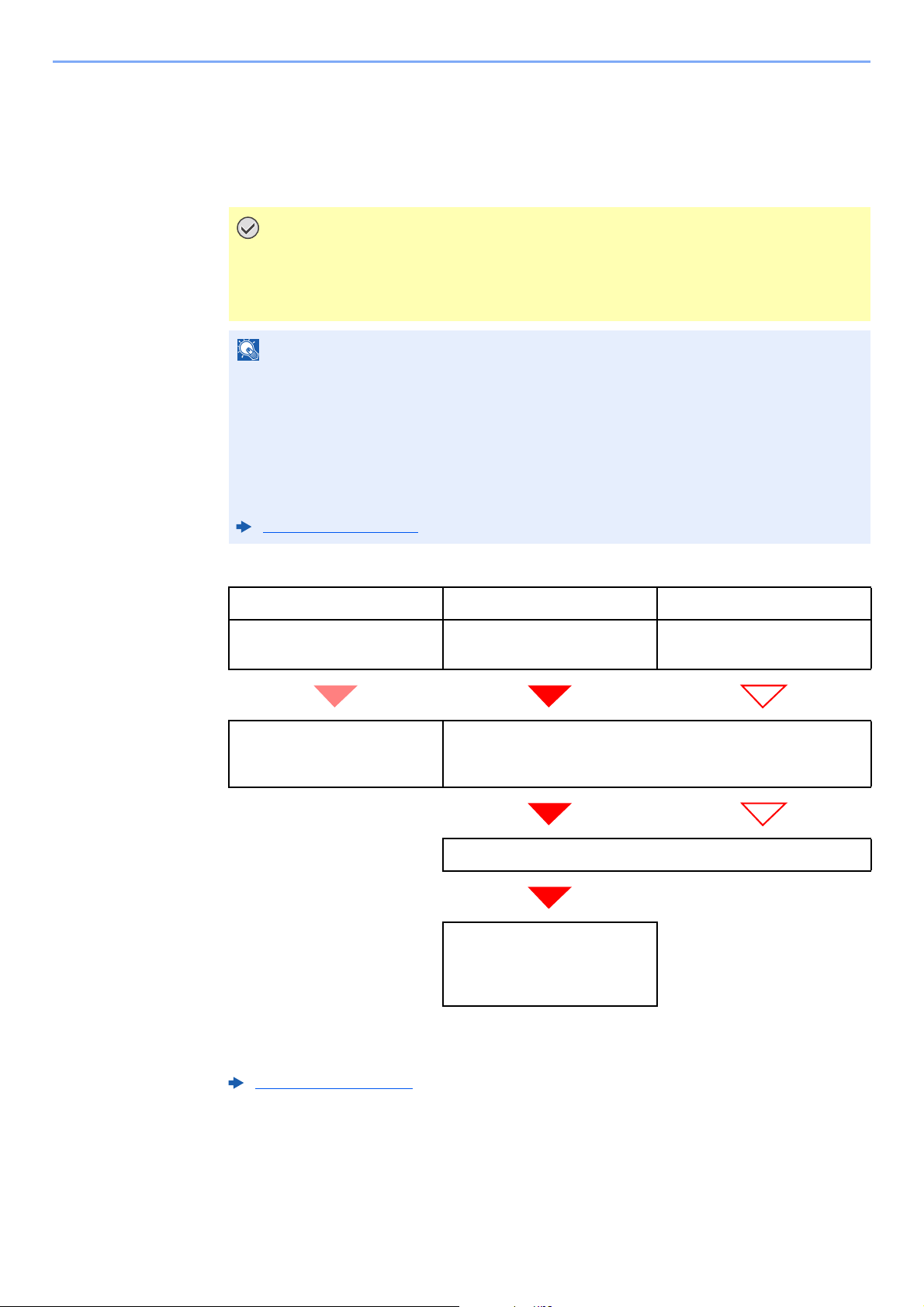
5-29
Using Convenient Fax Functions > Using a Connected Telephone
FAX/Answering Machine Auto Switch Reception
This method is convenient when using both the answering machine and fax. When fax originals have been sent, the
machine receives them automatically, and when the call is from a telephone, the machine follows the functions of the
connected answering machine. Therefore, when the user is absent, the other party can leave a message on the
answering machine.
Flow of reception
Preparation:
Select [Auto (TAD)].
IMPORTANT
When using FAX/Answering Machine Auto Switch Reception function, if a silence
continues for at least 30 seconds before one minute passes after the machine has
received a call from the other party, the machine’s silence detection function comes
into operation and the machine switches to fax reception.
NOTE
In order to use FAX/Answering Machine Auto Switch Reception, it is necessary to connect
an answering machine-equipped telephone set (commercially available product) to the
machine.
For details, such as responding to messages, refer to the Operation Guide of each
answering machine.
Set the number of rings to be made by the machine more than the number of rings to be
made by the answering machine.
Rings(TAD) (page 8-8)
FAX FAX Telephone
When the other party has sent
originals with automatic send
When the other party has sent
originals with manual send
When the other party is calling
from a telephone
Receive fax originals from the
other party automatically (FAX
Automatic Reception).
The answering machine plays the message informing the other
party that the user is absent.
The answering machine records a message from the other party.
When the other party starts
sending originals, the machine
receives the originals being
sent.
RX Settings (page 8-8)
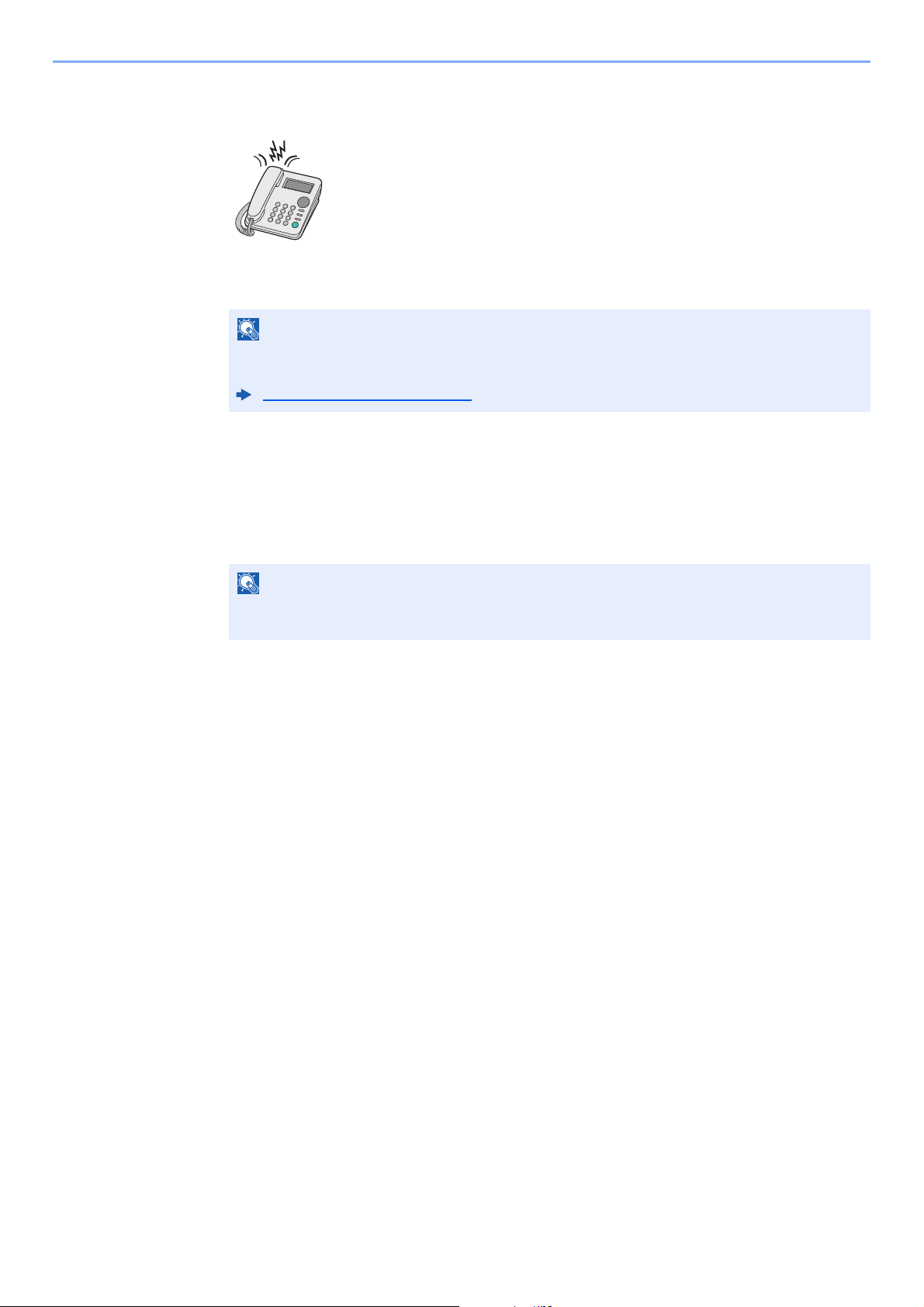
5-30
Using Convenient Fax Functions > Using a Connected Telephone
1
The telephone rings.
The connected telephone set makes ringing tone the set number of times.
2
The answering machine responds.
When the call is from a telephone, but the user is absent
The answering machine plays a response message, and starts recording the other party’s
message.
When the call is from a fax
The machine starts receiving fax originals.
NOTE
If you lift the handset while the telephone set is still making the ringing tone, the machine
enters a status the same as manual reception.
Manual Reception (page 5-34)
NOTE
When silence continues for at least 30 seconds during recording, the machine switches to
fax reception.
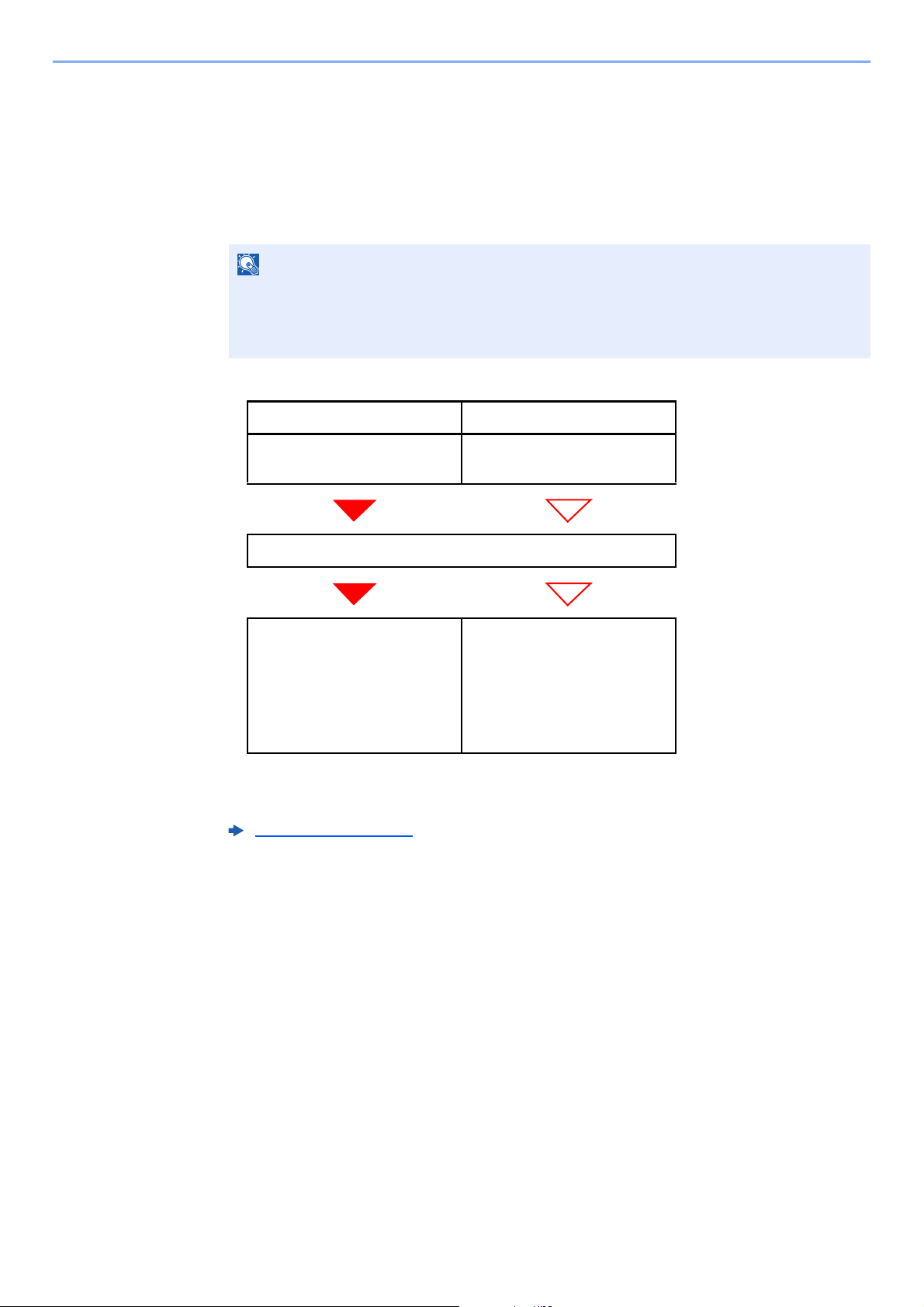
5-31
Using Convenient Fax Functions > Using a Connected Telephone
DRD Reception (Available for some countries.)
This reception mode utilizes the Distinctive Ring Pattern service available through some telephone companies. With this
service, you can use two or more fax numbers on a single telephone line. Thus, you can use this fax and a telephone on
the same line, and you can still designate a different fax number for each of them. As each number is given a different
ring pattern, the machine is able to differentiate between incoming calls. If one of these numbers is designated for the
machine, and a desired ring pattern is designated for that number in advance, fax reception will be initiated automatically
whenever the machine detects the ring pattern distinctive to the fax.
Flow of reception
Preparation:
Select [Auto (DRD)].
NOTE
Using DRD Reception to receive a telephone call is only possible if a separately purchased
telephone is connected to the machine. DRD reception is only possible if you subscribe to
the Distinctive Ring Pattern service provided by your telephone company. Contact your
telephone company for further information on the Distinctive Ring Pattern service available.
FAX Telephone
If the other party has dialed
your fax number...
If the other party has dialed
your telephone number...
Telephone company
The fax machine will ring using
the predetermined ring pattern
for a fax and fax reception will
start automatically.
(The fax will handle the call
using the Automatic FAX
Reception mode.)
The fax machine will ring using
the predetermined ring pattern
for a telephone call.
Conversation is possible with
the other party if you answer
the telephone that is connected
to this fax machine.
RX Settings (page 8-8)
5-32
Using Convenient Fax Functions > Using a Connected Telephone
1
The telephone rings.
When a call comes in, the telephone will ring.
2
Answer the call.
The machine will then ring using the predetermined ring pattern.
When the call is from a telephone
Lift the handset and speak with the other party. When the conversation is over, fax reception
can be initiated manually.
When the call is from a fax
Once the ringing tone stops, fax reception will start automatically.
NOTE
If you lift the handset while the telephone is still ringing, the machine will deal with the call in
the same manner as standard Manual FAX Reception.
Manual Reception (page 5-34)
5-33
Using Convenient Fax Functions > Using a Connected Telephone
Manual Send
When you want to talk to the person at the receiving system or the receiving system needs to switch to fax, use this
method to send originals.
1
Place the originals.
2
Dial the destination.
Lift the handset, and dial the number of the receiving system.
3
Check if the telephone line has connected to the fax of the receiving
system.
If the destination is a fax machine, you will hear a long high beep sound. If a person answers,
you can talk to that person.
4
[FAX] key > [On Hook] key
5
Press the [Start] key.
Transmission begins.
6
Replace the handset.
When sending starts, return the handset to its original position.
5-34
Using Convenient Fax Functions > Using a Connected Telephone
Manual Reception
Reception is possible after confirming that the telephone line has connected to the sending party.
1
The telephone rings.
When there is an incoming call, the telephone connected to the machine makes a ringing tone.
2
Lift the handset.
Lift the handset of the telephone.
3
Check if the telephone line has connected to the fax of the sending
system.
If the destination is a fax machine, you will hear soft beep sounds. If a person answers, you
can talk to that person.
4
[FAX] key > [On Hook] key > [Manual RX]
Reception will start.
5
Replace the handset.
When reception starts, return the handset to its original position.
NOTE
FAX Automatic Reception has been preset for the receiving mode of this machine. To use
Manual Reception, you need to change the receiving mode to Manual Reception. To change
to manual mode, refer to the following:
RX Settings (page 8-8)
NOTE
When using a telephone set that can send tone signals, use the telephone to start the
reception of originals with the remote switch function.
Remote SW Dial (page 8-8)
5-35
Using Convenient Fax Functions > Using a Connected Telephone
Remote Switch Function
You can start fax reception by operation from the connected telephone set. This function is convenient for using this
machine and a telephone set (commercially available product) in combination installed at places distant from each other.
Using the Remote Switch Dial
To start fax reception by operation from the connected telephone set, use the following
operation.
1
The connected telephone set makes a ringing tone.
Lift the handset of the telephone.
2
Press the remote switch dial number (2 digits).
When you hear the fax tone from the handset, enter the two-digit remote switch dial number
using the dial button on the telephone set. The telephone line switches to the machine, and
reception starts.
NOTE
In order to use remote switch, it is necessary to connect the tone signal-sending telephone
set (commercially available product) to the machine. However, even if it is a tone signal-
sending telephone set, this function may not be used satisfactorily depending on the type of
telephone set. For details, contact our agent or the store where you purchased this
machine.
The remote switch dial is set to 55 at the factory.
The remote switch dial number can be changed.
Remote SW Dial (page 8-8)
NOTE
You can change the number of times the ringing tone rings.
Rings(Normal) (page 8-8)

6-1
6 Sending Faxes from
PC
This chapter explains the following topics:
Flow of Network FAX Sending ........................................................................................................................... 6-2
Flow of Network FAX Receiving ......................................................................................................................... 6-2
Setup .................................................................................................................................................................. 6-3
Installing the FAX Driver .......................................................................................................................... 6-4
Uninstalling the FAX Driver ...................................................................................................................... 6-7
Basic Transmission ............................................................................................................................................ 6-8
Configuring the Driver Default Settings .................................................................................................. 6-11
Default Settings Dialog Box ................................................................................................................... 6-12
Changing Transmit Settings ................................................................................................................... 6-15
Using Cover Pages ................................................................................................................................ 6-20
Cover Page Registration (Default Settings) ........................................................................................... 6-25
Transmission Control ............................................................................................................................. 6-30
6-2
Sending Faxes from PC > Flow of Network FAX Sending
The Network FAX function enables any PC, which is networked to the machine, to perform sending and receiving of
faxes. Its primary features include the following.
• PC-prepared document can be sent and received by fax without being printed out.
• An Address Book (in the machine/PC) can be used to specify a desired destination.
• Addition of a cover page.
• Transmission and printing can be done simultaneously.
• E-mail reporting of the transmission result.
• Sub address transmission is available.
• Operation is as simple as printing.
Flow of Network FAX Sending
Network FAX sending is performed in the following sequence.
Flow of Network FAX Receiving
Network FAX receiving is performed in the following sequence.
Prepare a document using a PC networked to this machine.
▼
Forward the document data from the PC to this machine using the same
operation as for printing.
▼
The machine sends the document data to another fax machine.
▼
The other fax machine receives the data.
Another fax machine sends a fax to this machine.
▼
The machine receives the fax.
▼
The machine sends the fax data to a networked PC using the memory
forwarding function.
▼
The PC networked to this machine receives the data.
NOTE
The memory forwarding function allows not only reception by the networked PC, but also
forwarding of the received fax by e-mail or forwarding to another fax machine.
6-3
Sending Faxes from PC > Setup
Setup
The following preparation is needed before using Network FAX.
Connection to a PC
Connect the machine and PC to the network using a network cable.
Registering Destinations in the Address Book
Save frequently used destinations to the Address Book. You can also select destinations from
the Address Book using FAX Driver.
Machine’s Operation Guide
NOTE
You can forward the received fax to the PC or forward it as an e-mail attachment.
Forward Settings (page 5-2)
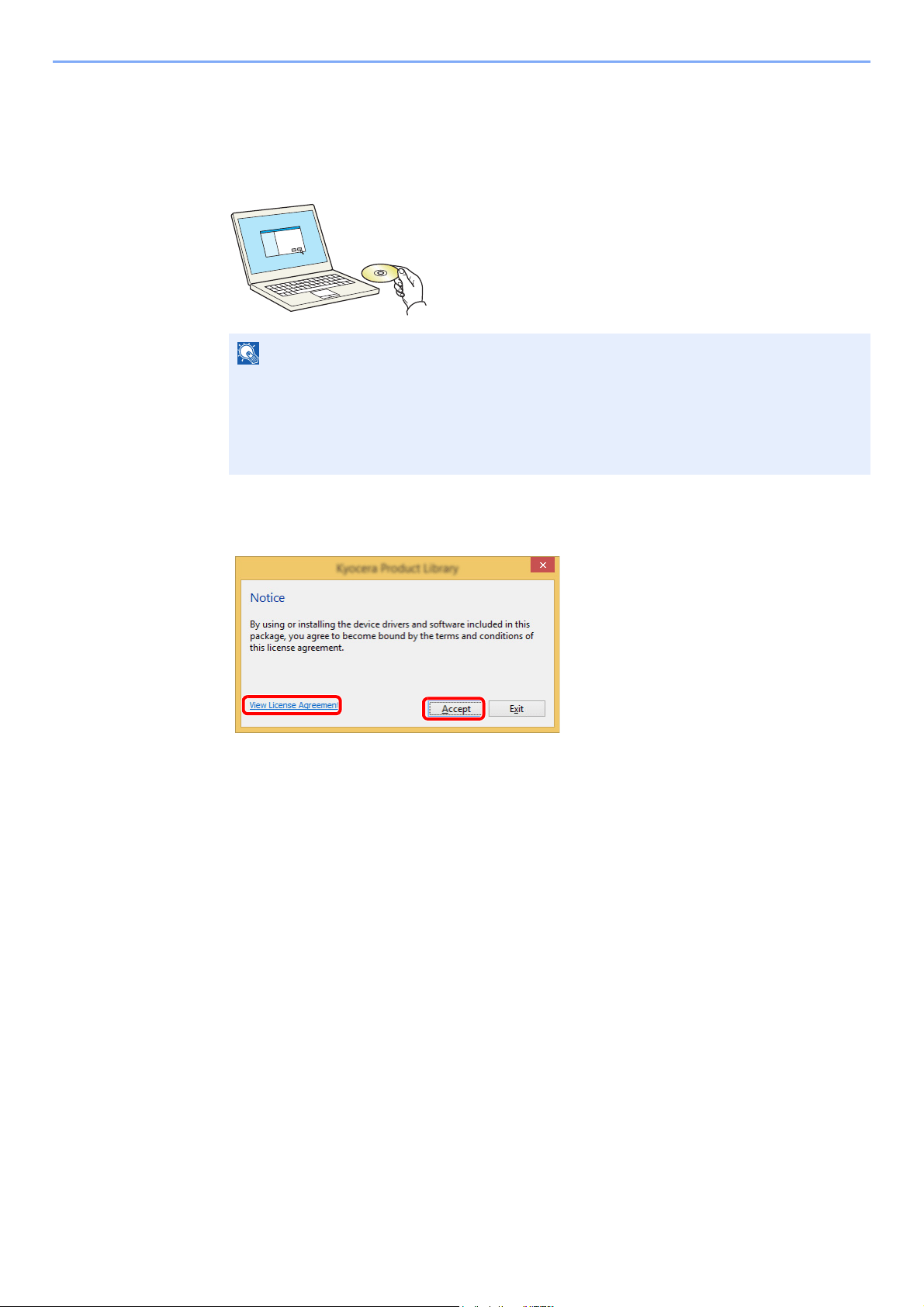
6-4
Sending Faxes from PC > Setup
Installing the FAX Driver
The following procedure is an example for installing the software in Windows 8.1 using [Custom Install].
1
Insert the Product Library disc.
2
Display the screen.
3
Select [Custom Install].
NOTE
Installation on Windows must be done by a user logged on with administrator privileges.
If the "Welcome to the Found New Hardware Wizard" dialog box displays, select [Cancel].
If the autorun screen is displayed, click [Run Setup.exe].
If the user account management window appears, click [Yes] ([Allow]).
1 Click [View License Agreement]
and read the License Agreement.
2 Click [Accept].
2
1
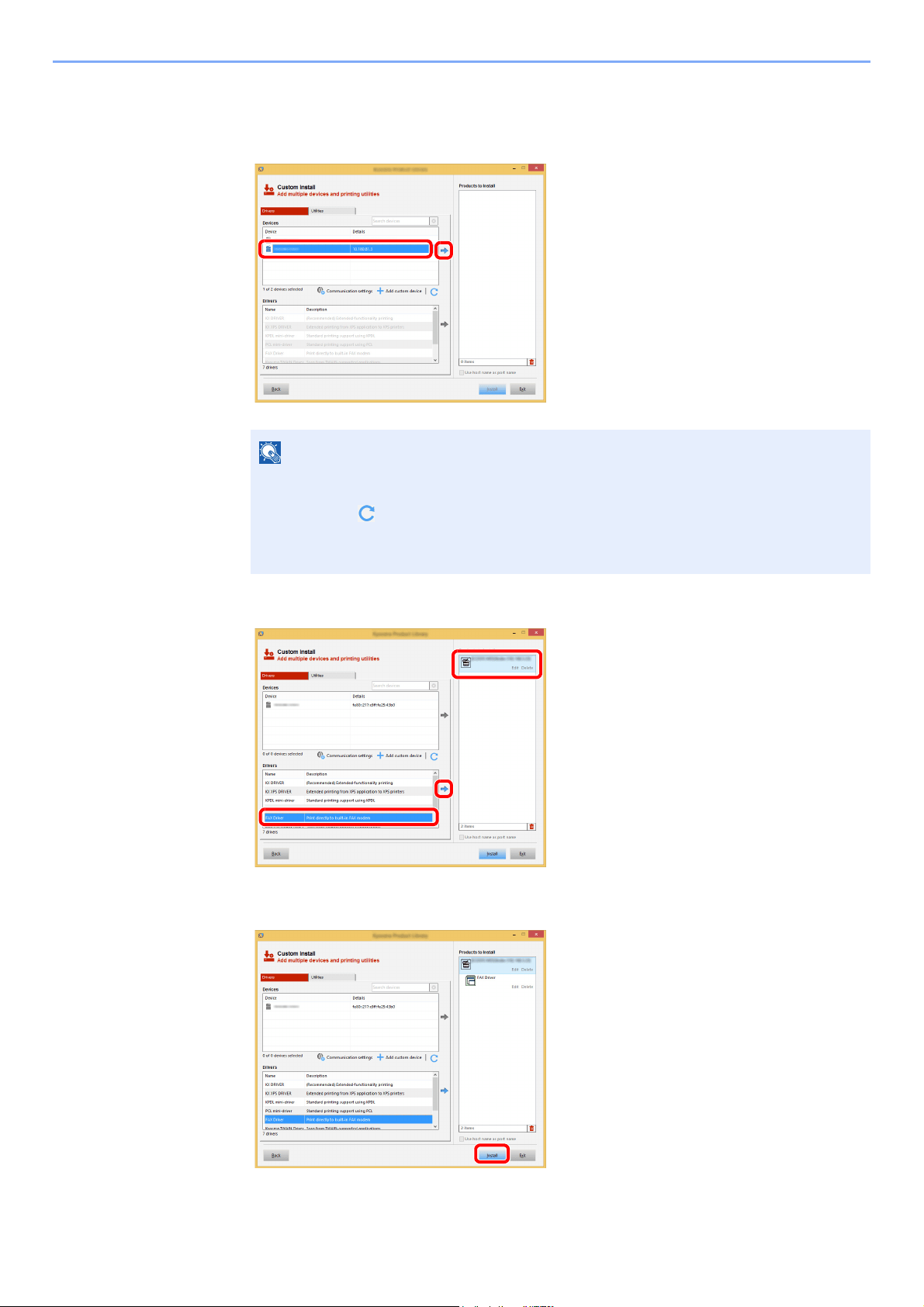
6-5
Sending Faxes from PC > Setup
4
Install the software.
1 Select the device to be installed.
2 Select [FAX Driver].
3 Click [Install].
NOTE
• The machine cannot be detected unless it is on. If the computer fails to detect the
machine, verify that it is connected to the computer via a network and that it is turned
on and click (Reload).
• If the desired device does not appear, select [Add custom device] to directly select
the device.
1
2
1
3
2
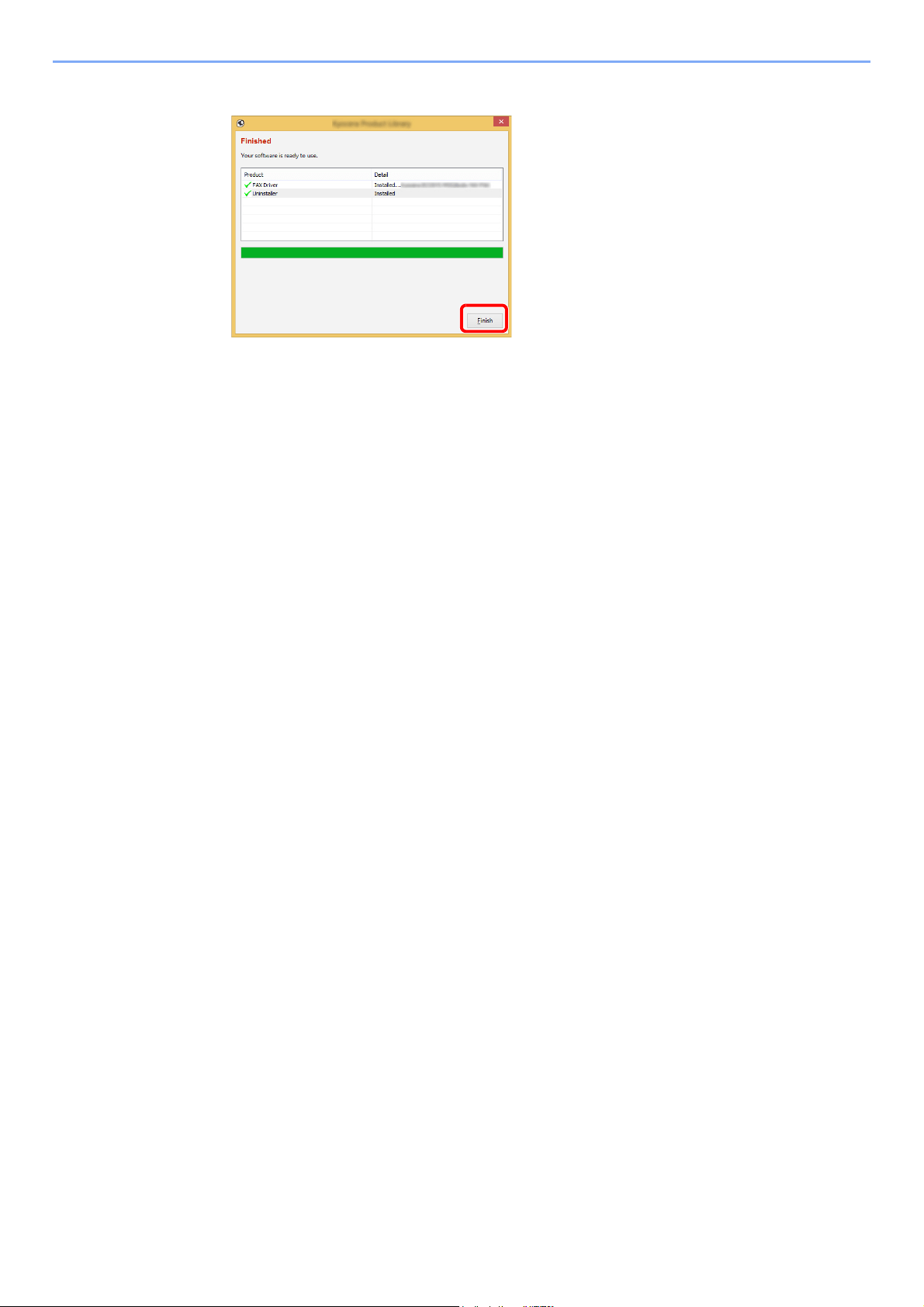
6-6
Sending Faxes from PC > Setup
5
Finish the installation.
If a system restart message appears, restart the computer by following the screen prompts.
This completes the FAX driver installation procedure.
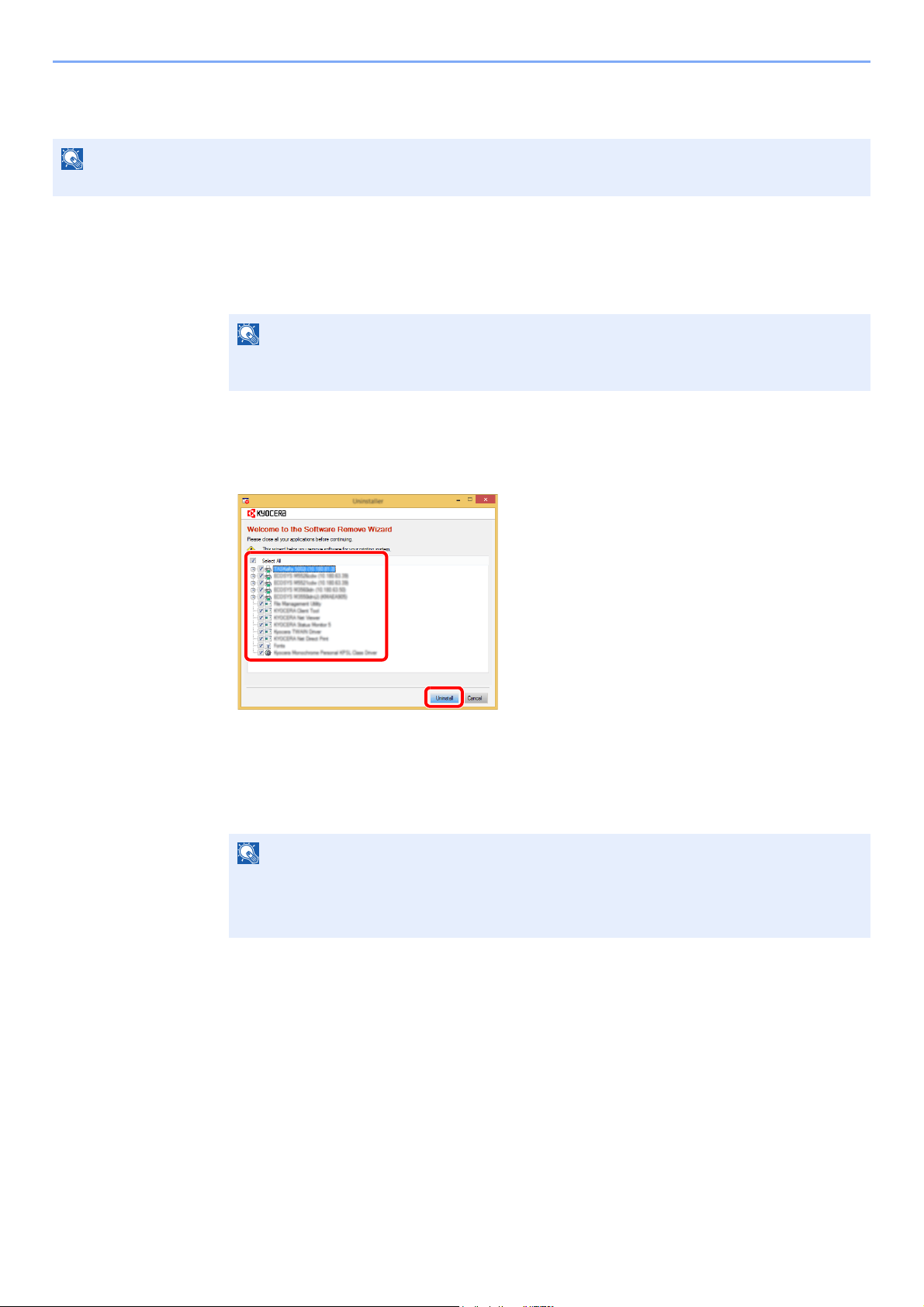
6-7
Sending Faxes from PC > Setup
Uninstalling the FAX Driver
1
Display the screen.
Click [Search] in charms, and enter "Uninstall Kyocera Product Library" in the search box.
Select [Uninstall Kyocera Product Library] in the search list.
2
Uninstall the software.
Place a check in the check box of the driver to be deleted and click [Uninstall].
3
Finish uninstalling.
If a system restart message appears, restart the computer by following the screen prompts.
This completes the software uninstallation procedure.
NOTE
Uninstallation on Windows must be done by a user logged on with administrator privileges.
NOTE
In Windows 7, click [Start] button on the Windows and then select [All Programs],
[Kyocera], and [Uninstall Kyocera Product Library] to display the Uninstall Wizard.
NOTE
The software can also be uninstalled using the Product Library.
In the Product Library screen, select to uninstall, and follow the on-screen instructions to
uninstall the software.
1
2
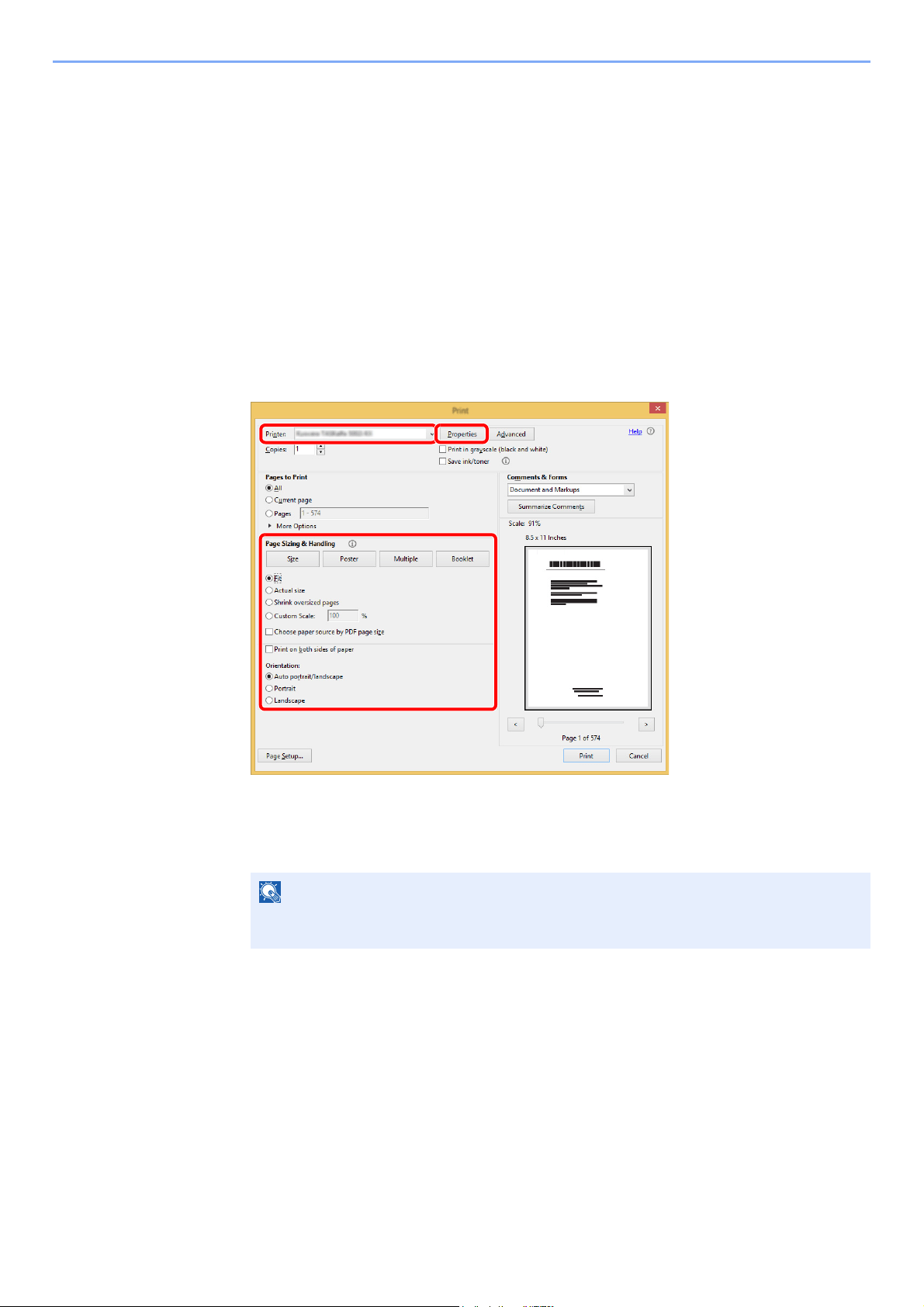
6-8
Sending Faxes from PC > Basic Transmission
Basic Transmission
This section explains the basic procedure for sending a fax by Network FAX. An Adobe Acrobat document is sent as an
example.
1
Create the document to be sent.
1 Use an application on your computer to create the document to be sent.
2 Set the original size and orientation.
3 Select [Print] from the File menu. The Print dialog box for the application that you are using
will appear.
2
Select settings in the Print dialog box.
1 Select the product name of the machine (XXX XXX NW-FAX) to be used in the printer
name list.
2 Set the print range and other settings.
3 Click [Properties] to open the Properties window.
NOTE
Make sure that the number of copies is set to 1. The following screen is an example.
The actual dialog box will vary depending on the application that you are using.
3
1
2
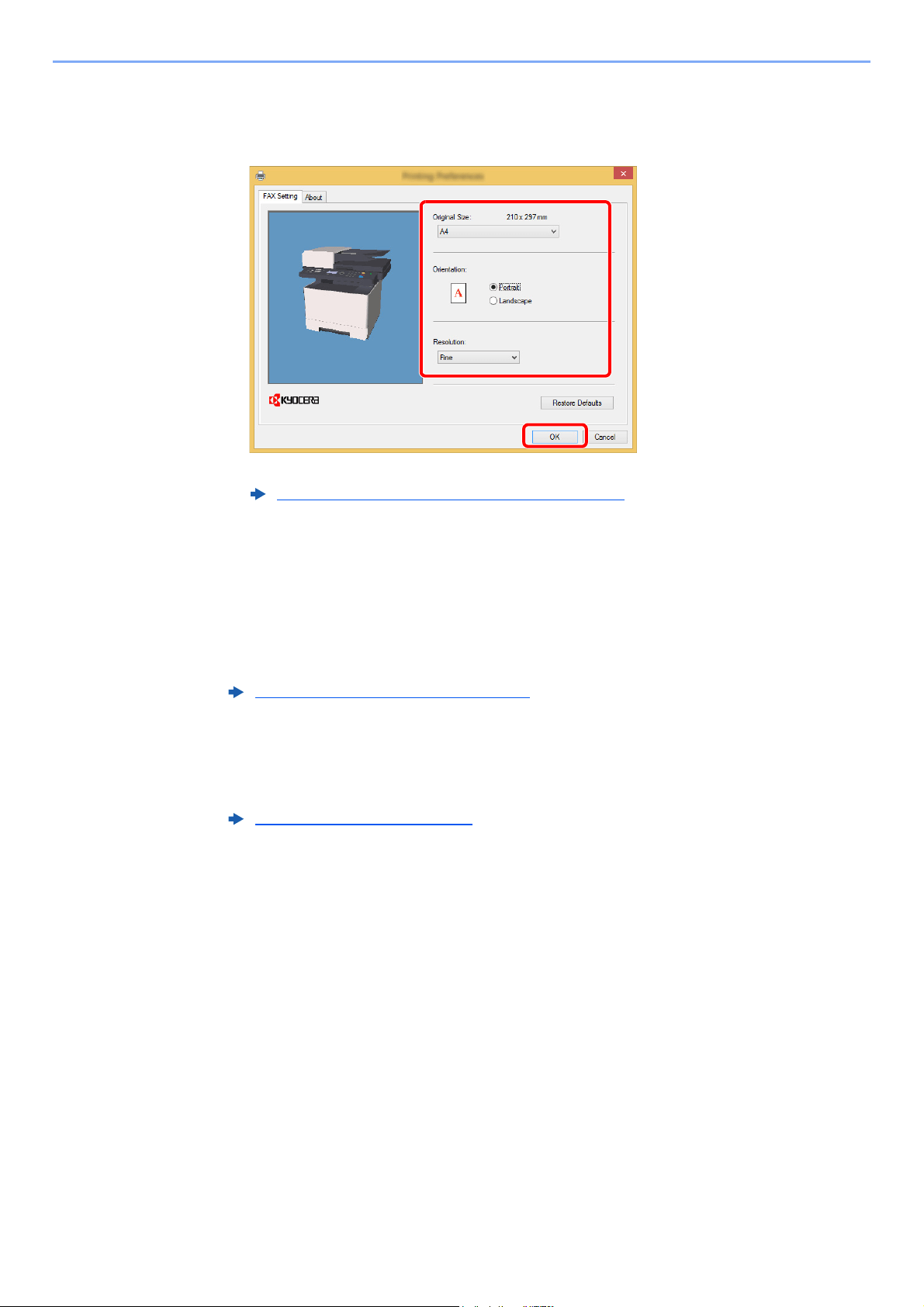
6-9
Sending Faxes from PC > Basic Transmission
3
Select settings on the FAX Setting tab.
1 Specify fax settings such as the original size on the FAX Setting tab, and click [OK].
For detailed information on the settings on the tab, refer to the following:
2 You will return to the Print dialog box for the application. Click [OK]. The Transmit Settings
dialog box will appear.
4
Select settings in the Transmit Settings dialog box.
You can specify settings such as a transmission time or a sub-address in the Transmit
Settings dialog box.
For details on the settings, refer to the following:
5
Specify a cover page.
To include a cover page, select settings on the [Cover Page] tab.
For details on the settings, refer to the following:
Configuring the Driver Default Settings (page 6-11)
Changing Transmit Settings (page 6-15)
Using Cover Pages (page 6-20)
2
1
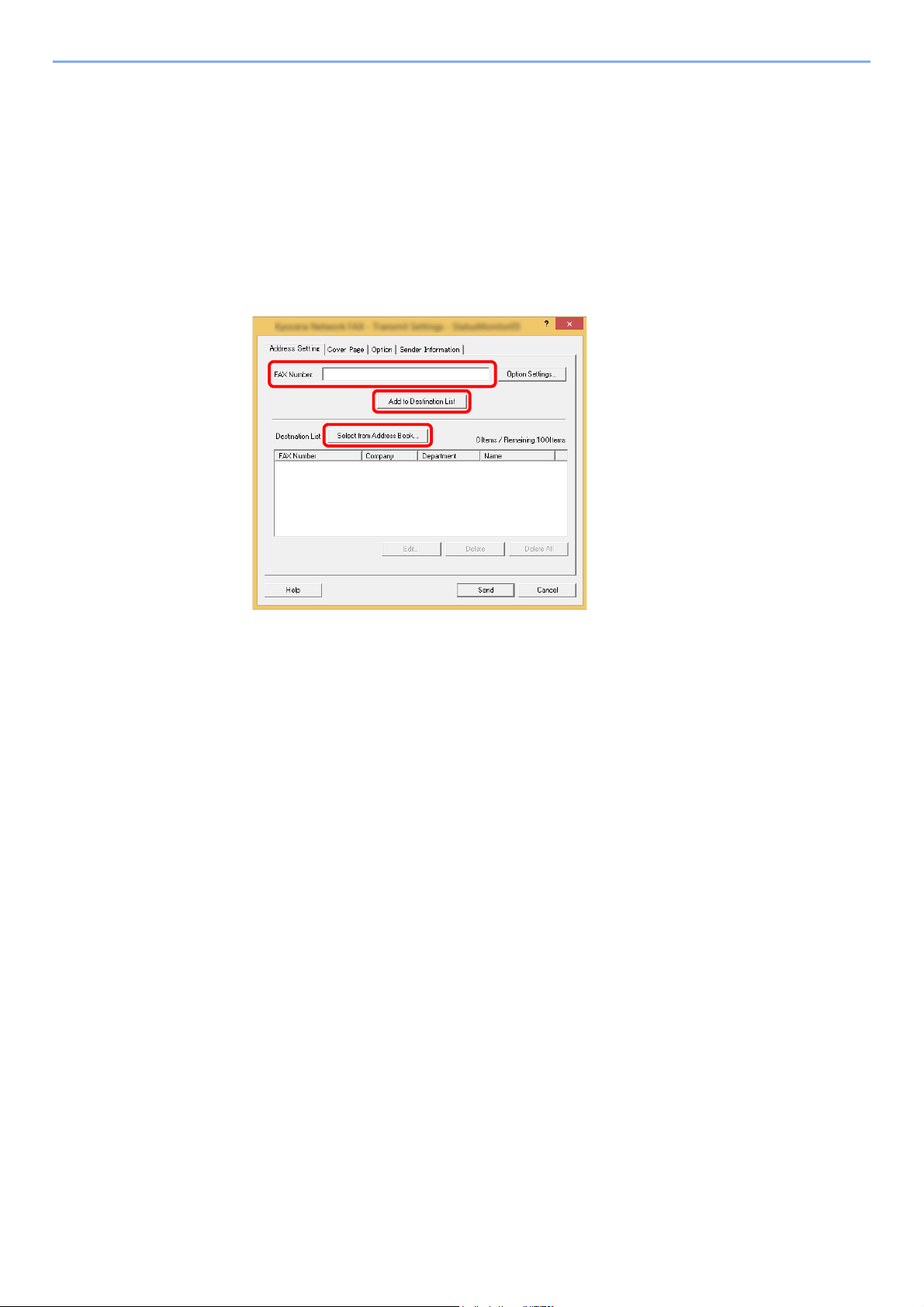
6-10
Sending Faxes from PC > Basic Transmission
6
Set the destination.
1 Use the keyboard to enter the destination fax number in the [Address Setting] tab.
Maximum number of characters that can be entered: 64 characters
Characters that can be entered: 0 to 9, #, *, -, space (a space or “-“ CANNOT be entered as
the first character)
2 Click [Add to Destination List]. The destination information will appear in the address list.
To send to multiple destinations, repeat this operation.
3 To use the Address Book, click [Select from Address Book] and select the destination.
7
Click [Send]. Transmission will begin.
1
2
3
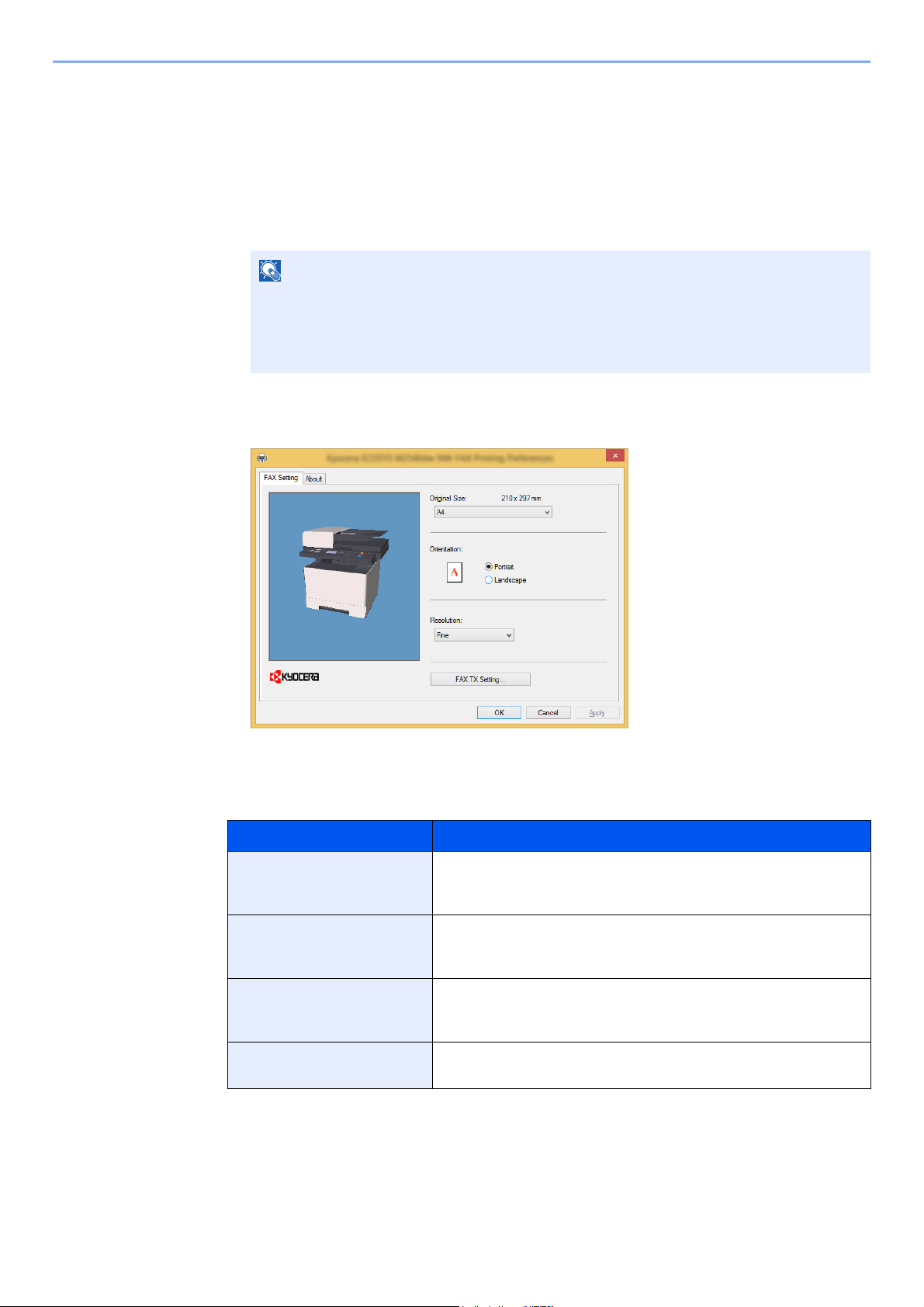
6-11
Sending Faxes from PC > Basic Transmission
Configuring the Driver Default Settings
Use the FAX Setting tab of the print settings screen to set the original size and other transmission conditions.
1
Display the screen.
1 In charms on Desktop, click [Settings], [Control Panel], and then [Devices and Printers].
2 Right-click the product name of the machine you are using and select [Printing
preferences] from the drop-down menu. The Printing Preferences screen will open.
2
Select settings.
The following settings can be specified.
NOTE
In Windows 7, click [Start] button on the Windows, and then click [Devices and
Printers].
In Windows 10, click [Start] button on the Windows, [Control Panel], [hardware and
sound], and then [Devices and Printers].
Item Description
Original Size Select the size of the document being transmitted from the drop-
down list.
Available settings: Letter, Legal, Statement, A4, A5, Folio, B5(JIS)
Orientation Specify whether the orientation of the document is portrait or
landscape.
Available settings: Portrait, Landscape
Resolution Select the resolution of the document to be transmitted from the
drop-down list.
Available settings: Normal, Fine, Ultra fine
FAX TX Setting Click [FAX TX Setting] to change the default settings for fax
transmission. The Default Settings dialog box will appear.
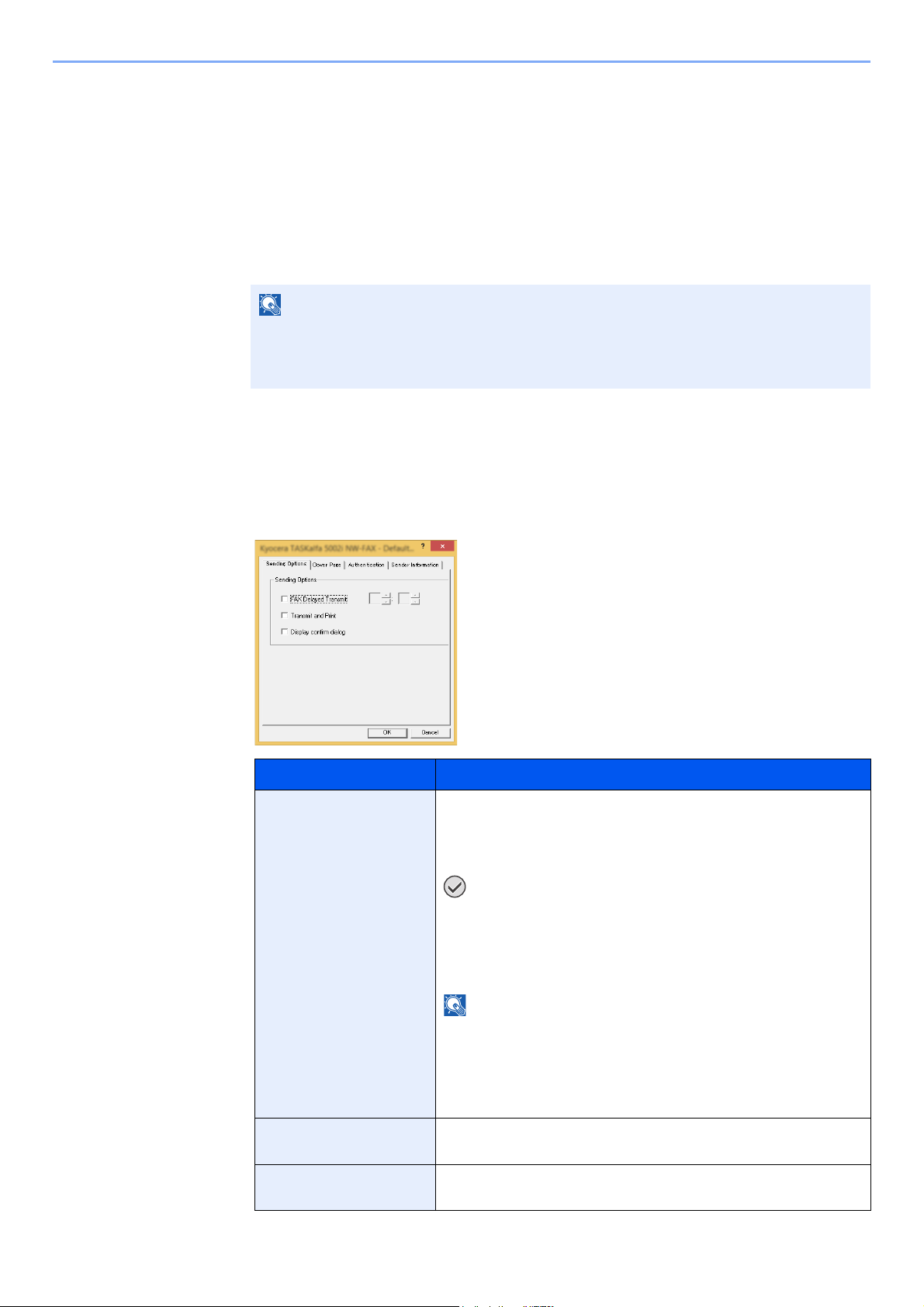
6-12
Sending Faxes from PC > Basic Transmission
Default Settings Dialog Box
By setting the transmission conditions that you use most in this dialog box, you can minimize the need to change the
settings each time.
The Default Settings dialog box can be accessed by the following procedure:
1
Display the screen.
1 In charms on Desktop, click [Settings], [Control Panel], and then [Devices and Printers].
2 Right click the name of the machine to be used as the network fax and select [Printing
preferences] from the resulting drop-down menu. Click the [FAX TX Setting] button in the
[Printing Preferences] window.
2
Configure the settings.
(1) Sending Options Tab
NOTE
In Windows 7, click [
Start
] button on the Windows, and then click [
Devices and Printers
].
In Windows 10, click [Start] button on the Windows, [Control Panel], [hardware and
sound], and then [Devices and Printers].
Item Description
FAX Delayed Transmit
checkbox
Check the checkbox in order to activate the time fields to the right of
the checkbox whenever you want to set the time that your documents
will be transmitted. The desired time setting can be entered directly
with the keyboard or by clicking on the
and
arrows.
IMPORTANT
If the time that is shown in the message display of this fax
machine does not match the current time, communications that
use the timer may not be accomplished as expected. If the
displayed time is not current, be sure to adjust it to match the
correct time.
NOTE
If you designate a time that is earlier in the day than the time that is
actually displayed in the fax machine itself, the transmission operation
will be carried out the following day at that time. Be sure to confirm the
time setting in the fax machine itself before making this setting.
Value: 00:00-23:59
Transmit and Print
checkbox
Check the checkbox when you want to print out the documents at
the fax machine same time as you send them by fax.
Display confirm dialog
checkbox
You can check the checkbox to display the destination confirmation
screen and check the destinations before transmission.
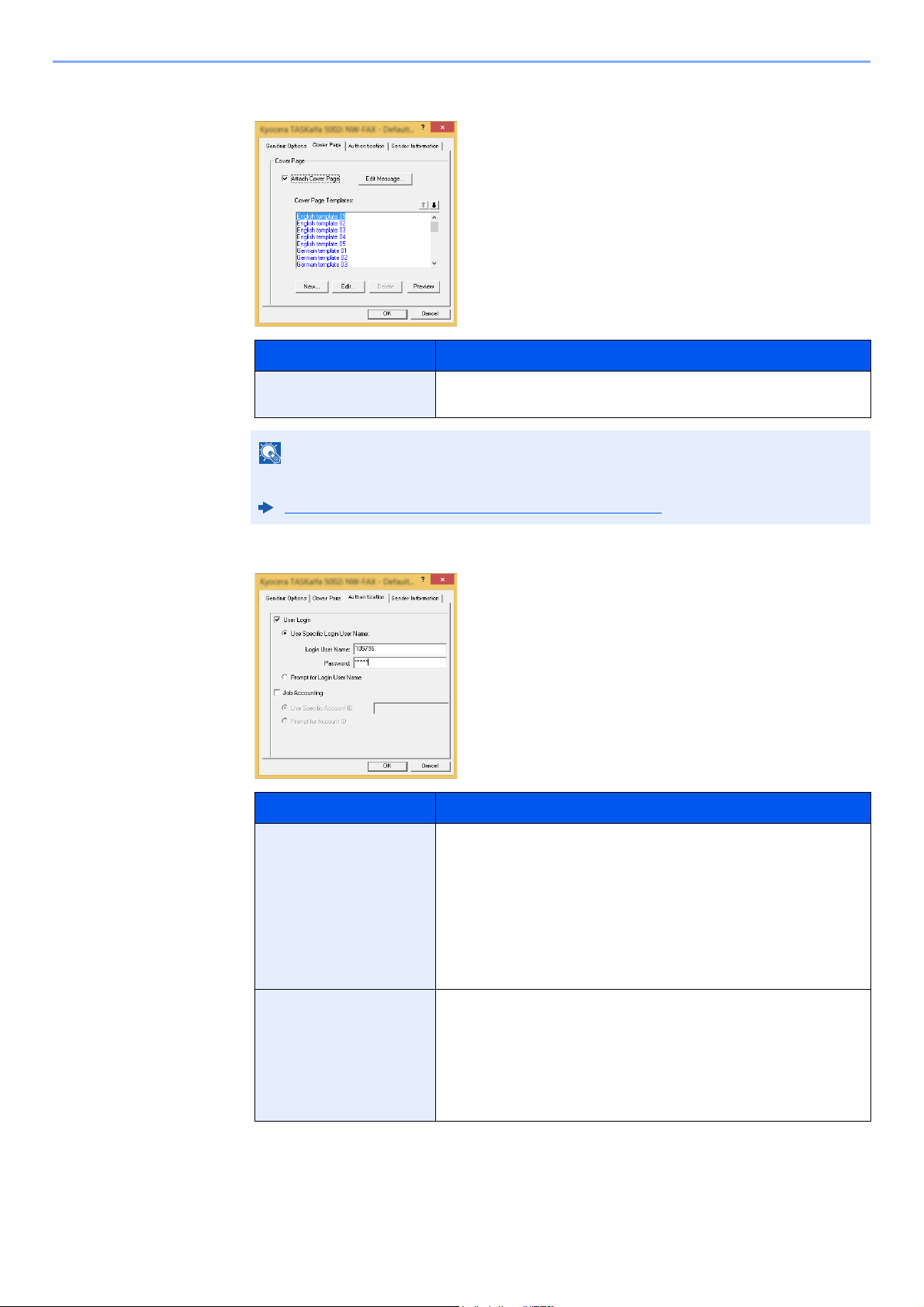
6-13
Sending Faxes from PC > Basic Transmission
(2) Cover Page Tab
(3) Authentication Tab
Item Description
Attach Cover Page
checkbox
Check the checkbox when you want to add a cover page to your
transmission.
NOTE
For more information how to register the cover page, refer to the following:
Cover Page Registration (Default Settings) (page 6-25)
Item Description
User Login checkbox If the fax machine is set to User Login, select either Use Specific
Login User Name or Prompt for Login User Name as desired.
Use Specific Login User Name: Enter the Login User Name and
Password. Transmission will be performed using the entered Login
User Name and Password.
Prompt for Login User Name: A screen for entering the Login User
Name and Password will be displayed when attempting a
transmission. The Login User Name and Password must be entered
each time a transmission is attempted.
Job Accounting
checkbox
If the fax machine is set to Job Accounting, select either Use
Specific Account ID or Prompt for Account ID as desired.
Use Specific Account ID: Enter the Account ID. Transmission will
be performed using the entered Account ID.
Prompt for Account ID: A screen for entering the Account ID will
be displayed when attempting a transmission. The Account ID must
be entered each time a transmission is attempted.
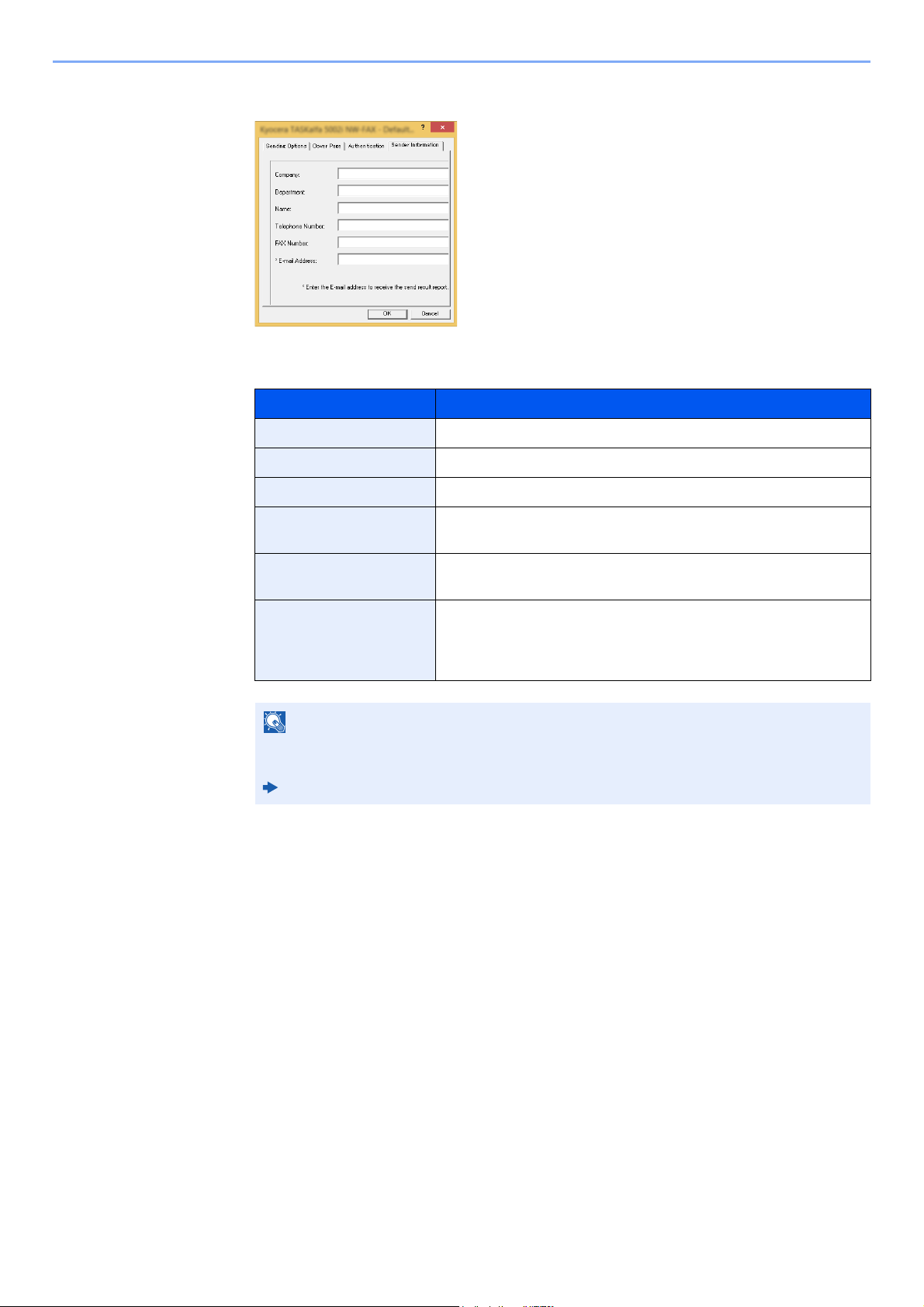
6-14
Sending Faxes from PC > Basic Transmission
(4) Sender Information Tab
Enter your own information into fields explained below to send a cover page with your
faxes.
Item Description
Company A maximum of 64 characters can be entered.
Department A maximum of 64 characters can be entered.
Name A maximum of 32 characters can be entered.
Telephone Number A maximum of 20 characters can be entered. (Entry is allowed for
the characters 0 to 9, #, *, -, (, ), +, and spaces.)
FAX Number A maximum of 20 characters can be entered. (Entry is allowed for
the characters 0 to 9, #, *, -, (, ), +, and spaces.)
E-Mail Address A maximum of 128 characters can be entered.
Available characters:
Symbols ( !, #, $, %, &, ’, *, +, -, ., /, =, @, [, ], ^, _, `, { and })
Alphanumerics (0 – 9, A – Z and a – z)
NOTE
Entering the e-mail address makes it possible to receive the transmission results report
by e-mail. The fax machine must be set to transmit e-mail.
Machine’s Operation Guide
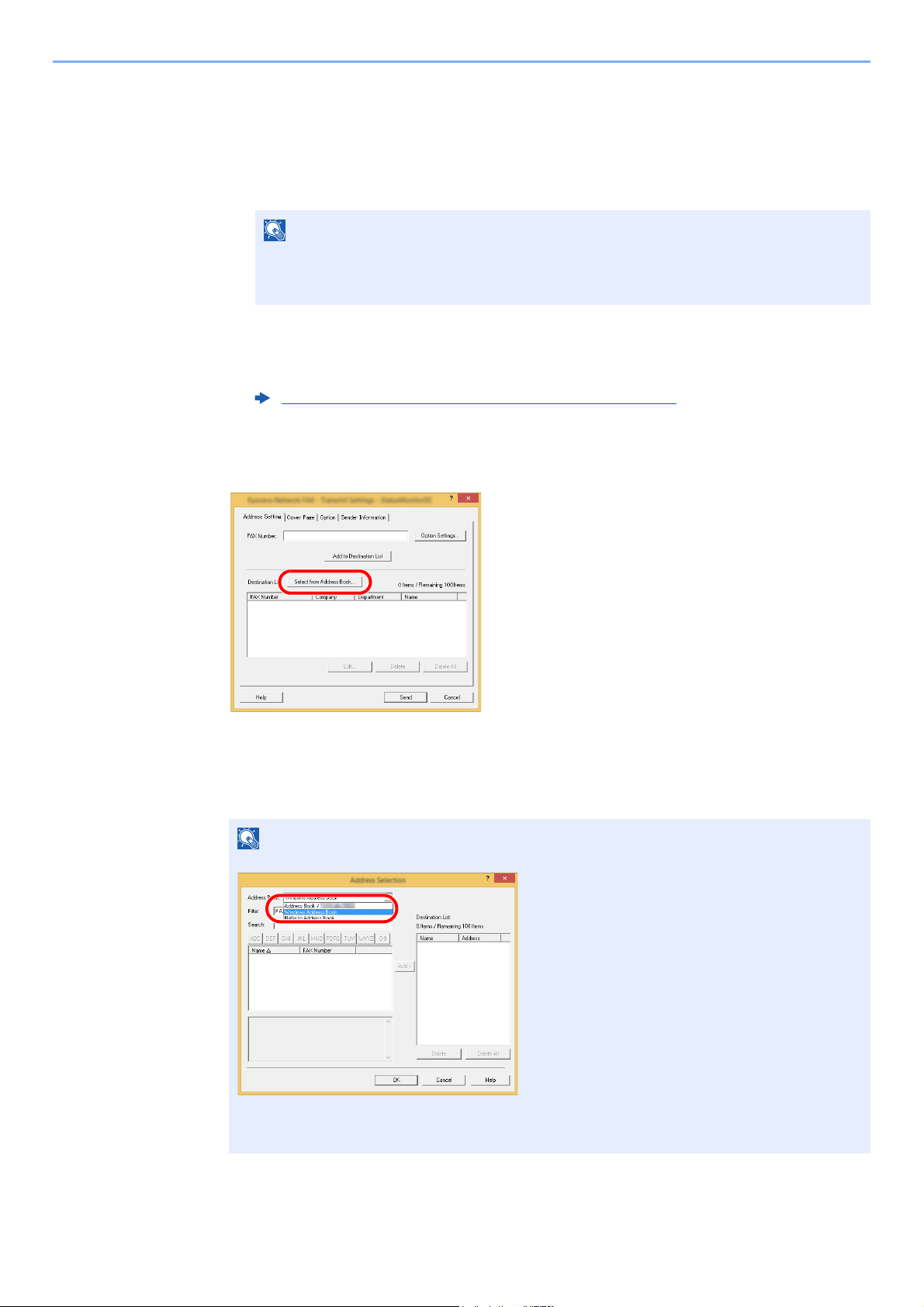
6-15
Sending Faxes from PC > Basic Transmission
Changing Transmit Settings
(1) Selecting a Destination from the Address Book
There are two types of Address Books from which you can select the party to transmit to.
They are the fax machine's Address Book and Windows Address Book.
When using the fax machine's Address Book, the party must be registered in the fax
machine's Address Book.
For details on settings, refer to the following:
1
Click the [Select from Address Book] button.
The Address Selection dialog box opens.
2
Select the desired Address Book.
To select the Address Book registered in the fax machine, select [Address Book/XXXX
(model name)] from the drop-down menu.
NOTE
There are three types of Address Books from which you can select the party to transmit
to. They are the fax machine's Address Book, Windows Address Book, and the Address
Book for the Network FAX data file (.fdt).
Registering Destinations in the Address Book (page 2-12)
NOTE
To use the Windows Address Book, select [Windows Address Book].
For adding an Address Book for Network FAX data file (.fdt), select the [Refer to Address
Book], click on the [Add] button, and then select the [Address Book data file].
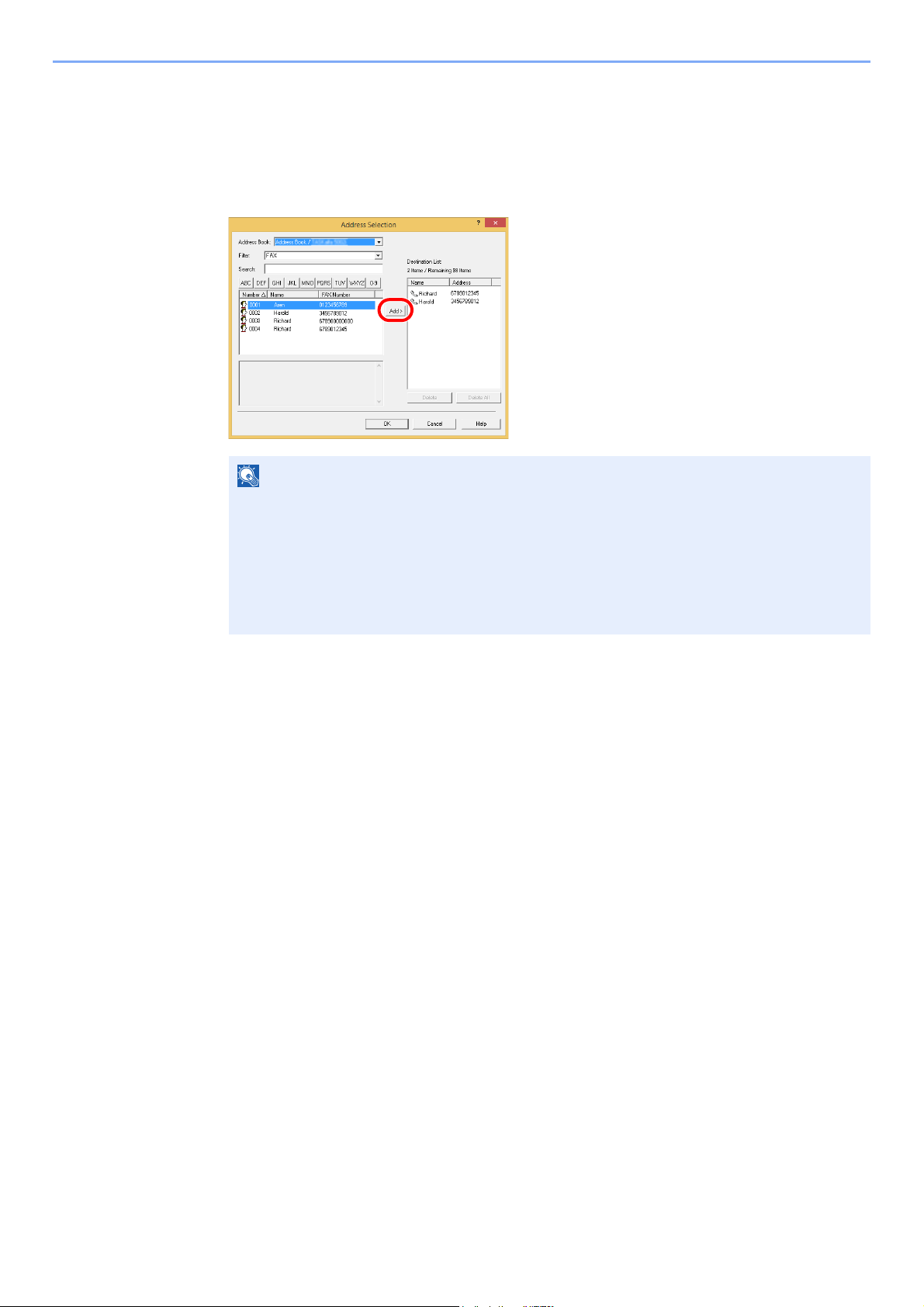
6-16
Sending Faxes from PC > Basic Transmission
3
Select the Destination.
The destinations registered in the Address Book are shown in the list on the left side of the
dialog box. To select a group of destinations, select [Group] from the filter's drop-down menu.
Select the desired destination and click on the [Add>] button. The selected destination will be
added to the [Destination List] (right side).
To delete any of the destinations from the Destination List, select that destination and then
click on the [Delete] button. To delete all of the destinations from the Destination List, click on
the [Delete all] button.
4
Click on the [OK] button.
The [Transmit Settings] dialog box will be displayed once again.
NOTE
• The list can be sorted. Click on the list item by which you want to sort the list (Number,
Name, Fax Number). or are displayed next to the sorted items.
In addition, the corresponding destinations can be selected using the sorted items by
entering a search character string in the Search field.
• When a destination is selected, the destination details are displayed in the field at the
bottom of the list. When a group is selected, the members of the group are displayed in
the field at the bottom of the list.
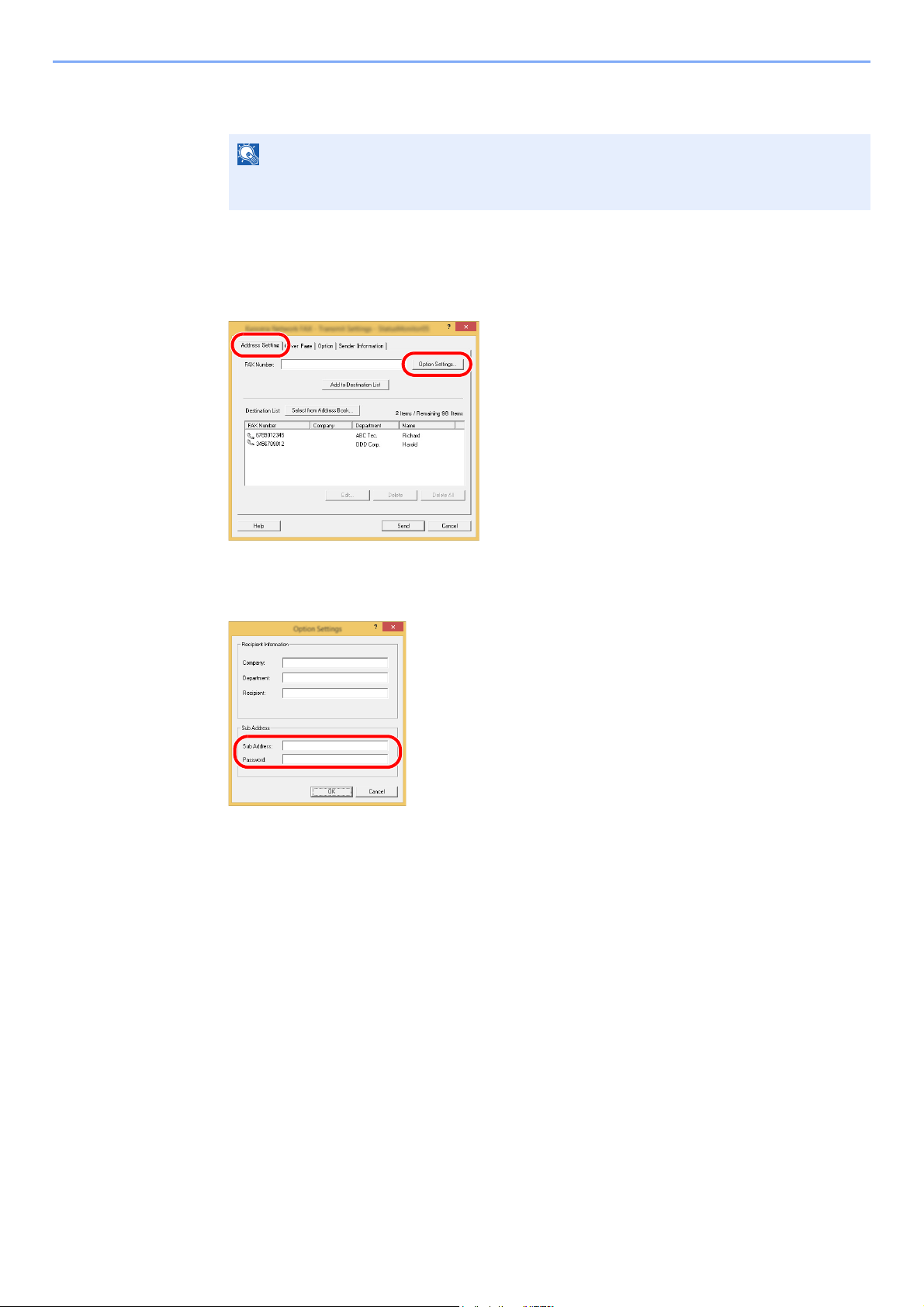
6-17
Sending Faxes from PC > Basic Transmission
(2) Sub address-Based Communication
1
Open the Option Settings dialog box.
Click on the [Option Settings] button in the [Address Setting] tab of the [Transmit Settings]
dialog box.
2
Enter the sub-address and password as it is registered in the destination
fax.
• Maximum number of characters that can be entered: 20 characters
• Characters that can be entered: 0 to 9, #, *, space (a space CANNOT be entered as the
first character)
3
Click on the [OK] button.
The [Transmit Settings] dialog box will be displayed once again.
NOTE
In order to conduct sub address communication, the other party’s system also needs to be
equipped with sub address communication functions of the same type.
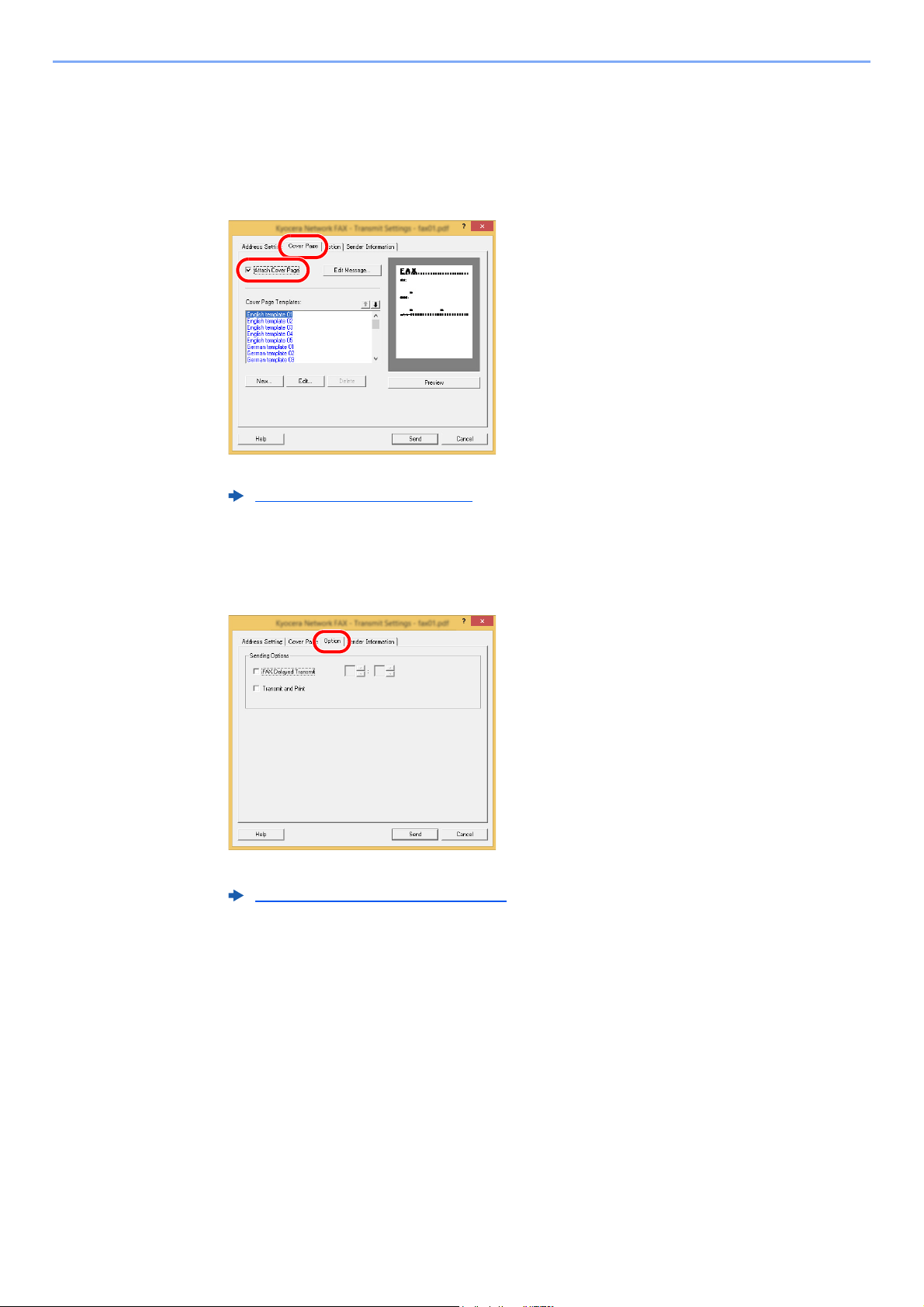
6-18
Sending Faxes from PC > Basic Transmission
(3) Cover Page Settings
A Cover Page can be set as the first page of a fax transmission. In addition to the standard
templates for Cover Pages, original templates can be created and used.
To attach and transmit a Cover Page, place a check in the check box for [Attach Cover Page]
in the [Cover Page] tab.
For more information how to use the cover page, refer to the following:
(4) Optional Settings
The settings that were selected in “(1) Sending Options Tab” can be changed by clicking the
[Options] tab.
For the setting procedures, refer to the following:
Using Cover Pages (page 6-20)
(1) Sending Options Tab (page 6-12)
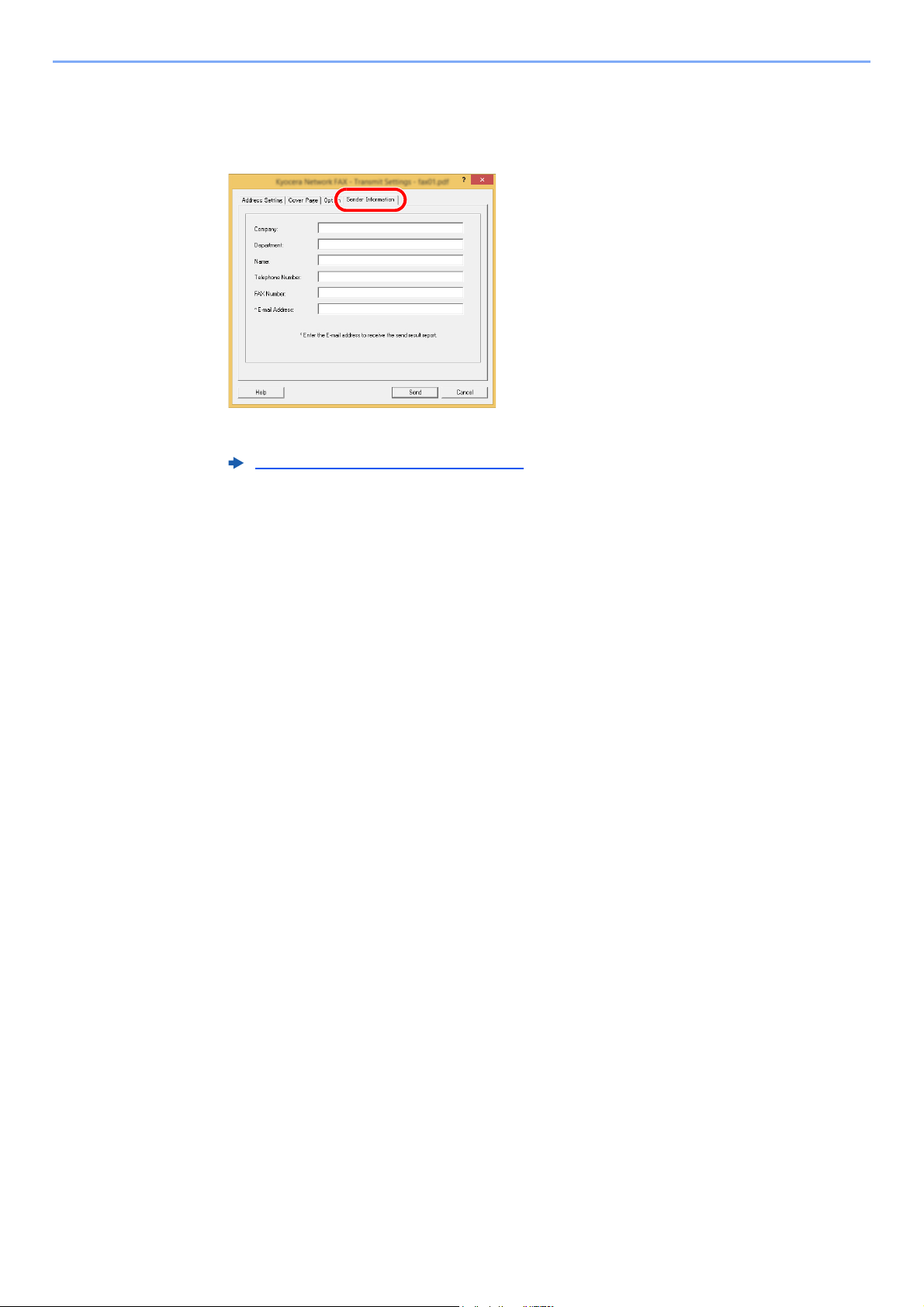
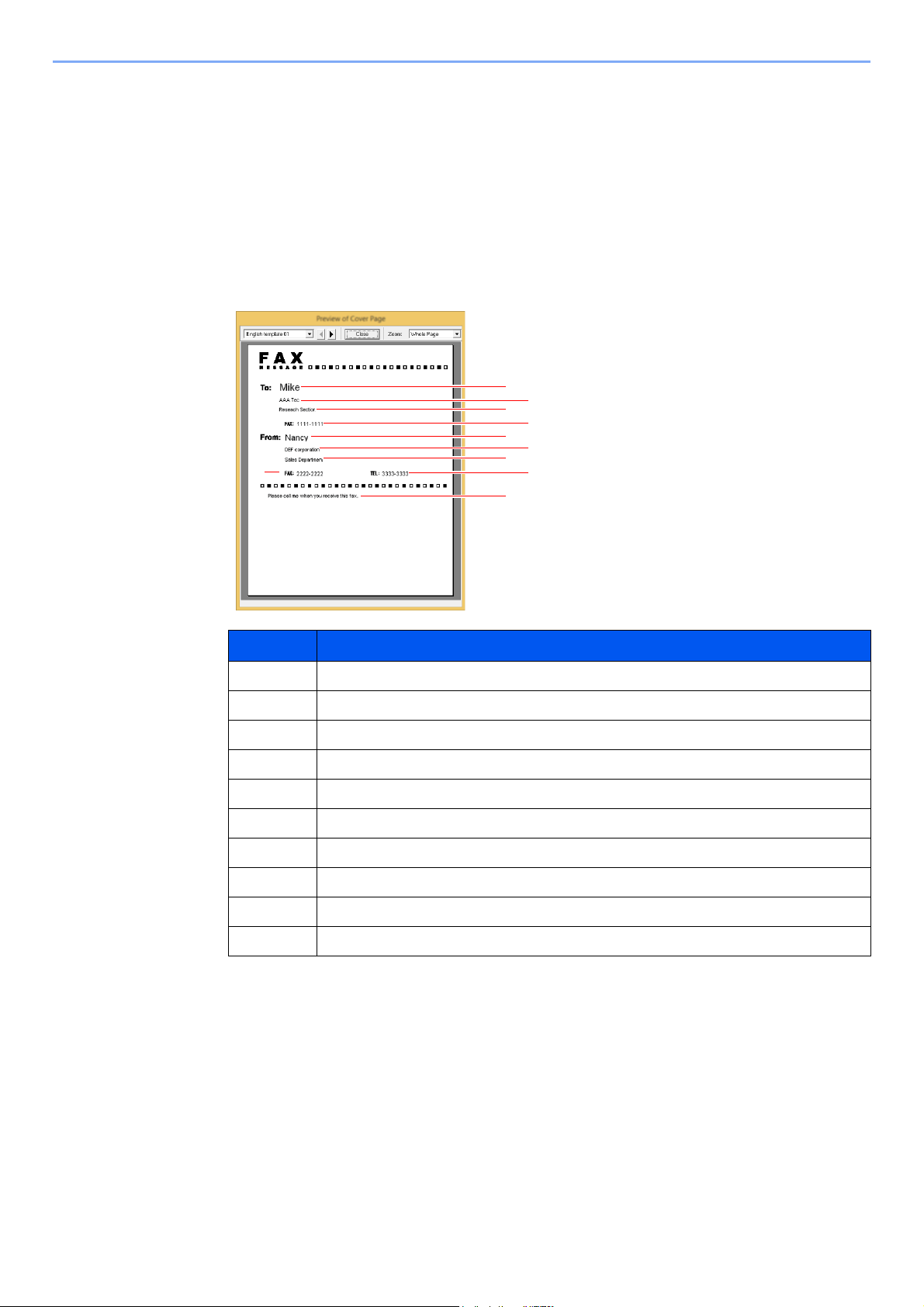
6-20
Sending Faxes from PC > Basic Transmission
Using Cover Pages
Cover Page Selection (Transmission Settings)
The Cover Page is attached to the fax and sent as the first page.
About Cover Pages
The Cover Page can be selected from a template. The Cover Page contains such destination
information and sender information as that shown below.
Sample of English template 01
No. Item
1 Recipient Name
2 Destination Company Name
3 Destination Department Name
4 Destination Fax number
5 Sender Name
6 Sender Company Name
7 Sender Department Name
8 Sender Fax Number
9 Sender Telephone Number
10 Message
2
3
4
5
6
7
9
8
10
1
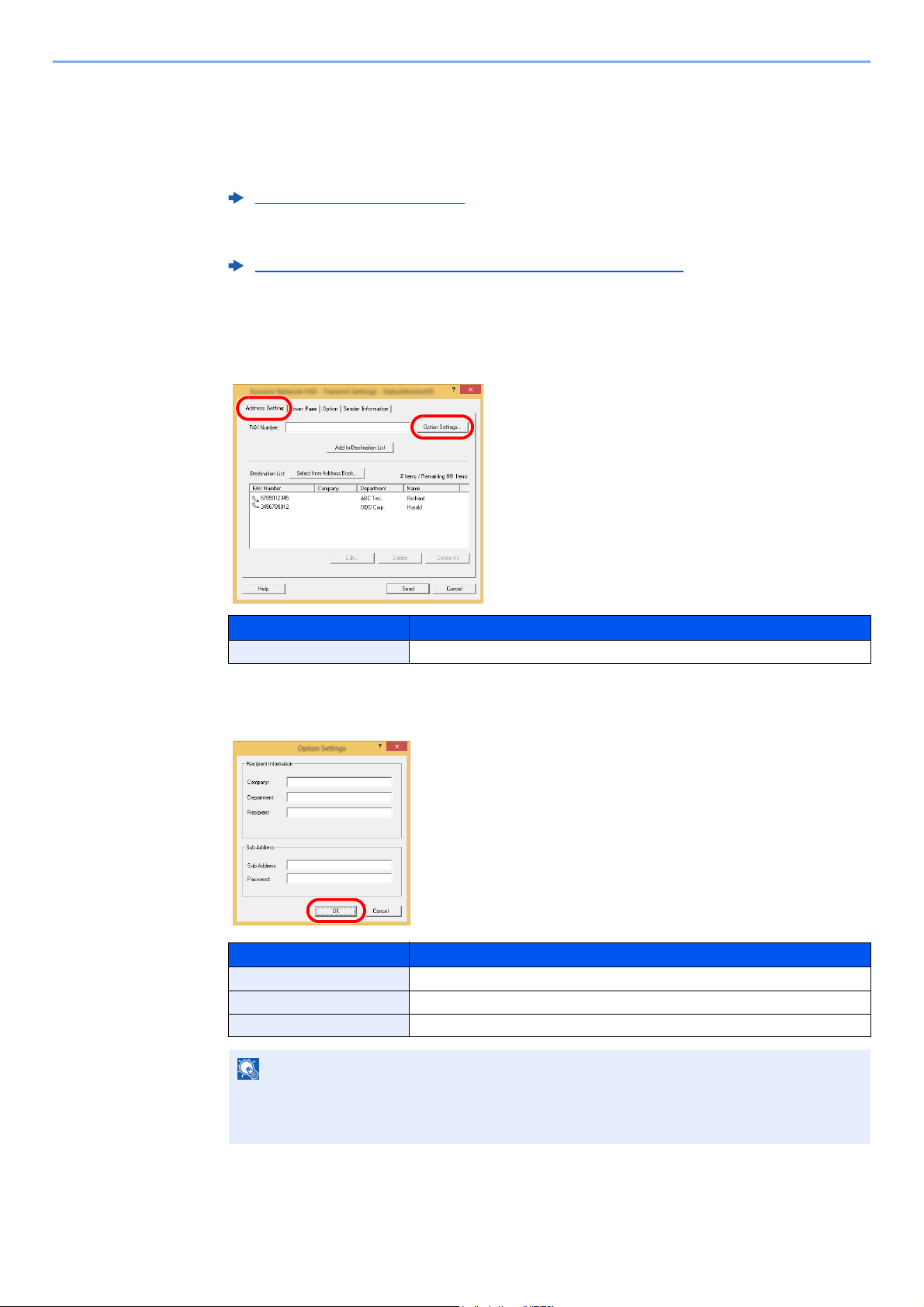
6-21
Sending Faxes from PC > Basic Transmission
Attaching and Transmitting a Cover Page
1
Open the Transmit Settings dialog box.
Perform Steps 1 to 6 of the Basic Transmission method to display the Transmit Settings dialog box.
When selecting the destination from an Address Book, refer to “(1) Selecting a Destination
from the Address Book”, select the destination, and go to Step 4.
2
Enter the fax number.
In the [Address Setting] tab, enter the destination fax number and click on the [Option
Settings] button.
3
Enter the recipient information.
When finished, click the [OK] button.
Basic Transmission (page 6-8)
(1) Selecting a Destination from the Address Book (page 6-15)
Item Description
FAX Number A maximum of 64 characters can be entered.
Item Description
Company A maximum of 32 characters can be entered.
Department A maximum of 32 characters can be entered.
Recipient A maximum of 32 characters can be entered.
NOTE
When [Attach Cover Page] of the [Cover Page] Tab is not set, the Cover Page
Confirmation screen will be displayed.
To include a cover page, click on [Attach Cover Page] button.
2
1
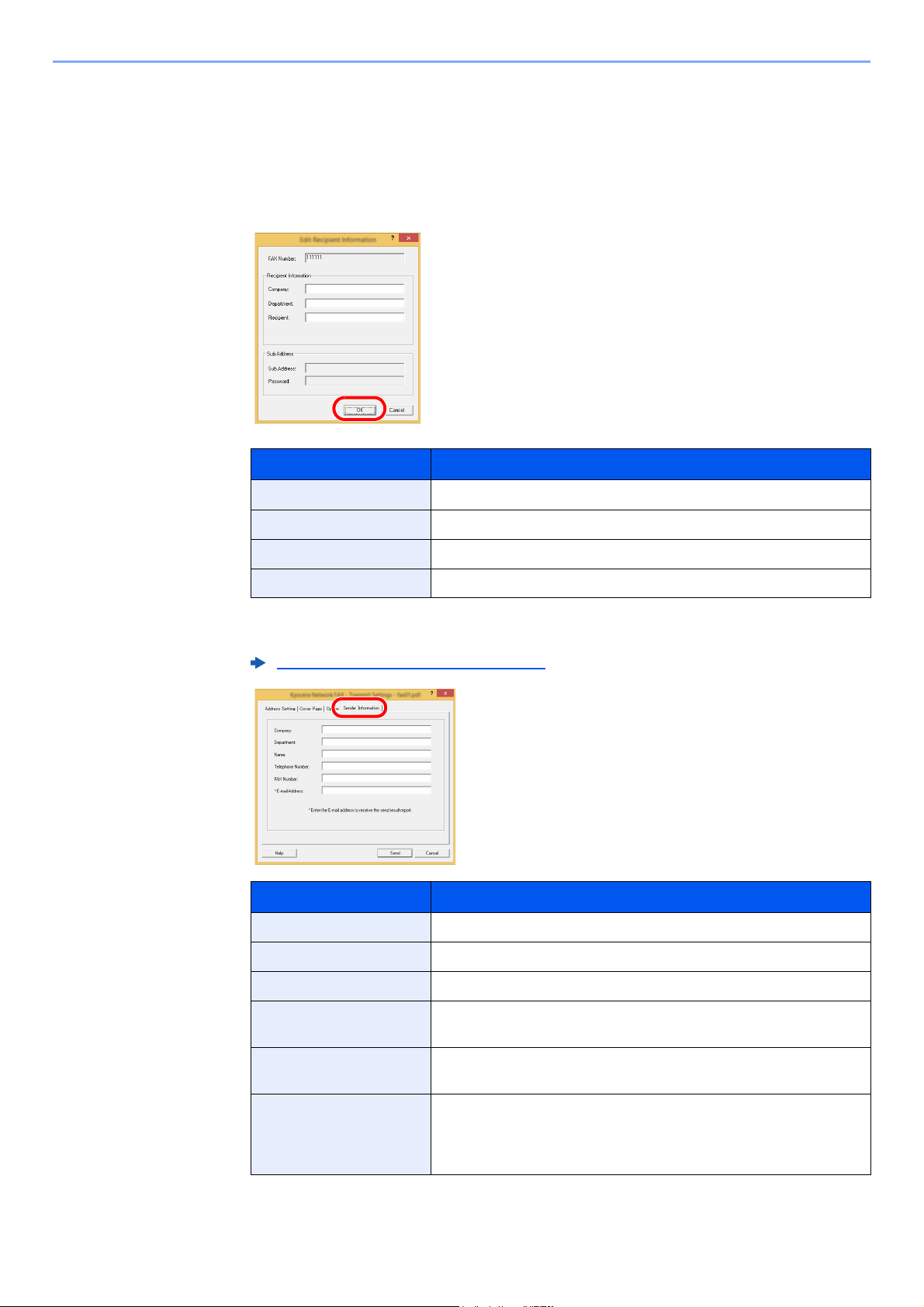
6-22
Sending Faxes from PC > Basic Transmission
4
Add the destination to the destination list.
1 Add this information to the [Destination List] by clicking on the [Add to Destination List]
button.
2 To change the recipient information of a destination that has been added to the
[Destination List], select the destination to be changed and click on the [Edit] button.
Change the recipient information and click on the [OK] button.
3 When the sender information is not set in the [Default Settings] dialog box, click on the
[Sender Information] tab and set the sender information.
.
Item Description
FAX Number The fax number cannot be changed.
Company A maximum of 32 characters can be entered.
Department A maximum of 32 characters can be entered.
Recipient A maximum of 32 characters can be entered.
(4) Sender Information Tab (page 6-14)
Item Description
Company A maximum of 64 characters can be entered.
Department A maximum of 64 characters can be entered.
Name A maximum of 32 characters can be entered.
Telephone Number A maximum of 20 characters can be entered. (Entry is allowed for the
characters 0 to 9, #, *, -, +, and spaces.)
FAX Number A maximum of 20 characters can be entered. (Entry is allowed for the
characters 0 to 9, #, *, -, +, and spaces.)
E-mail Address A maximum of 128 characters can be entered.
Available characters:
Symbols ( !, #, $, %, &, ’, *, +, -, ., /, =, @, [, ], ^, _, `, { and })
Alphanumerics (0 – 9, A – Z and a – z)
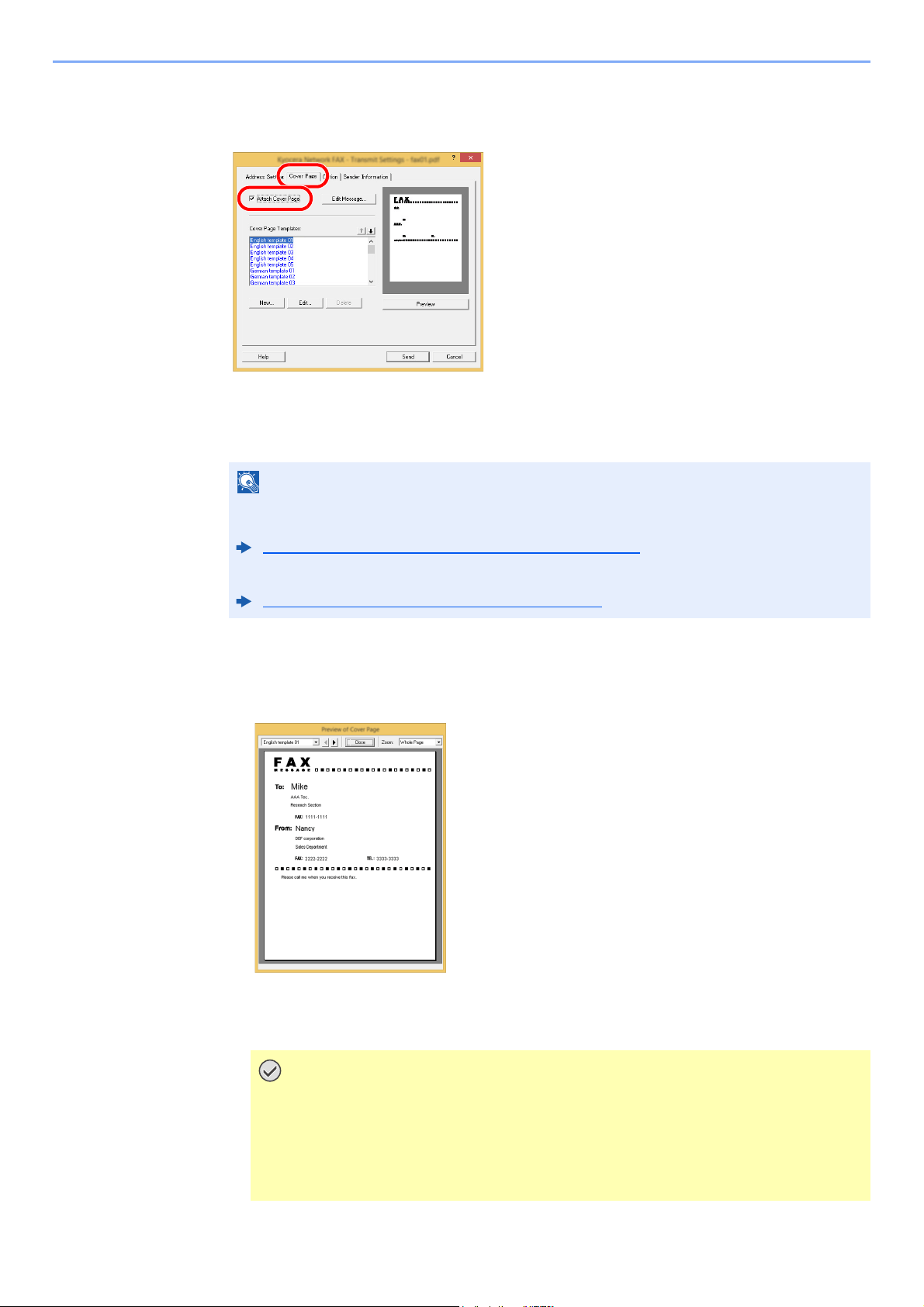
6-23
Sending Faxes from PC > Basic Transmission
5
Attach a Cover Page.
Click on the [Cover Page] tab and place a check in the [Attach Cover Page] checkbox.
6
Select the Cover Page to be attached.
Select a Cover Page template from the [Cover Page Templates] list.
7
Check the contents of the Cover Page.
1 Click on the [Preview] button. A preview of the currently selected template will be
displayed.
To display a different template, use the drop-down menu at the top of the dialog box or click
on the [] or [] button. The template display magnification can also be changed within the
range of 25 to 250% from the drop-down menu.
NOTE
If the Cover Page is registered in the Default Settings, then the action of selecting the Cover
Page for each transmission can be omitted.
Cover Page Registration (Default Settings) (page 6-25)
Original Cover Page templates can be created.
Creating New Cover Page Templates (page 6-27)
IMPORTANT
Before transmitting the fax, be sure to use the Preview screen to check all of the
displayed information including the recipient name and company name. If there is
a large number of characters for information that is automatically entered, they
might not completely fit in the field and the characters might not print correctly.
If the characters are not displayed correctly, reduce the number of characters in
the recipient information or sender information or edit the template being used.
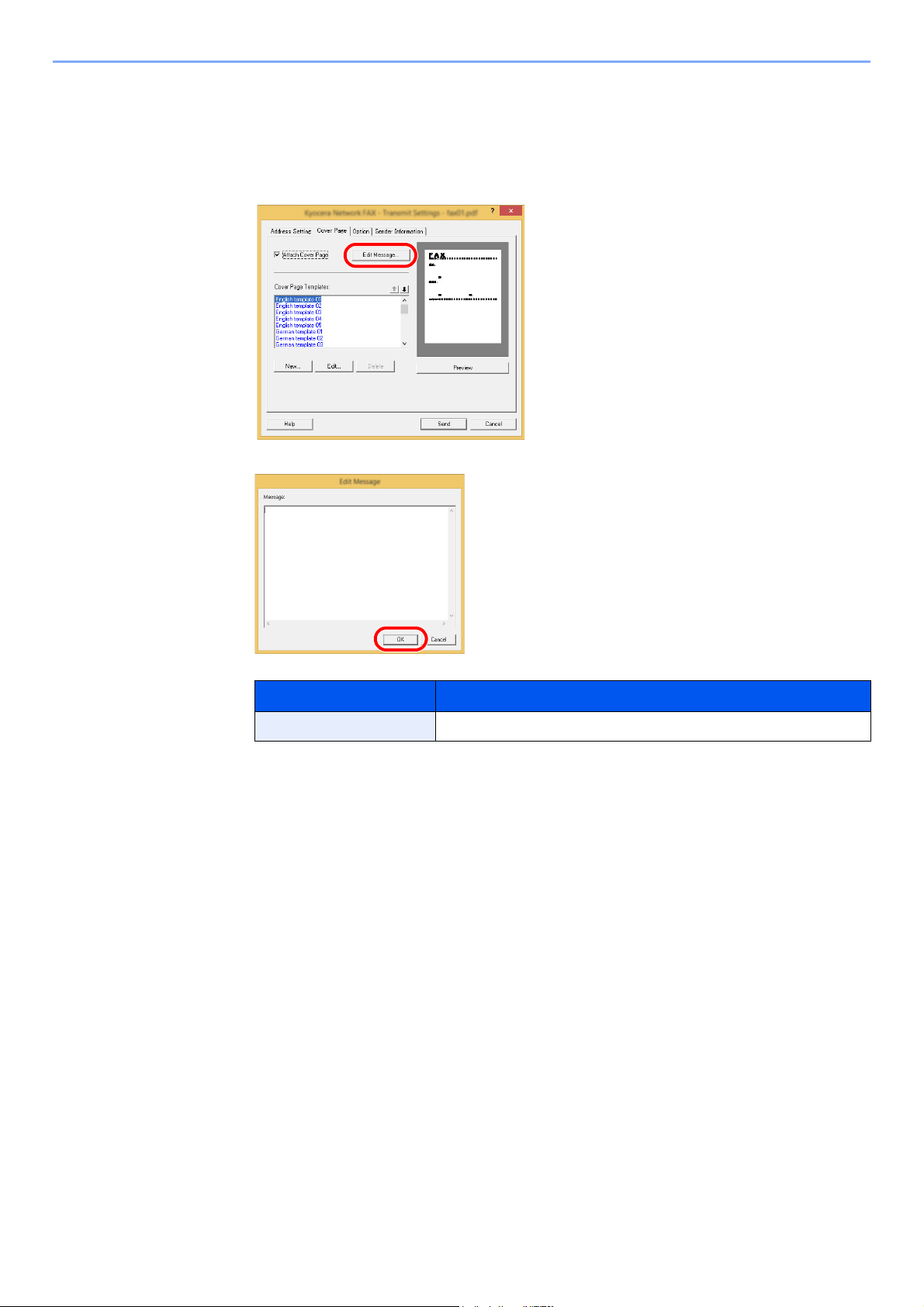
6-24
Sending Faxes from PC > Basic Transmission
2 Click on the [Close] button.
8
Edit the Message.
1 Click on the [Edit Message] button.
2 Enter the message to be added to the Cover Page and click on the [OK] button.
9
Transmit.
Click on the [Send] button to begin the transmission.
Item Description
Message A maximum of 1,000 characters can be entered.
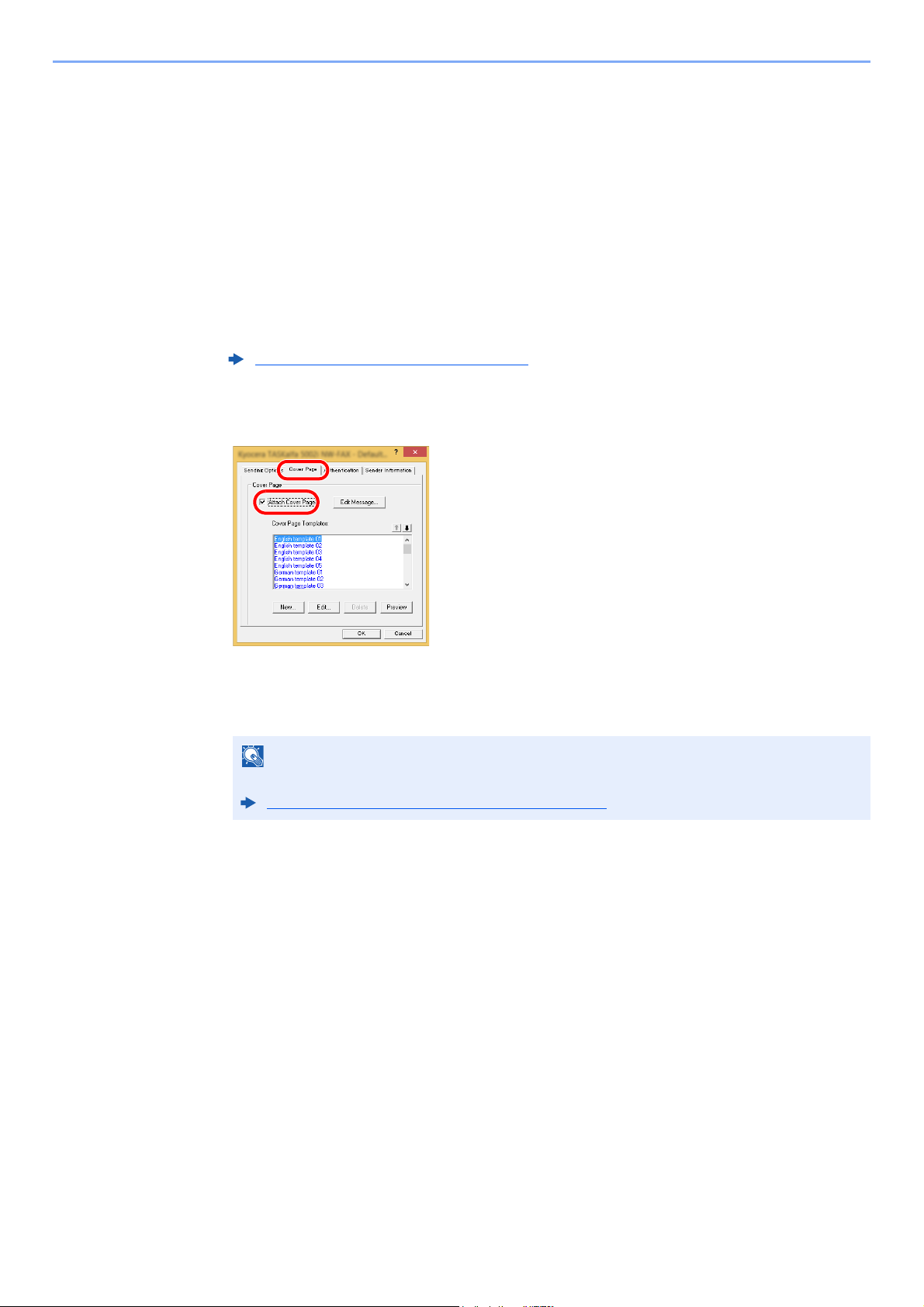
6-25
Sending Faxes from PC > Basic Transmission
Cover Page Registration (Default Settings)
If the Cover Page is registered in the Default Settings, the action of selecting the Cover Page for each transmission can
be omitted.
Template Selection
Select the Cover Page template to be registered in the Default Settings. The registration
method is as follows.
1
Open the Default Settings dialog box.
Perform the Default Settings Dialog Box procedure, open the [Default Settings] dialog box.
2
Attach a Cover Page.
Click on the [Cover Page] tab and place a check in the [Attach Cover Page] checkbox.
3
Select the Cover Page to be attached.
Select a Cover Page template from the [Cover Page Templates] list.
Default Settings Dialog Box (page 6-12)
NOTE
Original Cover Page templates can be created.
Creating New Cover Page Templates (page 6-27)
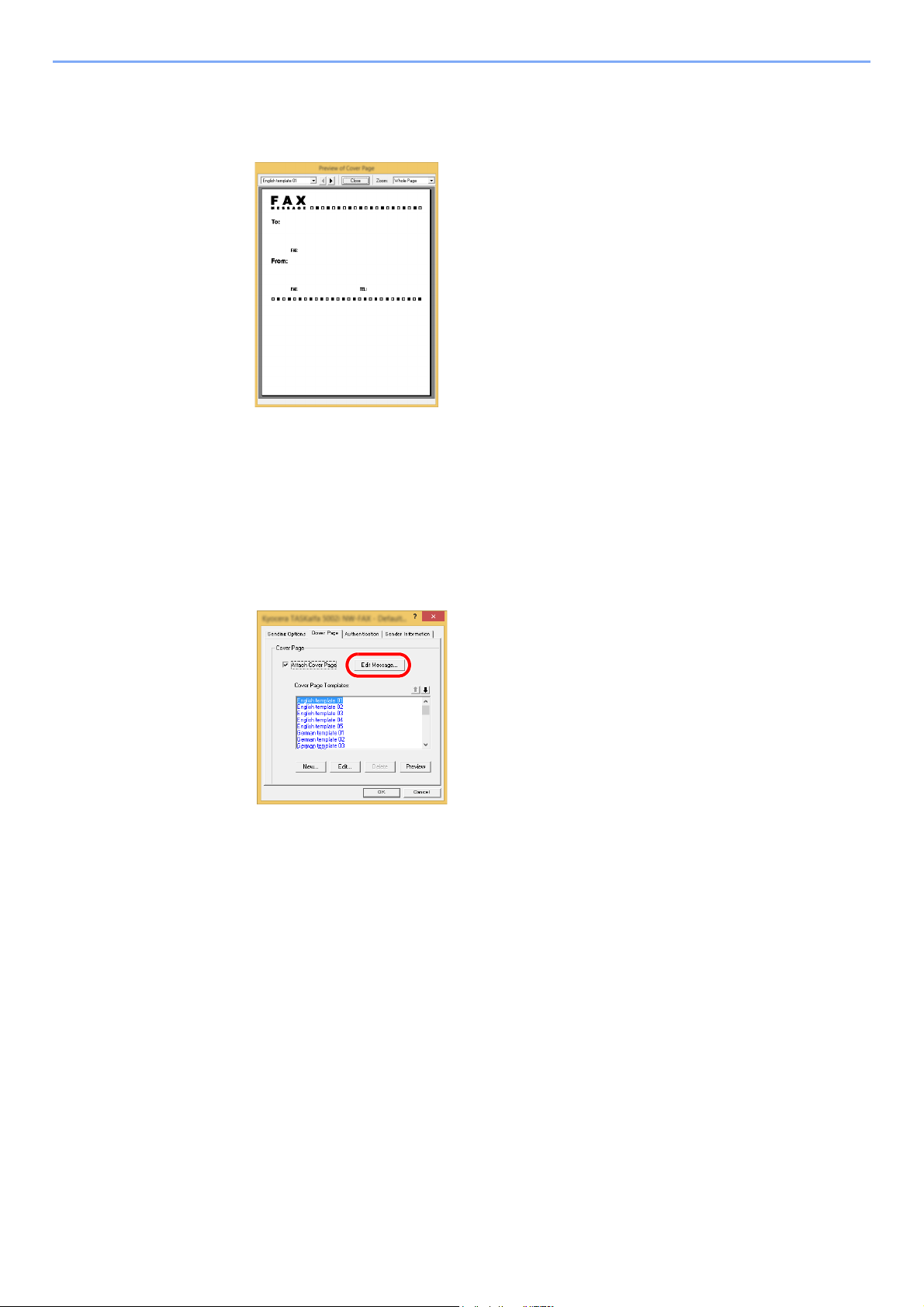
6-26
Sending Faxes from PC > Basic Transmission
4
Check the contents of the Cover Page.
1 Click on the [Preview] button. A preview of the currently selected template will be
displayed.
To display a different template, use the drop-down menu at the top of the dialog box or click
on the [] or [] button. The template display magnification can also be changed within the
range of 25 to 250% from the drop-down menu.
2 Click on the [Close] button.
5
Edit the Message.
1 Click on the [Edit Message] button.
2 Enter the message to be added to the Cover Page and click on the [OK] button.
A maximum of 1,000 characters can be entered.
6
Click on the [OK] button.
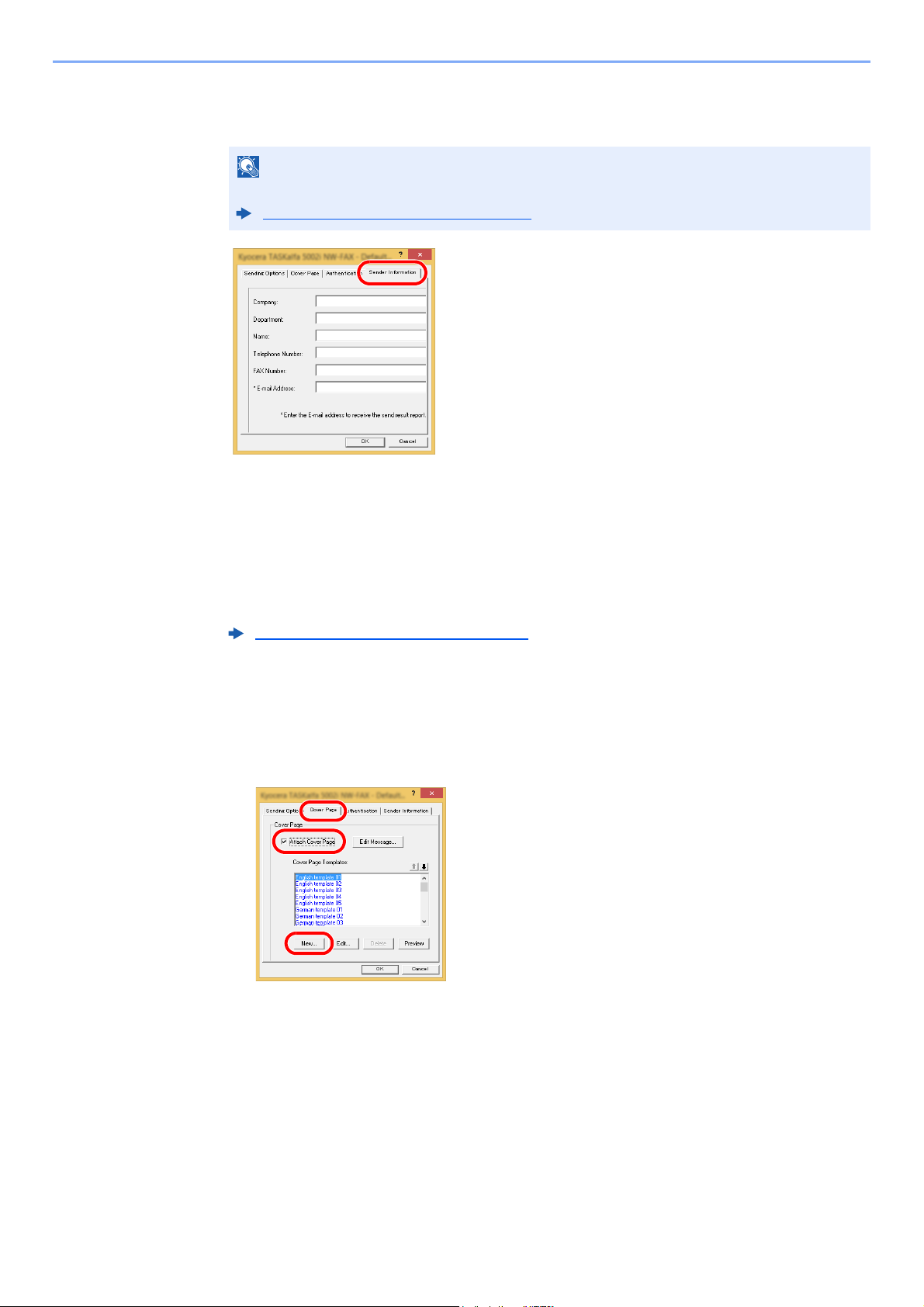
6-27
Sending Faxes from PC > Basic Transmission
Sender Information Registration
Please register the sender information to be included on the Cover Page.
Creating New Cover Page Templates
Perform the following procedure to create an original Cover Page template.
1
Open the Default Settings dialog box.
Perform the Default Settings Dialog Box procedure, open the [Default Settings] dialog box.
2
Edit the Cover Page templates.
1 Click on the [Cover Page] tab and place a check in the [Attach Cover Page] checkbox and
click on the [New...] button.
The [Edit Cover Page] screen will be displayed.
NOTE
For information regarding the registration method, refer to the following:
(4) Sender Information Tab (page 6-14)
Default Settings Dialog Box (page 6-12)
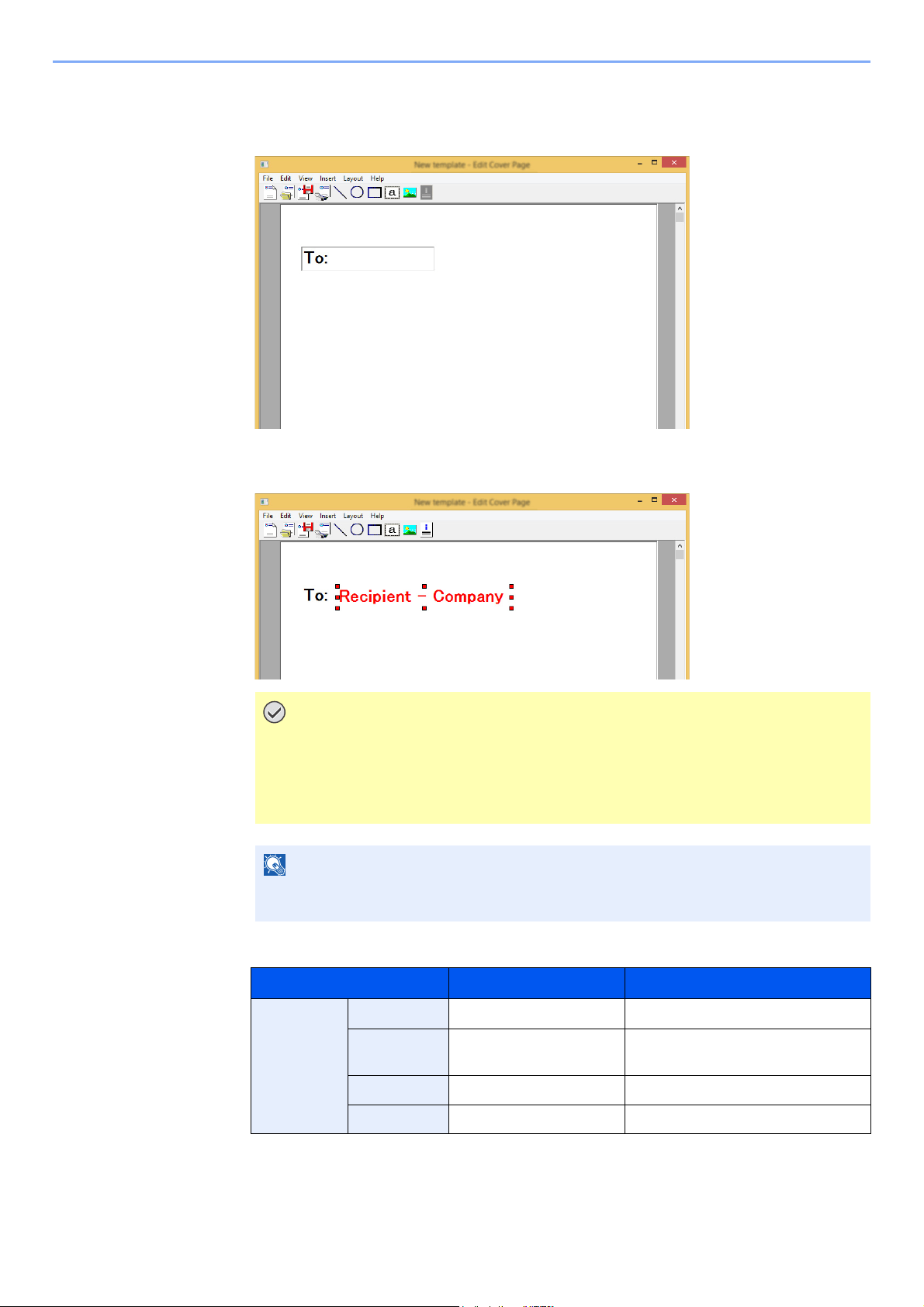
6-28
Sending Faxes from PC > Basic Transmission
2 Enter the characters.
From the Menu bar, click on [Insert] and then [Textbox] and then position the textbox and
enter the characters.
3 Position the field box.
From the Menu bar's [Insert] menu, select the field box to be positioned.
The following field boxes can be used. Use them as required.
IMPORTANT
If there are too many characters in the entered information, such as recipient
name or company name, the information will not fit in the field box and some of
the characters could be cut off. When positioning the field box, make it large
enough and adjust the font point size so that the inserted information will fit in the
field box.
NOTE
When a fax is transmitted, the information entered in the Default Settings and
Destination Settings will automatically be entered in the fields.
Menu Item Template Display Inserted Information
Destination Company Recipient - Company Recipient information company name
Department Recipient - Department Recipient information department
name
Name Recipient - Name Recipient information recipient name
Address Recipient - Address Recipient FAX number
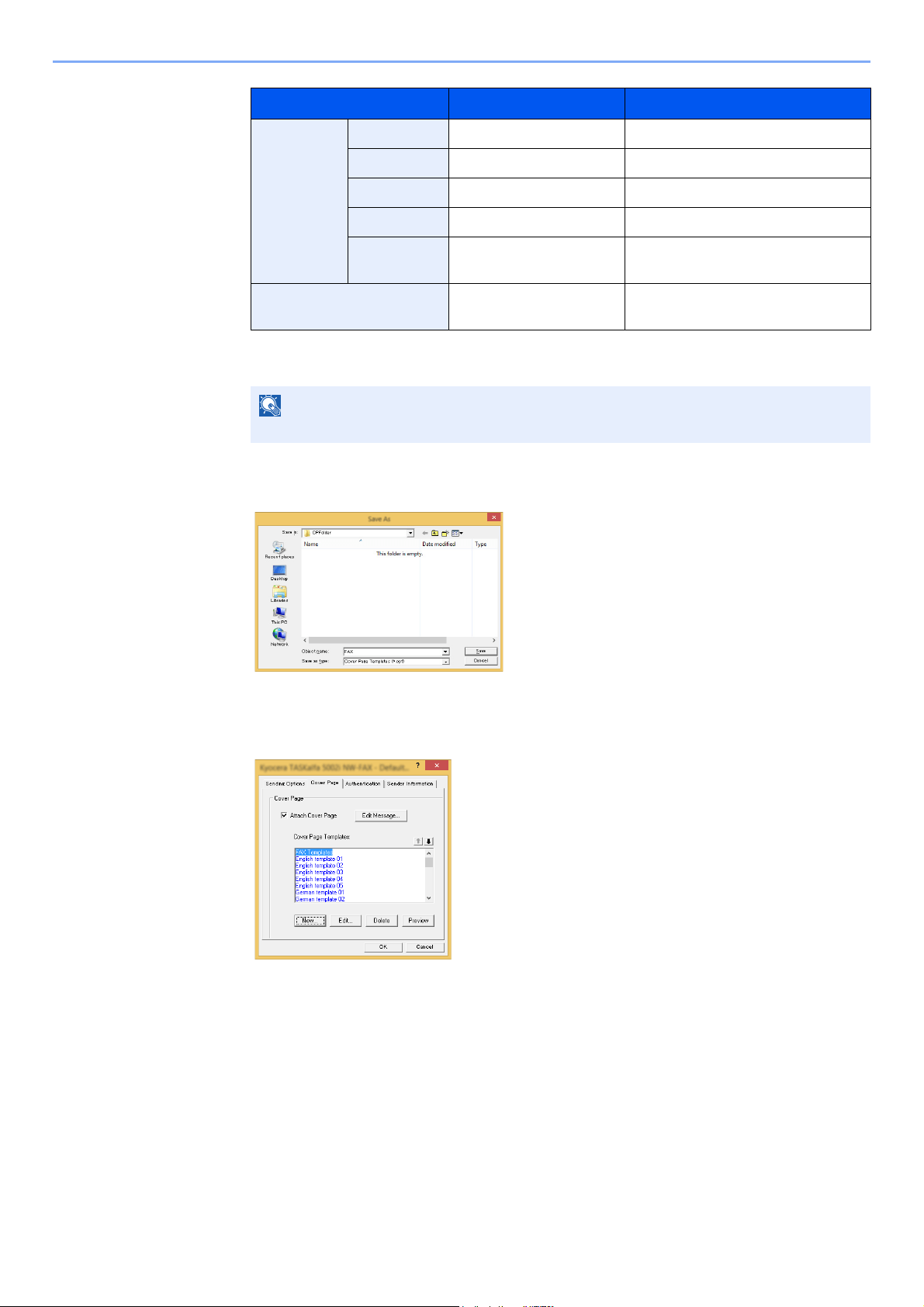
6-29
Sending Faxes from PC > Basic Transmission
4 Position the figures, textboxes, etc., to create a Cover Page.
5 From the Menu bar click on [File] and then [Save As], enter the file name, and click on the
[Save] button.
6 Close the [Edit Cover Page] screen.
7 The new template will be registered at the top of the list and can now be selected.
Sender Company Sender - Company Sender information company name
Department Sender - Department Sender information department name
Name Sender - Name Sender information sender name
FAX Number Sender - FAX Number Sender information FAX number
Telephone
Number
Sender - Telephone
Number
Sender information telephone
number
Comment Comment Message entered in the Cover Page
tab
NOTE
For information regarding the operation method, refer to Help.
Menu Item Template Display Inserted Information
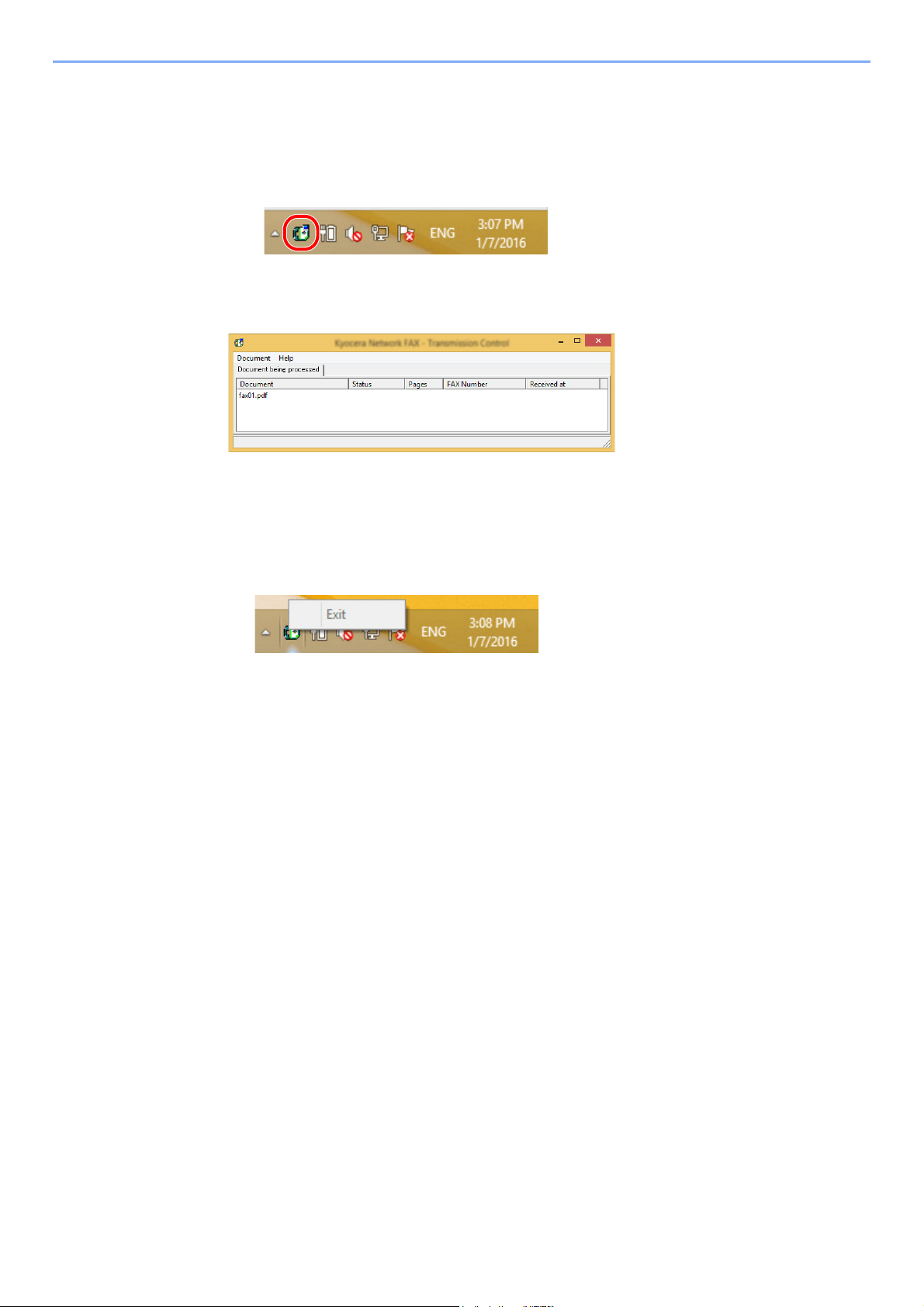
6-30
Sending Faxes from PC > Basic Transmission
Transmission Control
Perform the following procedure when you want to use your computer to verify the status of a fax transmission currently
being processed, or to actually terminate that transmission.
Once a fax transmission starts being processed, a Transmission Control icon will be displayed in the Windows Task Bar.
1
Double-click on that icon to access the Transmission Control window
which indicates the status of all transmissions being processed.
To terminate any transmission, select that transmission and then select [Cancel] from the
Document menu.
Ending Transmission Control
Right click on the Transmission Control icon and select [Exit].

7-1
7 Managing Jobs
This chapter explains the following topics:
Various Tools for Checking Transmission Results and Registration Status ....................................................... 7-2
Checking FAX Job History ................................................................................................................................. 7-3
Displaying Job Log Screen ...................................................................................................................... 7-3
Printing Administrative Reports (Result Report Setting) .................................................................................... 7-4
Send Result Reports ................................................................................................................................ 7-4
Report for Job Canceled before Sending ................................................................................................ 7-5
Recipient Format ..................................................................................................................................... 7-5
FAX RX Result Reports ........................................................................................................................... 7-6
Activity Report (Outgoing FAX Report and Incoming FAX Report) .................................................................... 7-7
Printing Activity Reports ........................................................................................................................... 7-7
Automatic Printout ................................................................................................................................... 7-7
Status Page ........................................................................................................................................................ 7-8
Reporting FAX Receipt Result by E-mail ........................................................................................................... 7-9
Confirmation Screen of Destinations ................................................................................................................ 7-11
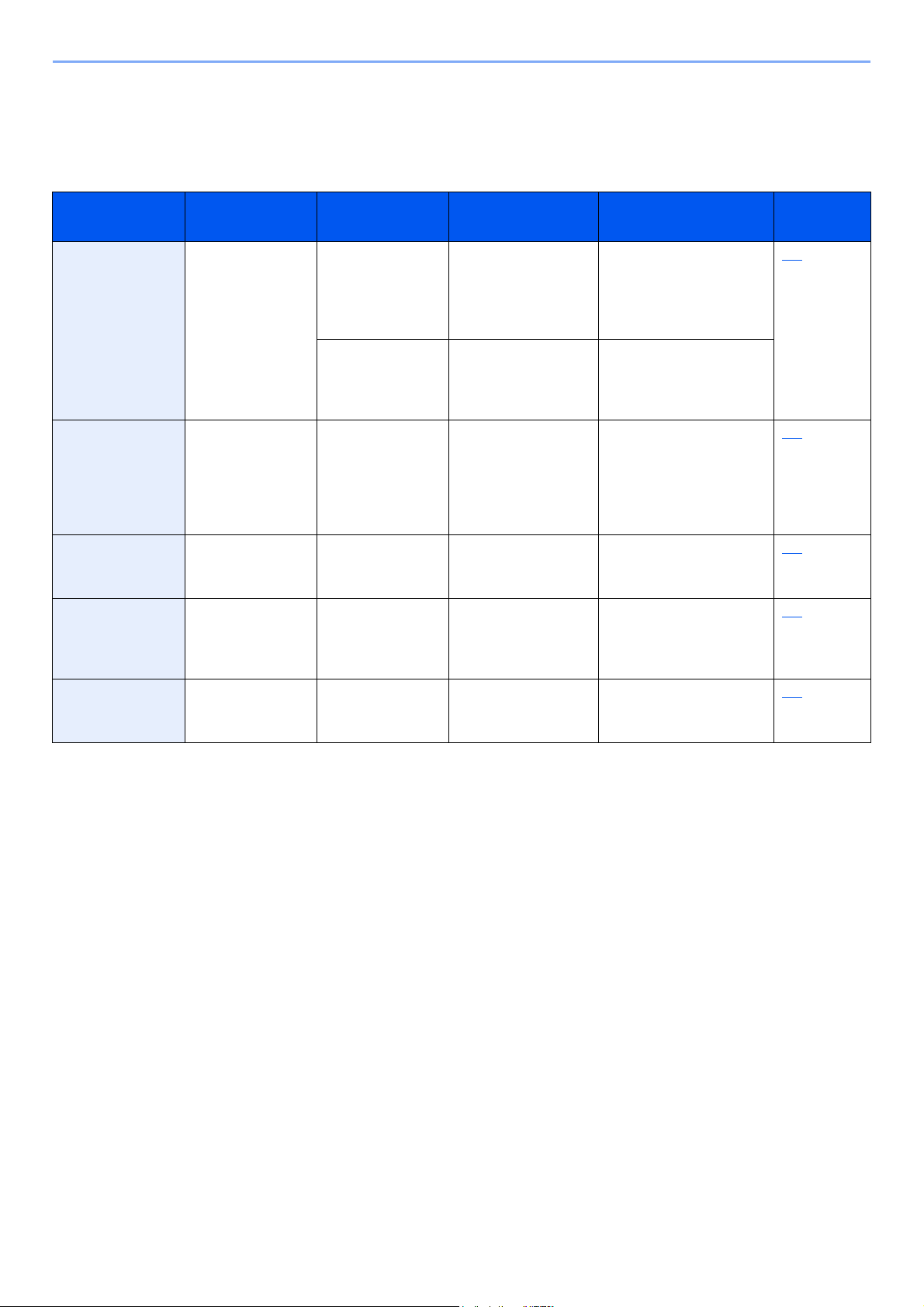
7-2
Managing Jobs > Various Tools for Checking Transmission Results and Registration Status
Various Tools for Checking Transmission Results
and Registration Status
Reports Display
Location
Menu Contents to
Check
Timing of Check Reference
Page
FAX job history
check
Message display Send Job Log
Print Job Log
Store Job Log
History of latest 16
send and receipt
results stored
(including jobs other
than FAX jobs)
Any time 7-3
Outgoing FAX Log
Incoming FAX Log
History of latest 50
send and receipt
results stored (FAX
jobs only)
Any time
Send result report
/ Receipt result
report
Report printing Send Result
FAX RX Result
Latest send or receipt
result
Automatic printout after
every sending or
receiving operation (No
Print Output or Error Only
is also optionally
available.)
7-4
Activity report Report printing Outgoing FAX Rpt
Incoming FAX Rpt
Latest 50 send or
receipt results
Any time, and automatic
printout after every 50
sending/receiving
7-7
Status page Report printing Status Page Registration status of
Local FAX Number,
Local FAX Name, fax
line setting, etc.
Any time 7-8
Reporting of FAX
receipt result by
Email
PC FAX RX Result Fax receipt Fax reception is reported
by email.
7-9
7-3
Managing Jobs > Checking FAX Job History
Checking FAX Job History
Displaying Job Log Screen
1
Display the screen.
[Status/Job Cancel] key > [▲] [▼] key > [FAX Job Log] > [OK] key > [▲] [▼] key >
[Outgoing FAX Log] or [Incoming FAX Log] > [OK] key
2
Check
Select the [◄] or [►] key to check the details of the job.
NOTE
Even when job accounting is enabled, 50 each of send and receipt results are displayed regardless of the account ID.
For details of the job history check, refer to the following:
Machine’s Operation Guide
NOTE
To check the fax save log, select [Status/Job Cancel] key > [▲] [▼] key >
[Store Job Log] > [OK] key.
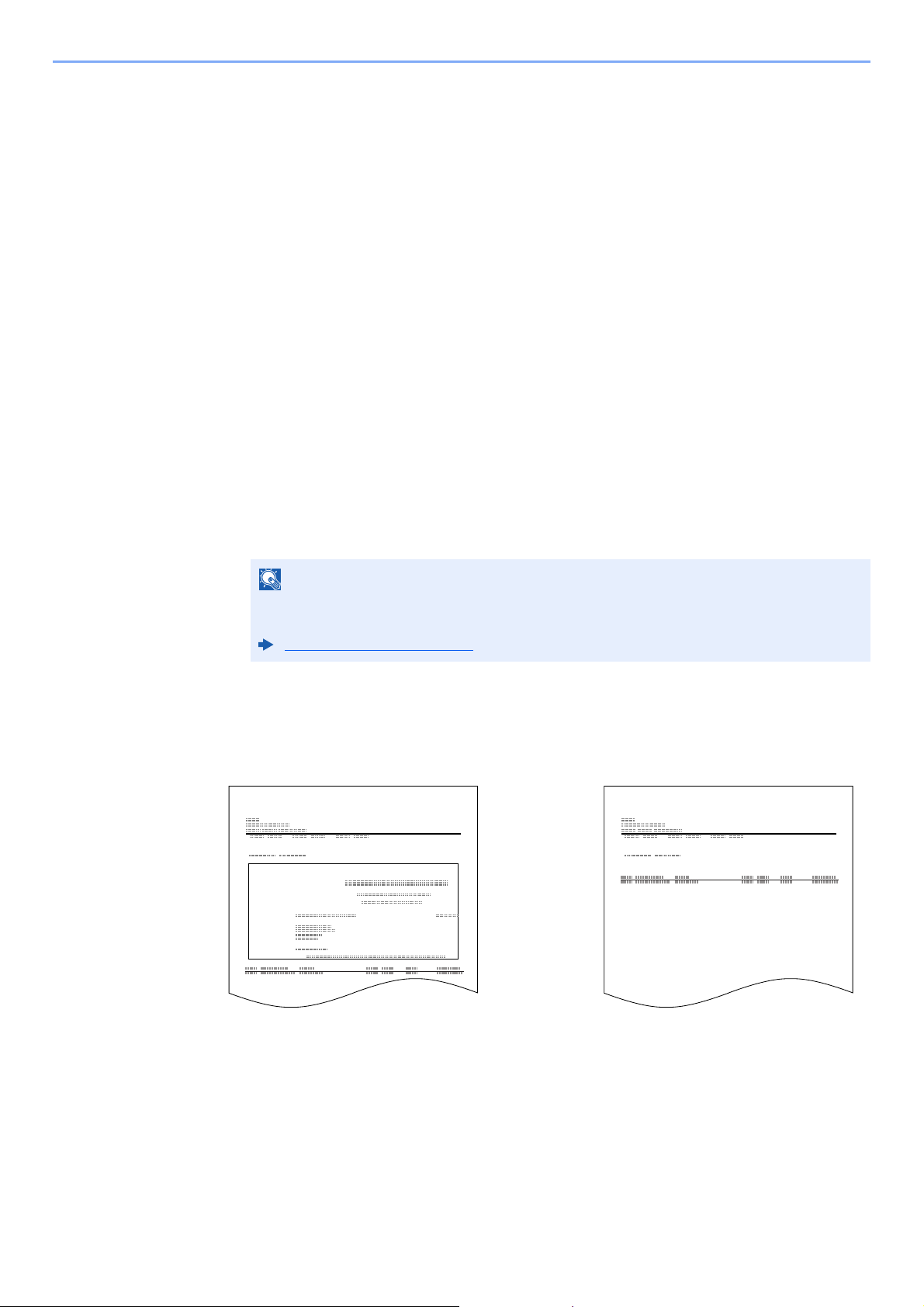
7-4
Managing Jobs > Printing Administrative Reports (Result Report Setting)
Printing Administrative Reports (Result Report
Setting)
You can print various administrative reports to check the results of fax transmission or the status of the functional setup.
Send Result Reports
Each time you send a fax, you can print a report to confirm whether the fax was sent successfully. You can also print the
transmitted image in the send result report.
1
Display the screen.
[System Menu/Counter] key > [▲] [▼] key > [Report] > [OK] key > [▲] [▼] key >
[Result Rpt Set.] > [OK] key > [▲] [▼] key > [Send Result] > [OK] key > [▲] [▼] key >
[FAX]> [OK] key
2
Configure the function.
1 [Off] (not to print), [On] (to print), [Error Only], or [Specify Each Job] > [OK] key
If you selected [On], [Error Only] or [Specify Each Job], printing of the transmitted image
can be set.
2 [Off] (not printing the transmitted image), [Partial Image] (print part of the transmitted
image at full size), or [Full Image] (print the entire transmitted image at reduced size) >
[OK] key
NOTE
When [Specify Each Job] is selected, it is possible to set a send result report when
transmitting.
FAX TX Report (page 3-21)
Send Result Report
Completed
Completed
Send Result Report
With transmitted image Without transmitted
7-5
Managing Jobs > Printing Administrative Reports (Result Report Setting)
Report for Job Canceled before Sending
Print a send result report when the job is canceled before being sent.
1
Display the screen.
[System Menu/Counter] key > [▲] [▼] key > [Report] > [OK] key > [▲] [▼] key >
[Result Rpt Set.] > [OK] key > [▲] [▼] key > [Send Result] > [OK] key > [▲] [▼] key >
[CancelBeforeSend] > [OK] key
2
Configure the function.
[On] or [Off] > [OK] key
Recipient Format
Select the Recipient Format for the send result report.
The name and destination that appear on the Send Result Report are taken from the information stored in the address
book.
If [Dest. or Name] is selected, either the name (destination name) or the destination (FAX No.) stored in the address
book is shown. When both a name and an address are saved in the address book, the name is displayed.
If [Dest. and Name] is selected, both the name (destination name) and destination (FAX No.) are shown.
When the destination was directly entered, only the destination (FAX No.) is shown.
1
Display the screen.
[System Menu/Counter] key > [▲] [▼] key > [Report] > [OK] key > [▲] [▼] key >
[Result Rpt Set.] > [OK] key > [▲] [▼] key > [Send Result] > [OK] key > [▲] [▼] key >
[Dest. Info.] > [OK] key
2
Configure the function.
[Dest. or Name] or [Dest. and Name] > [OK] key
NOTE
This is not displayed if E-mail/Folder and Fax are both set to [Off] in [Send Result].
NOTE
This is not displayed if E-mail/Folder and Fax are both set to [Off] in Send Result Reports.
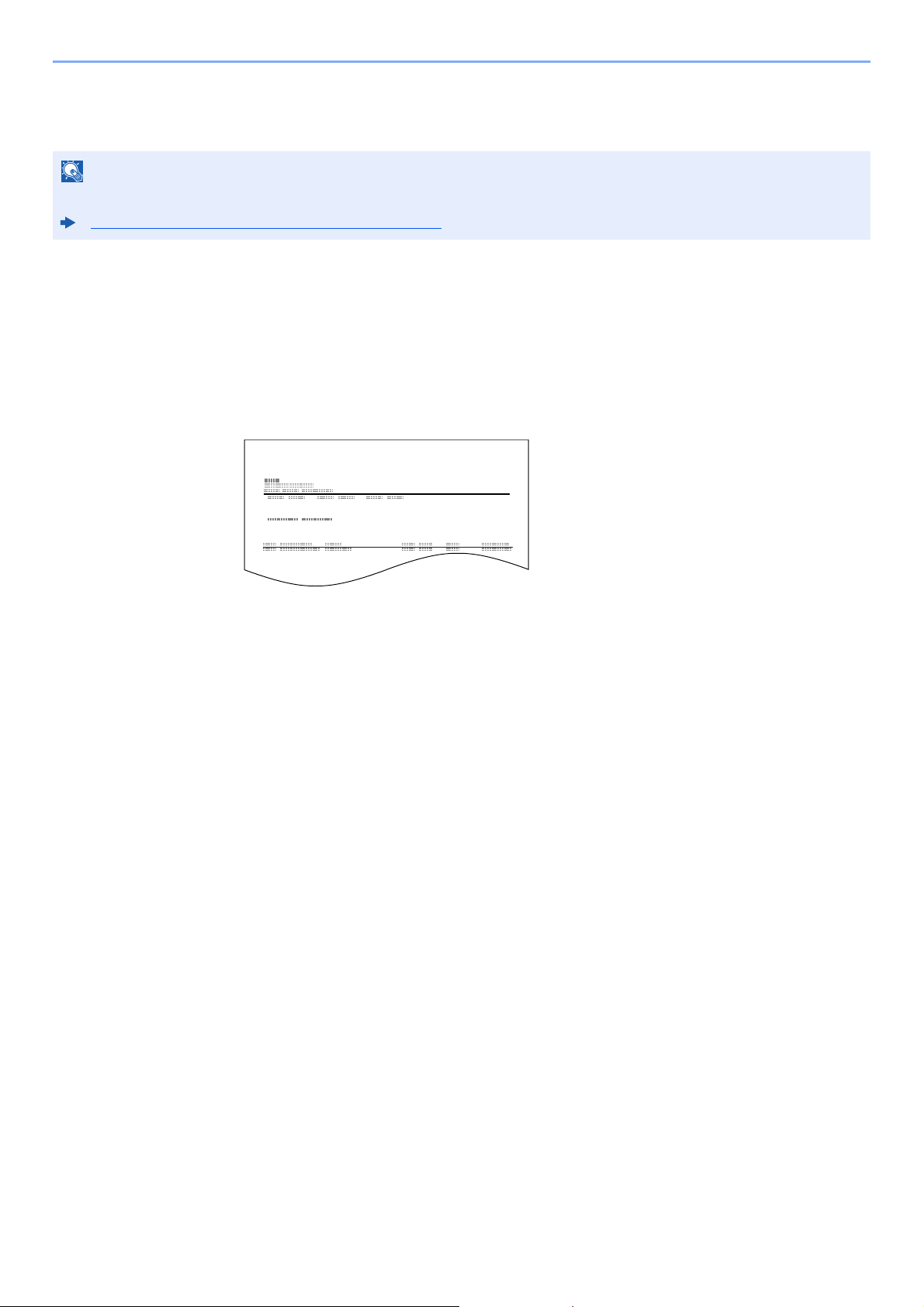
7-6
Managing Jobs > Printing Administrative Reports (Result Report Setting)
FAX RX Result Reports
Each time you receive a fax, you can print a report to confirm whether the fax was received successfully.
1
Display the screen.
[System Menu/Counter] key > [▲] [▼] key > [Report] > [OK] key > [▲] [▼] key >
[Result Rpt Set.] > [OK] key > [▲] [▼] key > [FAX RX Result] > [OK] key
2
Configure the function.
[
Off
] (not to print), [
On
] (to print) or [
Error/SubAddress
] > [
OK
] key > [
Report Print
] > [
OK
] key
NOTE
Fax receipt can also be notified by e-mail instead of checking the receipt result report.
Reporting FAX Receipt Result by E-mail (page 7-9)
FAX RX Result Report
Completed
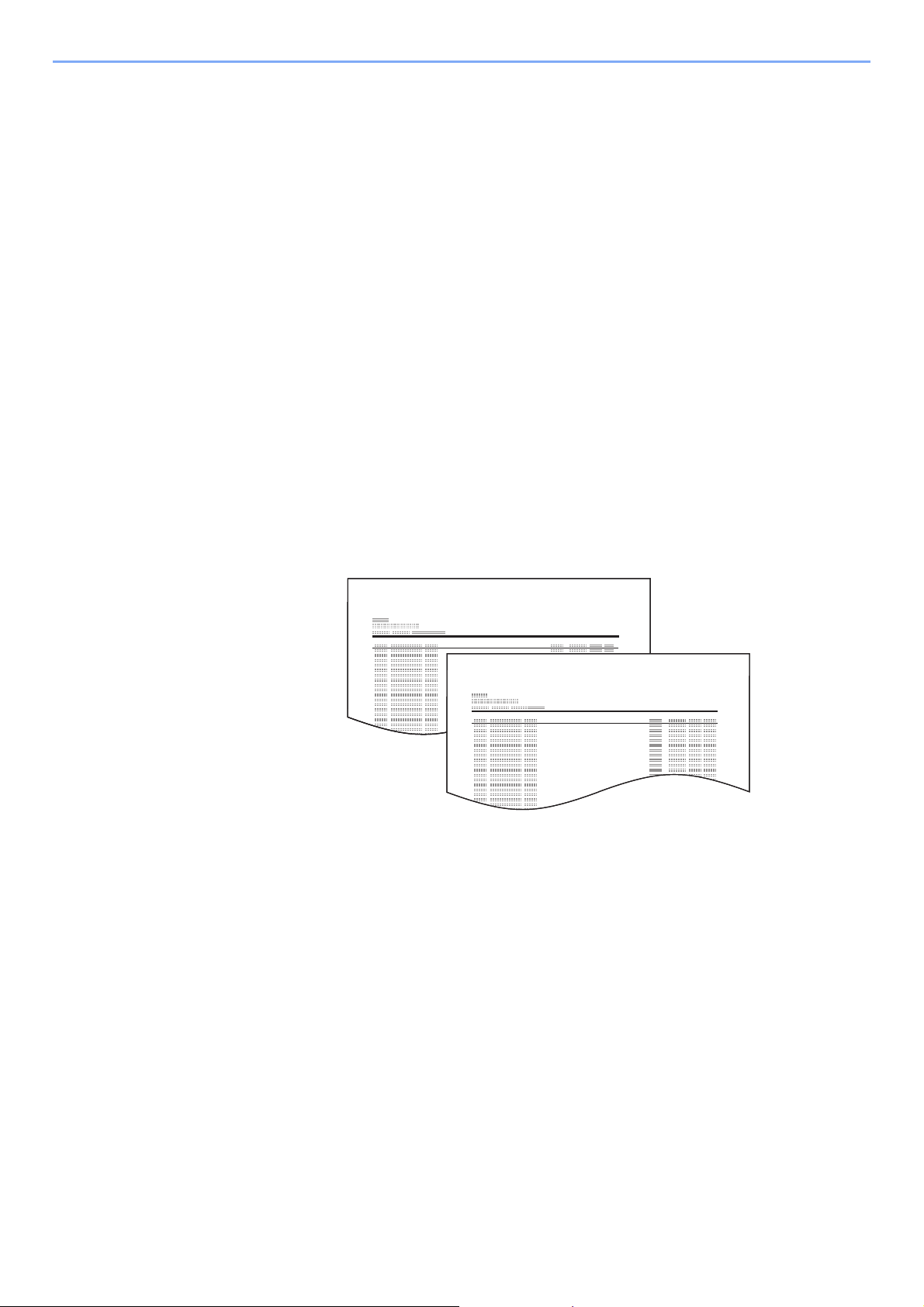
7-7
Managing Jobs > Activity Report (Outgoing FAX Report and Incoming FAX Report)
Activity Report (Outgoing FAX Report and
Incoming FAX Report)
Activity reports are reports of both the sent faxes and the received faxes. Each report lists the history of the latest 50
sent or received fax data. When automatic printout is selected, a report is printed out automatically after every 50 faxes
sent or received.
Printing Activity Reports
The latest 50 sent or received fax data are printed as a report.
1
Display the screen.
[Status/Job Cancel] key > [▲] [▼] key > [FAX Job Log] > [OK] key
2
Print
1 Select [Outgoing FAX Rpt] to print the sent fax report, and select [Incoming FAX Rpt] to
print the received fax report.
2 [OK] key > [Yes]
The report is printed.
Automatic Printout
An activity report is printed out automatically after every 50 faxes sent or received.
1
Display the screen.
[System Menu/Counter] key > [▲] [▼] key > [Report] > [OK] key > [▲] [▼] key >
[Admin Rpt Set.] > [OK] key > [▲] [▼] key > [Outgoing FAX Rpt] or [Incoming FAX Rpt] >
[OK] key
2
Configure the function.
[Off] (not to print) or [On] (to print) > [OK] key
FAX TX Report
FAX RX Report
7-8
Managing Jobs > Status Page
Status Page
A status page provides the current status of machine. FAX-related information includes the Local FAX Number, Local
FAX Name, fax line setting, etc. You can print it out as necessary.
1
Display the screen.
[System Menu/Counter] key > [▲] [▼] key > [Report] > [OK] key > [▲] [▼] key >
[Report Print] > [OK] key
2
Print
[▲] [▼] key > [Status Page] > [OK] key > [Yes]
A status page is printed.
Status Page
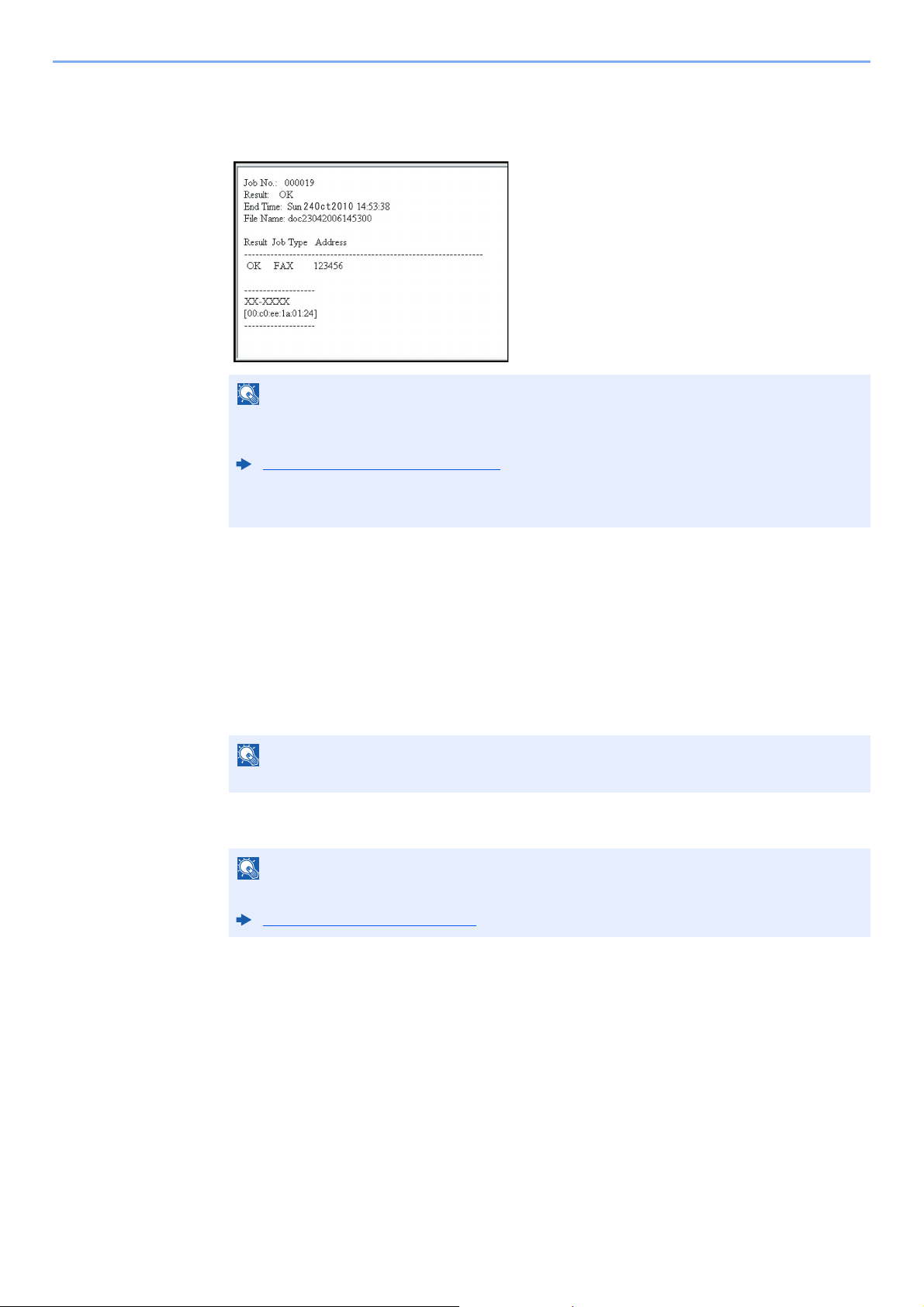
7-9
Managing Jobs > Reporting FAX Receipt Result by E-mail
Reporting FAX Receipt Result by E-mail
Fax receipt can also be notified by e-mail instead of checking the receipt result report.
1
Display the screen.
[System Menu/Counter] key > [▲] [▼] key > [Report] > [OK] key > [▲] [▼] key >
[Result Rpt Set.] > [OK] key > [▲] [▼] key > [FAX RX Result] > [OK] key
2
Configure the function.
1 Select [On] or [Error/SubAddress].
2 [OK] key > [E-mail] > [OK] key.
3
Select the destination.
Select from the address book
1 [▲] [▼] key > [Address Book] > [OK] key
2 Select the destination.
3 Select the [OK] key.
NOTE
This setting is displayed when the FAX RX Result Report setting is [On] or [Error/
SubAddress].
FAX RX Result Reports (page 7-6)
If the setting is [Error/SubAddress], E-mail notification is provided when an error occurs or
a sub-address fax is received.
NOTE
If [Off] is selected, there is no notification of the results of transmissions received.
NOTE
If [Report Print] is selected, the results of the transmissions received are printed.
FAX RX Result Reports (page 7-6)


7-11
Managing Jobs > Confirmation Screen of Destinations
Confirmation Screen of Destinations
When selecting [On] for [Check beforeSend], the confirmation screen of destinations appears after pressing the [Start]
key.
Machine’s Operation Guide
Follow the steps below to confirm the destinations.
1
Check all destinations.
Select [▲] [▼] key, and confirm every destination.
2
Check the details of the destinations.
Use the following operations to check the details of the destinations.
1 Select the destination to check the details of.
2 [OK] key > [Detail] > [OK] key
3 The details of the destination are displayed. When the check has been completed, select
the [OK] key.
3
Change a destination.
Delete a destination
1 Select the destination you want to delete.
2 [OK] key > [Delete] > [OK] key > [Yes]
The destination is deleted.
Add a destination
To add the destination, select [Cancel] and then return to the destination screen.
4
Select [Next].
When you have finished checking all destinations, select [Next].
5
Press the [Start] key.
Start sending.
NOTE
Always display all of the destinations and check them. The transmission is not possible
unless all the destinations are displayed.

8-1
8 Fax Settings
This chapter explains the following topics:
Default fax settings ............................................................................................................................................ 8-2
Operation method .................................................................................................................................... 8-2
System Menu Settings ............................................................................................................................. 8-3
Report ...................................................................................................................................................... 8-4
Common Settings .................................................................................................................................... 8-5
FAX .......................................................................................................................................................... 8-6
Transmission Restriction .................................................................................................................................. 8-10
Registering Permit FAX No. .................................................................................................................... 8-11
Changing Permit FAX No. ...................................................................................................................... 8-12
Deleting Permit FAX No. ........................................................................................................................ 8-12
Registering Reject FAX No. ................................................................................................................... 8-13
Changing Reject FAX No. ...................................................................................................................... 8-13
Deleting Reject FAX No. ........................................................................................................................ 8-14
Registering Permit ID No. ...................................................................................................................... 8-14
Changing Permit ID No. ......................................................................................................................... 8-15
Deleting Permit ID No. ........................................................................................................................... 8-15
Setting Send Restriction ........................................................................................................................ 8-16
Setting Reception Restriction ................................................................................................................ 8-16
Unknown Number Reception ................................................................................................................. 8-16
Unusable Time ................................................................................................................................................. 8-17
Account Management ...................................................................................................................................... 8-19
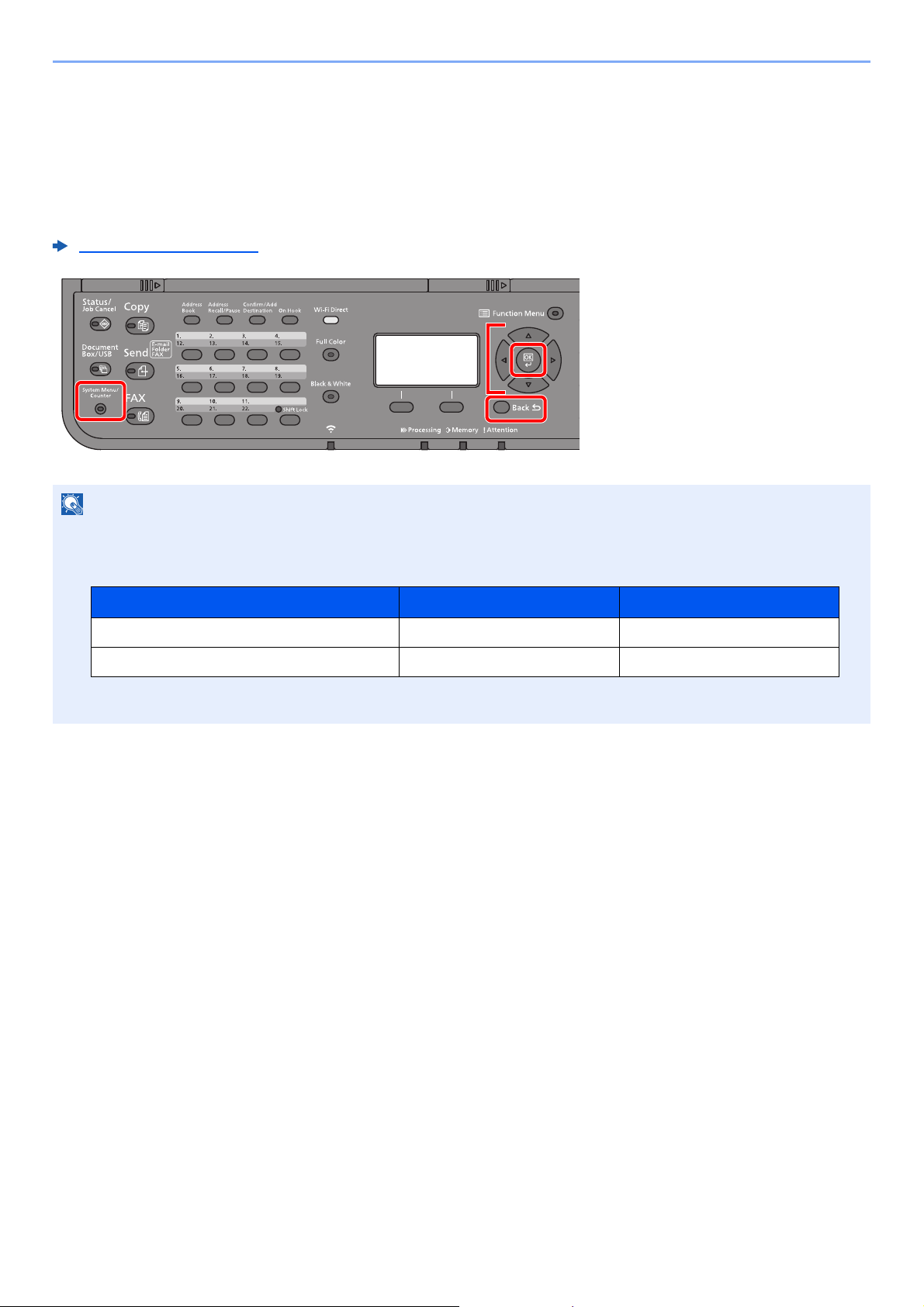
8-2
Fax Settings > Default fax settings
Default fax settings
This section explains the fax settings in the system menu.
Operation method
Select the [System Menu/Counter] key to show the settings on the message display. Then, select from the settings
displayed.
Operation Method (page 2-6)
Refer to System Menu Settings on the following page and configure as needed.
NOTE
If the login user name entry screen appears during operations, log in by referring to the machine's Operation Guide for
Administrator User Name and Password.
The factory default login user name and login password are set as shown below.
If function default settings have been changed, the [Reset] key can be selected in each function screen to
immediately change the settings.
1
3
4
2
1 Displays the System Menu items.
2 Selects the item displayed or changes
the numeric value.
3 Confirms the selected setting.
4 Cancels the current menu setting to
return to the menu one level higher.
Model Name Login User Name Login Password
ECOSYS M2635dn/ECOSYS M2635dw 3500 3500
ECOSYS M2540dn/ECOSYS M2540dw 4000 4000
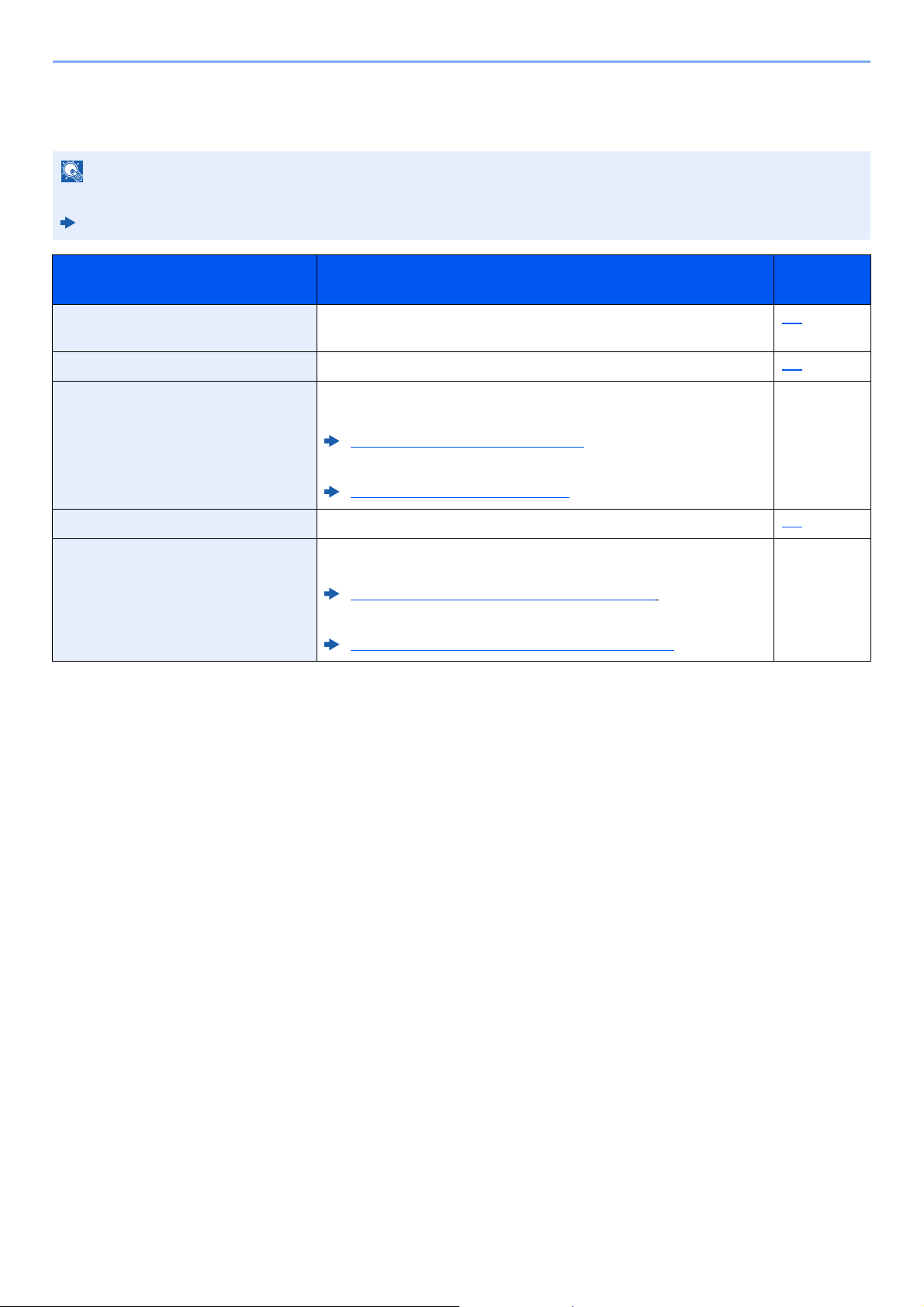
8-3
Fax Settings > Default fax settings
System Menu Settings
Settings for the fax function in the system menu are shown below.
NOTE
For settings other than fax settings, refer to the following:
Machine’s Operation Guide
Item Description
Reference
Page
Report Print reports to check the machine settings and status, or set various
reports for checking the results of sending and receiving.
8-4
Common Settings Configures overall machine operation. 8-5
Document Box Configures settings related to the Sub Address Box and Polling Box.
For details on Sub Address Box, refer to the following:
Sub Address Box Function (page 5-8)
For details on Polling Box, refer to the following:
Polling Communication (page 5-17)
—
FAX Configures settings for fax functions. 8-6
Edit Destination Configures Address Book and One Touch Key settings. For details on
Address Book, refer to the following:
Adding a Destination (Address Book) (page 2-12)
For details on One Touch Key, refer to the following:
Adding a Destination on One Touch Key (page 2-17)
—
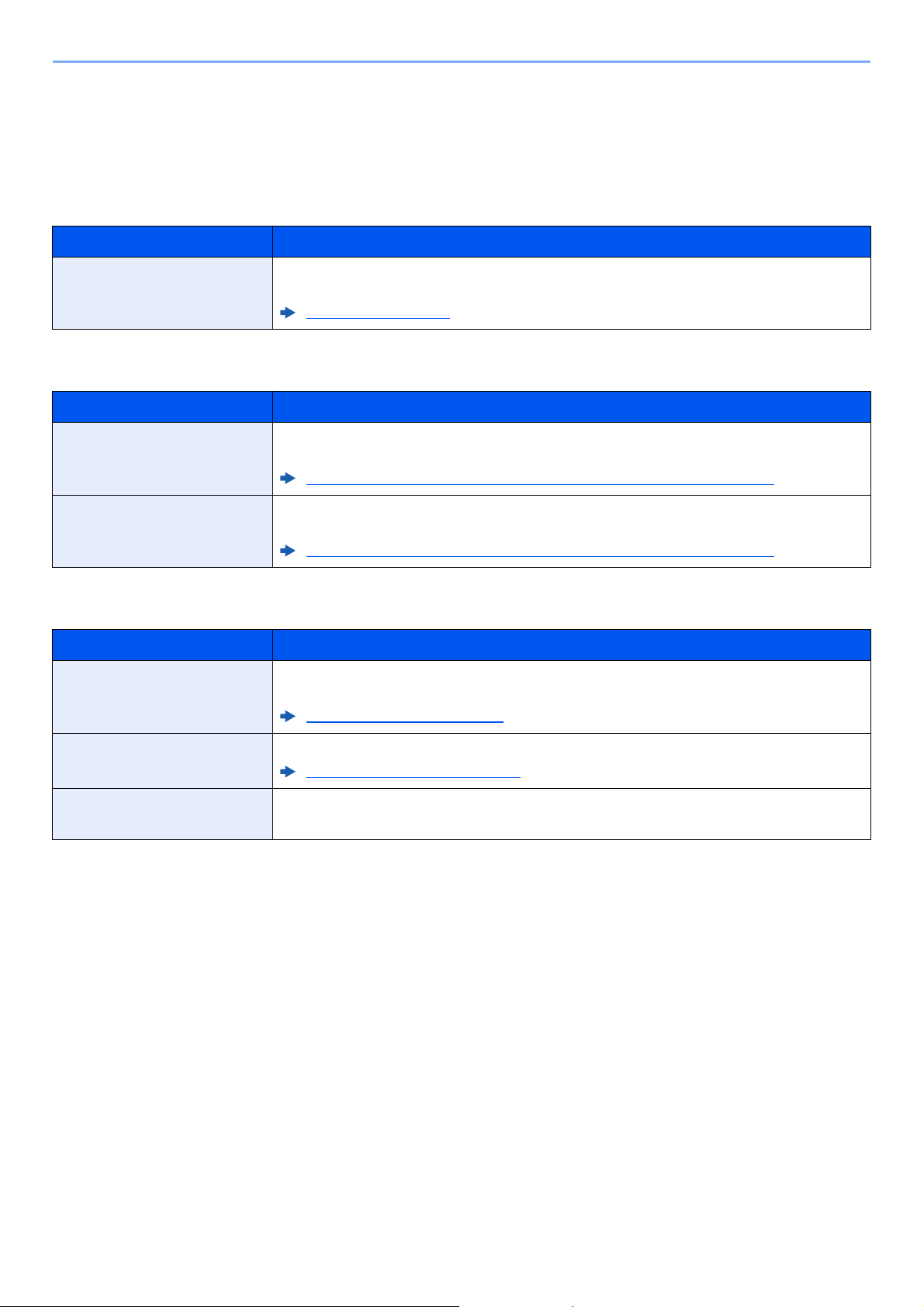
8-4
Fax Settings > Default fax settings
Report
Print reports to check the machine settings and status, or set various reports for checking the results of sending and
receiving.
Report Print
Admin Rpt Set.
Result Rpt Set.
Item Description
Status Page A status page provides the current status of machine. FAX-related information includes the
Local FAX Number, Local FAX Name, fax line setting, etc. You can print it out as necessary.
Status Page (page 7-8)
Item Description
Outgoing FAX Rpt An activity report is printed out automatically after every 50 faxes sent.
Value: Off, On
Activity Report (Outgoing FAX Report and Incoming FAX Report) (page 7-7)
Incoming FAX Rpt An activity report is printed out automatically after every 50 faxes received.
Value: Off, On
Activity Report (Outgoing FAX Report and Incoming FAX Report) (page 7-7)
Item Description
Send Result Each time you send a fax, you can print a report to confirm whether the fax was sent
successfully.
Send Result Reports (page 7-4)
FAX RX Result When a fax is received, you can be notified by receipt result report or e-mail.
FAX RX Result Reports (page 7-6)
Job Finish Notice Attaches sent images to job finish notices.
Value: Do Not Attach, Attach SendImage
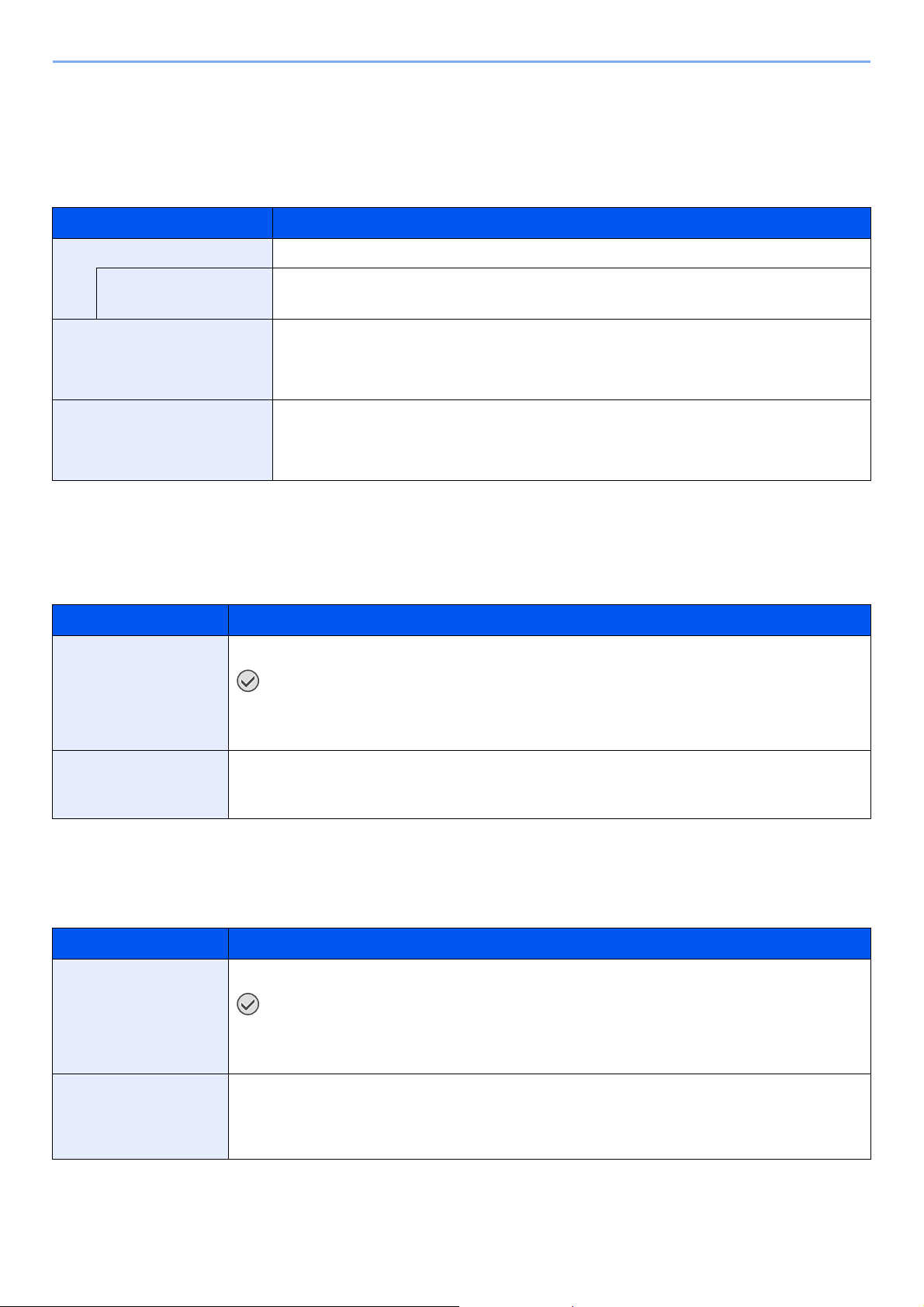
8-5
Fax Settings > Default fax settings
Common Settings
Configures overall machine operation.
Sound
Orig./Paper Set. (Original/Paper Settings)
Cassette 1 (to 3) Set. (Cassette 1 (to 3) Settings)
Select paper size and media type for Cassettes 1 (to 3).
MP Tray Set. (Multi Purpose Tray Settings)
Select paper size and media type for the multi purpose tray.
Item Description
Buzzer Set options for buzzer sound during the machine operations.
Job Finish Emit a sound when a job is normally completed.
Value: Off, On, FAX Reception Only
FAX Speaker Adjust the volume of the speaker.
Speaker Volume: Volume of the built-in speaker when the line is connected by selecting [On
Hook] key.
Value: 0 Mute, 1 Minimum, 2, 3 Medium, 4, 5 Maximum
FAX Monitor Adjust the volume of the monitor.
Monitor Volume: Volume of the built-in speaker when the line is connected without selecting
[On Hook] key such as in memory transmission.
Value: 0 Mute, 1 Minimum, 2, 3 Medium, 4, 5 Maximum
Item Description
Cassette 1 (to 3) Size Set the paper size to load in Cassette 1 and optional paper feeder (Cassette 2 to 3).
IMPORTANT
The following paper sizes can be used for fax reception.
Inch models: Letter, Legal, Statement
Metric models: A4, B5, A5-R, A5, Folio
Cassette 1 (to 3) Type Set the media type to load in Cassette 1 and optional paper feeder (Cassette 2 to 3).
Value: Plain (60 to 105 g/m
2
), Rough, Vellum (60 to 220 g/m
2
), Recycled, Preprinted*, Bond, Color,
Prepunched*, Letterhead*, Thick (106 to 163 g/m
2
), High Quality, Custom 1 to 8
* Cannot be used to print received faxes.
Item Description
MP Tray Size Set the paper size for multi purpose tray.
IMPORTANT
The following paper sizes can be used for fax reception.
Inch models: Letter, Legal, Statement
Metric models: A4, B5, A5-R, A5, Folio
MP Tray Type Set the media type for multi purpose tray.
Value: Plain (60 to 105 g/m
2
), Transparency*, Rough, Vellum (60 to 220 g/m
2
), Labels, Recycled,
Preprinted*, Bond, Cardstock, Color, Prepunched*, Letterhead*, Envelope, Thick (106 to 220 g/m
2
),
High Quality, Custom 1 to 8
* Cannot be used to print received faxes.
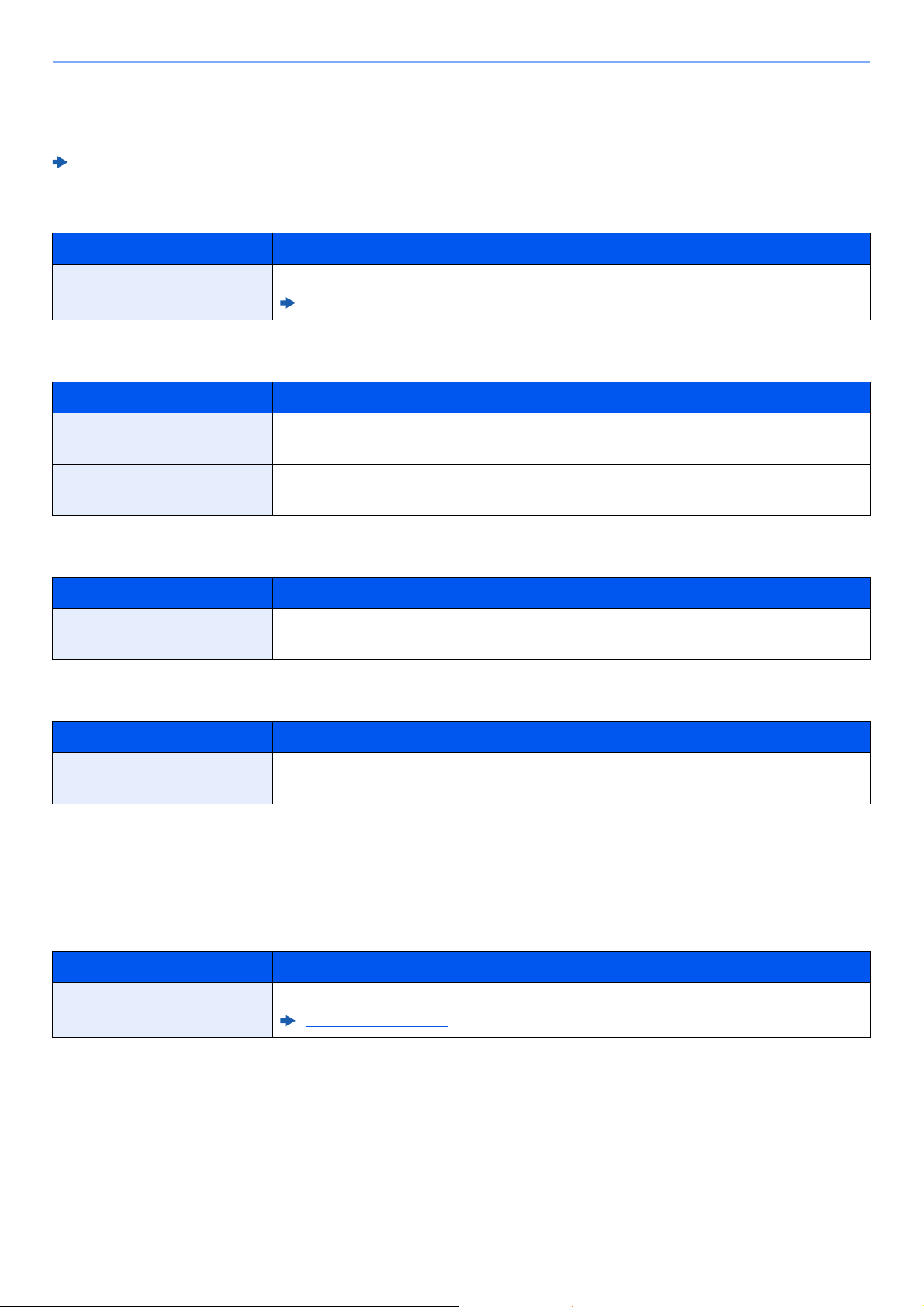
8-6
Fax Settings > Default fax settings
Date Setting
Set the date and time for the location where you use the machine.
Timer Setting
Function Defaults
Disp. Status/Log
Show PowerOffMsg
FAX
Settings related to the fax function can be configured.
TX/RX Common
Setting Date and Time (page 2-7)
Item Description
Unusable Time This feature sets a time period during which the machine will not print received faxes.
Unusable Time (page 8-17)
Item Description
FAX Resolution Select the default scanning resolution.
Value: 200x100dpi Norm., 200x200dpi Fine, 200x400dpi S.Fin, 400x400dpi U.Fin
Con.scan-FAX Set the continuous scan defaults.
Value: Off, On
Item Description
FAX Log Set the display method of the Status/Log.
Value: Show All, Hide All
Item Description
Show PowerOffMsg Set the mode whether display a confirmation message in power supply off.
Value: Off, On
Item Description
Encryption Key This is used to register an encryption key for encrypted communication.
Encryption (page 5-23)
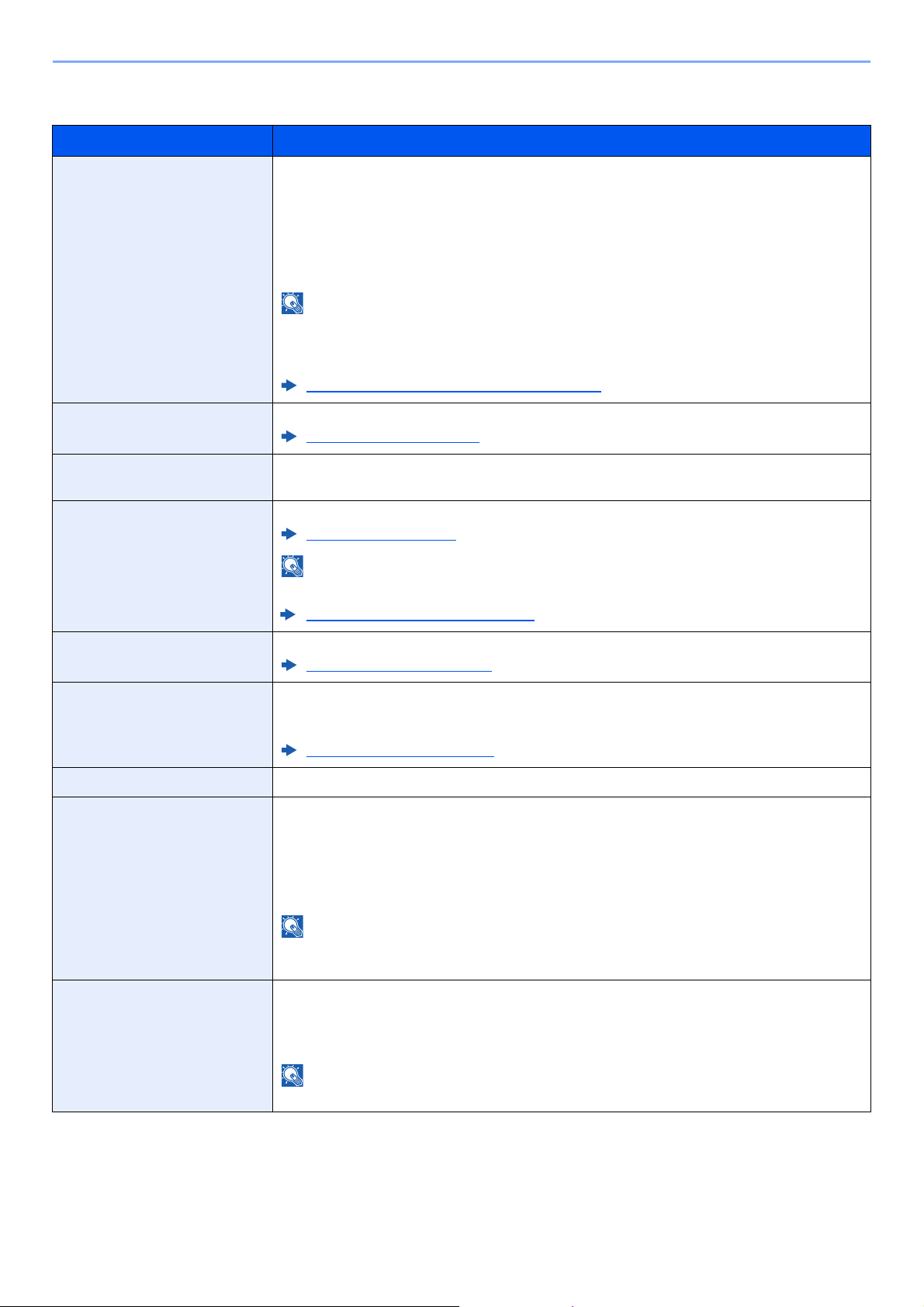
8-7
Fax Settings > Default fax settings
Transmission
Item Description
TTI The transmit terminal identification (TTI) is the information about the sending machine (transmit
terminal) that is printed by the receiving machine on the received fax. The information includes
the date and time of transmission, number of pages sent, name and fax number. This machine
enables the user to select if the TTI is printed out on the fax on the receiving system. Regarding
the location of the information to be printed, you can select inside or outside of the page image
being sent.
Value: Off, Outside, Inside
NOTE
Normally, the Local FAX Name is printed in the transmit terminal identification (TTI). However,
when job accounting has been enabled, and you send originals after entering an Account ID,
the Account Name is printed.
TTI (Transmit Terminal Identification) (page 2-8)
Local FAX Name Register the local FAX name printed in the transmit terminal identification (TTI) area.
Local FAX Name
(page 2-8)
Account Name Use Select whether or not to use account name as local FAX name.
Value: Off, On
Local FAX ID Register the local FAX ID.
Local FAX ID (page 2-9)
NOTE
The Local FAX ID is used for transmission limit purposes.
Transmission Restriction (page 8-10)
Local FAX Number Register the local FAX number printed in the transmit terminal identification (TTI) area.
Local FAX Number (page 2-9)
FAX Dialing Mode (Inch
version only)
Select the telephone line according to the type you are contracted with. Please note that
selecting a wrong telephone line will prevent you from sending fax.
Value: Tone(DTMF), Pulse(10PPS)
FAX Dialing Mode (page 2-10)
Retry Times The number of retry times can be changed.
ECM TX Set whether ECM TX is performed.
ECM is a communication mode specified by the ITU-T (International Telecommunication Union)
that retransmits data when an error occurs. Fax machines that have ECM mode check for
errors as they communicate, preventing distortion of the image due to noise on the line and
other conditions.
Value: On, Off
NOTE
When there is a large amount of noise on the line, communication may take slightly longer than
when [Off] is selected.
TX Start Speed Set the TX Start Speed.
When communication conditions are bad, the fax may not be transmitted correctly. In that case,
set a lower TX Start Speed.
Value: 9600bps, 14400bps, 33600bps
NOTE
Normally this should be used with the default setting.
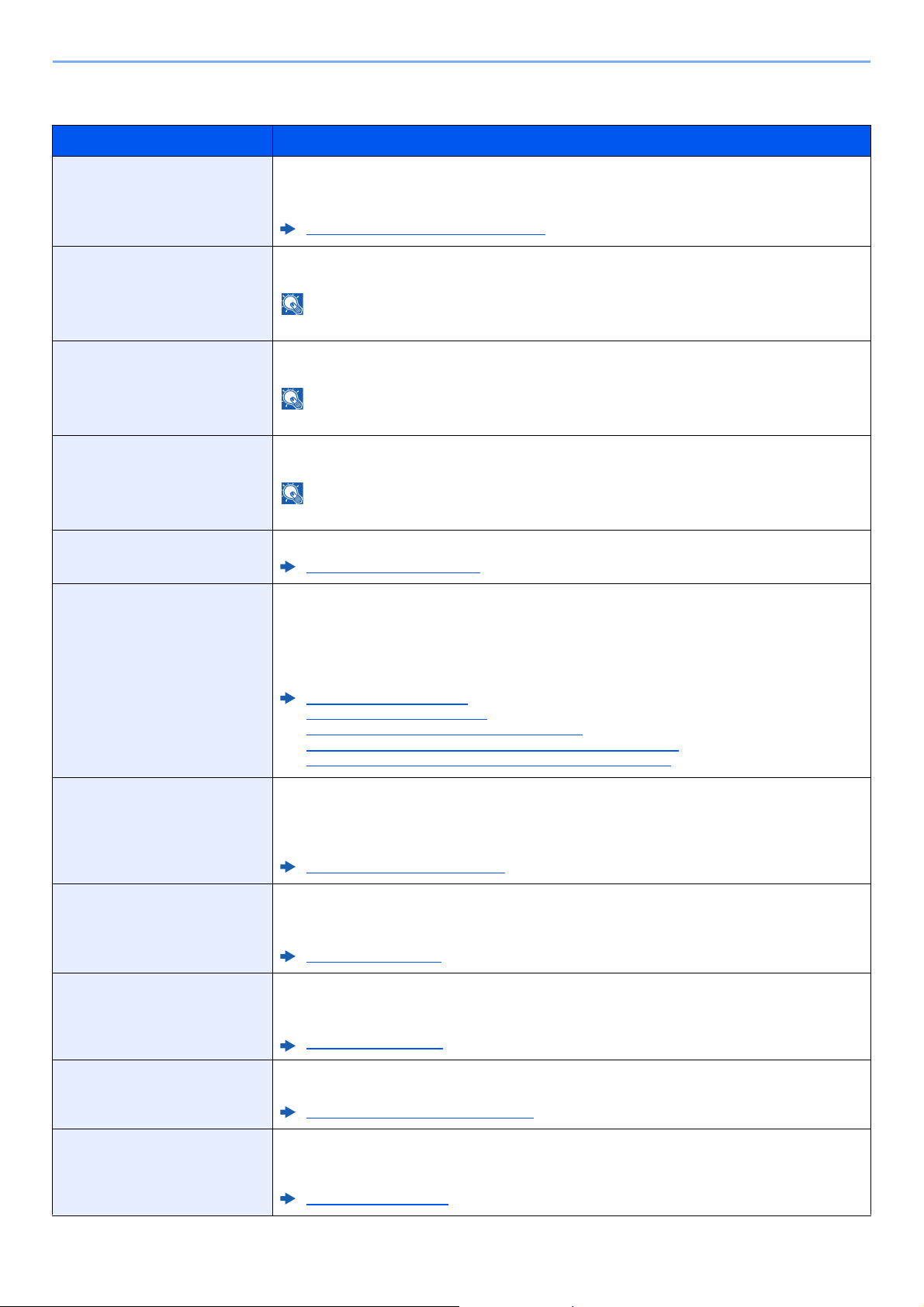
8-8
Fax Settings > Default fax settings
Reception
Item Description
FAX Media Type Specify the paper type to be used for print output of the received fax.
Value: All Media Types, Plain, Rough, Vellum, Labels, Recycled, Bond, Cardstock, Color,
Envelope, Thick, High Quality, Custom 1 to 8
Media Type for Print Output (page 4-6)
Rings(Normal) If the reception method is fax automatic reception, the number of rings until the machine
answers a call can be changed as needed.
NOTE
This setting does not appear in some regions.
Rings(TAD) If the reception method is FAX/Answering Machine Auto Switch Reception, the number of rings
until the machine answers a call can be changed as needed.
NOTE
This setting does not appear in some regions.
Rings(FAX/TEL) If the reception method is FAX/TEL Auto Switch Reception, the number of rings until the
machine answers a call can be changed as needed.
NOTE
This setting does not appear in some regions.
Forward Settings Configure Forward Settings.
Forward Settings (page 5-2)
RX Settings Select the reception mode.
Value: Auto (Normal), Auto (FAX/TEL), Auto (Answering Machine), Manual, Auto (DRD)
If Auto (DRD) is selected, select the DRD Pattern.
Value: Pattern 1 (Normal Ring), Pattern 2 (Double Ring), Pattern 3 (Short-Short-Long),
Pattern 4 (Short-Long-Short)
DRD reception mode is available for some countries.
FAX Reception (page 4-2)
Manual Reception (page 4-4)
FAX/TEL Auto Switch Reception (page 5-27)
FAX/Answering Machine Auto Switch Reception (page 5-29)
DRD Reception (Available for some countries.) (page 5-31)
Reception Date/Time Reception Date/Time function adds the reception date/time, sender information and number of
pages on the top of each page when the received fax is printed out. It is useful for confirming
the time of reception if the fax is from a different time zone.
Value: Off, On
Reception Date/Time (page 4-7)
2 in 1 Printing When you receive a multi-page Statement or A5 size original, this function prints 2 pages of the
original at a time on one Letter or A4 size sheet of paper.
Value: Off, On
2 in 1 Print (page 4-7)
Batch Print When a multi-page fax is received, the pages are printed in a batch after all pages are received.
If [Off] is set, each page is printed as it is received.
Value: Off, On
Batch Print (page 4-7)
Remote SW Dial
To start fax reception by operation from the connected telephone set, use the following operation.
Value: 00 - 99
Remote Switch Function (page 5-35)
Encryption RX Turns on reception by encrypted communication.
Value: Off, On
If turned on, select the encryption key.
Encryption (page 5-23)
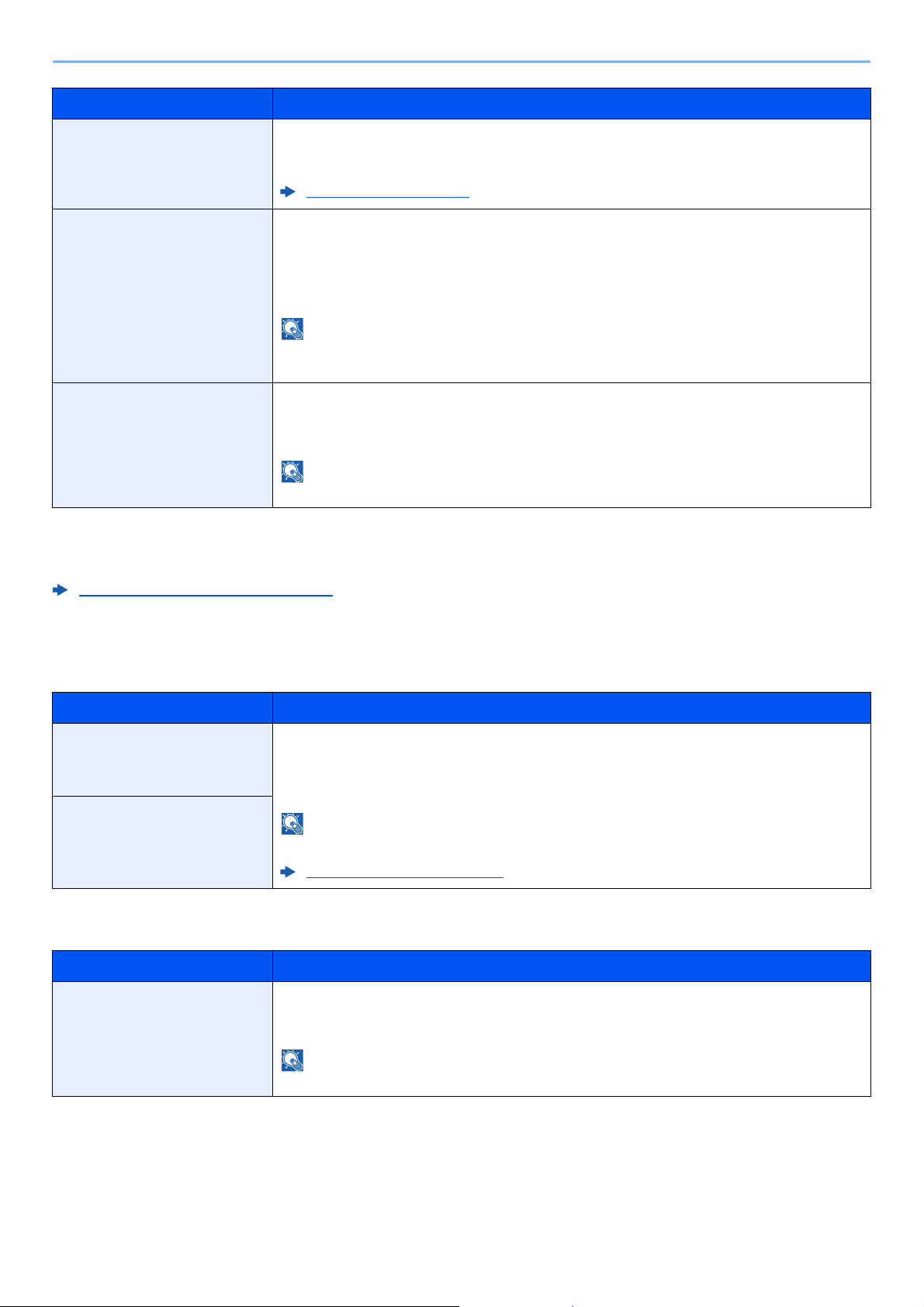
8-9
Fax Settings > Default fax settings
TX/RX Restriction
This function allows you to send or receive originals only when communication requirements are met.
Transmission Restriction (page 8-10)
Select Key Set. (Select Key Settings)
If you register a function to the Left Select key or Right Select key, you can quickly set the function when using fax functions.
Dest. Entry(FAX)
Duplex Printing When received multiple pages of data are the same width, they can be printed out on both
sides of paper having the same width as the data.
Value: Off, On
Duplex Printing (page 4-7)
ECM RX Set whether ECM RX is performed.
ECM is a communication mode specified by the ITU-T (International Telecommunication Union)
that retransmits data when an error occurs. Fax machines that have ECM mode check for
errors as they communicate, preventing distortion of the image due to noise on the line and
other conditions.
Value: On, Off
NOTE
When there is a large amount of noise on the line, communication may take slightly longer than
when [Off] is selected.
RX Start Speed Change the RX Start Speed.
When communication conditions are bad, the fax may not be received correctly. In that case,
set a lower RX Start Speed.
Value: 9600bps, 14400bps, 33600bps
NOTE
Normally this should be used with the default setting.
Item Description
Left You can register one of the following functions to each key.
Value: None, Original Size, Original Image, FAX Resolution, Orig.Orientation, Continuous
Scan, File Name Entry, JobFinish Notice, FAX Delayed TX, FAX Direct TX, FAX RX Polling,
FAX TX Report, Density, Duplex
NOTE
[FAX TX Report] is displayed when [FAX TX Result] is set to [Specify Each Job].
Send Result Reports (page 7-4)
Right
Item Description
Dest. Entry(FAX) Select whether to permit direct entry of destination. When this option is set to [Prohibit],
you cannot enter the destination directly.
Value: Permit, Prohibit
NOTE
If [Prohibit] is set for new destination entry in [Send] in system menu, this option cannot be set.
Item Description
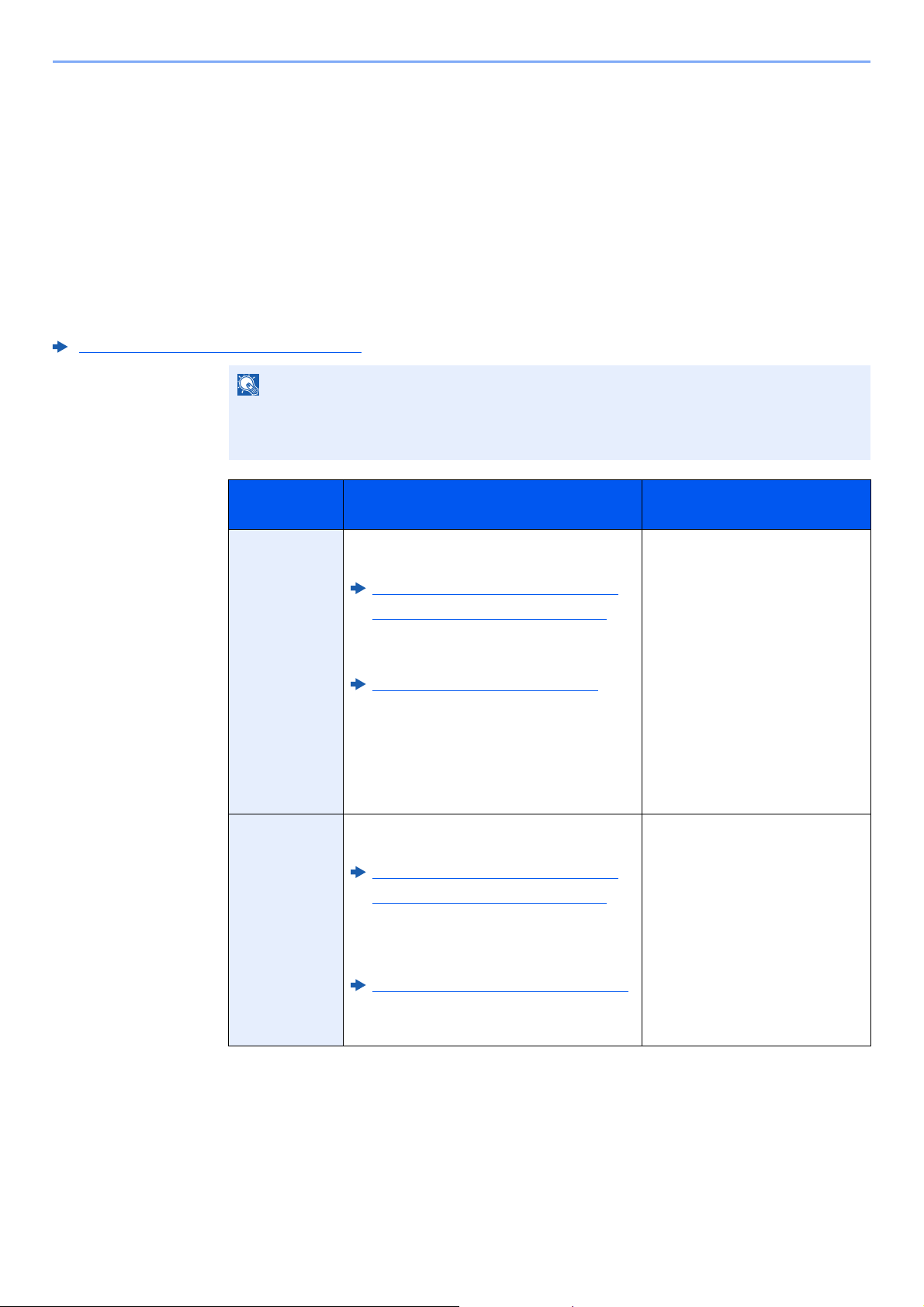
8-10
Fax Settings > Transmission Restriction
Transmission Restriction
This function allows you to send or receive originals only when communication requirements are met. Using this function
can limit other parties with which you can communicate.
Specifically, you must register communication requirements (Permit FAX No./Permit ID No.) and set the transmission
limit in advance. When the machine sends or receives originals, you do not need to perform a special operation for this
particular function, and you can operate the machine normally. When sending or receiving has actually started, the
machine correctly conducts transmission that meets communication requirements, but when the transmission does not
meet the requirements, the machine indicates an error. This mode also allows you to set a [Reject List] for Reception
Restriction so that reception from senders on the list of Rejected FAX numbers or from senders whose Local FAX
Number is not registered are rejected. (You can select whether reception from a party whose local fax number is not
registered is allowed or rejected in “Unknown Number Reception”.)
Unknown Number Reception (page 8-16)
NOTE
Before using transmission restriction, be sure to read the following prerequisites,
communication establishing requirements, and reception rejection requirements thoroughly,
and consult with the other parties with which you communicate.
Prerequisites
Communication Establishing
Requirements
Send
Restrictions
• Register Permitted FAX numbers or
Permitted ID numbers.*
Registering Permit FAX No. (page 8-11)
Registering Permit ID No. (page 8-14)
• Send restriction settings are specified in
[Permit+Addr Book] in Send Restrictions.
Setting Send Restriction
(page 8-16)
• Register the Local FAX Numbers or Local
FAX IDs of other parties.
* If there is neither a Permitted FAX No. nor a Permitted ID No. registered for the recipient, sending is
not rejected.
• The recipient’s Local FAX
Number matches a Permitted
FAX No. registered on the
machine.
• The recipient’s Local FAX ID
matches a Permitted ID
registered on the machine.
• When the number was dialed
using the Address Book or
One Touch Key, the last 4
digits of the dialed number
match the last 4 digits of the
recipient’s Local FAX Number.
(Excludes manual
transmissions.)
Reception
Restrictions
• Register Permitted FAX numbers or
Permitted ID numbers.**
Registering Permit FAX No. (page 8-11)
Registering Permit ID No. (page 8-14)
• Reception restriction settings are specified
in [Permit+Addr Book] in Reception
Restrictions.
Setting Reception Restriction (page 8-16)
• Register the Local FAX Numbers or Local
FAX IDs of other parties.
** If there is neither a Permitted FAX No. nor a Permitted ID No. registered for the sender, reception is
not rejected.
• The sender’s Local FAX
Number matches a Permitted
FAX No. registered on the
machine.
• The sender’s Local FAX ID
matches a Permitted ID
registered on the machine.
• A fax number that matches the
last 4 digits of the sender’s
Local FAX Number is
registered in the Address Book
on this machine.
8-11
Fax Settings > Transmission Restriction
Registering Permit FAX No.
1
Display the screen.
[System Menu/Counter] key > [▲] [▼] key > [FAX] > [OK] key > [▲] [▼] key >
[TX/RX Restrict.] > [OK] key > [▲] [▼] key > [Permit No. List] > [OK] key
2
Add a permit fax number.
1 [Menu] > [▲] [▼] key > [Add FAX Number] > [OK] key
2 Use the numeric keys to enter a Permit FAX number.
3 Select the [OK] key.
3
To register another permit fax number, repeat Steps 2-1 to 2-3.
Prerequisites
Reception Rejection
Requirements
Reception
Rejection
• Register Reject FAX numbers.*
Registering Reject FAX No.
(page 8-13)
• Reception restriction settings are specified
in [Reject List] in Reception Restrictions.
Setting Reception Restriction
(page 8-16)
* If there are no Reject FAX numbers registered, calls are only rejected from senders whose Local FAX
Numbers (Indicates local FAX information entries, not the actual line numbers.) are not registered.
• The sender’s Local FAX
Number is not registered.
• The sender’s Local Fax
Number matches a Reject FAX
No. registered on the machine.
NOTE
Up to 25 Permit FAX numbers can be registered.
NOTE
Up to 20 digits can be entered.
8-12
Fax Settings > Transmission Restriction
Changing Permit FAX No.
1
Display the screen.
[System Menu/Counter] key > [▲] [▼] key > [FAX] > [OK] key > [▲] [▼] key >
[TX/RX Restrict.] > [OK] key > [▲] [▼] key > [Permit No. List] > [OK] key
2
Changing.
1 Select the Permit FAX No. to be changed.
2 Select the [OK] key.
3 Use the numeric keys to reenter the Permit FAX number.
4 Select the [OK] key.
Deleting Permit FAX No.
1
Display the screen.
[System Menu/Counter] key > [▲] [▼] key > [FAX] > [OK] key > [▲] [▼] key >
[TX/RX Restrict.] > [OK] key > [▲] [▼] key > [Permit No. List] > [OK] key
2
Deleting.
1 Select the Permit FAX No. to be deleted.
2 [Menu] > [▲] [▼] key > [Delete] > [OK] key > [Yes]
NOTE
For the procedure for entering a number, refer to the following:
Registering Permit FAX No. (page 8-11)
8-13
Fax Settings > Transmission Restriction
Registering Reject FAX No.
1
Display the screen.
[System Menu/Counter] key > [▲] [▼] key > [FAX] > [OK] key > [▲] [▼] key >
[TX/RX Restrict.] > [OK] key > [▲] [▼] key > [Reject No. List] > [OK] key
2
Add a Reject FAX No.
1 [Menu] > [▲] [▼] key > [Add FAX Number] > [OK] key
2 Use the numeric keys to enter a Reject FAX number.
3 Select the [OK] key.
3
To register another Reject FAX No., repeat Steps 2-1 to 2-3.
Changing Reject FAX No.
1
Display the screen.
[System Menu/Counter] key > [▲] [▼] key > [FAX] > [OK] key > [▲] [▼] key >
[TX/RX Restrict.] > [OK] key > [▲] [▼] key > [Reject No. List] > [OK] key
2
Changing.
1 Select the Reject FAX No. to be changed.
2 Select the [OK] key.
3 Use the numeric keys to reenter the Reject FAX number.
4 Select the [OK] key.
NOTE
Up to 25 Reject FAX numbers can be registered.
NOTE
Up to 20 digits can be entered.
NOTE
For the procedure for entering a number, refer to the following:
Registering Reject FAX No. (page 8-13)
8-14
Fax Settings > Transmission Restriction
Deleting Reject FAX No.
1
Display the screen.
[System Menu/Counter] key > [▲] [▼] key > [FAX] > [OK] key > [▲] [▼] key >
[TX/RX Restrict.] > [OK] key > [▲] [▼] key > [Reject No. List] > [OK] key
2
Deleting.
1 Select the Reject FAX No. to be deleted.
2 [Menu] > [▲] [▼] key > [Delete] > [OK] key > [Yes]
Registering Permit ID No.
1
Display the screen.
[System Menu/Counter] key > [▲] [▼] key > [FAX] > [OK] key > [▲] [▼] key >
[TX/RX Restrict.] > [OK] key > [▲] [▼] key > [Permit ID List] > [OK] key
2
Add a Permit ID No.
1 [Menu] > [▲] [▼] key > [Add FAX ID] > [OK] key
2 Use the numeric keys to enter Permit ID No. (0000 to 9999).
3 Select the [OK] key.
3
To register another Permit ID No., repeat Steps 2-1 to 2-3.
NOTE
Up to 10 Permit ID numbers can be registered.
8-15
Fax Settings > Transmission Restriction
Changing Permit ID No.
1
Display the screen.
[System Menu/Counter] key > [▲] [▼] key > [FAX] > [OK] key > [▲] [▼] key >
[TX/RX Restrict.] > [OK] key > [▲] [▼] key > [Permit ID List] > [OK] key
2
Changing.
1 Select the Permit ID No. to be changed.
2 Select the [OK] key.
3 Use the numeric keys to reenter the Permit ID number.
4 Select the [OK] key.
Deleting Permit ID No.
1
Display the screen.
[System Menu/Counter] key > [▲] [▼] key > [FAX] > [OK] key > [▲] [▼] key >
[TX/RX Restrict.] > [OK] key > [▲] [▼] key > [Permit ID List] > [OK] key
2
Deleting.
1 Select the Permit ID No. to be deleted.
2 [Menu] > [▲] [▼] key > [Delete] > [OK] key > [Yes]
NOTE
For the procedure for entering a number, refer to the following:
Registering Permit ID No. (page 8-14)

8-16
Fax Settings > Transmission Restriction
Setting Send Restriction
Restrict the other parties to which you send originals only to the ones registered in Permit FAX No. and Permit ID No. as
well as the ones registered in the Address Book.
1
Display the screen.
[System Menu/Counter] key > [▲] [▼] key > [FAX] > [OK] key > [▲] [▼] key >
[TX/RX Restrict.] > [OK] key > [▲] [▼] key > [TX Restriction] > [OK] key
2
Configure the function.
To not use the sending restriction, select [Off] > [OK] key.
To restrict the other parties to which you send originals only to the ones registered in Permit
FAX No. and Permit ID No. as well as the ones registered in the Address Book, select
[Permit+Addr Book].
Setting Reception Restriction
Restrict incoming faxes so that you only receive originals from senders registered in Permit FAX No. and Permit ID No.
and senders registered in your Address Book. This mode also allows you to set a [Reject List] for Reception Restriction
so that reception from senders on the list of Rejected FAX numbers or from senders whose Local FAX Number is not
registered are rejected. (You can select whether reception from a party whose local fax number is not registered is
allowed or rejected in “Unknown Number Reception”.)
Unknown Number Reception (page 8-16)
1
Display the screen.
[System Menu/Counter] key > [▲] [▼] key > [FAX] > [OK] key > [▲] [▼] key >
[TX/RX Restrict.] > [OK] key > [▲] [▼] key > [RX Restriction] > [OK] key
2
Configure the function.
To not use the sending restriction
Select [Off] > [OK] key.
To restrict the other parties from which you receive originals only to the ones
registered in Permit FAX No. and Permit ID No. as well as the ones registered in the
Address Book
Select [Permit+Addr Book].
To block incoming faxes from senders registered in Reject FAX No.
Select [Reject List].
Unknown Number Reception
Select whether to receive the fax of that the number is unknown when [Reject List] is set for Reception Restriction.
1
Display the screen.
[System Menu/Counter] key > [▲] [▼] key > [FAX] > [OK] key > [▲] [▼] key >
[TX/RX Restrict.] > [OK] key > [▲] [▼] key > [UnknownNumber RX] > [OK] key
2
Configure the function.
[Prohibit] or [Permit] > [OK] key
To receive faxes from the unknown number
Select [Permit].
To reject faxes from the unknown number
Select [Prohibit].
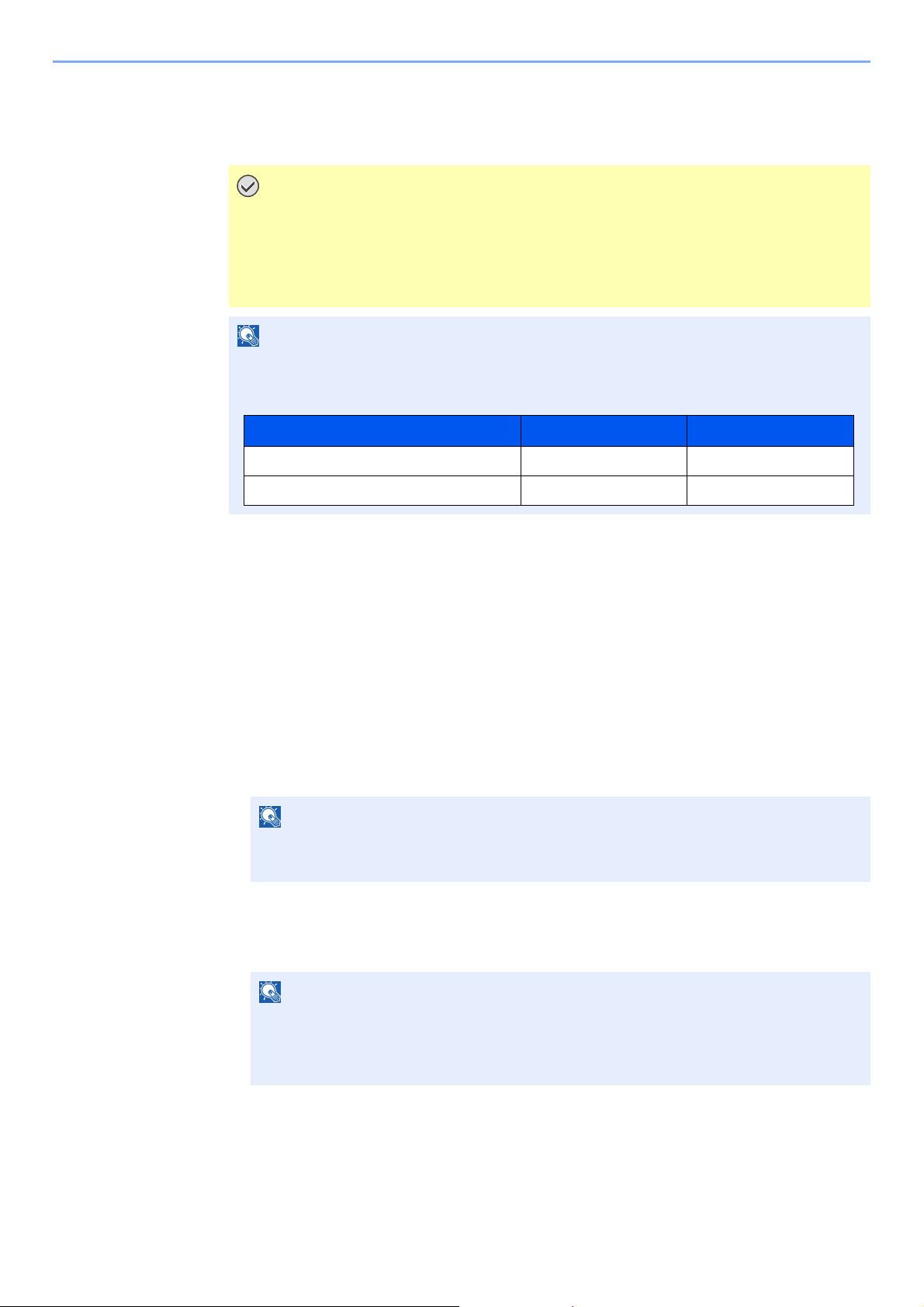
8-17
Fax Settings > Unusable Time
Unusable Time
This feature sets a time period during which the machine will not print received faxes.
1
Display the screen.
[System Menu/Counter] key > [▲] [▼] key > [Common Settings] > [OK] key > [▲] [▼] key >
[Timer Setting] > [OK] key > [▲] [▼] key > [Unusable Time] > [OK] key
2
Configure the function.
Set the unusable time
[▲] [▼] key > [On] > [OK] key
1 Set the hours and minutes of the start time.
2 Select the [OK] key.
3 Set the hours and minutes of the end time.
4 Select the [OK] key.
IMPORTANT
When Unusable Time is set, in addition to fax printing, all other printing operations
are prohibited during the unusable time period, including printing of copy jobs and
printer jobs, and printing from USB memory.
Faxes and print jobs received during the unusable time period are printed after the
unusable time period ends, or when the unusable time period is temporarily canceled.
NOTE
If the login user name entry screen appears during operations, log in by referring to the
machine's Operation Guide for Administrator User Name and Password.
The factory default login user name and login password are set as shown below.
NOTE
Select the [▲] or [▼] key to enter a number.
Select the [◄] or [►] key to move the position being entered, which is shown highlighted.
NOTE
Select the [▲] or [▼] key to enter a number.
Select the [◄] or [►] key to move the position being entered, which is shown highlighted.
If the same time is set as the start time and end time, you cannot use all day.
Model Name Login User Name Login Password
ECOSYS M2635dn/ECOSYS M2635dw 3500 3500
ECOSYS M2540dn/ECOSYS M2540dw 4000 4000

8-18
Fax Settings > Unusable Time
Set the cancel code
Specify the code to temporarily cancel the unusable setting during unusable time.
1 Enter Unlock Code (0000 to 9999).
2 Select the [OK] key.
NOTE
To use the machine temporarily during unusable time, enter the Unlock Code and select
[Login].
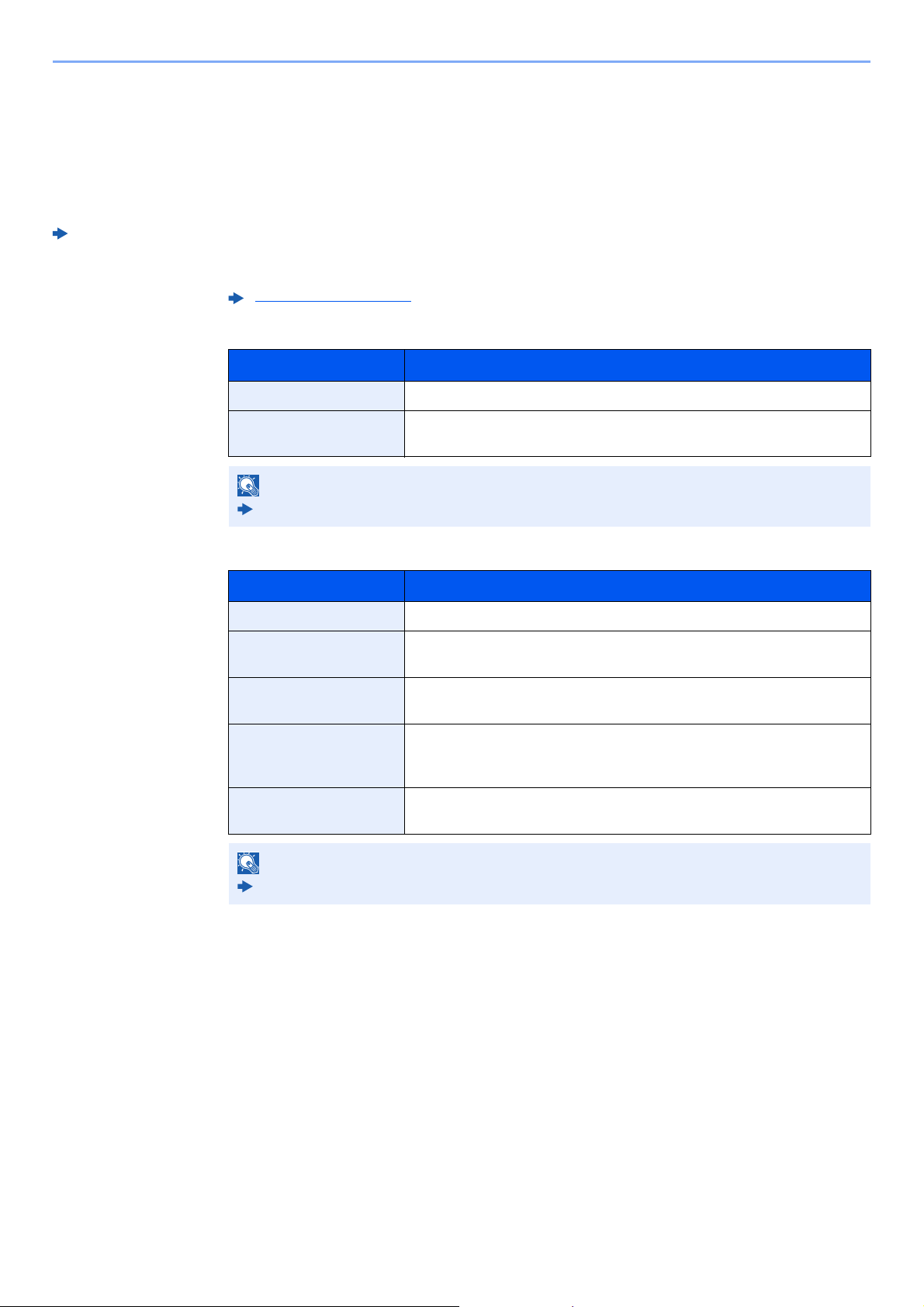
8-19
Fax Settings > Account Management
Account Management
Account management is user management that specifies the users who can use the machine and job accounting that
controls the usage per account. In user accounting, up to 100 users can be managed using User ID and Password.
In job accounting, the status of fax use per account can be known for up to 100 accounts for sending of originals and
making communication reservation after entering Account ID.
Machine’s Operation Guide
It will be necessary to log in if user management or department management are enabled.
For the method for logging in, refer to the following:
Description of User Accounting
Description of Job Accounting
Communication modes subject to job accounting
• Normal transmission
• Delayed transmission
• Broadcast transmission
• Sub address transmission
• Encrypted transmission
• Manual send when dialed from this machine to the receiving system
• Polling reception
• Sending Faxes from PC
Login/Logout (page 3-13)
Item Description
Registration of User Register user access privileges, User ID and Password.
Enable/Disable User
accounting
Enable User accounting.
NOTE
Machine’s Operation Guide
Item Description
Registration of Account Register Account Name and Account ID. Up to 8 digits can be entered.
Enable/Disable job
accounting
Enable job accounting.
FAX send restriction Restricts the number of fax sheets that can be sent. You can prohibit the
use of this sending function or cancel the sending restriction.
Counting of the number of
used sheets
You can reset the counting, referring to the number of fax sheets to be
sent and the time required for sending fax by all the accounts or by
account.
Print of Accounting
Report
You can print the printed and sent page numbers that have been counted
by all the accounts.
NOTE
Machine’s Operation Guide

8-20
Fax Settings > Account Management
Restriction of use function
When you have enabled job accounting, you need to enter an Account ID when performing the
following operations.
• Normal transmission
• Delayed transmission
• Broadcast transmission
• Sub address transmission
• Output from Sub address Box
• Encrypted transmission
• Manual send when dialed from this machine to the receiving system
• Polling reception
• Sending Faxes from PC
When job accounting has been enabled, batch transmission function works only for
communication to be performed for the same Account ID. The communication to be performed
with a different Account ID is not conducted as a batch transmission.
Normally, the Local FAX Name is printed in the transmit terminal identification (TTI). However,
when Account Name Used is ON, the Account Name is printed.

9-1
9 Troubleshooting
This chapter explains the following topics:
Indicators During Sending/Receiving Operation ................................................................................................ 9-2
Responding to an Attention Indicator Flashes ................................................................................................... 9-2
Precautions When Turning Power OFF ............................................................................................................. 9-3
Messages ........................................................................................................................................................... 9-4
Error Code List ................................................................................................................................................... 9-6
Troubleshooting ................................................................................................................................................. 9-9
Common inquiries ............................................................................................................................................. 9-11
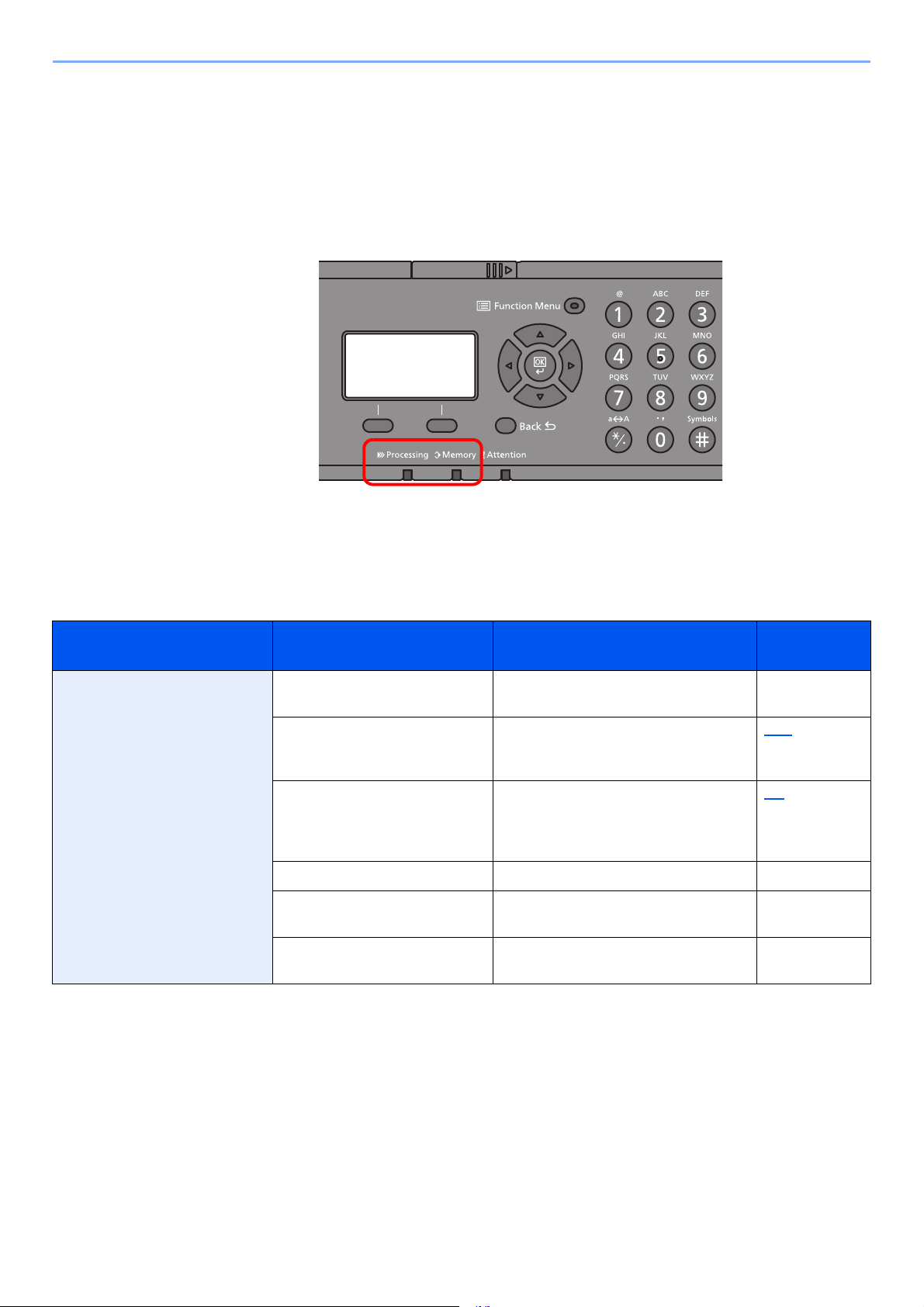
9-2
Troubleshooting > Indicators During Sending/Receiving Operation
Indicators During Sending/Receiving Operation
The [Processing] and [Memory] indicators show the fax transmission status.
•The [Processing] indicator blinks during fax transmission and reception.
•The [Memory] indicator blinks when source data is being stored in memory for memory transmission.
•The [Memory] indicator is lit when there is source data stored in the memory for delayed transmission.
Responding to an Attention Indicator Flashes
If the [Attention] indicator flashes, check the message display. If the message is not indicated on the message display,
check the following.
Symptom Checkpoints Corrective Actions
Reference
Page
Cannot send fax. Is the modular cord connected
correctly?
Connect the modular cord correctly. —
Is Permitted FAX No. or
Permitted ID No. registered
correctly?
Check Permitted FAX No. and Permitted
ID No.
8-10
Has a communication error
occurred?
Check error codes in the TX/RX Result
Report and Activity Report. If the error
code starts with "U" or "E", perform the
corresponding procedure.
9-6
Is the destination FAX line busy? Send again. —
Does the destination FAX
machine respond?
Send again. —
Is there an error other than
above?
Contact your Service Representative. —
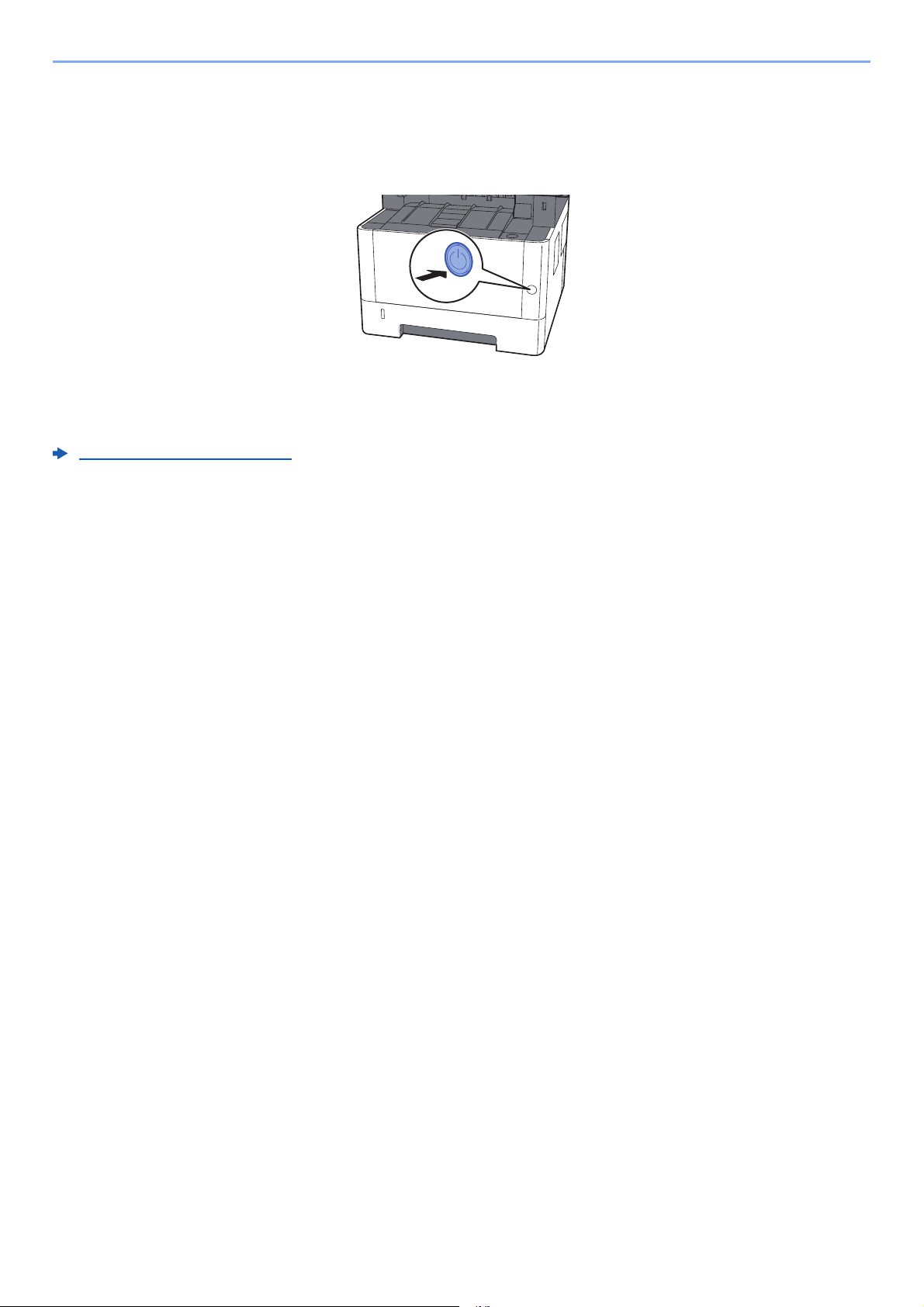
9-3
Troubleshooting > Precautions When Turning Power OFF
Precautions When Turning Power OFF
To power off the machine, press the Power switch. You cannot automatically receive a fax when the power switch is
turned off.
The confirmation message for power supply off is displayed.
It takes about 3 minutes for power off.
Show PowerOffMsg (page 8-6)
OFF
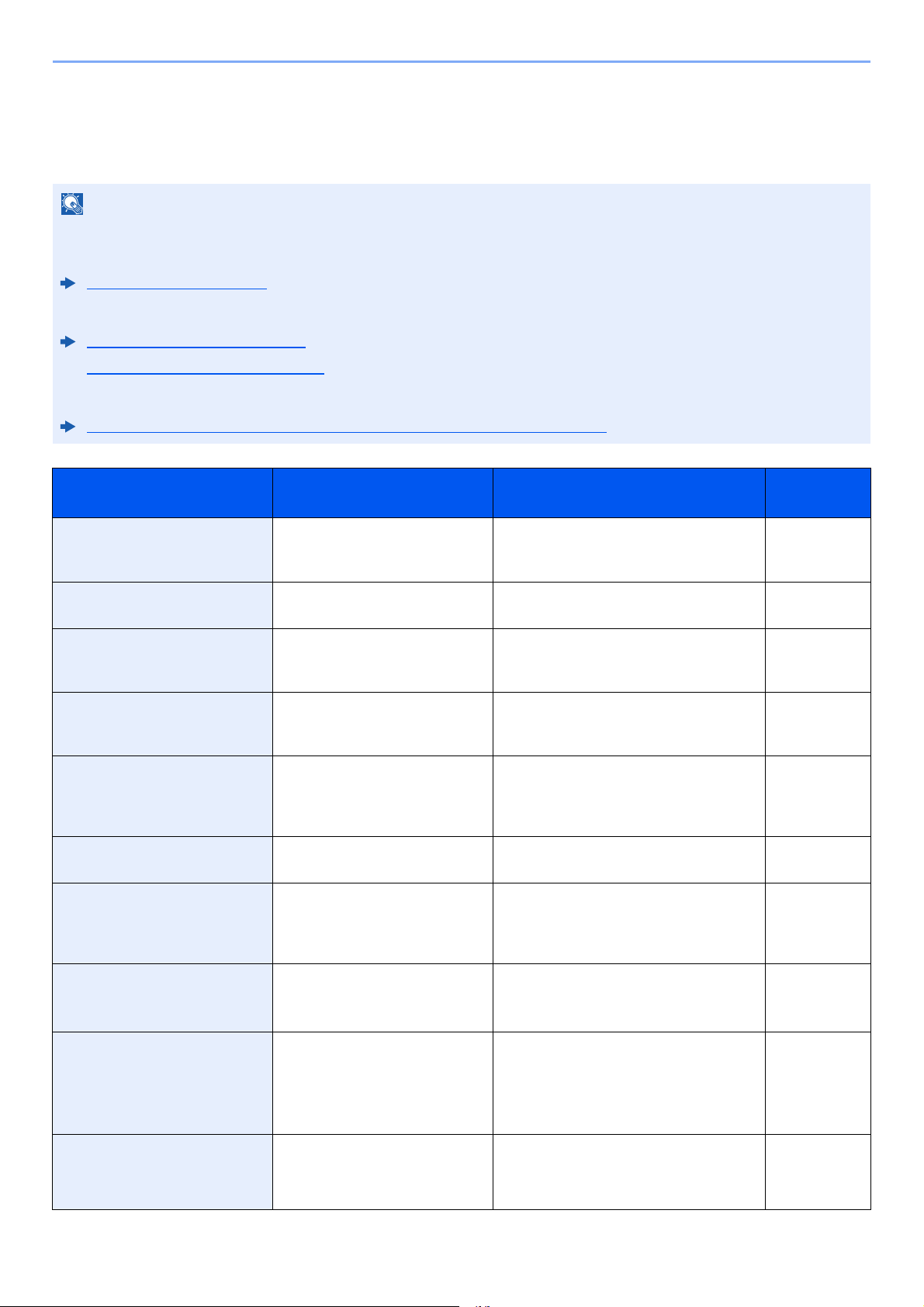
9-4
Troubleshooting > Messages
Messages
When an error occurs, the display may show one of the messages listed below. These will help you identify and correct
the problem.
NOTE
When a transmission error occurs, a sent/receipt result report is produced.
Check the error code shown in the report and refer to the following:
Error Code List (page 9-6)
To print the sent/receipt result report, refer to the following:
Send Result Reports (page 7-4)
FAX RX Result Reports (page 7-6)
You may also check error codes using the activity report.
Activity Report (Outgoing FAX Report and Incoming FAX Report) (page 7-7)
Message Checkpoint Corrective Action
Reference
Page
Cannot use this function.
>> FAX Transmission
― This job is canceled because it is
restricted by User Authorization or Job
Accounting. Select the [OK] key.
―
Error occurred. Turn the power
switch off and on.
― System error has occurred. Turn the main
power switch OFF and then ON.
―
FAX memory is full. ― FAX cannot be performed any more due
to insufficient memory. The job is
canceled. Select the [OK] key.
―
Incorrect account ID. Job is
canceled.
— The account ID was incorrect when
processing the job externally. The job is
canceled. Select the [OK] key.
—
Incorrect Login User Name or
Password. Job is canceled.
— The login user name or password was
incorrect when processing the job
externally. The job is canceled. Select the
[OK] key.
—
Insufficient memory. Cannot
start the job.
— Job cannot be started. Try again later. —
Job Accounting restriction
exceeded. Job is canceled.
Is the acceptable printing count
restricted by Job Accounting
exceeded?
The printing count exceeded the
acceptable count restricted by Job
Accounting. Cannot print any more. This
job is canceled. Select the [OK] key.
―
Load paper in cassette #. Is the indicated cassette out of
paper?
Load paper.
Select [Paper] to select the other paper
source.
―
Load paper in cassette #.
↑↓ (Displayed alternately)
Set selected size
paper and press [OK].
Is the indicated cassette out of
paper?
Load paper.
Select [Paper] to select the other paper
source. Select the [OK] key to print on the
paper in the currently selected paper
source.
―
Machine failure. Call service. ― An error has occurred in the machine.
Make a note of the error code displayed
on the message display, and contact your
service representative.
―
9-5
Troubleshooting > Messages
Maximum number of scanned
pages. Job is canceled.
Is the acceptable scanning count
exceeded?
Cannot scan pages any more. Job is
canceled.
Select the [OK] key.
—
Polling box limit exceeded.
Job is canceled.
Is [OK] displayed on the screen?
The specified box is full, and no further
storage is available; Job is canceled.
Select the [OK] key.
Try to perform the job
again after printing or deleting data from
the box.
—
Scanner memory is full. Job is
canceled.
— Scanning cannot be performed any more
due to insufficient memory. The job is
canceled. Select the [OK] key.
—
The phone receiver is
off the hook. Hang Up.
— Put down the receiver. —
Message Checkpoint Corrective Action
Reference
Page
9-6
Troubleshooting > Error Code List
Error Code List
When a transmission error occurs, one of the following error codes is recorded in the TX/RX Result Report and Activity
Report.
NOTE
“U” or “E” will appear in the error code depending on the communication speed setting.
Error Code Possible Cause/Action
Busy Failed to establish connection with the recipient despite auto redialing the preset number of times.
Send again.
CANCELED Transmission was canceled due to an action to cancel transmission.
Reception was canceled due to an action to cancel reception.
E00300
U00300
Paper depletion occurred at the recipient machine. Check with the recipient.
E00430 - E00462
U00430 - U00462
Reception was canceled because of mismatching of communication features with the sender machine
although the line connection was established.
E00601 - E00690
U00601 - U00690
Communication was stopped due to the machine failure. Send or receive again.
E00700
U00700
Communication was stopped due to failure on the part of the sender or recipient machine.
E00800 - E00811
U00800 - U00811
Page(s) not sent correctly. Send again.
If you still have trouble, reduce TX Start Speed and send again.
NOTE
If the communication error occurs frequently, change the default setting of TX Start Speed in System
Menu.
E00900 - E00910
U00900 - U00910
Page(s) not received correctly. Ask the sender to resend.
NOTE
If the communication error occurs frequently, change the default setting of RX Start Speed in System
Menu.
E01000 - E01097
U01000 - U01097
Communication error occurred during transmission. Send again.
If you still have trouble, reduce TX Start Speed and send again.
NOTE
If the communication error occurs frequently, change the default setting of TX Start Speed in System
Menu.
E01100 - E01196
U01100 - U01196
Communication error occurred during reception. Ask the sender to resend.
NOTE
If the communication error occurs frequently, change the default setting of RX Start Speed in System
Menu.
U01400 Failed to establish communication with the sender or recipient machine because dialing registered for
a tone line system was used in a pulse line system.
E01500 Communication error occurred during high-speed transmission. Send again.
If you still have trouble, reduce TX Start Speed and send again.
NOTE
If the communication error occurs frequently, change the default setting of TX Start Speed in System
Menu.
9-7
Troubleshooting > Error Code List
E01600 Communication error occurred during reception of high-speed transmission. Ask the sender to reduce
the transmission speed and send again.
NOTE
If the communication error occurs frequently, change the default setting of RX Start Speed in System
Menu.
E01700 - E01720 Communication error occurred during high-speed transmission. Send again.
If you still have trouble, reduce TX Start Speed and send again.
NOTE
If the communication error occurs frequently, change the default setting of TX Start Speed in System
Menu.
E01721 Communication error occurred during high-speed transmission. Designated transmission speed may
not be available for the recipient machine.
Reduce the transmission start speed and send again.
E01800 -E01820 Communication error occurred during reception of high-speed transmission. Ask the sender to reduce
the transmission speed and send again or reduce the RX Start Speed in System Menu.
E01821 Communication error occurred during reception of high-speed transmission. Designated transmission
speed may not be available for this machine. Ask the sender to reduce the transmission speed and
send again or reduce the RX Start Speed in System Menu.
E03000
U03000
During polling reception, a fax could not be received because no originals were set in the other party’s
fax machine. Check with the other party.
E03200
U03200
Sub address bulletin board reception was attempted and the other party’s machine is an our brand
model, but the specified sub address box contained no data. Check with the other party.
E03300
U03300
An error occurred due to either 1 or 2 below.
Check with the other party.
1 The other party’s machine is an our-brand model and transmission restrictions were found set by
the other party during polling reception. Communication was interrupted because the password was
incorrect.
2 The other party’s machine is an our-brand model and transmission restrictions were found set by
the other party during sub address bulletin board reception.
Communication was interrupted because the password was incorrect.
E03400
U03400
Polling reception was interrupted because the Polling ID entered by the other party did not match the
Local FAX ID on the receiving machine. Check with the other party.
E03500
U03500
Sub address bulletin board reception was attempted and the other party’s machine is an our brand
model, but the specified sub address box was not registered on the other party’s machine.
Check with the recipient.
E03600
U03600
The other party’s machine is an our-brand model and sub address bulletin board reception was
interrupted because the specified sub address password was incorrect. Check with the other party.
E03700
U03700
Sub address bulletin board reception was attempted but the other party’s machine either does not
have a sub address bulletin board communication function or there were no originals in any of the
originals transfer boxes (sub address boxes).
E04000
U04000
Specified sub address box is not registered in our brand recipient machine, or the sub address does
not match.
E04100
U04100
Recipient machine is not equipped with a sub address box function, or the sub address does not
match.
E04200
U04200
Encrypted transmission was canceled because the specified box is not registered.
E04300
U04300
Encrypted transmission was canceled because the recipient fax is not equipped with an encrypted
communication function.
E04400
U04400
Encrypted transmission was canceled because the encryption key does not match.
Error Code Possible Cause/Action
9-8
Troubleshooting > Error Code List
E04500
U04500
Encrypted reception was canceled because the encryption key does not match.
E05100
U05100
Transmission was canceled because communication requirements are not met due to the
transmission restriction set on this machine. Check with the recipient.
E05200
U05200
Reception was canceled because communication requirements are not met due to the reception
restriction set on this machine.
E05300
U05300
Reception was rejected by the recipient because communication requirements are not met due to the
reception restriction set on the recipient machine. Check with the recipient.
E14000
U14000
Reception to the Sub Address Box was stopped because there is no more free space in the memory of
this machine. Create free space by outputting the data stored in the memory, or cancel the reception to
the Sub Address Box.
E14100
U14100
Transmission to the Sub Address Box or sub address box on our-brand recipient machine was
stopped because there is no more free space in the memory of the recipient machine. Check with the
recipient.
E19000
U19000
Memory reception was stopped because there is no more free space in the memory of this machine.
Create free space by outputting the data stored in the memory, and ask the sender to resend.
E19100
U19100
Transmission was stopped because there is no more free space in the memory of the recipient
machine. Check with the recipient.
E19300
U19300
Transmission was stopped due to a data error occurring during transmission. Send again.
Error Code Possible Cause/Action
9-9
Troubleshooting > Troubleshooting
Troubleshooting
When a problem occurs, first check the following. If the problem persists, contact your dealer or service representative.
Symptom Checkpoint Corrective Action
Reference
Page
Cannot send document. Is the modular cord connected
correctly?
Connect the modular cord correctly. —
Is Send error displayed? Remedy the cause of error and send
again.
9-6
Is TX (transmission) restriction
activated?
Cancel the TX restriction. 8-10
Are you using an IP telephone
line?
You may be able to temporarily clear the
communication error by changing the
setting of [TX Start Speed] in
Transmission.
8-7
Cannot perform encrypted
communication.
Are the registrations correct both
at sender and recipient?
Double-check the registrations both at
sender and recipient.
5-23
Cannot use the remote
switching function.
Is a pulse line used? Some phones may transmit tone signals
using buttons. Refer to the operation
manual of your phone set.
—
Is the remote switching number
correct?
Check the registration. (Default: 55) 8-8
No print output after reception. Is memory forwarding activated? Check the forwarding destination. 5-2
Cannot receive document. Is the modular cord connected
correctly?
Connect the modular cord correctly. —
Is Communication error
displayed?
Remedy the cause of error and ask the
sender to retry.
9-6
Is RX (reception) restriction
activated?
Cancel the RX restriction. 8-10
Are you using an IP telephone
line?
You may be able to temporarily clear the
communication error by changing the
setting of [RX Start Speed] in Reception.
8-9
Cannot perform memory
reception.
Is free space available in the
memory?
Receive after the memory has free space,
or create free space in the memory.
—
Cannot perform sub address
transmission.
Is the recipient fax machine
equipped with a sub address
transmission feature?
Sub address transmission cannot be
performed unless the recipient fax
machine has a similar sub address
transmission feature.
—
Is the entered sub address or
sub address password identical
to the sub address or sub
address password registered in
the recipient fax machine?
If your entry is correct, check with the
recipient. This machine does not use a
sub address password for reception.
5-16
Is free space available in the
memory of the recipient fax
machine?
Check with the recipient. —
Cannot perform memory
forwarding.
Is memory forwarding set to
[On]?
Check the memory forwarding setting. 5-2
9-10
Troubleshooting > Troubleshooting
Cannot perform memory
forwarding using a sub
address.
Is the recipient fax machine
equipped with a sub address
transmission feature?
Sub address transmission cannot be
performed unless the recipient fax
machine has a similar sub address
transmission feature.
—
Is the entered sub address
identical to the sub address
registered in the recipient fax
machine?
If your entry is correct, check with the
recipient. This machine does not use a
sub address password for reception.
5-2
Cannot output from a Sub
Address Box.
Is the box password been set? Enter the correct box password. 5-8
Cannot use polling reception. Is polling transmission being
used correctly on the sending
machine?
Check with the sending machine. —
Cannot use sub address
bulletin board communication.
Does the other party’s fax
machine have the same sort of
sub address bulletin board
communication function?
If the other party’s fax machine does not
have the same sort of sub address
bulletin board communication function, it
cannot receive faxes via a sub address
bulletin board. Check with the recipient.
—
Is the entered sub address or
sub address password correct?
If your entry is correct, check with the
recipient.
—
Symptom Checkpoint Corrective Action
Reference
Page
9-11
Troubleshooting > Common inquiries
Common inquiries
The following are the inquiries that are frequently received after this product has been purchased.
Question Answer
1 I want to add a completion stamp when sending faxes. This product does not have a function for completion
stamps.
2 I want to send and receive faxes in color. Fax images are transmitted and received in black and
white.

10-1
10 Appendix
This chapter explains the following topics:
Character Entry Method ................................................................................................................................... 10-2
Using the Keys ....................................................................................................................................... 10-2
Selecting Type of Characters ................................................................................................................. 10-3
Characters That Can be Entered Using the Numeric Keys ................................................................... 10-3
Entering Symbols ................................................................................................................................... 10-4
Entering Characters ............................................................................................................................... 10-4
Specifications ................................................................................................................................................... 10-6
Menu Map ........................................................................................................................................................ 10-8
Received FAX Sizes and Paper Priority (Metric Model) ................................................................................. 10-12
Received FAX Sizes and Paper Priority (Inch Model) .................................................................................... 10-13
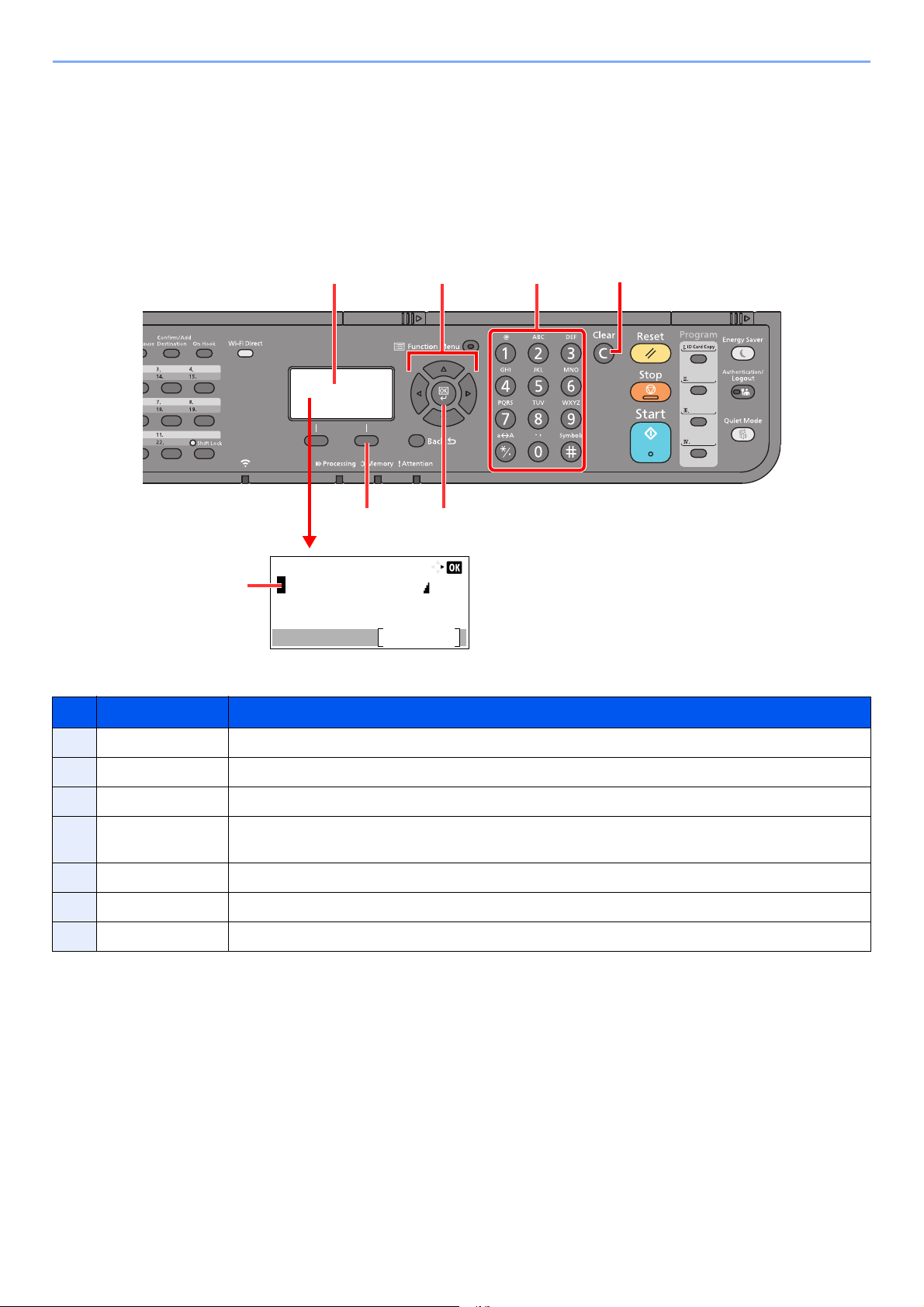
10-2
Appendix > Character Entry Method
Character Entry Method
This section explains how to enter characters.
Using the Keys
Use the following keys to enter characters.
No. Display/Key Description
1 Message Display Displays entered characters.
2 Cursor Characters are entered at the position of the cursor.
3 Right Select key Select to select the type of characters you want to enter. (When [Text] is displayed)
4 [OK] key Select to finalize entry and return to the screen before the entry. To enter a symbol, select to confirm
the selected symbol.
5 [Clear] key Select to delete characters.
6 Numeric keys Select to enter characters and symbols.
7 Arrow keys Select to select the entry position, or select a character from the character list.
Account Name:
Text
ABC
516
2
7
43
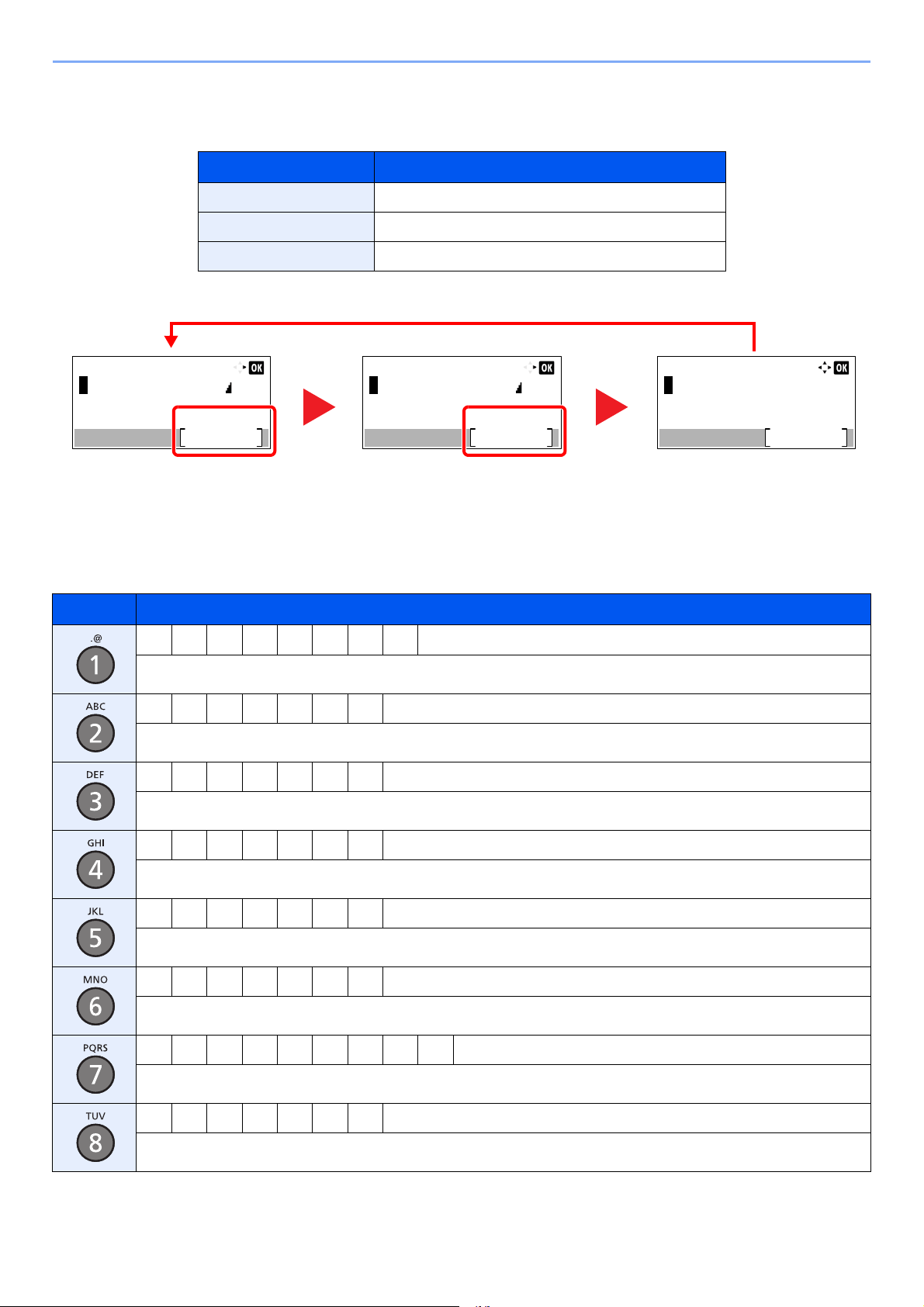
10-3
Appendix > Character Entry Method
Selecting Type of Characters
To enter characters, the following three types are available:
In a character entry screen, select [Text] to select the type of characters you want to enter.
Each time you select [Text], the character type switches as follows: [ABC], [123], [Symbols], [ABC] ...
Characters That Can be Entered Using the Numeric Keys
The following table lists the characters that can be entered using the numeric keys.
Types Description
ABC To enter alphabets.
123 To enter numerals.
Symbols To enter symbols.
Keys Characters (Each press of a key changes the character in the order from left to right.)
. @ - _ / : ~ 1 (Repeats from the first character on the left)
1 (During number entry)
a b c A B C 2 (Repeats from the first character on the left)
2 (During number entry)
d e f D E F 3 (Repeats from the first character on the left)
3 (During number entry)
g h i G H I 4 (Repeats from the first character on the left)
4 (During number entry)
j k l J K L 5 (Repeats from the first character on the left)
5 (During number entry)
m n o M N O 6 (Repeats from the first character on the left)
6 (During number entry)
p q r s P Q R S 7 (Repeats from the first character on the left)
7 (During number entry)
t u v T U V 8 (Repeats from the first character on the left)
8 (During number entry)
Symbols:
Text
!"#$%&'()*+,-./:;<=>
?@[\]^_`{|}~^
<>¡¢£¤¥¦§¨©ª
Account Name:
Text
123
Account Name:
Text
ABC
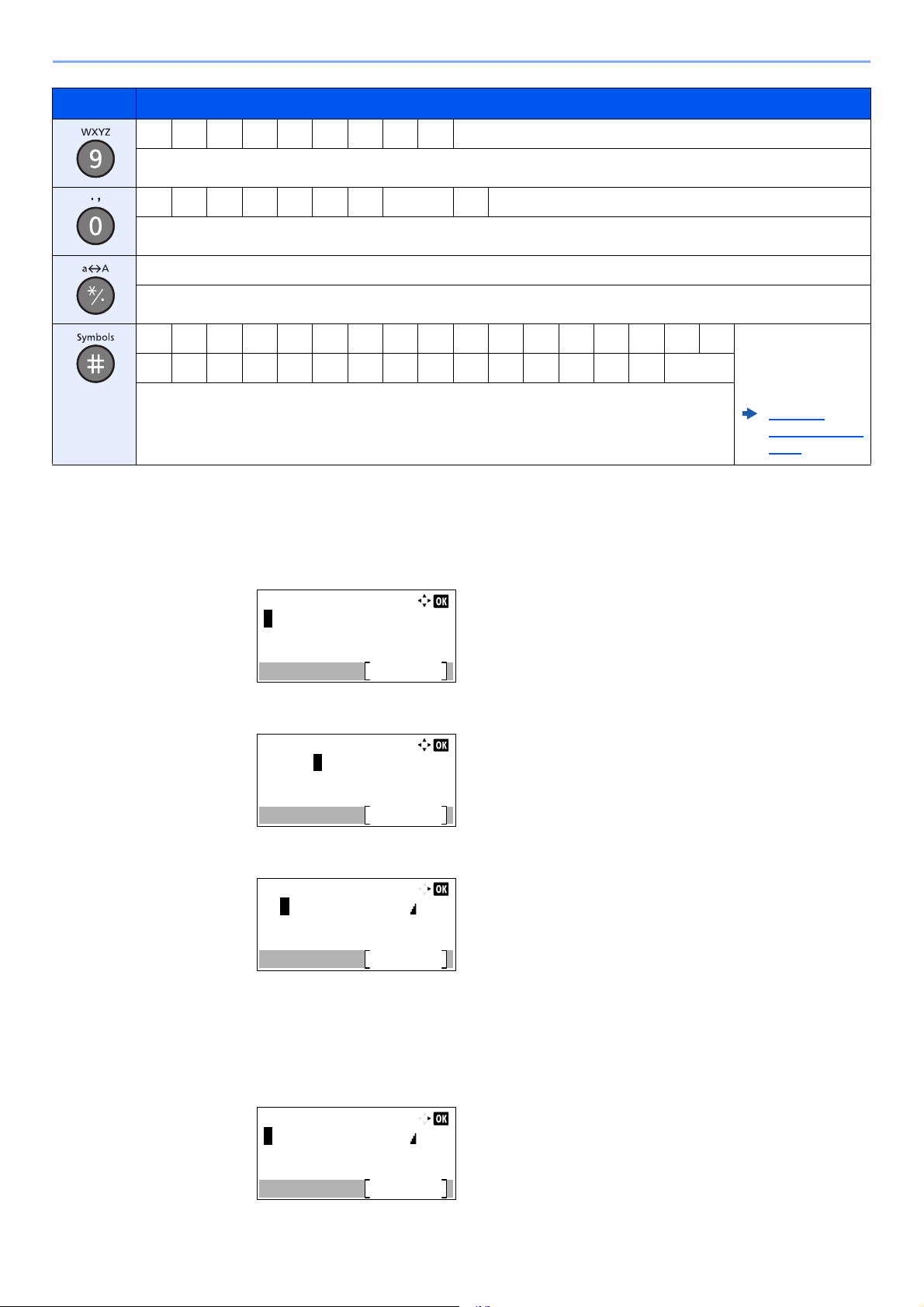
10-4
Appendix > Character Entry Method
Entering Symbols
Symbols can be entered.
1 Select the [#] key. Displays the symbol list.
2 Select the [▲], [▼], [►] or [◄] key to move the cursor and select the symbol to be entered.
3 Select the [OK] key. The selected symbol is entered.
Entering Characters
Follow the steps shown below to enter "R&D" for example.
1 Select the [7] key three times. [r] is entered.
w x y z W X Y Z 9 (Repeats from the first character on the left)
9 (During number entry)
. , - _ ' ! ? (space) 0 (Repeats from the first character on the left)
0 (During number entry)
Select to change the character in the cursor position between upper case and lower case.
"*" or "." (During number entry)
! " # $ % & ' ( ) * + , - . / : ; Displays the
symbol list. For
details, refer to the
following:
Entering
Symbols (page
10-4)
<=>?@[ \ ] ^_ ` { | } ~
# (During number entry)
* Depending on the functions, there are symbols that cannot be entered.
Keys Characters (Each press of a key changes the character in the order from left to right.)
Symbols:
Text
!"#$%&'()*+,-./:;<=>
?@[\]^_`{|}~^
<>¡¢£¤¥¦§¨©ª
Symbols:
Text
!"#$%&'()*+,-./:;<=>
?@[\]^_`{|}~^
<>¡¢£¤¥¦§¨©ª
Account Name:
Text
ABC
R&
Account Name:
Text
ABC
r
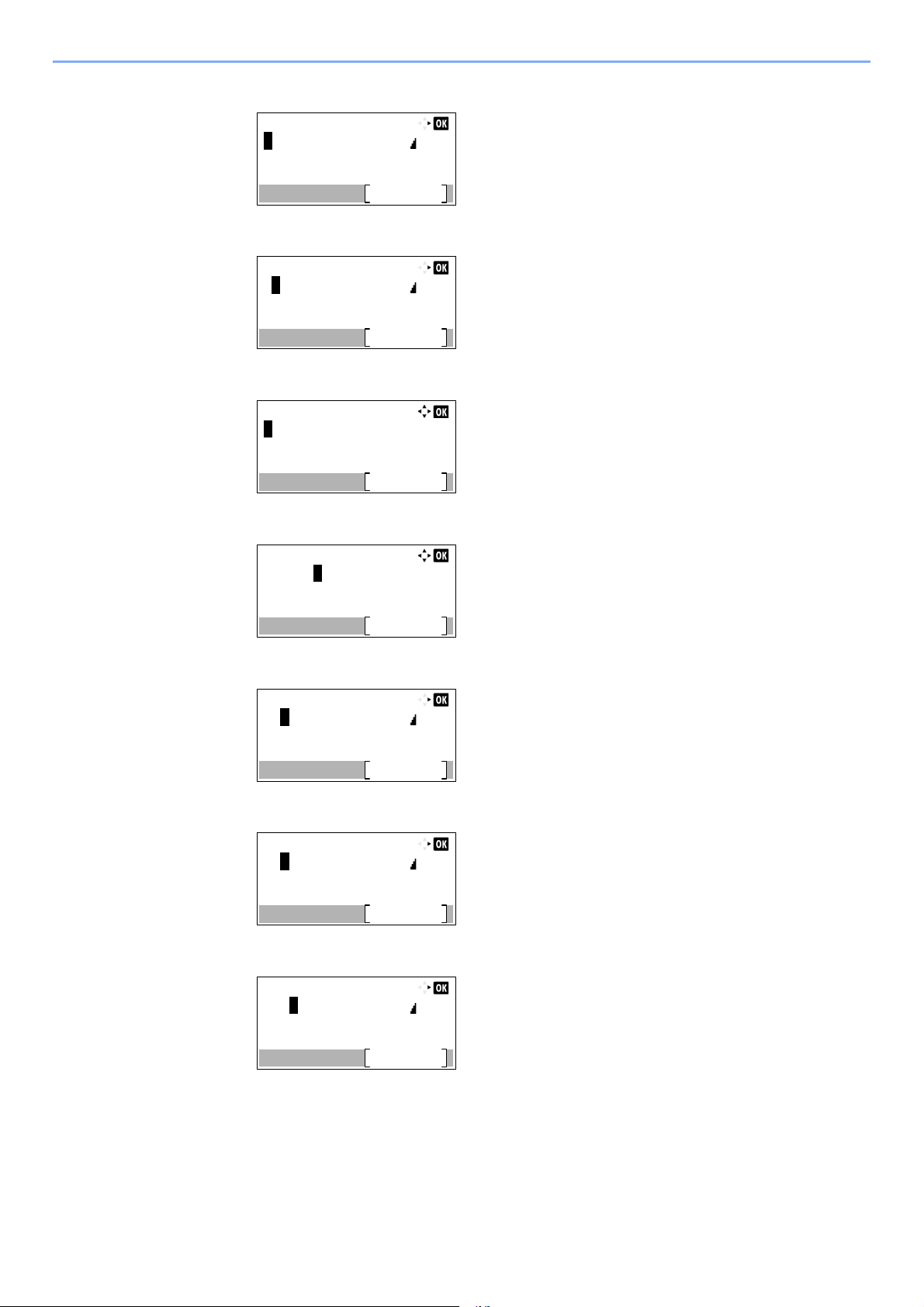
10-5
Appendix > Character Entry Method
2 Select the [*/.] key. [r] changes to [R].
3 Select the [►] key. The cursor moves to the right.
4 Select the [#] key. Displays the symbol list.
5 Select the [▲] or [▼] key to move the cursor and select [&].
6 Select the [OK] key. [&] is entered.
7 Select the [3] key four times. [D] is entered.
8 Select the [►] key.
Account Name:
Text
ABC
R
Account Name:
Text
ABC
R
Symbols:
Text
!"#$%&'()*+,-./:;<=>
?@[\]^_`{|}~^
<>¡¢£¤¥¦§¨©ª
Symbols:
Text
!"#$%&'()*+,-./:;<=>
?@[\]^_`{|}~^
<>¡¢£¤¥¦§¨©ª
Account Name:
Text
ABC
R&
Account Name:
Text
ABC
R&D
Account Name:
Text
ABC
R&D
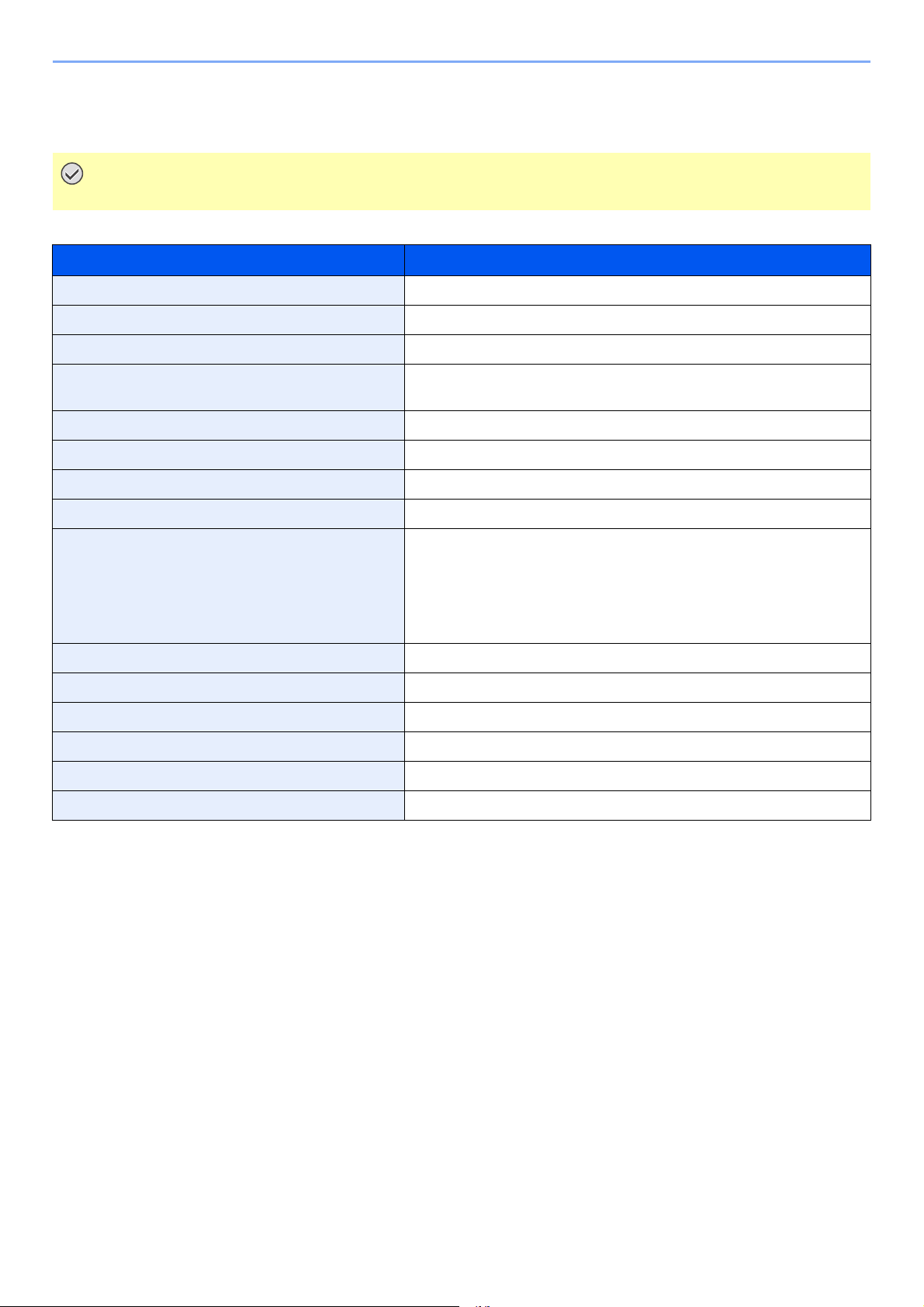
10-6
Appendix > Specifications
Specifications
FAX function
IMPORTANT
Specifications are subject to change without notice.
Item Description
Compatibility G3
Communication Line Subscriber telephone line
Transmission Time Less than 3 seconds (33600 bps, JBIG, ITU-T A4-R #1 chart)
Transmission Speed 33600/31200/28800/26400/24000/21600/19200/16800/14400/12000/
9600/7200/4800/2400 bps
Coding Scheme JBIG/MMR/MR/MH
Error Correction ECM
Original Size Max. width: 8 1/2"/216 mm, Max. length: 14 1/32"/356 mm
Automatic Document Feed Max. 50 sheets (with document processor)
Resolution Scan:
200 × 100 dpi Normal (8 dot/mm × 3.85 line/mm)
200 × 200 dpi Fine (8 dot/mm × 7.7 line/mm)
200 × 400 dpi Super (Super Fine) (8 dot/mm × 15.4 line/mm)
400 × 400 dpi Ultra (Ultra Fine) (16 dot/mm × 15.4 line/mm)
Print: 600 dpi
Gradations 256 shades (Error diffusion)
One Touch Key 22 keys
Multi-Station Transmission Max. 100 destinations
Substitute Memory Reception 256 sheets or more (when using ITU-T A4 #1)
Image Memory Capacity 3.5 MB (standard)(For fax transmission and reception)
Report Output Send result report, FAX RX result report, Activity report, Status page
10-7
Appendix > Specifications
Network FAX functions
Item Description
Hardware IBM PC-AT compatible computer
Interface 10BASE-T, 100BASE-TX, 1000BASE-T, Wireless LAN support*
* Only ECOSYS M2635dw/ECOSYS M2540dw
Operating system Windows XP, Windows Server 2003, Windows Vista, Windows 7,
Windows 8, Windows 8.1, Windows 10, Windows Server 2008/R2,
Windows Server 2012/R2
Transmission Resolution 200 × 100 dpi Normal (8 dot/mm × 3.85 line/mm)
200 × 200 dpi Fine (8 dot/mm × 7.7 line/mm)
400 × 400 dpi Ultra (Ultra Fine) (16 dot/mm × 15.4 line/mm)
Document Size Letter, Legal, Statement, A4, A5, Folio, B5(JIS)
FAX Delayed Transmit Based on settings in the Network FAX Driver (setting is possible to any
1 minute increment within the subsequent 24 hour period)
Transmit and Print Fax transmission and print out at the machine is available
Broadcast Transmission Max. 100 destinations
Job Accounting Requires the input of a Login User Name and Password in the Network
FAX Driver when User Login, is turn ON in the fax machine.
Requires the input of an Account ID in the Network FAX Driver when Job
Accounting, is turned ON in the fax machine.
Cover Page A format can be selected using the Network FAX Driver or a template can
be created.
10-8
Appendix > Menu Map
Menu Map
Address Book (page 3-9)
Redial (page 3-3)
Checking and Editing Destinations (page 3-4)
Manual Send (page 3-22)
Manual Reception (page 4-4)
One Touch Key (page 3-10)
Program (page 3-27)
Original Size (page 3-16)
Original Image (page 3-16)
FAX Resolution (page 3-16)
Orig.Orientation (page 3-17)
Continuous Scan (page 3-17)
File Name Entry (page 3-17)
JobFinish Notice (page 3-18)
FAX Delayed TX (page 3-19)
FAX Direct TX (page 3-20)
FAX RX Polling (page 5-17)
FAX TX Report (page 3-21)
Density (page 3-21)
Duplex (page 3-21)
10-9
Appendix > Menu Map
Print Job Status (refer to the machine’s Operation Guide)
Send Job Status (refer to the machine’s Operation Guide)
Store Job Status (refer to the machine’s Operation Guide)
Scheduled Job (page 3-19)
Print Job Log (page 7-3)
Send Job Log (page 7-3)
Store Job Log (refer to the machine’s Operation Guide)
FAX Job Log Outgoing FAX Log (page 7-3)
Incoming FAX Log (page 7-3
)
Outgoing FAX Rpt (page 7-7
)
Incoming FAX Rpt (page 7-7
)
Scanner (refer to the machine’s Operation Guide)
Printer (refer to the machine’s Operation Guide)
FAX Line Off (page 3-6, page 4-3)
Toner Status (refer to the machine’s Operation Guide)
Paper Status (refer to the machine’s Operation Guide)
USB Memory (refer to the machine’s Operation Guide)
USB Keyboard (refer to the machine’s Operation Guide)
Network (refer to the machine’s Operation Guide)
Wi-Fi (refer to the machine’s Operation Guide)
Report (page 8-4) Report Print (page 8-4) Menu Map (refer to the machine’s Operation Guide)
Status Page (page 7-8
)
Font List (refer to the machine’s Operation Guide)
Admin Rpt Set. (page 7-
7)
Outgoing FAX Rpt (page 7-7
)
Incoming FAX Rpt (page 7-7
)
Result Rpt Set. Send Result (page 7-4
)
FAX RX Result (page 7-6
)
JobFinish Notice (page 8-4
)
Job Log History (refer to the machine’s Operation Guide)
Counter (refer to the machine’s Operation Guide)
System/Network (refer to the machine’s Operation Guide)
User /Job Account (refer to the machine’s Operation Guide)
User Property (refer to the machine’s Operation Guide)
10-10
Appendix > Menu Map
Common Settings Language (refer to the machine’s Operation Guide)
Default Screen (refer to the machine’s Operation Guide)
Sound (page 8-5) Buzzer (page 8-5)
FAX Speaker (page 8-5
)
FAX Monitor (page 8-5
)
Display Bright. (refer to the machine’s Operation Guide)
Orig./Paper Set. (refer to the machine’s Operation Guide)
Preset Limit (refer to the machine’s Operation Guide)
Measurement (refer to the machine’s Operation Guide)
Error Handling (refer to the machine’s Operation Guide)
Date Setting (page 2-7
)
Timer Setting Unusable Time (page 8-17
)
Function Default FAX Resolution (page 8-6
)
Con.scan-FAX (page 8-6
)
Login Operation (refer to the machine’s Operation Guide)
RAM Disk Mode (refer to the machine’s Operation Guide)
Format SD Card (refer to the machine’s Operation Guide)
Optional Memory (refer to the machine’s Operation Guide)
Disp. Status Log (refer to the machine’s Operation Guide)
USB KeyboardType (refer to the machine’s Operation Guide)
Low Toner Alert (refer to the machine’s Operation Guide)
Show PowerOffMsg (refer to the machine’s Operation Guide)
EnergySaver Set. (refer to the machine’s Operation Guide)
Copy (refer to the machine’s Operation Guide)
Printer (refer to the machine’s Operation Guide)
Send (refer to the machine’s Operation Guide)
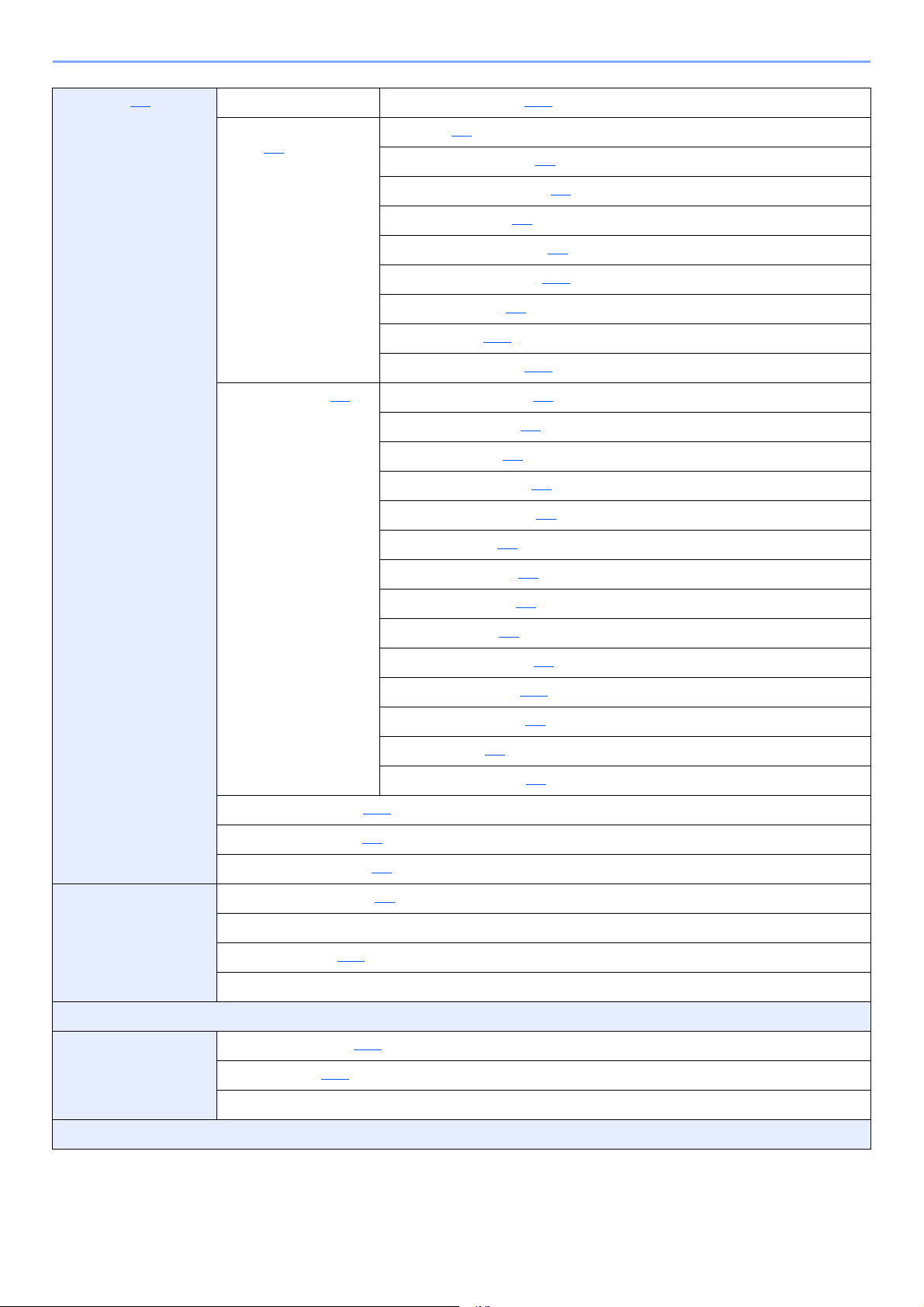
10-11
Appendix > Menu Map
FAX (page 8-6) TX/RX Common Encryption Key (page 5-23)
Transmission
(page 8-7
)
TTI (page 2-8
)
Local FAX Name (page 2-8
)
Account Name Use (page 8-7
)
Local FAX ID (page 2-9
)
Local FAX Number (page 2-9
)
FAX Dialing Mode (page 2-10
)
Retry Times (page 8-7
)
ECM TX (page 2-10
)
TX Start Speed (page 2-10
)
Reception (page 8-8
) FAX Media Type (page 8-8)
Rings(Normal) (page 8-8
)
Rings(TAD) (page 8-8
)
Rings(FAX/TEL) (page 8-8
)
Forword Settings (page 5-2
)
RX Setting (page 8-8
)
RX Date/Time (page 8-8
)
2 in 1 Printing (page 8-8
)
Batch Print (page 8-8
)
Remote SW Dial (page 8-8
)
Encryption RX (page 5-23
)
Duplex Printing (page 8-9
)
ECM RX (page 8-9
)
RX Start Speed (page 8-9
)
TX/RX Restrict. (page 8-10
)
Select Key Set. (page 8-9
)
Dest. Entry(FAX) (page 8-9
)
Document Box Sub Address Box (page 5-8)
Job Box (refer to the machine’s Operation Guide)
Polling Box (page 5-17)
Select Key Set. (refer to the machine’s Operation Guide)
Application (refer to the machine’s Operation Guide)
Edit Destination Address Book (page 2-12)
Print List (page 2-16
)
Address Book Defaults (refer to the machine’s Operation Guide)
Adjust/Maint. (refer to the machine’s Operation Guide)
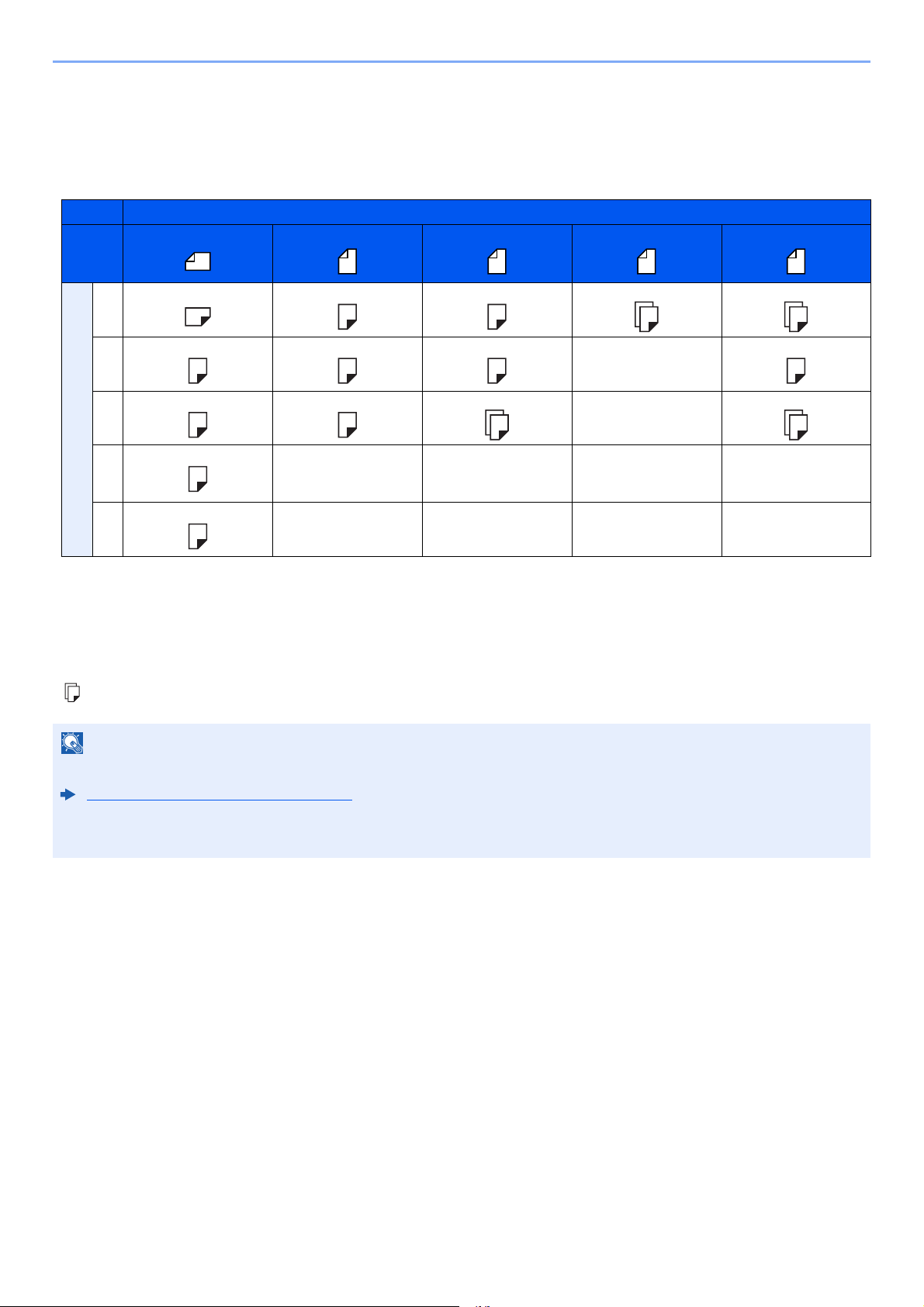
10-12
Appendix > Received FAX Sizes and Paper Priority (Metric Model)
Received FAX Sizes and Paper Priority (Metric Model)
When no paper loaded in the cassettes matches the received fax size and orientation, the machine automatically
chooses the printing paper according to the following priority.
Received FAX Size
Priority
A5 A4 Folio A4 Long Originals*
* A4 Long Originals: Originals longer than A4 in the direction of the paper feed.
Folio Long Originals**
** Folio Long Originals: Originals longer than Folio in the direction of the paper feed.
Paper Size
1 A5 A4 Folio A4 Folio
2A5-R***
*** Paper orientation is different from the received document. The image is printed after being rotated 90°automatically.
Folio A4 A4****
**** The document is printed on this paper when the length of the document received is 351 to 380.4 mm and the cassette set as
the Folio size is empty.
3A4 B5***
,
*****
***** Images shorter than the A4 vertical length (297 mm) are received and then reduced and printed on B5 paper (horizontal width
182 mm).
: indicates print output on 2 sheets.
A4 A4
4Folio
5B5***
NOTE
When a paper type is selected in [FAX Media Type], a received fax is printed using the matching paper source.
Media Type for Print Output (page 4-6)
Even if [All Media Type] is selected, a received fax cannot be printed when the paper type loaded in the paper source
is not suitable for fax printouts.
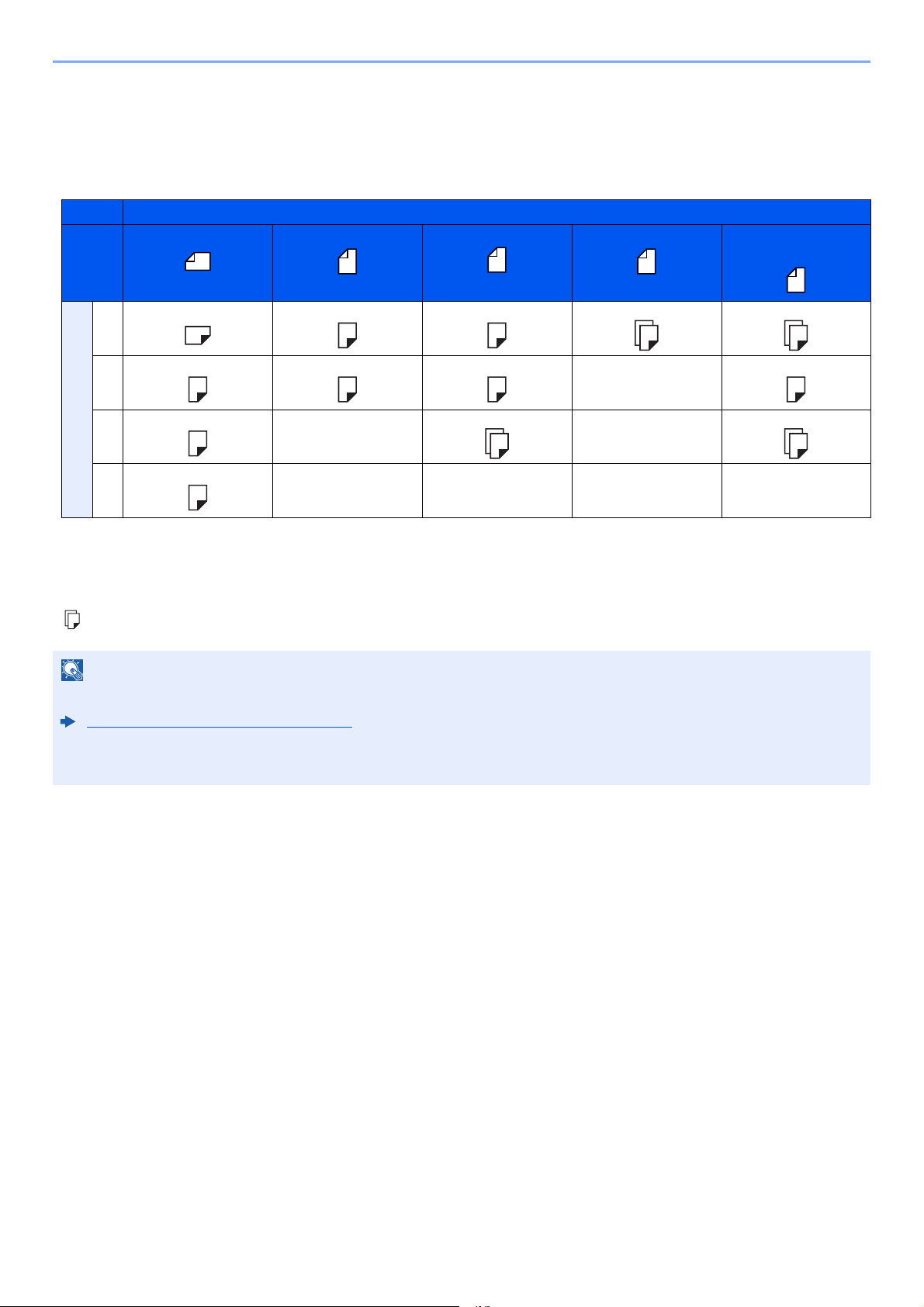
10-13
Appendix > Received FAX Sizes and Paper Priority (Inch Model)
Received FAX Sizes and Paper Priority (Inch Model)
When no paper loaded in the cassettes matches the received fax size and orientation, the machine automatically
chooses the printing paper according to the following priority.
Received FAX Size
Priority
Statement Letter
Legal
Letter Long Originals*
* Letter Long Originals: Originals longer than Letter in the direction of the paper feed.
Legal Long
Originals
**
** Legal Long Originals: Originals longer than Legal in the direction of the paper feed.
Paper Size
1 Statement Letter Legal Letter Legal
2 Statement-R***
*** Paper orientation is different from the received document. The image is printed after being rotated 90°automatically.
Legal Letter Letter****
**** The document is printed on this paper when the length of the document received is 376.6 to 379.3 mm and the cassette set as
the Legal size is empty.
: indicates print output on 2 sheets.
3 Letter Letter Letter
4 Legal
NOTE
When a paper type is selected in [FAX Media Type], a received fax is printed using the matching paper source.
Media Type for Print Output (page 4-6)
Even if [All Media Type] is selected, a received fax cannot be printed when the paper type loaded in the paper source
is not suitable for fax printouts.

Index-1
Index
Numerics
2 in 1 Print 4-7, 8-8
A
Account Management 8-19
Account Name Use 8-7
Address Book 2-12, 3-9
Adding a contact 2-12
Adding a Group 2-14
Change/Deletion 2-15
Printing Address List 2-16
Search 3-9
Select a Destination 3-9
B
Batch Print 4-7, 8-8
Batch Transmission Function 3-19
Broadcast Transmission 3-11
C
Cancel
Cancelling Delayed Transmission 3-20
Cancelling Direct Transmission 3-20
Cancelling Polling Transmissions 5-18
Cancelling Transmission (Disconnection of
Communication) 3-6
Cannot perform sub address transmission 9-9
Cannot receive document 9-9
Cannot send document 9-9
Cassette
Paper Size and Media Type 8-5
Chain Dial 3-25
Character Entry Method 10-2
Checking Transmission Results
and Registration Status 7-2
Common inquiries 9-11
Confirmation Screen of Destinations 7-11
Continuous Scan 3-17
D
Date 2-7
Default fax settings 8-2
Delayed Transmission
Immediate Transmission 3-20
Density 3-21
Direct Transmission
Cancel 3-20
Document Processor 2-3
DRD Reception 5-31
Duplex 3-21
Duplex Printing 4-7, 8-9
E
ECM RX 8-9
ECM TX 8-7
E-mail Notice
Job Finish Notice 3-18
Reporting FAX Receipt Result 7-9
Encryption Communication 5-23
Changing Registration Contents of
Encryption Key 5-24
Deleting Registration Contents of
Encryption Key 5-25
Encryption Box No. 5-23
Encryption Key 5-24
Encryption Key No. 5-23
Registering an Encryption Key 5-24
Setting the Encrypted Reception 5-26
Using the Encrypted Transmission 5-25
Encryption RX 8-8
Error Code List 9-6
F
FAX/Answering Machine Auto Switch Reception 5-29
FAX/TEL Auto Switch Reception 5-27
FAX Automatic Reception 4-2, 8-8
FAX Box Function
How to Change 5-10
How to Delete 5-11
FAX Delayed Transmission 3-19
Immediate Transmission 3-20
FAX Direct Transmission 3-20
Cancel 3-20
FAX Driver
Basic Transmission 6-8
Flow of Receiving 6-2
Flow of Sending 6-2
Installing the FAX Driver 6-4
Setup 6-3
FAX Job History 7-3
Job Log Screen 7-3
FAX Media Type 4-6
FAX Resolution 3-16
FAX TX Report 3-21
File Name Entry 3-17
Forward Settings 5-2, 8-8
Command Center RX 5-7
Type of Forwarding Destination 5-2
I
Indicators 9-2
Interrupt Send 3-24
J
Job Accounting 8-19
Communication Form Subject to
Job Accounting 8-19
Contents 8-19
Limit 8-20
Login 3-14

Index-2
L
Local FAX ID 8-7
Local FAX Name 8-7
Local FAX Number 8-7
Login 3-13
M
Machine (Names) 2-2
Manual Reception 4-4, 5-34
Manual Send 3-22, 5-33
Media Type for Print Output 4-6, 8-8
Memory Reception 4-3
Memory Transmission 3-2
Menu Map 10-8
Messages 9-4
Methods For Entering the Destination 3-7
MP Tray Settings 8-5
Multi Purpose Tray
Paper Size and Media Type 8-5
N
Network FAX
Basic Transmission 6-8
Flow of Receiving 6-2
Flow of Sending 6-2
Installing the FAX Driver 6-4
Setup 6-3
No Print Output 9-9
O
One Touch Key 2-17
Adding a Destination 2-17
Change/Delete 2-18
Select Destination 3-10
Operation Panel 2-4
Original Binding 3-21
Original Image 3-16
Original Orientation 3-17
Original Size 3-16
P
Paper
Cassette 8-5
Multi Purpose Tray 8-5
Part Names and Functions 2-2
PBX Setting 2-11
Permit Fax No.
Change 8-12
Change/Deletion 8-12
Registration 8-11
Permit ID No.
Change 8-15
Deletion 8-15
Registration 8-14
Polling Communication 5-17
Checking 5-22
Deleting Originals in a Polling Box 5-22
Polling Reception 5-19
Polling Transmission 5-17
Printing from a Polling Box 5-21
Sub Address Bulletin Board Communication 5-19
Precautions When Turning Power OFF 9-3
R
Received FAX Sizes and Paper Priority 10-12, 10-13
Receiving Mode 4-2, 8-8
Reception Date/Time 4-7, 8-8
Redial 3-3
Changing Retry Times 8-7
Reject Fax No.
Change 8-13
Deletion 8-14
Registration 8-13
Remote Switch Function 5-35, 8-8
How to Register 8-8
How to Use 5-35
Report
Activity Report 7-7
FAX RX Result Reports 7-6
Printing a FAX Box List 5-15
Recipient Format 7-9
Report for Job Canceled before Sending 7-5
Send Result Reports 7-4
Sub Address Box List 5-15
Rings
Answering Machine 8-8
FAX/TEL 8-8
Normal 8-8
RX Date/Time 4-7
RX Start Speed 8-9

Index-3
S
Selection of Transmit Terminal Identification (TTI) 8-7
Send Status 3-5
Sound
FAX Monitor 8-5
FAX Speaker 8-5
Job Finish 8-5
Specifications 10-6
Standby Transmission 3-23
Sub Address Box Function 5-8
Checking 5-13
Deleting Originals after Printing from a
Sub Address Box 5-13
Deleting Originals from a Sub Address Box 5-14
How to Delete 5-11
How to Register 5-9
Printing Originals from Sub Address Box 5-12
Sub Address Box List 5-15
Sub Address Bulletin Board Reception 5-19
Sub Address Communication 5-8
Sub Address 5-8
Sub Address Password 5-8
Sub Address Transmission 5-16
T
Telephone Line 8-7
Time 2-7
Transmission Restriction 8-10
Communication Establishing Requirements 8-10
Permit FAX No. 8-11
Permit ID No. 8-14
Prerequisites 8-10
Reception Rejection Requirements 8-11
Reception Restriction Setting 8-16
Reject FAX No. 8-13
Send Restriction Setting 8-16
Unknown Number Reception 8-16
Troubleshooting 9-9
TX Start Speed 8-7
U
Unusable Time 8-17
User Accounting 8-19
Contents 8-19
Login 3-13
User Login Administration
Login 3-13
Using Programs 3-27


First edition 2016.6
2S4KDEN500
