User manual
Manuel d'utilisation
Manual del usuario
Benutzerhandbuch
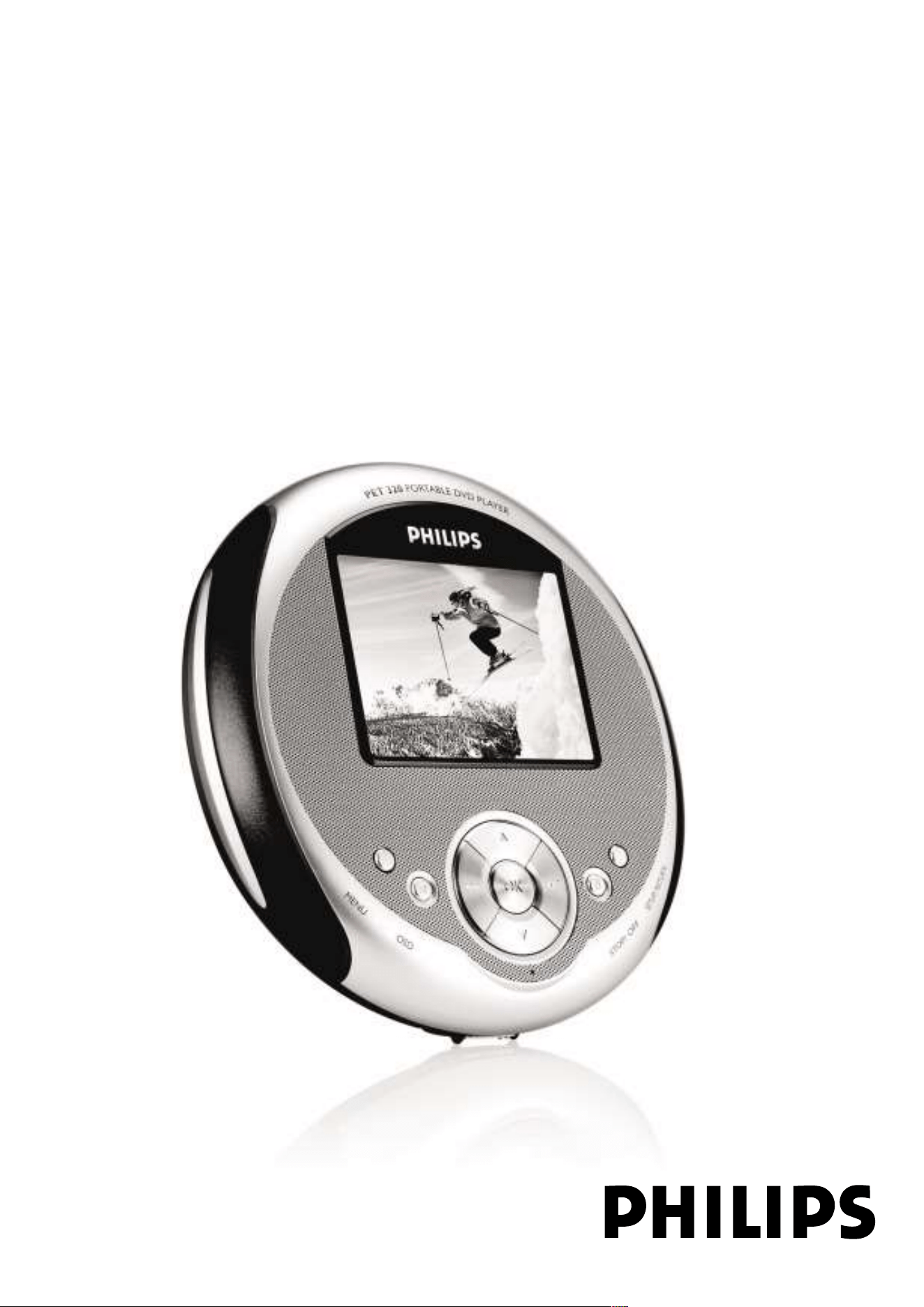
Portable DVD Player PET320
1

English
FUNCTIONAL OVERVIEW
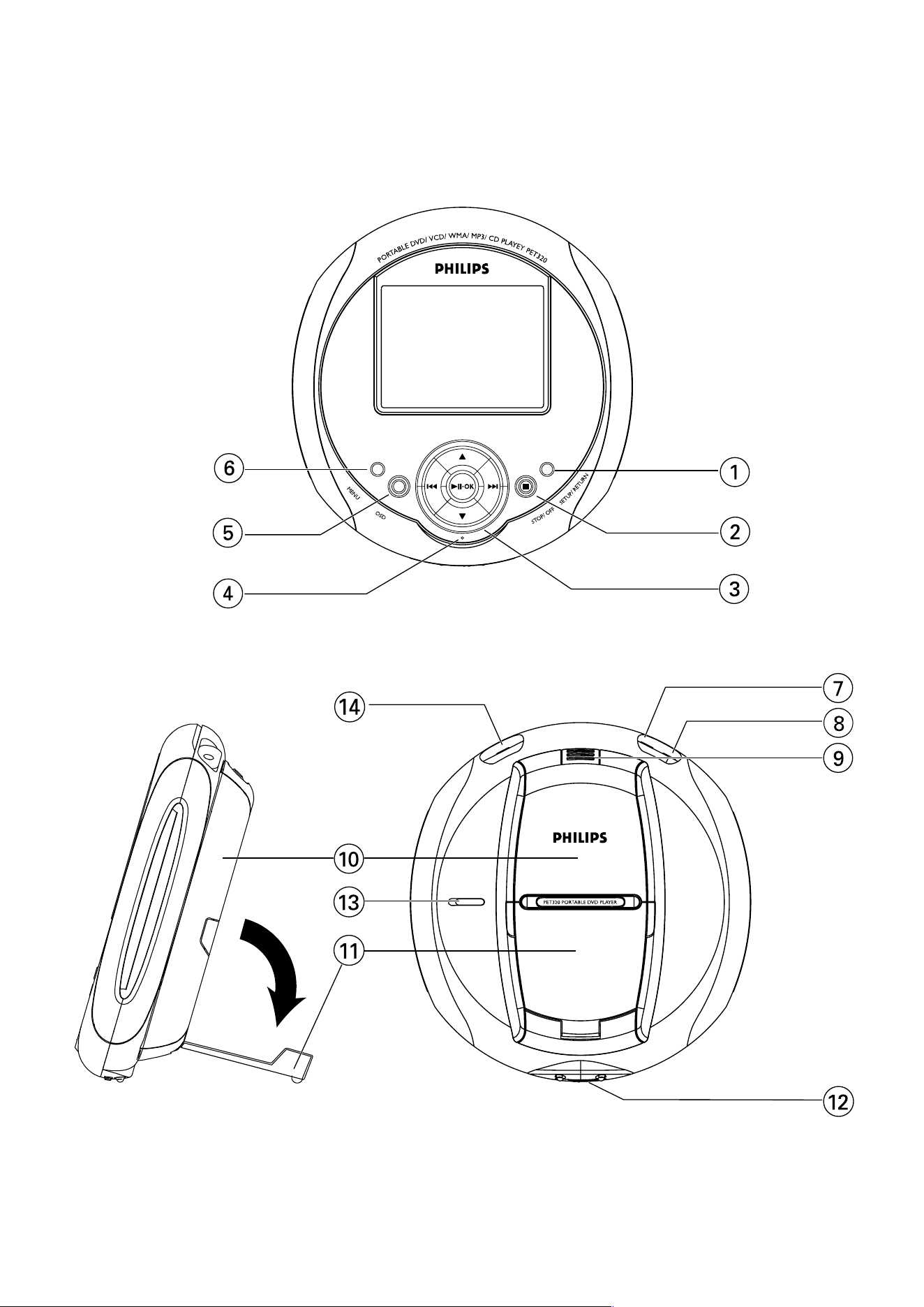
Main unit controls ( see figure 1)
1 SETUP / RETURN..Enter the SETUP menu. Work as return key in
PBC disc.
2 9 ............................- Press once to Stop playback.
- Press twice to power off the set
3 Navigation keys
2;
.
OK .................. Play / Pause / OK / Power ON
3 / 4 ....................Up / Down cursor or Up / Down Volume
control during playback
J( / § ................Left / Right cursor or Previous / Next track or
Fast search Backward / Forward
4 LED Indicator Light....During charging, the LED is RED. When the
device is fully charged, the LED is GREEN.
5 OSD ........................Enter the On Screen Display playback function
settings
6 MENU ....................Display the DVD disc menu
7 Headphone jack ..For headphone listening
8 AV OUT .................. For TV connection
9 Battery Release....Press to take out the battery pack
0 Rechargeable Battery Pack
! Stand ......................Pull down to pop-up the set for viewing
@ OPEN ......................Open disc compartment to insert or remove
disc
# HOLD ......................Lock or unlock the buttons
$ DC IN 5V ................Power supply socket

INTRODUCTION
Digital video
DVD-Video uses state-of-the-art MPEG2 data compression technology
to register an entire movie on a single 5-inch disc. DVD’s variable
bitrate compression, running at up to 9.8 Mbits/second, captures even
the most complex pictures in their original quality.
Your portable DVD player
Your portable DVD player plays digital video discs conforming to the uni-
versal DVD Video standard. With it, you will be able to enjoy full-length
movies with true cinema picture quality.
The unique features of DVD-Video, such as selection of soundtrack and
subtitle languages, and of different camera angles (again depending on
the disc), are all included.
What’s more, parental lock lets you decide which discs your children
will be able to see. You will find your player remarkably easy to use
with the control functions.
Unpacking
First check and identify the contents of your package, as listed below:
• Portable DVD player • Headphone (AY3806)
• Detachable battery pack (AY4838) • Carry pouch
• AC / DC adaptor (AY4113) • User Manual
• Car cigarette charger (AY4114) • AV cable
INTRODUCTION
Placement
• Place the player on a firm, flat surface.
• Keep away from domestic heating equipment and direct sunlight.
• If the player cannot read CDs/DVDs correctly, try using a commonly
available cleaning CD/DVD to clean the lens before taking the player to be
repaired. Other cleaning methods may destroy the lens.
• Always keep the disc compartment closed to avoid dust on the lens.
• The lens may cloud over when the player is suddenly moved from cold to warm
surroundings. It is then not possible to play a CD/DVD. Leave the player in a warm
environment until the moisture evaporates.
Playable disc formats
In addition to DVD-Video disc, you will also be able to play all Video CDs and audio
CDs (including CDR, CDRW, DVD
±
R/RW).
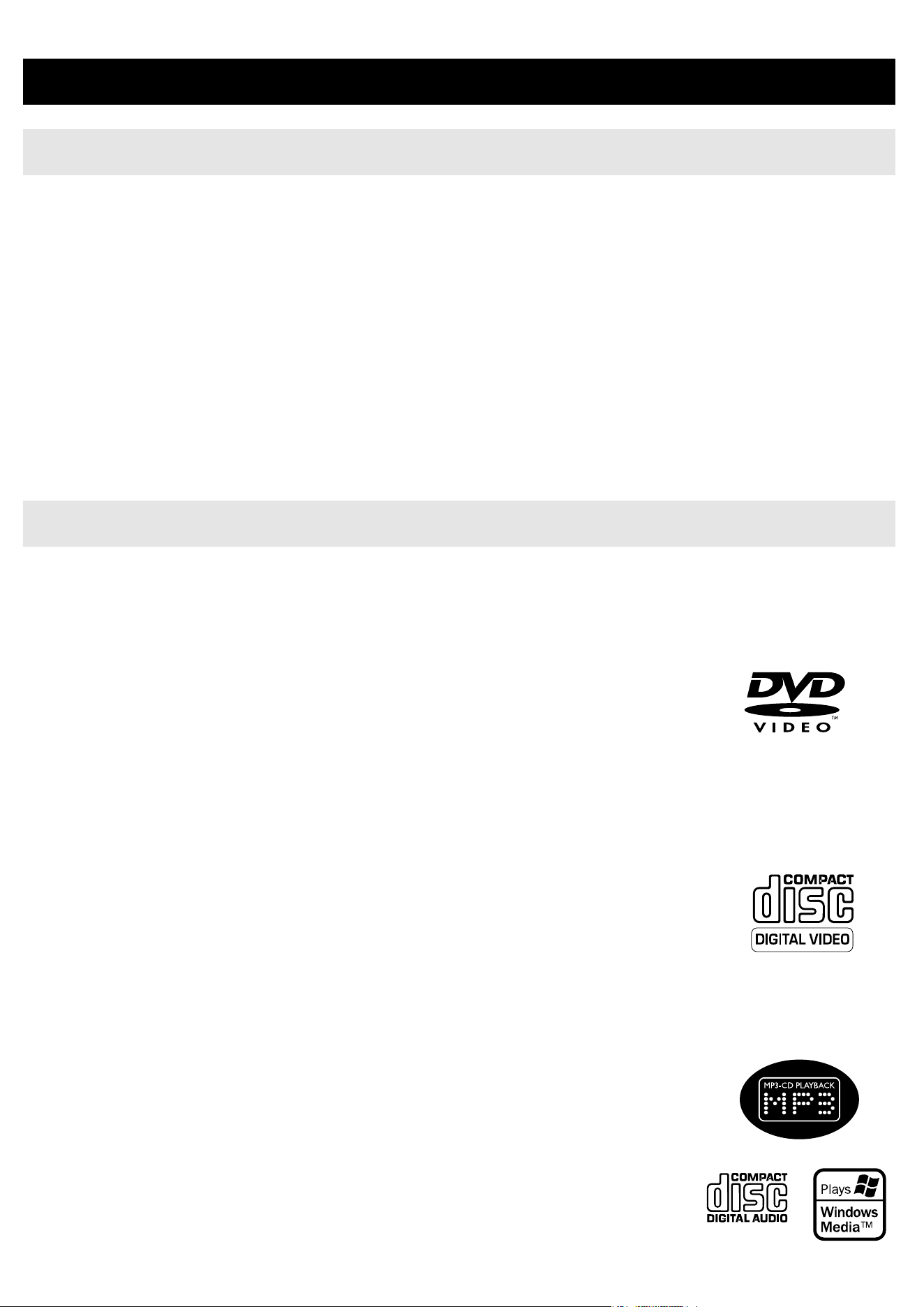
DVD-Video
Depending on the material on the disc (a movie, video clips,
a drama series, etc.), these discs may have one or more
Titles, and each Title may have one or more Chapters. To
make access easy and convenient, your player lets you move
between Titles, and also between Chapters.
Video CD
Depending on the material on the disc (a movie, video clips, a
drama series, etc.), these discs may have one or more Tracks,
and tracks may have one or more indexes, as indicated on the
disc case.To make access easy and convenient, your player
lets you move between tracks and between indexes.
Audio CD / MP3 / WMA CD
Audio CDs / MP3 / WMA CD contain music tracks. You can play them
in this DVD player.
However, you cannot play WMA files that are copy protected.
CD with JPEG files
You can also view JPEG still photos on this player.

GENERAL INFORMATION
Power Sources
This unit operates on a supplied AC adaptor, car adaptor, or a rechargeable battery
pack.
• Make sure that the input voltage of the AC adaptor is in line with the local voltage.
Otherwise, the AC adaptor and unit may be damaged.
• Do not touch the AC adaptor with wet hands to prevent electric shock.
• When connecting with car power (cigarette lighter) adaptor, be sure the
input voltage of the adaptor is identical with car voltage.
• Unplug the AC adaptor from the outlet or remove the battery pack when the unit is
not used for long periods of time.
• Hold the plug to disconnect the AC adaptor. Do not pull the power cord.
Safety and maintenance
• Do not disassemble the unit for laser rays are dangerous to eyes.
Any service should be done by qualified service personnel.
• Unplug the AC adaptor to cut the power if liquid or objects get inside the unit.
• Take care not to drop the unit or subject it to strong shocks, which may
cause malfunction.
• Hearing safety: listen at a moderate volume. Using headphones at high
volume can impair your hearing.
• Important (for models with by-packed headphones):
Philips guarantees compliance with the maximum sound power of its audio players
as determined by relevant regulatory bodies only with the original model of provid-
ed headphones. In case this one needs replacement, we recommend that you con-
tact your retailer to order a model identical to that of the original provided by
Philips.
• Traffic safety: do not use while driving or cycling as you may cause an accident
• Do not expose to excessive heat caused by heating equipment or
direct sunlight.
• This product is not waterproof: do not allow your player to be submersed
in water. Water entering the player may cause major damage.
• Do not use any cleaning agents containing alcohol, ammonia, benzene,
or abrasives as these may harm the player.
• Do not touch the lens!
•
Apparatus shall not be exposed to dripping or splashing. Do not place any
sources of danger on the appartus (e.g. liquid filled objects,lighted candles)
Note: When the player is in use for a long period of time, the surface will be
heated. This is normal.

GENERAL INFORMATION
Handling discs
• Do not attach paper or tape to the disc.
• Keep the disc away from direct sunlight or
heat sources.
• Store the disc in a disc case after playback.
• To clean, wipe the disc outwards from the
center with a soft, lint-free clean cloth.
On handing the LCD screen
The LCD is manufactured using high precision technology. You may,
however, see tiny black points and/or bright points(red,blue,green)
that continuously appear on the LCD. This is a normal result of the
manufacturing process and does not indicate a malfunction.
Environmental information
We have reduced the packaging to its minimum and made it easy to
separate into mono materials: cardboard, PS, PE and PET.
Your set consists of material which can be recycled if disassembled by
a specialized company. Please observe the local regulations to dispose
of packaging, exhausted batteries and old equipment.
Copyright information
All other brand and product names are trademarks of their respective
companies or organizations.
Unauthorized duplication of any recordings downloaded from the
internet or made from CDs / VCDs / DVDs is a violation of copyright
laws and international treaties.
PREPARATIONS
Charging the DVD player
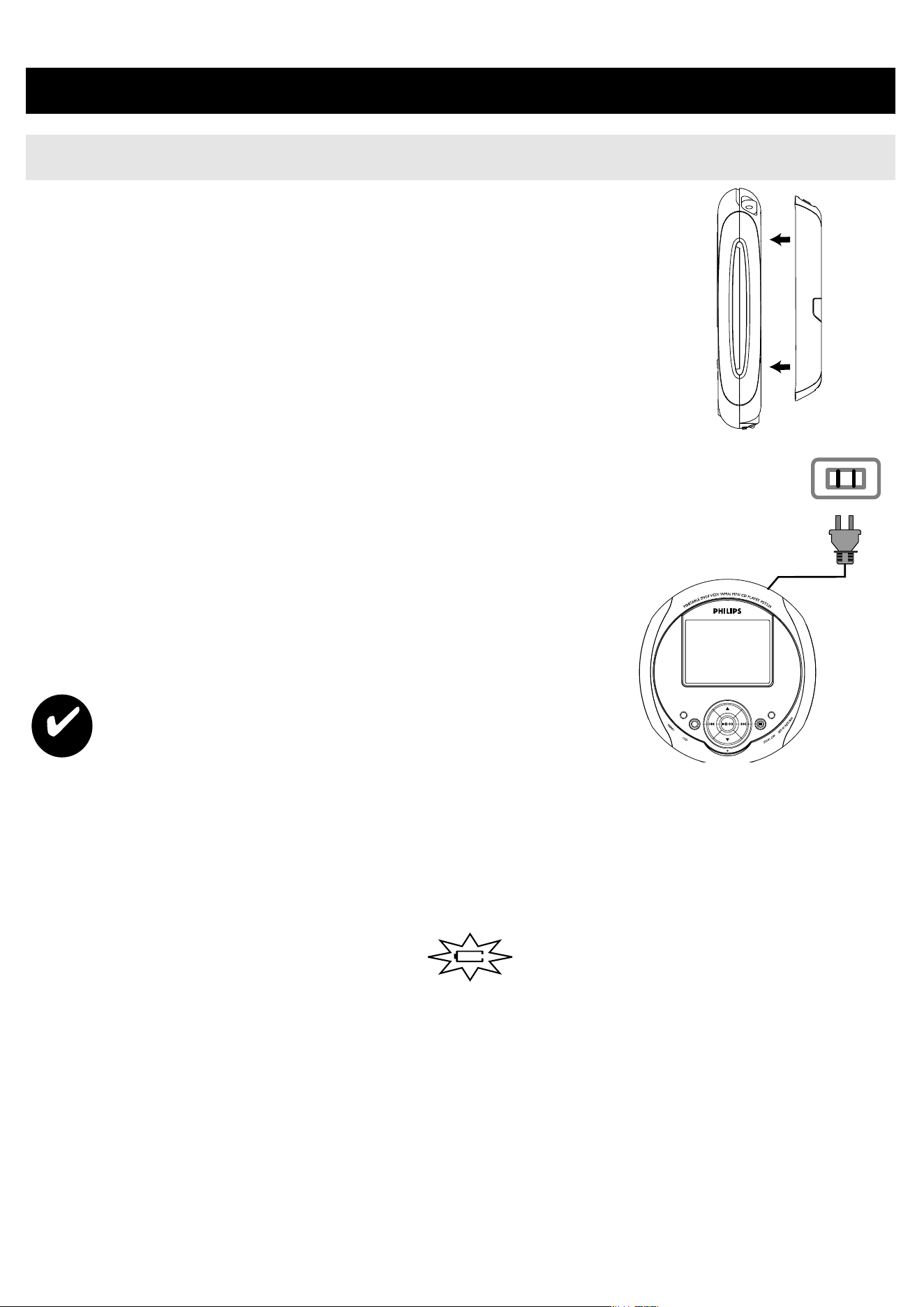
1 Install the battery pack. Plug in the battery
pack onto the back of the DVD set.
2 Plug in the AC/DC adaptor
• The RED LED indicates charging is in
progress.
• The GREEN LED indicate the set is fully
charged.
• The battery will be fully charged in 4
hours when charging it for the first time.*
TIP
• To avoid damage to the player, switch off before plugging or
unplugging the AC adaptor.
• The charging time will take longer when you charge the player
during playback movies.
3 When the empty battery icon is shown on the screen, please
charge the set.
Batteries contain chemical substances, so they should be disposed
of properly.
Incorrect use of batteries can cause electrolyte leakage and will
corrode the compartment or cause the batteries to burst.
Remove the batteries if the set is not to be used for a long time.
PREPARATIONS
Connection
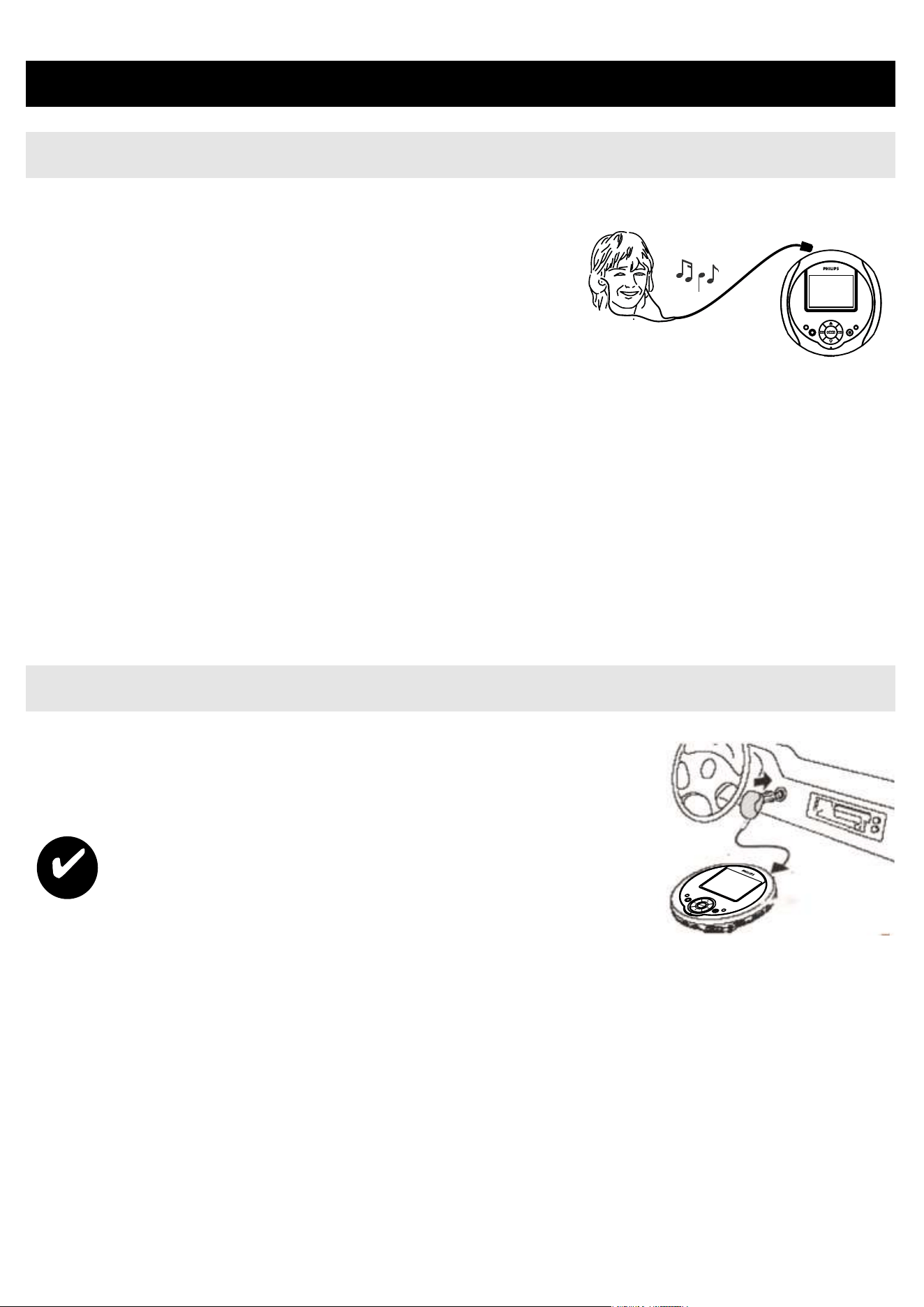
1 Headphones (AY3806)
Connect the headphones into the jack.
2 TV output : AV out
• Turn off your set before connecting any additional equipments.
• You can connect the player to a TV or an amplifier to enjoy
DVD.
Using the car adaptor
Connect the supplied car adaptor to the set and the
car cigarette lighter outlet.
TIP
• To avoid damage to the player, switch off
before plugging or unplugging the car
adaptor.
• When connecting with car power (cigarette lighter) adaptor,
be sure the input voltage (12V) of the adaptor is identical
with car voltage (12V).
QUICK START UP
Basic function of play back
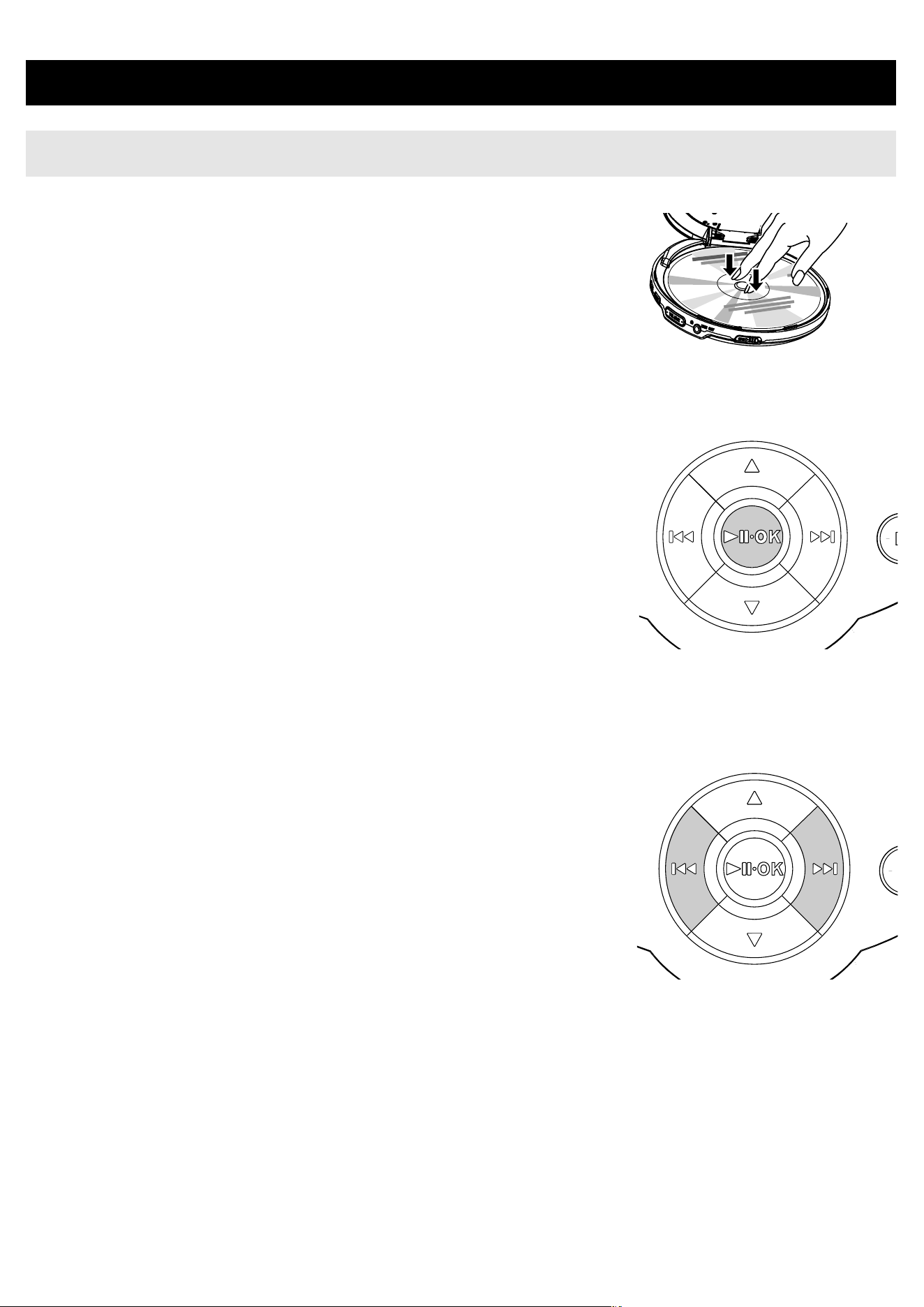
1 Insert the DVD disc
• Slide the OPEN switch to open the disc
compartment.
• Insert the disc with the printed side up.
• Close the disc compartment.
2 Power On / Play / Pause (2 ;
.
OK)
•
Press 2 ;
.
OK to power on and start to
playing the DVD.
• During play back, press 2 ;
.
OK to
pause playing the DVD.
• You can continue to playback by
pressing 2 ;
.
OK again.
3 Backward and Forward searching (J( and
§)
• Press briefly J( / § once or several
times to select the desired track.
• Keep J( / § pressing will search in fast
speed, 2X, 4X, 6X......
• Press 2 ;
.
OK to resume normal
playback.
QUICK START UP
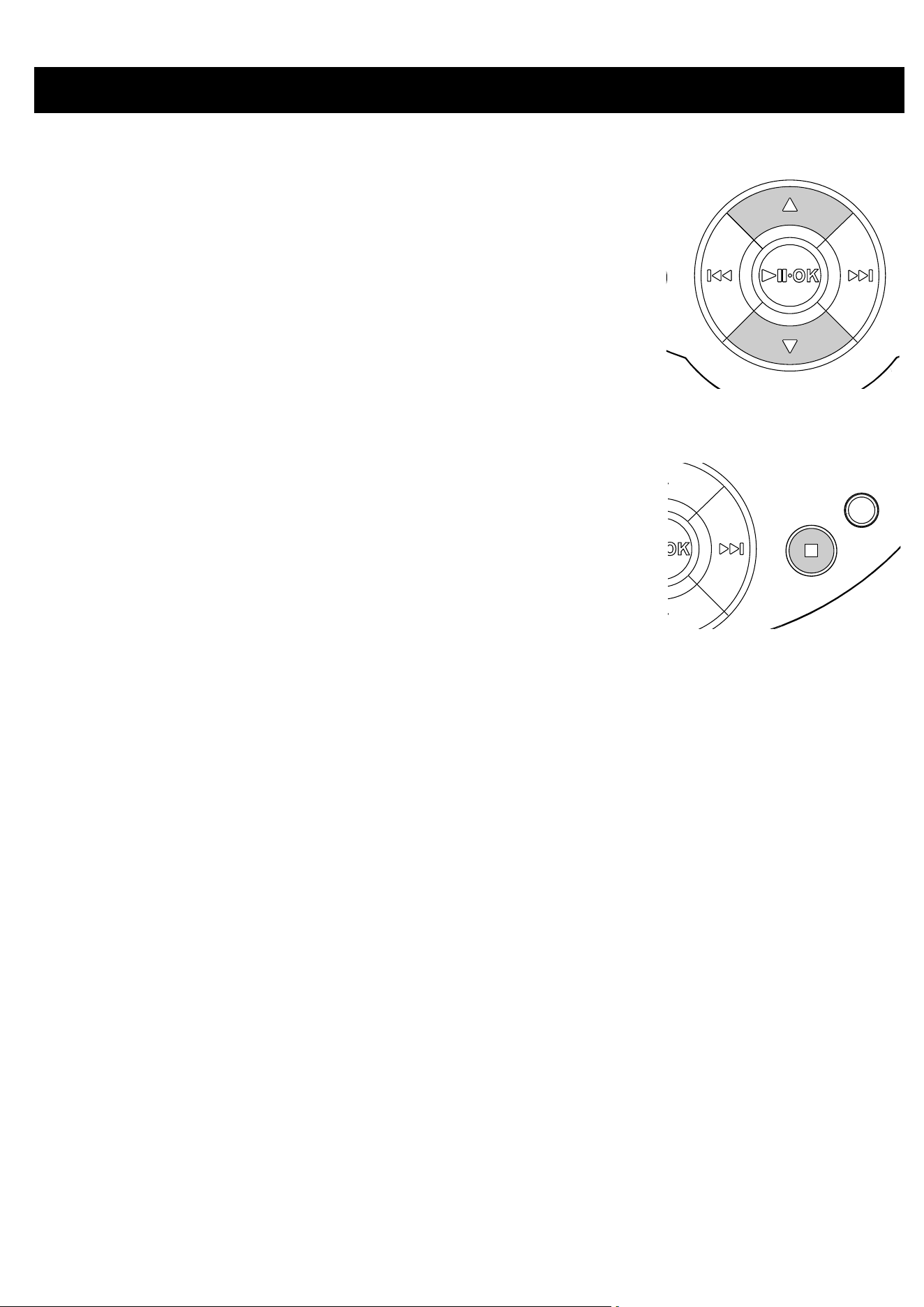
4 Volume control (3 / 4)
• During playback, briefly press or keep
pressing 3 / 4 to increase or decrease
the sound volume.
5 Stop/Power off (9 )
• During playback, press briefly 9 to stop the
playback.
• Keep pressing 9 will power off the set.
ADVANCED FUNCTIONS
Setup
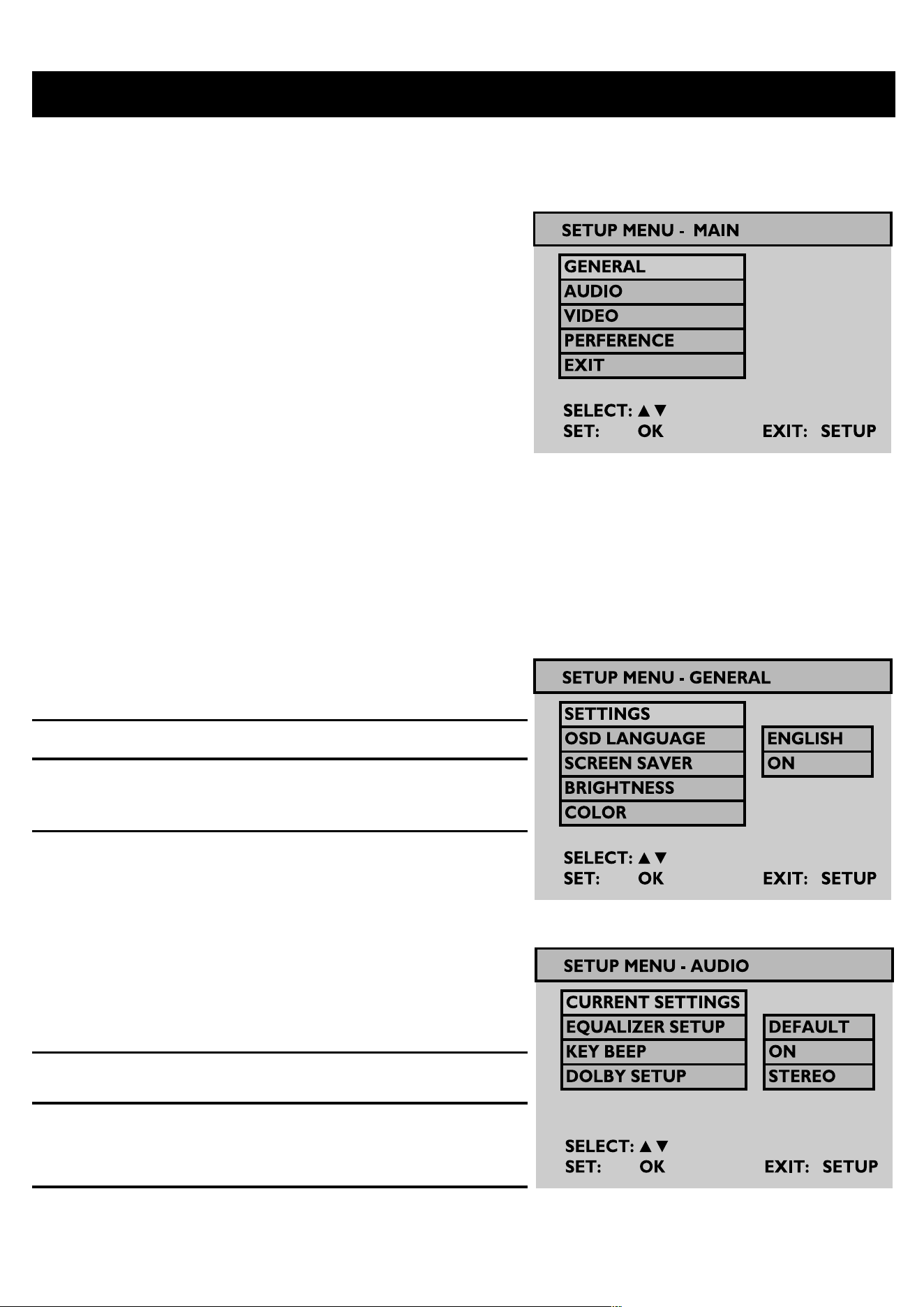
To maximize your playback experience,
use SETUP to fine tune your settings.
• Press SETUP. A list of features
will be shown.
• Use 3 / 4 to highlight your
selection.
• Use J( / § to enter a sub-menu
setup.
• When the cursor highlights the
settings, press 2 ; . OK to confirm the settings.
General Setup
OSD Set On Screen Display
Language (OSD) language
Screen Saver Set screen saver ON/OFF
Brightness Set screen brightness
level
Color Set screen color richness
Audio Setup
Equalizer Set music equalizer
Setup options
Key Beep Set key beep ON/OFF
Dolby Setup Select Dolby sound
options
ADVANCED FUNCTIONS
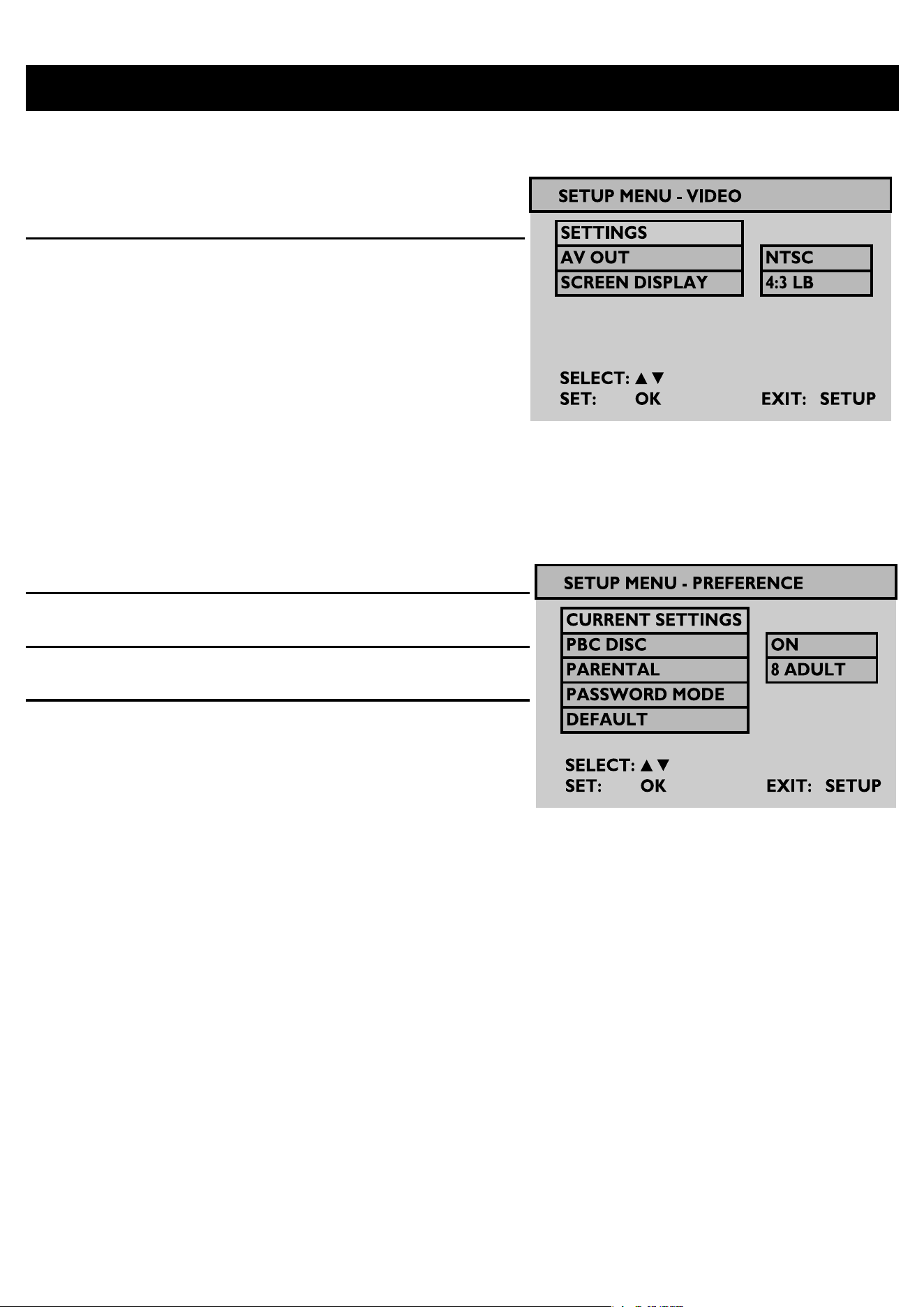
Video Setup
AV Out Set video output
format to TV system
Screen Display Set screen viewing
ratio
Preference Setup
PBC disc Set PBC function ON/OFF
Parental Set parental options
Password Change password
Default Restore factory settings
Exit
Exit SETUP menu.

DVD MENU
1 To check the root contents of DVD-Video discs, press MENU
briefly.
2 To check the sub-content of the DVD-Video discs, press and hold
the MENU.
3 The DVD menu contains many settings and features which allows
you to make selections such as languages, chapters,
subtitles, spoken language, etc.
4 Use the 1 , 2 , 3 and 4 keys to highlight, and press
2 ;
.
OK to confirm the selection.
CAUTION
Use of controls or adjustments or performance of procedures
other than herein may result in hazardous radiation exposure
or other unsafe operation.
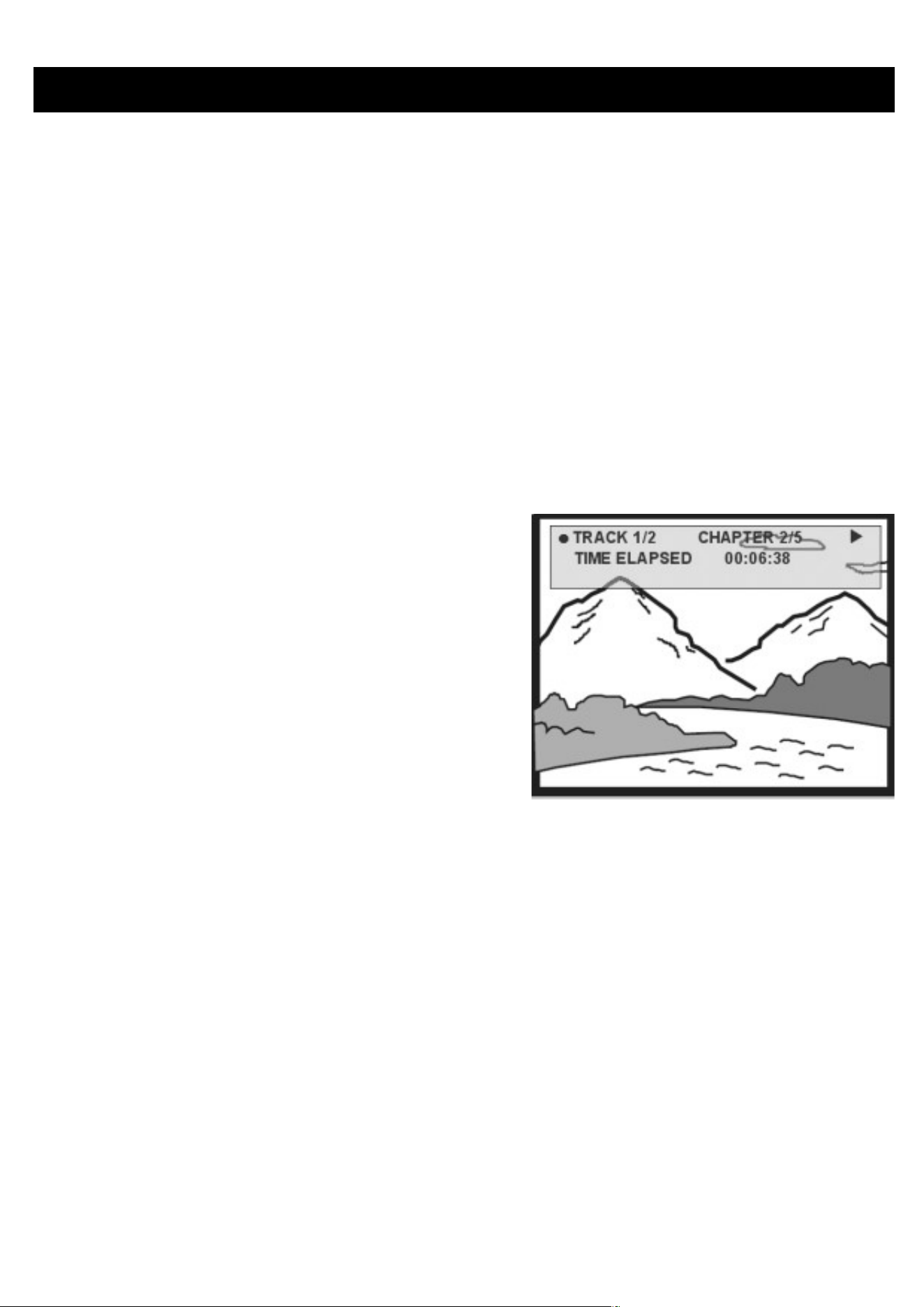
OSD OPERATIONS
1 Press OSD during disc playback, control features will be shown on
the screen.
2 Press OSD again, the next control feature will be shown.
And will finally exit the OSD setup after popping up all the
functions.
3 Use 3 / 4 to adjust the OSD function selection and press
2;
.
OK to confirm the selection.
4 These features will vary according to different disc
contents. The control features are:
Time Display (DVD/VCD/SVCD/CD/MP3/WMA disc)
• Set timer display ON/OFF.
• When the timer display is ON, the
playback information will be shown
on top of the screen, such as play-
back time, track, chapter, etc.
Subtitle (DVD movie)
• Press OSD key repeatedly to select
SUBTITLE.
• In the SUBTITLE option, press 3 / 4 key repeatedly
to select different subtitle languages.
Angle (DVD movie)
• Press OSD key repeatedly to select ANGLE.
• Press 3 / 4 key repeatedly to select different angles.

OSD OPERATIONS
Repeat AB (DVD/VCD/SVCD movies)
Set repeat loop playback
• Press OSD key repeatedly to select AB REPEAT: A?. Then, press OK
to set the start point A.
• The screen will display "REPEAT B?". Please press OK to set the end
point B. Then the set will start to play repeatedly.
• To cancel the loop playback, press OSD key repeatedly to select AB
REPEAT: CANCEL. Press OK to confirm cancel or simply press §.
Audio (DVD/VCD/SVCD movies)
• Press OSD key repeatedly to select AUDIO.
• Press 3 / 4 repeatedly to change the Audio languages/channels.
Play Mode (CD/MP3/WMA/JPEG disc)
• Press OSD repeatedly to select PLAYMODE
• Press 3 / 4 key to select the play modes, such as repeat 1,
repeat all, shuffle, shuffle repeat, etc.
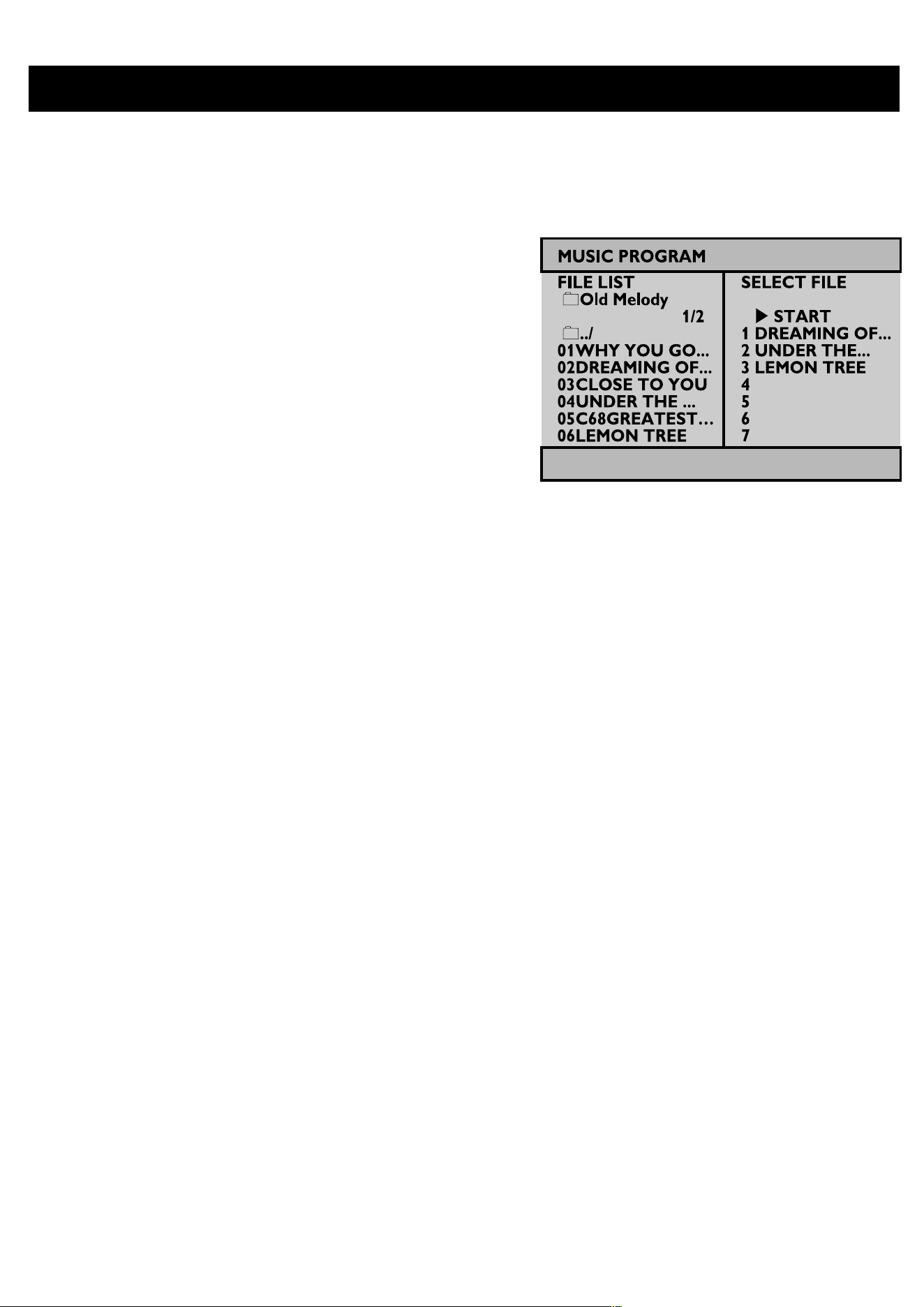
OSD OPERATIONS
Program (CD/MP3/WMA/JPEG disc)
1 Press OSD repeatedly to select PRO-
GRAM. Then, press OK to enter pro-
gram screen.
2 On the left of the screen, it lists out
the files of the disc.
3 Use 3 / 4 to highlight the file.
4 Then, press 2 ;
.
OK to select the file in
the programming list which is displayed on
the right side of the screen.
5 Use J( / § to go between left and right screen.
6 When you want to cancel the selected file, highlight the file in the
right screen. Then, press 2 ;
.
OK to cancel the selected file.
7 Go to highlight 2 START on the upper right of the
screen and press 2;
.
OK to start the programming playback.
8 Press 9 to stop the programming playback. Program
list will be displayed.
9 To cancel the program, press OSD repeatedly to select
Program Clear.

OSD OPERATIONS
Rotate (JPEG disc)
Rotate image viewing angle
• Press OSD repeatedly and select ROTATE.
• Use 3 / 4 to rotate the image in 90° clockwise and anti-clockwise.
• Press 2 ;
.
OK to exit the rotation and continue playback.
• Or press OSD to access other functions, such as Play Mode, Zoom
and Program.

OSD OPERATIONS
Zoom (JPEG disc)
Zoom image
1 Press OSD repeatedly to select ZOOM.
2 In Zoom option, press 3 to zoom the picture.
3 Use 1 , 2 , 3 and 4 to move the picture.
4 Press 2 ;
.
OK to exit the Zoom and continue playback.
5 Or press OSD to access other functions, such as Play Mode, Zoom
and Program.
Input No
Input the track no. for PBC VCD playback
1 In the table of contents, use 3 / 4 to input the title number
to be played back.
2 Use J( / § to go to pervious and next page of the content list.
3 Press 2;
.
OK to play the selection
4 During playback, press and hold the SETUP/RETURN
to return to the table of contents.

TROUBLESHOOTING
If it appears that the DVD-Video player is faulty, first consult this check-
list. It may be that something has been overlooked.
WARNING
Under no circumstances should you try to repair the set
yourself as this will invalidate the guarantee.
If a fault occurs, first check the points listed, before taking the
set for repair. If you are unable to solve a problem by following
these hints, consult your dealer or service centre.
Symptom Remedy
No power – Check if both plugs of the mains cord
are properly connected.
– Check if there is power at the AC outlet
by plugging in another appliance.
– Check if battery pack is inserted
appropriately.
– Check if car adaptor is connected
appropriately.
Distorted picture – Check the disc for fingerprints and
clean with a soft cloth, wipe from
centre to edge.
– Sometimes a small amount of picture
distortion may appear. This is not a
malfunction.

TROUBLESHOOTING
Symptom Remedy
Completely distorted – The NTSC/PAL settings may
picture / no colour in the wrong status. Match
in TV set your TV’s settings with the
player’s settings.
No sound – Check audio connections. If
using a HiFi amplifier, try another
sound source.
Disc can’t be played – Ensure the disc label is facing
upwards.
– Clean the disc.
– Check if the disc is defective by
trying another disc.
Distorted or B/W – Use only discs formatted
picture with DVD according to the TV-set used
(PAL/NTSC).

TECHNICAL DATA
Dimensions 14.5 x 15 x 2.7 cm
5.7 x 5.9 x 1 inches
Weight 0.37 kg / 0.81 lb
Power supply 5V, 2A
Power Consumption 10W
Operating temperature range 0 - 50°C (32 ~ 122°F)
Video system NTSC / PAL / AUTO
Frequency response 20Hz ~ 20KHz ± 1dB
Dynamic range 80dB
Output
Audio out (analog audio) Output level: 1V ± 10%
Load impedance: 10K
Video out Output level: 1Vp - p ± 20%
Load impedance: 75
PHILIPS reserves the right to make design and specification changes for
product improvement without prior notice.
Modifications not authorized by the manufacturer may void users
authority to operate this device.
All rights reserved.
This set complies with the radio interference requirements of the
European Union.
COPYRIGHT INFORMATION
The making of unauthorized copies of copy-protected material,
including computer programmes, files, broadcasts and sound
recordings, may be an infringement of copyrights and constitute a
criminal offence. This equipment should not be used for such purposes.
Windows Media and the Windows logo are trademarks, or registered
trademarks of Microsoft Corporation in the United States and/or other
countries.
.
DISPOSAL OF YOUR OLD PRODUCT
Your product is designed and manufactured with high quality materials
and components, which can be recycled and reused.
When this crossed-out wheeled bin symbol is attached to a
product it means the product is covered by the European
Directive 2002/96/EC.
Please inform yourself about the local separate collection
system for electrical and electronic products.
Please act according to your local rules and do not dispose of your old
products with your normal household waste. The correct disposal of
your old product will help prevent potential negative consequences for
the environment and human health.
* Rechargeable batteries have a limited number of charge cycles and
may eventually need to be replaced. Battery life and number of
charge cycles vary by use and settings.
INFORMATION SUR LE DROIT D'AUTEUR
Toute copie d'une oeuvre proté gé e par un droit d'auteur, ce incluant les
programmes informatiques, les enregistrements d'images et de sons,
peut ê tre une contrefaçon d'un droit d'auteur et constituer un dé lit. Cet
appareil ne doit pas ê tre utilisé à cette fin.
Windows Media et le logo de Windows sont des marques dé posé es ou
enregistré es de Microsoft Corporation pour les É tats-Unis et/ou autres
pays.
MISE AU REBUT DE VOTRE ANCIEN PRODUIT
Votre produit a é té conçu et fabriqué à l'aide de maté riaux et
composants de haute qualité , recyclables et ré utilisables.
Le symbole de poubelle barré e sur un produit indique que ce
dernier est conforme à la directive europé enne 2002/96/EC.
Veuillez vous renseigner sur les systè mes locaux de collecte
des produits é lectriques ou é lectroniques.
Veillez à respecter les ré glementations locales ; ne mettez pas au
rebut vos anciens produits comme des dé chets mé nagers. La mise
au rebut citoyenne de votre ancien produit permet de proté ger
l'environnement et la santé
*Les piles ne sont rechargeables qu'un certain nombre de fois, aussi
aurez-vous peut-ê tre à les remplacer. La duré e de fonctionnement des
piles et le nombre de charges possibles dé pendent de votre utilisation
et des ré glages.
http://www.philips.com
Printed in China
CLASS 1
LASER PRODUCT
Specifications are subject to change without notice.
Trademarks are the property of Koninklijke Philips Electronics N.V.
or their respective owners
2005 © Koninklijke Philips Electronics N.V. All rights reserved.
PET320