AT&T Internet
Wi-Fi
®
Gateway Replacement
self-
installation
guide
Reminder:
·
Your Wi-Fi Gateway does not contain a battery backup.
· Battery backup is available for purchase from third-party manufacturers
and retailers to keep you connected in the event of a power failure. Visit
att.com/batterybackup for more information.
Get started Approximate installation time: 20 minutes
These instructions will guide you through the process of replacing your Wi-Fi Gateway.
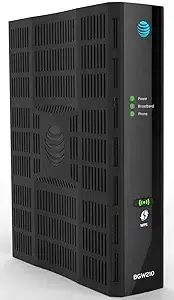
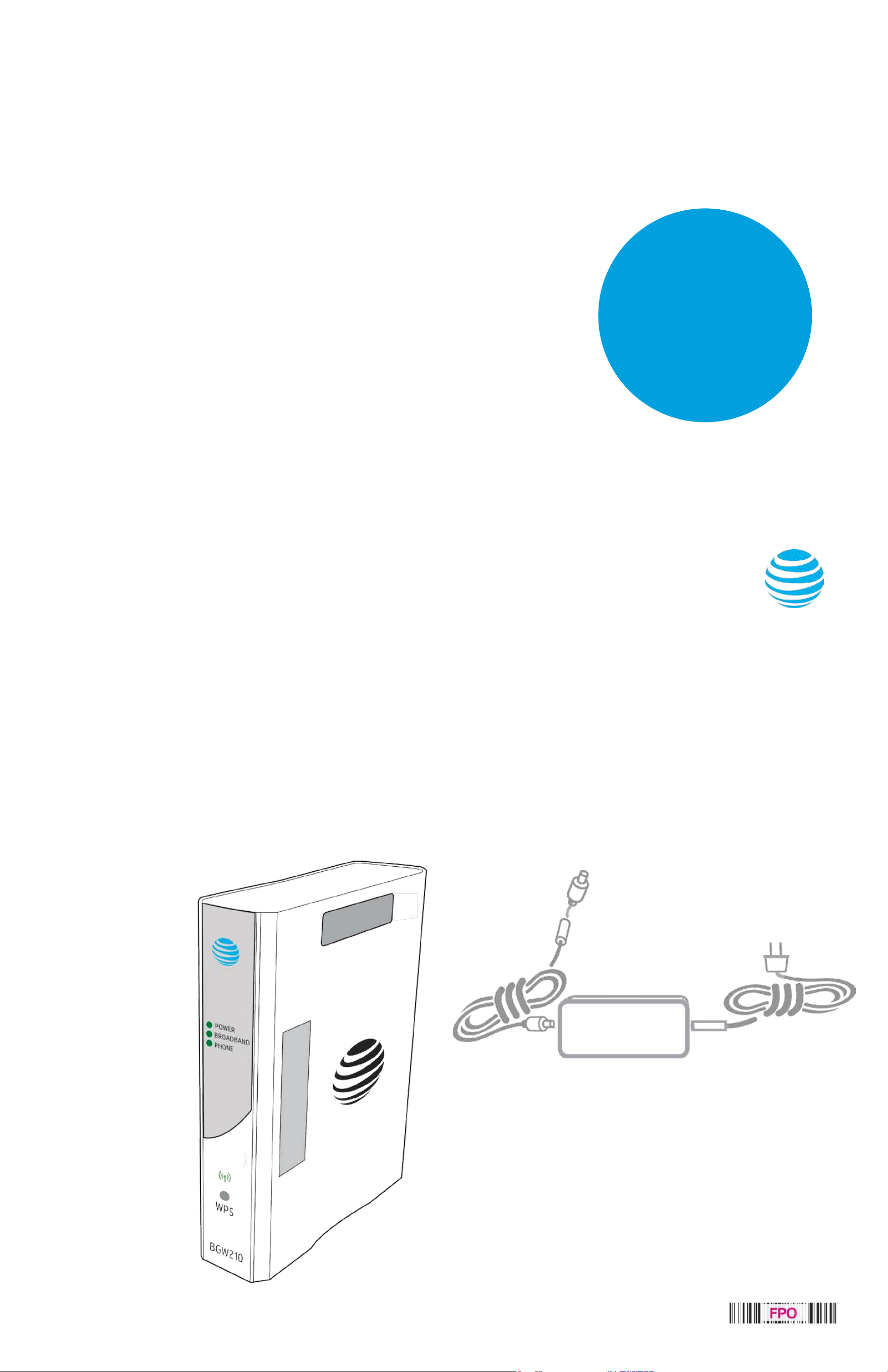
In the box:
Wi-Fi
Gateway
(Front View)
Power Cord
(2 parts)
Warning: Use only the power supply and cord that
came with this device. Failure to use the authorized
power supply and cord may cause electric shock,
re, bodily injury, and/or property damage.
BGW210 with Voice Swap Guide
06/17
ATT162550933-2
1.
Set up
Approximate time: 10 minutes
Please note that your U-verse TV, Internet, and voice services will not operate during this process.
This includes recording TV shows.
A.
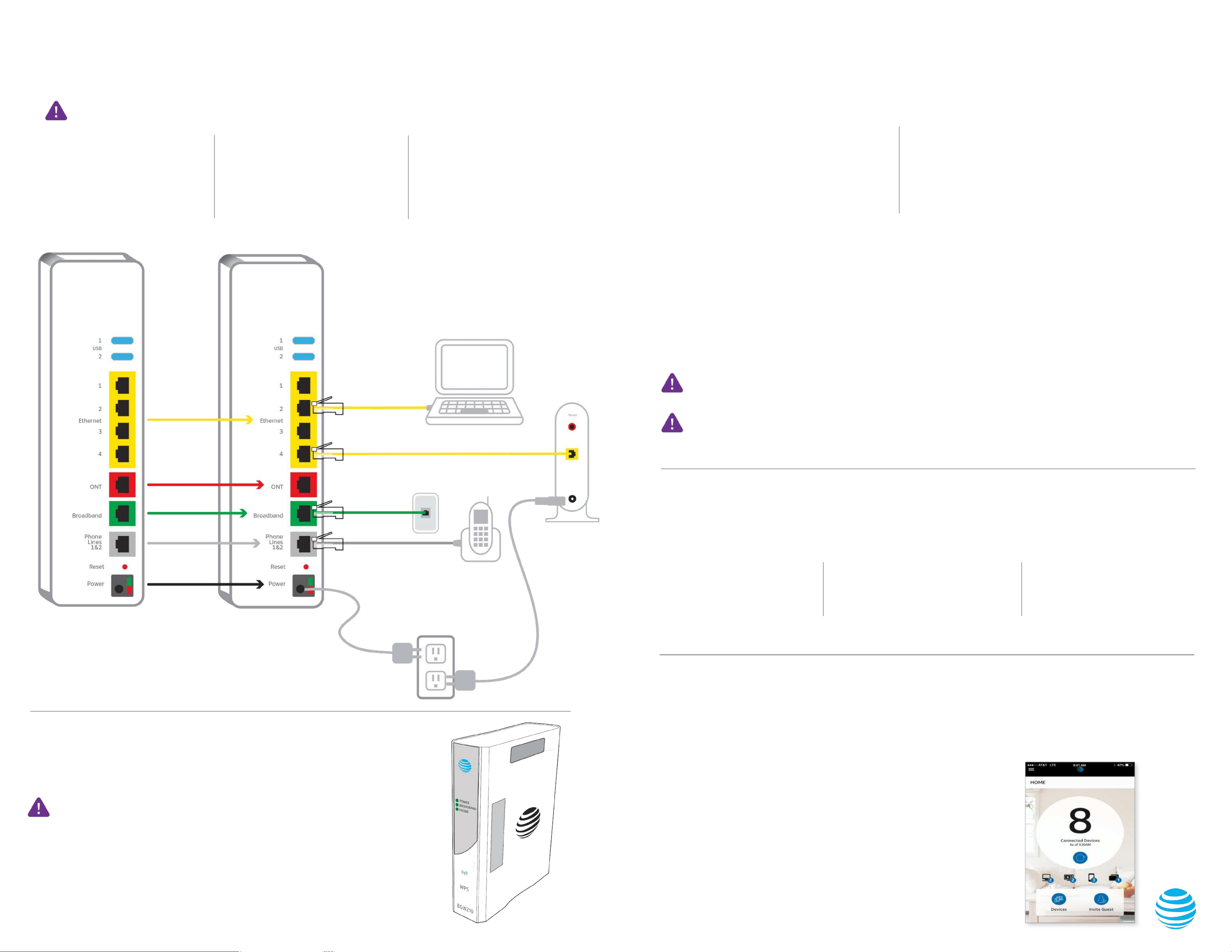
· Unplug power cord from existing
Wi-Fi Gateway
· Set power cord aside
· Stand new Wi-Fi Gateway side-by-
side with existing Wi-Fi Gateway
B.
· Transfer one connection at a time
from the existing Wi-Fi Gateway
to new Wi-Fi Gateway
C.
· Carefully read and remove yellow
Power sticker covering the Power
port of new Wi-Fi Gateway
· Connect new power cord to
Power port of new Wi-Fi Gateway
and into electrical outlet
Below is a completed setup. Your existing Wi-Fi Gateway and connections may vary.
2.
Power up
Approximate time: 1–5 minutes
Your Wi-Fi Gateway is now powering up. During this time (up to 5 minutes), do not
disconnect the power cord or unplug any cables connected to this device. This can
permanently damage the Wi-Fi Gateway and signicantly delay your service activation.
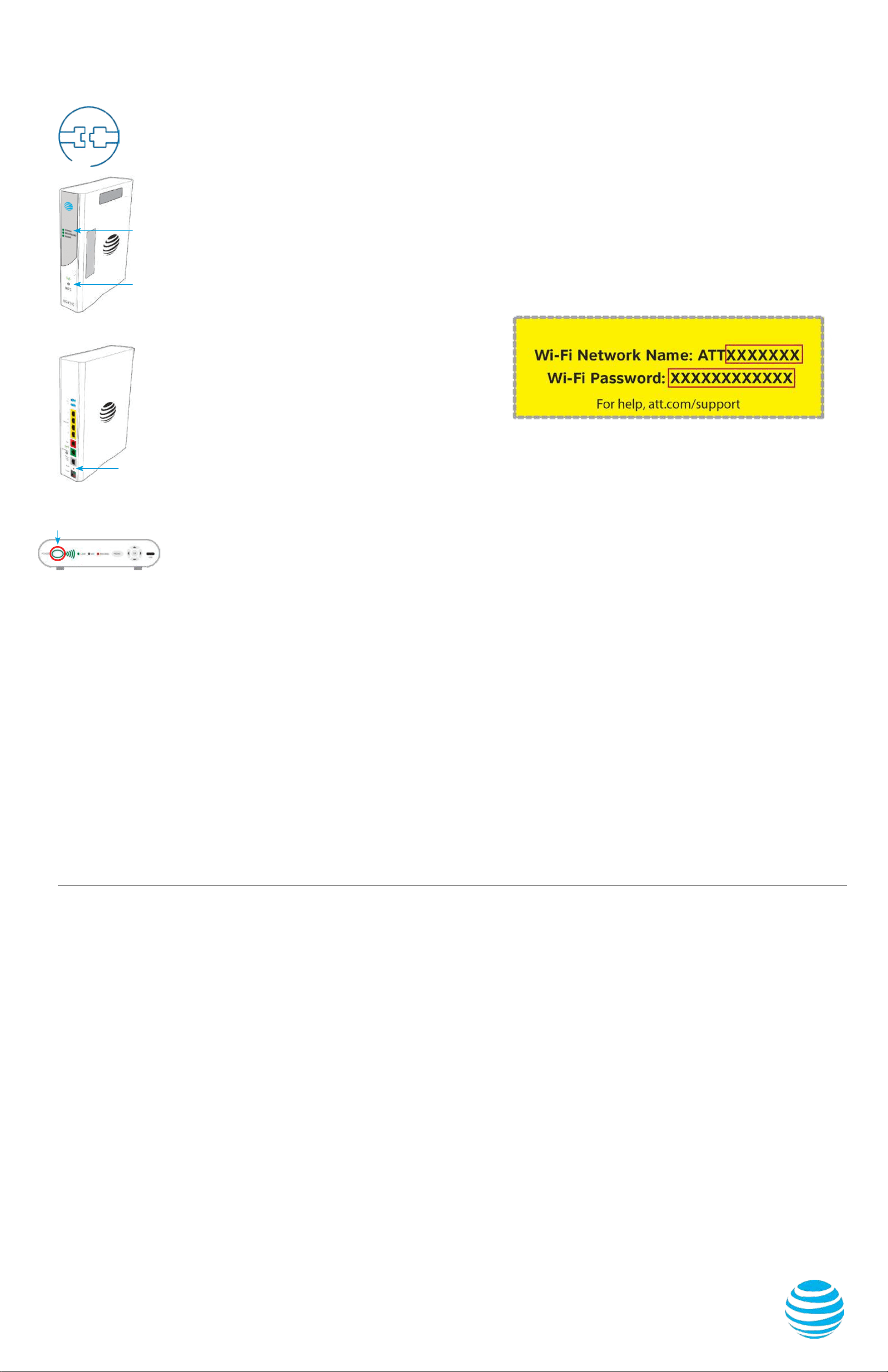
When complete, the Service light will begin ashing, then turn to solid green.
If the Service light does not turn solid green or continues to blink aer 5 minutes,
see
Need more help? on the back of this guide.
NOTE: Your TV may take a few minutes to display. Check your TV for service. If your
TV does not respond, refer to Need more help? on the back of this guide.
Lights may vary
with setup.
3.
Go Wi-Fi
Approximate time: 1–5 minutes
A. Select only one option to begin the Wi-Fi setup.
Option 1: Connect using PC
·
Connect laptop or PC with an Ethernet
cable to your Wi-Fi Gateway
· Continue to
B
Option 2: Connect using smartphone/tablet
·
Establish a temporary connection using new Wi-Fi
settings located on yellow sticker on new Wi-Fi Gateway
·
Open your device’s Wi-Fi connection settings, select
your Wi-Fi Network Name and enter your Wi-Fi
Password to connect to your network
· Continue to
B
B.
Note: Please wait up to 10 minutes for the Wi-Fi Gateway to complete the power-up process
before attempting to restore your settings.
·
Open a browser and go to ux.att.com/restore
·
Log in to your U-verse account. If you forgot your User ID (primary AT&T email address) and Password,
help can be found on the account log-in screen.
· Follow the onscreen instructions to transfer the existing Wi-Fi settings.
·
Record existing Network Name and Wi-Fi Password on separate yellow sticker from kit.
· Place new yellow sticker over your new Wi-Fi Gateway’s yellow sticker.
NOTE: If Wi-Fi settings did not transfer, or to use new Wi-Fi Network Name and Password,
refer to the
Need more help? section on the back of this guide.
NOTE: Any custom settings made for security cameras, game consoles, etc.,
on your original Wi-Fi Gateway will also need to be made on your new Wi-Fi Gateway.
4.
Easy return
(Refer to return instructions in your kit)
A.
Return your equipment at no
cost to you within 21 days to
avoid $150 charge.
B.
Take original gateway and power
cord to nearest The UPS Store.
Bring your AT&T account number
located on your packing slip.
Please do not return other devices.
C.
UPS will scan your equipment,
provide a receipt, pack, and ship
equipment to AT&T at no cost
to you.
5.
Smart Home Manager
(For AT&T Internet customers only)
Learn how the Smart Home Manager can help you manage your Wi-Fi network
information, connect devices to your network, and more.
The Smart Home Manager (SHM) Dashboard gives you easy access to all
the network information you need.
• View your Wi-Fi network and devices connected
• Easily reboot your Wi-Fi Gateway
• Change your Wi-Fi Network Name or Password
Access the Smart Home Manager
Log in with your AT&T ID and Password that manages your AT&T Internet
account to have your network connections at your ngertips.
Need more control over your home network?
Go to https://myhomenetwork.att.com to see how you can easily manage
all the devices in your home.
SHM Dashboard
Wall Jack
Electrical
Outlet
Green
Data Cable
B
New Power
Cord
C
Wireless
Access Point
(Optional)
and/or
DVR
(Not Shown)
(U-verse TV
Customers Only)
Existing Wi-Fi Gateway New Wi-Fi Gateway
Yellow
Ethernet Cable
B
Yellow
Ethernet Cable
B
Gray
Phone Cable
B
Need more help?
No TV or Internet service:
Check your connections:
Cables usually make an
audible click when secure.
Check Power: Power light
on the
Wi-Fi Gateway should
be green; if not, try another
electr
ical outlet.
Check Service light on front
of the Wi-Fi Gateway: If aer
5 minutes, the light is red or o,
power down the
Wi-Fi Gateway
by holding down red Reset
butto
n for 10 seconds.
TV Receivers not responding:
Conrm Service light is solid green
on the
Wi-Fi Gateway. If so, hold the
TV receiver’s Power button down for
10 secon
ds and release, then wait
ve minutes.
If your existing Wi-Fi settings did not transfer,
you will need to set up a new Wi-Fi Network Name
and Password.
· Use settings from new Wi-Fi Gateway
yellow sticker
· Open your device’s Wi-Fi connection settings,
select your Wi-Fi Network Name and enter
Wi-Fi Password to connect
· Record and keep your Wi-Fi settings for future
reference when connecting all your
Wi-Fi devices
Wi-Fi Gateway Power light is amber: Don’t worry. This is a normal part of the power-up sequence.
No dial tone: Make sure your phone cable is plugged into the Phone Line port on the Wi-Fi Gateway.
Power supply: If the power supply or cord becomes damaged or needs to be replaced, please contact AT&T customer service
to obtain an authorized replacement.
Get the most from AT&T Fiber
SM
and nd out what it can do for you.
Go to att.com/bersupport to nd answers to frequently asked questions.
• Internet Speed: How do I improve my speed?
• U-verse TV: How does AT&T Fiber make your U-verse TV experience better?
• Phone: Will AT&T Fiber change my current digital phone service?
• More Support: Having trouble with your AT&T Fiber connection?
Additional information
Test your Internet connection speed
Our speed test takes less than a minute to perform
two key measurements (download and upload) to help
you determine if you should take steps to improve the
performance of your online experience.
Visit att.com/speedtest.
Manage your account 24/7
Download the myAT&T app at att.com/myattapp
from your mobile device.
IPv6
AT&T supports IPv6 across our network, equipment, and
devices. Visit att.com/ipv6 for more information.
Accessibility Support
• Alternate format guides:
-
Braille or large print: call 800.288.2020 and request guide
number ATT162550933-2
- Accessible tagged PDF: visit att.com/userguides
• Telephone equipment for visual and/or hearing impaired:
- Phone: 877.902.6350
- TTY: 800.772.2889
• Repair Center:
- Phone: 800.246.8464
- TTY: 800.397.3172
•
Compatible with any TTY/TDD devices with standard
phone line
¿Hablas español?
Para ver a esta guia en español, visita att.com/guias y haz clic
en la pestaña Internet. Desplázate hacia abajo a donde dice
“Guías de Reemplazo” y elije (ATT162550933-2).
Need more help?
Visit att.com/support
Call us at 800.288.2020 and ask for “technical support.”
©2017 AT&T Intellectual Property. All rights reserved. AT&T and Globe logo are registered trademarks of AT&T Intellectual Property.
All other marks are the property of their respective owners.
Power
button
Green
Light
Service
Light
Front View
Back View
Reset
button