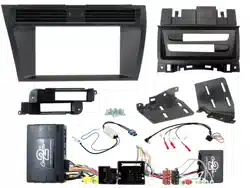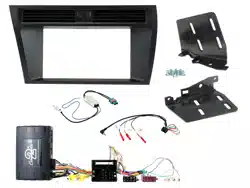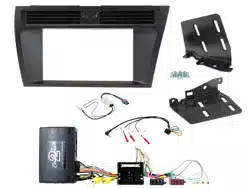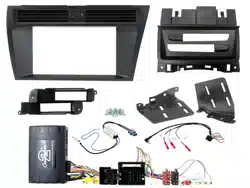
CTUAU01
Infodapter Interface
for Audi Vehicles
APPLICATION
FEATURES
Audi A4 (8K) 2008 - 2016
Audi A5 Coupe (8TF, 8F7, 8TA) 2008 - 2016
• Retains Steering Wheel Control Functionality
• Retains Phone Button Functionality
• Retains Vehicle Settings and Generates Settings Menus
• Provides Input for Aftermarket Reversing Camera
• Retains Parking Sensor Audio and Generates Parking Sensor Graphics
• Provides Outputs for Reverse Gear and Mute
• Updateable via USB (contact supplier for more information)
The information provided in this document is subject to change without notice due to manufacturer changes and/or improvements to the product/s. This
instruction manual is based on documented data and research. The manufacturer of this product cannot be held responsible for any changes made to the
vehicle by the manufacturer or damages that may occur through the installation of this product in accordance with the steps outlined herein.
Note: Application data is subject to change at any time
DISCLAIMER
For 3G MMI systems only.
CTUAU01_IG_en-GB_v4
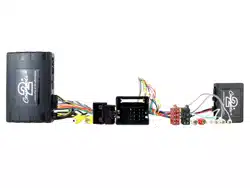
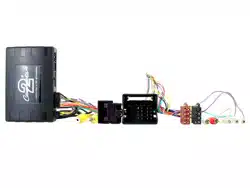
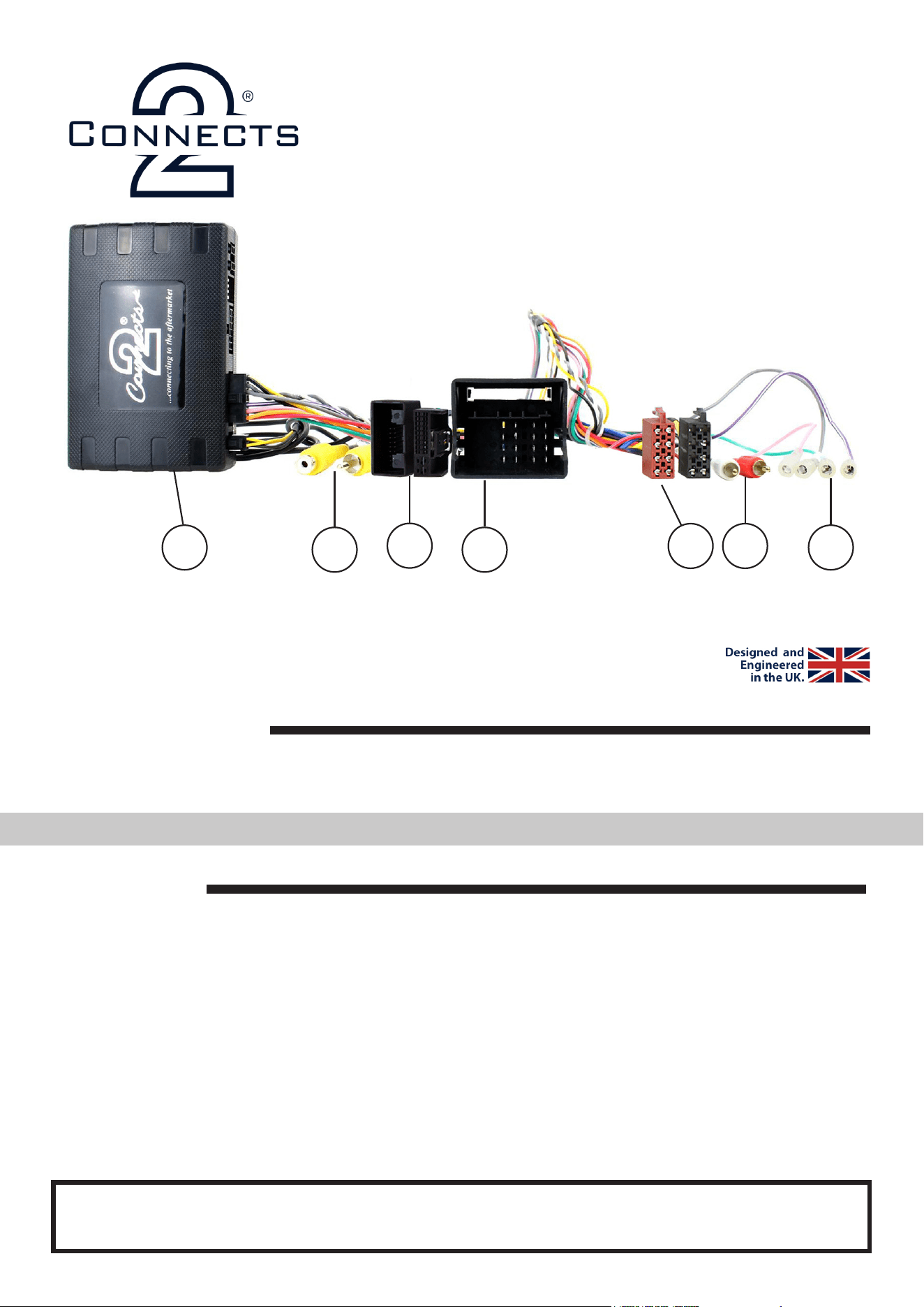
i. Interface Box
ii. Video/Camera RCA (Yellow)
iii. 20 Way M/F Heater Connectors
iv. Quadlock Connector
i
ii iv
v vi
vii
iii
v. ISO Connector
vi. Red/White RCA Connectors
vii. Flying Wires
2
CTUAU01_IG_en-GB_v4
IN ISO CONNECTOR
Purple Right Rear Speaker +
Purple/Black Right Rear Speaker -
Green Left Rear Speaker +
Green/Black Left Rear Speaker -
Grey Right Front Speaker +
Grey/Black Right Front Speaker -
White Left Front Speaker +
White/Black Left Front Speaker -
ADDITIONAL CONNECTIONS
Purple/White Reverse Gear
Light Pink Speed Pulse
Light Green Park Brake
Grey Mute
WIRING KEY
Yellow Permanent 12V
Black Ground
Red Ignition 12V
Orange Illumination
Yellow RCA (M) Infodapter Display Video
Yellow RCA (F) Connect Aftermarket Camera
Red/White RCA Audio Retention
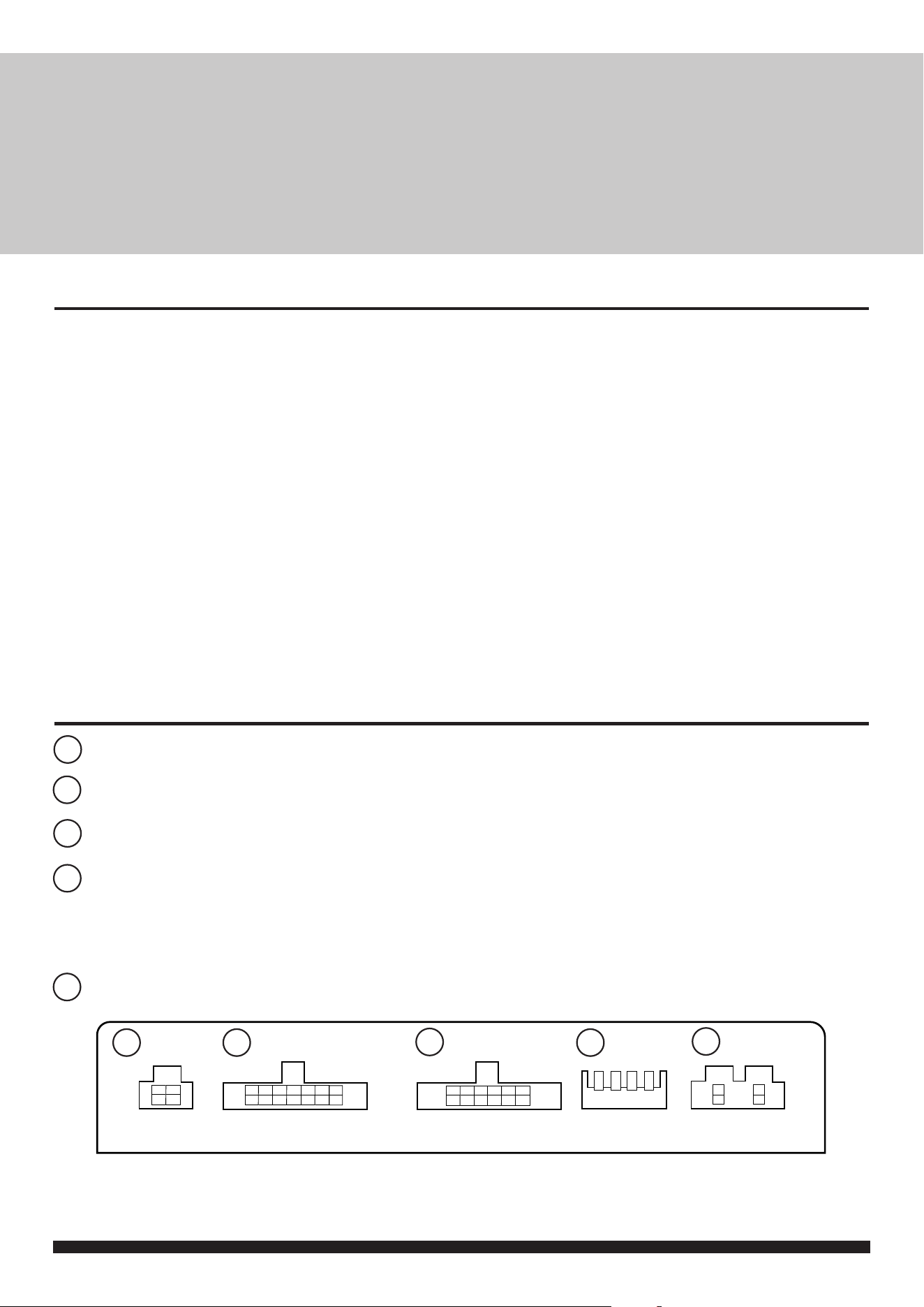
INTERFACE CONNECTIONS
1 2 3 4
DIP Switch 1 - ‘ON’ for Pioneer, ‘OFF’ for other brand head unitsDIP Switch 1 - ‘ON’ for Pioneer, ‘OFF’ for other brand head units
DIP Switch 2 - ‘ON’ for PAL reversing camera, ‘OFF’ for NTSC reversing camera (Default is ‘OFF’/NTSC)DIP Switch 2 - ‘ON’ for PAL reversing camera, ‘OFF’ for NTSC reversing camera (Default is ‘OFF’/NTSC)
DIP Switch 3 - Change from ‘OFF’ to ‘ON’ and back to reset screen settings to factory defaults. DIP Switch 3 - Change from ‘OFF’ to ‘ON’ and back to reset screen settings to factory defaults.
Note: During this procedure, the screen background will change to red and no settings adjustments can be made.Note: During this procedure, the screen background will change to red and no settings adjustments can be made.
DIP Switch 4 - Not UsedDIP Switch 4 - Not Used
1
2 3
4
5
1
4
2
3
5
Reverse Camera Extension Harness InputReverse Camera Extension Harness Input
Power Harness InputPower Harness Input
Head Unit Connection (Patch) Lead InputHead Unit Connection (Patch) Lead Input
Not usedNot used
!
Please be aware that whilst we retain most of the original vehicle features with our interfaces,
some features may be lost. As we continue our research, this product can be updated to support
even more OEM functionality.
Currently, this interface can support the following features: Auto Headlights, Leaving Home, Come
Home Light Time, Daytime Running Lights, Head Lamp Conversion, Unlock Single Door, Auto
Locking, Boot Lid and Tailgate, Parking Volume Front/Rear, Parking Freq Front/Rear, Window
Convenience Open Front/Rear, Windscreen Wiper Service Position, Rain Sensor, Drive Select,
Auto Recirc, Synchronisation

3
Need help? Visit support.connects2.com/tickets/technical
CTUAU01_IG_en-GB_v4
PRIOR TO INSTALLATION
Read the manual prior to installation. Technical knowledge is necessary for installation. The place of instal-
lation must be free of moisture and away from heat sources. Please ensure that the correct tools are used
during the installation to avoid damage to the vehicle or product. Connects2 can not be held responsible for
the installation of this product.
INSTALLATION GUIDE
See Wiring Diagram on Pg.4 for more information
Before installing the interface, the factory stereo must be removed and disconnected. To do this, please consult
the vehicle owner’s manual/handbook or contact a tting professional.
A stereo connection (patch) lead is also required for the installation of this interface (supplied seperately).
Please ensure that you have the correct lead before proceeding. For universal patch leads, prepare the wiring
loops in accordance with the instruction manual supplied with the product before installation.
2. Connect the opposite end of the stereo connection (patch) lead to the steering wheel control input on the
back of the aftermarket stereo.
NOTE: This may be a 3.5mm jack connector or a wired input depending on the brand of aftermarket stereo being tted.
Please consult the aftermarket stereo installation manual for further information on where to make the connection.
IMPORTANT: THIS STEP MUST BE COMPLETED BEFORE CONNECTING POWER TO THE INTERFACE.
FAILURE TO DO SO MAY RESULT IN A LACK OF FUNCTIONALITY AND THE NEED TO REINSTALL THE PRODUCT
!
12. Test stereo and steering wheel control functionality for correct operation before reassembling the
vehicle dashboard. If steering wheel control functions are unresponsive, please uninstall the interface and
wiring and reinstall carefully in accordance with the above steps.
1. Connect the 12 Pin connector from the stereo connection (patch) lead to the interface box
3. Connect the 14 Pin connector from the supplied wiring loom to the interface box.
4. Connect 4 Pin camera extension harness to the interface box.
5. Connect the power/speaker ISO connector to the power/speaker ISO connector at the rear of the
aftermarket stereo.
6. Connect ying wires from the main wiring harness to the head unit. See ‘Additional Connections’ for more information.
8. Connect the male yellow RCA from the camera extension harness to the reverse camera input of the
aftermarket head unit.
9. To add an aftermarket reversing camera: connect female yellow RCA from the camera extension harness
to the male yellow RCA of the aftermarket camera.
11. Connect the quadlock connector on the supplied harness to the quadlock connector from the vehicle.
7. Connect the red/white RCA connectors from the harness to the rear of the aftermarket head unit.
10. Connect both of the 20 Way Male and Female connections to the pre-existing heater matrix connectors
from the vehicle.
4
CTUAU01_IG_en-GB_v4
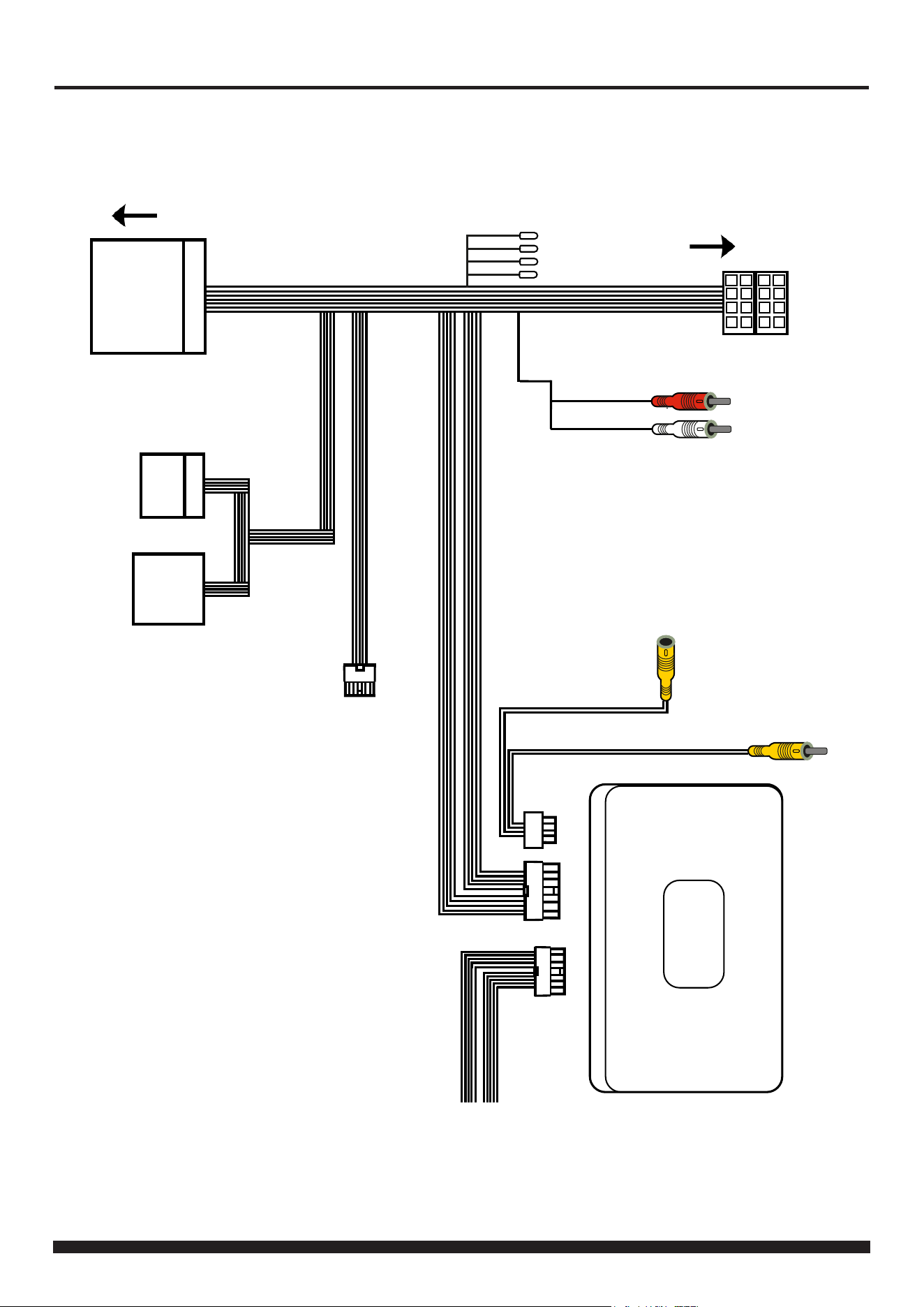
WIRING DIAGRAM
ISO Connector
Connect to aftermarket stereo
Quadlock Connector
Connect to quadlock connector from vehicle
Stereo Connection (Patch) Lead Connector [12 Pin]
Connect to Interface Box
Note: Must be connected first, before power
connection is made to the interface
Main Wiring Loom Connector [14 Pin]
Connect to Interface Box
Flying Wires
Purple/White - Reverse Gear
Light Pink - Speed Pulse
Light Green - Park Brake
Grey - Mute
Male Yellow RCA Connector
Connect to aftermarket radio
camera input
Female Yellow RCA Connector
Connect aftermarket camera
ADD-ON AFTERMARKET CAMERA
White/Red RCA Connectors
Connect to aftermarket stereo
8 Pin Molex
Not Used
20 Way Female Connector
Connect to Male Equivalent
20 Way Male Connector
Connect to Female Equivalent
5
Need help? Visit support.connects2.com/tickets/technical
CTUAU01_IG_en-GB_v4
NAV
MODE
OK
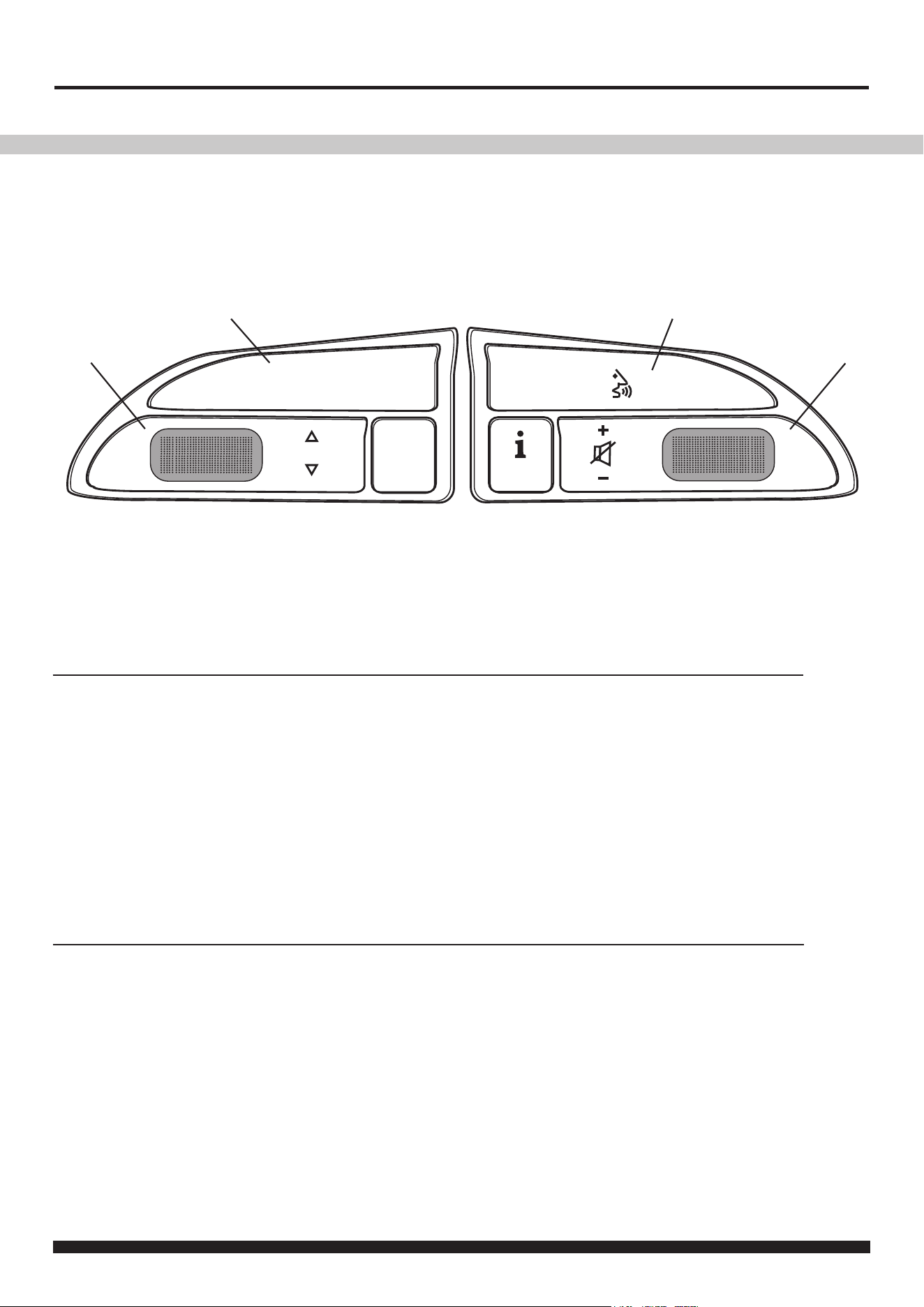
USER GUIDE
The following diagram, though based on careful research, is an example only. Individual steering wheel control congurations may differ.
1
2 4
1. Track + (Scroll Up)
Track - (Scroll Down)
Source (Short Press)
Enter Infodapter Menu (Long Press)
2. Source (Short Press)
Enter Infodapter Menu (Long Press)
3
In Normal Mode
In Infodapter Menu
1. Menu Up (Scroll Up)
Menu Down (Scroll Down)
Select Menu Item (Short Press)
2. Select Menu Item (Short Press)
To exit the Infodapter Menu, select ‘EXIT’
STEERING WHEEL CONTROL FUNCTIONALITY
3. Volume + (Scroll Up)
Volume - (Scroll Down)
4. Pick Up (Short Press)
Hang Up (Long Press)
3. Volume + (Scroll Up)
Volume - (Scroll Down)
4. Pick Up (Short Press)
Hang Up (Long Press)
6
CTUAU01_IG_en-GB_v4
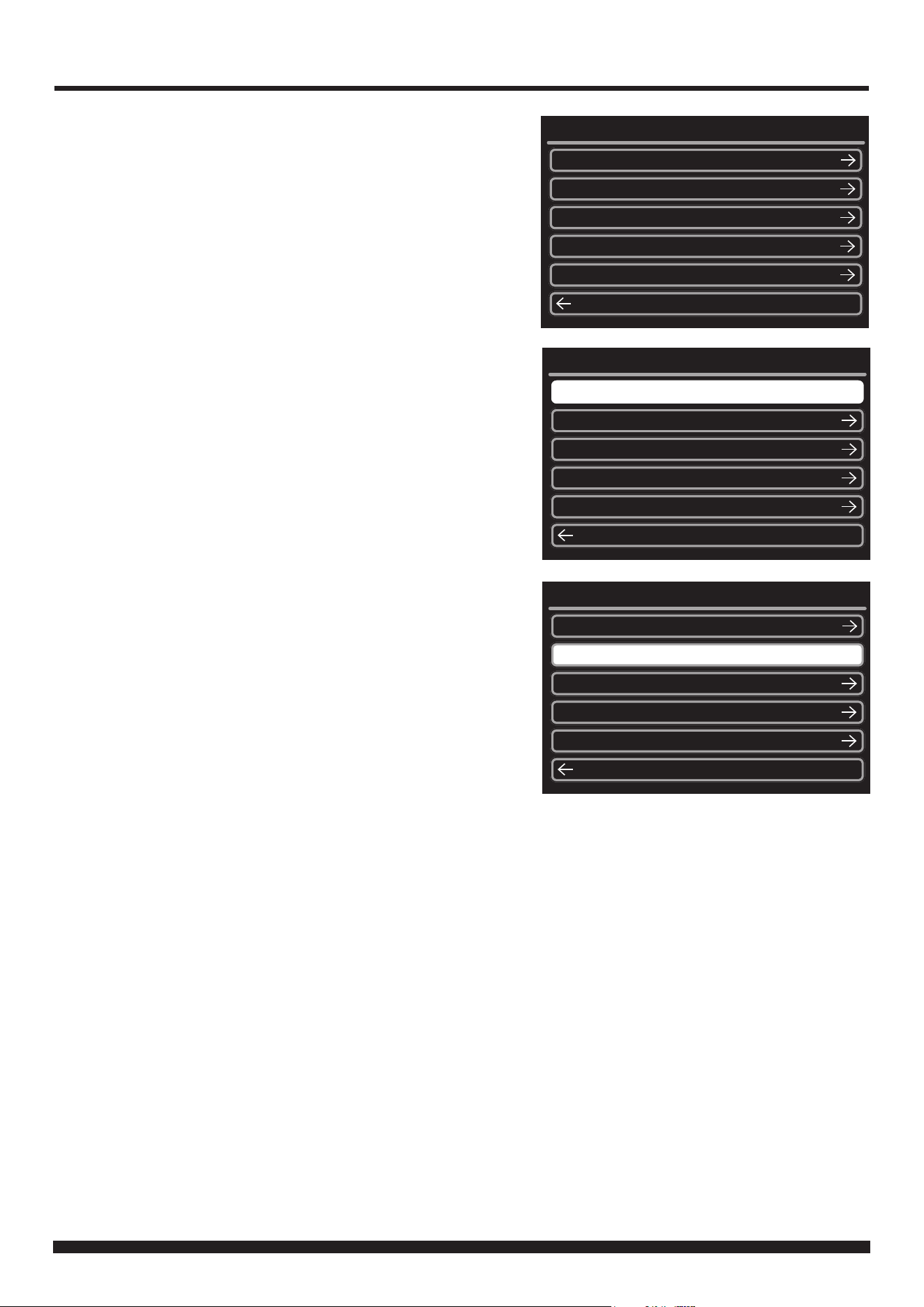
INFODAPTER MENU
Press and hold Button 1 or Button 2 to enter the Infodapter
Conguration menu and navigate through the various options
and settings below:
DRIVE SELECT SETTINGS
-> Individual / Comfort / Auto / Dynamic / Off Road /
Eciency
Select the desired drive mode from the list of options
VEHICLE SETTINGS
The Infodapter interface currently retains the following vehi-
cle settings*:
*Note: Although care has been taken to ensure the accuracy of
this menu structure at the time of printing this document, sudden
changes in software by the manufacturer or incompatibilities with
the interface cannot be accounted for. Do not consider this list to
be exhaustive.
Air Con
Time/Date
-> Hours
-> Minutes
-> Years
-> Month
-> Day
Lights
-> Come Home Light Time
-> Leaving Home Lights
-> Auto Headlights
-> Daytime Running Lights
-> Headlamp Converter
Central Locking
-> Unlock Single Door
-> Auto Locking
-> Boot Lid & Tailgate
Parking System
-> Display
-> Front Volume
-> Front Frequency
-> Rear Volume
-> Rear Frequency
Windows & Wipers
-> Convenience Open Front
-> Convenience Open Rear
-> Wiper Service Position
-> Rain Sensors
Drive Select Settings
Vehicle Settings
Infodapter Settings
Language
Version
Back
Configuration Menu
Drive Select Settings
Vehicle Settings
Infodapter Settings
Language
Version
Back
Configuration Menu
Drive Select Settings
Vehicle Settings
Infodapter Settings
Language
Version
Back
Configuration Menu
7
Need help? Visit support.connects2.com/tickets/technical
CTUAU01_IG_en-GB_v4
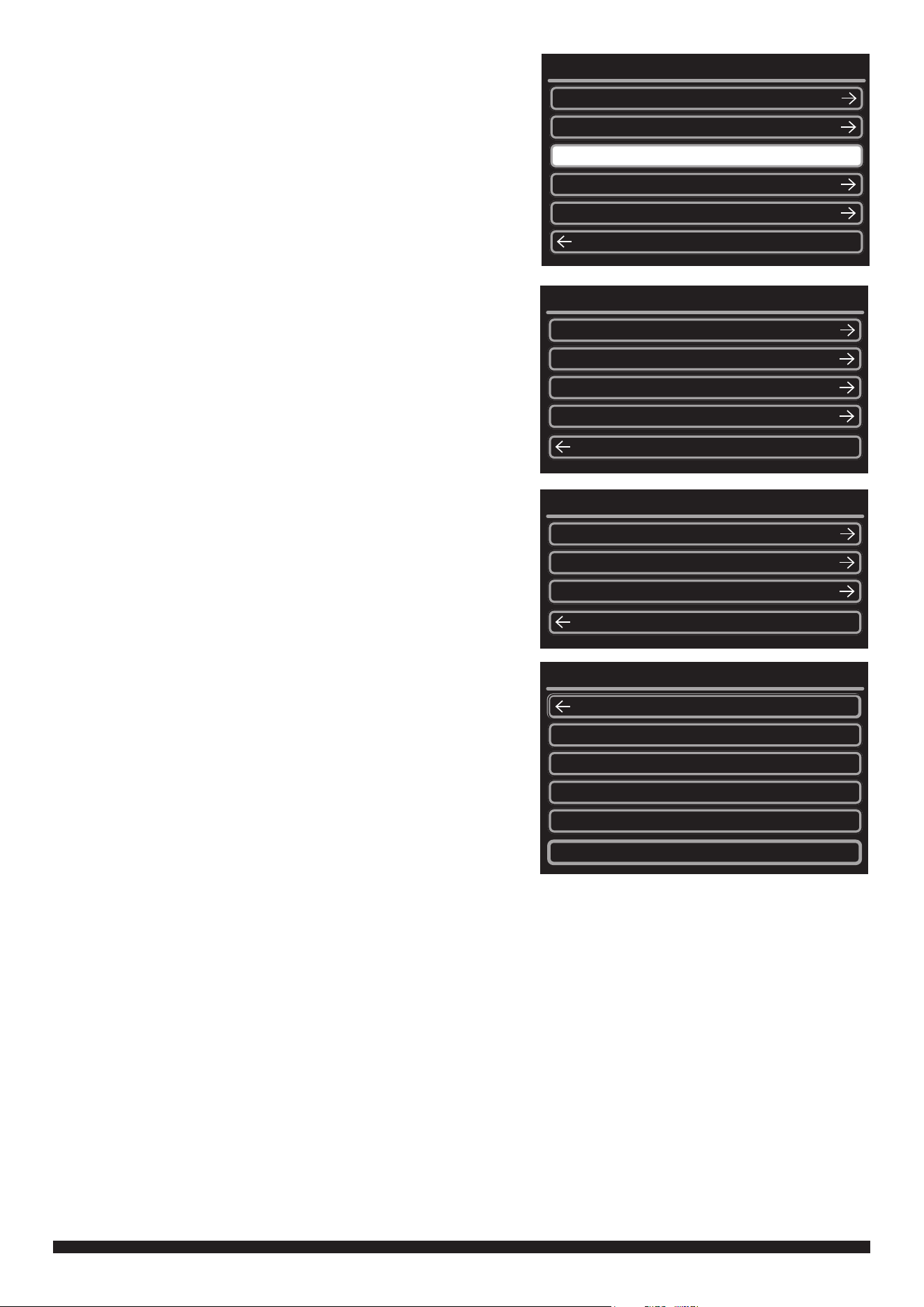
INFODAPTER SETTINGS
-> Screen Size/Position
-> Horizontal Size
-> Horizontal Position
-> Vertical Size
-> Vertical Position
-> Picture Settings
-> Brightness
-> Contrast
-> Saturation
-> Preferences
-> Camera Connected
Choose the style of camera connected to the vehicle
(if applicable)
-> Park Brake Source
Set Park Brake output to activate when park brake
is on (Brake), when speed is less than 3km/h
(Speed) or to remain on at all times (Always On)
-> Restore Factory Settings
Select Yes to return all Infodapter settings to factory
defaults
-> Installer Menu
The Installer menu will display a variety of options which
can be added to or removed from the Infodapter menus.
Each option can be set to ‘OFF’ to remove the option from
the menus, or to either ‘ON’ or *‘AUTO’ to display it
e.g. If the Language option is changed to ‘OFF’ in the In-
staller Menu, the option will disappear from the main Con-
guration Menu. To make the option reappear, return to the
Installer Menu and toggle the feature to ‘ON’
*Note: Selecting ‘AUTO’ will make the selected option
appear in the Infodapter menus only if the vehicle de-
tects that the option is available. This is only available for
features that the car can detect, so will not appear against
some options.
LANGUAGE
-> Select language (English/French/German/etc)
VERSION
-> View software version screen
Drive Select Settings
Vehicle Settings
Infodapter Settings
Language
Version
Back
Configuration Menu
Horizontal Size
Horizontal Position
Vertical Size
Vertical Position
Back
Screen Size/Position
Brightness
Contrast
Saturation
Back
Picture Settings
Language
Version
Drive Select Settings
Tyre Pressure Monitor
Back
Installer Menu
Air Con
OFF
ON
OFF
OFF
AUTO
8
CTUAU01_IG_en-GB_v4
Need Help?
Send us a ticket online 24/7
Troubleshoot with our skilled team
Get support until your issue is resolved
No problem.
support.connects2.com/tickets