


P: (888) LUX-RIOT, (888) 589-7468
2
TABLE OF CONTENTS
INTRODUCTION ................................................................................................................... 5
GETTING STARTED ............................................................................................................. 6
VCA FEATURE PACKAGES ................................................................................................. 7
ACCESSING VCA CONFIGURATION ................................................................................. 8
ACTIVATION ......................................................................................................................... 9
Activation .......................................................................................................................................... 9
Obtaining an Activation key ............................................................................................................... 9
Applying an Activation key in Luxriot VMS ......................................................................................... 9
ENABLING VCA .................................................................................................................. 10
Switching VCA On and Off ................................................................................................................ 10
Enable VCA ......................................................................................................................................... 10
Enabling Metadata Streaming .......................................................................................................... 10
CONFIGURATION OF ZONES AND COUNTERS ......................................................... 11
Configuration of Zones and Counters ............................................................................................... 11
Analysis tab ........................................................................................................................................ 12
Event History ...................................................................................................................................... 13
Creating Detection Zones and Lines ................................................................................................. 14
Creating a Zone or Line ...................................................................................................................... 14
Editing Zones and Lines ...................................................................................................................... 15
Adding and Removing Nodes ............................................................................................................. 15
Non Detection Zones ....................................................................................................................... 16
Detection Rules ................................................................................................................................ 16
Detection Rules .................................................................................................................................. 16
Object Presence ................................................................................................................................. 17
Object Direction ................................................................................................................................. 17
Object Enter and Exit ......................................................................................................................... 18
Object Appear and Disappear ............................................................................................................ 18
Object Dwell ....................................................................................................................................... 19

P: (888) LUX-RIOT, (888) 589-7468
3
Object Stopped .................................................................................................................................. 20
Object Class ........................................................................................................................................ 20
Object Tailgating ................................................................................................................................ 21
Abandoned and Removed Object ...................................................................................................... 22
Stationary Object Hold-on Time .................................................................................................... 23
Object Speed ...................................................................................................................................... 23
Counting Line ..................................................................................................................................... 24
Enabling the Counting Line ............................................................................................................ 24
Assigning Counters to Counting Lines ............................................................................................ 25
Calibrating the Counting Line ........................................................................................................ 25
Shadow Filter ................................................................................................................................. 26
COUNTERS .......................................................................................................................... 27
Counters .......................................................................................................................................... 27
Creating Counters ............................................................................................................................ 27
Assigning Rules to Counters ............................................................................................................. 28
Increment Counter ............................................................................................................................. 29
Decrement Counter ........................................................................................................................... 29
Update Value Counter........................................................................................................................ 29
COUNTER RESET .............................................................................................................. 29
Counter reset manually and automatically ...................................................................................... 29
CAMERA CALIBRATION .................................................................................................. 30
Camera Calibration .......................................................................................................................... 30
Camera Calibration Topics ................................................................................................................. 30
Calibration Page Elements ............................................................................................................... 30
3D Graphics Overlay ........................................................................................................................... 30
Mouse controls .................................................................................................................................. 30
Calibrating a Camera ........................................................................................................................ 31
Step 1: Find some people in the scene .............................................................................................. 31
Step 2: Adjust tilt angle and camera height ....................................................................................... 32
Step 3: Verify the setup ...................................................................................................................... 32
Vertical Field of View ....................................................................................................................... 33
Measurement Units ......................................................................................................................... 33
OBJECT CLASSIFICATION ............................................................................................... 34

P: (888) LUX-RIOT, (888) 589-7468
4
Object Classification ......................................................................................................................... 34
TAMPER DETECTION ...................................................................................................... 35
Tamper Detection ............................................................................................................................ 35
Tamper Detection Settings ................................................................................................................ 35
Detect lightness changes ............................................................................................................... 35
ADVANCED VCA SETTINGS ............................................................................................ 36
Alarm Holdoff Time .......................................................................................................................... 36
Stationary Object Hold-on Time ....................................................................................................... 37
Tracking Options .............................................................................................................................. 37
Minimum Tracked Object Size ........................................................................................................... 37
Detection Point of Tracked objects .................................................................................................. 38
Object Tracking .................................................................................................................................. 38
Surveillance Tracking ..................................................................................................................... 38
Abandoned/Removed Object Engine ................................................................................................. 38
Line Counter Engine ........................................................................................................................... 39
Shake Cancellation Mode ................................................................................................................... 39
EXPORT META (ANALYTICS) DATA ........................................................................... 40
SYSTEM REQUIREMENTS .............................................................................................. 41

P: (888) LUX-RIOT, (888) 589-7468
5
Introduction
Luxriot VCA is a real-time video analytics engine that utilizes advanced image processing
algorithms to turn video into actionable intelligence. At the core of the product is an
advanced object tracking engine that continually tracks moving and stationary targets. The
tracking engine features built-in robustness to environmental nuisance conditions such as
changing illumination, moving foliage, rippling water, etc.
Luxriot VCA is a generic name for a suite of analytics products that include:
VCApresence: continually tracks moving and stationary targets and generates real-
time alerts of object presence in multiple overlapping detection zones.
VCAsurveillance: continually tracks and classifies moving and stationary targets and
features a full suite of rule-based filters including: enter, exit, appear, disappear,
stopped objects, directionality constraints, object counting, loitering, object type
and object speed. Multiple filters are supported on any combination of multiple
overlapping detection zones.
A full range of packages: optimized for specific scenarios. See the VCA Feature
Packages topic for detailed information about the available packages.
Using the intuitive configuration, it's possible to quickly and easily define rules that generate
real-time alerts when triggered.
This user guide will help you get Luxriot Analytics quickly configured, as well as lead you
through some of the advanced features provided by the product.

P: (888) LUX-RIOT, (888) 589-7468
6
Getting Started
In order to get up and running as fast as possible, the following steps should be executed:
Ensure that your version of Luxriot VMS supports Analytics (version 2.5.0 and more
recent versions).
Obtain an activation token for the feature set required. The features are described
in the VCA Feature Packages topic.
Activate the Analytics.
Calibrate Analytics.
Configure the detection rules.

P: (888) LUX-RIOT, (888) 589-7468
7
VCA Feature Packages
Luxriot VCA functionality is available in a range of different packages. The license types are
listed in the following table.

P: (888) LUX-RIOT, (888) 589-7468
8
Accessing VCA Configuration
All configuration of the Luxriot VCA engine is performed by accessing the Video Analytics tab
in video stream properties:

P: (888) LUX-RIOT, (888) 589-7468
9
Activation
Activation
Features of Luxriot VCA must be activated before they can be used. Activating VCA consists
of the following two major steps:
Obtaining an activation token from your distributor.
Applying an Activation key in the software.
Obtaining an Activation key
Before Luxriot VCA can be used, it must be activated.
The full activation process:
1) Purchase VCA token from distributer.
2) Visit http://www.activationmanager.com in a web browser.
3) Enter the token ID and hardware ID.
4) The activation key will be generated.
5) Apply the activation key to the target system.
Applying an Activation key in Luxriot VMS
Once an activation key has been generated, it's simply a case of entering the code on the
Engines and Licenses tab. Select the Add/Remove licenses link:
Enter the activation key and click "Apply". If the activation code is valid, the activated
features will be displayed in the "Functions" column.
Please note that Luxriot VMS server must be restarted to enable analytics processing.

P: (888) LUX-RIOT, (888) 589-7468
10
Enabling VCA
Switching VCA On and Off
By default, VCA is disabled. In order to enable VCA it must be activated. Select “Open VCA
Video Analytics” in Video Analytics tab:
Enable VCA
Select/Deselect to enable/disable the VCA functionality at a global level. If “No Video
Analytics” is selected, ALL VCA functionality will be disabled.
Note: Disabling VCA drops ALL settings.
Enabling Metadata Streaming
In order to visualize the VCA output, metadata streaming must be enabled for video stream.
Select “Show Meta (Analytics) Data” by right-click on live view (see snapshot above).
Note: Meta data visualization requires that Microsoft XML Core Services 4.0 SP3 is available
in the system.

P: (888) LUX-RIOT, (888) 589-7468
11
Configuration of Zones and Counters
Configuration of Zones and Counters
In order to create some useful output, it is necessary to configure detection zones and
counters. The detection zones and counters are configured by selecting VCA Properties and
then the Zones and Counters tab:
This screen has the following functionalities:
Add zone: Creates a zone.
Add line: Creates a line.
Add counter: Creates a counter which will be associated with zone or line.
Remove: Deletes a selected zone/line/counter.

P: (888) LUX-RIOT, (888) 589-7468
12
Analysis tab
The Analysis tab allows the user to assign detection rules to detection zones and detection
lines. Available rules will depend on the features available and settings applied, and may
include the following:
Object presence
Object entered
Object exited
Object appeared
Object disappeared
Object stopped
Object dwell
Object direction
Object speed
Object tailgating
Counting line
Abandoned/removed object

P: (888) LUX-RIOT, (888) 589-7468
13
Event History
The event history controls are located in Archive and shows the history of objects that have
triggered rules and generated alarms:

P: (888) LUX-RIOT, (888) 589-7468
14
Creating Detection Zones and Lines
In order to detect events of interest, detection zones and lines must be defined. Detection
zones define an area of interest. Detection lines are similar to detection zones but they
define a perimeter instead of a region.
Creating a Zone or Line
To create a zone or line, select Add button and select “Add Zone/Add Line”.
P: (888) LUX-RIOT, (888) 589-7468
15
Editing Zones and Lines
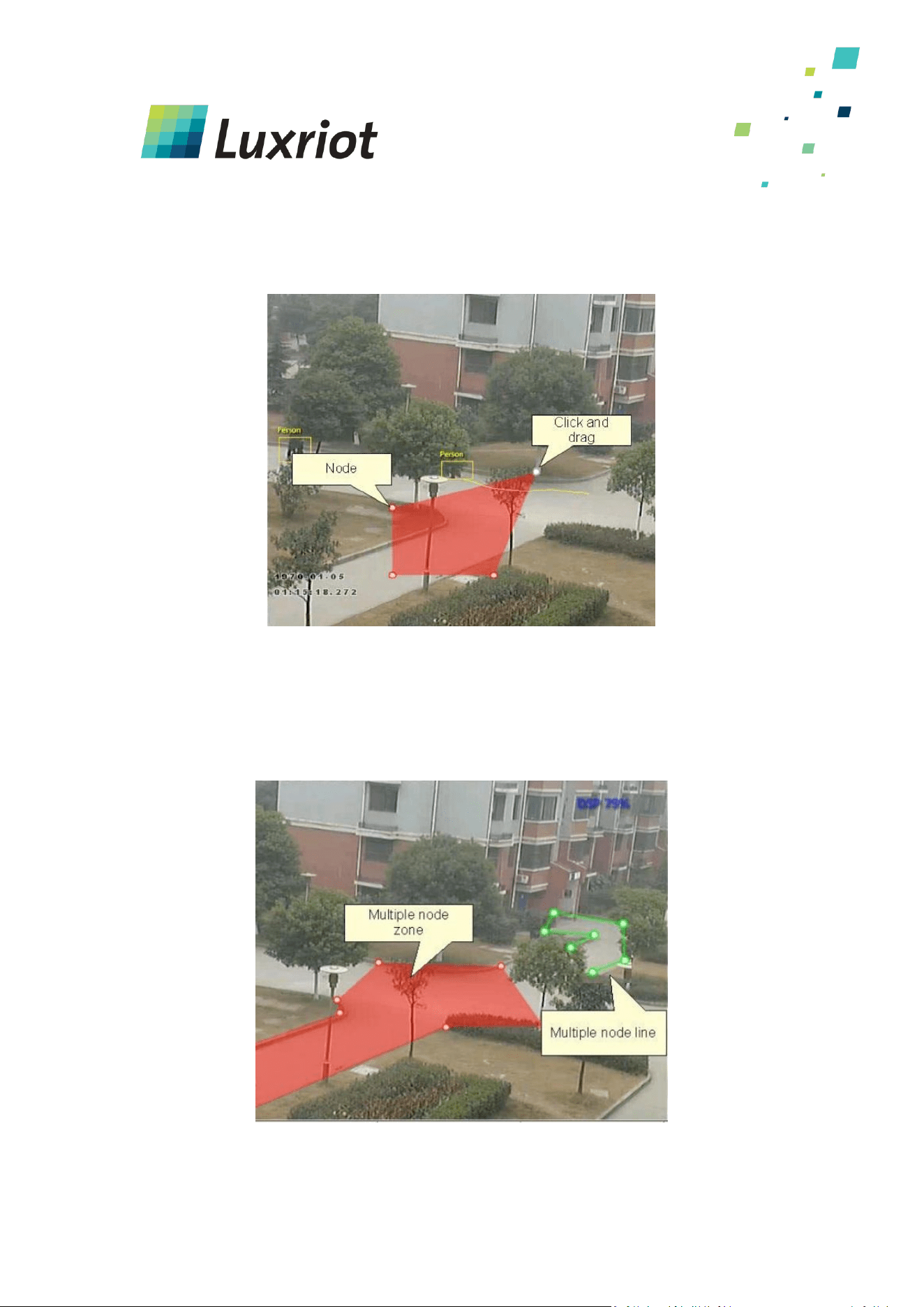
Zones and lines can be edited to be any shape or size. Zones and lines are controlled by
manipulating "nodes" that represent the zone/line vertices. To change the shape of a zone
or line, simply grab a node with the left mouse button and drag it to the desired location:
Adding and Removing Nodes
Zones and lines can be tailored to any scenario by simply adding more nodes to define the
shape required. To add a node, simply right click on the zone or line at the point where the
new node should be added and select “Add zone point”. Nodes can be deleted by right
clicking on the node and selecting “Remove zone point”:

P: (888) LUX-RIOT, (888) 589-7468
16
Non Detection Zones
In some situations, especially where the scene is busy, objects tracked in some areas can
interfere with detection zones in other areas. For example, on a windy day, moving foliage
can generate false alarms that in some situations could be tracked through a detection zone.
In order to minimize such issues, it is possible to configure "non-detection" zones, where
nothing is detected or tracked.
Detection Rules
Detection Rules
Once some detection zones and/or lines have been configured, it's possible to define some
detection rules that apply to the zones/lines. The rules are defined in the Analysis tab:

P: (888) LUX-RIOT, (888) 589-7468
17
The Analysis tab is context-sensitive to the zone selected. As different zones/lines are
selected, so Analysis tab changes to reflect the rules currently configured on that zone.
Defining a rule is a simple matter of checking the box next to the rule required. In all cases,
the rules are configured with sensible default values. Of course, these can be customized to
suit the detection scenario.
Object Presence
Enable the object presence rule on the selected zone by checking the Object Presence box in
the Analysis tab and click apply.
Objects that are present inside a zone or pass through a line will trigger the rule and raise an
alarm.
Object Direction
Enable the object direction rule on the selected zone by checking the Traveling Object in
Direction box in the Analysis tab. Adjust the direction and tolerance angle to suit the
detection scenario.
Objects that travel in the configured direction (within the limits of the tolerance angle)
through a zone or over a line trigger the rule and raise an alarm.

P: (888) LUX-RIOT, (888) 589-7468
18
Object Enter and Exit
Enable the object entry and leave detection by checking the corresponding check boxes in
the Analysis tab and click apply.
An object entered alarm is raised when an object crosses from the outside to the inside of a
detection zone. Conversely, an object exited alarm is raised when an object crosses from the
inside to the outside of a detection zone:
Object Appear and Disappear
Enable the object appear and disappear detection by checking the corresponding check
boxes in the Analysis tab and click apply.
An object appearing alarm is raised when an object appears inside a detection zone. Note
that this is different from object entered detection since the object must be initially
detected inside the zone without entering, e.g. people appearing in a doorway, or cars
appearing from an underground car park.

P: (888) LUX-RIOT, (888) 589-7468
19
Conversely an object disappearing alarm is raised when an object disappears inside a
detection zone. Again, this is different from object exit detection since the object must be
tracked into the zone and then disappear without exiting the zone.
Object Dwell
Enable the object dwelling rule on the selected zone by checking the Dwelling Object box in
the Analysis tab and click apply.
Objects that dwell inside a zone for longer than the defined amount of time will trigger the
rule and raise an alarm.
P: (888) LUX-RIOT, (888) 589-7468
20
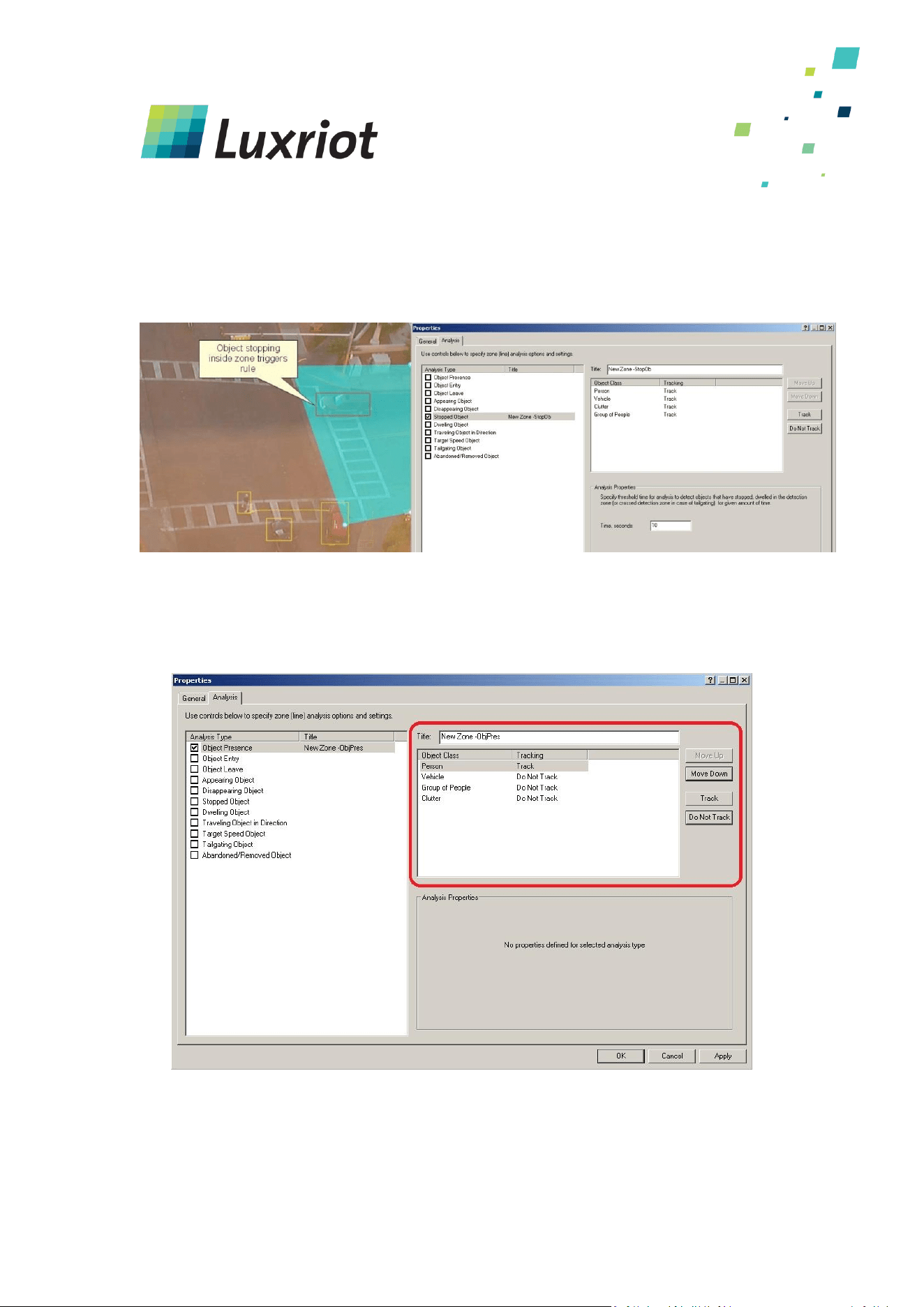
Object Stopped
Enable the object stopped rule on the selected zone by checking the Stopped Object box in
the Analysis tab and click apply.
Objects that are stopped inside a zone for longer than the defined amount of time will
trigger the rule and raise an alarm.
The stopped time can be also configured in Analysis properties.
Object Class
Once the camera has been calibrated, it's possible to include or exclude specific object types
in the detection rules.
Select the object type to track or do not track.
In this example, the rule has been configured to include detection of person only.

P: (888) LUX-RIOT, (888) 589-7468
21
Object Tailgating
Enable the object tailgating rule on the selected zone by checking the Tailgating Object box
in the Analysis tab. Adjust the time threshold to set the minimum allowable time between
successive object detections.
Object tailgating is defined as an object crossing a line or zone within a certain time after an
object has already crossed the line or zone. If an object crosses a line or zone, and another
object crosses the same line or zone within the specified time window, the Object Tailgating
filter will be triggered.
In this example, Object 1 is about to cross a detection line. Another object (Object 2) is
following closely behind. The tailgating detection threshold is set to 5 seconds. That is, any
object crossing the line within 5s of an object having already crossed the line will trigger the
Object Tailgating filter.
Object 2 crosses the line within 5 seconds of Object 1. This triggers the Object Tailgating
filter.

P: (888) LUX-RIOT, (888) 589-7468
22
Abandoned and Removed Object
Luxriot Analytics can be configured to generate an alert highlighting an abandoned or
removed object. Suspicious objects can be detected when carried into the scene and planted
by a person as well as when dropped or thrown into the scene.
Ensure that abandoned/removed object engine is enabled by checking the
"Abandoned/Removed Object Engine" drop box in the Advanced Engine Settings tab.
NOTE: The algorithm used for abandoned and removed object detection is the same in each
case: it cannot differentiate between abandoned or removed objects. This is a fundamental
limitation of the algorithm and arises because it just analyses how blocks of pixels change
with respect to a background model that is constructed over time. When an object is
inserted into the background (abandoned) it looks the same to the algorithm as when an
object is removed from the background.
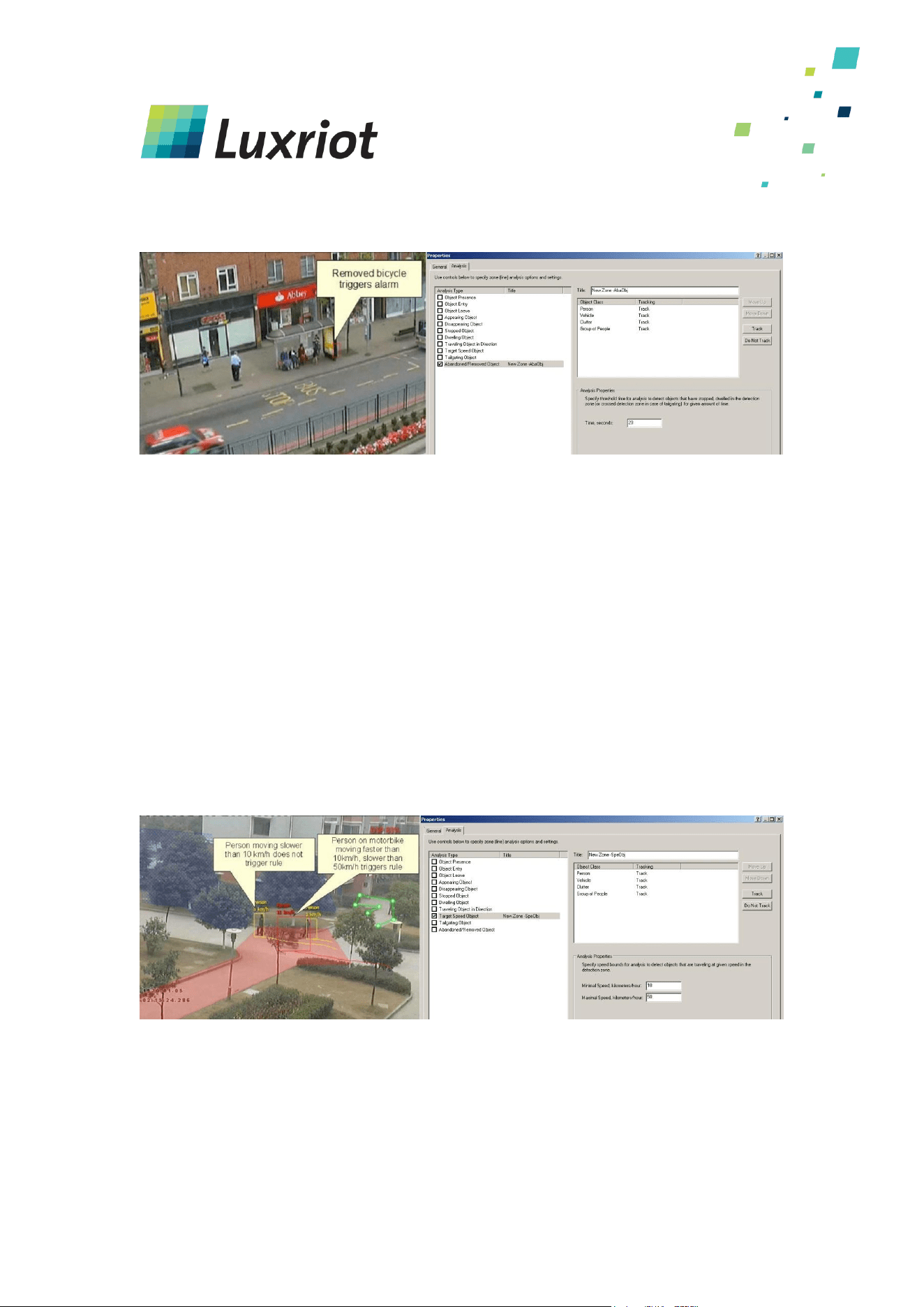
Enable the abandoned/removed object rule on the selected zone by checking the
Abandoned/Removed Object box in the Analysis tab. An object that is left inside a zone for
longer than the configured time period will trigger the rule and raise an alarm.
P: (888) LUX-RIOT, (888) 589-7468
23
The following figure illustrates the abandoned/removed object detection rule detecting a
removed bicycle.
Stationary Object Hold-on Time
The stationary object hold-on time is the time which the tracker will keep tracking an object
once it has been detected as stationary or abandoned/removed. After an
abandoned/removed object has been detected, the object will continue to be tracked for
the time configured determined by the stationary object hold-on time. The default value is
30 seconds, but this can be changed in the Advanced Engine Settings tab.
Object Speed
Enable the object speed rule on the selected zone by checking the Target Speed Object Filter
box in the Analysis tab. Adjust the minimal and maximal speed limits to suit the detection
scenario.
Objects that travel within the bounds of the configured speeds, through a zone or over a line
trigger the rule and raise an alarm.
Note that the camera must be calibrated to operate correctly.

P: (888) LUX-RIOT, (888) 589-7468
24
Counting Line
A counting line (Object Crossing Line A/B) is a detection filter optimized for bi-directional
object counting (e.g. people or vehicles) in busier detection scenarios. Examples of such
applications may include:
People counting with overhead cameras in a retail environment.
Vehicle counting with overhead cameras on public highways.
In some scenes such as entrance with camera over-head installed, the counting line typically
will generate a higher accuracy count than using the ordinary counters and lines.
Enabling the Counting Line
Enable the counting line filter on a detection line in the desired direction(s) by checking the
“Object Crossing Line A/B” box in the Analysis tab. An event is generated every time an
object crosses the line in the selected direction. If multiple objects cross the line together,
multiple corresponding events are generated. The events generated by the counting line can
be tied to counters in the normal manner.

P: (888) LUX-RIOT, (888) 589-7468
25
Assigning Counters to Counting Lines
A counting line by itself simply generates events when an object to be counted is detected.
In order to actually count the events, counters (one for each direction) can be created and
configured to count the events generated by the line. To create counters, see the Counters
topic.
Calibrating the Counting Line
In order to generate accurate counts, the counting line requires calibration. This cannot be
performed at a general level for the whole scene using the 3D calibration tool. This is
because the counting line is not always placed on the ground plane: it may be placed at any
orientation at any location in the scene. For example, a counting line could be configured
vertically with a side-on camera view.
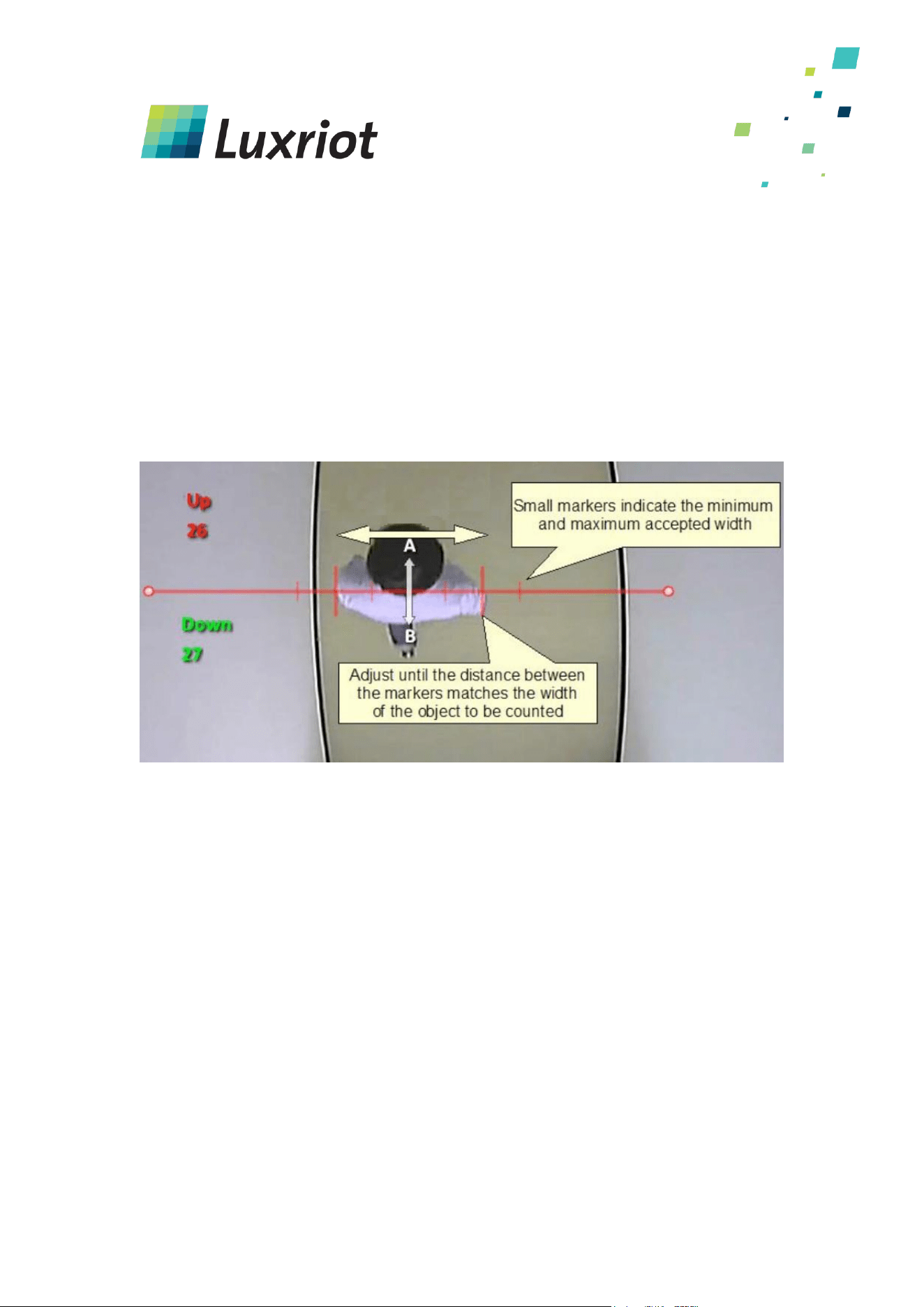
Instead of the 3D calibration tool, the counting line has its own calibration setting. Two bars
equidistant from the centre of the line represent the width of the expected object. This
allows the counting line to reject noise and also count multiple objects.
P: (888) LUX-RIOT, (888) 589-7468
26
To calibrate the counting line:
Select the counting line with the mouse.
Check the "Enable Calibration" box under the “Object Crossing Line A/B” rule in the
Analysis properties.
Use the mouse to drag the calibration markers to adjust the distance between the
calibration markers until the distance is approximately the size of the objects to be
counted.
The small markers on either side of the big markers indicate the minimum and
maximum width which is counted as a single object.
Apply the settings.
Shadow Filter
The counting line features a shadow filter which is designed to remove the effects of object
shadows affecting the counting algorithm. Shadows can cause inaccurate counting results by
making an object appear larger than its true size or by joining two or more objects together.
If shadows are causing inaccurate counting, the shadow filter should be enabled by selecting
the "Enable Shadow Filter" check box for the line. It is recommended that the shadow filter
only be enabled when shadows are present because the algorithm can mistake certain parts
of an object for shadows and this may lead to worse counting results.

P: (888) LUX-RIOT, (888) 589-7468
27
Counters
Counters
Luxriot VCA also supports object counting. Any combination of detection zones or lines can
be assigned to a counter. Counters can be configured to perform any combination of
incremental, decremental or occupancy counting. Counter configuration is managed in a
similar way to the zone configuration.
Topics in this section:
Creating Counters
Assigning Rules to Counters
Creating Counters
To create a counter simply select “Add Counter” in Zones and Counters tab.
The counter name and color can be changed in Counter Properties on “General” tab.

P: (888) LUX-RIOT, (888) 589-7468
28
Assigning Rules to Counters
Counters count triggers generated by rule violations. For example, if it is required to count
the number of objects entering a zone, a zone must initially be configured to raise an alarm
every time an object enters it. The zone can then be assigned to a counter and the counter
will count the objects according to the type of counting required (increment, decrement,
update value).

P: (888) LUX-RIOT, (888) 589-7468
29
In this example the red zone is configured to trigger when object travelling in the north
direction are detected. The counter has been configured to increment the count whenever
the zone (Zone 0) is triggered.
Increment Counter
When a zone is assigned to an incremental counter, the count will increment by 1 every time
the zone is triggered.
Decrement Counter
When a zone is assigned to a decremental counter, the count will decrement by 1 every time
the zone is triggered.
Update Value Counter
When a zone is assigned to an update value counter, the counter displays the number of
active triggers in the zone. E.g. if there are 2 objects in the zone that triggered the detection
rule, then the count will display 2.
Counter Reset
Counter reset manually and automatically
To reset counter manually select checkbox “Reset the Counter Manually Now”.
To reset counter automatically, select checkbox “Reset the Counter Automatically” and set
the date and time of reset.

P: (888) LUX-RIOT, (888) 589-7468
30
Camera Calibration
Camera Calibration
Camera calibration is required in order for the Luxriot VCA engine to classify objects into
different object classes. Once the camera has been calibrated, the engine can infer real-
world object properties such as speed, height and area and classify objects accordingly.
Camera Calibration Topics
Calibration Page Elements
Calibrating a Camera
Vertical Field of View
Measurement Units
Calibration Page Elements
The following describes the purpose of each element of the calibration page. To get started
calibrating straight away, see the Calibrating a Camera topic.
3D Graphics Overlay
During the calibration process, the features in the video image need to be matched with a
3D graphics overlay. The 3D graphics overlay consists of a green grid that represents the
ground plane. Placed on the ground plane are a number of 3D mimics that represent the
dimensions of a person with the current calibration parameters. The calibration mimics are
used for verifying the size of a person in the scene.
Mouse controls
The calibration parameters can be adjusted as follows:
Click and drag the ground plane to change the tilt angle.
Use the mouse wheel to adjust the camera height.

P: (888) LUX-RIOT, (888) 589-7468
31
Calibrating a Camera
Calibrating a camera is necessary in order to estimate object parameters such as height,
area, speed and classification. If you know the height, tilt angle and vertical field of view
corresponding to your installation, you can simply type the parameters in the appropriate
boxes and apply the changes.
If however, you do not know, or are unable to find out the camera parameters, this topic
provides a step-by-step guide to calibrating a camera.
Step 1: Find some people in the scene
Find some people, or some people-sized objects in the scene. Try to find a person near the
camera, and a person further away from the camera. Place the mimics on top of or near the
people. Enter in the known height or estimated height.

P: (888) LUX-RIOT, (888) 589-7468
32
Step 2: Adjust tilt angle and camera height
Now, adjust the camera tilt angle and vertical field of view until both mimics are
approximately the same size as a real person at that position in the scene. If an estimated
height is entered then adjust this along with the other two parameters.
Click and drag the ground plane to change the tilt angle, use the mouse wheel to adjust the
camera height and enter the value in Vertical Field of View edit box to change the vertical
field of view.
Apply the changes:
Once the changes have been applied, the Calibration Status reflects whether the operation
was successful, and if so, in which mode the camera is calibrated.
Step 3: Verify the setup
Once you are happy that the scene is correctly calibrated, verify the settings by dragging the
mimics around and comparing them to other people or people-sized objects in the scene.
The more locations in the scene where the calibration is verified, the more accurate the
calibration will be.
The 3 calibration parameters can be fine-tuned in the same way as detailed in Step 2.
Once the settings have been successfully applied, objects in the scene are annotated with
height, area, speed and classification. To change the measurement units between Metric
and Imperial, please refer to the Measurement Units Topic.

P: (888) LUX-RIOT, (888) 589-7468
33
Vertical Field of View
The vertical field of view is required when calibrating a camera. If you know the vertical field
of view of the camera it can be entered directly. If however, you don't know the vertical field
of view, it can be determined from the following table, given the vertical image dimension
and its focal length:
If you are unable to determine the vertical field of view for your camera from the above
table, leave the field of view at its default setting, 40°.
Measurement Units
The height, area and speed annotation can be displayed in metric or imperial units. By
default the system displays metric units. To change the measurement units, select the
“Units” drop box in “Calibration” tab and apply the changes.
P: (888) LUX-RIOT, (888) 589-7468
34
Object Classification
Object Classification
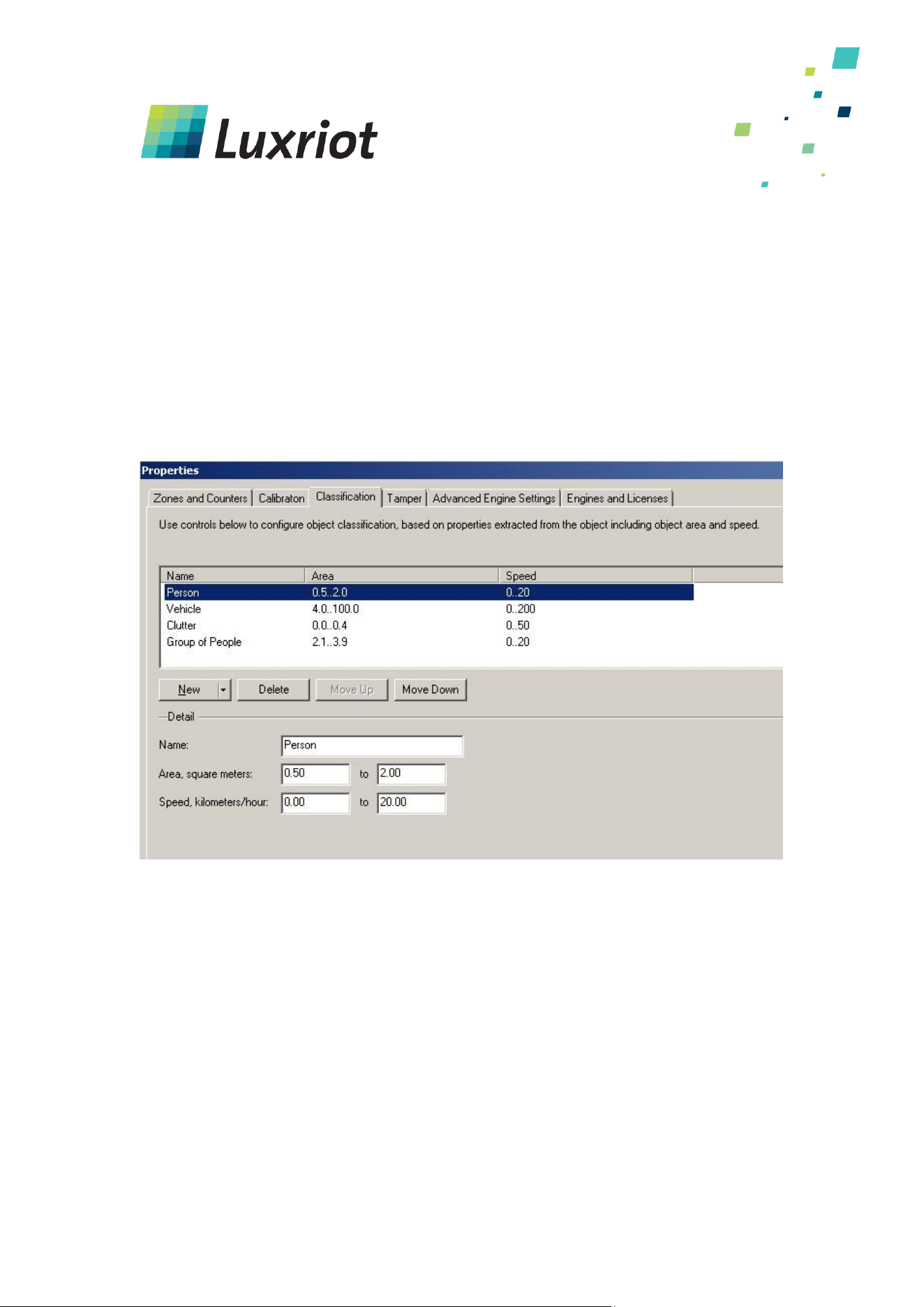
Luxriot VCA can perform object classification once the camera has been calibrated. The
object classification is based on properties extracted from the object including object area
and speed. Luxriot VCA comes pre-loaded with the most common object classes, and in most
cases these will not need to be modified.
In some situations it might be desirable to change the classification parameters, or add new
object classes.
To adjust the object class settings, select the Classification tab and the object class to
modify:
Adjust the minimum and maximum object speed and area, and apply the changes.
Objects that do not fit into any class are labelled as "Unclassified".

P: (888) LUX-RIOT, (888) 589-7468
35
Tamper Detection
Tamper Detection
The Tamper Detection module is intended to detect camera tampering events such as
bagging, de-focusing, moving the camera, etc. This is achieved by detecting large persistent
changes in the image.
Once enough of the image has changed and remained so for a certain length of time, a
tamper alarm is triggered.
Tamper Detection Settings
In the tamper detection settings it is possible to change the thresholds for the area of the
image which must be changed and the length of time it must be changed for before the
alarm is triggered.
Timeout before triggering alarm: The length of time that the image must be
persistently changed before the alarm is triggered.
Area change to trigger alarm: Percentage area of the image which must be changed
for tampering to be triggered.
If false alarms are a problem the duration and/or area should be increased so that large
transient changes such as a close object temporarily obscuring the camera do not cause false
alarms.
Detect lightness changes
Large fast changes to the image lighting such as switching on/off indoor lighting can cause
false tamper alarms. Enable this option if this is likely to be a problem in the area where the
camera is installed. However, this option will reduce sensitivity to genuine alarms so it is not
recommended if fast light changes are not likely to be a problem.

P: (888) LUX-RIOT, (888) 589-7468
36
Advanced VCA Settings
In most installations, the default Luxriot VCA configuration will suffice. However, in some
cases, better performance can be achieved with modified parameters. The Advanced Engine
Settings tab allows configuration of the advanced VCA parameters.
Alarm Holdoff Time
The Alarm Holdoff Time defines the time between the successive re-triggering of an alarm
generated by the same object triggering the same rule.
To explain this concept, consider the following diagram where no Alarm Holdoff Time is
configured:

P: (888) LUX-RIOT, (888) 589-7468
37
In this detection scenario, the person enters the zone 3 times. At each point an alarm is
raised, resulting in a total of 3 alarms. With the Alarm Holdoff Time configured, it's possible
to prevent re-triggering of the same rule for the same object within the configured time
period. Consider the same scenario, but with an Alarm Holdoff Time of 5 seconds
configured:
In this case, an alarm is not raised when the person enters the zone for the second time,
because the time between the occurrence of the last alarm of the same type for the object is
less than the Alarm Holdoff Time. When the person re-enters the zone for a third time, the
elapsed time since the previous alarm of the same type for that object is greater than the
Alarm Holdoff time and a new alarm is generated.
In essence, the Alarm Holdoff Time can be configured to prevent multiple alarms being
generated because an object is loitering on the edge of a zone. Without Alarm Holdoff Time
configured, this scenario would cause so-called "Alarm chatter".
Stationary Object Hold-on Time
The Stationary Object Hold-on Time defines the amount of time that an object will be
tracked by the engine once it becomes stationary. Since objects which become stationary
must be "merged" into the scene after some finite time, the tracking engine will forget
about objects that have become stationary after the Stationary Object Hold-on Time. The
default setting is 30 seconds.
Tracking Options
Minimum Tracked Object Size
The Minimum Tracked Object Size defines the size of the smallest object that will be
considered for tracking, in pixels. Normally there is no need to modify this value. Decreasing
it will allow the engine to track smaller objects at the expense of noise immunity.

P: (888) LUX-RIOT, (888) 589-7468
38
Detection Point of Tracked objects
For every tracked object, there is a point that we use to determine this object's position, and
decide whether this object triggers a rule. We call this point as detection point. There are 3
modes to define the detection point relative to the object: Default, Centroid and Mid-
bottom.
Default - When user chooses this mode, Luxriot VCA will automatically set the
position of detection point . It chooses centroid if the camera is calibrated overhead,
or mid-bottom if the camera is calibrated side-on or uncalibrated.
Centroid - If user chooses this mode, Luxriot VCA will force the detection point to be
centroid.
Mid-bottom - If user chooses this mode, Luxriot VCA will force the detection point to
be mid-bottom.
The first picture shows the centroid mode, and the second shows the Mid-bottom mode.
Object Tracking
Enable/disable the object tracking engine. When enabled, there is Surveillance Tracking
mode of object tracking available.
Surveillance Tracking
Optimized for intrusion detection and general purpose outdoor object detection and
tracking. When objects are in close proximity to each other they are more likely to be
tracked as a single object than separate entities.
Abandoned/Removed Object Engine
Enable/disable abandoned/removed object detection. When checked, a background process
to detect abandoned and removed objects is enabled.

P: (888) LUX-RIOT, (888) 589-7468
39
Line Counter Engine
Enable/disable the counting line functionality.
Shake Cancellation Mode
The camera shake cancellation function is used to improve the Luxriot VCA performance
with cameras that are prone to shake. By default, camera shake cancellation is disabled. If
your installation suffers from camera shake problems, enable this function to improve the
Luxriot VCA performance. If camera shake is not an issue in your installation, best
performance will be achieved with this setting disabled.
NOTE: Only enable the features which are necessary for the deployment scenario. Since
each feature consumes a portion of system resources, enabling features which are not
required may degrade the overall system performance.

P: (888) LUX-RIOT, (888) 589-7468
40
Export Meta (Analytics) Data
To export Meta data to CSV or XML file select the “Export” button in Meta (Analytics)
Properties:

P: (888) LUX-RIOT, (888) 589-7468
41
System Requirements
Minimal System Requirements:
Hardware Requirements
• CPU: Pentium Celeron or higher
• Video: Any Graphical card with at least 512 MB RAM and obligatory support of DirectDraw
acceleration
Software Requirements
• Microsoft Windows 2000, Windows XP, Windows Vista, Windows 7, Windows8
• DirectX 8.0 or later (later recommended).
• MS XML 4.0 or higher