© 2024 Stinger. All rights reserved. PAC is a Power Brand of Stinger.
PAC-audio.com
Page 1
Rev 1
2/5/2024
Advanced Amplier Interface for
Chrysler / Dodge / Jeep / RAM
AP4-CH42
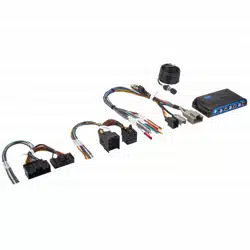
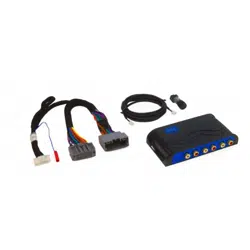
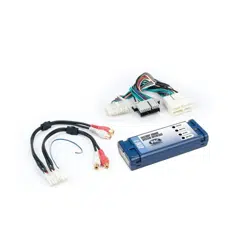
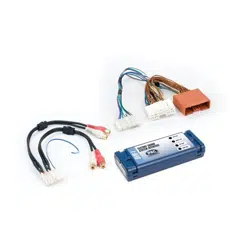
The AP4-CH42 provides a 6-channel pre-amp output for use with aftermarket audio equipment. Using the full range, xed
level head unit output, in conjunction with CAN messages, the AP4-CH42 delivers a variable 5v RMS pre-amp output with
fading, balance, equalization, and level control capabilities. The module also retains all audio from other vehicle features
such as factory navigation prompts, Bluetooth, uConnect, and parking sensor chimes. A data controlled remote amplier
turn on wire is also provided by the AP4-CH42. When used in conjunction with the APA-TOS1 (sold separately), the module
can provide a variable 2-channel ber optic digital audio output (TOSLINK).
Introduction and Features
Important Notes
1. Compatible with both amplied and non-amplied factory systems.
• Amplied Vehicles
• Compatible with all data-bus controlled amplied systems, no matter the screen size (including the 12" screen). To
identify these systems, look for logos on door speakers, tweeters, dash speakers or the subwoofer to conrm if the
vehicle has an amplied system (Alpine & Harmon Kardon). Some vehicles may not always have branded systems.
Unbranded amplied systems are generally identied by locating a center channel speaker or subwoofer
• Non-Amplied Vehicles
• Jeep Wrangler: Compatible with all screen sizes (5", 7" and 8.4").
• All other models: Only compatible in vehicles equipped with the 7" or 8.4" screen. Vehicles equipped with the 5"
screen are not compatible.
• If you are installing the AmpPRO in a vehicle that is not equipped with a factory amplier, you must add an amplier
to the vehicle's speakers, as the factory radio will no longer have a 4 channel variable output after it has been re-
congured by the AmpPRO. For example, you can not add only a subwoofer to a non-amplied vehicle, as the radio
will no longer power the cabin speakers properly.
• Non-amplied vehicles equipped with an Active Noise Cancellation (ANC) system require the ANC module to be
bypassed. This can be done manually or with the ANC bypass harness ANC-CH01. See page 2 Step 6d to re-congure
the factory radio.
2. If a factory amplier is present, it must remain connected and in the vehicle after the AmpPRO has been installed.
3. The remote output is rated at 2A of current. If more current is needed an external relay must be used.
4. Channels 5 and 6 are non-fading outputs. The output level of channels 5 and 6 can be controlled using the supplied level
control knob.
5. The chime volume and minimum volume levels are set to 0 dB by default. If you are happy with this level in your particular
application, additional adjustment is not required. Please refer to the Setup and Conguration section on page 2 for more details.
6. The level control knob must be connected in order to manually adjust the chime volume and minimum volume settings.
7. The factory radio's speed controlled volume and surround sound mode are not supported by the AP4 outputs.
8. When using the TOSLINK output (APA-TOS1 sold separately), DIP switch 1 must be on in order for all warning chimes to be
heard through the sound system (see page 2 Step 6a for details).
9. No adjustments can be made manually using the programming button, or the factory SWC when the module is connected to
a PC.
Module Layout
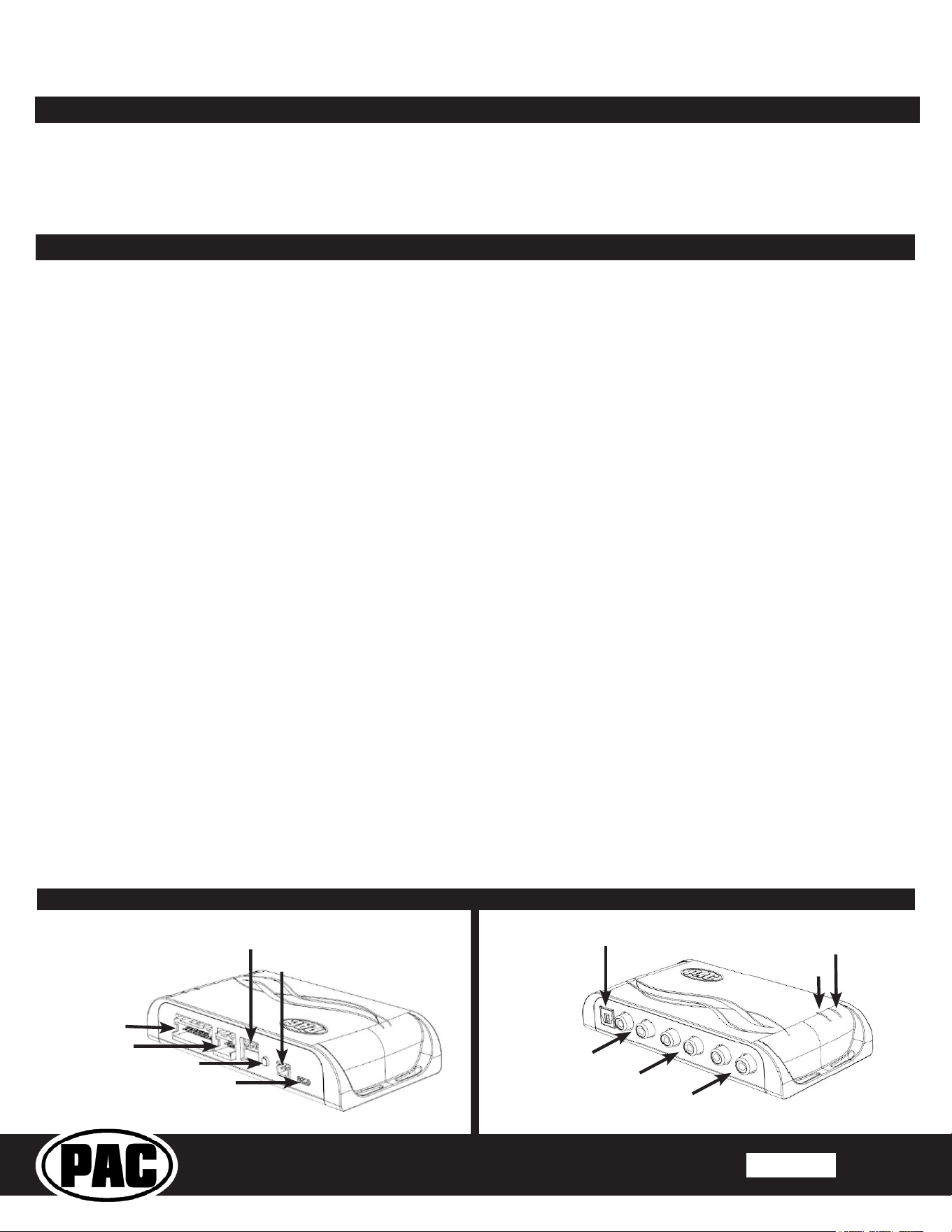
Interface Connector 1
Expansion Port
Programming Button
Feature Select
DIP switches
Non-Fading Level Control
Knob Connection
USB Connection
LED 1
TOSLINK Output
(APA-TOS1 sold separately)
Front Output
Ch. 1(L) and 2(R)
Rear Output
Ch. 3(L) and 4(R)
Non-Fading Output
Ch. 5(L) and 6(R)
LED 2
© 2024 Stinger. All rights reserved. PAC is a Power Brand of Stinger.
PAC-audio.com
Page 2
Rev 1
2/5/2024
Advanced Amplier Interface for
Chrysler / Dodge / Jeep / RAM
AP4-CH42
Installation
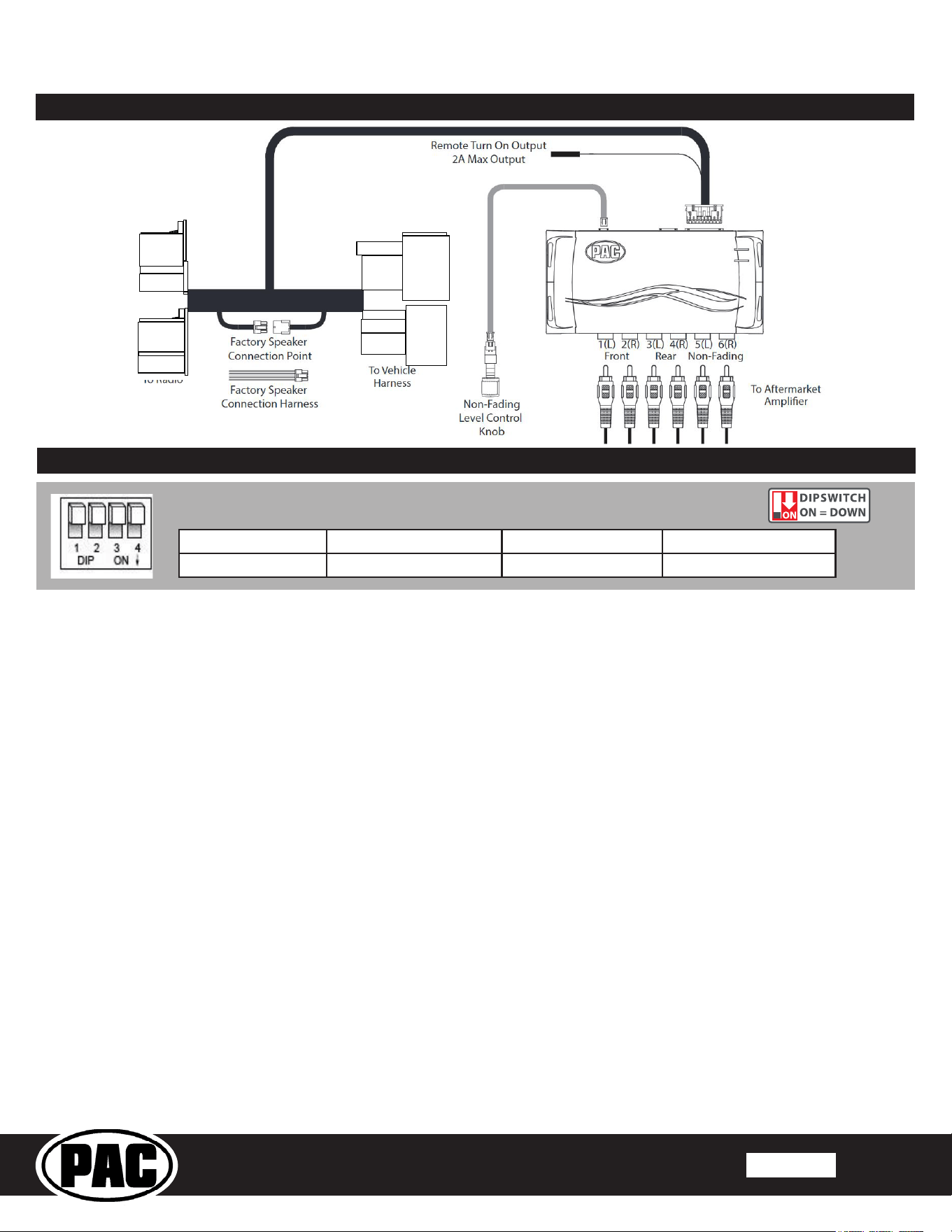
1. Remove factory radio.
2. Disconnect the main 32 & 12-Pin factory harness from radio.
3. Connect AmpPRO harness to vehicle harness.
4. Connect AmpPRO harness to factory radio.
5. If you are using the AmpPRO in a vehicle with a factory amplier, leave the "Factory Speaker Connection Point" connectors
plugged into each other. If the vehicle has no factory amplier, connect the aftermarket amplier's speaker outputs to the
provided "Factory Speaker Connection Harness" and connect to the "Factory Speaker Connection Point."
6. Set any feature DIP switches that apply to your install.
a. Set DIP switch 1 on (down) to activate two channel mode. In this mode, both the TOSLINK and front RCA outputs (1
and 2) become non-fading outputs. All rear chimes will also be routed through these outputs in two channel mode
b. Set DIP switch 2 on (down) to lower the RCA output voltage to 4v. Leave DIP switch 2 o (up) to keep the RCA output
voltage at 5v. See troubleshooting section on page 6 for more details.
c. DIP switch 3 is not used.
d. DIP switch 4 is for vehicles without a factory amplier. Set DIP switch 4 on (down) to recongure the radio for proper
communication with the AmpPRO.
7. If you are using the APA-TOS1 (sold separately) refer to the instructions included with that product for its installation
8. Connect the AmpPRO harness to the module.
9. Connect the level control knob to the module and install in an accessible location.
10. Connect the signal cables and remote input from the aftermarket amplier.
11. Complete the "Radio Reset Procedure." (see page 5 for more information)
a. Make sure the radio is fully booted and LED 1 is on. Press and hold the "Programming Button" until the LEDs alternate
ashing amber, then release.
b. The LEDs will alternate ashing green and the radio will re-boot
12. Turn the vehicle o, close the doors and let the vehicle sit for 5 minutes.
Two Channel Mode 5v / 4v Preout No Function Non-Amplied Vehicles
1 2 3 4
Set DIP switches to the ON position to activate the corresponding features.
Set DIP switches to the OFF position for any features that are not desired.
Wiring Connection Chart

© 2024 Stinger. All rights reserved. PAC is a Power Brand of Stinger.
PAC-audio.com
Page 3
Rev 1
2/5/2024
Advanced Amplier Interface for
Chrysler / Dodge / Jeep / RAM
AP4-CH42
PLEASE NOTE: Knob must be connected to module for Minimum Volume or Chime adjustments.
Manually Setting the Chime Volume
You can manually set the level of the factory chime using either the programming button on the side of the interface or the
factory SWC. If you would like to set the chime volume using the AmpPRO PC app please proceed to the AmpPRO PC app
section.
Setting the chime volume using the programming button
1. Start with the level control knob turned all the way down (counter-clockwise).
2. Press the programming button on the side of the interface.
3. LED 1 will turn green and the chimes will begin continuously sounding.
4. Turn the level control knob clockwise until the desired chime level is reached.
5. You can now either press the programming button twice or wait ten seconds to exit the settings.
Setting the chime volume using the factory SWC
1. Start with the level control knob turned all the way down.
2. Press and hold the track down button on the factory SWC (Back left of steering wheel) for approximately ten seconds.
PLEASE NOTE: The radio will respond to the SWC commands during this process, this is normal and has no eect on
the AP4 operation.
3. LED 1 will turn green and the chimes will begin continuously sounding.
4. Turn the level control knob clockwise until the desired chime level is reached.
5. You can now either press the programming button twice or wait ten seconds to exit the settings.
Manually Setting the Minimum Volume
If the minimum volume of the radio (factory radio volume level 1) is too loud, you can manually set the level of the minimum
volume using either the programming button on the side of the interface or the factory SWC. If you would like to set the
minimum volume using the AmpPRO PC app, please proceed to the AmpPRO PC app section.
Setting the minimum volume using the programming button
1. Start with the level control knob turned all the way down (counter-clockwise).
2. Set the amp gains to the desired level.
3. Set the volume on the factory radio to 1.
4. Press the programming button on the side of the interface twice.
5. LED 1 will turn amber and the chimes will begin sounding every ve seconds.
6. Turn the level control knob clockwise until the desired minimum volume level is reached.
7. You can now either press the programming button once or wait ten seconds to exit the settings.
Setting the minimum volume using the factory SWC
1. Start with the level control knob turned all the way down (counter-clockwise).
2. Set the amp gains to the desired level.
3. Set the volume on the factory radio to 1.
4. Press and hold the track up button on the factory SWC (Back left of steering wheel) for approximately ten seconds.
PLEASE NOTE: The radio will respond to the SWC commands during this process, this is normal and has no eect on
the AP4 operation.
5. LED 1 will turn amber and the chimes will begin sounding every ve seconds.
6. Turn the level control knob clockwise until the desired minimum volume level is reached.
7. You can now either press the programming button once or wait ten seconds to exit the settings.
Setup and Conguration
1. Turn the ignition on. LED 1 on the interface will turn on and the +12v remote output will turn on.
2. Set the amp gain(s) to the desired level. We recommend using an oscilliscope and test tones to set the amp gain(s). Please
refer to the MECP Advanced study guide (p. 360) if you are unfamiliar with this process.
3. Check volume, balance, fade and EQ settings.
4. If you would like to adjust the chime volume or minimum volume, do so using one of the methods outlined below. If you are
happy with the default levels, no adjustments are necessary.
© 2024 Stinger. All rights reserved. PAC is a Power Brand of Stinger.
PAC-audio.com
Page 4
Rev 1
2/5/2024
Advanced Amplier Interface for
Chrysler / Dodge / Jeep / RAM
AP4-CH42
PLEASE NOTE: These settings can be adjusted with the module installed in the vehicle, or on the bench. However, it is
recommended to make the adjustments with the module installed, and the factory radio on, so that the changes can be
heard.
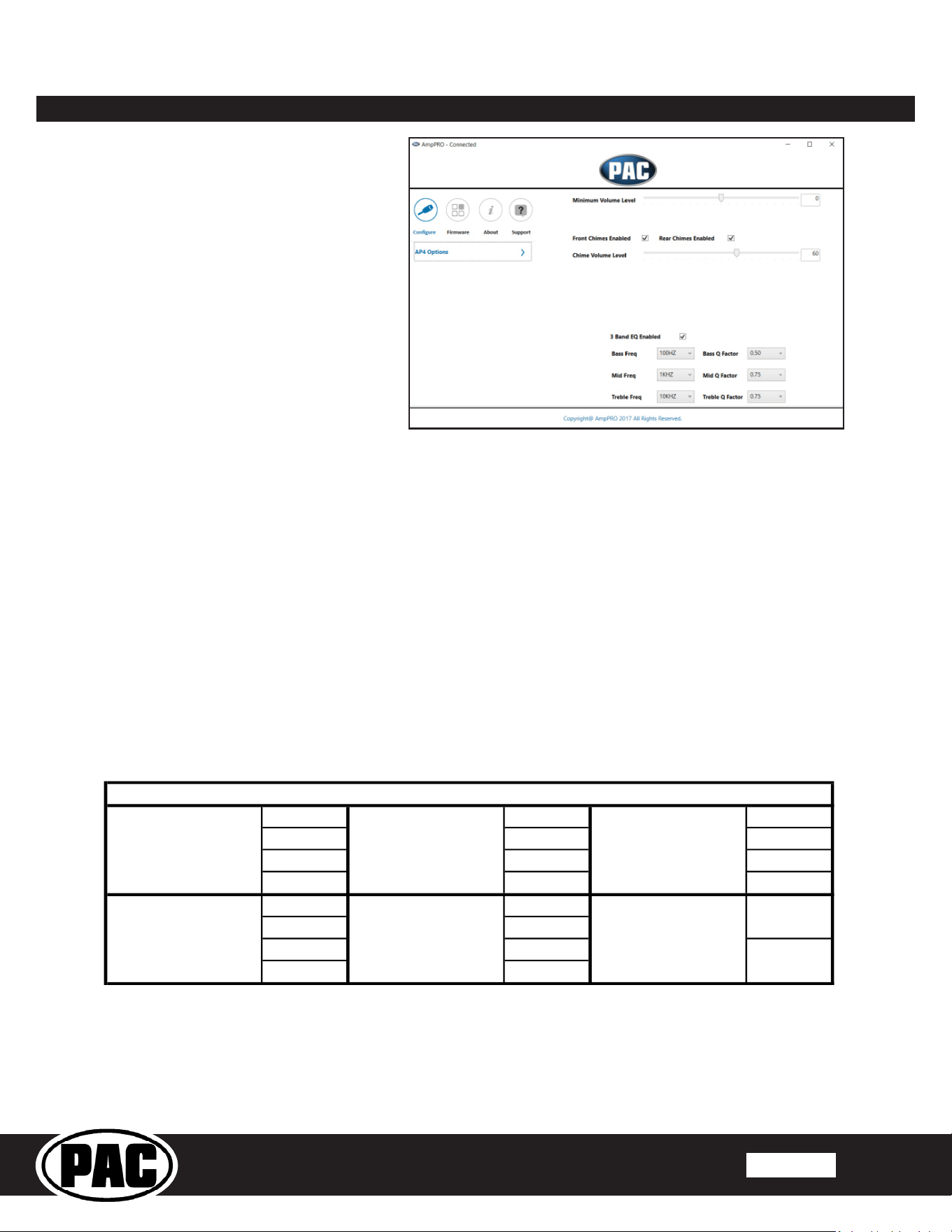
Minimum Volume Level - This allows you to set the minimum volume level of the factory radio (factory radio volume level 1).
Chime Volume Level - This allows you to set the volume of the AP4 chimes (ie: park sensors).
Front / Rear Chimes Enabled - This allows you to enable / disable AP4 chimes (ie: park sensors). This is used when mixing
factory and aftermarket speakers.
3 Band EQ Enabled - This allows you to enable / disable the 3 band factory EQ.
Bass / Mid / Treble Freq / Q Factor - This allows you to set the center frequency that will be adjusted when setting the 3 band
factory EQ, as well as the Q Factor for each frequency. The Q Factor determines how many of the adjacent frequencies will be
aected when adjusting the selected frequency. The lower the Q Factor, the more frequencies will be aected. See below for
available frequencies and Q Factors.
60HZ
500HZ
7.5KHZ
80HZ
1KHZ
10KHZ
100HZ
1.5KHZ
12.5KHZ
120HZ
2.5KHZ
15KHZ
0.50
0.75
1.00
1.00
1.50
1.25
2.00
1.50
0.75
1.25
Available Frequencies and Q Factors
Treble Q Factor
Treble FrequencyMid Frequency
Mid Q Factor
Bass Frequency
Bass Q Factor
AmpPRO PC App
Use of the AmpPRO PC App allows
you to do the following:
• Congure User Interface Options such as:
• Minimum Volume Level
• Chime Volume Level
• Enable / Disable AP4 Chimes
• Enable / Disable factory EQ
• Set Bass / Mid / Treble center
frequencies and Q factor
• Update Product Firmware
• Read Firmware / Hardware Versions
• You can download the AmpPRO app at :
https://pac-audio.com/app-downloads/
© 2024 Stinger. All rights reserved. PAC is a Power Brand of Stinger.
PAC-audio.com
Page 5
Rev 1
2/5/2024
Advanced Amplier Interface for
Chrysler / Dodge / Jeep / RAM
AP4-CH42
Firmware Updates
The AmpPRO app will also allow you to update the interface with new rmware as it becomes available. Please visit
www.pac-audio.com or contact our tech support department to see if there is a rmware update for your interface.
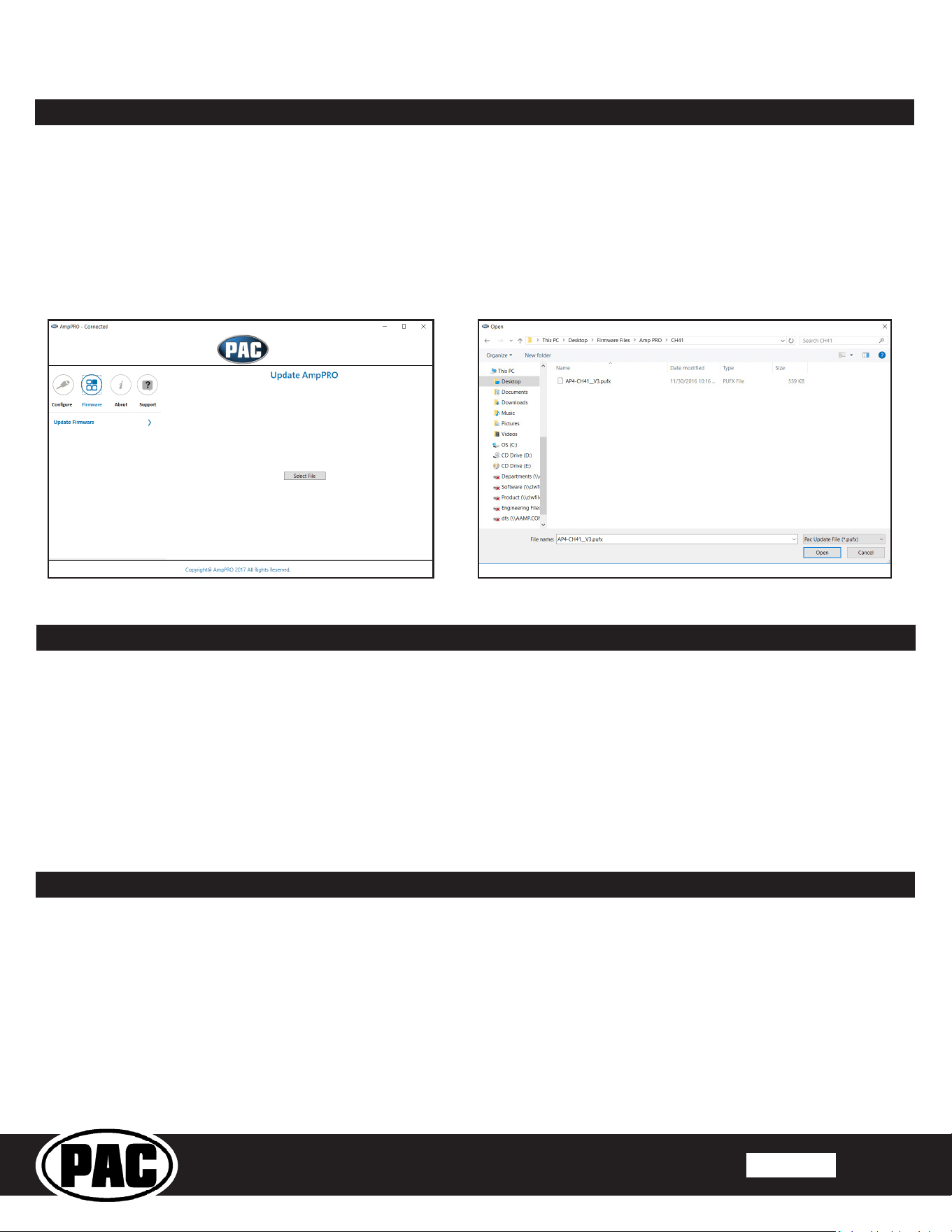
Connect the interface to your PC and select "Firmware", then “Update Firmware”. Now select “Select File”. Finally, browse to the
place where you saved the le and select it. This will begin the updating process. Once nished, disconnect the interface from
the PC and resume normal operation.
AmpPRO PC App (cont.)
Radio Reset Procedure
Sleep Cycle Procedure
The Radio Reset Procedure is used to speed up the installation process when re-conguring the radio for non-amplied vehicles or
when OEM features are lost after installation. We recommend doing this procedure during the AmpPRO installation.
1. With the radio on (LED 1 red), press and hold the programming button until the LEDs are alternating ashing amber.
2. Release the programming button (you have 5 seconds before it moves to the next function)
3. The LEDs will start alternating ashing green and the radio will visibly restart.
In vehicles that do not support this reset, the LEDs will not ash amber. You will instead need to complete the "Sleep Cycle
Procedure" outlined below.
The Sleep Cycle Procedure is used if the "Radio Reset Procedure" is unsuccessful in re-conguring a non-amplied system,
restoring lost OEM radio features or graphics, or restoring the factory system after AmpPRO removal.
1. Turn the vehicle ignition o
2. Exit the vehicle and close all doors, trunk and/or tailgate
3. Lock the vehicle with the keyfob and move the keyfob at least 25 feet away from the vehicle
4. Let it sit for 10 minutes
5. Unlock the doors, turn the igniton on and wait for the radio to boot up.
6. Repeat steps 1-5 for the second sleep cycle
© 2024 Stinger. All rights reserved. PAC is a Power Brand of Stinger.
PAC-audio.com
Page 6
Rev 1
2/5/2024
Advanced Amplier Interface for
Chrysler / Dodge / Jeep / RAM
AP4-CH42
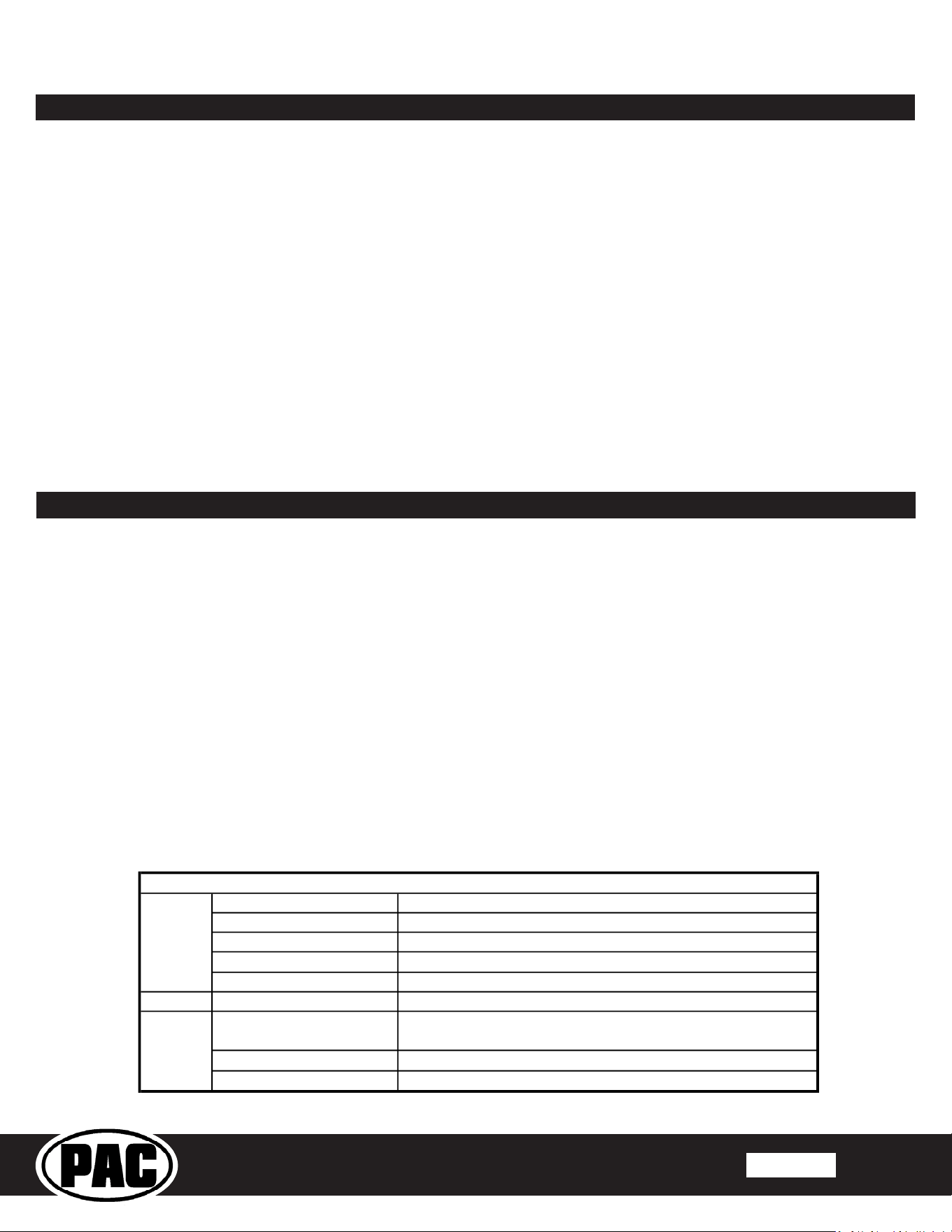
During Normal Operation
Module Active
Chime Volume Adjustment Mode
Minimum Volume Adjustment Mode
DSP Activity
LED 2
USB Connection Detected
Programming button Being Held: Performing EPROM Reset
No Action From User: Vehicle Data-BUS Going to Sleep
Programming Button Being Held: Entering Radio Reset
Performing Radio Reset
Rapid Blink Any Color
Blink Amber
Alternate Blinking Red
Alternate Blinking Amber
Alternate Blinking Green
Both LEDs
LED 1
LED Legend
Solid Red
Action / Color
Solid Green
Solid Amber
Restoring Factory Settings
Interface Reset
You can restore the interface to factory default settings by pressing and holding the programming button on the side of the module
until the status LEDs start blinking red. Once the LEDs start blinking red, release the button.
This reset will restore the following settings to their factory defaults:
• Chime volume level • Enable / Disable factory EQ
• Enable / Disable Factory Chimes • Factory EQ frequency
• Minimum volume level • Factory EQ Q factor
Restore Radio to Non-Amplied
If the AP4-CH42 was installed to a factory non-amplied vehicle, the radio was programmed to output a pre-amplied audio signal
to the AP4. To restore the radio back to non-amplied programming, follow the steps below.
1. Remove the AP4-CH42 module and harness and re-connect the OEM radio connections back to factory.
2. Do 2 full sleep cycles (See page 5, "Sleep Cycle Procedure")
3. Test the radio to verify the vehicle was successfully restored.
a. Test that you have audio signals coming through both the front and rear channels.
b. Test the audio is variable with the radio's volume knob
c. If the audio is still only on the rear channels and does not change with the volume knob, repeat the sleep cycle process
Troubleshooting
1. Hiss at high amp gain - Set feature DIP switch 2 to the on (down) position to lower the output voltage of the AP4 to 4v. If you
still hear the hiss, lower your amp gains until the hiss is gone.
2. Cannot hear uConnect or nav voice - Use the volume knob while either of these voice prompts are active to adjust voice
volume.
3. Cannot hear chimes - Set chime volume using process outlined in Setup and Conguration, or using the AmpPRO app. If
you still do not hear chimes, be sure that you are using the remote output from the AP4 to turn on your aftermarket amplier.
4. Low volume setting on radio is too loud - Set minimum volume using process outlined in Setup and Conguration, or using
the AmpPRO PC app.
5. If for any reason the AmpPRO module becomes unresponsive, or will not power up with the key on, you can always reset the
interface by turning the key to the ignition position, then pressing and holding the Volume Down button on the factory SWC
for 12 seconds until a tone is heard.
6. LED 1 is lit up red, but there is no audio - You have installed the AmpPRO into a non-amplied vehicle. You must have DIP
switch 4 on for this scenario
7. Audio is only playing out of the rear speakers and the volume knob does not work - You have re-congured the radio in a
non-amplied vehicle and still have the cabin speakers connected to the factory radio. Aftermarket amplication on the cabin
speakers must be used in this scenario.