
www.samsung.com/caEnglish (CA). 04/2024. Rev.1.0
SM-P620
USER GUIDE

2
Table of Contents
Getting started
4 Device layout and functions
7 Charging the battery
10 microSD card
12 Turning the device on and off
12 Initial setup
13 Samsung account
14 Transferring data from your previous
device (Smart Switch)
16 Understanding the screen
25 Notification panel
27 Screen capture and screen record
28 Entering text
30 Extracting text
Apps and features
31 Installing or uninstalling apps
32 S Pen
41 Phone
44 Contacts
46 Messages
47 Camera
58 Gallery
63 AR Zone
65 Bixby
67 Bixby Vision
68 Multi window
(Using multiple apps at once)
71 Samsung Internet
72 Samsung Notes
78 Samsung Members
78 Samsung Kids
79 Samsung Global Goals
79 PENUP
80 Calendar
81 Reminder
(Receiving notifications for to-do
items)
82 Voice Recorder
82 My Files
(Checking and managing files)
82 Clock
82 Calculator
83 Gaming Hub
84 Game Booster
(Configuring your gaming
environment)
85 SmartThings
86 Sharing content
87 Music Share
88 Smart View
(Mirroring on a TV screen)
89 Samsung Flow
90 Daily Board
93 Link to Windows
(Using the device through a
computer connection)
94 Samsung DeX
95 Google apps

Table of Contents
3
124 Dual Messenger
125 Digital Wellbeing and parental
controls
125 Device care
126 Apps
127 General management
128 Accessibility
129 Software update
129 Tips and user guide
130 About tablet
Usage notices
131 Precautions for using the device
133 Notes on package contents and
accessories
134 Device overheating situations and
solutions
Appendix
138 Troubleshooting
143 Removing the battery
Health and Safety
Settings
96 Introduction
96 Samsung account
96 Connections
98 Wi-Fi
99 Bluetooth
101 More connection settings
103 Connected devices
104 Modes and Routines
104 Using modes
104 Using routines
105 Sound
106 Sound quality and effects
106 Separate app sound
107 Notifications
107 Display
108 Battery
109 Wallpapers and Style
109 Home screen
109 Lock screen
110 Extend Unlock
110 Security and privacy
111 Face recognition
113 Secure Folder
116 Secure Wi-Fi
117 Location
117 Safety and emergency
118 Accounts and backup
119 Users
121 Samsung Cloud
122 Google
122 Advanced features
123 Motions and gestures
4
Getting started
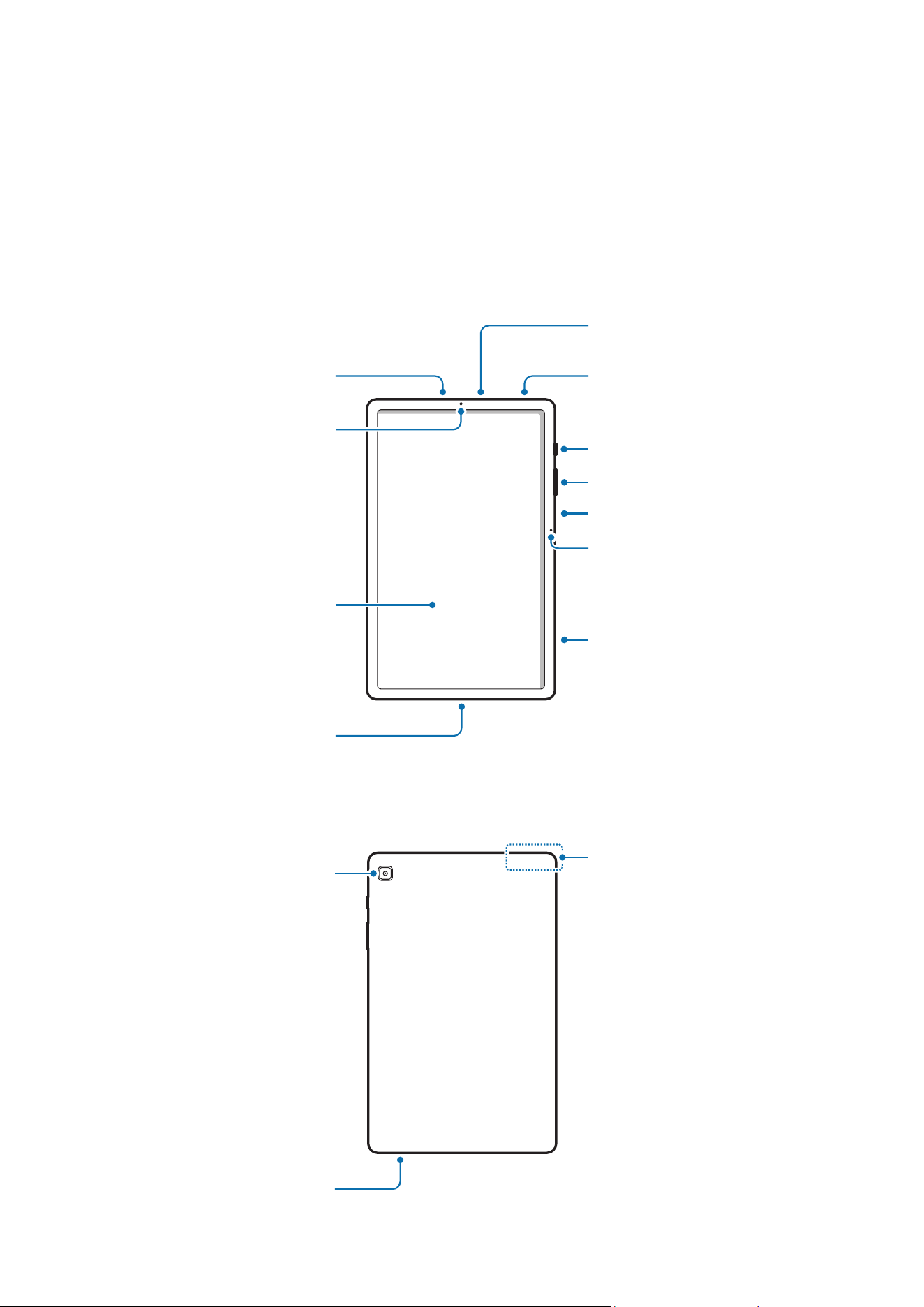
Device layout and functions
Front camera
Headphone jack
Microphone
Speaker
Light sensor
Side button
Volume button
Microphone
Screen
microSD card tray
Multipurpose jack
(USB Type-C)
Speaker
Rear camera
GPS antenna
Getting started
5
•
Use the device in a place without magnetic interference for the device to operate
normally.
•
Your device and some accessories (sold separately) contain magnets. Keep
it away from credit cards, implanted medical devices, and other devices that
may be affected by magnets. In the case of medical devices, keep your device
more than 15 cm apart. Stop using your device if you suspect any interference
with your medical device and consult your physician or your medical device
manufacturer.
•
Keep a safe distance between objects that are affected by magnets, and your
device and some accessories (sold separately) that contain magnets. Objects
such as credit cards, passbooks, access cards, boarding passes, or parking passes
may be damaged or disabled by the magnets in the device.
•
When using the speakers, such as when playing media files or using the
speakerphone, do not place the device close to your ears.
•
Be careful not to expose the camera lens to a strong light source, such as direct
sunlight. If the camera lens is exposed to a strong light source, the camera
image sensor may be damaged. A damaged image sensor is irreparable and will
cause dots or spots in pictures.
•
If you use the device with its glass or acrylic body broken, there may be a risk
of injury. Use the device only after it has been repaired at a Samsung Service
Centre or an authorized service centre.
•
If dust or foreign materials enter the microphone, speaker, or receiver, or if these
parts are covered, the device’s sound may become quiet or certain features may
not work. If you attempt to remove the dust or foreign materials with a sharp
object, the device may be damaged and its appearance may be affected.
•
Connectivity problems and battery drain may occur in the following situations:
‒
If you attach metallic stickers on the antenna area of the device
‒
If you attach a device cover made with metallic material to the device
‒
If you cover the device’s antenna area with your hands or other objects while
using certain features, such as calls.
•
Do not cover the light sensor area with accessories, such as stickers or a cover.
Doing so may cause the sensor to malfunction.
Getting started
6
Hard buttons
Button Function
Side button
•
When the device is off, press and hold to turn it on.
•
Press to turn on or lock the screen.
•
Press and hold to start a conversation with Bixby. Refer to
Using Bixby for more information.
•
Press twice or press and hold to open the app or feature you
set.
Side button +
Volume Down
button
•
Press simultaneously to capture a screenshot.
•
Press and hold simultaneously to turn off the device.
Setting the Side button
Select an app or feature to launch by pressing the Side button twice or pressing and
holding the Side button.
Open
Settings
, tap
Advanced features
→
Side button
, and then select an option you
want.
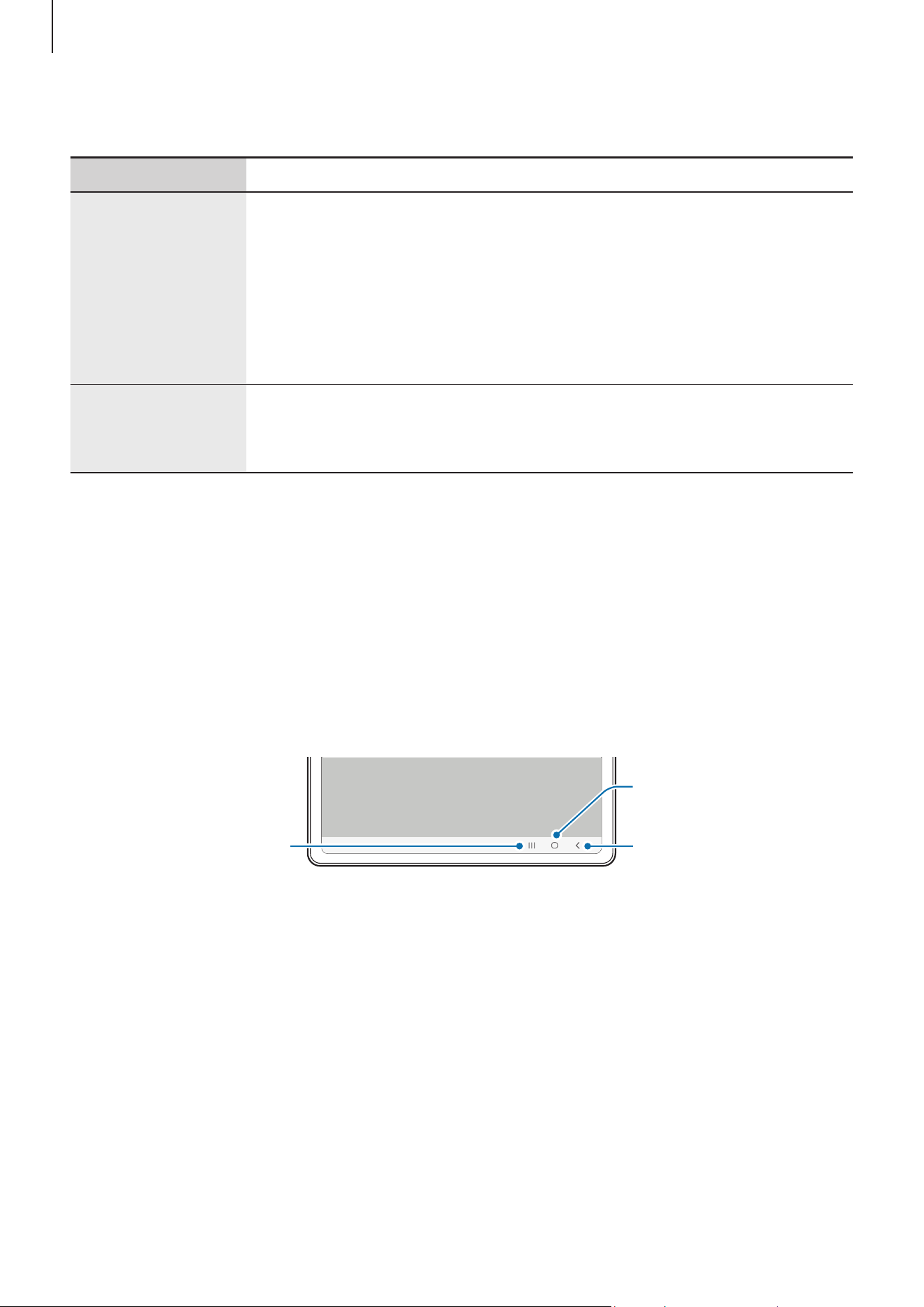
Soft buttons
Back button
Home button
Recents button
When you turn on the screen, the soft buttons will appear at the bottom of the screen.
Refer to Navigation bar (soft buttons) for more information.
Getting started
7
Charging the battery
Charge the battery before using it for the first time or when it has been unused for an
extended period.
Wired charging
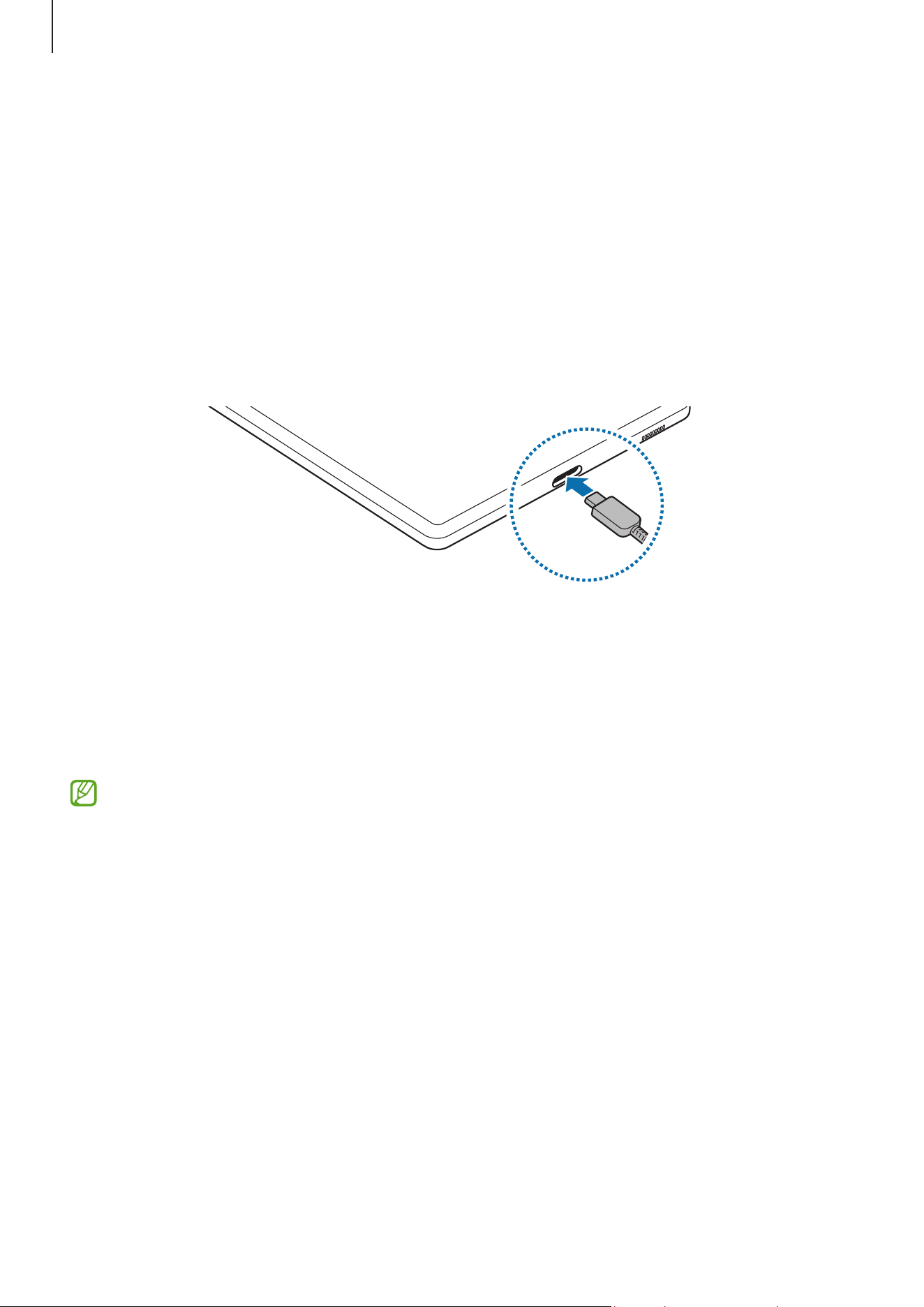
Connect the USB cable to the USB power adapter and plug the cable into the device’s
multipurpose jack to charge the battery. After fully charging, disconnect the charger
from the device.
Quick charging
Use a fast charger.
You can check the connection status of the charger by opening
Settings
and tapping
Battery
.
•
If fast charging does not work, open
Settings
, tap
Battery
→
Charging settings
,
and then check if the feature you want is turned on. Also, check if the USB cable
and the USB power adapter are connected properly.
•
You can charge the battery more quickly while the device or its screen is turned
off.

Getting started
8
Charging other devices
Use the USB cable to charge another mobile device with your tablet’s battery.
Connect your tablet and the other device using your tablet’s USB cable. A USB adapter
may be needed depending on the other device.
When charging starts, the battery charging icon will appear on the other device’s screen.
The app selection pop-up window that appears on your tablet is for data transfer.
Do not select an app from the pop-up window.
Reducing the battery consumption
Your device provides various options that help you conserve battery power.
•
Optimize the device using the device care feature.
•
When you are not using the device, turn off the screen by pressing the Side button.
•
Turn on power saving mode.
•
Close unnecessary apps.
•
Turn off the Bluetooth feature when not in use.
•
Turn off auto-syncing of apps that need to be synced.
•
Decrease the backlight time.
•
Decrease the screen brightness.

Getting started
9
Battery charging tips and precautions
Use only Samsung-approved battery, charger, and cable specifically designed for
your device. An incompatible battery, charger, or cable can cause serious injuries or
damage to your device.
•
Connecting the charger improperly may cause serious damage to the device. Any
damage caused by misuse is not covered by the warranty.
•
Use only USB Type-C cable supplied with the device. The device may be
damaged if you use a Micro USB cable.
•
If you charge the device while the multipurpose jack is wet, the device may be
damaged. Thoroughly dry the multipurpose jack before charging the device.
•
To save energy, unplug the charger when not in use. The charger does not have a
power switch, so you must unplug the charger from the electric socket when not
in use to avoid wasting power. The charger should remain close to the electric
socket and easily accessible while charging.
•
When using a charger, it is recommended to use an approved charger that
guarantees the charging performance.
•
If the battery is completely discharged, the device cannot be turned on
immediately after the charger is connected. Allow a depleted battery to charge
for a few minutes before turning on the device.
•
If you use multiple apps at once, network apps, or apps that need a connection to
another device, the battery will drain quickly. To avoid losing power during a data
transfer, always use these apps after fully charging the battery.
•
Using a power source other than the charger, such as a computer, may result in a
slower charging speed because of a lower electric current.
•
The device can be used while it is charging, but it may take longer to fully charge
the battery.
•
If the device receives an unstable power supply while charging, the screen may
not function. If this happens, unplug the charger from the device.
•
While charging, the device and the charger may heat up. This is normal and
should not affect the device’s lifespan or performance. If the battery gets hotter
than usual, the charger may stop charging.
•
If the device is not charging properly, take the device and the charger to a
Samsung Service Centre or an authorized service centre.
Getting started
10
microSD card
Inserting an SD card
Your device’s SD card capacity may vary from other models and some SD cards may not
be compatible with your device depending on the SD card manufacturer and type. To
check out your device’s maximum SD card capacity, refer to the Samsung website.
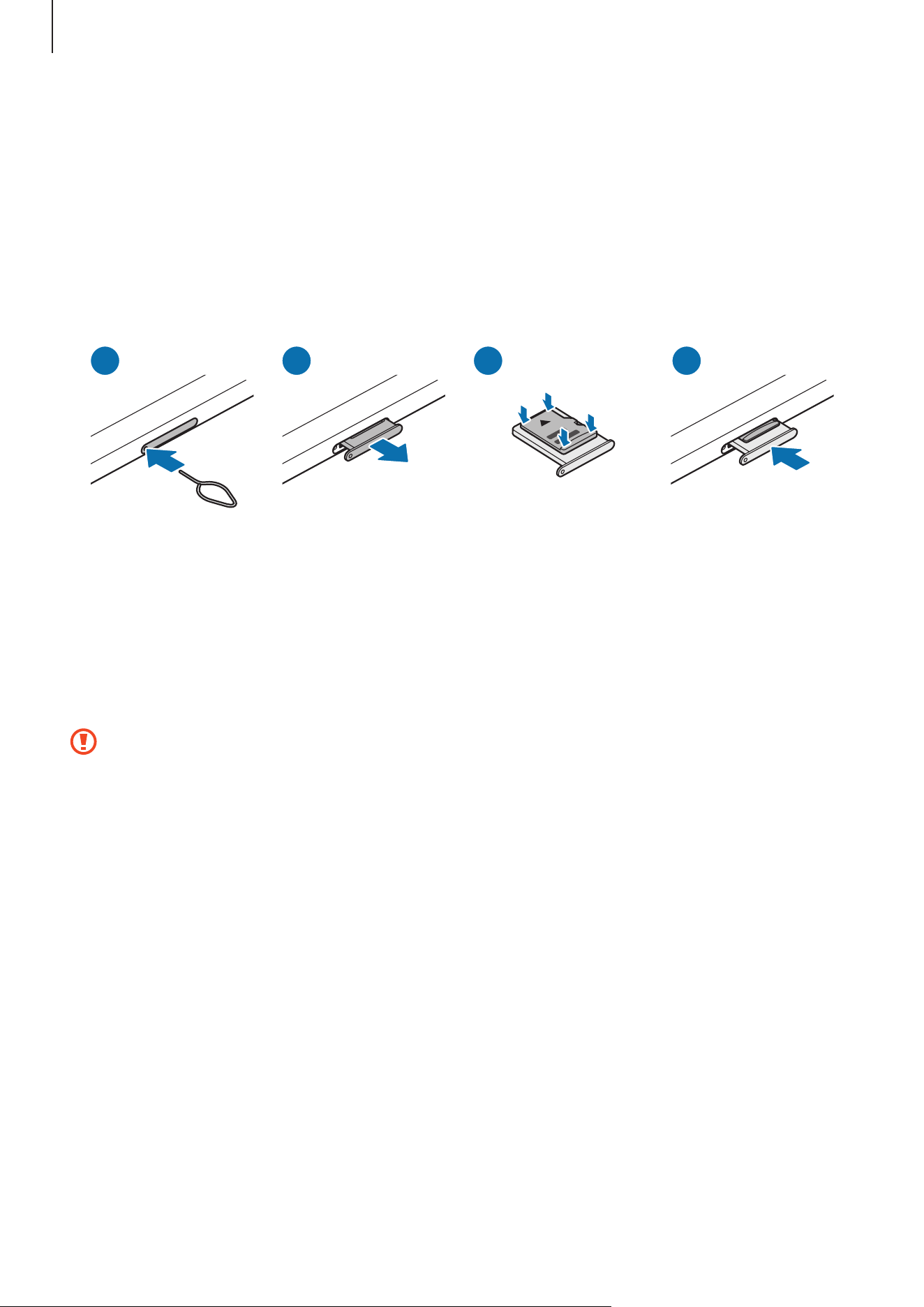
1 2 4
3
1 Insert the ejection pin into the hole on the tray to loosen the tray.
2 Pull the tray gently from the tray slot.
3 Place an SD card on the tray with the gold-coloured contacts facing downwards and
gently press the SD card into the tray to secure it.
4 Insert the tray back into the tray slot.
•
Use only a microSD card.
•
Some SD cards may not be fully compatible with the device. Using an
incompatible card may damage the device, the SD card, or the data stored in it.
•
Use caution to insert the SD card right-side up.
•
Ensure that the ejection pin is perpendicular to the hole. Otherwise, the device
may be damaged.
•
If the card is not fixed firmly into the tray, the SD card may fall out of the tray.
•
If you insert the tray into your device while the tray is wet, your device may be
damaged. Always make sure the tray is dry.
•
Fully insert the tray into the tray slot to prevent liquid from entering your device.

Getting started
11
•
The device supports the FAT and the exFAT file systems for SD cards. When
inserting a card formatted in a different file system, the device will ask to
reformat the card or will not recognize the card. To use the SD card, you must
format it. If your device cannot format or recognize the SD card, contact the SD
card manufacturer, a Samsung Service Centre or an authorized service centre.
•
Frequent writing and erasing of data shortens the lifespan of SD cards.
•
When inserting an SD card into the device, the SD card’s file directory appears in
the
My Files
→
SD card
folder.
Removing the SD card
Before removing the SD card, first unmount it for safe removal.
1 Open
Settings
and tap
Device care
→
Storage
.
2 Swipe to the left to access the
SD card
page.
3 Tap
→
Unmount
.
Do not remove external storage, such as an SD card or USB storage, while the
device is transferring or accessing information, or right after transferring data.
Doing so can cause data to be damaged or lost or cause damage to the external
storage or tablet. Samsung is not responsible for losses, including loss of data,
resulting from the misuse of external storage devices.
Formatting the SD card
An SD card formatted on a computer may not be compatible with the device. Format the
SD card on the device.
1 Open
Settings
and tap
Device care
→
Storage
.
2 Swipe to the left to access the
SD card
page.
3 Tap
→
Format
.
Before formatting the SD card, remember to make backup copies of all important
data stored in the SD card. The manufacturer’s warranty does not cover loss of data
resulting from user actions.
Getting started
12
Turning the device on and off
Follow all posted warnings and directions from authorized personnel in areas
where the use of wireless devices is restricted, such as airplanes and hospitals.
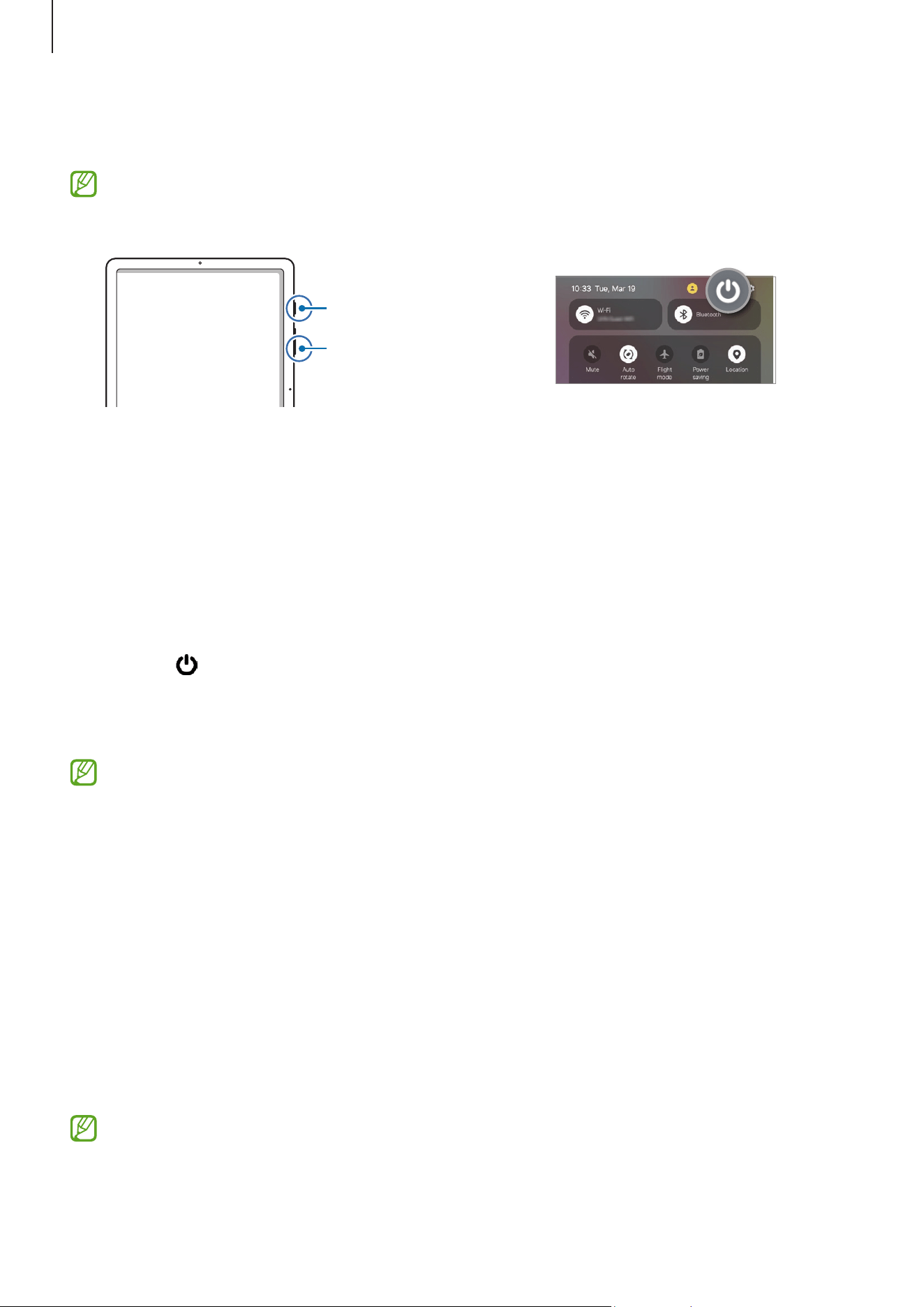
Side button
Volume Down button
Turning the device on
Press and hold the Side button for a few seconds to turn on the device.
Turning the device off
1 To turn off the device, press and hold the Side button and the Volume Down button
simultaneously. Alternatively, open the notification panel, swipe downwards, and
then tap .
2 Tap
Power off
.
To restart the device, tap
Restart
.
If you want to set the device to turn off when you press and hold the Side button,
tap
Side button settings
and tap
Power off menu
under
Press and hold
.
Forcing restart
If your device is frozen and unresponsive, press and hold the Side button and the Volume
Down button simultaneously for more than 7 seconds to restart it.
Initial setup
When you turn on your device for the first time or performia data reset, follow the
on-screen instructions to set up your device.
If you do not connect to a Wi-Fi network, you might not be able to set up some
device features during the initial setup.

Getting started
13
Samsung account
Using the Samsung account, you can use a variety of Samsung services that are provided
through mobile devices, TVs, and the Samsung website.
To check the list of services that can be used with your Samsung account, visit
account.samsung.com.
1 Open
Settings
and tap
Samsung account
.
Alternatively, open
Settings
and tap
Accounts and backup
→
Manage accounts
→
Add account
→
Samsung account
.
2 Sign in to your Samsung account. If you do not have a Samsung account, tap
Forgot
password or don’t have an account?
→
Create account
.
Finding your ID and resetting your password
If you forget your Samsung account ID or password, tap
Forgot password or don’t have
an account?
→
Forgot ID
or
Forgot password
on the Samsung account sign-in screen.
You can find your ID or reset your password after you enter the required information.
Signing out of your Samsung account
When you sign out of your Samsung account, your data, such as contacts or events, will
also be removed from your device.
1 Open
Settings
and tap
Accounts and backup
→
Manage accounts
.
2 Tap
Samsung account
→
My profile
and tap
Sign out
at the bottom of the screen.
3 Tap
Sign out
, enter your Samsung account password, and then tap
OK
.

Getting started
14
Transferring data from your previous device
(Smart Switch)
You can use Smart Switch to transfer data from your previous device to your new tablet.
Open
Settings
and tap
Accounts and backup
→
Transfer data for device setup
.
To check the data that has been transferred, tap
→
Transfer result
.
•
This feature may not be supported on some devices or computers.
•
Limitations apply. Visit www.samsung.com/smartswitch for details. Samsung
takes copyright seriously. Only transfer content that you own or have the right to
transfer.
Transferring data using a USB cable
You can connect your previous device to your new tablet with the USB cable to transfer
data. If you do not have the app on your previous device, download it from
Galaxy Store
or
Play Store
.
1 Connect your new tablet and the previous device using your new tablet’s USB cable.
A USB adapter may be needed depending on the previous device.
2 When the app selection pop-up window appears, tap
Smart Switch
→
Receive data
.
3 In the previous device, tap
Connect
.
Your new tablet will recognize the previous device and a list of data you can transfer
will appear.
4 On your new tablet, select an option you want, tap
Next
, and then follow the
on-screen instructions to transfer data.
Do not disconnect the USB cable from the device when you are transferring files.
Doing so may cause data loss or device damage.
Transferring data increases the battery power consumption of your device. Ensure
that your device is sufficiently charged before transferring data. If the battery
power is low, data transfer may be interrupted.

Getting started
15
Transferring data wirelessly
Transfer data from your previous device to your new tablet wirelessly through Wi-Fi
Direct.
1 On the previous device, open
Smart Switch
.
If you do not have the app, download it from
Galaxy Store
or
Play Store
.
2 On your new tablet, open
Settings
and tap
Accounts and backup
→
Transfer data for
device setup
.
3 Place the devices near each other.
4 On the previous device, tap
Send data
→
Wireless
.
5 On your new tablet, tap
Receive data
, select your previous device’s operating system,
and then tap
Wireless
.
6 On the previous device, tap
Connect
.
7 On your new tablet, select an option you want, tap
Next
, and then follow the
on-screen instructions to transfer data.
Backing up and restoring data using external storage
Transfer data using external storage, such as a microSD card.
1 Back up data from your previous device to external storage.
2 Insert or connect the external storage device to your tablet.
3 On your tablet, open
Settings
and tap
Accounts and backup
→
External storage
transfer
.
4 Select the backup data under
Restore from
.
5 Select an option you want, tap
Next
, and then follow the on-screen instructions to
transfer data.
Transferring backup data
Back up data from your previous device to a computer, Samsung Cloud, or external
storage and import the data to your new tablet. Visit www.samsung.com/smartswitch
for more information.
Getting started
16
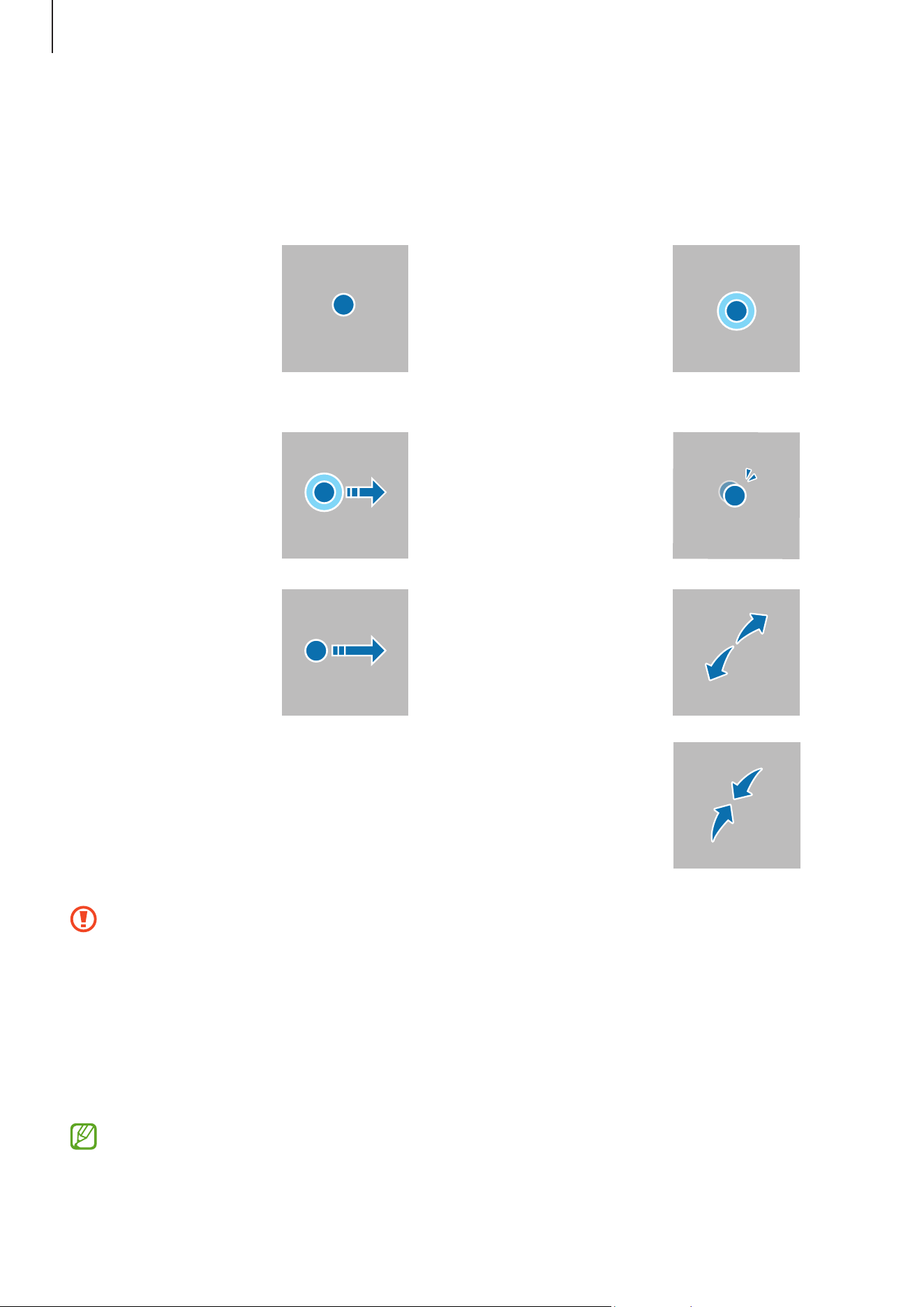
Understanding the screen
Controlling the screen
Tapping
Tap the screen.
Touching and
holding
Touch and hold
the screen for
approximately
2 seconds.
Dragging
Touch and hold
an item and drag
it to the target
position.
Double tapping
Double tap the
screen.
Swiping
Swipe upwards,
downwards, to
the left, or to the
right.
Spreading and
pinching
Spread two
fingers apart
or pinch on the
screen.
•
Do not allow the screen to come into contact with other electrical devices.
Electrostatic discharges can cause the screen to malfunction.
•
To avoid damaging the screen, do not tap it with anything sharp or apply
excessive pressure to it with your fingertips or other object.
•
It is recommended not to use fixed graphics on part or all of the screen for
extended periods. Doing so may result in afterimages (screen burn-in) or
ghosting.
The device may not recognize touch inputs close to the edges of the screen, which
are outside of the touch input area.
Getting started
17
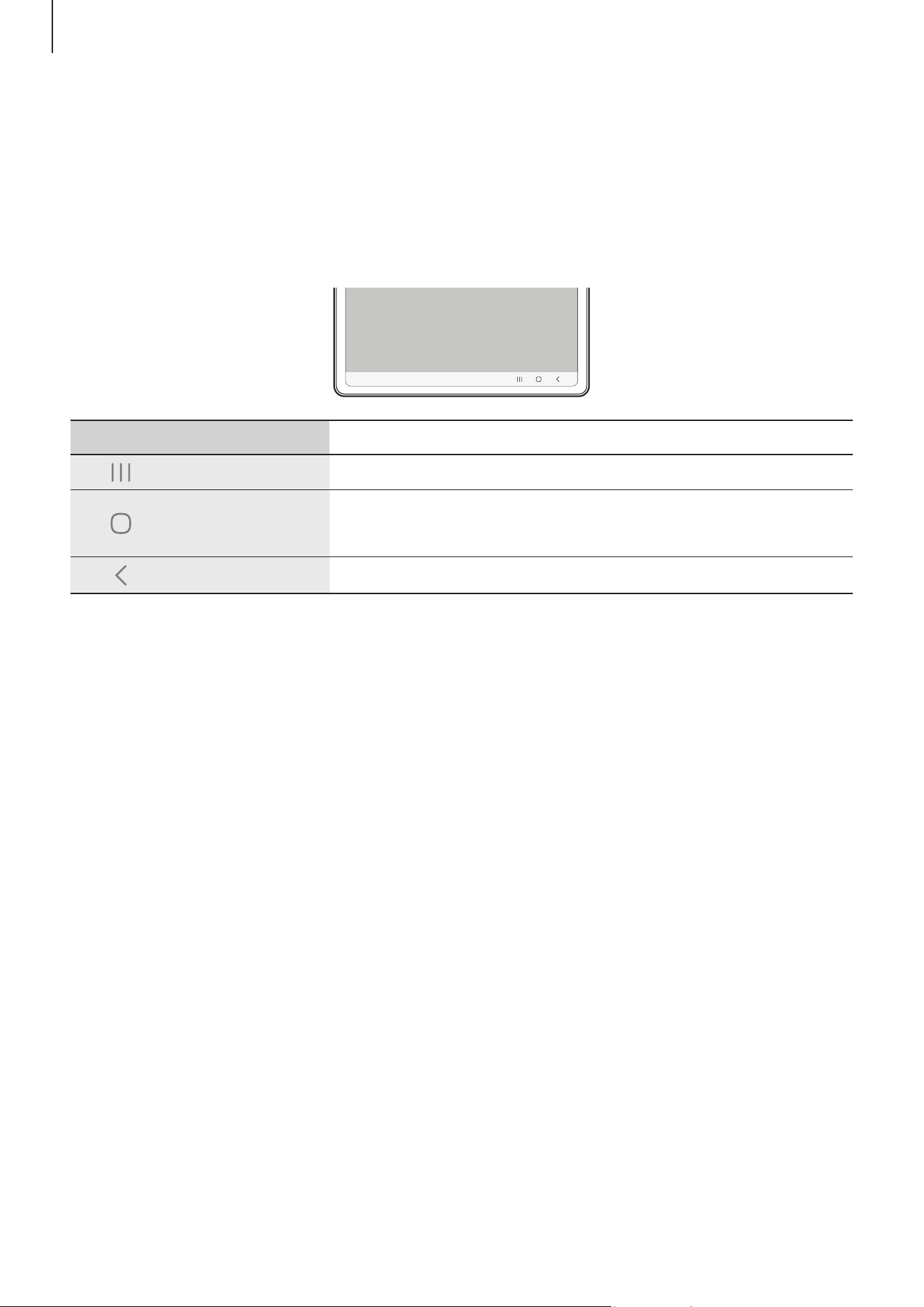
Navigation bar (soft buttons)
When you turn on the screen, the soft buttons will appear on the navigation bar at the
bottom of the screen. The soft buttons are set to the Recents button, Home button, and
Back button by default. The functions of the buttons can change according to the app
currently being used or usage environment.
Button Function
Recents
•
Tap to open the list of recent apps.
Home
•
Tap to return to the Home screen.
•
Touch and hold to open the
Google Assistant
app.
Back
•
Tap to return to the previous screen.
Hiding the navigation bar
Check files or use apps on a wider screen by hiding the navigation bar.
Open
Settings
and tap
Display
→
Navigation bar
→
Swipe gestures
.
Getting started
18
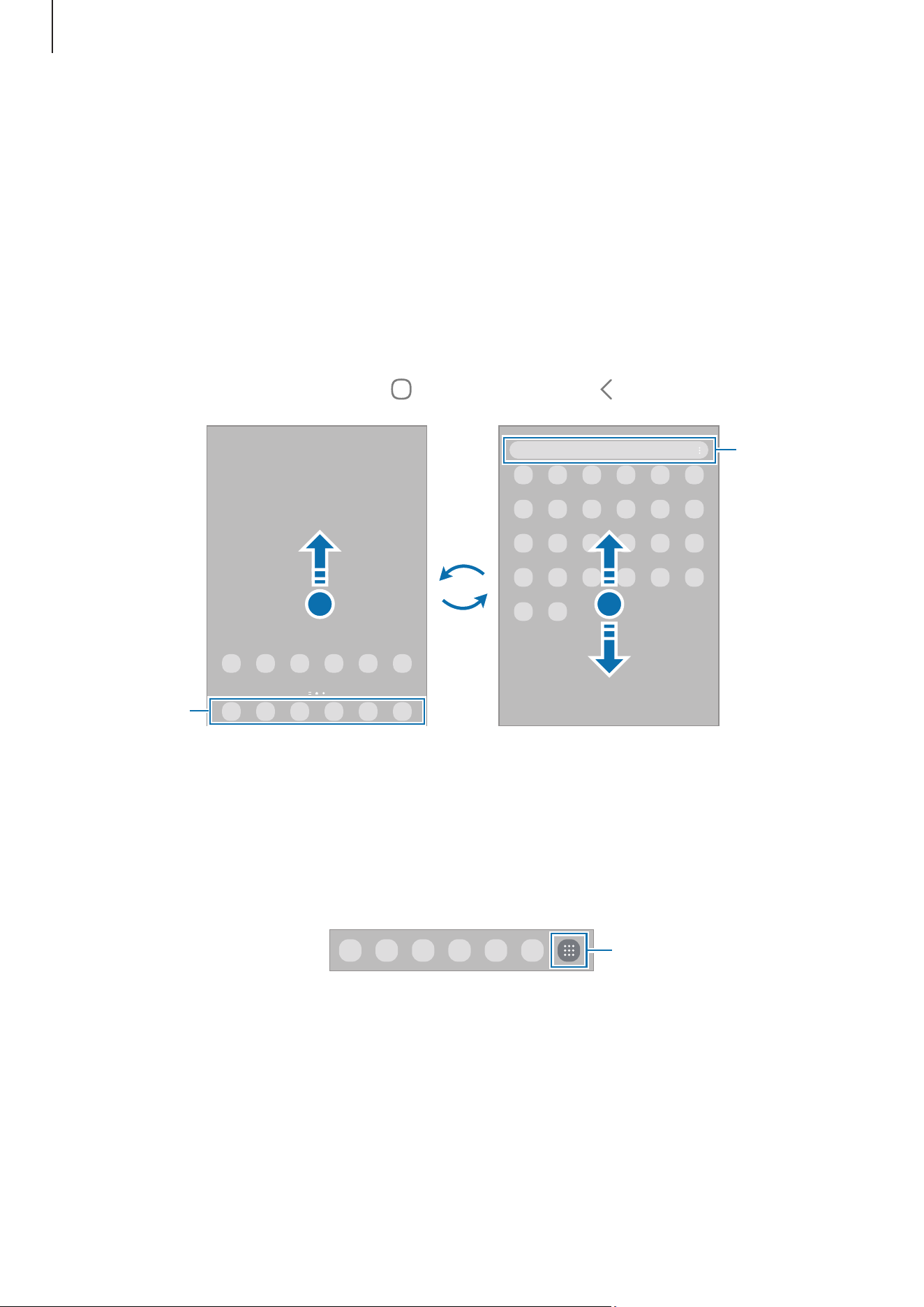
Home screen and Apps screen
The Home screen is the starting point for accessing all of the device’s features. It
displays widgets, shortcuts to apps, and more.
The Apps screen displays icons for all apps, including newly installed apps.
Switching between Home and Apps screens
On the Home screen, swipe upwards to open the Apps screen.
To return to the Home screen, swipe upwards or downwards on the Apps screen.
Alternatively, tap the Home button (
) or the Back button ( ).
Home screen Apps screen
Finder
Favourite
apps
If you add the Apps button on the Home screen, you can open the Apps screen by tapping
the button. On the Home screen, touch and hold an empty area, tap
Settings
, and then
tap the
Show Apps screen button on Home screen
switch to turn it on. The Apps button
will be added at the bottom of the Home screen.
Apps button
Getting started
19
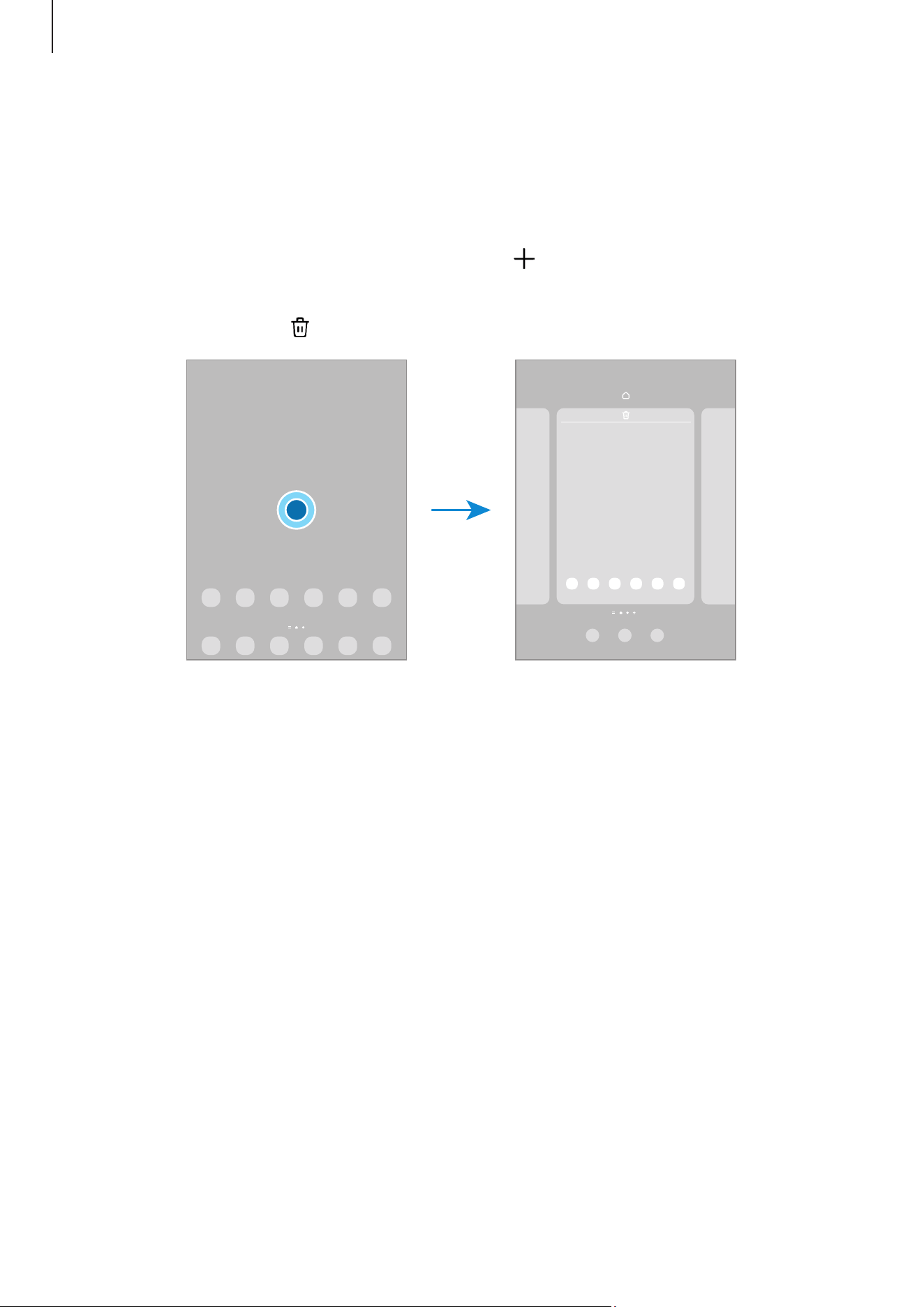
Editing the Home screen
On the Home screen, touch and hold an empty area, or pinch your fingers together to
access the editing options. You can set the wallpaper, add widgets, and more. You can
also add, delete, or rearrange Home screen panels.
•
Adding panels: Swipe to the left, and then tap .
•
Moving panels: Drag a panel preview to a new location.
•
Deleting panels: Tap on the panel.
•
Wallpapers and Style
: Change the wallpaper settings for the Home screen and the
locked screen.
•
Widgets
: Widgets are small apps that launch specific app features to provide
information and convenient access on your Home screen. Select a widget and tap
Add
. The widget will be added on the Home screen.
•
Settings
: Configure settings for the Home screen, such as the screen layout.
Displaying all apps on the Home screen
Without using a separate Apps screen, you can set the device to display all apps on the
Home screen. On the Home screen, touch and hold an empty area, and then tap
Settings
→
Home screen layout
→
Home screen only
→
Apply
.

Getting started
20
Launching Finder
Search for content on the device.
1 On the Apps screen, tap
Search
.
2 Enter a keyword.
Apps and content on your device will be searched.
If you tap
on the keyboard, you can search for more content.
Moving items
Drag an item to a new location. To move the item to another panel, drag it to the side of
the screen. If you touch and hold an item and tap
Select
, you can select more items and
move them together at once.
To add a shortcut to an app on the Home screen, touch and hold an item on the Apps
screen, and then tap
Add to Home
. A shortcut to the app will be added on the Home
screen.
You can also move frequently used apps to the shortcuts area at the bottom of the Home
screen.
Getting started
21
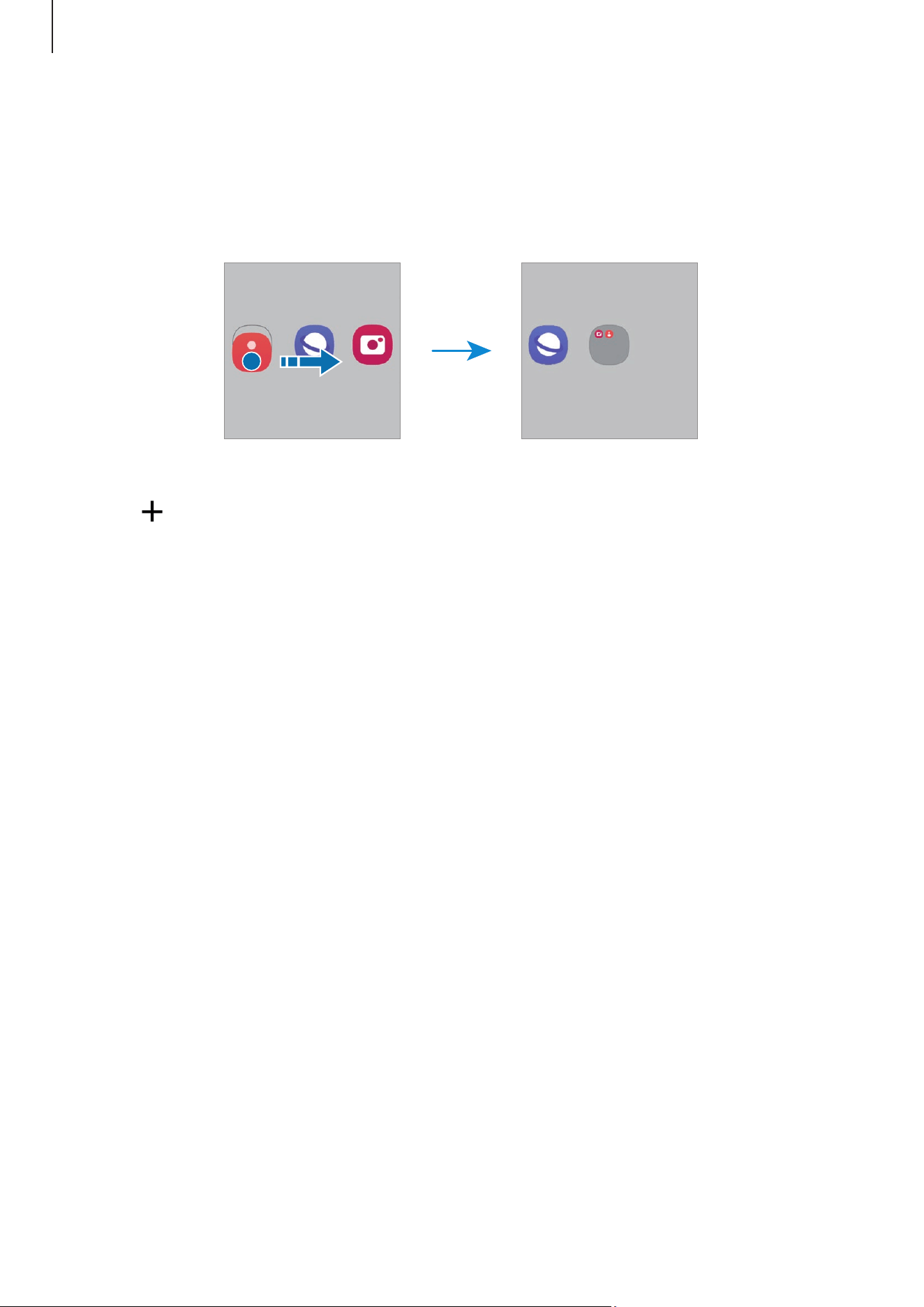
Creating folders
On the Home screen or the Apps screen, drag an app over another app.
A new folder containing the selected apps will be created. Tap
Folder name
and enter a
folder name.
•
Adding more apps
Tap on the folder. Tick the apps to add and tap
Done
. You can also add an app by
dragging it to the folder.
•
Moving apps from a folder
Drag an app to a new location.
•
Deleting a folder
Touch and hold a folder, and then tap
Delete folder
. Only the folder will be deleted.
The folder’s apps will be relocated to the Apps screen.
Getting started
22
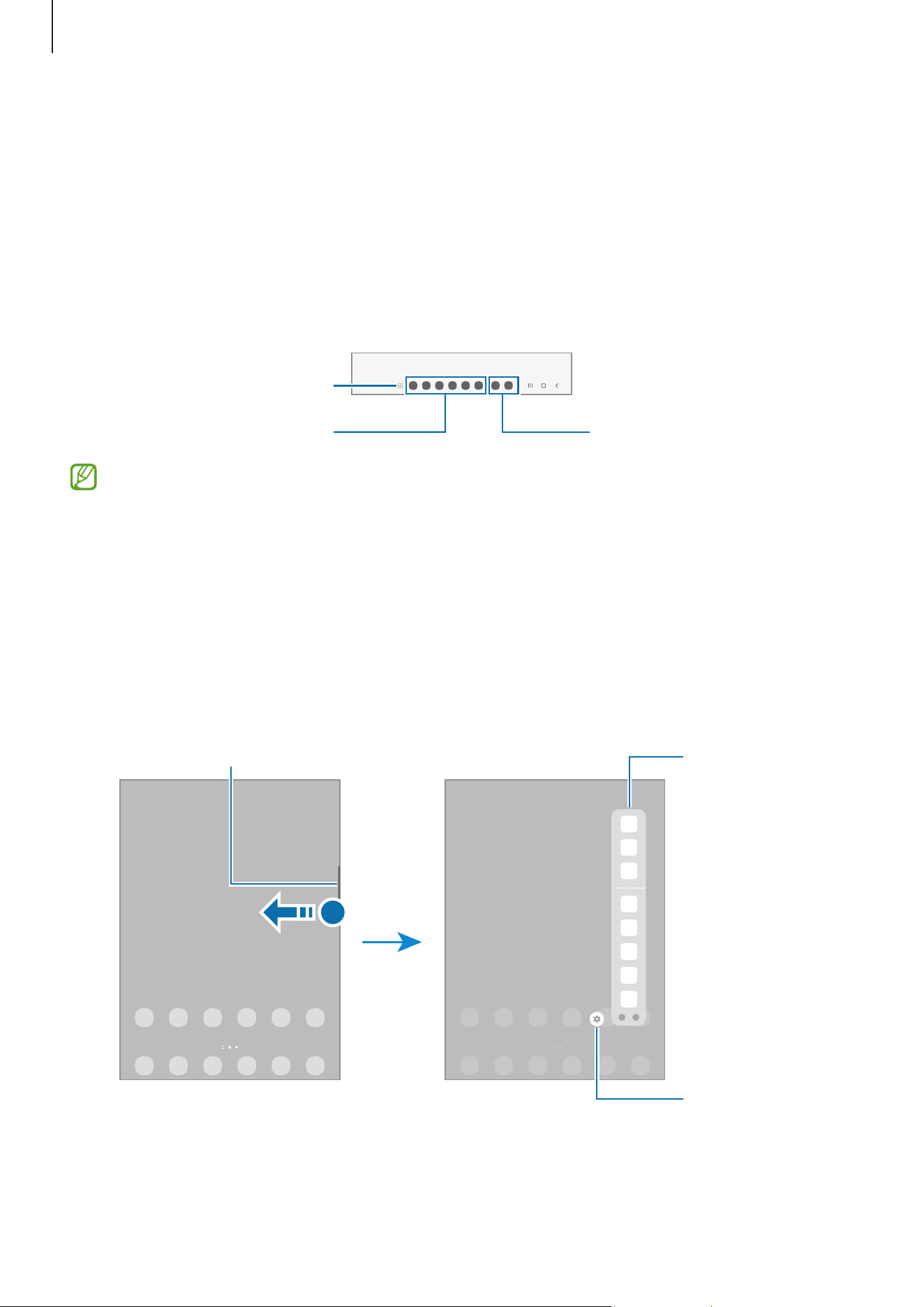
Taskbar
The taskbar appears at the bottom of screen while using an app. The favourite apps
from the bottom of the Home screen, recently used apps, and the all apps button will be
displayed on the taskbar. You can switch apps by selecting the app you want from the
taskbar.
You can also run multiple apps at the same time. While using an app, drag the app you
want from the taskbar upwards, and then drop it wherever you want.
All apps button
Favourite apps
Recently used apps
If you do not want to use the taskbar, open
Settings
, tap
Display
, and then tap the
Taskbar
switch to turn it off.
Edge panel
You can access your favourite apps and features from the Edge panels.
Drag the Edge panel handle towards the centre of the screen.
If the Edge panel handle is not visible, open
Settings
, tap
Display
, and then tap the
Edge
panels
switch to turn it on.
Edge panel handle
Edge panel
Edge panel
settings

Getting started
23
Lock screen
Pressing the Side button turns off the screen and locks it. Also, the screen turns off and
automatically locks if the device is not used for a specified period.
To unlock the screen, swipe in any direction when the screen turns on.
If the screen is off, press the Side button to turn on the screen. Alternatively, double tap
the screen.
Editing shortcuts
You can change the shortcuts at the bottom of the locked screen to other apps or
features you want.
Touch and hold on the locked screen, tap the shortcut icon, select an app or feature you
want, and then tap
Done
.
Changing the screen lock method
To change the screen lock method, open
Settings
, tap
Lock screen
→
Screen lock type
,
and then select a method.
When you set a pattern, PIN, password, or your biometric data for the screen lock
method, you can protect your personal information by preventing others from accessing
your device. After setting the screen lock method, the device will require an unlock code
whenever unlocking it.
You can set your device to perform a factory data reset if the unlock code is entered
incorrectly several times in a row and the attempt limit is reached. Open
Settings
,
tap
Lock screen
→
Secure lock settings
, unlock the screen using the preset screen
lock method, and then tap the
Auto factory reset
switch to turn it on.
Getting started
24
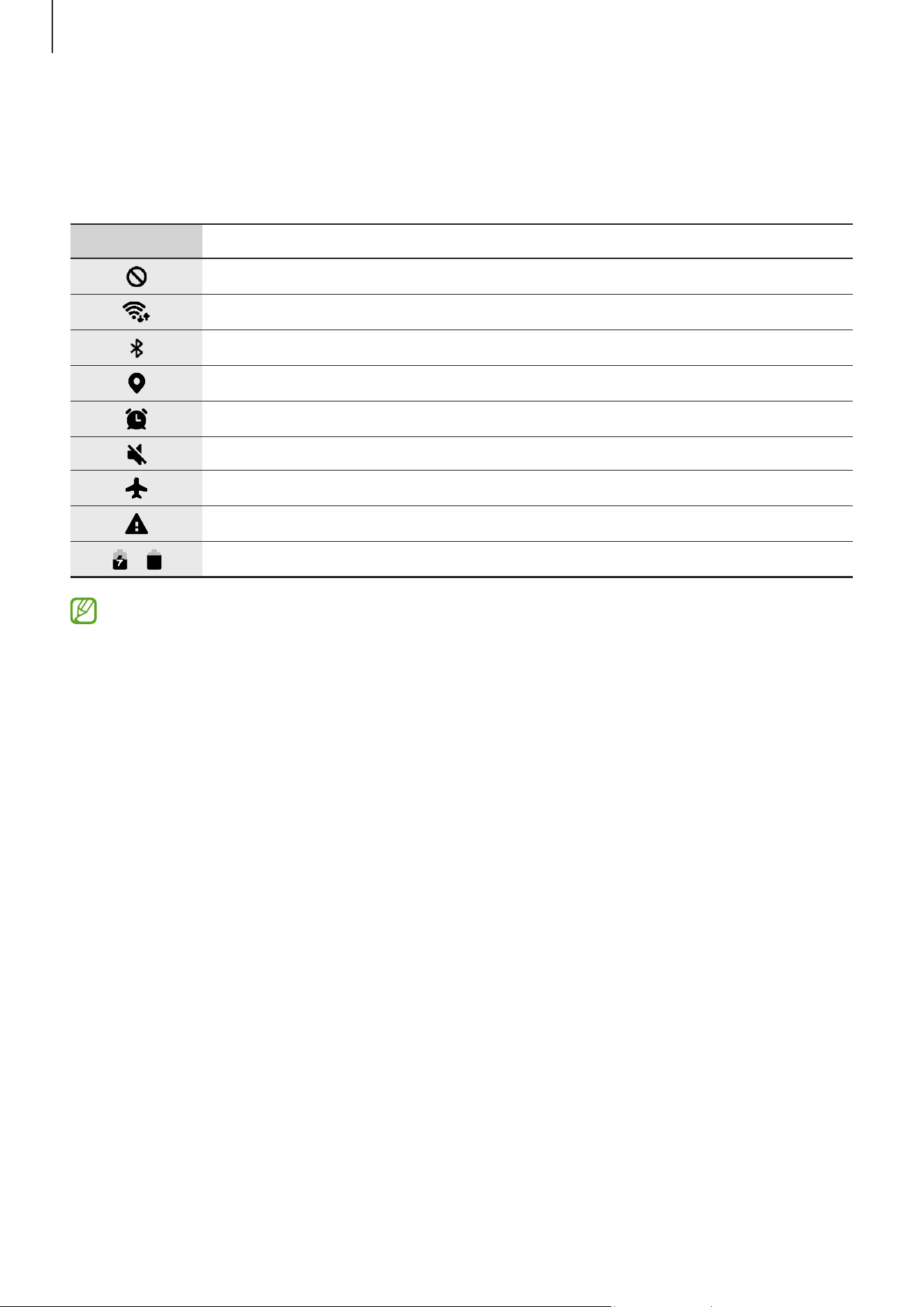
Indicator icons
Indicator icons appear on the status bar at the top of the screen. The icons listed in the
table are most common.
Icon Meaning
No signal
Wi-Fi connected
Bluetooth feature turned on
Location services being used
Alarm turned on
Mute mode
Flight mode turned on
Error occurred or caution required
/
Battery charging / Battery power level
•
The status bar may not appear at the top of the screen in some apps. To display
the status bar, drag down from the top of the screen.
•
Some indicator icons appear only when you open the notification panel.
•
The indicator icons may appear differently depending on the model.
Getting started
25
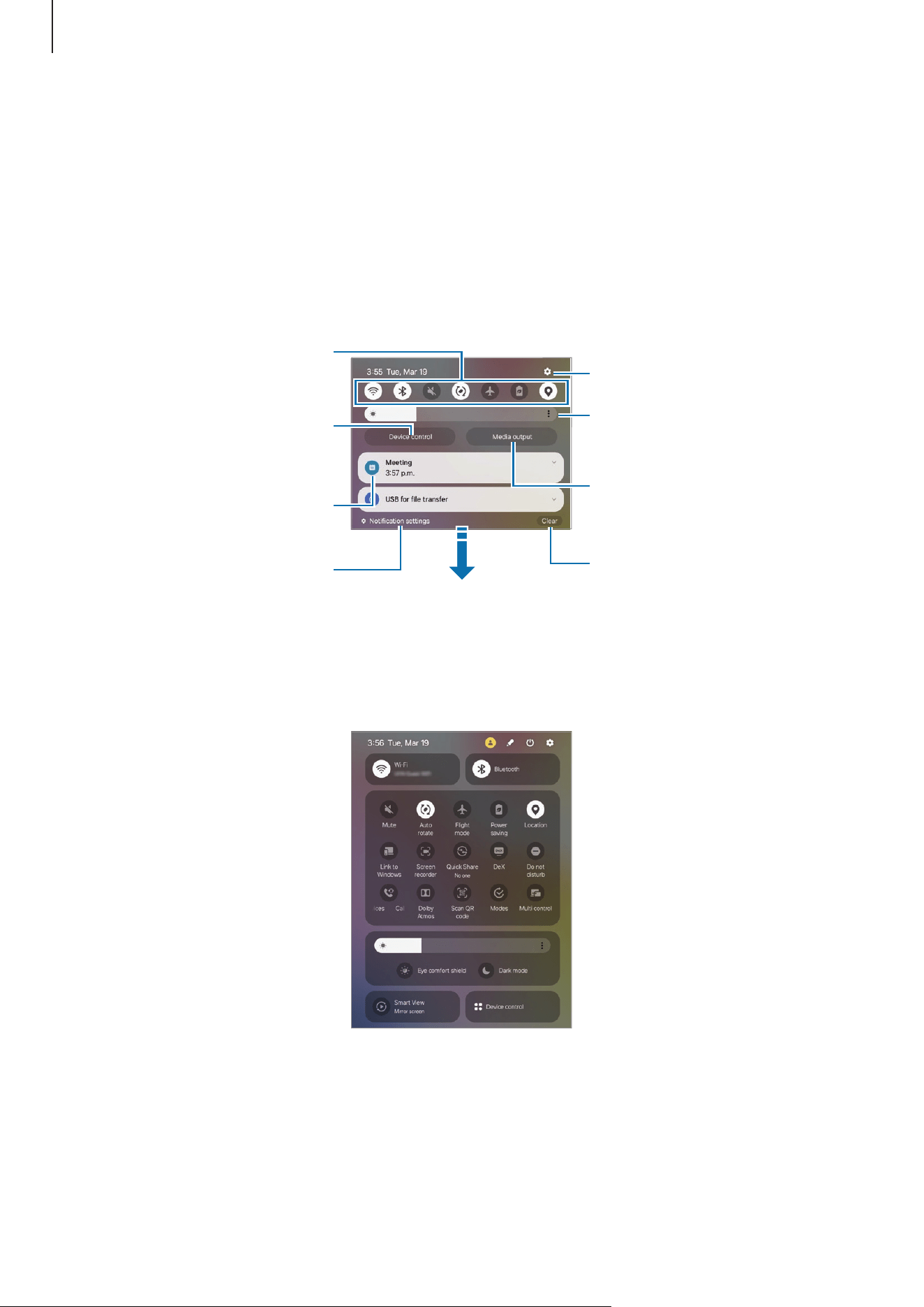
Notification panel
When you receive new notifications, indicator icons appear on the status bar. To check
out more information about the icons, open the notification panel and check the details.
To open the notification panel, drag the status bar downwards. To close the notification
panel, swipe upwards on the screen.
You can use the following functions on the notification panel.
Check the notification details
and perform various actions.
Clear all notifications.
Open Settings.
Access the notification
settings.
Quick settings
Control connected nearby
devices, SmartThings devices,
and manual routines.
Control media on your tablet
and connected nearby
devices.
Adjust the brightness of the
display.
Using the quick settings panel
Swipe downwards on the notification panel to open the quick settings panel.

Getting started
26
Tap each button to turn the specific feature on or off. To access more detailed settings,
tap the button’s text or touch and hold a button.
To edit buttons, tap
→
Edit
.
Controlling media playback
Control media on your tablet and connected nearby devices on the notification panel.
1 Open the notification panel and tap
Media output
.
2 Tap the icons on the controller to control the playback.
Controlling nearby devices
Launch and take control of nearby connected devices, frequently used SmartThings
devices, and manual routines on the notification panel.
1 Open the notification panel and tap
Device control
.
Nearby connected devices, SmartThings devices, and manual routines will appear.
2 Select a nearby device or a SmartThings device to control it, or select a manual
routine to launch it.
Getting started
27
Screen capture and screen record
Screen capture
Capture a screenshot while using the device. Press the Side button and the Volume
Down button simultaneously. You can check the captured screenshots in
Gallery
.
It is not possible to capture a screenshot while using some apps and features.
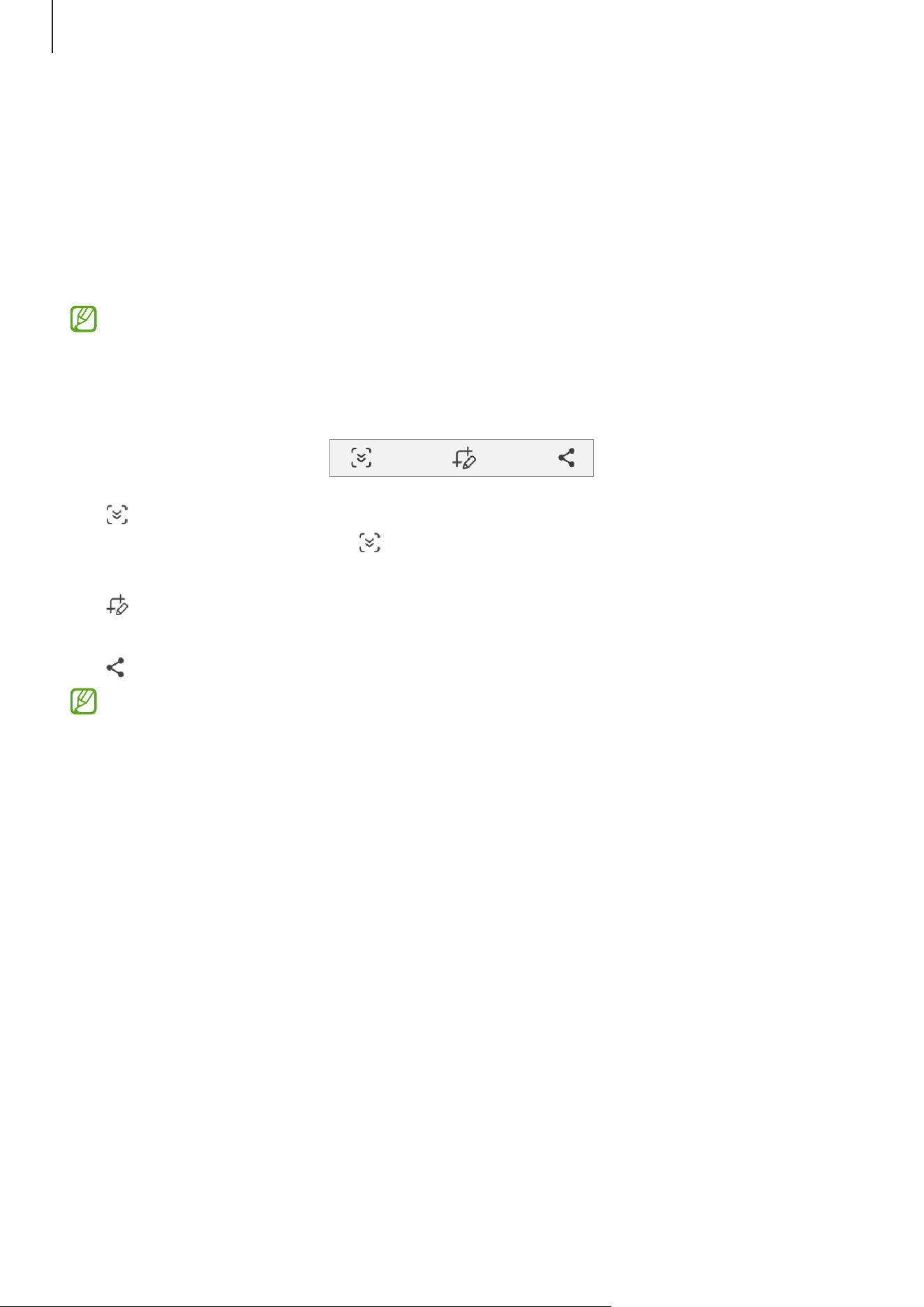
After capturing a screenshot, use the following options on the toolbar at the bottom of
the screen:
•
: Capture the current content and the hidden content on an elongated page, such
as a webpage. When you tap , the screen will automatically scroll down and more
content will be captured.
•
: Write or draw on the screenshot or crop a portion from the screenshot. You can
check the cropped area in
Gallery
.
•
: Share the screenshot with others.
If the options are not visible on the captured screen, open
Settings
, tap
Advanced
features
→
Screenshots and screen recordings
, and then tap the
Show toolbar
after capturing
switch to turn it on.
Getting started
28
Screen record
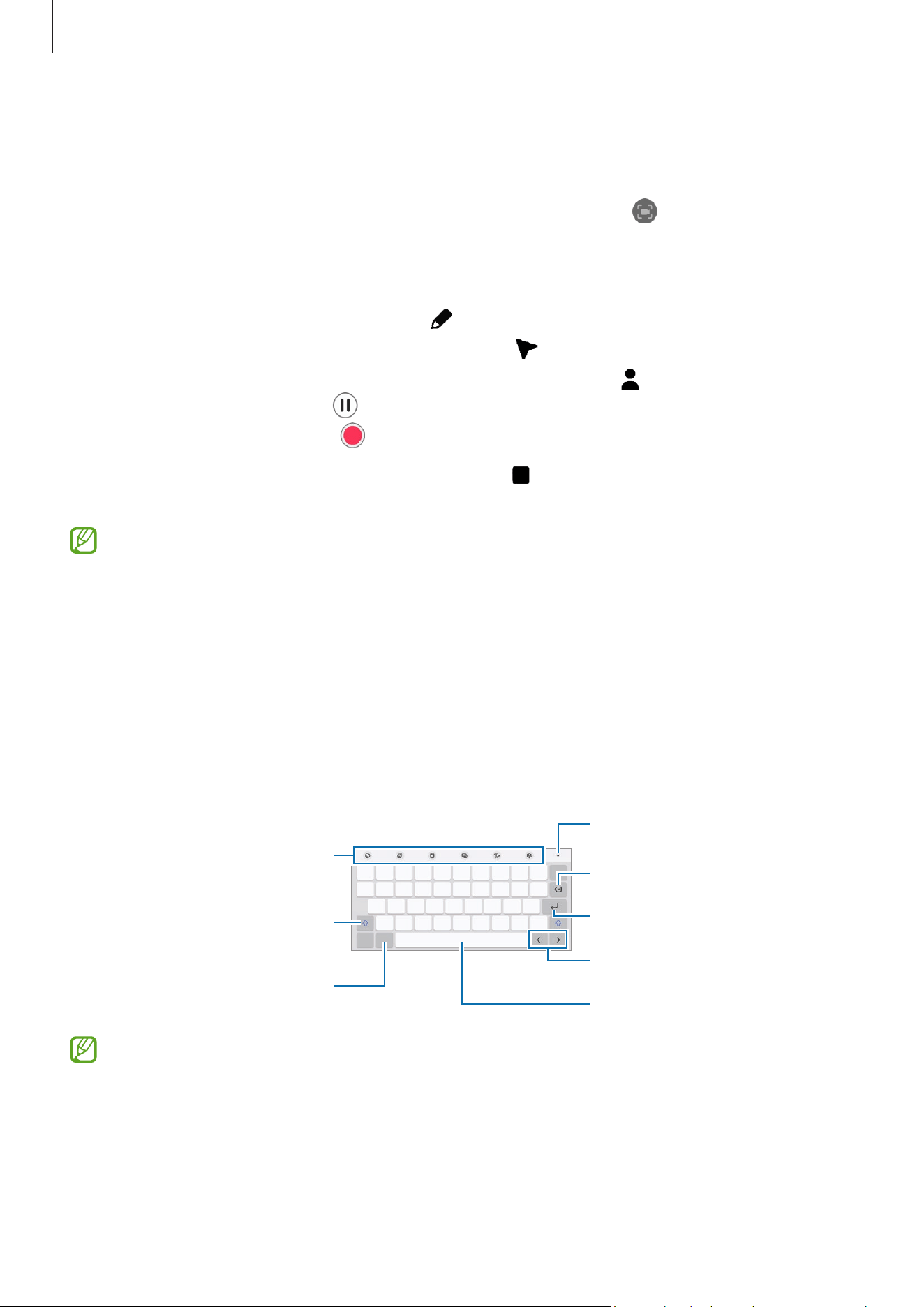
Record the screen while using your device.
1 Open the notification panel, swipe downwards, and then tap (
Screen recorder
).
2 Select a sound setting and tap
Start recording
.
After a countdown, recording will start.
•
To write or draw on the screen, tap .
•
To show the S Pen pointer on the screen, tap
.
•
To record the screen with a video overlay of yourself, tap .
•
To pause recording, tap .
•
To restart recording, tap
3 When you are finished recording the video, tap .
You can check the video in
Gallery
.
To change the screen recorder settings, open
Settings
and tap
Advanced features
→
Screenshots and screen recordings
.
Entering text
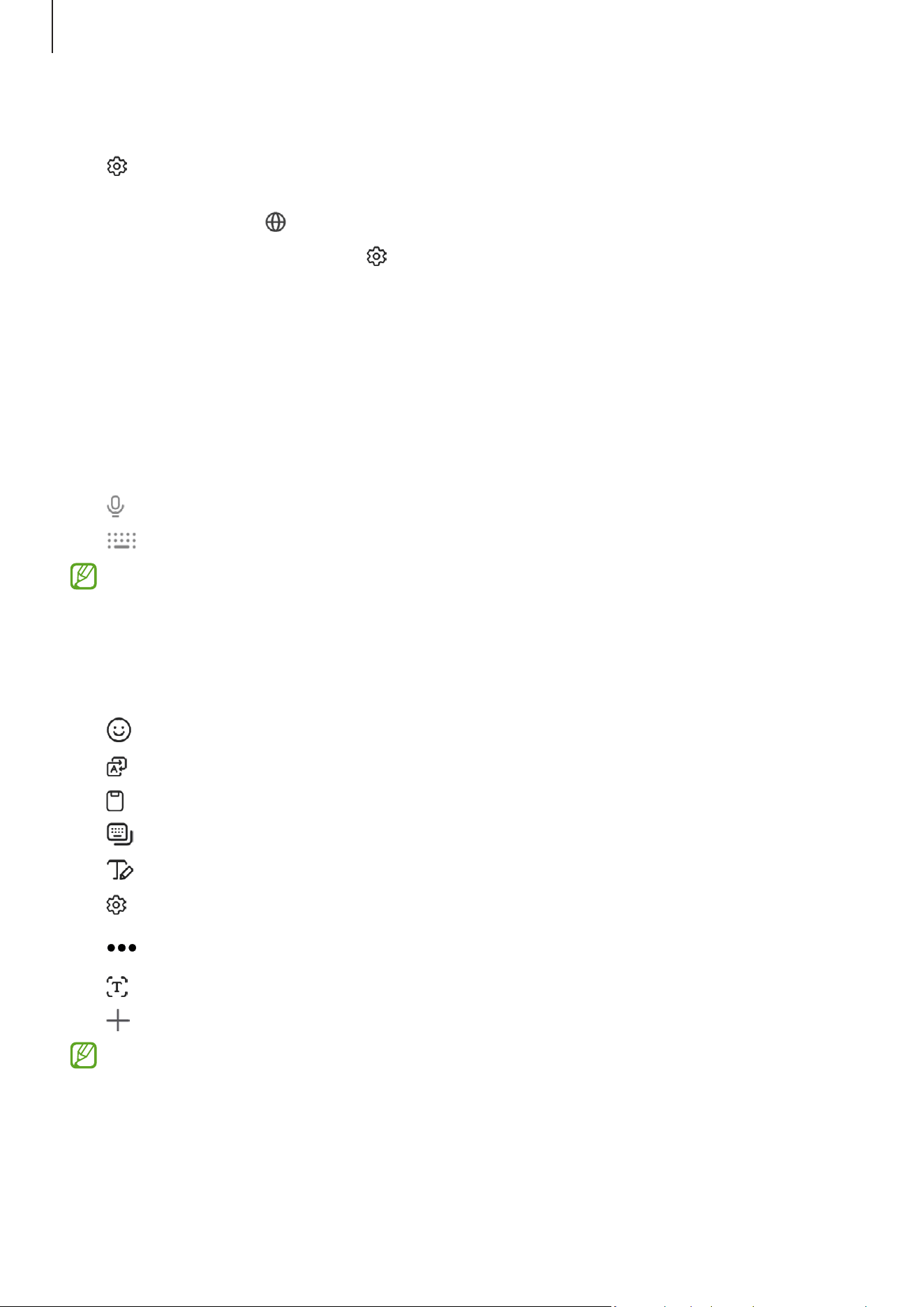
Keyboard layout
A keyboard appears automatically when you enter text.
Delete a preceding character.
Enter symbols.
Enter uppercase. For all caps,
tap it twice.
Additional keyboard functions
Move the cursor.
Enter a space.
Access more keyboard
functions.
Break to the next line.
Text entry is not supported in some languages. To enter text, you must change the
input language to one of the supported languages.
Getting started
29
Changing the input language
Tap
→
Languages and types
→
Manage input languages
and select the languages
to use. When you select two or more languages, you can switch between the input
languages by tapping .
To change the keyboard type, tap
→
Languages and types
, select a language, and
then select the keyboard type you want.
Using the keyboard button
You can change the text input method by tapping the keyboard button on the navigation
bar.
To change the keyboard button on the navigation bar, touch and hold the keyboard
button and select an option you want.
•
: Enter text by voice.
•
: Change the keyboard.
If the keyboard button does not appear on the navigation bar, open
Settings
, tap
General management
→
Keyboard list and default
, and then tap the
Keyboard
button on navigation bar
switch to turn it on.
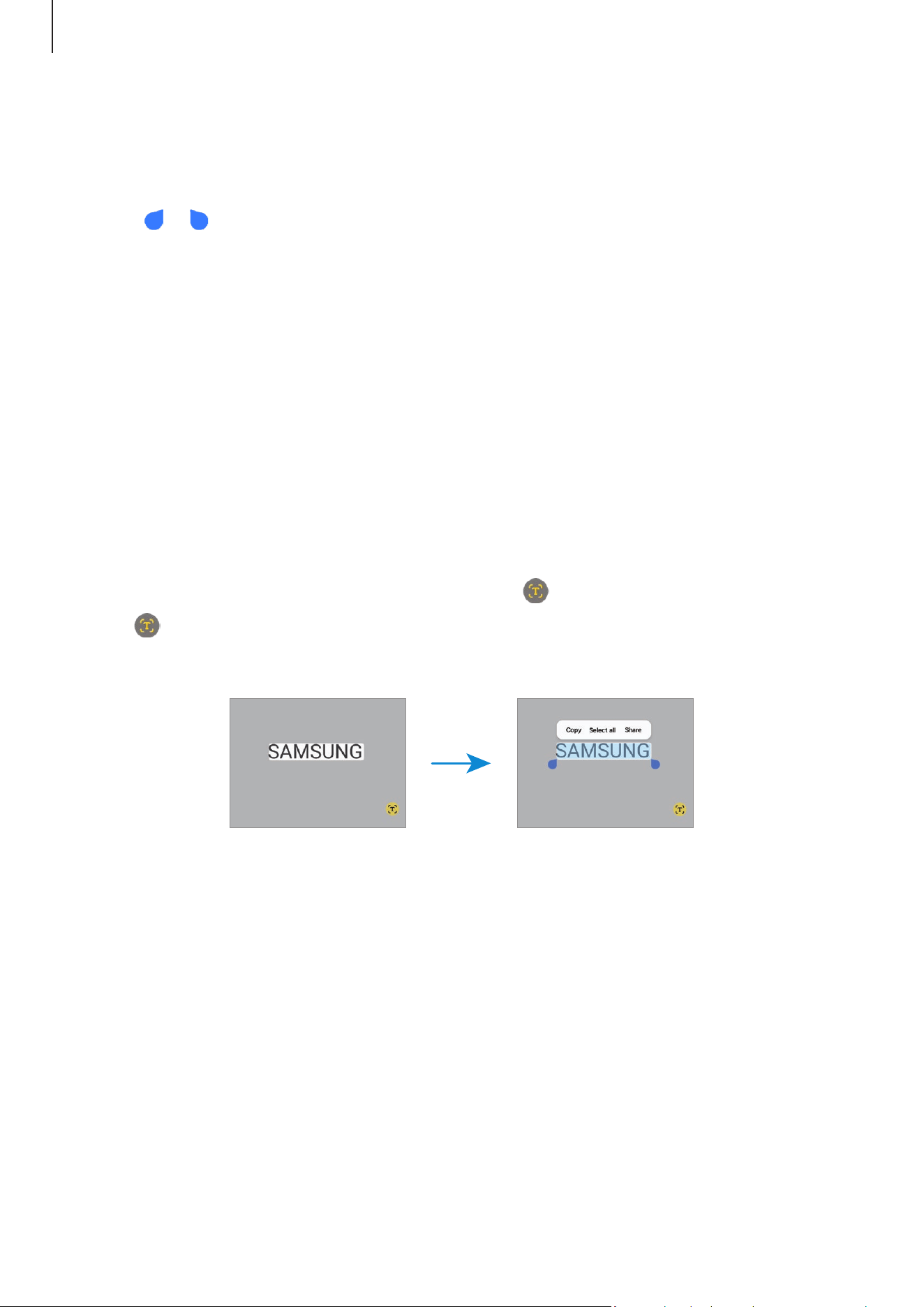
Additional keyboard functions
•
: Enter emojis, stickers, and more.
•
: Translate text and enter it.
•
: Add an item from the clipboard.
•
: Change the keyboard mode.
•
: Switch to handwriting mode.
•
: Change the keyboard settings.
Tap to use more keyboard functions.
•
: Recognize text from documents or images and enter it.
•
: Edit the keyboard function list.
Some features may not be available depending on the carrier or model.
Getting started
30
Copying and pasting
1 Touch and hold over text.
2 Drag or to select the desired text, or tap
Select all
to select all text.
3 Tap
Copy
or
Cut
.
The selected text is copied to the clipboard.
4 Touch and hold where the text is to be inserted and tap
Paste
.
To paste text that you have previously copied, tap
Clipboard
and select the text.
Extracting text
While using some apps, such as the
Gallery
or
Camera
app, you can extract text from
images and use options, such as copying or sharing it. The following actions are an
example of extracting text in the
Gallery
app.
1 While checking an image in the
Gallery
app, tap
.
The icon appears only when there is text to extract.
2 Select an area to extract text.
3 Select an option you want.

31
Apps and features
Installing or uninstalling apps
Galaxy Store
Purchase and download apps. You can download apps that are specialized for Samsung
Galaxy devices.
Open the
Store
app. Browse apps by category or tap to search for a keyword.
•
This app may not be available depending on the carrier or model.
•
To change the auto update settings, tap
Menu
→
→
Auto update apps
, and
then select an option.
Play Store
Purchase and download apps.
Open the
Play Store
app. Browse apps by category or search for apps by keyword.
To change the auto update settings, tap your account icon, tap
Settings
→
Network
preferences
→
Auto-update apps
, and then select an option.
Managing apps
Uninstalling or disabling apps
Touch and hold an app and select an option.
•
Uninstall
: Uninstall downloaded apps.
•
Disable
: Disable selected default apps that cannot be uninstalled from the device.
Some apps may not support this feature.
Enabling apps
Open
Settings
, tap
Apps
→
→
Disabled
→
OK
, select an app, and then tap
Enable
.
Apps and features
32
Setting app permissions
For some apps to operate properly, they may need permission to access or use
information on your device.
To access your app permission settings, open
Settings
and tap
Apps
. Select an app and
tap
Permissions
. You can check the app’s permissions list and change its permissions.
To check or change app permission settings by permission category, open
Settings
and
tap
Apps
→
→
Permission manager
. Select an item and select an app.
If you do not grant permissions to apps, the basic features of the apps may not
function properly.
S Pen
Using the S Pen
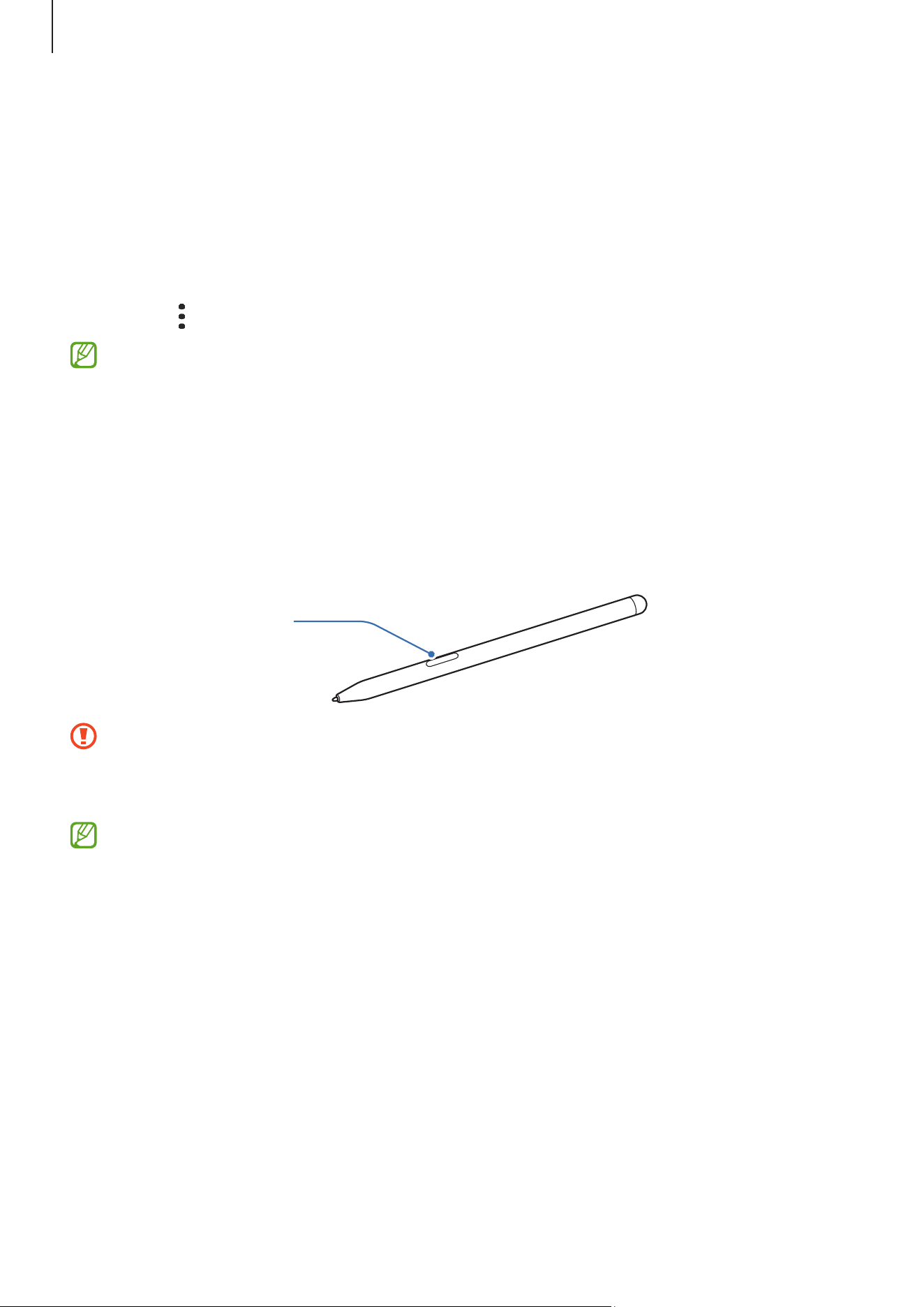
S Pen button
•
Do not bend or apply excessive pressure with the S Pen while using it. The S Pen
may be damaged or the nib may be deformed.
•
Do not hard press on the screen with the S Pen. The pen nib may be deformed.
•
If there is a magnet near the device, some S Pen actions, such as tapping the
screen, may not work.
•
If you use the S Pen at sharp angles on the screen, the device may not recognize
the S Pen actions.
•
If the S Pen is not working properly, take it to a Samsung Service Centre or an
authorized service centre.
Apps and features
33
Air command
(Launching S Pen features and apps directly)
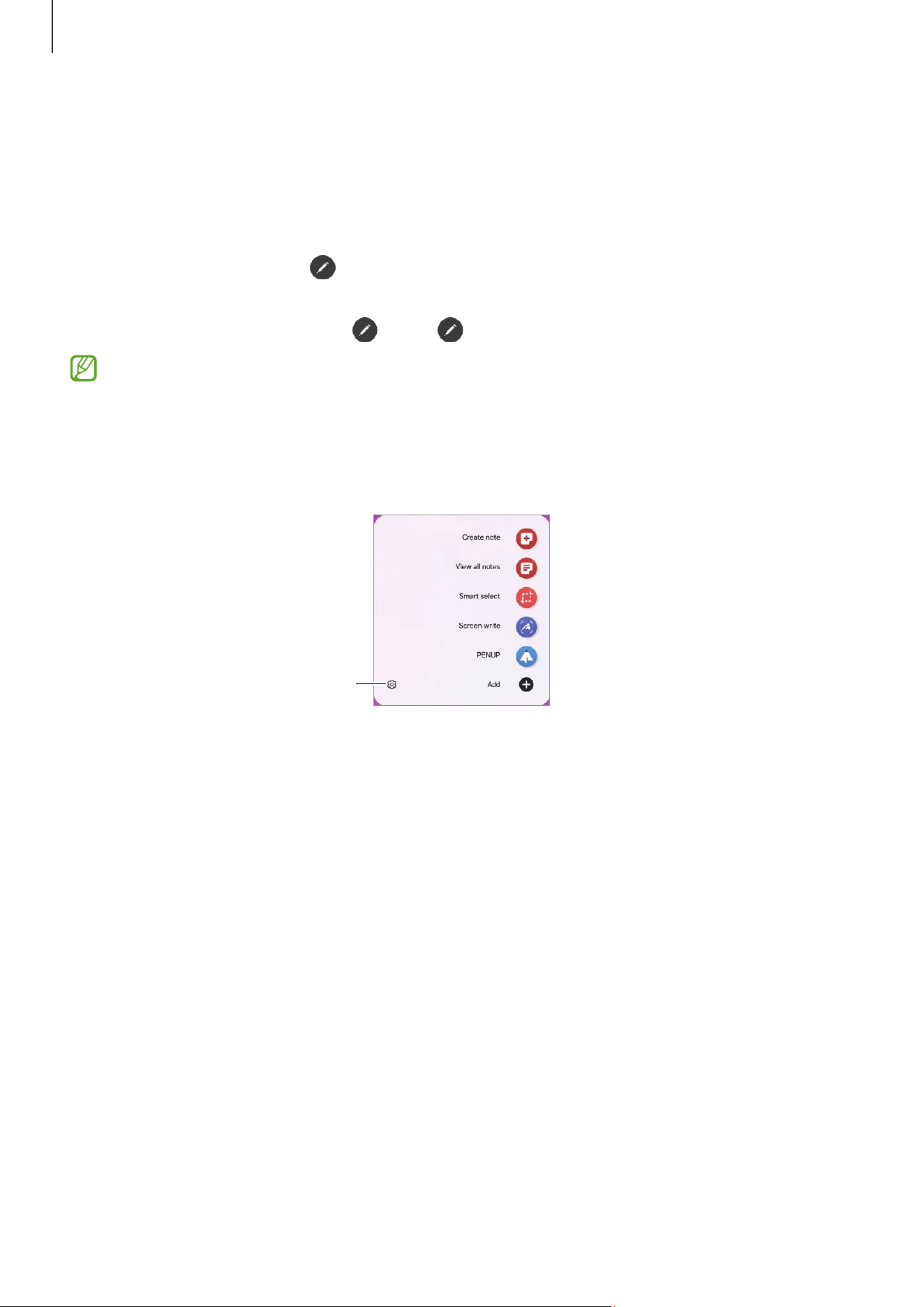
Air command is a menu that provides S Pen features and direct access to frequently used
apps.
Tap the Air command icon ( ) with the S Pen to open the Air command panel and select
a function or app you want.
To move the Air command icon (
), drag to a new location.
If the Air command icon does not appear on the screen, open
Settings
, tap
Advanced features
→
S Pen
→
Air command
, and then tap the
Show Air command
icon
switch to turn it on. If you turn on the
Open Air command with Pen button
switch, you can open the Air command panel by hovering the S Pen over the screen
and pressing the S Pen button.
S Pen settings
•
Create note
: Create notes in a pop-up window. You can also launch this feature by
double tapping the screen while pressing and holding the S Pen button. Refer to
Samsung Notes for more information.
•
View all notes
: Access all notes in the
Samsung Notes
app.
•
Smart select
: Use the S Pen to select an area and perform actions, such as sharing or
saving. Refer to Smart select for more information.
•
Screen write
: Capture screenshots to write or draw on them or crop an area from the
captured image. You can also capture the current content and the hidden content on
an elongated page, such as a webpage. Refer to Screen write for more information.
•
PENUP
: Post your artwork, check out others’ artwork, and get useful drawing tips.
Apps and features
34
•
Bixby Vision
: Use the Bixby Vision features to search for similar images, detect and
translate text, and more. Refer to Bixby Vision for more information.
•
Translate
: Hover the S Pen over a word to translate it. Refer to Translate for more
information.
•
Write on calendar
: Open the
Calendar
app and write or draw on the screen. Refer to
Write on calendar for more information.
•
Add
: Add shortcuts to frequently used apps to the Air command panel.
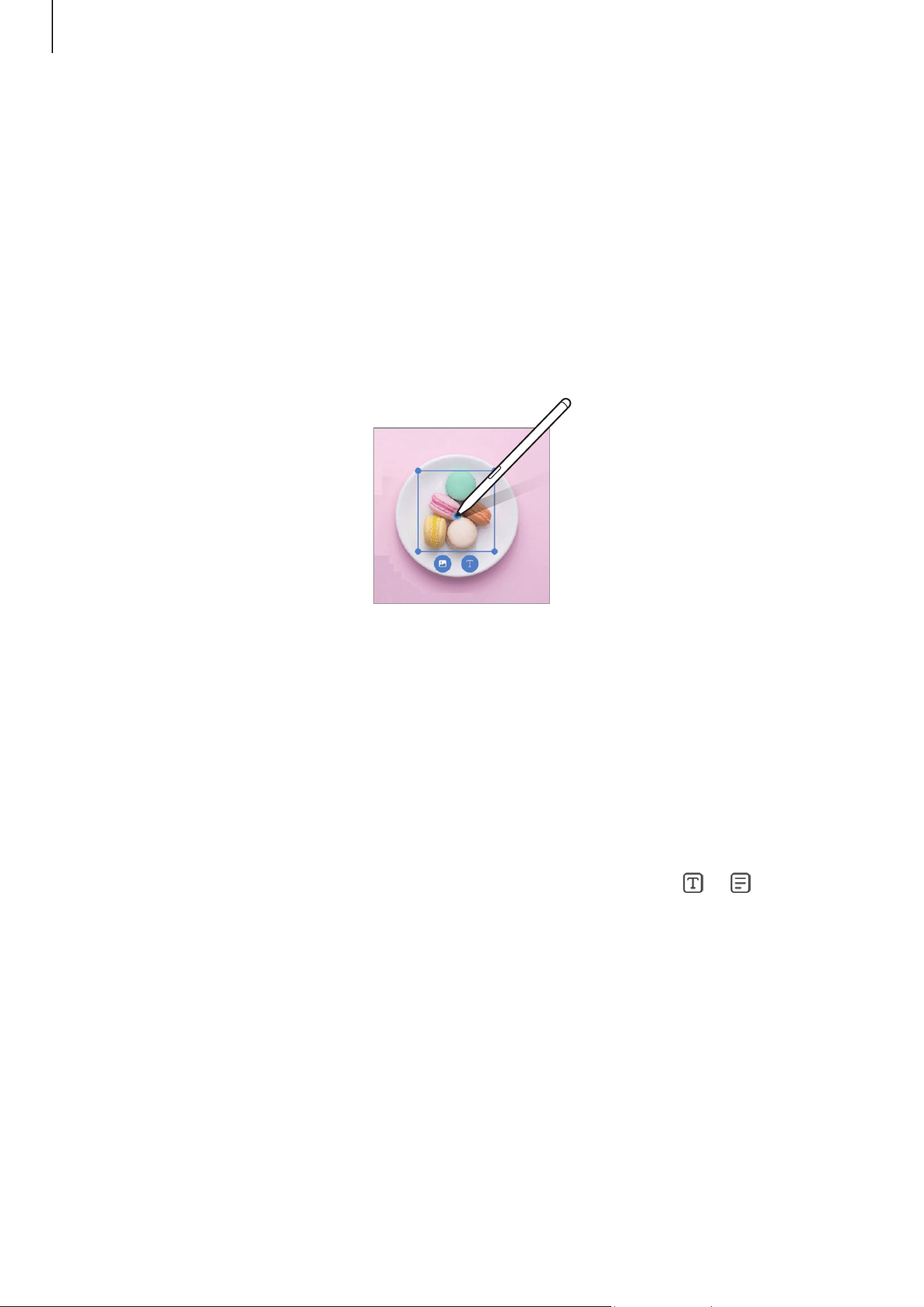
Smart select
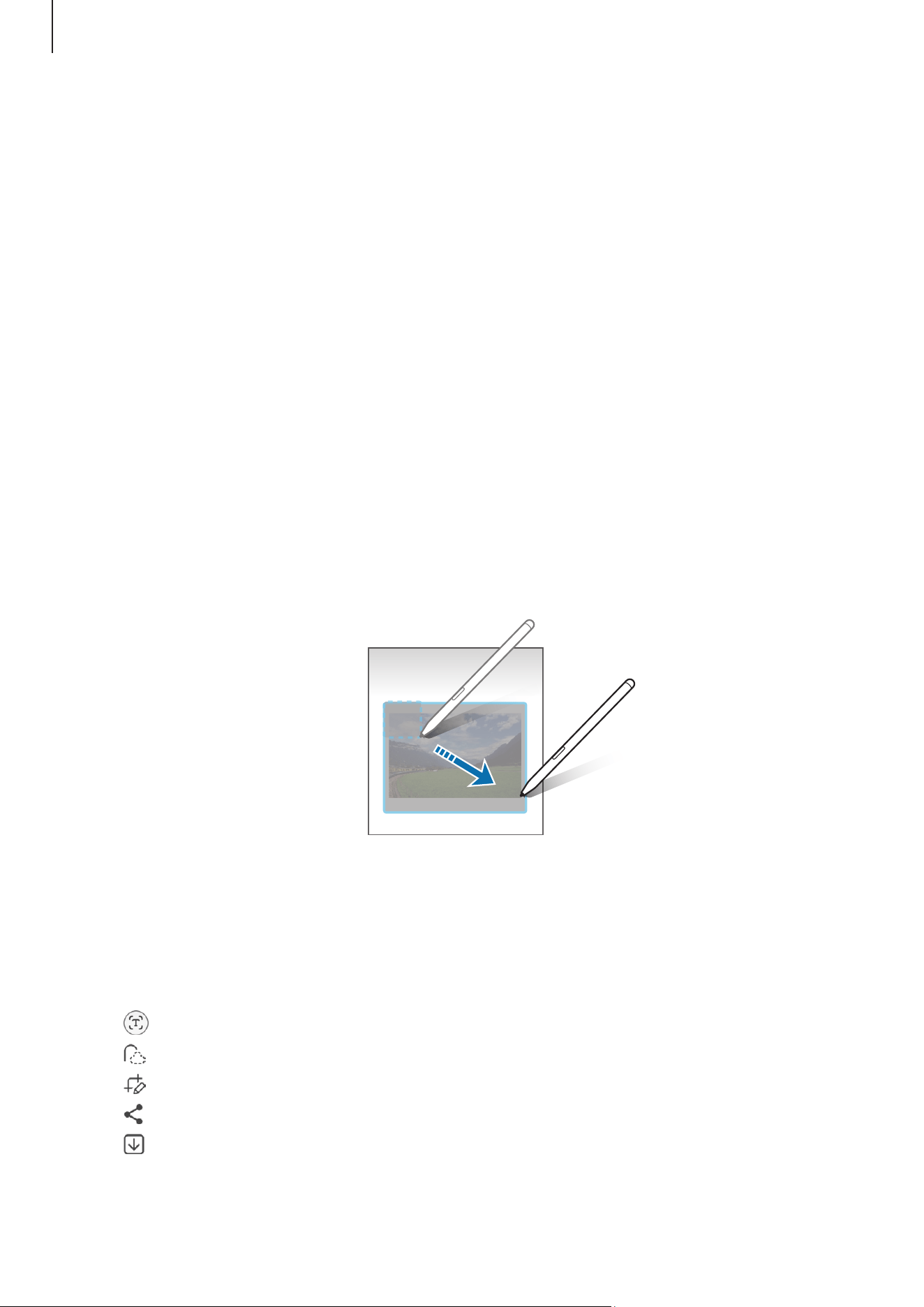
Use the S Pen to select an area and perform actions, such as sharing or saving. You can
also select an area from a video and capture it as a GIF.
1 When there is content you want to capture, such as a part of an image, open the Air
command panel and tap
Smart select
.
2 Select a desired shape icon on the toolbar and drag the S Pen across the content you
want to select.
3 Select an option to use with the selected area.
•
Pin
: Pin the selected area to the screen. You can also insert the image into other
apps, such as
Samsung Notes
. Drag the image to the other app’s screen.
•
Copy
: Copy and paste the selected area into another app or other devices signed in
to your Samsung account.
•
: Extract text from the selected area.
•
: Automatically changes the appearance of the selected area.
•
: Write or draw on the selected area.
•
: Share the selected area with others.
•
: Save the selected area in
Gallery
.
Apps and features
35
Capturing an area from a video
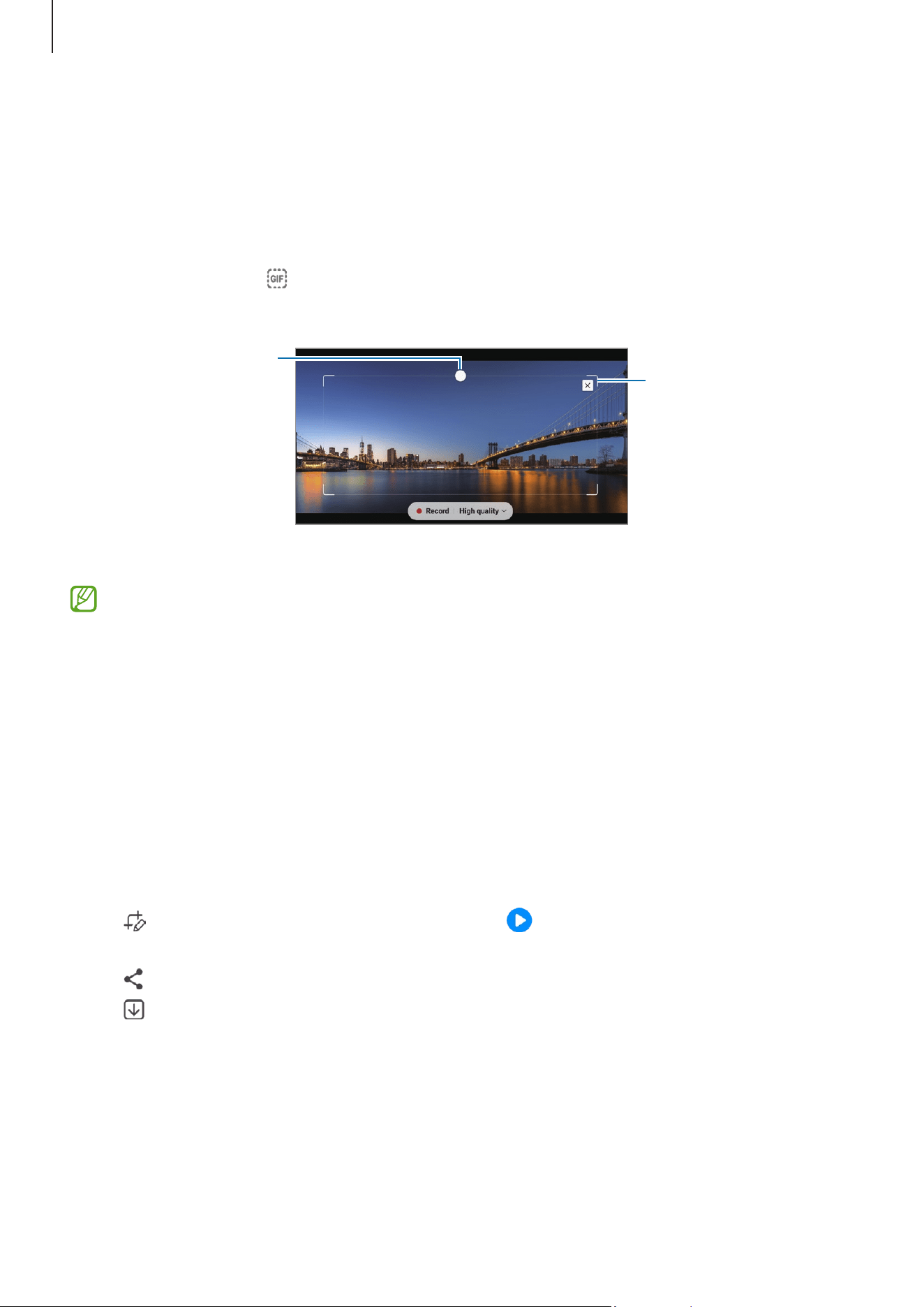
While playing a video, select an area and capture it as a GIF.
1 When there is content you want to capture during video playback, open the Air
command panel and tap
Smart select
.
2 On the toolbar, tap .
3 Adjust the position and size of the capturing area.
Drag a corner of the
frame to resize.
Adjust the position.
4 Tap
Record
to start capturing.
•
Before capturing a video, make sure that the video is playing.
•
The maximum duration you can capture an area of the video for will be displayed
on the screen.
•
When capturing an area from a video, its sound will not be recorded.
5 Tap
Stop
to stop capturing.
6 Select an option to use with the selected area.
•
Pin
: Pin the selected area to the screen. You can also insert the GIF into other apps,
such as
Samsung Notes
. Drag the GIF to the other app’s screen.
•
Copy
: Copy and paste the selected area into another app or other devices signed in
to your Samsung account.
•
: Write or draw on the selected area. Tap to check the result before saving
the file.
•
: Share the selected area with others.
•
: Save the selected area in
Gallery
.
Apps and features
36
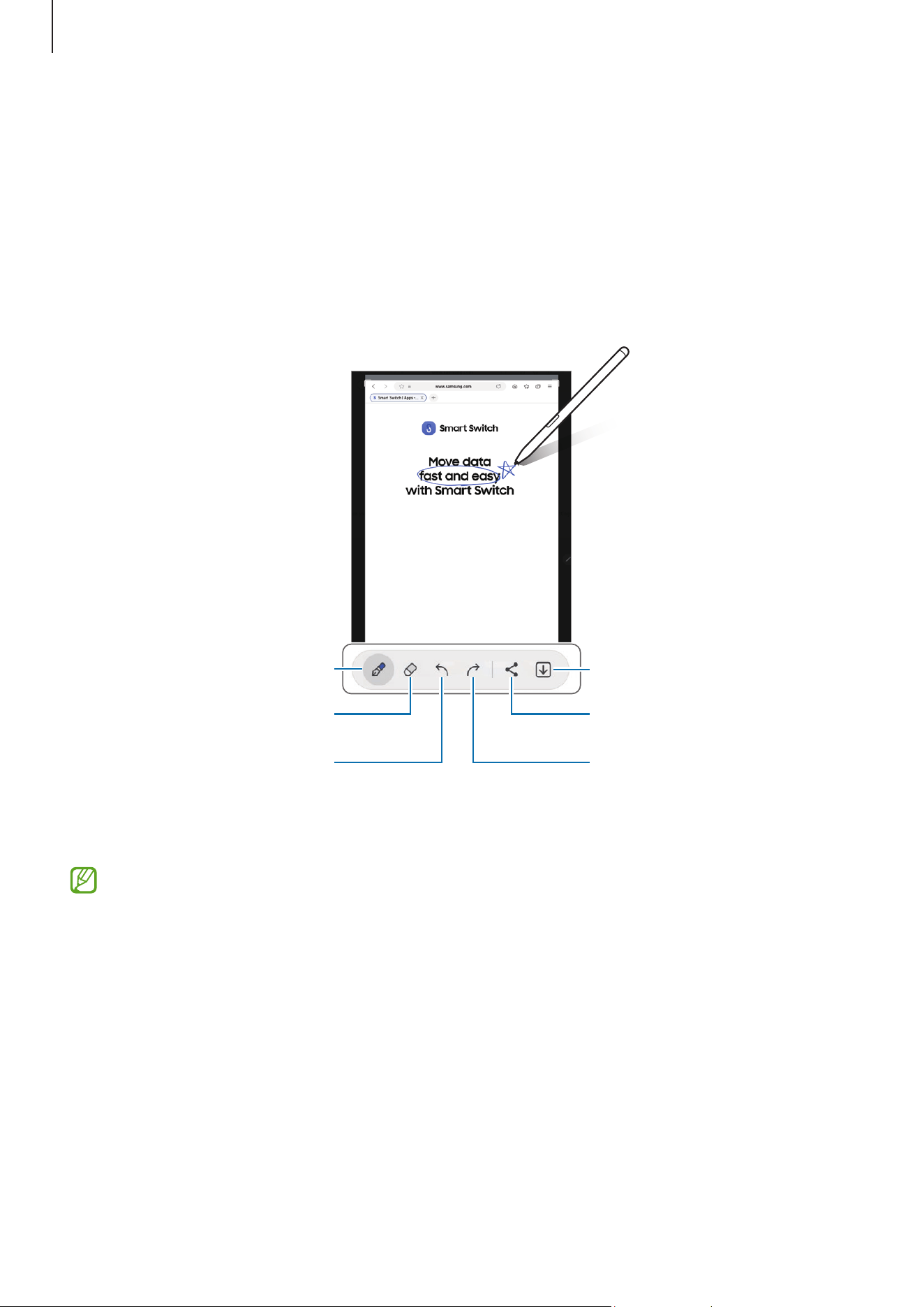
Screen write
Capture screenshots to write or draw on or crop an area from the captured image.
1 When there is content you want to capture, open the Air command panel and tap
Screen write
.
The current screen is automatically captured and the editing toolbar appears.
2 Write a memo on the screenshot.
Redo
Share
Save
Eraser
Undo
Pen settings
3 Share or save the screenshot.
You can check the captured screenshots in
Gallery
.
It is not possible to capture a screenshot while using some apps.
Apps and features
37
Bixby Vision
When you hover the S Pen over the content, the content is recognized and available
search icons will appear. Use the features to search for similar images, detect and
translate text, and more. Refer to Bixby Vision for more information.
1 When there is an image you want to search for relevant information or extract text
from, open the Air command panel and tap
Bixby Vision
.
2 Hover the S Pen over the content you want. When the available options appear on the
screen, select an option you want.
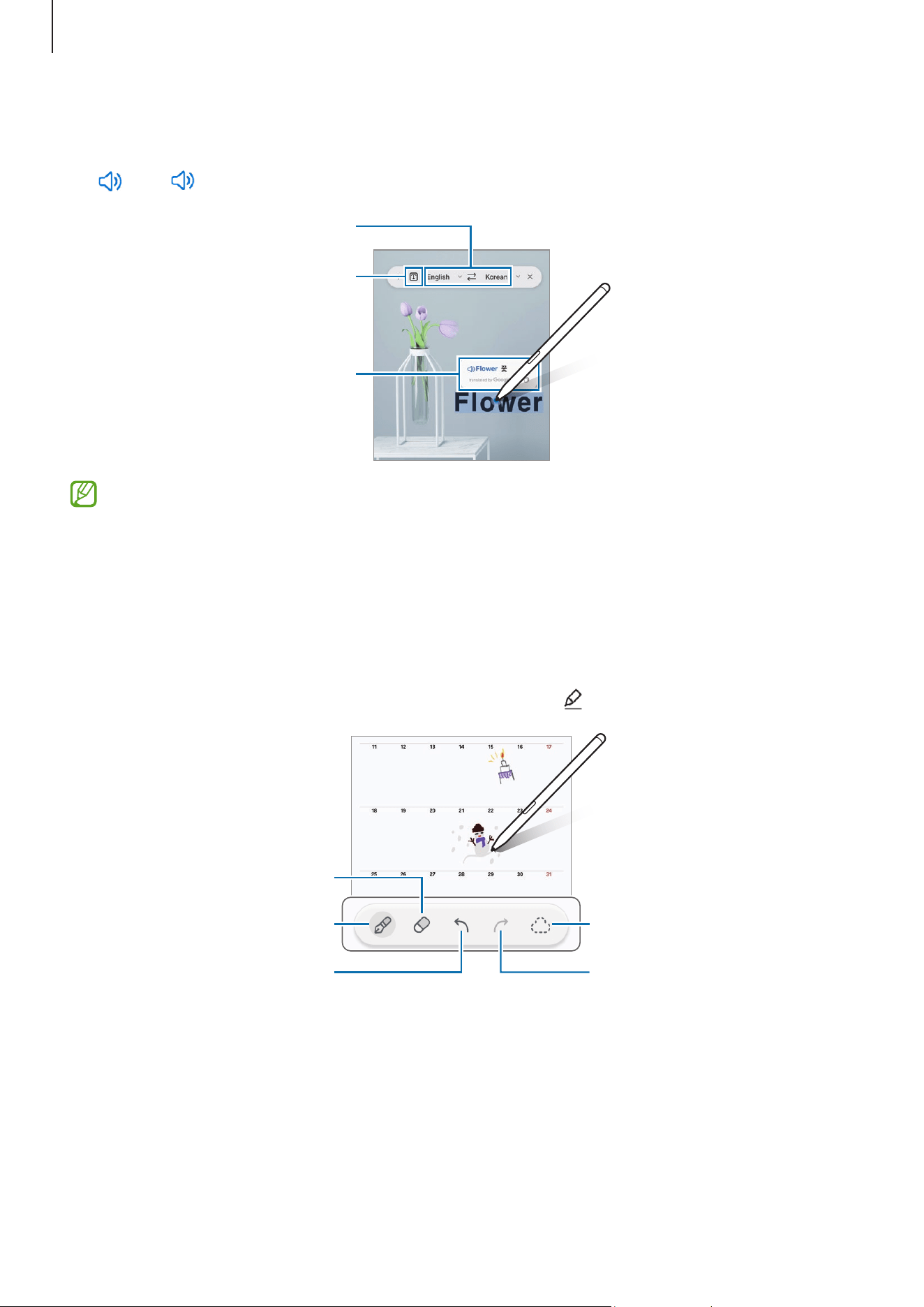
Translate
Hover the S Pen over the text you want to translate. The units included in the text will
also be converted.
1 When there is text you want to translate, open the Air command panel and tap
Translate
.
2 Select the languages on the translator panel at the top of the screen.
You can change the text between words and sentences by tapping or .
Apps and features
38
3 Hover the S Pen over the text you want to translate or the unit you want to convert.
The translated text will appear. To listen to the pronunciation of the original text, tap
. The icon may not appear depending on the language you select.
Text selecting granularity
(word or sentence)
Select languages.
Translation result
•
This feature does not support some languages.
•
This feature is available only when detectable text is on the screen.
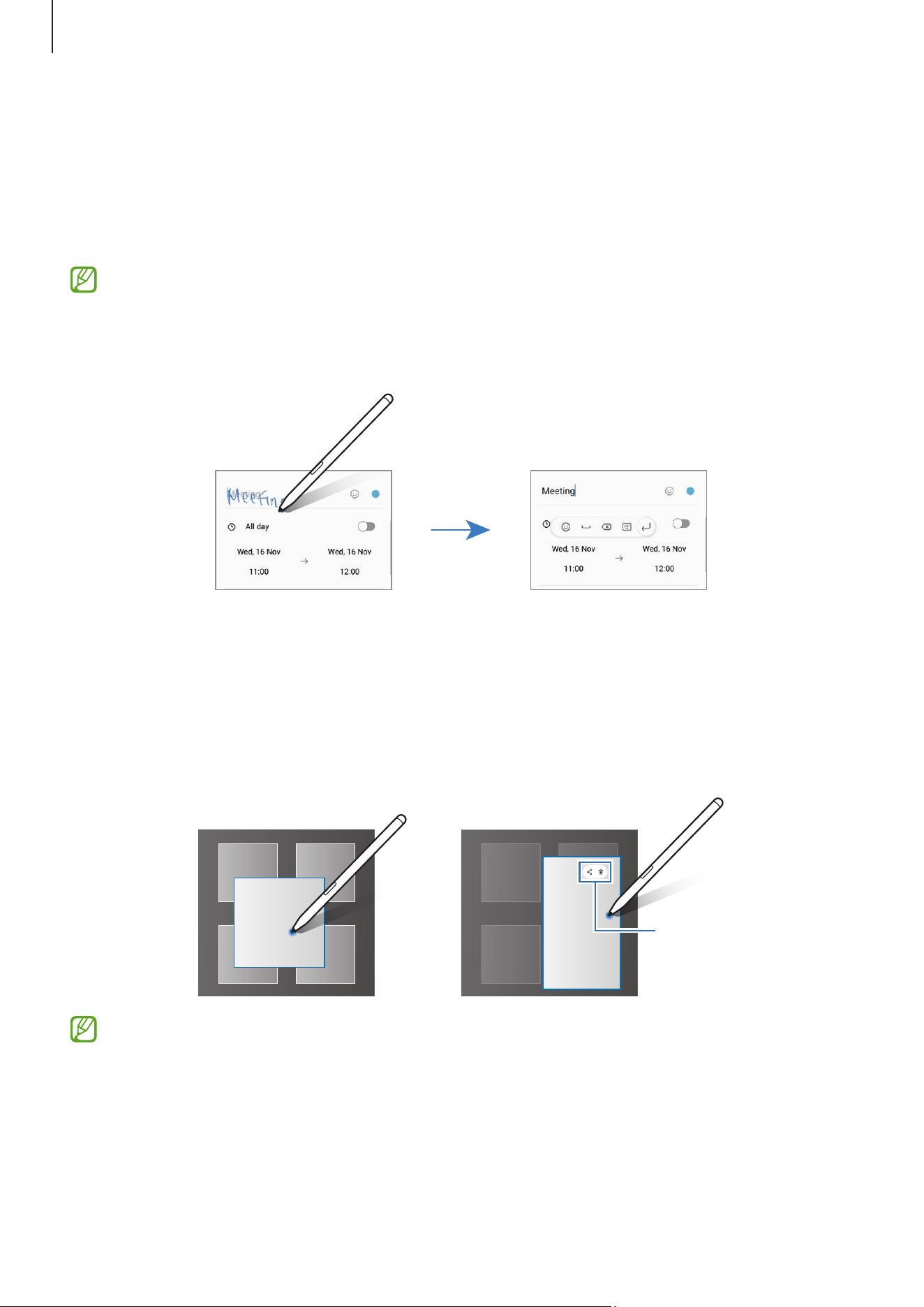
Write on calendar
Fill in your plans by writing or drawing on the calendar screen.
Open the Air command panel, tap
Write on calendar
, and then fill in your plans on the
calendar. When you are finished, tap
Save
. To edit it, tap .
Eraser
Select and edit.
Redo
Undo
Pen settings
Apps and features
39
S Pen to text
You can set the device to convert anything you write with the S Pen into text.
1 Open
Settings
, tap
Advanced features
→
S Pen
→
S Pen to text
, and then tap the
switch to turn it on.
To learn about how to edit text with the S Pen, tap
How to edit
.
2 Write in a text input field, such as a search field or address bar, using the S Pen.
The handwriting will be converted to text.
Air view
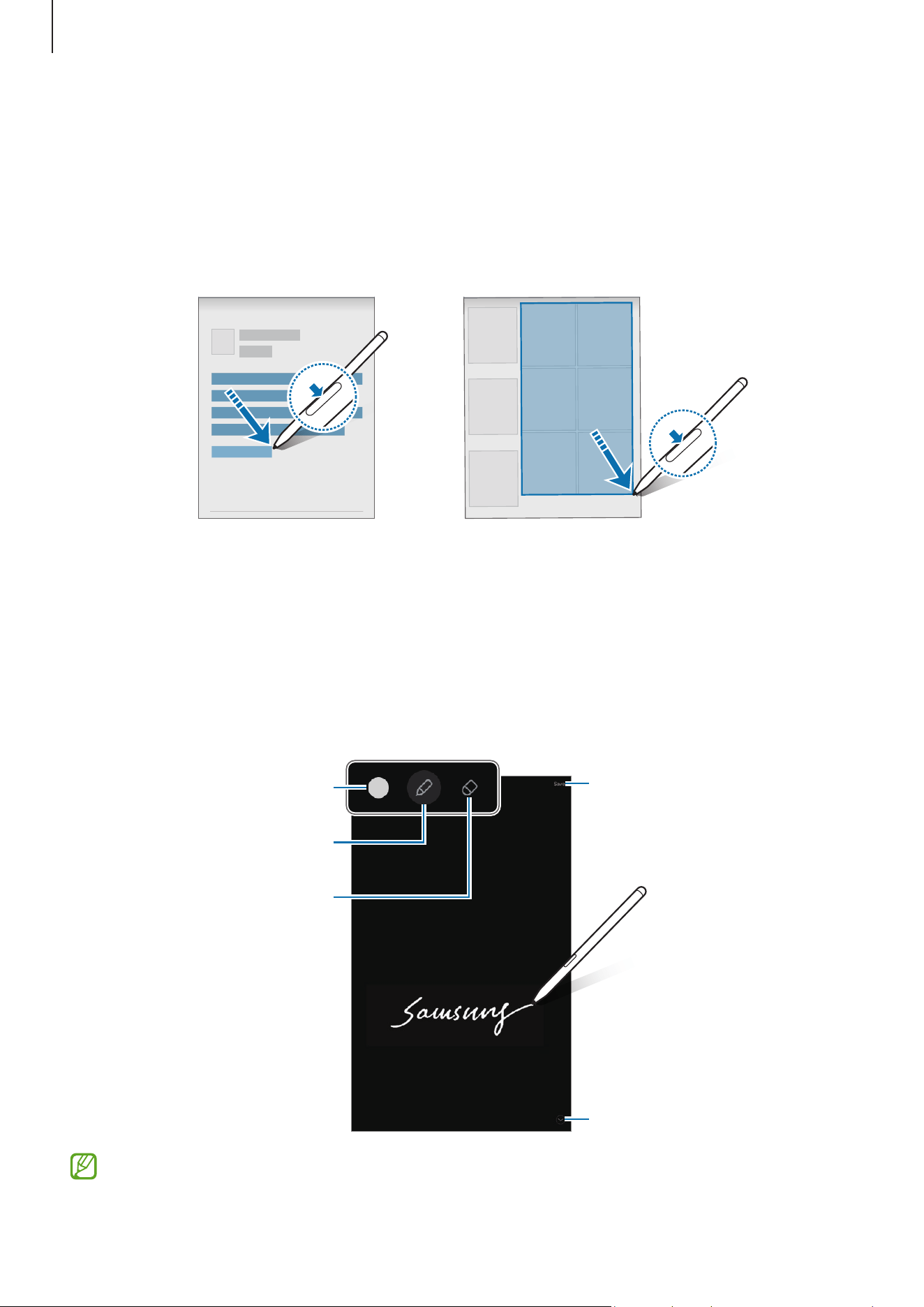
Hover the S Pen over an item on the screen to preview content or access information in a
pop-up window.
In some apps, Action buttons will be displayed on the preview window.
Action buttons
If this feature is not turned on, open
Settings
, tap
Advanced features
→
S Pen
, and
then tap the
Air view
switch to turn it on.
Apps and features
40
Pen Select
(Selecting items quickly with the S Pen)
While pressing and holding the S Pen button, drag the S Pen over text or item lists to
select multiple items or text. You can also copy and paste the selected items or text into
another app or share them with others.
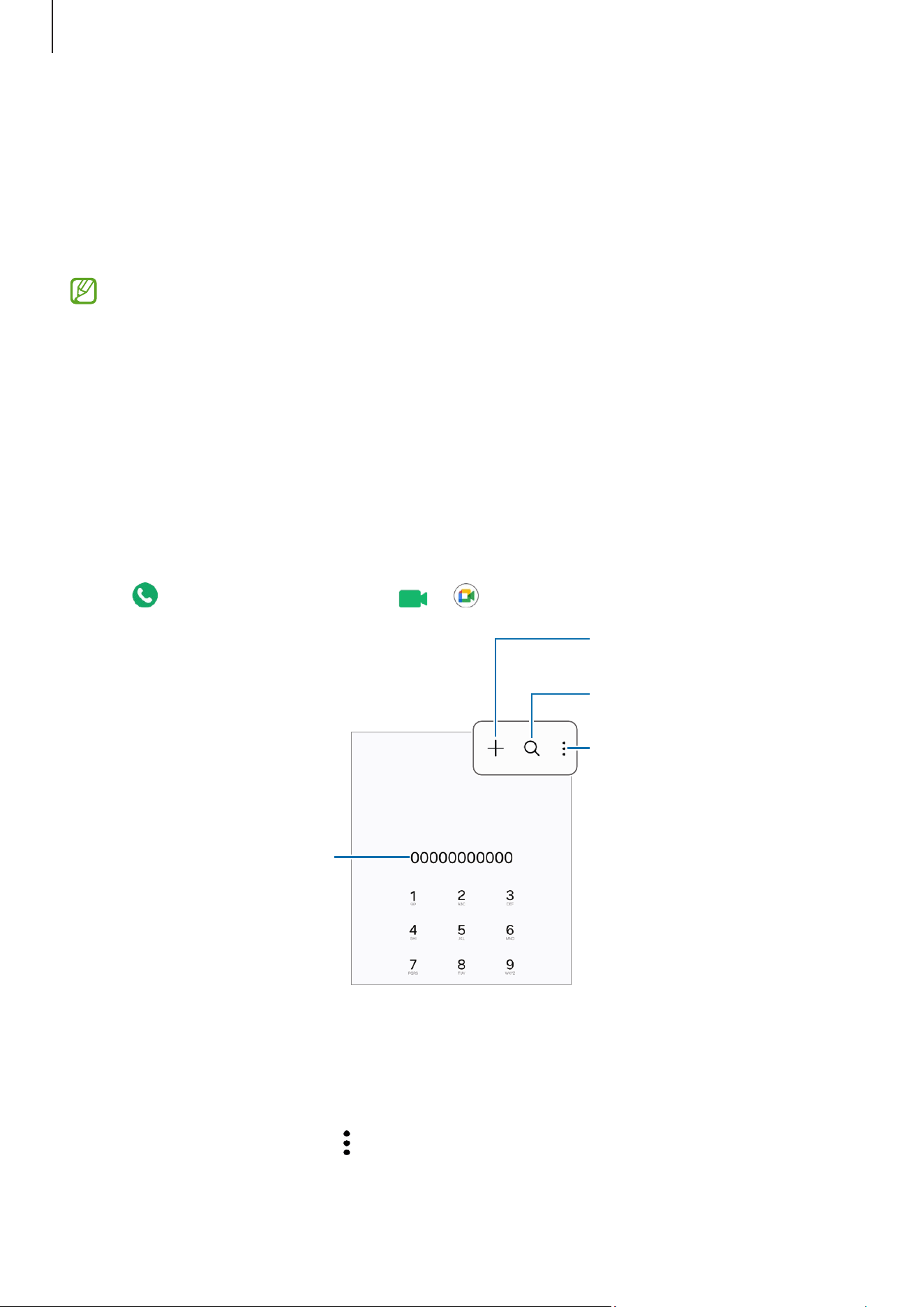
Screen off memos
You can create memos by writing on the screen without turning it on.
When the screen is off, double tap the screen while pressing and holding the S Pen
button.
When you tap
Save
after writing a memo, the memo will be saved to
Samsung Notes
.
Save the memo in Samsung
Notes.
Extend the page.
Change the line thickness.
Eraser
Change the pen colour.
If this feature is not turned on, open
Settings
, tap
Advanced features
→
S Pen
, and
then tap the
Screen off memos
switch to turn it on.
Apps and features
41
Phone
Introduction
Make or answer voice and video calls.
You can use calling and messaging features on your tablet with your phone number
using the
Call & text on other devices
feature. On your tablet and phone, open
Settings
, tap
Connected devices
→
Call & text on other devices
, and then tap the
switch to turn it on. You must register and sign in to the same Samsung account on
the tablet and phone. Some calling and messaging features may not be available.
Making calls
1 Open the
Phone
app and tap
Keypad
.
2 Enter a phone number.
3 Tap to make a voice call, or tap or to make a video call.
Preview the phone number.
More options
Search for a contact.
Add the number to the
contacts list.
Making calls from call logs or contacts list
Open the
Phone
app, tap
Recents
or
Contacts
, and then swipe to the right on a contact
or a phone number to make a call.
If this feature is turned off, tap
→
Settings
→
Other call settings
, and then tap the
Swipe to call or text
switch to turn it on.

Apps and features
42
Making an international call
1 Open the
Phone
app and tap
Keypad
.
2 Touch and hold 0 until the + sign appears.
3 Enter the country code, area code, and phone number, and then tap .
Receiving calls
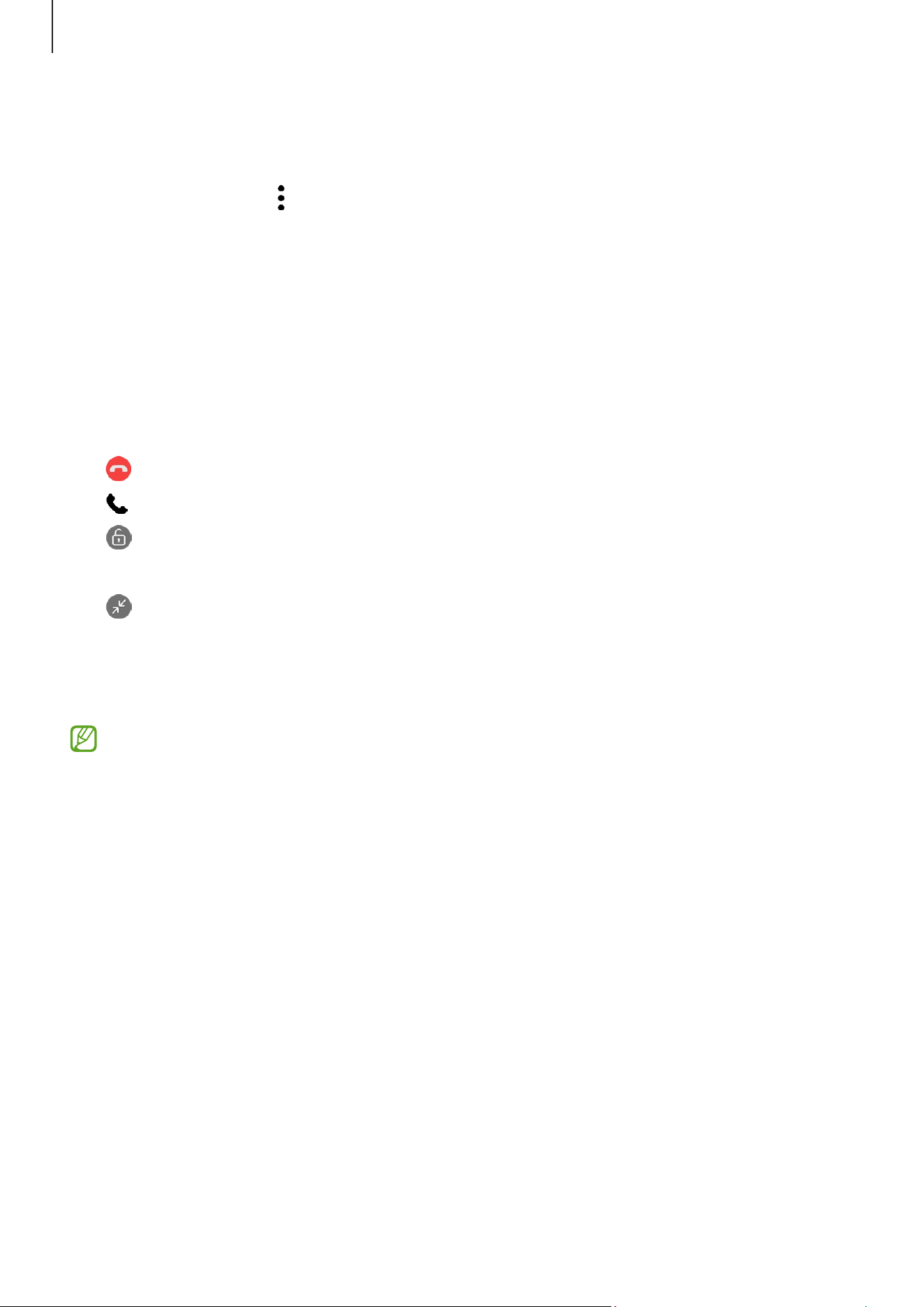
Answering a call
When a call comes in, drag outside the large circle.
Rejecting a call
When a call comes in, drag outside the large circle.
To send a message when rejecting an incoming call, drag the
Send message
bar upwards
and select a message to send.
To create various rejection messages, open the
Phone
app, tap
→
Settings
→
Quick
decline messages
, enter a message, and then tap .
Apps and features
43
Options during calls
•
Text call
: Communicate with the other party through text. To use this feature, open
the
Phone
app, tap
→
Settings
→
Text call
, and then tap the switch to turn it on.
•
Add call
: Dial a second call. The first call will be put on hold. When you end the
second call, the first call will be resumed.
•
Video call
: Switch to a video call.
•
Bluetooth
: Switch to a Bluetooth headset if it is connected to the device.
•
Hold call
: Hold a call.
•
Mute
: Turn off the microphone so that the other party cannot hear you.
•
Keypad
/
Hide
: Open or close the keypad.
•
: End the current call.
•
: During a video call, switch to a voice call.
•
: During a video call, lock the screen.
•
Effects
: During a video call, change the screen layout.
•
: During a video call, change the screen ratio.
•
Camera
: During a video call, turn off the camera so that the other party cannot see
you.
•
Switch
: During a video call, switch between the front and rear cameras.
Some features may not be available depending on the carrier or model.

Apps and features
44
Contacts
Introduction
Create new contacts or manage contacts on the device.
Adding contacts
Creating a new contact
1 Open the
Contacts
app and tap .
2 Select a storage location.
3 Enter contact information and tap
Save
.
Importing contacts
Add contacts by importing them from other storages to your device.
1 Open the
Contacts
app and tap
→
Manage contacts
→
Import contacts
.
2 Follow the on-screen instructions to import contacts.
Syncing contacts with your web accounts
Sync your device contacts with online contacts saved in your web accounts, such as your
Samsung account.
1 Open
Settings
, tap
Accounts and backup
→
Manage accounts
and select the account
to sync with.
2 Tap
Sync account
and tap the
Contacts
switch to turn it on.
Searching for contacts
Open the
Contacts
app. Tap at the top of the contacts list and enter search criteria.
Tap the contact. Then take one of the following actions:
•
: Make a voice call.
•
: Compose a message.

Apps and features
45
•
/ : Make a video call.
•
: Compose an email.
Deleting contacts
1 Open the
Contacts
app and tap
→
Edit
.
2 Select contacts and tap
Delete
.
To delete contacts one by one, tap a contact from the contacts list and tap
More
→
Delete
.
Sharing contacts
You can share contacts with others by using various sharing options.
1 Open the
Contacts
app and tap
→
Edit
.
2 Select contacts and tap
Share
.
3 Select a sharing method.
Creating groups
You can add groups, such as family or friends, and manage contacts by group.
1 Open the
Contacts
app and tap
→
Groups
→
Create group
.
2 Follow the on-screen instructions to create a group.
Merging duplicate contacts
If your contacts list includes duplicate contacts, merge them into one to streamline your
contacts list.
1 Open the
Contacts
app and tap
→
Manage contacts
→
Merge contacts
.
2 Tick contacts and tap
Merge
.
Apps and features
46
Messages
Introduction
Send and check messages by conversation.
You may incur additional charges for sending or receiving messages when you are
roaming.
You can use calling and messaging features on your tablet with your phone number
using the
Call & text on other devices
feature. On your tablet and phone, open
Settings
, tap
Connected devices
→
Call & text on other devices
, and then tap the
switch to turn it on. You must register and sign in to the same Samsung account on
the tablet and phone. Some calling and messaging features may not be available.
Sending messages
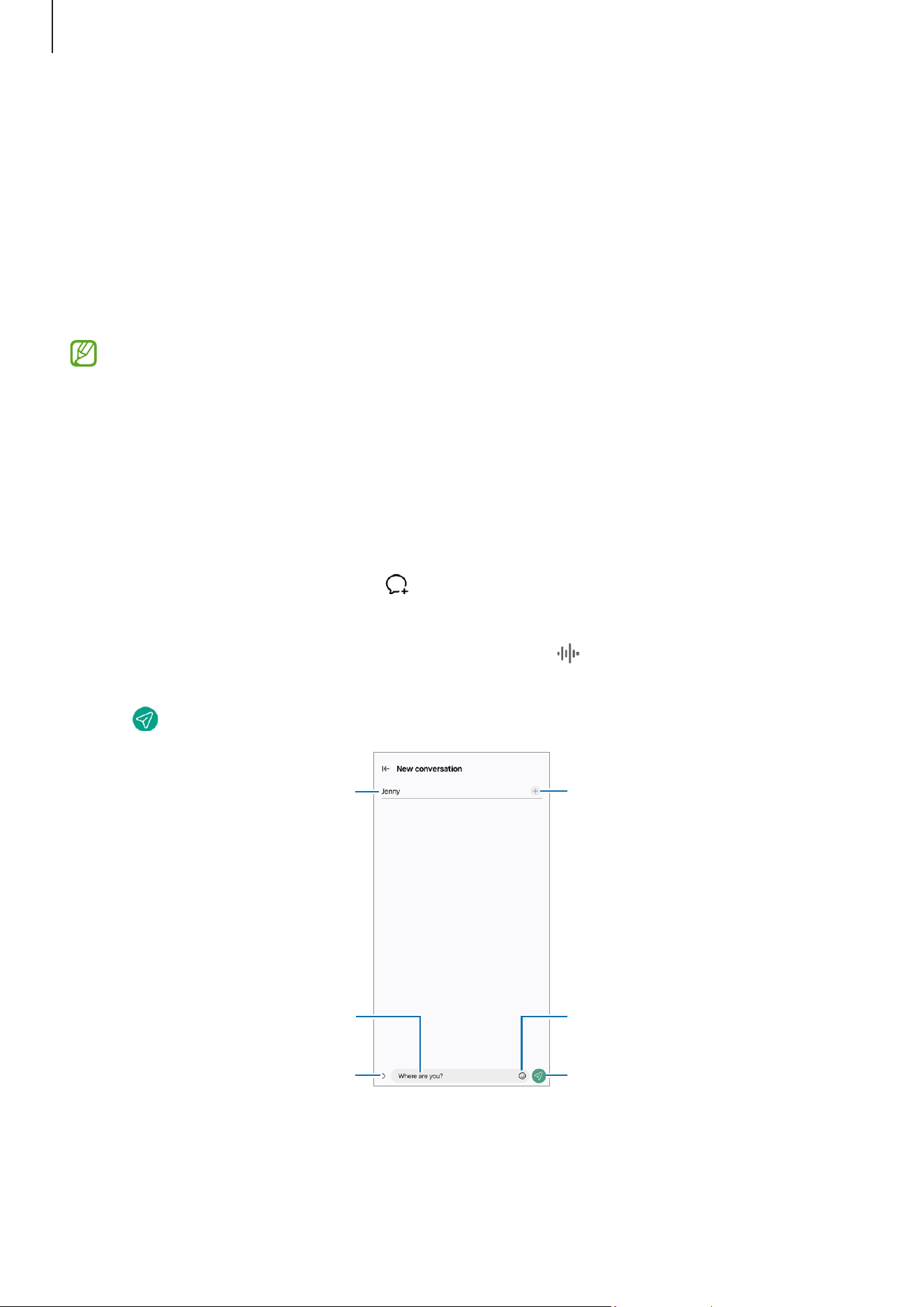
1 Open the
Messages
app and tap
.
2 Add recipients and enter a message.
To record and send a voice message, touch and hold , and say your message. The
recording icon appears only while the message input field is empty.
3 Tap to send the message.
Enter recipients.
Enter a message.
Enter emojis or stickers.
Attach files.
Recipient
Send the message.

Apps and features
47
Checking messages
1 Open the
Messages
app and tap
Conversations
.
2 On the messages list, select a contact or a phone number.
•
To reply to the message, tap the message input field, enter a message, and then
tap .
•
To adjust the font size, spread two fingers apart or pinch on the screen.
Sorting messages
You can sort messages by category.
Open the
Messages
app and tap
Conversations
→
.
If the category option does not appear, tap
→
Settings
and tap the
Conversation
categories
switch to turn it on.
Deleting messages
Touch and hold a message to delete, then tap
Delete
.
Changing message settings
Open the
Messages
app, tap
→
Settings
. You can block unwanted messages, change
notification settings, and more.
Camera
Introduction
Take pictures and record videos using various modes and settings.
Camera etiquette
•
Do not take pictures or record videos of other people without their permission.
•
Do not take pictures or record videos where legally prohibited.
•
Do not take pictures or record videos in places where you may violate other people’s
privacy.
Apps and features
48
Taking pictures
1 Open the
Camera
app.
You can also open the app by pressing the Side button twice or dragging to the left
on the locked screen.
•
Some camera features are not available when you open the
Camera
app from
the locked screen or when the screen is turned off while the screen lock method
is set.
•
The camera automatically shuts off when unused.
•
Some methods may not be available depending on the carrier or model.
2 Tap the image on the preview screen where the camera should focus.
To adjust the brightness of pictures, drag the adjustment bar that appears above or
below the circular frame.
3 Tap to take a picture.
To change the shooting mode, drag the shooting modes list to the left or right, or
swipe to the left or right on the preview screen.
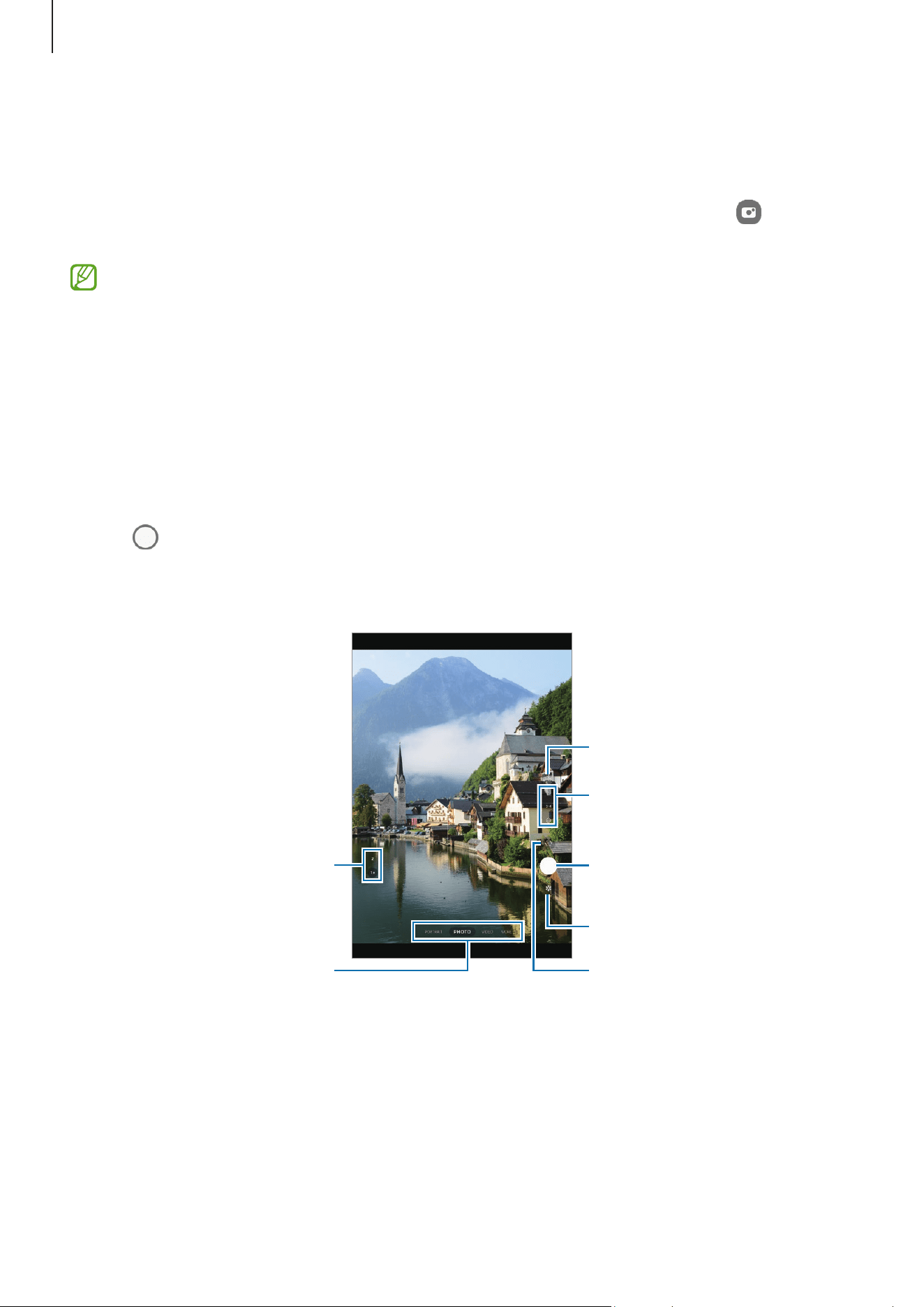
Camera settings
Take a picture.
Preview thumbnail
Shooting modes list
Switch between the front
and rear cameras.
Options for current
shooting mode
Zoom

Apps and features
49
•
The preview screen may vary depending on the shooting mode and which
camera is being used.
•
The focus may not be correct if the subject is close. Take pictures or videos from
a good distance.
•
If pictures you take appear blurry, clean the camera lens and try again.
•
Make sure that the lens is not damaged or contaminated. Otherwise, the device
may not work properly in some modes that require high resolutions.
•
Your device’s camera features a wide-angle lens. Minor distortion may occur
in wide-angle pictures or videos and does not indicate device performance
problems.
•
The maximum capacity for recording a video may vary depending on the
resolution.
•
The camera may fog up or form condensation if the device is exposed to sudden
changes in air temperature, because of the difference in temperature outside
and inside the camera cover. Try to avoid such conditions when planning to use
the camera. If fogging does occur, allow the camera to dry naturally at room
temperature before taking pictures or recording videos, otherwise results may
look hazy.
Using the camera button
•
Touch and hold the camera button to record a video.
•
If you drag the camera button to the icon, you can record a video without holding
the button.
•
To take burst shots, swipe the camera button to the edge of the screen and hold it. If
you tap on the preview screen and tap
Swipe Shutter button to
→
Create GIF
, you
can create GIFs.
•
If you add another camera button, you can move it anywhere on the screen and take
pictures more conveniently. On the preview screen, tap
→
Shooting methods
and
tap the
Floating Shutter button
switch to turn it on.
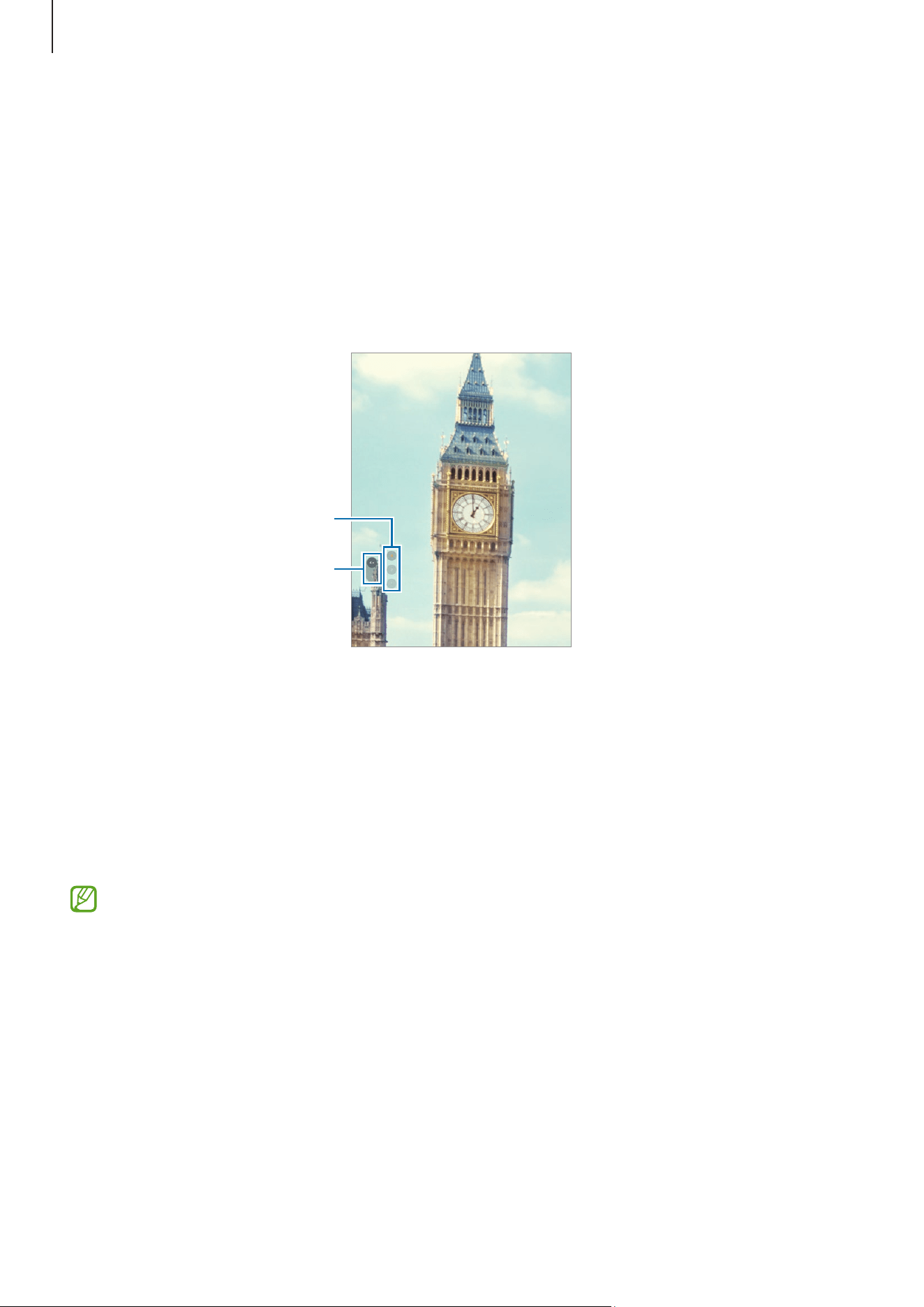
Editing the shooting modes list
To edit the shooting modes list, tap
MORE
on the list, tap , and then drag modes to
where you want.
Apps and features
50
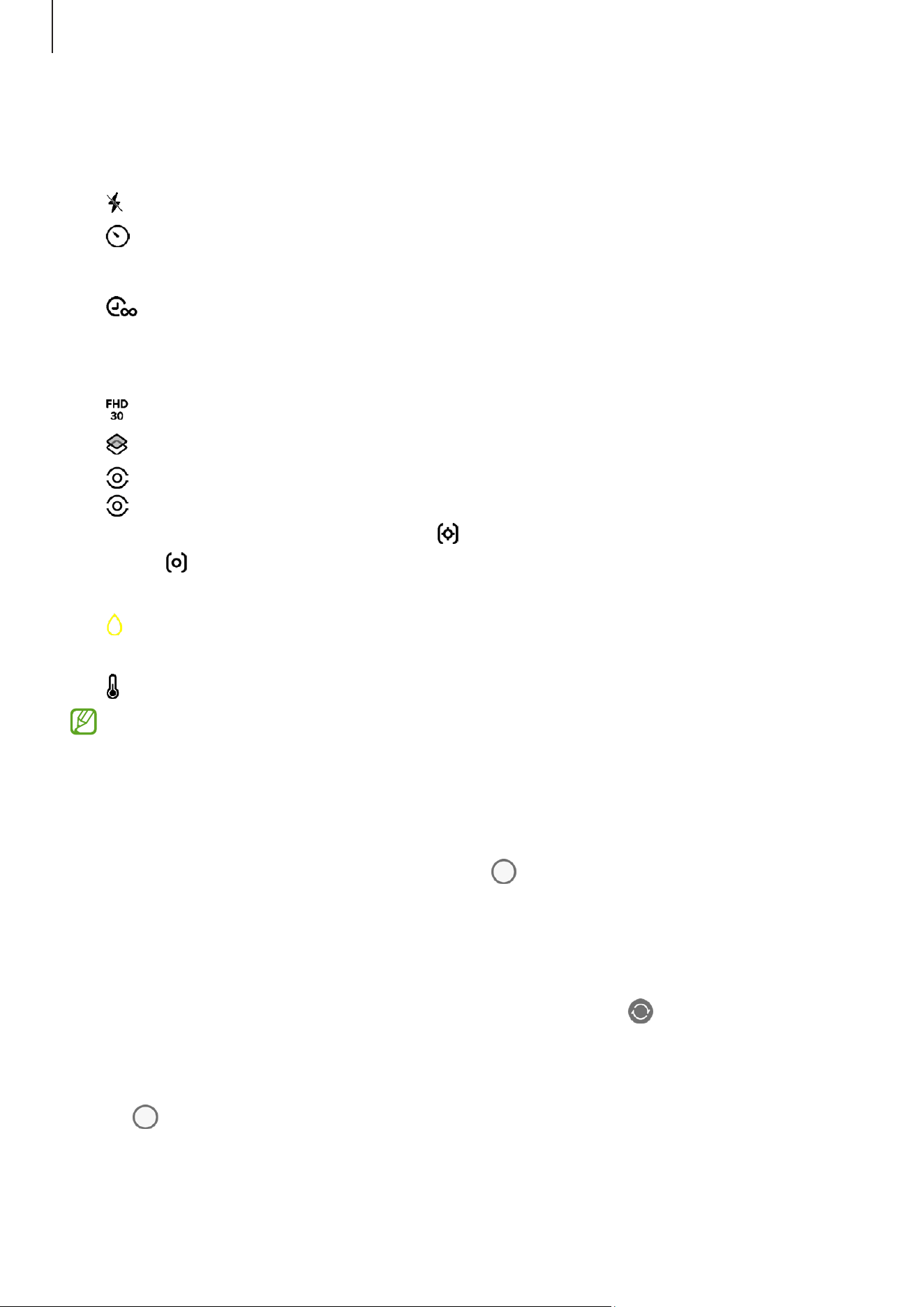
Using zoom features
To zoom in or out while using the rear camera, select the desired zoom icon on the
preview screen.
You can also select the desired zoom level from the zoom level list that appears when
you tap the zoom icon.
To adjust the zoom more precisely, drag the zoom icon, pinch, or spread two fingers
apart on the preview screen.
Zoom
Zoom level list
Locking the focus (AF) and exposure (AE)
You can lock the focus or exposure on a selected area to prevent the camera from
automatically adjusting based on changes to the subjects or light sources.
Touch and hold the area to focus, the AF/AE frame will appear on the area and the focus
and exposure setting will be locked. The setting remains locked even after you take a
picture.
This feature may not be available depending on the shooting mode.
Apps and features
51
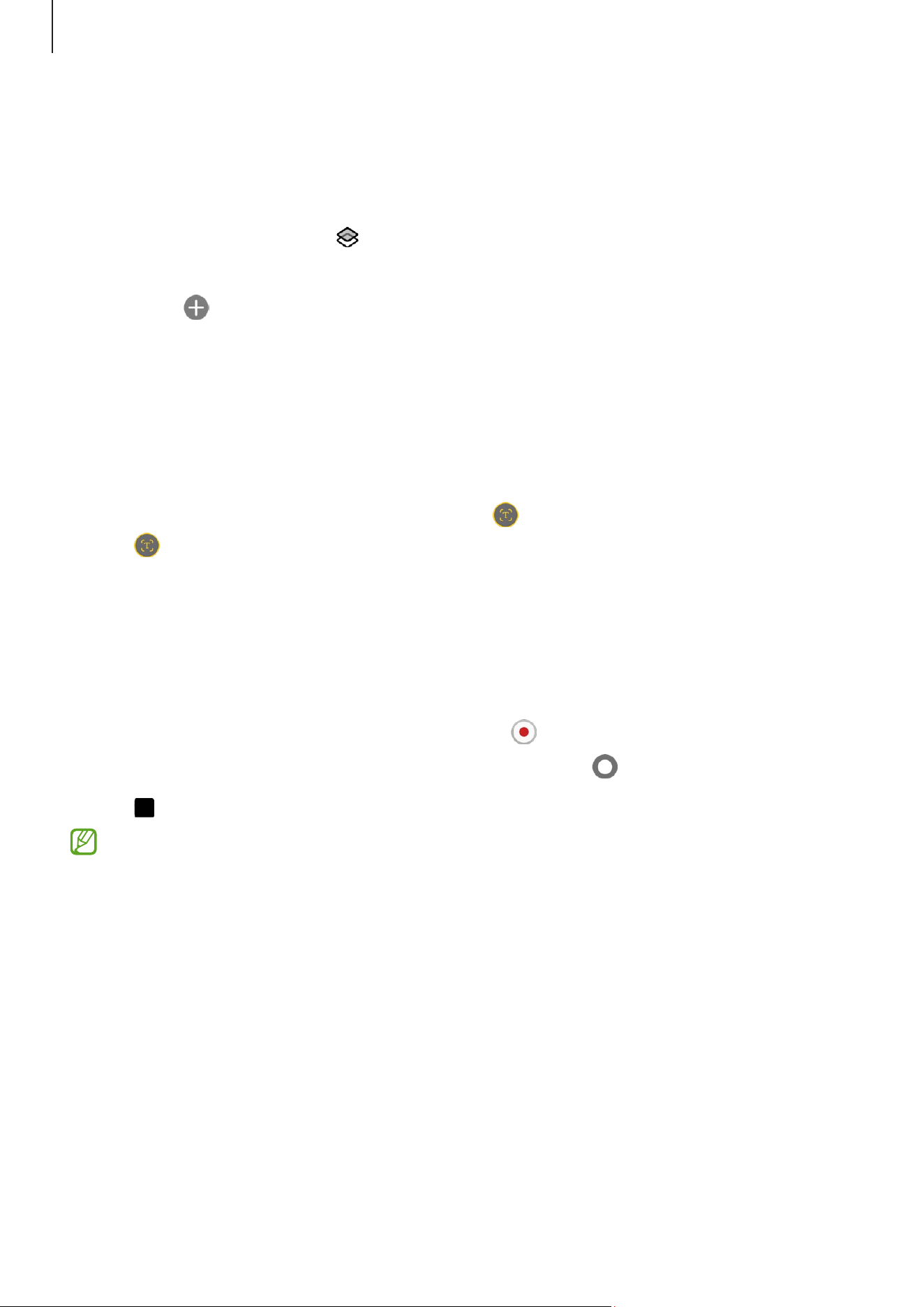
Options for current shooting mode
On the preview screen, use the following options.
•
: Turn the flash on or off.
•
: Select the length of the delay before the camera automatically takes a picture.
•
3:4
: Select an aspect ratio for pictures.
•
: Change the recording time for hyperlapse videos.
•
AUTO
: Select a frame rate for hyperlapse videos.
•
9:16
: Select an aspect ratio for videos.
•
: Select a resolution for videos.
•
: Apply a filter effect or beauty effects.
•
: Select a metering method. This determines how light values are calculated.
Centre-weighted metering
uses the light in the centre portion of the shot
to calculate the exposure of the shot.
Matrix metering
averages the entire
scene.
Spot metering
uses the light in a concentrated centre area of the shot to
calculate the exposure of the shot.
•
: In
FOOD
mode, focus on a subject inside the frame and blur the image outside
the frame.
•
: In
FOOD
mode, adjust the colour temperature.
The available options may vary depending on the model or shooting mode.
Photo mode
The camera adjusts the shooting options automatically depending on the surroundings.
On the shooting modes list, tap
PHOTO
and tap to take a picture.
Taking selfies
You can take self-portraits with the front camera.
1 On the preview screen, swipe upwards or downwards, or tap
to switch to the front
camera for self-portraits.
2 Face the front camera lens.
3 Tap to take a picture.
Apps and features
52
Applying filter and beauty effects
You can select a filter effect and modify facial features, such as your skin tone or face
shape, before taking a picture.
1 On the preview screen, tap .
2 Select effects and take a picture.
If you tap , you can download filters, or you can create your own filter using an
image with a colour tone you like from
Gallery
.
Scanning documents or text
You can scan documents or text.
1 On the shooting modes list, tap
PHOTO
.
2 Point the camera towards the object and tap .
The icon will only appear when a document or text is detected.
3 Tap
Scan
, select the area you want, and then tap
Save
.
Video mode
The camera adjusts the shooting options automatically depending on the surroundings.
1 On the shooting modes list, tap
VIDEO
and tap to record a video.
To capture an image from the video while recording, tap .
2 Tap to stop recording the video.
The optical zoom may not work in low-light environments.
Apps and features
53
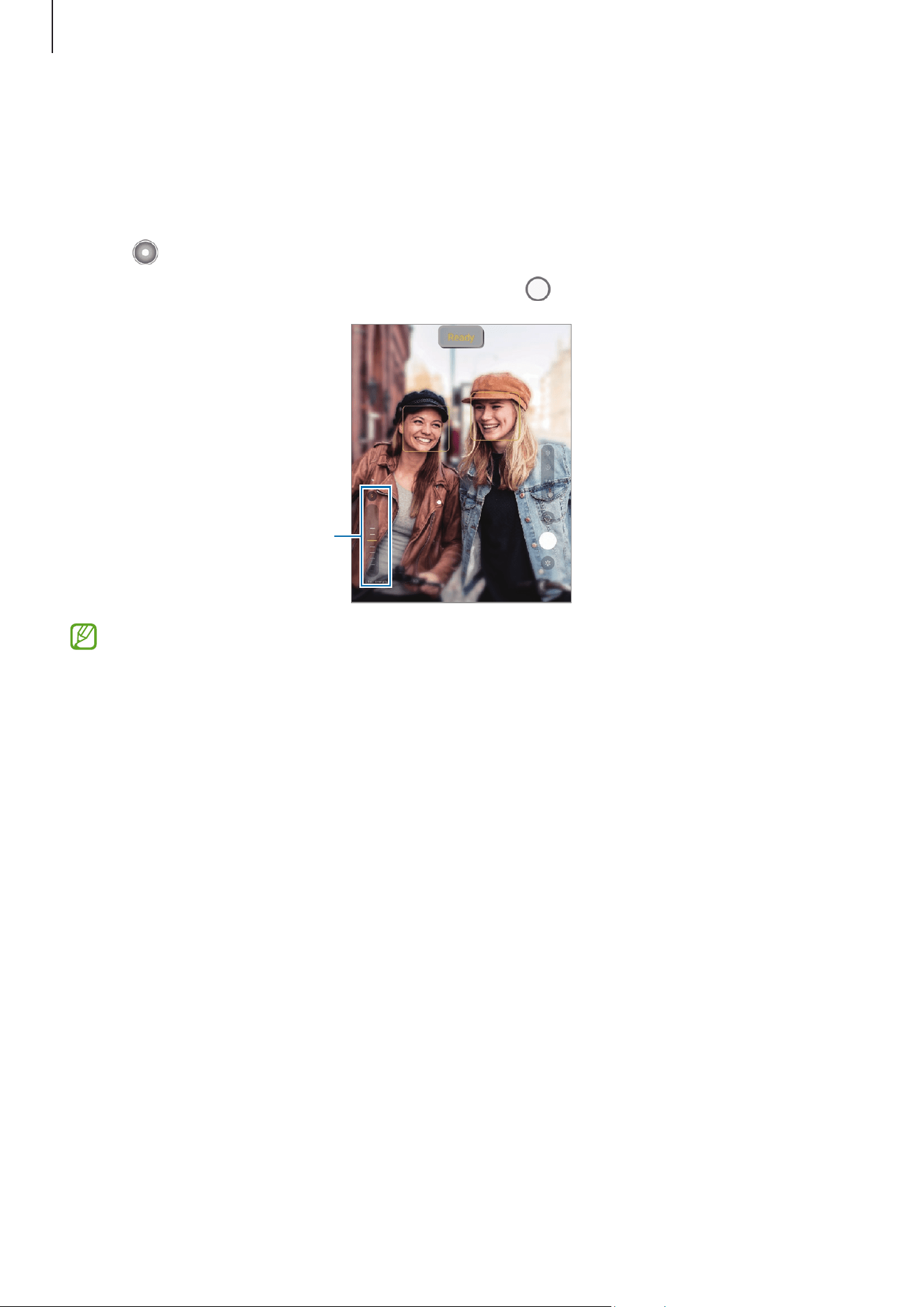
Portrait mode
Take pictures that focus on the face by blurring the background.
1 On the shooting modes list, tap
PORTRAIT
.
2 Tap and drag the background blur adjustment bar to adjust the blur level.
3 When
Ready
appears on the preview screen, tap to take a picture.
Background blur
adjustment bar
•
Use this feature in a place that has sufficient light.
•
The background blur may not be applied properly in the following conditions:
‒
The device or the subject is moving.
‒
The subject has a similar colour to the background.
Apps and features
54
Pro mode
Capture pictures while manually adjusting various shooting options, such as exposure
value and ISO value.
On the shooting modes list, tap
MORE
→
PRO
. Select options and customize the
settings, and then tap to take a picture.
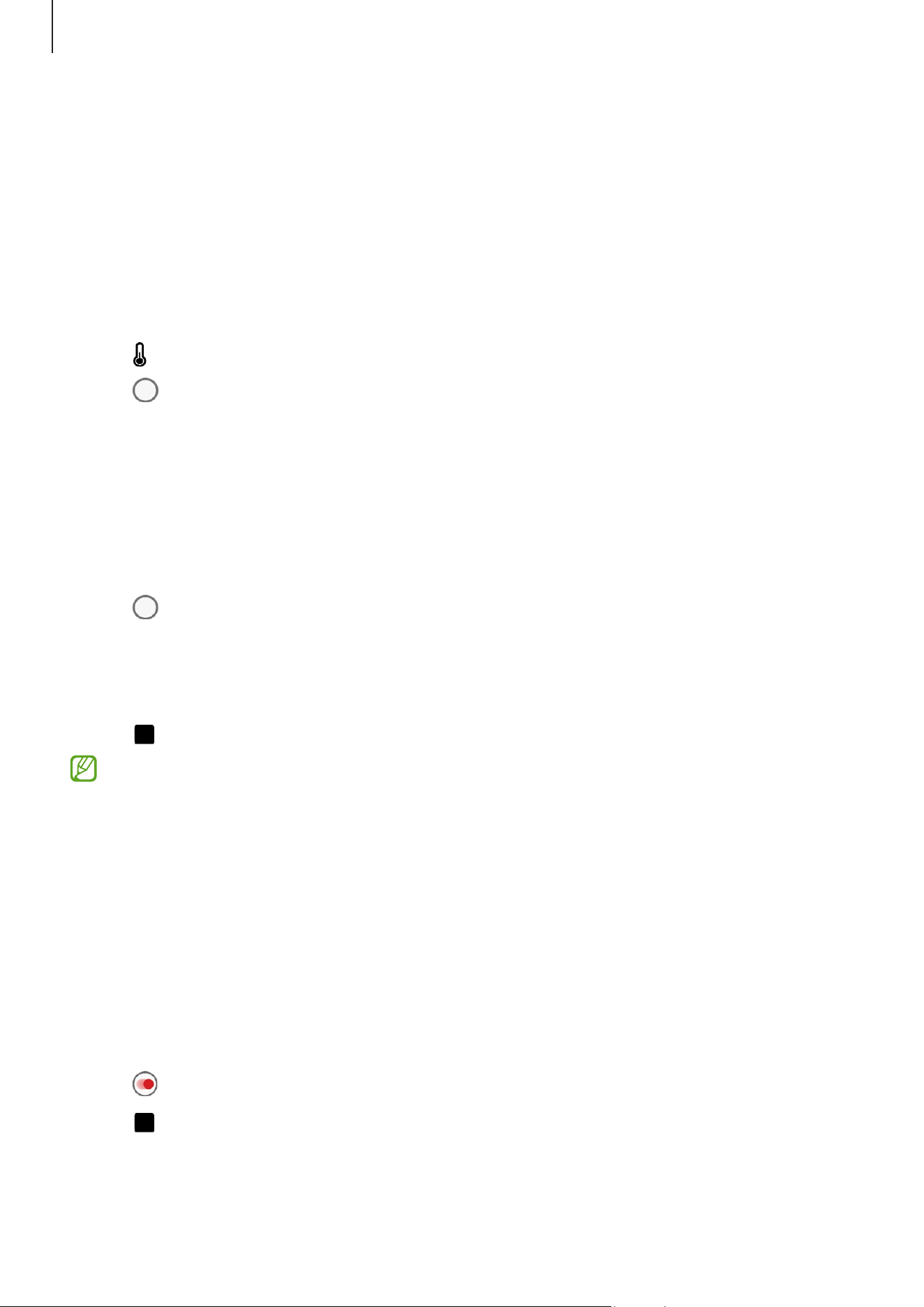
Available options
•
WB
: Select an appropriate white balance, so images have a true-to-life colour range.
You can set the colour temperature.
•
EV
: Change the exposure value. This determines how much light the camera’s sensor
receives. If the image is too dark, increase the exposure. If the image is too light,
reduce the exposure.
•
ISO
: Select an ISO value. This controls camera light sensitivity. Low values are for
stationary or brightly lit objects. Higher values are for fast-moving or poorly lit
objects. However, higher ISO settings can result in noise in pictures.
•
: Reset the settings.
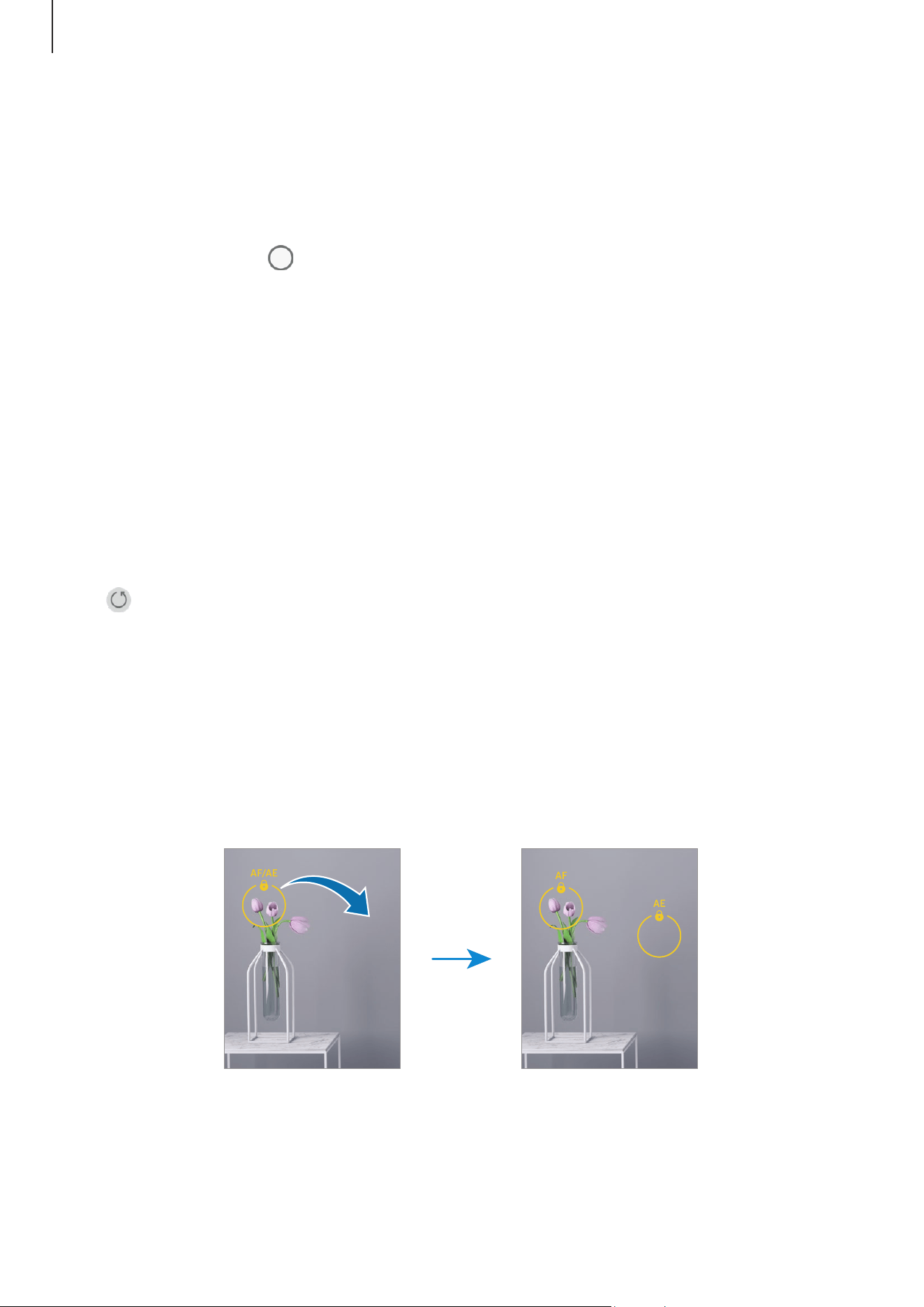
Separating the focus area and the exposure area
You can separate the focus area and the exposure area.
Touch the preview screen where you want the focus area to lock and hold until the AF/
AE lock frame appears on the screen, separates into AF lock and AE lock frames, then
rejoins to the AF/AE lock frame. Tap again and drag the AE lock frame to the location
where you want the exposure area to lock.
Apps and features
55
Food mode
Take pictures of food with vibrant colours and blurred edges.
1 On the shooting modes list, tap
MORE
→
FOOD
.
A frame will appear on the screen and the area outside the frame will be blurred.
2 To resize the frame, drag a corner of the frame.
Tap the area you want or drag the frame to move it.
3 Tap and drag the adjustment bar to adjust the colour temperature.
4 Tap to take a picture.
Panorama mode
Using panorama mode, take a series of pictures and then stitch them together to create
a wide scene.
1 On the shooting modes list, tap
MORE
→
PANORAMA
.
2 Tap and move the device slowly in one direction.
Keep the image within the frame on the camera’s viewfinder. If the preview image is
out of the guide frame or you do not move the device, the device will automatically
stop taking pictures.
3 Tap to stop taking pictures.
Avoid taking pictures of indistinct backgrounds, such as an empty sky or a plain
wall.
Hyperlapse mode
Record scenes, such as passing people or cars, and view them as fast-motion videos.
1 On the shooting modes list, tap
MORE
→
HYPERLAPSE
.
2 Tap
AUTO
and select a frame rate option.
If you set the frame rate to
AUTO
, the device will automatically adjust the frame rate
according to the changing rate of the scene.
3 Tap to start recording.
4 Tap to finish recording.

Apps and features
56
Customizing camera settings
On the preview screen, tap . Some options may not be available depending on the
shooting mode.
Intelligent features
•
Scene optimizer
: Set the device to adjust the colour settings and apply the
optimized effect automatically depending on the subject or scene.
•
Scan documents and text
: When a document or text is detected by the rear camera,
the icon will appear.
•
Scan QR codes
: Set the device to scan QR codes from the preview screen.
Pictures
•
Swipe Shutter button to
: Select an action to perform when you swipe the camera
button to the edge of the screen and hold it.
•
Watermark
: Add a watermark when taking pictures.
•
High efficiency pictures
: Take pictures in the High Efficiency Image Format (HEIF).
Selfies
•
Save selfies as previewed
: Set the device to save pictures as they appear on the
preview screen when taken with the front camera without flipping them.
•
Swipe up/down to switch cameras
: Turn on this feature to switch cameras by
swiping upwards or downwards on the preview screen.
Videos
•
High efficiency videos
: You can record videos in the High Efficiency Video Codec
(HEVC) format. Your HEVC videos will be saved as compressed files to conserve the
device’s storage.
•
You might not be able to play HEVC videos on other devices or share them
online.
•
You cannot record videos in HEVC format in some shooting modes.
•
Video stabilization
: Turn on anti-shake to reduce or eliminate blurry image resulting
from camera shake while recording a video.

Apps and features
57
General
•
Auto HDR
: Take pictures with rich colours and reproduce details even in bright and
dark areas.
•
Grid lines
: Display viewfinder guides to help composition when selecting subjects.
•
Location tags
: Attach a GPS location tag to the picture.
•
GPS signal strength may decrease in locations where the signal is
obstructed, such as between buildings or in low-lying areas, or in poor
weather conditions.
•
Your location may appear on your pictures when you upload them to the
internet. To avoid this, turn off the location tag setting.
•
Shooting methods
‒
Press Volume buttons to
: Take pictures or record videos, zoom in or out, or control
the volume using the Volume button.
‒
Floating Shutter button
: Add another movable button anywhere on the screen to
take pictures.
‒
Show palm
: Show your palm to the front camera to take selfies or start recording
videos.
•
Settings to keep
: Keep the last settings you used, such as the shooting mode, when
you open the camera.
•
Storage location
: Select a storage location. This feature will appear when you insert
an SD card.
Privacy
•
Permissions
: Access the permissions required to use the Camera app.
•
Reset settings
: Reset the camera settings.
•
About Camera
: Check the Camera app version and legal information.
•
Contact us
: Ask questions or check out the frequently asked questions.
Some features may not be available depending on the model.
Apps and features
58
Gallery
Introduction
Access images and videos stored in your device. You can also manage images and videos
by album or create stories.
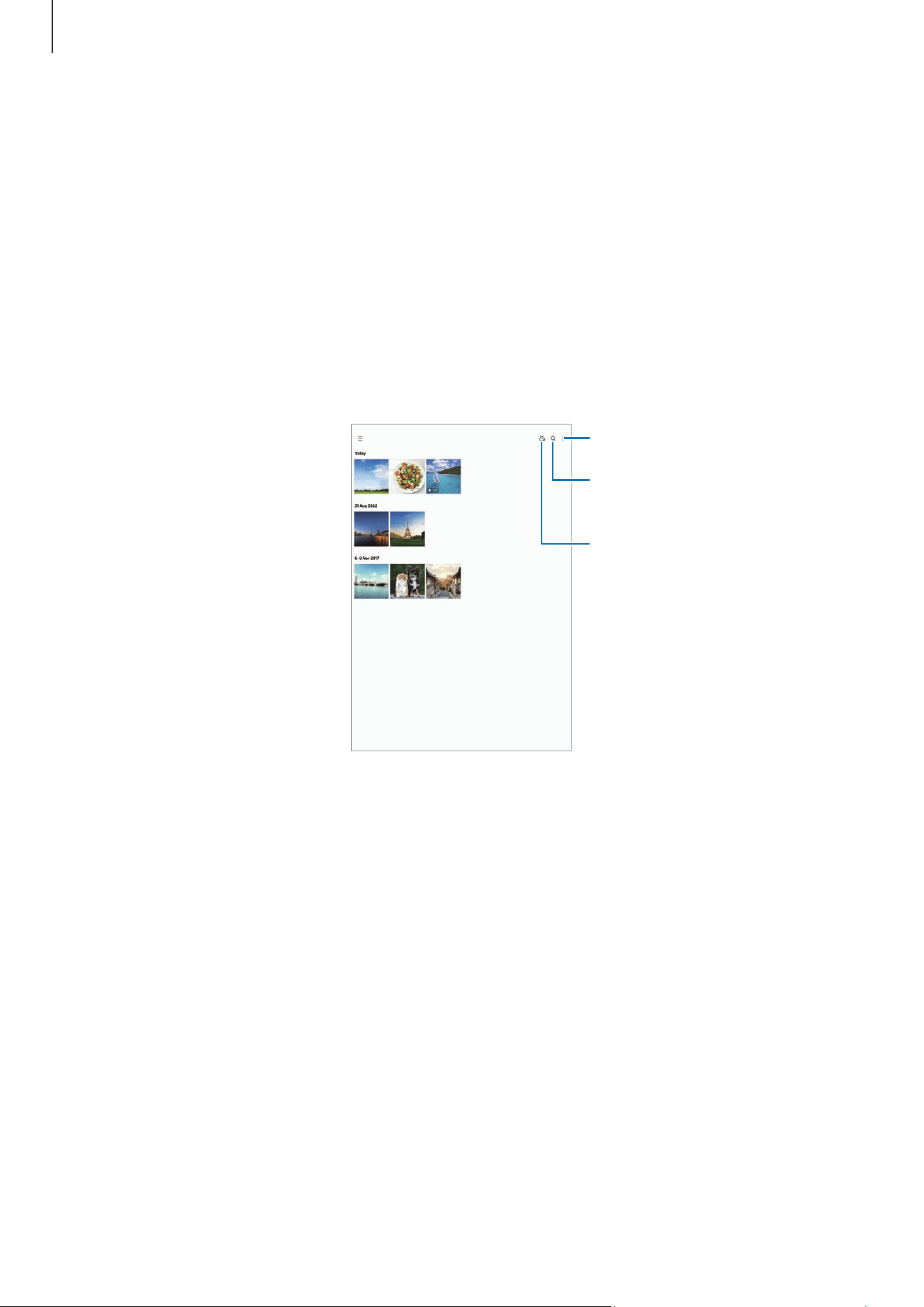
Using Gallery
Open the
Gallery
app.
Search for images
and videos.
Sync images and
videos.
More options
Apps and features
59
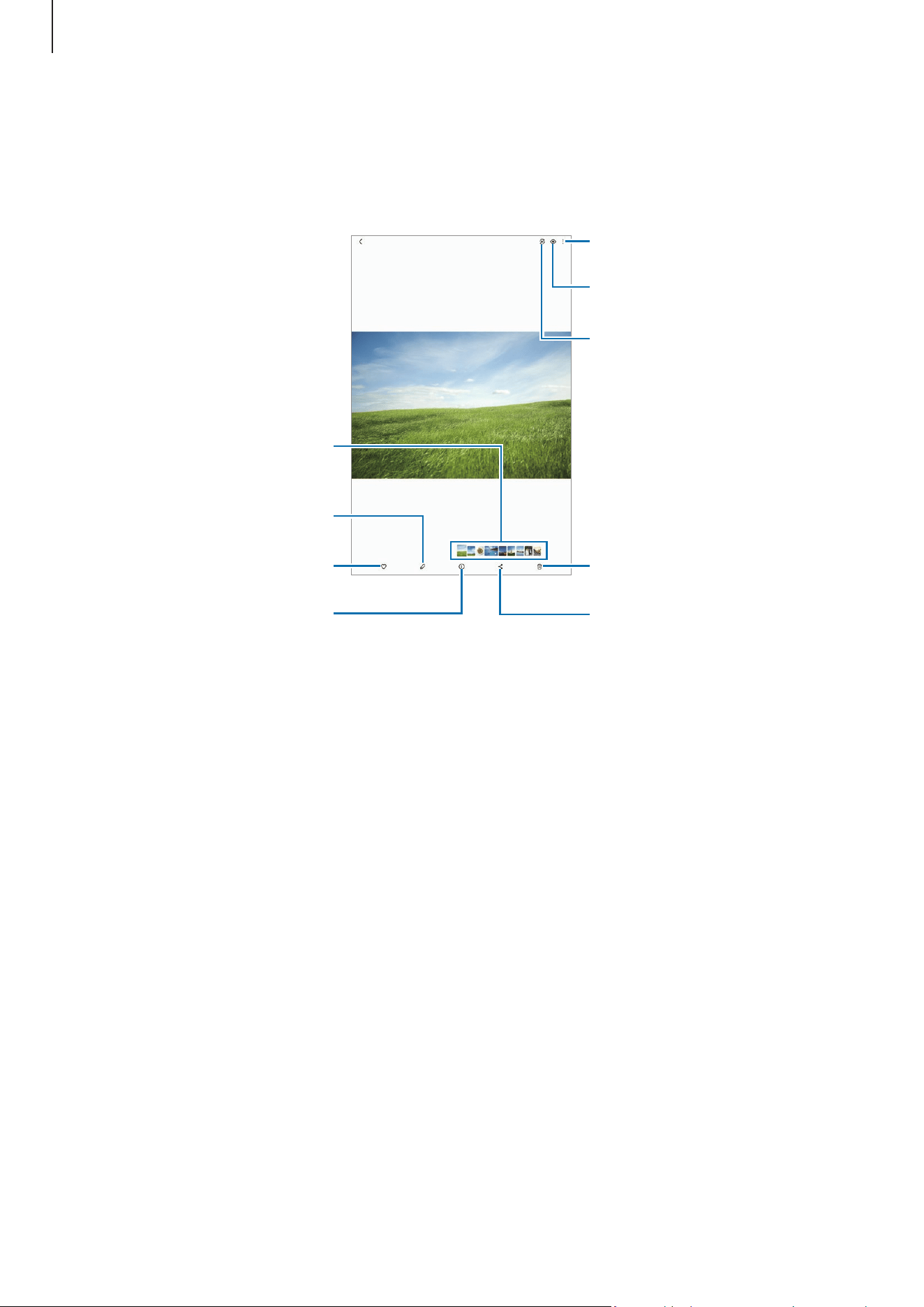
Viewing images
Open the
Gallery
app and select an image. To view other files, swipe to the left or right
on the screen.
More options
Delete the image.
Share the image with others.
Image and video thumbnail
Modify the image.
Check details and additional
features.
View the content on a large
screen using the Smart View
feature.
Add the image to favourites.
Bixby Vision
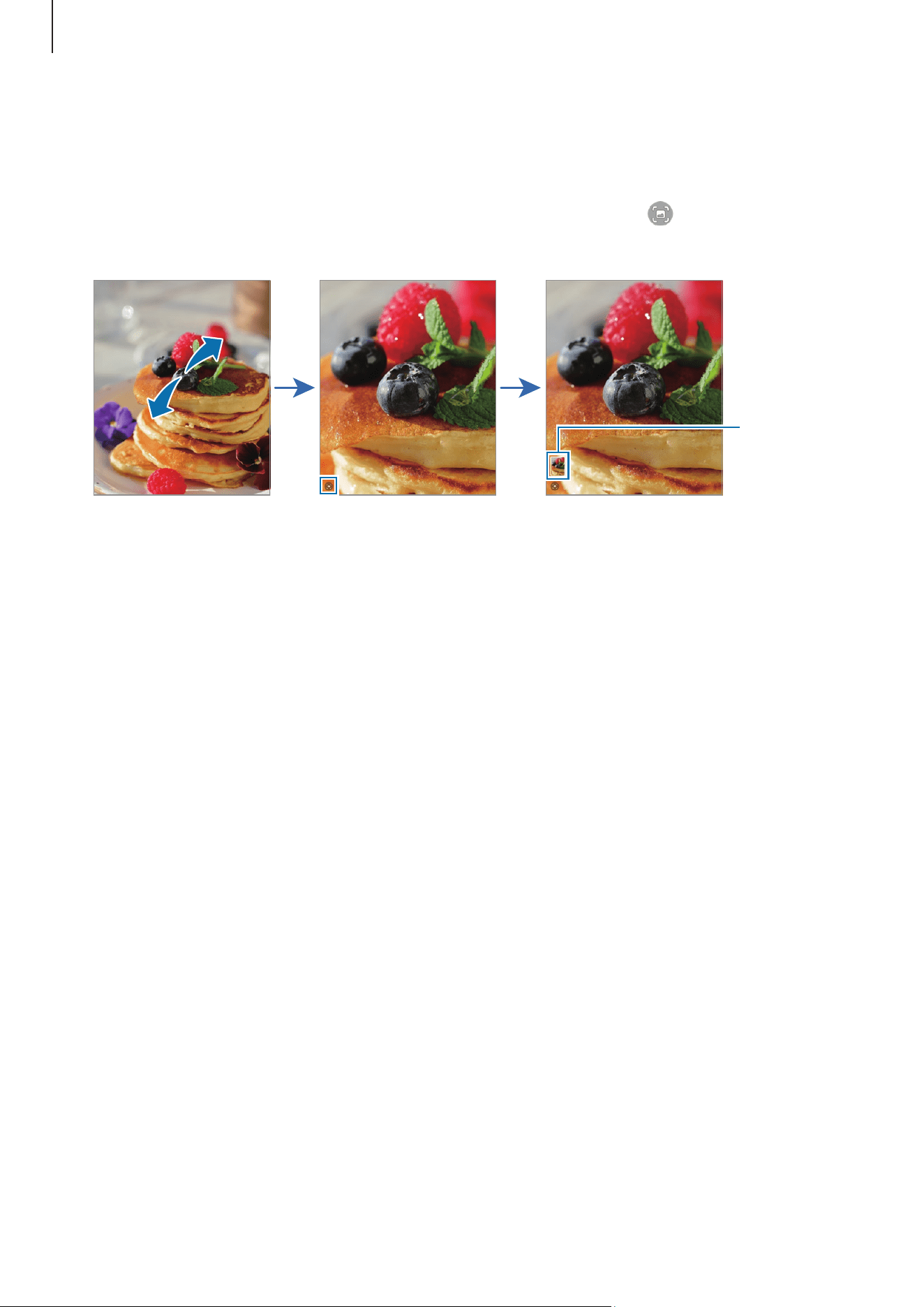
Extracting objects from images
Separate an object from the background and extract it. You can copy the extracted
image or use it in various ways by saving it as a sticker or an image.
1 Open the
Gallery
app and select an image.
2 Touch and hold on the object you want extract and select an option.
Apps and features
60
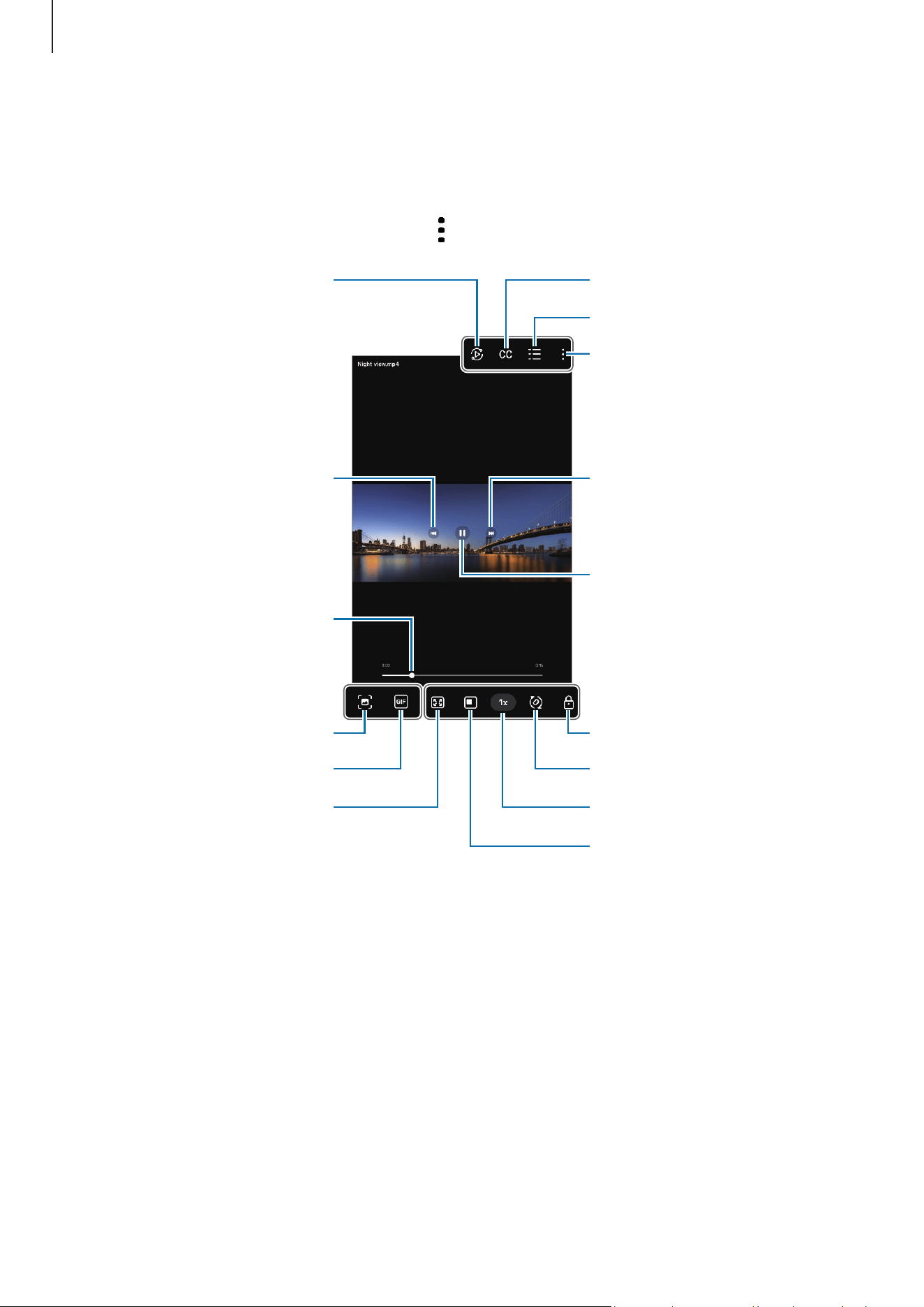
Cropping enlarged images
1 Open the
Gallery
app and select an image.
2 Spread two fingers apart on the area you want to save and tap .
The cropped area will be saved as a file.
Saved
image
thumbnail
Apps and features
61
Viewing videos
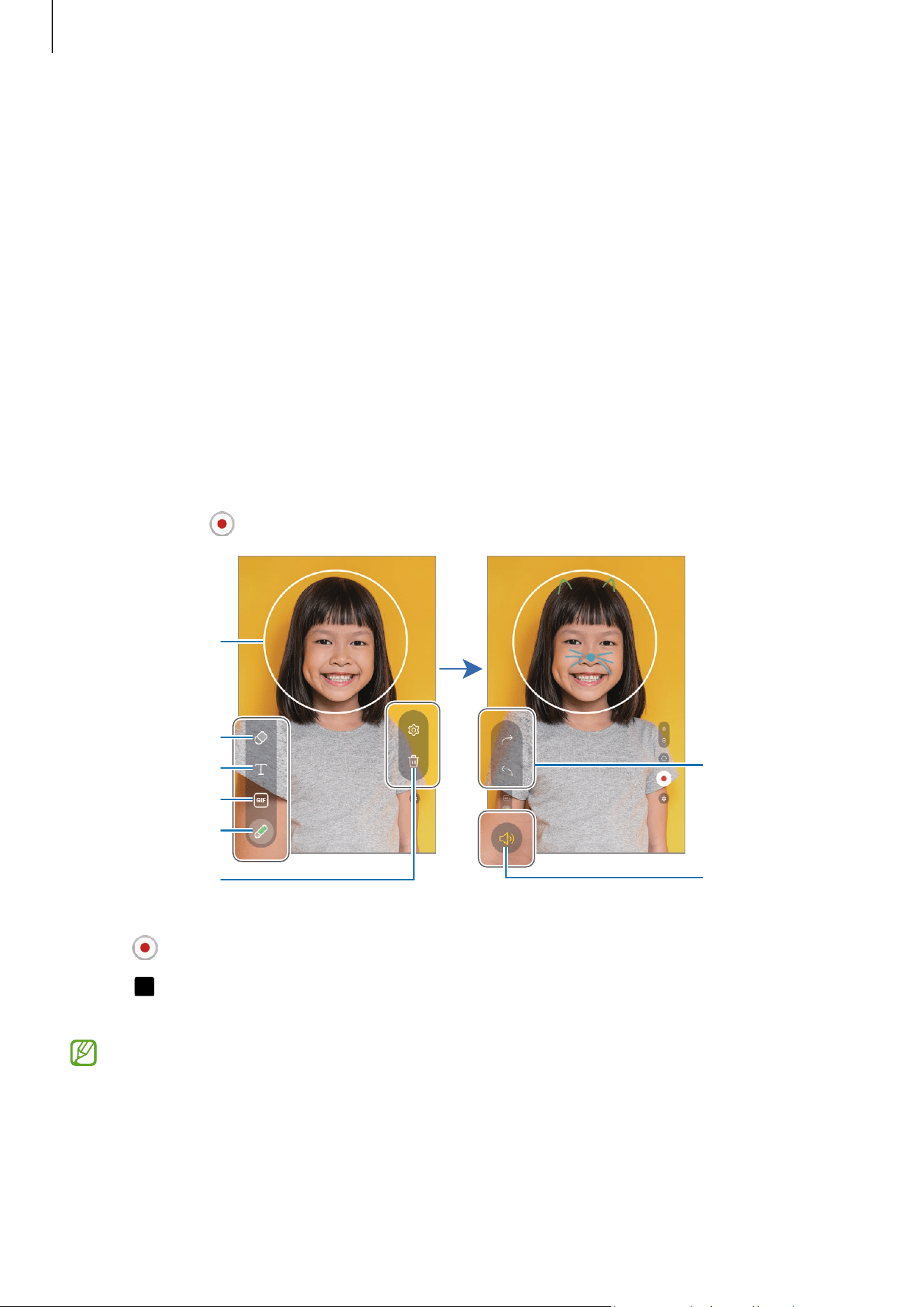
Open the
Gallery
app and select a video to play. To view other files, swipe to the left or
right on the screen.
To use more options during playback, tap
→
Open in Video player
.
Lock the playback screen.
Configure the caption settings.
Switch to the pop-up video
player.
More options
Video list
Rotate the screen.
Change the playback speed.
Skip to the next video. Touch
and hold to fast-forward.
Pause and resume playback.
Skip to the previous video.
Touch and hold to rewind.
Capture the current screen.
Create a GIF.
Rewind or fast-forward by
dragging the bar.
Change the screen ratio.
View the content on a large
screen using the Smart View
feature.
Drag up or down on the left side of the playback screen to adjust the brightness, or drag
up or down on the right side of the playback screen to adjust the volume.
To rewind or fast-forward, swipe to the left or right on the playback screen.

Apps and features
62
Albums
Open the
Gallery
app, tap
→
Albums
→
, and then select an album type.
•
Album
: Create new albums and add images and videos manually.
•
Auto-updating album
: Create albums that automatically collect images of people
you select.
•
Group
: Create a group of related albums.
Stories
When you capture or save images and videos, the device will read their date and location
tags, sort the images and videos, and then create stories.
Open the
Gallery
app, tap
→
Stories
, and then select a story. If you tap , you can use
various options, such as changing the story title.
If you tap
→
Create story
on the stories list, you can create stories manually.
Syncing images and videos
Open the
Gallery
app, tap , and then follow the on-screen instructions to complete
the sync. When the
Gallery
app and the cloud are synced, the icon will change to .
While syncing, pictures and videos you take will also be saved in the cloud. You can
access images and videos saved in the cloud in your
Gallery
app and from other devices.
When you connect your Samsung account and Microsoft account, you can set the
cloud storage as Microsoft OneDrive.
Deleting images or videos
Open the
Gallery
app, touch and hold an image, a video, or a story to delete, and then tap
Delete
.
Using the Trash feature
Images and videos you delete will be temporarily stored in the trash. The files will be
deleted after a certain period.
To access files in the trash, open the
Gallery
app and tap
→
Trash
. To restore files, tap
Edit
, select files, and then tap
Restore
.

Apps and features
63
AR Zone
Introduction
AR Zone provides you AR related features. Choose a feature and capture fun pictures or
videos.
Launching AR Zone
Use the following methods to launch AR Zone:
•
In the
Camera
app, tap
MORE
on the shooting modes list and tap
AR ZONE
.
•
If you added the app icon to the Apps screen, open the
AR Zone
app.
Some features may not be available depending on the carrier or model.
Apps and features
64
AR Doodle
(Record videos with the AR feature)
Record fun videos with virtual handwriting or drawings on faces or anywhere else. When
the camera recognizes a face or space, the doodles on the face will follow the face as it
moves, and the doodles in the space will be fixed in the same place even if the camera
moves.
1 Launch AR Zone and tap
AR Doodle
.
When the camera recognizes the subject, the recognition area will appear on the
screen.
2 Write or draw in the recognition area.
•
If you switch to the rear camera, you can also write or draw outside the recognition
area.
•
If you tap and then begin to doodle, you can record yourself doodling.
Text
Eraser
Recognition
area
Pen tool
Delete doodle.
Turn the sound
effect on or off.
Undo/Redo
GIF
3 Tap to record a video.
4 Tap to stop recording the video.
You can check and share the video in
Gallery
.
The available features on the preview screen may vary depending on which camera
is being used.
Apps and features
65
Bixby
Introduction
Bixby is a user interface that helps you use your device more conveniently.
You can talk to Bixby or type text. Bixby will launch a feature you request or show the
information you want. Visit www.samsung.com/bixby for more information.
Bixby is only available in some languages, and it may not be available depending
on the region.
Starting Bixby
Press and hold the Side button to launch Bixby. The Bixby intro page will appear.
After you select the language to use with Bixby, sign in to your Samsung account, and
complete the setup by following the on-screen instructions, the Bixby screen will appear.
Using Bixby
While pressing and holding the Side button, say what you want to Bixby. Alternatively,
say the wake-up phrase and say what you want.
For example, while pressing and holding the Side button, say “How’s the weather today?”
The weather information will appear on the screen.
If Bixby asks you a question during a conversation, you can continue to talk to Bixby
without pressing the Side button or tapping .
If you cannot find the Bixby app icon ( ) on the Apps screen, open
Settings
, tap
Advanced features
→
Bixby
, and then tap the
Show Bixby on Apps screen
switch to turn
it on.
Waking up Bixby using your voice
You can start a conversation with Bixby by saying “Hi, Bixby” or “Bixby”. Register your
voice so that Bixby will respond to your voice.
1 Open the
Bixby
app and tap
→
Voice wake-up
.
2 Tap the switch to turn it on.
3 Select a wake-up phrase you want under
Wake-up phrase
.

Apps and features
66
4 Tap the
Respond to my voice
switch to turn it on.
5 Follow the on-screen instructions to complete the setup.
Now you can say the wake-up phrase and start a conversation.
Communicating by typing text
If your voice is not recognized because of noisy environments or if you are in a situation
where speaking is difficult, you can communicate with Bixby through text.
Open the
Bixby
app, tap , and then type what you want.
During the communication, Bixby also will answer you through text instead of voice
feedback.
Apps and features
67
Bixby Vision
Introduction
Bixby Vision is a service that provides various features based on image recognition. You
can use Bixby Vision to search for information by recognizing objects. Use a variety of
useful Bixby Vision features.
•
This feature may not be available or you might not get correct search results
depending on the image size, format, or resolution.
•
Samsung is not responsible for the product information provided by Bixby Vision.
Launching Bixby Vision
Launch Bixby Vision using one of these methods.
•
In the
Camera
app, tap
MORE
on the shooting modes list and tap
BIXBY VISION
.
•
In the
Gallery
app, select an image and tap .
•
In the
Samsung Internet
app, touch and hold an image and tap
Search with Bixby
Vision
.
•
If you added the Bixby Vision app icon to the Apps screen, open the
Bixby Vision
app.
Using Bixby Vision
1 Launch Bixby Vision.
2 Select a feature you want to use.
•
TRANSLATE
: Recognize text from documents or images and translate it.
•
TEXT
: Recognize text from documents or images and extract it.
•
DISCOVER
: Search for images similar to the recognized object online and related
information.
The available features and search results may vary depending on the region or
carrier.
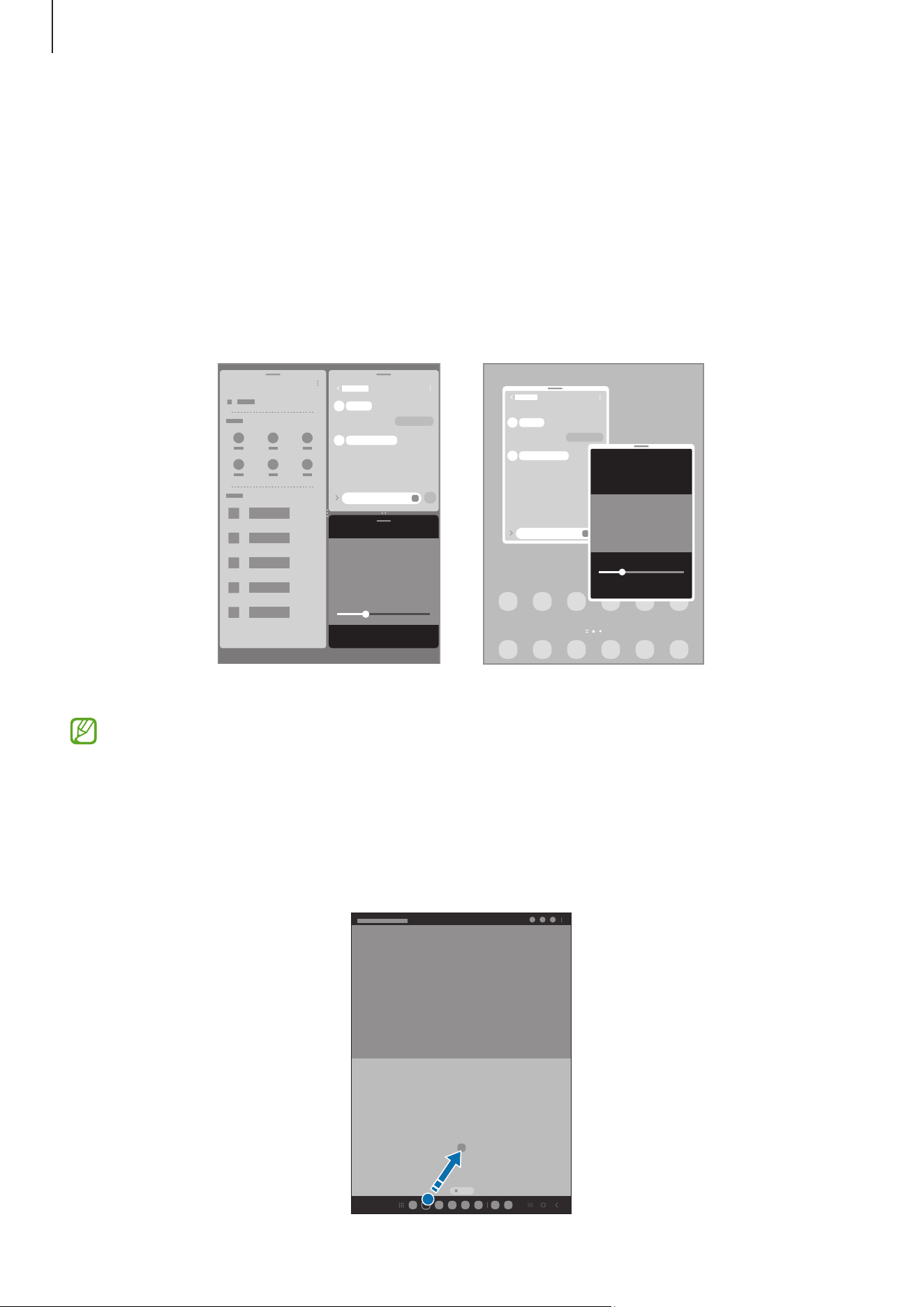
Apps and features
68
Multi window
(Using multiple apps at once)
Introduction
Run up to three apps at the same time in the split screen view. You can also run multiple
apps at the same time in the pop-up view.
Split screen view Pop-up view
Some apps may not support this feature.
Opening apps from the taskbar
While using an app, drag the app you want from the taskbar upwards and drop it
wherever you want.
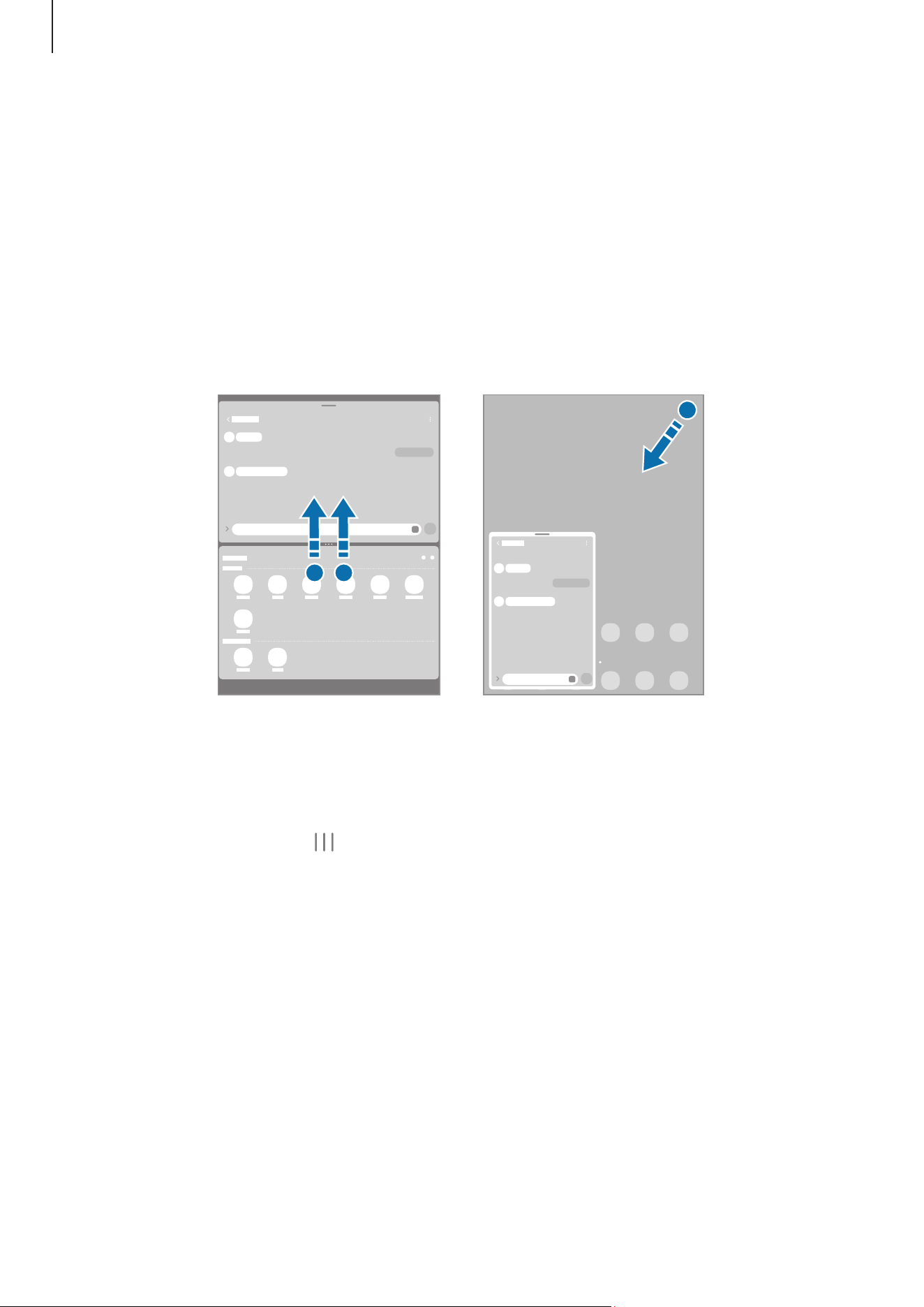
Apps and features
69
Launching Multi window by swiping the screen
You can launch Multi window by swiping the screen.
Swipe with two fingers from the side or bottom of the screen towards the middle of the
screen. The screen will change to the split screen view.
To change to the pop-up view, swipe from the top corner towards the middle of the
screen.
To use this feature, open
Settings
, tap
Advanced features
→
Multi window
, and then tap
the
Swipe for split screen
or
Swipe for pop-up view
switch to turn it on.
Split screen view
Pop-up view
Opening apps using the Recents button
1 Tap the Recents button (
) to open the list of recently used apps.
2 Swipe to the left or right, tap an app’s icon, and then tap
Open in split screen view
or
Open in pop-up view
.
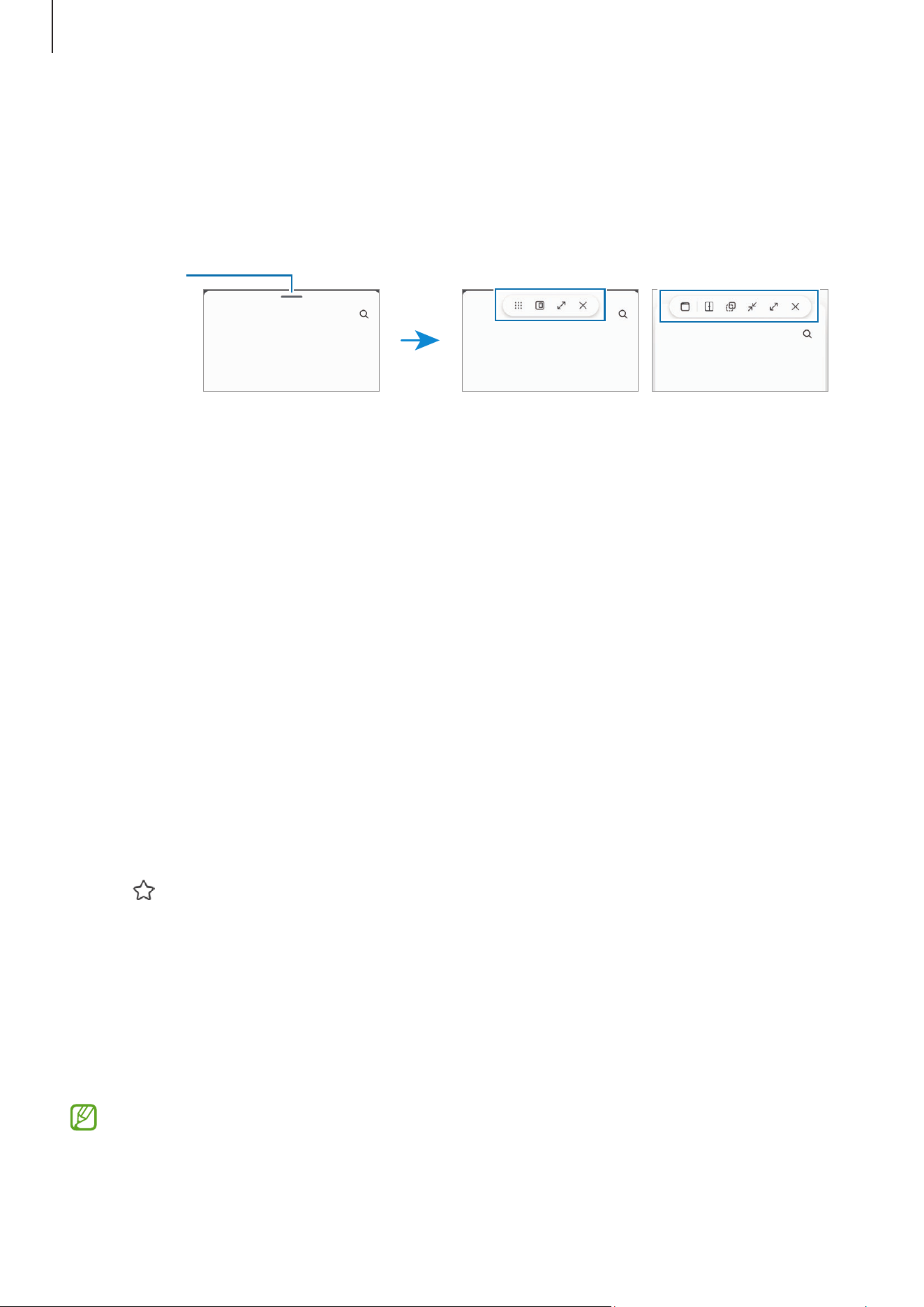
Apps and features
70
Using additional features
Using the multi window menus
When you tap the multi window handle, the available menus will appear.
Split screen view Pop-up view
Multi
window
handle
Adjusting the window size
Drag the circles between the app windows to adjust the size of the windows.
When you drag the circles between the app windows to the edge of the screen, the
window will be maximized.
Moving pop-up windows
To move a pop-up window, tap the multi window handle and drag it to a new location.
Saving your own split screen layout
Add frequently used apps as an app pair to open them together in the split screen view
with a single tap.
1 In the split screen view, tap the circles between the app windows.
2 Tap
.
3 Select a location to add the app pair.
The apps you are using in the split screen view will be saved to the location you select
as an app pair.
Inserting content
Drag and drop various content, such as text, links, or images, to the other app’s screen.
Some apps may not support this feature.
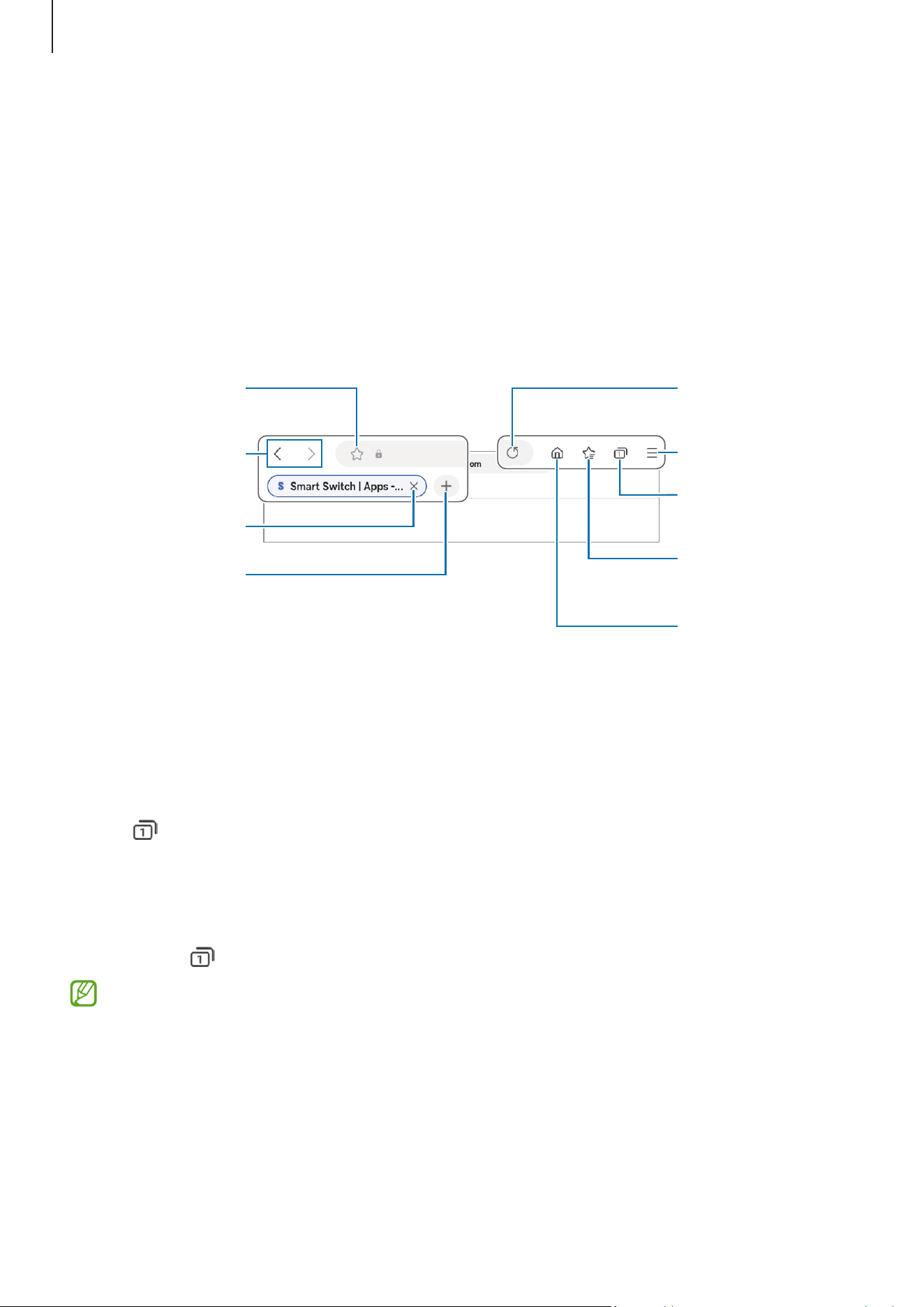
Apps and features
71
Samsung Internet
Browse the internet to search for information and bookmark your favourite webpages to
access them conveniently.
1 Open the
Internet
app.
2 Enter the web address or a keyword, and then tap
Go
.
If the toolbar does not appear, swipe downwards slightly on the screen.
Bookmark the
current webpage.
Open the
homepage.
More options
Refresh the
current webpage.
Manage tabs. /
Use Secret mode.
Access your
bookmarks.
Move between
pages.
Close the tab.
Open a new tab.
Using Secret mode
If you set a password for Secret mode, you can prevent others from accessing your search
history, browsing history, bookmarks, and saved pages.
1 Tap
→
Turn on Secret mode
.
2 Tap the
Lock Secret mode
switch to turn it on, tap
Start
, and then set a password for
Secret mode.
In Secret mode, the device will change the colour of the toolbars. To turn off Secret
mode, tap
→
Turn off Secret mode
.
In Secret mode, you cannot use some features, such as screen capture.
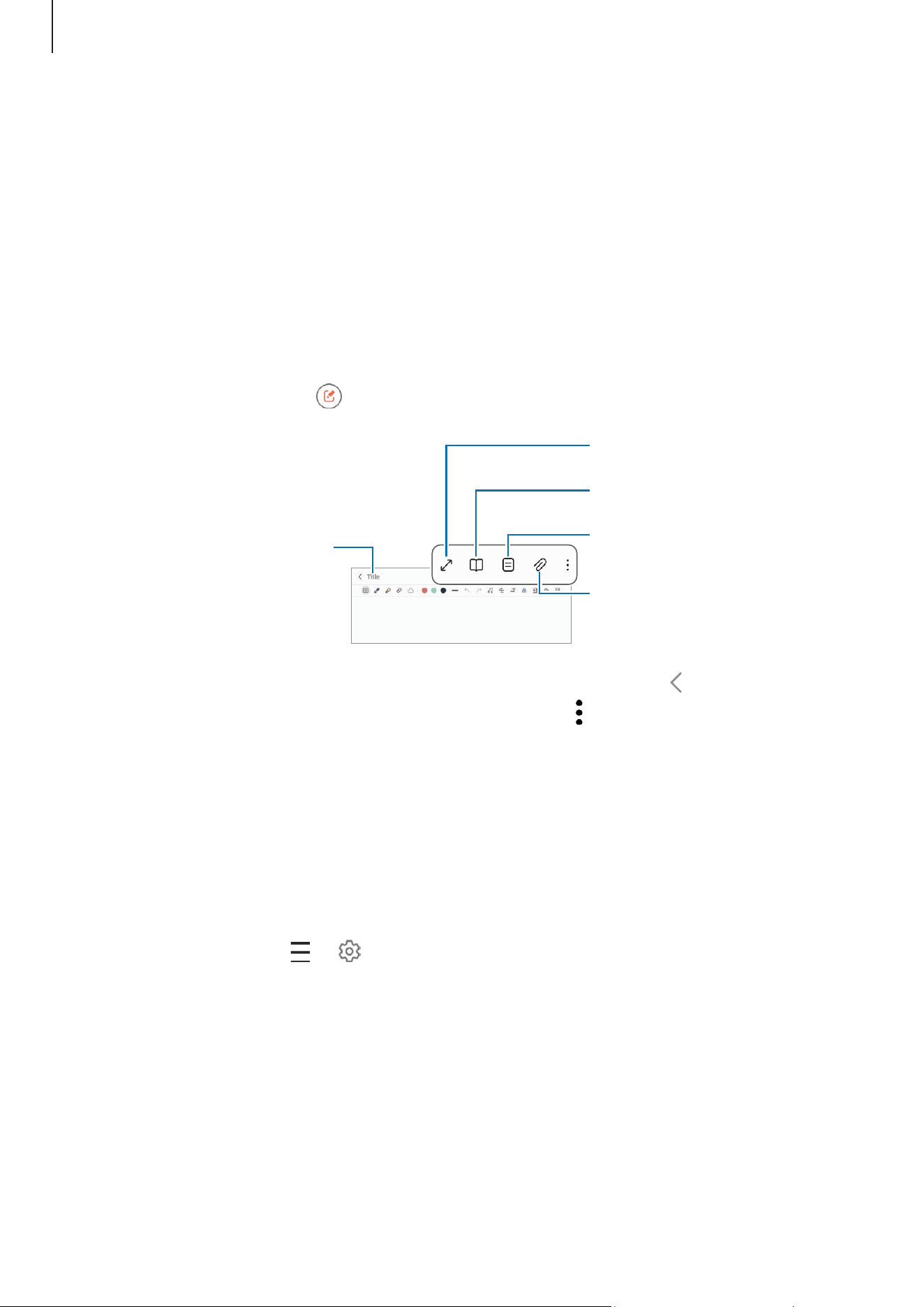
Apps and features
72
Samsung Notes
Introduction
Create notes by entering text from the keyboard or by handwriting or drawing on the
screen. You can also insert images or voice recordings into your notes.
Creating notes
1 Open the
Notes
app, tap , and then create a note.
Enter a title.
Manage pages.
Insert files.
Full screen
Reading mode
2 When you are finished composing the note, tap the Back button (
) to save it.
If you want to save the note in another file format, tap
→
Save as file
.
Deleting notes
Touch and hold a note to delete and tap
Delete
.
Syncing notes
You can check and edit notes on all your devices signed in to the same Samsung account.
Open the
Notes
app, tap
→
, and then tap the
Sync with Samsung Cloud
switch to
turn it on.
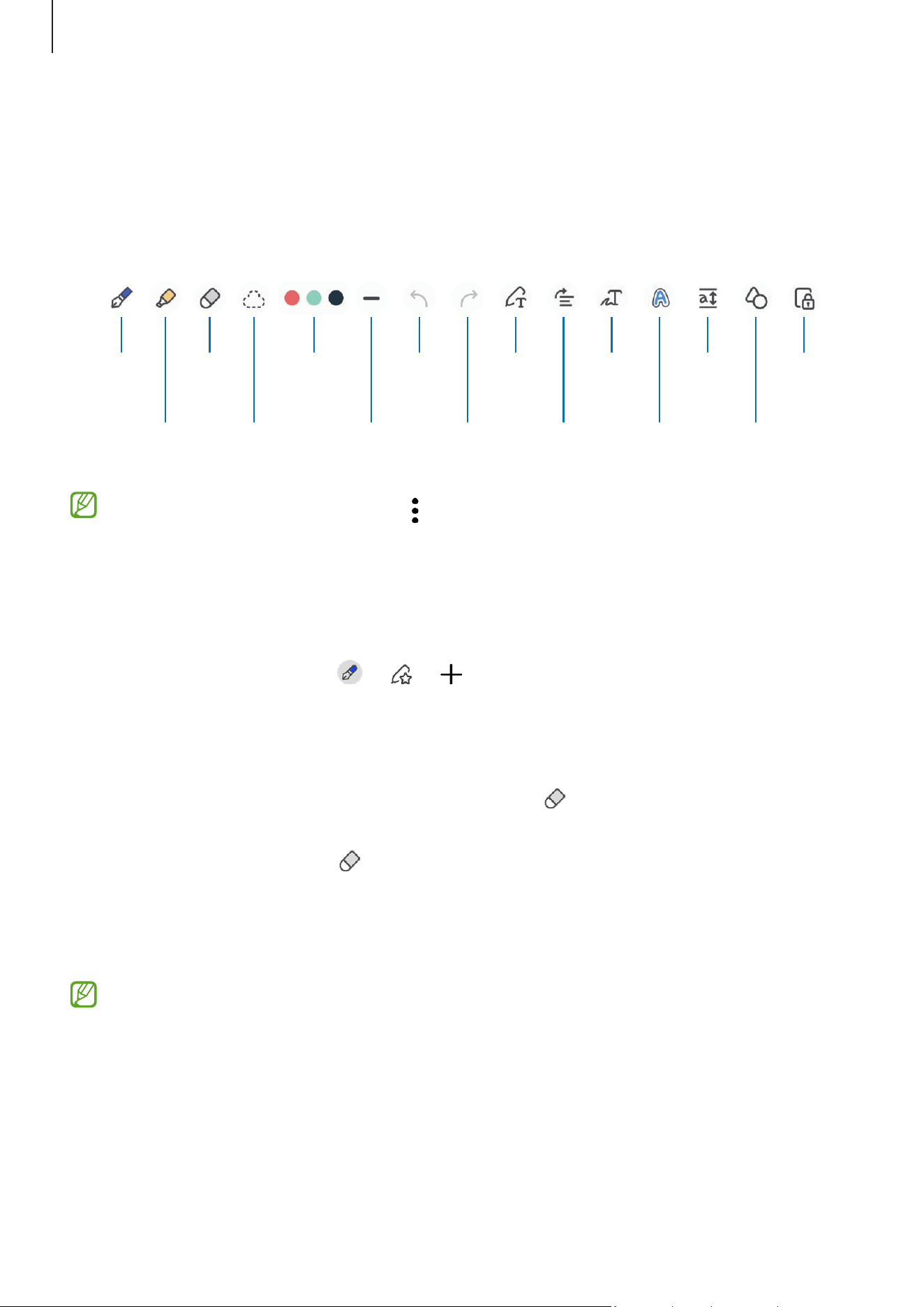
Apps and features
73
Composing notes with handwriting
On the note composer screen, draw or write in your own handwriting.
You can enter your handwriting in a larger size if you magnify the screen by spreading
two fingers on it.
Highlighter
Eraser
Select
and edit.
Pen colour
Pen
thickness
S Pen to
text
UndoPen
Redo Straighten Change
styles.
Easy
writing
pad
Zoom
lock
Auto-fix
shapes
Convert
handwriting
to text.
If finger input does not work, tap
→
Finger drawing on
.
Using favourite pens
Register frequently used pens as favourites and change them by pressing the S Pen
button.
To register favourite pens, tap
→
→
, change the pen settings, such as the type
or colour, and then tap
Done
.
Using the eraser
When you want to erase handwriting from a note, tap and select an area to erase.
Alternatively, select an area while pressing and holding the S Pen button.
To change the eraser type, tap once more.
•
Stroke eraser
: Erase the line you select.
•
Area eraser
: Erase only the area you select. You can adjust the size of the eraser by
dragging the size adjustment bar.
Even with a smaller eraser, you may still not be able to precisely erase the intended
part.
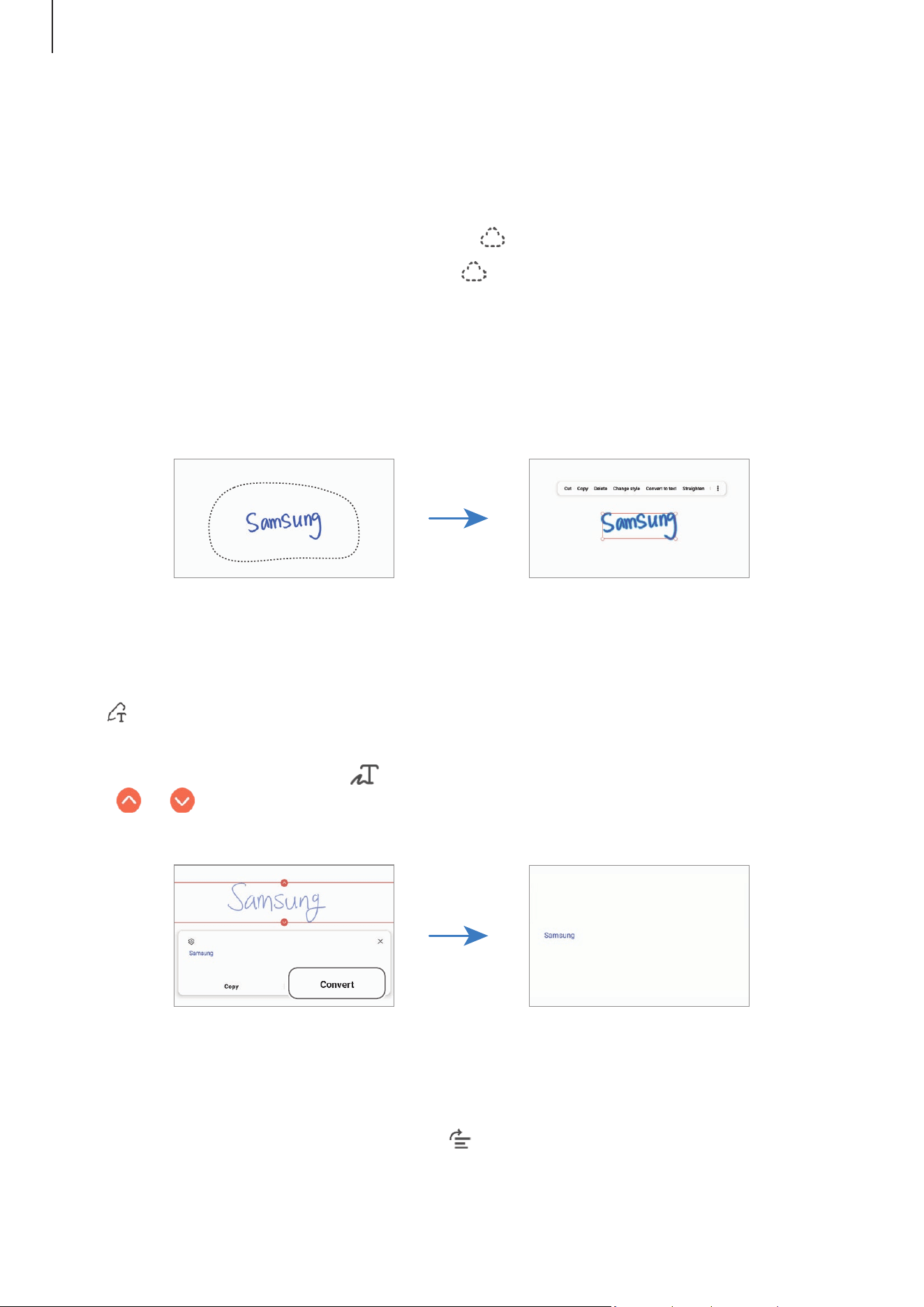
Apps and features
74
Editing handwritten notes
Edit handwritten notes using various editing options, such as cutting, moving, or
resizing.
1 When there is handwriting on the note, tap .
To change the shape of the selection, tap once more.
2 Tap or draw a line around the input to select.
•
To move the input to another location, select the input, and then drag it to a new
location.
•
To change the size of the selection, tap the input and drag a corner of the frame
that appears.
3 Edit the input using the available options.
Converting handwriting to text
Tap and write on the screen with the S Pen. The handwriting will be replaced with text
right away.
After writing on the screen, tap . Options will appear in the preview window. If you
drag or , you can select the handwriting you want. To replace the handwriting with
the text, tap
Convert
.
Straightening content horizontally
You can horizontally straighten your handwriting and drawings.
After writing or drawing on the screen, tap .
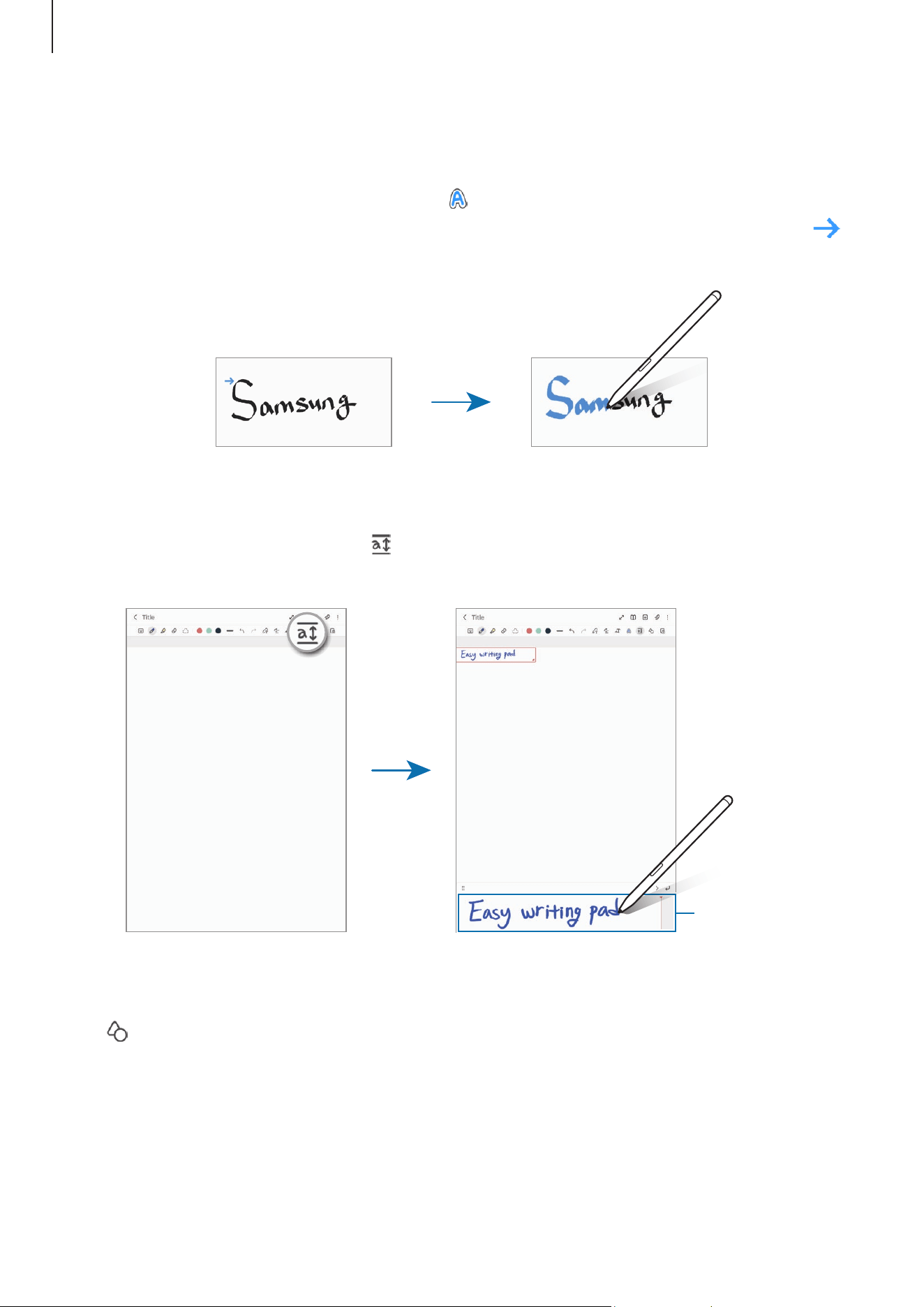
Apps and features
75
Changing styles
You can change the style of your handwriting and drawings.
After writing or drawing on the screen, tap twice and select a colour or line thickness
you want. Then, point the S Pen toward where you want to apply the style. When the
icon appears, tap where you want to change the style.
Using the easy writing pad
On the note composer screen, tap . The input field will be magnified and appear as the
easy writing pad.
Easy writing pad
Automatically fixing shapes
Tap and draw a shape. The shape will be fixed.

Apps and features
76
Recording voice to notes
Make a recording of your voice while creating a note, and then the content will be
synchronized with the recording.
On the note composer screen, tap
→
Voice recording
and create a note.
Select a note from the list and tap
→
to play the recording. Then the content you
created while recording will be displayed on the screen along with the recording.
Adding memos to PDF files
Open the
Notes
app, tap , and then select a PDF file. You can add memos to the PDF
file.
Pinning a note to the Home screen
Pin a note to the Home screen to check it or open and edit it.
1 Open the
Notes
app.
2 Select a note and tap
→
Add to
→
Home screen
.
The note will be added to the Home screen.
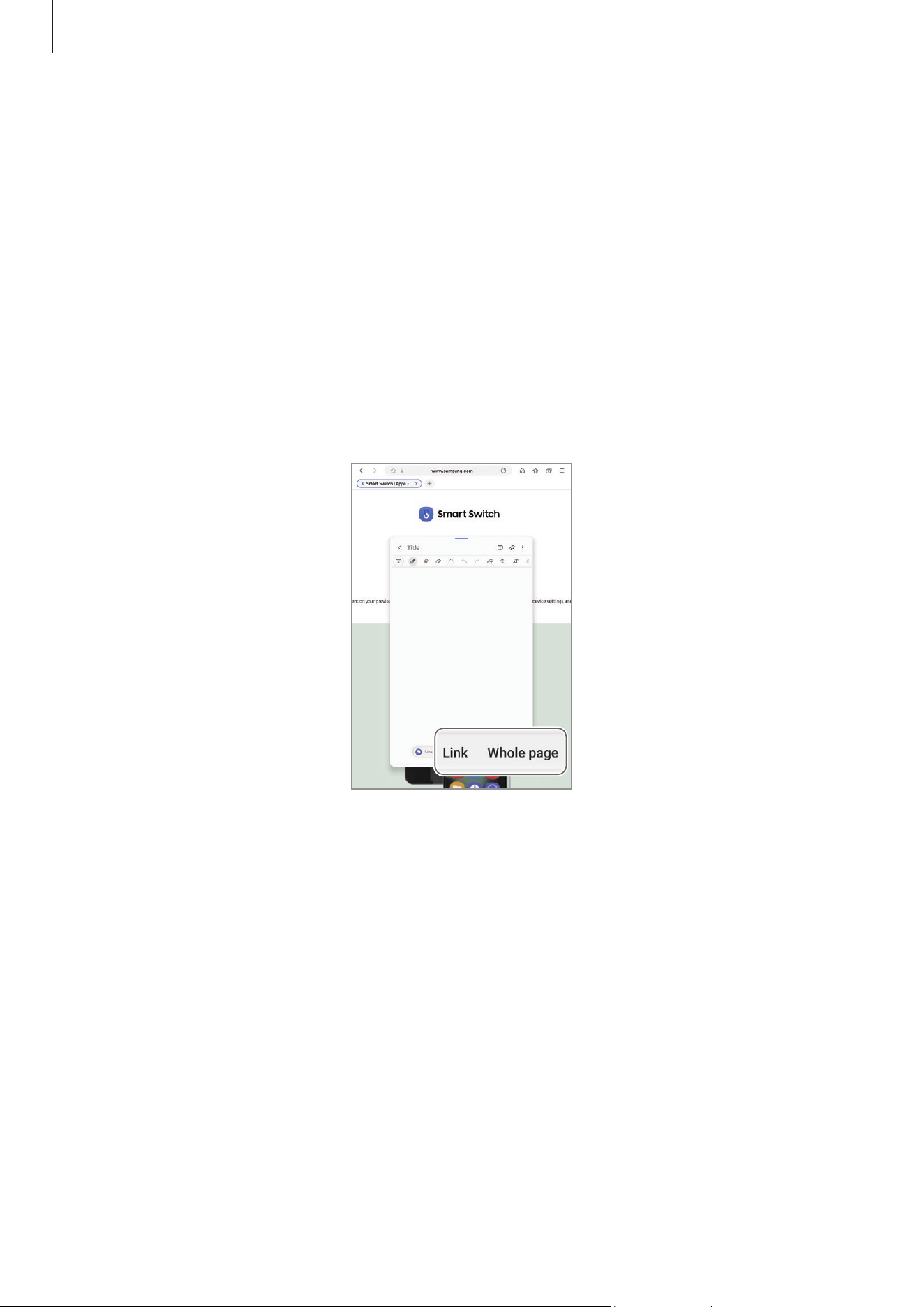
Apps and features
77
Clipping content
You can add content, such as a webpage link or an image, to a note.
1 When there is content you want to clip while using the
Samsung Internet
,
Messages
,
or
Gallery
app, open the
Notes
app in the split screen view or in the pop-up view.
For more information about the split screen view or the pop-up view, refer to Multi
window.
Alternatively, double tap the screen while pressing and holding the S Pen button, or
open the Air command panel and tap
Create note
.
Options you can use will appear at the bottom of the note composer screen.
2 Select an option you want.
Apps and features
78
Samsung Members
Samsung Members
offers support services to customers, such as device problem
diagnosis, and lets users submit questions and error reports. You can also share
information with others in the Galaxy users’ community or check the latest news and
tips.
Samsung Members
can help you solve any problems you encounter while using
your device.
Samsung Kids
You can restrict children’s access to certain apps, set their usage times, and configure
settings to provide a fun and safe environment for children when they use the device.
Open the notification panel, swipe downwards, and then tap (
Kids
). If you cannot find
(
Kids
) on the quick settings panel, tap
→
Edit
and drag the button over to add it.
When starting Samsung Kids for the first time or after performing a data reset, follow
the on-screen instructions to complete the setup.
On the Samsung Kids screen, select the app you want to use.
Your preset screen lock method or your created PIN will be used when turning on
the
Parental controls
feature or closing Samsung Kids.
Using parental controls features
You can configure the settings for Samsung Kids and check the usage history.
On the Samsung Kids screen, tap
→
Parental controls
and enter your unlock code.
Closing Samsung Kids
To close Samsung Kids, tap the Back button ( ) or tap
→
Close Samsung Kids
, and then
enter your unlock code.

Apps and features
79
Samsung Global Goals
The Global Goals, which were set up by the United Nations General Assembly in 2015,
consist of goals that aim to create a sustainable society. These goals have the power to
end poverty, fight inequality, and stop climate change.
With Samsung Global Goals, learn more about the global goals and join the movement
for a better future.
PENUP
PENUP is a social network service for sharing artwork drawn with the S Pen. Post your
artwork, check out others’ artwork, and get useful drawing tips.
Open the
PENUP
app.

Apps and features
80
Calendar
Manage your schedule by entering upcoming events in your planner.
Creating events
1 Open the
Calendar
app and tap
or double tap a date.
If the date already has saved events or tasks in it, tap the date and tap .
2 Enter event details and tap
Save
.
Syncing events with your accounts
1 Open
Settings
, tap
Accounts and backup
→
Manage accounts
, and then select the
account to sync with.
2 Tap
Sync account
and tap the
Calendar
switch to turn it on.
To add accounts to sync with, open the
Calendar
app and tap
→
→
Manage
calendars
→
. Then, select an account to sync with and sign in. When an account is
added, a blue circle is displayed next to the account name.
Apps and features
81
Reminder
(Receiving notifications for to-do items)
Register to-do items as reminders and receive notifications according to the condition
you set.
•
To receive more accurate notifications, connect to a Wi-Fi network.
•
To use location reminders, the GPS feature must be turned on. Location
reminders may not be available depending on the model.
Starting Reminder
Open the
Calendar
app and tap
→
Reminders
→
. The Reminder screen will appear
and the Reminder app icon ( ) will be added to the Apps screen.
Creating reminders
1 Open the
Reminder
app.
2 Tap , enter the details, and then tap
Save
.
Completing reminders
On the reminders list, tap or select a reminder and tap
Complete
.
Restoring reminders
Restore reminders that have been completed.
1 On the reminders list, tap
→
Completed
.
2 Select a reminder to restore and tap
Restore
.
Reminders will be added to the reminders list and you will be reminded again.
Deleting reminders
To delete a reminder, select a reminder and tap
Delete
. To delete multiple reminders,
touch and hold a reminder, tick reminders to delete, and then tap
Delete
.
Apps and features
82
Voice Recorder
Record or play voice recordings.
1 Open the
Voice Recorder
app.
2 Tap to start recording. Speak into the microphone.
•
Tap to pause recording.
•
While making a voice recording, tap
BOOKMARK
to insert a bookmark.
3 Tap to finish recording.
4 Enter a file name and tap
Save
.
My Files
(Checking and managing files)
Access and manage various files stored in the device.
Open the
My Files
app.
To check for unnecessary data and free up the device’s storage, tap
Manage storage
.
To search for files or folders, tap .
Clock
Set alarms, check the current time in many cities around the world, time an event, or set
a specific duration.
Open the
Clock
app.
Calculator
Perform basic arithmetic or scientific calculations.
Open the
Calculator
app.
•
: Check the calculation history. To clear the history, tap
Clear history
. To close the
calculation history panel, tap .
•
: Use the unit conversion tool. You can convert various values, such as area,
length, or temperature, into other units.

Apps and features
83
Gaming Hub
Gaming Hub gathers your games downloaded from
Play Store
and
Galaxy Store
into one
place.
Open the
Gaming Hub
app and select the game you want.
Games downloaded from
Play Store
and
Galaxy Store
will be automatically shown
on the Gaming Hub screen. If your games are not there, tap
My games
→
→
Add
games
.
Removing a game from Gaming Hub
Tap
My games
, touch and hold a game, and then tap
Remove from Gaming Hub
.
Changing the performance mode
You can change the game performance mode.
Open the
Gaming Hub
app, tap
More
→
Game Booster
→
Game optimization
, and then
select the mode you want.
•
Performance
: This focuses on giving you high performance while playing games.
If you use this mode, your device may heat up because of increased battery
consumption.
•
Standard
: This balances the performance and the battery usage time.
•
Battery saver
: This saves battery power while playing games.
Battery power efficiency may vary by game.
Apps and features
84
Game Booster
(Configuring your gaming environment)
You can play games in an optimized environment with Game Booster. You can use Game
Booster while playing games.
To open the Game Booster panel while playing games, tap on the navigation bar. If
the navigation bar is hidden, drag upwards from the bottom of the screen to show it. If
you have set the navigation bar to use
Swipe gestures
, open the notification panel and
tap
Tap to open Game Booster.
•
: Lock the screen while the game is being played. To unlock the screen, drag the
lock icon in any direction.
•
: Hide the buttons on the navigation bar. To display the buttons, tap on the
navigation bar.
•
: Capture screenshots.
•
: Record your game sessions. To stop recording, tap .
•
: Configure settings for Game Booster.
•
Priority mode
: Set the device to block incoming calls and all notifications except for
alarms to prevent your game from being disturbed.
•
Game optimization
: Change the performance mode.
•
Battery
: Check the remaining battery usage time.
•
Temperature
/
Memory
: Check the device’s temperature and memory status.
You can also set the device to automatically adjust the volume or video frame
rate to prevent the device from overheating and to stop apps from running in the
background when there is not enough memory.
•
You can set to open the Game Booster panel from the navigation bar while the
navigation bar is set to
Swipe gestures
. On the Game Booster panel, tap
→
Block during game
and tap the
Navigation gestures
switch to turn it on.
•
Available options may vary depending on the game.
•
Game performance may be limited to control the device’s temperature if the
temperature rises above a certain level.
Opening apps in pop-up windows while playing games
You can open apps in pop-up windows while playing a game.
Tap and select an app from the apps list.
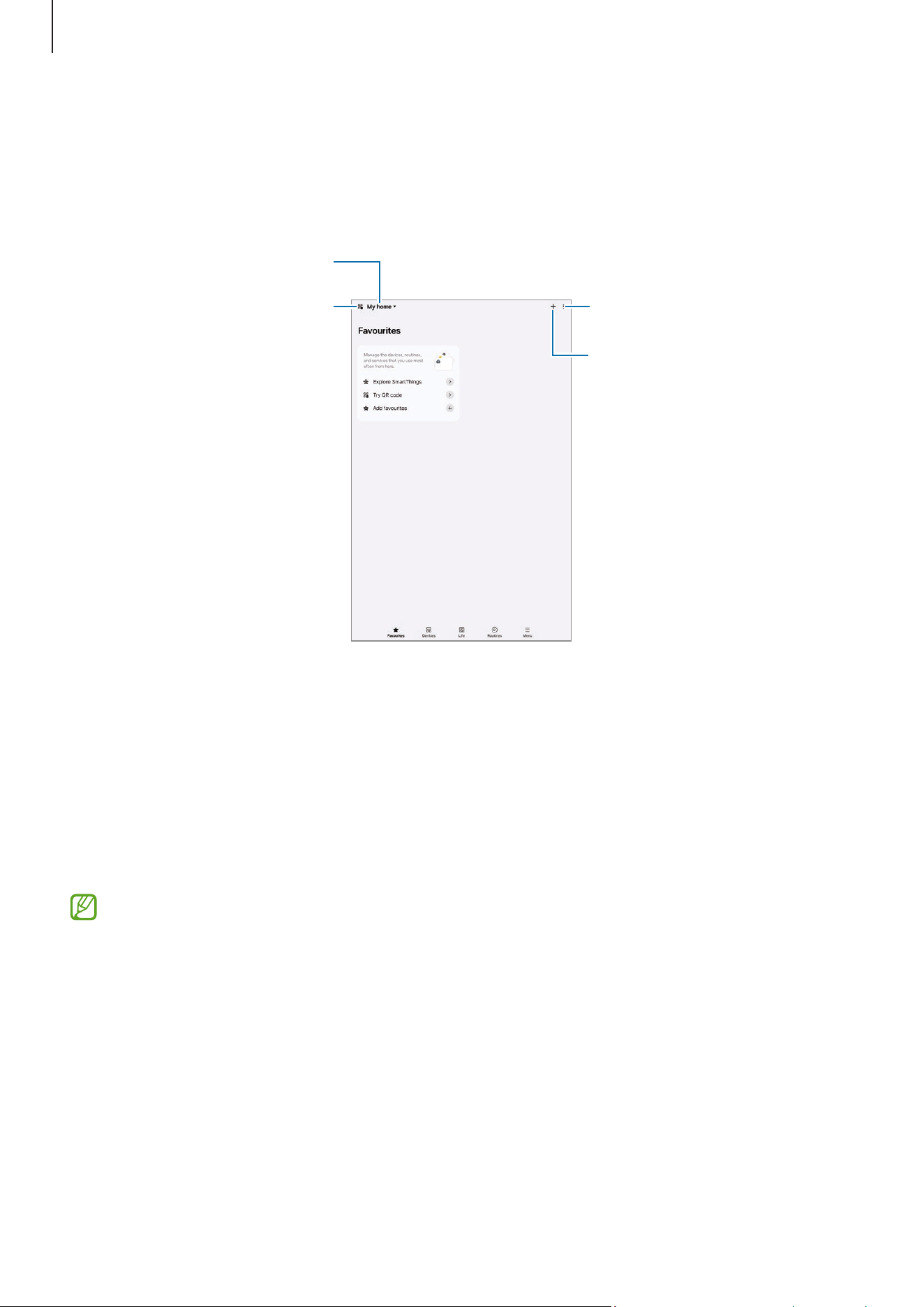
Apps and features
85
SmartThings
Control and manage smart appliances and Internet of Things (IoT) products.
Open the
SmartThings
app. For more information, tap
Menu
→
How to use
.
Invite others using a QR code.
Manage locations
More options
Add devices or services, or
create routines.
•
Favourites
: Add and manage frequently used devices, routines, or services.
•
Devices
: Add or manage devices.
•
Life
: Use various services, such as checking the device status or energy usage, and
saving energy by using AI energy mode.
•
Routines
: Add or manage routines.
•
Menu
: Check useful information, supported devices, how to use certain features, and
more.
•
The devices you can connect may vary depending on the region. Available
features may differ depending on the connected device.
•
Connected devices’ own problems or defects are not covered by the Samsung
warranty. When problems or defects occur on the connected devices, contact the
device’s manufacturer.

Apps and features
86
Sharing content
Share content by using various sharing options. The following actions are an example of
sharing images.
1 Open the
Gallery
app and select an image.
2 Tap and select a sharing method you want.
Quick Share
Sharing content with nearby devices
Share content with nearby devices through Wi-Fi Direct, Bluetooth, or a QR code. You can
also share content with Android devices from other manufacturers.
1 Open the
Gallery
app and select an image.
2 On the other device, open the notification panel, swipe downwards, and then tap
(
Quick Share
) to turn it on. If you cannot find (
Quick Share
) on the quick
settings panel, tap
→
Edit
and drag the button over to add it.
3 Tap
→
Quick Share
and select a device to receive the image.
To share the link with a QR code, tap and scan the QR code.
4 Accept the file transfer request on the other device.
Sharing with contacts
You can share content with people in your contacts.
1 Open the
Gallery
app and select an image.
2 Tap
→
Quick Share
→
View contact >
and select a contact.
Private sharing
Encrypt content and share it with others. Shared content cannot be saved, copied, or
resent by the recipient.
1 Open the
Gallery
app and select an image.
2 Tap
→
Quick Share
→
→
Turn on Private sharing
.
3 Select a device to receive the image, or tap
View contact >
and select a contact.

Apps and features
87
Setting who can find your tablet
Set who is allowed to find and send content to your tablet.
1 Open the notification panel, swipe downwards, and then tap (
Quick Share
).
2 Select an option.
•
No one
: Do not allow others to find your tablet. Only other devices signed in to the
same Samsung account can find your tablet.
•
Contacts only
: Share with people saved in your contacts.
•
Everyone
: Allow any nearby devices to share with your tablet.
Music Share
Introduction
Using the Music Share feature, you can share a Bluetooth speaker that is already
connected to your tablet with another person. You can also listen to the same music on
your Galaxy Buds and another person’s Galaxy Buds.
This feature is available only on devices that support the Music Share feature.
Sharing a Bluetooth speaker
You can listen to music on your tablet and a friend’s phone through your Bluetooth
speaker.
1 Make sure that your tablet and your Bluetooth speaker are connected.
Refer to Pairing with other Bluetooth devices for how to connect.
2 On your tablet, open
Settings
, tap
Connected devices
, and then tap the
Music Share
switch to turn it on.
You can use additional features, such as setting who to share your device with, by
tapping
Music Share
.
3 On your friend’s phone, select your speaker from the list of the Bluetooth devices.
4 On your tablet, accept the connection request.
Your speaker will be shared.
When you play music through your friend’s phone, the music playing through your
tablet will be paused.
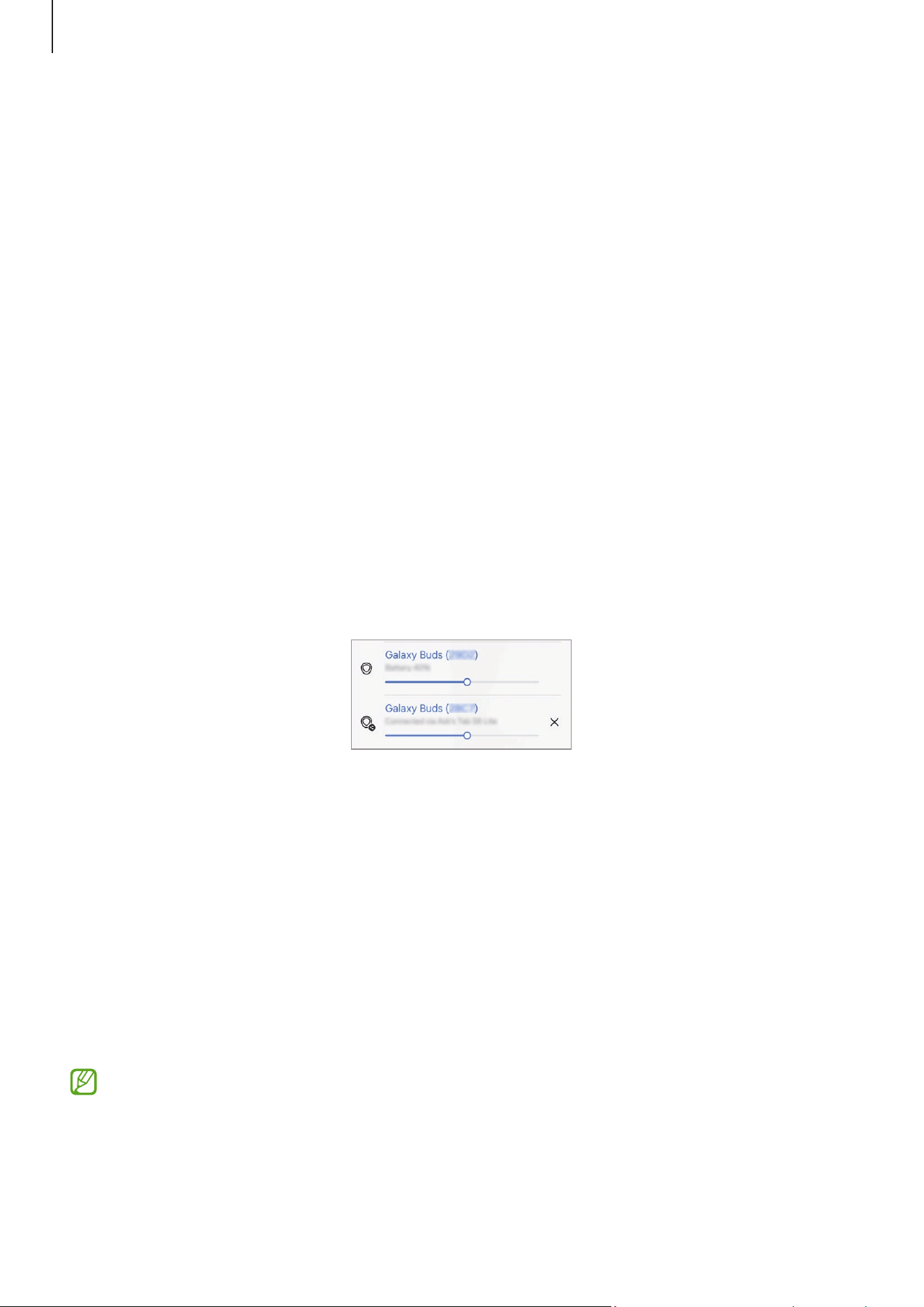
Apps and features
88
Listening to music together with Galaxy Buds
You can listen to music on your tablet together through your Buds and a friend’s Buds.
This feature is supported only on the Galaxy Buds series.
1 Make sure that your tablet, your friend’s phone, and a pair of Buds are connected to
each other.
Refer to Pairing with other Bluetooth devices for how to connect.
2 On your friend’s phone, open
Settings
, tap
Connected devices
, and then tap the
Music
Share
switch to turn it on.
You can use additional features, such as setting who to share your device with, by
tapping
Music Share
.
3 On your tablet, open the notification panel and tap
Media output
.
4 Tap
Music Share
and select your friend’s Buds from the detected devices list.
5 On your friend’s phone, accept the connection request.
When you play music through your tablet, you can listen to it together through both
Buds.
Smart View
(Mirroring on a TV screen)
View your tablet’s displayed content on a large screen by connecting your tablet to a
screen mirroring-enabled TV or monitor.
1 Open the notification panel, swipe downwards, and then tap
Smart View
.
2 Select a device to mirror your tablet’s screen.
When you play a video with Smart View, the resolution may vary depending on the
TV model.

Apps and features
89
Samsung Flow
Connect your tablet to a phone or a computer and use them together to do things like
checking notifications and sharing content.
Samsung Flow must be installed on both devices that you want to connect. If Samsung
Flow is not installed, download it from
Galaxy Store
or
Play Store
. For computers, you
can download it from the Microsoft Store.
This feature is only available on some Samsung Android devices and computers
running Windows 10 or higher.
Connecting to a phone
1 On your phone, open the Samsung Flow app.
2 On your tablet, open the
Flow
app and tap
Connect to phone
.
If your tablet is connected to a computer, tap
→
Connect to phone
.
3 Select your phone from the detected devices list.
If the connection method selection pop-up window appears, select the method you
want.
4 Confirm the passkey on both devices.
The devices will be connected.
Connecting to a computer
1 On your tablet, open the
Flow
app and tap
Connect to computer
.
If your tablet is connected to a phone, tap
→
Connect to computer
.
2 On your computer, open the Samsung Flow app and tap
Start
.
3 Select your tablet from the detected devices list.
If the connection method selection pop-up window appears, select the method you
want.
4 Confirm the passkey on both devices.
The devices will be connected.
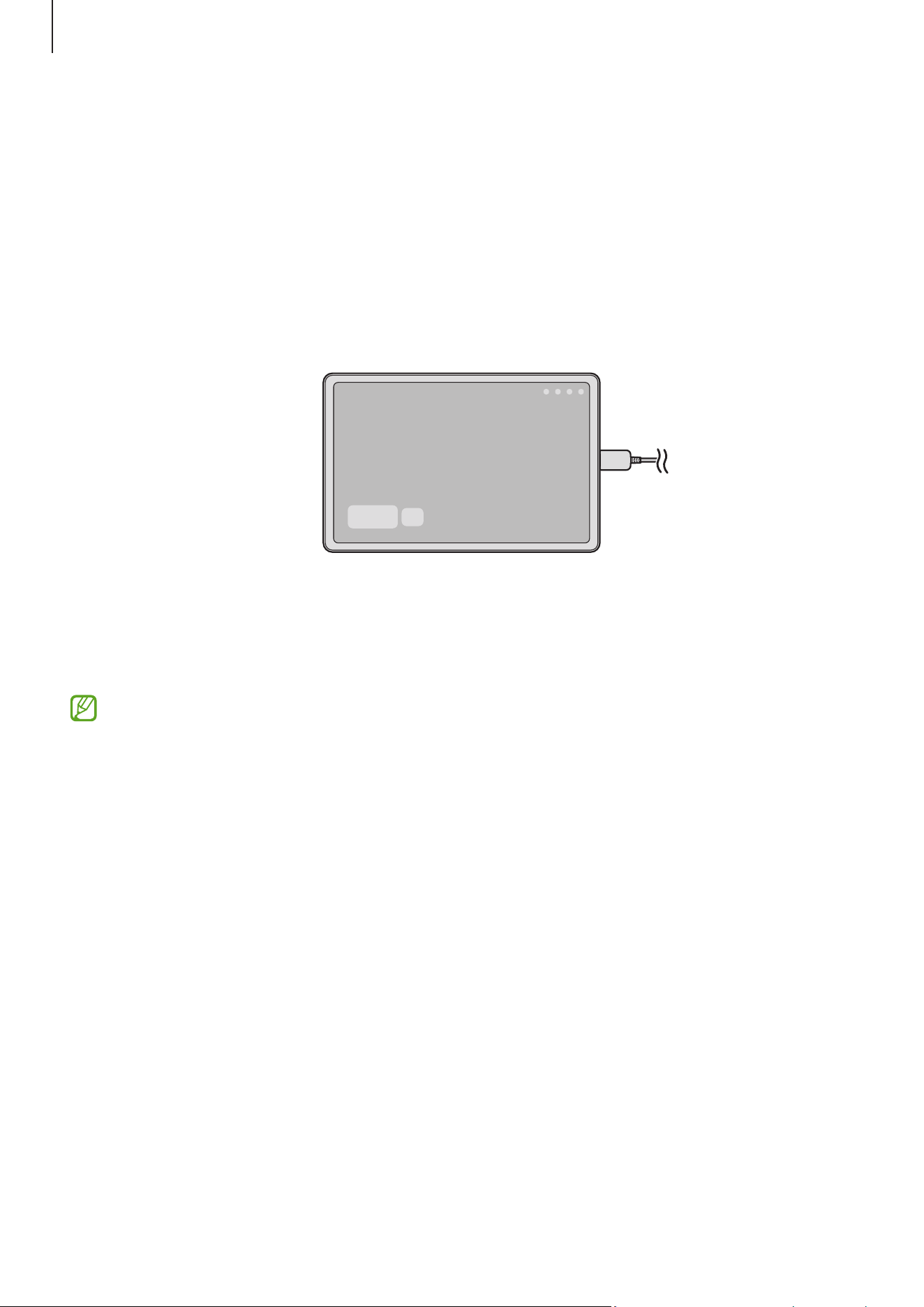
Apps and features
90
Daily Board
Introduction
Use your tablet as a picture frame or bulletin board when it is charging with a USB cable
or charging dock. You can enjoy a slide show with your favourite images and check
information, such as the time, weather, or your calendar. You can also create a note and
control music while using it.
Starting Daily Board
1 Charge the device with a USB cable or charging dock.
To connect the device to a charging dock, slide the device into the charging dock to
bring the device’s connectors and charging dock’s charging terminals into contact
with each other.
2 Open the notification panel and tap
Tap here to start Daily Board.
The Daily Board main screen will appear and you can check the clock, weather, or
calendar.

Apps and features
91
Using Daily Board
Playing the slide show
You can use your device as a picture frame. Enjoy slide shows of your favourite images on
Daily Board.
On the Daily Board main screen, swipe to the right to play a slide show.
To add your favourite images to display to a slide show, open
Settings
, tap
Advanced features
→
Daily Board
→
Slideshow
→
next to
Albums
, and then
select the album.
Making a note on Daily Board
You can use your device as a bulletin board to make a note on Daily Board.
1 Swipe to the left on the Daily board main screen and tap .
2 Select a pen and write or draw on the screen.
3 Tap
Done
.
The note you make will be pinned to Daily Board.
Controlling the music
You can control music playback on Daily Board.
Tap and select an app to control playback.

Apps and features
92
Configuring settings for Daily Board
Configure various settings for Daily Board and make Daily board more personalized.
Open
Settings
and tap
Advanced features
→
Daily Board
.
•
Time, weather, and calendar
: Change the setting for Daily Board main screen.
•
Memo
: Turn the memo feature on Daily Board on or off.
•
SmartThings
: Set the device to show SmartThings devices and scenes on the Daily
Board.
•
Slideshow
: Select the images to add to the slide show and change the settings for
slide show, such as the image order, transition speed, and style. You can also set the
clock or weather information shown on the slide show.
•
Music
: Turn the music controller feature on Daily Board on or off.
•
Charge battery or tap icon
: While charging, the Daily Board button ( ) will be added
to the navigation bar.
‒
Add Daily Board to Apps screen
: The Daily Board icon ( ) will be added to the
Apps screen.
‒
Auto start when connected to USB charger
: Daily Board will be start
automatically when the device is charging with a USB cable.
•
Same as screen saver
: Use Daily Board as a screen saver.
•
Dark mode
: Apply Dark mode to the Daily Board. You can also set the schedule to
apply Dark mode.
•
Turn off as scheduled
: Set the schedule to close Daily Board. When activating this
feature, tap
Set time
to set the time to close Daily Board.
•
About Daily Board
: Check out the Daily Board version and legal information.
•
Contact us
: Ask questions or check frequently asked questions.
Closing Daily Board
To close Daily Board, tap the Home button ( ) or the Back button ( ).
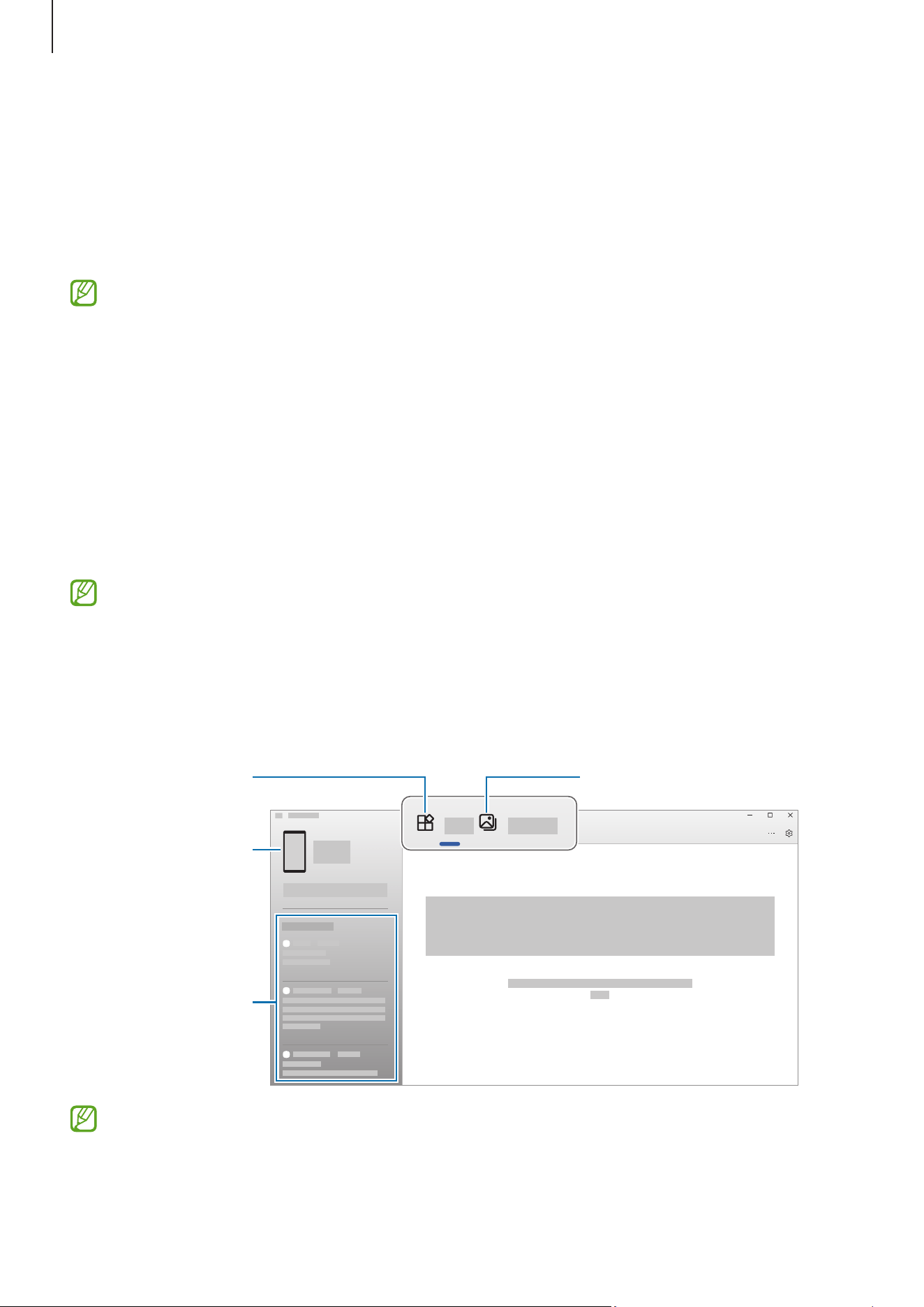
Apps and features
93
Link to Windows
(Using the device through a computer connection)
Access and use the mobile device’s data, such as apps or pictures, on a Windows
computer.
•
It is recommended to use the latest version of Windows and the
Phone Link
app
to fully use this feature.
•
A Microsoft account is required to use this feature. When you create a Microsoft
account, you can sign in to all Microsoft devices and services, such as Microsoft
Office apps and Windows 10.
Connecting to a computer
1 On your mobile device, open
Settings
and tap
Connected devices
→
Link to Windows
.
2 Follow the on-screen instructions to complete the connection.
Visit https://aka.ms/setupltw for details.
Accessing data and notifications from your mobile device on the
computer
Open the
Phone Link
app on the computer and select a category you want.
Apps
Photos
Your mobile device
Notifications
Available features and menus may vary depending on the device’s software
version, app version, or model.
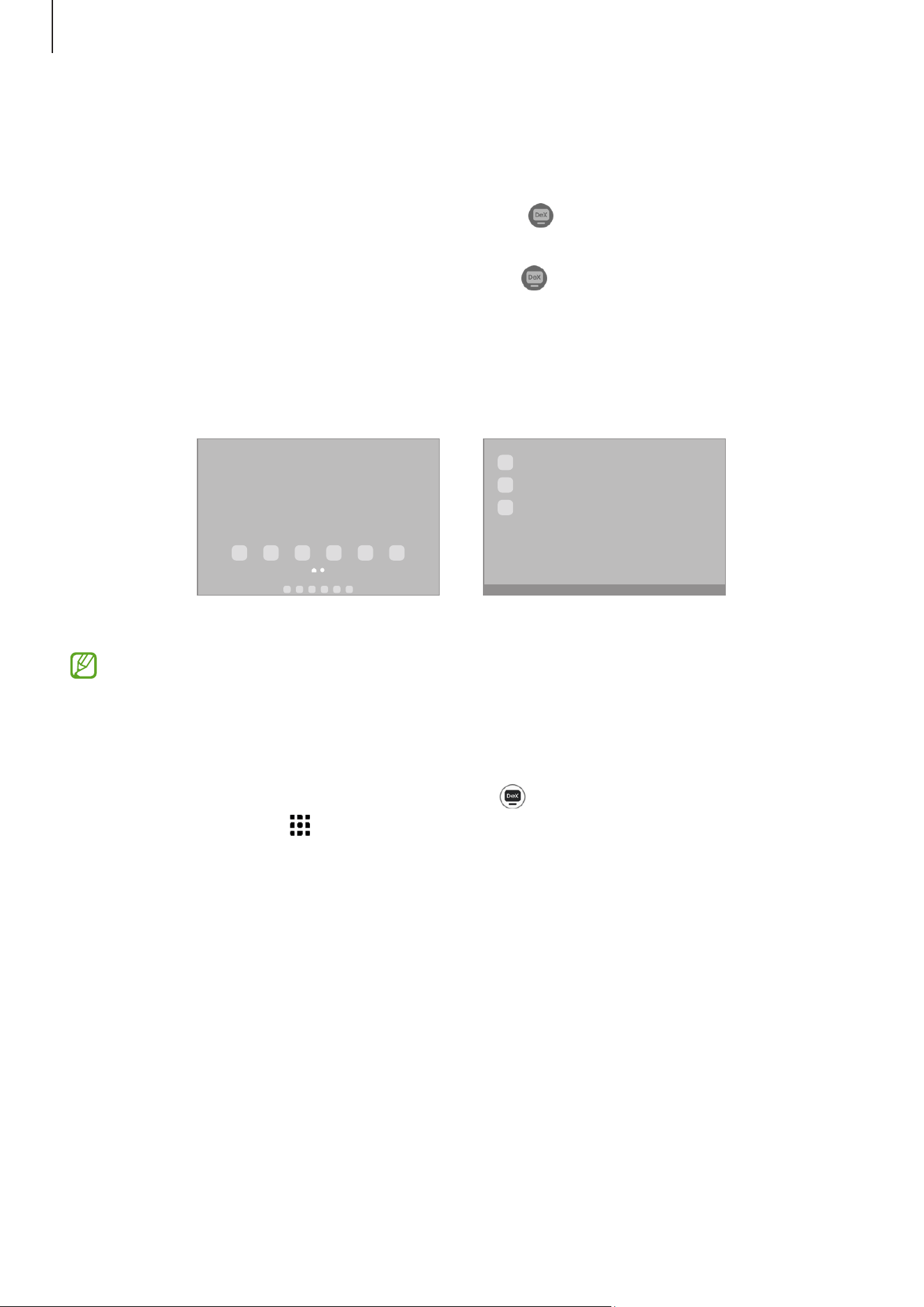
Apps and features
94
Samsung DeX
Use your mobile device’s features in an interface environment similar to a computer.
Swipe downwards on the notification panel and tap (
DeX
). Alternatively, open
Settings
, tap
Connected devices
→
Samsung DeX
→
Start DeX
.
To change the Samsung DeX mode, touch and hold (
DeX
) on the quick settings panel,
or open
Settings
, tap
Connected devices
→
Samsung DeX
, and then select a mode you
want.
•
New
: Use the same home screen layout, widgets, and icons of the tablet.
•
Classic
: Use your tablet’s features in an interface environment similar to a computer.
New mode Classic mode
•
When starting or ending Samsung DeX, running apps may be closed.
•
Some apps or features may not be available when using Samsung DeX.
Closing Samsung DeX
To close the Samsung DeX in the
New
mode, tap (
DeX
) on the quick settings panel. In
the
Classic
mode, select at the left bottom of the screen and select
Exit DeX
.

Apps and features
95
Google apps
Google provides entertainment, social network, and business apps. You may require a
Google Account to access some apps.
To check out more app information, access each app’s help menu.
•
Chrome
: Search for information and browse webpages.
•
Gmail
: Send or receive emails through the Google Mail service.
•
Maps
: Find your location on the map, search the world map, and access location
information for various places around you.
•
YT Music
: Enjoy various music and videos provided by YouTube Music. You can also
access the music collections stored on your device and play them.
•
Google TV
: Purchase or rent videos, such as movies and TV programs, from
Play
Store
.
•
Drive
: Store your content on the cloud, access it from anywhere, and share it with
others.
•
YouTube
: Watch or create videos and share them with others.
•
Photos
: Search for, manage, and edit all your pictures and videos from various
sources in one place.
•
Google
: Search for items on the internet or your device.
•
Meet
: Make video calls or create or join video meetings.
•
Messages
: Send and receive messages on your device or computer, and share
various content, such as images and videos.
Some apps may not be available depending on the carrier or model.

96
Settings
Introduction
Customize device settings.
On the Apps screen, tap
Settings
. Alternatively, open the notification panel and tap .
To search for settings by entering keywords, tap . You can also search for settings by
selecting a tag under
Suggestions
.
Samsung account
Sign in to your Samsung account and manage it.
On the Settings screen, tap
Samsung account
.
Connections
Options
Change settings for various connections, such as the Wi-Fi feature and Bluetooth.
On the Settings screen, tap
Connections
.
•
Wi-Fi
: Turn on the Wi-Fi feature to connect to a Wi-Fi network and access the
internet or other network devices. Refer to Wi-Fi for more information.
•
Bluetooth
: Use Bluetooth to exchange data or media files with other Bluetooth-
enabled devices. Refer to Bluetooth for more information.

Settings
97
•
Flight mode
: Set the device to turn off all wireless functions on your device. You can
use only non-network services.
Follow the regulations provided by the airline and the instructions of aircraft
personnel. In cases where it is allowed to use the device, always use it in Flight
mode.
•
Data usage
: Keep track of your data usage amount and customize the settings for
the limitation.
•
Tethering
: Use tethering to share the device’s internet connection with other
devices.
•
More connection settings
: Customize settings to control other features. Refer to
More connection settings for more information.
Some features may not be available depending on the model.

Settings
98
Wi-Fi
Turn on the Wi-Fi feature to connect to a Wi-Fi network and access the internet or other
network devices.
Connecting to a Wi-Fi network
1 On the Settings screen, tap
Connections
→
Wi-Fi
and tap the switch to turn it on.
2 Select a network from the Wi-Fi networks list.
Networks with a lock icon require a password.
•
Once the device connects to a Wi-Fi network, the device will reconnect to that
network each time it is available without requiring a password. To prevent the
device from connecting to the network automatically, tap next to the network
and tap the
Auto reconnect
switch to turn it off. To delete the saved connection
information for a network, tap
next to the network and tap
Forget
.
•
If you cannot connect to a Wi-Fi network properly, restart your device’s Wi-Fi
feature or the wireless router.
Checking out the Wi-Fi network quality information
Check out the Wi-Fi network quality information, such as the speed and stability.
On the Settings screen, tap
Connections
→
Wi-Fi
and tap the switch to turn it on. The
network quality information will appear under the Wi-Fi networks. If it does not appear,
tap
→
Intelligent Wi-Fi
and tap the
Show network quality info
switch to turn it on.
The quality information may not appear depending on the Wi-Fi network.
Sharing Wi-Fi network passwords
If you make a request to a person who is connected to a secured Wi-Fi network to share
its password, you can connect to the network without entering the password. This
feature is available between devices that have each other’s contacts and the screen of
the other device must be turned on.
1 On the Settings screen, tap
Connections
→
Wi-Fi
and tap the switch to turn it on.
2 Select a network from the Wi-Fi networks list.
3 Tap
Request password
.
4 Accept the share request on the other device.
The Wi-Fi password is entered on your device and it is connected to the network.

Settings
99
Wi-Fi Direct
Wi-Fi Direct connects devices directly through a Wi-Fi network without requiring an
access point.
1 On the Settings screen, tap
Connections
→
Wi-Fi
and tap the switch to turn it on.
2 Tap
→
Wi-Fi Direct
.
The detected devices are listed.
If the device you want to connect to is not in the list, turn on its Wi-Fi Direct feature.
3 Select a device to connect to.
The devices will be connected when the other device accepts the Wi-Fi Direct
connection request.
To end the device connection, select the device to disconnect from the list.
Bluetooth
Use Bluetooth to exchange data or media files with other Bluetooth-enabled devices.
Precautions for using Bluetooth
•
Samsung is not responsible for the loss, interception, or misuse of data sent or
received through Bluetooth.
•
Always ensure that you share and receive data with devices that are trusted and
properly secured. If there are obstacles between the devices, the operating distance
may be reduced.
•
Some devices, especially those that are not tested or approved by the Bluetooth SIG,
may be incompatible with your device.
•
Do not use the Bluetooth feature for illegal purposes (for example, pirating copies of
files or illegally tapping communications for commercial purposes). Samsung is not
responsible for the repercussion of illegal use of the Bluetooth feature.

Settings
100
Pairing with other Bluetooth devices
1 On the Settings screen, tap
Connections
→
Bluetooth
and tap the switch to turn it on.
The detected devices will be listed.
2 Select a device to pair with.
If the device you want to pair with is not on the list, set the device to enter Bluetooth
pairing mode. Refer to the other device’s user guides.
Your tablet is visible to other devices while the Bluetooth settings screen is open.
3 Accept the Bluetooth connection request on your tablet to confirm.
The devices will be connected when the other device accepts the Bluetooth
connection request.
To unpair the devices, tap next to the device name to unpair and tap
Unpair
.
Sending and receiving data
Many apps support data transfer through Bluetooth. You can share data, such as
contacts or media files, with other Bluetooth devices. The following actions are an
example of sending an image to another device.
1 Open the
Gallery
app and select an image.
2 Tap
→
Bluetooth
and select a device to receive the image.
If the device you want to pair with is not in the list, turn on its visibility option.
3 Accept the Bluetooth connection request on the other device.

Settings
101
More connection settings
Customize settings to control other connection features.
On the Settings screen, tap
Connections
→
More connection settings
.
•
Nearby device scanning
: Set the tablet to scan for nearby devices to connect to.
•
Printing
: Configure settings for printer plug-ins installed on the device. You can
search for available printers or add one manually to print files. Refer to Printing for
more information.
•
VPN
: Set up virtual private networks (VPNs) on your device to connect to a school or
company’s private network.
•
Private DNS
: Set the device to use the security enhanced private DNS.
•
Ethernet
: When you connect an Ethernet adapter, you can use a wired network and
configure network settings.
•
Keep system configuration up to date
: Allow automatic configuration changes to
ensure that network connection features work as expected.

Settings
102
Printing
Configure settings for printer plug-ins installed on the device. You can connect the
device to a printer through Wi-Fi or Wi-Fi Direct, and print images or documents.
Some printers may not be compatible with the device.
Adding printer plug-ins
Add printer plug-ins for printers you want to connect the device to.
1 On the Settings screen, tap
Connections
→
More connection settings
→
Printing
→
Download plugin
.
2 Select a printer plug-in and install it.
3 Select the installed printer plug-in.
The device will automatically search for printers that are connected to the same Wi-Fi
network as your device.
4 Select a printer to add.
To add printers manually, tap
→
Add printer
.
Printing content
While accessing content, such as images or documents, access the options list, tap
Print
→
→
All printers...
, and then select a printer.
Printing methods may vary depending on the content type.

Settings
103
Connected devices
Change settings for device connections.
On the Settings screen, tap
Connected devices
.
•
Quick Share
: Change the Quick Share settings. Refer to Quick Share for more
information.
•
Music Share
: Change the Music Share settings. Refer to Music Share for more
information.
•
Auto switch Buds
: Set the Galaxy Buds to switch from another device to your tablet
when you make or answer a call, play media, and more. You can use this feature only
when you signed in to the same Samsung account on the other device and you are
wearing your Galaxy Buds.
•
Call & text on other devices
: Connect your tablet and phone to use calling and
messaging features on the tablet with your phone number. You must register and
sign in to the same Samsung account on the tablet and phone. Some calling and
messaging features may not be available.
•
Continue apps on other devices
: Use your tablet’s apps on other devices signed in to
your Samsung account.
•
Link to Windows
: Access and use the mobile device’s data, such as apps or pictures,
on a Windows computer. Refer to Link to Windows for more information.
•
Multi control
: Use a mouse and keyboard connected to a Samsung computer that
supports this feature on your tablet.
•
Samsung DeX
: Use your mobile device’s features in an interface environment similar
to a computer. Refer to Samsung DeX for more information.
•
Smart View
: View your tablet’s displayed content on a large screen by connecting
your tablet to a screen mirroring-enabled TV or monitor. Refer to Smart View for
more information.
•
SmartThings
: Control and manage smart appliances and Internet of Things (IoT)
products. Refer to SmartThings for more information.
Some features may not be available depending on the model.

Settings
104
Modes and Routines
Introduction
Select a mode based on your current activity or location, or add your repeated usage
patterns as routines and use your device more conveniently.
On the Settings screen, tap
Modes and Routines
.
Using modes
Adding modes
1 On the Settings screen, tap
Modes and Routines
→
Modes
.
2 Select a mode you want or tap
Add mode
to add your own modes.
Running modes
Modes will run automatically when their conditions are detected. You can also run them
manually by tapping the button whenever you want.
To run modes manually, select the mode you want and tap
Turn on
.
To turn off a running mode, tap the mode and tap
Turn off
.
Using routines
Adding routines
1 On the Settings screen, tap
Modes and Routines
→
Routines
.
2 Tap and select a routine you want or tap to add your own routines.
If you want to set the routine’s running condition to manual, tap
Start manually
. This
option will appear only when there are no running conditions set.

Settings
105
Running routines
Auto routines will run automatically when their conditions are detected. For routines
where you set the running condition as
Start manually
, you can run them manually by
tapping the button whenever you want.
To run routines manually, tap next to the routine you want to run. If you want to use
a widget, tap a routine under
Manual routines
and tap
More
→
Set as widget
→
Add
.
The routine will be added as a widget to the Home screen and you can run the routine by
tapping the widget.
To stop running routines, tap the routine under
Running
and tap
Stop
.
Sound
Options
Change settings for various sounds on the device.
On the Settings screen, tap
Sound
.
•
Sound
/
Mute
: Set the device to use sound mode or silent mode.
•
Temporary mute
: Set the device to use silent mode for a certain period.
•
Ringtone
: Change the call ringtone.
•
Notification sound
: Change the notification sound.
•
System sound
: Change the sound to use for certain actions, such as charging the
device.
•
Volume
: Adjust the device’s volume level.
•
Sound quality and effects
: Set the device’s sound quality and effects. Refer to Sound
quality and effects for more information.
•
Separate app sound
: Set the device to play media sound from a specific app
separately on anther audio device. Refer to Separate app sound for more
information.
Some features may not be available depending on the model.
Settings
106
Sound quality and effects
Set the device’s sound quality and effects.
On the Settings screen, tap
Sound
→
Sound quality and effects
.
•
Dolby Atmos
: Select a surround sound mode optimized for various types of audio,
such as movies, music, and voice. With Dolby Atmos, you can experience moving
audio sounds that flow all around you.
•
Dolby Atmos for gaming
: Experience the Dolby Atmos sound optimized for games
while playing games.
•
Equalizer
: Select an option for a specific music genre and enjoy optimized sound.
•
UHQ upscaler
: Enhance the sound resolution of music and videos when using wired
headphones.
•
Adapt sound
: Set the best sound for you.
Depending on the model, you must connect headphones to use some features.
Separate app sound
Set the device to play media sound from a specific app on a connected Bluetooth
speaker or headset.
For example, you can listen to the Navigation app through your device’s speaker while
listening to playback from the Music app through a vehicle’s Bluetooth speaker.
1 On the Settings screen, tap
Sound
→
Separate app sound
and tap the switch to turn it
on.
2 Select an app to play media sounds separately and tap the Back button ( ).
3 Select a device for playing the selected app’s media sound.

Settings
107
Notifications
Change the notification settings.
On the Settings screen, tap
Notifications
.
•
App notifications
: Select the apps you want to receive notifications from.
•
Sort notifications
: Select a method for sorting notifications.
•
Lock screen notifications
: Set how to show notifications on the locked screen.
•
Notification pop-up style
: Select a notification pop-up style and change the
settings.
•
Do not disturb
: Set the device to mute all sounds except for allowed exceptions.
•
Advanced settings
: Configure advanced settings for notifications.
Display
Change the display and the Home screen settings.
On the Settings screen, tap
Display
.
•
Light
/
Dark
: Turn Dark mode on or off.
•
Dark mode settings
: Reduce eye strain by applying the dark theme when using the
device at night or in a dark place. You can set a schedule for applying Dark mode.
The dark theme may not be applied in some apps.
•
Brightness
: Adjust the brightness of the display.
•
Adaptive brightness
: Set the device to keep track of your brightness adjustments
and apply them automatically in similar lighting conditions.
•
Eye comfort shield
: Reduce eye strain by limiting the amount of blue light emitted
by the screen. You can set a schedule for applying this feature.
•
Font size and style
: Change the font size and style.
•
Screen zoom
: Make the items on the screen larger or smaller.

Settings
108
•
Screen timeout
: Set the length of time the device waits before turning off the
display when it is idle.
•
Edge panels
: Change the settings for the Edge panel.
•
Taskbar
: Change the settings for the taskbar. Refer to Taskbar for more information.
•
Navigation bar
: Change the navigation bar settings. Refer to Navigation bar (soft
buttons) for more information.
•
Screen saver
: Set the device to launch a screensaver when the device is charging.
Some features may not be available depending on the model.
Battery
Check the remaining battery power and time to use the device. For devices with low
battery levels, conserve battery power by turning on power saving features.
On the Settings screen, tap
Battery
.
•
Power saving
: Turn on power saving mode to extend the battery’s usage time.
•
Background usage limits
: Limit battery usage for apps that you do not use often.
•
Battery protection
: Set to stop charging when the battery is fully charged or limit
the maximum charge to the preset level.
•
Charging settings
: Configure the charging settings.
•
Show battery percentage
: Display the remaining battery percentage on the status
bar.
•
Battery information
: Check out battery information, such as the battery capacity.
•
The usage time left shows the time remaining before the battery power runs
out. Usage time left may vary depending on your device settings and operating
conditions.
•
You might not receive notifications from some apps that use power saving
mode.

Settings
109
Wallpapers and Style
Change the wallpaper settings for the Home screen and the locked screen.
On the Settings screen, tap
Wallpapers and Style
.
Home screen
Configure settings for the Home screen, such as the screen layout.
On the Settings screen, tap
Home screen
.
Lock screen
Options
Change the settings for the locked screen.
On the Settings screen, tap
Lock screen
.
•
Screen lock type
: Change the screen lock method.
•
Extend Unlock
: When you unlock the device it will remain unlocked when trusted
locations or devices are detected. Refer to Extend Unlock for more information.
•
Secure lock settings
: Change screen lock settings for the selected lock method.
•
Touch and hold to edit
: Set the device to display the editing options when you touch
and hold the locked screen.
•
Widgets
: Change the settings of the items displayed when you tap the clock on the
locked screen.
•
About Lock screen
: Check out the Lock screen version and legal information.
•
Some features may not be available depending on the carrier or model.
•
The available options may vary depending on the screen lock method selected.

Settings
110
Extend Unlock
When you unlock the device it will remain unlocked when trusted locations or devices
are detected.
For example, if you have set your home as a trusted location, when you get home and
unlock your device it will detect the location and automatically remain unlocked.
On the Settings screen, tap
Lock screen
→
Extend Unlock
and follow the on-screen
instructions to complete the setup.
•
This feature will be available to use after you set a screen lock method.
•
When you turn on the device or do not use it for four hours, you must unlock the
screen using the pattern, PIN, or password you set.
Security and privacy
Options
Check the device’s security and privacy status and change the settings.
On the Settings screen, tap
Security and privacy
.
•
Lock screen
: Change the settings for the locked screen.
•
Account security
: Change the settings for your accounts.
•
Lost device protection
: Turn the Find My Mobile feature on or off. Access
smartthingsfind.samsung.com to track and control your lost or stolen tablet. You can
also check the location of the wearable devices connected to this tablet.
•
App security
: Scan apps and keep your device safe from malicious software.
•
Updates
: Check the version of your device’s software and check for updates.
•
Biometrics
: Change the settings for biometric data. Refer to Face recognition for
more information.
•
Auto Blocker
: Keep your device safe by blocking threats and other suspicious
activity.
•
More security settings
: Configure additional security settings. Refer to Secure Folder
and Secure Wi-Fi for more information.
•
Permissions used in last 24 hours
: Check the app or feature’s permission usage
history.

Settings
111
•
Permission manager
: Allow or disallow apps to access features or data on your
device.
•
Additional privacy controls
: Control access to features such as the microphone and
clipboard.
•
More privacy settings
: Configure additional privacy settings.
Face recognition
You can set the device to unlock the screen by recognizing your face.
•
If you use your face as a screen lock method, your face cannot be used to unlock
the screen for the first time after turning on the device. To use the device,
you must unlock the screen using the pattern, PIN, or password you set when
registering the face. Be careful not to forget your pattern, PIN, or password.
•
If you change the screen lock method to
Swipe
or
None
, which are not secure, all
of your biometric data will be deleted.
Precautions for using face recognition
Before using the face recognition to unlock your device, keep the following precautions
in mind.
•
Your device could be unlocked by someone or something that looks like your image.
•
Face recognition is less secure than Pattern, PIN, or Password.
For better face recognition
Consider the following when using face recognition:
•
Consider the conditions when registering, such as wearing glasses, hat, mask, beard,
or heavy makeup
•
Ensure that you are in a well-lit area and that the camera lens is clean when
registering
•
Ensure your image is not blurry for better match results

Settings
112
Registering your face
For better face registration, register your face indoors and out of direct sunlight.
1 On the Settings screen, tap
Security and privacy
→
Biometrics
→
Face recognition
.
2 Read the on-screen instructions and tap
Continue
.
3 Set a screen lock method.
4 Position your face inside the frame on the screen.
The camera will scan your face.
•
If unlocking the screen with your face is not working properly, tap
Remove face
data
to remove your registered face and register your face again.
•
To enhance the face recognition, tap
Add alternative appearance to enhance
recognition
and add an alternate appearance.
Unlocking the screen with your face
You can unlock the screen with your face instead of using a pattern, PIN, or password.
1 On the Settings screen, tap
Security and privacy
→
Biometrics
→
Face recognition
.
2 Unlock the screen using the preset screen lock method.
3 Tap the
Face unlock
switch to turn it on.
4 On the locked screen, look at the screen.
When your face is recognized, you can unlock the screen without using any additional
screen lock method. If your face is not recognized, use the preset screen lock method.
Deleting the registered face data
You can delete face data that you have registered.
1 On the Settings screen, tap
Security and privacy
→
Biometrics
→
Face recognition
.
2 Unlock the screen using the preset screen lock method.
3 Tap
Remove face data
→
Remove
.
Once the registered face is deleted, all the related features will also be turned off.
Settings
113
Secure Folder
Secure Folder protects your private content and apps, such as pictures and contacts,
from being accessed by others. You can keep your private content and apps secure even
when the device is unlocked.
Secure Folder is a separate, secured storage area. The data in Secure Folder cannot
be transferred to other devices through unapproved sharing methods, such as USB
or Wi-Fi Direct. Attempting to customize the operating system or modify software
will cause Secure Folder to be automatically locked and inaccessible. Before saving
data in Secure Folder, make sure to back up a copy of the data in another secure
location.
Setting up Secure Folder
1 Open
Settings
and tap
Security and privacy
→
More security settings
→
Secure
Folder
.
2 Follow the on-screen instructions to complete the setup.
When a pop-up window asking whether you want to reset the Secure Folder lock type
with your Samsung account appears, tap
Turn on
. If you have forgotten the lock type,
you can reset it using your Samsung account. If you do not turn on this feature, you
cannot reset the lock type when you have forgotten it.
When the setup is complete, the Secure Folder screen will appear and the Secure
Folder app icon ( ) will be added to the Apps screen.
•
When the
Secure Folder
app is locked, you must unlock it using your preset lock
method.
•
To change the name or icon of Secure Folder, tap
→
Customize
.
Setting an auto lock condition for Secure Folder
1 Open the
Secure Folder
app and tap
→
Settings
→
Auto lock Secure Folder
.
2 Select a lock option.
To manually lock your Secure Folder, tap
→
Lock and exit
.

Settings
114
Moving content to Secure Folder
Move content, such as pictures and videos, to Secure Folder. The following actions are an
example of moving an image from the default storage to Secure Folder.
1 Open the
Secure Folder
app and tap
→
Add files
.
2 Tap
Images
, tick images to move, and then tap
Done
.
3 Tap
Move
.
The selected items will be deleted from the original folder and moved to Secure
Folder. To copy items, tap
Copy
.
The method for moving content may vary depending on the content type.
Moving content from Secure Folder
Move content from Secure Folder to the corresponding app in the default storage. The
following actions are an example of moving an image from Secure Folder to the default
storage.
1 Open the
Secure Folder
app and tap
Gallery
.
2 Select an image and tap
→
Move out of Secure Folder
.
The selected items will be moved to
Gallery
in the default storage.
Adding apps
Add an app to use in Secure Folder.
1 Open the
Secure Folder
app and tap .
2 Tick one or more apps installed on the device and tap
Add
.
Removing apps from Secure Folder
Touch and hold an app to delete, and tap
Uninstall
.
Settings
115
Adding accounts
Add your Samsung and Google accounts, or other accounts, to sync with the apps in
Secure Folder.
1 Open the
Secure Folder
app and tap
→
Settings
→
Manage accounts
→
Add
account
.
2 Select an account service.
3 Follow the on-screen instructions to complete the account setup.
Hiding Secure Folder
You can hide the Secure Folder shortcut from the Apps screen.
Open the
Secure Folder
app, tap
→
Settings
, and then tap the
Add Secure Folder to
Apps screen
switch to turn it off.
Alternatively, open the notification panel, swipe downwards, and then tap (
Secure
Folder
) to turn off the feature. If you cannot find (
Secure Folder
) on the quick
settings panel, tap
→
Edit
and drag the button over to add it.
If you want to show the Secure Folder again, open
Settings
, tap
Security and privacy
→
More security settings
→
Secure Folder
, and then tap the
Add Secure Folder to Apps
screen
switch to turn it on.
Uninstalling Secure Folder
You can uninstall Secure Folder, including the content and apps in it.
Open the
Secure Folder
app and tap
→
Settings
→
More settings
→
Uninstall
.
To back up content before uninstalling Secure Folder, tick
Move media files out of
Secure Folder
and tap
Uninstall
. To access data backed up from Secure Folder, open the
My Files
app and tap
Internal storage
→
Download
→
Secure Folder
.
Notes saved in
Samsung Notes
will not be backed up.

Settings
116
Secure Wi-Fi
Secure Wi-Fi is a service that secures your Wi-Fi network connection. It encrypts data
using Wi-Fi networks and disables tracking apps and websites so that you can use Wi-Fi
networks safely. For example, when using an unsecure Wi-Fi network in public places,
such as cafes or airports, Secure Wi-Fi is automatically turned on so that no one can hack
your login information or monitor your activity in apps and websites.
On the Settings screen, tap
Security and privacy
→
More security settings
→
Secure
Wi-Fi
and follow the on-screen instructions to complete the setup. If you tap
Protection
activity
, you can check the history of how and when your network was protected with
Secure Wi-Fi.
When Secure Wi-Fi is turned on, the
icon will appear on the status bar.
•
Using this feature may result in a slower Wi-Fi network speed.
•
This feature may not be available depending on the Wi-Fi network.
Selecting apps to protect using Secure Wi-Fi
Select apps to protect using Secure Wi-Fi so that you can safely protect data, such as
your password or your activity in apps, from being accessed by others.
On the Settings screen, tap
Security and privacy
→
More security settings
→
Secure Wi-
Fi
→
→
Settings
→
Protected apps
and tap the switches next to the apps you want to
protect using Secure Wi-Fi.
Some apps may not support this feature.
Purchasing protection plan
You are provided with a free protection plan for Wi-Fi networks every month. You can
also purchase paid protection plans and have unlimited bandwidth protection for a
limited time.
1 On the Settings screen, tap
Security and privacy
→
More security settings
→
Secure
Wi-Fi
.
2 Tap
Protection plan
→
Upgrade
and select the plan you want.
For certain protection plans, you can transfer the protection plan to another device
signed in to your Samsung account.
3 Follow the on-screen instructions to complete the purchase.

Settings
117
Location
Change settings for location information permissions.
On the Settings screen, tap
Location
.
•
App permissions
: Check the list of apps that have permission to access the device’s
location and edit the permission settings.
•
Location services
: Set the device to use the Wi-Fi or Bluetooth feature to increase
the accuracy of your location information, even when the features are turned off. You
can also check the location services your device is using.
•
Recent access
: Check which apps request your current location information.
Safety and emergency
Manage your medical information and emergency contacts. You can also change
settings for emergency features, such as wireless emergency alerts.
On the Settings screen, tap
Safety and emergency
.
•
Medical info
: Enter your medical information.
•
Emergency contacts
: Add your emergency contacts.
•
Emergency sharing
: Set the device to send information, such as your location or your
device’s low battery notifications, to your emergency contacts for a certain period of
time.
•
Emergency Location Service
: Turn on the Emergency Location Service (ELS) feature.
•
Earthquake alerts
: Turn on the earthquake alert feature.
Some features may not be available depending on the region or the model.

Settings
118
Accounts and backup
Options
Sync, back up, or restore your device’s data using Samsung Cloud. You can also sign in to
accounts, such as your Samsung account or Google Account, or transfer data to or from
other devices through Smart Switch.
On the Settings screen, tap
Accounts and backup
.
•
Manage accounts
: Add your Samsung and Google accounts, or other accounts, to
sync with.
•
Users
: Set up additional user accounts for other users to use the device with
personalized settings, such as email accounts, wallpaper preferences, and more.
Refer to Users for more information.
•
Samsung Cloud
: Back up your data and settings, and restore the previous device’s
data and settings even when you do not have it. Refer to Samsung Cloud for more
information.
•
Google Drive
: Keep your personal information, app data, and settings safe on your
device. You can back up your sensitive information. You must sign in to your Google
Account to back up data.
•
Smart Switch
: Open Smart Switch and transfer data from your previous device. Refer
to Transferring data from your previous device (Smart Switch) for more information.
Regularly back up your data to a safe location, such as Samsung Cloud or a
computer, so that you can restore it if the data is damaged or lost because of an
unintended factory data reset.

Settings
119
Users
Set up additional user accounts for other users to use the device with personalized
settings, such as email accounts, wallpaper preferences, and more.
Following types of user accounts are available:
•
Administrator
: The administrator account is created only when setting up the device
for the first time, and cannot be created more than one. This account has full control
of the device including user account management. You can add or delete user
accounts only when using this account.
•
Guest
: A guest account can access the device, but information and data used during
a guest session is temporarily stored. Each time you use this account, you are asked
whether to continue the previous guest session or reset it.
•
New user
: A user account can access its own apps and content, and customize the
device settings that affect all accounts.
•
New profile
: A restricted account can only access the apps and content allowed by
the administrator account, and cannot use the services that require logging in.
Adding users
1 On the Settings screen, tap
Accounts and backup
→
Users
.
2 Tap
Add user or profile
and follow the on-screen instructions to set up a user account.
Adding restricted profiles
1 On the Settings screen, tap
Accounts and backup
→
Users
.
2 Tap
Add user or profile
→
User (restricted profile)
and follow the on-screen
instructions to set up a user account.
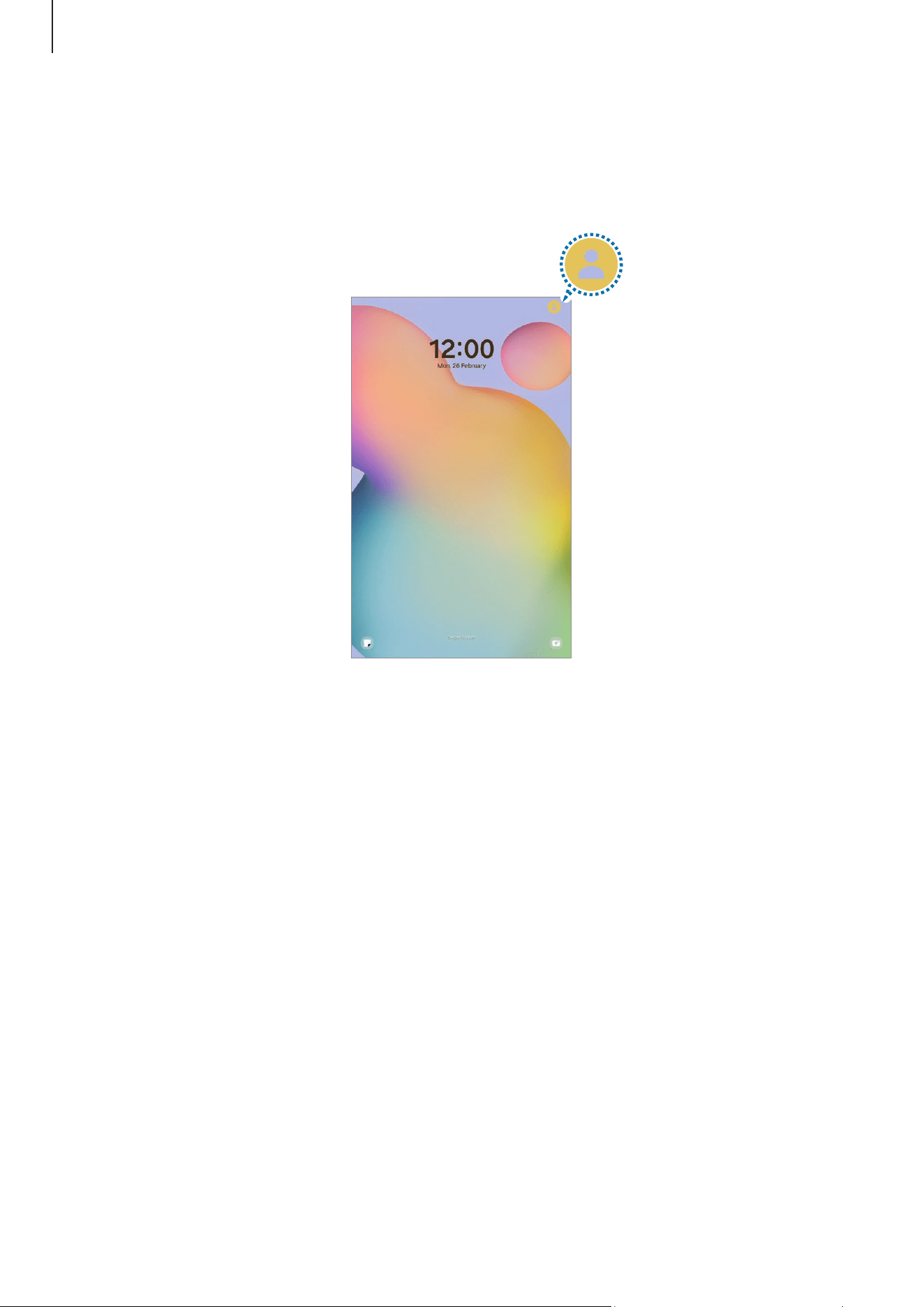
Settings
120
Switching users
Tap the user account icon at the top of the locked screen and select an account to switch
to.
Locked screen
Managing users
When using the administrator account, you can delete accounts or change account
settings.
On the Settings screen, tap
Accounts and backup
→
Users
.
To delete a user account, tap the user account you want to delete and tap
Delete user
.
To change account settings, tap user account and change the settings.

Settings
121
Samsung Cloud
Back up your device’s data to Samsung Cloud and restore it later.
Backing up data
You can back up your device’s data to Samsung Cloud.
1 On the Settings screen, tap
Accounts and backup
and tap
Back up data
under
Samsung Cloud
.
2 Tap the switches next to the items you want to back up and tap
Back up now
.
3 Tap
Done
.
•
Some data will not be backed up. To check which data will be backed up, on the
Settings screen, tap
Accounts and backup
and tap
Back up data
under
Samsung
Cloud
.
•
To check the backup data for other devices in your Samsung Cloud, on the
Settings screen, tap
Accounts and backup
→
Restore data
, and then select a
device you want.
Restoring data
You can restore your backup data from Samsung Cloud to your device.
1 On the Settings screen, tap
Accounts and backup
.
2 Tap
Restore data
and select a device you want.
3 Tick items you want to restore and tap
Restore
.

Settings
122
Google
Configure settings for some features provided by Google.
On the Settings screen, tap
Google
.
Advanced features
Options
Turn on advanced features and change the settings that control them.
On the Settings screen, tap
Advanced features
.
•
Bixby
: Bixby is a user interface that helps you use your device more conveniently.
Refer to Bixby for more information.
•
Smart suggestions
: Set the device to analyze key information in the selected text or
received message, such as events and addresses, and suggest that they be added as
events to the calendar or to use related apps. You can also get suggestions for useful
actions or text to enter based on your app usage history.
Collected information is stored and used only in this device to protect your
personal information.
•
Labs
: Use new features of the device.
•
S Pen
: Change the settings for using the S Pen. Refer to S Pen for more information.
•
Side button
: Select an app or feature to launch using the Side button. Refer to
Setting the Side button for more information.
•
Multi window
: Set how to launch Multi window. You can also configure settings for
Multi window. Refer to Multi window for more information.
•
Motions and gestures
: Turn on the motion feature and configure settings. Refer to
Motions and gestures for more information.
•
Screenshots and screen recordings
: Change the settings for screenshots and screen
recorder.
•
Show contacts when sharing content
: Set the device to display the people you
contacted on the sharing options panel so that you can share content directly.

Settings
123
•
Daily Board
: Set the device to show a slideshow with selected features while
charging. Refer to Daily Board for more information.
•
Accessories
: Change the accessory settings.
•
Dual Messenger
: Install a second copy of a messenger app and use two separate
accounts for the same app. Refer to Dual Messenger for more information.
Some features may not be available depending on the carrier or model.
Motions and gestures
Turn on the motion feature and configure settings.
On the Settings screen, tap
Advanced features
→
Motions and gestures
.
•
Double tap to turn on screen
: Set the device to turn on the screen by double tapping
anywhere on the screen while the screen is turned off.
•
Double tap to turn off screen
: Set the device to turn off the screen by double
tapping an empty area on the Home screen or the locked screen.
Excessive shaking or an impact to the device may cause an unintended input for
some features using sensors.
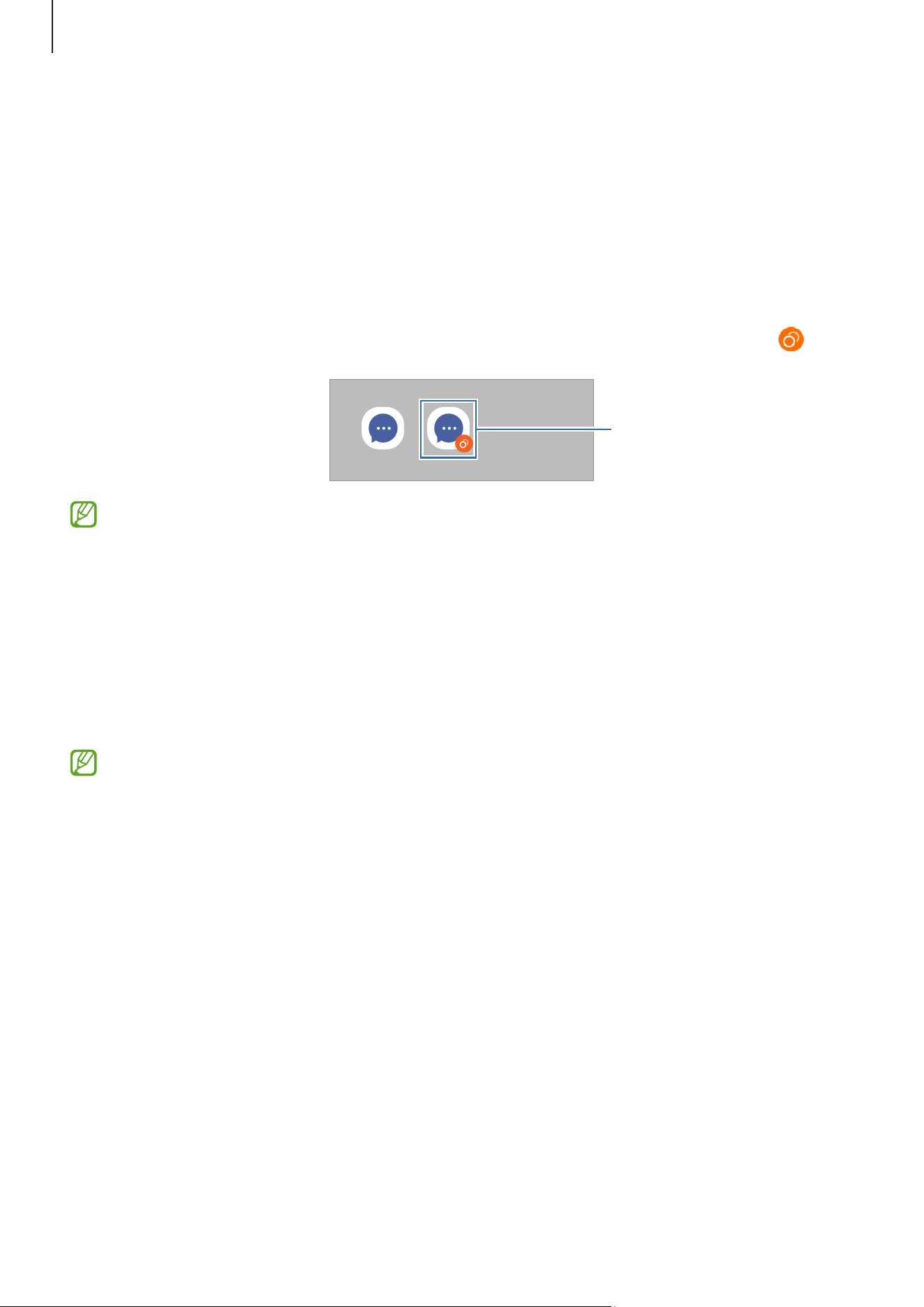
Settings
124
Dual Messenger
Install a second copy of a messenger app and use two separate accounts for the same
app.
1 On the Settings screen, tap
Advanced features
→
Dual Messenger
.
Supported apps will appear.
2 Tap the switch of an app to install the second app.
The second app will be installed. The second app’s icon will be displayed with .
Second app
•
The Dual Messenger feature may not be available depending on the app.
•
Some features of the app may be limited for the second app.
Uninstalling a second app
1 On the Settings screen, tap
Advanced features
→
Dual Messenger
.
2 Tap the switch of the app you want to uninstall and tap
Uninstall
.
All data related to the second app will be deleted.
If you uninstall the first app, the second app will also be deleted.

Settings
125
Digital Wellbeing and parental controls
Check the history of your device usage and use features to prevent your device from
interfering with your life. You can also set up parental controls for your children and
manage their digital use.
On the Settings screen, tap
Digital Wellbeing and parental controls
.
•
Most used apps
: Check out the list of the most used apps for a day.
•
Screen time goal
: Set goals for how much you use your device a day.
•
App timers
: Limit the daily usage time for each app by setting a timer. When you
reach the limit, the app will be turned off and you cannot use it.
•
Driving monitor
: Turn on the driving monitor to monitor the amount of the time you
use your device while driving.
•
Walking monitor
: Turn on the walking monitor to monitor the amount of time you
use your device while walking.
•
Volume monitor
: Turn on the volume monitor to protect your hearing.
•
Parental controls
: Manage your children’s digital use.
Device care
The device care feature provides an overview of the status of your device’s battery,
storage, memory, and system security. You can also optimize the device.
On the Settings screen, tap
Device care
.
•
Optimize now
: Close apps running in the background or using an abnormal amount
of battery and scan for crashed apps and malware to optimize your device.
•
Battery
: Check the remaining battery power and time to use the device. For devices
with low battery levels, conserve battery power by turning on power saving features.
Refer to Battery for more information.

Settings
126
•
Storage
: Check the status of used and available storage and free up storage by
deleting unnecessary files, such as the files in the trash, unused files, or duplicated
files after checking them.
•
The actual available capacity of the internal storage is less than the specified
capacity because the operating system and default apps occupy part of the
storage. The available capacity may change when you update the device.
•
You can check the available capacity of the internal storage in the
Specification section for your device on the Samsung website.
•
Memory
: Check memory usage or tap
Clean now
to free up memory by stopping
background apps.
•
App protection
: Scan your device for malware and other suspicious activity to stay
safe.
•
Auto optimization
: Perform auto optimization by closing background apps or
cleaning up memory, to keep the device running in its best condition.
Tap
Auto restart
to set the device to restart automatically when performance issues
are detected or at a time you set.
•
Software update
: Update your device’s software through the firmware over-the-air
(FOTA) service. You can also schedule software updates.
•
Diagnostics
: Test your device using Samsung Members.
•
Maintenance mode
: Turn on maintenance mode to protect your privacy while
someone else is using your device, such as when you send it for repairs.
Apps
Manage the device’s apps and change their settings. You can check the apps’ usage
information, change their notification or permission settings, or uninstall or disable
unnecessary apps.
On the Settings screen, tap
Apps
.

Settings
127
General management
Customize your device’s system settings or reset the device.
On the Settings screen, tap
General management
.
•
Language
: Select device languages. Refer to Adding device languages for more
information.
•
App languages
: Select the language you want to use for each app.
•
Voice input
: Download language packs to use the voice input feature offline.
•
Date and time
: Access and alter the settings to control how the device displays the
time and date.
If the battery becomes fully discharged, the time and date are reset.
•
Samsung Keyboard settings
: Change the settings for the Samsung Keyboard.
•
Keyboard list and default
: Select a keyboard to use by default and change the
keyboard settings.
•
Physical keyboard
: Change the settings for an external keyboard.
•
Mouse and trackpad
: Change the settings for an external mouse or trackpad.
•
Passwords, passkeys, and autofill
: Change your preferred service or manage all
services for passwords, passkeys, and autofill.
•
Reset
: Reset your device’s settings or perform a factory data reset.
•
Contact us
: Ask questions or check the frequently asked questions.

Settings
128
Adding device languages
You can add languages to use on your device.
1 On the Settings screen, tap
General management
→
Language
→
Add language
.
To check out all the languages that can be added, tap
→
All languages
.
2 Select a language to add.
3 To set the selected language as the default language, tap
Set as default
. To keep the
current language setting, tap
Keep current
.
The selected language will be added to your languages list. If you changed the default
language, the selected language will be added to the top of the list.
To change the default language from your languages list, select the language you want
and tap
Apply
. If an app does not support the default language, the next supported
language in the list will be used.
Accessibility
Configure various settings to improve accessibility to the device.
On the Settings screen, tap
Accessibility
.
•
Recommended for you
: Check the accessibility features you are currently using and
check other recommended features.
•
Vision enhancements
: Customize the settings to improve accessibility for visually
impaired users.
•
TalkBack
: Turn on TalkBack, which provides voice feedback. To check help
information to learn how to use this feature, tap
Settings
→
Tutorial and help
.
•
Hearing enhancements
: Customize the settings to improve accessibility for users
with hearing impairment.
•
Interaction and dexterity
: Customize the settings to improve accessibility for users
who have reduced dexterity.
•
Advanced settings
: Configure settings for Direct access and notification features.
•
Installed apps
: Check out accessibility services installed on the device.
•
About Accessibility
: Check the Accessibility information.
•
Contact us
: Ask questions or check frequently asked questions.

Settings
129
Software update
Update your device’s software through the firmware over-the-air (FOTA) service. You can
also schedule software updates.
On the Settings screen, tap
Software update
.
•
Download and install
: Check for and install updates manually.
•
Auto download over Wi-Fi
: Set the device to download updates automatically when
connected to a Wi-Fi network.
•
Last update
: Check information about the last software update.
If emergency software updates are released for your device’s security and to block
new types of security threats, they will be installed automatically without your
agreement.
Security updates information
Security updates are provided to strengthen the security of your device and
protect your personal information. For security updates for your model, visit
security.samsungmobile.com.
The website supports only some languages.
Tips and user guide
Access useful tips, new features, the online user guide and remote support.

Settings
130
About tablet
Access your device’s information.
On the Settings screen, tap
About tablet
.
To change your device’s name, tap
Edit
.
•
Status information
: Check various device information, such as the Wi-Fi MAC
address and serial number.
•
Legal information
: Access legal information related to the device, such as safety
information and the open source licence.
•
Software information
: Access the device’s software information, such as its
operating system version and firmware version.
•
Battery information
: Check battery information, such as the battery capacity.

131
Usage notices
Precautions for using the device
Please read this guide when using the device to ensure safe and proper use.
•
Descriptions are based on the device’s default settings.
•
Some content may differ from your device depending on the region, model
specifications, or device’s software.
•
The device may require a connection to a Wi-Fi when using some apps or features.
•
Content (high quality content) that requires high CPU and memory usage will affect
the overall performance of the device. Apps related to the content may not work
properly depending on the device’s specifications and the environment that it is
used in.
•
Samsung is not liable for performance issues caused by apps supplied by providers
other than Samsung.
•
Samsung is not liable for performance issues or incompatibilities caused by edited
registry settings or modified operating system software. Attempting to customize
the operating system may cause the device or apps to work improperly.
•
Software, sound sources, wallpapers, images, and other media provided with
this device are licensed for limited use. Extracting and using these materials for
commercial or other purposes is an infringement of copyright laws. Users are
entirely responsible for illegal use of media.
•
Default apps that come with the device are subject to updates and may no longer be
supported without prior notice.
•
Modifying the device’s operating system or installing software from unofficial
sources may result in device malfunctions and data damage or loss. These actions
are violations of your Samsung licence agreement and will void your warranty.
Usage notices
132
•
You can see the screen clearly even in strong outdoor sunlight by automatically
adjusting the contrast range based on the surrounding environment. Because of the
nature of the product, displaying fixed graphics for extended periods may result in
afterimages (screen burn-in) or ghosting.
‒
It is recommended not to use fixed graphics on part or all of the screen for
extended periods and turn off the screen when not using the device.
‒
You can set the screen to turn off automatically when you are not using it. Open
Settings
, tap
Display
→
Screen timeout
, and then select the length of time you
want the device to wait before turning off the screen.
‒
To set the screen to automatically adjust its brightness based on the surrounding
environment, open
Settings
, tap
Display
, and then tap the
Adaptive brightness
switch to turn it on.
•
Your device contains magnets. Keep it away from credit cards, implanted medical
devices, and other devices that may be affected by magnets. In the case of medical
devices, keep your device more than 15 cm apart. Stop using your device if you
suspect any interference with your medical device and consult your physician or your
medical device manufacturer.
Instructional icons
Warning: situations that could cause injury to yourself or others
Caution: situations that could cause damage to your device or other equipment
Notice: notes, usage tips, or additional information

Usage notices
133
Notes on package contents and accessories
•
The items supplied with the device and any available accessories may vary
depending on the region or carrier.
•
The supplied items are designed only for this device and may not be compatible with
other devices.
•
Appearances and specifications are subject to change without prior notice.
•
You can purchase additional accessories from your local Samsung retailer. Make sure
they are compatible with the device before purchase.
•
Use Samsung-approved accessories. Using unapproved accessories may cause
performance problems and malfunctions that are not covered by the warranty.
•
Availability of all accessories is subject to change depending entirely on
manufacturing companies. For more information about available accessories, refer
to the Samsung website.
•
The included USB cable supports up to 3A charging. Charger not included.

Usage notices
134
Device overheating situations and solutions
When the device heats up while charging the battery
While charging, the device and the charger may become hot. During wireless charging
or fast charging, the device may feel hotter to the touch. This does not affect the device’s
lifespan or performance and is in the device’s normal range of operation. If the battery
becomes too hot, the charging speed may decrease or the charger may stop charging.
Do the following when the device heats up:
•
Disconnect the charger from the device and close any running apps. Wait for the
device to cool down and then begin charging the device again.
•
If the lower part of the device overheats, it could be because the connected
USB cable is damaged. Replace the damaged USB cable with a new Samsung-
approved one.
•
When using a wireless charger, do not place foreign materials, such as metal
objects, magnets, and magnetic stripe cards, between the device and the
wireless charger.
The wireless charging or fast charging feature is only available on supported
models.
When the device heats up during use
When you use features or apps that require more power or use them for extended
periods, your device may temporarily heat up because of increased battery consumption.
Close any running apps and do not use the device for a while.
Refer to the following examples of situations in which the device may overheat.
•
During the initial setup after purchase or when restoring data
•
When downloading large files

Usage notices
135
•
When using apps that require more power or using apps for extended periods
‒
When playing high-quality games for extended periods
‒
When recording videos for extended periods
‒
When streaming videos while using the maximum brightness setting
‒
When connecting to a TV
•
While multitasking (or, when running many apps in the background)
‒
When using Multi window
‒
When updating or installing apps while recording videos
‒
When downloading large files during a video call
‒
When recording videos while using a navigation app
•
When using large amount of data for syncing with the cloud, email, or other accounts
•
When using a navigation app in a car while the device is placed in direct sunlight
•
When using the device in areas with weak signals or no reception
•
When charging the battery with a damaged USB cable
•
When the device’s multipurpose jack is damaged or exposed to foreign materials,
such as liquid, dust, metal powder, and pencil lead
•
When you are roaming
Do the following when the device heats up:
•
Keep the device updated with the latest software.
•
Conflicts between running apps may cause the device to heat up. Restart the
device.
•
Turn off the Wi-Fi, GPS, and Bluetooth features when not using them.
•
Close apps that increase battery consumption or that run in the background
when not in use.
•
Delete unnecessary files or unused apps.
•
Decrease the screen brightness.
•
If the device overheats or feels hot for a prolonged period, do not use it for a
while. If the device continues to overheat, contact a Samsung Service Centre or
an authorized service centre.

Usage notices
136
Precautions for device overheating
If you begin to feel uncomfortable because of the device overheating, stop using the
device.
When the device heats up, the features and performance may be limited or the device
may turn off to cool down. The feature is only available on supported models.
•
If the device overheats, the screen brightness, the screen refresh rate, and the
performance speed will be limited to lower the device’s temperature. Even if the
battery charging indicator icon appears, charging may be slow. When charging stops
because of a rise in the device’s temperature, the battery indicator icon will blink.
•
If the device reaches a certain temperature, a warning message will appear to
prevent device failure, skin irritation and damage, and battery leakage. Running
apps will be closed and all calling and other features will be limited, except for
emergency calls, until the device cools down.
•
If a second message appears because of a further increase of the device’s
temperature, the device will turn off. Do not use the device until the device’s
temperature is within the recommended operating temperature range. If the
second warning message appears during an emergency call, the call will not be
disconnected by a forced termination.
Recommended operating temperature range
The device’s recommended operating temperature is between 0 °C to 35 °C. Using
the device outside of the recommended temperature range may damage the
device or reduce the battery’s lifespan.

Usage notices
137
Precautions for operating environment
Your device may heat up because of the environment in the following conditions. Use
caution to avoid shortening the battery’s lifespan, damaging the device, or causing a fire.
•
Do not store your device in very cold or very hot temperatures.
•
Do not expose your device to direct sunlight for extended periods.
•
Do not use or store your device for extended periods in very hot areas, such as inside
a car in the summer.
•
Do not place the device in any areas that may overheat, such as on an electric
heating mat.
•
Do not store your device near or in heaters, microwaves, hot cooking equipment, or
high pressure containers.
•
Do not use a cable with the covering peeled off or damaged, and do not use any
charger or battery that is damaged or malfunctioning.

138
Appendix
Troubleshooting
Before contacting a Samsung Service Centre or an authorized service centre, please
attempt the following solutions. Some situations may not apply to your device.
You can also use Samsung Members to solve any problems you might encounter while
using your device.
When you turn on your device or while you are using the device, it
prompts you to enter one of the following codes:
•
Password: When the device lock feature is turned on, you must enter the password
you set for the device.
Your device displays network or service error messages
•
When you are in areas with weak signals or poor reception, you may lose reception.
Move to another area and try again. While moving, error messages may appear
repeatedly.
Your device does not turn on
When the battery is completely discharged, your device will not turn on. Fully charge the
battery before turning on the device.

Appendix
139
Touch recognition works slowly or improperly
•
Touch recognition may not work properly in the following situations:
‒
If you attach a screen protector or optional accessories to the screen
‒
If you are wearing gloves, if your hands are not clean while touching the screen, or
if you tap the screen with a sharp object or your fingertips
‒
In humid conditions or when exposed to water
•
Restart your device to clear any temporary software problems.
•
Ensure that your device software is updated to the latest version.
•
If the screen is scratched or damaged, visit a Samsung Service Centre or an
authorized service centre.
Your device freezes or encounters a fatal problem
Try the following solutions. If the problem is still not resolved, contact a Samsung
Service Centre or an authorized service centre.
Restarting the device
If your device freezes or hangs, you may need to close apps or turn off the device and
turn it on again.
Forcing restart
If your device is frozen and unresponsive, press and hold the Side button and the Volume
Down button simultaneously for more than 7 seconds to restart it.
Resetting the device
If these methods do not solve your problem, perform a factory data reset.
Open
Settings
and tap
General management
→
Reset
→
Factory data reset
→
Reset
→
Delete all
. Before performing the factory data reset, remember to make backup copies
of all important data stored in the device.

Appendix
140
Others cannot hear you speaking on a call
•
Ensure that you are not covering the built-in microphone.
•
Ensure that the microphone is close to your mouth.
•
If you are using headphones, ensure that they are properly connected.
Sound echoes during a call
Adjust the volume by pressing the Volume button or move to another area.
The internet is often disconnected or audio quality is poor
•
Ensure that you are not blocking the device’s internal antenna.
•
When you are in areas with weak signals or poor reception, you may lose reception.
Move to another area and try again.
The battery does not charge properly (For Samsung-approved
chargers)
•
Ensure that the charger is connected properly.
•
Visit a Samsung Service Centre or an authorized service centre and have the battery
replaced.

Appendix
141
The battery depletes faster than when first purchased
•
When you expose the device or the battery to very cold or very hot temperatures, the
useful charge may be reduced.
•
Battery consumption will increase when you use certain features or apps, such as
GPS, games, or the internet.
•
The battery is consumable and the useful charge will get shorter over time.
Error messages appear when opening the camera
Your device must have sufficient available storage and battery power to operate the
camera app. If you receive error messages when opening the camera, try the following:
•
Charge the battery.
•
Free some storage by transferring files to a computer or deleting files from your
device.
•
Restart the device.
If you are still having trouble with the camera app after trying these tips, contact a
Samsung Service Centre or an authorized service centre.
Picture quality is poorer than the preview
•
The quality of your pictures may vary, depending on the surroundings and the
photography techniques you use.
•
If you take pictures in dark areas, at night, or indoors, image noise may occur or
images may be out of focus.
Error messages appear when opening multimedia files
If you receive error messages or multimedia files do not play when you open them on
your device, try the following:
•
Free some storage by transferring files to a computer or deleting files from your
device.
•
Ensure that the music file is not Digital Rights Management (DRM)-protected. If the
file is DRM-protected, ensure that you have the appropriate licence or key to play the
file.

Appendix
142
•
Ensure that the file formats are supported by the device. If a file format is not
supported, such as DivX or AC3, install an app that supports it. To check the file
formats that your device supports, visit the Samsung website.
•
Your device supports pictures and videos captured with the device. Pictures and
videos captured by other devices may not work properly.
•
Your device supports multimedia files that are authorized by your carrier or providers
of additional services. Some content circulated on the internet, such as ringtones,
videos, or wallpapers, may not work properly.
Bluetooth is not working well
If another Bluetooth device is not located or there are connection problems or
performance malfunctions, try the following:
•
Ensure that the device you wish to connect with is ready to be scanned or connected
to.
•
Ensure that your tablet and the other Bluetooth device are within the maximum
Bluetooth range (10 m).
•
On your tablet, open
Settings
, tap
Connections
, and then tap the
Bluetooth
switch
to turn it on again.
•
On your tablet, open
Settings
, tap
General management
→
Reset
→
Reset Wi-Fi
and Bluetooth settings
→
Reset settings
to reset network settings. You may lose
registered information when performing the reset.
If these tips do not solve the problem, contact a Samsung Service Centre or an
authorized service centre.
A connection is not made when you connect the device to a
computer
•
Ensure that the USB cable you are using is compatible with your device.
•
Ensure that you have the proper driver installed and updated on your computer.
Your device cannot find your current location
GPS signals may be obstructed in some locations, such as indoors. Set the device to use
Wi-Fi or a mobile network to find your current location in these situations.

Appendix
143
Data stored in the device has been lost
Always make backup copies of all important data stored in the device. Otherwise, you
cannot restore data if it is damaged or lost. Samsung is not responsible for the loss of
data stored in the device.
A small gap appears around the outside of the device case
•
This gap is a necessary manufacturing feature and some minor rocking or vibration
of parts may occur.
•
Over time, friction between parts may cause this gap to expand slightly.
There is not enough space in the device’s storage
Delete unnecessary data, such as cache, using the device care feature or manually delete
unused apps or files to free up storage space.
The Home button does not appear
The navigation bar containing the Home button may disappear while using certain apps
or features. To access the navigation bar, drag upwards from the bottom of the screen.
Removing the battery
•
To remove the battery, contact an authorized service centre.
•
For your safety, you must not attempt to remove the battery. If the battery is not
properly removed, it may lead to damage to the battery and device, cause personal
injury, and result in the device being unsafe.
•
Samsung does not accept liability for any damage or loss (whether in contract or
tort, including negligence) which may arise from failure to precisely follow these
warnings and instructions, other than death or personal injury caused by Samsung’s
negligence.
144
Health and Safety
Please read this important safety information before you use the device. It contains
general safety information for devices and may include content that does not apply to
your device. Follow the warning and caution information to prevent injury to yourself or
others and to prevent damage to your device.
The term ‘device’ refers to the product and its battery, charger, the items supplied
with the product, and any Samsung-approved accessories used with the product.
Warning: Failure to comply with safety warnings and
regulations can cause serious injury or death.
Do not use damaged power cords or plugs, or loose electrical sockets
Unsecured connections can cause electric shock or fire.
Do not touch the device, power cords, plugs, or the electric socket with wet hands or
other wet body parts
Doing so may cause electric shock.
Do not pull the power cord excessively when disconnecting it
Doing so may cause electric shock or fire.
Do not bend or damage the power cord
Doing so may cause electric shock or fire.
Do not use the device with wet hands while the device is charging
Doing so may cause electric shock.
Do not directly connect together the charger’s positive and negative terminals
Doing so may cause fire or serious injury.
Do not use your device outdoor during a thunderstorm
Doing so may result in electric shock or device malfunction.
Use manufacturer-approved batteries, chargers, accessories, and supplies
•
Using generic batteries or chargers may shorten the life of your device or cause the
device to malfunction. They may also cause a fire or cause the battery to explode.
•
Only use a Samsung-approved battery and charger specifically designed for your
device. An incompatible battery or charger can cause serious injuries or damage to
your device.

Health and Safety
145
•
Samsung cannot be responsible for the user’s safety when using accessories or
supplies that are not approved by Samsung.
Do not carry your device in your back pockets or on your waist
•
The device may be damaged, explode, or result in a fire if too much pressure is
applied to it.
•
You may be injured if you are bumped or fall.
Do not drop or cause an impact to the charger or the device
Handle and dispose of the device and charger with care
•
Never dispose of the battery or device in a fire. Never place the battery or device
on or in heating devices, such as microwave ovens, stoves, or radiators. The device
may explode when overheated. Follow all local regulations when disposing of used
battery or device.
•
Never crush or puncture the device.
•
Avoid exposing the device to high external pressure, which can lead to an internal
short circuit and overheating.
Protect the device, battery and charger from damage
•
Avoid exposing your device and battery to very cold or very hot temperatures.
•
Extreme temperatures can damage the device and reduce the charging capacity and
life of your device and battery.
•
Do not directly connect together the battery’s positive and negative terminals and
prevent them from coming into contact with metal objects. Doing so may cause the
battery to malfunction.
•
Never use a damaged charger or battery.
Do not store your device near or in heaters, microwaves, hot cooking equipment, or high
pressure containers
•
The battery may leak.
•
Your device may overheat and cause a fire.
Do not use or store your device in areas with high concentrations of dust or airborne
materials
Dust or foreign materials can cause your device to malfunction and may result in fire or
electric shock.
Health and Safety
146
Prevent the multipurpose jack and the small end of the charger from contact with
conductive materials, such as liquids, dust, metal powders, and pencil leads. Do not
touch the multipurpose jack with sharp tools or cause an impact to the multipurpose jack
Conductive materials may cause a short circuit or corrosion of the terminals, which may
result in an explosion or fire.
When using the wireless charger, do not place foreign materials, such as metal objects,
magnets, and magnetic stripe cards, between the device and the wireless charger
The device may not charge properly or may overheat.
Do not bite or suck the device or the battery
•
Doing so may damage the device or result in an explosion or fire.
•
Children or animals can choke on small parts.
•
If children use the device, make sure that they use the device properly.
Do not insert the device or supplied accessories into the eyes, ears, or mouth
Doing so may cause suffocation or serious injuries.
Do not handle a damaged or leaking Lithium Ion (Li-Ion) battery
For safe disposal of your Li-Ion battery, contact your nearest authorized service centre.
Caution: Failure to comply with safety cautions and
regulations can cause injury or property damage
Do not use your device near other electronic devices
•
Most electronic devices use radio frequency signals. Your device may interfere with
other electronic devices.
Do not use your device in a hospital, on an aircraft, or in automotive equipment that can
be interfered with by radio frequency
•
Avoid using your device within a 15 cm range of a pacemaker, if possible, as your
device can interfere with the pacemaker.
•
To minimize possible interference with a pacemaker, use your device only on the side
of your body that is opposite the pacemaker.
•
If you use medical equipment, contact the equipment manufacturer before using
your device to determine whether or not the equipment will be affected by radio
frequencies emitted by the device.
•
Electronic devices in your car may malfunction due to radio interference from your
device. Contact the manufacturer for more information.
Do not expose the device to heavy smoke or fumes
•
Doing so may damage the outside of the device or cause it to malfunction.

Health and Safety
147
If you use a hearing aid, contact the manufacturer for information about radio
interference
The radio frequency emitted by your device may interfere with some hearing aids. Before
using your device, contact the manufacturer to determine whether or not your hearing
aid will be affected by radio frequencies emitted by the device.
Do not use your device near devices or apparatuses that emit radio frequencies, such as
sound systems or radio towers
Radio frequencies may cause your device to malfunction.
Turn off the device in potentially explosive environments
•
Turn off your device in potentially explosive environments instead of removing the
battery.
•
Always comply with regulations, instructions and signs in potentially explosive
environments.
•
Do not use your device at refuelling points (gas stations), near fuels or chemicals, or
in blasting areas.
•
Do not store or carry flammable liquids, gases, or explosive materials in the same
compartment as the device, its parts, or accessories.
If you notice strange smells or sounds coming from your device or the battery, or if
you see smoke or liquids leaking from the device or battery, stop using the device
immediately and take it to a Samsung Service Centre
Failure to do so may result in fire or explosion.
Comply with all safety warnings and regulations regarding device usage while
operating a vehicle
While driving, safely operating the vehicle is your first responsibility. Never use your
device while driving, if it is prohibited by law. For your safety and the safety of others, use
your common sense and remember the following tips:
•
Position your device within easy reach. Make sure you can access your wireless
device without taking your eyes off the road.
•
Suspend use in heavy traffic or hazardous weather conditions. Rain, sleet, snow, ice,
and heavy traffic can be hazardous.
•
Do not take notes or look up phone numbers. Jotting down a “to do” list or flipping
through your address book takes attention away from your primary responsibility of
driving safely.
•
Do not engage in stressful or emotional conversations that may be distracting. Make
the person you are talking to aware that you are driving and suspend conversations
that could potentially divert your attention from the road.

Health and Safety
148
Care for and use your device properly
Keep your device dry
•
Humidity and liquids may damage the parts or electronic circuits in your device.
•
Do not turn on your device if it is wet. If your device is already on, turn it off and
remove the battery immediately (if the device will not turn off or you cannot remove
the battery, leave it as-is). Then, dry the device with a towel and take it to a service
centre.
•
This device has internal liquid indicators fitted. Water damage to your device may
void the manufacturer’s warranty.
Store your device only on flat surfaces
•
If your device falls, it may be damaged.
The device can be used in locations with an ambient temperature of 0°C to 35°C. You
can store the device at an ambient temperature of -20°C to 50°C. Using or storing the
device outside of the recommended temperature ranges may damage the device or
reduce the battery’s lifespan
•
Do not store your device in very hot areas such as inside a car in the summer. Doing
so may cause the screen to malfunction, result in damage to the device, or cause the
battery to explode.
•
Do not expose your device to direct sunlight for extended periods of time (on the
dashboard of a car, for example).
•
For a device with a removable battery, the battery can be stored separately in
locations with an ambient temperature of 0 °C to 45 °C.
Do not store your device with metal objects, such as coins, keys, and necklaces
•
Your device may be scratched or may malfunction.
•
If the battery terminals come into contact with metal objects, this may cause a fire.
Do not store your device near magnetic fields
•
Your device may malfunction or the battery may discharge from exposure to
magnetic fields.
•
Magnetic stripe cards, including credit cards, phone cards, passbooks, and boarding
passes, may be damaged by magnetic fields.
Prolonged exposure of your skin to an overheated device may cause low temperature
burn symptoms, such as red spots and pigmentation
Do not use your device with the back cover removed
The battery may fall out of the device, which may result in damage or malfunction.
Health and Safety
149
If your device has a camera flash or light, do not use it close to the eyes of people or pets
Using a flash close to the eyes may cause temporary loss of vision or damage to the eyes.
Use caution when exposed to flashing lights
•
While using your device, leave some lights on in the room and do not hold the screen
too close to your eyes.
•
Seizures or blackouts can occur when you are exposed to flashing lights while
watching videos or playing Flash-based games for extended periods. If you feel any
discomfort, stop using the device immediately.
•
If anyone related to you has experienced seizures or blackouts while using a similar
device, consult a physician before using the device.
•
If you feel discomfort, such as a muscle spasm, or disoriented, stop using the device
immediately and consult a physician.
•
To prevent eye strain, take frequent breaks while using the device.
Reduce the risk of repetitive motion injuries
When you repetitively perform actions, such as pressing keys, drawing characters on
a touch screen with your fingers, or playing games, you may experience occasional
discomfort in your hands, neck, shoulders, or other parts of your body. When using your
device for extended periods, hold the device with a relaxed grip, press the keys lightly,
and take frequent breaks. If you continue to have discomfort during or after such use,
stop using the device and consult a physician.
Protect your hearing and ears when using a headset
•
Excessive exposure to loud sounds can cause hearing damage.
•
Exposure to loud sounds while walking may distract your attention and
cause an accident.
•
Always turn the volume down before plugging the earphones into an audio source
and use only the minimum volume setting necessary to hear your conversation or
music.
•
In dry environments, static electricity can build up in the headset. Avoid using
headsets in dry environments or touch a metal object to discharge static electricity
before connecting a headset to the device.
•
Do not use a headset while driving or riding. Doing so may distract your attention
and cause an accident, or may be illegal, depending on your region.

Health and Safety
150
Use caution when using the device while walking or moving
•
Always be aware of your surroundings to avoid injury to yourself or others.
•
Make sure the headset cable does not become entangled in your arms or on nearby
objects.
Do not paint or put stickers on your device
•
Paint and stickers can clog moving parts and prevent proper operation.
•
If you are allergic to paint or metal parts of the device, you may experience itching,
eczema, or swelling of the skin. When this happens, stop using the device and
consult your physician.
Do not use the device if the screen is cracked or broken
•
Broken glass or acrylic could cause injury to your hands and face. Take the device to a
Samsung Service Centre to have it repaired.
Install mobile devices and equipment with caution
•
Ensure that any mobile devices or related equipment installed in your vehicle are
securely mounted.
•
Avoid placing your device and accessories near or in an airbag deployment area.
Improperly installed wireless equipment can cause serious injury when airbags
inflate rapidly.
Do not drop your device or cause impacts to your device
•
Your device may be damaged or may malfunction.
•
If bent or deformed, your device may be damaged or parts may malfunction.
Ensure maximum battery and charger life
•
Batteries may malfunction if they are not used for extended periods.
•
Over time, unused device will discharge and must be recharged before use.
•
Disconnect the charger from power sources when not in use.
•
Use the battery only for its intended purpose.
•
Follow all instructions in this manual to ensure the longest lifespan of your device
and battery. Damage or poor performance caused by failure to follow warnings and
instructions can void your manufacturer’s warranty.
•
Your device may wear out over time. Some parts and repairs are covered by the
warranty within the validity period, but damages or deterioration caused by using
unapproved accessories are not.

Health and Safety
151
Do not disassemble, modify, or repair your device
•
Any changes or modifications to your device can void your manufacturer’s warranty.
If your device needs servicing, take your device to a Samsung Service Centre.
•
Do not disassemble or puncture the battery, as this can cause explosion or fire.
•
Turn off the device before removing the battery. If you remove the battery with the
device turned on, it may cause the device to malfunction.
When cleaning your device, mind the following
•
Wipe your device or charger with a towel or an eraser.
•
Clean the battery terminals with a cotton ball or a towel.
•
Do not use chemicals or detergents. Doing so may discolour or corrode the outside
the device or may result in electric shock or fire.
Do not use the device for anything other than its intended use
•
Your device may malfunction.
Avoid disturbing others when using the device in public
Allow only qualified personnel to service your device
•
Allowing unqualified personnel to service your device may result in damage to your
device and will void your manufacturer’s warranty.
Handle memory cards and cables with care
•
When inserting a card or connecting a cable to your device, make sure that the card
is inserted or the cable is connected to the proper side.
•
Do not remove a card while the device is transferring or accessing information, as
this could result in loss of data and/or damage to the card or device.
•
Protect cards from strong shocks, static electricity, and electrical noise from other
devices.
•
Do not touch gold-coloured contacts or terminals with your fingers or metal objects.
If dirty, wipe the card with a soft cloth.
•
Inserting a card or connecting a cable by force or improperly may result in damage to
the multipurpose jack or other parts of the device.

Health and Safety
152
Protect your personal data and prevent leakage or misuse of sensitive information
•
While using your device, be sure to back up important data. Samsung is not
responsible for the loss of any data.
•
When disposing of your device, back up all data and then reset your device to
prevent misuse of your personal information.
•
Carefully read the permissions screen when downloading applications. Be
particularly cautious with applications that have access to many functions or to a
significant amount of your personal information.
•
Check your accounts regularly for unapproved or suspicious use. If you find any sign
of misuse of your personal information, contact your service provider to delete or
change your account information.
•
In the event your device is lost or stolen, change the passwords on your accounts to
protect your personal information.
•
Avoid using applications from unknown sources and lock your device with a pattern,
password, or PIN.
Do not distribute copyright-protected material
Do not distribute copyright-protected material without the permission of the content
owners. Doing this may violate copyright laws. The manufacturer is not liable for any
legal issues caused by the user’s illegal use of copyrighted material.
Malware and viruses
To protect your device from malware and viruses, follow these usage tips. Failure to
do so may result in damages or loss of data that may not be covered by the warranty
service
•
Do not download unknown applications.
•
Do not visit untrusted websites.
•
Delete suspicious messages or email from unknown senders.
•
Set a password and change it regularly.
•
Deactivate wireless features, such as Bluetooth, when not in use.
•
If the device behaves abnormally, run an antivirus program to check for infection.
•
Run an antivirus program on your device before you launch newly-downloaded
applications and files.
•
Install antivirus programs on your computer and run them regularly to check for
infection.
•
Do not edit registry settings or modify the device’s operating system.
Health and Safety
153
Acknowledging Special Precautions and ISED (Innovation, Science
and Economic Development Canada) Notice
Cautions
Any changes or modifications to your device not expressly approved in this document
could void your warranty for this equipment, and void your authority to operate this
equipment. Only use approved batteries, antennas, and chargers. The use of any
unauthorized accessories may be dangerous and void the phone warranty if they cause
damage or a defect to the device.
Although your device is quite sturdy, it is a complex piece of equipment and can be
broken. Avoid dropping, hitting, bending, or sitting on it.
Information to User
This equipment has been tested and found to comply with the limits of a Class B
digital device. These limits are designed to provide reasonable protection against
harmful interference in a residential installation. This equipment generates, uses, and
can radiate radio frequency energy and, if not installed and used in accordance with
the instructions, may cause harmful interference to radio communications. However,
there is no guarantee that interference will not occur in a particular installation; if this
equipment does cause harmful interference to radio or television reception, which can
be determined by turning the equipment off and on, the user is encouraged to try to
correct the interference by one or more of the following measures:
•
Reorient/relocate the receiving antenna.
•
Increase the separation between the equipment and receiver.
•
Connect the equipment into an outlet on a circuit different from that to which the
receiver is connected.
•
Consult the dealer or an experienced radio/TV technician for help.
Warning: At very high volumes, prolonged listening to a headset can damage
your hearing.
Specific Absorption Rates (SAR) for Wireless Devices
The SAR is a value that corresponds to the relative amount of RF energy absorbed by the
user of a wireless device.
The SAR value of a device is the result of an extensive testing, measuring and calculation
process. It does not represent how much RF the device emits. All devices are tested
at their highest value in strict laboratory settings. But when in operation, the SAR of a
device can be substantially less than the level reported to ISED. This is because
Health and Safety
154
of a variety of factors including its proximity to a base station antenna, design and
other factors. What is important to remember is that each device meets strict federal
guidelines. Variations in SARs do not represent a variation in safety.
All devices must meet the federal standard, which incorporates a substantial margin of
safety. As stated above, variations in SAR values between different model devices do not
mean variations in safety. SAR values at or below the federal standard of 1.6 W/kg are
considered safe for use by the public.
This device has been tested and meets RF exposure guidelines when used with an
accessory that contains no metal and that positions the device 0mm from the body.
Correct disposal of this product
(Waste Electrical & Electronic Equipment)
This marking on the product, accessories or literature indicates that the
product and its electronic accessories (e.g., charger, headset, USB cable)
should not be disposed of with other household waste.
To prevent possible harm to the environment or human health from
uncontrolled waste disposal, please separate these items from other types
of waste and recycle them responsibly to promote the sustainable reuse of
material resources.
Household users should contact either the retailer where they purchased this product, or
their local government office, for details of where and how they can take these items for
environmentally safe recycling.
Business users should contact their supplier and check the terms and conditions of the
purchase contract. This product and its electronic accessories should not be mixed with
other commercial wastes for disposal.
This product is RoHS compliant.
Correct disposal of batteries in this product
This marking on the battery, manual or packaging indicates that the
batteries in this product should not be disposed of with other household
waste at the end of their working life. Where marked, the chemical symbols
Hg, Cd or Pb indicate that the battery contains mercury, cadmium or lead
above the reference levels in EC Directive 2006/66.

Health and Safety
155
Disclaimer
Some content and services accessible through this device belong to third parties and are
protected by copyright, patent, trademark and/or other intellectual property laws. Such
content and services are provided solely for your personal non-commercial use. You may
not use any content or services in a manner that has not been authorized by the content
owner or service provider. Without limiting the foregoing, unless expressly authorized by
the applicable content owner or service provider, you may not modify, copy, republish,
upload, post, transmit, translate, sell, create derivative works, exploit, or distribute in any
manner or medium any content or services displayed through this device.
“THIRD PARTY CONTENT AND SERVICES ARE PROVIDED “AS IS.” SAMSUNG DOES NOT
WARRANT CONTENT OR SERVICES SO PROVIDED, EITHER EXPRESSLY OR IMPLIED,
FOR ANY PURPOSE. SAMSUNG EXPRESSLY DISCLAIMS ANY IMPLIED WARRANTIES,
INCLUDING BUT NOT LIMITED TO, WARRANTIES OF MERCHANTABILITY OR FITNESS
FOR A PARTICULAR PURPOSE. SAMSUNG DOES NOT GUARANTEE THE ACCURACY,
VALIDITY, TIMELINESS, LEGALITY, OR COMPLETENESS OF ANY CONTENT OR SERVICE
MADE AVAILABLE THROUGH THIS DEVICE AND UNDER NO CIRCUMSTANCES, INCLUDING
NEGLIGENCE, SHALL SAMSUNG BE LIABLE, WHETHER IN CONTRACT OR TORT, FOR ANY
DIRECT, INDIRECT, INCIDENTAL, SPECIAL OR CONSEQUENTIAL DAMAGES, ATTORNEY
FEES, EXPENSES, OR ANY OTHER DAMAGES ARISING OUT OF, OR IN CONNECTION WITH,
ANY INFORMATION CONTAINED IN, OR AS A RESULT OF THE USE OF ANY CONTENT OR
SERVICE BY YOU OR ANY THIRD PARTY, EVEN IF ADVISED OF THE POSSIBILITY OF SUCH
DAMAGES.”
Third party services may be terminated or interrupted at any time, and Samsung makes
no representation or warranty that any content or service will remain available for
any period of time. Content and services are transmitted by third parties by means
of networks and transmission facilities over which Samsung has no control. Without
limiting the generality of this disclaimer, Samsung expressly disclaims any responsibility
or liability for any interruption or suspension of any content or service made available
through this device.
Samsung is neither responsible nor liable for customer service related to the content and
services. Any question or request for service relating to the content or services should be
made directly to the respective content and service providers.

Health and Safety
156
Technical requirements for Wi-Fi operation in the 5 GHz band
Wi-Fi access points that are capable of allowing your device to operate in the 5.15 -
5.25GHz band are optimized for indoor use only. If your Wi-Fi network is capable of
operating in this mode, please restrict your Wi-Fi use to indoors to not violate federal
regulations to protect mobile satellite services.
Devices to operate in the 5925~7125 MHz Band shall not be used for control of or
communications with unmanned aircraft systems.

Copyright
Copyright © 2024 Samsung Electronics Co., Ltd.
This guide is protected under international copyright laws.
No part of this guide may be reproduced, distributed, translated, or transmitted in any
form or by any means, electronic or mechanical, including photocopying, recording, or
storing in any information storage and retrieval system.
Trademarks
•
SAMSUNG and the SAMSUNG logo are registered trademarks of Samsung
Electronics Co., Ltd.
•
Bluetooth
®
is a registered trademark of Bluetooth SIG, Inc. worldwide.
•
Wi-Fi
®
, Wi-Fi Direct
™
, Wi-Fi CERTIFIED
™
, and the Wi-Fi logo are registered
trademarks of the Wi-Fi Alliance.
•
Manufactured under license from Dolby Laboratories. Dolby, Dolby Atmos, and the
double-D symbol are trademarks of Dolby Laboratories.
•
All other trademarks and copyrights are the property of their respective owners.
ISED Notice
This Class B digital apparatus complies with Canadian ICES-003.
This device complies with Innovation, Science and Economic Development Canada
licence-exempt RSS standard(s). Operation is subject to the following two conditions:
(1) this device may not cause interference, and
(2) this device must accept any interference, including interference that may cause
undesired operation of the device.