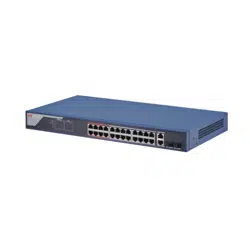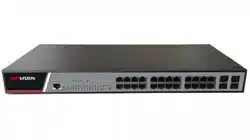

- I -
24 Series Ethernet Switch
User Manual
UD03706B

- II -
User Manual
COPYRIGHT ©2016 Hangzhou Hikvision Digital Technology Co., Ltd.
ALL RIGHTS RESERVED.
Any and all information, including, among others, wordings, pictures, graphs are the
properties of Hangzhou Hikvision Digital Technology Co., Ltd. or its subsidiaries
(hereinafter referred to be “Hikvision”). This user manual (hereinafter referred to be
“the Manual”) cannot be reproduced, changed, translated, or distributed, partially or
wholly, by any means, without the prior written permission of Hikvision. Unless
otherwise stipulated, Hikvision does not make any warranties, guarantees or
representations, express or implied, regarding to the Manual.
About this Manual
This Manual is applicable to DS-C10S-SXXT Series Video Wall Controller.
The Manual includes instructions for using and managing the product. Pictures, charts,
images and all other information hereinafter are for description and explanation only.
The information contained in the Manual is subject to change, without notice, due to
firmware updates or other reasons. Please find the latest version in the company
website (http://overseas.hikvision.com/en/).
Please use this user manual under the guidance of professionals.
Trademarks Acknowledgement
and other Hikvision’s trademarks and logos are the properties of Hikvision
in various jurisdictions. Other trademarks and logos mentioned below are the
properties of their respective owners.
Legal Disclaimer
TO THE MAXIMUM EXTENT PERMITTED BY APPLICABLE LAW, THE PRODUCT
DESCRIBED, WITH ITS HARDWARE, SOFTWARE AND FIRMWARE, IS PROVIDED
“AS IS”, WITH ALL FAULTS AND ERRORS, AND HIKVISION MAKES NO
WARRANTIES, EXPRESS OR IMPLIED, INCLUDING WITHOUT LIMITATION,
MERCHANTABILITY, SATISFACTORY QUALITY, FITNESS FOR A PARTICULAR
PURPOSE, AND NON-INFRINGEMENT OF THIRD PARTY. IN NO EVENT WILL
HIKVISION, ITS DIRECTORS, OFFICERS, EMPLOYEES, OR AGENTS BE LIABLE
TO YOU FOR ANY SPECIAL, CONSEQUENTIAL, INCIDENTAL, OR INDIRECT
DAMAGES, INCLUDING, AMONG OTHERS, DAMAGES FOR LOSS OF BUSINESS
PROFITS, BUSINESS INTERRUPTION, OR LOSS OF DATA OR DOCUMENTATION,
IN CONNECTION WITH THE USE OF THIS PRODUCT, EVEN IF HIKVISION HAS
BEEN ADVISED OF THE POSSIBILITY OF SUCH DAMAGES.
REGARDING TO THE PRODUCT WITH INTERNET ACCESS, THE USE OF
PRODUCT SHALL BE WHOLLY AT YOUR OWN RISKS. HIKVISION SHALL NOT
TAKE ANY RESPONSIBILITES FOR ABNORMAL OPERATION, PRIVACY LEAKAGE
OR OTHER DAMAGES RESULTING FROM CYBER ATTACK, HACKER ATTACK,
VIRUS INSPECTION, OR OTHER INTERNET SECURITY RISKS; HOWEVER,
HIKVISION WILL PROVIDE TIMELY TECHNICAL SUPPORT IF REQUIRED.
SURVEILLANCE LAWS VARY BY JURISDICTION. PLEASE CHECK ALL RELEVANT
LAWS IN YOUR JURISDICTION BEFORE USING THIS PRODUCT IN ORDER TO
ENSURE THAT YOUR USE CONFORMS THE APPLICABLE LAW. HIKVISION
SHALL NOT BE LIABLE IN THE EVENT THAT THIS PRODUCT IS USED WITH
ILLEGITIMATE PURPOSES.
IN THE EVENT OF ANY CONFLICTS BETWEEN THIS MANUAL AND THE
APPLICABLE LAW, THE LATER PREVAILS.

- III -
Regulatory Information
FCC Information
Please take attention that changes or modification not expressly approved by the party
responsible for compliance could void the user’s authority to operate the equipment.
FCC compliance:
This equipment has been tested and found to comply with the limits
for a Class A digital device, pursuant to part 15 of the FCC Rules. These limits are
designed to provide reasonable protection against harmful interference when the
equipment is operated in a commercial environment. This equipment generates, uses,
and can radiate radio frequency energy and, if not installed and used in accordance
with the instruction manual, may cause harmful interference to radio communications.
Operation of this equipment in a residential area is likely to cause harmful interference
in which case the user will be required to correct the interference at his own expense.
FCC Conditions
This device complies with part 15 of the FCC Rules. Operation is subject to the
following two conditions:
1. This device may not cause harmful interference.
2. This device must accept any interference received, including interference that may
cause undesired operation.
EU Conformity Statement
This product and - if applicable - the supplied accessories too are marked with "CE" and
comply therefore with the applicable harmonized European standards listed under the
EMC Directive 2014/30/EU, the LVD Directive 2014/35/EU, the RoHS Directive
2011/65/EU.
2012/19/EU (WEEE directive): Products marked with this symbol cannot be disposed of
as unsorted municipal waste in the European Union. For proper recycling, return this
product to your local supplier upon the purchase of equivalent new equipment, or
dispose of it at designated collection points. For more information see:
www.recyclethis.info
2006/66/EC (battery directive): This product contains a battery that cannot be disposed
of as unsorted municipal waste in the European Union. See the product documentation
for specific battery information. The battery is marked with this symbol, which may
- IV -
include lettering to indicate cadmium (Cd), lead (Pb), or mercury (Hg). For proper
recycling, return the battery to your supplier or to a designated collection point. For
more information see: www.recyclethis.info
Industry Canada ICES-003 Compliance
This device meets the CAN ICES-3 (A)/NMB-3(A) standards requirements.
Preparing for installation
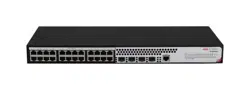
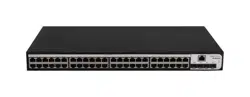
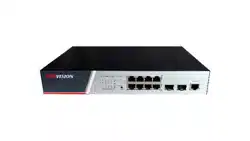
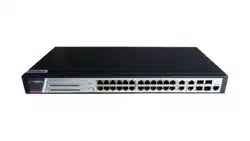
The HIKVISION 24 Series Ethernet Switch includes the following models:
Model
Name
24
Ethernet Switch
Symbol Conventions
The symbols that may be found in this document are defined as follows.
Symbol
Description
Provides additional information to emphasize or supplement
important points of the main text.
Indicates a potentially hazardous situation, which if not avoided,
could result in equipment damage, data loss, performance
degradation, or unexpected results.
Indicates a hazard with a high level of risk, which if not avoided, will
result in death or serious injury.

- V -
Table of Contents
Chapter 1 24 SWITCH Introduction ............................................................................................................................. 1
1.1 Appearance Description for Standard Configuration ............................................................................................. 1
1.2 24 SWITCH Systematic Characteristic Parameters .............................................................................................. 2
Chapter 2 Installation Preparation ............................................................................................................................... 4
2.1 Caution of Usage ................................................................................................................................................... 4
2.2 Safety Advice ......................................................................................................................................................... 4
2.2.1 Safety Principles ................................................................................................................................................. 4
2.2.2 Safety Notices .................................................................................................................................................... 4
2.2.3 Safety Principles for Live Working ...................................................................................................................... 5
2.2.4 Electrostatic Discharge Damage Prevention ...................................................................................................... 6
2.3 Requirements for Common Locations ................................................................................................................... 6
2.3.1 Environment ....................................................................................................................................................... 6
2.3.2 Location Configuration Prevention ..................................................................................................................... 6
2.3.3 Cabinet Configuration ......................................................................................................................................... 6
2.3.4 Power Requirements .......................................................................................................................................... 7
2.4 Installation Tools and Device ................................................................................................................................. 7
Chapter 3 Installing the 24 SWITCH ........................................................................................................................... 8
3.1 Installation Flow of 24 SWITCH............................................................................................................................. 8
3.2 Installing the Machine Box of the Switch ............................................................................................................... 8
3.2.1 Installing the Machine Box on the Desk ............................................................................................................. 8
3.2.2 Installing the Machine Box on the Cabinet ......................................................................................................... 9
3.3 Connecting the Port ............................................................................................................................................... 9
3.3.1 Connecting the Console Port ............................................................................................................................. 9
3.3.2 Connecting Gigabit Ethernet SFP Ports ........................................................................................................... 11
3.3.3 Connecting 1000M Ethernet Base-T ports ....................................................................................................... 11
3.4 Checking After Installation ................................................................................................................................... 12
Chapter 4 Maintaining Switch .................................................................................................................................... 14
4.1 Opening the Machine Box ................................................................................................................................... 14
4.2 Closing the Machine Box ..................................................................................................................................... 15
Chapter 5 Hardware Fault Analysis ........................................................................................................................... 17
5.1 Fault Separation .................................................................................................................................................. 17
5.1.1 Faults Relative with Power and Cooling System .............................................................................................. 17
5.1.2 Faults Relative with Port, Cable and Connection ............................................................................................. 17
5.2 Indicator Description ............................................................................................................................................ 17
Chapter 6 Specifications ........................................................................................................................................... 19
- 1 -
Chapter 1 24 SWITCH Introduction
The section describes the characteristics and parameters of 24 SWITCH and gives
an overview of 24 SWITCH.
1.1 Appearance Description for Standard Configuration
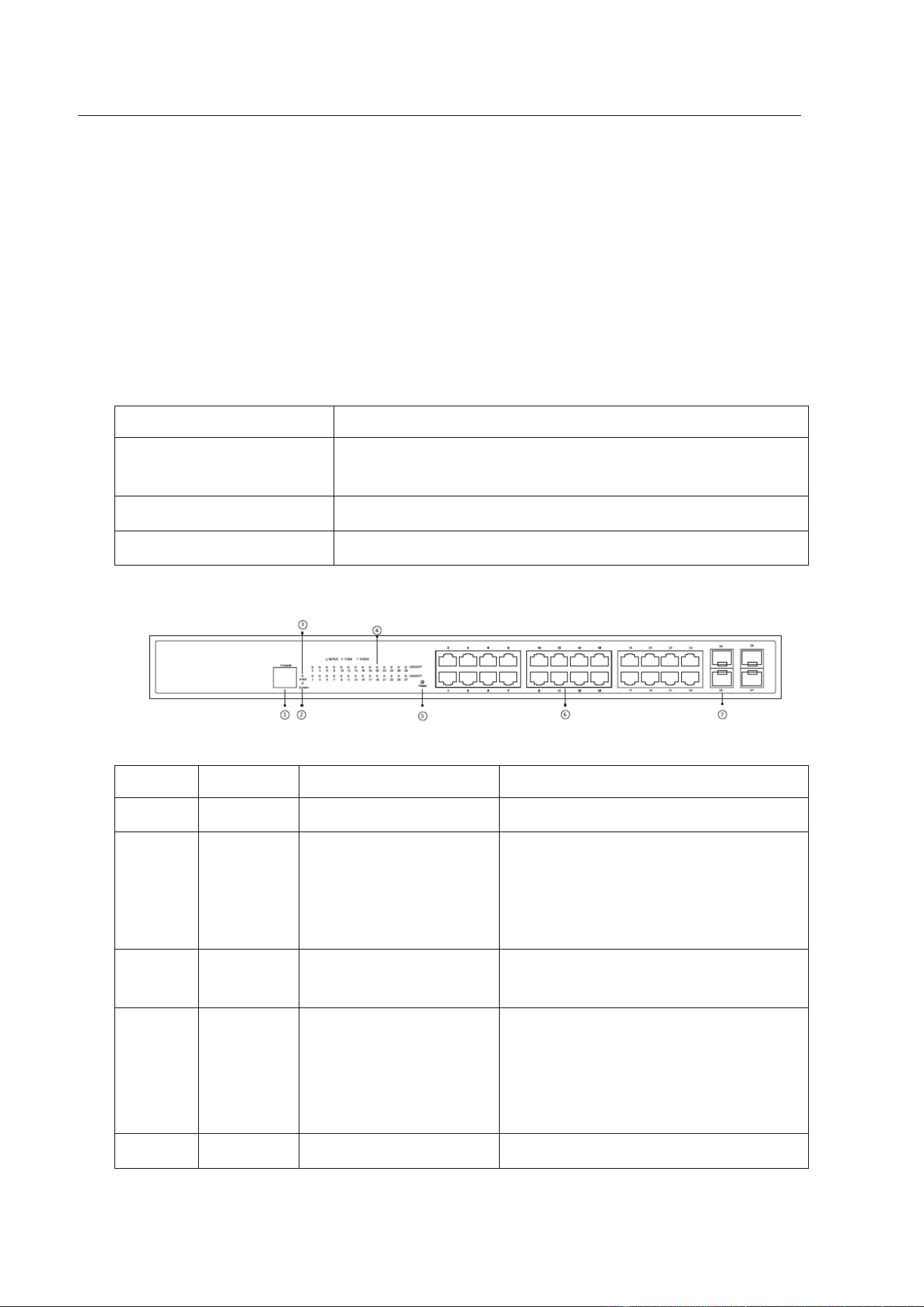
The built-in ports of 24 SWITCH are: 24 gigabit Ethernet Base-T ports, 4 gigabit
Ethernet SFP ports and 1 Console port. See table 1-1.
Port
Attribute
Gigabit Ethernet port
Base-T port: 10/100/1000M auto-adaptation, MDI/MDIX
auto-identification, UTP (RJ45) port
Gigabit Ethernet optical port
Optical port: 100/1000M SFP port, Link/Act indicators
Console port
A rate of 9600bps, RJ45 interface
Table 1-1 Attributes of the built-in port
Figure 1-1 Front template of the 24 SWITCH
No.
Abbrev.
Name
Description
1
CONSOLE
Console port
Manages the switch locally.
2
SYS
System indicator
If the indicator is always on, the system
is being started.
If the indicator flickers, the system
works normally.
3
PWR
Power indicator
If the switch is powered on, the indicator
is on.
4
Link/ACT
LINK/ACT indicator of
each port
If the indicator is on in orange: 10/100M,
If the indicator is on in green: 1000M
If the indicator is not on: no signal is
transmitted.
5
Reset
Reset switch
Return to the factory setting.
- 2 -
6
/
24 gigabit RJ45 ports
Forwards the 10/100M/1000M Ethernet
electric signals
7
/
4 SFP ports
Forwards 1000M Ethernet optical
signals.
Table 1-2 Parts at the front template of the 24 SWITCH
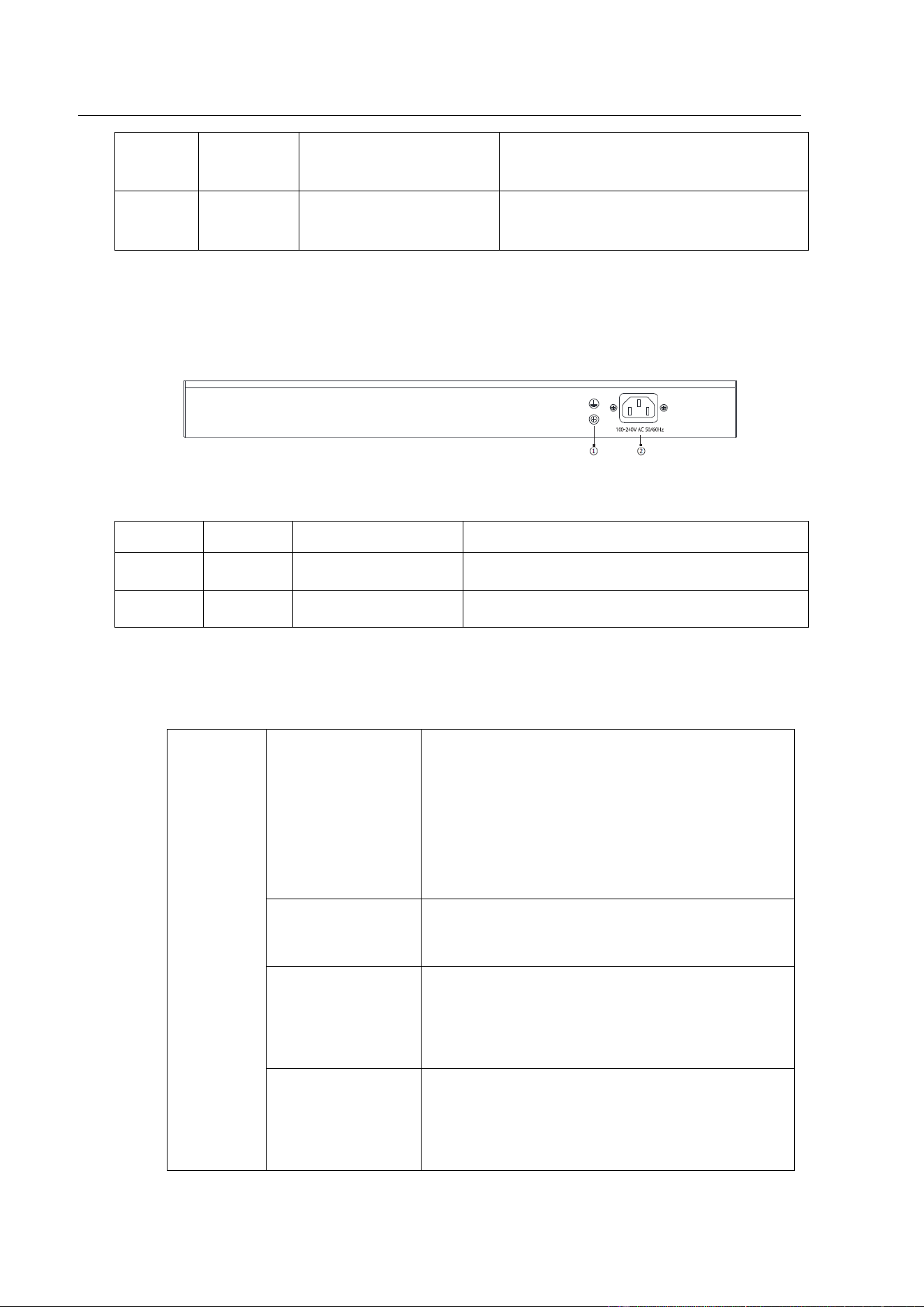
Besides, 24 SWITCH has a grounding column and a power socket at its back.
Figure 1-1 Back template of the 24 SWITCH
No.
Abbrev.
Name
Description
1
/
Grounding column
The grounding must be fine.
2
/
AC power socket
100~240V AC
Table 1-3 Parts at the back template of the 24 SWITCH
1.2 24 SWITCH Systematic Characteristic Parameters
Protocol
standard
Supported
standard
IEEE 802.1d Spanning Tree Protocol
IEEE 802.1p Class of Service
IEEE 802.1q tagged VLAN
IEEE 802.3x Flow control
IEEE 802.3ad Link aggregation
IP routing protocol
standard
RFC 1058 RIP
RFC 1723 RIP v2
Network
management
standard
RFC 1157 SNMP v1/v2
RFC 1213 MIB II
RFC 1757 RMON 1,2,3,9
Standard
configuration
4 gigabit SFP ports
1 Console port
24 gigabit Base-T ports

- 3 -
Dimensions mm
(W×D×H)
440
×
230
×
45
Operating
temperature/
humidity
0
℃~
45
℃
; 5%
~
95% non-condensing
Storage
temperature/
humidity
-20
℃~
70
℃
; 5%
~
95% non-condensing
Power
characteristics
Input voltage: AC100
~
240V;
Input frequency: 47~63Hz;

- 4 -
Chapter 2 Installation Preparation
2.1 Caution of Usage
Similar to other electronic products, the semiconductor chip easily gets damaged if
you power on or off abruptly and frequently. To restart up the switch of 24 SWITCH,
you have to open the power on-off after the power is cut down for three to five
seconds.
Avoid severe collision or falling down from the height to protect the parts in the
switch.
Do not insert the Ethernet plug into the console port (RJ45 8-line socket). Similarly,
do not insert the console cable into the console port (RJ45 8-line socket).
Note:
1) When you plug or dial the power line, keep the power line horizontal with the
power socket.
2) When the lifetime of our products ends, handle them according to national laws
and regulations, or send these products to our company for collective processing.
2.2 Safety Advice
2.2.1 Safety Principles
Keep dustless and clean during or after the installation.
Put the cover at the safe place.
Put tools at the right place where they are not easily falling down.
Put on relatively tight clothes fasten the tie or scarf well and roll up the
sleeve, avoiding stumbling the machine box.
Put on the protective glasses if the environment may cause damage to your
eyes.
Avoid incorrect operations that may cause damage to human or devices.
2.2.2 Safety Notices
The safety notices mentioned here means that improper operation may lead to
body damage.

- 5 -
Read the installation guide carefully before you operate the system.
Only professionals are allowed to install or replace the switch.
Pull out the AC power socket and close the direct-current power before
operating on the machine box or working beside the power source.
The final configuration of products must comply with relative national laws
and regulations.
2.2.3 Safety Principles for Live Working
When you work under electricity, following the following principles:
Put off ornaments, such as ring, necklace, watch and bracelet, before you
operate under live working. When metal articles connect the power to the
ground, short circuit happens and components may be damaged.
Pull out the AC power socket and close the direct-current power before
operating on the machine box or working beside the power source.
When the power is on, do not touch the power.
Correctly connect the device and the power socket.
Only professionals are allowed to operate and maintain the device.
Read the installation guide carefully before the system is powered on.
Note:
1) Check potential dangers, such as the humid floor, ungrounded extensible power
line and tatty power line.
2) Install the emergent on-off at the working room for turning off the power when
trouble happens.
3) Turn off the power on-off of the switch and plug off the power line before
installing or uninstalling the machine box or working beside the power.
4) Do not work alone if potential dangers exist.
5) Cut off the power before checkout.
6) If trouble happens, take the following measures:
A. Cut off the system's power.
B. Alarm.
C. Take proper measures to help persons who are hit by the disaster. Artificial
respiration is needed if necessary.
D. Seek for medical help, or judge the loss and seek for available help.

- 6 -
2.2.4 Electrostatic Discharge Damage Prevention
Electrostatic discharge may damage devices and circuits. Improper treatment may
cause the switch to malfunction completely or discontinuously.
Move or locate the devices according to the measures of electrostatic discharge
prevention, ensuring the machine box connects the ground. Another measure is to
wear the static-proof hand ring. If there is no hand ring, use the metal clip with the
metal cable to clip the unpainted metal part of the machine box. In this case, the
static is discharged to the ground through the metal cable of the clip. You can also
discharge the static to the ground through your body.
2.3 Requirements for Common Locations
This part describes the requirements for the installation locations.
2.3.1 Environment
The switch can be installed on the desk or the cabinet. The location of the machine
box, cabinet planning and indoor cabling are very important for normal system’s
function. Short distance between devices, bad ventilation and untouchable control
plate will cause maintenance problems, systematic faulty and breakdown.
For location planning and device locating, refer to section 2.3.2 “Location
Configuration Prevention”.
2.3.2 Location Configuration Prevention
The following preventive measures assist you to design the proper environment for
the switch.
Make sure that the workshop is well-ventilated, the heat of electrical devices
is well-discharged and sufficient air circulation is provided for device cooling.
Avoid to damage devices by following the electrostatic discharge prevention
procedure.
Put the machine box at the place where cool air can blow off the heat inside
the machine box. Make sure the machine box is sealed because the opened
machine box will reverse the cool air flow.
2.3.3 Cabinet Configuration
The following content assists you to make a proper cabinet configuration:
Each device on the cabinet gives off heat when it runs. Therefore, the sealed
cabinet must have the heat-discharge outlet and the cooling fan. Do not put
the devices too close, avoiding bad ventilation.

- 7 -
When you install the machine box at the open cabinet, prevent the frame of
the cabinet from blocking the airway of the machine box.
Ensure that nice ventilation is provided for the devices installed at the bottom
of the cabinet.
The clapboard separates exhaust gas and inflow air, and boost cool air to
flow in the machine box. The best location of the clapboard is decided by the
air flow mode in the machine box, which can be obtained through different
location tests.
2.3.4 Power Requirements
Make sure that the power supply has nice grounding and the power at the input
side of the switch is reliable. The voltage control can be installed if necessary. At
least a 240 V, 10A fuse or a breaker is provided in the phase line if you prepare the
short-circuit prevention measures for a building.
Caution:
If the power supply system does not have good grounding, or the input power
disturbs too much and excessive pulses exist, the error code rate of
communication devices increases and even the hardware system will be
damaged.
2.4 Installation Tools and Device
The tools and devices to install the 24 SWITCH are not provided by the 24
SWITCH switch. You yourself need to prepare them. The following are the tools
and devices needed for the typical installation of the 24 SWITCH switch:
Screwdriver
Static armguard
Bolt
Ethernet cable
Other Ethernet terminal devices
Control terminal
- 8 -
Chapter 3 Installing the 24 SWITCH
Caution:
Only professionals are allowed to install or replace the devices.
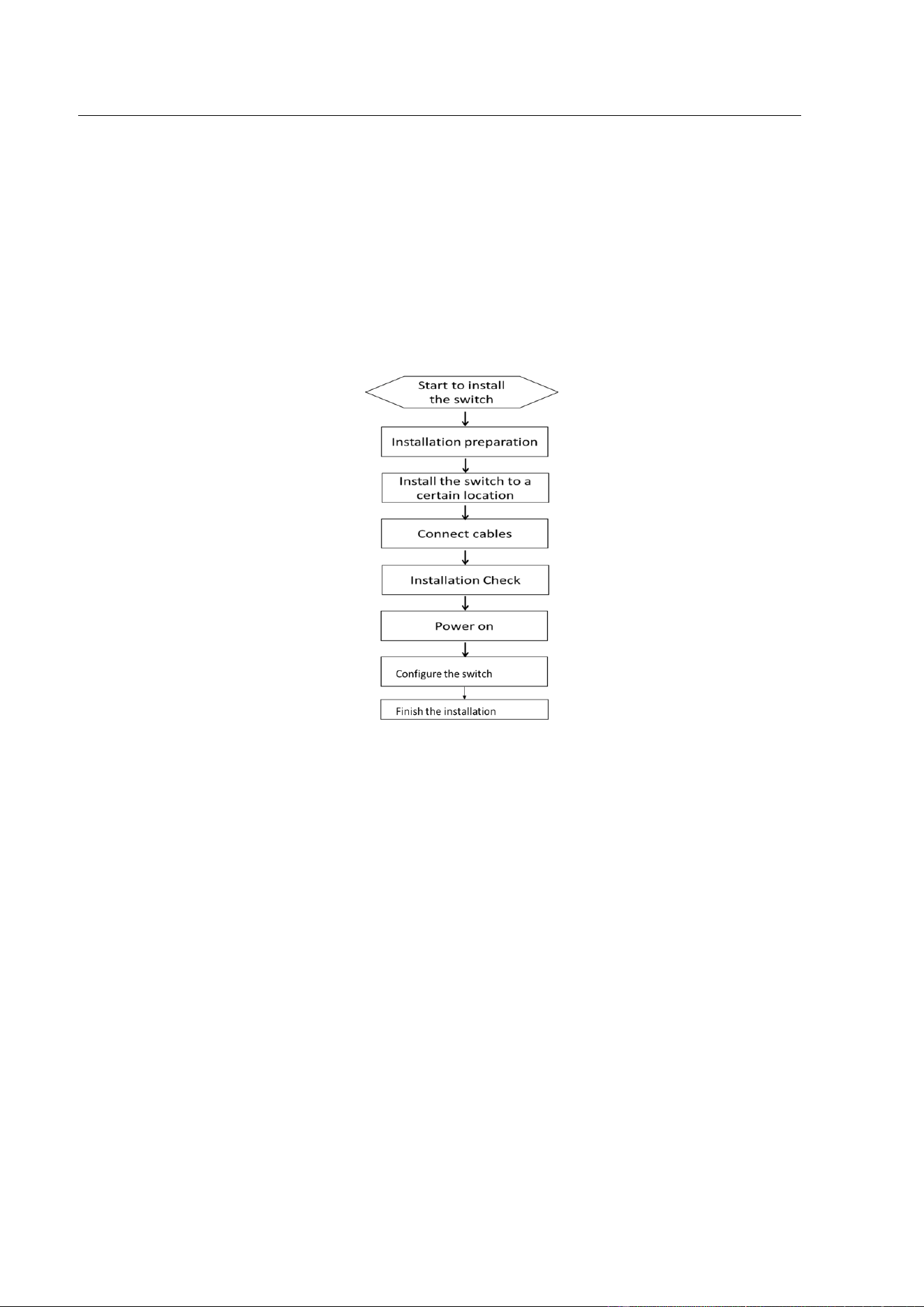
3.1 Installation Flow of 24 SWITCH
3.2 Installing the Machine Box of the Switch
The installation of the machine box has two modes:
Installing the machine box on the desk
Installing the machine box on the cabinet
3.2.1 Installing the Machine Box on the Desk
The 24 SWITCH can be directly put on the smooth and safe desk.
Note:
Do not put things weighing 4.5 kg or over 4.5 kg on the top of the switch.
- 9 -
3.2.2 Installing the Machine Box on the Cabinet
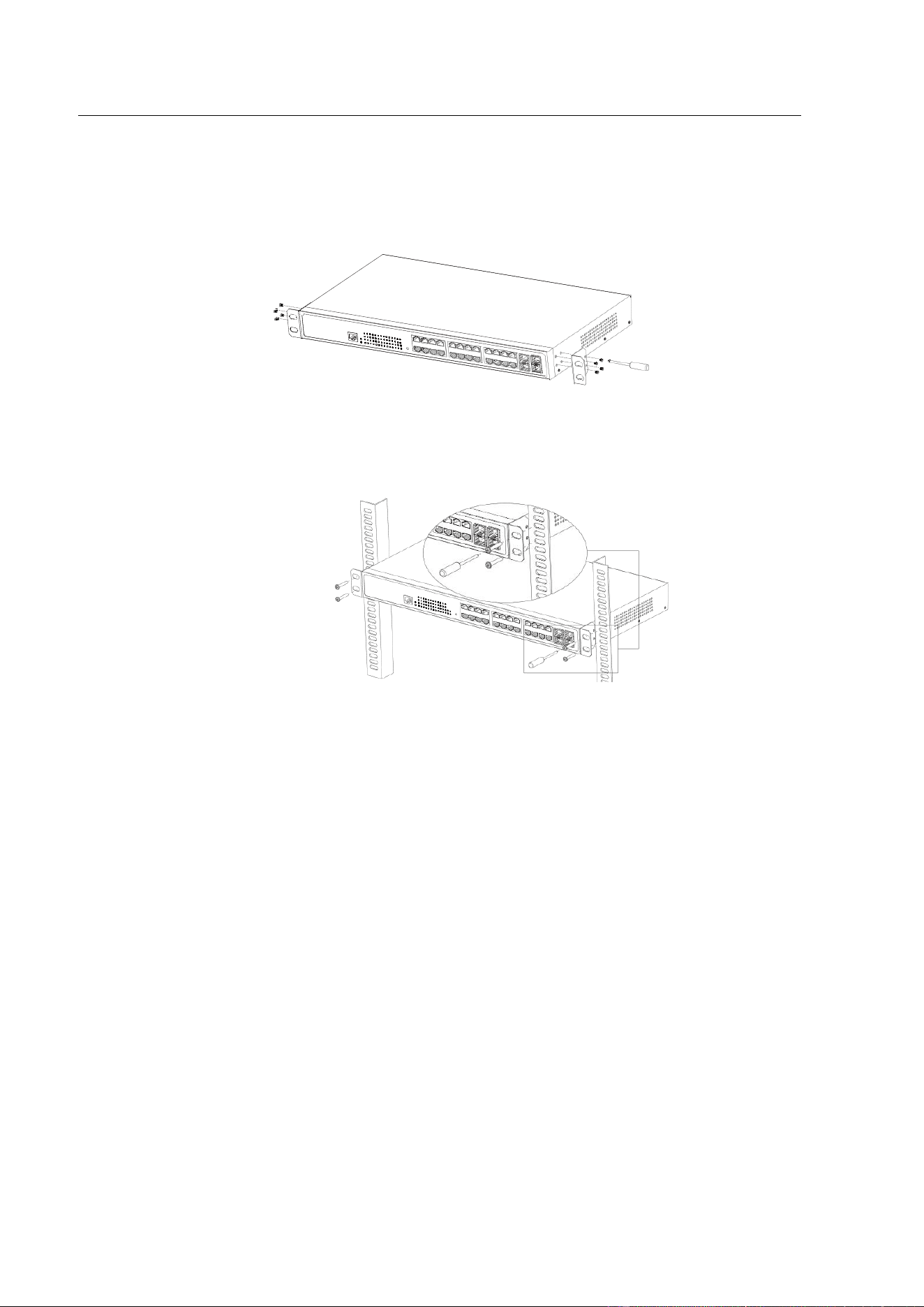
The machine box of the switch is fixed on the cabinet through the brackets. When
you fix the brackets, the front template of the switch faces forward. The detailed
operations are shown in Figure 3-1.
Figure 3-1 Fixing the machine box of the switch
After the brackets are installed, install the switch on the cabinet. See Figure 3-2.
Figure 3-2: Installing the switch on the cabinet
3.3 Connecting the Port
3.3.1 Connecting the Console Port
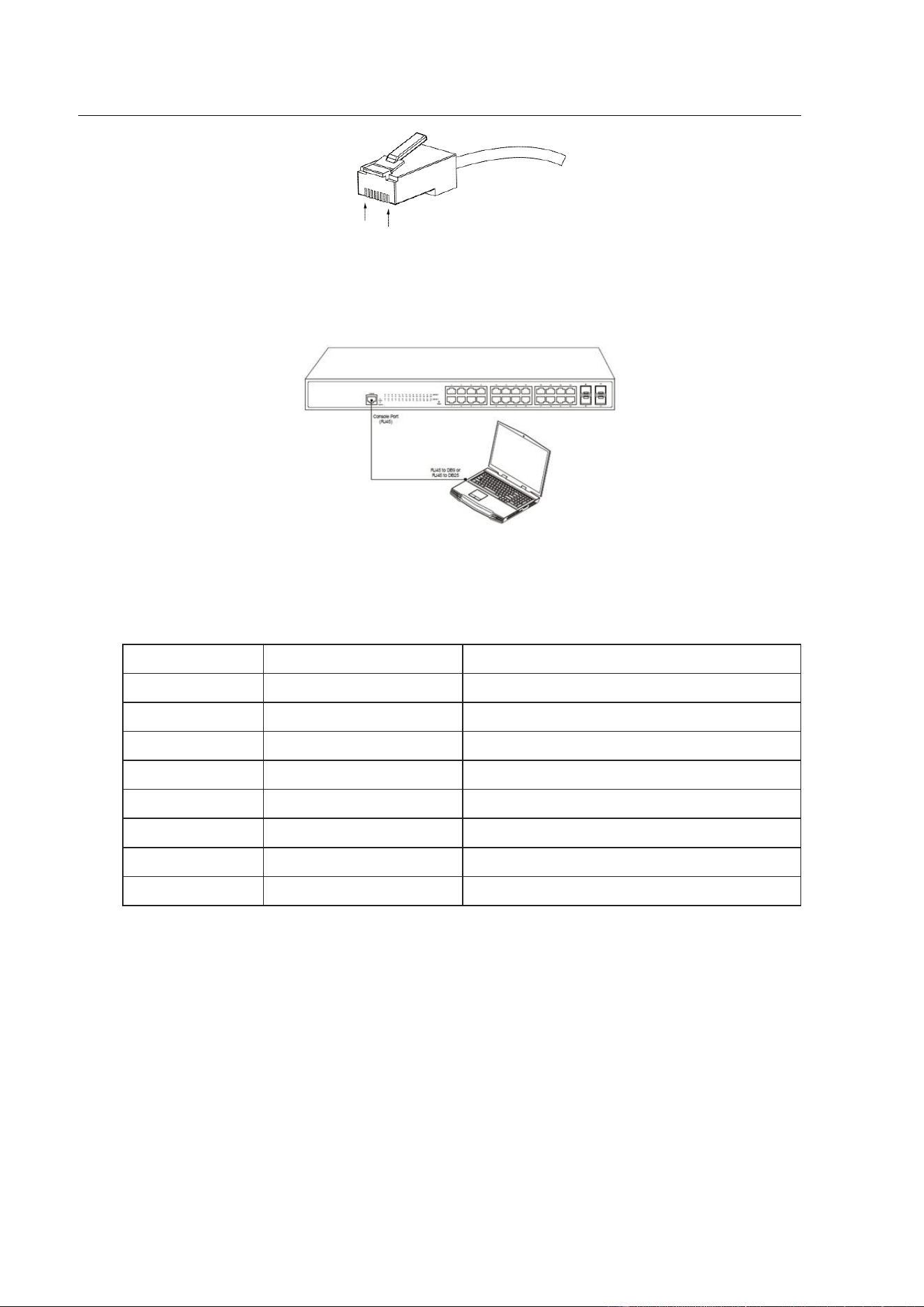
The switch of 24 SWITCH has a console port.
The rate of the console port is a value ranging from 1200bps to 115200bps. It has
a standard RJ45 plug. After you connect the console port to the serial port of PC
through a console cable, you can configure and monitor the switch of 24 SWITCH
by running the terminal emulation software, such as super Windows terminal. The
cable is provided according to the host. The communication parameters of the
terminal serial port can be set to a rate of 9600bps, eight data bits, one stop bit, no
sum check bit and traffic control.
The RJ45 connector of the console port is shown in Figure 3-3. The RJ45 plug
corresponds to the RJ45 socket, whose pins can be aligned from left to right with
the value from 1 to 8.
- 10 -
Figure 3-3 RJ-45 connector of the console port
Figure 3-4: Connecting the console port of 24 SWITCH with the computer
No.
Name
Remarks
1
CD
No connect
2
RXD
Input
3
DSR
No connect
4
TXD
Output
5
RTS
No connect
6
CTS
No connect
7
DTR
No connect
8
SG
GND
Table 3-1 Definition of the pins of the Console port
Note: The console port of the 24 SWITCH does not support traffic control. Therefore, you
must set the option data traffic control to none when you configure the switch with the super
terminal. Otherwise, the single-pass problem will arise on the super terminal.
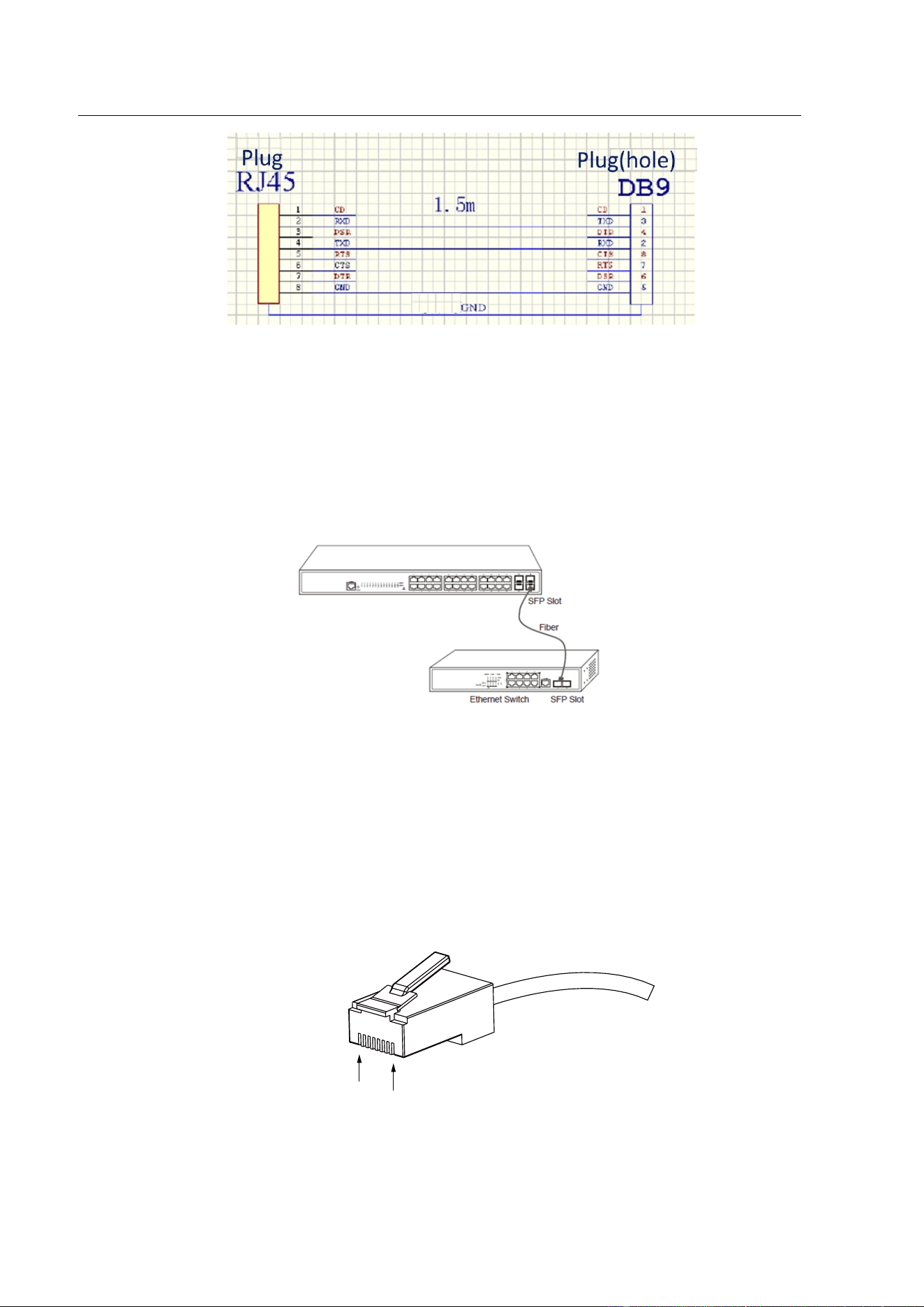
The cable is used to connect the console port of the 24 SWITCH and the outside console
terminal device. One end of the console port is RJ45 8-core plug and the other end of the
console port is a 25-hole plug and a 9-hole plug. The RJ45 plug is put into the socket of the
console port on the 24 SWITCH switch. DB25 and DB9 is alternative. RJ45 connects to DB9
in the console port shown as below.
- 11 -
Figure 3-5 Cable connection at the console port
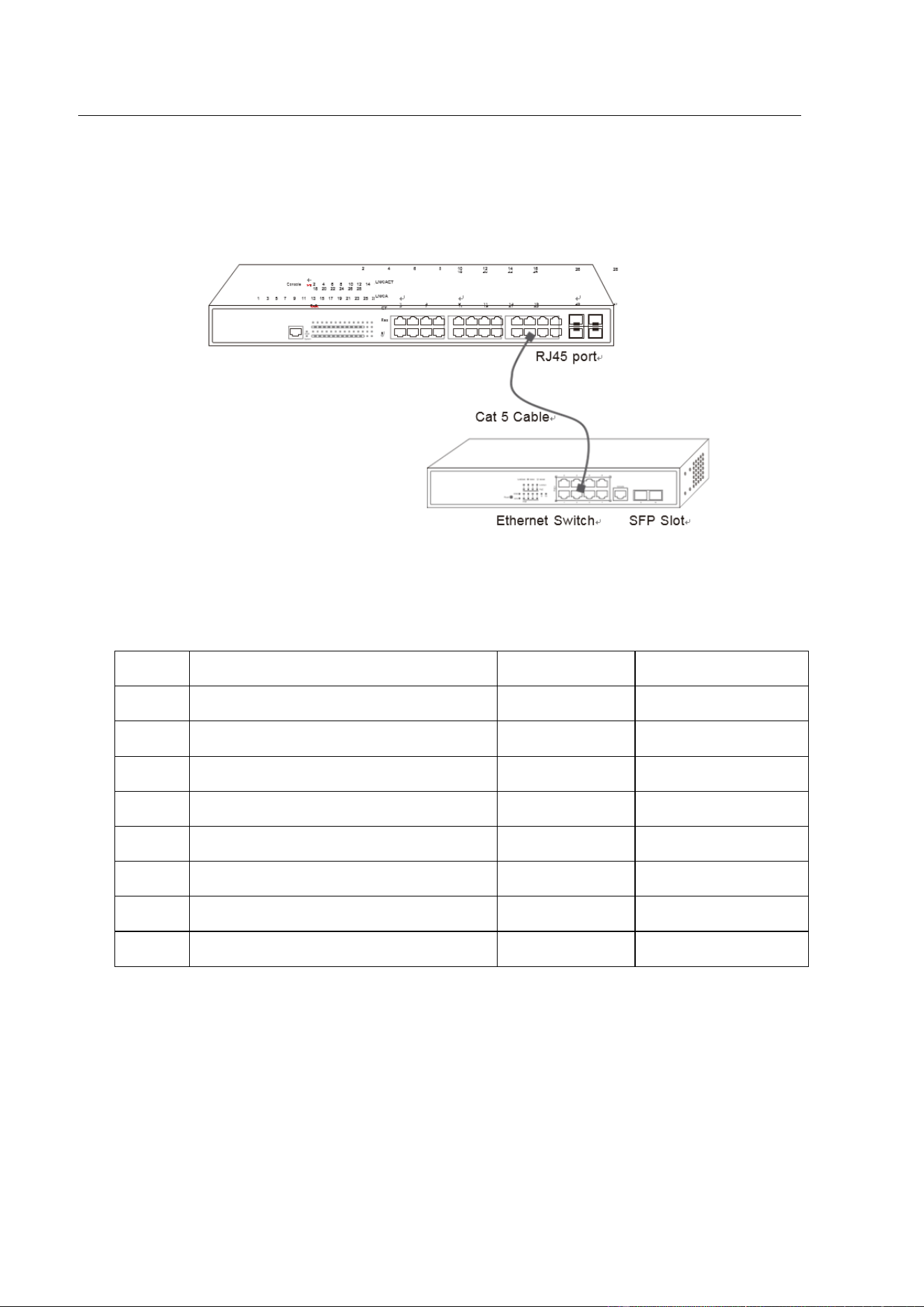
3.3.2 Connecting Gigabit Ethernet SFP Ports
The 24 SWITCH has 4 gigabit SFP ports. Each port has a corresponding indicator
for showing their LINK/ACT state. If the indicator is always on, the port is normally
linked; if the indicator flickers, the data is forwarded through the port. In use the
SFP optical module can be connected to the SFP optical module and connected to
other Ethernet terminal devices through the optical cable.
Figure 3-6 Gigabit SFP ports connect to other Ethernet terminal devices
3.3.3 Connecting 1000M Ethernet Base-T ports
24 SWITCH provides 24 10/100/1000MRJ45 ports. Each port corresponds to one
LINK/ACT indicator. In use, the ports can connect other UT terminal devices
through the UTP port and the direct-through or cross network cable. The
numbering order of the pins in the UTP port is the same as the console port. See
the following figure:
Figure3-7 RJ-45 Connector of the console port
- 12 -
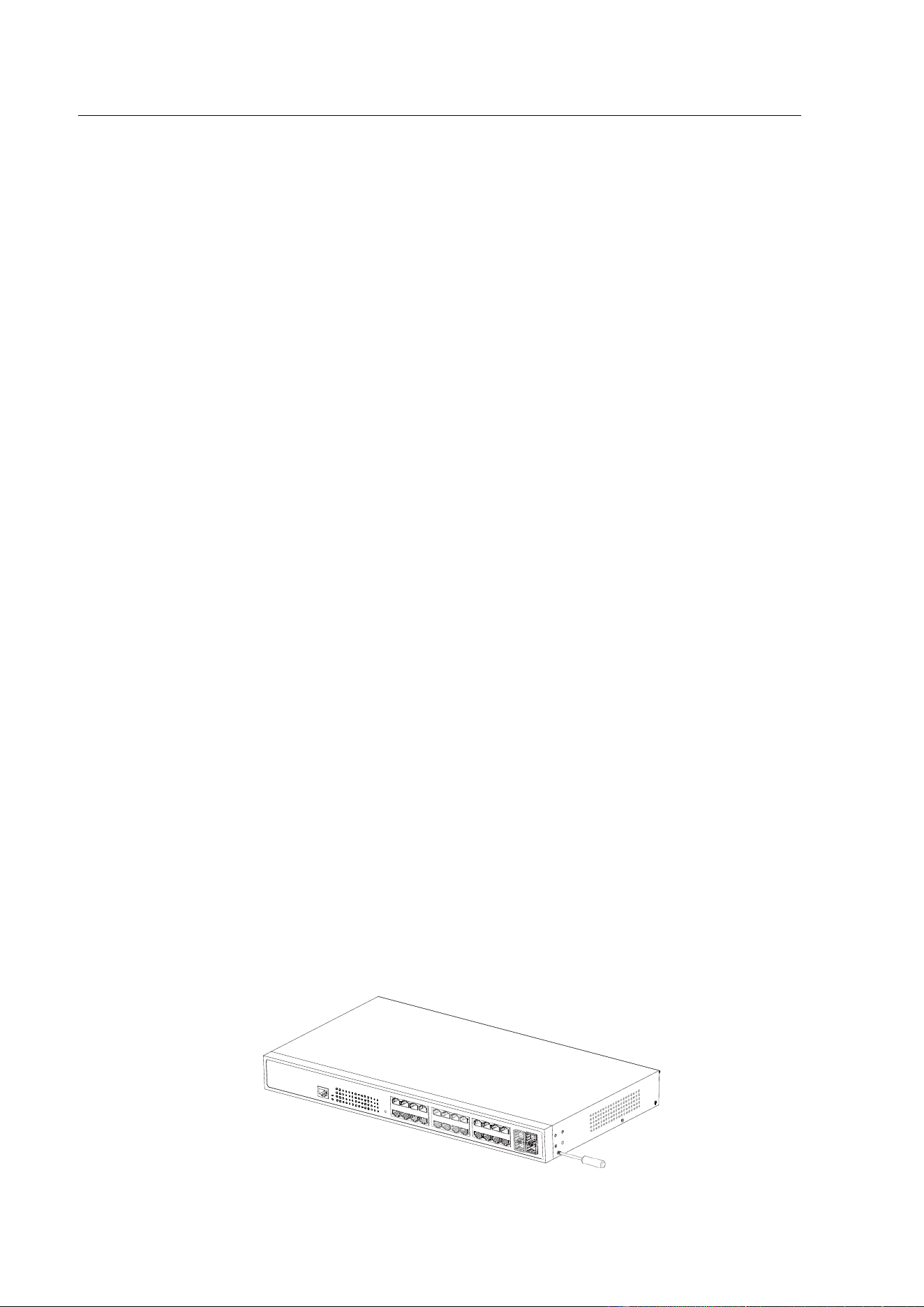
Because 24 10/100/1000Base-T ports of 24 SWITCH support the MDI/MDIX
self-identification of the cable, 24 SWITCH can adopt five types of
direct-through/cross network cables when it connects other Ethernet terminals.
Figure 3-8 Connecting the 1000M Base-T port and other Ethernet terminals
No.
Pin name
Abbr.
Remarks
1
Sending the normal phase of the data
TXD1+
Output
2
Sending the paraphase of the data
TXD1-
Output
3
Receiving the normal phase of the data
RXD1+
Input
4
Sending the normal phase of the data
TXD2+
Output
5
Sending the paraphase of the data
TXD2-
Output
6
Receiving the normal phase of the data
RXD1-
Input
7
Receiving the normal phase of the data
RXD2+
Input
8
Sending the paraphase of the data
RXD1-
Input
Table 3-1 Pins of gigabit RJ45
The direct-through or cross network cable has the function of auto-identification, so the five
classes of direct-through/cross network cables can be used to connect other Ethernet devices.
3.4 Checking After Installation
Before electrically starting up the switch, perform the following checkups after the
switch is installed:

- 13 -
If the switch is installed on the cabinet, check whether the installation point
between the cabinet and the switch is strong. If the switch is installed on the
desk, check whether there is enough space for the switch to discharge its
heat and whether the desk is stable.
Check whether the connected power meets the power requirements of the
switch.
Check whether the grounding line is correctly connected.
Check whether the switch is correctly connected to other terminal devices.
- 14 -
Chapter 4 Maintaining Switch
Caution:
1) Before opening the machine box, make sure that you have released the
static you carried and then turn off the power on-off of the switch. Before
operating any step in Appendix B, read the section “
Safety Advice
”.
2) Before performing operations beside the power source or on the machine
box, turn off the power on-off and plug out the power cable.
4.1 Opening the Machine Box
This section describes how to open the cover of the switch, required tools and
operation methods.
Caution:
When the power cable still connects the power supply, do not touch it.
When you open the cover the switch, you may use the following tools:
Crossed screwdriver
Static armguard
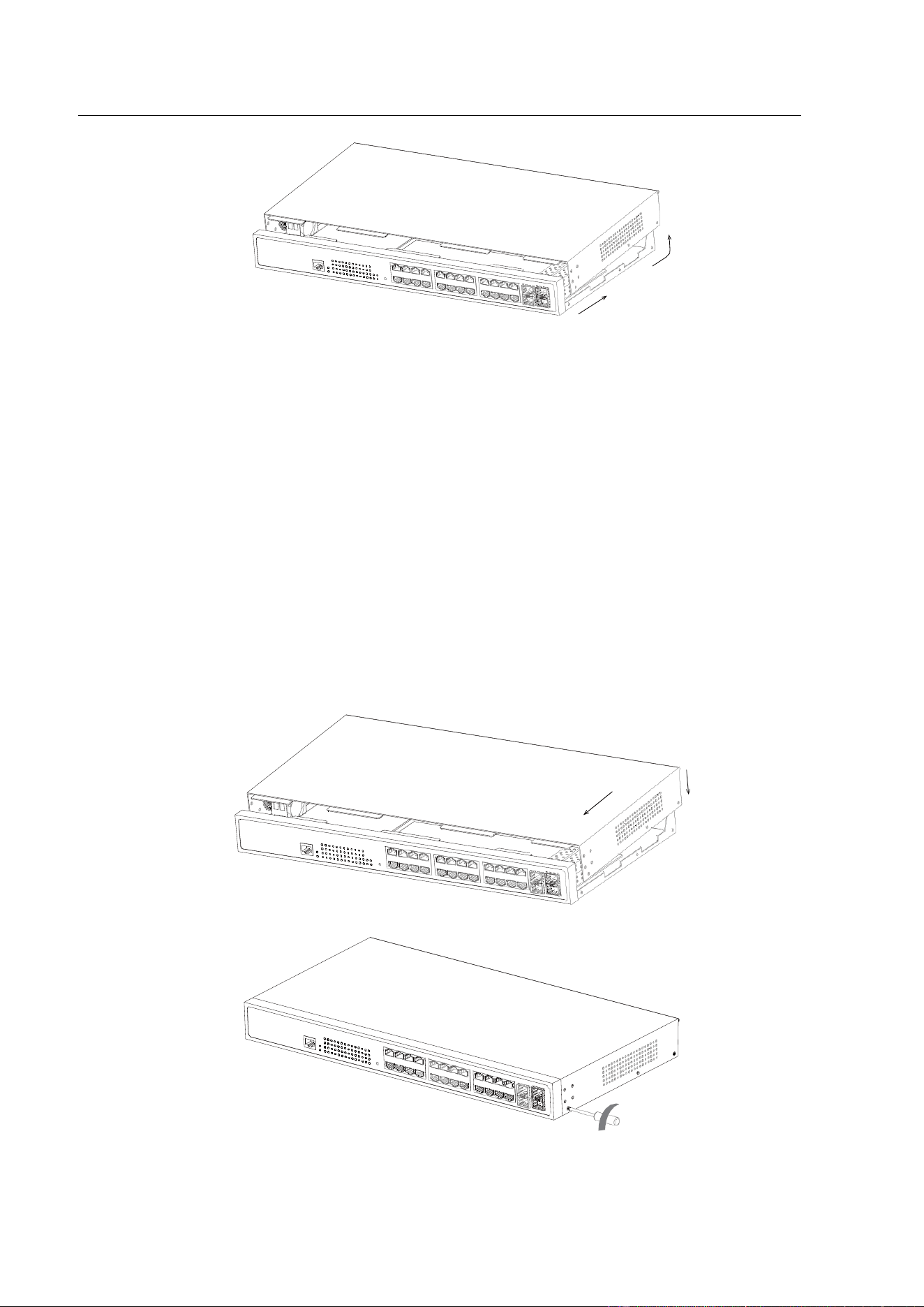
Perform the following steps to open the cover of the switch:
(1) Turn off the power on-off of the switch.
(2) Plug out all cables connected the back of the switch.
(3) Take out the bolt from the machine box with the screwdriver.
Note:
The machine box comprises of two parts: cover and bottom.
(4) Open the cover by holding two sides of the cover towards the direction of the
arrow key shown in the following figure:
- 15 -
Figure 4-1 Opening the chassis of 24 SWITCH
(5) When the cover is opened, put it aside. The mainboard of the system
appears.
Note:
After taking off the cover, put it horizontally and avoid it to be crushed or collided.
Otherwise, the machine box is hard to install.
4.2 Closing the Machine Box
The section mainly describes how to put the cover and close the machine box. Do
as follows:
(1) Put them well according to their locations and joint them together along their sides.
See the following figure.

- 16 -
(2) When the cover and the bottom are closely tied, let the cover slide the slot of the
front template at the bottom.
(3) Nail the bolt and screw it tightly with the screwdriver.
(4) Reinstall the switch on the cabinet or the desk.
(5) Reconnect all cables of the switch.

- 17 -
Chapter 5 Hardware Fault Analysis
The part describes how to remove the fault from the switch.
5.1 Fault Separation
The key for resolving the systematic faults is to separate the fault from the system.
You can compare what the system is doing with what the system should do to
detect the fault. You need to check the following subsystems:
Power and cooling systems—power and fan
Port, cable and connection—ports on the front template of the switch and the
cables connecting these ports
5.1.1 Faults Relative with Power and Cooling System
Do the following checkups to help remove the fault:
When the power on-off is at the “ON” location, check whether the fan works
normally. If the fan does not work well, check the fan.
The working temperature of the switch is from 0 to 40 Celsius degrees. If the
switch is too hot, check whether the air outlet and air inlet are clean and then
do relative operations in section 2.3 “Requirements for Common Locations”.
If the switch cannot be started and the PWR indicator is off, check the power.
5.1.2 Faults Relative with Port, Cable and Connection
Do the following checkups to help remove the fault:
If the port of the switch cannot be linked, check whether the cable is
correctly connected and whether the peer connection is normal.
If the power on-off is at the “ON” location, check the power source and the
power cable.
If the console port does not work after the system is started up, check
whether the console port is set to a baud rate of 9600 bps, eight data bits, no
sum check bit, one stop bit and no traffic control.
5.2 Indicator Description
The following table shows the indicators of the 24 SWITCH and their description:

- 18 -
No.
Abbrev.
Name
Description
1
PWR
Power indicator
When the switch is powered on, the
indicator is on.
2
SYS
System indicator
When the indicator is always on, the
system is being started up.
When the indicator flickers, the system
works well.
3
LINK/ACT
Port indicator
If the indicator is on in orange:
10/100Mbps,
If the indicator is on in green: 1000Mbps
If the indicator is off, the port is not
connected.
Table 5-1 Definition of 24 SWITCH Indicator
Copyright Claims
Without the written approval of the company , any person or group cannot transcribe, copy or
change partial or all contents of this manual, and must not broadcast it in any manner.
Trademark claims
Trademarks, product names, service names and company names, which are written in this manual
but do not belong to the company, belong to their owners respectively.
Disclaimer of warranty
provides no evident or hinted guarantee towards the contents of this manual. In no event, except
for the company’s breach of law, shall the company be liable for incidental, consequential, indirect
or special damages of any kind or for loss of profits or revenue or loss of business arising out of or
relating to this manual.
Note: Customer shall not be notified of this manual’s content amendments.

- 19 -
Chapter 6 Specifications
Item
24 SWITCH
Backplane
56Gbps
Forwarding rate
42Mpps
MAC
8K
Ports
24 10/100/1000M Base-T ports+4
1000Base-X
ports
Dimensions(W×D×H)(mm)
440*230*45
Consumption
<15W
Power supply
AC
:
100V-240V
,
50Hz±10%
Environment
Operating temperature/humidity: 0
℃
-45
℃,
5%-95%
non-condensing
Storage temperature/humidity: -20
℃
-70
℃;
5%-95%
non-condensing
MAC exchange
Static configuration and dynamic MAC learning; MAC browsing and
removal
Configurable aging time of the MAC address; Limited number of
learnable MAC addresses; MAC filtration
VLAN
4K VLAN; GVRP; QinQ; Private VLAN
STP
802.1D (STP), 802.1W (RSTP) and 802.1S (MSTP)
BPDU protection, root protection, and loopback protection
Multicast
IGMP v1/v2/v3
IGMP snooping
IGMP Fast Leave
Multicast group strategy and quantity limitation
Multicast flow copying over VLANs
QoS
Flow classification based on L2~4 protocols CAR flow limit
802.1P/DSCP priority re-labeling
SP, WRR, and “SP+WRR”
Congestion avoidance mechanisms like Tail-Drop and WRED

- 20 -
Flow monitoring and flow shaping
Security
L2/L3/L4 ACL flow identification and filtration
DDoS attack prevention, TCP’s SYN Flood attack prevention, UDP
Flood attack prevention, etc
Broadcast/multicast/unknown unicast storm-control
Port isolation
Port security, and “IP+MAC+port” binding
Reliability
Static/LACP link aggregation
EAPS and ERPS
Management
Console, Telnet, SSH2.0, Web
SNMP v1/v2/v3
TFTP
RMON

- 21 -