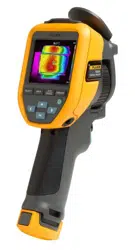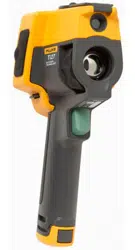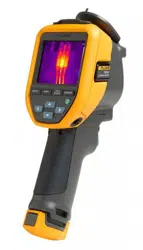

TiS20+/TiS20+ MAX
Thermal Imager
Users Manual
November 2019 Rev. 1, 5/20 (English)
© 2019-2020 Fluke Corporation. All rights reserved. Specifications are subject to change without notice.
All product names are trademarks of their respective companies.
1.888.610.7664 sales@GlobalTestSupply.com
Fluke-Direct.com

LIMITED WARRANTY AND LIMITATION OF LIABILITY
Each Fluke product is warranted to be free from defects in material and workmanship under normal use and
service. The warranty period is two years and begins on the date of shipment. Parts, product repairs, and services
are warranted for 90 days. This warranty extends only to the original buyer or end-user customer of a Fluke
authorized reseller, and does not apply to fuses, disposable batteries, or to any product which, in Fluke's opinion,
has been misused, altered, neglected, contaminated, or damaged by accident or abnormal conditions of operation
or handling. Fluke warrants that software will operate substantially in accordance with its functional specifications
for 90 days and that it has been properly recorded on non-defective media. Fluke does not warrant that software
will be error free or operate without interruption.
Fluke authorized resellers shall extend this warranty on new and unused products to end-user customers only but
have no authority to extend a greater or different warranty on behalf of Fluke. Warranty support is available only if
product is purchased through a Fluke authorized sales outlet or Buyer has paid the applicable international price.
Fluke reserves the right to invoice Buyer for importation costs of repair/replacement parts when product purchased
in one country is submitted for repair in another country.
Fluke's warranty obligation is limited, at Fluke's option, to refund of the purchase price, free of charge repair, or
replacement of a defective product which is returned to a Fluke authorized service center within the warranty
period.
To obtain warranty service, contact your nearest Fluke authorized service center to obtain return authorization
information, then send the product to that service center, with a description of the difficulty, postage and insurance
prepaid (FOB Destination). Fluke assumes no risk for damage in transit. Following warranty repair, the product will
be returned to Buyer, transportation prepaid (FOB Destination). If Fluke determines that failure was caused by
neglect, misuse, contamination, alteration, accident, or abnormal condition of operation or handling, including
overvoltage failures caused by use outside the product’s specified rating, or normal wear and tear of mechanical
components, Fluke will provide an estimate of repair costs and obtain authorization before commencing the work.
Following repair, the product will be returned to the Buyer transportation prepaid and the Buyer will be billed for the
repair and return transportation charges (FOB Shipping Point).
THIS WARRANTY IS BUYER'S SOLE AND EXCLUSIVE REMEDY AND IS IN LIEU OF ALL OTHER
WARRANTIES, EXPRESS OR IMPLIED, INCLUDING BUT NOT LIMITED TO ANY IMPLIED WARRANTY OF
MERCHANTABILITY OR FITNESS FOR A PARTICULAR PURPOSE. FLUKE SHALL NOT BE LIABLE FOR ANY
SPECIAL, INDIRECT, INCIDENTAL OR CONSEQUENTIAL DAMAGES OR LOSSES, INCLUDING LOSS OF
DATA, ARISING FROM ANY CAUSE OR THEORY.
Since some countries or states do not allow limitation of the term of an implied warranty, or exclusion or limitation
of incidental or consequential damages, the limitations and exclusions of this warranty may not apply to every
buyer. If any provision of this Warranty is held invalid or unenforceable by a court or other decision-maker of
competent jurisdiction, such holding will not affect the validity or enforceability of any other provision.
11/99
LIMITED WARRANTY AND LIMITATION OF LIABILITY
1.888.610.7664 sales@GlobalTestSupply.com
Fluke-Direct.com

i
Table of Contents
Title Page
Introduction ........................................................................................................... 1
How to Contact Fluke............................................................................................ 1
Safety Information................................................................................................. 2
Product Familiarization ......................................................................................... 2
Front ................................................................................................................ 2
Touch Screen (Display) ................................................................................... 4
Control Panel ................................................................................................... 5
Primary and Secondary Triggers ..................................................................... 6
Basic Operation .................................................................................................... 6
Turn On and Off the Product ........................................................................... 6
Capture Image ................................................................................................. 6
Save Images to PC.......................................................................................... 7
Menu Controls....................................................................................................... 7
Main Menu ............................................................................................................ 9
Measurement Menu......................................................................................... 10
Level/Span.................................................................................................. 10
Emissivity Adjustment................................................................................. 12
Transmissivity............................................................................................. 13
Image Menu..................................................................................................... 13
Palette Menu......................................................................................................... 14
Display Menu ................................................................................................... 14
Marker ........................................................................................................ 15
Spot Box ..................................................................................................... 15
Device Settings Menu...................................................................................... 16
Fluke Connect Menu........................................................................................ 18
Asset Identification (Asset ID).......................................................................... 18
Assign Asset ID Tag with a QR Code or Barcode ...................................... 18
Assign Asset ID Tag Manually.................................................................... 19
Exit an Asset ID Tag................................................................................... 19
Assign a Different Asset ID Tag ................................................................. 19
Connection Icons ............................................................................................. 20
Save Images to Fluke Connect Cloud ............................................................. 21
Sign in to Fluke Connect WiFi Network ...................................................... 21
Sign out of Fluke Connect WiFi Network.................................................... 22
Sign in to Fluke Connect Cloud .................................................................. 22
Sign out of Fluke Connect Cloud................................................................ 22
Fluke Connect Wireless System...................................................................... 23
Pair Hotspot to Fluke Connect.................................................................... 23
Pair to Mobile App ...................................................................................... 24
1.888.610.7664 sales@GlobalTestSupply.com
Fluke-Direct.com

TiS20+/TiS20+ MAX
Users Manual
ii
Save Images to Shared Folder ........................................................................ 24
Sign in to Shared Folder WiFi Network ....................................................... 25
Sign out of Shared Folder WiFi Network..................................................... 25
Sign in to Shared Folder ............................................................................. 26
Sign out of Shared Folder ........................................................................... 27
Memory Menu (Memory Gallery)........................................................................... 27
View Image ...................................................................................................... 28
Notes................................................................................................................ 28
Notes with Single Image ............................................................................. 28
Add a Note to Multiple Images .................................................................... 29
Delete Images .................................................................................................. 29
Delete an Image.......................................................................................... 29
Delete Multiple Images ............................................................................... 29
Delete All Images........................................................................................ 30
Flag an Image .................................................................................................. 30
Asset ID............................................................................................................ 30
Fluke Connect Desktop Software.......................................................................... 31
Download Fluke Connect Software .................................................................. 31
Update Firmware.............................................................................................. 31
Accessories ........................................................................................................... 32
Maintenance.......................................................................................................... 32
Clean the Case ................................................................................................ 32
Lens Care......................................................................................................... 32
Battery Care ..................................................................................................... 33
Charge Batteries .............................................................................................. 33
Two-Bay Battery Charger Base .................................................................. 33
AC Power Socket on Imager....................................................................... 34
Optional 12 V Vehicle Charger ................................................................... 34
Radio Frequency Data .......................................................................................... 34
Specifications ........................................................................................................ 34
1.888.610.7664 sales@GlobalTestSupply.com
Fluke-Direct.com

1
Introduction
The Fluke TiS20+/TiS20+ MAX Thermal Imager (the Product or Imager) is a handheld,
infrared imaging camera for use in many applications. These applications include equipment
troubleshooting, preventive and predictive maintenance, building diagnostics, and research
and development.
The Product shows thermal images on a high-visibility, industrial-quality LCD touch screen.
The Product saves images to internal memory or SD card that can be transferred to a PC
through a direct USB connection to the PC or by wireless transfer to a PC or mobile device.
The Product includes Fluke Connect desktop software. Fluke Connect is a high-
performance, professional software suite for quality analysis and reporting.
1.888.610.7664 sales@GlobalTestSupply.com
Fluke-Direct.com

TiS20+/TiS20+ MAX
Users Manual
2
Safety Information
General Safety Information is in the printed Safety Information document that ships with the
A Warning identifies hazardous conditions and procedures that are dangerous to the user. A
Caution identifies conditions and procedures that can cause damage to the Product or the
equipment under test.
Product Familiarization
The manual explains the features of the Product.
Front
Table 1 shows the front of the Product.
Table 1. Front
Item Description Item Description
Retractable lens cover
E
Primary trigger
Infrared camera lens
F
Lithium-ion smart battery
Visual light camera lens
G
AC power supply with
universal adapters
D
Secondary trigger
H
2-bay battery charging base
7
6
4
5
2
3
1
1.888.610.7664 sales@GlobalTestSupply.com
Fluke-Direct.com
Thermal Imager
Product Familiarization
3
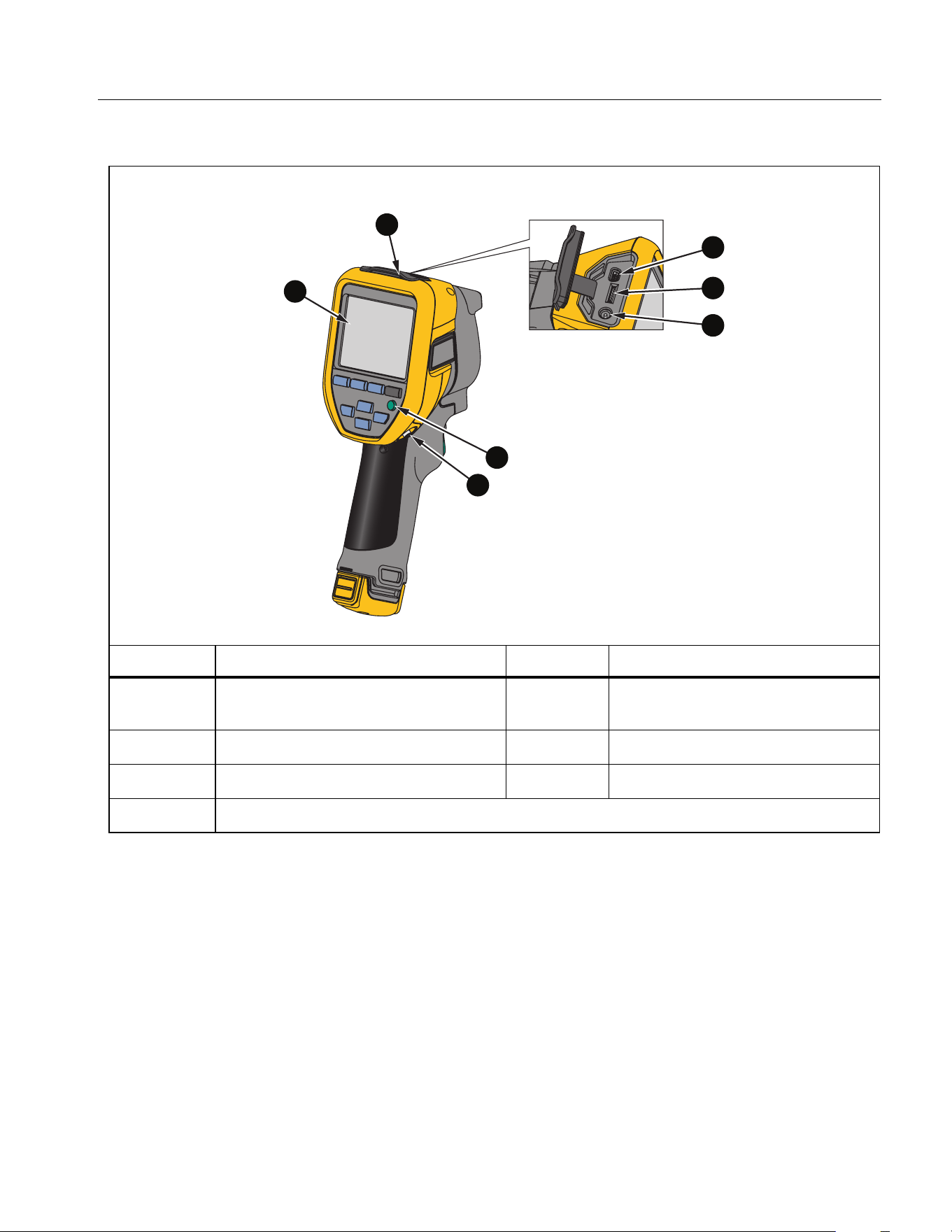
Table 2 shows the back of the Product.
Table 2. Back
Item Description Item Description
LCD touch screen (display)
E
AC Adapter/Charger Input
Terminal
Connector cover
F
Control panel
USB port
G
Hand strap anchor
D
SD memory card slot
3
4
5
6
7
1
2
1.888.610.7664 sales@GlobalTestSupply.com
Fluke-Direct.com
TiS20+/TiS20+ MAX
Users Manual
4
Touch Screen (Display)
The touch screen is the user interface of the Product. The touch screen has a backlight for
work in dimly lit spaces.
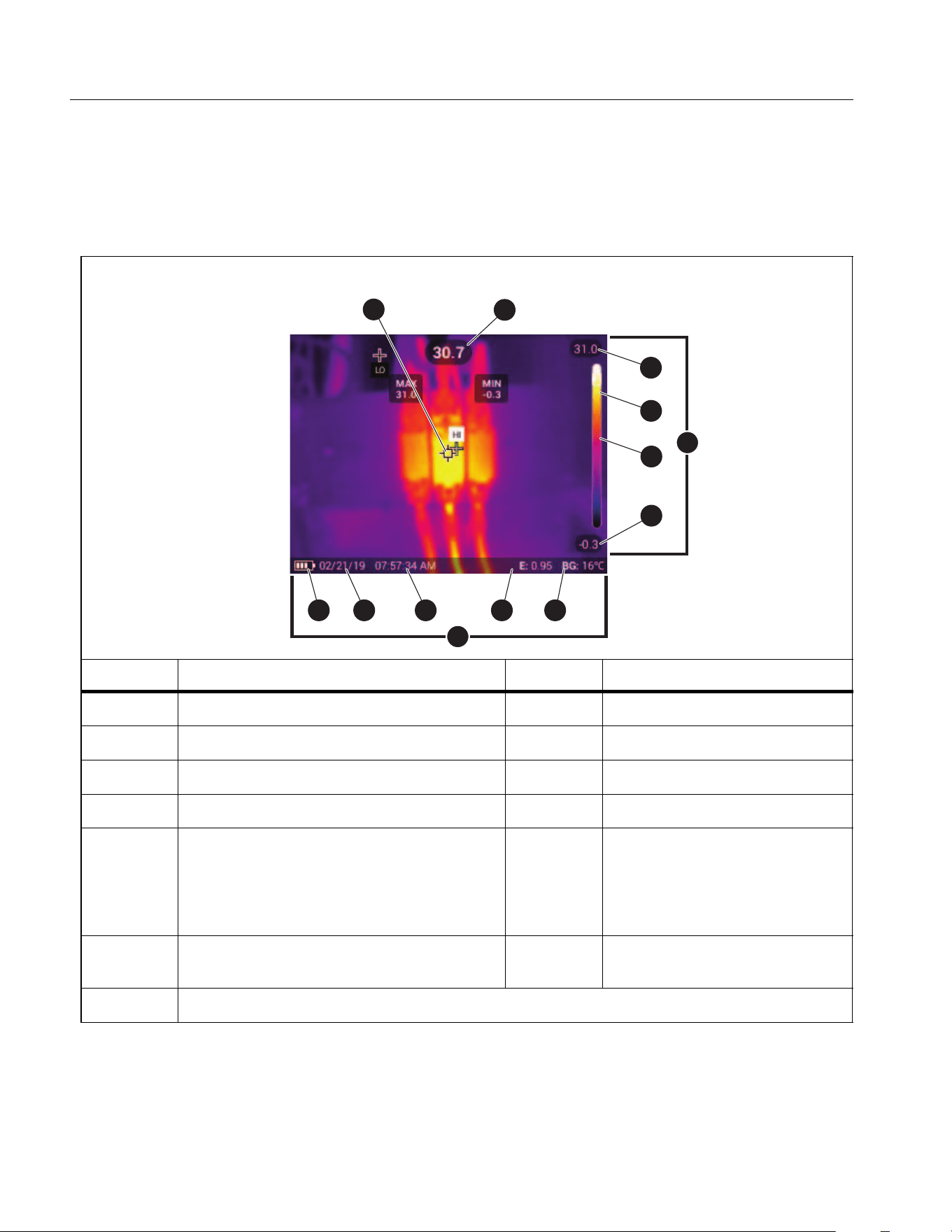
Table 3 shows the default information on the screen of the Product.
Table 3. Display
Item Description Item Description
Center point marker
H
Status bar
Center point temperature
I
Background temperature
Scale
J
Emissivity value
D
Temperature range upper value
K
Time
E
Range bar
The range of colors in the palette
mapped to a certain range of
temperatures
L
Date
F
Center point color in relation to the
palette
M
Battery status
G
Temperature range lower value
1
2
4
5
6
7
910111213
3
8
1.888.610.7664 sales@GlobalTestSupply.com
Fluke-Direct.com

Thermal Imager
Product Familiarization
5
Control Panel
The control panel is used to change parameters or select functions and options. Table lists
the functions of the buttons on the Control Panel.
Table 4. Control Panel
Button Description
O
Push to turn on or off the Product.
s
Push to open the main menu.
Within a submenu:
Push to either save the change and go back to the previous
menu.
Or
Push to perform the function listed on the submenu key.
d
Push to open the main menu.
Within a submenu:
Push to either cancel the change and go back to the previous
menu.
Push to perform the function listed on the submenu key.
Or
Push and hold for 2 seconds to exit out of all menus.
a
Push and hold for 2 seconds to toggle between Manual/Auto
Level and Span.
With Level/Span set to Manual, push to rescale the temperature
values on the display at that time. See Level/Span.
m
Push to review, edit, and delete captured images. See Memory
Menu (Memory Gallery).
WXYZ
Push to move the cursor and highlight an option.
With Level/Span set to Manual, push to adjust the Level and
Span. See Level/Span.
With Level/Span set to Auto, push to adjust the IR-Fusion level.
In the Spot Box menu, push to adjust the size or position of the
spot box. See Spot Box.
In the Marker menu, push to move the marker. See Marker.
1.888.610.7664 sales@GlobalTestSupply.com
Fluke-Direct.com

TiS20+/TiS20+ MAX
Users Manual
6
Primary and Secondary Triggers
The two-part trigger is located in the standard trigger position for a pistol-grip device. The
larger, green trigger is the primary trigger. The smaller, black trigger is the secondary trigger.
Use the primary trigger to capture an image to save or edit. Use the secondary trigger to open
the Asset Identification mode to scan a QR code or barcode to attach an asset to an image.
Basic Operation
Turn On and Off the Product
Before you use the Product for the first time, charge the battery. See Charge Batteries.
To turn on the Product, push and hold O for 1 second. To turn off the Product, push and hold
O for 2 seconds.
With the Product on, push and release O to NUC (calibrate) the camera sensor.
Note
All thermal Imagers need sufficient warm-up time for accurate temperature
measurements and best image quality. Warm-up time can vary by model and
environmental conditions. Although most Imagers are fully warmed up in 3 minutes to
5 minutes, wait a minimum of 10 minutes if the most accurate temperature
measurement is important to your application. When you move an Imager between
environments with large differences in ambient temperature, allow for additional
adjustment time.
Capture Image
To capture an image:
1. Focus on a target.
2. Push and release the Primary Trigger button or double tap on the display to capture and
freeze the image.
The image is in the memory buffer for you to save, add or remove an asset ID, or edit.
Note
Asset ID tags, flags, and notes can be saved with images captured in .is2 file format
only. To select .is2 file format, see Device Settings Menu.
1.888.610.7664 sales@GlobalTestSupply.com
Fluke-Direct.com

Thermal Imager
Menu Controls
7
3. To assign an asset ID tag to the image, tap Scan Asset ID, or tap Remove Asset ID to
remove an asset ID tag from the image. See Asset Identification (Asset ID).
4. To add a flag to the image, tap Edit > Flag Image, or tap Edit > Unflag Image to remove
the flag from the image. See Flag an Image. Tap Edit again to return to the image preview
screen.
5. To add a note to the image, tap Edit > Add Note. See Notes. Tap Edit again to return to
the image preview screen.
6. Tap Save.
Save Images to PC
To save images to a PC with the USB cord:
1. Turn on the Product.
2. Connect one end of the USB cord into the USB port on the Product and the other end into
a USB port on a PC.
The PC recognizes the Product as an external memory storage device.
3. On the PC:
a. Browse to the directory on the Product.
b. Copy and paste or drag the images to a directory on the PC.
4. Remove the USB cord from the PC and the Product.
Menu Controls
To use the menus to change and view settings:
1. Tap the display to open the main menu.
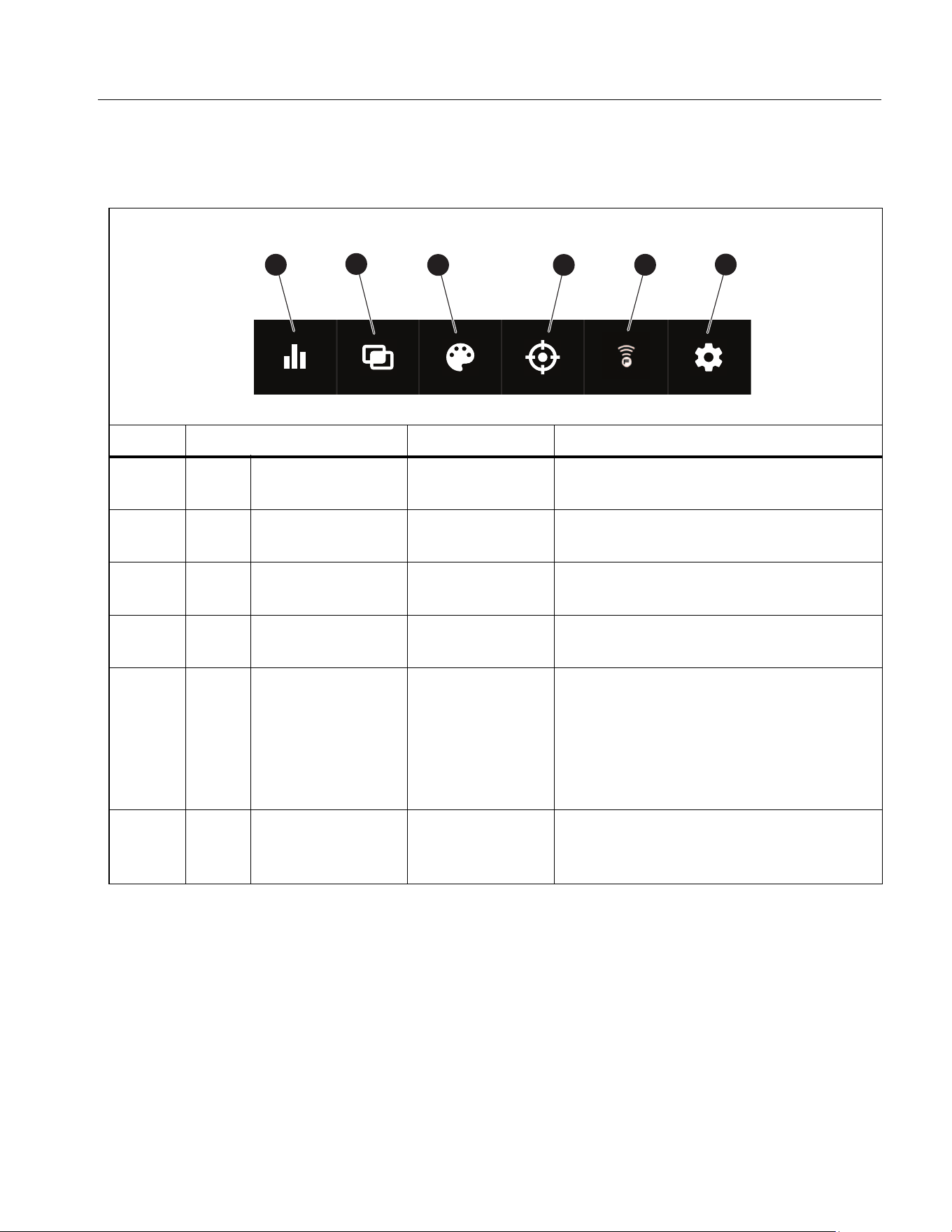
2. Tap an icon on the main menu to open a submenu. See Table 6.
The background of the selected icon changes to yellow.
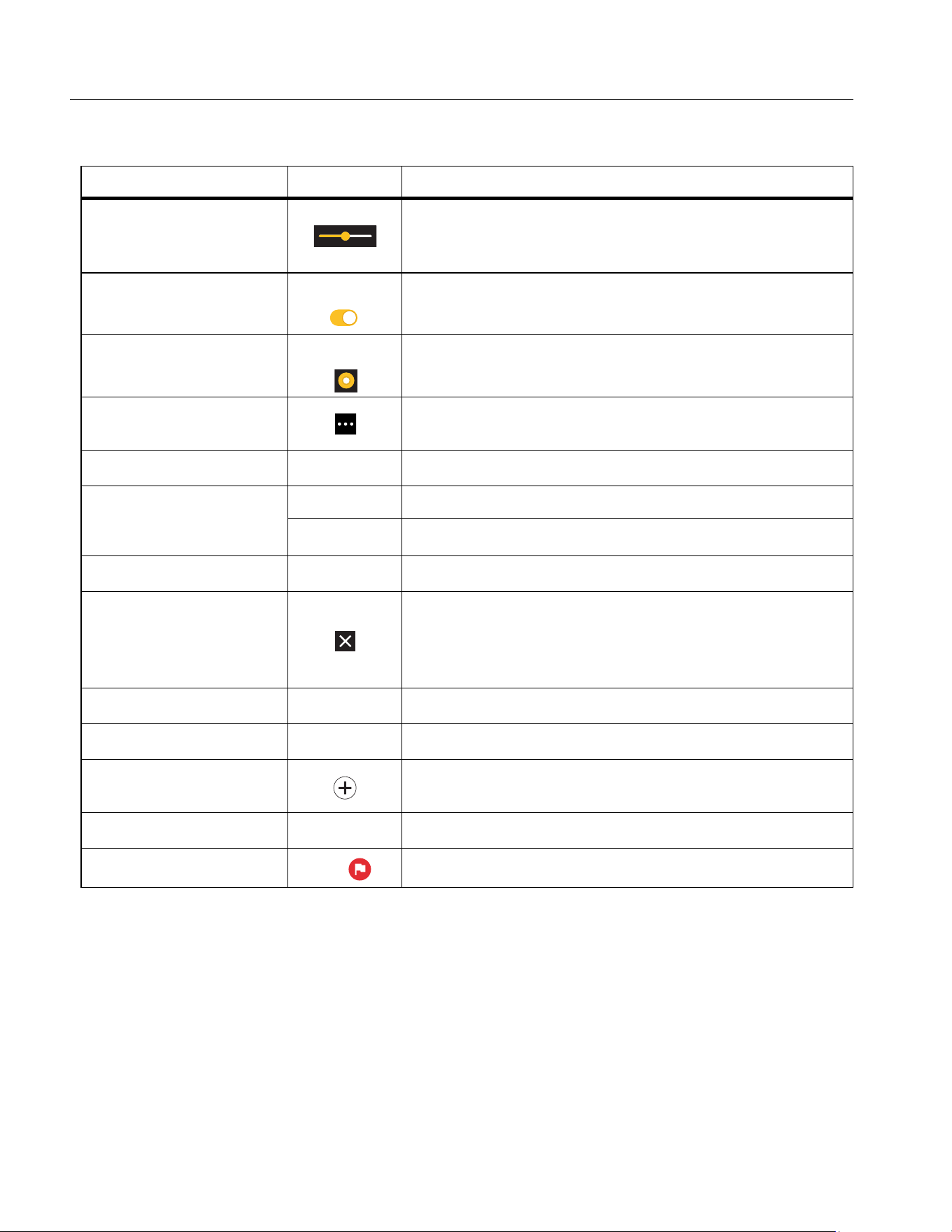
3. Tap a menu control to set and change options. See Table 5.
4. To close a submenu and return to live camera mode, tap the submenu icon again.
1.888.610.7664 sales@GlobalTestSupply.com
Fluke-Direct.com
TiS20+/TiS20+ MAX
Users Manual
8
Table 5 lists the menu controls.
Table 5. Menu Controls
Item Control Function
Slider bar
Adjusts a value. Touch and slide the bar to the left to
decrease the value or to the right to increase the
value.
Toggle switch
Turns on or off a feature.
Feature on.
Radio button
Selects one item from a list.
Option selected.
More menu options
button
Opens a menu to show other menu options.
Option menu button
Y
Opens an option menu to adjust a setting.
Numerical value
adjuster buttons
9/K
Decreases a numerical value.
8/4
Increases a numerical value.
Back arrow
J
Returns to the previous menu.
Exit button
Closes menu and returns to camera mode.
Or,
Exits out of an Asset ID. See Asset ID.
Delete button
T
Delete an image. See Delete Images.
Note button
N
View, add, or edit a note. See Notes.
Add a note button
With at least one note attached to an image, add
another note to the image. See Notes.
Asset ID button
D
Add or remove an asset ID tag. See Asset ID.
Flag toggle switch
H/
Toggle to add or remove a flag. See Flag an Image.
1.888.610.7664 sales@GlobalTestSupply.com
Fluke-Direct.com
Thermal Imager
Main Menu
9
Main Menu
Table 6 lists the secondary menus available in the Main Menu.
Table 6. Main Menu
Item Secondary Menu Option Function
g
Measurement <options>
Set the infrared settings. See
Measurement Menu.
a
Image IR-Fusion
Set the IR-Fusion level. See Image
Menu.
P
Palette <options>
Set the palette to use on the image.
See Palette Menu.
D
M
Display <options>
Set the features to show on the
display. See Display Menu.
E
F
Fluke Connect <options>
Save images over a WiFi connection.
See Fluke Connect Menu.
Note
The Fluke Connect system is
not available in all countries.
F
S
Device Settings <options>
Set user preferences and view
information about the Product. See
Device Settings Menu.
1
2
3
4
5
6
1.888.610.7664 sales@GlobalTestSupply.com
Fluke-Direct.com

TiS20+/TiS20+ MAX
Users Manual
10
Measurement Menu
Table 7 lists the options available in the Measurement menu.
Level/Span
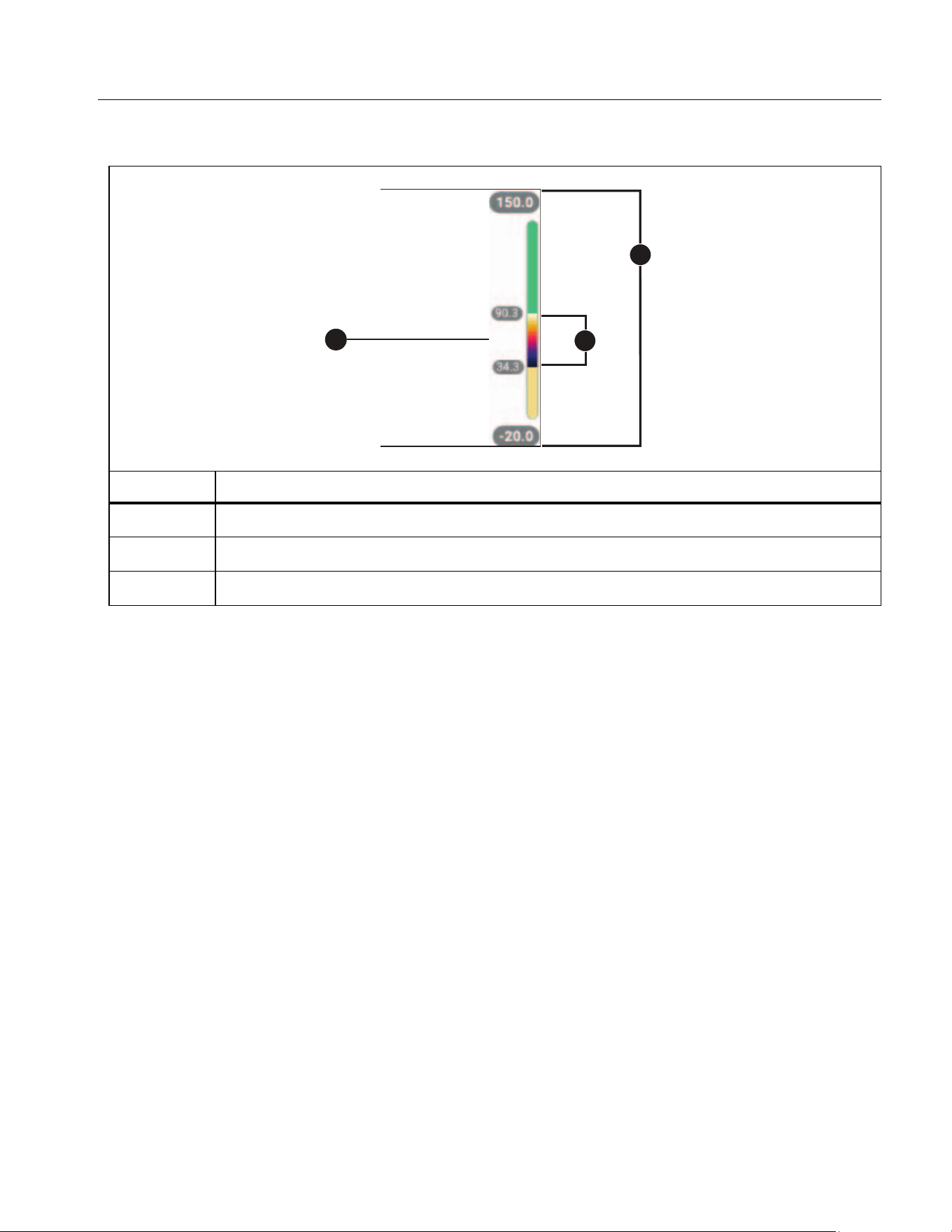
Level and Span are values within the total range of temperature. Level is the temperature level
to view within the total range of temperatures. Span is the span of temperatures to view within
the total range of temperatures. See Table 8.
Table 7. Measurement Menu
Option Menu Option Description
Level/Span
Auto
Sets the Level/Span to adjust automatically or
manually.
Manual
Set Level/Span
With Level/Span set to Manual, changes the
Level/Span. See Level/Span.
Emissivity
Custom Value
Sets a custom emissivity value when a value
from the standard emissivity table is not
appropriate for the measurement. See Emissivity
Adjustment.
<options>
Select an emissivity value from a list of common
materials. Use the scroll bar to see all of the
options. See Emissivity Adjustment.
Background <options>
Changes the background temperature to
compensate for reflected background
temperature.
Very hot objects or very cold objects can affect
the apparent temperature and measurement
accuracy of the target, especially when surface
emissivity is low. Adjust the reflected background
temperature to improve the accuracy of the
measurement.
Transmissivity <options>
Changes the values used to calculate the
temperature based on the transmission
percentage of the infrared-transparent window
(IR window). See Transmissivity.
1.888.610.7664 sales@GlobalTestSupply.com
Fluke-Direct.com
Thermal Imager
Main Menu
11
With Level/Span set to Auto, the Imager sets Level/Span based on the total temperature
range.
With Level/Span set to Manual, the level setting moves the thermal span up or down within
the total temperature range.
To change Level/Span:
1. Select g > Level/Span > Manual, or push a for 2 seconds.
2. Select Set Level/Span.
3. Push:
•
Y
to decrease the temperature span.
•
Z
to increase the temperature span.
•
W
to move the span to a higher temperature level.
•
X
to move the span to a lower temperature level.
The scale along the right side of the display shows the thermal span increasing or decreasing
in size and shows the span as it moves to different levels within the total range. See Table 8.
Table 8. Level and Span Settings
Item Description
Level
Span
Total range
1
2
3
1.888.610.7664 sales@GlobalTestSupply.com
Fluke-Direct.com

TiS20+/TiS20+ MAX
Users Manual
12
To use the temperature range high and low values on the display for future measurements:
1. Set Level/Span to Manual.
2. Push a to rescale the display and save the temperature values on the display at that
time.
To use a different temperature range, use the arrow keys to change the Level/Span, or
push a twice to rescale.
Note
The Imager always powers up in the same Level/Span mode, Auto or Manual, as when
the Imager was powered down.
Emissivity Adjustment
All objects radiate infrared energy. The actual surface temperature and emissivity of the target
affects the quantity of energy radiated. The Imager senses the infrared energy from the
surface of the target and uses the data to calculate an estimated temperature value. Many
common materials such as wood, water, skin, cloth, and painted surfaces, including metal,
radiate energy well and have a high emissivity factor of ≥90 % (or 0.90). The Imager measures
temperatures accurately on targets with a high emissivity.
Shiny surfaces or unpainted metals do not radiate energy well and have a low emissivity factor
of <0.60. For the Imager to calculate a more accurate estimate of the actual temperature of
targets with a low emissivity, adjust the emissivity setting.
Warning
To prevent personal injury, see emissivity information for actual temperatures.
Reflective objects result in lower than actual temperature measurements. These
objects pose a burn hazard.
Set emissivity as a direct value or from a list of emissivity values for some common materials.
If the emissivity value is <0.60, a caution shows on the display.
Note
Surfaces with an emissivity of
<
0.60 make it difficult to determine reliable and
consistent actual temperatures. The lower the emissivity is the greater the potential of
error is when the Imager calculates the temperature measurement because more of
the energy reaching the camera is specified as background temperature. This is also
true even when adjustments to the emissivity and reflected background adjustments
are performed properly.
1.888.610.7664 sales@GlobalTestSupply.com
Fluke-Direct.com
Thermal Imager
Main Menu
13
Transmissivity
When you do infrared inspections through IR windows, not all of the infrared energy emitted
from the target is transmitted through the optical material in the window. If you know the
transmission percentage of the window, adjust the transmission percentage in the Imager or in
Fluke Connect desktop software to improve the accuracy of the measurement.
When you do not do infrared inspections through an IR window, set Transmissivity to 100 % to
disable the correction percentage.
Image Menu
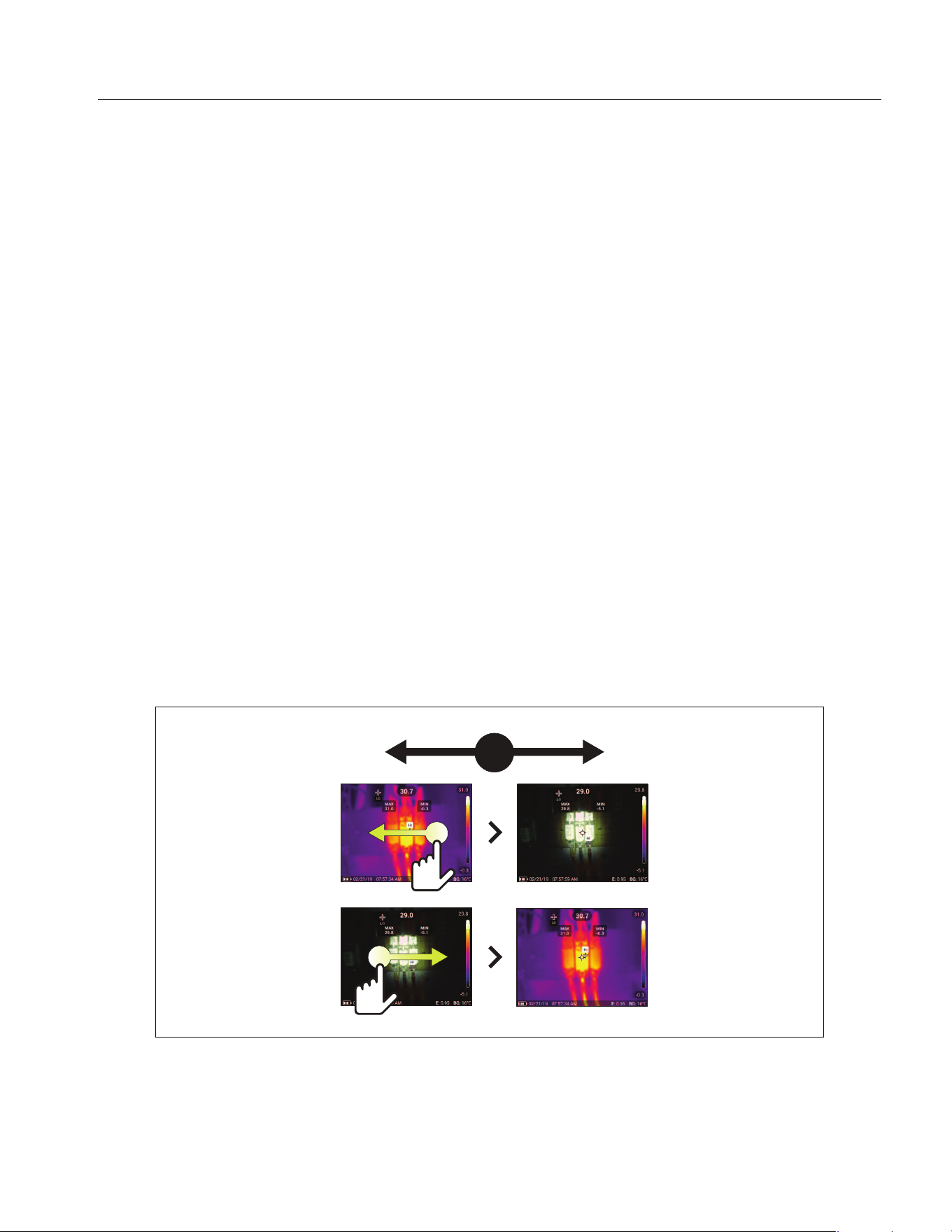
The IR-Fusion slider bar sets the Product to take images from full visible light mode to full
IR-Fusion mode. Use a blend between visible light mode and IR-Fusion to view an object with
some temperature overlays.
To adjust the IR-Fusion level:
1. Tap A.
2. Use the slider bar to set the IR-Fusion level.
Alternatively, you can adjust the IR-Fusion level in camera mode:
With Level/Span set to Auto, push Y or Z to change the IR-Fusion level.
Or,
Touch the display and slide left to right to increase the level of IR-Fusion. Slide from right to
left to decrease the IR-Fusion level. See Figure 1.
Figure 1. IR-Fusion Level
1.888.610.7664 sales@GlobalTestSupply.com
Fluke-Direct.com
TiS20+/TiS20+ MAX
Users Manual
14
Palette Menu
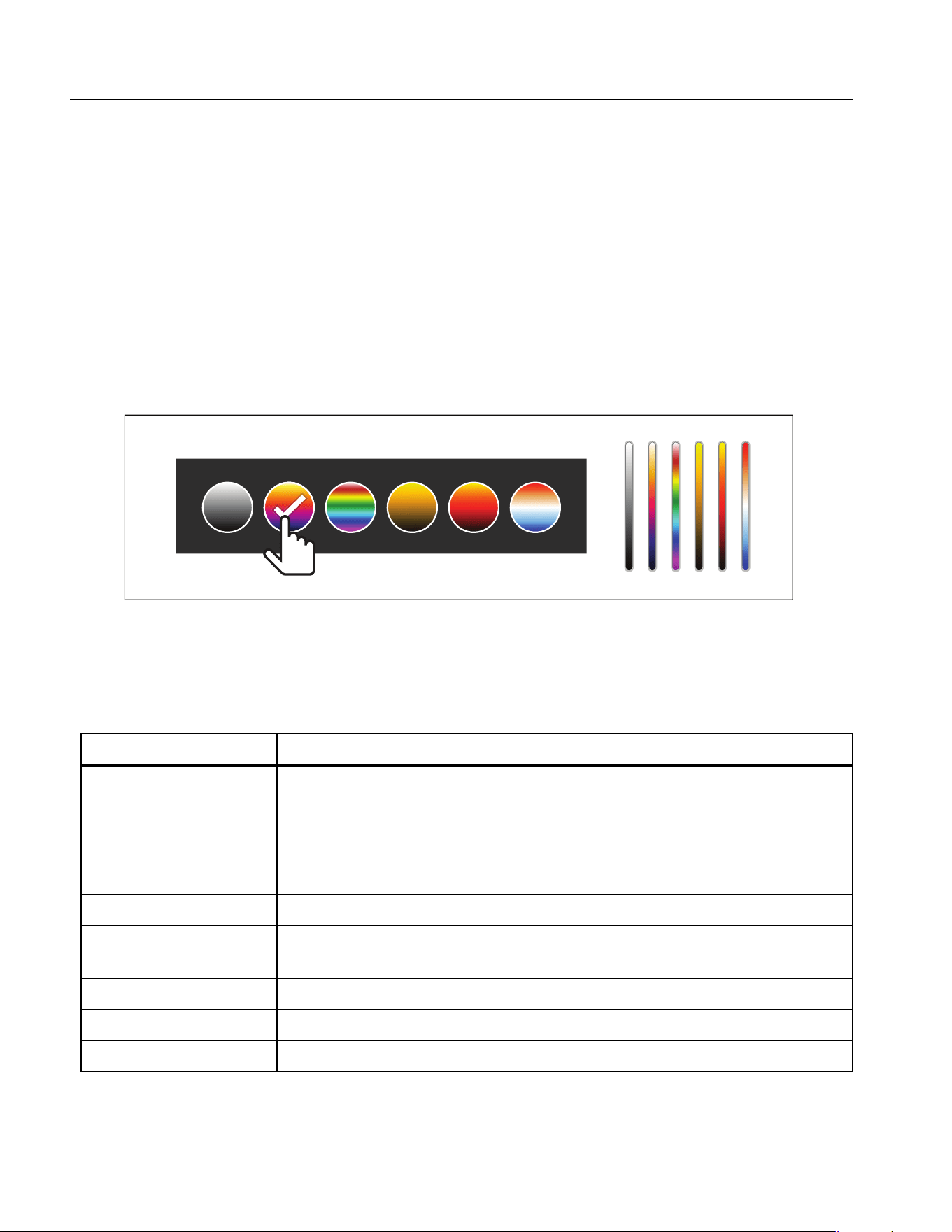
The standard palettes offer an equal, linear presentation of colors that allow for best
presentation of detail. The palettes are Grayscale, Ironbow, High Contrast, Amber, Hot Iron,
and Blue-Red.
To change the palette of an image:
1. Tap P.
2. Tap on a palette thumbnail.
A check mark shows on the selected palette. The color and temperature range bar on the
display changes according to the selected palette. See Figure 2.
Figure 2. Palette and Range Bar Selection
Display Menu
Use the Display menu to set which features to show on the display. To show the Fluke logo on
the display, see Device Settings Menu. Table 9 lists the options in the Display menu.
Table 9. Display
Option Description
Spot Temp
(Min/Max)
Turn on or off the maximum and minimum temperature indicators on
the display.
The Spot Temperatures are floating HI and LO temperature
indicators that move on the display as the temperature
measurements of the image fluctuate.
Marker Turns on or off a fixed-temperature spot marker. See Marker.
Spot Box
Turns on or off a temperature measurement zone (box) that centers
on a target. See Spot Box.
Center Point Turn on or off the Center point marker and Center point temperature.
Scale Turn on or off the Scale.
Status Bar Turn on or off the Status bar.
1.888.610.7664 sales@GlobalTestSupply.com
Fluke-Direct.com

Thermal Imager
Palette Menu
15
Marker
Use a fixed-temperature spot marker to show the temperature at the point before you save an
image.
To set a marker, select m > Markers > On. The marker (+) shows on the display.
To change the position of the marker:
1. Drag the marker or push W / X / Y / Z to move the marker on the image.
2. Push s to set the change and exit the menu.
Spot Box
Use the Spot Box feature to set a temperature measurement zone (box) to center on the target
and to adjust the sizes or position of the box. The box expands or contracts to different levels
within the infrared image. The box shows an approximate maximum (MAX), average (AVG),
and minimum (MIN) temperature measurement in that area.
Note
When you use Spot Box, the level and span of the Imager adjusts to the thermal
scene within the spot box.
To set a spot box, select m > Spot Box > On.
A white box shows on the display. a toggles between Size and Position.
To change the size and position of a box:
1. If necessary, push a to select Size.
; shows on the display.
2. Drag to increase or decrease the size of the Spot Box.
Or,
Push:
• W to decrease the vertical size.
• X to increase the vertical size.
• Y to decrease the horizontal size.
• Z to increase the horizontal size.
1.888.610.7664 sales@GlobalTestSupply.com
Fluke-Direct.com

TiS20+/TiS20+ MAX
Users Manual
16
3. Push a to select Position.
: shows on the display.
4. To move the box, drag the center of the box or push
W / X / Y / Z.
5. Push s to set the change and exit the menu.
Device Settings Menu
Table 10 lists the options in the Device Settings menu.
Table 10. Device Settings Menu
Option Menu Option Description
Backlight NA
Use the slider bar to set the brightness level of the
display.
File Format
IS2
Saves images as an .is2 file.
Choose the .is2 file format when image modification and
maximum resolution is needed.
The .is2 file format consolidates the infrared image,
radiometric temperature data, visible image, notes, and
tags into a single file. To customize or separate the
visible and infrared images, use Fluke Connect desktop
software.
Use to assign an asset ID tag or to flag an asset image.
JPEG
Saves images as a .jpg file.
Choose the .jpg file format for images with the smallest
file size, where modification is not needed, and image
quality and resolution are not as important.
Units <options>
Sets the temperature units. This option is not available in
all countries.
Distance
<options>
Sets the distance to use to adjust the parallax correction
between the IR camera lens and visual light camera
lens.
Units
Sets the units to use to measure distance. This option is
not available in all countries.
Change
Filename
Filename
Prefix
Changes the default filename that starts with IR_ to a
different 4-character prefix.
Reset
Filename
Numbers
Resets the file number to 00001.
1.888.610.7664 sales@GlobalTestSupply.com
Fluke-Direct.com

Thermal Imager
Palette Menu
17
Auto Off
LCD Time Out Sets the time before the display automatically turns off.
Power Off Sets the time before the Product automatically turns off.
Date <options> Sets the date format and the date.
Time <options> Sets the time format and the time.
Fluke Logo NA Shows or hides the Fluke logo on the display.
Image Storage <options>
Sets the location to save images: internal memory or SD
memory card.
Language <options> Sets the language to use on the display.
Decimal
Separator
<options> Sets the decimal separator to comma or decimal point.
Reset to
Factory
Defaults
NA
Erases user-set preferences and restores the factory
default settings.
Certificates NA
Shows information about the wireless certificates of the
Product.
Licenses NA
Shows information about the Open Source Software
Licenses used to develop the Product.
Version NA Shows information about the version of the Product.
Table 10. Device Settings Menu (cont.)
Option Menu Option Description
1.888.610.7664 sales@GlobalTestSupply.com
Fluke-Direct.com
TiS20+/TiS20+ MAX
Users Manual
18
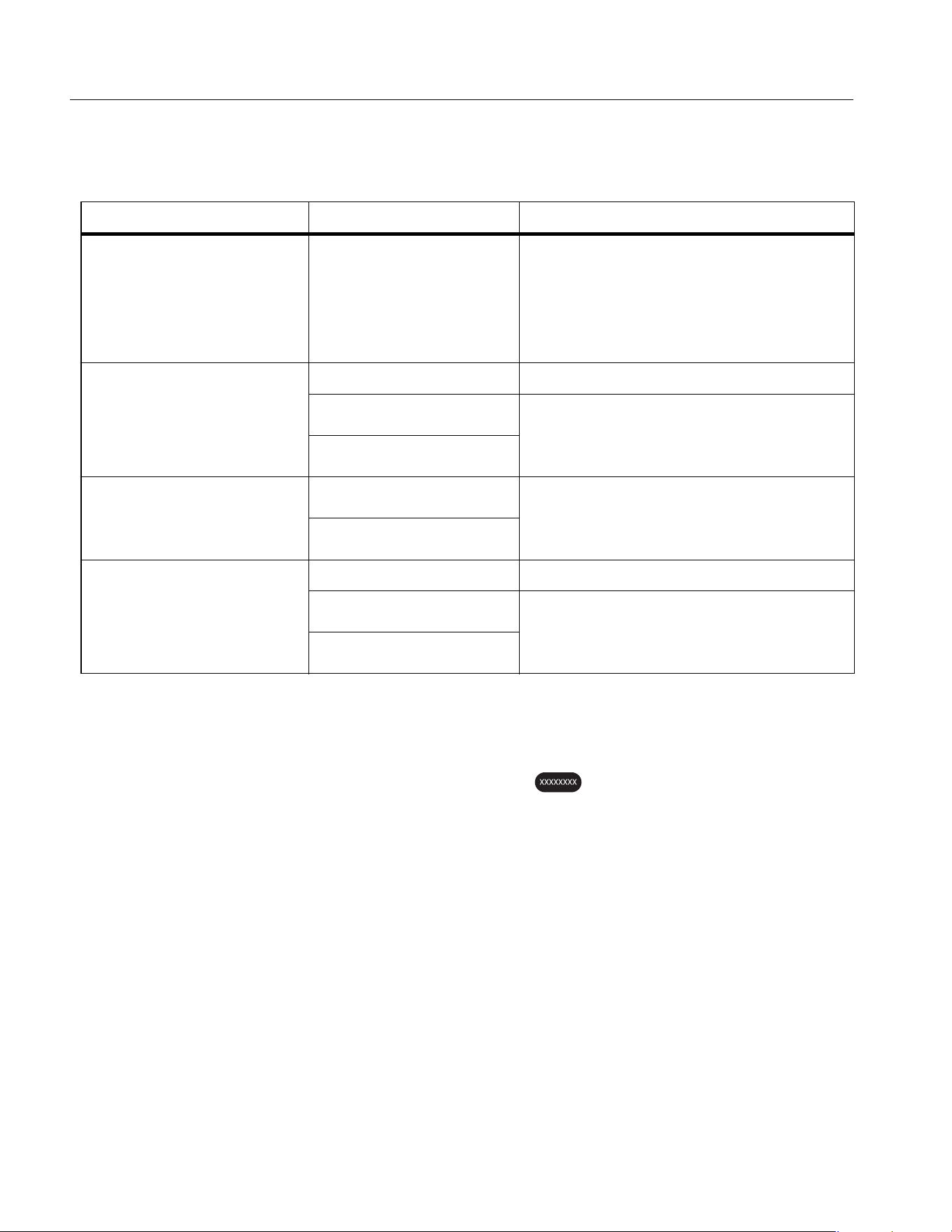
Fluke Connect Menu
Table 11 lists the options in the Fluke Connect menu.
Asset Identification (Asset ID)
Use Asset ID to save and organize images by asset like a motor or electrical panel. Use a
barcode, QR code, or other unique identification as a tag to attach to images. When in camera
mode, the asset ID shows on the display and looks like . Make Asset IDs unique to each
asset.
Assign Asset ID Tag with a QR Code or Barcode
To save images to an asset with a QR code or barcode:
1. Select F > Scan Asset ID.
2. Focus a QR code or barcode in the white box on the display.
3. When the Product detects a barcode has been scanned, tap Use Barcode or Use QR
Code. If the Product cannot detect a barcode or QR code, manually enter a unique asset
ID. See Assign Asset ID Tag Manually.
The display returns to camera mode, and the barcode or QR code number shows on the
display.
4. Capture an image.
Table 11. Fluke Connect Menu
Option Menu Option Description
Scan Asset ID
Scan QR Code or
Barcode
NA
Assign images to an asset.
Scan a QR code or barcode attached
to an asset or manually enter an asset
identification. See Asset Identification
(Asset ID).
Save Images to
Fluke Connect Cloud
WiFi Turns on or off WiFi.
WiFi Network
With WiFi enabled, connects the
Product to a WiFi network so you can
sign in to your Fluke Connect account
Sign in to
Pair Hotspot to Fluke
Connect
WiFi Hotspot
Uses the Product to create a wireless
Hotspot when no WiFi network exists.
See Fluke Connect Wireless System.
WiFi Hotspot Settings
Save Images to Shared
Folder
WiFi Turns on or off WiFi.
WiFi Network
With WiFi enabled, connects the
Product to a WiFi network so you can
sign in to a shared folder on a network.
Shared Folder
1.888.610.7664 sales@GlobalTestSupply.com
Fluke-Direct.com

Thermal Imager
Palette Menu
19
Assign Asset ID Tag Manually
To manually enter a unique asset ID:
1. Select
F > Scan Asset ID.
2. Tap Manual Entry.
A keyboard opens on the display.
3. Enter a unique asset identification.
4. Tap Save.
The display returns to camera mode, and the asset ID shows on the display.
Exit an Asset ID Tag
To exit out of an asset ID and save images without an asset ID:
1. Tap the asset ID that looks like on the display.
2. Tap Exit Asset ID xxxxx (where xxxxx is the name of the asset ID).
The display returns to camera mode, and the asset ID does not show on the display.
Assign a Different Asset ID Tag
To exit out of an asset ID and save images with a different asset ID:
1. Tap the asset ID that looks like on the display.
2. Tap D Scan New Asset ID.
3. Assign a new asset ID. See Asset Identification (Asset ID).
1.888.610.7664 sales@GlobalTestSupply.com
Fluke-Direct.com
TiS20+/TiS20+ MAX
Users Manual
20
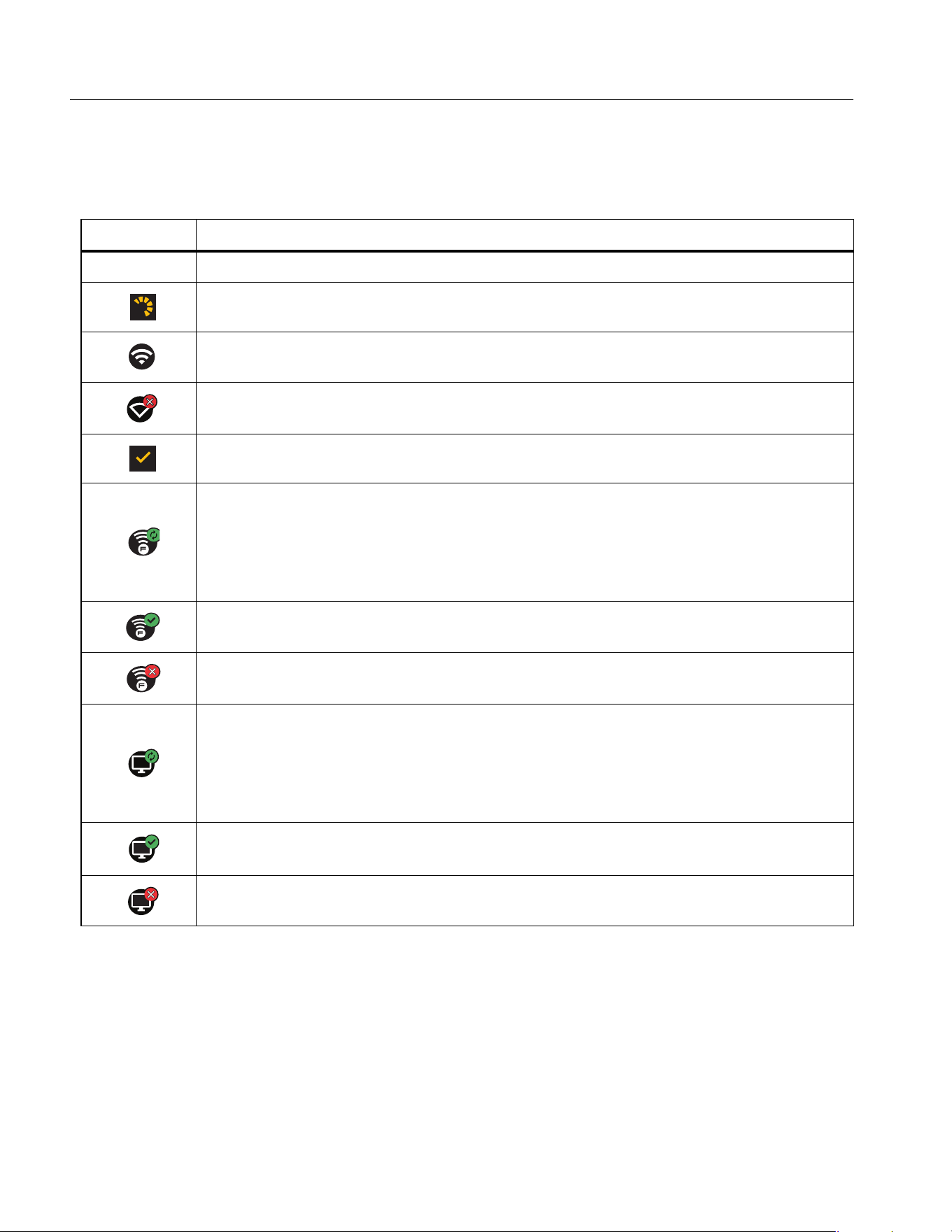
Connection Icons
Icons show the status of the Product connection. Table 12 explains the icons.
Table 12. Connection Icons
Icon Description
No icon WiFi is not on.
In a menu, the Product is attempting to connect to a WiFi network.
The Product is connected to a WiFi network.
WiFi is on, but the Product is not connected to a WiFi network.
In a menu, shows beside the network name that the Product is connected to.
WiFi is on, and the Product is attempting to connect to a Fluke Connect
account.
Or,
Images are saving to a Fluke Connect account.
WiFi is on, and the Product is connected to a Fluke Connect account.
The Product is not connected to a Fluke Connect account.
WiFi is on, and the Product is attempting to connect to a shared folder on a
network server.
Or,
Images are saving to a shared folder.
WiFi is on, and the Product is connected to a shared folder on a network
server.
The Product is not connected to a shared folder on a network server.
1.888.610.7664 sales@GlobalTestSupply.com
Fluke-Direct.com

Thermal Imager
Palette Menu
21
Save Images to Fluke Connect Cloud
When the Product is connected to a WiFi network, you can sign into your Fluke Connect
account on the Product and use Fluke Connect Instant Upload. When you use Fluke Connect
Instant Upload, the images you take with the Product automatically upload to your Fluke
Connect account in the Fluke Cloud. You can view the images saved in the Fluke Cloud on
the Fluke Connect website without the mobile device and Product connected to each other.
Note
The Instant Upload feature may not work on all networks or with all devices due to the
security profiles on different networks.
Sign in to Fluke Connect WiFi Network
Use the WiFi Network setting to connect the Product to a WiFi network and to sign into a
Fluke Connect account on the Product.
To turn on the WiFi Network feature:
1. Select F > Save Images to Fluke Connect Cloud > WiFi > On.
2. Push WiFi Network to scan for available networks within range of the Product.
3. Tap on a network to connect to it.
4. If you are prompted to enter a user name and password:
a. Use the keyboard to enter a new user name, or tap 6 to see a list of recently used user
names.
b. Tap Next.
c. Use the keyboard to enter a password.
d. Tap Sign In.
e. Tap OK.
The display returns to the Save to Fluke Connect menu.
5. Sign in to Fluke Connect. See Sign in to Fluke Connect Cloud.
1.888.610.7664 sales@GlobalTestSupply.com
Fluke-Direct.com

TiS20+/TiS20+ MAX
Users Manual
22
Sign out of Fluke Connect WiFi Network
To sign out of a WiFi network:
1. Select
F > Save Images to Fluke Connect Cloud > WiFi Network.
2. Tap the name of the connected network.
3. Tap Forget Network.
4. Tap
F to return to camera mode.
Sign in to Fluke Connect Cloud
To sign in to your Fluke Connect account:
1. Turn WiFi on and connect to a WiFi network. See Sign in to Fluke Connect WiFi Network.
2. Tap Sign in to Fluke Connect.
3. Use the keyboard to enter an email address, or tap 6 to see a list of recently used email
addresses.
4. Tap Next.
5. Use the keyboard to enter a password.
6. Tap Sign In.
7. Tap OK to return to camera mode to capture images.
Note
Keep the Product on and stay in the range of the WiFi network until images are
uploaded. If the connection is lost before all the images are saved to Fluke Connect
Cloud, u shows on the title bar of the Memory menu. Sign in to Fluke Connect Cloud
again and tap u to upload the images.
Sign out of Fluke Connect Cloud
To sign out:
1. Select F > Save Images to Fluke Connect Cloud > Sign in to Fluke Connect.
2. Tap Sign Out.
The display returns to the Save to Fluke Connect menu.
3. Tap F.
1.888.610.7664 sales@GlobalTestSupply.com
Fluke-Direct.com

Thermal Imager
Palette Menu
23
Fluke Connect Wireless System
The Product supports the Fluke Connect Wireless System. The Fluke Connect system
wirelessly connects your Fluke test tools with an app on a mobile device. It shows images from
the Product on your mobile device.
Note
The Fluke Connect system is not available in all countries.
Pair Hotspot to Fluke Connect
Use the Product to create a wireless Hotspot when no WiFi network exists. You can use the
Hotspot to download saved pictures or stream live images from the Product to a mobile device
with the Fluke Connect app.
Note
WiFi is for indoor use only in Kuwait, Chile, and United Arab Emirates.
To create a Hotspot, pair the Product to the Fluke Connect app. See Pair to Mobile App.
To change the hotspot settings:
1. Select F > Pair Hotspot to Fluke Connect > WiFi Hotspot Settings.
2. Select an option:
• Name (SSID) to change the SSID
• Password to turn on or off the password or to change the password
• Channel to change the channel
3. Use the keyboard to enter the information for the option.
4. Tap Save to use the Product.
1.888.610.7664 sales@GlobalTestSupply.com
Fluke-Direct.com

TiS20+/TiS20+ MAX
Users Manual
24
Pair to Mobile App
The Fluke Connect app works with Apple and Android products. The app is available for
download from the Apple App Store and Google Play.
The Fluke Connect app will be available after initial release. When the app becomes available,
you can download the app from the Apple App Store and Google Play.
To use the Fluke Connect app with the Product:
1. On the Product, select F > Pair Hotspot to Fluke Connect > WiFi Hotspot > On.
2. On the mobile device:
a. Go to Settings > Wi-Fi.
b. Select the Wi-Fi network that begins with Fluke...
3. On the Fluke Connect app, select Thermal Imager from the list.
The pictures you take with the Product are saved on your mobile device and on the
Product.
Note
To save images to the Fluke Connect app, set the file format to .is2 (see Device
Settings Menu).
4. On the Product:
a. Capture an image.
The image is now in the buffer.
b. Tap Save to save the image and view the image on the phone app.
Save Images to Shared Folder
When the Product is connected to a WiFi network, you can select a folder on a server. The
images you take with the Product save to the Product and automatically upload to the selected
folder on the server. Anyone with access to the folder on the server can view the images
immediately.
Note
The Shared Folder feature may not work on all networks or with all devices due to the
security profiles on different networks.
1.888.610.7664 sales@GlobalTestSupply.com
Fluke-Direct.com

Thermal Imager
Palette Menu
25
Sign in to Shared Folder WiFi Network
Use the WiFi Network setting to connect the Product to a WiFi network and to sign into a Fluke
Connect account on the Product.
To turn on the WiFi Network feature:
1. Select F > Save Images to Shared Folder > WiFi > On.
2. Tap WiFi Network to scan for available networks within range of the Product.
3. Tap on a network to connect to it.
4. If you are prompted to enter a user name and password:
a. Use the keyboard to enter a new user name, or tap 6 to see a list of recently used user
names.
b. Tap Next.
c. Use the keyboard to enter a password.
d. Tap Sign In.
e. Tap OK.
The display returns to the Save to Fluke Connect menu.
5. Sign in to a shared folder. See Sign in to Shared Folder.
Sign out of Shared Folder WiFi Network
To sign out:
1. Select F > Save Images to Shared Folder > WiFi Network.
2. Tap the name of the connected network.
3. Tap Forget Network.
4. Tap F to return to camera mode.
1.888.610.7664 sales@GlobalTestSupply.com
Fluke-Direct.com

TiS20+/TiS20+ MAX
Users Manual
26
Sign in to Shared Folder
Note
To learn how to create or access a shared folder on a network, contact your IT
department.
To use the Product to sign in to a shared folder on a network:
1. Turn WiFi on and connect to a WiFi network. See Sign out of Shared Folder WiFi Network.
2. Tap Shared Folder > File Path.
3. Use the keyboard to enter a file path, or tap 6 to see a list of recently used file paths. After
you enter a file path for the first time, the field automatically shows the last used file path.
4. Tap Save.
Depending on your security environment, enter a username and password:
a. Tap Username and Password.
b. Use the keyboard to enter a new user name, or tap 6 to see a list of recently used user
names.
c. Tap Next.
d. Use the keyboard to enter a password.
e. Tap Next.
f. Tap Sign In.
5. Tap Connect.
6. Tap OK.
If images in the Product memory have not been saved to a shared folder, a message
prompts you to save the images.
• Tap Save Images to save images to the shared folder.
Or,
• Tap Not Now to save the images to the shared folder another time.
The display returns to the Save to Shared Folder menu.
7. Tap F to return to camera mode to capture images.
Note
Keep the Product on and stay in the range of the WiFi network until images are
uploaded. If the connection is lost before all the images are saved to the shared folder,
u shows on the title bar of the Memory menu. Sign in to the shared folder again and
tap u to upload the images.
1.888.610.7664 sales@GlobalTestSupply.com
Fluke-Direct.com
Thermal Imager
Memory Menu (Memory Gallery)
27
Sign out of Shared Folder
To sign out:
1. Select
F > Save Images to Shared Folder > Shared Folder > Disconnect.
The display returns to the Save to Shared Folder menu.
2. Tap
F to return to camera mode.
Memory Menu (Memory Gallery)
Note
When the memory is 90 % full, a yellow message bar shows at the top of the display.
When the memory is full, the message bar changes to red. To capture more images
when the internal memory is full, save the images to an external memory device and
delete the images from the Product.
Images are saved to the internal memory storage. Use the Memory menu to view, edit, or
delete images. Images are organized by the date they were captured with the newest images
at the top.
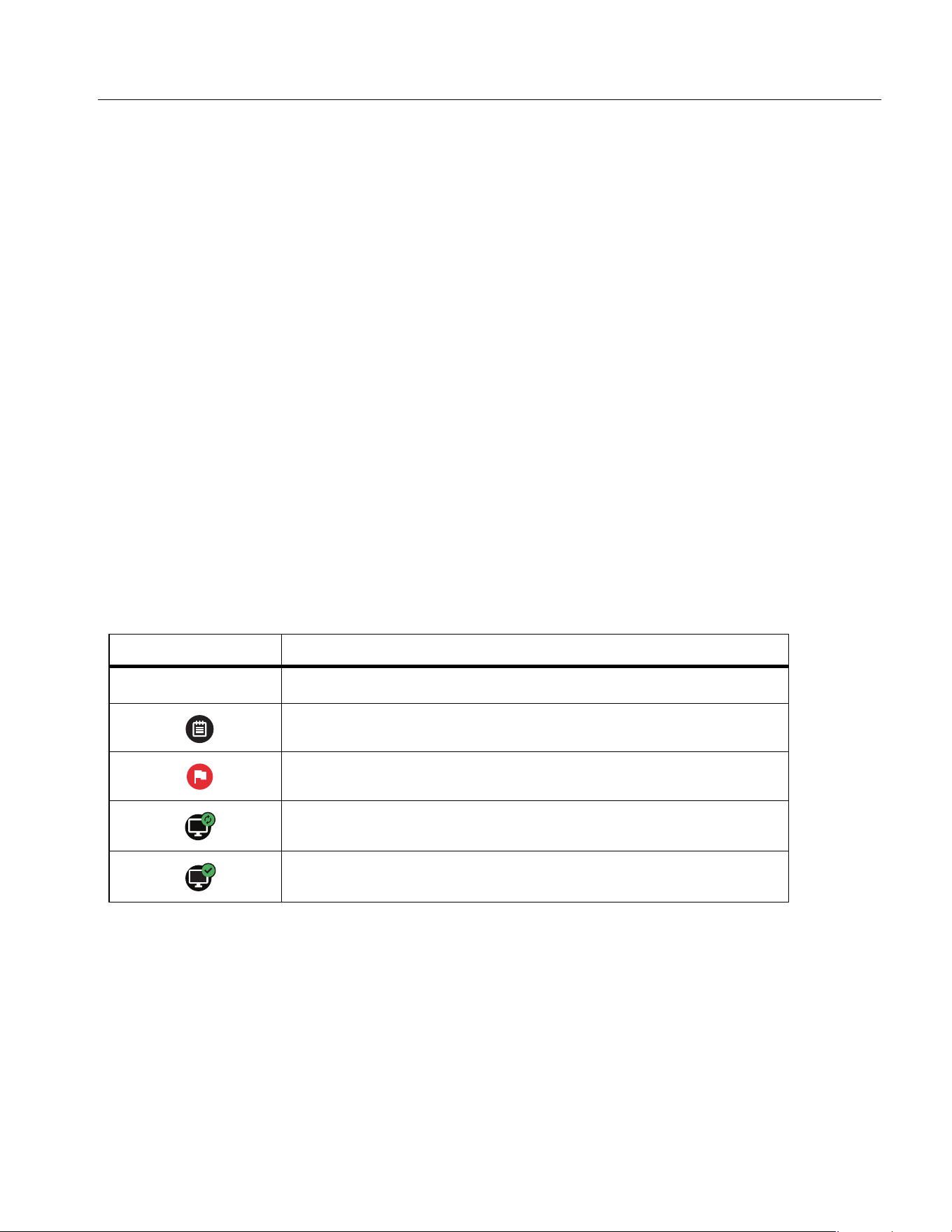
When additional information has been saved with an .is2 file, an icon shows with the preview
file. Table 13 shows the icons.
Table 13. Image Icons
Icon Description
1
Asset ID
Note
Asset flag
Image is saving to a shared folder
Image saved to a shared folder
1.888.610.7664 sales@GlobalTestSupply.com
Fluke-Direct.com

TiS20+/TiS20+ MAX
Users Manual
28
View Image
To open an image in fullscreen mode:
1. Push m.
2. If needed, touch the display and slide up or down to view all the images.
3. Tap on a thumbnail or preview image to view the image fullscreen.
A toolbar briefly opens on the top of the display. Tap on the image to open or close the
toolbar.
Notes
Notes are stored with the image so you do not need to collate multiple files later. To add, edit,
and delete notes, use the keyboard that opens on the display.
Notes with Single Image
To add, edit, or delete a note:
1. Open an image in fullscreen mode.
2. Tap N. If needed, tap first.
If no notes are saved with the image, a keyboard opens on the display.
3. Use the keyboard to enter a message.
4. Tap Save.
If a note is saved with the image, a list of notes opens on the display.
5. To add another note to the image, tap , use the keyboard to add the new note, and tap
Save.
6. To edit a note, tap on a note, use the keyboard to edit it, and tap Save. If needed, scroll
down to see all the notes.
7. To delete a note, tap on a note, tap Delete, and tap Delete again.
1.888.610.7664 sales@GlobalTestSupply.com
Fluke-Direct.com

Thermal Imager
Memory Menu (Memory Gallery)
29
Add a Note to Multiple Images
To add a note to multiple images at the same time:
1. Select m > > Add a Note to Multiple Images.
The display returns to the memory gallery.
2. Tap an image to select it. Tap an image again to clear the selection.
The border and filename text color change to yellow.
3. Repeat for each additional image.
4. Tap Add Note.
A keyboard opens on the display.
5. Use the keyboard to enter a message.
6. Tap Save.
Delete Images
To delete images, do the corresponding procedure below.
Delete an Image
To delete only one image:
1. Open an image in fullscreen mode.
2. Tap T. If needed, tap first.
3. Tap Delete.
Delete Multiple Images
To delete multiple images at the same time:
1. Select m > > Delete Multiple Images.
The display returns to the memory gallery.
2. Tap an image to select it. Tap an image again to clear the selection.
The border and filename text color change to yellow.
3. Repeat for each additional image.
4. Tap Delete Images.
5. Tap Delete.
1.888.610.7664 sales@GlobalTestSupply.com
Fluke-Direct.com

TiS20+/TiS20+ MAX
Users Manual
30
Delete All Images
To delete all of the images at the same time:
1. Select m > > Delete All Images.
2. Tap Delete.
Flag an Image
Flag an image to review later. The flag feature is a toggle switch.
To flag an image, open an image in fullscreen mode, and tap H. The flag icon changes to .
Tap again to remove the flag.
Asset ID
Use the memory gallery toolbar to add or remove an asset ID from an image that is saved in
memory. See Asset Identification (Asset ID).
To add an asset ID to an image:
1. Open an image in fullscreen mode.
2. Tap D.
3. Assign an asset ID. See Asset Identification (Asset ID).
To remove an asset ID from an image:
1. Open an image in fullscreen mode.
2. Tap the asset ID that looks like on the display.
3. Tap Remove.
The display returns to the image in fullscreen mode, and the asset ID does not show on the
display.
1.888.610.7664 sales@GlobalTestSupply.com
Fluke-Direct.com

Thermal Imager
Fluke Connect Desktop Software
31
Fluke Connect Desktop Software
Fluke Connect desktop software for a PC is available to use with the Product and contains
features to analyze images, organize data and information, and make professional reports.
Use Fluke Connect software to:
• Review notes, asset IDs, and flags.
• Export IR and visible images.
• Edit .is2 image files.
• Update the firmware with new features.
Download Fluke Connect Software
To download Fluke Connect desktop software:
1. Go to https://www.fluke.com/en-us/support/software-downloads/software-for-fluke-
infrared-cameras.
2. On the website, follow the instructions to download the software to the PC.
3. On the PC, follow the instructions to install Fluke Connect software. (Administrator
privileges are required for the installation.)
4. Restart the PC when installation is complete.
Update Firmware
To update the firmware:
1. On the PC, open Fluke Connect software.
2. Connect one end of the USB cord into your PC and the other end of the USB cord into the
Product.
Fluke Connect software recognizes the connection with the Product. Windows
automatically installs the device driver for use with the Product.
3. On the PC:
a. Select Yes if prompted to download a firmware update file onto the PC.
b. Select the Product from the list on the left.
c. Select Yes if prompted to download a firmware update to the Product.
4. On the Product, Tap Ok.
To complete the firmware update, the Product turns off.
5. To use the new firmware, turn on the Product.
1.888.610.7664 sales@GlobalTestSupply.com
Fluke-Direct.com

TiS20+/TiS20+ MAX
Users Manual
32
Accessories
Table 14 is a list of the accessories available for the Product.
Maintenance
The Product requires minimum maintenance.
Clean the Case
Clean the case with a damp cloth and a weak soap solution. Do not use abrasives, isopropyl
alcohol, or solvents to clean the case.
Lens Care
Caution
To prevent damage to the infrared lens:
• Carefully clean the infrared lens. The lens has a delicate anti-reflective coating.
• Do not clean the lens too vigorously because this can damage the anti-
reflective coating.
To clean the lens:
1. Use a pressurized can of air or a dry nitrogen-ion gun, if available, to blow off the
particulates from the lens surface.
2. Soak a lint-free cloth in a commercial lens cleaning liquid that contains alcohol, ethyl
alcohol, or isopropyl alcohol.
3. Squeeze the cloth to remove excess liquid.
4. Wipe the lens surface in one circular motion and discard the cloth.
5. If needed, repeat with a new lint-free cloth.
Table 14. Accessories
Model Description PN
FLK-TI-SBP3 Smart Battery Pack 3440365
FLK-TI-SBC3B Charging Base/Power Supply with Adapters 4354922
TI-CAR CHARGER 12 V Vehicle Charger Adapter 3039779
FLUKE-TI-TRIPOD3 Tripod Mounting Accessory 4335389
BOOK-ITP Introduction to Thermography Principles 3413459
1.888.610.7664 sales@GlobalTestSupply.com
Fluke-Direct.com

Thermal Imager
Maintenance
33
Battery Care
To get the best performance from the lithium-ion battery:
• Do not charge the Product for more than 24 hours as reduced battery life may result.
• Charge the Product for at least 2.5 hours every six-months for maximum battery life.
Without use, the battery will self-discharge in approximately six months.
Charge Batteries
Caution
To prevent damage to the Imager:
• Do not store the batteries in extreme cold environments.
• Do not attempt to charge the batteries in extreme cold environments.
Caution
Do not incinerate the Product and/or battery.
Before you use the Imager for the first time, charge the battery for at least 2.5 hours. The
battery status shows on the five-segment charge indicator.
Note
New batteries are not fully charged. Two to ten charge/discharge cycles are necessary
before the battery charges to its maximum capacity.
To charge the battery, use one of the options that follow.
Two-Bay Battery Charger Base
To charge the battery in the charger base:
1. Connect the ac power supply to the ac wall outlet and connect the dc output to the charger
base.
2. Put one or two smart batteries into bays of charger base.
3. Charge batteries until charge LEDs on charger base are a solid green.
4. Remove smart batteries and disconnect the power supply when batteries are fully charged.
1.888.610.7664 sales@GlobalTestSupply.com
Fluke-Direct.com

TiS20+/TiS20+ MAX
Users Manual
34
AC Power Socket on Imager
Note
Make sure that the Imager is near room temperature before you connect it to the
charger. See the charging temperature specification. Do not charge in hot or cold
areas. When you charge in extreme temperatures, battery capacity may be decreased.
When you charge in extreme temperatures, the battery may not charge.
To charge the battery with the ac power socket on the Imager:
1. Connect the ac power adapter into an ac wall outlet and connect the other end to the ac
power socket on the Imager. bz flashes on the display while the battery charges.
2. Charge until the charge indicator on the display does not flash.
If you remove the Imager from the charger before a full charge shows, it can have a
reduced run-time.
3. Disconnect the ac power adapter when the smart battery is fully charged.
Optional 12 V Vehicle Charger
Caution
To prevent damage to the Imager, remove it from the dc car charger before you
start or jump start the vehicle.
To use the 12 V vehicle charger to charge the battery:
1. Connect the 12 V adapter into the 12 V accessory socket of the vehicle.
2. Connect the other end to the ac power socket of the Imager.
bz flashes on the display while the battery charges.
3. Charge until the charge indicator on the display does not flash.
4. Disconnect the 12 V adapter and Imager when battery is fully charged.
Radio Frequency Data
See Table 10 for instructions on how to access digital copies of the Certificate IDs on the
Product.
1.888.610.7664 sales@GlobalTestSupply.com
Fluke-Direct.com