
User Guide
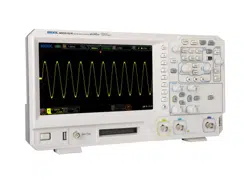
MSO5000-E Series Digital
Oscilloscope
Sept. 2019
RIGOL (SUZHOU) TECHNOLOGI ES I NC.


RIGOL
MSO5000-E User Guide I
Guaranty and Declaration
Copyright
© 2019 RIGOL (SUZHOU) TECHNOLOGIES INC. All Rights Reserved.
Trademark
I nformation
RIGOL is a registered trademark of RIGOL (SUZHOU) TECHNOLOGI ES I NC.
Publication
Number
UGA28101-1110
Software
Version
00.01.01.00.03
Software upgrade might change or add product features. Please acquire the latest
version of the manual from RIGOL website or contact RIGOL to upgrade the
software.
Notices
RIGOL products are covered by P.R.C. and foreign patents, issued and pending.
RIGOL reserves the right to modify or change parts of or all the specif ications
and pricing policies at the company’s sole decision.
I nformation in this publication replaces all previously released materials.
I nformation in this publication is subject to change without notice.
RIGOL shall not be liable for either incidental or consequential losses in
connection with the furnishing, use, or performance of this manual, as well as
any information contained.
Any part of this document is forbidden to be copied, photocopied, or rearranged
without prior written approval of RIGOL.
Product
Certification
RIGOL guarantees that this product conforms to the national and industrial
standards in China as well as the I SO9001:2015 standard and the I SO14001:2015
standard. Other international standard conformance certifications are in progress.
Contact Us
I f you have any problem or requirement when using our products or this manual,
please contact RIGOL.
E-mail: service@rigol.com
Website: www.rigol.com

RIGOL
II MSO5000-E User Guide
Safety Requirement
General Safety Summary
Please review the following safety precautions carefully before putting the
instrument into operation so as to avoid any personal injury or damage to the
instrument and any product connected to it. To prevent potential hazards, please
follow the instructions specif ied in this manual to use the instrument properly.
Use Proper Pow er Cord.
Only the exclusive power cord designed for the instrument and authorized for use
within the local country could be used.
Ground the I nstrument.
The instrument is grounded through the Protective Earth lead of the power cord. To
avoid electric shock, connect the earth terminal of the power cord to the Protective
Earth terminal before connecting any input or output terminals.
Connect the Probe Correctly.
I f a probe is used, the probe ground lead must be connected to earth ground. Do not
connect the ground lead to high voltage. I mproper way of connection could result in
dangerous voltages being present on the connectors, controls or other surfaces of
the oscilloscope and probes, which will cause potential hazards for operators.
Observe All Terminal Ratings.
To avoid f ire or shock hazard, observe all ratings and markers on the instrument and
check your manual for more information about ratings before connecting the
instrument.
Use Proper Overvoltage Protection.
Ensure that no overvoltage (such as that caused by a bolt of lightning) can reach the
product. Otherwise, the operator might be exposed to the danger of an electric
shock.
Do Not Operate Without Covers.
Do not operate the instrument with covers or panels removed.
Do Not I nsert Objects I nto the Air Outlet.
Do not insert anything into the holes of the fan to avoid damaging the instrument.
Use Proper Fuse.
Please use the specif ied fuses.

RIGOL
MSO5000-E User Guide II I
Avoid Circuit or Wire Exposure.
Do not touch exposed junctions and components when the unit is powered on.
Do Not Operate With Suspected Failures.
I f you suspect that any damage may occur to the instrument, have it inspected by
RIGOL authorized personnel before further operations. Any maintenance,
adjustment or replacement especially to circuits or accessories must be performed
by RIGOL authorized personnel.
Provide Adequate Ventilation.
I nadequate ventilation may cause an increase of temperature in the instrument,
which would cause damage to the instrument. So please keep the instrument well
ventilated and inspect the air outlet and the fan regularly.
Do Not Operate in Wet Conditions.
To avoid short circuit inside the instrument or electric shock, never operate the
instrument in a humid environment.
Do Not Operate in an Explosive Atmosphere.
To avoid personal injuries or damage to the instrument, never operate the
instrument in an explosive atmosphere.
Keep Product Surfaces Clean and Dry.
To avoid dust or moisture from affecting the performance of the instrument, keep the
surfaces of the instrument clean and dry.
Prevent Electrostatic I mpact.
Operate the instrument in an electrostatic discharge protective environment to avoid
damage induced by static discharges. Always ground both the internal and external
conductors of cables to release static before making connections.
Use the Battery Properly.
Do not expose the battery (if available) to high temperature or f ire. Keep it out of the
reach of children. I mproper change of a battery (lithium battery) may cause an
explosion. Use the RIGOL specif ied battery only.
Handle w ith Caution.
Please handle with care during transportation to avoid damage to keys, knobs,
interfaces, and other parts on the panels.
RIGOL
IV MSO5000-E User Guide
Safety Notices and Symbols
Safety Notices in this Manual:
WARNI NG
I ndicates a potentially hazardous situation or practice which, if not
avoided, will result in serious injury or death.
CAUTI ON
I ndicates a potentially hazardous situation or practice which, if not
avoided, could result in damage to the product or loss of important data.
Safety Terms on the Product:
DANGER
I t calls attention to an operation, if not correctly performed, could
result in injury or hazard immediately.
WARNI NG
It calls attention to an operation, if not correctly performed, could
result in potential injury or hazard.
CAUTI ON
I t calls attention to an operation, if not correctly performed, could
result in damage to the product or other devices connected to the
product.
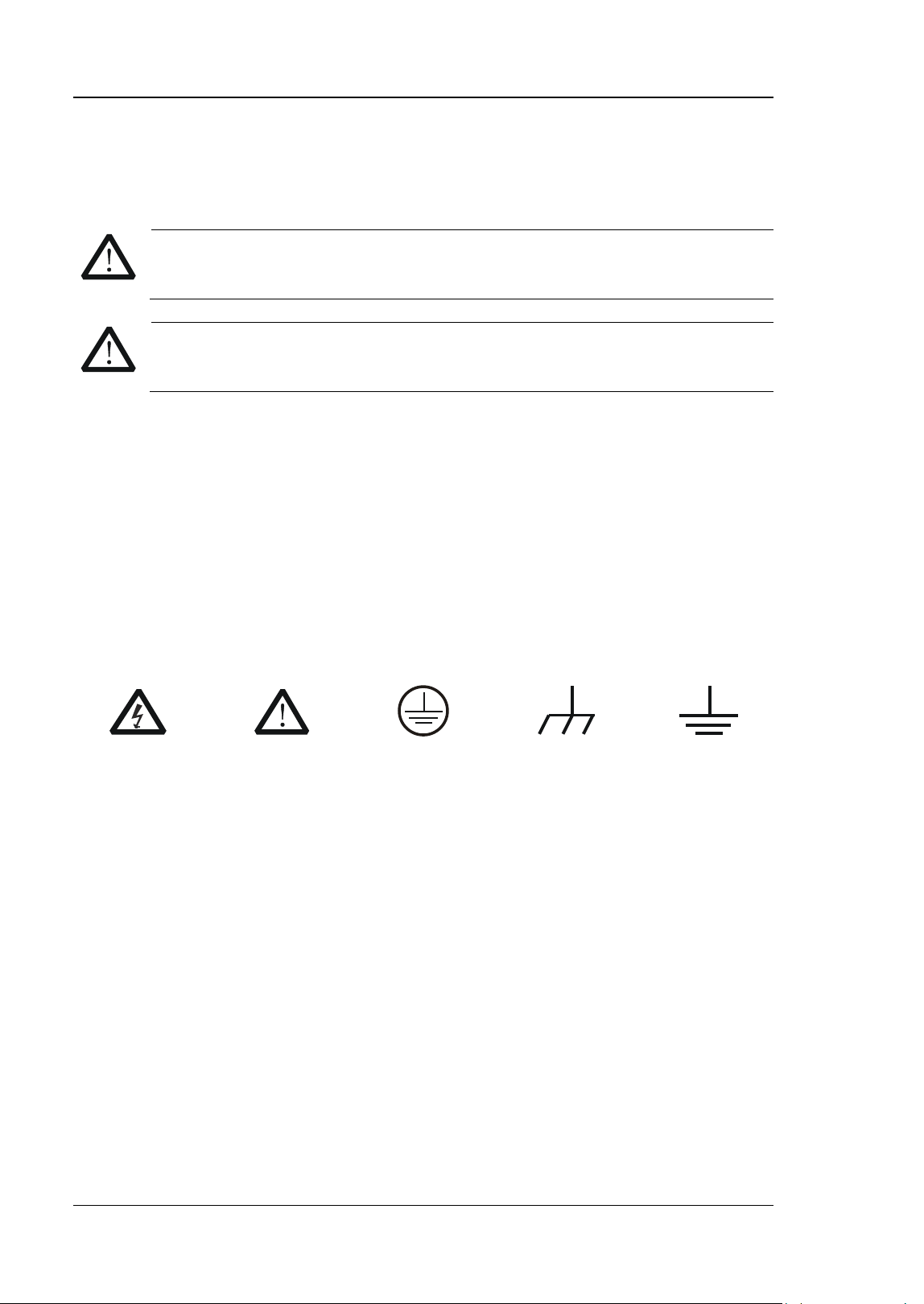
Safety Symbols on the Product:
Hazardous
Voltage
Safety Warning
Protective Earth
Ter m inal
Chassis Ground
Test Ground
RIGOL
MSO5000-E User Guide V
Measurement Category
Measurement Category
MSO5000-E series digital oscilloscopes can make measurements in Measurement
Category I .
WARNI NG
This oscilloscope can only be used for measurements within its specif ied
measurement categories.
Measurement Category Definitions
Measurement category I is for measurements performed on circuits not directly
connected to MAINS. Examples are measurements on circuits not derived from
MAI NS, and specially protected (internal) MAI NS derived circuits. I n the latter case,
transient stresses are variable. Thus, you must know the transient withstand
capability of the equipment.
Measurement category I I is for measurements performed on circuits directly
connected to low voltage installation. Examples are measurements on household
appliances, portable tools and similar equipment.
Measurement category I II is for measurements performed in the building installation.
Examples are measurements on distribution boards, circuit-breakers, wiring
(including cables, bus-bars, junction boxes, switches and socket-outlets) in the f ixed
installation, and equipment for industrial use and some other equipment. For
example, stationary motors with permanent connection to a f ixed installation.
Measurement category IV is for measurements performed at the source of a
low-voltage installation. Examples are electricity meters and measurements on
primary overcurrent protection devices and ripple control units.
Ventilation Requirement
This oscilloscope uses a fan to force cooling. Please make sure that the air intake and
exhaust areas are free from obstructions and have free air. When using the
oscilloscope in a bench-top or rack setting, provide at least 10 cm clearance beside,
above and behind the instrument for adequate ventilation.
WARNI NG
I nadequate ventilation may cause an increase of temperature in the
instrument, which would cause damage to the instrument. So please
keep the instrument well ventilated and inspect the air outlet and the fan
regularly.
RIGOL
VI MSO5000-E User Guide
Working Environment
Temperature
Operating: 0℃ to + 50℃
Non-operating: -30℃ to + 70℃
Humidity
Operating:
Below + 30℃: ≤95% RH (without condensation)
+ 30℃ to + 40℃: ≤75% RH (without condensation)
+ 40℃ to + 50℃: ≤45% RH (without condensation)
Non-operating:
Below 65℃: ≤95% RH (without condensation)
WARNI NG
To avoid short circuit inside the instrument or electric shock, never
operate the instrument in a humid environment.
Altitude
Operating: below 3 km
Non-operating: below 15 km
I nstallation ( Overvoltage) Category
This product is powered by mains conforming to installation (overvoltage) category
II.
WARNI NG
Ensure that no overvoltage (such as that caused by a bolt of lightning)
can reach the product. Otherwise, the operator might be exposed to the
danger of an electric shock.
I nstallation ( Overvoltage) Category Definitions
I nstallation (overvoltage) category I refers to signal level which is applicable to
equipment measurement terminals connected to the source circuit. Among these
terminals, precautions are done to limit the transient voltage to a low level.
I nstallation (overvoltage) category I I refers to the local power distribution level
which is applicable to equipment connected to the AC line (AC power).
Pollution Degree
Pollution Degree 2
Pollution Degree Definition
Pollution Degree 1: No pollution or only dry, nonconductive pollution occurs. The
pollution has no effect. For example, a clean room or air-conditioned off ice
RIGOL
MSO5000-E User Guide VII
environment.
Pollution Degree 2: Normally only nonconductive pollution occurs. Temporary
conductivity caused by condensation is to be expected. For example, indoor
environment.
Pollution Degree 3: Conductive pollution or dry nonconductive pollution that
becomes conductive due to condensation occurs. To be found in industrial
environment or construction sites (harsh environments). For example, sheltered
outdoor environment.
Pollution Degree 4: The pollution generates persistent conductivity caused by
conductive dust, rain, or snow.
For example, outdoor areas.
Safety Class
Class 1 – Grounded Product
Care and Cleaning
Care
Do not store or leave the instrument where it may be exposed to direct sunlight for
long periods of time.
Cleaning
Clean the instrument regularly according to its operating conditions.
1. Disconnect the instrument from all power sources.
2. Clean the external surfaces of the instrument with a soft cloth dampened with
mild detergent or w a t e r. Avoid having any water or other objects into the chassis
via the heat dissipation hole. When cleaning the LCD, take care to avoid
scarifying it.
CAUTI ON
To avoid damage to the instrument, do not expose it to caustic liquids.
WARNI NG
To avoid short-circuit resulting from moisture or personal injuries, ensure
that the instrument is completely dry before connecting it to the power
supply.
RIGOL
VII I MSO5000-E User Guide
Environmental Considerations
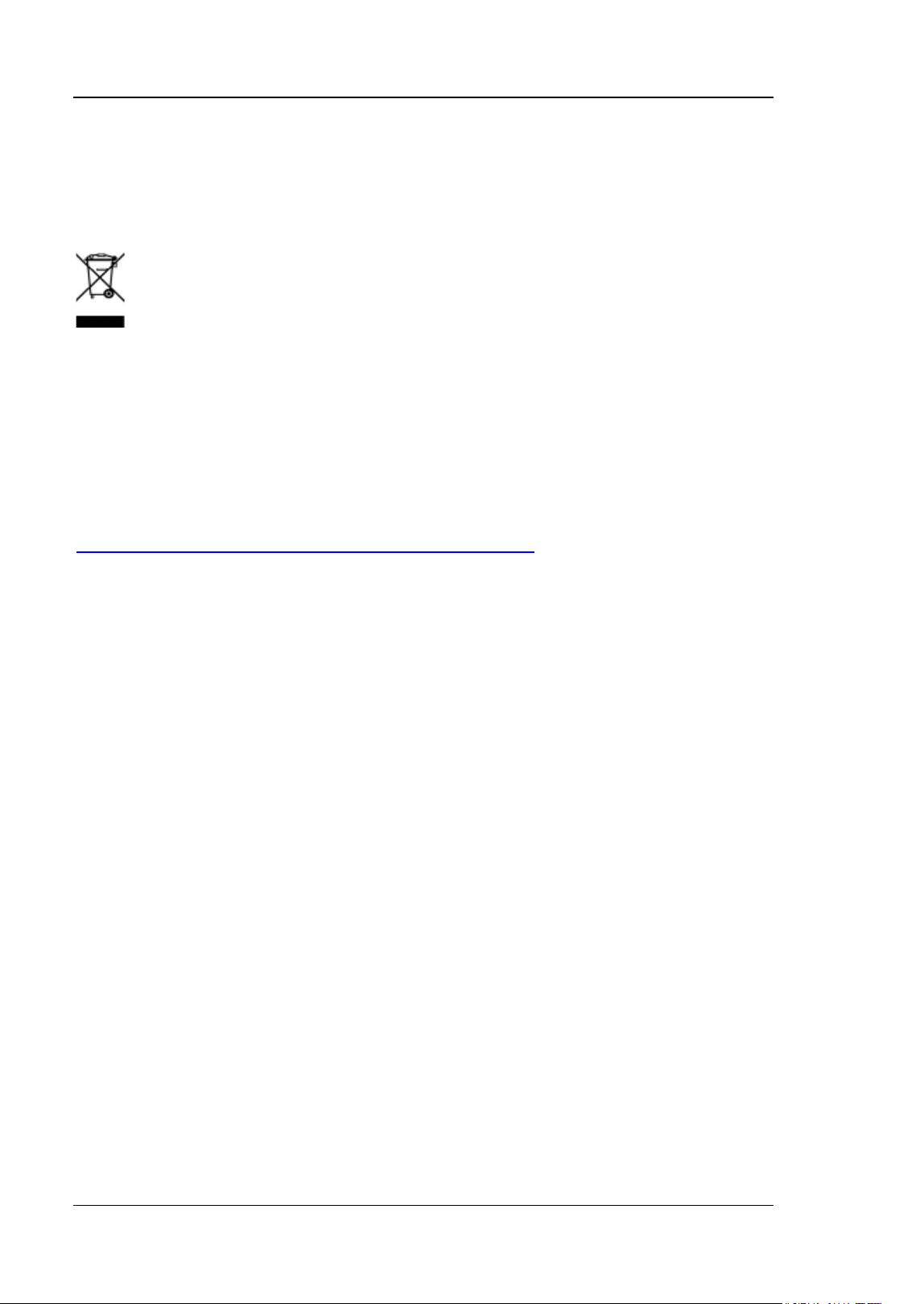
The following symbol indicates that this product complies with the WEEE Directive
2002/ 96/ EC.
Product End-of-Life Handling
The equipment may contain substances that could be harmful to the environment or
human health. To avoid the release of such substances into the environment and
avoid harm to human health, we recommend you to recycle this product
appropriately to ensure that most materials are reused or recycled properly. Please
contact your local authorities for disposal or recycling information.
You can click on the following link
http: / / www.rigol.com/ Files/ RI GOL_RoHS2.0&WEEE.pdf to download the latest
version of the RoHS&WEEE certification file.

RIGOL
MSO5000-E User Guide IX
MSO5000-E Series Overview
MSO5000-E series digital oscilloscope is a high-performance oscilloscope model
designed based on RIGOL UltraVision I I technology. With a 9-inch capacitive
multi-touch screen, the MSO5000-E series integrates 7 independent instruments into
one, delivering super sample bandwidth ratio, extremely high memory depth, and
other excellent specifications. I t is compact and portable in design, and all of the
MSO series products support multiple channels, and the upgrade of the analysis
software. As it integrates many functions of multiple instruments, different user
groups can have more choices in selecting their desired product based on their needs,
helping them save their budget to a large extent while enjoying the superior test
support and user experience.
Main Features:
Analog bandwidth: 150 MHz
2 analog channels, 1 EXT channel, standard conf iguration of 16 digital channels
(probe option is required to be ordered)
Up to 4 GSa/ s real-time sample rate
Up to 100 Mpts memory depth (option)
High waveform capture rate (over 300,000 wfm/ s)
Auto measurement of 41 waveform parameters; full-memory hardware
measurement function
A variety of serial protocol triggers and decodes
Up to 450,000 frames of hardware real-time and ceaseless waveforms recording
and playing functions
I ndependent search, navigation keys, and event table
Built-in advanced power analysis software (option)
I ntegrates 7 independent instruments into 1, including a digital oscilloscope, a
logic analyzer, a spectrum analyzer, an Arbitrary Waveform Generator, a digital
voltmeter, a frequency counter and totalizer, and a protocol analyzer
9-inch capacitive multi-touch screen, 256-level intensity grading display, with
color persistence
Multiple interfaces available: USB HOST & DEVICE, LAN(LXI ), HDMI , TRIG OUT,
and USB-GPIB
Web Control remote command
Unique online version upgrade
Novel and delicate industrial design, easy to operate

RIGOL
X MSO5000-E User Guide
Document Overview
Main Topics of this Manual:
Chapter 1 Quick Start
I ntroduces the preparations before using the oscilloscope and provides a basic
introduction of the instrument.
Chapter 2 To Set the Vertical System
I ntroduces the vertical system functions of the oscilloscope.
Chapter 3 To Set the Horizontal System
I ntroduces the horizontal system functions of the oscilloscope.
Chapter 4 To Set the Sample System
I ntroduces the sample system functions of the oscilloscope.
Chapter 5 To Trigger the Oscilloscope
Introduces the trigger mode, trigger coupling, trigger holdoff, external trigger, and
various trigger types of the oscilloscope.
Chapter 6 Operations and Measurements
I ntroduces how to make math operation, auto measurement, and cursor
measurement.
Chapter 7 Digital Voltmeter ( DVM) and Frequency Counter
I ntroduces how to use the digital voltmeter and the frequency counter.
Chapter 8 Power Analysis (Option)
I ntroduces the power quality and output ripple noise of the input power.
Chapter 9 Histogram Analysis
I ntroduces the histogram analysis function.
Chapter 10 Digital Channel
I ntroduces how to use the digital channels of the mixed signal digital oscilloscope.
Chapter 11 Protocol Decoding
I ntroduces how to decode the input signal by using those common protocols.
Chapter 12 Reference Waveform
I ntroduces how to compare the input waveform with the reference waveform.
Chapter 13 Pass/ Fail Test
I ntroduces how to monitor the input signal by using the Pass/Fail test.

RIGOL
MSO5000-E User Guide XI
Chapter 14 Waveform Recording & Playing
Introduces the waveform recording & playing function.
Chapter 15 Search and Navigation Function
I ntroduces the navigation function and how to quickly search the relevant events.
Chapter 16 Display Control
I ntroduces how to control the display of the oscilloscope.
Chapter 17 Function/ Arbitrary Waveform Generator (Option)
I ntroduces how to use the built-in Function/ Arbitrary Waveform Generator option.
Chapter 18 Store and Load
Introduces how to store and load the measurement results and the setting of the
oscilloscope.
Chapter 19 System Utility Function Setting
I ntroduces how to set the remote interfaces and system-related functions.
Chapter 20 Remote Control
Introduces how to control the oscilloscope remotely.
Chapter 21 Troubleshooting
I ntroduces how to deal with the common failures of the oscilloscope.
Chapter 22 Appendix
Provides the basic information for the options and accessories.
RIGOL
XI I MSO5000-E User Guide
Format Conventions in this Manual:
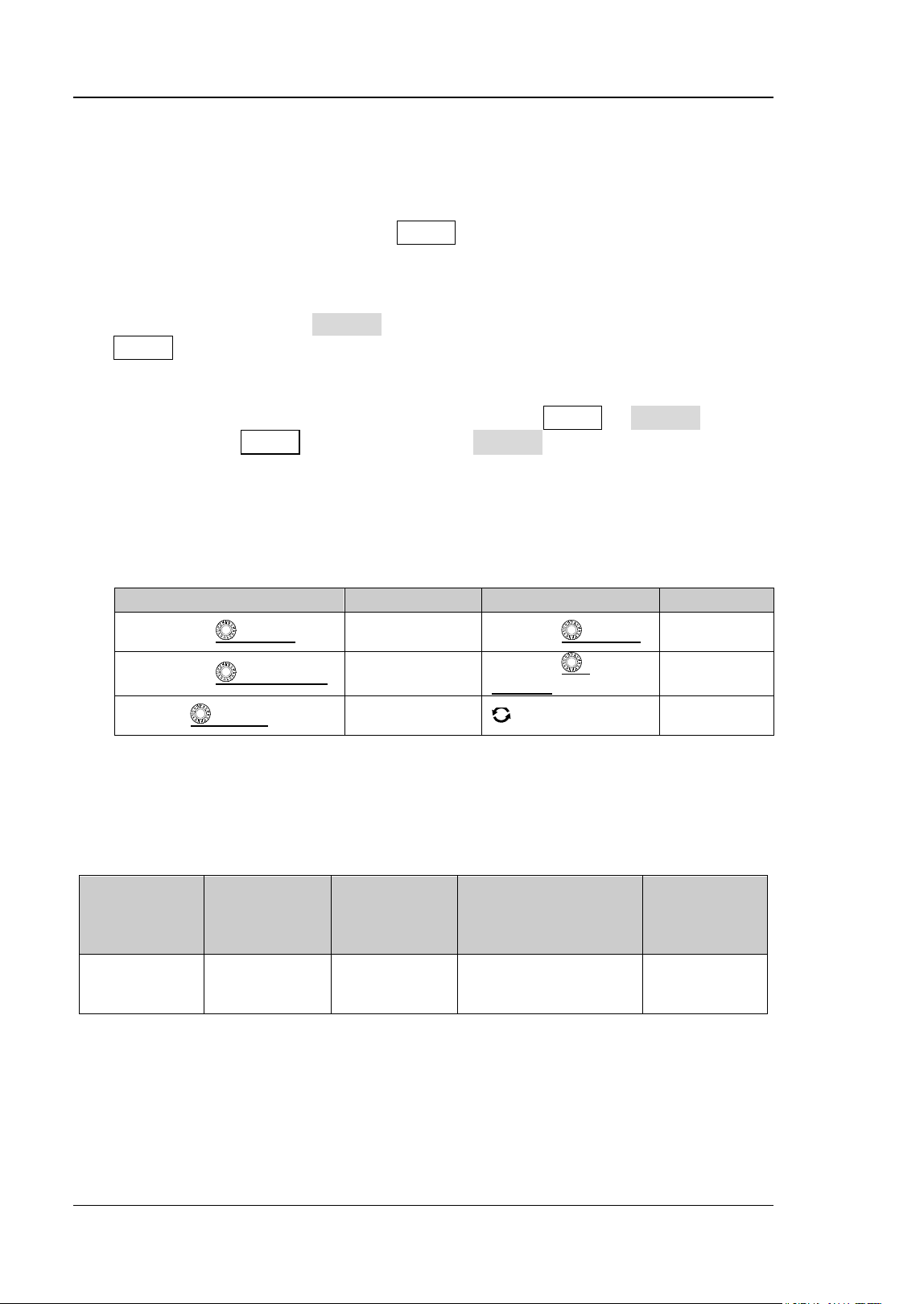
1. Key
The key on the front panel is denoted by the format of "Key Name (Bold) + Text
Box" in the manual. For example, Utility denotes the "Utility" key.
2. Menu
The menu items are denoted by the format of "Menu Word (Bold) + Character
Shading". For example, System denotes the "System" menu item under
Utility.
3. Operation Procedures:
denotes the next step of operation. For example, Utility System denotes
that f irst press Utility, and then press the System k ey.
4. Connector:
The connectors on the front or rear panel are usually denoted by the format of
"Connector Name (Bold) + Square Brackets (Bold)". For example, [ TRI G OUT] .
5. Knob
Label
Knob
Label
Knob
Horizontal SCALE
Horizontal
Timebase Knob
Vertical SCALE
Vertical Scale
Knob
Horizontal POSI TI ON
Horizontal
Position Knob
Vertical
OFFSET
Vertical
Offset Knob
Trigger LEVEL
Trigger Level
Knob
Multifunction
Knob
Content Conventions in this Manual:
MSO5000-E series includes the following models. Unless otherwise specif ied, this
manual takes MSO5152-E as an example to illustrate the functions and operation
methods of MSO5000-E series.
Model
Max. Analog
Bandwidth
No. of Analog
Channels
No. of
Function/ Arbitrary
Waveform
Generator Channels
No. of Digital
Channels
MSO5152-E 150 MHz 2 1, Opt.
16 (Required
to purchase
the probe)
Manuals of this Product:
Quick Guide, User Guide, Programming Guide, Data sheet, etc. For the latest version
of this manual, download it from the off icial website of RIGOL (www.rigol.com).

Contents RIGOL
MSO5000-E User Guide XI II
Contents
Guaranty and Declaration ......................................................................... I
Safety Requirement ................................................................................ I I
General Safety Summary ........................................................................... I I
Safety Notices and Symbols ...................................................................... IV
Measurement Category ............................................................................. V
Ventilation Requirement ............................................................................ V
Working Environment .............................................................................. VI
Care and Cleaning .................................................................................. VII
Environmental Considerations ................................................................. VII I
MSO5000-E Series Overview .................................................................. I X
Document Overview ................................................................................. X
Chapter 1 Quick Start ....................................................................... 1-1
General I nspection ................................................................................ 1-2
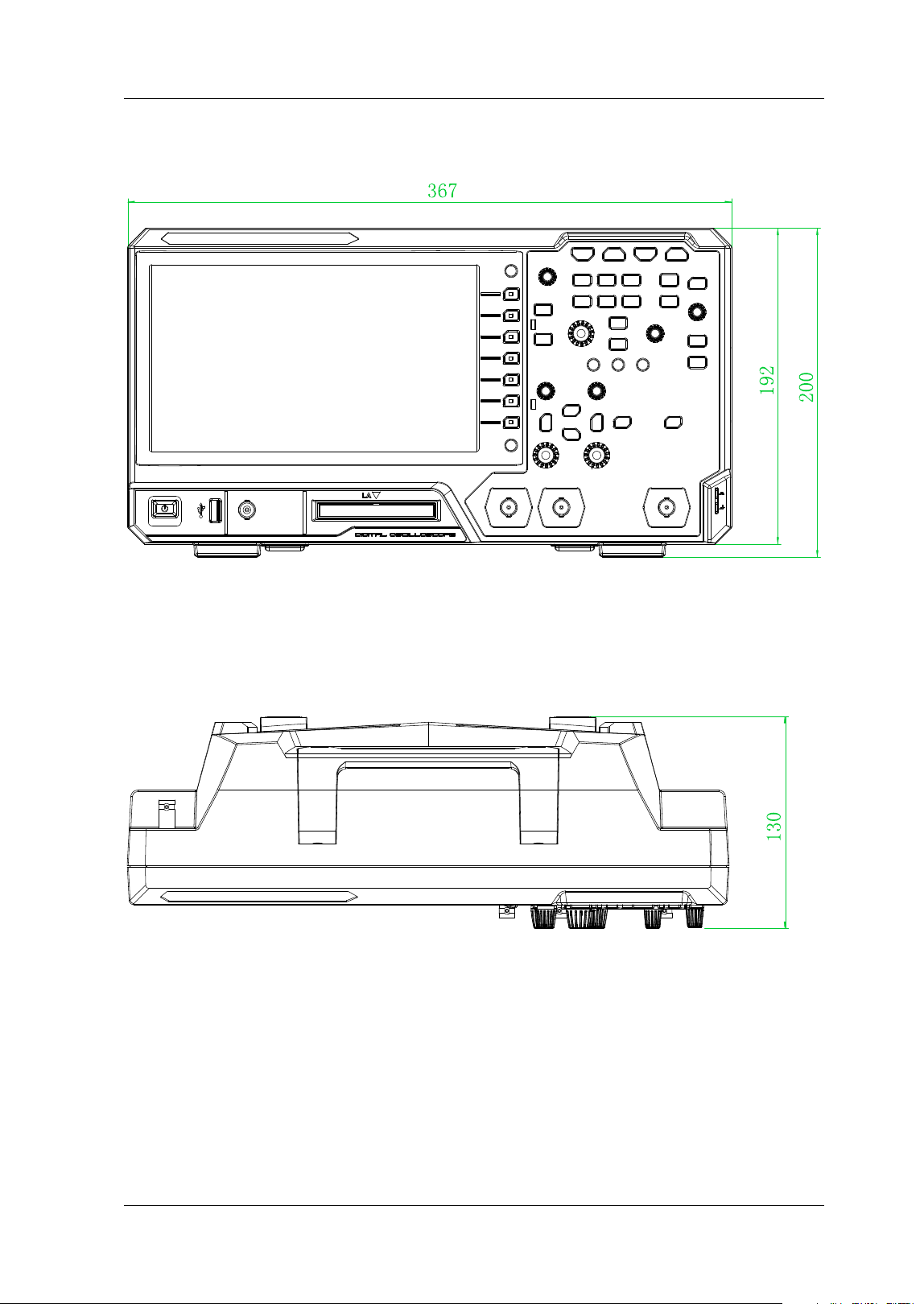
Appearance and Dimensions ................................................................... 1-3
To Prepare for Use ................................................................................. 1-4
To Adjust the Supporting Legs .......................................................... 1-4
To Connect to AC Power .................................................................. 1-4
Tu r n -on Checkout ........................................................................... 1-5
To Connect the Probe ...................................................................... 1-5
Function I nspection ......................................................................... 1-8
Probe Compensation ....................................................................... 1-9
Front Panel Overview ............................................................................ 1-10
Rear Panel Overview ............................................................................. 1-11
Front Panel Function Overview............................................................... 1-13
Vert ical ......................................................................................... 1-13
Horizontal ..................................................................................... 1-14
Tr ig g er .......................................................................................... 1-15
Function Menu ............................................................................... 1-15
Navigation Control Key ................................................................... 1-16
Quick Key (Shortcut Key) ................................................................ 1-16
Function/ Arbitrary Waveform Generator Setting ................................ 1-16
Clear ............................................................................................ 1-17
Auto ............................................................................................. 1-17
RUN/ STOP .................................................................................... 1-17
Single ........................................................................................... 1-17
Touch Lock Key .............................................................................. 1-17
Default ......................................................................................... 1-17
Multifunction Knob ......................................................................... 1-18
User I nterface ...................................................................................... 1-19
Touch Screen Controls .......................................................................... 1-22
Ta p ............................................................................................... 1-23

RIGOL Contents
XI V MSO5000-E User Guide
Pinch & Stretch ............................................................................. 1-23
Drag ............................................................................................. 1-23
Rectangle Drawing ......................................................................... 1-24
Parameter Setting Method ..................................................................... 1-26
To Use the Kensington Security Lock ...................................................... 1-27
To Use the Built-in Help System ............................................................. 1-28
To View the Option I nformation and the Option I nstallation ...................... 1-29
Chapter 2 To Set the Vertical System ............................................... 2-1
To Enable or Disable the Analog Channel .................................................. 2-2
To Adjust the Vertical Scale ..................................................................... 2-3
Vertical Expansion .................................................................................. 2-4
To Adjust the Vertical Offset .................................................................... 2-4
Channel Coupling ................................................................................... 2-5
Bandwidth Limit ..................................................................................... 2-5
Probe Ratio ........................................................................................... 2-6
Input Impedance ................................................................................... 2-7
Waveform Invert .................................................................................... 2-7
Amplitude Unit ....................................................................................... 2-8
Channel Delay ....................................................................................... 2-8
Offset Cal .............................................................................................. 2-9
Channel Label ........................................................................................ 2-9
Chapter 3 To Set the Horizontal System ........................................... 3-1
To Adjust the Horizontal Timebase ........................................................... 3-2
To Adjust the Horizontal Position.............................................................. 3-3
Delayed Sweep ...................................................................................... 3-4
Chapter 4 To Set the Sample System ................................................ 4-1
Timebase Mode ..................................................................................... 4-2
YT Mode ......................................................................................... 4-2
XY Mode ......................................................................................... 4-2
ROLL Mode ..................................................................................... 4-4
Acquisition Mode .................................................................................... 4-5
Normal ........................................................................................... 4-5
Average .......................................................................................... 4-5
Peak ............................................................................................... 4-6
High Resolution ............................................................................... 4-6
Sampling Mode ...................................................................................... 4-7
Sample Rate .......................................................................................... 4-7
LA Sample Rate ..................................................................................... 4-9
Memory Depth ....................................................................................... 4-9
LA Memory Depth ................................................................................ 4-10
Anti-Aliasing ........................................................................................ 4-10
Horizontal Expansion ............................................................................ 4-11
Chapter 5 To Trigger the Oscilloscope .............................................. 5-1
Trigger Source ....................................................................................... 5-2

Contents RIGOL
MSO5000-E User Guide XV
Trigger LEVEL/ Threshold Level ................................................................ 5-3
Trigger Mode ........................................................................................ 5-4
Trigger Coupling .................................................................................... 5-5
Trigger Holdoff ...................................................................................... 5-6
Noise Rejection ..................................................................................... 5-7
Tr i gg er Ty p e ......................................................................................... 5-8
Edge Trigger ................................................................................... 5-9
Pulse Trigger ................................................................................. 5-10
Slope Trigger ................................................................................. 5-12
Video Trigger ................................................................................. 5-15
Pattern Tr i g g er .............................................................................. 5-17
Duration Trigger ............................................................................ 5-19
Timeout Trigger ............................................................................. 5-22
Runt Trigger .................................................................................. 5-23
Window Trigger ............................................................................. 5-25
Delay Trigger ................................................................................. 5-27
Setup/ Hold Trigger ......................................................................... 5-29
Nth Edge Trigger............................................................................ 5-31
RS232 Trigger (Option) ................................................................... 5-32
I2C Trigger (Option) ....................................................................... 5-35
SPI Trigger (Option) ....................................................................... 5-37
CAN Trigger (Option) ...................................................................... 5-39
FlexRay Trigger (Option) ................................................................. 5-42
LIN Trigger (Option) ....................................................................... 5-44
I2S Trigger (Option) ....................................................................... 5-46
MIL-STD-1553 Trigger (Option) ....................................................... 5-49
Zone Trigger ........................................................................................ 5-52
Trigger Output Connector ...................................................................... 5-53
Chapter 6 Operations and Measurements ......................................... 6-1
Math Operation ..................................................................................... 6-2
Addition ......................................................................................... 6-2
Subtraction .................................................................................... 6-3
Multiplication .................................................................................. 6-4
Division .......................................................................................... 6-5
FFT ............................................................................................... 6-6
"AND" Operation ............................................................................ 6-10
"OR" Operation .............................................................................. 6-11
"XOR" Operation ............................................................................ 6-12
"NOT" Operation ............................................................................ 6-13
I ntg .............................................................................................. 6-14
Diff ............................................................................................... 6-15
Sqrt .............................................................................................. 6-16
Lg (Base 10 Exponential) ................................................................ 6-17
Ln ................................................................................................ 6-18
Exp .............................................................................................. 6-19

RIGOL Contents
XVI MSO5000-E User Guide
Abs .............................................................................................. 6-20
Low Pass ...................................................................................... 6-21
High Pass ...................................................................................... 6-22
Band Pass ..................................................................................... 6-23
Band Stop ..................................................................................... 6-24
AX+ B ........................................................................................... 6-25
Math Operation Label ..................................................................... 6-26
Auto Measurement ............................................................................... 6-27
Quick Measurement after AUTO ...................................................... 6-27
Measurement Parameter ................................................................ 6-29
Measurement Settings .................................................................... 6-35
Remove the Measurement Result .................................................... 6-38
Statistical Function ......................................................................... 6-38
All Measurement ............................................................................ 6-39
Cursor Measurement ............................................................................ 6-39
Manual Mode ................................................................................ 6-41
Track Mode ................................................................................... 6-45
XY Mode ....................................................................................... 6-47
Measure Mode ............................................................................... 6-49
Chapter 7 Digital Voltmeter (DVM) and Frequency Counter ............. 7-1
Digital Voltmeter (DVM) .......................................................................... 7-2
To Enable or Disable DVM Measurement ............................................ 7-2
To Select the Measurement Source .................................................... 7-2
To Select Measurement Mode ........................................................... 7-3
To Set the Limits ............................................................................. 7-3
Frequency Counter ................................................................................. 7-4
To Enable or Disable the Frequency Counter ....................................... 7-4
To Select the Measurement Source .................................................... 7-4
To Select the Measurement I tem ....................................................... 7-4
To Set Resolution ............................................................................. 7-5
To Clear Count ................................................................................ 7-5
To Enable or Disable the Statistical Function ....................................... 7-5
Chapter 8 Power Analysis (Option) .................................................. 8-1
Power Quality ........................................................................................ 8-2
Ripple ................................................................................................... 8-4
Chapter 9 Histogram Analysis .......................................................... 9-1
To Enable or Disable the Histogram Function ............................................ 9-2
To Select the Histogram Type .................................................................. 9-2
To Select the Histogram Source ............................................................... 9-3
To Set the Histogram Height ................................................................... 9-3
To Set the Histogram Range .................................................................... 9-3
To Enable or Disable the Statistical Function ............................................. 9-3
To Reset ................................................................................................ 9-4
Chapter 10 Digital Channel............................................................... 10-1

Contents RIGOL
MSO5000-E User Guide XVII
To Select the Digital Channel ................................................................. 10-2
To Enable/Disable the Digital Channel ..................................................... 10-2
To Set the Threshold and Calibrate Probe ............................................... 10-3
Auto Arrangement Setting ..................................................................... 10-4
To Set the Waveform Display Size .......................................................... 10-4
To Set the Label ................................................................................... 10-4
Group Setting ...................................................................................... 10-5
Waveform Color of the Digital Channel ................................................... 10-6
Chapter 11 Protocol Decoding .......................................................... 11-1
Parallel Decoding .................................................................................. 11-2
RS232 Decoding (Option) ...................................................................... 11-7
I2C Decoding (Option) ........................................................................ 11-14
SPI Decoding (Option) ........................................................................ 11-18
LI N Decoding (Option) ........................................................................ 11-23
CAN Decoding (Option) ....................................................................... 11-28
FlexRay Decoding (Option) .................................................................. 11-33
I2S Decoding (Option) ........................................................................ 11-37
1553B Decoding (Option) .................................................................... 11-41
Chapter 12 Reference Waveform ...................................................... 12-1
To Enable Ref Function ......................................................................... 12-2
To Se l ect the Reference Channel ............................................................ 12-2
To Select the Ref Source ....................................................................... 12-2
To Adjust the Ref Waveform Display ....................................................... 12-2
To Save to I nternal Memory .................................................................. 12-3
To Clear the Display of the Reference Waveform ...................................... 12-3
To View Details of the Reference Waveform ............................................ 12-3
To Reset the Reference Waveform .......................................................... 12-4
Color Setting ........................................................................................ 12-4
Label Setting ........................................................................................ 12-4
To Export to I nternal or External Memory ............................................... 12-5
To I mport from I nternal or External Memory ........................................... 12-5
Chapter 13 Pass/ Fail Test ................................................................. 13-1
To Enable or Disable the Pass/ Fail Test Function ...................................... 13-2
To Start or Stop the Pass/ Fail Test Operation ........................................... 13-2
To Select the Source ............................................................................. 13-2
To Create a Mask.................................................................................. 13-3
To Sav e t h e Ma sk ................................................................................. 13-3
To Load a Mask .................................................................................... 13-3
To Set the Output Form of the Test Results ............................................. 13-4
To Enable or Disable the Display of the Statistics of the Test Results .......... 13-5
Statistics Reset ..................................................................................... 13-5
Chapter 14 Waveform Recording & Playing ...................................... 14-1
Common Settings ................................................................................. 14-2
Record Options .................................................................................... 14-3

RIGOL Contents
XVII I MSO5000-E User Guide
Play Options ........................................................................................ 14-4
Chapter 15 Search and Navigation Function ..................................... 15-1
Search Function ................................................................................... 15-2
Navigation Function .............................................................................. 15-4
Chapter 16 Display Control ............................................................... 16-1
To Select the Display Ty p e .................................................................... 16-2
To Set the Persistence Time .................................................................. 16-2
To Set the Waveform I ntensity .............................................................. 16-3
To Set the Screen Grid .......................................................................... 16-3
To Set the Grid Brightness..................................................................... 16-3
Scale .................................................................................................. 16-4
Color Grade ......................................................................................... 16-4
Waveform Freeze ................................................................................. 16-4
Chapter 17 Function/ Arbitrary Waveform Generator ( Option) ......... 17-1
To Output Basic Waveforms .................................................................. 17-2
To Output Sine .............................................................................. 17-2
To Output Square .......................................................................... 17-3
To Output Ramp ............................................................................ 17-4
To Output Pulse ............................................................................. 17-4
To Output DC ................................................................................ 17-5
To Output Noise ............................................................................ 17-5
Sinc .............................................................................................. 17-6
Exp.Rise ....................................................................................... 17-6
Exp.Fall......................................................................................... 17-7
ECG ............................................................................................. 17-7
Gauss ........................................................................................... 17-8
Lorentz ......................................................................................... 17-8
Haversine ..................................................................................... 17-9
To Output the Arbitrary Waveform ......................................................... 17-9
To Load the Channel and Waveform ................................................ 17-9
To Create the Waveform ............................................................... 17-10
To Edit Waveforms ....................................................................... 17-12
Modulation ........................................................................................ 17-13
AM ............................................................................................. 17-14
FM ............................................................................................. 17-15
FSK ............................................................................................ 17-16
Sweep............................................................................................... 17-16
Burst ................................................................................................ 17-19
Chapter 18 Store and Load ............................................................... 18-1
Storage System .................................................................................... 18-2
Storage Type ....................................................................................... 18-2
Load Type ........................................................................................... 18-4
I nternal Storage and Load..................................................................... 18-4
External Storage and Load .................................................................... 18-6

Contents RIGOL
MSO5000-E User Guide XIX
Disk Management ................................................................................. 18-6
To Select a File Type ...................................................................... 18-7
To Create a Folder.......................................................................... 18-7
To Delete a File or Folder .............................................................. 18-11
To Copy and Paste a File or Folder ................................................. 18-12
To Rename a File or Folder ........................................................... 18-12
To Clear the I nternal Memory Safely .............................................. 18-13
Factory Settings ................................................................................. 18-13
Chapter 19 System Utility Function Setting ...................................... 19-1
Remote Interface Conf iguration ............................................................. 19-2
LAN Configuration .......................................................................... 19-2
To Se t mDNS ................................................................................. 19-5
To Set Host Name .......................................................................... 19-5
To Set the GPI B Address ................................................................. 19-6
To Se t HDM I .................................................................................. 19-6
USB Connection ............................................................................. 19-6
System-related ..................................................................................... 19-7
Beeper .......................................................................................... 19-7
Language ...................................................................................... 19-7
System Information ........................................................................ 19-7
Power On ...................................................................................... 19-7
Aux Output ................................................................................... 19-8
Help ............................................................................................. 19-8
Self-calibration ............................................................................... 19-9
Auto Conf ig ................................................................................... 19-9
Print Setting ................................................................................ 19-10
Email .......................................................................................... 19-11
Key Locker .................................................................................. 19-12
Quick Operation ........................................................................... 19-13
Screen Saver ............................................................................... 19-16
Self-check ................................................................................... 19-17
System Time ............................................................................... 19-18
Chapter 20 Remote Control .............................................................. 20-1
Remote Control via USB ........................................................................ 20-2
Remote Control via LAN ........................................................................ 20-6
Remote Control via GPI B ....................................................................... 20-7
Chapter 21 Troubleshooting ............................................................. 21-1
Chapter 22 Appendix ........................................................................ 22-1
Appendix A: Accessories and Options ..................................................... 22-1
Appendix B: Warranty ........................................................................... 22-2
I ndex ........................................................................................... 1


Chapter 1 Quick Start RIGOL
MSO5000 User's Guide 1-1
Chapter 1 Quick Start
This chapter introduces the precautions when using the oscilloscope for the f irst time,
the front/ rear panels of the oscilloscope, the user interface, touch screen controls,
and how to use the built-in help system.
Contents in this chapter:
General I nspection
Appearance and Dimensions
To Prepare for Use
Front Panel Overview
Rear Panel Overview
Front Panel Function Overview
User I nterface
Touch Screen Controls
Parameter Setting Method
To Use the Kensington Security Lock
To Use the Built-in Help System
To View the Option I nformation and the Option I nstallation

RIGOL Chapter 1 Quick Start
1-2 MSO5000-E User Guide
General I nspection
1
. I nspect the packaging
If the packaging has been damaged, do not dispose the damaged packaging or
cushioning materials until the shipment has been checked for completeness and
has passed both electrical and mechanical tests.
The consigner or carrier shall be liable for the damage to the instrument
resulting from shipment. RIGOL would not be responsible for free
maintenance/rework or replacement of the instrument.
2
. I nspect the instrument
I n case of any mechanical damage, missing parts, or failure in passing the
electrical and mechanical tests, contact your RIGOL sales representative.
3. Check the accessories
Please check the accessories according to the packing lists. I f the accessories
are damaged or incomplete, please contact your RIGOL sales representative.
RIGOL Chapter 1 Quick Start
1-4 MSO5000-E User Guide
To Prepare for Use
To Adjust the Supporting Legs
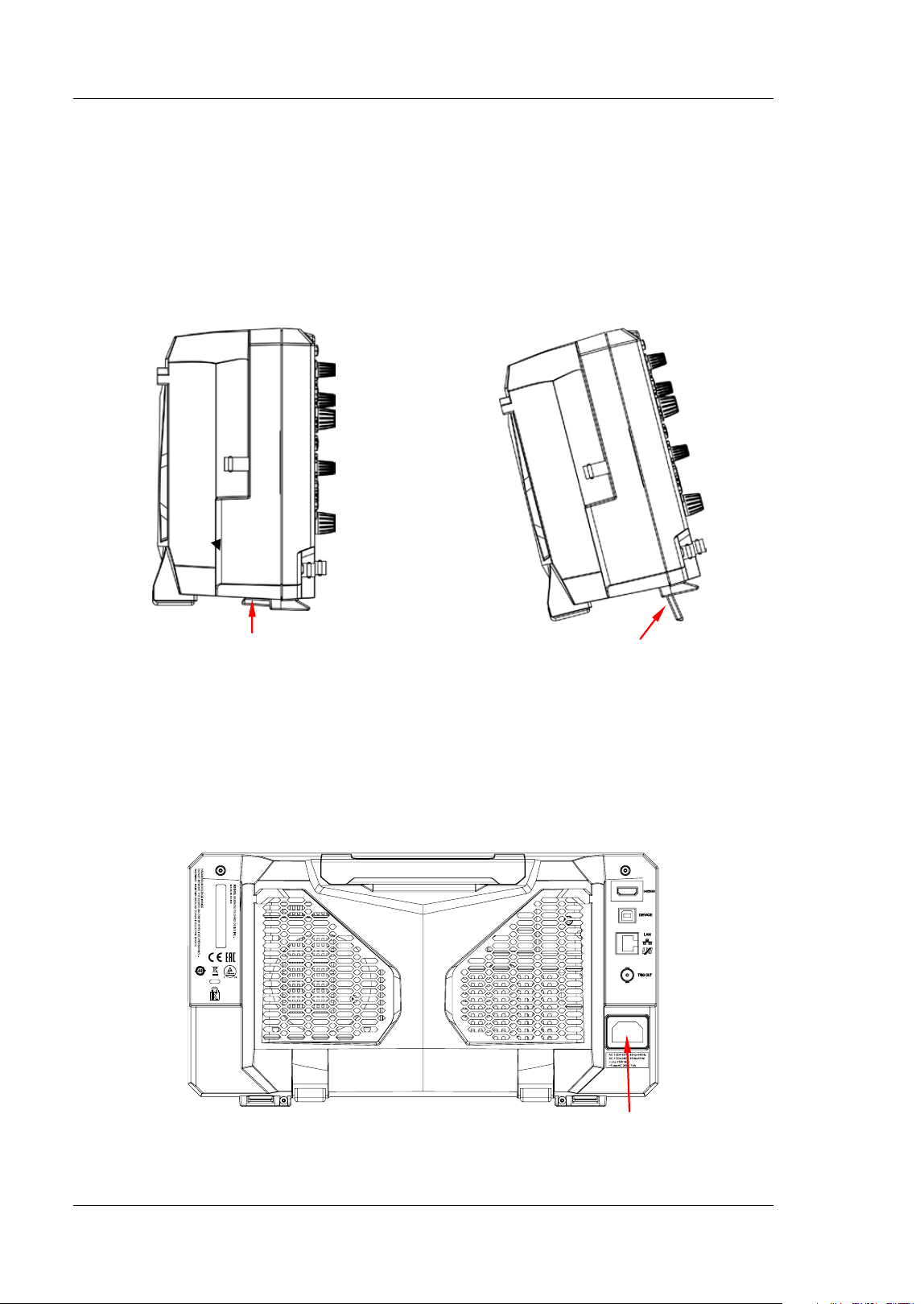
You can unfold the supporting legs to use them as stands to tilt the instrument
upwards for easier operation and observation, as shown in Figure 1-3. You can also
fold the supporting legs for easier storage or shipment when the instrument is not in
use.
To fold the supporting legs
To unfold the supporting legs
Figure 1-3 To Adjust the Supporting Legs
To Connect to AC Power
The input AC power requirements of the oscilloscope are 100~ 240 V, 45~ 440 Hz.
Please use the power cord provided in the accessories to connect the oscilloscope to
the AC power source via the power cord connector, as shown in Figure 1-4.
Figure 1-4 To Connect to AC Power
Power Cord Connector
Chapter 1 Quick Start RIGOL
MSO5000-E User Guide 1-5
CAUTI ON
To avoid electric shock, ensure that the instrument is correctly grounded.
Turn-on Checkout
When the oscilloscope is connected to power, press the Power key
at the
lower-left corner of the front panel to start the oscilloscope. During the start-up
process, the oscilloscope performs a series of self-tests. After the self-test, the
welcome screen is displayed.
To Connect the Probe
RIGOL provides the passive probe and the logic probe for MSO5000-E series. For
specif ic probe models, please refer to
MSO5000-E Series Datasheet
. For detailed
technical information of the probes, please refer to the specif ied Probe User’s Guide.
Connect the passive probe:
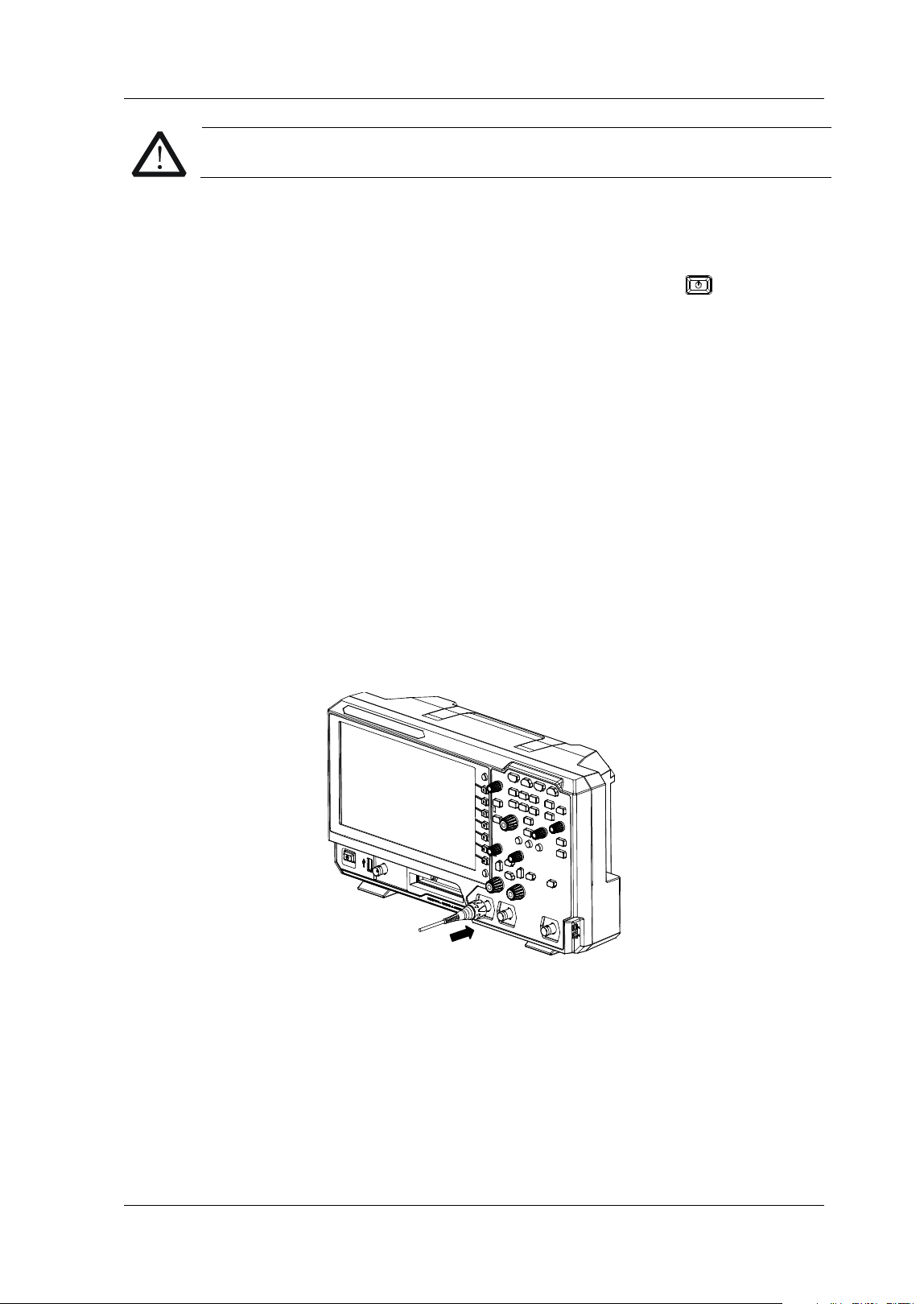
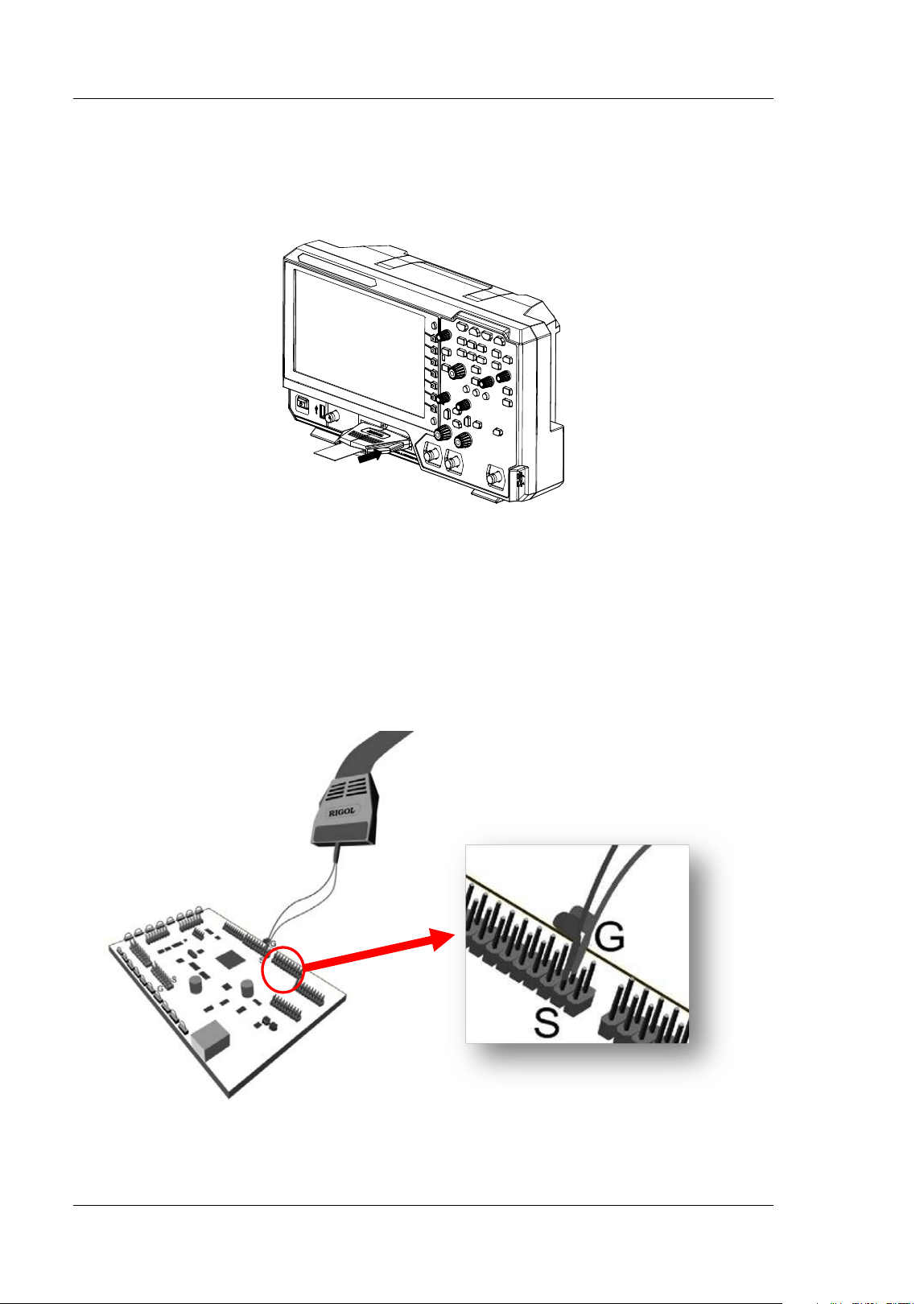
1. Connect the BNC terminal of the probe to an analog channel input terminal of
the oscilloscope on the front panel, as shown in Figure 1-5.
2. Connect the ground alligator clip or spring of the probe to the circuit ground
terminal, and then connect the probe tip to the circuit point to be tested.
Figure 1-5 To Connect the Passive Probe
After you connect the passive probe, check the probe function and probe
compensation adjustment before making measurements. For detailed procedures,
refer to "Function I nspection" and "Probe Compensation".
RIGOL Chapter 1 Quick Start
1-6 MSO5000-E User Guide
Connect the logic probe:
1. Tu r n off the power supply of the device under test.
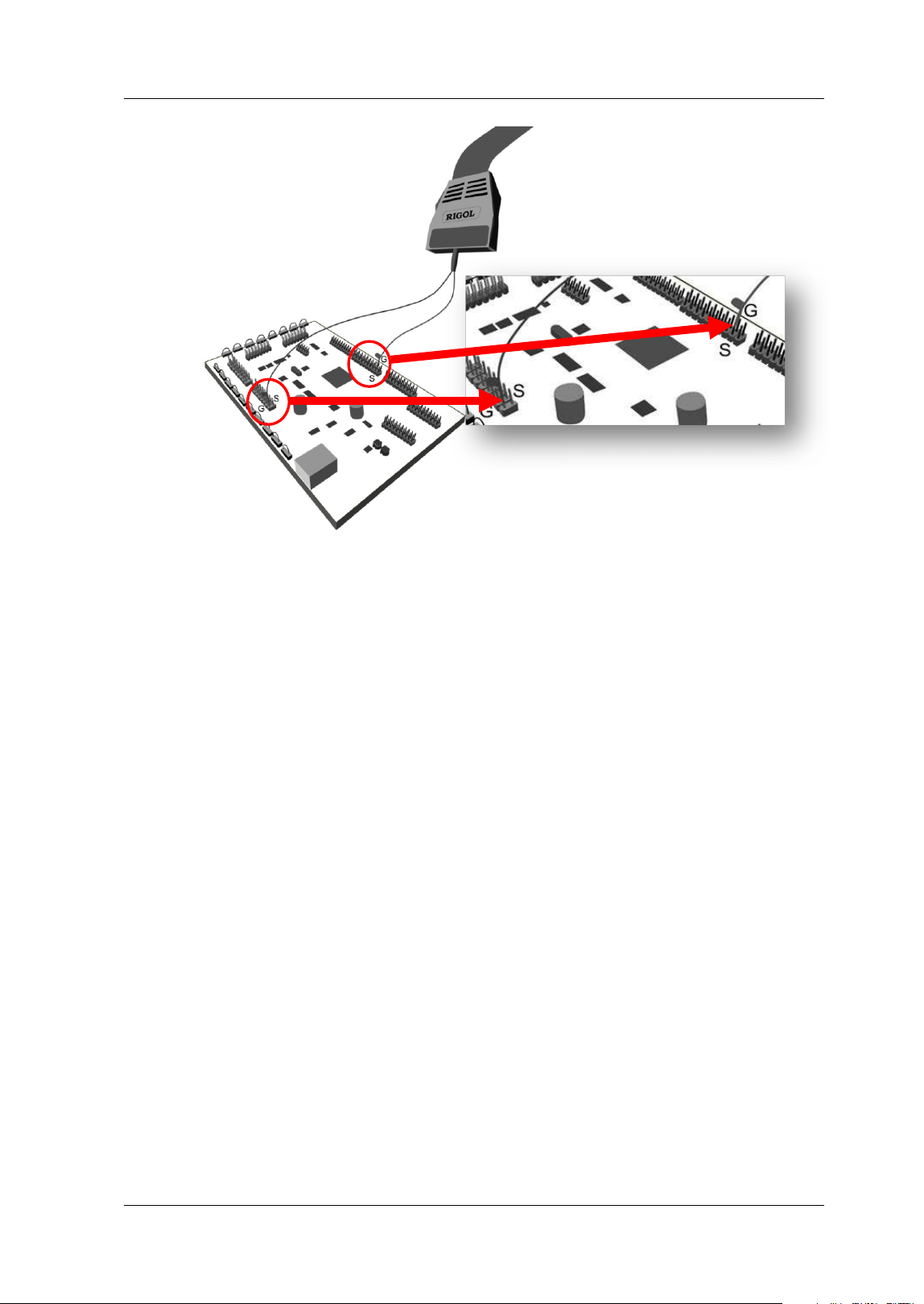
2. Connect the output terminal of the logic probe to the digital channel input
terminal on the front panel of the oscilloscope in the correct direction, as shown
in Figure 1-6.
Figure 1-6 To Connect the Logic Probe
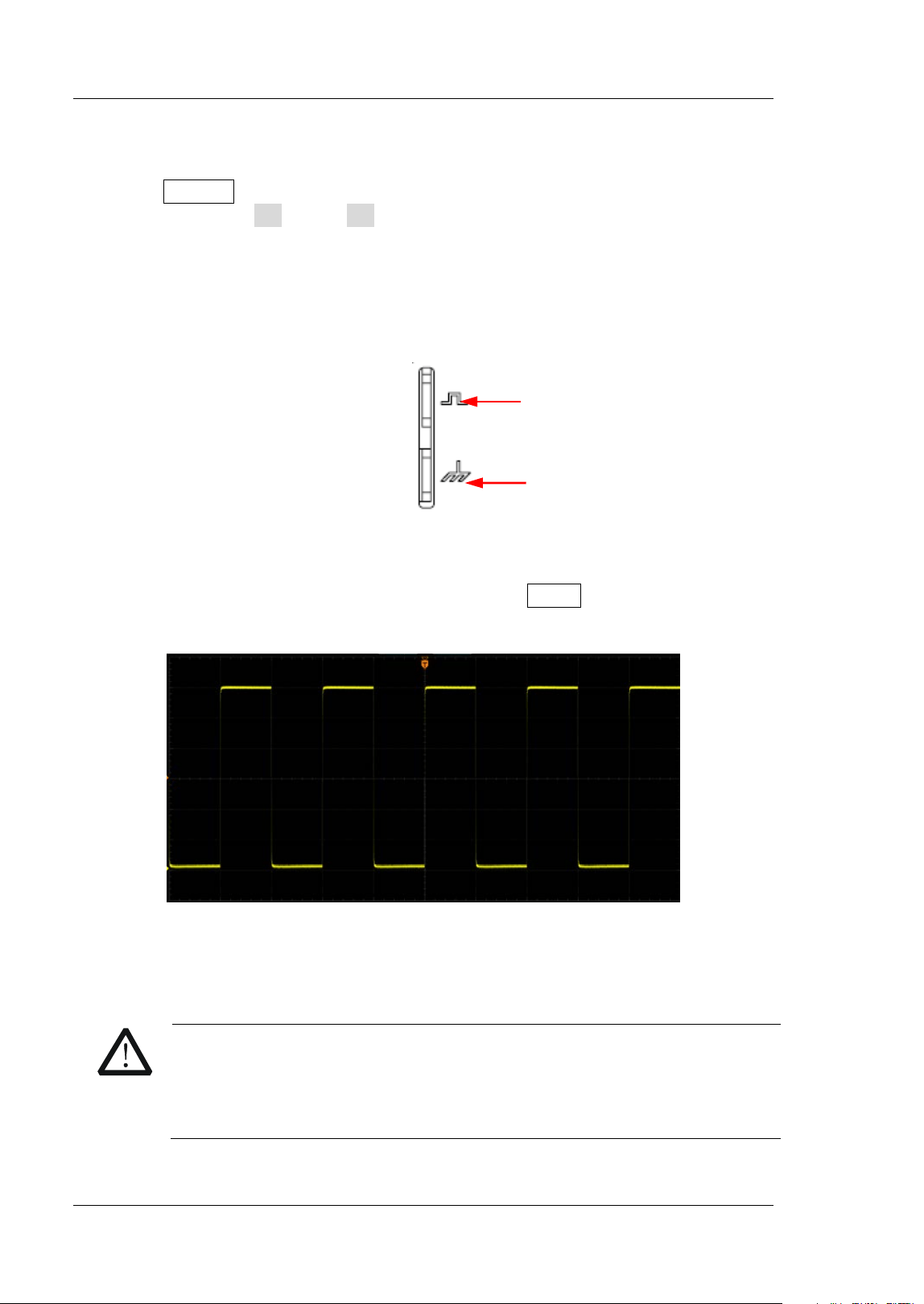
3. Connect the signal lead of each probe at the input terminal of the logical probe to
the test point of the signal under test.
4. Connect the ground lead of each probe at the input terminal of the logical probe
to the ground test point near the signal under test, as shown in Figure 1-7 (a).
Figure 1-7 (b) shows the incorrect connection of the ground lead, which fails to
connect the ground lead to the ground test point near the measured signal.
(a) Correct Connection of the Ground Lead
Chapter 1 Quick Start RIGOL
MSO5000-E User Guide 1-7
(b) Incorrect Connection of the Ground Lead
Figure 1-7 Ground Lead Connection
5. Repeat the above steps to connect all digital signals.
Note:
The digital channel input terminal does not support hot plugging. Please do not
insert or pull out the logic probe when the instrument is in power-on state.
For ground connection of high-speed signal, the ground lead shall be connected
to the ground test point near the measured signal, and the ground lead shall be
kept as short as possible.
I f the number of input signal channels is more, please connect each signal to a
ground signal as far as possible. I f there is only one ground test point, connect
all ground leads on the probe to the ground test point.
According to the actual level range of the measured signal, the threshold value
of the logical probe is set reasonably, and the threshold value is set in the middle
of the level range.
RIGOL Chapter 1 Quick Start
1-8 MSO5000-E User Guide
Function I nspection
1. Press Default on the front panel, then a prompt message "Restore default?" is
displayed. Press OK or tap OK to restore the instrument to its factory default
settings.
2. Connect the ground alligator clip of the probe to the "Ground Terminal" as
shown in Figure 1-8 below.
3. Use the probe to connect the input terminal of CH1 of the oscilloscope and the
"Compensation Signal Output Terminal" of the probe, as shown in Figure 1-8.
Figure 1-8 To Use the Compensation Signal
4. Set the probe attenuation to 10X, and then press AUTO.
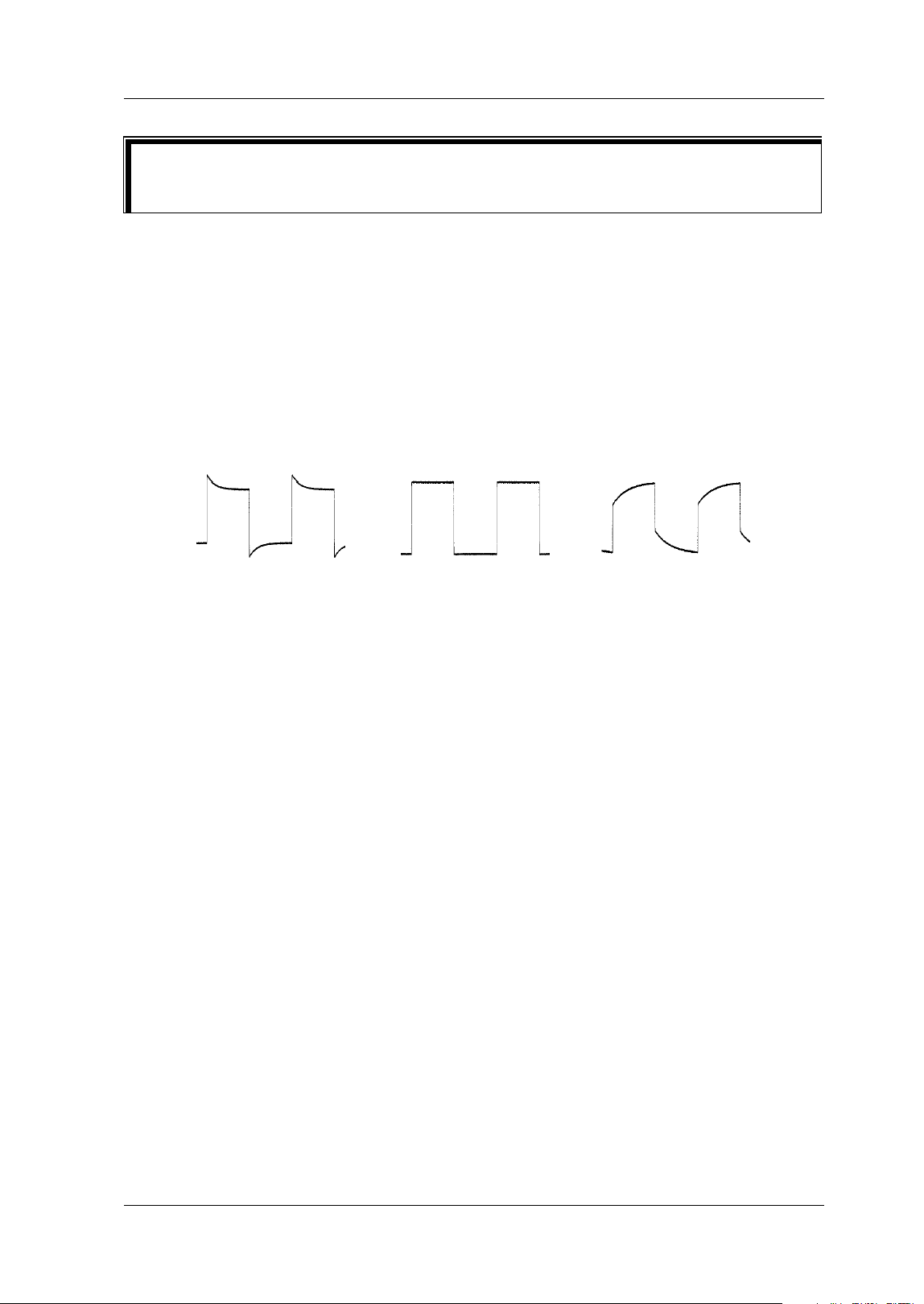
5. Observe the waveform on the display. I n normal condition, the square waveform
as shown in Figure 1-9 should be displayed.
Figure 1-9 Square Waveform Signal
6. Use the same method to test the other channels. I f the square waveforms
actually shown do not match that in the f igure above, please perform "Probe
Compensation" introduced in the next section.
WARNI NG
To avoid electric shock when using the probe, please make sure that the
insulated wire of the probe is in good condition. Do not touch the
metallic part of the probe when the probe is connected to high voltage
source.
Compensation Signal Output Terminal
Ground Terminal
Chapter 1 Quick Start RIGOL
MSO5000-E User Guide 1-9
Probe Compensation
When the probes are used for the f irst time, you should compensate the probes to
make them match the input channels of the oscilloscope. Non-compensated or
poorly compensated probes may cause measurement inaccuracy or errors. The
probe compensation procedures are as follows:
1. Perform Step 1, 2, 3 and 4 specified in "Function I nspection".
2. Check the displayed waveforms and compare them with Figure 1-10.
Figure 1-10 Probe Compensation
3. Use a nonmetallic screwdriver to adjust the low-frequency compensation
adjustment hole on the probe until the waveform is displayed as "Perfectly
compensated" in the f igure above.
Tip
The probe compensation signal can only be used for probe compensation
adjustment and cannot be used for calibration.
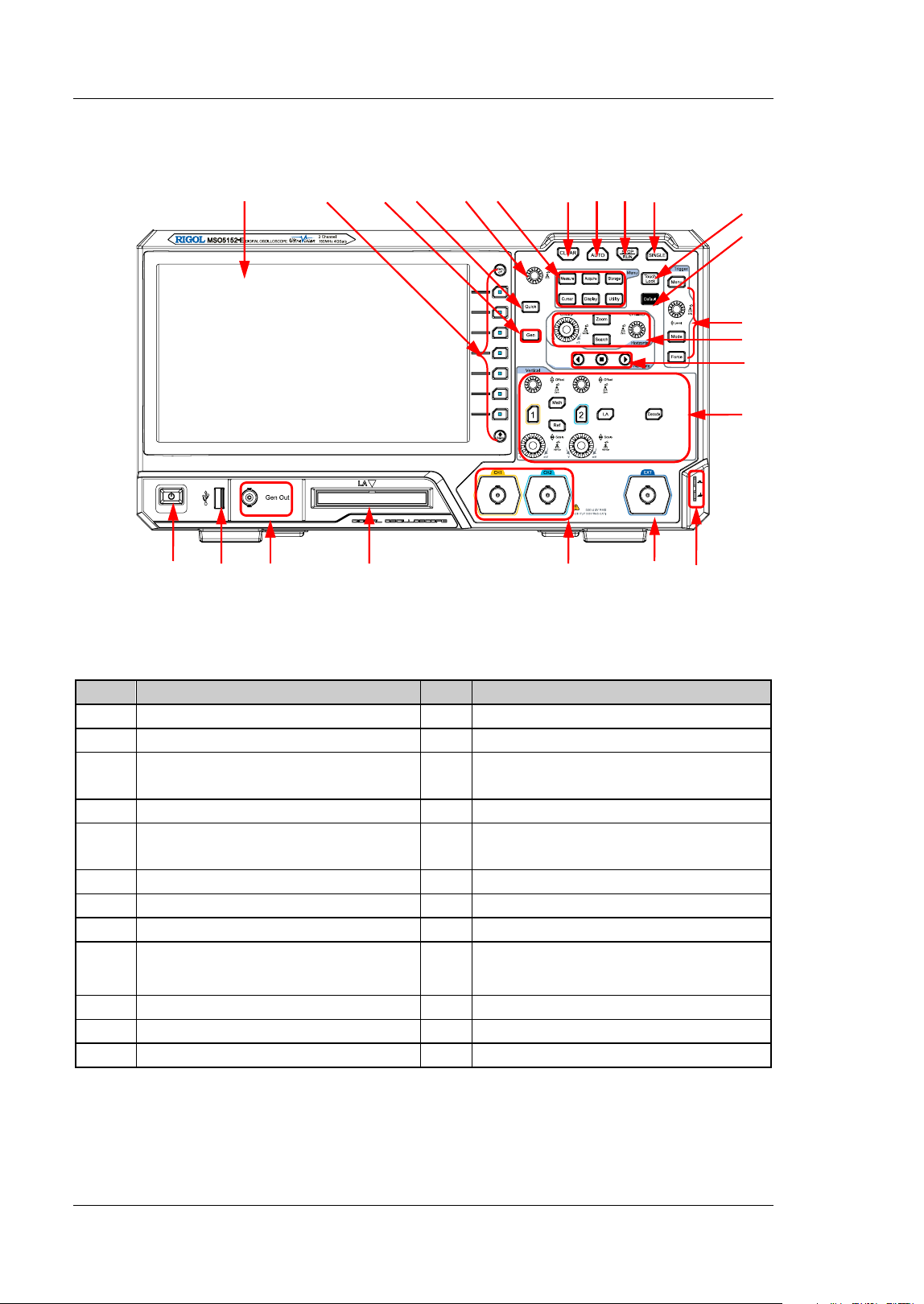
Over compensated Perfectly compensated Under compensated
RIGOL Chapter 1 Quick Start
1-10 MSO5000-E User Guide
Front Panel Overview
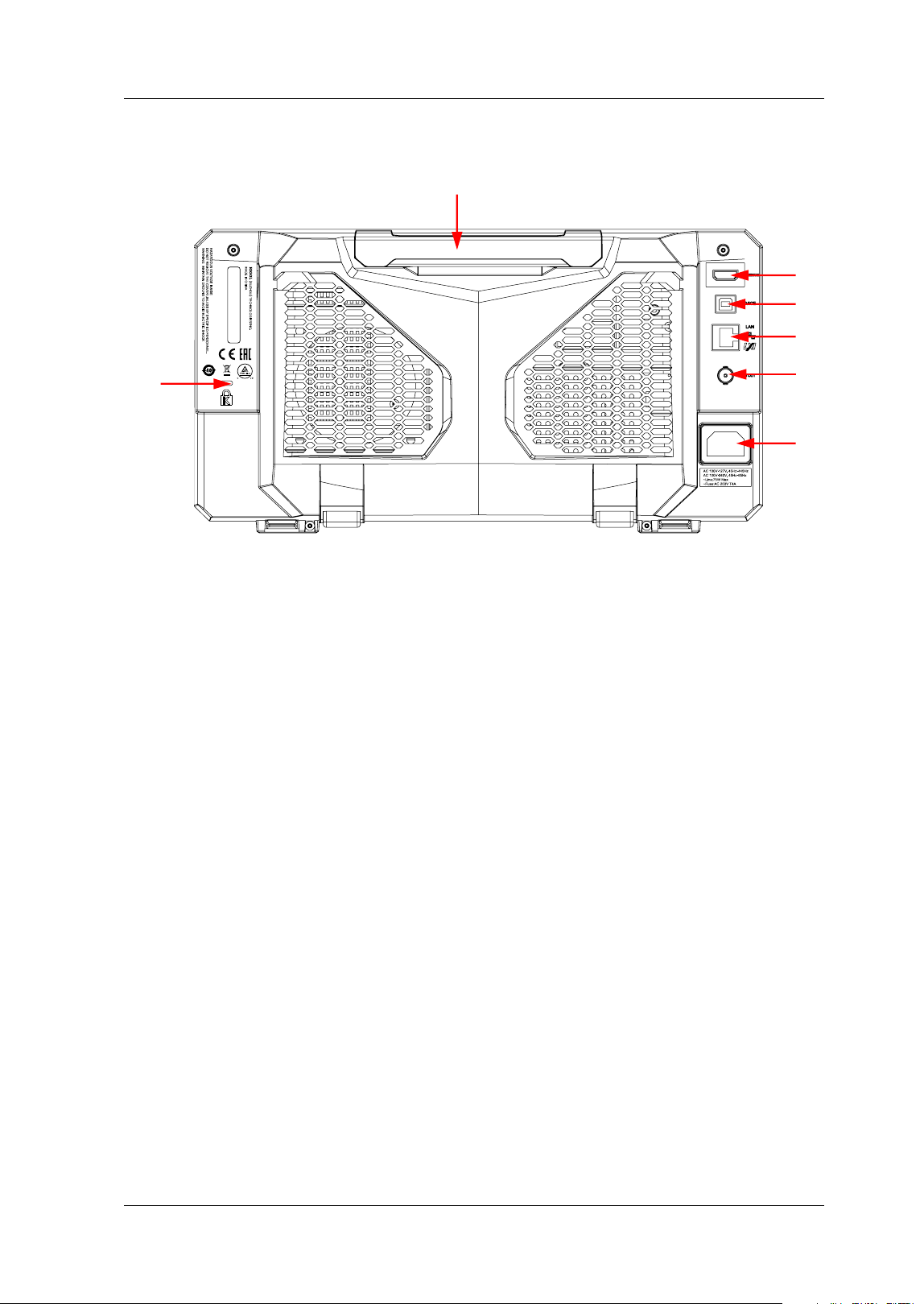
Figure 1-11 Front Panel
Tab l e 1-1 Front Panel Description
No.
Description
No.
Description
1
Capacitive Touch Screen
13
Tr i gg er Control System
2
Function Menu Operation Keys
14
Horizontal Control System
3
Function/ Arbitrary Waveform
Generator Setting Key
[1]
15 Navigation Control key
4
Quick Key (Shortcut Key)
16
Vert ical Control System
5
Multifunction Knob 17
Probe Compensation Signal
Output Terminal/ Ground Terminal
6
Common Operation Keys
18
External Trigger I nput
7
CLEAR Key
19
Analog Channel I nput
8
Auto Waveform Display Key
20
Digital Channel I nput
[ 2]
9 RUN/ STOP Key 21
Function/ Arbitrary Waveform
Generator Output Terminal
[ 1 ]
10
Single Trigger Control Key
22
USB HOST Interface
11
Touch Lock Key
23
Power Key
12
Default Setting Key
--
--
Note
[ 1 ]
: This function is only available for the model installed with the MSO5000-E-AWG option.
Note
[ 2]
: PLA2216 active logic probe option is required to be ordered.
1 2 3
4
5
6
7 8
9 10
23 22 21 20 19 18 17
11
12
13
14
15
16
Chapter 1 Quick Start RIGOL
MSO5000-E User Guide 1-11
Rear Panel Overview
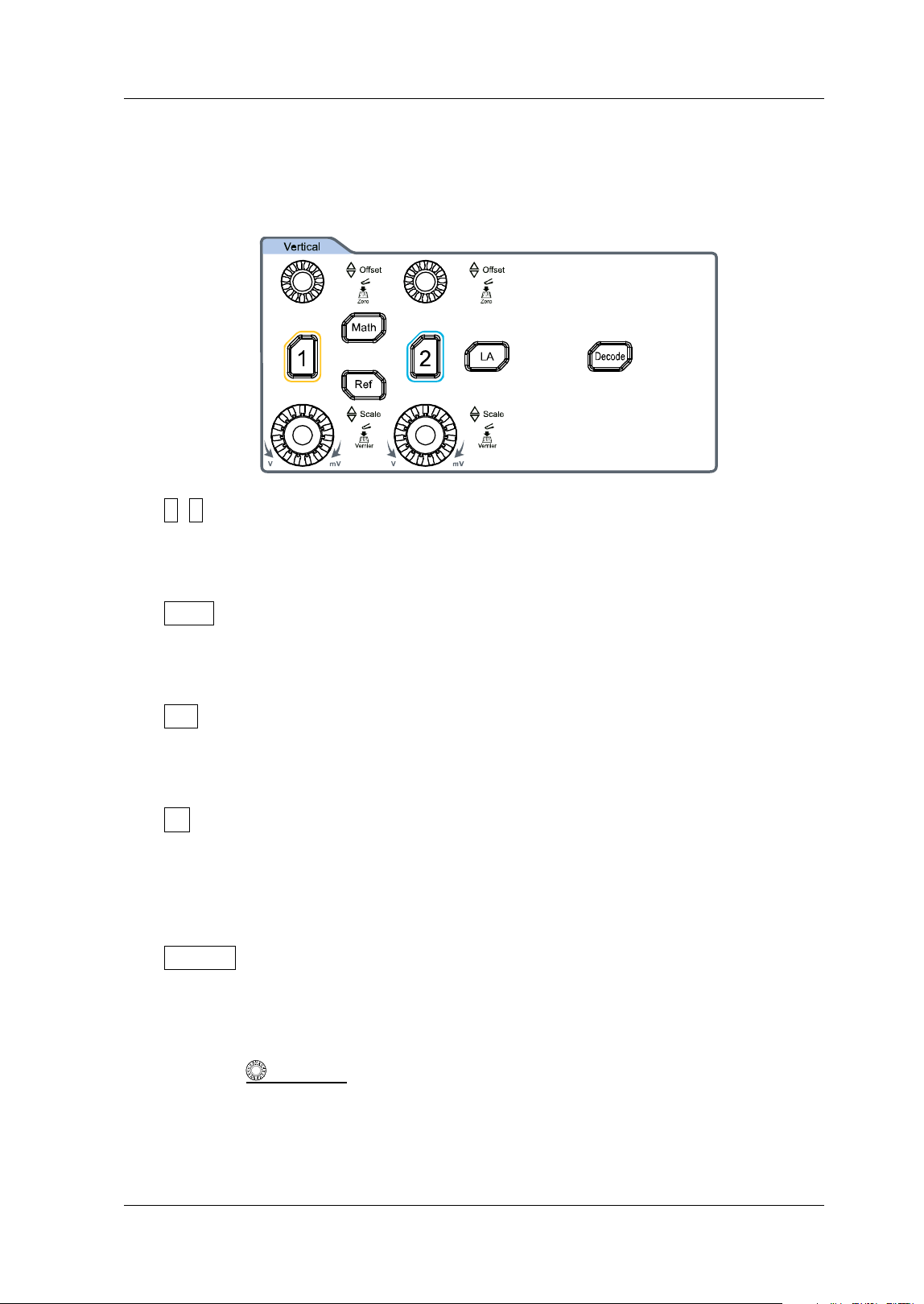
Figure 1-12 Rear Panel
1. Handle
Rotate the handle upright to carry the instrument easily. Rotate it
downward if you do not need to carry it.
2. HDMI
Through this interface, you can connect the instrument to an external
display equipped with the HDMI interface (e.g. monitor or projector) to
better observe the waveform display clearly. At this time, you can also view
the waveforms on the LCD of the instrument.
3. USB DEVI CE I nterface
You can connect the instrument to the PC via this interface. Then you can
use the PC software Ultra Scope to send the SCPI commands, the
user-def ined programming, or Web Control to control the instrument.
4. LAN I nterface
Connect the instrument to network via this interface. The instrument is in
compliance with the standards specif ied in LXI Device Specif ication 2011. I t
can be used to set up a test system.
When you access to the I nternet, you can use the Web Control or PC
software Ultra Scope to send the SCPI commands or use the user-def ined
programming to control the instrument. When update is available, you can
perform online upgrading for the system software of the instrument via the
LAN interface. After it is connected to the network, you can print the
waveform displayed on the screen when you use the network printer.
7
2
3
4
5
6
1

RIGOL Chapter 1 Quick Start
1-12 MSO5000-E User Guide
5. Trigger Out and Pass/ Fail
TRI G OUT:
The oscilloscope can output a signal that can reflect the current
capture rate of the oscilloscope at each trigger via this interface.
Connect the signal to a waveform display device and measure the
frequency of the signal. The measurement result is the same as the
current capture rate.
Pass/ Fail
The instrument can output a pulse from the [ TRI G OUT] connector
when a pass/failed event is detected during the pass/ fail test.
6. AC Power Cord Connector
I ndicates the input terminal where AC power source is connected. The
power supply requirements of the instrument are: 100 V~ 240 V; 45
Hz~ 440 Hz. Please use the power cord provided in the accessories to
connect the oscilloscope to the AC power source.
7. Kensington Lock Hole
You can lock the instrument to a f ixed location by using the security lock
(please purchase it by yourself) via the lock hole.
Tip
After the oscilloscope is connected to network (if you do not have the access
to the I nternet, please ask the administrator to open the specified network
authority), you can perform online upgrading for the system software:
1) Enable the touch screen function. Tap the function navigation icon
at the lower-left corner of the touch screen to enable the function
navigation.
2) Tap the "Help" icon, and then the "Help" menu is displayed on the
screen.
3) Press Online upgrade or enable the touch screen to tap "Online
upgrade", then a "System Update I nformation" window is displayed,
requesting you whether to accept or cancel "RI GOL TERMS OF ONLINE
UPGRADE SERVICE". Tap "Accept" to start online upgrade. Tap "Cancel"
to cancel the online upgrade.
Chapter 1 Quick Start RIGOL
MSO5000-E User Guide 1-13
Front Panel Function Overview
Vertical
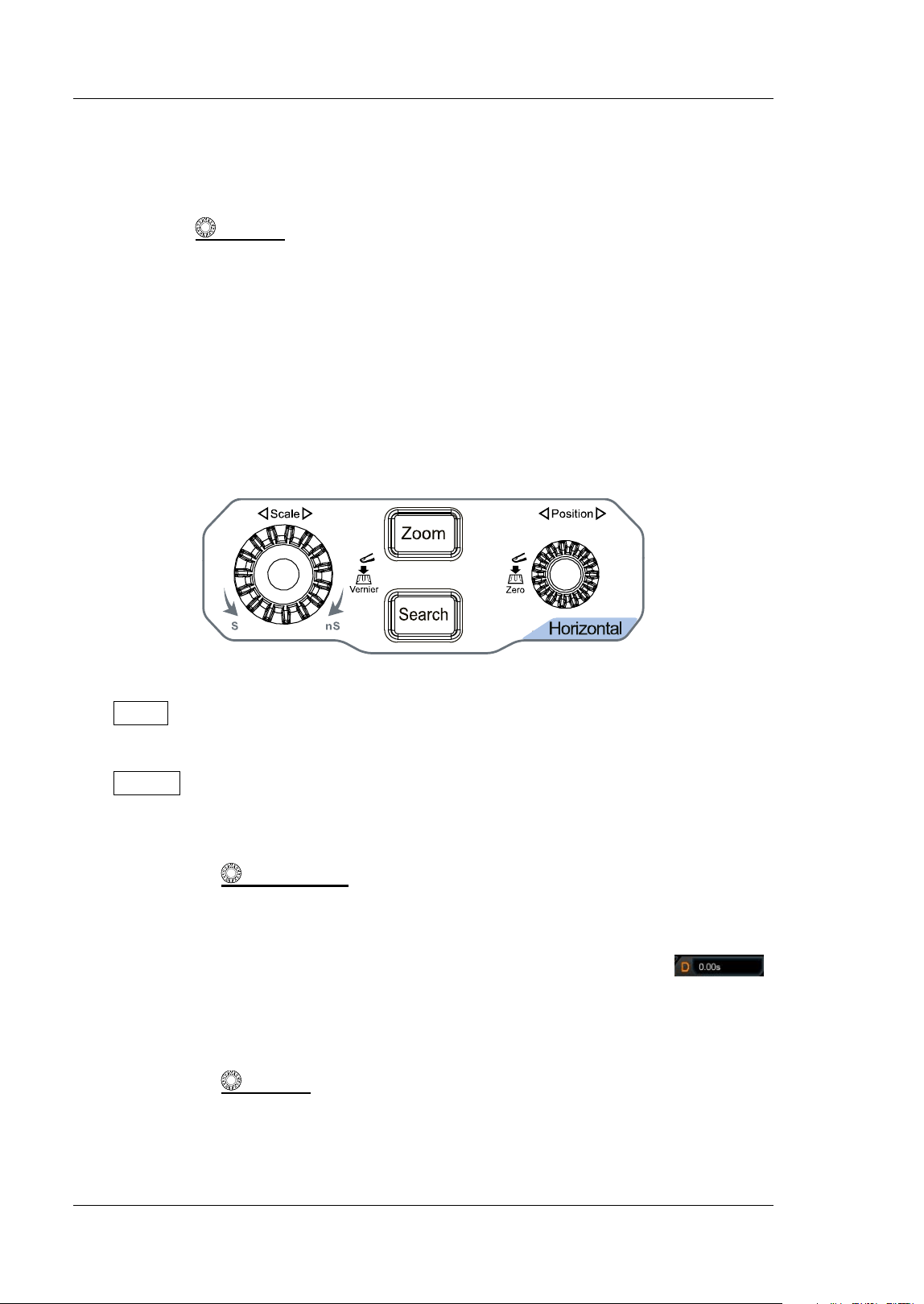
1 , 2 : indicates the analog channel switch k e y. The two channels are marked by
different colors which are also used to mark both the
corresponding waveforms
of the specif ied channel on the screen and the channel input connectors.
Math: indicates the math operation key. Press this key to enable the math
operation function. The math operations include A+ B, A-
B, A× B, A/B, and FFT.
Besides, you can also set the math operation label.
Ref: indicates the reference waveform key. Press this key to open the
reference waveform setting menu. You can compare the actually measured
waveform with the reference waveform to locate the circuit failure.
LA: indicates the logic analyzer key. Press this key to open the logic analyzer
control menu. You can enable or disable any channel or channel group, modify
the waveform sizes of the digital channel, modify the threshold of the digital
channel, and group
the 16 digital channels. Besides, you can also set a label for
each digital channel.
Decode: indicates the decode key. Press this key to open the decode setting
menu, and then you can set the decode options. MSO5000-E series supports
the parallel decoding and many protocol decodings. (For details, refer to the
descriptions in "
Protocol Decoding").
Vertical
OFFSET: indicates the channel vertical offset knob. You can
rotate the knob to modify the vertical offset of the current channel waveform.
Each analog channel is conf igured with an independent vertical offset
adjustment knob. Turn it clockwise to increase the offset, and turn it
counterclockwise to decrease the offset. During the modif ication, the waveform
RIGOL Chapter 1 Quick Start
1-14 MSO5000-E User Guide
would move up and down. Meanwhile, the offset information in the
corresponding status label would change accordingly. Press down this knob to
quickly reset the vertical offset to zero.
Vertical
SCALE: indicates the channel vertical scale knob. Modify the
vertical scale of the current channel. Each analog channel is configured with an
independent vertical scale adjustment knob. Turn it clockwise to decrease the
scale, and turn it counterclockwise to increase the scale. During the
modification, the display amplitude of the waveform will enlarge or reduce. The
scale information in the corresponding status label will change accordingly.
Press down this knob to quickly switch the vertical scale adjustment mode
between "Coarse" and "Fine".
Horizontal
Zoom: indicates the delayed sweep key. Press this key to enable or disable the
delayed sweep function.
Search: indicates the Search key. Press this key to enter the search setting
menu. The search function allows you to search for relevant events from the
collected data based on the search condition that you set.
Horizontal
POSI TI ON: indicates the horizontal position knob. You can
rotate the knob to modify the horizontal position (i.g. trigger position). The
trigger point would move left or right relative to the center of the screen when
you rotate the knob. During the modification, waveforms of all the channels
would move left or right, and the horizontal position message (e.g.
)
at the upper-right corner of the screen would change accordingly. Press down
this knob to quickly reset the horizontal position (or the delayed sweep
position).
Horizontal
SCALE: indicates the horizontal timebase knob. You can rotate
the knob to modify the horizontal timebase. Turn it clockwise to decrease the
timebase, and turn it counterclockwise to increase the timebase. During the
modification, waveforms of all the channels will be displayed in expanded or
Chapter 1 Quick Start RIGOL
MSO5000-E User Guide 1-15
compressed form, and the timebase message (e.g. ) at the upper section
of the screen would change accordingly. Press down this knob to quickly switch
the horizontal timebase adjustment mode between "Coarse" and "Fine".
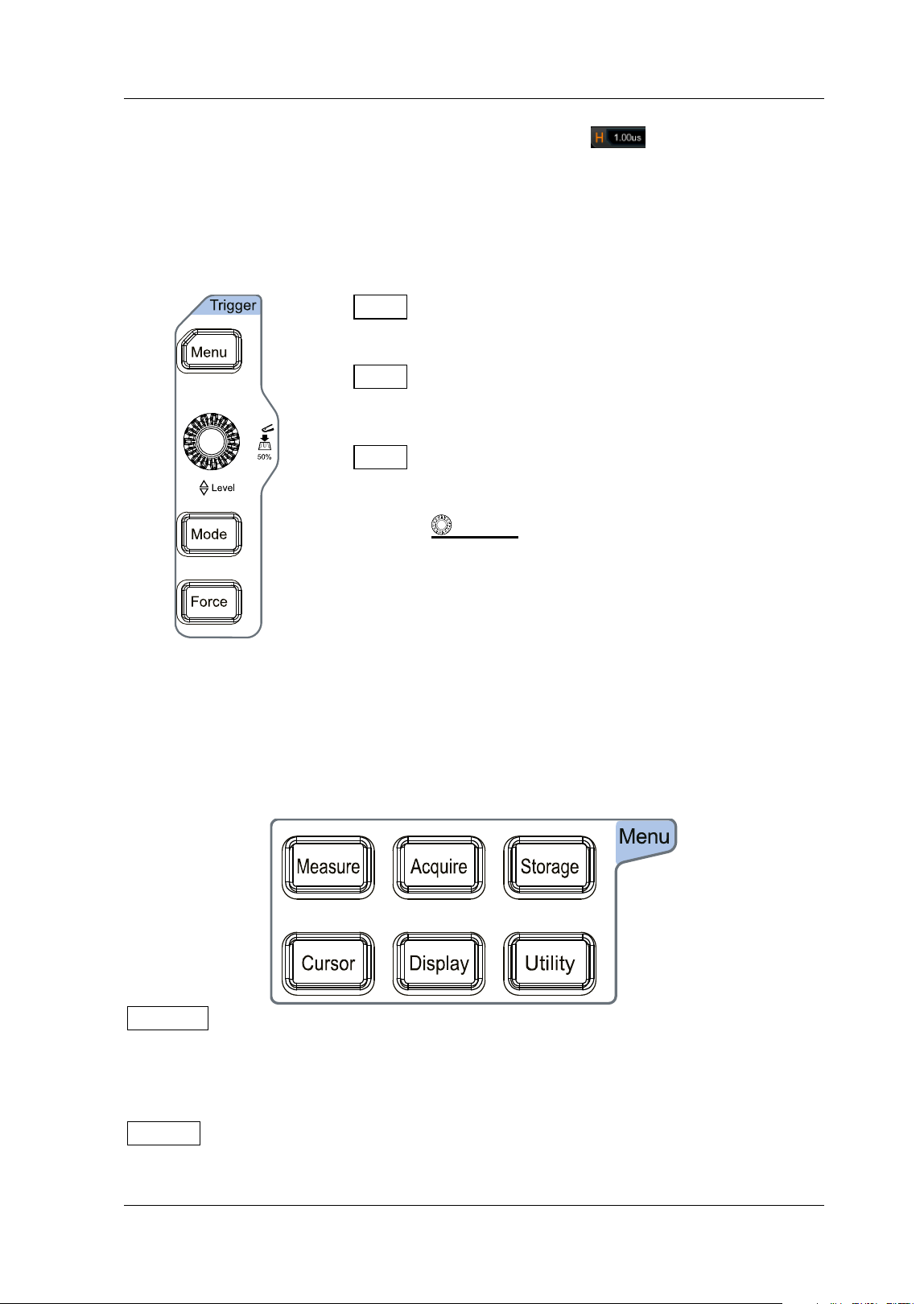
Trigger
Menu: Press this key to open the trigger operation
menu. This oscilloscope provides various trigger types.
Mode: Press this key to switch the trigger mode to Auto
Normal, or Single.
Force: Press this key to generate a trigger signal
forcibly.
Trigger
LEVEL: modif ies the trigger level/ threshold
level. Turn it clockwise to increase the level, and turn it
counterclockwise to decrease the level. During the
modification, the trigger level line would move up and
down and the trigger level/ threshold level value at the
upper-right corner of the screen would change
accordingly. Press down the knob to quickly set the
trigger level to 50% of the waveform peak-peak value.
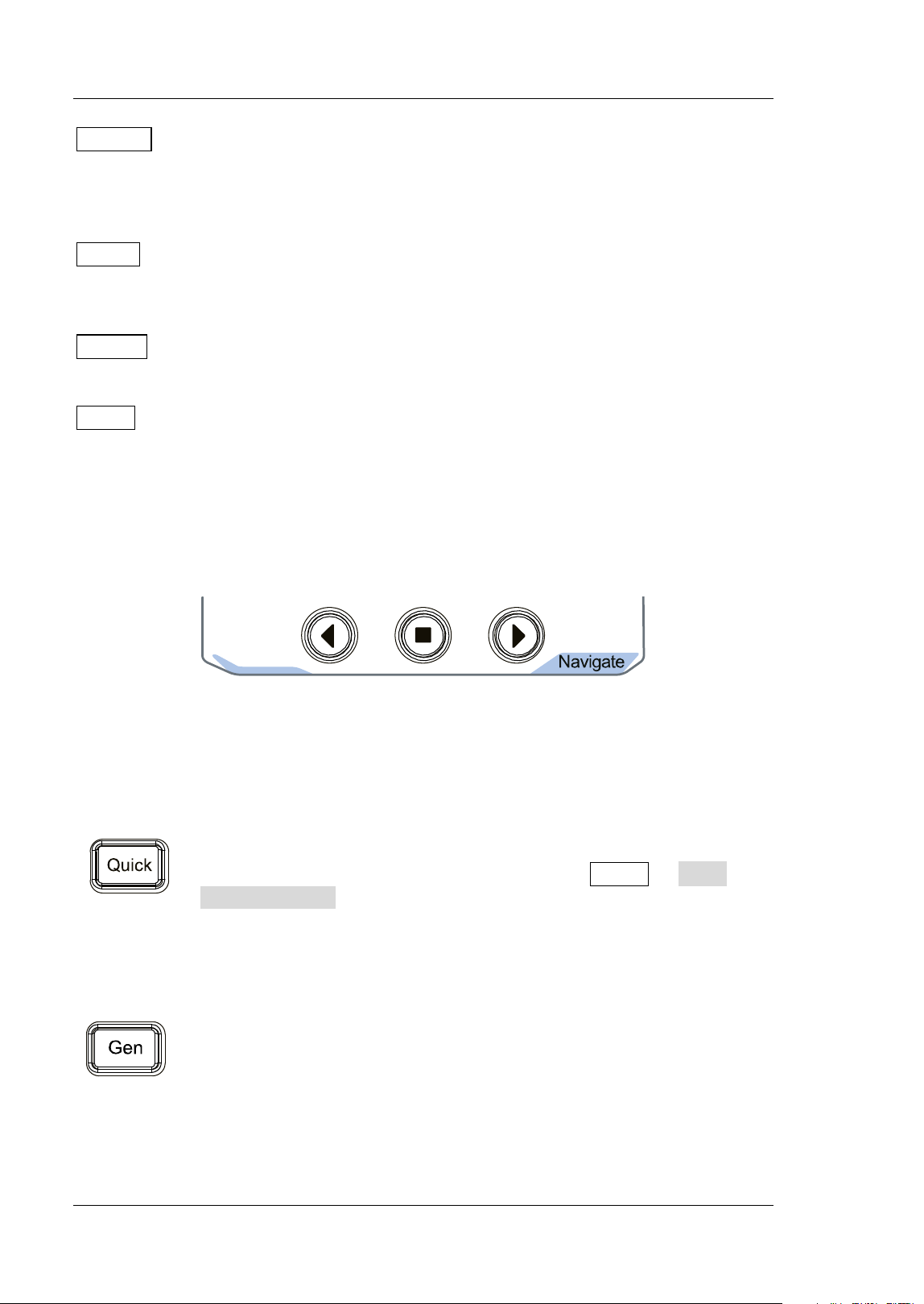
Function Menu
Measure: Press this key to enter the measurement setting menu. You can set the
measurement source, enable or disable the all measurement function, the statistical
analysis function, and etc. You can make a quick measurement for 41 waveform
parameters.
Acquire: Press this key to enter the acquisition setting menu. You can set the
timebase mode, the acquisition mode, memory depth, and etc.
RIGOL Chapter 1 Quick Start
1-16 MSO5000-E User Guide
Storage: Press this key to enter the f ile or waveform storage and load interface.
The f ile types for storage include image, waveform, and setups. Besides, waveform
load and setup load are supported. The disk management and f ile auto naming
function are also supported in this menu.
Cursor: Press this key to enter the cursor measurement menu. The oscilloscope
provides four cursor modes: Manual, Track, XY, and Measure. Note that XY cursor
mode is only available when the horizontal timebase is set to "XY".
Display: Press this key to enter the display setting menu. You can set the display
type, persistence time, wave intensity, and etc.
Utility: Press this key to enter the system function setting menu. You can set
system-related functions or parameters, such as I/ O, sound, language, and etc.
Besides, some advanced functions (such as the pass/ fail test, waveform recording,
and self-calibration) are also supported.
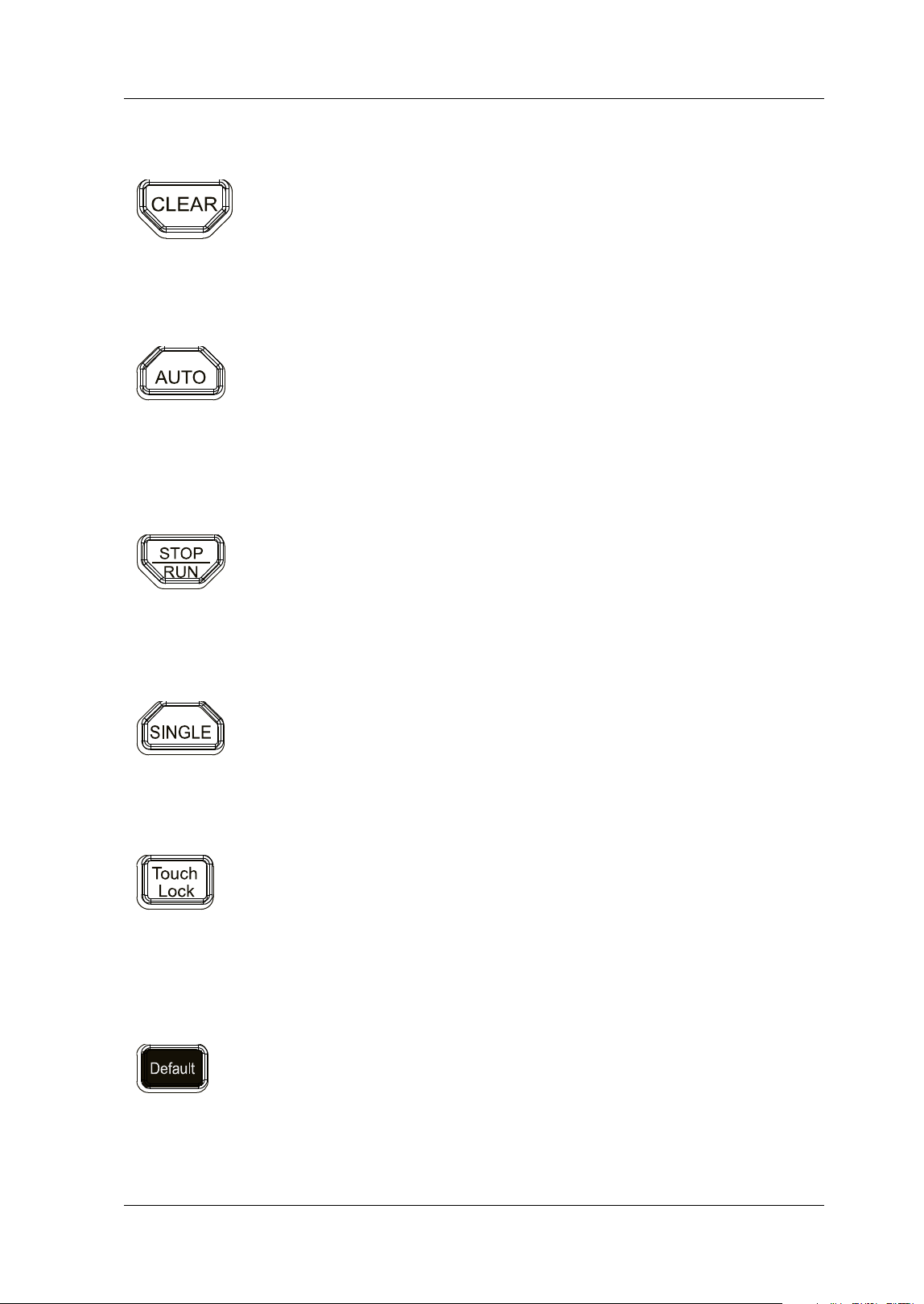
Navigation Control Key
With the navigation keys, you can perform recording & playing navigation, time
navigation, and event navigation.
Quick Key ( Shortcut Key)
Function/ Arbitrary Waveform Generator Setting
Press this key to enable or disable the output of the [ Gen Out]
connector on the front panel; and then enter the Function/ Arbitrary
Waveform Generator setting interface. Enable or disable the status
display of the current signal.
Note: This function is only available for the model installed with the
MSO5000-E-AWG option.
Press this key to perform the quick operation, such as screenshot,
waveform saving, setup saving, and etc. Press Utility More
Quick settings to set the quick shortcut keys.
Chapter 1 Quick Start RIGOL
MSO5000-E User Guide 1-17
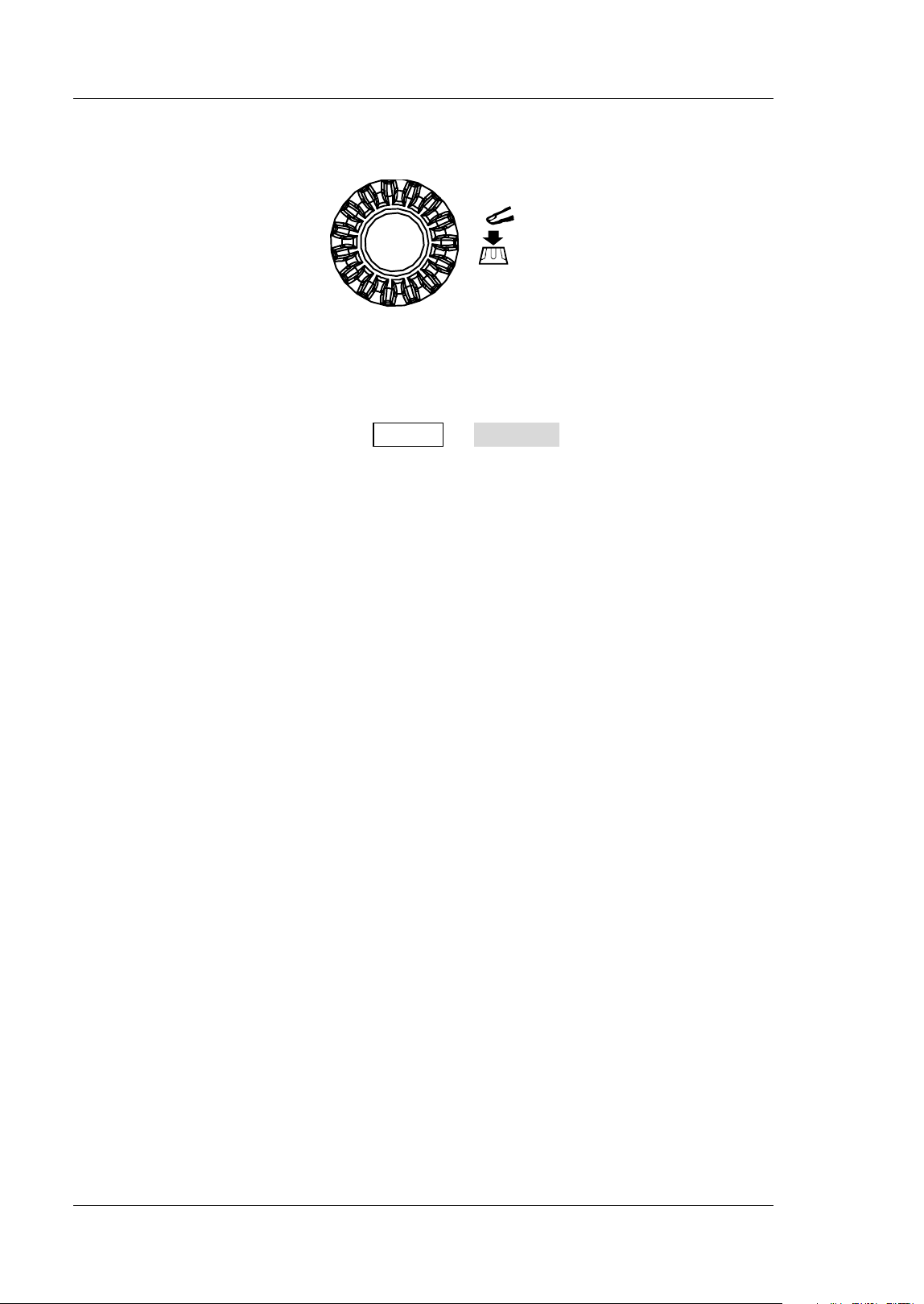
Clear
Press this key to clear all the waveforms on the screen. I f the
oscilloscope is in the "RUN" state, new waveforms will continue
being displayed.
Auto
Press this key to enable the waveform auto setting function. The
oscilloscope will automatically adjust the vertical scale, horizontal
timebase
, and trigger mode according to the input signal to realize
optimal waveform display.
RUN/ STOP
Press this key to set the operating state of the oscilloscope to
"RUN" o
r "STOP". I n the "RUN" state, the key is illuminated in
yellow. I n the "STOP" state, the key is illuminated in red.
Single
Press this key to set the trigger mode to "Single".
Touch Lock Key
Press this key to disable the touch screen function.
Note: By default, the touch screen function of the oscilloscope is
always enabled. I f y
ou disable the function, press the key again
to enable it.
Default
Press this key to restore the instrument to its factory default
settings.
RIGOL Chapter 1 Quick Start
1-18 MSO5000-E User Guide
Multifunction Knob
Non-menu Operation:
I n non-menu-operation mode, rotate this knob to adjust the brightness of
waveform display. The settable screen brightness ranges from 1% to 100% .
Turn it clockwise to increase the brightness, and turn it counterclockwise to
decrease the brightness. Press Display I ntensity to adjust the waveform
brightness. You can also use the knob to adjust it.
Menu Operation:
I n menu-operation mode, for the menu item that has multiple parameters under
it, when you press the menu softkey, rotate the knob to select the parameter
item, then press down the knob to select it (sometimes, the specif ied parameter
item can be selected by rotating the knob). The knob can also be used to modify
parameters, input the f ilename, etc.
Chapter 1 Quick Start RIGOL
MSO5000-E User Guide 1-19
User I nterface
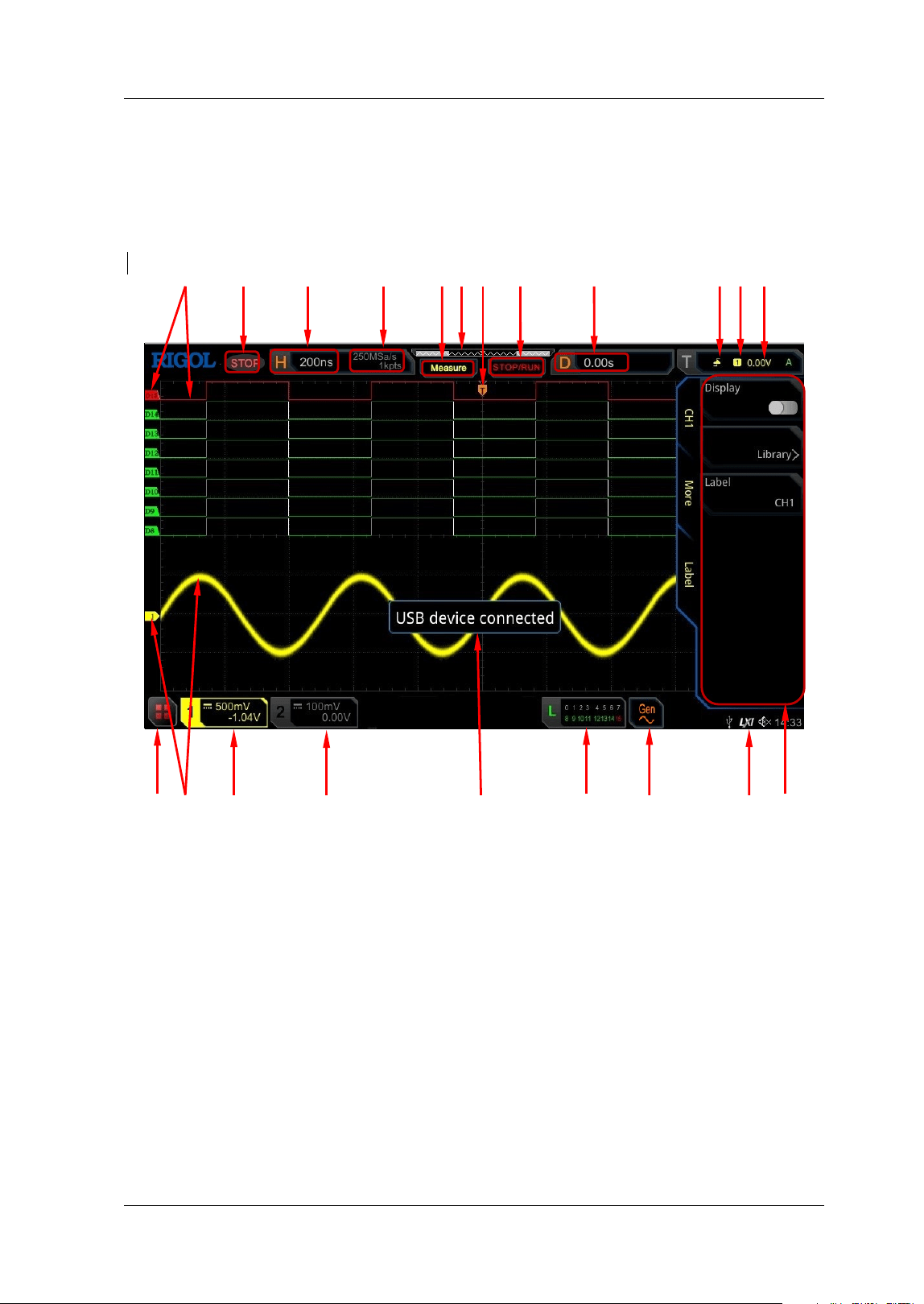
MSO5000-E series has a 9-inch WSVGA (1024× 600) LCD, with 256 level gray-scale
display. The user interface displays the acquired waveforms, the setting information,
and the measurement results.
Figure 1-13 User I nterface
1. Digital Channel Label/ Waveform
The logic high and low level of the digital waveform are displayed in green. I ts
edge is displayed in white. The color of the currently selected waveform of the
digital channel is consistent with that of the channel label, being displayed in red.
The grouping setting function under the logic analyzer function menu can divide
the digital channels into 4 channel groups. The channel label of the same
channel group is displayed in the same color; different channel groups are
marked with different colors.
2. Operating Status
Available states include RUN, STOP, T’D (triggered), WAIT, and AUTO.
1 2 3 4
5
6 7 8 9 10 11 12
21 20 19 18 17 16 15 14 13
RIGOL Chapter 1 Quick Start
1-20 MSO5000-E User Guide
3. Horizontal Timebase
Represents the time length per grid in the horizontal axis of the screen.
Use Horizontal
SCALE to modify this parameter. The adjustable range
of the horizontal timebase is different for different models.
4. Sample Rate/ Memory Depth
Displays the current sample rate and memory depth of the analog channel.
The sample rate and the memory depth will change along with the horizontal
timebase.
5. Auto Measurement Label
Enable the touch screen, and then tap the label. Up to 41 waveform parameters
are available for auto measurement. I t also offers full-memory hardware
measurement function.
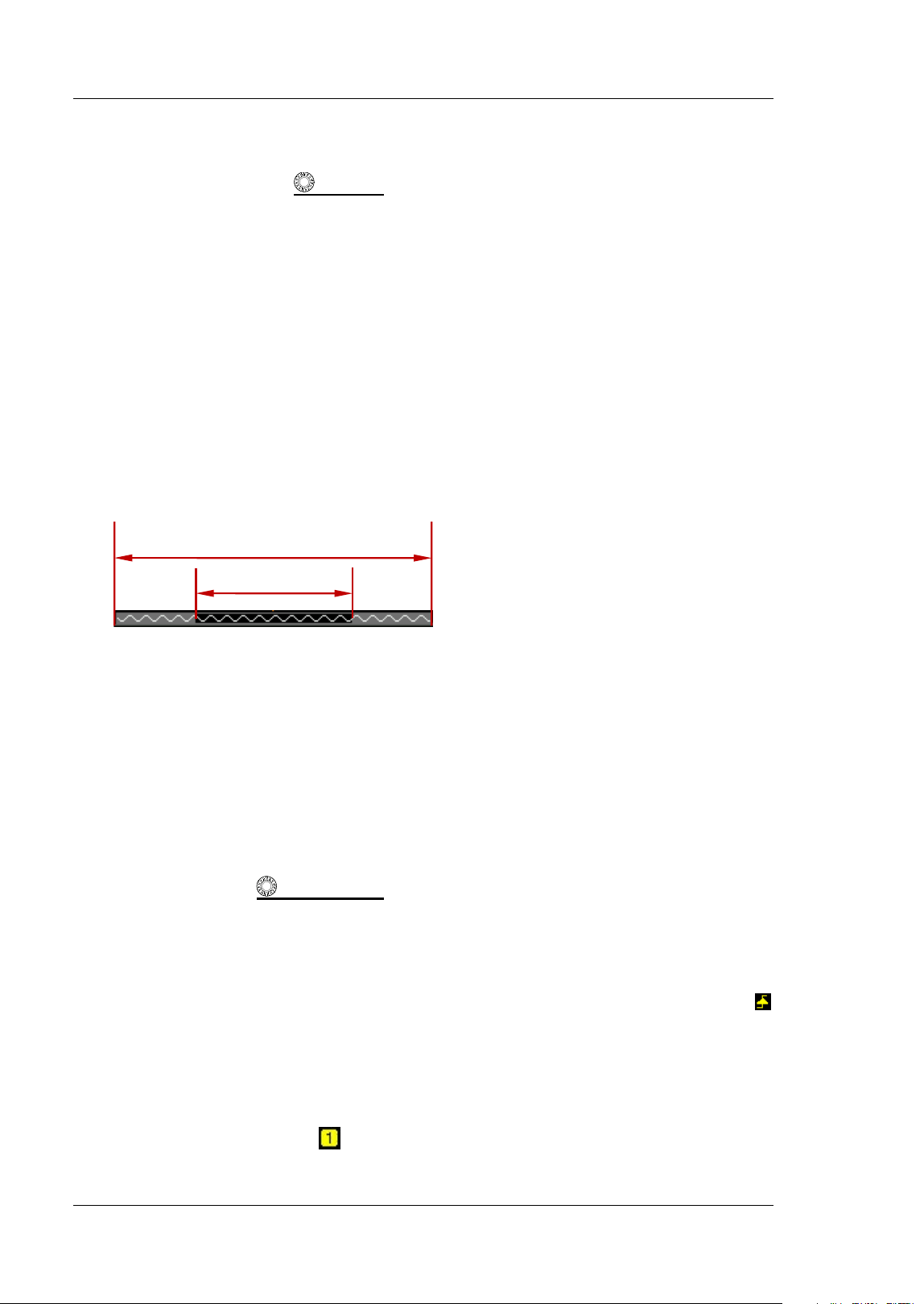
6. Waveform Memory
Provides a diagram of the position of the screen waveform in the memory.
7. Trigger Position
Displays the trigger position of the screen waveform and that of the waveform in
the memory.
8. Run/ Stop Label
I n the run state, the label is displayed in green; while in the stop state, it is
displayed in red. You can enable the touch screen to tap the icon "STOP/ RUN" to
control its operating status.
9. Horizontal Position
Use Horizontal
POSI TI ON to modify this parameter. Press down this knob
to quickly reset the horizontal position.
10. Trigger Type
Displays the currently selected trigger type and trigger condition setting. When
you select different trigger types, different labels are displayed. For example,
represents triggering on the rising edge in "Edge" trigger.
11. Trigger Source
Displays the currently selected trigger source (CH1, CH2, EXT, EXT/ 5, AC Line,
or D0-D15). When you select different trigger sources, different labels are
displayed. For example,
denotes that CH1 is selected as the trigger source.
screen waveform
waveform in the memory
Chapter 1 Quick Start RIGOL
MSO5000-E User Guide 1-21
12. Trigger LEVEL/ Threshold Level
When CH1, CH2, EX T, or EXT/ 5 is selected as the trigger source, you need
to set a proper trigger level.
When D0-D15 is selected as the trigger source, you need to set a proper
threshold level.
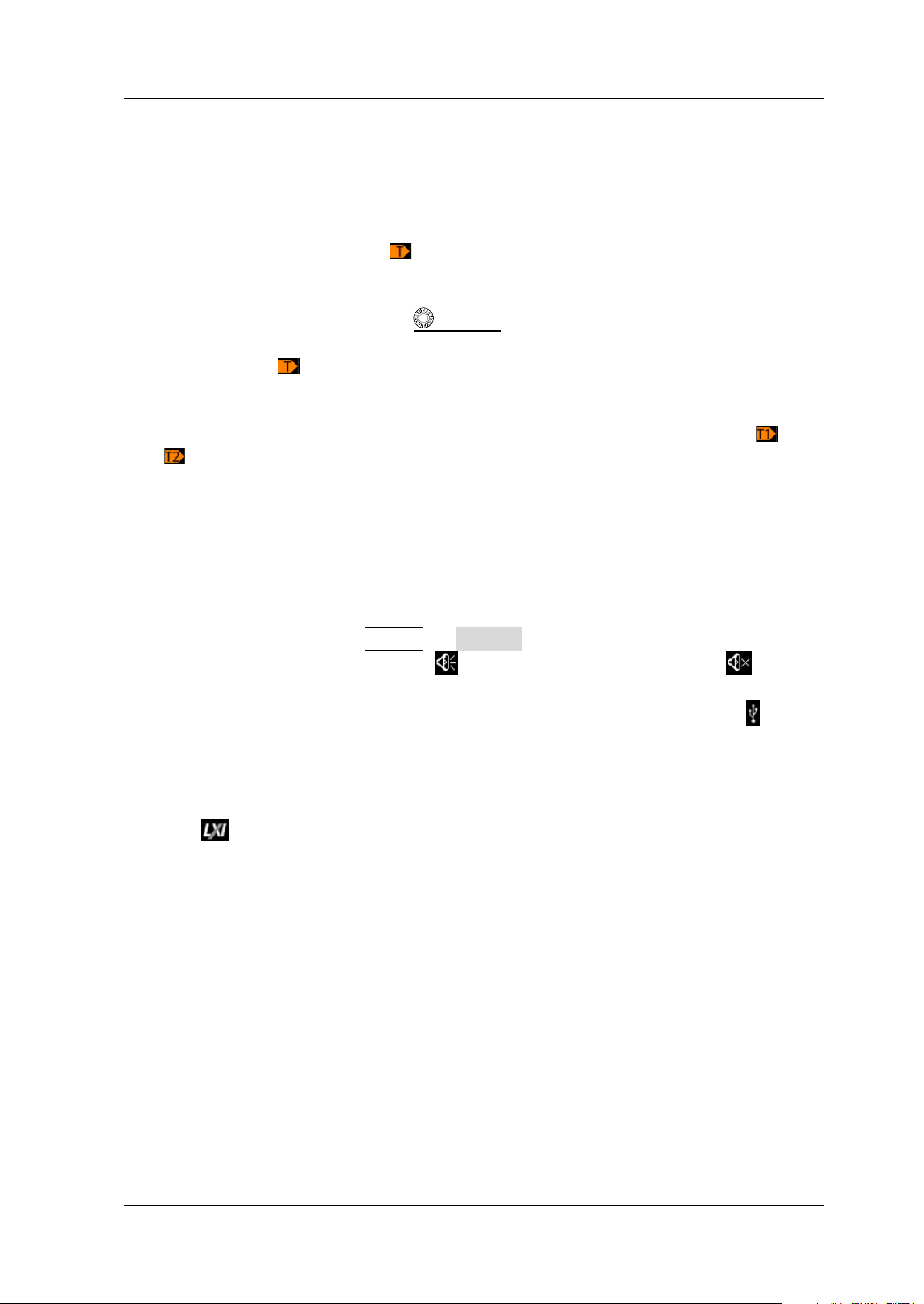
The trigger level label
is displayed at the left section of the screen, and
the trigger level/ threshold level value is displayed at the upper-right corner
of the screen.
When you use Trigger
LEVEL to modify the trigger level/ threshold
level, the trigger level/ threshold level value will change with the up and
down of
.
Note: I n Slope Trigger, Runt Trigger, and Window trigger, you need to set the
upper and lower limits of the trigger level, and two trigger level labels (
and
) are displayed.
13. Operation Menu
Press any softkey on the front panel to activate the corresponding menu.
14. Notification Area
Displays the beeper icon, the USB storage device icon, time, and the LAN
connection icon.
Beeper icon: Press Utility Beeper to turn on or off the beeper. When
the beeper is turned on, will be displayed; when off, will be
displayed.
USB storage device icon: When a USB storage device is detected,
will be
displayed.
Time: displays the system time. For the system time setting, refer to
descriptions in "System Time".
LAN connection icon: When the LAN interface is successfully connected,
will be displayed.
15. AWG
Displays the on/ off status of AWG.
Displays the waveform type set for the current AWG.
I t is only available for the model installed with the MSO5000-E-AWG option.
16. Digital Channel Status Area
Displays the current status of the 16 digital channels. The digital channels
currently turned on are displayed in green, and the currently selected digital
channel is highlighted in red. The digital channels turned off are displayed in
gr ay.
17. Message Box
Displays the prompt messages.
RIGOL Chapter 1 Quick Start
1-22 MSO5000-E User Guide
18. CH2 Status Label
Displays the status of CH2.
Displays the vertical scale of CH2. That is, the voltage value per grid of CH2
in the vertical axis.
Displays the offset of CH2, i.g. the vertical offset of CH2 waveform.
Different labels will be displayed according to the current channel setting.
For example, if you select "DC" for channel coupling,
is displayed; if you
enable the bandwidth limit,
is displayed.
19. CH1 Status Label
Displays the status of CH1.
Displays the vertical scale of CH1. That is, the voltage value per grid of CH1
in the vertical axis.
Displays the offset of CH1, i.g. the vertical offset of CH1 waveform.
Different labels will be displayed according to the current channel setting.
For example, if you select "DC" for channel coupling,
is displayed; if you
enable the bandwidth limit,
is displayed.
20. Analog Channel Label/ Waveform
Different channels are marked with different colors. The color of the channel
label is the same as that of the waveform.
21. Function Navigation
Enable the touch screen and then tap this icon to enable the function navigation.
Touch Screen Controls
MSO5000-E series provides a 9-inch super large capacitive touch screen, which
supports multi-touch and gesture operation. I t has strong waveform display
capability and excellent user experience. I t features great convenience, high
flexibility, and great sensitivity. The actions supported by the touch screen controls
include tapping, pinching & stretching, dragging, and rectangle drawing.
Tip
The touch screen function is available for all the menus displayed on the screen
and the buttons enabled. I n this manual, key operation descriptions are illustrated
in details, and as for the touch screen function about some operations, refer to
descriptions in relevant chapters.
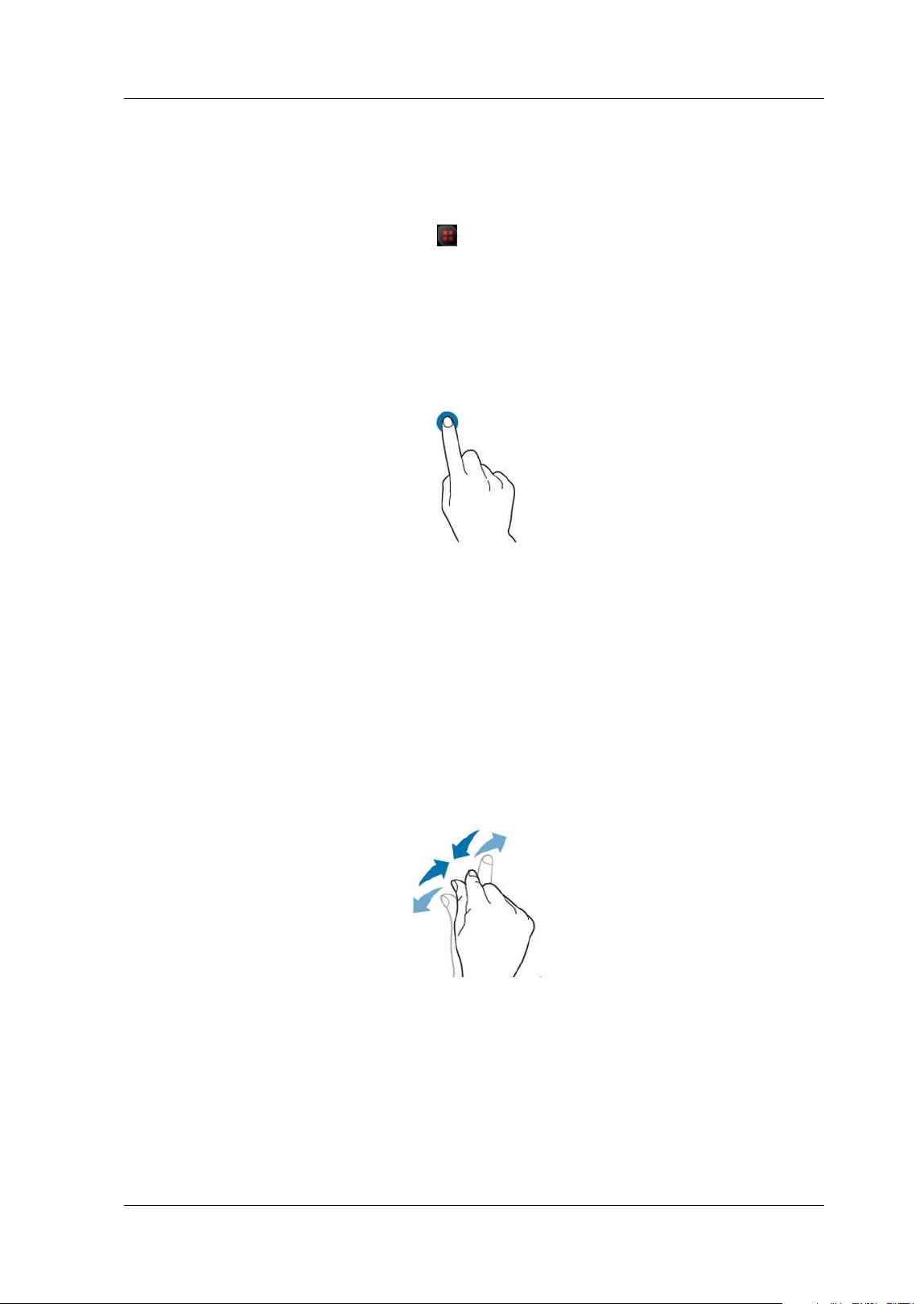
Chapter 1 Quick Start RIGOL
MSO5000-E User Guide 1-23
Tap
Use one f inger to touch the symbol or characters on the screen slightly, as shown in
Figure 1-14. The functions of the tap action include:
Tap the menu displayed on the screen to operate on the menu.
Tap the function navigation icon
at the lower-left corner of the touch screen
to enable the function navigation.
Tap the displayed numeric keypad to set the parameters.
Tap the virtual keypad to set the label name and the f ilename.
Tap the close button at the upper-right corner of the message box to close the
prompt window.
Tap other windows on the touch screen and operate on the windows.
Figure 1-14 Tap Gesture
Pinch & Stretch
Pinch or stretch two points on the screen with two fingers to zoom in or out the
waveform. To zoom in the waveform, f irst pinch the two f ingers and then stretch the
f ingers; to zoom out the waveform, f irst stretch the two f ingers, and then pinch the
f ingers together, as shown in Figure 1-15. The functions of the pinch & stretch action
include:
Pinching & stretching in the horizontal direction can adjust the horizontal
timebase of the waveform.
Pinching & stretching in the vertical direction can adjust the vertical scale of the
waveform.
Figure 1-15 Pinch & Stretch Gesture
Drag
Use one f inger to select the object, and then drag the object to a destination place,
as shown in Figure 1-16. The functions of the drag action include:
Drag the waveform to change its position or offset.
Drag the window controls to change the positions of the window (e.g. numeric
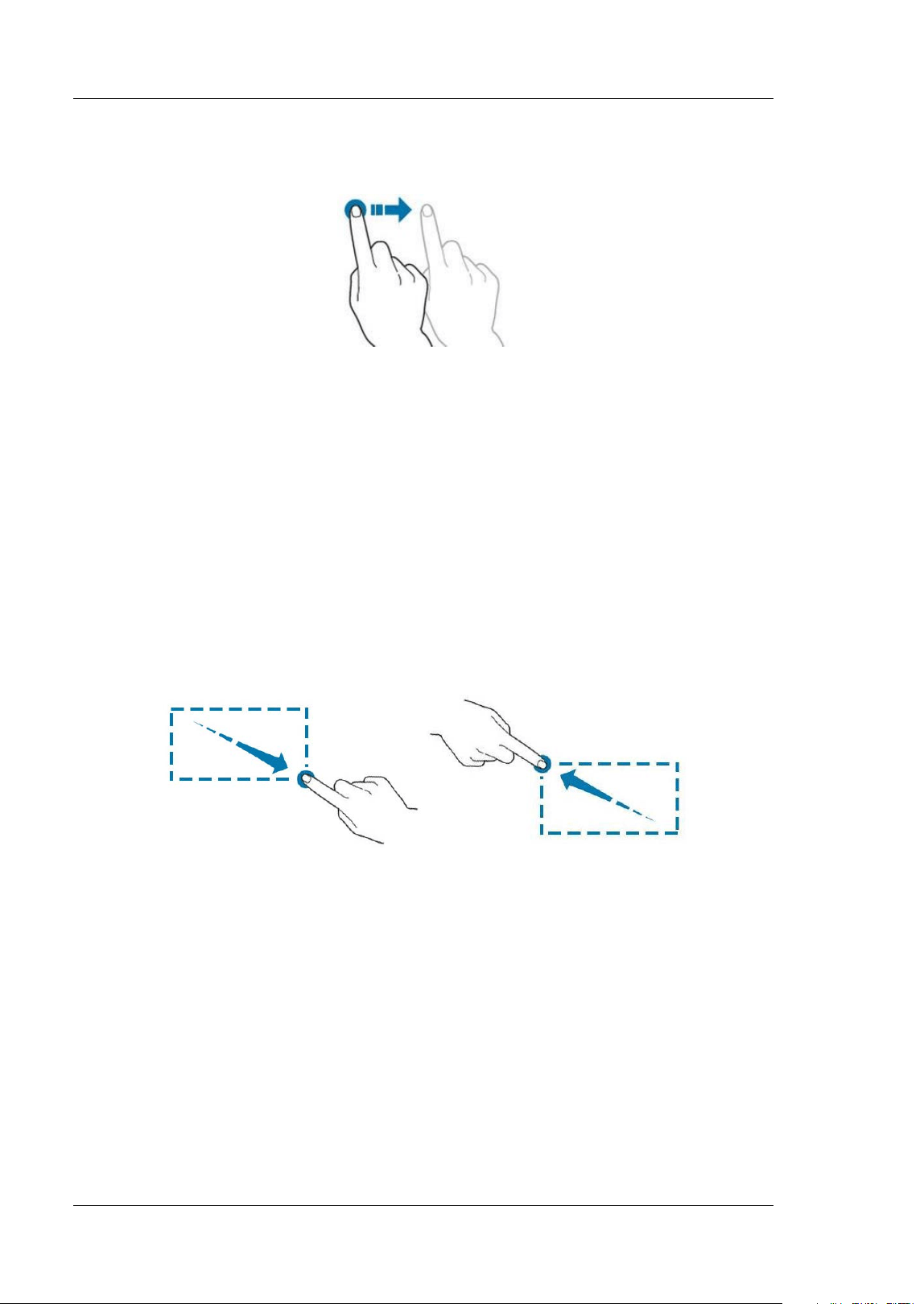
RIGOL Chapter 1 Quick Start
1-24 MSO5000-E User Guide
keypad).
Drag the marker to change the position of the marker.
Figure 1-16 Drag Gesture
Rectangle Draw ing
Enable the function navigation, and then tap the "Draw rect" icon to switch to the
rectangle drawing mode. Drag a f inger from upper left to lower right across the
screen to draw a rectangle on the screen, as shown in Figure 1-17 (a). Move your
f inger away from the screen, and then a menu is displayed on the screen. At this
time, you can tap to select "Trigger zone A", "Trigger zone B", "Histogram",
"Horizontal zoom in", "Vertical zoom in", or "Waveform zoom in". Drag a f inger from
lower right to upper left across the screen to draw a rectangle on the screen, as
shown in Figure 1-17 (b). Move your f inger away from the screen, and then a menu
is displayed on the screen. At this time, you can tap to select "Trigger zone A",
"Trigger zone B", "Histogram", "Horizontal zoom out", "Vertical zoom out", or
"Waveform zoom out".
(a) (b)
Figure 1-17 Rectangle Drawing Gesture
Select "Trigger zone A":
Draw the region for Trigger zone A;
Open Trigger zone A;
Open the "Zone Trigger" menu.
Select "Trigger zone B":
Draw the area for Trigger zone B;
Open Trigger zone B;
Open the "Zone Trigger" menu.
Select "Histogram":
Draw the region for the histogram;
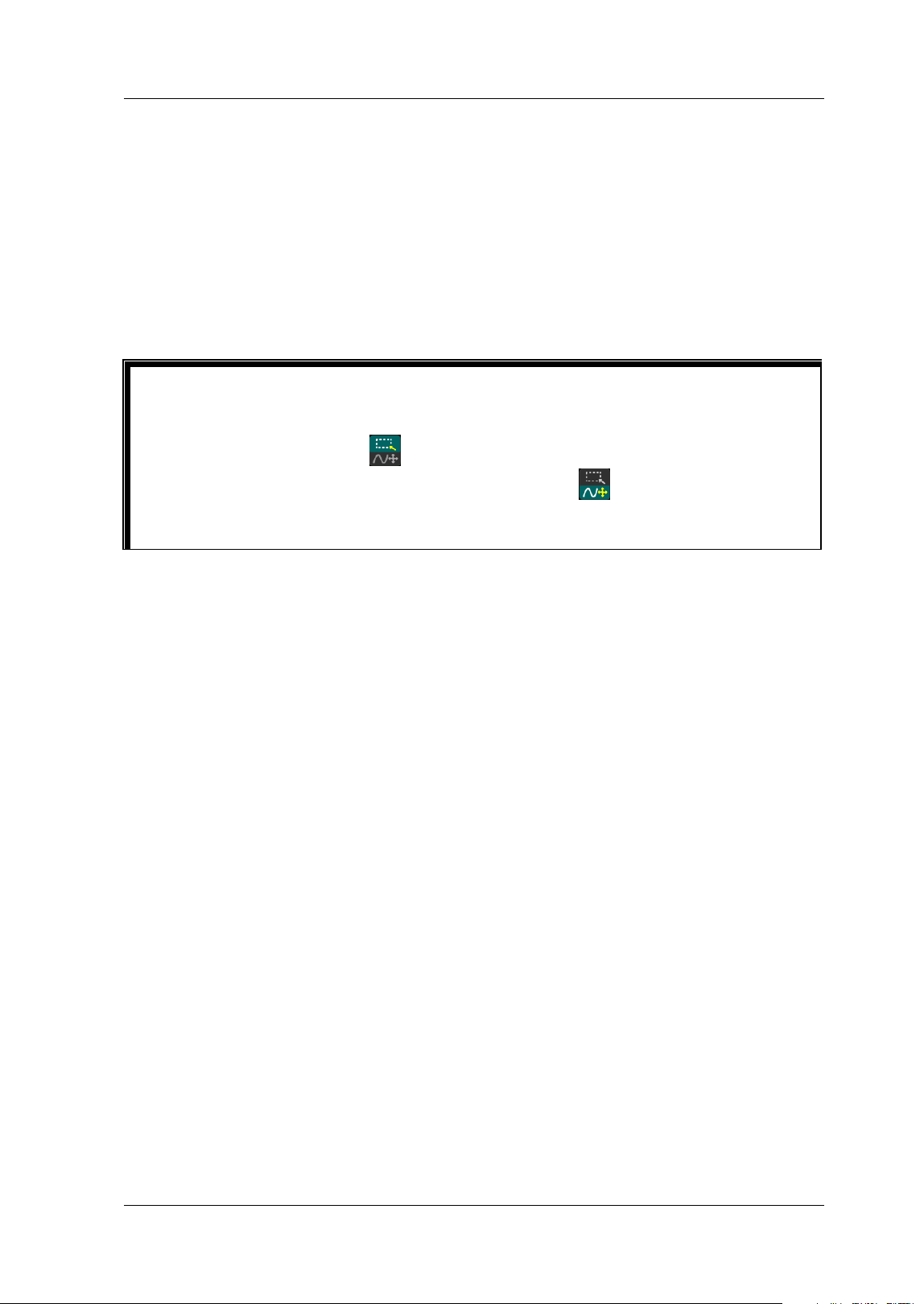
Chapter 1 Quick Start RIGOL
MSO5000-E User Guide 1-25
Open the "Histogram" menu.
Select "Horizontal zoom in": expands the waveforms in the horizontal direction.
Select "Horizontal zoom out": compresses the waveforms in the horizontal
direction.
Select "Vertical zoom in": expands the waveforms in the vertical direction. Select
"Vertical zoom out": compresses the waveforms in the vertical direction.
Select "Waveform zoom in": expands the waveforms both in the horizontal and
vertical direction. Select "Waveform zoom out": compresses the waveforms both
in the horizontal and vertical direction.
Tip
Tap the "Draw rect" icon to switch between the rectangle drawing and waveform
operation modes.
Ta p t h e "Draw rect" icon, if
is displayed, it indicates that the rectangle
drawing mode is enabled. Tap the "Draw rect" icon, if
is displayed, it indicates
that the waveform
operation mode is enabled. By default, the waveform operation
mode is enabled.
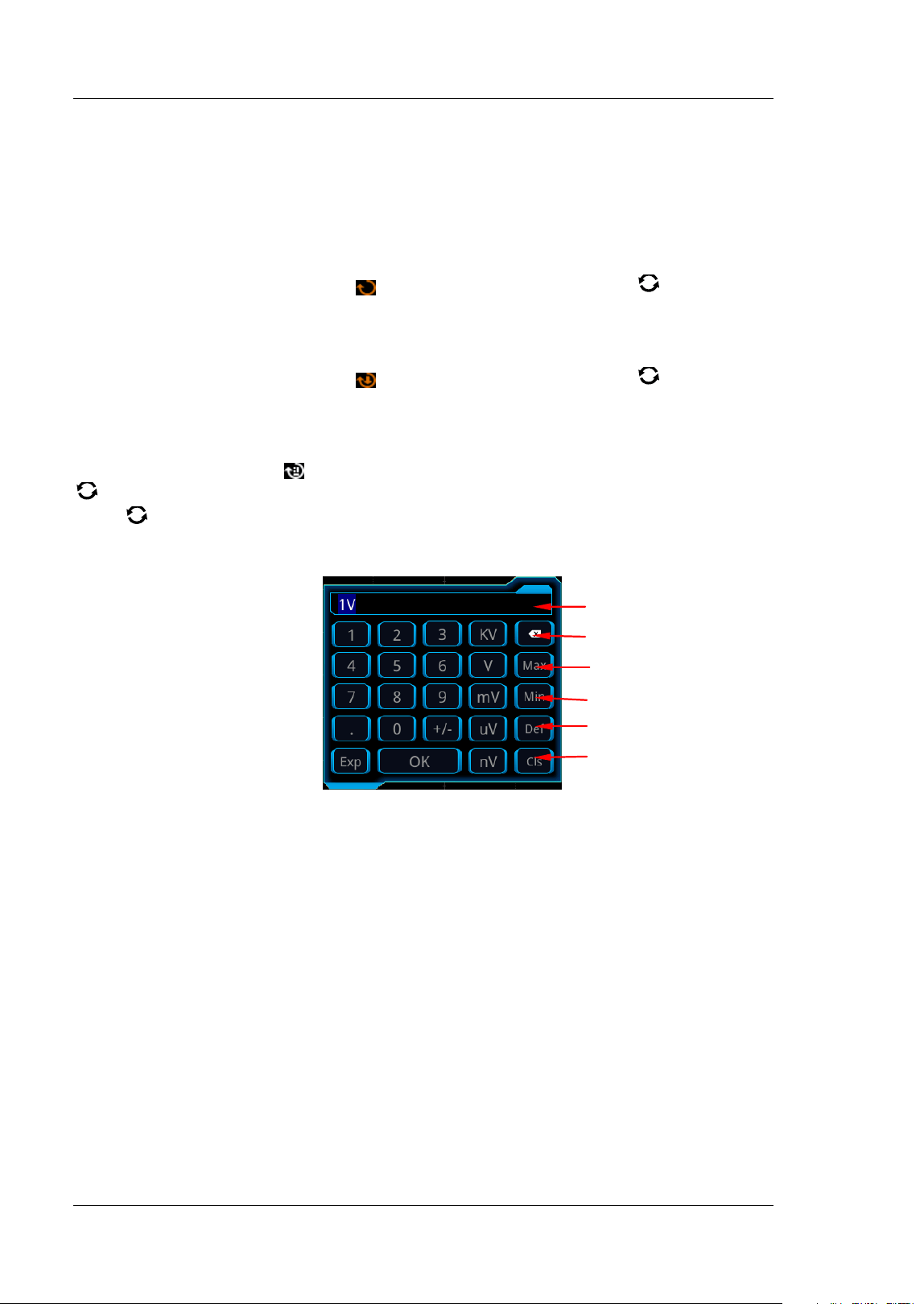
RIGOL Chapter 1 Quick Start
1-26 MSO5000-E User Guide
Parameter Setting Method
You can use the knob or enable the touch screen to set the parameters of
MSO5000-E series. The common parameter setting methods are as follows:
Method 1:
For the parameters with the sign
, rotate the multifunction knob on the front
panel directly to select the parameter item or modify the parameter value.
Method 2:
For the parameters with the sign
, rotate the multifunction knob on the front
panel and press it down to select the parameter item or modify the parameter value.
Method 3:
For the parameters with
displayed on the menu, rotate the multifunction knob
on the front panel directly to set the parameter, or press down the multifunction
knob
or the specified menu softkey, and then the numeric keypad is shown in
Figure 1-18 below.
Figure 1-18 Numeric Keypad
I n the numeric keypad, rotate the multifunction knob to select the parameter, then
press down the knob to select it. Then input the value or the unit. You can also
enable the touch screen and tap the value or unit in the numeric keypad to input
them. After you input all the values and select the desired units, the numeric keypad
is turned off automatically. This indicates that you have completed parameter setting.
Besides, after you have input the values, you can also press OK directly to close the
numeric keypad. At this time, the unit of the parameter is the default unit. I n the
numeric keypad, you can also perform the following operations:
Delete the parameter value that has been input.
Set the parameter to a maximum or minimum value (sometimes, the maximum
or minimum value are the specified one for the current state).
Set the parameter to a default value.
Clear the parameter input f ield.
Parameter
I nput Field
Delete key
Max. value
Min. value
Default
Clear key
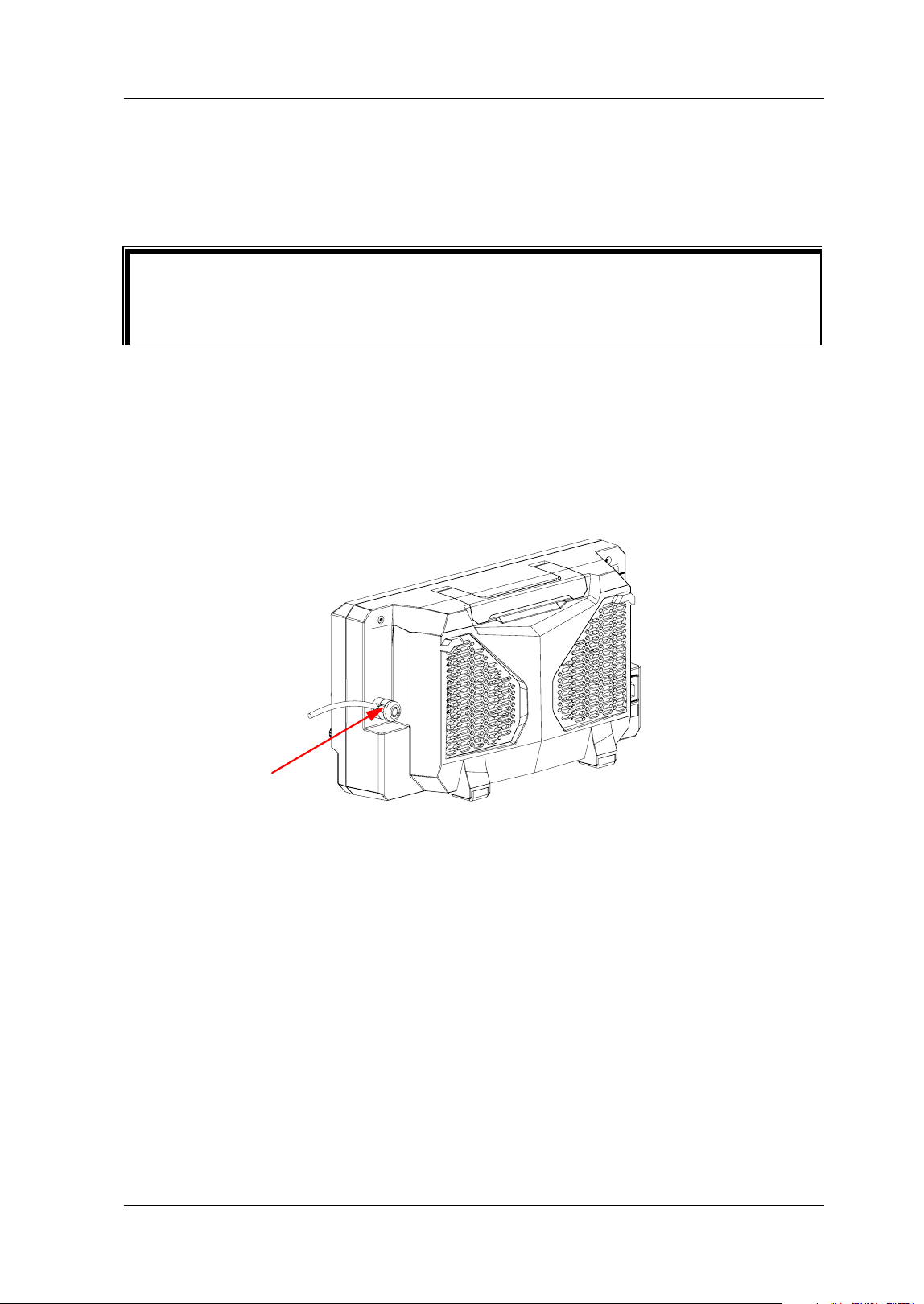
Chapter 1 Quick Start RIGOL
MSO5000-E User Guide 1-27
Method 4:
For the parameters without the above signs, press the desired menu softkey to
switch between the parameter items. This method is applicable to the parameters
with only two available options.
To Use the Kensington Security Lock
I f necessary, you can lock the instrument to a f ixed location by using the Kensington
security lock (please purchase it by yourself ), as shown in Figure 1-19. The method is
as follows: align the lock with the lock hole and plug it into the lock hole vertically,
turn the key clockwise to lock the oscilloscope and then pull the key out.
Figure 1-19 To Use the Security Lock
Note: Please do not insert other objects into the security lock hole to avoid
damaging the instrument.
Tip
The above method is commonly used for the parameter settings of the
oscilloscope. For other methods of parameter settings, refer to details in relevant
chapters.
Security Lock Hole
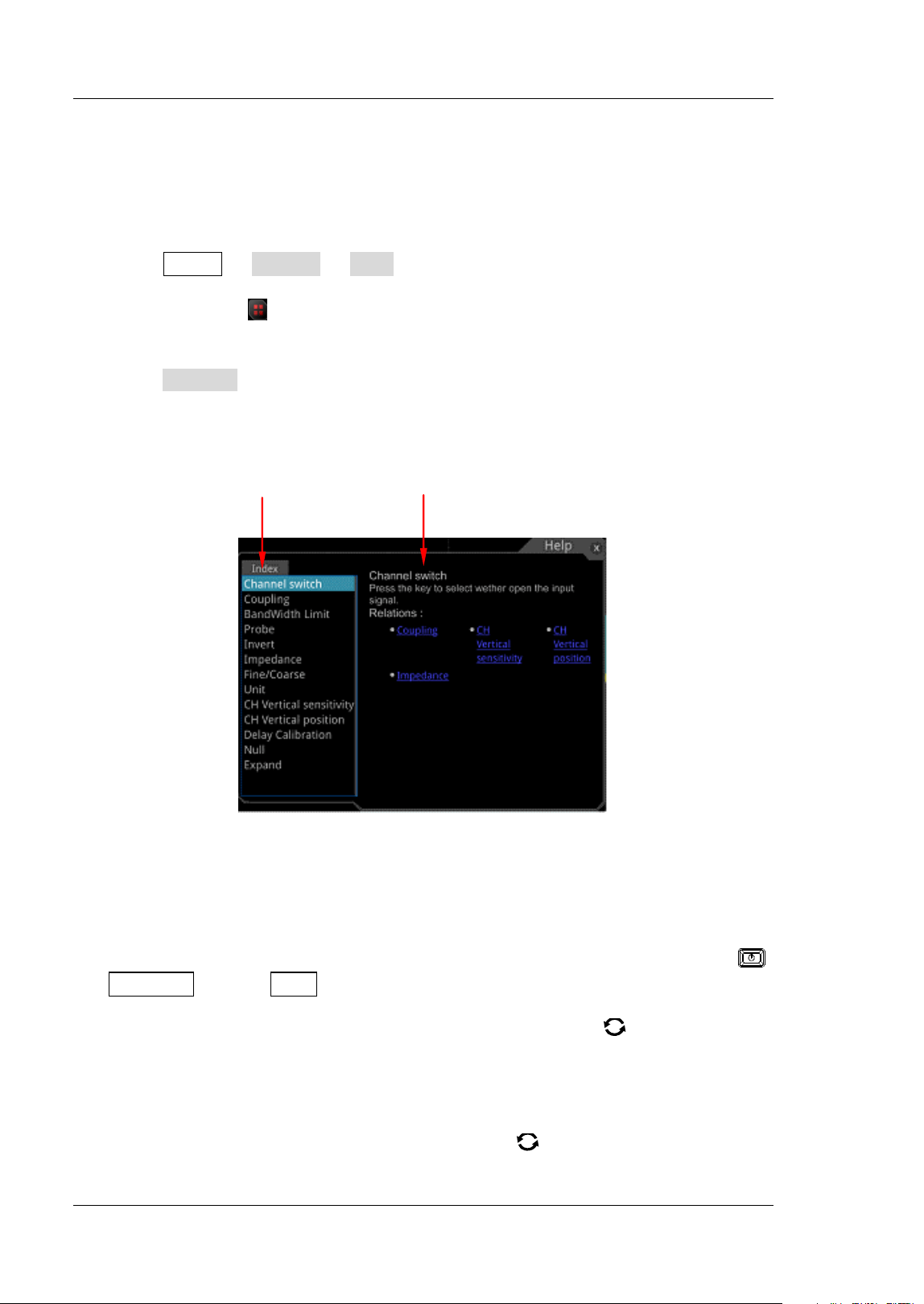
RIGOL Chapter 1 Quick Start
1-28 MSO5000-E User Guide
To Use the Built-in Help System
The help system of this oscilloscope provides instructions for all the function keys on
the front panel and their corresponding menu keys. The steps for opening the built-in
help system are as follows:
1. Press Utility System Help, and then the "Help" menu is displayed
on the screen. You can also use the touch screen function, tap the function
navigation icon
at the lower-left corner of the touch screen to enable the
function navigation. Tap the "Help" icon, and then the "Help" menu is displayed
on the screen.
2. Press Content on the front panel or tap the "Content" menu item, and then the
help information is displayed on the screen, as shown in
Figure 1-20. The help
interface mainly consists of two sections. The left section lists "Help Options",
and the right section is the "Help Display Area".
Figure 1-20 Help I nformation
After opening the help interface, you can get its help information in the "Help Display
Area" through the following three methods:
Method 1:
For the keys, you can directly press the front-panel keys (except the Power key
,
the Menu off key and Back key) to obtain the corresponding help information.
For the buttons, you can rotate the knob or press down the knob to get the
corresponding help information (except the multifunction knob
). As the function
of rotating the knob is different from that of pressing down the knob, these two
operations will give you different help information.
Method 2:
I n the "Help Options", rotate the multifunction knob
to switch among the help
Help Options Help Display Area
Chapter 1 Quick Start RIGOL
MSO5000-E User Guide 1-29
options to get the corresponding help information.
Method 3:
Enable the touch screen and tap the desired help option to get the corresponding
help information.
To View the Option I nformation and the Option
I nstallation
MSO5000-E series oscilloscope provides multiple options to fulfill your measurement
requirements. I f you need any of these options, order them according to the Order
No. available in "Appendix A: Accessories and Options", and then install the
options according to this section. Besides, you can also view the options currently
installed on the oscilloscope or activate the newly purchased option.
1. View the installed option
The instrument is installed with the trial versions of the options before leaving
factory. When you power on the instrument for the first time, the trial time is
about 2,160 minutes. I f your instrument has currently installed the option,
perform the following operations to view the name of the installed option and
other detailed information about the option from the option list.
(1) Press Utility System Help, and then the "Help" menu is displayed
on the screen. You can also use the touch screen function, tap the function
navigation icon
at the lower-left corner of the touch screen to enable
Tip
Help information for other keys and buttons:
Power key
: powers on/ off the instrument.
Menu off key: displays or hides menus. By default, menus are
displayed. I f menus are hidden, pressing this key can display the
menus again.
Back key: returns to the previous menu or the last set function menu.
Multifunction knob : I n non-menu-operation mode, rotate this
knob to adjust the brightness of waveform display. In menu-operation
mode, for the menu item that has multiple parameters under it, when
you press the menu softkey, rotate the knob to select the parameter
item, then press down the knob to select it (sometimes, the specified
parameter item can be selected by rotating the knob).
I t can also be used to modify parameters, input a filename, etc.
I f the menu item is grayed out, you cannot press the corresponding
front-panel menu key to obtain the help information. What you can do is
only to follow the above Method 2 or 3 to get the help information.
RIGOL Chapter 1 Quick Start
1-30 MSO5000-E User Guide
the function navigation. Tap the "Help" icon, and then the "Help" menu is
displayed on the screen.
(2) Press the Option list key or tap the Option list menu item, and then a list
of the options installed is displayed on the screen for users to view.
2. I nstall the option
The option license is a string of f ixed characters. Each instrument has one
unique license. The license f ile should be in specif ic format, with the f ilename
extension ".lic". After you purchase an option, you will obtain a key (used for
obtaining the license). Then, you can install the option according to the
following steps.
1) Obtain an option license
(1) Log in to the RIGOL off icial website (www.rigol.com), click License
Activation to enter the "Registered product license code" interface.
(2) I n the software license registration interface, input the correct key,
serial number (press Utility System About to obtain the serial
number of the instrument. You can also open the "Help" function menu,
and then press About to obtain the serial number), and the
verification code. Click Generate to obtain the download link of the
option license f ile. I f you need to use the option license file, please
click the link to download the f ile to the root directory of the USB
storage device.
2) I nstall the option
(1) Conf irm that the option license f ile is located in the root directory of
the USB storage device, and connect the USB storage device to the
oscilloscope properly.
(2) The Option install key is activated, and press this menu key to start
installing the option.
(3) After installation, a prompt message "Option activated successfully" is
displayed.
Note: After the option has been installed, you are recommended to restart
the instrument.
Tip
Only 1 option license f ile of one instrument is allowed to be stored in the
same USB storage device, but the USB storage device can store the option
license f ile of several different instruments. You are not allowed to modify
the licensed f ilename.
During the installation process, you are not allowed to power off the
instrument or pull out the USB storage device.
Sending the SCPI commands to install options is supported. For details, refer
to the :SYSTem:OPTion:I NSTall command. I nstalling options by inputting
the license code manually is not supported.

Chapter 2 To Set the Vertical System RIGOL
MSO5000-E User Guide 2-1
Chapter 2 To Set the Vertical System
MSO5000-E series provides two analog input channels (CH1 and CH2), and each
channel is equipped with an independent vertical control system. The setting
methods for the vertical systems of the two channels are the same. This chapter
takes CH1 as an example to introduce the setting method for the vertical system. For
this oscilloscope, only CH1 is enabled by default.
Contents in this chapter:
To Enable or Disable the Analog Channel
To Adjust the Vertical Scale
Vertical Expansion
To Adjust the Vertical Offset
Channel Coupling
Bandwidth Limit
Probe Ratio
Input I mpedance
Waveform Invert
Amplitude Unit
Channel Delay
Offset Cal
Channel Label
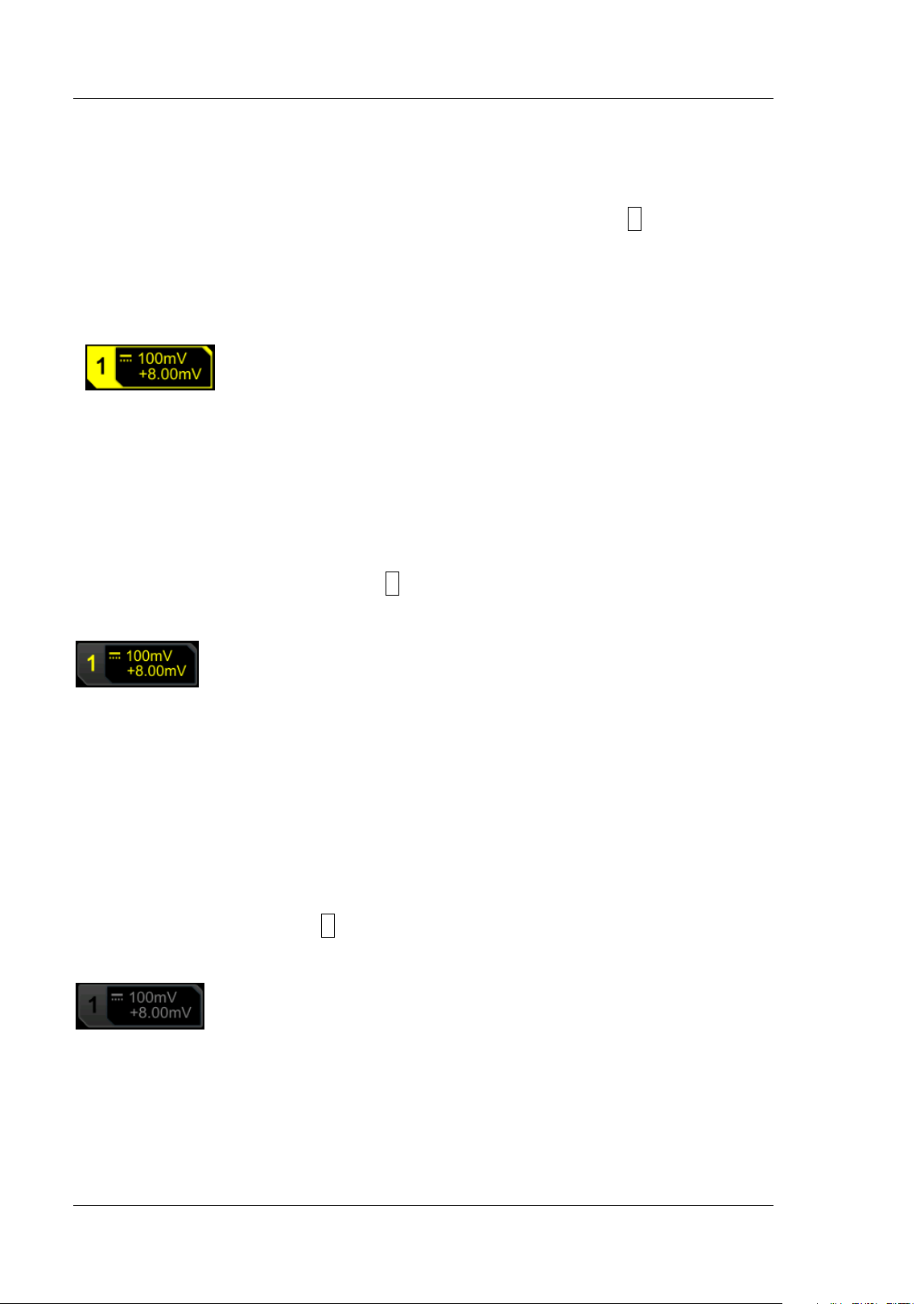
RIGOL Chapter 2 To Set the Vertical System
2-2 MSO5000-E User Guide
To Enable or Disable the Analog Channel
Enable the analog channel:
Connect a signal to the channel connector of CH1, and then press 1 in the vertical
control area (Vertical) on the front panel to enable CH1. Then, the backlight of the
channel is illuminated. At this point, the channel setting menu is displayed at the
right section of the screen and the channel is activated. The channel status label at
the bottom of the screen is shown in the f igure below. You can also enable the touch
screen to tap the channel status label to enable the channel.
The information displayed in the channel status label is related to the current channel
setting but irrelevant with the on/ off status of the channel. After the channel is
turned on, modify the parameters such as the vertical scale, horizontal timebase,
trigger mode, and trigger level according to the input signal for easy observation and
measurement of the waveform.
I f CH1 is enabled but not activated, the channel status label is shown in the following
f igure. To activate the channel, press 1 on the front panel in the vertical control area
(Vertical) or enable the touch screen to tap the waveform activation channel
displayed on the screen.
Disable the analog channel:
I f the setting menu of the channel that needs to be disabled (the current channel is
activated) is displayed at the right section of the screen, press the channel key to
disable the channel. I f the setting menu of the channel that needs to be disabled is
not displayed at the right section of the screen, f irst open the setting menu of the
channel to be disabled (activate the channel), then press the channel key to disable
the channel. You can also enable the touch screen to tap the channel status label to
disable the channel. For example, if CH1 and CH2 are enabled, and CH2 channel
setting menu is displayed on the screen, then if you need to disable CH1, f irst
activate CH1, and then press 1 or enable the touch screen to tap the CH1 channel
status label to disable CH1. I f CH1 is disabled, the channel status label is shown in
the following f igure.
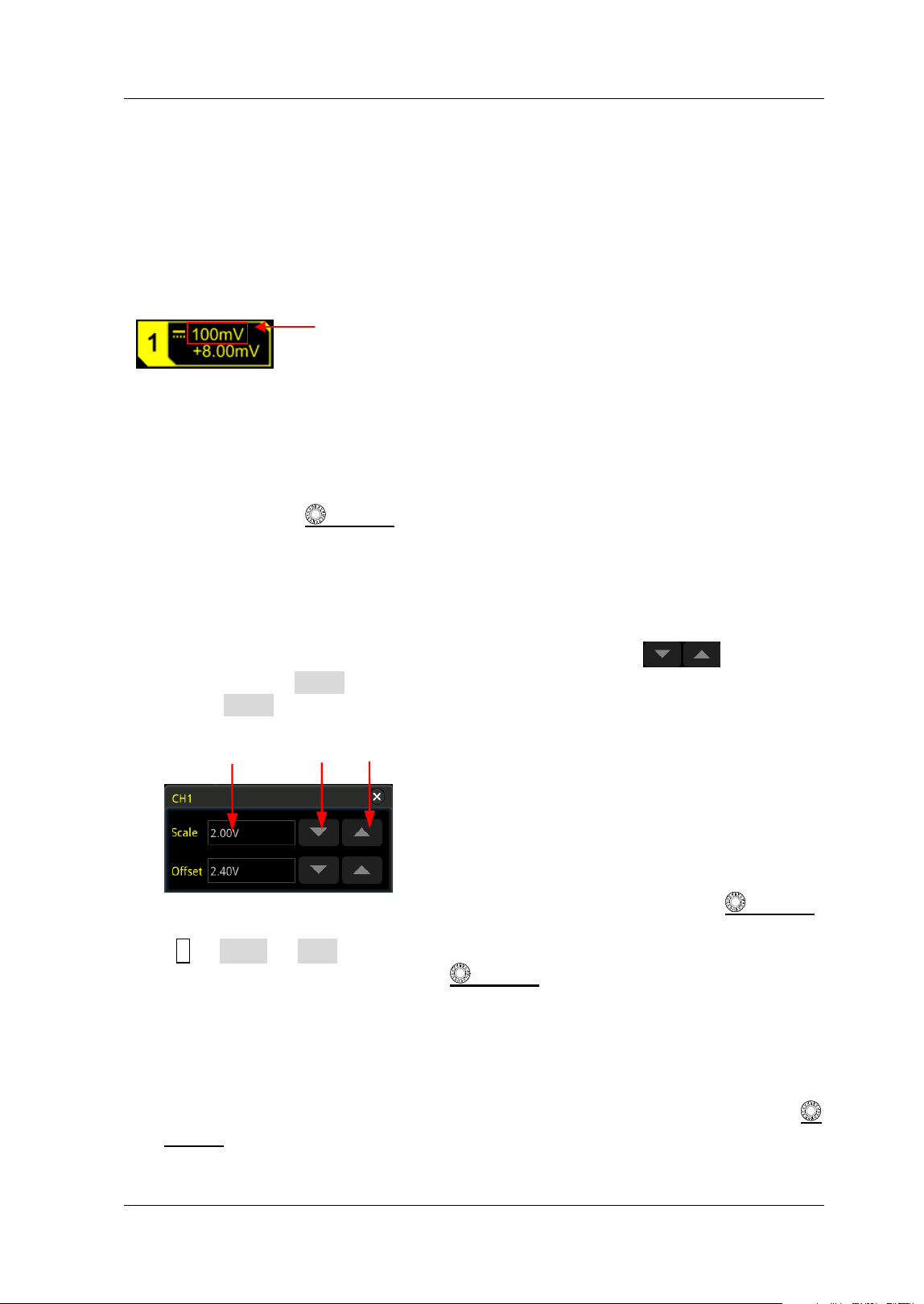
Chapter 2 To Set the Vertical System RIGOL
MSO5000-E User Guide 2-3
To Adjust the Vertical Scale
Vertical scale indicates the voltage value per grid in the vertical axis of the screen. I t
is often expressed in V/ div. While you adjust the vertical scale, the display amplitude
of the waveform would enlarge or reduce. The scale information of the channel
status label (e.g. as shown in the following f igure) at the lower section of the screen
would change accordingly.
The adjustable range of the vertical scale is related to the currently set probe ratio
and input impedance. By default, the probe ratio is 1X and the input impedance is 1
MΩ. The adjustable range of the vertical scale is from 500 μV/div t o 1 0 V/ d iv.
When CH1 is turned on, you can adjust the vertical scale with the following three
methods:
Rotate Vertical
SCALE that corresponds to CH1 to adjust the vertical scale
(clockwise to reduce the scale and counterclockwise to increase).
Enable the touch screen function and adjust the vertical scale with the pinch &
stretch gesture on the touch screen. For details, refer to the "Pinch & Stretch"
section.
Enable the touch screen function, and tap the channel status label at the bottom
of the screen. The following window is displayed. Tap the
icon at the
right side of the Scale input f ield to decrease or increase the scale. You can also
tap the Scale input f ield to input a specif ic value with the displayed numeric
keypad.
In the vertical control area (Ver tical) on the front panel, press Vertical
SCALE
to adjust the vertical scale in "Coarse" (by default)
or "Fine" mode. You can also
press 1 More Fine to enable or disable f ine adjustment.
Fine adjustment: Rotate Vertical SCALE to further adjust the vertical scale
within a relatively smaller range to improve vertical resolution. I f the amplitude
of the input waveform is a little bit greater than the full scale under the current
scale and the amplitude would be a little bit lower if the next scale is used, f ine
adjustment can be used to improve the amplitude of waveform display to view
signal details.
Coarse adjustment (take counterclockwise as an example): Rotate Vertical
SCALE to set the vertical scale at 1-2-5 step, i.e. 500 μV/div, 1 mV/div, 2 mV/div,
5 mV/ div, 10 mV/div…10 V/div.
Vertical Scale
Value I nput Field Decrease I ncrease
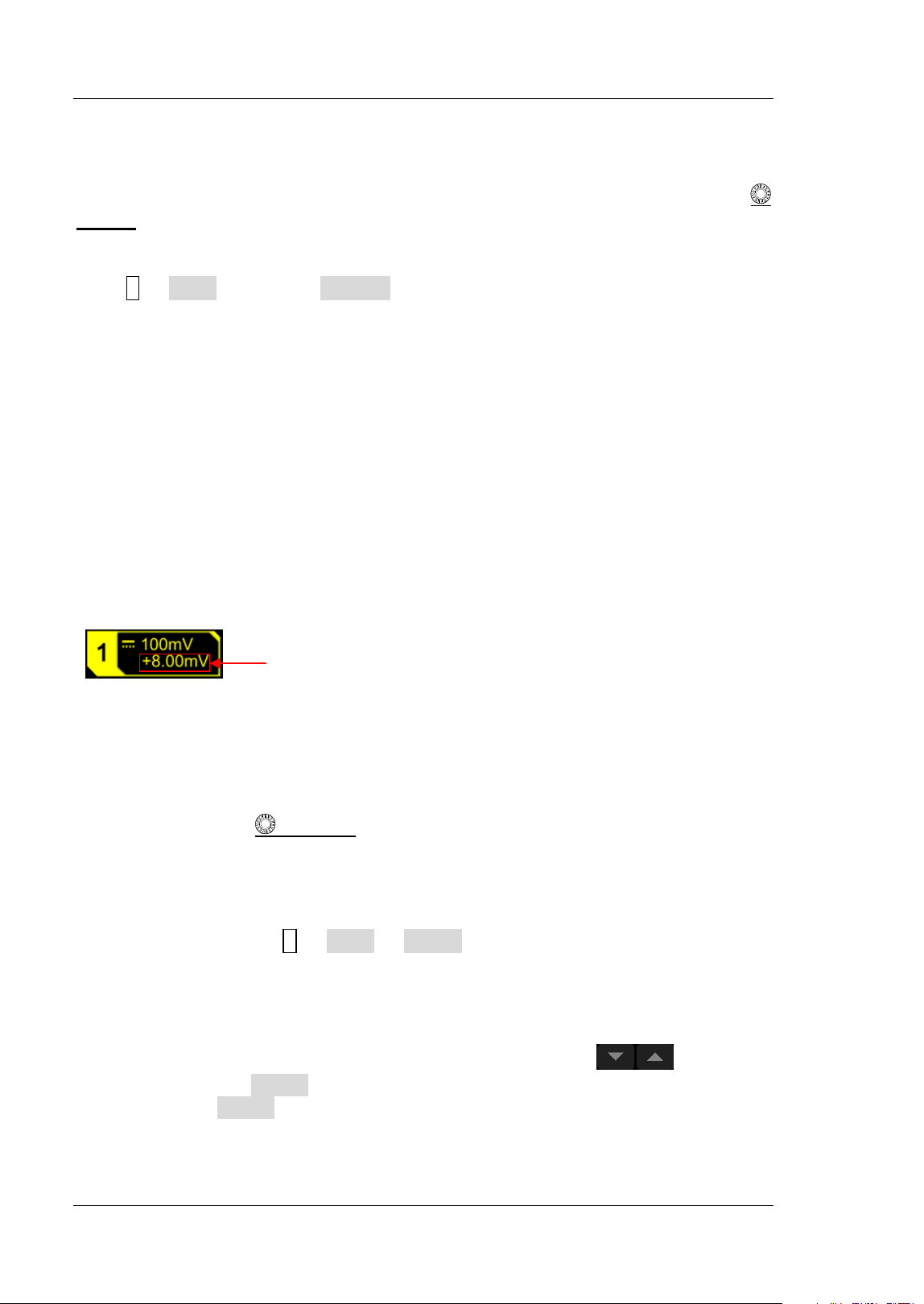
RIGOL Chapter 2 To Set the Vertical System
2-4 MSO5000-E User Guide
Vertical Expansion
When changing the vertical scale of the analog channel by rotating the Vertical
SCALE
knob, you can select to expand or compress the waveform around the
"Center" or "GND" (Ground). By default, "GND" is selected under Expand.
Press 1 More, then press Expand continuously to select "Center" or "GND".
Center: when the vertical scale is changed, the waveform will be expanded or
compressed around the screen center.
GND: when the vertical scale is changed, the waveform will be expanded or
compressed around the signal ground level position.
To Adjust the Vertical Offset
Vertical offset indicates the offset of the signal ground level position of the waveform
from the screen center in the vertical direction. I ts unit is consistent with the
currently selected amplitude unit (refer to "Amplitude Unit"). When adjusting the
vertical offset, the waveforms of the corresponding channel moves up and down.
The vertical offset information (as shown in the following f igure) in the channel
status label at the bottom of the screen will change accordingly.
The adjustable range of the vertical offset is related to the current input impedance,
probe ratio, and vertical scale.
When CH1 is turned on, you can adjust the vertical offset with the following four
methods:
Rotate Vertical
OFFSET that corresponds to CH1 to adjust the vertical
offset within the adjustable range. Rotate this knob clockwise to increase the
vertical offset, and rotate it counterclockwise to reduce the vertical offset.
Pressing down the knob can quickly reset the vertical offset (set the vertical
offset to 0).
Menu setting: Press 1 More Offset, and then the numeric keypad is
displayed. I nput the offset value with the numeric keypad.
Enable the touch screen, and then adjust the vertical offset with the drag
gesture. For details, refer to the "Drag" section.
Enable the touch screen function, and tap the channel status label at the bottom
of the screen. The following window is displayed. Tap the
icon at the
right side of the Offset input f ield to decrease or increase the offset. You can
also tap the Offset input f ield to input a specif ic value with the displayed
numeric keypad.
Vertical Offset
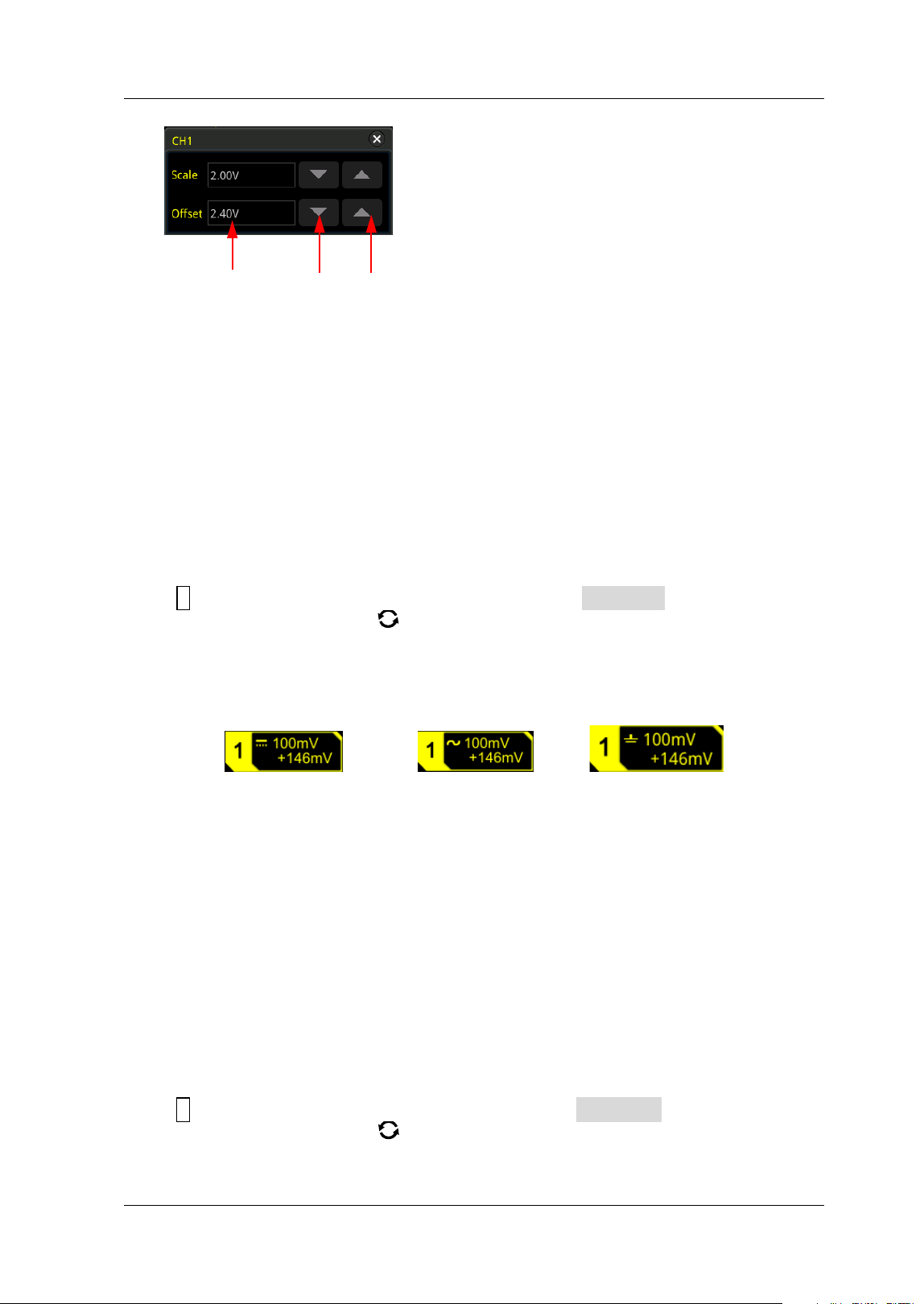
Chapter 2 To Set the Vertical System RIGOL
MSO5000-E User Guide 2-5
Channel Coupling
The undesired signals can be f iltered out by setting the coupling mode. For example,
the signal under test is a square waveform with DC offset.
When the coupling mode is "DC": the DC and AC components of the signal under
test can both pass the channel.
When the coupling mode is "AC": the DC components of the signal under test
are blocked.
When the coupling mode is "GND", the DC and AC components of the signal
under test are both blocked.
Press 1 to open the setting menu of CH1. Then, press Coupling continuously or
rotate the multifunction knob to select the desired coupling mode (by default, it
is DC). The current coupling mode is displayed in the channel status label at the
bottom of the screen, as shown in the f igure below. You can also enable the touch
screen, and then touch the CH1 setting menu to select the desired coupling mode.
DC AC GND
Bandwidth Limit
MSO5000-E series supports the bandwidth limit function. Setting the bandwidth limit
can reduce the noises in the displayed waveforms. For example, the signal under test
is a pulse with high frequency oscillation.
When the bandwidth limit is disabled, the high frequency components of the
signal under test can pass the channel.
When you enable the bandwidth limit and limit it to 20 MHz, the high frequency
components found in the signal under test that are greater than 20 MHz are
attenuated.
Press 1 to open the setting menu of CH1.Then, press BW Limit continuously or
rotate the multifunction knob to select the desired bandwidth limit. Press down
the knob to select it. By default, it is OFF. When the bandwidth limit is enabled, the
Value I nput Field Decrease I ncrease
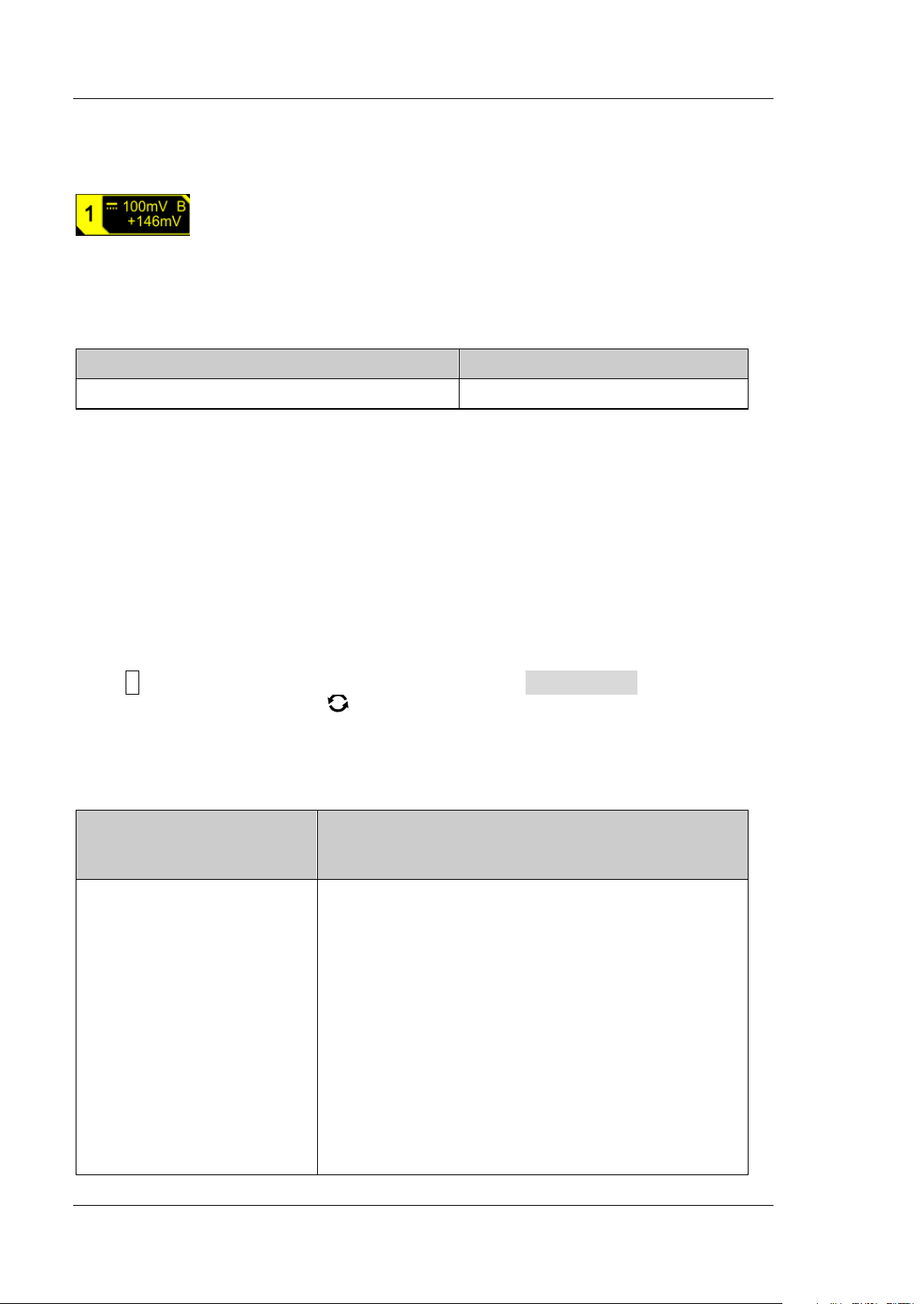
RIGOL Chapter 2 To Set the Vertical System
2-6 MSO5000-E User Guide
character "B" will be displayed in the channel status label at the bottom of the screen,
as shown in the f igure below. You can also enable the touch screen, and then tap the
CH1 setting menu to select the desired bandwidth limit.
The bandwidth limit that you select is based on the bandwidth of your oscilloscope
model, as shown in Ta b l e 2-1.
Ta b l e 2-1 Bandwidth Limit
Bandw idth of the Oscilloscope Model Available Bandwidth Limit
150 M (MSO5152-E) 20 M
Note: Bandwidth limit can not only reduce the noise, but also can attenuate or
eliminate the high frequency components of the signal.
Probe Ratio
MSO5000-E series allows you to set the probe attenuation manually. To obtain the
correct measurement results, you must set the probe ratio properly. By default, the
probe ratio is 1X.
Press 1 to open the setting menu of CH1.Then, press Attenuation continuously or
rotate the multifunction knob to select the desired probe ratio. You can also
enable the touch screen, and then touch the CH1 setting menu to select the desired
probe ratio. The probe ratio values available are as shown in Ta b l e 2-2.
Ta b l e 2-2 Probe Ratio
Menu
Attenuation Ratio
(display amplitude of the signal: actual amplitude
of the signal)
0.01X
0.02X
0.05X
0.1X
0.2X
0.5X
1X (default)
2X
5X
10X
20X
50X
100X
0.01:1
0.02:1
0.05:1
0.1:1
0.2:1
0.5:1
1: 1
2: 1
5: 1
10:1
20:1
50:1
100:1
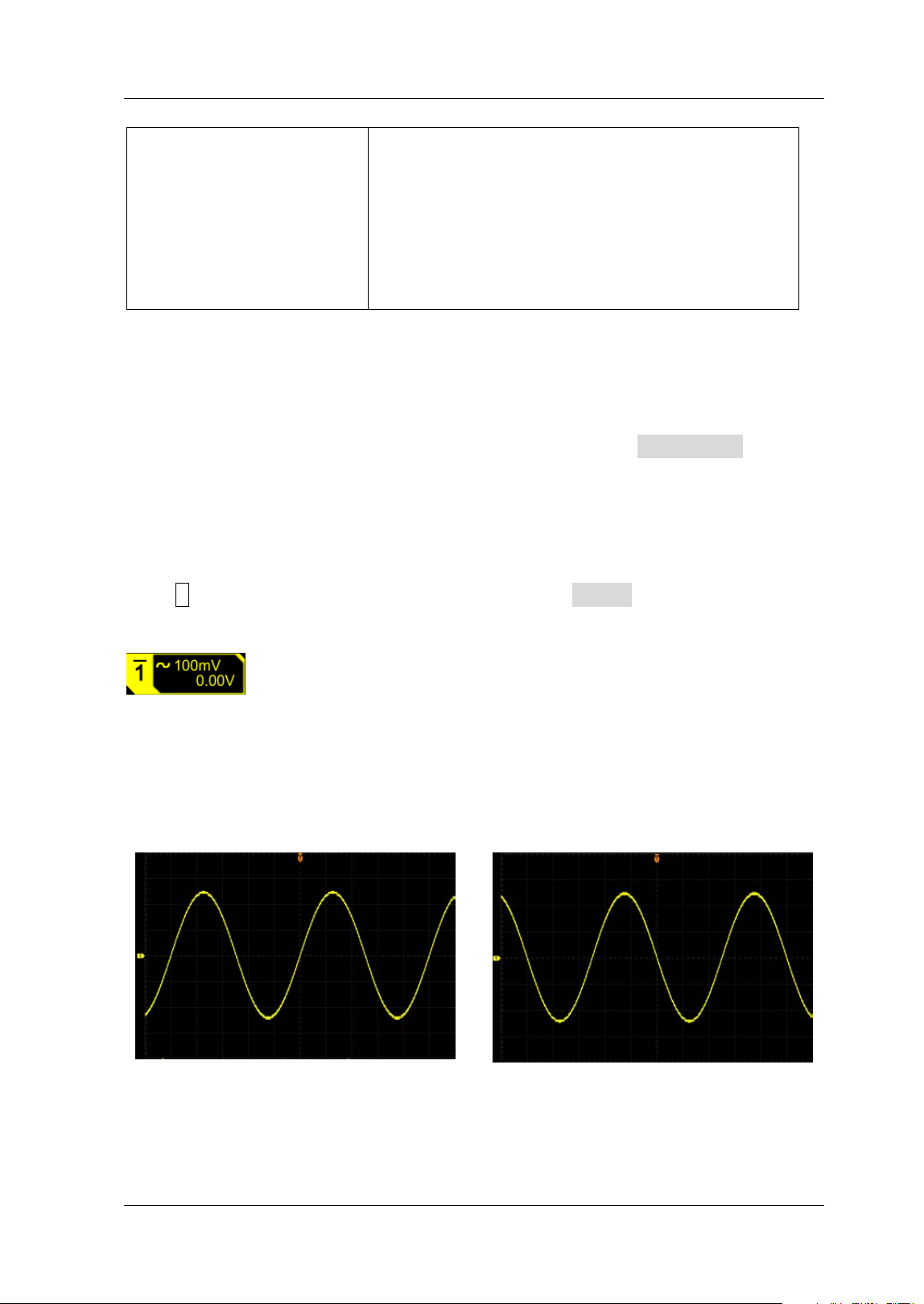
Chapter 2 To Set the Vertical System RIGOL
MSO5000-E User Guide 2-7
200X
500X
1000X
2000X
5000X
10000X
20000X
50000X
200:1
500:1
1000:1
2000:1
5000:1
10000:1
20000:1
50000:1
I nput I mpedance
To reduce the circuit load between the oscilloscope and the circuit under test, this
oscilloscope provides the default 1 MΩ input impedance. The I mpedance menu is
grayed out and you are not allowed to set it manually.
Waveform I nvert
Press 1 to open the setting menu of CH1. Then, press I nvert continuously to enable
or disable the waveform invert. When enabled, the channel label is displayed, as
shown in the following f igure.
When disabled, the waveform is displayed normally; when enabled, the voltage
values of the displayed waveform are inverted (as shown in Figure 2-1). Enabling the
waveform invert will also change the result of math function and waveform
measurement.
(a) "I nvert" Off
(b) "I nvert" On
Figure 2-1 Waveform I nvert
Note: When the waveform invert is enabled, the trigger edge or the trigger polarity
will change (e.g. Edge trigger, Pulse trigger, or Slope trigger).
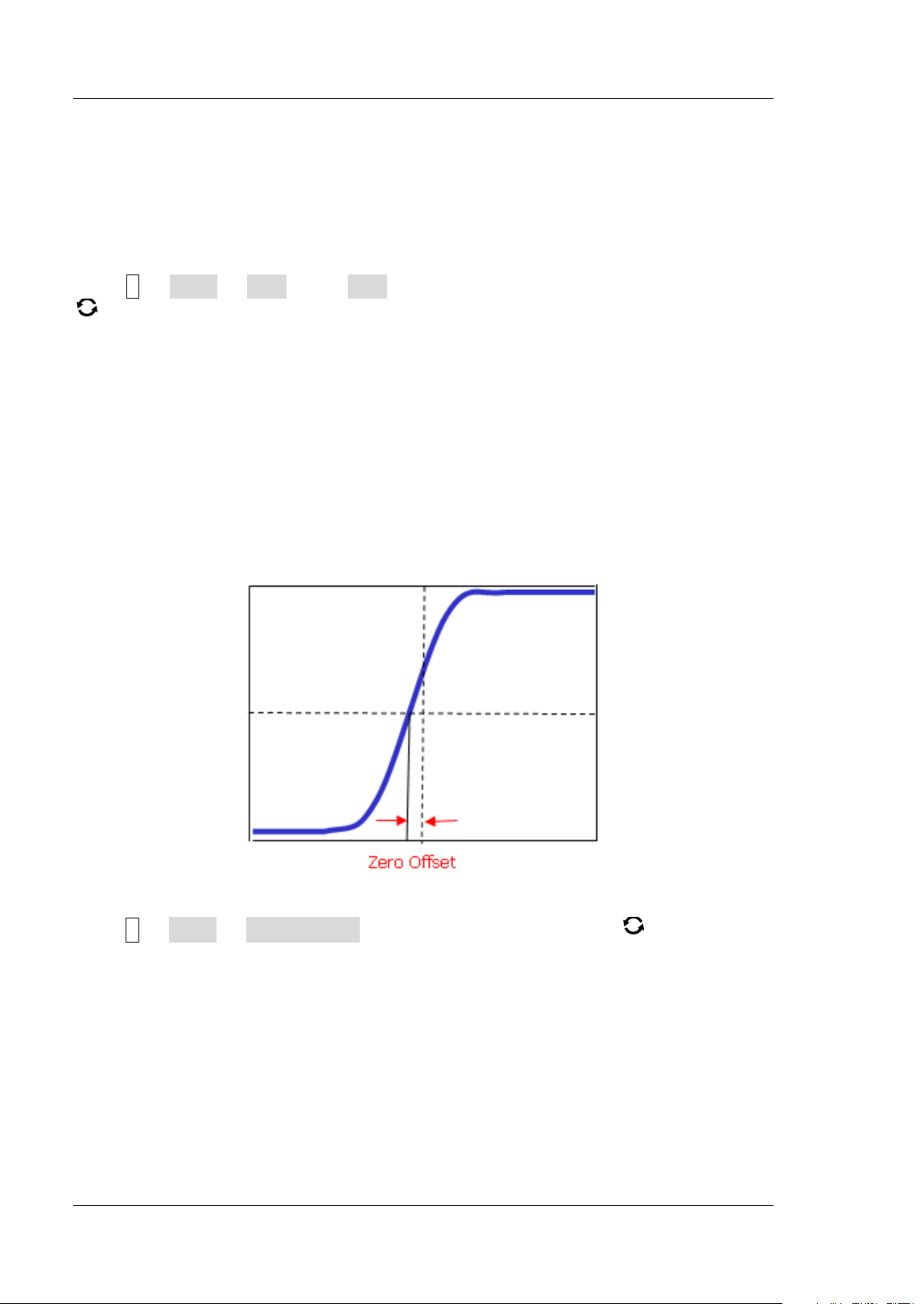
RIGOL Chapter 2 To Set the Vertical System
2-8 MSO5000-E User Guide
Amplitude Unit
Select the amplitude display unit for the current channel. The available units are W, A,
V, and U. When the unit is changed, the unit related to the relevant functions of the
channel will change accordingly.
Press 1 More Unit, press Unit continuously or rotate the multifunction knob
to select a unit. You can also enable the touch screen to select the desired unit
with touch gestures. The default unit for the value is V.
Channel Delay
When using an oscilloscope for actual measurement, the transmission delay of the
probe cable may bring relatively greater errors (zero offset). MSO5000-E allows you
to set a delay time for calibrating the zero offset of the corresponding channel. Zero
offset is defined as the offset of the crossing point of the waveform and trigger level
line relative to the trigger position, as shown in Figure 2-2.
Figure 2-2 Zero Offset
Press 1 More Ch-Ch Skew , rotate the multifunction knob or use the
numeric keypad to set the desired delay calibration time. The available range of the
delay calibration time is from -100 ns to 100 ns.
Note: This parameter is related to the instrument model and the current horizontal
timebase setting. The larger the horizontal timebase is, the larger the setting
step will be.
Chapter 2 To Set the Vertical System RIGOL
MSO5000-E User Guide 2-9
Offset Cal
When you use an oscilloscope to make actual measurements, a small offset that
arises from the temperature drift of the component or external environment
disturbance may occur on the zero-cross voltage of the channel, which will affect the
measurement results of the vertical parameters. MSO5000-E allows you to set an
offset calibration voltage for calibrating the zero point of the corresponding channel,
so as to improve the accuracy of the measurement results.
Press 1 More Offset Cal, rotate the multifunction knob or use the pop-up
numeric keypad to set the offset calibration value.
Note: I f the zero-cross voltage of the channel has a larger amplitude offset that
exceeds the adjustable null range, please perform self-calibration for the
instrument to ensure the measurement accuracy. For details, refer to
descriptions in "Self-calibration".
Channel Label
The instrument uses the channel number to mark the corresponding channel by
default. For ease of use, you can also set a label for each channel. For example,
"
".
Press 1 More Label to enter the label setting menu. You can use the built-in
label or manually input a label. Three input methods are available for you to input a
label name, including Chinese, English, and Traditional Chinese.
The label setting menu includes the following menu items.
Press Display to turn on or off the display of the channel label. I f it is enabled,
the label will be displayed at the left side of the waveform. When on, CH1 is, by
default, displayed to be the channel label.
Press Library to select the preset labels such as CH1, ACK, ADDR, BIT, CLK, CS,
DATA, I N, MI SO, MOSI , OUT, RX and TX.
Press Label and the label editing interface is automatically displayed as shown in
Figure 2-3. You can input the label manually. For the label input method, refer to
"To Create a Folder".
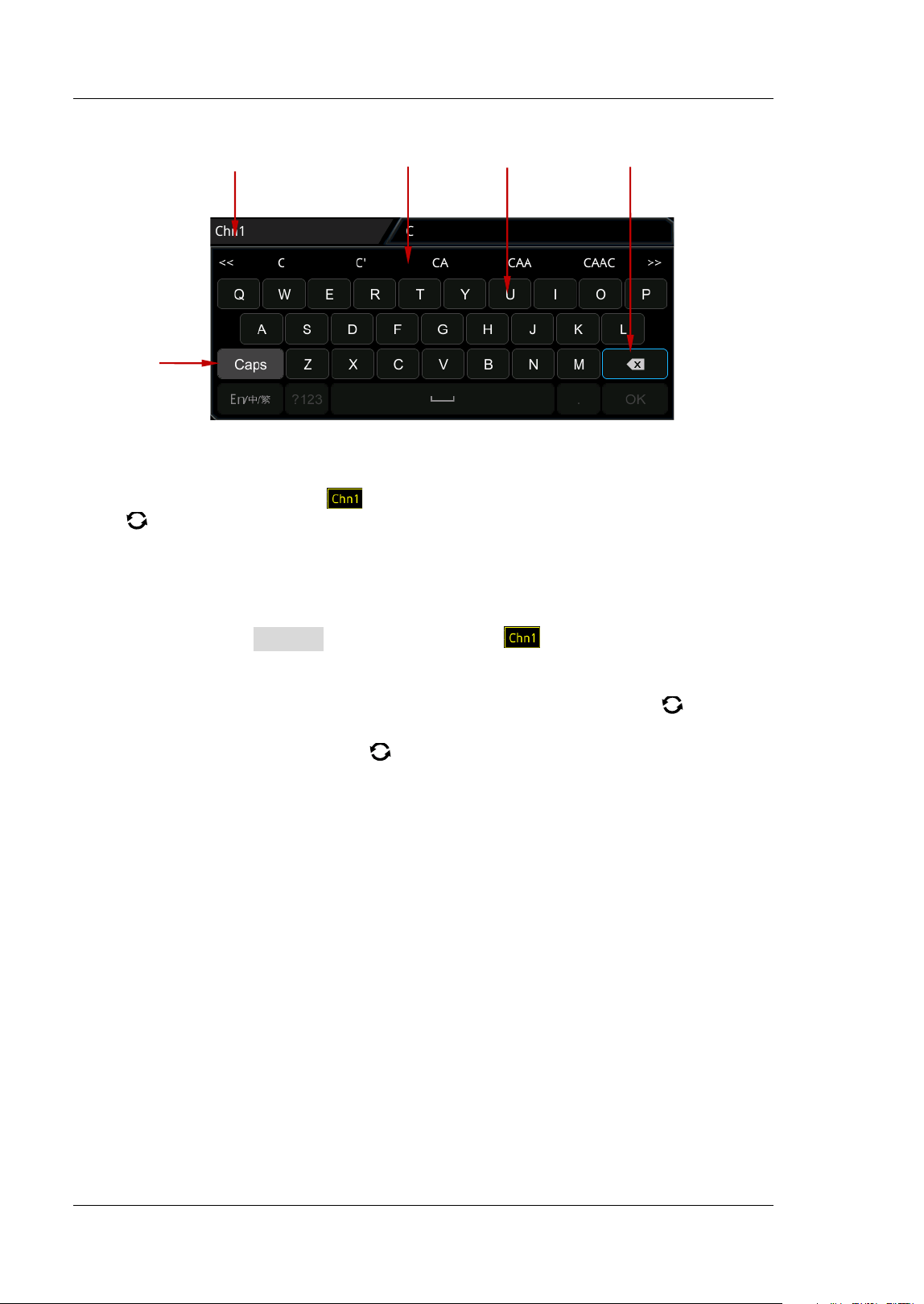
RIGOL Chapter 2 To Set the Vertical System
2-10 MSO5000-E User Guide
Figure 2-3 Label Editing I nterface
For example, set the label to "
". I n the virtual keypad, rotate the multifunction
knob
to select "Caps" and press down the knob to switch the uppercase or
lowercase mode. Rotate the multifunction knob and select "C", press down the knob.
Then, in the input selection area, rotate the multifunction knob and select "C". Press
down the knob to input "C". Use the same method to input "hn1". After f inishing the
input, press OK to f inish the editing. You can also enable the touch screen to operate
by touch gestures. I f Display is enabled, the label will be displayed at the left
of CH1 waveform.
To delete or modify the input characters, rotate the multifunction knob
or enable
the touch screen to realize it.
Rotate the multifunction knob
: use the delete key to delete or modify the
characters. To modify the characters, input the desired characters again.
Enable the touch screen: use the touch gestures to directly move the cursor to
the right side of the character required to be deleted or modif ied, and then tap
the delete key to delete the character. To modify the characters, input the
desired character again or delete the character.
Label I nput Area I nput Selection Area Virtual Keypad Delete Key
Upper-lower
Case Switch

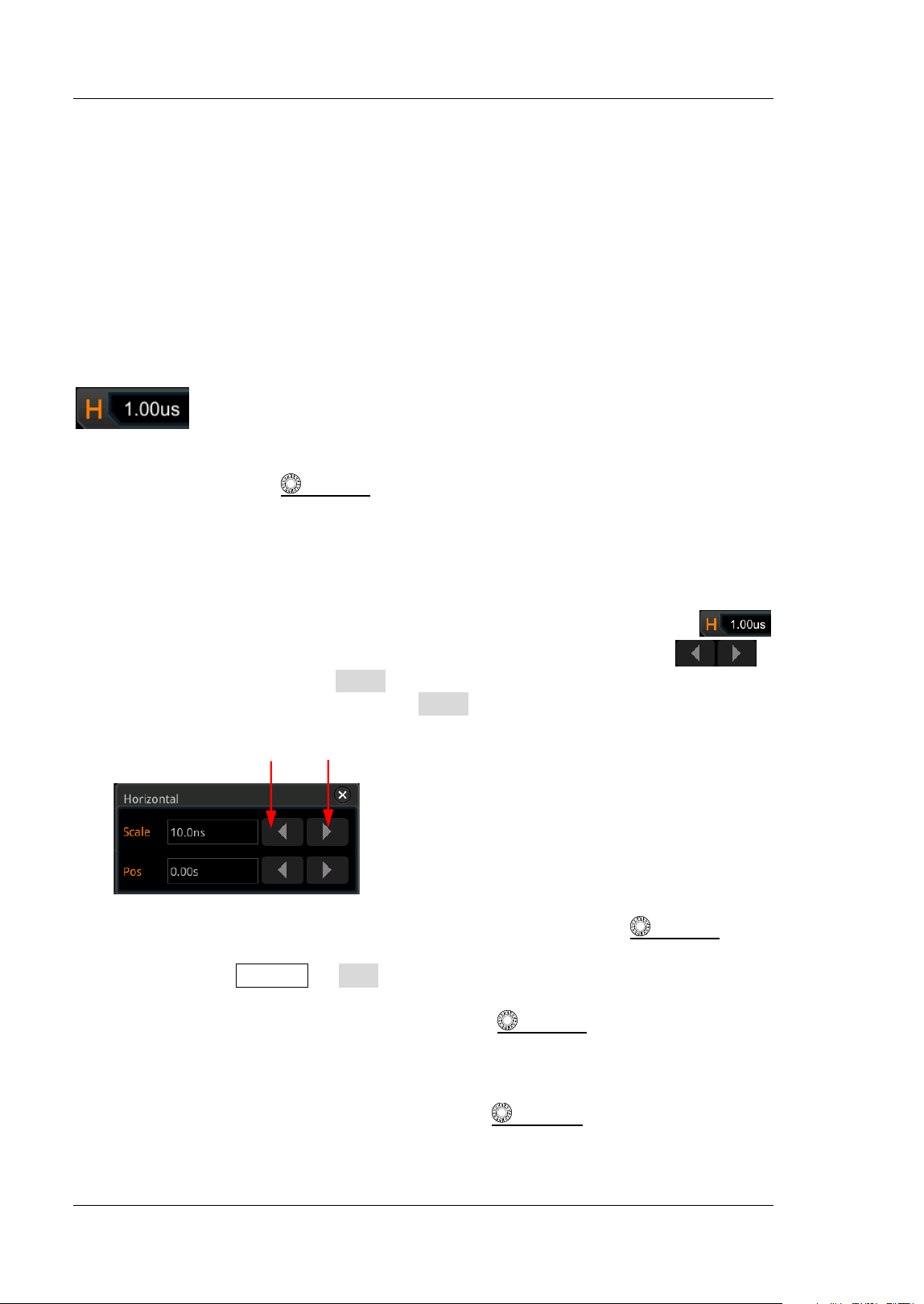
RIGOL Chapter 3 To Set the Horizontal System
3-2 MSO5000-E User Guide
To Adjust the Horizontal Timebase
Horizontal timebase, also called the horizontal scale, refers to the time of each grid in
the horizontal direction of the screen. I t is usually expressed in s/div. The adjustable
range of the horizontal timebase is related to the model type.
While you change the horizontal timebase, the displayed waveforms of all channels
are expanded or compressed horizontally relative to the current selected horizontal
reference baseline (refer to "Horizontal Expansion"). The horizontal timebase at
the upper-left corner of the screen will be changed accordingly, as shown in the
f igure below.
You can adjust the horizontal timebase with the following three methods:
Rotate Horizontal
SCALE to adjust the horizontal timebase within the
available range (clockwise to reduce the horizontal timebase and
counterclockwise to increase).
Enable the touch screen function and adjust the horizontal timebase with the
pinch & stretch gesture on the touch screen. For details, refer to the "Pinch &
Stretch" section.
Enable the touch screen function, and tap the horizontal timebase label
at the top of the screen. The following window is displayed. Tap the
icon at the right side of the Scale input f ield to decrease or increase the
horizontal scale. You can also tap the Scale input f ield to input a specif ic value
with the displayed numeric keypad.
In the Horizontal control area (Horizontal), rotate the Horizontal
SCALE knob
to switch the adjustment mode between "Coarse" and "Fine" (by default, it is Coarse).
You can also press Acquire Fine to enable or disable the f ine adjustment of the
horizontal timebase.
Coarse adjustment: Rotate the Horizontal
SCALE knob will adjust the
horizontal timebase of the waveforms of all channels at 1-2-5 step within the
adjustable range. Rotate it clockwise to reduce the horizontal timebase, and
counterclockwise to increase the horizontal timebase.
Fine adjustment: Rotate the Horizontal
SCALE knob will adjust the
horizontal timebase of the waveforms of all channels with a minor step value
within the adjustable range. Rotate it clockwise to reduce the horizontal
Decrease the timebase Increase the timebase
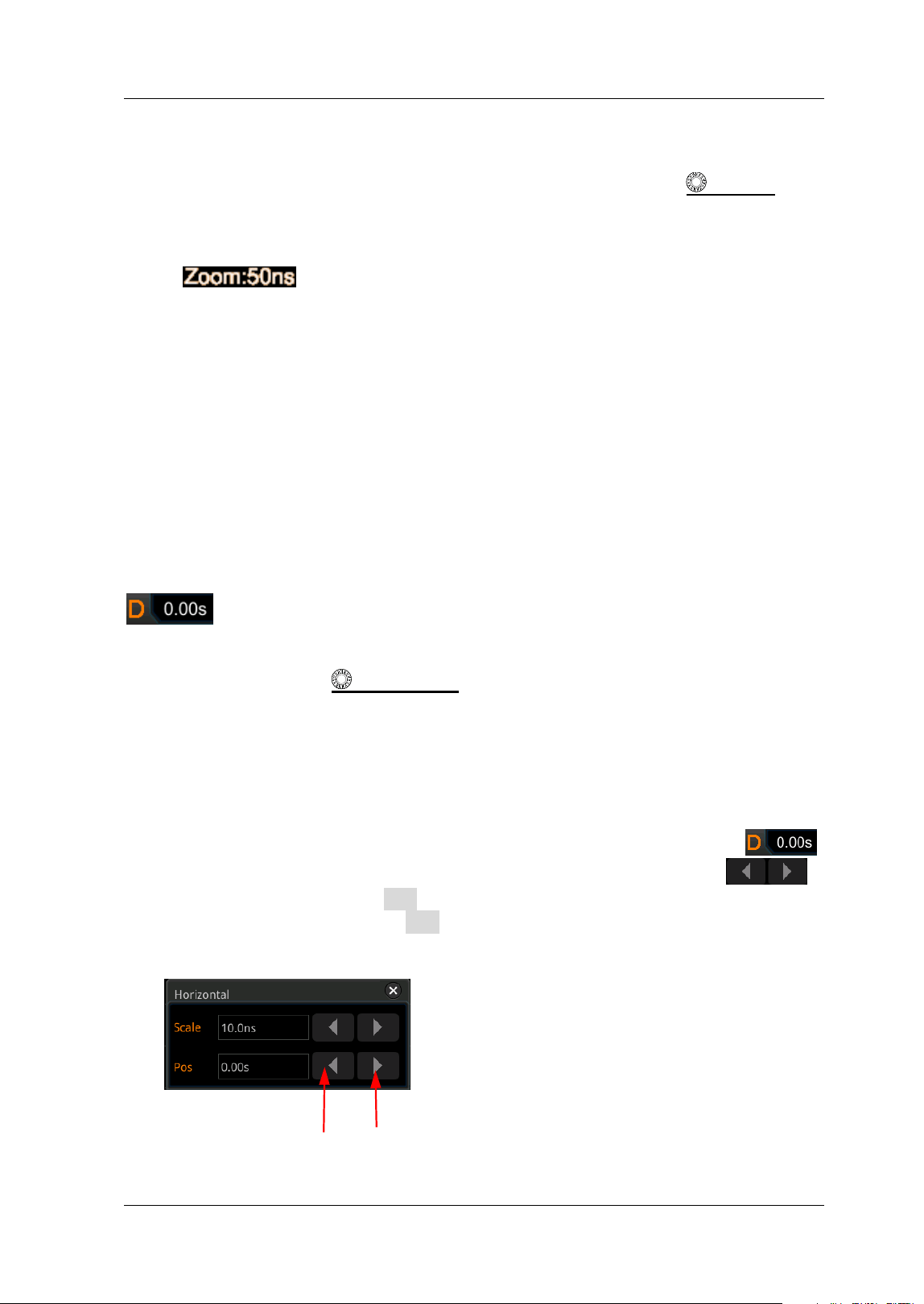
Chapter 3 To Set the Horizontal System RIGOL
MSO5000-E User Guide 3-3
timebase, and counterclockwise to increase the horizontal timebase.
Note: When the delayed sweep is enabled, rotate the Horizontal
SCALE knob
to adjust the timebase for the delayed sweep. The delayed sweep timebase
displayed in the center of the screen will be changed accordingly, as shown in
the following f igure.
To Adjust the Horizontal Position
Horizontal position, also called trigger position, refers to the trigger point position of
the waveforms of all channels in the horizontal direction relative to the screen center.
When the waveform trigger point is at the left (right) side of the screen center, the
horizontal position is a positive (negative) value.
While you change the horizontal position, the waveform trigger points and the
displayed waveforms of all channels are moved left and right. The horizontal position
at the right-upper corner of the screen changes accordingly, as shown in the figure
below.
You can adjust the horizontal position with the following three methods:
Rotate Horizontal
POSI TI ON to adjust the horizontal position of the
waveforms of all channels. When you rotate it clockwise, the waveform trigger
point moves right on the screen; when you rotate it counterclockwise, the
waveform trigger point moves left on the screen. Pressing down the knob can
quickly reset the horizontal position (reset to 0).
Enable the touch screen function and adjust the horizontal position with the
drag gesture on the touch screen. For details, refer to the "Drag" section.
Enable the touch screen function, and tap the horizontal position label
at the top of the screen. The following window is displayed. Tap the
icon at the right side of the Pos input f ield to decrease or increase the horizontal
position. You can also tap the Pos input f ield to input a specif ic value with the
displayed numeric keypad.
Decrease the position I ncrease the posit ion
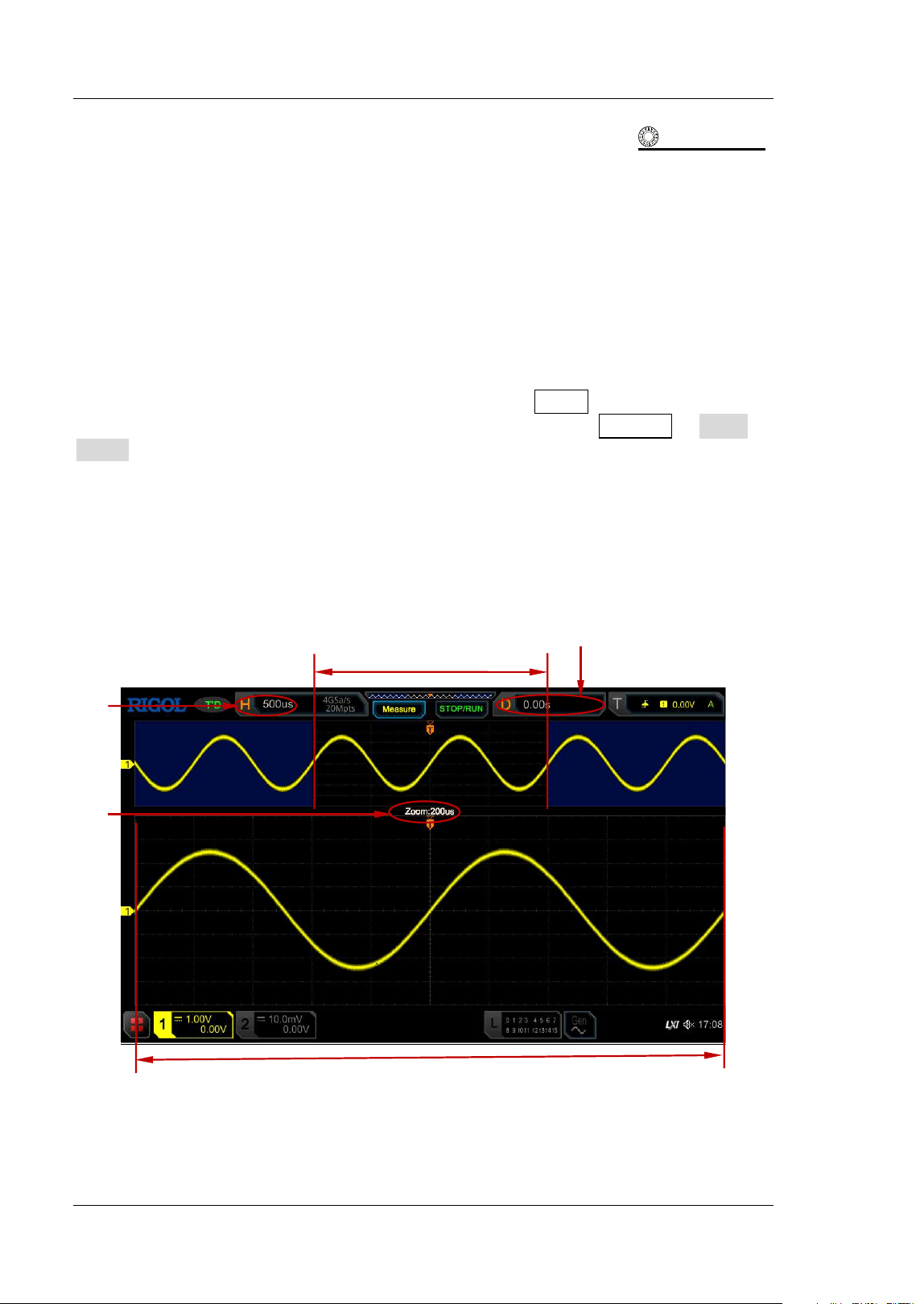
RIGOL Chapter 3 To Set the Horizontal System
3-4 MSO5000-E User Guide
Note: When the delayed sweep is enabled, rotate the Horizontal POSI TI ON
knob to adjust the horizontal position of the delayed sweep (press down the knob to
quickly reset it). The horizontal position of the delayed sweep at the upper-right
corner of the screen changes accordingly.
Delayed Sweep
Delayed sweep can be used to enlarge a length of waveform horizontally to view
waveform details.
I n the horizontal control area on the front panel, press Zoom to enable or disable
the delayed sweep. By default, it is disabled. You can also press Acquire More
Zoom to enable or disable the delayed sweep function.
Note:
To enable the delayed sweep, you must ensure that the current timebase
mode is "YT".
In delayed sweep mode, the screen is divided into two display areas as shown in
Figure 3-1.
Figure 3-1 Delayed Sweep Mode
Waveform Before Enlargement
Horizontal Position of the
Delayed Sweep
Main
Timebase
Timebase
of the
Delayed
Sweep
Waveform Aft er Enlargement
Chapter 3 To Set the Horizontal System RIGOL
MSO5000-E User Guide 3-5
Waveform before enlargement:
The waveform in the area that is not covered by subtransparent blue in the upper
part of the screen is the waveform before enlargement. I ts horizontal timebase (also
called main timebase) is displayed at the upper-left corner of the screen. You can
rotate the Horizontal
POSI TI ON knob to move the area left and right or rotate
the Horizontal
SCALE knob to enlarge or reduce this area.
Note: If you need to modify the horizontal timebase (also called main timebase) of
the normal sweep, please disable the delayed sweep function f irst. Rotate the
Horizontal
SCALE knob to set the required main timebase, and then
enable the delayed sweep function.
Waveform after enlargement:
The waveform in the lower part of the screen is the horizontally expanded delayed
sweep waveform. I ts horizontal timebase (also called the timebase of the delayed
sweep) is displayed on the screen. Compared with the main timebase, the timebased
of the delayed sweep has increased the waveform resolution, as shown in Figure 3-1.
At this time, you can rotate the Horizontal
SCALE knob to adjust the timebase
of the delayed sweep, and rotate the Horizontal
POSI TI ON knob to adjust the
horizontal position of the delayed sweep.
Note: The timebase of the delayed sweep should be smaller than or equal to the
main timebase.


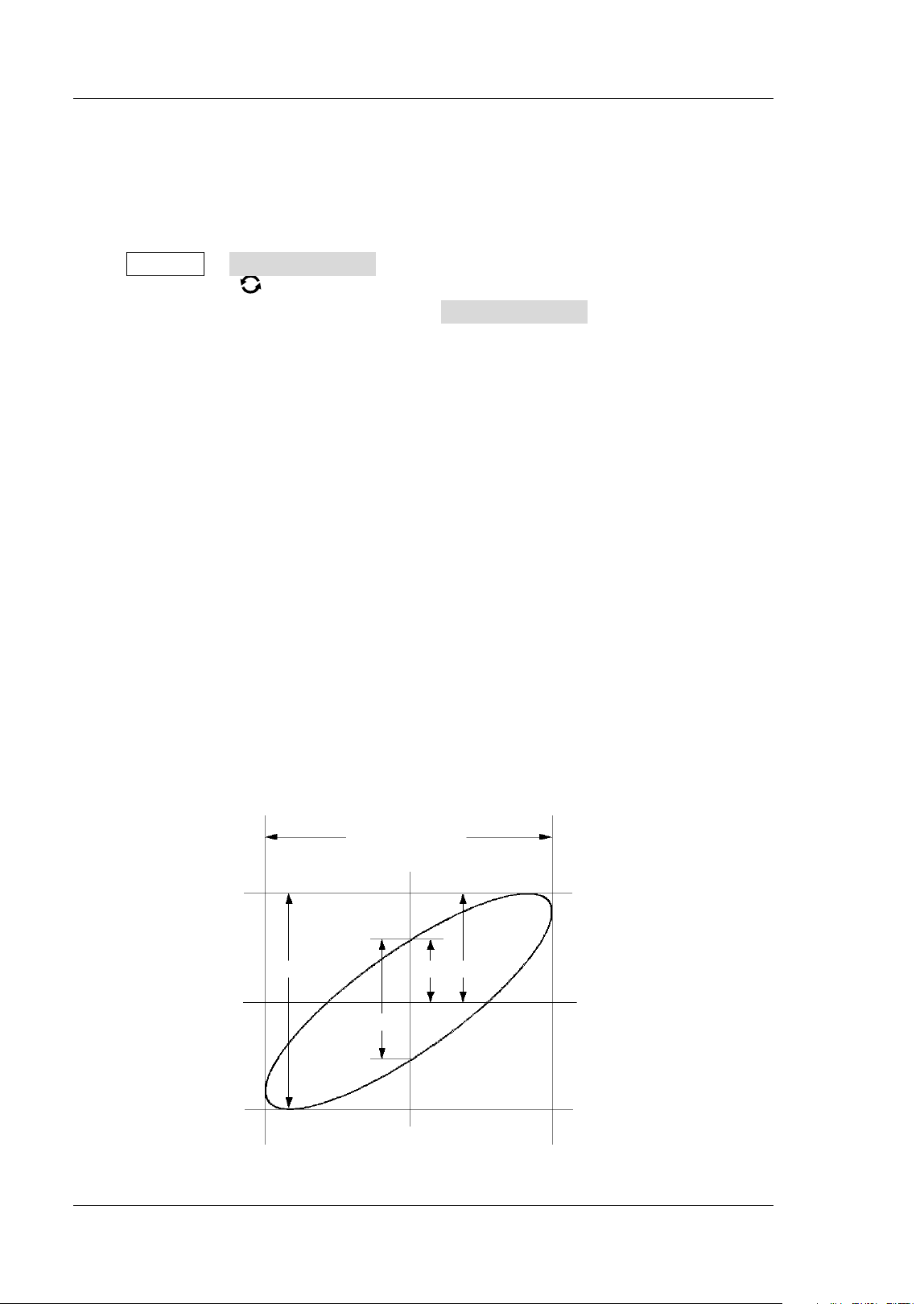
RIGOL Chapter 4 To Set the Sample System
4-2 MSO5000-E User Guide
Timebase Mode
MSO5000-E series supports three available timebase modes: YT mode, XY mode,
and ROLL mode. By default, the timebase m o d e i s YT.
Press Acquire Timebase Mode on the front panel, and then rotate the
multifunction knob to select the desired timebase mode. Then, press down the
knob to select the mode. You can also press Timebase Mode continuously to select
the mode or enable the touch screen to tap the desired mode and select it.
YT Mode
I n this mode, the Y axis represents voltage, and the X axis represents time.
Note: Only when this mode is enabled, can delayed sweep be turned on. I n this
mode, when the horizontal timebase is equal to or greater than 200 ms/div,
the instrument enters slow sweep mode. For details, refer to descriptions in
"ROLL Mode".
XY Mode
I n this mode, both the X axis and the Y axis represent the voltage. The mode
changes the display from voltage-time display mode to voltage-voltage display. You
can use the Lissajous method to measure the phase deviation of the two input
signals whose frequencies are the same. The following f igure shows the
measurement schematic diagram of phase deviation.
Figure 4-1 Measurement Schematic Diagram of Phase Deviation
II I
II I I V
A
B
C
D
Signal must be
centered horizontally
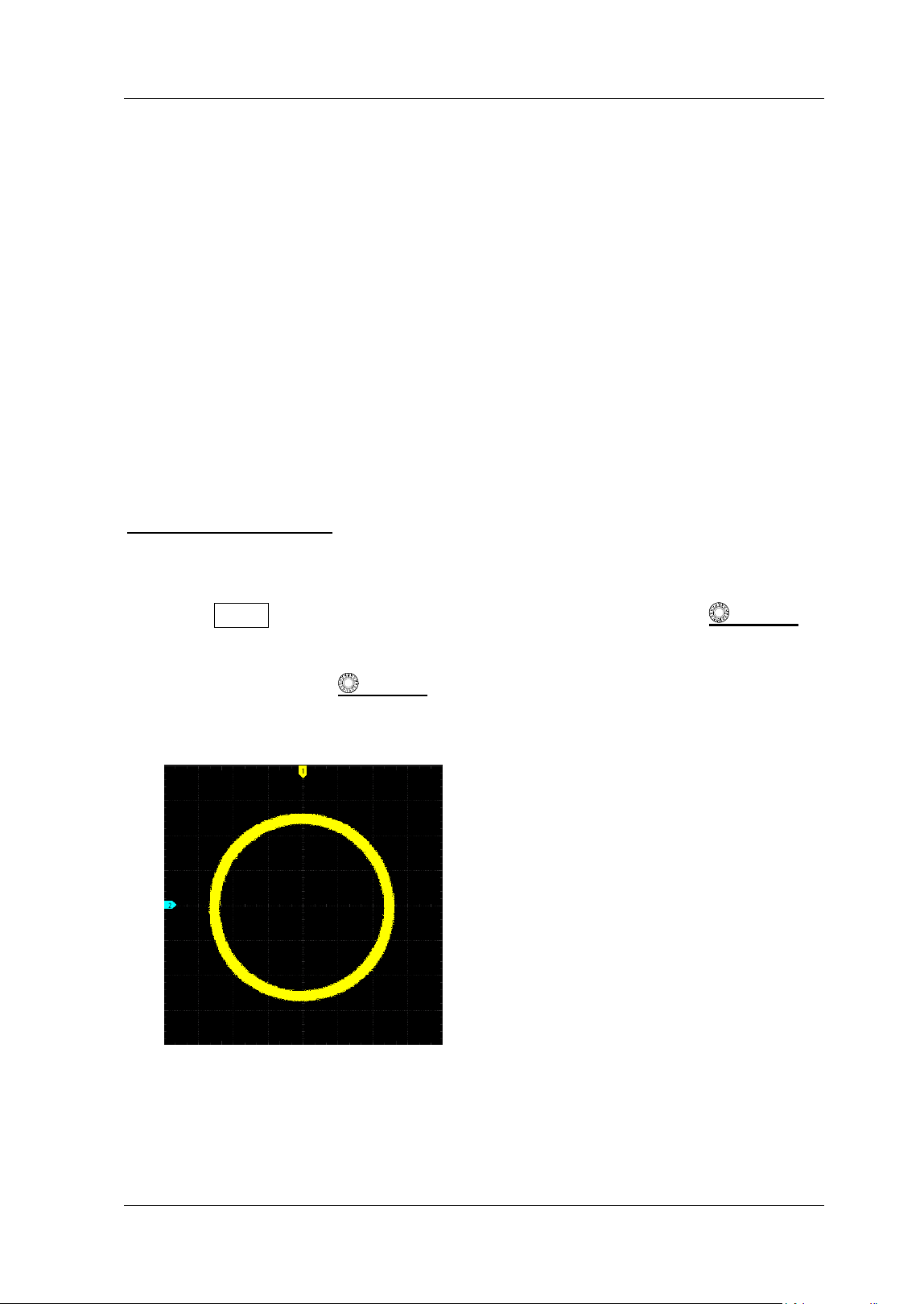
Chapter 4 To Set the Sample System RIGOL
MSO5000-E User Guide 4-3
According to sinθ= A/ B or C/ D, θ is the phase deviation angle between the two
channels. The def initions of A, B, C, and D are shown in the above f igure. The phase
deviation angle is obtained, that is:
θ= ±arcsin( A/ B) or ±arcsin( C/ D)
I f the principal axis of the ellipse is within Quadrant I and I I I , the phase deviation
angle obtained should be within Quadrant I and I V, namely within (0 to π/ 2) or (3π/ 2
to 2π). If the principal axis of the ellipse is within Quadrant II and I V, the phase
deviation angle obtained should be within Quadrant I I and I I I, namely within (π/ 2 to
π) or (π to 3π/ 2).
The XY function can be used to measure the phase deviation occurred when the
signal under test passes through a circuit network. Connect the oscilloscope to the
circuit to monitor the input and output signals of the circuit.
Application example: measures the phase deviation between the input signals of
two channels.
Use Lissajous method
1. Connect one sine signal to CH1, and then connect another sine signal (with the
same frequency and amplitude as the previous one but a 90° phase deviation
from the previous one) to CH2.
2. Press AUTO, after you select "XY" mode, rotate the Horizontal
SCALE to
adjust the sample rate properly to obtain a better view of Lissajous graph for
observation and measurement.
3. Rotate the Vertical
SCALE knob that corresponds to CH1 and CH2
respectively to make the signals easy to observe. Then, a circle, as shown in the
figure below, should be displayed.
4. Observe the measurement result shown in the f igure above. According to the
measurement schematic diagram of the phase deviation (as shown in Figure
4-1
), A/ B(C/ D) = 1. Thus, the phase deviation angle of the two channel input
signals is
θ= ±arcsin1= 90° .
RIGOL Chapter 4 To Set the Sample System
4-4 MSO5000-E User Guide
Note:
I n XY mode, CH1 and CH2 are forced to be enabled. The maximum sample rate
in XY mode is 2 GSa/ s. Generally, a longer sample waveform can ensure better
display effect of Lissajous f igure. But due to the limitation of the memory depth,
you have to reduce the waveform sample rate to acquire a longer waveform
(refer to the introduction in "Memory Depth"). Therefore, during the
measurement, reducing the sample rate properly can achieve better display
effect of Lissajous f igure.
The following functions are disabled in XY mode:
"Delayed Sweep", "To Select the Display Type", "Scale", "Protocol
Decoding", "Pass/ Fail Test", "Waveform Recording & Playing", and
"Digital Channel".
ROLL Mode
I n this mode, the waveform scrolls from right to left to update the display. The
available range of the horizontal scale is from 200 ms to 1 ks. Press More Auto
ROLL to select "ON". The system automatically enters the ROLL mode, and there is
no slow sweep.
Note:
I f the current delayed sweep is enabled, then when you enable the ROLL mode,
the delayed sweep is disabled automatically. When you re-enable the "YT" mode,
the delayed sweep will be re-enabled.
The following functions cannot be set in ROLL mode:
"To Adjust the Horizontal Position" (available when the oscilloscope is in
"Stop" operating status), "Delayed Sw eep", "To Trigger the Oscilloscope",
"Protocol Decoding", "Pass/ Fail Test ", "Waveform Recording &
Playing", and "To Set the Persistence Time".
Slow Sweep
I t is similar to the ROLL mode. I n YT mode, when the horizontal timebase is set to
200 ms/ div or smaller, the instrument enters the "slow sweep" mode in which the
instrument f irst acquires the data at the left of the trigger point and then waits for
a trigger event. After the trigger occurs, the instrument continues to f inish the
waveform at the right of the trigger point. When observing the low-frequency
signal in the slow sweep mode, it is recommended that you set "
Channel
Coupling" to "DC".
Chapter 4 To Set the Sample System RIGOL
MSO5000-E User Guide 4-5
Acquisition Mode
The acquisition mode is used to control how to generate waveform points from the
sample points.
MSO5000-E supports the following four acquisition modes: Normal, Average, Peak,
and High Resolution. By default, the acquisition mode is Normal.
Press Acquire Acquisition on the front panel, and then rotate the multifunction
knob to select the desired acquisition mode. Then, press down the knob to
select the mode. You can also press Acquisition continuously to select the mode or
enable the touch screen to tap the desired mode and select it.
Normal
I n this mode, the oscilloscope samples the signal at a specif ied f ixed time interval to
rebuild the waveform. For most of the waveforms, using this mode can produce the
optimal display effects.
Average
I n this mode, the oscilloscope averages the waveforms from multiple samples to
reduce the random noise of the input signal and improve the vertical resolution.
Greater number of averages can lower the noise and increase the vertical resolution;
while at the same time, it will slow the response of the displayed waveform to the
waveform changes.
When you select "Average" mode, press Averages and rotate the multifunction
knob
or use the numeric keypad to set the desired number of averages. You can
also use the pop-up numeric keypad to input the average count. When the average
count value is in power-of-2 increments, a prompt message "Trim average count" is
displayed. At this time, a value that is smaller than the one you input and the closest
to power-of-2 increments will be input automatically. For example, if you input 9 with
the numeric keypad, the average count will be input 8 automatically.
The number of averages can be set to 2, 4, 8, 16, 32, 64, 128, 256, 512, 1024, 2048,
4096, 8192, 16384, 32768, or 65536. By default, it is 2.
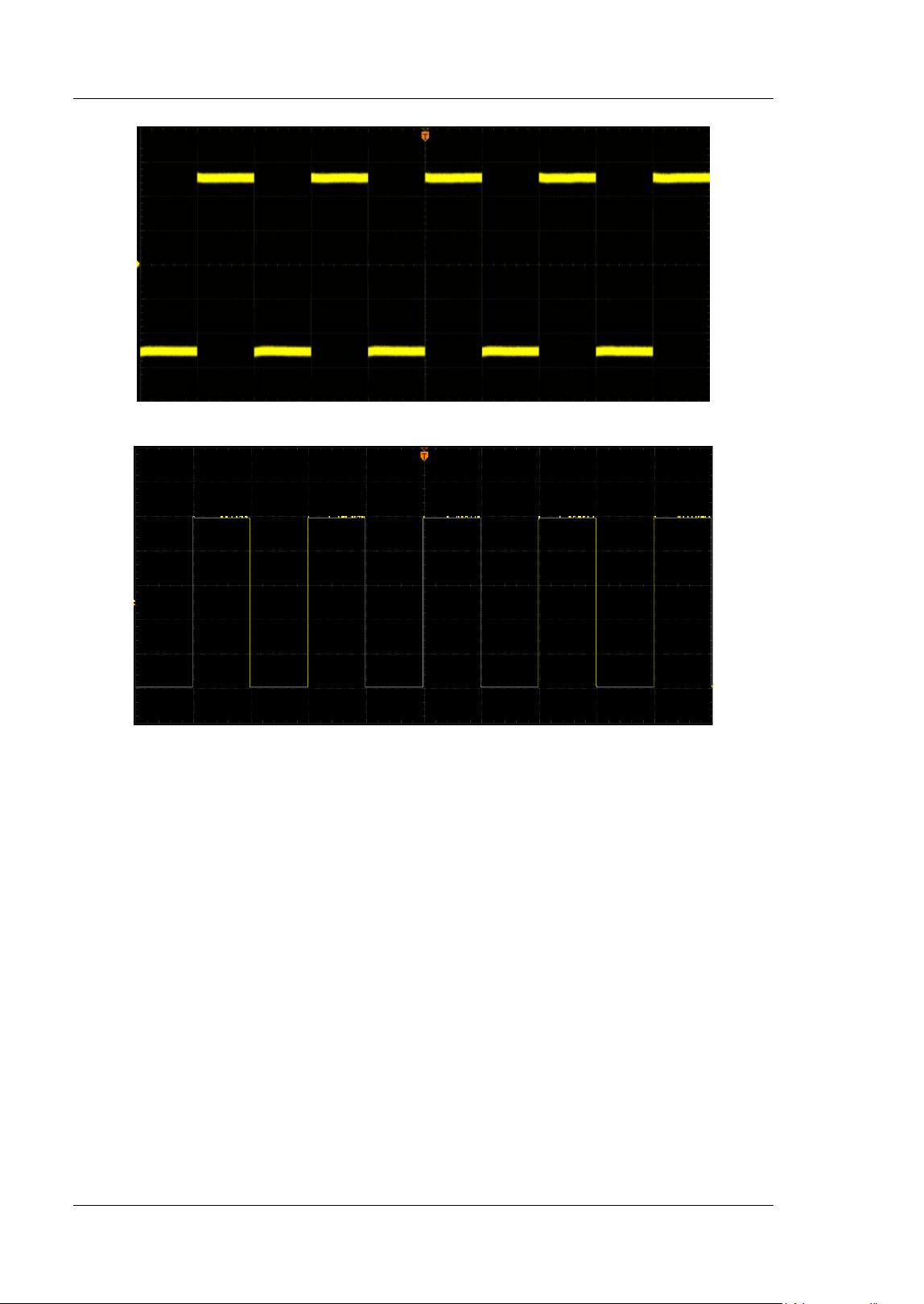
RIGOL Chapter 4 To Set the Sample System
4-6 MSO5000-E User Guide
Figure 4-2 Waveforms before Averaging
Figure 4-3 Waveforms after 128 Times of Averaging
Peak
I n this mode, the oscilloscope acquires the maximum and minimum values of the
signal within the sample interval to get the envelope of the signal or the narrow pulse
that might be lost. I n this mode, signal aliasing can be prevented, but the noise
displayed would be larger.
I n this mode, the oscilloscope can display all the pulses whose pulse widths are at
least the same as the sample period.
High Resolution
This mode uses an over-sample technique to average the neighboring points of the
sample waveform. This reduces the random noise on the input signal, generates a
much smoother waveform on the screen and improves the vertical resolution. This is
generally used when the sample rate of the digital converter is greater than the
Chapter 4 To Set the Sample System RIGOL
MSO5000-E User Guide 4-7
storage rate of the acquisition memory.
Note:
The "Average" and "High Res" modes use different averaging methods. The
former uses "Multi-sample Average" and the latter uses "Single-sample
Average".
I n "High Res" mode, the signal bandwidth does not exceed 1/ 32 of the sampling
rate.
I n "High Res" mode, the highest waveform refresh rate mode is not supported.
Sampling Mode
This oscilloscope only supports the real-time sampling mode. I n this mode, the
oscilloscope produce the waveform display from samples collected during one trigger
event. The highest real-time sample rate on the analog channel of MSO5000-E series
is 4 GSa/ s. The current sample rate is displayed under CH SampleRate, and you
can press More CH SampleRate to view it.
Sample Rate
Sampling is the process of converting the analog signal into the digital signal at a
specif ied time interval and then restoring them in sequence. The sample rate is the
reciprocal of the time interval.
The sample rate of the analog channel is related to the current channel mode. The
maximum real-time sample rate in the single-channel mode of the oscilloscope is 4
GSa/ s. The maximum real-time sample rate in the all-channel mode is 2 GSa/ s.
Note:
The sample rate is displayed both in the status bar at the upper part of the
screen and in the CH SampleRate menu. To indirectly modify the sample
rate, rotate the Horizontal
SCALE knob to adjust the horizontal
Tip
Press RUN/ STOP on the front panel to stop sampling, and then the oscilloscope
will maintain its last captured graph. You can still expand or zoom the waveforms
by using the horizontal and vertical control knobs.
Tip
Single-channel mode: only one of the channels (CH1 or CH2) is enabled.
All-channel mode: CH1 and CH2 are both enabled.
Note that the currently enabled channel should be used as the trigger source at
this time.
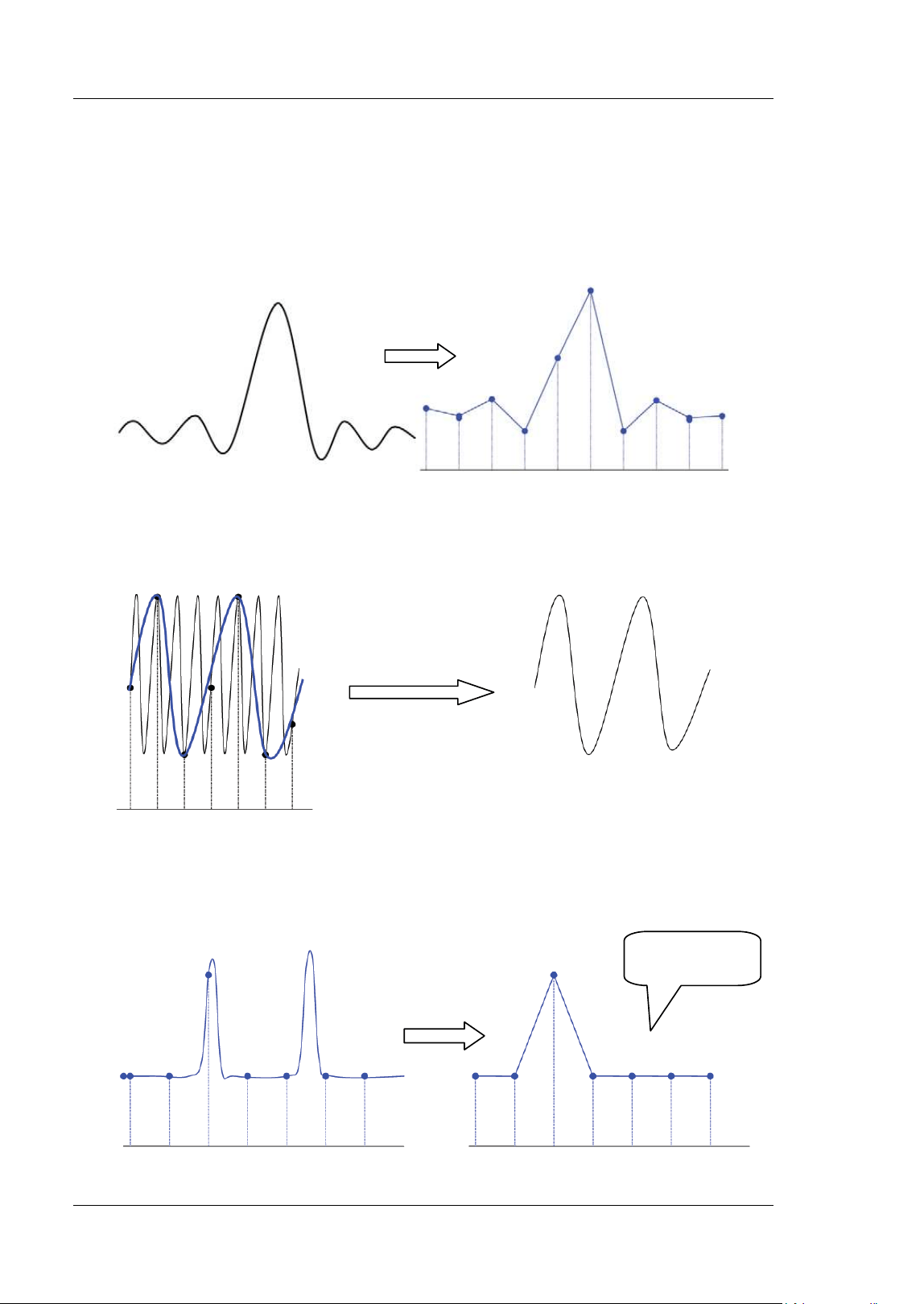
RIGOL Chapter 4 To Set the Sample System
4-8 MSO5000-E User Guide
timebase or modify the memory depth.
The impact of low sample rate on the waveform:
1. Waveform Distortion: when the sample rate is too low, some waveform
details are lost, and the sample waveform displayed is rather different from the
actual waveform of the signal.
2. Waveform Aliasing: when the sample rate is twice lower than the actual
signal frequency (Nyquist Frequency), the frequency of the waveform rebuilt from
the sample data is smaller than the actual signal frequency.
3. Waveform Leakage: when the sample rate is too low, the waveform rebuilt
from the sample data does not reflect all the actual signal information.
Pulse
disappeared
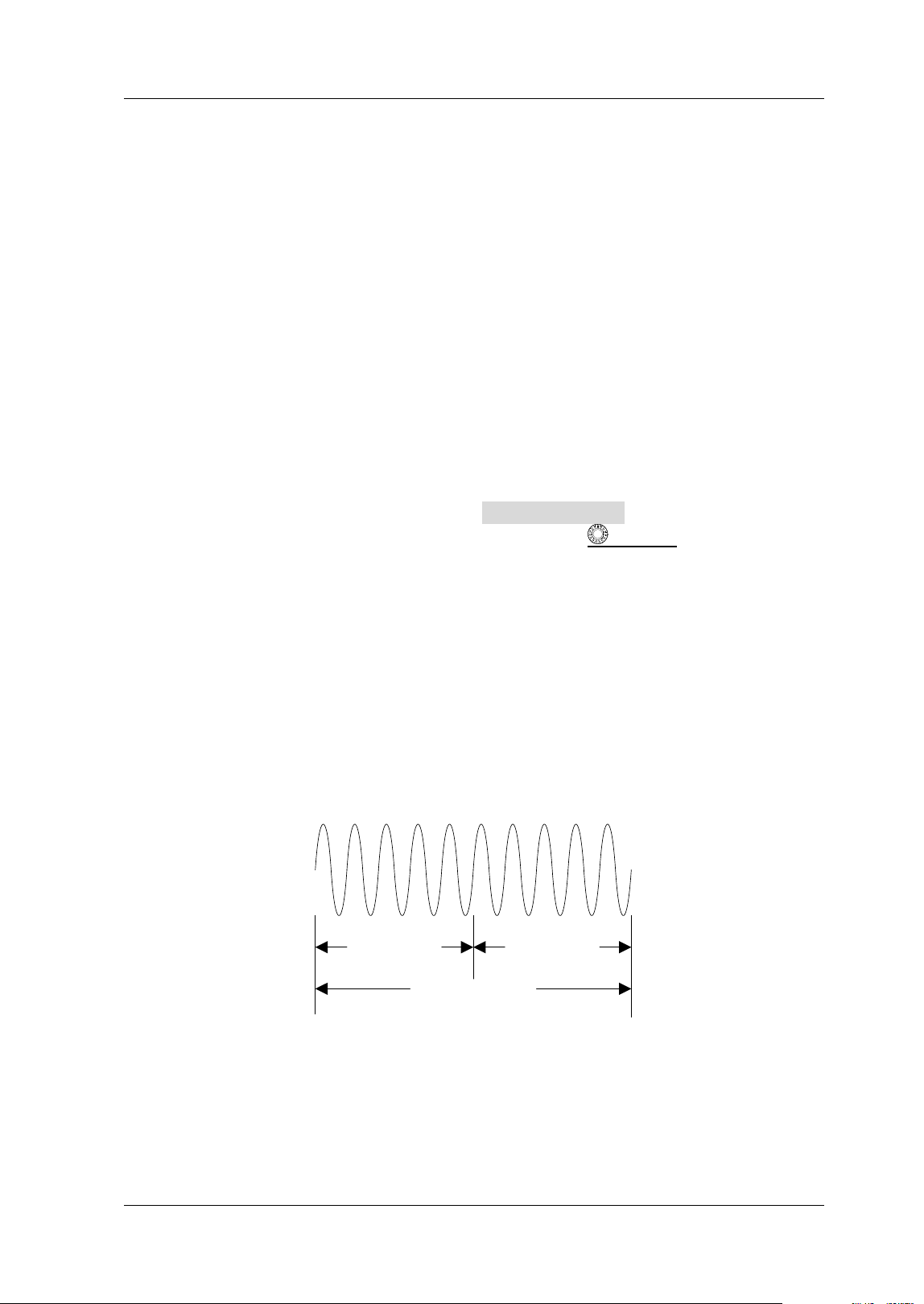
Chapter 4 To Set the Sample System RIGOL
MSO5000-E User Guide 4-9
LA Sample Rate
LA sampling is the process of sampling on the compared digital signals at a certain
time interval. LA sample rate is the reciprocal of the time interval. For example, if the
LA sample rate is 500 MSa/ s, it indicates that the oscilloscope will make data
acquisition on the digital signals at an interval of 2 ns. The maximum LA sample rate
of the oscilloscope is 1 GSa/ s, and its display value is related to the sample rate of the
current analog channel.
Note:
The digital signals here mentioned refers to the signal obtained from the
comparison between the input signal and the user-defined threshold level. The
rule of the comparison is that when the amplitude of the input signal is greater
than the threshold level, it is judged to be the logic high level; when the
amplitude of the input signal is smaller than the threshold level, it is judged to
be the logic low level.
LA sample rate is displayed under the LA SampleRate menu. To indirectly
modify the LA sample rate, rotate the Horizontal
SCALE knob to adjust
the horizontal timebase or modify the memory depth.
Memory Depth
Memory depth refers to the number of points of the oscilloscope that can store in one
trigger acquisition. I t reflects the storage capability of the acquisition storage. This
oscilloscope is equipped with memory depth of up to 100 Mpts (option).
T
Trigger Point
Pre-sample Delayed Sample
Memory Depth
Figure 4-4 Memory Depth
The following equation shows the relations among memory depth, sample rate, and
horizontal timebase scale:
MDepth SRate TScale HDivs=××
MDepth
——indicates the memory depth. The unit is pts.
RIGOL Chapter 4 To Set the Sample System
4-10 MSO5000-E User Guide
SRate
——indicates the sample rate. The unit is Sa/ s.
TScale
——indicates the horizontal timebase scale. The unit is s/div.
HDivs
——indicates the number of grids in the horizontal direction. The unit is div.
Therefore, under the same horizontal timebase scale, a higher memory depth can
ensure a higher sample rate.
Press Acquire Mem Depth, then rotate the multifunction knob to switch to
the desired memory depth, and then press down the knob to select the option. You
can also press the Mem Depth key continuously or enable the touch screen to
select the memory depth. By default, the memory depth is Auto. The memory depth
of the analog channel is related to the current channel mode.
I n single-channel mode, the memory depths available include Auto, 1 Kpts, 10
Kpts, 100 Kpts, 1 Mpts, 10 Mpts, 25 Mpts, 50 Mpts, and 100 Mpts.
I n all-channel mode, the memory depths available include Auto, 1 Kpts, 10 Kpts,
100 Kpts, 1 Mpts, 10 Mpts, 25 Mpts and 50 Mpts.
Note: I n "Auto" mode, the oscilloscope selects the memory depth automatically
according to the current sample rate.
LA Memory Depth
Press Acquire More to view the memory depth of the current digital channel
under LA Mem Depth. The LA memory depth will change with the memory depth of
the analog channel, and cannot be set separately. The maximum LA memory depth is
25 Mpts.
Anti-Aliasing
At a slower sweep speed, the sample rate is reduced, and a dedicated display
algorithm can be used to minimize the possibility of aliasing.
Press Acquire Anti-aliasing to enable or disable the anti-aliasing function. By
default, anti-aliasing is disabled. I n this case, it is more likely to generate waveform
aliasing.
Note: This function should be enabled when the horizontal timebase has a large
deviation from the period of the signal under test (e.g. when the horizontal
timebase is greater than f ive-fold the period of the signal under test).
Chapter 4 To Set the Sample System RIGOL
MSO5000-E User Guide 4-11
Horizontal Expansion
Horizontal expansion indicates the reference position that the screen waveform is
referenced to when it is horizontally expanded or compressed in adjusting the
Horizontal SCALE knob. I n YT mode, press Acquire More Expand and
then rotate the multifunction knob to select the desired reference position. Press
down the knob to select it. You can also press Expand continuously to select it or
enable the touch screen to tap the desired reference. The horizontal expansion
reference supported by the oscilloscope includes Center, Left, Right, Trigger, and User.
The default is "Center".
Center: when the horizontal timebase is modif ied, the waveform will be
expanded or compressed horizontally relative to the screen center.
Left: when the horizontal timebase is modif ied, the waveform will be expanded
or compressed horizontally relative to the leftmost position of the screen.
Right: when the horizontal timebase is modif ied, the waveform will be expanded
or compressed horizontally relative to the rightmost position of the screen.
Trigger: when the horizontal timebase is modified, the waveform will be
expanded or compressed horizontally relative to the trigger point.
User: when the horizontal timebase is modif ied, the waveform displayed will be
expanded or compressed horizontally relative to the user-def ined reference
position.
After you select "User", press Expand User and then rotate the multifunction
knob
to set the expansion reference. I ts available range is from the
rightmost position of the screen to the leftmost position of the screen. By default,
it is the screen center. Pressing down the multifunction knob
can quickly
reset the user-defined reference position to 0.
Note: This function is unavailable in YT mode with the delayed sweep being enabled,
XY mode, and ROLL mode.


Chapter 5 To Trigger the Oscilloscope RIGOL
MSO5000-E User Guide 5-1
Chapter 5 To Trigger the Oscilloscope
As for trigger, you set certain trigger condition according to the requirement and
when a waveform in the waveform stream meets this condition, the oscilloscope
captures this waveform as well as the neighboring part, and displays them on the
screen. For the digital oscilloscope, it samples waveform continuously no matter
whether it is stably triggered, but only stable trigger can be stably displayed. The
trigger module ensures that every timebase sweep or acquisition starts from the
user-def ined trigger condition, namely every sweep is synchronous with the
acquisition and the waveforms acquired is overlapped so as to display the stable
waveforms.
Trigger settings should be based on the features of the input signal. To quickly
capture the desired waveform, you need to understand the signal under test. This
oscilloscope provides abundant trigger types that help you focus on the desired
waveform details.
Contents in this chapter:
Trigger Source
Trigger LEVEL/ Threshold Level
Trigger Mode
Trigger Coupling
Trigger Holdoff
Noise Rejection
Tr i gg er Ty p e
Zone Trigger
Trigger Output Connector
RIGOL Chapter 5 To Trigger the Oscilloscope
5-2 MSO5000-E User Guide
Trigger Source
In the trigger control area (Trigger) on the front panel, press Menu Source to
select the desired source, or rotate the multi-function knob to select a desired
source, then press down the knob to select it. You can also press Source
continuously to select the trigger source or enable the touch screen to tap the
desired trigger source and select it.
Analog channels (CH1-CH2), digital channels (D0-D15), EX T, EXT/ 5, or AC Line can
all be selected as the trigger source.
Analog channel input:
Signals input from analog channels CH1-CH2 can all be used as trigger sources. No
matter whether the channel selected is enabled, the channel can work normally.
Digital channel input:
Signals input from digital channels D0-D15 can all be used as trigger sources. No
matter whether the channel selected is enabled, the channel can work normally.
External trigger input:
The external trigger source can be used to trigger on the third channel while all the
other two channels are acquiring data. The trigger signal (e.g. external clock or
signal of the circuit under test) will be connected to EXT or EXT/ 5 trigger source via
the external trigger input terminal [ EXT] connector. You can set the trigger
conditions within the range of the trigger level (from -1 V to + 1 V for EXT or from -5
V to + 5 V for EXT/ 5).
AC line input:
The trigger signal is obtained from the AC power input of the oscilloscope. AC trigger
is usually used to measure signals relevant to the AC power frequency. For example,
stably triggering the waveform output from the transformer of a transformer
substation. I t is mainly used in related measurements of the power industry.
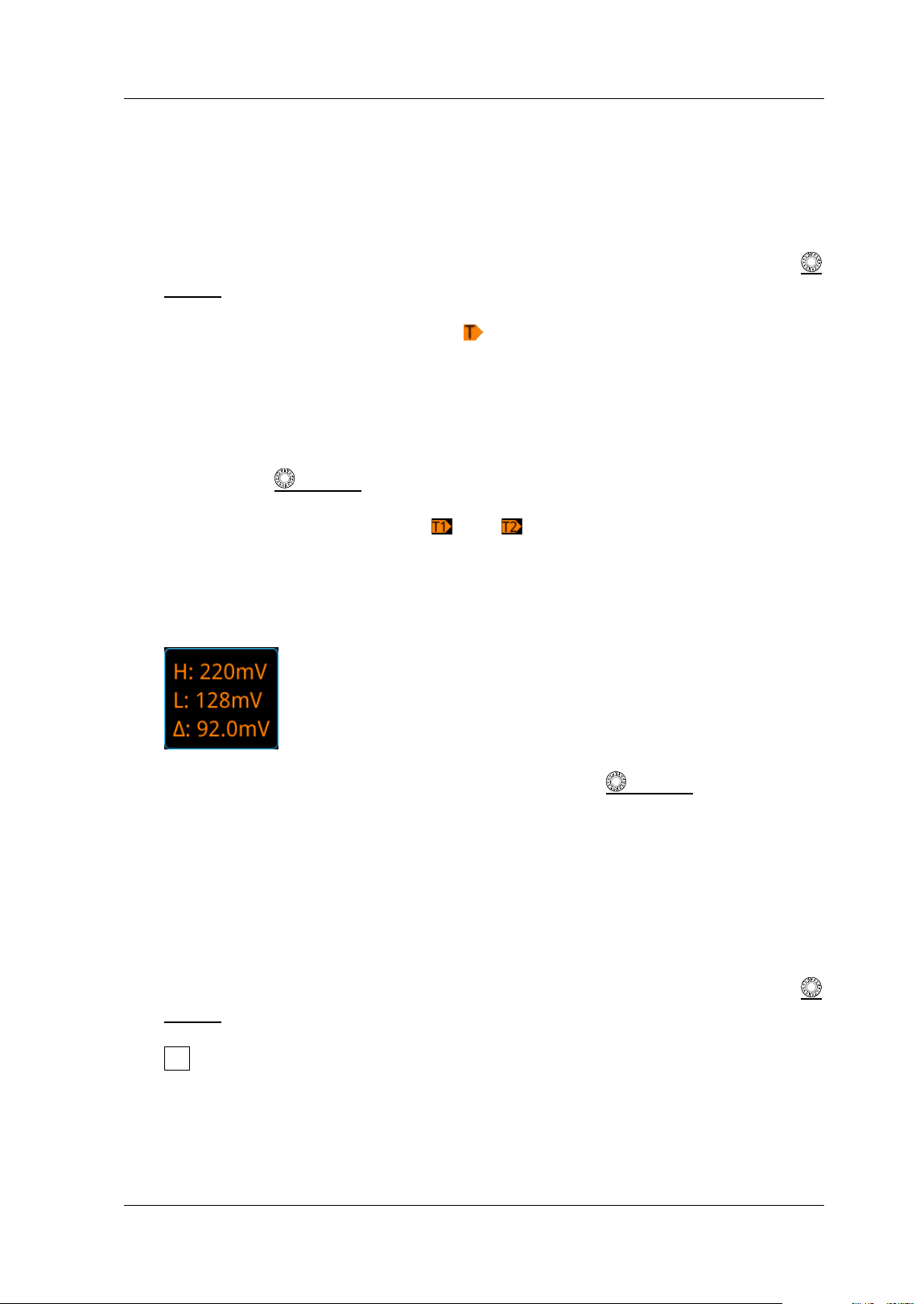
Chapter 5 To Trigger the Oscilloscope RIGOL
MSO5000-E User Guide 5-3
Trigger LEVEL/ Threshold Level
The adjustment of the trigger level/ threshold level is related to the type of the trigger
source.
When the trigger source is selected from CH1 and CH2, rotate the Trigger
LEVEL
knob to adjust the trigger level. During the adjustment, a trigger level
line (the color of the trigger level line should be consistent with that of the
channel color) and a trigger label "
" are displayed on the screen, and they
move up and down with the variation of the trigger level. When you stopping
modifying the trigger level, the trigger level line disappears in about 2 s. The
current trigger level value is displayed at the upper-right corner of the screen.
Note: I n Runt Trigger, Slope Trigger, and Window trigger, you need to set the
upper and lower limits of the trigger level. You can modify the level by rotating
the Trigger
LEVEL knob. The difference between the current upper limit
and lower limit of the trigger level is displayed at the upper-right side of the
screen. Two trigger level labels (
and ) are displayed at the left side of the
screen. Meanwhile, the real-time trigger level information is displayed at the
lower-left side of the screen, as shown in the f igure below. H indicates the upper
limit of the trigger level, L indicates the lower limit of the trigger level, and △
indicates the deviation of the trigger level.
When the trigger source is EXT, rotate the Trigger
LEVEL knob to adjust
the trigger level. The current trigger level value is displayed at the upper-right
corner of the screen.
Note: For this trigger source, only the variation of the trigger level value is
displayed on the screen during the adjustment of the trigger level, without
displaying the trigger level lines on the screen.
When the trigger source is AC Line, there is no trigger level.
When the trigger source is selected from D0 to D15, rotate the Trigger
LEVEL
knob to adjust the threshold level. The current threshold level value is
displayed at the upper-right corner of the screen. I n addition, you can also press
LA to enter the LA logic analysis setting menu. Then set the threshold level of
the digital channel in the sub-menu threshold setting. For the setting method,
refer to "
To Set the Threshold".
You can also enable the touch screen function to adjust the trigger
level/ threshold level. Two methods are available for you:
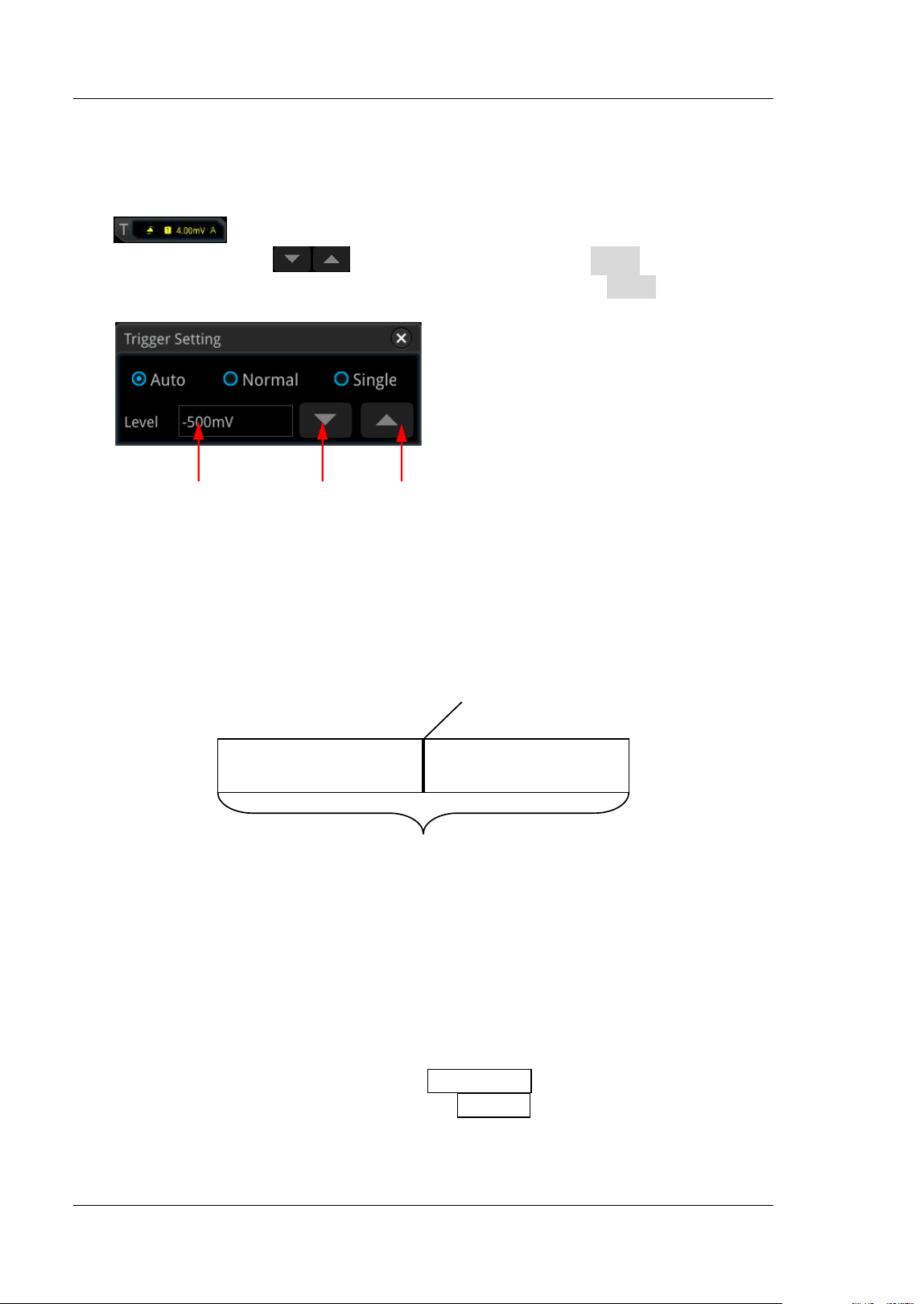
RIGOL Chapter 5 To Trigger the Oscilloscope
5-4 MSO5000-E User Guide
Method 1: Enable the touch screen and drag the trigger level line to adjust the
trigger level. For details about the operations, refer to descriptions in "Drag"
section.
Method 2: Enable the touch screen function, and tap the trigger setting label
at the upper-right corner of the screen. The following window is
displayed. Tap the icon at the right side of the Level input f ield to
decrease or increase the trigger level. You can also tap the Level input f ield to
input a specif ic value with the displayed numeric keypad.
Trigger Mode
The following is the schematic diagram of the acquisition memory. To easily
understand the trigger event, we classify the acquisition memory into the pre-trigger
buffer and post-trigger buffer.
Figure 5-1 Schematic Diagram of the Acquisition Memory
After the system runs, the oscilloscope operates by f irst f illing the pre-trigger buffer.
I t starts searching for a trigger after the pre-trigger buffer is f illed. While searching
for the trigger, the data sampled will still be transmitted to the pre-trigger buffer (the
new data will continuously overwrite the previous data). When a trigger is found, the
pre-trigger buffer contains the data acquired just before the trigger. Then, the
oscilloscope will f ill the post-trigger buffer and display the data in the acquisition
memory. I f the acquisition is activated via RUN/ STOP, the oscilloscope will repeat
this process; if the acquisition is activated via SI NGLE, the oscilloscope will stop
after f inishing a single acquisition (you can pan and zoom the currently displayed
waveform).
Pre-trigger Buffer
Post-trigger Buffer
Trigger Event
Acquisition Memory
Level I nput Field Decrease the level I ncrease the level
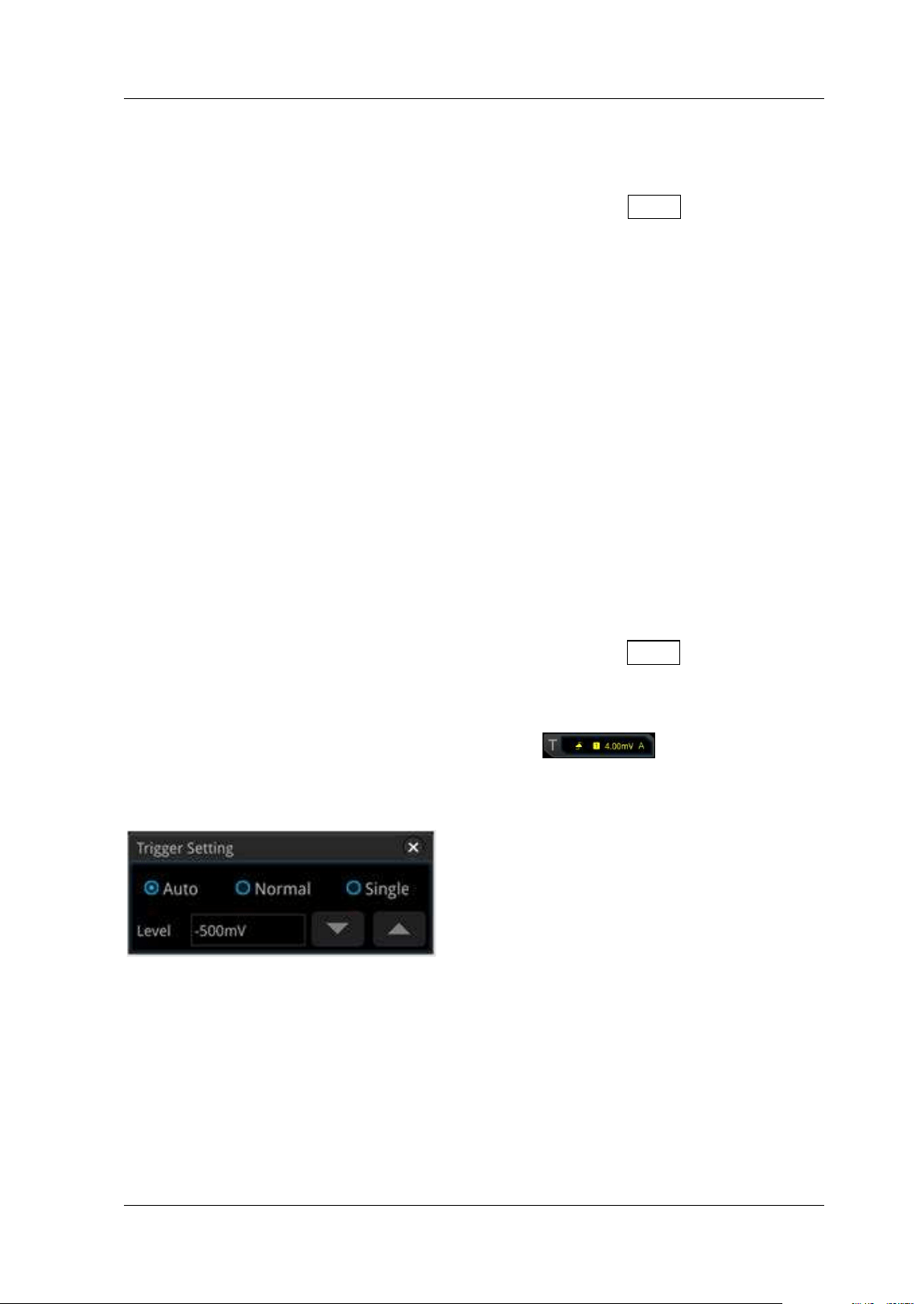
Chapter 5 To Trigger the Oscilloscope RIGOL
MSO5000-E User Guide 5-5
MSO5000-E provides three trigger modes: Auto, Normal, and Single. The default is
Auto.
In the trigger control area (Trigger) on the front panel, press Mode to quickly switch
the current trigger mode. The trigger mode is displayed at the upper-right corner of
the screen: A (Auto), N (Normal), and S (Single).
Auto: I n this trigger mode, if the specified trigger conditions are not found, triggers
are forced and acquisitions are made so as to display the waveforms. This trigger
mode should be used when the signal level is unknown or the DC should be
displayed as well as when forcible trigger is not necessary as the trigger condition
always occurs.
Normal: I n this trigger mode, triggers and acquisitions only occur when the specified
trigger conditions are found. This trigger mode should be used when the signal is
with low repetition rate or only the event specified by the trigger setting needs to be
sampled as well as when auto trigger should be prevented to acquire stable display.
Single: In this trigger mode, the oscilloscope performs a single trigger and
acquisition when the specified trigger conditions are found, and then stops. This
trigger mode should be used when you need to perform a single acquisition of
the specif ied event and analyze the acquisition result (you can pan and zoom
the currently displayed waveform, and the subsequent waveform data will not
overwrite the current waveform). After a single trigger mode is initiated, the
operating status of the oscilloscope is in "STOP" state.
Note: In "Normal" and "Single" trigger modes, pressing Force can generate a
trigger signal forcibly.
I n addition, you can enable the touch screen to set the trigger mode. Enable the
touch screen and tap the trigger setting label
at the upper-right
corner of the screen. Then the following window is displayed. Tap to select "Auto",
"Normal", or "Single" as the trigger mode.
Trigger Coupling
Trigger coupling decides which kind of components will be transmitted to the trigger
module. Please distinguish it from "Channel Coupling".
Note: Tr i g ger coupling is only valid when the trigger type is Edge and the trigger
source is an analog channel.
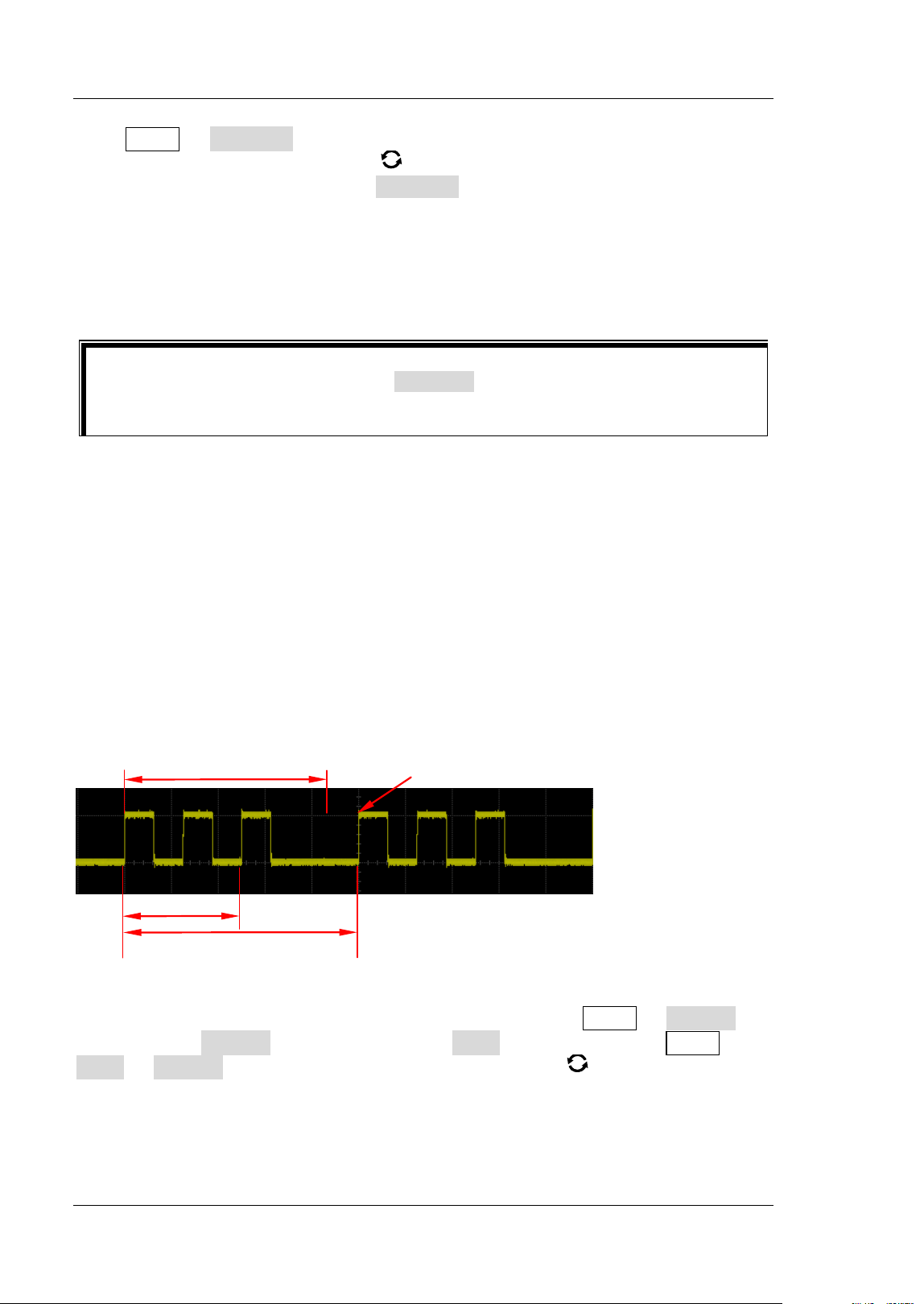
RIGOL Chapter 5 To Trigger the Oscilloscope
5-6 MSO5000-E User Guide
Press Menu Coupling in the trigger control area (Trigger) on the front panel.
Then, rotate the multifunction knob to select the desired coupling mode (by
default, it is DC). You can also press Coupling continuously to select it or enable the
touch screen to select the desired coupling mode with touch gestures.
DC: allows DC and AC components to pass the trigger path.
AC: blocks the DC components and attenuates signals.
LFR: blocks the DC components and rejects the low-frequency components.
HFR: rejects the high frequency components.
Trigger Holdoff
Trigger holdoff can be used to stably trigger on complex repetitive waveforms that
have multiple edges (or other events) between waveform repetitions (such as pulse
series). Holdoff time indicates the time that the oscilloscope waits for re-arming the
trigger module after generating a correct trigger. The oscilloscope will not trigger
even if the trigger condition is met during the holdoff time and will only re-arm the
trigger module after the holdoff time expires.
For example, to stably trigger the repetitive pulse series as shown in the f igure below,
the holdoff time should be set to a value that is greater than t1 and smaller than t2.
Figure 5-2 Schematic Diagram of Trigger Holdoff
In the trigger control area (Trigger) on the front panel, press Menu Holdoff ( for
some triggers, Holdoff is a sub menu under More, at this time, press Menu
More Holdoff) and then rotate the multifunction knob at a small step to
modify the holdoff time (the holdoff to this time when the waveforms are stably
triggered; by default, the holdoff time is 16 ns). Also, you can use the numeric
keypad to set the holdoff time. The adjustable range of holdoff time is from 8 ns to
10 s.
Tip
When "AC" or "LFR" is selected under Coupling, no trigger level lines and trigger
icons are displayed. When you adjust the trigger level, you can only see the changes
of the trigger level values at the upper-right corner of the screen.
Holdoff Time
Trigger Position
t1
t2
Chapter 5 To Trigger the Oscilloscope RIGOL
MSO5000-E User Guide 5-7
Noise Rejection
Noise rejection can reject the high frequency noise in the signal and reduce the
possibility of miss-trigger of the oscilloscope.
In the trigger control area (Trigger) on the front panel, press Menu to enter the
trigger setting menu, then press Noise Reject continuously (for some triggers,
Noise Reject is a sub menu under More, at this time, press Menu More
Noise Reject) to enable or disable noise rejection.
Note: This function is only available when the trigger source is an analog channel.

RIGOL Chapter 5 To Trigger the Oscilloscope
5-8 MSO5000-E User Guide
Trigger Type
MSO5000-E series oscilloscope provides the following trigger types.
Edge Tr ig g er
Pulse Trigger
Slope Tr ig g er
Video Trigger
Pattern Tr i g g er
Duration Tr ig g er
Timeout Trigger
Window Tr i g g er
Delay Tr i g g er
Setup/ Hold Trigger
Nth Edge Trigger
RS232 Trigger (Option)
I2C Trigger (Option)
SPI Trigger (Option)
CAN Trigger (Option)
FlexRay Trigger (Option)
LIN Trigger (Option)
I2S Trigger (Option)
MIL-STD-1553 Trigger (Option)
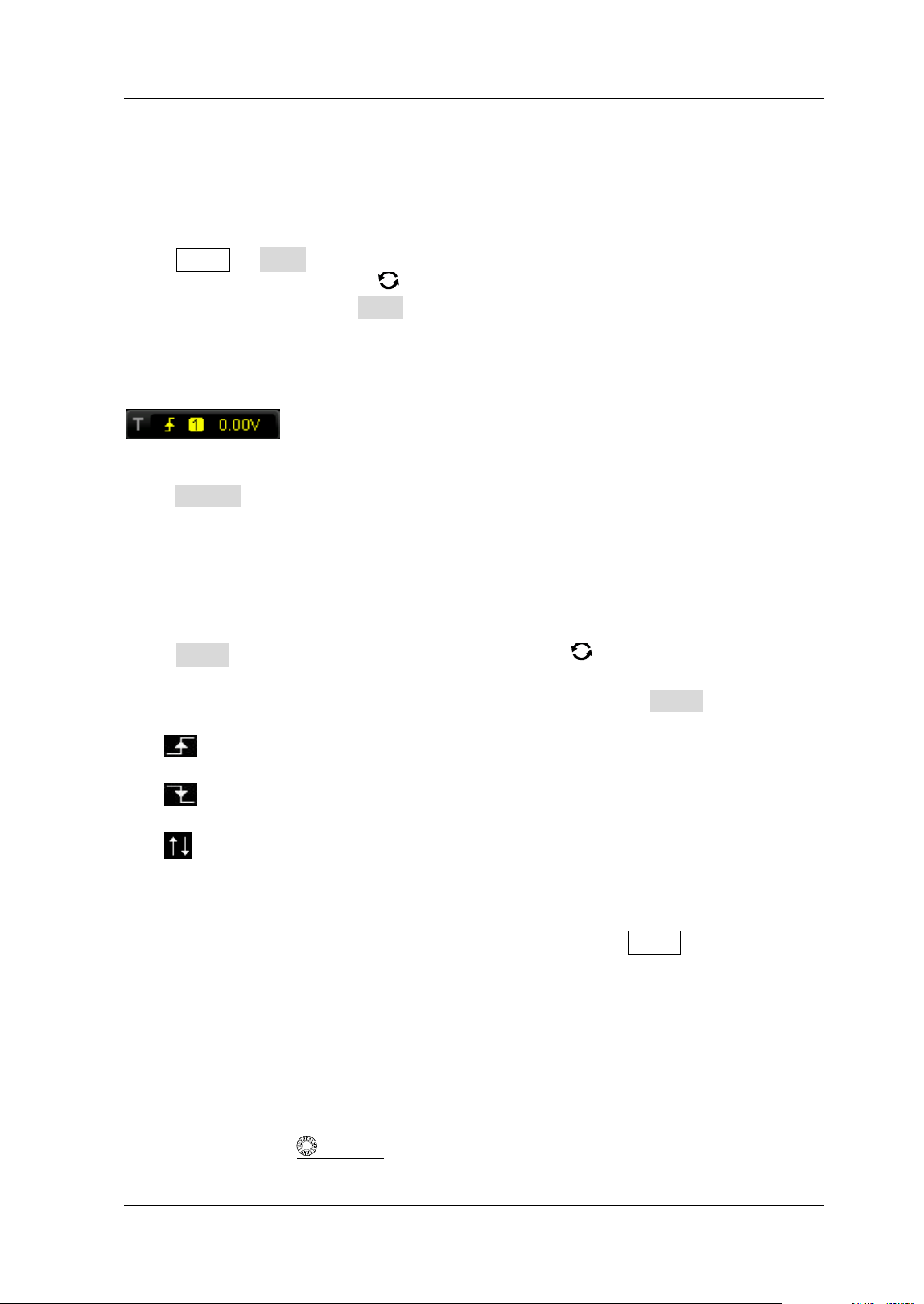
Chapter 5 To Trigger the Oscilloscope RIGOL
MSO5000-E User Guide 5-9
Edge Trigger
Triggers on the trigger level/ threshold level of the specif ied edge of the input signal.
Trigger Type:
Press Menu Type in the trigger control area (Trigger) on the front panel and
rotate the multifunction knob to select "Edge", then press down the knob to
select it. You can also press Type continuously or enable the touch screen to tap the
desired trigger type and select it. At this time, the current trigger setting information
(including trigger type, trigger source, and trigger level/ threshold level) is displayed
at the upper-right corner of the screen, as shown in the f igure below. The
information will change based on the trigger settings.
Source Selection:
Press Source to open the signal source list and select CH1-CH2, EXT, EXT/5, AC Line,
or D0-D15. For details, refer to descriptions in "
Trigger Source". The current
trigger source is displayed at the upper-right corner of the screen.
Note: Only when we select the channel (that has been input with signals) as the
trigger source, can we obtain a stable trigger.
Edge Type:
Press Slope, and then rotate the multifunction knob to select the input signal
the edge on which the oscilloscope triggers. Then, the current edge type is displayed
at the upper-right corner of the screen. You can also press the Slope key
continuously or enable the touch screen to select the desired edge type.
Rising: triggers on the rising edge of the input signal when the voltage level
meets the specif ied trigger level.
Falling: triggers on the falling edge of the input signal when the voltage level
meets the specif ied trigger level.
Either: triggers on the rising or falling edge of the input signal when the
voltage level meets the preset trigger level.
Trigger Mode:
In the trigger control area (Trigger) on the front panel, press Mode to quickly switch
the current trigger mode. For details, refer to descriptions in "Trigger Mode".
Trigger Parameter Setting:
Set the trigger parameters (trigger coupling, trigger holdoff, and noise rejection)
under this trigger type. For details, refer to descriptions in "Trigger Coupling",
"Trigger Holdoff", and "Noise Rejection".
Trigger LEVEL/ Threshold Level:
Rotate the Trigger
LEVEL knob to adjust the trigger level or threshold level.
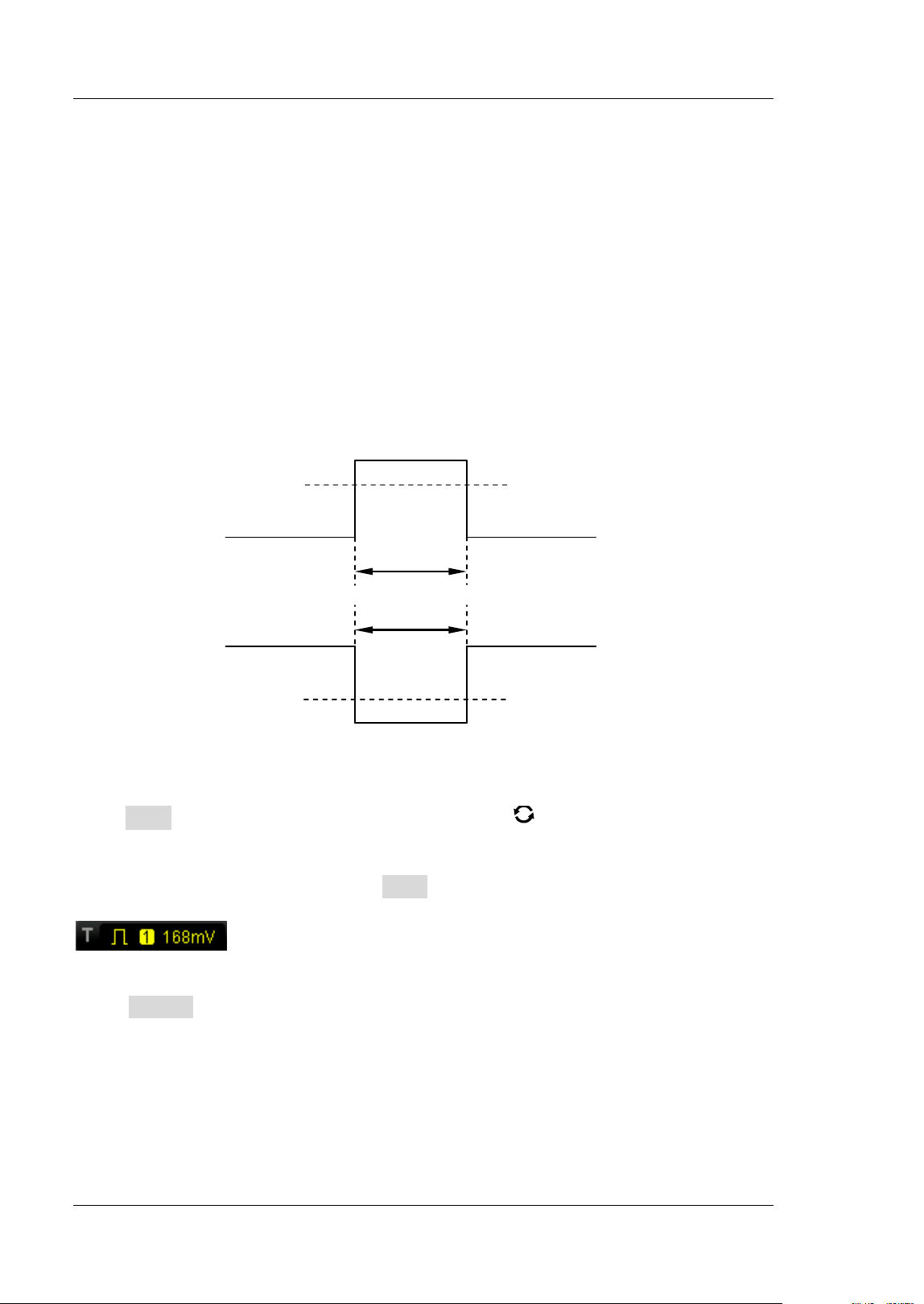
RIGOL Chapter 5 To Trigger the Oscilloscope
5-10 MSO5000-E User Guide
Please refer to descriptions in "Trigger LEVEL/ Threshold Level". The current
trigger level/ threshold level value is displayed at the upper-right corner of the screen.
Pulse Trigger
Triggers on the positive or negative pulse with a specif ied width. I n this mode, the
oscilloscope will trigger when the pulse width of the input signal satisf ies the
specif ied pulse width condition.
I n this oscilloscope, positive pulse width is def ined as the time difference between
the two crossing points of the trigger level and positive pulse; negative pulse width is
def ined as the time difference between the two crossing points of the trigger level
and negative pulse, as shown in the f igure below.
Figure 5-3 Positive Pulse Width/ Negative Pulse Width
Trigger Type:
Press Type, and then rotate the multifunction knob to select "Pulse". Press
down the knob to select the trigger type. Then, the current trigger setting
information is displayed at the upper-right corner of the screen, as shown in the
f igure below. You can also press the Type key continuously or enable the touch
screen to select the desired trigger type.
Source Selection:
Press Source to open the signal source list and select CH1-CH2 or D0-D15. For
details, refer to descriptions in "
Trigger Source". The current trigger source is
displayed at the upper-right corner of the screen.
Note: Only when we select the channel (that has been input with signals) as the
trigger source, can we obtain a stable trigger.
Trigger
Level
Trigger
Level
+ Width
A
B
-Width
A
B
Chapter 5 To Trigger the Oscilloscope RIGOL
MSO5000-E User Guide 5-11
Polarity:
Press Polarity continuously to select the desired polarity. The polarities available are
positive polarity (
) and negative polarity ( ).
Trigger Condition:
Press When, then rotate the multifunction knob to select the trigger condition,
and then press down the knob to select the trigger condition. You can also press
When continuously to select the trigger condition or enable the touch screen to tap
the desired trigger condition and select it.
When you select "Positive" for polarity, "> " for trigger condition, the oscilloscope
triggers when the positive pulse width of the input signal is greater than the
specif ied pulse width.
When you select "Positive" for polarity, "< " for trigger condition, the oscilloscope
triggers when the positive pulse width of the input signal is smaller than the
specif ied pulse width.
When you select "Positive" for polarity, "< > " for trigger condition, the
oscilloscope triggers when the positive pulse width of the input signal is greater
than the specif ied lower limit of pulse width and smaller than the specif ied
upper limit of pulse width.
When you select "Negative" for polarity, "> " for trigger condition, the
oscilloscope triggers when the negative pulse width of the input signal is greater
than the specif ied pulse width.
When you select "Negative" for polarity, "< " for trigger condition, the
oscilloscope triggers when the negative pulse width of the input signal is smaller
than the specif ied pulse width.
When you select "Negative" for polarity, "< > " for trigger condition, the
oscilloscope triggers when the negative pulse width of the input signal is greater
than the specif ied lower limit of pulse width and smaller than the specif ied
upper limit of pulse width.
Pulse Width Setting:
When "> " or "< " is set to the trigger condition, press Lower or Upper, and
then rotate the multifunction knob to set the desired value; or press down the
multifunction knob
to set the lower limit value or the upper limit value. You
can also use the pop-up numeric keypad to set it. The pulse range available is
from 800 ps to 10 s.
When "< > " is set to the trigger condition, press Upper and Low er, and then
rotate the multifunction knob
to set the lower limit value and the upper limit
value. You can also use the pop-up numeric keypad to set them.
Note: The lower limit of the pulse width must be smaller than the upper limit.
Trigger Mode:
I n the trigger control area (Trigger) on the front panel, press Mode to quickly switch
the current trigger mode. For details, refer to descriptions in "Trigger Mode".
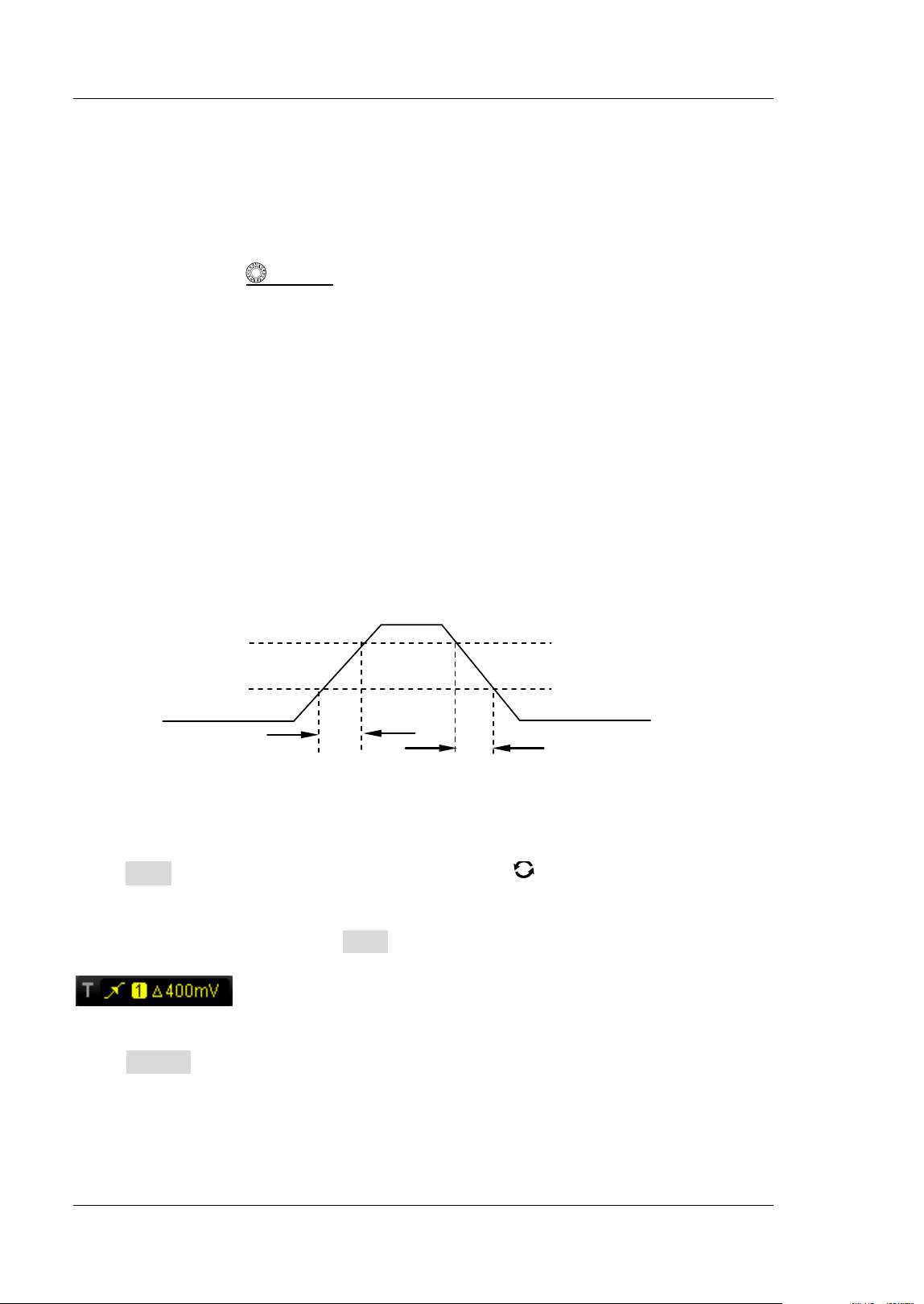
RIGOL Chapter 5 To Trigger the Oscilloscope
5-12 MSO5000-E User Guide
Trigger Parameter Setting:
Set the trigger parameters (trigger holdoff and noise rejection) under this trigger
type. For details, refer to descriptions in "Trigger Holdoff" and "Noise
Rejection".
Trigger LEVEL/ Threshold Level:
Rotate the Trigger
LEVEL knob to adjust the trigger level or threshold level.
Please refer to descriptions in "
Trigger LEVEL/ Threshold Level". The current
trigger level/ threshold level value is displayed at the upper-right corner of the screen.
Slope Trigger
I n Slope trigger, the oscilloscope triggers on the positive or negative slope of the
specif ied time. This trigger mode is applicable to ramp and triangle waveforms.
I n this oscilloscope, positive slope time is def ined as the time difference between the
two crossing points of trigger level line A and B with the rising edge; negative slope
time is def ined as the time difference between the two crossing points of trigger level
line A and B with the falling edge, as shown in the f igure below.
Figure 5-4 Positive Slope Time/ Negative Slope Time
Trigger Type:
Press Type, and then rotate the multifunction knob to select "Slope". Press
down the knob to select the trigger type. Then, the current trigger setting
information is displayed at the upper-right corner of the screen, as shown in the
figure below. You can also press Type continuously or enable the touch screen to tap
the desired trigger type and select it.
Source Selection:
Press Source to switch the trigger source and select CH1-CH2. For details, refer to
descriptions in "
Trigger Source". The current trigger source is displayed at the
upper-right corner of the screen.
Note: Only when we select the channel (that has been input with signals) as the
trigger source, can we obtain a stable trigger.
Upper Limit of Trigger Level
(Up Level)
Lower Limit of Trigger Level
(Low Level)
A
B
Positive Slope Time
Negative Slope Time
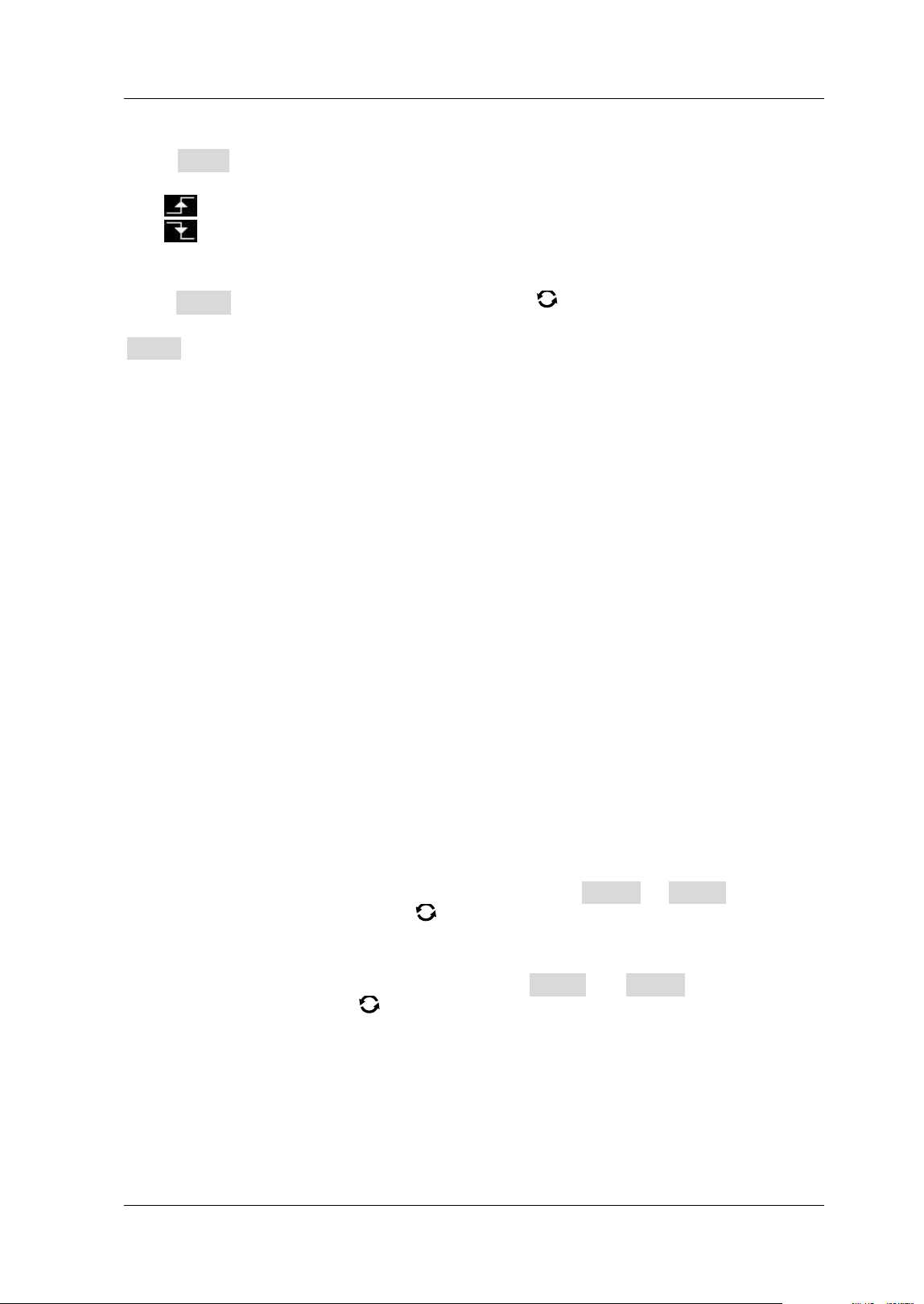
Chapter 5 To Trigger the Oscilloscope RIGOL
MSO5000-E User Guide 5-13
Edge Type:
Press Slope continuously to select the input signal edge on which the oscilloscope
triggers.
Rising: triggers on the rising edge of the input signal.
Falling: triggers on the falling edge of the input signal.
Slope Condition:
Press When, then rotate the multifunction knob to select the trigger condition,
and then press down the knob to select the trigger condition. You can also press
When continuously to select the trigger condition or enable the touch screen to tap
the desired trigger condition and select it.
When you select "Rising" for the edge type, "> " for trigger condition, the
oscilloscope triggers when the positive slope time of the input signal is greater
than the specif ied time.
When you select "Rising" for the edge type, "< " for trigger condition, the
oscilloscope triggers when the positive slope time of the input signal is smaller
than the specif ied time.
When you select "Rising" for the edge type, "< > " for trigger condition, the
oscilloscope triggers when the positive slope time of the input signal is greater
than the specif ied lower limit time and smaller than the specif ied upper limit
time.
When you select "Falling" for the edge type, "> " for trigger condition, the
oscilloscope triggers when the negative slope time of the input signal is greater
than the specif ied time.
When you select "Falling" for the edge type, "< " for trigger condition, the
oscilloscope triggers when the negative slope time of the input signal is smaller
than the specif ied time.
When you select "Falling" for the edge type, "< > " for trigger condition, the
oscilloscope triggers when the negative slope time of the input signal is greater
than the specif ied lower limit time and smaller than the specif ied upper limit
time.
Slope Time Setting:
When "> " or "< " is set to trigger condition, press Low er or Upper, and then
rotate the multifunction knob
to set the lower limit value or the upper limit
value. You can also use the pop-up numeric keypad to set it. The available range
of the slope time is from 800 ps to 10 s.
When "< > " is set to trigger condition, press Upper and Lower, and then rotate
the multifunction knob
to set the upper limit value and the lower limit value.
You can also use the pop-up numeric keypad to set them.
Note: The lower slope time limit must be smaller than the upper slope time
limit.
Level Selection and Adjustment of Trigger Level:
After the trigger condition setting is completed, you need to adjust the trigger level
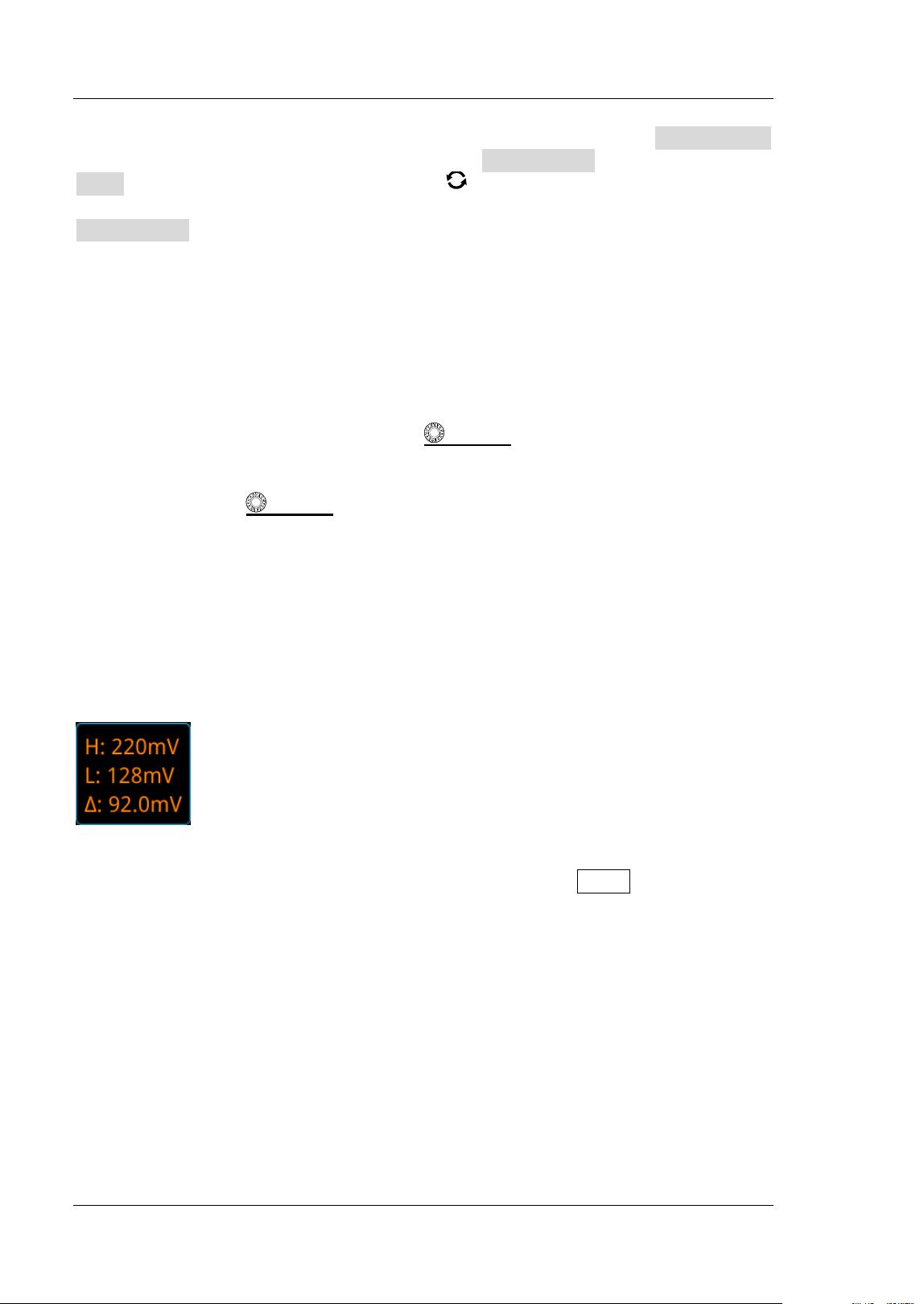
RIGOL Chapter 5 To Trigger the Oscilloscope
5-14 MSO5000-E User Guide
to correctly trigger the signal and obtain a stable waveform. Press Level Select
(when "< > " is selected as the trigger condition, Level Select is a sub-menu under
More), then rotate the multifunction knob to select the desired level type for
adjustment, and then press down the knob to select the type. You can also press
Level Select continuously to select the level type or enable the touch screen to tap
the desired level type and select it.
Level A: only adjusts the upper limit of the trigger level, and the lower limit of
the trigger level remains unchanged.
Level B: only adjusts the lower limit of the trigger level, and the upper limit of
the trigger level remains unchanged.
Level AB: adjusts the upper and lower limits of the trigger level at the same time,
and the trigger level deviation (the difference between the upper limit and lower
limit of the trigger level) remains unchanged.
Note: I n Slope trigger, pressing Trigger
LEVEL can quickly switch the current
level adjustment type.
Rotate the Trigger
LEVEL knob to adjust the corresponding trigger level.
During the adjustment of trigger level, two trigger level lines appear on the screen,
and they move up and down with the change of the trigger level. At the same time,
the real-time trigger level information is displayed at the lower-left corner of the
screen (as shown in the f igure below, H indicates the upper limit of the trigger level,
L indicates the lower limit of the trigger level, and △ indicates the trigger level
deviation). When you stopping modifying the trigger level, the trigger level line and
the trigger level information at the lower-left corner of the screen disappear in about
2 s. The current trigger level deviation is displayed at the upper-right corner of the
screen.
Trigger Mode:
In the trigger control area (Trigger) on the front panel, press Mode to quickly switch
the current trigger mode. For details, refer to descriptions in "Trigger Mode".
Trigger Parameter Setting:
Set the trigger parameters (trigger holdoff and noise rejection) under this trigger
type. For details, refer to descriptions in "Trigger Holdoff" and "Noise
Rejection".
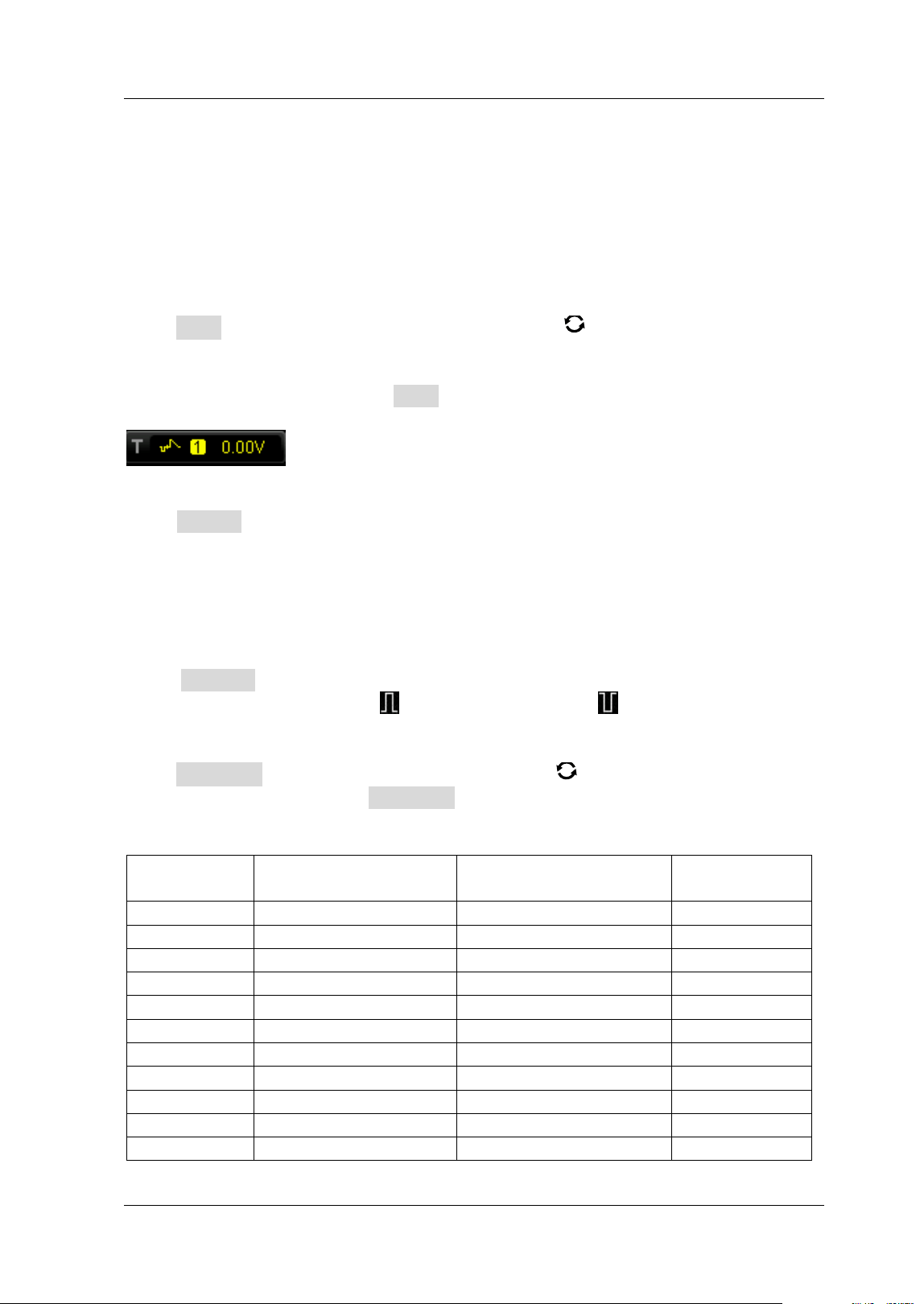
Chapter 5 To Trigger the Oscilloscope RIGOL
MSO5000-E User Guide 5-15
Video Trigger
The video signal can include image information and timing information, which adopts
different standards and formats. MSO5000-E series can trigger on the standard video
signal f ield or line of NTSC (National Television Standards Committee), PAL (Phase
Alternating Line), or SECAM (Sequential Couleur A Memoire).
Trigger Type:
Press Type, and then rotate the multifunction knob to select "Video". Press
down the knob to select the trigger type. Then, the current trigger setting
information is displayed at the upper-right corner of the screen, as shown in the
figure below. You can also press Type continuously or enable the touch screen to tap
the desired trigger type and select it.
Source Selection:
Press Source to switch the trigger source and select CH1-CH2. For details, refer to
descriptions in "
Trigger Source". The current trigger source is displayed at the
upper-right corner of the screen.
Note: Only when we select the channel (that has been input with signals) as the
trigger source, can we obtain a stable trigger.
Video Polarity:
Press Polarity continuously to select the desired video polarity. The polarities
available are positive polarity (
) and negative polarity ( ).
Video Standard:
Press Standard and rotate the multifunction knob to select the desired video
standard. You can also press Standard continuously to select the video standard or
enable the touch screen to tap the desired video standard and select it.
Video
Standard
Frame Frequency
( Frame)
Scan Type
TV Scan Line
NTSC
30
I nterlaced Scan
525
PAL/SECAM
25
I nterlaced Scan
625
480p/ 60Hz
60
Progressive Scan
525
576p/ 50Hz
50
Progressive Scan
625
720p/ 60Hz
60
Progressive Scan
750
720p/ 50Hz
50
Progressive Scan
750
720p/ 30Hz
30
Progressive Scan
750
720p/ 25Hz
25
Progressive Scan
750
720p/ 24Hz
24
Progressive Scan
750
1080p/ 60Hz
60
Progressive Scan
1125
1080p/ 50Hz
50
Progressive Scan
1125
RIGOL Chapter 5 To Trigger the Oscilloscope
5-16 MSO5000-E User Guide
1080p/ 30Hz
30
Progressive Scan
1125
1080p/ 25Hz
25
Progressive Scan
1125
1080p/ 24Hz
24
Progressive Scan
1125
1080i/ 60Hz
60
I nterlaced Scan
1125
1080i/ 50Hz
50
I nterlaced Scan
1125
Sync:
Press Sync, then rotate the multifunction knob to select the sync type, and then
press down the knob to select the type. You can also press Sync continuously to
select the sync type or enable the touch screen to tap the desired sync type and
select it.
All Lines: triggers on the f irst line found.
Line: for NTSC and PAL/SECAM video standards, trigger on the specif ied line.
When this sync type is selected, you can specify a line number. Press Line, then
rotate the multifunction knob
or use the pop-up numeric keypad to modify
the line number. The range of the line number is related to the currently selected
video standards. The range is from 1 to 525 (NTSC), 1 to 625 (PAL/ SECAM), 1 to
525 (480P), 1 to 625 (576P), 1 to 750 (720p), and 1 to 1125 (1080p/ 1080i).
Odd: triggers on the rising edge of the f irst ramp pulse in the odd f ield. I t is only
available when the video standard is set to "NTSC", "PAL/ SECAM", or "1080i".
Even: triggers on the rising edge of the f irst ramp pulse in the even f ield. I t is
only available when the video standard is set to "NTSC", "PAL/ SECAM", or
"1080i".
Noise Rejection:
Set the trigger parameter (noise rejection) under this trigger type. For details, refer
to descriptions in "Noise Rejection".
Trigger Mode:
In the trigger control area (Trigger) on the front panel, press Mode to quickly switch
the current trigger mode. For details, refer to descriptions in "Trigger Mode".
Trigger Setting:
Press Noise Reject to set the trigger parameter (noise rejection) under this trigger
type. For details, refer to descriptions in "Noise Rejection".
Trigger Level:
Use Trigger LEVEL to modify the level. For details, refer to descriptions in
"
Trigger LEVEL/ Threshold Level".
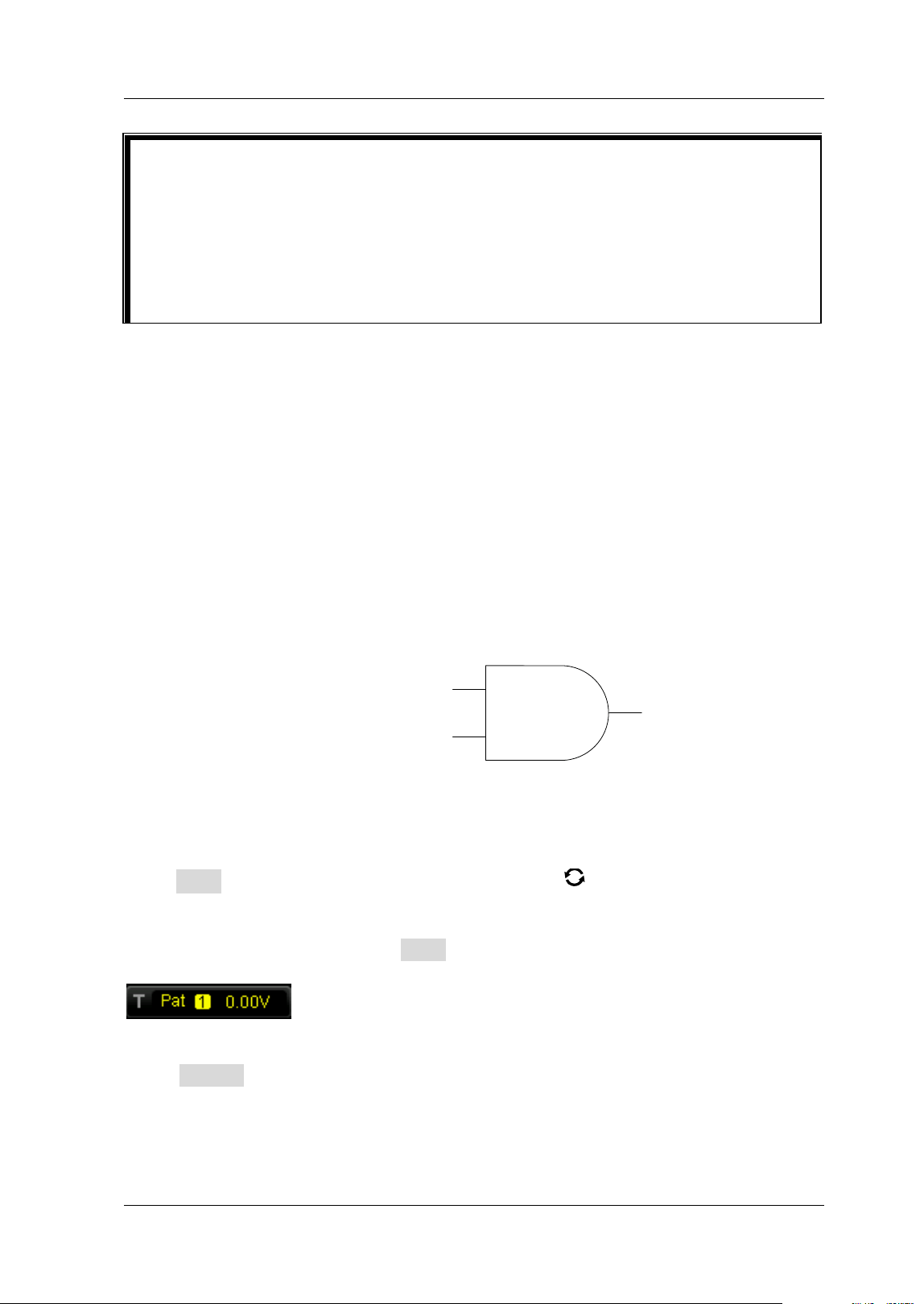
Chapter 5 To Trigger the Oscilloscope RIGOL
MSO5000-E User Guide 5-17
Pattern Trigger
Identifies a trigger condition by searching for a specif ied pattern. This pattern is a
logical "AND" combination of channels. Each channel can be set to H (high), L (low),
or X (don't care). A rising or falling edge (you can only specify a single edge) can be
specif ied for one channel included in the pattern. When an edge is specif ied, the
oscilloscope will trigger at the edge specif ied if the pattern set for the other channels
are true (namely the actual pattern of the channel is the same as the preset pattern).
I f no edge is specif ied, the oscilloscope will trigger on the last edge that makes the
pattern true. I f all the channels in the pattern are set to "X", the oscilloscope will not
trigg e r.
…
L
H
(CH1-CH2 or D0-D15)
…
(CH1-CH2 or D0-D15)
Figure 5-5 Pattern Trigger
Trigger Type:
Press Type, and then rotate the multifunction knob to select "Pattern". Press
down the knob to select the trigger type. Then, the current trigger setting
information is displayed at the upper-right corner of the screen, as shown in the
f igure below. You can also press Type continuously to select the trigger type or
enable the touch screen to tap the desired trigger type and select it.
Source Selection:
Press Source to open the signal source list and select CH1-CH2 or D0-D15. For
details, refer to descriptions in "
Trigger Source". The current trigger source is
displayed at the upper-right corner of the screen.
Note: Only when we select the channel (that has been input with signals) as the
Tip
For a better observation of the waveform details in the video signal, you can
set a larger memory depth f irst.
In the trigger debugging process of video signals, the frequency in different
part of the signal can be reflected by a different brightness, as RIGOL digital
oscilloscope provides the intensity graded color display function. Experienced
users can quickly judge the signal quality and discover abnormalities during
the debugging process.
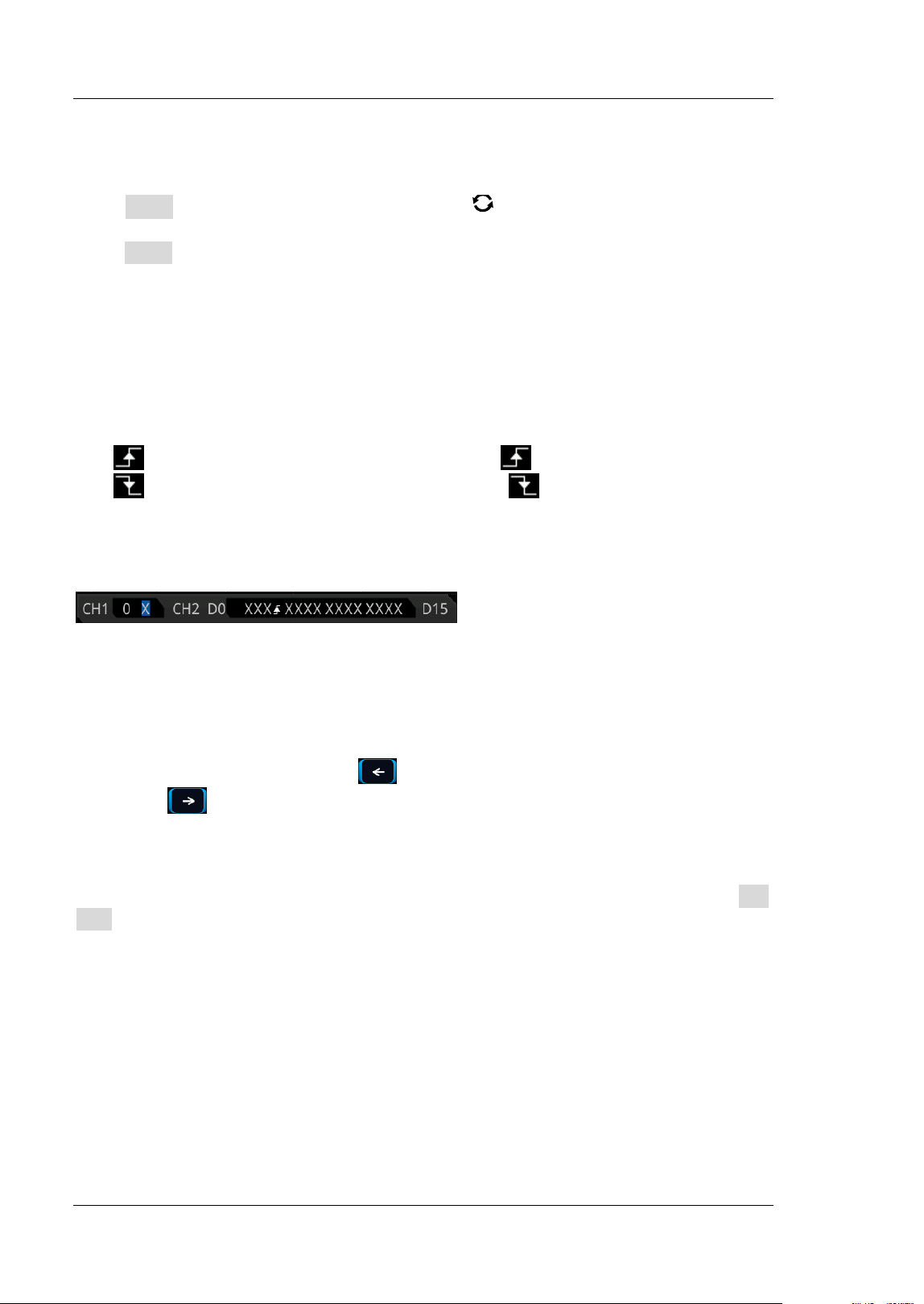
RIGOL Chapter 5 To Trigger the Oscilloscope
5-18 MSO5000-E User Guide
trigger source, can we obtain a stable trigger.
Pattern Setting:
Press Code, and rotate the multifunction knob to select the pattern of the
currently selected channel. Press down the knob to select the pattern. You can also
press Code continuously to select the pattern or enable the touch screen to select it.
The available patterns include the following f ive types:
H: sets the pattern of the channel selected to "1", i.g. the voltage level is higher
than the trigger level/ threshold level of the channel.
L: sets the pattern of the channel selected to "0", i.g. the voltage level is lower
than the trigger level/ threshold level of the channel.
X: sets the pattern of the channel selected to "X", i.g. this channel is not used as
a part of the pattern. When all channels in the pattern are set to "X", the
oscilloscope will not trigger.
Rising: sets the pattern to the rising edge ( ) of the channel selected.
Falling: sets the pattern to the falling edge ( ) of the channel selected.
The corresponding pattern is displayed at the bottom of the screen. The patterns of
channels CH1-CH2 and D0-D15 are presented from left to right, as shown in the
f igure below.
You can also set the pattern with the virtual keypad. The setting methods are as
follows:
Enable the touch screen to tap the channel pattern. Then, a virtual keypad is
displayed. Set the channel pattern with the keypad. For example, tap CH2 pattern,
then the virtual keypad for setting the channel pattern is displayed, as shown in
Figure 5-6. Tap the left arrow key
to move the cursor to the left or tap the right
arrow key
to move the cursor to the right. Then select a pattern. After the
pattern of the current channel is set completely, the cursor goes to the next pattern
bit automatically. Set them respectively. After all the pattern bits are set completely,
tap OK to confirm the setting, and close the virtual keypad. You can also tap All to
apply the current pattern to all the channels. This key function the same as the All
Bits menu key.
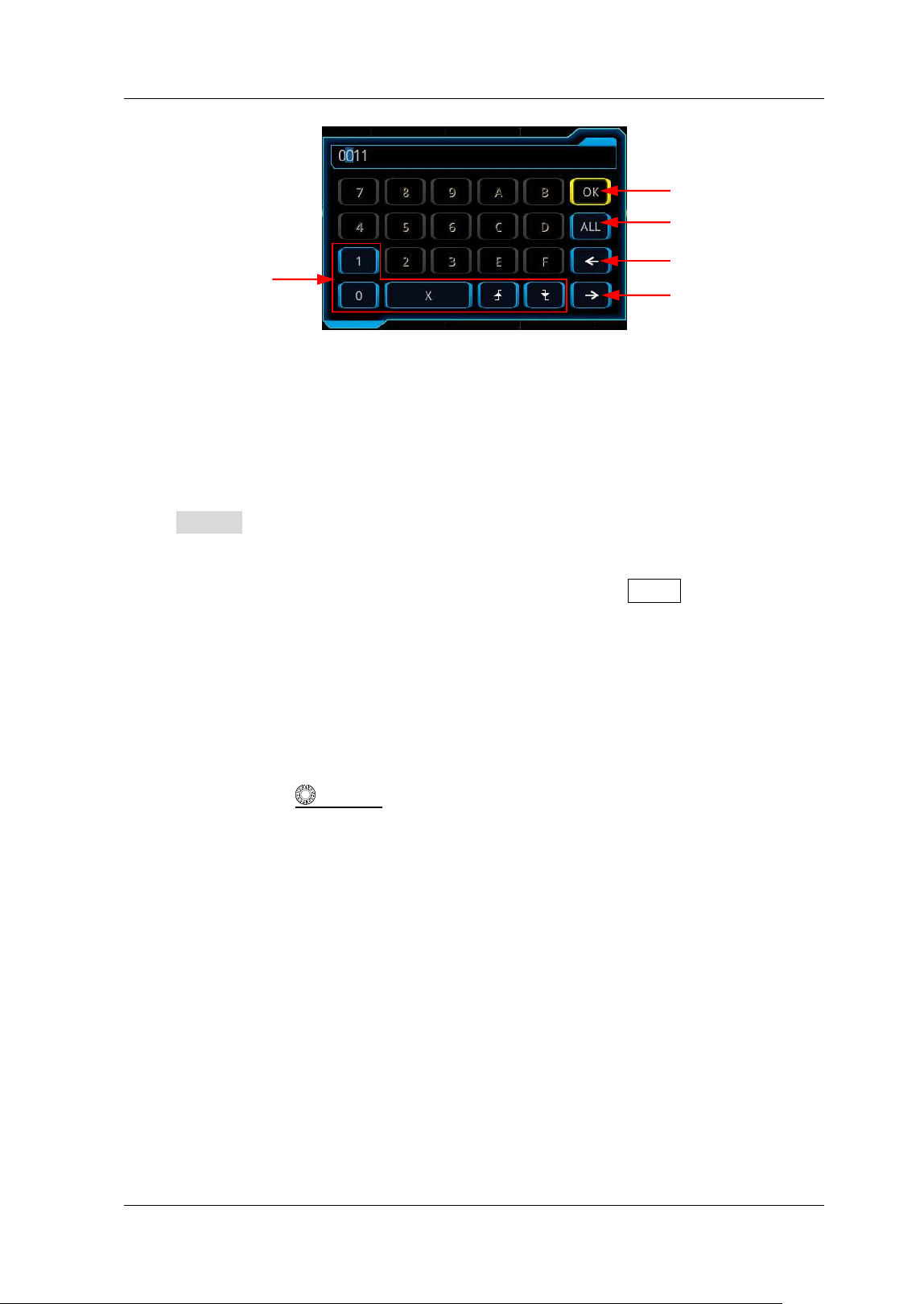
Chapter 5 To Trigger the Oscilloscope RIGOL
MSO5000-E User Guide 5-19
Figure 5-6 Virtual Keypad for Pattern Setting
Note: Only one edge (rising or falling edge) can be specif ied in the pattern. I f one
edge item is currently defined and then another edge item is def ined in another
channel in the pattern, then a prompt message "I nvalid input" is displayed. Then the
latter def ined edge item will be replaced by X.
All Bits:
Press All Bits to set the patterns of all channels to the currently selected pattern.
Trigger Mode:
In the trigger control area (Trigger) on the front panel, press Mode to quickly switch
the current trigger mode. For details, refer to descriptions in "Trigger Mode".
Trigger Parameter Setting:
Set the trigger parameters (trigger holdoff and noise rejection) under this trigger
type. For details, refer to descriptions in "Trigger Holdoff" and "Noise
Rejection".
Trigger LEVEL/ Threshold Level:
Rotate the Trigger
LEVEL knob to adjust the trigger level/ threshold level. Refer
to "
Trigger LEVEL/ Threshold Level". The current trigger level/ threshold level
value is displayed at the upper-right corner of the screen.
Duration Trigger
I n duration trigger, the instrument identif ies a trigger condition by searching for the
duration of a specif ied pattern. This pattern is a logical "AND" combination of the
channels. Each channel can be set to H (high), L (low), or X (don't care). You can
specify a channel in the pattern to be the rising or falling edge (only one edge can be
specif ied). When the duration (△T) of this pattern meets the preset time, the
oscilloscope initiates a trigger, as shown in the f igure below.
Conf irmation Key
All Bits
Move the cursor to
the left
Move the cursor to
the right
Pattern
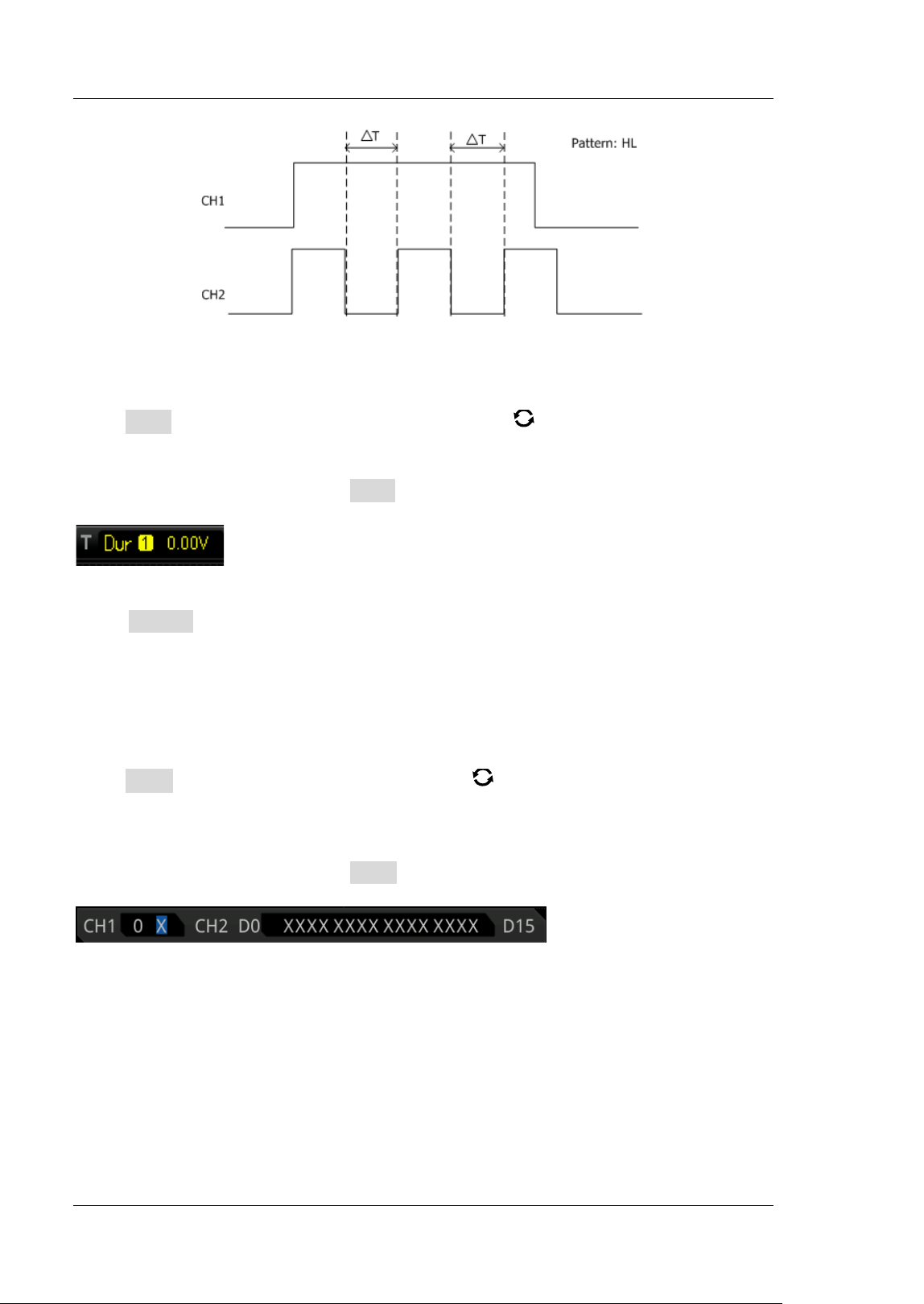
RIGOL Chapter 5 To Trigger the Oscilloscope
5-20 MSO5000-E User Guide
Figure 5-7 Duration Trigger
Trigger Type:
Press Type, and then rotate the multifunction knob to select "Duration". Press
down the knob to select the trigger type. Then, the current trigger setting
information is displayed at the upper-right corner of the screen, as shown in the
f igure below. You can also press Type continuously to select the trigger type or
enable the touch screen to tap the desired trigger type and select it.
Source Selection:
Press Source to open the signal source list and select CH1-CH2 or D0-D15. For
details, refer to descriptions in "
Trigger Source". The current trigger source is
displayed at the upper-right corner of the screen.
Note: Only when we select the channel (that has been input with signals) as the
trigger source, can we obtain a stable trigger.
Pattern Setting:
Press Code, and rotate the multifunction knob to select the pattern of the
currently selected channel. Press down the knob to select the pattern. The
corresponding pattern is displayed at the bottom of the screen. The patterns of
channels CH1-CH2 and D0-D15 are presented from left to right, as shown in the
f igure below. You can also press Code continuously to select the pattern or enable
the touch screen to select it.
H: sets the pattern of the channel selected to "H", i.g. the voltage level is higher
than the trigger level/ threshold level of the channel.
L: sets the pattern of the channel selected to "L", i.g. the voltage level is lower
than the trigger level/ threshold level of the channel.
X: sets the pattern of the channel selected to "X", i.g. this channel is not used as
a part of the pattern. When all channels in the pattern are set to "X", the
oscilloscope will not trigger.
Chapter 5 To Trigger the Oscilloscope RIGOL
MSO5000-E User Guide 5-21
Trigger Condition:
Press When, then rotate the multifunction knob to select the trigger condition,
and then press down the knob to select the trigger condition. You can also press
When continuously to select the trigger condition or enable the touch screen to tap
the desired trigger condition and select it.
> : triggers when the duration of the pattern is greater than the preset time.
Press Low er to set the lower limit of the duration of the pattern. I ts range is
from 800 ps to 10 s.
< : triggers when the duration of the pattern is smaller than the preset time.
Press Upper to set the upper limit of the duration of the pattern. I ts range is
from 800 ps to 10 s.
< > : triggers when the duration of the pattern is smaller than the upper limit of
the preset time and greater than the lower limit of the preset time. Press Upper
to set the upper limit of the duration of the pattern, and the range is from 1.2 ns
to 10 s. Press Lower to set the lower limit of the duration of the pattern, and
the range is from 800 ps to 10 s.
> < : triggers when the duration of the pattern is greater than the upper limit of
the preset time and smaller than the lower limit of the preset time. Press Upper
to set the upper limit of the duration of the pattern, and the range is from 800 ps
to 10 s. Press Lower to set the lower limit of the duration of the pattern, and
the range is from 800 ps to 9.99 s.
Note: The lower time limit must be smaller than the upper time limit.
All Bits:
Press All Bits to set the pattern of all trigger sources to the pattern setting selected
currently.
Trigger Mode:
In the trigger control area (Trigger) on the front panel, press Mode to quickly switch
the current trigger mode. For details, refer to descriptions in "Trigger Mode".
Trigger Parameter Setting:
Set the trigger parameters (trigger holdoff and noise rejection) under this trigger
type. For details, refer to descriptions in "Trigger Holdoff" and "Noise
Rejection".
Trigger LEVEL/ Threshold Level:
Rotate the Trigger
LEVEL knob to adjust the trigger level/ threshold level. Refer
to "
Trigger LEVEL/ Threshold Level". The current trigger level/ threshold level
value is displayed at the upper-right corner of the screen.
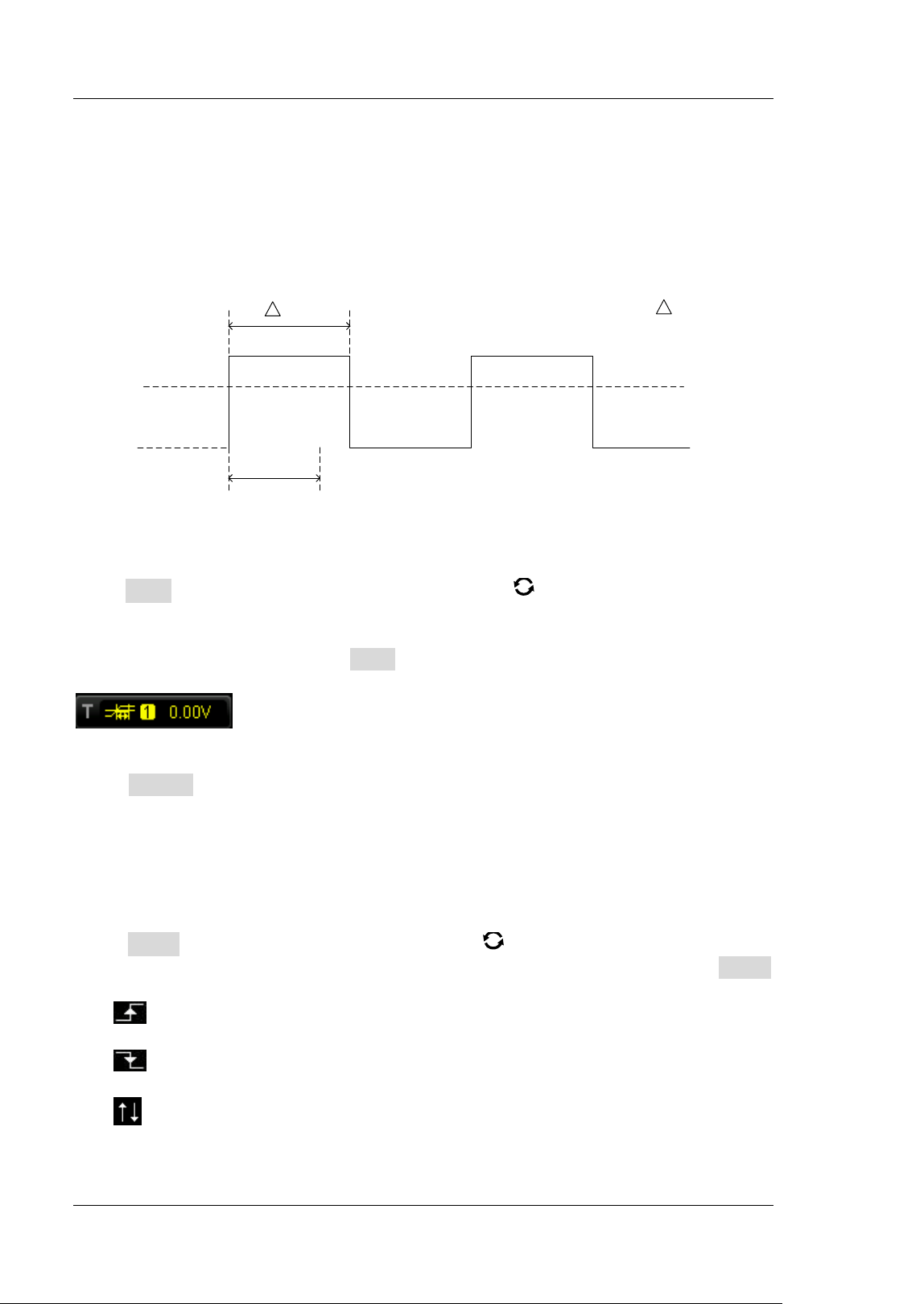
RIGOL Chapter 5 To Trigger the Oscilloscope
5-22 MSO5000-E User Guide
Timeout Trigger
I n Timeout trigger, the oscilloscope triggers when the time interval (△T) (the time
from when the rising edge (or falling edge) of the input signal passes through the
trigger level to the time from when the neighboring falling edge (or rising edge)
passes through the trigger level) is greater than the preset timeout value, as shown
in the f igure below.
Time Out
T
Time Out< T
Figure 5-8 Timeout Trigger
Trigger Type:
Press Type, and then rotate the multifunction knob to select "Timeout". Press
down the knob to select the trigger type. Then, the current trigger setting
information is displayed at the upper-right corner of the screen, as shown in the
f igure below. You can also press Type continuously to select the trigger type or
enable the touch screen to tap the desired trigger type and select it.
Source Selection:
Press Source to open the signal source list and select CH1-CH2 or D0-D15. For
details, refer to descriptions in "
Trigger Source". The current trigger source is
displayed at the upper-right corner of the screen.
Note: Only when we select the channel (that has been input with signals) as the
trigger source, can we obtain a stable trigger.
Edge Type:
Press Slope and rotate the multifunction knob to select the edge type of the
input signal that starts to pass through the trigger level. You can also press Slope
continuously to enable the touch screen to select the edge type.
Rising: starts timing when the rising edge of the input signal passes through
the trigger level.
Falling: starts timing when the falling edge of the input signal passes
through the trigger level.
Either: starts timing when either edge of the input signal passes through the
trigger level.
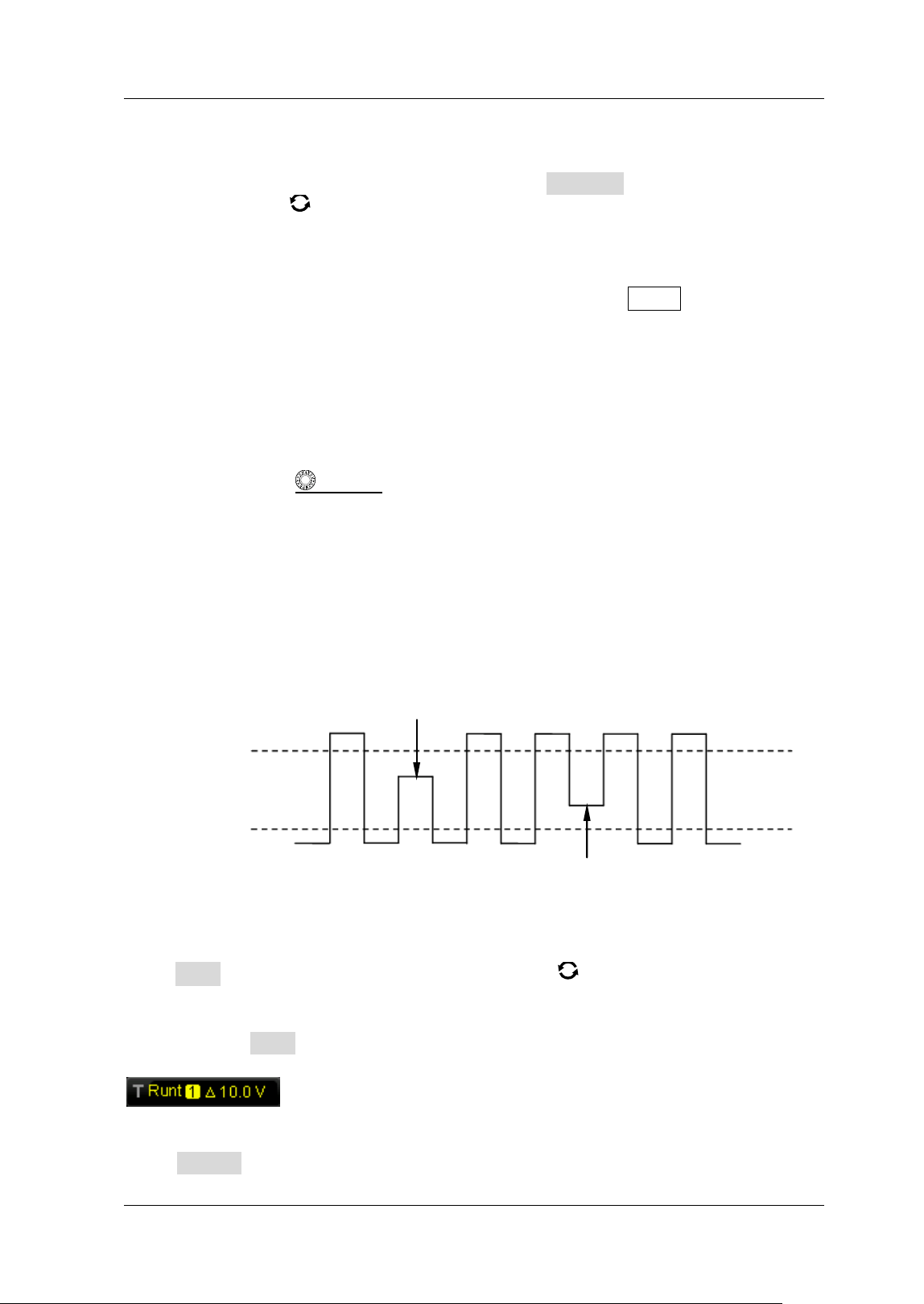
Chapter 5 To Trigger the Oscilloscope RIGOL
MSO5000-E User Guide 5-23
Timeout Value:
Timeout value represents the maximum time that the signal remains idle before the
signal passes through the trigger level. Press Timeout, and then rotate the
multifunction knob
or use the pop-up numeric keypad to set the timeout value of
Timeout trigg e r. The available range is from 16 ns to 10 s.
Trigger Mode:
In the trigger control area (Trigger) on the front panel, press Mode to quickly switch
the current trigger mode. For details, refer to descriptions in "Trigger Mode".
Trigger Parameter Setting:
Set the trigger parameter (noise rejection) under this trigger type. For details, refer
to descriptions in "Noise Rejection".
Trigger LEVEL/ Threshold Level:
Rotate the Trigger
LEVEL knob to adjust the trigger level/ threshold level. Refer
to "
Trigger LEVEL/ Threshold Level". The current trigger level/ threshold level
value is displayed at the upper-right corner of the screen.
Runt Trigger
This trigger mode is used to trigger pulses that pass through one trigger level but fail
to pass through another trigger level, as shown in the f igure below.
Figure 5-9 Runt Trigger
Trigger Type:
Press Type, and then rotate the multifunction knob to select "Runt". Press down
the knob to select the trigger type. Then, the current trigger setting information is
displayed at the upper-right corner of the screen, as shown in the f igure below. You
can also press Type continuously to select the trigger type or enable the touch
screen to tap the desired trigger type and select it.
Source Selection:
Press Source to switch the trigger source and select CH1-CH2. For details, refer to
Lower Limit of
the Trigger Level
Upper Limit of the
Trigger Level
Negative Runt Pulse
Positive Runt Pulse
RIGOL Chapter 5 To Trigger the Oscilloscope
5-24 MSO5000-E User Guide
descriptions in "Trigger Source". The current trigger source is displayed at the
upper-right corner of the screen.
Note: Only when we select the channel (that has been input with signals) as the
trigger source, can we obtain a stable trigger.
Polarity:
Press Polarity continuously to select the pulse polarity of Runt trigger.
Positive: triggers on the positive runt pulse.
Negative: triggers on the negative runt pulse.
Trigger Condition:
Press When and rotate the multifunction knob to set the trigger conditions of
Runt trigger. You can also press When continuously or enable the touch screen to
select it.
None: indicates not setting the trigger condition of Runt trigger.
> : triggers when the runt pulse width is greater than the lower limit of pulse
width. Press Lower to set the minimum pulse width of Runt trigger.
< : triggers when the runt pulse width is smaller than the upper limit of pulse
width. Press Upper to set the maximum pulse width of Runt trigger.
< > : triggers when the runt pulse width is greater than the lower limit and
smaller than the upper limit of pulse width. Press Upper to set the maximum
pulse width of Runt trigger. Press Low er to set the minimum pulse width of
Runt trigger.
Note: The lower limit of the pulse width must be smaller than the upper limit.
Level Selection and Adjustment of Trigger Level:
After the trigger condition setting is completed, you need to adjust the trigger level
to correctly trigger the signal and obtain a stable waveform. Press Level Select
(when "< > " is selected as the trigger condition, Level Select is a sub-menu under
More), then rotate the multifunction knob to select the desired level type for
adjustment, and then press down the knob to select the type. You can also press
Level Select continuously to select the level type or enable the touch screen to tap
the desired level type and select it.
Level A: only adjusts the upper limit of the trigger level, and the lower limit of the
trigger level remains unchanged.
Level B: only adjusts the lower limit of the trigger level, and the upper limit of the
trigger level remains unchanged.
Level AB: adjusts the upper and lower limits of the trigger level at the same time, and
the trigger level deviation (the difference between the upper limit and lower limit of
the trigger level) remains unchanged.
Note: I n Runt trigger, pressing Trigger
LEVEL can quickly switch the current
level adjustment type.
Rotate the Trigger
LEVEL knob to adjust the corresponding trigger level.
During the adjustment of trigger level, two trigger level lines appear on the screen,
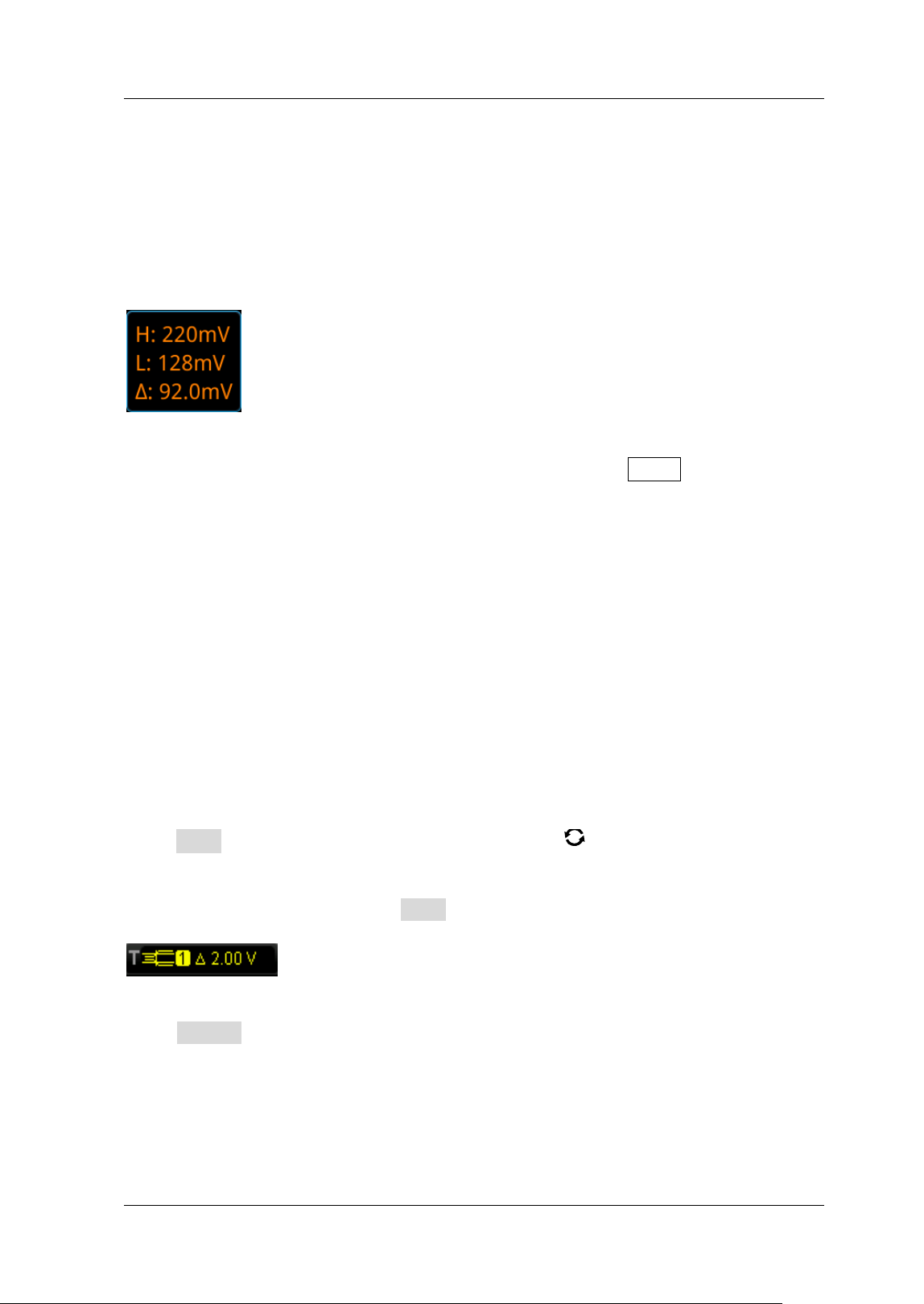
Chapter 5 To Trigger the Oscilloscope RIGOL
MSO5000-E User Guide 5-25
and they move up and down with the change of the trigger level. At the same time,
the real-time trigger level information is displayed at the lower-left corner of the
screen (as shown in the f igure below, H indicates the upper limit of the trigger level,
L indicates the lower limit of the trigger level, and △ indicates the trigger level
deviation). When you stopping modifying the trigger level, the trigger level line and
the trigger level information at the lower-left corner of the screen disappear in about
2 s. The current trigger level deviation is displayed at the upper-right corner of the
screen.
Trigger Mode:
I n the trigger control area (Trigger) on the front panel, press Mode to quickly switch
the current trigger mode. For details, refer to descriptions in "Trigger Mode".
Trigger Parameter Setting:
Set the trigger parameters (trigger holdoff and noise rejection) under this trigger
type. For details, refer to descriptions in "Trigger Holdoff" and "Noise
Rejection".
Window Trigger
Window trigger provides a high trigger level and a low trigger level. The instrument
triggers when the input signal passes through the high trigger level or the low trigger
level.
Trigger Type:
Press Type, and then rotate the multifunction knob to select "Window". Press
down the knob to select the trigger type. Then, the current trigger setting
information is displayed at the upper-right corner of the screen, as shown in the
f igure below. You can also press Type continuously to select the trigger type or
enable the touch screen to tap the desired trigger type and select it.
Source Selection:
Press Source to switch the trigger source and select CH1-CH2. For details, refer to
descriptions in "
Trigger Source". The current trigger source is displayed at the
upper-right corner of the screen.
Note: Only when we select the channel (that has been input with signals) as the
trigger source, can we obtain a stable trigger.
RIGOL Chapter 5 To Trigger the Oscilloscope
5-26 MSO5000-E User Guide
Edge Type:
Press Slope, and then rotate the multifunction knob to select the input signal
the edge on which the oscilloscope triggers. You can also press the Slope key
continuously or enable the touch screen to select the desired edge type.
Rising: triggers on the rising edge of the input signal when the voltage level
is higher than the preset high trigger level.
Falling: triggers on the falling edge of the input signal when the voltage level
is lower than the preset low trigger level.
Either: triggers on the rising or falling edge of the input signal when the
voltage level meets the preset trigger level.
Trigger Position:
After selecting the window type, press Position and then rotate the multifunction
knob
to select the trigger position so as to further specify the time point of
trigger. Press down the knob to select the trigger position. You can also press
Position continuously or enable the touch screen to select it.
Enter: triggers when the input signal enters the specif ied trigger level range.
Exit: triggers when the input signal exits the specif ied trigger level range.
Time: triggers when the accumulated hold time since the input signal entered
the specified trigger level range is equal to the window time. When this type is
selected, press Time and rotate the multifunction knob to set the window
time. You can also use the numeric keypad to set it. I ts available range is from 8
ns to 10 s.
Level Selection and Adjustment of Trigger Level:
After the trigger condition setting is completed, you need to adjust the trigger level
to correctly trigger the signal and obtain a stable waveform. Press Level Select,
then rotate the multifunction knob
to select the desired level type for adjustment,
and then press down the knob to select the type. You can also press Level Select
continuously to select the level type or enable the touch screen to tap the desired
level type and select it.
Level A: only adjusts the upper limit of the trigger level, and the lower limit of
the trigger level remains unchanged.
Level B: only adjusts the lower limit of the trigger level, and the upper limit of
the trigger level remains unchanged.
Level AB: adjusts the upper and lower limits of the trigger level at the same time,
and the trigger level deviation (the difference between the upper limit and lower
limit of the trigger level) remains unchanged.
Note: I n Window trigger, pressing Trigger
LEVEL can quickly switch the
current level adjustment type.
Rotate the Trigger LEVEL knob to adjust the corresponding trigger level.
During the adjustment of trigger level, two trigger level lines appear on the screen,
and they move up and down with the change of the trigger level. At the same time,
the real-time trigger level and slope information is displayed at the lower-left corner
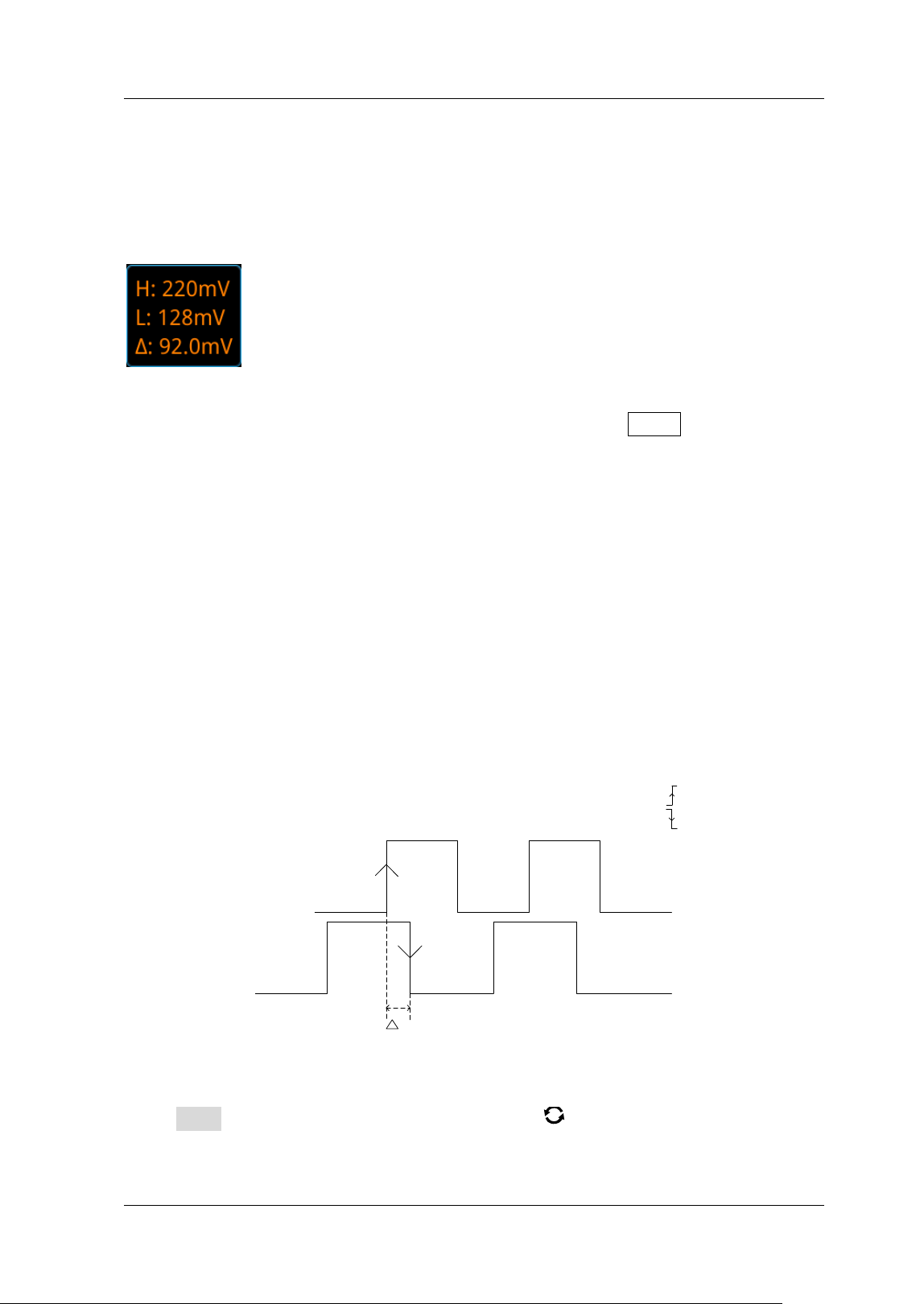
Chapter 5 To Trigger the Oscilloscope RIGOL
MSO5000-E User Guide 5-27
of the screen (as shown in the f igure below, H indicates the upper limit of the trigger
level, L indicates the lower limit of the trigger level, and △ indicates the trigger level
deviation). When you stopping modifying the trigger level, the trigger level line and
the trigger level information at the lower-left corner of the screen disappear in about
2 s. The current trigger level deviation is displayed at the upper-right corner of the
screen.
Trigger Mode:
In the trigger control area (Trigger) on the front panel, press Mode to quickly switch
the current trigger mode. For details, refer to descriptions in "Trigger Mode".
Trigger Parameter Setting:
Set the trigger parameters (trigger holdoff and noise rejection) under this trigger
type. For details, refer to descriptions in "Trigger Holdoff" and "Noise
Rejection".
Delay Trigger
I n Delay trigger, you need to set Source A and Source B. The oscilloscope triggers
when the time difference (△T) between the specified edges of Source A (Edge A)
and Source B (Edge B) meets the preset time limit, as shown in the f igure below.
Note: Edge A and Edge B must be two neighboring edges.
T
Source A
Source B
Edge A=
Edge B=
Figure 5-10 Delay Trigger
Trigger Type:
Press Type, and then use the multifunction knob to select "Delay". Press down
the knob to select the trigger type. Then, the current trigger setting information is
displayed at the upper-right corner of the screen, as shown in the f igure below. You
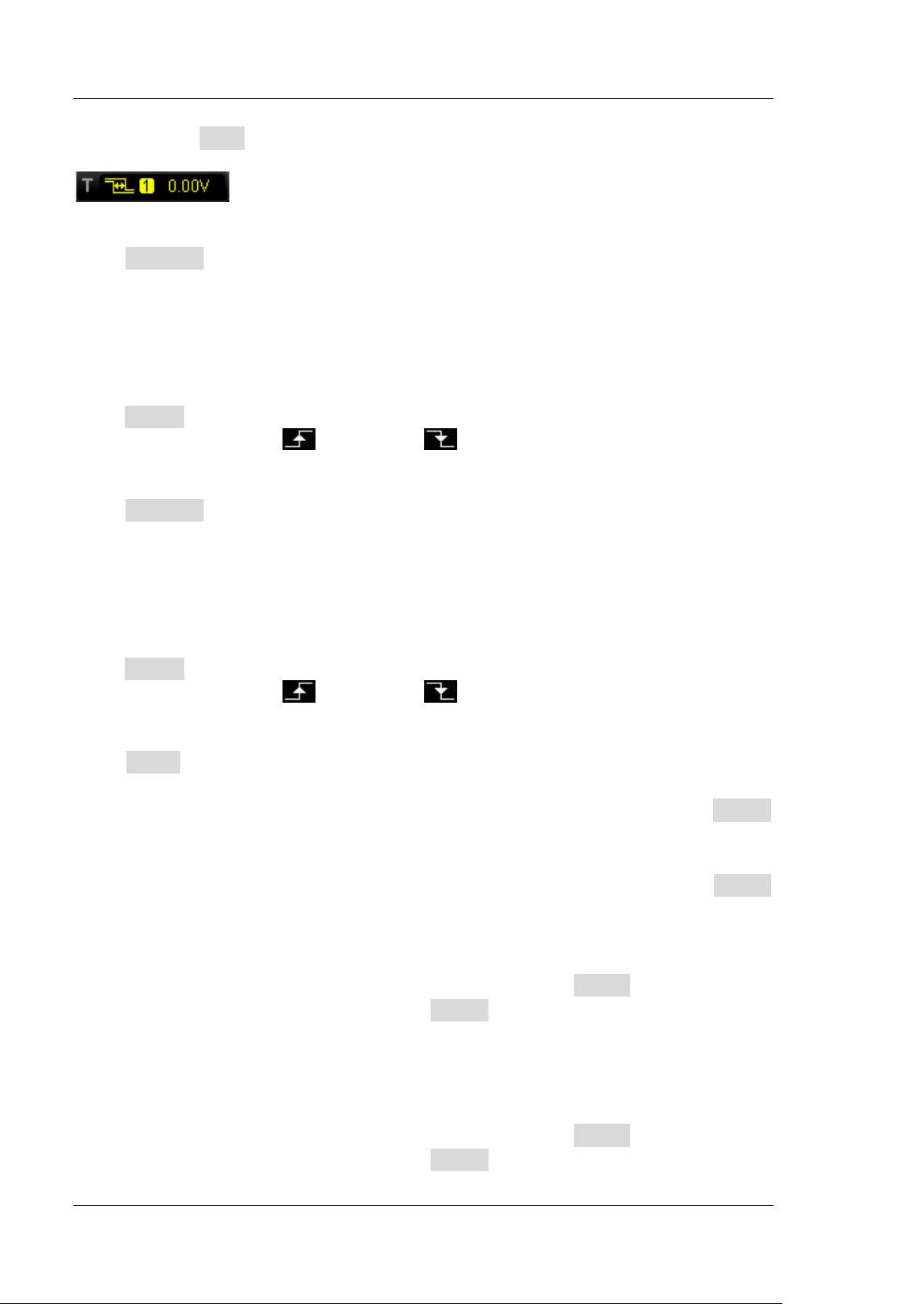
RIGOL Chapter 5 To Trigger the Oscilloscope
5-28 MSO5000-E User Guide
can also press Type continuously to select the trigger type or enable the touch
screen to tap the desired trigger type and select it.
Source A:
Press SourceA to select CH1-CH2 or D0-D15 as the trigger source of Source A. For
details, please refer to descriptions in "
Trigger Source". The current trigger source
is displayed at the upper-right corner of the screen.
Note: Only when we select the channel (that has been input with signals) as the
trigger source, can we obtain a stable trigger.
Edge A:
Press EdgeA continuously to select the trigger edge type of Source A in Delay trigger.
I t can be set to "Rising"
or "Falling" .
Source B:
Press SourceB to select CH1-CH2 or D0-D15 as the trigger source of Source B. For
details, refer to descriptions in "
Trigger Source". The current trigger source is
displayed at the upper-right corner of the screen.
Note: Only when we select the channel (that has been input with signals) as the
trigger source, can we obtain a stable trigger.
Edge B:
Press EdgeB continuously to select the trigger edge type of Source B in Delay trigger.
I t can be set to "Rising"
or "Falling" .
Trigger Condition:
Press When to set the time limit condition of Delay trigger.
> : triggers when the time difference (△T) between the specif ied edges of
Source A and Source B is greater than the preset time lower limit. Press Lower
to set the delay time lower limit in Delay trigger.
< : triggers when the time difference (△T) between the specif ied edges of
Source A and Source B is smaller than the preset time upper limit. Press Upper
to set the delay time upper limit in Delay trigger.
< > : triggers when the time difference (△T) between the specif ied edges of
Source A and Source B is greater than the lower limit of the preset time and
smaller than the upper limit of the preset time. Press Upper to set the delay
time upper limit in Delay trigger. Press Lower to set the delay time lower limit in
Delay trigger.
Note: The lower time limit must be smaller than the upper time limit.
> < : triggers when the time difference (△T) between the specif ied edges of
Source A and Source B is smaller than the lower limit of the preset time or
greater than the upper limit of the preset time. Press Upper to set the delay
time upper limit in Delay trigger. Press Lower to set the delay time lower limit in
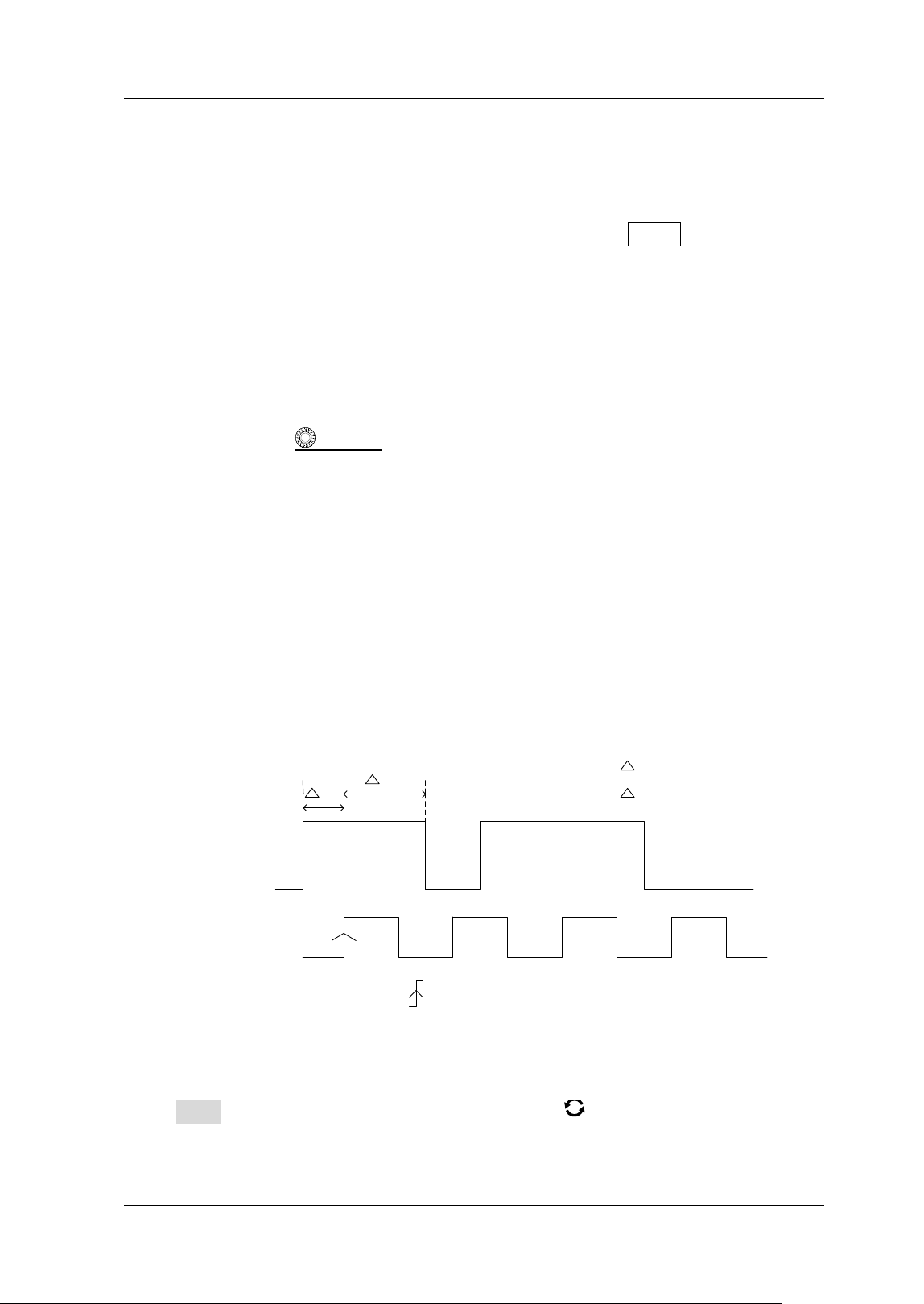
Chapter 5 To Trigger the Oscilloscope RIGOL
MSO5000-E User Guide 5-29
Delay trigger.
Note: The lower time limit must be smaller than the upper time limit.
Trigger Mode:
In the trigger control area (Trigger) on the front panel, press Mode to quickly switch
the current trigger mode. For details, refer to descriptions in "Trigger Mode".
Trigger Parameter Setting:
Set the trigger parameters (trigger holdoff and noise rejection) under this trigger
type. For details, refer to descriptions in "Trigger Holdoff" and "Noise
Rejection".
Trigger LEVEL/ Threshold Level:
Rotate the Trigger
LEVEL knob to adjust the trigger level/ threshold level. Refer
to "
Trigger LEVEL/ Threshold Level". The current trigger level/ threshold level
value is displayed at the upper-right corner of the screen.
Setup/ Hold Trigger
I n Setup/Hold trigger, you need to set the clock source and data source. The setup
time starts when the data signal passes the trigger level and ends at the coming of
the specif ied clock edge; the hold time starts at the coming of the specif ied clock
edge and ends when the data signal crosses the trigger level again, as shown in the
f igure below. The oscilloscope triggers when the setup time or hold time is smaller
than the preset time.
T1
T2
Data Source
Clock Source
T2
T1
is the setup time
is the hold time
The edge type is
The data type is H
Figure 5-11 Setup/ Hold Trigger
Trigger Type:
Press Type, and then rotate the multifunction knob to select "Setup/ Hold".
Press down the knob to select the trigger type. Then, the current trigger setting
information is displayed at the upper-right corner of the screen, as shown in the
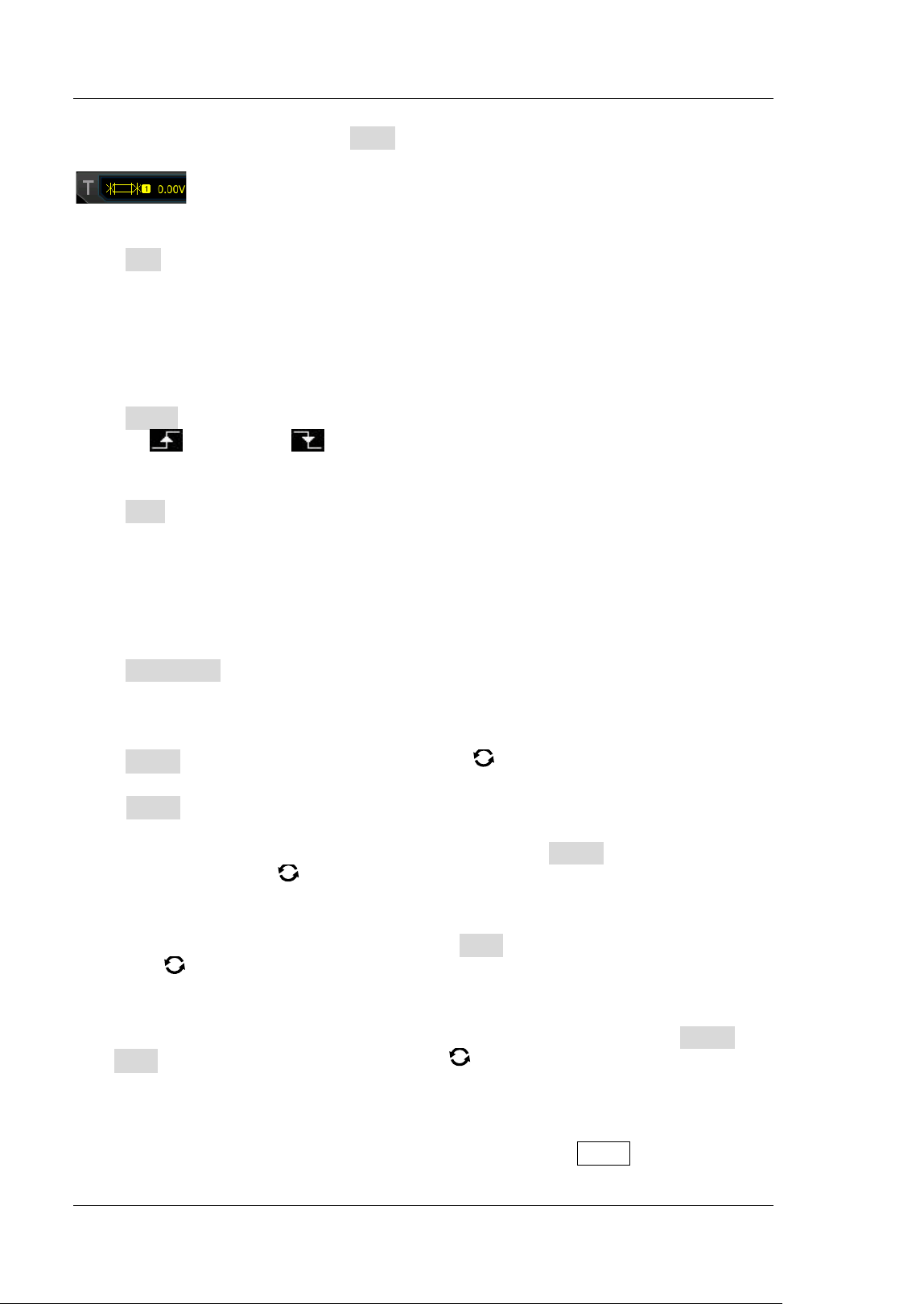
RIGOL Chapter 5 To Trigger the Oscilloscope
5-30 MSO5000-E User Guide
f igure below. You can also press Type continuously to select the trigger type or
enable the touch screen to tap the desired trigger type and select it.
Clock Source:
Press SCL to set the signal source of the clock line. I t can be set to CH1-CH2 or
D0-D15. For details, refer to descriptions in "
Trigger Source". The current clock
source (trigger source) is displayed at the upper-right corner of the screen.
Note: Only when we select the channel (that has been input with signals) as the
clock source, can we obtain a stable trigger.
Edge Type:
Press Slope continuously to select the desired clock edge type, and it can be set to
"Rising"
or "Falling" .
Data Source:
Press SDA to set the signal source of the data line. I t can be set to CH1-CH2 or
D0-D15. For details, refer to descriptions in "
Trigger Source". The current data
source (trigger source) is displayed at the upper-right corner of the screen.
Note: Only when we select the channel (that has been input with signals) as the
trigger source, can we obtain a stable trigger.
Data Type:
Press Data Type continuously to set the effective pattern of the data signal. I t can
be set to H (high level) or L (low level).
Trigger Condition:
Press When and rotate the multifunction knob to select the trigger condition of
Setup/ Hold trigger. Press down the knob to select the trigger condition. You can also
press When continuously or enable the touch screen to select it.
Setup: the oscilloscope triggers when the setup time is smaller than the
specif ied setup time. After selecting this type, press Setup and rotate the
multifunction knob
to set the setup time. You can also use the pop-up
numeric keypad to set it.
Hold: the oscilloscope triggers when the hold time is smaller than the specified
hold time. After selecting this type, press Hold and rotate the multifunction
knob
to set the hold time. You can also use the pop-up numeric keypad to
set it.
Setup/ Hold: the oscilloscope triggers when the setup time or the hold time is
smaller than the specif ied time value. After selecting this type, press Setup and
Hold and rotate the multifunction knob to set the setup time and hold time
respectively. You can also use the pop-up numeric keypad to set them.
Trigger Mode:
I n the trigger control area (Trigger) on the front panel, press Mode to quickly switch
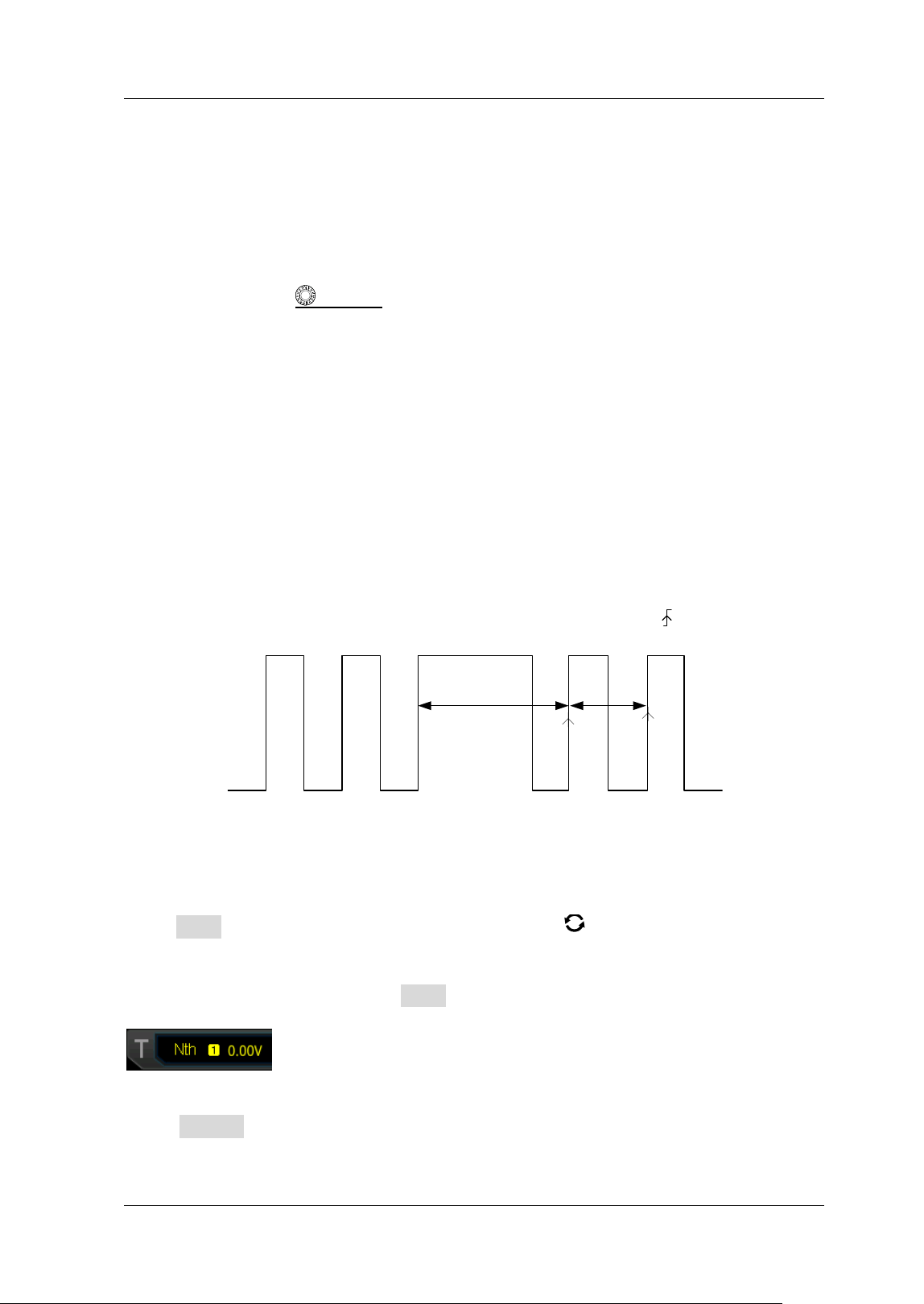
Chapter 5 To Trigger the Oscilloscope RIGOL
MSO5000-E User Guide 5-31
the current trigger mode. For details, refer to descriptions in "Trigger Mode".
Trigger Parameter Setting:
Set the trigger parameter (noise rejection) under this trigger type. For details, refer
to descriptions in "Noise Rejection".
Trigger LEVEL/ Threshold Level:
Rotate the Trigger
LEVEL knob to adjust the trigger level/ threshold level. Refer
to "
Trigger LEVEL/ Threshold Level". The current trigger level/ threshold level
value is displayed at the upper-right corner of the screen.
Nth Edge Trigger
Triggers on the Nth edge that appears after the specif ied idle time. For example, in
the waveform shown in the f igure below, the instrument should trigger on the
second rising edge after the specif ied idle time (the time between two neighboring
rising edges), and the idle time should be within the range between P and M (P< I dle
Time< M). Wherein, M is the time between the f irst rising edge and its previous rising
edge; P is the maximum time between the rising edges that participate in counting.
M
P< I dle Time< M
Edge Type=
Edge Num= 2
P
Figure 5-12 Nth Edge Trigger
Trigger Type:
Press Type, and then rotate the multifunction knob to select "Nth Edge". Press
down the knob to select the trigger type. Then, the current trigger setting
information is displayed at the upper-right corner of the screen, as shown in the
f igure below. You can also press Type continuously to select the trigger type or
enable the touch screen to tap the desired trigger type and select it.
Source Selection:
Press Source to open the signal source list and select CH1-CH2 or D0-D15. For
details, refer to descriptions in "
Trigger Source". The current trigger source is
RIGOL Chapter 5 To Trigger the Oscilloscope
5-32 MSO5000-E User Guide
displayed at the upper-right corner of the screen.
Note: Only when we select the channel (that has been input with signals) as the
trigger source, can we obtain a stable trigger.
Edge Type:
Press Slope continuously to select the input signal edge on which the oscilloscope
triggers.
Rising: triggers on the rising edge of the input signal when the voltage level
meets the specif ied trigger level.
Falling: triggers on the falling edge of the input signal when the voltage level
meets the specif ied trigger level.
I dle Time:
Press I dle to set the idle time before the edge counting in Nth edge trigger. Rotate
the multifunction knob
or use the pop-up numeric keypad to set the idle time.
Edge Count:
Press Edges to set the value of "N" in Nth edge trigger. Rotate the multifunction
knob
or use the pop-up numeric keypad to set the edge count. I ts available
range is from 1 to 65535.
Trigger Mode:
In the trigger control area (Trigger) on the front panel, press Mode to quickly switch
the current trigger mode. For details, refer to descriptions in "Trigger Mode".
Trigger Parameter Setting:
Set the trigger parameter (noise rejection) under this trigger type. For details, refer
to descriptions in "Noise Rejection".
Trigger LEVEL/ Threshold Level:
Rotate the Trigger
LEVEL knob to adjust the trigger level/ threshold level. Refer
to "
Trigger LEVEL/ Threshold Level". The current trigger level/ threshold level
value is displayed at the upper-right corner of the screen.
RS232 Trigger (Option)
RS232 bus is a serial communication mode used in data transmission between PCs or
between a PC and a terminal. I n RS232 serial protocol, a character is transmitted as
a frame of data. The frame consists of 1 start bit, 5-8 data bits, 1 check bit, and 1-2
stop bits. I ts format is as shown in the f igure below. MSO5000-E series oscilloscope
triggers when the start frame, error frame, check error, or the specified data of the
RS232 signal is detected.
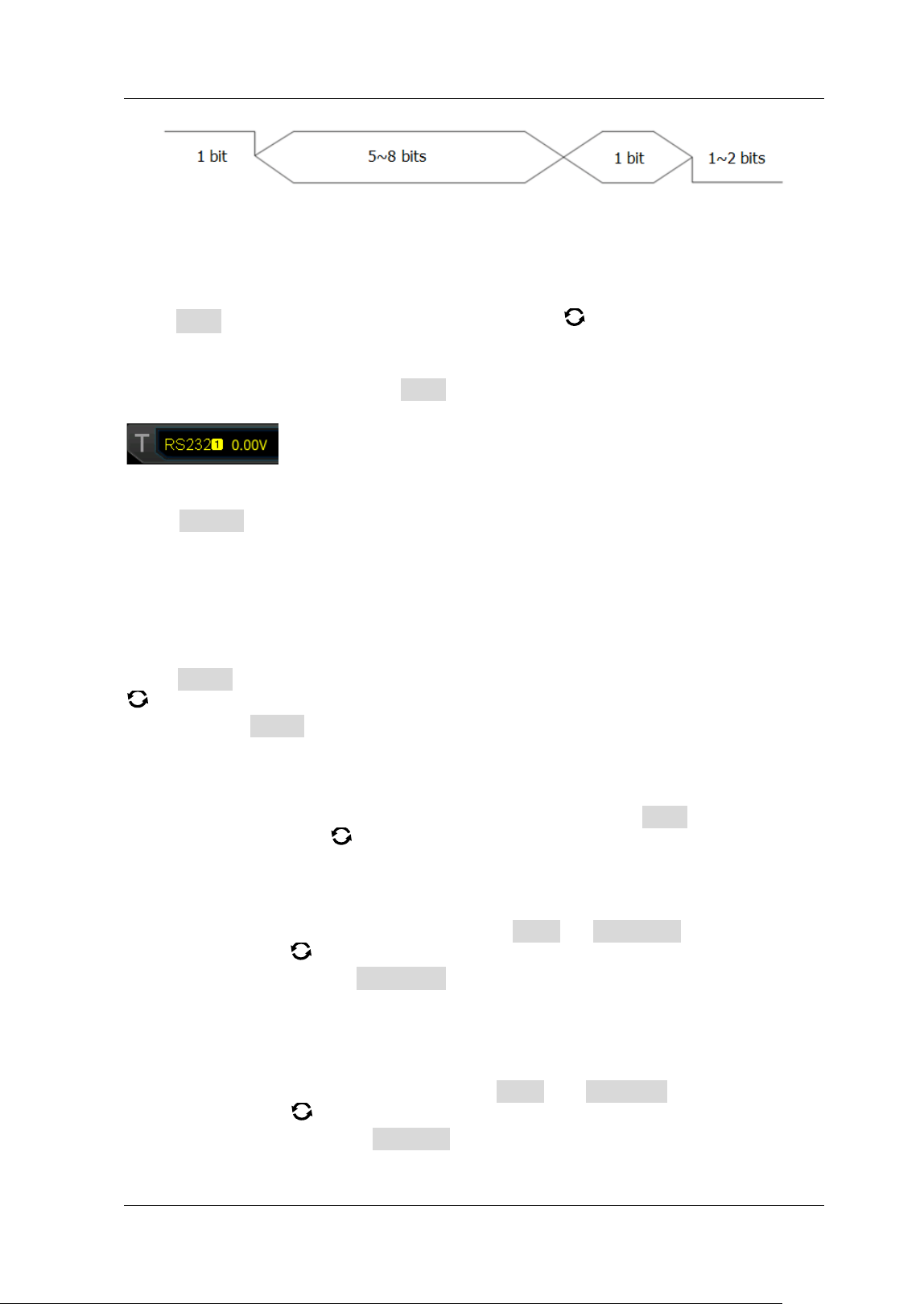
Chapter 5 To Trigger the Oscilloscope RIGOL
MSO5000-E User Guide 5-33
Figure 5-13 Schematic Diagram of RS232 Protocol
Trigger Type:
Press Type, and then rotate the multifunction knob to select "RS232". Press
down the knob to select the trigger type. Then, the current trigger setting
information is displayed at the upper-right corner of the screen, as shown in the
f igure below. You can also press Type continuously to select the trigger type or
enable the touch screen to tap the desired trigger type and select it.
Source:
Press Source to open the signal source list and select CH1-CH2 or D0-D15. For
details, refer to descriptions in "
Trigger Source". The current trigger source is
displayed at the upper-right corner of the screen.
Note: Only when we select the channel (that has been input with signals) as the
trigger source, can we obtain a stable trigger.
Trigger Condition:
Press When to select the desired trigger condition. Rotate the multifunction knob
to select the desired trigger condition, then press down the knob to select it. You
can also press When continuously or enable the touch screen to select it.
Start: triggers on the start frame position.
Error: triggers when an error frame is detected.
Check Error: triggers when a check error is detected.
Data: triggers on the last bit of the preset data bits. Press Data, then rotate the
multifunction knob
or use the numeric keypad to set the data of RS232
trigger.
Data Bits:
I ndicate the number of bits per frame. Press More Data Bits, then rotate the
multifunction knob
to select the desired data bits. Then press down the knob to
select. You can also press Data Bits continuously or enable the touch screen to
select the data bits. The available data bits include "5 Bits", "6 Bits", "7 Bits", and "8
Bits".
Stop Bit:
I ndicate when to stop outputting. Press More Stop Bit, then rotate the
multifunction knob
to select the desired stop bit. Then press down the knob to
select it. You can also press Stop Bit continuously or enable the touch screen to
select the stop bit. The available stop bit include "1 Bit", "1.5 Bits", and "2 Bits".
Start Bit
Data Bits
Check Bit
Stop Bit
RIGOL Chapter 5 To Trigger the Oscilloscope
5-34 MSO5000-E User Guide
Parity:
Used to verify whether data are properly transmitted. Press More Parity, then
rotate the multifunction knob
to select the desired parity. Then press down the
knob to select it. You can also press Parity continuously or enable the touch screen
to select the parity. The available parity include "None", "Odd", and "Even".
Polarity
Press More Polarity, then select the polarity of data transmission. I t can be set
to "Pos"
or "Neg" .
Baud Rate:
Press More Baud Rate, then select the baud rate of data transmission (i.g.
specif ies a clock frequency). Three setting methods are available for baud rate:
Press Baud Rate, then set the user-def ined baud rate with the displayed
numeric keypad.
Press Baud Rate, then select the preset baud rate from the available options.
The available baud rates include 50 bps, 75 bps, 110 bps, 134 bps, 150 bps, 300
bps, and etc.
Press Baud Rate, then rotate the multifunction knob to adjust the baud
rate at a small step of 1 bps.
Trigger Mode:
In the trigger control area (Trigger) on the front panel, press Mode to quickly switch
the current trigger mode. For details, refer to descriptions in "Trigger Mode".
Trigger Parameter Setting:
Set the trigger parameter (noise rejection) under this trigger type. For details, refer
to descriptions in "Noise Rejection".
Trigger LEVEL/ Threshold Level:
Rotate the Trigger
LEVEL knob to adjust the trigger level/ threshold level. Refer
to "
Trigger LEVEL/ Threshold Level". The current trigger level/ threshold level
value is displayed at the upper-right corner of the screen.
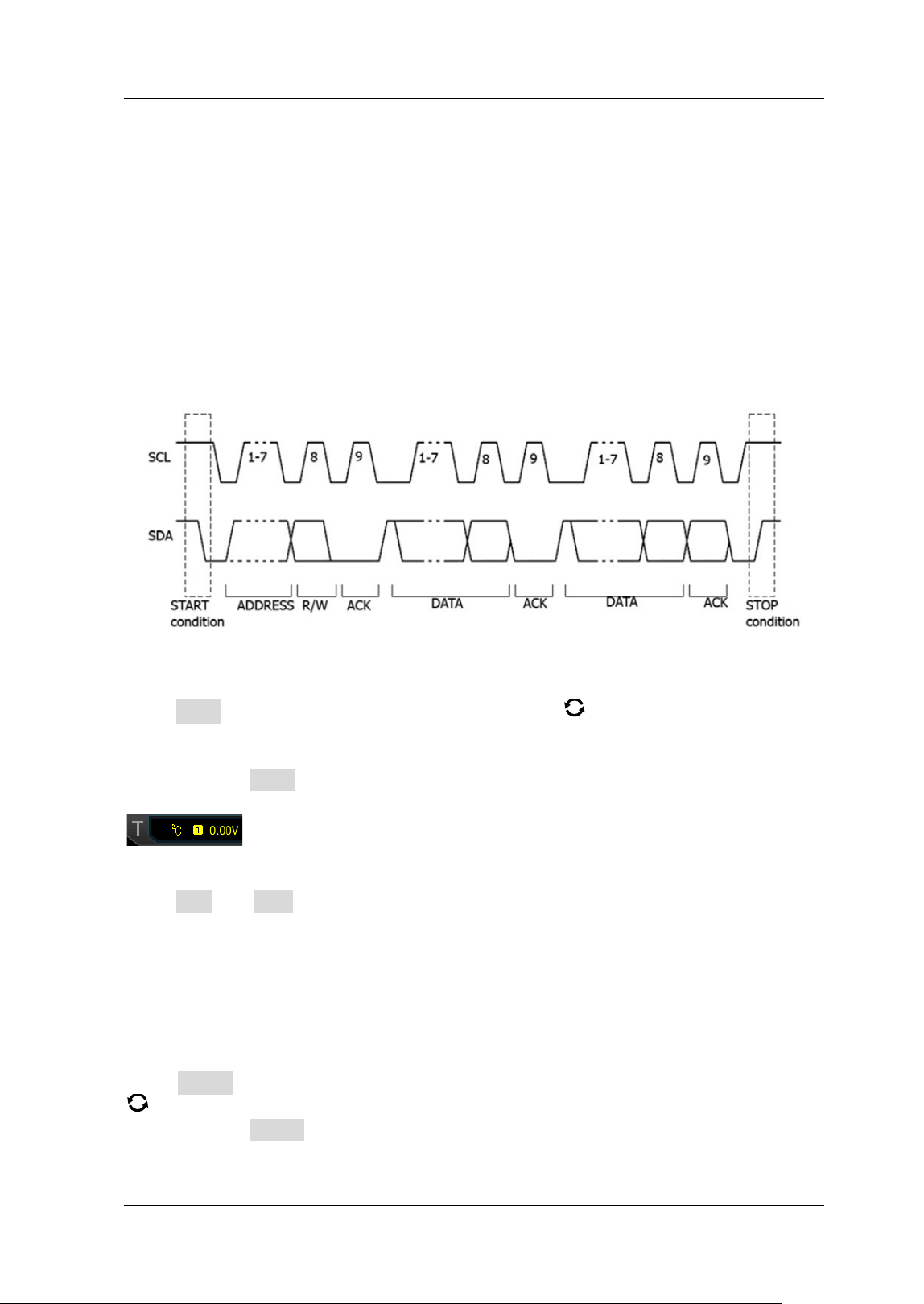
Chapter 5 To Trigger the Oscilloscope RIGOL
MSO5000-E User Guide 5-35
I 2C Trigger ( Option)
I2C is a 2-wire serial bus used to connect the microcontroller and its peripheral
device. I t is a bus standard widely used in the microelectronic communication control
f ield.
The I 2C serial bus consists of SCL and SDA. I ts transmission rate is determined by
SCL, and its transmission data is determined by SDA, as shown in the f igure below.
MSO5000-E triggers on the start condition, restart, stop, missing acknowledgment,
specif ic device address, or data value. Besides, it can also trigger on the specif ic
device address and data values at the same time.
Figure 5-14 Schematic Diagram of I2C Protocol
Trigger Type:
Press Type, and then rotate the multifunction knob to select "I 2C". Press down
the knob to select the trigger type. Then, the current trigger setting information is
displayed at the upper-right corner of the screen, as shown in the figure below. You
can also press Type key continuously to select the trigger type or enable the touch
screen to tap the desired trigger type and select it.
Source Selection:
Press SCL and SDA to specify the signal sources of SCL and SDA respectively. They
can be set to CH1-CH2 or D0-D15. For details, refer to descriptions in "
Trigger
Source
". The current trigger source is displayed at the upper-right corner of the
screen.
Note: Only when we select the channel (that has been input with signals) as the
trigger source, can we obtain a stable trigger.
Trigger Condition:
Press When to select the desired trigger condition. Rotate the multifunction knob
to select the desired trigger condition, then press down the knob to select it. You
can also press When continuously or enable the touch screen to select it.
Start: triggers when SDA data transitions from high level to low level while SCL is
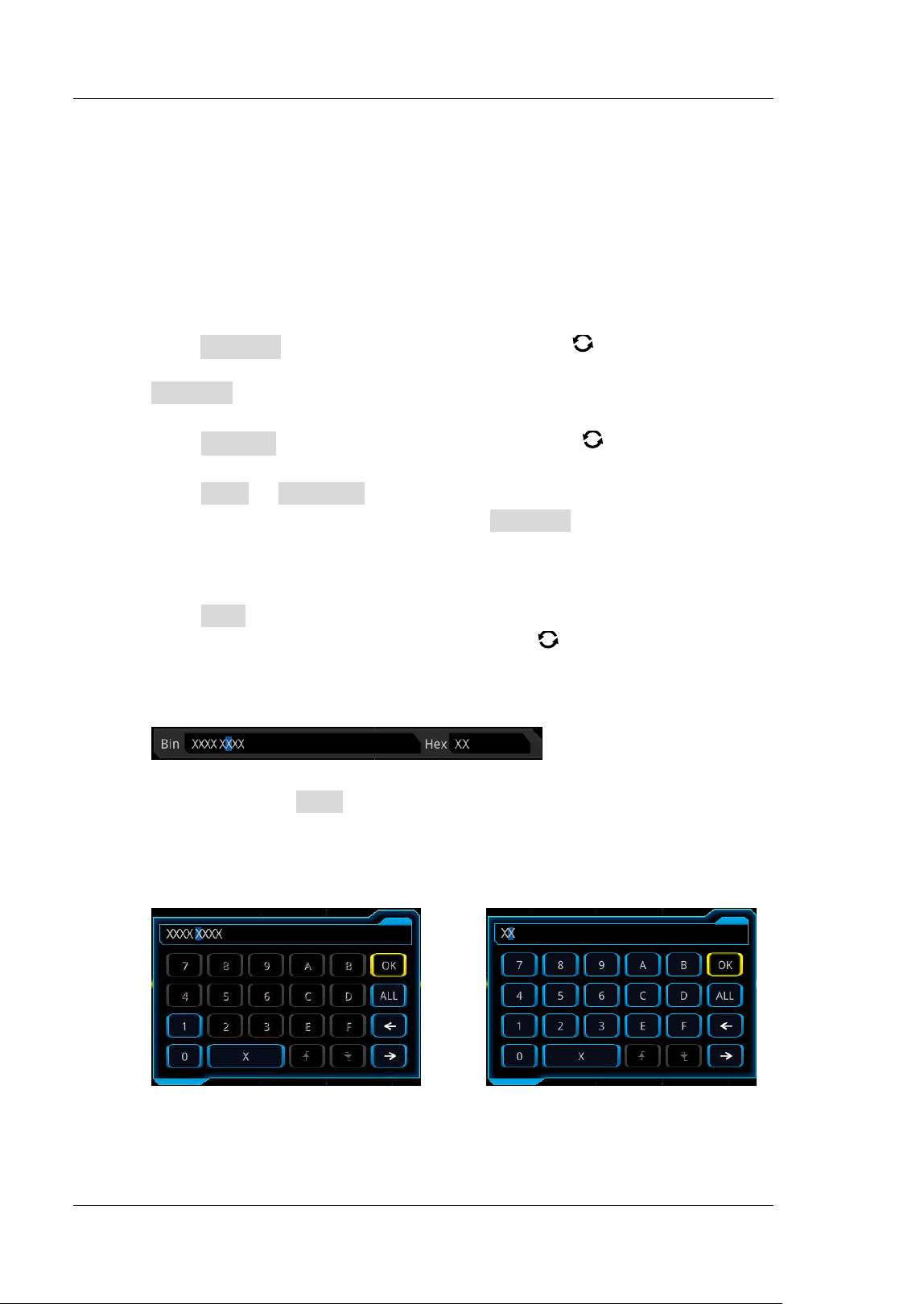
RIGOL Chapter 5 To Trigger the Oscilloscope
5-36 MSO5000-E User Guide
high level.
Stop: triggers when SDA data transitions from low level to high level while SCL is
high level.
Restart: triggers when another start condition occurs before a stop condition.
MissedAck: triggers when the SDA data is high level during any acknowledgment
of SCL clock position.
Address: the trigger searches for the specified address value. When this event
occurs, the oscilloscope will trigger on the read/write bit. After this trigger
condition is selected:
Press AddrBits and rotate the multifunction knob to select the desired
address bits. Then press down the knob to select it. You can also press
AddrBits continuously or enable the touch screen to select it. The available
address bits are "7 Bits", "8 Bits", and "10 Bits".
Press Address, then rotate the multifunction knob or use the numeric
keypad to set the address of I 2C trigger.
Press More Direction to select "Write", "Read", or "R/ W".
Note: This setting is not available when AddrBits is set to "8 Bits".
Data: the trigger searches for the specified data value on the data line (SDA).
When this event occurs, the oscilloscope will trigger on the clock line (SCL)
transition edge of the last bit of data. After this trigger condition is selected:
Press Bit X, and set the current bit with the following two methods.
Method 1: First rotate the multifunction knob
to switch to the data bit
that needs to be operated on. Then press down the knob continuously to
set the current bit. As shown in the f igure below, the left is its binary format,
and the right is its corresponding Hex format.
Method 2: Press Bit X or enable the touch screen to select the data bit.
Then set it with the pop-up virtual keypad. For setting methods, refer to
descriptions in "
Pattern Trigger". I f you modify the binary data bit, a
virtual keypad as shown in Figure 5-15 (a) is displayed. I f you modify the
hex data bit, a virtual keypad as shown in Figure 5-15 (b) is displayed.
(a) Virtual Keypad for Binary Data Bit (b) Virtual Keypad for Hex Data Bit
Figure 5-15 Virtual Keypad for Data Bit Settings
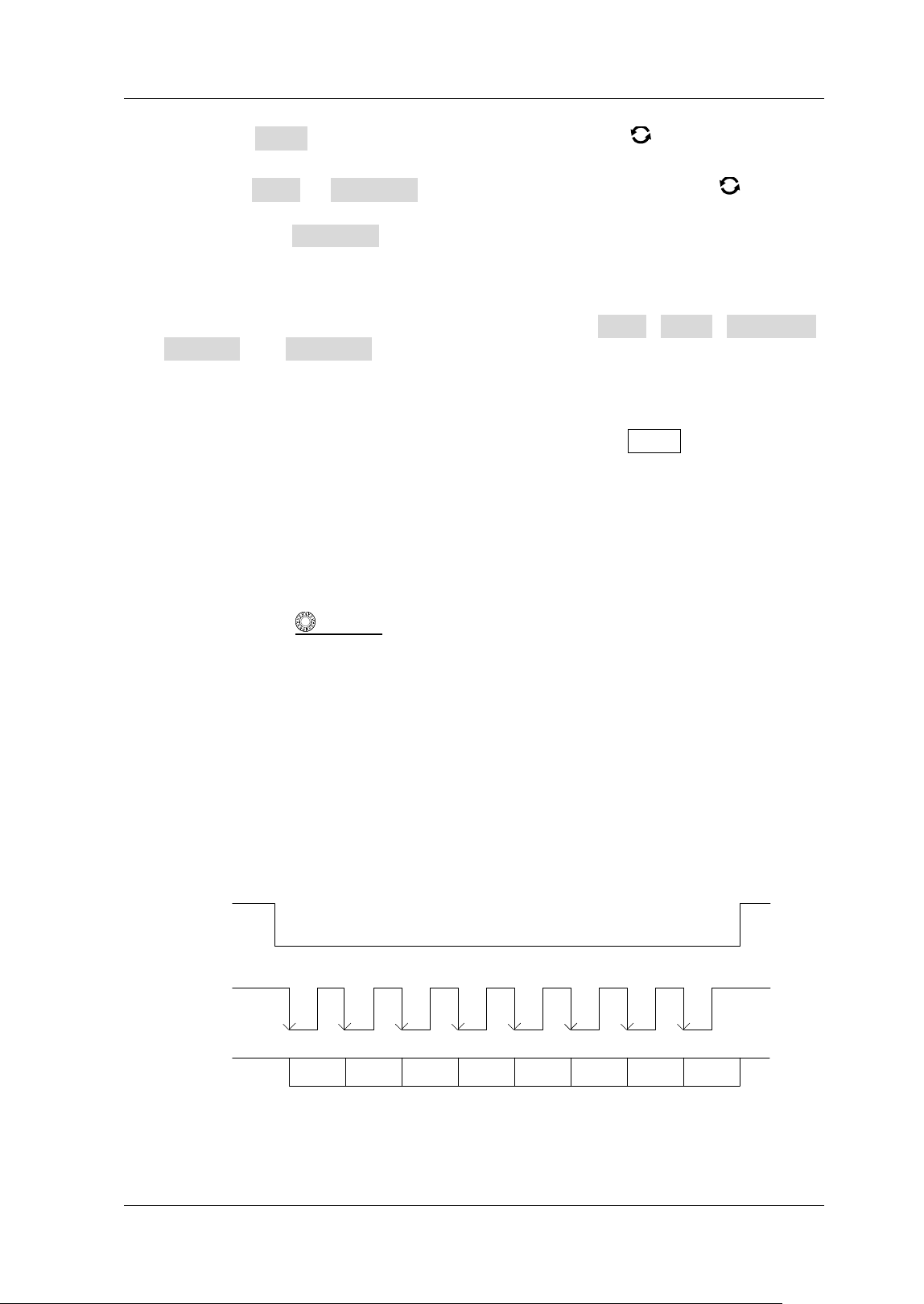
Chapter 5 To Trigger the Oscilloscope RIGOL
MSO5000-E User Guide 5-37
Press Bytes, then rotate the multifunction knob or use the pop-up
numeric keypad to set the length of the data. I ts range is from 1 to 5.
Press More Addr Bits, and rotate the multifunction knob to select
the desired address bits. Then press down the knob to select it. You can
also press Addr Bits continuously or enable the touch screen to select it.
The available address bits are "7 Bits", "8 Bits", and "10 Bits".
A & D: the oscilloscope searches for the specified address and data at the same
time, then triggers when both the address and data meet the conditions. After
this trigger condition is selected, you need to set Bit X, Bytes, Addr Bits,
Address, and Direction menu items. For setting methods, refer to descriptions
in "Address" and "Data" trigger conditions.
Trigger Mode:
In the trigger control area (Trigger) on the front panel, press Mode to quickly switch
the current trigger mode. For details, refer to descriptions in "Trigger Mode".
Trigger Parameter Setting:
Set the trigger parameter (noise rejection) under this trigger type. For details, refer
to descriptions in "Noise Rejection".
Trigger LEVEL/ Threshold Level:
Rotate the Trigger
LEVEL knob to adjust the trigger level/ threshold level. Refer
to "
Trigger LEVEL/ Threshold Level". The current trigger level/ threshold level
value is displayed at the upper-right corner of the screen.
SPI Trigger ( Option)
I n SPI trigger, after the CS or timeout condition is satisf ied, the oscilloscope triggers
when the specif ied data is found. When using SPI trigger, you need to specify the
SCL clock sources and SDA data sources. Below is the sequential chart of SPI bus.
SDA
SCL
CS
D7 D6 D5 D4 D3 D2 D1 D0
Figure 5-16 Sequential Chart of SPI Bus
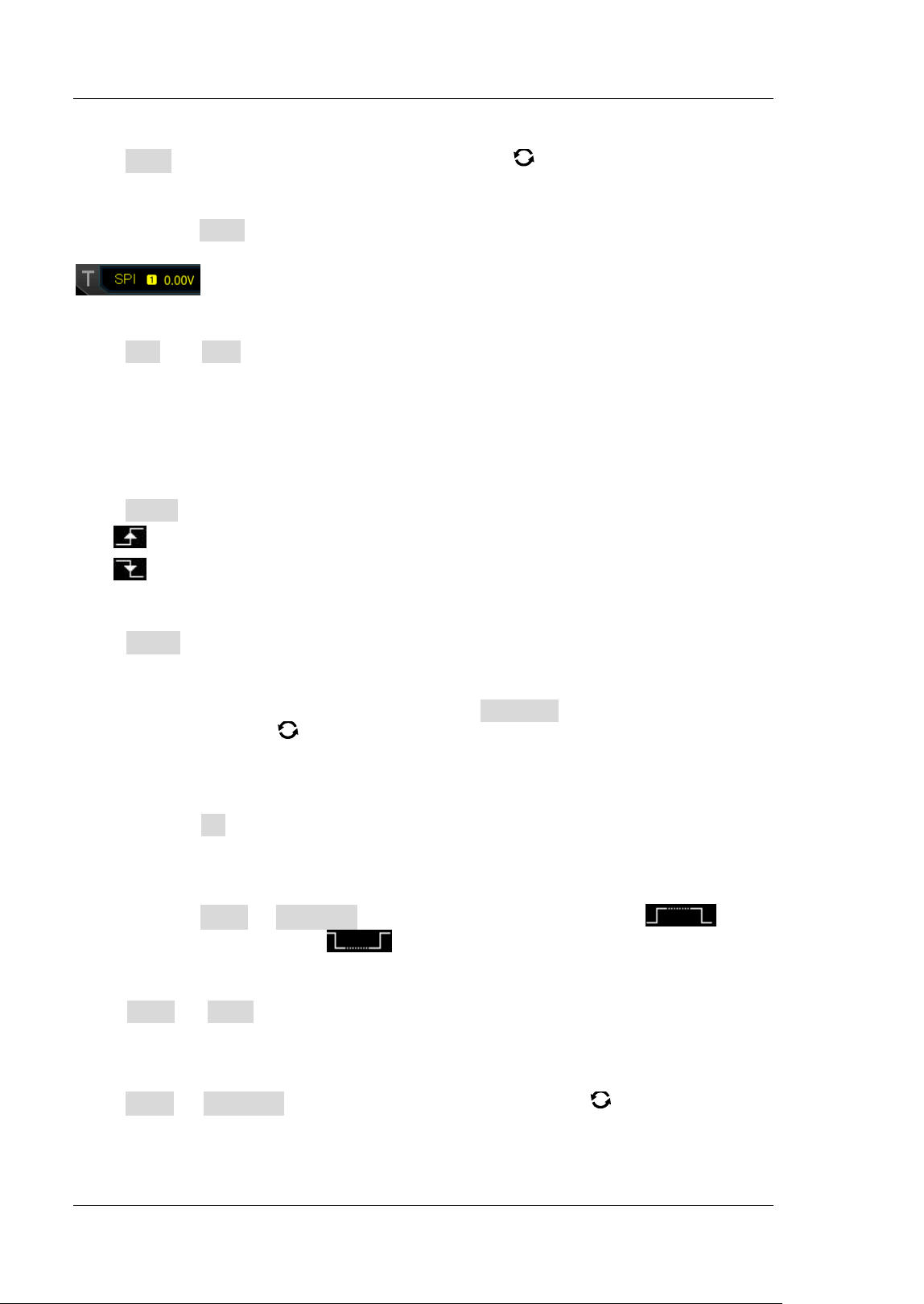
RIGOL Chapter 5 To Trigger the Oscilloscope
5-38 MSO5000-E User Guide
Trigger Type:
Press Type, and then rotate the multifunction knob to select "SPI ". Press down
the knob to select the trigger type. Then, the current trigger setting information is
displayed at the upper-right corner of the screen, as shown in the figure below. You
can also press Type continuously to select the trigger type or enable the touch
screen to tap the desired trigger type and select it.
Source Selection:
Press SCL and SDA to specify the sources of SCL and SDA respectively. They can be
set to CH1-CH2 or D0-D15. For details, refer to descriptions in "
Trigger Source".
The current trigger source is displayed at the upper-right corner of the screen.
Note: Only when we select the channel (that has been input with signals) as the
trigger source, can we obtain a stable trigger.
Edge Type:
Press Slope continuously to select the desired clock edge type.
Rising: samples the SDA data on the rising edge of the clock.
Falling: samples the SDA data on the falling edge of the clock.
Trigger Condition:
Press When continuously to select the desired trigger condition.
Timeout: the oscilloscope starts to search for the data (SDA) on which to trigger
after the clock signal (SCL) stays in the idle state for a specif ied period of time.
After selecting this condition, you can press Timeout, then rotate the
multifunction knob
or use the pop-up numeric keypad to set the idle time.
The range is from 8 ns to 10 s.
With CS: if the CS signal is valid, the oscilloscope will trigger when the data (SDA)
satisfying the trigger conditions is found.
Press CS to select the chip selection signal line. The available channels are
CH1-CH2 or D0-D15. For details, refer to descriptions in "
Trigger Source".
The current trigger source is displayed at the upper-right corner of the
screen.
Press More CS Mode to set the current CS mode to "Pos " (high
level is valid) or "Neg
" (low level is valid).
Current Bit:
Press More Bit X to set the data bit that needs to be operated on. For setting
methods, refer to descriptions in "
I 2C Trigger (Option)".
Data Bits:
Press More DataBits, then rotate the multifunction knob or use the pop-up
numeric keypad to set the number of bits in the serial data string. The number of bits
in the string can be set to any integer ranging from 4 and 32.
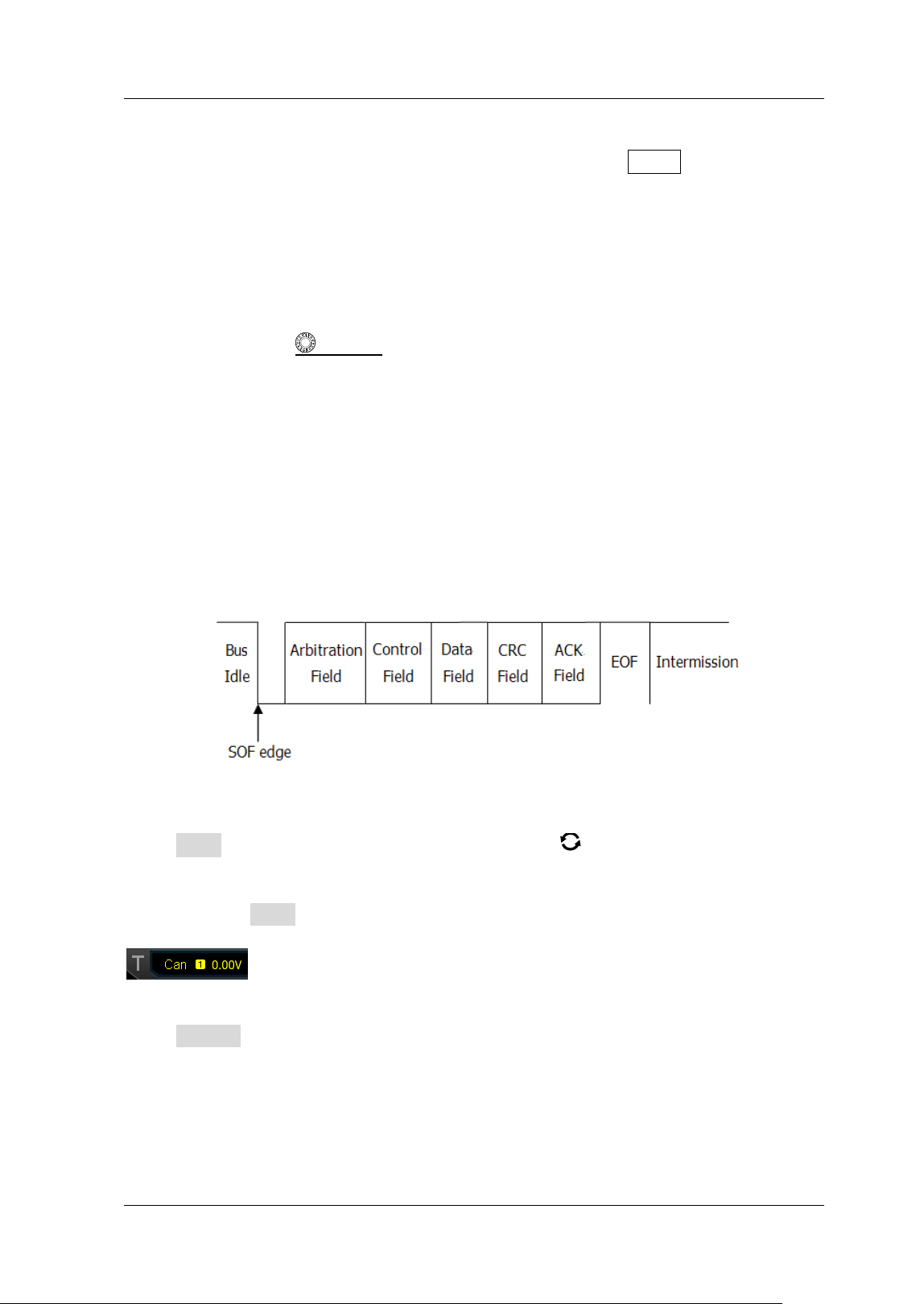
Chapter 5 To Trigger the Oscilloscope RIGOL
MSO5000-E User Guide 5-39
Trigger Mode:
In the trigger control area (Trigger) on the front panel, press Mode to quickly switch
the current trigger mode. For details, refer to descriptions in "Trigger Mode".
Trigger Parameter Setting:
Set the trigger parameter (noise rejection) under this trigger type. For details, refer
to descriptions in "Noise Rejection".
Trigger LEVEL/ Threshold Level:
Rotate the Trigger
LEVEL knob to adjust the trigger level/ threshold level. Refer
to "
Trigger LEVEL/ Threshold Level". The current trigger level/ threshold level
value is displayed at the upper-right corner of the screen.
CAN Trigger (Option)
MSO5000-E can trigger on the start of a frame, end of a frame, frame of the specif ied
type (e.g. Remote, Overload, Data, etc.), or error frame of the specif ied type (e.g.
Answer Error, Check Error, Format Error, etc.) of the CAN signal.
The data frame format of the CAN bus is as shown in the f igure below.
Figure 5-17 Data Frame Format of the CAN Bus
Trigger Type:
Press Type, and then rotate the multifunction knob to select "CAN". Press down
the knob to select the trigger type. Then, the current trigger setting information is
displayed at the upper-right corner of the screen, as shown in the figure below. You
can also press Type continuously to select the trigger type or enable the touch
screen to tap the desired trigger type and select it.
Source Selection:
Press Source to open the signal source list and select CH1-CH2 or D0-D15. For
details, refer to descriptions in "
Trigger Source". The current trigger source is
displayed at the upper-right corner of the screen.
Note: Only when we select the channel (that has been input with signals) as the
trigger source, can we obtain a stable trigger.
RIGOL Chapter 5 To Trigger the Oscilloscope
5-40 MSO5000-E User Guide
Trigger Condition:
Press When to select the desired trigger condition.
SOF: triggers at the start of a frame.
EOF: triggers at the end of a frame.
Remote I D: triggers on the remote frame with the specified I D. Set the following
parameters:
Press Extended I D to enable or disable the extended I D.
Press Bit X to set the data bit that needs to be operated on. For setting
methods, refer to descriptions in "
I 2C Trigger (Option) ".
Overload: triggers on the CAN overload frames.
Frame ID: triggers on the data frames with the specified I D. Set the following
parameters:
Press Extended I D to enable or disable the extended I D.
Press Bit X to set the data bit that needs to be operated on. For setting
methods, refer to descriptions in "
I 2C Trigger (Option) ".
Frame Data: triggers on the data frames with specif ied data. Set the following
parameters:
Press Bit X to set the data bit that needs to be operated on. For setting
methods, refer to descriptions in "
I 2C Trigger (Option) ".
Press Bytes, then rotate the multifunction knob or use the numeric
keypad to set the length of the data. I ts range is from 1 to 8.
Data&I D: triggers on the data frames with the specif ied ID and data. Set the
following parameters:
Press Define to select "Data" or "ID".
When you select "Data", set Bit X and Bytes. For detailed settings, refer to
parameter settings for "Frame Data".
When you select "I D", set Extended I D and Bit X. For detailed settings,
refer to parameter settings for "Frame I D".
Frame Error: triggers on the error frame.
Bit Fill: triggers on the error frame with the bit f ill.
Answer Error: triggers on the answer error frame.
Check Error: triggers on the check error frame.
Format Error: triggers on the format error frame.
Random Error: triggers on random error frame, such as the format error frame,
answer error frame, etc.
Signal Type:
Press More Signal Type to select the desired signal type.
CAN_H: indicates the actual CAN_H bus signal.
CAN_L: indicates the actual CAN_L bus signal.
TX/ RX: indicates the Transmit signal and Receive signal from the CAN bus
transceiver.
DI FF: The CAN differential bus signals connected to an analog source channel by
using a differential probe. Connect the probe's positive lead to the CAN_H bus
signal and connect the negative lead to the CAN_L bus signal.
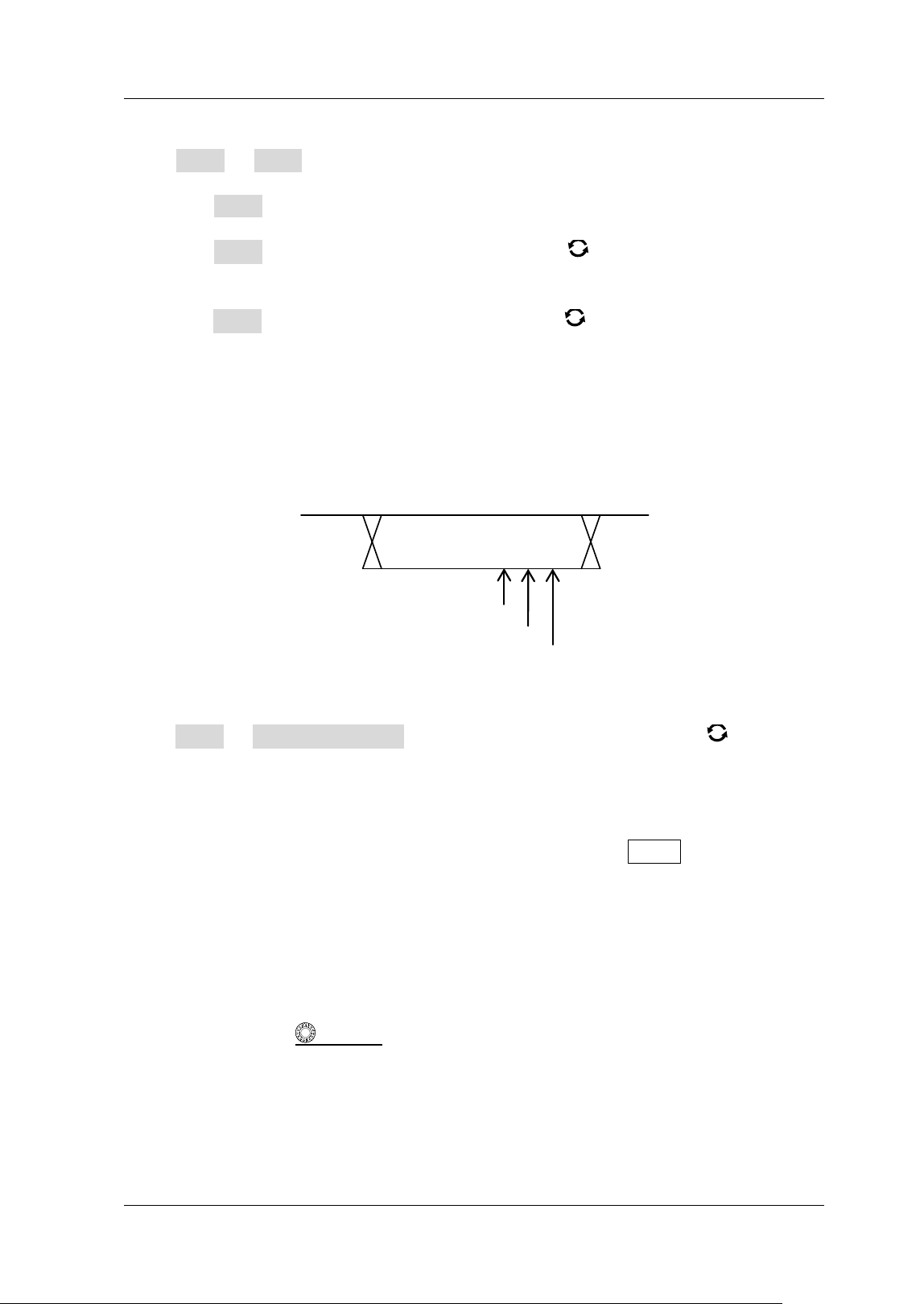
Chapter 5 To Trigger the Oscilloscope RIGOL
MSO5000-E User Guide 5-41
Baud Rate:
Press More Baud to set the baud rate. Three setting methods are available for
baud rate:
Press Baud, then set the user-def ined baud rate with the displayed numeric
keypad.
Press Baud, then rotate the multifunction knob to select the preset baud
rate from the available options. The available baud rates include 10 kb/ s, 20 kb/ s,
33.3 kb/ s, 50 kb/ s, 62.5 kb/ s, 83.3 kb/ s, and etc.
Press Baud, then rotate the multifunction knob to adjust the baud rate at a
small step of 0.1 kb/ s.
Sample Position:
Sample position is a point within a bit’s time. The oscilloscope samples the bit level at
this point. The sample position is represented by the proportion of "the time from the
start of the bit to the sample position" to the "bit time", as shown in the f igure below.
Figure 5-18 Sample Position
Press More Sample Position, then rotate the multifunction knob or use the
pop-up numeric keypad to set the sample position. The settable range is from 10%
to 90% .
Trigger Mode:
In the trigger control area (Trigger) on the front panel, press Mode to quickly switch
the current trigger mode. For details, refer to descriptions in "Trigger Mode".
Trigger Parameter Setting:
Set the trigger parameter (noise rejection) under this trigger type. For details, refer
to descriptions in "Noise Rejection".
Trigger LEVEL/ Threshold Level:
Rotate the Trigger
LEVEL knob to adjust the trigger level/ threshold level. Refer
to "
Trigger LEVEL/ Threshold Level". The current trigger level/ threshold level
value is displayed at the upper-right corner of the screen.
One Bit
60%
70%
80%
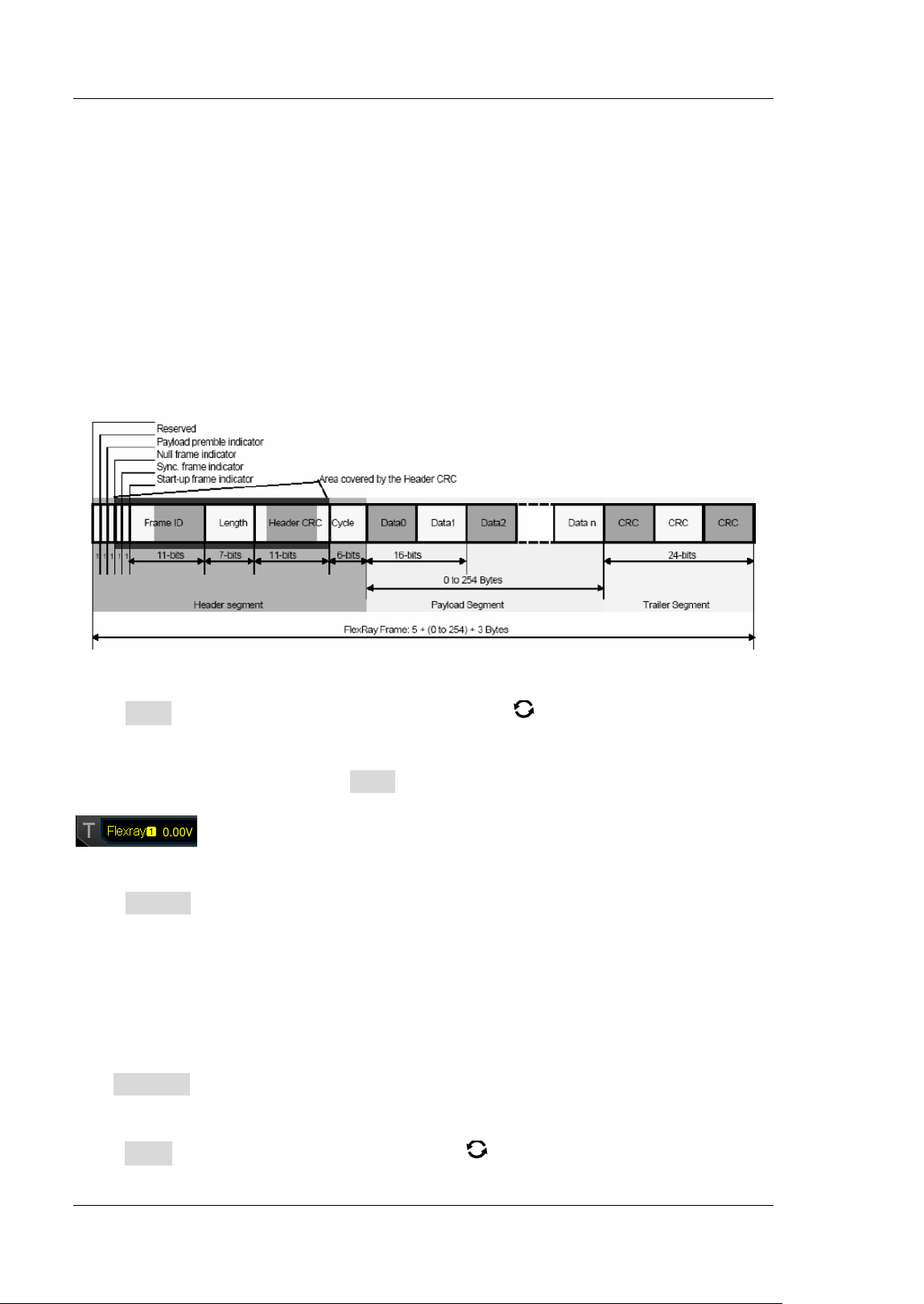
RIGOL Chapter 5 To Trigger the Oscilloscope
5-42 MSO5000-E User Guide
FlexRay Trigger (Option)
MSO5000-E can trigger on the specif ied frame, symbol, error, or position of the
FlexRay bus.
FlexRay is a type of differential serial bus conf igured with three consecutive
segments (i.g. header, payload, and trailer). Its data transmission rate is up to 10
Mb/ s. Each frame contains a static segment and a dynamic segment, and ends with
the bus idle time.
I ts format is as shown in the f igure below.
Figure 5-19 Frame Format of FlexRay Bus
Trigger Type:
Press Type, and then rotate the multifunction knob to select "FlexRay". Press
down the knob to select the trigger type. Then, the current trigger setting
information is displayed at the upper-right corner of the screen, as shown in the
f igure below. You can also press Type continuously to select the trigger type or
enable the touch screen to tap the desired trigger type and select it.
Source Selection:
Press Source to open the signal source list and select CH1-CH2 or D0-D15. For
details, refer to descriptions in "
Trigger Source". The current trigger source is
displayed at the upper-right corner of the screen.
Note: Only when we select the channel (that has been input with signals) as the
trigger source, can we obtain a stable trigger.
Channel Selection:
The channel that matches the actual FlexRay bus signal is, by default, Channel A.
The Channel menu is grayed out, and you are not allowed to set it manually.
Baud Rate:
Press Baud, and rotate the multifunction knob to select a FlexRay baud rate that
Chapter 5 To Trigger the Oscilloscope RIGOL
MSO5000-E User Guide 5-43
matches the FlexRay bus signal. Then press down the knob to select the baud rate.
You can also press Baud continuously or enable the touch screen to select it. The
available baud rates are 2.5 Mbps, 5 Mbps, and 10 Mbps.
Trigger Condition:
Press When, and rotate the multifunction knob to select the desired trigger
condition, then press down the knob to select it. You can also press When
continuously or enable the touch screen to select it.
Post: triggers on the specified position of the FlexRay bus. Press Post to select
"TSS End", "FSS_BSS End", "FES End", or "DTS End".
Frame: triggers on the frame of FlexRay bus.
Press Frame to select the frame type. The types of frames include null,
Sync, Start, and All.
Press More Define to select "I D" or "Cyc Count".
When you select "I D", set the following parameters: I D Comp, I D Min, and
I D Max. Press More I D Comp to select the comparison conditions. The
available choices include = , ≠, > , < , > < , < > . Press More I D Max or
press More I D Min, then rotate the multifunction knob or use the
pop-up numeric keypad to set the frame I D.
When you select "Cyc Count", set the following parameters: Cyc Comp,
Count Min, and Count Max. Press More Cyc Comp to select the
comparison conditions. The available choices include = , ≠, > , < , > < , < > .
Press More Count Max or press More Count Min, then rotate the
multifunction knob
or use the pop-up numeric keypad to set the cycle
count.
Symbol: triggers on the CAS/ MTS (Collision Avoidance Symbol/ Media Access
Test Symbol) and WUS ( Wake Up Symbol) of FlexRay bus.
Press Symbol to select the symbol type. The symbol type includes
CAS/ MTS and WUS.
Press More I D Comp to select the comparison conditions. The available
choices include = , ≠, > , < , > < , < > . Press More I D Max or press
More I D Min, then rotate the multifunction knob or use the pop-up
numeric keypad to set the frame I D.
Error: triggers when an error occurs to the FlexRay bus.
Press Error to select the error type. I t includes Head CRC Err, Tail CRC Err,
Decode Err, and Random Err.
Note: As the occurrence possibility of specif ied FlaxRay frame is very low, it is
recommended that you set the oscilloscope to "Normal" trigger mode when the
trigger condition is set to "Frame", so as to prevent the instrument from triggering
automatically while waiting for the specif ied frame. The same goes for "Error" trigger
condition. I n addition, when multiple FlexRay errors occur at the same time, you
need to adjust the trigger holdoff so as to view the specif ic error.
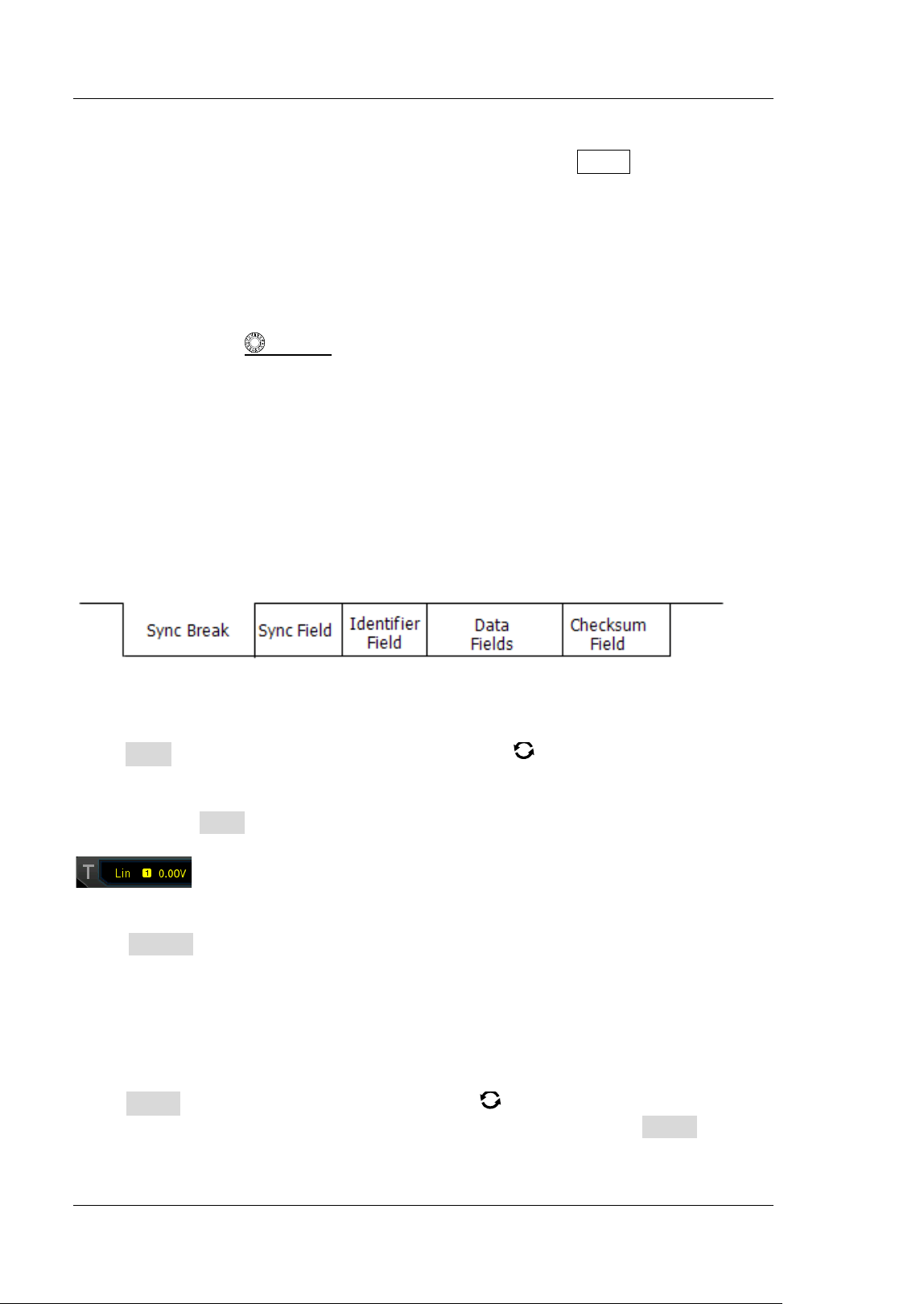
RIGOL Chapter 5 To Trigger the Oscilloscope
5-44 MSO5000-E User Guide
Trigger Mode:
In the trigger control area (Trigger) on the front panel, press Mode to quickly switch
the current trigger mode. For details, refer to descriptions in "Trigger Mode".
Trigger Parameter Setting:
Set the trigger parameter (noise rejection) under this trigger type. For details, refer
to descriptions in "Noise Rejection".
Trigger LEVEL/ Threshold Level:
Rotate the Trigger
LEVEL knob to adjust the trigger level/ threshold level. Refer
to "
Trigger LEVEL/ Threshold Level". The current trigger level/ threshold level
value is displayed at the upper-right corner of the screen.
LI N Trigger ( Option)
MSO5000-E can trigger on the sync f ield of LIN signal, and can also trigger on the
specif ied identifier, data, or frame.
The data frame format of the LIN bus is as shown in the f igure below.
Figure 5-20 Data Frame Format of the LIN Bus
Trigger Type:
Press Type, and then rotate the multifunction knob to select "LI N". Press down
the knob to select the trigger type. Then, the current trigger setting information is
displayed at the upper-right corner of the screen, as shown in the figure below. You
can also press Type continuously to select the trigger type or enable the touch
screen to tap the desired trigger type and select it.
Source Selection:
Press Source to open the signal source list and select CH1-CH2 or D0-D15. For
details, refer to descriptions in "
Trigger Source". The current trigger source is
displayed at the upper-right corner of the screen.
Note: Only when we select the channel (that has been input with signals) as the
trigger source, can we obtain a stable trigger.
Trigger Condition:
Press When, and rotate the multifunction knob to select the desired trigger
condition, then press down the knob to select it. You can also press When
continuously or enable the touch screen to select it.
Chapter 5 To Trigger the Oscilloscope RIGOL
MSO5000-E User Guide 5-45
Sync: triggers on the last bit of the sync f ield.
I D: triggers when the frame with an ID equal to the selected value is detected.
Press I D, then rotate the multifunction knob or use the pop-up numeric
keypad to set I D.
Data: triggers when the data that meet the preset conditions are found.
Press Bit X to set the data bit that needs to be operated on. For setting
methods, refer to descriptions in "
I 2C Trigger (Option) ".
Press Bytes, then rotate the multifunction knob or use the pop-up
numeric keypad to set the length of the data. I ts range is from 1 to 8.
Data&I D: triggers when a frame with a specif ied ID and data that meet the
preset conditions are both found.
Press Bit X to set the data bit that needs to be operated on. For setting
methods, refer to descriptions in "
I 2C Trigger (Option) ".
Press Bytes, then rotate the multifunction knob or use the pop-up
numeric keypad to set the length of the data. I ts range is from 1 to 8.
Press I D, then rotate the multifunction knob or use the pop-up
numeric keypad to set I D.
Sleep: triggers when the sleep frame is found.
Wakeup: triggers when the wakeup frame is found.
Error: triggers on the specif ied type of error frame. Press Error Type and select
the desired error type: Sync, Even Odd, or Check Sum.
Protocol Version:
Press More Version to select the protocol version that matches the signal under
test. The available versions include 1.X, 2.X, and Both.
Baud Rate:
Press More Baud to set the baud rate. Three setting methods are available for
baud rate:
Press Baud, then set the user-def ined baud rate with the displayed numeric
keypad.
Press Baud, then rotate the multifunction knob to select the preset baud
rate from the available options. The available baud rates include 1.2 kbps, 2.4
kbps, 4.8 kbps, 9.6 kbps, 19.2 kbps, and etc.
Press Baud, then rotate the multifunction knob to adjust the baud rate at a
small step.
Sample Position:
Sample position is a point within a bit’s time. The oscilloscope samples the bit level at
this point. The sample position is represented by the proportion of "the time from the
start of the bit to the sample position" to the "bit time", as shown in the f igure below.
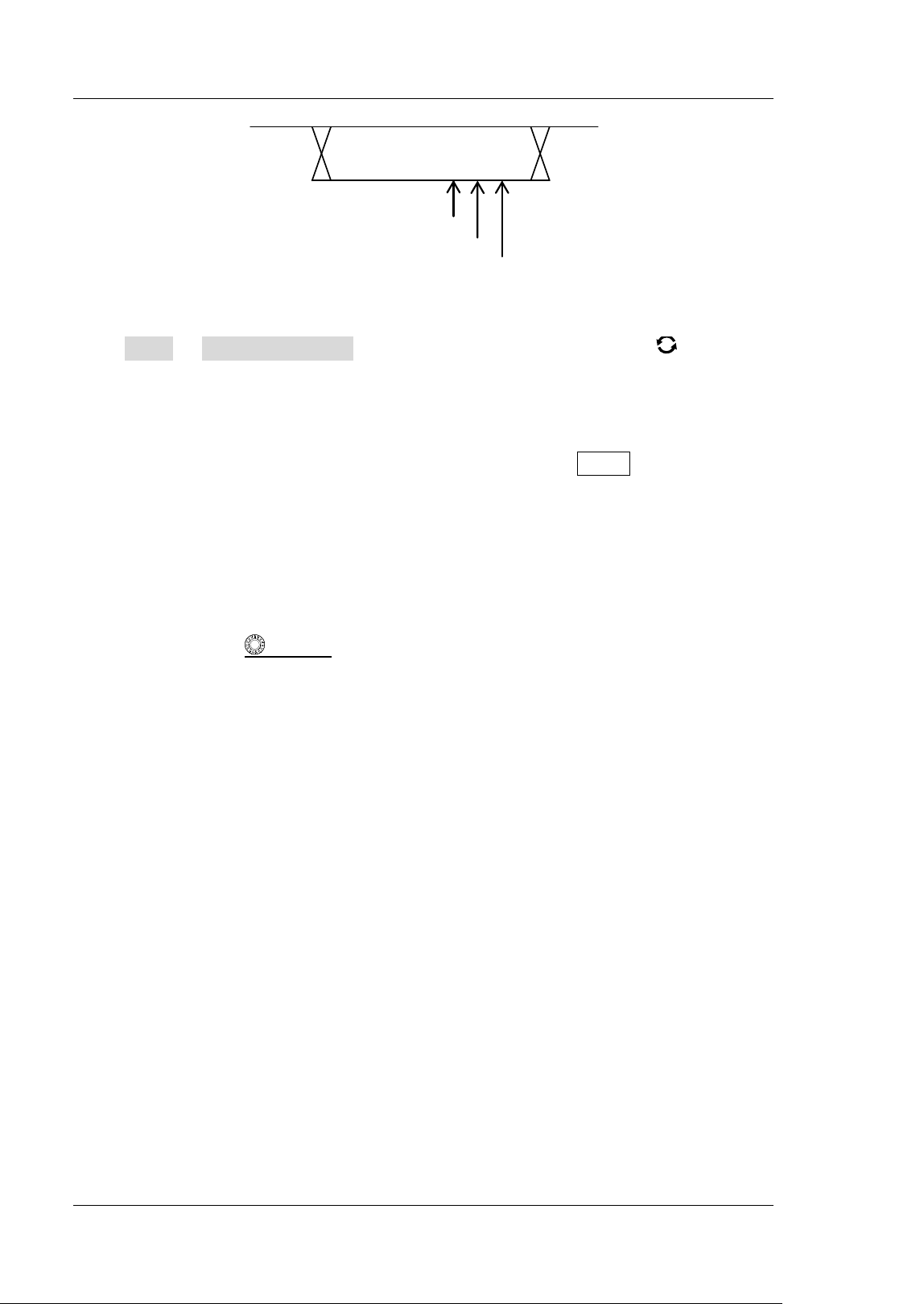
RIGOL Chapter 5 To Trigger the Oscilloscope
5-46 MSO5000-E User Guide
Figure 5-21 Sample Position
Press More Sample Position, then rotate the multifunction knob or use the
pop-up numeric keypad to set the sample position. The settable range is from 10%
to 90% .
Trigger Mode:
In the trigger control area (Trigger) on the front panel, press Mode to quickly switch
the current trigger mode. For details, refer to descriptions in "Trigger Mode".
Trigger Parameter Setting:
Set the trigger parameter (noise rejection) under this trigger type. For details, refer
to descriptions in "Noise Rejection".
Trigger LEVEL/ Threshold Level:
Rotate the Trigger
LEVEL knob to adjust the trigger level/ threshold level. Refer
to "
Trigger LEVEL/ Threshold Level". The current trigger level/ threshold level
value is displayed at the upper-right corner of the screen.
I 2S Trigger (Option)
I n I2S trigger, the oscilloscope searches for the specif ied data value and take it as the
condition for identifying the trigger. You need to specify the serial clock line (SCLK, 1
pulse is found on the clock line once 1 bit of digital audio data is sent), frame clock
line (WS, used for switch the audio channel data), and serial data line (SDA, used for
transmit audio data represented in binary (2's complement)).
Below is the sequential chart of I 2S bus.
One Bit
60%
70%
80%
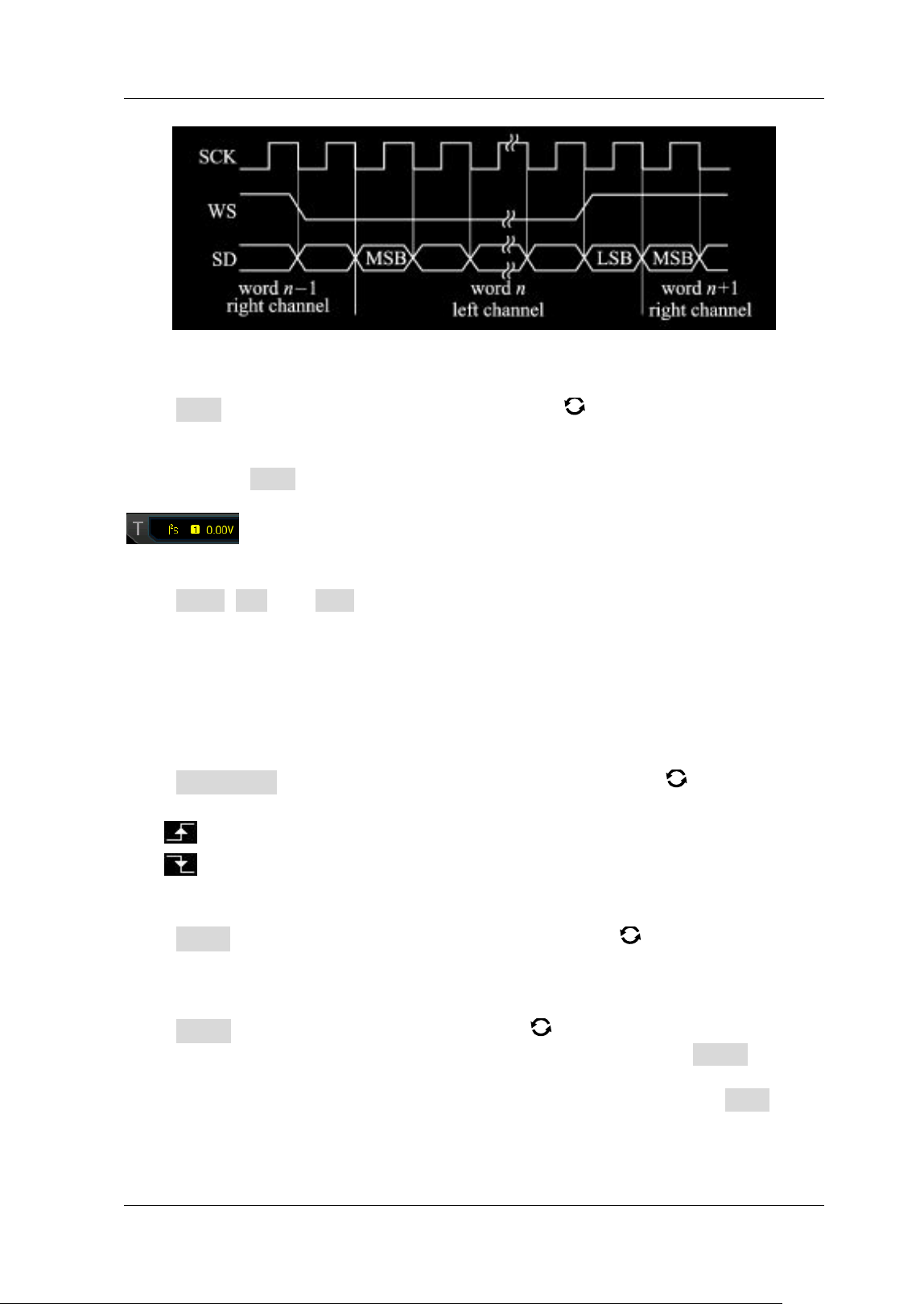
Chapter 5 To Trigger the Oscilloscope RIGOL
MSO5000-E User Guide 5-47
Figure 5-22 Sequential Chart of I 2S Bus
Trigger Type:
Press Type, and then rotate the multifunction knob to select "I 2S". Press down
the knob to select the trigger type. Then, the current trigger setting information is
displayed at the upper-right corner of the screen, as shown in the figure below. You
can also press Type continuously or enable the touch screen to tap the desired
trigger type and select it.
Source Selection:
Press SCLK, WS, and SDA to specify the sources for SCLK, WS, and SDA
respectively. The available choices are CH1-CH2 or D0-D15. For details, refer to
descriptions in "
Trigger Source". The current trigger source is displayed at the
upper-right corner of the screen.
Note: Only when we select the channel (that has been input with signals) as the
trigger source, can we obtain a stable trigger.
Edge Type:
Press SCLK Edge continuously or rotate the multifunction knob to select the
desired clock edge.
Rising: samples the SDA data on the rising edge of the clock.
Falling: samples the SDA data on the falling edge of the clock.
Audio:
Press Audio continuously or rotate the multifunction knob to select "Left",
"Right", or "Either".
Trigger Condition:
Press When, and rotate the multifunction knob to select the desired trigger
condition, then press down the knob to select it. You can also press When
continuously or enable the touch screen to select it.
= : triggers when the channel's data equal the set data value. Press Data to set
the data bit. For setting methods, refer to descriptions in "
I 2C Trigger
( Option) ".
RIGOL Chapter 5 To Trigger the Oscilloscope
5-48 MSO5000-E User Guide
≠: triggers when the channel's data do not equal the set data value. Press Data
to set the data bit. For setting methods, refer to descriptions in "
I 2C Trigger
( Option) ".
> : triggers when the channel's data are greater than the set data value. Press
Data Min to set the lower limit of the data bit. For setting methods, refer to
descriptions in "
I 2C Trigger ( Option)".
< : triggers when the channel's data are smaller than the set data value. Press
Data Max to set the upper limit of the data bit. For setting methods, refer to
descriptions in "
I 2C Trigger ( Option)".
> < : triggers when the channel's data are smaller than the upper limit of the
data value and greater than the lower limit of the data value. Press Data Max
and Data Min to set the upper limit and lower limit of the data bit respectively.
For setting methods, refer to descriptions in "
I 2C Trigger (Option) ".
< > : triggers when the channel's data are greater than the upper limit of the
data value and smaller than the lower limit of the data value. Press Data Max
and Data Min to set the upper limit and lower limit of the data bit respectively.
For setting methods, refer to descriptions in "
I 2C Trigger (Option) ".
Width:
Press More Width, then rotate the multifunction knob or use the pop-up
numeric keypad to set the width. I ts range is from 4 to 32.
User Width:
Press More User Width, then rotate the multifunction knob or use the
pop-up numeric keypad to set the user width. I ts range is from 4 to 32.
Note: The user width is smaller than or equal to the width.
Alignment:
Press More Alignment and rotate the multifunction knob to select the
alignment way for data signal. You can also press Alignment continuously to select
the alignment way or enable the touch screen to tap the desired alignment way and
select it.
I2S: MSB (Most Signif icant Bit) of data for each sample is sent f irst, and LSB (Least
Signif icant Bit) is sent last. The MSB appears on the SDA line one bit clock after the
edge of the WS transition.
LJ: data transmission (MSB first) begins at the edge of the WS transition.
RJ: data transmission (MSB first) is right-justif ied to the WS transition.
Data:
Press More Data, and set the data of the current bit. For setting methods, refer
to descriptions of the Bit X key in "I 2C Trigger ( Option) ".
Trigger Mode:
In the trigger control area (Trigger) on the front panel, press Mode to quickly switch
the current trigger mode. For details, refer to descriptions in "Trigger Mode".
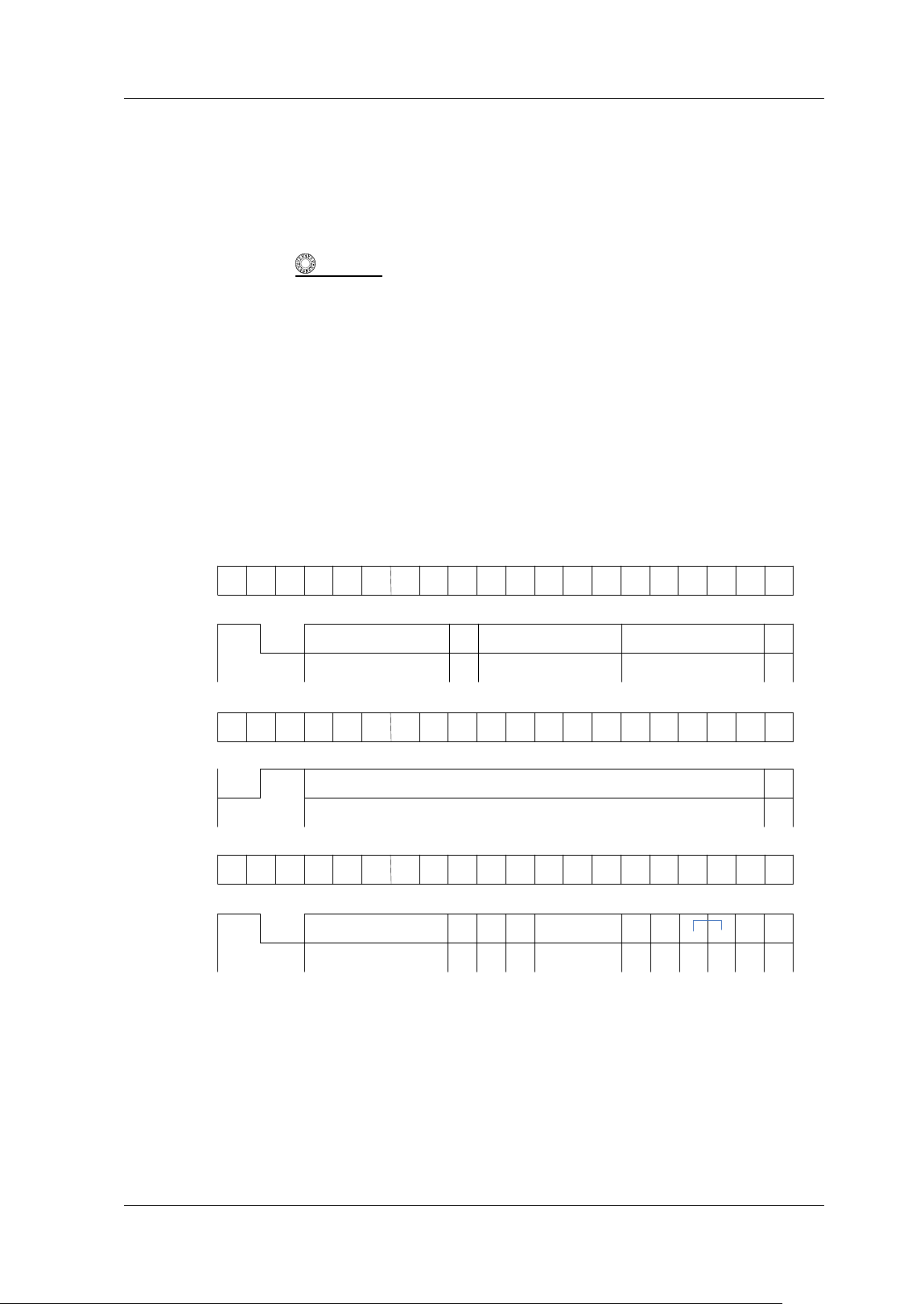
Chapter 5 To Trigger the Oscilloscope RIGOL
MSO5000-E User Guide 5-49
Trigger Parameter Setting:
Set the trigger parameter (noise rejection) under this trigger type. For details, refer
to descriptions in "Noise Rejection".
Trigger LEVEL/ Threshold Level:
Rotate the Trigger
LEVEL knob to adjust the trigger level/ threshold level. Refer
to "
Trigger LEVEL/ Threshold Level". The current trigger level/ threshold level
value is displayed at the upper-right corner of the screen.
MI L-STD-1553 Trigger (Option)
1553B is the abbreviation for the MI L-STD-1553 bus. MSO5000-E can trigger on the
sync field of 1553B bus, and can also trigger on the specif ied data word, command
word, status word, or error type.
The formats of the command word, data word, and status word of the 1553B bus is
shown in the following f igure.
1 2 3 4 5 6 7 8 9 10 11 12 13 14 15 16 17 18 19 20
Bit
Times
Bit
Times
Data
Word
Bit
Times
Status
Word
Sync
Remote Terminal
Address
5
5 5
T/R
Subaddress/Mode
Word Count/
Mode Code
P
1 2 3 4 5 6 7 8 9 10 11 12 13 14 15 16 17 18 19 20
1 2 3 4 5 6 7 8 9 10 11 12 13 14 15 16 17 18 19 20
P
16
Sync
16-bit Data
Sync
Remote Terminal
Address
M
e
s
s
a
g
e
E
r
r
o
r
I
n
s
t
r
u
m
e
n
t
a
t
i
o
n
R
e
s
e
r
v
e
d
S
e
r
v
i
c
e
R
e
q
u
e
s
t
B
r
o
a
d
c
a
s
t
C
M
D
R
e
c
e
i
v
e
d
B
u
s
y
S
u
b
s
y
s
t
e
m
F
l
a
g
D
y
n
a
m
i
c
B
u
s
A
c
c
e
p
t
a
n
c
e
T
e
r
m
i
n
a
l
F
l
a
g
O
d
d
P
a
r
i
t
y
5 3
Command
Word
Figure 5-23 Formats of the Command Word, Data Word, and Status Word of the
1553B Bus
RIGOL Chapter 5 To Trigger the Oscilloscope
5-50 MSO5000-E User Guide
Trigger Type:
Press Type, and then rotate the multifunction knob to select "MIL-STD-1553".
Press down the knob to select the trigger type. Then, the current trigger setting
information is displayed at the upper-right corner of the screen, as shown in the
figure below. You can also press Type continuously or enable the touch screen to tap
the desired trigger type and select it.
Source Selection:
Press Source to open the signal source list, then select CH1 or CH2. For details, refer
to descriptions in "
Trigger Source". The current trigger source is displayed at the
upper-right corner of the screen.
Note: Only when we select the channel (that has been input with signals) as the
trigger source, can we obtain a stable trigger.
Trigger Condition:
Press When, and rotate the multifunction knob to select the desired trigger
condition, then press down the knob to select it. You can also press When
continuously or enable the touch screen to select it.
Sync: triggers on the specified sync type. After the trigger condition is selected,
press Sync to select the desired sync type: Data Sync, Cmd/ Status Sync, or All
Sync.
Data: triggers on the specif ied data word. After the trigger condition is selected,
press Comp to select the comparison conditions. The available choices include
=, ≠, >, < , > < , < > .
= : triggers when the channel's data word equals the set data word. Press
Min to set the lower limit of the data word. For setting methods, refer to
descriptions in "
I 2C Trigger ( Option)".
≠: triggers when the channel's data word does not equal the set data word.
Press Min to set the lower limit of the data word. For setting methods, refer
to descriptions in "
I 2C Trigger (Option) ".
< : triggers when the channel's data word is smaller than the set data word.
Press Max to set the upper limit of the data word. For setting methods,
refer to descriptions in "
I 2C Trigger ( Option) ".
> : triggers when the channel's data word is greater than the set data word.
Press Min to set the lower limit of the data word. For setting methods, refer
to descriptions in "
I 2C Trigger (Option) ".
> < : triggers when the channel's data word is smaller than the upper limit of
the data word and greater than the lower limit of the data word. Press Max
and Min to set the upper limit and lower limit of the data word respectively.
For setting methods, refer to descriptions in "
I 2C Trigger ( Option) ".
< > : triggers when the channel's data word is greater than the upper limit of
the data word and smaller than the lower limit of the data word. Press Max
and Min to set the upper limit and lower limit of the data word respectively.
For setting methods, refer to descriptions in "
I 2C Trigger (Option) ".
Chapter 5 To Trigger the Oscilloscope RIGOL
MSO5000-E User Guide 5-51
RTA: triggers on the specif ied remote terminal address. After this trigger
condition is selected, press RTA to set the remote terminal address. For setting
methods, refer to descriptions in "
I 2C Trigger (Option) ".
RTA+ 11Bit: triggers on the RTA and the remaining 11 bits. After this trigger
condition is selected:
Press RTA to set the remote terminal address. For setting methods, refer to
descriptions in "
I 2C Trigger ( Option)".
Press Bit time to set the bit time position value to 0 (low), 1 (high), or X
(don't care). For setting methods, refer to descriptions in "
I 2C Trigger
( Option) ".
Error: triggers on the specif ied error type. After this trigger condition is selected,
press Err Type to select the error type.
Sync Error: triggers when an invalid sync pulse is found.
Check Error: triggers when the parity bit is incorrect for the data in the
word.
Level Selection and Adjustment of Trigger Level:
After the trigger condition setting is completed, you need to adjust the trigger level
to correctly trigger the signal and obtain a stable waveform. Press Level Select
(when "Data" is selected for the trigger condition, press More Level Select),
then rotate the multifunction knob
to select the desired level type for adjustment,
and then press down the knob to select the type. You can also press Level Select
continuously or enable the touch screen to tap the desired level type and select it.
Level A: only adjusts the upper limit of the trigger level, and the lower limit of
the trigger level remains unchanged.
Level B: only adjusts the lower limit of the trigger level, and the upper limit of
the trigger level remains unchanged.
Level AB: adjusts the upper and lower limits of the trigger level at the same time,
and the trigger level deviation (the difference between the upper limit and lower
limit of the trigger level) remains unchanged.
Note: I n MI L-STD-1553 trigger, pressing Trigger
LEVEL can quickly switch the
current level adjustment type.
Rotate the Trigger
LEVEL knob to adjust the corresponding trigger level.
During the adjustment of trigger level, two trigger level lines appear on the screen,
and they move up and down with the change of the trigger level. At the same time,
the real-time trigger level and slope information is displayed at the lower-left corner
of the screen (as shown in the f igure below, H indicates the upper limit of the trigger
level, L indicates the lower limit of the trigger level, and △ indicates the trigger level
deviation). When you stopping modifying the trigger level, the trigger level line and
the trigger level information at the lower-left corner of the screen disappear in about
2 s. The current trigger level deviation is displayed at the upper-right corner of the
screen.
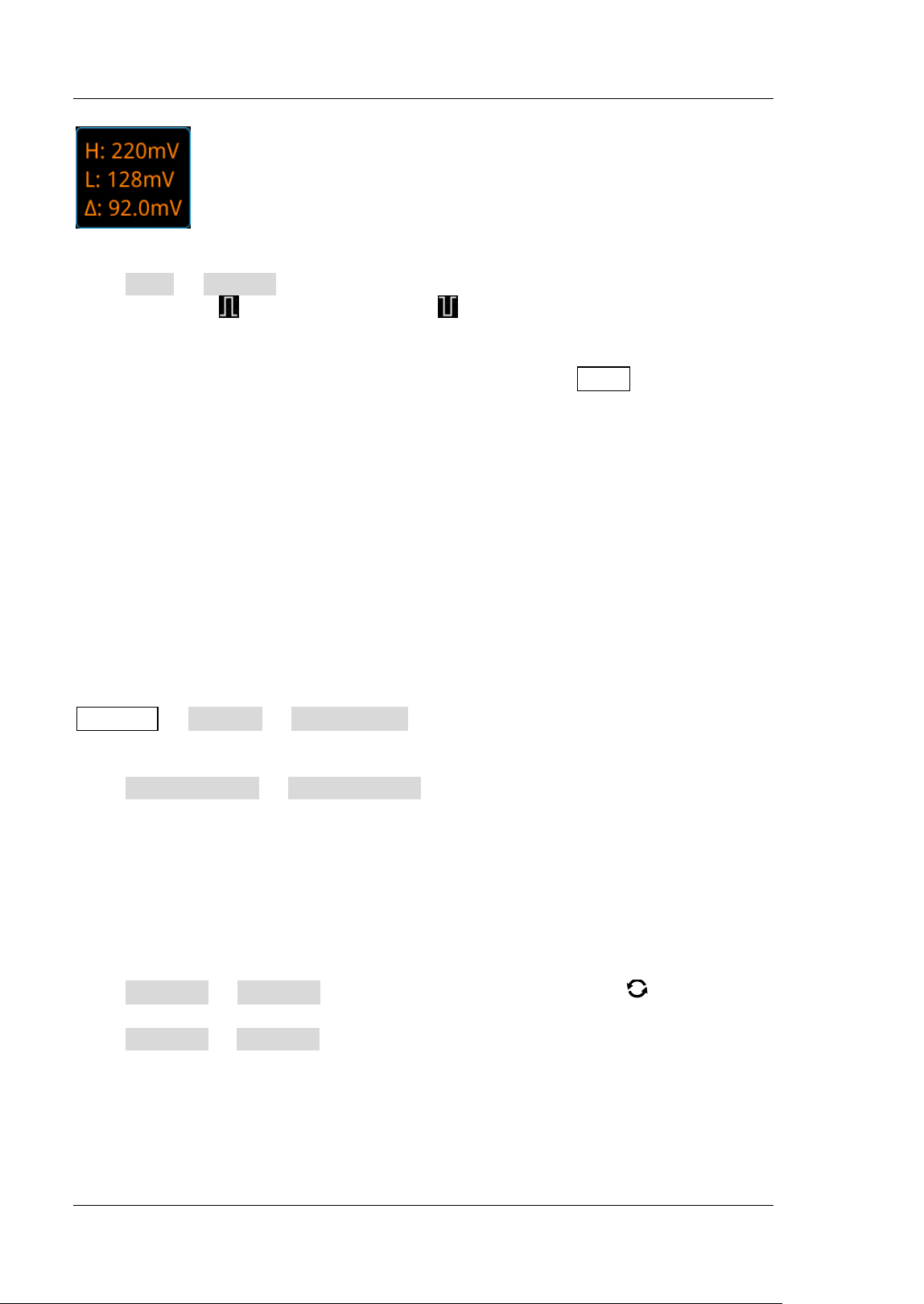
RIGOL Chapter 5 To Trigger the Oscilloscope
5-52 MSO5000-E User Guide
Polarity:
Press More Polarity to select the desired polarity. The polarities available are
positive polarity (
) and negative polarity ( ).
Trigger Mode:
In the trigger control area (Trigger) on the front panel, press Mode to quickly switch
the current trigger mode. For details, refer to descriptions in "Trigger Mode".
Trigger Parameter Setting:
Set the trigger parameter (noise rejection) under this trigger type. For details, refer
to descriptions in "Noise Rejection".
Zone Trigger
MSO5000-E series oscilloscope supports the zone trigger and provides two rectangle
areas: Trigger zone A and Trigger zone B. You can set the trigger conditions to
"I ntersect" or "Not intersect". Refer to "Rectangle Draw ing
" to select "Trigger
zone A" or "Trigger zone B" to open the zone trigger setting menu. You can also press
Measure Analyze Zone trigger to enter the zone trigger setting menu.
Enable or disable Trigger zone A or Trigger zone B:
Press Zone A enable or Zone B enable continuously to enable or disable Trigger
zone A or Trigger zone B. You can also refer to "
Rectangle Drawing" to select
"Trigger zone A" or "Trigger zone B" to enable Trigger zone A or Trigger zone B. I f
both Trigger zone A and Trigger zone B are disabled, then the zone trigger function is
disabled. At this time, you must enable either of them to re-enable the zone trigger.
Note: The zone trigger function is disabled in "XY Mode" and "ROLL Mode
".
Select Source A or Source B:
Press Source A or Source B, then rotate the multifunction knob to select the
desired source, and then press down the knob to select the source. You can also
press Source A or Source B continuously to select the trigger source or enable the
touch screen to tap the desired trigger source and select it. The available sources
include CH1-CH2. The zone name color and the zone color are the same as the color
of the selected source channel.
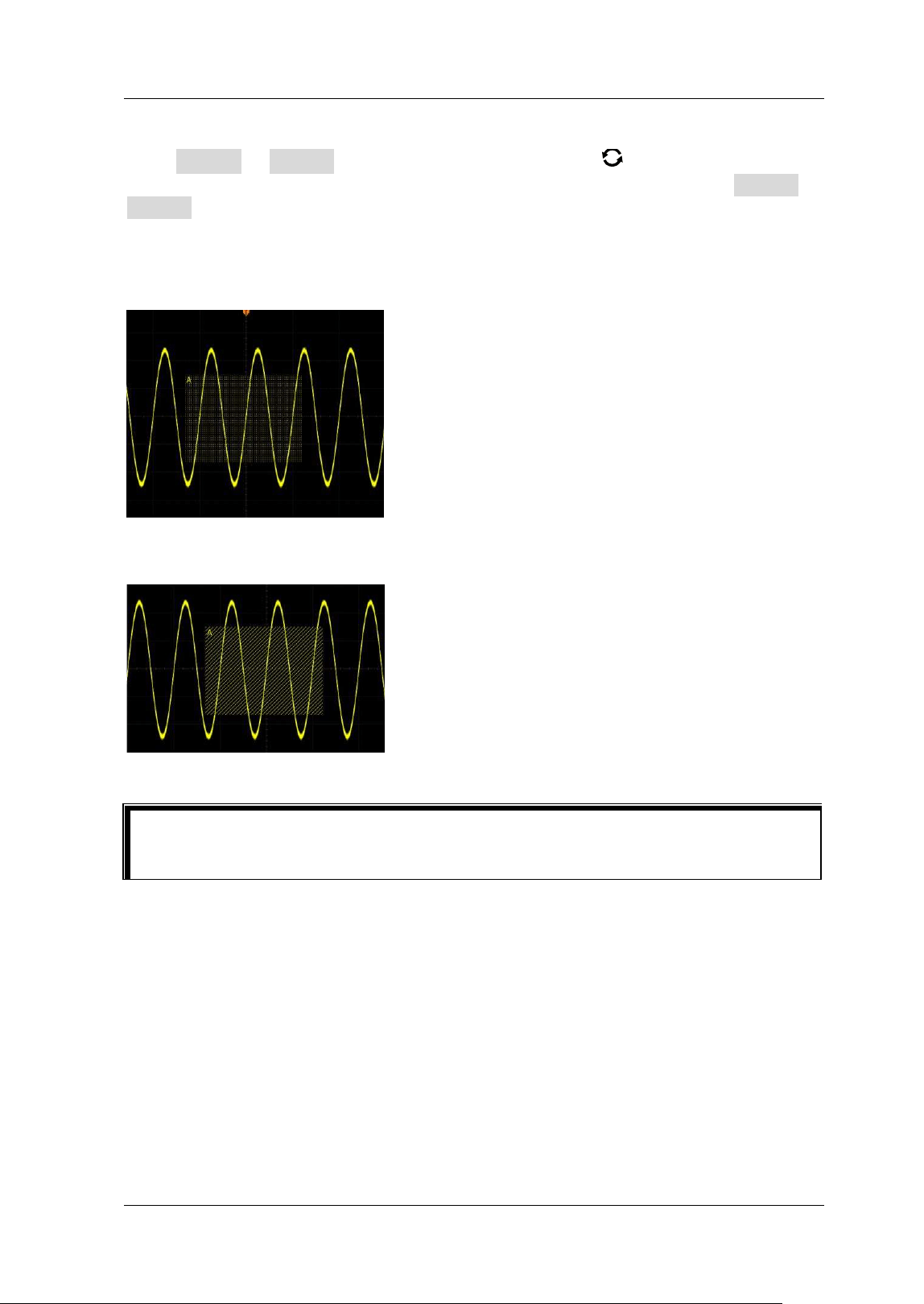
Chapter 5 To Trigger the Oscilloscope RIGOL
MSO5000-E User Guide 5-53
Set the conditions for Trigger zone A and Trigger zone B:
Press Zone A or Zone B , rotate the multifunction knob to select "I ntersect" or
"Not intersect", then press down the knob to select it. You can also press Zone A or
Zone B continuously to select the condition, or enable the touch screen to tap the
desired condition and select it.
I f you enable Zone A, select CH1 as Source A, and select "I ntersect" as the condition,
as shown in the f igure below.
I f you enable Zone A, select CH1 as Source A, and select "I ntersect" as the condition,
the following f igure is displayed.
Trigger Output Connector
The trigger output connector ([ TRI G OUT] ) on the rear panel of MSO5000-E series
can output trigger signals (hardware trigger) determined by the current setting.
Tip
I f you enable both Trigger zone A and Trigger zone B, then perform the "A&&B"
operation, and it will become the f inal trigger condition.
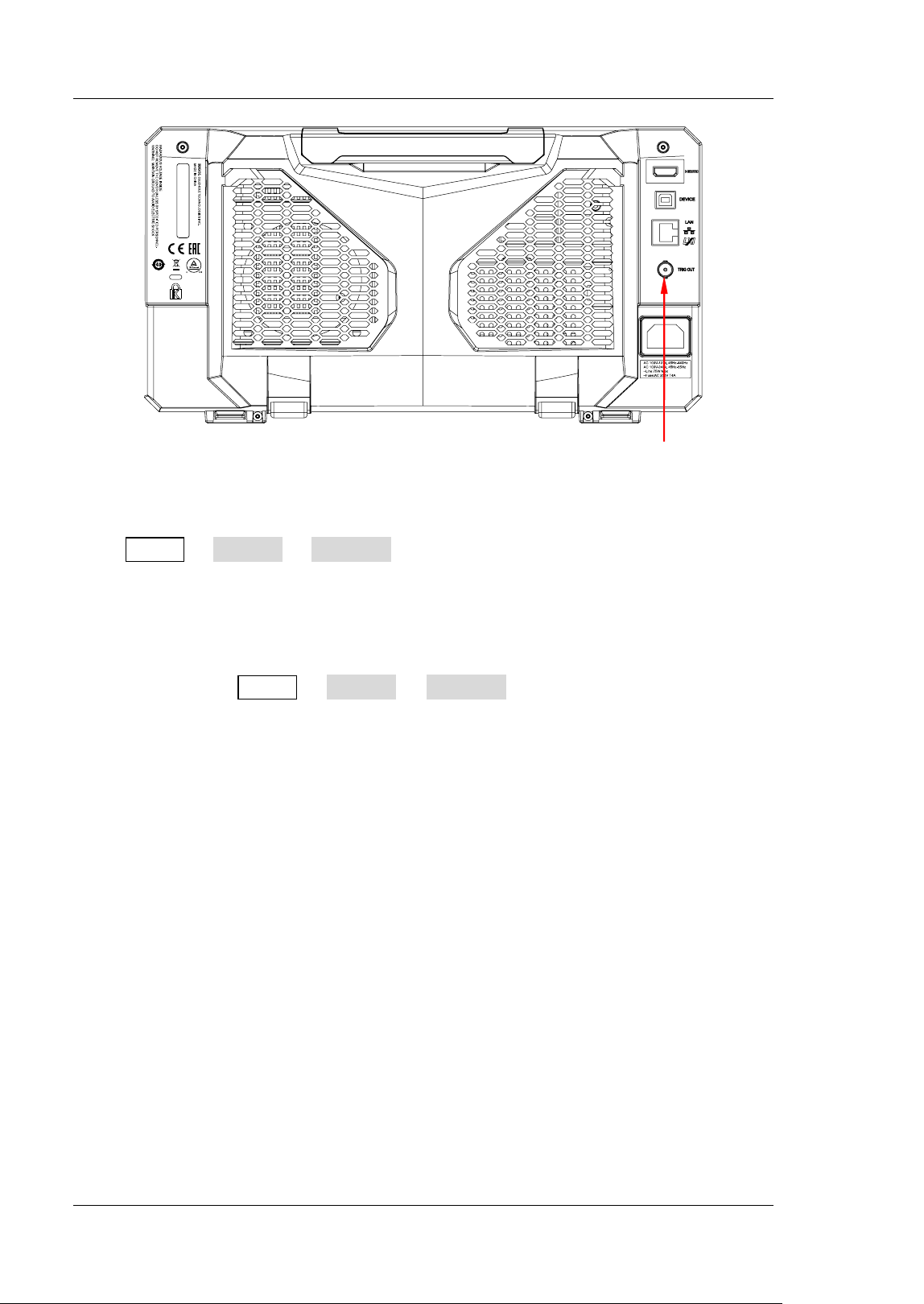
RIGOL Chapter 5 To Trigger the Oscilloscope
5-54 MSO5000-E User Guide
Figure 5-24 Trigger Output Connector
Press Utility System AUX Out to select "TrigOut”. A signal which reflects the
current capture rate of the oscilloscope can be output from the [ TRI G OUT]
connector each time a trigger is generated by the oscilloscope. I f this signal is
connected to a waveform display device to measure the frequency, the measurement
result is the same as the current capture rate.
Note: If you press Utility Syst em AUX Out to select "PassFail", then in the
pass/ fail test, when a pass/ fail event is detected, the oscilloscope outputs a pulse
from the rear-panel [ TRI G OUT] connector.
Trigger Output Connector

Chapter 6 Operations and Measurements RIGOL
MSO5000-E User Guide 6-1
Chapter 6 Operations and Measurements
MSO5000-E can perform math operations, auto measurements, and cursor
measurements on sampled and displayed data.
Contents in this chapter:
Math Operation
Auto Measurement
Cursor Measurement
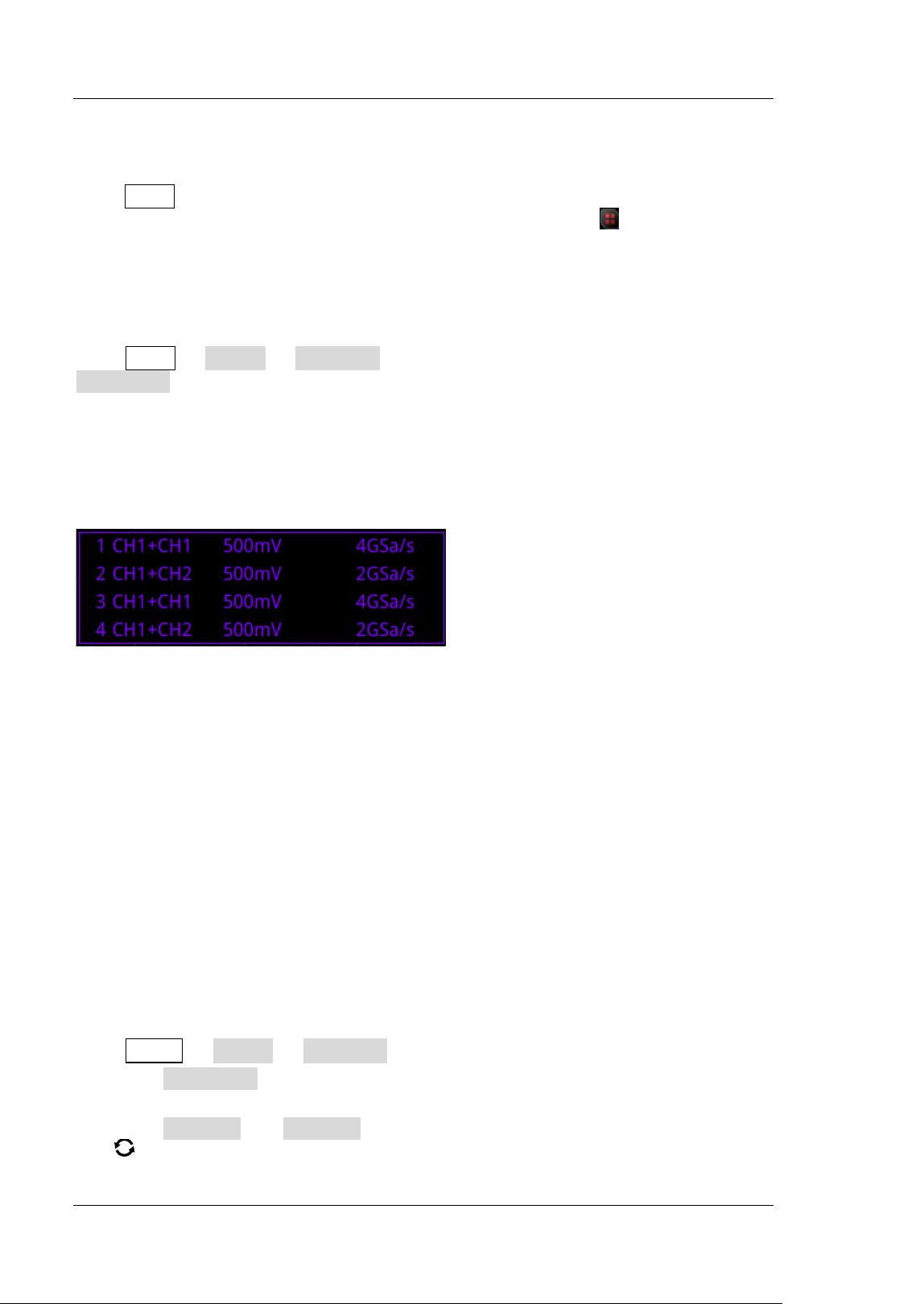
RIGOL Chapter 6 Operations and Measurements
6-2 MSO5000-E User Guide
Math Operation
Press Math in the vertical control area (Vert ical) on the front panel to open the math
operation menu. You can also tap the function navigation icon at the lower-left
corner of the screen to open the function navigation. Then tap the "Math" icon to
open the math operation menu. This oscilloscope supports four math operations:
Math1, Math2, Math3, and Math4. The following section takes Math1 as an example
to introduce the math operation in detail.
Press Math Math1 Operator to select the desired math function. Press
Operation continuously to enable or disable the operation. When enabled, the
results of math operation are displayed with purple waveforms on the screen, and
the math operation formula, vertical scale, and other parameters (the displayed data
parameters are different for different math operations) are displayed at the bottom
of the screen. The results of the math operation can be further measured. This
oscilloscope supports enabling the four math operations at the same time, as shown
in the f igure below.
MSO5000-E series can realize multiple math operations between waveforms of
different channels, including
arithmetic operations (A+ B, A-B, A× B, and A/ B)
FFT operation
logic operation: A&&B, A| | B, A^ B, and !A
function operation: I ntg, Diff, Sqrt, Lg, Ln, Exp, Abs, and AX+ B (linear function)
math f ilter: low-pass f ilter, high-pass f ilter, band-pass f ilter, and band-stop f ilter
Note: When you select the source, only the enabled channel is available.
Addition
Adds the waveform voltage values of signal source A and B point by point and
displays the results.
Press MATH Math1 Operator to select "A+ B":
Press Operation continuously to enable or disable the addition operation
function.
Press SourceA and SourceB respectively, and rotate the multifunction knob
to select the channel for Source A and Source B. Then press down the knob
Chapter 6 Operations and Measurements RIGOL
MSO5000-E User Guide 6-3
to select the channel. You can also press SourceA and SourceB continuously
or enable the touch screen to select the channel. The available channels for
Source A and Source B are CH1-CH2 and Ref1-Ref10.
Note: The available channels for Math2 are CH1-CH2, Ref1-Ref10 or Math1.
The available channels for Math3 are CH1-CH2, Ref1-Ref10, Math1 or Math2.
The available channels for Math4 are CH1-CH2, Ref1-Ref10, Math1, Math2 or
Math3. Only the channels that have been enabled currently can be selected.
Press Offset to set the vertical offset of the operation results. For setting
methods, refer to the descriptions in "
Parameter Setting Method". You can
also enable the touch screen and use the "Drag" gesture to adjust the vertical
offset.
Press Scale to set the vertical scale of the operation results. For setting methods,
refer to the descriptions in "
Parameter Setting Method". You can also enable
the touch screen and use the "Pinch & Stretch" gesture to adjust the vertical
scale.
Press More AutoSetting to adjust the vertical scale and the offset of the
operation results to the optimal value according to the current conf iguration, so
as to better to observe.
Press More I nvert to enable or disable the inverted display function of the
waveform.
Press More Expand to expand or compress the math operation waveform
around the "Center" or "GND".
Press More Label to set the label for math operation results. For details,
refer to descriptions in "
Math Operation Label".
Press More Color Grade to enable or disable the color grade display of the
operation results. When enabled, different colors are displayed on the screen to
indicate the times of data acquisition or acquisition probability.
Press More Reset ColorGrade to clear the color grade display and display
the color grade again.
Subtraction
Subtracts the waveform voltage values of signal source B from that of source A point
by point and displays the results.
Press Math Math1 Operator to select "A-B":
Press Operation continuously to enable or disable the subtraction operation
function.
Press SourceA and SourceB respectively, and rotate the multifunction knob
to select the channel for Source A and Source B. Then press down the knob
to select the channel. You can also press SourceA and SourceB continuously
or enable the touch screen to select the channel. The available channels for
RIGOL Chapter 6 Operations and Measurements
6-4 MSO5000-E User Guide
Source A and Source B are CH1-CH2 and Ref1-Ref10.
Note: The available channels for Math2 are CH1-CH2, Ref1-Ref10 or Math1.
The available channels for Math3 are CH1-CH2, Ref1-Ref10, Math1 or Math2.
The available channels for Math4 are CH1-CH2, Ref1-Ref10, Math1, Math2 or
Math3. Only the channels that have been enabled currently can be selected.
Press Offset to set the vertical offset of the operation results. For setting
methods, refer to the descriptions in "
Parameter Setting Method". You can
also enable the touch screen and use the "Drag" gesture to adjust the vertical
offset.
Press Scale to set the vertical scale of the operation results. For setting methods,
refer to the descriptions in "
Parameter Setting Method". You can also enable
the touch screen and use the "Pinch & Stretch" gesture to adjust the vertical
scale.
Press More AutoSetting to adjust the vertical scale and offset of the
operation results to the optimal value according to the current conf iguration, so
as to better observe.
Press More I nvert to enable or disable the inverted display function of the
waveform.
Press More Expand to expand or compress the math operation waveform
around the "Center" or "GND".
Press More Label to set the label for math operation results. For details,
refer to descriptions in "
Math Operation Label".
Press More Color Grade to enable or disable the color grade display of the
operation results. When enabled, different colors are displayed on the screen to
indicate the times of data acquisition or acquisition probability.
Press More Reset ColorGrade to clear the color grade display and display
the color grade again.
Multiplication
Multiplies the waveform voltage values of signal Source A and B point by point and
displays the results.
Press Math Math1 Operator to select "A× B":
Press Operation continuously to enable or disable the multiplication operation
function.
Press SourceA and SourceB respectively, and rotate the multifunction knob
to select the channel for Source A and Source B. Then press down the knob
to select the channel. You can also press SourceA and SourceB continuously
or enable the touch screen to select the channel. The available channels for
Source A and Source B are CH1-CH2 and Ref1-Ref10.
Note: The available channels for Math2 are CH1-CH2, Ref1-Ref10 or Math1.
Chapter 6 Operations and Measurements RIGOL
MSO5000-E User Guide 6-5
The available channels for Math3 are CH1-CH2, Ref1-Ref10, Math1 or Math2.
The available channels for Math4 are CH1-CH2, Ref1-Ref10, Math1, Math2 or
Math3. Only the channels that have been enabled currently can be selected.
Press Offset to set the vertical offset of the operation results. For setting
methods, refer to the descriptions in "
Parameter Setting Method". You can
also enable the touch screen and use the "Drag" gesture to adjust the vertical
offset.
Press Scale to set the vertical scale of the operation results. For setting methods,
refer to the descriptions in "
Parameter Setting Method". You can also enable
the touch screen and use the "Pinch & Stretch" gesture to adjust the vertical
scale.
Press More AutoSetting to adjust the vertical scale and offset of the
operation results to the optimal value according to the current conf iguration, so
as to better observe.
Press More I nvert to enable or disable the inverted display function of the
waveform.
Press More Expand to expand or compress the measurement waveform
around the "Center" or "GND".
Press More Label to set the label for math operation results. For details,
refer to descriptions in "
Math Operation Label".
Press More Color Grade to enable or disable the color grade display of the
operation results. When enabled, different colors are displayed on the screen to
indicate the times of data acquisition or acquisition probability.
Press More Reset ColorGrade to clear the color grade display and display
the color grade again.
Division
Divides the waveform voltage values of signal source A by that of source B point by
point and displays the results. I t can be used to analyze the multiple relationships of
waveforms of two channels.
Note: When the voltage of signal source B is 0 V, the division result is treated as 0.
Press Math Math1 Operator to select "A÷ B":
Press Operation continuously to enable or disable the division operation
function.
Press SourceA and SourceB respectively, and rotate the multifunction knob
to select the channel for Source A and Source B. Then press down the knob
to select the channel. You can also press SourceA and SourceB continuously
or enable the touch screen to select the channel. The available channels for
Source A and Source B are CH1-CH2 and Ref1-Ref10.
Note: The available channels for Math2 are CH1-CH2, Ref1-Ref10 or Math1.
RIGOL Chapter 6 Operations and Measurements
6-6 MSO5000-E User Guide
The available channels for Math3 are CH1-CH2, Ref1-Ref10, Math1 or Math2.
The available channels for Math4 are CH1-CH2, Ref1-Ref10, Math1, Math2 or
Math3. Only the channels that have been enabled currently can be selected.
Press Offset to set the vertical offset of the operation results. For setting
methods, refer to the descriptions in "
Parameter Setting Method". You can
also enable the touch screen and use the "Drag" gesture to adjust the vertical
offset.
Press Scale to set the vertical scale of the operation results. For setting methods,
refer to the descriptions in "
Parameter Setting Method". You can also enable
the touch screen and use the "Pinch & Stretch" gesture to adjust the vertical
scale.
Press More AutoSetting to adjust the vertical scale and offset of the
operation results to the optimal value according to the current conf iguration, so
as to better observe.
Press More I nvert to enable or disable the inverted display function of the
waveform.
Press More Expand to expand or compress the measurement waveform
around the "Center" or "GND".
Press More Label to set the label for math operation results. For details,
refer to descriptions in "
Math Operation Label".
Press More Color Grade to enable or disable the color grade display of the
operation results. When enabled, different colors are displayed on the screen to
indicate the times of data acquisition or acquisition probability.
Press More Reset ColorGrade to clear the color grade display and display
the color grade again.
FFT
FFT (Fast Fourier Transform) is used to transform time-domain signals to
frequency-domain components (frequency spectrum). MSO5000-E series
oscilloscope provides FFT operation function which enables you to observe the
time-domain waveform and spectrum of the signal at the same time. FFT operation
can facilitate the following works:
Measure harmonic components and distortion in the system;
Display the characteristics of the noise in DC power;
Analyze vibration.
Press Math Math1 Operator to select "FFT":
Press Operation continuously to enable or disable the FFT operation function.
When enabled, the operation results are displayed as purple waveforms on the
screen. At the same time, the parameters such as vertical scale, center
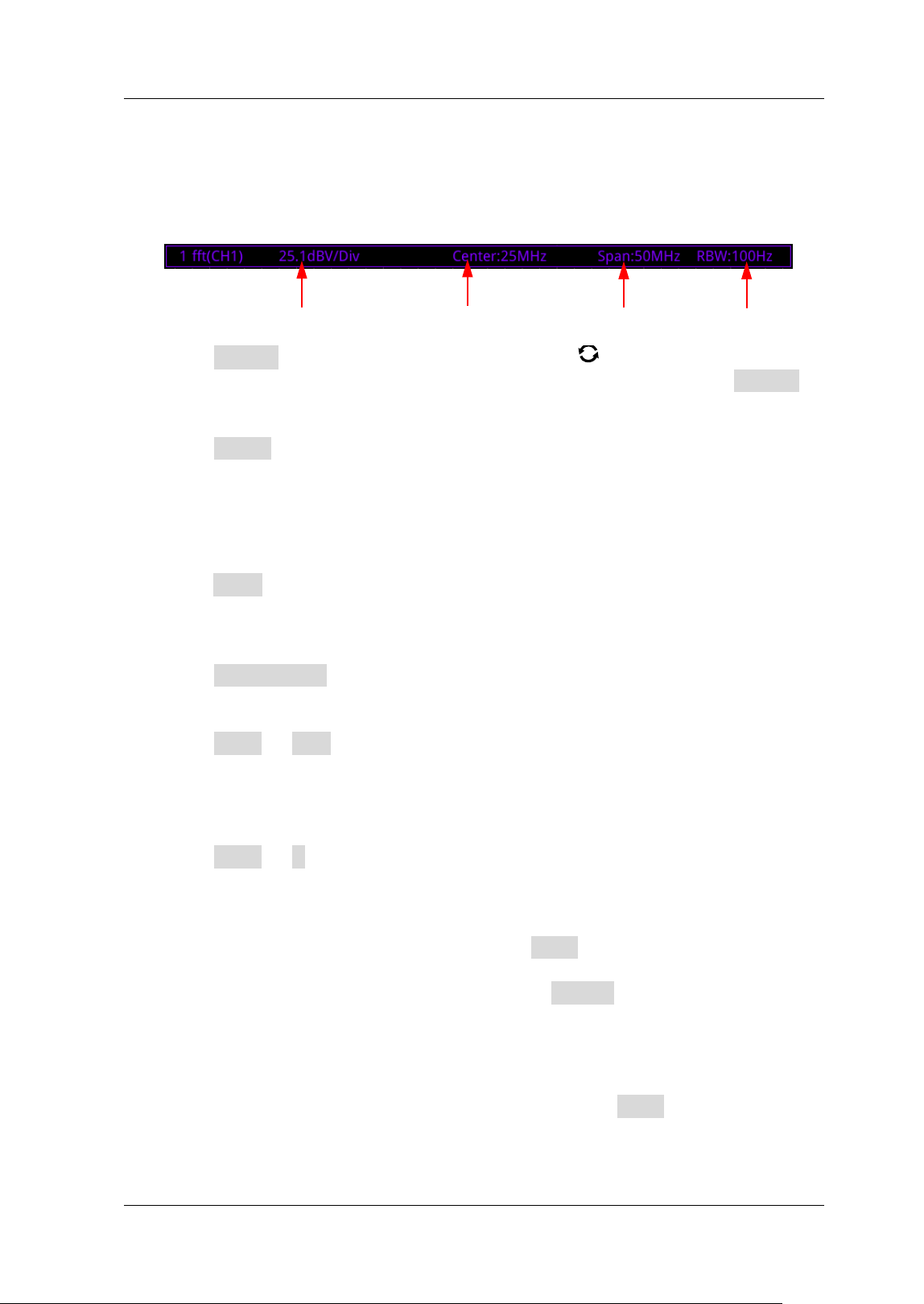
Chapter 6 Operations and Measurements RIGOL
MSO5000-E User Guide 6-7
frequency, and resolution are displayed at the bottom of the screen, as shown in
the following f igure. Of which, FFT resolution is the quotient of the sample rate
and the number of FFT points. I f the number of FFT points is a f ixed value
(65535 at most), then the lower the sample rate, the higher the resolution.
Press Source, and rotate the multifunction knob to select the channel.
Then press down the knob to select the channel. You can also press Source
continuously or enable the touch screen to select the channel. The available
channels are CH1 and CH2.
Press Offset to set the vertical offset of the operation results. For setting
methods, refer to the descriptions in "
Parameter Setting Method". You can
also enable the touch screen and use the "Drag" gesture to adjust the vertical
offset. I f the source channel unit is set to "V", then the unit of the offset is
displayed as dBV. I f the source channel unit is set to other units, then the unit of
the offset is displayed as dB.
Press Scale to set the vertical scale of the operation results. For setting methods,
refer to the descriptions in "
Parameter Setting Method". You can also enable
the touch screen and use the "Pinch & Stretch" gesture to adjust the vertical
scale.
Press AutoSetting to adjust the vertical scale and offset of the operation
results to the optimal value according to the current conf iguration, so as to
better observe.
Press More Unit to select the vertical unit. The vertical unit can be set to
dBm/ dBV or Vrms. The vertical amplitude can be expressed both in log form and
linear form, with dBm/ dBV and Vrms as the unit respectively. I f you need to
display the FFT spectrum within a larger dynamic range, dBm/ dBV is
recommended.
Press More X continuously to select "Span-Center" (frequency range to
center frequency) or "Start-End" (start frequency to stop frequency).
"Span-Center" (frequency range to center frequency): the frequency range
refers to the screen width, and you can divide the frequency range by 10 to
obtain the frequency per division. Press Span to set the frequency range of
the frequency-domain waveform. For setting methods, refer to descriptions
in "Parameter Setting Method". Press Center to set the frequency of
the frequency-domain waveform relative to the horizontal center of the
screen. For setting methods, refer to descriptions in "Parameter Setting
Method".
"Start-End" (start frequency to stop frequency): start frequency refers to
the frequency at the left side of the screen. Press Start to set the start
frequency of the frequency-domain waveform. For setting methods, refer to
descriptions in "
Parameter Setting Method". Stop frequency refers to
Vertical Scale Center Frequency Span Resolution
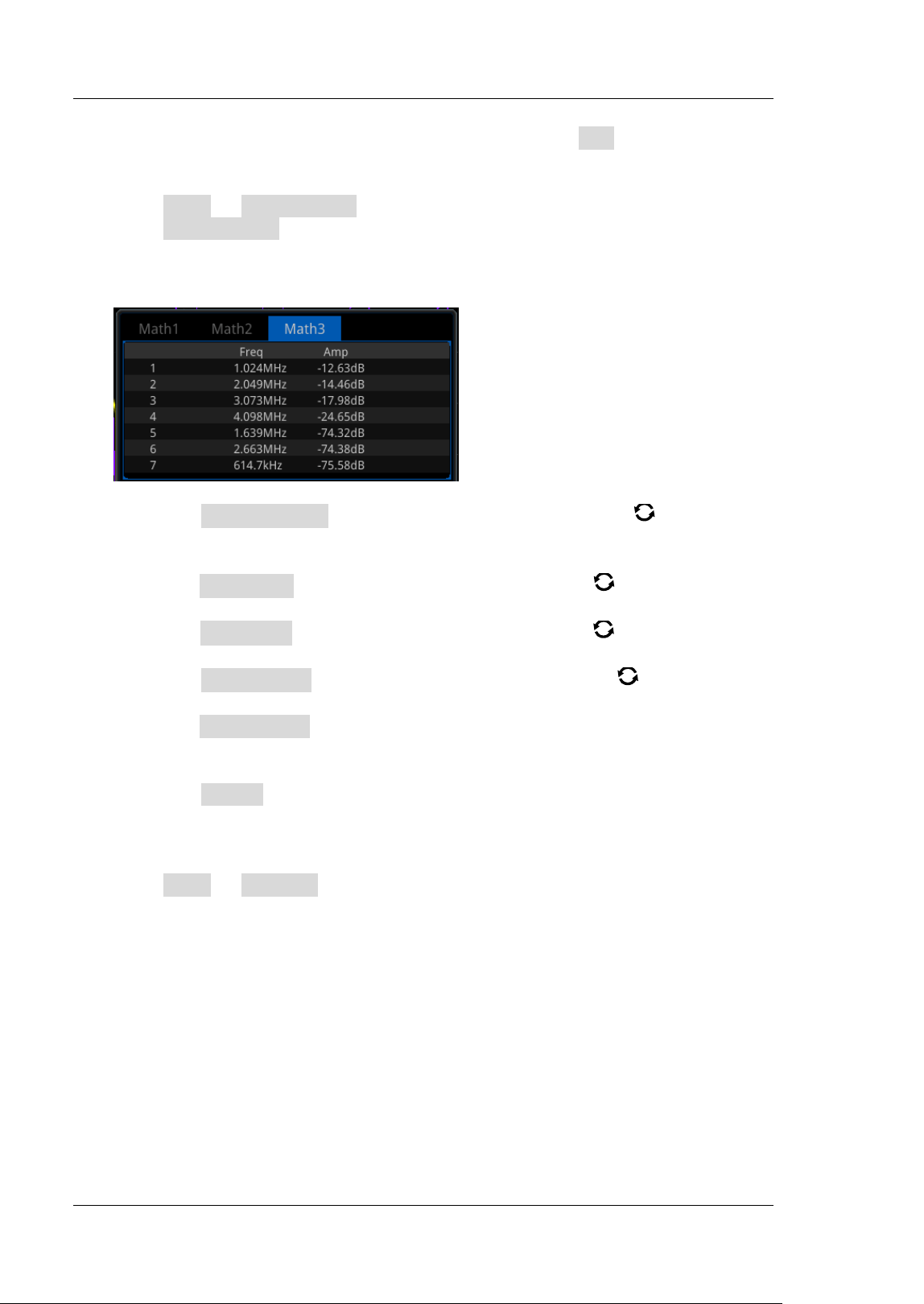
RIGOL Chapter 6 Operations and Measurements
6-8 MSO5000-E User Guide
the frequency at the right side of the screen. Press End to set the stop
frequency of the frequency-domain waveform. For setting methods, refer to
descriptions in "
Parameter Setting Method".
Press More Peak Search to enter the peak search menu.
Press Peak Search continuously to enable or disable the peak search function.
When enabled, the peak search results are displayed on the screen, as shown in
the f igure below. Enable the touch screen and tap the "Math" label at the top of
the peak search results to switch among Math1-Math4.
Press Peak Number, then rotate the multifunction knob or use the
pop-up numeric keypad to set the number of peaks. The available range is
from 1 to 15. By default, it is 5.
Press Threshold, then rotate the multifunction knob or use the pop-up
numeric keypad to set the threshold of the peak.
Press Excursion, then rotate the multifunction knob or use the pop-up
numeric keypad to set the excursion of the peak.
Press Table Order, then rotate the multifunction knob to select the
sorting mode of the peak. Press down the knob to select it. You can also
press Table Order continuously or enable the touch screen to select it. The
available sorting mode is "Amp Order" and "Freq Order". By default, it is
"Amp Order".
Press Export, and the save setting menu is displayed. You can export the
peak search results to the internal memory or the external USB storage
device in CSV format. For detailed saving operation, refer to descriptions in
"
Store and Load".
Press More Window to select the desired window function.
Spectral leakage can be considerably decreased when a window function is used.
MSO5000-E series provides 6 FFT window functions (as shown in Ta b l e 6-1)
which have different characteristics and are applicable to measuring different
waveforms. You need to select the window function according to the
characteristics of the waveform to be measured.
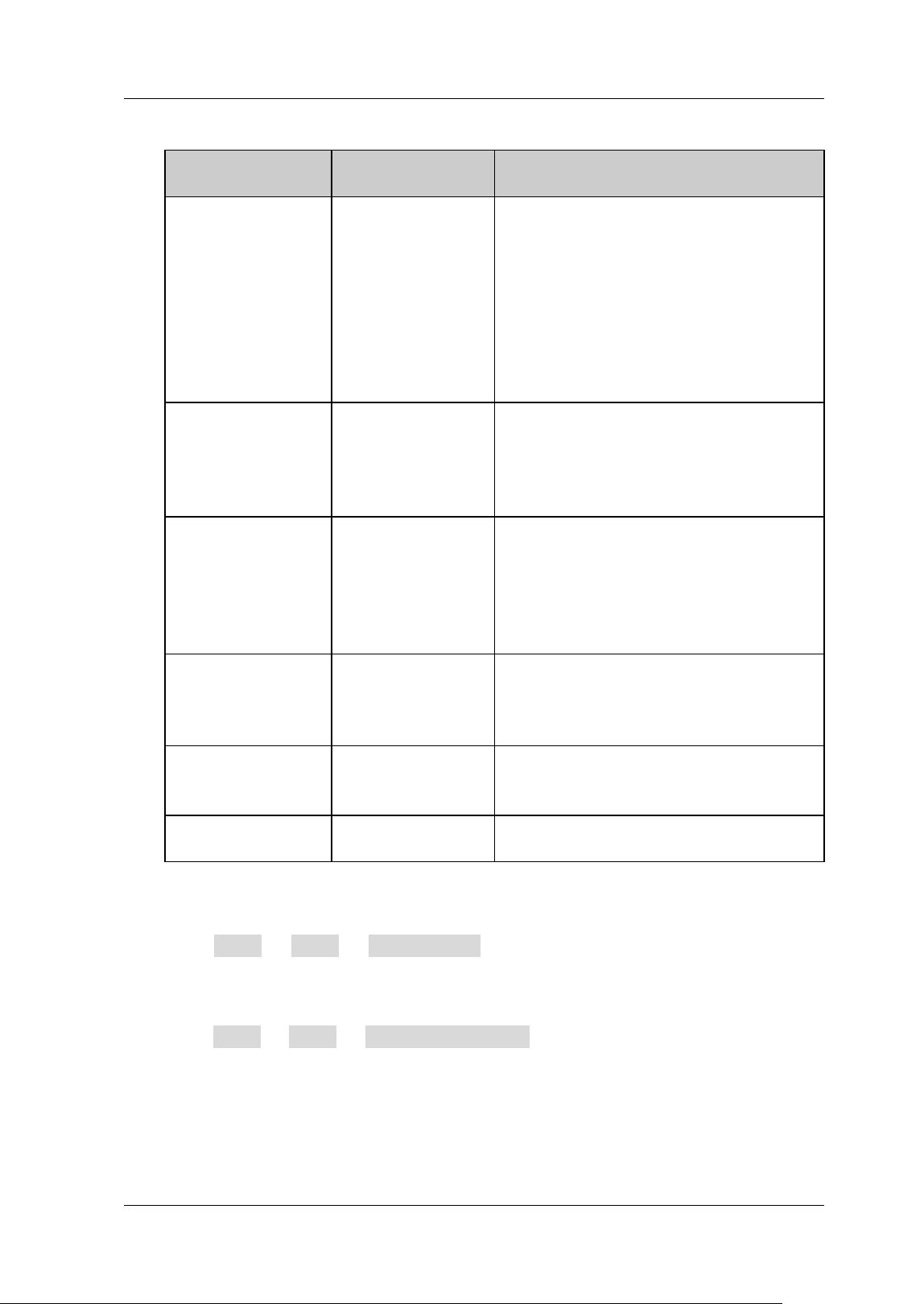
Chapter 6 Operations and Measurements RIGOL
MSO5000-E User Guide 6-9
Ta b l e 6-1 Window Function
Window
Function
Characteristics
Waveforms Applicable to the
Window Function
Rectangular
Best frequency
resolution
Poorest
amplitude
resolution
Similar to the
situation when
no window is
applied.
Transient or short pulse, the signal
levels before and after the
multiplication are basically the same.
Sine waveforms with the same
amplitudes and rather similar
frequencies.
Wide band random noise with
relatively slow change of waveform
spectrum.
Blackman-Harris
Best amplitude
resolution
Poorest
frequency
resolution
Single frequency signal, searching for
higher order harmonics.
Hanning
Better frequency
resolution and
poorer amplitude
resolution
compared with
Rectangular
Sine, periodic, and narrow band
random noise.
Hamming
A little bit better
frequency
resolution than
Hanning
Transient or short pulse, the signal
levels before and after the
multiplication are rather different.
Flattop
Measure the
signals
accurately
Measure the signal that has no
accurate reference and requires an
accurate measurement
Triangle
Better frequency
resolution
Measure the narrow band signal and
that has strong noise interference
For FFT math operation setting label, refer to descriptions in "Math Operation
Label".
Press More More Color Grade to enable or disable the color grade
display of the FFT operation results. When enabled, different colors are
displayed on the screen to indicate the times of data acquisition or acquisition
probability.
Press More More Reset ColorGrade to clear the color grade display and
display the color grade again.
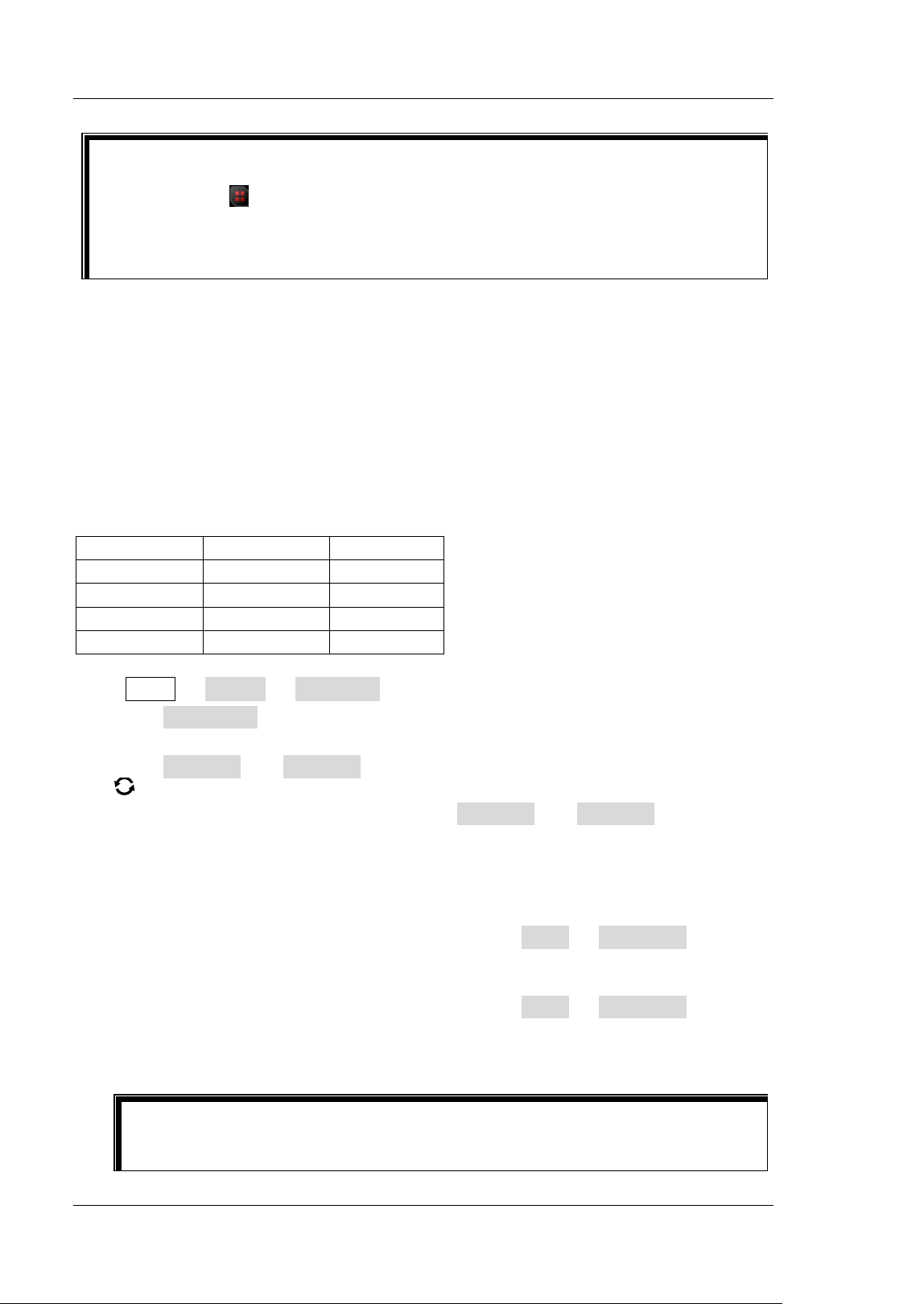
RIGOL Chapter 6 Operations and Measurements
6-10 MSO5000-E User Guide
"AND" Operation
Performs logic "AND" operation on the waveform voltage values of the specified
sources point by point and displays the results. In operation, when the voltage value
of the source channel is greater than the threshold of the corresponding channel, it is
regarded as logic "1"; otherwise it is logic "0". The results of logic AND operation of
two binary bits are shown in Ta b l e 6-2.
Ta b l e 6-2 Logic "AND" Operation
A
B
A&&B
0
0
0
0
1
0
1
0
0
1
1
1
Press Math Math1 Operator to select "A&&B":
Press Operation continuously to enable or disable the "AND" operation
function.
Press SourceA and SourceB respectively, and rotate the multifunction knob
to select the channel for Source A and Source B. Then press down the knob
to select the channel. You can also press SourceA and SourceB continuously
or enable the touch screen to select the channel. The available channels for
Source A and Source B are CH1-CH2 and D0-D15.
Note: Only the channels that have been enabled currently can be selected.
I f Source A (or Source B) selects CH1, press More Thre.CH1 to set the
threshold of Source A (or Source B) in logic operation. For setting methods,
refer to descriptions in "
Parameter Setting Method".
I f Source A (or Source B) selects CH2, press More Thre.CH2 to set the
threshold of Source A (or Source B) in logic operation. For setting methods,
refer to descriptions in "
Parameter Setting Method".
Tip
FFT shortcut operation: Enable the touch screen, and then tap the function
navigation icon
at the lower-left corner of the screen to open the function
navigation. Then, tap the "FFT" icon to open the FFT menu. This oscilloscope
supports 4 FFTs: FFT1, FFT2, FFT3, and FFT4. For details, refer to the
descriptions in this section.
Tip
The thresholds of the digital channels (D0-D15) are respectively set in the LA
module.
Chapter 6 Operations and Measurements RIGOL
MSO5000-E User Guide 6-11
Press Offset, and then rotate the multifunction knob to adjust the vertical
offset of the operation results. You can also enable the touch screen and use the
"Drag" gesture to adjust the vertical offset.
Press Size, and then rotate the multifunction knob to select the waveform
size. Press down the knob to select it. You can also press Size continuously or
enable the touch screen to select it. The available sizes include "Small",
"Medium", and "Large".
Press More AutoSetting to adjust the vertical scale and offset of the
operation results to the optimal value according to the current conf iguration, so
as to better observe.
Press More Sensitivity to set the sensitivity of the digital signal converted
from the analog signal on the source. For setting methods, refer to descriptions
in "
Parameter Setting Method".
Press More Label to set the label for math operation results. For details,
refer to descriptions in "
Math Operation Label".
"OR" Operation
Performs logic "OR" operation on the waveform voltage values of the specif ied
sources point by point and displays the results. In operation, when the voltage value
of the source channel is greater than the threshold of the corresponding channel, it is
regarded as logic "1"; otherwise it is logic "0". The results of logic OR operation of
two binary bits are as shown in Ta b l e 6-3.
Ta b l e 6-3 Logic "OR" Operation
A
B
A| | B
0
0
0
0
1
1
1
0
1
1
1
1
Press Math Math1 Operator to select "A| | B":
Press Operation continuously to enable or disable the "OR" operation function.
Press SourceA and SourceB respectively, and rotate the multifunction knob
to select the channel for Source A and Source B. Then press down the knob
to select the channel. You can also press SourceA and SourceB continuously
or enable the touch screen to select the channel. The available channels for
Source A and Source B are CH1-CH2 and D0-D15.
Note: Only the channels that have been enabled currently can be selected.
I f Source A (or Source B) selects CH1, press More Thre.CH1 to set the
threshold of Source A (or Source B) in logic operation. For setting methods,
RIGOL Chapter 6 Operations and Measurements
6-12 MSO5000-E User Guide
refer to descriptions in "Parameter Setting Method".
I f Source A (or Source B) selects CH2, press More Thre.CH2 to set the
threshold of Source A (or Source B) in logic operation. For setting methods,
refer to descriptions in "
Parameter Setting Method".
Press Offset, and then rotate the multifunction knob to adjust the vertical
offset of the operation results. You can also enable the touch screen and use the
"Drag" gesture to adjust the vertical offset.
Press Size, and then rotate the multifunction knob to select the waveform
size. Press down the knob to select it. You can also press Size continuously or
enable the touch screen to select it. The available sizes include "Small",
"Medium", and "Large".
Press More AutoSetting to adjust the vertical scale and offset of the
operation results to the optimal value according to the current conf iguration, so
as to better observe.
Press More Sensitivity to set the sensitivity of the digital signal converted
from the analog signal on the source. For setting methods, refer to descriptions
in "
Parameter Setting Method".
Press More Label to set the label for math operation results. For details,
refer to descriptions in "
Math Operation Label".
"XOR" Operation
Performs logic "XOR" operation on the waveform voltage values of the specified
sources point by point and displays the results. In operation, when the voltage value
of the source channel is greater than the threshold of the corresponding channel, it is
regarded as logic "1"; otherwise it is logic "0". The results of logic XOR operation of
two binary bits are as shown in Ta b l e 6-4.
Ta b l e 6-4 Logic "XOR" Operation
A
B
A^ B
0
0
0
0
1
1
1
0
1
1
1
0
Press Math Math1 Operator to select "A^ B":
Press Operation continuously to enable or disable the "XOR" operation
function.
Press SourceA and SourceB respectively, and rotate the multifunction knob
to select the channel for Source A and Source B. Then press down the knob
to select the channel. You can also press SourceA and SourceB continuously
Chapter 6 Operations and Measurements RIGOL
MSO5000-E User Guide 6-13
or enable the touch screen to select the channel. The available channels for
Source A and Source B are CH1-CH2 and D0-D15.
Note: Only the channels that have been enabled currently can be selected.
I f Source A (or Source B) selects CH1, press More Thre.CH1 to set the
threshold of Source A (or Source B) in logic operation. For setting methods,
refer to descriptions in "
Parameter Setting Method".
I f Source A (or Source B) selects CH2, press More Thre.CH2 to set the
threshold of Source A (or Source B) in logic operation. For setting methods,
refer to descriptions in "
Parameter Setting Method".
Press Offset, and then rotate the multifunction knob to adjust the vertical
offset of the operation results. You can also enable the touch screen and use the
"Drag" gesture to adjust the vertical offset.
Press Size, and then rotate the multifunction knob to select the waveform
size. Press down the knob to select it. You can also press Size continuously or
enable the touch screen to select it. The available sizes include "Small",
"Medium", and "Large".
Press More AutoSetting to adjust the vertical scale and offset of the
operation results to the optimal value according to the current conf iguration, so
as to better observe.
Press More Sensitivity to set the sensitivity of the digital signal converted
from the analog signal on the source. For setting methods, refer to descriptions
in "
Parameter Setting Method".
Press More Label to set the label for math operation results. For details,
refer to descriptions in "
Math Operation Label".
"NOT" Operation
Performs logic "NOT" operation on the waveform voltage values of the specified
sources point by point and displays the results. In operation, when the voltage value
of the source channel is greater than the threshold of the corresponding channel, it is
regarded as logic "1"; otherwise it is logic "0". The results of logic "NOT" operation of
two binary bits are as shown in Ta b l e 6-5.
Ta b l e 6-5 Logic "NOT" Operation
A
!A
0
1
1
0
Press Math Math1 Operator to select "!A":
Press Operation continuously to enable or disable the "NOT" operation
RIGOL Chapter 6 Operations and Measurements
6-14 MSO5000-E User Guide
function.
Press SourceA, and rotate the multifunction knob to select the channel for
Source A. Then press down the knob to select the channel. You can also press
SourceA continuously or enable the touch screen to select the channel. The
available channels for Source A and Source B are CH1-CH2 and D0-D15.
Note: Only the channels that have been enabled currently can be selected.
I f Source A (or Source B) selects CH1, press More Thre.CH1 to set the
threshold of Source A (or Source B) in logic operation. For setting methods,
refer to descriptions in "
Parameter Setting Method".
I f Source A (or Source B) selects CH2, press More Thre.CH2 to set the
threshold of Source A (or Source B) in logic operation. For setting methods,
refer to descriptions in "
Parameter Setting Method".
Press Offset, and then rotate the multifunction knob to adjust the vertical
offset of the operation results. You can also enable the touch screen and use the
"Drag" gesture to adjust the vertical offset.
Press Size, and then rotate the multifunction knob to select the waveform
size. Press down the knob to select it. You can also press Size continuously or
enable the touch screen to select it. The available sizes include "Small",
"Medium", and "Large".
Press AutoSetting to adjust the vertical scale and offset of the operation
results to the optimal value according to the current conf iguration, so as to
better observe.
Press More Sensitivity to set the sensitivity of the digital signal converted
from the analog signal on the source. For setting methods, refer to descriptions
in "
Parameter Setting Method".
Press More Label to set the label for math operation results. For details,
refer to descriptions in "
Math Operation Label".
I ntg
Calculates the integral of the selected source. For example, you can use integral to
measure the area under a waveform or the pulse energy.
Press Math Math1 Operator to select "I ntg":
Press Operation continuously to enable or disable the "I ntg" operation
function.
Press SourceA, and rotate the multifunction knob to select the channel for
Source A. Then press down the knob to select the channel. You can also press
SourceA continuously or enable the touch screen to select the channel. The
available channels include CH1-CH2 and Ref1-Ref10.
Chapter 6 Operations and Measurements RIGOL
MSO5000-E User Guide 6-15
Note: The available channels for Math2 are CH1-CH2, Ref1-Ref10 or Math1.
The available channels for Math3 are CH1-CH2, Ref1-Ref10, Math1 or Math2.
The available channels for Math4 are CH1-CH2, Ref1-Ref10, Math1, Math2 or
Math3. Only the channels that have been enabled currently can be selected.
Press Offset to set the vertical offset of the operation results. For setting
methods, refer to the descriptions in "
Parameter Setting Method". You can
also enable the touch screen and use the "Drag" gesture to adjust the vertical
offset.
Press Scale to set the vertical scale of the operation results. For setting methods,
refer to the descriptions in "
Parameter Setting Method". You can also enable
the touch screen and use the "Pinch & Stretch" gesture to adjust the vertical
scale.
Press AutoSetting to adjust the vertical scale and offset of the operation
results to an optimal value based on the current conf iguration, so as to better
observe.
Press More Bias to set the DC offset correction factor for the input signal.
Note that this parameter can only be set by using the numeric keypad.
Press More I nvert to enable or disable the inverted display function of the
waveform.
Press More Label to set the label for math operation results. For details,
refer to descriptions in "
Math Operation Label".
Press More Color Grade to enable or disable the color grade display of the
operation results. When enabled, different colors are displayed on the screen to
indicate the times of data acquisition or acquisition probability.
Press More Reset ColorGrade to clear the color grade display and display
the color grade again.
Diff
Calculates the discrete time derivative of the selected source. For example, you can
use differentiate to measure the instantaneous slope of a waveform.
Press Math Math1 Operator to select "Diff ":
Press Operation continuously to enable or disable the "Diff" operation function.
Press SourceA, and rotate the multifunction knob to select the channel for
Source A. Then press down the knob to select the channel. You can also press
SourceA continuously or enable the touch screen to select the channel. The
available channels for Source A are CH1-CH2 and Ref1-Ref10.
Note: The available channels for Math2 are CH1-CH2, Ref1-Ref10 or Math1.
The available channels for Math3 are CH1-CH2, Ref1-Ref10, Math1 or Math2.
The available channels for Math4 are CH1-CH2, Ref1-Ref10, Math1, Math2 or
Math3. Only the channels that have been enabled currently can be selected.
RIGOL Chapter 6 Operations and Measurements
6-16 MSO5000-E User Guide
Press Offset to set the vertical offset of the operation results. For setting
methods, refer to the descriptions in "
Parameter Setting Method". You can
also enable the touch screen and use the "Drag" gesture to adjust the vertical
offset.
Press Scale to set the vertical scale of the operation results. For setting methods,
refer to the descriptions in "
Parameter Setting Method". You can also enable
the touch screen and use the "Pinch & Stretch" gesture to adjust the vertical
scale.
Press AutoSetting to adjust the vertical scale and offset of the operation
results to an optimal value based on the current conf iguration, so as to better
observe.
Press More Smooth to set the number of smoothing times in differential
operation. For setting methods, refer to descriptions in "
Parameter Setting
Method".
Note: As the high-frequency component of waveform data has a great impact
on the differential operation, you need to adjust the parameter "Smooth" to a
larger value, so as to restore the low-frequency component.
Press More I nvert to enable or disable the inverted display function of the
waveform.
Press More Label to set the label for math operation results. For details,
refer to descriptions in "
Math Operation Label".
Press More Color Grade to enable or disable the color grade display of the
operation results. When enabled, different colors are displayed on the screen to
indicate the times of data acquisition or acquisition probability.
Press More Reset ColorGrade to clear the color grade display and display
the color grade again.
Sqrt
Calculates the square root of the selected source point by point and displays the
results.
Press Math Math1 Operator to select "Sqrt":
Press Operation continuously to enable or disable the "Sqrt" operation
function.
Press SourceA, and rotate the multifunction knob to select the channel for
Source A. Then press down the knob to select the channel. You can also press
SourceA continuously or enable the touch screen to select the channel. The
Tip
Because differentiation is very sensitive to noise, it is helpful to set acquisition
mode to "Average".
Chapter 6 Operations and Measurements RIGOL
MSO5000-E User Guide 6-17
available channels for Source A are CH1-CH2 and Ref1-Ref10.
Note: The available channels for Math2 are CH1-CH2, Ref1-Ref10 or Math1.
The available channels for Math3 are CH1-CH2, Ref1-Ref10, Math1 or Math2.
The available channels for Math4 are CH1-CH2, Ref1-Ref10, Math1, Math2 or
Math3. Only the channels that have been enabled currently can be selected.
Press Offset to set the vertical offset of the operation results. For setting
methods, refer to the descriptions in "
Parameter Setting Method". You can
also enable the touch screen and use the "Drag" gesture to adjust the vertical
offset.
Press Scale to set the vertical scale of the operation results. For setting methods,
refer to the descriptions in "
Parameter Setting Method". You can also enable
the touch screen and use the "Pinch & Stretch" gesture to adjust the vertical
scale.
Press AutoSetting to adjust the vertical scale and offset of the operation
results to an optimal value based on the current conf iguration, so as to better
observe.
Press More I nvert to enable or disable the inverted display function of the
waveform.
Press More Label to set the label for math operation results. For details,
refer to descriptions in "
Math Operation Label".
Press More Color Grade to enable or disable the color grade display of the
operation results. When enabled, different colors are displayed on the screen to
indicate the times of data acquisition or acquisition probability.
Press More Reset ColorGrade to clear the color grade display and display
the color grade again.
Lg ( Base 10 Exponential)
Calculates the base 10 exponential of the selected source point by point and displays
the results.
Press Math Math1 Operator to select "Lg":
Press Operation continuously to enable or disable the "Lg" operation function.
Press SourceA, and rotate the multifunction knob to select the channel for
Source A. Then press down the knob to select the channel. You can also press
SourceA continuously or enable the touch screen to select the channel. The
available channels for Source A are CH1-CH2 and Ref1-Ref10.
Note: The available channels for Math2 are CH1-CH2, Ref1-Ref10 or Math1.
The available channels for Math3 are CH1-CH2, Ref1-Ref10, Math1 or Math2.
The available channels for Math4 are CH1-CH2, Ref1-Ref10, Math1, Math2 or
Math3. Only the channels that have been enabled currently can be selected.
Press Offset to set the vertical offset of the operation results. For setting
RIGOL Chapter 6 Operations and Measurements
6-18 MSO5000-E User Guide
methods, refer to the descriptions in "Parameter Setting Method". You can
also enable the touch screen and use the "Drag" gesture to adjust the vertical
offset.
Press Scale to set the vertical scale of the operation results. For setting methods,
refer to the descriptions in "
Parameter Setting Method". You can also enable
the touch screen and use the "Pinch & Stretch" gesture to adjust the vertical
scale.
Press AutoSetting to adjust the vertical scale and offset of the operation
results to an optimal value based on the current conf iguration, so as to better
observe.
Press More I nvert to enable or disable the inverted display function of the
waveform.
Press More Label to set the label for math operation results. For details,
refer to descriptions in "
Math Operation Label".
Press More Color Grade to enable or disable the color grade display of the
operation results. When enabled, different colors are displayed on the screen to
indicate the times of data acquisition or acquisition probability.
Press More Reset ColorGrade to clear the color grade display and display
the color grade again.
Ln
Calculates the natural logarithm (Ln) of the selected source point by point and
displays the results.
Press Math Math1 Operator to select "Ln":
Press Operation continuously to enable or disable the "Ln" operation function.
Press SourceA, and rotate the multifunction knob to select the channel for
Source A. Then press down the knob to select the channel. You can also press
SourceA continuously or enable the touch screen to select the channel. The
available channels for Source A are CH1-CH2 and Ref1-Ref10.
Note: The available channels for Math2 are CH1-CH2, Ref1-Ref10 or Math1.
The available channels for Math3 are CH1-CH2, Ref1-Ref10, Math1 or Math2.
The available channels for Math4 are CH1-CH2, Ref1-Ref10, Math1, Math2 or
Math3. Only the channels that have been enabled currently can be selected.
Press Offset to set the vertical offset of the operation results. For setting
methods, refer to the descriptions in "
Parameter Setting Method". You can
also enable the touch screen and use the "Drag" gesture to adjust the vertical
offset.
Press Scale to set the vertical scale of the operation results. For setting methods,
refer to the descriptions in "
Parameter Setting Method". You can also enable
the touch screen and use the "Pinch & Stretch" gesture to adjust the vertical
Chapter 6 Operations and Measurements RIGOL
MSO5000-E User Guide 6-19
scale.
Press AutoSetting to adjust the vertical scale and offset of the operation
results to an optimal value based on the current conf iguration, so as to better
observe.
Press More I nvert to enable or disable the inverted display function of the
waveform.
Press More Label to set the label for math operation results. For details,
refer to descriptions in "
Math Operation Label".
Press More Color Grade to enable or disable the color grade display of the
operation results. When enabled, different colors are displayed on the screen to
indicate the times of data acquisition or acquisition probability.
Press More Reset ColorGrade to clear the color grade display and display
the color grade again.
Exp
Calculates the exponential of the selected source point by point and displays the
results.
Press Math Math1 Operator to select "Exp":
Press Operation continuously to enable or disable the "Exp" operation function.
Press SourceA, and rotate the multifunction knob to select the channel for
Source A. Then press down the knob to select the channel. You can also press
SourceA continuously or enable the touch screen to select the channel. The
available channels for Source A are CH1-CH2 and Ref1-Ref10.
Note: The available channels for Math2 are CH1-CH2, Ref1-Ref10 or Math1.
The available channels for Math3 are CH1-CH2, Ref1-Ref10, Math1 or Math2.
The available channels for Math4 are CH1-CH2, Ref1-Ref10, Math1, Math2 or
Math3. Only the channels that have been enabled currently can be selected.
Press Offset to set the vertical offset of the operation results. For setting
methods, refer to the descriptions in "
Parameter Setting Method". You can
also enable the touch screen and use the "Drag" gesture to adjust the vertical
offset.
Press Scale to set the vertical scale of the operation results. For setting methods,
refer to the descriptions in "
Parameter Setting Method". You can also enable
the touch screen and use the "Pinch & Stretch" gesture to adjust the vertical
scale.
Press AutoSetting to adjust the vertical scale and offset of the operation
results to an optimal value based on the current conf iguration, so as to better
observe.
Press More I nvert to enable or disable the inverted display function of the
waveform.
RIGOL Chapter 6 Operations and Measurements
6-20 MSO5000-E User Guide
Press More Label to set the label for math operation results. For details,
refer to descriptions in "
Math Operation Label".
Press More Color Grade to enable or disable the color grade display of the
operation results. When enabled, different colors are displayed on the screen to
indicate the times of data acquisition or acquisition probability.
Press More Reset ColorGrade to clear the color grade display and display
the color grade again.
Abs
Calculates the absolute value of the selected source and displays the results.
Press Math Math1 Operator to select "Abs":
Press Operation continuously to enable or disable the "Abs" operation function.
Press SourceA, and rotate the multifunction knob to select the channel for
Source A. Then press down the knob to select the channel. You can also press
SourceA continuously or enable the touch screen to select the channel. The
available channels for Source A are CH1-CH2 and Ref1-Ref10.
Note: The available channels for Math2 are CH1-CH2, Ref1-Ref10 or Math1.
The available channels for Math3 are CH1-CH2, Ref1-Ref10, Math1 or Math2.
The available channels for Math4 are CH1-CH2, Ref1-Ref10, Math1, Math2 or
Math3. Only the channels that have been enabled currently can be selected.
Press Offset to set the vertical offset of the operation results. For setting
methods, refer to the descriptions in "
Parameter Setting Method". You can
also enable the touch screen and use the "Drag" gesture to adjust the vertical
offset.
Press Scale to set the vertical scale of the operation results. For setting methods,
refer to the descriptions in "
Parameter Setting Method". You can also enable
the touch screen and use the "Pinch & Stretch" gesture to adjust the vertical
scale.
Press AutoSetting to adjust the vertical scale and offset of the operation
results to an optimal value based on the current conf iguration, so as to better
observe.
Press More I nvert to enable or disable the inverted display function of the
waveform.
Press More Label to set the label for math operation results. For details,
refer to descriptions in "
Math Operation Label".
Press More Color Grade to enable or disable the color grade display of the
operation results. When enabled, different colors are displayed on the screen to
indicate the times of data acquisition or acquisition probability.
Press More Reset ColorGrade to clear the color grade display and display
the color grade again.
Chapter 6 Operations and Measurements RIGOL
MSO5000-E User Guide 6-21
Low Pass
Only allows the signals whose frequencies are lower than the current upper limit
frequency to pass.
Press Math Math1 Operator to select "LowPass":
Press Operation continuously to enable or disable the "LowPass" operation
function.
Press SourceA, and rotate the multifunction knob to select the channel for
Source A. Then press down the knob to select the channel. You can also press
SourceA continuously or enable the touch screen to select the channel. The
available channels for Source A are CH1-CH2 and Ref1-Ref10.
Note: The available channels for Math2 are CH1-CH2, Ref1-Ref10 or Math1.
The available channels for Math3 are CH1-CH2, Ref1-Ref10, Math1 or Math2.
The available channels for Math4 are CH1-CH2, Ref1-Ref10, Math1, Math2 or
Math3. Only the channels that have been enabled currently can be selected.
Press Offset to set the vertical offset of the operation results. For setting
methods, refer to the descriptions in "
Parameter Setting Method". You can
also enable the touch screen and use the "Drag" gesture to adjust the vertical
offset.
Press Scale to set the vertical scale of the operation results. For setting methods,
refer to the descriptions in "
Parameter Setting Method". You can also enable
the touch screen and use the "Pinch & Stretch" gesture to adjust the vertical
scale.
Press ωc to set the upper limit frequency. For setting methods, refer to
descriptions in "
Parameter Setting Method".
Press More AutoSetting to adjust the vertical scale and offset of the
operation results to an optimal value based on the current conf iguration, so as
to better observe.
Press More I nvert to enable or disable the inverted display function of the
waveform.
Press More Label to set the label for math operation results. For details,
refer to descriptions in "
Math Operation Label".
Press More Color Grade to enable or disable the color grade display of the
operation results. When enabled, different colors are displayed on the screen to
indicate the times of data acquisition or acquisition probability.
Press More Reset ColorGrade to clear the color grade display and display
the color grade again.
RIGOL Chapter 6 Operations and Measurements
6-22 MSO5000-E User Guide
High Pass
Only allows the signals whose frequencies are higher than the current lower limit
frequency to pass.
Press Math Math1 Operator to select "HighPass":
Press Operation continuously to enable or disable the "HighPass" operation
function.
Press SourceA, and rotate the multifunction knob to select the channel for
Source A. Then press down the knob to select the channel. You can also press
SourceA continuously or enable the touch screen to select the channel. The
available channels for Source A are CH1-CH2 and Ref1-Ref10.
Note: The available channels for Math2 are CH1-CH2, Ref1-Ref10 or Math1.
The available channels for Math3 are CH1-CH2, Ref1-Ref10, Math1 or Math2.
The available channels for Math4 are CH1-CH2, Ref1-Ref10, Math1, Math2 or
Math3. Only the channels that have been enabled currently can be selected.
Press Offset to set the vertical offset of the operation results. For setting
methods, refer to the descriptions in "
Parameter Setting Method". You can
also enable the touch screen and use the "Drag" gesture to adjust the vertical
offset.
Press Scale to set the vertical scale of the operation results. For setting methods,
refer to the descriptions in "
Parameter Setting Method". You can also enable
the touch screen and use the "Pinch & Stretch" gesture to adjust the vertical
scale.
Press ωc to set the lower limit frequency. For setting methods, refer to
descriptions in "
Parameter Setting Method".
Press More Aut oSetting to adjust the vertical scale and offset of the
operation results to an optimal value based on the current conf iguration, so as
to better observe.
Press More I nvert to enable or disable the inverted display function of the
waveform.
Press More Label to set the label for math operation results. For details,
refer to descriptions in "
Math Operation Label".
Press More Color Grade to enable or disable the color grade display of the
operation results. When enabled, different colors are displayed on the screen to
indicate the times of data acquisition or acquisition probability.
Press More Reset ColorGrade to clear the color grade display and display
the color grade again.
Chapter 6 Operations and Measurements RIGOL
MSO5000-E User Guide 6-23
Band Pass
Only allows the signals whose frequencies are higher than the current lower limit
frequency and lower than the current upper limit frequency to pass.
Press Math Math1 Operator to select "BandPass":
Press Operation continuously to enable or disable the "BandPass" operation
function.
Press SourceA, and rotate the multifunction knob to select the channel for
Source A. Then press down the knob to select the channel. You can also press
SourceA continuously or enable the touch screen to select the channel. The
available channels for Source A are CH1-CH2 and Ref1-Ref10.
Note: The available channels for Math2 are CH1-CH2, Ref1-Ref10 or Math1.
The available channels for Math3 are CH1-CH2, Ref1-Ref10, Math1 or Math2.
The available channels for Math4 are CH1-CH2, Ref1-Ref10, Math1, Math2 or
Math3. Only the channels that have been enabled currently can be selected.
Press Offset to set the vertical offset of the operation results. For setting
methods, refer to the descriptions in "
Parameter Setting Method". You can
also enable the touch screen and use the "Drag" gesture to adjust the vertical
offset.
Press Scale to set the vertical scale of the operation results. For setting methods,
refer to the descriptions in "
Parameter Setting Method". You can also enable
the touch screen and use the "Pinch & Stretch" gesture to adjust the vertical
scale.
Press AutoSetting to adjust the vertical scale and offset of the operation
results to an optimal value based on the current conf iguration, so as to better
observe.
Press More ωc1 to set the lower limit frequency. For setting methods, refer
to descriptions in "
Parameter Setting Method".
Press More ωc2 to set the upper limit frequency. For setting methods, refer
to descriptions in "
Parameter Setting Method".
Press More I nvert to enable or disable the inverted display function of the
waveform.
Press More Label to set the label for math operation results. For details,
refer to descriptions in "
Math Operation Label".
Press More Color Grade to enable or disable the color grade display of the
operation results. When enabled, different colors are displayed on the screen to
indicate the times of data acquisition or acquisition probability.
Press More Reset ColorGrade to clear the color grade display and display
the color grade again.
RIGOL Chapter 6 Operations and Measurements
6-24 MSO5000-E User Guide
Band Stop
Only allows the signals whose frequencies are lower than the current lower limit
frequency and higher than the current upper limit frequency to pass.
Press Math Math1 Operator to select "BandStop":
Press Operation continuously to enable or disable the "BandStop" operation
function.
Press SourceA, and rotate the multifunction knob to select the channel for
Source A. Then press down the knob to select the channel. You can also press
SourceA continuously or enable the touch screen to select the channel. The
available channels for Source A are CH1-CH2 and Ref1-Ref10.
Note: The available channels for Math2 are CH1-CH2, Ref1-Ref10 or Math1.
The available channels for Math3 are CH1-CH2, Ref1-Ref10, Math1 or Math2.
The available channels for Math4 are CH1-CH2, Ref1-Ref10, Math1, Math2 or
Math3. Only the channels that have been enabled currently can be selected.
Press Offset to set the vertical offset of the operation results. For setting
methods, refer to the descriptions in "
Parameter Setting Method". You can
also enable the touch screen and use the "Drag" gesture to adjust the vertical
offset.
Press Scale to set the vertical scale of the operation results. For setting methods,
refer to the descriptions in "
Parameter Setting Method". You can also enable
the touch screen and use the "Pinch & Stretch" gesture to adjust the vertical
scale.
Press AutoSetting to adjust the vertical scale and offset of the operation
results to an optimal value based on the current conf iguration, so as to better
observe.
Press More ωc1 to set the lower limit frequency. For setting methods, refer
to descriptions in "
Parameter Setting Method".
Press More ωc2 to set the upper limit frequency. For setting methods, refer
to descriptions in "
Parameter Setting Method".
Press More I nvert to enable or disable the inverted display function of the
waveform.
Press More Label to set the label for math operation results. For details,
refer to descriptions in "
Math Operation Label".
Press More Color Grade to enable or disable the color grade display of the
operation results. When enabled, different colors are displayed on the screen to
indicate the times of data acquisition or acquisition probability.
Press More Reset ColorGrade to clear the color grade display and display
the color grade again.
Chapter 6 Operations and Measurements RIGOL
MSO5000-E User Guide 6-25
AX+ B
Applies a linear function to the selected source, and displays the results.
Press Math Math1 Operator to select "AX+ B":
Press Operation continuously to enable or disable the "AX+ B" operation
function.
Press SourceA, and rotate the multifunction knob to select the channel for
Source A. Then press down the knob to select the channel. You can also press
SourceA continuously or enable the touch screen to select the channel. The
available channels for Source A are CH1-CH2 and Ref1-Ref10.
Note: The available channels for Math2 are CH1-CH2, Ref1-Ref10 or Math1.
The available channels for Math3 are CH1-CH2, Ref1-Ref10, Math1 or Math2.
The available channels for Math4 are CH1-CH2, Ref1-Ref10, Math1, Math2 or
Math3. Only the channels that have been enabled currently can be selected.
Press Offset to set the vertical offset of the operation results. For setting
methods, refer to the descriptions in "
Parameter Setting Method". You can
also enable the touch screen and use the "Drag" gesture to adjust the vertical
offset.
Press Scale to set the vertical scale of the operation results. For setting methods,
refer to the descriptions in "
Parameter Setting Method". You can also enable
the touch screen and use the "Pinch & Stretch" gesture to adjust the vertical
scale.
Press AutoSetting to adjust the vertical scale and offset of the operation
results to an optimal value based on the current conf iguration, so as to better
observe.
Press More A to set the value of A. Note that this parameter can only be set
by using the numeric keypad.
Press More B to set the value of B. Note that this parameter can only be set
by using the numeric keypad.
Press More I nvert to enable or disable the inverted display function of the
waveform.
Press More Label to set the label for math operation results. For details,
refer to descriptions in "
Math Operation Label".
Press More Color Grade to enable or disable the color grade display of the
operation results. When enabled, different colors are displayed on the screen to
indicate the times of data acquisition or acquisition probability.
Press More Reset ColorGrade to clear the color grade display and display
the color grade again.

RIGOL Chapter 6 Operations and Measurements
6-26 MSO5000-E User Guide
Math Operation Label
Press Label to enter the label setting menu.
Press Display Label continuously to enable or disable the label display of the
waveform. I f it is enabled, the label will be displayed at the left side of the
waveform.
Press Library to select the preset waveform label, including ADD, SUB, MUL,
DI V, FFT, AND, OR, XOR, NOT, I ntg, Diff, Sqrt, Lg, Ln, Exp, Abs, LPas, HPas, BPa,
BStop, and AX+ B.
Press Label, and the label editing interface is automatically displayed. You can
input the label manually. For details, refer to descriptions in "
Channel Label".
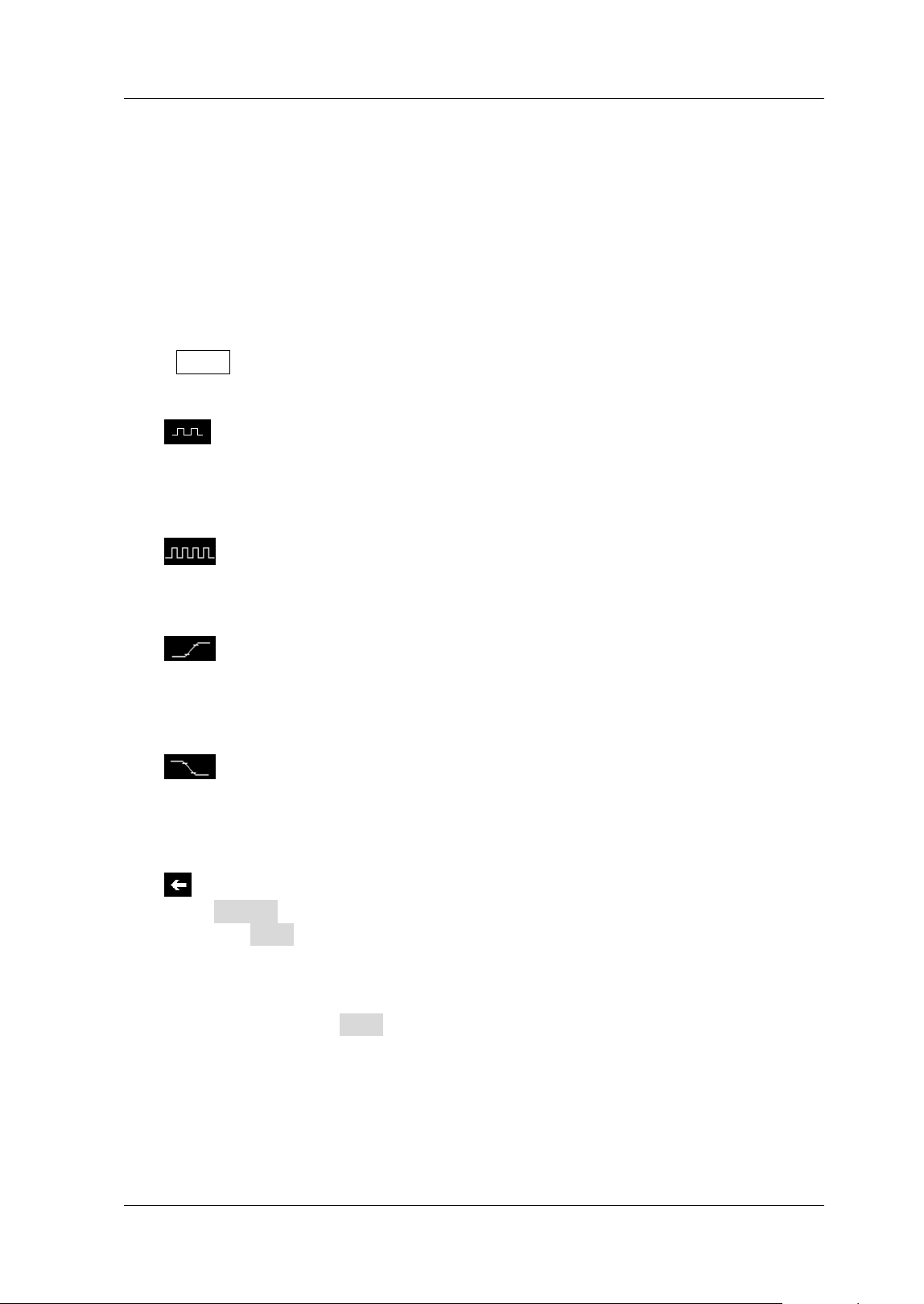
Chapter 6 Operations and Measurements RIGOL
MSO5000-E User Guide 6-27
Auto Measurement
MSO5000-E series provides auto measurements for 41 waveform parameters, as well
as the statistics and analysis of the measurement results.
Quick Measurement after AUTO
When the oscilloscope is correctly connected and has detected a valid input signal,
press AUTO to enable the waveform auto setting function and open the auto setting
function menu.
: Press this key, and then the complete single period of the signal is
displayed automatically on the screen. Meanwhile, the system will make
measurements for the "frequency" of the currently displayed waveforms in a
complete single period. The measurement results are displayed at the bottom of
the screen.
: Press this key, and then multiple periods of the signal are displayed
automatically on the screen. Meanwhile, the system will make measurements
for the "frequency" of the currently displayed waveforms in a multiple periods.
The measurement results are displayed at the bottom of the screen.
: Press this key, and then one rising edge of the signal is displayed
automatically on the screen. Meanwhile, the system will make measurements
for the "rise time" of the currently displayed rising edge. The measurement
results are displayed at the bottom of the screen. By default, it is intended for
the fast edge signal.
: Press this key, and then one falling edge of the signal is displayed
automatically on the screen. Meanwhile, the system will make measurements
for the "fall time" of the currently displayed falling edge. The measurement
results are displayed at the bottom of the screen. By default, it is intended for
the fast edge signal.
: press this key, and the system returns to the last set menu.
Press Option to enter the auto setting function menu.
Press Lock to lock the AUTO function. To unlock the AUTO function, use the
following two methods:
Method 1: Send the remote command :SYSTem:AUTOscale ON to unlock
the AUTO function.
Method 2: Press Lock again, then a password input dialog box is displayed.
Input the password. By default, there is no password, and pressing OK
directly can unlock the function.
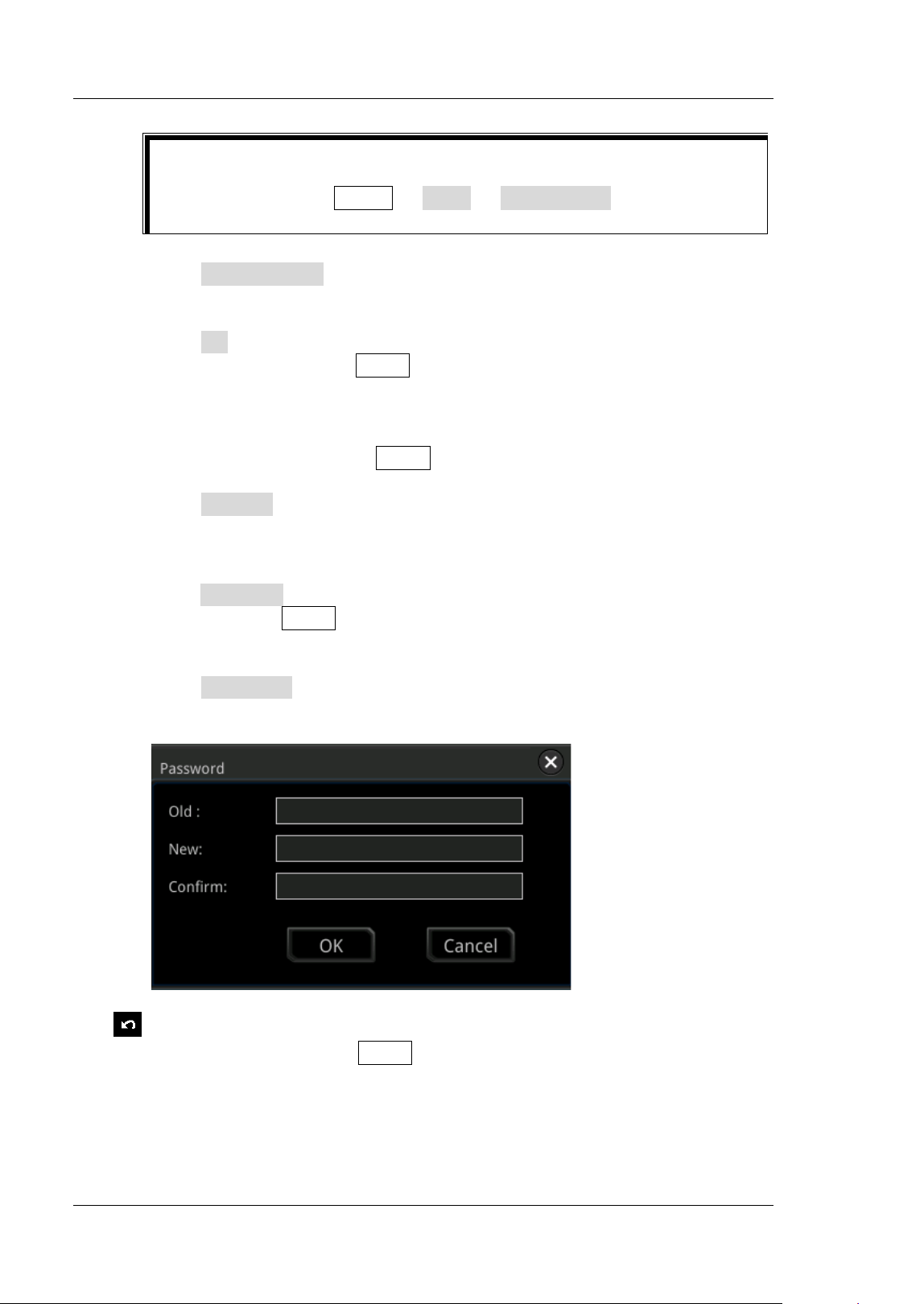
RIGOL Chapter 6 Operations and Measurements
6-28 MSO5000-E User Guide
Press Peak to Peak to enable or disable the peak-peak priority setting.
This function is intended for the shifted signal. If there is a large deviation,
you can view the signal waveform in priority when you enable the function.
Press CH to select "All" or "Open".
I f you select "All", press AUTO and the system will test the two analog
channels (CH1 and CH2) in sequence. I f no signal is found on the channel,
then the channel is disabled; if a signal is found on the channel, adjust the
channel to an optimal scale to display the signal.
I f you select "Open", press AUTO and the system will only test the enabled
channels.
Press Overlay to enable or disable the waveform overlay display function.
I f enabled, waveforms of different channels will be displayed in the same
position of the screen; if disabled, waveforms of different channels will be
displayed on the screen from top to bottom in sequence.
Press Coupling to enable or disable the coupling hold function. I f enabled,
after you press AUTO, the settings for the channel coupling remain
unchanged; if disabled, then the channel coupling is, by default, set to
"DC".
Press Passw ord, and then the password reset dialog box is displayed, as
shown in the f igure below. You can reset the password.
: Press this key to cancel the auto setting and recovers to the parameter
settings prior to pressing the AUTO k ey.
Note:
The waveform auto setting function requires that the frequency of the signal
should be greater than or equal to 35 Hz, the amplitude greater than or equal to 5
mV. I f not meeting the conditions, the waveform auto setting function may be invalid.
Tip
I f you lock the Auto function and then exit the auto setting function
menu, you can press Utility More Auto Config to enter the auto
setting function menu again to unlock the Auto function.
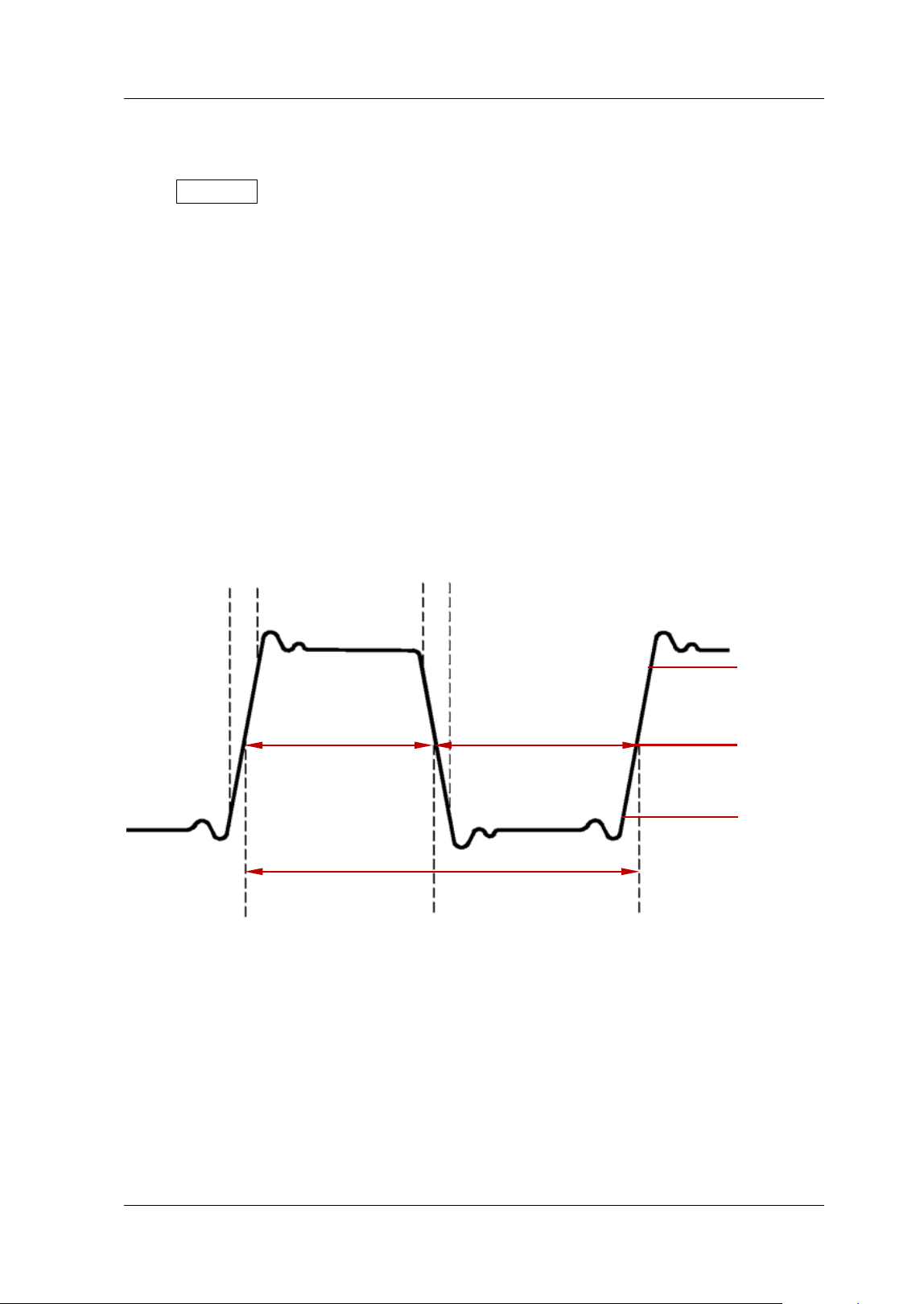
Chapter 6 Operations and Measurements RIGOL
MSO5000-E User Guide 6-29
Measurement Parameter
Press Measure on the front panel to enter the measurement setting menu. You can
set the measurement source, enable or disable the all measurement function, the
statistical analysis function, and etc. You can also quickly make measurements for 41
waveform parameters. The measurement results will be displayed on the screen. The
measurement results on the screen are always marked in the same color as the
current measurement channel. You can also enable the touch screen to tap the auto
measurement label "Measure" at the top of the screen to enter the measurement
setting menu.
Note: I f there is no signal input for the current source or the measurement result is
not within the valid range (too large or too small), then the measurement results are
invalid, and "* * * * * " is displayed on the screen. Please re-input the signal or set the
signal.
Time Parameters
Figure 6-1 Time Parameters
1
. Period: def ined as the time between the middle threshold points of two
consecutive, like-polarity edges.
2
. Frequency: def ined as the reciprocal of period.
3
. Rise Time: indicates the time for the signal amplitude to rise from the threshold
lower limit to the threshold upper limit.
4
. Fall Time: indicates the time for the signal amplitude to rise from the threshold
upper limit to the threshold lower limit.
5. + Width: indicates the time between the threshold middle value of a rising edge
to the threshold middle value of the next falling edge.
Fall Time
Threshold
Upper Limit
Threshold
Middle Value
Threshold
Lower Limit
+ Width
-Width
Period
Rise Time
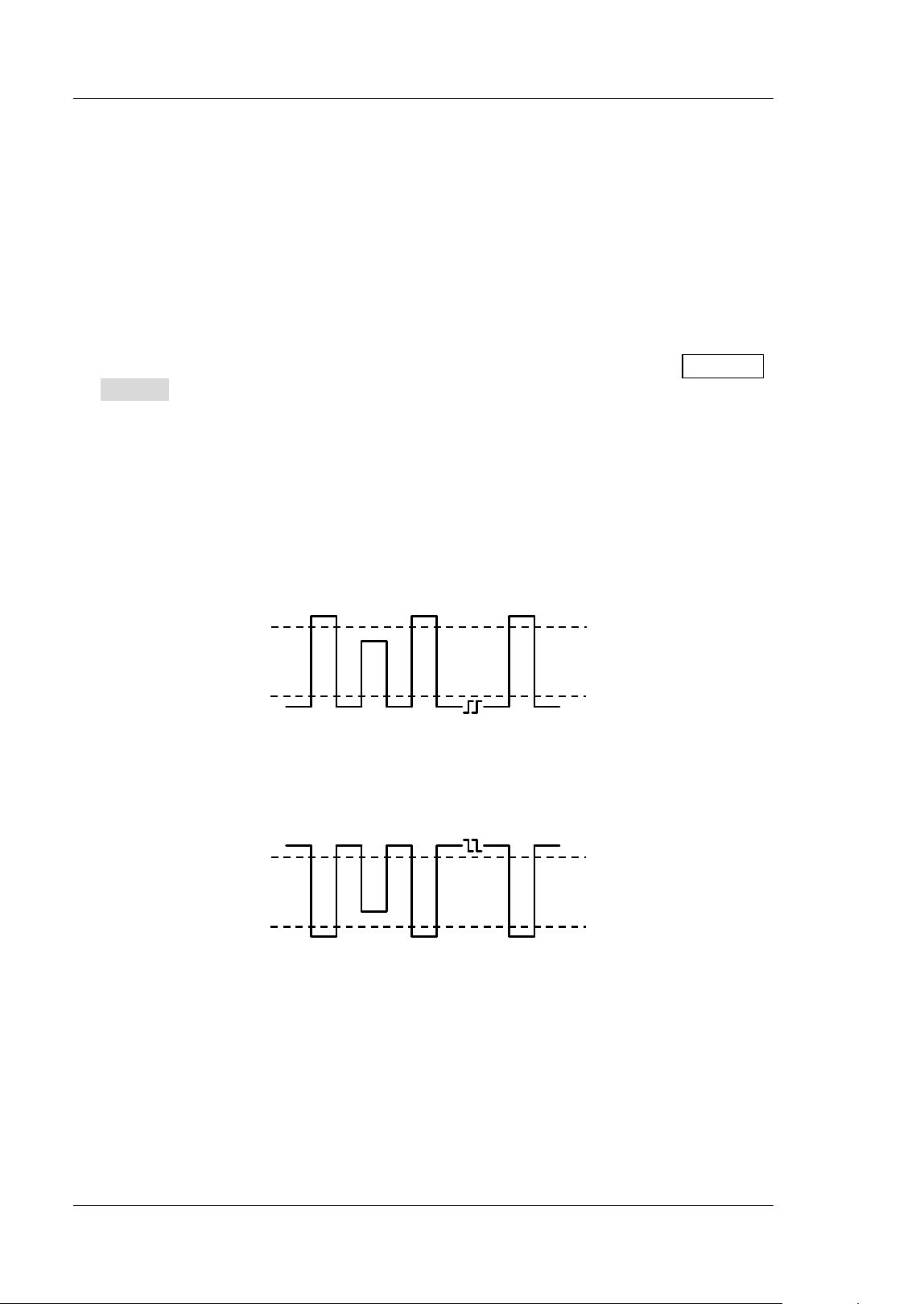
RIGOL Chapter 6 Operations and Measurements
6-30 MSO5000-E User Guide
6. -Width: indicates the time between the threshold middle value of a falling edge
to the threshold middle value of the next rising edge.
7
. + Duty: indicates the ratio of the positive pulse width to the period.
8
. -Duty:indicates the ratio of the negative pulse width to the period.
9
. Tvmax: indicates the time that corresponds to the maximum value of the
waveform (Vmax).
10. Tvmin: indicates the time that corresponds to the minimum value of the
waveform (Vmin).
Note: The default values for threshold upper limit, threshold middle value, and
threshold low limit are 90% , 50% , and 10% , respectively. You can press Measure
Setting to enter the sub-menu to set the parameters.
Count Values
1
. Positive Pulse Count: The number of positive pulses that rise from under the
threshold lower limit to above the threshold upper limit.
2
. Negative Pulse Count: The number of negative pulses that fall from above
the threshold upper limit to below the threshold lower limit.
3
. Rising Edge Count: The number of rising edges that rise from under the
threshold lower limit to above the threshold upper limit.
Positive Pulse Count = n
1 2 n
Negative Pulse Count = n
1 2 n
Threshold Upper Limit
Threshold Lower Limit
Threshold Upper Limit
Threshold Lower Limit
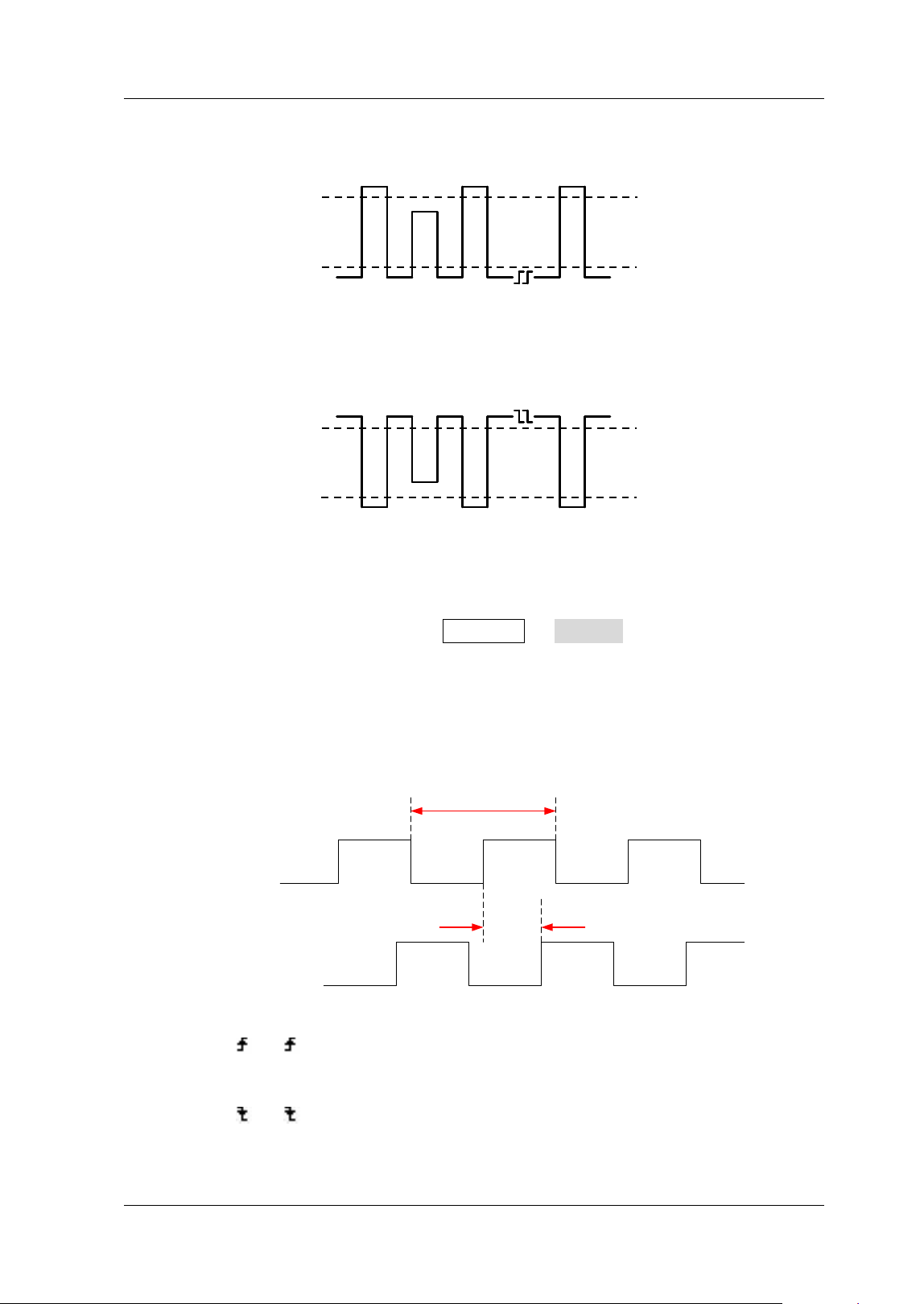
Chapter 6 Operations and Measurements RIGOL
MSO5000-E User Guide 6-31
4
. Falling Edge Count: The number of falling edges that fall from above the
threshold upper limit to below the threshold lower limit.
Note:
The above measurement items are only available for the analog channels.
The default values for threshold upper limit and threshold low limit are 90% and
10% , respectively. You can press Measure Setting to enter the sub-menu
to set the parameters.
Delay and Phase
Source A
Source B
Period
Delay
1. Delay A →B : indicates the time difference between the threshold middle
values of the rising edge of Source A and that of Source B. Negative delay
indicates that the rising edge of Source A occurred after that of Source B.
2. Delay A →B : indicates the time difference between the threshold middle
values of the falling edge of Source A and that of Source B. Negative delay
indicates that the falling edge of Source A occurred after that of Source B.
Rising Edge Count = n
1 2 n
Falling Edge Count = n
1 2 n
Threshold Upper Limit
Threshold Lower Limit
Threshold Upper Limit
Threshold Lower Limit
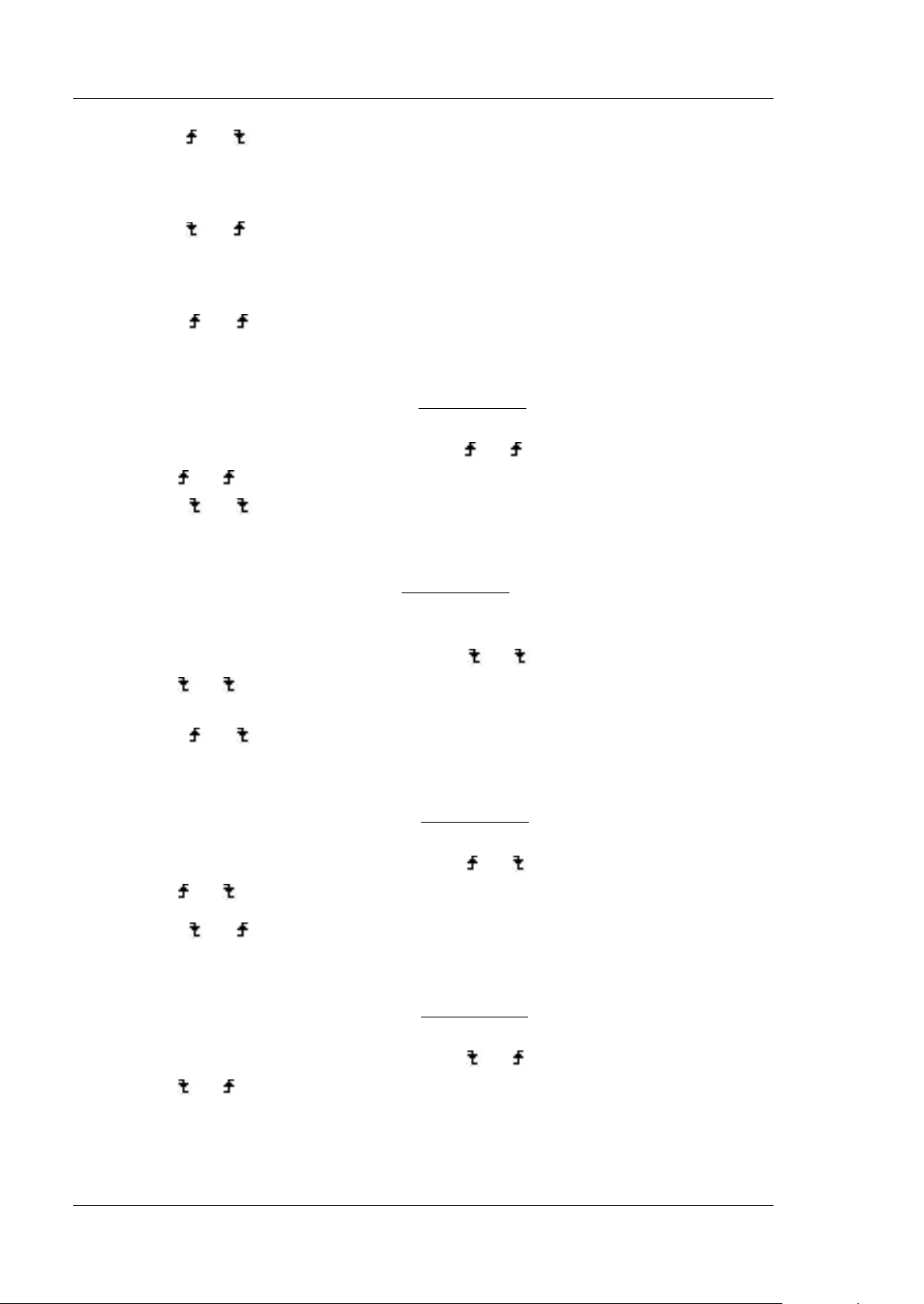
RIGOL Chapter 6 Operations and Measurements
6-32 MSO5000-E User Guide
3. Delay A →B : indicates the time difference between the threshold middle
values of the rising edge of Source A and the falling edge of Source B. Negative
delay indicates that the rising edge of Source A occurred after the falling edge of
Source B.
4
. Delay A →B : indicates the time difference between the threshold middle
values of the falling edge of Source A and the rising edge of Source B. Negative
delay indicates that the falling edge of Source A occurred after the rising edge of
Source B.
5
. Phase A →B : indicates the phase deviation between the threshold middle
values of the rising edge of Source A and that of Source B. I t is expressed in
degree. The formula is as follows:
°360×=
sourceA
RR
RR
Period
BDelayA
BPhaseA
Wherein,
RR
BPhaseA
represents Phase A →B ,
RR
BDelayA
represents
Delay A
→B , and
sourceA
Period
represents period of Source A.
6
. Phase A →B : indicates the phase deviation between the threshold middle
values of the falling edge of Source A and that of Source B. I t is expressed in
degree. The formula is as follows:
°360×=
sourceA
FF
FF
Period
BDelayA
BPhaseA
Wherein,
FF
BPhaseA
represents Phase A →B ,
FF
BDelayA
represents
Delay A
→B , and
sourceA
Period
represents period of Source A.
7. Phase A →B : indicates the phase deviation between the threshold middle
values of the rising edge of Source A and falling edge of Source B. I t is
expressed in degree. The formula is as follows:
°360×=
sourceA
FR
FR
Period
BDelayA
BPhaseA
Wherein,
FR
BPhaseA
represents Phase A →B ,
FR
BDelayA
represents
Delay A
→B , and
sourceA
Period
represents period of Source A.
8. Phase A →B : indicates the phase deviation between the threshold middle
values of the falling edge of Source A and the rising edge of Source B. I t is
expressed in degree. The formula is as follows:
°360×=
sourceA
RF
RF
Period
BDelayA
BPhaseA
Wherein,
RF
BPhaseA
represents Phase A →B ,
RF
BDelayA
represents
Delay A
→B , and
sourceA
Period
represents period of Source A.
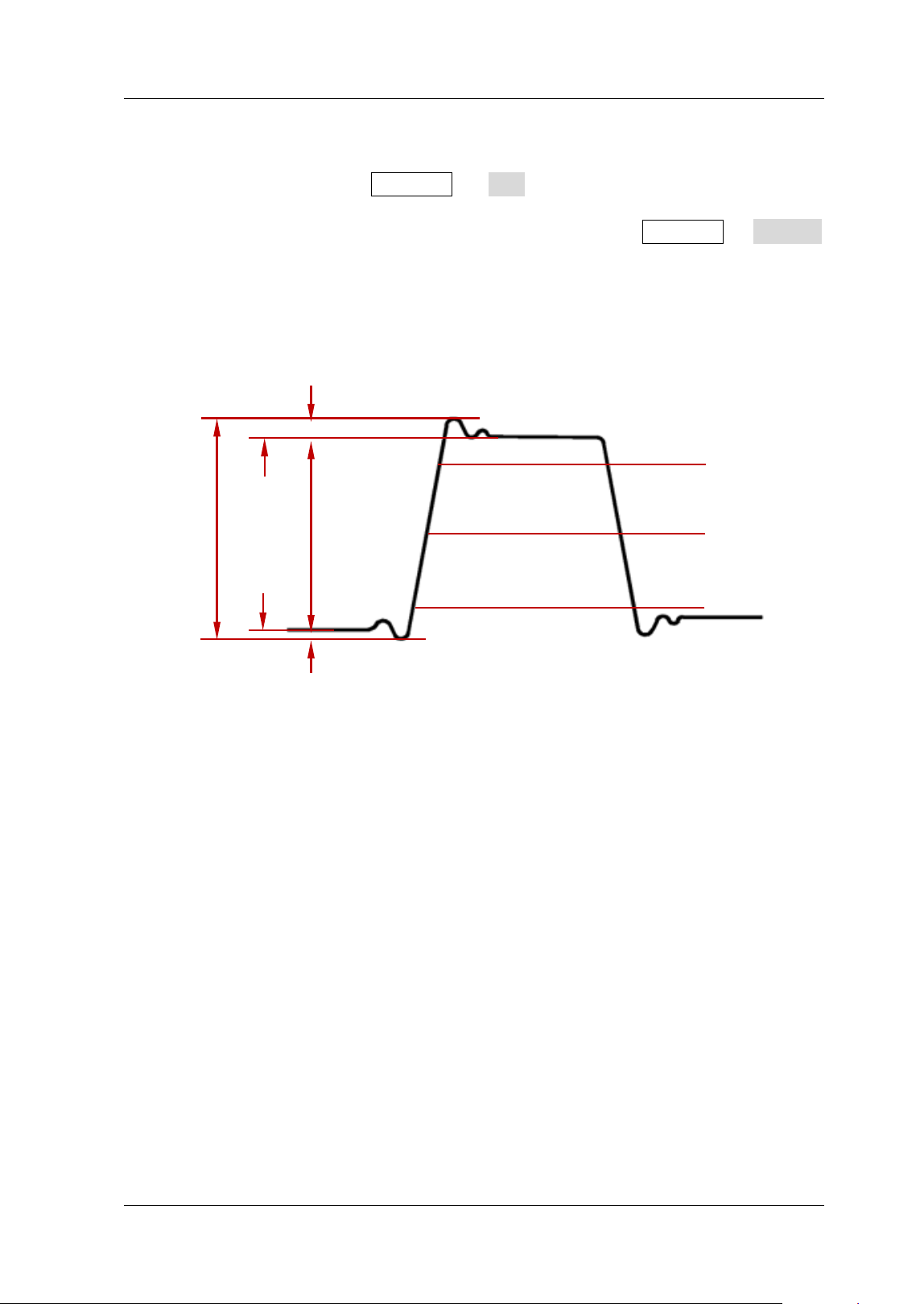
Chapter 6 Operations and Measurements RIGOL
MSO5000-E User Guide 6-33
Note:
Source A and Source B can be any channel among CH1-CH2, Math1-Math4, or
D0-D15. You can press Measure Add to enter the sub-menu to set the
parameters.
The default threshold middle value is 50% . You can press Measure Setting
to enter the sub-menu to set the parameters.
Voltage Parameters
Figure 6-2 Voltage Parameters
1
. Vmax: indicates the voltage value from the highest point of the waveform to
the GND.
2
. Vmin: indicates the voltage value from the lowest point of the waveform to the
GND.
3
. Vpp: the voltage value from the highest point to the lowest point of the
waveform.
4
. Vtop: indicates the voltage value from the flat top of the waveform to the GND.
5
. Vbase: indicates the voltage value from the flat base of the waveform to the
GND.
6
. Vamp: indicates the voltage value from the top of the waveform to the base of
the waveform.
7
. Vupper: indicates the actual voltage value that corresponds to the threshold
maximum value.
8
. Vmid: indicates the actual voltage value that corresponds to the threshold
middle value.
9
. Vlow er: indicates the actual voltage value that corresponds to the threshold
minimum value.
10. Vavg: indicates the arithmetic average value on the whole waveform or in the
Preshoot
Overshoot
Vamp
Vbase
Vmax
Vmin
Vpp
Vtop
Vupper
Vmid
Vlower
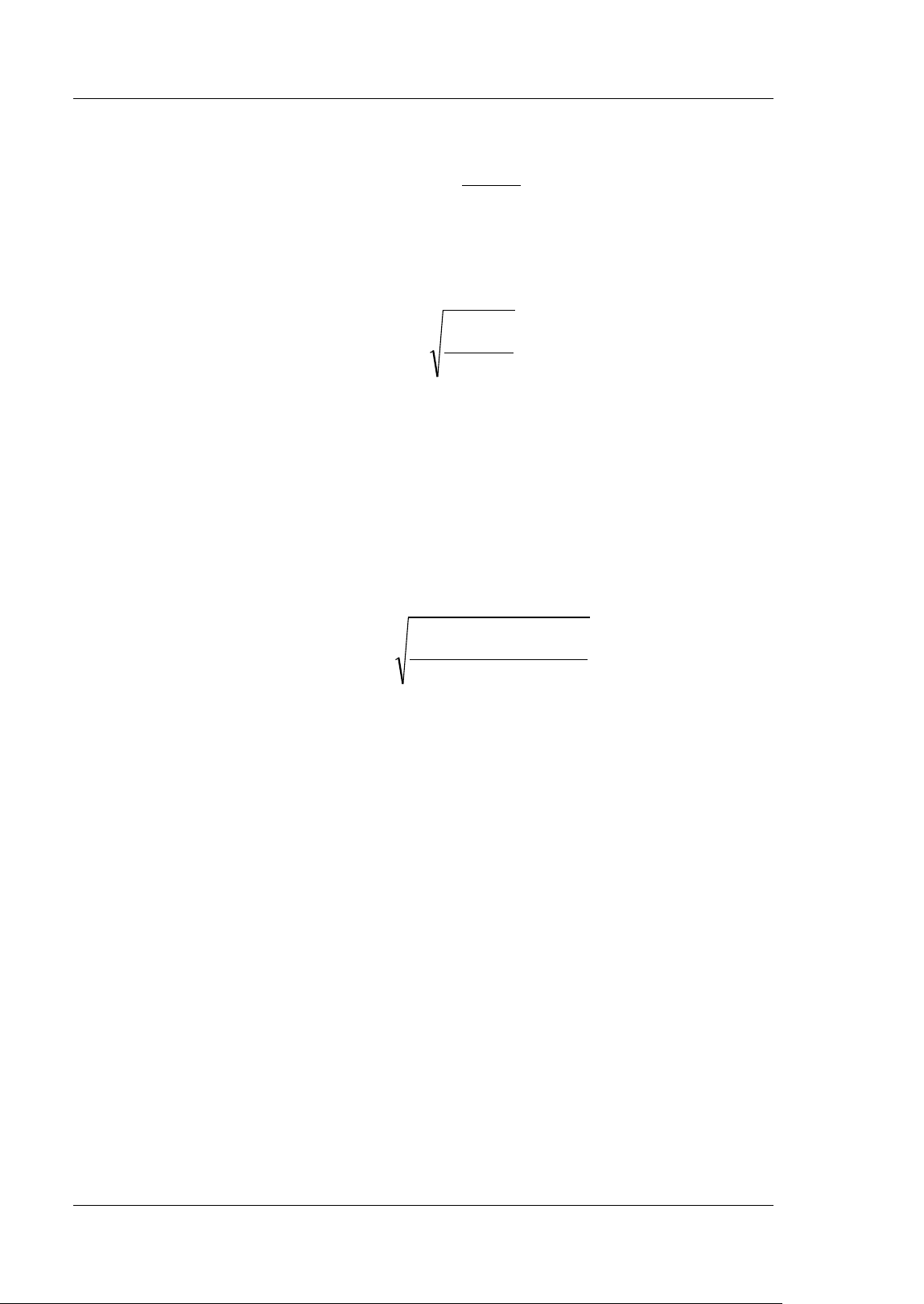
RIGOL Chapter 6 Operations and Measurements
6-34 MSO5000-E User Guide
gating area. The formula is shown as follows:
n
x
Average
n
i
i
∑
1=
=
Wherein,
i
x
is the measurement result of the
i
th point, and
n
is the number
of points being measured.
11. VRMS: indicates the root mean square value on the whole waveform or in the
gating area. The formula is as follows:
n
x
RMS
n
i
i
∑
1
2
=
=
Wherein,
i
x
is the measurement result of the
i
th point, and
n
is the number
of points being measured.
12. Per.VRMS: indicates the root mean square value within a period. The formula is
as shown above.
13. Overshoot: indicates the ratio of the difference between the maximum value
and the top value of the waveform to the amplitude value.
14. Preshoot: indicates the ratio of the difference between the minimum value and
the base value of the waveform to the amplitude value.
15. Std. Dev: indicates the root-mean-square value of the waveforms, with the DC
component removed. The formula is shown as follows:
n
Averagex
DevS
n
i
i
∑
1
2
)(
.td
=
−
=
Wherein,
i
x
is the amplitude of the
i
th point,
Average
is the waveform average
value, and
n
is the number of the points being measured.
Other Parameters
1
. Positive Slew Rate: On the rising edge, first calculate the difference between
the high value and the low value, then use the difference to divide the
corresponding time value to obtain the positive slew rate.
2
. Negative Slew Rate: On the falling edge, first calculate the difference
between the low value and the high value, then use the difference to divide the
corresponding time value to obtain the negative slew rate.
3
. Area: indicates the area of the whole waveform within the screen. The unit is
V* s. The area of the waveform above the zero reference (namely the vertical
offset) is positive, and the area of the waveform below the zero reference is
negative. The area measured is the algebraic sum of the area of the whole
waveform within the screen.
4. Period Area: indicates the area of the first period of waveform on the screen.
The unit is V* s. The area of the waveform above the zero reference (namely the
vertical offset) is positive, and the area of the waveform below the zero
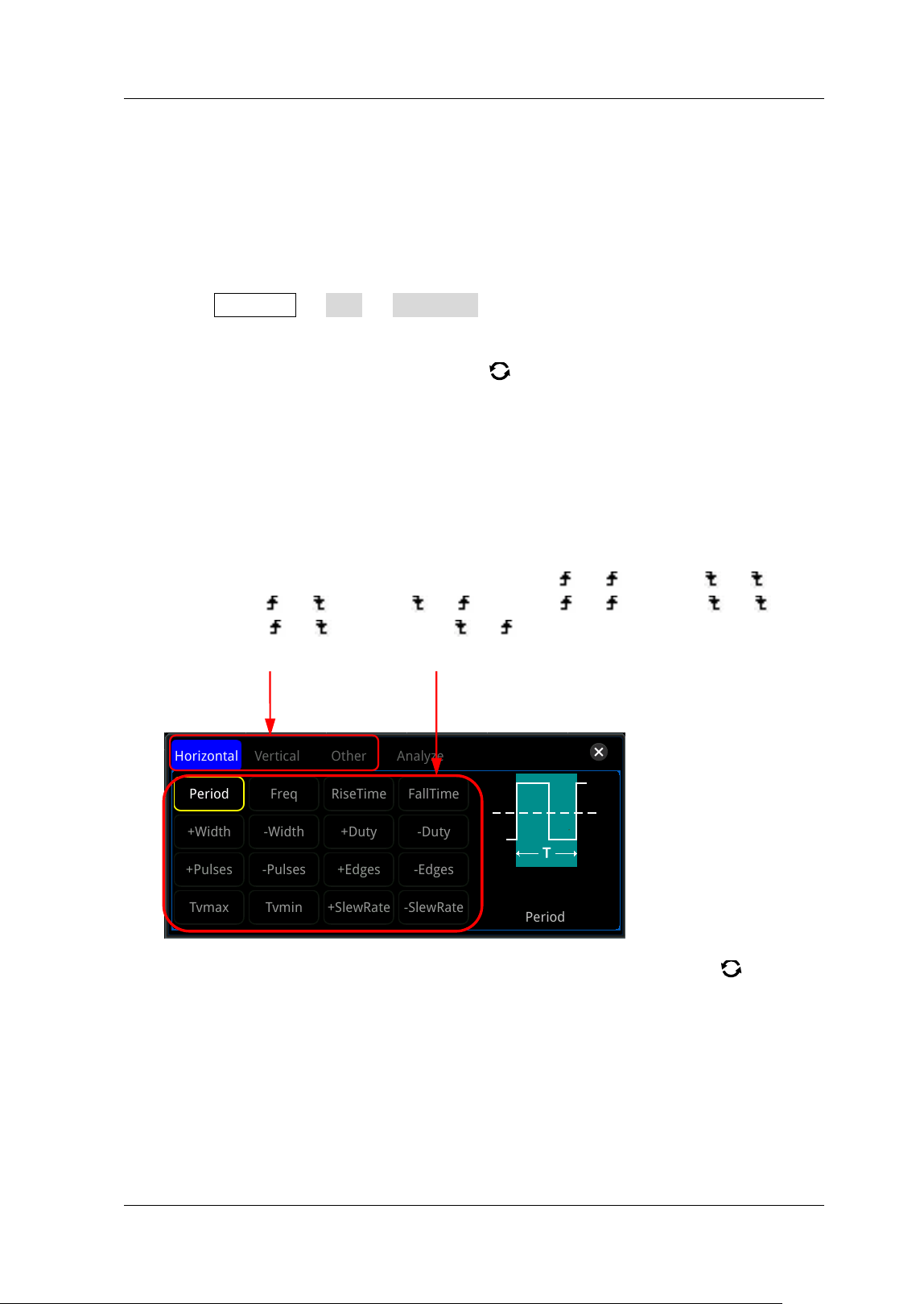
Chapter 6 Operations and Measurements RIGOL
MSO5000-E User Guide 6-35
reference is negative. The area measured is the algebraic sum of the whole
period area.
Measurement Settings
1
. Measurement Category
Press Measure Add Category to select "Horizontal", "Vertical", or
"Other". Meanwhile, the specific measurement parameters are displayed on the
screen, as shown in the f igure below. I n the measurement category area, you
can also rotate the multifunction knob
to select "Horizontal", "Vertical", or
"Other". Then press down the knob to switch to the desired measurement
category.
"Horizontal" measurement parameters: Period, Freq, RiseTime, FallTime,
+ Width, -Width, + Duty, -Duty, + Pulses, -Pulses, + Edges, -Edges, Tv m ax ,
Tvmin, + SlewRate, and –SlewRate.
"Vertical" measurement parameters: Vmax, Vmin, Vpp, Vtop, Vbase, Vamp,
Vmid, Vlower, Vavg, VRMS, Per.VRMS, Overshot, Preshoot, Area, Per.Area,
and Variance.
"Other" measurement parameters: Delay(A
→B ), Delay(A →B ),
Delay(A
→B ), Delay(A →B ), Phase(A →B ), Phase(A →B ),
Phase(A
→B ), and Phase(A →B ).
I n the measurement parameter area, rotate the multifunction knob
to select
a measurement item and then press down the knob to select it. Then the
measurement results of the item are displayed at the bottom of the screen
(measurement results of up to 10 items can be displayed at most). When you
add a new measurement item, its measurement result will be displayed as the
f irst, with the original items moving right in sequence. I f the number of
measurement items added exceeds 10, then when you add one item, the
rightmost item at the bottom of the screen will be disabled. You can also enable
the touch screen to select the measurement category and the measurement
Measurement Category Area Measurement Parameter Area
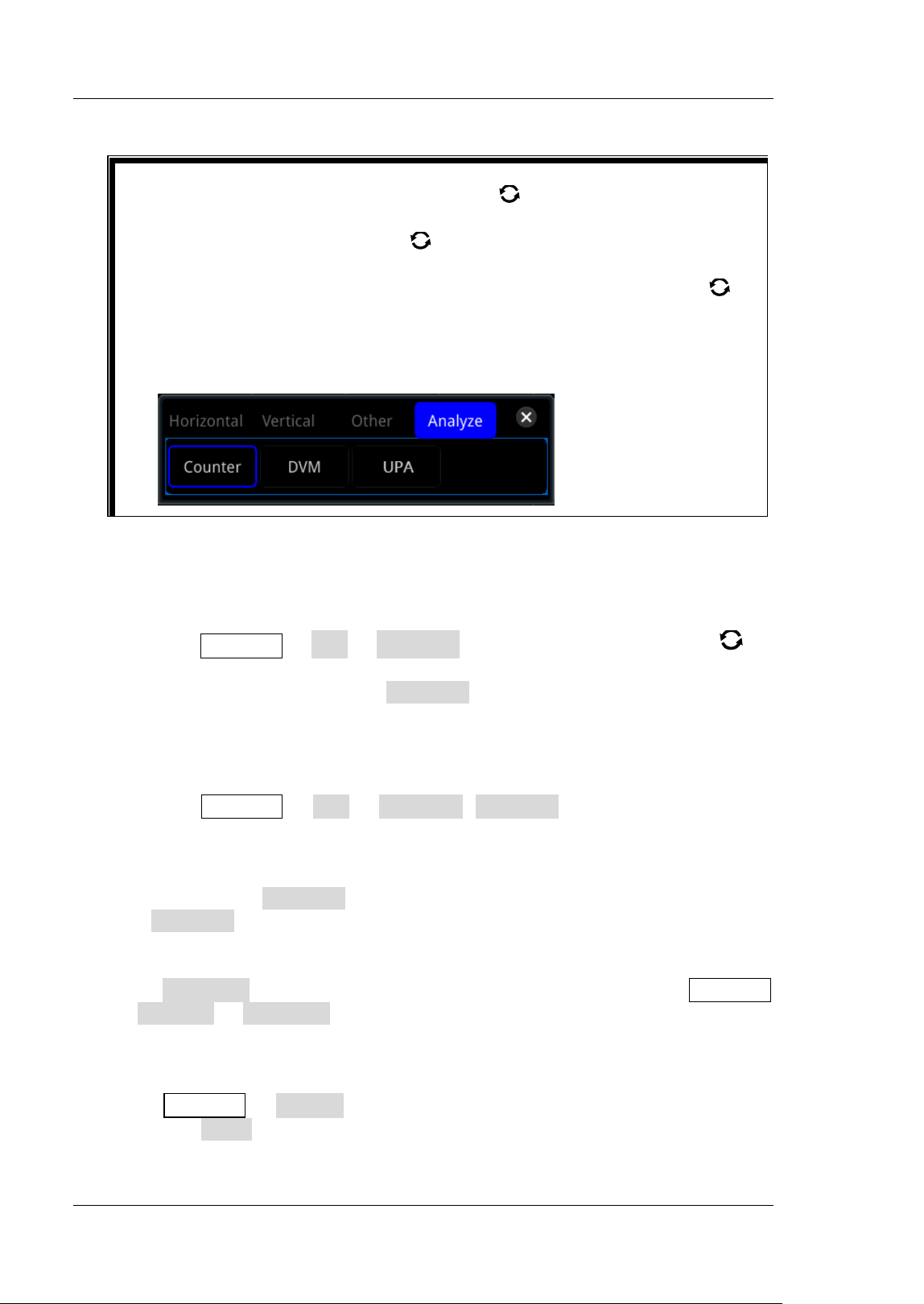
RIGOL Chapter 6 Operations and Measurements
6-36 MSO5000-E User Guide
parameters.
2. Source Selection
For different measurement categories, the selection methods for measurement
sources are different.
Horizontal and vertical parameter measurement
Press Measure Add Source A, rotate the multifunction knob to
select the desired channel for measurement and press down the knob to
select it. You can also press Source A continuously or enable the touch
screen to select the current measurement source. The available channels
include CH1-CH2, Math1-Math4, and D0-D15.
Other (Delay and Phase) parameter measurement
Press Measure Add Source A (Source B) to set the two source
channels for the current measurement category. The available channels
include CH1-CH2, Math1-Math4, and D0-D15.
Note: When Source A is set to an analog channel (or a digital channel),
Source B can also be set to an analog channel (or a digital channel).
3
. I ndicator
Press I ndicator to enable or disable the indic a t o r. You can also press Measure
Remove I ndicator to enable or disable the indicator. For details, refer to
descriptions in "
Measure Mode".
4
. Measurement Settings
Press Measure Setting to enter the sub-menu of measurement.
Press Mode to select the measurement mode to "Normal" or
"Precision".
Tip
When you rotate the multifunction knob to switch from the
measurement parameter area to the measurement category area, you
need to press down the knob
to select the desired measurement
cat eg or y.
I n the measurement category area, rotate the multifunction knob
to
select "Analyze". The following f igure is displayed. Select "Counter",
"DVM", or "UPA" (available when the power analysis option is installed) to
enter the corresponding function setting menu. For descriptionsn about
these functions, refer to relevant chapters.
Chapter 6 Operations and Measurements RIGOL
MSO5000-E User Guide 6-37
Normal: executes measurement of up to 1 Mpts.
Precision: executes measurement of up to 200 Mpts, improving the
resolution of measurement results. In this mode, the refresh rate of the
waveforms may be reduced.
Note: When the memory depth is less than or equal to 1K points or the
"High Res" mode is opened, the "Precision" measurement mode will
automatically switch to the "Normal" measurement mode.
Press Type to select "Threshold", "Range", or "Amp Method".
Select "Threshold", and then make the following settings:
--Press Source to select the desired channel for measurement
(CH1-CH2 or Math1-Math4).
--Press Upper to select "Upper(% )" or "Upper(Abs)" f irst, and then
press the key to set the upper limit of the measurement. For details,
refer to descriptions in "
Parameter Setting Method". Reducing the
upper limit to the current middle value will automatically reduce the
middle value and lower limit to keep them lower than the upper limit.
By default, it is 90% .
--Press Mid to select "Mid(% )" or "Mid(Abs)" f irst, and then press the
key to set the middle value of the measurement. For details, refer to
descriptions in "
Parameter Setting Method". The middle value is
limited by the settings of the upper limit and lower limit. By default, it is
50% .
--Press Low er to select "Lower(% )" or "Lower(Abs)" f irst, and then
press the key to set the lower limit of the measurement. For details,
refer to descriptions in "
Parameter Setting Method". I ncreasing the
lower limit to the current middle value will automatically increase the
middle value and upper limit to keep them higher than the lower limit.
By default, it is 10% .
--Press Default, and then the upper value, middle value, and lower
value will be restored to the defaults.
Select "Range", and then press Region to select "Main", "Zoom", or
"Cursor".
--Main: indicates that the measurement range is within the main
timebase region.
--Zoom: indicates that the measurement range is within the zoomed
timebase region. Note: Only when you enable the delayed sweep
function f irst, can "Zoom" be enabled.
--Cursor: when you select it, two cursors will be displayed on the
screen. At this time, press CursorA and CursorB respectively and
then rotate the multifunction knob
to adjust the positions of the
two cursors to determine the measurement range. Also, you can press
CursorAB and then rotate the multifunction knob to adjust the
positions of the two cursors simultaneously.
Select "Amp Method", and then press Amp Method to select "Auto" or
"Manual". This method affects the measurement method for the top
and base values. I f you select "Manual", you need to set the following
RIGOL Chapter 6 Operations and Measurements
6-38 MSO5000-E User Guide
parameters:
--Press Top to select "Histogram" or "Max-Min".
--Press Base to select "Histogram" or "Max-Min".
Remove the Measurement Result
This oscilloscope allows you to remove the measurement results of the parameters.
Press Measure Remove to enter the "Remove" sub-menu.
Press Remove to remove the last added measurement item. Note that pressing
this key one time can only remove one measurement item. When you remove a
measurement item, the measurement result of the last added item at the
bottom of the screen will be removed. You can rotate the multifunction knob
to switch the measurement item, then press down the knob or press Remove
to remove the item. You can also enable the touch screen to tap the desired
measurement item, and then press Remove to remove the item.
Press Remove All to remove all the displayed measurement items.
Press I ndicator to enable or disable the indicator.
Besides, you can also press Measure Add Remove to enter the "Remove"
sub-menu.
Statistical Function
Performs statistics and displays the measurement results (Cur, Avg, Max, Min, Dev,
and Cnt) of at most 10 items, as shown in the f igure below.
Tip
Modifying the threshold will affect the measurement results of
the time, delay and phase parameters.
I f you select "Manual" under Amp Method, the measurement
results of other parameters may be affected.
"Histogram" and "Max-Min" are the internal measurement
algorithm for the oscilloscope. The "Histogram" method here is
different from the Histogram function of the oscilloscope.
Tip
I f the "Remove" sub-menu
is not displayed in the current menu, when you select
a certain measurement item, the system will automatically enter the "Remove"
sub-menu.
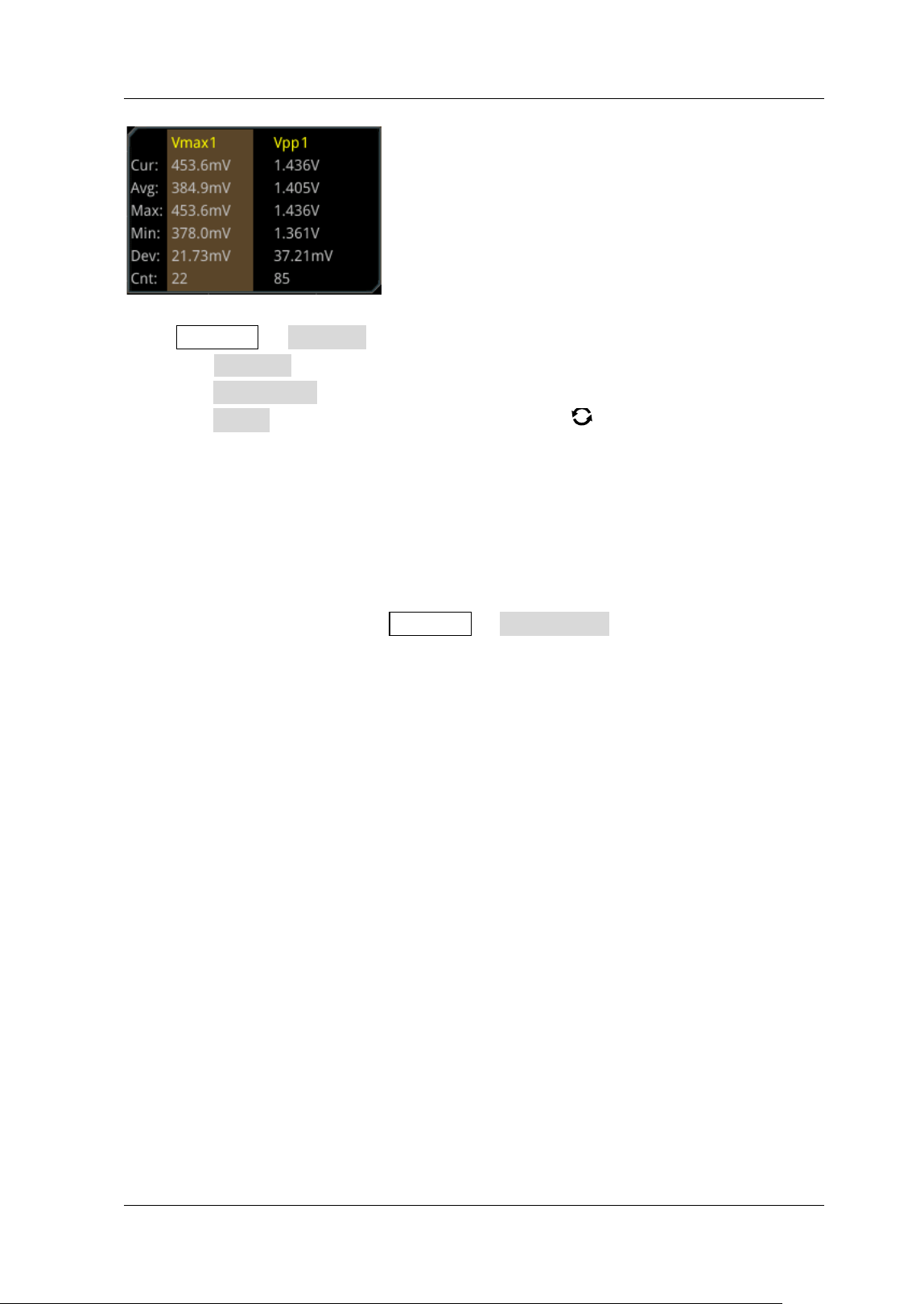
Chapter 6 Operations and Measurements RIGOL
MSO5000-E User Guide 6-39
Press Measure Statistic to enter the sub-menu of "Statistic".
Press Statistic to enable or disable the statistical function.
Press Reset Stat. to clear the history statistics data and makes statistics again.
Press Count, then rotate the multifunction knob or use the pop-up numeric
keypad to set the count value. I ts range is from 2 to 100,000. By default, it is
1,000.
All Measurement
All measurement could measure the time parameter, count value, voltage
parameters, and other parameters of the current measurement source and display
the results on the screen. Press Measure All Measure to select "OFF" (disabling
the all measurement function) or select the desired channel for measurement
(CH1-CH2). I f you select "CH1", data of all measurement parameters of CH1 are
displayed on the screen.
Note: The removal operation will not clear the measurement results of the
all-measurement function.
Cursor Measurement
Cursor measurement can measure the X-axis values (e.g Time) and Y-axis values
(e.g. Voltage) of the selected waveform. Before making cursor measurement,
connect the signal to the oscilloscope to acquire stable display. All the parameters
supported by the "Auto Measurement" function can be measured with cursor
measurement. The cursor measurement function provides the following two cursors.
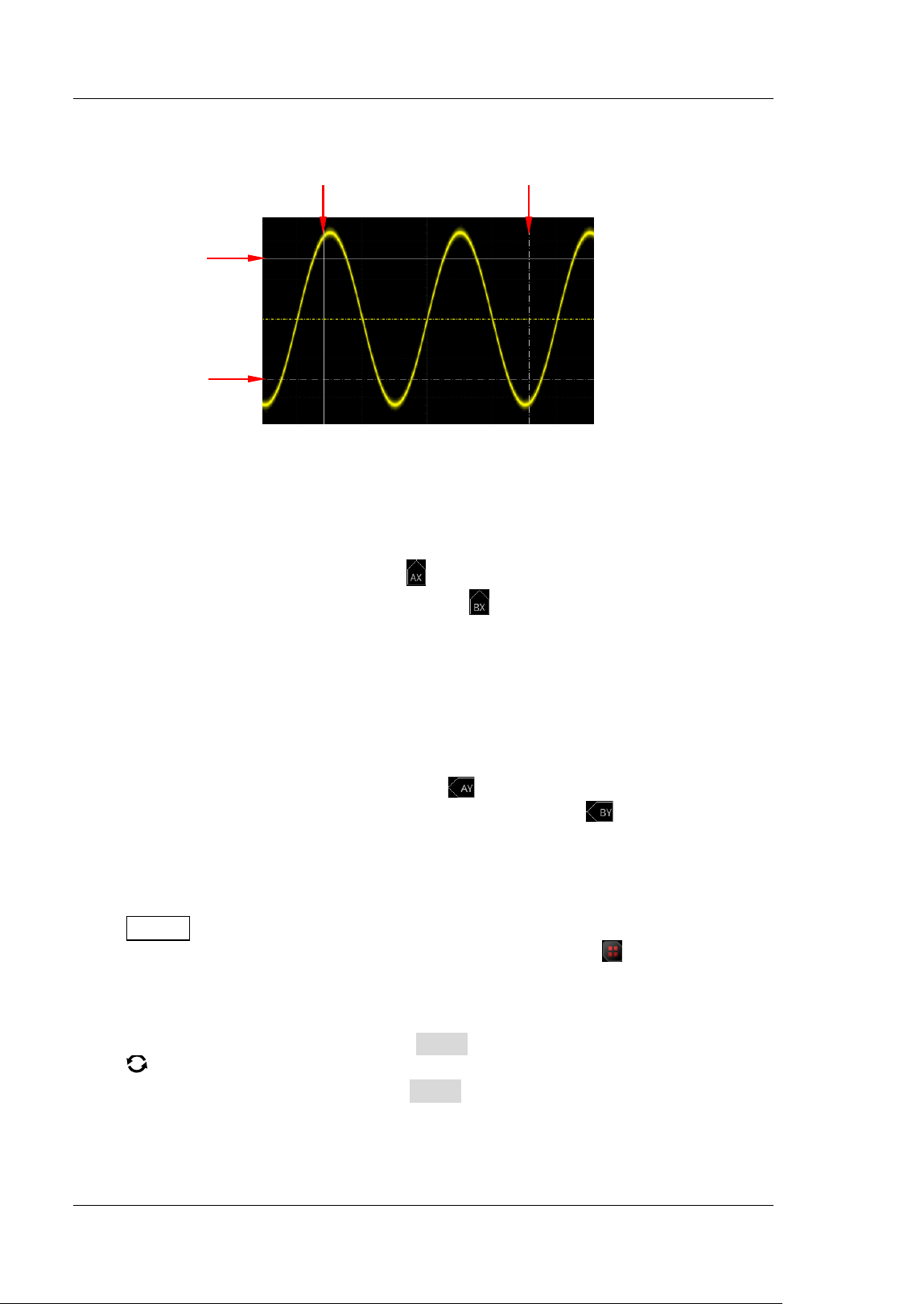
RIGOL Chapter 6 Operations and Measurements
6-40 MSO5000-E User Guide
X Cursor
X cursor is a vertical solid/ dotted line that is used to make horizontal
adjustments. I t can be used to measure time (s), frequency (Hz), phase (°), and
ratio (% ).
Cursor A is a vertical solid line (
is displayed at the bottom of the screen),
and Cursor B is a vertical dotted line (
is displayed at the bottom of the
screen).
I n the XY cursor mode, X cursor is used to measure the waveform
amplitude of CH1.
Y Cursor
Y cursor is a horizontal solid/ dotted line that is used to make vertical adjustment.
I t can be used to measure amplitude (the unit is the same as that of the source
channel amplitude) and ratio (% ).
Cursor A is a horizontal solid line, (
is displayed at the right section of
the screen), and Cursor B is a horizontal dotted line (
is displayed at the
right section of the screen).
I n the XY cursor mode, Y cursor is used to measure the waveform
amplitude of CH2.
Press Cursor on the front panel to open the cursor measurement menu, or enable
the touch screen and then tap the function navigation icon at the lower-left
corner of the screen to open the function navigation. Then, tap the "Cursor" icon to
open the cursor measurement menu.
I n the cursor measurement menu, press Mode and then rotate the multifunction
knob
to select the desired cursor mode (the default is "OFF"). Press down the
knob to select it. You can also press the Mode key continuously or enable the touch
screen to select the desired mode. The available modes are "Manual", "Track", "XY",
and "Measure". When you select "OFF", the cursor measurement function is
disabled.
Y Cursor (Cursor B)
Y Cursor (Cursor A)
X Cursor (Cursor A)
X Cursor (Cursor B)
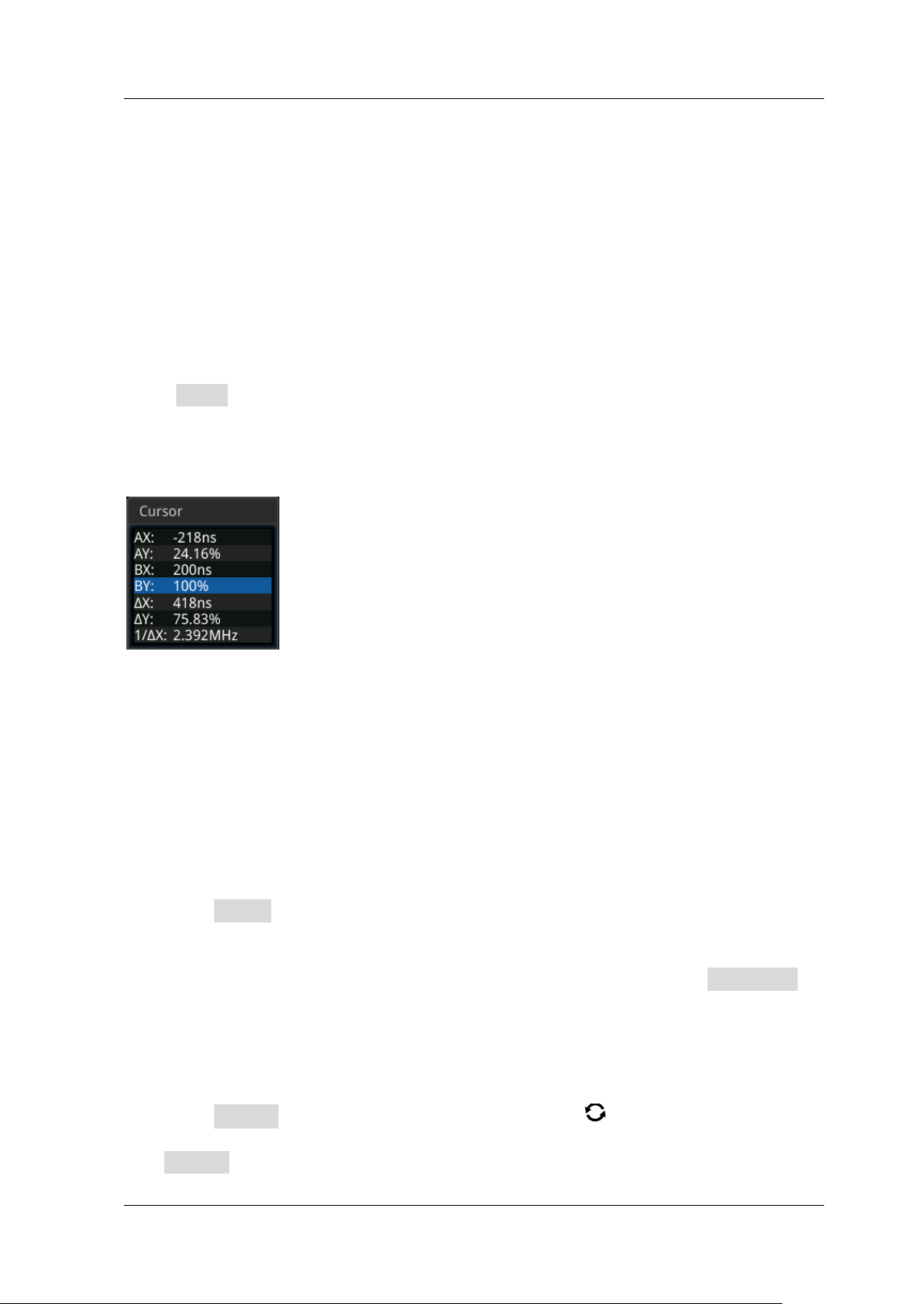
Chapter 6 Operations and Measurements RIGOL
MSO5000-E User Guide 6-41
Note: When the Timebase Mode is set to "XY", the XY cursor measurement mode is
valid.
Manual Mode
I n this mode, you can adjust the cursor manually to measure the value of the
waveforms of the specified source at the current cursor. The measurement results
are displayed at the upper-left corner of the screen. When you change the cursor
position, the measurement results will be changed accordingly.
Press Mode to select "Manual" to enable the manual cursor measurement function.
I f the settings for the parameter such as "Select", "Source", "Hori. Unit", and "Vert.
Unit" are different, the measurement results will be different for cursor measurement.
The measurement results are displayed at the upper-left corner of the screen, as
shown in the f igure below.
AX: indicates the X value at Cursor A.
AY: indicates the Y value at Cursor A.
BX: indicates the X value at Cursor B.
BY: indicates the Y value at Cursor B.
△X: indicates the horizontal spacing between Cursor A and Cursor B.
△Y: indicates the vertical spacing between Cursor A and Cursor B.
1/ △X: indicates the reciprocal of the horizontal spacing between Cursor A and
Cursor B.
1. Select Cursor Type
Press Select continuously to select the cursor type.
X: I t is a pair of vertical solid (Cursor A)/ dotted (Cursor B) lines, used for
measuring time parameters. The measurement results include AX, BX, △X,
and 1/△X (displayed only when "s" or "Hz" is selected under Hori. Unit).
Y: I t is a pair of horizontal solid (Cursor A)/ dotted (Cursor B) lines, used for
measuring voltage parameters. The measurement results include AY, BY,
and △Y.
2. Select Measurement Source
Press Source, then rotate the multifunction knob to select the desired
source (CH1 or CH2). Press down the knob to select it. You can also press
Source continuously or enable the touch screen to select it. The available
RIGOL Chapter 6 Operations and Measurements
6-42 MSO5000-E User Guide
source channels are None, CH1-CH2, LA, and Math1-Math4.
Note:
Only channels currently enabled can be selected.
When "LA" is selected under Source, Select is grayed out and disabled. By
default, "X" is selected under Select.
3. Adjust Cursor Position
1) When "X" is selected under Select, you can adjust the position of X cursor.
Press AX, then rotate the multifunction knob to adjust the
horizontal position of Cursor A (X cursor). I ts adjustable range is
limited within the screen.
Press BX, then rotate the multifunction knob to adjust the
horizontal position of Cursor B (X cursor). I ts adjustable range is
limited within the screen.
Press AX BX, then rotate the multifunction knob to adjust the
horizontal position of Cursor A and Cursor B (X cursors) simultaneously.
I ts adjustable range is limited within the screen. The horizontal spacing
between Cursor A and Cursor B (X cursors) remains unchanged.
2) When "Y" is selected under Select, you can adjust the position of Y cursor.
Press AY, then rotate the multifunction knob to adjust the vertical
position of Cursor A (Y cursor).
Press BY, then rotate the multifunction knob to adjust the vertical
position of Cursor B (Y cursor).
Press AY BY, then rotate the multifunction knob to adjust the
vertical position of Cursor A and Cursor B (Y cursors) simultaneously.
The vertical spacing between Cursor A and Cursor B (Y cursors)
remains unchanged.
Note: I f one of the three items (AX, BX, and AX BX) or one of the three items
(AY, BY, and AY BY) is selected, you can press down the multifunction knob
continuously to switch among the three items.
4. Select Screen Region
When the delayed sweep function is disabled, press More, and "Main" is
automatically selected under Region and cannot be modified.
When the delayed sweep function is enabled, the screen is divided into two
regions: main timebase and zoomed timebase. Press Region continuously
to select "Main" or "Zoom".
When "Main" is selected, the cursor is displayed in the main timebase
region, and you can measure the parameters in the main timebase
region.
When "Zoom" is selected, the cursor is displayed in the zoomed
timebase region, and you can measure the parameters in the zoomed
timebase region.
Chapter 6 Operations and Measurements RIGOL
MSO5000-E User Guide 6-43
5. Set the Horizontal/ Vertical Measurement Unit
When "X" is selected under Select, you can set the horizontal measurement
unit. When the source can be Math1-Math4, this menu is grayed out and
disabled.
Press More Hori. Unit, and rotate the multifunction knob to select
the horizontal measurement unit. Then press down the knob to select it. You
can also press Hori. Unit continuously or enable the touch screen to select
it. The available units include "s", "Hz", "Degree(°)", and "Percent(% )".
s: measures the time value at X Cursor (taking the trigger position as
reference). The measurement results include AX, BX, △X, and 1/ △X.
Wherein, AX, BX, and △X all indicate time, and 1/△X indicates
f r eq u en cy.
Hz: measures the frequency value at X Cursor (taking the trigger
position as reference). The measurement results include AX, BX, △X,
and 1/ △X. Wherein, AX, BX, and △X all indicate frequency, and 1/ △X
indicates time.
Degree(°): measures the phase value at X Cursor. The measurement
results include AX, BX, and △X, and they are all expressed in degree.
This oscilloscope allows you to set the reference position for the phase
according to your needs. After adjusting X Cursor to a desired position,
press Set Reference to take the current cursor position as the
reference. The current positions of Cursor A and Cursor B are
respectively def ined as "0°" and "360°". Meanwhile, two vertical
cursors (in blue) that cannot be moved are displayed on the screen as
the phase reference position (the phase position at "0°" and "360°" are
respectively marked by a solid line and a dotted line). Before you set
manually, the oscilloscope adopts the default phase reference position.
Percent(% ): measures ratio at X Cursor. The measurement results
include AX, BX, and △X, and they are all expressed in percentage. This
oscilloscope allows you to set the reference position for the ratio
according to your needs. After adjusting X Cursor to a desired position,
press Set Reference to take the current cursor position as the
reference. The current positions of Cursor A and Cursor B are
respectively def ined as "0% " and "100% ". Meanwhile, two cursors (in
blue) that cannot be moved are displayed on the screen as the ratio
reference position (the ratio position at "0% " and "100% " are
respectively marked by a solid line and a dotted line). Before you set
manually, the oscilloscope adopts the default ratio reference position.
When "Y" is selected under Select, you can set the vertical measurement
unit. When the source can be Math1-Math4, this menu is grayed out and
disabled.
Press More Vert. Unit, and rotate the multifunction knob to select
the vertical measurement unit. Then press down the knob to select it. You
can also press Vert. Unit continuously or enable the touch screen to select it.
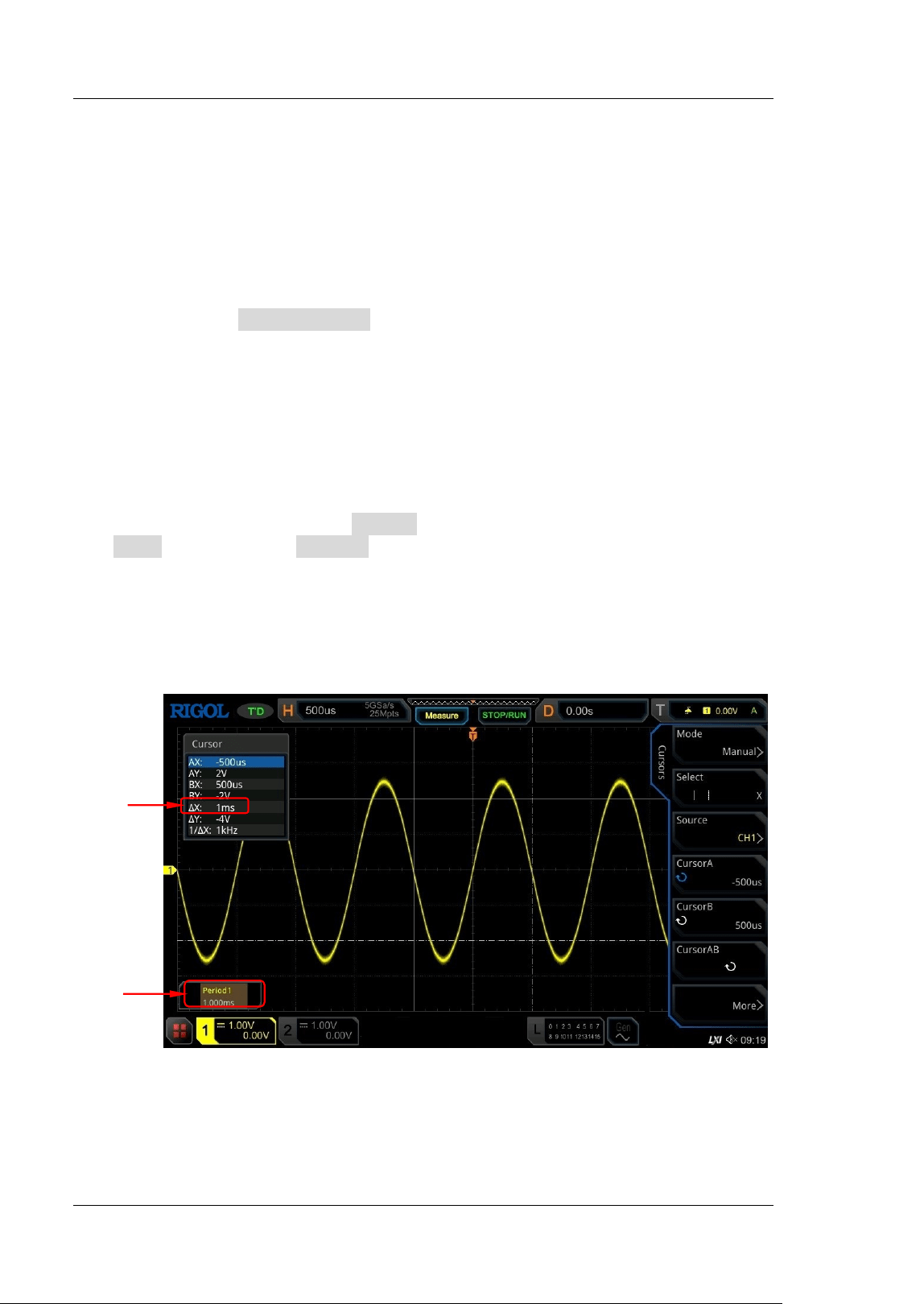
RIGOL Chapter 6 Operations and Measurements
6-44 MSO5000-E User Guide
The available units include "Source" and "Percent(% )".
Source: measures the amplitude at Y Cursor (taking the channel
ground point as the reference). The measurement results include AY,
BY, and △Y (its unit is consistent with that of the current source).
Percent(% ): measures ratio at Y Cu r s o r. The measurement results
include AY, BY, and △Y, and they are all expressed in percentage.
This oscilloscope allows you to set the reference position for the ratio
according to your needs. After adjusting Y Cursor to a desired position,
press Set Reference to take the current cursor position as the
reference. The current positions of Cursor A and Cursor B are
respectively def ined as "0% " and "100% ". Meanwhile, two cursors (in
blue) that cannot be moved are displayed on the screen as the ratio
reference position (the ratio position at "0% " and "100% " are
respectively marked by a solid line and a dotted line). Before you set
manually, the oscilloscope adopts the default ratio reference position.
6. Set LA Type
When "LA" is selected under Source, you need to set the LA display type. Press
More and then press La Type continuously to select "HEX" or "BI N".
7. Measurement Example
Measure the period of a sine wave by using the manual cursor measurement
and auto measurement respectively. The measurement results are both 1 ms, as
shown in Figure 6-3.
Figure 6-3 Manual Cursor Measurement Example
Auto
Measurement
Cursor
Measurement
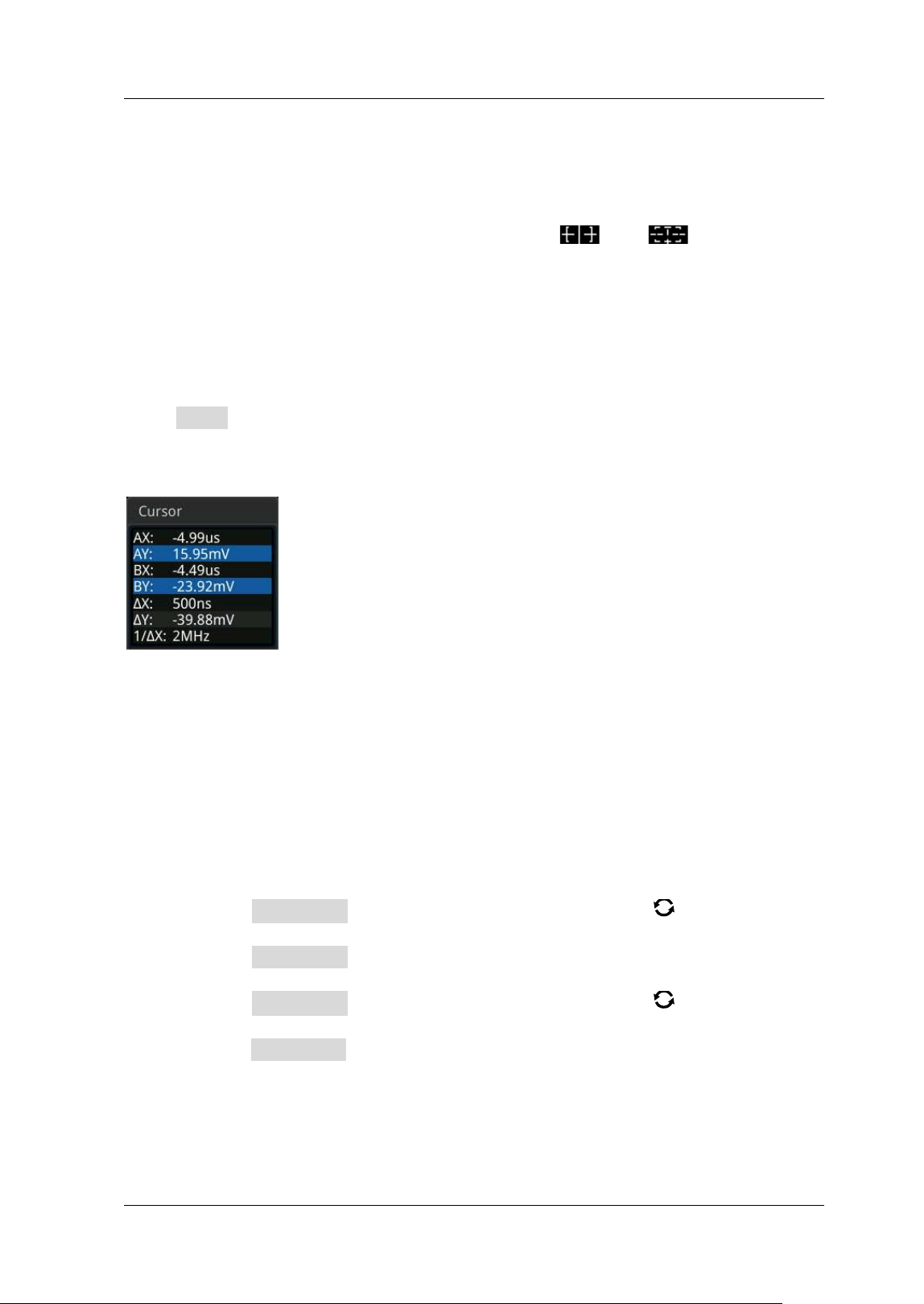
Chapter 6 Operations and Measurements RIGOL
MSO5000-E User Guide 6-45
Track Mode
I n this mode, you can adjust the two pairs of cursors (Cursor A and Cursor B) to
measure the X and Y values on two different sources respectively. The points being
measured on Cursor A and Cursor B are marked by
and respectively.
When the cursors are moved horizontally/ vertically, the markers will position on the
waveform automatically. When the waveform is expanded or compressed
horizontally/ vertically, the markers will track the points being marked at the last
adjustment of the cursors.
Note: When the delayed sweep function is enabled, the track cursor is within the
expanded area.
Press Mode to select "Track" to enable the cursor track function, and the
measurement results will be displayed at the upper-left corner of the screen, as
shown in the following f igure. When you change the measurement parameter for the
track mode, the measurement results will be changed accordingly.
AX: indicates the X value at Cursor A.
AY: indicates the Y value at Cursor A.
BX: indicates the X value at Cursor B.
BY: indicates the Y value at Cursor B.
△X: indicates the horizontal spacing between Cursor A and Cursor B.
△Y: indicates the vertical spacing between Cursor A and Cursor B.
1/ △X: indicates the reciprocal of the horizontal spacing between Cursor A and
Cursor B.
1. Select Measurement Source
Press AX Source, then rotate the multifunction knob to select the
desired measurement source. Press down the knob to select it. You can also
press AX Source continuously or enable the touch screen to select it. The
available source channels are None, CH1-CH2, and Math1-Math4.
Press BX Source, then rotate the multifunction knob to select the
desired source (CH1 or CH2). Press down the knob to select it. You can also
press BX Source continuously or enable the touch screen to select it. Thea
available source channels are None, CH1-CH2, and Math1-Math4.
Note: Only channels currently enabled can be selected.
RIGOL Chapter 6 Operations and Measurements
6-46 MSO5000-E User Guide
2. Select the Track Axis
Press Track to select "X" or "Y" as the current track axis. The default is "X".
X: tracks X Cursor and measures the value at X Cursor.
Y: tracks Y Cursor and measures the time of the f irst point at the left side of
the screen.
3. Adjust Cursor Position
1) When "X" is selected under Track, you can adjust the position of X cursor.
Press AX, then rotate the multifunction knob to adjust the
horizontal position of Cursor A (X cursor). I ts adjustable range is
limited within the screen.
Press BX, then rotate the multifunction knob to adjust the
horizontal position of Cursor B (X cursor). I ts adjustable range is
limited within the screen.
Press AX BX, then rotate the multifunction knob to adjust the
horizontal position of Cursor A and Cursor B (X cursors) simultaneously.
Its adjustable range is limited within the screen. The horizontal spacing
between Cursor A and Cursor B (X cursors) remains unchanged.
2) When "Y" is selected under Track, you can adjust the position of Y cursor.
Press AY, then rotate the multifunction knob to adjust the vertical
position of Cursor A (Y cursor).
Press BY, then rotate the multifunction knob to adjust the vertical
position of Cursor B (Y cursor).
Press AY BY, then rotate the multifunction knob to adjust the
vertical position of Cursor A and Cursor B (Y cursors) simultaneously.
The vertical spacing between Cursor A and Cursor B (Y cursors)
remains unchanged.
Note:
I f one of the three items (AX, BX, and AX BX) or one of the three items
(AY, BY, and AY BY) is selected, you can press down the multifunction
knob
continuously to switch among the three items.
I n track mode, the horizontal cursor (or vertical cursor) will track the
marked point in a timely manner (i.g, the cursor will move up and down
with the transient change of the waveform). Thus, the X value (or Y value)
might change even though you do not adjust the cursor.
4. Measurement Example
Measure the waveforms of CH1 and CH2 with Cursor A and Cursor B,
respectively. Then, expand the waveforms horizontally, and you will f ind that the
cursor will track the point that has been marked, as shown in the following
f igure.
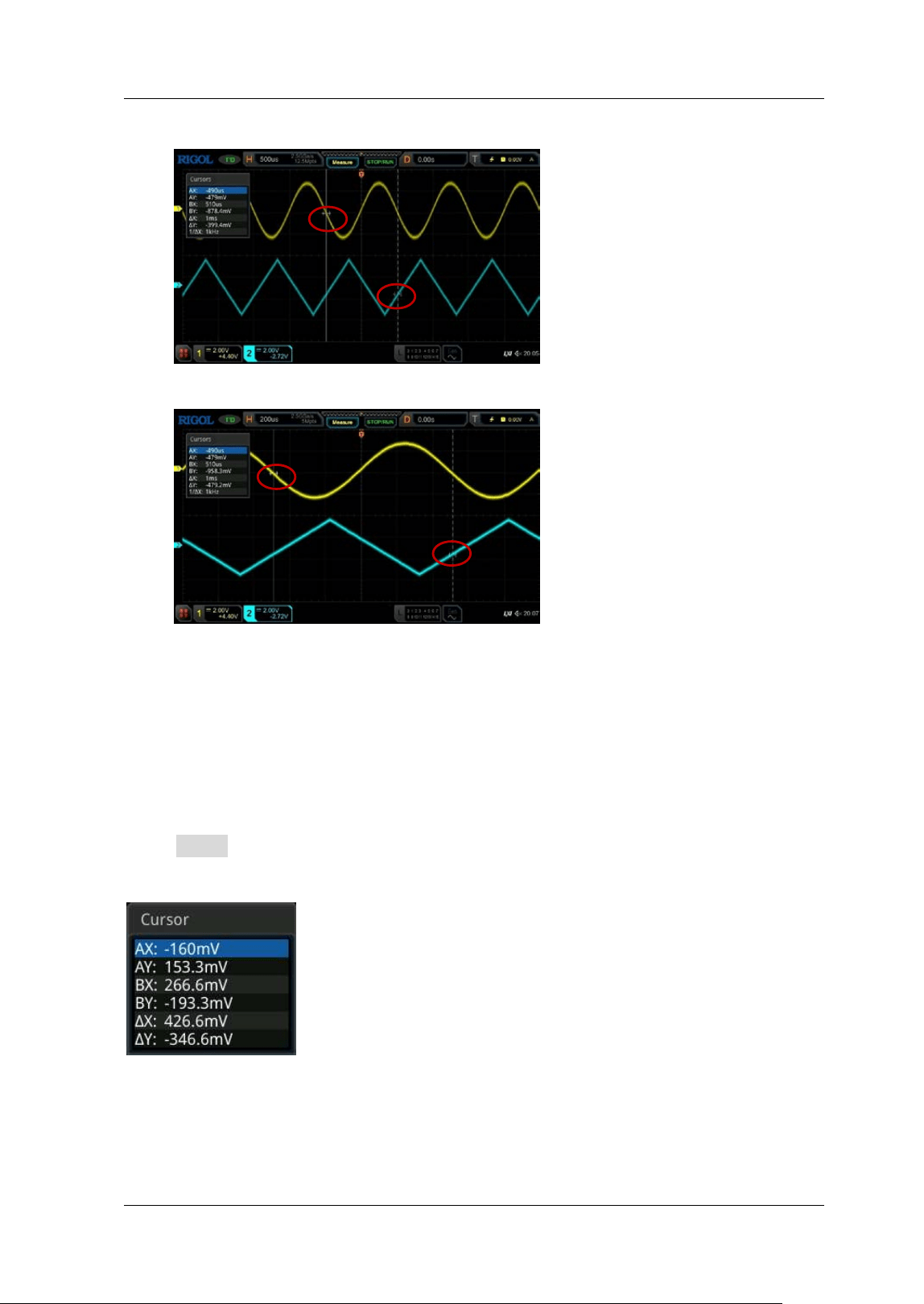
Chapter 6 Operations and Measurements RIGOL
MSO5000-E User Guide 6-47
Track Measurement ( before Horizontal Expansion) :
Track Measurement ( after Horizontal Expansion) :
XY Mode
XY mode is only available when the horizontal timebase mode is "XY" (refer to
"Timebase Mode
"). I n this mode, two pairs of cursors will appear. You can adjust
the cursor positions to measure the X and Y values at the crossing points of the two
pairs of cursors.
Press Mode to select "XY" to enable the XY cursor measurement function. The
measurement results are displayed at the upper-left corner of the screen, as shown
in the following f igure.
AX: indicates the X value at Cursor A.
AY: indicates the Y value at Cursor A.
BX: indicates the X value at Cursor B.
BY: indicates the Y value at Cursor B.
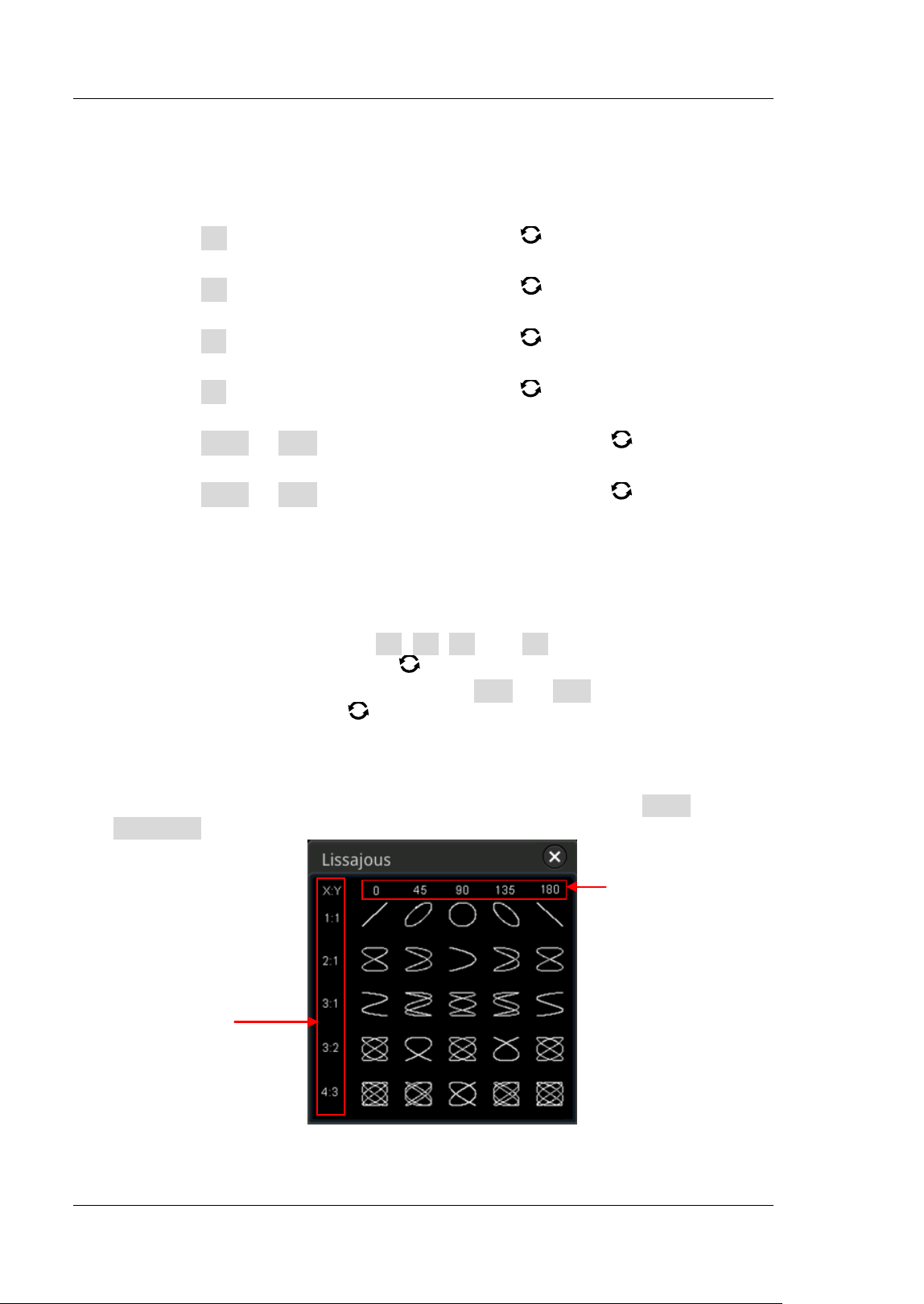
RIGOL Chapter 6 Operations and Measurements
6-48 MSO5000-E User Guide
△X: indicates the horizontal spacing between Cursor A and Cursor B.
△Y: indicates the vertical spacing between Cursor A and Cursor B.
1. Adjust Cursor Position
Press AX and rotate the multifunction knob to adjust the X value at
Cursor A.
Press BX and rotate the multifunction knob to adjust the X value at
Cursor B.
Press AY and rotate the multifunction knob to adjust the Y value at
Cursor A.
Press BY and rotate the multifunction knob to adjust the Y value at
Cursor B.
Press More ABX and rotate the multifunction knob to adjust the X
value at Cursor A and the X value at Cursor B simultaneously.
Press More ABY and rotate the multifunction knob to adjust the Y
value at Cursor A and the Y value at Cursor B simultaneously.
During the adjustment, the measurement results will change accordingly. The
adjustable range is limited within the screen.
Note: I f one of the four items (AX, BX, AY, and BY) is selected, you can press
down the multifunction knob
continuously to switch among the four
items. I f you select either of the items (ABX and ABY), you can press down
the multifunction knob
continuously to switch between them.
2. Display Lissajous Legend
This oscilloscope provides the Lissajous schematic diagram under different
frequencies and phase deviation, as shown in Figure 6-4. Press More
Lissajous, then the Lissajous schematic diagram is displayed.
Figure 6-4 Lissajous Schematic Diagram
Phase deviation
between two signals
Frequency rat io
between two signals
Chapter 6 Operations and Measurements RIGOL
MSO5000-E User Guide 6-49
Measure Mode
Press Mode to select "Measure". I n this mode, the cursor position for measurement
is displayed.
Press I ndicator continuously to enable or disable the indicator. I f it is enabled, one
or multiple cursors are displayed on the screen. Before enabling the indicator, you
need to enable at least one parameter for auto measurement. The number of cursors
will change along with the enabled measurement parameters.
Note: I f no measurement parameter is selected or no measurement source is input,
no cursor is displayed. When you expand or compress the waveforms horizontally,
the cursor will change accordingly.


Chapter 7 Digital Voltmeter (DVM) and Frequency Counter RIGOL
MSO5000-E User Guide 7-1
Chapter 7 Digital Voltmeter (DVM) and
Frequency Counter
MSO5000-E series oscilloscope provides a built-in digital voltmeter (DVM) and
frequency counter, which enable you to perform an accurate measurement,
improving user experience in counter and frequency measurement.
Contents in this chapter:
Digital Voltmeter (DVM)
Frequency Counter
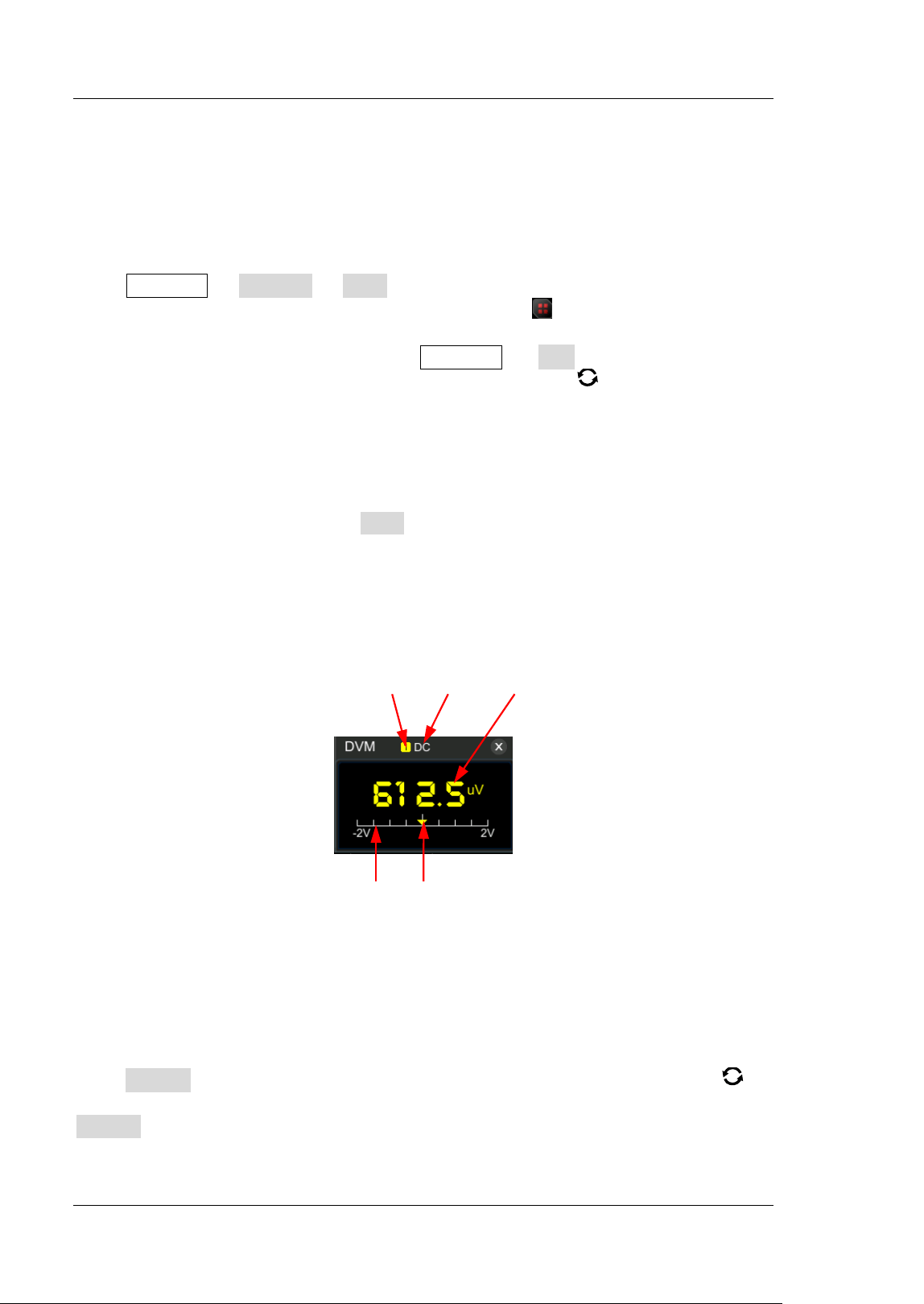
RIGOL Chapter 7 Digital Voltmeter (DVM) and Frequency Counter
7-2 MSO5000-E User Guide
Digital Voltmeter ( DVM)
The built-in DVM of this oscilloscope provides 3-digit voltage measurements on any
analog channel. DVM measurements are asynchronous from the oscilloscope’s
acquisition system and are always acquiring.
Press Measure Analyze DVM to open the DVM setting menu, or enable the
touch screen and then tap the function navigation icon at the lower-left corner of
the screen to open the function navigation. Then, tap the "DVM" icon to open the
DVM setting menu. You can also press Measure Add, then in the displayed
measurement category area, rotate the multifunction knob to select "Analyze",
and then select "DVM" to open the DVM setting menu.
To Enable or Disable DVM Measurement
I n the "DVM" setting menu, press DVM continuously to enable or disable DVM
measurement. When enabled, the following f igure is displayed. The DVM display also
has a scale that is determined by the channel's vertical scale and vertical offset. The
scale range is the range of the screen. The scale's yellow triangle pointer shows the
most recent measurement result. The specif ic value above the pointer shows the
measurement extrema over the last 3 seconds.
Note: DVM measurement and the oscilloscope share the same probe, so the unit for
the DVM measurement is consistent with that of the channel.
To Select the Measurement Source
Press Source in the "DVM" setting menu, then rotate the multifunction knob to
select the desired source. Press down the knob to select it. You can also press
Source continuously or enable the touch screen to select it. The analog channel
(CH1 or CH2) can be selected to be the measurement source.
Scale Pointer
Source Mode Voltage Value
Chapter 7 Digital Voltmeter (DVM) and Frequency Counter RIGOL
MSO5000-E User Guide 7-3
Note: Even if the analog channel (CH1 or CH2) is not enabled, you can still perform
the DVM measurement.
To Select Measurement Mode
Press Mode in the "DVM" setting menu, then rotate the multifunction knob to
select the desired mode, and then press down the knob to select the mode. You can
also press Mode continuously to select the mode or enable the touch screen to tap
the desired mode and select it. The DVM measurement modes include AC RMS, DC,
and AC+ DC RMS.
AC RMS: displays the root-mean-square value of t he acquired data, with the DC
component removed.
DC: displays the average value of the acquired data.
AC+ DC RMS: displays the root-mean-square value of the acquired data.
To Set the Limits
Press Limits to enter the sub-menu of Limits. Then set the following parameters.
Beeper
Press Beeper continuously to enable or disable the beeper.
Limits Condition Setting
Press When, then rotate the multifunction knob to select the desired limit
setting condition. Press down the knob to select it. You can also press When
continuously or enable the touch screen to select it. The limits conditions include
"I n Limits" and "Out Limits".
In Limits: when the voltage value is within the limits, you can enable or
disable the beeper to sound an alarm.
Out Limits: when the voltage value is outside of the limits, you can enable
or disable the beeper to sound an alarm.
Upper/ Lower Limit Setting
Press Upper, then rotate the multifunction knob or use the pop-up numeric
keypad to set the upper limit of the voltage.
Press Low er, then rotate the multifunction knob or use the pop-up numeric
keypad to set the lower limit of the voltage.
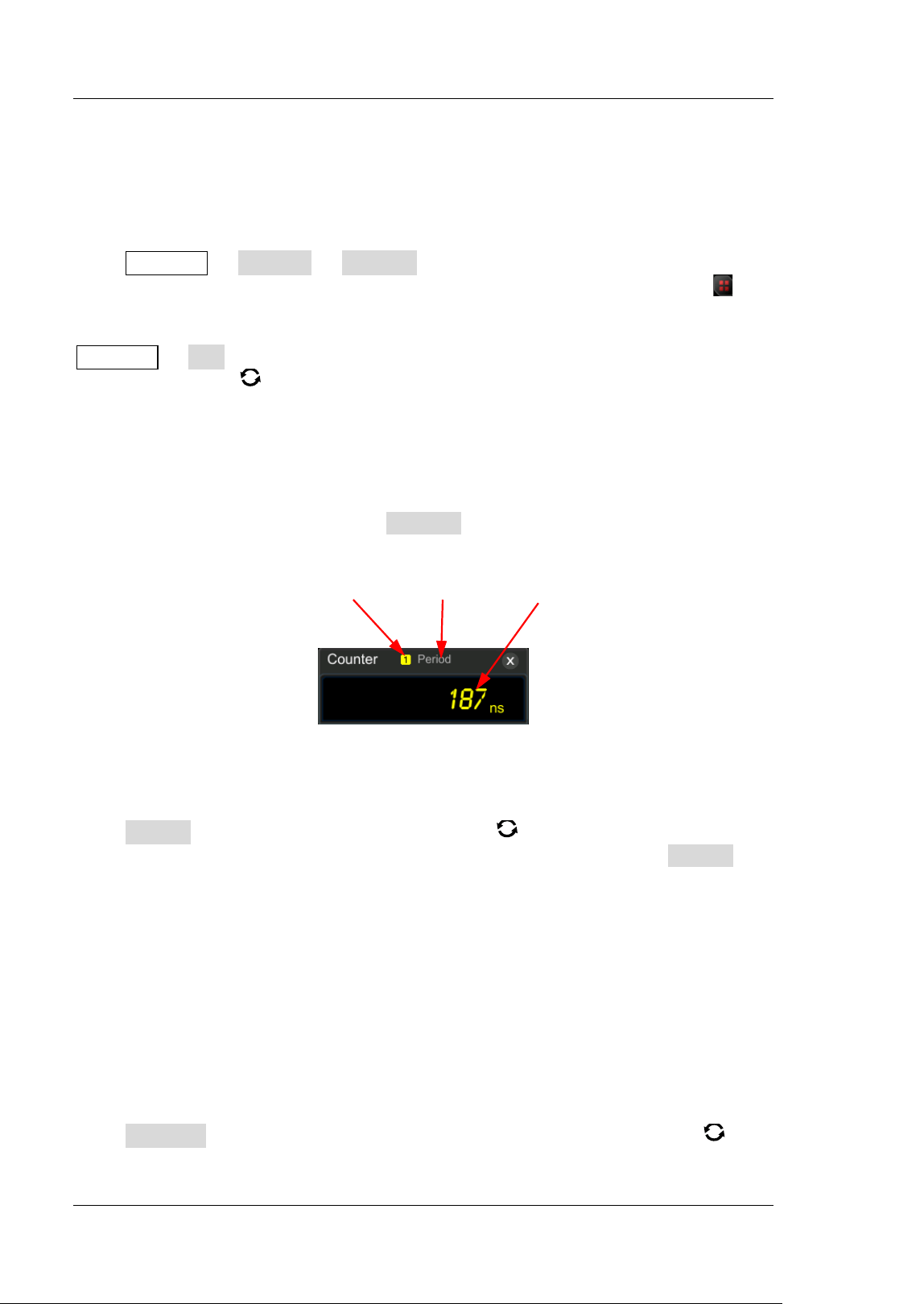
RIGOL Chapter 7 Digital Voltmeter (DVM) and Frequency Counter
7-4 MSO5000-E User Guide
Frequency Counter
The frequency counter analysis function provides frequency, period, or edge event
counter measurements on any analog channel.
Press Measure Analyze Counter to open the frequency counter setting
menu, or enable the touch screen and then tap the function navigation icon at
the lower-left corner of the screen to open the function navigation. Then, tap the
"Counter" icon to open the frequency counter setting menu. You can also press
Measure Add, then in the displayed measurement category area, rotate the
multifunction knob to select "Analyze", and then select "Counter" to open the
frequency counter setting menu.
To Enable or Disable the Frequency Counter
I n the "Counter" setting menu, press Counter continuously to enable or disable the
frequency counter measurement. When enabled, the following f igure is displayed.
To Select the Measurement Source
Press Source, then rotate the multifunction knob to select the desired source,
and then press down the knob to select the source. You can also press Source
continuously or enable the touch screen to select it. The analog channels (CH1 or
CH2) and digital channels (D0-D15) can all be selected as the source of the
frequency counter.
To Select the Measurement I tem
The measurement items supported by the frequency counter of this oscilloscope
include Frequency, Period, and Totalize measurements. Wherein, Totalize indicates
the count of edge events on the signal.
Press Measure in the "Counter" menu, then rotate the multifunction knob to
select the desired measurement item, and then press down the knob to select the
Source Measurement I t em Value
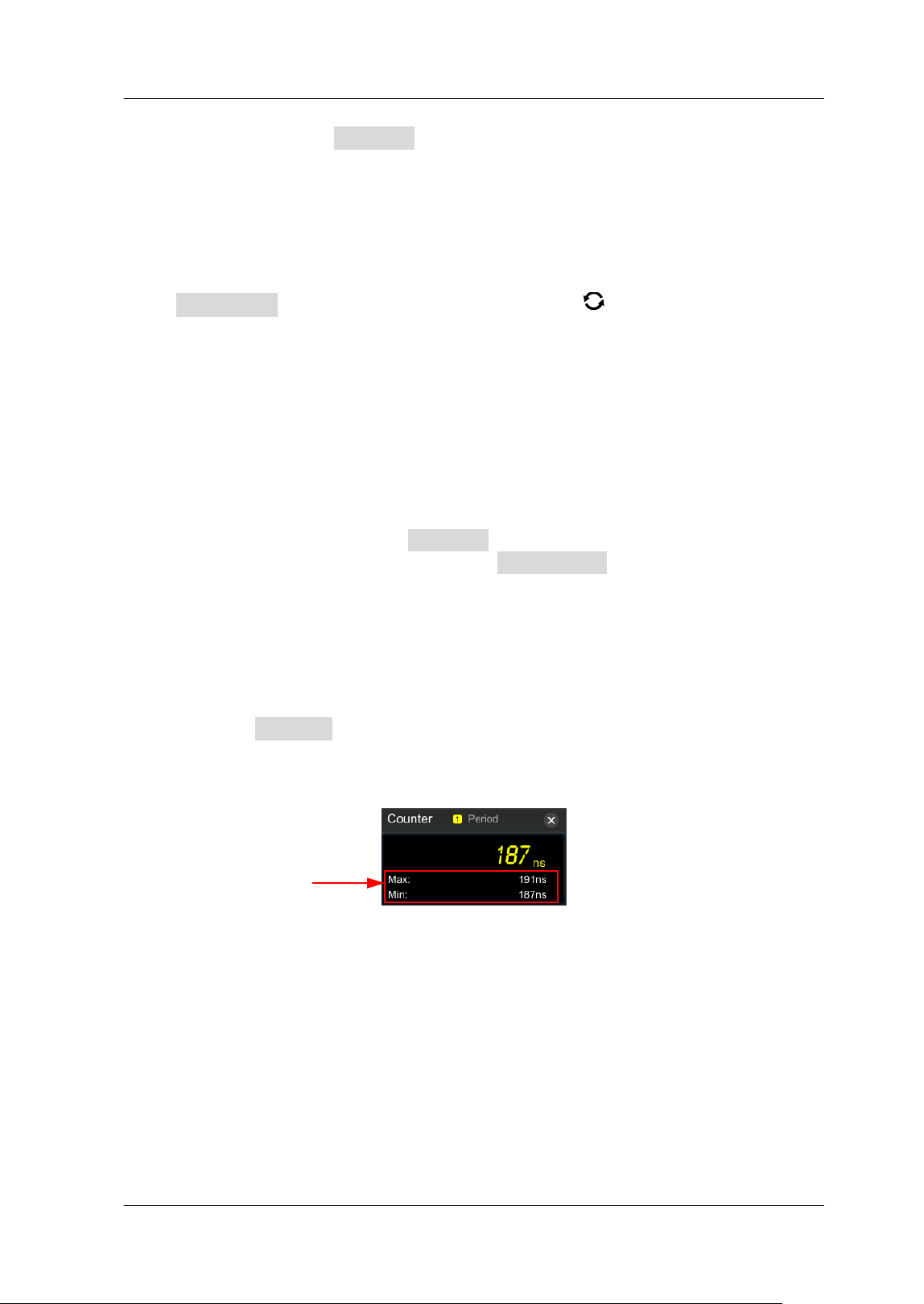
Chapter 7 Digital Voltmeter (DVM) and Frequency Counter RIGOL
MSO5000-E User Guide 7-5
item. You can also press Measure continuously or enable the touch screen to tap
the desired measurement item and select it.
To Set Resolution
For Period and Frequency measurements, you need to set the readout resolution.
Press Resolution, then rotate the multifunction knob or use the pop-up
numeric keypad to set the resolution. The range of resolution is from 3 bits to 6 bits.
By default, it is 5 bits.
Note: The greater the resolution, the longer the gate time. I n this way, the
measurement time will be longer.
To Clear Count
When "Totalize" is selected under Measure, the oscilloscope measures the count of
edge events on the signal. At this time, press Clear Count to clear the measurement
results.
To Enable or Disable the Statistical Function
For Period and Frequency measurements, enable the frequency counter statistical
function. Press Statistic continuously to enable or disable the statistical function.
When enabled, the maximum value and minimum value will be displayed in the
frequency counter data, as shown in the following f igure.
Statistics


Chapter 8 Power Analysis (Option) RIGOL
MSO5000-E User Guide 8-1
Chapter 8 Power Analysis (Option)
MSO5000-E series oscilloscope provides an optional power analysis function, which
can help you easily analyze the eff iciency and reliability of the switch-mode power
supplies. With the power analysis function, you can analyze the power quality and
output ripple noise of the input power.
Contents in this chapter:
Power Quality
Ripple
RIGOL Chapter 8 Power Analysis (Option)
8-2 MSO5000-E User Guide
Power Quality
By analyzing the power quality, you can test the quality of AC input lines. The specif ic
measurement parameters for power quality analysis include V_RMS, I _RMS, real
power, apparent power, reactive power, power factor, reference frequency, phase
angle, impedance, voltage crest factor, and current crest factor.
Press Measure Analyze Power Analyzer to open the power analysis setting
menu, or enable the touch screen and then tap the function navigation icon at
the lower-left corner of the screen to open the function navigation. Then, tap the
"Power" icon to open the power analysis setting menu.
Select the Analysis Type
I n the power analysis setting menu, press Analysis Type and rotate the
multifunction knob
to select "Power Quality", and then press down the knob
to select it. You can also press Analysis Type continuously or enable the touch
screen to select the desired analysis type.
Set t he Pow er Quality Analysis Source
I n the power analysis setting menu, press Source to enter the source setting
menu.
Press Voltage and then rotate the multifunction knob to select the
channel (CH1 or CH2) for acquiring voltage. Press down the knob to select it.
You can also press Voltage continuously or enable the touch screen to
select the channel.
Press Current and then rotate the multifunction knob to select the
channel (CH1 or CH2) for acquiring current. Press down the knob to select it.
You can also press Current continuously or enable the touch screen to
select the channel.
Press Freq. Ref continuously to select "Voltage" or "Current" as the
frequency reference.
Set the Reference Level
I n the power analysis setting menu, press Ref Levels (level of the frequency
reference channel) to enter the reference level setting menu.
Press Type, and rotate the multifunction knob to set the reference
level display type to "Percent(% )" or "Absolute", and then press down the
knob to select it. You can also press Type continuously or enable the touch
screen to select the type.
Press Upper, then rotate the multifunction knob or use the pop-up
numeric keypad to set the upper limit value. Reducing the upper limit to the
current middle value will automatically reduce the middle value and lower
limit to keep them lower than the upper limit.
Press Mid, then rotate the multifunction knob or use the pop-up
numeric keypad to set the middle value. The middle value is limited by the
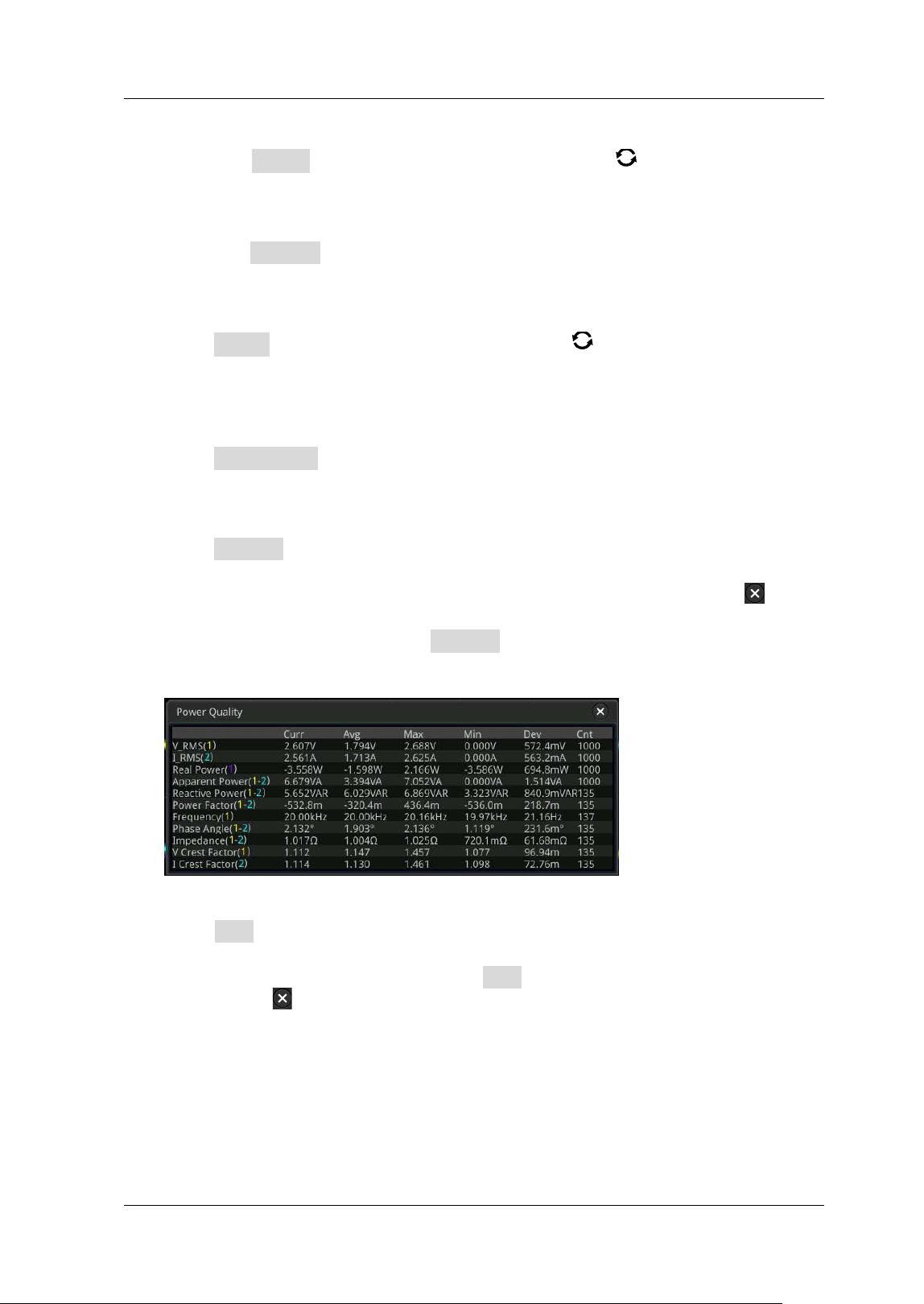
Chapter 8 Power Analysis (Option) RIGOL
MSO5000-E User Guide 8-3
settings of the upper limit and lower limit.
Press Lower, then rotate the multifunction knob or use the pop-up
numeric keypad to set the lower limit. I ncreasing the lower limit to the
current middle value will automatically increase the middle value and upper
limit to keep them higher than the lower limit.
Press Default, and then the upper value, middle value, and lower value will
be restored to the defaults.
Set Count
Press Count, then rotate the multifunction knob or use the pop-up numeric
keypad to set the number of statistical times for power quality analysis. I ts
range is from 2 to 5000. By default, it is 1,000.
Reset
Press Reset Stat. to clear the current data and execute statistics on the
measurement results again.
Open or Close the Results Display Window
Press Display continuously to enable or disable the display of the results.
When enabled, the statistical results will be displayed on the screen, as shown in
the f igure below. You can also enable the touch screen to tap the icon
at the
right-upper corner of the statistical results window to close it.
Note: If you select "ON" under Display, the multiplication operation will be
enabled in the Math operation.
View the Connection Diagram
Press Tips, and then the connection diagram of the power quality analysis is
displayed on the screen. Please connect the cables according to the connection
method as shown in Figure 8-1. Press Tips again or enable the touch screen to
tap the icon
at the right-upper corner of the connection diagram window to
close it.
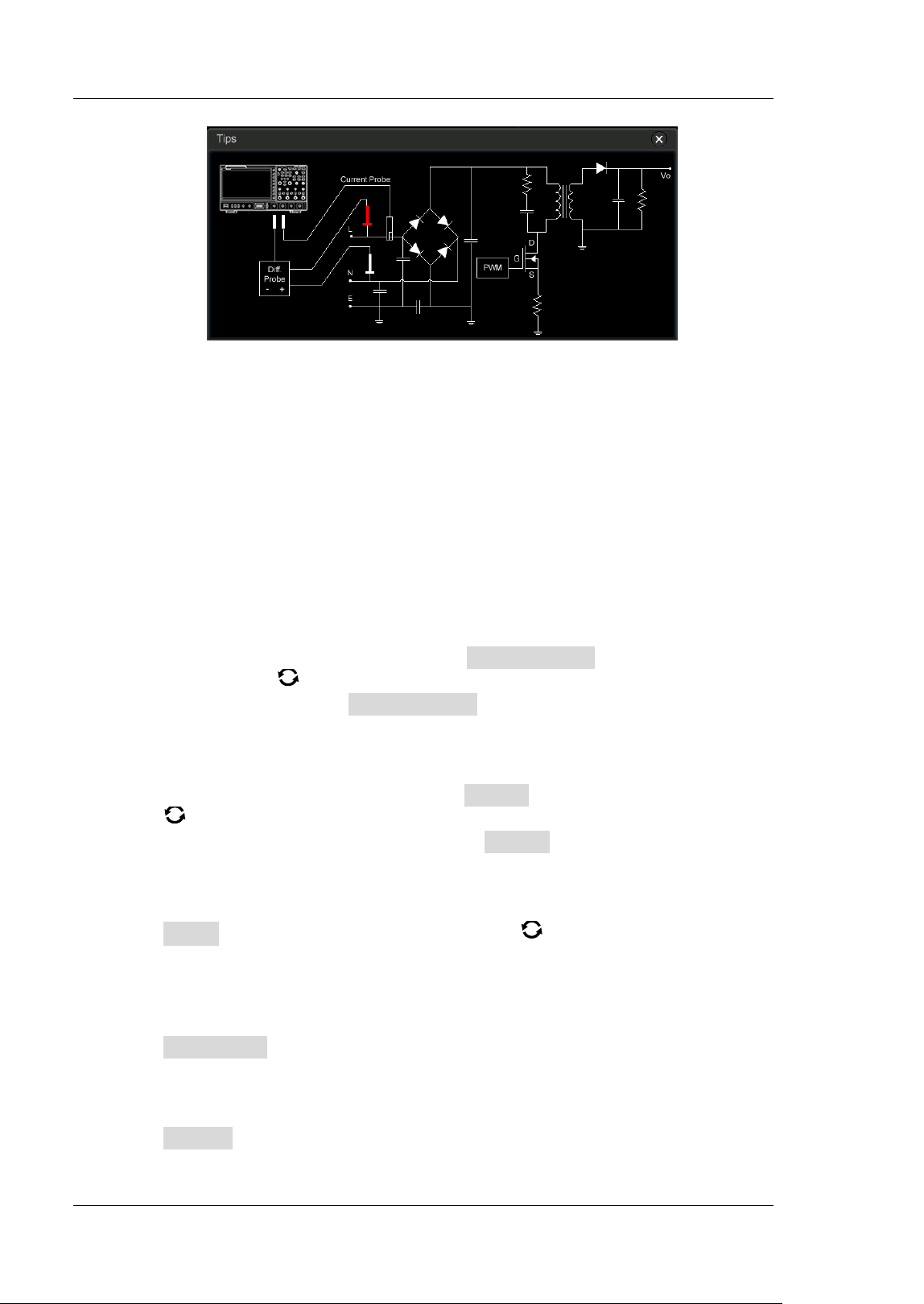
RIGOL Chapter 8 Power Analysis (Option)
8-4 MSO5000-E User Guide
Figure 8-1 Connection Diagram of Power Quality Analysis
Ripple
Power ripple is an important parameter for evaluating DC power supply, which
indicates the ripple quantity of the output DC voltage. The ripple analysis can
measure the current value, average value, minimum value, maximum value,
standard deviation, and count value of the ripples on the power output terminal.
Note: The 1X probe is recommended for the ripple measurement, for example
PVP2350.
Select the Analysis Type
I n the power analysis setting menu, press Analysis Type, and rotate the
multifunction knob
to select "Ripple", and then press down the knob to
select it. You can also press Analysis Type continuously or enable the touch
screen to select the desired analysis type.
Set the Ripple Analysis Source
In the power analysis setting menu, press Source, and rotate the multifunction
knob
to select the ripple analysis source (CH1 or CH2), then press down the
knob to select the source. You can also press Source continuously or enable the
touch screen to select it.
Set Count
Press Count, then rotate the multifunction knob or use the pop-up numeric
keypad to set the number of statistical times for ripple analysis. I ts range is from
2 to 5000. By default, it is 1,000.
Reset
Press Reset Stat. to clear the current data and execute statistics on the
measurement results again.
Open or Close the Results Display Window
Press Display continuously to enable or disable the display of the results.
When enabled, the statistical results will be displayed on the screen, as shown in
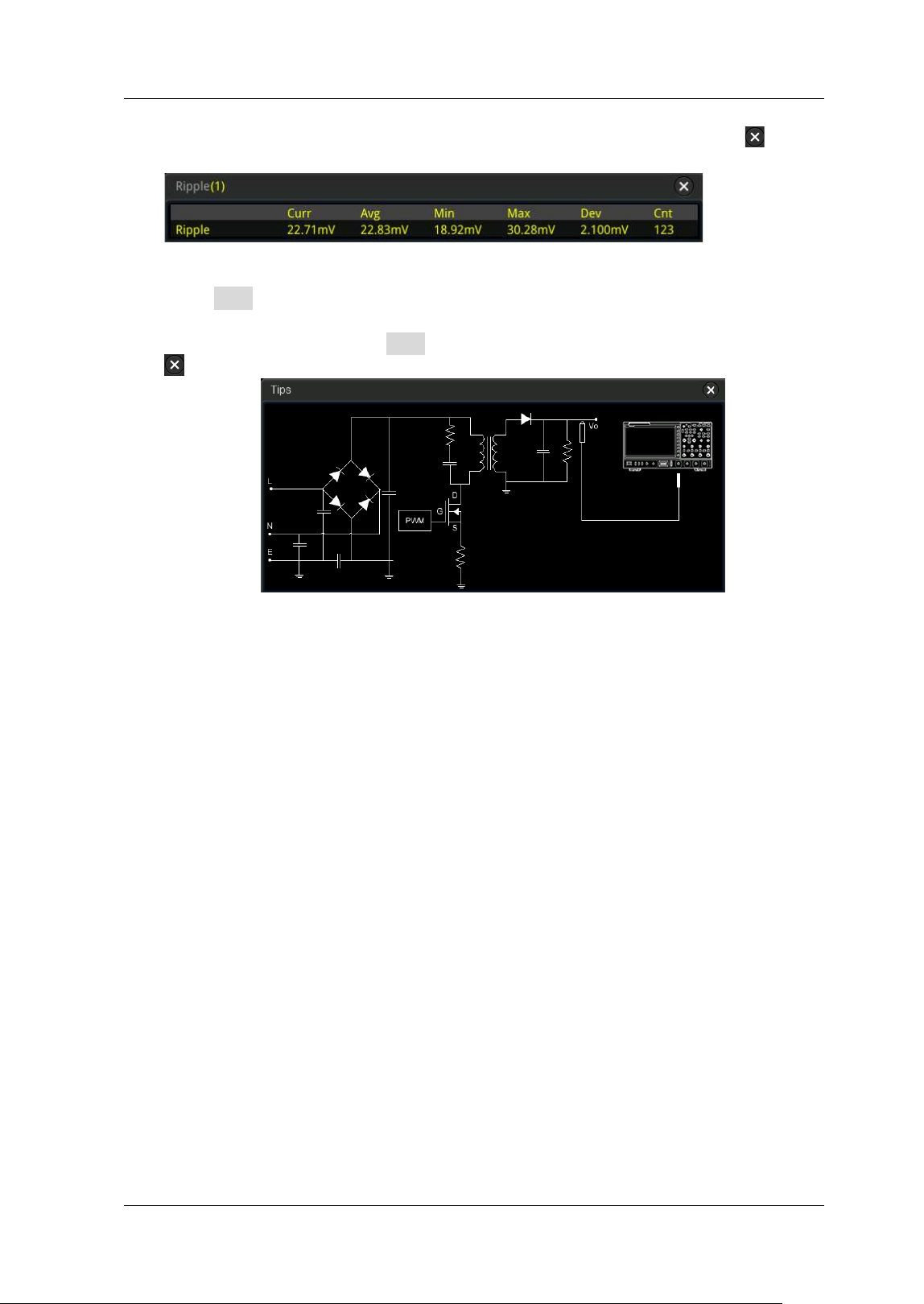
Chapter 8 Power Analysis (Option) RIGOL
MSO5000-E User Guide 8-5
the f igure below. You can also enable the touch screen to tap the icon at the
right-upper corner of the statistical results window to close it.
View the Connection Diagram
Press Tips, and then the connection diagram of the ripple analysis is displayed
on the screen. Please connect the cables according to the connection method as
shown in Figure 8-2. Press Tips again or enable the touch screen to tap the icon
at the right-upper corner of the connection diagram window to close it.
Figure 8-2 Connection Diagram of Ripple Analysis


Chapter 9 Histogram Analysis RIGOL
MSO5000-E User Guide 9-1
Chapter 9 Histogram Analysis
MSO5000-E series oscilloscope supports the standard histogram analysis function,
enabling you to judge the trend of waveforms, and quickly locate the potential
problems of the signal.
Contents in this chapter:
To Enable or Disable the Histogram Function
To Select the Histogram Type
To Select the Histogram Source
To Set the Histogram Height
To Set the Histogram Range
To Enable or Disable the Statistical Function
To Reset
RIGOL Chapter 9 Histogram Analysis
9-2 MSO5000-E User Guide
To Enable or Disable the Histogram Function
The histogram analysis function supported by the MSO5000-E series is available to
provide a statistical view of waveforms or measurement results. I t can be classified
into horizontal histogram, vertical histogram, and measurement histogram. With the
on-going acquisition and measurement of the waveforms, the height of the bar
graph will change within the set range of the histogram window to indicate the
number of times for data statistics.
You can enter the "Histogram" setting menu through the following three methods:
Press Measure on the front panel, select Analyze Histogram to enter the
"Histogram" setting menu.
You can also enable the touch screen and then tap the function navigation icon
at the lower-left corner of the screen to open the function navigation. Then,
tap the "Histogram" icon, and then the histogram setting menu is displayed at
the right section of the screen.
Refer to descriptions in "Rectangle Drawing" to enter the "Histogram" setting
menu.
Press Enable continuously to enable or disable the histogram analysis function.
To Select the Histogram Type
The histogram includes the following three types:
Horizontal: displays the number of times for statistics making in the forms of
columns in the histogram bar graph at the bottom of the graticule.
Vertical: displays the number of times for statistics making in the forms of rows
in the histogram bar graph at the left of the graticule.
Measure: displays the number of times for statistics of the measurement results
in the forms of columns in the histogram bar graph at the bottom of the
graticule.
Press Type, then rotate the multifunction knob to select the desired histogram
type, and then press down the knob to select the type. You can also press Type
continuously or enable the touch screen to select the type.
Tip
To record peaks or glitches in the histogram data, please always enable the
histogram function.
Chapter 9 Histogram Analysis RIGOL
MSO5000-E User Guide 9-3
To Select the Histogram Source
I f "Horizontal" or "Vertical" is selected under Type, you need to set the source
(CH1-CH2). Press Source, then rotate the multifunction knob to select the
desired source, and then press down the knob to select the source. You can also
press Source continuously or enable the touch screen to select it.
When you select "Measure" as the histogram type, press Measure on the front
panel to enter the measurement setting menu, and then add one or multiple
measurement items. The added measurement item(s) can be served as the
histogram source(s).
To Set the Histogram Height
The histogram height indicates the number of grids the histogram bar graph should
use on the screen. Press Height, then rotate the multifunction knob or use the
pop-up numeric keypad to set the height. The available range of height is from 1 to 4.
By default, it is 2.
To Set the Histogram Range
When "Horizontal" or "Vertical" is selected under Type, you need to set the window
range. Set "Left Limit", "Right Limit", "Top Limit", and "Bottom Limit" respectively to
adjust the size and position of the histogram window. Press Range to enter the
sub-menu of histogram range. Then press the corresponding softkey and rotate the
multifunction knob
to set their values.
Note: The adjustment for the horizontal timebase and vertical scale will not affect
the timebase of the histogram range, but only shows variation with the scale.
To Enable or Disable the Statistical Function
Press Statistic to enable or disable the statistical function. When the statistical
function is enabled, the statistical results of the histogram data will be displayed, as
shown in the following f igure. Note that when you select "Measure" under Type, the
statistical data results also include the parameter XScale.
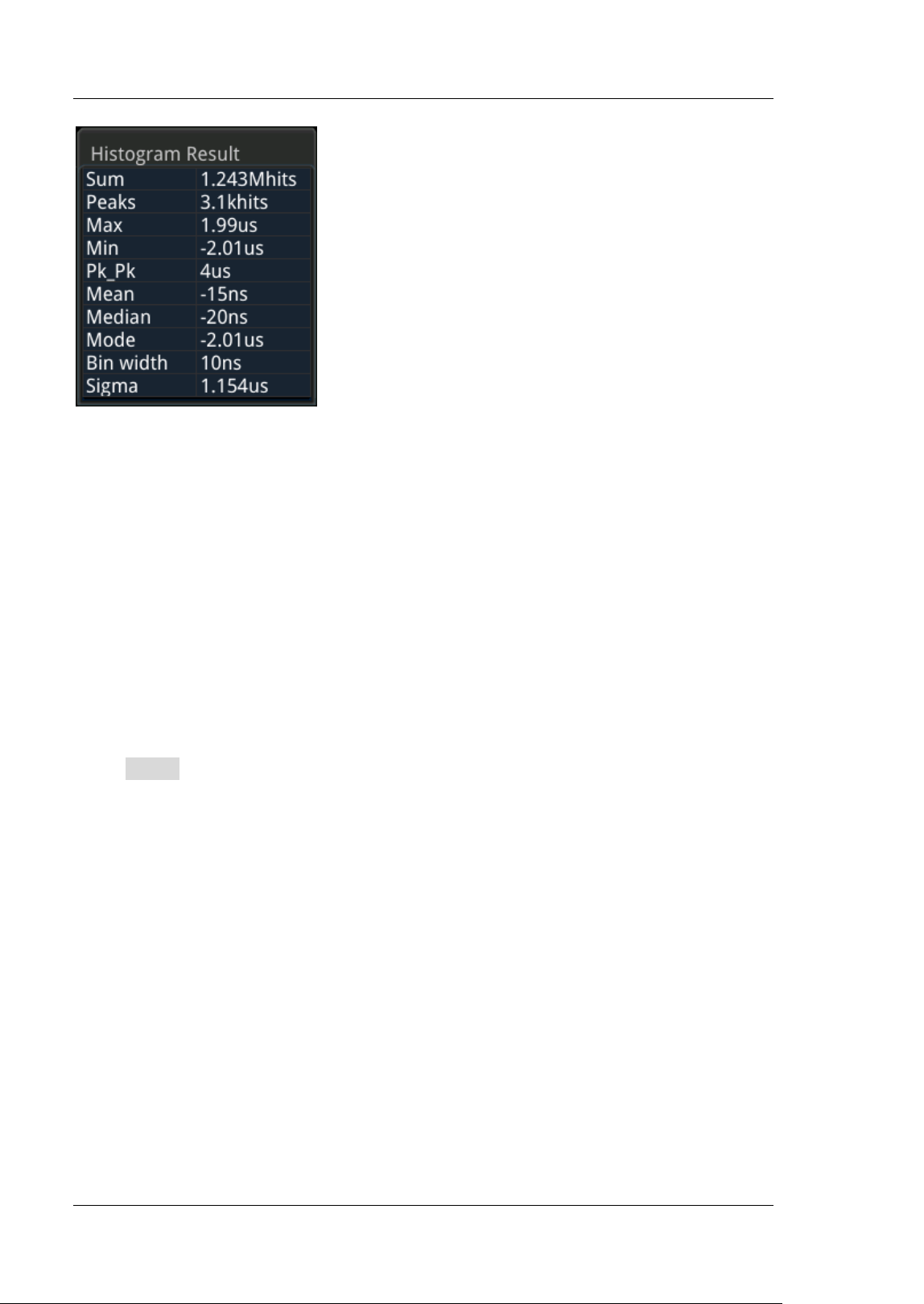
RIGOL Chapter 9 Histogram Analysis
9-4 MSO5000-E User Guide
Sum: indicates the sum of all bins (buckets) in the histogram.
Peaks: indicates the maximum number of hits in any single bin.
Max: indicates the maximum value within the histogram range.
Min: indicates the minimum value within the histogram range.
Pk_Pk: indicates the Delta between the max. value and the min. value.
Mean: indicates the average value of the histogram.
Median: indicates the median value of the histogram.
Mode: indicates the mode value of the histogram.
Bin width: indicates the width of each bin (bucket) in the histogram.
Sigma: indicates the standard deviation of the histogram.
To Reset
Press Reset to reset the statistical data and restart to make statistics.

Chapter 10 Digital Channel RIGOL
MSO5000-E User Guide 10-1
Chapter 10 Digital Channel
MSO5000-E series oscilloscope has a standard configuration of the logic analyzer (LA)
function, and it has 16 digital channels. The default channel label is D15-D0. The
oscilloscope compares the voltages acquired in each sample with the preset logic
threshold. I f the voltage of the sample point is greater than the threshold, it will be
stored as logic 1; otherwise, it will be stored as logic 0. The oscilloscope displays
logic levels ("1" and "0") in the form of a graph for you to easily detect and analyze
the errors in circuit design (hardware design and software design).
Before using the digital channels, connect the oscilloscope and the device under test
using PLA2216 active logic probe option. To apply to different application scenarios,
PLA2216 provides two connection methods to connect the signal under test. For
details, refer to
PLA2216 Active Logic Probe User Guide
.
Note: The digital channel input terminal does not support hot plug. Please do not
insert or pull out the logic probe when the instrument is powered on.
Contents in this chapter:
To Select the Digital Channel
To Enable/ Disable the Digital Channel
To Set the Threshold and Calibrate Probe
Auto Arrangement Setting
To Set the Waveform Display Size
To Set the Label
Group Setting
Waveform Color of the Digital Channel
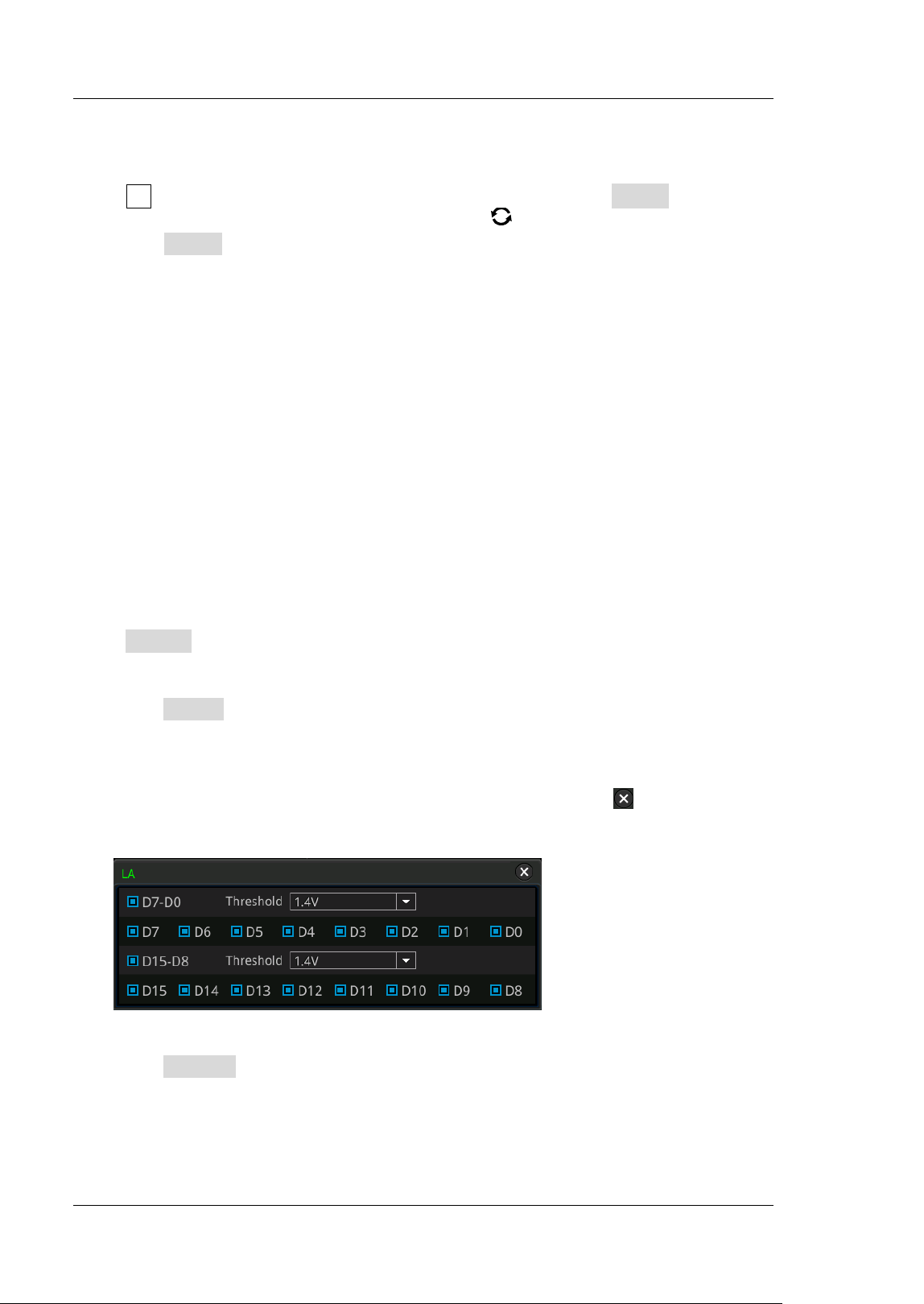
RIGOL Chapter 10 Digital Channel
10-2 MSO5000-E User Guide
To Select the Digital Channel
Press LA on the front panel to enter the LA setting menu. Press Select to open the
channel menu, and rotate the multifunction knob to select the channel. You can
also press Select continuously or enable the touch screen to select it.
Select any of the digital channels (D0-D15). The channel label and waveform of
the selected channel are displayed in red.
Select the user-defined group: selects any group of the channels from the four
user-def ined groups. All the channel labels and waveforms in the selected
channel group are displayed in red.
Note: Only the enabled digital channel can be selected, and only the user-def ined
channel group that has been grouped can be available.
For how to enable the digital channel/ group, refer to descriptions in "To
Enable/ Disable the Digital Channel".
For how to def ine the channel group, refer to refer to descriptions in "Group
Setting".
To Enable/ Disable the Digital Channel
Press On/ Off to enter the on/ off sub-menu of the digital channel.
Enable/ disable the channels ( D7-D0) simultaneously
Press D7-D0 continuously to enable or disable the channels (D7-D0). You can
also enable the touch screen to tap the digital channel status area at the bottom
of the screen. The LA window is displayed, as shown in the f igure below. In the
window, you can select the LA channel and set the threshold. Tap "D7-D0" to
enable or disable the D7-D0 channels. You can also tap the icon at the
upper-right corner of the window or tap the digital channel status area at the
bottom of the screen again to close the window.
Enable/ disable the channels ( D15-D8) simultaneously
Press D15-D8 continuously to enable or disable the channels (D15-D8). You
can also enable the touch screen to tap the digital channel status area at the
bottom of the screen. The LA window is displayed. I n the window, you can select
the LA channel and set the threshold. Tap "D15-D8" to enable or disable the
D15-D8 channels.
Chapter 10 Digital Channel RIGOL
MSO5000-E User Guide 10-3
Enable/ disable a single digital channel
Press Dx On/ Off to open the channel selection list. Rotate the multifunction
knob
to select a channel, and then press down the knob to enable or disable
it. You can also press Dx On/ Off continuously to switch to select any channel,
and press down the multifunction knob
to enable or disable the channel.
You can also enable the touch screen to enable or disable the selected channel.
Besides, you can also enable the touch screen to tap the digital channel status
area at the bottom of the screen. Then, the LA window is displayed. I n the
window, you can select the LA channel and set the threshold. Tap a single
channel to enable or disable the channel.
Note: While pressing D7-D0 to disable all the channels D7-D0, you can still
disable or enable any channel among D7-D0 through the Dx On/ Off k ey. While
pressing D7-D0 to enable D7-D0, the D0-D7 channels under Dx On/ Off are
enabled automatically. The same is true for D15-D8 channels.
Enable or disable user-defined channel group
Press Group On/ Off, then rotate the multifunction knob to select the
specif ied channel group. Press down the knob to enable or disable all the
channels in this channel group. You can also enable the touch screen to tap the
specif ied group and select it. The enabled channel groups are marked with
,
and the disabled channel groups are marked with
.
Note: This function is only valid when the channels have been grouped by users.
For how to carry out group settings, refer to descriptions in "Group Setting".
To Set the Threshold and Calibrate Probe
Threshold Setting
The threshold levels of channels D7-D0 and channels D15-D8 can be set
separately according to your needs. Press Threshold to enter the threshold
setting menu. When the voltage of the input signal is greater than the currently
set threshold, it is treated as logic 1; otherwise, it is treated as logic 0.
Press D7-D0 or D15-D8 respectively to open the threshold selection list and
select the preset threshold. The available preset values include TTL(1.40 V),
CMOS5.0(2.5 V), CMOS3.3(1.65 V), CMOS2.5(1.25 V), CMOS1.8(0.9 V),
ECL(-1.3 V), PECL(3.7 V), LVDS(1.2 V), and 0 V. You can also press D7-D0 or
D15-D8 respectively, then rotate the multifunction knob at a small step
value or use the pop-up numeric keypad to set the desired threshold.
Besides, you can also enable the touch screen to tap the digital channel status
area at the bottom of the screen. Then, the LA window is displayed. I n the
window, you can select the LA channel and set the threshold. Tap the
icon
RIGOL Chapter 10 Digital Channel
10-4 MSO5000-E User Guide
at the right side of the threshold f ield, and then the threshold selection list is
displayed. Tap to select the preset threshold. Or tap the threshold input f ield and
input the value with the pop-up numeric keypad.
Probe Calibration
When the probe is connected to the oscilloscope for the f irst time or the
temperature change is more than 5 degrees, you are recommended to calibrate
the probe zero using the calibration function. Please disconnect all the
connections to the PLA2216 input terminal during the calibration.
Press Threshold Calibration to calibrate the probe zero automatically. After the
calibration is completed, the interface will pop up a dialog box to remind the
calibration result.
Auto Arrangement Setting
Press Arrange to select the waveform arrangement order of the currently enabled
channels on the screen. You can select "D0-D15" or "D15-D0", and the default is
"D0-D15".
D0-D15: the waveforms on the screen are D0-D15 in sequence from top to
bottom.
D15-D0: the waveforms on the screen are D15-D0 in sequence from top to
bottom.
To Set the Waveform Display Size
Press Size, and rotate the multifunction knob to set the waveform display size.
Press down the knob to select it. You can also press Size continuously or enable the
touch screen to select it. The available display sizes are Small, Medium, and Large.
Note: "Large" is only available when the number of currently enabled channels is
less than or equal to 8.
To Set the Label
By default, the instrument takes D0-D15 as the channel label of the 16 digital
channels. You can set a user-def ined label for each digital channel to easily
differentiate the digital channels. You can use the preset label or input a label
manually. Press Label to enter the label setting menu.
Chapter 10 Digital Channel RIGOL
MSO5000-E User Guide 10-5
Enable or disable the label display
Press Display continuously to enable or disable the display of the channel label.
I f it is enabled, the label will be displayed at the left side of the waveform.
Select a specified digital channel
Press Select and rotate the multifunction knob to select the desired digital
channel that needs a label. You can also press Select continuously or enable the
touch screen to select the channel. Select any channel from D0-D15.
Use preset labels
Press Library to select a preset label. The available preset labels include ACK,
ADO, ADDR, BI T, CAS, CLK, CS, DATA, HALT, I NT, LOAD, NMI, OUT, PAS, PIN,
RDY, RST, RX, TX, WR, MISO, MOSI , and D0-D15.
I nput a label manually
Press Label to open the label input interface. You can input the label manually.
For details, refer to descriptions in "
Channel Label".
Group Setting
Press On/ Off Group to enter the user-defined group setting menu. You can
randomly grouping or ungrouping any channels of the 16 digital channels. You can
also directly press More to enter the menu to group or ungroup channels according
to your needs.
Group:
For grouping, the operations for the 4 user-defined groups (Group1, Group2,
Group3, and Group4) are the same. Here take Group1 as an example.
Press Group1 to open the D0-D15 channel selection list (the status icon is
located at the left side of each channel). Rotate the multifunction knob
or
press Group1 continuously to select the channel(s) to be added to Group1.
Then, press down the multifunction knob to add the selected channel(s) to
Group1. The channel(s) that has/ have been added to Group1 is/ are marked with
the status icon
, and the channel(s) that has/have not been added to Group1
is/ are marked with the status icon
.
Use the same method to group the other channels. Each channel can only be
added to one single group, and the channels that have been added to other
group cannot be selected. You can perform group operation on 16 digital
channels (D0-D15).
Ungroup:
Press UnGroup to open the group list. Rotate the multifunction knob or
press UnGroup continuously to select any channel group, then press down the
RIGOL Chapter 10 Digital Channel
10-6 MSO5000-E User Guide
knob to ungroup the channels.
Note:
You can only ungroup the digital channels.
I f no group is set, the Ungroup menu and the Group On/ Off menu are
grayed out and disabled.
Waveform Color of the Digital Channel
When the digital channel is enabled, its corresponding waveforms and label are
displayed on the screen. This oscilloscope supports setting high logic level display
color, low logic level display color, and edge display color.
Press More Color to enter the waveform color setting menu.
Press High, and rotate the multifunction knob to set the color of high logic
level. Press down the knob to select it. You can also press High continuously or
enable the touch screen to select it.
Press Edge, and rotate the multifunction knob to set the edge color. Press
down the knob to select it. You can also press Edge continuously or enable the
touch screen to select it.
Press Low , and rotate the multifunction knob to set the color of low logic
level. Press down the knob to select it. You can also press Low continuously or
enable the touch screen to select it.
Chapter 11 Protocol Decoding RIGOL
MSO5000-E User Guide 11-1
Chapter 11 Protocol Decoding
You can use the protocol analysis to discover errors, debug hardware, and accelerate
development easily, ensuring you to accomplish the projects with high speed and
good quality. Protocol decoding is the basis of protocol analysis. Only protocol
analyses with correct protocol decoding are acceptable, and only correct protocol
decoding can identify more error information. MSO5000-E series provides four bus
decoding modules (Decode 1, Decode 2, Decode 3, and Decode 4) to make common
protocol decoding (including Parallel (standard), RS232 (option), I 2C (option), SPI
(option), LIN (option), CAN (option), FlexRay (option), I 2S (option), and 1553B
(option)) for the input signals of the analog channels (CH1-CH2) and digital channels
(D0-D15). As the decoding functions and setting methods of Decode1, Decode2,
Decode3, and Decode4 are the same, this chapter takes Decode1 as an example for
illustration.
Press Decode on the front panel to open the decode setting menu, or enable the
touch screen and then tap the function navigation icon at the lower-left corner of
the screen to open the function navigation. Then, tap the "Decode" icon to open the
decode setting menu.
To get the decoding option information, refer to descriptions in "Appendix A:
Accessories and Options".
I f you have purchased the decoding option, activate it according the descriptions in
"To View the Option I nformation and the Option I nstallation".
Contents in this chapter:
Parallel Decoding
RS232 Decoding (Option)
I2C Decoding (Option)
SPI Decoding (Option)
LI N Decoding (Option)
CAN Decoding (Option)
FlexRay Decoding (Option)
I2S Decoding (Option)
1553B Decoding (Option)
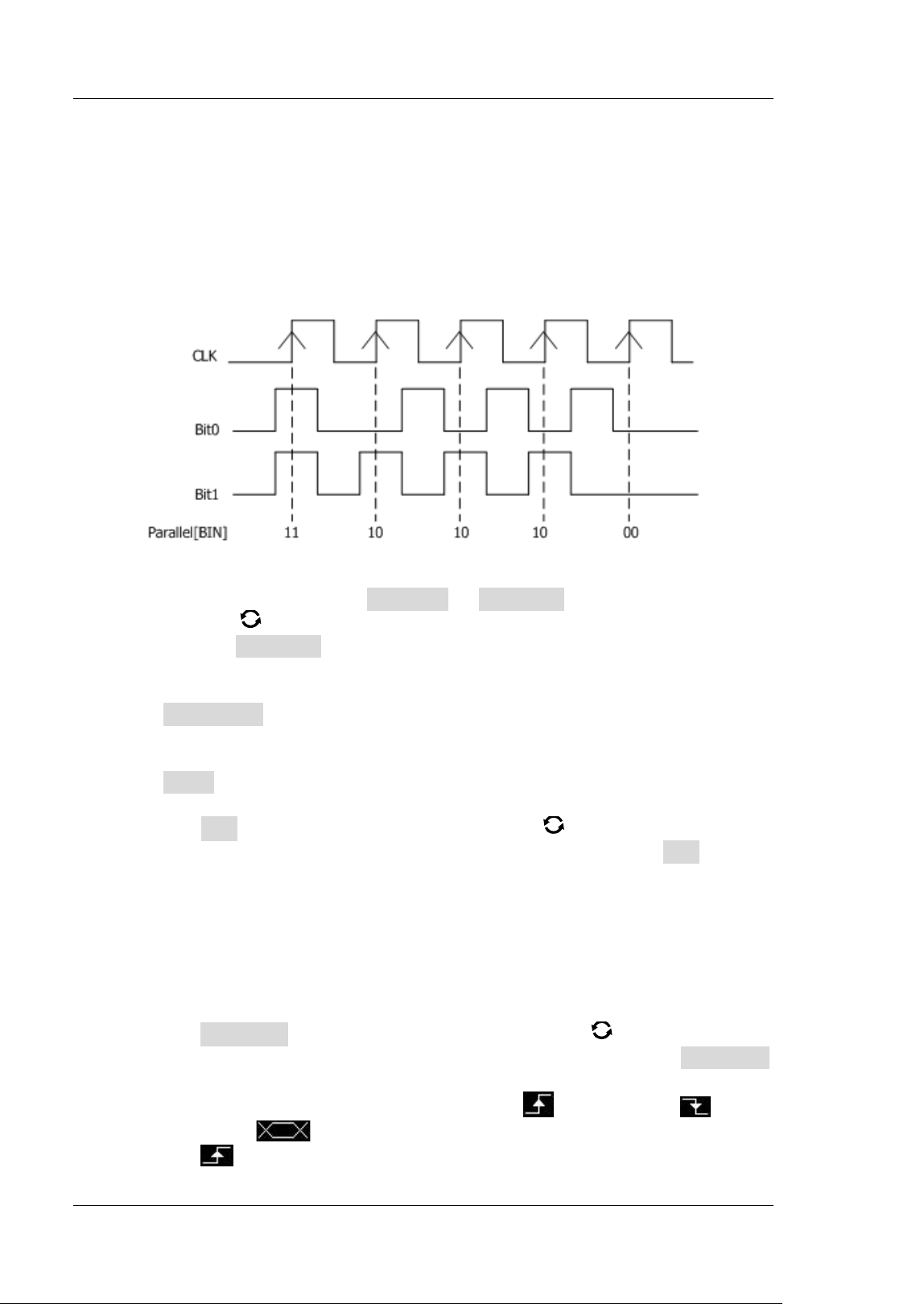
RIGOL Chapter 11 Protocol Decoding
11-2 MSO5000-E User Guide
Parallel Decoding
Parallel bus consists of clock line and data line. As shown in the f igure below, CLK is
the clock line, whereas Bit0 and Bit1 are the 0 bit and 1st bit on the data line
respectively. The oscilloscope will sample the channel data on the rising edge, falling
edge, or the rising/ falling edge of the clock and judge each data point (logic "1" or
logic "0") according to the preset threshold level.
Figure 11-1 Schematic Diagram of Parallel Decoding
I n the decode setting menu, press Decode1 Bus Type, then rotate the
multifunction knob
to select "Parallel". Press down the knob to select it.
You can also press Bus Type continuously or enable the touch screen to select it.
1
. Enable or disable the bus
Press Bus Status to enable or disable the decoding function.
2
. Clock setting (CLK)
Press Clock to enter the clock line setting menu.
Set clock channel
Press CLK, then rotate the multifunction knob to select any clock
channel. Press down the knob to select it. You can also press CLK
continuously or enable the touch screen to select it. The analog channel
(CH1-CH2) and digital channel (D0-D15) can all be selected as the clock
source. I f "OFF" is selected, no clock channel is set, and sampling is
performed when a hop occurs to the data of the data channel during
decoding.
Set the clock edge type
Press CLK Edge, then rotate the multifunction knob to select the clock
edge type. Press down the knob to select it. You can also press CLK Edge
continuously or enable the touch screen to select it. You can select to
sample the channel data on the rising edge (
), falling edge ( ), or
both edges (
) of the clock signal.
Rising
: samples the channel data on the rising edge of the clock.
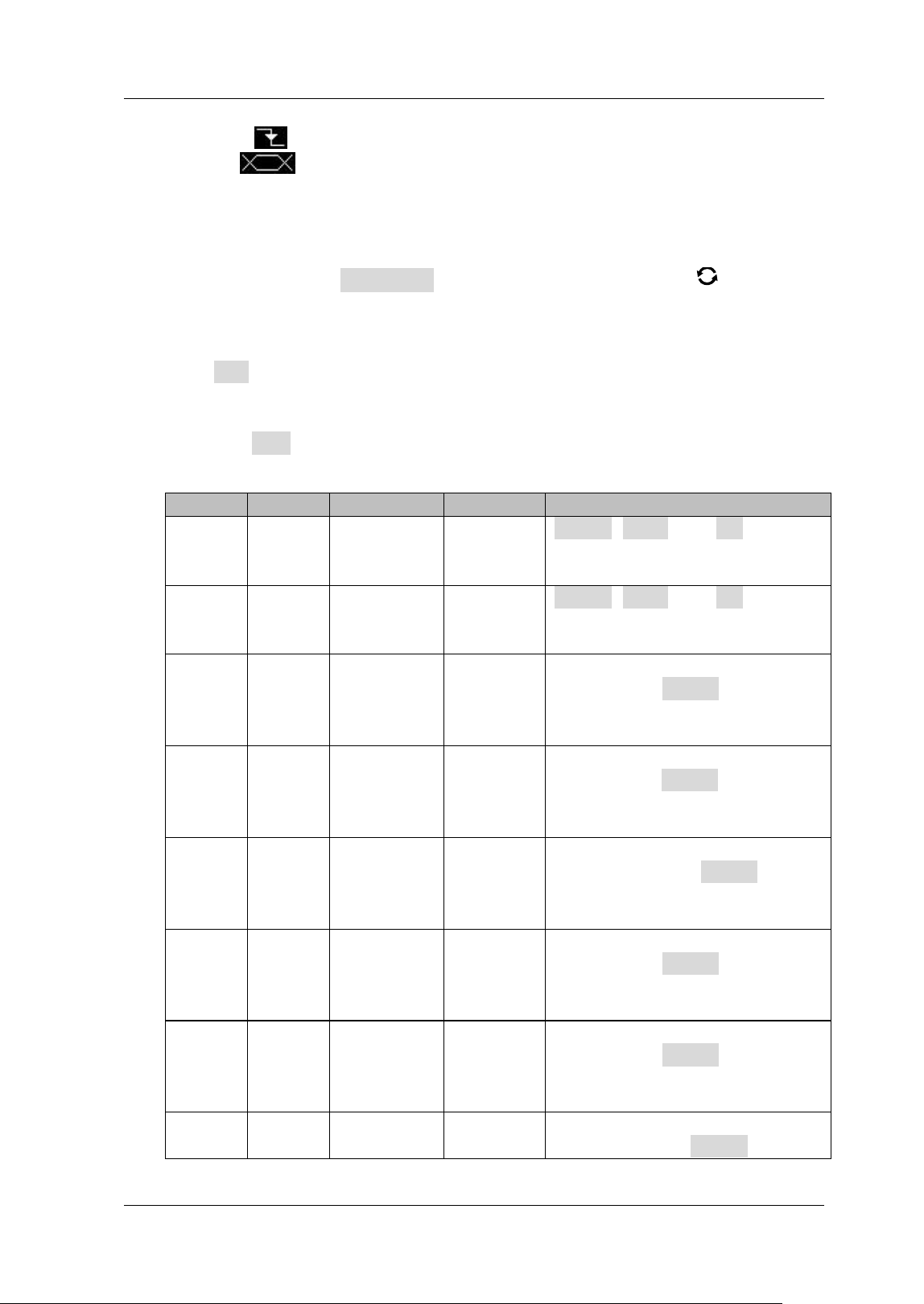
Chapter 11 Protocol Decoding RIGOL
MSO5000-E User Guide 11-3
Falling : samples the channel data on the falling edge of the clock.
Both
: samples the channel data on both the rising edge and the
falling edge of the clock.
Set the threshold
When the clock signal is an analog channel (CH1-CH2), you need to set a
threshold. Press Threshold, rotate the multifunction knob or use the
pop-up numeric keypad to set the threshold.
3
. Bus setting
Press Bus to enter the bus setting menu.
Set the bus
Press BUS to select the digital bus for Parallel decoding, as shown in the
following table.
Bus
Width
Bit X
Channel
Remarks
CH1
1
0
CH1
Width, Bit X, and CH are set
automatically, and you cannot
modify them.
CH2
1
0
CH2
Width, Bit X, and CH are set
automatically, and you cannot
modify them.
D7-D0
8
0 (default)
D0
(default)
Bit0 to Bit7 are set to D0 to D7
respectively. Width is set
automatically, and you cannot
modify them.
D15-D8
8
0 (default)
D8
(default)
Bit0 to Bit7 are set to D8 to D15
respectively. Width is set
automatically, and you cannot
modify them.
D15-D0
16
0 (default)
D0
(default)
Bit0 to Bit15 are set to D0 to
D15 respectively. Width is set
automatically, and you cannot
modify them.
D0-D7
8
0 (default)
D7
(default)
Bit0 to Bit7 are set to D7 to D0
respectively. Width is set
automatically, and you cannot
modify them.
D8-D15
8
0 (default)
D15
(default)
Bit0 to Bit7 are set to D15 to D8
respectively. Width is set
automatically, and you cannot
modify them.
D0-D15
16
0 (default)
D15
(default)
Bit0 to Bit15 are set to D15 to
D0 respectively. Width is set
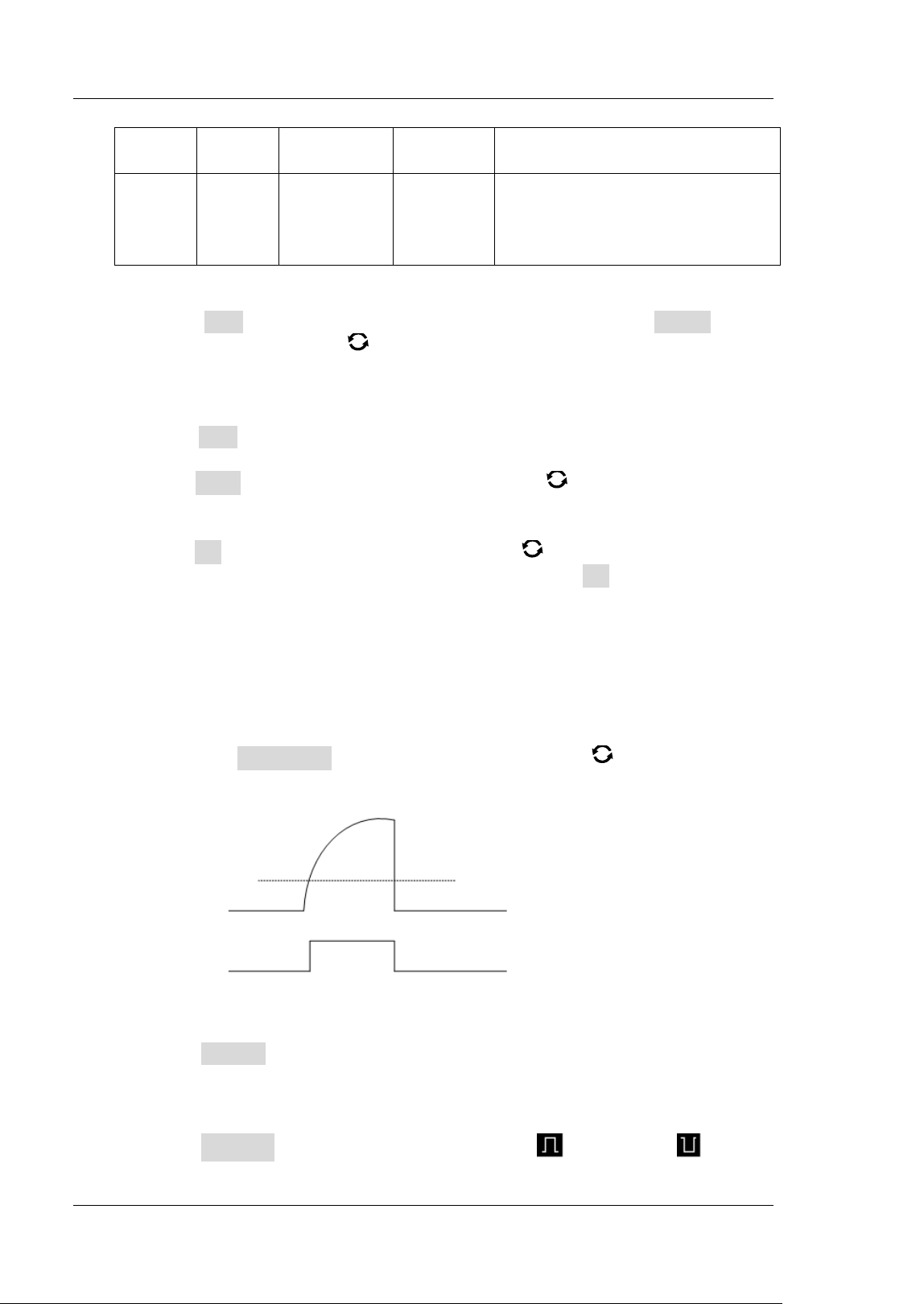
RIGOL Chapter 11 Protocol Decoding
11-4 MSO5000-E User Guide
automatically, and you cannot
modify them.
User
1-20,
by
default,
16
0 (default)
D15
(default)
Bit0 to Bit19 are set to D15 to
CH1 respectively.
Set the width
When BUS is set to "User", you can set the bus width. Press Width, rotate
the multifunction knob
or use the pop-up numeric keypad to set the
width. The available range is from 1 to 20. By default, it is 16.
Specify data channel for each bit
When BUS is set to any digital channel, you can specify the data channel for
each bit.
Press Bit X, then rotate the multifunction knob or use the pop-up
numeric keypad to set the bit of the channel.
By default, 0 is selected. Its available range is from 0 to (width - 1).
Press CH, then rotate the multifunction knob to select a channel source.
Press down the knob to select it. You can also press CH continuously or
enable the touch screen to select it. The analog channel (CH1-CH2) and
digital channel (D0-D15) can all be selected as the channel source.
Set t he threshold level
To judge logic "1" and logic "0" of the buses, you need to set a threshold for
each analog channel (CH1-CH2). When the channel signal amplitude is
greater than the preset threshold, it is judged as logic "1"; otherwise logic
"0". Press Threshold, rotate the multifunction knob or use the pop-up
numeric keypad to set the threshold.
Set the endian
Press Endian continuously to select "Normal" or "I nvert" as the endian of
the bus.
Polarity
Press Polarity continuously to select Positive or Negative as the
Channel Logic Level
Channel Signal Amplitude
Threshold Level
1
0
0
Chapter 11 Protocol Decoding RIGOL
MSO5000-E User Guide 11-5
polarity for data decoding.
4
. Display-related setting
Press Display to enter the display setting menu.
Set the display format
Press Format, rotate the multifunction knob to select the display
format of the bus data. Then, press down the knob to select it. You can also
press Format continuously or enable the touch screen to select it. The
available display formats of the bus data are "Hex", "Dec", "Bin", and
"ASCI I ".
Adjust the vertical position of the bus
Press Position, and then rotate the multifunction knob to adjust the
vertical display position of the bus.
Set the label display
Press Label to enable or disable the label display of the Parallel decoding
bus. When enabled, the bus label "Parallel" will be displayed at the
upper-left side of the bus (when the bus display is enabled).
Event table
Press Event Table to enter the event table setting menu. The event table
displays the detailed decoding information in time order in the form of a
table, so as to better observe the long decoded data. The decoding
information includes the decoded data, the corresponding line number, and
time information.
Open or close the event table: Press Event Table continuously to
enable or disable the event table. When you enable the event table,
the following f igure is displayed, as shown in
Figure 11-2. You can also
enable the touch screen to tap the icon
at the upper-right corner of
the table to close the event table. Besides, you can also rotate the
multifunction knob
to select a specif ied line and view the
corresponding decoding information.
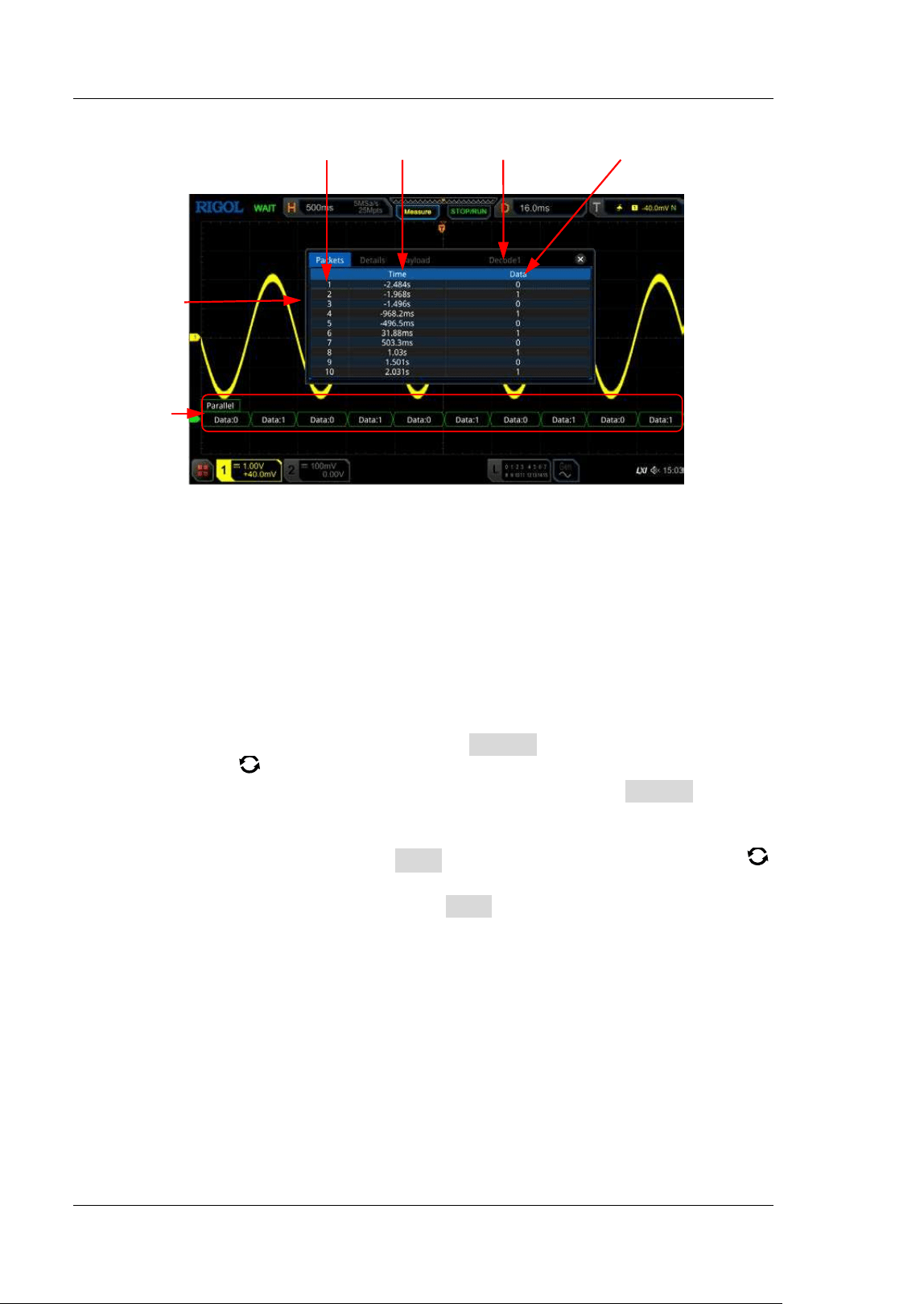
RIGOL Chapter 11 Protocol Decoding
11-6 MSO5000-E User Guide
Figure 11-2 Parallel Decoding Event Table
Note:
When you adjust the horizontal timebase, the waveform displayed
on the screen will also change, and the total number of lines
containing the decoding information in the event table will also be
changed.
The displayed decoded data information in the bus is related to the
value of the horizontal timebase. Reducing the horizontal
timebase can help you view the detailed information.
Set the event table format: Press Format, rotate the multifunction
knob
to select the display format of "Data" in the event table. Then,
press down the knob to select it. You can also press Format
continuously or enable the touch screen to select it. The available
formats include "Hex", "Dec", "Bin", and "ASC".
Set the view type: Press View , then rotate the multifunction knob
to select the form of the event table to be viewed. Press down the knob
to select it. You can also press View continuously or enable the touch
screen to select it. The available choices include "Packets", "Details",
and "Payload". You can also tap "Packets", "Details", or "Payload" at
the top of the event table to select it.
I f you select "Packets", the time and decoded data are displayed in the
event table. I f you select "Details", the detailed data in the specif ied
row will be displayed in the event table. I f "…" appears in the row of
data, it indicates that the decoded data are not fully displayed. At this
time, you can view the details in the "Packets" view. I f you select
"Payload", all data in the specif ied column will be displayed in the event
table. I f "…" appears in the specified column of data, it indicates that
the decoded data are not fully displayed. At this time, you can view the
Line Number Time Decode Name Decoded data
Event Table
Parallel Bus
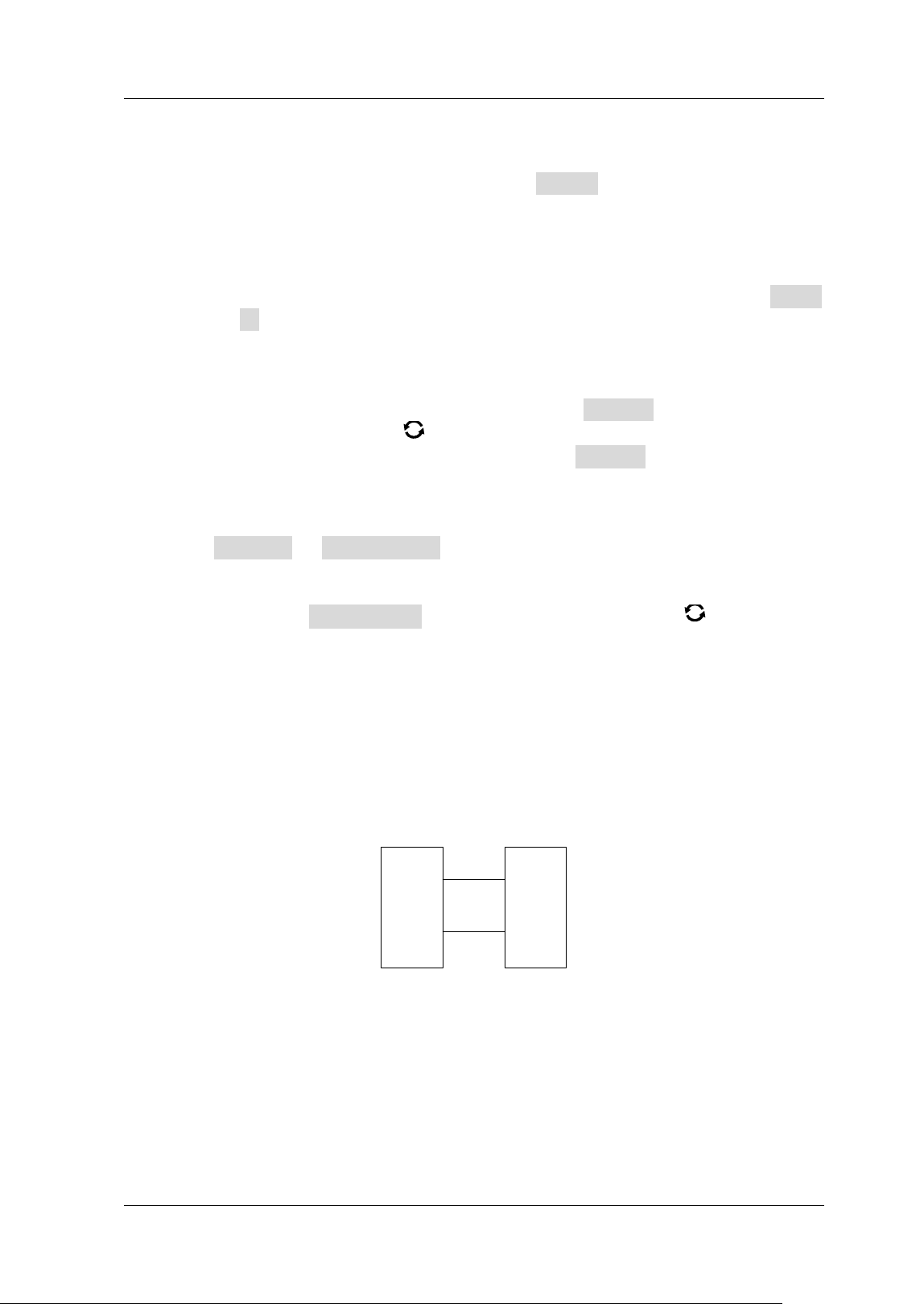
Chapter 11 Protocol Decoding RIGOL
MSO5000-E User Guide 11-7
details in the "Packets" view.
Export: I f you select "Packets", you can export time and the
corresponding decoded data. Press Export, the save setting menu is
displayed. You can export the data table of the packets to the internal
or external USB storage device (when detected) in CSV format. For
detailed saving operation, refer to descriptions in "
Store and Load".
Jump to: Set the operating status of the oscilloscope to "STOP". Then,
select the data of the specif ied time from the event table. Press Jump
to and the specified data waveforms are displayed in the center of the
screen.
Decode: The setting of this menu enables you to quickly view the
corresponding event tables of four decode modules (Decode1,
Decode2, Decode3, and Decode4). Press Decode and rotate the
multifunction knob
to select a decode module, then press down
the knob to select it. You can also press Decode continuously or
enable the touch screen to select it.
5
. Noise rejection
Press Settings Noise Reject to enable or disable the noise rejection
function. Noise rejection can remove the data that last not enough time on the
bus and eliminate the burst glitch in the actual circuit. When the noise rejection
is enabled, press Reject Time, rotate the multifunction knob or use the
pop-up numeric keypad to set the desired rejection time. The available range of
the rejection time is from 0 s to 1 s.
RS232 Decoding (Option)
RS232 serial bus consists of the transmitting data line (TX) and the receiving data
line (RX).
DeviceA DeviceB
Tx
Rx
Rx Tx
Figure 11-3 Schematic Diagram of RS232 Serial Bus
The industry standard of RS232 uses "Negative Logic", i.g. high level is logic "0" and
low level is logic "1".
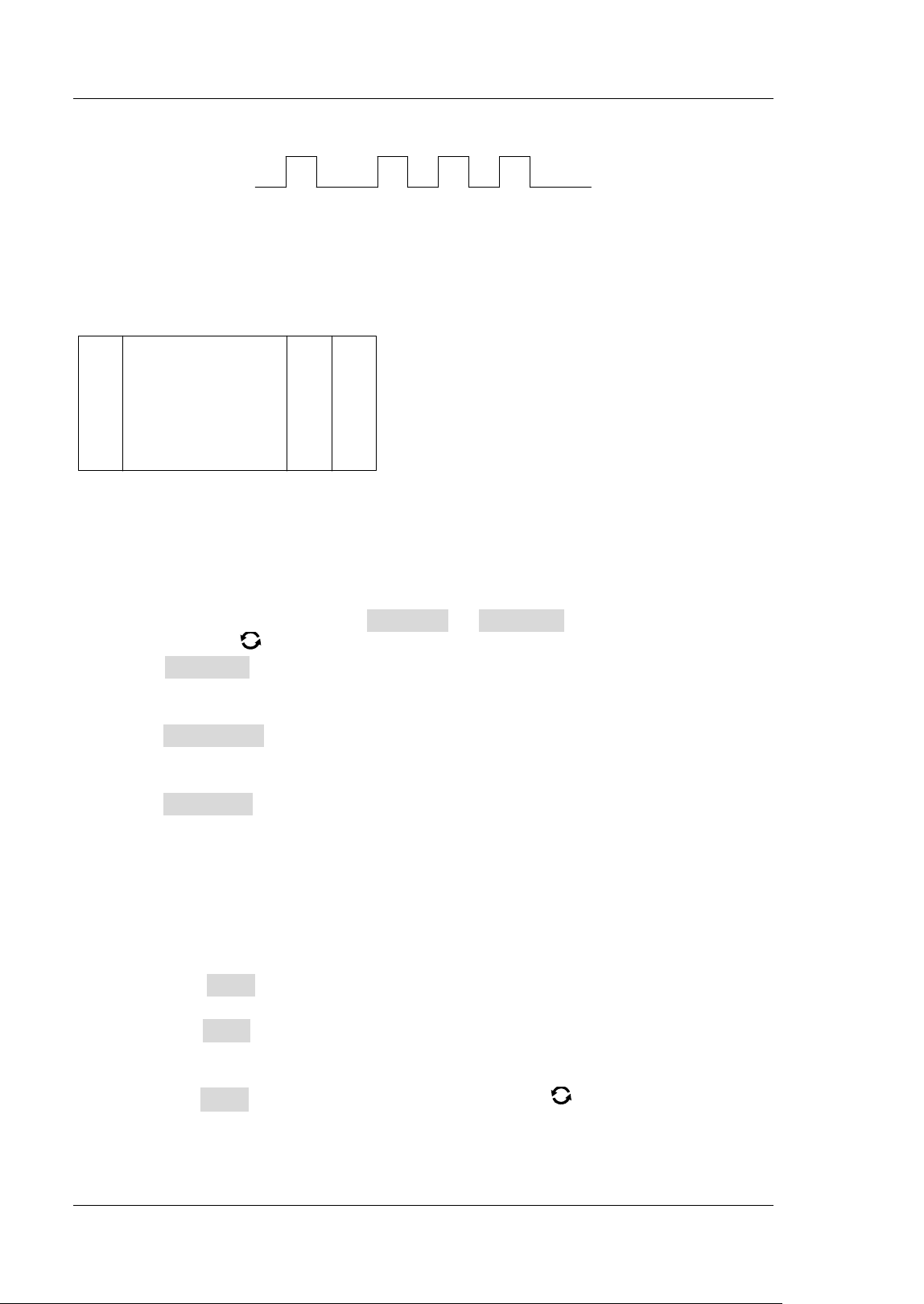
RIGOL Chapter 11 Protocol Decoding
11-8 MSO5000-E User Guide
1
0 0 0 0
1 1 1 1 1
Figure 11-4 Schematic Diagram of Negative Logic
I n RS232, baud rate is used to represent the transmission rate (namely bits per
second) of the data. You need to set the start bit, data bits, check bit (optional), and
stop bit for each frame of data.
Start Bit
Data Bit
Check Bit
Stop Bit
Start Bit: indicates when to output data.
Data Bit: indicates the number of data bits actually contained in each frame of data.
Check Bit: used to check whether the data are properly transmitted.
Stop Bit: indicates when to stop outputting data.
I n the decode setting menu, press Decode1 Bus Type, then rotate the
multifunction knob
to select "RS232". Press down the knob to select it. You can
also press Bus Type continuously or enable the touch screen to select it.
1
. Enable or disable the bus
Press Bus Status to enable or disable the decoding function.
2
. Quickly apply RS232 trigger settings to RS232 decoding
Press Copy Trig to copy the current RS232 trigger settings and apply them to
RS232 decoding function (set the corresponding RS232 decoding parameters
automatically). For source channels, copy the source channel of the trigger to
the Tx source channel of the decoding. For analog channels, the threshold level
settings will also be copied.
3
. Set the baud rate
Three setting methods are available for baud rate:
Press Baud, then set the user-defined baud rate with the displayed
numeric keypad.
Press Baud, then select the preset baud rate from the available options.
The available baud rates include 50 bps, 75 bps, 110 bps, 134 bps, 150 bps,
300 bps, and etc.
Press Baud, then rotate the multifunction knob to adjust the baud rate
at a small step of 1 bps.
Chapter 11 Protocol Decoding RIGOL
MSO5000-E User Guide 11-9
4. Source setting
Press Sources to enter the source setting menu.
Set the Tx source and the threshold
Press Tx and rotate the multifunction knob to select the desired
channel, and then press down the knob. You can also press Tx
continuously or enable the touch screen to select it. The available
channels include O FF, CH1-CH2, and D0-D15.
When you select the analog channel (CH1-CH2), press Threshold,
then rotate the multifunction knob
or use the pop-up numeric
keypad to adjust the threshold of Tx source. When you modify the
threshold of the Tx source channel, a dotted line displaying the current
threshold level is displayed on the screen. The dotted line disappears in
about 2 s after you stop modifying the threshold.
Set the Rx source and the threshold
Use the same method to select the Rx source and set the threshold (only
when the Rx source channel is set to an analog channel (CH1-CH2)).
Note: The Tx and Rx source channels cannot be set to "OFF" at the same time.
Polarity
Press Polarity continuously to select the polarity of data transmission. I t
can be set to "
" (positive) or " " (negative).
Normal: Use negative logic. High level indicates logic "0"; low level
indicates logic "1".
Invert: Use positive logic. High level indicates logic "1"; low level
indicates logic "0".
5
. Set data package
Press Settings to enter the data package setting menu.
Data
Press Data and rotate the multifunction knob to set the number of
data bits actually contained in each frame of data. Press down the knob to
select it. You can also press Data continuously or enable the touch screen
to select it. The available data bits are 5 bits, 6 bits, 7 bits, 8 bits, and 9 bits.
Parity
I t is used to check whether the data transmission is correct. Press Parity
and rotate the multifunction knob
to select the desired parity mode,
then press down the knob to select it. You can also press Parity
continuously or enable the touch screen to select it.
None: indicates that no check bit appears during the transmission.
Even: indicates that the total number of "1" in the data bit and check
bit is an even number. For example, when 0x55 (01010101) is sent, "0"
should be added to the check bit.
Odd: indicates that the total number of "1" in the data bit and check bit
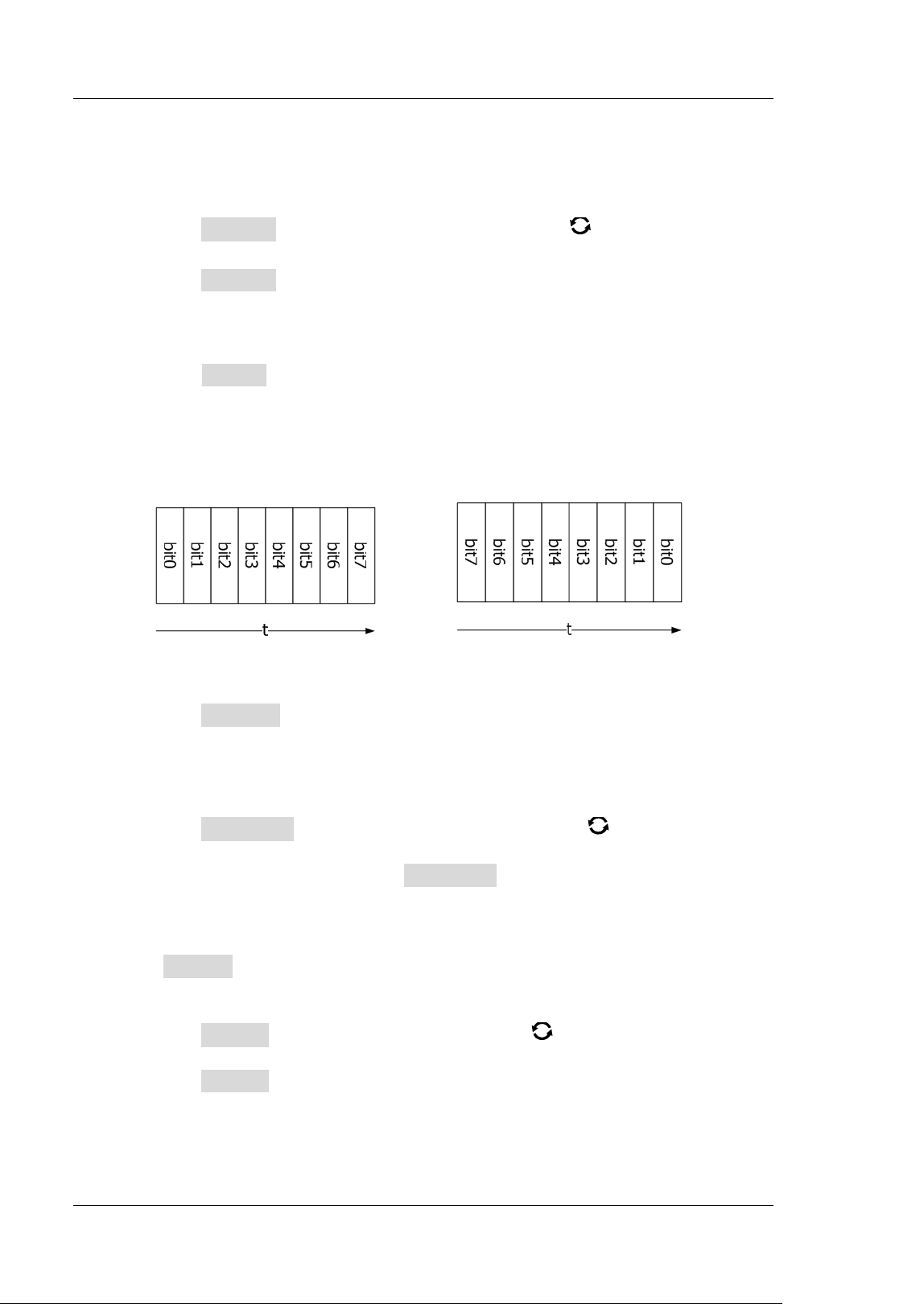
RIGOL Chapter 11 Protocol Decoding
11-10 MSO5000-E User Guide
is an odd number. For example, when 0x55 (01010101) is sent, "1"
should be added to the check bit.
Stop Bit
Press Stop Bit and rotate the multifunction knob to set the stop bits
after each frame of data. Press down the knob to select it. You can also
press Stop Bit continuously or enable the touch screen to select it. I t can
be set to 1 bit, 1.5 bits, or 2 bits.
Endian
Press Endian to select "LSB" or "MSB". By default, it is "LSB".
LSB: indicates Least Significant Bit transmission sequence, i.g. the lowest
bit of the data is transmitted f irst.
MSB: indicates Most Significant Bit transmission sequence, i.g. the highest
bit of the data is transmitted f irst.
LSB MSB
Package
Press Package to enable or disable the package display in data
transmission. When enabled, several data blocks will be combined based on
the separator.
Separator
Press Separator and rotate the multifunction knob to select the
desired package separator in data transmission, then press down the knob
to select it. You can also press Separat or continuously or enable the touch
screen to select it. I t can be set to 0A(LF), 0D(CR), 20(SP), or 0(NUL).
6
. Display-related setting
Press Display to enter the display setting menu.
Set the display format
Press Format, rotate the multifunction knob to select the display
format of the bus data. Then, press down the knob to select it. You can also
press Format continuously or enable the touch screen to select it. The
available display formats of the bus data are "Hex", "Dec", "Bin", and
"ASCI I ".
Chapter 11 Protocol Decoding RIGOL
MSO5000-E User Guide 11-11
Adjust the vertical position of the bus
Press Position, and then rotate the multifunction knob to adjust the
vertical display position of the bus.
Set the label display
Press Label to enable or disable the label display of the RS232 decoding
bus. When enabled, the bus label "RS232-TX" and/ or "RS232-RX" will be
displayed at the upper-left side of the bus (when the bus display is
enabled).
Event table
Press Event Table to enter the event table setting menu. The event table
displays the detailed decoding information in time order in the form of a
table, so as to better observe the long decoded data. The decoding
information includes the decoded data (Tx and/ or Rx), the corresponding
line number, time, and error information (Tx and/ or Rx).
Note: When the Tx and Rx source channels are set to "OFF", information of
the data line is not displayed in the data table.
Open or close the event table: Press Event Table continuously to
enable or disable the event table. You can also enable the touch screen
to tap the icon
at the upper-right corner of the table to close the
event table. Besides, when the operating status is "STOP", you can also
rotate the multifunction knob
to select a specified line and view
the corresponding decoding information.
Note:
When you adjust the horizontal timebase, the waveform displayed
on the screen will also change, and the total number of lines
containing the decoding information in the event table will also be
changed.
The displayed decoded data information in the bus is related to the
value of the horizontal timebase. Reducing the horizontal
timebase can help you view the detailed information.
Set the event table format: Press Format, rotate the multifunction
knob
to select the display format of "Data" (Tx and/ or Rx) in the
event table. Then, press down the knob to select it. You can also press
Format continuously or enable the touch screen to select it. The
available formats include "Hex", "Dec", "Bin", and "ASC".
Set the view type: Press View , then rotate the multifunction knob
to select the form of the event table to be viewed. Press down the knob
to select it. You can also press View continuously or enable the touch
screen to select it. The available choices include "Packets", "Details",
and "Payload". You can also tap "Packets", "Details", or "Payload" at
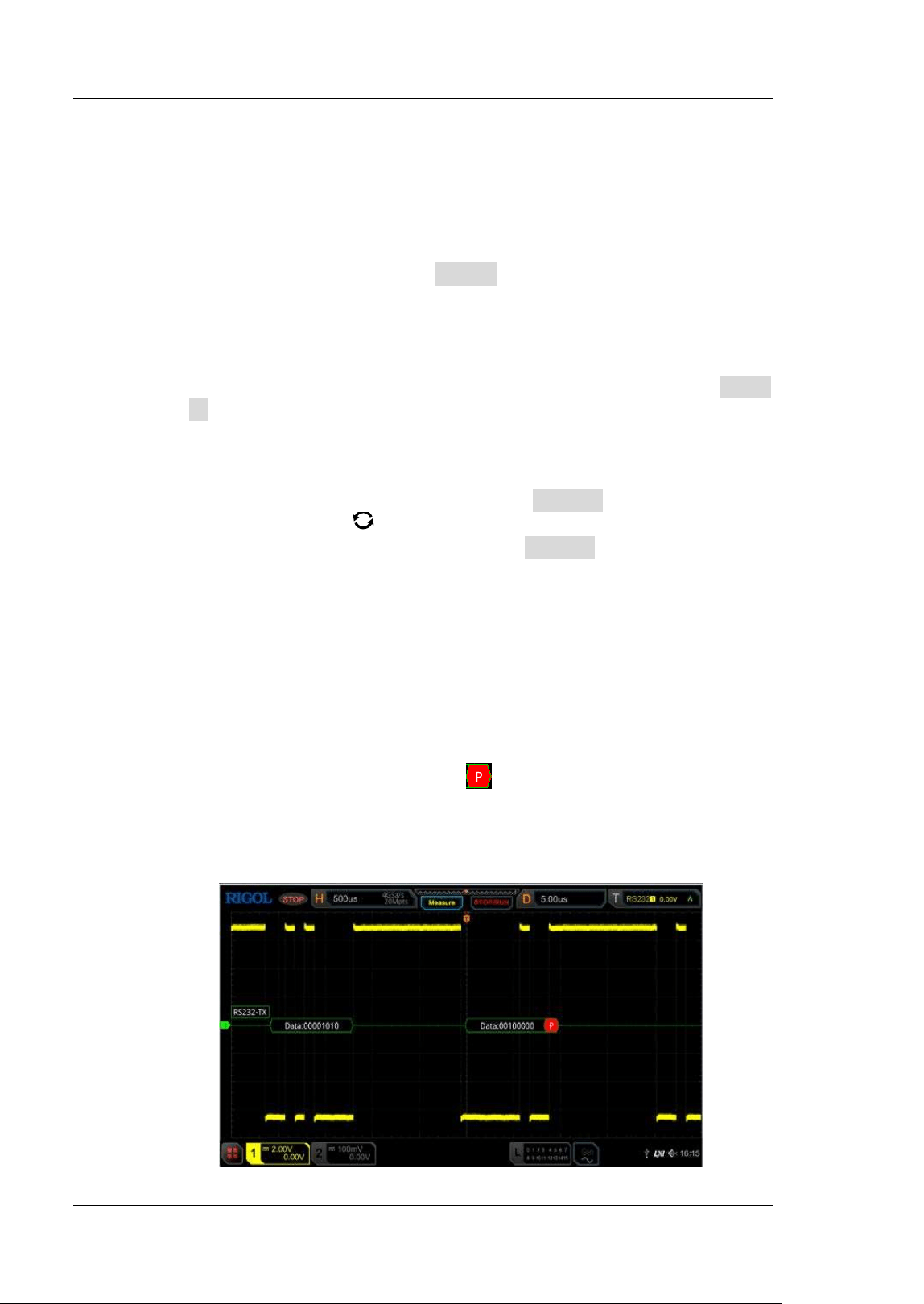
RIGOL Chapter 11 Protocol Decoding
11-12 MSO5000-E User Guide
the top of the event table to select it.
I f you select "Packets", the time and decoded data are displayed in the
event table; if you select "Details", the detailed data in the specified
row will be displayed in the event table; if you select "Payload", all data
in the specified column will be displayed in the event table.
Export: I f you select "Packets", you can export time, the corresponding
decoded data, and etc. Press Export, the save setting menu is
displayed. You can export the data table of the packets to the internal
or external USB storage device (when detected) in CSV format. For
detailed saving operation, refer to descriptions in "
Store and Load".
Jump to: Set the operating status of the oscilloscope to "STOP". Then,
select the data of the specif ied time from the event table. Press Jump
to and the specif ied data waveforms are displayed in the center of the
screen.
Decode: The setting of this menu enables you to quickly view the
corresponding event tables of four decode modules (Decode1,
Decode2, Decode3, and Decode4). Press Decode and rotate the
multifunction knob
to select a decode module, then press down
the knob to select it. You can also press Decode continuously or
enable the touch screen to select it.
7
. Error expressions in decoding
In RS232 decoding, parity error and/ or EOF (end of frame) error may occur.
Parity Error
When a parity error is detected during the decoding, red error report
information will be displayed. For example, when "none" is chosen for the
parity on the transmitter and "odd" is chosen for the parity on the decoder,
the following parity error information
(its display form is related to the
value of the horizontal timebase) occurs. Wherein, the number of 1s in the
8-digit f igure (00000100) is an odd number, and the parity bit should be 0.
However, the parity bit detected on the Tx is 1; thus a parity error occurs.
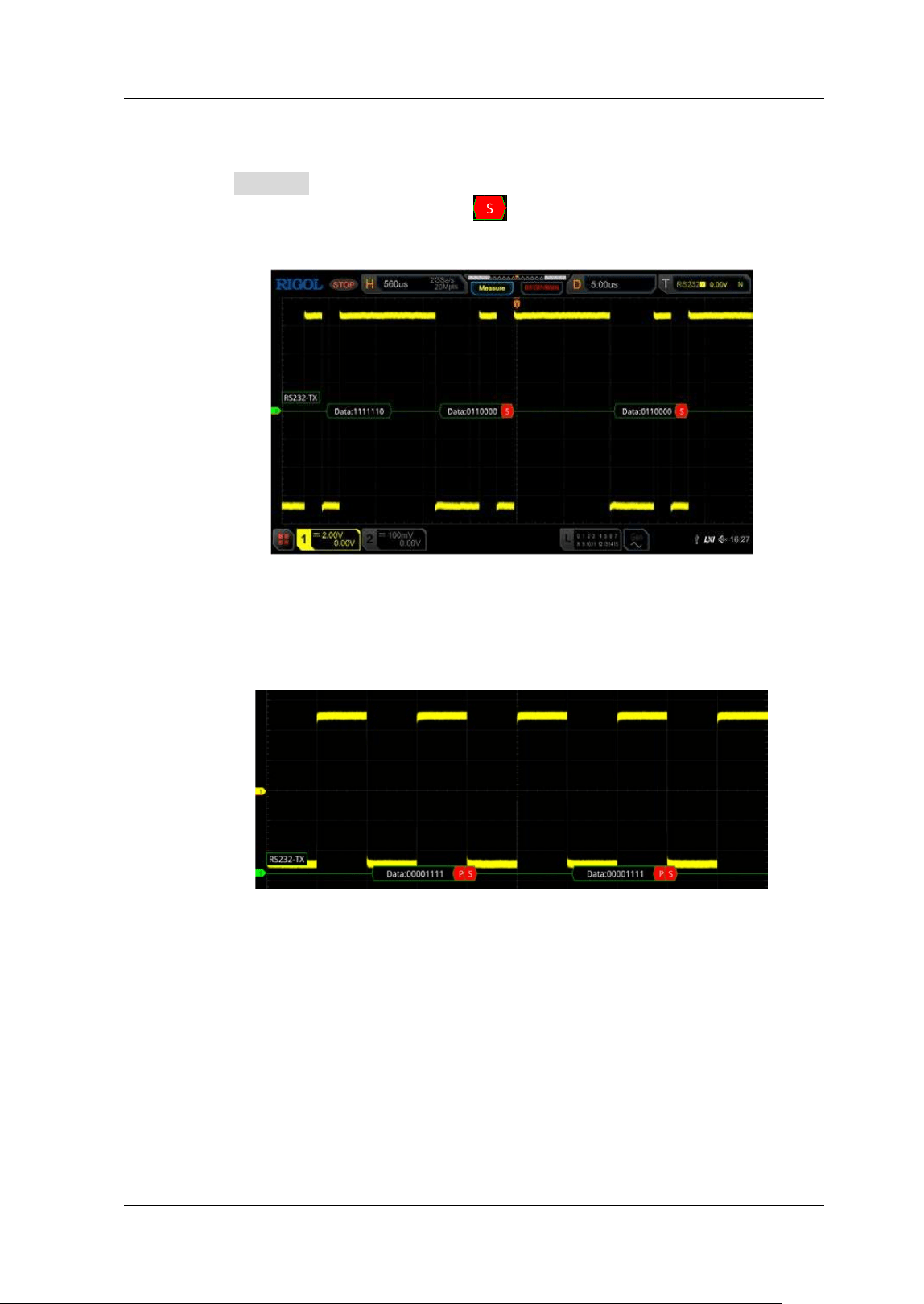
Chapter 11 Protocol Decoding RIGOL
MSO5000-E User Guide 11-13
EOF Error
This error is generated when the EOF condition is not met. For example, if
the Stop Bit is set to 1.5, but the actual stop bits is less than 1.5 bits, then
the red error report information
(its display form is related to the
value of the horizontal timebase) is displayed in the following f igure.
Parity Error and EOF Error
When both the parity error and the EOF error are detected, the error report
information (its display form is related to the value of the horizontal
timebase), as shown in the following f igure, will be displayed.
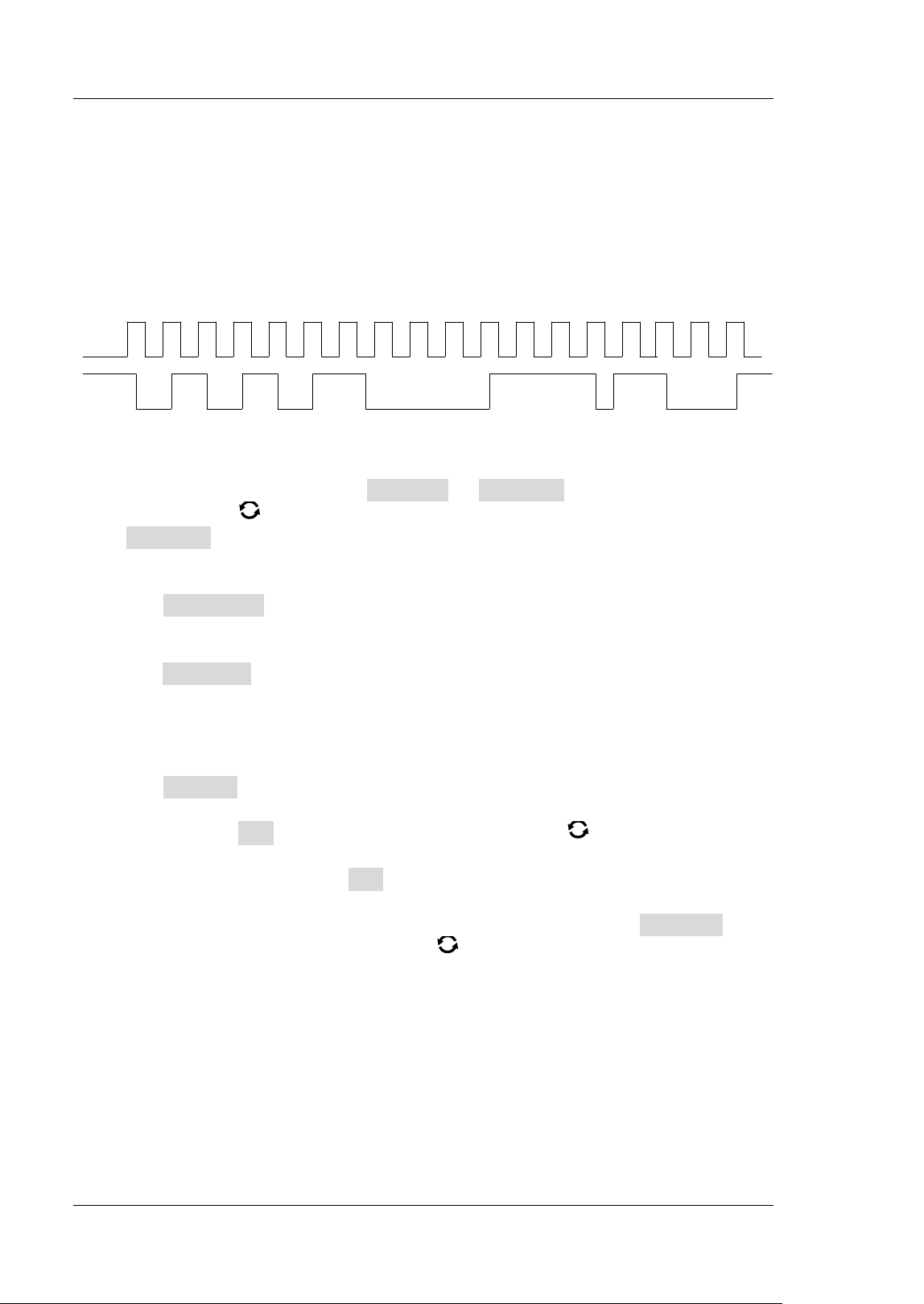
RIGOL Chapter 11 Protocol Decoding
11-14 MSO5000-E User Guide
I 2C Decoding ( Option)
The oscilloscope samples the LIN signal, and judges each data point to be logic "1"
or logic "0" according to the preset threshold level. I 2C serial bus consists of the
clock line (SCLK) and the data line (SDA).
SCL: samples SDA on the rising or falling edge of the clock.
SDA: indicates the data channel.
SCLK
SDA
Figure 11-5 I 2C Serial Bus
I n the decode setting menu, press Decode1 Bus Type, then rotate the
multifunction knob
to select "I 2C". Press down the knob to select it. You can also
press Bus Type continuously or enable the touch screen to select it.
1
. Enable or disable the bus
Press Bus Status continuously to enable or disable the decoding function.
2
. Quickly apply I 2C trigger settings to I 2C decoding
Press Copy Trig to copy the clock signal and data signal settings (SCL and SDA)
of the current I2C trigger settings and apply them to I 2C decoding function (SCL
and SDA). For analog channels, the threshold level settings will also be copied.
3
. Source setting
Press Sources to enter the source setting menu.
Set the clock channel source and the threshold
Press SCL and rotate the multifunction knob to select the desired
source of the clock channel, and then press down the knob to select it.
You can also press SCL continuously or enable the touch screen to
select it. The available channels include CH1-CH2 and D0-D15.
When you select the analog channel (CH1-CH2), press SCL Thre, then
rotate the multifunction knob
or use the pop-up numeric keypad to
adjust the threshold of the clock channel. When you modify the
threshold of the clock channel, a dotted line displaying the current
threshold level is displayed on the screen. The dotted line disappears in
about 2 s after you stop modifying the threshold.
Set the data channel source and the threshold
Use the same method to select the source of the data channel and set the
threshold (only when the source of the data channel is set to an analog
channel (CH1-CH2)).
Chapter 11 Protocol Decoding RIGOL
MSO5000-E User Guide 11-15
Exchange sources
Press Exchange to select "SCL/ SDA" or "SDA/SCL" to exchange the
sources of the current clock channel and data channel.
4
. Specify w hether the address information includes the "R/ W" bit
For I 2C bus, each frame of data starts with the address information. The address
information includes the read address and the write address. Press R/ W
continuously to select whether the address information includes the "R/ W" bit.
When "With" is selected, the "R/ W" bit will be included in the address
information and located at the lowest bit; when "Without" is selected, the "R/ W"
bit will not be included in the address information.
5
. Display-related setting
Press Display to enter the display setting menu.
Set the display format
Press Format, rotate the multifunction knob to select the display
format of the bus data. Then, press down the knob to select it. You can also
press Format continuously or enable the touch screen to select it. The
available display formats of the bus data are "Hex", "Dec", "Bin", and
"ASCI I ".
Adjust the vertical position of the bus
Press Position, and then rotate the multifunction knob to adjust the
vertical display position of the bus.
Set the label display
Press Label to enable or disable the label display of the I 2C decoding bus.
When enabled, the bus label "I 2C" will be displayed at the upper-left side of
the bus (when the bus display is enabled).
Event table
Press Event Table to enter the event table setting menu. The event table
displays the detailed decoding information in time order in the form of a
table, so as to better observe the long decoded data. The decoding
information includes the decoded data, the corresponding line number, time,
and error information.
Open or close the event table: Press Event Table continuously to
enable or disable the event table. When you enable the event table,
the following f igure is displayed, as shown in
Figure 11-6. You can also
enable the touch screen to tap the icon
at the upper-right corner of
the table to close the event table. Besides, when the operating status is
"STOP", you can also rotate the multifunction knob
to select a
specif ied line and view the corresponding decoding information.
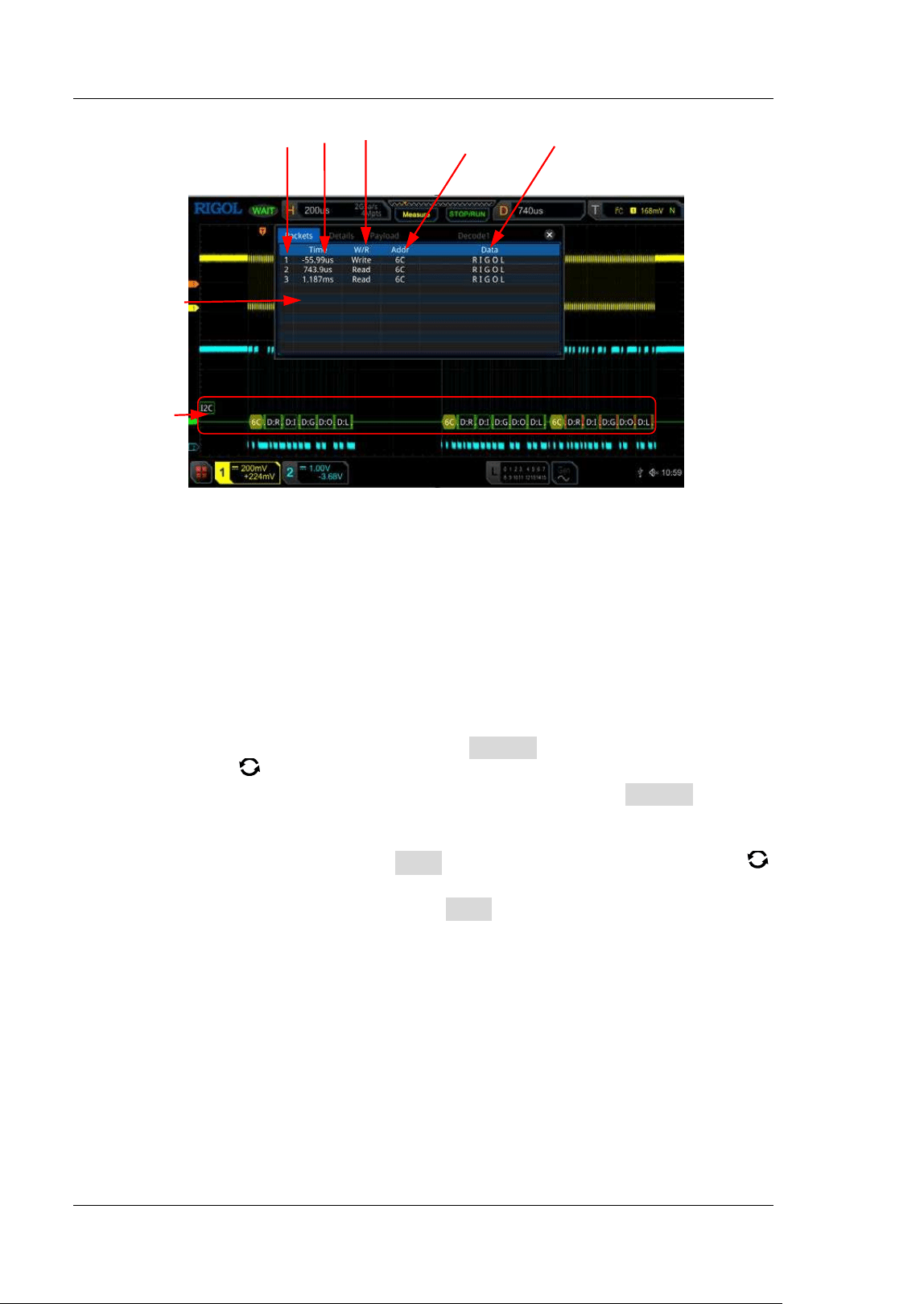
RIGOL Chapter 11 Protocol Decoding
11-16 MSO5000-E User Guide
Figure 11-6 I 2C Decoding Event Table
Note:
When you adjust the horizontal timebase, the waveform displayed
on the screen will also change, and the total number of lines
containing the decoding information in the event table will also be
changed.
The displayed decoded data information in the bus is related to the
value of the horizontal timebase. Reducing the horizontal
timebase can help you view the detailed information.
Set the event table format: Press Format, rotate the multifunction
knob
to select the display format of "Data" in the event table. Then,
press down the knob to select it. You can also press Format
continuously or enable the touch screen to select it. The available
formats include "Hex", "Dec", "Bin", and "ASC".
Set the view type: Press View , then rotate the multifunction knob
to select the form of the event table to be viewed. Press down the knob
to select it. You can also press View continuously or enable the touch
screen to select it. The available choices include "Packets", "Details",
and "Payload". You can also tap "Packets", "Details", or "Payload" at
the top of the event table to select it.
I f you select "Packets", the decoded data, time, and error information
are displayed in the event table. I f you select "Details", the detailed
data in the specified row will be displayed in the event table. If "…"
appears in the row of data, it indicates that the decoded data are not
fully displayed. At this time, you can view the details in the "Packets"
view. I f you select "Payload", all data in the specified column will be
displayed in the event table. I f "…" appears in the specified column of
data, it indicates that the decoded data are not fully displayed. At this
Line Number Time R/ W Bit Address Decoded data
Event Table
I 2C Bus
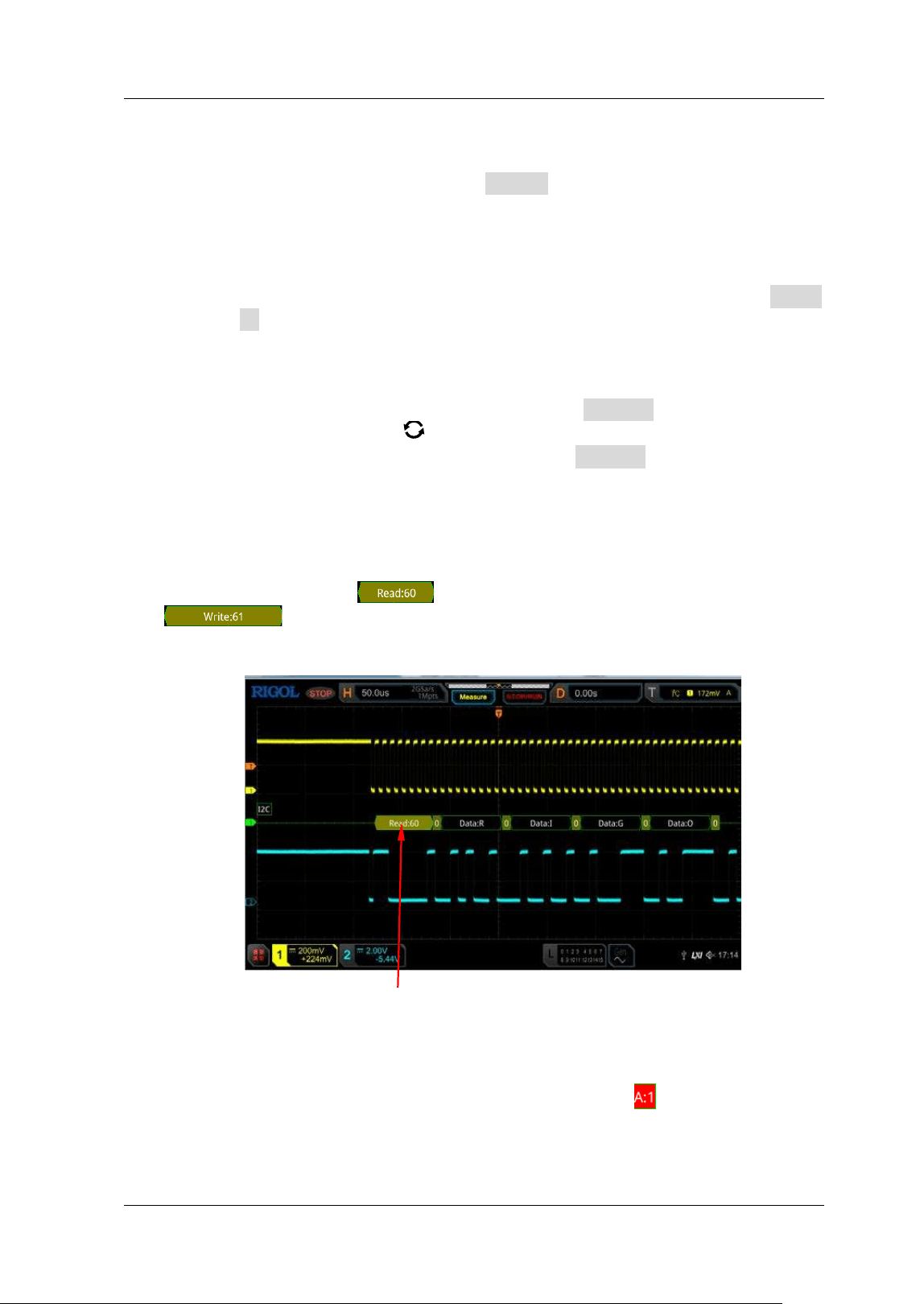
Chapter 11 Protocol Decoding RIGOL
MSO5000-E User Guide 11-17
time, you can view the details in the "Packets" view.
Export: If you select "Packets", you can export time, the corresponding
decoded data, and etc. Press Export, the save setting menu is
displayed. You can export the data table of the packets to the internal
or external USB storage device (when detected) in CSV format. For
detailed saving operation, refer to descriptions in "
Store and Load".
Jump to: Set the operating status of the oscilloscope to "STOP". Then,
select the data of the specif ied time from the event table. Press Jump
to and the specif ied data waveforms are displayed in the center of the
screen.
Decode: The setting of this menu enables you to quickly view the
corresponding event tables of four decode modules (Decode1,
Decode2, Decode3, and Decode4). Press Decode and rotate the
multifunction knob
to select a decode module, then press down
the knob to select it. You can also press Decode continuously or
enable the touch screen to select it.
6
. Address information in decoding
I n I 2C bus, each frame of data starts with the address information (include the
read address and write address). I n the address information, "Read" denotes
the read address (e.g.
) and "Writ e" denotes the write address (e.g.
) You can also set the address information to include or exclude
the "R/ W" bit.
7
. Error expressions in decoding
I n I 2C decoding, when ACK (acknowledgement) is 1, ACK error occurs. When
when the detected ACK is 1, red error report information
(the display form is
related to the value of the horizontal timebase and the display format of the bus)
is dispalyed.
Address I nformation (Read Address)
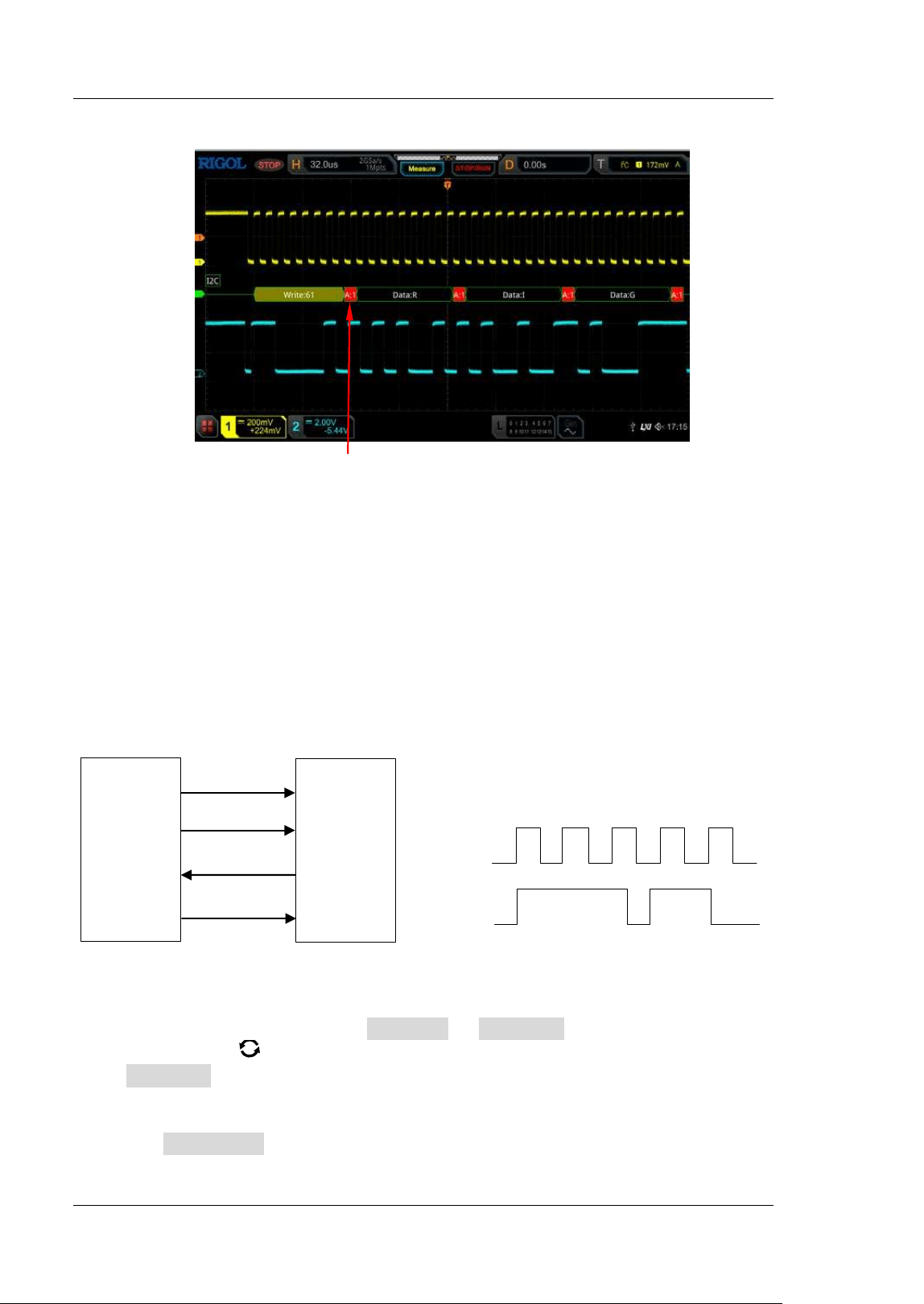
RIGOL Chapter 11 Protocol Decoding
11-18 MSO5000-E User Guide
SPI Decoding ( Option)
SPI bus is based on the master-slave configuration and usually consists of chip select
line (CS), clock line (SCLK), and data line (SDA). Wherein, the data lines include the
master input/ slave output (MISO) data line and master output/ slave input (MOSI)
data line. The oscilloscope samples the channel data on the rising or falling edge of
the clock signal (if the source is an analog channel, the oscilloscope will also judge
each data point (logic "1" or logic "0") according to the preset threshold level).
Master
Slave
MOSI
SCLK
MISO
CS
SCLK
SDA
(MI SO/MOSI )
Figure 11-7 SPI Serial Bus
I n the decode setting menu, press Decode1 Bus Type, then rotate the
multifunction knob
to select "SPI ". Press down the knob to select it. You can also
press Bus Type continuously or enable the touch screen to select it.
1. Enable or disable the bus
Press Bus Status to enable or disable the decoding function.
The detected ACK is 1
Chapter 11 Protocol Decoding RIGOL
MSO5000-E User Guide 11-19
2. Quickly apply SPI trigger settings to SPI decoding
Press Copy Trig to copy the SPI trigger settings and apply them to SPI
decoding function (set the corresponding SPI decoding parameters
automatically). For analog channels, the threshold level settings will also be
copied.
3
. Mode
Press Mode to enter the mode setting menu. Press Mode continuously to select
"Timeout" or "CS".
Timeout: you can perform frame synchronization according to the timeout,
and the timeout value must be greater than half of the clock cycle. Press
Timeout, and then rotate the multifunction knob or use the pop-up
numeric keypad to set the timeout value. The available range of the timeout
value is from 8 ns to 10 s. By default, it is 1 μs.
CS: contains a chip select line (CS). You can perform frame synchronization
according to CS. When "CS" is selected,
Press CS and rotate the multifunction knob to select the desired
channel, and then press down the knob to select it. You can also press
CS continuously or enable the touch screen to select it. The analog
channel (CH1-CH2) and digital channel (D0-D15) can all be selected as
the CS channel.
Press CS Polarity continuously to select (Positive) or
(Negative) as the polarity for CS channel.
When you select the analog channel (CH1-CH2) as the CS channel,
press Threshold, then rotate the multifunction knob or use the
pop-up numeric keypad to set the threshold.
4
. Source setting
Press Sources to enter the source setting menu.
CLK setting
Press CLK and rotate the multifunction knob to select the desired
source of the clock channel, and then press down the knob to select it.
You can also press CLK continuously or enable the touch screen to
select it. The analog channel (CH1-CH2) and digital channel (D0-D15)
can all be selected.
When you select the analog channel (CH1-CH2), press Threshold
below the CLK menu, then rotate the multifunction knob or use
the pop-up numeric keypad to set the threshold of the clock channel.
Press Slope continuously to set the instrument to sample MISO and
MOSI on the rising edge (
) or falling edge ( ) of the clock signal.
MI SO and MOSI setting
Press MI SO and rotate the multifunction knob to select the
desired MISO data channel, and then press down the knob to select it.
RIGOL Chapter 11 Protocol Decoding
11-20 MSO5000-E User Guide
You can also press MI SO continuously or enable the touch screen to
select it. The available channels include OFF, analog channels
(CH1-CH2), and digital channels (D0-D15). When you select an analog
channel (CH1-CH2), press Threshold below the MI SO menu, then
rotate the multifunction knob
or use the pop-up numeric keypad to
set the threshold of the MISO data channel.
Press MOSI and rotate the multifunction knob to select the
desired MOSI data channel, and then press down the knob to select it.
You can also press MOSI continuously or enable the touch screen to
select it. The available channels include OFF, analog channels
(CH1-CH2), and digital channels (D0-D15). When you select an analog
channel (CH1-CH2), press Threshold below the MOSI menu, then
rotate the multifunction knob
or use the pop-up numeric keypad to
set the threshold of the MOSI data channel.
Note: MI SO and MOSI source channels cannot be both set to "OFF" at
the same time.
5
. Data setting
Press Settings to enter the data setting menu.
Endian setting
Press Endian to select "LSB" or "MSB". By default, it is "MSB".
LSB: indicates Least Significant Bit transmission sequence, i.g. the lowest
bit of the data is transmitted f irst.
MSB: indicates Most Signif icant Bit transmission sequence, i.g. the highest
bit of the data is transmitted f irst.
Polarity setting
Press Polarity continuously to select Positive or Negative as the
polarity for data decoding.
Width setting
Press Width, then rotate the multifunction knob or use the pop-up
numeric keypad to set the bits of each frame of data. The available range is
from 4 to 32. By default, it is 8.
6
. Display-related setting
Press Display to enter the display setting menu.
Set the display format
Press Format, rotate the multifunction knob to select the display
format of the bus data. Then, press down the knob to select it. You can also
press Format continuously or enable the touch screen to select it. The
available display formats of the bus data are "Hex", "Dec", "Bin", and
"ASCI I ".
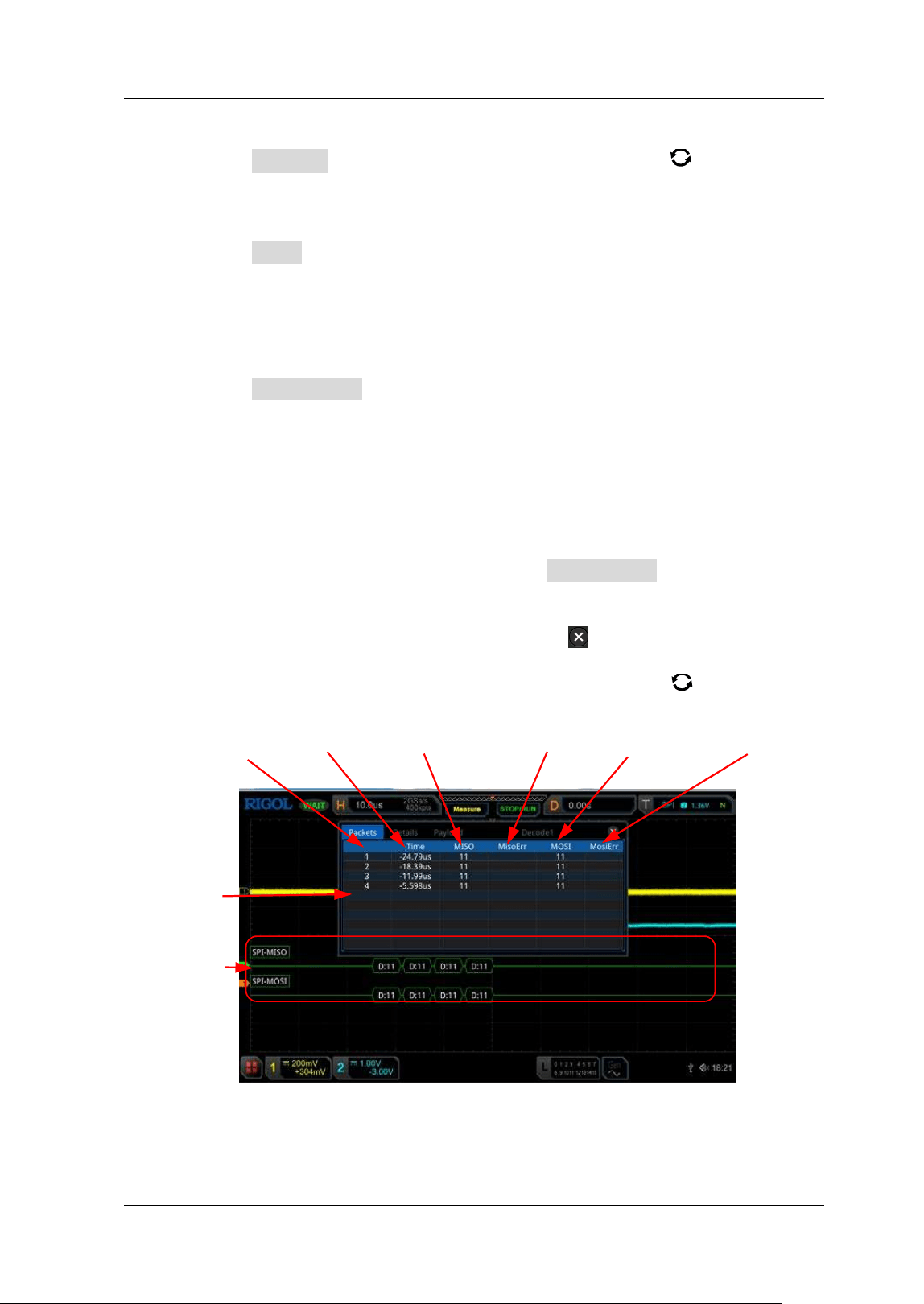
Chapter 11 Protocol Decoding RIGOL
MSO5000-E User Guide 11-21
Adjust the vertical position of the bus
Press Position, and then rotate the multifunction knob to adjust the
vertical display position of the bus.
Set the label display
Press Label to enable or disable the label display of the SPI decoding bus.
When enabled, the bus label "SPI-MI SO" and/ or "SPI -MOSI " will be
displayed at the upper-left side of the bus (when the bus display is
enabled).
Event table
Press Event Table to enter the event table setting menu. The event table
displays the detailed decoding information in time order in the form of a
table, so as to better observe the long decoded data. The decoding
information includes the decoded data (MI SO and/ or MOSI ), the
corresponding line number, time, and error information (MISO and/ or
MOSI ).
Note: When the source channel of MI SO or MOSI is set to "OFF",
information of the data line is not displayed in the data table.
Open or close the event table: Press Event Table continuously to
enable or disable the event table. When you enable the event table,
the following f igure is displayed, as shown in
Figure 11-8. You can also
enable the touch screen to tap the icon
at the upper-right corner of
the table to close the event table. Besides, when the operating status is
"STOP", you can also rotate the multifunction knob
to select a
specif ied line and view the corresponding decoding information.
Figure 11-8 SPI Decoding Event Table
Line Number Time MI SO Decoding Data MI SO Error MOSI Decoding Data MOSI Error
Event Table
SPI Bus
RIGOL Chapter 11 Protocol Decoding
11-22 MSO5000-E User Guide
Note:
When you adjust the horizontal timebase, the waveform displayed
on the screen will also change, and the total number of lines
containing the decoding information in the event table will also be
changed.
The displayed decoded data information in the bus is related to the
value of the horizontal timebase. Reducing the horizontal
timebase can help you view the detailed information.
Set the event table format: Press Format, rotate the multifunction
knob
to select the display format of "Data" (MISO and/ or MOSI ) in
the event table. Then, press down the knob to select it. You can also
press Format continuously or enable the touch screen to select it. The
available formats include "Hex", "Dec", "Bin", and "ASC".
Set the view type: Press View , then rotate the multifunction knob
to select the form of the event table to be viewed. Press down the knob
to select it. You can also press View continuously or enable the touch
screen to select it. The available choices include "Packets", "Details",
and "Payload". You can also tap "Packets", "Details", or "Payload" at
the top of the event table to select it.
I f you select "Packets", the decoded data (MI SO and/ or MOSI), time,
and error information (MI SO and/ or MOSI ) are displayed in the event
table. I f you select "Details", the detailed data in the specified row will
be displayed in the event table. I f "…" appears in the row of data, it
indicates that the decoded data are not fully displayed. At this time,
you can view the details in the "Packets" view. I f you select "Payload",
all data in the specified column will be displayed in the event table. I f
"…" appears in the specified column of data, it indicates that the
decoded data are not fully displayed. At this time, you can view the
details in the "Packets" view.
Export: I f you select "Packets", you can export time and the
corresponding decoded data. Press Export, the save setting menu is
displayed. You can export the data table of the packets to the internal
or external USB storage device (when detected) in CSV format. For
detailed saving operation, refer to descriptions in "
Store and Load".
Jump to: Set the operating status of the oscilloscope to "STOP". Then,
select the data of the specif ied time from the event table. Press Jump
to and the specified data waveforms are displayed in the center of the
screen.
Decode: The setting of this menu enables you to quickly view the
corresponding event tables of four decode modules (Decode1,
Decode2, Decode3, and Decode4). Press Decode and rotate the
multifunction knob
to select a decode module, then press down
the knob to select it. You can also press Decode continuously or
enable the touch screen to select it.
Chapter 11 Protocol Decoding RIGOL
MSO5000-E User Guide 11-23
LI N Decoding ( Option)
The oscilloscope samples the LIN signal, and judges each data point to be logic "1"
or logic "0" according to the preset threshold level. The LIN decoding is required to
specify the LIN signal protocol version.
I n the decode setting menu, press Decode1 Bus Type, then rotate the
multifunction knob
to select "LIN". Press down the knob to select it. You can
also press Bus Type continuously or enable the touch screen to select it.
1. Enable or disable the bus
Press Bus Status continuously to enable or disable the decoding function.
2. Quickly apply LI N trigger settings to LI N decoding
Press Copy Trig to copy the LI N trigger settings and apply them to LI N
decoding function (set the corresponding LI N decoding parameters
automatically). For analog channels, the threshold level settings will also be
copied.
3. Set the source and the threshold
Press Source and rotate the multifunction knob to select the desired
source channel, and then press down the knob to select it. You can also
press Source continuously or enable the touch screen to select it. The
available channels include CH1-CH2 and D0-D15.
When you select the analog channel (CH1-CH2), press Threshold, then
rotate the multifunction knob
or use the pop-up numeric keypad to set
the threshold of the source channel. When you modify the threshold of the
clock channel, a dotted line displaying the current threshold level is
displayed on the screen. The dotted line disappears in about 2 s after you
stop modifying the threshold.
4. Signal setting
Press Settings to enter the signal setting menu.
Set baud rate
Three setting methods are available for baud rate:
Press Baud Rate, then set the user-def ined baud rate with the
displayed numeric keypad.
Press Baud Rate, then select the preset baud rate from the available
options. The available baud rates include 2.4 kbps, 4.8 kbps, 9.6 kbps,
19.2 kbps, and etc.
Press Baud Rate, then rotate the multifunction knob to adjust the
baud rate at a small step of 1 bps.
RIGOL Chapter 11 Protocol Decoding
11-24 MSO5000-E User Guide
Set the parity bit
Press Parity bit continuously to select whether the data contain the parity
bit.
Set the protocol version
Press Version and rotate the multifunction knob to select a protocol
version that matches the LIN bus signal. Then, press down the knob to
select it. You can also press Version continuously or enable the touch
screen to select it. The available versions include 1.X, 2.X, and Both.
5. Display- related setting
Press Display to enter the display setting menu.
Set the display format
Press Format, rotate the multifunction knob to select the display
format of the bus data. Then, press down the knob to select it. You can also
press Format continuously or enable the touch screen to select it. The
available display formats of the bus data are "Hex", "Dec", "Bin", and
"ASCI I ".
Adjust the vertical position of the bus
Press Position, and then rotate the multifunction knob to adjust the
vertical display position of the bus.
Set the label display
Press Label to enable or disable the label display of the LIN decoding bus.
When enabled, the bus label "LI N" will be displayed at the upper-left side of
the bus (when the bus display is enabled).
Event table
Press Event Table to enter the event table setting menu. The event table
displays the detailed decoding information in time order in the form of a
table, so as to better observe the long decoded data. The decoding
information includes the decoded data, the corresponding line number, time,
and error information.
Open or close the event table: Press Event Table continuously to
enable or disable the event table. When you enable the event table,
the following f igure is displayed, as shown in
Figure 11-9. You can also
enable the touch screen to tap the icon
at the upper-right corner of
the table to close the event table. Besides, when the operating status is
"STOP", you can also rotate the multifunction knob
to select a
specif ied line and view the corresponding decoding information.
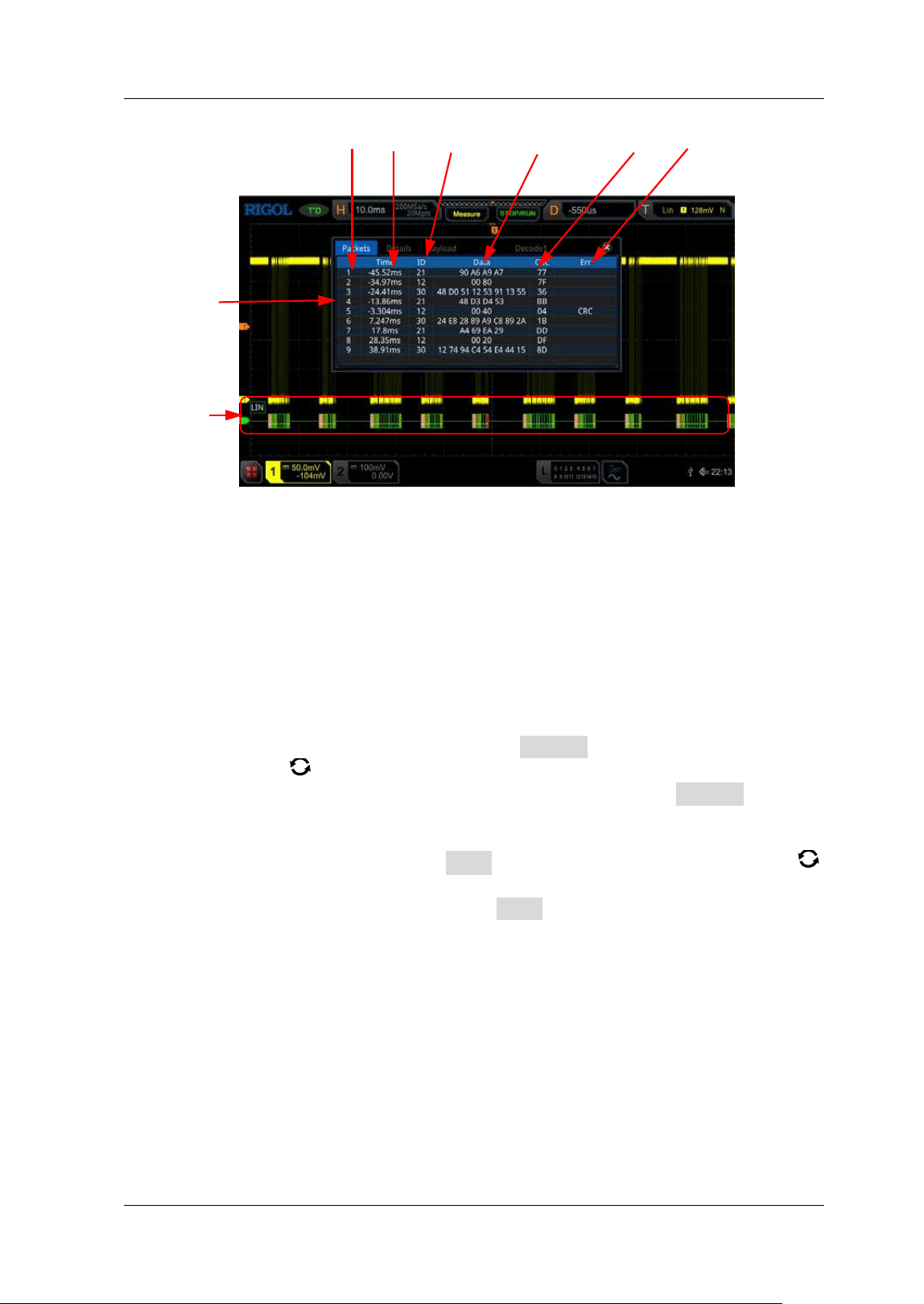
Chapter 11 Protocol Decoding RIGOL
MSO5000-E User Guide 11-25
Figure 11-9 LI N Decoding Event Table
Note:
When you adjust the horizontal timebase, the waveform displayed
on the screen will also change, and the total number of lines
containing the decoding information in the event table will also be
changed.
The displayed decoded data information in the bus is related to the
value of the horizontal timebase. Reducing the horizontal
timebase can help you view the detailed information.
Set the event table format: Press Format, rotate the multifunction
knob
to select the display format of "Data" in the event table. Then,
press down the knob to select it. You can also press Format
continuously or enable the touch screen to select it. The available
formats include "Hex", "Dec", "Bin", and "ASC".
Set the view type: Press View , then rotate the multifunction knob
to select the form of the event table to be viewed. Press down the knob
to select it. You can also press View continuously or enable the touch
screen to select it. The available choices include "Packets", "Details",
and "Payload". You can also tap "Packets", "Details", or "Payload" at
the top of the event table to select it.
I f you select "Packets", the decoded data, time, and error information
are displayed in the event table. I f you select "Details", the detailed
data in the specified row will be displayed in the event table. If "…"
appears in the row of data, it indicates that the decoded data are not
fully displayed. At this time, you can view the details in the "Packets"
view. I f you select "Payload", all data in the specif ied column will be
displayed in the event table. I f "…" appears in the specif ied column of
data, it indicates that the decoded data are not fully displayed. At this
Line Number Time Frame I D Decoded Data CRC Error
Event Table
LIN Bus
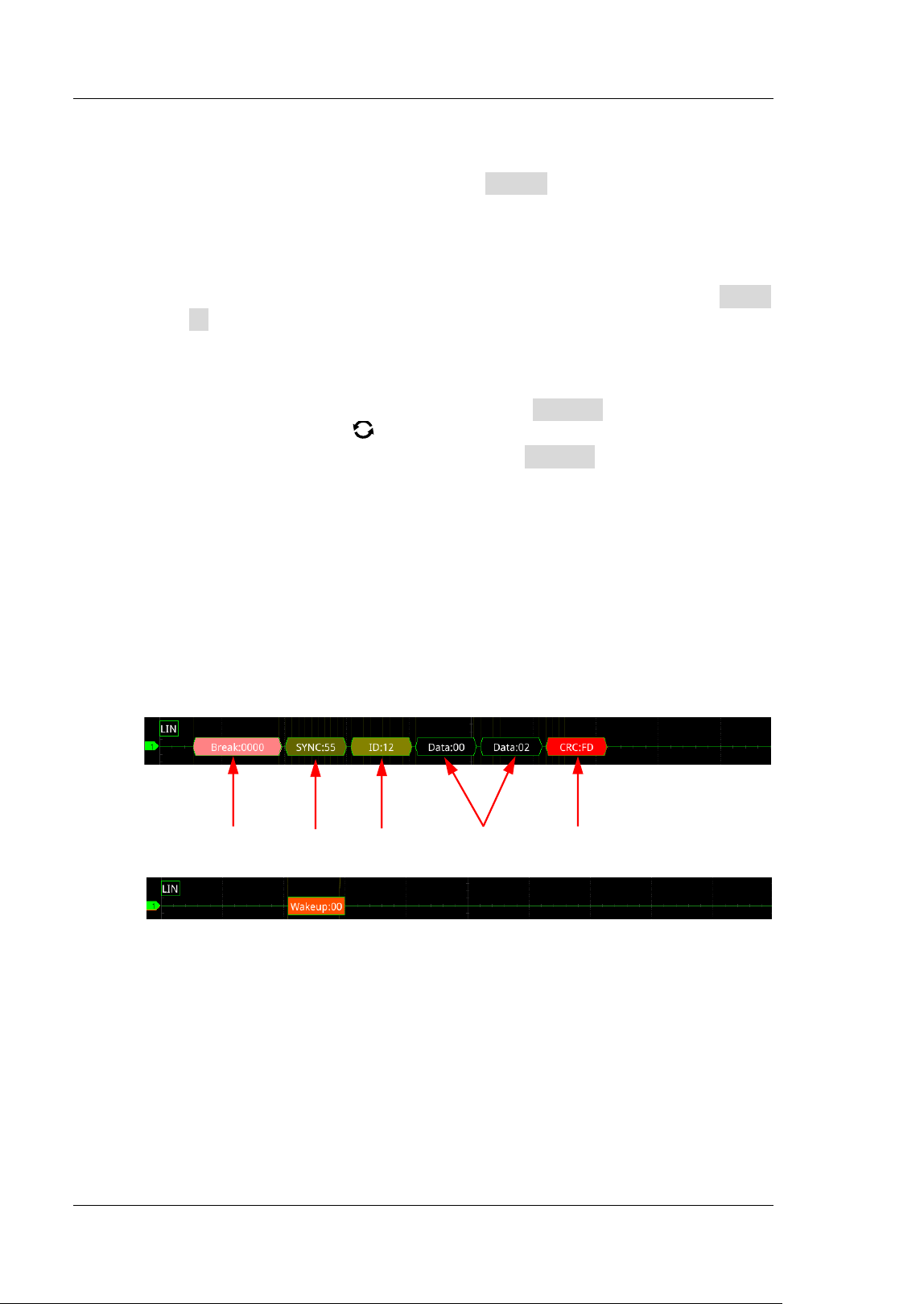
RIGOL Chapter 11 Protocol Decoding
11-26 MSO5000-E User Guide
time, you can view the details in the "Packets" view.
Export: I f you select "Packets", you can export time and the
corresponding decoded data. Press Export, the save setting menu is
displayed. You can export the data table of the packets to the internal
or external USB storage device (when detected) in CSV format. For
detailed saving operation, refer to descriptions in "
Store and Load".
Jump to: Set the operating status of the oscilloscope to "STOP". Then,
select the data of the specif ied time from the event table. Press Jump
to and the specified data waveforms are displayed in the center of the
screen.
Decode: The setting of this menu enables you to quickly view the
corresponding event tables of four decode modules (Decode1,
Decode2, Decode3, and Decode4). Press Decode and rotate the
multifunction knob
to select a decode module, then press down
the knob to select it. You can also press Decode continuously or
enable the touch screen to select it.
6. I nterpret the decoded LI N data
Break (Sync Break): expressed in Hex, displayed as a pink patch.
SYNC (Sync): expressed in Hex, displayed in dark yellow-green.
I D (Frame I D): expressed in Hex, displayed in yellow-green.
Data (Data): its display format is the same as that of the bus data (Hex, Dec,
Bin, or ASCI I), displayed as a black patch.
CRC (Cyclic Redundancy Check): expressed in Hex, displayed in light
yellow-green. When errors occur, it is displayed as a red patch.
Wakeup (wake up symbol): displayed as a tangerine patch.
7. Error expressions in decoding
I n LI N decoding, the parity error, checksum error, or sync error may occur.
Parity Error
I f the parity error is detected, frame ID and parity bit (when the signal is set
to include the parity bit) will be displayed in red, as shown in the f igure
below.
Break Sync ID Data CRC
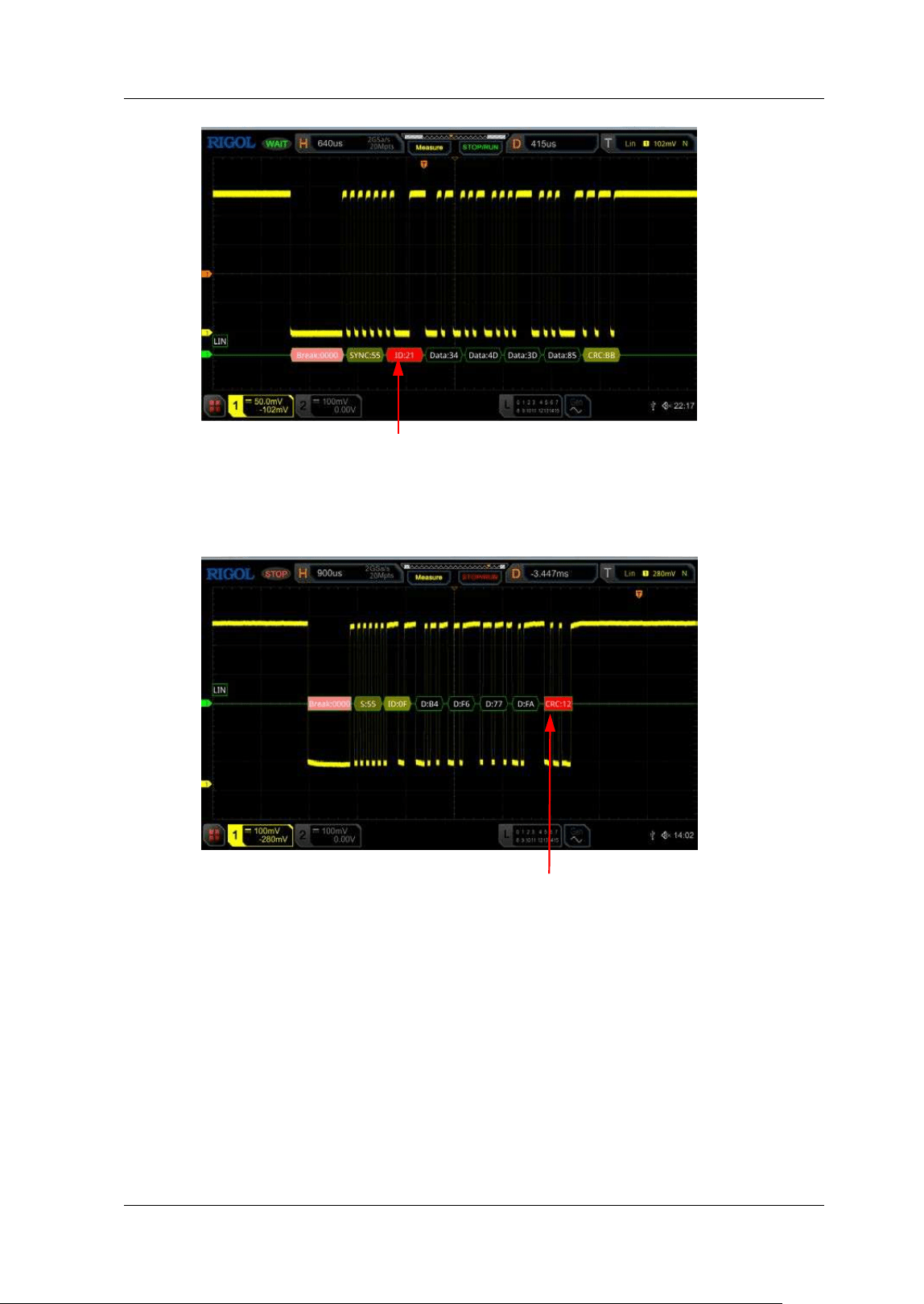
Chapter 11 Protocol Decoding RIGOL
MSO5000-E User Guide 11-27
Checksum Error
I f the checksum error is detected, CRC is displayed in red, as shown in the
f igure below.
Sync Error
I f the sync error is detected, SYNC is displayed in red, as shown in the
f igure below.
Parity Error
Checksum Error
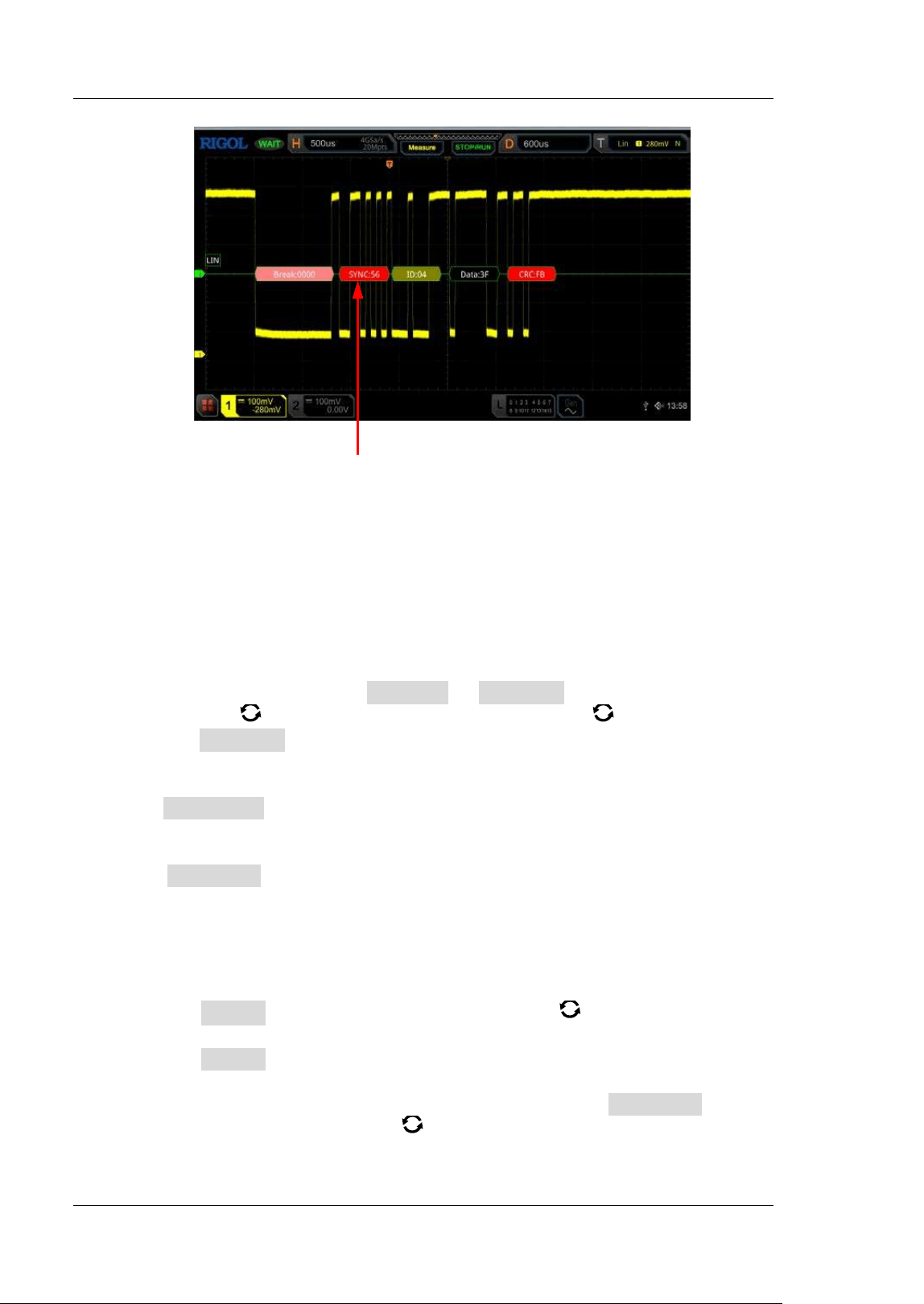
RIGOL Chapter 11 Protocol Decoding
11-28 MSO5000-E User Guide
CAN Decoding (Option)
The oscilloscope samples the CAN signal at the specif ied sample position. The
oscilloscope will also judge each data point (logic "1" or logic "0") according to the
preset threshold level. You need to specify the CAN signal type and sample position
for CAN decoding.
I n the decode setting menu, press Decode1 Bus Type, then rotate the
multifunction knob
to select "CAN". Press down the knob to select it. You
can also press Bus Type continuously or enable the touch screen to select it.
1. Enable or disable the bus
Press Bus Status continuously to enable or disable the decoding function.
2. Quickly apply CAN trigger settings to CAN decoding
Press Copy Trig to copy the CAN trigger settings and apply them to CAN
decoding function (set the corresponding CAN decoding parameters
automatically). For analog channels, the threshold level settings will also be
copied.
3. Set the source and the threshold
Press Source and rotate the multifunction knob to select the desired
source channel, and then press down the knob to select it. You can also
press Source continuously or enable the touch screen to select it. The
available channels include CH1-CH2 and D0-D15.
When you select the analog channel (CH1-CH2), press Threshold, then
rotate the multifunction knob
or use the pop-up numeric keypad to set
the threshold of the source channel. When you modify the threshold of the
Sync Error
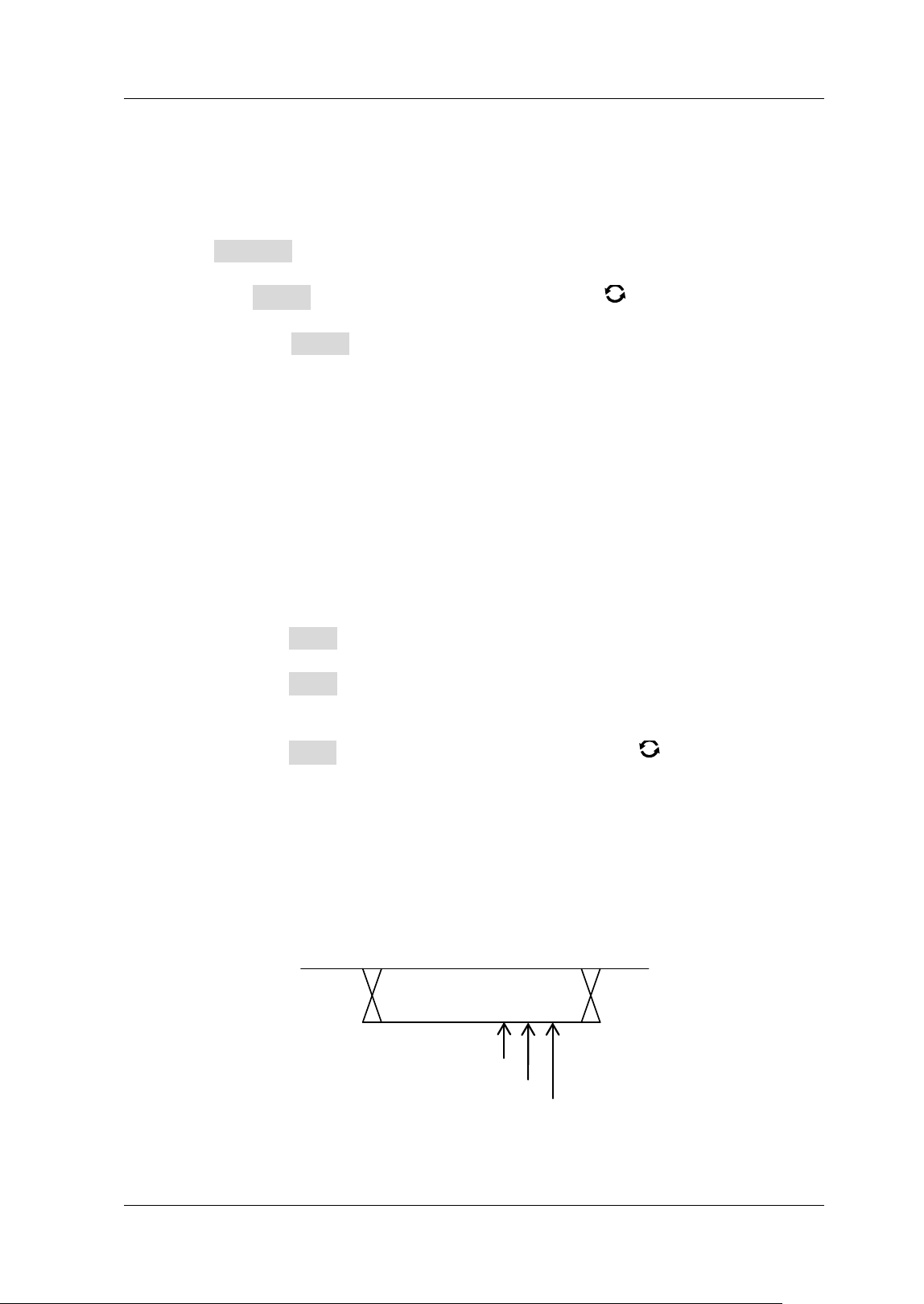
Chapter 11 Protocol Decoding RIGOL
MSO5000-E User Guide 11-29
clock channel, a dotted line displaying the current threshold level is
displayed on the screen. The dotted line disappears in about 2 s after you
stop modifying the threshold.
4. Signal setting
Press Settings to enter the signal setting menu.
Set the signal type
Press Signal and rotate the multifunction knob to select a signal type
that matches the CAN bus signal. Press down the knob to select it. You can
also press Signal continuously or enable the touch screen to select it. The
available signal types include CAN_H, CAN_L, Rx, Tx, and Di f f.
CAN_H: indicates the actual CAN_H bus signal.
CAN_L: indicates the actual CAN_L bus signal.
Rx: indicates the Receive signal from the CAN bus transceiver.
Tx: indicates the Transmit signal from the CAN bus transceiver.
Diff: The CAN differential bus signals connected to an analog source
channel by using a differential probe. Connect the probe's positive lead
to the CAN_H bus signal and connect the negative lead to the CAN_L
bus signal.
Specify the standard signal rate
Three setting methods are available for baud rate:
Press Baud, then set the user-def ined baud rate with the displayed
numeric keypad.
Press Baud, then select the preset baud rate from the available
options. The available baud rates include 10 kbps, 20 kbps, 33.3 kbps,
50 kbps, and etc.
Press Baud, then rotate the multifunction knob to adjust the baud
rate at a small step.
Sample Position:
Sample position is a point within a bit’s time. The oscilloscope samples the
bit level at this point. The sample position is represented by the proportion
of "the time from the start of the bit to the sample position" to the "bit time",
as shown in the f igure below.
Figure 11-10 Sample Position
One Bit
60%
70%
80%
RIGOL Chapter 11 Protocol Decoding
11-30 MSO5000-E User Guide
Press Sample Position, then rotate the multifunction knob or use the pop-up
numeric keypad to set the sample position. The settable range is from 10% to 90% .
5. Display- related Setting
Press Display to enter the display setting menu.
Set the display format
Press Format, rotate the multifunction knob to select the display
format of the bus data. Then, press down the knob to select it. You can also
press Format continuously or enable the touch screen to select it. The
available display formats of the bus data are "Hex", "Dec", "Bin", and
"ASCI I ".
Adjust the vertical position of the bus
Press Position, and then rotate the multifunction knob to adjust the
vertical display position of the bus.
Set the label display
Press Label to enable or disable the label display of the CAN decoding bus.
When enabled, the bus label "CAN" will be displayed at the upper-left side
of the bus (when the bus display is enabled).
Event table
Press Event Table to enter the event table setting menu. The event table
displays the detailed decoding information in time order in the form of a
table, so as to better observe the long decoded data. The decoding
information includes the decoded data, the corresponding line number, time,
frame I D, data length code (DLC), cyclic redundancy check (CRC), and
Acknowledgement (ACK) information.
Open or close the event table: Press Event Table continuously to
enable or disable the event table. When you enable the event table,
the following f igure is displayed, as shown in
Figure 11-11. You can
also enable the touch screen to tap the icon
at the upper-right
corner of the table to close the event table. Besides, when the
operating status is "STOP", you can also rotate the multifunction knob
to select a specif ied line and view the corresponding decoding
information.
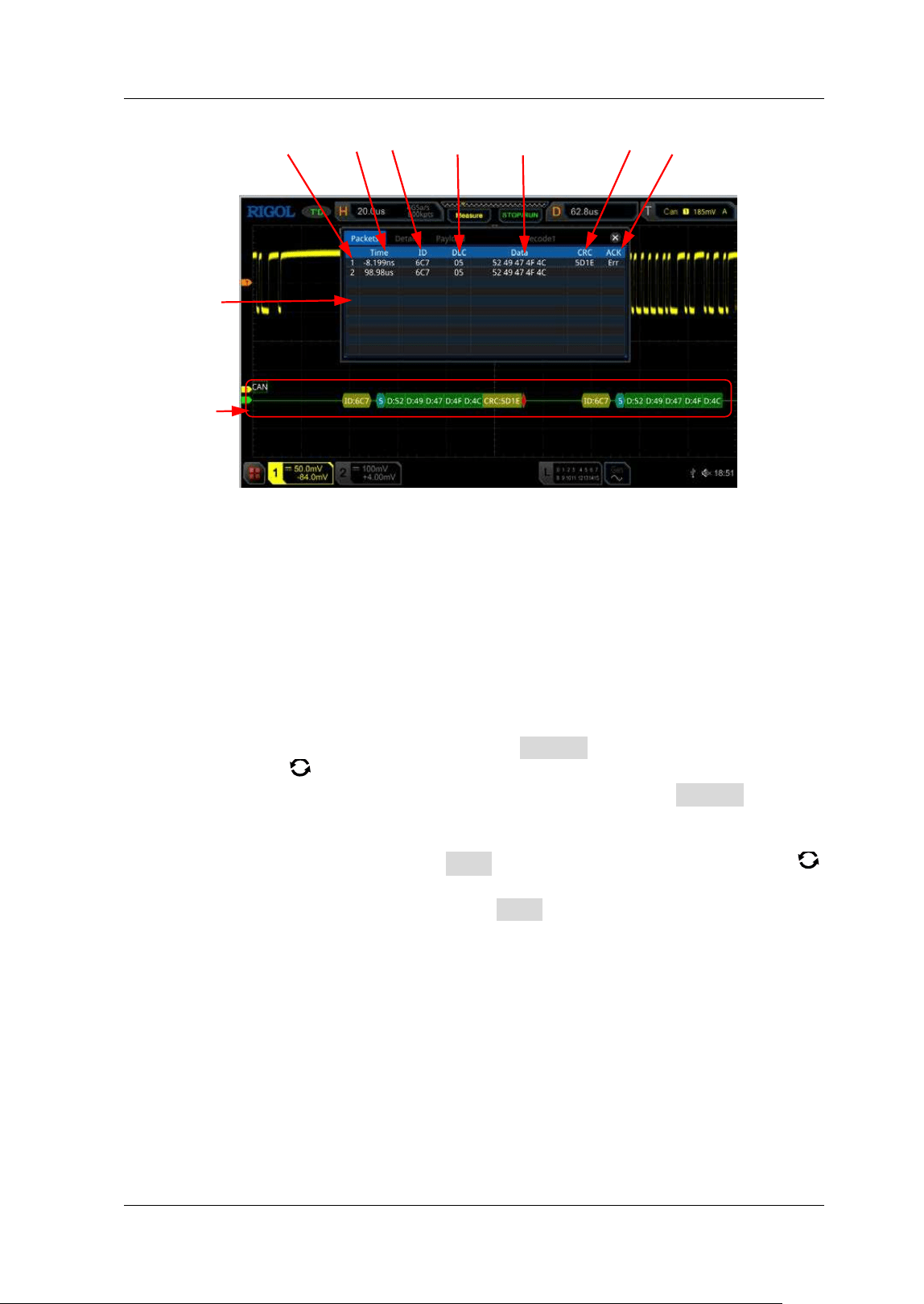
Chapter 11 Protocol Decoding RIGOL
MSO5000-E User Guide 11-31
Figure 11-11 CAN Decoding Event Table
Note:
When you adjust the horizontal timebase, the waveform displayed
on the screen will also change, and the total number of lines
containing the decoding information in the event table will also be
changed.
The displayed decoded data information in the bus is related to the
value of the horizontal timebase. Reducing the horizontal
timebase can help you view the detailed information.
Set the event table format: Press Format, rotate the multifunction
knob
to select the display format of "Data" in the event table. Then,
press down the knob to select it. You can also press Format
continuously or enable the touch screen to select it. The available
formats include "Hex", "Dec", "Bin", and "ASC".
Set the view type: Press View , then rotate the multifunction knob
to select the form of the event table to be viewed. Press down the knob
to select it. You can also press View continuously or enable the touch
screen to select it. The available choices include "Packets", "Details",
and "Payload". You can also tap "Packets", "Details", or "Payload" at
the top of the event table to select it.
I f you select "Packets", the decoded data, time, and other information
are displayed in the event table. I f you select "Details", the detailed
data in the specified row will be displayed in the event table. If "…"
appears in the row of data, it indicates that the decoded data are not
fully displayed. At this time, you can view the details in the "Packets"
view. I f you select "Payload", all data in the specif ied column will be
displayed in the event table. I f "…" appears in the specif ied column of
data, it indicates that the decoded data are not fully displayed. At this
Line Number Time Frame I D DLC Decoded Data CRC ACK
Event Table
CAN Bus
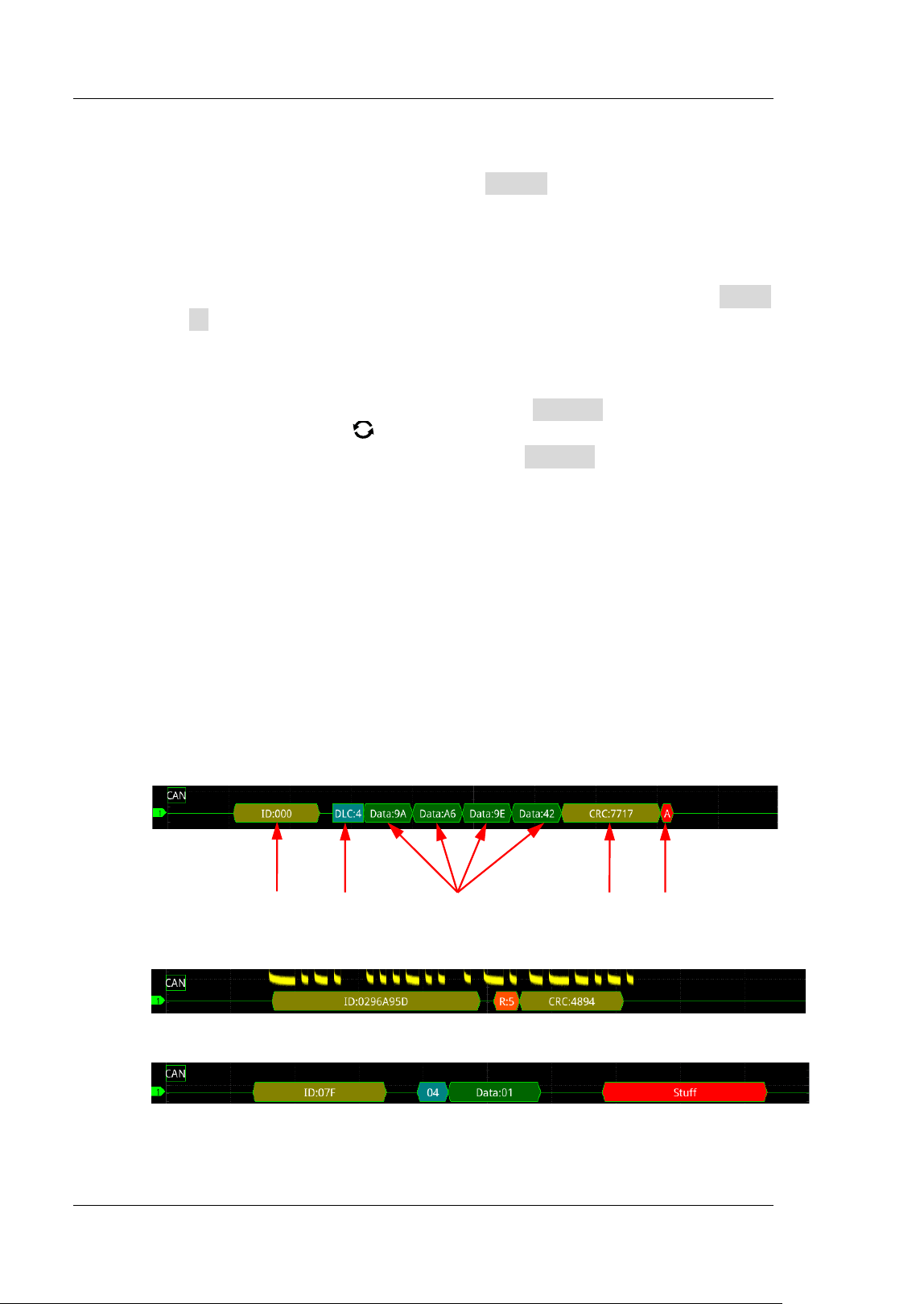
RIGOL Chapter 11 Protocol Decoding
11-32 MSO5000-E User Guide
time, you can view the details in the "Packets" view.
Export: I f you select "Packets", you can export time and the
corresponding decoded data. Press Export, the save setting menu is
displayed. You can export the data table of the packets to the internal
or external USB storage device (when detected) in CSV format. For
detailed saving operation, refer to descriptions in "
Store and Load".
Jump to: Set the operating status of the oscilloscope to "STOP". Then,
select the data of the specif ied time from the event table. Press Jump
to and the specified data waveforms are displayed in the center of the
screen.
Decode: The setting of this menu enables you to quickly view the
corresponding event tables of four decode modules (Decode1,
Decode2, Decode3, and Decode4). Press Decode and rotate the
multifunction knob
to select a decode module, then press down
the knob to select it. You can also press Decode continuously or
enable the touch screen to select it.
6. I nterpret the decoded CAN data
Frame I D: expressed in Hex, displayed as a dark yellow-green patch.
DLC (Data Length Code): expressed in Hex, displayed as a blue-green
patch.
Data: its display format is the same as that of the bus data (Hex, Dec, Bin,
or ASCI I), displayed as a green patch.
CRC (Cyclic Redundancy Check): expressed in Hex, displayed in
yellow-green. When errors occur, it is displayed as a red patch.
ACK (Acknowledgement): when effective, displayed as a light yellow-green
patch; when errors (ACK is detected to be 1) occur, displayed as a red
patch.
R (Remote Frame): displayed as a tangerine patch.
Stuff (Bit f illing error): displayed as a red patch.
Frame ID DLC Data CRC ACK
Chapter 11 Protocol Decoding RIGOL
MSO5000-E User Guide 11-33
FlexRay Decoding ( Option)
FlexRay is a type of differential serial bus configured with three consecutive
segments (i.g. header, payload, and trailer). The oscilloscope samples the FlexRay
signal at the specified sample position and judges each data point as logic "1" or
logic "0" according to the preset threshold level. The FlexRay decoding is required to
specify the signal type and baud rate.
I n the decode setting menu, press Decode1 Bus Type, then rotate the
multifunction knob
to select "FlexRay". Press down the knob to select it. You can
also press Bus Type continuously or enable the touch screen to select it.
1. Enable or disable the bus
Press Bus Status continuously to enable or disable the decoding function.
2. Quickly apply FlexRay trigger settings to FlexRay decoding
Press Copy Trig to copy the FlexRay trigger settings and apply them to FlexRay
decoding function (set the corresponding FlexRay decoding parameters
automatically). For analog channels, the threshold level settings will also be
copied.
3. Set the source and the threshold
Press Source and rotate the multifunction knob to select the desired
source channel, and then press down the knob to select it. You can also
press Source continuously or enable the touch screen to select it. The
available channels include CH1-CH2 and D0-D15.
When you select the analog channel (CH1-CH2), press Threshold, then
rotate the multifunction knob
or use the pop-up numeric keypad to set
the threshold of the source channel. When you modify the threshold of the
channel, a dotted line displaying the current threshold level is displayed on
the screen. The dotted line disappears in about 2 s after you stop modifying
the threshold.
4. Signal setting
Press Settings to enter the signal setting menu.
Channel selection
Press Channel continuously to select a channel ("A" or "B") that matches
the actual FlexRay bus signal.
Specify the signal rate
Press Baud to open the baud rate list (2.5 Mbps, 5 Mbps, and 10 Mbps),
and select a preset baud rate that matches the actual FlexRay bus signal.
You can also press Baud continuously, then rotate the multifunction knob
at a small step value or use the pop-up numeric keypad to set the
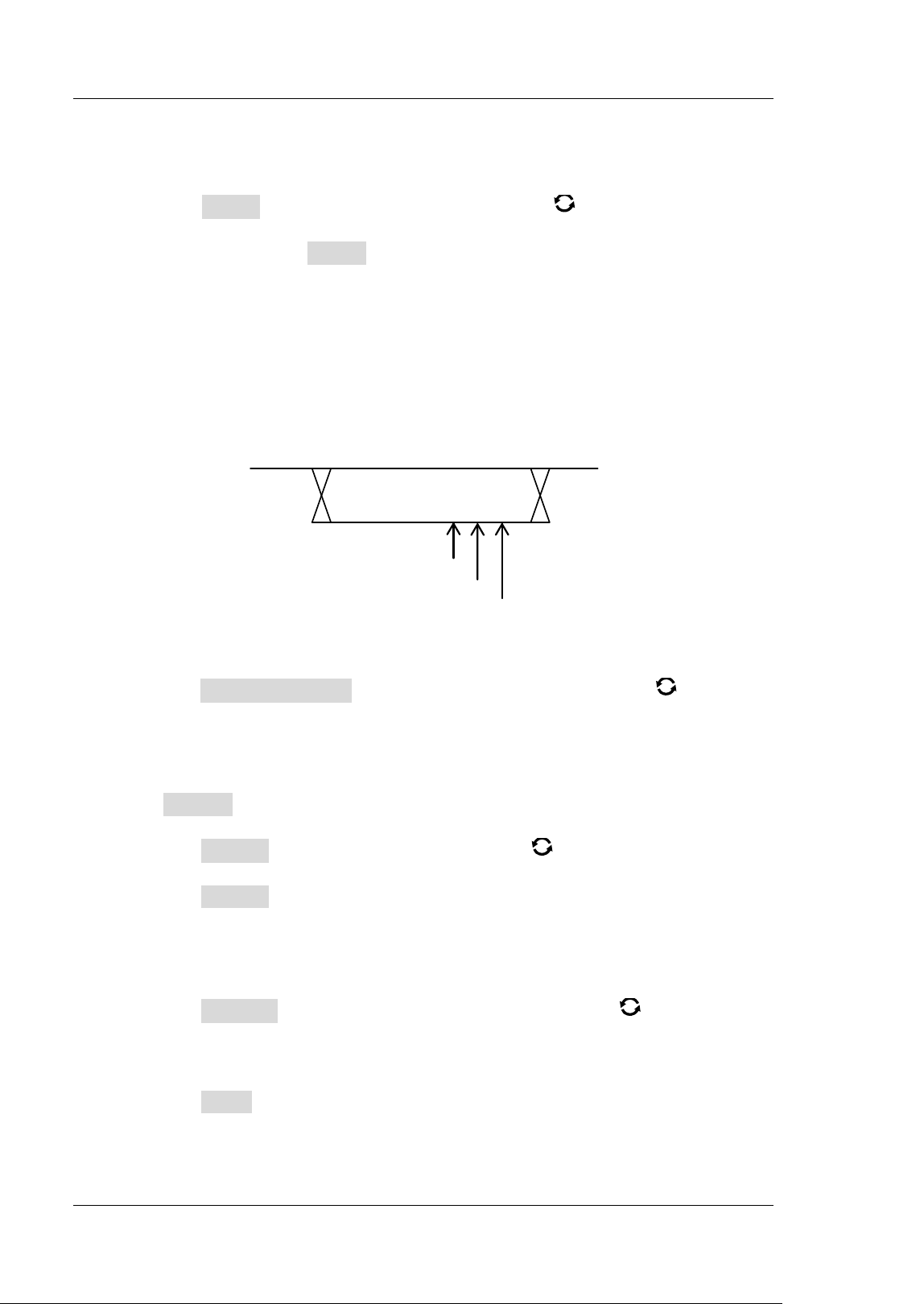
RIGOL Chapter 11 Protocol Decoding
11-34 MSO5000-E User Guide
desired baud rate.
Set the signal type
Press Signal and rotate the multifunction knob to select a signal type
that matches the actual FlexRay bus signal. Press down the knob to select it.
You can also press Signal continuously or enable the touch screen to select
it. The available signal types include BP, BM, and RX/ TX.
Sample Position:
Sample position is a point within a bit’s time. The oscilloscope samples the
bit level at this point. The sample position is represented by the proportion
of "the time from the start of the bit to the sample position" to the "bit time",
as shown in the f igure below.
Figure 11-12 Sample Position
Press Sample Position, then rotate the multifunction knob or use the
pop-up numeric keypad to set the sample position. The settable range is
from 10% to 90% .
5. Display- related setting
Press Display to enter the display setting menu.
Set the display format
Press Format, rotate the multifunction knob to select the display
format of the bus data. Then, press down the knob to select it. You can also
press Format continuously or enable the touch screen to select it. The
available display formats of the bus data are "Hex", "Dec", "Bin", and
"ASCI I ".
Adjust the vertical position of the bus
Press Position, and then rotate the multifunction knob to adjust the
vertical display position of the bus.
Set the label display
Press Label to enable or disable the label display of the FlexRay decoding
bus. When enabled, the bus label "FlexRay" will be displayed at the
upper-left side of the bus (when the bus display is enabled).
One Bit
60%
70%
80%
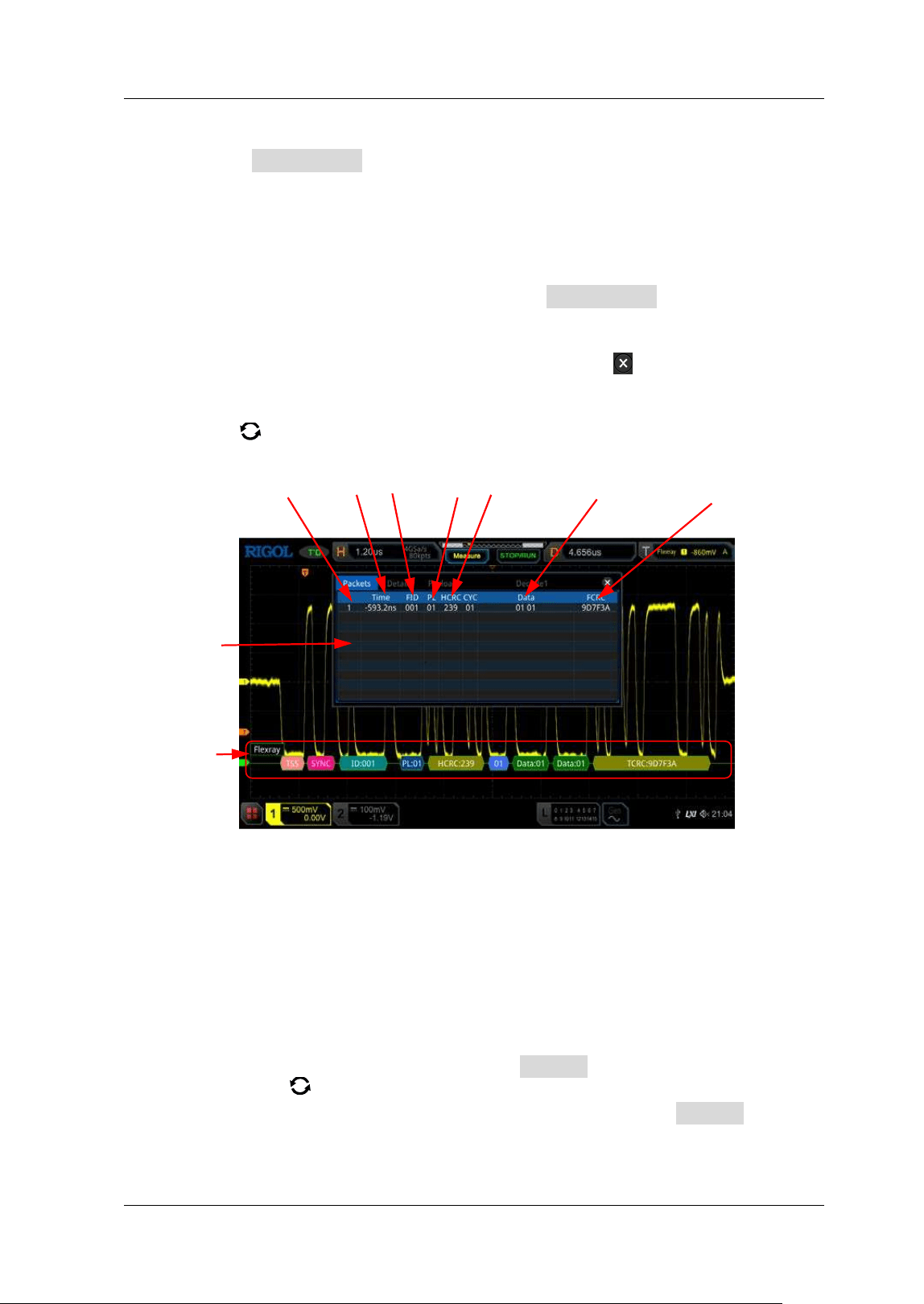
Chapter 11 Protocol Decoding RIGOL
MSO5000-E User Guide 11-35
Event table
Press Event Table to enter the event table setting menu. The event table
displays the detailed decoding information in time order in the form of a
table, so as to better observe the long decoded data. The decoding
information includes the decoded data, the corresponding line number, time,
frame I D, and Payload Length (PL).
Open or close the event table: Press Event Table continuously to
enable or disable the event table. When you enable the event table,
the following f igure is displayed, as shown in
Figure 11-13. You can
also enable the touch screen to tap the icon
at the upper-right
corner of the table to close the event table. Besides, when the
operating status is "STOP", you can also rotate the multifunction knob
to select a specif ied line and view the corresponding decoding
information.
Figure 11-13 FlexRay Decoding Event Table
Note:
When you adjust the horizontal timebase, the waveform displayed
on the screen will also change, and the total number of lines
containing the decoding information in the event table will also be
changed.
The displayed decoded data information in the bus is related to the
value of the horizontal timebase. Reducing the horizontal
timebase can help you view the detailed information.
Set the event table format: Press Format, rotate the multifunction
knob
to select the display format of "Data" in the event table. Then,
press down the knob to select it. You can also press Format
continuously or enable the touch screen to select it. The available
formats include "Hex", "Dec", "Bin", and "ASC".
Line Number Time Frame I D PL Header CRC Decoded Data Frame CRC
Event Table
FlexRay Bus
RIGOL Chapter 11 Protocol Decoding
11-36 MSO5000-E User Guide
Set the view type: Press View , then rotate the multifunction knob
to select the form of the event table to be viewed. Press down the knob
to select it. You can also press View continuously or enable the touch
screen to select it. The available choices include "Packets", "Details",
and "Payload". You can also tap "Packets", "Details", or "Payload" at
the top of the event table to select it.
I f you select "Packets", the decoded data, time, and other information
are displayed in the event table. I f you select "Details", the detailed
data in the specified row will be displayed in the event table. If "…"
appears in the row of data, it indicates that the decoded data are not
fully displayed. At this time, you can view the details in the "Packets"
view. I f you select "Payload", all data in the specif ied column will be
displayed in the event table. I f "…" appears in the specified column of
data, it indicates that the decoded data are not fully displayed. At this
time, you can view the details in the "Packets" view.
Export: I f you select "Packets", you can export time and the
corresponding decoded data. Press Export, the save setting menu is
displayed. You can export the data table of the packets to the internal
or external USB storage device (when detected) in CSV format. For
detailed saving operation, refer to descriptions in "
Store and Load".
Jump to: Set the operating status of the oscilloscope to "STOP". Then,
select the data of the specif ied time from the event table. Press Jump
to and the specified data waveforms are displayed in the center of the
screen.
Decode: The setting of this menu enables you to quickly view the
corresponding event tables of four decode modules (Decode1,
Decode2, Decode3, and Decode4). Press Decode and rotate the
multifunction knob
to select a decode module, then press down
the knob to select it. You can also press Decode continuously or
enable the touch screen to select it.
6. I nterpret the decoded FlexRay frame data
TSS: transmission start sequence, displayed as a pink patch.
Sync Frame: displayed as a pink patch.
I D (Frame I D): expressed in Hex, displayed as a blue-green patch.
PL (Payload Length): expressed in Hex, displayed as a dark blue patch.
HCRC (Header Cyclic Redundancy Check): expressed in Hex, displayed as a
yellow-green patch. When CRC error occurs, it is displayed as a red patch.
CYC (Cycle Number): expressed in Hex, displayed as a light blue patch.
Data: I ts display format is the same as that of the bus data (Hex, Dec, Bin,
or ASCI I), displayed as a green patch.
TCRC (Tai l Cyclic Redundancy Check): expressed in Hex, displayed as a
yellow-green patch. When CRC errors occur, it is displayed as a red patch.
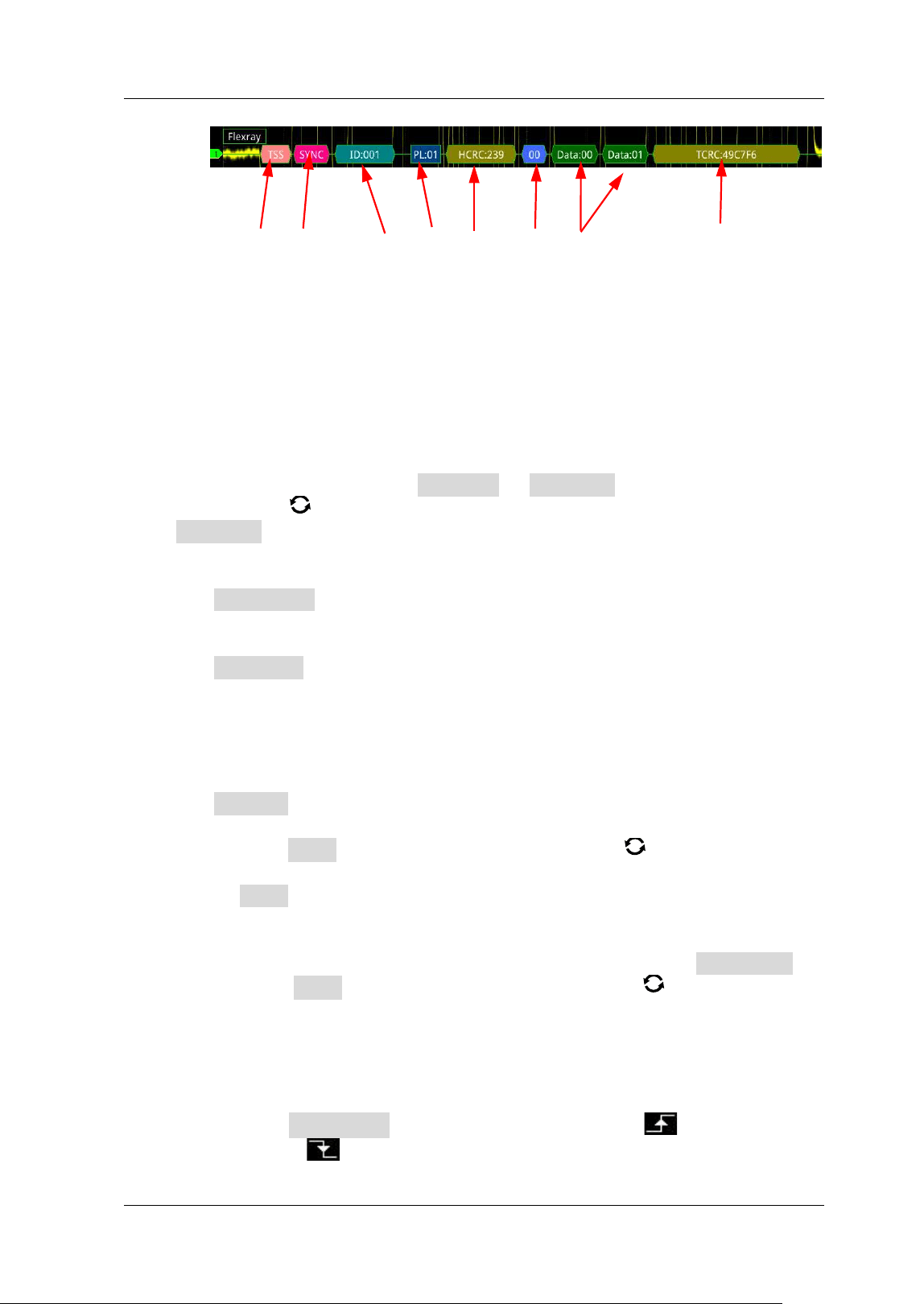
Chapter 11 Protocol Decoding RIGOL
MSO5000-E User Guide 11-37
I 2S Decoding ( Option)
The oscilloscope samples the I 2S signal and judges each data point as logic "1" or
logic "0" according to the preset threshold level. I2S decoding is required to specify
the serial clock, channel signal, and the data's source channel. You need to set
Alignment, WS Low, and other parameters.
I n the decode setting menu, press Decode1 Bus Type, then rotate the
multifunction knob
to select "I 2S". Press down the knob to select it. You can also
press Bus Type continuously or enable the touch screen to select it.
1. Enable or disable the bus
Press Bus Status continuously to enable or disable the decoding function.
2. Quickly apply I 2S trigger settings to I 2S decoding
Press Copy Trig to copy the I 2S trigger settings and apply them to I 2S
decoding function (set the corresponding I2S decoding parameters
automatically). For analog channels, the threshold level settings will also be
copied.
3. Source setting
Press Sources to enter the source setting menu.
Set the serial clock channel source, threshold, and clock edge
Press SCLK and rotate the multifunction knob to select the desired
channel, and then press down the knob to select it. You can also press
SCLK continuously or enable the touch screen to select it. The
available channels include CH1-CH2 and D0-D15.
When you select the analog channel (CH1-CH2), press SCLK Thre
below SCLK, then rotate the multifunction knob or use the pop-up
numeric keypad to set the threshold of the SCLK. When you modify the
threshold of the clock channel, a dotted line displaying the current
threshold level is displayed on the screen. The dotted line disappears in
about 2 s after you stop modifying the threshold.
Press SCLK Edge continuously to select "Rising( )" or
"Falling(
)" as the desired clock edge.
TSS Sync Frame Frame PL HCRC CYC Data TCRC
RIGOL Chapter 11 Protocol Decoding
11-38 MSO5000-E User Guide
Set the WS source and the threshold
Press WS and rotate the multifunction knob to select the desired
channel, and then press down the knob to select it. You can also press
WS continuously or enable the touch screen to select it. The available
channels include CH1-CH2 and D0-D15.
When you select the analog channel (CH1-CH2), press WS Thre below
WS, then rotate the multifunction knob or use the pop-up numeric
keypad to set the threshold of the WS signal. When you modify the WS
threshold, a dotted line displaying the current threshold level is
displayed on the screen. The dotted line disappears in about 2 s after
you stop modifying the threshold.
Set the data channel source and the threshold
Press Data and rotate the multifunction knob to select the desired
data channel source, and then press down the knob to select it. You
can also press Data continuously or enable the touch screen to select
it. The available channels include CH1-CH2 and D0-D15.
When you select the analog channel (CH1-CH2), press Data Thre
below Data, then rotate the multifunction knob or use the pop-up
numeric keypad to set the threshold of the data signal. When you
modify the threshold of the data signal, a dotted line displaying the
current threshold level is displayed on the screen. The dotted line
disappears in about 2 s after you stop modifying the threshold.
4. Bus Setting
Press Settings to enter the bus setting menu.
Set the word size
Press Word Size, then rotate the multifunction knob or use the
pop-up numeric keypad to set the word size. I ts range is from 4 to 32.
Set the receiver word size
Press Receive, then rotate the multifunction knob or use the pop-up
numeric keypad to set the receiver word size. I ts range is from 4 to 32.
Alignment
Press Alignment and rotate the multifunction knob to select the
alignment way for data signal. Then press down the knob to select it. You
can also press Alignment continuously or enable the touch screen to
select it. The available alignment ways include I2S, LJ, and RJ.
Set the WS Low
Press WS Low continuously to select "Left" or "Right".
Chapter 11 Protocol Decoding RIGOL
MSO5000-E User Guide 11-39
Endian
Press Endian to select "LSB" or "MSB". By default, it is "LSB".
Polarity setting
Press Data Polarity continuously to select Positive or Negative as
the polarity for data decoding.
5. Display- related setting
Press Display to enter the display setting menu.
Set the display format
Press Format, rotate the multifunction knob to select the display
format of the bus data. Then, press down the knob to select it. You can also
press Format continuously or enable the touch screen to select it. The
available display formats of the bus data are "Hex", "Dec", "Bin", and
"ASCI I ".
Adjust the vertical position of the bus
Press Position, and then rotate the multifunction knob to adjust the
vertical display position of the bus.
Set the label display
Press Label to enable or disable the label display of the I 2S decoding bus.
When enabled, the bus label "I 2S" will be displayed at the upper-left side of
the bus (when the bus display is enabled).
Event table
Press Event Table to enter the event table setting menu. The event table
displays the detailed decoding information in time order in the form of a
table, so as to better observe the long decoded data. The decoding
information includes the decoded left channel data, right channel data, the
corresponding line number, and time.
Open or close the event table: Press Event Table continuously to
enable or disable the event table. When you enable the event table,
the following f igure is displayed, as shown in
Figure 11-14. You can
also enable the touch screen to tap the icon
at the upper-right
corner of the table to close the event table. Besides, when the
operating status is "STOP", you can also rotate the multifunction knob
to select a specif ied line and view the corresponding decoding
information.
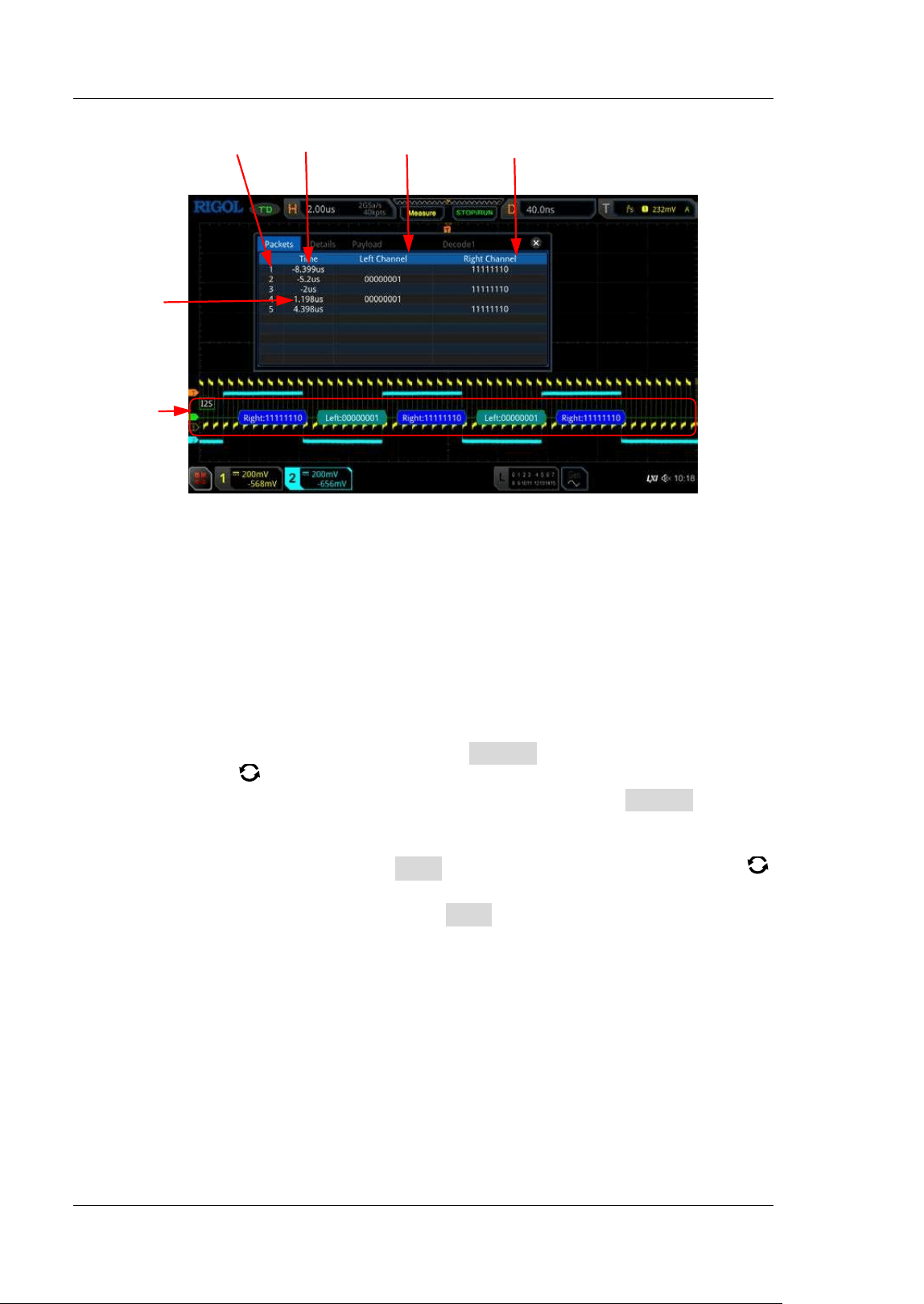
RIGOL Chapter 11 Protocol Decoding
11-40 MSO5000-E User Guide
Figure 11-14 I 2S Decoding Event Table
Note:
When you adjust the horizontal timebase, the waveform displayed
on the screen will also change, and the total number of lines
containing the decoding information in the event table will also be
changed.
The displayed decoded data information in the bus is related to the
value of the horizontal timebase. Reducing the horizontal
timebase can help you view the detailed information.
Set the event table format: Press Format, rotate the multifunction
knob
to select the display format of "Data" in the event table. Then,
press down the knob to select it. You can also press Format
continuously or enable the touch screen to select it. The available
formats include "Hex", "Dec", "Bin", and "ASC".
Set the view type: Press View , then rotate the multifunction knob
to select the form of the event table to be viewed. Press down the knob
to select it. You can also press View continuously or enable the touch
screen to select it. The available choices include "Packets", "Details",
and "Payload". You can also tap "Packets", "Details", or "Payload" at
the top of the event table to select it.
I f you select "Packets", the decoded data, time, and other information
are displayed in the event table. I f you select "Details", the detailed
data in the specified row will be displayed in the event table. If "…"
appears in the row of data, it indicates that the decoded data are not
fully displayed. At this time, you can view the details in the "Packets"
view. I f you select "Payload", all data in the specif ied column will be
displayed in the event table. I f "…" appears in the specif ied column of
data, it indicates that the decoded data are not fully displayed. At this
Line Number Time Left Channel Data Right Channel
Event Table
I 2S Bus
Chapter 11 Protocol Decoding RIGOL
MSO5000-E User Guide 11-41
time, you can view the details in the "Packets" view.
Export: I f you select "Packets", you can export time and the
corresponding decoded data. Press Export, the save setting menu is
displayed. You can export the data table of the packets to the internal
or external USB storage device (when detected) in CSV format. For
detailed saving operation, refer to descriptions in "
Store and Load".
Jump to: Set the operating status of the oscilloscope to "STOP". Then,
select the data of the specif ied time from the event table. Press Jump
to and the specified data waveforms are displayed in the center of the
screen.
Decode: The setting of this menu enables you to quickly view the
corresponding event tables of four decode modules (Decode1,
Decode2, Decode3, and Decode4). Press Decode and rotate the
multifunction knob
to select a decode module, then press down
the knob to select it. You can also press Decode continuously or
enable the touch screen to select it.
1553B Decoding ( Option)
The oscilloscope samples the 1553B signal, and judges each data point to be logic
"1" or logic "0" according to the preset threshold level. 1553B decoding is required to
specify the data channel source and the threshold.
I n the decode setting menu, press Decode1 Bus Type, then rotate the
multifunction knob
to select "1553B". Press down the knob to select it. You can
also press Bus Type continuously or enable the touch screen to select it.
1. Enable or disable the bus
Press Bus Status continuously to enable or disable the decoding function.
2. Quickly apply 1553B trigger settings to 1553B decoding
Press Copy Trig to copy the 1553B trigger settings and apply them to 1553B
decoding function (set the corresponding I2S decoding parameters
automatically).
3. Set the data channel source and the threshold
Press Data and rotate the multifunction knob to select the desired data
channel source, and then press down the knob to select it. You can also
press Data continuously or enable the touch screen to select it. The
available channels include CH1-CH2.
Press Threshold, then rotate the multifunction knob or use the pop-up
numeric keypad to set the threshold of the source channel. When you
modify the threshold of the channel, a dotted line displaying the current
threshold level is displayed on the screen. The dotted line disappears in
RIGOL Chapter 11 Protocol Decoding
11-42 MSO5000-E User Guide
about 2 s after you stop modifying the threshold.
4. Display- related setting
Press Display to enter the display setting menu.
Set the display format
Press Format, rotate the multifunction knob to select the display
format of the bus data. Then, press down the knob to select it. You can also
press Format continuously or enable the touch screen to select it. The
available display formats of the bus data are "Hex", "Dec", "Bin", and
"ASCI I ".
Adjust the vertical position of the bus
Press Position, and then rotate the multifunction knob to adjust the
vertical display position of the bus.
Set the label display
Press Label to enable or disable the label display of the 1553B decoding
bus. When enabled, the bus label "1553B" will be displayed at the upper-left
side of the bus (when the bus display is enabled).
Event table
Press Event Table to enter the event table setting menu. The event table
displays the detailed decoding information in time order in the form of a
table, so as to better observe the long decoded data. The decoding
information includes the decoded data, word type, the corresponding line
number, time, and error information.
Open or close the event table: Press Event Table continuously to
enable or disable the event table. When you enable the event table,
the following f igure is displayed, as shown in
Figure 11-15. You can
also enable the touch screen to tap the icon
at the upper-right
corner of the table to close the event table. Besides, when the
operating status is "STOP", you can also rotate the multifunction knob
to select a specif ied line and view the corresponding decoding
information.
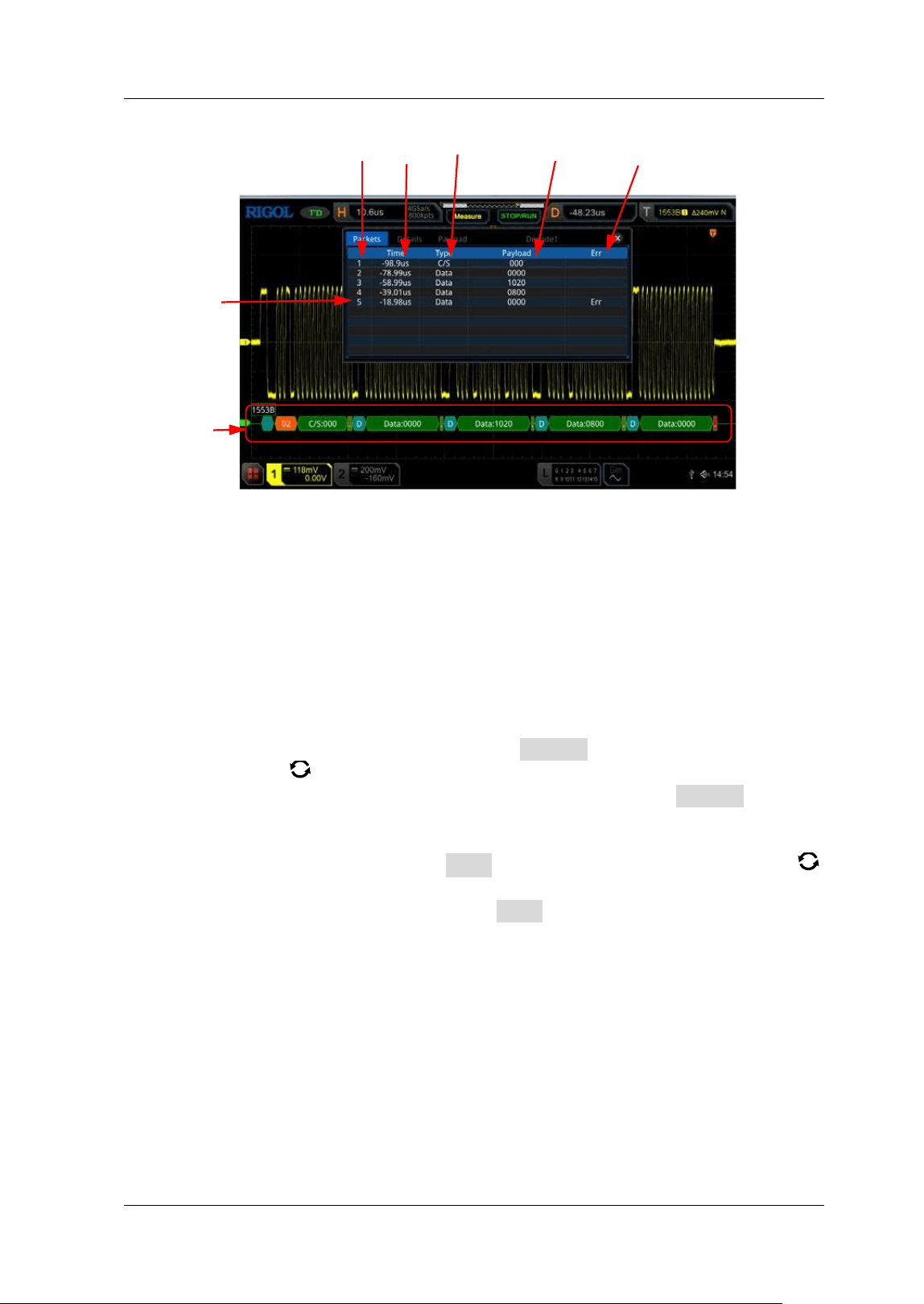
Chapter 11 Protocol Decoding RIGOL
MSO5000-E User Guide 11-43
Figure 11-15 1553B Decoding Event Table
Note:
When you adjust the horizontal timebase, the waveform displayed
on the screen will also change, and the total number of lines
containing the decoding information in the event table will also be
changed.
The displayed decoded data information in the bus is related to the
value of the horizontal timebase. Reducing the horizontal
timebase can help you view the detailed information.
Set the event table format: Press Format, rotate the multifunction
knob
to select the display format of "Data" in the event table. Then,
press down the knob to select it. You can also press Format
continuously or enable the touch screen to select it. The available
formats include "Hex", "Dec", "Bin", and "ASC".
Set the view type: Press View , then rotate the multifunction knob
to select the form of the event table to be viewed. Press down the knob
to select it. You can also press View continuously or enable the touch
screen to select it. The available choices include "Packets", "Details",
and "Payload". You can also tap "Packets", "Details", or "Payload" at
the top of the event table to select it.
I f you select "Packets", the decoded data, time, and other information
are displayed in the event table. I f you select "Details", the detailed
data in the specified row will be displayed in the event table. If "…"
appears in the row of data, it indicates that the decoded data are not
fully displayed. At this time, you can view the details in the "Packets"
view. I f you select "Payload", all data in the specif ied column will be
displayed in the event table. I f "…" appears in the specif ied column of
data, it indicates that the decoded data are not fully displayed. At this
Line Number Time Wo r d Ty p e Dat a Error
Event Table
1553B Bus
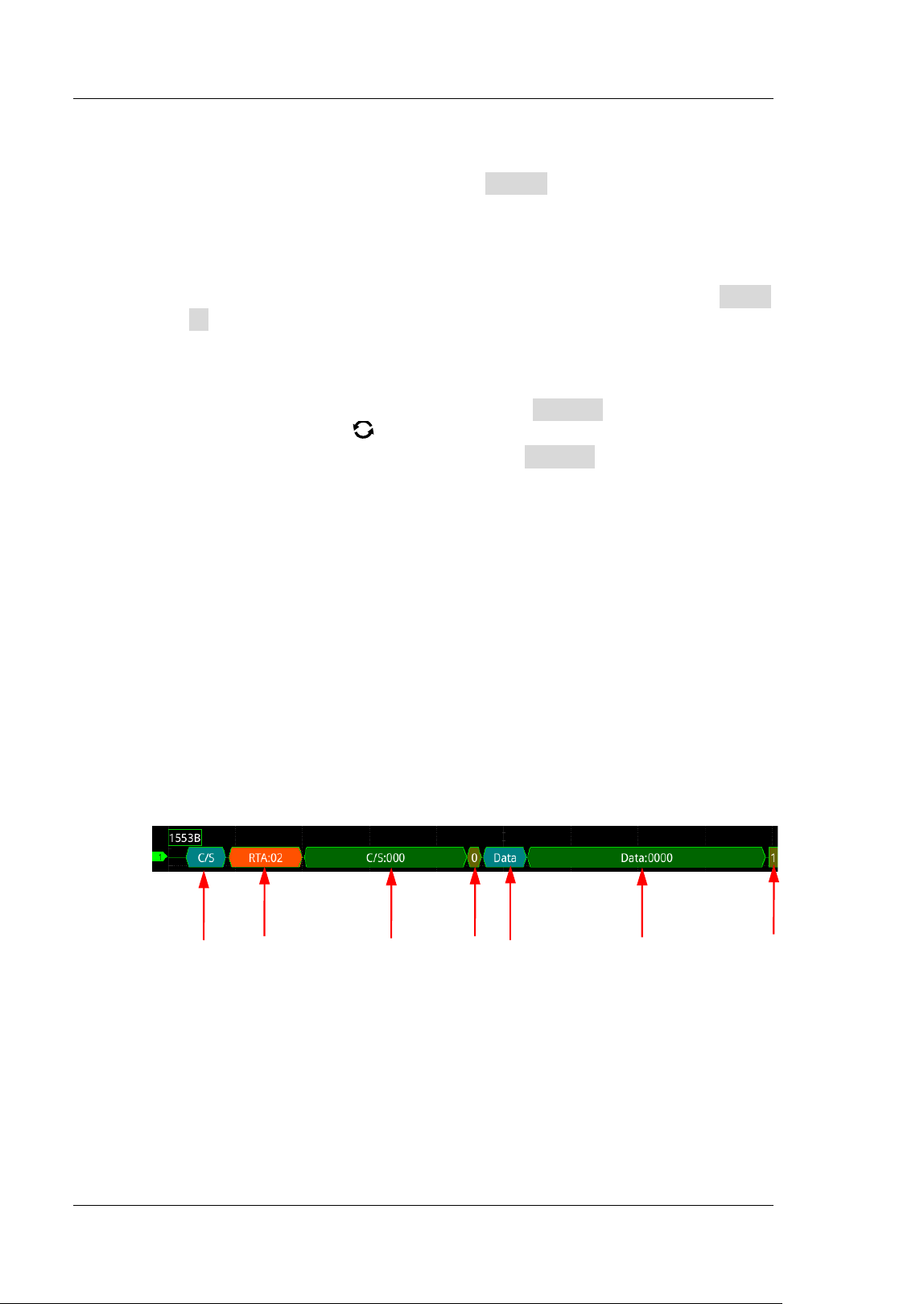
RIGOL Chapter 11 Protocol Decoding
11-44 MSO5000-E User Guide
time, you can view the details in the "Packets" view.
Export: I f you select "Packets", you can export time and the
corresponding decoded data. Press Export, the save setting menu is
displayed. You can export the data table of the packets to the internal
or external USB storage device (when detected) in CSV format. For
detailed saving operation, refer to descriptions in "
Store and Load".
Jump to: Set the operating status of the oscilloscope to "STOP". Then,
select the data of the specif ied time from the event table. Press Jump
to and the specified data waveforms are displayed in the center of the
screen.
Decode: The setting of this menu enables you to quickly view the
corresponding event tables of four decode modules (Decode1,
Decode2, Decode3, and Decode4). Press Decode and rotate the
multifunction knob
to select a decode module, then press down
the knob to select it. You can also press Decode continuously or
enable the touch screen to select it.
5. I nterpret the decoded 1553B data
C/ S: command/ status word. I t is displayed as a blue-green patch.
RTA: remote terminal address of the command/ status word. I t is displayed
as a tangerine patch.
C/ S data: the rest data value of the command/ status word. I ts display
format is the same as that of the bus data (Hex, Dec, Bin, or ASCII),
displayed as a green patch.
Parity bit: displayed as a yellow-green patch; when errors occur, displayed
as a red patch.
Data word data: data of the data word. I ts display format is the same as
that of the bus data (Hex, Dec, Bin, or ASCI I), displayed as a green patch.
C/ S Word RTA C/ S Data Parity Bit Data Word Data Word Data Parity Bit

Chapter 12 Reference Waveform RIGOL
MSO5000-E User Guide 12-1
Chapter 12 Reference Waveform
MSO5000-E series oscilloscope provides 10 reference waveform positions
(Ref1-Ref10). I n the actual test process, you can compare the signal waveform with
the reference waveform to locate the failure.
Contents in this chapter:
To Enable Ref Function
To Select the Reference Channel
To Select the Ref Source
To Adjust the Ref Waveform Display
To Save to I nternal Memory
To Clear the Display of the Reference Waveform
To View Details of the Reference Waveform
To Reset the Reference Waveform
Color Setting
Label Setting
To Export to Internal or External Memory
To Import from I nternal or External Memory
RIGOL Chapter 12 Reference Waveform
12-2 MSO5000-E User Guide
To Enable Ref Function
Press Ref on the front panel to enable the reference waveform function, or enable
the touch screen and then tap the function navigation icon at the lower-left
corner of the screen to open the function navigation. Then, tap the "Ref" icon to
enable the reference waveform function.
When the Ref function is enabled, you can select a different color for each reference
waveform, set the source of each reference channel, adjust the vertical scale and
offset of the reference waveform, save the reference waveform to the internal or
external memory, and recall it when needed.
Note: When the horizontal timebase is set to XY, the reference waveform function is
disabled.
To Select the Reference Channel
Press Current, rotate the multifunction knob to select the desired reference
waveform channel (Ref1-Ref10). You can also press Current continuously or enable
the touch screen to select the reference waveform channel. By default, Ref1 is
enabled.
To Select the Ref Source
Press Source, rotate the multifunction knob to select the desired reference
waveform source (CH1-CH2, D0-D15, or Math1-Math4). You can also press Source
continuously or enable the touch screen to select the reference waveform source.
Note: Only the currently enabled channel can be selected as the source channel of
the reference waveform.
To Adjust the Ref Waveform Display
After pressing SaveToRef, you can adjust the vertical scale and offset of the
reference waveform specif ied under Current.
Press VScale, then rotate the multifunction knob or use the pop-up
numeric keypad to set the vertical scale of the reference waveform. You can also
enable the touch screen and use the "Pinch & Stretch" gesture to adjust the
vertical scale.
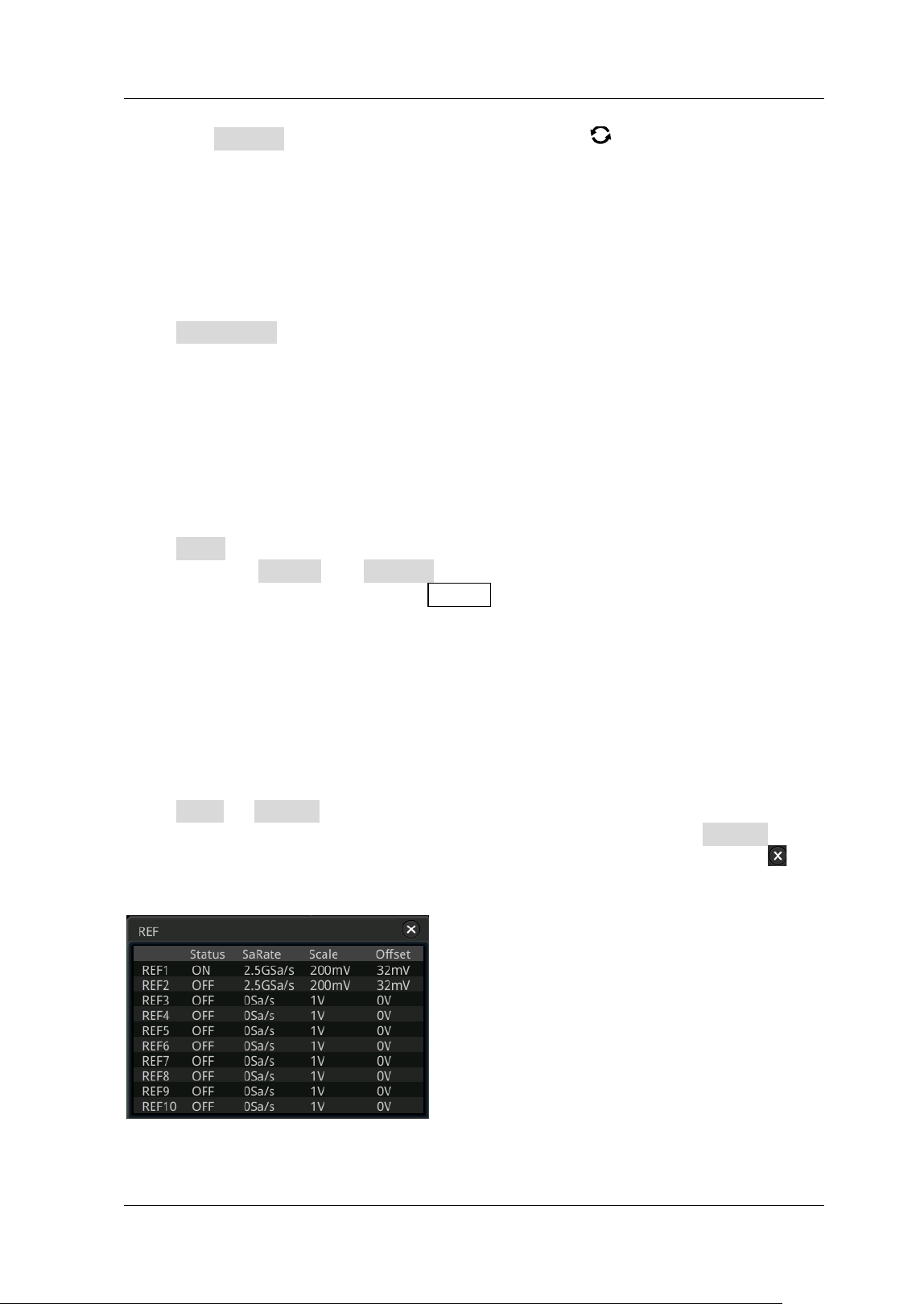
Chapter 12 Reference Waveform RIGOL
MSO5000-E User Guide 12-3
Press VOffset, then rotate the multifunction knob or use the pop-up
numeric keypad to set the vertical offset of the reference waveform. You can
also enable the touch screen and use the "Drag" gesture to adjust the vertical
offset.
To Save to I nternal Memory
Press SaveToRef to save the displayed waveform for the specified source to the
internal memory as the reference waveform.
Note: This operation only saves the reference waveform to the volatile memory, and
the waveform will be cleared at power-o f f.
To Clear the Display of the Reference Waveform
Press Clear to clear the display of the current reference waveform on the screen.
Meanwhile, the VScale and VOffset menus for the reference waveform are grayed
out and disabled. You can also press CLEAR on the front panel to clear the display of
the reference waveforms of all the reference channels.
Note: This operation only clears the display of the reference waveform on the screen,
and the reference waveform is still saved in the memory.
To View Details of the Reference Waveform
Press More Details, and the detailed information about all the reference
waveforms will be displayed on the screen in the form of a list. Press Details again
to close the details list. You can also enable the touch screen to tap the icon
at
the right-upper corner of the table to close it.
RIGOL Chapter 12 Reference Waveform
12-4 MSO5000-E User Guide
To Reset the Reference Waveform
Press More Reset, and the reference waveform is restored to the position where
the source channel waveform is located when the SaveToRef operation was
executed.
Color Setting
MSO5000-E series oscilloscope provides f ive colors (gray, green, blue, red, and
orange) to mark the reference waveforms of different channels in order to distinguish
the reference waveforms of different reference waveform channels.
Press Color, and then rotate the multifunction knob to select the color of the
reference waveform of the channel. You can also press Color continuously or enable
the touch screen to select it. The GND icon and the label at the left side of the
waveform of the currently selected channel will be f illed with the specified color. For
example,
and .
Label Setting
Press More Label to enter the label setting menu. You can use the built-in label in
the library or manually input a label. Three input methods are available for you to
input a label name, including Chinese, English, and Traditional Chinese.
Press Display continuously to enable or disable the display of the reference
waveform label. I f it is enabled, the label will be displayed at the left side of the
waveform. I f the current channel is REFn (n= 1,2, …10), then the default label of
the reference waveform is REFn (n= 1, 2, …10).
Press Library and rotate the multifunction knob to select the preset label,
and then press down the knob to select it. You can also press Library
continuously or enable the touch screen to select it. The available preset labels
include Default, ACK, ADDR, BI T, CLK, and etc.
Press Label, and the label editing interface is automatically displayed. You can
input the label manually. For the label editing methods, refer to descriptions in
"
Channel Label".

Chapter 12 Reference Waveform RIGOL
MSO5000-E User Guide 12-5
To Export to I nternal or External Memory
You can also save the current reference waveform to the internal memory or external
USB storage device. The f ile format of the reference waveform is ".ref ", ".bin", or
".csv".
Press More Export to enter the reference waveform f ile saving interface. Please
refer to descriptions in "
Store and Load" to save the reference waveform to the
internal or external memory. Only when the reference waveform is saved, can this
export function is valid.
Note: MSO5000-E series oscilloscope only supports the flash memory USB storage
device of FAT32 format.
To I mport from I nternal or External Memory
You can also import the stored reference waveform f ile from the internal memory or
external USB storage device to the instrument and display the f ile on the screen.
Press More I mport to enter the reference waveform f ile loading interface. Please
refer to descriptions in "
Store and Load" to import the reference waveform to the
instrument and display it on the screen.
Note: MSO5000-E series oscilloscope only supports the flash memory USB storage
device of FAT32 format.


Chapter 13 Pass/ Fail Test RIGOL
MSO5000-E User Guide 13-1
Chapter 13 Pass/ Fail Test
During the product design and manufacturing process, you usually need to monitor
the variations of the signal or judge whether the product is up to standard. The
pass/ fail test function of MSO5000-E series oscilloscope can accomplish this task
per f ect ly.
Contents in this chapter:
To Enable or Disable the Pass/ Fail Test
To Start or Stop the Pass/ Fail Test Operation
To Se l ect the Source
To Create a Mask
To Sav e t h e Ma sk
To Load a Mask
To Set the Output Form of the Test Results
To Enable or Disable the Display of the Statistics of the Test Results
Statistics Reset
RIGOL Chapter 13 Pass/ Fail Test
13-2 MSO5000-E User Guide
To Enable or Disable the Pass/ Fail Test Function
Press Utility PassFail to open the pass/ fail test setting menu, or enable the
touch screen and then tap the function navigation icon at the lower-left corner of
the screen to open the function navigation. Then, tap the "Pass/ Fail" icon to open the
pass/ fail test setting menu.
I n the menu, press Enable continuously to enable or disable the pass/ fail test
function.
Note: The pass/ fail test function cannot be enabled in the following conditions:
when the timebase mode is "XY" or "ROLL"; when the delay sweep is enabled.
To Start or Stop the Pass/ Fail Test Operation
After the Pass/ Fail test function is enabled, press Operate continuously to start or
stop the test operation.
During the test process, the oscilloscope will test the waveforms, display the test
information, and output the test failure information based on the current settings.
You can set the test mask, the display status of the test information, and the output
form of a failed test based on the selected source channel for the test. Then save the
test mask range to the internal or external memory, and then recall it when needed.
For the details, please refer to the following section.
Note:
Only when the pass/ fail test function is enabled, can you start or stop the
pass/fail test operation, enable or disable the display of the test information,
save and recall the test mask range.
After starting the test operation, you can neither modify the source channel nor
adjust the test mask.
To Select the Source
Before selecting the source, connect the signal under test to the analog channel
input terminal of the oscilloscope. Press Source and rotate the multifunction knob
to select the desired source channel, and then press down the knob to select it.
You can also press Source continuously or enable the touch screen to select it. The
available source channels include the analog channel (CH1-CH2).
Note: Only the channels that have been enabled currently can be selected.
Chapter 13 Pass/ Fail Test RIGOL
MSO5000-E User Guide 13-3
To Create a Mask
Press Mask Create to self-def ine the mask of the pass/ fail test. Press Range and
rotate the multifunction knob
to select the mask range. Press down the knob to
select it. You can also press Range continuously or enable the touch screen to select
it. You can select "Screen" or "Cursor" as the mask region. The default is "Screen".
I f "Screen" is selected under Range, then the whole waveform display area is
considered to be the mask region. Press X Mask and Y Mask respectively.
Rotate the multifunction knob
at a small step or use the pop-up numeric
keypad to adjust the horizontal tolerance range and vertical tolerance range of
the test mask. During the adjustment, two white curves would be displayed in
the interface to show the outline of the current mask. Press Creat e to apply the
currently created mask (the region not covered by blue within the screen).
When "Cursor" is selected, two cursors (used to specify the current test mask
range) will be displayed on the screen. Cursor A is at the left and Cursor B is at
the right. Press CursorA and CursorB, and rotate the multifunction knob
to adjust the positions of both Cursor A and Cursor B, respectively. Also you can
press CursorAB and rotate the multifunction knob to adjust the two
cursors synchronously (the spacing between Cursor A and Cursor B remains
unchanged). Then, refer to the above methods to adjust the horizontal and
vertical tolerance ranges, as well as create a mask (the region not covered by
blue within the cursor region).
To Save the Mask
When the pass/ fail test function is enabled, you can save the current test mask range
to the internal memory or external USB storage device (when detected) in "* .pf "
format.
Press Mask Save to enter the f ile saving interface. Please refer to descriptions in
"
Store and Load" to save the test mask f ile to the internal or external memory.
To Load a Mask
When the pass/ fail test function is enabled, you can load the test mask f iles from the
internal memory or external USB storage device (when detected) and apply them to
the current pass/ fail test function.
Press Mask Load to enter the f ile loading interface. Please refer to descriptions in
"
Store and Load" to load the specif ied test mask f iles (in * .pf format) and apply
RIGOL Chapter 13 Pass/ Fail Test
13-4 MSO5000-E User Guide
them to the current pass/ fail test function.
To Set the Output Form of the Test Results
Press Option to enter the "Option" menu. You can set what the oscilloscope will
execute when test results are detected according to your needs.
Set the output event and Aux output
Press Output Event, and rotate the multifunction knob to select "Fail"
or "Pass". Press down the knob to select it. You can also press Output
Event continuously to enable the touch screen to select it.
Press Aux Output continuously to enable or disable the Aux output. I f
enabled, press Utility System, and then the AUX Out is automatically
set to "PassFail". When a successful or failed event is detected, a pulse will
be output from the rear-panel [ TRI G OUT] connector. I f the Aux output is
disabled, press Utility System, and then the AUX Out is automatically
set to "TrigOut". The output of the rear-panel [ TRI G OUT] connector is
irrelevant with the pass/ fail test.
Set the output polarity and output pulse width
Press Polarity continuously to select "Positive" or "Negative". Then press Pulse,
rotate the multifunction knob
or use the pop-up numeric keypad to set the
pulse width. I ts range is from 100 ns to 10 ms. By default, it is 1 μs.
Set the error action
Press Err Action, and rotate the multifunction knob to set the operation
that the oscilloscope will execute once a failed test is detected. Press down the
knob to select it. You can also press Err Action continuously and press down
the multifunction knob
to select it. Also, you can enable the touch screen to
select it.
Stop: indicates stopping test when a pass/ fail test event is found.
Beeper: indicates that the beeper sounds an alarm when a pass/ fail test
event is found (irrelevant with the on/ off status of the beeper).
Screenshot: performs the screenshot operation when a pass/ fail test
event is found. I f an external storage device is detected, the screenshot will
be saved to the external storage device directly. Otherwise, it will be saved
to the local disk.
Note: I f "Screenshot" is selected under Err Action, "Stop" action will be
executed automatically. The test will be stopped forcibly.
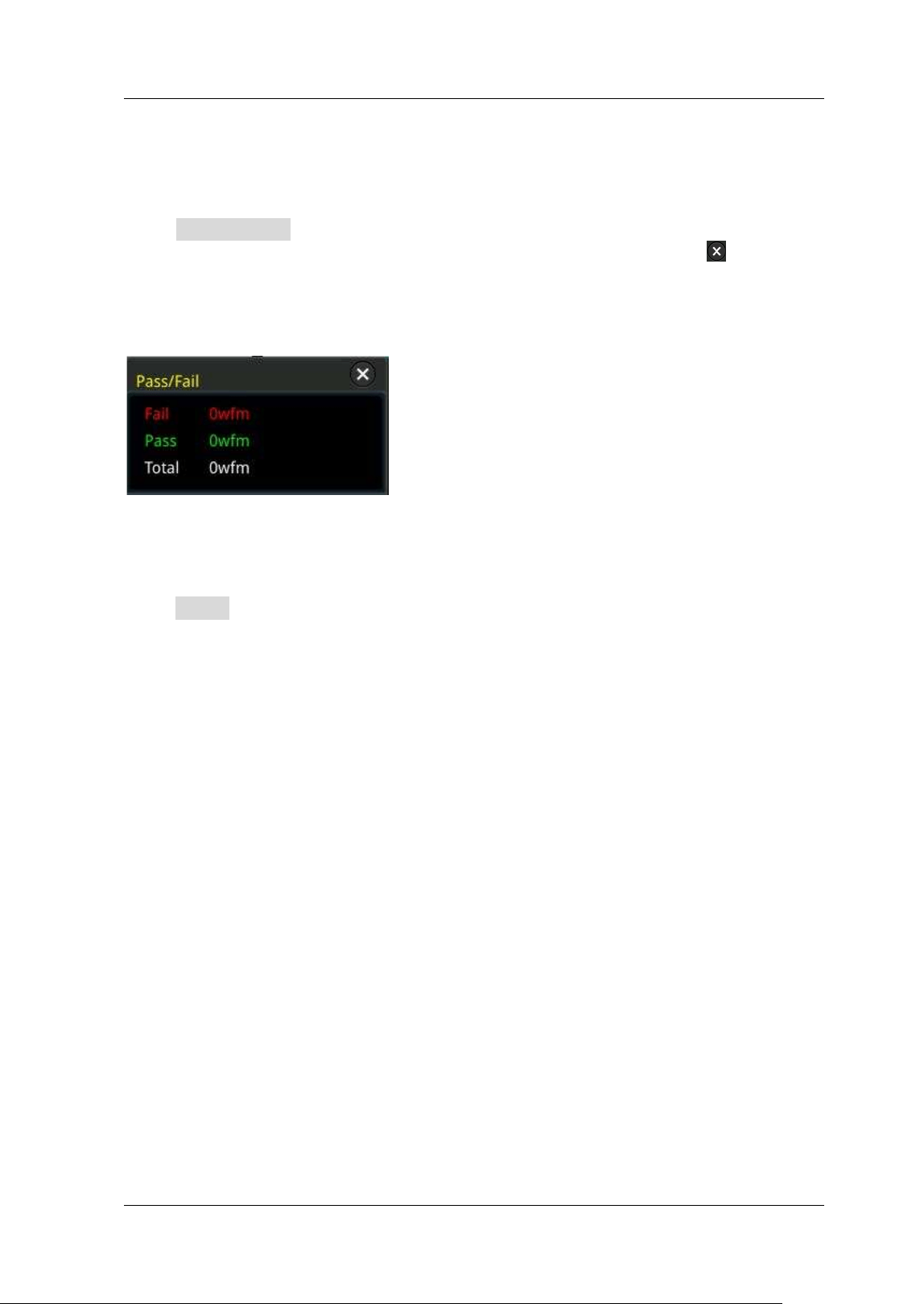
Chapter 13 Pass/ Fail Test RIGOL
MSO5000-E User Guide 13-5
To Enable or Disable the Display of the Statistics
of the Test Results
Press I nformation continuously to enable or disable the display of the statistics of
the test results. You can also enable the touch screen to tap the icon
at the
right-upper corner of the statistics window to close it.
The test results statistics include the number of failed frames, the number of
successful frames, and total number of frames, as shown in the f igure below.
Statistics Reset
Press Reset to clear the current test results and execute statistics on the test results
again.


Chapter 14 Waveform Recording & Playing RIGOL
MSO5000-E User Guide 14-1
Chapter 14 Waveform Recording & Playing
Waveform recording & playing function can play the recorded waveforms of the
analog input channels (CH1-CH2) and the digital channels (D0-D15), enabling you to
analyze the waveforms better.
Note: The horizontal timebase must be set to "YT" mode during waveform
recording.
Contents in this chapter:
Common Settings
Record Options
Play Options
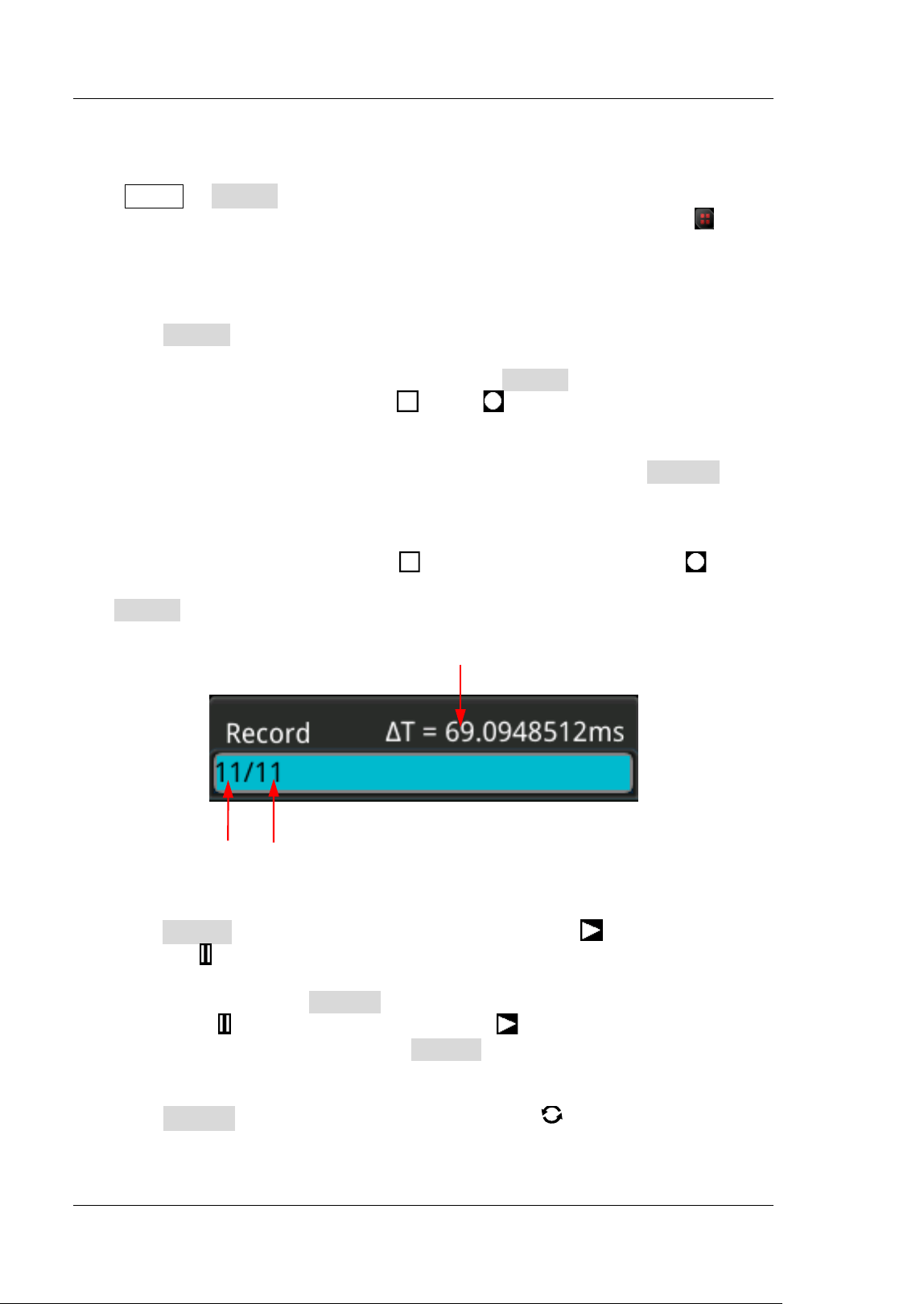
RIGOL Chapter 14 Waveform Recording & Playing
14-2 MSO5000-E User Guide
Common Settings
Press Utility Record to enter the waveform recording function setting menu. You
can also enable the touch screen and then tap the function navigation icon at the
lower-left corner of the screen to open the function navigation. Then, tap the
"Record" icon to open the waveform recording function setting menu.
1. Waveform Recording
Press Record continuously to enable the waveform recording function. Before
recording the waveform, you can refer to descriptions in "
Record Options" to
set the waveform recording parameters. Press Record to start recording the
waveform. The record icon turns "
" from " " automatically. During the
recording, the current real-time recording information is displayed on the screen,
as shown in Figure 14-1
. In the f igure, the data at the left side of the slash is the
current frame. I ts value changes constantly (the value under the Current menu
is changing constantly too), and the data at the right of the slash indicate the
number of frames for recording. The time difference △T at the upper-right
corner indicates the time different between the current frame and the f irst frame.
After the recording is completed, "
" automatically turns out to be " ". The
recording is stopped automatically. During the recording, you can also press
Record again to stop recording manually. Also, you can enable the touch screen
to tap the specif ied button to perform the recording operation.
Figure 14-1 Recording Process I nformation
2. Play
Press Playing to start playing the recorded waveforms. " " automatically turns
out to be "
". For details about playing, refer to descriptions in "Play Options".
During the waveform recording, the current frame changes accordingly (the
value of the parameter Current changes accordingly). After playing is
completed, "
" automatically turns out to be " " automatically. During the
playing process, you can also press Playing to stop playing manually.
3. Current Frame
Press Current, then rotate the multifunction knob or use the pop-up
numeric keypad to set the current frame. At this time, the waveform of the
current frame is displayed on the screen.
Time Difference
Current Frame Recording Frames
Chapter 14 Waveform Recording & Playing RIGOL
MSO5000-E User Guide 14-3
4. Set Transition
Press Jump To continuously to select to jump to the recorded end frame
(
Last) or the recorded start frame ( First). For settings of the start and end
frames, refer to descriptions in "Play Options".
Record Options
During the waveform recording, the oscilloscope records the waveforms of the
currently enabled channel at a specif ied interval until you manually stops the
recording operation or the number of recorded frames has reached the set value.
Note: Before starting the recording operation, turn on the desired channel and
adjust the waveform display to the desired state. When starting the recording
operation, you can neither enable/ disable the channel output nor adjust the
waveform display.
Before recording the waveforms, you can press More Setting to select "Record"
to set the following parameters.
1. Recording I nterval
The recording interval indicates the time interval between the frames during the
recording process.
Press I nterval, then rotate the multifunction knob or use the pop-up
numeric keypad to set the time interval between frames. The available range is
from 10 ns to 10 s.
2. Recording Frames
The recording frames refer to the number of frames that can be recorded
actually. After starting the recording operation, the oscilloscope stops the
recording operation automatically when the number of recorded frames reaches
the set value.
Press Frames, then rotate the multifunction knob or use the pop-up
numeric keypad to set the number of recorded frames. The available range is
from 1 to the maximum number of frames that can be recorded currently
(available in the Max Frames menu). Press Set to Max to set the number of
recorded waveform frames to the maximum number of frames automatically.
3. Max Frames
The menu shows the maximum number of frames that can be recorded currently.
As the capacity of the waveform memory is f ixed, the more the number of points
each frame of waveform has, the less the number of waveform frames that can
be recorded. Therefore, the maximum number of recorded frames is related to
the currently selected "memory depth" (refer to "Memory Depth"). The
current memory depth refers to the number of waveform points per frame.
RIGOL Chapter 14 Waveform Recording & Playing
14-4 MSO5000-E User Guide
Memory Depth = Sample Rate x Horizontal Timebase x Number of Grids in the
Horizontal Direction. Therefore, the maximum number of frames of waveform
recording is also related to the "Sample Rate" and "Horizontal Timebase". This
oscilloscope provides ceaseless recording for a maximum of 450,000 frames of
real-time waveforms.
4. Beeper
Press Beeper continuously to set whether the beeper sounds when the
recording is completed.
: the beeper sounds at the end of recording.
: the beeper does not sound at the end of recording.
Play Options
Waveform playing function can play back the waveforms currently recorded. Before
playing back the waveforms, you can press More Setting to select "Play" to set
the following parameters.
1. Play Mode
Press Mode continuously to set the playback mode to (cycle) or
(single).
: plays from the start frame to the end frame, then such playback
operation is repeated until you stop it manually.
: plays from the start frame to the end frame, and then stops
automatically.
2. Playback Sequence
Press Sequence continuously to select the playback sequence to
(playback clockwise) or
(playback counterclockwise).
: plays from the start frame to the end frame.
: plays from the end frame to the start frame.
3. Playback I nterval
The playback interval indicates the time interval between the frames during the
playing process.
Press I nterval, then rotate the multifunction knob or use pop-up numeric
keypad to set the time interval between frames. The available range is from 5
ms to 10 s.
4. Start Frame
Press Start Frame, then rotate the multifunction knob or use the pop-up
numeric keypad to set the start frame of playback. By default, it is 1, and the
maximum value is the number of recorded frames.


Chapter 15 Search and Navigation Function RIGOL
MSO5000-E User Guide 15-1
Chapter 15 Search and Navigation
Function
The search function allows you to search for relevant events based on the search
condition that you set. The navigation function includes the recording & playing
navigation, time navigation, and event navigation.
Contents in this chapter:
Search Function
Navigation Function
RIGOL Chapter 15 Search and Navigation Function
15-2 MSO5000-E User Guide
Search Function
The search function enables you to search the channel edge, Pulse trigger, Runt
trigger, Slope trigger, RS232 trigger, I 2C trigger, or SPI trigger. Press Search on the
front panel to enable the search setting menu. You can also enable the touch screen
and then tap the function navigation icon
at the lower-left corner of the screen to
open the function navigation. Then, tap the "Search" icon to open the search setting
menu.
1. Enable or Disable the Search Function
Press Search continuously to enable or disable the search function.
2. Select the Search Type and Set the Paramet ers
Press Type, and rotate the multifunction knob to select the desired type
(Edge, Pulse, Runt, Slope, RS232, I 2C, or SPI). You can also press Type
continuously or enable the touch screen to select it.
Edge: Press Type to select "Edge" as the search type. For Edge Set menu
settings, refer to descriptions in "Edge Trigger". Press Threshold to
enter the threshold setting menu. Rotate the multifunction knob
or use
the pop-up numeric keypad to set the threshold.
Pulse: Press Type to select "Pulse" as the search type. For Pulse Set
menu settings, refer to descriptions in "Pulse Trigger". Press Threshold
to enter the threshold setting menu. Rotate the multifunction knob
or
use the pop-up numeric keypad to set the threshold.
Runt: Press Type to select "Runt" as the search type. For Runt Set menu
settings, refer to descriptions in "Runt Trigger". Press Threshold to
enter the threshold setting menu. Rotate the multifunction knob
or use
the pop-up numeric keypad to set Threshold A and Threshold B.
Slope: Press Type to select "Slope" as the search type. For Slope Set
menu settings, refer to descriptions in "Slope Trigger". Press Threshold
to enter the threshold setting menu. Rotate the multifunction knob
or
use the pop-up numeric keypad to set Threshold A and Threshold B.
RS232: Press Type to select "RS232" as the search type. For RS232 Set
menu settings, refer to descriptions in "
RS232 Trigger ( Option)". Press
Threshold to enter the threshold setting menu. Rotate the multifunction
knob
or use the pop-up numeric keypad to set the threshold.
I 2C: Press Type to select "I 2C" as the search type. For I 2C Set menu
settings, refer to descriptions in "
I 2C Trigger (Option) ". Press
Threshold to enter the threshold setting menu. Rotate the multifunction
knob
or use the pop-up numeric keypad to set the thresholds of SCL
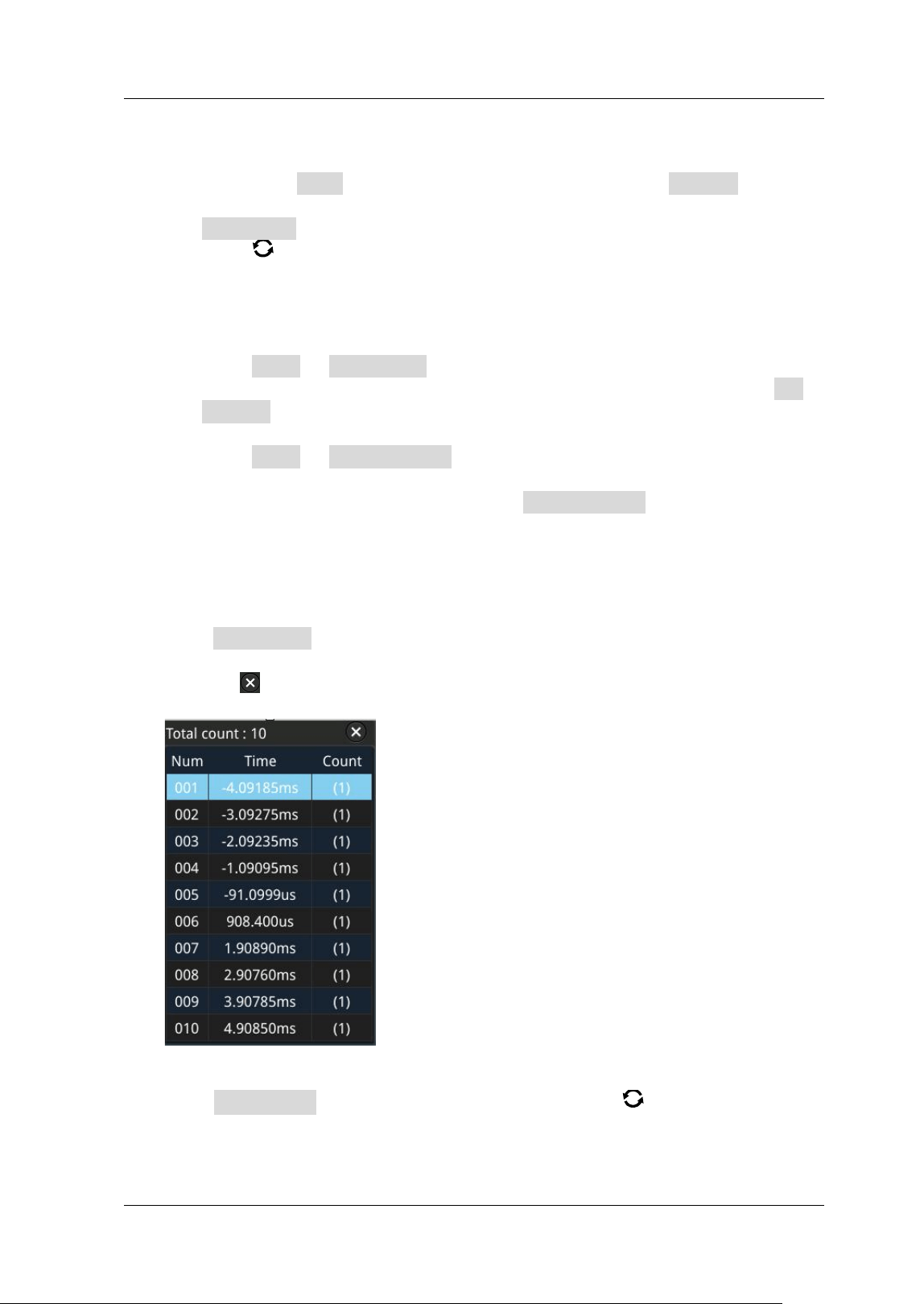
Chapter 15 Search and Navigation Function RIGOL
MSO5000-E User Guide 15-3
and SDA.
SPI : Press Type to select "SPI " as the search type. For SPI Set menu
settings, refer to descriptions in "
SPI Trigger (Option)". Press
Threshold to enter the threshold setting menu. Rotate the multifunction
knob
or use the pop-up numeric keypad to set the thresholds of SCL,
SDA, and CS.
3. Copy Trigger
Copy to Trigger
Press More To Trigger to copy the selected search type to the same
trigger type. For example, if the current search type is "Edge", press To
Trigger to copy the edge search settings to the "Edge Trigger" settings.
From Trigger
Press More From Trigger to copy from the trigger settings of the
selected search type to the search settings. For example, if the current
trigger type is "Edge Trigger", press From Trigger to copy from the
Edge trigger settings to the "Edge" search settings.
Note: If you select "From Trigger", you need to set the search type f irst,
and then copy the trigger type settings from the trigger menu.
4. Open or Close the Mark Table
Press MarkTable continuously to enable or disable the display of the mark table.
The mark table is shown as below. You can also enable the touch screen to tap
the icon
at the right-upper corner of the table to close it.
5. Navigation
Press Navigation, then rotate the multifunction knob or use the pop-up
numeric keypad to set the event No. to navigate the event. You can also use the
navigation combination keys to make navigations at a step of 1. For details, refer
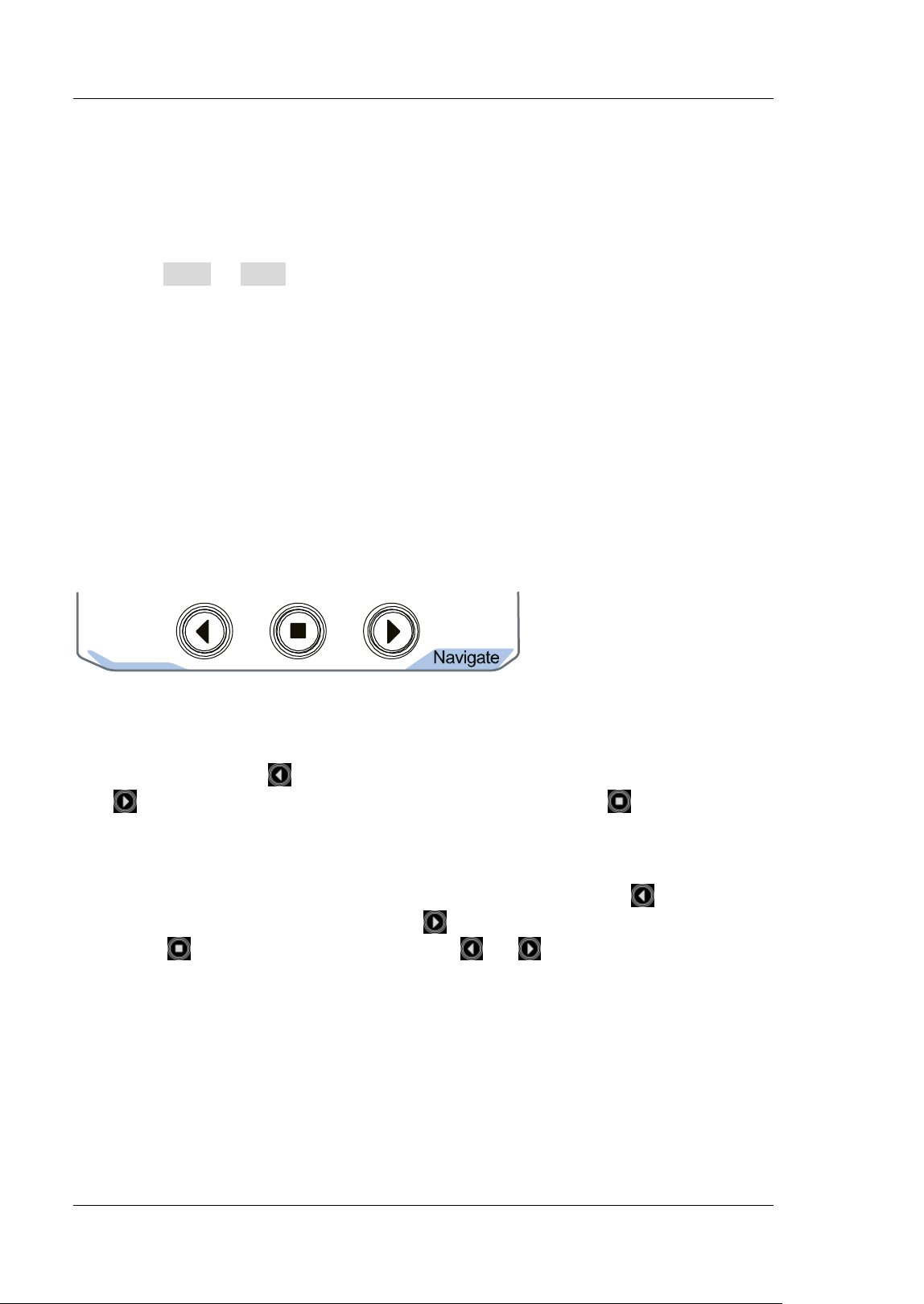
RIGOL Chapter 15 Search and Navigation Function
15-4 MSO5000-E User Guide
to descriptions in "Navigation Function".
6. Save
You can save the event mark data to the internal memory or external USB
storage device in "* .csv" format.
Press More Save to enter the f ile saving interface. Please refer to
descriptions in "
Store and Load" to save the event mark data to the internal or
external memor y.
Note: MSO5000-E series only supports the flash memory USB storage device of
FAT32 f or mat .
Navigation Function
The navigation function includes the recording & playing navigation, time navigation,
and event navigation. In the horizontal control area (Horizontal) on the front panel,
the navigation combination keys are shown as follows:
Recoding & Playing Navigation
When you enable the waveform recording function and complete the waveform
recording operation, press the navigation combination keys to play the recorded
waveforms. Press
to play the recorded waveforms in reverse order; press
to play the recorded waveforms in normal order; press to stop playing.
Time Navigation
After the data acquisition stops, use the navigation combination keys to play the
captured data waveforms in a fast and continuous way. Press
to play the
previous recorded waveforms; press
to play the next recorded waveforms;
press
to stop playing. Besides, press or repeatedly can accelerate
the playing of the waveforms, so that you can quickly locate the acquired data
waveforms.
Note: The time navigation function is only available when the timebase mode is
"YT" and the instrument stays in "STOP" status.
Event Navigation
When you enable the navigation function and complete the event search, you
can use the navigation combination keys to quickly navigate the specif ic event in
Chapter 15 Search and Navigation Function RIGOL
MSO5000-E User Guide 15-5
the event mark table. Press to navigate to the previous event (the serial
number in the mark table decreases); press
to navigate to the next event
(the serial number in the mark table increases); the
key is disabled in the
event navigation.


Chapter 16 Display Control RIGOL
MSO5000-E User Guide 16-1
Chapter 16 Display Control
I n the display control setting menu, you can set the parameters such as the
waveform display type, persistence time, intensity, grid type, grid brightness, and
etc.
Contents in this chapter:
To Select the Display Type
To Set the Persistence Time
To Set the Waveform I ntensity
To Set the Screen Grid
To Set the Grid Brightness
Scale
Color Grade
Waveform Freeze
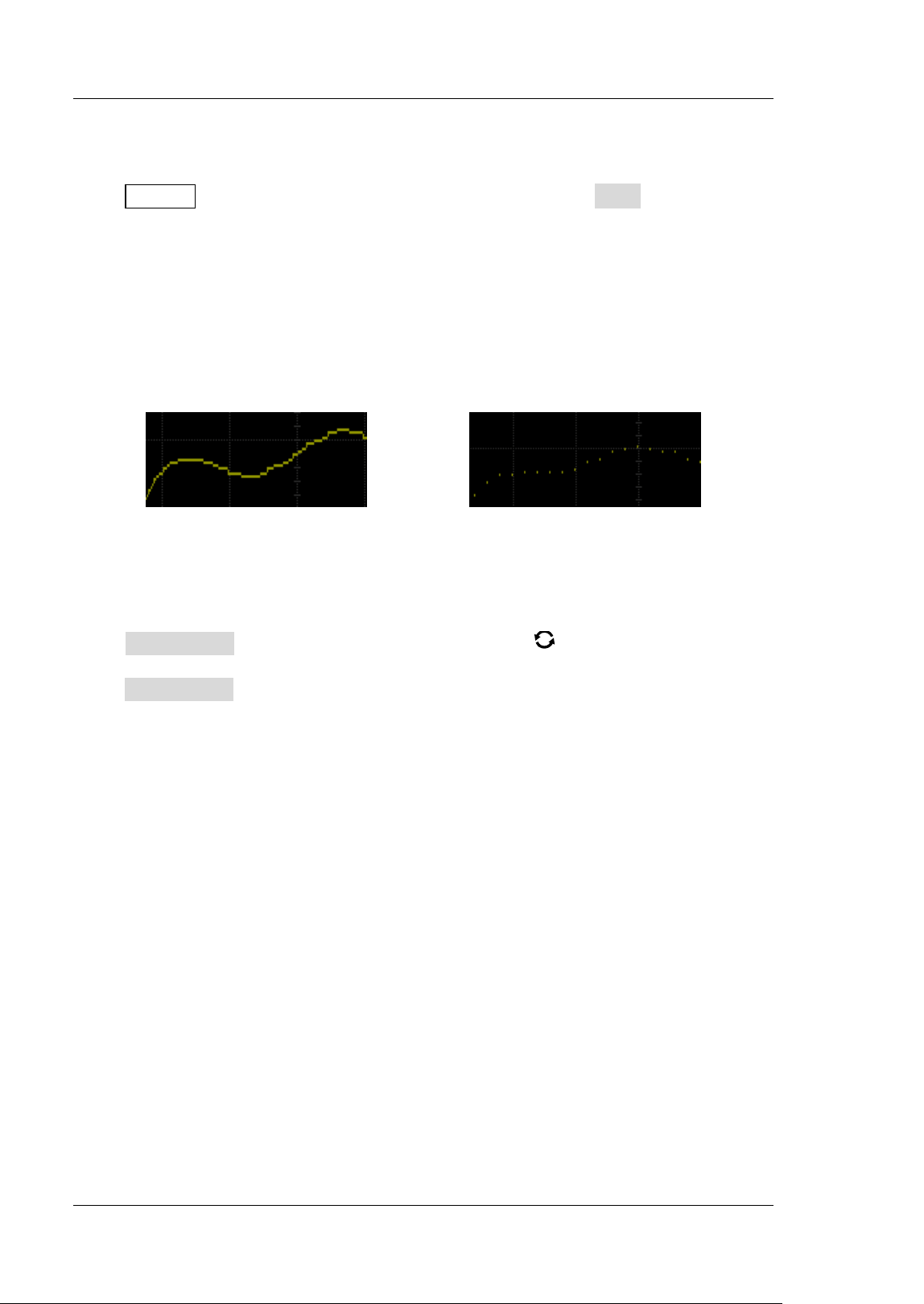
RIGOL Chapter 16 Display Control
16-2 MSO5000-E User Guide
To Select the Display Type
Press Display to enter the display control setting menu. Press Type continuously to
set the waveform display mode to "Vector" or "Dots".
Vector display: indicates that the sample points are connected by lines and
displayed, as shown in the left f igure below. I n most cases, this mode can
provide the most vivid waveform for you to view the steep edge of the waveform
(such as square waveform).
Dots display: displays the sample points directly, as shown in the right f igure
below. You can directly view each sample point and use the cursor to measure
the X and Y values of the sample point.
Vector Display Dots Display
To Set the Persistence Time
Press Persis.Time, and rotate the multifunction knob to set the persistence
time for the oscilloscope and then press down the knob to select it. You can also
press Persis.Time continuously or enable the touch screen to select it. The available
values are Min, 100 ms, 200 ms, 500 ms, 1 s, 2 s, 5 s, 10 s, and I nf inite.
I n the following part, a frequency sweep signal of the sine waveform is used to
demonstrate the waveform effects in different persistence times.
1. Min
Enables to view waveform changing in high refresh rate.
2. Specific Values
Enables to view glitches that change relatively slowly or glitches with lower
occurrence probability. The persistence time can be set to 100 ms, 200 ms, 500
ms, 1 s, 2 s, 5 s, or 10 s.
3. I nfinite
I n this mode, the oscilloscope displays the waveform newly acquired without
clearing the waveforms acquired formerly. The waveforms acquired formerly will
be displayed in relatively low-brightness color and the newly acquired
waveforms will be displayed in normal brightness and color. Inf inite persistence
can be used to measure noise and jitter and to capture incidental events.
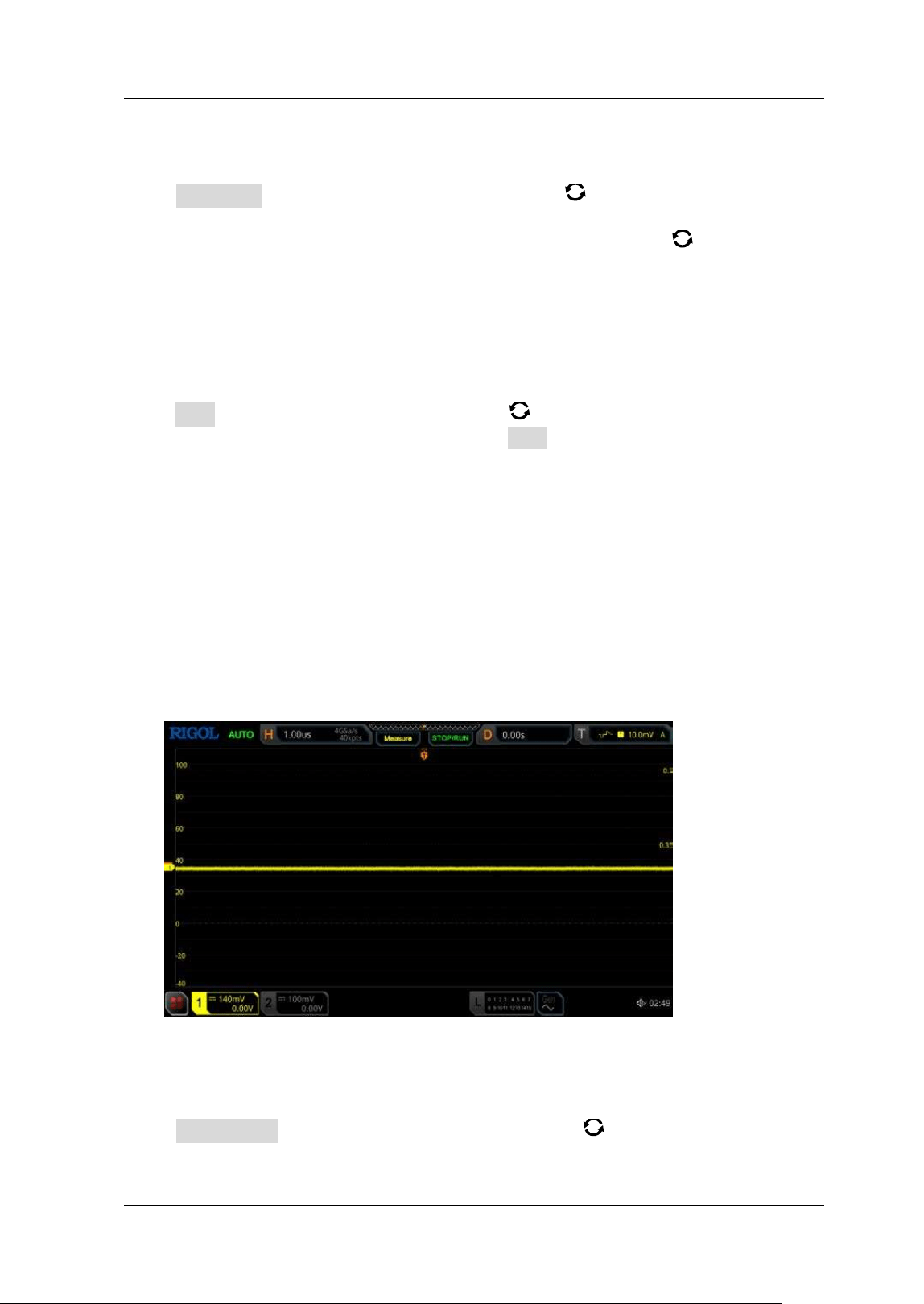
Chapter 16 Display Control RIGOL
MSO5000-E User Guide 16-3
To Set the Waveform I ntensity
Press I ntensity, then rotate the multifunction knob at a small step value or use
the pop-up numeric keypad to set the waveform intensity. Note that in the non-menu
operation mode, you can also rotate the multifunction knob
to adjust the
waveform brightness of the channel. The default is 50% , and the range available is
from 1% to 100% .
To Set the Screen Grid
Press Grid, and rotate the multifunction knob to set the grid type and then press
down the knob to select it. You can also press Grid continuously or enable the touch
screen to select it. You can select "FULL", "HALF", "NONE", or "I RE".
FULL: turns the background grid and coordinate on.
HALF: turns the background grid off.
NONE: turns the background grid and coordinate off.
IRE: only available for testing the video signal (i.g. the trigger type is set to
"Video" trigger, and the vertical scale is set to 140 mV).
When "IRE" is selected, the screen displays the vertical graticule in IRE and
marks it at the left side of the screen. I ts range is from -40 I RE to + 100 IRE.
Meanwhile, 0.35 V and 0.7 V levels are displayed at the right side of the screen,
as shown in the following f igure.
To Set the Grid Brightness
Press Brightness, then rotate the multifunction knob at a small step value or
use the pop-up numeric keypad to set the grid intensity. The default is 20% , and the
RIGOL Chapter 16 Display Control
16-4 MSO5000-E User Guide
range available is from 1% to 100% .
Scale
Press Show Scale continuously to enable or disable the scale display on the screen.
By default, it is set to "OFF".
Note: When the digital channel is enabled, the scale in the vertical direction is
hidden automatically.
Color Grade
Press More Color Grade to enable or disable the color grade display of the
analog channel waveforms on the screen. By default, it is set to "OFF". When
enabled, different colors are displayed on the screen to indicate the times of data
acquisition or acquisition probability.
Waveform Freeze
Press More Waveform Freeze to enable or disable waveform freeze function. I f
enabled, when you press the RUN/ STOP k ey, the current waveform display
(including the history waveforms) will be frozen. I f disabled, when you press the
RUN/ STOP key, only the last acquired waveform will be displayed.

Chapter 17 Function/ Arbitrary Waveform Generator (Option) RIGOL
MSO5000-E User Guide 17-1
Chapter 17 Function/ Arbitrary Waveform
Generator ( Option)
MSO5000-E series has an optional conf iguration of the built-in 25 MHz
Function/ Arbitrary Waveform Generator, which provides great convenience for
engineers who need to use the Function/ Arbitrary Waveform Generator and the
oscilloscope at the same time. This chapter introduces how to use the built-in
Function/ Arbitrary Waveform Generator.
Contents in this chapter:
To Output Basic Waveforms
To Output the Arbitrary Waveform
Modulation
Sweep
Burst
RIGOL Chapter 17 Function/ Arbitrary Waveform Generator (Option)
17-2 MSO5000-E User Guide
To Output Basic Waveforms
Press Gen on the front panel or enable the touch screen to tap the GI label at the
bottom of the screen to enable/disable the output of the [ Gen] connector on the
front panel, and enter the Function/ Arbitrary Waveform Generator setting interface.
MSO5000-E series' built-in Function/ Arbitrary Waveform Generator can output a
variety of basic waveforms, including Sine, Square, Ramp, Pulse, DC, Noise, Sinc,
Exp.Rise, Exp.Fall, ECG, Gauss, Lorentz, Haversine, and Arb.
To Output Sine
Press Wave, rotate the multifunction knob to select "Sine". Press down the
knob to select it. You can also press Wave continuously or enable the touch screen
to select it. At this time, you can set the parameters for the sine waveform.
1. Set the frequency or period
First select Frequency or Period, then rotate the multifunction knob to
select "Frequency" or "Period". You can also press Frequency or Period
continuously to select it. Also, you can enable the touch screen to select it.
Rotate the multifunction knob
or use the pop-up numeric keypad to set the
frequency or period value of the current signal. Different waveforms have
different frequency or period (reciprocal of the frequency) ranges.
Sine: 100 mHz to 25 MHz
Square: 100 mHz to 15 MHz
Ramp: 100 mHz to 100 kHz
Pulse: 100 mHz to 1 MHz
DC and Noise: no frequency parameter.
2. Set the amplitude or high level
First select Amplitude or High Level, then rotate the multifunction knob to
select "Amplitude" or "High Level". You can also press Amplitude or High
Level continuously to select it. Also, you can enable the touch screen to select it.
Rotate the multifunction knob
or use the pop-up numeric keypad to set the
amplitude or high level value of the current signal. Note that if you select
"Amplitude" for this menu, then the menu below the Amplitude is automatically
turns out to be "Offset"; if you select "High Level" for this menu, then the menu
below the High Level is automatically turns out to be "Low Level". When
I mpedance is set to "HighZ", the available range is from 20 mVpp to 5 Vpp; when
I mpedance is set to "50Ω", the available range is from 10 mVpp to 2.5 Vpp.
3. Set the offset or low level
First select Offset or Low Level, then rotate the multifunction knob to
select "Offset" or "Low Level". You can also press Offset or Low Level
Chapter 17 Function/ Arbitrary Waveform Generator (Option) RIGOL
MSO5000-E User Guide 17-3
continuously to select it. Also, you can enable the touch screen to select it.
Rotate the multifunction knob
or use the pop-up numeric keypad to set the
offset or low level value of the current signal. When I mpedance is set to "HighZ",
the available range is from (-2.5 V+ currently set amplitude value/ 2) to (2.5 V-
currently set amplitude value/ 2); when I mpedance is set to "50Ω", the available
range is from (-1.25 V+ currently set amplitude value/ 2) to (1.25 V- currently set
amplitude value/ 2).
4. Set the start phase
Press Start Phase, then rotate the multifunction knob or use the pop-up
numeric keypad to set the start phase of the current signal. I ts available range is
from 0° to 360°.
5. Align phase
Pressing Align Phase will re-configure the two channels to output according to
the preset frequency and phase. For two signals whose frequencies are the same
or in multiple relationship, this operation can align their phases. Use the
oscilloscope to acquire the waveforms of the two channels and stably display the
waveforms. After switching the channel status, the phase deviation between the
two waveforms is changed. At this time, press Align Phase, and then the phase
deviation shown on the oscilloscope will restore to the current phase deviation
between the two waveforms automatically.
6. Setting options
Press Settings to enter the setting options menu. You can set the parameters
such as modulation, sweep, burst, and impedance.
Modulation, sweep, and burst
For details about modulation, sweep, and burst, refer to descriptions in
"Modulation", "Sw eep", and "Burst
".
Note: When "Pulse", "DC", or "Noise" is selected under Wave, this menu is
not available.
Set the impedance
Press I mpedance continuously to set the output impedance of the
Function/ Arbitrary Waveform Generator. I t can be set to "HighZ" or "50Ω".
To Output Square
Press Wave, rotate the multifunction knob to select "Square". Press down the
knob to select it. You can also press Wave continuously or enable the touch screen
to select it. At this time, you can set the parameters for the square waveform. For
setting methods, refer to descriptions in "
To Output Sine". The duty cycle of the
square waveform is a f ixed value 50% .
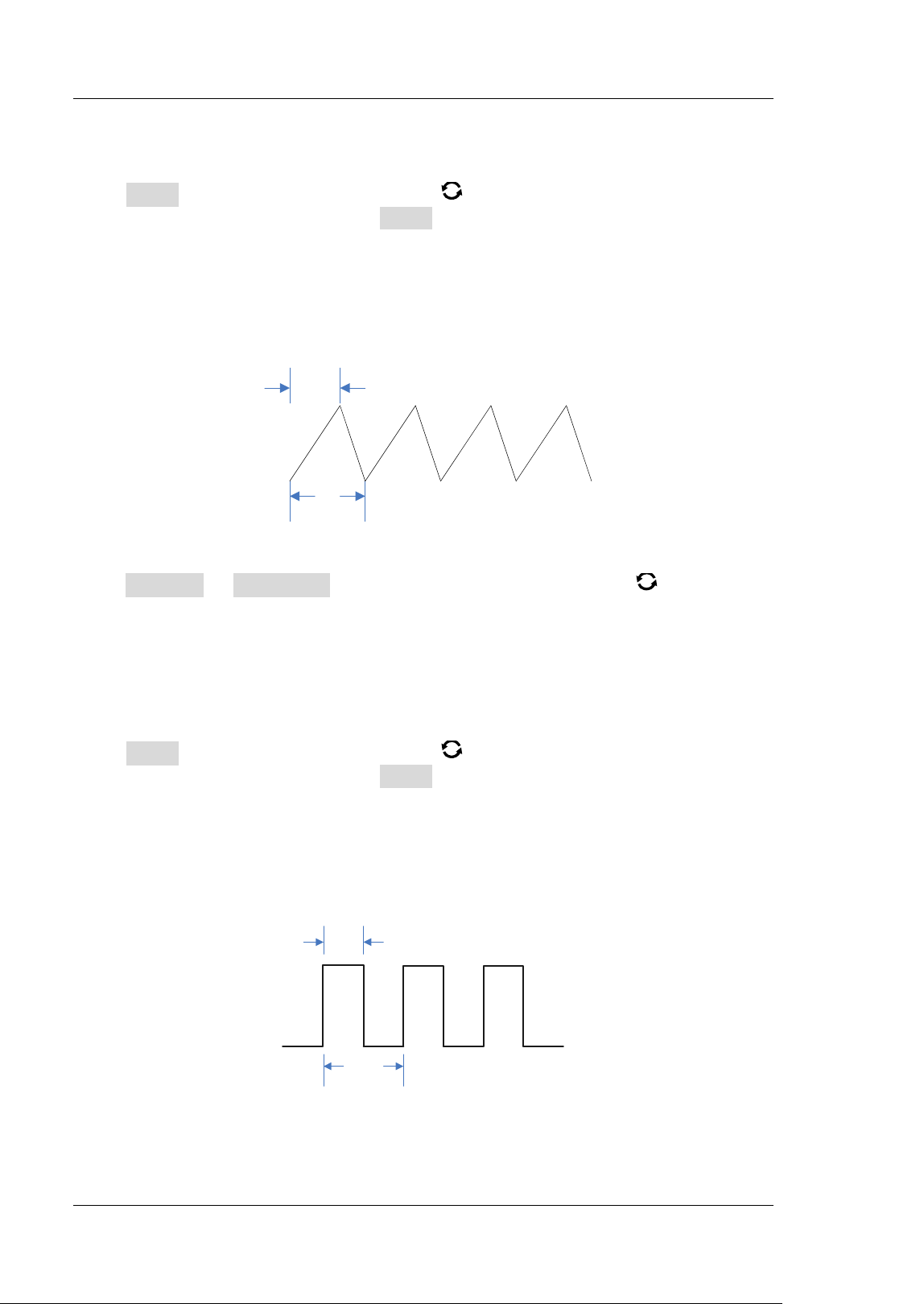
RIGOL Chapter 17 Function/ Arbitrary Waveform Generator (Option)
17-4 MSO5000-E User Guide
To Output Ramp
Press Wave, rotate the multifunction knob to select "Ramp". Press down the
knob to select it. You can also press Wave continuously or enable the touch screen
to select it. At this time, you can set the parameters for the ramp waveform. For
setting methods, refer to descriptions in "
To Output Sine". This section only
introduces "Symmetry".
Symmetry is defined as the percentage that the rising period of the ramp takes up in
the whole period, as shown in the f igure below.
T
t
Symmetry= t/ T* 100%
Figure 17-1 Symmetry Def inition
Press Settings Symmetry, then rotate the multifunction knob or use the
pop-up numeric keypad to set the symmetry of the ramp waveform. The settable
range is from 1% to 100% .
To Output Pulse
Press Wave, rotate the multifunction knob to select "Pulse". Press down the
knob to select it. You can also press Wave continuously or enable the touch screen
to select it. At this time, you can set the parameters for the pulse waveform. For
setting methods, refer to descriptions in "
To Output Sine". This section only
introduces "Duty Cycle".
Duty cycle is def ined as the percentage that the high level takes up in the whole
pulse period, as shown in the f igure below.
T
t
Duty Cycle= t/ T* 100%
Figure 17-2 Duty Cycle Def inition
Chapter 17 Function/ Arbitrary Waveform Generator (Option) RIGOL
MSO5000-E User Guide 17-5
Press Settings Duty Cycle, then rotate the multifunction knob or use the
pop-up numeric keypad to set the duty cycle of the current pulse signal. I ts settable
range is from 10% to 90% .
To Output DC
Press Wave, rotate the multifunction knob to select "DC". Press down the knob
to select it. You can also press Wave continuously or enable the touch screen to
select it. At this time, you can set the offset and impedance of the DC signal.
1. Set the offset
Press Offset, then rotate the multifunction knob or use the pop-up numeric
keypad to set the offset value of the current DC signal. When the current
impedance is set to HighZ, the settable range of offset is from -2.5 V to + 2.5 V;
when the impedance is set to 50 Ω, the settable range of offset is from -1.25 V
to + 1.25 V.
2. Set the impedance
Press I mpedance continuously to set the output impedance of the
Function/ Arbitrary Waveform Generator. I t can be set to "HighZ" or "50Ω".
To Output Noise
Press Wave, rotate the multifunction knob to select "Noise". Press down the
knob to select it. You can also press Wave continuously or enable the touch screen
to select it. At this time, you can set the amplitude/ high level, offset/ low level, and
impedance of the noise signal.
1. Set the amplitude or high level
First select Amplitude or High Level, then rotate the multifunction knob to
select "Amplitude" or "High Level". You can also press Amplitude or High
Level continuously to select it. Also, you can enable the touch screen to select it.
Rotate the multifunction knob
or use the pop-up numeric keypad to set the
amplitude or high level value of the current signal. Note that if you select
"Amplitude" for this menu, then the menu below the Amplitude is automatically
turns out to be "Offset"; if you select "High Level" for this menu, then the menu
below the High Level is automatically turns out to be "Low Level".
2. Set the offset or low level
First select Offset or Low Level, then rotate the multifunction knob to
select "Offset" or "Low Level". You can also press Offset or Low Level
continuously to select it. Also, you can enable the touch screen to select it.
Rotate the multifunction knob
or use the pop-up numeric keypad to set the
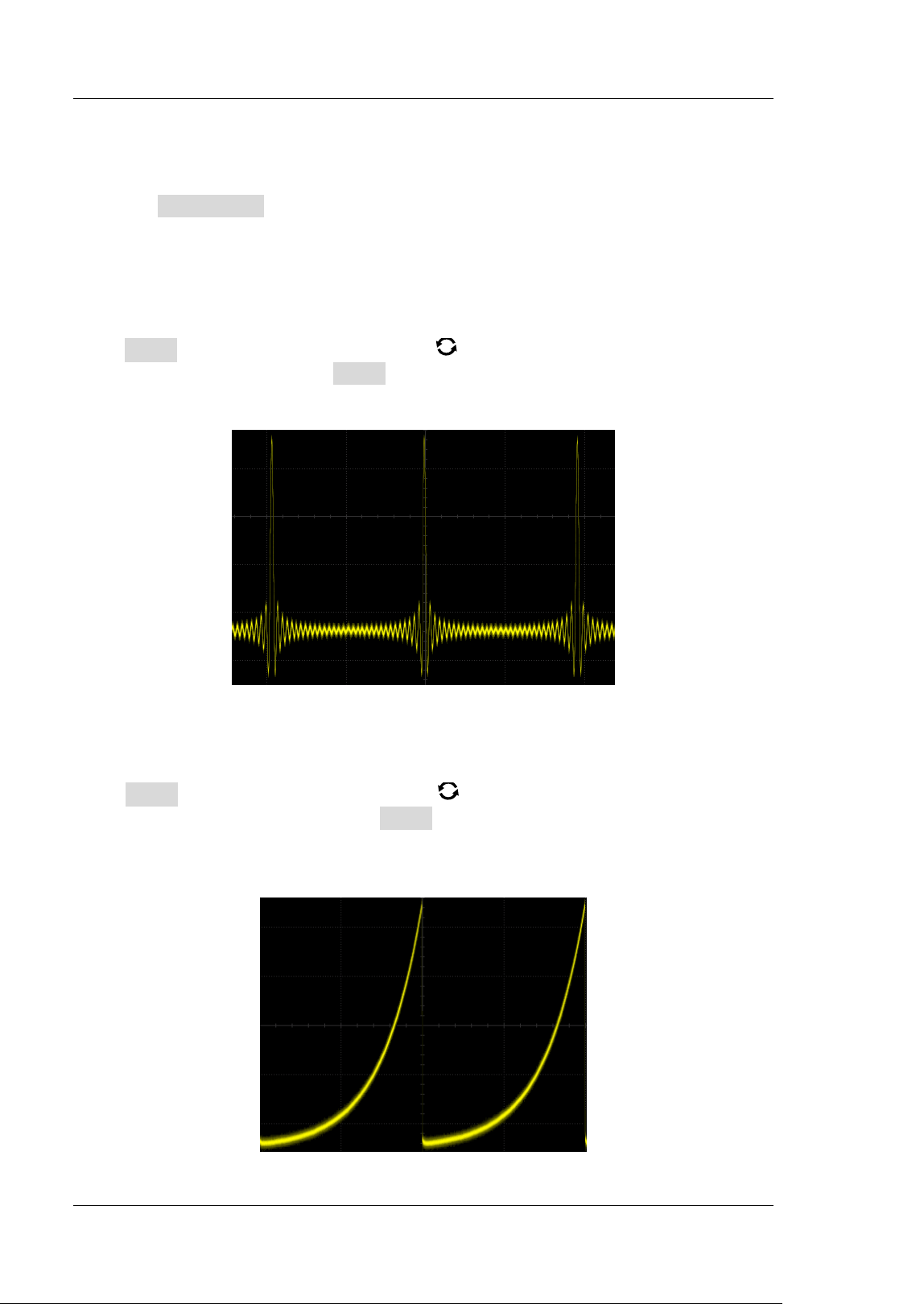
RIGOL Chapter 17 Function/ Arbitrary Waveform Generator (Option)
17-6 MSO5000-E User Guide
offset or low level value of the current signal.
3. Set the impedance
Press I mpedance continuously to set the output impedance of the
Function/ Arbitrary Waveform Generator. It can be set to "HighZ" or "50Ω".
Sinc
Press Wave, rotate the multifunction knob to select "Sinc". Press down the knob
to select it. You can also press Wave continuously or enable the touch screen to
select it. You can set the parameters for the Sinc waveform (as shown in the f igure
below). For setting methods, refer to descriptions in "
To Output Sine".
Figure 17-3 Sinc
Exp.Rise
Press Wave, rotate the multifunction knob to select "Exp.Rise ". Press down the
knob to select it. You can also press Wave continuously or enable the touch screen
to select it. At this time, you can set the parameters for the Exp.Rise waveform (as
shown in the f igure below). For setting methods, refer to descriptions in "
To Output
Sine".
Figure 17-4 Exp.Rise
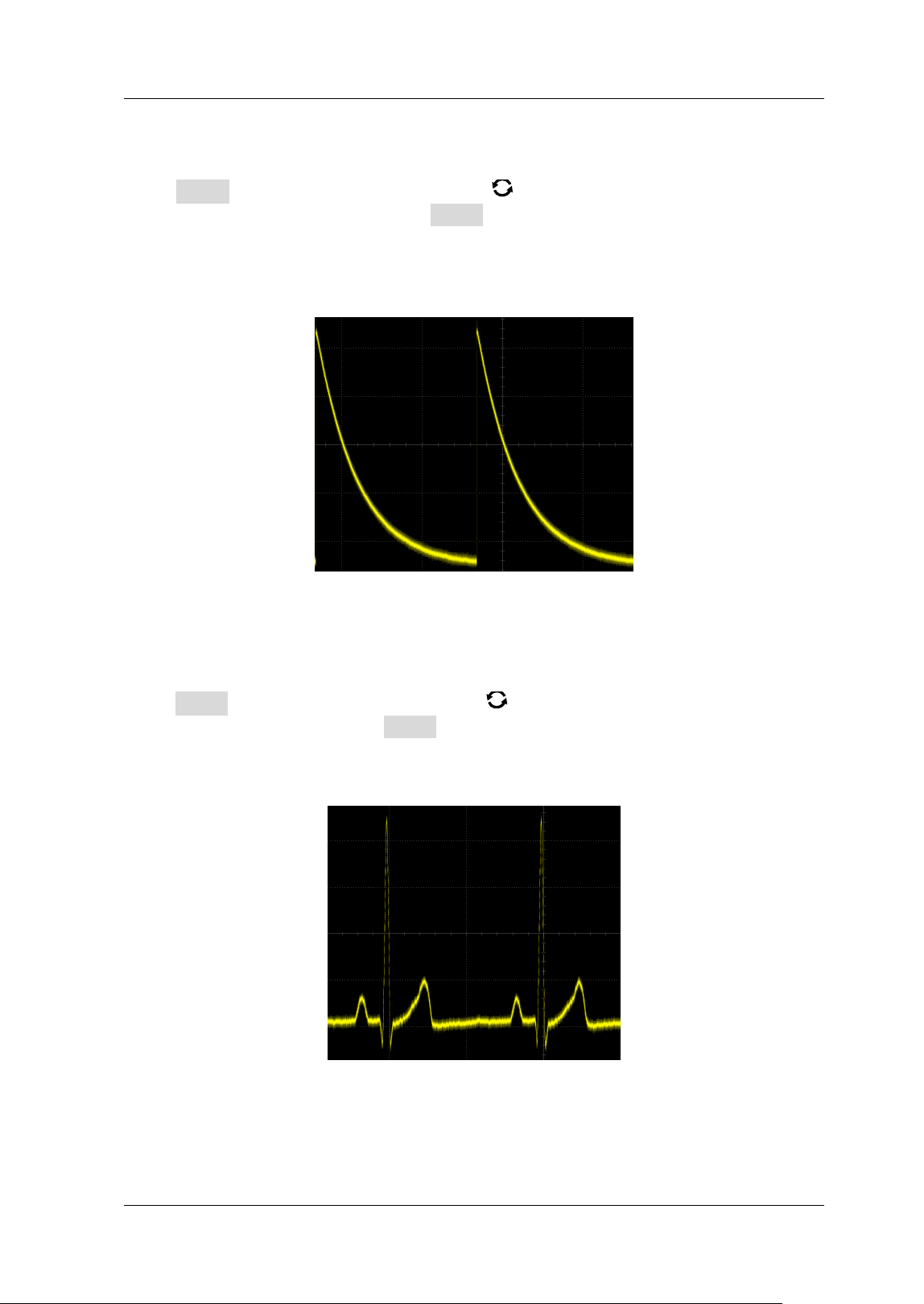
Chapter 17 Function/ Arbitrary Waveform Generator (Option) RIGOL
MSO5000-E User Guide 17-7
Exp.Fall
Press Wave, rotate the multifunction knob to select "Exp.Fall". Press down the
knob to select it. You can also press Wave continuously or enable the touch screen
to select it. At this time, you can set the parameters for the Exp.Fall waveform (as
shown in the f igure below). For setting methods, refer to descriptions in "
To Out put
Sine".
Figure 17-5 Exp.Fall
ECG
Press Wave, rotate the multifunction knob to select "ECG". Press down the knob
to select it. You can also press Wave continuously or enable the touch screen to
select it. At this time, you can set the parameters for the ECG waveform (as shown in
the f igure below). For setting methods, refer to descriptions in "
To Output Sine".
Figure 17-6 ECG
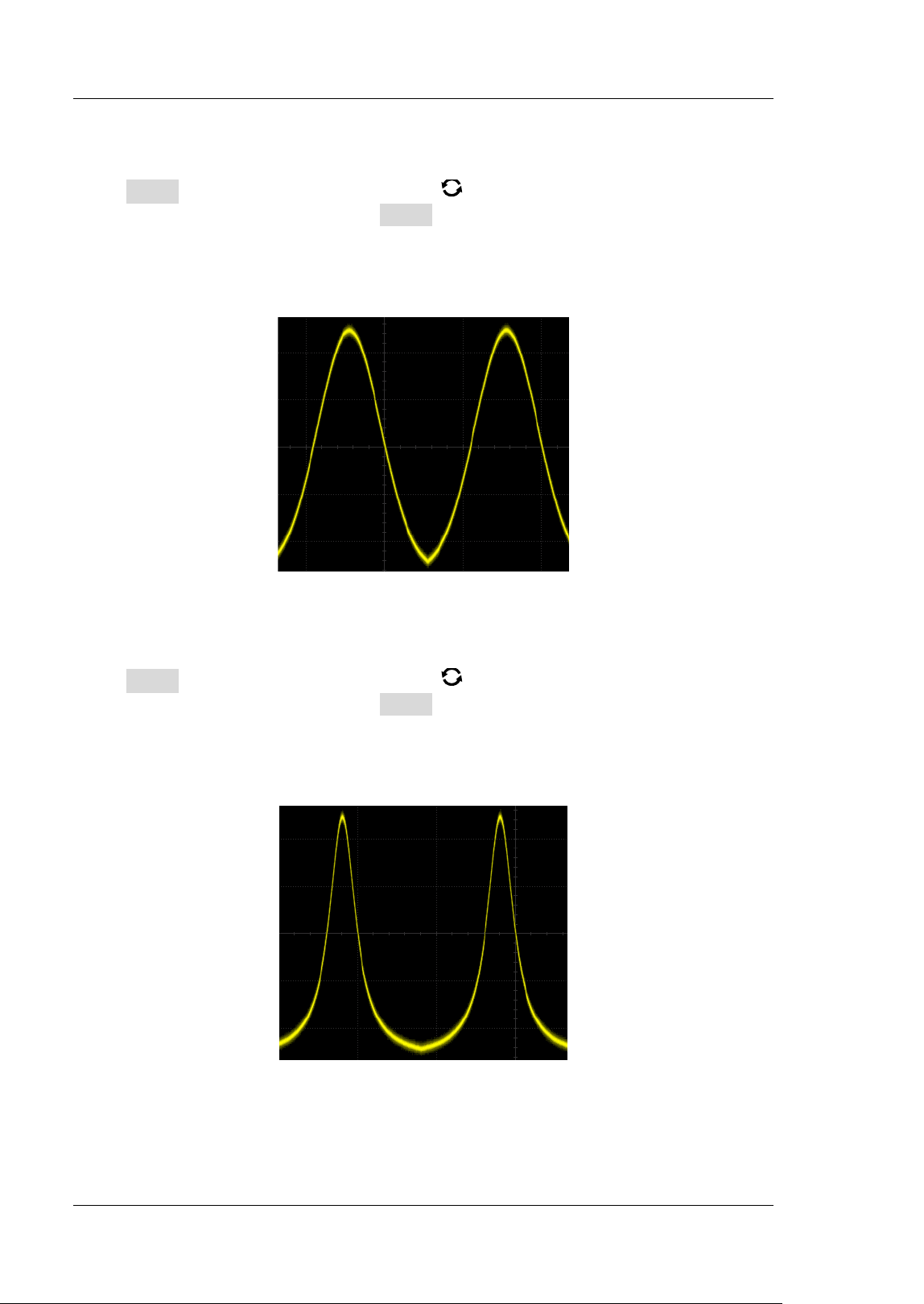
RIGOL Chapter 17 Function/ Arbitrary Waveform Generator (Option)
17-8 MSO5000-E User Guide
Gauss
Press Wave, rotate the multifunction knob to select "Gauss". Press down the
knob to select it. You can also press Wave continuously or enable the touch screen
to select it. At this time, you can set the parameters for the Gauss waveform (as
shown in the f igure below). For setting methods, refer to descriptions in "
To Output
Sine".
Figure 17-7 Gauss
Lorentz
Press Wave, rotate the multifunction knob to select "Lorentz". Press down the
knob to select it. You can also press Wave continuously or enable the touch screen
to select it. At this time, you can set the parameters for the Lorentz waveform (as
shown in the f igure below). For setting methods, refer to descriptions in "
To Out put
Sine".
Figure 17-8 Lorentz
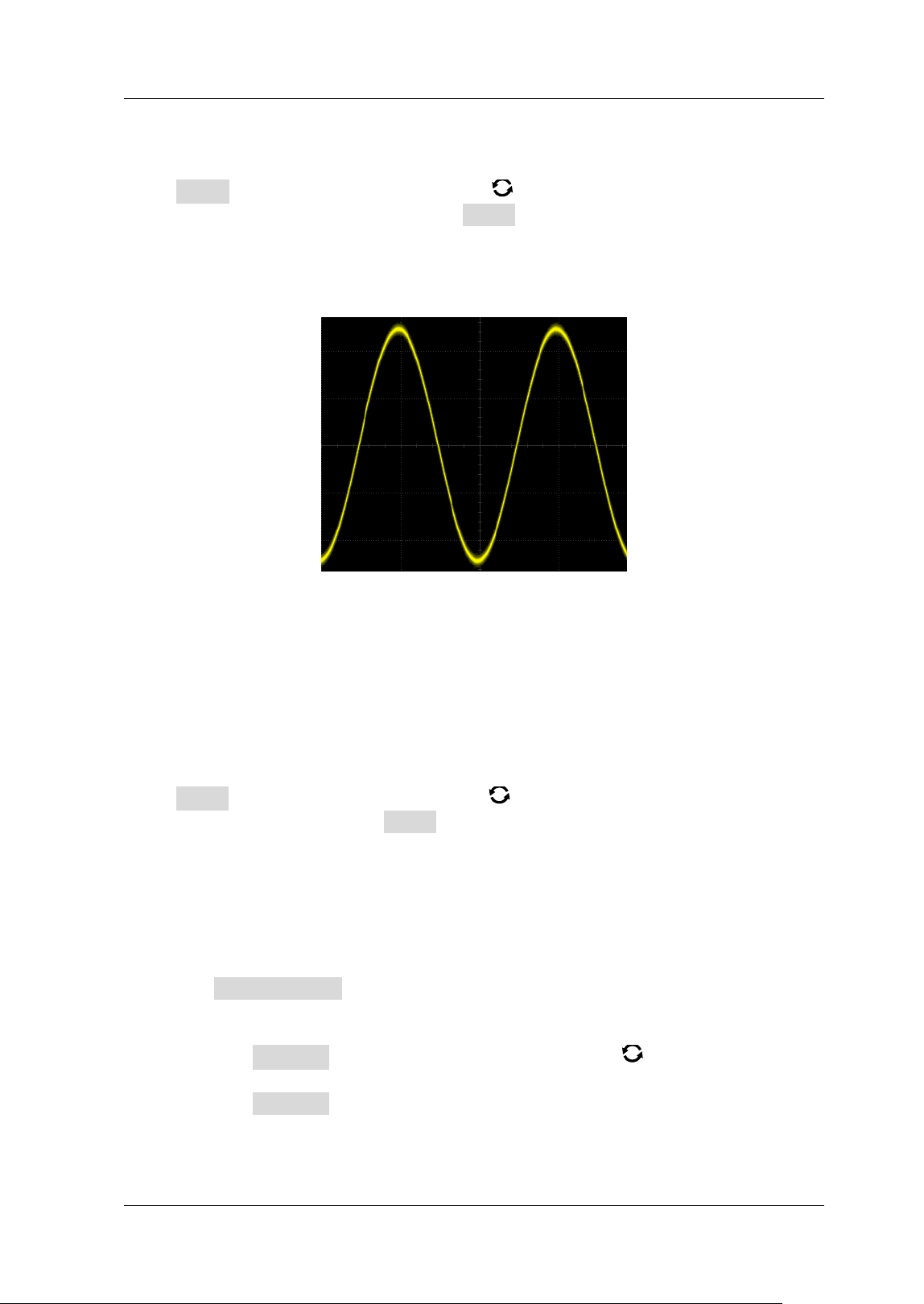
Chapter 17 Function/ Arbitrary Waveform Generator (Option) RIGOL
MSO5000-E User Guide 17-9
Haversine
Press Wave, rotate the multifunction knob to select "Haversine". Press down
the knob to select it. You can also press Wave continuously or enable the touch
screen to select it. At this time, you can set the parameters for the Haversine
waveform (as shown in the f igure below). For setting methods, refer to descriptions
in "
To Output Sine".
Figure 17-9 Haversine
To Output the Arbitrary Waveform
MSO5000-E series oscilloscope allows you to def ine the arbitrary waveform and save
it to the internal or external memory. The user-def ined waveform can contain 1 to
16,384 data points (i.g. 1 pts to 16 kpts).
Press Wave, rotate the multifunction knob to select "Arb". Press down the knob
to select it. You can also press Wave continuously or enable the touch screen to
select it. At this time, you can set the parameters for the arbitrary waveform.
To Load the Channel and Waveform
1. Load the Channel
Press Load from CH to enter the channel loading menu. You can set the
channel signal required to be loaded.
Channel selection
Press Channel and rotate the multifunction knob to select the desired
channel (CH1-CH2), and then press down the knob to select it. You can also
press Channel continuously or enable the touch screen to select it.

RIGOL Chapter 17 Function/ Arbitrary Waveform Generator (Option)
17-10 MSO5000-E User Guide
Set the waveform range
Press Region continuously to set the waveform in the "Cursor" or "Screen"
region for load. When "Cursor" is selected, press Cursor A or Cursor B
and rotate the multifunction knob
to adjust the positions of the two
cursors respectively; or press Cursor AB and rotate the knob to adjust the
positions of cursors A and B at the same time to determine the waveform
range.
Load
Press Load to load the set channel signal.
2. Load the Waveform
Press Load Stored to enter the waveform loading interface. I n the disk
management interface, select the waveform from the internal memory or the
external memory. The waveform f ile is suff ixed with "* .arb". Then, press Load
to load the selected waveform. For details, refer to descriptions in "
Store and
Load".
To Create the Waveform
You can create arbitrary waveforms according to your needs. Press Create to enter
the waveform creation menu. Meanwhile, the waveform editor is displayed on the
screen.
Set the frequency or period
First select Frequency or Period, then rotate the multifunction knob to
select "Frequency" or "Period". You can also press Frequency or Period
continuously to select it. Also, you can enable the touch screen to select it.
Rotate the multifunction knob
or use the pop-up numeric keypad to set the
frequency or period value of the current signal.
Set the amplitude or high level
First select Amplitude or High Level, then rotate the multifunction knob
to select "Amplitude" or "High Level". You can also press Amplitude or High
Level continuously to select it. Also, you can enable the touch screen to select it.
Rotate the multifunction knob
or use the pop-up numeric keypad to set the
amplitude or high level value of the current signal. Note that if you select
"Amplitude" for this menu, then the menu below the Amplitude is
automatically turns out to be "Offset"; if you select "High Level" for this menu,
then the menu below the High Level is automatically turns out to be "Low
Level".
Set the offset and low level
First select Offset or Low Level, then rotate the multifunction knob to
Chapter 17 Function/ Arbitrary Waveform Generator (Option) RIGOL
MSO5000-E User Guide 17-11
select "Offset" or "Low Level". You can also press Offset or Low Level
continuously to select it. Also, you can enable the touch screen to select it.
Rotate the multifunction knob
or use the pop-up numeric keypad to set the
offset or low level value of the current signal.
Set the initial number of points
The initial number of points indicates the number of editable points. By default,
the number of editable points of arbitrary waveforms created can be preset to 2.
Point 1 is f ixed at 0 s and Point 2 is f ixed at the middle of the period. Press I nit
Points, then rotate the multifunction knob or use the pop-up numeric
keypad to set the number of editable points for the arbitrary waveform. The
maximum number of editable points supported by the system is 16,384 (16
kpts).
Linear interpolation
Press Linear I nterp to enable or disable the linear interpolation between the
def ined points of the waveform.
ON: the waveform editor connects two points using a straight line.
OFF: the waveform editor will keep a constant voltage level between two
points and create a ladder-like waveform.
Edit points
Press Edit Points to enter the point editing menu. You can specify the voltage
value for each waveform point to def ine the waveforms.
Current Point
Press PointX, then rotate the multifunction knob or use the pop-up
numeric keypad to select the points to be edited. The available range is
from 1 to the number of initial points.
Voltage
Press Voltage, then rotate the multifunction knob or use the pop-up
numeric keypad to set the voltage value of the current point. I ts available
range is from -2.5 V to + 2.5 V.
I nsert
Press I nsert to insert a new editable point in the middle position between
the current editing point and the next editing point. The number of initial
points adds 1 automatically. You can press I nsert continuously to increase
the editable points gradually.
Delete
Press Delete to delete the current point from the waveform, and connect
the remaining points with the current interpolation method.
Note: The 1
st
Point cannot be deleted.
Zoom
Press Zoom continuously to enable or disable the zoom function of
horizontal timebase.
RIGOL Chapter 17 Function/ Arbitrary Waveform Generator (Option)
17-12 MSO5000-E User Guide
Apply
Press Apply to apply the current settings for the currently edited arbitrary
waveforms and output the edited waveforms.
Save the arbitrary waveform
Press Save to enter the f ile saving interface. Please refer to descriptions in
"
Store and Load" to save the currently edited waveform f ile to the internal or
external memory in "* .arb" format (you can overwrite the original f ile or save
the currently edited waveform again).
To Edit Waveforms
You can edit the waveforms in the current volatile memory. Press Edit to enter the
waveform editing menu.
Set the frequency or period
First select Frequency or Period, then rotate the multifunction knob to
select "Frequency" or "Period". You can also press Frequency or Period
continuously to select it. Also, you can enable the touch screen to select it.
Rotate the multifunction knob
or use the pop-up numeric keypad to set the
frequency or period value of the current signal.
Set the amplitude or high level
First select Amplitude or High Level, then rotate the multifunction knob
to select "Amplitude" or "High Level". You can also press Amplitude or High
Level continuously to select it. Also, you can enable the touch screen to select it.
Rotate the multifunction knob
or use the pop-up numeric keypad to set the
amplitude or high level value of the current signal. Note that if you select
"Amplitude" for this menu, then the menu below the Amplitude is
automatically turns out to be "Offset"; if you select "High Level" for this menu,
then the menu below the High Level is automatically turns out to be "Low
Level".
Set the offset and low level
First select Offset or Low Level, then rotate the multifunction knob to
select "Offset" or "Low Level". You can also press Offset or Low Level
continuously to select it. Also, you can enable the touch screen to select it.
Rotate the multifunction knob
or use the pop-up numeric keypad to set the
offset or low level value of the current signal.
Linear I nterpolation
Press Linear I nterp to enable or disable the linear interpolation between the
def ined points of the waveform.
ON: enables the linear interpolation. The waveform editor connects two
def ined points by using a straight line.
Chapter 17 Function/ Arbitrary Waveform Generator (Option) RIGOL
MSO5000-E User Guide 17-13
OFF: disables the linear interpolation. The waveform editor will keep a
constant voltage level between two points and create a ladder-like
waveform.
Edit Points
Press Edit Points to enter the point editing menu. You can specify the voltage
value for each waveform point to def ine the waveforms.
Current Point
Press PointX, then rotate the multifunction knob or use the pop-up
numeric keypad to select the points to be edited. The available range is
from 1 to the number of initial points.
Voltage
Press Voltage, then rotate the multifunction knob or use the pop-up
numeric keypad to set the voltage value of the current point. I ts available
range is from -2.5 V to + 2.5 V.
I nsert
Press I nsert to insert a new editable point in the middle position between
the current editing point and the next editing point. The number of initial
points adds 1 automatically. You can press I nsert continuously to increase
the editable points gradually.
Delete
Press Delete to delete the current point from the waveform, and connect
the remaining points with the current interpolation method.
Note: The 1
st
Point cannot be deleted.
Zoom
Press Zoom continuously to enable or disable the zoom function of
horizontal timebase.
Apply
Press Apply to apply the current settings for the currently edited arbitrary
waveforms and output the edited waveforms.
Save the arbitrary waveform
Press Save to enter the f ile saving interface. Please refer to descriptions in
"
Store and Load" to save the currently edited waveform f ile to the internal or
external memory in "* .arb" format (you can overwrite the original f ile or save
the currently edited waveform again).
Modulation
The built-in Function/ Arbitrary Waveform Generator of MSO5000-E series
oscilloscope supports amplitude modulation (AM), frequency modulation (FM), and
frequency-shift keying modulation (FSK). A modulated waveform consists of a carrier
waveform and a modulating waveform. The carrier waveform is the waveform output
from the Function/ Arbitrary Waveform Generator, and the modulating signal can be
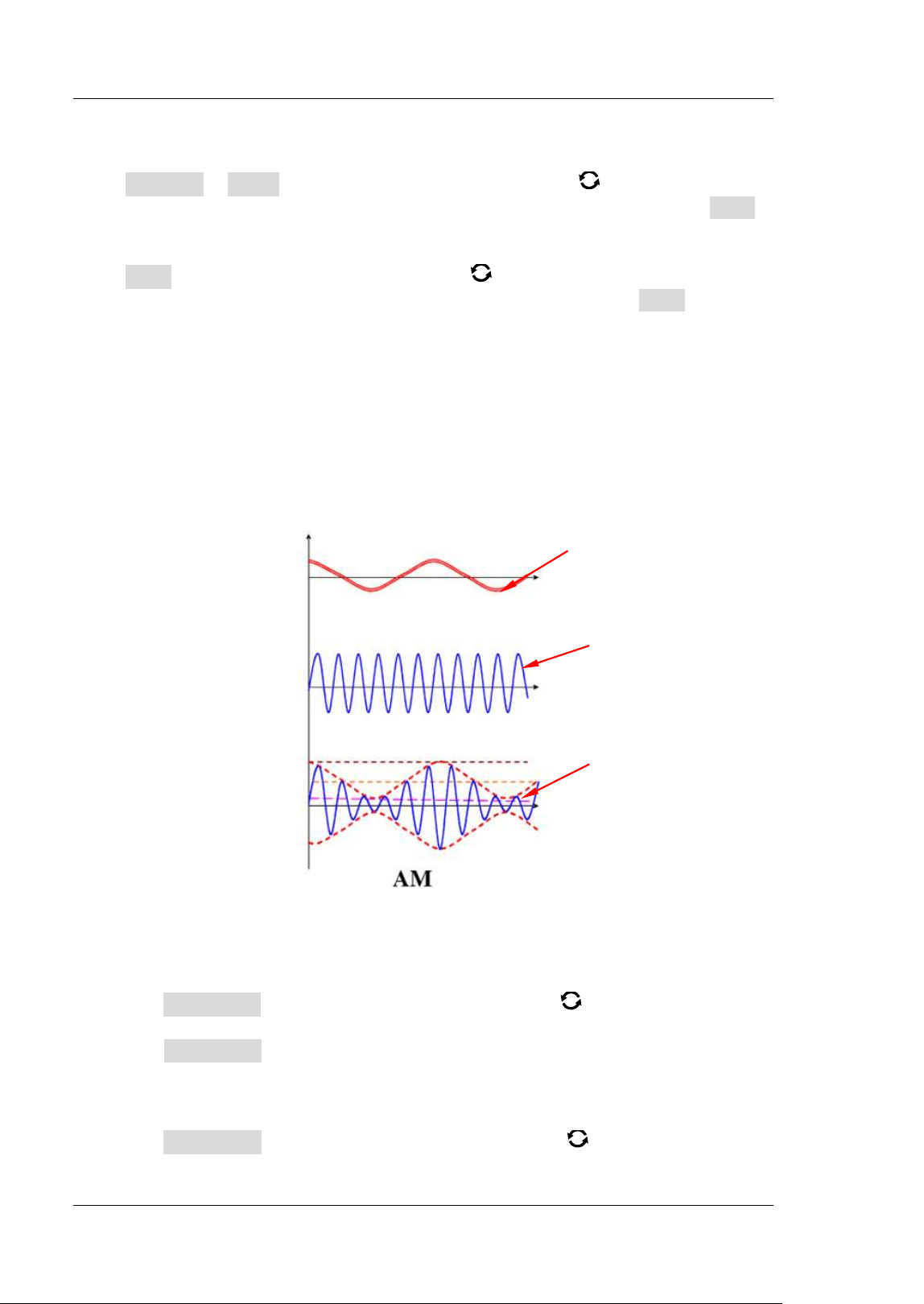
RIGOL Chapter 17 Function/ Arbitrary Waveform Generator (Option)
17-14 MSO5000-E User Guide
the built-in sine, square, triangle waveform, or noise signal.
Press Settings Type, and rotate the multifunction knob to select
"Modulation", and then press down the knob to select it. You can also press Type
continuously or enable the touch screen to select it.
Press Type, and rotate the multifunction knob to select the desired modulation
type, and then press down the knob to select it. You can also press Type
continuously or enable the touch screen to select it. The available modulation types
include AM, FM, and FSK.
AM
AM (Amplitude Modulation), namely the amplitude of the carrier waveform changes
with the amplitude of the modulating waveform, as shown in the f igure below.
Figure 17-10 Amplitude Modulation
1. Select the Modulating Waveform
Press Waveform, and rotate the multifunction knob to select the desired
modulating waveform, and then press down the knob to select it. You can also
press Waveform continuously or enable the touch screen to select it. The
available modulating waveforms include Sine, Square, Triangle, and Noise.
2. Set the Modulation Frequency
Press Frequency, then rotate the multifunction knob or use the pop-up
Modulating
Signal
Carrier Signal
Modulated
Waveform
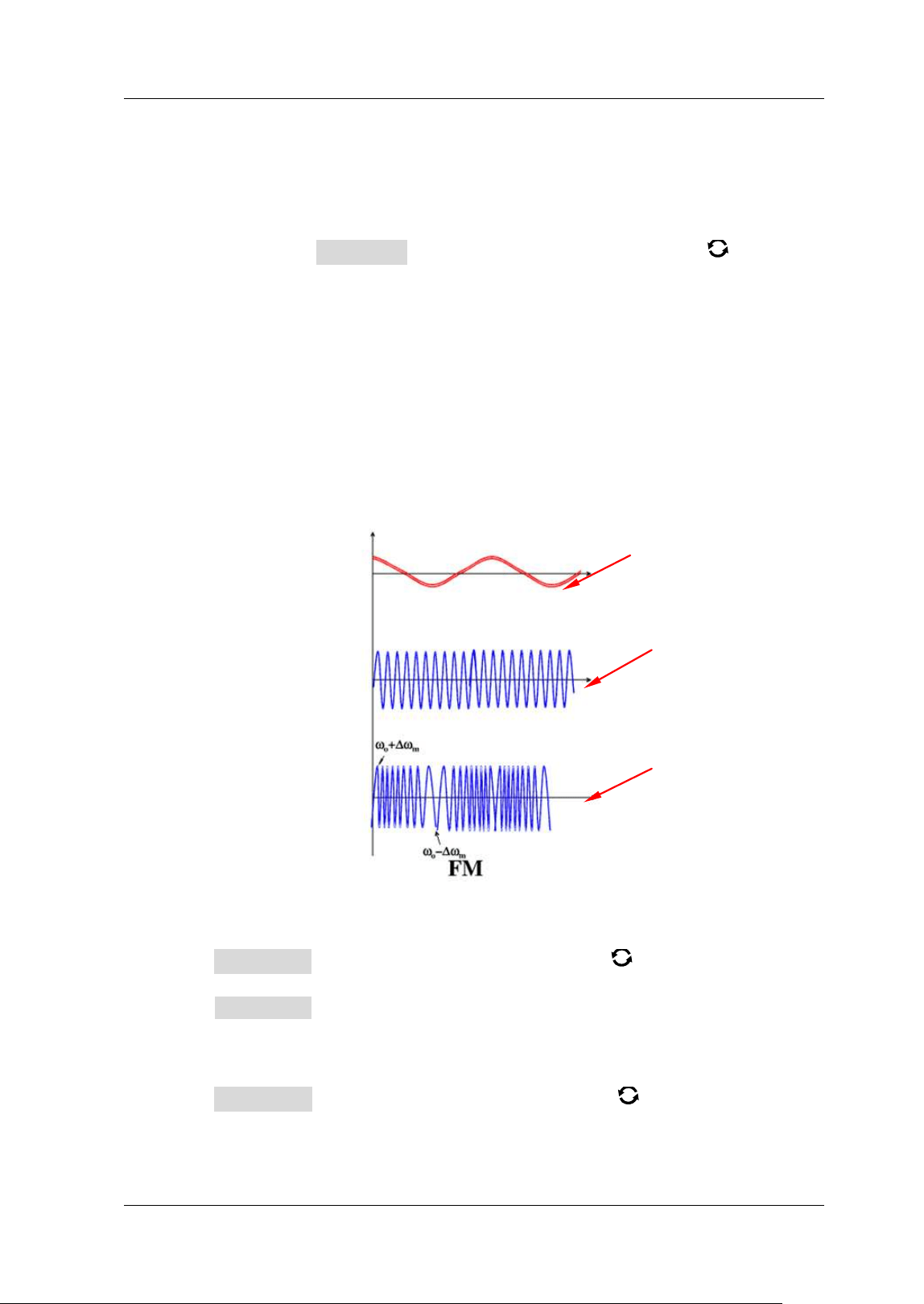
Chapter 17 Function/ Arbitrary Waveform Generator (Option) RIGOL
MSO5000-E User Guide 17-15
numeric keypad to set the frequency of the modulation signal. The available
range is from 1 Hz to 50 kHz.
3. Set the Modulation Depth
The modulation depth refers to the strength of the AM and is expressed in
percentage. Press AM Depth, then rotate the multifunction knob or use the
pop-up numeric keypad to set the AM depth of the modulating waveform. The
available range is from 0% to 120% . When it is set to 0% , the output amplitude
is half of the carrier amplitude. When it is set to 100% , the output amplitude
equals the carrier amplitude. When it is set to a value greater than 100% ,
envelop distortion will occur, which must be avoided in actual circuit; at this
point, the output of the instrument will not exceed 2.5 Vpp (the load is 50 Ω).
FM
FM (Frequency Modulation), namely the frequency of the carrier waveform changes
with that of the modulating waveform, as shown in the f igure below.
Figure 17-11 Frequency Modulation
1. Select the Modulating Waveform
Press Waveform, and rotate the multifunction knob to select the desired
modulating waveform, and then press down the knob to select it. You can also
press Waveform continuously or enable the touch screen to select it. The
available modulating waveforms include Sine, Square, Triangle, and Noise.
2. Set the Modulation Frequency
Press Frequency, then rotate the multifunction knob or use the pop-up
numeric keypad to set the frequency of the modulation signal. The available
range is from 1 Hz to 50 kHz.
Modulating
Signal
Carrier Signal
Modulating
Waveform
RIGOL Chapter 17 Function/ Arbitrary Waveform Generator (Option)
17-16 MSO5000-E User Guide
3. Set the Frequency Offset
Press Deviation, then rotate the multifunction knob or use the pop-up
numeric keypad to set the frequency deviation of modulating waveform from the
carrier frequency. The available range of the frequency deviation is from 1 Hz to
the frequency of the current carrier waveform, and the sum of the frequency
deviation and carrier frequency cannot be greater than the maximum frequency
of the current carrier waveform.
FSK
FSK (Frequency-shift Keying) is a modulation method that uses the digital signal to
control the carrier frequency changes. It is one of the modulation methods that have
been early used in information transmission. I ts advantages lie in good performance
in anti-noise and anti-attenuation, and it has been widely used in low and medium
rate of data transmission
.
1. Set the Modulation Polarity
Press Polarity continuously to select "Positive" or "Negative" of the modulating
waveform to control the frequency output.
2. Set the Modulation Frequency
Press FSK Rate, then rotate the multifunction knob or use the pop-up
numeric keypad to set the frequency of the modulation signal. The available
range is from 1 Hz to 50 kHz.
3. Set the Hopping Frequency
Hopping frequency indicates the frequency of the modulating waveform. The
range of the hopping frequency is from 100 mHz to the maximum frequency of
the carrier waveform. By default, it is 1 kHz. Press Hop Freq, then rotate the
multifunction knob
or use the pop-up numeric keypad to set the hopping
f r eq u en cy.
Sweep
The built-in Function/ Arbitrary Waveform Generator of MSO5000-E series
oscilloscope supports the sweep function. I n the sweep mode, the Function/ Arbitrary
Waveform Generator outputs from the start frequency to the end frequency at a
specif ied sweep time.
MSO5000-E series supports 3 sweep modes: Linear, Log, and Step. You are allowed
to set the parameters such as Start Keep, End Keep, and Return Time. I nternal and
Manual trigger sources are supported. The sweep output is available for Sine, Square,
Ramp, and Arb (DC excluded) waveforms.
Press Settings Type, and rotate the multifunction knob to select "Sweep",
Chapter 17 Function/ Arbitrary Waveform Generator (Option) RIGOL
MSO5000-E User Guide 17-17
and then press down the knob to select it. You can also press Type continuously or
enable the touch screen to select it.
1. Set the Sw eep Type
Press Sweep Type, and rotate the multifunction knob to select the desired
sweep type, and then press down the knob to select it. You can also press
Sw eep Type continuously or enable the touch screen to select it. The available
sweep types include Linear, Log, and Step.
Linear: the frequency of the signal changes linearly.
Log: the frequency of the signal changes in log form.
Step: the frequency of the signal changes with ladder-like step.
2. Sw eep Settings
Press Settings to enter the sweep setting menu.
Set start frequency and end frequency
Start frequency and end frequency indicate the upper and lower limits of
the sweep frequency. The Function/ Arbitrary Waveform Generator always
sweeps from the start frequency to the end frequency, and then returns
back to the start frequency.
When start frequency is smaller than the end frequency, the
Function/ Arbitrary Waveform Generator sweeps from low frequency to
high frequency.
When start frequency is greater than the end frequency, the
Function/ Arbitrary Waveform Generator sweeps from high frequency
to low frequency.
When start frequency is equal to the end frequency, the
Function/ Arbitrary Waveform Generator outputs at a f ixed frequency.
Press Start Freq, then rotate the multifunction knob or use the
pop-up numeric keypad to set the start frequency. Press End Freq, then
rotate the multifunction knob
or use the pop-up numeric keypad to set
the end frequency. By default, the start frequency is 100 Hz, and the end
frequency is 1 kHz. The ranges of start frequency and end frequency for
different sweep waveforms are different. After modifying the "Start Freq"
and "End Freq", the Function/ Arbitrary Waveform Generator will restart to
output from the specif ied "Start Freq".
Start Keep
Start keep indicates the time that the output signal keeps outputting at the
"Start Freq" after the sweep starts. After the start keep time expires, the
Function/ Arbitrary Waveform Generator will continue outputting at a
different frequency based on the current sweep type.
Press Start Keep, then rotate the multifunction knob or use the
pop-up numeric keypad to set the start keep time. The default is 0 s, and
RIGOL Chapter 17 Function/ Arbitrary Waveform Generator (Option)
17-18 MSO5000-E User Guide
the range is from 0 s to 500 s.
End Keep
End keep indicates the time that the output signal continues outputting at
the "End Freq" after the Function/ Arbitrary Waveform Generator sweeps
from "Start Freq" to "End Freq".
Press End Keep, then rotate the multifunction knob or use the pop-up
numeric keypad to set the end keep time. The default is 0 s, and the range
is from 0 s to 500 s.
Set the step
When the sweep type is set to "Step", this menu is enabled and can be
settable. Press Step number, then rotate the multifunction knob or
use the pop-up numeric keypad to set the step value. By default, it is 2. I ts
available range is from 2 to 1000.
Set the trigger source
The trigger sources of the sweep can be I nternal or Manual. When the
Function/ Arbitrary Waveform Generator receives a trigger signal, a sweep
output is generated, and then it waits for another trigger signal.
Press Trig Source and rotate the multifunction knob to select the
desired trigger source, and then press down the knob to select it. You can
also press Trig Source continuously or enable the touch screen to select it.
The available trigger sources include Internal and Manual.
I nternal: the Function/Arbitrary Waveform Generator outputs
continuous sweep waveforms.
Manual: when you press Manual Trig for one time, one sweep is
immediately launched for the corresponding channel.
3. Set the Sw eep Time
Press Sweep Time, then rotate the multifunction knob or use the pop-up
numeric keypad to set the sweep time. By default, it is 1 s. I ts available range is
from 1 ms to 500 s. After modifying the sweep time, the Function/ Arbitrary
Waveform Generator will restart to output from the specif ied "Start Freq".
4. Set the Return Time
Return time indicates the time that the output signal restores from "End Freq" to
"Start Freq" after the Function/ Arbitrary Waveform Generator sweeps from
"Start Freq" to "End Freq" and the "End Keep" time expires.
Press Return Time, then rotate the multifunction knob or use the pop-up
numeric keypad to set the return time. By default, it is 0 s. I ts available range is
from 0 s to 500 s.
Chapter 17 Function/ Arbitrary Waveform Generator (Option) RIGOL
MSO5000-E User Guide 17-19
Burst
The built-in Function/ Arbitrary Waveform Generator of MSO5000-E series
oscilloscope supports outputting the burst waveforms with a specif ied number of
cycles. I t supports using internal and manual trigger sources to control the output of
the burst waveforms. Two burst types are supported: N Cycle and I nf inite.
Press Settings Type, and rotate the multifunction knob to select "Burst",
and then press down the knob to select it. You can also press Type continuously or
enable the touch screen to select it.
1. Set the Burst Type
Press Burst Type, and rotate the multifunction knob to select the desired
burst type, and then press down the knob to select it. You can also press Burst
Type continuously or enable the touch screen to select it. The available burst
types include N Cycle and I nf inite.
N Cycle: outputs the burst waveforms with a specif ied number of cycles
once receiving the trigger signal.
I nfinite: sets the number of cycles to I nfinite. I t outputs continuous
waveforms once receiving the trigger signal.
2. Set the Number of Cycles
When the burst type is set to "N Cycle", you need to set the number of cycles.
Press Cycles, then rotate the multifunction knob or use the pop-up numeric
keypad to set the number of cycles. For the Inf inite burst type, the Cycles menu
is disabled and grayed out.
3. Set the Burst Delay
Burst delay indicates the time from when receiving the trigger signal to starting
to output N Cycle of bursts or I nfinite burst.
Press Delay, then rotate the multifunction knob or use the pop-up numeric
keypad to set the desired delay time. The range of the delay time related to the
burst cycles.
4. Burst Setting
Press Settings to enter the burst setting menu.
Set the trigger source
The trigger sources of the burst can be I nternal or Manual. When the
Function/ Arbitrary Waveform Generator receives a trigger signal, a burst
output is generated, and then it waits for another trigger signal.
Press Trig Source and rotate the multifunction knob to select the
desired trigger source, and then press down the knob to select it. You can
RIGOL Chapter 17 Function/ Arbitrary Waveform Generator (Option)
17-20 MSO5000-E User Guide
also press Trig Source continuously or enable the touch screen to select it.
The available trigger sources include Internal and Manual. For the I nf inite
burst type, the Trig Source menu is disabled and grayed out.
I nternal: the Function/Arbitrary Waveform Generator outputs
continuous N cycle bursts.
Manual: when you press Manual Trig for one time, one burst output is
immediately launched for the corresponding channel. For the I nfinite
burst type, the Cycles menu is disabled and grayed out.
Set the burst period
I t is def ined as the time from the beginning of one burst to that of another
burst.
Press Burst Period, then rotate the multifunction knob or use the
pop-up numeric keypad to set the desired burst period. I ts available range
is from 1 us to 500 s. By default, it is 10 ms.

Chapter 18 Store and Load RIGOL
MSO5000-E User Guide 18-1
Chapter 18 Store and Load
You can save the current settings, waveforms, screen image, and parameters of the
oscilloscope in internal memory or external storage device (such as USB storage
device) in various formats and load the stored settings or waveforms when needed.
You can also copy a new file of the specif ied type as well as delete and rename the
specif ied type of f ile in the internal memory or external USB storage device via the
disk management menu.
Note: MSO5000-E only supports the flash memory USB storage device of FAT32
format.
Contents in this chapter:
Storage System
Storage Type
Load Type
I nternal Storage and Load
External Storage and Load
Disk Management
Factory Settings
RIGOL Chapter 18 Store and Load
18-2 MSO5000-E User Guide
Storage System
Press Storage on the front panel to enter the store and load setting interface. I t
provides one USB HOST interfaces on the front panel and one USB HOST interface on
the rear panel, which can all be connected to the USB storage device for external
storage. The USB storage devices connected are marked as "Removable USB
Disk(D)", "Removable USB Disk(E)", "Removable USB Disk(F)", and "Removable USB
Disk(G)", respectively.
Storage Type
The f ile types for storage include image, waveform, and setups. The storage
descriptions of each type are as follows.
1. I mage
Press Save I mage Format, and then use the multifunction knob to
select the image type. You can also press Format continuously or enable the
touch screen to select it. Save the screen image to the internal or external
memory in "* .png", "* .bmp", "* .jpg", or "* .tif" format.
After selecting this type:
Press File Name to input the f ile name to be saved. For f ilename input,
refer to descriptions in "To Create a Folder". Press Storage More
Auto Name to select "ON", then the f ilename is generated automatically. I f
the f ilename that you input is the same as the existing f ilename, a prompt
message will be displayed, reminding you that the existing f ile will be
overwritten and asking you whether to continue or not.
Press I nvert to enable or disable the invert function.
Press Color to select the desired storage color. I t can be set to "Gray" or
"Color".
Press New Folder to create a new storage folder. For details, refer to
descriptions in "
To Create a Folder".
Press Window to display or hide the disk management interface.
Press Save to save the set image f ile. Press Storage More Header
to select "ON" or "OFF". I f you select "ON", the instrument model, f irmware
version number, serial number, and the image creation date will be
displayed in the header of the image when you save the image f ile.
Tip
After a USB storage device (FAT32 format, flash memory) is connected, press
Quick on the front panel to save the f ile. You can select to save to the internal
memory or the external USB storage device. By default, it is saved to the internal
memory.
Chapter 18 Store and Load RIGOL
MSO5000-E User Guide 18-3
2. Wave
Press Save Wave to enter the waveform storage setting interface. Save the
main setting information (e.g. "On/ Off" state of the channel, vertical scale, and
horizontal timebase) and waveform data of all enabled channels (analog channel
and digital channel) to the external memory.
After selecting this type:
Press Data Source to select "Screen" or "Memory".
Press Format to select the format of the waveform storage, such as "* .bin",
"* .cvs", and "* .wfm" (when "Memory" is selected under Data Source).
Press File Name to input the f ile name to be saved. For f ilename input,
refer to descriptions in "To Create a Folder". Press Storage More
Auto Name to select "ON", then the f ilename is generated automatically. I f
the f ilename that you input is the same as the existing f ilename, a prompt
message will be displayed, reminding you that the existing f ile will be
overwritten and asking you whether to continue or not.
Press Channel, and then the available storage channels include CH1-CH2
and D0-D15. Only when you select "Memory" under Data Source and the
format is "* .bin" or "* .cvs", can you set the storage channel.
Press New Folder to create a new storage folder. For details, refer to
descriptions in "
To Create a Folder".
Press Save to save the set waveform f ile.
Press More Window to display or hide the disk management interface.
Press More Time information to enable or disable the display of the
time information in the waveform data. I f enabled, the time information for
the waveform data will be displayed. I f disabled, the time information for
the waveform data will not be displayed.
3. Setup
Press Save Setup to enter the setup setting interface. Save the setups of the
oscilloscope to the internal or external memory in "* .stp" format. The stored
setups can be recalled.
After selecting this type:
Press File Name to input the f ile name to be saved. For f ilename input,
refer to descriptions in "To Create a Folder". Press Storage More
Auto Name to select "ON", then the f ilename is generated automatically. I f
the f ilename that you input is the same as the existing f ilename, a prompt
message will be displayed, reminding you that the existing f ile will be
overwritten and asking you whether to continue or not.
Press New Folder to create a new storage folder. For details, refer to
descriptions in "
To Create a Folder".
Press Window to display or hide the disk management interface.
Press Save to save the set setup f ile.
RIGOL Chapter 18 Store and Load
18-4 MSO5000-E User Guide
Load Type
This oscilloscope provides two load types: waveform load and setup load. The
descriptions of each load type are as follows.
1. Waveform Load
Press Load Wave to load the waveforms from the internal memory or the external
USB disk. The default f ile type is "* .wfm", and no other options are available. Load
the f ile from the memory, then press Load to load the selected f ile.
2. Setup Load
Press Load Setup to load the setups from the internal memory or the external USB
disk. The default f ile type is "* .stp", and no other options are available. Load the f ile
from the memory, then press Load to load the selected f ile.
I nternal Storage and Load
The internal memory supports the storage and load of the image f ile, waveform f ile,
setup f ile, reference waveform f ile, and pass/fail test mask f ile.
1. Save the Specified Oscilloscope Setups to the I nternal Memory (Take
Save Setup as an Example)
1) Connect a signal to the oscilloscope and obtain the stable display of
waveforms.
2) Press Storage Save Setup to enter the setup storage interface. The
disk management interface is displayed automatically. By default, "Local
Disk(C)" is selected.
3) Rotate the multifunction knob
or enable the touch screen to open the
internal memory storage interface.
4) Rotate the multifunction knob
to select the desired storage location,
and then press down the knob to open it. You can also enable the touch
screen to select the storage location. Rotate the multifunction knob
to
select
, then press down the knob or enable the touch screen to tap
to go to the previous location. Besides, you can also press New Folder
to create a new storage folder. For details, refer to descriptions in "To
Create a Folder".
5) Press File Name to name the setup f ile for storage. For details, refer to
descriptions in "To Create a Folder". Press Storage More Auto
Name to select "ON", then the f ilename is generated automatically. I f the
f ilename that you input is the same as the existing f ilename, a prompt
message will be displayed, reminding you that the existing f ile will be
Chapter 18 Store and Load RIGOL
MSO5000-E User Guide 18-5
overwritten and asking you whether to continue or not.
6) Press Save to save the set setup f ile to the selected folder in "* .stp" format.
Tip
1. After saving the reference waveform, press Ref More Export to enter
the disk management interface of reference waveform f ile storage.
2. Press Utility PassFail to enable the pass/ fail test function. Then press
Mask Save to enter the disk management interface of pass/ fail test mask
f ile storage.
2. Load the Setup File from the I nternal Memory ( Take Load Setup as an
Example)
1) Press St orage Load Setup to enter the setup load interface. The disk
management interface is displayed automatically. By default, "Local Disk(C)"
is selected.
2) Rotate the multifunction knob
or enable the touch screen to open the
internal memory storage interface.
3) Rotate the multifunction knob
to select the desired storage location,
and then press down the knob to open it. You can also enable the touch
screen to select the storage location. Rotate the multifunction knob
to
select
, then press down the knob or enable the touch screen to tap
to go to the previous location.
4) Rotate the multifunction knob
to select the f ile to be loaded (the default
f ile type is in "* .stp" format). Then, the Load menu is enabled. Press Load
to load the selected f ile. You can also enable the touch screen to operate.
Tip
Press Ref More I mport to enter the disk management interface of
reference waveform f ile load.
Press Utility PassFail
to enable the pass/ fail test function. Then press
Mask Load
to enter the disk management interface of pass/ fail test mask
f ile load.
RIGOL Chapter 18 Store and Load
18-6 MSO5000-E User Guide
External Storage and Load
Before external storage and recall, ensure that the USB disk is properly connected.
The external memory supports image saving, waveform saving, setup saving,
waveform loading, and setup loading.
1. Save the Specified Type of File in the External USB Storage Device
(Take Waveform Saving as an Example)
1) Connect a signal to the oscilloscope and obtain the stable display of
waveforms.
2) Press Storage Save Wave to enter the waveform storage interface. The
disk management interface is displayed automatically.
3) Rotate the multifunction knob
to select one disk from "Removable USB
Disk(D/ E/ F/ G…)". Press down the knob to open the external disk storage
interface. You can also enable the touch screen to select the storage location.
Rotate the multifunction knob
to select , then press down the knob
or enable the touch screen to tap
to go to the previous location.
Besides, you can also press NewFolder to create a new storage folder. For
details, refer to descriptions in "
To Create a Folder".
4) To set the waveform saving, refer to descriptions of "Wave" in "Storage
Type".
5) Press Save to save the waveform f ile to the selected folder in the specif ied
save format.
2. Load the Specified Type of File from the External USB Storage Device
( Take Waveform Loading as an Example)
1) Press Storage Load Wave to enter the waveform loading interface.
The disk management interface is displayed automatically.
2) Rotate the multifunction knob
to select one disk from "Removable USB
Disk(D/ E/F/ G…)". Press down the knob to open the external disk storage
interface. You can also enable the touch screen to select the load location.
Rotate the multifunction knob
to select , then press down the
knob or enable the touch screen to tap
to go to the previous location.
3) Rotate the knob to select the f ile to be loaded, then the Load menu is
enabled. Press Load to load the selected f ile. You can also enable the touch
screen to operate.
Disk Management
Press Storage Disk to turn on the disk management interface as shown in Figure
18-1. Rotate the multifunction knob to select the desired disk. The disk currently
selected is displayed in blue shading. Press down the knob
to open the selected
disk. You can also enable the touch screen to select the disk.
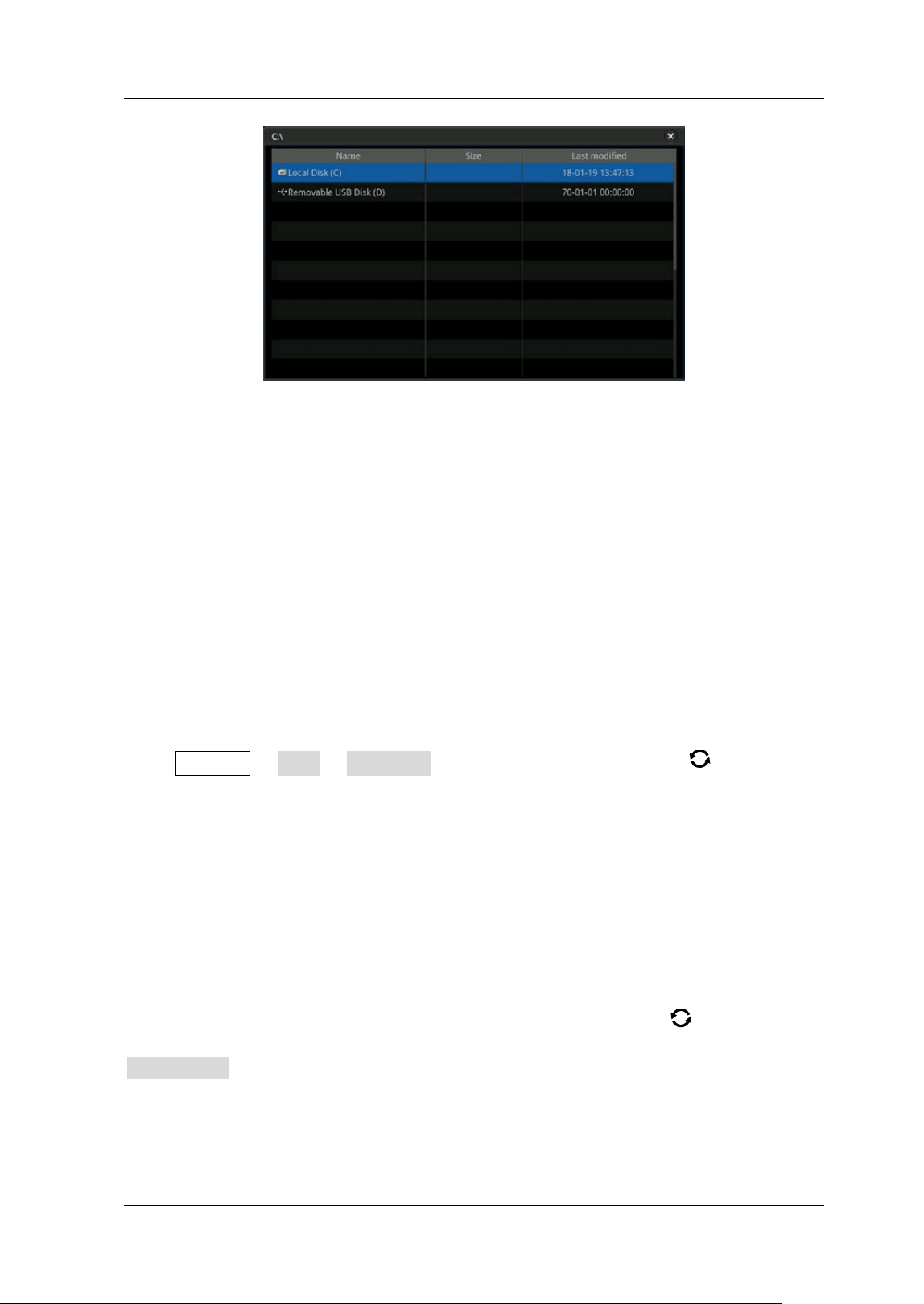
Chapter 18 Store and Load RIGOL
MSO5000-E User Guide 18-7
Figure 18-1 Disk Management I nterface
Execute the following operations through the disk management menu:
To Select a File Type
To Create a Folder
To Delete a File or Folder
To Copy and Paste a File or Folder
To Rename a File or Folder
To Clear the I nternal Memory Safely
To Select a File Type
Except the image storage, waveform storage, and setup storage, the oscilloscope
can also save the f iles of advanced applications.
Press Storage Disk File Type, rotate the multifunction knob to select the
desired f ile type. The default is "* .* ". I n the current path, only the f ile whose suff ix
of its file name matches that of the f ile type selected will be displayed in the current
path.
To Create a Folder
Before using the external disk, make sure that a USB storage device (FAT32 format,
flash memory) is connected correctly.
I n the disk management interface, rotate the multifunction knob
to select the
storage location. By default, the internal memory "Local Disk(C)" is selected. Press
New Folder to enter the interface, as shown in Figure 18-2.
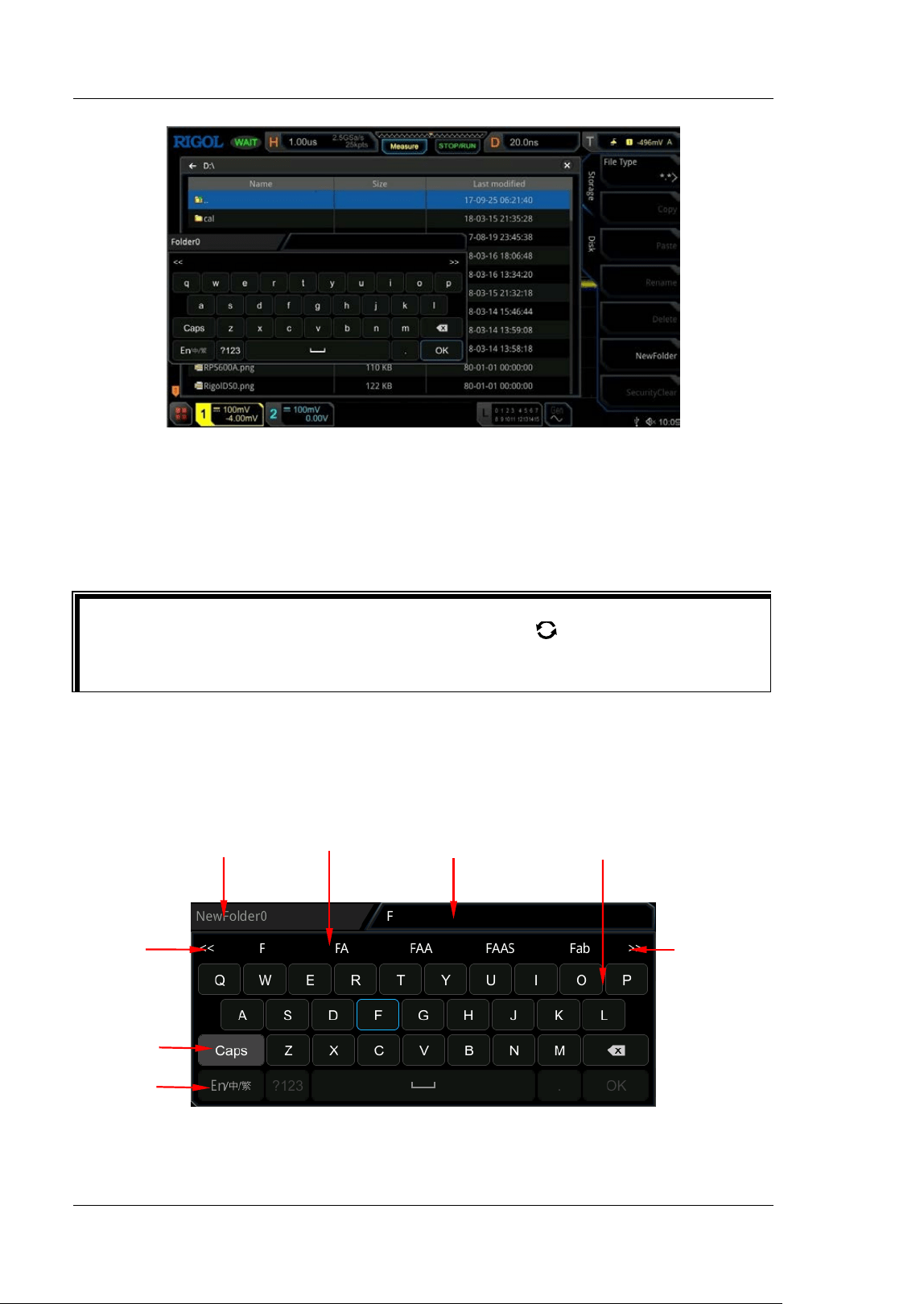
RIGOL Chapter 18 Store and Load
18-8 MSO5000-E User Guide
Figure 18-2 To Create a Folder
This oscilloscope supports Chinese/ English input method. The length of the folder
name is limited to 10 bytes (one Chinese character occupies two bytes). The
following part introduces how to input a folder name using Chinese/English input
method.
English I nput Method
For example, create a folder with the name "Filename".
Tip
During the name input, rotate the multifunction knob to select the desired
contents. Press down the knob to input the desired contents, or enable the touch
screen and tap the desired contents to select it.
Name I nput Area English Selection Area Letter I nput Area Virtual Keypad
Upper/ lower
Case Switch
Input Method
Switch
Go to Next
Page
Go to
Previous Page
Chapter 18 Store and Load RIGOL
MSO5000-E User Guide 18-9
1. Select English I nput Method
I f the current input method is "En/ 中/ 繁", please go to Step 2. I f the current
input method is "中/ 繁/ En" or "繁/ En/ 中", rotate the multifunction knob
to
select the input switch key and press the knob
continuously to switch to
"En/ 中/ 繁". "En" is located f irst and highlighted.
2. Clear the Name I nput Area
I f there is no character in the "Name I nput Area", please go to Step 3. I f there
are characters in the "Name I nput Area", press rotate the multifunction knob
to select the Delete key
to delete all the characters in the name input area
in order.
3. I nput the First Character "F"
1) I f the current setting is uppercase input, please go to Step 2). I f the current
setting is lowercase input, rotate the multifunction knob
to select
"Caps" and press down the knob to switch to the uppercase input.
2) Rotate the multifunction knob to select "F" and press down the knob.
The character is displayed in the English selection area.
3) I n the English selection area, rotate the multifunction knob
to select "F"
and press it down. Then, "F" is displayed in the name input area, "F" is input
successfully. I f the character is not found in the current page, press
to
go to the next page until you f ind the desired character.
4. I nput the Other Characters
Use the same method to input the remaining letters "ilename" by referring to
Step 3. Pay attention to the upper-lower case of the letters when inputting them.
5. Modify or Delete the Unw anted Characters that Have Been Entered.
While entering a f ilename, you can modify or delete the unwanted character if
necessary. To delete the input characters, rotate the multifunction knob
in
the virtual keypad to select the delete key
. Press down the key to delete the
characters. To modify the input characters, delete the unwanted characters and
input the desired characters again. I f the character to be modif ied is in the
middle, press the delete key
to delete the characters starting from the last
one to the character to be modified, then input the new character again.
I f the touch screen is enabled, tap to directly move the cursor to the character
required to be modif ied or deleted, and then input the desired character again
or delete the unwanted c h a r a c t e r.
Tip
I f characters already exist in the letter input area, when you rotate the
multifunction knob
to delete the characters in the name input area, the
characters in the letter input area will be deleted f irst.
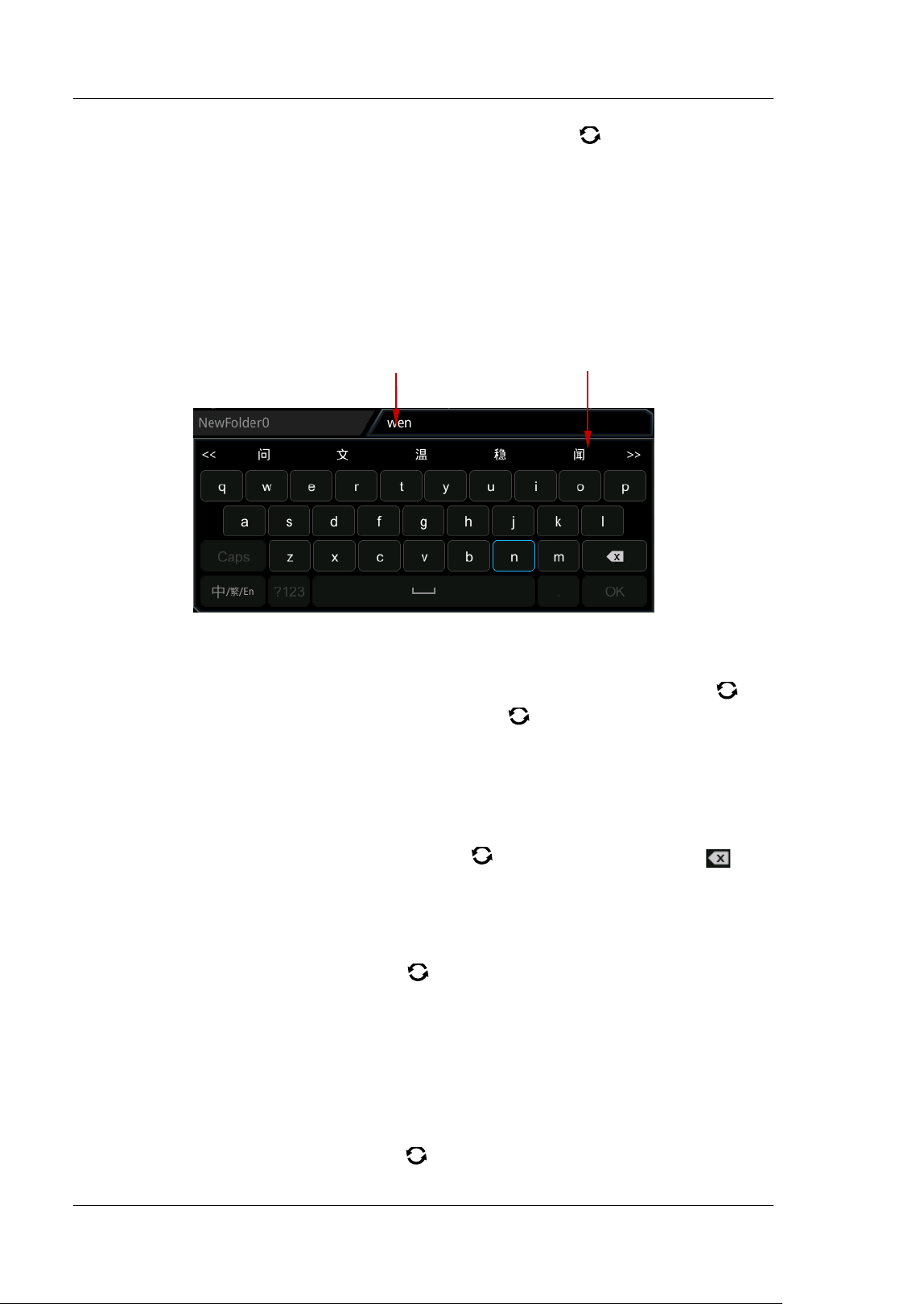
RIGOL Chapter 18 Store and Load
18-10 MSO5000-E User Guide
6. After f inishing the input, rotate the multifunction knob and press OK. The
oscilloscope will create a folder or a specified type of f ile with this name under
the current directory.
Simplified Chinese ( or Traditional Chinese) I nput Method
For example, create a folder with the name "文件名". Note that the input method of
traditional Chinese is the same as that of the simplif ied Chinese.
1. Chinese I nput Method
I f the current input method is "中/ 繁/ En", please go to Step 2. I f the current
input method is "En/ 中/ 繁" or "繁/ En/ 中", rotate the multifunction knob
to
select the input switch key and press the knob
continuously to switch to "
中/ 繁/En". "中" is located first and highlighted.
2. Clear the Pinyin I nput Area and Name I nput Area
I f there is no character in the "Pinyin I nput Area" and "Name I nput Area", please
go to Step 3. I f there are characters in the "Name I nput Area" and "Pinyin I nput
Area", press rotate the multifunction knob
to select the delete key to
delete all the characters in the name input area in order.
3. I nput the first Chinese character "
文"
1) I nput the pinyin "wen" in the "Pinyin I nput Area"
Rotate the multifunction knob
to select the f irst letter "w" in the pinyin
"wen" and press down the knob to input "w" in the "Pinyin I nput Area". Use
the same method to input the remaining letters "en" in the pinyin "wen".
After f inishing the input, the Chinese characters available are displayed in
the "Chinese Character Selecting Area".
2) Select the desired Chinese character from the "Chinese Character Selecting
Area"
Rotate the multifunction knob
to select "文", and press down the knob,
Pinyin I nput Area Chinese Character Selecting Area
Chapter 18 Store and Load RIGOL
MSO5000-E User Guide 18-11
then "文" is input in the "Name I nput Area". I f the Chinese character is not
found in the current page, press
to go to the next page until you f ind
the desired character.
4. I nput the Other Characters
Refer to Step 3 and use the same method to input the remaining Chinese
characters "件名" in sequence.
5. Modify or Delete the Unwanted Characters that Have Been Entered.
When inputting the f ilename, you can modify or delete the f ilename characters
input in the "Name I nput Area" as well as delete the pinyin characters input in
the "Pinyin I nput Area". To delete the input characters, rotate the multifunction
knob
in the virtual keypad to select the delete key . Press down the key
to delete the characters. To modify the input characters, delete the unwanted
characters and input the desired characters again. I f the character to be
modified is in the middle, press the delete key
to delete the characters
starting from the last one to the character to be modif ied, then input the new
character again.
I f the touch screen is enabled, tap to directly move the cursor to the character
required to be modif ied or deleted, and then input the desired character again
or delete the character.
6. After f inishing the input, rotate the multifunction knob
and press OK. The
oscilloscope will create a folder or a specified type of f ile with this name under
the current directory.
To Delete a File or Folder
1. Delete a File or Folder from the I nternal Memory
1) Press Storage Disk and rotate the multifunction knob to select the
internal memory "Local Disk(C)". Press down the knob to open it.
2) Rotate the multifunction knob
to select the f ile or the folder to be
deleted.
3) Press Delete, and then a conf irmation dialog box is displayed. Ta p t o select
"Yes" to delete the f ile or the folder.
Tip
I f characters already exist in the Pinyin input area, when you rotate the
multifunction knob
to delete the characters in the name input area, the
characters in the Pinyin input area will be deleted f irst.
RIGOL Chapter 18 Store and Load
18-12 MSO5000-E User Guide
2. Delete a File or Folder from the Ext ernal Memory
1) Press Storage Disk and rotate the multifunction knob to select the
external memory. Press down the knob to open it.
2) Rotate the multifunction knob
to select the f ile or the folder to be
deleted.
3) Press Delete, and then a conf irmation dialog box is displayed. Ta p t o select
"Yes" to delete the f ile or the folder.
To Copy and Paste a File or Folder
1) Press Storage Disk, rotate the multifunction knob to select the internal
or external memory. Press down the knob to select it.
2) Rotate the multifunction knob
to select the f ile or folder to be copied and
pasted.
3) Press Copy to copy the selected f ile or folder.
4) Select the destination disk, then press Paste to paste the selected f ile or folder.
To Rename a File or Folder
1) Press Storage Disk, rotate the multifunction knob to select the internal
or external memory. Press down the knob to open it.
2) Rotate the multifunction knob
to select the f ile or folder to be renamed.
3) Press Rename, and then the f ilename input interface is displayed. For the
f ilename input method, refer to descriptions in "
To Create a Folder".
Tip
When you delete a directory where a f ile or a folder exists, the directory
cannot be deleted.
The touch screen function only allows you to select the directory and open it.
You are unable to delete the directory with the touch screen function.
Tip
I f the destination directory has the same f ile or folder that you want to paste,
then a prompt message "File or directory exists" is displayed. You are not
allowed to execute the copy and paste operation.
The touch screen function only allows you to select the directory and open it.
You are unable to copy the directory with the touch screen function.
Tip
The touch screen
function only allows you to select the directory and open it. You
are unable to rename the directory with the touch screen function.
Chapter 18 Store and Load RIGOL
MSO5000-E User Guide 18-13
To Clear the I nternal Memory Safely
1) Press Storage Disk, rotate the multifunction knob to select the internal
memory "Local Disk(C)".
2) Press SecurityClear, and then a prompt message for confirming security clear
is displayed.
3) Press OK to clear all the f iles stored in the internal memory.
Factory Settings
Press Default on the front panel, then a prompt message "Restore default?" is
displayed. Press OK or tap OK to restore the oscilloscope to the factory default
settings, as shown in the table below.
Ta b l e 18-1 Factory Settings
Parameter
Factory Settings
Horizontal
Vert ical
Acquire
Tr ig g er
Display
Function/ AWG (Gen)
Cursor
Storage
Utility
Math
Logic Analyzer (LA)
Protocol Decoding (Decode)
Ref
Horizontal
Horizontal
Timebase
1 μs
Horizontal Position
0 s
Delayed Sweep
Off
Timebase Mode
YT
Fine
Off
Horizontal
Expansion
Center
Vertical
Vertical Scale
100 mV
Vertical Offset
0 V
CH1
On
CH2
Off
RIGOL Chapter 18 Store and Load
18-14 MSO5000-E User Guide
Channel Coupling
DC
BW Limit
Off
Attenuation
1X
Input I mpedance
1 MΩ
I nvert
Off
Fine
Off
Channel Unit
[ V]
Display Label
Off
Ch-Ch Skew
0 s
Offset Cal
0 V
Acquire
Acquisition Mode
Normal
Memory Depth
Auto
Anti-Aliasing
Off
Trigger
Tr i gg er Ty p e
Edge Trigger
Source Selection
CH1
Edge Type
Rising
Trigger Mode
Auto
Trigger Coupling
DC
Trigger Holdoff
16 ns
Noise Rejection
Off
Display
Display Type
Vector
Persistence Time
Min
I ntensity
50%
Grid
FULL
Brightness
20%
Show Scale
Off
Color Grade
Off
Waveform Freeze
On
Screen Saver
Off
Function/ AWG (Gen)
[ 1]
AWG
Off
Status Display
Off
AWG Setting
Wave
Sine
Output
Off
Frequency
1 kHz
Amplitude
1 V
Chapter 18 Store and Load RIGOL
MSO5000-E User Guide 18-15
Offset
0 V
Start Phase
0°
Setting Type
Off
I mpedance
HighZ
Cursor
Mode
Off
Manual
Select
Y
Source
CH1
AY
100 mV
BY
-100 mV
Vertical Unit
Source
Hori. Unit
s
Region
Main
Track
AX Source
CH1
BX Source
CH1
AX
-1 μs
BX
1 μs
Tr ack
X
XY
AX
-233.3 mV
BX
100 mV
AY
-233.3 mV
BY
-100 mV
Measure
I ndicator
Off
Storage
Auto Name
ON
Header
ON
Save I mage
Format
* .png
I nvert
OFF
Color
Color
Window
Show
Save Wave
Data Source
Screen
Format
* .bin
Window
Show
Save Setup
File Type
* .stp
Window
Show
RIGOL Chapter 18 Store and Load
18-16 MSO5000-E User Guide
Load Wave
File Type
* .wfm
Load Setup
File Type
* .stp
Disk
File Type
* .*
Utility
Beeper
OFF
PassFail
Enable
OFF
Source
CH1
Operate
Stop
Range
Screen
X Mask
0.24 div
Y Mask
0.48 div
File Type
* .pf
File Type
* .pf
File Name
RigolDS0
Window
Show
I ndicator
OFF
Aux Output
OFF
Output Event
Fail
Polarity
Positive
Pulse
1 μs
Err Action
None
Record
Record
OFF
Record
Play
Record
I nterval
10 ns
Frames
1000
Max Frames
9175
Beeper
Current
0
Play
Mode
Sequence
I nterval
10 ns
Current
0
Ju m p To
First
Save
First
1
Chapter 18 Store and Load RIGOL
MSO5000-E User Guide 18-17
System
Power On
Default
Power Status
Switch On
AUX Out
TrigOut
Key Locker
Unlocked
HDMI Output
OFF
HDMI Resolution
1280x720
SelfCal
Window
Open
Auto Config
Peak to Peak
OFF
CH
All
Overlay
OFF
Coupling
OFF
Printer
Copies
1
Paper Size
A4
I nk Saver
ON
Printer
HP/ Laserjet
Email
Attachment
Screen
Quick Settings
Operation
Save I mage
Format
* .png
I nvert
OFF
Color
Color
Math
I nvert
OFF
Expand
GND
Display Label
OFF
Library
ADD
Label Editing
ADD
A+ B
Operation
OFF
SourceA
CH1
SourceB
CH1
Offset
0 V
Scale
500 mV
A-B
Operation
OFF
SourceA
CH1
SourceB
CH1
Offset
0 V
RIGOL Chapter 18 Store and Load
18-18 MSO5000-E User Guide
Scale
10 uV
A× B
Operation
OFF
SourceA
CH1
SourceB
CH1
Offset
0 U
Scale
500 uU
A÷B
Operation
OFF
SourceA
CH1
SourceB
CH1
Offset
0 U
Scale
500 mU
FFT
Operation
OFF
Source
CH1
Offset
0 dB
Scale
1 dB
Unit
dBm/ dBV
X
Start-End
Start Freq
0 Hz
Stop Freq
10 MHz
Window Function
Hanning
Mode
Tr ace
View
Full
Peak Search
OFF
Peak Number
5
Threshold
5.5 dB
Excursion
1.8 dB
Table Order
Amp Order
A&&B
Operation
OFF
SourceA
CH1
SourceB
CH1
Wave Size
Medium
Thre.CH1
0 V
Thre.CH2
0 V
Sensitivity
0.3 Div
A| | B
Operation
OFF
SourceA
CH1
SourceB
CH1
Wave Size
Medium
Thre.CH1
0 V
Chapter 18 Store and Load RIGOL
MSO5000-E User Guide 18-19
Thre.CH2
0 V
Sensitivity
0.3 Div
A^ B
Operation
OFF
SourceA
CH1
SourceB
CH1
Wave Size
Medium
Thre.CH1
0 V
Thre.CH2
0 V
Sensitivity
0.3 Div
!A
Operation
OFF
SourceA
CH1
Wave Size
Medium
Thre.CH1
0 V
Thre.CH2
0 V
Sensitivity
0.3 Div
I ntg
Operation
OFF
Source
CH1
Offset
0 v* s
Scale
500 nv* s
Bias
0
I nvert
OFF
Diff
Operation
OFF
Source
CH1
Offset
0 v/ s
Scale
2 Mv/ s
Smooth
5
I nvert
OFF
Sqrt
Operation
OFF
Source
CH1
Offset
0 U
Scale
100 mU
I nvert
OFF
Lg
Operation
OFF
Source
CH1
Offset
0 U
Scale
1 U
I nvert
OFF
Ln
RIGOL Chapter 18 Store and Load
18-20 MSO5000-E User Guide
Operation
OFF
Source
CH1
Offset
0 U
Scale
2 U
I nvert
OFF
Exp
Operation
OFF
Source
CH1
Offset
0 U
Scale
1 U
I nvert
OFF
Abs
Operation
OFF
Source
CH1
Offset
0 U
Scale
20 mV
I nvert
OFF
Low Pass
Operation
OFF
Source
CH1
Offset
0 V
Scale
20 mV
ωc
6.25 MHz
I nvert
OFF
High Pass
Operation
OFF
Source
CH1
Offset
0 V
Scale
20 mV
ωc
6.25 MHz
I nvert
OFF
Band Pass
Operation
OFF
Source
CH1
Offset
0 V
Scale
20 mV
ωc1
6.25 MHz
ωc1
12.5 MHz
I nvert
OFF
Band Stop
Operation
OFF
Source
CH1
Offset
0 V
Scale
20 mV
Chapter 18 Store and Load RIGOL
MSO5000-E User Guide 18-21
ωc1
6.25 MHz
ωc1
12.5 MHz
I nvert
OFF
AX+ B
Operation
OFF
Source
CH1
Offset
0 V
Scale
20 mV
A
0
B
0
I nvert
OFF
Logic Analyzer ( LA)
Select
None
D7-D0
OFF
D15-D8
OFF
Wave Size
Medium
Arrange
D15-D0
Threshold
D7-D0
1.4 V
D15-D8
1.4 V
Label
Display
OFF
Select
D0
Label
D0
Protocol Decoding ( Decode)
Bu s Ty p e
Parallel
Bus Status
OFF
Format
Hex
Label
ON
Event Table
OFF
Noise Reject
OFF
Clock
OFF
RS232
Bus Status
OFF
Baud
9.6 kbps
Tx
CH1
Threshold
0 V
Rx
OFF
Polarity
Endian
LSB
Data
8 bits
Stop Bit
1 bit
Parity
None
RIGOL Chapter 18 Store and Load
18-22 MSO5000-E User Guide
Package
OFF
Separator
0(NUL)
I 2C
Bus Status
OFF
Clock
CH1
SCL Thre
0 V
SDA
CH2
SDA Thre
0 V
Exchange
SCL/SDA
R/ W
Without
SPI
Bus Status
OFF
Mode
Timeout
Timeout
1 μs
CLK
CH1
Threshold
0 V
Slope
Rising
MISO
CH2
Threshold
0 V
MOSI
OFF
Polarity
Width
8
Endian
MSB
LI N
Bus Status
OFF
Source
CH1
Threshold
0 V
Baud
19.2 kbps
Parity
Without
Version
1.X
CAN
Bus Status
OFF
Source
CH1
Threshold
0 V
Signal
CAN_L
Baud
1 Mbps
Sample Position
50%
FlexRay
Bus Status
OFF
Source
CH1
Threshold
0 V
Channel
Selection
A
Baud
10 Mbps
Chapter 18 Store and Load RIGOL
MSO5000-E User Guide 18-23
Signal
BP
Sample Position
50%
I 2S
Bus Status
OFF
SCLK
CH1
SCLK Thre
0 V
SCLK Edge
Rising
WS
CH2
SCLK Thre
0 V
Data
CH2
Data Thre
0 V
Word Size
4
Receive
4
Alignment
I 2S
WS Low
Left
Endian
MSB
Data Polarity
1553B
Bus Status
OFF
Data
CH1
Threshold
0 V
Ref
Current
Ref1
Source
CH1
VScale
0 V
VOffset
1 V
Color
Gray
Label Display
OFF
Library
Default
Label
REF1
Note
[ 1]
: It is only available for the model installed with the MSO5000-E-AWG option.
Note
[ 2]
: PLA2216 active logic probe option is required to be ordered.


Chapter 19 System Utilit y Function Setting RIGOL
MSO5000-E User Guide 19-1
Chapter 19 System Utility Function Setting
I n the system function setting menu, you can set the parameters for the remote
interface and the system-related parameters.
Contents in this chapter:
Remote Interface Conf iguration
System-related
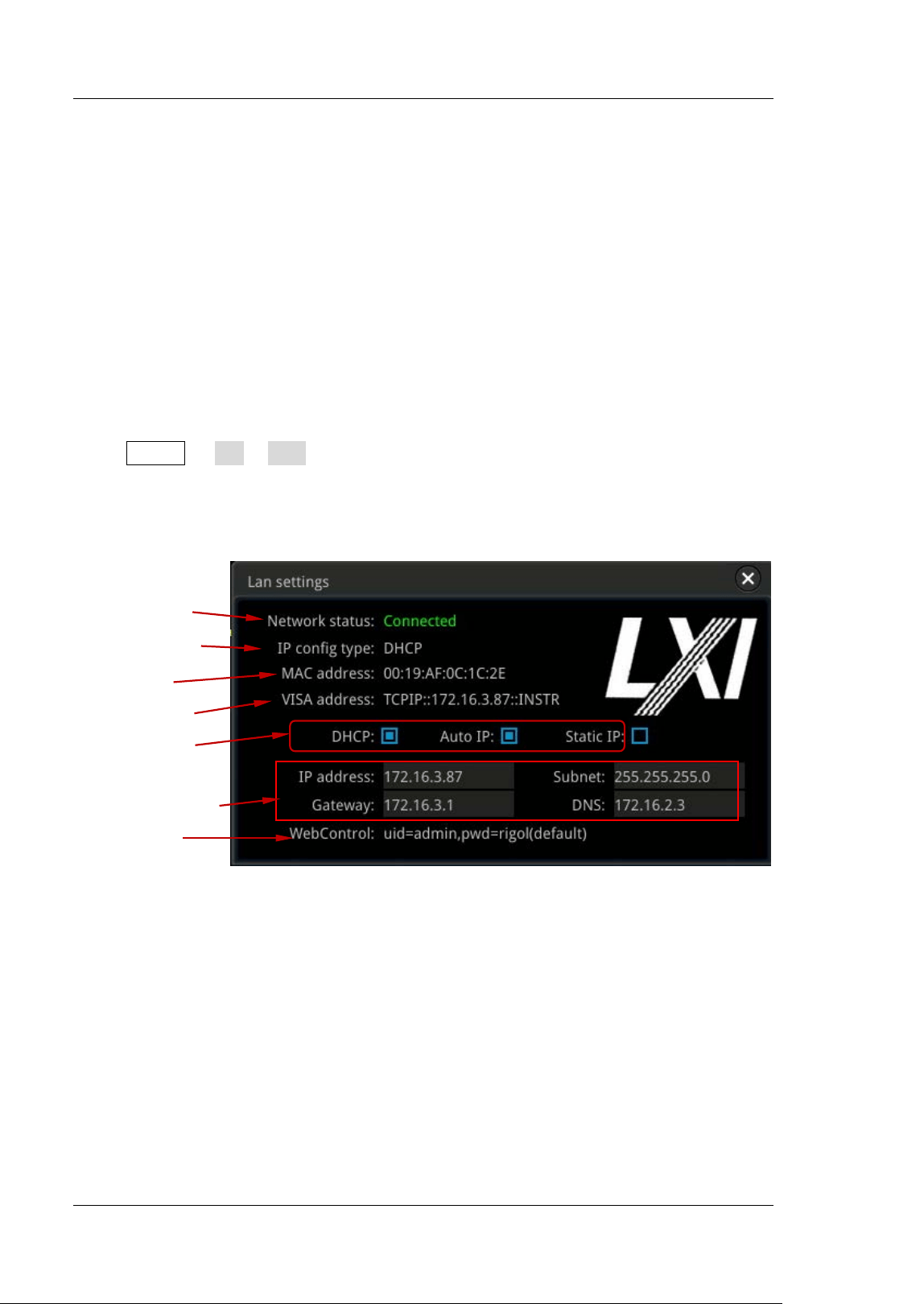
RIGOL Chapter 19 System Utilit y Function Setting
19-2 MSO5000-E User Guide
Remote I nterface Configuration
MSO5000-E series can communicate with the PC via the USB, LAN, or GPIB (requiring
to work with RIGOL's USB-GPI B interface converter) interface. Before using the
remote interfaces, conf igure the corresponding interface according to the
introductions in the following section.
LAN Configuration
Before using the LAN bus, use a network cable to connect the oscilloscope to your
local area network. The network interface of the oscilloscope is on the rear panel.
Press Utility I O LAN to open the LAN Settings interface, as shown in the
following f igure. You can view the current network settings and configure the
network parameters.
Figure 19-1 Network Connection Setting I nterface
Netw ork Status
Different prompts will be displayed according to the current network connection
status.
Network Config Succeeded!
Acquiring I P...
I P Conflict!
Disconnected!
DHCP Config Failed!
Read Status Fail!
Network Status
Current I P Conf ig.
Ty p e
MAC Address
VISA Descriptor
I P Conf ig. Ty p e
Network Parameters
Web Control
Chapter 19 System Utilit y Function Setting RIGOL
MSO5000-E User Guide 19-3
Connected!
Invalid I P!
I P lost!
Please wait...
I P Configuration Type
The conf iguration type of the I P address can be DHCP, Auto I P, or Static I P. For
different IP conf iguration types, the configurations for I P address and other network
parameters are different.
DHCP
Press I P Config Type, then rotate the multi-function knob or press I P Config
Type continuously to select "DHCP". Press down the knob to select it. You can
also enable the touch screen to select it. When DHPC is valid, the DHCP server in the
current network will assign the network parameters (e.g. I P address, Subnet,
Gateway, and DNS) for the oscilloscope.
Auto I P
Press I P Config Type, then rotate the multi-function knob or press I P Config
Type continuously to select "Auto IP". Press down the knob to select it. You can
also enable the touch screen to select it. I n auto IP mode, the oscilloscope will get
the I P address (ranging from 169.254.0.1 to 169.254.255.254) and the subnet mask
(255.255.0.0) automatically according to the current network configuration. Only
when "DHCP" is not selected or failed to be connected, can "Auto IP" be valid.
Static I P
Press I P Config Type, then rotate the multi-function knob or press I P Config
Type continuously to select "Static IP". Press down the knob to select it. You
can also enable the touch screen to select it. When this type is valid, disable DHCP
and Auto IP manually, then "I P", "SubMask", "Gateway", and "DNS" are added to the
menu. At this time, you can self-def ine the network parameters (e.g. IP address) of
the oscilloscope.
1. Set I P Address
The format of the IP address is nnn.nnn.nnn.nnn. The range of the f irst
segment (nnn) of the address is from 0 to 255 (except 127); wherein, the valid
range is from 0 to 223. The range for the other three segments is from 0 to 255.
You are recommended to ask your network administrator for an IP address
available.
RIGOL Chapter 19 System Utilit y Function Setting
19-4 MSO5000-E User Guide
Press I P, and then the numeric keypad is displayed. Use the numeric keys to
input the desired I P address. This setting will be saved to the non-volatile
memory; if "Power On" is set to "Last", then DHCP and Auto I P are disabled at
the next power-on. The oscilloscope will load the preset I P address
automatically.
2. Set the Subnet Mask
The format of the subnet mask is nnn.nnn.nnn.nnn; wherein, the range of "nnn"
is from 0 to 255. You are recommended to ask your network administrator for a
subnet mask available.
Press SubMask, and then the numeric keypad is displayed. Use the numeric
keys to input the desired subnet mask. This setting will be saved in the
non-volatile memory; if "Power On" is set to "Last", then DHCP and Auto I P are
disabled at the next power-on. The oscilloscope will load the preset subnet mask
automatically.
3. Set the Gateway
You can set this parameter in Static IP mode.
The format of the gateway is nnn.nnn.nnn.nnn. The range of the f irst segment
(nnn) is from 0 to 223 (except 127), and the range for the other three segments
is from 0 to 255. You are recommended to ask your network administrator for a
gate address available.
Press Gatew ay, and then the numeric keypad is displayed. Use the numeric
keys to input the desired subnet mask. This setting will be saved in the
non-volatile memory; if "Power On" is set to "Last", then DHCP and Auto I P are
disabled at the next power-on. The oscilloscope will load the preset gateway
automatically.
4. Set the DNS
You can set this parameter in Static IP mode.
The format of the DNS address is "nnn.nnn.nnn.nnn". The range for the f irst
segment (nnn) of the address is from 0 to 223 (except 127); and the range for
the other three segments is from 0 to 255. You are recommended to ask your
network administrator for an address available.
Press DNS, and then the numeric keypad is displayed. Use the numeric keys to
input the desired DNS address. Generally, you do not need to set the DNS,
therefore this parameter setting can be ignored.
Chapter 19 System Utilit y Function Setting RIGOL
MSO5000-E User Guide 19-5
Apply the Network Parameter Setting
Press Apply to apply the current network parameter setting.
MAC address
For each oscilloscope, the MAC address is unique. When assigning the I P address for
the oscilloscope, the system uses the MAC address to identify the instrument.
VI SA Address
Displays the VI SA address currently used by the oscilloscope.
Online control information
Displays the user name and password for network conf iguration of the oscilloscope
through the LXI webpage.
Tip: Connect the oscilloscope to the local area network. Start up Ultra Sigma, and
then right-click the resource name and select "LXI-Web" to load the LXI webpage.
You can also directly input the I P address of the oscilloscope into the address bar of
the browser to load the LXI webpage.
To Set mDNS
Press mDNS continuously to enable or disable the multicast Domain Name System
(mDNS). This system is used to provide the function of DNS server for service
discovery in a small network without a DNS server.
To Set Host Name
Press Host Name to input the host name. For the f ilename input method, refer to
relevant descriptions in "
To Create a Folder".
Tip
When the three IP conf iguration types are all turned on, the priority of the
parameter conf iguration from high to low is "DHCP", "Auto IP", and "Static
I P".
The three IP conf iguration types cannot be all turned off at the same time.
RIGOL Chapter 19 System Utilit y Function Setting
19-6 MSO5000-E User Guide
To Set the GPI B Address
Before using the GPI B bus to control the oscilloscope, use the USB-GPI B interface
converter (an option that requires to be ordered separately) to extend the GPI B
interface, and then use the GPIB cable to connect the instrument to the PC. Press
Utility I O GPI B, then rotate the multifunction knob directly to set the
GPI B address or use the pop-up numeric keypad to input the GPI B address. I ts
settable range is from 1 to 30. By default, it is 1.
To Set HDMI
Sets the status and parameters of the HDMI video output interface on the rear panel.
Note that only when the HDMI interface is connected, can this menu be enabled.
Press HDMI to enter the HDMI setting menu.
Press Output continuously to enable or disable the video output.
ON: You can connect the instrument to an external display via this interface
to better observe the waveform display clearly from the external display.
OFF: disables the interface.
Press Resolution to set the screen resolution. The available resolution includes
640x480, 720x480, and 1280x720.
USB Connection
The oscilloscope can communicate with a PC via the USB DEVICE interface on the
rear panel. No parameters are required to be conf igured.
Chapter 19 System Utilit y Function Setting RIGOL
MSO5000-E User Guide 19-7
System-related
Beeper
When the beeper is enabled, you can hear the sound of the beeper when you
perform the following operations:
Press a key or a menu key on the front panel
Enable the touch screen
When a prompt message is displayed
Press Utility and then press Beeper continuously to select "ON" ( ) or "OFF" ( ).
By default, it is OFF.
Language
This oscilloscope supports menus in multiple languages. Both Chinese and English
are available for the display of the help information, prompt messages, and interface.
Press Utility Language and rotate the multi-function knob to select the
desired language; then, press down the knob to select the language. You can
also press Language continuously to select the language or enable the touch screen
to tap the desired language and select it.
System I nformation
Press Utility System About to view the system information of the
oscilloscope, including the manufacturer, product model, serial number, etc.
Besides, you can also press About to view the system information of the oscilloscope
in the "Help" system menu.
Power On
You can set the system conf iguration to be recalled when the oscilloscope is powered
on again after power-off.
Press Utility System, and then press Pow er On continuously to select "Last" or
"Default". By default, it is "Last".
Last: returns to the setting of the system at last power-of f.
Default: returns to the factory setting of the system.
RIGOL Chapter 19 System Utilit y Function Setting
19-8 MSO5000-E User Guide
Aux Output
You can set the type of the signal output from the [TRI G OUT] connector on the
rear panel.
Press Utility System, and then press the AUX Out key continuously to select
"TrigOut" or "PassFail".
Trigger Output
After this type is selected, at each trigger (hardware trigger), the oscilloscope
outputs a signal from the [ TRI G OUT] connector on the rear panel that can
reflect the current capture rate of the oscilloscope. Connect this signal to a
waveform display device, measure the signal frequency. I t is found that the
measurement result is the same as the current capture rate.
Pass/ Fail
When this type is selected, the instrument can output a positive or negative
pulse via the [ TRI G OUT] connector when a successful or failed event is
detected. Refer to descriptions in "
To Set the Output Form of the Test
Results". When you enable the Aux output, the AUX Out menu is
automatically set to "PassFail". When the AUX Out menu is automatically set to
"TrigOut", then in the pass/fail test menu, the Aux Out function is automatically
disabled.
Help
Press Utility System Help to enter the "Help" function menu. You can also
enable the touch screen and then tap the function navigation icon at the
lower-left corner of the screen to open the function navigation. Then, tap the "Help"
icon to open the "Help" function menu.
Press About to view the system information of the oscilloscope.
Press Help to enter the built-in help system.
Press Option list to view the name of the installed option and other detailed
information about the option from the option list.
Press Option install to install the desired option. For detailed installation
procedures, refer to descriptions in "
To View the Option I nformation and
the Option I nstallation".
Press Online upgrade to perform online upgrading for the system software.
Press Local upgrade to perform local upgrading for the system software.
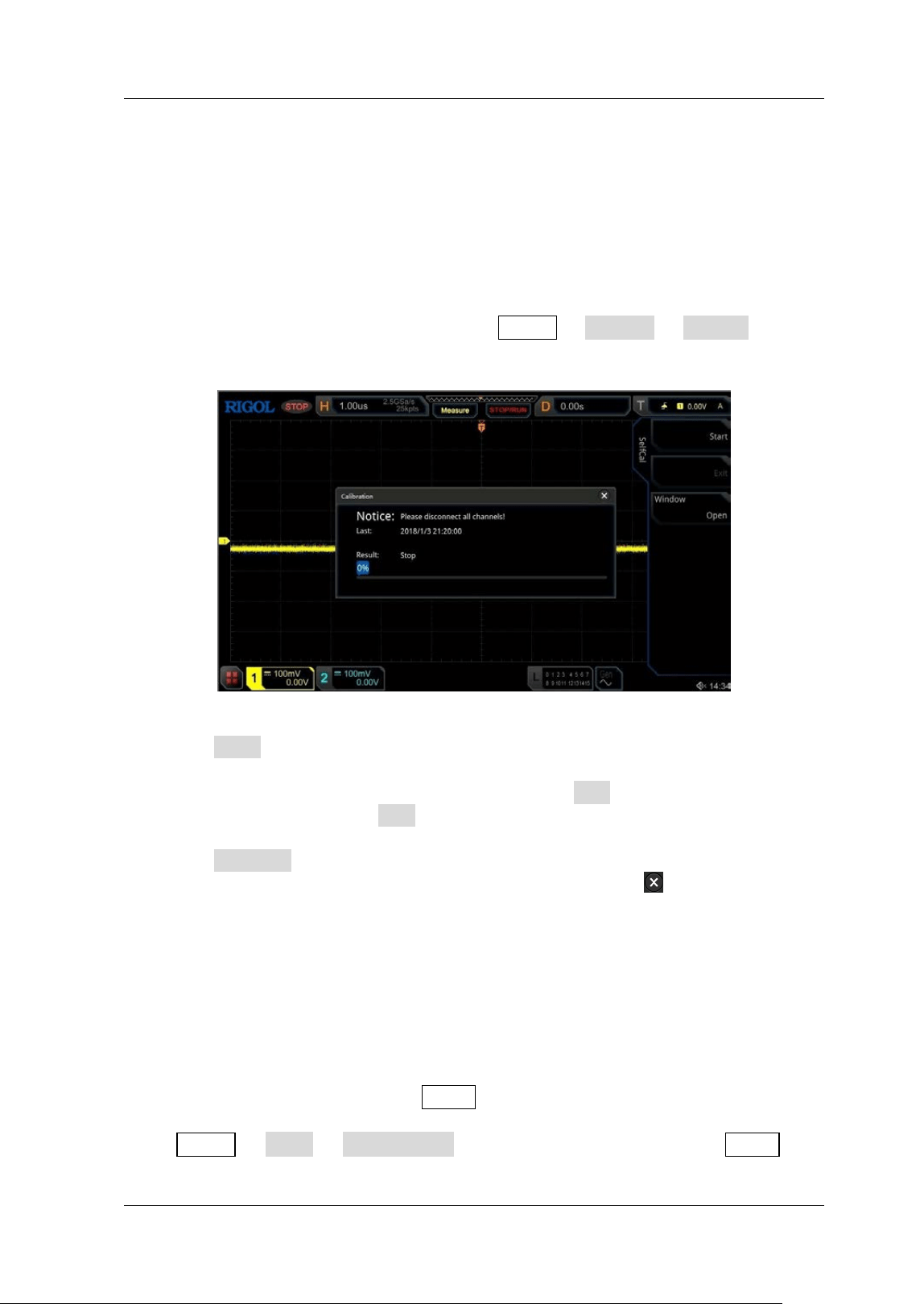
Chapter 19 System Utilit y Function Setting RIGOL
MSO5000-E User Guide 19-9
Self-calibration
The self-calibration program can quickly make the oscilloscope to work in an optimal
state to get the precise measurement results. You can perform self-calibration at any
time, especially when the changes of the ambient temperature reach or above 5℃.
Make sure that the oscilloscope has been warmed up or operating for more than 30
minutes before the self-calibration.
Disconnect all the input channels, then press Utility Syst em SelfCal, and the
self-calibration interface is displayed, as shown in the following f igure.
Figure 19-2 Self-calibration I nterface
Press Start, and then the oscilloscope will start to execute the self-calibration
program.
After the self-calibration program is launched, the Exit menu is no longer grayed
out and is enabled. Press Exit to give up the self-calibration operation at any
time.
Press Window continuously to open or close the self-calibration information
window. You can also enable the touch screen to tap the
icon at the
upper-right corner of the self-calibration information window to close the
window.
Note: Most of the keys are disabled during the self-calibration.
Auto Config
You can set the parameters for the AUTO menu.
Press Utility More Auto Config, and set the parameters for the AUTO k ey.
RIGOL Chapter 19 System Utilit y Function Setting
19-10 MSO5000-E User Guide
For detailed settings, refer to descriptions in "Quick Measurement after AUTO".
Print Setting
Connect the oscilloscope to the local area network via the network cable. The
MSO5000-E series supports printing the whole screen to the USB printer or network
printer. You can connect the oscilloscope to the printer directly via the USB DEVICE
interface on the rear panel. Then, you can set the print parameters on the
oscilloscope to control the printer to output the corresponding picture.
Press Utility More Printer to enter the printer setting menu. After the printer
is properly connected, you need to set the network conf igurations for printing, and
then set the printer parameters.
1. Network Configuration
Press Setting to enter the network configuration menu.
Select the Printer
Press Printer, and rotate the multifunction knob to select the printer
model. Press down the knob to select it. You can also press Printer
continuously or enable the touch screen to select it.
Set the I P Address
Press Printer I P, then rotate the multifunction knob to set each
segment of the I P address for the printer. Press down the knob to confirm
the setting for each segment of the address. At this time, the cursor is
moved to the next segment automatically. You can also press Printer I P
continuously to switch the segment position, and then rotate the
multifunction knob
to set it. You can also enable the touch screen to
switch the address segment.
Set the Port
Press Printer Port, rotate the multifunction knob to adjust the port
number or use the pop-up numeric keypad to input the port number.
Network Test
Press Test to test whether the network is connected. I f connected, a
prompt message "Network connected" is displayed.
Print Test Page
Press Print test page to carry out the print test. The print progress is also
displayed on the screen.
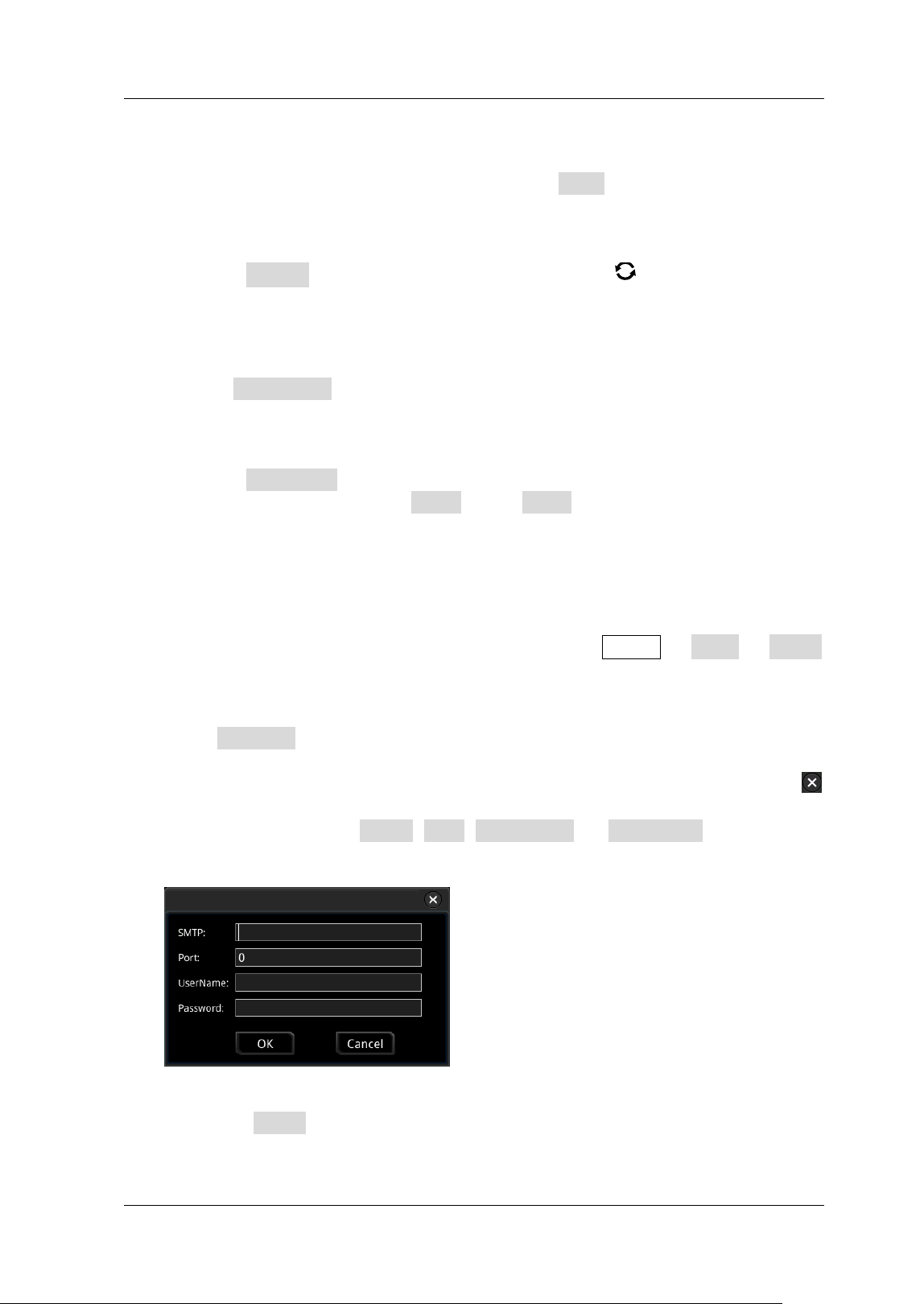
Chapter 19 System Utilit y Function Setting RIGOL
MSO5000-E User Guide 19-11
2. Set the Printer Parameters
Print
After the printer parameters are set, press Print to execute the print
operation.
Copies
Press Copies, then rotate the multifunction knob to set the number of
copies to be printed or use the pop-up numeric keypad to set it. The settable
range is from 1 to 99.
Paper Size
The Paper Size menu is grayed out and disabled. The paper size supported
by the oscilloscope is only A4.
I nk Saver
Press I nk Saver continuously to enable or disable the ink saver setting. I f
disabled, you need to set Color. Press Color continuously to select "Gray"
or "Color".
Email
This oscilloscope supports sending f iles via emails. Press Utility More Email
to enter the email setting menu.
1. Set the Email Server
Press Settings to enter the email server login setting menu. The following
window is displayed. After the setting, enable the touch screen to tap OK to
complete the server login. To cancel login, tap Cancel to exit or tap the icon
at the upper-right corner of the window to exit. I f you exit the server setting
window, you can press SMTP, Port, UserName, or PassWord to reopen the
window.
Set SMTP
Press SMTP to set the mail transmission protocol. For detailed settings of
mail transmission protocol, refer to descriptions in "
To Create a Folder".
RIGOL Chapter 19 System Utilit y Function Setting
19-12 MSO5000-E User Guide
Set the port
Press Port to set the protocol port in the pop-up numeric keypad. I ts range
is from 0 to 65535.
Set the user name
Press UserName to set the user name of the server. For detailed setting
methods for the user name, refer to descriptions in "
To Create a Folder".
Set the passw ord
Press PassWord to set the password of the server. For detailed setting
methods for the password, refer to descriptions in "
To Create a Folder".
Email test
Press Test to test whether the e-mail server is properly set.
Restore default settings
Press Default to restore the settings of receiver and mail settings to
defaults.
2. Set the Receiver
Press Receiver to display the receiver input interface, and you can edit the
email address of the receiver. For detailed input methods of the receiver email
address, refer to descriptions in "
To Create a Folder".
3. Upload Attachment
Press Attachment, then rotate the multifunction knob to select the
attachment type to be uploaded, and then press down the knob
to select it.
You can also press Attachment continuously to select or enable the touch
screen to tap the attachment. The available attachments include "Screen",
"Setup", and "Other". I f you select "Other", you also need to press File Select
to select the f ile to be uploaded.
4. Send the Mail
Press Send Mail to send the edited email to the receiver.
Key Locker
You can set whether to lock the front-panel keys.
Press Utility More Key Locker to select "Locked" or "Unlocked".
Locked: indicates that all keys of the oscilloscope (except the Key Locker key)
are locked.
Unlocked: unlocks the front-panel keys.
Chapter 19 System Utilit y Function Setting RIGOL
MSO5000-E User Guide 19-13
Quick Operation
You can set the shortcut functions for the Quick key on the front panel.
Press Utility More Quick settings to enter the quick key setting menu. You
can also enable the touch screen and then tap the function navigation icon at the
lower-left corner of the screen to open the function navigation. Then, tap the "Quick"
icon to open the quick key setting menu.
The Quick shortcut key includes the following f ive functions:
1. I mage Saving
When the Quick shortcut key is set to "Save I mage", press Quick on the front
panel to capture the screen.
Operation Type
Press Operation and then rotate the multifunction knob to select "Save
I mage". Press down the knob to select it. You can also press Operation
continuously to select among the options, or enable the touch screen to tap
the desired operation type.
I mage Format
Press Format and then rotate the multifunction knob to select the
image format. You can also press Format continuously to select among the
options, or enable the touch screen to tap the desired image format. The
image formats include "* .png", "* .bmp", "* .jpg", and "* .tif ".
I nvert
Press I nvert continuously to enable or disable the invert function.
Color
Press Color continuously to set the color of the saved image to "Color" or
"Gray".
2. Waveform Saving
When the Quick shortcut key is set to "Save Wave", press Quick on the front
panel to save the waveform.
Operation Type
Press Operation and then rotate the multifunction knob to select "Save
Wave". Press down the knob to select it. You can also press Operation
continuously to select among the options, or enable the touch screen to tap
the desired operation type.
RIGOL Chapter 19 System Utilit y Function Setting
19-14 MSO5000-E User Guide
Data Source
Press Data Source continuously to select "Memory" or "Screen" as the
source of the saved waveform.
Format
Press Format and then rotate the multifunction knob to select the
waveform format. Press down the knob to select it. You can also press
Format continuously to select or enable the touch screen to tap the format.
When Data Source is "Screen", the available formats are "* .bin" and "* .csv".
When Data Source is "Memory", the available formats are "* .bin", "* .csv",
and "* .wfm".
Storage Channel
I f "Memory" is selected under Data Source, you need to set the storage
channel. Press Channel and then rotate the multifunction knob to select
the storage channel. You can also press Channel continuously to select the
channel or enable the touch screen to tap the desired channel. The available
storage channels include CH1-CH2 and D0-D15.
3. Setup Saving
When the Quick shortcut key is set to "Save Setup", press Quick on the front
panel to save the setup of the oscilloscope.
Press Operation and then rotate the multifunction knob to select "Save
Setup". Press down the knob to select it. You can also press Operation
continuously to select among the options, or enable the touch screen to tap the
desired operation type. You do not need to set relevant parameters.
4. All Measurement
When the Quick shortcut key is set to "All Measure", press Quick on the front
panel to measure all the parameters of the current measurement source.
Operation Type
Press Operation and then rotate the multifunction knob to select "All
Measure". Press down the knob to select it. You can also press Operation
continuously to select among the options, or enable the touch screen to tap
the desired operation type.
All Measurement
Press All Measure, then rotate the multifunction knob to select the
desired measurement channel. You can also press All Measure continuously
to select or enable the touch screen to tap the desired channel. The available
measurement channels include OFF and CH1-CH2.
Chapter 19 System Utilit y Function Setting RIGOL
MSO5000-E User Guide 19-15
5. Statistics Reset
When the Quick shortcut key is set to "Stat Reset", press Quick on the front
panel to make statistics reset of measurement or pass/ fail test reset.
Operation Type
Press Operation and then rotate the multifunction knob to select "Stat
Reset". Press down the knob to select it. You can also press Operation
continuously to select among the options, or enable the touch screen to tap
the desired operation type.
Statistics Reset
Press Stat Reset and then rotate the multifunction knob to select the
function that requires statistics reset. Press down the knob to select it. You
can also press Stat Reset continuously to select among the options, or
enable the touch screen to tap the desired option. You can select "Measure"
or "PassFail".
6. Print
When the Quick shortcut key is set to "Print", press Quick on the front panel to
print the screen image of the oscilloscope.
Press Operation and then rotate the multifunction knob to select "Print".
Press down the knob to select it. You can also press Operation continuously to
select among the options, or enable the touch screen to tap the desired
operation type.
7. Email
When the Quick shortcut key is set to "Email", press Quick on the front panel to
send the f ile through email.
Press Operation and then rotate the multifunction knob to select "Email".
Press down the knob to select it. You can also press Operation continuously to
select among the options, or enable the touch screen to tap the desired
operation type.
8. Record
When the Quick shortcut key is set to "Record", press Quick on the front panel
to record the waveform.
Press Operation and then rotate the multifunction knob to select "Record".
Press down the knob to select it. You can also press Operation continuously to
select among the options, or enable the touch screen to tap the desired
operation type.
9. Save Group
RIGOL Chapter 19 System Utilit y Function Setting
19-16 MSO5000-E User Guide
When the Quick shortcut key is set to "Save Group", set the Group parameter.
Press Quick on the front panel to save the group.
Press Operation and then rotate the multifunction knob to select "Save
Group". Press down the knob to select it. You can also press Operation
continuously to select among the options, or enable the touch screen to tap the
desired operation type.
Set the Group parameter: press Group and then rotate the multifunction knob
to select "Save Image", "Save Wave", or "Save Setup". Press down the knob
to select the desired one. You can also press Group continuously or enable the
touch screen to select it. You can select any or all of the three items. The sign
indicates that the item has been selected, and
indicates that the item has not
been selected.
Screen Saver
When the oscilloscope enters the idle state and holds for a certain period of time, the
screen saver program will be enabled.
Press Utility More Screen Saver to enter the screen saver setting menu.
Press Screen Saver, then rotate the multifunction knob to select the screen
saver type, and then press down the knob
to select the type. You can also press
Screen Saver continuously or enable the touch screen to select the desired type.
The available screen saver types include "Off ", "Picture", and "Text". The screen
saver program is disabled by default.
1. Select the Screen Saver
I f you select "Off " under Screen Saver, it indicates that the screen saver is
disabled.
I f you select "Picture" under Screen Saver, press Select Picture to select
the f ile. The f ile types include "* .png", "* .bmp", "* .jpg", and "* .tif".
I f you select "Text" under Screen Saver, press Text, and then the
f ilename input interface is displayed, e.g. inputting "RIGOL Scope". For
details, refer to descriptions in "
To Create a Folder".
2. Set the Wait Time
Press Time to Start, rotate the multifunction knob or use the pop-up
numeric keypad to input the screen saver time. The available range is from 1
min to 999 min.
3. Preview
Press Preview to view the set screen saver.
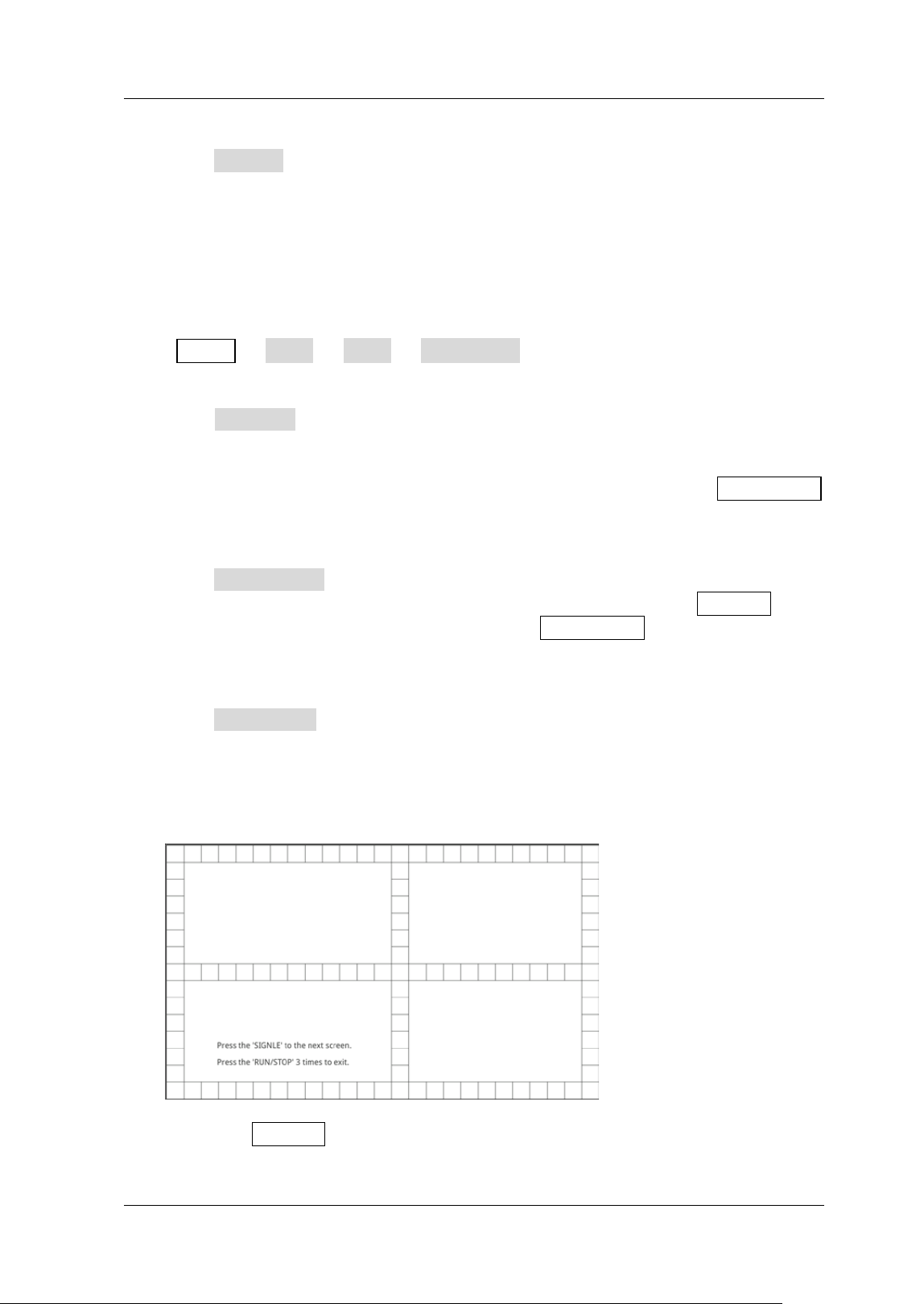
Chapter 19 System Utilit y Function Setting RIGOL
MSO5000-E User Guide 19-17
4. Restore Defaults
Press Default to restore the screen saver to the default settings.
Self-check
The oscilloscope supports a variety of self-check functions, including key test, screen
test, and touch test.
Press Utility More More Self Check to enter the self-check menu.
1. Key Test
Press Key Test to enter the keyboard test interface (virtual keypad of the front
panel). At this time, you can press the keys on the front panel to check whether
the virtual keys are highlighted. I f yes, it indicates that the keys work normally;
if no, it indicates that there's something wrong with the keys. Press RUN/ STOP
for three consecutive times to exit the keyboard test interface.
2. Screen Test
Press Screen Test to enter the screen test interface and check whether the
defective pixel exists. There are 24 screen test interfaces. Press SI NGLE to
switch to the next screen test interface. Press RUN/ STOP for three consecutive
times to exit the screen test interface.
3. Touch Test
Press Touch Test to enter the touch screen test interface f irst, as shown in the
f igure below. Slide with your f inger on the screen. I f there is a line displaying at
the empty area where you slide on the screen and the box that you tap turns out
to be f illed with green background, it indicates that the touch function of this
area is normal.
The press SI NGLE to switch to the next touch screen test interface, as shown
in the f igure below. At this time, you can pinch or stretch the RIGOL logo on
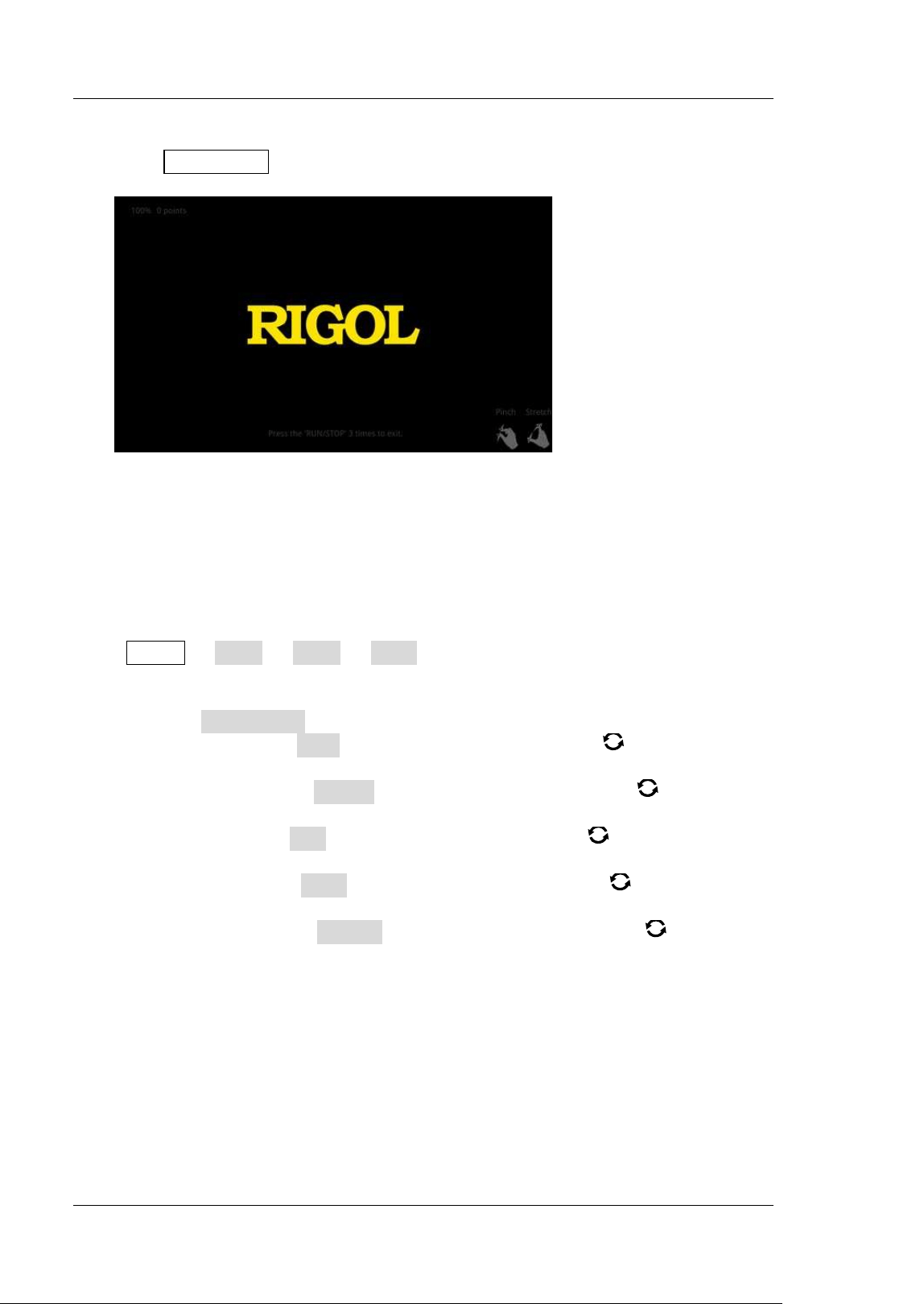
RIGOL Chapter 19 System Utilit y Function Setting
19-18 MSO5000-E User Guide
the screen to zoom it out or in to check whether the gestures work normally.
Press RUN/ STOP for three consecutive times to exit the touch screen test
interface.
System Time
The system time is displayed at the lower-right side of the screen in "hh:mm
(hour:minute)" format. When you save the waveform, the output f ile will contain the
time information.
Press Utility More More Time to open the time setting menu.
1. Set the System Time
(1) Press Show Time to open or close the system time interface.
(2) Set "year": Press Year, rotate the multifunction knob directly to set it
or use the pop-up numeric keypad to input the numeric value to set it.
(3) Set "month": Press Month, rotate the multifunction knob directly to
set it or use the pop-up numeric keypad to input the numeric value to set it.
(4) Set "day": Press Day, rotate the multifunction knob directly to set it or
use the pop-up numeric keypad to input the numeric value to set it.
(5) Set "Hour": Press Hour, rotate the multifunction knob directly to set it
or use the pop-up numeric keypad to input the numeric value to set it.
(6) Set "Minute": Press Minute, rotate the multifunction knob directly to
set it or use the pop-up numeric keypad to input the numeric value to set it.
The setting range of each item of the system time conforms to the convention.
Year : 2017 to 2099
Month: 01 to 12
Date: 01 to 31 (28, 29, or 30)
Hour: 00 to 23
Minute: 00 to 59
Second: 00 to 59

Chapter 20 Remote Control RIGOL
MSO5000-E User Guide 20-1
Chapter 20 Remote Control
The oscilloscope can be remotely controlled in the following three methods:
User-defined programming
You can program and control the oscilloscope by using the SCPI (Standard
Commands for Programmable I nstruments) commands. For details about the
relevant commands and programming, refer to
MSO5000-E Series Programming
Guide
.
PC software
You can use the PC software to send commands to control the oscilloscope remotely.
RIGOL Ultra Sigma is recommended. You can download the software from RIGOL
off icial website (www.rigol.com).
Operation Procedures:
(1) Set up communication between the instrument and PC.
(2) Run Ultra Sigma and search for the instrument resource.
(3) Open the remote command control panel to send commands.
Web Control
MSO5000-E series digital oscilloscope supports Web Control. When the instrument is
connected to the internet, Web Control can display the waveform interface of the
oscilloscope in a real-time manner. You can migrate the instrument control and
waveform analysis to the control terminals (e.g. PC, mobile, and iPad) through Web
Control to realize remote control of the instrument. When you log in to the Web
Control for the f irst time, use the user name "admin" (without quotation marks) and
the password "rigol" (without quotation marks).
The oscilloscope can communicate with the PC via the following interfaces:
Remote Control via USB
Remote Control via LAN
Remote Control via GPI B
This chapter will illustrate how to use RIGOL's Ultra Sigma software to remotely
control the oscilloscope via various interfaces.
CAUTI ON
Before setting up communication, please turn off the instrument to avoid
causing damage to the communication interfaces.
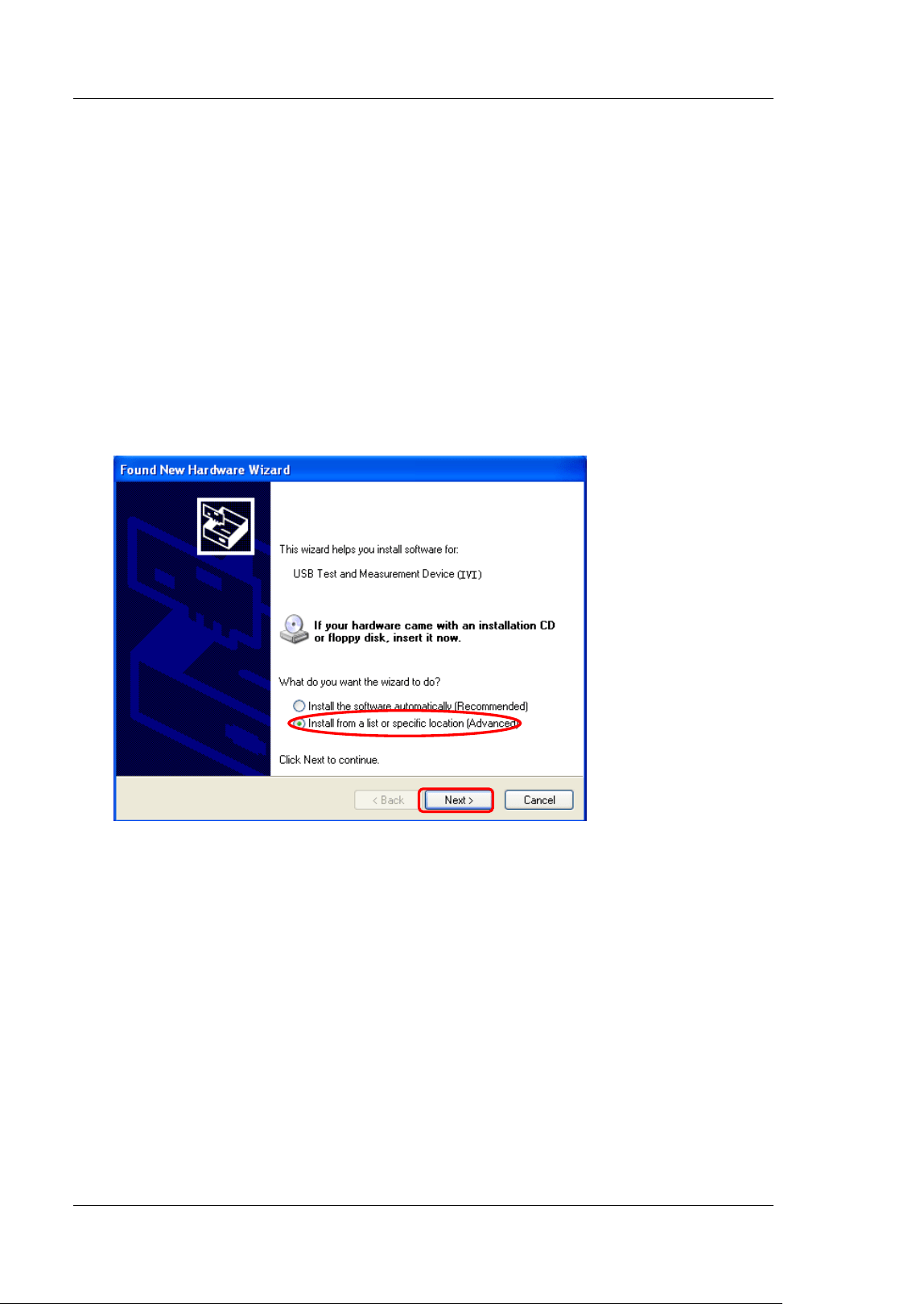
RIGOL Chapter 20 Remote Control
20-2 MSO5000-E User Guide
Remote Control via USB
1. Connect the device
Use a USB cable to connect the oscilloscope (USB DEVI CE interface) with the PC
(USB HOST interface).
2. I nstall the USB driver
This oscilloscope is a USB-TMC device. After you connect the oscilloscope to the
PC properly and power it on for the f irst time (the oscilloscope will be
automatically conf igured with the USB interface). I n this case, "Found New
Hardware Wizard" dialog box appears on the PC. Please install "USB Test and
Measurement Device (I VI )" according to the instructions. The steps are as
follows:
1
2
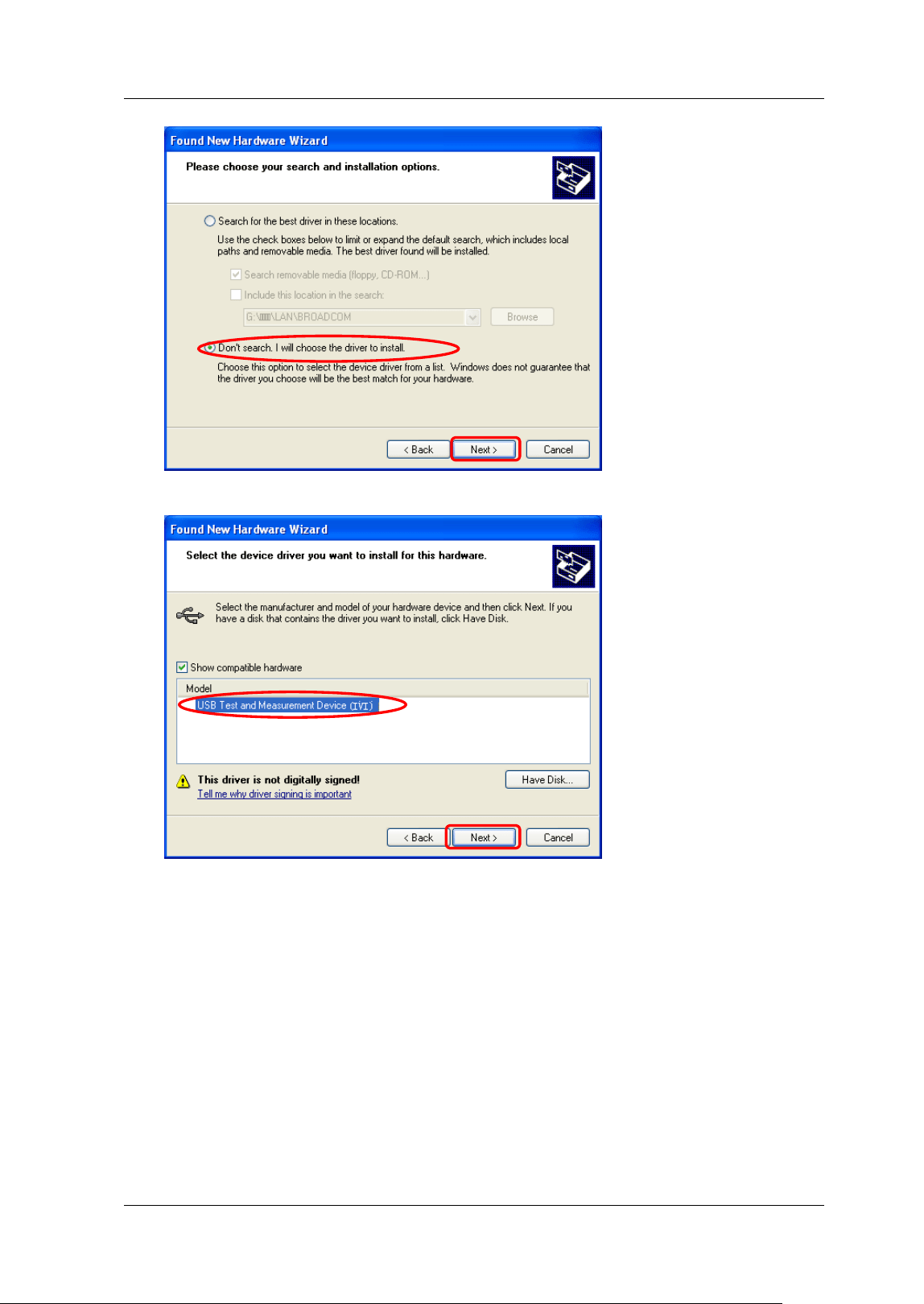
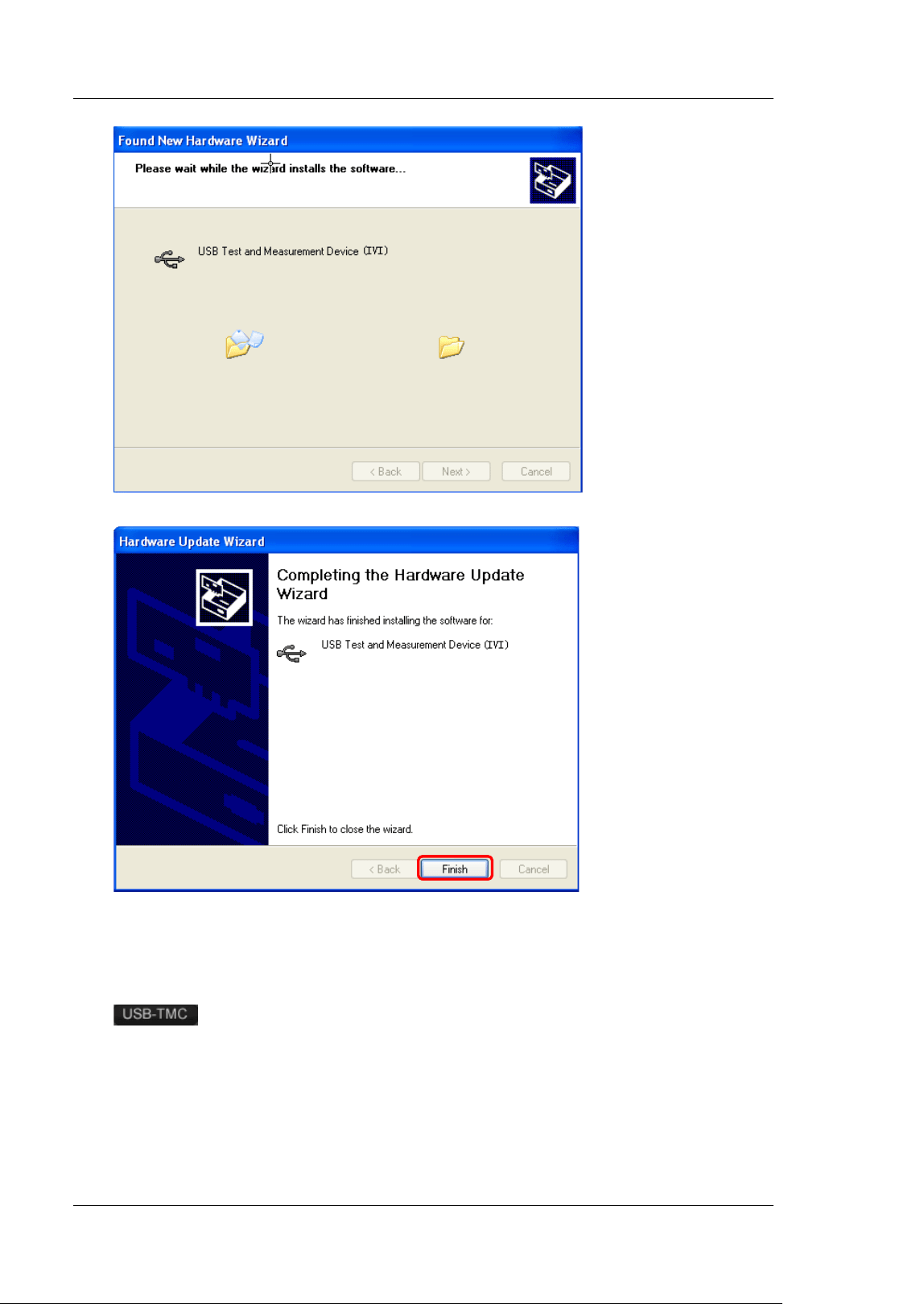
RIGOL Chapter 20 Remote Control
20-4 MSO5000-E User Guide
3. Search for the device resource
Start up Ultra Sigma and the software will automatically search for the resource
currently connected to the PC via the USB interface. You can also click
to search for the resource.
4. View the device resource
The searched instrument resource will be under the directory of "RIGOL Online
Resource", with the model of the instrument and the USB interface information
being displayed.
7

Chapter 20 Remote Control RIGOL
MSO5000-E User Guide 20-5
5. Control the instrument remotely
Right-click the resource name "MSO5152-E
(USB0: :0x1AB1:: 0x3514::MSO51541234567890: :I NSTR)" and select "SCPI
Panel Control" to turn on the remote command control panel, through which you
can send commands and read data.
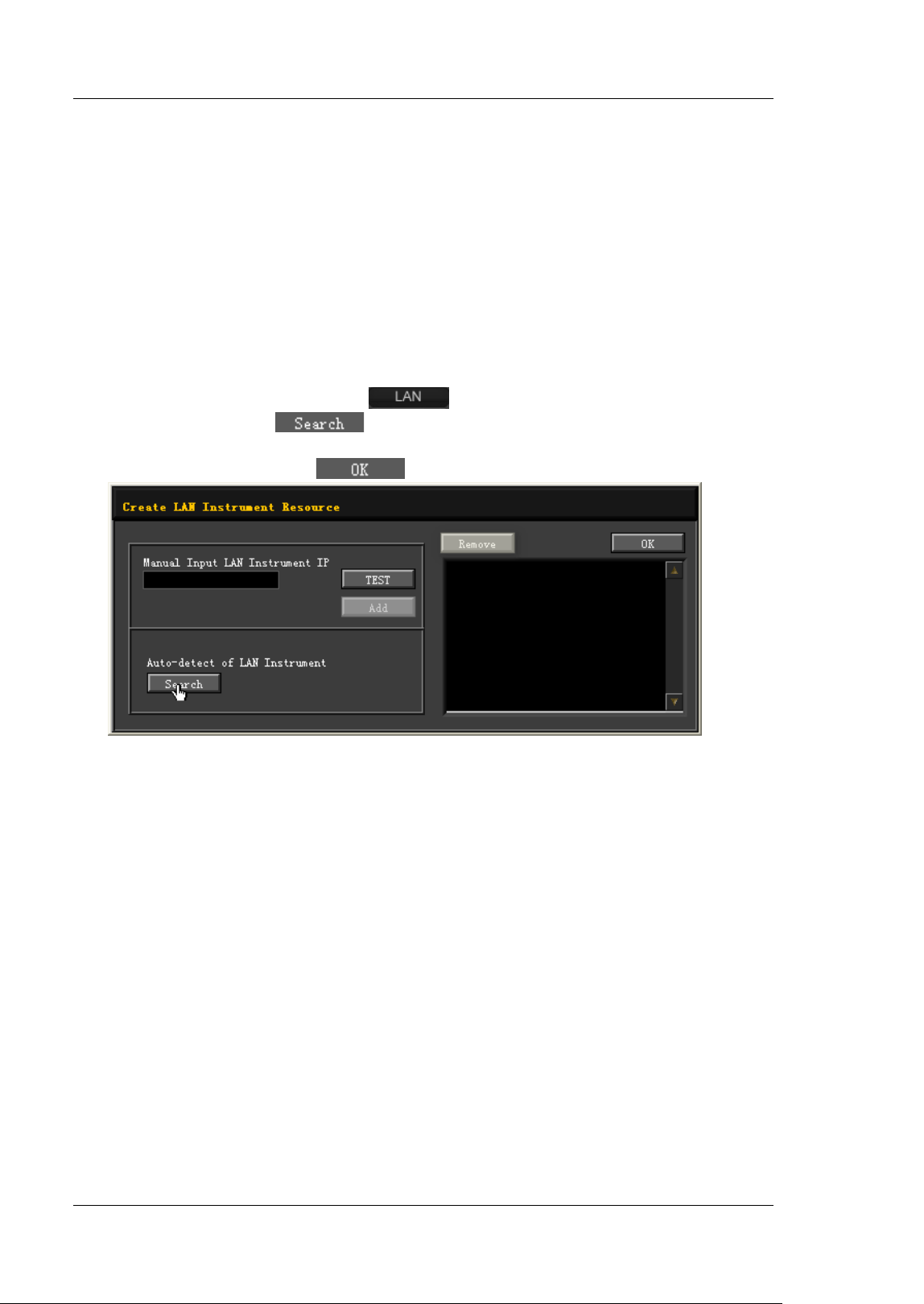
RIGOL Chapter 20 Remote Control
20-6 MSO5000-E User Guide
Remote Control via LAN
1. Connect the device
Use the network cable to connect the oscilloscope to your local area network
(LAN).
2. Configure netw ork parameters
Configure the network parameters of the oscilloscope according to "LAN
Configuration".
3. Search for the device resource
Start up Ultra Sigma and click
to open the panel as shown in the
f igure below. Click and the software searches for the instrument
resource currently connected to LAN. The resource found is displayed at the
right of the panel. Click
to add it.
4. View the device resource
The resources found will appear under the "RIGOL Online Resource" directory.
For example, MSO5152-E (TCPI P::172.16.3.14::I NSTR).
5. Control the instrument remotely
Right-click the resource name "MSO5152-E (TCPIP::172.16.3.14::INSTR)" and
select "SCPI Panel Control" to turn on the remote command control panel,
through which you can send commands and read data.
6. Load LXI webpage
As this oscilloscope conforms to LXI CORE 2011 DEVICE standards, you can load
LXI webpage through Ultra Sigma (right-click the instrument resource name and
select "LXI-Web"). Various important information about the instrument
(including the model, manufacturer, serial number, description, MAC address,
and IP address) will be displayed on the webpage. You can also directly input
the I P address of the oscilloscope in the address bar of the PC browser to load
the LXI webpage.
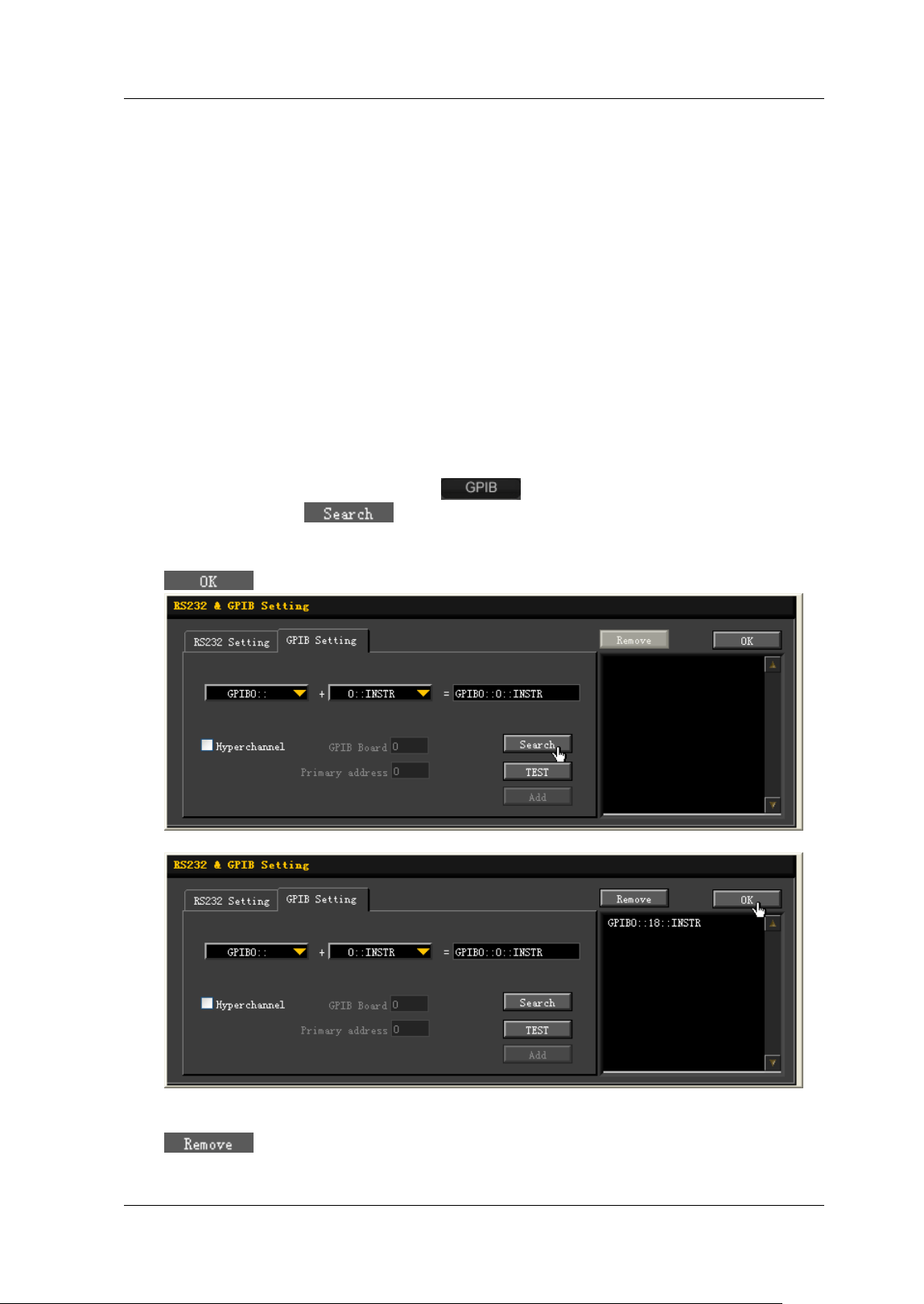
Chapter 20 Remote Control RIGOL
MSO5000-E User Guide 20-7
Remote Control via GPI B
1. Connect the device
Use the USB-GPIB interface converter to extend the GPI B interface for the
oscilloscope, and then use the GPI B cable to connect the oscilloscope to the PC
to realize remote control.
2. I nstall the driver of GPI B card
Correctly install the driver of the GPI B card which has been connected to the PC.
3. To Set the GPI B Address
Set the GPI B address of the oscilloscope according to the description in "To Set
the GPI B Address".
4. Search for the device resource
Start Ultra Sigma, and then click
. A window is displayed as shown in
Figure (a). Click
and the software searches for the instrument
resource currently connected to the PC via the GPI B interface. The resource
found is displayed at the right of the window as shown in Figure (b). Click
to add it.
(a)
(b)
Note: If you want to remove the resource, select the resource and then click
to remove it.
RIGOL Chapter 20 Remote Control
20-8 MSO5000-E User Guide
I f the resource cannot be searched automatically:
Select the GPI B card address of the PC from the drop-down box of
"GPI B0::" and select the GPI B address set in the oscilloscope from the
drop-down box of "0:: I NSTR".
Click
to check whether the GPI B communication works
normally; if not, please follow the corresponding prompt messages to
handle it.
5. View the device resource
The searched instrument resource will be under the directory of "RI GOL Online
Resource".
6. Control the instrument remotely
Right-click the resource name "MSO5152-E (GPI B0::18::INSTR)", and select
"SCPI Panel Control" to open the remote command control panel. Then you can
send commands and read data through the panel.
Chapter 21 Troubleshooting RIGOL
MSO5000-E User Guide 21-1
Chapter 21 Troubleshooting
The commonly encountered failures of the oscilloscope and their solutions are listed
below. I f the following problems occur, locate and resolve the problems according to
the following steps. If the problems still persist, contact RIGOL and provide your
instrument information to us.
1. When I power on the instrument, the instrument stays black and does
not display anything.
(1) Check whether the power switch is really on.
(2) Check whether the power is correctly connected.
(3) Check whether the fuse is blown. I f the fuse needs to be replaced, please
use the specified fuse.
(4) Restart the instrument after completing the above inspections.
(5) I f the problem still persists, contact RIGOL.
2. No waveform of the signal is displayed on the screen.
(1) Check whether the probe is properly connected to the item under test.
(2) Check whether there are signals generated from the item to be tested (you
can connect the probe compensation output signal to the faulty channel to
locate the problem, and then determine whether the channel or the item to
be tested has a problem).
(3) Resample the signal.
3. The display of waveform is ladder-like.
(1) The horizontal timebase might be too low. I ncrease the horizontal timebase
to improve the display effects.
(2) If the display type is "Vector", the lines between the sample points may
cause ladder-like display results. Press Display Type to select "Dots".
4. The USB storage device cannot be recognized.
(1) Check whether the USB storage device can work normally.
(2) Make sure the USB storage device used is FAT32-format Flash storage type,
as this instrument does not support USB3.0 and hard disk storage type.
(3) Check whether the capacity of the USB storage device is too large. I t is
recommended that the capacity of the USB storage device should not
exceed 8 GB for this oscilloscope.
(4) Restart the instrument and insert the USB storage device to check it.
(5) If the USB storage device still cannot work normally, please contact
RIGOL.
5. The touch functions cannot be used normally.
(1) Check whether you have enabled the touch screen. I f not, please press the
touch screen switch key Touch Lock to enable the touch screen function.
(2) Check whether the screen or your f inger is stained with oil or sweat. I f yes,

RIGOL Chapter 21 Troubleshooting
21-2 MSO5000-E User Guide
please clean the screen or dry your hands.
(3) Check whether there is a strong magnetic field around the instrument. I f
the instrument is close to the strong magnetic f ield (e.g. a magnet), please
move the instrument away from the magnet f ield.
(4) I f the problem still persists, please contact RIGOL.
Chapter 22 Appendix RIGOL
MSO5000-E User Guide 22-1
Chapter 22 Appendix
Appendix A: Accessories and Options
Order I nformation Order No.
Model
MSO5152-E (150 MHz, 4 GSa/ s, 100 Mpts, 2+ 16 CH MSO) MSO5152-E
Standard Accessories
Power Cord Conforming to the Standard of the Destination Country -
USB Cable CB-USBA-USBB-FF-150
2 Passive Probes (350 MHz)
PVP2350
Quick Guide (hard copy) -
Optional Accessories
16-channel active logic probe (dedicated probe for MSO5000-E
series)
PLA2216
Front Panel Protection Cover MSO5000-E-FPC
Rack Mount Kit MSO5000-RM
USB-GPIB Interface Converter USB-GPI B
Near-f ield Probe NFP-3
Power Analysis Phase Difference Correction Jig RPA246
Digital Oscilloscope Demonstration Plat e DK-DS6000
Memory Depth Option
Maximum memory depth up to 100 Mpts MSO5000-E-1RL
Bundle Option
Function and Application Bundle Option, including MSO5000-COMP,
MSO5000-EMBD, MSO5000-AUTO, MSO5000-FLEX,
MSO5000-AUDI O, MSO5000-AERO, MSO5000-E-AWG, and
MSO5000-PWR
MSO5000-E-BND
Serial Protocol Analysis Option
PC Serial Bus Trigger and Analysis (RS232/ UART) MSO5000-COMP
Embedded Serial Bus Trigger and Analysis (I 2C and SPI ) MSO5000-EMBD
Auto Serial Bus Trigger and Analysis (CAN and LIN) MSO5000-AUTO
FlexRay Serial Bus Trigger and Analysis (FlexRay) MSO5000-FLEX
Audio Serial Bus Trigger and Analysis (I 2S) MSO5000-AUDI O
MIL-STD-1553 Serial Bus Trigger and Analysis (MI L-STD-1553) MSO5000-AERO
Measurement Application Option
25 MHz Arbitrary Waveform Generator MSO5000-E-AWG
Built-in Power Analysis MSO5000-PWR
Note: For all the mainframes, accessories, and options, please contact the local
off ice of RIGOL.

RIGOL Chapter 22 Appendix
22-2 MSO5000-E User Guide
Appendix B: Warranty
RIGOL (SUZHOU) TECHNOLOGI ES I NC. (hereinafter referred to as RIGOL)
warrants that the product will be free from defects in materials and workmanship
within the warranty period. I f a product proves defective within the warranty period,
RIGOL guarantees free replacement or repair for the defective product.
To get repair service, please contact with your nearest RIGOL sales or service off ice.
There is no other warranty, expressed or implied, except such as is expressly set
forth herein or other applicable warranty card. There is no implied warranty of
merchantability or f itness for a particular purpose. Under no circumstances shall
RIGOL be liable for any consequential, indirect, ensuing, or special damages for any
breach of warranty in any case.

I ndex RIGOL
MSO5000-E User Guide 1
I ndex
+ Duty ...................................... 6-30
+ Rate ...................................... 6-34
+ Width .................................... 6-29
Acquisition Mode ........................ 4-5
AM ........................................ 17-14
Anti-Aliasing ............................. 4-10
Area ........................................ 6-34
AutoI P ..................................... 19-3
Aux Output .............................. 19-8
Average ..................................... 4-5
Bandwidth Limit .......................... 2-5
Blackman-Harris ......................... 6-9
Built-in Waveform ..................... 17-6
Channel Coupling ........................ 2-5
Channel Label ............................. 2-9
DC .......................................... 17-5
DC offset voltage ...................... 17-2
Default Gateway ....................... 19-4
Delay ....................................... 6-31
Delay Calibration ......................... 2-8
Delay Trigger ............................ 5-27
Delayed Sweep .................... 3-2, 3-4
Digital Channel ......................... 10-1
Domain Name Server ................ 19-4
Dots ........................................ 16-2
Duration Trigger ....................... 5-19
Duty ........................................ 17-4
-Duty ....................................... 6-30
ECG ......................................... 17-7
Edge Trigger ............................... 5-9
Edge Type ................................ 5-32
Edit Waveforms ...................... 17-12
End of Frame Error ................. 11-13
Exp.Fall .................................... 17-7
Factory Settings ...................... 18-13
Fall Time .................................. 6-29
Falling Edge Count .................... 6-31
Flattop ....................................... 6-9
FM .............................. 17-15, 17-16
Frequency ........................ 6-29, 17-2
Gauss ...................................... 17-8
GPI B ........................................ 19-6
Hamming ................................... 6-9
Hanning .................................... 6-9
Haversine ................................. 17-9
Horizontal Expansion .................
4-11
Horizontal Position ...................... 3-3
I2C Decoding .......................... 11-14
I2C Trigger ............................... 5-35
I 2S Trigger ............................... 5-46
Idle Time .................................. 5-32
I mpedance ............................... 17-3
I P Address ................................ 19-3
Lorentz ..................................... 17-9
MAC ........................................
19-5
mDNS ...................................... 19-5
Memory Depth ........................... 4-9
Modulating Waveform .... 17-14, 17-15
Modulation ............................. 17-13
Modulation Depth .................... 17-15
Modulation Deviation ............... 17-16
Modulation Frequency ... 17-14, 17-15,
17-16
Negative Pulse Count ................. 6-30
Network Status ......................... 19-2
Noise ....................................... 17-5
Noise Rejection .......................... 5-7
Normal ...................................... 4-5
Nth Edge Trigger ....................... 5-31
Overshoot................................. 6-34
Parallel Decoding ....................... 11-2
Pattern Setting ................. 5-18, 5-20
Peak Detection ........................... 4-6
Period ...................................... 6-29
Period Area ............................... 6-34
Persistence Time ....................... 16-2
Phase ....................................... 6-31
Picture ..................................... 18-2
Polarity ............................ 5-11, 5-52
Positive Pulse Count .................. 6-30
Preshoot ................................... 6-34
Probe Ratio .......................... 2-6, 2-7
Pulse ........................................ 17-4
Pulse Condition ......................... 5-11
Pulse Polarity ............................ 5-24
Pulse Trigger ............................. 5-10

RIGOL I ndex
2 MSO5000-E User Guide
Pulse Width Setting................... 5-11
Qualif ier .................................. 5-24
Ramp ...................................... 17-4
-Rate ....................................... 6-34
Rectangular ............................... 6-9
Rise Time ................................ 6-29
Rising Edge Count .................... 6-30
Roll ........................................... 4-4
RS232 Decoding ....................... 11-7
RS232 Trigger .......................... 5-32
Runt Trigger ............................. 5-23
Sample Point 5-41, 5-45, 11-29, 11-34
Sample Rate .............................. 4-7
Setup&Hold Trigger................... 5-29
Setups ..................................... 18-3
Sine ........................................ 17-2
Slope Condition ........................ 5-13
Slope Time Setting ................... 5-13
Slope Trigger ............................ 5-12
SPI Decoding .......................... 11-18
SPI Tr igg e r ............................... 5-37
Square .................................... 17-3
Start Keep .................... 17-17, 17-18
Start Phase .............................. 17-3
Static I P .................................. 19-3
Subnet mask ............................ 19-4
Sweep ......................... 17-16, 17-19
Sweep Trigger Source ... 17-18, 17-19
Symmetry ................................ 17-4
Sync ........................................ 5-16
To Create the Waveform ........... 17-10
Triangle ..................................... 6-9
Trigger Coupling ......................... 5-5
Trigger Holdoff ........................... 5-6
Trigger LEVEL/ Threshold Level ..... 5-3
Trigger Mode .............................. 5-4
Trigger Position ......................... 5-26
tVmax ...................................... 6-30
tVmin ....................................... 6-30
Vamp .............................. 6-33, 17-2
Vavg ........................................ 6-33
Vbase ...................................... 6-33
Vector ...................................... 16-2
Vertical Offset ............................. 2-4
Vertical Scale .............................. 2-3
Video Polarity ........................... 5-15
Video Standard ......................... 5-15
Video Trigger ............................ 5-15
VI SA .......................................
19-5
Vlower ..................................... 6-33
Vmax ....................................... 6-33
Vmid ........................................ 6-33
Vmin ........................................ 6-33
Vpp ......................................... 6-33
Vrms ........................................ 6-34
Vtop ........................................ 6-33
Vupper ..................................... 6-33
Waveform Aliasing ....................... 4-8
Waveform Distortion .................... 4-8
Waveform Leakage ...................... 4-8
Waves ...................................... 18-3
-Width ..................................... 6-30
Window trigger ......................... 5-25
Windows Type .......................... 5-26
XY ............................................. 4-2
YT ............................................. 4-2