1
BluOS App User Guide
The BluOS app is designed to control BluOS-enabled Players and for easy access to browse and search music, creating
playlists and grouping players together.
Home
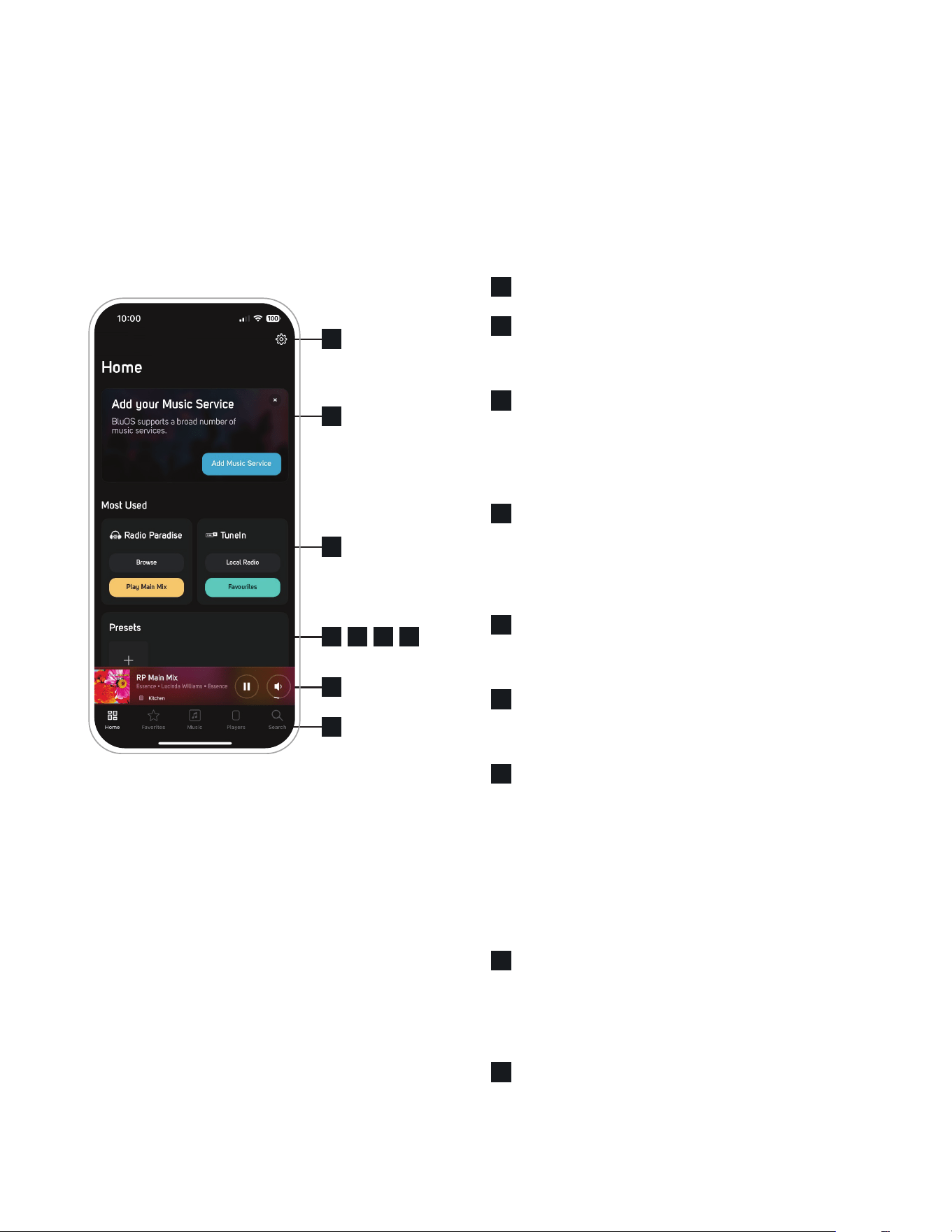
This is the central area of the app. It is the default starting point for new users, and every time the app has been closed.
Content on the Home screen is dynamic and based on User behaviour. Home is driven by each Player’s activity and
therefore content can differentiate between Players.
Settings Press to open the Player Settings page.
Highlights & Information A place for BluOS to inform
about new updates, changes to functionality or
introduction of new features.
Most Used Quick access to most used music services/
inputs of each Player. Press on the big tile to jump
directly into the specific service or input. Each tile has
links for quick access to service/input specific content
or settings.
Presets Find and play presets for each Player here.
When no presets have been made a ‘+’ icon provides
access to the Preset setup menu. Show All will give
you the full list of presets and options to add new ones,
delete or edit old presets.
Recent Stations Gives quick access to recently played
stations. Will only show if a station has been played on
the Player.
Recently Played Access and see the recently played
playlists, songs, and albums on each player across all
services available.
BluOS Playlists When a BluOS playlist has been
created it will be found here. BluOS playlists are
different from service specific playlists since they can
carry content from different services and local content
in the same list.
Note: It is possible to customize the order of several
of these items, so they fit the individual user. Press
‘Customize Home’ at the bottom of the page.
Now Playing Control Bar Shows the currently playing
content for the selected Player and gives quick access
to play/pause and volume control. Pressing the Volume
icon gives access to the Volume slide. Press on the
Minibar to open the Now Playing overview.
Bottom Navigation Bar Easy to access navigation for
Home, Favourites, Music, Players, and Search
1
3
4
5
6
7
8
9
2
8
4 5 6 7
3
2
1
9
2
1
1
3
3
4
4
5
5
2
2
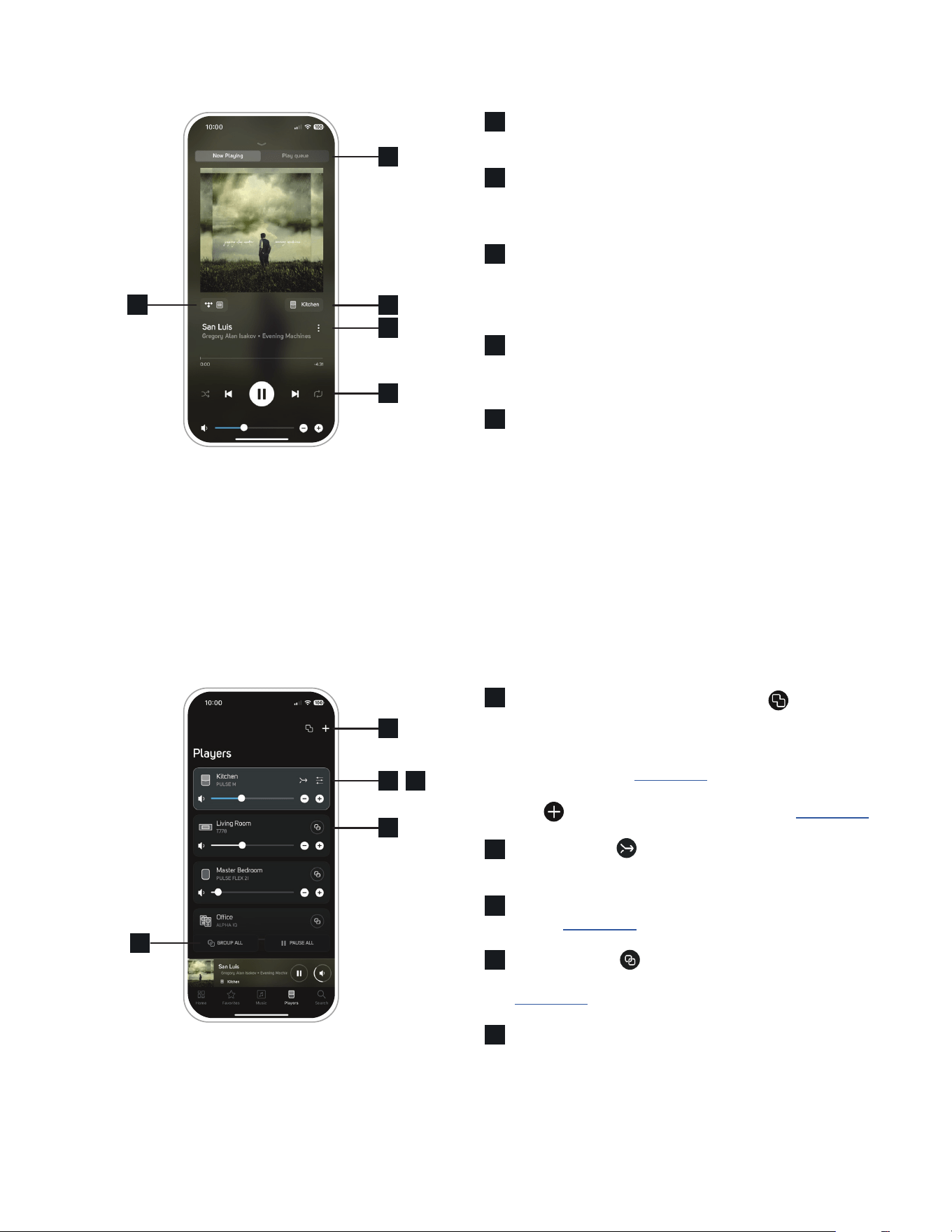
Now Playing
Music
All music services and inputs available on the Player are accessible from here. It is also here where new music services
can be added or removed. Quick access for customization of inputs if any are available.
Players
Use the Player page to manage Player’s volume, grouping and audio settings.
Now Playing/Play Queue Switch between Now Playing
and Play Queue window.
Player Name Indicates the name of the Player. Press
the name to access the Player page for quick and easy
grouping management.
Playback Quality Indicator Shows the icon of the service or
input playing, with a quality indicator. Press on the icon to
change the view mode for more details about bit depth and
sample rate.
Context Menu Press the three dots to see options for the
currently playing song or station, such as: add as favourite,
playlist or preset. Options depends on content and service.
Playback Controls Control playback like play/pause and
skip back and forward.
Fixed Groups and Add New Player Use to create a
Fixed Group like a Stereo Pair, a Multi Group, or a Home
Theater Group. Fixed Groups are used when multiple
Players are configured to be shown and function as one
Player in the App. Learn more
Use to add a new Player to the system. Learn more
Follow Me Use to move the currently playing music to
another Player/Room.
Audio Settings Access audio settings for the highlighted
Player. Learn more
Group Icon Use to group players together when
multiple Players have to play content simultaneously.
Learn more
Control All Players Option to group all Players with one
press or pause playback on all Players.
1
1
2 3
2
4
4
5
5
3
3
1
3
4
2
Settings
All music services and inputs available on the Player are accessible from here. It is also here where new music services
can be added or removed. Quick access for customization of inputs if any are available.
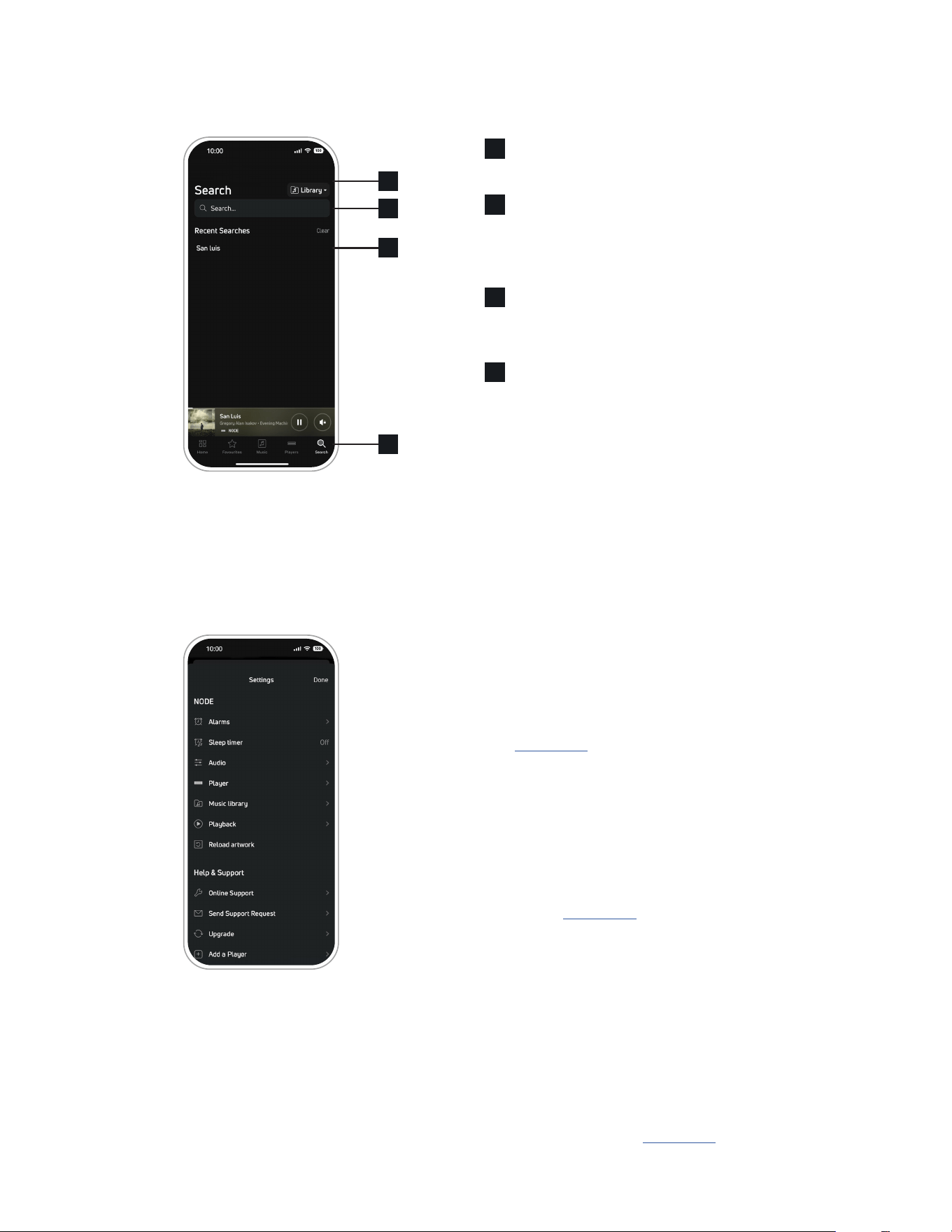
Search
Use Search to find content from available services on the system. Search will default to the latest used Music Service.
Music Service Switch to any available Music Service from
this drop-down menu.
Search Bar Press to open the keyboard. BluOS searches
across Artist, Albums, Songs, Shows, Playlist etc. The page
will update the results as the user types in. Hit the search
button on the keyboard when typing is done.
Recent Searches Use this to find the last 10 search items,
for quick access to the results without typing. Use the Clear
button to clear the history.
Search Press here to activate the keyboard when on the
main page, or as a quick way to get back to the main
search page when deep into a category.
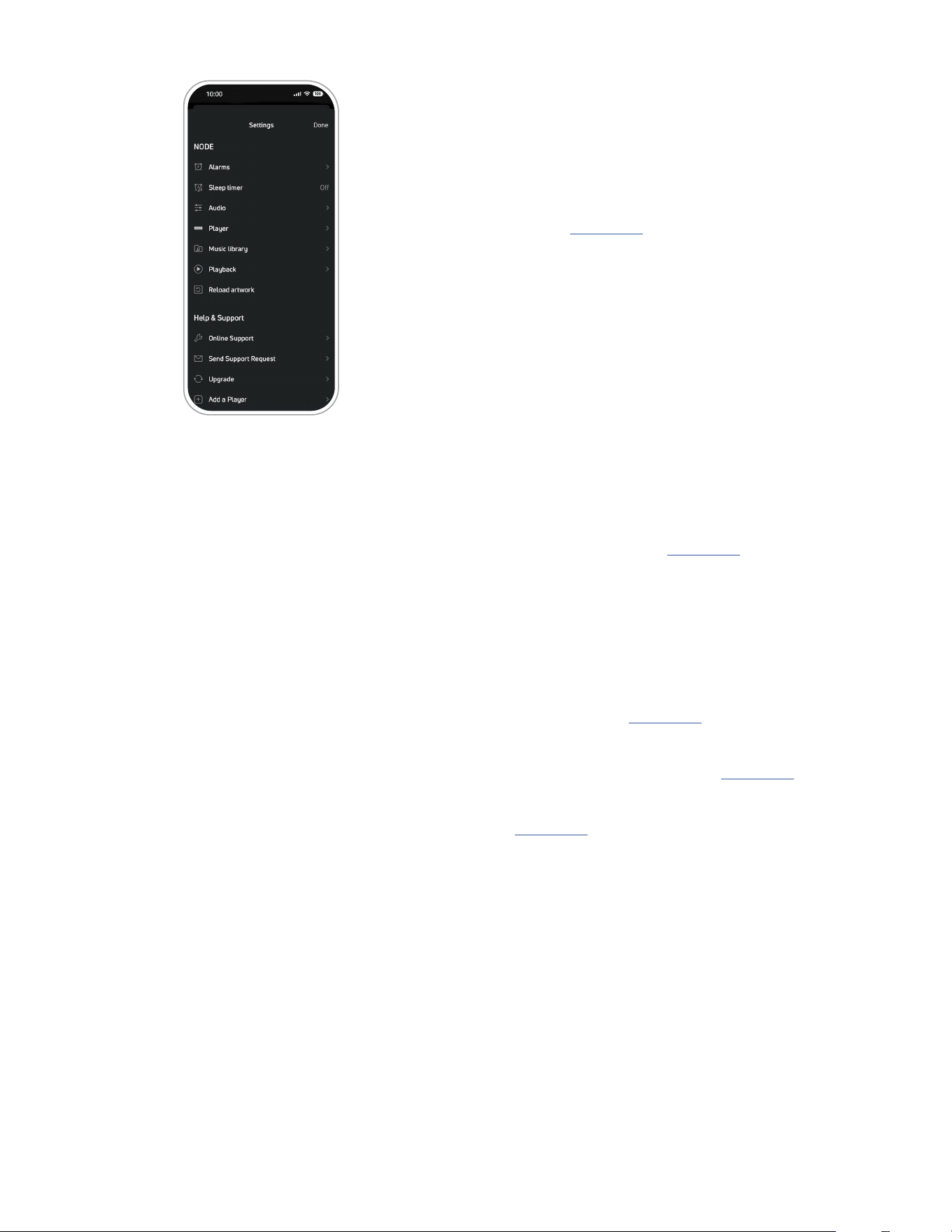
Alarms
Set an Alarm for the morning, to wake up to the sweet
tune of a playlist, or a radio station. Alarm can be set with
individual timings each day. Can also be used to start
playback when you come home from work or when you
are out of town, so it sounds like somebody is home.
Learn more
Sleep Timer
Use Sleep Timer to stop playback if you want to fall asleep
to music.
Audio
Access to Audio settings. Adjust Tone Controls, set
Listening Modes or adjust the maximum volume of a
Player. Learn more
Player
Find all Settings available for the Player. Customize inputs,
add an IR remote to control Playback and Presets, Turn
On/Off the Indicator Light on the product and much more.
Settings available differ from Player to Player. Learn more
about Settings in the Owner’s Manual for the Player.
Music Library
Setup you own Local Library. BluOS can index libraries
from a network placement or from an USB drive connected
directly to a Player. Learn more
1
2
3
4
4
Playback
Turn On/Off AutoFill. Autofill will fill out the Play Queue
with the rest of the tracks from an Album or Playlist when
a track is pressed.
Reload Artwork
Reloads iOS or Android devices cache for Local Library
content. Learn more
Help & Support
Online support
Access more than 200 FAQs about BluOS.
Send Support Request
Fill in the fields with the required information and
select Send Request. The diagnostic log of the Player is
generated and sent along with the support request.
Upgrade
Check for updates to the BluOS firmware.
Add Player
Run the player setup wizard to add a new Player to the
existing BluOS system. Learn more
Diagnostics
View the Player’s wireless Signal Strength, Connected
Shares, IP Address.
Reboot: Select to restart the Player.
Force Hotspot Mode: Select to reset the Bluesound Player
to Hotspot mode. Learn more
Statistics collection: Enable/disable to control passive
reporting of Bluesound Players. Learn more
Rebuild Index: Select to delete and recreate an index.
Learn more
About
View the version of the BluOS App, BluOS software, and
License information.