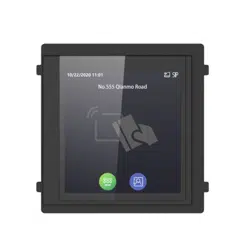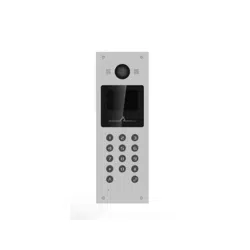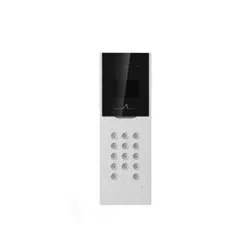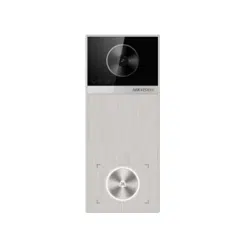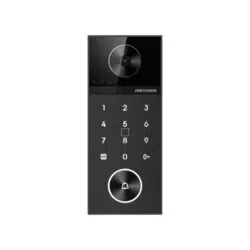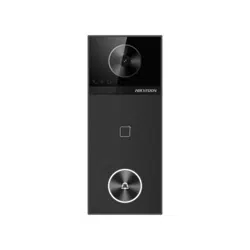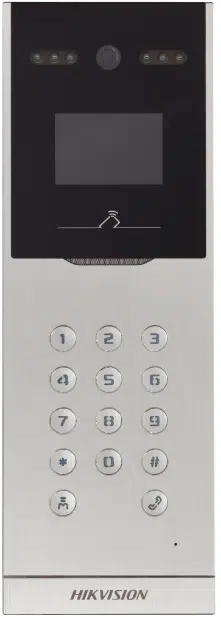

Video Intercom Door Station
(D Series)
User Manual

Video Intercom Door Station·User Manual
ii
User Manual
© 2018 Hangzhou Hikvision Digital Technology Co., Ltd.
This user manual is intended for users of the models below:
Series
Model
Door Station (D Series)
DS-KD8102-V
DS-KD8002-VM
DS-KD3002-VM
It includes instructions on how to use the Product. The software embodied in the
Product is governed by the user license agreement covering that Product.
About this Manual
This Manual is subject to domestic and international copyright protection. Hangzhou
Hikvision Digital Technology Co., Ltd. (“Hikvision”) reserves all rights to this manual. This
manual cannot be reproduced, changed, translated, or distributed, partially or wholly, by
any means, without the prior written permission of Hikvision.
Trademarks
and other Hikvision marks are the property of Hikvision and are
registered trademarks or the subject of applications for the same by Hikvision and/or its
affiliates. Other trademarks mentioned in this manual are the properties of their
respective owners. No right of license is given to use such trademarks without express
permission.
Disclaimer
TO THE MAXIMUM EXTENT PERMITTED BY APPLICABLE LAW, HIKVISION MAKES NO WARRANTIES,
EXPRESS OR IMPLIED, INCLUDING WITHOUT LIMITATION THE IMPLIED WARRANTIES OF
MERCHANTABILITY AND FITNESS FOR A PARTICULAR PURPOSE, REGARDING THIS MANUAL.
HIKVISION DOES NOT WARRANT, GUARANTEE, OR MAKE ANY REPRESENTATIONS REGARDING THE
USE OF THE MANUAL, OR THE CORRECTNESS, ACCURACY, OR RELIABILITY OF INFORMATION
CONTAINED HEREIN. YOUR USE OF THIS MANUAL AND ANY RELIANCE ON THIS MANUAL SHALL BE
WHOLLY AT YOUR OWN RISK AND RESPONSIBILITY.
TO THE MAXIMUM EXTENT PERMITTED BY APPLICABLE LAW, IN NO EVENT WILL HIKVISION, ITS
DIRECTORS, OFFICERS, EMPLOYEES, OR AGENTS BE LIABLE TO YOU FOR ANY SPECIAL,
CONSEQUENTIAL, INCIDENTAL, OR INDIRECT DAMAGES, INCLUDING, AMONG OTHERS, DAMAGES
FOR LOSS OF BUSINESS PROFITS, BUSINESS INTERRUPTION, SECURITY BREACHES, OR LOSS OF DATA
OR DOCUMENTATION, IN CONNECTION WITH THE USE OF OR RELIANCE ON THIS MANUAL, EVEN IF
HIKVISION HAS BEEN ADVISED OF THE POSSIBILITY OF SUCH DAMAGES.

Video Intercom Door Station·User Manual
iii
SOME JURISDICTIONS DO NOT ALLOW THE EXCLUSION OR LIMITATION OF LIABILITY OR CERTAIN
DAMAGES, SO SOME OR ALL OF THE ABOVE EXCLUSIONS OR LIMITATIONS MAY NOT APPLY TO YOU.
Support
Should you have any questions, please do not hesitate to contact your local dealer.

Video Intercom Door Station·User Manual
iv
Regulatory Information
FCC Information
Please take attention that changes or modification not expressly approved by the party
responsible for compliance could void the user’s authority to operate the equipment.
FCC compliance: This equipment has been tested and found to comply with the limits
for a Class B digital device, pursuant to part 15 of the FCC Rules. These limits are
designed to provide reasonable protection against harmful interference in a residential
installation. This equipment generates, uses and can radiate radio frequency energy and,
if not installed and used in accordance with the instructions, may cause harmful
interference to radio communications. However, there is no guarantee that interference
will not occur in a particular installation. If this equipment does cause harmful
interference to radio or television reception, which can be determined by turning the
equipment off and on, the user is encouraged to try to correct the interference by one
or more of the following measures:
—Reorient or relocate the receiving antenna.
—Increase the separation between the equipment and receiver.
—Connect the equipment into an outlet on a circuit different from that to which the
receiver is connected.
—Consult the dealer or an experienced radio/TV technician for help.
FCC Conditions
This device complies with part 15 of the FCC Rules. Operation is subject to the following
two conditions:
1. This device may not cause harmful interference.
2. This device must accept any interference received, including interference that may
cause undesired operation.
EU Conformity Statement
This product and - if applicable - the supplied accessories too are
marked with "CE" and comply therefore with the applicable
harmonized European standards listed under the EMC Directive
2014/30/EU, the RoHS Directive 2011/65/EU.
2012/19/EU (WEEE directive): Products marked with this symbol
cannot be disposed of as unsorted municipal waste in the European
Union. For proper recycling, return this product to your local supplier
upon the purchase of equivalent new equipment, or dispose of it at
designated collection points. For more information see:
www.recyclethis.info

Video Intercom Door Station·User Manual
v
2006/66/EC (battery directive): This product contains a battery that
cannot be disposed of as unsorted municipal waste in the European
Union. See the product documentation for specific battery information.
The battery is marked with this symbol, which may include lettering to
indicate cadmium (Cd), lead (Pb), or mercury (Hg). For proper recycling,
return the battery to your supplier or to a designated collection point.
For more information see: www.recyclethis.info
Industry Canada ICES-003 Compliance
This device meets the CAN ICES-3 (B)/NMB-3(B) standards requirements.
Video Intercom Door Station·User Manual
vi
Safety Instruction
These instructions are intended to ensure that user can use the product correctly to
avoid danger or property loss.
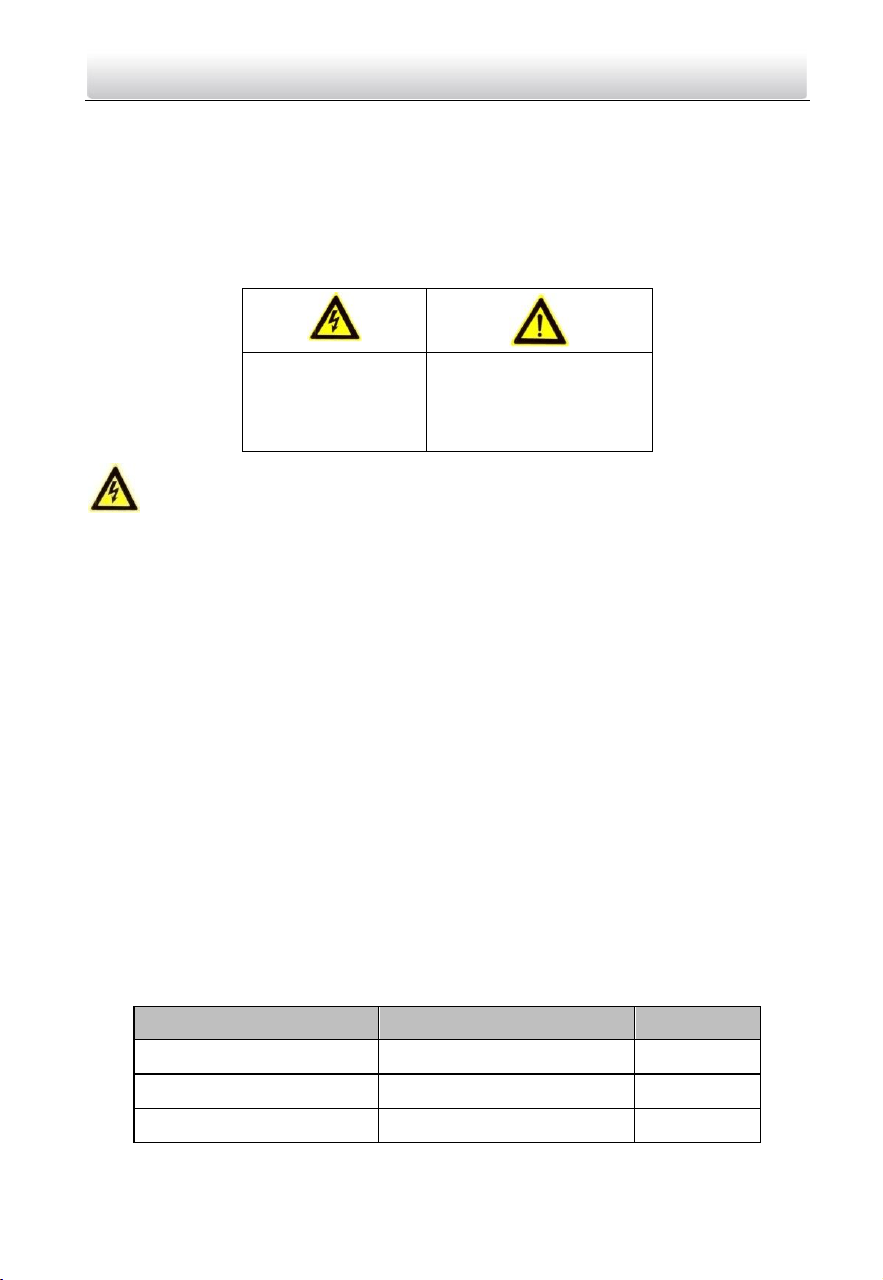
The precaution measure is divided into Warnings and Cautions:
Warnings: Neglecting any of the warnings may cause serious injury or death.
Cautions: Neglecting any of the cautions may cause injury or equipment damage.
Warnings
The working temperature of the device is from -40º C to 60º C.
All the electronic operation should be strictly compliance with the electrical safety
regulations, fire prevention regulations and other related regulations in your local
region.
Please use the power adapter, which is provided by normal company. The power
consumption cannot be less than the required value.
Do not connect several devices to one power adapter as adapter overload may cause
over-heat or fire hazard.
Please make sure that the power has been disconnected before you wire, install or
dismantle the device.
When the product is installed on wall or ceiling, the device shall be firmly fixed.
If smoke, odors or noise rise from the device, turn off the power at once and unplug
the power cable, and then please contact the service center.
If the product does not work properly, please contact your dealer or the nearest
service center. Never attempt to disassemble the device yourself. (We shall not
assume any responsibility for problems caused by unauthorized repair or
maintenance.)
The power supply must conform to LPS. The recommended adaptor models and
manufacturers are shown as below. Use the attached adaptor, and do not change the
adaptor randomly.
Model
Manufacturer
Standard
DSA-12PFG-12 FCH 120100
Dee Van Electronics Co., Ltd.
GB
DSA-12PFG-12 FEU 120100
Dee Van Electronics Co., Ltd.
EN
DSA-12PFT-12FUS120100
Dee Van Electronics Co., Ltd.
ANSI
Warnings Follow
these safeguards to
prevent serious
injury or death.
Cautions Follow these
precautions to prevent
potential injury or
material damage.
Video Intercom Door Station·User Manual
vii
Model
Manufacturer
Standard
DSA-12PFG-12 FUK 120100
Dee Van Electronics Co., Ltd.
BSW
DSA-12PFG-12 FAU 120100
Dee Van Electronics Co., Ltd.
AS
Cautions
Do not drop the device or subject it to physical shock, and do not expose it to high
electromagnetism radiation. Avoid the equipment installation on vibrations surface or
places subject to shock (ignorance can cause equipment damage).
Do not place the device in extremely hot (refer to the specification of the device for
the detailed operating temperature), cold, dusty or damp locations, and do not
expose it to high electromagnetic radiation.
The device cover for indoor use shall be kept from rain and moisture.
Exposing the equipment to direct sun light, low ventilation or heat source such as
heater or radiator is forbidden (ignorance can cause fire danger).
Do not aim the device at the sun or extra bright places. A blooming or smear may
occur otherwise (which is not a malfunction however), and affecting the endurance of
sensor at the same time.
Please use the provided glove when open up the device cover, avoid direct contact
with the device cover, because the acidic sweat of the fingers may erode the surface
coating of the device cover.
Please use a soft and dry cloth when clean inside and outside surfaces of the device
cover, do not use alkaline detergents.
Please keep all wrappers after unpack them for future use. In case of any failure
occurred, you need to return the device to the factory with the original wrapper.
Transportation without the original wrapper may result in damage on the device and
lead to additional costs.
Improper use or replacement of the battery may result in hazard of explosion.
Replace with the same or equivalent type only. Dispose of used batteries according to
the instructions provided by the battery manufacturer.

Video Intercom Door Station·User Manual
viii
Table of Contents
1 Overview ...................................................................................................... 1
1.1 Introduction ........................................................................................................ 1
1.2 Main Features ..................................................................................................... 1
2 Appearance .................................................................................................. 2
2.1 Appearance of DS-KD8102-V ................................................................................ 2
2.2 Appearance of DS-KD8002-VM ............................................................................. 3
2.3 Appearance of DS-KD3002-VM ............................................................................. 4
3 Typical Application ....................................................................................... 5
4 Terminal and Wiring ..................................................................................... 6
4.1 Terminal Description ............................................................................................ 6
4.1.1 Terminals and Interfaces of DS-KD8102-V/ DS-KD8002-VM ............................. 6
4.1.2 Terminals and Interfaces of DS-KD3002-VM .................................................... 8
4.2 Wiring Description ............................................................................................. 10
4.2.1 Door Lock Wiring......................................................................................... 10
4.2.2 Door Magnetic Wiring ................................................................................. 10
4.2.3 Exit Button Wiring ....................................................................................... 12
4.2.4 External Card Reader Wiring ........................................................................ 13
4.2.5 External Elevator Controller Wiring .............................................................. 15
4.2.6 Alarm Device Input Wiring ........................................................................... 15
4.2.7 Alarm Device Output Wiring ........................................................................ 16
5 Installation ................................................................................................. 18
5.1 Installation of DS-KD8102-V ............................................................................... 18
5.1.1 Gang Box for DS-KD8102-V .......................................................................... 18
5.1.2 Wall Mounting with Gang Box of DS-KD8102-V............................................. 19
5.2 Installation of DS-KD8002-VM ............................................................................ 21
5.2.1 Gang Box for DS-KD8002-VM ....................................................................... 21
5.2.2 Wall Mounting with Gang Box of DS-KD8002-VM ......................................... 21
5.3 Installation of DS-KD3002-VM ............................................................................ 24
5.3.1 Gang Box for DS-KD3002-VM ....................................................................... 24
5.3.2 Wall Mounting with Gang Box of DS-KD3002-VM ......................................... 24
6 Local Operation .......................................................................................... 27
6.1 Keys Description ................................................................................................ 27
6.2 Activate Device .................................................................................................. 27
6.3 Status ................................................................................................................ 29
6.4 Set Parameters .................................................................................................. 29
6.4.1 Set Door Station No. .................................................................................... 30
6.4.2 Edit Network Parameters ............................................................................. 31
6.4.3 Change Password ........................................................................................ 32
6.4.4 Issue Card ................................................................................................... 34

Video Intercom Door Station·User Manual
ix
6.4.5 Set Volume.................................................................................................. 36
6.4.6 About.......................................................................................................... 37
6.4.7 Change System Language............................................................................. 37
6.4.8 Open Source Software Licenses.................................................................... 38
6.5 Call Resident ...................................................................................................... 38
6.6 Unlock Door ...................................................................................................... 39
7 Remote Operation via Batch Configuration Tool ......................................... 40
7.1 Activate Device Remotely................................................................................... 40
7.2 Edit Network Parameters ................................................................................... 41
7.3 Add Device ........................................................................................................ 42
7.3.1 Add Online Device ....................................................................................... 42
7.3.2 Add by IP Address ........................................................................................ 43
7.3.3 Add by IP Segment ...................................................................................... 44
7.4 Configure Devices Remotely ............................................................................... 45
7.4.1 System ........................................................................................................ 45
7.4.2 Video Intercom ........................................................................................... 51
7.4.3 Network ...................................................................................................... 56
7.4.4 Video Display .............................................................................................. 60
7.5 Video Intercom Device Set-up Tool ..................................................................... 61
7.5.1 Set a Community Structure .......................................................................... 61
7.5.2 Set Main/Sub Door Station .......................................................................... 62
7.6 Batch Upgrading ................................................................................................ 64
7.6.1 Add Devices for Upgrading ........................................................................... 64
7.6.2 Upgrade Devices .......................................................................................... 67
8 Remote Operation via iVMS-4200 .............................................................. 68
8.1 System Configuration ......................................................................................... 68
8.2 Device Management .......................................................................................... 69
8.2.1 Add Video Intercom Devices ........................................................................ 69
8.2.2 Modify Network Information ....................................................................... 71
8.2.3 Reset Password ........................................................................................... 72
8.3 Remote Configuration ........................................................................................ 74
8.4 Person and Card Management ........................................................................... 74
8.4.1 Organization Management .......................................................................... 76
8.4.2 Person Management ................................................................................... 77
8.5 Video Intercom.................................................................................................. 83
8.5.1 Receive Call from Indoor Station/Door Station ............................................. 84
8.5.2 View Live Video of Door Station and Outer Door Station .............................. 85
8.5.3 View Call Logs ............................................................................................. 86
8.5.4 Release Notice ............................................................................................ 87
8.5.5 Search Video Intercom Information ............................................................. 90
Appendix....................................................................................................... 94
Installation Notice ................................................................................................... 94
Wiring Cables .......................................................................................................... 94

Video Intercom Door Station·User Manual
1
1 Overview
1.1 Introduction
The video intercom system can realize functions such as video intercom,
resident-to-resident video call, live view of HD video, access control, one-card system,
elevator linkage, 8-ch zone alarm, notice information and visitor messages to provide a
complete smart community video intercom solution.
The video intercom door station is mainly applied to situations such as community, villa,
and official buildings.
1.2 Main Features
Video intercom function
HD video (Max. resolution 1280×720@30fps, WDR, 120° wide angle)
Self-adaptive light supplement
Access control function
Activating card via local station function (This function will be invalid if the card has
been activated via iVMS-4200)
Auto-uploading captured pictures to FTP or iVMS-4200 Client while unlocking the
door
Elevator linkage
Door magnetic alarm and tamper-proof alarm function
Noise suppression and echo cancellation
IR detection (only supported by DS-KD8102-V model)
Remote upgrade, batch setting, upgrade via USB flash disk functions
Video Intercom Door Station·User Manual
2
2 Appearance
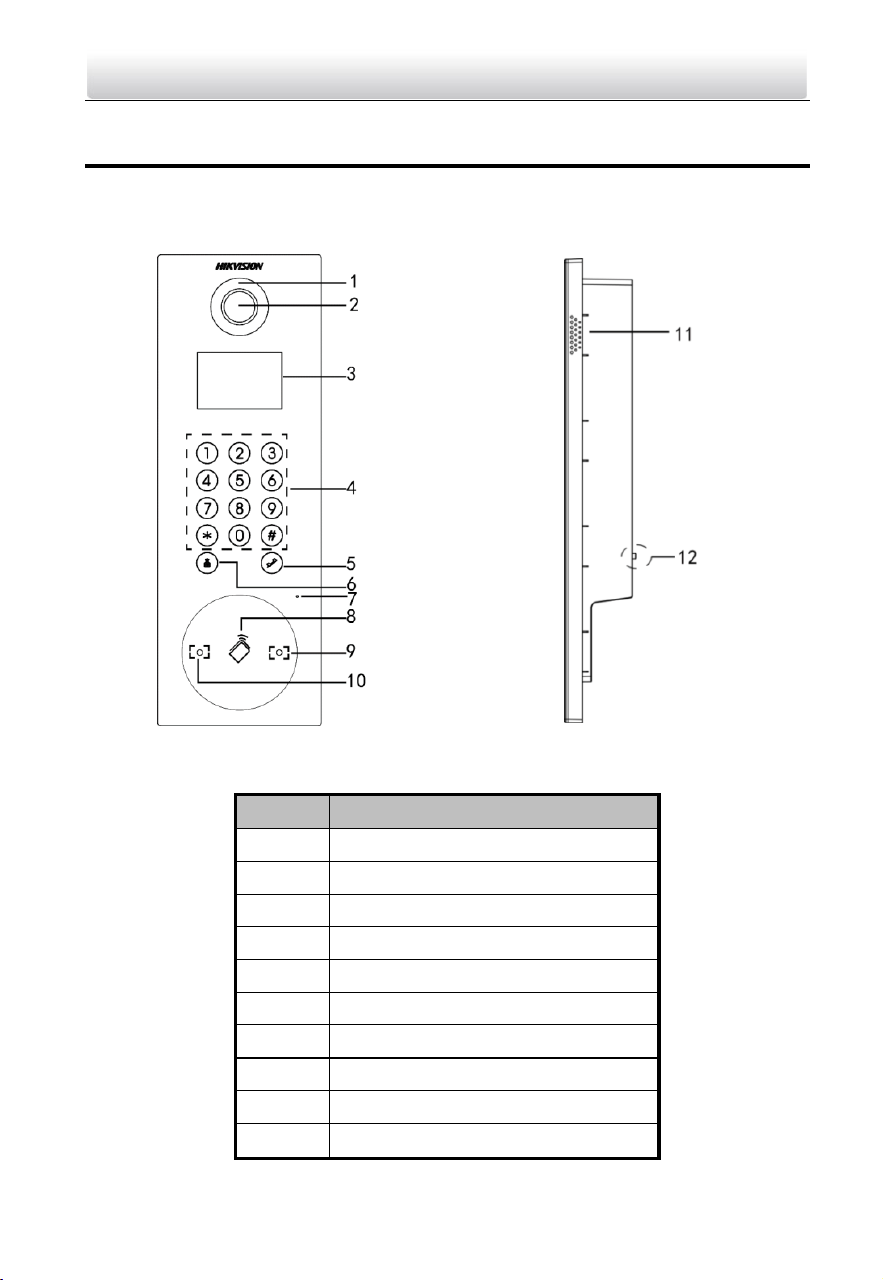
2.1 Appearance of DS-KD8102-V
Table 2-1 Descriptions of Keys
No.
Description
1
Low Illumination Supplement Light
2
Built-in Camera
3
LCD Display Screen
4
Keypad
5
Call Button
6
Call Center Key
7
Microphone
8
Card Induction Area
9
IR Emission
10
IR Receiver
Video Intercom Door Station·User Manual
3
11
Loudspeaker
12
TAMPER
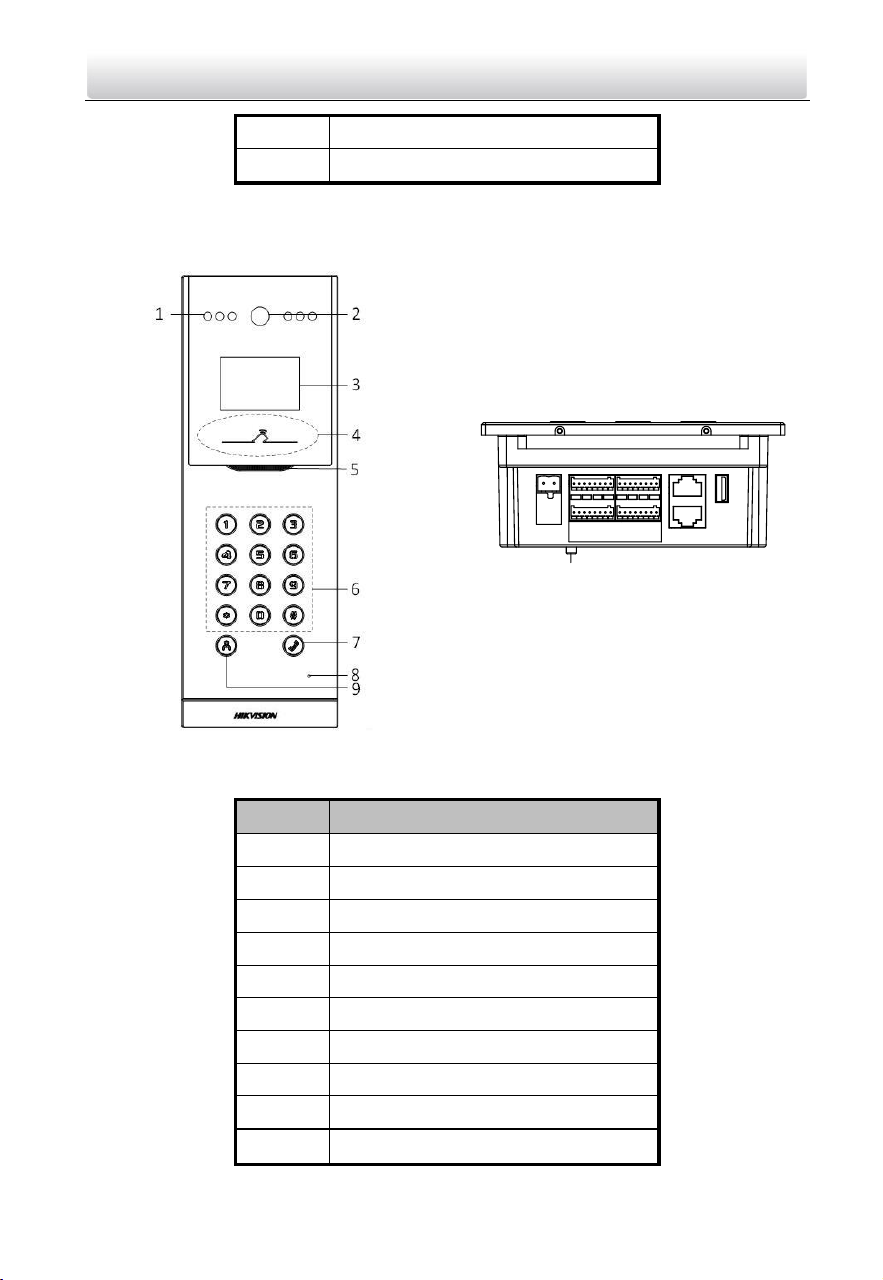
2.2 Appearance of DS-KD8002-VM
10
Table 2-2 Descriptions of Keys
No.
Description
1
Low Illumination Supplement Light
2
Built-in Camera
3
LCD Display Screen
4
Card Induction Area
5
Loudspeaker
6
Keypad
7
Call Button
8
Microphone
9
Call Center Key
10
TAMPER
Video Intercom Door Station·User Manual
4
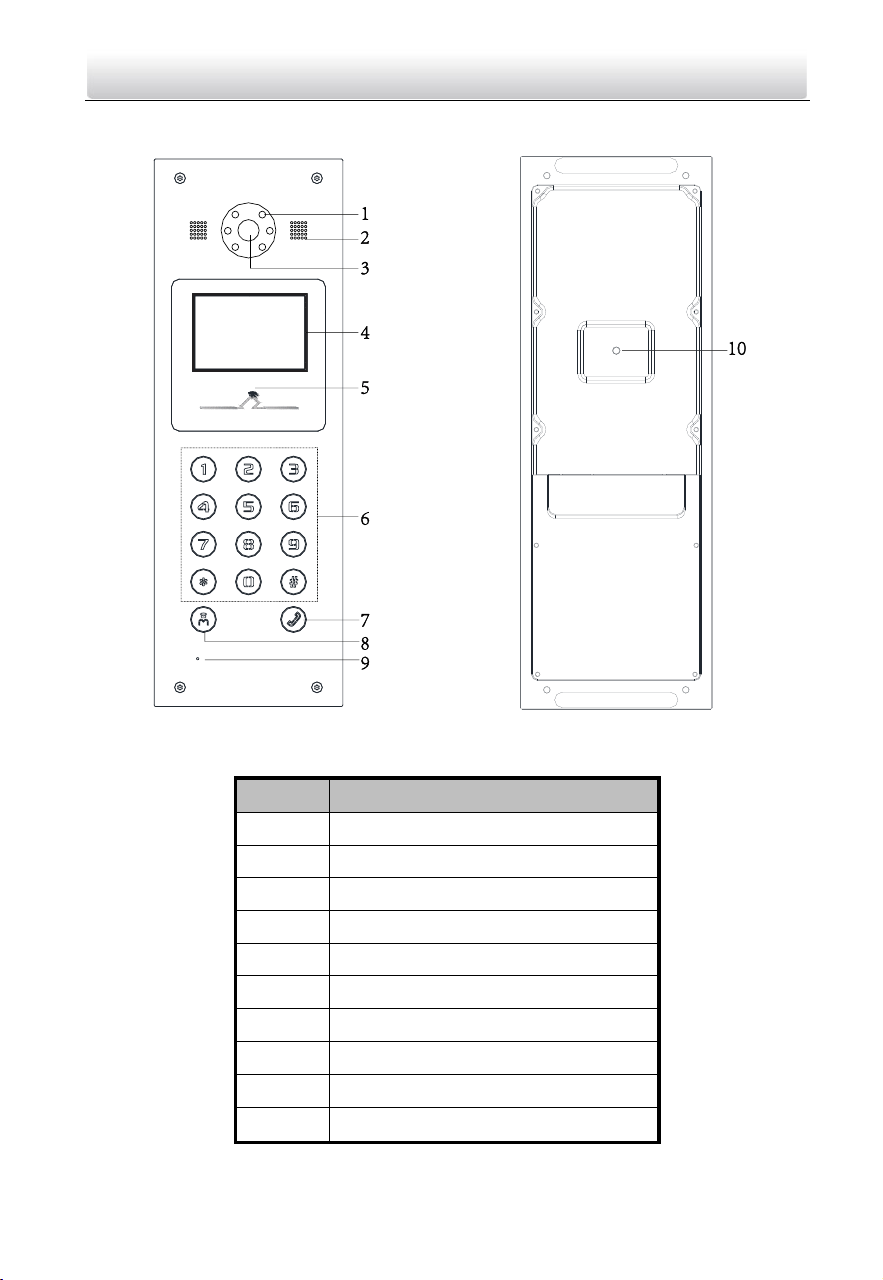
2.3 Appearance of DS-KD3002-VM
Table 2-3 Descriptions of Keys
No.
Description
1
Low Illumination Supplement Light
2
Built-in Camera
3
Loudspeaker
4
LCD Display Screen
5
Card Induction Area
6
Keypad
7
Call Button
8
Call Center Key
9
Microphone
10
TAMPER
Video Intercom Door Station·User Manual
5
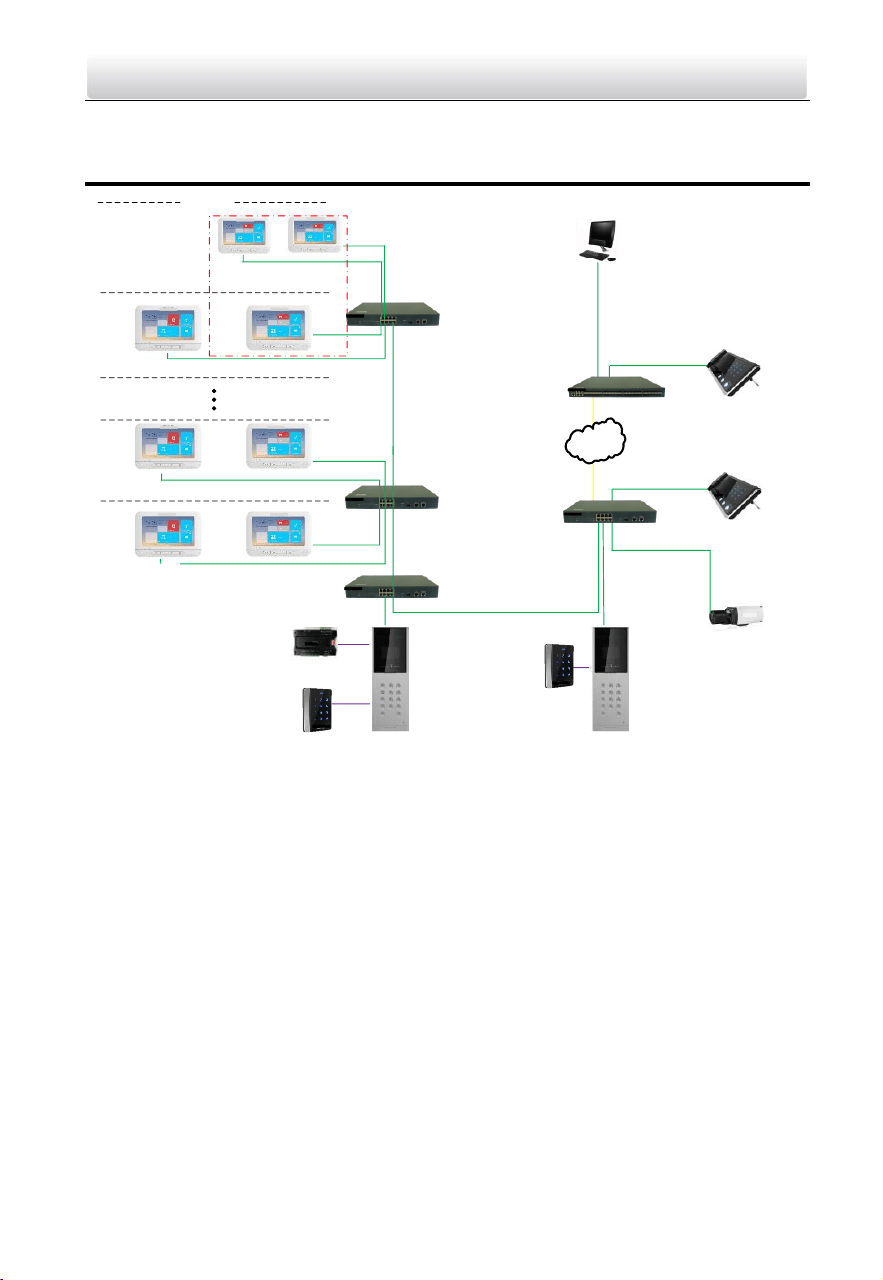
3 Typical Application
PC Client
Center Master
Station
Network
Camera
Master Station
(Guarding Room)
Outer Door Station
Card Reader
Card Reader
Indoor
Extension1
Indoor
Extension2
Elevator Controller
LAN
1F
2F
22F
Resident 1Resident 2
Resident 1Resident 2
Resident 1Resident 2
A Building
Door Station
v
v
v
v
v
v
v
v
Video Intercom Door Station·User Manual
6
4 Terminal and Wiring
4.1 Terminal Description
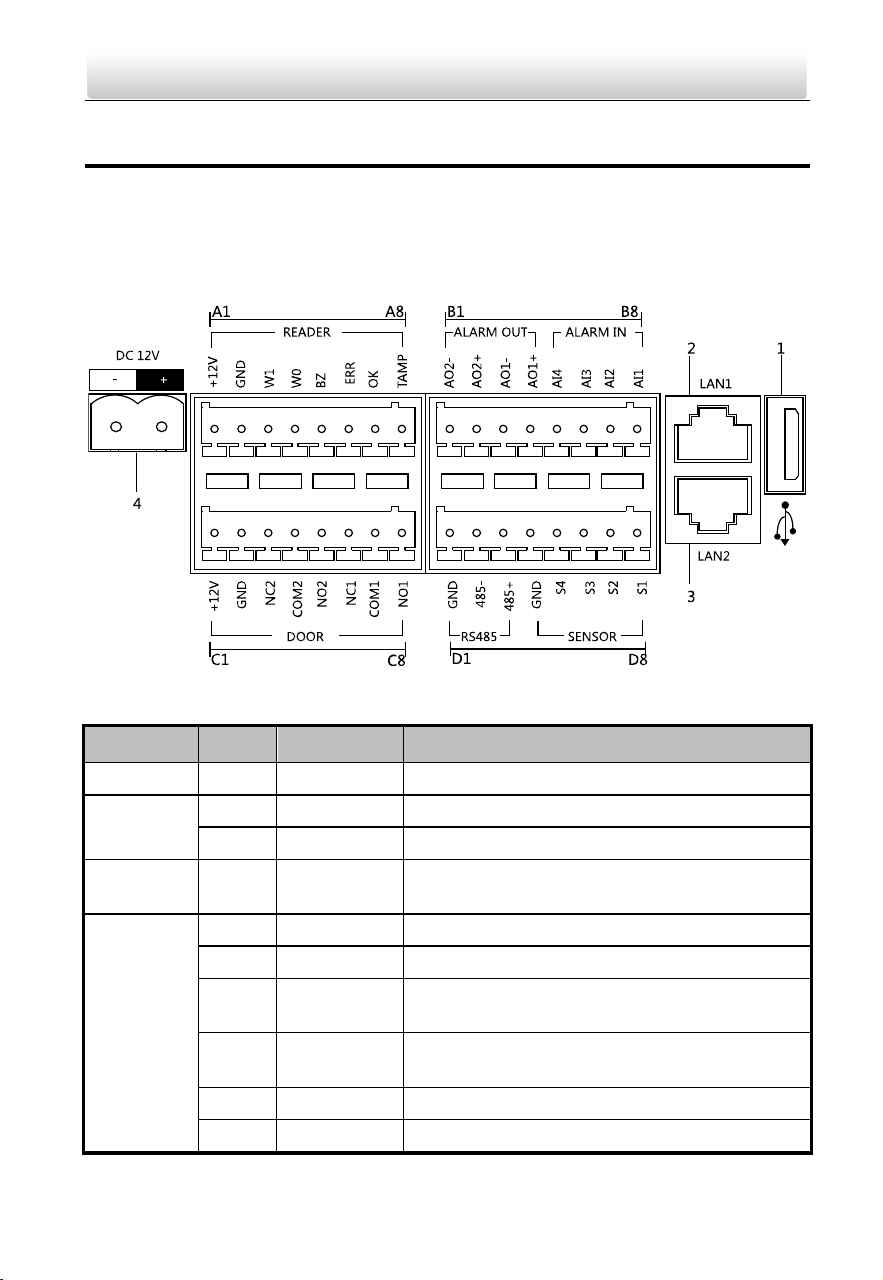
4.1.1 Terminals and Interfaces of DS-KD8102-V/ DS-KD8002-VM
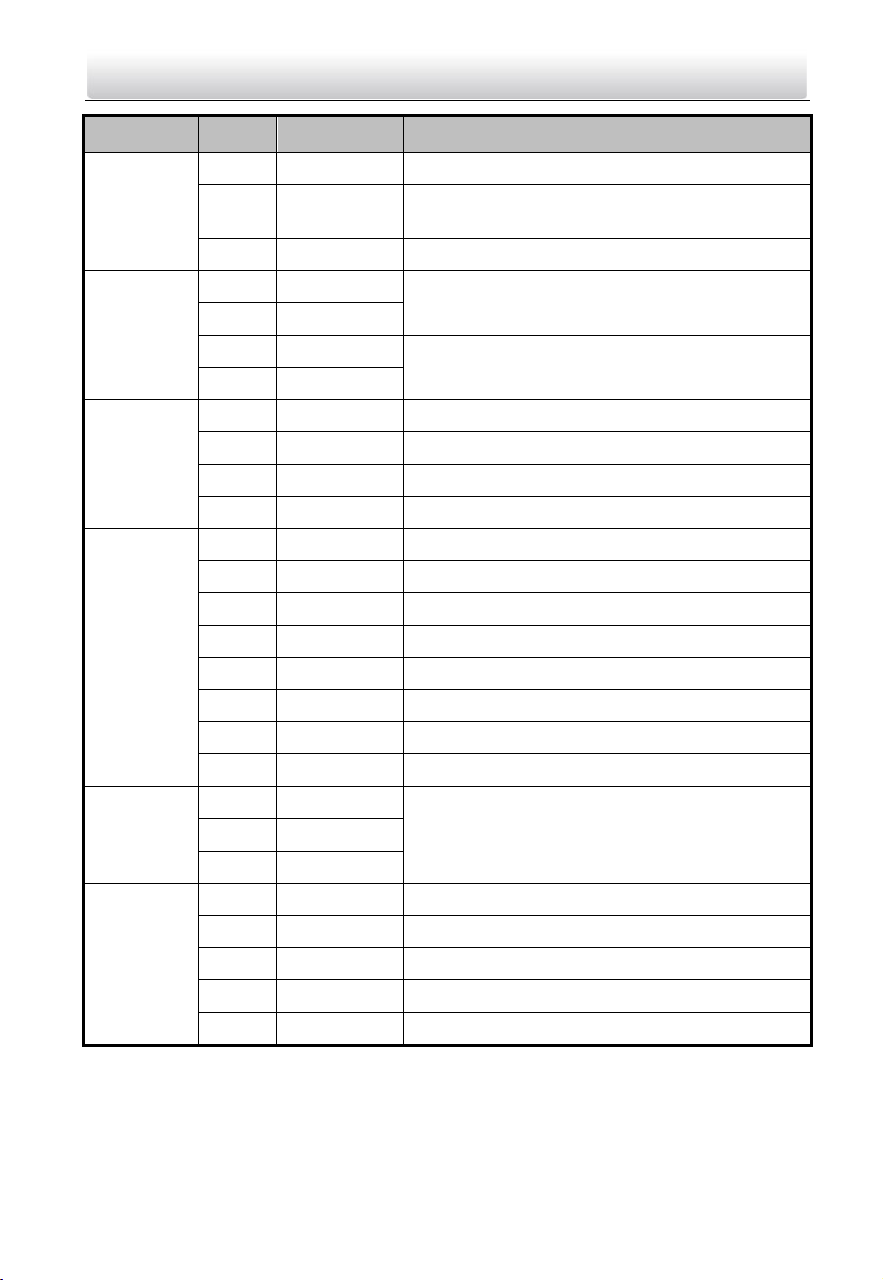
Table 4-1 Descriptions of Terminals and Interfaces
Name
No.
Interface
Description
USB
1
USB
USB Interface
LAN
2
LAN1
Network Interface
3
LAN2
Analog Interface
Power
Supply
4
DC 12V
DC 12V Power Supply Input
READER
A1
12V
Power Supply Output
A2
GND
Grounding
A3
W1
Data Input Interface Wiegand Card Reader:
Data1
A4
W0
Data Input Interface Wiegand Card Reader:
Data0
A5
BZ
Card Reader Buzzer Output
A6
ERR
Card Reader Indicator Output (Invalid Card
Video Intercom Door Station·User Manual
7
Name
No.
Interface
Description
Output)
A7
OK
Card Reader Indicator Output (Valid Card
Output)
A8
TAMP
Tamper-proof Input of Wiegand Card Reader
ALARM
OUT
B1
AO2-
Alarm Relay Output 2
B2
AO2+
B3
AO1-
Alarm Relay Output 1
B4
AO1+
ALARM IN
B5
AI4
Alarm Input 4
B6
AI3
Alarm Input 3
B7
AI2
Alarm Input 2
B8
AI1
Alarm Input 1
DOOR
C1
12V
Power Supply Output
C2
GND
Grounding
C3
NC2
Door Lock Relay Output (NC)
C4
COM2
Grounding Signal
C5
NO2
Door Lock Relay Output (NO)
C6
NC1
Door Lock Relay Output (NC)
C7
COM1
Grounding Signal
C8
NO1
Door Lock Relay Output (NO)
RS485
D1
GND
RS-485 Communication Interfaces
D2
485-
D3
485+
SENSOR
D4
GND
Grounding Signal
D5
S4
Door Magnetic Detection Input 4/Exit Button
D6
S3
Door Magnetic Detection Input 3/Exit Button
D7
S2
Door Magnetic Detection Input 2/Exit Button
D8
S1
Door Magnetic Detection Input 1/Exit Button
Video Intercom Door Station·User Manual
8
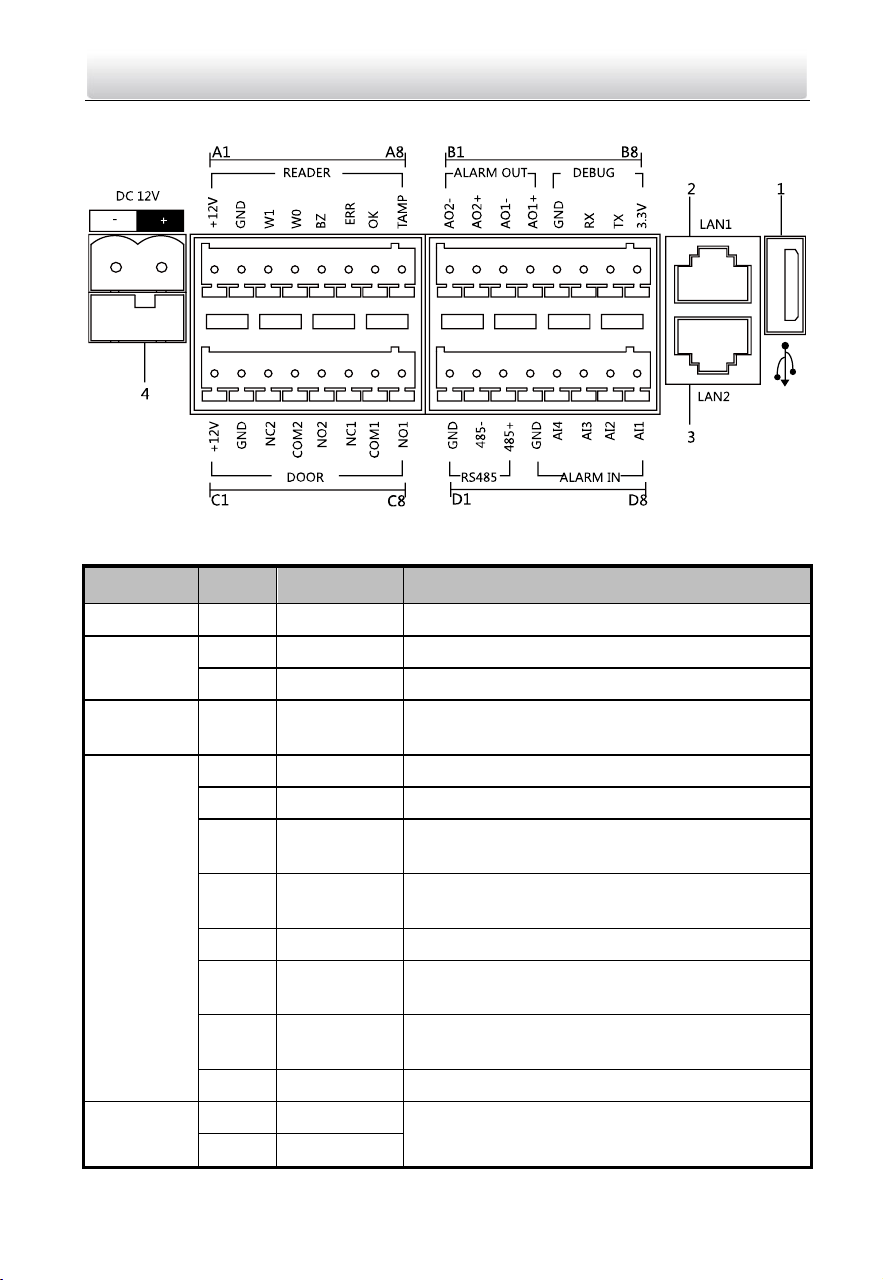
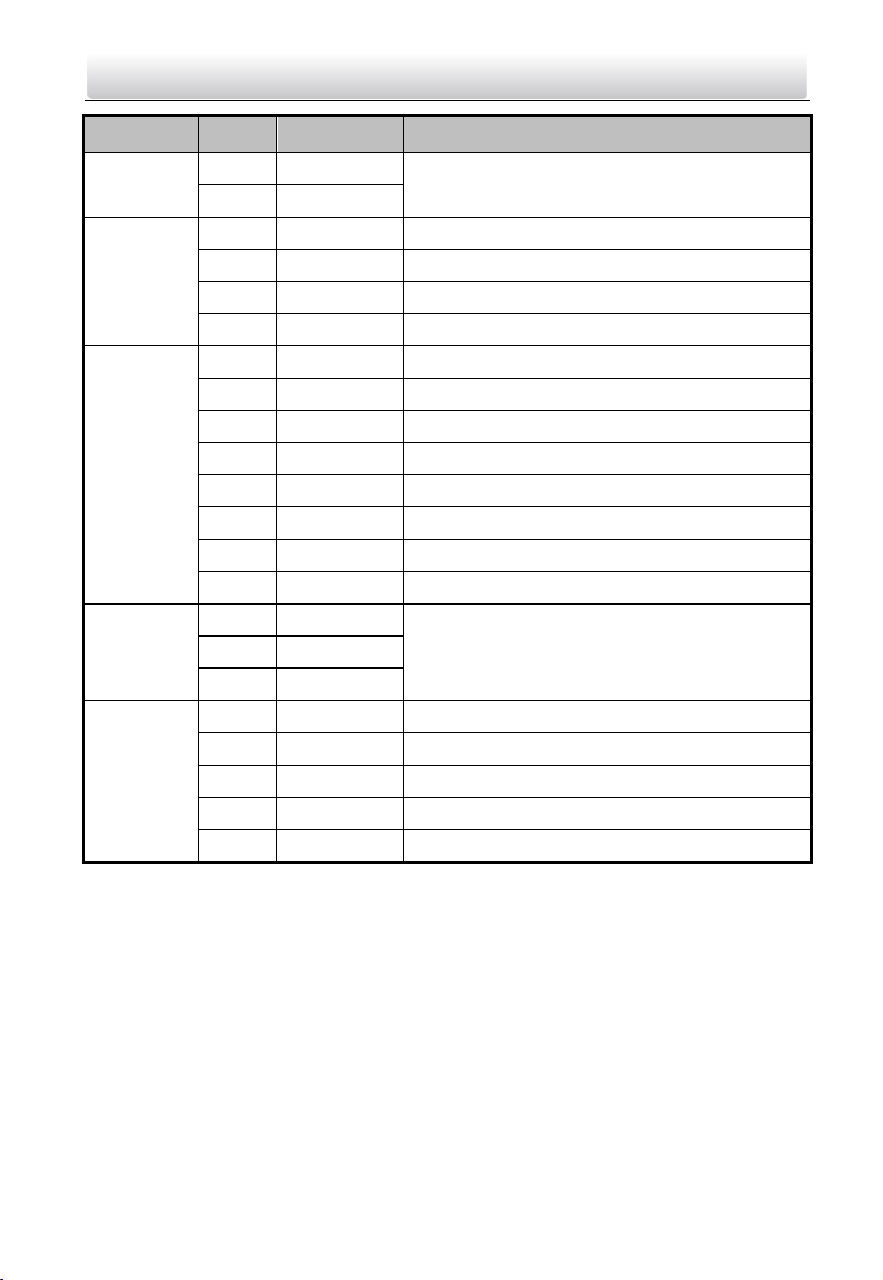
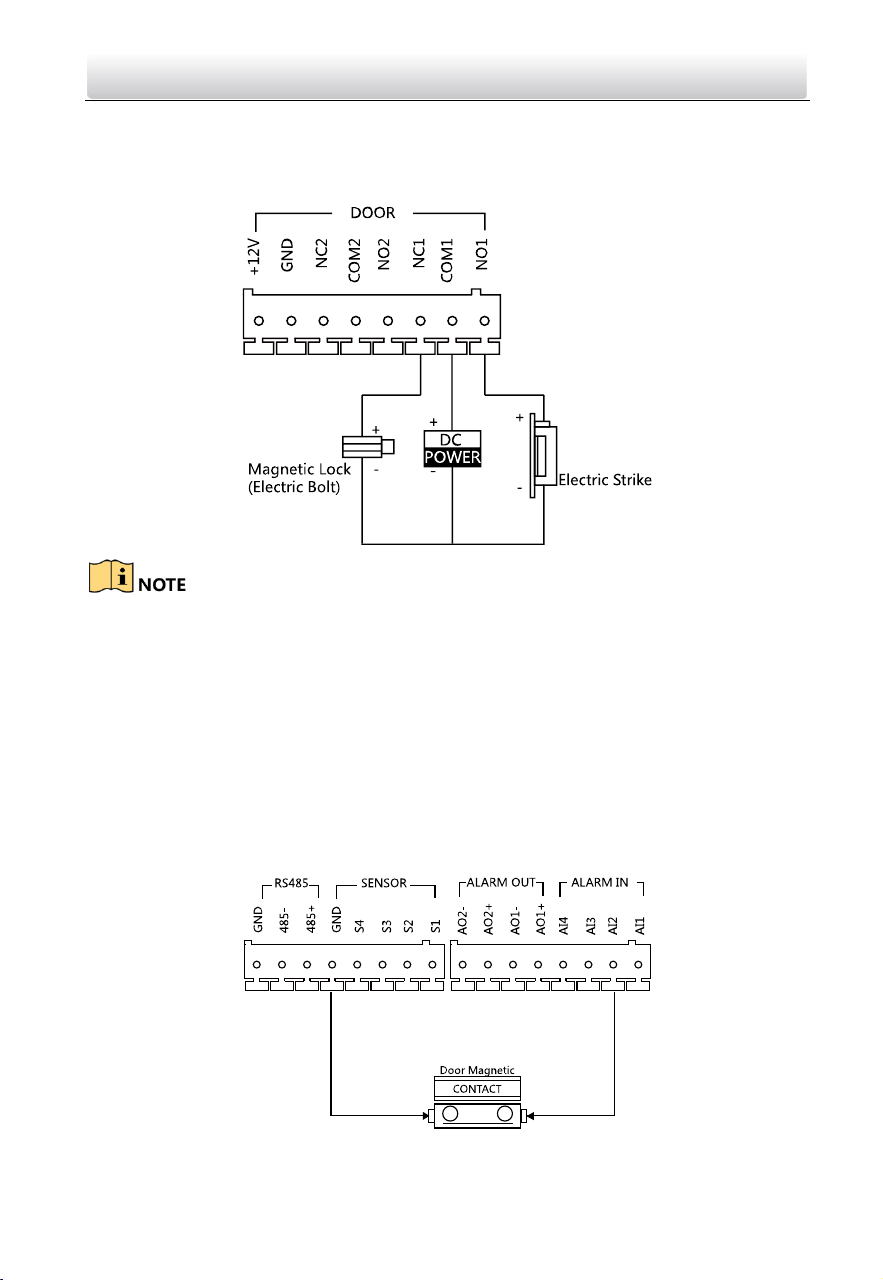
4.1.2 Terminals and Interfaces of DS-KD3002-VM
Table 4-2 Descriptions of Terminals and Interfaces
Name
No.
Interface
Description
USB
1
USB
USB Interface
LAN
2
LAN1
Network Interface
3
LAN2
Analog Interface
Power
Supply
4
DC 12V
DC 12V Power Supply Input
READER
A1
12V
Power Supply Output
A2
GND
Grounding
A3
W1
Data Input Interface Wiegand Card Reader:
Data1
A4
W0
Data Input Interface Wiegand Card Reader:
Data0
A5
BZ
Card Reader Buzzer Output
A6
ERR
Card Reader Indicator Output (Invalid Card
Output)
A7
OK
Card Reader Indicator Output (Valid Card
Output)
A8
TAMP
Tamper-proof Input of Wiegand Card Reader
ALARM
OUT
B1
AO2-
Alarm Relay Output 2
B2
AO2+
Video Intercom Door Station·User Manual
9
Name
No.
Interface
Description
B3
AO1-
Alarm Relay Output 1
B4
AO1+
DEBUG
B5
GND
Grounding
B6
RX
Serial Port Debugging/Receive data
B7
TX
Serial Port Debugging/Send data
B8
3.3V
Serial Port Debugging/Power Supply
DOOR
C1
12V
Power Supply Output
C2
GND
Grounding
C3
NC2
Door Lock Relay Output (NC)
C4
COM2
Grounding Signal
C5
NO2
Door Lock Relay Output (NO)
C6
NC1
Door Lock Relay Output (NC)
C7
COM1
Grounding Signal
C8
NO1
Door Lock Relay Output (NO)
RS485
D1
GND
RS-485 Communication Interfaces
D2
485-
D3
485+
ALARM IN
D4
GND
Grounding Signal
D5
AI4
Alarm Input 4
D6
AI3
Alarm Input 3
D7
AI2
Alarm Input 2
D8
AI1
Alarm Input 1
Video Intercom Door Station·User Manual
10
4.2 Wiring Description
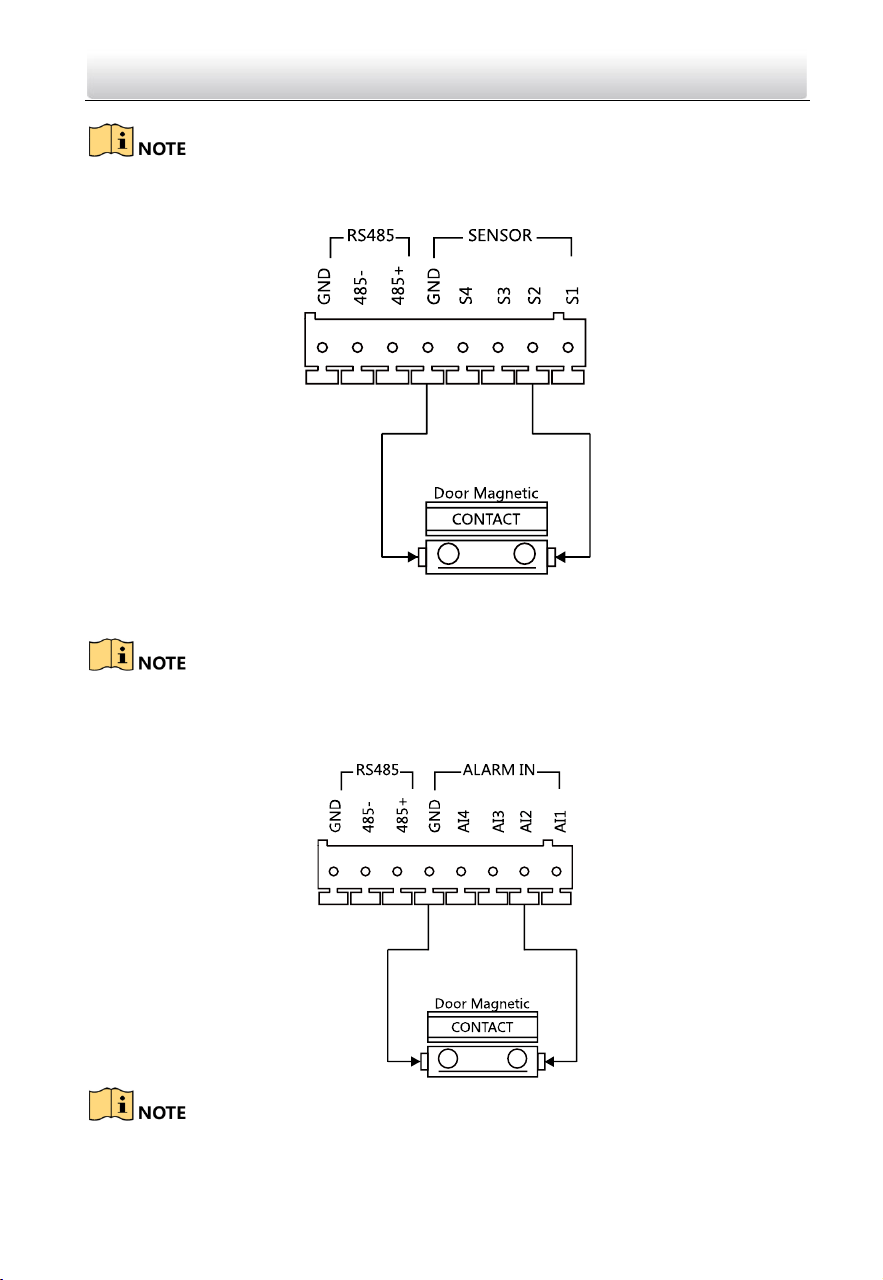
4.2.1 Door Lock Wiring
Terminal NC1/COM1 is set as default for accessing magnetic lock/electric bolt;
terminal NO1/COM1 is set as default for accessing electric strike.
To connect electric lock in terminal NO2/COM2/NC2, it is required to set the output of
terminal NO2/COM2/NC2 to be electric lock with Batch Configuration Tool or
iVMS-4200.
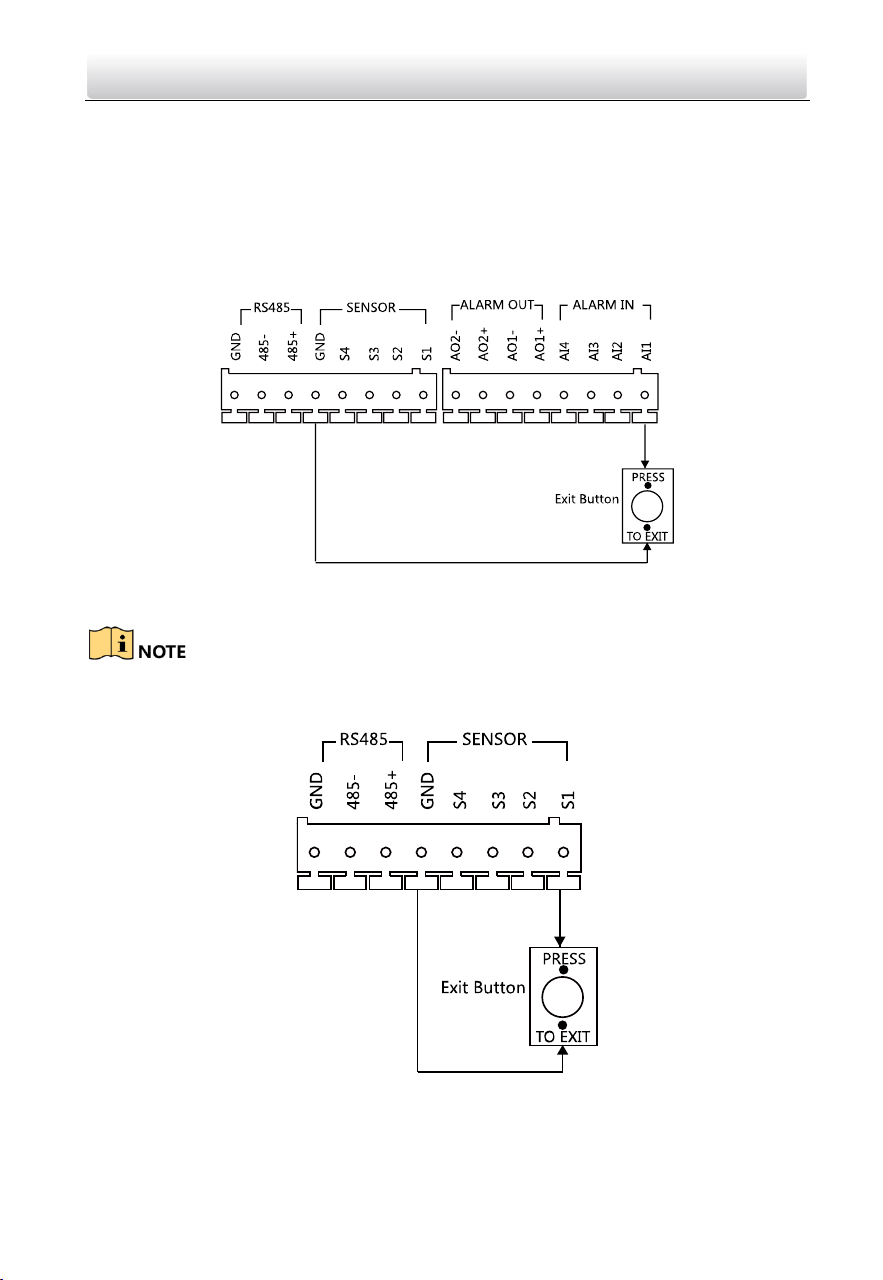
4.2.2 Door Magnetic Wiring
Door Magnetic Wiring for DS-KD8102-V/DS-KD8002-VM
For DS-KD8102-V/DS-KD8002-VM, there are two optional ways of door magnetic wiring.
Door Magnetic Wiring for DS-KD8102-V/DS-KD8002-VM (1)
Video Intercom Door Station·User Manual
11
To connect the door magnetic, it is required to set the output of terminal AI2 to be door
magnetic with Batch Configuration Tool or iVMS-4200.
Door Magnetic Wiring for DS-KD8102-V/DS-KD8002-VM (2)
Terminal S2 is set as default for connecting door magnetic.
Door Magnetic Wiring for DS-KD3002-VM
Video Intercom Door Station·User Manual
12
To connect the door magnetic, it is required to set the output of terminal AI2 to be door
magnetic with Batch Configuration Tool or iVMS-4200.
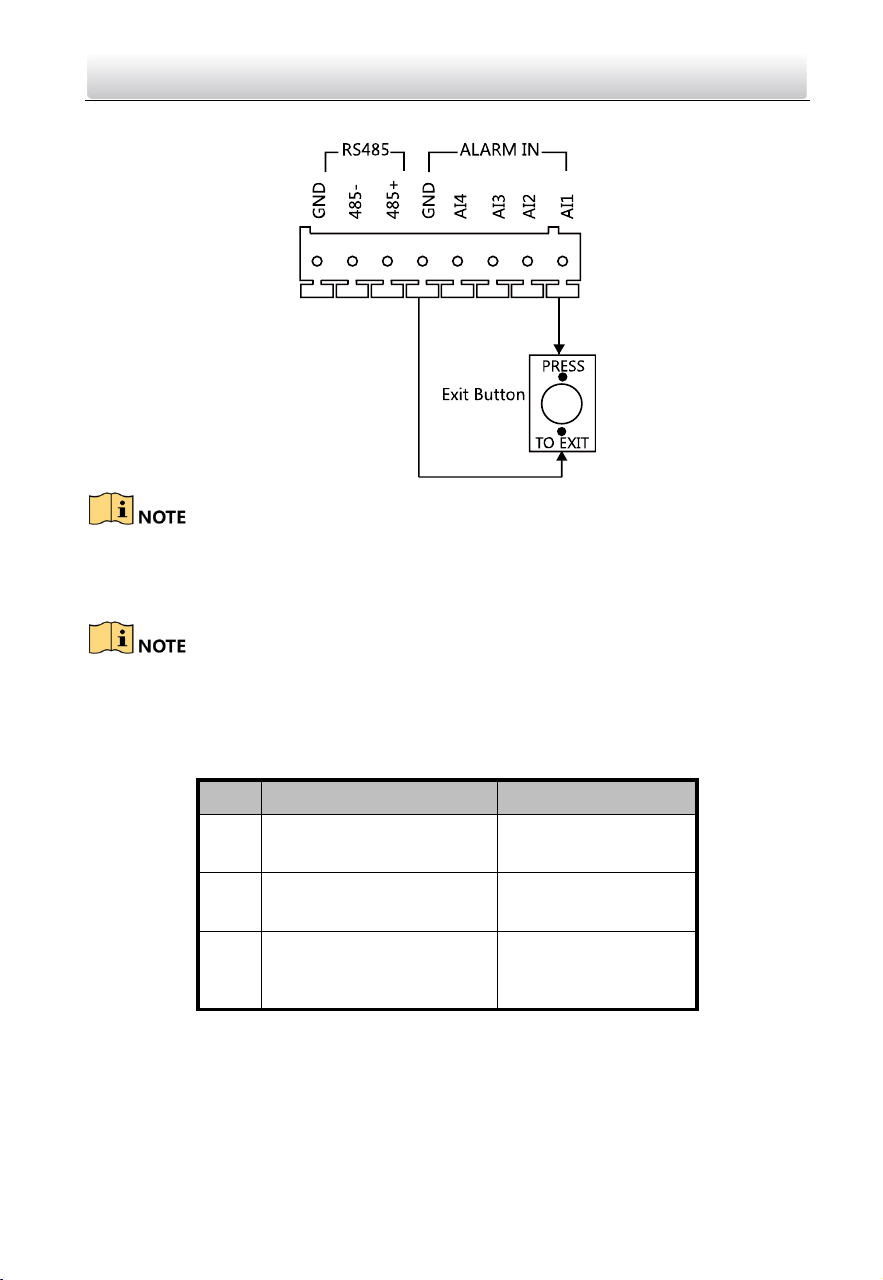
4.2.3 Exit Button Wiring
Exit Button Wiring for DS-KD8102-V/DS-KD8002-VM
For DS-KD8102-V/DS-KD8002-VM, there are two optional ways of exit button wiring.
Exit Button Wiring for DS-KD8102-V/DS-KD8002-VM (1)
To connect the exit button, it is required to set the output of terminal AI1 to be exit
button with Batch Configuration Tool or iVMS-4200.
Exit Button Wiring for DS-KD8102-V/DS-KD8002-VM (2)
Video Intercom Door Station·User Manual
13
Exit Button Wiring for DS-KD3002-VM
Terminal S1 is set as default for connecting exit button.
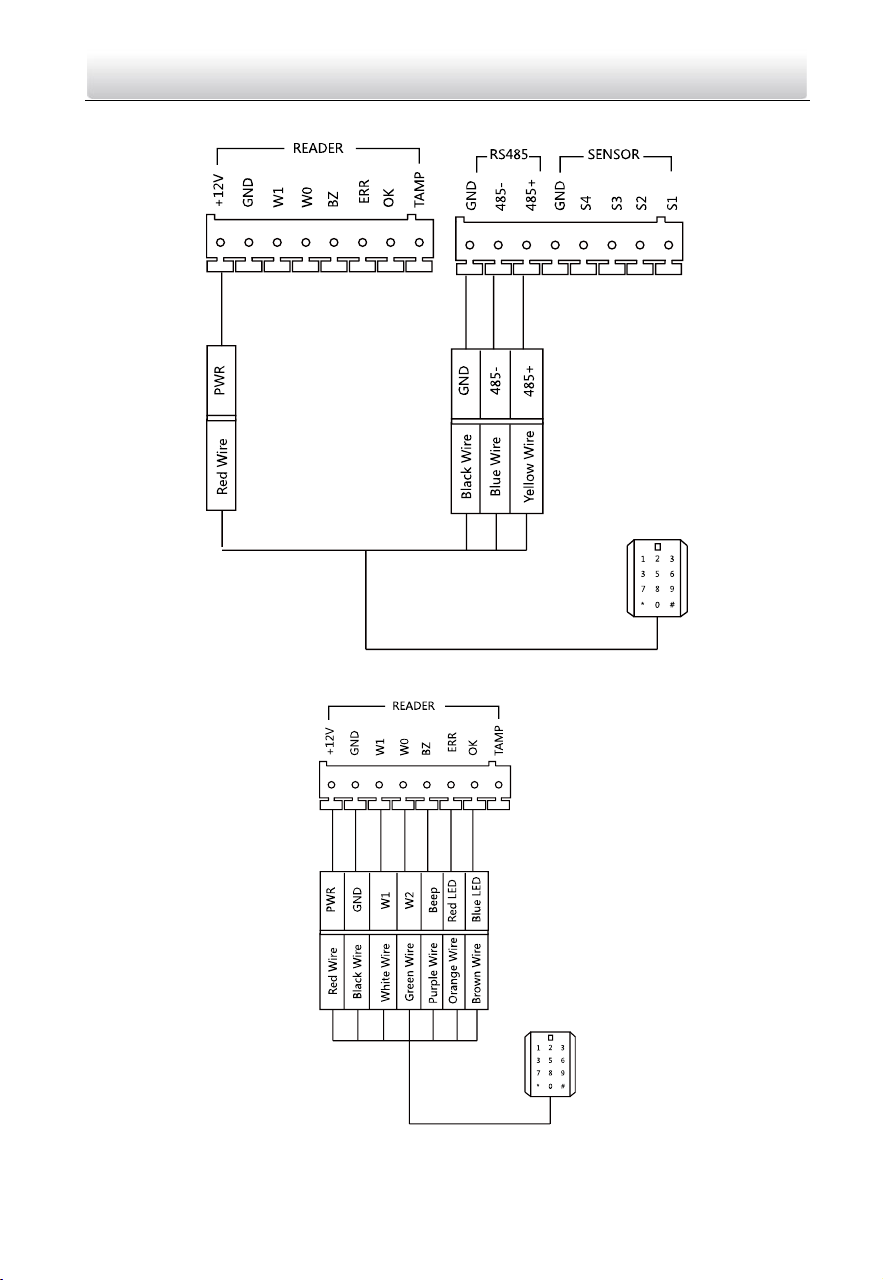
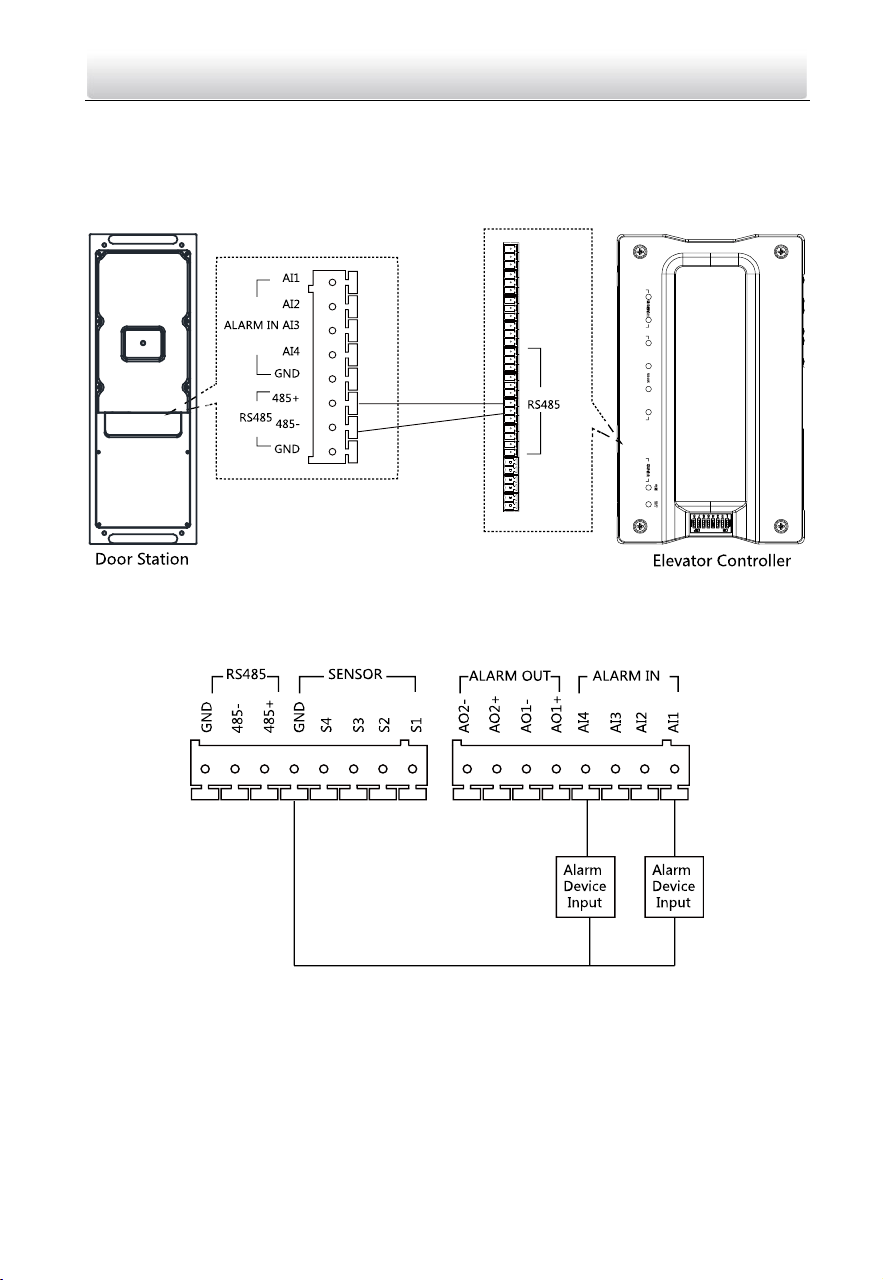
4.2.4 External Card Reader Wiring
Please set the DIP switch first before connecting the card reader.
If the DIP switch should be configured when the card reader is power-on, please
reboot the card reader after configuring the DIP switch.
The DIP switch description is shown in the following table:
No.
Description
How to Configure
1-4
Set the RS-485 address
ON: 1
OFF: 0
6
Select Wiegand protocol
or RS-485 protocol
ON: Wiegand
OFF: RS-485
7
Set the Wiegand protocol
(It is invalid when setting
OFF in 6.)
ON: Wiegand 26
OFF: Wiegand 34
Video Intercom Door Station·User Manual
14
RS-485 Card Reader Wiring
Wiegand Card Reader Wiring
Video Intercom Door Station·User Manual
15
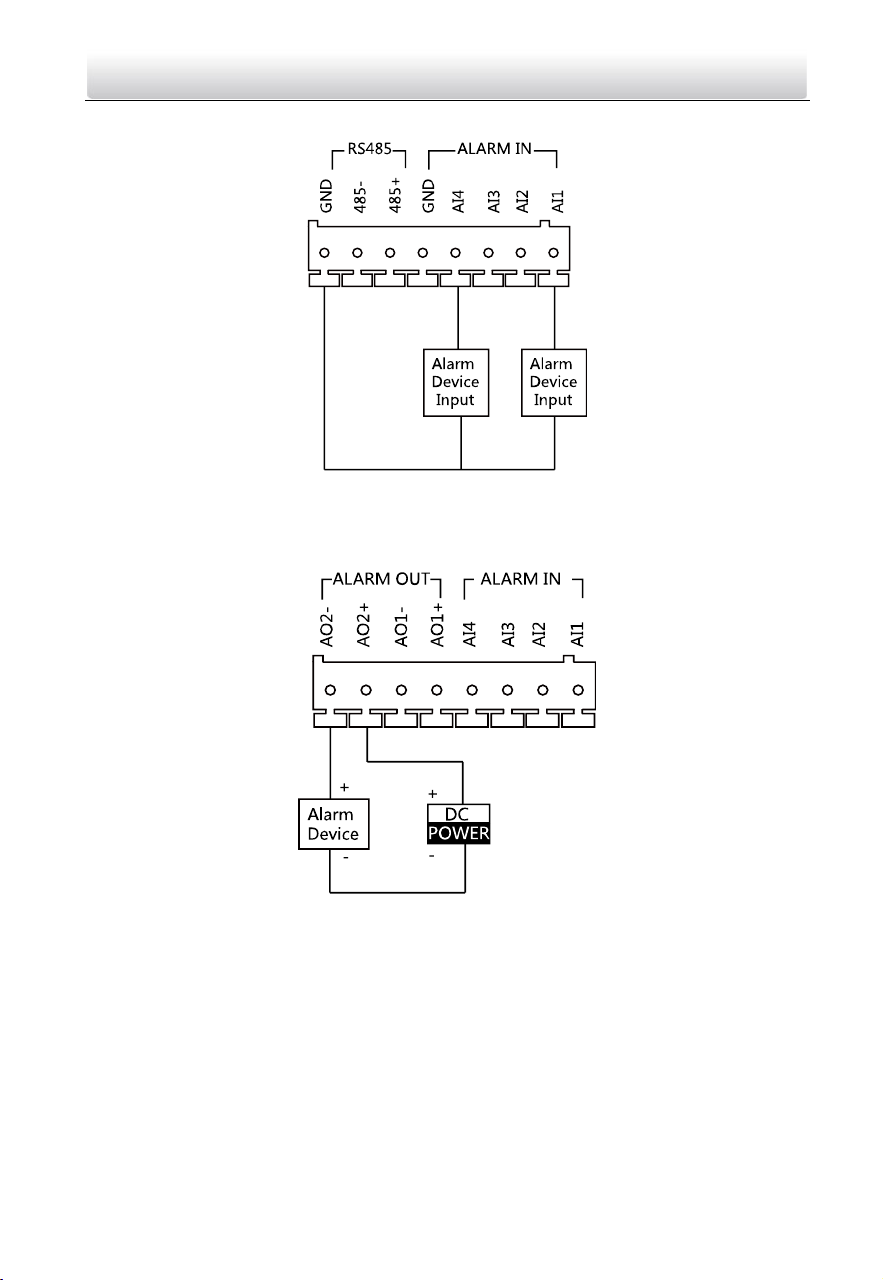
4.2.5 External Elevator Controller Wiring
You can connect the door station to the elevator controller via RS-485 interface.
There are 4 groups of RS-485 interfaces on the elevator controller: group A, group B,
Group C, and Group D. Group C is used to connect to the door station.
4.2.6 Alarm Device Input Wiring
Alarm Device Input Wiring for DS-KD8102-V
Video Intercom Door Station·User Manual
16
Alarm Device Input Wiring for DS-KD3002-VM
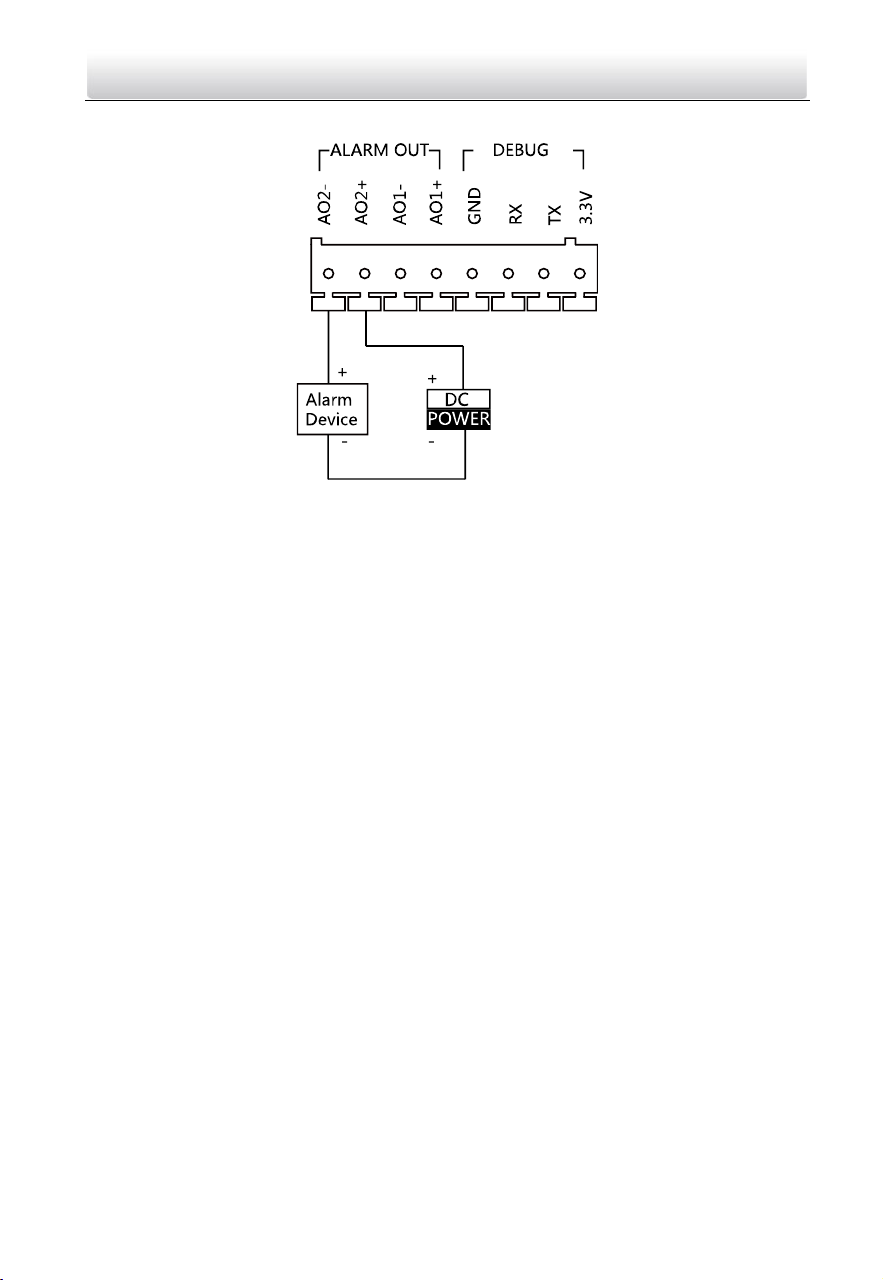
4.2.7 Alarm Device Output Wiring
Alarm Device Output Wiring for DS-KD8102-V/DS-KD8002-VM
Video Intercom Door Station·User Manual
17
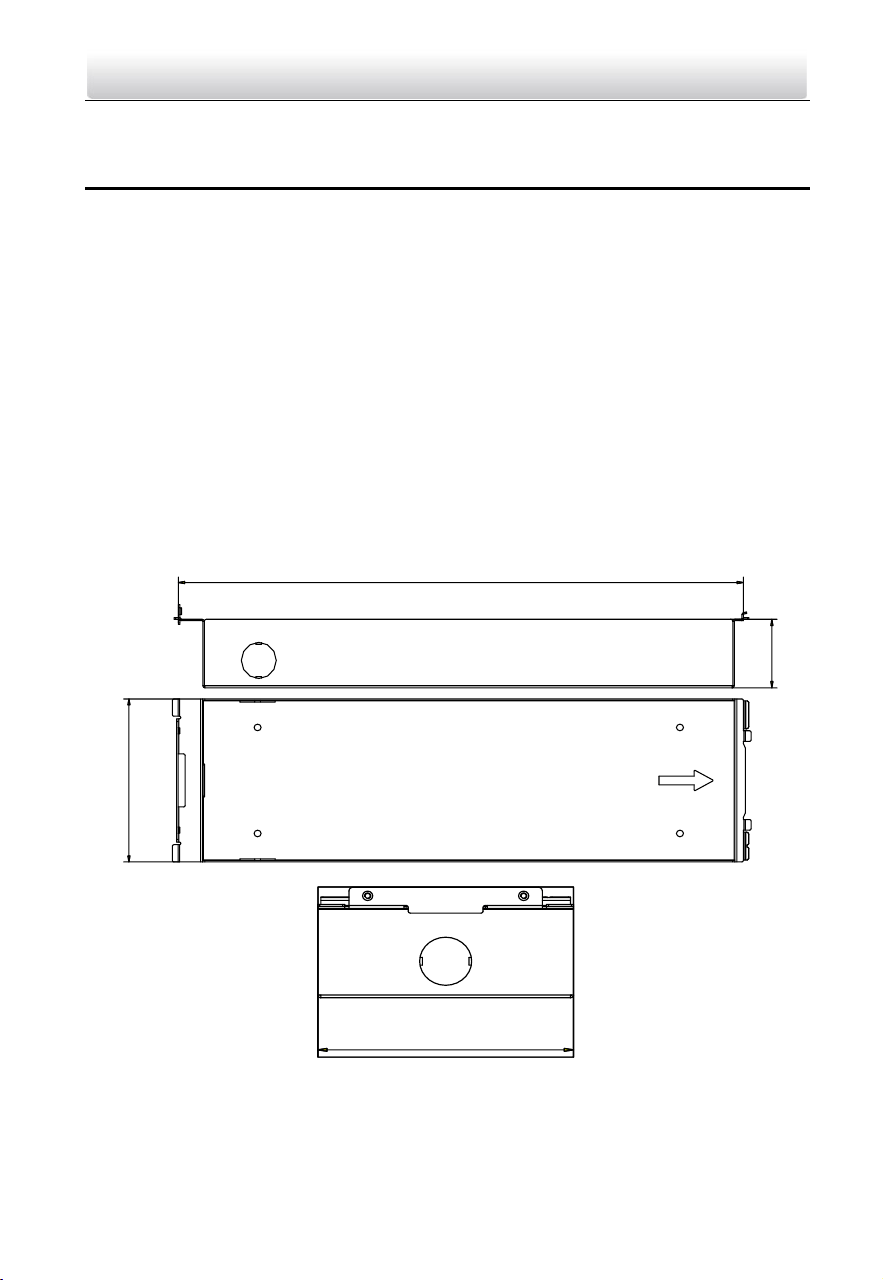
Alarm Device Output Wiring for DS-KD3002-VM
Video Intercom Door Station·User Manual
18
5 Installation
Before you start:
Make sure the device in the package is in good condition and all the assembly parts
are included.
The power supply the door station supports is 12 VDC. Please make sure your power
supply matches your door station.
Make sure all the related equipment is power-off during the installation.
Check the product specification for the installation environment.
5.1 Installation of DS-KD8102-V
To install the door station onto the wall, you are required to use a matched gang box.
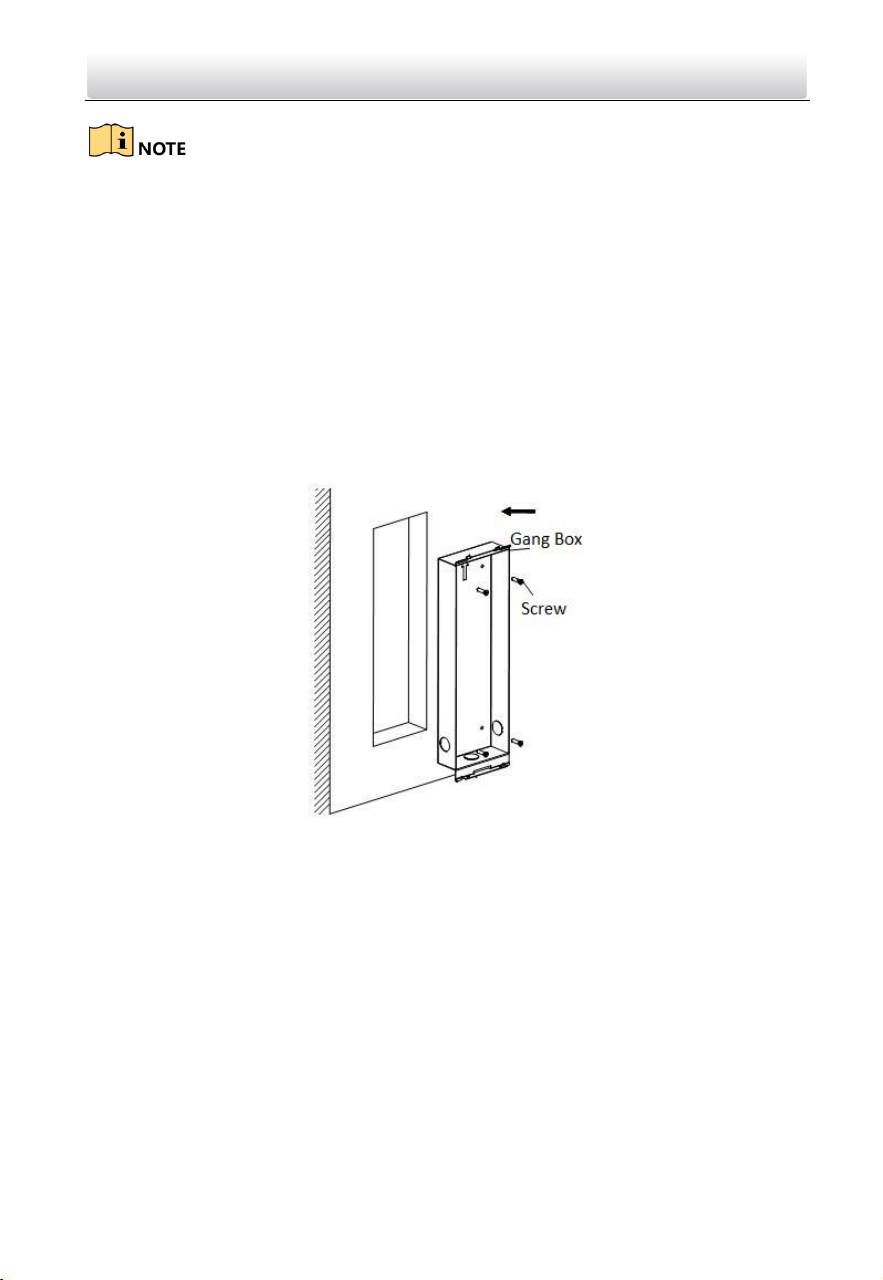
5.1.1 Gang Box for DS-KD8102-V
123
47.5
404
123
Video Intercom Door Station·User Manual
19
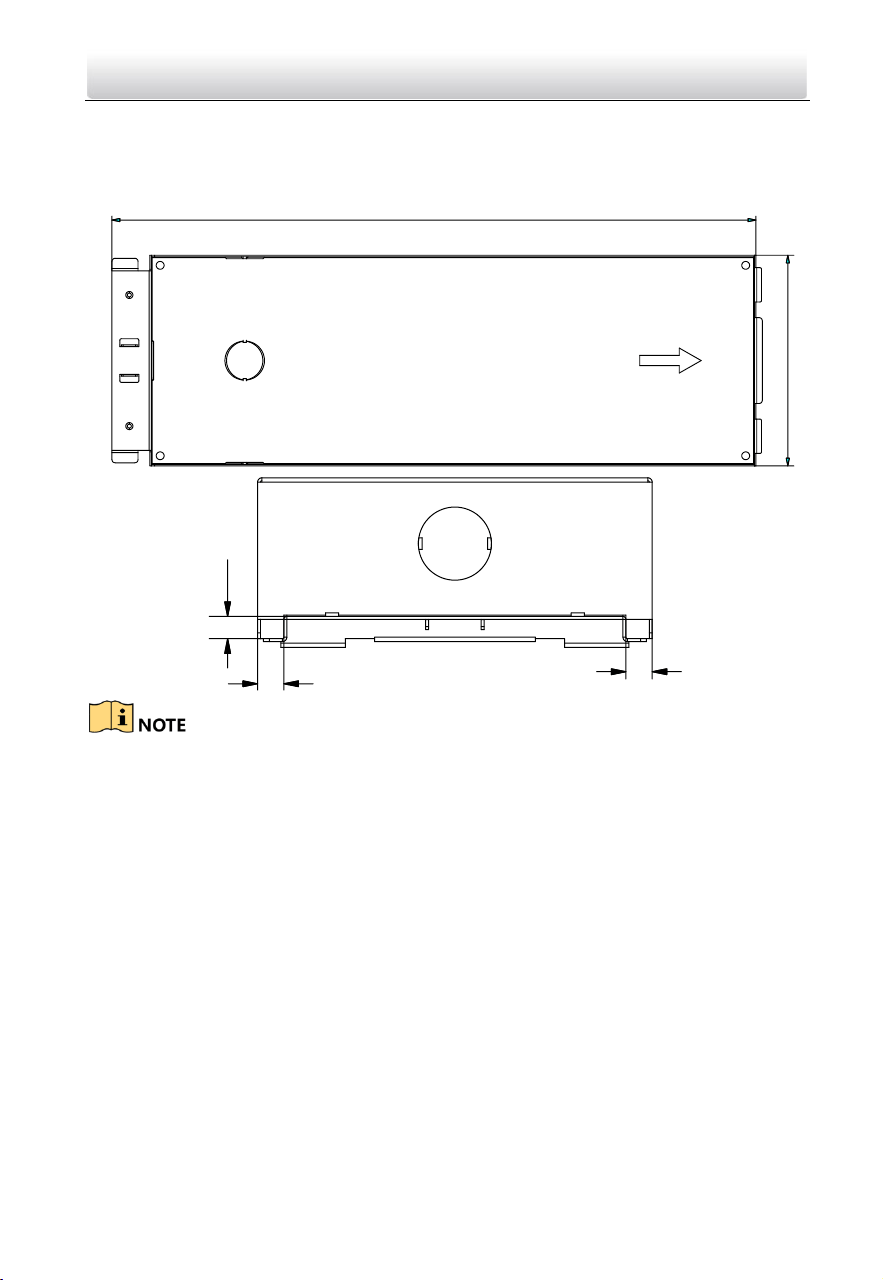
The dimension of gang box for model DS-KD8102-V door station is: 404 (length)×123
(width)×47.5 (depth) mm.
The dimensions above are for reference only. The actual size can be slightly different
from the theoretical dimension.
5.1.2 Wall Mounting with Gang Box of DS-KD8102-V
Steps:
1. Chisel a hole in the wall for inserting the gang box. The size of the hole should be
larger than that of the gang box. The suggested size of hole is 404.5 (length) × 123.5
(width) ×48 (depth) mm.
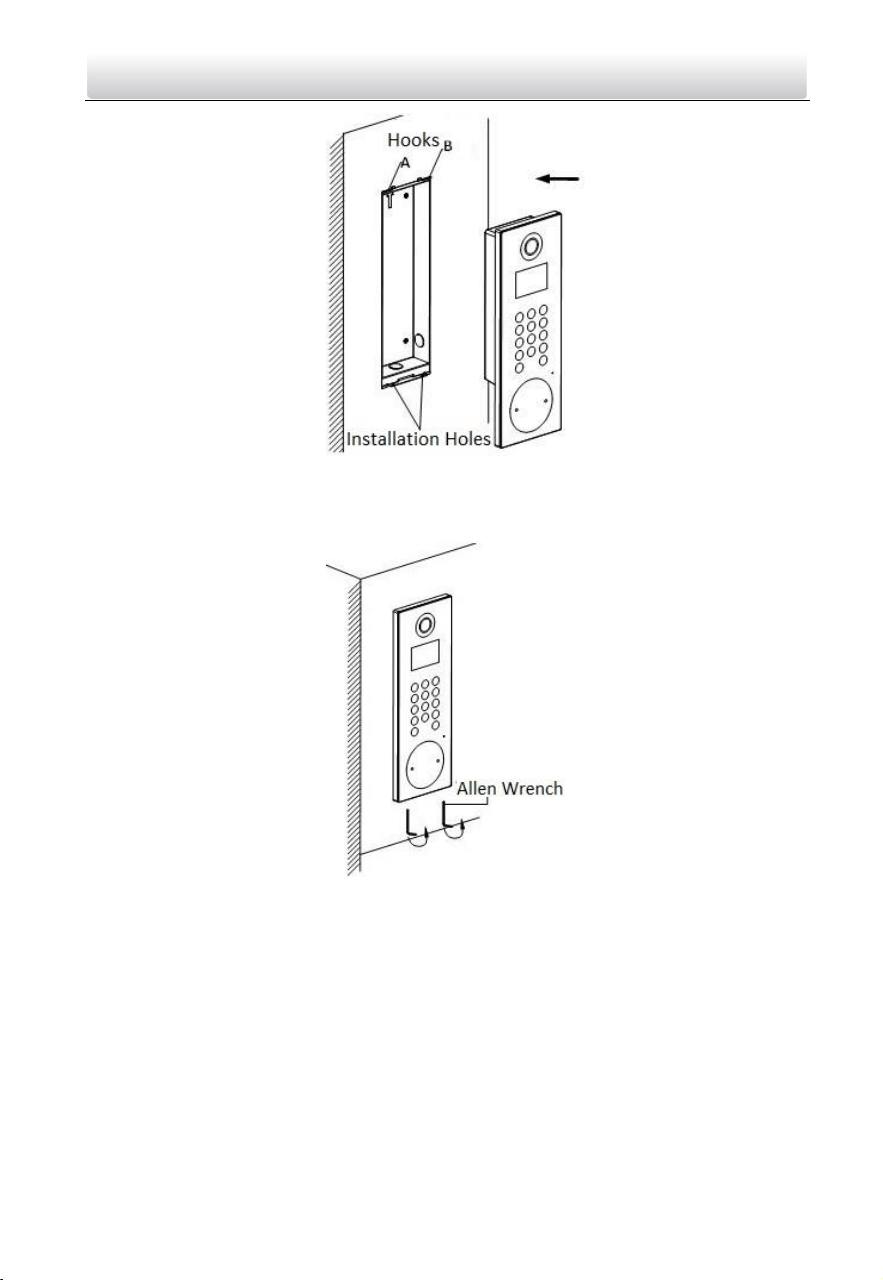
2. Insert the gang box into the hole and fix it with 4 PA4 screws. Make sure the edges of
the gang box align to the wall.
3. Route the cables of the door station through the cable hole.
4. Put the door station into the gang box and hook the lock catches on the rear panel
onto the hook A and B of the gang box.
Video Intercom Door Station·User Manual
20
5. Pull the door station downward and then push it towards the inside to make sure it
fits the hole.
6. Tighten the screws of the door station with the Allen wrench.
Video Intercom Door Station·User Manual
21
5.2 Installation of DS-KD8002-VM
5.2.1 Gang Box for DS-KD8002-VM
407.5
135
9
9
7.6
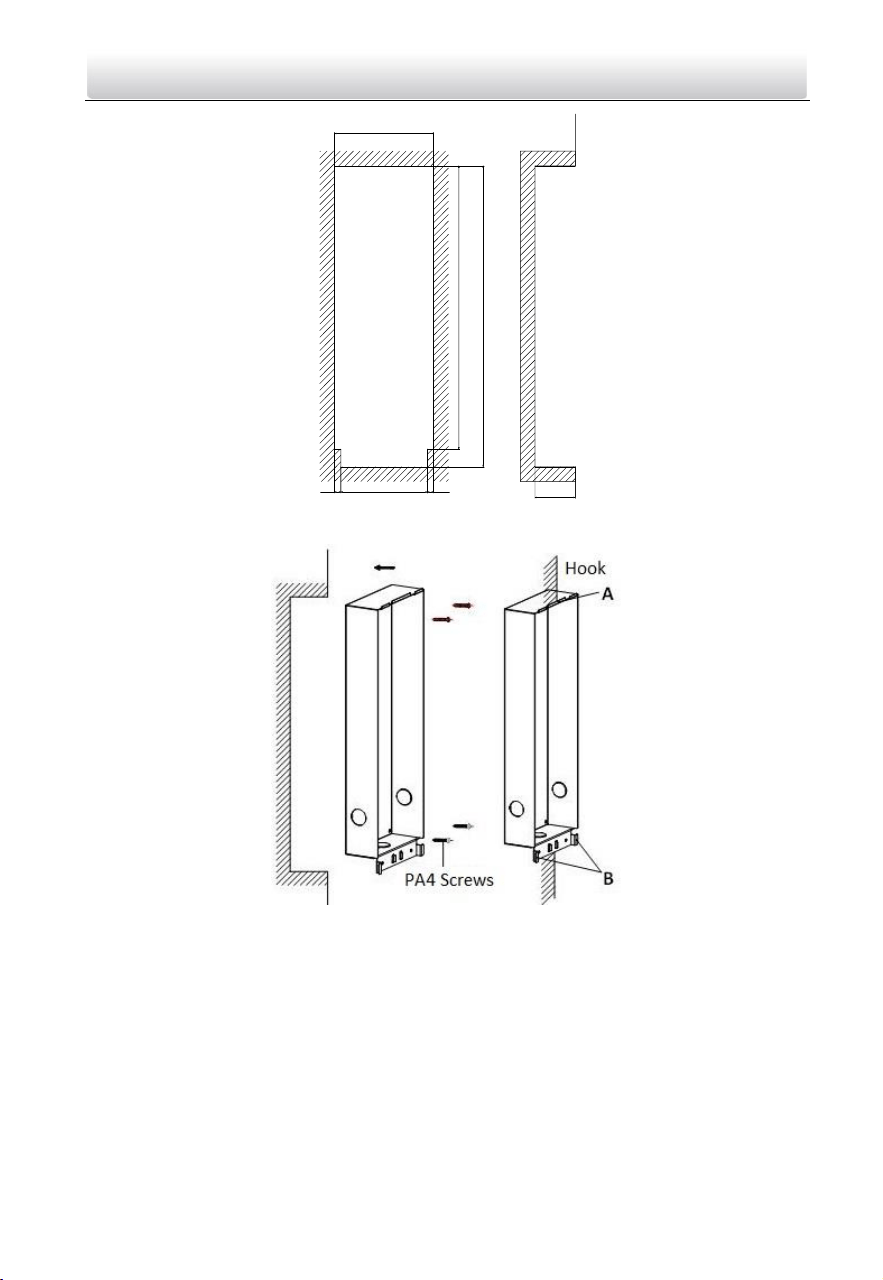
The dimension of gang box for model DS-KD8002-VM door station is: 407.5 mm × 135
mm × 55 mm.
The dimensions above are for reference only. The actual size can be slightly larger
than the theoretical dimension.
5.2.2 Wall Mounting with Gang Box of DS-KD8002-VM
1. Chisel a hole in the wall for inserting the gang box. The size of the hole should be
larger than that of the gang box. The suggested size of hole is 136 (length) × 408.5
(width) × 55.5 (depth) mm.
Video Intercom Door Station·User Manual
22
135.5
384
408
8.75 118 8.75
55
2. Insert the gang box into the hole and fix it with 4 PA4 screws.
3. Make sure the edges of the gang box align to the wall and the hook A and hook B of
the gang box hook onto the wall.
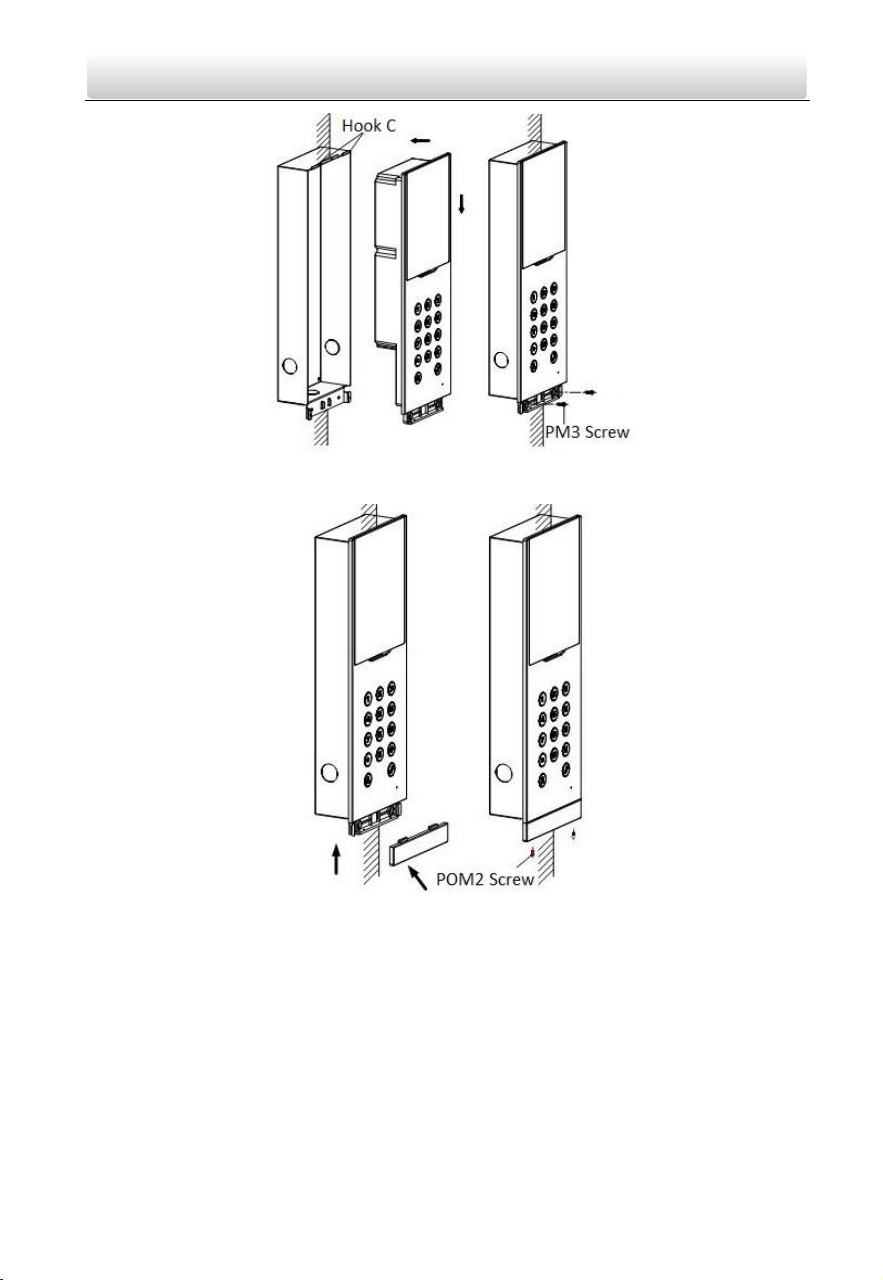
4. Route the cables of the door station through the cable hole.
5. Insert the door station into the gang box and then move the door station downward
to hook the lock catches on the rear panel onto the hook C of the gang box.
6. Fix the door station with 2 PM3 screws.
Video Intercom Door Station·User Manual
23
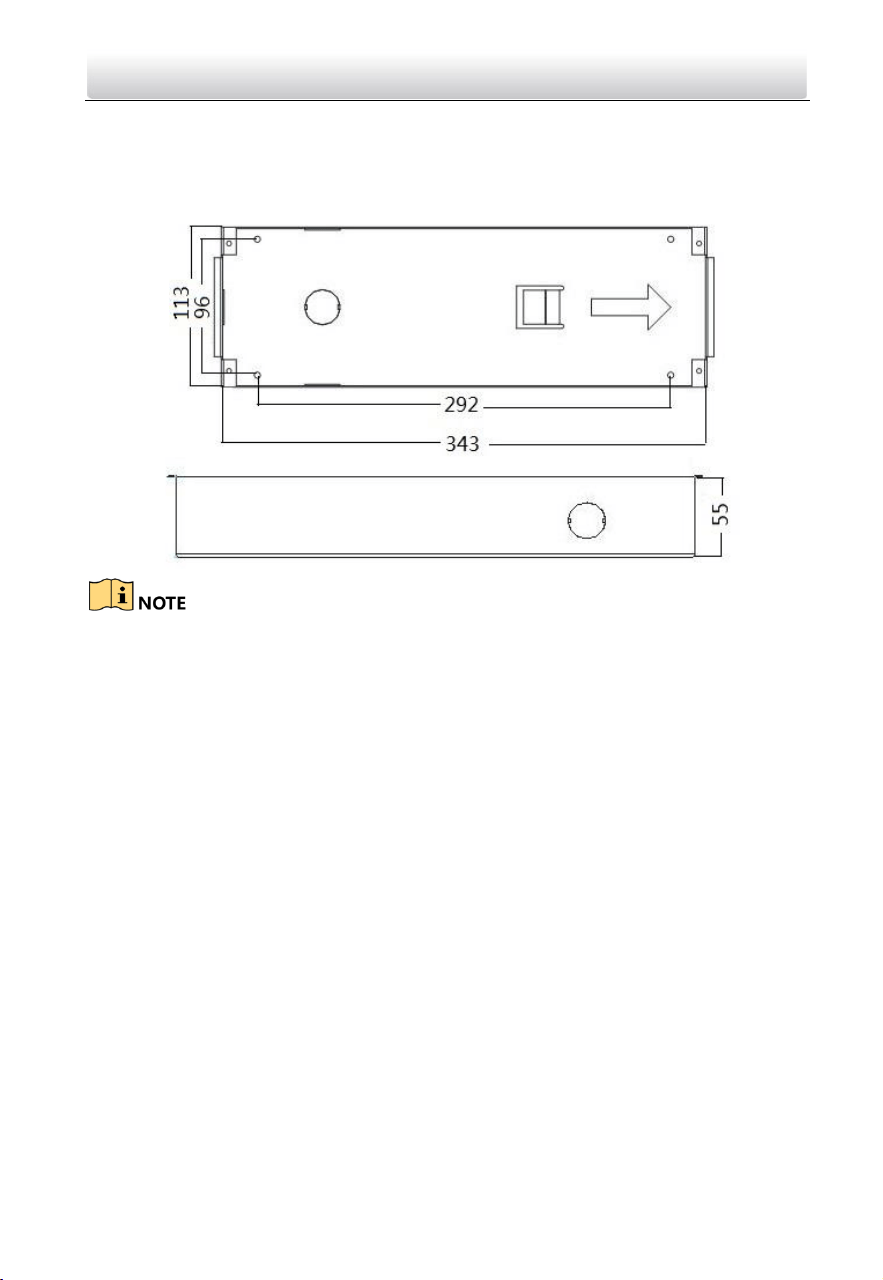
7. After fixing the door station onto the gang box, secure it by inserting the plate and
insert 2 POM2 screws.
Video Intercom Door Station·User Manual
24
5.3 Installation of DS-KD3002-VM
5.3.1 Gang Box for DS-KD3002-VM
The dimension of gang box for model DS-KD3002-VM door station is: 343(length)×
113(width)×55(depth) mm.
The dimensions above are for reference only. The actual size can be slightly different
from the theoretical dimension.
5.3.2 Wall Mounting with Gang Box of DS-KD3002-VM
Steps:
1. Chisel a hole in the wall for inserting the gang box. The size of the hole should be
larger than that of the gang box. The suggested size of hole is 343.5 (length) × 113.5
(width) × 55.5 (depth) mm.
2. Insert the gang box into the hole and fix it with 4 PA4 screws.
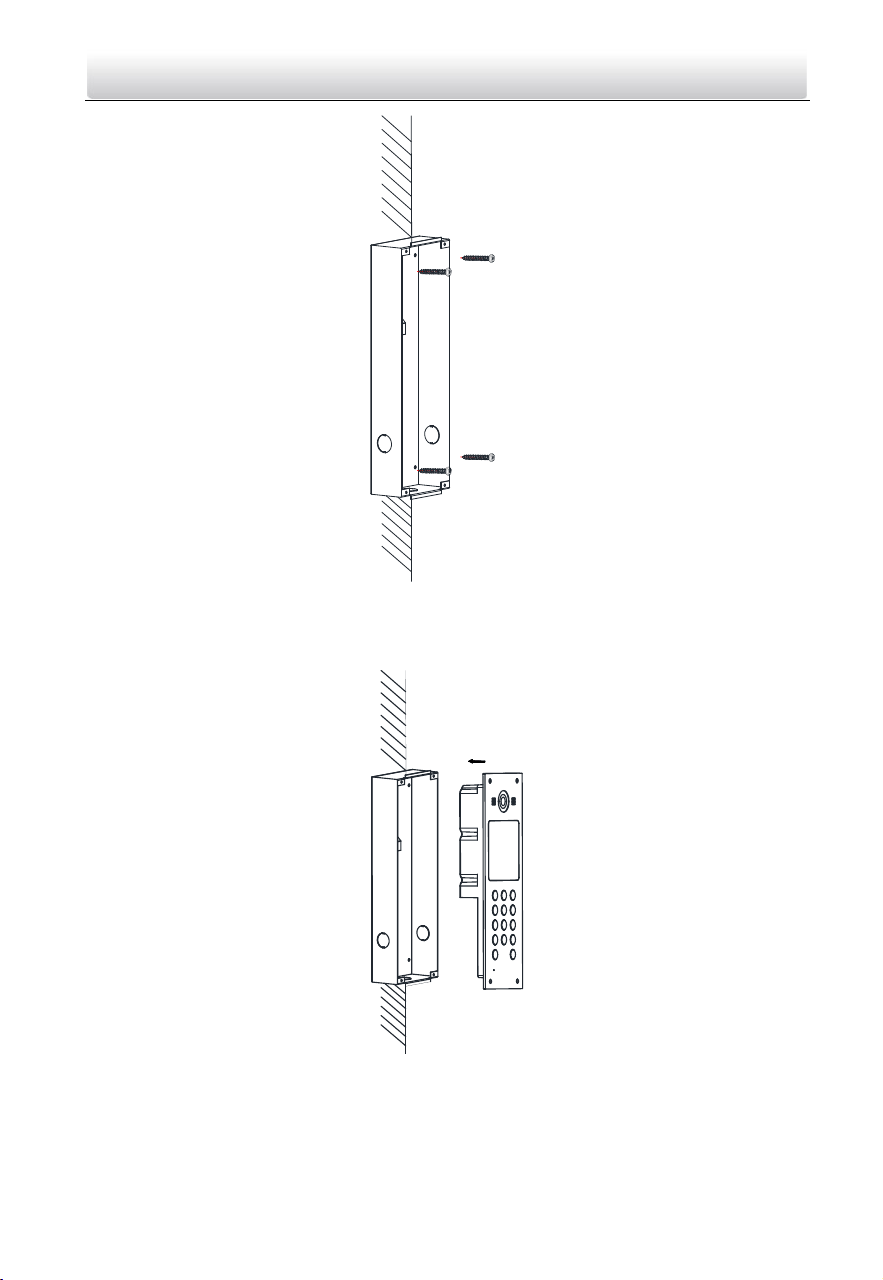
Video Intercom Door Station·User Manual
25
Screw
Screw
3. Make sure the edges of the gang box align to the wall.
4. Route the cables of the door station through the cable hole.
5. Put the door station into the gang box.
6. Fix the door station to the gang box with 4 crews.
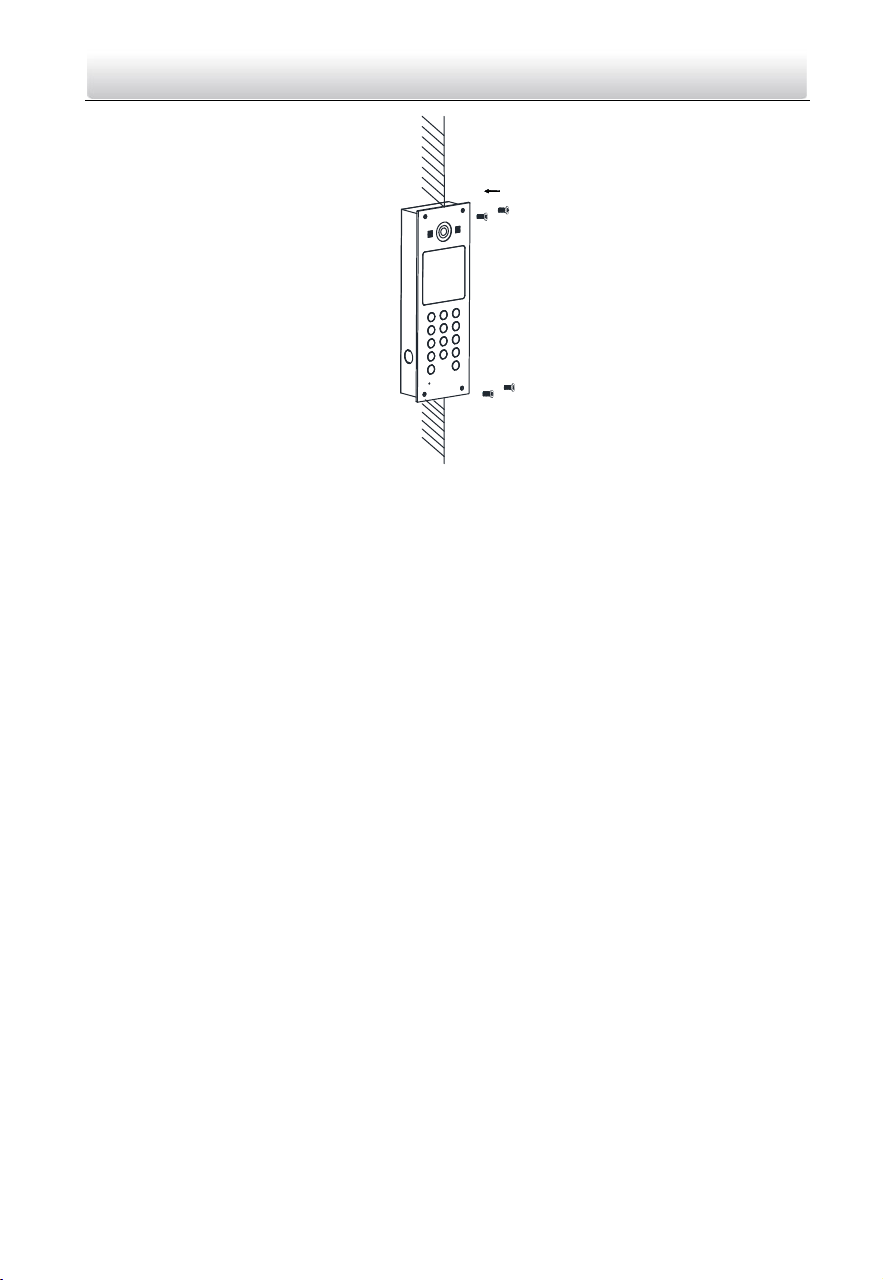
Video Intercom Door Station·User Manual
26
Video Intercom Door Station·User Manual
27
6 Local Operation
6.1 Keys Description
Key descriptions of door stations are illustrated in Table 6-1.
Table 6-1 Key Descriptions
Key
Description
Numeric Key 2
▲
Numeric Key 4
▼
Numeric Key 6
◄
Numeric Key 8
►
#
Call Key (When calling residents or center)
Confirm
*
Return
Delete
6.2 Activate Device
You cannot use the door station until you activate it.
Steps:
1. Power on the door station to enter the activation interface automatically.
2. Press the # key.
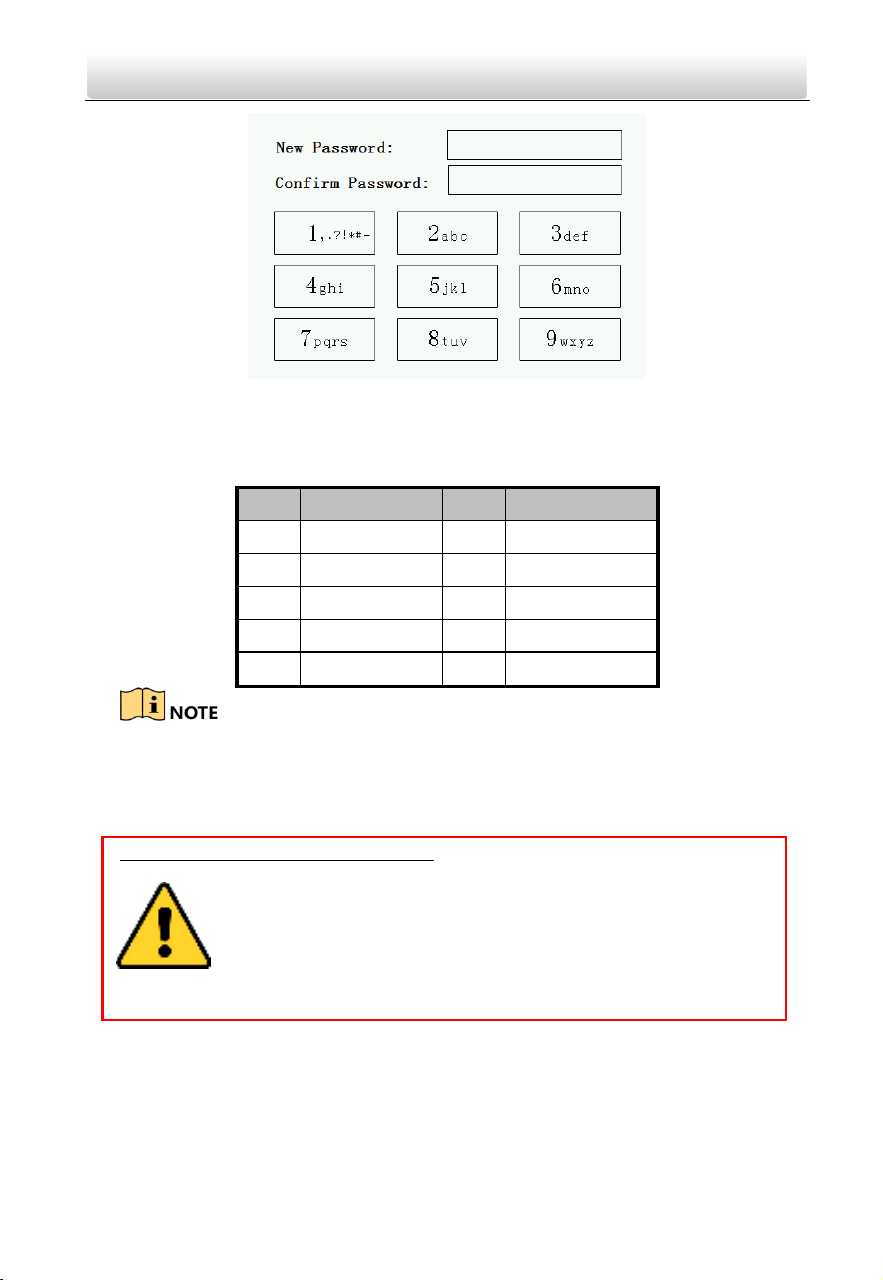
Video Intercom Door Station·User Manual
28
3. Enter a new password, and confirm the password.
The character description for each numeric key is shown in Table 6-2.
Table 6-2 Character Description
Key
Description
Key
Description
1
1,.?!*#-
6
6mnoMNO
2
2abcABC
7
7pqrsPQRS
3
3defDEF
8
8tuvTUV
4
4ghiGHI
9
9wxyzWXYZ
5
5jklJKL
0
0
When entering the password, taking the numeric key 2 as example, press the
numeric key 2 once, the text field shows "2", and press it again, the text field shows
"a", and press it again, the text field shows "b", and so on.
STRONG PASSWORD RECOMMENDED– We highly recommend you create a
strong password of your own choosing (Using a minimum of 8
characters, including at least three of the following categories:
upper case letters, lower case letters, numbers, and special
characters.) in order to increase the security of your product. And
we recommend you reset your password regularly, especially in the
high security system, resetting the password monthly or weekly can better
protect your product.
4. Press the # key to complete the activation.
Video Intercom Door Station·User Manual
29
6.3 Status
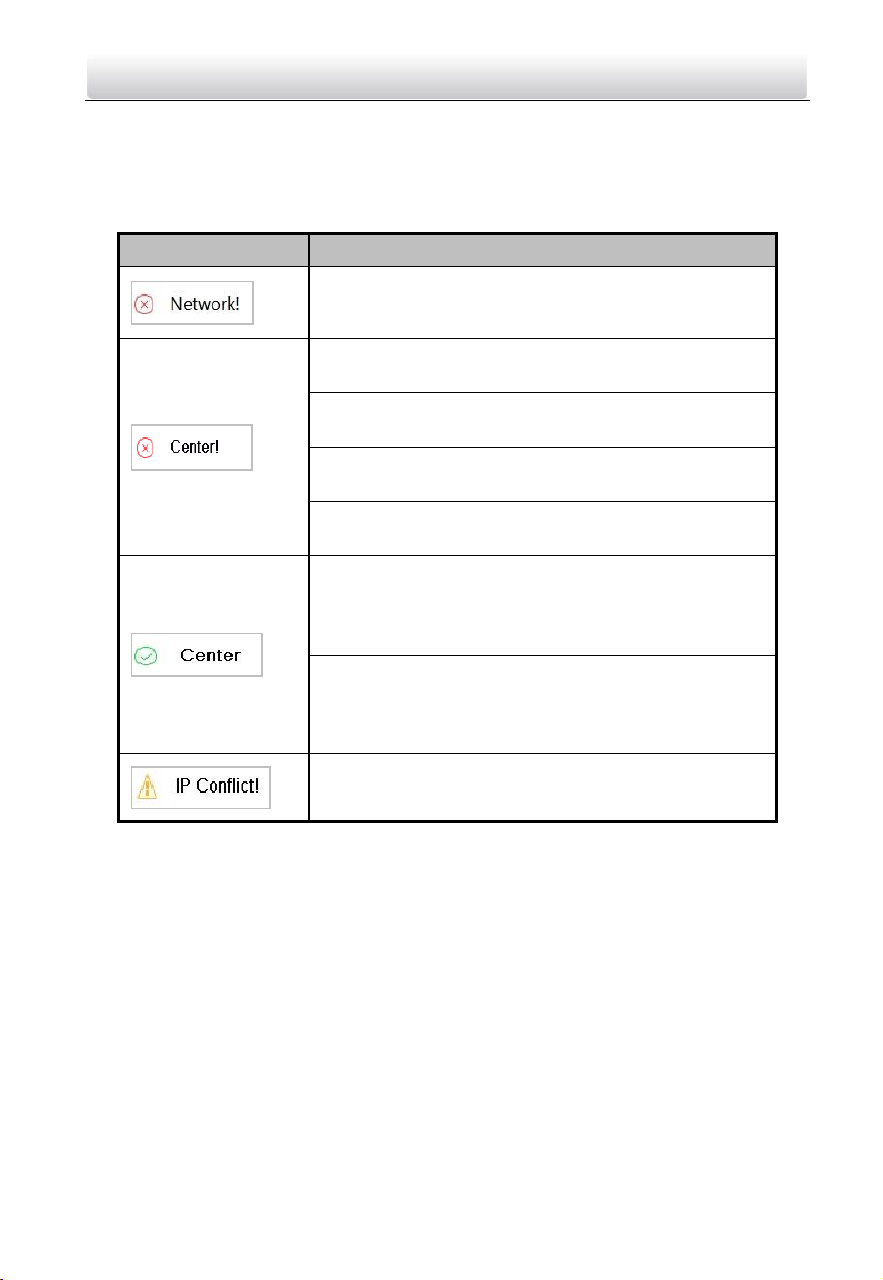
The door station can display different status with icons in Table 6-3.
Table 6-3 Icon Description
Icon
Description
Please check the network cable of the door station.
Invalid SIP server IP address. Set the SIP server IP
address.
Network of SIP server is not available. Check the SIP
server network connection.
SIP server communication is not available. Check if the
SIP server IP address is correct.
SIP server rejected to login the device. Check if the
device No. has been registered.
The network connection of the main door
station/outer door station is normal, and the main
door station/outer door station has been successfully
registered to the SIP server.
The network connection of the sub door station is
normal, and the sub door station has been
successfully registered to the main door station/SIP
server.
IP address of the door station conflicts with other
devices’ IP address
6.4 Set Parameters
You can set the network configuration, local settings, password and volume of the door
station. You can also view the version of the device and issue cards with it.
To set parameters for the door station, you should go to the configuration mode first.
Steps:
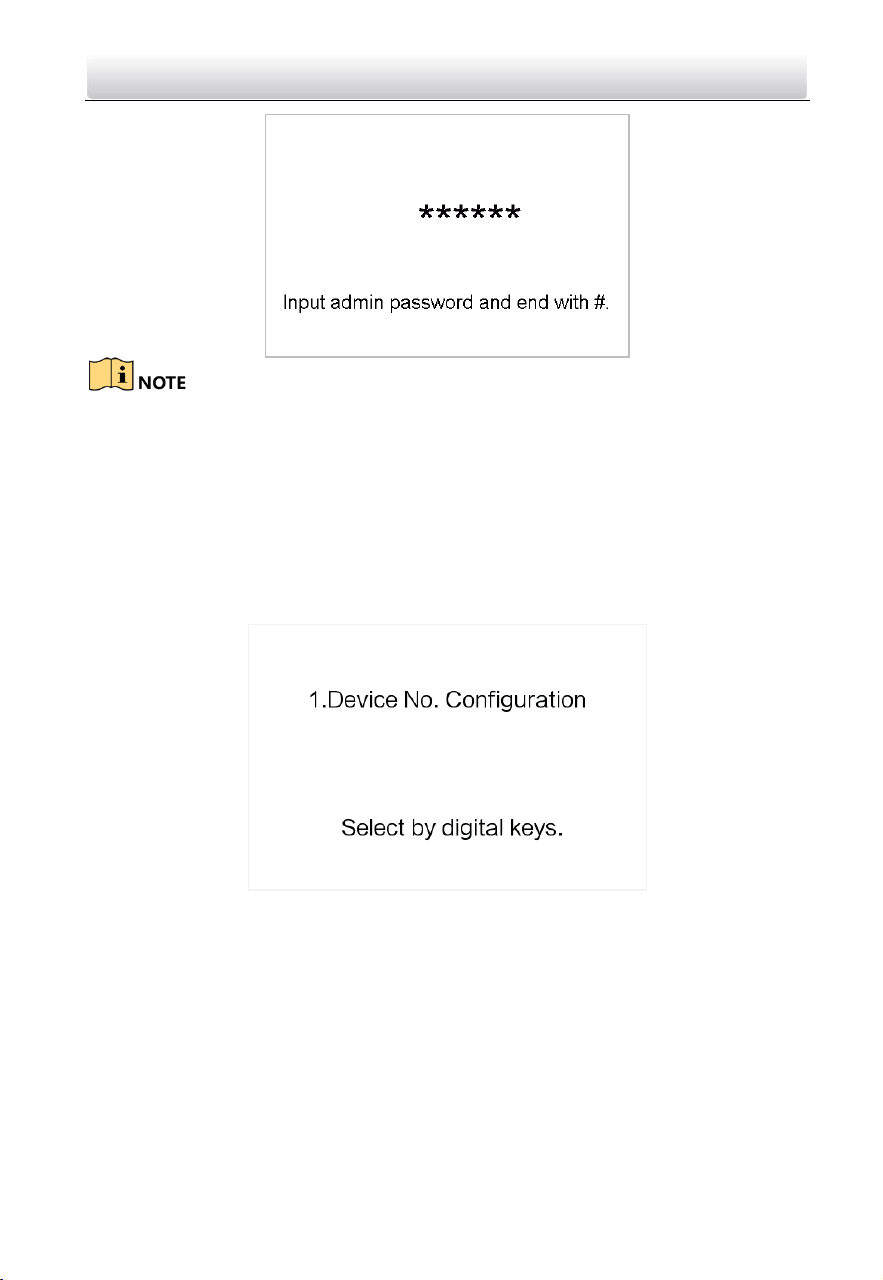
1. Hold down the * key and the # key for 2s to enter the admin password interface.
2. Enter the admin password, and press the # key.
Video Intercom Door Station·User Manual
30
The default admin password is 888999.
Under the configuration mode, press the number key 2 and 8 to switch the parameter
interfaces.
6.4.1 Set Door Station No.
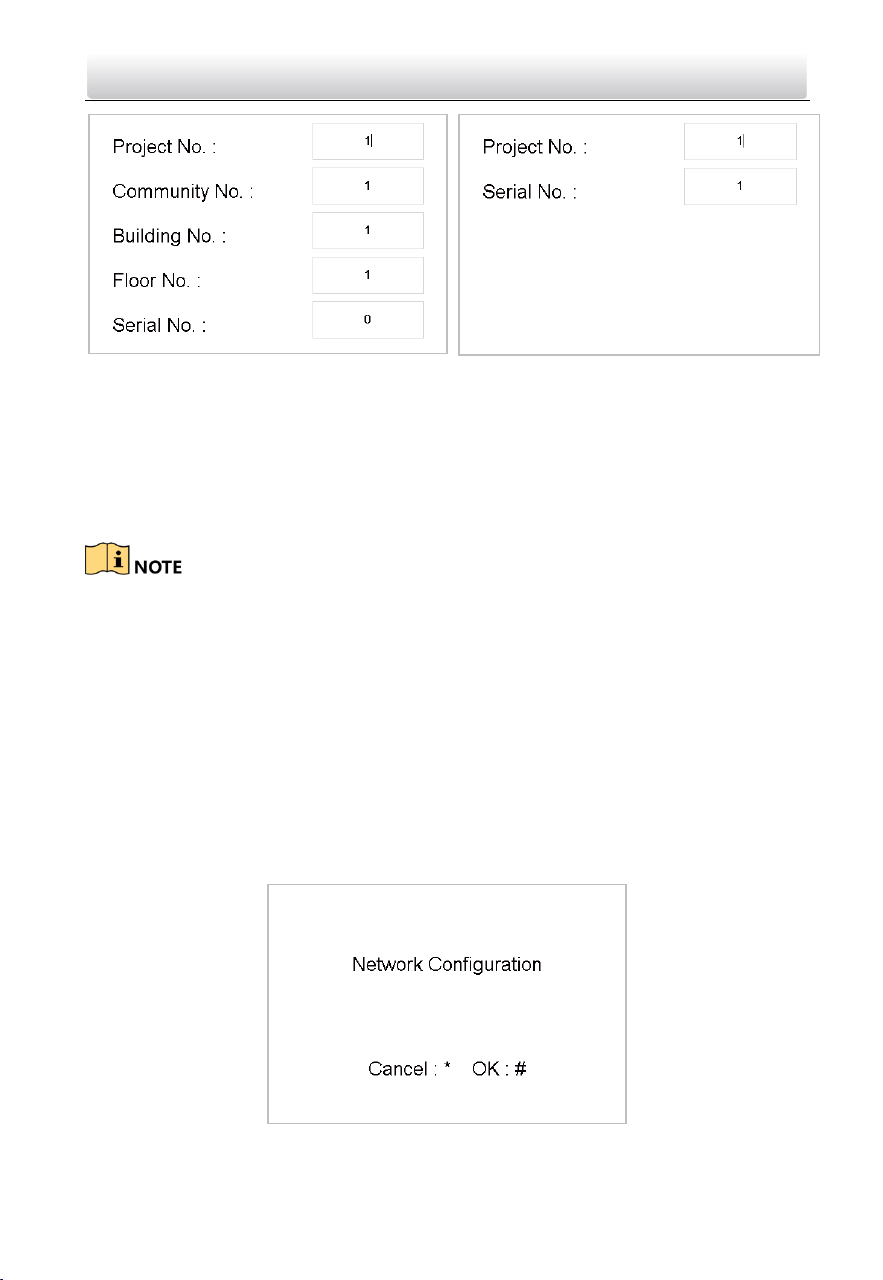
For the local settings, you can set the door station No. such as community No., building
No., floor No., and so on.
Press the numeric keys 4 and 6 to switch to the local settings interface.
Steps:
1. On the local settings interface, press the numeric key 1 to enter the device No.
settings interfaces.
Video Intercom Door Station·User Manual
31
Device No. Settings Interface (Door
Station)
Device No. Settings Interface (Outer Door
Station)
2. Edit parameters.
1) Move the cursor to parameters to be configured.
2) Press the # key to enter the editing mode, and input numbers.
3) Press the # key to exit the editing mode.
3. Press the * key to exit the device No. settings interface.
In the main/sub door station mode, the serial No. of main door station should be set
as 0, and the serial No. of sub door station should be larger than 0.
For each main door station, at most 8 sub door stations can be installed.
For the outer door station, the serial No. cannot be set as 0.
6.4.2 Edit Network Parameters
Purpose:
Network connection is mandatory for the use of door station.
Steps:
1. Enter the network parameters settings interface.
1) Press the numeric keys 4 and 6 to switch to the network configuration interface
2) Press the # key to enter the network parameters settings interface.
Video Intercom Door Station·User Manual
32
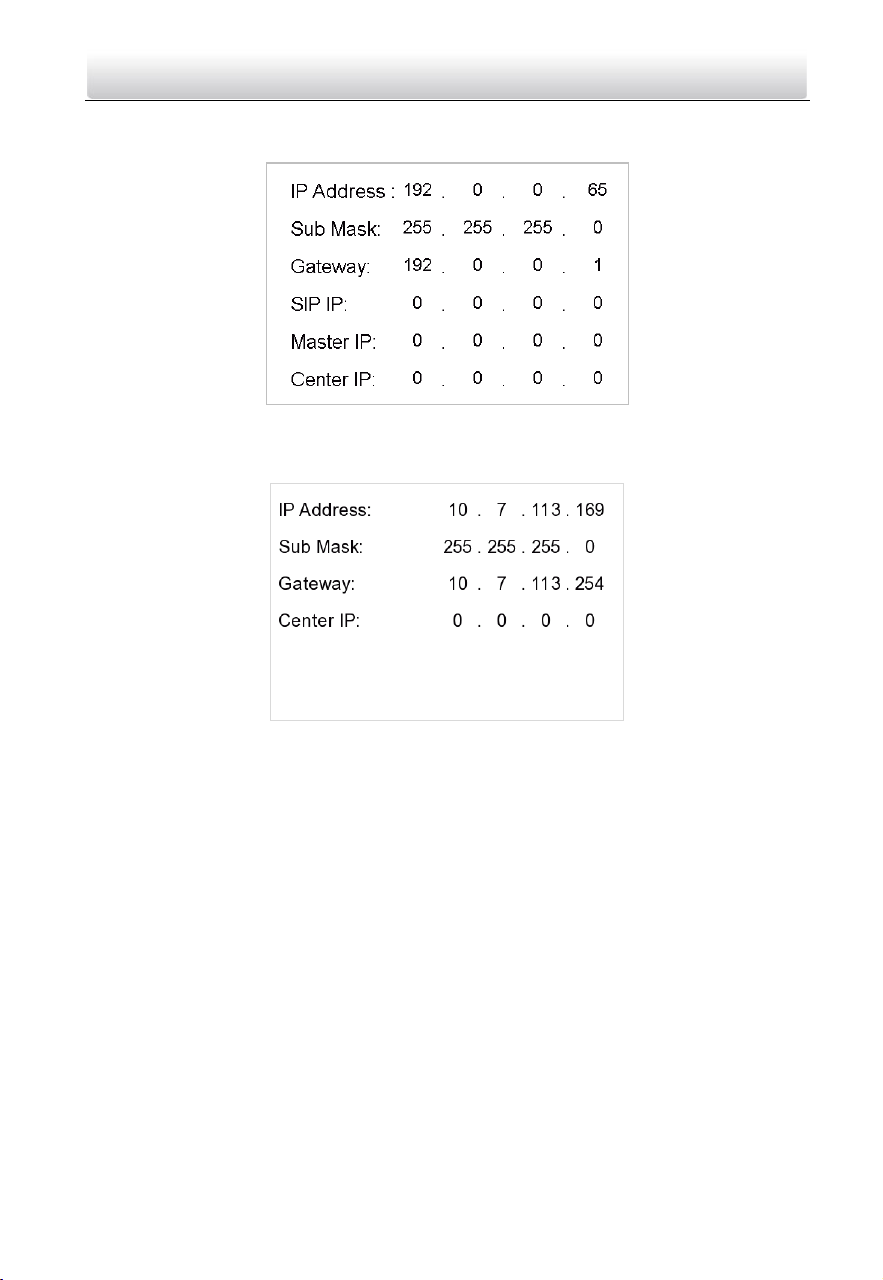
With the private SIP protocol, you should set IP address, sub mask, gateway, SIP IP,
master IP, and center IP for the door station.
Network Parameters Settings Interface (private SIP)
With the standard SIP protocol, you should set IP address, sub mask, gateway, and
center IP.
Network Parameters Settings Interface (standard SIP)
2. Edit network parameters.
1) Move the cursor to parameters to be configured.
2) Press the # key to enter or exit the editing mode.
3. Press the * key to exit the network configuration interface.
6.4.3 Change Password
Purpose:
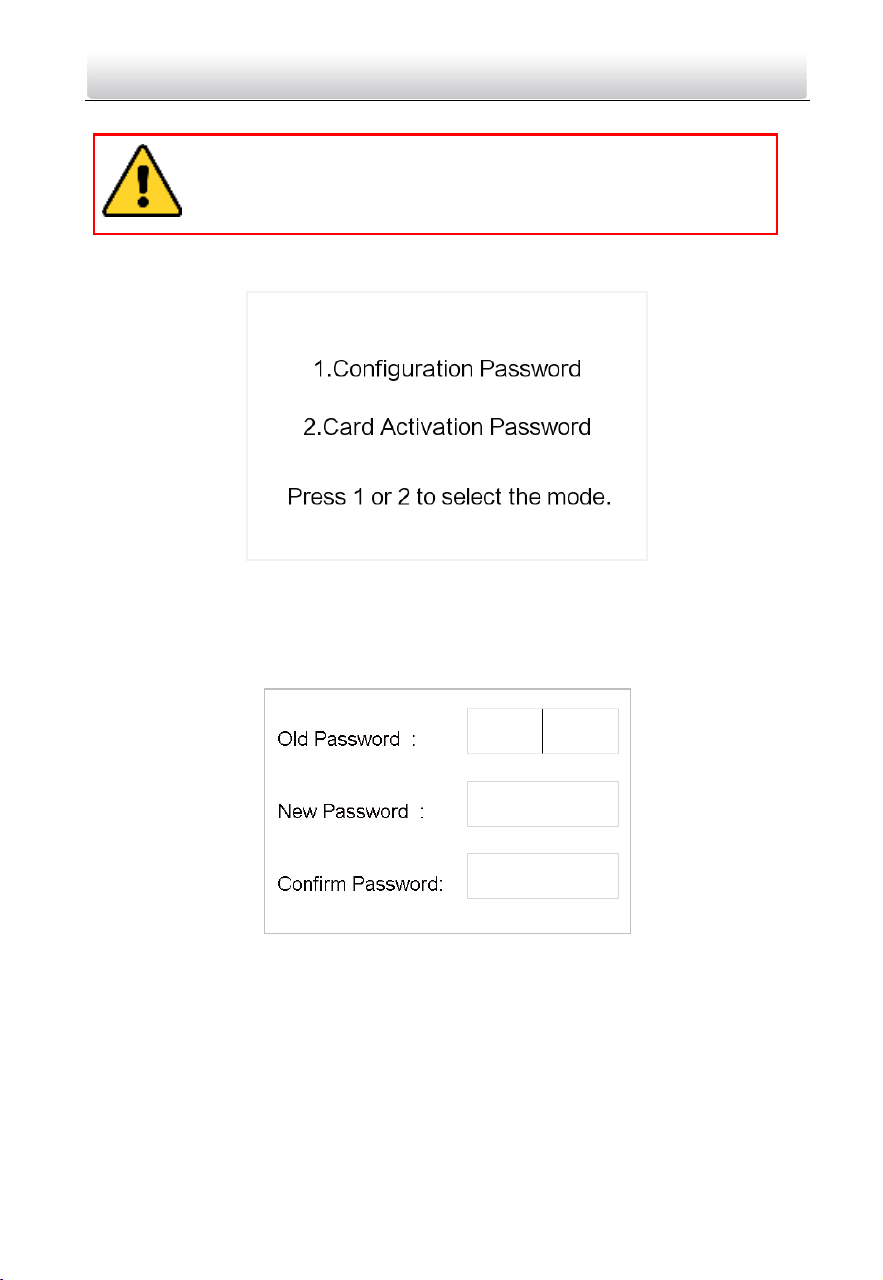
2 kinds of password are available when using the door station: configuration password
(admin password) and card activation password.
Configuration Password: It is necessary when you want to configure parameters of the
door station, such as IP parameters, door station No., system type, and so on.
Card Activation Password: It is necessary when you want to issue cards via password.
Video Intercom Door Station·User Manual
33
The default configuration password is 888999. We recommend you
reset your password regularly, especially in the high security system,
resetting the password monthly or weekly can better protect your
product.
Press the numeric keys 4 and 6 to switch to the password settings interface.
Change Configuration Password
Steps:
1. On the password settings interface, press the numeric key 1 to enter the configuration
password changing interface.
2. Enter the old password, and the new password, and confirm the new one.
1) Move the cursor to parameters to be configured.
2) Press the # key to enter or exit the editing mode.
3. Press the * key to exit the password settings interface.
Change Card Activation Password
Steps:
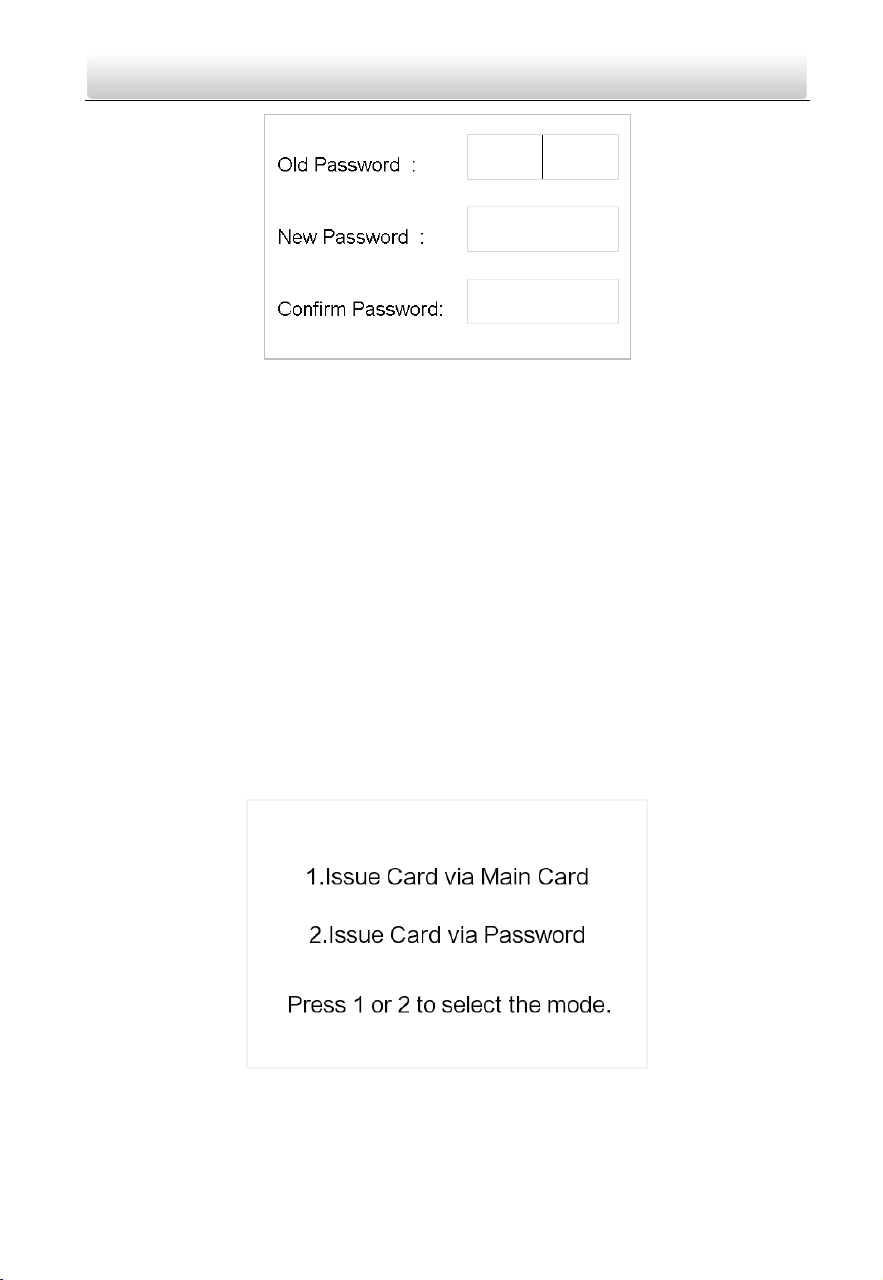
1. On the password settings interface, press the numeric key 2 to enter the card
activation password changing interface.
Video Intercom Door Station·User Manual
34
2. Enter the old password, and the new password, and confirm the new one.
3) Move the cursor to parameters to be configured.
4) Press the # key to enter or exit the editing mode.
3. Press the * key to exit the password settings interface.
6.4.4 Issue Card
Purpose:
You cannot open door by swiping the card until you have issue the card.
You can issue the card both locally or remotely. For the detail information about issuing
card remotely, please refer to 8.4.2 Person Management.
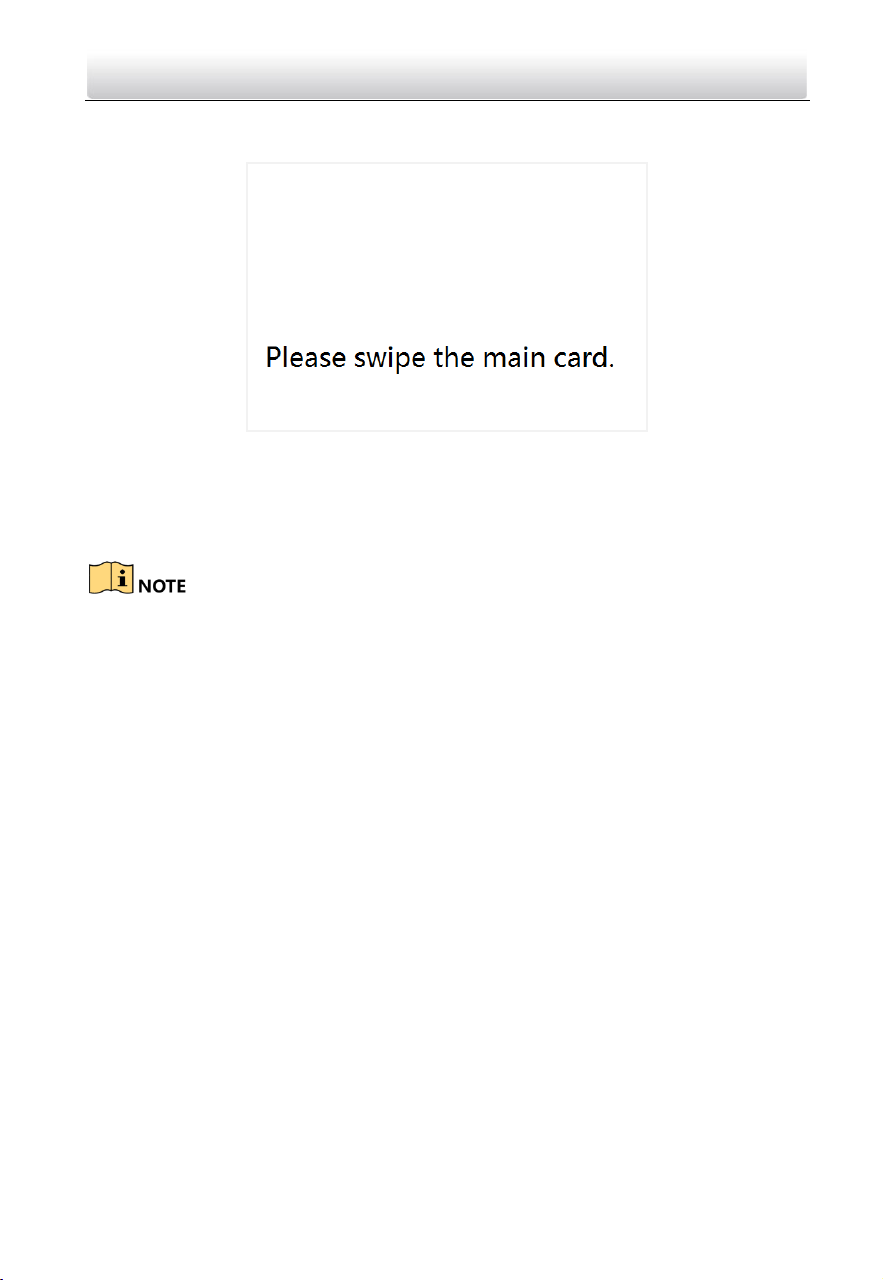
2 methods of issuing card locally are available: issuing card via the main card, and
issuing card via the card activation password.
Issuing Card via Main Card: You can swipe card to issue it after swiping the main card in
advance.
Issuing Card via Password: You can swipe card to issue it after inputting the card
activation password in advance.
Press the numeric key 4 and 6 to enter the card issuing interface.
Issue Card via Main Card
Steps:
Video Intercom Door Station·User Manual
35
1. On the card issuing interface, press the numeric key 1 to enter the main card swiping
interface.
2. Swipe the main card on the card induction area, and hear a voice prompt: Issuing card
succeed.
3. Swipe the unauthorized sub cards in turn after hearing a voice prompt: Please swipe
the sub card.
4. Press the * key to exit the card issuing interface.
If the main card is invalid, it prompts the message: Incorrect Main Card.
For the door station (D series), if the amount of sub cards exceeds 2500, no more sub
card can be issued and the station prompts the message: No more sub card can be
issued.
For the outer door station, if the amount of sub cards exceeds 50000, no more sub
card can be issued and the station prompts the message: No more sub card can be
issued.
After enrolling cards with client software, the card issuing function will be disabled on
the user interface.
Issue Card via Password
Steps:
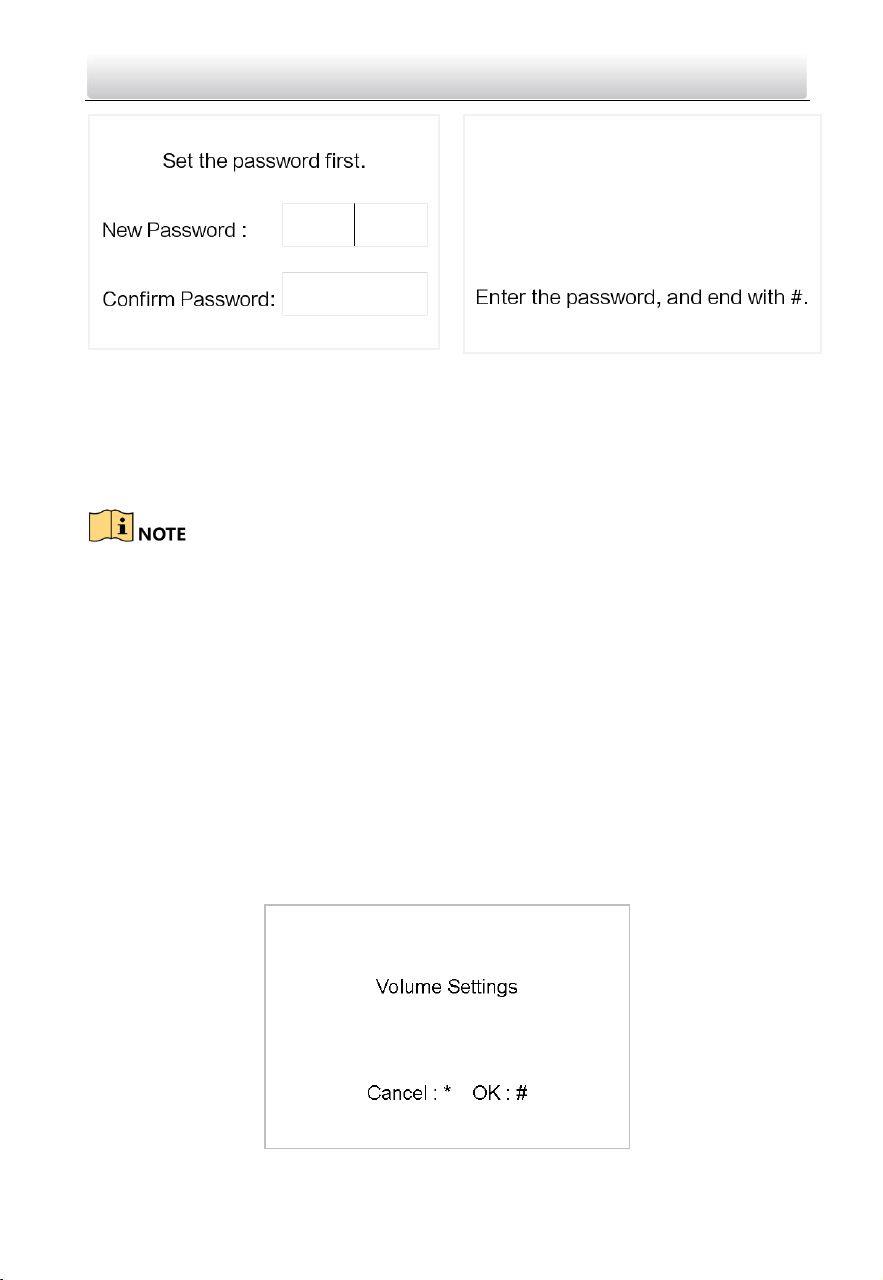
1. On the card issuing interface, press the numeric key 2 to enter the card activation
password settings interface or the card activation password inputting interface.
Video Intercom Door Station·User Manual
36
Card Activation Password Settings
Interface
Card Activation Password Inputting
Interface
2. Set the card activation password or input the card activation password to enter the
card swiping interface.
3. Swipe the authorized card in turn.
4. Press the * key to exit the card issuing interface.
For the door station (D series), if the amount of sub cards exceeds 2500, no more sub
card can be issued and the station prompts the message: No more sub card can be
issued.
For the outer door station, if the amount of sub cards exceeds 50000, no more sub
card can be issued and the station prompts the message: No more sub card can be
issued.
After enrolling cards with client software, the card issuing function will be disabled on
the user interface.
6.4.5 Set Volume
Steps:
1. Enter the password settings interface.
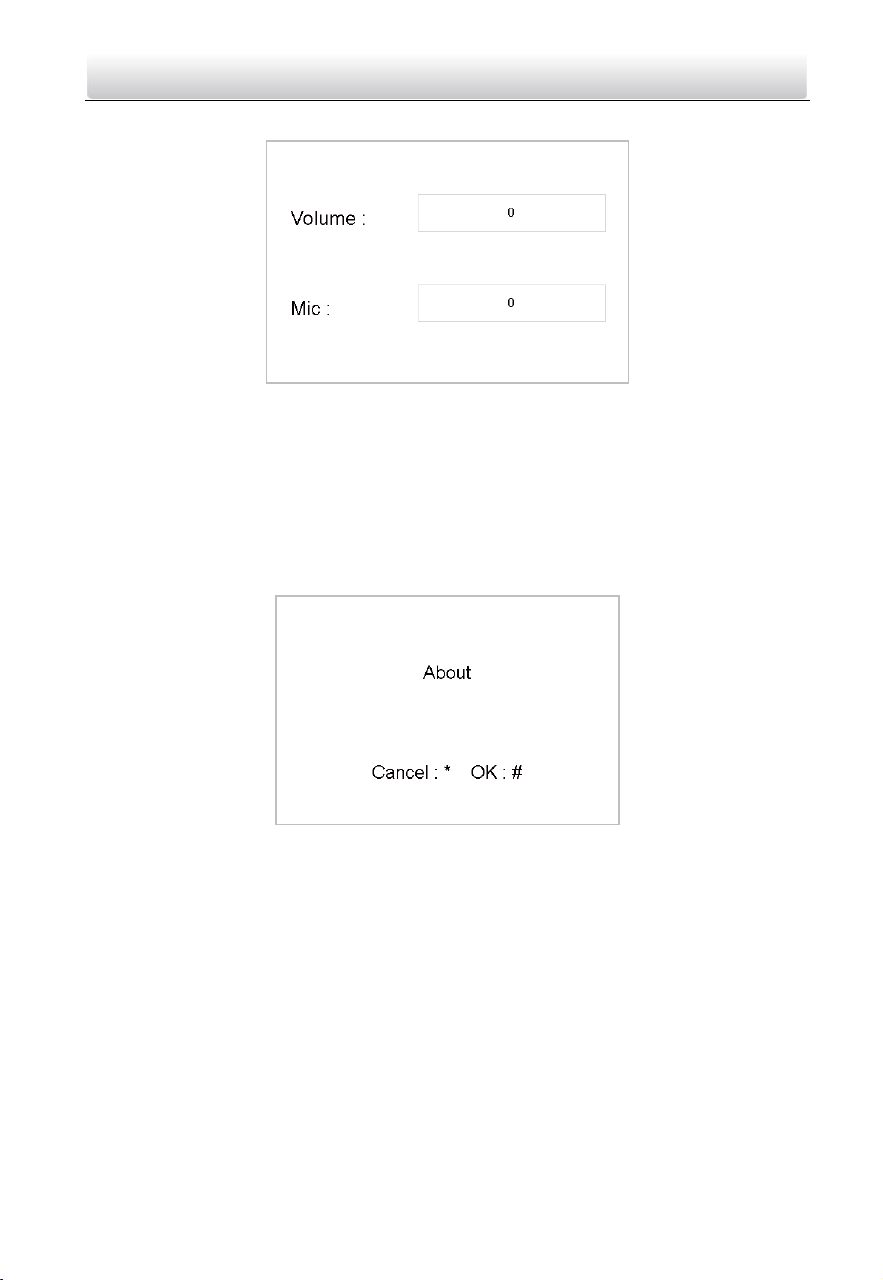
1) Press the numeric keys 4 and 6 to switch to the volume settings interface
Video Intercom Door Station·User Manual
37
2) Press the # key to enter the volume parameters settings interface.
2. Set the volume.
1) Move the cursor to parameters to be configured.
2) Press the # key to enter or exit the editing mode.
3. Press the * key to exit the volume settings interface.
6.4.6 About
On the settings interface, press numeric keys 4 and 6 to switch to the About interface,
and press the # key to view the version of the device.
6.4.7 Change System Language
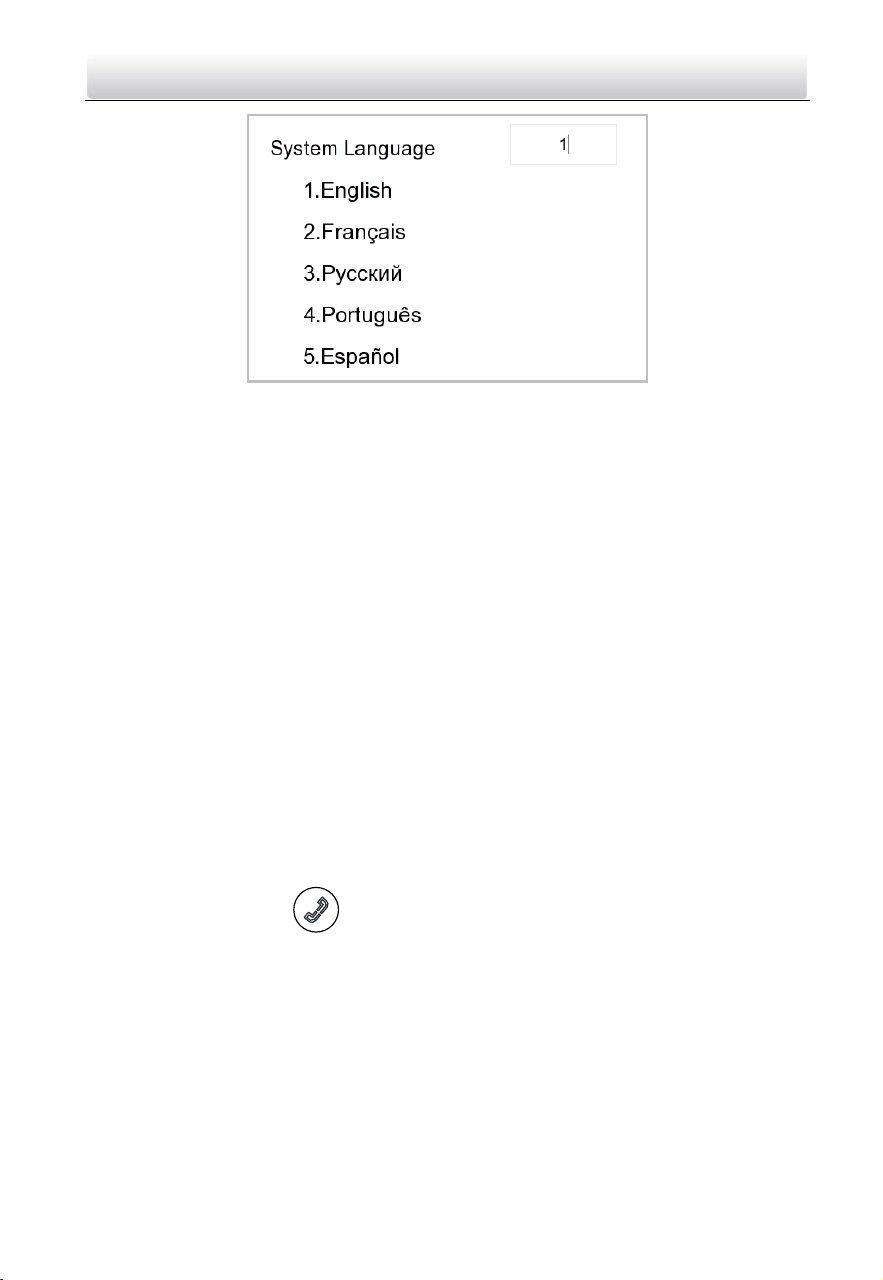
On the settings interface, press numeric keys 4 and 6 to switch to the System Language
interface, and press enter the numeric character to switch the system language.
The door station supports 5 kinds of language.
Video Intercom Door Station·User Manual
38
6.4.8 Open Source Software Licenses
On the settings interface, press numeric keys 4 and 6 to switch to the Open Source
Software interface, and press the # key to open source software licenses of the device.
6.5 Call Resident
You can call residents via the door station no matter the door station is in the network
intercom system or the analog intercom system.
The door station can work as main/sub door station, and outer door station, which
correspond to different calling resident modes respectively.
Work as Main/Sub Door Station
Steps:
1. Enter the calling No.
With the private SIP protocol, the calling No. should be the room No. of the indoor
station.
With the standard SIP protocol, the calling No. should be the VoIP phone No. of the
indoor station. And you must make sure that the indoor station supports the
standard SIP protocol.
2. Press the # key or the key to start calling the resident.
Work as Outer Door Station
Steps:
1. Enter the calling No.
With the private SIP protocol, the calling No. should be the community No. and the #
key, the Building No. and the # key, the Unit No. and the # key, and the Room No. and
the # key.
Video Intercom Door Station·User Manual
39
With the standard SIP protocol, the calling No. should be the VoIP phone No. of the
indoor station. And you must make sure that the indoor station supports the
standard SIP protocol.
2. Press the key to start calling the resident.
6.6 Unlock Door
Before you start:
Make sure your door station works as the main/sub door station.
Purpose:
2 ways are available to unlock the door: unlocking door via password, and unlocking
door via card.
Unlock Door by Password
Unlocking the door by inputting the password is only available in the network intercom
system.
Steps:
1. Enter the # key and the Room No.
2. Enter the password and the # key.
The password varies according to different rooms.
The default unlocking password is 123456.
Unlock Door by Card
Before you start:
Make sure the card has been issued. You can issue the card via the door station, or via
iVMS-4200 client software.
Unlocking the door by swiping the card is available both in the network intercom system
and the analog intercom system.
Steps:
Swipe the card on the card induction area to unlock the door.
The main card does not support unlocking the door.
Video Intercom Door Station·User Manual
40
7 Remote Operation via Batch
Configuration Tool
You can configure and operate the video intercom devices via Batch Configuration Tool.
Default parameters of door station are as follows:
Default IP Address: 192.0.0.65.
Default Port No.: 8000.
Default User Name: admin.
7.1 Activate Device Remotely
Purpose
You are required to activate the device first by setting a strong password for it before
you can use the device.
Activation via Batch Configuration Tool, and Activation via iVMS-4200 are supported.
Here take activation via Batch Configuration Tool as example to introduce the device
activation. Please refer to the user manual for the activation via iVMS-4200.
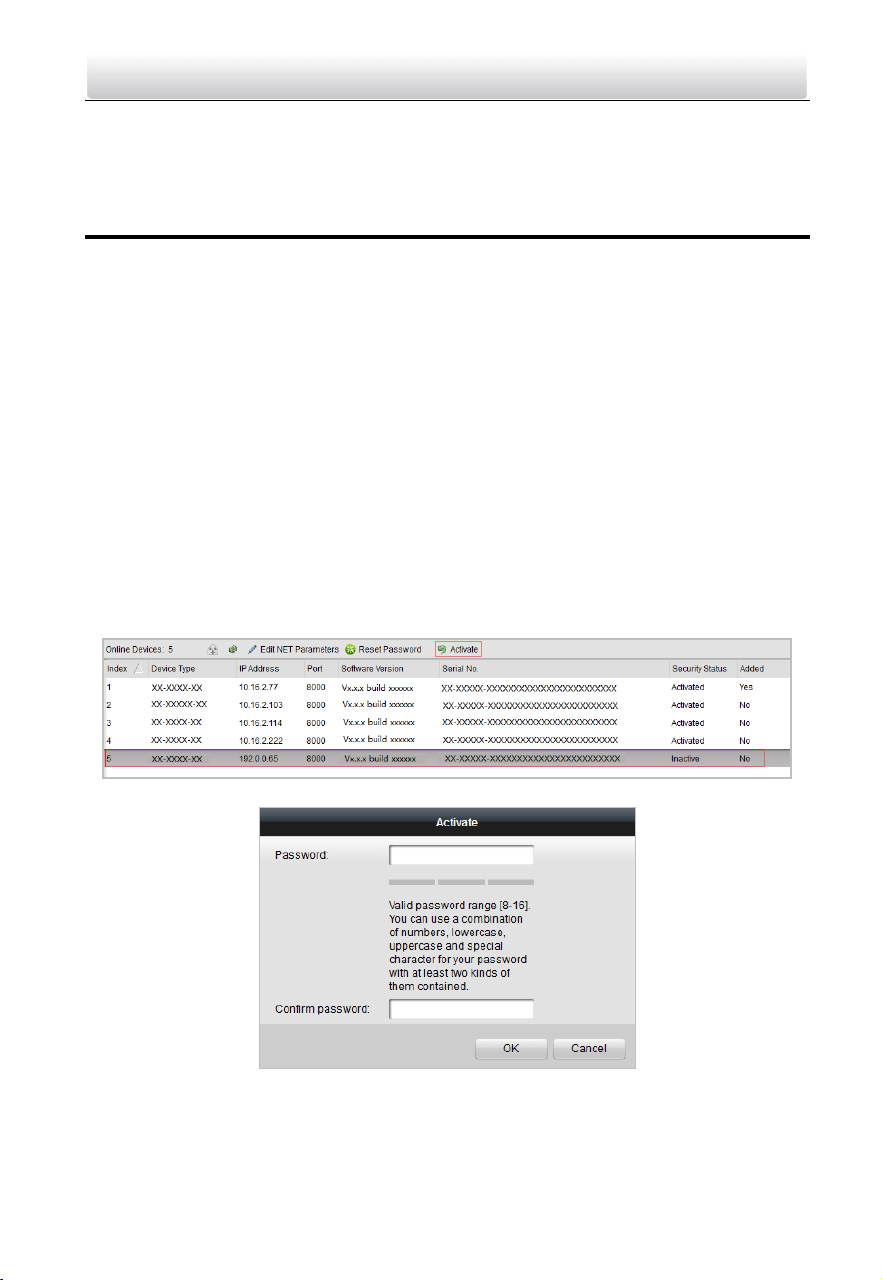
Steps:
1. Run the Batch Configuration Tool.
2. Select an inactivated device and click the Activate button.
3. Create a password, and confirm the password.
Video Intercom Door Station·User Manual
41
STRONG PASSWORD RECOMMENDED– We highly recommend you create a
strong password of your own choosing (Using a minimum of 8
characters, including at least three of the following categories:
upper case letters, lower case letters, numbers, and special
characters.) in order to increase the security of your product. And
we recommend you reset your password regularly, especially in the
high security system, resetting the password monthly or weekly can better
protect your product.
4. Click the OK button to activate the device.
When the device is not activated, the basic operation and remote operation of device
cannot be performed.
You can hold the Ctrl or Shift key to select multiple devices in the online devices, and
click the Activate button to activate devices in batch.
7.2 Edit Network Parameters
Purpose:
To operate and configure the device via LAN (Local Area Network), you need connect the
device in the same subnet with your PC. You can edit network parameters via batch
configuration tool, and iVMS-4200 software. Here take editing network parameters via
batch configuration tool as example.
Steps:
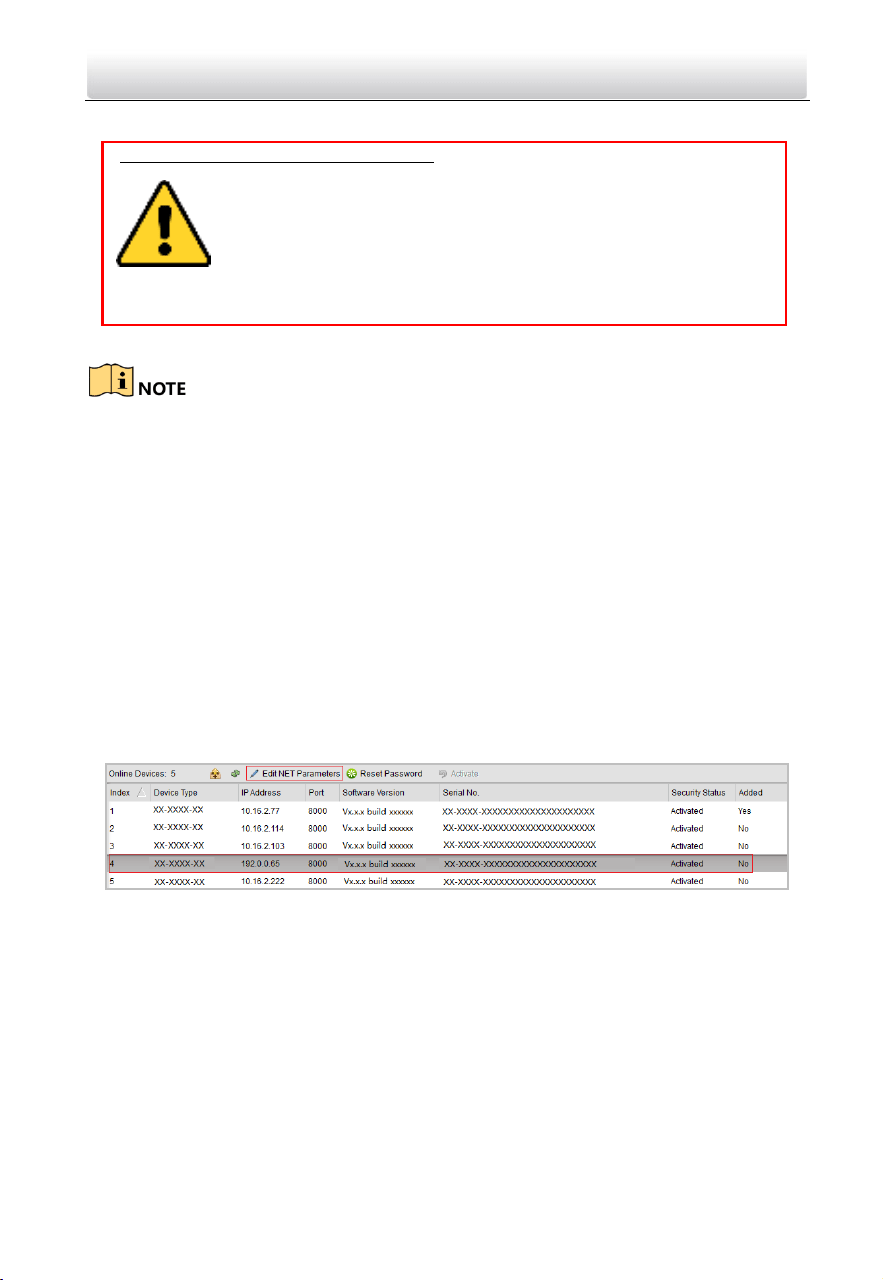
1. Select an online activated device and click the Edit NET Parameters button.
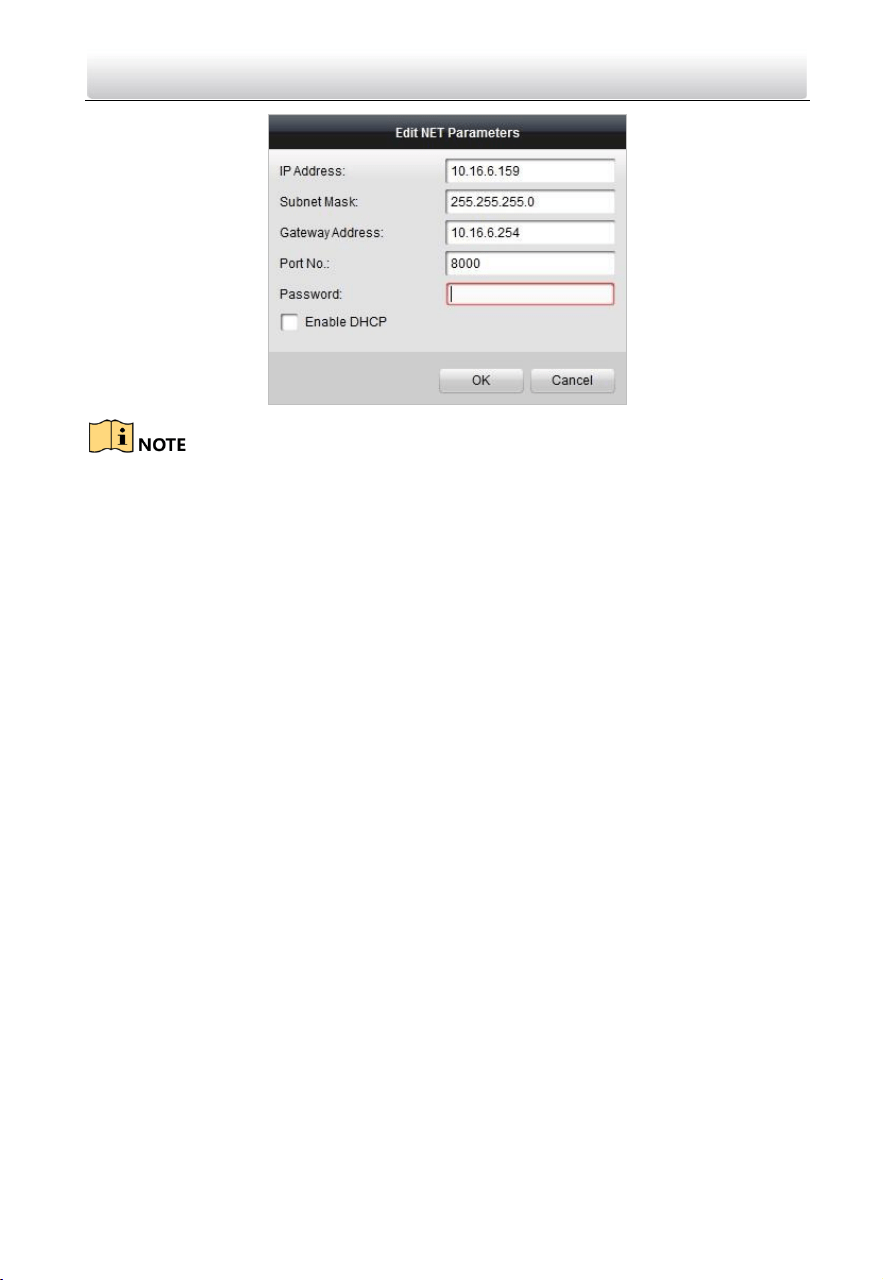
2. Change the device IP address and gateway address to the same subnet with your
computer.
3. Enter the password and click the OK button to activate the network parameters
modification.
Video Intercom Door Station·User Manual
42
The default port No. is 8000.
The default IP address of the door station is 192.0.0.65.
After editing the network parameters of device, you should add the devices to the
device list again.
Enable DHCP, and the software can obtain network parameters for the device
automatically.
7.3 Add Device
Before you start:
Make sure the device to be added has been activated.
Purpose:
For batch configuration tool software, you should add device to the software so as to
configure the device remotely.
The software provides 3 ways for adding the devices. You can add the active online
devices within your subnet, add devices by IP address, and add devices by IP segment.
7.3.1 Add Online Device
Before you start:
Make sure the device to be added is in the same subnet with your computer. Otherwise,
please edit network parameters first.
Steps:
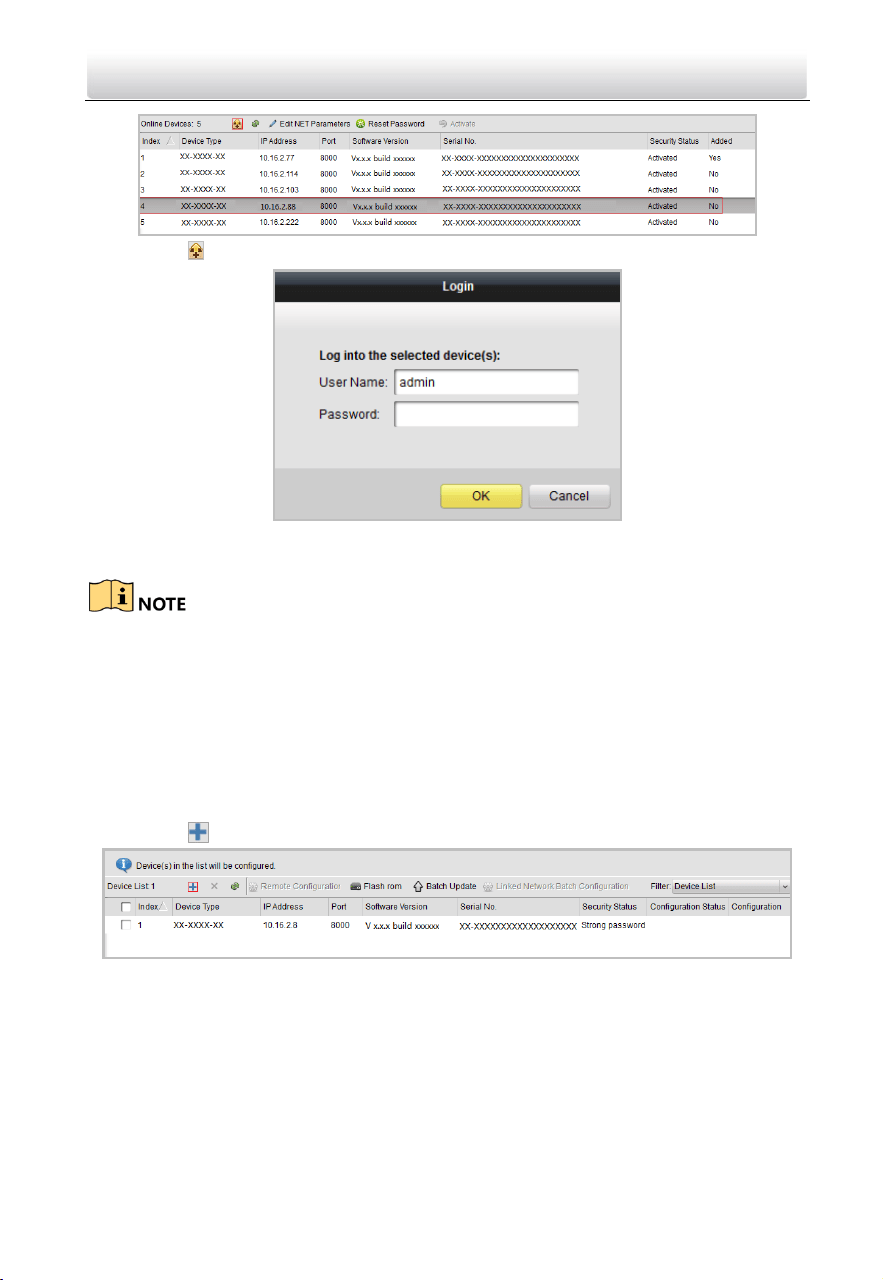
1. Select an active online device or hold the Ctrl or Shift key to select multiple devices in
the online devices list.
Video Intercom Door Station·User Manual
43
2. Click the button to pop up the login dialog box.
3. Enter the user name and password.
4. Click the OK button to save the settings.
Only devices successfully logged in will be added to the device list for configuration.
If you add devices in batch, please make sure selected devices have the same user
name and password.
7.3.2 Add by IP Address
Purpose:
You can add the device by entering IP address.
Steps:
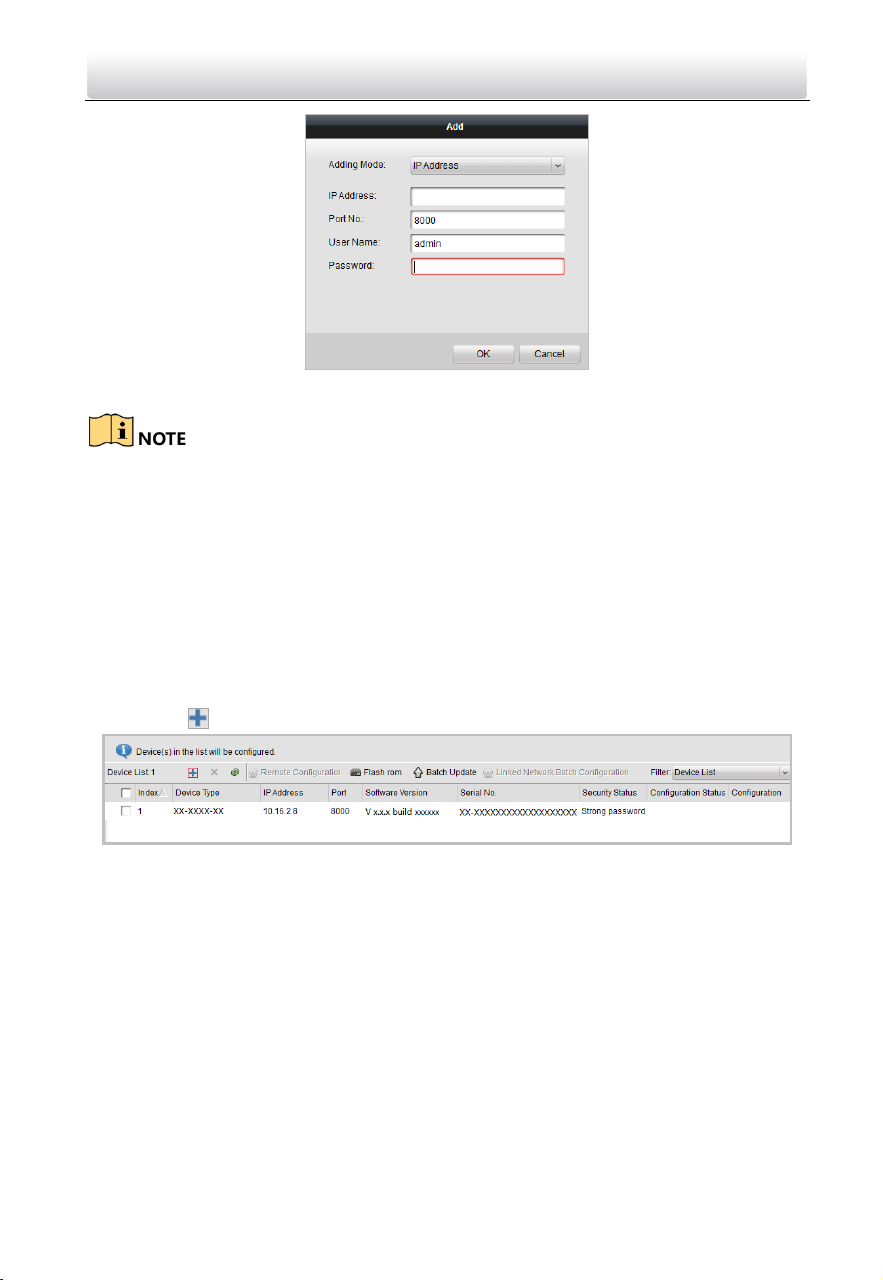
1. Click the button to pop up the adding devices dialog box.
2. Select IP Address in the adding mode drop-down list.
3. Enter the IP address, and set the port No., user name and password of the device.
Video Intercom Door Station·User Manual
44
4. Click the OK button to add the device to the device list.
You cannot add the device(s) to the device list if the user name and password are not
identical.
When you add devices by IP Address, IP Segment or Port No., the devices should be
online devices.
7.3.3 Add by IP Segment
Purpose:
You can add many devices at once whose IP addresses are among the IP segment.
Steps:
1. Click the button to pop up the adding devices dialog box.
2. Select IP Segment in the adding mode drop-down list.
3. Set the Start IP Address and End IP Address.
4. Enter port No., user name, and password.
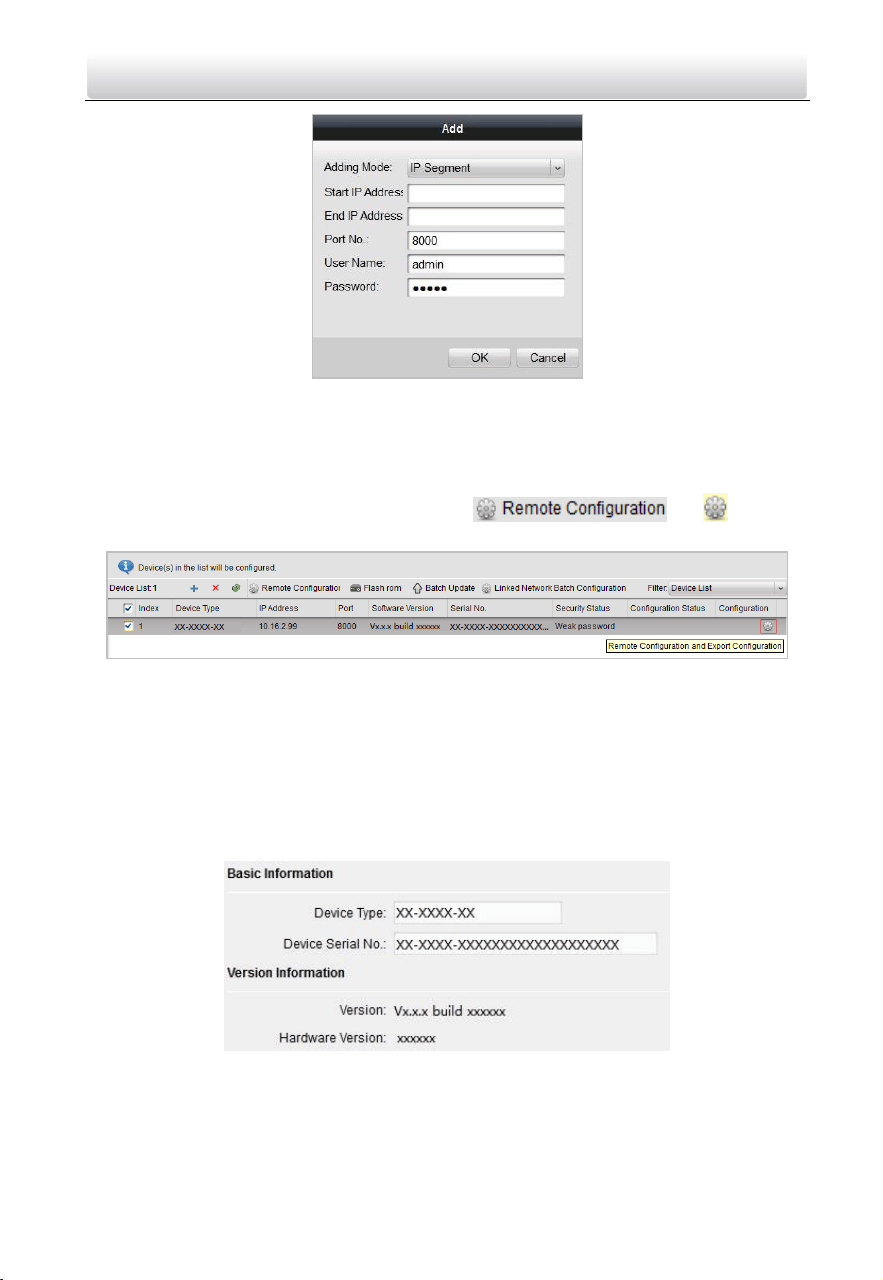
Video Intercom Door Station·User Manual
45
5. Click the OK button to search and add the devices whose IP addresses are within the
range of the defined IP segment to the device list.
7.4 Configure Devices Remotely
In the device list area, select a device and click or to enter
the remote configuration interface.
7.4.1 System
Click System on the remote configuration interface to display the device information:
Device Information, General, Time, System Maintenance, User, and RS485, and so on.
Device Information
Click Device Information to enter device basic information interface. You can view basic
information (the device type, and serial No.), and version information of the device.
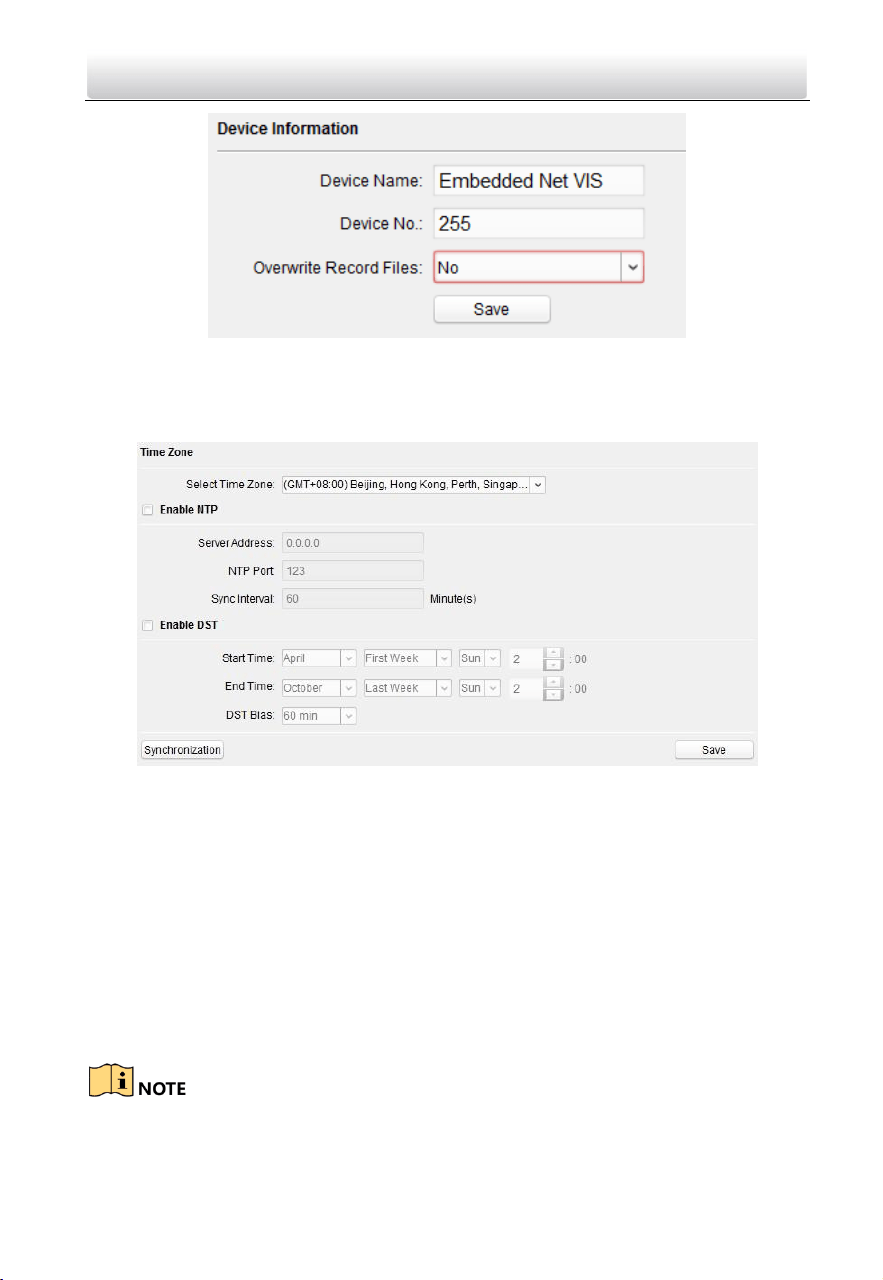
General
Click the General button to enter device general parameters settings interface. You can
view and edit the device name and device ID.
Video Intercom Door Station·User Manual
46
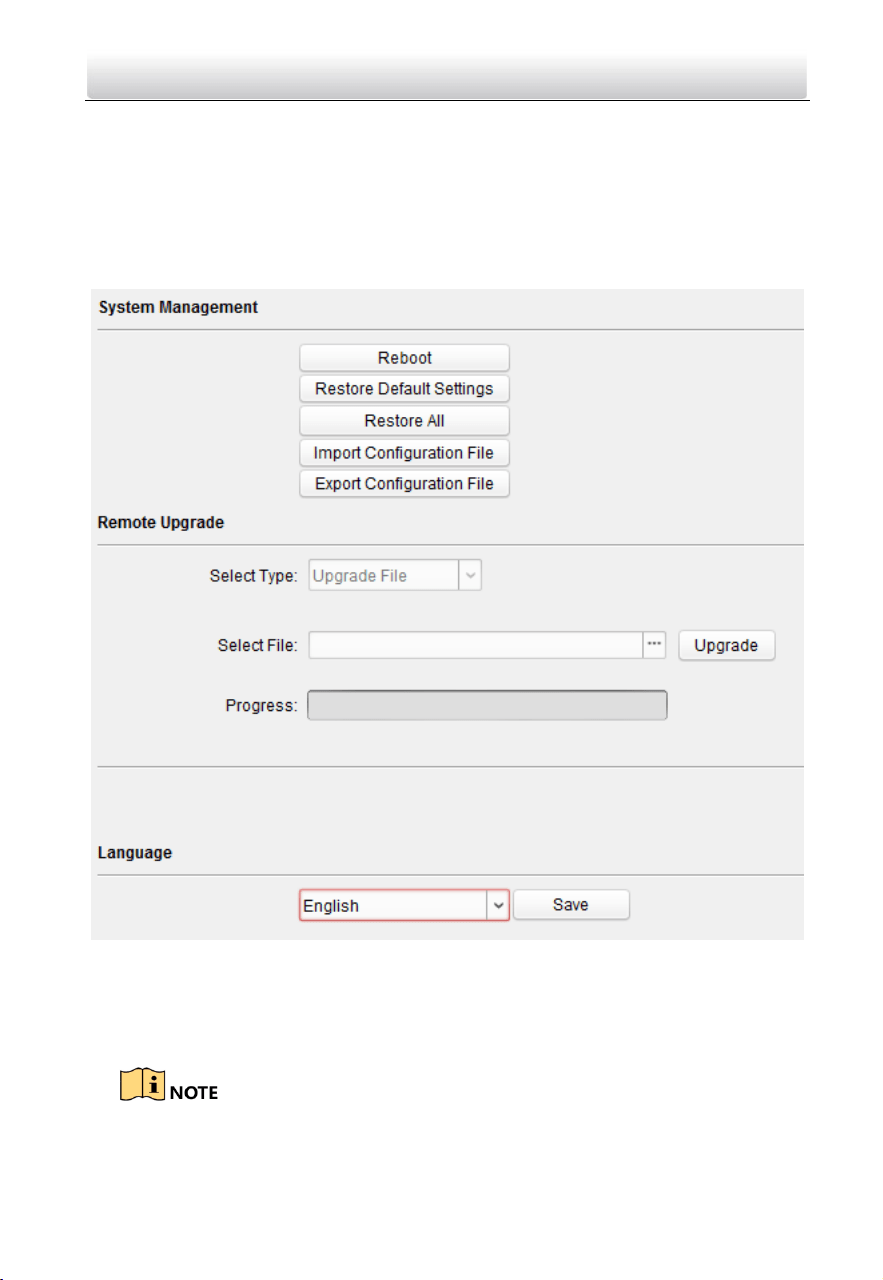
Time
Steps:
1. Click Time to enter the device time settings interface.
2. Select Time Zone or Enable NTP.
Time Zone
1) Select a time zone from the drop-down list menu.
2) Click Synchronization.
NTP
1) Check the checkbox of Enable NTP to enable NTP.
2) Enter the server address, NTP port, and synchronization interval.
DST
1) Check the checkbox of Enable DST to enable DST.
2) Enter the start time and end time of DST, and set the DST bias.
3. Click Save to save and realize the time settings.
The default port No. is 123.
Video Intercom Door Station·User Manual
47
System Maintenance
Purpose:
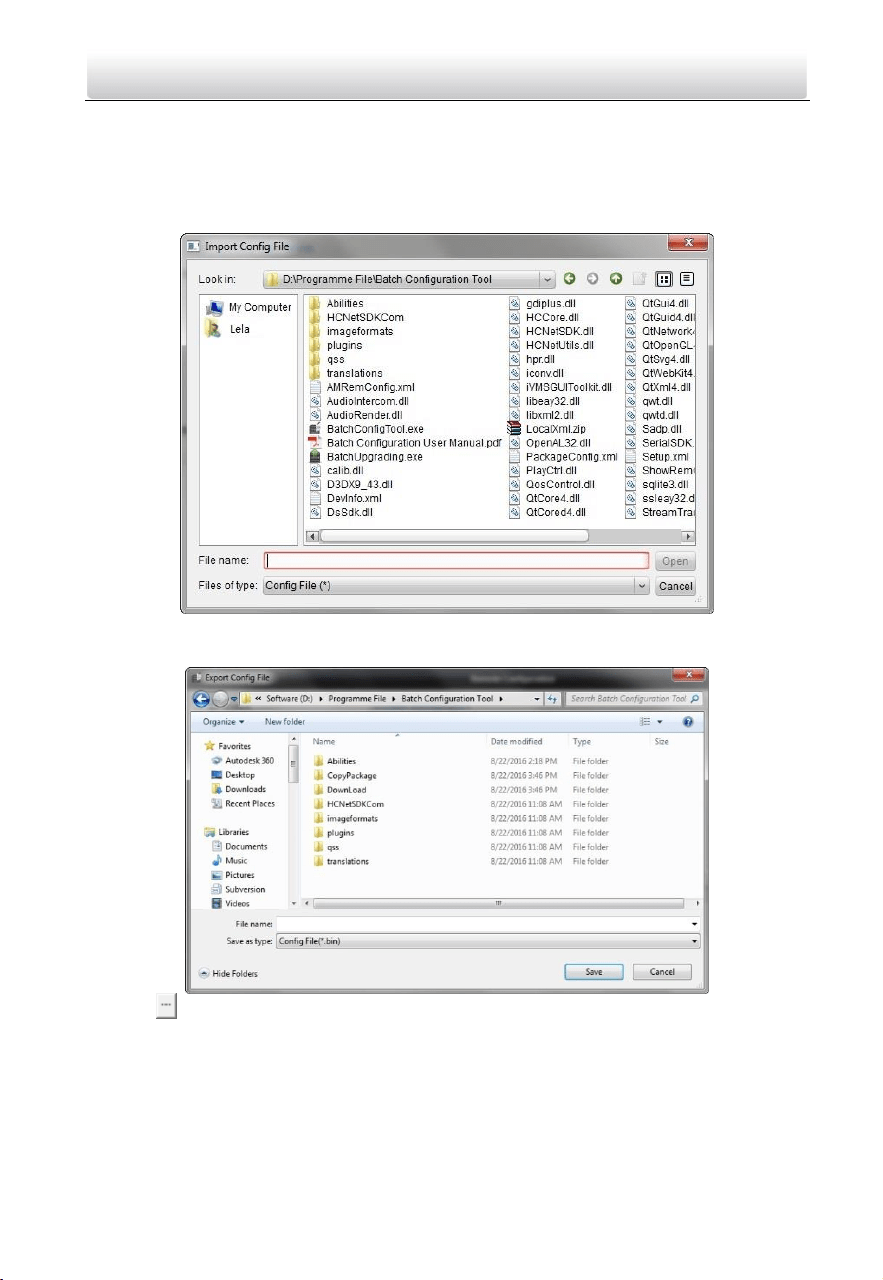
You can operate the system management and remote upgrading, and change system
language on the system maintenance interface.
Steps:
1. Click System Maintenance to enter the system maintenance interface.
2. Click Reboot and the system reboot dialog box pops up. Click Yes to reboot the
system.
3. Click Restore Default Settings to restore the default parameters.
4. Click Restore All to restore all parameters of device and reset the device to inactive
status.
Click Restore Default Settings button, all default settings, excluding network
parameters, will be restored.
Video Intercom Door Station·User Manual
48
Click Restore All button, all default settings, including network parameters, will be
restored. The device will be reset to inactivated status.
5. Click Import Configuration File and the import file window pops up. Select the path
of remote configuration files. Click Open to import the remote configuration file. The
configuration file is imported and the device will reboot automatically.
6. Click Export Configuration File and the export file window pops up. Select the saving
path of remote configuration files and click Save to export the configuration file.
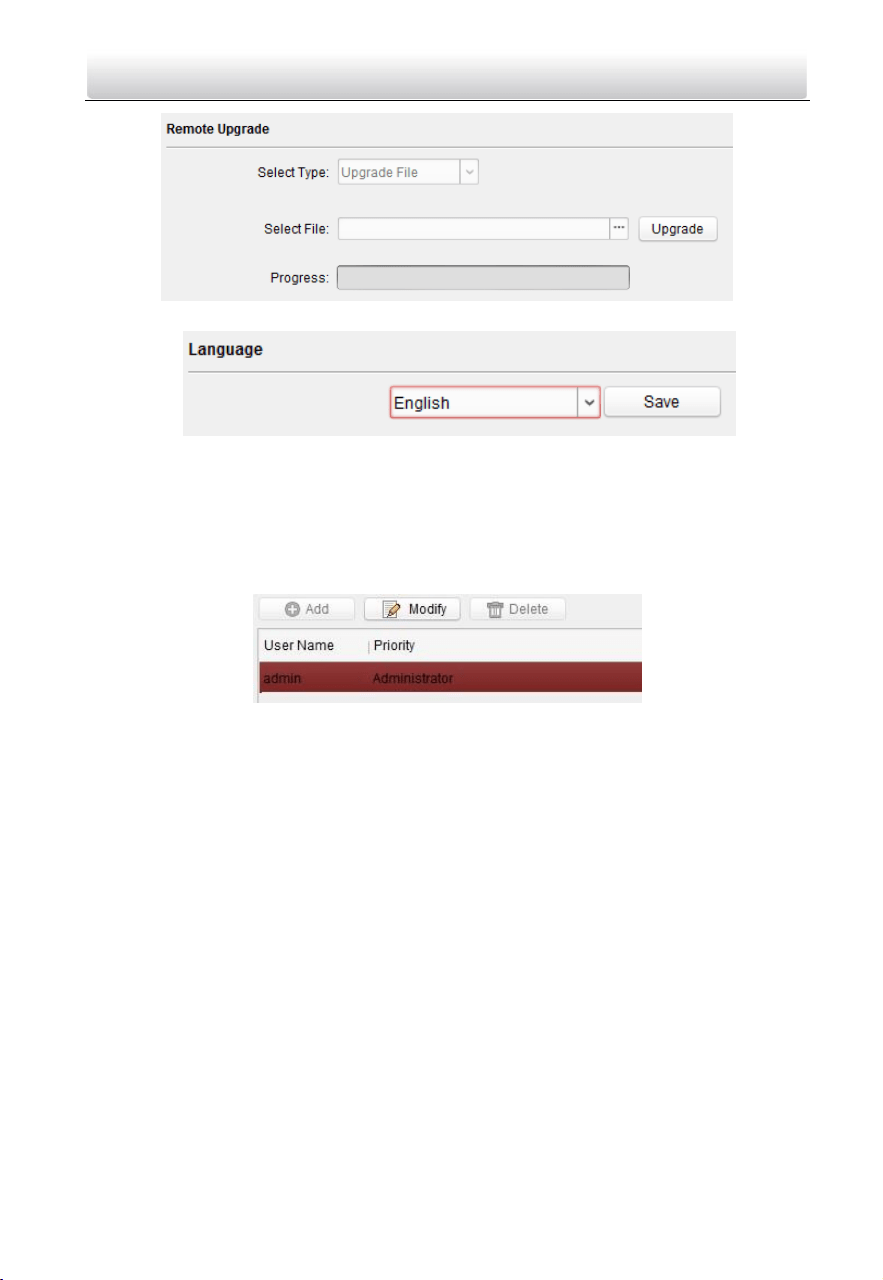
7. Click to select the upgrade file and click Upgrade to remote upgrade the device.
The process of remote upgrade will be displayed in the process bar.
Video Intercom Door Station·User Manual
49
8. Select a language and click Save to change the system language.
User
Purpose:
You can edit the password for logging in the device.
Steps:
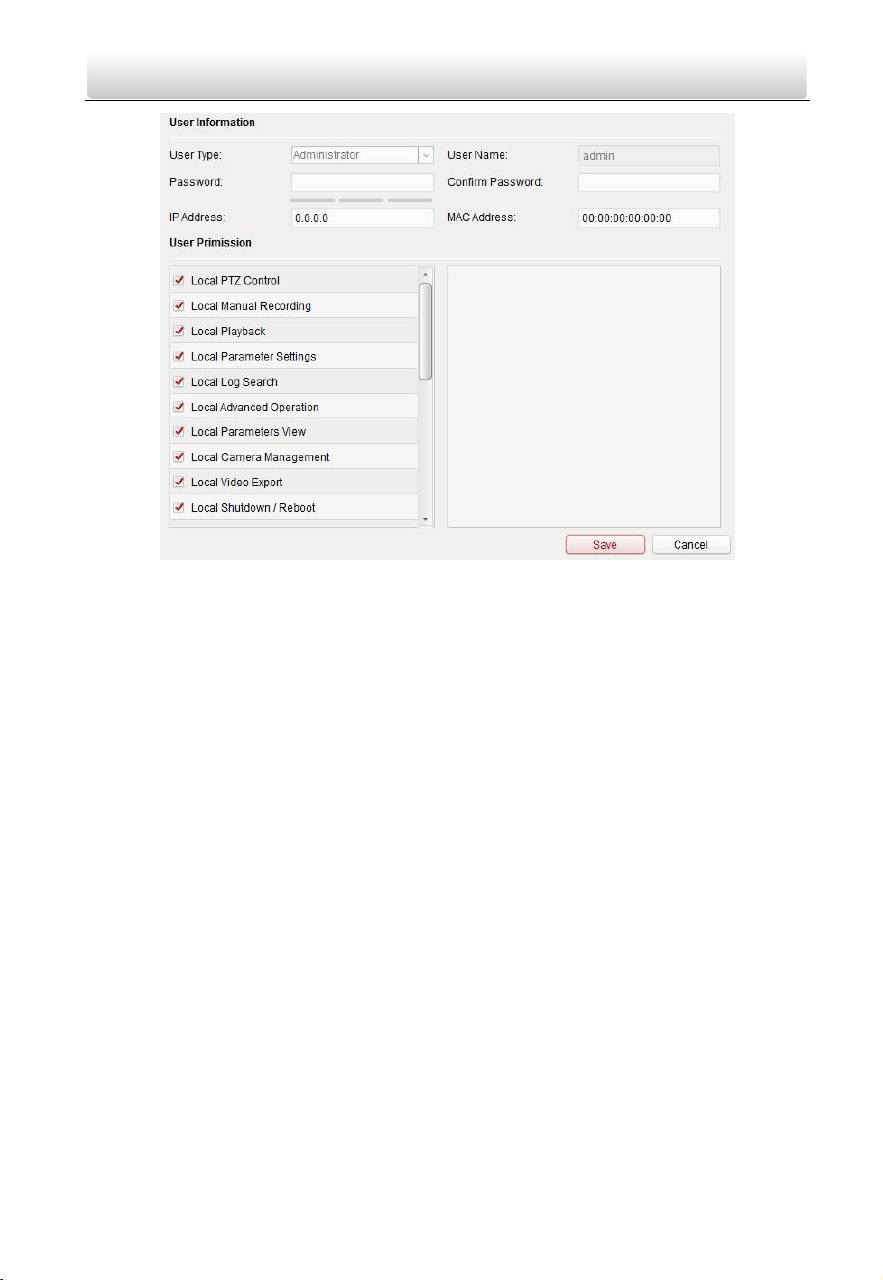
1. Click the User button to enter the user information editing interface.
2. Select the user to edit and click the Modify button to enter the user parameter
interface.
Video Intercom Door Station·User Manual
50
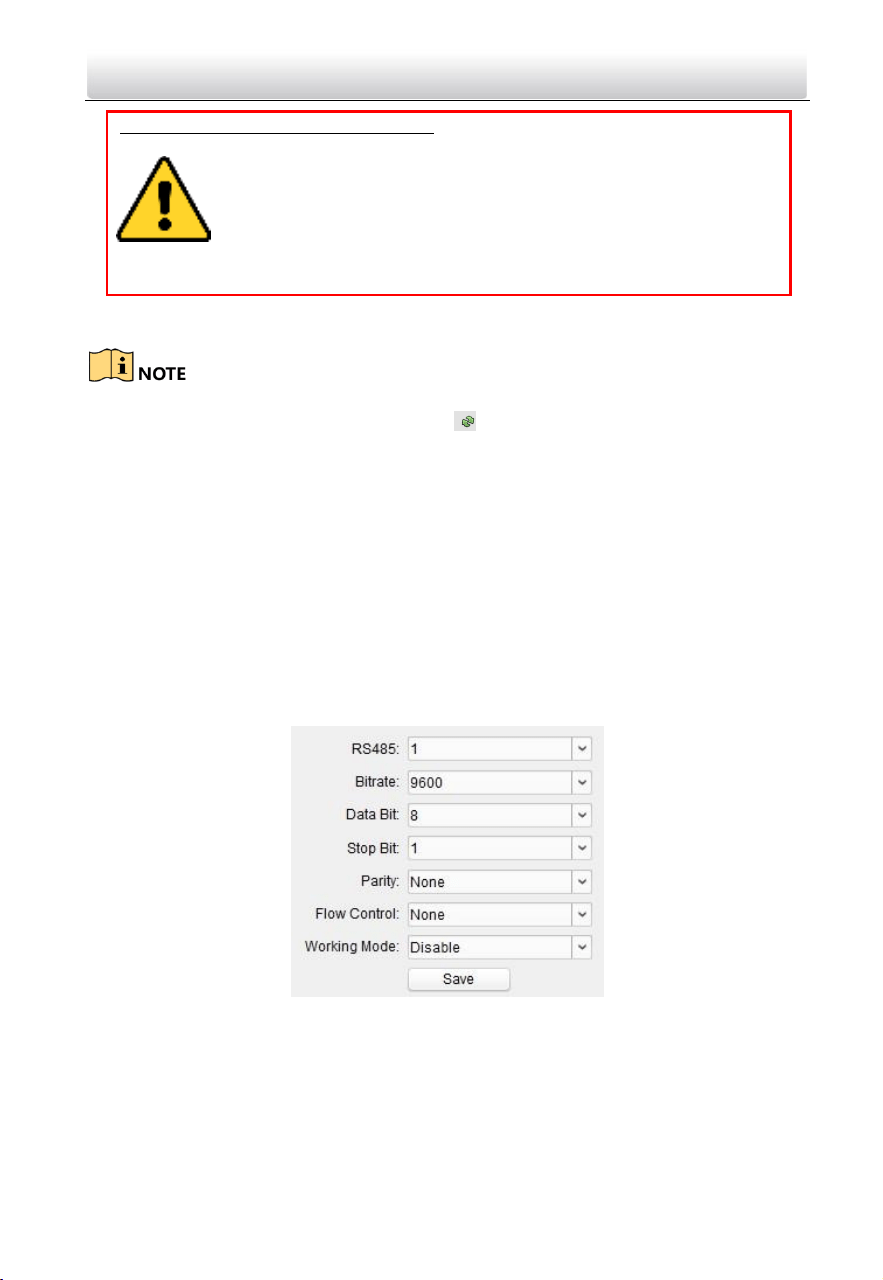
3. Enter the new password, and confirm it.
Video Intercom Door Station·User Manual
51
STRONG PASSWORD RECOMMENDED– We highly recommend you create a
strong password of your own choosing (Using a minimum of 8
characters, including at least three of the following categories:
upper case letters, lower case letters, numbers, and special
characters.) in order to increase the security of your product. And
we recommend you reset your password regularly, especially in the
high security system, resetting the password monthly or weekly can better
protect your product.
4. Click the Save button to realize the editing of password.
The new password and confirm password should be identical.
After editing the password of device, click button from the device list, the added
device will not be there. You should add the device again with new password to
operate the remote configuration.
RS485
Click the RS485 button to enter the RS485 setting interface. You can view and edit the
RS485 parameters of the device.
When use RS-485 interface to connect the door station and the card reader, you should
set the bitrate as 19200, and set the working mode as Card Reader.
When use RS-485 interface to connect the door station and the elevator controller, you
should set the bitrate as 19200 or 38400, and set the working mode as Elevator Control.
When use RS-485 interface to connect the door station and the security door unit, you
should set the bitrate as 19200, and set the working mode as Access Control Module.
7.4.2 Video Intercom
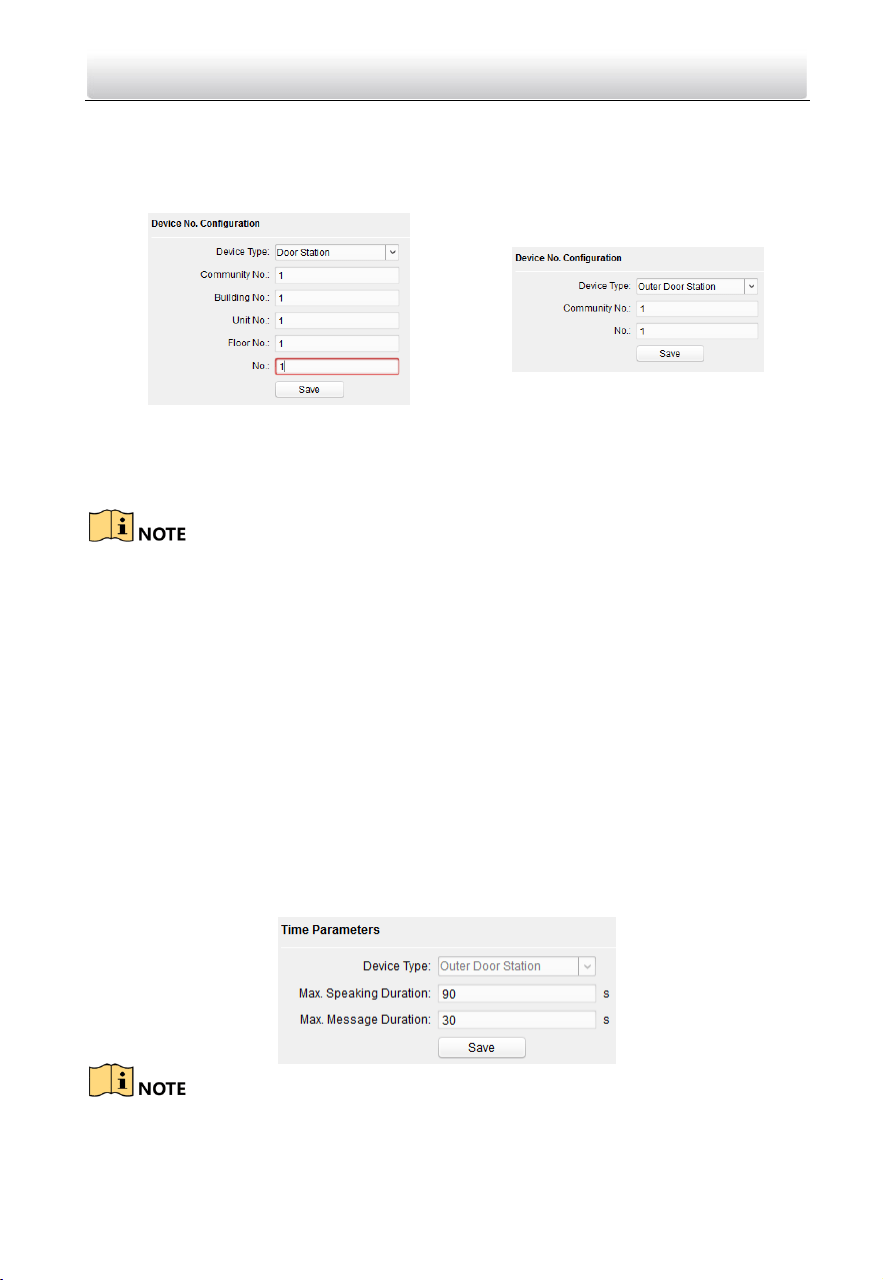
Click the Video Intercom button on the remote configuration interface to enter the
video intercom parameters settings: Device Number Configuration, Time Parameters,
Password, Zone Configuration, IP Camera Information, and Volume Input and Output
Configuration, and so on.
Video Intercom Door Station·User Manual
52
Device ID Configuration
Steps:
1. Click ID Configuration to enter device ID configuration interface.
Door Station
Outer Door Station
2. Select the device type from the drop-down list, and set the corresponding
information.
3. Click Save to enable the device number configuration.
For main door station (D series or V series), the serial No. is 0.
For sub door station (D series or V series), the serial No. is higher than 0. Serial No.
ranges from 1 to 99.
For each villa or building, at least one main door station (D series or V series) should
be configured, and sub door stations (D series or V series) can be customized.
For one main door station (D series or V series), at most 8 sub door stations can be
customized.
Select doorphone as device type, and the serial No. is not necessary to configure.
Please utilize the doorphone along with the main door station (V Series or D Series).
Time Parameters
1. Click Time Parameters to enter time parameters settings interface.
2. Configure the maximum ring duration, maximum live view time, and call forwarding
time.
3. Click Save.
For door station, maximum speaking time and maximum message time should be
configured. Maximum speaking time varies from 90s to 120s, and maximum message
time varies from 30s to 60s.
Video Intercom Door Station·User Manual
53
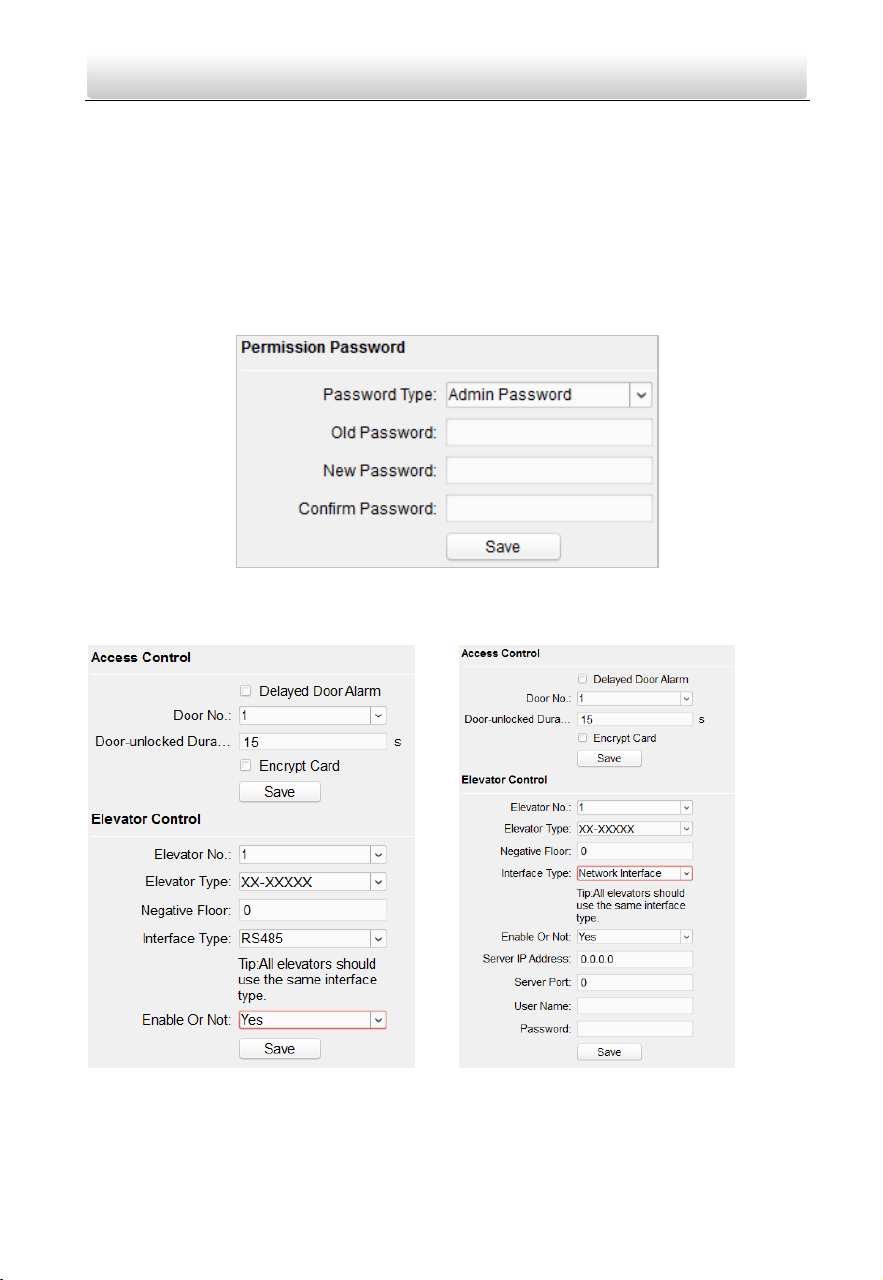
Password
Click Password to enter password changing interface.
You can modify the admin password (also called configuration password), public
password, and card activation password.
Configuration Password (Admin Password): It is necessary when you want to configure
parameters of the door station, such as IP parameters, door station No., system type,
and so on.
Card Activation Password: It is necessary when you want to issue cards via password.
Access Control and Elevator
Click Access Control and Elevator to enter corresponding configuration page.
Access Control
1. Select the door No.
2. Set the door-unlocked duration.

Video Intercom Door Station·User Manual
54
3. (Optional) Enable Delay Door Alarm.
4. Click Save to enable the settings.
The door-unlocked duration ranges from 1s to 225s.
If you check Delayed Door Alarm, an alarm will be triggered automatically if the door
is not locked in the configured duration.
Enabling Card Encrypt, the door station can recognize the encrypted information of
the card when you swiping the card on the door station.
Elevator Control
Before you start
Make sure your door station is in the mode of main door station. Only the main door
station support elevator control function.
Make sure your door station has been connected to the elevator controller via RS-485
wire if you want to use RS-485 interface.
Connection between the door station and the elevator controller supports 2 types:
RS-485 or Network interface.
Step:
1. Select an elevator No., and select an elevator controller type for the elevator.
2. Set the negative floor.
3. Select the interface type: RS-485 or Network Interface.
If you select RS-485, please make sure you have connected the door station to the
elevator controller with RS-485 wire.
If you select Network Interface, please enter the elevator controller’s IP address, port
No., user name, and password.
4. Enable the elevator control.
Up to 4 elevator controllers can be connected to one door station.
Up to 10 negative floors can be added.
Make sure the interface types of elevator controllers, which are connected to the
same door station, are consistent.
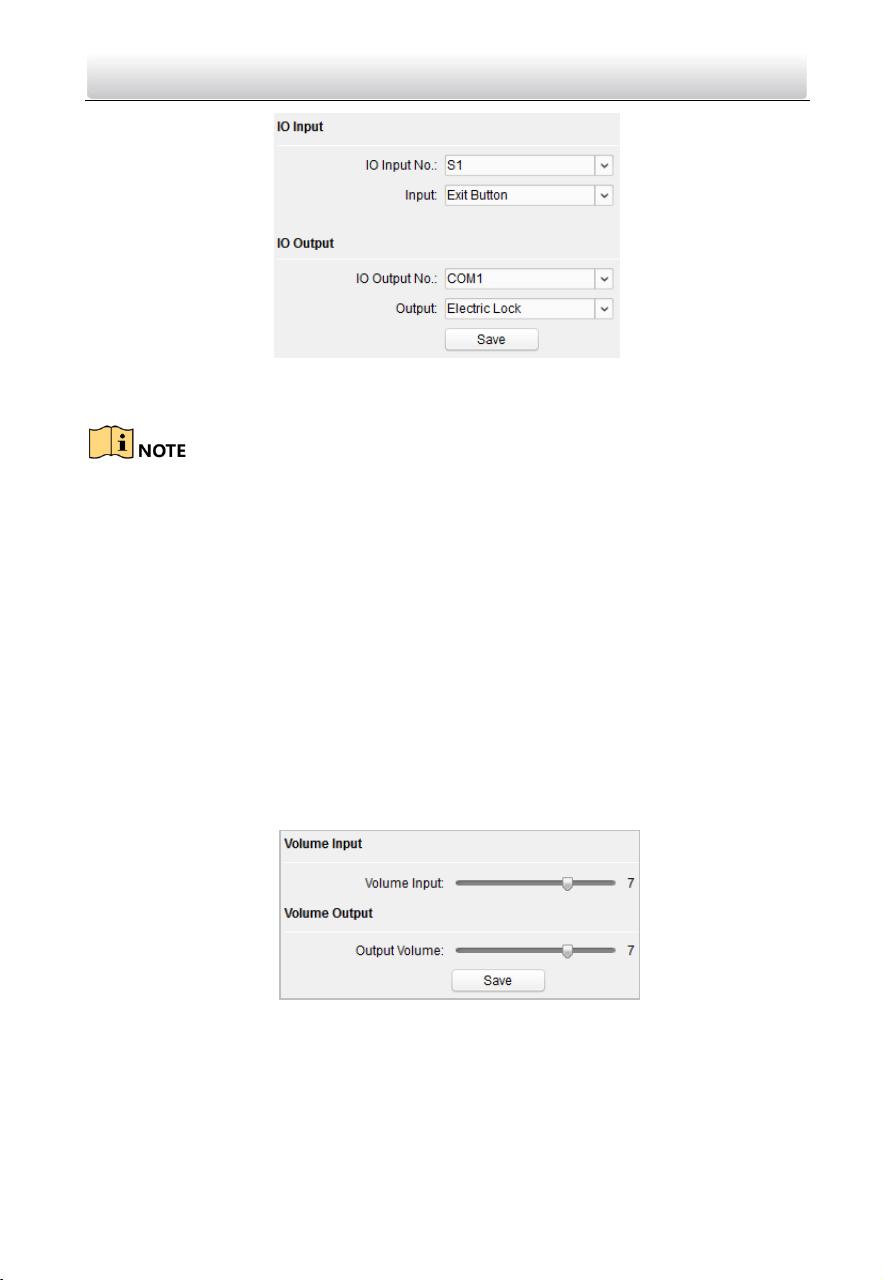
IO Input and Output
Step:
1. Click I/O Input and Output to enter the I/O input and output interface.
Video Intercom Door Station·User Manual
55
2. Select I/O input No., input mode, output No., and output mode.
3. Click Save to enable the settings.
For door station (D series), there are 8 I/O Input Terminals. Terminal 1~4 correspond
to SENSOR interfaces (S1, S2, S3, S4) of door station. Terminal 5~8 correspond to
interfaces of ALARM IN (A1, A2, A3, A4). You can select an I/O input No. (S1, S2, S3, S4,
AI, A2, A3, A4) from the drop-down list and set the I/O input as door magnetic exit
button.
For door station (V series), there are 4 I/O Input Terminals, corresponding to SENSOR
interfaces (S1, S2, S3, S4) of door station.
For door station (D series and V series), there are 4 I/O Output Terminals.
Terminal 1~2 correspond to DOOR interfaces (NO1/COM1/NC1; NO2/COM2/NC2) of
door station. You can enable/disable IO Out by selecting from the dropdown list.
Terminal 3~4 correspond to interfaces of ALARM OUT (AO1+, AO1-; AO2+, AO2-).
Volume Input and Output
Step:
1. Click Volume Input/Output to enter the volume input and output interface.
2. Slide the slider to adjust the volume input and volume output.
3. Click Save to enable the settings.
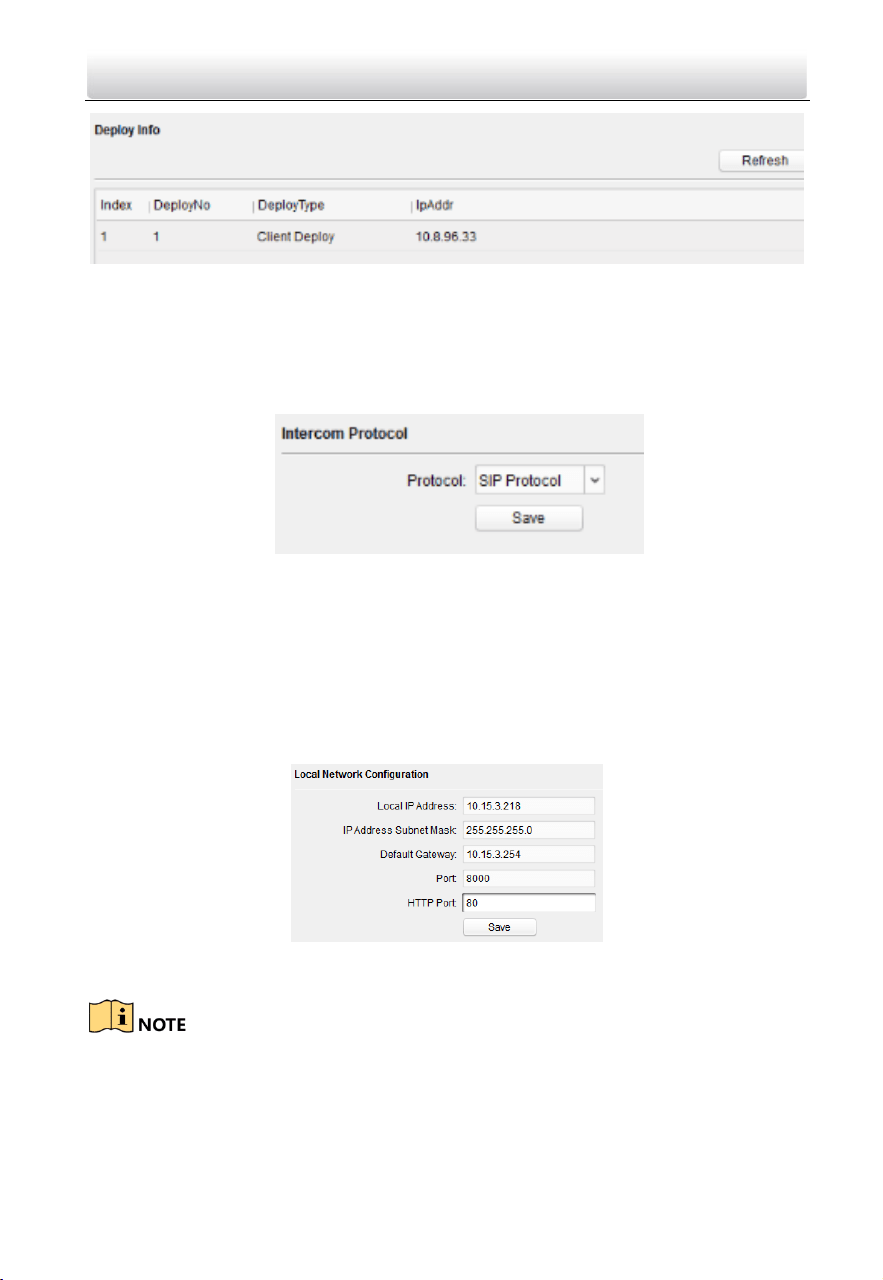
Deploy Info
In the Deploy Info interface, you can view which kind of device or client will receive the
alarm message and arm message from the door station.
Video Intercom Door Station·User Manual
56
Intercom Protocol
Door station supports the private SIP protocol and the standard SIP protocol. You can
change the protocol in the Intercom Protocol interface.
Step:
1. Click Intercom Protocol to enter the intercom protocol interface.
2. Select protocol type.
3. Click Save to enable the settings.
7.4.3 Network
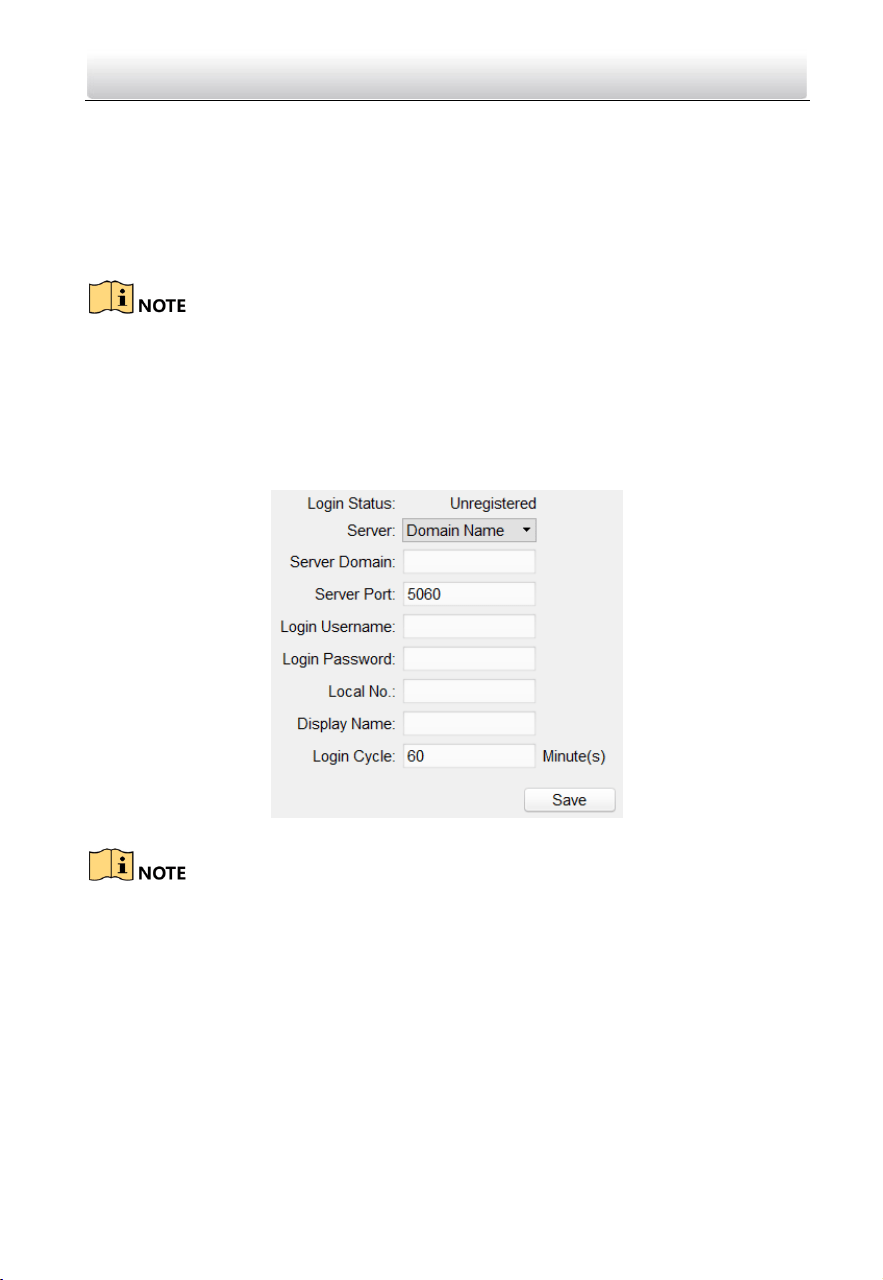
Local Network Configuration
Steps:
1. Click Local Network Configuration to enter local network configuration interface.
2. Enter the local IP address, subnet mask, gateway address, and port No.
3. Click Save to enable the settings.
The default port No. is 8000.
After editing the local network parameters of device, you should add the devices to
the device list again.
Video Intercom Door Station·User Manual
57
SIP Configuration
A SIP server connection is required and necessary for the door station to guarantee the
connection between the door station and the management center (master station) in
the same video intercom system.
2 types of SIP protocol are available for the door station: Private Protocol, and Standard
Protocol.
If the door station adopts the private SIP protocol, set the SIP IP address when you
edit the network parameters for the door station. See 6.4.2 Edit Network
Parameters for details.
If the door station adopts the standard SIP, you should set the SIP information via
the remote configuration.
Steps:
1. Click SIPConfig to enter the standard SIP configuration interface.
2. Enter the information based your needs.
The local No. refers to the VoIP number, and supports up to 16 digits.
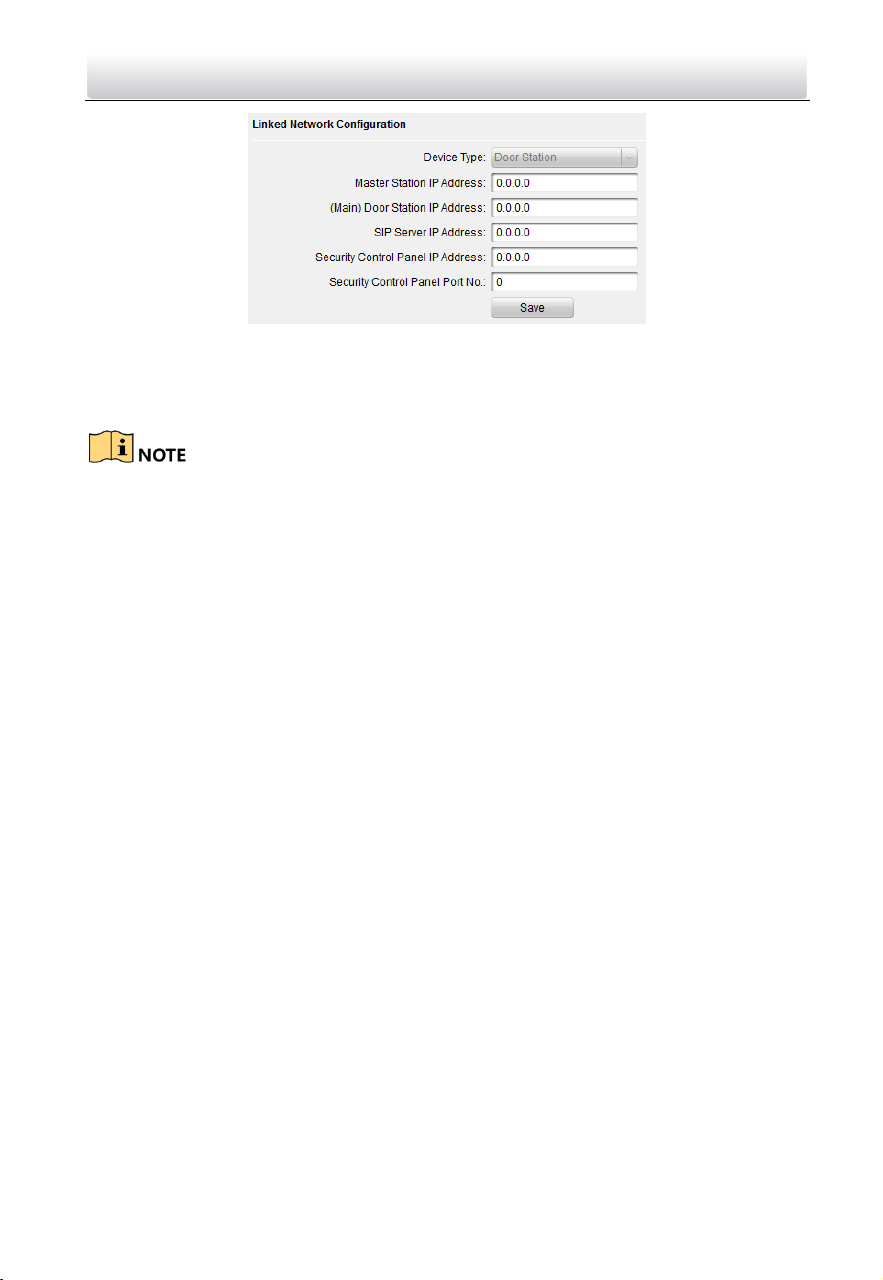
Linked Devices Network Configuration
Purpose:
In the linked devices network configuration interface, you can configure the network
parameters of master stations, SIP servers and management centers of the same LAN.
The devices can be linked to the door station and realize the linkage between these
devices.
Steps:
1. Click Linked Network Configuration to enter linked network configuration interface.
Video Intercom Door Station·User Manual
58
2. Enter the master station IP address, (main) door station IP address, SIP server IP
address, management center IP address, and doorphone IP address.
3. Select the main door station type from the drop-down list.
4. Click the Save button to enable the settings.
After adding master station IP Address, the linkage between indoor station and
master station can be realized.
After adding the door station IP Address, the video intercom between indoor stations
of same building can be realized.
After adding SIP Server Address IP, the video intercom of same community: video
intercom between indoor stations of different building, calling indoor station from
outer door station and video intercom between management center and indoors.
After adding management center IP Address, the events can be uploaded to the
management center.
For indoor extension, only parameter about the main indoor station should be
configured.
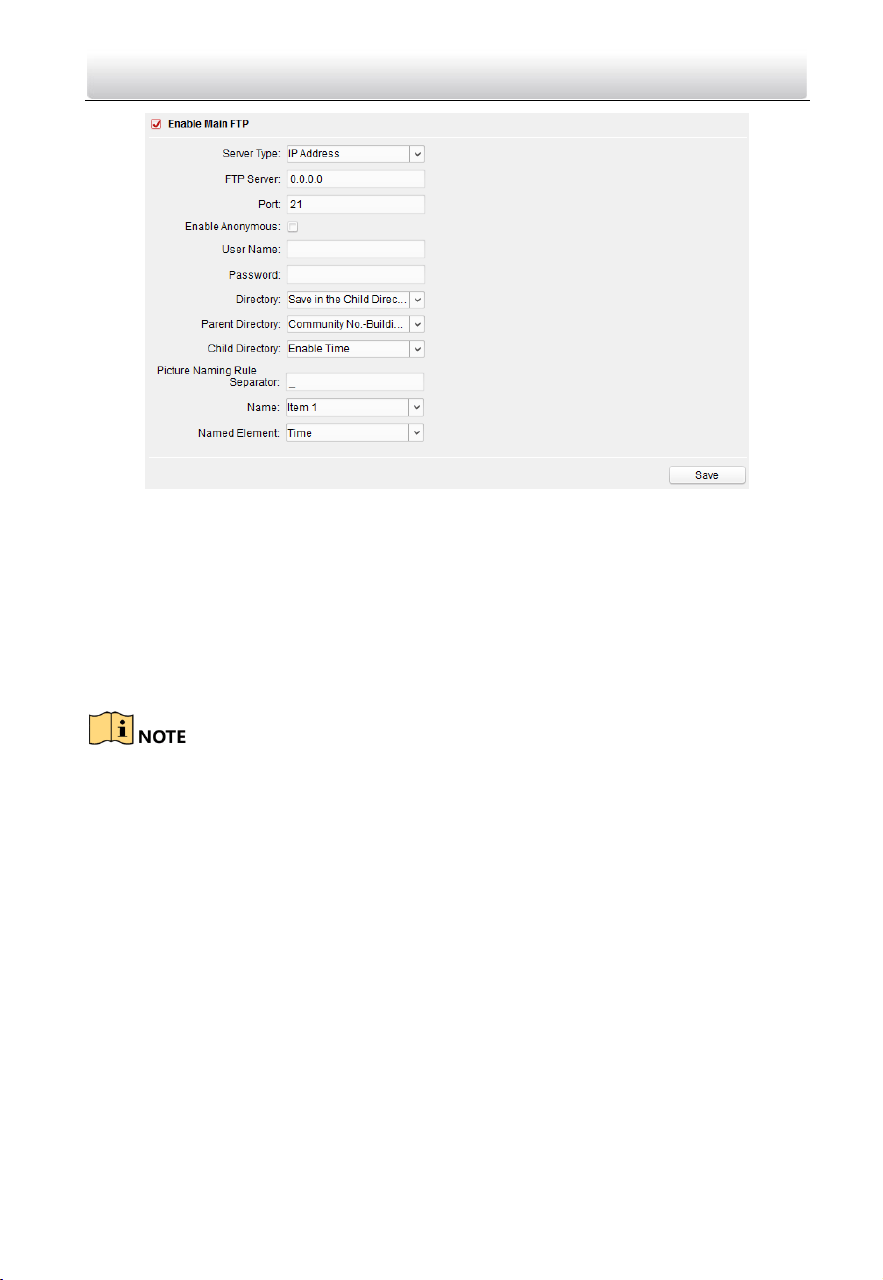
FTP
Steps:
1. Click the FTP button to enter the FTP parameters interface.
Video Intercom Door Station·User Manual
59
2. Check the checkbox of Enable Main FTP.
3. Select IP address from the drop-down list of server mode.
4. Enter the FTP server address, and port No.
5. Check the checkbox to enable the anonymity (optional).
6. Enter the name and password.
7. Select the directory structure and set the separator, naming item, and naming
element.
8. Click the Save button to enable the FTP parameters settings.
The default port No. is 21.
To enable anonymity or not is according to whether the FTP server enables
anonymity.
After configuring the FTP parameters, the captured pictures of door station will be
uploaded to the FTP server automatically.
This function only applies to the door station, except for the doorphone.
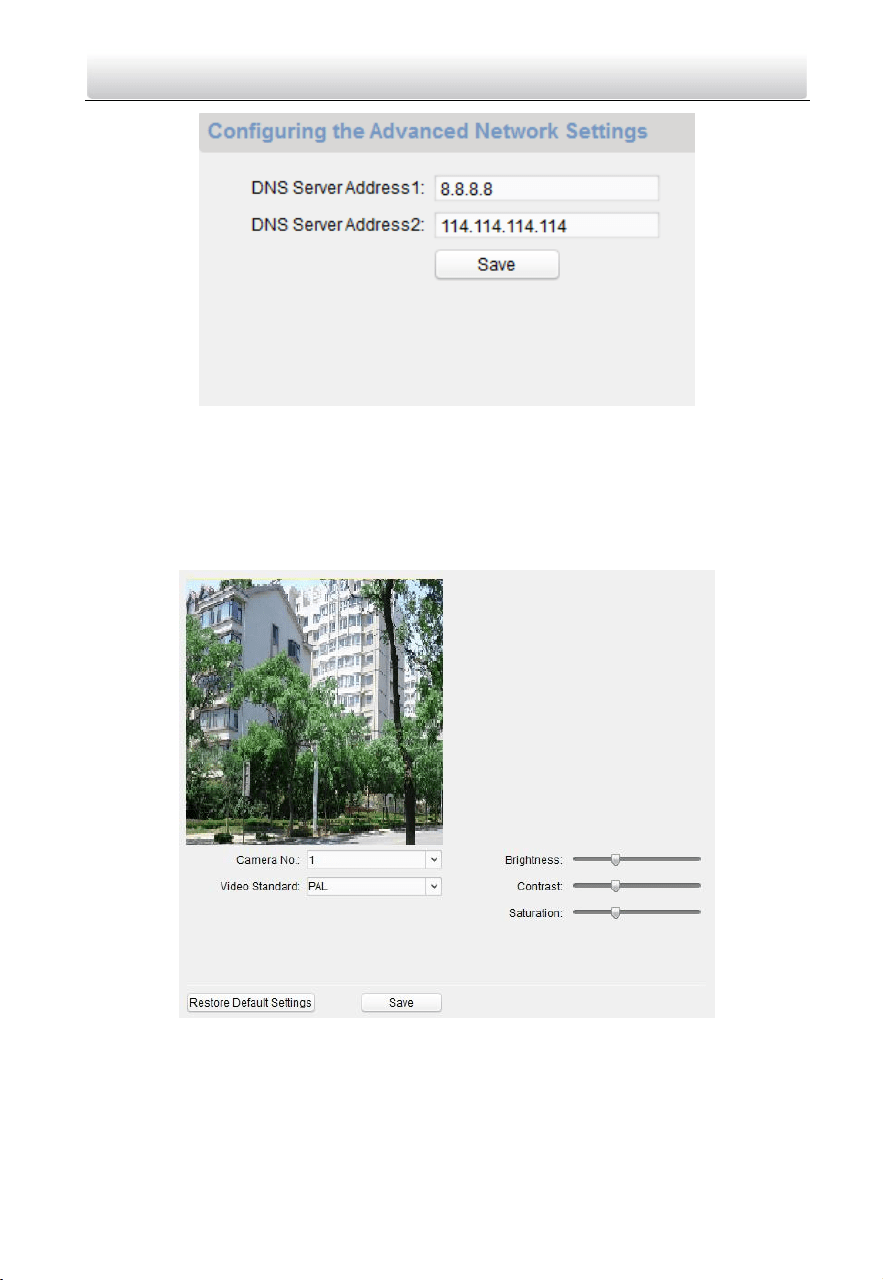
Advanced Settings
Steps:
1. Click the Advanced Settings button to enter the advanced network settings interface.
Video Intercom Door Station·User Manual
60
2. Enter the DNS server addresses.
3. Click the Save button to enable the advanced network settings.
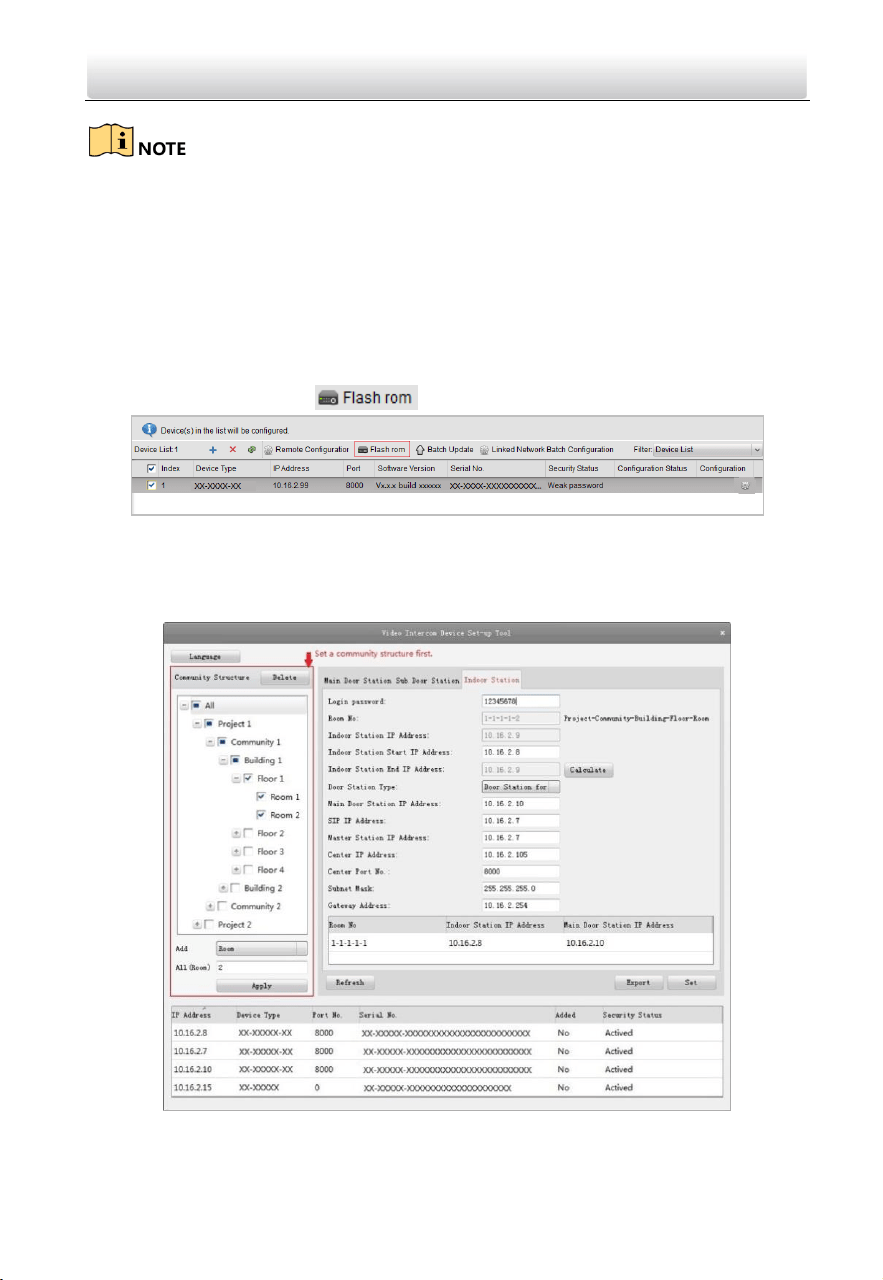
7.4.4 Video Display
Steps:
1. Click the Video Display button to enter the video parameters interface.
2. Select the camera No.
3. Select the video standard (PAL and NTSC can be selected).
4. Set the brightness, contrast, and saturation of the video.
5. Click the Save button to enable the settings.
Video Intercom Door Station·User Manual
61
Click the Restore Default Settings button to restore all parameters excluding network
parameters to the factory settings.
7.5 Video Intercom Device Set-up Tool
Purpose:
You can assign the device to the community, activate and set the device, and configure
the network parameters and linked network parameters for the device by using the
video intercom device set-up tool.
In the device list area, click to enter the video intercom device set-up tool.
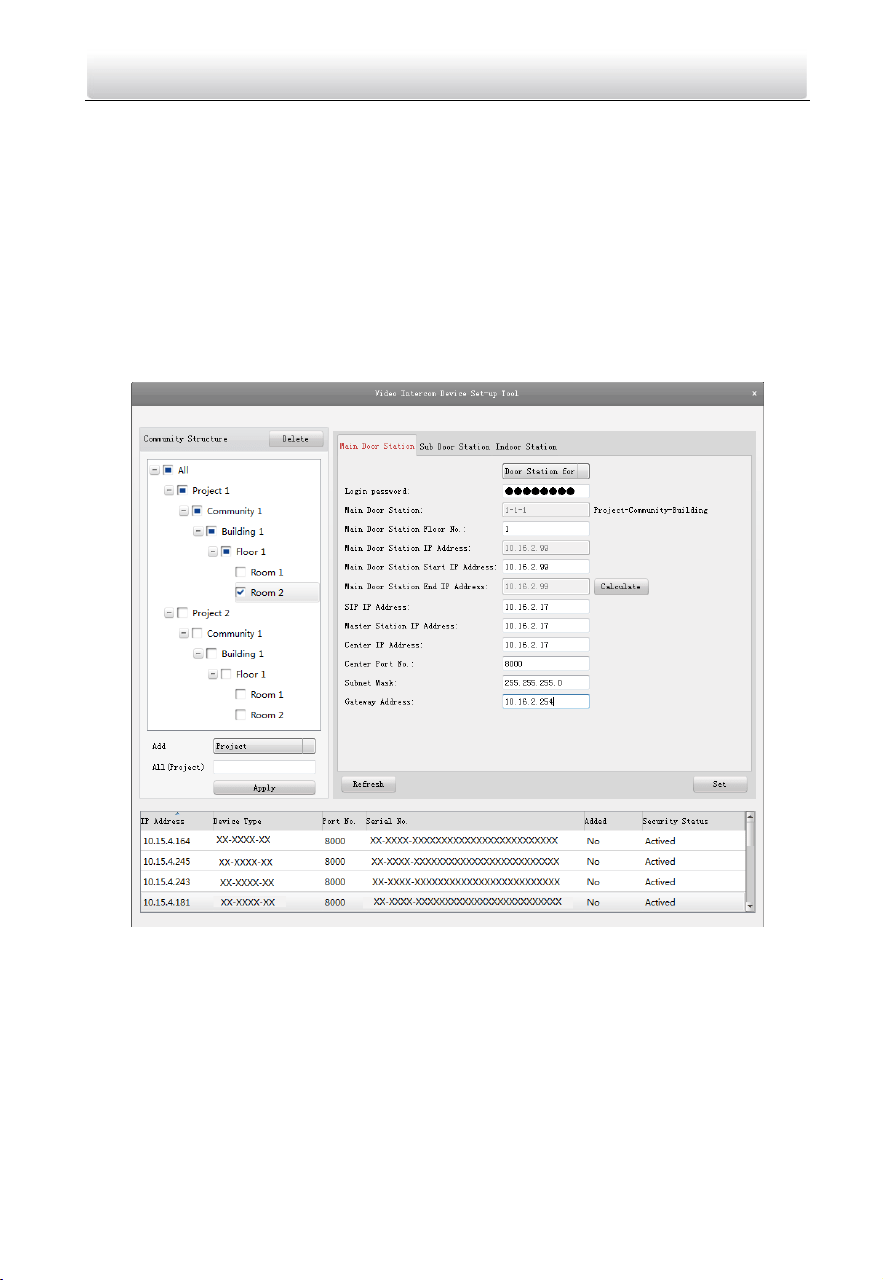
7.5.1 Set a Community Structure
Set a community structure in the video intercom device set-up tool first, based on the
real community situation, and then assign devices to the community accordingly.
Video Intercom Door Station·User Manual
62
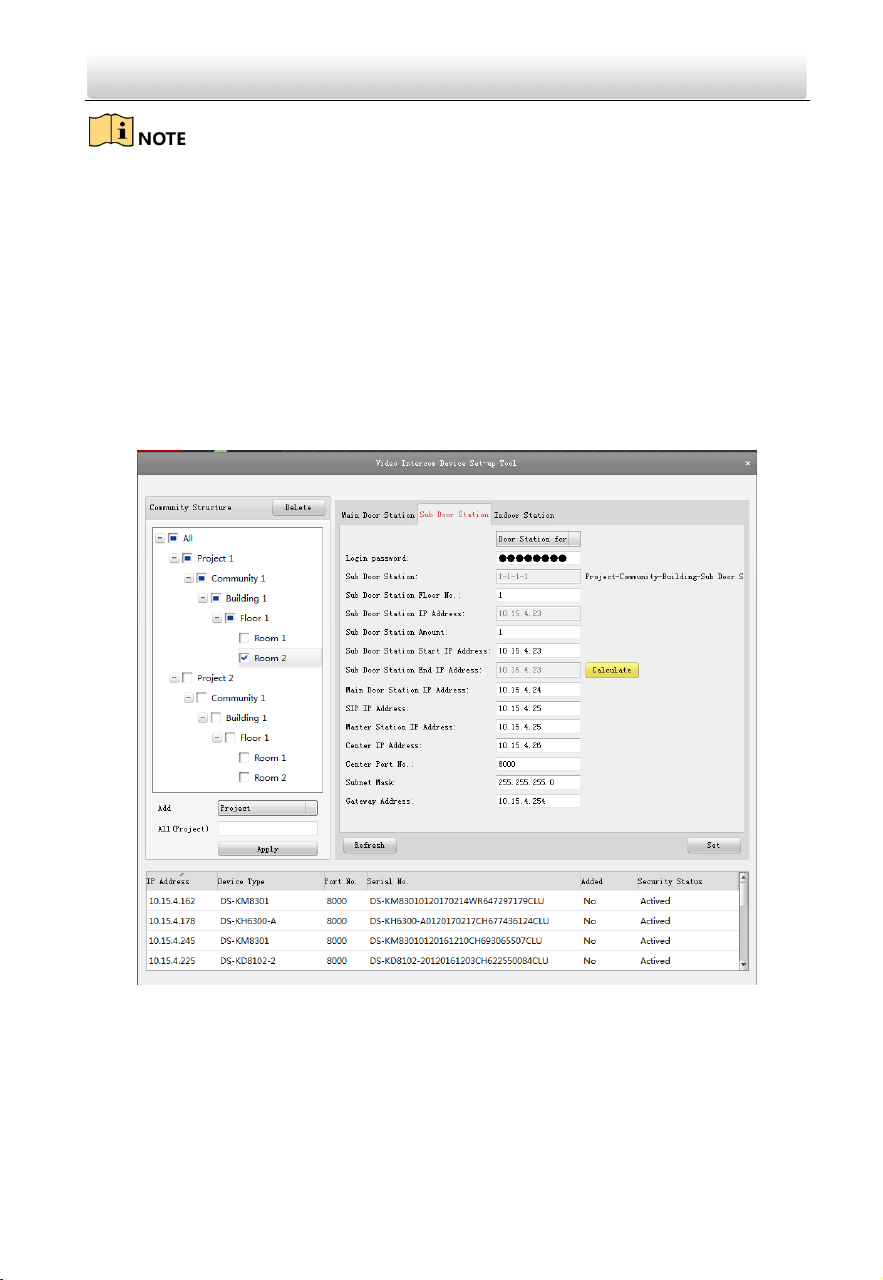
7.5.2 Set Main/Sub Door Station
Set Main Door Station
Purpose:
You can activate the online main door station, and configure the building No. for the
online main door station.
Steps:
1. Select the community, and press the Main Door Station tab to switch to the main
door station configuration interface.
2. Select the door station type from the drop-down list menu: Door Station for Unit, or
Door Station for Villa.
3. Enter the main door station start IP address, set the main door station floor No., and
then click the Calculate button to generate the main door station end IP address and
main door station No. (like 1-1-1) automatically.
4. Set the linked network parameters for the main door station: SIP IP address, master
station IP address, center IP address, center port No., subnet mask, and gateway
address.
5. Select an online door station, enter the login password, and click the Set button.
Video Intercom Door Station·User Manual
63
The default main door station floor No. is 1.
For the login password, if the main door station has been activated, enter the
activation password here. If the main door station is not activated, create a login
password here, and the main door station will be activated simultaneously.
When the device is successfully configured, it prompts the note: Configuring main
door station parameters succeeded.
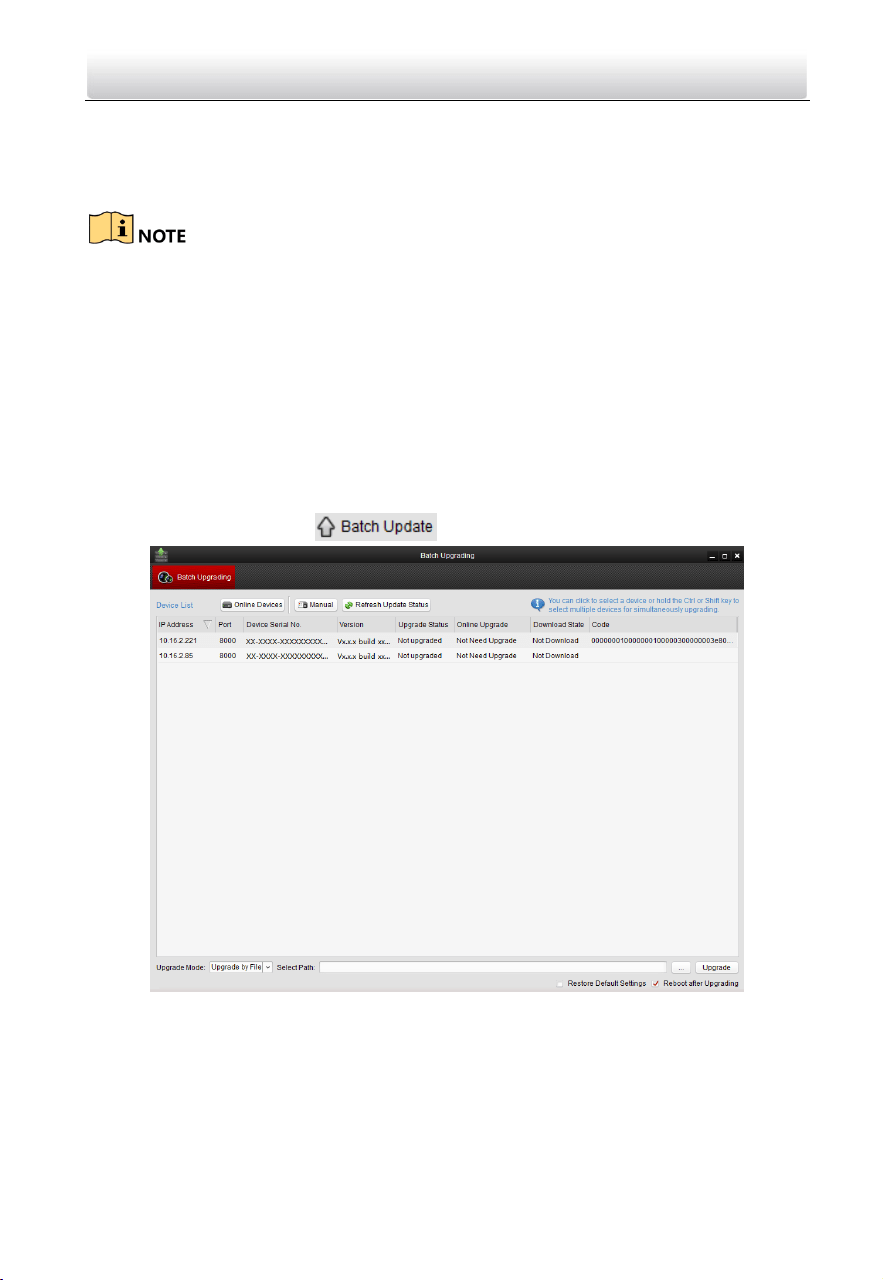
Set Sub Door Station
Steps:
1. Select the community, and press the Sub Door Station tab to switch to the sub door
station configuration interface.
2. Select the door station type from the drop-down list menu: Door Station for Unit, or
Door Station for Villa.
3. Set the sub door station parameters (sub door station amount, floor No., start IP
address, end IP address), and then click the Calculate button to generate the sub
door station end IP address and sub door station No. (like 1-1-1-1) automatically.
Video Intercom Door Station·User Manual
64
4. Set the linked network parameters for the sub door station: main door station IP
address, SIP IP address, master station IP address, center IP address, center port No.,
subnet mask, and gateway address.
5. Select an online door station, enter the login password, and click the Set button.
The default sub door station floor No. is 1.
Up to 8 sub door stations can be added to a main door station.
For the login password, if the sub door station has been activated, enter the
activation password here. If the sub door station is not activated, create a login
password here, and the sub door station will be activated simultaneously.
When the device is successfully configured, it prompts the note: Configuring main
door station parameters succeeded
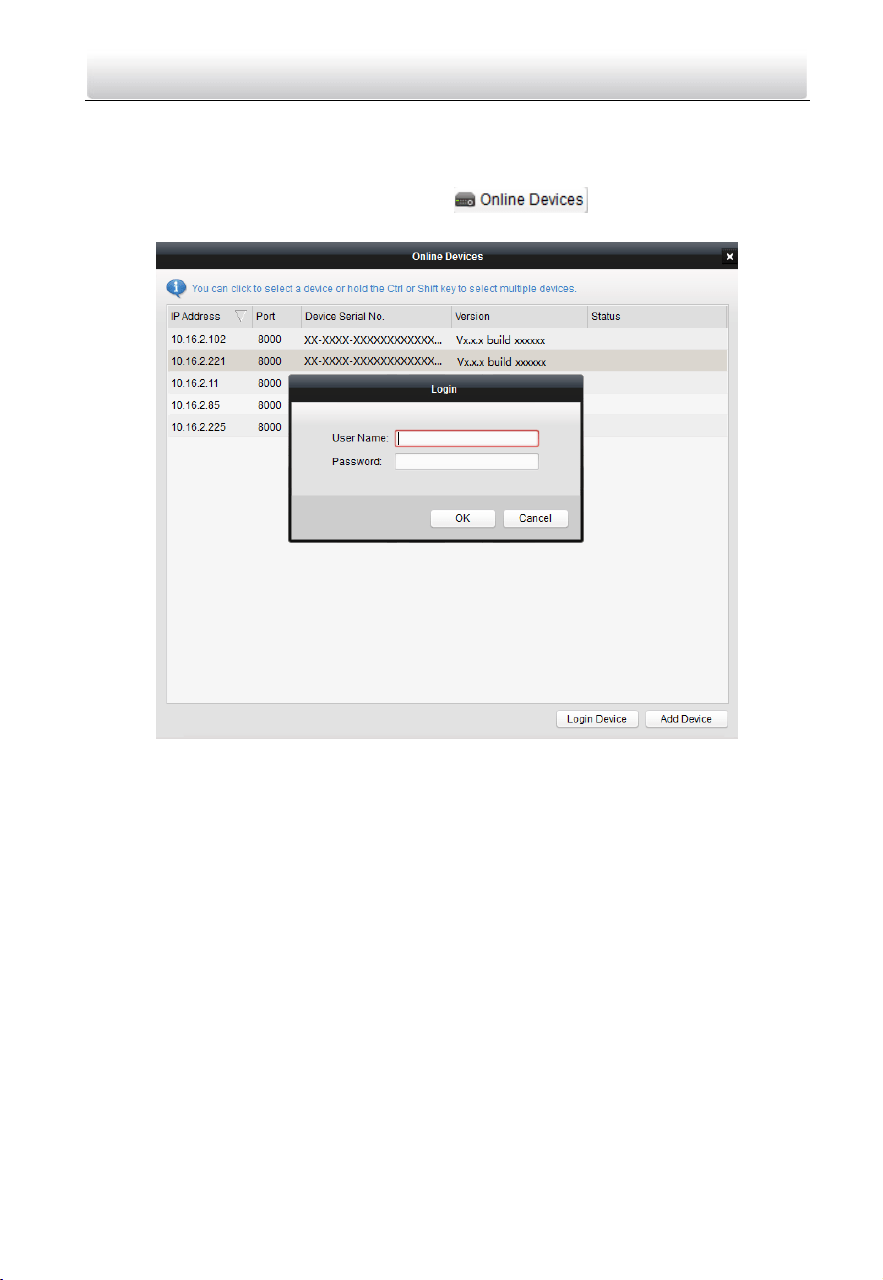
7.6 Batch Upgrading
In the device list area, click to enter the batch upgrading interface.
7.6.1 Add Devices for Upgrading
You should add the device to the batch upgrading tool first before upgrading the device.
There are 2 ways to add the device: adding online device, and adding by IP address/IP
segment.
Video Intercom Door Station·User Manual
65
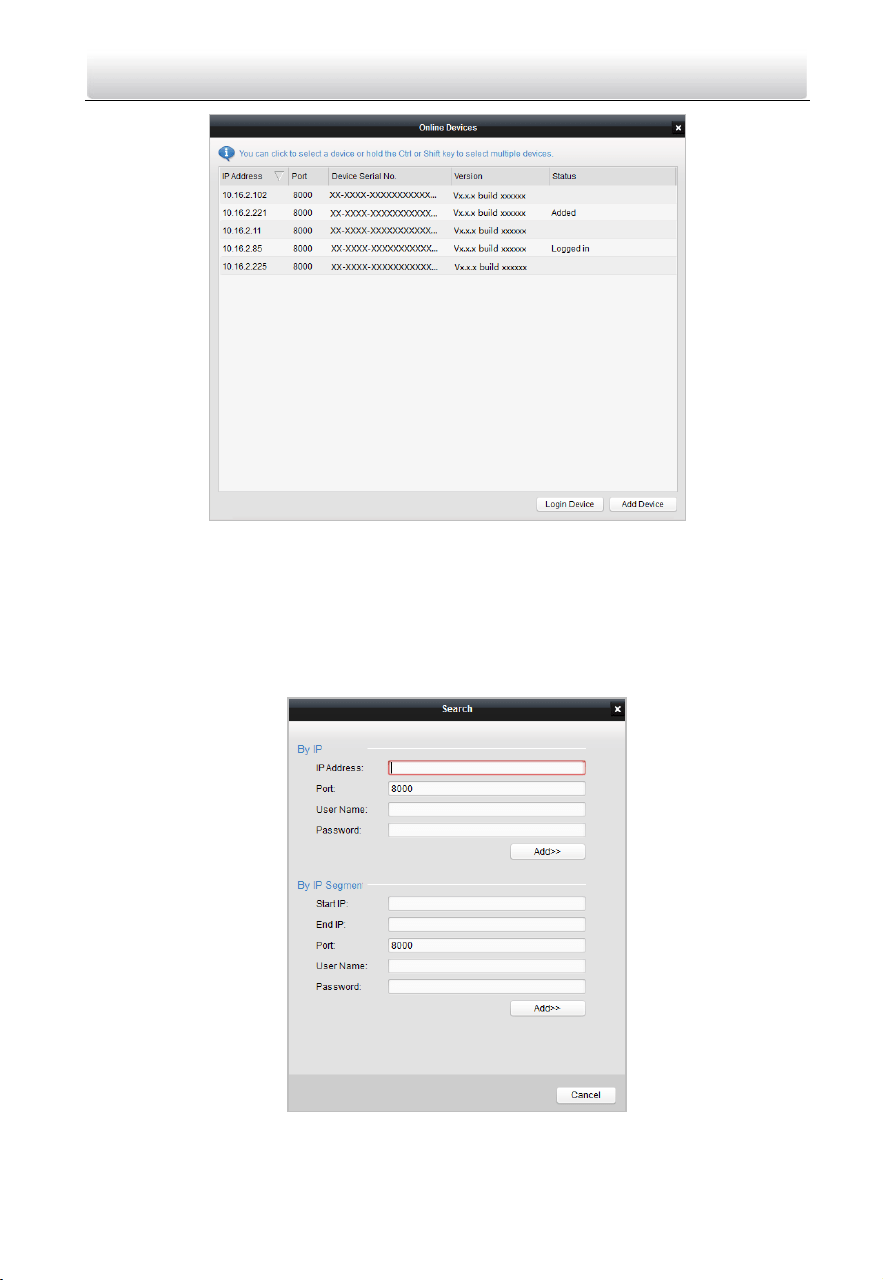
Add Online Device
Steps:
1. In the batch upgrading interface, click the to open the online device
window.
2. Select a device, enter the user name and password, and click the Login Device button.
3. Click the Add Device button, and the device is added to the batch upgrading tool.
Video Intercom Door Station·User Manual
66
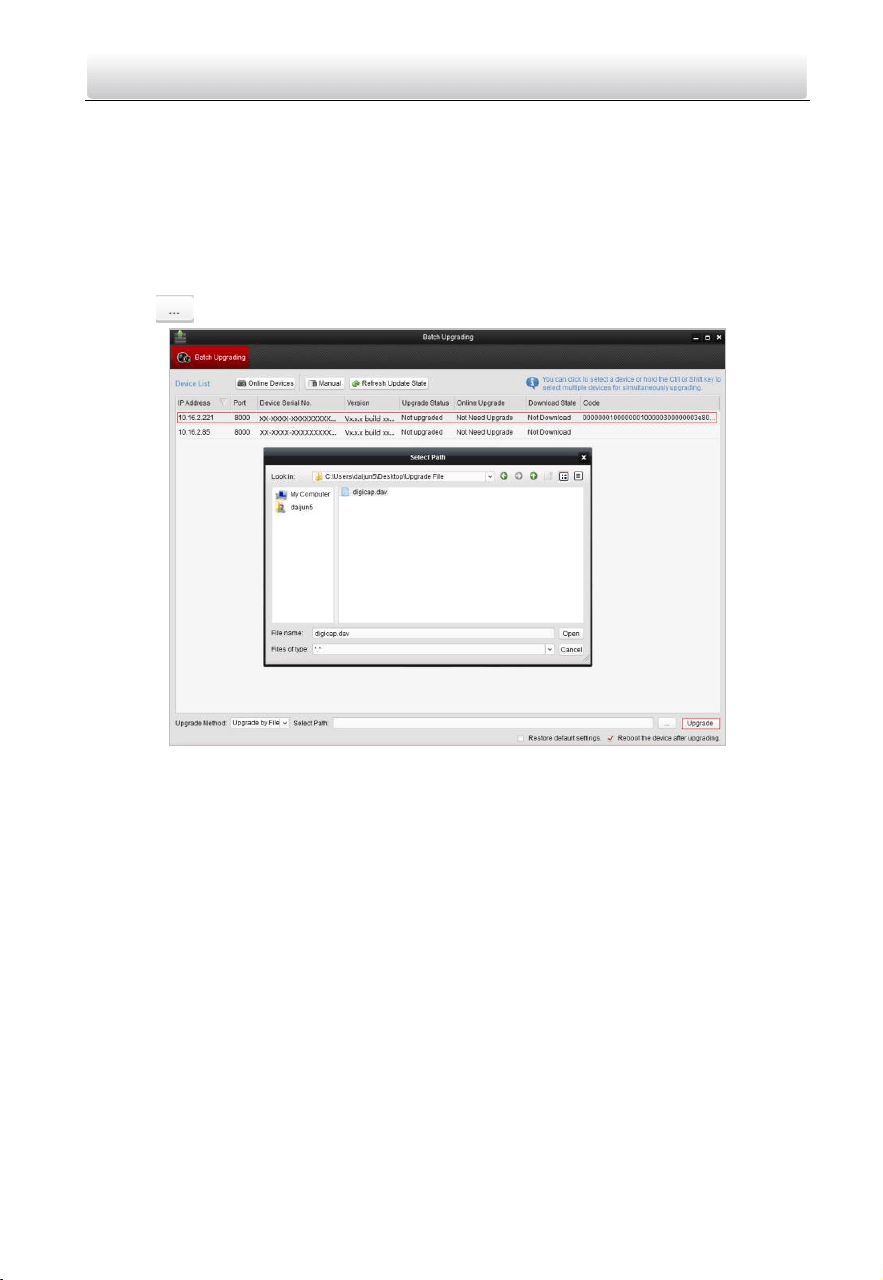
Add by IP Address/IP Segment
Steps:
1. Click the Manual button to open the device adding window.
2. Enter the corresponding information (IP address, user name, password, start IP
address, end IP address).
3. Click the Add button.
Video Intercom Door Station·User Manual
67
7.6.2 Upgrade Devices
Door station supports upgrading by file.
Upgrading by File: You upgrade the device or devices via the local upgrade files.
Steps:
1. Select a device or multiple devices, and select “Upgrade by File” as the upgrading
mode.
2. Click to pop up the window for opening the upgrading file.
3. Open the upgrading file, and click the Upgrade button.

Video Intercom Door Station·User Manual
68
8 Remote Operation via iVMS-4200
The Video Intercom module provides remote control and configuration on video
intercom products via the iVMS-4200 client software.
8.1 System Configuration
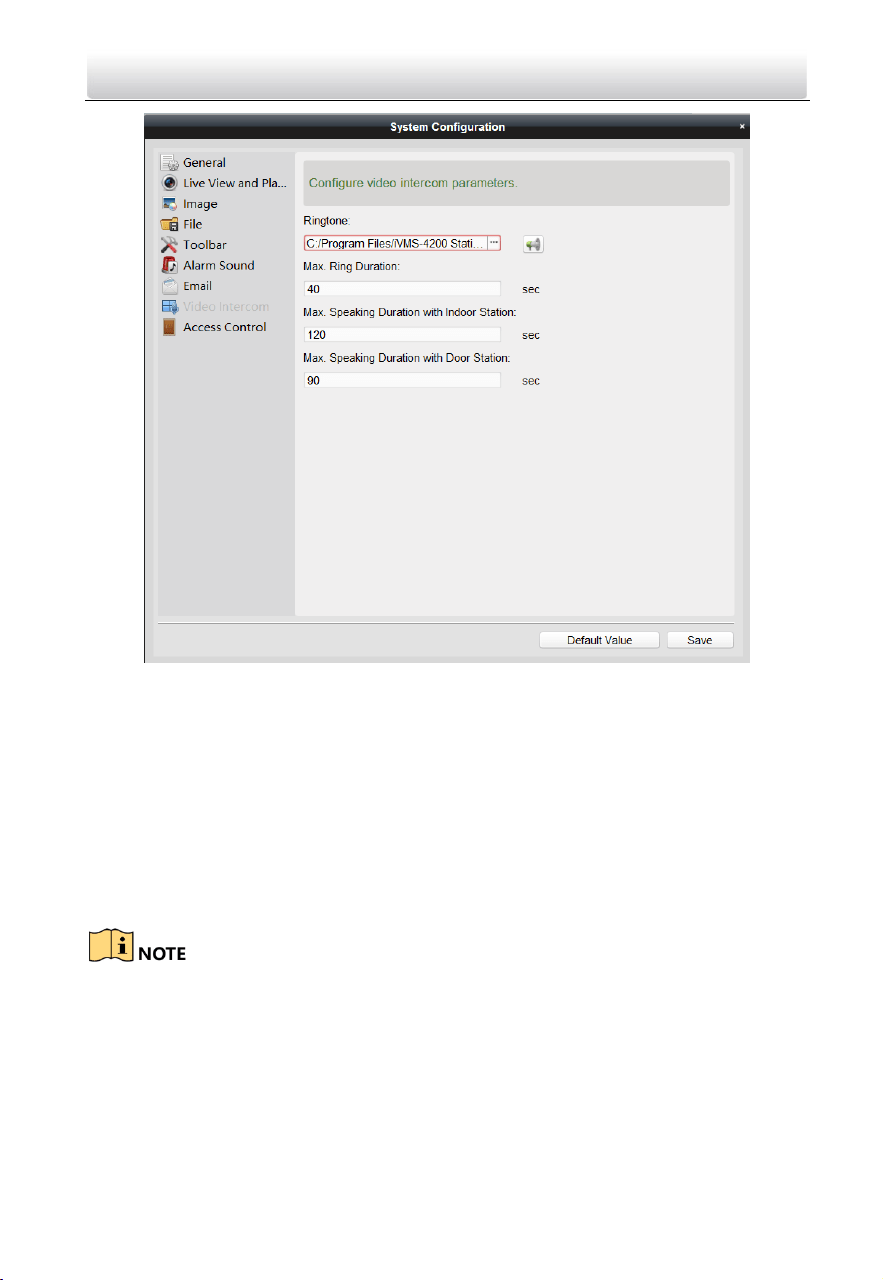
Purpose:
You can configure the video intercom parameters accordingly.
Steps:
1. Open the System Configuration page.
Path: Control Panel -> Maintenance and Management -> System Configuration ->
Video Intercom.
2. Click the Video Intercom to enter the Video Intercom Settings interface.
3. Input the required information.
Ringtone: Click the icon and select the audio file from the local path for the
ringtone of indoor station. Optionally, you can click the icon for a testing of the
audio file.
Max. Ring Duration: Input the maximum duration of the ringtone, ranging from 15
seconds to 60 seconds.
Max. Speaking Duration with Indoor Station: Input the maximum duration of
speaking with the indoor station, ranging from 120 seconds to 600 seconds.
Max. Speaking Duration with Door Station: Input the maximum duration of speaking
with the door station, ranging from 90 seconds to 120 seconds.
4. Click Save to save the settings.
Video Intercom Door Station·User Manual
69
8.2 Device Management
Purpose:
Device management includes device activation, adding device, editing device, and
deleting device, and so on.
After running the iVMS-4200, video intercom devices should be added to the client
software for remote configuration and management.
8.2.1 Add Video Intercom Devices
You can add at most 512 indoor stations and master stations in total to the
iVMS-4200, and add at most 16 door stations to the iVMS-4200.
For video intercom devices, you are required to create the password to activate them
before they can be added to the software and work properly. For device activation via
creating password, please refer User Manual of iVMS-4200 (Video Intercom) V2.4.2 in
the disk for detail steps.
You can add online video intercom devices, and add them manually. Here take adding
online video intercom devices as example. For adding video intercom devices
Video Intercom Door Station·User Manual
70
manually, please refer User Manual of iVMS-4200 (Video Intercom) V2.4.2 in the disk
for detail steps.
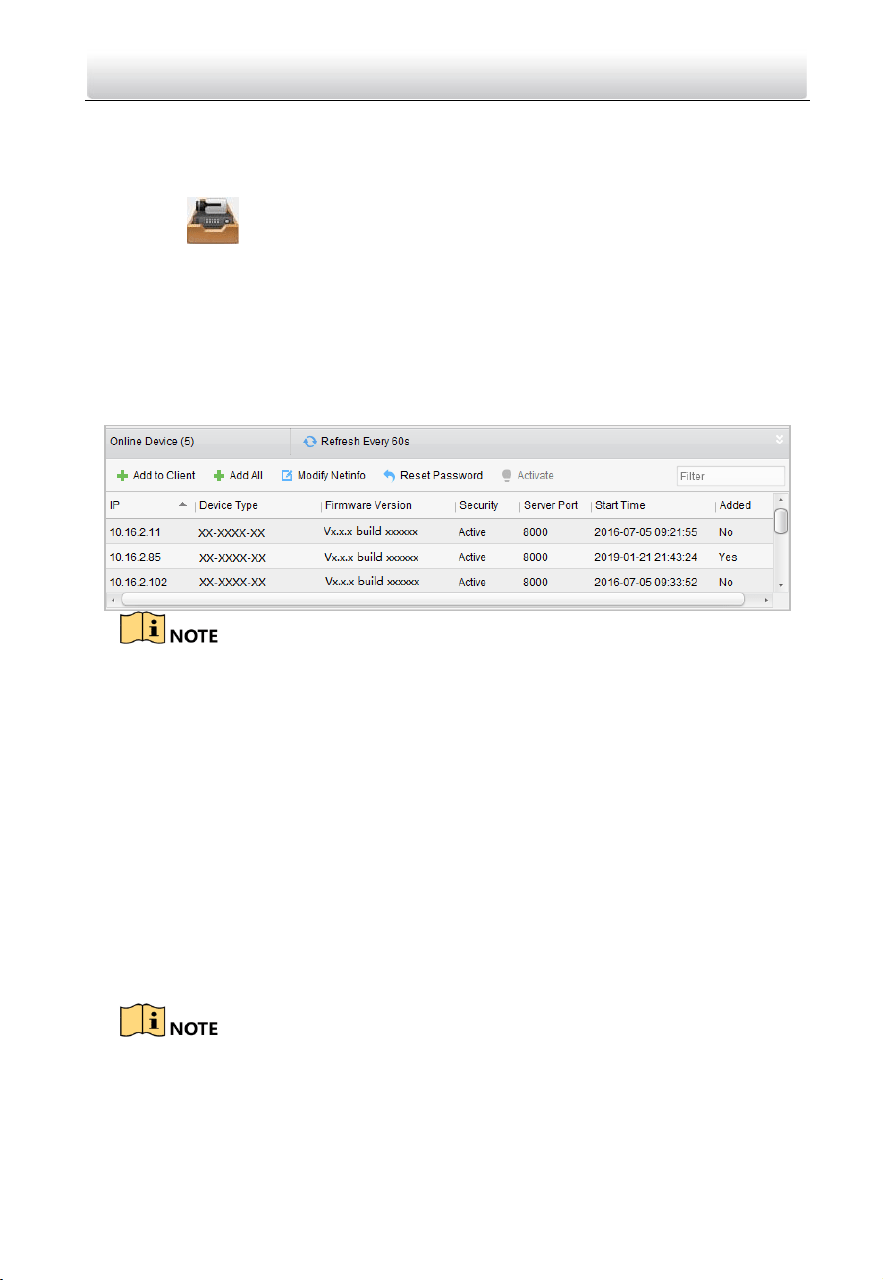
Steps:
1. Click the icon on the control panel, or click Tools->Device Management to
open the Device Management page.
2. Click Device.
3. On the Device Type panel on the right, you can select Hikvision Device to add video
intercom devices.
4. The active online devices in the same local subnet with the client software will be
displayed on the Online Device area. You can click Refresh Every 60s to refresh the
information of the online devices.
To add online devices to the software, you are required to change the device IP
address to the same subnet with your computer first.
5. Select the devices to be added from the list.
6. Click Add to Client to open the device adding dialog box.
7. Input the required information.
Nickname: Edit a name for the device as you want.
Address: Input the device’s IP address. The IP address of the device is obtained
automatically in this adding mode.
Port: Input the device port No. The default value is 8000.
User Name: Input the device user name. By default, the user name is admin.
Password: Input the device password. By default, the password is 12345.
8. Optionally, you can check the checkbox Export to Group to create a group by the
device name. All the channels of the device will be imported to the corresponding
group by default.
iVMS-4200 also provides a method to add the offline devices. Check the checkbox
Add Offline Device, input the required information and the device channel number
and alarm input number, and then click Add. When the offline device comes online,
the software will connect it automatically.
9. Click Add to add the device.
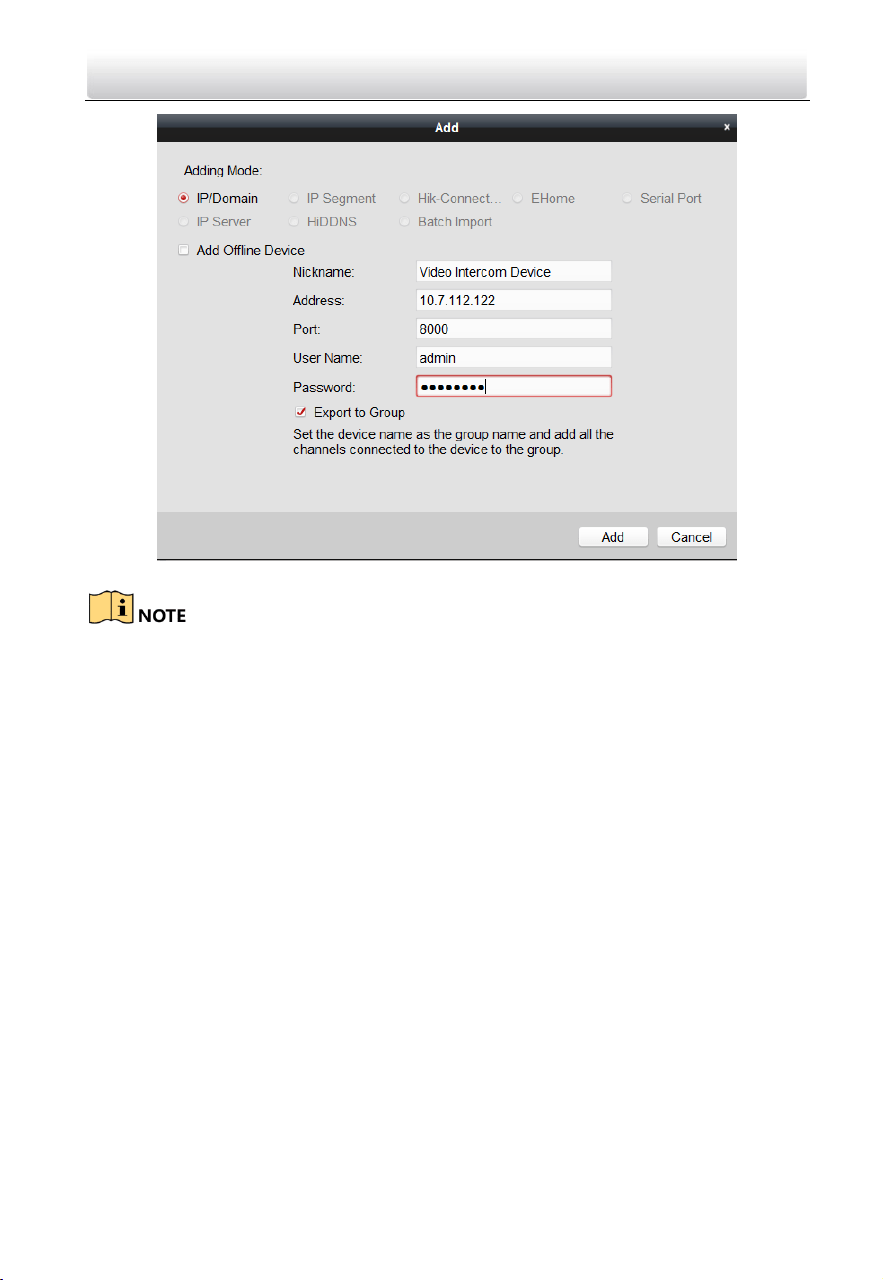
Video Intercom Door Station·User Manual
71
Add Multiple Online Devices
If you want to add multiple online devices to the client software, click and hold Ctrl key
to select multiple devices, and click Add to Client to open the device adding dialog box.
In the pop-up message box, enter the user name and password for the devices to be
added.
Add All the Online Devices
If you want to add all the online devices to the client software, click Add All and click OK
in the pop-up message box. Then enter the user name and password for the devices to
be added.
8.2.2 Modify Network Information
Select the device from the online list, click Modify Netinfo, and then you can modify the
network information of the selected device.
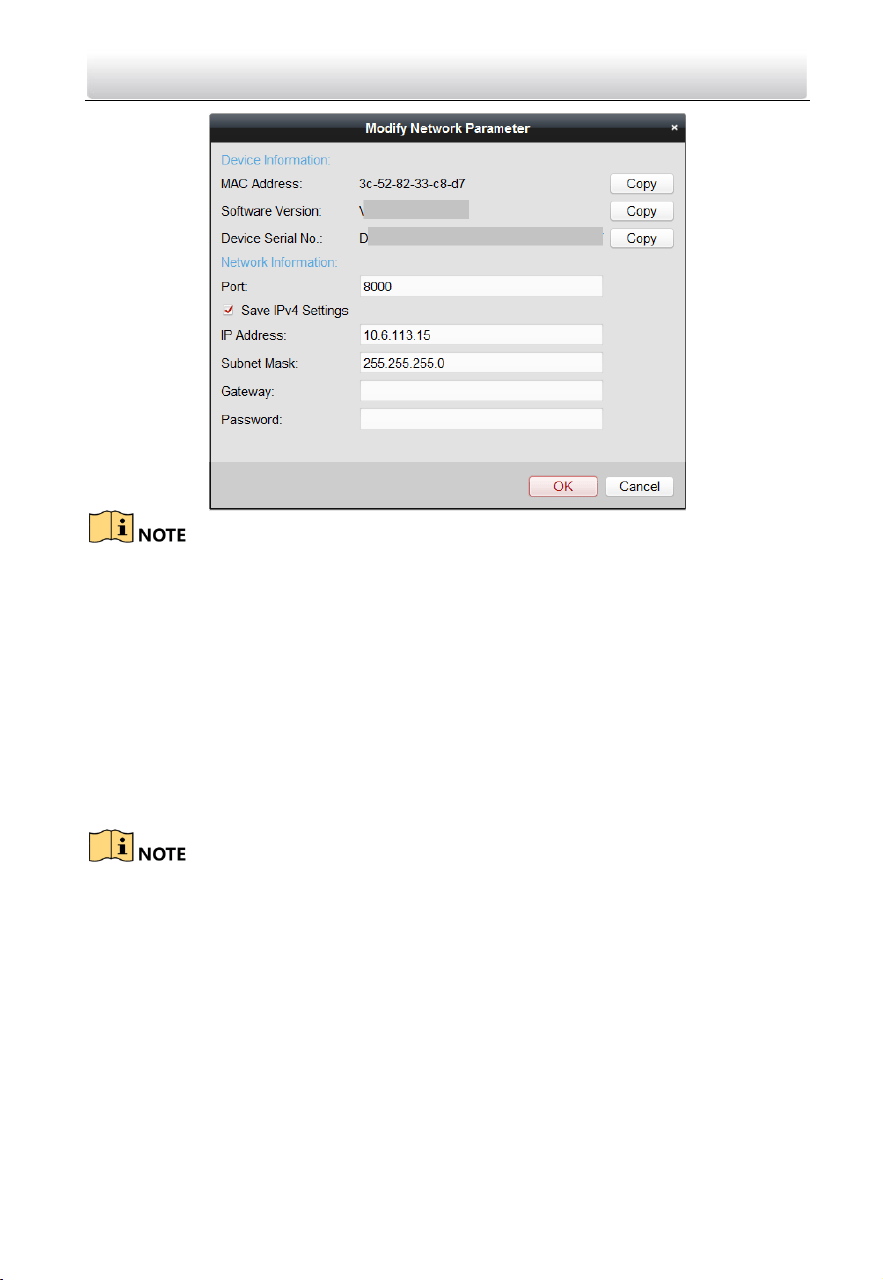
Video Intercom Door Station·User Manual
72
You should enter the admin password of the device in the Password field of the pop-up
window to modify the parameters.
8.2.3 Reset Password
According to the different video intercom devices, the software provides two different
methods for restoring the default password or resetting the password.
Select the device from the online device list, click Reset Password.
Option 1:
If the window with import file button, key importing mode drop-down list, password
and confirm password field pops up, follow the steps below to reset the password:
This option is available to door stations.
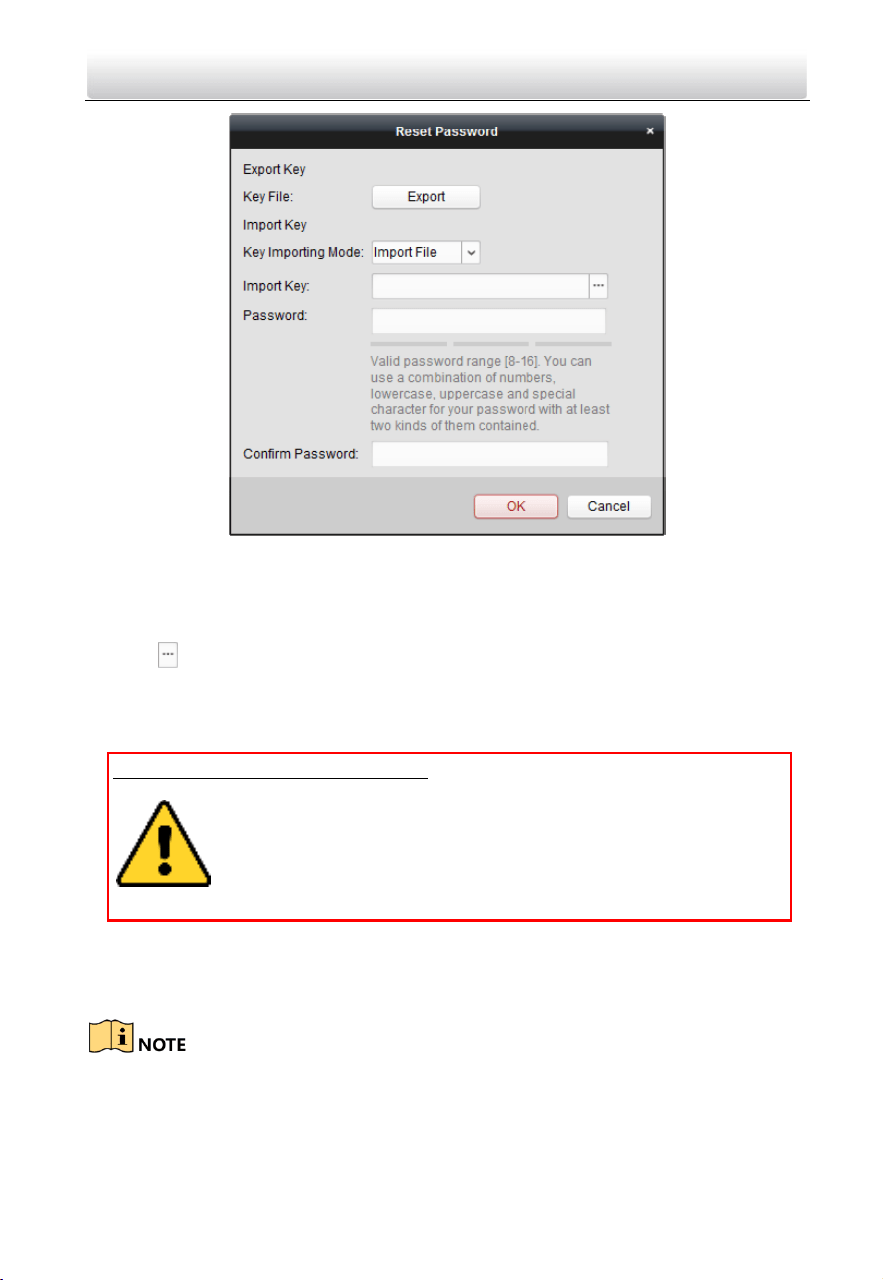
Video Intercom Door Station·User Manual
73
1. Click Export to save the device file on your computer.
2. Send the file to our technical engineers.
3. Our technical engineer will send you a file to you. After receiving a file from the
technical engineer, select Import File from Key Importing Mode drop-down list and
click to import the file.
4. Input new password in text fields of Password and Confirm Password.
5. Click OK to reset the password.
STRONG PASSWORD RECOMMENDED– We highly recommend you create a strong
password of your own choosing (Using a minimum of 8 characters,
including at least three of the following categories: upper case letters,
lower case letters, numbers, and special characters.) in order to
increase the security of your product. And we recommend you reset
your password regularly, especially in the high security system,
resetting the password monthly or weekly can better protect your product.
Option 2:
If the window with import file and export file buttons, password and confirm password
field pops up, follow the steps below to reset the password:
This option is available to indoor stations and master stations.
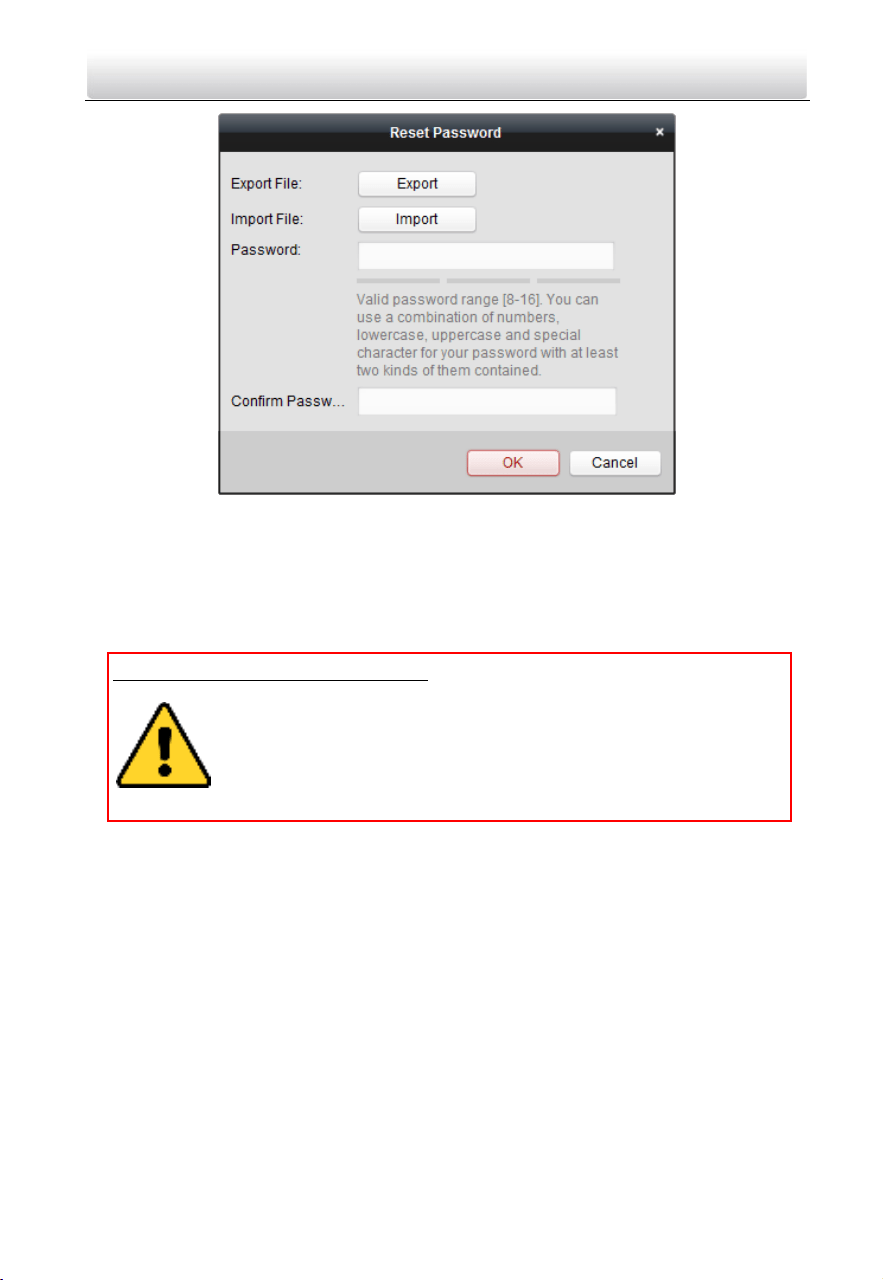
Video Intercom Door Station·User Manual
74
1. Click Export to save the device file on your computer.
2. Send the file to our technical engineers.
3. Click Import and select the file received from the technical engineer.
4. Input new password in text fields of Password and Confirm Password.
5. Click OK to reset the password.
STRONG PASSWORD RECOMMENDED– We highly recommend you create a strong
password of your own choosing (Using a minimum of 8 characters,
including at least three of the following categories: upper case letters,
lower case letters, numbers, and special characters.) in order to
increase the security of your product. And we recommend you reset
your password regularly, especially in the high security system,
resetting the password monthly or weekly can better protect your product.
8.3 Remote Configuration
Configuring devices remotely via iVMS-4200 is the same with that via Batch
Configuration Tool, please refer 7.4 Configure Devices Remotely for detail steps.
8.4 Person and Card Management
Purpose:
You can add, edit, and delete the organization and person in Person and Card
Management module. Organization and person management is necessary for the video
intercom function.
Before you start:
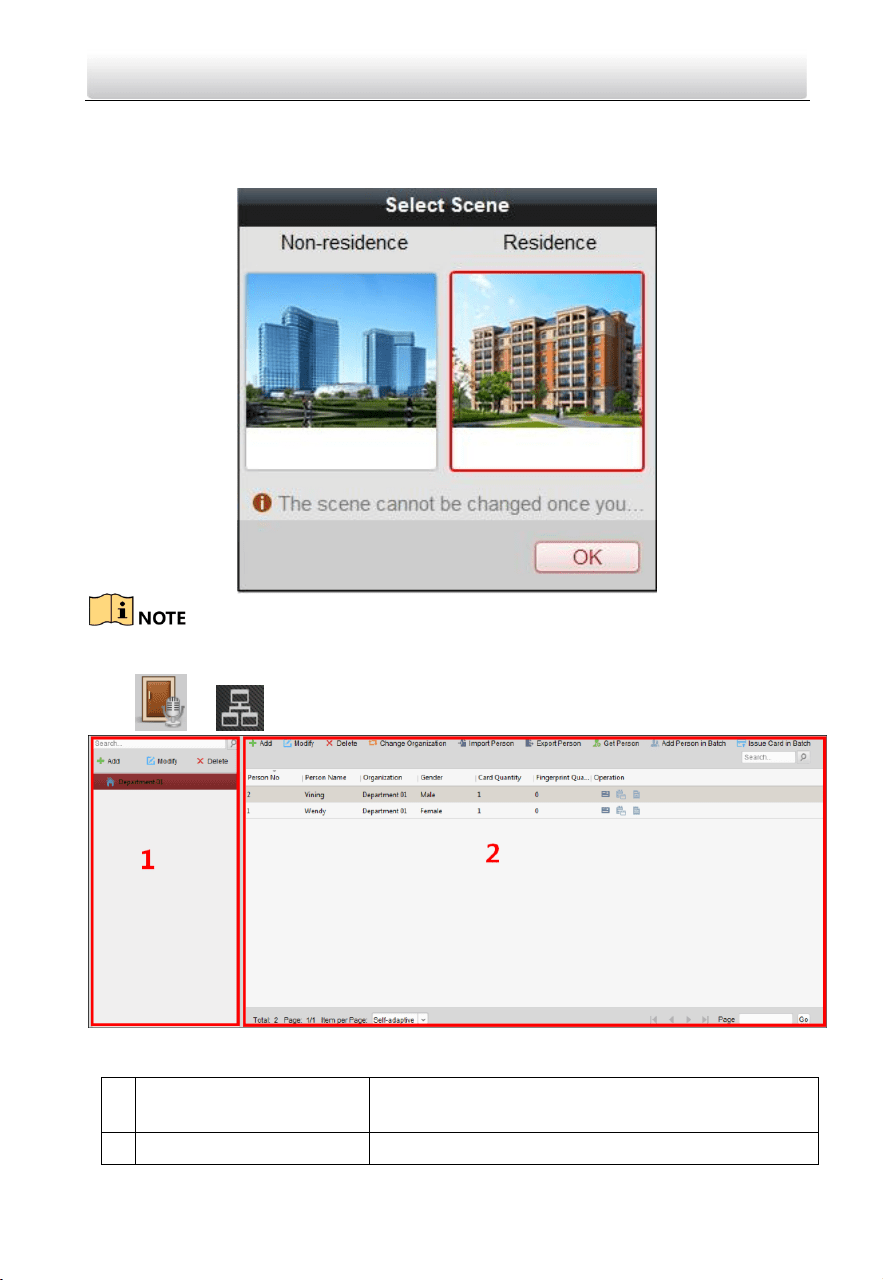
Video Intercom Door Station·User Manual
75
For the first time opening the Access Control module, the following dialog will pop up
and you are required to select the scene according to the actual needs.
You can select the scene as Non-residence and Residence.
Once the scene is configured, you cannot change it later.
Click - > tab to enter the Person and Card Management interface.
The interface is divided into two parts: Organization Management and Person
Management.
1
Organization
Management
You can add, edit, or delete the organization as
desired.
2
Person Management
After adding the organization, you can add the
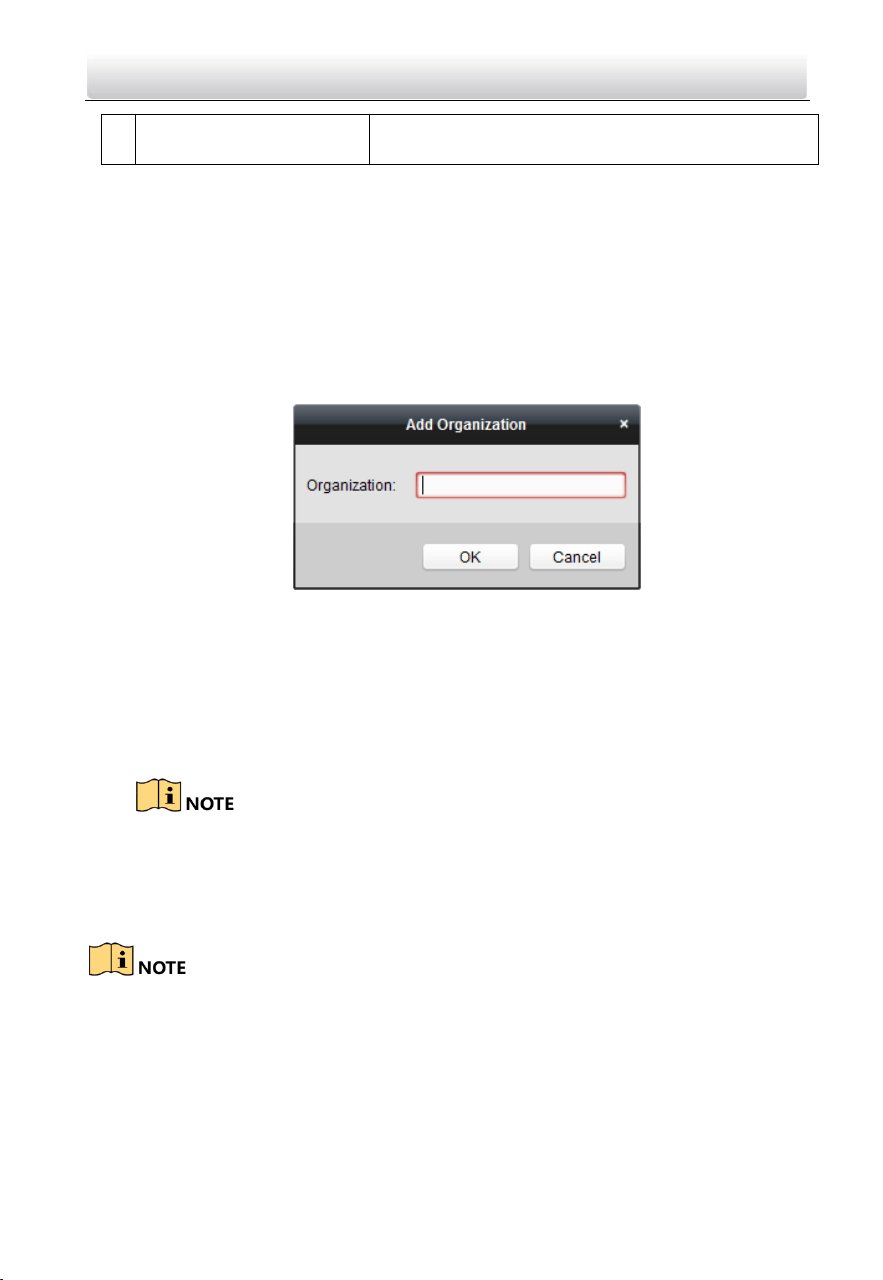
Video Intercom Door Station·User Manual
76
person to the organization and issue card to
persons for further management.
8.4.1 Organization Management
Add Organization
Steps:
1. In the organization list on the left, you should add a top organization as the parent
organization of all organizations.
Click Add button to pop up the adding organization interface.
2. Input the Organization Name as desired.
3. Click OK to save the adding.
4. You can add multiple levels of organizations according to the actual needs.
To add sub organizations, select the parent organization and click Add.
Repeat Step 2 and 3 to add the sub organization.
Then the added organization will be the sub-organization of the upper-level
organization.
Up to 10 levels of organizations can be created.
Modify and Delete Organization
You can select the added organization and click Modify to modify its name.
You can select an organization, and click Delete button to delete it.
The lower-level organizations will be deleted as well if you delete an organization.
Make sure there is no person added under the organization, or the organization
cannot be deleted.
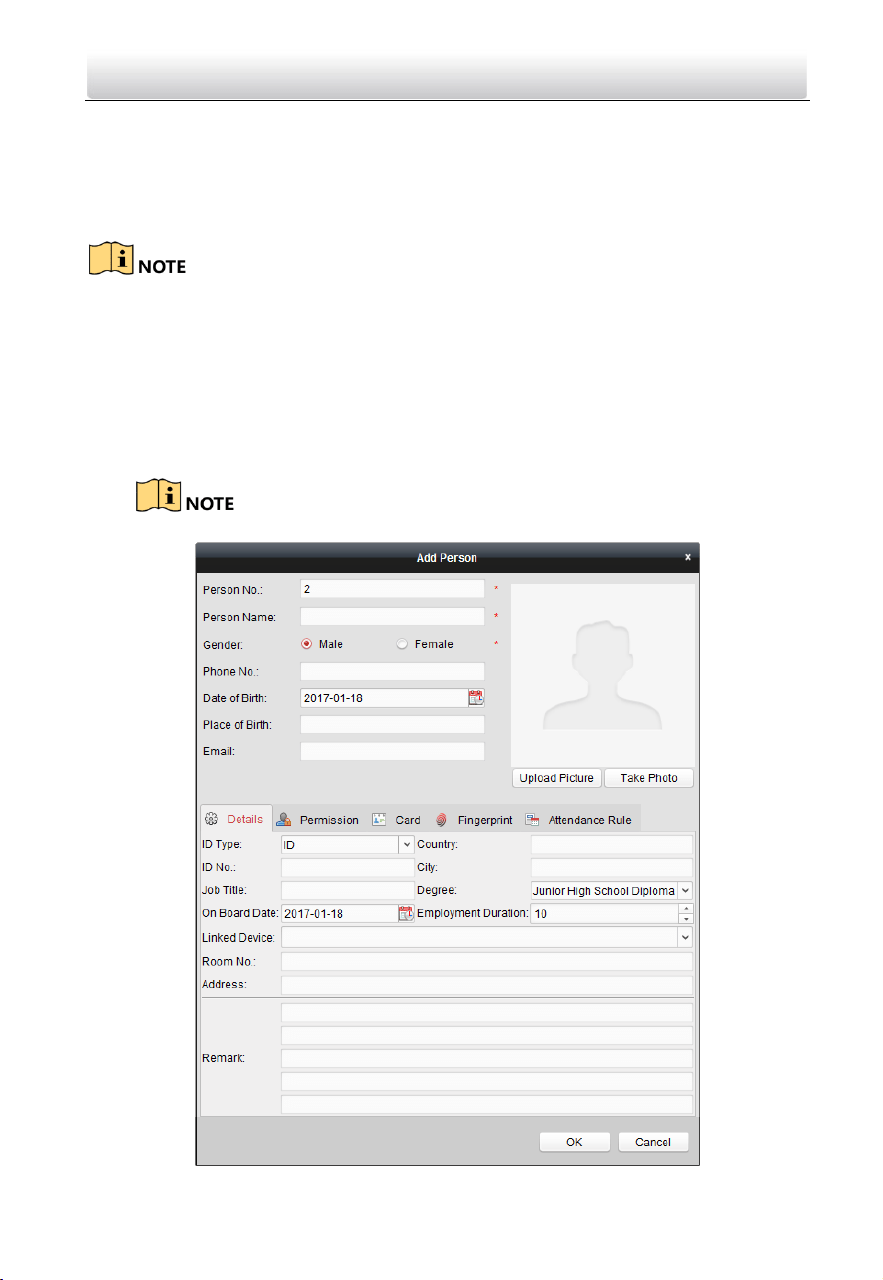
Video Intercom Door Station·User Manual
77
8.4.2 Person Management
After adding the organization, you can add person to the organization and manage the
added person such as issuing cards in batch, importing and exporting person’s
information in batch, etc.
Up to 10,000 persons or cards can be added.
Add Person
Person information is necessary for the video intercom system. And when you set linked
device for the person, the intercom between intercom devices can be realized.
Steps:
1. Select an organization in the organization list and click Add on the Person panel to
pop up the adding person dialog.
The Person No. will be generated automatically and is not editable.
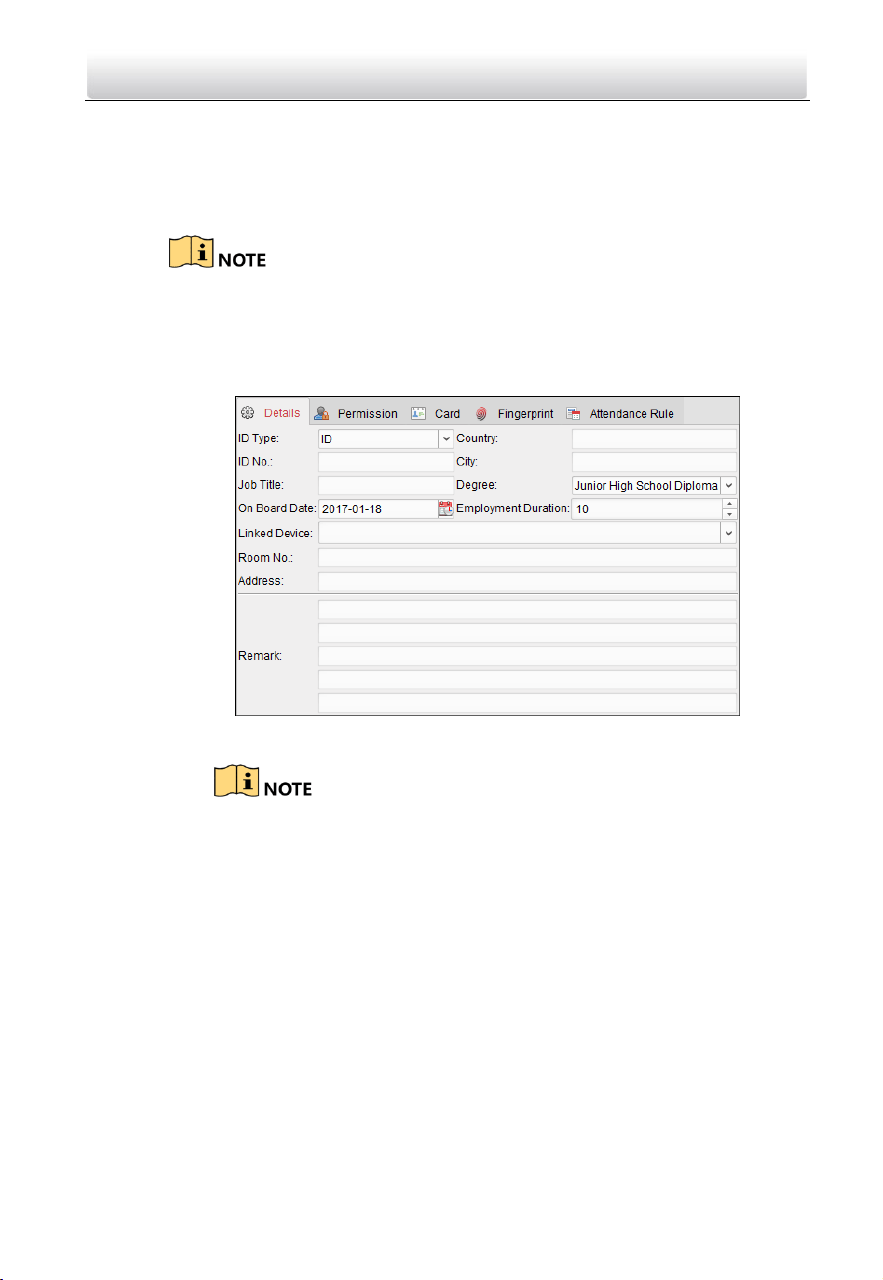
Video Intercom Door Station·User Manual
78
2. Set basic person information.
1) Enter basic information: person name, phone No., birthday details, and email
address.
2) (Optional) Click Upload Picture to select the person picture from the local PC
to upload it to the client.
The picture should be in *.jpg format.
3) (Optional) You can also click Take Phone to take the person’s photo with the
PC camera.
3. Set linked device for the person.
1) Click Details.
2) Set the linked devices
Linked Device: You can bind the indoor station to the person.
If you select Analog Indoor Station in the Linked Device, the Door
Station field will display and you are required to select the door station
to communicate with the analog indoor station.
Room No.: You can enter the room No. of the person.
3) Click OK to save the settings.
4. Issue the card for the person.
1) Click Card.
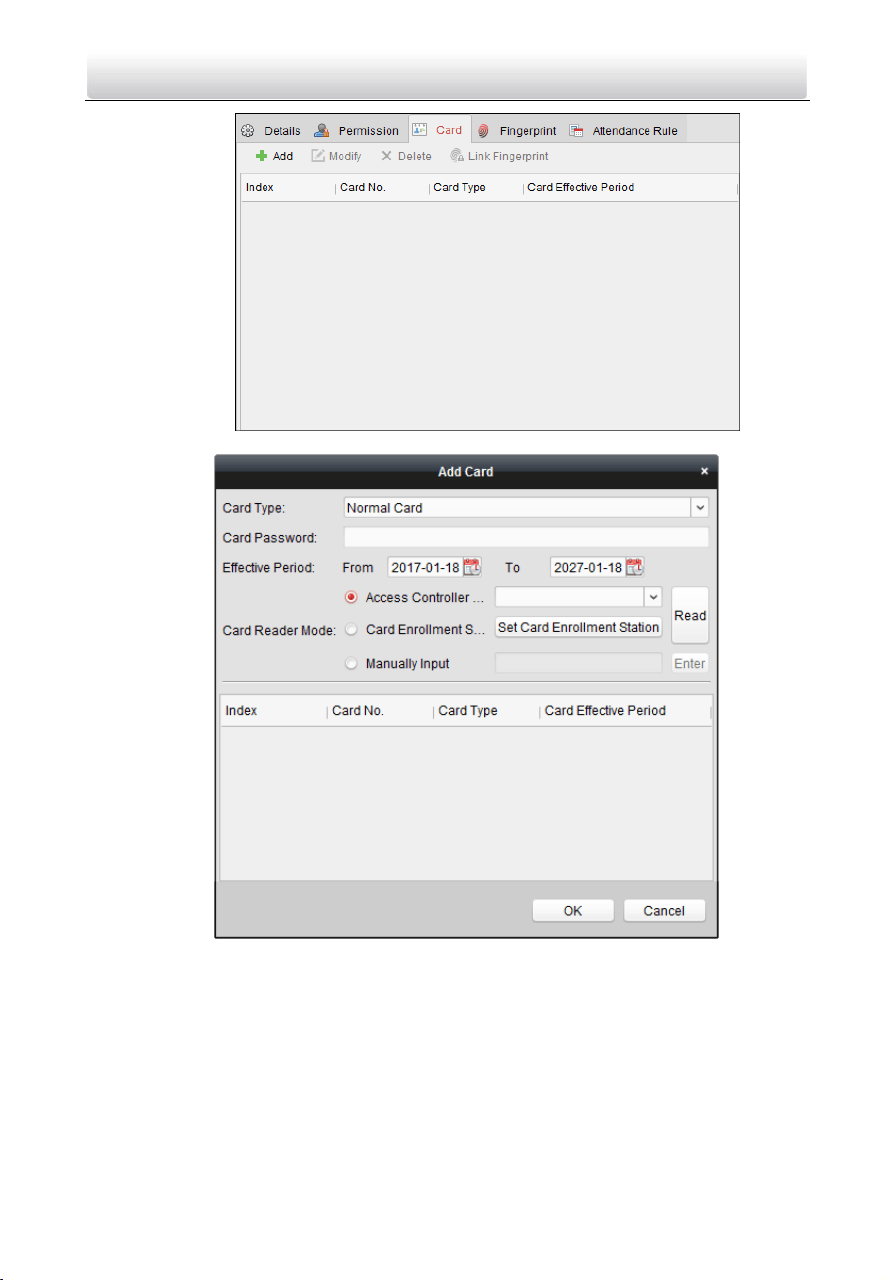
Video Intercom Door Station·User Manual
79
2) Click Add to pop up the Add Card dialog.
3) Select Normal Card.
4) Enter the password of the card itself in the Card Password field. The card
password should contain 4 to 8 digits.
5) Enter Card Number manually.
6) Click OK and the card(s) will be issued to the person.
Import and Export Person Information
The person information can be imported and exported in batch.
Steps:
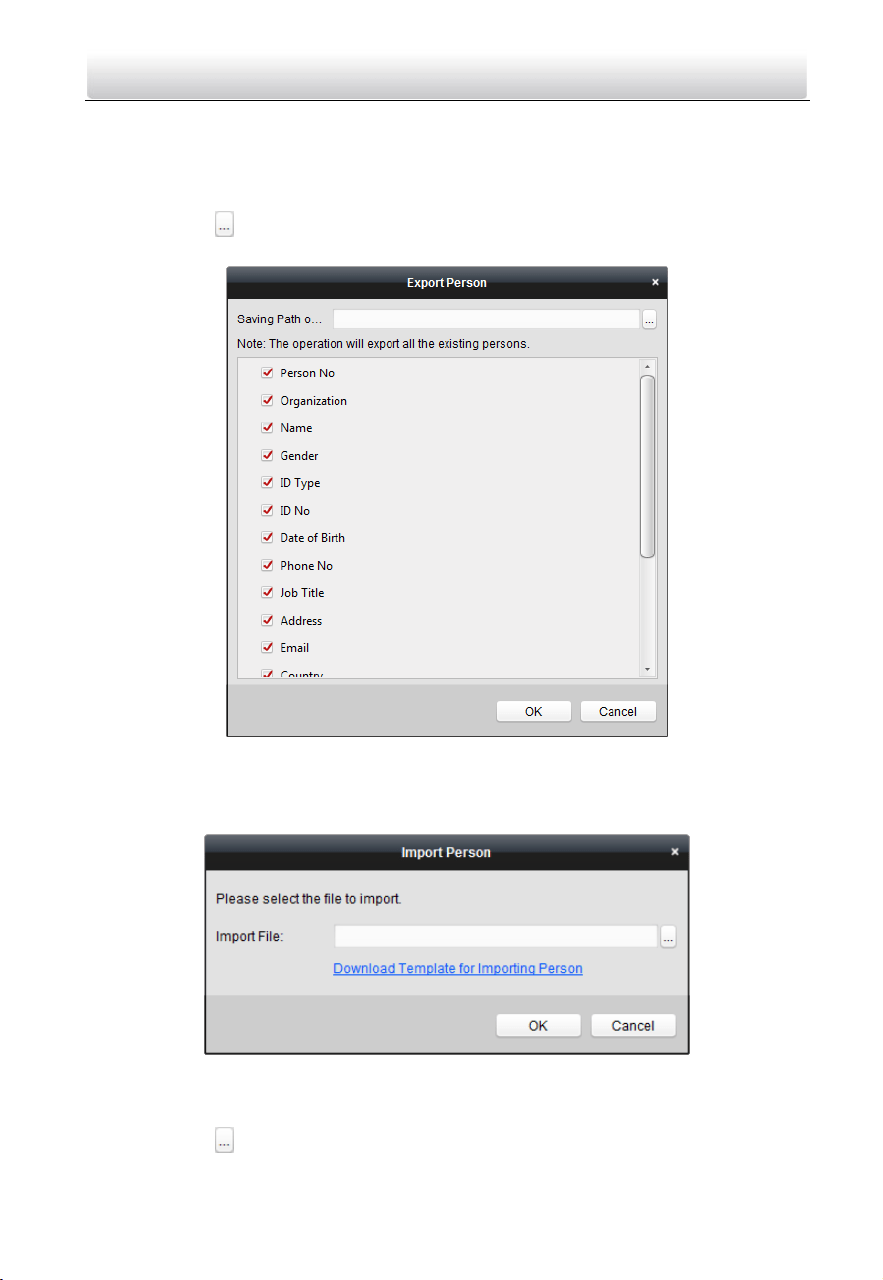
Video Intercom Door Station·User Manual
80
1. Exporting Person: You can export the added persons’ information in Excel format to
the local PC.
1) After adding the person, you can click Export Person button to pop up the
following dialog.
2) Click to select the path of saving the exported Excel file.
3) Check the checkboxes to select the person information to export.
4) Click OK to start exporting.
2. Importing Person: You can import the Excel file with persons information in batch
from the local PC
1) click Import Person button.
2) You can click Download Template for Importing Person to download the
template first.
3) Input the person information to the downloaded template.
4) Click to select the Excel file with person information.
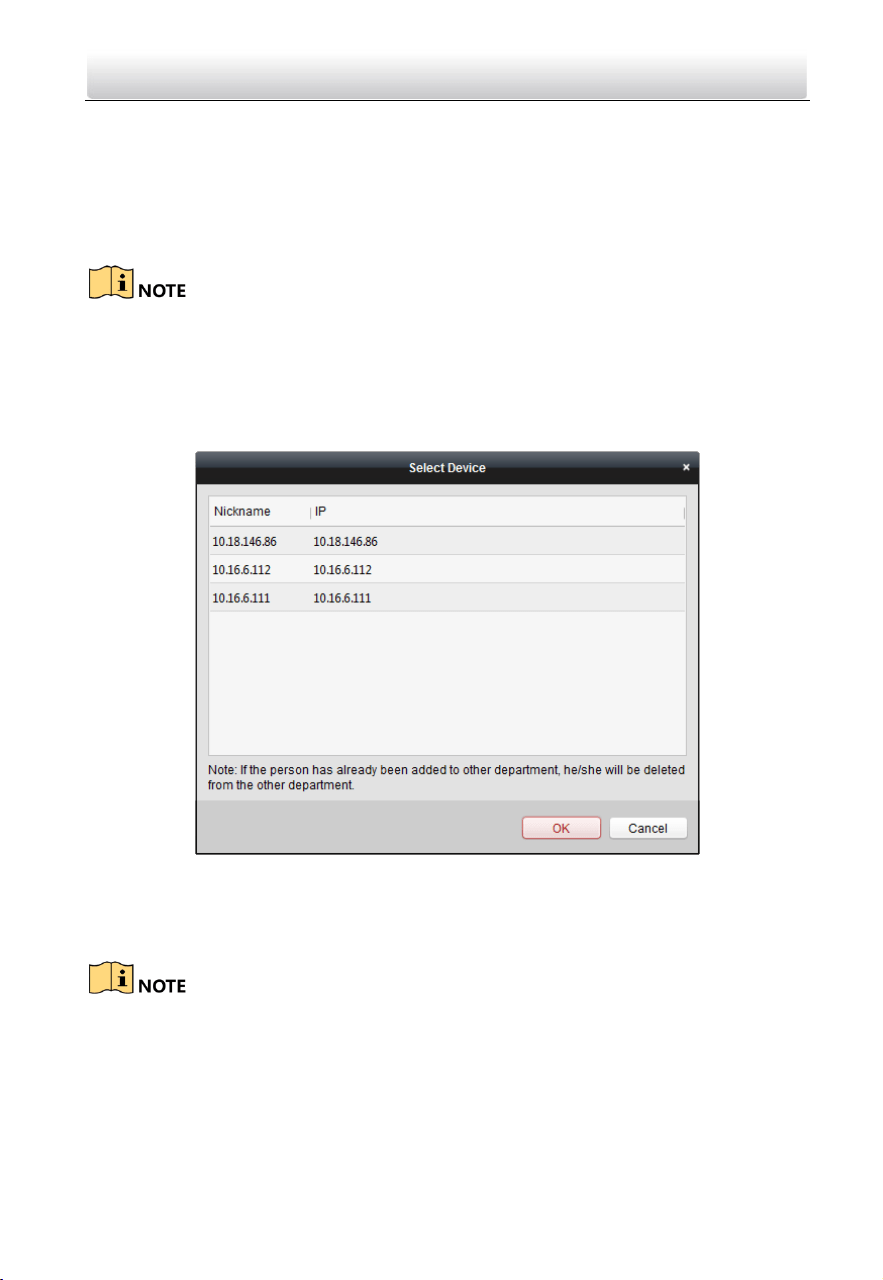
Video Intercom Door Station·User Manual
81
5) Click OK to start importing.
Get Person Information from Device
If the added device has been configured with person information (including person
details, fingerprint, issued card information), you can get the person information from
the device and import to the client for further operation.
This function is only supported by the device the connection mothod of which is TCP/IP
when adding the device.
Steps:
1. In the organization list on the left, click to select an organization to import the
persons.
2. Click Get Person to pop up the following dialog box.
3. The added access control device will be displayed.
4. Click to select the device and then click OK to start getting the person information
from the device.
You can also double click the device name to start getting the person information.
The person information, including person details, person’s fingerprint information
(if configured), and the linked card (if configured), will be imported to the selected
organization.
If the person name stored in the device is empty, the person name will be filled
with the issued card No. after importing to the client.
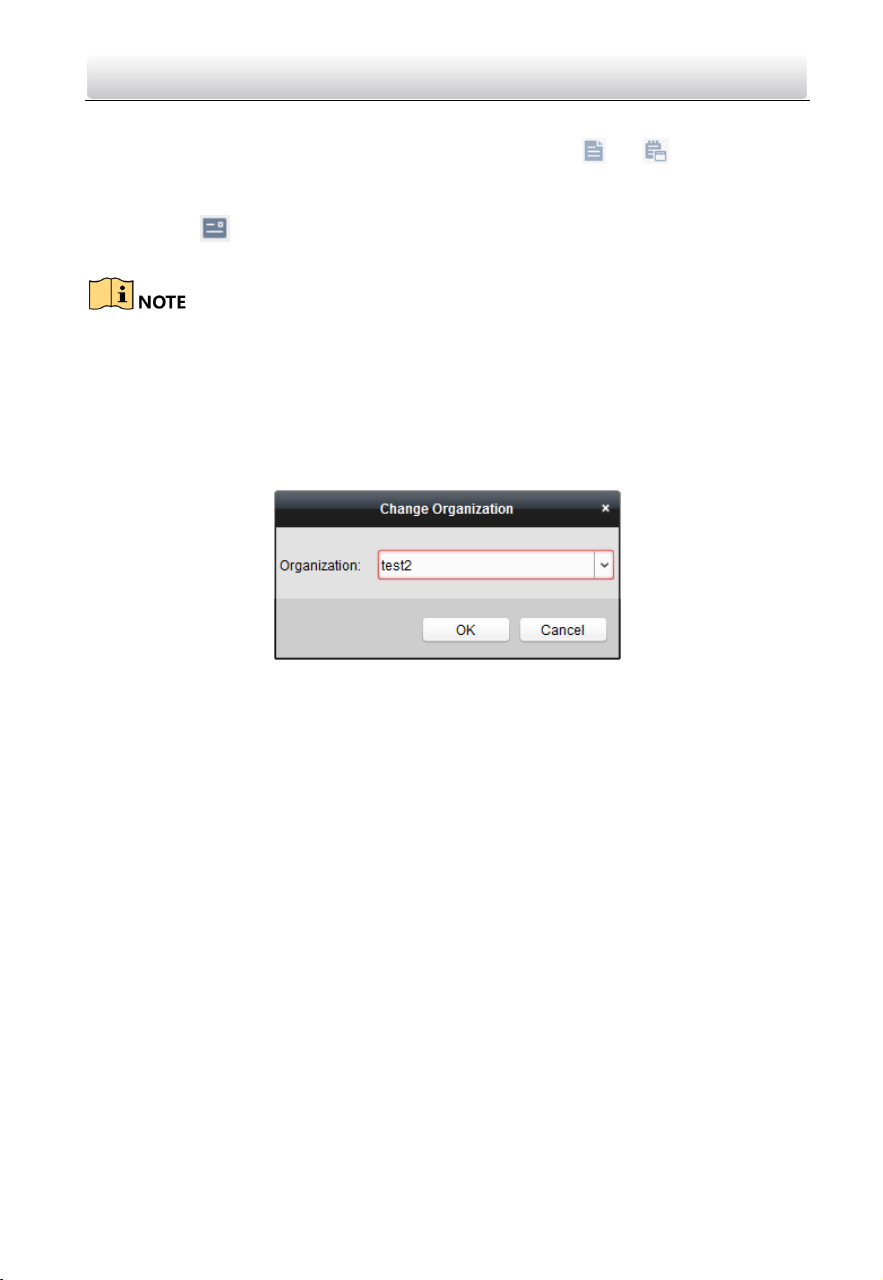
Video Intercom Door Station·User Manual
82
Modify and Delete Person
To modify the person information and attendance rule, click or in the
Operation column, or select the person and click Modify to open the editing person
dialog.
You can click to view the person’s card swiping records.
To delete the person, select a person and click Delete to delete it.
If a card is issued to the current person, the linkage will be invalid after the person is
deleted.
Change Person to Other Organization
You can move the person to another organization if needed.
Steps:
1. Select the person in the list and click Change Organization button.
2. Select the organization to move the person to.
3. Click OK to save the settings.
Issue Card in Batch
You can issue multiple cards for the person with no card issued in batch.
Steps:
1. Click Issue Card in Batch to enter the following dialog.
All the added person with no card issued will display in the Person(s) with No Card
Issued list.
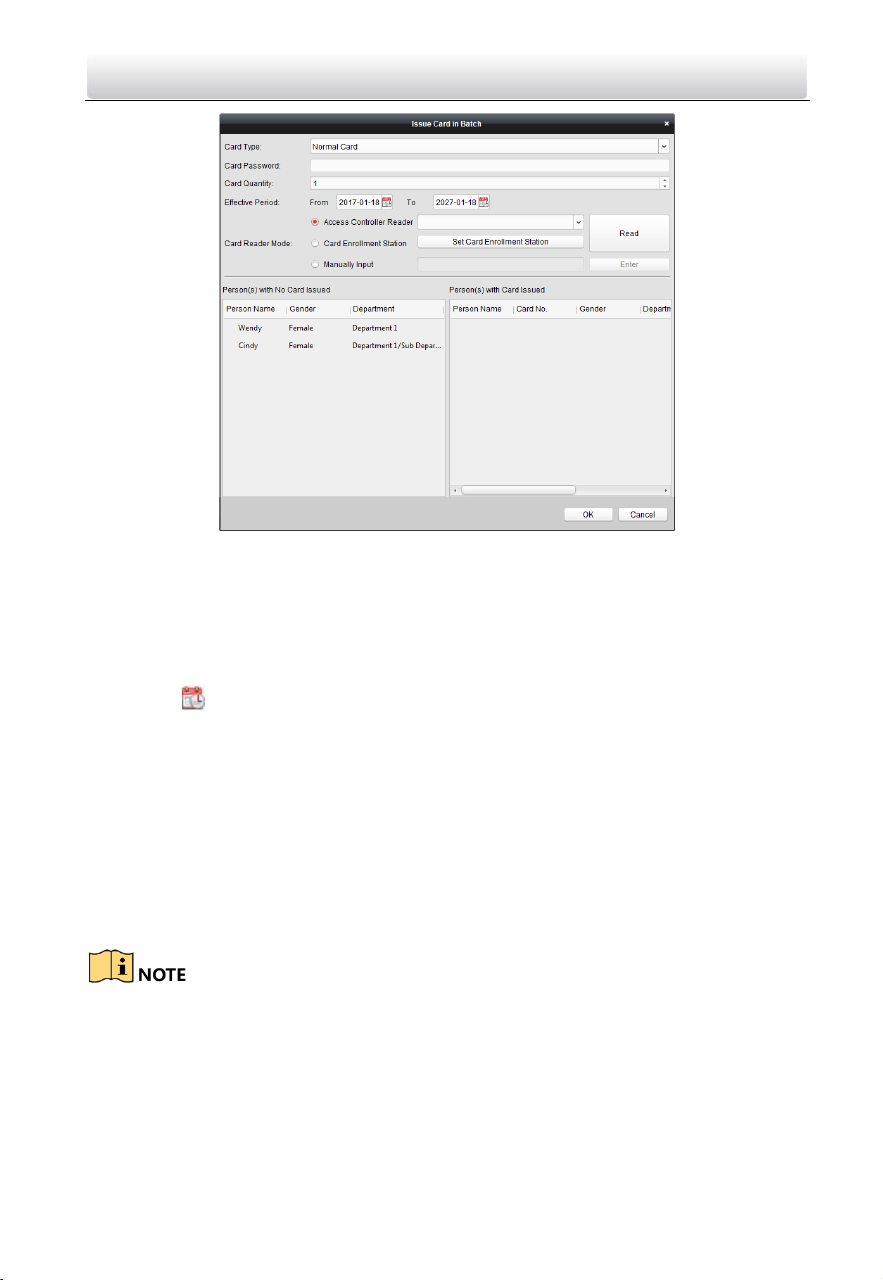
Video Intercom Door Station·User Manual
83
2. Select Normal Card.
3. Enter the password of the card itself in the Card Password field. The card password
should contain 4 to 8 digits.
4. Enter the card quantity issued for each person.
For example, if the Card Quantity is 3, you can read or enter three card No. for
each person.
5. Click to set the effective time and expiry time of the card.
6. Set the card No.
7. After issuing the card to the person, the person and card information will display in
the Person(s) with Card Issued list.
8. Click OK to save the settings.
8.5 Video Intercom
Purpose:
The Video Intercom Management module provides the function of video intercom,
checking call logs and managing notice via the iVMS-4200 client software.
For the user with access control module permissions, the user can enter the Access
Control module and manage video intercom and search information.
Before you start:
Before you can remote control the video intercom, you should add the device to the
software and configure the person to link the device in the Access Control module.
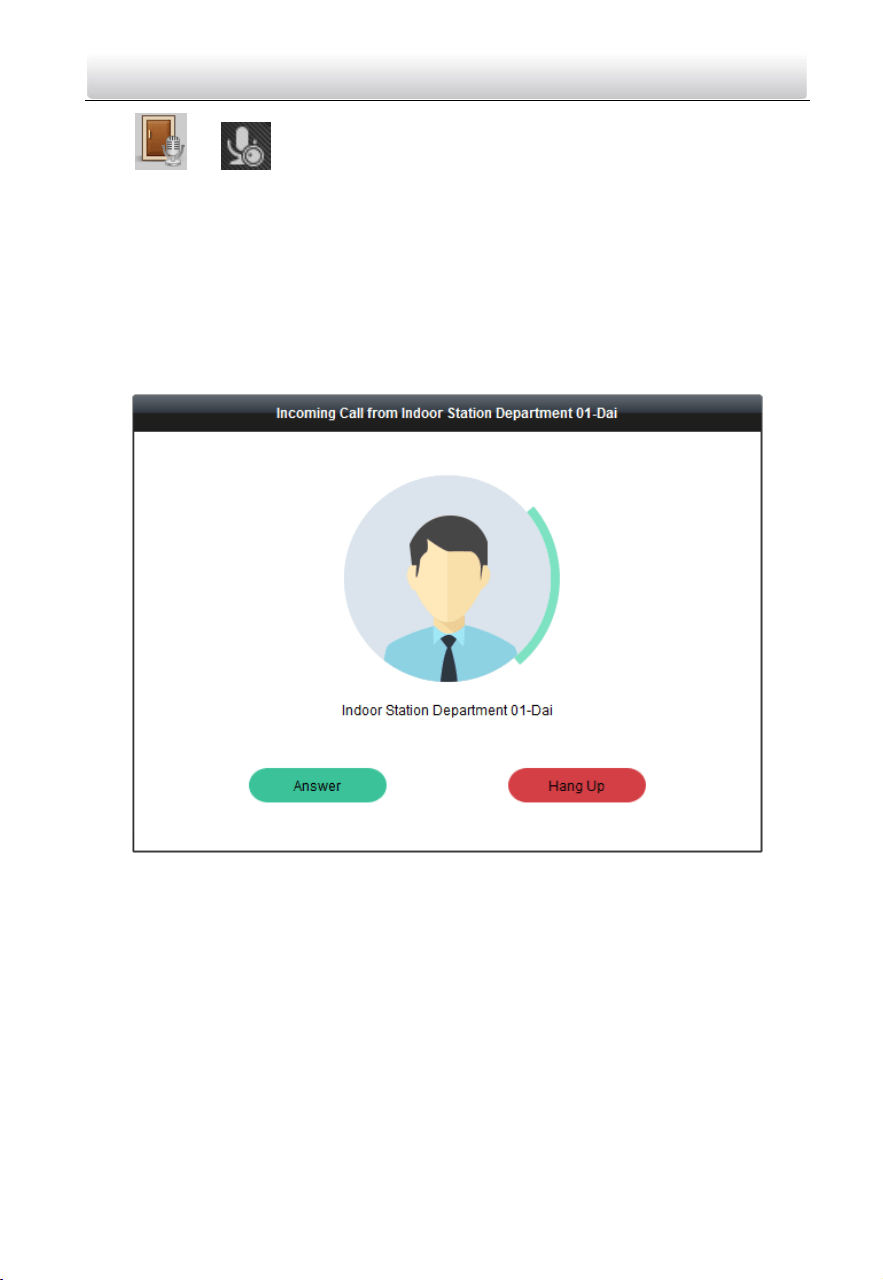
Video Intercom Door Station·User Manual
84
Click -> tab on the left icon bar to enter the Video Intercom interface.
8.5.1 Receive Call from Indoor Station/Door Station
Steps:
1. Select the client software in the indoor station or door station interface to start
calling the iVMS-4200 and an incoming call dialog will pop up in the client
software.
Here we take the indoor station as an example.
2. Click Answer to answer the call.
Or click Hang Up to decline the call.
3. After you answer the call, you will enter the In Call window.
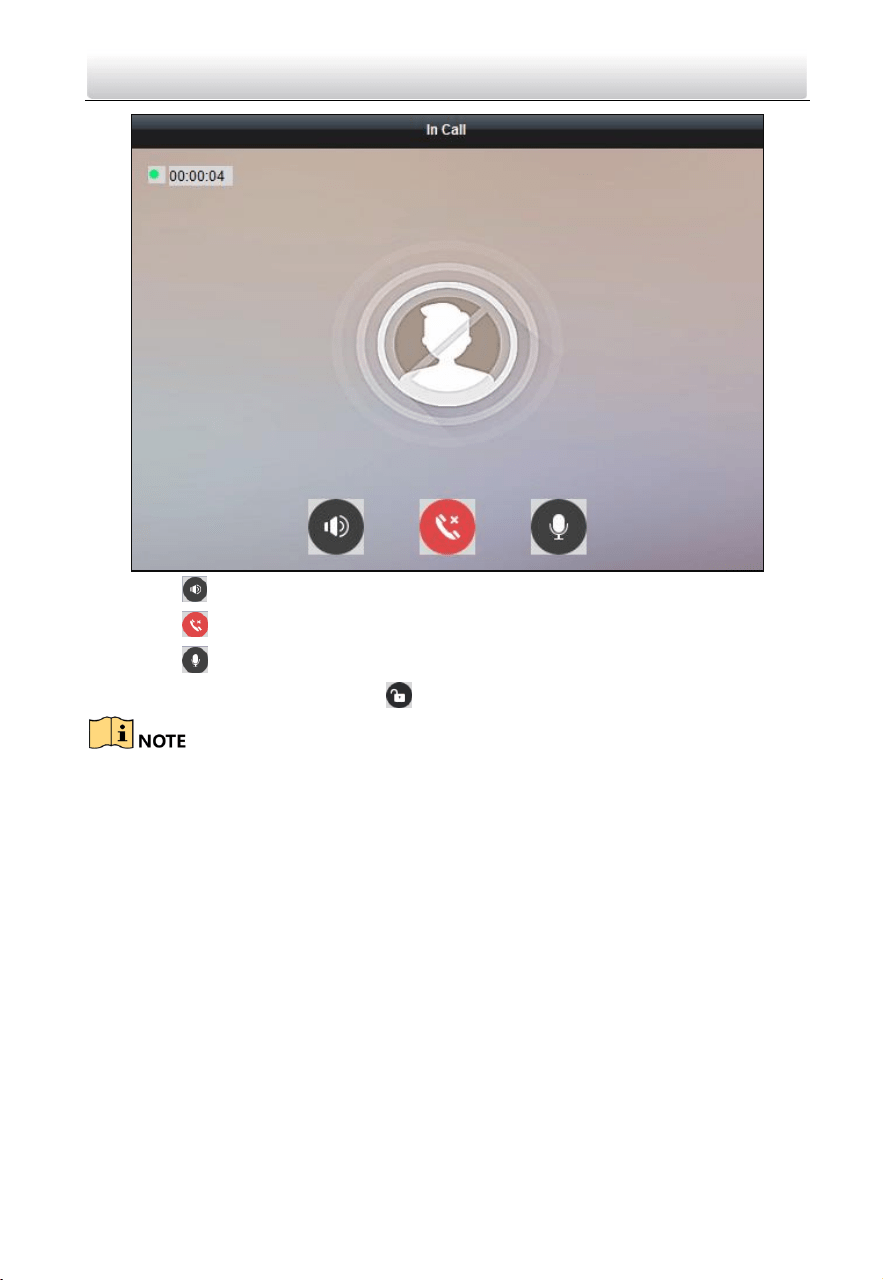
Video Intercom Door Station·User Manual
85
Click to adjust the volume of the loudspeaker.
Click to hang up.
Click to adjust the volume of the microphone.
For door station, you can click to open the door remotely.
One video intercom device can only connect with one client software.
The maximum ring duration can be set from 15s to 60s via the Remote
Configuration of the video intercom device.
The maximum speaking duration between indoor station and iVMS-4200 can be
set from 120s to 600s via the Remote Configuration of indoor station.
The maximum speaking duration between door station and iVMS-4200 can be set
from 90s to 120s via the Remote Configuration of door station.
8.5.2 View Live Video of Door Station and Outer Door Station
You can get the live view of the door station and outer door station in the Main View
module and control the door station and outer door station remotely.
In the Main View module, double-click a door station or outer door station device or
drag the device to a display window to start the live view.
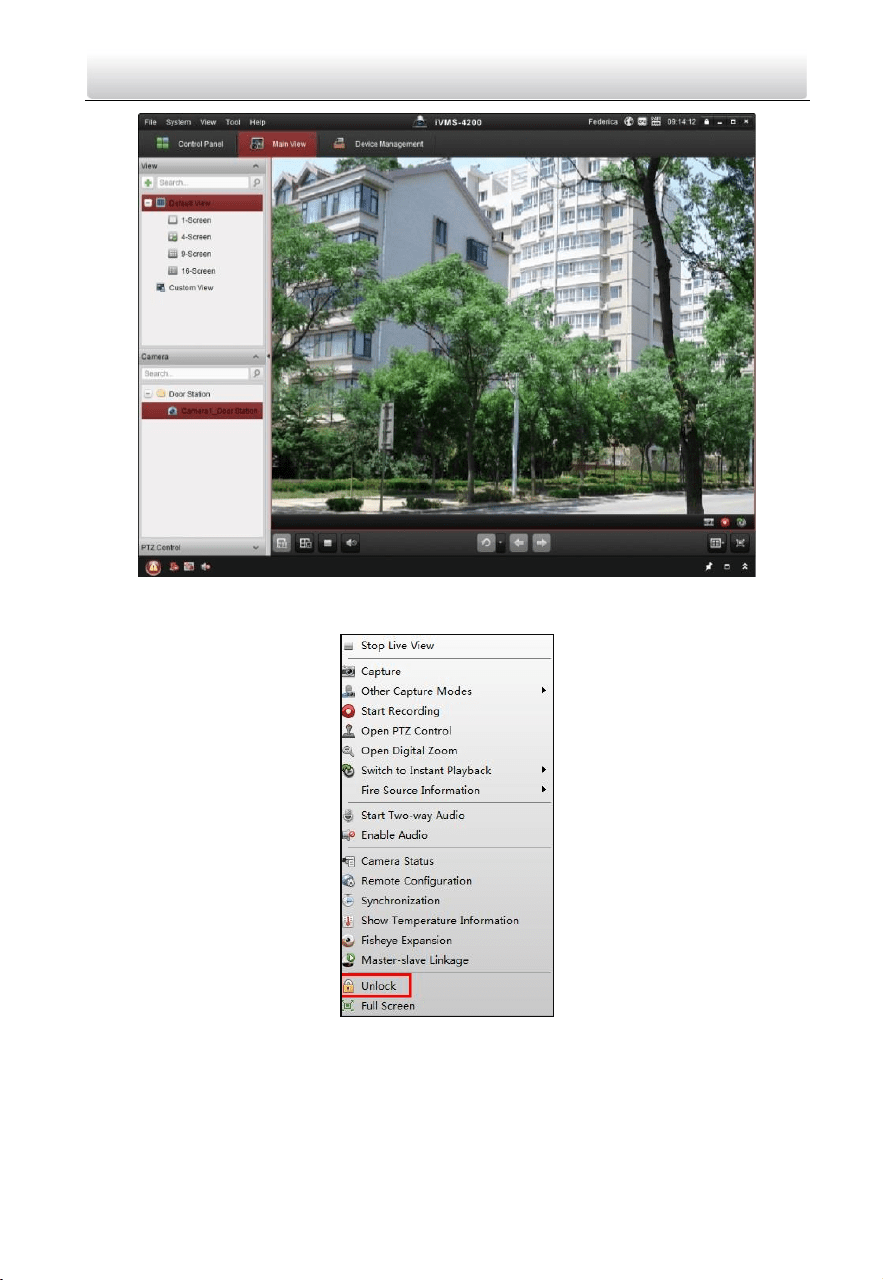
Video Intercom Door Station·User Manual
86
Right click on the live view interface to display the menu and select Unlock to remote
unlock the door.
8.5.3 View Call Logs
Purpose:
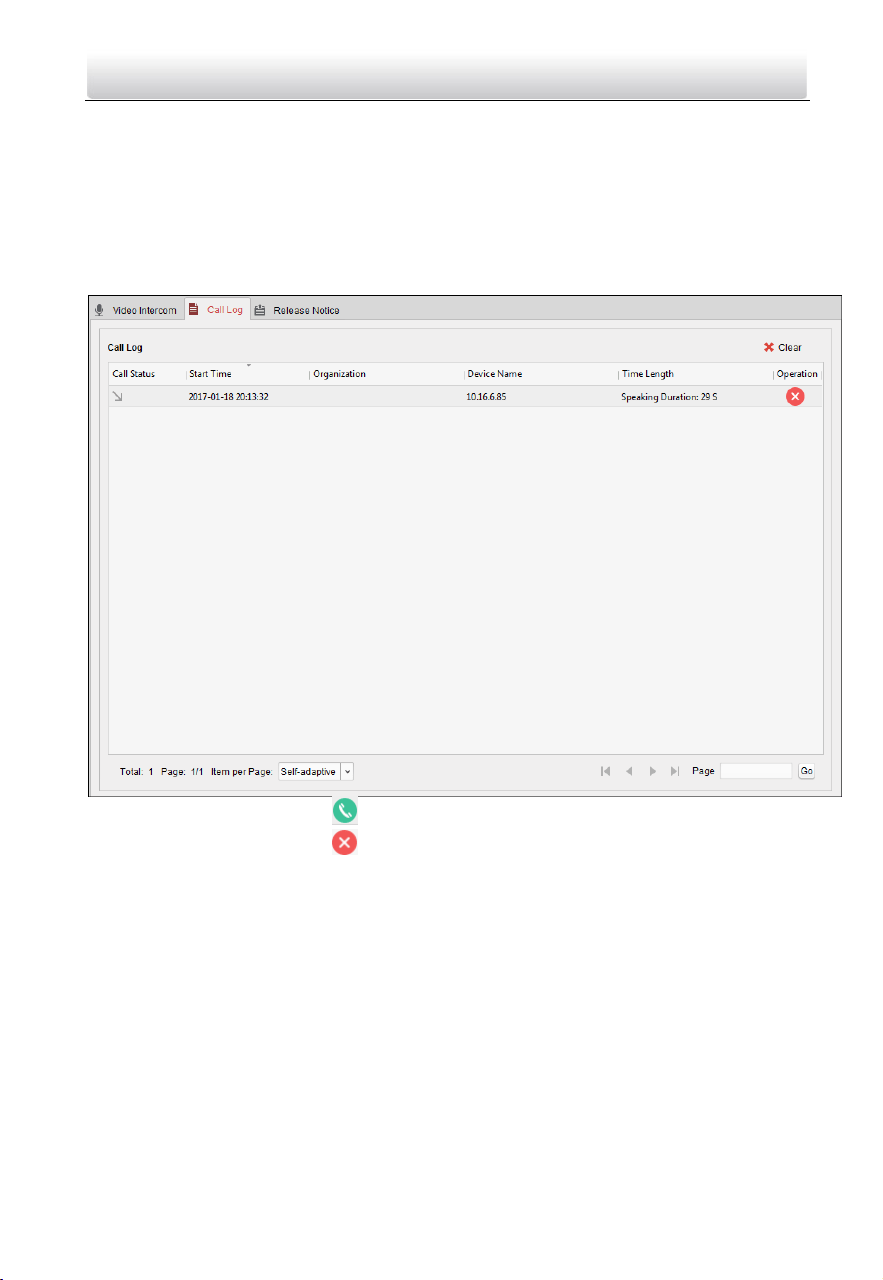
Video Intercom Door Station·User Manual
87
You can check all the call logs, including dialed call logs, received call logs and missed call
logs. You can also directly dial via the log list and clear the logs.
Steps:
1. In the Video Intercom page, click the Call Log tab to enter the Call Log page.
All the call logs will display on this page and you can check the log information, e.g.,
call status, start time, resident’s organization and name, device name and ring or
speaking duration.
2. (Optional) Click the icon in the Operation column to re-dial the resident.
3. (Optional) Click the icon in the Operation column to delete the call log.
Or you can click Clear at the upper right corner to clear all the logs.
8.5.4 Release Notice
Purpose:
You can create different types of notices and send them to the residents. Four notice
types are available, including Advertising, Property, Alarm and Notice Information.
Steps:
1. In the Video Intercom page, click Release Notice to enter the Release Notice page.
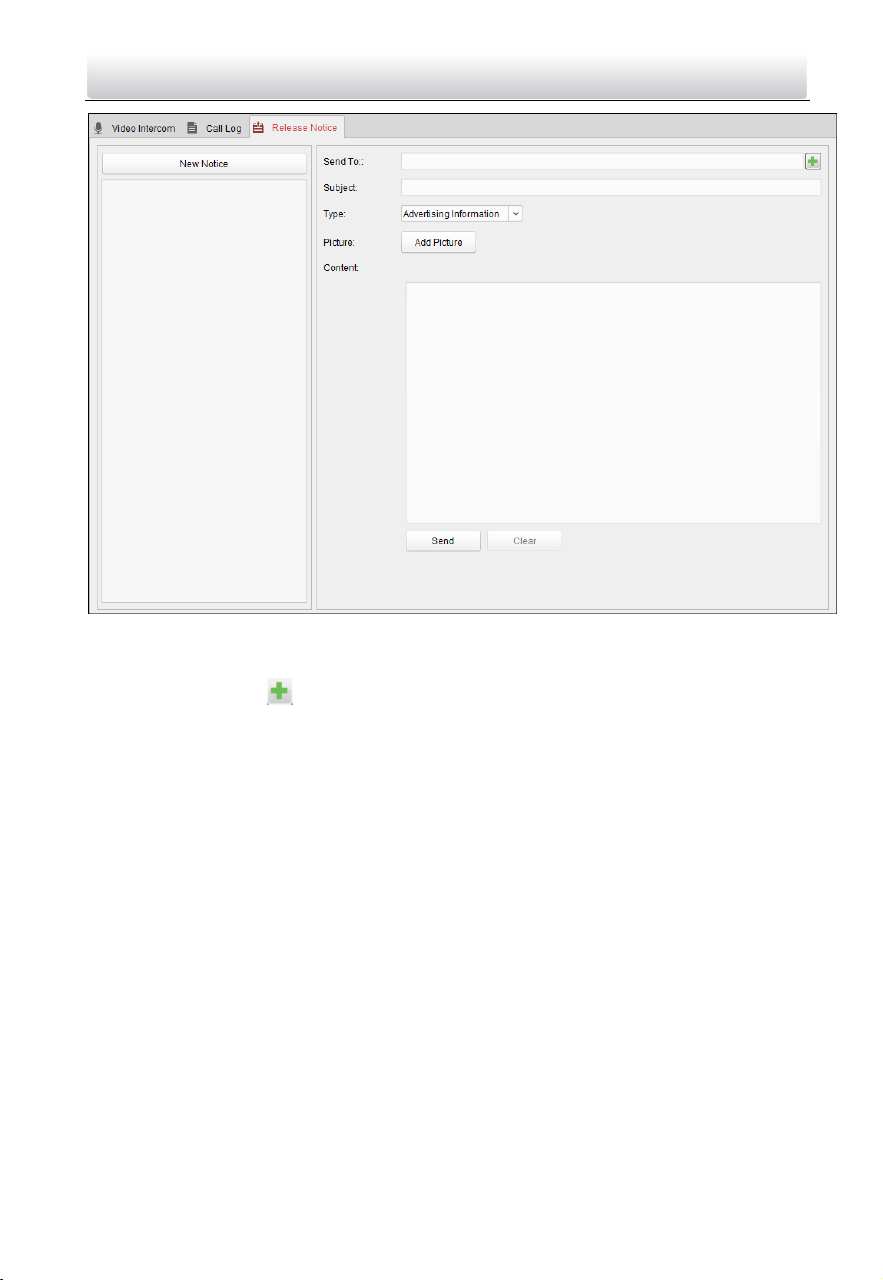
Video Intercom Door Station·User Manual
88
2. Click New Notice on the left panel to create a new notice.
3. Edit the notice on the right panel.
1) Click icon on the Send To field to pop up the Select Resident dialog.
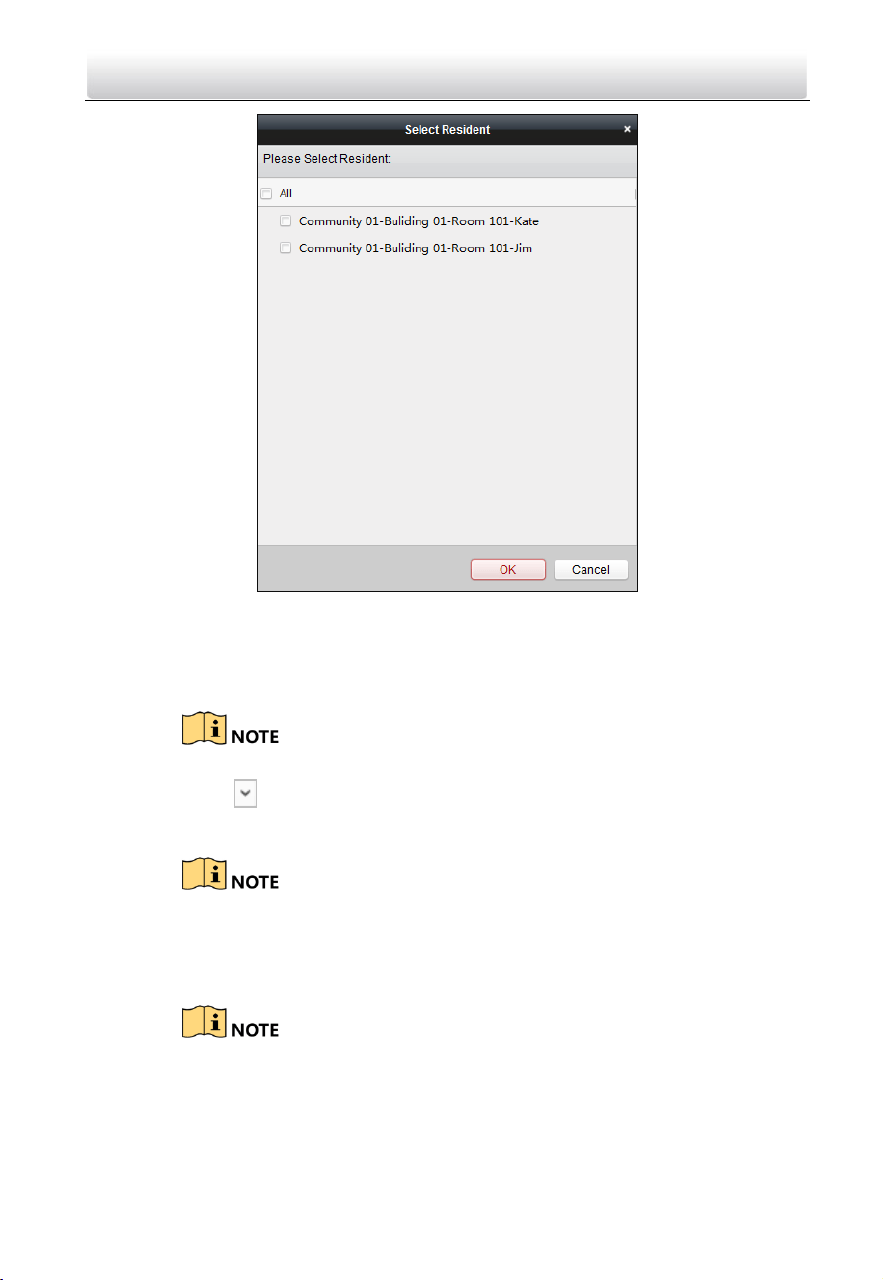
Video Intercom Door Station·User Manual
89
2) Check the checkbox(es) to select the resident(s).
Or you can check the All checkbox to select all the added residents.
3) Click OK to save the selection.
4) Enter the subject on the Subject field.
Up to 63 characters are allowed in the Subject field.
5) Click in the Type field to unfold the drop-down list and select the notice
type.
6) (Optional) Click Add Picture to add a local picture to the notice.
Up to 6 pictures in the JPGE format can be added to one notice. And the
maximum size of one picture is 512KB.
7) Enter the notice content in the Content field.
(Optional) You can also click Clear to clear the edited content.
Up to 1023 characters are allowed in the Content field.
4. Click Send to send the edited notice to the selected resident(s).
The sent notice information will display on the left panel. You can click a notice to
view the details on the right panel.
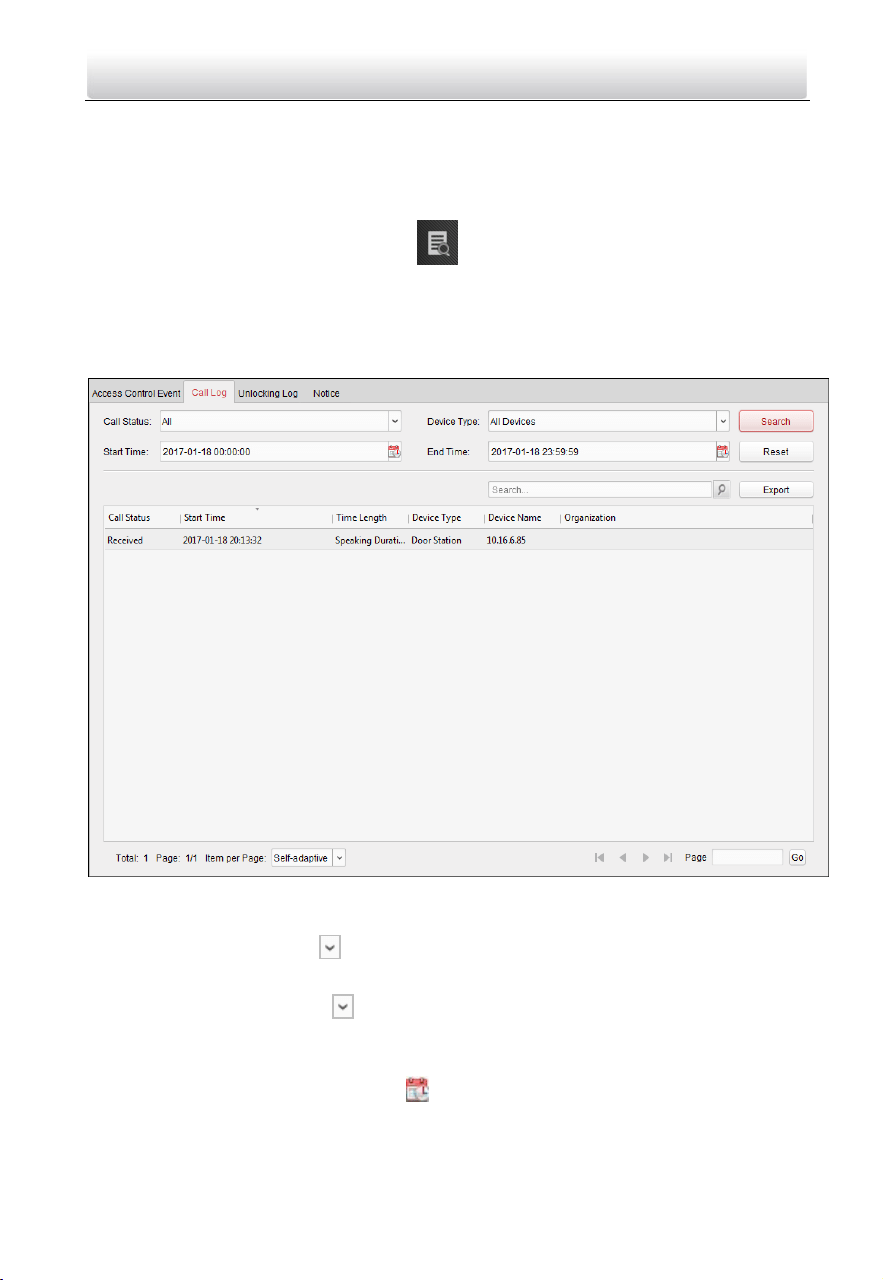
Video Intercom Door Station·User Manual
90
8.5.5 Search Video Intercom Information
Purpose:
You can search the call logs between the iVMS-4200 client software and video intercom
devices, device unlocking logs and the sent notice information.
In the Access Control module, click icon tab to open the Search page.
Search Call Logs
Steps:
1. In the Information Search page, click the Call Log to enter the Call Log interface.
2. Set the search conditions, including call status, device type, start time and end
time.
Call Status: Click to unfold the drop-down list and select the call status as
Dialed, Received or Missed. Or select All to search logs with all statuses.
Device Type: Click to unfold the drop-down list and select the device
type as Indoor Station, Door Station, Outer Door Station or Analog Indoor
Station. Or select All Devices to search logs with all device types.
Start Time/End Time: Click to specify the start time and end time of a
time period to search the logs.
(Optional) You can click Reset to reset all the configured search conditions.
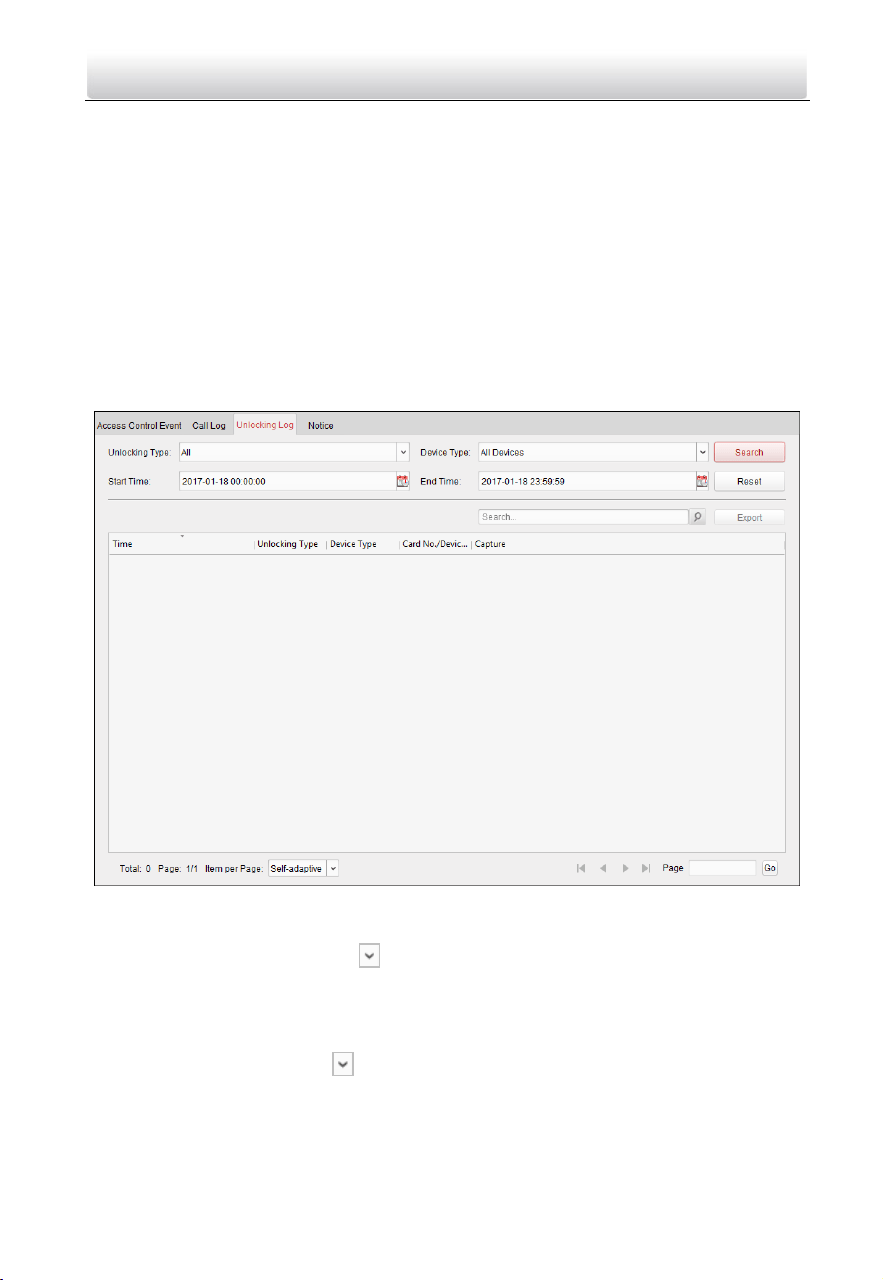
Video Intercom Door Station·User Manual
91
3. Click Search and all the matched call logs will display on this page.
For the search results,
(Optional) Check the detailed information of searched call logs, such as call
status, ring/speaking duration, device name, resident organization, etc.
(Optional) Input keywords in the Search field to filter the desired log.
(Optional) Click Export to export the call logs to your PC.
Search Unlocking Logs
Steps:
1. In the Information Search page, click Unlocking Log tab to enter the Unlocking Log
interface.
2. Set the search conditions, including unlocking type, device type, start time and end
time.
Unlocking Type: Click to unfold the drop-down list and select the
unlocking type as Unlock by Password, Unlock by Duress, Unlock by Card,
Unlock by Resident or Unlock by Center. Or select All to search logs with all
unlocking types.
Device Type: Click to unfold the drop-down list and select the device
type as Door Station or Door Station (V Series). Or select All Devices to
search logs with all device types.
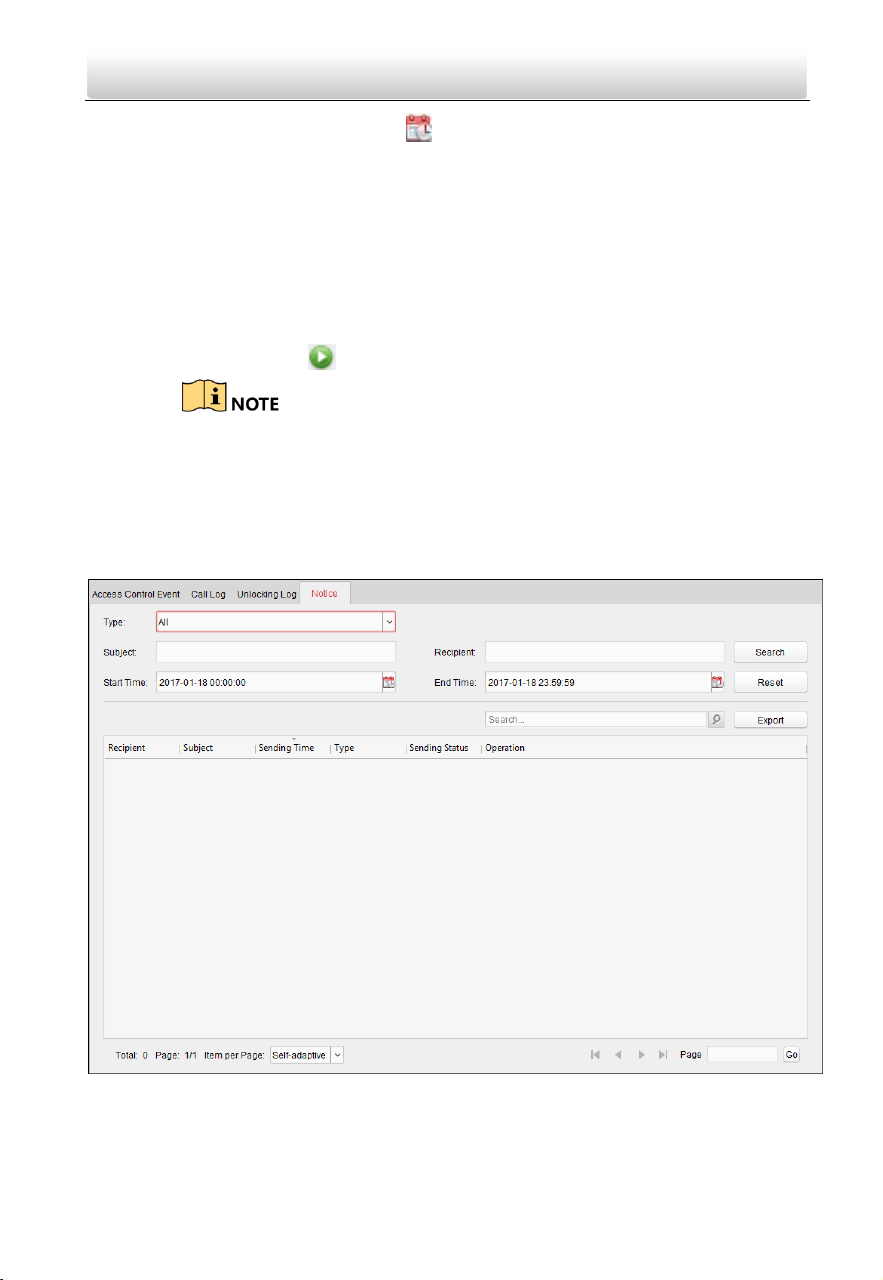
Video Intercom Door Station·User Manual
92
Start Time/End Time: Click to specify the start time and end time of a
time period to search the logs.
3. (Optional) You can click Reset to reset all the configured search conditions.
4. Click Search and all the matched unlocking logs will display on this page.
For the searching results,
(Optional) Check the detailed information of searched unlocking logs, such as
unlocked time, card No., device No., etc.
(Optional) Input keywords in the Search field to filter the searching result.
(Optional) Click in the Capture column to view the captured pictures.
Viewing captured picture should be supported by device.
(Optional) Click Export to export the unlocking logs to your PC.
Search Notice
Steps:
1. In the Information Search page, click the Notice tab to enter the Notice interface.
2. Set the search conditions, including notice type, subject, recipient, start time and
end time.
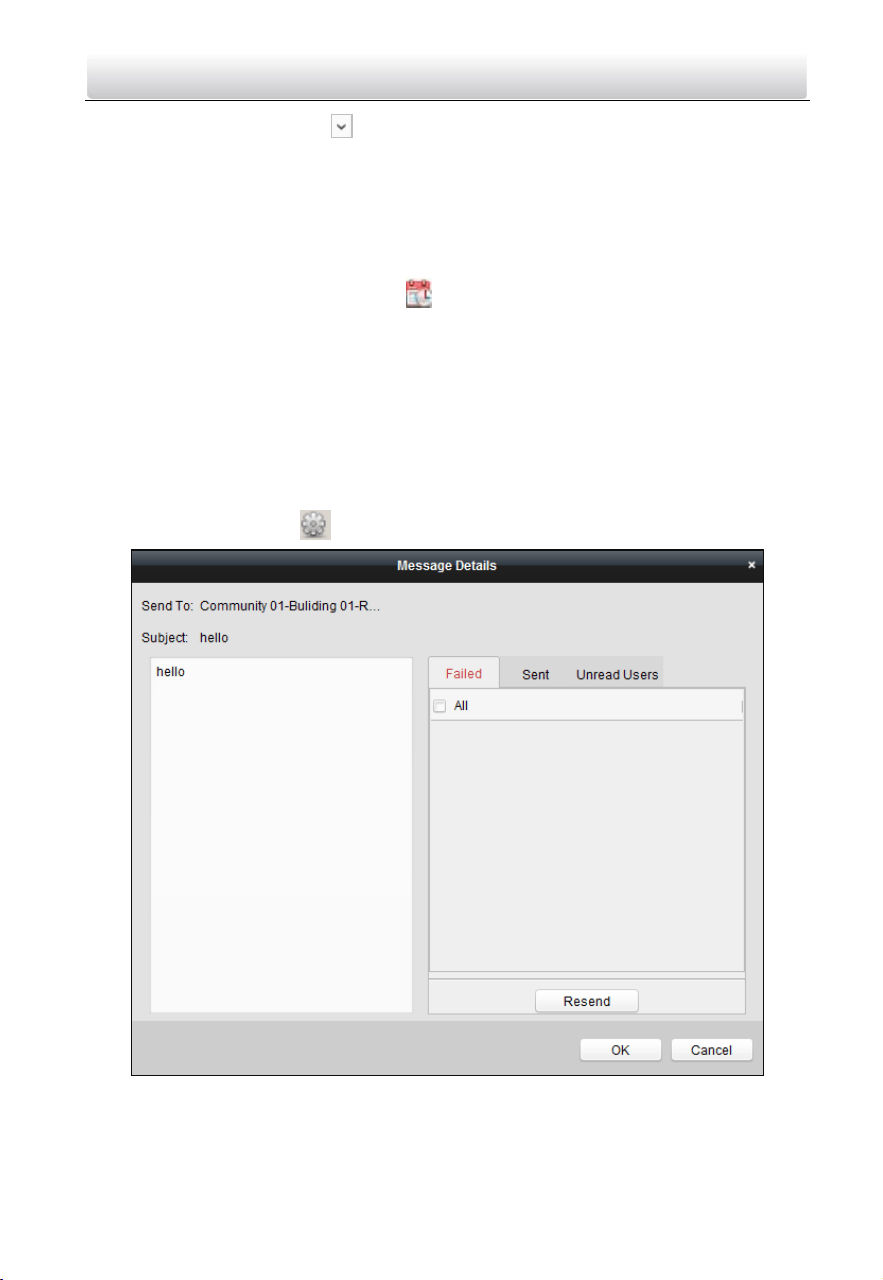
Video Intercom Door Station·User Manual
93
Notice Type: Click to unfold the drop-down list and select the notice type
as Advertising Information, Property Information, Alarm Information or
Notice Information. Or select All to search notices with all types.
Subject: Input the keywords in the Subject field to search the matched notice.
Recipient: Input the recipient information in the Recipient field to search the
specified notice.
Start Time/End Time: Click to specify the start time and end time of a
time period to search the notices.
(Optional) You can click Reset to reset all the configured search conditions.
3. Click Search and all the matched notices will display on this page.
For the searching results,
(Optional) Check the detailed information of searched notices, such as sending
time, sending status, etc.
(Optional) Input keywords in the Search field to filter the searching result.
(Optional) Click in the Operation column to pop up Notice Details dialog.
4. You can view and edit the notice details, check the sending failed/sent
succeeded/unread users, and resend the notice to sending failed/unread users.
5. (Optional) Click Export to export the notices to your PC.
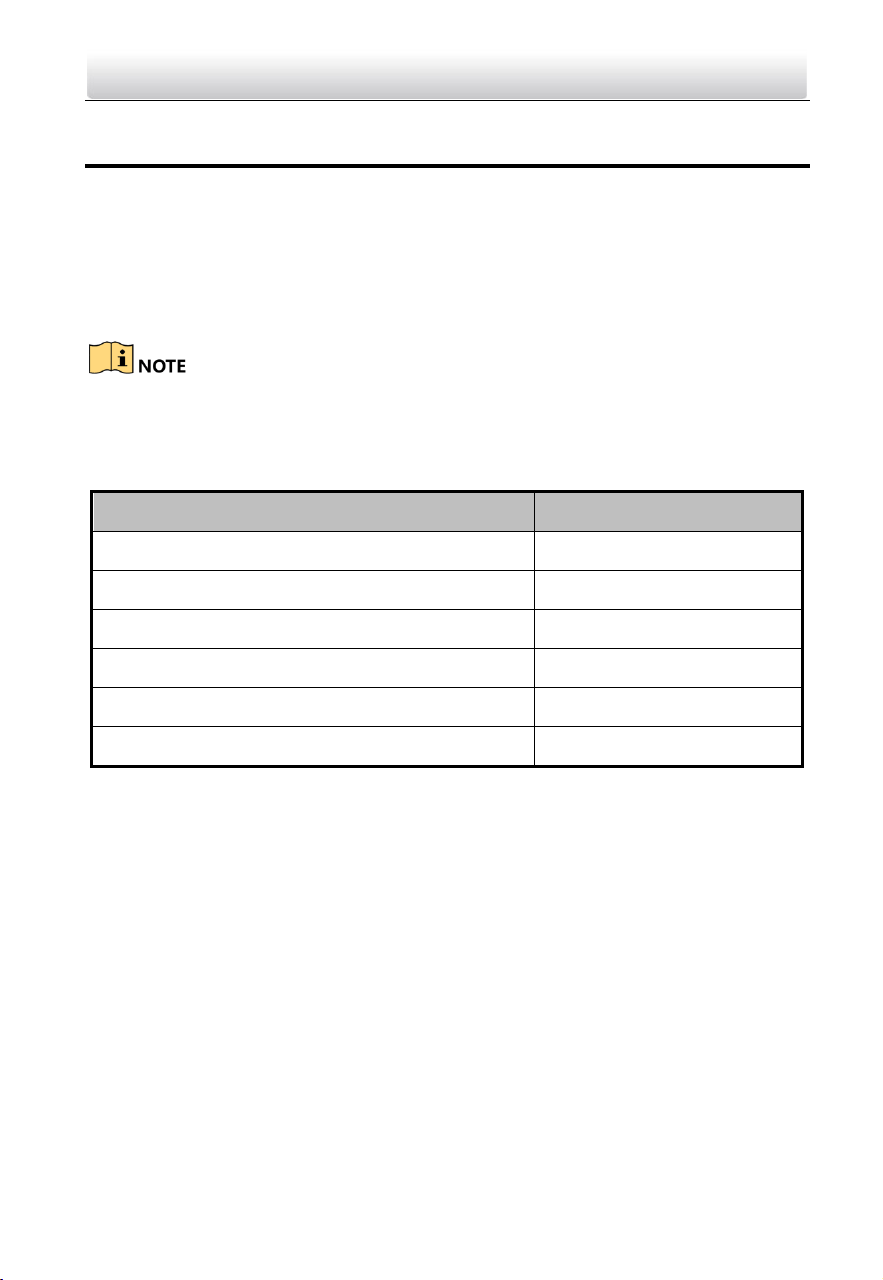
Video Intercom Door Station·User Manual
94
Appendix
Installation Notice
While installing the indoor station, make sure that the distance between any two
devices is far enough to avoid the howling and echo. The distance between two devices
is recommended to be longer than 10 meters.
Here devices refer to indoor station, outdoor station and master station.
Wiring Cables
Cable
Specification
Power Cord of Door Station
RVV 2*1.0
Network Cable of Door Station
UTP-five Categories
Door Lock Wiring (With Door Magnetic)
RVV 4*1.0
Door Lock Wiring (Without Door Magnetic)
RVV 2*1.0
Exit Button Wiring
RVV 2*0.5
External Card Reader Wiring
RVVP 4*0.75

Video Intercom Door Station·User Manual
95
UD09693B