KOGAN SMARTERHOME™
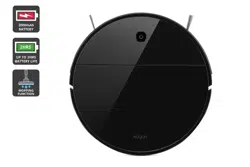
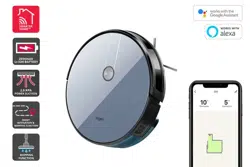
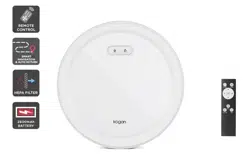
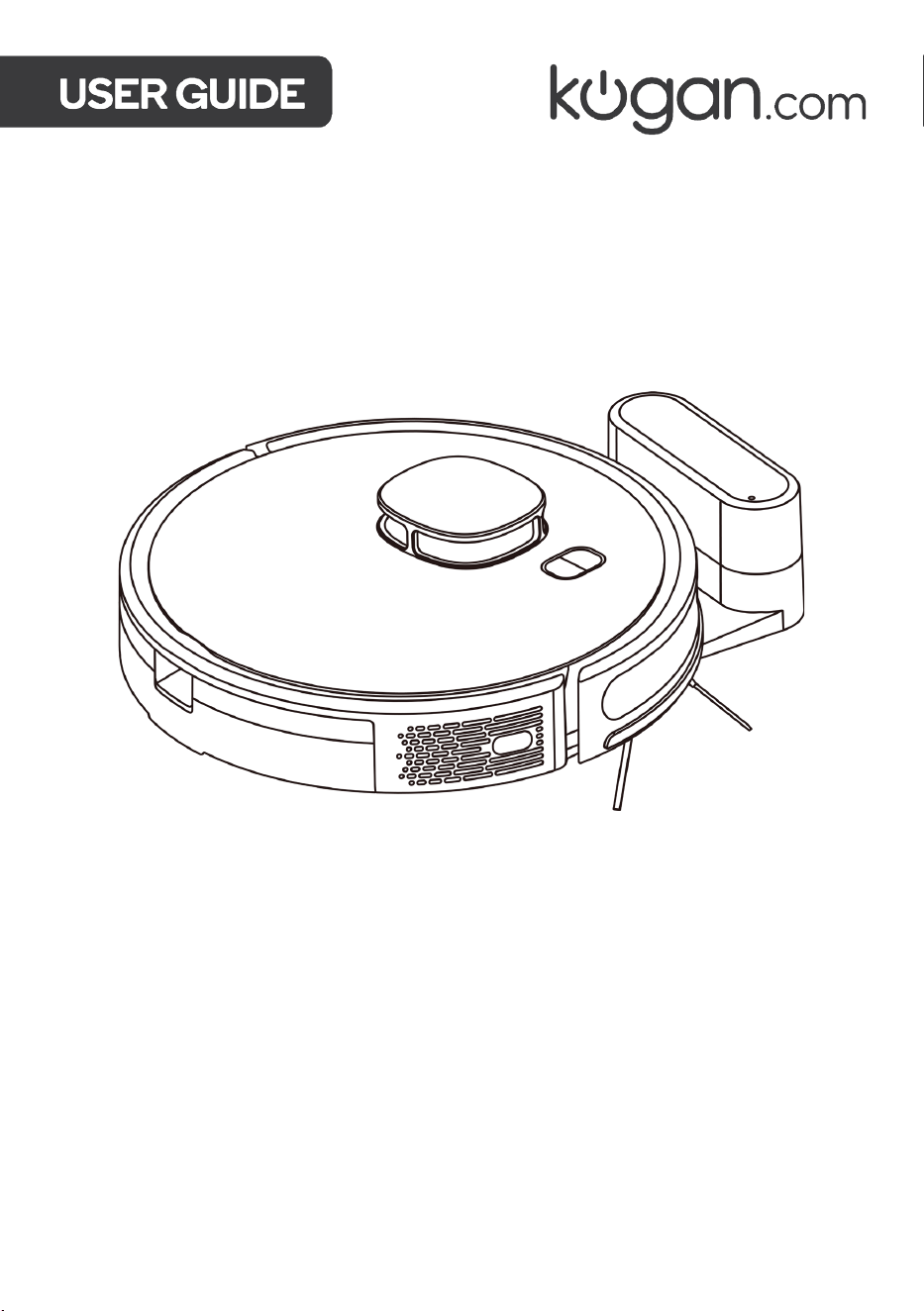
LX16 ROBOT VACUUM CLEANER
WITH MOP ATTACHMENT
KAVACRBL16A

2
Safety & Warnings 3
Components 5
Overview 6
Assembly 9
Before Use 11
Connect to the SmarterHome™ App 12
Operation 15
Cleaning & Care 24
Google Home Control 28
Amazon Alexa Control 31
Troubleshooting 34
Specifications 36
Notes 37

3
Ensure to read all instructions and warnings in this user guide prior to first use. Retain this
user guide for future reference.
• The vacuum can be used by adults and by persons with reduced physical, sensory, or
mental capabilities, or lack of experience and knowledge if they have been given
supervision or instruction concerning the use of the vacuum in a safe way and
understand the hazards involved.
• Do not allow children to use this appliance as a toy.
• Children must be supervised to ensure they do not play with the appliance.
• Keep children and pets away from the vacuum.
• This vacuum can only be used for indoor domestic floor cleaning. Do not use outdoors,
on objects, or in commercial/industrial environments.
• Do not use the vacuum in environments where it may fall (for example, on top of
furniture or on balconies).
• The operating environment of this vacuum is between 0–40°C.
• Do not use this vacuum if there are liquids on the ground.
• Remove any cables or wires on the floor before cleaning to prevent them from being
tangled or dragged by the vacuum.
• Remove any fragile articles or miscellaneous items that may block the path of the
vacuum. Not removing these may lead their damage.
• Do not place anything (including children and pets) on the vacuum.
• When the vacuum is operating, keep hair, fingers and other parts of human body and
pets away from the brushes.
• Do not use the vacuum to clean flammable items (for example, burning cigarette
butts).
• Do not use the vacuum to clean long-haired carpets. Some darker carpets also might
not be able to be cleaned normally.
• Do not use the appliance to vacuum hard or sharp objects (for example, glass, nails).
• Do not use the protective cover of the laser radar or bumper as a handle to carry the
vacuum.
• Do not use the mopping function on carpet or on top of furniture.
• Ensure the power cord is unplugged before cleaning or maintaining the appliance.
• Ensure there is no water in the dustbin/water tank when charging the vacuum.
SAFETY & WARNINGS

4
• Do not use any third-party batteries, non-rechargeable batteries charging bases, or
chargers.
• Do not disassemble, repair, or modify the battery or charging base by yourself.
• Do not place the charging base near heat sources (for example, heating radiators).
• Do not use a damp cloth or wet hands to wipe or clean the charging base.
• Dispose of used batteries properly and send them to professional recycling agencies.
• If the power cord is damaged or broken, stop use immediately and contact
help.Kogan.com for assistance.
• When transporting the vacuum, ensure that the appliance is turned off and the original
packaging box is used for packaging.
• The charging base is only suitable for charging the vacuum robot (KAVACRBL16A) with
the battery supplied (Rating: 14.4V, 3000mAh, 43.2Wh). It is not suitable to charge any
other vacuums or batteries.
5
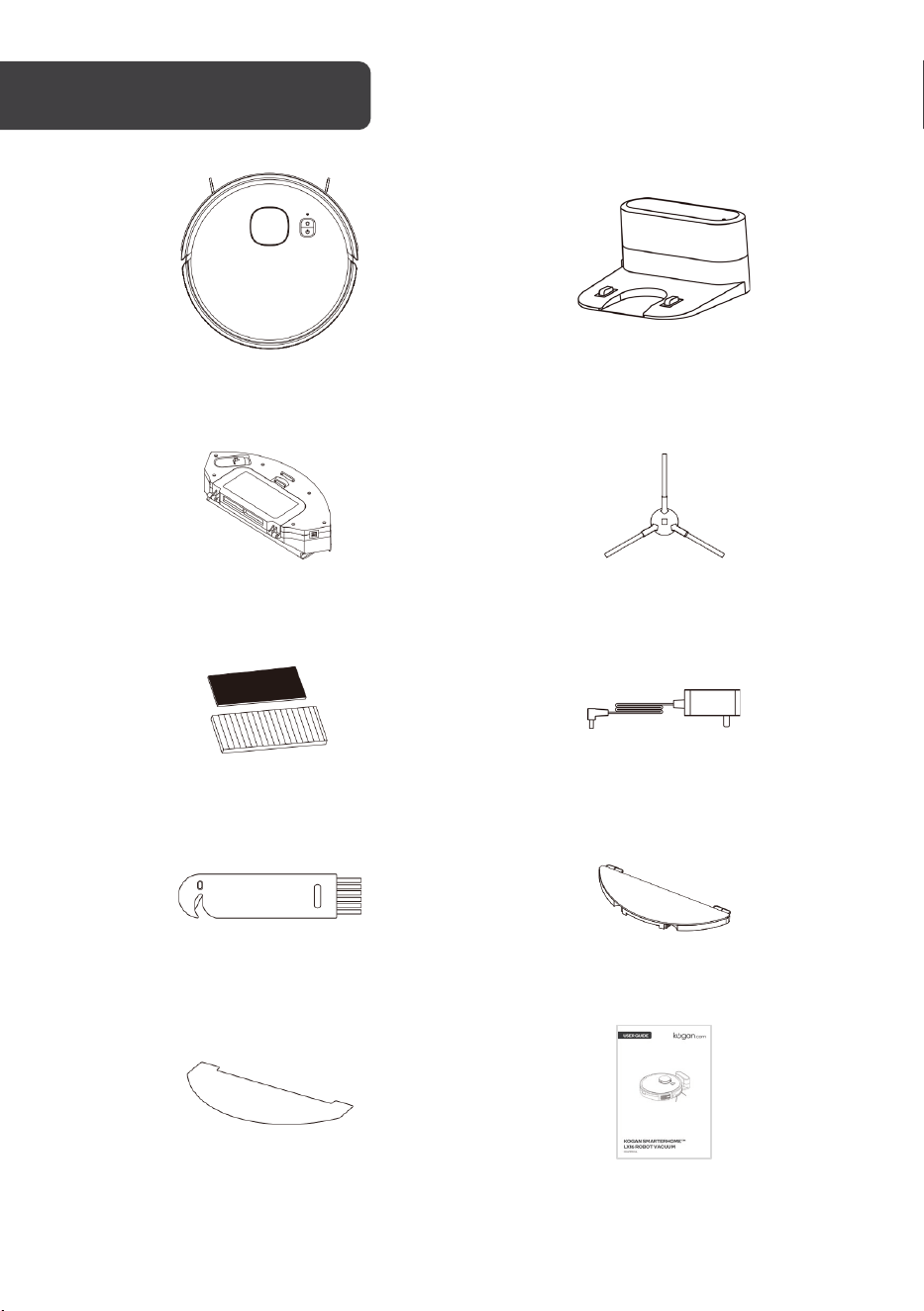
A Robot vacuum cleaner (x1) B Charging base (x1)
C Dustbin/water tank (x1) D Side brush (x2)
E HEPA and sponge filters (x1) F Power adapter (x1)
G Cleaning brush (x1) H Mopping support (x1)
I Mop pad (x1) J User guide (x1)
COMPONENTS
6
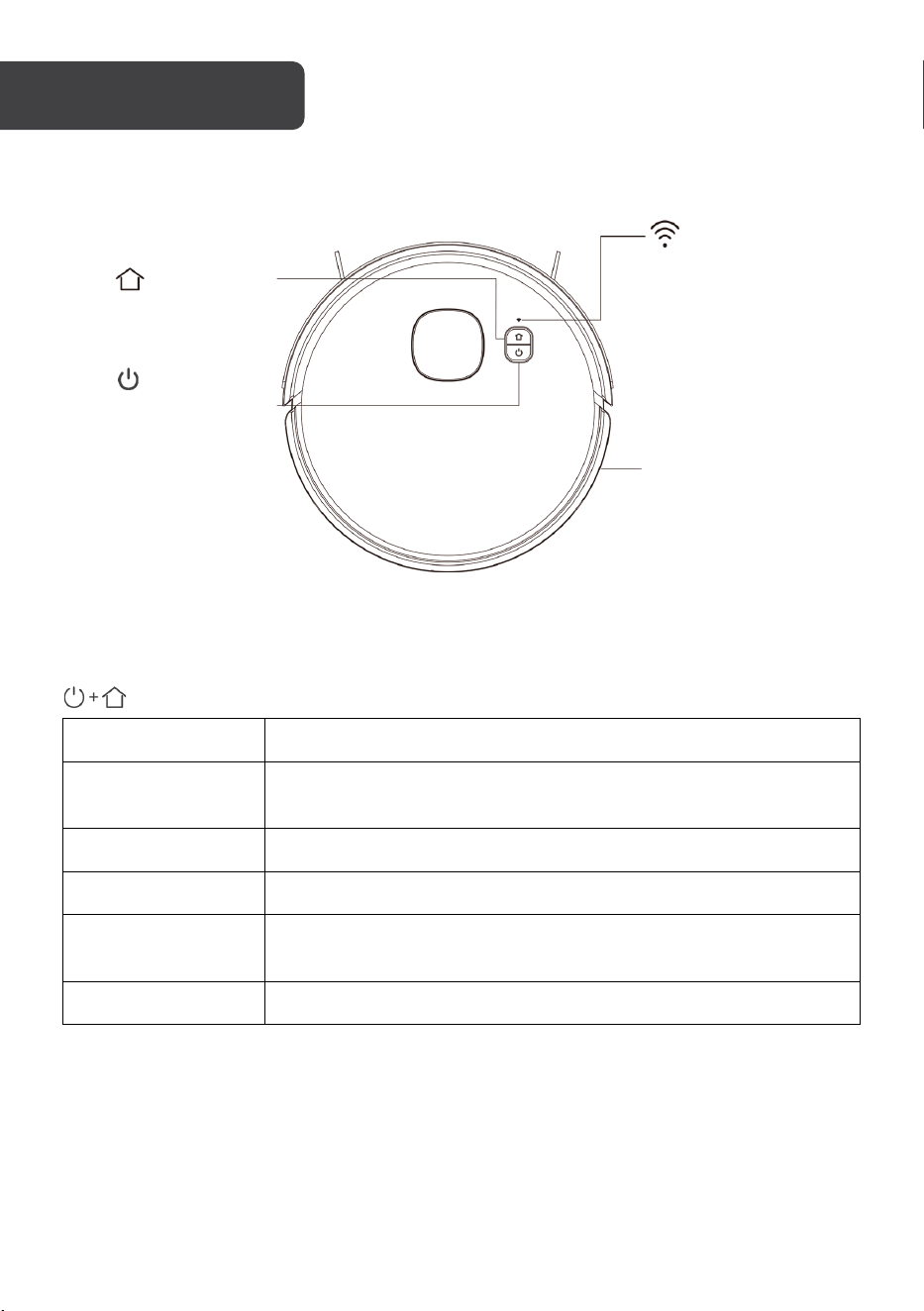
Robot vacuum – Top view
Backlight indicator status
Indicator Status
Solid blue light
Vacuum is cleaning, returning to the charging base to charge, or
is fully charged
Flashing blue light Vacuum is charging
Solid red light Low battery
Flashing red light
There is an error with the vacuum. Ensure the dustbin/water tank
is secured to the vacuum.
Off Vacuum is on standby
Power button
• Press the button to
start cleaning/pause
• Press and hold the
button for three
seconds to power
on/off
Home button
Press to recharge/pause
Reset button
Use a pin to press
this button to reset
the vacuum
Wi-Fi indicator
• Off: Wi-Fi not
connected
• Flashing: Ready to
be paired
• On: Wi-Fi network
connected
OVERVIEW
7
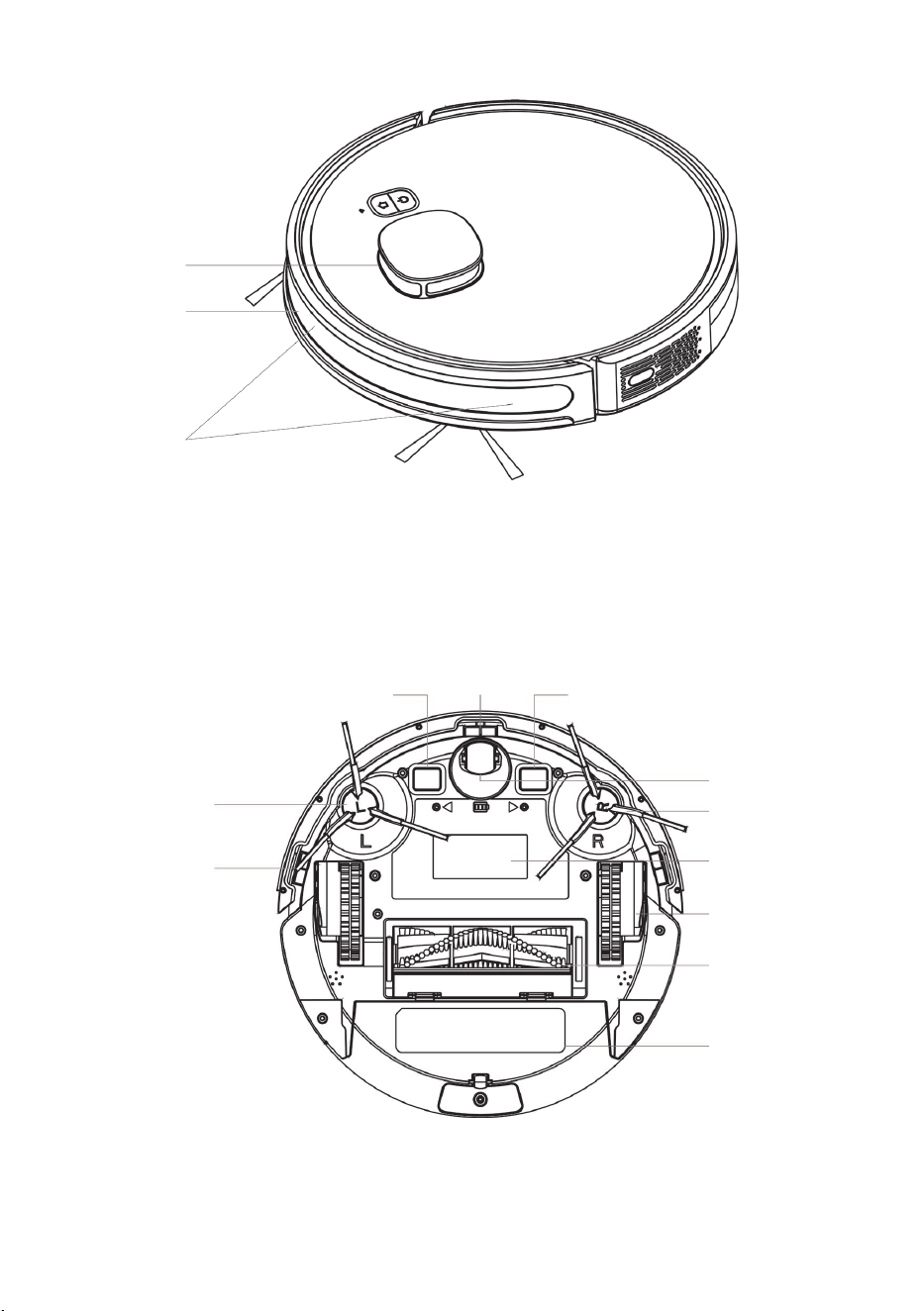
Robot vacuum – Side view
Robot vacuum – Bottom view
Laser radar
Bumper
Infrared receiver
sensor
Cliff sensor
Dustbin
Rolling brush
Drive wheel
Battery cover
Charging contact
Cliff sensor
Charging contact
Universal wheel
Side brush
Side brush
8
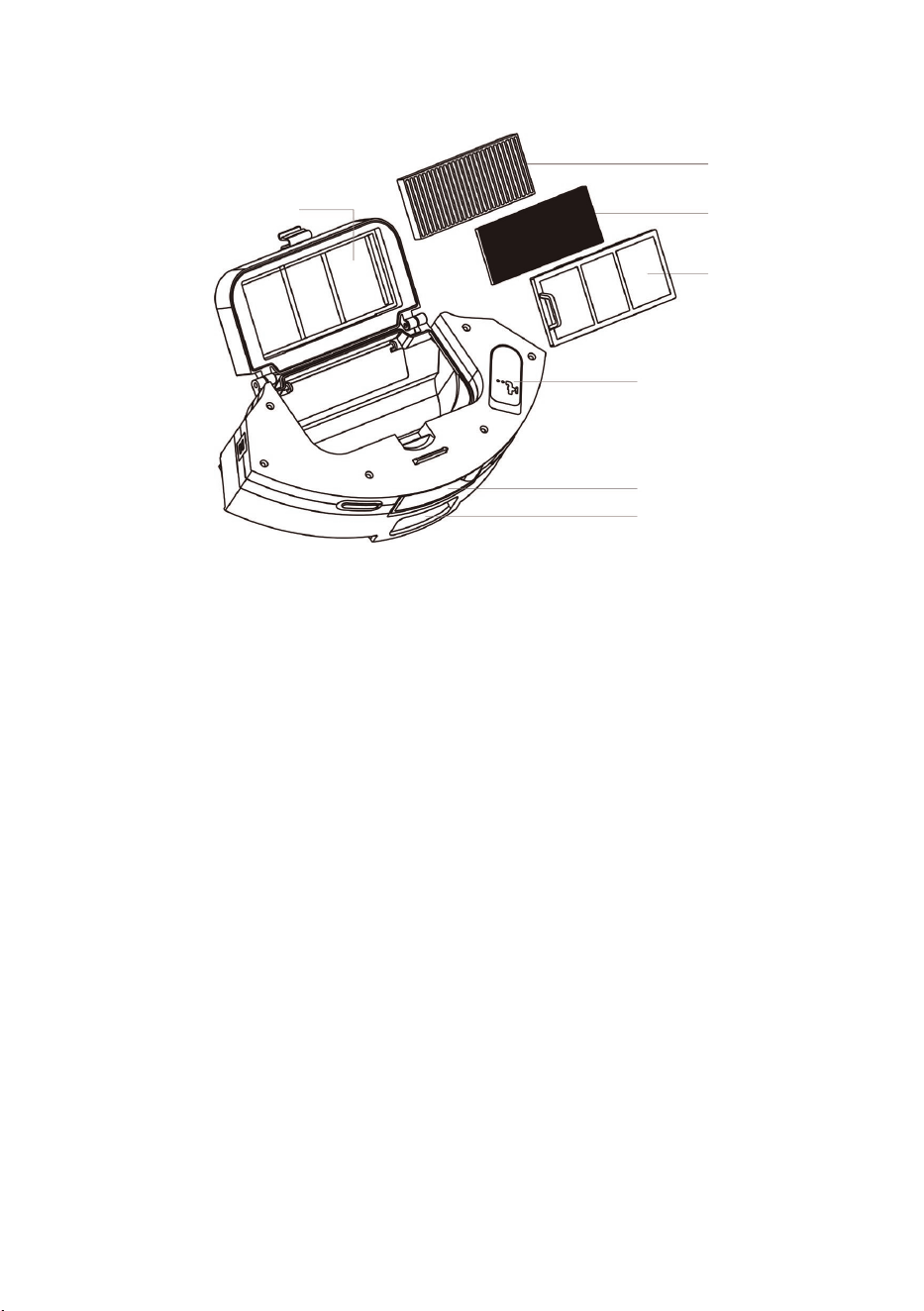
Dustbin/water tank
Dust ports
Dustbin button
Primary filter
Water plug
Sponge filter
HEPA filter
Filter cover
9
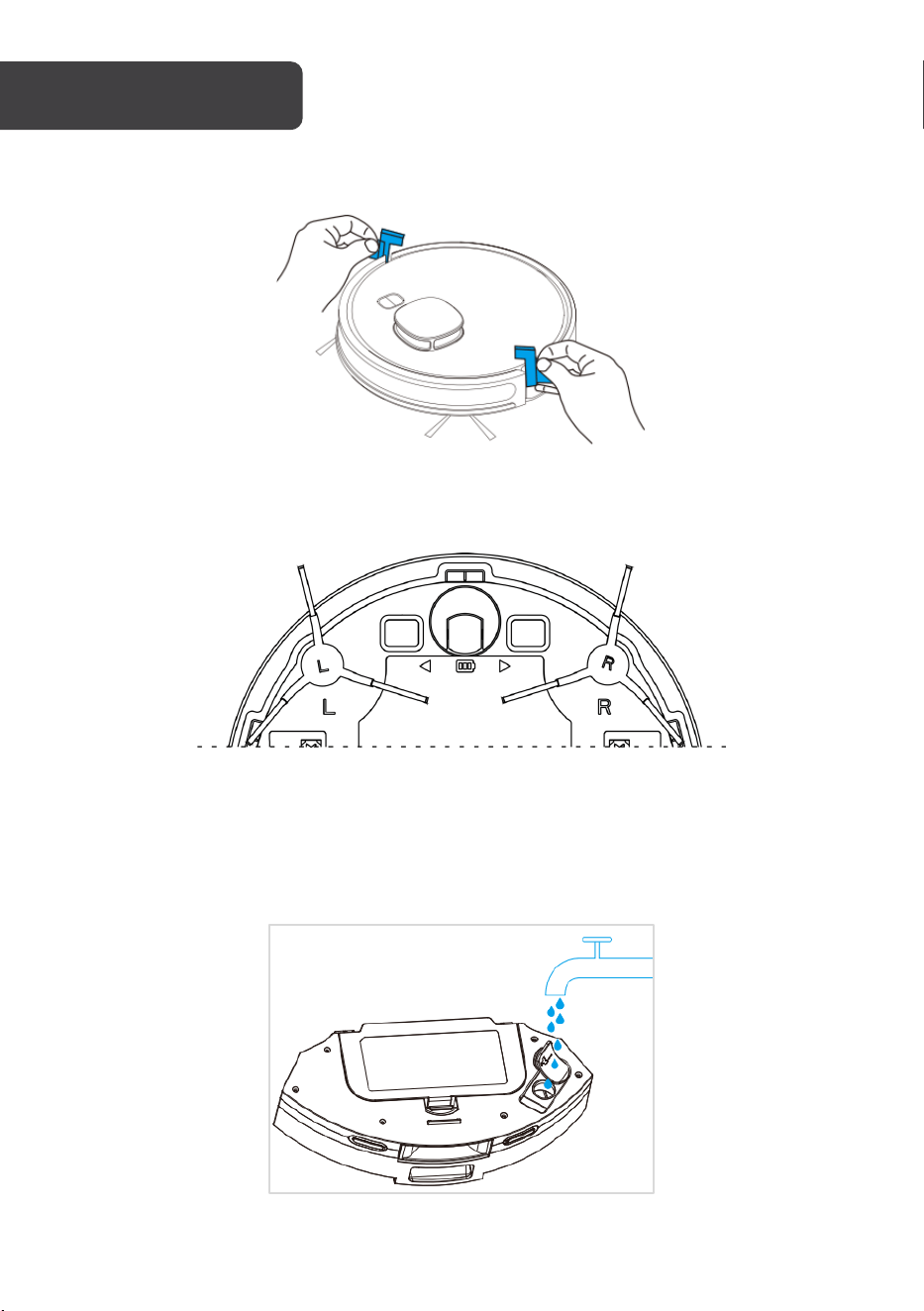
1. Remove the protective material from both sides of the vacuum.
2. Attach the left and right side brushes (L, R) to the corresponding letter on the
underside of the vacuum. There should be a clicking sound when each side brush is
secured.
3. If wishing to use the mopping function, open the water plug and fill the dustbin/water
tank with water. Cover the water plug. Do not pour detergent into the dustbin/water
tank.
If not wishing to use the mopping function, skip this step.
ASSEMBLY
10
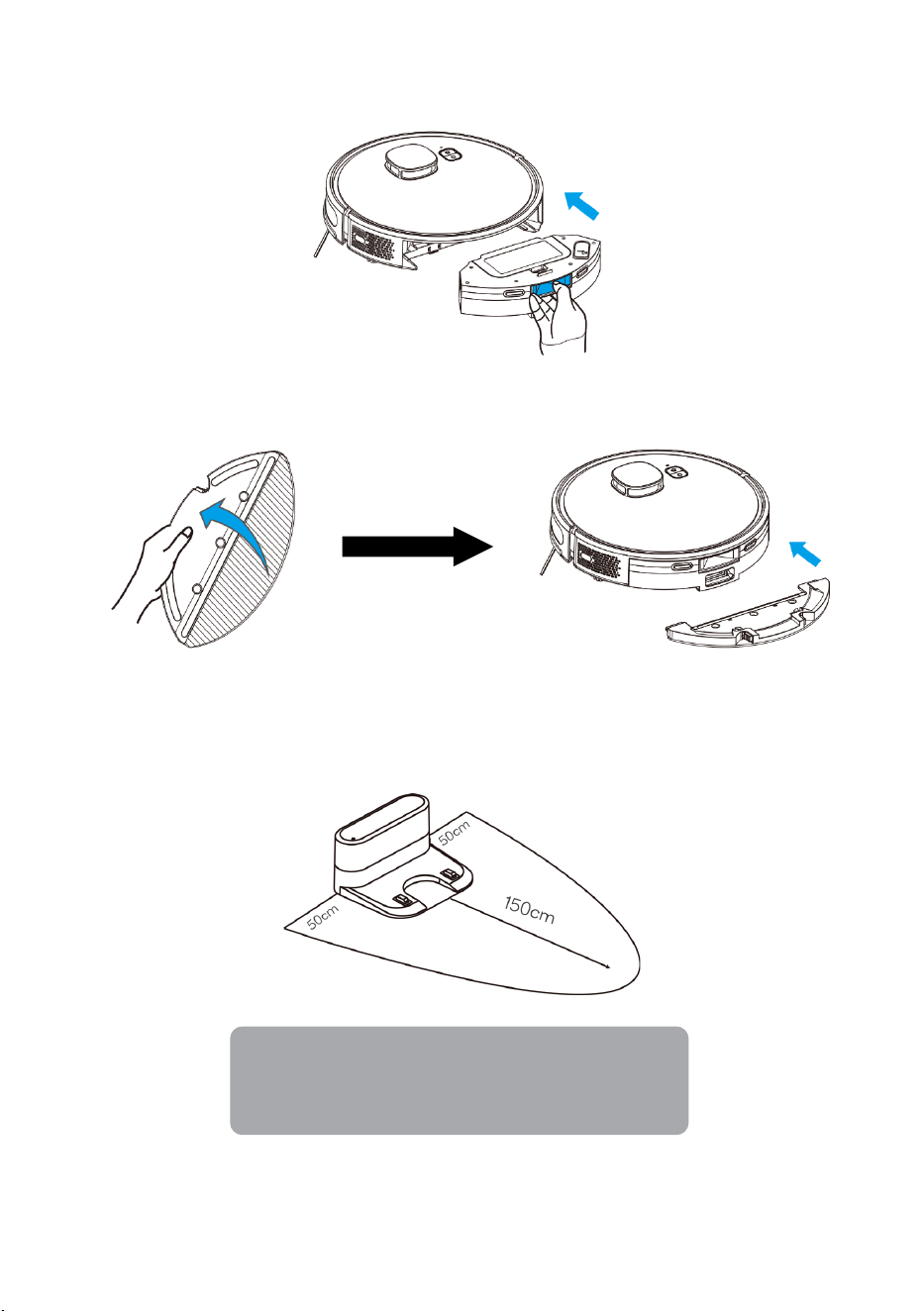
4. Whilst pressing and holding the dustbin button, insert the dustbin/water tank into the
vacuum.
5. If using the mopping function, install the mop pad on the mop support, then insert
the mop support into the dustbin/water tank.
6. Ensure there is a 50cm clearance either side, and 150cm clearance in front of the
charging base. Connect the power cord into a wall outlet.
7. The vacuum returns to the charging seat after cleaning.
Notes:
• Do not freely move the charging base.
•
Ensure it is not located in direct sunlight.
11
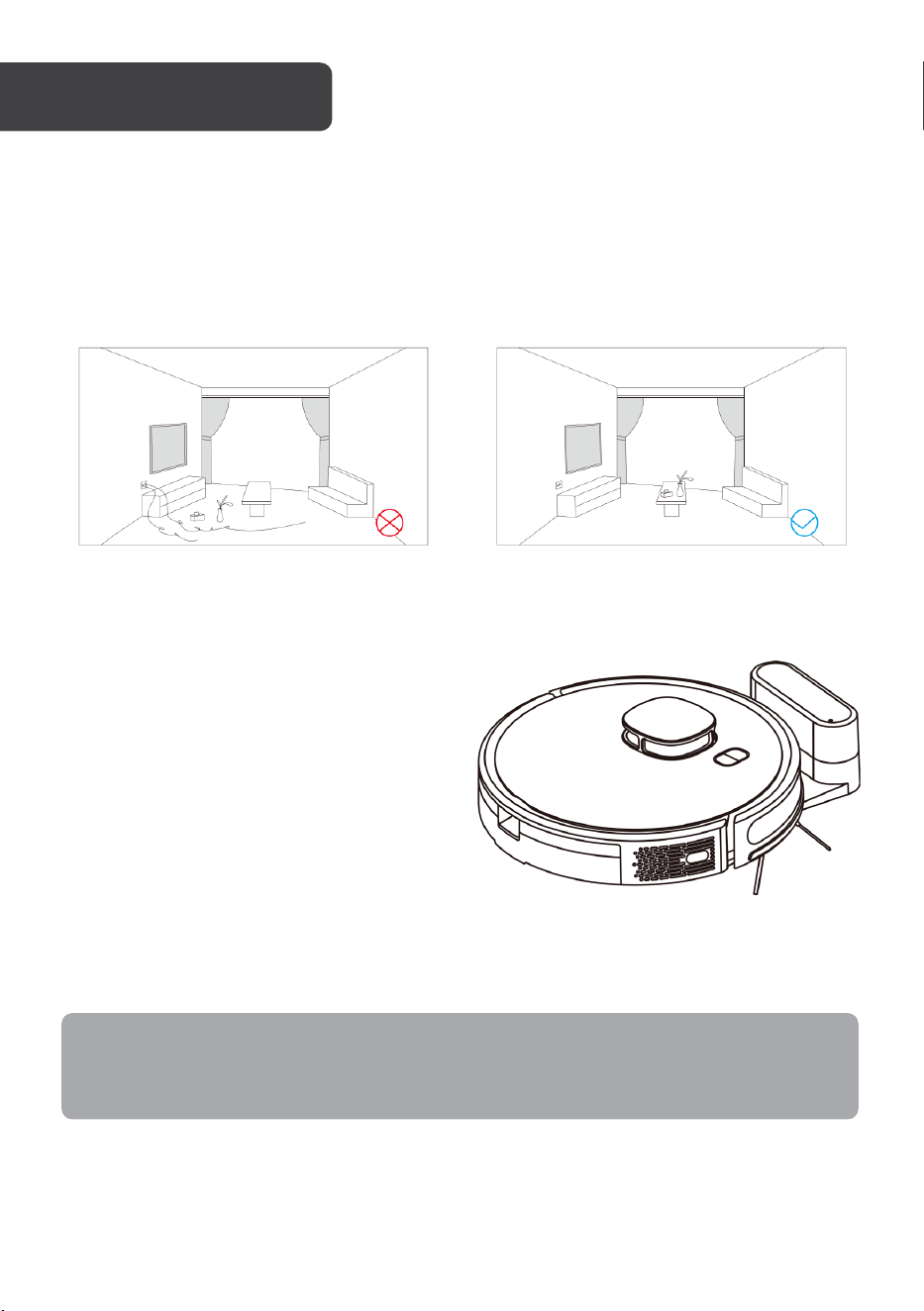
Checks to the area
Ensure there are no loose wires or cables scattered on the ground. This is to prevent the
vacuum becoming entangled or dragged along.
Ensure all fragile items, those easy to topple, dangerous items, and valuables are removed.
This is to prevent items being damaged and personal injuries.
Charging
1. Press and hold the power button to turn
on the vacuum.
2. When the indicator lights on the home
and power button illuminate, place the
vacuum against the charging contacts
on the charging base. The vacuum will
speak the voice prompt ‘Start charging’
to notify it is charging.
3. Charge the vacuum for 16 hours during
the first three uses. During subsequent
charges, when the indicator lights turn a solid blue, the vacuum will be fully charged.
Note:
If the battery is at a low level. the vacuum cannot be powered. Place the vacuum
against the charging contacts and the vacuum will power on automatically.
BEFORE USE
12
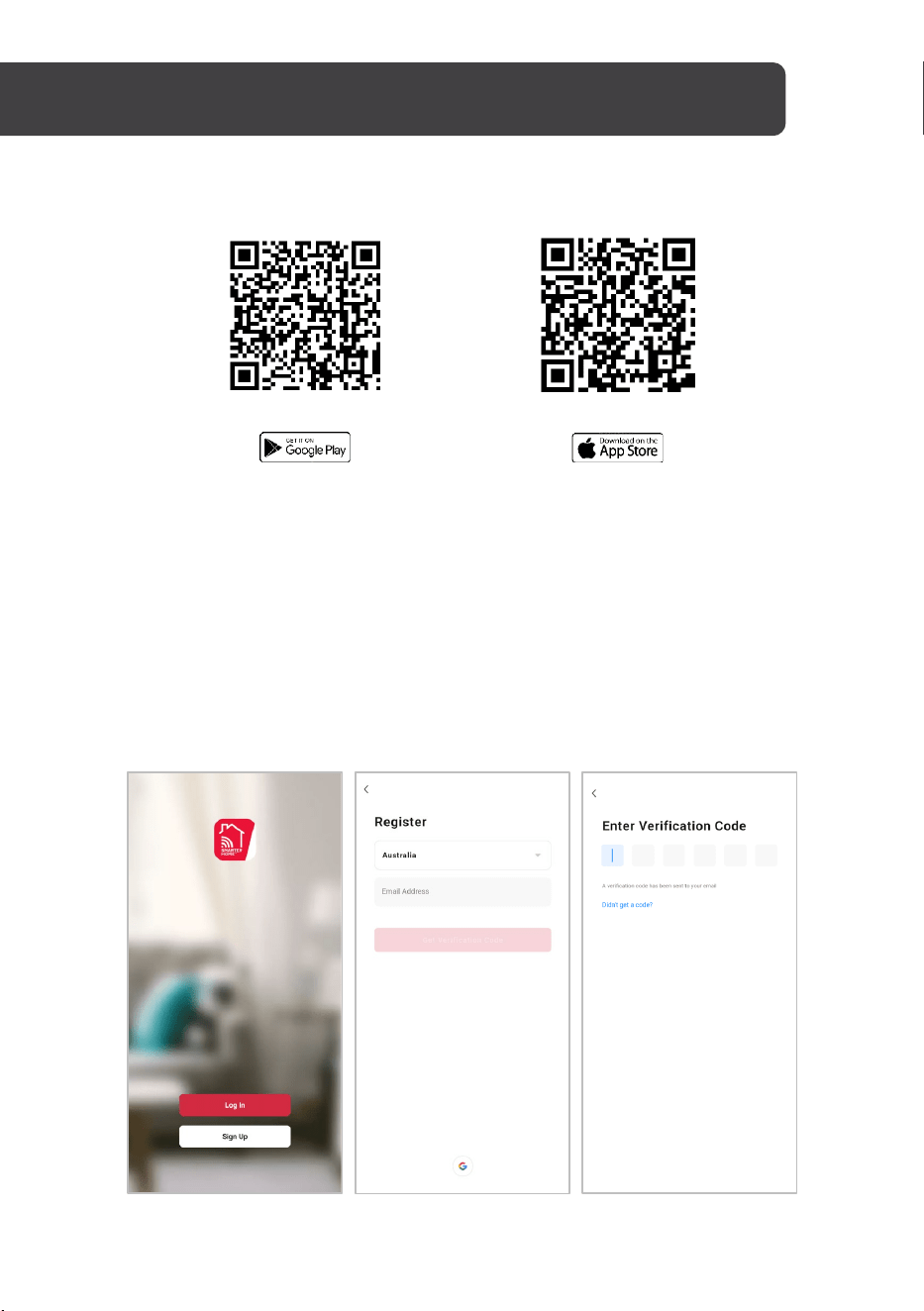
Install App
Download the ‘Kogan SmarterHome’ app from the Play Store (Android) or App Store (iOS).
Play Store (Android)
App Store (iOS)
To register:
1. If you already have a SmarterHome account, select ‘Log In’. To register a new
account, select ‘Sign Up’.
2. The system will automatically recognise your country. If needed, you can manually
select your country from the drop-down box. Enter your email address and tap ‘Get
Verification Code’ to continue.
3. A 6-digit code will be sent to the submitted email address. Enter this code before the
one-minute timer expires.
4. Continue to the next page and complete your SmarterHome profile.
CONNECT TO SMARTERHOME™ APP
13
Set device in pairing mode
When the device is first turned on, it may automatically enter pairing mode (the Wi-Fi
indicator will be flashing slowly).
If not automatically in pairing mode when powered on, you can manually set the device in
pairing mode by pressing and holding the home and power buttons simultaneously for three
seconds until the Wi-Fi indicator is flashing slowly.
Add device through network
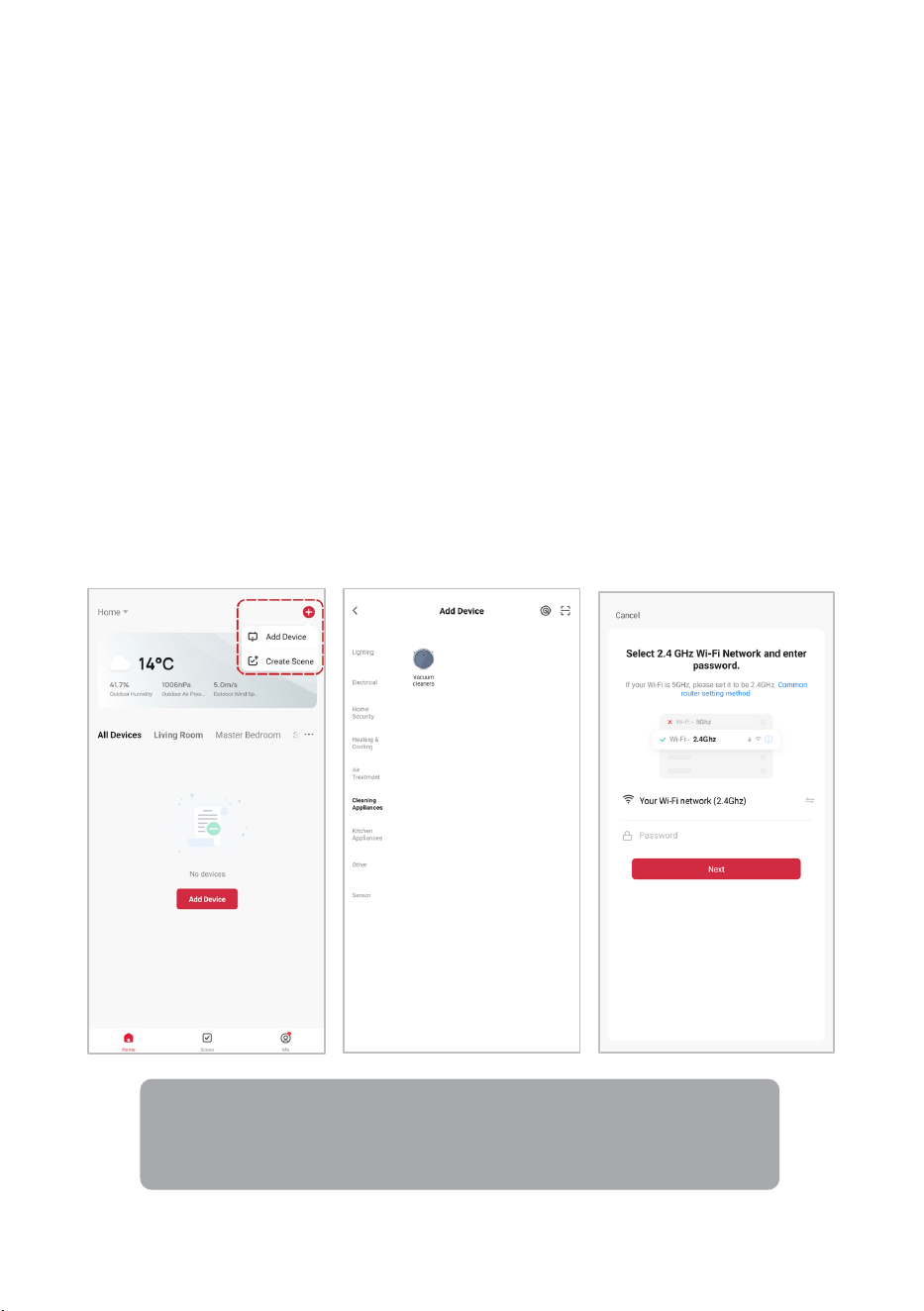
1. Once registered, tap ‘Add Device’ on the app’s home page, or the ‘+’ in the upper
right corner, to add a new device through the network.
2. Select the product type from the list of options in the app (Cleaning Appliances >
Vacuum Cleaners).
3. Adjust your connection method by tapping on the mode type in the top-right corner of
the screen. Select ‘AP Mode’ for the set-up type.
4. Ensure that the device is in pairing mode, with the Wi-Fi indicator flashing slowly, and
tap ‘Confirm light is slowly flashing’.
5. Enter your Wi-Fi details. It is important that your SmarterHome™ device and the app
are connected to the same Wi-Fi network during setup.
Notes:
• The device and the app have to use the same Wi-Fi network.
• The device is only compatible with 2.4Ghz networks.
14
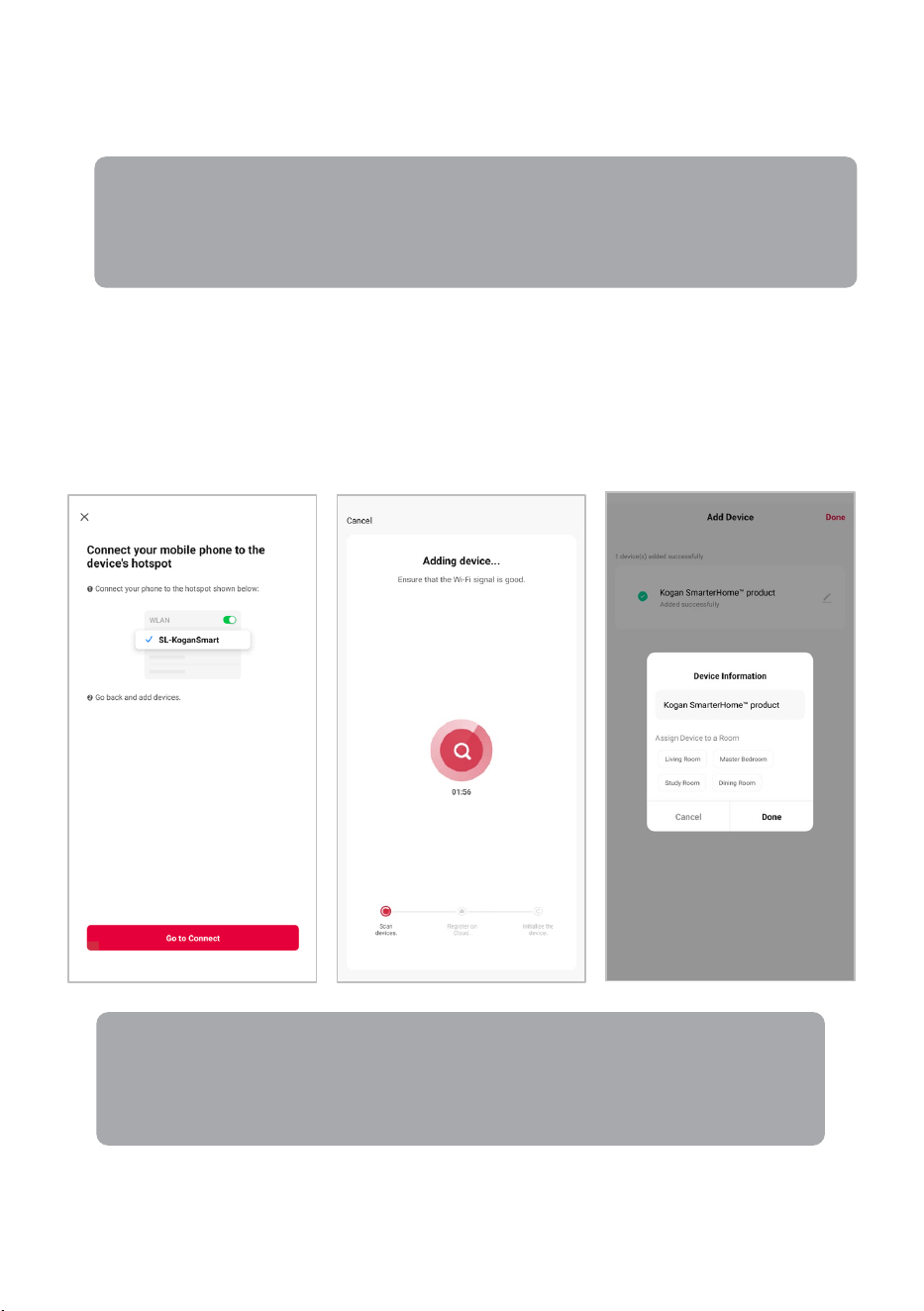
6. Follow the in-app prompts to continue AP Mode connection, which will pair your
mobile phone to the device’s Wi-Fi hotspot to ensure a connection. This may be
named ‘SL-KoganSmart’, ‘SmartLife-XXXX’, or another similar name.
7. The device will commence the pairing process and connect to the app. Ensure your
Wi-Fi router, mobile phone, and the SmarterHome™ device are kept close until
connection is complete.
8. After successfully being added, you will have the option to rename the device and
assign it to a location. It will now be listed on the app’s home page. Tap the device
listing to enter its control page.
Note:
If the Wi-Fi hotspot does not appear on your phone in the list of available networks,
your device may not be set in AP Pairing Mode correctly. Try repeating the steps
outlined above to ensure your device is ready for connection.
Note:
Once connected, you can select Create Scene from the ‘+’ in the upper right
corner (or from the Scene tab) to group connected SmarterHome™ products
and automate their functions.
15
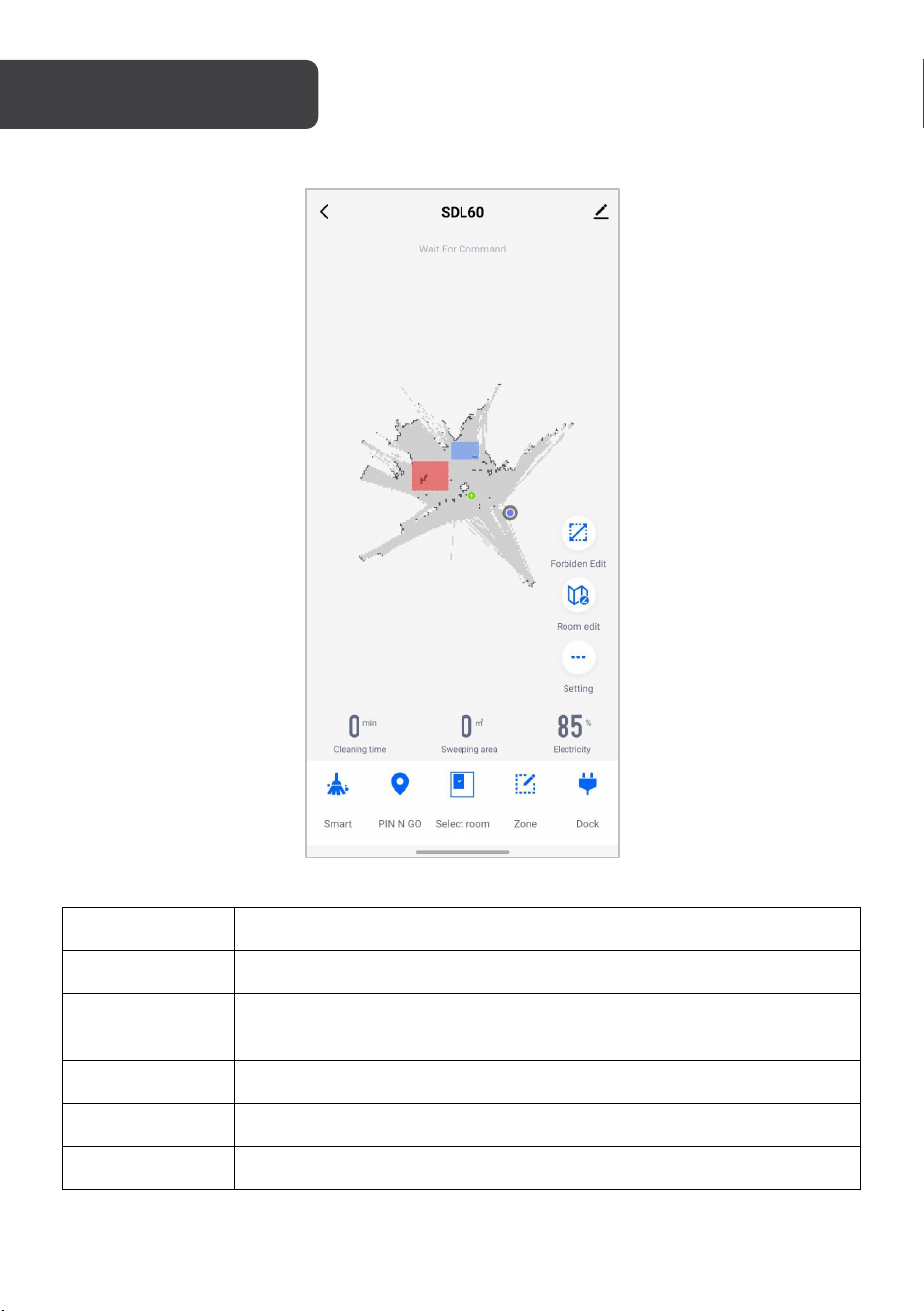
App interface
Name Description
Forbidden edit Allows users to mark areas they wish the vacuum not to enter
Room edit
Allows users to adjust chosen areas as ‘rooms’. This can be useful
when organising and prioritising different areas in the house to clean.
Setting Allows users to adjust the various settings of the vacuum
Cleaning time Displays how long the vacuum has been cleaning
Sweeping area Displays the area the vacuum has cleaned in m²
OPERATION

16
Electricity Displays the remaining battery level
Smart
Tap to activate the default cleaning mode. The vacuum will clean
the entire area before returning to the charging base
PIN N GO Allows users to pinpoint a spot where the vacuum should clean
Select room Allows users to select a set room to clean
Zone Allows users to draw an area they wish the vacuum to clean
Dock
Tap to alert the vacuum to return to the charging base. The vacuum
will then empty any dust and begin recharging.
Powering
Press and hold the power button for three seconds. The backlit indicators on the power and
home buttons will illuminate, indicating the vacuum is turned on.
When the robot vacuum cleaner is in standby, press and hold the power button for three
seconds. The backlit indicators on the power and home buttons should disappear,
indicating the vacuum is turned off.
Notes:
• The vacuum cannot be turned off during charging.
• During the first use, ensure the vacuum is located against the charging contacts
of the charging base.

17
Mapping and general cleaning
Once the vacuum is powered, press the power button.
On first use, the vacuum will start mapping out the area
then begin cleaning. This map will be remembered by
the vacuum on subsequent cleans.
As an area is cleaned, the app will display the trail the
vacuum has cleaned. Once the whole area has been
mapped and cleaned, the vacuum will automatically
return to the charging base.
Cleaned area
Notes:
• Do not use this vacuum to clean liquids.
• If the battery level is less than 15% before cleaning, the vacuum will not turn on
and will need to be charged.
• If the battery is less than 15% whilst cleaning, the vacuum will automatically
return to the charging base to charge.
• Do not move the vacuum randomly/frequently during operation.
• If moving temporarily, place the vacuum back to as close to its original position
as possible. When the vacuum resumes use, it will try to reposition its
coordinates.
• After positioning successfully, it will continue to work according to its planned
path. If positioning fails, it will stop its previous task and build a new map for
cleaning. In this case, the vacuum may fail to recharge and not return to the
charging base.
Area to be
cleaned
Area being
cleaned
18
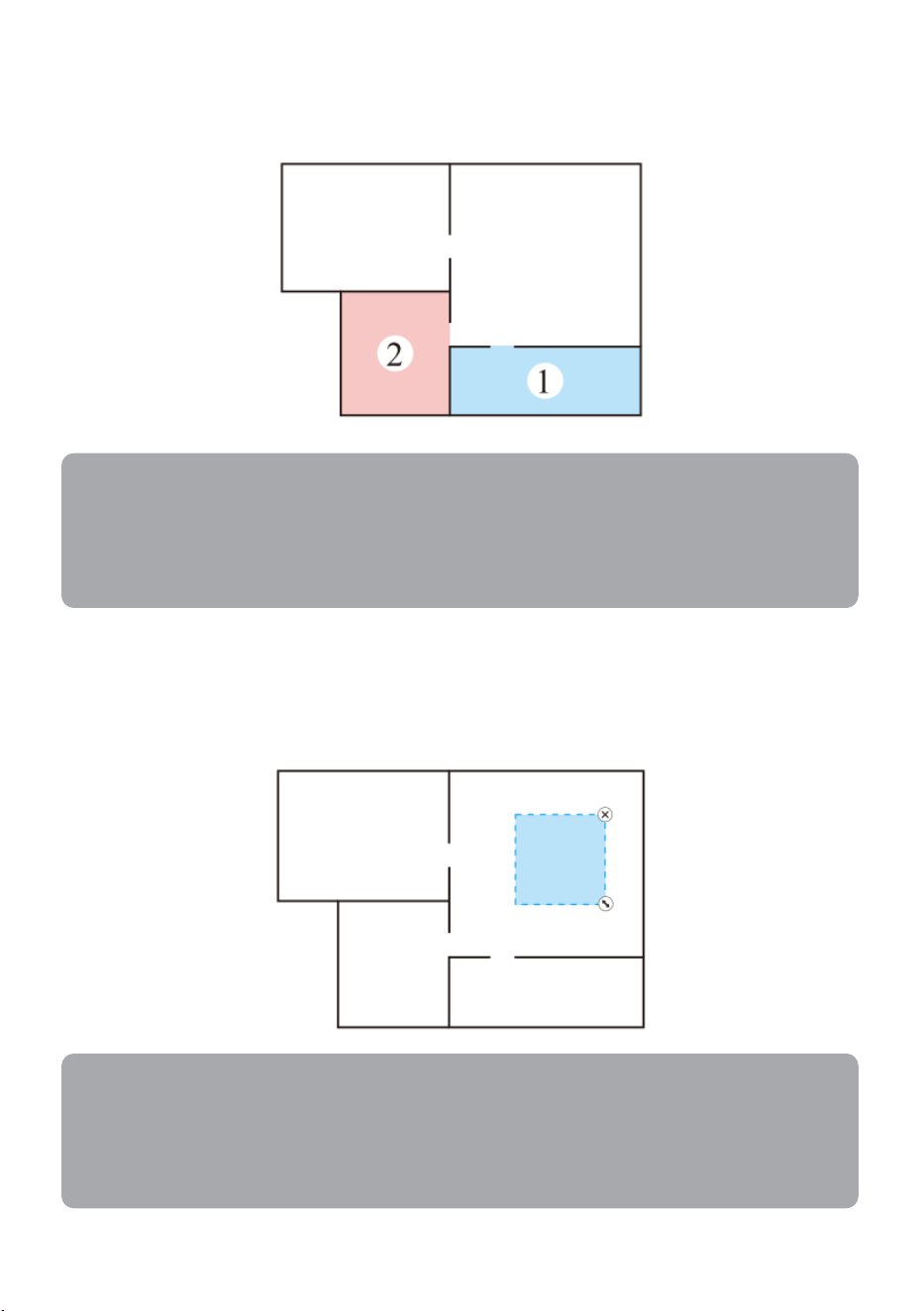
Designating rooms
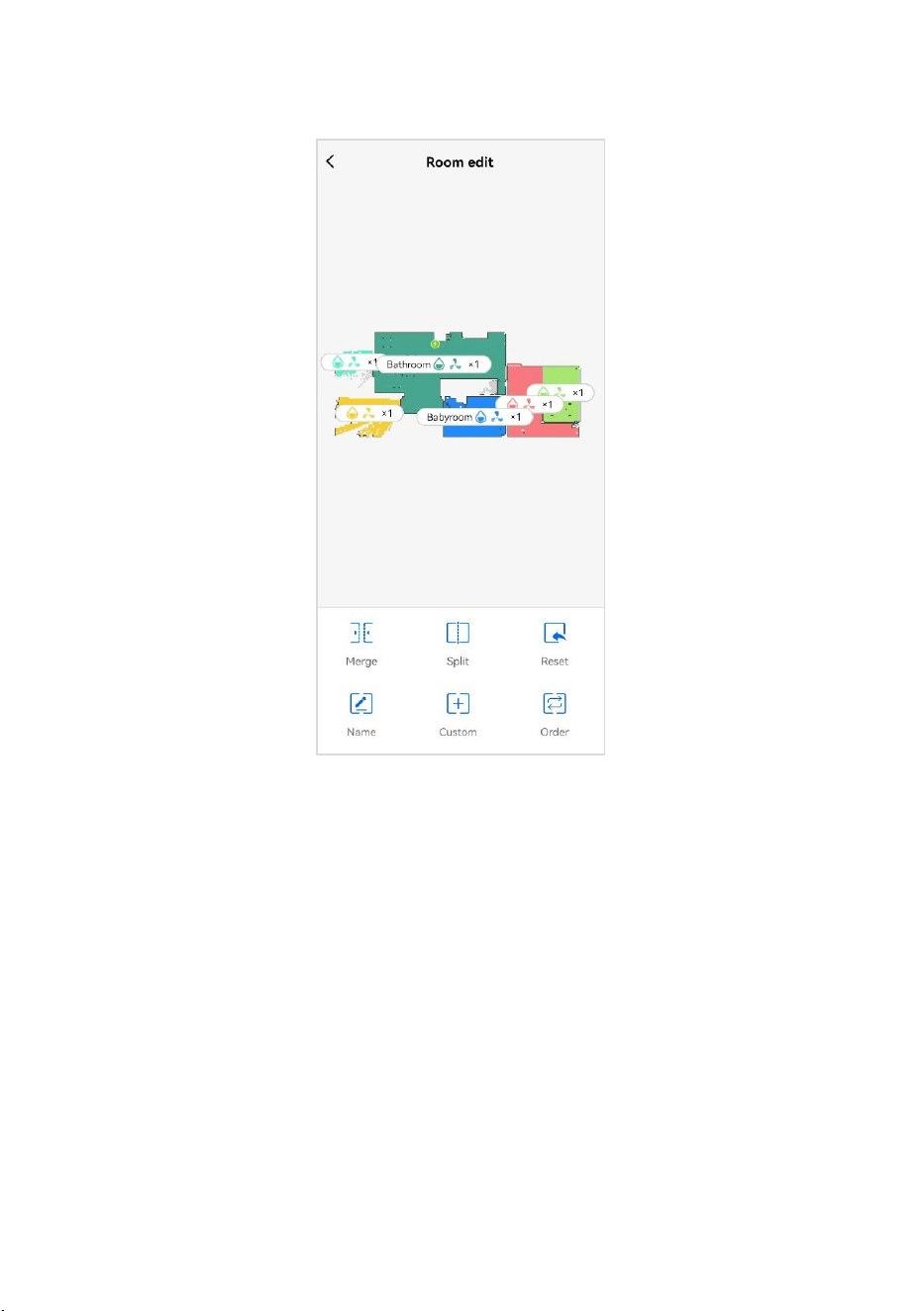
To set up areas on the maps to rooms, tap ‘Room edit’ on the app interface.
Name Description
Merge Allows users to merge two rooms into one
Split Allows users to split an area and set up two rooms
Reset Removes all set rooms
Name Allows users to label each room
Custom Allows users to set custom areas as rooms
Order Allows users to determine the order with which rooms are cleaned
19
Cleaning selected rooms
To clean a certain area on the map, tap ‘Select room’ on the app interface and tap on the
map to choose which room/rooms you wish the vacuum to clean.
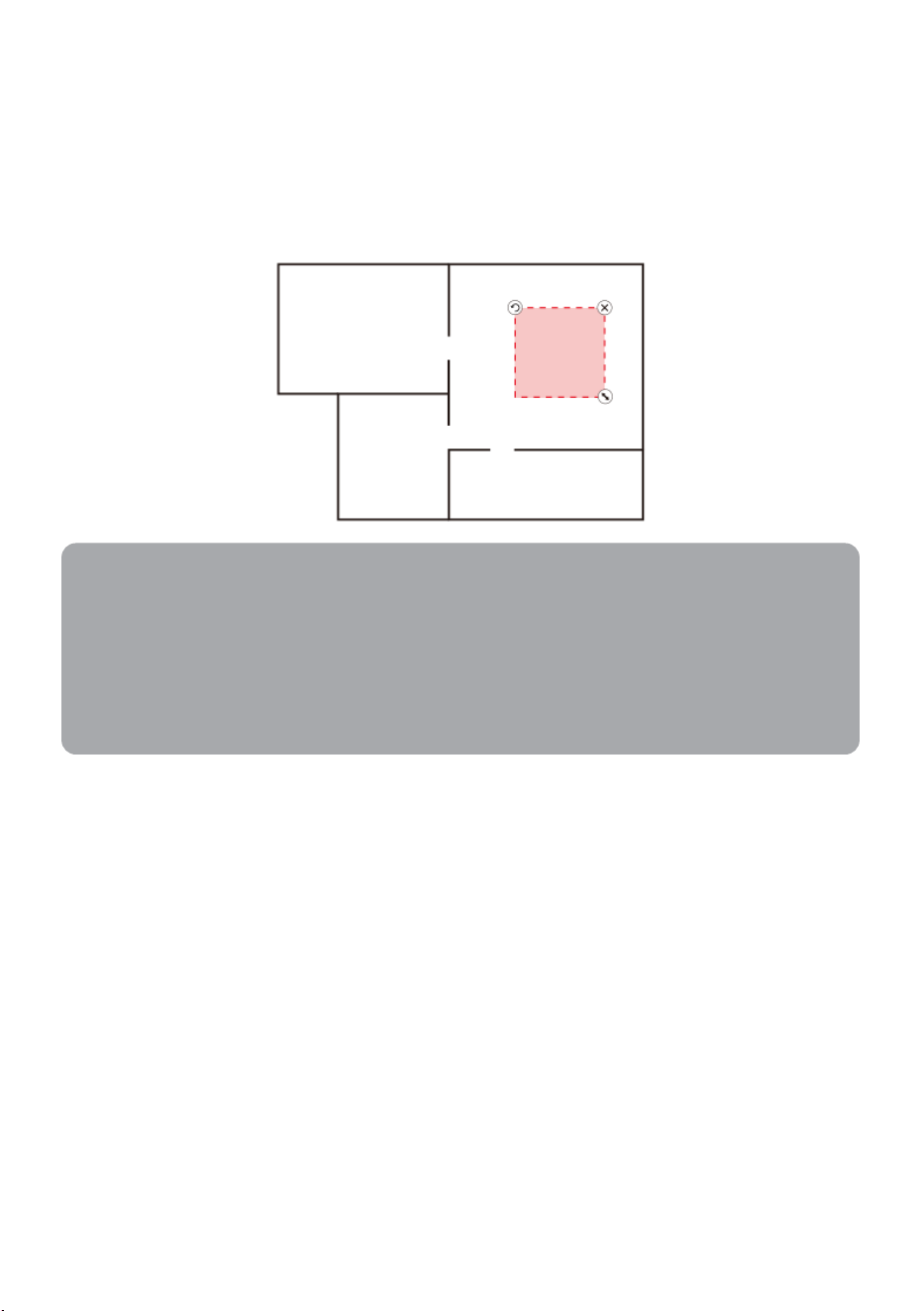
Cleaning custom areas
To clean any given area (not limited to a set room), tap ‘Zone’ on the app interface, then
adjust the size and location of the highlighted box. This area will determine the custom area
to be cleaned.
Notes:
• Ensure the vacuum has created the map of the area prior.
• Although the rooms have been selected, the vacuum may pass through other
areas to go to the selected areas. Ensure there are no obstacles on the ground
in other areas.
Notes:
• Ensure the vacuum has created the map of the area prior.
• Although the rooms have been selected, the vacuum may enter other areas to
go to the selected areas. Ensure there are no obstacles on the ground in other
areas.
20
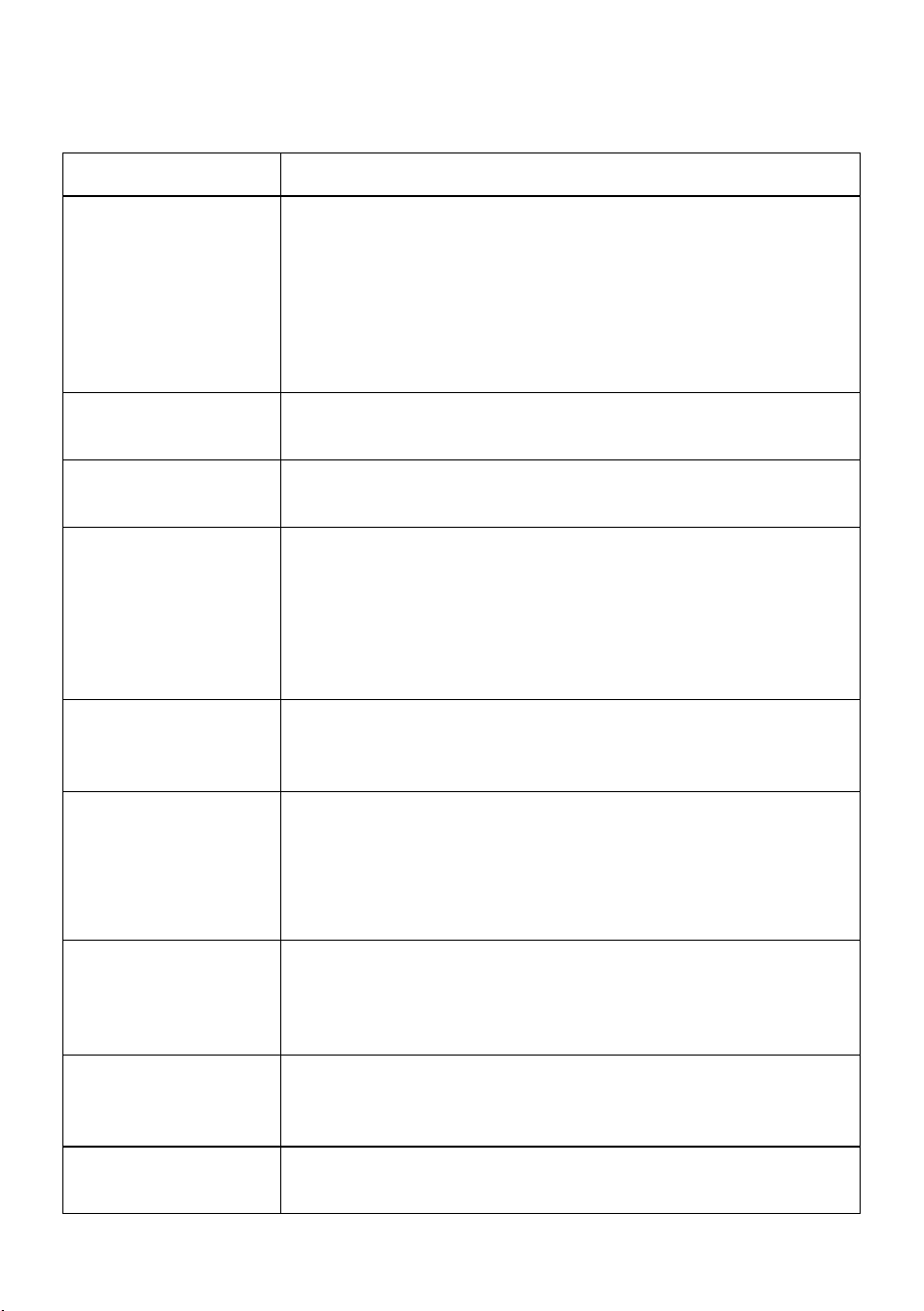
Restricting cleaning areas
If there are certain areas you wish to prevent the vacuum from entering:
1. Tap ‘Forbidden edit’ on the app interface. A highlighted box will appear on the map.
2. Adjust the size and location of the box to the area the vacuum is not permitted to
enter.
3. Click ‘Save’.
Notes:
• Ensure the vacuum has created the map of the area prior.
• Although the rooms have been selected, the vacuum may enter other areas to
go to the selected areas. Ensure there are no obstacles on the ground in other
areas.
• If you move the vacuum whilst in operation, the map may reset, causing the
vacuum to forget about the restricted area.
21
Settings
This allows users to adjust various settings or activate other functions of the vacuum.
Notable settings are listed as below.
Name Description
Manual mode
• Turning on manual mode allows the user to control the
movement of the vacuum. The app will open a directional
pad whereby users can press and hold the desired direction
they wish the vacuum to go.
• If wishing to charge the vacuum, press the home button on
the vacuum or tap ‘Dock’ on the app interface. The vacuum
will then return to the charging baseto charge.
Room manage
Allows users to merge, split, reset, name, customise, and order
rooms.
Looking for machines
Used when users cannot find the vacuum. Tapping this setting
will trigger a voice prompt from the vacuum to alert its location.
Timer
• This allows users to schedule times for the vacuum to
automatically start and clean. Once finished, it will
automatically return to the charging base.
• Also allows users to choose which areas you wish the vacuum
to clean and select how many times the vacuum must sweep
the area (once or twice).
Suction
Allows users to adjust the suction power of the vacuum when
cleaning. There are four settings (Eco, Standard, Strong, Super
Strong).
Water quantity
• Allows users to adjust the amount of water dispensed by the
vacuum when using the mopping function. There are four
settings (Closed, Low, Middle, High).
• If you are not using the mopping function, the setting will be
set to ‘Closed’.
Breakpoint
continuous scanning
If the vacuum has a low battery when cleaning, it will need to
return to the charging base. When breakpoint continuous
scanning is activated, once charged it will return to the same
spot it left off to continue cleaning.
Customise mode
Allows users to adjust cleaning settings (for example, water
level, and the number of times the vacuum will clean over an
area).
Voice and volume
Allows users to adjust the volume and voice prompt language
of the vacuum.

22
Record Allows users to view records of previous cleans.
Consumables
management
Displays the approximate remaining service life of the filters and
brushes.
Do not disturb switch
• Activating the do not disturb mode turns off voice prompts,
any scheduled cleans, and dust collection functions.
• The default time set for this mode to activate is between
10pm–6am, however this can also be customised.
Cleaning mode
• Allows users to set an auto boost function for more powerful
cleaning.
• Allows users to adjust the cleaning mode:
• Quick cleaning: Enables the vacuum to quickly build
maps and clean. This is the default mode.
• Y-shaped cleaning: Only applicable when using the
mop function
• Edges: Cleans closely against the wall
Device info
Allows users to view detailed device information about the
vacuum.
Work mode
Allows users to change the working mode of the vacuum
(Sweep, Mop, Sweep & Mop).
23
Emptying the dustbin
1. Press and hold the dustbin button to remove the dustbin.
2. Press and hold the dustbin button, then open the dustbin and empty.
24
Ensure the vacuum is turned off before cleaning.
Only remove and reattach the components outlined in this user guide when cleaning. Do
not completely disassemble the vacuum.
Rolling brush
The rolling brush should be cleaned once a week.
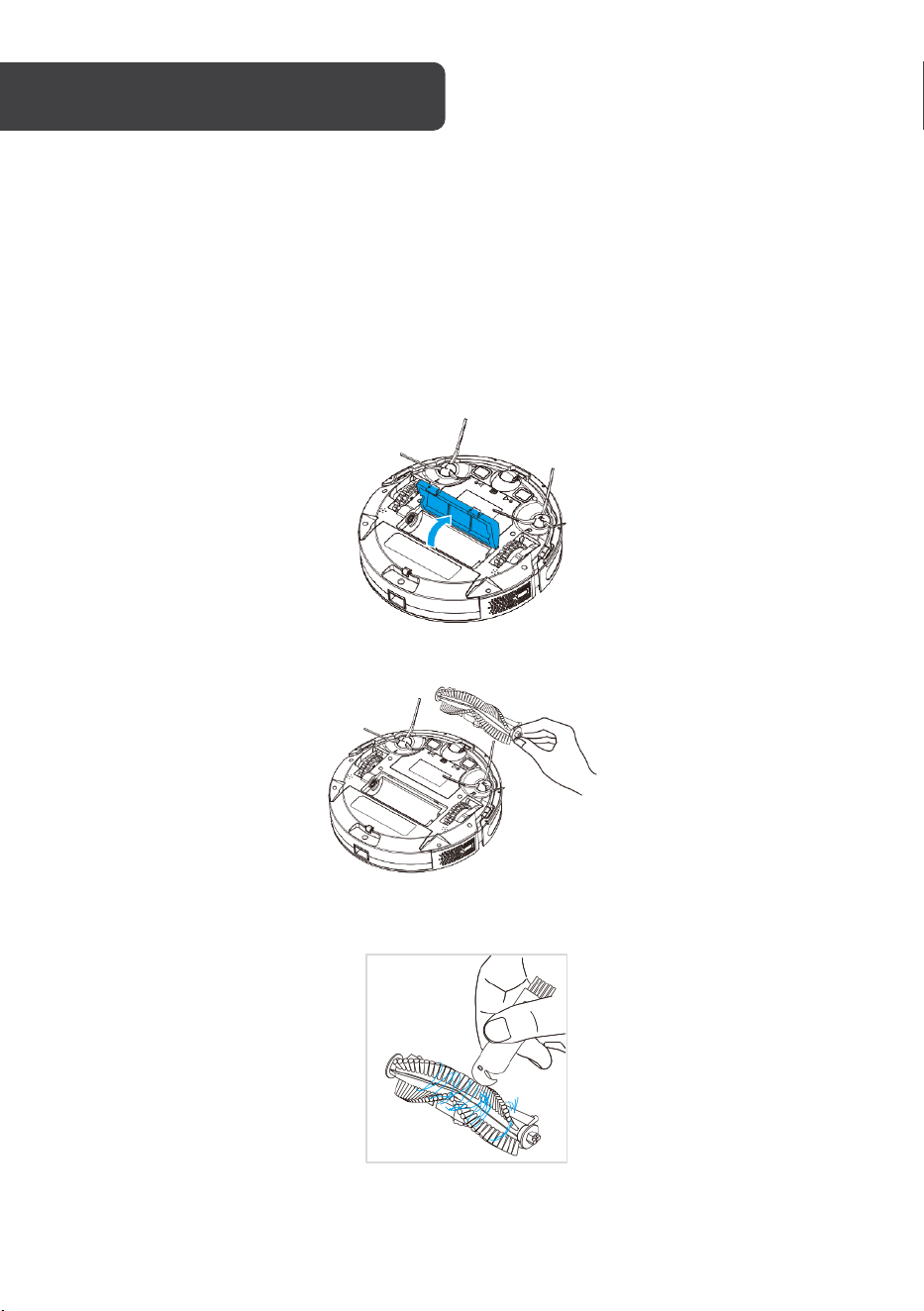
1. Turn over the vacuum and press the buckle on the rolling brush cover. Remove the
cover.
2. Remove the rolling brush.
3. Use the cleaning brush to remove the dust in the cavity of the brush and clear any
entanglements.
CLEANING & CARE
25
Side brushes
The side brushes should be cleaned once a week.
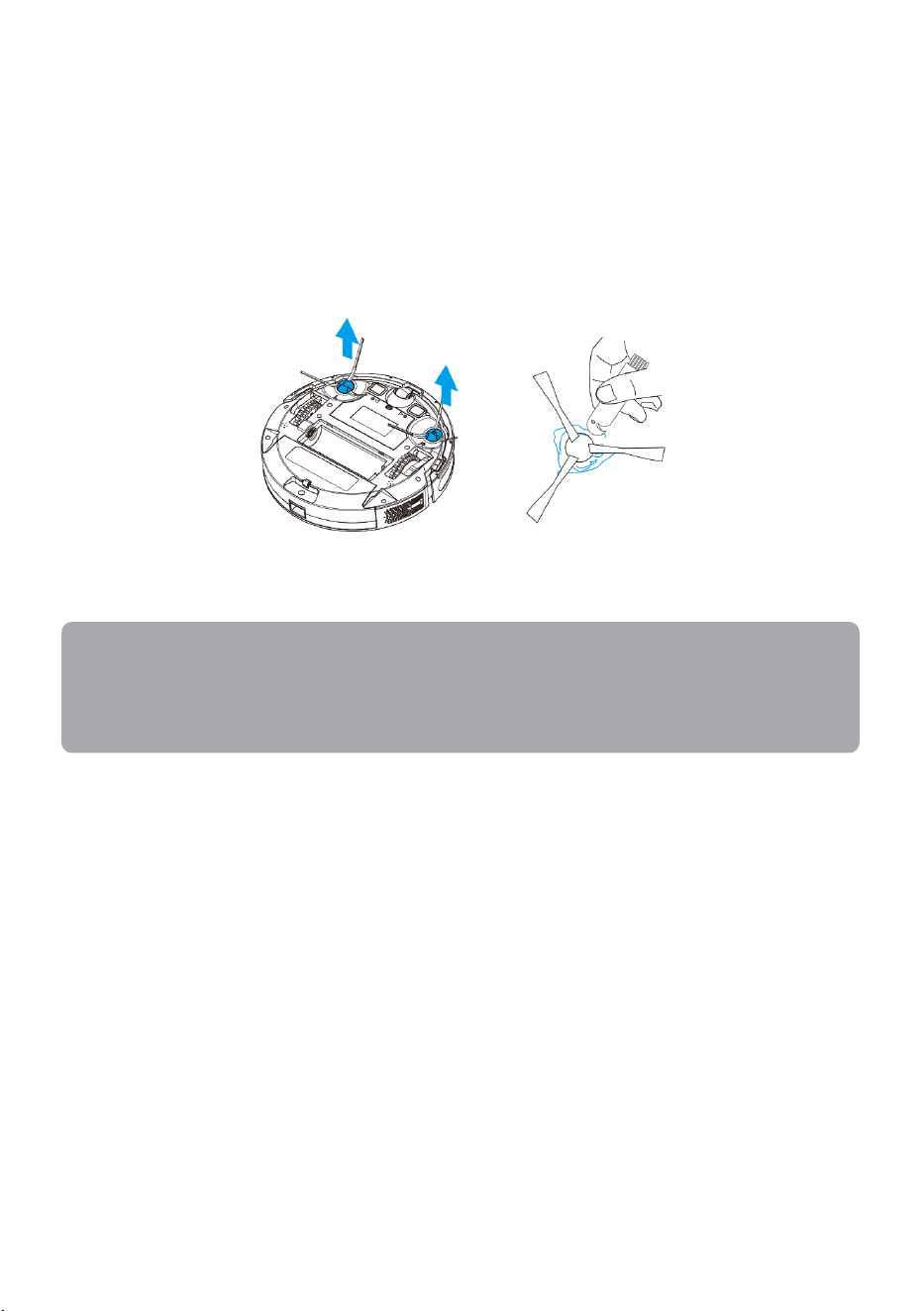
1. Turn over the vacuum and pull out the side brushes vertically.
2. Use the cleaning brush to clear dust and tangled debris, then reattach the side
brushes.
3. Press and reattach the left and right side brush (L, R) against the corresponding
letters on the bottom of the vacuum. There should be a clicking sound when each
side brush is secured.
Notes:
• It is recommended to replace the side brushes every three months for optimal
cleaning.
•
Do not use damp cloths or any liquids to clean the vacuum.
26
Dustbin
The dustbin should be cleaned once a week.
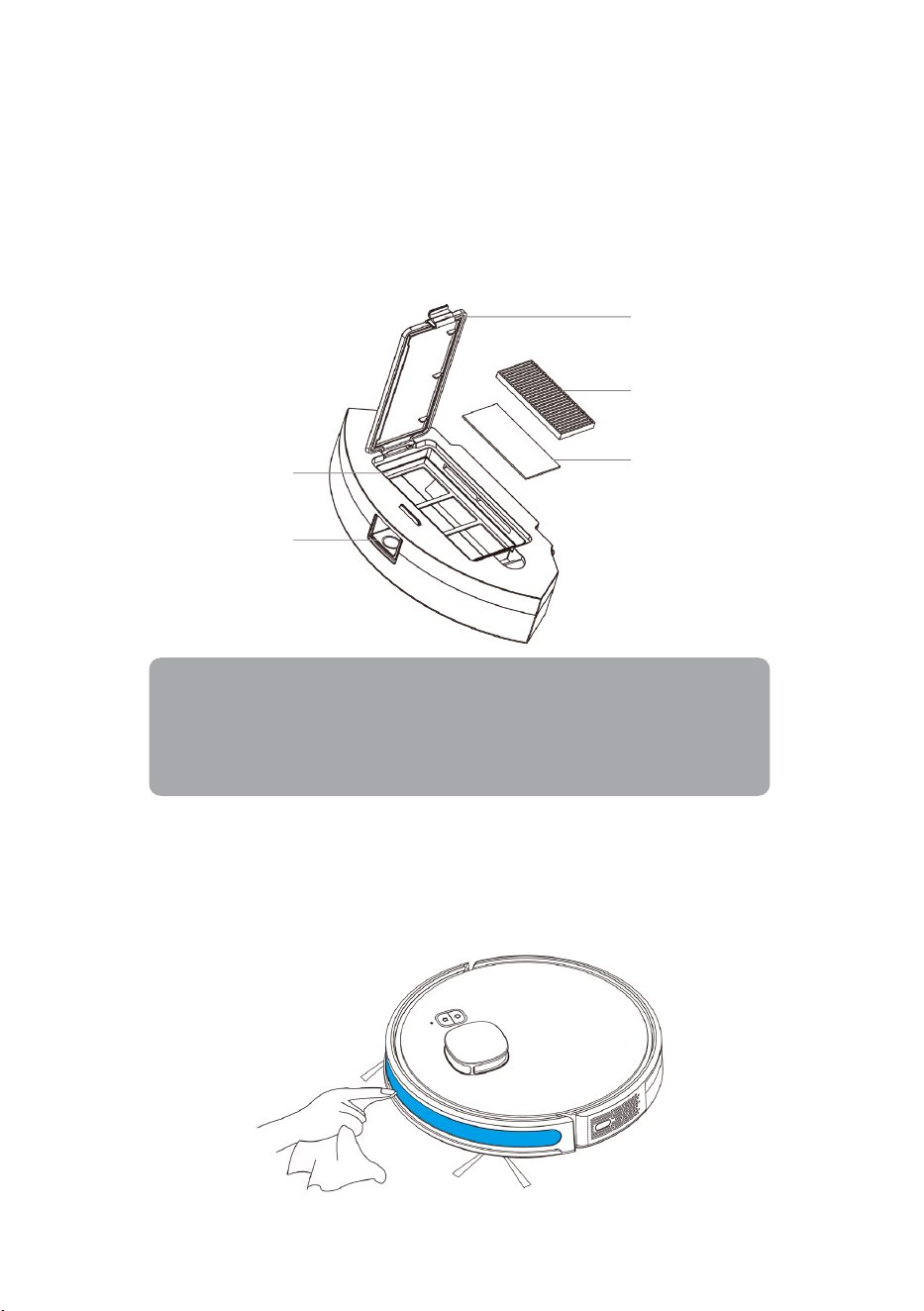
1. Lift the filter cover and remove the HEPA filter and sponge layer.
2. Flush the primary filter, HEPA filter, sponge and dustbin under a water tap. Use your
fingers to flush through harder to reach areas.
3. After washing, shake off the water droplets, and air dry the primary filter, HEPA filter,
sponge, and dustbin. The primary filter must be air dried for at least 24 hours. When
dry, insert the filters and sponge, then close the filter cover.
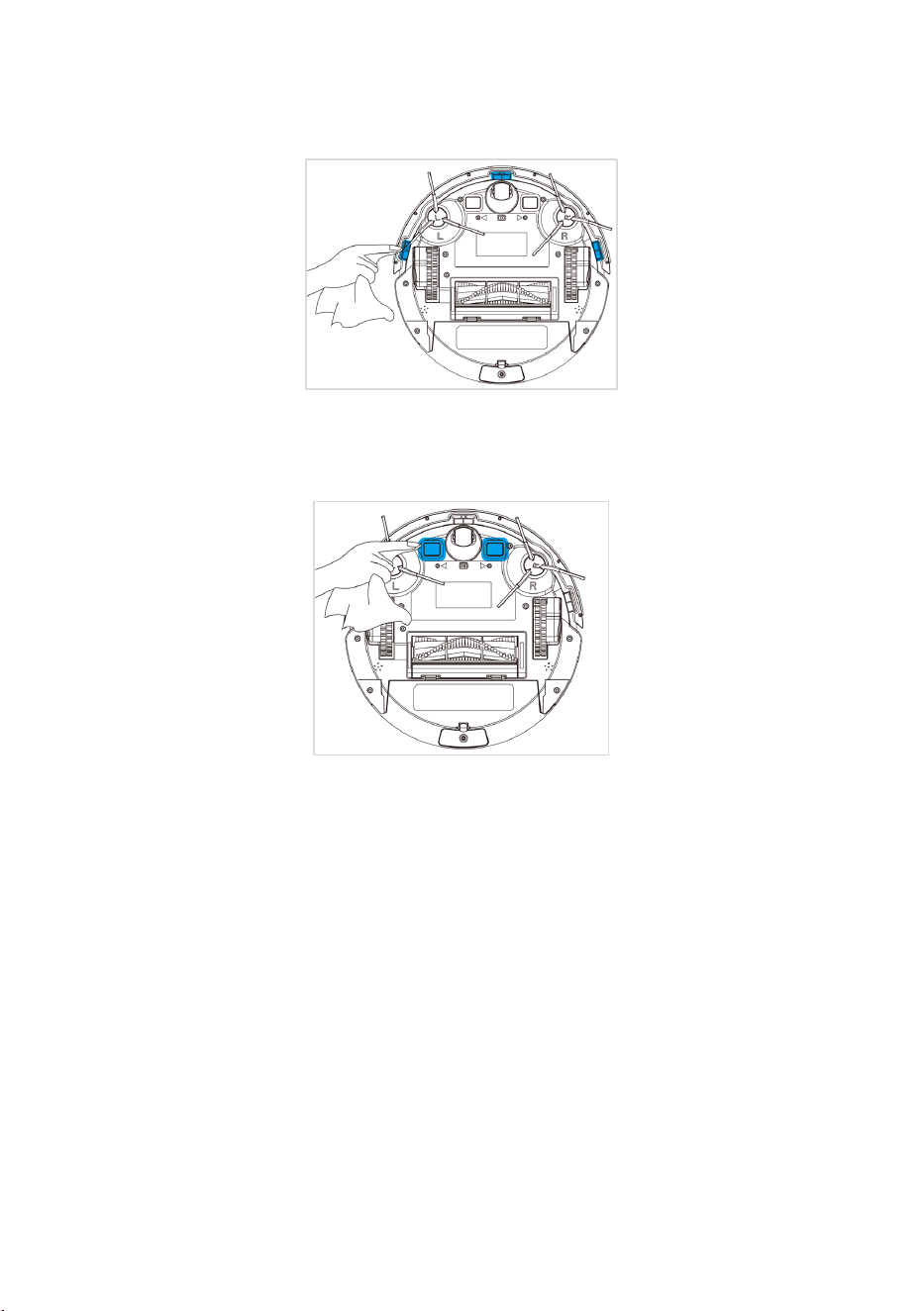
Infrared receiver sensor
The infrared receiver sensor should be cleaned once a month. Gently wipe the sensor with a
soft dry cloth.
Sponge
HEPA filter
Filter cover
Dustbin button
Primary filter
Notes:
• Do not wash with detergent.
• Do not use brushes to clean the filters.
• It is recommended to replace the filters every three months.
27
Cliff sensors
The cliff sensors should be cleaned once a month. Gently wipe the sensor with a soft dry
cloth.
Charging contacts
The charging contacts should be cleaned once a month. Gently wipe the charging contacts
with a soft dry cloth.
Storage
Store the vacuum in a cool, dry place.
If the vacuum will not be used for an extended period, ensure to charge it fully at least every
three months. This will prevent the battery from over-discharging.
28
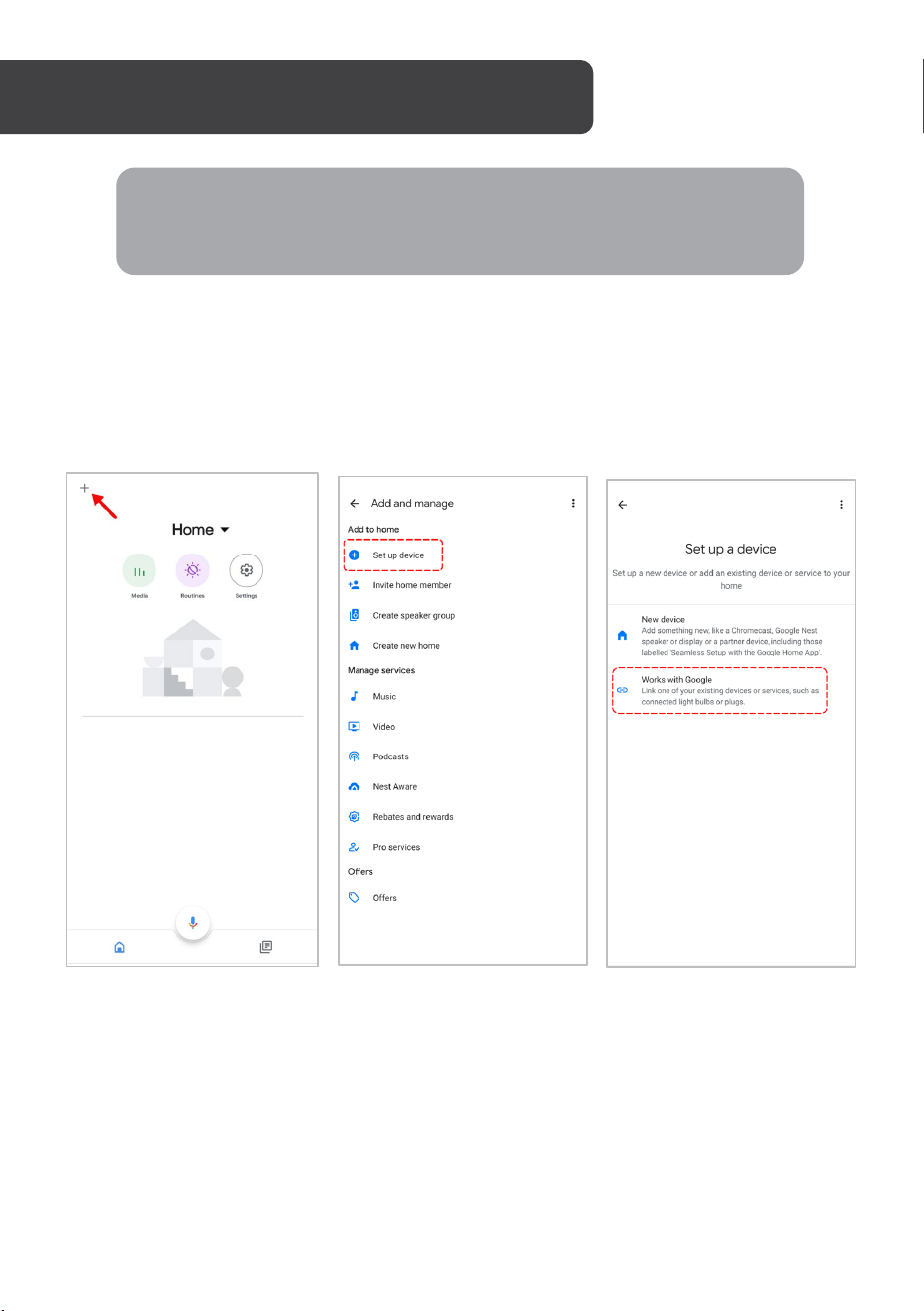
Adding ‘SmarterHome’ to the Google Home app
1. From the home page of the Google Home app, select the ‘+’ icon (top left corner, see
arrow in the below screenshot) to access the ‘Add and manage’ page.
2. Select ‘Set up device’, then select the ‘Works with Google’ option.
GOOGLE HOME CONTROL
Note:
You will need to have set up a Google Home account prior to linking your
Kogan SmarterHome™ device.
29
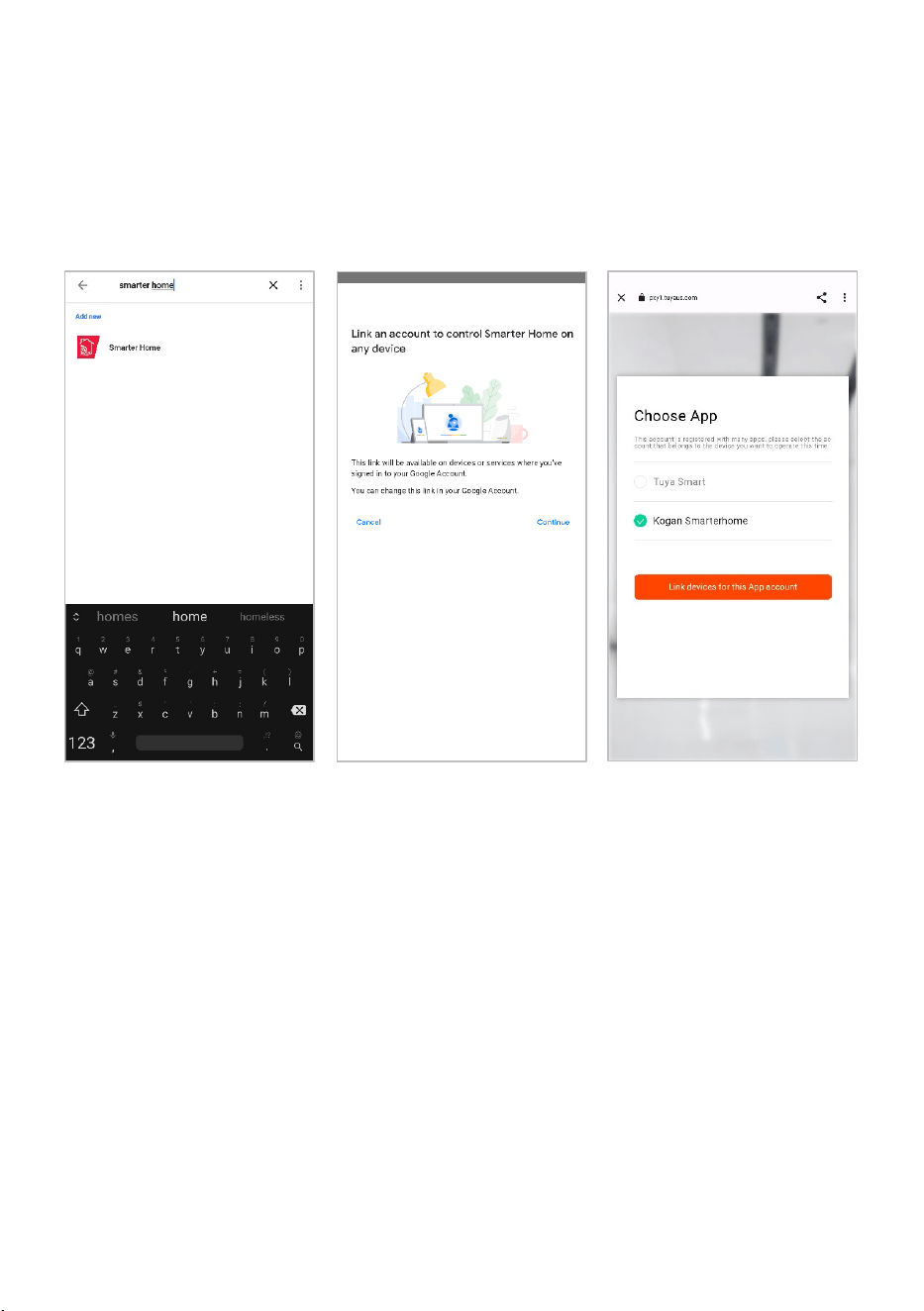
3. Select the search bar and type ‘Smarter Home’ to locate the Kogan SmarterHome™
service.
4. From here, you will be prompted to sign into your SmarterHome™ account using
either your email or mobile phone number, depending on which method you used to
register your account.
5. Select ‘Kogan SmarterHome™’ from the app options.
30
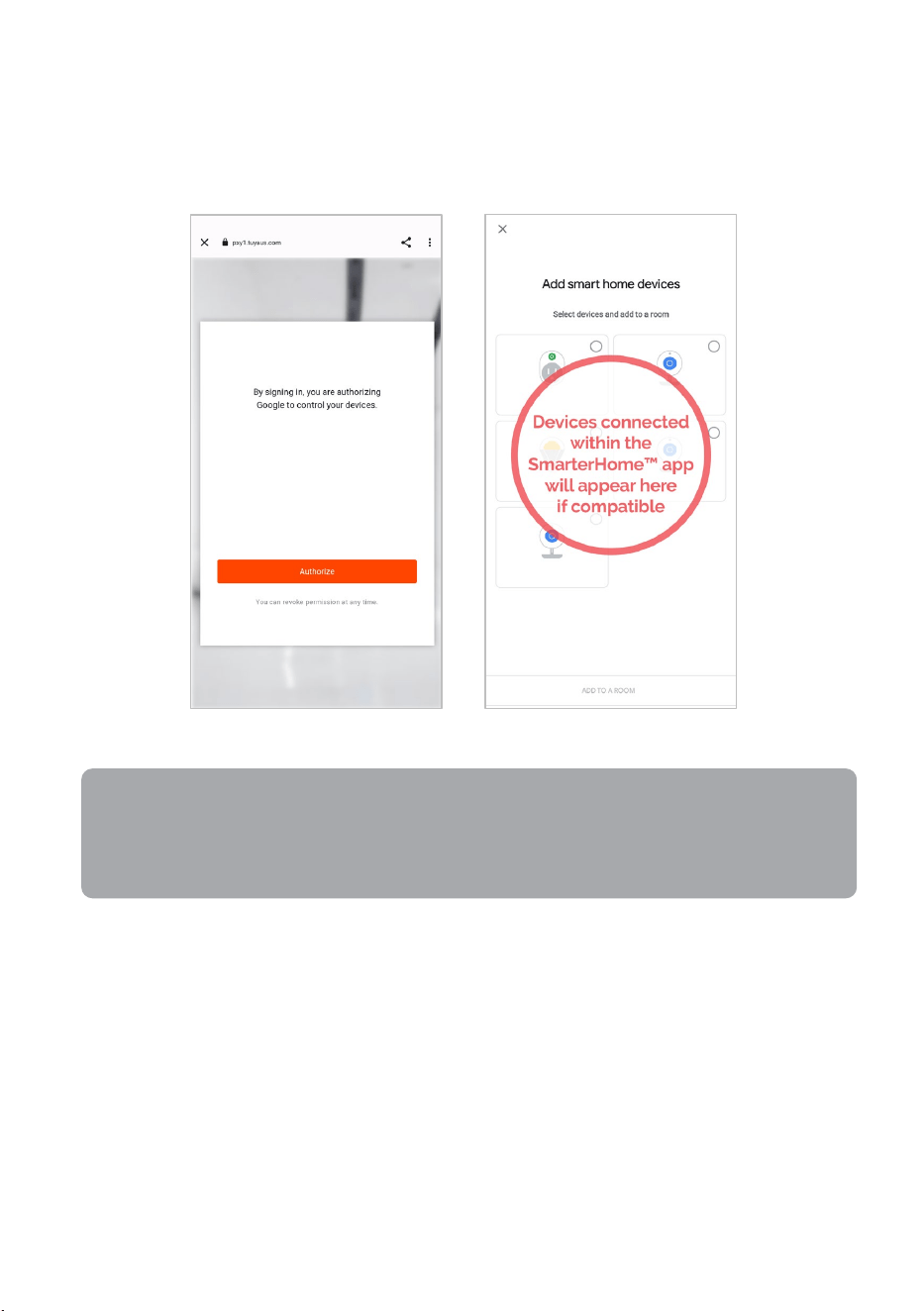
6. Tap ‘Authorise’ to grant Google permission to access the SmarterHome™ app and
your devices.
7. Once connected, the app will display any compatible devices linked to your
SmarterHome™ account. From here you can assign them to rooms and set up any
routines. Tap on any of the devices to view a list of available commands.
Note:
Please note that Google Home can only control the base/core functions of any
compatible SmarterHome™ devices. To make full use of this product’s smart
functionality, please use the Kogan SmarterHome™ app.
31
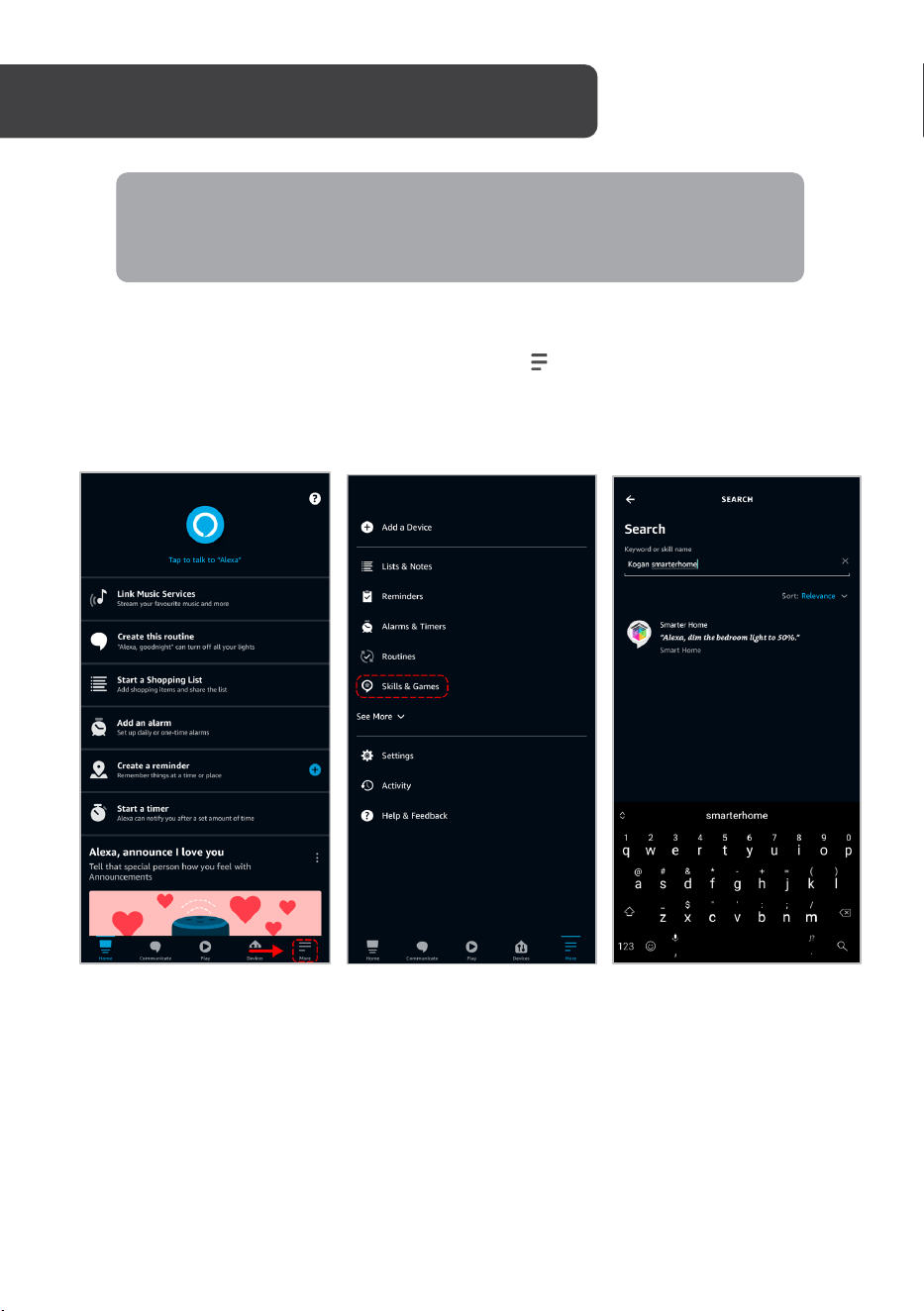
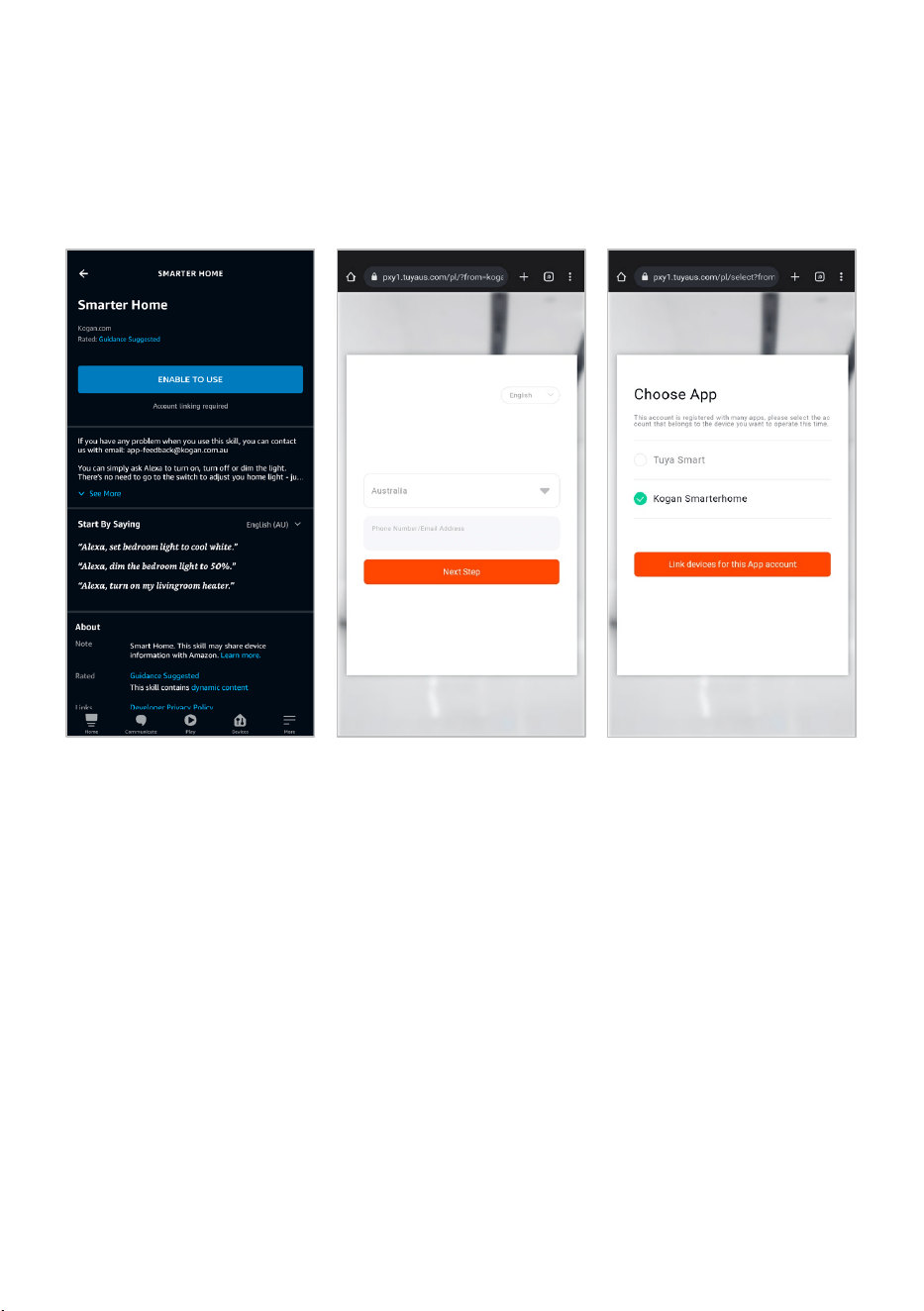
Adding ‘SmarterHome’ to the Alexa app
1. From the home page of the Alexa app, select the ‘ ’ icon in the bottom-right and
select ‘Skills & Games’ from the sidebar.
2. Select the search bar and type ‘Smarter Home’ to locate the Kogan SmarterHome™
skill.
AMAZON ALEXA CONTROL
Note:
You will need to have set up an Alexa account prior to linking your Kogan
SmarterHome™ device.
32
3. Tap ‘Enable to Use’ to add the Kogan SmarterHome™ skill to Alexa.
4. From here, you will be prompted to sign into your SmarterHome™ account using
either your email or mobile phone number, depending on which method you used to
register your account.
5. Select ‘Kogan SmarterHome™’ from the app options.
33
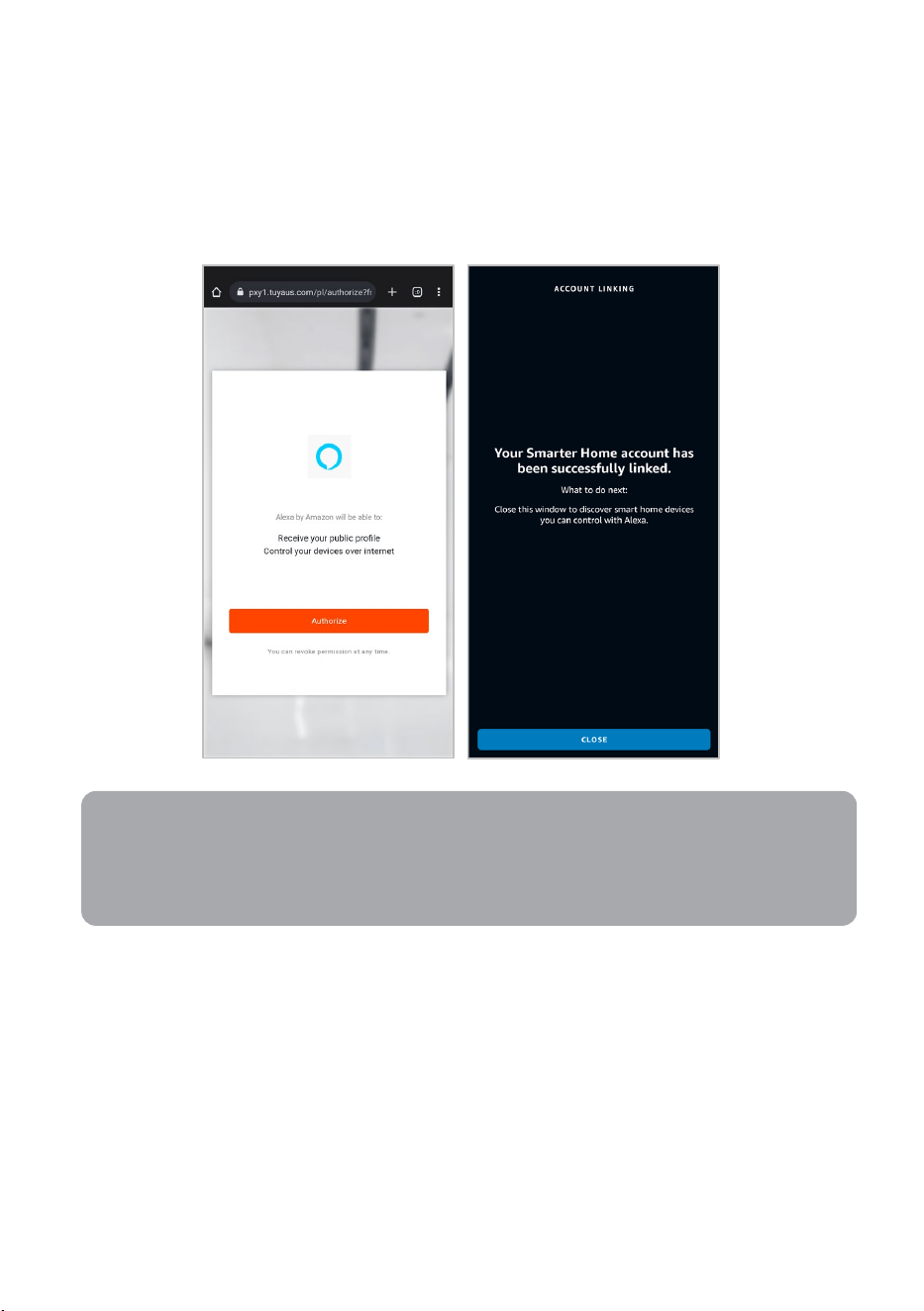
6. Tap ‘Authorise’ to grant Alexa permission to access the SmarterHome™ app and your
devices.
7. Once connected, the app will perform a search and display the devices linked to your
SmarterHome™ account. When your devices have successfully connected to the
Alexa app, you will be able to control your Kogan SmarterHome™ devices via Alexa’s
voice commands.
Note:
Please note that Alexa can only control the base/core functions of any compatible
SmarterHome™ devices. To make full use of this product’s smart functionality,
please use the Kogan SmarterHome™ app.
34
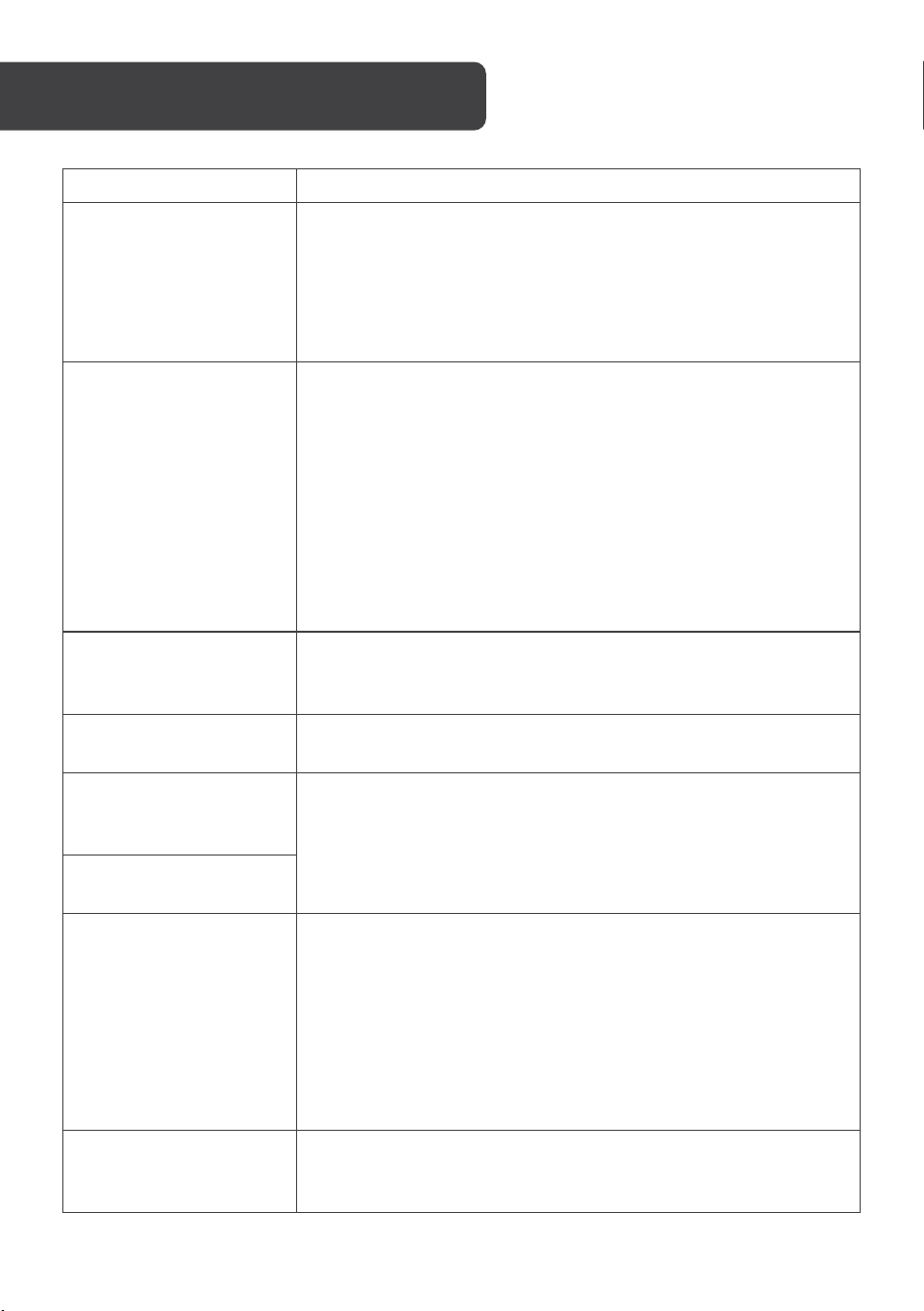
Problem Reason/Solution
The vacuum is not
turning on.
• The battery level is too low. Place the vacuum against the
charging contacts of the charging base. The vacuum will
then begin charging and turn on.
• The ambient temperature is below 0°C or above 40°C.
Ensure the vacuum is only used when the ambient
temperature is between 0–40°C.
The vacuum is not
charging.
• Move the vacuum away from the charging baseand check
whether the indicator is illuminated.
• Ensure the power cord is well connected.
• The charging contacts on the charging base are not
connected with the charging contacts on the vacuum.
• Clean the charging contacts on the charging base and
vacuum.
• Ensure the side brushes are not covering the charging
contacts. If so, turn the brushes to expose the charging
contacts.
The vacuum is
displaying abnormal
behaviour.
Turn off and restart the vacuum.
There is an abnormal
noise during cleaning.
The brushes or wheels may be entangled with foreign objects.
Stop the vacuum and clean the brushes and wheels.
The cleaning
performance has
degraded.
• There is dust build-up in the filter. Clean or replace the filter.
• The dustbin is full. Empty the dustbin.
• The roller brush is entangled with foreign objects. Clean the
roller brush.
Dust or ash is dropping
out of the vacuum.
The vacuum cannot be
connected to the
Kogan SmarterHome™
app.
• The Wi-Fi signal is weak. Ensure that the vacuum is located
in an area with strong Wi-Fi signals.
• The Wi-Fi connection is abnormal. Reset the
Wi-Fi settings, ensure you have the latest version of the
Kogan SmarterHome™ app™, and try to connect to the
Wi-Fi network again.
• The Wi-Fi password entered is incorrect.
• Ensure the Wi-Fi network being connected is 2.4GHz.
The timer function is
not working.
The battery level is too low. The timer to schedule cleaning
will only operate if the battery level is at least 15%. Charge the
vacuum.
TROUBLESHOOTING
35
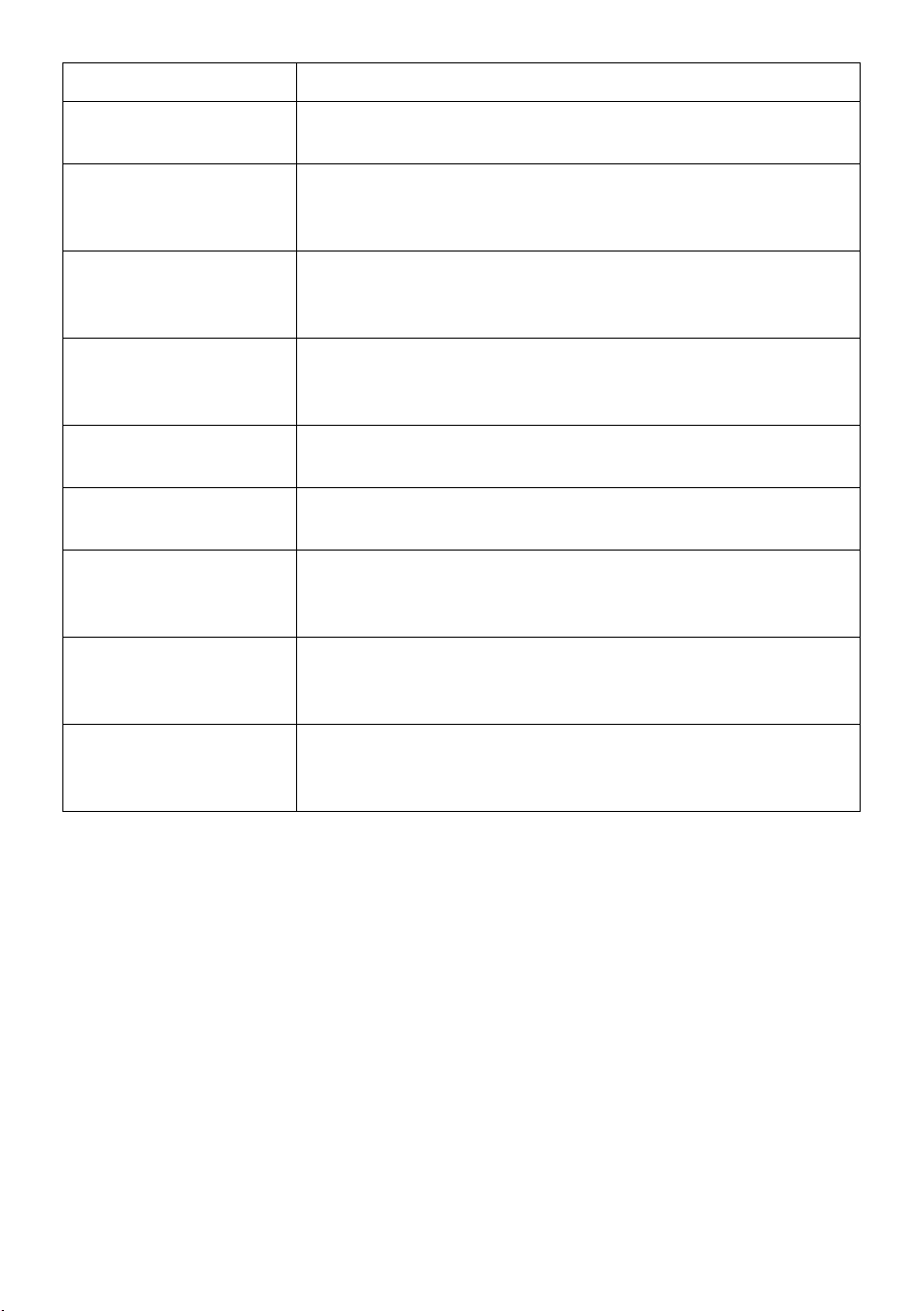
Error voice prompt Solution
Error 1: Insert the
dustbin
The vacuum is unable to clean when the dustbin is taken out.
Reinstall the dustbin.
Error 2: Put the
machine on the floor
before starting
Pick up the vacuum and move it to a flat surface. Restart the
vacuum.
Error 3: Please lay the
machine flat on the
ground and then start it
The vacuum is tilted/not on a flat surface. Move the vacuum
to flat ground then restart.
Error 4: Please check
whether the front
bumper is stuck
The sensor is stuck. Push the bumper left and right to confirm
that it is not stuck.
Error 5: Low battery;
please charge
Put the vacuum on the charging base for charging.
Error 6: The machine is
trapped
Move the vacuum to an open area and restart.
Error 7: Please check
whether the wheel is
stuck
The universal wheel is stuck or entangled. Check the universal
wheel and remove any foreign material stuck within.
Error 8: Please check
whether the rolling
brush is stuck
The rolling brush is entangled or stuck. Check the rolling brush
and remove any foreign material stuck within.
Error 9: Please check
whether the side brush
is stuck
The side brushes are entangled or stuck. Check the side
brushes and remove any foreign material stuck.

36
Vacuum
Dimensions 320 x 320 x 93mm
Net weight 2.8kg
Battery capacity 3200mAh
Rated voltage 14.4V
Rated power 42W
Charging time 300 minutes
Dustbin capacity 250ml
Water tank capacity 240ml
SPECIFICATIONS

37
NOTES

38

39

40
Need more information?
We hope that this user guide has given you
the assistance needed for a simple set-up.
For the most up-to-date guide for your product,
as well as any additional assistance you may require,
head online to help.kogan.com