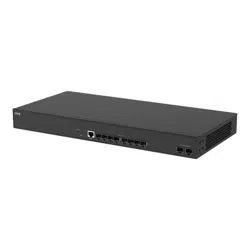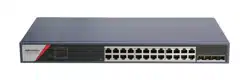

Smart Managed Switch Web
User Manual
UD35748B

Legal Informaon
About this Document
●
This Document includes instrucons for using and managing
the Product. Pictures, charts, images and all other informaon
hereinaer are for descripon and explanaon only.
●
The informaon contained in the Document is subject to
change, without noce, due to rmware updates or other
reasons. Please nd the latest version of the Document at the
Hikvision website (
hps://www.hikvision.com ). Unless
otherwise agreed, Hangzhou Hikvision Digital Technology Co.,
Ltd. or its aliates (hereinaer referred to as "Hikvision")
makes no
warranes, express or implied.
●
Please use the Document with the guidance and assistance of
professionals trained in supporng the Product.
About this Product
This product can only enjoy the aer-sales service support in the
country or region where the purchase is made.
Acknowledgment of Intellectual Property Rights
●
Hikvision owns the copyrights and/or patents related to the
technology embodied in the Products described in this
Document, which may include licenses obtained from third
pares.
●
Any part of the Document, including text, pictures, graphics,
etc., belongs to Hikvision. No part of this Document may be
excerpted, copied, translated, or
modied in whole or in part
by any means without wrien permission.
●
and other Hikvision's trademarks and logos are
the properes of Hikvision in various jurisdicons.
●
Other trademarks and logos menoned are the properes of
their respecve owners.
LEGAL DISCLAIMER
●
TO THE MAXIMUM EXTENT PERMITTED BY APPLICABLE LAW,
THIS DOCUMENT AND THE PRODUCT DESCRIBED, WITH ITS
HARDWARE, SOFTWARE AND FIRMWARE, ARE PROVIDED "AS
IS" AND "WITH ALL FAULTS AND ERRORS". HIKVISION MAKES
NO WARRANTIES, EXPRESS OR IMPLIED, INCLUDING WITHOUT
LIMITATION, MERCHANTABILITY, SATISFACTORY QUALITY, OR
FITNESS FOR A PARTICULAR PURPOSE. THE USE OF THE
PRODUCT BY YOU IS AT YOUR OWN RISK. IN NO EVENT WILL
HIKVISION BE LIABLE TO YOU FOR ANY SPECIAL,
CONSEQUENTIAL, INCIDENTAL, OR INDIRECT DAMAGES,
INCLUDING, AMONG OTHERS, DAMAGES FOR LOSS OF
BUSINESS PROFITS, BUSINESS INTERRUPTION, OR LOSS OF
DATA, CORRUPTION OF SYSTEMS, OR LOSS OF
DOCUMENTATION, WHETHER BASED ON BREACH OF
CONTRACT, TORT (INCLUDING NEGLIGENCE), PRODUCT
LIABILITY, OR OTHERWISE, IN CONNECTION WITH THE USE OF
i

THE PRODUCT, EVEN IF HIKVISION HAS BEEN ADVISED OF THE
POSSIBILITY OF SUCH DAMAGES OR LOSS.
●
YOU ACKNOWLEDGE THAT THE NATURE OF THE INTERNET
PROVIDES FOR INHERENT SECURITY RISKS, AND HIKVISION
SHALL NOT TAKE ANY RESPONSIBILITIES FOR ABNORMAL
OPERATION, PRIVACY LEAKAGE OR OTHER DAMAGES
RESULTING FROM CYBER-ATTACK, HACKER ATTACK, VIRUS
INFECTION, OR OTHER INTERNET SECURITY RISKS; HOWEVER,
HIKVISION WILL PROVIDE TIMELY TECHNICAL SUPPORT IF
REQUIRED.
●
YOU AGREE TO USE THIS PRODUCT IN COMPLIANCE WITH ALL
APPLICABLE LAWS, AND YOU ARE SOLELY RESPONSIBLE FOR
ENSURING THAT YOUR USE CONFORMS TO THE APPLICABLE
LAW. ESPECIALLY, YOU ARE RESPONSIBLE, FOR USING THIS
PRODUCT IN A MANNER THAT DOES NOT INFRINGE ON THE
RIGHTS OF THIRD PARTIES, INCLUDING WITHOUT LIMITATION,
RIGHTS OF PUBLICITY, INTELLECTUAL PROPERTY RIGHTS, OR
DATA PROTECTION AND OTHER PRIVACY RIGHTS. YOU SHALL
NOT USE THIS PRODUCT FOR ANY PROHIBITED END-USES,
INCLUDING THE DEVELOPMENT OR PRODUCTION OF
WEAPONS OF MASS DESTRUCTION, THE DEVELOPMENT OR
PRODUCTION OF CHEMICAL OR BIOLOGICAL WEAPONS, ANY
ACTIVITIES IN THE CONTEXT RELATED TO ANY NUCLEAR
EXPLOSIVE OR UNSAFE NUCLEAR FUEL-CYCLE, OR IN SUPPORT
OF HUMAN RIGHTS ABUSES.
●
IN THE EVENT OF ANY CONFLICTS BETWEEN THIS DOCUMENT
AND THE APPLICABLE LAW, THE LATTER PREVAILS.
© Hangzhou Hikvision Digital Technology Co., Ltd.
All rights reserved.
ii

Preface
Applicable Models
This manual is applicable to smart managed switches.
About Defaults
●
Default administrator account: admin
●
Super IP address: 10.180.190.200
Note
●
The default user name admin needs to be acvated for rst-
me login.
●
The default IP address of the switch is dynamically assigned.
●
The super IP address cannot be modied. If the switch is
directly connected to a PC, the super IP address can be used to
access the switch for device management.
iii
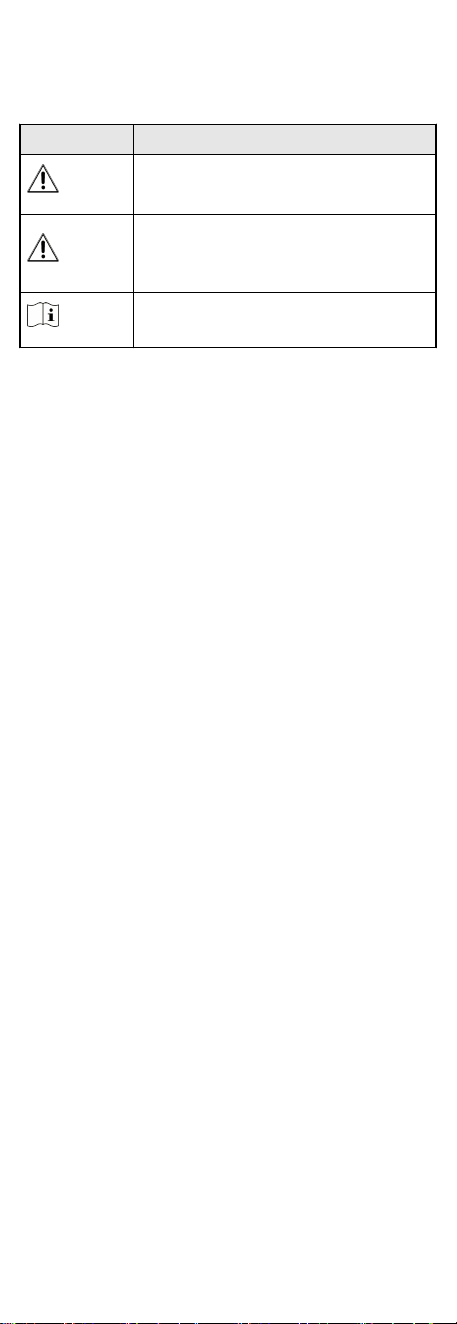
Symbol Convenons
The symbols that may be found in this document are dened as
follows.
Symbol Descripon
Danger
Indicates a hazardous situaon which, if not avoided,
will or could result in death or serious injury.
Cauon
Indicates a potenally hazardous situaon which, if
not avoided, could result in equipment damage, data
loss, performance degradaon, or unexpected
results.
Note
Provides addional informaon to emphasize or
supplement important points of the main text.
iv

Contents
1 Introducon ............................................................. 1
2 Acvaon and Login ................................................. 1
3 Device Informaon ................................................... 3
3.1 Device Overview ................................................... 3
3.2 Port Status ............................................................ 4
3.3 Network Status ..................................................... 6
4 Device
Conguraon ................................................ 8
4.1 Port
Conguraon ................................................ 8
4.1.1 Congure Port Aributes ............................. 8
4.1.2 Congure Link Aggregaon .......................... 9
4.1.3 Congure Port Isolaon ............................. 10
4.1.4
Congure Port Mirroring ........................... 10
4.1.5 Congure Port Rate Liming ...................... 11
4.1.6 Congure Port Storm Control .................... 12
4.1.7
Congure Long-Range Mode ..................... 14
4.1.8
Congure High-Priority Port ...................... 14
4.2 VLAN Conguraon ............................................ 15
4.2.1 Add VLAN ................................................... 15
4.2.2 Congure Port VLAN .................................. 16
4.3 PoE Conguraon ............................................... 16
4.4 QoS
Conguraon ............................................... 17
4.5 SNMP Conguraon ........................................... 18
4.5.1 Congure Basic SNMP Parameters ............ 18
4.5.2 Congure SNMP Community ..................... 18
4.5.3
Congure SNMP Trap Target Host ............. 19
4.6 LLDP Conguraon ............................................. 20
4.7 Security Conguraon ........................................ 20
4.7.1 DHCP Snooping Conguraon ................... 20
v

4.7.2 ACL Conguraon ...................................... 21
4.7.3 ARP Gateway Protecon Conguraon ..... 27
4.7.4 IPSG Conguraon ..................................... 27
4.8 Loop
Prevenon Conguraon ........................... 29
4.8.1 STP
Conguraon ...................................... 29
4.8.2 ERPS Conguraon .................................... 30
5 System Management .............................................. 32
5.1 Network
Conguraon ....................................... 32
5.2 Time Synchronizaon .......................................... 34
5.3 System Maintenance .......................................... 35
5.4 Log Management ................................................ 36
vi

1 Introducon
Smart managed switches support management via web,
supporng funcons such as acvaon and login, device
overview, network conguraon, device conguraon, and
system maintenance.
Note
The funcons supported vary with device models. If there are
dierences between the gures shown in this manual and the
actual interfaces of your device, the laer prevails.
2 Acvaon and Login
If you use the switch for the rst me, you need to acvate it and
congure the password.
Before You Start
Ensure that your computer and switch are on the same network
segment.
Steps
Note
All gures in this manual are for illustraon purpose only.
1. Enter the default IP address of the switch in the address bar of
a web browser, and press Enter.
Figure 2-1 Acvate Device
Note
●
You can obtain the default IP address of the switch using the
SADP tool.
●
You are recommended to use the following web browsers:
Microso Edge 89 or later, Google Chrome 89 or later, and
Firefox 78 or later.
2. Set a password and conrm the password.
1
Note
●
The password should contain 8 to 16 characters, including at
least two types of the following categories: uppercase
leers, lowercase leers, digits, and special characters.
●
The password cannot contain user name, '123', or 'admin'
(case-insensive), 4 or more consecuvely increasing or
decreasing digits (such as '1234' and '4321'), or 4 or more
idencal characters (such as '1111' and 'aaaa').
●
The password cannot be a common risky password.
3. Oponal: Check Cloud Management.
The Hik-Connect service is enabled.
4. Click OK.
The network
conguraon page is displayed.
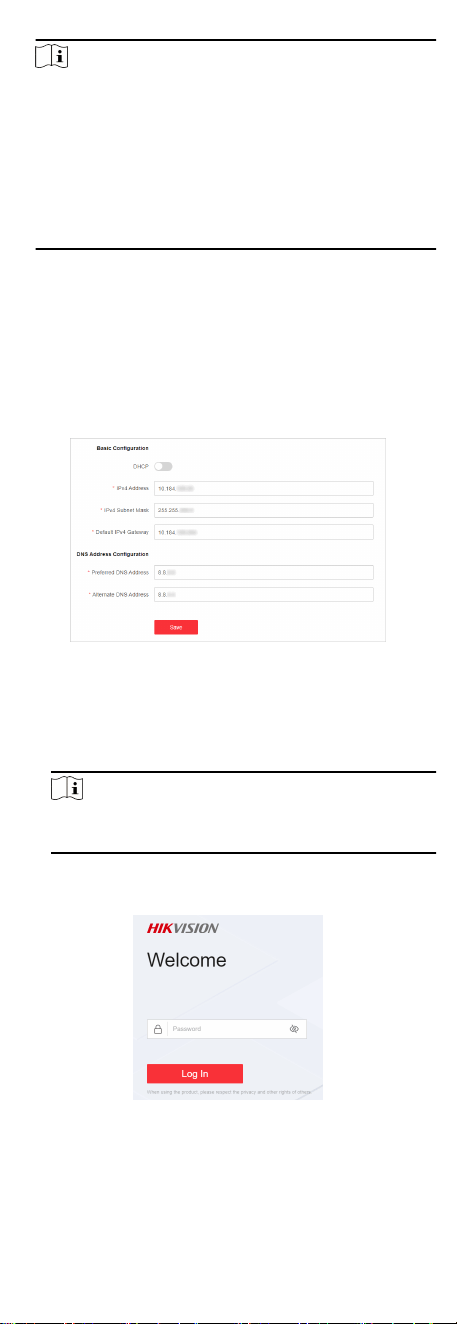
5. Oponal: Modify the network conguraons.
1) Go to System Management → Network Conguraon →
Network
Conguraon .
Figure 2-2 Modify Network Parameters
2) Modify the IPv4 address, IPv4 subnet mask, default IPv4
gateway, preferred DNS address, and alternate DNS address
as required, or enable DHCP for
automac IP address
assignment.
Note
You are recommended to modify the network conguraons
to beer manage your switch.
3) Log in to the switch web again with the new IP address aer
modicaon.
Figure 2-3 Log In
2
3 Device Informaon
Aer logging in to the switch web, you can obtain detailed
informaon about the switch, including the device overview
informaon, port status informaon, and network status
informaon.
3.1 Device Overview
You can view or edit the device overview informaon on the
Overview page.
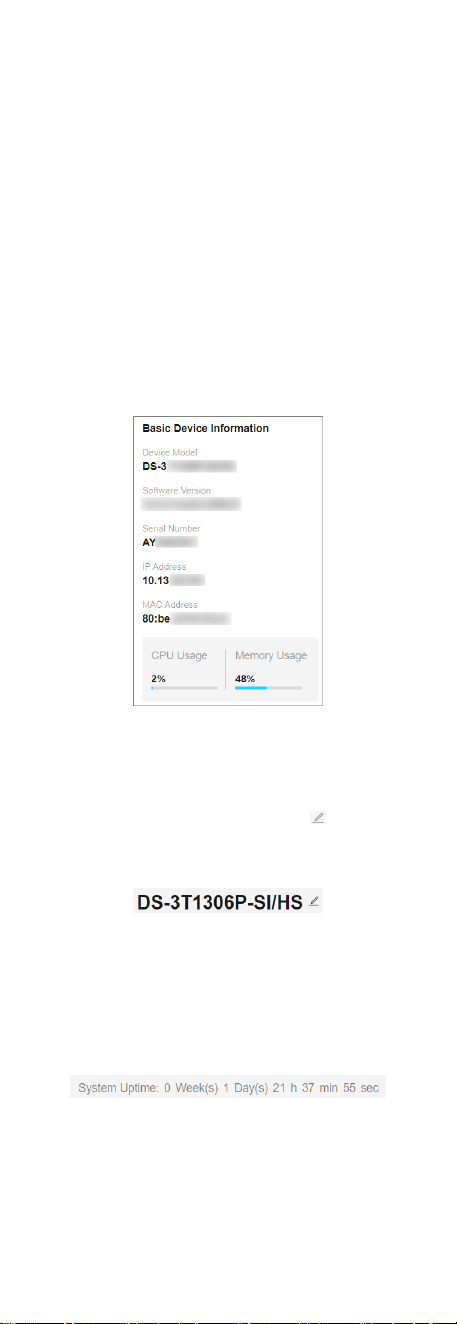
Basic Device Informaon
You can view the device model, soware version, serial number,
IP and MAC addresses, as well as CPU and memory usage of the
switch in the lower right corner of the Overview page.
Figure 3-1 View Basic Device Informaon
Device Name
You can view the current device name or click next to it to
customize the device name on the Overview page. The default
device name is the device model.
Figure 3-2 Edit Device Name
System Upme
You can also view the device's system upme in the upper right
corner of the Overview page.
Figure 3-3 View System Upme
3
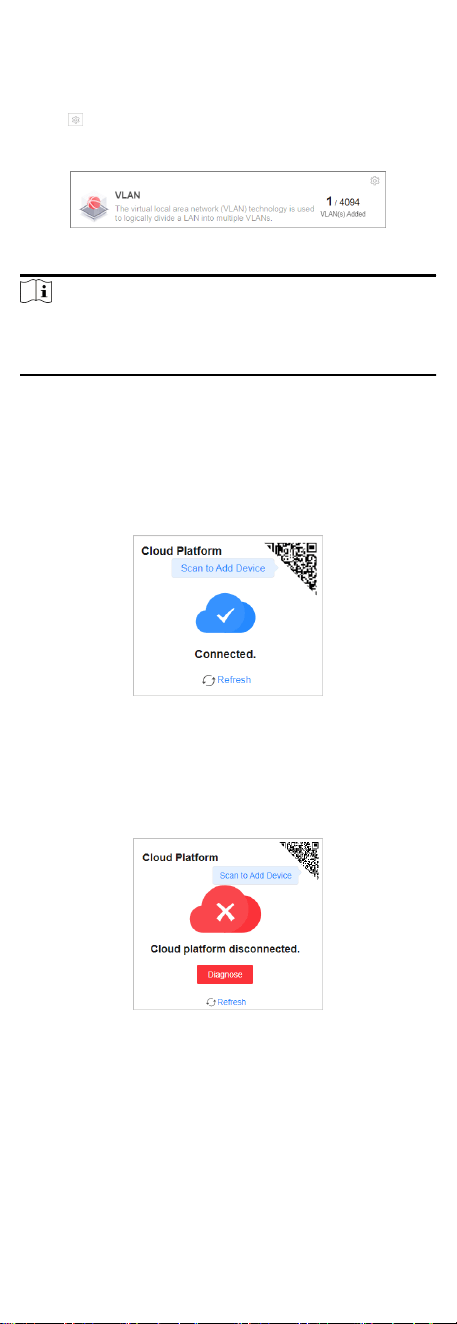
VLANs Added
You can quickly view the number of VLANs that have been added,
or click to go to the VLAN Management page for VLAN
conguraon.
Figure 3-4 View Number of VLANs Added
Note
You can also view the maximum number of VLANs allowed by the
device, for example, 4094 in the gure above. The maximum
number of VLANs allowed by a device varies with device models.
Cloud Plaorm Connecon Status
The Cloud Plaorm module shows whether the device is
connected to Hik-Connect.
●
If the cloud plaorm is connected, scan the QR code to add the
device to Hik-Partner Pro app for remote management.
Figure 3-5 View Cloud Plaorm Connecon Status (Connected)
●
If the cloud plaorm is disconnected, click Refresh to
reconnect, or click Diagnose to
nd out the cause of the
connecon failure and go to the cloud plaorm conguraon
page as prompted for cloud plaorm conguraon.
Figure 3-6 View Cloud Plaorm Connecon Status
(Disconnected)
3.2 Port Status
The Overview page provides a visual representaon of the
physical ports and shows the connecon or power supply status
of each port, making it easier for users to manage switch ports.
4
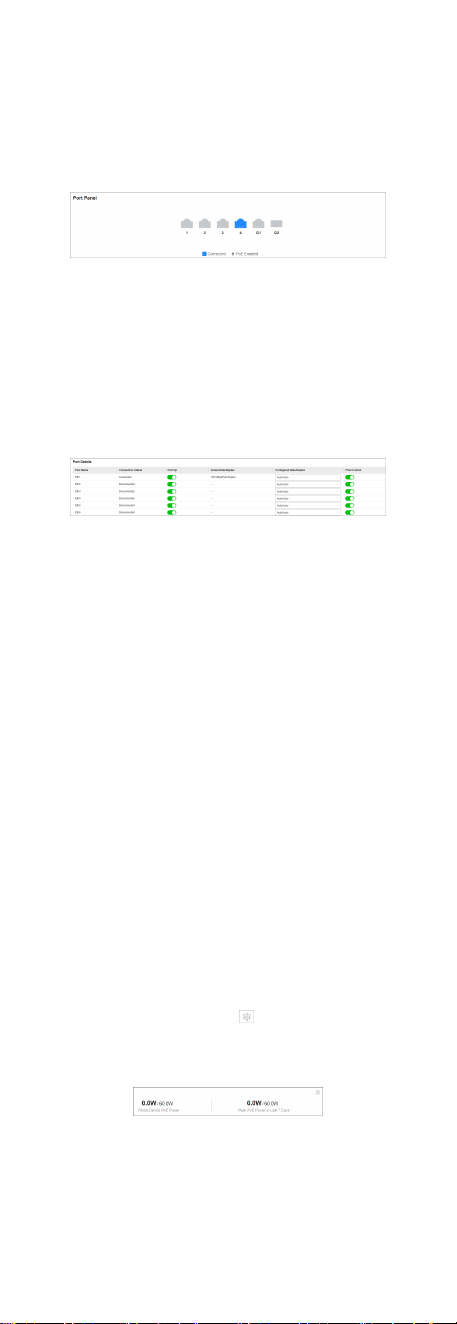
Port Panel
The Port Panel module displays the connecon and power supply
status of each port. When you hover the mouse over a port, the
port name,
connecon status, rate/duplex, ow control status,
and packet receiving/sending rate are displayed. If the port is a
PoE port, you can view the PoE power of the port.
Figure 3-7 View Port Panel
Port Details
The
Port Details module lists the status parameters of each port.
You can also
congure the port status, rate/duplex, and ow
control of each port, and view the port name, connecon status,
and actual rate/duplex of each port.
Figure 3-8 View Port Details
Connecon Status
The connecon status of a port: Connected or Disconnected.
Port Up
Enable a port (port up) or disable a port (port down). By
default, a port is in the up state.
Actual Rate/Duplex
The actual rate and duplex mode of a port.
Congured Rate/Duplex
Congure the rate and duplex mode of a port. The default
value is Auto/Auto. You can select dierent combinaons of
rates and duplex modes as required.
Flow Control
Enable or disable
ow control of a port. By default, ow control
is enabled. Enabling ow control can eecvely reduce the
impact of large amounts of data on the network and maintain
the stability of the network.
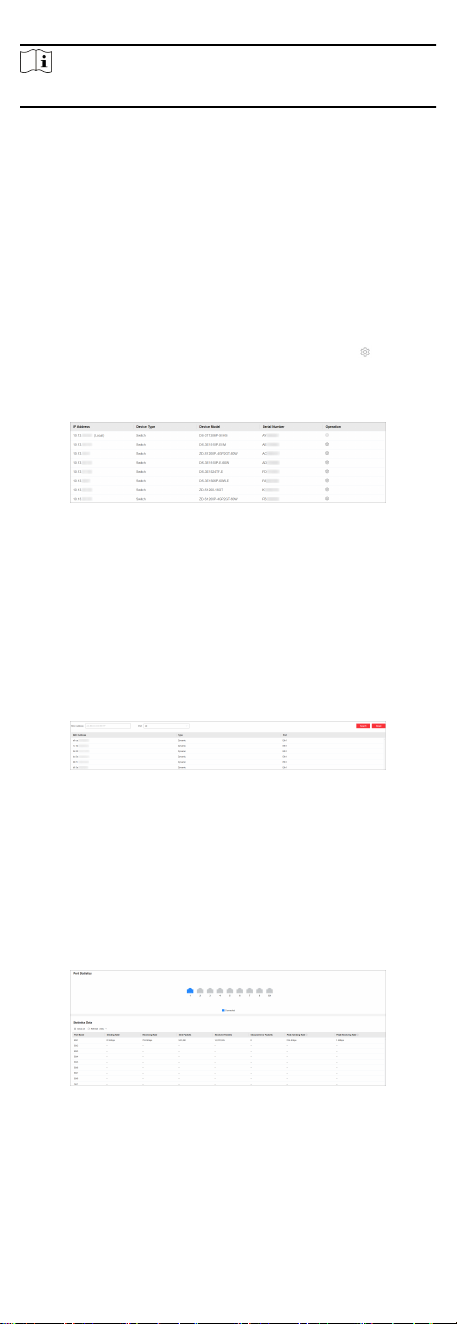
PoE Power
You can view the whole device PoE power and peak PoE power in
last seven days of the switch. Click in the upper right corner of
the module to go to the PoE Management page for PoE funcon
conguraon.
Figure 3-9 View PoE Power
5
Note
PoE power display is only available for switches supporng PoE.
3.3 Network Status
Network Monitoring allows you to view the same-LAN network
device
informaon, MAC addresses learned by ports, port
stascs, and cable status.
Find Network Devices
Network Device Discovery is a funcon that automacally
detects transmission devices in the same LAN with the switch and
displays informaon about these devices. Go to Network
Monitoring → Network Device Discovery , and you can view the
device IP address, type, model, and serial No. of the network
device(s) found. You can also select a device and click
in the
Operaon column to go to the web conguraon page of the
device.
Figure 3-10 Find Network Devices
Query Port MAC Address
You can query the MAC address(es) learned by each port. Go to
Network Monitoring → MAC Address , select the desired port
from the Port drop-down list, and click Search. The MAC
address(es) learned by the port and type(s) of the MAC
address(es) are displayed in the list below.
Figure 3-11 Query Port MAC Addresses
View Port Stascs
You can monitor and collect stascs on the transmied data of
device ports. Go to Network Monitoring → Port
Stascs , and
you can view the current connecon status of each port and the
data
transmied by each port in the stascs list.
Figure 3-12 View Port Stascs
You can also perform the following operaons:
6

●
Clear port stascs: You can click Clear All to clear all the port
stascs.
●
Manually refresh port stascs: You can click to manually
refresh the port
stascs.
●
Auto refresh port stascs: You can set the interval for
automacally refreshing port stascs: 30 seconds or 60
seconds.
Detect Cable Status
Cable Detecon is a funcon that detects the statuses of
Ethernet port cables, for example, to check whether there is a
short circuit or an open circuit in the receiving or sending
direcon of a cable, and if any, to locate the faulty cable. Go to
Network Monitoring → Cable Detecon , select the desired port
on the le port panel, and click Detect to view the detecon
result.
Figure 3-13 Detect Cable Status
Diagnose Network
Ping is a funcon that helps to diagnose network connecvity and
quickly locate network faults.
1. Click Network Monitoring → Ping .
Figure 3-14 Ping
2. Enter a network server address in the IPv4 address eld.
3. Click Ping.
Note
The network diagnosis result is displayed in the Ping Result
area.
Diagnose Opcal Module
Digital Diagnosc Monitoring (DDM) is a funcon used to monitor
real-me parameters of an opcal module, such as operang
temperature, operang voltage, operang current, and Rx and Tx
opcal power. In addion, the DDM diagnosis result shows an
opcal module's converter type, interface type, central Tx
wavelength, maximum transmission distance, and brand.
1. Go to Network Monitoring → DDM .
7
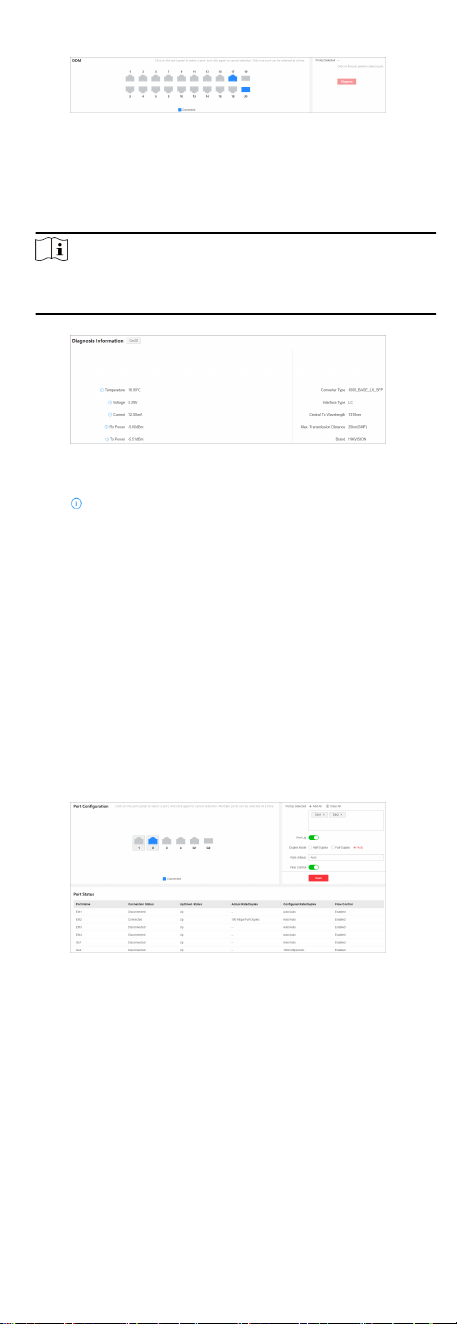
Figure 3-15 Congure Opcal Module Diagnosis
2. Select an opcal port with an opcal module plugged into on
the port panel.
3. Click Diagnose.
Note
Aer diagnosis is complete, you can view the DDM diagnosis
result in the Diagnosis Informaon area.
Figure 3-16 View DDM Diagnosis Result
4.
Click next to Temperature, Voltage, Current, Rx Power, or
Tx Power to check whether the values of these parameters are
within the normal range.
4 Device Conguraon
4.1 Port Conguraon
4.1.1 Congure Port Aributes
The basic aributes can inuence the working status of a port.
Steps
1. Go to L2
Conguraon → Port Aributes .
Figure 4-1
Congure Port Aributes
2. Select the desired port(s) and set the parameters as required.
Port Up
Enable or disable the selected port(s). If a port is enabled, it
is in the up state; if a port is disabled, it is in the down state.
No data will be
transmied on a "down" port.
Duplex Mode
8

The duplex mode of a port. The congurable duplex modes
of ports include Half-Duplex, Full-Duplex, and Auto, which
may vary with device models.
Rate (Mbps)
The data transmission speed of a port of a port. The
congurable rates of ports include 10M, 100M, 1000M, and
Auto, which may vary with device models.
Flow Control
Enable or disable ow control of a port. Enabling ow
control can prevent data loss in data transmission.
3. Click Save.
4.
Oponal: View the port aributes in the port status list.
4.1.2 Congure Link Aggregaon
Link aggregaon is used to combine mulple physical links
together to make a logical high-bandwidth data path, which
provides a stronger and faster network
connecon.
Steps
1. Go to L2
Conguraon → Link Aggregaon .
2.
Click
.
Figure 4-2 Congure Link Aggregaon
3. Select at least two desired ports.
Note
●
Only the selectable ports can be added to an aggregaon
group.
●
2 to 4 ports are allowed for each link aggregaon group.
●
Some ports can only be added to a specic aggregaon
group. Please refer to the actual situaon.
●
The rate, duplex mode, ow control, long-range mode, and
VLAN conguraons of ports in one aggregaon group
should be the same.
4. Set Aggregaon Group Number.
Note
The number of aggregaon groups allowed varies.
5. Click Save.
6. Oponal: Edit the aggregaon group.
1) Click an exisng aggregaon group, for example,
"Aggregaon Group 1".
2) Select the desired port(s) on the le port panel to add to the
group, or deselect the desired port(s) on the right to delete
from the group.
3) Click Edit to save the
modicaon.
7. Oponal: Delete the aggregaon group.
9

1) Click an exisng aggregaon group, for example,
"Aggregaon Group 1".
2) Click Delete on the right.
8. Oponal: View the member ports of each aggregaon group in
the list below.
4.1.3 Congure Port Isolaon
Port isolaon is a feature to add mulple ports to an isolaon
group so that ports in the same isolaon group cannot
communicate with each other. For example, by using port
isolaon funcon, you can achieve the goal of prevenng PCs
under
dierent ports communicang with each other without
conguring VLANs.
Steps
1. Go to Security → Port Isolaon .
Figure 4-3 Congure Port Isolaon
2. Select the desired port(s) on the port panel.
Note
You can also click or on the right to batch select
or deselect all ports.
3. Enable or disable Port Isolaon as required.
4. Click Save.
5. Oponal: View the port isolaon status of each port in the Port
Isolaon Status list.
4.1.4
Congure Port Mirroring
Port mirroring is a feature in network switches that allows
administrators to monitor trac on one port (mirrored port) and
replicate this data to another port (mirroring port) for analysis.
This
replicaon occurs in real-me, allowing an administrator to
view a "mirror" or exact duplicate of the trac moving on the
mirrored port.
Steps
1. Go to L2
Conguraon → Port Mirroring .
10
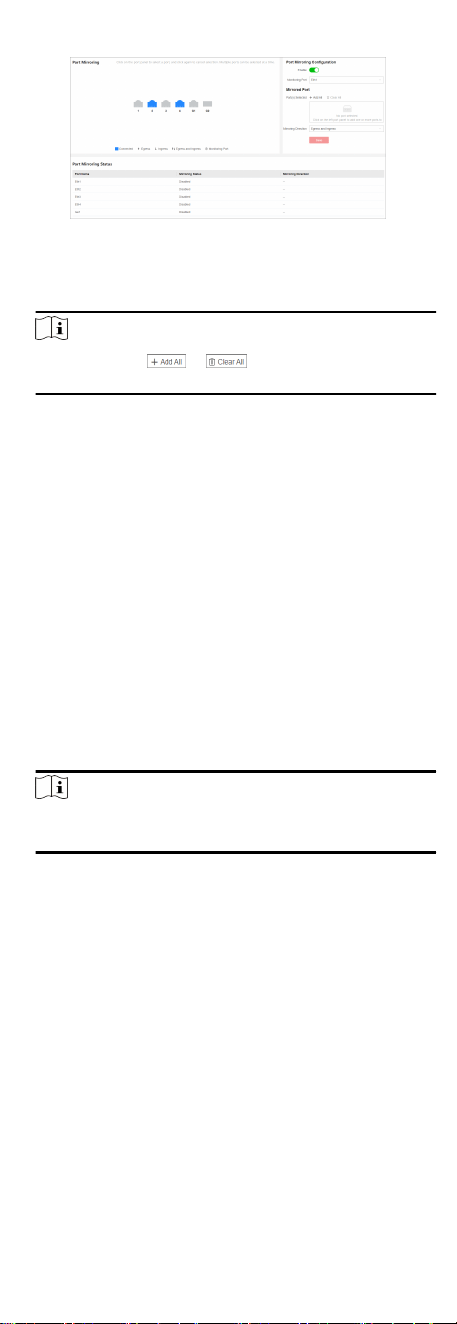
Figure 4-4 Congure Port Mirroring
2. Select the desired port(s) on the port panel as the mirrored
port(s), and set the parameters as required.
Note
You can also click or on the right to batch select
or deselect all ports.
Enable
Enable or disable port mirroring of the selected port(s).
Monitoring Port
Only one port can be set as the monitoring port (mirroring
port).
Mirroring
Direcon
Ingress
The data received by the source port will be under
monitoring.
Egress
The data sent by the source port will be under monitoring.
Egress and Ingress
Both the data received by and the data sent from the
source port will be under monitoring.
3. Click Save.
Note
The latest conguraon will overwrite the previous
conguraon.
4. Oponal: View the mirroring status of each port in the Port
Mirroring Status list.
4.1.5
Congure Port Rate Liming
Port rate liming refers to limitaon of a port's sending and
receiving rates. This
funcon is only applicable to Gigabit
switches.
Steps
1. Go to Service Quality → Port Rate
Liming .
11
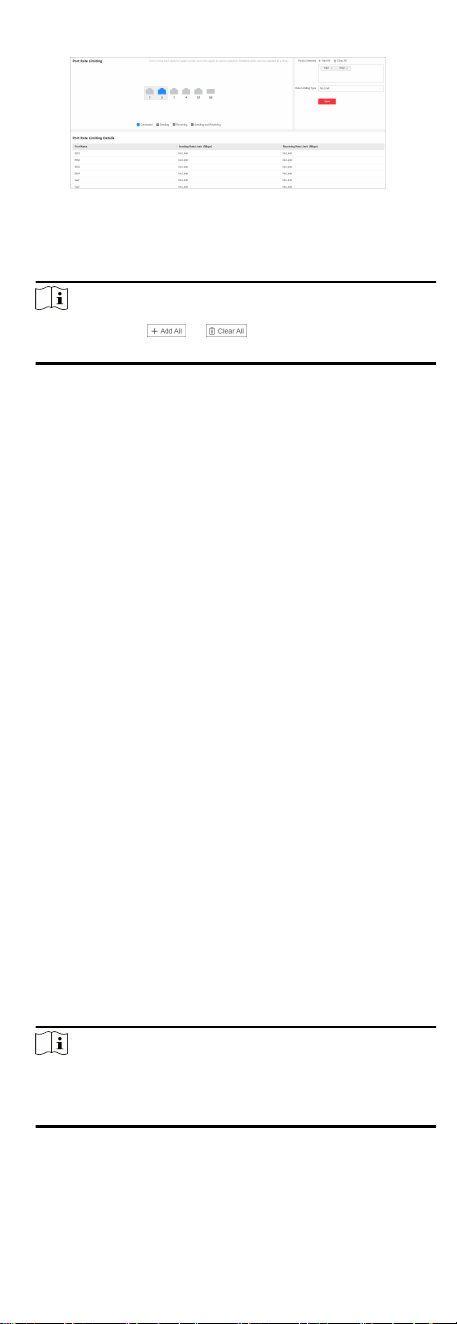
Figure 4-5 Congure Port Rate Liming
2. Select the desired port(s) on the port panel, and set the
parameters as required.
Note
You can also click or on the right to batch select
or deselect all ports.
Rate Liming Type
●
Sending: Only the sending rate of the selected port(s) is
limited.
●
Receiving: Only the receiving rate of the selected port(s) is
limited.
●
Sending/Receiving: Both the sending and receiving rates of
the selected port(s) are limited.
●
No Limit: Neither the sending rate nor the receiving rate of
the selected port(s) is limited.
Sending Rate Limit(Mbps)
Set the upper limit of sending rate when Rate
Liming Type
is Sending or Sending/Receiving. The value ranges from 1 to
1000(Mbps).
Receiving Rate Limit(Mbps)
Set the upper limit of receiving rate when Rate
Liming Type
is Receiving or Sending/Receiving. The value ranges from 1
to 1000(Mbps).
3. Click Save.
4.
Oponal: View the rate liming details of each port in the Port
Rate Liming Details list.
4.1.6
Congure Port Storm Control
Storm control allows you to limit the amount of broadcast,
mulcast, or unknown unicast trac that can be received on a
port. When such
trac exceeds a specied threshold, the excess
broadcast, mulcast, or unknown unicast packets will be
discarded to prevent network storms. This
funcon is only
applicable to Gigabit switches.
Steps
1. Go to Service Quality → Port Storm Control .
Note
Some devices support both global and port-based storm
control conguraon, while others support only global storm
control conguraon. The actual device condions prevail.
2. Set storm control parameters as required.
●
Global Storm Control:
12
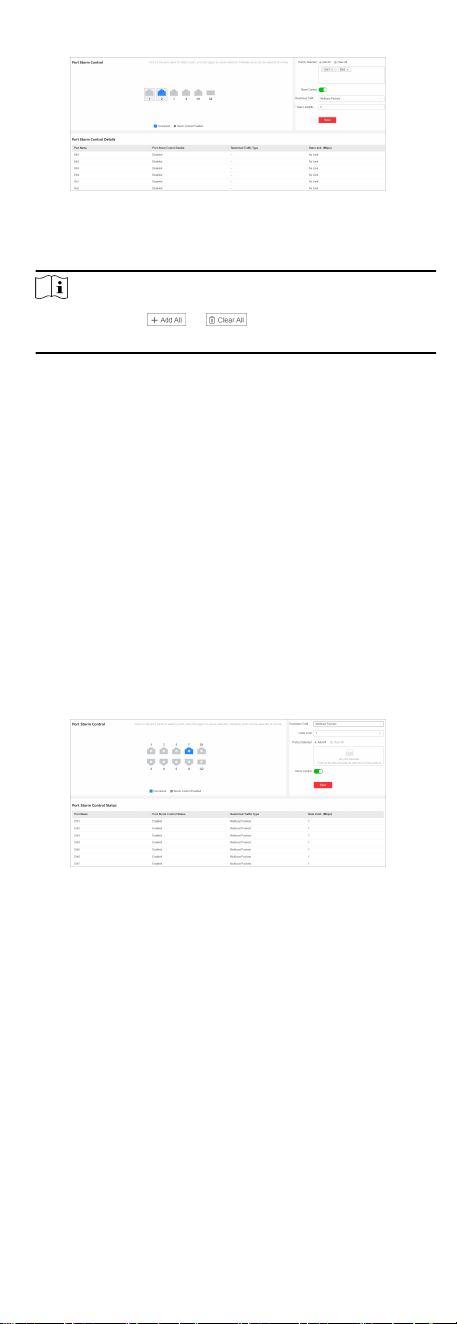
Figure 4-6 Congure Global Storm Control
a.Select the desired port(s) on the port panel.
Note
You can also click or on the right to batch select
or deselect all ports.
b.Enable storm control of the selected port(s).
c.Set Restricted Trac Type and Rate Limit(Mbps).
Restricted Trac Type
Broadcast Packets
The data packets are sent to all the devices on the same
network.
Mulcast Packets
The data packets are sent to the specied devices.
Unknown Unicast Packets
The data packets are sent to the specied device.
Rate Limit(Mbps)
Set the rate limit of the selected port(s), which ranges from 1
Mbps to 1000 Mbps.
●
Port-Based Storm Control:
Figure 4-7 Congure Port-Based Storm Control
a.Set
Restricted Trac Type and Rate Limit.
Restricted Trac Type
Broadcast Packets
The data packets are sent to all the devices on the same
network.
Mulcast Packets
The data packets are sent to the specied devices.
Unknown Unicast Packets
The data packets are sent to the specied device.
Rate Limit
13
Set the rate limit percentage of the selected port(s), which
ranges from 1% to 100%.
b.Select the desired port(s) on the port panel.
Note
You can also click or on the right to batch select
or deselect all ports.
c.Enable storm control of the selected port(s).
3. Click Save.
4. Oponal: View the storm control status of each port in the
Port Storm Control Status list.
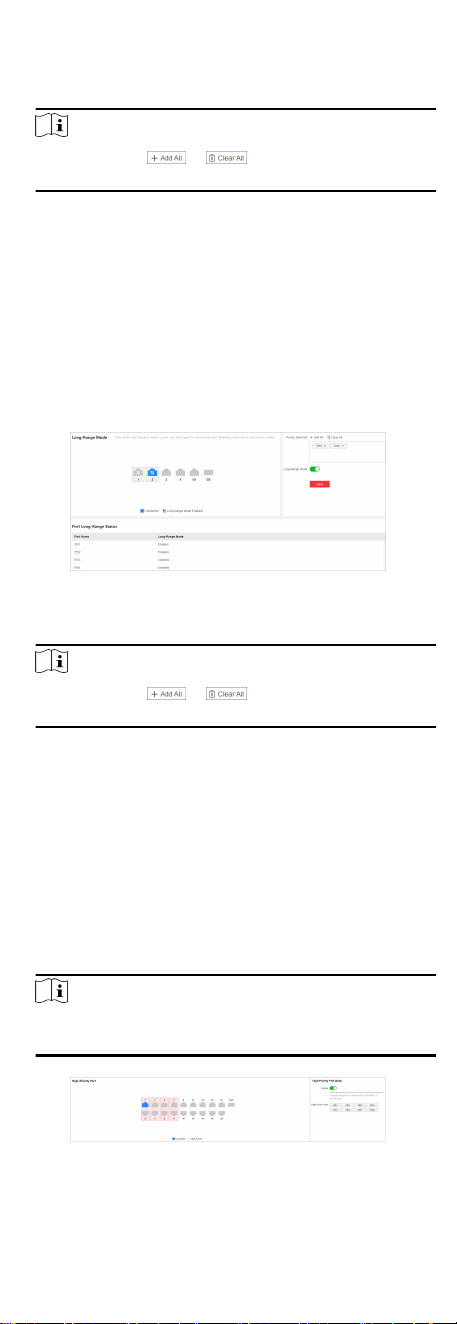
4.1.7 Congure Long-Range Mode
The transmission distance of a port with long-range mode
enabled can reach 300 meters at a rate of 10 Mbps.
Steps
1. Go to L2
Conguraon → Long-Range Mode .
Figure 4-8 Congure Long-Range Mode
2. Select the desired port(s) on the port panel.
Note
You can also click or on the right to batch select
or deselect all ports.
3. Enable or disable Long-Range Mode as required.
4. Click Save.
5. Oponal: View the long-range status of each port in the Port
Long-Range Status list.
4.1.8
Congure High-Priority Port
High-priority ports are idened by a red area on the device front
panel. In the case of uplink congeson, the data of ports in this
area is
preferenally transmied.
Steps
1. Go to Service Quality → High-Priority .
Note
High-priority port conguraon is only supported when the
switch has high-priority ports.
Figure 4-9 Congure High-Priority Port
14

2. In High-Priority Port Mode, toggle on Enable to batch enable
high-priority ports.
Note
The number of high-priority ports varies with dierent device
models. Please refer to the actual situaon.
All high-priority ports of the switch are enabled, with a higher
data transmission priority than common ports.
4.2 VLAN Conguraon
Virtual Local Area Networks (VLANs) separate an exisng physical
network into
mulple logical networks. Thus, each VLAN creates
its own broadcast domain. With VLANs congured on a switch,
users in the same VLAN can communicate with each other, while
users in
dierent VLANs are isolated. In this way, dierent
broadcast domains are isolated, enhancing network security.
4.2.1 Add VLAN
Steps
1. Click VLAN Management in the
le navigaon pane.
2. In Global VLAN Conguraon, click Edit.
3. Click Add.
Figure 4-10 Add VLAN(s)
4. Select an adding mode.
-
Single: Only one VLAN is added at a me.
-
Batch: Mulple VLANs are added in a batch.
Note
The maximum number of VLANs that can be added in a batch
varies with device models. Please refer to the actual situaon.
5. Set VLAN ID.
-
Single: Enter a VLAN ID.
-
Batch: Enter the start VLAN ID and end VLAN ID.
Note
●
The VLAN ID should be an integer between 1 and the
maximum number of VLANs allowed by the device. For
example, if the maximum number of VLANs allowed is
4094, the VLAN ID should be integer between 1 and 4094.
●
The end VLAN ID should be greater than the start VLAN ID.
●
The number of VLANs to be batch added should be no
more than the maximum number of VLANs that can be
added in a batch. For example, in the case that the
maximum number of VLANs that can be added in a batch
is 128, if you set the start VLAN ID to 1, the end ID cannot
be greater than 128.
6.
Click Save.
7.
Oponal: Select the desired VLAN(s) and click Delete to delete
one or more VLANs.
15
Note
The default VLAN 1 cannot be deleted.
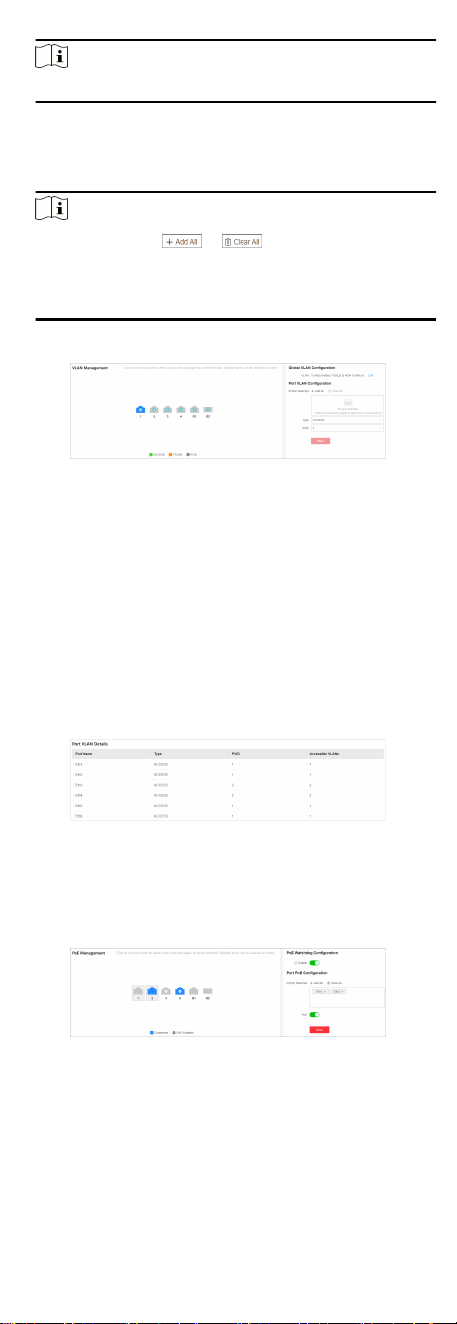
4.2.2 Congure Port VLAN
Steps
1. Select the desired port(s) on the port panel.
Note
●
You can also click or on the right to batch select
or deselect all ports.
●
VLAN conguraon is not allowed for ports in an aggregaon
group.
2. Congure the port VLAN type.
Figure 4-11
Congure Port VLAN
-
ACCESS: An ACCESS port can have only one VLAN congured
on the interface, and it can carry trac for only one VLAN,
usually the default VLAN (VLAN 1). Select Type as ACCESS,
and set PVID.
-
TRUNK: A TRUNK port can have two or more VLANs
congured on the interface, and it can carry trac for
several VLANs simultaneously. Select Type as TRUNK, set
PVID, and enter Accessible VLANs.
3. Click Save.
4.
Oponal: View the VLAN conguraon informaon of each
port in the port VLAN details list.
Figure 4-12 Port VLAN Details
4.3 PoE Conguraon
Click PoE Management in the le navigaon pane.
Figure 4-13
Congure PoE
PoE Watchdog
Enable PoE watchdog to auto-detect and restart IP cameras that
do not respond.
16
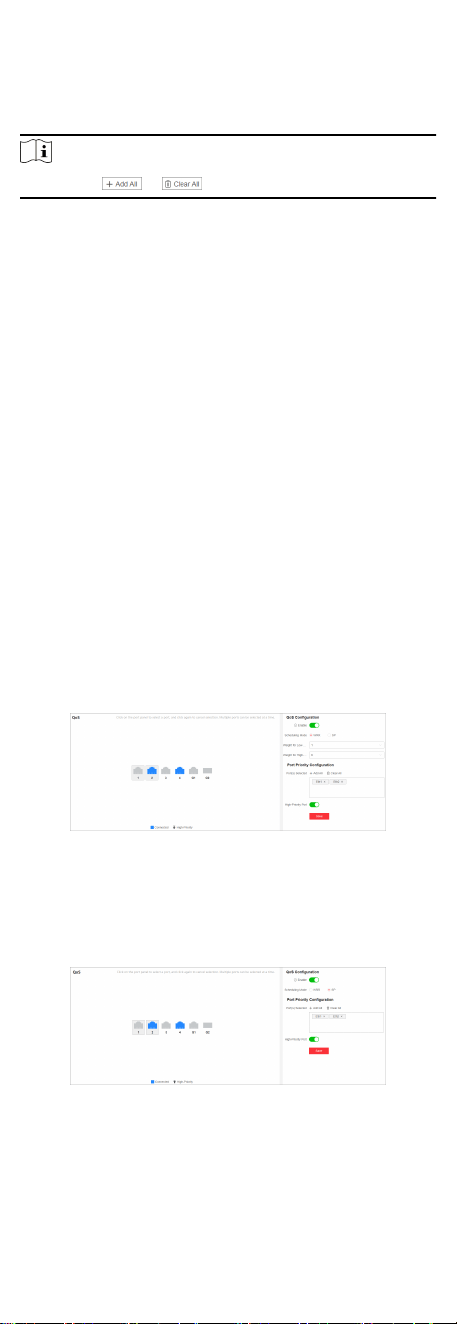
Port PoE Conguraon
Select the desired port(s) on the port panel and enable PoE to
supply power to the powered device(s) connected to the port(s).
Note
You can click or to batch select or deselect all ports.
PoE Status
View the PoE enabling status and output power of PoE ports in
the Port PoE Status list.
4.4 QoS Conguraon
Quality of Service (QoS) is a technology used to solve issues such
as network congeson, delay, jier, and packet loss. In the case of
limited bandwidth resources, QoS allocates appropriate
bandwidth for various services and
preferenally forwards
applicaons such as voice, video, and important data to ensure
the operaon of end-to-end services.
Steps
1. Go to Service Quality → QoS .
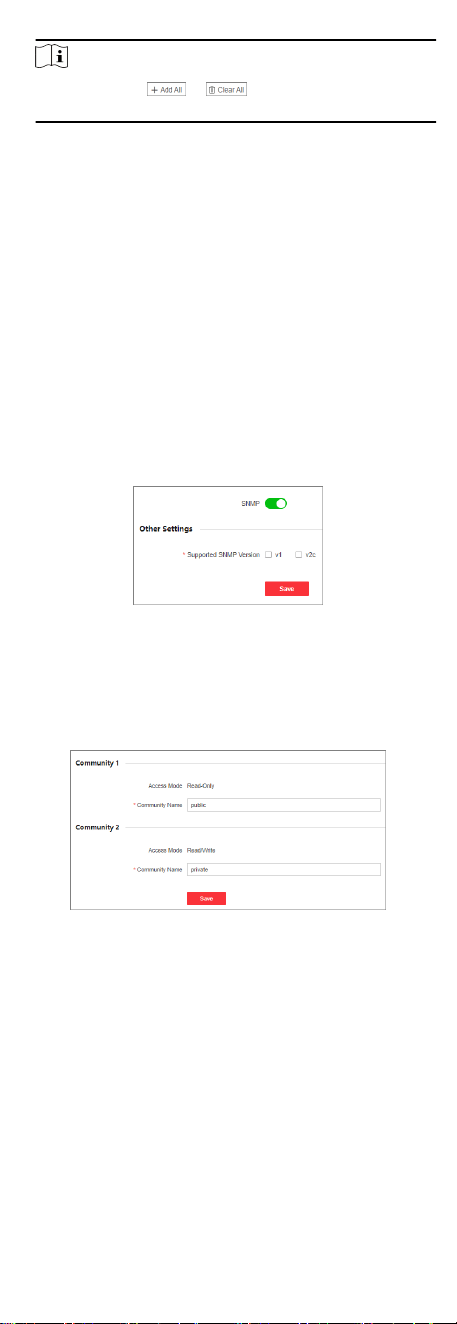
2. In QoS
Conguraon, toggle on Enable to globally enable QoS.
3. Set Scheduling Mode to WRR or SP.
WRR
Weighted Round Robin mode: Send messages based on
respecve weights for low-priority and high-priority ports. In
WRR mode, you need to set Weight for Low-Priority Ports
and Weight for High-Priority Ports. Ensure that the weight
for high-priority ports is larger than that for low-priority
ports.
Figure 4-14 Select WRR Mode
SP
Strict Priority mode: Send messages based on actual port
priority
conguraon.
Figure 4-15 Select SP Mode
4. Select the desired port(s) on the port panel.
17
Note
You can also click or on the right to batch select
or deselect all ports.
5. Enable High-Priority Port to set the selected port(s) as high-
priority port(s).
6. Click Save.
4.5 SNMP Conguraon
Simple Network Management Protocol (SNMP) is an applicaon-
layer communicaon protocol used to monitor network
performance. SNMP network is composed of the Network
Management System (NMS) and Agent. NMS is the SNMP
manager, and Agent sends Traps to NMS. SNMP
conguraon
includes basic conguraon, community conguraon, and trap
target host
conguraon.
4.5.1
Congure Basic SNMP Parameters
Go to L2 Conguraon → SNMP → Basic Sengs . Enable SNMP
as required, set Supported SNMP Version, and click Save to
complete basic
conguraon.
Figure 4-16 Congure Basic SNMP Parameters
4.5.2 Congure SNMP Community
Steps
1. Go to L2 Conguraon → SNMP → Community Sengs .
Figure 4-17 Congure SNMP Community
2. Set Community Name for community 1 (read-only access) and
community 2 (read/write access).
Community Name
Used for
authencaon, similar to password. Community
Name can be user-dened.
Access Mode
Access Mode is
uncongurable.
18
●
Ready-Only: The community has a read-only permission to
access the NMS. The default community name is public.
●
Read/Write: The community has a read/write permission to
access the NMS. The default community name is private.
3. Click Save.
4.5.3 Congure SNMP Trap Target Host
Steps
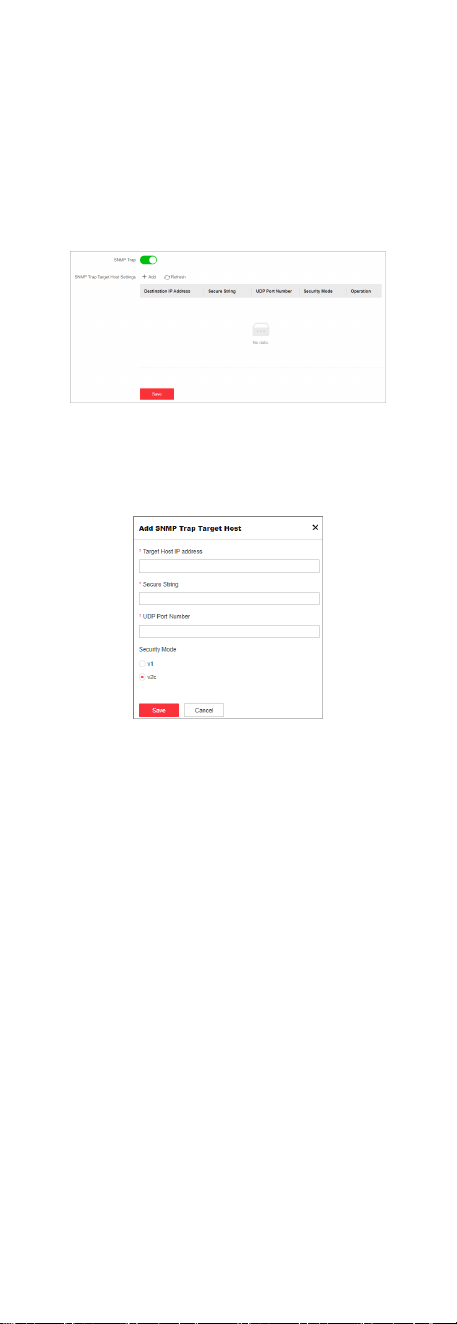
1. Go to L2 Conguraon → SNMP → Trap Target Host Sengs .
Figure 4-18 Congure SNMP Trap Target Host
2. Enable SNMP Trap.
3. Click Add to add an SNMP trap target host.
Figure 4-19 Add SNMP Trap Target Host
1) Set the parameters as required.
Target Host IP address
Species the IP address of the desnaon host (usually an
NMS that can parse Trap and Inform messages) for
receiving SNMP alarms. The IP address cannot be a
broadcast or
mulcast IP address.
Secure String
Species the security word used for authencaon or
authorizaon. No more than 32 characters are allowed.
●
Authencaon: The security string is used to verify the
identy of the device that sends Trap messages. The NMS
can determine whether a Trap message comes from a known
and trusted device by checking the security string.
●
Authorizaon: The security string is used to determine which
device has the permission to send Trap messages. Only
devices with a valid security string can send Trap messages
to the NMS.
19

Cauon
In SNMPv1 or SNMPv2c mode, you are advised to set the
security string to any community name. Otherwise, SNMP
Trap messages may fail to be sent.
UDP Port Number
Species the desnaon port of SNMP Trap messages.
Security Mode
Species Security Mode to SNMPv1 (v1) or SNMPv2c
(v2c).
2) Click Save.
4. Click Save.
5.
Oponal: View the details about of exisng SNMP trap target
hosts. Alternavely, edit or delete the desired target host in the
SNMP trap target host list.
4.6 LLDP Conguraon
Link Layer Discovery Protocol (LLDP) is a layer 2 neighbor
discovery protocol that allows devices to adverse device
informaon to their directly connected peers/neighbors. With
LLDP enabled, network devices can send LLDP data units
(LLDPDUs) to inform other devices of their status. LLDP helps to
draw network topology and detect improper
conguraons in a
network.
Steps
1. Go to L2
Conguraon → LLDP .
2. Enable or disable LLDP.
Figure 4-20 Congure LLDP
Note
Aer LLDP is enabled, network devices can discover each other,
facilitang network topology drawing.
3. Oponal: View the local port(s), MAC address(es) of peer
device(s), and peer port(s) in the Neighbor Informaon list.
4.7 Security Conguraon
4.7.1 DHCP Snooping Conguraon
DHCP Snooping is a security technology used on Layer 2 switches
to prevent unauthorized DHCP servers from accessing the
network.
Prevenng untrusted hosts from becoming DHCP
servers, DHCP Snooping works as a protecon from man-in-the-
middle
aacks. Aer DHCP Snooping is enabled, you can set the
port connected to an authorized DHCP server as a trusted port so
that DHCP response packets received on the trusted port are
forwarded while DHCP response packets received on the
untrusted port are discarded.
20
Steps
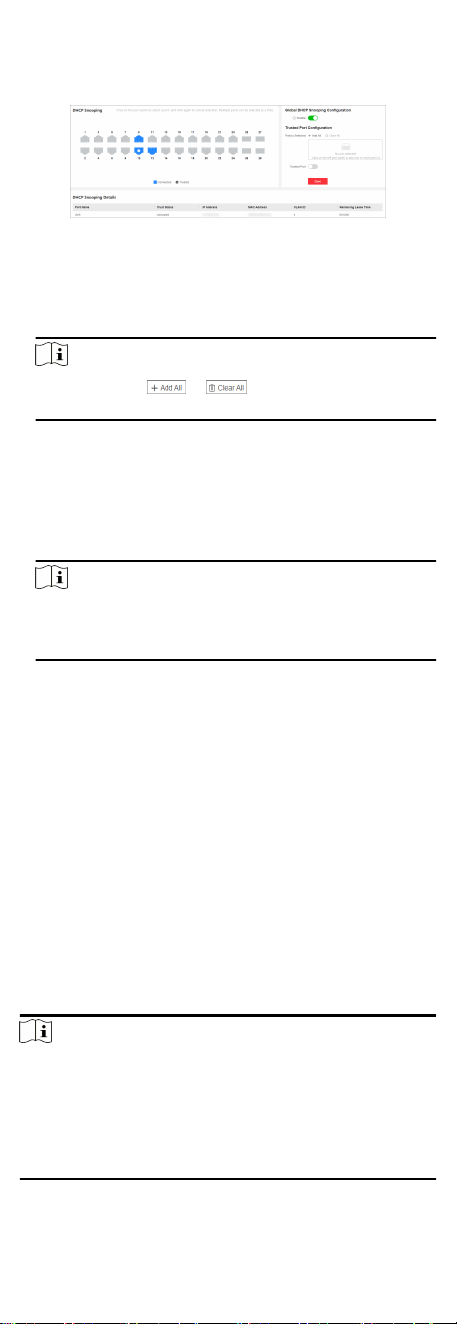
1. Go to Security → DHCP Snooping .
Figure 4-21 Congure DHCP Snooping
2. In Global DHCP Snooping Conguraon, toggle on Enable to
globally enable DHCP Snooping.
3. Select the desired port(s) on the port panel.
Note
You can also click or on the right to batch select
or deselect all ports.
4. Enable Trusted Port to congure the selected port(s) as trusted
port(s).
5. Click Save.
6. Oponal: View the trust status, IP address, MAC address, VLAN
ID, and remaining lease me of ports in the DHCP Snooping
Details list.
Note
For some devices, you can only view the trust status of each
port in the Port Trust Status list. Please refer to the actual
situaon.
4.7.2 ACL Conguraon
An Access Control List (ACL) is a set of rules used to control user
access to a network device or resource. An ACL matches packets
against the rules it contains to
lter packets. One or more rules
describe the packet matching condions, such as the source
address,
desnaon address, and port number of a packet. For
packets that match the ACL rules congured on a device, the
device forwards or discards these packets according to the
specied condions.
ACLs are classied into numbered ACLs and named ACLs.
Numbered ACLs are classied into basic ACLs, advanced ACLs, and
Layer 2 ACLs. These ACLs have
dierent number ranges.
●
For a basic ACL, the ACL number ranges from 2000 to 2999.
●
For an advanced ACL, the ACL number ranges from 3000 to
3999.
●
For a layer 2 ACL, the ACL number ranges from 4000 to 4999.
Note
●
A basic ACL lters packets based on the source IP address, an
advanced ACL lters packets based on source and desnaon
IP addresses, while a layer 2 ACL lters packets based on
source and desnaon MAC addresses.
●
Currently, only advanced or layer 2 ACLs can be congured. A
total of 64 advanced and layer 2 ACLs are allowed.
21
Congure Advanced ACL
Steps
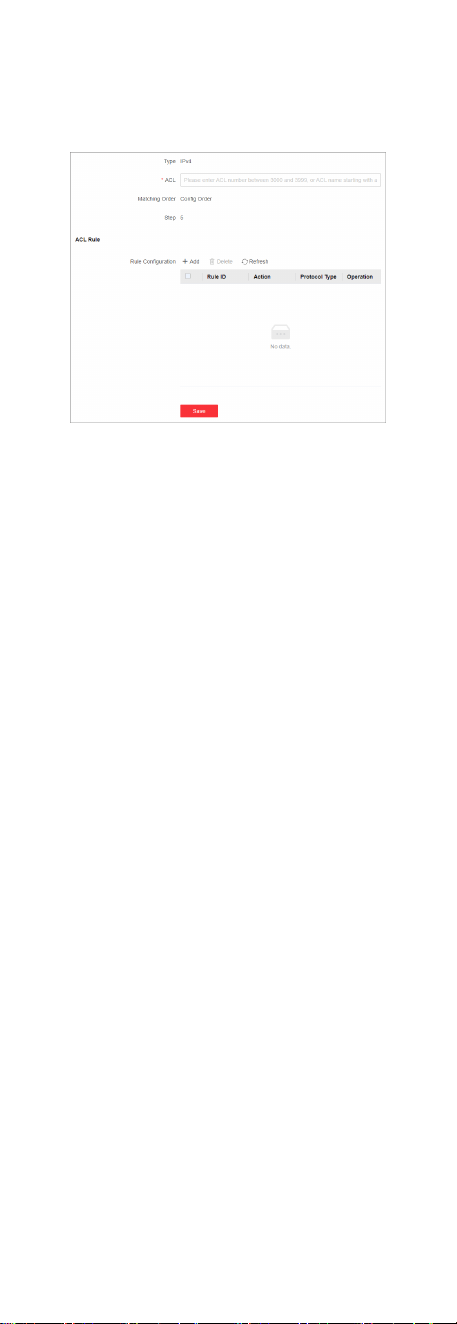
1. Go to Security → ACL → IPv4 ACL .
2. Click Add.
Figure 4-22 Congure Advanced ACL
3. Set the parameters as required to add an advanced ACL.
ACL
Species the ACL number or ACL name. The ACL number
ranges from 3000 to 3999. The ACL name should contain 1
to 32 characters and start with a-z or A-Z. Entering 'all' (case
insensive) is not allowed.
Matching Order
The matching order of ACL rules is Cong Order by default,
which is uncongurable. The system matches packets against
ACL rules in ascending order of rule IDs. The rule with the
smallest ID is processed
rst.
Step
A step is an increment between neighboring rule IDs
automacally allocated by the system. The rule ID must be
an integer. For example, if an ACL contains rule 5 and rule
13, and the default step is 5, the system
automacally
allocates 15 as the ID of a new rule (because 15 is greater
than 13 and is the minimum mulple of 5) when the new
rule is added to this ACL. The step of ACL rules is 5 by
default, which is
uncongurable.
4. Click Save.
5. Oponal: Congure rule(s) for the new advanced ACL.
a.In ACL Rule, click Add.
22
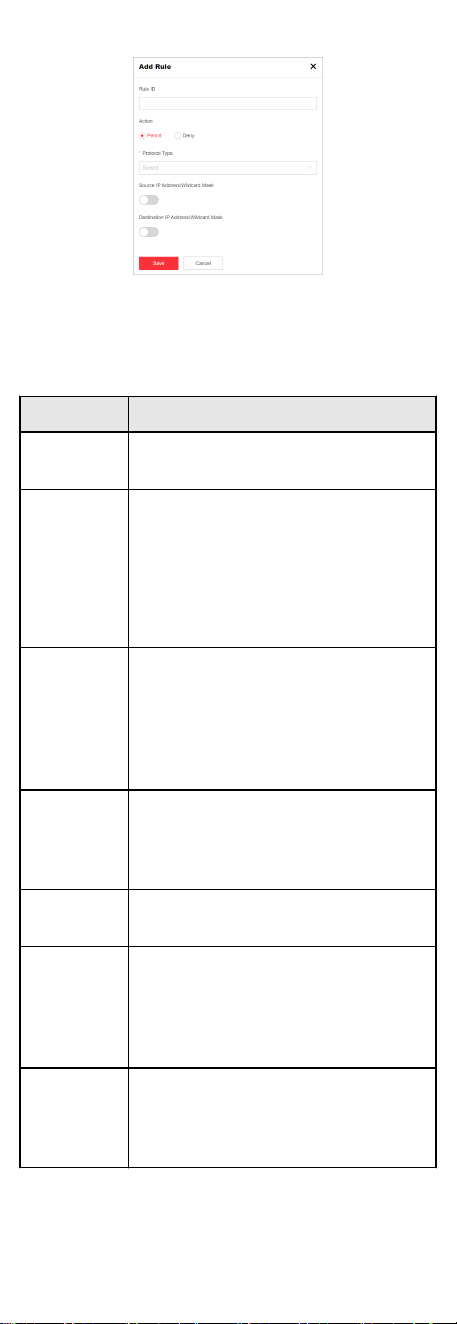
Figure 4-23 Add ACL Rule(s)
b.Set the parameters as required.
Table 4-1 ACL Rule Parameters
Parameter Descripon
Rule ID
Species the ID of an ACL rule. The
value ranges from 1 to 65535.
Acon
Species the acon of an ACL rule to
Permit or Deny.
-
Permit: The system forwards
matched packets.
-
Deny: The system discards matched
packets.
Protocol
Type
Species the protocol type of an ACL
rule. Protocol numbers 1 to 255
correspond to dierent protocol types.
Specic enumeraons: tcp(6), udp(17),
icmp(1), igmp(2), ospf(89), ipinip(4),
gre(47).
Source IP
Address/
Wildcard
Mask
The source IPv4 address and wildcard
mask need to be set if Source IP
Address/Wildcard Mask is enabled.
Source IP
Address
Species the source IPv4 address of an
ACL rule.
Wildcard
Mask
Species the wildcard mask of the
source IPv4 address of an ACL rule. The
wildcard mask is an inverse mask, for
example, 192.168.1.1/0.0.0.255 takes
eect as 192.168.1.0/0.0.0.255.
Desnaon
IP Address/
Wildcard
Mask
The desnaon IPv4 address and
wildcard mask need to be set if
Desnaon IP Address/Wildcard Mask
is enabled.
23

Parameter Descripon
Desnaon
IP Address
Species the desnaon IPv4 address of
an ACL rule.
Wildcard
Mask
Species the wildcard mask of the
desnaon IPv4 address of an ACL rule.
The wildcard mask is an inverse mask,
for example, 192.168.1.1/0.0.0.255
takes eect as 192.168.1.0/0.0.0.255.
c.Click Save.
d.View, edit, or delete the congured ACL rule(s) in the ACL rule
list.
Congure Layer 2 ACL
Steps
1. Go to Security → ACL → Layer 2 ACL .
2. Click Add.
Figure 4-24 Congure Layer 2 ACL
3. Set the parameters as required to add an advanced ACL.
ACL
Species the ACL number or ACL name. The ACL number
ranges from 4000 to 4999. The ACL name should contain 1
to 32 characters and start with a-z or A-Z. Entering 'all' (case
insensive) is not allowed.
Matching Order
The matching order of ACL rules is Cong Order by default,
which is uncongurable. The system matches packets against
ACL rules in ascending order of rule IDs. The rule with the
smallest ID is processed
rst.
Step
A step is an increment between neighboring rule IDs
automacally allocated by the system. The rule ID must be
an integer. For example, if an ACL contains rule 5 and rule
13, and the default step is 5, the system
automacally
allocates 15 as the ID of a new rule (because 15 is greater
than 13 and is the minimum mulple of 5) when the new
rule is added to this ACL. The step of ACL rules is 5 by
default, which is
uncongurable.
24
4. Click Save.
5. Oponal: Congure rule(s) for the new layer 2 ACL.
a.In ACL Rule, click Add.
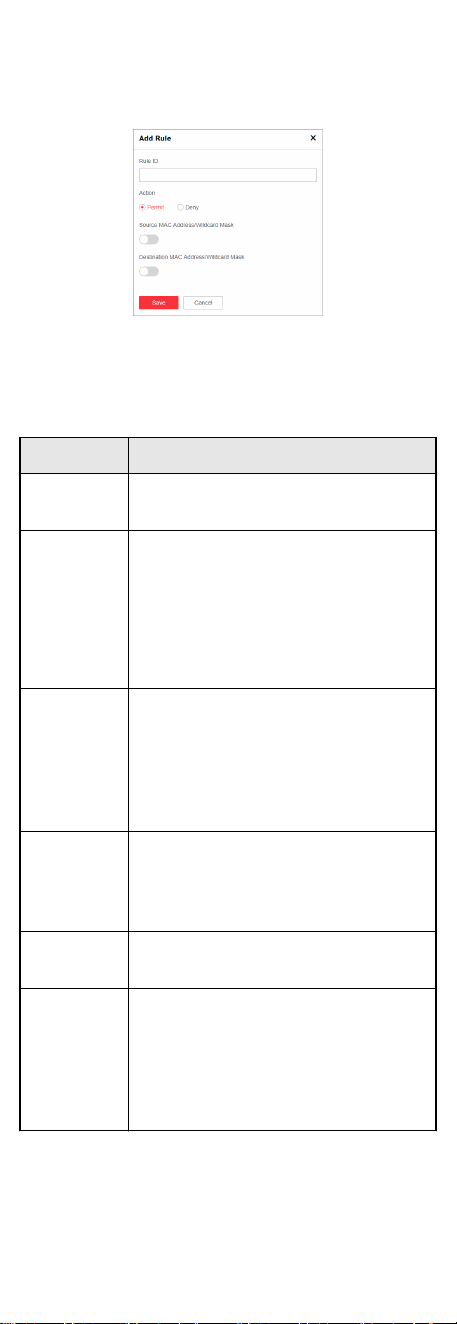
Figure 4-25 Add ACL Rule(s)
b.Set the parameters as required.
Table 4-2 ACL Rule Parameters
Parameter Descripon
Rule ID
Species the ID of an ACL rule. The
value ranges from 1 to 65535.
Acon
Species the acon of an ACL rule to
Permit or Deny.
-
Permit: The system forwards
matched packets.
-
Deny: The system discards matched
packets.
Protocol
Type
Species the protocol type of an ACL
rule. Protocol numbers 1 to 255
correspond to dierent protocol types.
Specic enumeraons: tcp(6), udp(17),
icmp(1), igmp(2), ospf(89), ipinip(4),
gre(47).
Source MAC
Address/
Wildcard
Mask
The source MAC address and wildcard
mask need to be set if Source MAC
Address/Wildcard Mask is enabled.
Source MAC
Address
Species the source MAC address of an
ACL rule.
Wildcard
Mask
Species the wildcard mask of the
source IPv4 address of an ACL rule. The
wildcard mask is an inverse mask, for
example, 98-f1-12-0a-e9-1c/
00-00-00-00-00-FF takes eect as 98-
f1-12-0a-e9-00/00-00-00-00-00-FF.
25

Parameter Descripon
Desnaon
MAC
Address/
Wildcard
Mask
The desnaon MAC address and
wildcard mask need to be set if
Desnaon MAC Address/Wildcard
Mask is enabled.
Desnaon
MAC
Address
Species the desnaon MAC address
of an ACL rule.
Wildcard
Mask
Species the wildcard mask of the
desnaon IPv4 address of an ACL rule.
The wildcard mask is an inverse mask,
for example, 98-f1-12-0a-e9-1c/
00-00-00-00-00-FF takes eect as 98-
f1-12-0a-e9-00/00-00-00-00-00-FF.
c.Click Save.
d.View, edit, or delete the congured ACL rule(s) in the ACL rule
list.
Congure Port ACL Applicaon
Port ACL applicaon refers to applying ACL rules to the selected
port(s). ACL rules are used to lter packets in a certain direcon
on a port. Packets that match the ACL rules are permied or
denied according to the
acon dened in rules, while packets that
do not match any ACL rules are processed according to the
default acon.
Steps
1. Go to Security → ACL → Port ACL Applicaon .
Figure 4-26 Congure Port ACL Applicaon
2. Select one or more ports to which ACL rules are to be applied
on the port panel.
Note
You can also click or on the right to batch select
or deselect all ports.
3. Enable ACL Applicaon.
4. Set the parameters as required.
Direcon
Species the direcon in which the ACL rules are applied to
lter packets on a port. The default value is Inbound, which
is uncongurable.
Rule Type
Species the rule type to IPv4 ACL or Layer 2 ACL.
ACL
26

Species an exisng numbered or named IPv4 ACL or Layer 2
ACL.
5. Click Save.
The ports to which ACL rules have been applied are displayed
on the port panel.
6.
Oponal: View details about the ports to which ACL rules have
been applied in the Port ACL Applicaon Details list.
4.7.3 ARP Gateway Protecon Conguraon
You can congure ARP gateway protecon on ports not
connected to a gateway to prevent gateway spoong aacks.
Upon receiving an ARP packet, the port checks whether the
source IP address of the ARP packet is the same as that of any
protected gateway. If yes, the packet is considered invalid and
discarded. If not, the packet is considered valid and processed
correctly.
Steps
1. Go to Security → ARP Gateway
Protecon .
Figure 4-27 Congure ARP Gateway Protecon
2. Set Gateway IP Address.
3. Select one or more desired ports on the port panel.
Note
You can also click or on the right to batch select
or deselect all ports.
4. Click Save.
●
You can repeat the preceding operaons to congure
mulple
ARP entries.
●
Mulple ARP entries can be congured for one port.
5. Oponal: View or delete congured ARP entries in the ARP
Entries list.
4.7.4 IPSG
Conguraon
IP Source Guard (IPSG) checks IP packets received on Layer 2
interfaces against a binding table that contains the bindings of
source IP addresses, source MAC addresses, VLANs, and inbound
interfaces. Only the packets matching the binding table are
forwarded, and other packets are considered as
aack packets
and discarded.
Congure Binding Entry
IPSG binding entries include dynamic entries and stac entries.
Dynamic entries can be dynamically learned by DHCP snooping:
Exisng DHCP Snooping entries will be automacally bound to
IPSG
aer source address check is enabled on a port. Stac
entries need to be manually congured.
Steps
1. Go to Security → IP Source Guard → Binding Entry .
2. Click Add.
27
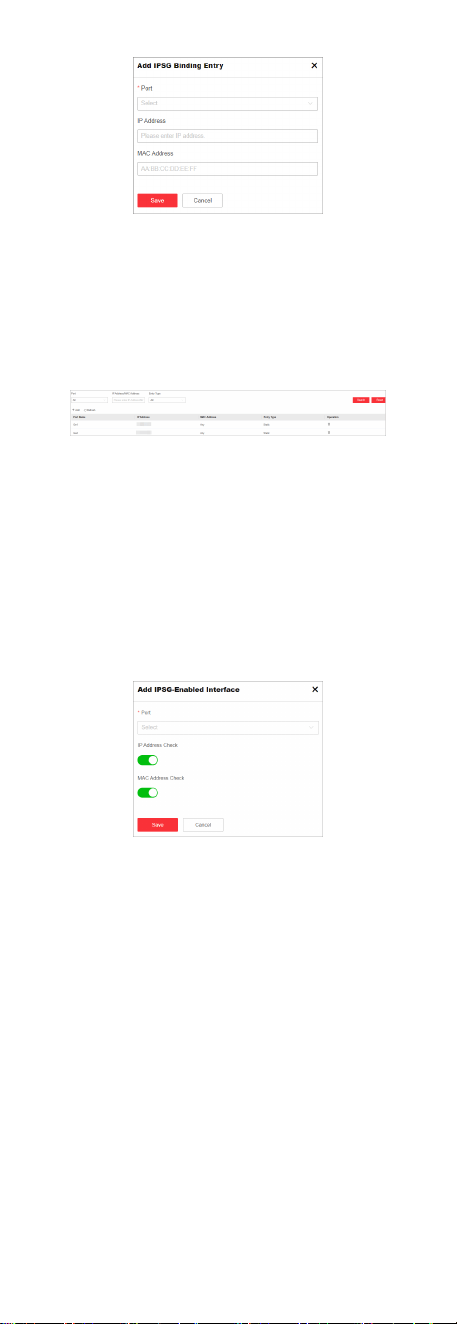
Figure 4-28 Add Stac Binding Entry
3. Set Port, IP Address, and/or MAC Address as required.
4. Click Save.
5. Oponal: Set the search criteria such as Port, IP Address/MAC
Address, or Entry Type to search the desired binding entry, or
delete a binding entry in the list below.
Figure 4-29 Search or Delete Binding Entry
Congure Source Address Check
IPSG lters packets received on Layer 2 interfaces against IP
addresses and/or MAC addresses in dynamic or stac binding
entries. These entries take
eect only when source address check
is enabled. Otherwise, all packets will be forwarded.
Steps
1. Go to Security → IP Source Guard → Source Address Check .
2. Click Add.
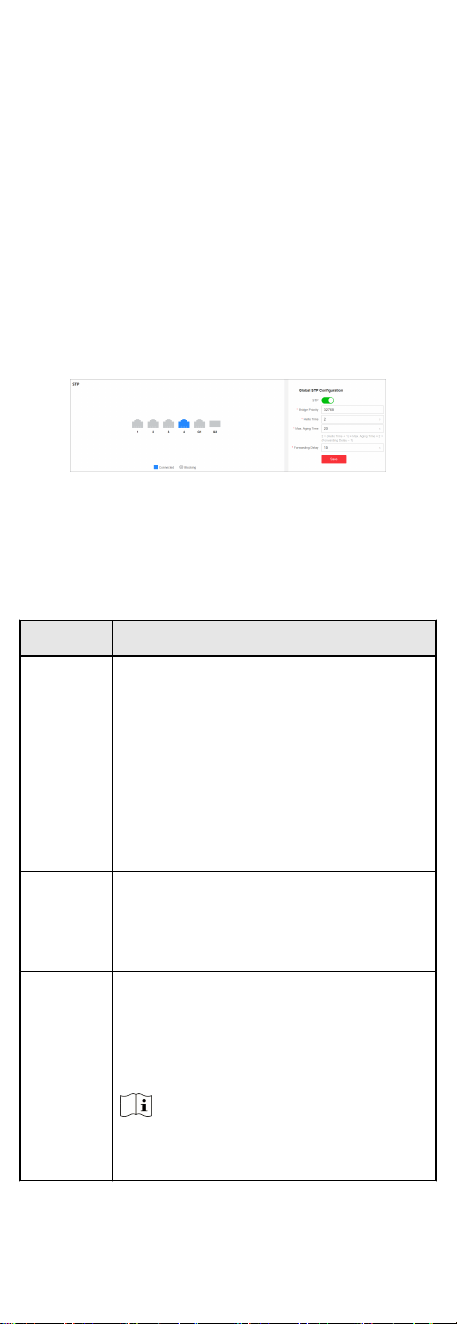
Figure 4-30 Congure IPSG Source Address Check
3. Select a desired port.
4. Enable IP Address Check and/or MAC Address Check as
required.
●
If only IP Address Check is enabled, packets are
ltered
against source IP addresses. Only packets whose source IP
address matches any binding entry are forwarded.
●
If only MAC Address Check is enabled, packets are
ltered
against source MAC addresses. Only packets whose source
MAC address matches any binding entry are forwarded.
●
If both IP Address Check and MAC Address Check are
enabled, packets are
ltered against both source IP address
and source MAC address. Only packets whose source IP and
MAC addresses simultaneously match any binding entry are
forwarded.
28
5. Click Save.
6. Oponal: View, edit or delete the ports congured with source
address check in the list below.
4.8 Loop Prevenon Conguraon
4.8.1 STP Conguraon
Spanning Tree Protocol (STP) is a layer-2 link management
protocol that provides path redundancy and prevents loops in a
network topology. STP uses a spanning-tree algorithm to select
one switch as the root of a spanning tree, and determines the
network topology by
transming Bridge Protocol Data Unit
(BPDU) packets between devices, helping to create a stable
network.
Steps
1. Go to L2
Conguraon → STP .
Figure 4-31 Congure STP
2.
In Global STP
Conguraon, enable STP.
3. Set the parameters as required.
Table 4-3 STP Parameters
Parameter Descripon
Bridge
Priority
●
The value ranges from 0 to 61440, in
an increment of 4096. The default
value is 32768. Valid values are 0,
4096, 8192, 12288, 16384, …, and
61440.
●
The smaller the value, the higher the
bridge priority of a switch. A switch
with higher bridge priority is more
likely to become the root bridge.
Hello Time
The interval between each BPDU that is
sent on a port, which is used for port link
diagnosis. The value ranges from 1 to 10
seconds. The default value is 2 seconds.
Max.
Aging
Time
The maximum length of me interval that
a STP-enabled switch port saves its
conguraon BPDU informaon. The value
ranges from 6 to 40 seconds. The default
value is 20 seconds.
Note
The Max. aging me must meet the
following condions: 2 × (Hello Time + 1)
29

Parameter Descripon
≤ Max. Aging Time ≤ 2 × (Forwarding
Delay – 1)
Forwardin
g Delay
The me interval that is spent in the
listening and learning state when the
topology changes. The value ranges from 4
to 30 seconds. The default value is 15
seconds.
4. Click Save.
5.
Oponal: Click Port Status or STP Status to view the STP status
of each port or global STP conguraon.
Note
●
The Port Status informaon includes the port name, path
cost, port role, and port status.
●
The STP Status informaon includes the bridge ID, root
bridge ID, as well as hello me, Max. aging me, and
forwarding delay of the root bridge.
4.8.2 ERPS Conguraon
By selecvely blocking redundant links, Ethernet Ring Protecon
Switching (ERPS) is a protocol used to prevent broadcast storms
and implement fast switchover on a network where loops occur,
which
eecvely ensures uninterrupted communicaon and
network reliability.
Steps
1. Go to L2
Conguraon → ERPS .
Figure 4-32 Congure ERPS
2. In Global ERPS Conguraon, enable ERPS.
ERPS and STP cannot be congured simultaneously.
3. In Port ERPS Conguraon, set Port 1, Port 2, and their roles
respecvely.
Owner
The primary node in an ERPS ring. An owner port is
responsible for blocking and unblocking trac over the Ring
Protecon Link (RPL) to prevent loops. An ERPS ring has only
one owner port.
Neighbor
The neighbor node in an ERPS ring. A neighbor port is
directly connected to an owner port. Both the owner port
and neighbor port(s) are blocked in normal
situaons to
prevent loops.
Common
Common ports refer to ring ports other than the owner and
neighbor ports. A common port monitors the status of a
30

directly-connected ERPS link and sends RAPS PDUs to nofy
the other ports of its link status changes.
Note
●
Port 1 and port 2 should be dierent ports.
●
ERPS conguraon is not supported by member ports in an
aggregaon group.
●
The roles of port 1 and port 2 cannot all be owner or
neighbor, or cannot be owner and neighbor simultaneously.
4. Set other parameters as required.
Table 4-4 ERPS Parameters
Paramet
er
Descripon
Control
VLAN
A control VLAN is congured in an ERPS ring
to transmit RAPS PDUs. Aer a port is added
to an ERPS ring congured with a control
VLAN, the port is automacally added to this
control VLAN. Dierent ERPS rings must use
dierent control VLANs.
The value ranges from 2 to 4094.
Packet
Level
Level of RAPS PDUs. The value ranges from 0
to 7.
Note
A node does not process RAPS PDUs with a
higher level than its own.
Guard
Timer
This mer is started aer the port detects
that a faulty link is recovered to prevent
unnecessary network apping caused by
message residue due to network forwarding
delay.
The value ranges from 10 to 2000
milliseconds.
Hold-o
Timer
This mer is started aer the port detects a
faulty link. If a fault persists aer the Hold-
o mer expires, this fault will be reported.
The Hold-o mer aects fault reporng
speed and link switchover performance
when a fault occurs.
The value ranges from 0 to 10000
milliseconds.
WTR
Timer
If the RPL owner port is blocked due to a link
fault, the port may not be Up immediately
aer the link is recovered. Blocking the RPL
owner port may cause network apping. To
prevent this problem, the node where the
31

Paramet
er
Descripon
RPL owner port is located starts the Wait to
Restore (WTR) mer aer receiving RAPS
PDUs to avoid frequent network apping
caused by intermient faulty links on the
ring network.
The value ranges from 1 to 12 minutes.
5. Click Save.
6. Oponal: View the ERPS node status and port status in the
ERPS Status list.
5 System Management
5.1 Network Conguraon
You can click on the home page to check Hik-Connect
connecon status, or go to System Management → Network
Conguraon for network conguraon, cloud plaorm
conguraon, and SADP conguraon.
Network
Conguraon
Figure 5-1 Congure Network
Set the IPv4 address, IPv4 subnet mask, default IPv4 gateway,
preferred DNS address, and alternate DNS address as required, or
enable DHCP for
automac IP address assignment.
Cloud
Plaorm Conguraon
If the device is displayed as oine when you add it to Hik-Partner
Pro, you need to modify the DNS server address and congure
Hik-Connect parameters.
Go to System Management → Network Conguraon → Cloud
Plaorm Conguraon , and ensure that Hik-Connect is enabled.
You can also check the operaon code, and bind the device to
your cloud account on Hik-Partner Pro app.
32
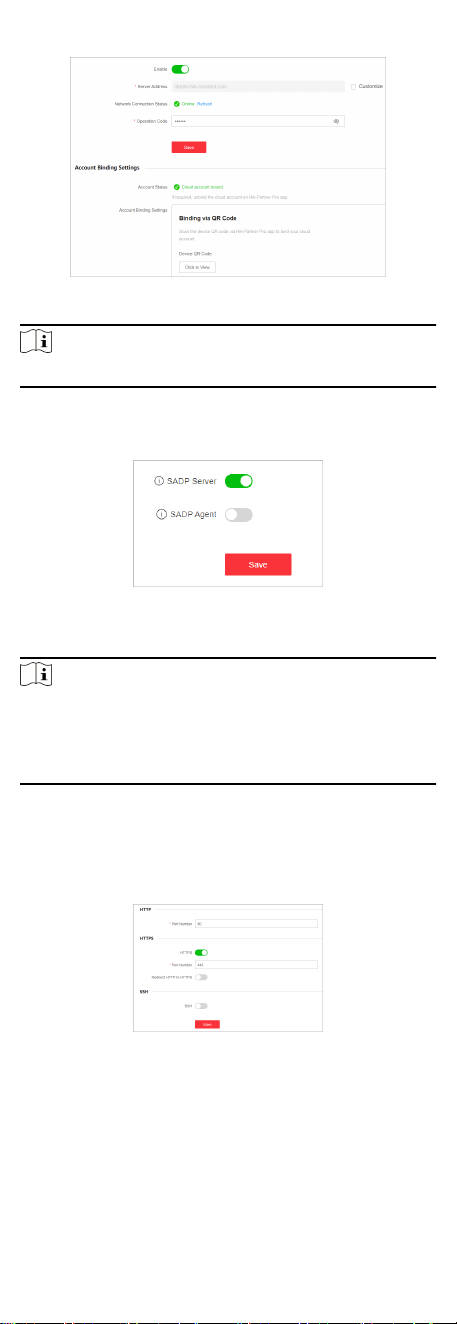
Figure 5-2 Congure Cloud Plaorm
Note
It takes several minutes for reconnecng to Hik-Connect service.
SADP Conguraon
Figure 5-3 Congure SADP
Enable SADP Server or SADP Agent as required.
Note
●
Aer SADP server is enabled, devices supporng SADP can be
searched and informaon about the devices is displayed.
●
Aer SADP agent is enabled, query requests are sent to the
LAN periodically (every minute) for network topology drawing.
Remote Management
Go to System Management → Network Conguraon → Remote
Management for remote device management via HTTP or HTTPS.
Figure 5-4 Manage Device Remotely
●
HTTP: Set Port Number and click Save.
33
Note
The HTTP port number should be an integer between 2000 and
65535, or 80 by default.
●
HTTPS: Set the parameters as required and click Save.
HTTPS
Enable or disable HTTPS.
Port Number
If HTTPS is enabled, set the HTTPS port number.
Note
The HTTPS port number should be an integer between 2000
to 65535, or 443 by default.
Redirect HTTP to HTTPS
Enable or disable Redirect HTTP to HTTPS.
Note
If Redirect HTTP to HTTPS is enabled, trac accessed
through port 80 will be automacally redirected to port 443.
●
SSH: SSH is used for fault locang by technical support, and is
not available to users.
5.2 Time Synchronizaon
Steps
1. Go to System Management → Time Conguraon .
2. Set Time Zone.
3. Set Time Sync Mode.
-
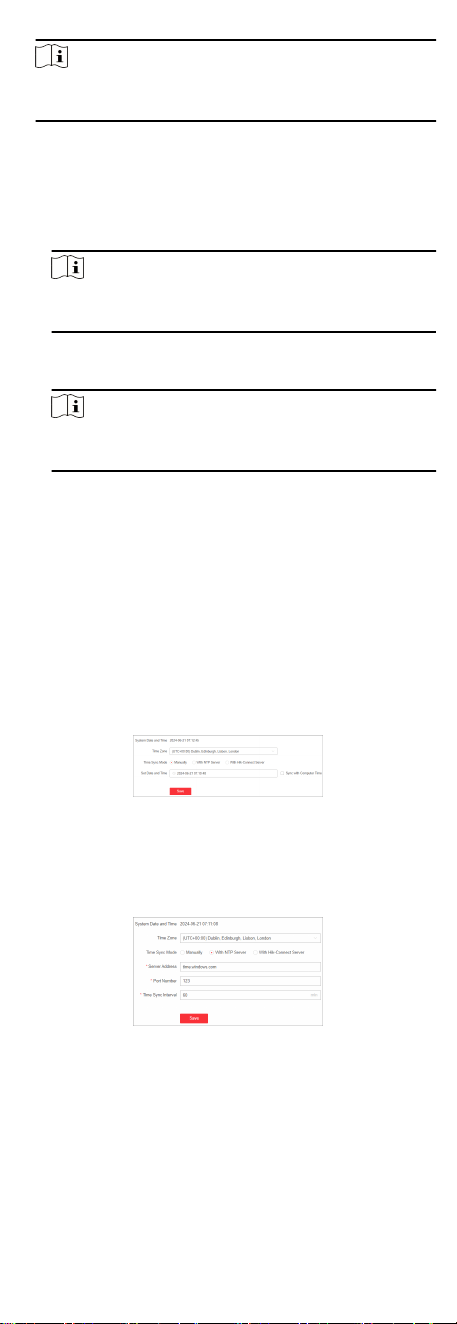
Manually: Manually set the date and me, or check Sync
with Computer Time to synchronize the system date and
me.
Figure 5-5
Congure Time Manually
-
With NTP Server: Enter the NTP server address, port
number, and
me sync interval for automac me
synchronizaon.
Figure 5-6
Congure Time with NTP Server
-
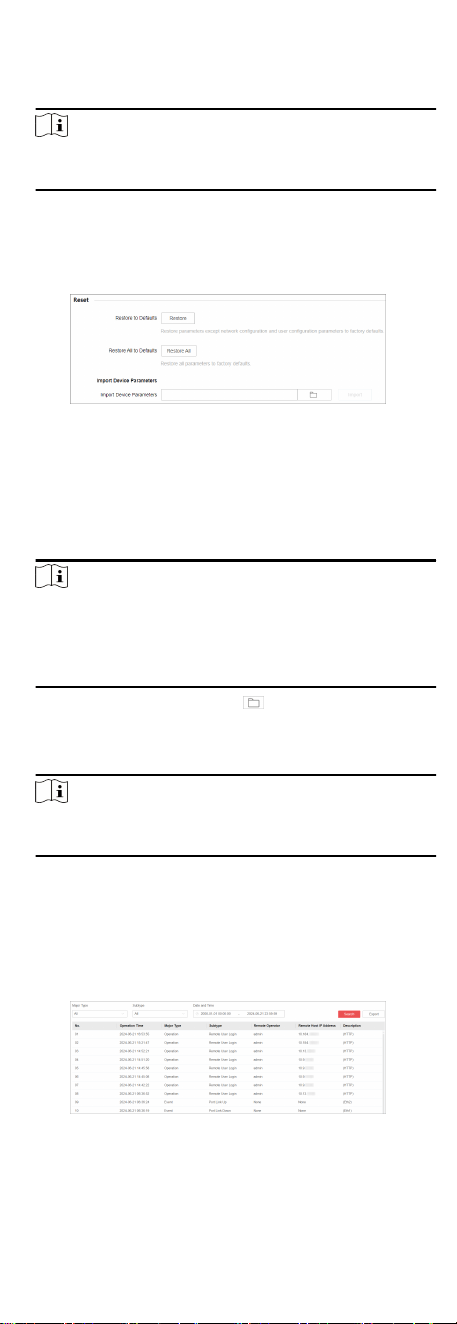
With Hik-Connect Server: Use the Hik-Connect server for
automac me calibraon and synchronizaon. You do not
need to congure any parameters.
34
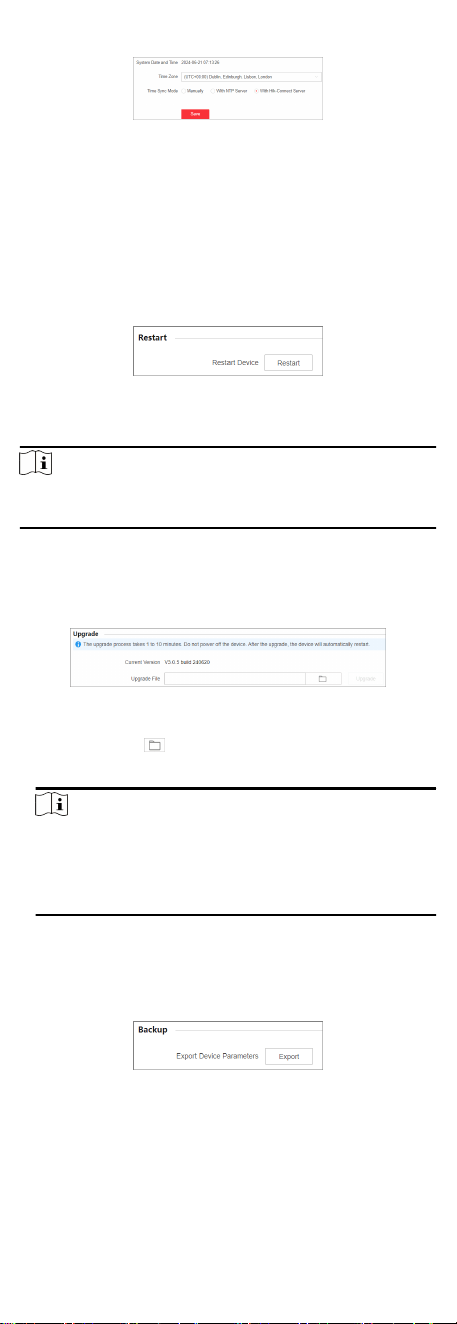
Figure 5-7 Congure Time with Hik-Connect Server
4. Click Save.
5.3 System Maintenance
Go to System Management → System Maintenance to restart,
upgrade, back up, or reset the device.
Restart Device
Figure 5-8 Restart
In Restart, click Restart to remotely restart the switch.
Note
You will enter the login page automacally aer the device is
restarted.
Upgrade Device
Upload an upgrade le to upgrade the switch.
Figure 5-9 Upgrade
1.
In Upgrade, click to select an upgrade patch le.
2. Click Upgrade.
Note
-
If upgrading failed or the device cannot funcon, please
contact our technical support engineers.
-
The device will restart automacally to enter the login
page aer upgrade is completed.
Back Up Device
Export the conguraon le for local backup.
Figure 5-10 Back Up
35
1. In Backup, click Export to export the conguraon le
containing device parameters.
2. Set a password and conrm the password for le encrypon.
Note
Remember the password as it is required when imporng
device parameters.
3. Click OK.
Reset Device
Figure 5-11 Reset
●
Restore to Defaults: Click Restore to restore parameters except
network conguraon and user conguraon parameters to
factory defaults.
●
Restore All to Defaults: Click Restore All to restore all
parameters to factory defaults.
Note
○
The device parameters cannot be recovered once being
restored to factory defaults.
○
The device will restart automacally aer being restored
to factory defaults.
●
Import Device Parameters: Click to select the conguraon
le containing device parameters, click Import, enter the
password for
le decrypon, and then click OK to import the
conguraon le for fast device conguraon.
Note
The device will restart automacally to enter the login page
aer the conguraon le is imported.
5.4 Log Management
System operaon logs can be searched and exported for backup.
Steps
1. Go to System Management → System Maintenance → Log
Management .
Figure 5-12 Manage Logs
36

2. Set search condions, including Major Type, Subtype, and
Date and Time.
3. Click Search.
Note
A maximum of 1024 search results can be displayed. Please
narrow down the search scope if there are too many search
results.
4. Oponal: Click Export to export all the search results.
Note
Logs can be exported as a TXT le. A prompt will pop up aer
logs are exported successfully.
37