
Switch Client
User Manual

Legal Informaon
©2022 Hangzhou Hikvision Digital Technology Co., Ltd. All rights reserved.
About this Manual
The Manual includes instrucons for using and managing the Product. Pictures, charts, images and
all other informaon hereinaer are for descripon and explanaon only. The informaon
contained in the Manual is subject to change, without noce, due to rmware updates or other
reasons. Please nd the latest version of this Manual at the Hikvision website ( hps://
www.hikvision.com/ ).
Please use this Manual with the guidance and assistance of professionals trained in
supporng the
Product.
Trademarks
and other Hikvision's trademarks and logos are the properes of
Hikvision in various jurisdicons.
Other trademarks and logos menoned are the properes of their respecve owners.
Disclaimer
TO THE MAXIMUM EXTENT PERMITTED BY APPLICABLE LAW, THIS MANUAL AND THE PRODUCT
DESCRIBED, WITH ITS HARDWARE, SOFTWARE AND FIRMWARE, ARE PROVIDED "AS IS" AND "WITH
ALL FAULTS AND ERRORS". HIKVISION MAKES NO WARRANTIES, EXPRESS OR IMPLIED, INCLUDING
WITHOUT LIMITATION, MERCHANTABILITY, SATISFACTORY QUALITY, OR FITNESS FOR A PARTICULAR
PURPOSE. THE USE OF THE PRODUCT BY YOU IS AT YOUR OWN RISK. IN NO EVENT WILL HIKVISION
BE LIABLE TO YOU FOR ANY SPECIAL, CONSEQUENTIAL, INCIDENTAL, OR INDIRECT DAMAGES,
INCLUDING, AMONG OTHERS, DAMAGES FOR LOSS OF BUSINESS PROFITS, BUSINESS
INTERRUPTION, OR LOSS OF DATA, CORRUPTION OF SYSTEMS, OR LOSS OF DOCUMENTATION,
WHETHER BASED ON BREACH OF CONTRACT, TORT (INCLUDING NEGLIGENCE), PRODUCT LIABILITY,
OR OTHERWISE, IN CONNECTION WITH THE USE OF THE PRODUCT, EVEN IF HIKVISION HAS BEEN
ADVISED OF THE POSSIBILITY OF SUCH DAMAGES OR LOSS.
YOU ACKNOWLEDGE THAT THE NATURE OF THE INTERNET PROVIDES FOR INHERENT SECURITY
RISKS, AND HIKVISION SHALL NOT TAKE ANY RESPONSIBILITIES FOR ABNORMAL OPERATION,
PRIVACY LEAKAGE OR OTHER DAMAGES RESULTING FROM CYBER-ATTACK, HACKER ATTACK, VIRUS
INFECTION, OR OTHER INTERNET SECURITY RISKS; HOWEVER, HIKVISION WILL PROVIDE TIMELY
TECHNICAL SUPPORT IF REQUIRED.
YOU AGREE TO USE THIS PRODUCT IN COMPLIANCE WITH ALL APPLICABLE LAWS, AND YOU ARE
SOLELY RESPONSIBLE FOR ENSURING THAT YOUR USE CONFORMS TO THE APPLICABLE LAW.
ESPECIALLY, YOU ARE RESPONSIBLE, FOR USING THIS PRODUCT IN A MANNER THAT DOES NOT
INFRINGE ON THE RIGHTS OF THIRD PARTIES, INCLUDING WITHOUT LIMITATION, RIGHTS OF
PUBLICITY, INTELLECTUAL PROPERTY RIGHTS, OR DATA PROTECTION AND OTHER PRIVACY RIGHTS.
YOU SHALL NOT USE THIS PRODUCT FOR ANY PROHIBITED END-USES, INCLUDING THE
Switch Client User Manual
i

DEVELOPMENT OR PRODUCTION OF WEAPONS OF MASS DESTRUCTION, THE DEVELOPMENT OR
PRODUCTION OF CHEMICAL OR BIOLOGICAL WEAPONS, ANY ACTIVITIES IN THE CONTEXT RELATED
TO ANY NUCLEAR EXPLOSIVE OR UNSAFE NUCLEAR FUEL-CYCLE, OR IN SUPPORT OF HUMAN
RIGHTS ABUSES.
IN THE EVENT OF ANY CONFLICTS BETWEEN THIS MANUAL AND THE APPLICABLE LAW, THE LATTER
PREVAILS.
Switch Client User Manual
ii
Preface
Applicable Models
This manual is applicable to the iVMS-4200 client of switches.
Symbol Convenons
The symbols that may be found in this document are dened as follows.
Symbol Descripon
Danger
Indicates a hazardous situaon which, if not avoided, will or could
result in death or serious injury.
Cauon
Indicates a potenally hazardous situaon which, if not avoided, could
result in equipment damage, data loss, performance degradaon, or
unexpected results.
Note
Provides addional informaon to emphasize or supplement
important points of the main text.
Safety Instrucons
Danger
●
This is a class A product and may cause radio interference in which case the user may be
required to take adequate measures.
●
Ensure that your devices powered via the PoE port have their shells protected and re-proofed,
because the switches are not compliant with the Limited Power Source (LPS) standard.
●
In the use of the product, you must be in strict compliance with the electrical safety
regulaons
of the naon and region.
●
The socket-outlet shall be installed near the device and shall be easily accessible.
●
The device must be connected to an earthed mains socket-outlet.
●
Install the device according to the
instrucons in this manual.
●
indicates hazardous live and the external wiring connected to the terminals requires
installaon by an instructed person.
●
Keep body parts away from fan blades. Disconnect the power source during servicing.
Switch Client User Manual
iii

●
Never place the device in an unstable locaon. The device may fall, causing serious personal
injury or death.
●
This device is not suitable for use in locaons where children are likely to be present.
Cauon
●
CAUTION: Double pole/Neutral fusing. Aer operaon of the fuse, parts of the device that
remain energized might represent a hazard during servicing.
●
The device has been designed, when required, modied for connecon to an IT power
distribuon system.
●
This device is suitable for
mounng on concrete or other non-combusble surface only.
●
The venlaon should not be impeded by covering the venlaon openings with items, such as
newspapers, table-cloths, curtains, etc. The openings shall never be blocked by placing the
device on a bed, sofa, rug or other similar surface.
●
No naked ame sources, such as lighted candles, should be placed on the device.
●
The device shall not be exposed to dripping or splashing and that no objects
lled with liquids,
such as vases, shall be placed on the device.
●
Burned ngers when handling the cover area of the device. Wait one-half hour aer switching
o before handling the parts.
●
CLASS 1 LASER PRODUCT
Switch Client User Manual
iv

Contents
Chapter 1 Product Introducon .................................................................................................. 1
Chapter 2 Device Management ................................................................................................... 2
2.1 Acvate Device ...................................................................................................................... 2
2.2 Add Device ............................................................................................................................. 4
Chapter 3 Device Status .............................................................................................................. 6
Chapter 4 Topology Management ............................................................................................... 7
4.1 Related Operaons ................................................................................................................ 7
4.2 Topology Sengs ................................................................................................................... 8
Chapter 5 Network
Conguraon ............................................................................................. 10
Chapter 6 Device Conguraon ................................................................................................ 13
6.1 Port Conguraon ................................................................................................................ 13
6.1.1
Aribute Conguraon ............................................................................................... 13
6.1.2 Long-Range Port Conguraon ................................................................................... 14
6.1.3 PoE Port Conguraon ................................................................................................ 15
6.2 Link
Aggregaon Conguraon ............................................................................................ 16
Chapter 7 System Conguraon ................................................................................................ 19
7.1 Device Informaon .............................................................................................................. 19
7.2 User Management ............................................................................................................... 19
7.3 Device Maintenance ............................................................................................................ 20
7.4 Log Management ................................................................................................................. 21
7.5 Security
Conguraon ......................................................................................................... 23
7.6 Time Conguraon .............................................................................................................. 24
Chapter 8 Appendix .................................................................................................................. 25
8.1
Communicaon Matrix ........................................................................................................ 25
8.2 Device Command ................................................................................................................. 25
Switch Client User Manual
v

Chapter 1 Product Introducon
The switches support management through the iVMS-4200 client, including network topology
management, network
conguraon, port management, etc.
Note
All pictures in this manual are only for illustraon, and the specic interfaces are subject to the
actual device.
Switch Client User Manual
1
Chapter 2 Device Management
You can perform device conguraon and management on the iVMS-4200 client, mainly including
network parameter
conguraon, port conguraon, network topology management, etc.
Note
This chapter will briey introduce device management via iVMS-4200 client. For other funcons,
please refer to iVMS-4200 Client User Manual.
2.1 Acvate Device
For an inacve device, you are required to create a password to acvate it before it can be added
to the client and work properly.
Before You Start
Make sure that the device to be
acvated is connected to the network and is in the same network
segment with the PC running the client.
Steps
Note
This funcon should be supported by the device.
1.
Click Maintenance and Management → Device Management → Device .
2.
Click Online Device.
The searched online devices are displayed in the online device list.
3.
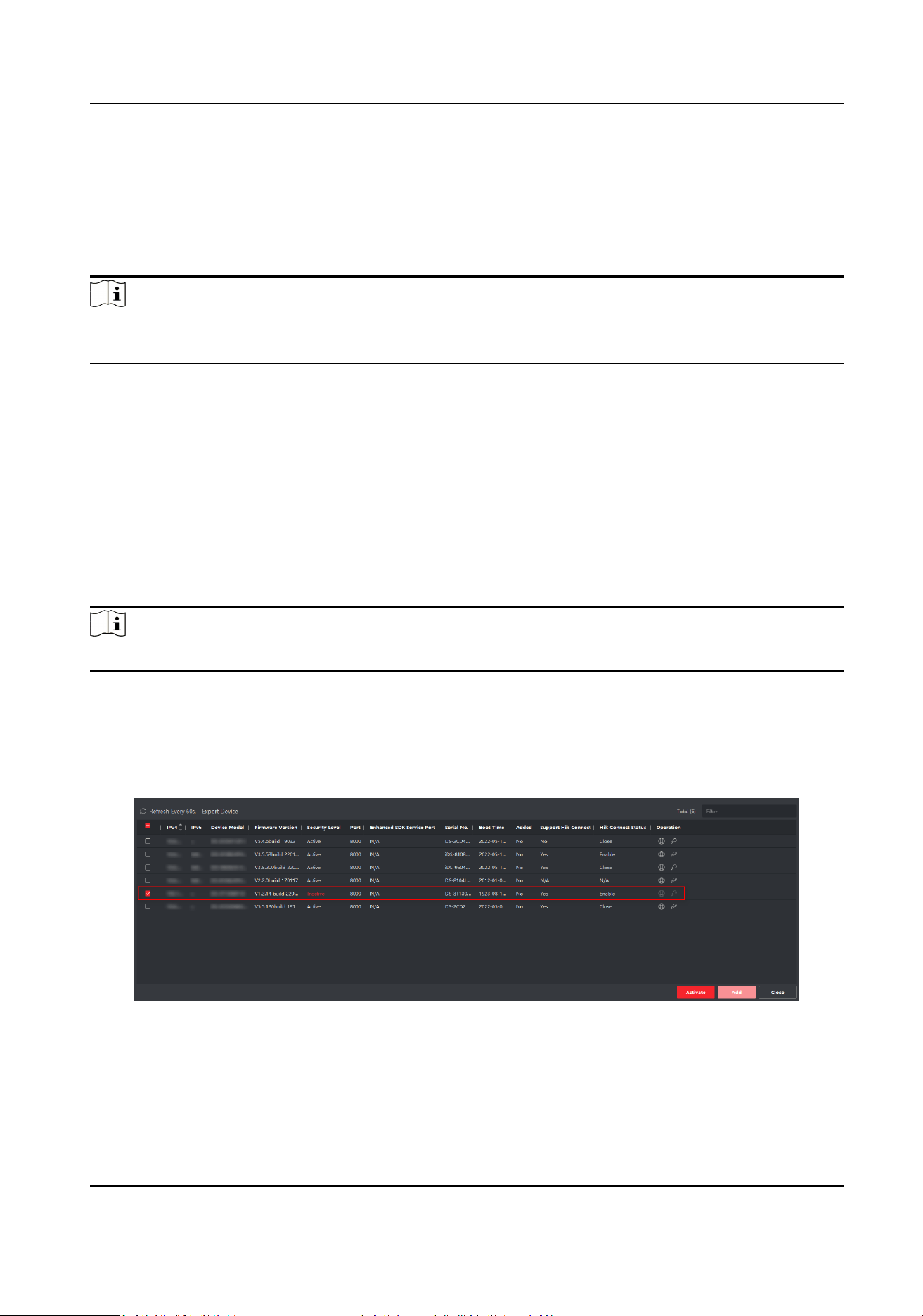
Check the device status (shown in the Security Level column), and select an
inacve device.
Figure 2-1 Online Device List
4.
Click Acvate.
Switch Client User Manual
2
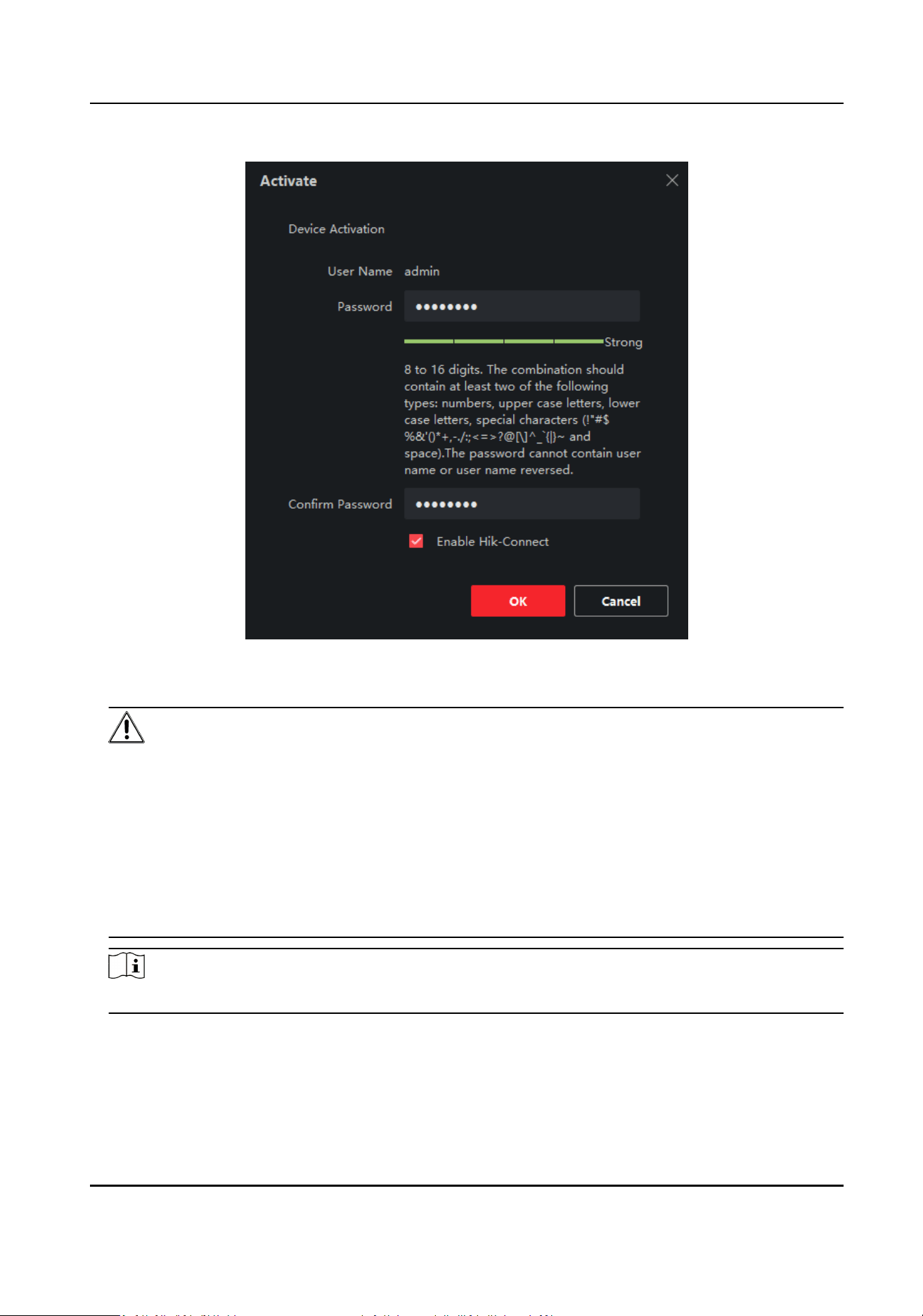
Figure 2-2 Acvate Device
5.
Create a password in the password eld, and conrm the password.
Cauon
●
The password strength of the device can be automacally checked. We highly recommend you
change the password of your own choosing (using a minimum of 8 characters, including at
least three kinds of the following categories: uppercase leers, lowercase leers, digits, and
special characters) in order to increase the security of your product. And we recommend you
change your password regularly, especially in the high security system. Changing the password
monthly or weekly can
beer protect your product.
●
Proper
conguraon of all passwords and other security sengs is the responsibility of the
installer and/or end-user.
Note
The password cannot contain "admin" or its reverse.
6.
Oponal: Check Enable Hik-Connect if the device supports Hik-Connect service.
7.
Click OK.
Switch Client User Manual
3

2.2 Add Device
The client provides various device adding modes, including IP/domain, IP segment, Hik-Connect,
ISUP, and HiDDNS. The client also supports imporng mulple devices in a batch when a large
number of devices are to be added. This secon introduces only one mode, namely, adding a
detected online device.
Steps
1.
Click Device Management → Device.
2.
Click Online Device.
The searched online devices are displayed in the online device list.
3.
Select an online device.
4.
Click Add.
Note
For the inacve device, you need to create a password for it before you can add the device
properly. For detailed steps, please refer to Acvate Device .
5.
Enter the required informaon.
Name
Enter a descripve name for the device.
IP Address
Enter the device's IP address. The IP address of the device is obtained automacally in this
adding mode.
Port
You can customize the port number. The port number of the device is obtained automacally
in this adding mode.
User Name
By default, the user name is admin.
Password
Enter the device password.
Cauon
●
The password strength of the device can be automacally checked. We highly recommend
you change the password of your own choosing (using a minimum of 8 characters,
including at least three kinds of following categories: uppercase leers, lowercase leers,
digits, and special characters) in order to increase the security of your product. And we
Switch Client User Manual
4

recommend you change your password regularly, especially in the high security system.
Changing the password monthly or weekly can beer protect your product.
●
Proper conguraon of all passwords and other security sengs is the responsibility of the
installer and/or end-user.
6.
Oponal: Check TLS to enable transmission encrypon using TLS (Transport Layer Security)
protocol for security purpose.
7.
Check Synchronize Time to synchronize the device
me with the PC running the client aer
adding the device to the client.
8.
Oponal: Check Import to Group to create a group by device name, and import all channels of
the device to this group.
9.
Click Add.
10.
Oponal: Perform the following operaon(s).
Remote
Conguraon
Click in the Operaon column to perform remote conguraon
for the corresponding device.
Device Status Click in the Operaon column to view device status, including
recording status, signal status, hardware status, etc.
Edit Device
Informaon
Click in the Operaon column to edit the device informaon,
such as IP address, user name, and password.
Check Online User Click in the Operaon column to check the online users who
access the device. The user informaon includes user name, user
type, user's IP address, and login me.
Refresh Click in the Operaon column to get the latest device
informaon.
Delete Device Select one or mulple devices, and click Delete to delete the
selected device(s) from the client.
Switch Client User Manual
5
Chapter 3 Device Status
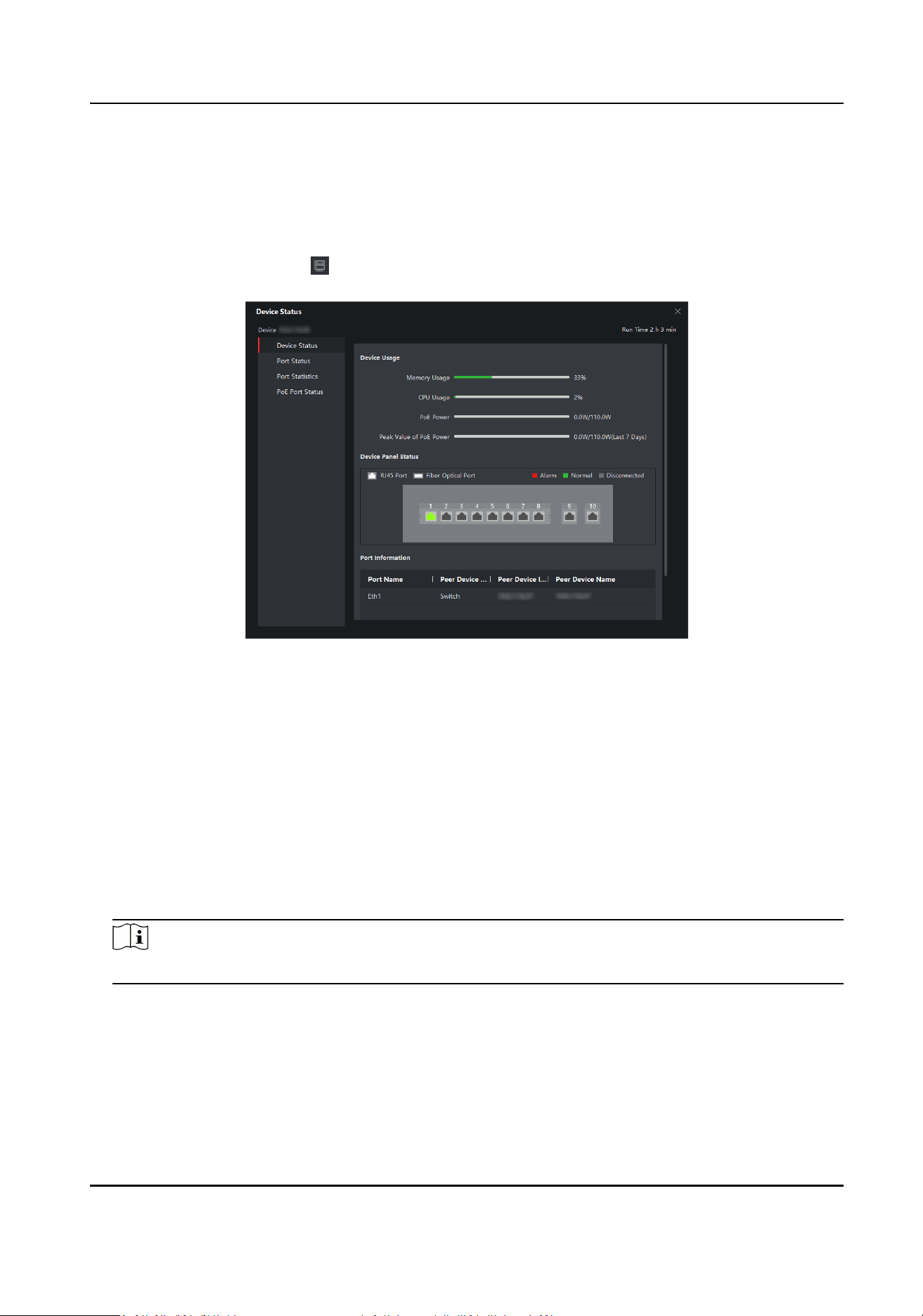
You can view the device status, port status, port stascs, and PoE port status.
Click Device →
Operaon → .
Figure 3-1 Device Status
Device Status
You can view the device usage, device panel status, and port informaon.
Port Status
You can view the bitrate, duplex mode, and ow control enabling status of each port.
Port Stascs
You can view the number of bytes sent or received, the number of packets sent or received,
sending or receiving rate, and peak value of the sending or receiving rate. You can also set the
interval at which port
stascs are automacally refreshed, manually refresh port stascs, or
clear port
stascs.
Note
You can drag the scroll bar to view all stascs.
PoE Port Status
For devices that support PoE, you can view the PoE enabling status and output power of each
RJ45 port.
Switch Client User Manual
6
Chapter 4 Topology Management
You can view and congure the topology between devices added.
4.1 Related Operaons
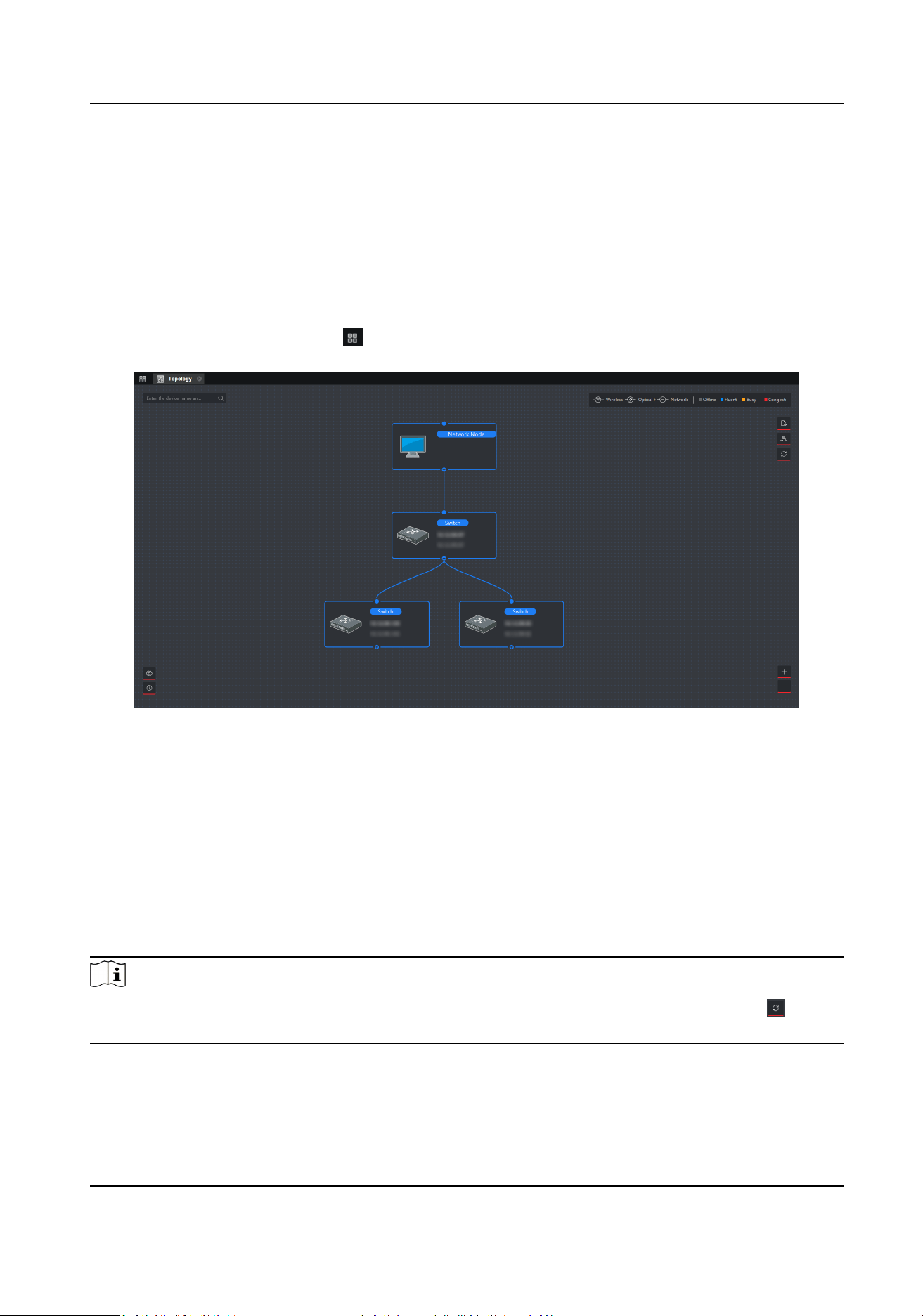
Select an added device, and click → General Applicaon → Topology .
Figure 4-1 Topology Management
Interface
Descripon
●
In the upper le corner, you can enter a device name or IP address to search the device.
●
In the upper right corner, you can view the meanings of
dierent link icons and colors, select two
devices to show the ash of signal transmission between them, and export or refresh the
topology view.
●
In the lower
le corner, you can perform topology sengs and view the ps.
●
In the lower right corner, you can click the icons or scroll your mouse wheel to zoom in or out on
the topology.
Note
If no topology is displayed when you access the topology interface for the rst me, click to
refresh the topology view or get topology again.
Switch Client User Manual
7
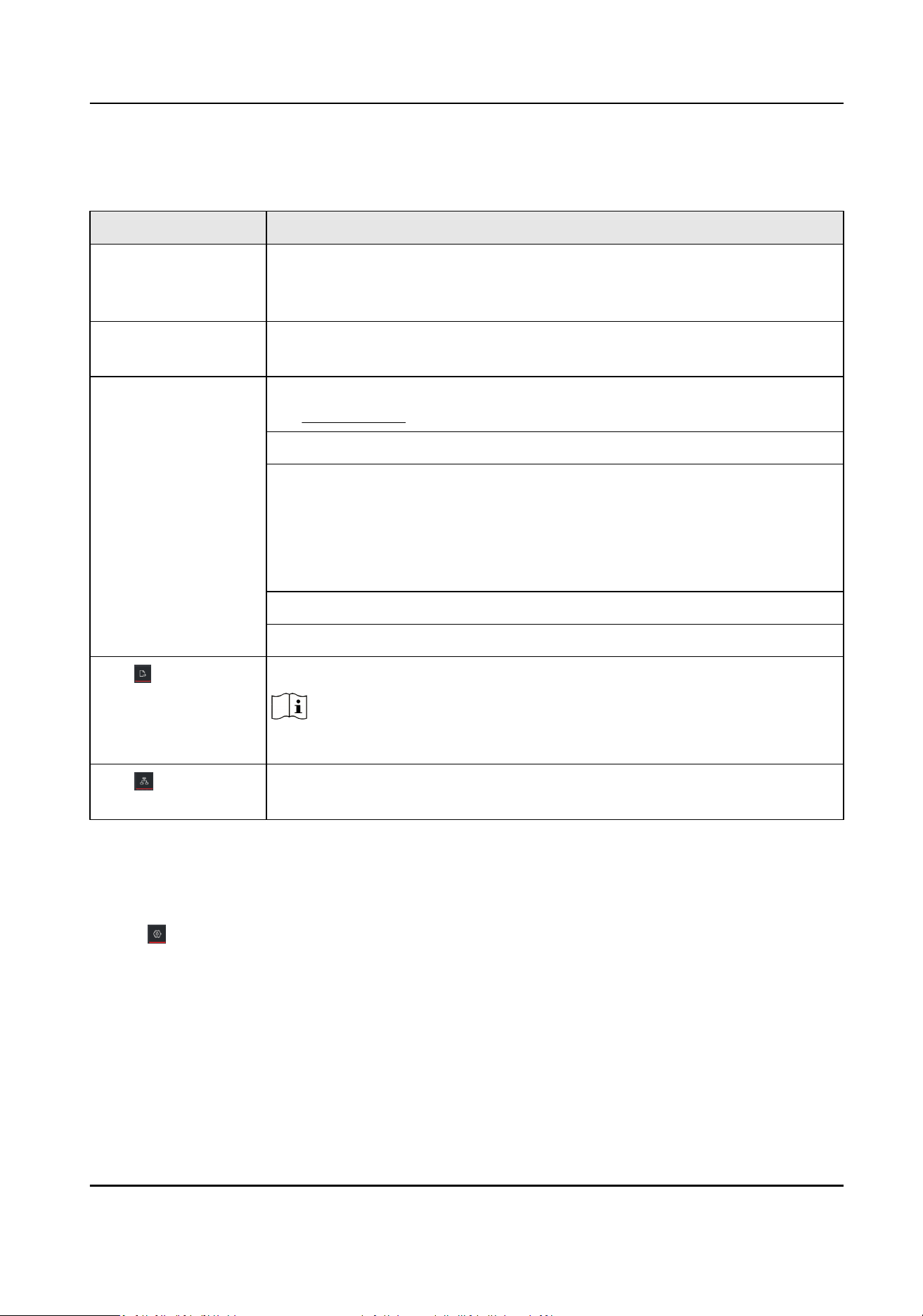
Related Operaons
Operaon Descripon
Double-click a device
to view the device
details.
You can view the type and IP address, usage, panel status, and port
informaon of the device.
Double-click a link to
view the link details.
You can view the transmission rate and devices at both ends of the link.
Right-click a device,
and select Device
Status, Event
Handling, Remote
Conguraon, Edit
Name, or Set as Root
Node from the
shortcut menu.
Device Status: You can jump to the Device Status interface. For details,
see Device Status .
Event Handling: You can view the event informaon, or clear events.
Remote Conguraon:
●
You can click Remote Conguraon → Basic Sengs to jump to the
web page. For detailed operaons, click Help in the upper right corner.
●
You can click Remote
Conguraon → Advanced Funcon to jump to
the Remote
Conguraon interface of the client.
Edit Name: You can edit the device name.
Set as Root Node: You can set the device as the root node.
Click to export the
topology view.
You can select the saving path and format, and export the topology view.
Note
The default format is PDF.
Click to show the
transmission path.
You can select a network camera (IPC) and the current device to show the
ash of signal transmission between them.
4.2 Topology Sengs
Steps
1.
Click in the lower le corner to edit topology sengs.
Switch Client User Manual
8
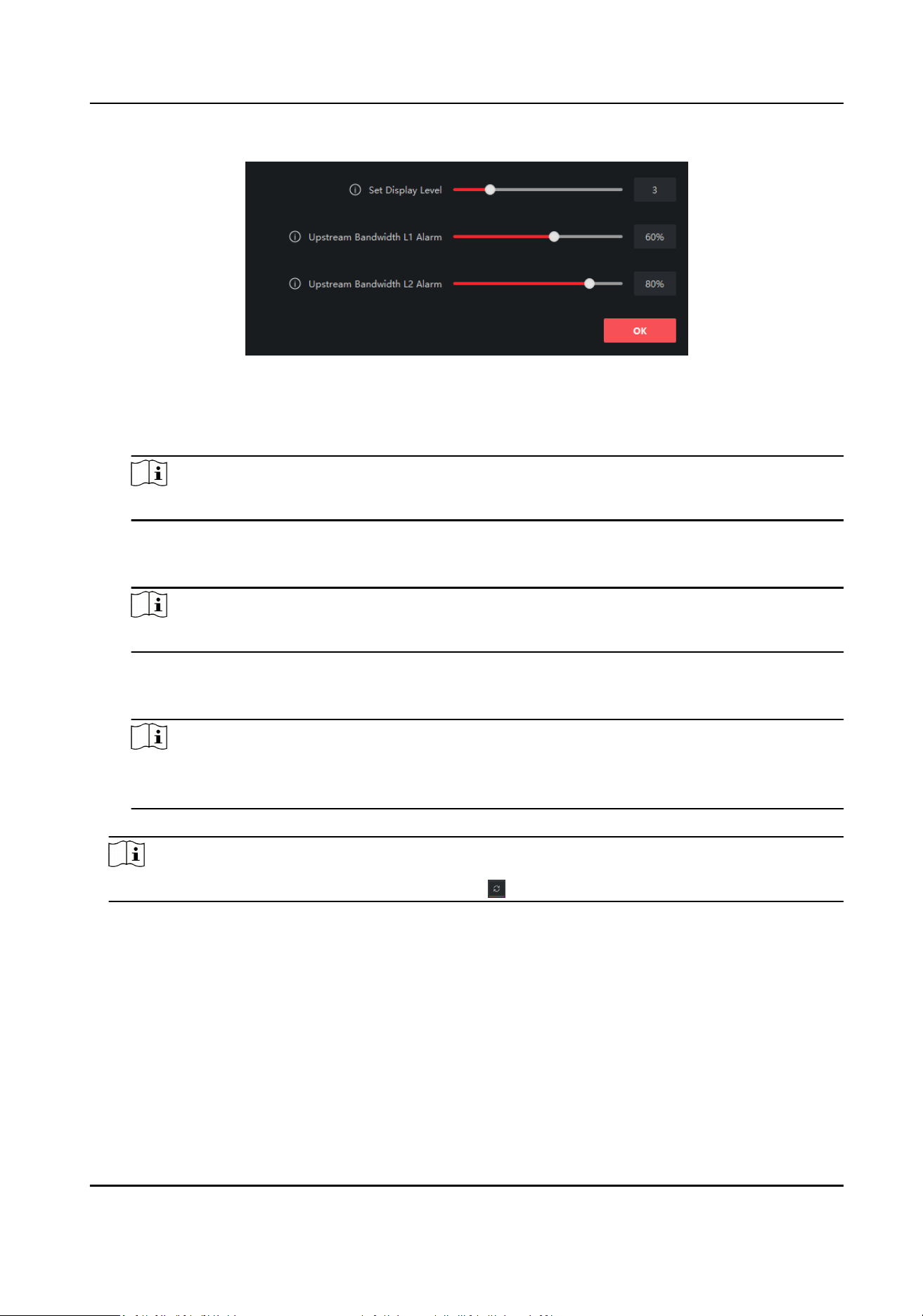
Figure 4-2 Topology Sengs
Set Display Level
Set the topology display level. The value ranges from 1 to 10.
Note
You need to manually refresh the topology view for the seng to take eect.
Upstream Bandwidth L1 Alarm
Set the L1 alarm threshold of upstream bandwidth. The value ranges from 1% to 100%.
Note
The link will turn yellow (busy) when the upstream bandwidth exceeds this threshold.
Upstream Bandwidth L2 Alarm
Set the L2 alarm threshold of upstream bandwidth. The value ranges from 1% to 100%.
Note
●
The link will turn red (congested) when the upstream bandwidth exceeds this threshold.
●
The L2 alarm threshold must be larger than the L1 alarm threshold.
2.
Click OK.
Note
Aer topology sengs are changed, you can click to view the latest topology.
Switch Client User Manual
9
Chapter 5 Network Conguraon
You can set network parameters as required.
Note
●
You can click Network → General to set device network parameters, or click Network →
Advanced Sengs and Network → Hik-Connect Sengs to perform DNS and Hik-Connect
conguraon for troubleshoong if a device is displayed as oine when being added to the Hik-
ProConnect app.
●
DNS and Hik-Connect conguraon is supported only when the client version is V2.8.1 or later.
General Sengs
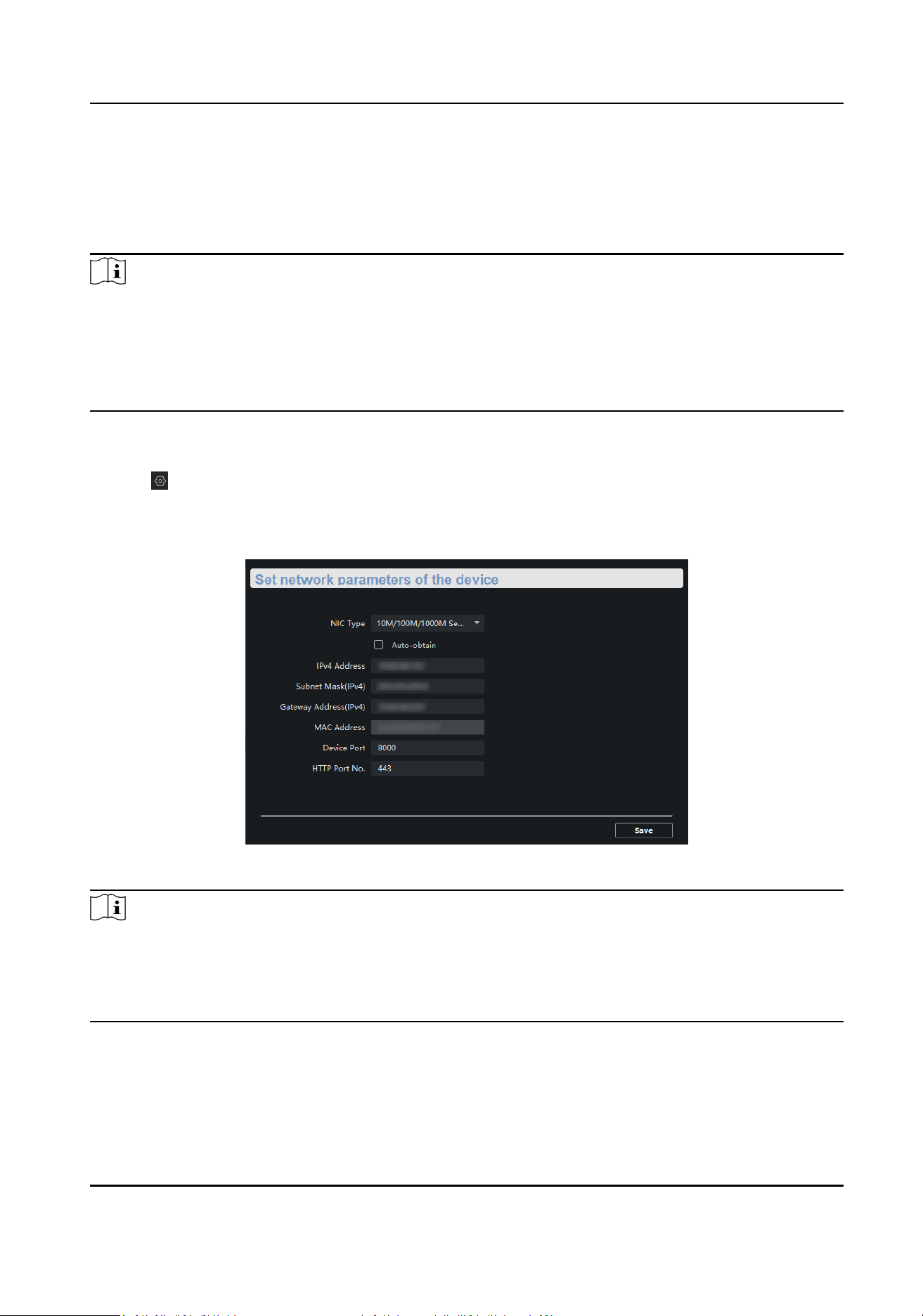
1. Click → Advanced Funcon in the Operaon column of the desired device.
2. Click Remote
Conguraon → Network → General .
3. Set the IPv4 address, subnet mask, MAC address, etc.
Figure 5-1 General Sengs
Note
Aer the IPv4 address is reset, the IP address of the device may not be in the same network
segment as that of the PC running the client. As a result, device conguraon and management
cannot be performed. You are recommended to set a planned IP address for the device when
acvang it for the rst me on SADP.
Switch Client User Manual
10
DNS Sengs (Oponal)
Note
●
If a device is successfully added to the Hik-ProConnect app, you do not need to congure the
DNS IP addresses. The client automacally uses the preset DNS IP addresses.
●
If a device is displayed as oine when being added to the Hik-ProConnect app, the preset DNS IP
addresses may be invalid. In this case, the DNS IP addresses need to be manually
congured.
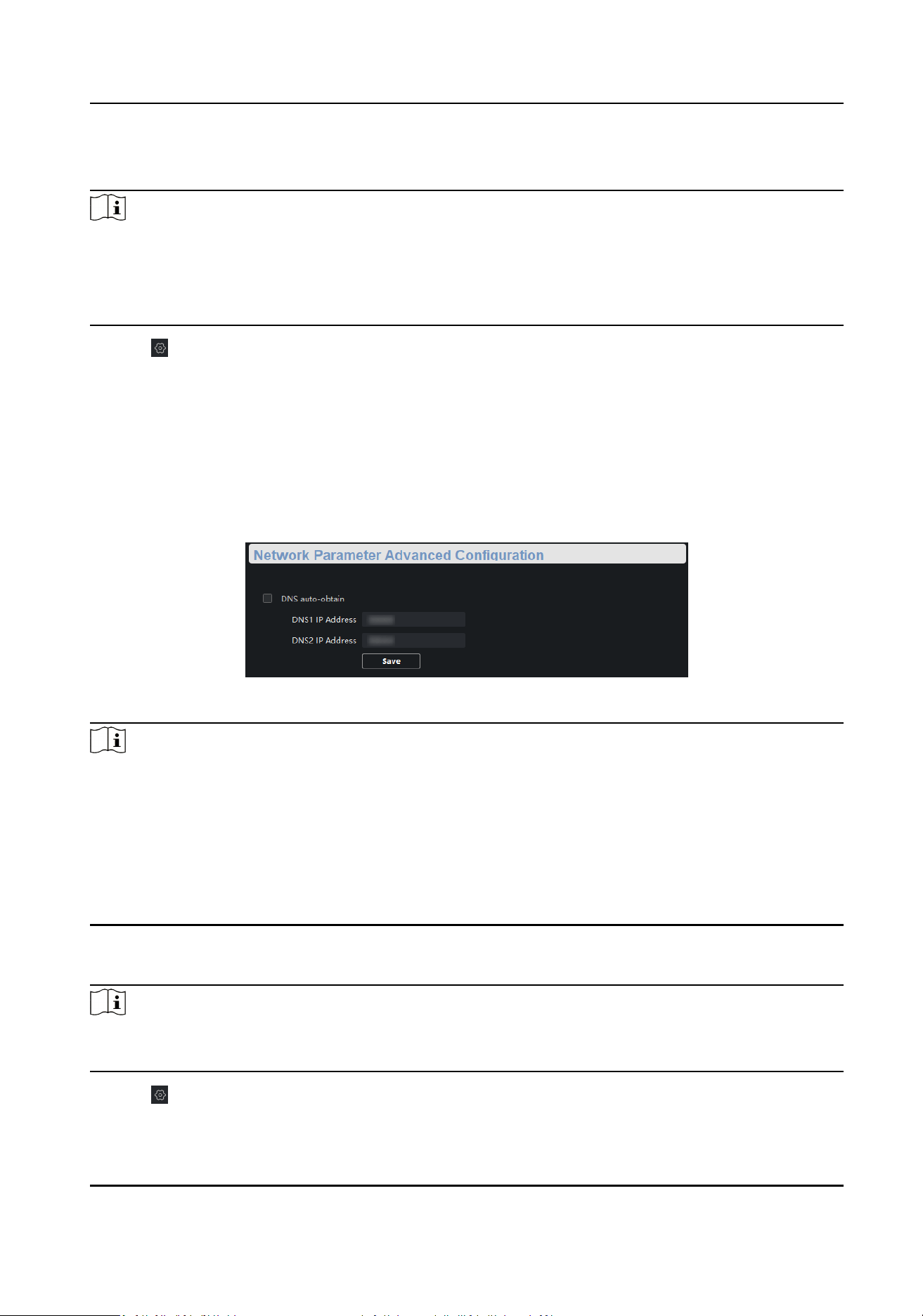
1. Click → Advanced Funcon in the Operaon column of the desired device.
2. Click Remote Conguraon → Network → Advanced Sengs .
3.
Congure DNS IP addresses in either of the following ways.
-
Connect the PC to a network, open the Command Prompt window, and execute the
ipcong/all command to view the IP addresses of DNS servers. Then, enter the two IP
addresses in the text boxes.
-
Search for public DNS servers on the Internet, and enter the corresponding IP addresses in
the text boxes.
Figure 5-2 DNS Sengs
Note
●
The funcon of automacally obtaining DNS IP addresses is available only aer you check DNS
auto-obtain in Network → Advanced Sengs . Currently, DNS auto-obtain cannot be checked
as this funcon is not supported.
●
You are recommended to
congure two DNS IP addresses simultaneously. If the rst IP address is
invalid, the client will
automacally use the second one. If both IP addresses are invalid, please
recongure DNS IP addresses. Aer conguraon is complete, you can verify if the IP addresses
are valid.
Hik-Connect Sengs (Oponal)
Note
If a device is displayed as oine when being added to the Hik-ProConnect app, you need to
perform Hik-Connect sengs in addion to reconguring DNS IP addresses.
1. Click → Advanced Funcon in the Operaon column of the desired device.
2. Click Remote
Conguraon → Network → Hik-Connect Sengs .
Switch Client User Manual
11
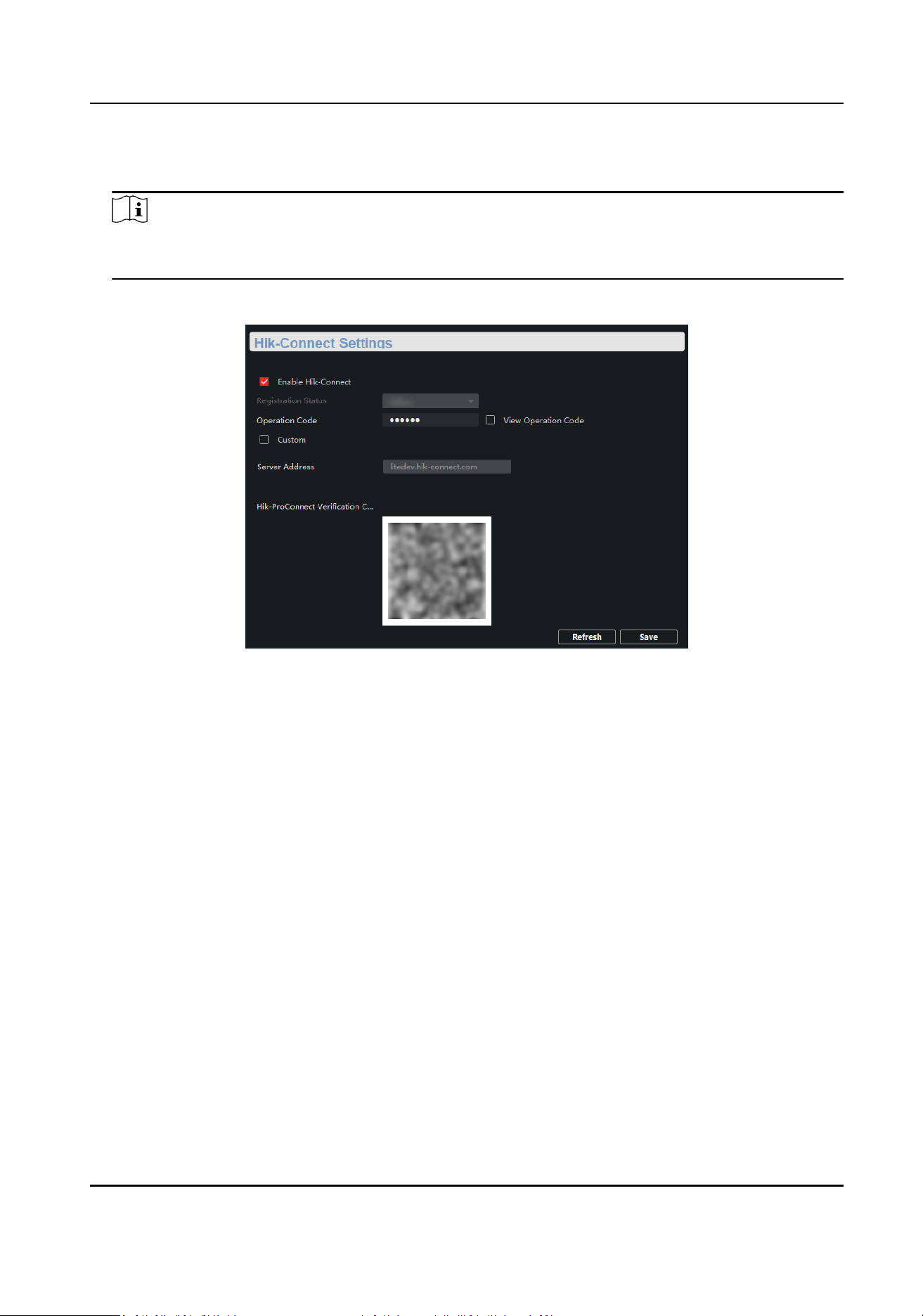
3. Check Enable Hik-Connect.
4. Check View Operaon Code.
Note
Make sure that the vericaon code entered for manually adding a device to the Hik-
ProConnect app is the same as the operaon code.
5. Click Save.
Figure 5-3 Hik-Connect Sengs
Switch Client User Manual
12
Chapter 6 Device Conguraon
Note
●
You can click OK to make your device conguraons take eect. Alternavely, to prevent invalid
conguraons caused by device powering-o, you can click Save All → Save All → Save to save
all your conguraons.
●
Ports vary with
dierent device models. The actual interfaces shall prevail.
6.1 Port Conguraon
You can perform port aribute conguraon, long-range port conguraon, and PoE port
conguraon.
6.1.1
Aribute Conguraon
Basic parameters can inuence the working statuses of ports. You can congure the rates, duplex
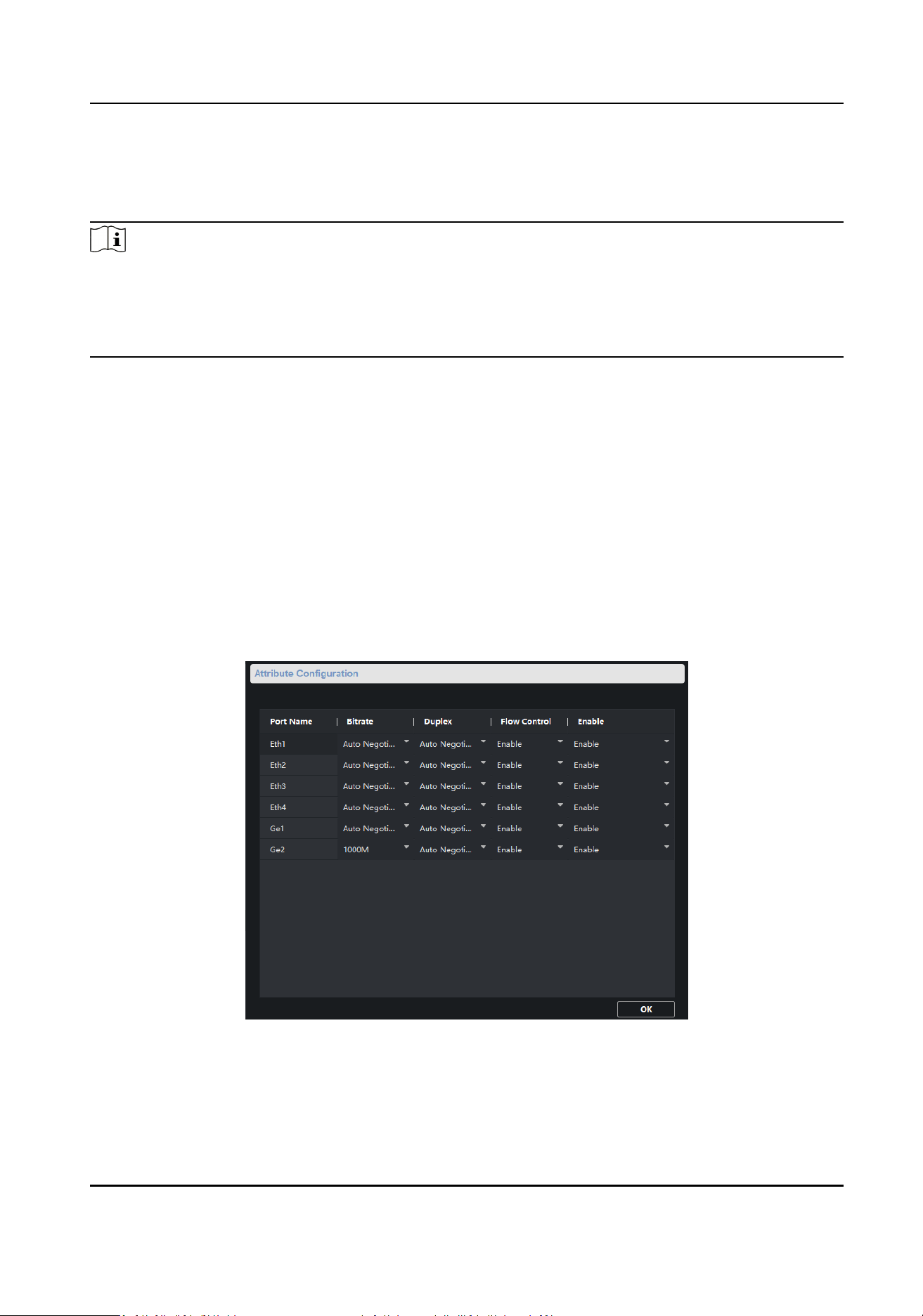
modes, and ow control enabling statuses of ports, and enable or disable ports as required.
Click Remote
Conguraon → Port Conguraon → Aribute Conguraon .
Figure 6-1 Aribute Conguraon
Bitrate
Switch Client User Manual
13

Data transmission rate of a port. The value can be auto negoaon, 10 Mbps, 100 Mbps, or
1000 Mbps. The default value is Auto Negoaon. Congurable rates vary with dierent ports.
Duplex
Duplex mode of a port. The value can be auto negoaon or full duplex. The default value is
Auto Negoaon. Congurable modes vary with dierent ports.
Flow Control
Flow control enabling status of a port. Enabling
ow control can prevent data loss during data
transmission. The default value is Enable.
Enable
Enabling status of a port. Aer a port is disabled, it stops data transmission, but supplies power
to another device.
Note
The rates, duplex modes, and ow control enabling statuses of ports in an aggregaon group must
be the same.
6.1.2 Long-Range Port Conguraon
Aer the long-range mode is enabled for a port, the transmission distance of the port can reach
300 meters, and the rate is forcibly congured as 10 Mbps. Aer the long-range mode is disabled,
the rate of the port is restored to auto
negoaon.
Switch Client User Manual
14
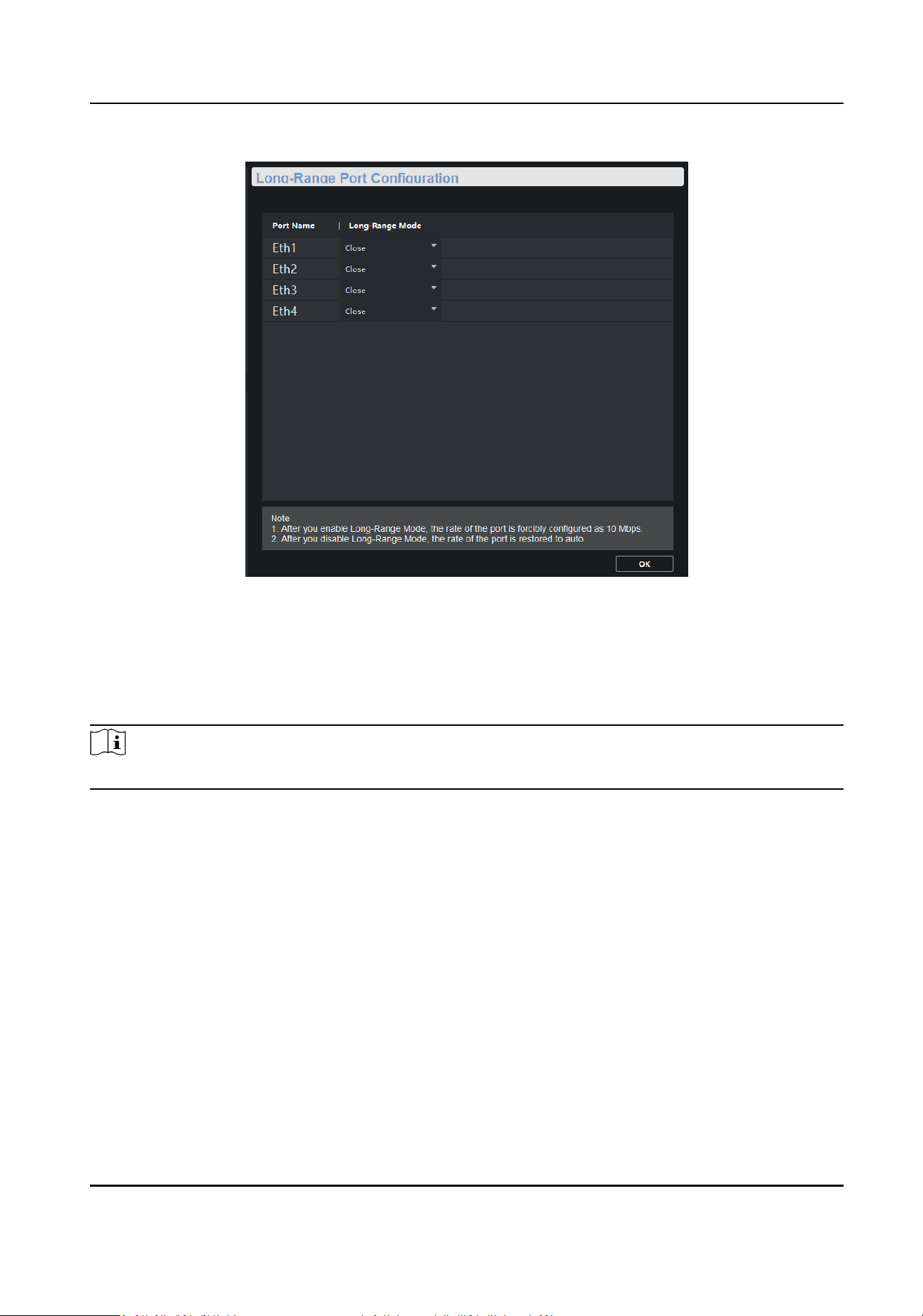
Figure 6-2 Long-Range Port Conguraon
6.1.3 PoE Port
Conguraon
You can enable the PoE funcon of a port to supply power to a powered device (PD).
Note
Enabling or disabling PoE does not aect data transmission of a port.
Switch Client User Manual
15
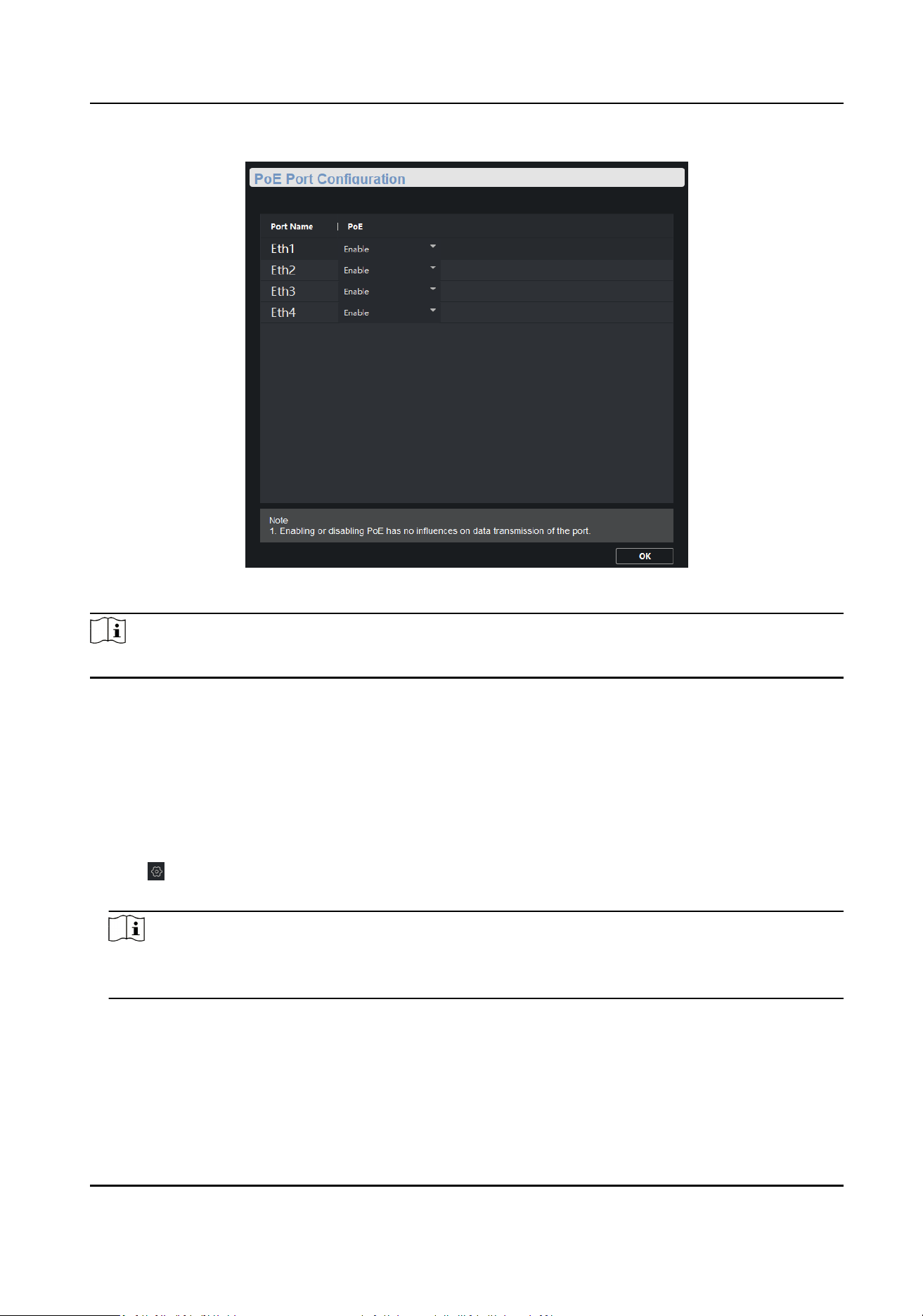
Figure 6-3 PoE Port Conguraon
Note
PoE port conguraon is only allowed for devices that support PoE.
6.2 Link Aggregaon Conguraon
Link aggregaon is a mechanism used to aggregate physical ports to create a logical enty called
link bundle. The
benets of link aggregaon include increased bandwidth, load balancing, and
higher reliability.
Steps
1.
Click → Advanced Funcon in the Operaon column of the desired device.
2.
Click Link
Aggregaon → Link Aggregaon Conguraon → Load Balancing Mode .
Note
The load balancing mode is set to Source and Desnaon MAC by default, and is not
congurable.
Switch Client User Manual
16
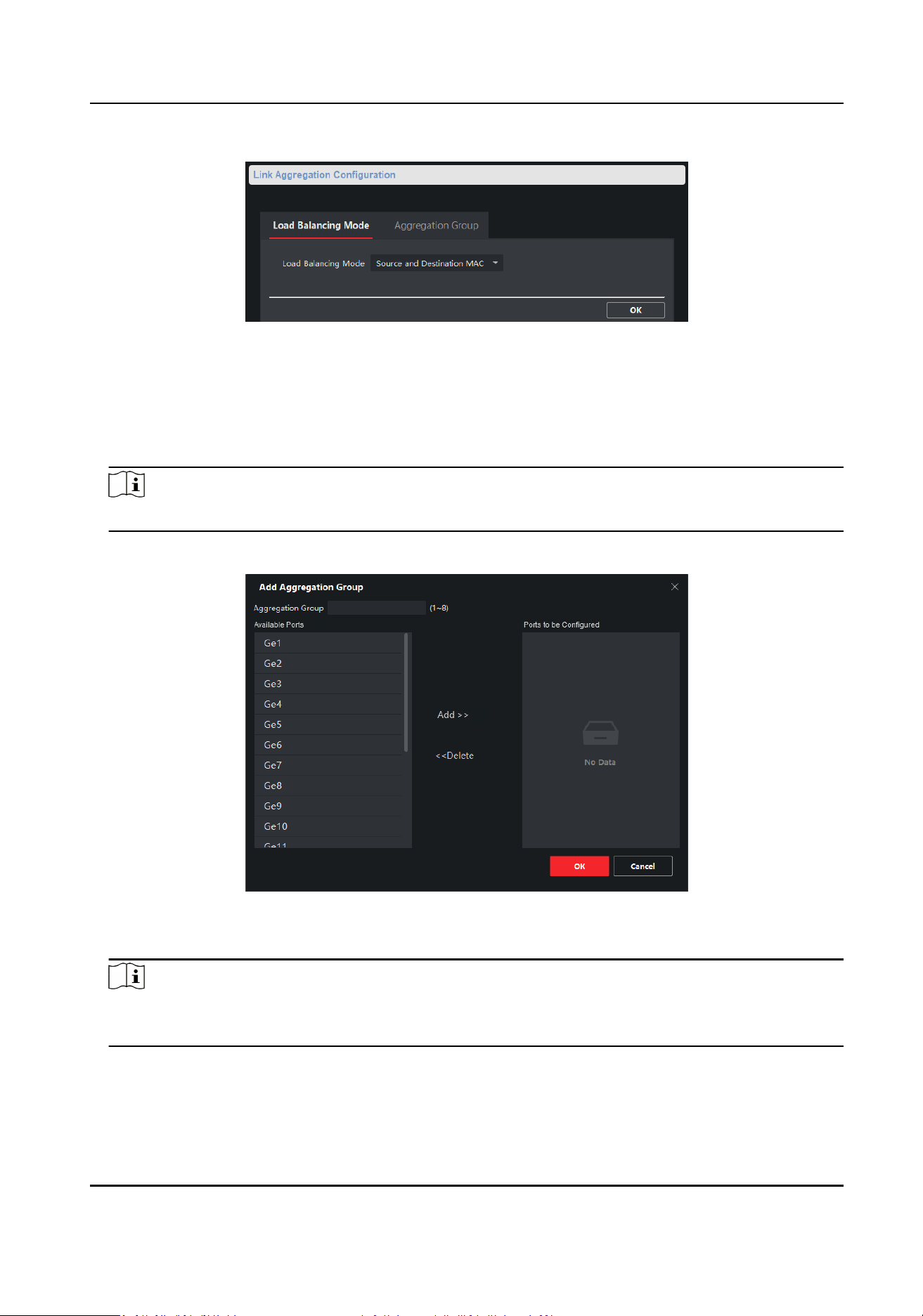
Figure 6-4 Load Balancing Mode Conguraon
Source and Desnaon MAC
Load balancing is performed based on source and desnaon MAC addresses on all the
packets.
3.
Click Link
Aggregaon → Link Aggregaon Conguraon → Aggregaon Group .
Note
Only gigabit ports can be added to an aggregaon group for link aggregaon.
4.
Click Add.
Figure 6-5 Add Aggregaon Group
5.
Enter a group ID in the Aggregaon Group eld.
Note
The number of supported aggregaon groups varies depending on the number of device ports,
and the actual interface prevails.
6.
Move the ports that are to be assigned to the group from the Available Ports list to the Ports to
be Congured list.
7.
Click OK.
Switch Client User Manual
17

Note
●
You can delete the ports from the Ports to be Congured by clicking Delete.
●
Up to 4 ports can be added to a link aggregaon group.
●
The rate, duplex mode, ow control, and long-range conguraons of all ports in an
aggregaon group must be the same.
8.
Oponal: Select the aggregaon group, and click Delete to delete it.
Switch Client User Manual
18
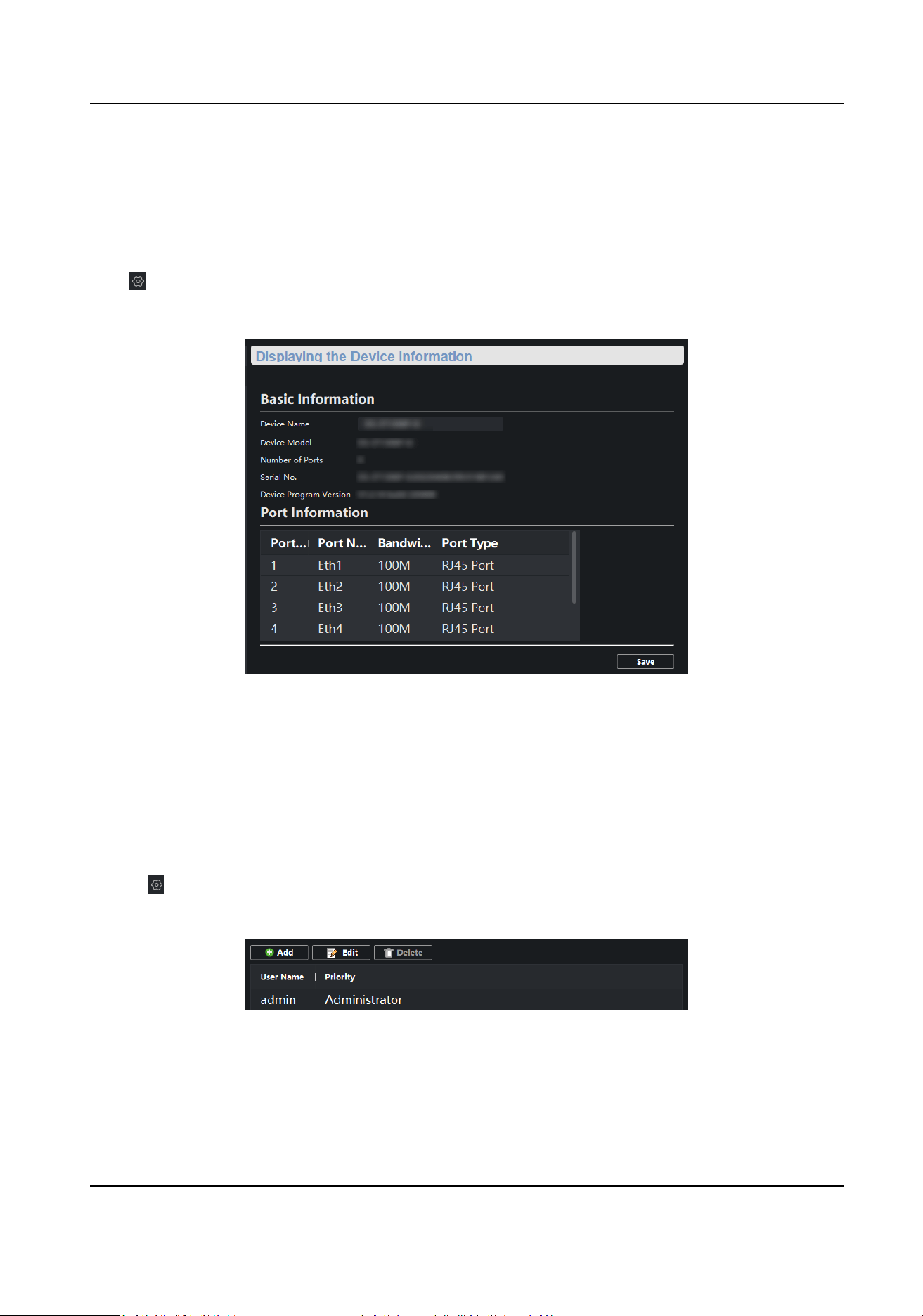
Chapter 7 System Conguraon
7.1 Device Informaon
Click → Advanced Funcon → System → Device Informaon to view the basic device
informaon, including device name, device model, number of ports, and port informaon.
Figure 7-1 Device Informaon
7.2 User Management
Only one admin user is allowed. You cannot add a user or delete the admin user, but can edit the
password and permissions of the admin user.
Steps
1.
Click → Advanced Funcon in the Operaon column of the desired device.
2.
Click System → User .
Figure 7-2 User Management
3.
Select the admin user.
4.
Click Edit to edit the password and permissions of the user.
Switch Client User Manual
19
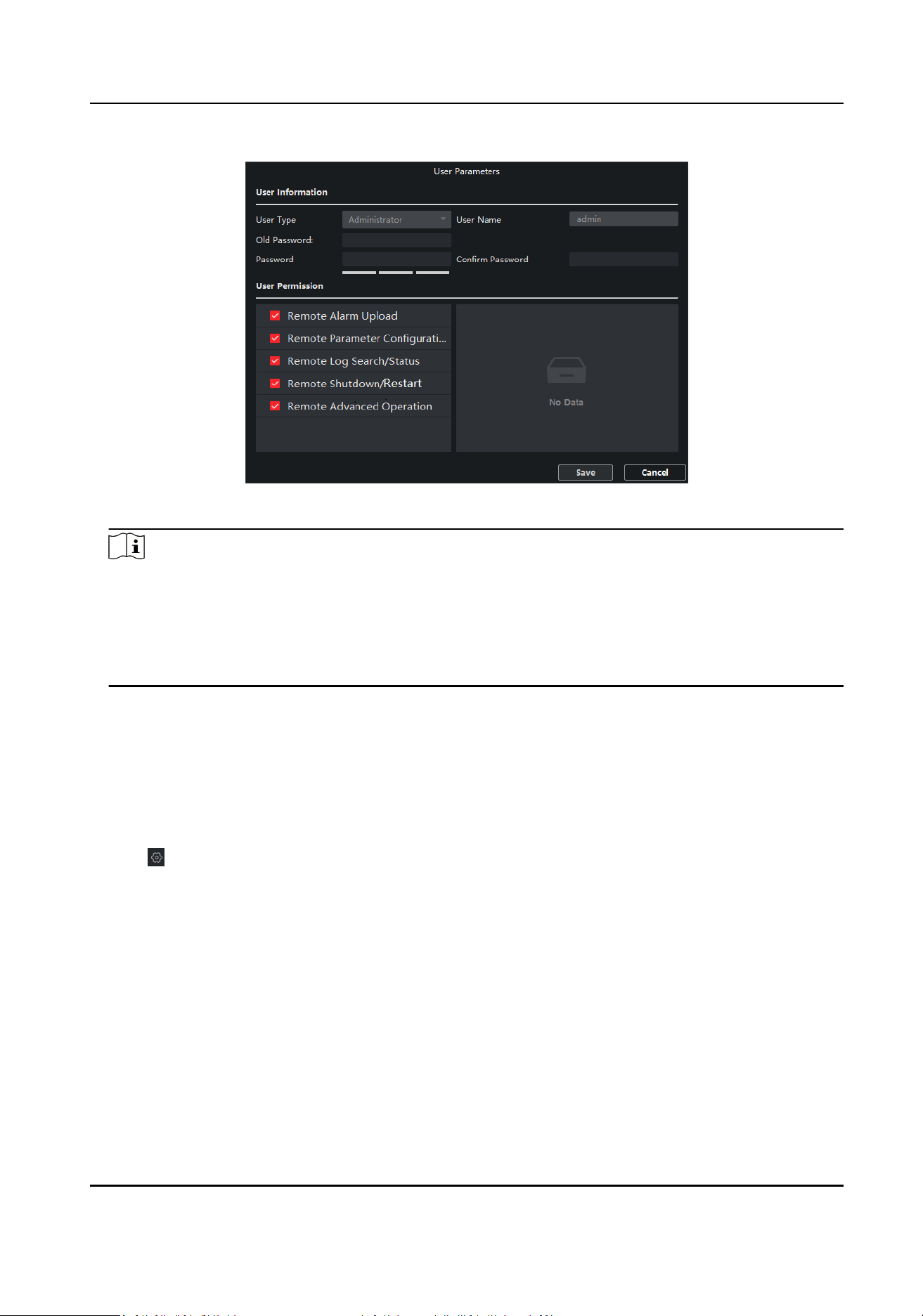
Figure 7-3 User Parameters
Note
●
8 to 16 characters allowed for a password, including at least 2 of the following types: digits,
lowercase leers, uppercase leers, and special characters. The password strength of the
device can be automacally checked. We highly recommend you change your password
regularly in order to increase the security of your product.
●
Currently, eding user permissions is not supported.
7.3 Device Maintenance
You can restart your device, restore the defaults, import and export conguraon les, or upload
an upgrade
le to upgrade your device.
Steps
1.
Click → Advanced Funcon in the Operaon column of the desired device.
2.
Click System → System Maintenance .
Switch Client User Manual
20
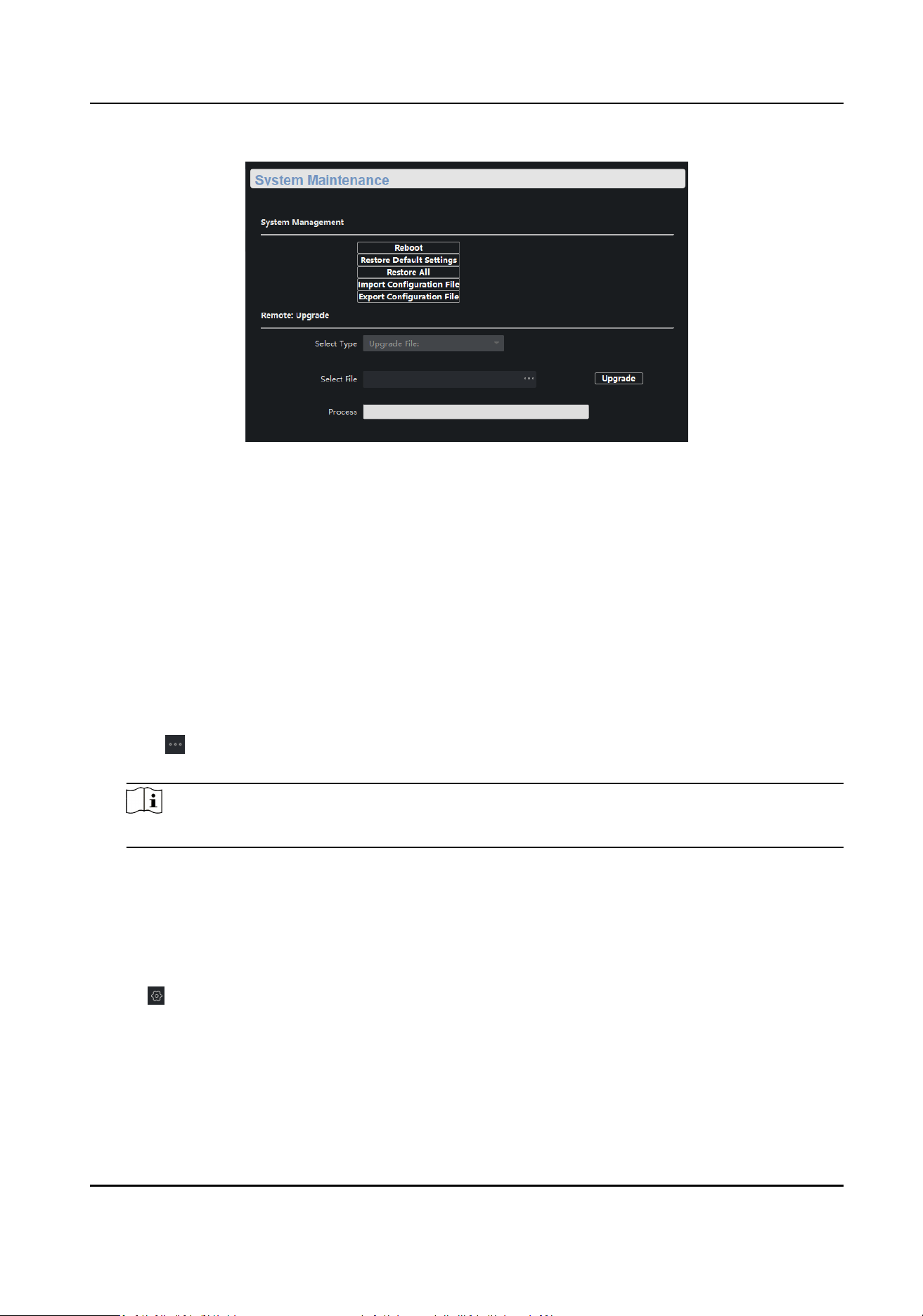
Figure 7-4 System Maintenance
3.
Click a buon or icon to realize the desired funcon.
●
Click Reboot to remotely restart the device.
●
Click Restore Default Sengs to restore all parameters except network parameters and user
parameters to factory sengs.
●
Click Restore All to restore all parameters to factory sengs. Aer restoraon, the device
needs to be reacvated.
●
Click Import Conguraon File, select a conguraon le, and enter the le encrypon
password to import the conguraon le. Aer import, the device will be automacally
restarted.
●
Click Export Conguraon File, set the le encrypon password, and select a saving path to
export the
conguraon le.
●
Click next to Select File, upload an upgrade le, and click Upgrade to upgrade the device.
The upgrading progress is displayed in the progress bar.
Note
If upgrading failed or the device cannot funcon, please contact our technical engineers.
7.4 Log Management
You can search and export system operaon logs for backup.
Steps
1.
Click → Advanced Funcon in the Operaon column of the desired device.
2.
Click System → Log Query .
3.
Set search
condions.
Switch Client User Manual
21

Figure 7-5 Set Search Condions
Search Mode
By Type, By Time, By Type and Time, or All can be selected.
Major Type
Operaon, Event, or All can be selected. If you select the search mode as By Time, the major
type cannot be set.
Minor Type
Minor types vary with
dierent major types. If you select the search mode as By Time, the
minor type cannot be set.
Start Time
Start me of a log querying period. Logs generated during this period are to be queried. If
you select the search mode as By Type, the start
me cannot be set.
End Time
End me of a log querying period. Logs generated during this period are to be queried. If you
select the search mode as By Type, the start me cannot be set.
4.
Click Search.
Switch Client User Manual
22
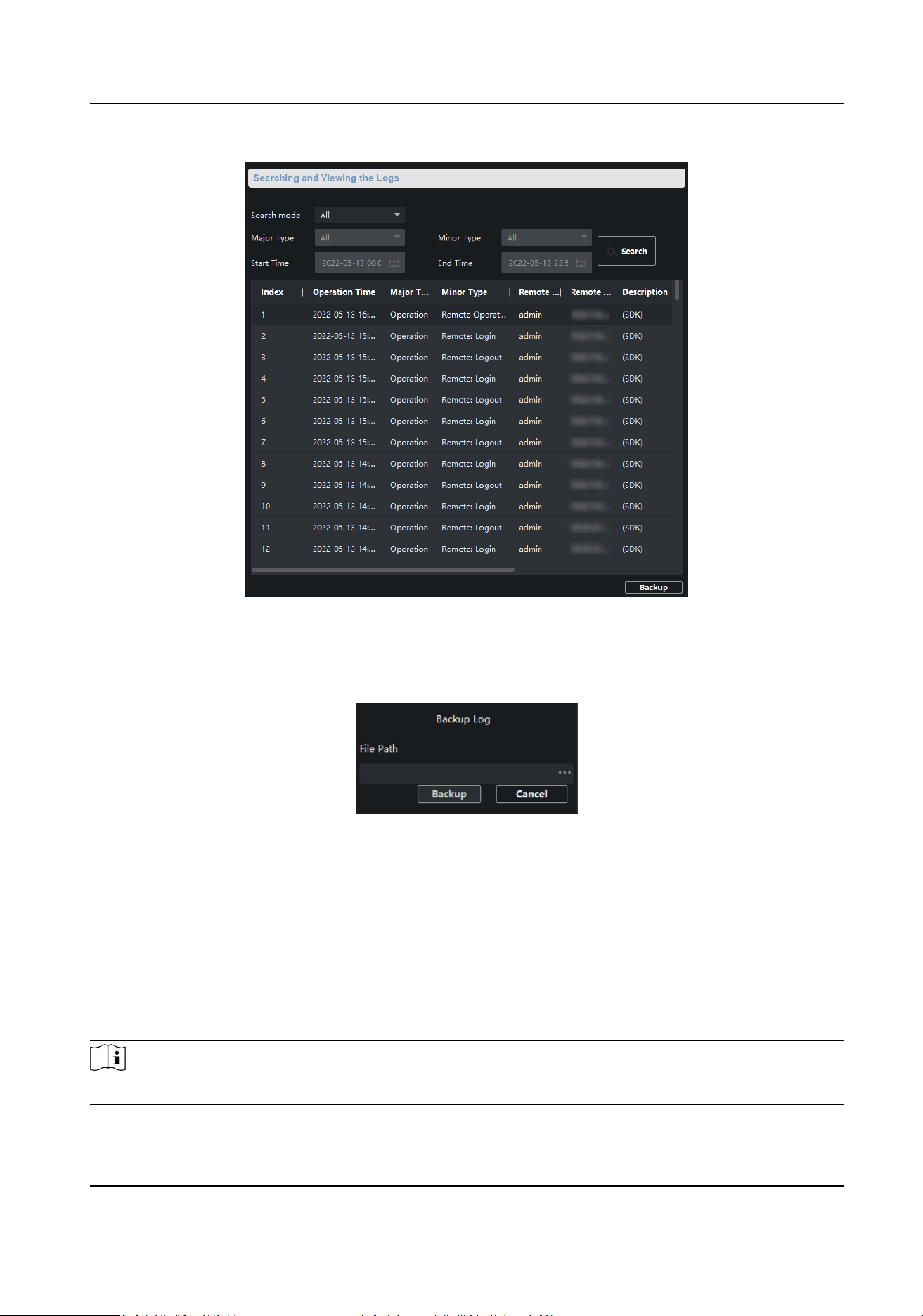
Figure 7-6 Searched Logs
5.
Click Backup, and select a backup path.
6.
Click Backup to save a .csv or .xml le.
Figure 7-7 Log Backup
7.5 Security Conguraon
If an IP address is locked because you enter an incorrect password for several consecuve mes,
you can use an unlocked IP address to log in to the client as the admin user from the PC to unlock
the locked IP address.
Steps
Note
If you need to unlock the locked IP address immediately, contact the administrator.
Switch Client User Manual
23
1.
Click → Advanced Funcon in the Operaon column of the desired device.
2.
Click System → Security .
3.
Unlock the IP address(es).
●
Click the unlock icon to unlock a single locked IP address.
●
Click Unlock All to unlock all locked IP addresses.
Note
●
Up to 5 password aempts are allowed for ordinary users, and 7 for the admin user.
●
If the IP address is locked, use a new IP address to log in to the client as the admin user again,
and unlock the locked IP address.
7.6 Time Conguraon
You can set or synchronize the device me.
Steps
1.
Click → Advanced Funcon in the Operaon column of the desired device.
2.
Click System → Time .
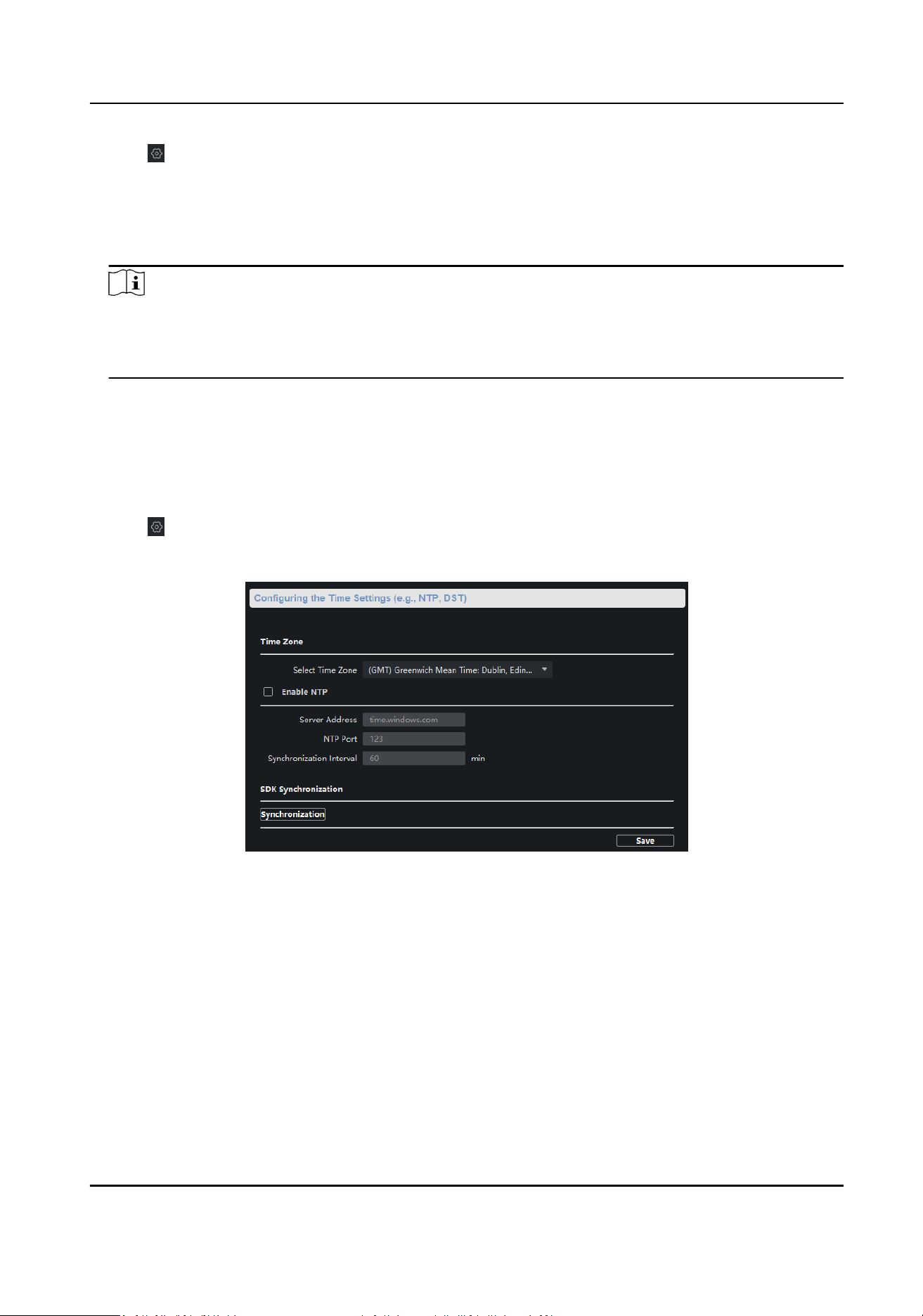
Figure 7-8 Time Sengs
3.
Select a me zone, and set the device me.
●
Automac me synchronizaon: Check Enable NTP, and set the server address, NTP port
number, and synchronizaon interval to synchronize the device me with the NTP server me
at the specied interval.
●
Manual
me synchronizaon: Click Synchronizaon under SDK Synchronizaon to
synchronize the device me with the PC me.
4.
Click Save.
Switch Client User Manual
24

Chapter 8 Appendix
8.1 Communicaon Matrix
Please scan the QR code below to view the communicaon matrix document.
Figure 8-1 Communicaon Matrix
8.2 Device Command
Please scan the QR code below to view the device command document.
Figure 8-2 Device Command
Switch Client User Manual
25

UD28507B