
www.samsung.com/caEnglish (CA). 09/2024. Rev.1.1
SM-Q500
SM-Q501
SM-Q502
SM-Q503
SM-Q505
SM-Q506
SM-Q507
SM-Q508
SM-Q509
USER GUIDE

2
Table of Contents
Getting started
3 About the Galaxy Ring
4 Device layout and functions
6 Charging the battery
12 Indicator light identification
Using the Ring
14 Wearing the Ring
17 Connecting the Ring to a phone
19 Getting to know the Ring’s features
21 Sleep
24 Heart rate
26 Stress
27 Auto detect workouts feature
28 Energy score
29 Using the gesture feature
29 Find my ring
Galaxy Wearable app
30 Introduction
31 Energy score
32 Sleep
32 Heart rate
32 Samsung account
32 Health settings
33 Gestures
33 Reset
33 Ring software update
34 About ring
34 Find my ring
Usage notices
35 Precautions for using the device
37 Notes on package contents and
accessories
38 Maintaining the device’s water and
dust resistance
40 Precautions for overheating
40 Cleaning and managing the Ring
41 Use caution if you are allergic to any
materials on the Ring
Appendix
42 Troubleshooting
44 Removing the battery
45 Class 1 laser information
Health and Safety

3
Getting started
About the Galaxy Ring
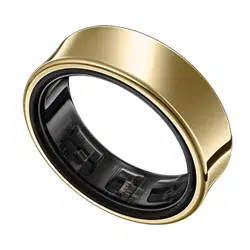
The Galaxy Ring (hereafter referred to as the Ring) is a smart ring that can help you
precisely analyze your activity patterns or sleep quality and manage your health by
continuously measuring your biometric signals.
You can use your Ring after connecting it to your phone. The measured data will be
regularly synced with the Samsung Health app of the connected phone.
Getting started
4
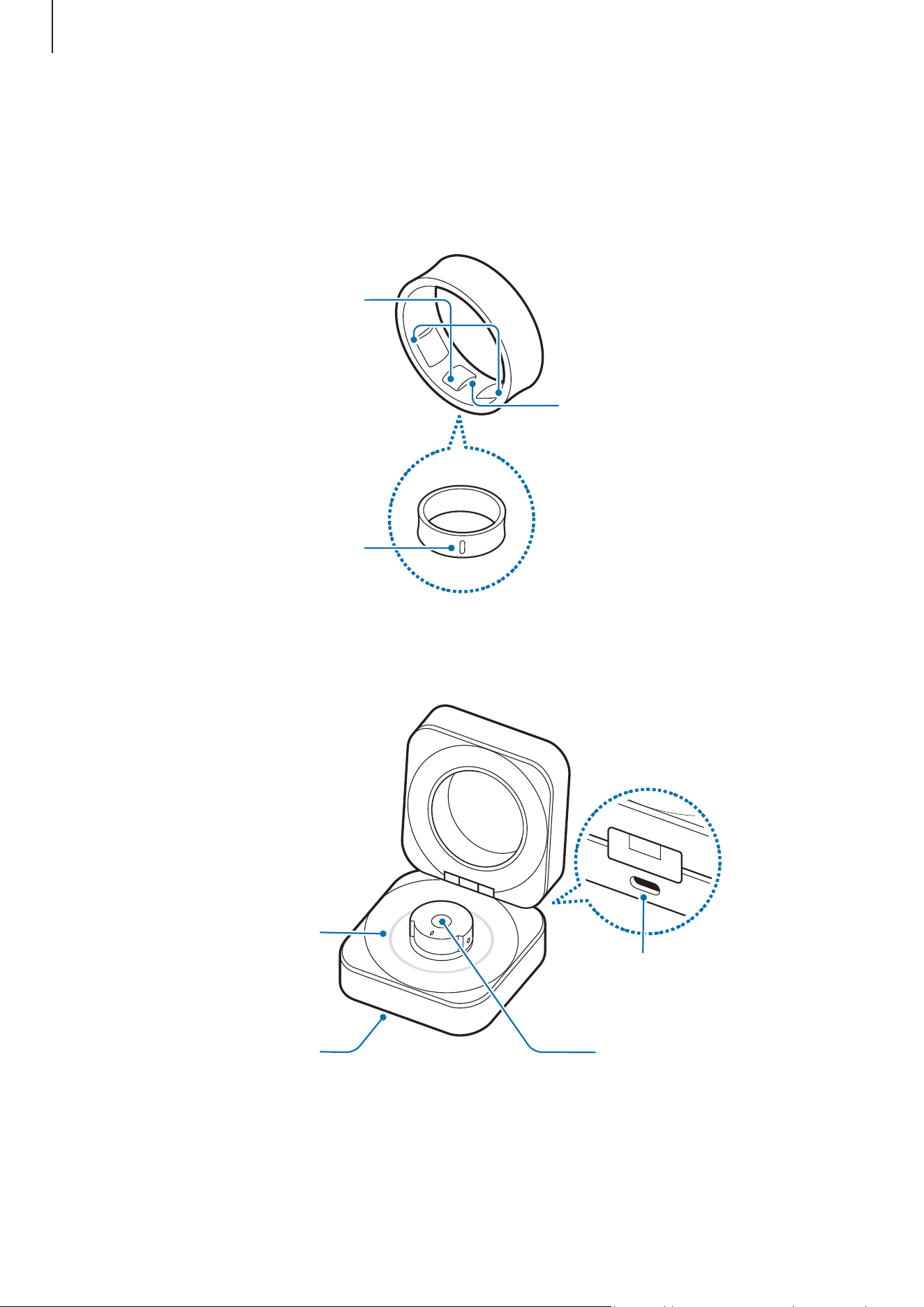
Device layout and functions
Ring
Optical heart rate sensor
Temperature sensor
Orientation indicator
Charging case
Charger port
(USB Type-C)
Multipurpose
button
Indicator light
Wireless charging
coil
Getting started
5
•
Use the device in a place without magnetic interference for the device to operate
normally.
•
The charging case supplied with your device contains magnets. Keep it away
from credit cards, implanted medical devices, and other devices that may be
affected by magnets. In the case of medical devices, keep the item more than
15 cm apart. Stop using the case if you suspect any interference with your
medical device and consult your physician or your medical device manufacturer.
•
If you have a medical implant in your heart, do not place the supplied case in a
pocket close to your implanted device, such as your chest or inner jacket pocket.
•
Keep a safe distance between objects that are affected by magnets and the
supplied case. Objects such as credit cards, passbooks, access cards, boarding
passes, or parking passes may be damaged or disabled by the magnets.
•
If you use the Ring when it is broken, there may be a risk of injury. Use the Ring
only after it has been repaired at a Samsung Service Centre or an authorized
service centre.
•
Use caution because your warranty does not cover the following events:
‒
When the device goes missing or is stolen
‒
General wear and tear, such as scratches or dents, caused by normal
handling
‒
Consumable parts, including batteries
•
Because the charging case is not water and dust resistant, liquids, such as water
or coffee, or other foreign materials, such as dust, can enter the case. Use caution
when using the charging case.
•
If foreign materials are placed on the sensor, they may prevent the light from
reflecting evenly, and as a result, the measurement may not be accurate. Before
wearing the Ring, clean the sensor first.
•
The press marks on the inside of the Ring are from the retainer (a small bump
on the charging case’s Ring holder) that secures the Ring to the Ring holder.
They do not affect the Ring’s function or performance. You may encounter some
resistance from the retainer when placing or removing the Ring from the Ring
holder.
•
When you are not using the Ring, store it in the charging case to prevent loss or
damage.
Getting started
6
Charging the battery
Charge the battery before using your Ring for the first time or when it has been unused
for an extended period. The Ring will start to work while charging.
The charging case, which has a built-in battery, is charged after the Ring that is in the
charging case is charged when connected to the charger.
Wired charging
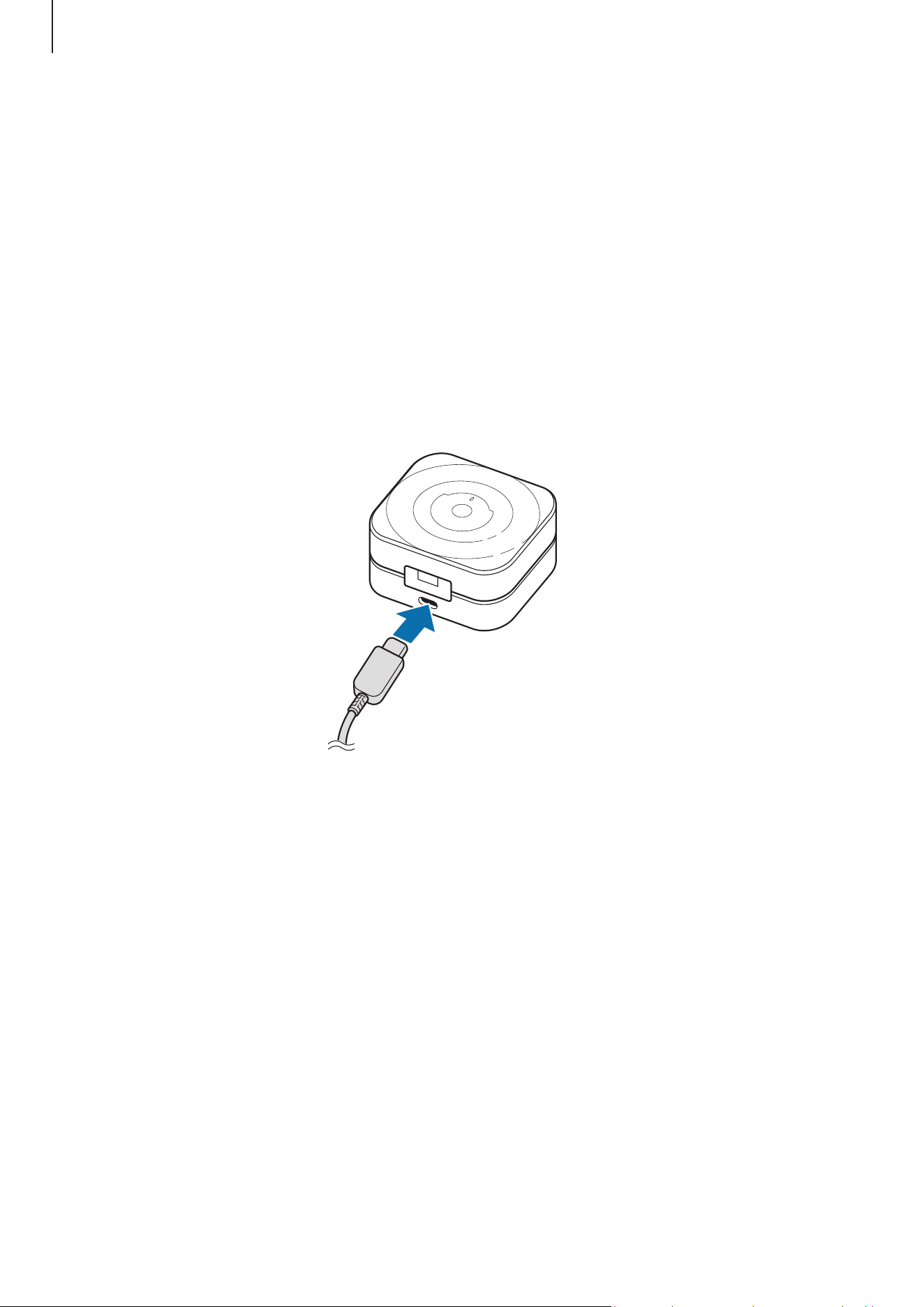
1 Connect the USB cable to the charger and then plug the USB cable into the charger
port.
2 Plug the charger into an electric socket.
3 Open the charging case.
Getting started
7
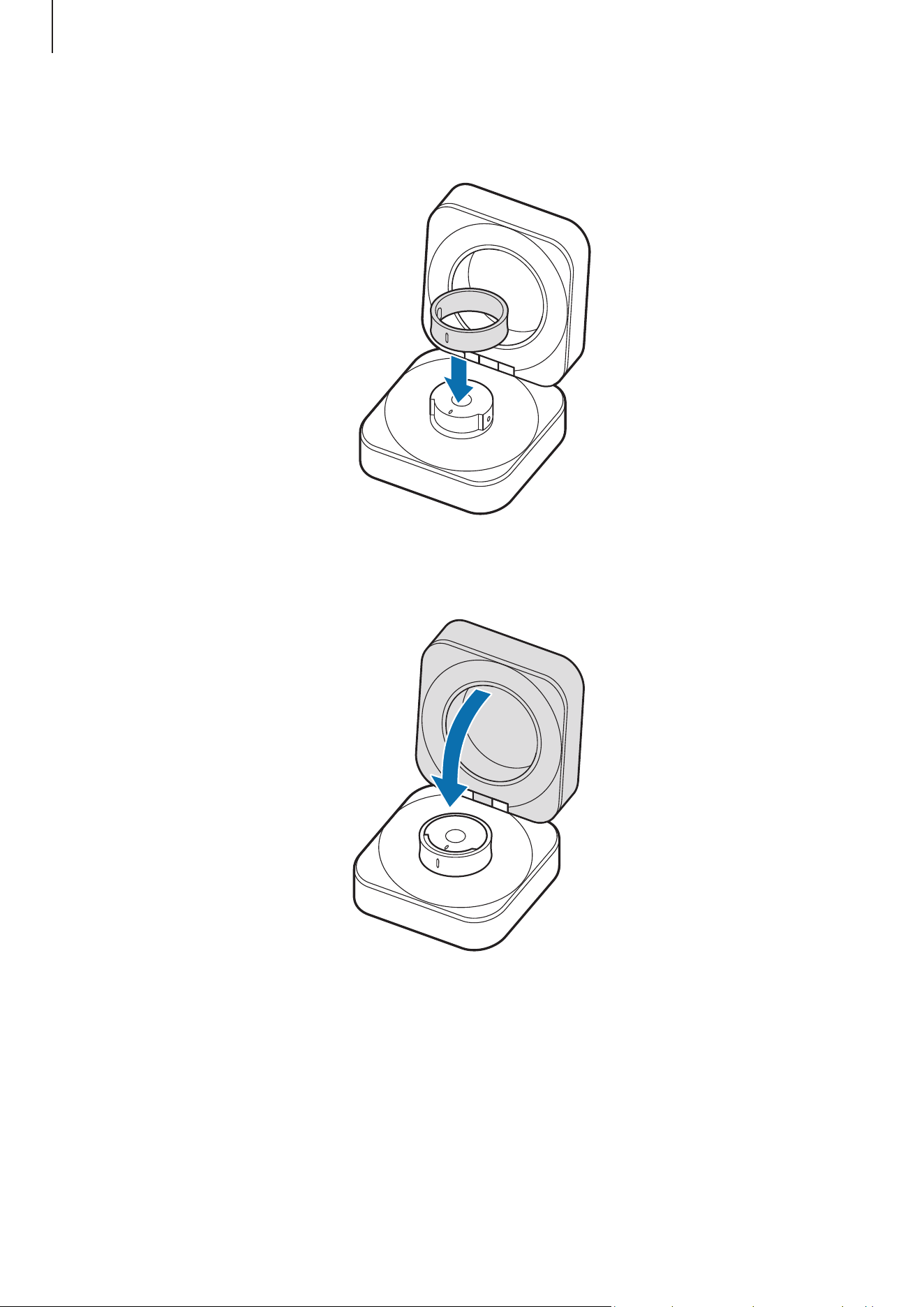
4 Align the orientation indicator of the Ring with the marker on the charging case’s
Ring holder and place it in the charging case.
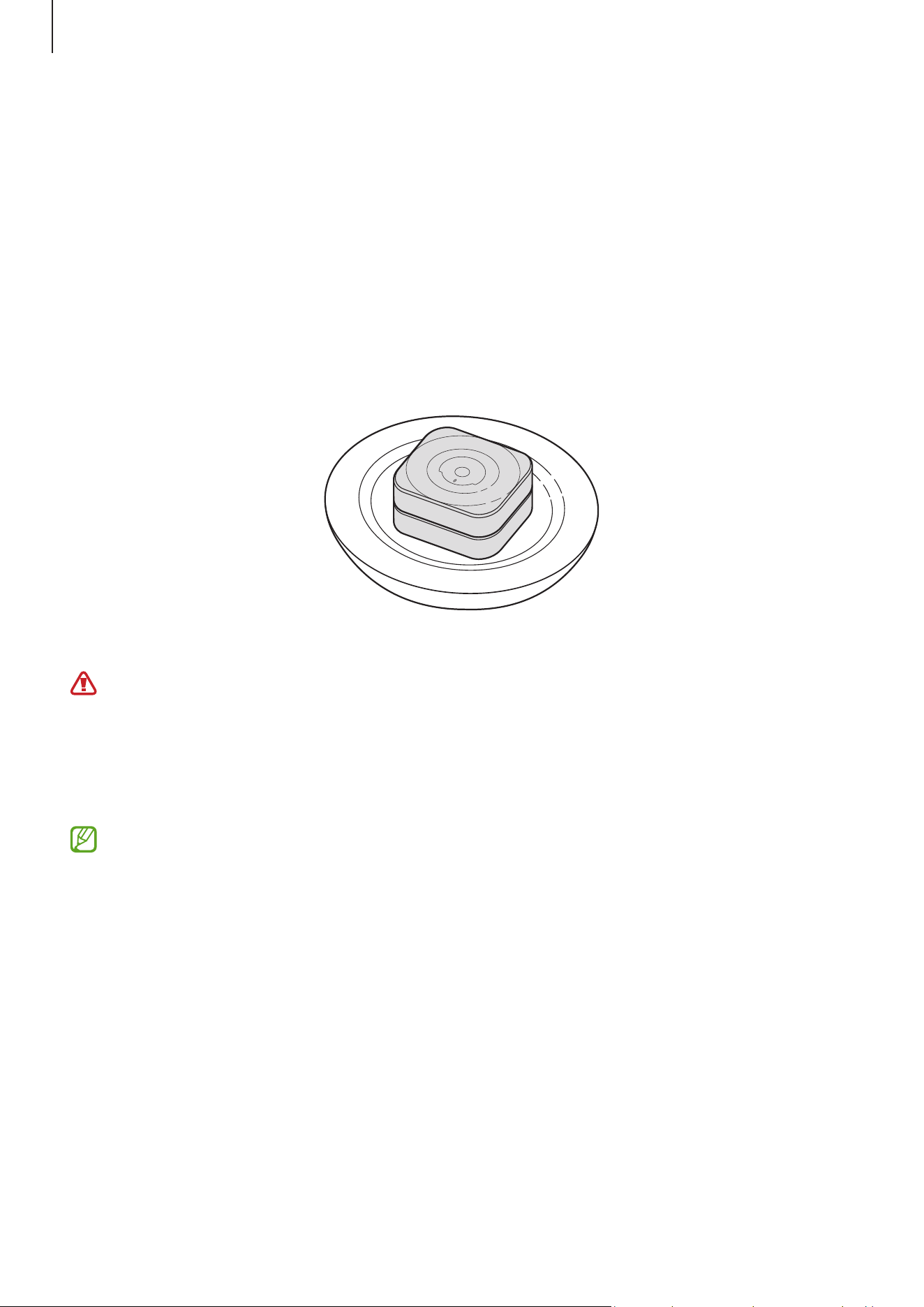
5 Close the charging case.
The Ring will be charged first, and then the charging case will be charged.
6 After fully charging, disconnect the charging case from the charger. First disconnect
the USB cable from the charging case and then unplug the charger from the electric
socket.
Getting started
8
Wireless charging
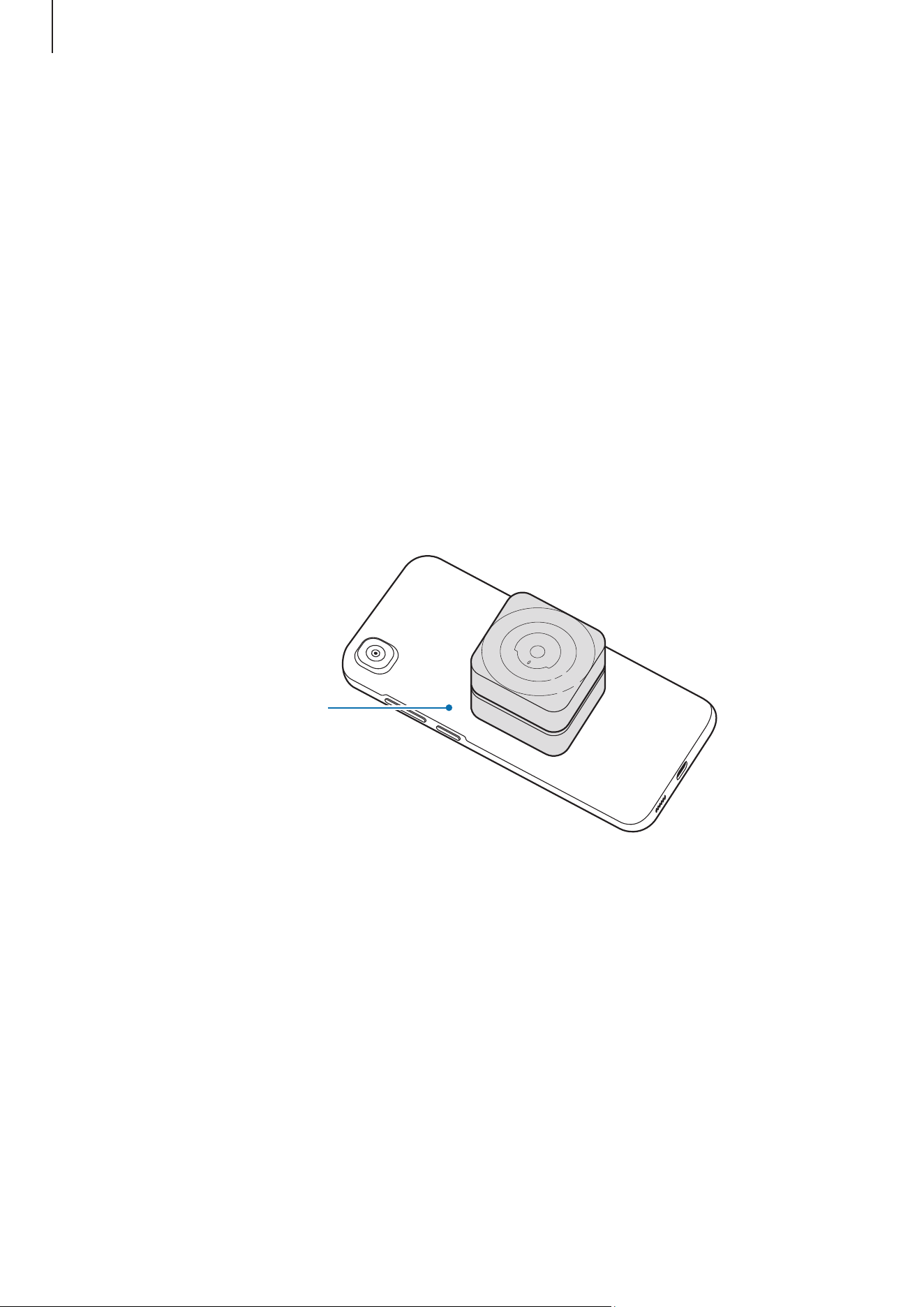
The charging case has a built-in wireless charging coil. You can charge the battery by
using a wireless charger (sold separately).
1 Open the charging case.
2 Align the orientation indicator of the Ring with the marker on the charging case’s ring
holder and place it in the charging case.
3 Close the charging case.
4 Place the centre of the charging case’s bottom on the centre of the wireless charger.
5 After fully charging, disconnect the charging case from the wireless charger.
Precautions for wireless charging
Do not place the charging case on the wireless charger when conductive materials,
such as metal objects and magnets, are placed between the charging case and the
wireless charger. The Ring and the charging case may not charge properly or may
overheat, or the charging case may be damaged.
Use Samsung-approved wireless chargers. If you use other wireless chargers, the
battery may not charge properly.
Getting started
9
Charging by Wireless power sharing
You can charge your Ring with the battery of a device that works as a wireless charger.
You can still charge your Ring even while charging the device that works as a wireless
charger. Depending on the type of accessories or cover being used, the Wireless power
sharing feature may not work properly. It is recommended to remove any cover being
used from the device that works as a wireless charger before using this feature.
1 Open the charging case.
2 Align the orientation indicator of the Ring with the marker on the charging case’s ring
holder and place it in the charging case.
3 Close the charging case.
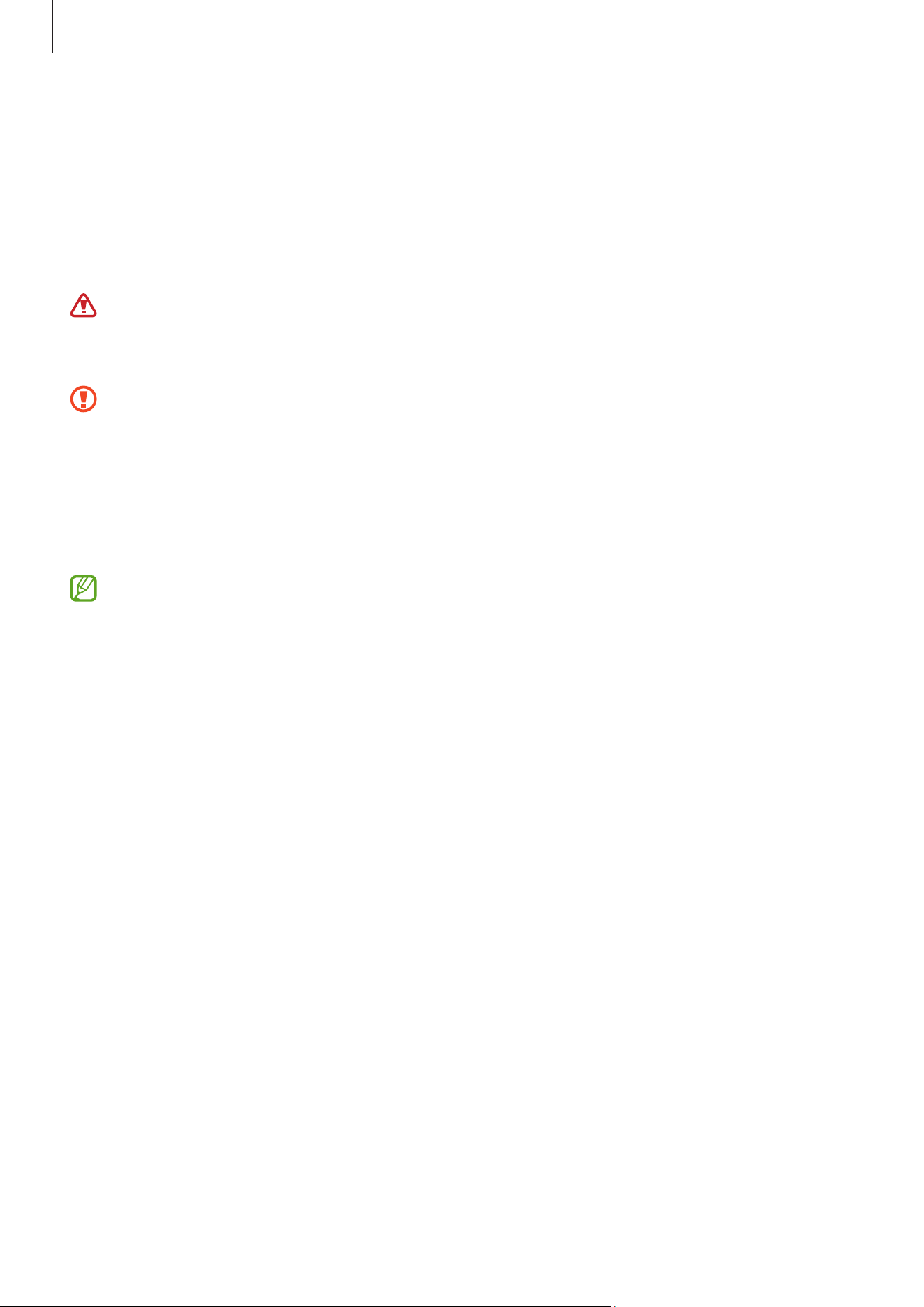
4 Turn on the Wireless power sharing feature on the device that functions as a wireless
charger and place the centre of the charging case’s bottom on the device that
functions as a wireless charger.
The device that
functions as a
wireless charger

Getting started
10
5 After fully charging, disconnect the charging case from the device that functions as a
wireless charger.
•
Only mobile devices that support the Wireless power sharing feature can charge
the Ring. To check mobile devices that support the Wireless power sharing
feature, visit the Samsung website.
•
The location of the wireless charging coil may vary by device. Adjust the device
and the charging case to make a strong connection.
•
To charge properly, do not move or use either the device that functions as a
wireless charger or the charging case while charging.
•
The power charged to the Ring may be less than the amount shared to them by
the device that functions as a wireless charger.
•
If you charge the Ring while charging the device that functions as a wireless
charger, the charging speed may decrease or the Ring may not charge properly,
depending on the charger type.
•
The charging speed or efficiency may vary depending on the device’s condition or
the surrounding environment.
•
If the remaining battery power of the device that functions as a wireless charger
drops below a certain level, power sharing will stop.
Checking the battery level
You can check your Ring’s remaining battery level through the Ring’s sensor light or the
charging case’s indicator light.
•
Remove the Ring from your finger and check the sensor on the inside of the Ring.
If the battery level is 15% or above, the green light will blink. If the battery level is
lower than 15%, the red light will blink.
•
Open the charging case or press the charging case’s Multipurpose button when
the Ring is in the charging case. The charging case’s indicator light will turn on
for 3 seconds to display the remaining battery level. When the Ring is not in the
charging case, the indicator light will display the case’s remaining battery level.
You can check the Ring’s remaining battery level in the Galaxy Wearable app when
the Ring is connected to your phone.
Getting started
11
Reducing battery consumption
When you are not using the Ring, store it in the charged charging case. If not, the sensor
will continue to work, and it will affect the usage time and battery consumption.
Battery charging tips and precautions
Use only Samsung-approved charger and cable specifically designed for your Ring.
An incompatible charger or cable can cause serious injuries or damage to your
device.
•
Connecting the charger improperly may cause serious damage to the charging
case. Any damage caused by misuse is not covered by the warranty.
•
Use only USB Type-C cable supplied with the Ring. The charging case may be
damaged if you use a Micro USB cable.
•
If you charge the Ring while the charger port is wet, the device may be damaged.
Thoroughly dry the charger port before charging the Ring.
•
Chargers are sold separately.
•
To save energy, unplug the charger when not in use. The charger does not have a
power switch, so you must unplug the charger from the electric socket when not
in use to avoid wasting power. The charger should remain close to the electric
socket and easily accessible while charging.
•
When using a charger, it is recommended to use an approved charger that
guarantees the charging performance.
•
Keep the charging case closed while you store or charge the Ring, or when you
charge the charging case. Ensure that the Ring’s orientation indicator is facing
the front before placing it in the charging case.
•
If there is sweat or liquid on the charging contacts, corrosion may occur on the
Ring. When there is sweat or liquid on the charging contacts or Ring, clean them
before inserting the Ring in the charging case.
•
When you insert your Ring in the charging case, the charging will start
automatically, and it will stop automatically if the Ring and the charging case are
fully charged.
•
Even if you do not remove your Ring from the charging case after the Ring is fully
charged, it will likely not have a huge impact on the life of your Ring.
Getting started
12
•
If you will not be using your Ring for a long time, store it after it is charged.
•
When connecting the charging case to another power source, such as a computer
or multi-charging hub, the Ring may not charge properly or it may charge more
slowly because of a lower electric current.
•
While charging, the Ring may heat up. This is normal and should not affect the
Ring’s lifespan or performance. Before wearing the Ring, allow it to cool down
for a while before using it. If the battery gets hotter than usual, the charger may
stop charging.
•
If the Ring is not charging properly, take the Ring and the charging case to a
Samsung Service Centre or an authorized service centre.
•
Avoid using a bent or damaged USB cable. If the USB cable is damaged, stop
using it.
Indicator light identification
You can check the status of your Ring and the charging case through the indicator light
on the charging case.
The indicator light turns on when you open the charging case or press the charging
case’s Multipurpose button. The indicator light displays the status of the Ring when the
Ring is in the charging case, and the charging status of the charging case when the Ring
is not in the case.
Lighting Status
All lights flash and turn off
•
Welcome lighting when you open the
charging case
Flashes clockwise in sequence
•
Displays the remaining battery level
Flashes clockwise in sequence and
blinks at the end
•
Charging (lighting indicates the remaining
battery level)
All lights flash
•
Fully charged
All lights blink
•
Charging error
Spins clockwise continuously
•
Bluetooth pairing mode

Getting started
13
•
When some time has passed after the indicator light turned on or you close the
charging case, the indicator light will turn off. Open the charging case or press
the charging case’s Multipurpose button again.
•
If the indicator light does not work as described, disconnect the charger from the
charging case and reconnect it.
•
If the battery level of the charging case is too low, the indicator light will blink
or not turn on. In this case, the Ring will not be charged even if you put it in the
charging case.
14
Using the Ring
Wearing the Ring
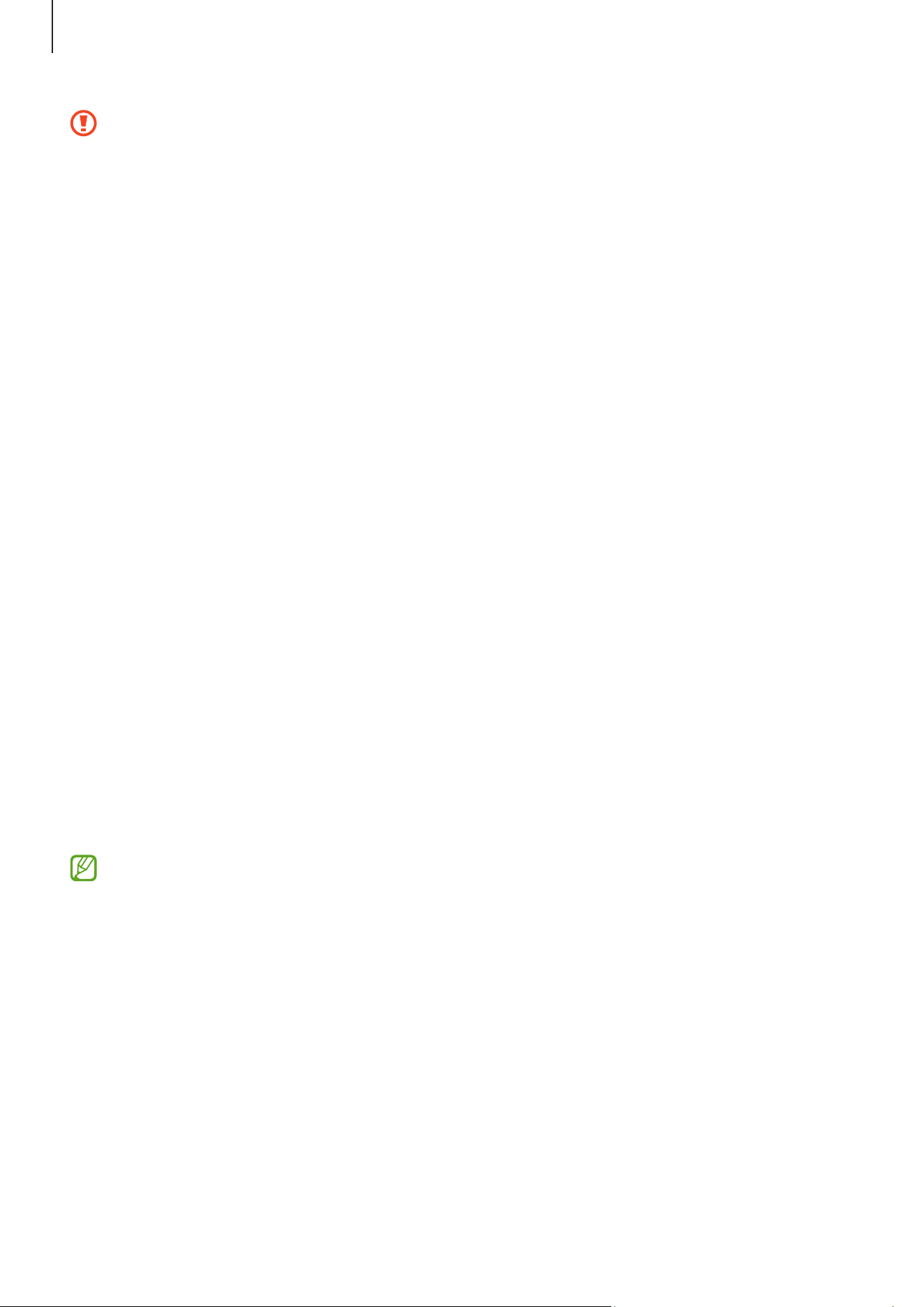
Putting on the Ring
Wear the Ring so that its orientation indicator is facing towards your palm. It is
recommended to wear the Ring on a finger where it is not too tight or loose and can fit
comfortably.
Orientation indicator
•
If you do not use caution while wearing your Ring, even during everyday
activities, it may get scratched. Because scratches that occur during normal use
of the Ring will not be covered by the warranty, always be careful when using
the Ring.
‒
Wear the Ring on your non-dominant hand.
‒
Do not wear metal rings next to the Ring.
‒
Remove the Ring from your finger when lifting or handling heavy or hard
things.
‒
Do not wear the Ring when exercising with equipment, especially when
exercising with free weights like barbells and dumbbells. The Ring could
hurt your hand.
Using the Ring
15
•
When handling things, such as your phone, phone cover, or watch, with the hand
you wear the Ring on, be careful not to damage whatever you are handling.
•
If you are holding a magnet or an object that contains magnets in the hand the
Ring is on, some features, such as step counting, may not work properly.
•
The Ring is designed to be worn on human fingers only. Putting the Ring on
other things may result in malfunctions.
•
If your finger or Ring is wet or has foreign materials on it, or if you have
prolonged skin contact with the Ring, it may result in skin irritation. Make sure
that your finger and Ring are clean and dry before wearing the Ring.
•
If you experience any skin irritation while you are wearing the Ring, stop wearing
it immediately and consult a specialist.
•
Skin irritation may occur because of an allergy, environment factors, other
factors, or when your skin is exposed to soap or sweat for long periods. In this
case, stop using your Ring immediately and wait 2 or 3 days for the symptoms to
ease. If the symptoms persist or worsen, call your doctor.
•
Make sure your skin is dry before wearing your Ring. If you wear a wet Ring for a
long time, your skin may be affected.
•
If you use your Ring in the water, remove foreign materials from your skin and
Ring and dry them thoroughly to prevent skin irritation.
•
Do not use any accessories except the Ring in the water.
•
Do not look directly at the optical heart rate sensor’s lights. Make sure children
do not look directly at the lights. Doing so may impair your vision.
•
If the Ring becomes hot to the touch, remove it until it cools. Exposing your skin
to the Ring’s hot surface for a long time may cause low-temperature burns.
•
When certain materials come into contact with the inside of the Ring, your Ring
may recognize that you are wearing it depending on the type of material.
•
If the sensors on the inside of your Ring do not come into contact with your
finger for more than 10 minutes, your Ring may recognize that you are not
wearing it.
•
Use the HR feature only for measuring your heart rate. The accuracy of the
optical heart rate sensor may be diminished depending on the surroundings,
measurement conditions, and your physiological state.
•
As cold ambient temperatures may affect your measurement, keep yourself
warm when checking your heart rate during winter or cold weather.

Using the Ring
16
•
Smoking or consuming alcohol before taking measurements may cause your
heart rate to be different from your normal heart rate.
•
Do not move, talk, yawn, or breathe deeply while taking heart rate
measurements. Doing so may cause your heart rate to be recorded inaccurately.
•
If your heart rate is extremely high or low, the measurement may not be
accurate.
•
If measuring children’s heart rates, the measurement may not be accurate.
•
If heart rate measurement is not working properly, wear the Ring on another
finger or adjust the Ring’s position on your finger. If the Ring is too tight or loose,
the measurement may not be accurate. Wear the Ring so that the heart rate
sensor is in good contact with your skin.
•
If the sensors on the Ring are dirty, wipe the sensors and try again. If foreign
materials prevent the light from reflecting evenly, the measurement may not be
accurate.
•
The optical heart rate sensor may be affected by tattoos and marks on the finger
you wear your Ring on. These may cause your Ring not to recognize that you are
wearing it, and the Ring’s features may not work properly. Therefore, wear your
Ring on a finger that does not interfere with the Ring’s features.
•
The measurement features may not work properly because of certain factors,
such as the light from the optical heart rate sensor being blocked, depending
on your skin brightness, blood flow under your skin, and the cleanliness of the
sensor area.
Using the Ring
17
How to remove the Ring if it is stuck
The Ring may be difficult to remove from your finger because your finger’s circumference
can vary by the time of day and your physical condition. If the Ring becomes stuck on
your finger, do the following:
•
Wet your finger with cold water and soap, and then remove the Ring by turning it
around slowly. After removing the Ring from your finger, rinse and dry your hand and
the Ring thoroughly.
•
Immerse your finger in cold water, wait for some time until the swelling goes down,
and then remove the Ring from the finger.
•
Hold your hand so it is above your heart or rest for some time. When your finger’s
circumference returns to normal, remove the Ring from your finger.
If you need to cut the Ring off in an emergency, seek help from a medical
professional or emergency services, as there is a risk of injury.
Connecting the Ring to a phone
Installing the Galaxy Wearable app
To connect your Ring to a phone, install the Galaxy Wearable app on the phone.
Depending on your phone, you can download the Galaxy Wearable app from the
following places:
•
Samsung Android phones:
Galaxy Store
•
Other Android phones:
Play Store
•
It is compatible with Android phones that support Google mobile services.
•
You can install the Galaxy Wearable app on phones that support Ring syncing.
Ensure that your phone is compatible with a Ring.
•
You cannot connect your Ring to a tablet or a computer.

Using the Ring
18
Connecting the Ring to a phone through Bluetooth
1 Before connecting, check if the battery level of the Ring is sufficient by placing it in
the charging case.
If the indicator light does not flash, connect the charging case to the charger and
charge the Ring.
2 Close the charging case and open it.
Alternatively, open the charging case and press and hold the charging case’s
Multipurpose button for more than 3 seconds.
The Ring will enter Bluetooth pairing mode automatically and a pop-up window will
appear on your phone.
If the charging case or Ring is not charged sufficiently, the pop-up window may not
appear or the Multipurpose button may not work.
3 On your phone, tap
Connect
on the pop-up window and follow the on-screen
instructions to complete the connection.
You must register your Samsung account on your connected phone and add it to your
Ring to access the various Ring features. When the instruction to sign in to a Samsung
account appears while you are connecting the Ring to your phone, create a new
Samsung account or sign in to your Samsung account on your phone.
When the Ring has been connected to the phone, you can check the Ring’s status, such
as the connection status or the remaining battery level, and the measured health data
with the Galaxy Wearable app on the connected phone.
•
The initial setup screen may differ depending on your region.
•
Connection methods may vary depending on your region, model, phone, and
software version.
•
When you connect your Ring to a phone for the first time or reset it, the Ring’s
battery may drain more quickly while syncing data.
•
Supported phones and features may vary depending on your region, carrier, or
device manufacturer.

Using the Ring
19
Connecting your Ring to a new phone
If you want to connect the Ring to a new phone, you need to reset the Ring.
Resetting the Ring may delete your health data that has not synced with the
Samsung Health app. Sync data with the Samsung Health app by opening the app
on the connected phone before resetting the Ring.
1 On the connected phone, open the
Galaxy Wearable
app and tap
Reset
→
Reset
.
After a reset, your Ring will enter Bluetooth pairing mode automatically.
2 On your new phone, open the
Galaxy Wearable
app to connect to your Ring.
Getting to know the Ring’s features
Your Ring records your daily activities, including your sleep, to help you cultivate healthy
habits. By connecting the Ring with your phone, you can manage your health-related
data and receive insights related to health and fitness through the Samsung Health app.
Visit www.samsung.com/samsung-health for more information.
•
Samsung Health features are intended only for leisure, well-being, and fitness
purposes. They are not intended for medical use. Before using these features,
read the instructions carefully.
•
When you wear your Ring and Galaxy Watch together, the Watch will work as your
primary wearable device, and the Ring’s features other than heart rate and sleep
measurement will turn off. However, if the Watch’s battery has been drained or it
is hard to obtain that information from the Watch for any other reason, the Ring
can measure the data instead.
•
If you use the Samsung Health features while wearing another wearable device
with your Ring, such as a Galaxy Watch, it may take a while for the data from all
your wearable devices to be integrated because of the different data sync times
between each wearable device and your phone. As a result, the measurement
data you may find in the Samsung Health app on your phone and the actual data
may temporarily not match.
Using the Ring
20
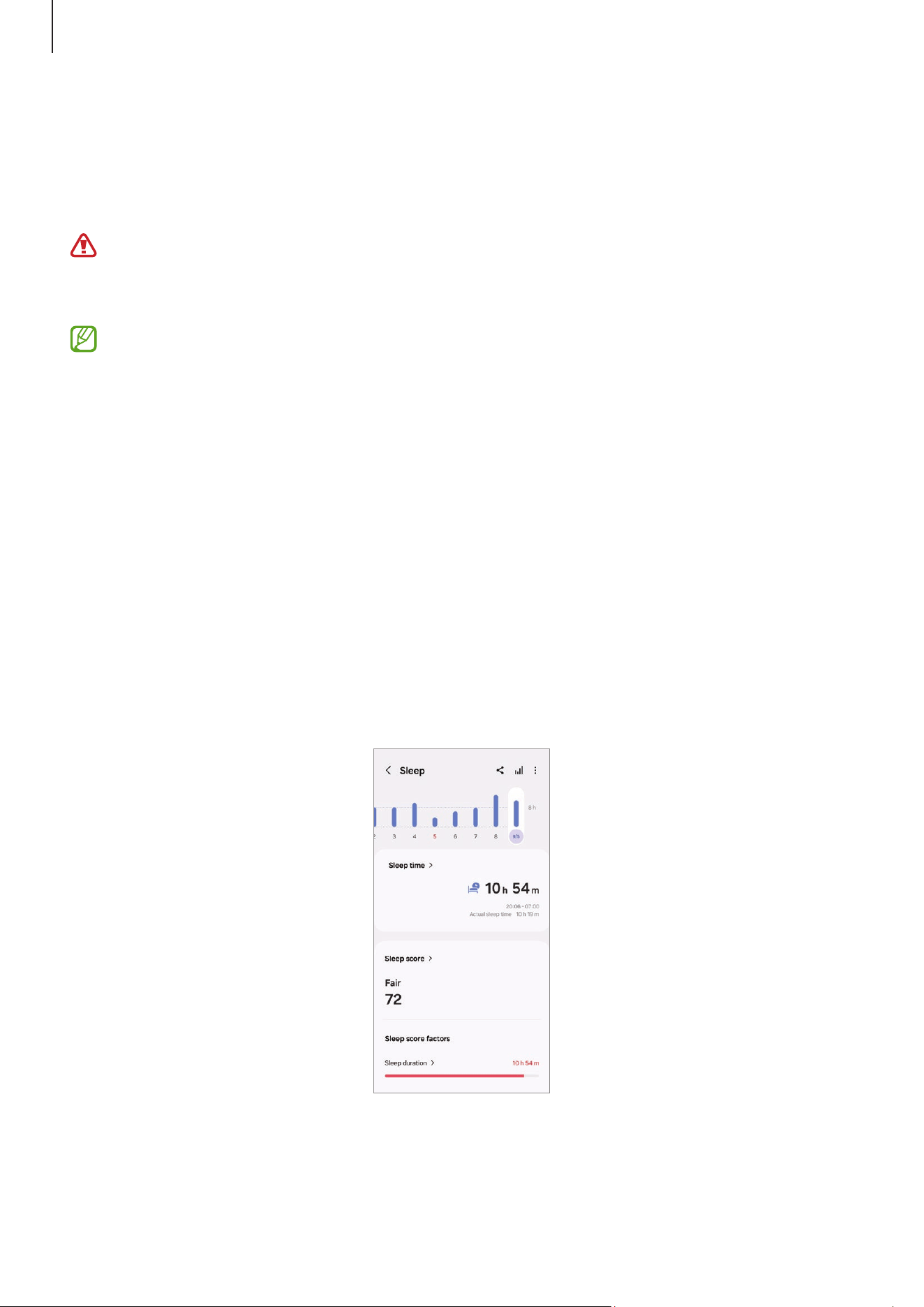
Supported health features
Features Measurement and analysis
Sleep monitoring
•
Sleep time
•
Blood oxygen
•
Snoring
•
Skin temperature
•
Heart rate
•
Respiratory rate
•
Sleep coaching
Heart rate monitoring
•
Heart rate
•
Heart rate alert
Activity tracking
•
Steps
•
Calories burned
•
Activity time
•
Inactive time alert
Automatic workout
detection
•
Walking
•
Running
Manual workout detection
•
Walking
•
Running
•
Indoor/outdoor cycling
•
Treadmill
Stress monitoring
•
Stress level
Energy score
•
The daily score and guidance based on
comprehensive analysis of your sleep pattern,
activities, and heart rates
Some features may not be available depending on the region or version of the
Samsung Health app installed on your phone.
Using the Ring
21
Sleep
Analyze your sleep and record it by measuring your heart rate, blood oxygen, skin
temperature, and more while you are sleeping.
This feature is only for your general wellness and fitness. Therefore, do not use it
for medical purposes, such as diagnosing the symptoms, treatment, or prevention
of disease.
•
The sleep pattern will have its four states (Awake, REM, Light, Deep) analyzed by
using your movement and changes in your heart rate while you are sleeping. You
can check the typical ranges for each measured sleep state in the graph on your
connected phone.
•
Before measuring, charge the Ring’s battery so it is more than 20%.
Measuring your sleep
1 Sleep while wearing the Ring.
The Ring will start to measure your sleep.
2 After you wake up, open the
Galaxy Wearable
app on the connected phone.
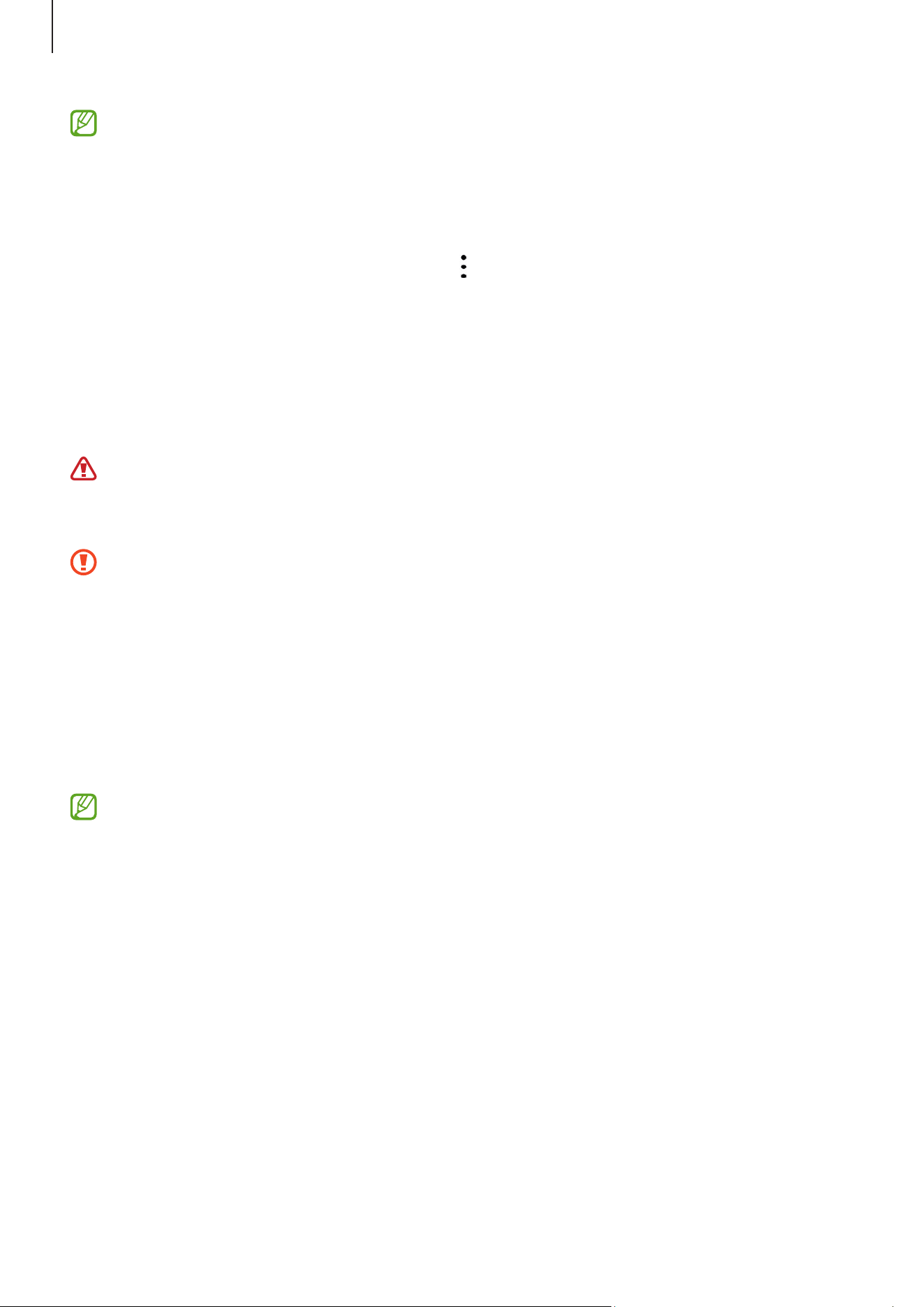
3 Tap
Sleep
. The relevant screen of the Samsung Health app will appear.
Check all information related to your measured sleep on the screen.
Using the Ring
22
•
You can add sleep records manually. At the bottom of the sleep information
screen, tap
Add sleep record
, enter the time you slept and woke up, and then tap
Save
.
•
When you are inactive or in certain postures while wearing the Ring, it may
mistakenly detect that you are sleeping and record sleep data. To delete the
mistakenly recorded sleep data, tap
→
Delete
on the sleep information screen.
Measuring your blood oxygen level while sleeping
Set to measure your blood oxygen level continuously while sleeping. You can measure
your blood’s oxygen level to check whether your blood is properly delivering oxygen to
the different parts of your body.
This feature is only for your general wellness and fitness. Therefore, do not use it
for medical purposes, such as diagnosing the symptoms, treatment, or prevention
of disease.
Blood oxygen level measurements may vary depending on the measurement
method and the environment they are taken in.
1 On the connected phone, open the
Galaxy Wearable
app.
2 Tap
Health settings
→
Sleep
.
3 Tap the
Blood oxygen during sleep
switch to turn it on.
Your sleeping blood oxygen level will be measured along with your other sleep
records when you sleep while wearing the Ring.
•
If your blood oxygen level is measured continuously while sleeping, the battery
will drain more quickly than normal.
•
You can see the light because of the flickering sensor while measuring your
blood oxygen level.
•
The Ring may measure your blood oxygen level even if you are not sleeping
because your Ring can recognize your sleep status even while reading books or
watching TV or movies.
•
Wear the Ring on a finger where it can fit firmly to ensure that you will not create
space between your finger and the Ring when turning over in your sleep.

Using the Ring
23
Using the snore detection feature
1 On the connected phone, open the
Galaxy Wearable
app.
2 Tap
Health settings
→
Sleep
.
3 Tap
Snore detection
.
4 Tap the switch to turn it on.
5 Select
Always
under
Detect snoring
to measure your snoring whenever you are
sleeping.
To record your snoring, tap the
Record audio
switch to turn it on. You can also set how
long the recorded audio will be stored.
6 Connect your phone to the charger and place the phone’s microphone so it faces you
before sleeping.
Your snoring will be measured along with your other sleep records when you sleep
while wearing the Ring.
•
The snore detection feature can be turned on in the Samsung Health app
(version 6.27 or later) of the connected phone.
•
Snoring may not be measured if you do not set the snore detection feature to
Always
, do not connect your phone to the charger before sleeping, or do not
place the phone’s microphone so it faces you before sleeping.
Using the skin temperature during sleeping feature
Record the change in your skin temperature while you sleep and receive assistance in
creating an optimal sleeping environment.
1 On the connected phone, open the
Galaxy Wearable
app.
2 Tap
Health settings
→
Sleep
.
3 Tap the
Skin temperature during sleep
switch to turn it on.
Your skin temperature will be measured along with your other sleep records when you
sleep while wearing the Ring.
Using the Ring
24
•
If your skin temperature is measured continuously while sleeping, the battery
will drain more quickly than normal.
•
The Ring may measure your skin temperature even if you are not sleeping
because your Ring can recognize your sleep status even while reading books or
watching TV or movies.
•
Wear the Ring on a finger where it can fit firmly to ensure that you will not create
space between your finger and the Ring when turning over in your sleep.
•
If you are wearing another wearable device with your Ring, such as the Galaxy
Watch, the measured skin temperature data during sleep is not integrated and
the data measured with the Ring will be displayed.
Heart rate
Measure and record your heart rate.
The Ring’s heart rate tracker is intended for fitness and informational purposes
only and is not intended for use in the diagnosis of disease or other conditions, or in
the cure, mitigation, treatment, or prevention of disease.
Be aware of following conditions before measuring your heart rate:
•
Rest for 5 minutes before taking measurements.
•
If the measurement is very different from the expected heart rate, rest for
30 minutes and then measure it again.
•
During winter or in cold weather, keep yourself warm when measuring your heart
rate.
•
Smoking or consuming alcohol before taking measurements increases heart rate
and may cause your heart rate to be different from your normal heart rate.
•
Do not talk, yawn, or breathe deeply while taking heart rate measurements. Doing so
may cause your heart rate to be recorded inaccurately.
•
Heart rate measurements may vary depending on the measurement method and the
environment they are taken in.
•
If the sensor is not working, check the Ring’s orientation on your finger and make
sure nothing is obstructing the sensor. If the sensor continues to have the same
problem, visit a Samsung Service Centre or an authorized service centre.
Using the Ring
25
Checking your heart rate
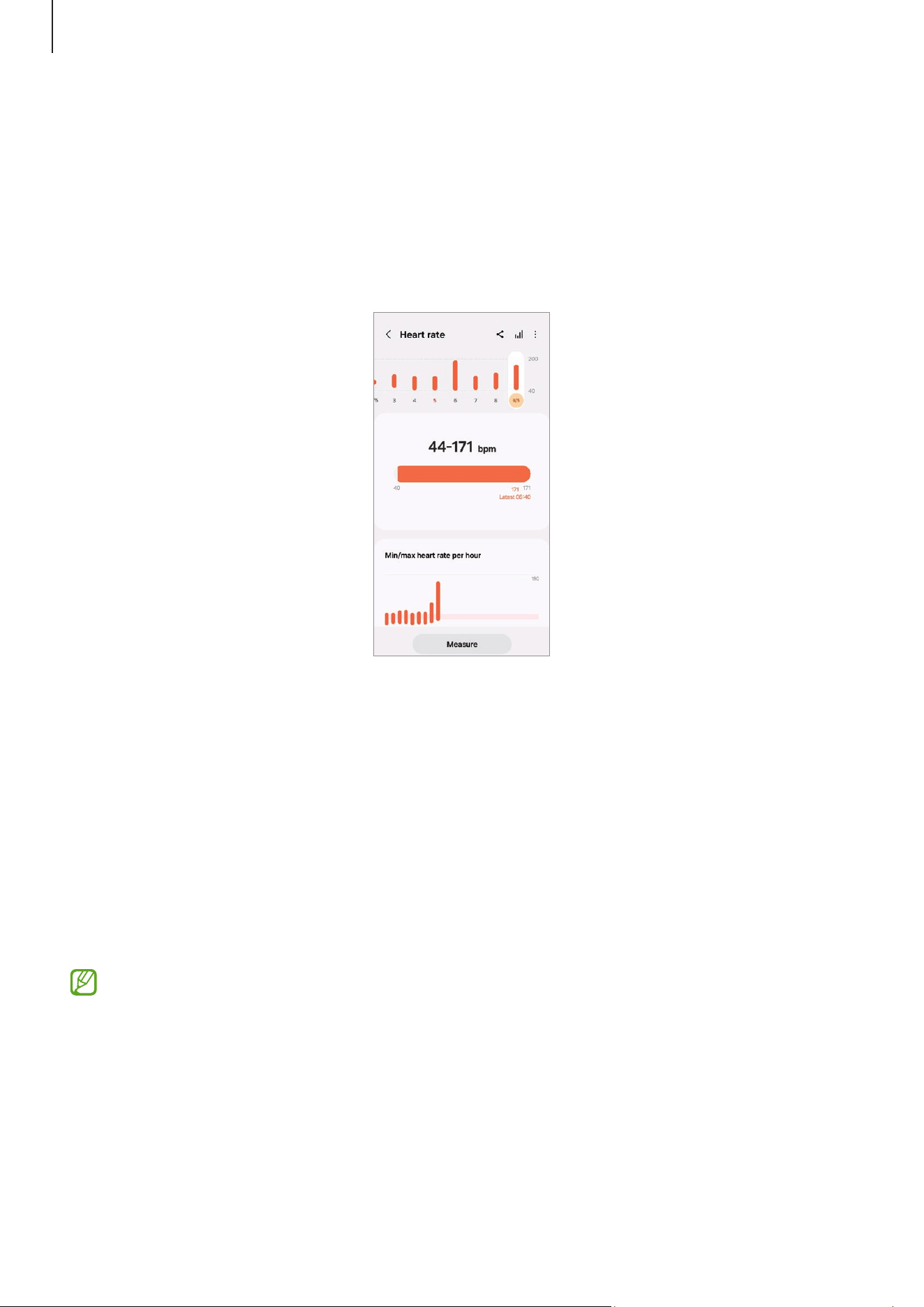
1 On the connected phone, open the
Galaxy Wearable
app.
2 Tap
Heart rate
. The relevant screen of the Samsung Health app will appear.
Check the measured heart rate on the screen. To check all heart rate records for
today, tap
View all
.
Measuring your heart rate in the Samsung Health app
1 On the connected phone, open the
Galaxy Wearable
app.
2 Tap
Heart rate
. The relevant screen of the Samsung Health app will appear.
3 Tap
Measure
to begin measuring your heart rate.
Check the measured heart rate on the screen. You can also add a status tag to the
measured heart rate.
4 Tap
Save
to save the record.
When you wear your Ring and Galaxy Watch at the same time and the Watch is
set to measure your heart rate continuously, you cannot measure your heart rate
manually with the Ring.

Using the Ring
26
Setting the heart rate alert
You can receive an alert from the Samsung Health app when your heart rate is higher or
lower than the resting heart rate value you set and it lasts more than 10 minutes.
1 On the connected phone, open the
Galaxy Wearable
app.
2 Tap
Health settings
→
Heart rate alert
.
3 Tap the switch of the alert you want to use to turn it on and set the heart rate range.
•
High HR
: Set to receive an alert when your heart rate is consistently higher than
the heart rate value you set.
•
Low HR
: Set to receive an alert when your heart rate is consistently lower than the
heart rate value you set.
Stress
Check your stress level by utilizing the bio data collected by your Ring and reduce your
stress by following the breathing exercise that the Samsung Health app provides.
You can check the measured stress level by accessing the stress card on the Samsung
Health app of the connected phone.
•
The more frequently you measure your stress level, the more accurate your
results will be because of the accumulated data.
•
Your measured stress level is not necessarily related to your emotional state.
•
Your stress level may not be measured, while you are sleeping, working out,
moving a lot, or right after you finish a workout.
•
For accurate measurements, wear the Ring on a finger where it can fit firmly.
•
This feature may not be available depending on the region.
Measuring your stress level in the Samsung Health app
1 On the connected phone, open the
Health
app.
2 Access the stress card.
3 Tap
Measure
to begin measuring your stress level.
Check the measured stress level on the screen.

Using the Ring
27
4 Tap
Save
to save the record.
When you wear your Ring and Galaxy Watch at the same time and the Watch is set
to measure your stress level continuously, you cannot measure your stress level
manually with the Ring.
Auto detect workouts feature
After continuously exercising for a certain period while wearing the Ring, it automatically
recognizes that you are exercising and records exercise information such as the exercise
type, duration, and calories burned.
When you stop doing exercises for more than one minute, the Ring automatically
recognizes that you have stopped exercising and recording will end.
•
You can check the list of exercises that are supported by the auto detect
workouts feature. On the connected phone, open the
Galaxy Wearable
app and
tap
Health settings
→
Activities to detect
. If the exercises are not recognized
automatically, turn on the auto detect workouts feature and tap the switch of
the exercise type that uses this feature under
Activities to detect
.
•
The auto detect workouts feature measures something, such as the time you
spent exercising and calories burned, by using the acceleration and heart rate
sensors. The measurements may not be accurate depending on your manner of
walking, exercise routines, and lifestyle.
•
You can record where you exercise by turning the location recording feature on
when you set activities to detect. To use this feature, ensure that the location
feature of the connected phone is turned on because the Ring uses the phone’s
GPS information to record locations.
Using the Ring
28
Energy score
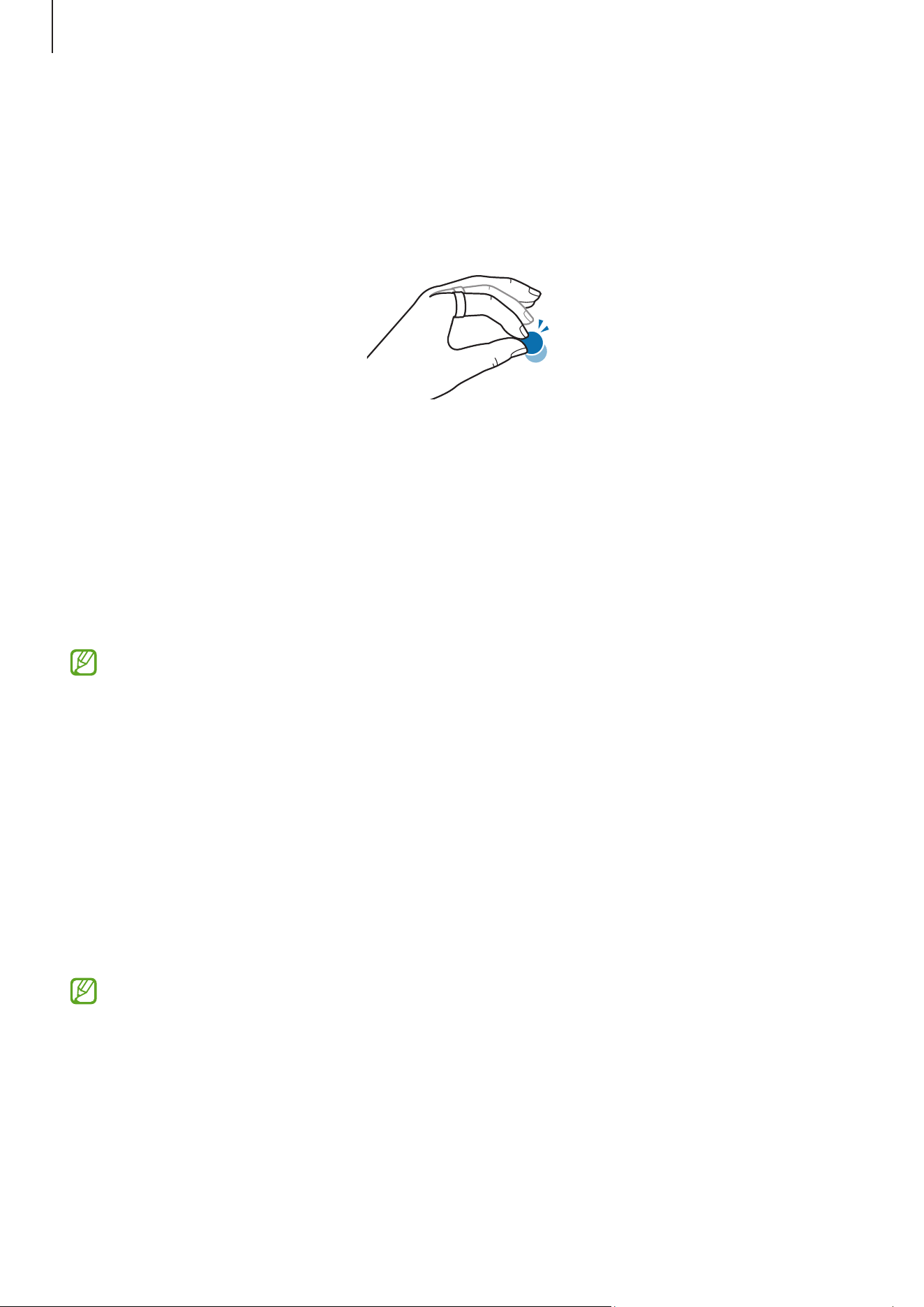
Check your energy score based on a comprehensive analysis of daily measured sleep,
activities, and heart rate during sleep, and get guidance for healthy daily living with a
balance between rest and activities.
The energy score is determined by analyzing the recent trends.
1 On the connected phone, open the
Galaxy Wearable
app.
2 Tap
Energy score
. The relevant screen of the Samsung Health app will appear.
Check your energy score for today, relevant guidance, and additional information that
is related to the score on the screen.
Using the Ring
29
Using the gesture feature
You can remotely control the camera or alarm of the phone connected to the Ring by
double pinching with your thumb and the finger you wear the Ring on. Use the gesture
after configuring the settings in the Galaxy Wearable app of the phone.
1 On the connected phone, open the
Galaxy Wearable
app.
2 Tap
Gestures
and tap the switch of the action you want to control with the gesture to
turn it on.
•
Dismiss alarm
: When an alarm expires on the phone, dismiss the alarm with the
gesture.
•
Take picture or video
: When using the phone’s camera, take a picture or start and
stop recording a video with the gesture.
This feature may not be available depending on the connected phone’s software
version.
Find my ring
If you misplace your Ring, you can use the Samsung Find app installed on the connected
phone to find it.
On the connected phone, open the
Galaxy Wearable
app and tap
Find my ring
.
The Samsung Find app will be opened, and you will then be able to check the location of
your misplaced Ring. Also, you can find it by following the lights emitted from your Ring.
•
Support for the Samsung Find app may vary depending on the connected
phone’s software version.
•
To find your Ring using the Samsung Find feature, Samsung Find’s features
related to finding devices offline must be turned on.
•
It may take 4 minutes or more to search nearby to find the Ring.

30
31
Galaxy Wearable app
Introduction
You can check the Ring’s status, such as the connection status or the remaining battery
level, and the measured health data with the Galaxy Wearable app.
Open the
Galaxy Wearable
app on your phone.
To search for features or settings by entering keywords, tap .
To set the Galaxy Wearable app, tap
→
, and then tap
Settings
.
•
To use the Galaxy Wearable app, you must connect your Ring to a phone. Refer to
Connecting the Ring to a phone for more information.
•
Some features may not be available depending on the type of connected phone,
carrier, or model.
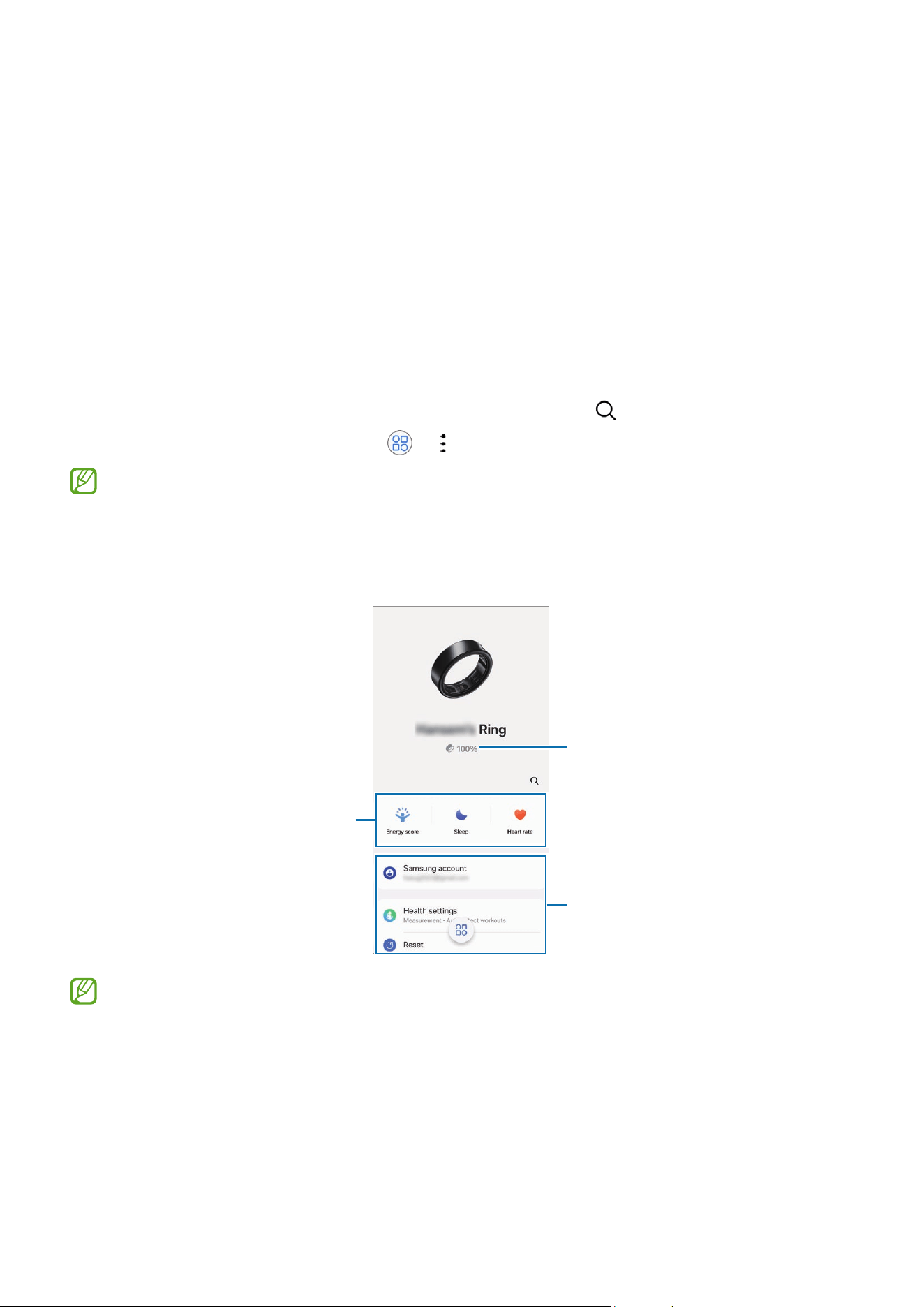
Ring's remaining battery
Configure the Ring settings and
access information on how to use
the Ring.
Check your primary health
information.
The charging case’s battery level will be displayed for a few seconds along with the
Ring’s battery level right after you open the charging case or insert the Ring into
the charging case.

Galaxy Wearable app
32
Managing device connections
You can manage various device connections, such as checking your wearable devices
connected to your phone or connecting a new device with the Galaxy Wearable app.
Managing the connected device
On the Galaxy Wearable screen of the phone, tap .
Currently connected devices and previously connected devices will appear on the list.
•
To disconnect the currently connected device from the phone, tap next to the
connected device from the list.
•
To reconnect with a device you have previously connected, select the device from the
list.
Adding a new device and removing devices
1 On the Galaxy Wearable screen of the phone, tap .
2 Tap and follow the on-screen instructions to connect a new wearable device.
The new wearable device will be connected and added to the list.
To remove wearable devices from the list, tap
→
Remove devices
, select a device, and
then tap
Remove
.
Energy score
Check your energy score based on a comprehensive analysis of daily measured sleep,
activities, and heart rate data and get guidance for healthy daily living with a balance
between rest and activities.
On the Galaxy Wearable screen of the phone, tap
Energy score
. Refer to Energy score in
Using the Ring for more information.

Galaxy Wearable app
33
Sleep
Analyze your sleep and record it by measuring your heart rate, blood oxygen, skin
temperature, and more while you are sleeping.
On the Galaxy Wearable screen of the phone, tap
Sleep
. Refer to Sleep in Using the Ring
for more information.
Heart rate
Measure and record your heart rate.
On the Galaxy Wearable screen of the phone, tap
Heart rate
. Refer to Heart rate in Using
the Ring for more information.
Samsung account
Check the Samsung account registered on the Ring. The Samsung account on the Ring is
set to be the same as the one on the connected phone.
On the Galaxy Wearable screen of the phone, tap
Samsung account
.
Health settings
Configure the various settings related to exercise and fitness.
On the Galaxy Wearable screen of the phone, tap
Health settings
.
•
Measurement
: Set the heart rate alerts, and turn the additional features that can be
measured during sleep on or off.
•
Auto detect workouts
: Turn on the auto detect workouts feature and configure the
settings, such as selecting the exercise types to be detected.
•
Inactive time
: Turn the feature on to receive alerts from the Samsung Health app
after 50 minutes of inactivity, and set the time and days you want to be notified.

Galaxy Wearable app
34
Gestures
Configure settings for gestures to use with the Ring.
On the Galaxy Wearable screen of the phone, tap
Gestures
.
•
Dismiss alarm
: When an alarm expires on the phone, dismiss the alarm with the
gesture.
•
Take picture or video
: When using the phone’s camera, take a picture or start and
stop recording a video with the gesture.
Refer to Using the gesture feature for more information about the gesture feature.
This feature may not be available depending on the connected phone’s software
version.
Reset
Reset all your Ring settings. Resetting the Ring may delete your health data that has
not synced with the Samsung Health app. Sync data with the Samsung Health app by
opening the app on the connected phone before resetting the Ring.
On the Galaxy Wearable screen of the phone, tap
Reset
.
Ring software update
Update your Ring’s software through the firmware over-the-air (FOTA) service. You can
also change the update settings.
On the Galaxy Wearable screen of the phone, tap
Ring software update
.
•
Download and install
: Check for and install updates manually. Make sure to open
the charging case before beginning the manual update.
•
Auto update
: Set to install updates automatically when the Ring is in the charging
case.

Galaxy Wearable app
35
About ring
Access the Ring’s additional information.
On the Galaxy Wearable screen of the phone, tap
About ring
.
To change your Ring’s name, tap
Rename
.
•
Status information
: Check out the information, such as Bluetooth address and serial
number.
•
Legal information
: Access legal information related to the Ring. You can also send
the Ring’s diagnostic information to Samsung.
•
Software information
: Access the software version.
•
Battery information
: Check out battery information, such as the battery capacity.
Find my ring
If you misplace your Ring, use the Samsung Find app installed on your connected phone
can help you find it.
On the Galaxy Wearable screen of the phone, tap
Find my ring
. Refer to Find my ring in
Using the Ring for more information.

36
Usage notices
Precautions for using the device
Please read this guide when using the device to ensure safe and proper use.
•
Descriptions are based on the device’s default settings.
•
Some content may differ from your device depending on the region, service provider,
model specifications, or device’s software.
•
Before using other phones, make sure they are compatible with the device. Visit the
Samsung website to check the specifications of compatible phones.
•
Samsung is not liable for performance issues caused by apps supplied by providers
other than Samsung.
•
Samsung is not liable for performance issues or incompatibilities caused by edited
registry settings or modified operating system software. Attempting to customize
the operating system may cause the device or apps to work improperly.
•
Software, sound sources, wallpapers, images, and other media provided with
this device are licensed for limited use. Extracting and using these materials for
commercial or other purposes is an infringement of copyright laws. Users are
entirely responsible for illegal use of media.
•
Default apps that come with the device are subject to updates and may no longer be
supported without prior notice.
•
The model specifications and supported services may differ depending on the
region.
•
Modifying the device’s operating system or installing software from unofficial
sources may result in device malfunctions and data damage or loss. These actions
are violations of your Samsung licence agreement and will void your warranty.
•
Some features may not work as described in this guide depending on the maker and
model of the phone you connect to your Ring.
Usage notices
37
•
This product includes certain free/open source software. The licence
information of the open source software used in this product can be found at
opensource.samsung.com.
•
The item supplied with your device contains magnets. Keep it away from credit
cards, implanted medical devices, and other devices that may be affected by
magnets. In the case of medical devices, keep the item more than 15 cm apart. Stop
using the item if you suspect any interference with your medical device and consult
your physician or your medical device manufacturer.
•
This device is not an accessory for children. Do not allow children or animals to
swallow the device.
•
Never use an ultrasonic cleaner when cleaning your device. Doing so may result in
permanent damage to the sensors.
Instructional icons
Warning: situations that could cause injury to yourself or others
Caution: situations that could cause damage to your device or other equipment
Notice: notes, usage tips, or additional information

Usage notices
38
Notes on package contents and accessories
•
The items supplied with the Ring and any available accessories may vary depending
on the region or carrier.
•
The supplied items are designed only for this device and may not be compatible with
other devices.
•
Appearances and specifications are subject to change without prior notice.
•
You can purchase additional accessories from your local Samsung retailer. Make sure
they are compatible with the Ring before purchase.
•
Except for the Ring, some supplied items and accessories may not have the same
water- and dust-resistance certification.
•
Use Samsung-approved accessories. Using unapproved accessories may cause
performance problems and malfunctions that are not covered by the warranty.
•
Availability of all accessories is subject to change depending entirely on
manufacturing companies. For more information about available accessories, refer
to the Samsung website.

Usage notices
39
Maintaining the device’s water and dust
resistance
•
This device is water and dust resistant, and meets the following international
standards.
‒
10ATM water resistance classification certification: Was tested by submerging
the device in fresh water, applying pressure equivalent to 100 m and leaving
it still without any movement for 10 minutes, to meet the requirements of
ISO 22810:2010.
‒
IPX8 water resistance classification certification: Was tested by submerging
the device in 1.5 m of fresh water, leaving it still without any movement for
30 minutes, to meet the requirements of IEC 60529.
‒
IP6X dust resistance classification certification: Was tested to meet the
requirements of IEC 60529.
•
You can use this device when you are exercising, washing your hands or on a rainy
day.
•
You can use this device when you are swimming in a pool or the sea where the water
level is not deep.
•
The water and dust resistance of your Galaxy device is not permanent and may
diminish over time.
•
You must follow these guidelines to maintain the water and dust resistance of your
device.
‒
After swimming, and before the pool water or seawater has dried, rinse the device
with fresh water and dry it thoroughly with a soft, clean cloth to maintain its
water resistance. The water resistance may be affected by the disinfectants in
swimming pool water or the salt in seawater.
‒
If the device gets wet with liquid other than fresh water, such as coffee, drinks,
soapy water, oil, perfume, sunscreen, hand sanitizer, or chemical products like
cosmetics, rinse the device with fresh water and dry it thoroughly with a soft,
clean cloth to maintain its water resistance.

Usage notices
40
‒
Do not go freediving or scuba diving, engage in fast-moving water sports, such as
jet skiing, or swim in fast-moving water, such as a river, while wearing your device.
Also, do not expose it to high-pressure cleaning machines or similar things. This
would result in a dramatic rise in water pressure that could cause the water
resistance guaranteed by our company to change.
‒
If the device is hit or damaged, its water and dust resistance may be
compromised.
‒
Do not disassemble your device without proper guidance.
‒
If you dry your device with a machine that gives off hot air, like a hair dryer, or if
you use your device in a hot environment like a sauna, the water resistance could
be damaged from a dramatic change in the air or water temperature.

Usage notices
41
Precautions for overheating
If you feel discomfort because of overheating while using the device, stop using it
immediately and remove it from your finger.
Recommended operating temperature range
The device’s recommended operating temperature is between 0 °C to 35 °C. Using
the device outside of the recommended temperature range may damage the
device or reduce the battery’s lifespan.
Cleaning and managing the Ring
Follow these points to ensure your Ring works correctly and maintains its appearance.
Failure to do so may damage the Ring and cause the skin irritation.
•
Clean your Ring’s sensor at least once a week because foreign material on the sensor
may interfere with the Ring detecting biometric signals from your finger. Wipe your
Ring with a soft cloth or rinse it with a soap-free detergent and dry it thoroughly.
•
Prevent the device from being exposed to dust, sweat, ink, oil, chemical products
such as cosmetics, antibacterial spray, hand cleaner, detergent, or insecticides.
The Ring’s exterior and interior parts may be damaged or it could result in poor
performance. If your Ring is exposed to any of the previously mentioned substances,
use a lint-free, soft cloth to clean it.
•
Never use ultrasonic waves, soap, cleaning agents, abrasive materials and
compressed air when cleaning your Ring and never clean it with external heat
sources. Doing so may damage the Ring. Skin irritation may be caused by soap,
detergents, hand sanitizers, or cleaning agents left on the Ring.
•
When you remove sunblock, lotion, or oil, use a soap-free detergent, then rinse and
dry your Ring thoroughly.

Usage notices
42
Use caution if you are allergic to any materials
on the Ring
•
Samsung has tested the noxious materials found on the Ring using internal and
external certificate authorities, including testing all materials that contact with skin,
skin toxicity test, and the Ring-wearing test.
•
The Ring includes nickel. Take the necessary precautions if your skin is
hypersensitive or you have an allergy to any materials found on the Ring.
‒
Nickel: The Ring contains a small amount of nickel, which is below its reference
point limited by the Europe REACH regulation. You will not be exposed to the
nickel inside the Ring and the Ring has passed the international certificated test.
However, if you are sensitive to nickel, be careful when using the Ring.
•
Only materials that observe the standards of the U.S Consumer Product Safety
Commission (CPSC), the regulations of European countries, and other international
standards are used to make a Ring.
•
For more information about how Samsung manages chemicals, refer to the Samsung
website.

43
Appendix
Troubleshooting
Before contacting a Samsung Service Centre or an authorized service centre, please
attempt the following solutions. Some situations may not apply to your Ring.
You can also use Samsung Members to solve any problems you might encounter while
using your device.
Your Ring does not work
•
The battery may be completely discharged. Charge the battery completely before
using the Ring.
•
If the Ring is too lose, health data may not be measured or the Ring may not work.
Wear the Ring on a finger where it can fit firmly. For accurate measurements, wear
the Ring so that the orientation indicator on the outside of the Ring is facing towards
your palm and the sensor is in good contact with your skin.
•
If your Ring is frozen and unresponsive, put the Ring in the charging case and press
and hold the charging case’s Multipurpose button for more than 7 seconds to restart
it.
•
If the methods above do not solve your problem, perform a reset. On the connected
phone, open the
Galaxy Wearable
app and tap
Reset
.
Resetting the Ring may delete your health data that has not synced with the
Samsung Health app. Sync data with the Samsung Health app by opening the app on
the connected phone before resetting the Ring.
Another Bluetooth device cannot locate your Ring
•
Take the Ring out of the charging case and then put it back in the case, or press
and hold the charging case’s Multipurpose button for more than 3 seconds to enter
Bluetooth pairing mode.
•
Reset your Ring and try again.

Appendix
44
•
Ensure that your Ring and the other Bluetooth device are within the Bluetooth
connection range (10 m). The distance may vary depending on the environment the
devices are used in.
If the tips above do not solve the problem, contact a Samsung Service Centre or an
authorized service centre.
A Bluetooth connection is not made or your Ring and the phone are
disconnected
•
Ensure that the Bluetooth feature on the phone is working and check that the Ring’s
battery is charged.
•
Ensure there are no obstacles, such as walls or electrical equipment, between the
devices.
•
Ensure that the latest version of the Galaxy Wearable app is installed on the phone.
If the Galaxy Wearable app is not the latest version, update the Galaxy Wearable app
to the latest version.
•
Ensure that your Ring and the other Bluetooth device are within the Bluetooth
connection range (10 m). The distance may vary depending on the environment the
devices are used in.
•
Restart the phone and reopen the
Galaxy Wearable
app.
The battery does not charge properly (For Samsung-approved
chargers)
•
Ensure that the charging contacts of the Ring and the charging case are in contact
with each other.
•
Ensure that the charger is connected properly to the charging case.
•
If the charging contacts are dirty, the battery may not charge properly. Wipe the
charging contacts with a dry cloth and try charging the battery again.
If the tips above do not solve the problem, contact a Samsung Service Centre or an
authorized service centre.

Appendix
45
The battery depletes faster than when first purchased
•
When you expose the Ring or the battery to very cold or very hot temperatures, the
useful charge may be reduced.
•
Battery consumption increases when you use some features.
•
The battery is consumable and the useful charge will get shorter over time.
•
When you are not using the Ring, store it in a charging case that has been charged.
If not, the sensor will continue to work, and it will affect the usage time and battery
consumption.
Your Ring is hot to the touch
When you use features that require more power or use features on your Ring for an
extended period of time, your Ring may feel hot to the touch. This is normal and should
not affect your Ring’s lifespan or performance.
If the Ring overheats or feels hot for a prolonged period, do not use it for a while. If the
Ring continues to overheat, contact a Samsung Service Centre or an authorized service
centre.
A small gap appears around the outside of the Ring case
•
This gap is a necessary manufacturing feature and some minor rocking or vibration
of parts may occur.
•
Over time, friction between parts may cause this gap to expand slightly.
Removing the battery
•
To remove the battery, contact an authorized service centre.
•
For your safety, you must not attempt to remove the battery. If the battery is not
properly removed, it may lead to damage to the battery and device, cause personal
injury, and result in the device being unsafe.
•
Samsung does not accept liability for any damage or loss (whether in contract or
tort, including negligence) which may arise from failure to precisely follow these
warnings and instructions, other than death or personal injury caused by Samsung’s
negligence.
Appendix
46
Class 1 laser information
The Ring is classified as class 1 laser product per IEC 60825-1 Ed. 3.0:2014. This
device complies with 21 CFR 1040.10 and 1040.11 except for conformance with
IEC 60825-1 Ed. 3., as described in Laser Notice No. 56, dated May 8, 2019.
Use of controls or adjustments or performance of procedures other than those
specified herein may result in hazardous radiation exposure. There is no user
service possible on the embedded laser module. Contact SAMSUNG for service.
CLASS 1 LASER PRODUCT
47
Health and Safety
Please read this important safety information before you use the device. It contains
general safety information for devices and may include content that does not apply to
your device. Follow the warning and caution information to prevent injury to yourself or
others and to prevent damage to your device.
The term ‘device’ refers to the product and its charger, the items supplied with
the product, and any Samsung-approved accessories used with the product.
Warning: Failure to comply with safety warnings and
regulations can cause serious injury or death.
Do not use damaged power cords or plugs, or loose electrical sockets
Unsecured connections can cause electric shock or fire.
Do not touch the device, power cords, plugs, or the electric socket with wet hands or
other wet body parts
Doing so may cause electric shock.
Do not pull the power cord excessively when disconnecting it
Doing so may cause electric shock or fire.
Do not bend or damage the power cord
Doing so may cause electric shock or fire.
Do not use the device with wet hands while the device is charging
Doing so may cause electric shock.
Do not directly connect together the charger’s positive and negative terminals
Doing so may cause fire or serious injury.
Do not use your device outdoors during a thunderstorm
Doing so may result in electric shock or device malfunction.
Use manufacturer-approved chargers, accessories, and supplies
•
Using generic chargers may shorten the life of your device or cause the device to
malfunction. They may also cause a fire or cause the battery to explode.
•
Use only a Samsung-approved charger specifically designed for your device. An
incompatible charger can cause serious injuries or damage to your device.
•
Samsung cannot be responsible for the user’s safety when using accessories or
supplies that are not approved by Samsung.

Health and Safety
48
Do not carry your device in your back pockets or on your waist
•
The device may be damaged, explode, or result in a fire if too much pressure is
applied to it.
•
You may be injured if you are bumped or fall.
Do not drop or cause an impact to the charger or the device
Handle and dispose of the device and charger with care
•
Never dispose of the battery or device in a fire. Never place the battery or device
on or in heating devices, such as microwave ovens, stoves, or radiators. The device
may explode when overheated. Follow all local regulations when disposing of used
battery or device.
•
Never crush or puncture the device.
•
Avoid exposing the device to high external pressure, which can lead to an internal
short circuit and overheating.
Protect the device, battery and charger from damage
•
Avoid exposing your device to very cold or very hot temperatures.
•
Extreme temperatures can damage the device and reduce the charging capacity and
life of your device and battery.
•
Never use a damaged charger or device.
Do not store your device near or in heaters, microwaves, hot cooking equipment, or high
pressure containers
•
The battery may leak.
•
Your device may overheat and cause a fire.
Do not use or store your device in areas with high concentrations of dust or airborne
materials
Dust or foreign materials can cause your device to malfunction and may result in fire or
electric shock.
Prevent the multipurpose jack and the small end of the charger from contact with
conductive materials, such as liquids, dust, metal powders, and pencil leads. Do not touch
the multipurpose jack with sharp tools or cause an impact to the multipurpose jack
Conductive materials may cause a short circuit or corrosion of the terminals, which may
result in an explosion or fire.
Health and Safety
49
Do not bite or suck the device or the battery
•
Doing so may damage the device or result in an explosion or fire.
•
Children or animals can choke on small parts.
•
If children use the device, make sure that they use the device properly.
Do not insert the device or supplied accessories into the eyes, ears, or mouth
Doing so may cause suffocation or serious injuries.
Do not handle a damaged or leaking Lithium Ion (Li-Ion) battery
For safe disposal of your Li-Ion battery, contact your nearest authorized service centre.
Caution: Failure to comply with safety cautions and
regulations can cause injury or property damage
Do not use your device near other electronic devices
•
Most electronic devices use radio frequency signals. Your device may interfere with
other electronic devices.
Do not use your device in a hospital, on an aircraft, or in automotive equipment that can
be interfered with by radio frequency
•
Avoid using your device within a 15 cm range of a pacemaker, if possible, as your
device can interfere with the pacemaker.
•
If you use medical equipment, contact the equipment manufacturer before using
your device to determine whether or not the equipment will be affected by radio
frequencies emitted by the device.
•
On an aircraft, using electronic devices can interfere with the aircraft’s electronic
navigational instruments. Make sure the device is turned off during takeoff and
landing.
•
Electronic devices in your car may malfunction due to radio interference from your
device. Contact the manufacturer for more information.
Do not expose the device to heavy smoke or fumes
Doing so may damage the outside of the device or cause it to malfunction.
If you use a hearing aid, contact the manufacturer for information about radio
interference
The radio frequency emitted by your device may interfere with some hearing aids. Before
using your device, contact the manufacturer to determine whether or not your hearing
aid will be affected by radio frequencies emitted by the device.

Health and Safety
50
Do not use your device near devices or apparatuses that emit radio frequencies, such as
sound systems or radio towers
Radio frequencies may cause your device to malfunction.
Turn off the device in potentially explosive environments
•
Turn off your device in potentially explosive environments instead of removing the
battery.
•
Always comply with regulations, instructions and signs in potentially explosive
environments.
•
Do not use your device at refuelling points (gas stations), near fuels or chemicals, or
in blasting areas.
•
Do not store or carry flammable liquids, gases, or explosive materials in the same
compartment as the device, its parts, or accessories.
If you notice strange smells or sounds coming from your device or the battery, or if
you see smoke or liquids leaking from the device or battery, stop using the device
immediately and take it to a Samsung Service Centre
Failure to do so may result in fire or explosion.
Care for and use your mobile device properly
Keep your device dry
•
Humidity and liquids may damage the parts or electronic circuits in your device.
•
Do not turn on your device if it is wet. If your device is already on, turn it off (if the
device will not turn off, leave it as-is). Then, dry the device with a towel and take it to
a service centre.
•
This device has internal liquid indicators fitted. Water damage to your device may
void the manufacturer’s warranty.
Store your device only on flat surfaces
•
If your device falls, it may be damaged.

Health and Safety
51
The device can be used in locations with an ambient temperature of 0°C to 35°C. You
can store the device at an ambient temperature of -20°C to 50°C. Using or storing the
device outside of the recommended temperature ranges may damage the device or
reduce the battery’s lifespan
•
Do not store your device in very hot areas such as inside a car in the summer. Doing
so may result in damage to the device, or cause the battery to explode.
•
Do not expose your device to direct sunlight for extended periods of time (on the
dashboard of a car, for example).
Do not store your device with metal objects, such as coins, keys, and necklaces
•
Your device may be scratched or may malfunction.
•
If the charging terminals come into contact with metal objects, this may cause a fire.
Do not store your device near magnetic fields
•
Your device may malfunction or the battery may discharge from exposure to
magnetic fields.
•
Magnetic stripe cards, including credit cards, phone cards, passbooks, and boarding
passes, may be damaged by magnetic fields.
Prolonged exposure of your skin to an overheated device may cause low temperature
burn symptoms, such as red spots and pigmentation
Do not paint or put stickers on your device
•
Paint and stickers can clog moving parts and prevent proper operation.
•
If you are allergic to paint or metal parts of the device, you may experience itching,
eczema, or swelling of the skin. When this happens, stop using the device and
consult your physician.
Do not drop your device or cause impacts to your device
•
Your device may be damaged or may malfunction.
•
If bent or deformed, your device may be damaged or parts may malfunction.

Health and Safety
52
Ensure maximum battery and charger life
•
Batteries may malfunction if they are not used for extended periods.
•
Over time, unused device will discharge and must be recharged before use.
•
Disconnect the charger from power sources when not in use.
•
Follow all instructions in this manual to ensure the longest lifespan of your device
and battery. Damage or poor performance caused by failure to follow warnings and
instructions can void your manufacturer’s warranty.
•
Your device may wear out over time. Some parts and repairs are covered by the
warranty within the validity period, but damages or deterioration caused by using
unapproved accessories are not.
Do not disassemble, modify, or repair your device
•
Any changes or modifications to your device can void your manufacturer’s warranty.
If your device needs servicing, take your device to a Samsung Service Centre.
•
Do not disassemble or puncture the battery, as this can cause explosion or fire.
When cleaning your device, mind the following
•
Wipe your device or charger with a towel or an eraser.
•
Do not use chemicals or detergents. Doing so may discolour or corrode the outside
the device or may result in electric shock or fire.
Do not use the device for anything other than its intended use
•
Your device may malfunction.
Avoid disturbing others when using the device in public
Allow only qualified personnel to service your device
•
Allowing unqualified personnel to service your device may result in damage to your
device and will void your manufacturer’s warranty.
Health and Safety
53
Acknowledging Special Precautions and ISED (Innovation, Science
and Economic Development Canada) Notice
Cautions
Any changes or modifications to your device not expressly approved in this document
could void your warranty for this equipment, and void your authority to operate this
equipment. Only use approved batteries, antennas, and chargers. The use of any
unauthorized accessories may be dangerous and void the phone warranty if they cause
damage or a defect to the device.
Although your device is quite sturdy, it is a complex piece of equipment and can be
broken. Avoid dropping, hitting, bending, or sitting on it.
Information to User
This equipment has been tested and found to comply with the limits of a Class B
digital device. These limits are designed to provide reasonable protection against
harmful interference in a residential installation. This equipment generates, uses, and
can radiate radio frequency energy and, if not installed and used in accordance with
the instructions, may cause harmful interference to radio communications. However,
there is no guarantee that interference will not occur in a particular installation; if this
equipment does cause harmful interference to radio or television reception, which can
be determined by turning the equipment off and on, the user is encouraged to try to
correct the interference by one or more of the following measures:
•
Reorient/relocate the receiving antenna.
•
Increase the separation between the equipment and receiver.
•
Connect the equipment into an outlet on a circuit different from that to which the
receiver is connected.
•
Consult the dealer or an experienced radio/TV technician for help.
Warning: At very high volumes, prolonged listening to a headset can damage
your hearing.
IC RF Radiation Exposure Statement:
This equipment complies with IC RF Radiation exposure limits set forth for an
uncontrolled environment.
This device and its antenna must not be co-located or operating in conjunction with any
other antenna or transmitter.
Health and Safety
54
Correct disposal of this product
(Waste Electrical & Electronic Equipment)
This marking on the product, accessories or literature indicates that the
product and its electronic accessories (e.g., charger, headset, USB cable)
should not be disposed of with other household waste.
To prevent possible harm to the environment or human health from
uncontrolled waste disposal, please separate these items from other types
of waste and recycle them responsibly to promote the sustainable reuse of
material resources.
Household users should contact either the retailer where they purchased this product, or
their local government office, for details of where and how they can take these items for
environmentally safe recycling.
Business users should contact their supplier and check the terms and conditions of the
purchase contract. This product and its electronic accessories should not be mixed with
other commercial wastes for disposal.
This product is RoHS compliant.
Correct disposal of batteries in this product
This marking on the battery, manual or packaging indicates that the
batteries in this product should not be disposed of with other household
waste at the end of their working life. Where marked, the chemical symbols
Hg, Cd or Pb indicate that the battery contains mercury, cadmium or lead
above the reference levels in EC Directive 2006/66.

Health and Safety
55
Disclaimer
Some content and services accessible through this device belong to third parties and are
protected by copyright, patent, trademark and/or other intellectual property laws. Such
content and services are provided solely for your personal non-commercial use. You may
not use any content or services in a manner that has not been authorized by the content
owner or service provider. Without limiting the foregoing, unless expressly authorized by
the applicable content owner or service provider, you may not modify, copy, republish,
upload, post, transmit, translate, sell, create derivative works, exploit, or distribute in any
manner or medium any content or services displayed through this device.
“THIRD PARTY CONTENT AND SERVICES ARE PROVIDED “AS IS.” SAMSUNG DOES NOT
WARRANT CONTENT OR SERVICES SO PROVIDED, EITHER EXPRESSLY OR IMPLIED,
FOR ANY PURPOSE. SAMSUNG EXPRESSLY DISCLAIMS ANY IMPLIED WARRANTIES,
INCLUDING BUT NOT LIMITED TO, WARRANTIES OF MERCHANTABILITY OR FITNESS FOR
A PARTICULAR PURPOSE. SAMSUNG DOES NOT GUARANTEE THE ACCURACY, VALIDITY,
TIMELINESS, LEGALITY, OR COMPLETENESS OF ANY CONTENT OR SERVICE MADE
AVAILABLE THROUGH THIS DEVICE AND UNDER NO CIRCUMSTANCES, INCLUDING
NEGLIGENCE, SHALL SAMSUNG BE LIABLE, WHETHER IN CONTRACT OR TORT, FOR ANY
DIRECT, INDIRECT, INCIDENTAL, SPECIAL OR CONSEQUENTIAL DAMAGES, ATTORNEY
FEES, EXPENSES, OR ANY OTHER DAMAGES ARISING OUT OF, OR IN CONNECTION WITH,
ANY INFORMATION CONTAINED IN, OR AS A RESULT OF THE USE OF ANY CONTENT OR
SERVICE BY YOU OR ANY THIRD PARTY, EVEN IF ADVISED OF THE POSSIBILITY OF SUCH
DAMAGES.”
Third party services may be terminated or interrupted at any time, and Samsung makes
no representation or warranty that any content or service will remain available for
any period of time. Content and services are transmitted by third parties by means
of networks and transmission facilities over which Samsung has no control. Without
limiting the generality of this disclaimer, Samsung expressly disclaims any responsibility
or liability for any interruption or suspension of any content or service made available
through this device.
Samsung is neither responsible nor liable for customer service related to the content and
services. Any question or request for service relating to the content or services should be
made directly to the respective content and service providers.

Copyright
Copyright © 2024 Samsung Electronics Co., Ltd.
This guide is protected under international copyright laws.
No part of this guide may be reproduced, distributed, translated, or transmitted in any
form or by any means, electronic or mechanical, including photocopying, recording, or
storing in any information storage and retrieval system.
Trademarks
•
SAMSUNG and the SAMSUNG logo are registered trademarks of Samsung
Electronics Co., Ltd.
•
Bluetooth
®
is a registered trademark of Bluetooth SIG, Inc. worldwide.
•
All other trademarks and copyrights are the property of their respective owners.
ISED Notice
This Class B digital apparatus complies with Canadian ICES-003.
This device complies with Innovation, Science and Economic Development Canada
licence-exempt RSS standard(s). Operation is subject to the following two conditions:
(1) this device may not cause interference, and
(2) this device must accept any interference, including interference that may cause
undesired operation of the device.

