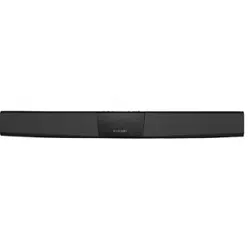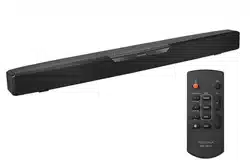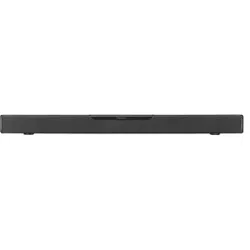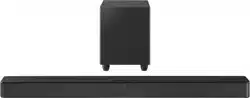
Before using your new product, please read these instructions to prevent any damage.
USER GUIDE
2.0-Channel 20 in.
Soundbar
NS-HTSB20S

2
www.insigniaproducts.com
Contents
Introduction . . . . . . . . . . . . . . . . . . . . . . . . . . . . . . . . . . . . . . . . . . . . . . . . . . . . . . . . . . . . 2
Getting started . . . . . . . . . . . . . . . . . . . . . . . . . . . . . . . . . . . . . . . . . . . . . . . . . . . . . . . . . . 3
Connecting your sound source . . . . . . . . . . . . . . . . . . . . . . . . . . . . . . . . . . . . . . 3
Connecting your soundbar . . . . . . . . . . . . . . . . . . . . . . . . . . . . . . . . . . . . . . . . . . 3
Connecting the AC power adapter . . . . . . . . . . . . . . . . . . . . . . . . . . . . . . . . . . . 3
Positioning your soundbar . . . . . . . . . . . . . . . . . . . . . . . . . . . . . . . . . . . . . . . . . . 4
IMPORTANT SAFETY INSTRUCTIONS . . . . . . . . . . . . . . . . . . . . . . . . . . . . . . . . . . . . . 4
Placement . . . . . . . . . . . . . . . . . . . . . . . . . . . . . . . . . . . . . . . . . . . . . . . . . . . . . . . . . . 4
Package contents . . . . . . . . . . . . . . . . . . . . . . . . . . . . . . . . . . . . . . . . . . . . . . . . . . . . . . . 5
Features . . . . . . . . . . . . . . . . . . . . . . . . . . . . . . . . . . . . . . . . . . . . . . . . . . . . . . . . . . . . . . . . 5
Front view . . . . . . . . . . . . . . . . . . . . . . . . . . . . . . . . . . . . . . . . . . . . . . . . . . . . . . . . . . 6
Side view . . . . . . . . . . . . . . . . . . . . . . . . . . . . . . . . . . . . . . . . . . . . . . . . . . . . . . . . . . . 6
Back view . . . . . . . . . . . . . . . . . . . . . . . . . . . . . . . . . . . . . . . . . . . . . . . . . . . . . . . . . . . 7
Remote control . . . . . . . . . . . . . . . . . . . . . . . . . . . . . . . . . . . . . . . . . . . . . . . . . . . . . 8
Using the remote control . . . . . . . . . . . . . . . . . . . . . . . . . . . . . . . . . . . . . . . . . . . . . . . . 9
Installing the remote control batteries . . . . . . . . . . . . . . . . . . . . . . . . . . . . . . . 9
Programming another remote control . . . . . . . . . . . . . . . . . . . . . . . . . . . . . . . 9
Setting up your soundbar . . . . . . . . . . . . . . . . . . . . . . . . . . . . . . . . . . . . . . . . . . . . . .10
Choosing your sound source . . . . . . . . . . . . . . . . . . . . . . . . . . . . . . . . . . . . . . .10
Connecting to digital optical (Better) . . . . . . . . . . . . . . . . . . . . . . . . . . . . . . .11
Connecting to AUX (Good) . . . . . . . . . . . . . . . . . . . . . . . . . . . . . . . . . . . . . . . . .12
Connecting to USB . . . . . . . . . . . . . . . . . . . . . . . . . . . . . . . . . . . . . . . . . . . . . . . . .12
Connecting to Bluetooth . . . . . . . . . . . . . . . . . . . . . . . . . . . . . . . . . . . . . . . . . . .13
Connecting the AC power adapter . . . . . . . . . . . . . . . . . . . . . . . . . . . . . . . . . .14
Positioning your soundbar . . . . . . . . . . . . . . . . . . . . . . . . . . . . . . . . . . . . . . . . .15
Mounting your soundbar on a wall (optional) . . . . . . . . . . . . . . . . . . . . . . .15
Using your soundbar . . . . . . . . . . . . . . . . . . . . . . . . . . . . . . . . . . . . . . . . . . . . . . . . . . .17
Listening to your soundbar. . . . . . . . . . . . . . . . . . . . . . . . . . . . . . . . . . . . . . . . .17
Receiving a phone call while playing music . . . . . . . . . . . . . . . . . . . . . . . . .17
Cleaning your soundbar . . . . . . . . . . . . . . . . . . . . . . . . . . . . . . . . . . . . . . . . . . . . . . . .18
Troubleshooting . . . . . . . . . . . . . . . . . . . . . . . . . . . . . . . . . . . . . . . . . . . . . . . . . . . . . . .18
Specifications . . . . . . . . . . . . . . . . . . . . . . . . . . . . . . . . . . . . . . . . . . . . . . . . . . . . . . . . . .20
Legal notices . . . . . . . . . . . . . . . . . . . . . . . . . . . . . . . . . . . . . . . . . . . . . . . . . . . . . . . . . . .21
ONE-YEAR LIMITED WARRANTY . . . . . . . . . . . . . . . . . . . . . . . . . . . . . . . . . . . . . . . . .22
Introduction
Congratulations on your purchase of a high-quality Insignia product. Your NS-HTSB20S
represents the state of the art in soundbar design and is designed for reliable and
trouble-free performance.
3
2.0-Channel 20 in. Soundbar
www.insigniaproducts.com
Getting started
To help you get started quickly, here are the basic steps to setting up your soundbar. For
more detailed information, follow the page numbers listed below:
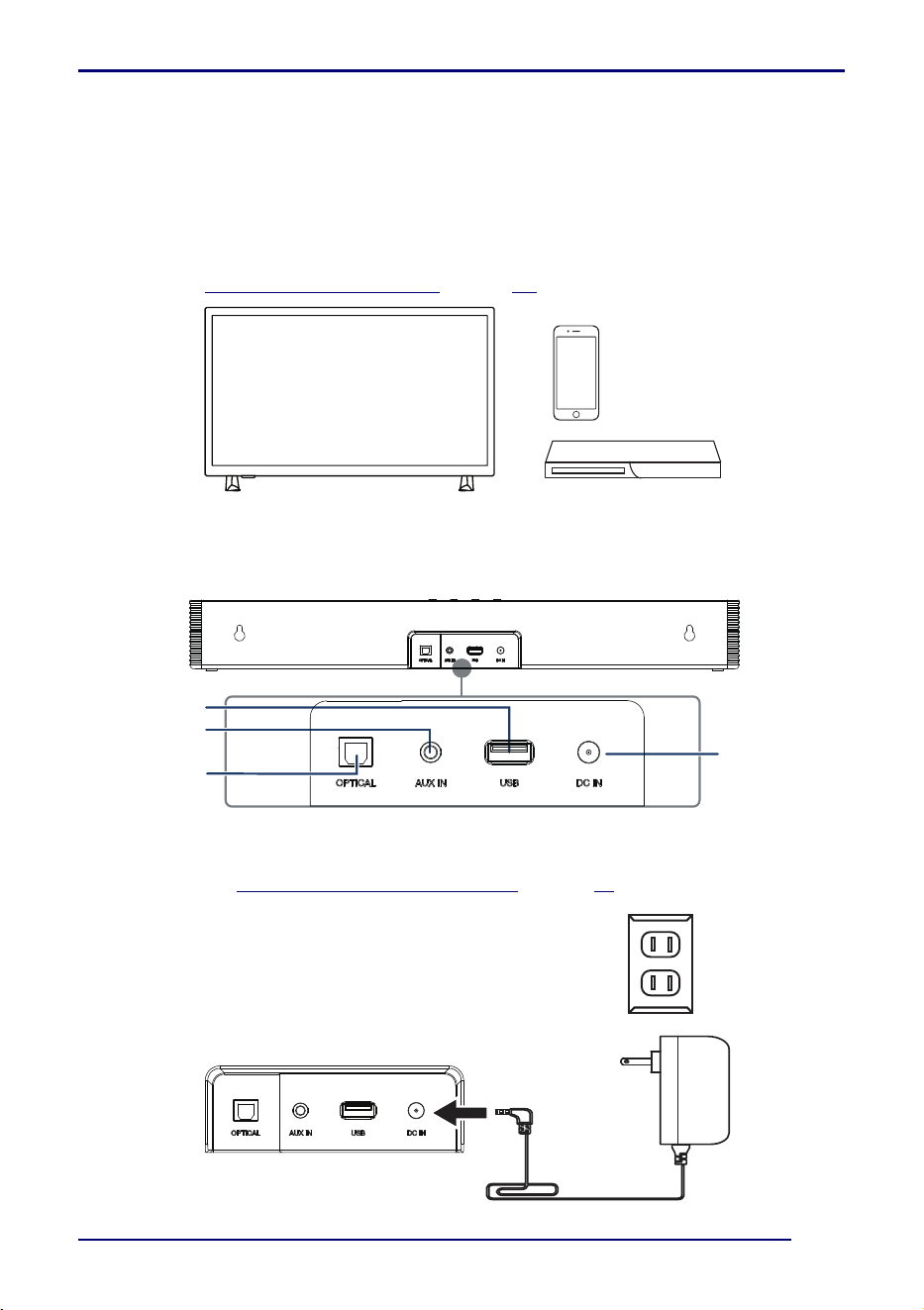
Connecting your sound source
Choose a sound source, such as a TV, DVD/Blu-ray player, or smartphone to connect to
your soundbar. The device you select provides the sound for your soundbar. For more
detail, see Choosing your sound source on page 10.
Connecting your soundbar
Connect your sound source to your soundbar. You may need to find or purchase the
correct cable, depending on the connection.
Connecting the AC power adapter
• Plug your AC power adapter into your soundbar and an AC power outlet. For more
detail, see Connecting the AC power adapter on page 14.
Digital
Optical jack
USB port
DC IN jack
Back of your soundbar
AUX IN jack
Back of your soundbar
AC power
adapter cord
Power outlet
AC power adapter
4
www.insigniaproducts.com
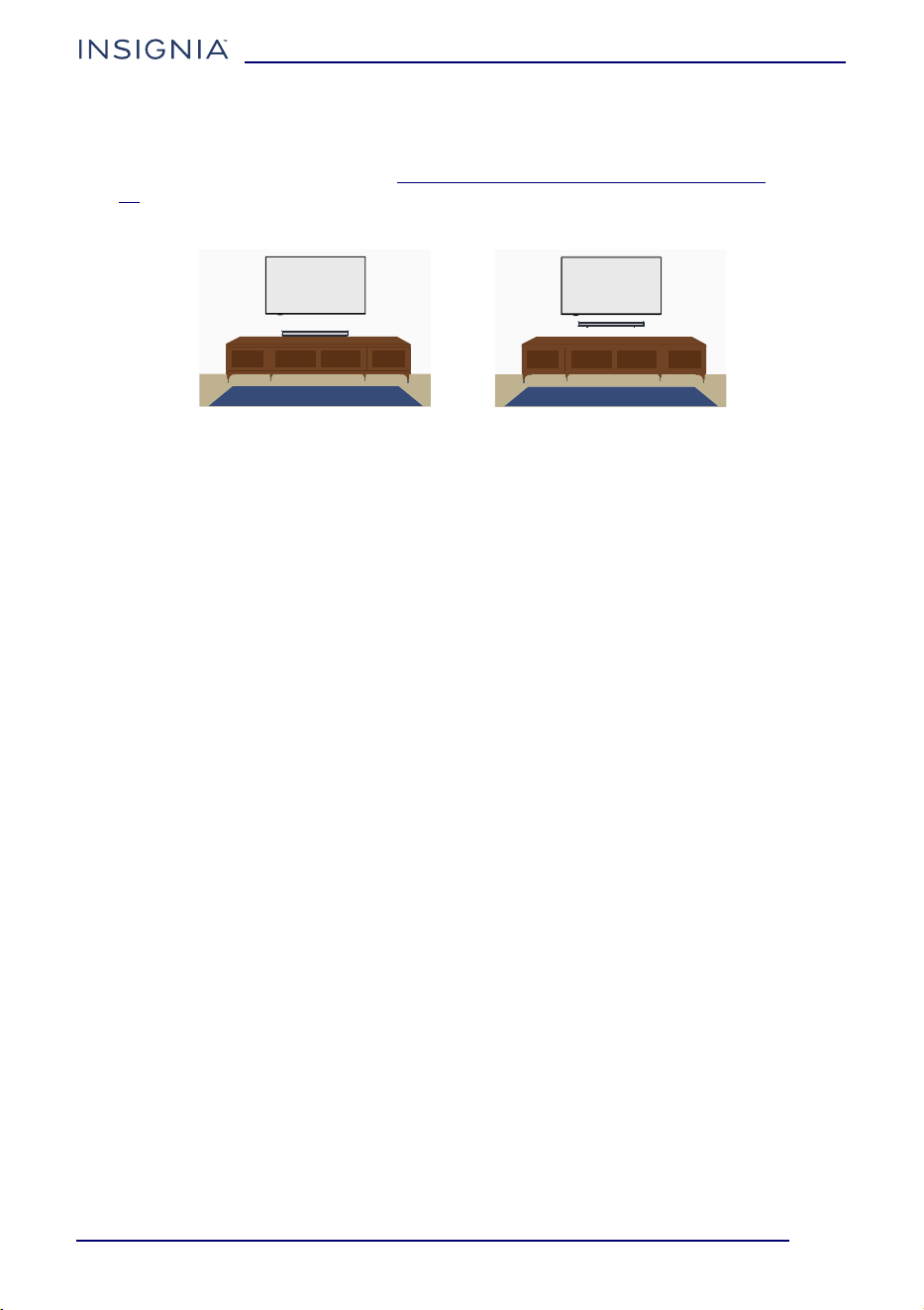
Positioning your soundbar
You can either place your soundbar on a flat surface or mount it on the wall (optional)
under the TV. For more detail, see Mounting your soundbar on a wall (optional) on page
15.
IMPORTANT SAFETY INSTRUCTIONS
• Read these instructions. Keep these instructions. Heed all warnings. Follow all
instructions.
• Install and use in accordance with the manufacturer's instructions.
• Do not install near any heat sources such as radiators, heat registers, stoves, or other
apparatus (including amplifiers) that produce heat. Do not place a naked flame such
as a lighted candle or lit cigarette on or near soundbar.
• Only use attachments/accessories specified by the manufacturer
• Protect the power cable from being walked on or pinched, particularly at the power
adapter, convenience receptacles, and the point where it exits from soundbar.
• When you use the included power adapter to power soundbar, make sure the power
cable is fully inserted into the power adapter before you plug the adapter into a
power outlet. It’s important to keep soundbar and its power adapter in a
well-ventilated area when in use.
• Unplug this apparatus during lightning storms or when unused for long periods of
time.
• Do not attempt to repair or service soundbar yourself. Refer all servicing to qualified
service personnel. Servicing is required when soundbar has been damaged in any
way, such as when the power cable or connector is damaged for soundbar, liquid has
been spilled or objects have fallen into soundbar, or when soundbar has been
exposed to rain or moisture, does not operate normally, or has been dropped.
• Don’t use the power adapter in wet locations, such as near a sink, bathtub, or shower
stall, and don’t connect or disconnect the power adapter with wet hands. Stop using
the power adapter and power cable if any of the following conditions exist:
• The power adapter plug or prongs are damaged.
• The power cable becomes frayed or otherwise damaged.
• The power adapter is exposed to excessive moisture, or liquid is spilled into the
power adapter.
• The power adapter has been dropped, and its enclosure is damaged.
Placement
• Your soundbar cabinet is made out of plastic and is therefore sensitive to extreme
temperatures and humidity. Do not put it in locations subject to direct sunlight or in
humid places, such as near an air conditioner, humidifier, bathroom, or kitchen.
Wall mounted
Flat surface
5
2.0-Channel 20 in. Soundbar
www.insigniaproducts.com
• Do not put water or other liquids close to your soundbar. If liquid is spilled on top of
your soundbar, it may be damaged.
• Your soundbar should be placed on a sturdy, flat surface that is free from vibration, or
mounted on a wall. Do not put your soundbar on an uneven or unstable surface,
where it may fall and cause damage.
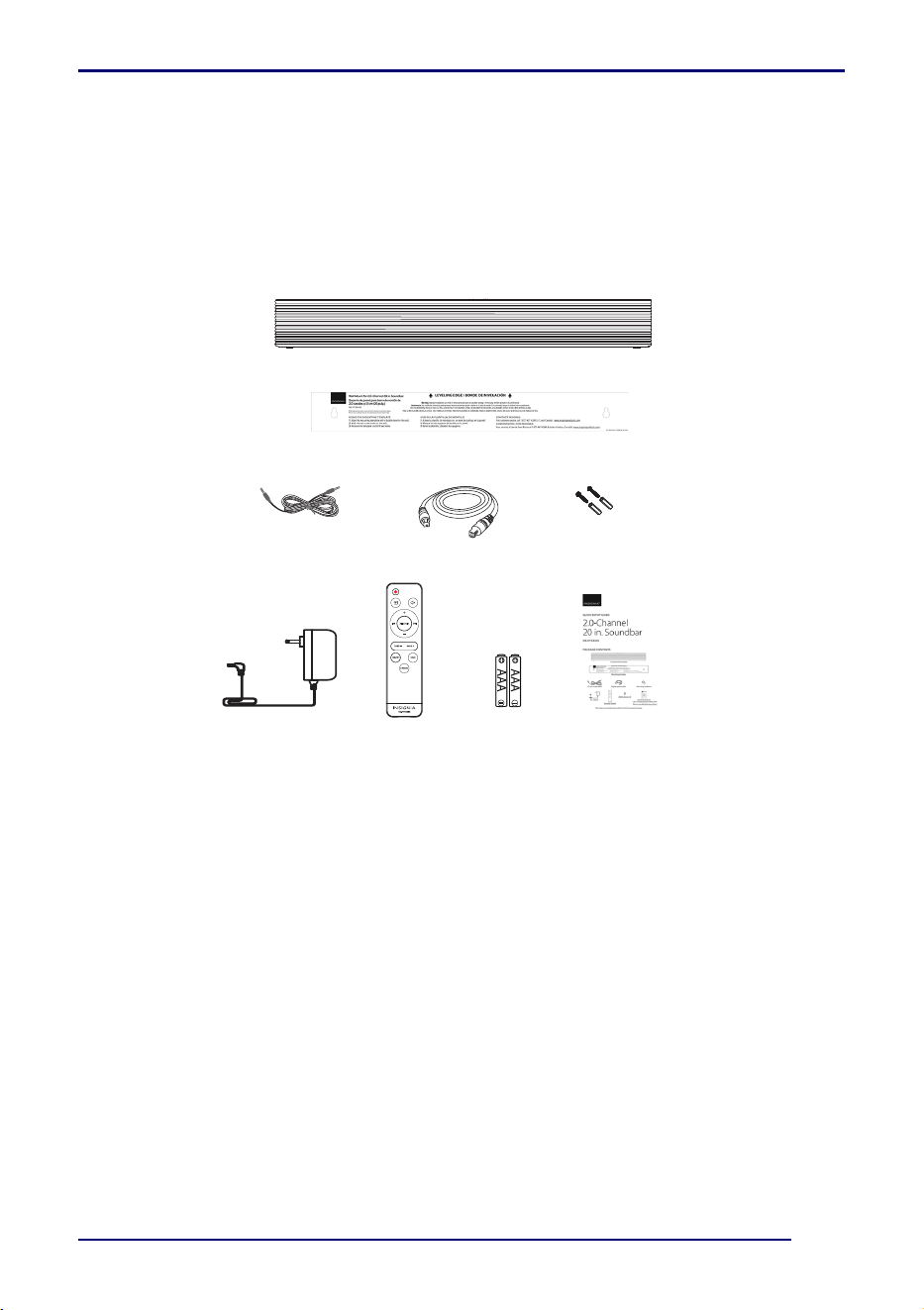
Package contents
Features
• 2.0-channel soundbar delivers a superior listening experience
• Compact design is only 20.08 in. (51 cm) wide, allowing for placement in smaller
areas
• Versatile hook-up options include digital optical, 3.5 mm AUX, USB, and Bluetooth
• 30 total watts of RMS power supports clearer sounding audio
• Bluetooth capability with memory pairing offers streaming functionality
• 3 sound modes (Standard, Theater and News) provide a customized audio experience
• Included remote control grants you wireless control
• USB port offers playback for WAV or MP3 audio files
• Mounting capability provides space-saving options
2.0-Channel Soundbar
Mounting template
3.5 mm audio cable
Digital optical cable
Mounting hardware
AAA batteries (2)
Quick Setup Guide
Remote control
AC power adapter
6
www.insigniaproducts.com
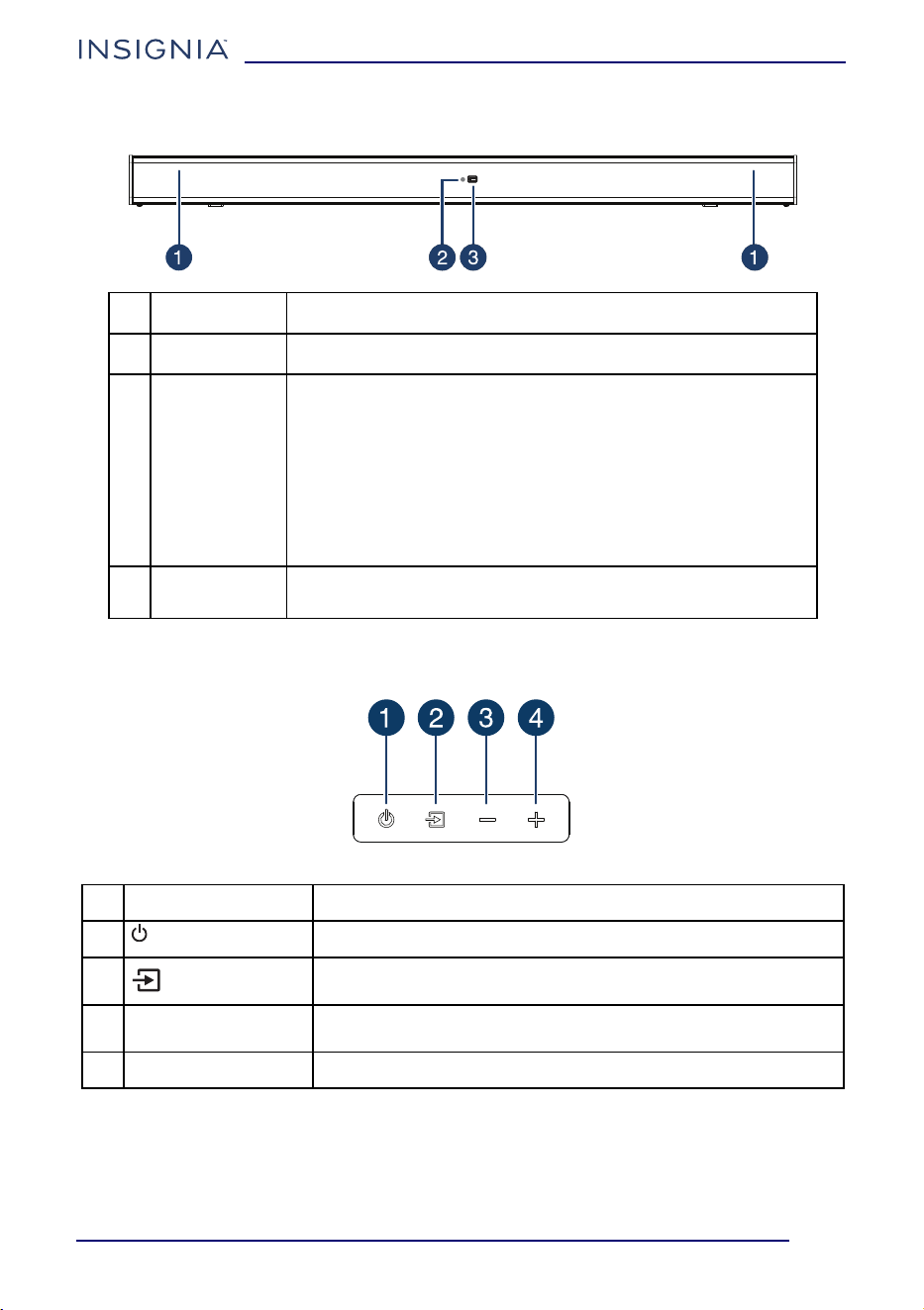
Front view
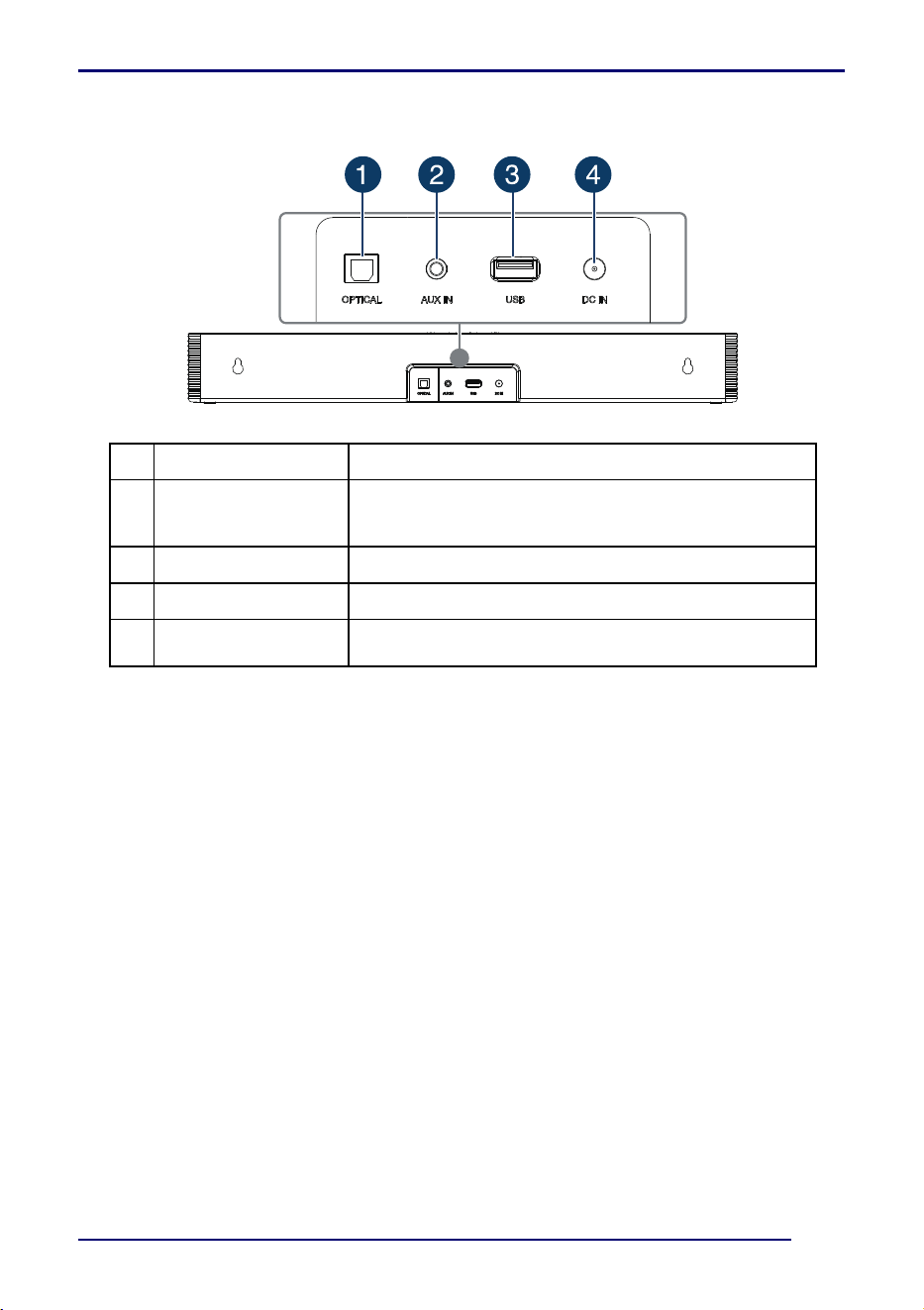
Side view
# ITEM DESCRIPTION
1
Speaker Left and right speakers
2
Status indicator
Different color LEDs indicate the following:
• Red - Standby mode
• Blue - Bluetooth mode (blinks while pairing)
•Orange - AUX mode
• Green - Digital optical mode
• Purple - USB mode
• Turquoise - Bass mode (blinking)
• Green/Blue/Red (blinking) - DSP (Digital Signal Processing)
mode
3
Remote control
sensor
Detects signals from the remote control. Do not block
# ITEM DESCRIPTION
1
(power) button Press to turn on your soundbar.
2
(sound source
selector) button
Press to cycle through the available sound sources
3
– (volume down)
button
Press to decrease the volume of your soundbar.
4
+ (volume up) button Press to increase the volume of your soundbar.
7
2.0-Channel 20 in. Soundbar
www.insigniaproducts.com
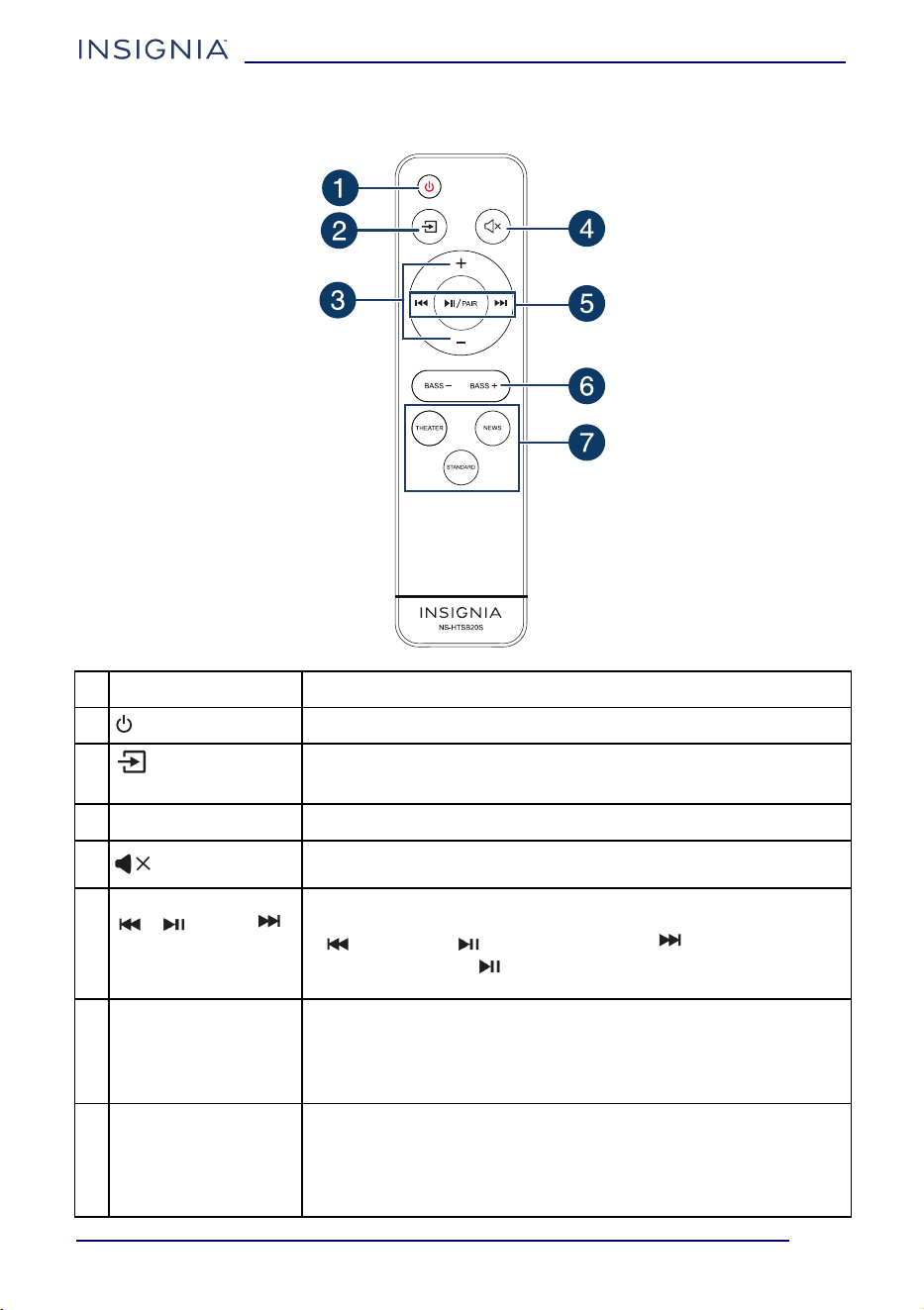
Back view
# ITEM DESCRIPTION
1OPTICAL jack
Connect a digital optical cable to this jack and the
OPTICAL OUT jack on a TV or audio source device. Set
the sound output from the source to the PCM format.
2AUX IN jack
Connect a 3.5 mm audio cable to this jack.
3 USB port
Connect a USB source device to play MP3/WAV files.
4DC IN jack
Connect the AC power adapter cord to this jack to
power the soundbar.
8
www.insigniaproducts.com
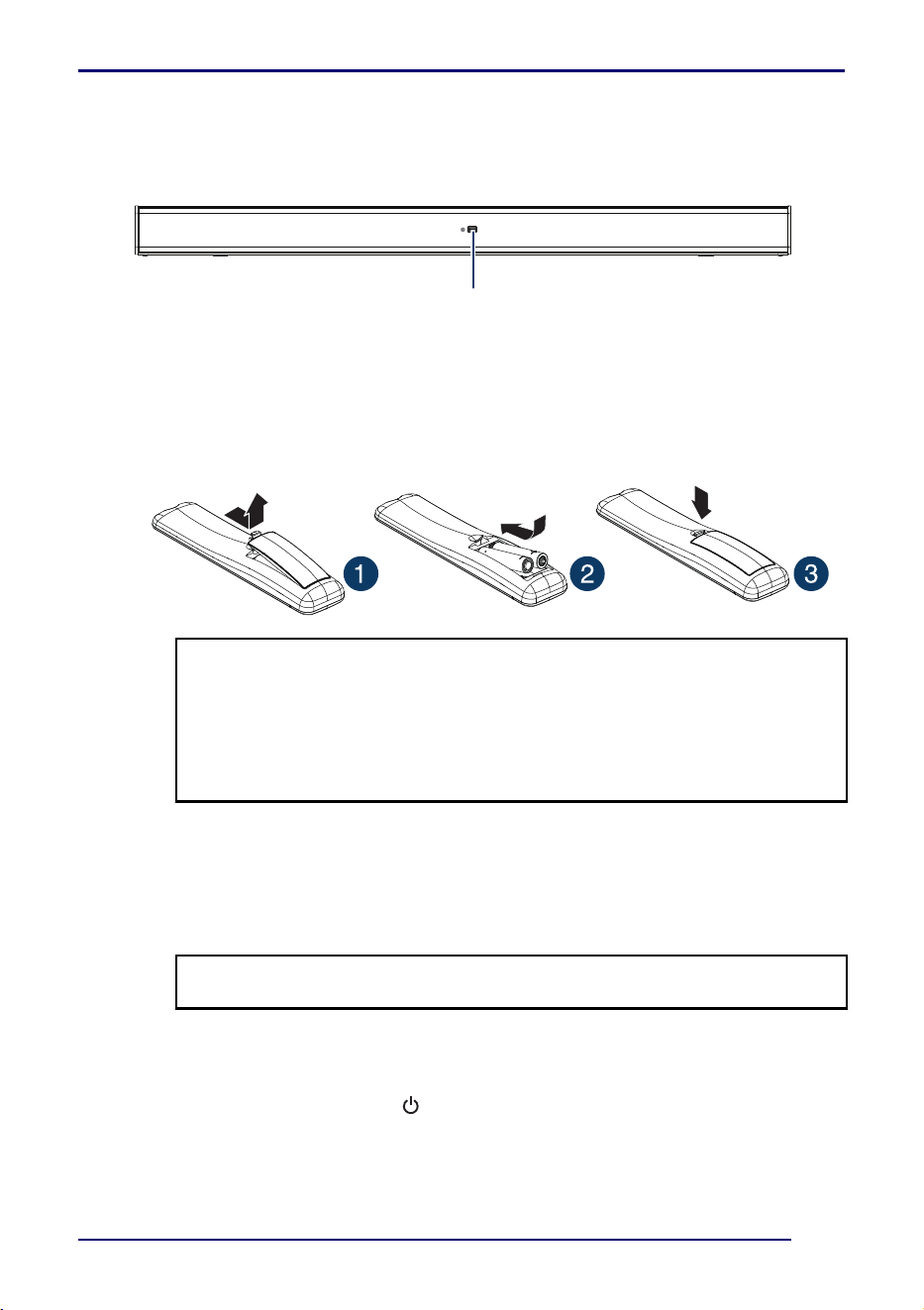
Remote control
# ITEM DESCRIPTION
1 (power) button
Press to turn on your soundbar.
2
(sound source
selector) button
Press repeatedly to cycle through the available sound sources.
3+/– (volume) buttons
Press to increase or decrease your soundbar’s volume.
4 (mute) button
Press to mute the sound from your soundbar. Press again to
restore the sound.
5
/ /PAIR /
(Bluetooth/USB)
buttons
When a Bluetooth or USB source is selected, press to control
playback with the following buttons:
- (previous) / (play/pause)/PAIR / (next)
- Press and hold the (play/pause)/PAIR button for three
seconds to disconnect Bluetooth.
6BASS -/+ button
Press to turn on the bass frequency enhancement, then use - and
+ buttons to adjust the bass volume level within 10 seconds. The
status indicator on your soundbar blinks turquoise when
activated.
Note: Does not work in NEWS mode.
7
THEATER/STANDARD
/NEWS (sound mode)
buttons
Press to select the sound mode. The status indicator on your
soundbar blinks three times in sequence green > blue > red.
STANDARD - general music or TV shows listening.
THEATER - optimize movie sound for a theater setting.
NEWS - optimize spoken voice or dialog for TV news and more.
9
2.0-Channel 20 in. Soundbar
www.insigniaproducts.com
Using the remote control
Point the remote control directly at the IR sensor on the front of your soundbar. You must
be within approximately 50 ft. (15 m) of your soundbar and within 30° on either side.
Installing the remote control batteries
1 Remove the battery compartment cover from the back of the remote control.
2 Insert two AAA batteries into the battery compartment, making sure that the polarity
on the batteries matches the + and - symbols inside the battery compartment.
3 Replace the battery compartment cover.
Programming another remote control
IR remote learning function (optional)
Your soundbar can learn 13 button codes from most remote controls, so you can easily
control the sound with both the soundbar remote and the TV remote. You can also
replace the soundbar remote with another remote.
Programming using the Manual Sequence Learning mode:
1 Point your soundbar’s remote control and the remote you want to program within 4
in. (10 cm) of the remote control sensor on your soundbar.
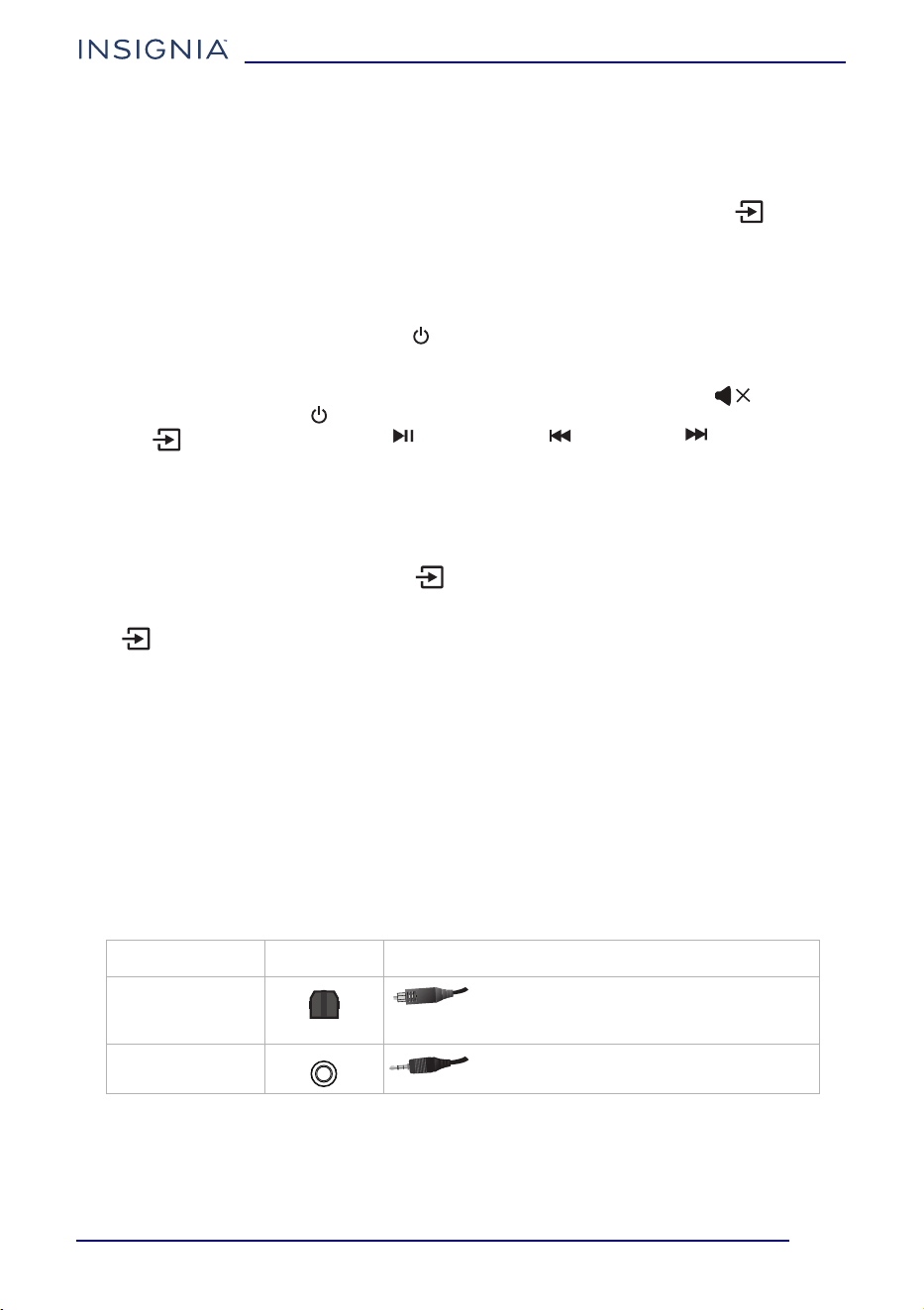
2 Press and hold the soundbar’s (power) button (on the right side button panel, not
on the remote) from standby for five seconds to turn on the Manual Sequence
Learning mode. The status indicator blinks red rapidly and the soundbar starts to
learn.
3 Short press the button on your soundbar’s remote control that you want the other
remote control to learn. The status indicator blinks blue once.
CAUTIONS:
• Do not spill water or any liquid on the remote control.
• Do not place the remote control on a wet surface.
• Do not place the remote control in direct sunlight or near sources of
excessive heat.
• If the remote control is not going to be used for a long time, remove the
batteries to avoid any damage that may be caused by leakage and corrosion.
Note: If the status indicator blinks orange, your soundbar can't learn the button
code. Try another button or another remote control.
IR sensor
10
www.insigniaproducts.com
4 Short press the button on the other remote control you want to teach. The status
indicator blinks green once. The soundbar has learned the code and matched step 3
button function to this remote button.
Repeat steps 3 and 4 to have your other remote learn more functions. The soundbar
will exit learning mode after 20 seconds, or you can press and hold the (sound
source selector) button on the soundbar for two seconds to stop learning mode.
Programming using the Preset Sequence Learning mode:
1 Point your soundbar’s remote control and the remote you want to program within 4
in. (10 cm) of the remote control sensor on your soundbar.
2 Press and hold your soundbar’s (power) button (on the right side button panel,
not on the remote) from standby for two seconds to turn on the Preset Sequence
Learning mode. The status indicator blinks red slowly and your soundbar starts to
learn the buttons in the following sequence: Volume - > Volume + > (mute) >
BASS + > BASS - > (power) > THEATER/STANDARD/NEWS (sound mode) >
(sound source selector > (play/pause) > (previous) > (next).
3 Short press the button on the remote you want to program. The status indicator
blinks blue once when your soundbar receives this button.
4 Short press the same button again. The status indicator blinks green once when your
sound bar receives the command from the remote you want to program.
Repeat steps 3 and 4 to teach additional functions in the sequence to the remote you
want to program, or short press the (sound source selector) button on the soundbar
so the learning function on current button will be skipped. The soundbar will auto exit
the learning mode if there is no operation for 20 seconds, or you can press and hold the
(sound source selector) button on the soundbar for two seconds to exit the learning
mode.
Deleting all learned remote codes:
• While in standby mode, press and hold the power button on your soundbar for 10
seconds to clear all learned codes. The status indicator blinks white two times when
all the learned remote codes are cleared.
Setting up your soundbar
Choosing your sound source
Look at your sound source device, such as a TV, DVD/Blu-ray player, or cable box, to
identify your audio OUT ports. Choose one connection option that fits your sound
source. You can connect several devices and switch the sound source as required.
You can also choose a USB thumb-drive or Bluetooth device as your sound source. See
Connecting to USB on page 12, or Connecting to Bluetooth on page 13.
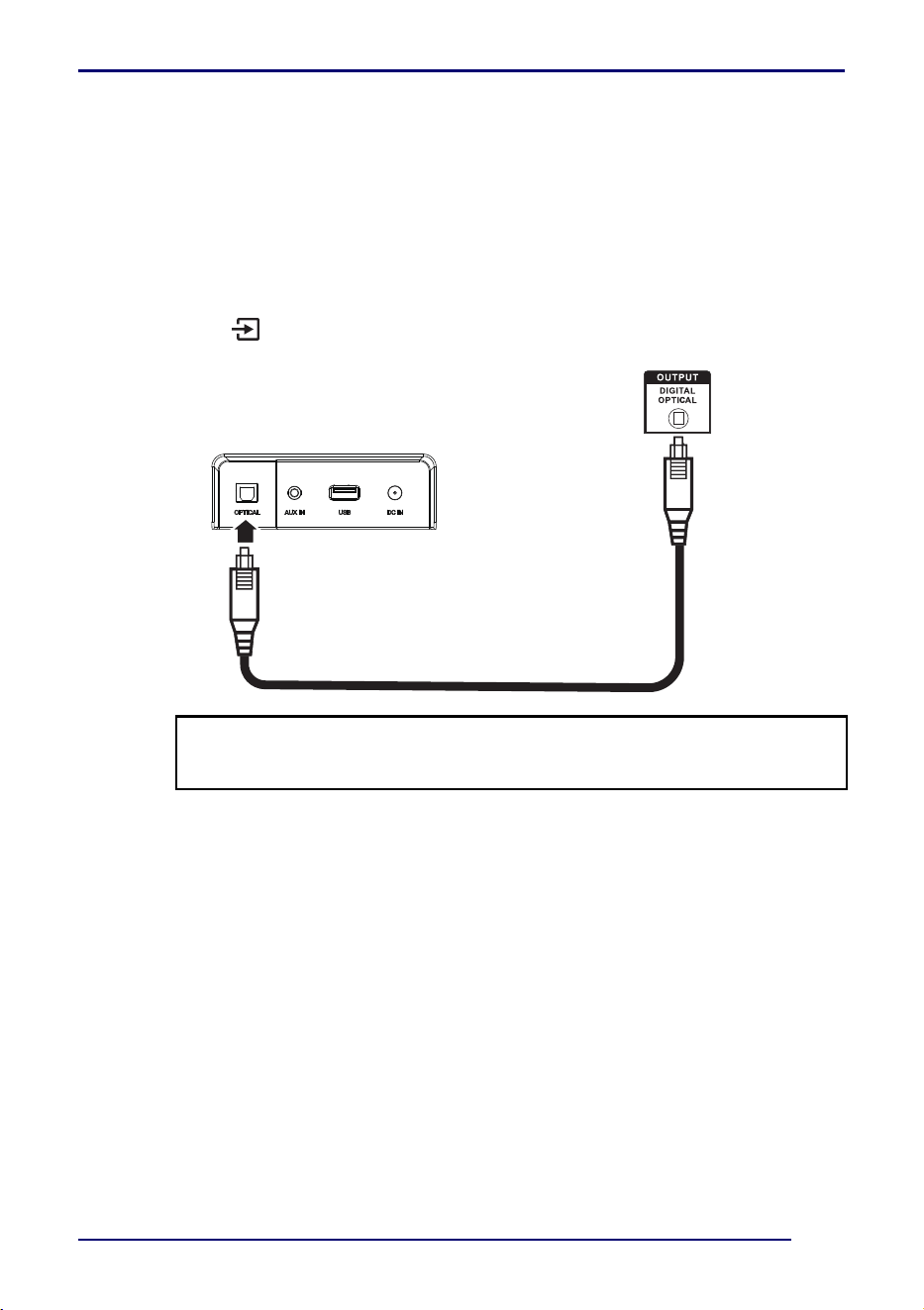
AUDIO QUALITY JACK TYPE CABLE
BETTER
Digital Optical cable (included). See
Connecting to digital optical (Better) on
page 11.
GOOD
3.5 mm audio cable (included). See
Connecting to AUX (Good) on page 12.
11
2.0-Channel 20 in. Soundbar
www.insigniaproducts.com
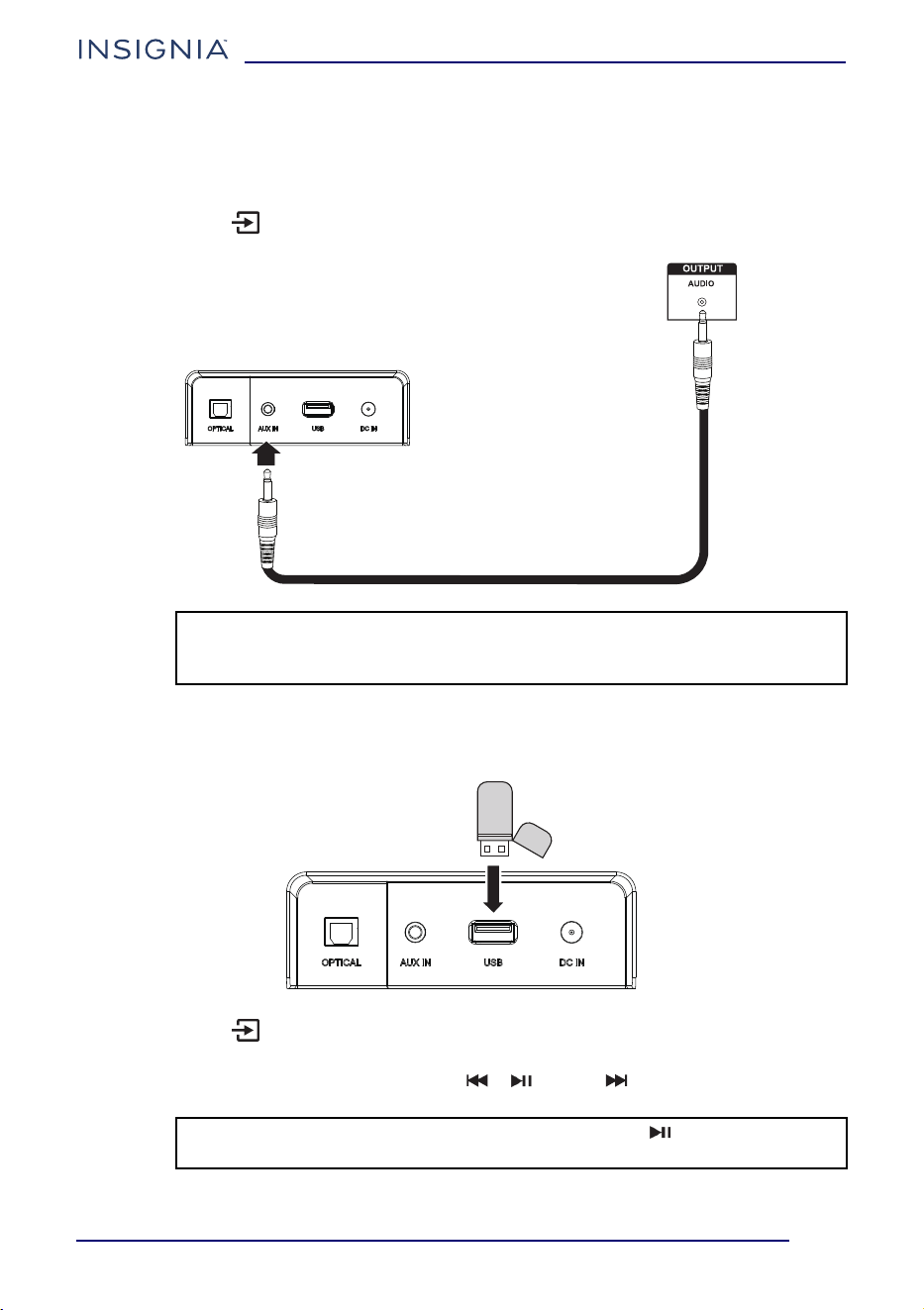
Connecting to digital optical (Better)
1 Remove the caps of the both ends of the optical cable.
2 Connect one end of the included digital optical cable to the OPTICAL jack on your
soundbar.
3 Connect the other end into the Digital Optical Output jack on your source device.
4 Change the device’s audio output to the PCM format (typically found in audio
settings). See the documentation that came with your audio source device for more
information.
5 Press the (sound source selector) button on your soundbar or your remote
control repeatedly until the source indicator turns green.
Important: Make sure that the device you connect and select as your sound
source is outputting sound to your soundbar. See your device's user manual for
more information.
Digital optical cable (included)
Back of your soundbar
Audio source (TV, Blu-ray
player, or cable box)
12
www.insigniaproducts.com
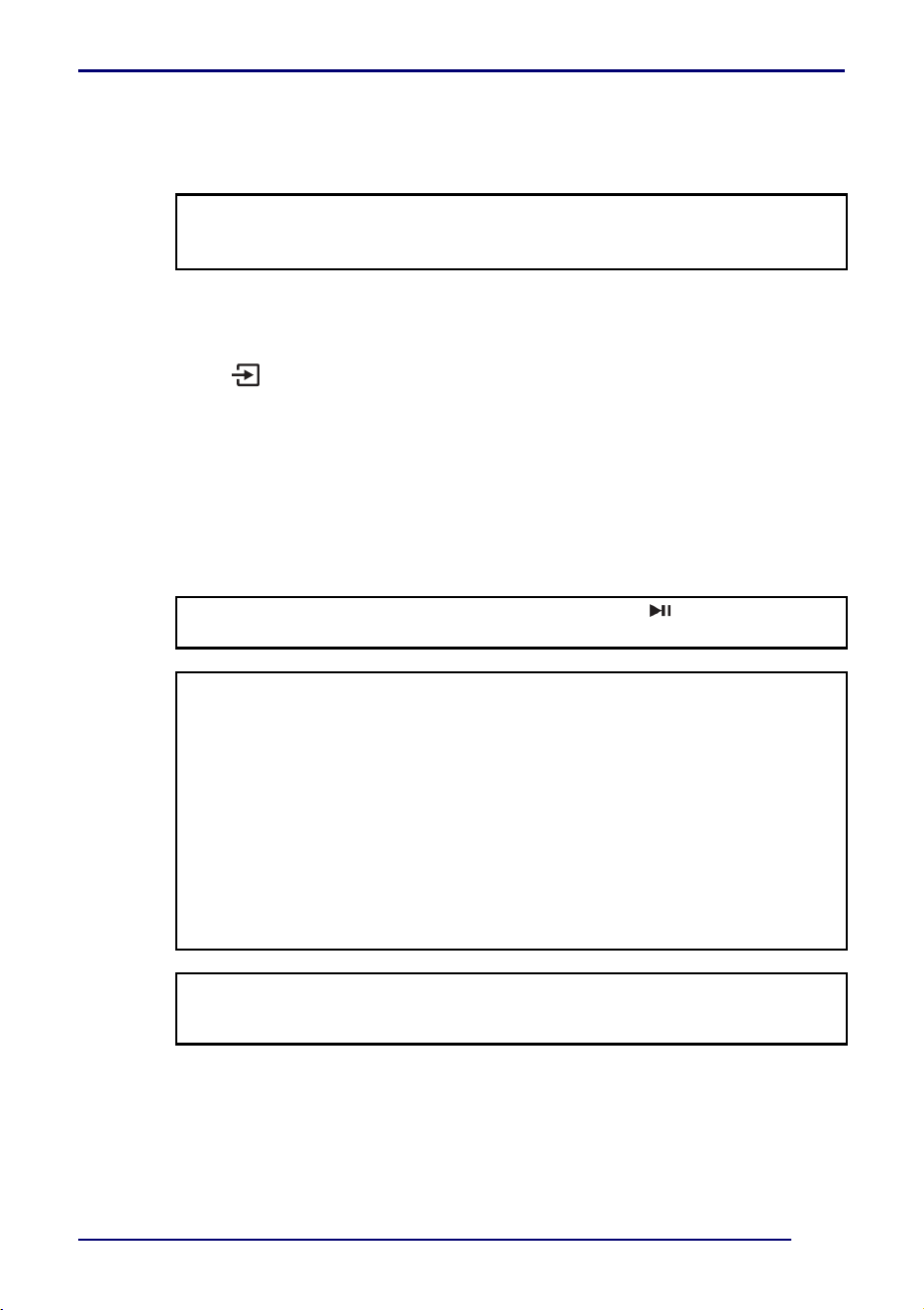
Connecting to AUX (Good)
1 Connect one end of the included 3.5 mm audio cable into the AUX IN jack on your
soundbar, then connect the other end of the AUX cable to the headphone or AUX
Output jack on your audio source device.
2 Press the (sound source selector) button on your soundbar or your remote
control repeatedly until the source indicator turns orange.
Connecting to USB
1 Plug a USB thumb-drive (with MP3 or WAV files) into the USB port on the back of your
soundbar.
2 Press the (sound source selector) button on your soundbar or your remote
control repeatedly until the source indicator turns purple.
3 Control USB playback by pressing the / /PAIR / (Bluetooth/USB) buttons
on the remote control.
Important: Make sure that the device you connect and select as your sound
source is outputting sound to your soundbar. See your device's user manual for
more information.
Note: If playback does not begin immediately, press the /PAIR
(Bluetooth/USB) button on the remote control.
3.5 mm audio cable (included)
Back of your soundbar
Audio source with 3.5 mm
jack (smartphone, tablet,
TV, or iPad)
Back of your soundbar
USB thumb-drive
13
2.0-Channel 20 in. Soundbar
www.insigniaproducts.com
Connecting to Bluetooth
Before you can use your soundbar with a Bluetooth device, you need to pair your device
to your soundbar.
Pairing your devices
1 Turn on your soundbar.
2 Place your Bluetooth device within 33 ft. (10 m) of your soundbar.
3 Press the (sound source selector) button on your soundbar or your remote
control repeatedly until the source indicator blinks blue.
4 Navigate to your device’s Bluetooth settings, turn on Bluetooth, then search for
available devices. See the documentation that came with your audio source device
for more information on pairing.
5 On your Bluetooth device, select NS-HTSB20S from the device list.
6 Repeat steps 1-4 if NS-HTSB20S is not displayed.
7 If a PIN code is requested, enter 0000.
8 When pairing is completed the LED lights solid blue.
Notes:
• Your soundbar must be on to make a Bluetooth connection.
• Place the Bluetooth device within 33 ft. (10 m) of your soundbar.
Note: If playback does not begin immediately, press the /PAIR
(Bluetooth/USB) on the remote control.
Notes:
• Some devices, such as an iPhone, connect immediately after pairing so the
status indicator on your soundbar remains on. Other devices, such as
notebook computers, may ask you if you wish to connect. In this instance,
the status indicator continues to blink until a connection is established.
• When you turn on your soundbar, it automatically connects to the last
connected device if that device is in range. To connect to a different paired
device, turn off Bluetooth or unpair from the currently paired device and
manually connect to the other paired device.
• When a call is received while playing music through a phone, the music
stops automatically.
• When the call ends, depending on the setting of your phone, the current
track may resume playback.
Important: Make sure that the device you connect and select as your sound
source is outputting sound to your soundbar. See your device's user manual for
more information.
14
www.insigniaproducts.com
Disconnecting your devices
• Turn off the Bluetooth function on your device.
Reconnecting to a paired device
When your soundbar is not paired to a device, the LED indicator blinks.
Connecting to a different device
1 On the Bluetooth device you are currently connected to, turn off the Bluetooth
function or unpair your soundbar in your Bluetooth device list. Your soundbar can
now be connected to another Bluetooth device.
2 Follow the section Connecting to Bluetooth on page 13 to connect a new device.
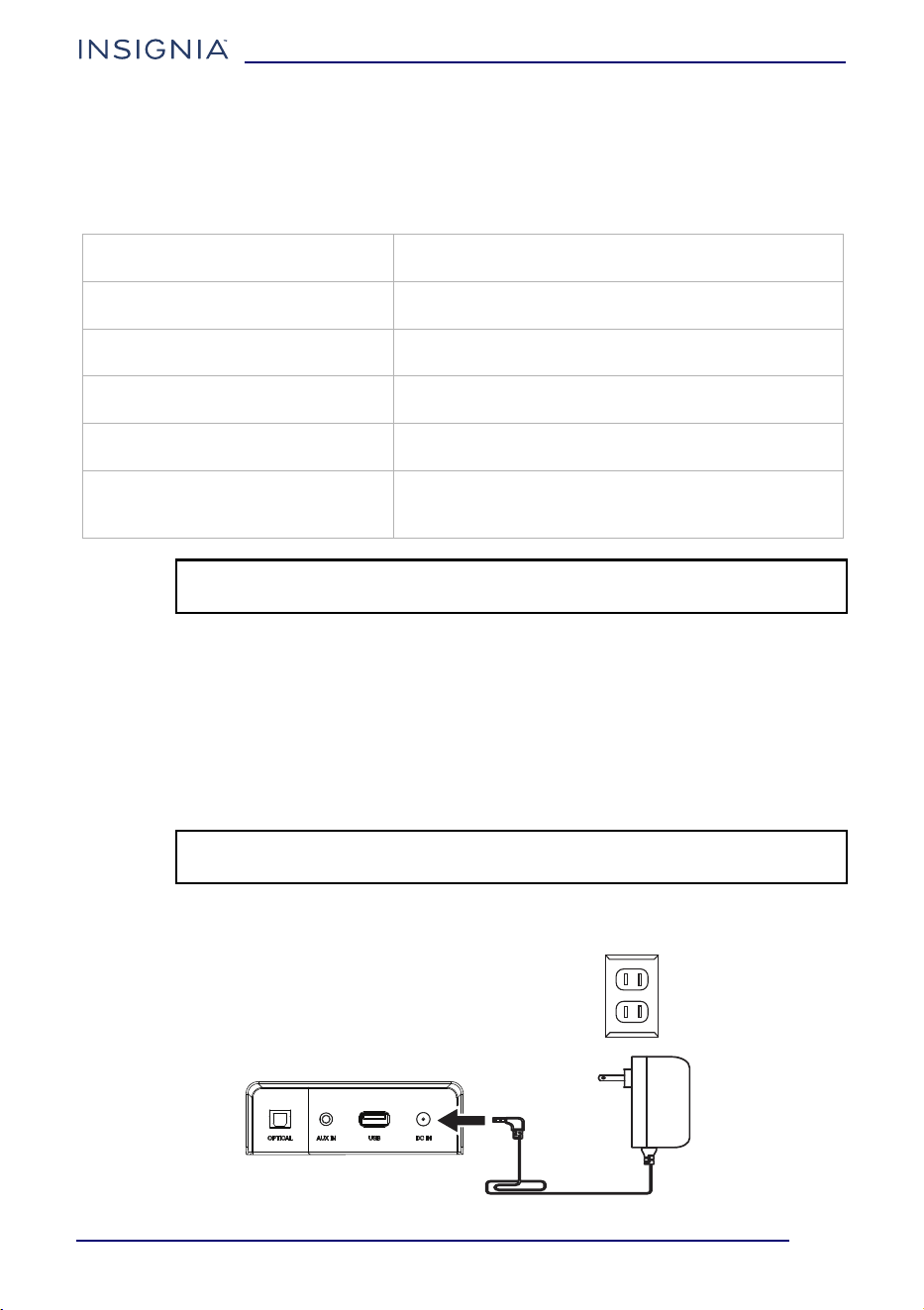
Connecting the AC power adapter
After you have connected your soundbar to an audio source, you need to connect the AC
power adapter and plug it in.
• Connect one end of the included AC power adapter into the DC IN jack on your
soundbar, then plug the AC power adapter into a power outlet or surge protector.
Your soundbar loses the Bluetooth
connection if you…
To reconnect...
Turn off the soundbar. Turn on your soundbar. Your soundbar searches for
the last connected Bluetooth device and reconnects.
Move the Bluetooth device out of
range.
Move your Bluetooth device within 33 ft. (10 m) of
your soundbar.
Turn off your Bluetooth device. Turn on your Bluetooth device, then make sure that
Bluetooth is on.
Turn off Bluetooth on your Bluetooth
device.
Turn on Bluetooth on your Bluetooth device.
Connect your Bluetooth device to
another Bluetooth device.
Disconnect your Bluetooth device from the other
Bluetooth device, then set your device to pairing
mode. Select NS-HTSB20S on your Bluetooth device.
Note: If a device does not automatically reconnect, you may need to reselect
NS-HTSB20S on your Bluetooth device.
CAUTION: Make sure that the electrical outlet matches the input requirements
of 100-240V AC at 50/60Hz before connecting.
Back of your soundbar
AC power
adapter cord
Power outlet
AC power adapter
15
2.0-Channel 20 in. Soundbar
www.insigniaproducts.com
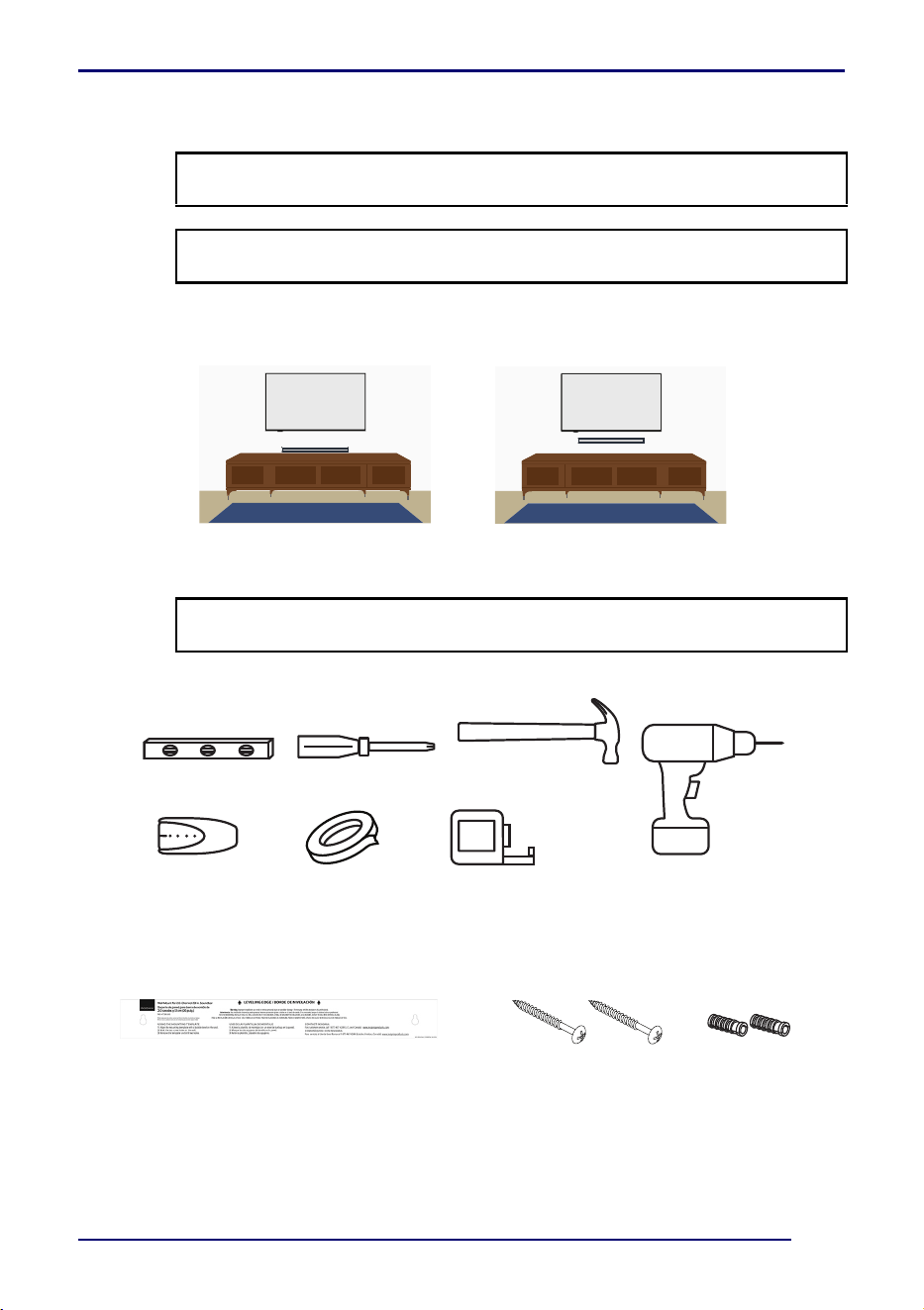
Positioning your soundbar
• You can set your soundbar on a flat surface or mount it on a wall.
Mounting your soundbar on a wall (optional)
You need (not included with your soundbar):
Included with your soundbar:
1 Select a location close to your TV and directly in front of the viewing/listening
position. For best sound quality, choose a location where sound waves are not
blocked by furniture or other obstacles.
WARNING: Incorrect installation can result in serious injury or damage to your
soundbar. If necessary, seek the assistance of a professional.
Note: If you are installing screws into drywall or concrete, use wall anchors
(provided) designed for that type of surface.
Note: Make all connections to your soundbar before mounting your soundbar
on a wall.
Wall mountedFlat surface
Level
Stud finder
(optional for wood stud
installation)
Drill and drill bit
HammerScrewdriver
Tape measureTape
Screw (2) Wall anchor (2)
Mounting template
16
www.insigniaproducts.com
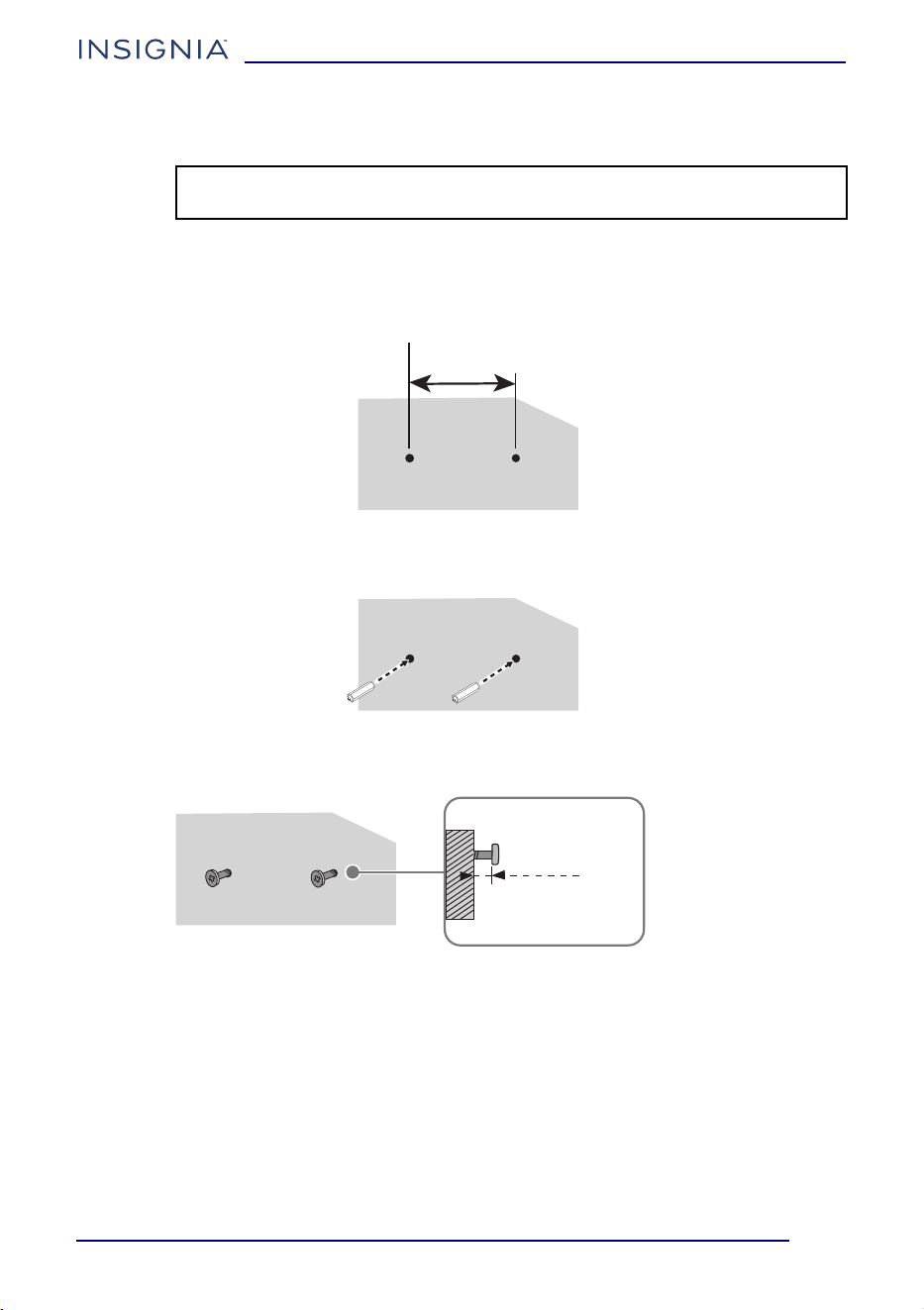
2 If you are mounting your soundbar to drywall, use the stud finder to find the studs
and mark the locations.
3 Use a level to determine that the mounting template is level, then tape the mounting
template to the wall.
4 Drill two 15/64” holes into the wall through the holes in the template (16.44" [41.77
cm] apart), then remove the mounting template.
5 If you are mounting on drywall without studs or on concrete, install wall anchors
(included) into the holes you drilled.
6 Secure two screws (included) to the wall or wall anchors (if required). The screws
must protrude from the wall by about 5/32" (4 mm).
Note: Since normal stud spacing is 16” or 24” on center, only one of the
mounting screws can be in a stud. Use a wall anchor for the other screw.
16.44” (41.77 cm)
Approx.
5/32"
(4 mm)
Wall
17
2.0-Channel 20 in. Soundbar
www.insigniaproducts.com
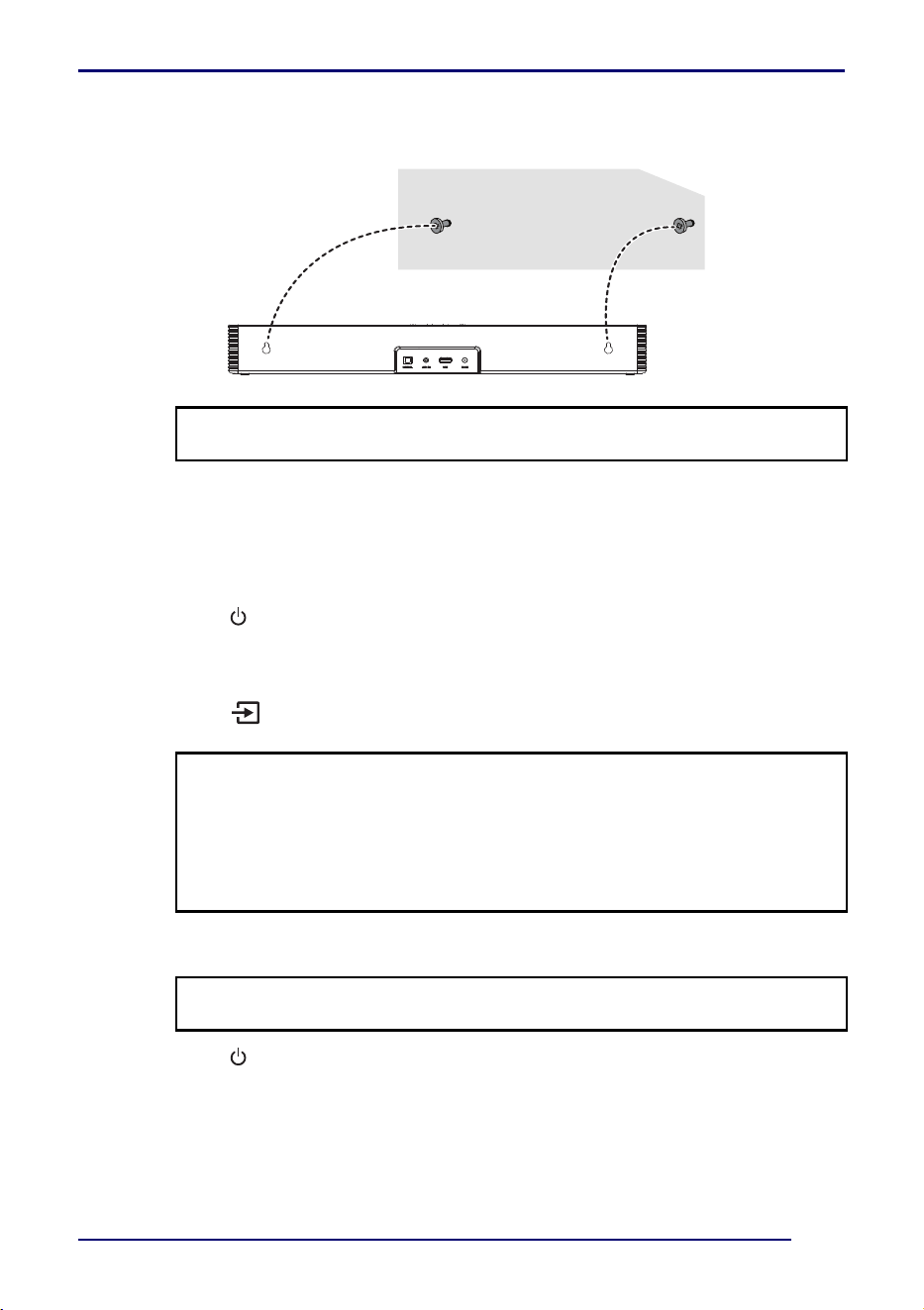
7 Align the speaker hanging brackets with the screws, then hang your soundbar on the
screws.
Using your soundbar
This system lets you access four different sound sources, including Optical, AUX IN,
Bluetooth, and USB.
Listening to your soundbar
1 Press the (power) button to turn on your soundbar. The source indicator turns
from red to the color of the selected sound source (green=optical, blue=Bluetooth,
orange=AUX IN, or purple=USB).
2 Turn on the audio source device connected to your soundbar and begin playback.
3 Press the (sound source selector) button on your soundbar or your remote
control repeatedly until you hear sound from your soundbar.
4 Adjust the volume on your soundbar or the source audio device to a comfortable
level.
5 Press the (power) button again to turn off your soundbar. The status indicator
lights red.
Receiving a phone call while playing music
• When you receive a call while playing music through your phone, the music stops
automatically.
• When you hang up, depending on the setting of your phone, the current track may
resume playback.
WARNING: Incorrect installation can result in serious injury or damage to your
soundbar. If necessary, seek the assistance of a professional.
Notes:
• If you use the OPTICAL jack, you must change your device’s audio output
setting to the PCM format. See the documentation that came with the output
device for additional information.
• Make sure that your sound source is set to output sound to your soundbar
(whichever connection method you choose). See the documentation that
came with the device for additional information.
WARNING: Continuous use of high volume sound may permanently damage
your hearing.
18
www.insigniaproducts.com
Cleaning your soundbar
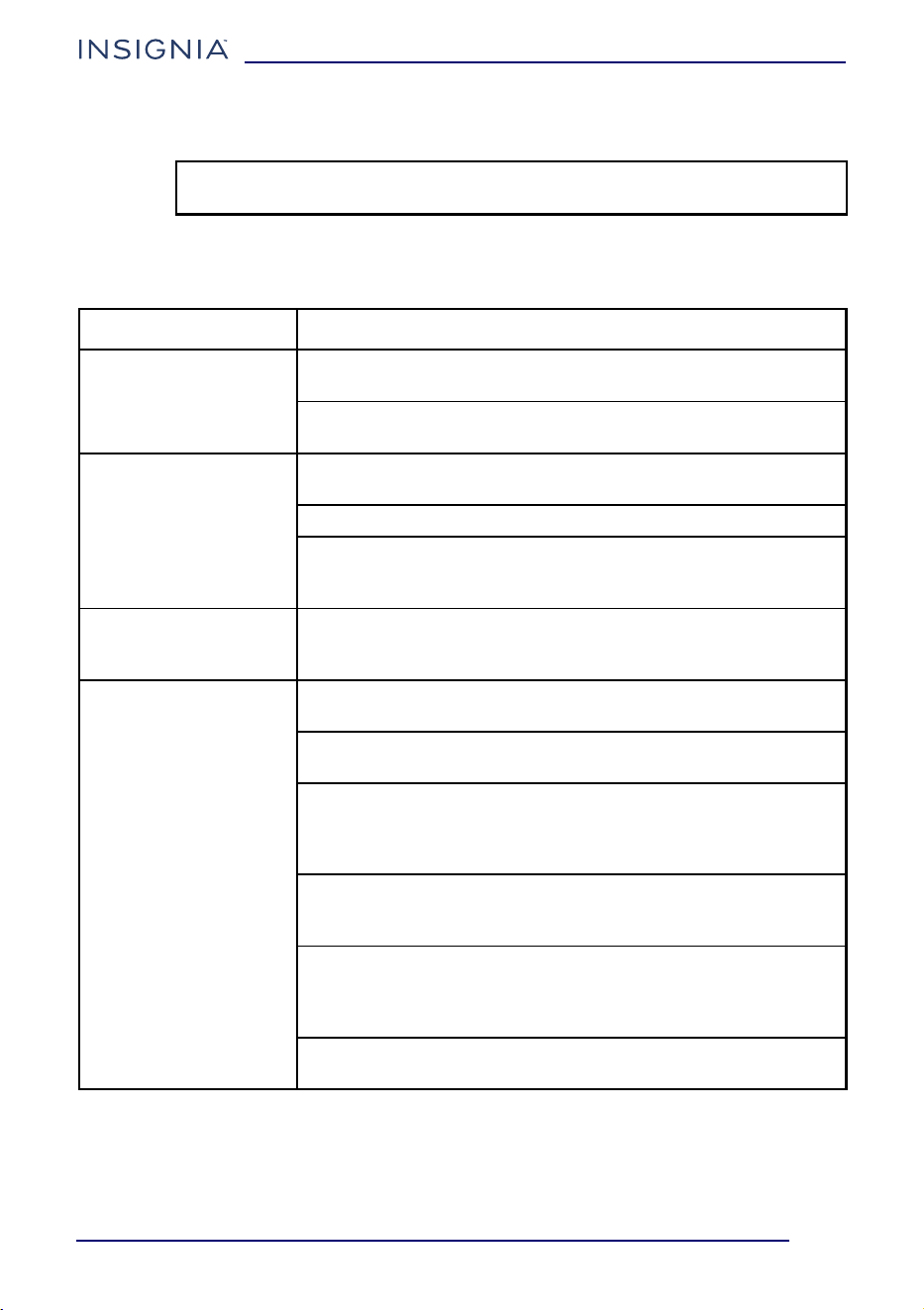
Troubleshooting
Check this list for a possible troubleshooting solution before calling for service.
CAUTION: Only use a soft and clean rag to clean the outside of your soundbar.
Never clean it with chemicals, detergents, or abrasives.
PROBLEM POSSIBLE SOLUTION
The power doesn’t come
on.
Make sure that the AC power cord is securely plugged into the
power outlet and your soundbar.
Make sure that your soundbar is turned on. It doesn’t turn on
automatically when you turn on your TV or other sound source.
The remote control
doesn’t work.
Remove any obstacles between the remote control and the IR
sensor on your soundbar.
The remote control batteries may be exhausted. Replace them.
Move closer to your soundbar. The remote control is only effective
to approximately 50 ft. (15 m) from your soundbar and within 30°
on either side.
My TV remote doesn’t
control my soundbar.
Make sure that your soundbar has learned your TV remote’s
button codes. See IR remote learning function (optional) on
page 9 for instructions for setup.
The sound is breaking up
or buzzing.
Make sure that you are connected to an audio out jack on your
sound source. The jack doesn’t send audio out if it is an input jack.
Make sure that all connections are secure and cables are not
broken or damaged.
If you’re using the OPTICAL jack, make sure that the source
device’s audio source is set to the PCM format. See the
documentation that came with the audio source device (such as a
TV or DVD/Blu-ray player) for additional information.
Connect to a different source device (such as a TV or DVD/Blu-ray
player) to see if the buzzing still occurs. If it doesn’t, this may
indicate an issue with the original source device.
Use a different connection method (for example, try the OPTICAL
jack instead of the AUX IN jack) between your soundbar and the
source device to make sure that the jacks on both devices are still
working.
Make sure that the audio cable you’re using is not damaged or
broken. Try using another one.
19
2.0-Channel 20 in. Soundbar
www.insigniaproducts.com
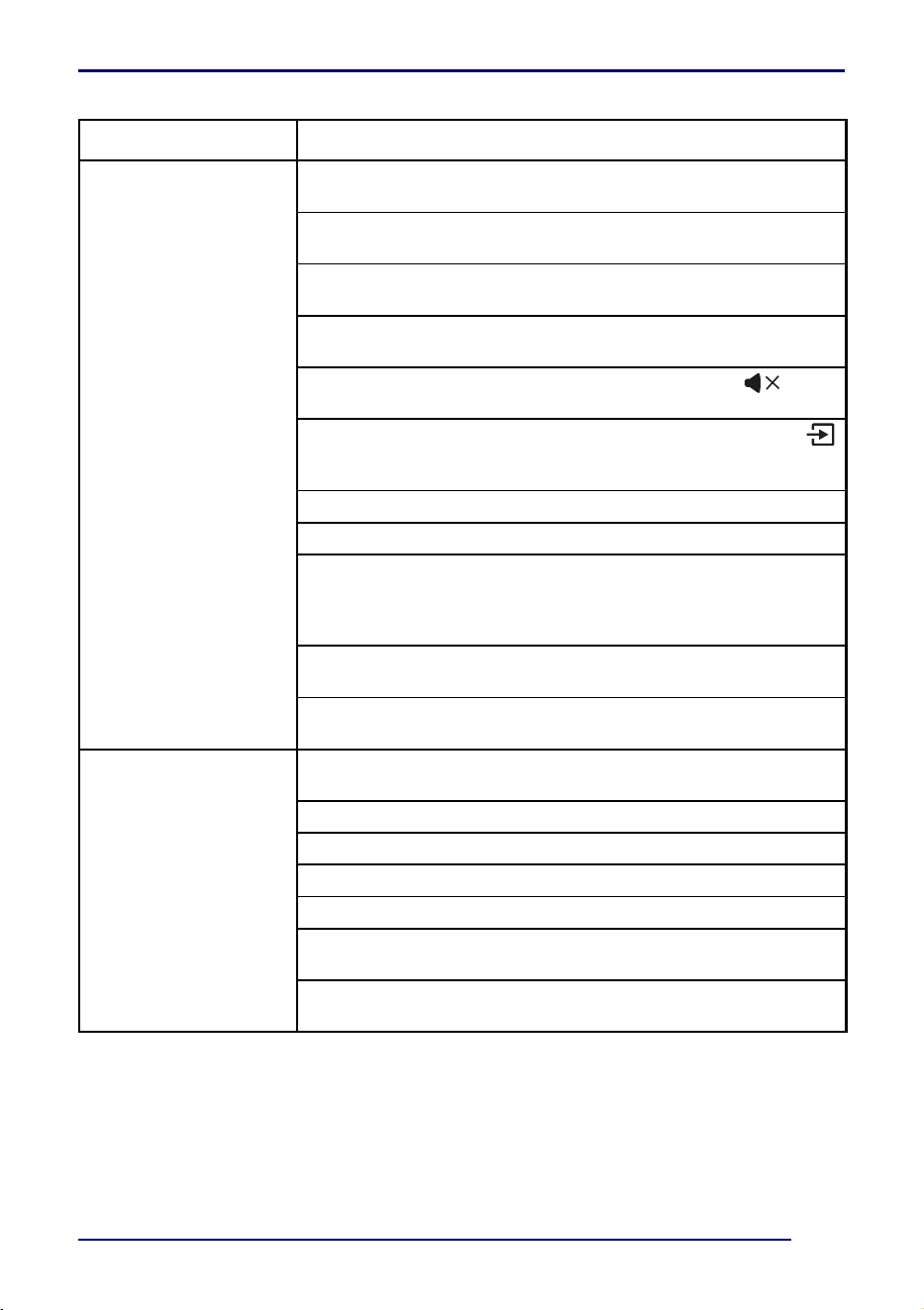
There is no sound or very
low sound.
Make sure that you’re connected to an audio out jack on your
sound source. The jack doesn’t send audio out if it is an input jack.
Make sure that the volume level of your soundbar is set to an
adequate level.
If you’re using Bluetooth, turn up the volume on your Bluetooth
device.
If you’re using Bluetooth, make sure that your Bluetooth device
isn’t paired with another device.
Make sure that the volume level isn’t muted. Press the (mute)
button on the remote control to restore the sound output.
Make sure that the correct audio source is selected. Press the
(sound source selector) button on your soundbar or your remote
control repeatedly to switch to the correct audio source.
Make sure that the power is on and all connections are secure.
Make sure that the volume is turned up on your sound source.
If you are using the OPTICAL jack, make sure that the source
device’s audio source is set to the PCM format. See the
documentation that came with the audio source device (such as a
TV or DVD/Blu-ray player) for additional information.
Make sure that the audio cable you’re using isn’t damaged or
broken. Try using another one.
Make sure that the sound source device is outputting sound to
your soundbar.
There is no sound or low
volume in Bluetooth
mode.
Make sure that your Bluetooth device is turned on, Bluetooth is
turned on, and NS-HTSB20S is selected.
Turn up the volume on your soundbar.
Turn up the volume on your Bluetooth device.
Make sure that your Bluetooth device is not muted.
Make sure that you’re playing music from your Bluetooth device.
Make sure that you have selected the Bluetooth source on your
soundbar.
Make sure that your Bluetooth device is not paired to a different
Bluetooth speaker or other device.
PROBLEM POSSIBLE SOLUTION
20
www.insigniaproducts.com
Specifications
Designs and specifications are subject to change without notice.
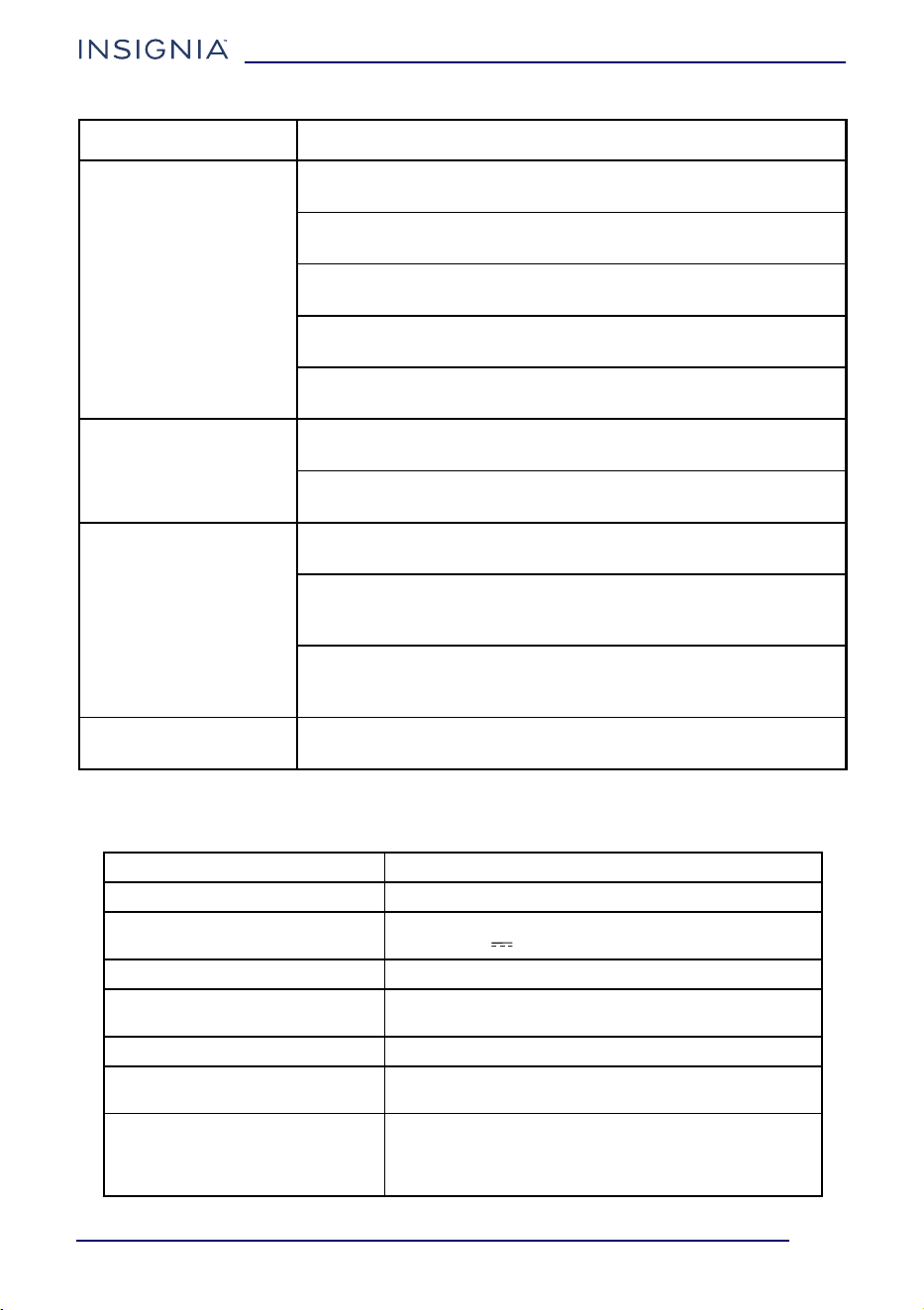
My soundbar won’t
connect to my Bluetooth
device.
Shorten the distance between your soundbar and your Bluetooth
device.
Turn your devices off, then on. Re-pair your soundbar and your
Bluetooth device.
Make sure that your soundbar isn’t paired to another Bluetooth
device.
Make sure that your soundbar and Bluetooth device are both in
pairing mode.
Make sure that you have selected NS-HTSB20S on your Bluetooth
device.
My Bluetooth device
keeps unpairing.
Shorten the distance between your soundbar and your Bluetooth
device.
If the battery on your Bluetooth device is low, recharge the
battery.
NS-HTSB20S doesn’t
appear on my Bluetooth
device.
Shorten the distance between your soundbar and your Bluetooth
device.
Put your soundbar into pairing mode, then refresh your list of
Bluetooth devices. For more information, see the documentation
that came with your Bluetooth device.
Make sure that your Bluetooth device is visible to other devices.
For more information, see the documentation that came with your
Bluetooth device.
The sound is lagging or I
hear an echo.
Turn off or mute the internal speakers of your TV. See your TV’s
User Guide for instructions.
Power output Left and right channel: 15W × 2 (1% THD)
Number of drivers 2
Power adapter rating INPUT: 100-240V at 50/60Hz 1.5A
OUTPUT: 15V 2.0A
Dimensions (approx.) (H × W × D) 2.58 × 20.08 × 3.11 in. (6.55 x 51 x 7.9 cm)
Weight Net: 3.2 lbs. (1.45 kg)
Gross: 4.41 lbs. (2 kg)
Batteries (remote) AAA (2)
Working environment Temperature - 32~104° F (0~40° C)
Humidity - 5%~90%
Inputs USB connector
AUX IN audio jack
Digital optical audio jack
Bluetooth
PROBLEM POSSIBLE SOLUTION

21
2.0-Channel 20 in. Soundbar
www.insigniaproducts.com
Legal notices
FCC compliance statement
This device complies with part 15 of the FCC Rules. Operation is subject to the following two
conditions: (1) This device may not cause harmful interference, and (2) this device must accept any
interference received, including interference that may cause undesired operation.
Note: This equipment has been tested and found to comply with the limits for a Class B digital
device, pursuant to part 15 of the FCC Rules. These limits are designed to provide reasonable
protection against harmful interference in a residential installation.
This equipment generates, uses and can radiate radio frequency energy and, if not installed and
used in accordance with the instructions, may cause harmful interference to radio communications.
However, there is no guarantee that interference will not occur in a particular installation. If this
equipment does cause harmful interference to radio or television reception, which can be
determined by turning the equipment off and on, the user is encouraged to try to correct the
interference by one or more of the following measures:
• Reorient or relocate the receiving antenna.
• Increase the separation between the equipment and receiver.
• Connect the equipment into an outlet on a circuit different from that to which the receiver is
connected.
• Consult the dealer or an experienced radio/TV technician for help.
Changes or modifications not expressly approved by the party responsible for compliance could
void the user's authority to operate the equipment.
This equipment complies with FCC radiation exposure limits set forth for an uncontrolled
environment

22
www.insigniaproducts.com
ONE-YEAR LIMITED WARRANTY
Definitions:
The Distributor* of Insignia branded products warrants to you, the original purchaser of this new
Insignia-branded product (“Product”), that the Product shall be free of defects in the original
manufacturer of the material or workmanship for a period of one (1) year from the date of your
purchase of the Product (“Warranty Period”).
For this warranty to apply, your Product must be purchased in the United States or Canada from a
Best Buy branded retail store or online at www.bestbuy.com
or www.bestbuy.ca and is packaged
with this warranty statement.
How long does the coverage last?
The Warranty Period lasts for 1 year (365 days) from the date you purchased the Product. Your
purchase date is printed on the receipt you received with the Product.
What does this warranty cover?
During the Warranty Period, if the original manufacture of the material or workmanship of the
Product is determined to be defective by an authorized Insignia repair center or store personnel,
Insignia will (at its sole option): (1) repair the Product with new or rebuilt parts; or (2) replace the
Product at no charge with new or rebuilt comparable products or parts. Products and parts replaced
under this warranty become the property of Insignia and are not returned to you. If service of
Products or parts are required after the Warranty Period expires, you must pay all labor and parts
charges. This warranty lasts as long as you own your Insignia Product during the Warranty Period.
Warranty coverage terminates if you sell or otherwise transfer the Product.
How to obtain warranty service?
If you purchased the Product at a Best Buy retail store location or from a Best Buy online website
(www.bestbuy.com or www.bestbuy.ca), please take your original receipt and the Product to any
Best Buy store. Make sure that you place the Product in its original packaging or packaging that
provides the same amount of protection as the original packaging.
To obtain warranty service, in the United States and Canada call 1-877-467-4289. Call agents may
diagnose and correct the issue over the phone.
Where is the warranty valid?
This warranty is valid only in the United States and Canada at Best Buy branded retail stores or
websites to the original purchaser of the product in the country where the original purchase was
made.
What does the warranty not cover?
This warranty does not cover:
• Food, beverage, and or medicine loss/spoilage.
• Customer instruction/education
•Installation
•Set up adjustments
• Cosmetic damage
• Damage due to weather, lightning, and other acts of God, such as power surges
• Accidental damage
•Misuse
•Abuse
•Negligence
• Commercial purposes/use, including but not limited to use in a place of business or in
communal areas of a multiple dwelling condominium or apartment complex, or otherwise used
in a place of other than a private home.
• Modification of any part of the Product, including the antenna
• Display panel damaged by static (non-moving) images applied for lengthy periods (burn-in).
• Damage due to incorrect operation or maintenance

23
2.0-Channel 20 in. Soundbar
www.insigniaproducts.com
• Connection to an incorrect voltage or power supply
• Attempted repair by any person not authorized by Insignia to service the Product
• Products sold “as is” or “with all faults”
• Consumables, including but not limited to batteries (i.e. AA, AAA, C etc.)
• Products where the factory applied serial number has been altered or removed
• Loss or Theft of this product or any part of the product
• Display panels containing up to three (3) pixel failures (dots that are dark or incorrectly
illuminated) grouped in an area smaller than one tenth (1/10) of the display size or up to five (5)
pixel failures throughout the display. (Pixel based displays may contain a limited number of
pixels that may not function normally.)
• Failures or Damage caused by any contact including but not limited to liquids, gels or pastes.
REPAIR REPLACEMENT AS PROVIDED UNDER THIS WARRANTY IS YOUR EXCLUSIVE REMEDY FOR
BREACH OF WARRANTY. INSIGNIA SHALL NOT BE LIABLE FOR ANY INCIDENTAL OR CONSEQUENTIAL
DAMAGES FOR THE BREACH OF ANY EXPRESS OR IMPLIED WARRANTY ON THIS PRODUCT,
INCLUDING, BUT NOT LIMITED TO, LOST DATA, LOSS OF USE OF YOUR PRODUCT, LOST BUSINESS OR
LOST PROFITS. INSIGNIA PRODUCTS MAKES NO OTHER EXPRESS WARRANTIES WITH RESPECT TO
THE PRODUCT, ALL EXPRESS AND IMPLIED WARRANTIES FOR THE PRODUCT, INCLUDING BUT NOT
LIMITED TO ANY IMPLIED WARRANTIES OF AND CONDITIONS OF MERCHANTABILITY AND FITNESS
FOR A PARTICULAR PURPOSE, ARE LIMITED IN DURATION TO THE WARRANTY PERIOD SET FORTH
ABOVE AND NO WARRANTIES, WHETHER EXPRESS OR IMPLIED, WILL APPLY AFTER THE WARRANTY
PERIOD. SOME STATES, PROVINCES AND JURISDICTIONS DO NOT ALLOW LIMITATIONS ON HOW
LONG AN IMPLIED WARRANTY LASTS, SO THE ABOVE LIMITATION MAY NOT APPLY TO YOU. THIS
WARRANTY GIVES YOU SPECIFIC LEGAL RIGHTS, AND YOU MAY ALSO HAVE OTHER RIGHTS, WHICH
VARY FROM STATE TO STATE OR PROVINCE TO PROVINCE.
Contact Insignia:
1-877-467-4289
www.insigniaproducts.com
INSIGNIA is a trademark of Best Buy and its affiliated companies.
*Distributed by Best Buy Purchasing, LLC
7601 Penn Ave South, Richfield, MN 55423 U.S.A
©2024 Best Buy. All rights reserved.

www.insigniaproducts.com
1-877-467-4289 (U.S. and Canada) or 01-800-926-3000 (Mexico)
INSIGNIA is a trademark of Best Buy and its affiliated companies.
Distributed by Best Buy Purchasing, LLC
7601 Penn Ave South, Richfield, MN 55423 U.S.A.
©2024 Best Buy. All rights reserved.
V1 ENGLISH
24-0201