
Thank you for purchasing this Samsung product.
To receive more complete service, please register your product at www.samsung.com
Model Serial No.
(U.S.A only)If you have any questions, please call us at 1-800-SAMSUNG (1-800-726-7864) for assistance.
USER MANUAL
Outdoor TV with Neo QLED Technology
LST9C
Before Reading This User Manual
This TV comes with this User Manual and an embedded e-Manual
(
> (left directional button) > Settings > Support > Open
e-Manual).
On the website (www.samsung.com), you can download the
manuals and see its contents on your PC or mobile device.
To activate the Samsung Smart Remote, press
on it. (This is
required only when using it for the first time.)
Warning! Important Safety
Instructions
Please read the Safety Instructions before using your TV.
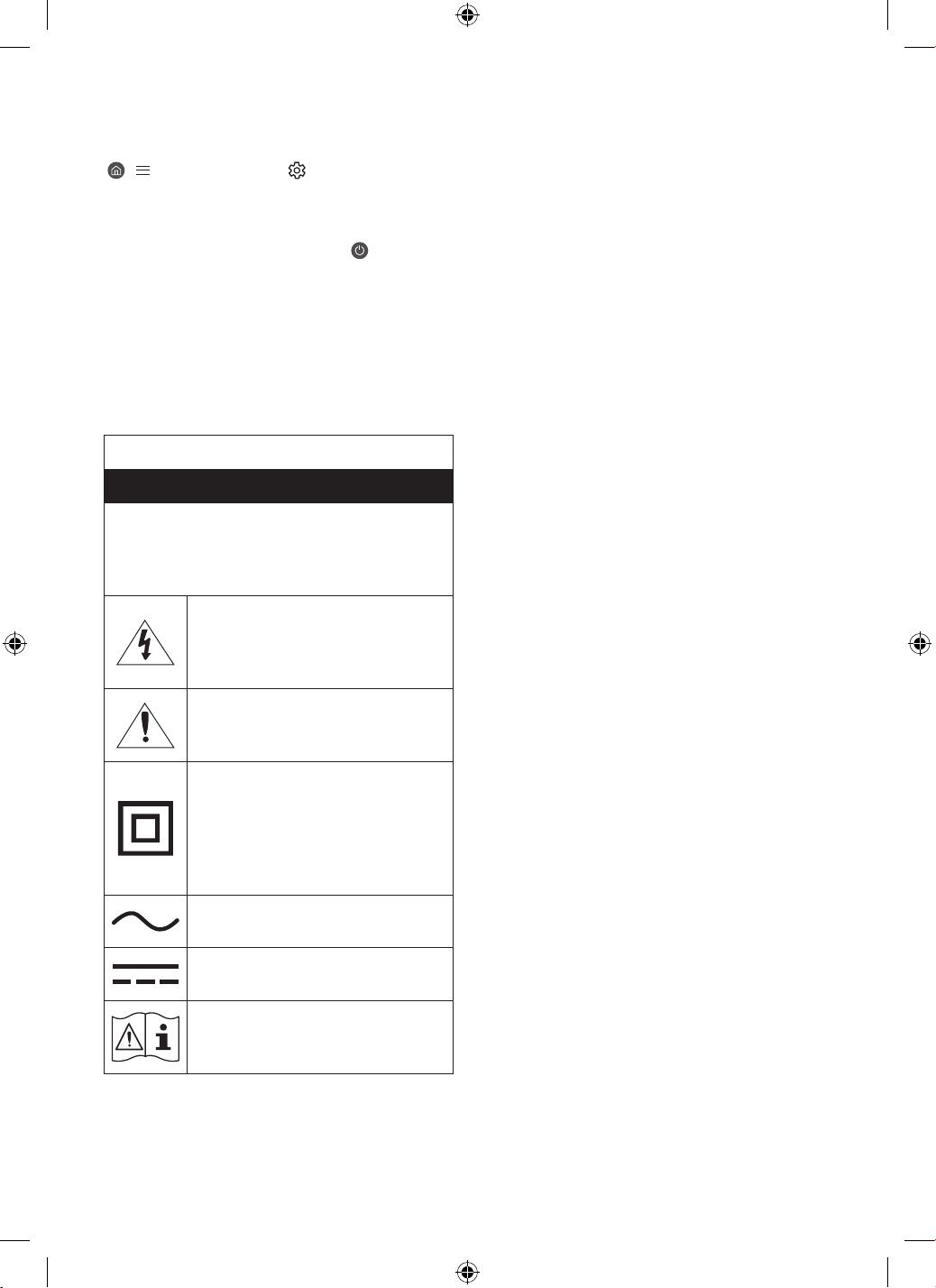
Refer to the table below for an explanation of symbols which may
be on your Samsung product.
CAUTION
RISK OF ELECTRIC SHOCK. DO NOT OPEN.
CAUTION: TO REDUCE THE RISK OF ELECTRIC SHOCK, DO
NOT REMOVE COVER (OR BACK). THERE ARE NO USER
SERVICEABLE PARTS INSIDE. REFER ALL SERVICING TO
QUALIFIED PERSONNEL.
This symbol indicates that high voltage is
present inside. It is dangerous to make any
kind of contact with any internal part of this
product.
This symbol indicates that this product has
included important literature concerning
operation and maintenance.
Class II product: This symbol indicates
that a safety connection to electrical earth
(ground) is not required. If this symbol is not
present on a product with a power cord, the
product MUST have a reliable connection to
protective earth (ground).
AC voltage: Rated voltage marked with this
symbol is AC voltage.
DC voltage: Rated voltage marked with this
symbol is DC voltage.
Caution. Consult instructions for use: This
symbol instructs the user to consult the user
manual for further safety related information.
Power
• Do not overload wall outlets, extension cords, or adapters
beyond their voltage and capacity. It may cause fire or electric
shock.
Refer to the power specifications section of the manual or the
power supply label on the product for voltage and amperage
information.
• Power-supply cords should be placed so that they are not
likely to be walked on or pinched by items placed upon or
against them. Pay particular attention to cords at the plug
end, at wall outlets, and at the point where they exit from the
appliance.
• Never insert anything metallic into the open parts of this
apparatus. This may cause electric shock.
• To avoid electric shock, never touch the inside of this
apparatus. Only a qualified technician should open this
apparatus.
• Be sure to plug in the power cord until it is firmly seated. When
unplugging the power cord from a wall outlet, always pull on
the power cord's plug. Never unplug it by pulling on the power
cord. Do not touch the power cord with wet hands.
• If this apparatus does not operate normally - in particular,
if there are any unusual sounds or smells coming from it -
unplug it immediately and contact an authorized dealer or
Samsung service center.
• To protect this apparatus from a lightning storm, or to leave
it unattended and unused for a long time, be sure to unplug
it from the wall outlet and disconnect the antenna or cable
system.
– Accumulated dust can cause an electric shock, an electric
leakage, or a fire by causing the power cord to generate
sparks and heat or by causing the insulation to deteriorate.
• Use only a properly grounded plug and wall outlet.
– An improper ground may cause electric shock or
equipment damage. (Class l Equipment only.)
• To turn off this apparatus completely, disconnect it from the
wall outlet. To ensure you can unplug this apparatus quickly if
necessary, make sure that the wall outlet and power plug are
readily accessible.
English
English - 2
Installation
• Do not place this apparatus near or over a radiator or heat
register, or where it is exposed to direct sunlight.
• Do not place any objects (vases etc.) containing water on this
apparatus, as this can result in a fire or electric shock.
• Do not expose this apparatus to rain or moisture.
• Be sure to contact an authorized Samsung service center for
information if you intend to install your TV in a location with
heavy dust, high or low temperatures, high humidity, chemical
substances, or where it will operate 24 hours a day such as
in an airport, a train station, etc. Failure to do so may lead to
serious damage to your TV.
• Do not expose this apparatus to dripping or splashing.
Mounting the TV on a wall
Because access to Media Bay of the TV may be
limited due to the design of the wall-mount that
you use, connecting all cables and devices that
you need prior to hanging the TV on the wall
is recommended. When connecting additional
cables and devices to the TV after hanging on
the wall, you may need to separate the TV from
wall-mount.
If you mount this TV on a wall, follow
the instructions exactly as set out by the
manufacturer. If it is not correctly mounted, the TV
may slide or fall and cause serious injury to a child
or adult and serious damage to the TV.
• To order the Samsung wall mount kit, contact Samsung
service center.
• Samsung Electronics is not responsible for any damage to the
product or injury to yourself or others if you choose to install
the wall mount on your own.
• You can install your wall mount on a solid wall perpendicular
to the floor. Before attaching the wall mount to surfaces other
than plaster board, contact your nearest dealer for additional
information. If you install the TV on a ceiling or slanted wall, it
may fall and result in severe personal injury.
• When installing a wall mount kit, we recommend you fasten
all four VESA screws.
• If you want to install a wall mount kit that attaches to the
wall using two top screws only, be sure to use a Samsung wall
mount kit that supports this type of installation. (You may not
be able to purchase this type of wall mount kit, depending on
the geographical region.)
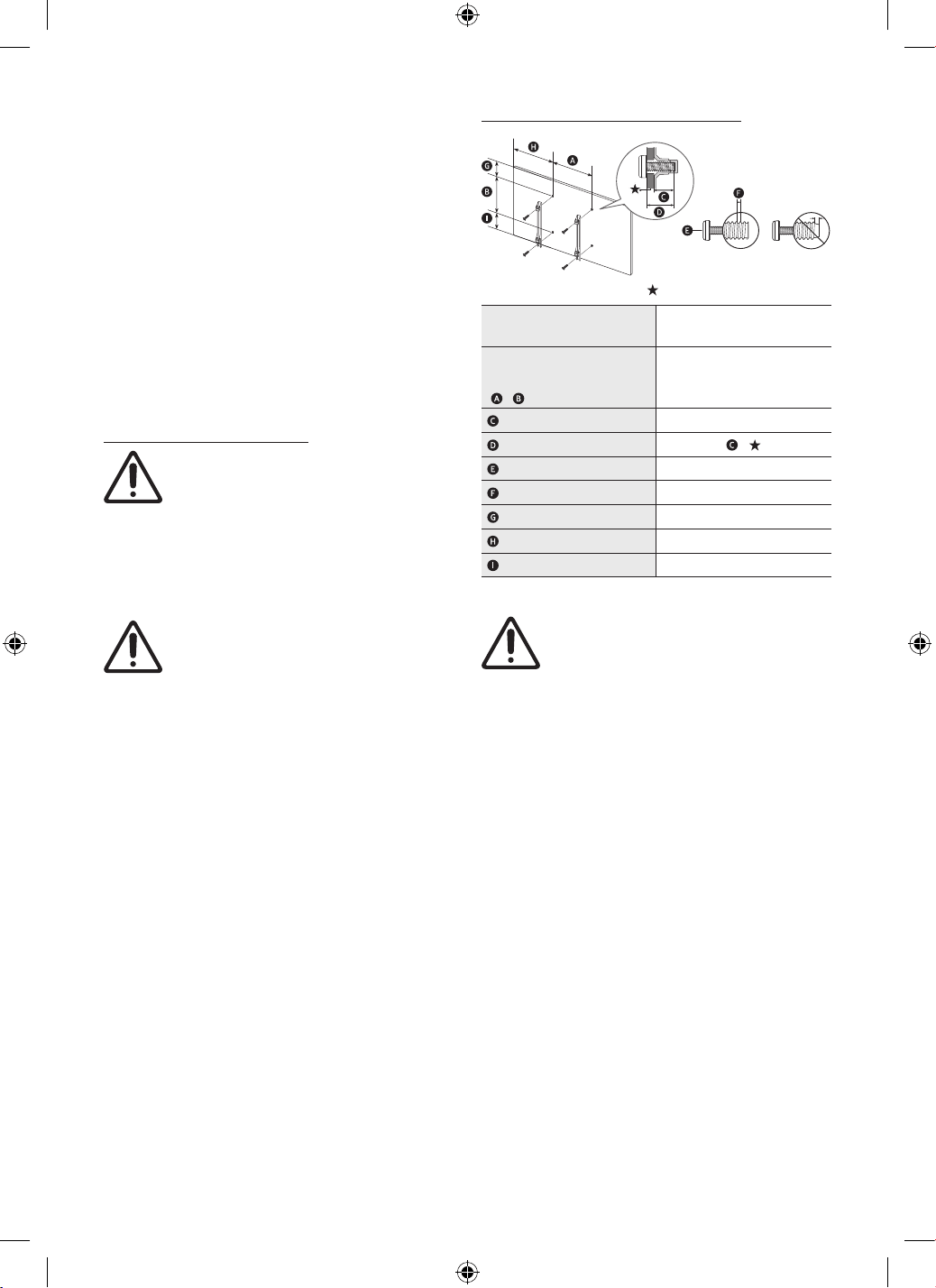
• Do not mount the TV at more than a 15 degree tilt.
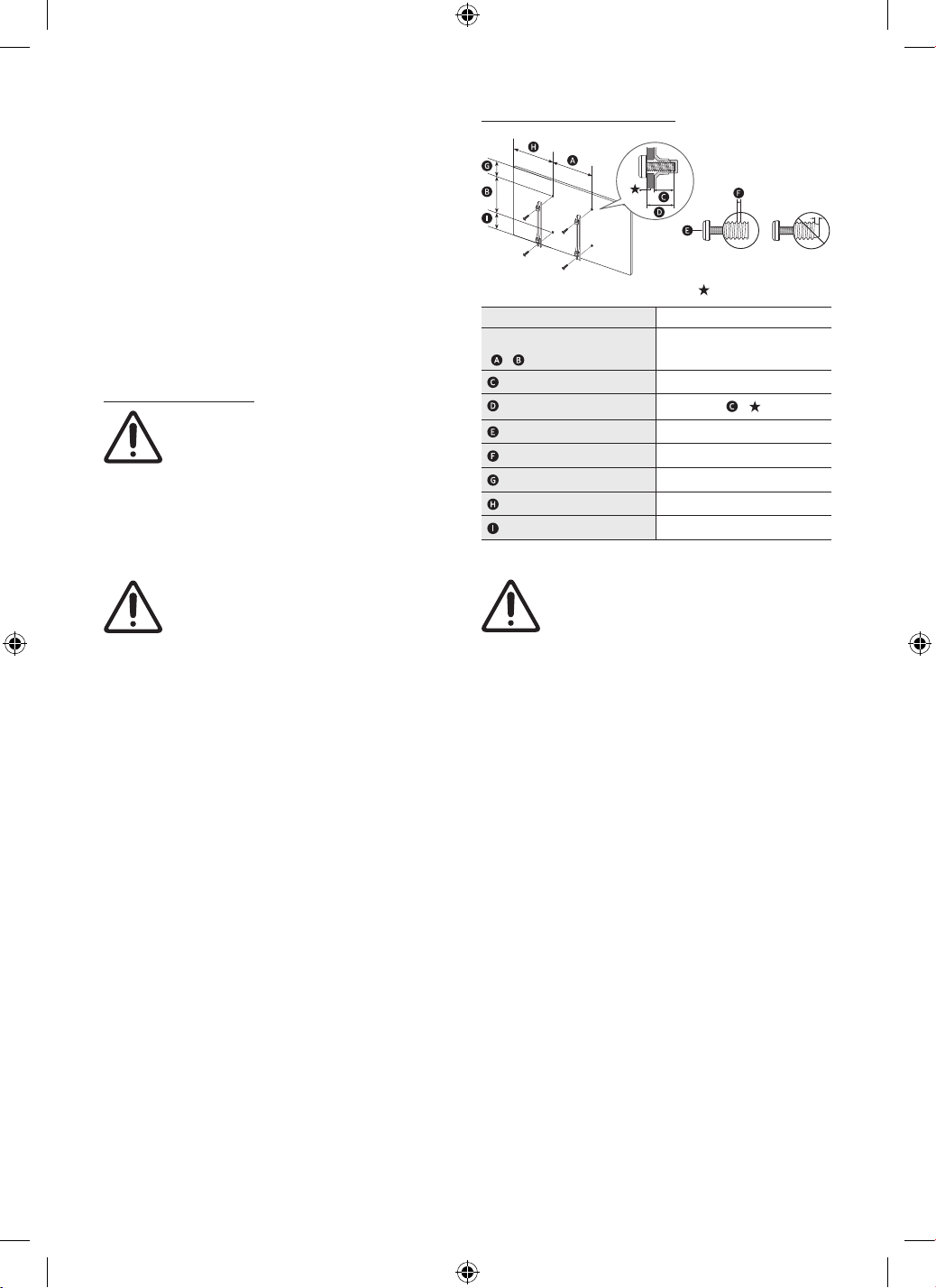
• Standard dimensions for wall mount kits are shown in the
table.
Wall Mount Specifications (VESA)
: Wall-Mount Bracket
TV size in inches 85
VESA screw hole specs
(
x ) (mm)
600 x 400
(mm)
9-11
+
x 4
M8
(mm)
1.5
(inches)
10.3
(inches)
25.9
(inches)
17.2
• Recommended torque : 10 - 12 kgf.cm
Do not install your wall mount kit while your TV is
turned on. This may result in personal injury from
electric shock.
• Do not use screws that are longer than the standard
dimension or do not comply with the VESA standard screw
specifications. Screws that are too long may cause damage to
the inside of the TV set.
• For wall mounts that do not comply with the VESA standard
screw specifications, the length of the screws may differ
depending on the wall mount specifications.
• Do not fasten the screws too firmly. This may damage the
product or cause the product to fall, leading to personal injury.
Samsung is not liable for these kinds of accidents.
• Samsung is not liable for product damage or personal injury
when a non-VESA or non-specified wall mount is used or
when the consumer fails to follow the product installation
instructions.
• Always have two people mount the TV onto a wall.
– For 82 inch or larger models, have four people mount the
TV onto a wall.
• WARNING: This apparatus must be securely attached to the
wall.
"Tipping, shaking, or rocking the machine may cause injury/
death." (CSA60065)
English - 3
Providing proper ventilation for your TV
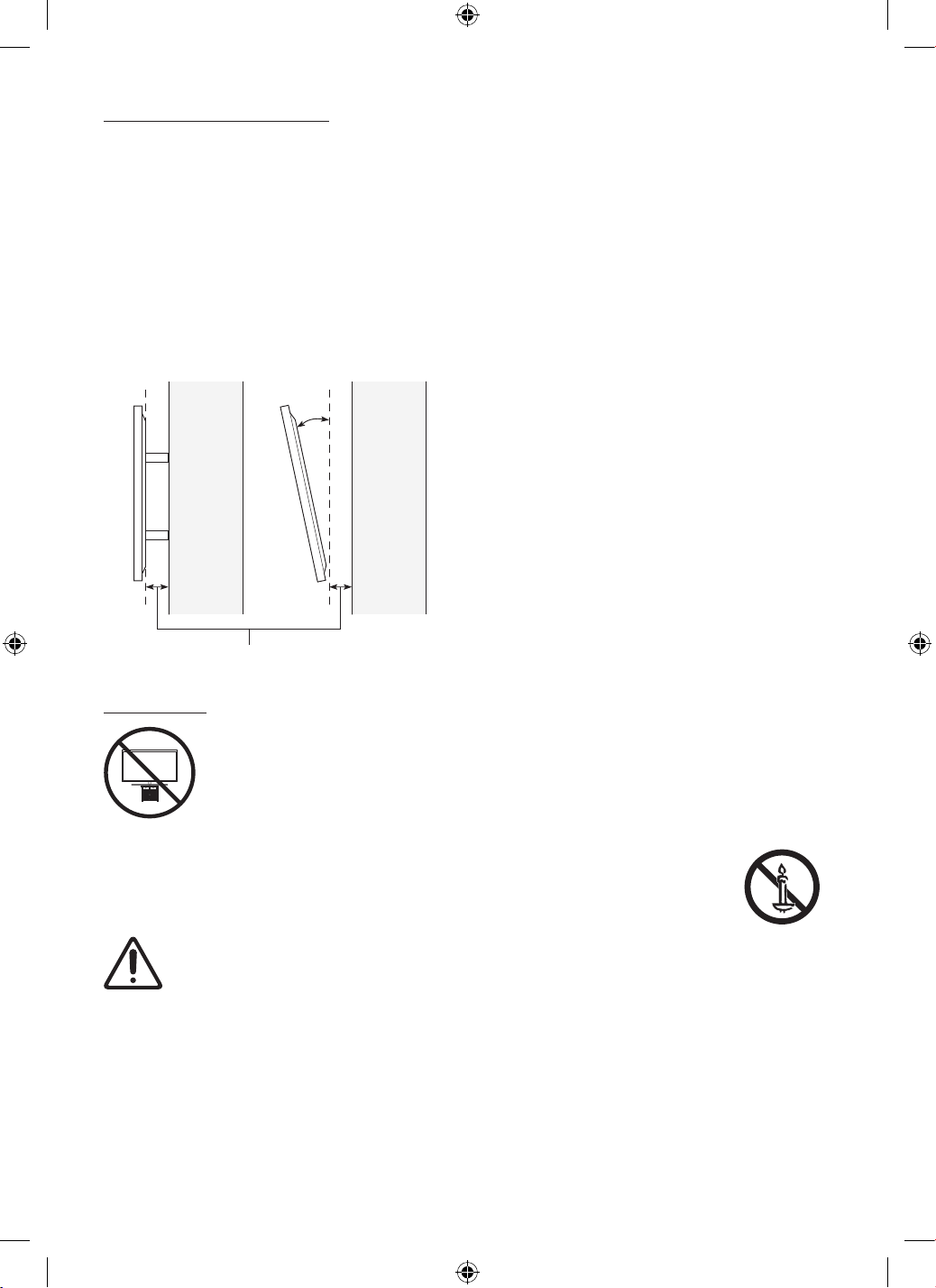
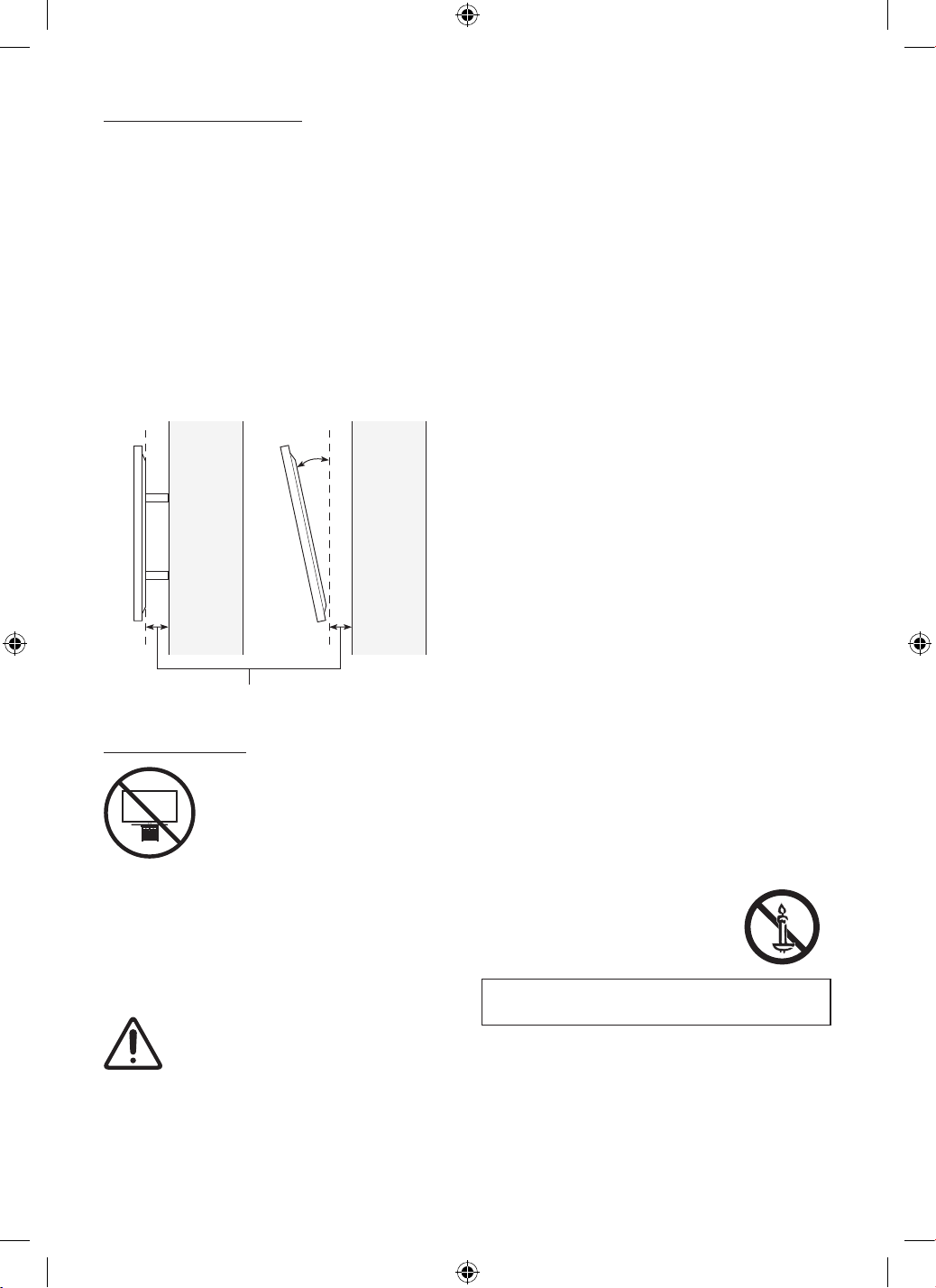
When you install your TV, maintain a distance of at least 2.5
inches (64 mm) between the TV and other objects (walls, cabinet
sides, etc.) to ensure proper ventilation. Failing to maintain proper
ventilation may result in a fire or a problem with the product
caused by an increase in its internal temperature.
• When you install your TV with a wall mount, we strongly
recommend you use parts provided by Samsung Electronics
only. Using parts provided by another manufacturer may
cause difficulties with the product or result in injury caused by
the product falling.
• The Terrace can be installed in a tilted position on a wall or a
cabinet side, up to 15°.
2.5 inches (64 mm) or more
Wall or
cabinet
side
15°
Wall or
cabinet
side
Safety Precaution
Caution: Pulling, pushing, or climbing on
the TV may cause the TV to fall. In particular,
ensure your children do not hang on or
destabilize the TV. This action may cause
the TV to tip over, causing serious injuries
or death. Follow all safety precautions
provided in the Safety Flyer included with
your TV. For added stability and safety, you
can purchase and install the anti-tip device,
refer to "Preventing the TV from falling."
WARNING: Never place a television set in an
unstable location. The television set may fall,
causing serious personal injury or death. Many
injuries, particularly to children, can be avoided by
taking simple precautions such as:
• Always use cabinets or mounting methods recommended by
Samsung.
• Always use furniture that can safely support the television set.
• Always ensure the television set is not overhanging the edge
of the supporting furniture.
• Always educate children about the dangers of climbing on
furniture to reach the television set or its controls.
• Always route cords and cables connected to your television so
they cannot be tripped over, pulled or grabbed.
• Never place a television set in an unstable location.
• Never place the television set on tall furniture (for example,
cupboards or bookcases) without anchoring both the furniture
and the television set to a suitable support.
• Never place the television set on cloth or other materials that
may be located between the television set and supporting
furniture.
• Never place items that might tempt children to climb, such
as toys and remote controls, on the top of the television or
furniture on which the television is placed.
If the existing television set is going to be retained and relocated,
the same considerations as above should be applied.
Operation
• This apparatus uses batteries. In your community, there might
be environmental regulations that require you to dispose of
these batteries properly. Please contact your local authorities
for disposal or recycling information.
• Store the accessories (remote control, batteries, or etc.) in a
location safely out of the reach of children.
• Do not drop or strike the product. If the product is damaged,
disconnect the power cord and contact a Samsung service
center.
• Do not dispose of remote control or batteries in a fire.
• Do not short-circuit, disassemble, or overheat the batteries.
• CAUTION: There is danger of an explosion if you replace the
batteries used in the remote with the wrong type of battery.
Replace only with the same or equivalent type.
• WARNING - TO PREVENT THE SPREAD OF
FIRE, KEEP CANDLES AND OTHER ITEMS
WITH OPEN FLAMES AWAY FROM THIS
PRODUCT AT ALL TIMES.
English - 4
Caring for the TV
• To clean this apparatus, unplug the power cord from the wall
outlet and wipe the product with a soft, dry cloth. Do not
use any chemicals such as wax, benzene, alcohol, thinners,
insecticide, air fresheners, lubricants, or detergents. These
chemicals can damage the appearance of the TV or erase the
printing on the product.
• The exterior and screen of the TV can get scratched during
cleaning. Be sure to wipe the exterior and screen carefully
using a soft cloth to prevent scratches.
• Do not spray water or any liquid directly onto the TV. Any liquid
that goes into the product may cause a failure, fire, or electric
shock.
Internet security
(U.S.A/Mexico only)
Samsung takes a number of steps to protect its Internet-
compatible Smart TVs against unauthorized incursions and
hacking. For example, certain sensitive communications between
the TV and the Internet servers are encrypted. In addition, the
TV’s operating system has adopted controls to prevent the
installation of unauthorized applications.
Although we take steps to protect your Smart TV and personal
information, no Internet-connected device or transmission is
completely secure. We therefore encourage you to take additional
steps to safeguard your TV, secure your Internet connection, and
minimize the risk of unauthorized access. These steps are listed
below:
• When Samsung releases software updates to improve
the security of your TV, you should promptly install these
updates. To automatically receive these updates, turn on Auto
Update in the TV's menu (
> (left directional button)
>
Settings > Support > Software Update > Auto Update).
When an update is available, a popup message appears on
the TV screen. Accept the software download and update
by selecting Yes when prompted. Take steps to secure your
wireless access point and network. Your access point's manual
should provide additional details about how to implement the
following measures:
– Secure your wireless access point's management settings
with a unique password to prevent unauthorized changes
to security related settings.
– Implement standard encryption (e.g., WPA2 encryption) on
your wireless access point to secure your wireless network
signal.
– Secure access to your wireless network with a hard-to-
guess password.
– Confirm your access point's firewall setting is enabled (if
applicable).
– Make sure that all your Internet-connected devices are
behind your network's firewall.
– If your access point or modem has a standby mode button,
use it to disconnect your home network from the Internet
when it is not in use.
• Use strong passwords for all your Internet accounts (Netflix,
Facebook, etc.).
• If any unexpected messages appear on your TV screen
requesting permission to link a device or enable a remote
session, do NOT accept.
• Do not visit suspicious websites and do not install any
suspicious programs. We recommend that users install
only those authorized apps provided by Samsung through
Samsung Smart Hub.
01 Package Content
Make sure the following items are included with your TV. If any
items are missing, contact your dealer.
• User Manual
• Warranty Card / Regulatory Guide (Not available in some
locations)
• Samsung Smart Remote
• TV Power Cord
• Holder-Cable
• Screw x 2 (M4 x L7)
• The items’ colors and shapes may vary depending on the
models.
• Cables not included can be purchased separately.
• Check for any accessories hidden behind or in the packing
materials when opening the box.
English - 5
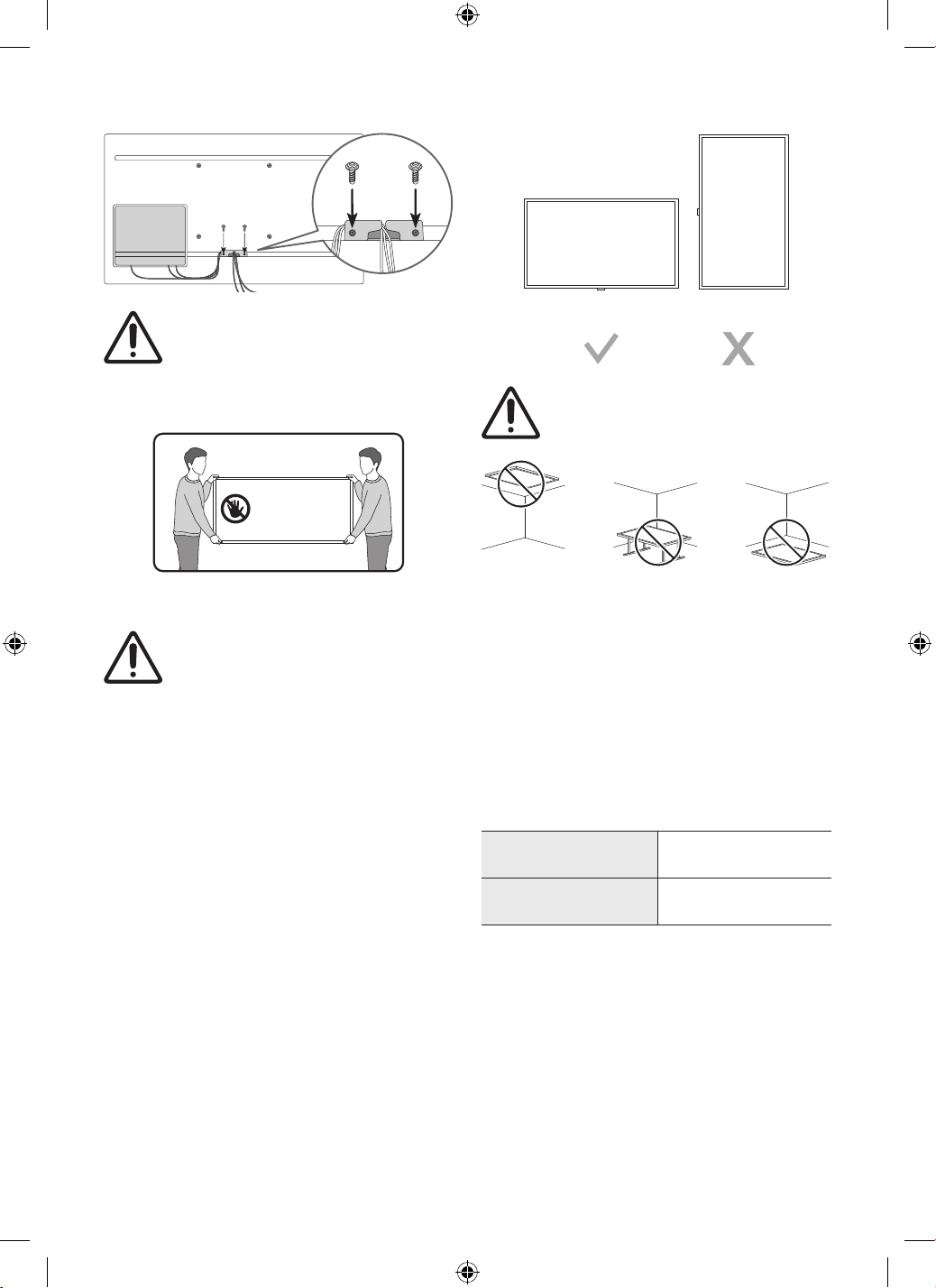
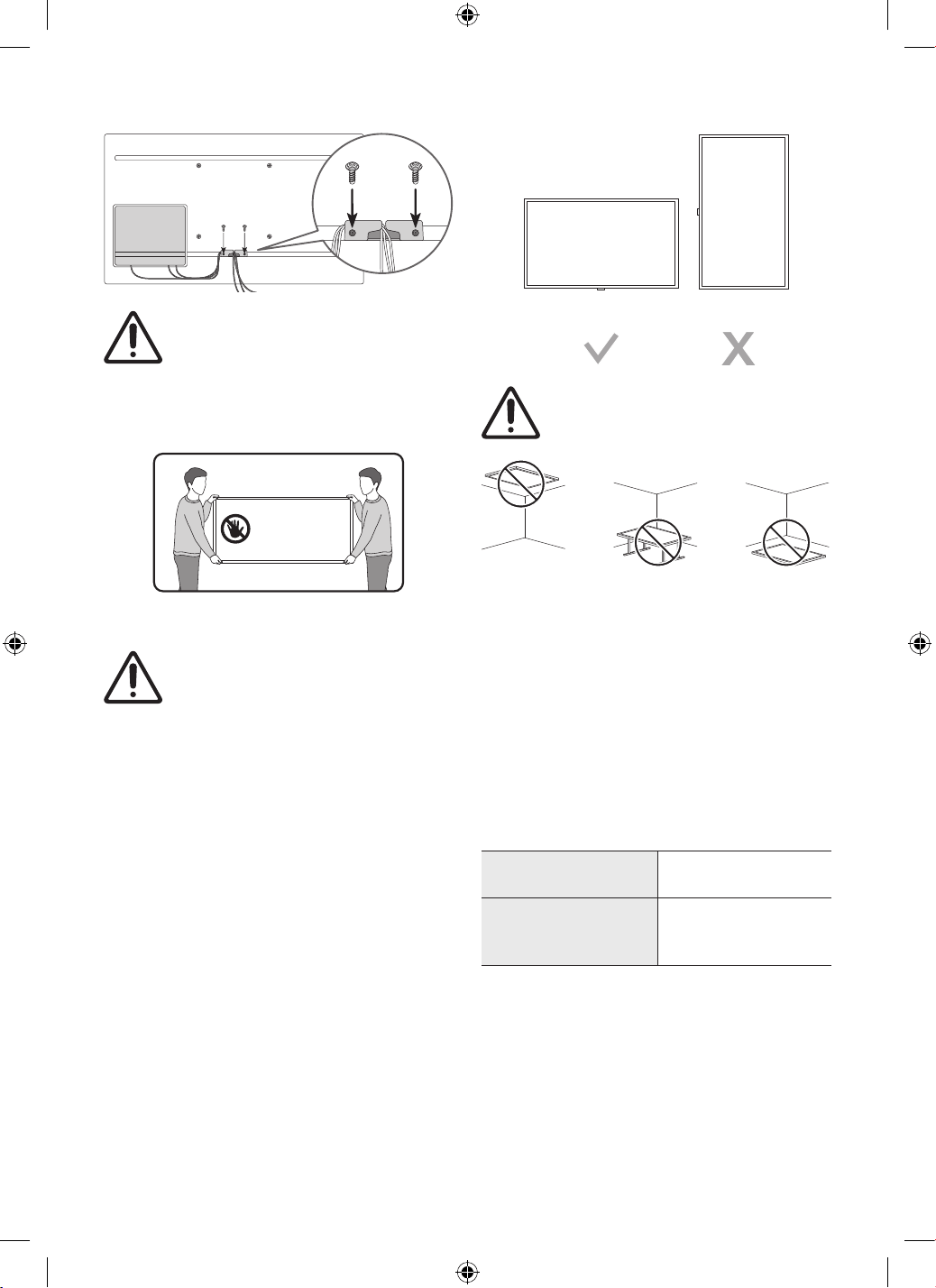
Using the Holder-Cable
The screen can be damaged from direct pressure
when handled incorrectly. As shown in the figure,
make sure to grip the edges of the screen when
you lift the TV.
– For 82 inch or larger models, have four people
mount the TV onto a wall.
Do Not Touch
This Screen!
02 TV Installation
• TV screen has a built-in function to block direct
sunlight.
– TV screen can be protected up to 6 hours
in sunlight at 700 watts and 104 degrees
Fahrenheit (40 degrees Celsius).
• The front of the TV, which is equipped with
built-in temperature sensors, should not be
either fully or partially covered.
– In case of necessity, the TV will activate
"High-Temperature Protection" lowering
the TV brightness to protect the screen.
• For the stable use of the product, it should be
installed in a place where there is no risk of
freezing due to snow accumulation or exposure
to rain for a long time.
• It cannot be installed in a recessed space.
• The Terrace must be installed only in
Landscape orientation, not in Portrait
orientation.
Planning the location
Landscape Portrait
Do not install The Terrace on a celling, floor, or
table.
Media Bay
• The Terrace provides space (Media Bay) to install Media
Players where Weather-Resistant is guaranteed on the rear of
the product.
• The media player listed below can be installed on the rear
space (Media Bay) of the product.
– Media player: Amazon Fire Stick, Google Chromecast, Roku
Ultra Streaming M Player
• Make sure to close the cover and fasten the screws to ensure
it is water tight. (Use the provided screws. Otherwise, it may
cause problems such as improper Weather-Resistant.)
Media Bay
Dimensions (W x H x D)
8.3 x 10.6 x 1.0 inches
(210.0 x 270.0 x 25.0 mm)
Media player
Installation space (W x H x D)
5.5 x 7.9 x 1.0 inches
(140.0 x 200.0 x 25.0 mm)
English - 6
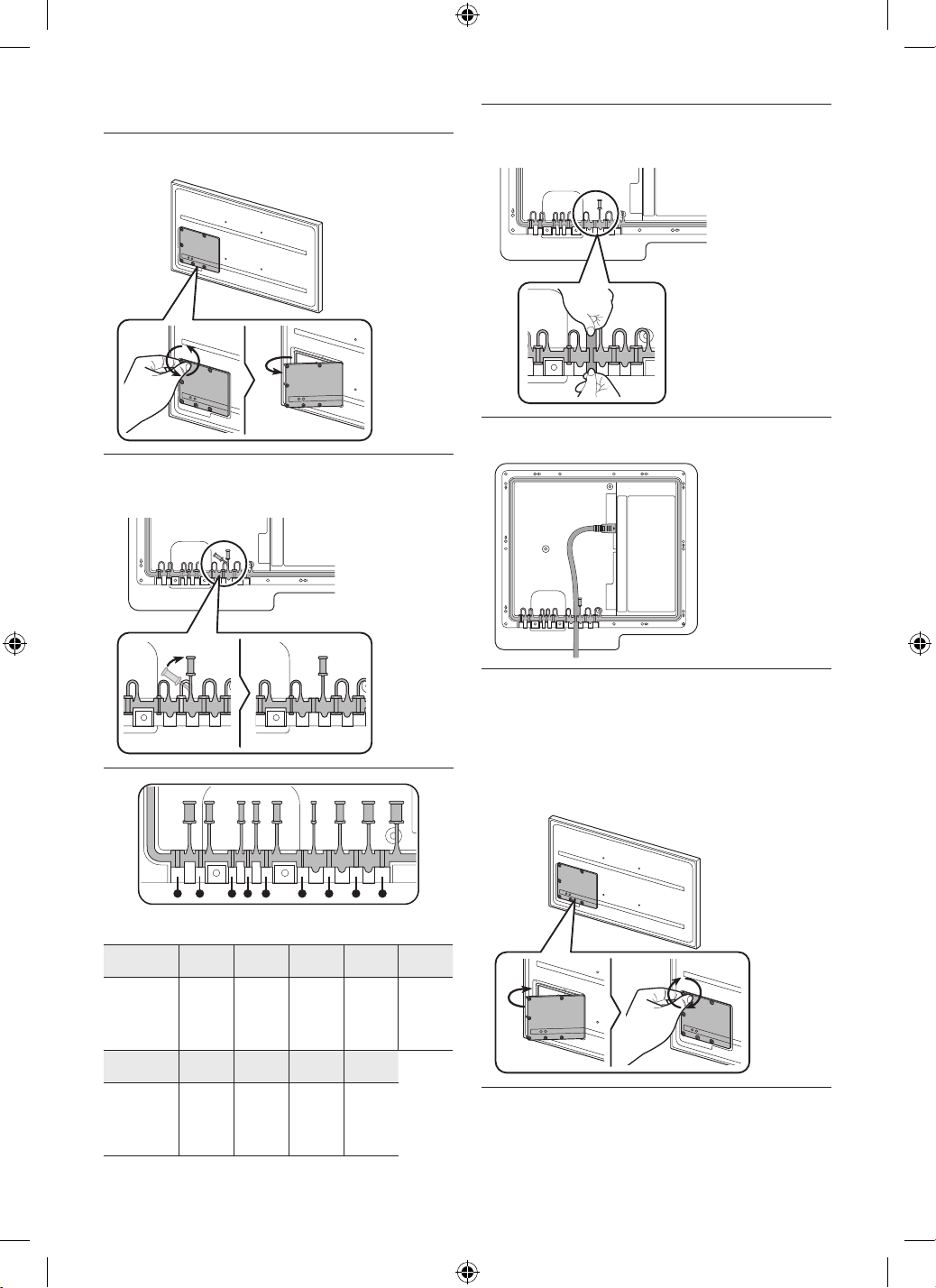
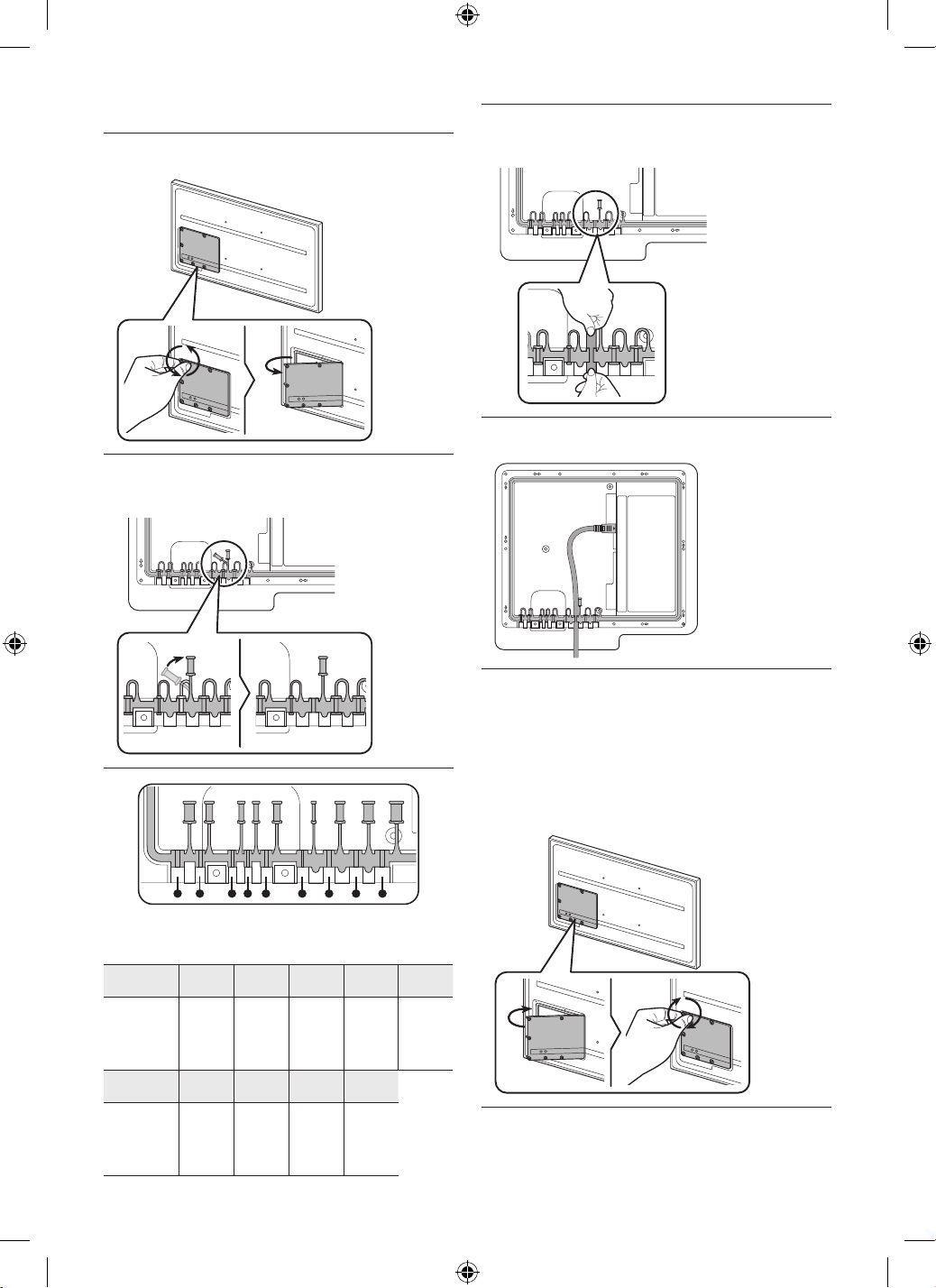
3. Insert the appropriate cable into the hole from which the
silicone bar was removed.
4. The cable should be connected as shown.
5. Close the cover, then fasten the screws.
– After all the cables are connected, make sure to close
the cover and fasten the screws to ensure it is water
tight. (Use the provided screws. Otherwise, it may
cause problems such as improper Weather-Resistant.)
Recommended torque : 2.5 - 3.5 kgf.cm
Before connecting cables
1. Unfasten the screws, then open the cover.
2. Remove the appropriate silicone bar for the thickness of
the cable to connect.
1 2 3 4 5 6 7 8 9
Different hole sizes and corresponding cable thickness for each:
Position 1 2 3 4 5
Cable
diameter
(Ф mm)
Ф 7.0 Ф 4.0 Ф 3.0 Ф 3.0 Ф 5.5
Position 6 7 8 9
Cable
diameter
(Ф mm)
Ф 1.6 Ф 5.5 Ф 7.0 Ф 8.0
English - 7
Durability
• The TV provides the robust durability by IP56 so that it can be
used in outdoor environment (when installed and used as per
the instructions in this User Manual).
• The remote control of this product provides durability by IP56.
Protection against
solids
IP
Protection against water
5 6
No protection 0 0 No protection
Solids > 50 mm 1 1 Vertically falling water
Solids > 12 mm 2 2
Vertically water - enclosure
tilted 15°
Solids > 2.5 mm 3 3
Sprayed water 60° from
vertical
Solids > 1.0 mm 4 4
Splashed water from all
directions
Dust Protected 5 5
Hosing jets from all
directions
Dust tight 6 6
Strong hosing jets from all
directions
- 7
Temporary Immersion: 1 m
for 30 minutes
- 8
Immersion: manufacturer
defined depth and time
Despite the IP55 and IP56 ratings, your TV and remote control are
not impervious to water damage in any situation. To help prevent
damage to your products, avoid the products being subjected to:
• Water projected by a source greater than 12.5 mm against
enclosure from any direction or submersion in water.
• Water projected at greater than 100 KPa (14.5 PSI) with a
water volume greater than 100 litres/minute for more than 3
minutes and extreme weather conditions.
If you have purchased or been provided a Dust Cover, be sure to
put the Dust Cover on the TV whenever the TV is not in use for an
extended period of time.
The Dust Cover will help prevent dust, dirt, and more from
accumulating on the TV. Please refer to the guide provided with
the Dust Cover for installation/usage guidelines.
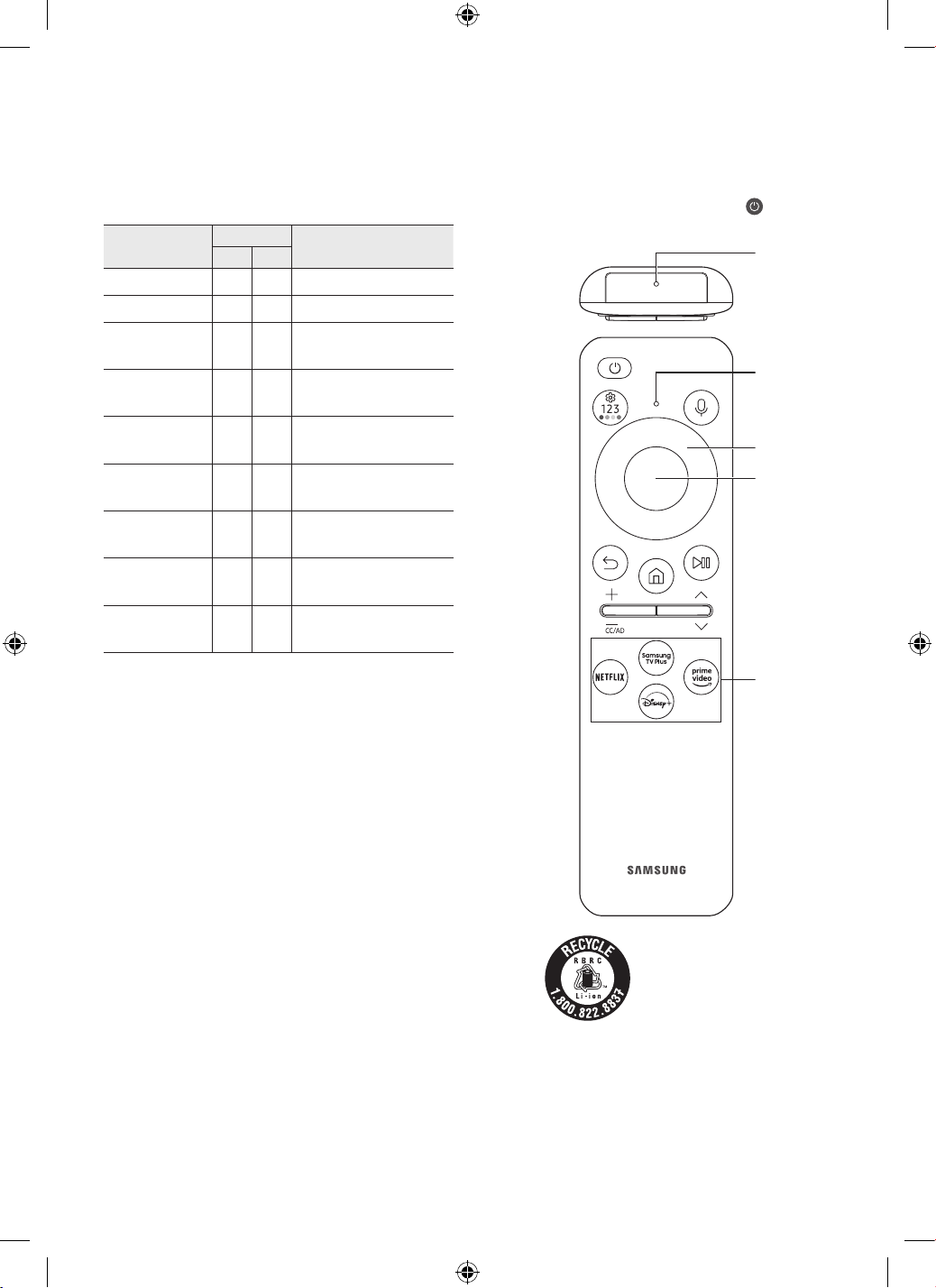
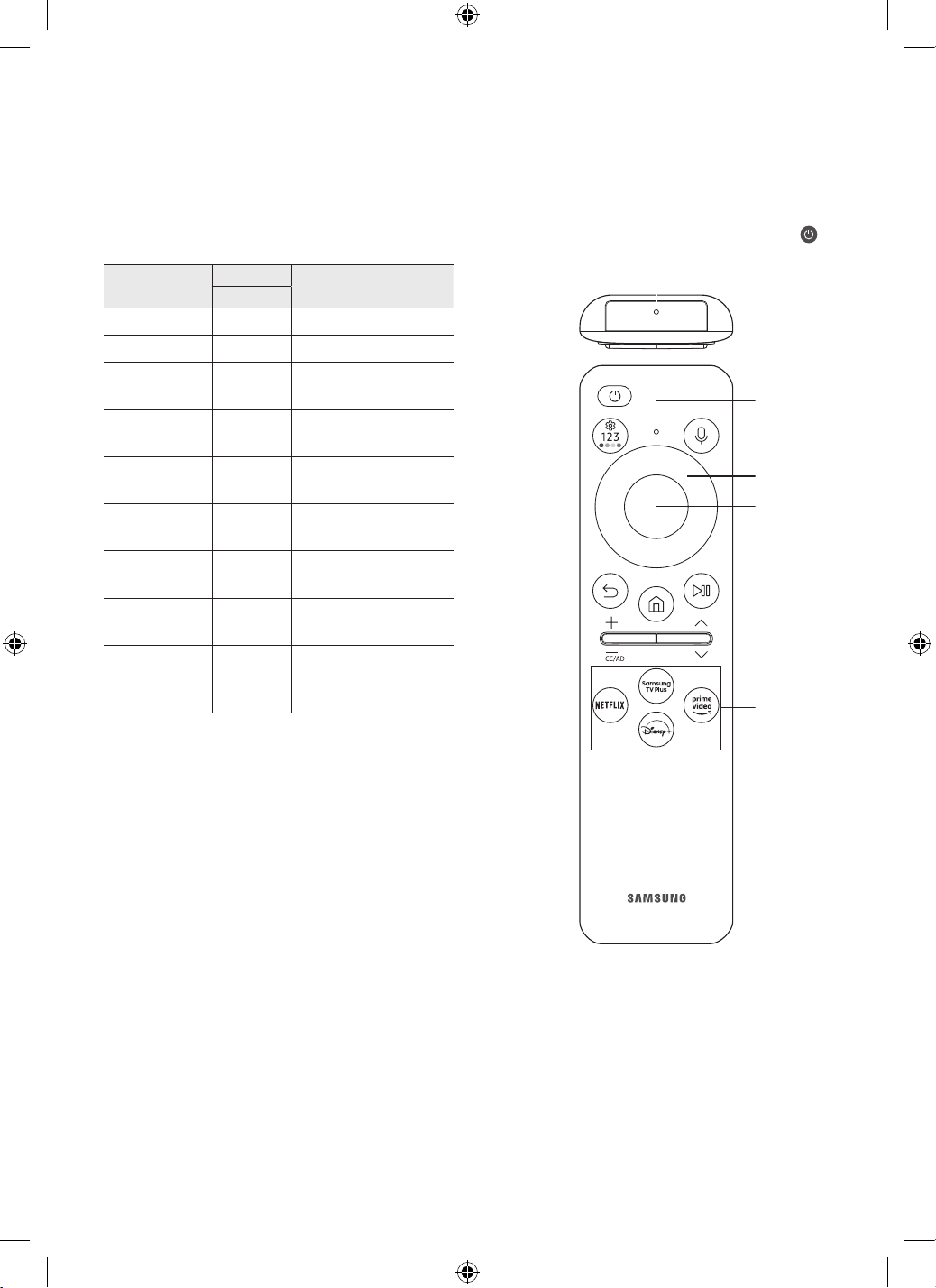
03 About the Buttons on the
Samsung SolarCell Remote
(Samsung Smart Remote)
• To activate the Samsung Smart Remote, press on it. (This
is required only when using it for the first time.)
1
3
4
5
2
For battery recycling go
to call2recycle.org; or
call 1-800-822-8837
English - 8

(Smart Hub)
Press to return to the Home Screen.
(Play/pause)
When pressed, the playback controls appear. Using these
controls, you can control the media content that is playing.
To use Game Bar, press and hold the button in Game Mode.
• Game Bar may not be supported depending on the model or
geographical area.
(Volume)
Move the button up or down to adjust the volume. To mute the
sound, press the button. When pressed for 2 seconds or more, the
Accessibility Shortcuts appears.
(Channel)
Move the button up or down to change the channel. To see the
Guide screen, press the button. When pressed for 1 second or
more, the Channel List screen appears.
Press and hold the button up or down to quickly change the
channel.
5 Launch app button
Launch the app indicated by the button.
• Available apps may differ depending on the geographical area
or contents provider.
+ (Pairing)
If the Samsung Smart Remote does not pair to the TV
automatically, point it at the front of the TV, and then press and
hold the
and buttons simultaneously for 3 seconds or
more.
– Use the Samsung Smart Remote less than 20 feet (6 m)
from the TV. The usable distance may vary with the wireless
environmental conditions.
– The images, buttons, and functions of the Samsung Smart
Remote may differ with the model or geographical area.
– The Universal Remote function operates normally only when
you use the Samsung Smart Remote that comes with the TV.
(Power)
Press to turn the TV on or off. Press and hold to turn off the TV
completely.
1 MIC
Used as MIC when using voice recognition with the remote
control.
• Do not impact the MIC hole or use a sharp object to poke into
the hole.
2 LED
When charging the remote control via the USB port, the LED is
lit if charging is in progress. When charging is complete, the LED
is turned off.
(Voice Assistant)
Runs Voice Assistant. Press and hold the button, say a command,
and then release the button to run Voice Assistant.
• The supported Voice Assistant's languages and features may
differ by geographical region.
[ Keep the remote more than 0.6 inches (15.24 mm) from your
face when using and speaking to Voice Assistant through the
mic on the remote.
(Settings - Number - Color button)
Each time you press this button, Settings menu / virtual numeric
pad / Option pad with Color buttons are displayed alternately.
• Use this button to access additional options that are specific
to the feature in use.
• Press to bring up the virtual numeric pad on the screen. Use
the numeric keypad to enter numeric values. Select numbers
and then select Done or Enter Number to enter a numeric
value. Use to change the channel, enter a PIN, enter a ZIP
code, etc.
3 Directional button (up, down, left, right)
Use to navigate the menu or move the focus to highlight items on
the Home Screen.
4 Select
Selects or runs a focused item. When pressed while you are
watching content, detailed program information appears.
(Return)
Press to return to the previous menu. When pressed for 1 second
or more, the running function is terminated. When pressed while
you are watching a program, the previous channel appears.
English - 9
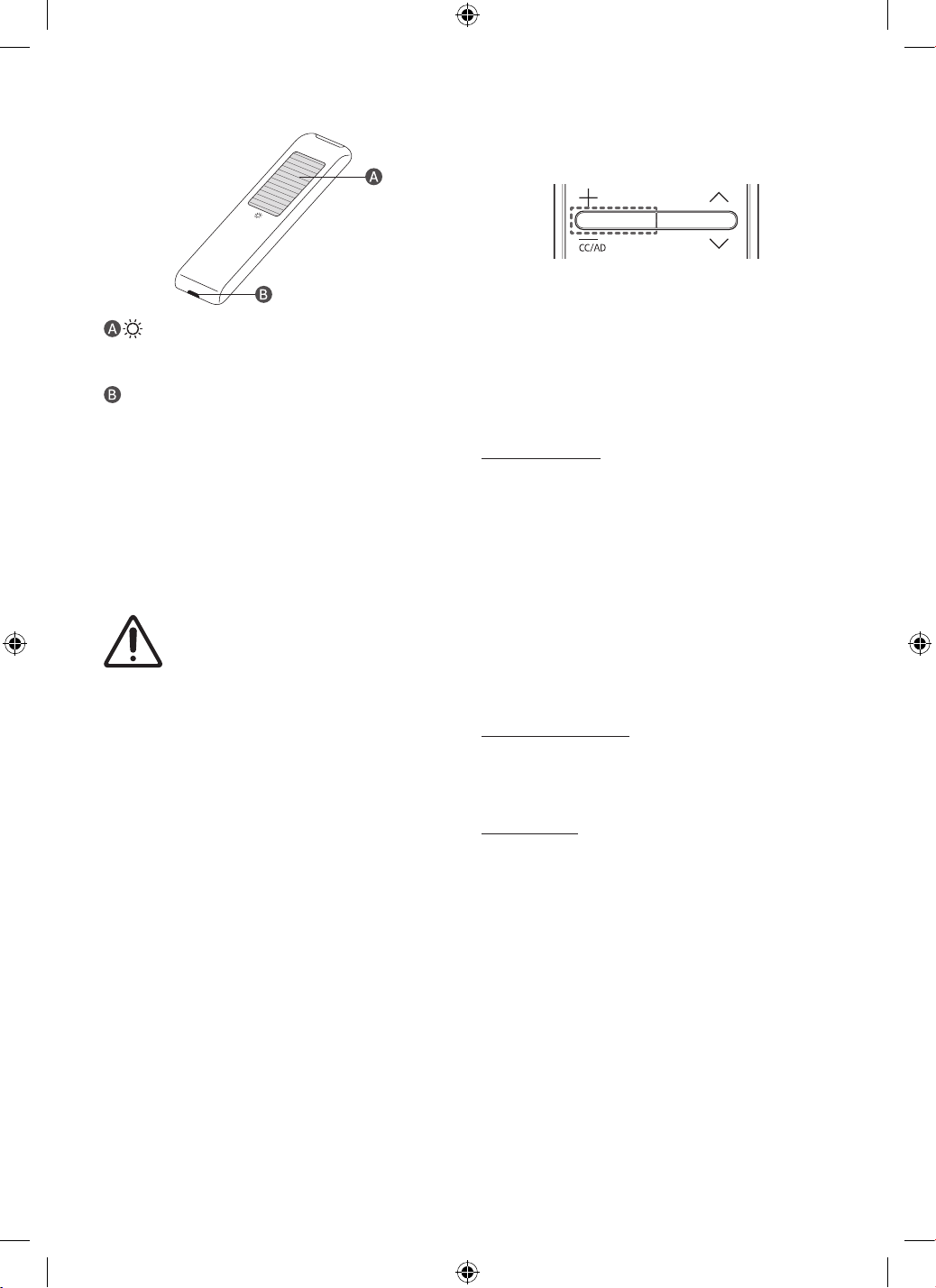
Using Accessibility Functions
The Accessibility Shortcuts button on your remote provides easy
access to the accessibility functions on your TV.
• Press and hold the Volume button to display the Accessibility
Shortcuts menu.
• Some functions may not appear depending on the access
method.
• These function may not be supported depending on the
model or geographical area.
* CC/VD works the same as CC/AD. The marked name can be
changed to CC/AD.
Voice Guide Settings
You can activate voice guides that describe the menu options
aloud to aid the visually impaired. To activate this function, set
Voice Guide to On. With Voice Guide on, the TV provides voice
guides for channel change, volume adjust, information on current
and upcoming programs, schedule viewing, other TV functions,
various content in the Web Browser, and in Search.
• You can configure the volume, speed, pitch, and level of the
Voice Guide.
• The Voice Guide is provided in the language that is specified
on the Language screen. English is always supported.
However, some languages are not supported by Voice Guide
even though they are listed in the Language screen.
Audio (Video) Description
You can activate an audio guide that provides an audio
description of video scenes for the visually impaired. This function
is only available with broadcasts that provide this service.
Caption Settings
Set Caption to On to watch programs with the captions displayed.
• Captions are not displayed by programs that do not support
captions.
• This function has no relationship with the features for
controlling subtitles of DVD or Blu-ray players. To control DVD
or Blu-ray subtitles, use the subtitle feature of the DVD or Blu-
ray player and the player's remote control.
Separate Closed Caption
• You can display the caption in the area separated from the
broadcast screen.
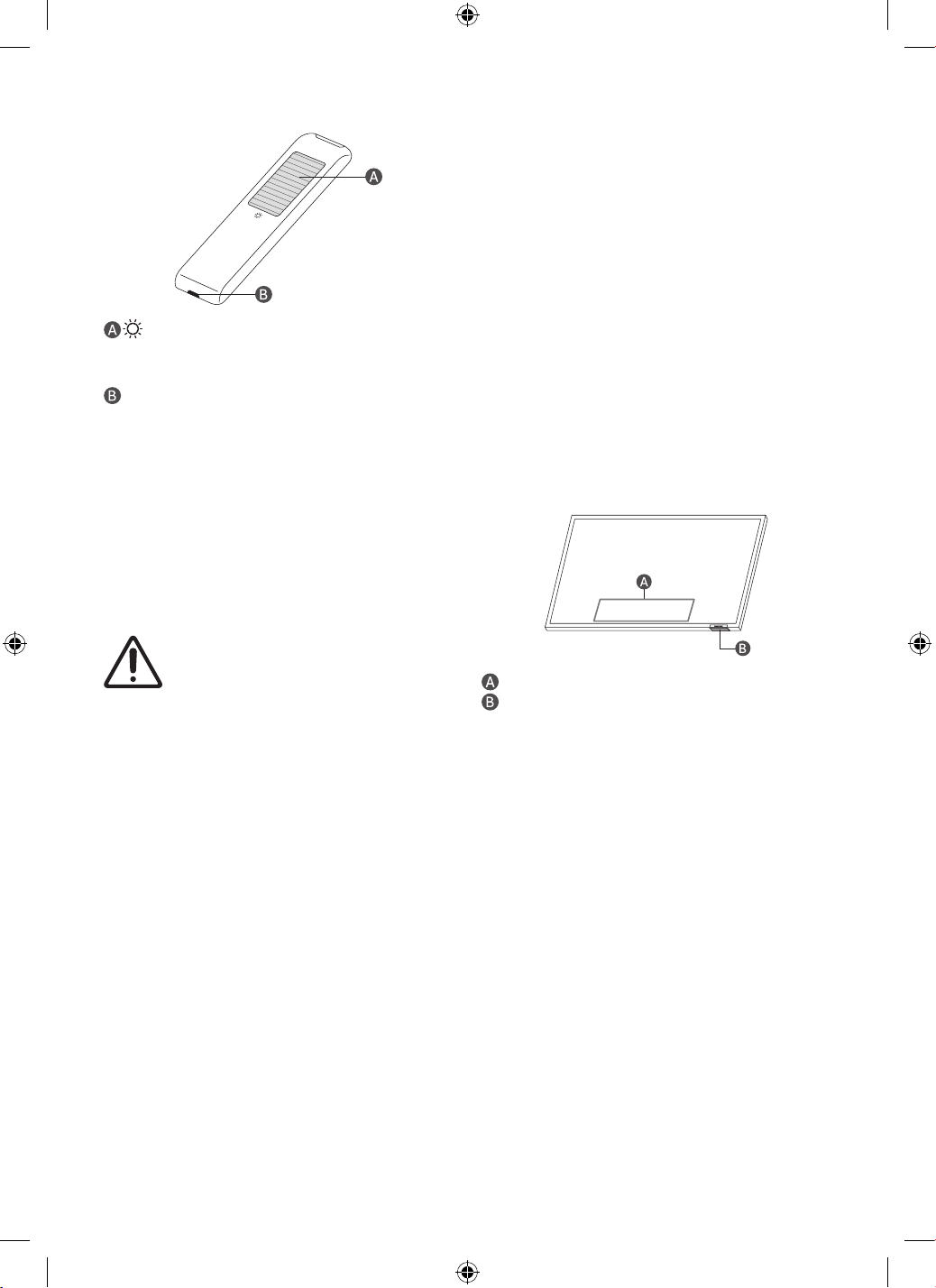
Charging the battery
Solar Cell
Expose to light when the remote is not in use. This will extend the
remote's operating time.
USB port (C-type) for charging
Used for quick charging. The LED on the front will light when
charging. When the battery is fully charged, the LED will turn off.
• The USB Cable is not provided.
– It is recommended to use an original Samsung charger.
Otherwise, it may cause performance degradation or failure
of the product. In this case, the warranty service is not
applicable.
– When the remote control does not work due to low battery,
charge it by using the USB-C type port.
Fire or explosion may occur, resulting in damage
to the remote control or personal injury.
• Do not apply shock to the remote control.
• Be careful not to let foreign substances such as
metal, liquid, or dust come in contact with the
charging terminal of the remote control.
• When the remote control is damaged or you
smell smoke or burning fumes, immediately
stop operation and then repair it at the
Samsung service center.
• Do not arbitrarily disassemble the remote
control.
• Be careful not to let infants or pets suck or
bite the remote control. Fire or explosion
may occur, resulting in damage to the remote
control or personal injury.
English - 10
Picture Off
Turn off the TV screen and provide only sound to reduce overall
power consumption. When you press any button on the remote
control with the screen off, the TV screen is returned to on.
Magnification
Enlarge the screen to make the picture or text bigger. You can
adjust the zoom level or move the zoom area by following the
displayed instructions.
Multi-output Audio
You can turn on the TV speaker and a Bluetooth device at the
same time. When this function is active, you can set the volume of
the Bluetooth device higher than the volume of the TV speaker.
• This function may not be supported depending on the model
or geographical area.
High Contrast
You can change major service screens to white text on a black
background or change the transparent TV menus to opaque so
that text can be more easily read. To activate this function, set
High Contrast to On.
Zoom Menu and Text
You can enlarge the size of the font on the screen. To activate, set
Zoom Menu and Text to On.
Grayscale
You can change the color of the TV screen to a black and white
tone to sharpen blurred edges caused by colors.
• If Grayscale is on, some Accessibility menus are not available.
• This function may not be supported depending on the model
or geographical area.
Color Inversion
You can invert the colors of the text and background for the
setting menus displayed on the TV screen to make it easier to
read them.
• If Color Inversion is on, some Accessibility menus are not
available.
• This function may not be supported depending on the model
or geographical area.
Slow Button Repeat
You can configure the operation speed of the remote control
buttons so that they slow down when you continually press and
hold them. set Slow Button Repeat to On.
Caption Mode
• Default / CC1 ~ CC4 / Text1 ~ Text4
Operates in either analog TV channel mode or when a signal is
supplied from an external device to the TV. (Depending on the
broadcast signal, the analog caption function may or may not
work with digital channels.)
• Default / Service1 ~ Service6 / CC1 ~ CC4 / Text1 ~ Text4
Works with digital channels. These functions may not be
available in digital caption mode depending on the broadcast.
Digital Caption Options
You can change the font color, background color, size settings,
and position, etc.
• The foreground and background colors and opacity settings
cannot be the same.
• The Position function is activated only for programs that
support broadcast captions.
Sign Language Zoom Settings
You can zoom in the sign language screen when the program you
are watching provides it. First, set Sign Language Zoom to On,
and then select Edit Sign Language Zoom to change the position
and magnification of the sign language screen.
Relumino Mode
This feature increases the contrast and brightness of the screen
and emphasizes the outlines of images, so that viewers with low
vision can see the screen more clearly.
SeeColors Mode
This feature helps users with color blindness experience richer colors.
Use this feature to customize the colors for your unique viewing
conditions, to experience richer colors on the screen.
Learn Gesture Functions
Check out how to use Gesture functions.
Sign Language Guide Settings
Provides a description of menu items with sign language.
Learn TV Remote
This function helps individuals with a visual impairment to
learn the positions of the buttons on the remote control. When
this function is activated, you can press a button on the remote
control and the TV will tell you its name. Press the
(Return)
button twice to exit Learn Remote.
Learn Menu Screen
Learn the menus on the TV screen. Once enabled, your TV will tell
you the structure and features of the menus you select.
English - 11
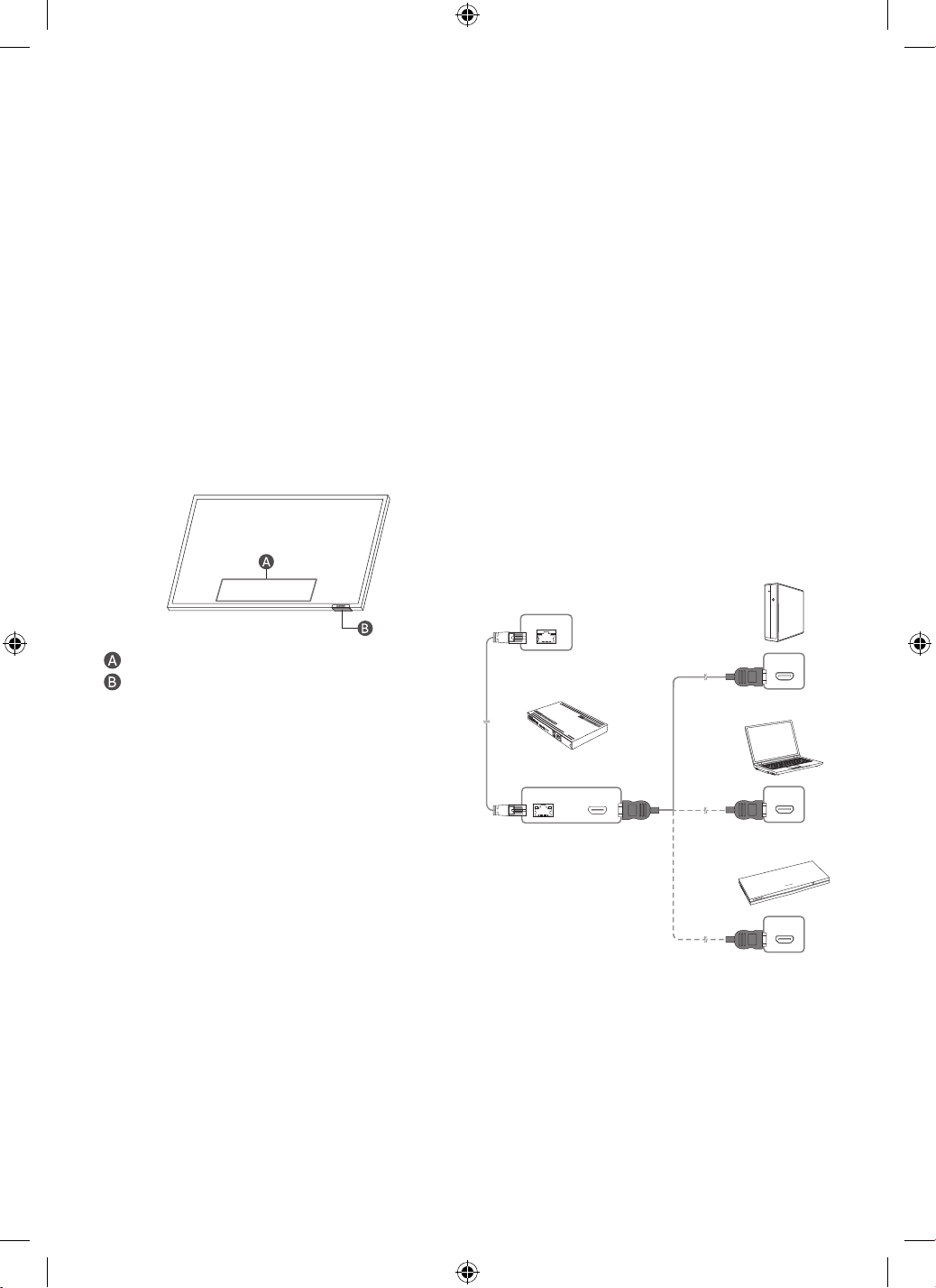
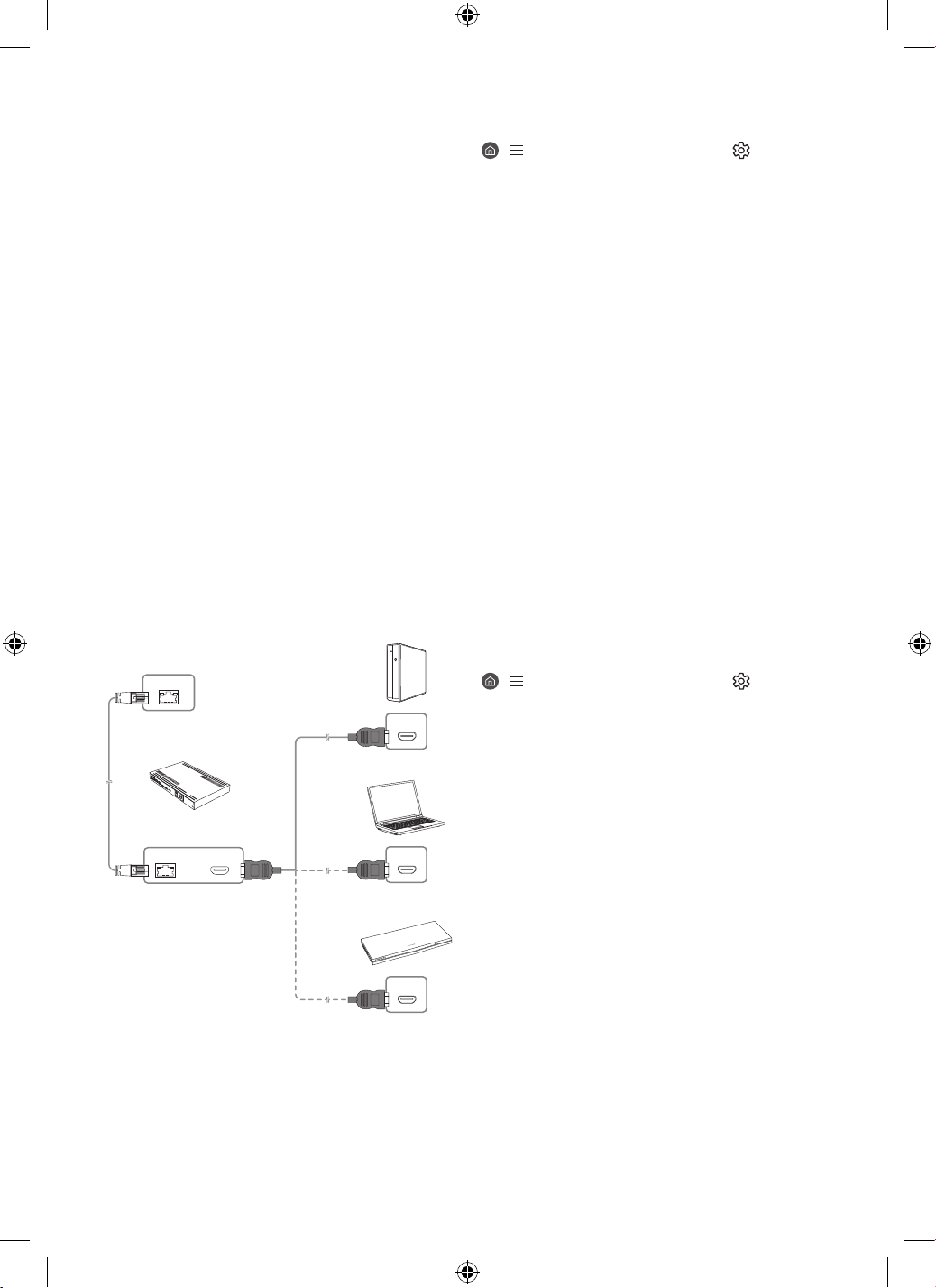
Guidelines for connection
• HDBase-T (Tx) transmits data from an external device to
HDBase-T (Rx). Only 1:1 connection is available between
devices. Make sure to connect them via a LAN (CAT6 or higher
quality) cable.
• HDBase-T works with unshielded twisted pair (UTP) or
shielded twisted pair (STP) cables; but, to ensure CE
compliance, STP cables and STP Connectors are required. STP
cable and connectors are recommended to safeguard against
unpredictable environmental electrical noise which may
impact performance. It is recommended to use an STP cable
to maximize performance. Using a UTP cable or patch may
decrease performance.
• Before replacing the external device, first remove the HDBT
LAN (CAT6 or higher quality) cable.
Constraints
• When connecting an external device via HDBase-T, there may
be restrictions during communication between devices.
• When connection a gaming device via HDBase-T, the related
functions and screen resolution may not be supported
smoothly.
HDMI IN
LAN
HDBT
HDMI OUT
HDMI OUT
HDMI OUT
HDBase-T (Tx)
HDBase-T (Rx)
External Device
04 Initial Setup
When you turn on your TV for the first time, it immediately
starts the Initial Setup. Follow the instructions displayed on the
screen and configure the TV's basic settings to suit your viewing
environment.
• You will need a Samsung Account to access our network-
based smart services. If you choose not to log in, you will only
get a connection to terrestrial TV (applicable to devices with
tuners only) and external devices, e.g. via HDMI.
Using the TV Controller
You can turn on the TV with the TV Controller button at the
bottom of the TV, and then use the Control menu. The Control
menu appears when the TV Controller button is pressed while
the TV is On.
• The screen may dim if the protective film on the SAMSUNG
logo or the bottom of the TV is not removed. If protective film
is attached, remove the film.
Control menu
TV Controller button / Remote control sensor
05 Connecting the HDBase-T
HDBase-T connection of The Terrace is built-in for transmission of
audio and video data. It does not support transmission of power,
Ethernet and control signals including IR and RS232.
– Up to HDMI 1.4 is supported.
– CEC does not operate when the TV is Off.
General
• The appearance may differ depending on the product.
• Connecting parts may differ in different products.
• Data transmission is not available if HDBase-T (Rx) is
connected to HDBase-T (Tx) through a hub.
• While installing the product, be sure to use the cables and TX
devices certified by the HDBase-T Alliance.
• When connecting an external device via HDBase-T, for the
maximum resolution, use a certified TX device that supports
4K 30 Hz.
• This port (HDBT port on the TV) does not support ARC (eARC).
English - 12

08 Troubleshooting and
Maintenance
Troubleshooting
For more information, refer to "Troubleshooting" in the e-Manual.
> (left directional button) > Settings > Support > Open
e-Manual > Troubleshooting
If none of the troubleshooting tips apply, please visit "www.
samsung.com" and click Support or contact the Samsung service
center.
• This panel is made up of sub pixels which require
sophisticated technology to produce. There may be, however,
a few bright or dark pixels on the screen. These pixels will
have no impact on the performance of the product.
• To keep your TV in optimum condition, upgrade to the latest
software. Use the Update Now or Auto Update functions on
the TV's menu (
> (left directional button) > Settings
> Support > Software Update > Update Now or Auto Update).
The TV won’t turn on.
• Make sure that the power cord is securely plugged into the
product and the wall outlet.
• Make sure that the wall outlet is working and the remote
control sensor at the bottom of the TV is lit and glowing a
solid red.
• Try pressing the TV Controller button at the bottom of the TV
to make sure that the problem is not with the remote control.
If the TV turns on, refer to "The remote control does not work."
The remote control does not work.
• Check if the remote control sensor at the bottom of the TV
blinks when you press the
button on the remote control.
– When the remote's battery is discharged, charge the
battery using the USB charging port (C-type), or turn over
the remote to expose the solar cell to light.
• Try pointing the remote directly at the TV from 5 ft. to 6 ft.
(1.5-1.8 m / 150-180 cm) away.
• If your TV came with a Samsung Smart Remote (Bluetooth
Remote), make sure to pair the remote to the TV. To pair
a Samsung Smart Remote, press the
and buttons
together for 3 seconds.
Eco Sensor and screen brightness
Eco Sensor adjusts the brightness of the TV automatically. This
feature measures the light in your room and optimizes the
brightness of the TV automatically to reduce power consumption.
If you want to turn this off, go to
> (left directional button) >
Settings > All Settings > General & Privacy > Power and Energy
Saving > Brightness Optimization.
• The eco sensor is located at the bottom of the TV. Do not
block the sensor with any object. This can decrease picture
brightness.
06 Using the Cold Weather Mode
> (left directional button) > Settings > All Settings >
General & Privacy > System Manager > Cold Weather Mode
Outdoor TV provides an optimal viewing experience under 32 °F
(0 °C) to 122 °F (50 °C).
• In low temperature below 50 °F (10 °C), motion blur may occur
due to liquid crystal characteristics.
• To view the TV under low temperature below 50 °F (10 °C), you
can use the Cold Weather Mode for stable startup.
• Cold Weather Mode keeps the startup stable by operating the
TV backlight when the weather is very cold.
• When Cold Weather Mode is active, be sure to keep the power
supply connected.
• Even in standby mode for Cold Weather Mode, power may be
consumed as follows:
– 65˝: MAX 300 W / 75˝: MAX 339 W
• Cold Weather Mode operates in standby and the screen may
appear gray.
High-Temperature protection
• At the temperature above 113 °F (45 °C), the TV brightness
may be lowered to protect the product. This option works
regardless of Cold Weather Mode activation.
07 Using the Adaptive Picture
> (left directional button) > Settings > All Settings >
General & Privacy > Intelligent Mode Settings > Adaptive Picture
Optimizes brightness and provides the best picture quality in
real time, based on the lighting condition and the content you're
viewing.
• The Adaptive Picture in The Terrace automatically optimizes
Brightness and Contrast in real time, making the content you
are currently watching the best quality even in bright or dark
conditions.
English - 13

09 Specifications and Other
Information
Specifications
Model Name QN85LST9C
Display Resolution 3840 x 2160
Screen Size
Diagonal
Measured Diagonally
85˝ Class
84.5 inches
Sound (Output) 40 W
Dimensions (W x H x D)
Body
75.3 x 43.6 x 2.7 inches
(1913.8 x 1106.3 x 69.8 mm)
Weight
Body 129.0 lbs (58.5 kg)
Power Consumption
(Mexico Only)
660 W
Power Requirements
(Mexico Only)
110-127V ~ 50/60Hz
Environmental Considerations
Operating Temperature
Operating Humidity
Storage Temperature
Storage Humidity
-24 °F to 122 °F (-31 °C to 50 °C)
10 % to 80 %, non-condensing
-24 °F to 122 °F (-31 °C to 50 °C)
5 % to 95 %, non-condensing
Notes
• This device is a Class B digital apparatus.
• For information about the power supply, and more information
about power consumption, refer to the information on the
label attached to the product.
– On most models, the label is attached to the back of the TV.
(On some models, the label is inside the cover terminal.)
• To connect a LAN cable, use a CAT 7 (*STP type) cable for the
connection. (100/10 Mbps)
* Shielded Twisted Pair
• When the temperature is out of Operating Temperature /
Storage Temperature range (-24 °F to 122 °F (-31 °C to 50 °C)),
please store the TV inside with complete packaging to protect
the product.
* Figures and illustrations are provided for reference only and
may differ from the actual product appearance.
Product design and specifications may change without notice.
Decreasing power consumption
When you shut the TV off, it enters Standby mode. In Standby
mode, it continues to draw a small amount of power. To decrease
power consumption, unplug the power cord when you don't
intend to use the TV for a long time.
Licenses
The terms HDMI, HDMI High-Definition Multimedia Interface,
HDMI trade dress and the HDMI Logos are trademarks or
registered trademarks of HDMI Licensing Administrator, Inc.
English - 14
This page is intentionally
left blank.
© 2023 Samsung Electronics Co., Ltd. All rights reserved.
Scan the QR code to view our helpful how-to videos (USA Only)
Scan this QR code with your smart
phone to see helpful videos.
If you experience issues, please do not take the TV back to the store.
In the United States of America, call us at 1-800-SAMSUNG (1-800-726-7864) or visit us at www.samsung.com or www.samsung.
com/spsn for support and warranty service.
Contact SAMSUNG WORLD WIDE
If you have any questions or comments relating to Samsung products, please contact the Samsung service center.
Country
Samsung Service Center
Website Address
CANADA 1-800-SAMSUNG (726-7864)
www.samsung.com/ca/
support (English)
www.samsung.com/ca_fr/
support (French)
Samsung Electronics Canada Inc.
2050 Derry Road West
Mississauga, Ontario L5N 0B9
Canada
U.S.A 1-800-SAMSUNG (726-7864)
www.samsung.com/us/
support
Samsung Electronics America, Inc.
85 Challenger Road
Ridgefield Park, NJ 07660
Accessibility contact information in U.S.A. : [email protected]

Gracias por comprar este producto Samsung.
Para recibir un servicio más completo, registre su producto en www.samsung.com
Modelo N.º de serie
(solo México) Si desea hacernos alguna pregunta, comuníquese con nosotros al 800-SAMSUNG para obtener asistencia.
MANUAL DEL USUARIO
Televisor para espacios al aire libre con tecnología Neo QLED
LST9C
Antes de leer este manual del
usuario
Este televisor viene con este manual del usuario y un e-Manual
incluido (
> (botón direccional hacia la izquierda) >
Configuración > Soporte técnico > Abrir e-Manual).
En el sitio web (www.samsung.com) puede descargar los manuales
y ver su contenido en su computadora o dispositivo móvil.
Para activar el Control remoto Samsung Smart, presione en
él. (Solo tendrá que hacerlo cuando lo use por primera vez).
¡Advertencia! Instrucciones de
seguridad importantes
Lea las instrucciones de seguridad antes de utilizar el televisor.
Consulte la siguiente tabla para obtener una explicación de los
símbolos que su producto Samsung puede presentar.
PRECAUCIÓN
PELIGRO DE DESCARGA ELÉCTRICA. NO ABRIR.
PRECAUCIÓN: PARA REDUCIR EL RIESGO DE DESCARGA
ELÉCTRICA, NO RETIRE LA CUBIERTA (NI LA PARTE
POSTERIOR). NO CONTIENE PIEZAS QUE EL USUARIO
PUEDA REPARAR. ENCOMIENDE LAS REPARACIONES AL
PERSONAL CALIFICADO.
Este símbolo indica que el dispositivo
contiene alto voltaje. Es peligroso establecer
cualquier tipo de contacto con cualquier parte
interna del producto.
Este símbolo indica que con este producto se
incluye documentación importante relativa a
la operación y el mantenimiento.
Producto de Clase II: Este símbolo indica que
no es necesaria una conexión eléctrica de
seguridad (toma de tierra). Si un producto
con cable de alimentación no tiene este
símbolo, el producto DEBE contar con
una puesta a tierra (masa) de protección
confiable.
Voltaje CA: La tensión nominal marcada con
este símbolo es CA.
Voltaje CC: La tensión nominal marcada con
este símbolo es CC.
Precaución. Consulte las instrucciones antes
de usar: Este símbolo indica que se debe
consultar el manual del usuario para obtener
información relacionada con la seguridad.
Encendido
• No sobrecargue las tomas de la pared, los cables de extensión
ni los adaptadores por encima de su capacidad. De lo
contrario, podría producirse un incendio o descarga eléctrica.
Consulte la sección de especificaciones de alimentación del
manual o la etiqueta de alimentación eléctrica del producto
para conocer la información de voltaje y amperaje.
• Los cables de alimentación deben colocarse de forma que
no puedan pisarse ni quedar atrapados por objetos encima
o contra ellos. Preste especial atención a los extremos del
cable en las tomas de pared y en el punto en el que salen del
aparato.
• No inserte ningún objeto metálico en las piezas abiertas del
aparato. Hacerlo puede generar una descarga eléctrica.
• Para evitar una descarga eléctrica, nunca toque el interior
del aparato. Únicamente un técnico calificado debe abrir el
aparato.
• Asegúrese de enchufar el cable de alimentación hasta que
esté insertado firmemente. Cuando desconecte el cable de
una toma de pared, asegúrese de tirar del enchufe del cable.
Nunca desenchufe jalando el cable. No toque el cable de
alimentación con las manos mojadas.
• Si el aparato no funciona normalmente, en especial si emite
sonidos u olores extraños, desenchúfelo de inmediato
y comuníquese con un distribuidor o centro de servicio
autorizado de Samsung.
• A fin de proteger el aparato contra tormentas eléctricas,
o cuando lo deje sin vigilancia o sin utilizar, asegúrese de
desenchufarlo de la toma de pared y desconecte la antena o el
sistema de cable.
– El polvo acumulado puede provocar una descarga eléctrica,
una fuga de electricidad o un incendio al hacer que el cable
de alimentación suelte chispas o calor o al deteriorarse el
aislamiento.
• Use únicamente un enchufe y una toma de pared con una
conexión a tierra adecuada.
– Una conexión a tierra no adecuada puede provocar una
descarga eléctrica o daños al equipo. (Únicamente para los
equipos Clase l).
• Para apagar este aparato completamente debe desconectarlo
de la toma de pared. Para garantizar que pueda desconectar
este aparato rápidamente en caso necesario, asegúrese de
que la toma de pared y el enchufe sean fácilmente accesibles.
Español
Español - 2
Instalación
• No coloque este aparato cerca o sobre un radiador o
calefactor, ni en un lugar expuesto a la luz directa del sol.
• No coloque objetos (jarrones, etc.) que contengan agua sobre
este aparato, ya que podría producirse un incendio o una
descarga eléctrica.
• No exponga este aparato a la lluvia o la humedad.
• Asegúrese de contactarse con un centro de servicio
autorizado para obtener información si va a instalar su
televisor en un lugar con mucho polvo, temperaturas altas o
bajas, altos niveles de humedad, sustancias químicas, o en
lugares donde vaya a funcionar las 24 horas del día, como
aeropuertos, estaciones de ferrocarril, etc. No hacerlo puede
provocar daños graves al televisor.
• No exponga este aparato a goteos ni salpicadura.
Instalación del televisor en la pared
Dado que el acceso del televisor a Media Bay
puede estar limitado por el diseño del soporte
de pared que utilice, se recomienda conectar
todos los cables y dispositivos necesarios antes
de colgar el televisor en la pared. Es posible que
al conectar cables y dispositivos adicionales al
televisor luego de colgarlo en la pared, deba
separar el televisor del soporte de pared.
Si instala este televisor en una pared, siga
exactamente las instrucciones establecidas por
el fabricante. Si no se instala correctamente, el
televisor puede deslizarse o caerse y provocar
lesiones graves a niños o adultos y daños
importantes al televisor.
• Para solicitar un kit de montaje de pared Samsung,
comuníquese con el Centro de servicio de Samsung.
• Samsung Electronics no se hace responsable de los daños
causados al producto o al usuario si se ha optado por instalar
el montaje de pared por su cuenta.
• Puede instalar el soporte de pared en una pared sólida,
perpendicular al suelo. Antes de conectar el soporte de pared
a superficies distintas de una placa de yeso, comuníquese
con su distribuidor más cercano para obtener información
adicional. Si instala el televisor en el techo o en una pared
inclinada, puede caer y causar graves lesiones personales.
• Recomendamos ajustar los cuatro tornillos VESA cuando se
instala un soporte de pared.
• Si desea instalar un soporte de pared que se coloque en
la pared solo con dos tornillos superiores, asegúrese de
usar el soporte de pared Samsung que admita este tipo de
instalación. (Es posible que no pueda comprar este tipo de
soporte de pared según su región geográfica).
• No instale el televisor con una inclinación de más de 15 grados.
• Las dimensiones estándar de los soportes de pared se
muestran en la tabla.
Especificaciones del soporte de pared (VESA)
: Soporte del montaje de pared
Tamaño del televisor en
pulgadas
85
Especificaciones de orificios
de tornillos VESA
(
x ) (mm)
600 x 400
(mm)
9-11
+
x 4
M8
(mm)
1.5
(pulgadas)
10.3
(pulgadas)
25.9
(pulgadas)
17.2
• Par de torsión recomendado: 10 - 12 kgf.cm
No instale el soporte de pared con el televisor
encendido. Se podría producir una descarga
eléctrica con riesgo de causar lesiones personales.
• No use tornillos con una longitud superior a la medida
estándar o que no cumplan con las especificaciones de
tornillos estándar VESA. Los tornillos que son demasiado
largos pueden causar daños en el interior del televisor.
• Para soportes de pared que no cumplen las especificaciones
de tornillos estándar VESA, la longitud de estos puede variar
dependiendo de las especificaciones del soporte de pared.
• No apriete excesivamente los tornillos. Podría dañar el
producto o provocar su caída con riesgo de causar lesiones
personales. Samsung no se hace responsable de este tipo de
accidentes.
• Samsung no se hace responsable de daños al producto o
lesiones personales cuando se usa un soporte de pared que no
cumple con las especificaciones VESA o si el cliente no sigue
las instrucciones de instalación del producto.
• Siempre son necesarias dos personas para montar el televisor
en la pared.
– Para los modelos de 82 pulgadas o más, son necesarias
cuatro personas para instalar el televisor en la pared.
• ADVERTENCIA: Este aparato debe fijarse bien a la pared.
"Inclinar, hacer tambalear o balancear el aparato puede causar
lesiones o la muerte". (CSA60065)
Español - 3
Ventilación adecuada del televisor
Al instalar el televisor, deje una distancia de al menos 2.5
pulgadas (64 mm) entre el televisor y otros objetos (paredes,
laterales del gabinete, etc.) para asegurar una ventilación
adecuada. No mantener una ventilación adecuada puede tener
como consecuencia un incendio o un problema con el producto
causados por un aumento en su temperatura interna.
• Cuando utiliza un soporte de pared para instalar su
televisor, le recomendamos que use únicamente las piezas
proporcionadas por Samsung Electronics. Si utiliza piezas
proporcionadas por otro fabricante, podría tener problemas
con el producto o sufrir una lesión debido a la caída del
producto.
• The Terrace puede instalarse en una posición inclinada en una
pared o lateral de un gabinete, hasta 15°.
2.5 pulgadas (64 mm) o más
Pared o
lateral de
gabinete
15°
Pared o
lateral de
gabinete
Precaución de seguridad
Precaución: Jalar el televisor, empujarlo o
colgarse de él puede provocar su caída. En
especial, impida que los niños se cuelguen
del televisor o lo desestabilicen. El televisor
podría caerse sobre ellos y causarles
lesiones graves o incluso la muerte. Siga
las precauciones de seguridad del folleto
de seguridad incluido con el televisor.
Para mejorar la estabilidad y la seguridad,
puede adquirir un dispositivo antivuelco e
instalarlo como se explica en "Para impedir
que el televisor se caiga".
ADVERTENCIA: Nunca coloque un televisor en
una ubicación inestable. El televisor podría caer
y causar lesiones personales graves o incluso la
muerte. Muchas lesiones, en especial en el caso
de los niños, pueden evitarse tomando sencillas
precauciones como las siguientes:
• Utilice siempre gabinetes o métodos de montaje
recomendados por Samsung.
• Utilice muebles capaces de soportar el peso del televisor.
• Asegúrese de que el televisor no sobresalga en exceso del
borde del mueble.
• Eduque a los niños acerca de los peligros de subirse al mueble
para llegar al televisor o a los controles.
• Conecte los cables a su televisor de modo que no se tropiece
con ellos, no los jale ni los enganche.
• Nunca coloque un televisor en una ubicación inestable.
• No coloque el televisor sobre muebles altos (por ejemplo,
estantes o librerías) sin haber anclado el mueble y el televisor
en un soporte adecuado.
• No coloque el televisor sobre una tela u otro material similar
entre el televisor y el mueble.
• No coloque elementos que puedan invitar a los niños a
treparse, tales como juguetes o controles remotos, a la parte
superior del televisor o al mueble sobre el que se coloca el
televisor.
Si va a reubicar el televisor actual, deberá aplicar las mismas
consideraciones anteriores.
Función
• Este aparato utiliza pilas. En su comunidad pueden existir
normativas ambientales que exijan que deseche las pilas
adecuadamente. Comuníquese con las autoridades locales
para obtener información sobre disposición y reciclaje.
• Guarde los accesorios (control remoto, pilas, etc.) en un lugar
fuera del alcance de los niños.
• No deje caer el producto ni lo golpee. Si el producto se daña,
desconecte el cable de alimentación y comuníquese con un
centro de servicio.
• No arroje el control remoto ni las pilas al fuego.
• No genere un cortocircuito, desensamble ni recaliente las
pilas.
• PRECAUCIÓN: Hay peligro de explosión si reemplaza las pilas
usadas en el control remoto por otras de un tipo incorrecto.
Reemplácelas únicamente por el mismo tipo o un tipo
equivalente.
• ADVERTENCIA - A FIN DE EVITAR QUE SE
DISEMINE EL FUEGO, MANTENGA LAS
VELAS Y LAS LLAMAS ABIERTAS ALEJADAS
DEL PRODUCTO EN TODO MOMENTO.
Antes de usar el equipo lea este manual para evitar fallas y
guarde para futuras referencias.
Español - 4
Cuidado del televisor
• Para limpiar este aparato, desconecte el cable de alimentación
de la toma de pared y limpie el aparato con un paño suave y
seco. No use sustancias químicas como cera, benceno, alcohol,
diluyentes, insecticida, desodorantes ambientales, lubricantes
o detergente. Estos productos químicos pueden dañar el
aspecto del televisor o borrar las impresiones del producto.
• La parte exterior y la pantalla del televisor podrían rayarse
durante la limpieza. Asegúrese de limpiar la parte exterior y la
pantalla utilizando un paño suave para evitar que se rayen.
• No rocíe agua ni líquidos directamente sobre el televisor.
Cualquier líquido que ingrese al producto puede ocasionar
fallas, incendio o descarga eléctrica.
Seguridad de Internet
(Solo U.S.A/México)
Samsung toma una serie de medidas para proteger sus Smart
TV compatibles con Internet contra incursiones no autorizadas
y piratería informática. Por ejemplo, algunas comunicaciones
sensibles entre el televisor y los servidores de Internet están
cifradas. Además, el sistema operativo del televisor incorpora
controles para impedir la instalación de aplicaciones no
autorizadas.
A pesar de estas medidas de protección del Smart TV y la
información personal, ni los dispositivos conectados a Internet
ni las transmisiones son completamente seguros. Por lo tanto,
le instamos a tomar medidas de seguridad adicionales para
proteger su televisor, asegurar la conexión a Internet y minimizar
el riesgo de accesos no autorizados. Estas medidas se indican a
continuación:
• Cuando Samsung lance actualizaciones de software para
mejorar la seguridad del televisor, deberá instalarlas sin
demora. Para recibir automáticamente estas actualizaciones,
active Actualización automática en el menú del televisor
(
> (botón direccional hacia la izquierda) >
Configuración > Soporte técnico > Actualización
de software > Actualización automática). Cuando una
actualización está disponible, aparece un mensaje emergente
en la pantalla del televisor. Acepte la descarga del software y
la actualización seleccionando Sí cuando se le solicite. Tome
las medidas necesarias para asegurar su punto de acceso y red
inalámbrica. El manual del punto de acceso le proporcionará
información adicional sobre cómo implementar las siguientes
medidas:
– Asegure la configuración de administración del punto de
acceso inalámbrico con una contraseña exclusiva para
evitar cambios no autorizados en la configuración de la
seguridad.
– Implemente un cifrado estándar (por ejemplo, cifrado
WPA2) en su punto de acceso inalámbrico para asegurar la
señal de la red inalámbrica.
– Asegure el acceso a su red inalámbrica con una contraseña
difícil de adivinar.
– Confirme que la configuración del firewall del punto de
acceso esté habilitada (si corresponde).
– Asegúrese de que todos sus dispositivos conectados a
Internet estén protegidos por el firewall de la red.
– Si su punto de acceso o módem tiene un botón de modo
de espera, utilícelo para desconectar su red doméstica de
Internet cuando no la utilice.
• Utilice contraseñas seguras para todas sus cuentas de
Internet (Netflix, Facebook, etc.).
• Si en la pantalla del televisor aparecen mensajes inesperados
que le piden permiso para vincular un dispositivo o habilitar
una sesión remota, NO lo acepte.
• No visite sitios web sospechosos ni instale programas que no
considere seguros. Recomendamos a los usuarios que instalen
únicamente las aplicaciones autorizadas que proporciona
Samsung a través de Samsung Smart Hub.
01 Contenido del paquete
Asegúrese de que los siguientes elementos estén incluidos
con su televisor. Si falta algún elemento, comuníquese con su
distribuidor.
• Manual del usuario
• Guía de seguridad / Guía de información legal (No disponible
en algunos lugares)
• Control remoto Samsung Smart
• Cable de alimentación del televisor
• Soporte de cables
• Tornillo x 2 (M4 x L7)
• Los colores y las formas pueden variar según el modelo.
• Los cables no incluidos pueden adquirirse por separado.
• Verifique que no haya accesorios ocultos en los materiales de
empaque cuando abra la caja.
Español - 5
Uso del soporte para cable
Las pantallas se pueden dañar si se ejerce presión
directa sobre ellas al manejarlas incorrectamente.
Asegúrese de sujetar los bordes de la pantalla al
levantar el televisor, como se muestra en la figura.
– Para los modelos de 82 pulgadas o más, son
necesarias cuatro personas para instalar el
televisor en la pared.
¡No toque esta
pantalla!
02 Instalación del televisor
• La pantalla del televisor tiene una función
incorporada para bloquear la luz directa del
sol.
– La pantalla del televisor se puede proteger
hasta 6horas a la luz del sol a 700vatios
y 104grados Fahrenheit (40grados Celsius).
• La parte frontal del televisor, que está
equipada con sensores de temperatura
incorporados, no se deberá cubrir de ninguna
manera.
– En caso de ser necesario, el televisor
activará la "Protección de temperatura alta"
al bajar el brillo para proteger la pantalla.
• Para un uso estable del producto, debe
instalarse en un lugar donde no corra riesgo
de congelarse por la acumulación de nieve o
la exposición a la lluvia durante un período
prolongado.
• No puede empotrarse.
• The Terrace debe instalarse únicamente en
posición horizontal, no vertical.
Planificar la ubicación
Horizontal Vertical
No instale The Terrace en techos, pisos o mesas.
Media Bay
• The Terrace ofrece espacio (Media Bay) para instalar
reproductores multimedia cuando en la parte posterior del
producto se garantiza su impermeabilidad.
• Los siguientes reproductores multimedia se pueden instalar
en la parte posterior (Media Bay) del producto.
– Reproductor multimedia: Amazon Fire Stick, Google
Chromecast, Roku Ultra Streaming M Player
• Asegúrese de cerrar la tapa y ajustar los tornillos para
garantizar su hermeticidad. (Utilice los tornillos provistos.
De lo contrario, podrían producirse problemas como una
impermeabilidad inadecuada).
Media Bay
Dimensiones (An x Al x Pr)
8.3 x 10.6 x 1.0 pulgadas
(210.0 x 270.0 x 25.0 mm)
Reproductor multimedia
Espacio de instalación
(An x Al x Pr)
5.5 x 7.9 x 1.0 pulgadas
(140.0 x 200.0 x 25.0 mm)
Español - 6
3. Inserte el cable adecuado en el orificio donde retiró la
barra de silicona.
4. Debe conectar el cable como se muestra a continuación.
5. Cierre la tapa y luego afloje los tornillos.
– Después de conectar los cables, asegúrese de cerrar
la tapa y aflojar los tornillos para garantizar la
impermeabilidad. (Utilice los tornillos provistos. De
lo contrario, podrían producirse problemas como una
impermeabilidad inadecuada).
Par de torsión recomendado: 2.5 - 3.5 kgf.cm
Antes de conectar cables
1. Afloje los tornillos y luego abra la tapa.
2. Retire la barra de silicona adecuada para el grosor del
cable a conectar.
1 2 3 4 5 6 7 8 9
Tamaños de orificios diferentes y grosor de los cables
correspondiente para cada:
Posición 1 2 3 4 5
Diámetro
del cable
(Ф mm)
Ф 7.0 Ф 4.0 Ф 3.0 Ф 3.0 Ф 5.5
Posición 6 7 8 9
Diámetro
del cable
(Ф mm)
Ф 1.6 Ф 5.5 Ф 7.0 Ф 8.0
Español - 7
Durabilidad
• El televisor ofrece una durabilidad resistente con IP56
para que pueda utilizarse incluso en cualquier ambiente
exterior (siempre que se instale y utilice de acuerdo con las
instrucciones de este Manual del usuario).
• El control remoto del producto provee una durabilidad de
IP56.
Protección contra
polvo
IP
Protección contra agua
5 6
Sin protección 0 0 Sin protección
Polvo > 50 mm 1 1 Caída de agua vertical
Polvo > 12 mm 2 2
Caída vertical - carcasa
inclinada 15°
Polvo > 2.5 mm 3 3
Agua pulverizada a 60° de
la perpendicular
Polvo > 1.0 mm 4 4
Salpicaduras de agua en
todas las direcciones
Protegido contra
el polvo
5 5
Chorros de agua en todas
las direcciones
Hermético 6 6
Chorros de agua potentes
en todas las direcciones
- 7
Inmersión temporaria 1 m
durante 30 minutos
- 8
Inmersión: profundidad y
tiempo establecidos por el
fabricante
A pesar de sus clasificaciones IP55 e IP56, el televisor no es
impermeable al agua en cualquier situación. Para evitar daños a
los productos, evite someter al producto a lo siguiente:
• Agua lanzada a chorros desde una fuente superior a 12.5 mm
contra la carcasa desde cualquier dirección o sumergirlo en
agua.
• Agua lanzada a chorros a más de 100 KPa (14.5 PSI) con un
volumen de agua superior a 100 litros/minuto durante más de
3 minutos y condiciones climáticas extremas.
Si ha comprado o si se incluía una funda antipolvo, asegúrese de
colocarla sobre el televisor siempre que no lo utilice durante un
período prolongado.
La funda antipolvo contribuirá a evitar la acumulación de polvo,
suciedad y demás sobre el televisor. Consulte la guía provista con
la funda antipolvo para ver las instrucciones de instalación/uso.
03 Acerca de los botones del
Samsung SolarCell Remote
(Control remoto Samsung
Smart)
• Para activar el Control remoto Samsung Smart, presione
en él. (Solo tendrá que hacerlo cuando lo use por primera vez).
1
3
4
5
2
Español - 8
(Smart Hub)
Presione para regresar a la pantalla Inicio.
(Reproducir/pausa)
Cuando se presiona, aparecen los controles de reproducción.
Puede utilizarlos para controlar el contenido multimedia que se
está reproduciendo.
Para usar la Barra de juegos, mantenga presionado el botón en
Modo Juego.
• Barra de juegos puede no admitirse dependiendo del modelo
o del área geográfica.
(Volumen)
Mueva el botón hacia arriba o hacia abajo para ajustar el
volumen. Para enmudecer el sonido, presione el botón. Cuando
se lo presiona 2segundos o más, aparece Atajos de accesibilidad.
(Canal)
Mueva el botón hacia arriba o hacia abajo para cambiar el canal.
Para ver la pantalla de la Guía, presione el botón. Cuando se lo
presiona 1 segundo o más, aparece Lista de canales la pantalla.
Mantenga presionado el botón hacia arriba o hacia abajo para
cambiar rápidamente el canal.
5 Inicia el botón de la aplicación
Inicia la aplicación que indica el botón.
• Las aplicaciones disponibles pueden variar según la zona
geográfica o el proveedor de contenidos.
+ (Vinculación)
Si el Control remoto Samsung Smart no se vincula
automáticamente al televisor, apúntelo al frente del
televisor y luego mantenga presionados los botones
y
simultáneamente durante 3 segundos o más.
– Use el Control remoto Samsung Smart a menos de 20 pies
(6 m) del televisor. La distancia adecuada puede variar
dependiendo de las condiciones del entorno inalámbrico.
– Las imágenes, botones y funciones del Control remoto
Samsung Smart pueden variar según el modelo o el área
geográfica.
– La función Configuración de control remoto universal solo
se activa correctamente cuando se usa el Control remoto
Samsung Smart provisto con el TV.
(Encendido)
Presione para encender o apagar el televisor. Mantenga
presionado para apagar el televisor completamente.
1 MIC
Funciona como micrófono cuando se usa el reconocimiento de
voz con el control remoto.
• No golpee el orificio del micrófono ni introduzca un objeto
filoso en él.
2 LED
Cuando carga el control remoto por el puerto USB, el LED se
enciende si la carga está en proceso. Cuando se completa la
carga, se apaga el LED.
(Asistente de voz)
Ejecuta Asistente de voz. Mantenga presionado el botón, diga un
comando y suelte el botón para ejecutar Asistente de voz.
• Los idiomas y funciones admitidos para Asistente de voz
pueden diferir según la región geográfica.
[ Mantenga el control remoto a más de 0.6 pulgadas (15.24
mm) de su rostro cuando use o le hable al Asistente de voz a
través del micrófono del control remoto.
(Configuración - Número - Botón de color)
Cada vez que presiona este botón, se alterna la visualización
entre el menú de configuraciones, el panel numérico virtual y el
panel de opciones con botones de color.
• Utilice este botón para acceder a opciones adicionales
específicas de la función que está en uso.
• Presione para que aparezca el panel numérico virtual en la
pantalla. Utilice el teclado numérico para ingresar valores
numéricos. Seleccione los números y, luego, seleccione
Completado o Ingresar número para ingresar un valor
numérico. Se utiliza para cambiar el canal, ingresar un PIN o
un código ZIP, etc.
3 Botón direccional (arriba, abajo, izquierda, derecha)
Se utiliza para navegar por el menú o desplazar el resaltado entre
elementos en la Pantalla Inicio.
4 Seleccionar
Selecciona o ejecuta el elemento resaltado. Cuando lo presiona
mientras mira contenidos, aparece la información detallada del
programa.
(Regresar)
Presione para regresar al menú anterior. Cuando se lo presiona
1 segundo o más, la función que se está ejecutando se cierra.
Cuando lo presiona mientras mira un programa, aparece el canal
anterior.
Español - 9
04 Configuración inicial
La primera vez que encienda el televisor, se iniciará
inmediatamente la configuración inicial. Siga las instrucciones
que se muestran en la pantalla y configure los ajustes básicos del
televisor para que se adapten a su entorno de visualización.
• Necesitará una cuenta Samsung para acceder a nuestros
servicios inteligentes basados en la red. Si elige no iniciar
sesión, solo obtendrá conexión a TV terrestre (aplicable solo
a dispositivos con sintonizadores) y dispositivos externos, por
ejemplo, a través de HDMI.
Uso de Controlador TV
Puede encender el televisor con el botón Controlador TV en
la parte inferior del televisor y, luego, usar el Menú de control.
El Menú de control aparece cuando se presiona el botón
Controlador TV con el televisor encendido.
• La pantalla puede atenuarse si no se quitó la película
protectora del logotipo de SAMSUNG o la parte inferior del
televisor. Si hay una película protectora, retírela.
Menú de control
Botón Controlador TV / Sensor del control remoto
05 Conexión del HDBase-T
La conexión HDBase-T de The Terrace se encuentra incorporada
para la transmisión de datos de audio y video. No es compatible
con la transmisión de energía, Ethernet y señales de control,
incluidos los infrarrojos y RS232.
– Admite hasta HDMI 1.4.
– CEC no funciona cuando el televisor está apagado.
General
• El aspecto puede variar dependiendo del producto.
• Las piezas de conexión pueden variar en los distintos
productos.
• La transmisión de datos no está disponible si HDBase-T (Rx)
está conectado a HDBase-T (Tx) a través de un centro.
• Asegúrese de utilizar los cables y dispositivos TX certificados
por HDBase-T Alliance cuando instale el producto.
• Si conecta un dispositivo externo a través de HDBase-T, use
un dispositivo TX certificado que admita 4K 30 Hz para una
máxima resolución.
• Este puerto (puerto HDBT en el televisor) no es compatible
con ARC (eARC).
Carga de la batería
Celda solar
Exponga el control remoto a la luz cuando no esté en uso. Esto
prolongará el tiempo de funcionamiento del control remoto.
Puerto USB (tipo C) para la carga
Se utiliza para la carga rápida. El LED de la parte frontal
se iluminará durante la carga. Cuando la batería esté
completamente cargada, el LED se apagará.
• No se provee el cable USB.
– Se recomienda utilizar un cargador Samsung original. De lo
contrario, se puede producir una degradación del rendimiento
o una falla del producto. En este caso, no se aplica el servicio
de garantía.
– Cuando el control remoto se quede sin batería y deje de
funcionar, cárguelo a través del puerto USB-C.
Se podría producir un incendio o una explosión
y causar daños al control remoto o lesiones
personales.
• Evite que el control remoto reciba golpes.
• Tenga cuidado de que las sustancias extrañas,
como polvo, metal o líquidos, no entren en
contacto con el terminal de carga del control
remoto.
• Si el control remoto está dañado o huele humo
o a quemado, detenga su funcionamiento
inmediatamente y llévelo a reparar a un centro
de servicio de Samsung.
• No desensamble el control remoto de manera
arbitraria.
• Tenga cuidado de que los niños o las mascotas
no chupen ni muerdan el control remoto. Se
podría producir un incendio o una explosión
y causar daños al control remoto o lesiones
personales.
Español - 10
06 Uso de Modo de clima frío
> (botón direccional hacia la izquierda) > Configuración
> Todos los ajustes > General y privacidad > Administrador de
sistema > Modo de clima frío
Outdoor TV provee una experiencia óptima para mirar televisión a
una temperatura por debajo de 32 °F (0 °C) hasta 122 °F (50 °C).
• En temperaturas más bajas de 50 °F (10 °C), puede ocurrir
un efecto borroso debido a las características de los cristales
líquidos.
• Para mirar televisión en temperaturas inferiores a 50 °F
(10 °C), puede usar Modo de clima frío para un inicio estable.
• Modo de clima frío mantiene el inicio estable al funcionar con
la luz de fondo del televisor cuando el tiempo es muy frío.
• Cuando Modo de clima frío está activado, asegúrese de
mantener la fuente de alimentación conectada.
• Incluso en el modo de espera de Modo de clima frío, la energía
se consume de la siguiente manera:
– 65˝: MÁX 300 W / 75˝: MÁX 339 W
• Modo de clima frío funciona en modo de espera y la pantalla
puede parecer gris.
Protección de temperatura alta
• A una temperatura por encima de 113°F (45°C), se reduce
el brillo para proteger el producto. La opción funciona
independientemente de la activación de Modo de clima frío.
07 Uso de la Imagen adaptable
> (botón direccional hacia la izquierda) > Configuración
> Todos los ajustes > General y privacidad > Configuración del
Modo inteligente > Imagen adaptable
Optimiza el brillo y ofrece la mejor calidad de imagen en tiempo
real de acuerdo con la iluminación y el contenido que está
mirando.
• La Imagen adaptable en The Terrace optimiza el Brillo y
el Contraste en tiempo real automáticamente, dándole al
contenido que está viendo la mejor calidad posible, incluso en
condiciones de mucha luz u oscuridad.
Pautas de conexión
• HDBase-T (Tx) transmite datos de un dispositivo externo
a HDBase-T (Rx). Solo se permite la conexión 1:1 entre
dispositivos. Asegúrese de conectarlos directamente usando
un cable LAN (CAT6 o calidad superior).
• HDBase-T funciona con un par de torsión sin protección (UTP)
o con un par de torsión blindado (STP); par de torsión blindado
(UTP); pero, para asegurar el cumplimiento con la certificación
CE se necesitan cables y conectores blindados (STP). Se
recomienda utilizar cables y conectores blindados como
protección contra interferencias eléctricas impredecibles del
ambiente que pueden afectar el rendimiento. Se recomienda
utilizar un cable STP para maximizar el rendimiento. Usar
un cable UTP o una interconexión UTP puede reducir el
rendimiento.
• Antes de reemplazar el dispositivo externo, desconecte el
cable HDBT LAN (CAT6 o calidad superior).
Restricciones
• Cuando conecta un dispositivo externo a través de HDBase-T,
puede haber restricciones cuando los dispositivos se
comunican.
• Cuando se conecta un dispositivo de juegos a través de
HDBase-T, es posible que las funciones relacionadas y la
resolución de la pantalla no funcionen de manera fluida.
HDMI IN
LAN
HDBT
HDMI OUT
HDMI OUT
HDMI OUT
HDBase-T (Tx)
HDBase-T (Rx)
Dispositivo externo
Español - 11
09 Especificaciones y otra
información
Especificaciones
Nombre del modelo QN85LST9C
Resolución de pantalla 3840 x 2160
Tamaño de pantalla
Diagonal
Medición en diagonal
Clase 85˝
84.5 pulgadas
Sonido (salida) 40 W
Dimensiones (An x Al x Pr)
Cuerpo principal
75.3 x 43.6 x 2.7 pulgadas
(1913.8 x 1106.3 x 69.8 mm)
Peso
Cuerpo principal
129.0 lbs (58.5 kg)
Consumo de energía
(solo México)
660 W
Requisitos de electricidad
(solo México)
110-127V ~ 50/60Hz
Consideraciones ambientales
Temperatura de funcionamiento
Humedad de funcionamiento
Temperatura de almacenamiento
Humedad de almacenamiento
-24 °F a 122 °F (-31 °C a 50 °C)
10 % a 80 %, sin condensación
-24 °F a 122 °F (-31 °C a 50 °C)
5 % a 95 %, sin condensación
Notas
Sólo para Argentina
En todos los casos, donde se indique el valor referente a la
diagonal de pantalla, deberá considerarse como válido el valor
fijado en la etiqueta de eficiencia energética que acompaña al
equipo. La misma, certifica el producto de acuerdo a las Normas
IRAM 62411 y 62301 o aquéllas que las reemplacen. Todos los
otros valores indicados, son a modo de referencia.
• Este dispositivo es un aparato digital Clase B.
• Para obtener información sobre la fuente de alimentación y
más información sobre el consumo de energía, consulte la
información de la etiqueta adherida al producto.
– En la mayoría de los modelos, la etiqueta está adherida
a la parte posterior del televisor. (En algunos modelos, la
etiqueta se encuentra dentro de la tapa de terminales.)
• Para conectar un cable LAN, use un cable CAT 7 (tipo *STP)
para la conexión. (100/10 Mbps)
* Shielded Twisted Pair
• Cuando la temperatura está fuera del rango de Temperatura
de funcionamiento/Temperatura de almacenamiento
(-24°F a 122°F (-31°C a 50°C)), guarde el televisor dentro del
empaque completo para proteger el producto.
*Las figuras e ilustraciones se ofrecen como referencia
solamente y pueden ser distintas del aspecto real del producto.
El diseño y las especificaciones del producto están sujetos a
cambios sin previo aviso.
08 Solución de problemas y
mantenimiento
Solución de problemas
Para obtener más información, consulte "Solución de problemas"
en el e-Manual.
> (botón direccional hacia la izquierda) > Configuración
> Soporte técnico > Abrir e-Manual > Solución de problemas
Si ninguna de las sugerencias es aplicable, visite "www.samsung.
com" y haga clic en Soporte o comuníquese con el centro de
servicio de Samsung.
• Este panel está formado por un panel compuesto de
subpíxeles que requieren tecnología sofisticada para
producirse. No obstante, es posible que existan algunos
píxeles brillantes u oscuros en la pantalla. Estos píxeles no
influirán en el desempeño del producto.
• Para mantener su televisor en óptimas condiciones,
actualícelo al software más reciente. Use las funciones
Actualizar ahora o Actualización automática del menú del
televisor (
> (botón direccional hacia la izquierda) >
Configuración > Soporte técnico > Actualización de
software > Actualizar ahora o Actualización automática).
El televisor no se enciende.
• Verifique que el cable de alimentación esté bien conectado en
la toma de pared y en el producto.
• Asegúrese de que la toma de pared funcione y que el sensor
del control remoto en la parte inferior del televisor esté
encendido de color rojo continuo.
• Intente presionar el botón Controlador TV en la parte inferior
del televisor para asegurarse de que el problema no esté en el
control remoto. Si el televisor se enciende, consulte la sección
"El control remoto no funciona".
El control remoto no funciona.
• Revise si el sensor del control remoto en la parte inferior del
televisor parpadea al presionar el botón
del control remoto.
– Cuando la batería del control remoto se descargue,
cárguela utilizando el puerto de carga USB (tipoC) o dé
vuelta el control remoto para exponer la celda solar a la luz.
• Intente apuntar el control remoto directamente al televisor
desde una distancia de 5 a 6 pies (1.5-1.8 m / 150-180 cm).
• Si su televisor estaba provisto de un Control remoto Samsung
Smart (control remoto Bluetooth), asegúrese de vincular este
al televisor. Para emparejar el Control remoto Samsung Smart,
presione los botones
y a la vez durante 3 segundos.
Sensor Eco y brillo de la pantalla
El Sensor Eco ajusta automáticamente el brillo del televisor.
Esta función mide el nivel de luz de la habitación y optimiza
automáticamente el nivel de brillo del televisor para reducir el
consumo de energía. Si desea desactivar esta función, vaya a
> (botón direccional hacia la izquierda) > Configuración
> Todos los ajustes > General y privacidad > Ahorro de energía >
Optimización del brillo.
• El sensor eco se encuentra en la parte inferior del televisor. No
bloquee el sensor con ningún objeto. Puede disminuir el brillo
de la imagen.
Español - 12
Reducción del consumo de energía
Cuando el televisor se apaga, entra en modo en espera. En el
modo en espera, continúa consumiendo una pequeña cantidad
de energía. Para disminuir el consumo de energía desenchufe el
cable de alimentación cuando no vaya a usar el televisor durante
un tiempo prolongado.
Licencias
The terms HDMI, HDMI High-Definition Multimedia Interface,
HDMI trade dress and the HDMI Logos are trademarks or
registered trademarks of HDMI Licensing Administrator, Inc.
Español - 13
Esta página se ha dejado
intencionadamente en
blanco.
Esta página se ha dejado
intencionadamente en
blanco.
© 2023 Samsung Electronics Co., Ltd. All rights reserved.
Contact SAMSUNG WORLD WIDE
If you have any questions or comments relating to Samsung products, please contact the Samsung service center.
Contacte con SAMSUNG WORLD WIDE
Si desea hacernos alguna pregunta o comentario en relación con los productos de Samsung, comuníquese con el centro de
servicio de Samsung.
Country
Samsung Service Center
Website
MEXICO 800-SAMSUNG www.samsung.com/mx/support
ARGENTINA 0800-555-SAMS(7267) www.samsung.com/ar
URUGUAY 0800-SAMS(7267) www.samsung.com/uy
PARAGUAY 0800-11-SAMS(7267) www.samsung.com/py
BRAZIL
0800 555 0000 (Demais cidades e regiões)
4004-0000 (Capitais e grandes centros)
www.samsung.com/br/support
CHILE 800 726 786 www.samsung.com/cl/support
BOLIVIA 800 107 260 www.samsung.com/cl/support
COLOMBIA
Bogotá en el 600 12 72
Sin costo en todo el pais 01 8000 112 112
Y desde tu celular #726
www.samsung.com/co/support
COSTA RICA 00-800-1-SAMSUNG (726-7864)
www.samsung.com/latin/support (Spanish)
www.samsung.com/latin_en/support (English)
DOMINICAN REPUBLIC 1-800-751-2676
www.samsung.com/latin/support (Spanish)
www.samsung.com/latin_en/support (English)
ECUADOR 1-800-SAMSUN (72-6786)
www.samsung.com/latin/support (Spanish)
www.samsung.com/latin_en/support (English)
EL SALVADOR 8000-SAMSUNG (726-7864)
www.samsung.com/latin/support (Spanish)
www.samsung.com/latin_en/support (English)
GUATEMALA 1-800-299-0033
www.samsung.com/latin/support (Spanish)
www.samsung.com/latin_en/support (English)
HONDURAS 800-2791-9111
www.samsung.com/latin/support (Spanish)
www.samsung.com/latin_en/support (English)
JAMAICA 1-800-SAMSUNG (726-7864) www.samsung.com/latin_en/support (English)
NICARAGUA 001-800-5077267
www.samsung.com/latin/support (Spanish)
www.samsung.com/latin_en/support (English)
PANAMA 800-0101
www.samsung.com/latin/support (Spanish)
www.samsung.com/latin_en/support (English)
PERU
080077708 Desde teléfonos fijos, públicos o
celulares
www.samsung.com/pe/support
PUERTO RICO 1-800-682-3180
www.samsung.com/latin/support (Spanish)
www.samsung.com/latin_en/support (English)
TRINIDAD & TOBAGO 1-800-SAMSUNG (726-7864)
www.samsung.com/latin/support (Spanish)
www.samsung.com/latin_en/support (English)
VENEZUELA 0-800-100-5303
www.samsung.com/latin/support (Spanish)
www.samsung.com/latin_en/support (English)
(solo México)
IMPORTADO POR : SAMSUNG ELECTRONICS MÉXICO S.A. DE C.V.
General Mariano Escobedo 476, Piso 8 Col. Anzures,
Alcaldía Miguel Hidalgo, Ciudad de México CP. 11590
TEL : (55) 5747-5100 / 800 726 7864
-01
