Quick Start Guide
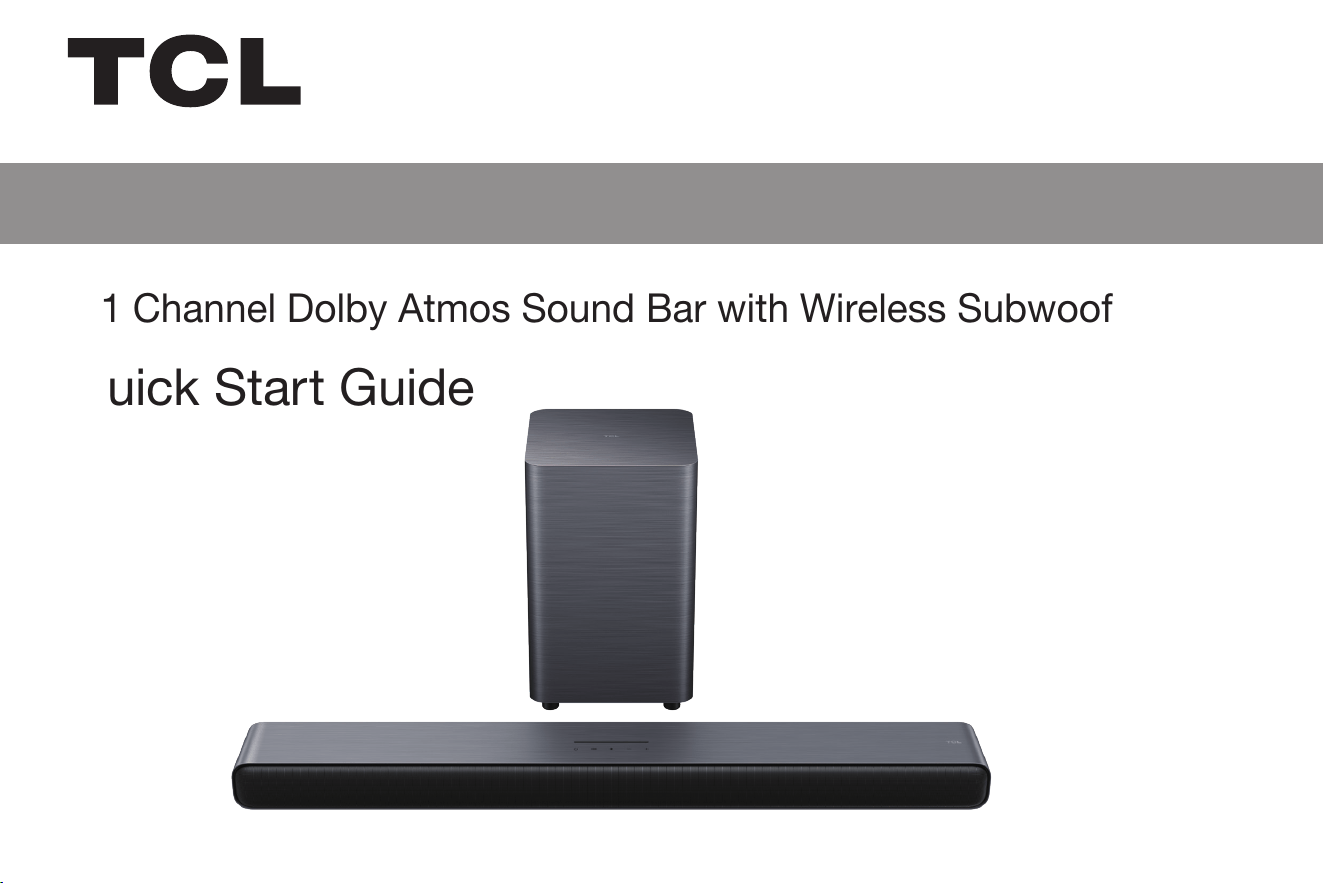
S55H
2.1 Channel Dolby Atmos Sound Bar with Wireless Subwoofer
1
Register Your Product
Register your TCL Sound Bar to receive
the latest news on product releases,
promotional offers, and more!*
Enjoy exclusive benefits with registration:
Text a photo of the
camera icon to 71403
Or register online at register.tcl.com
Need help? Visit photoregister.com/help
or text HELP to 71403
TEXT TO REGISTER
Expedited support and service Insider tips on your Sound Bar
Exclusive offers and promotions Verification of ownership
*Only Available to U.S. Customers
TCLSBQS
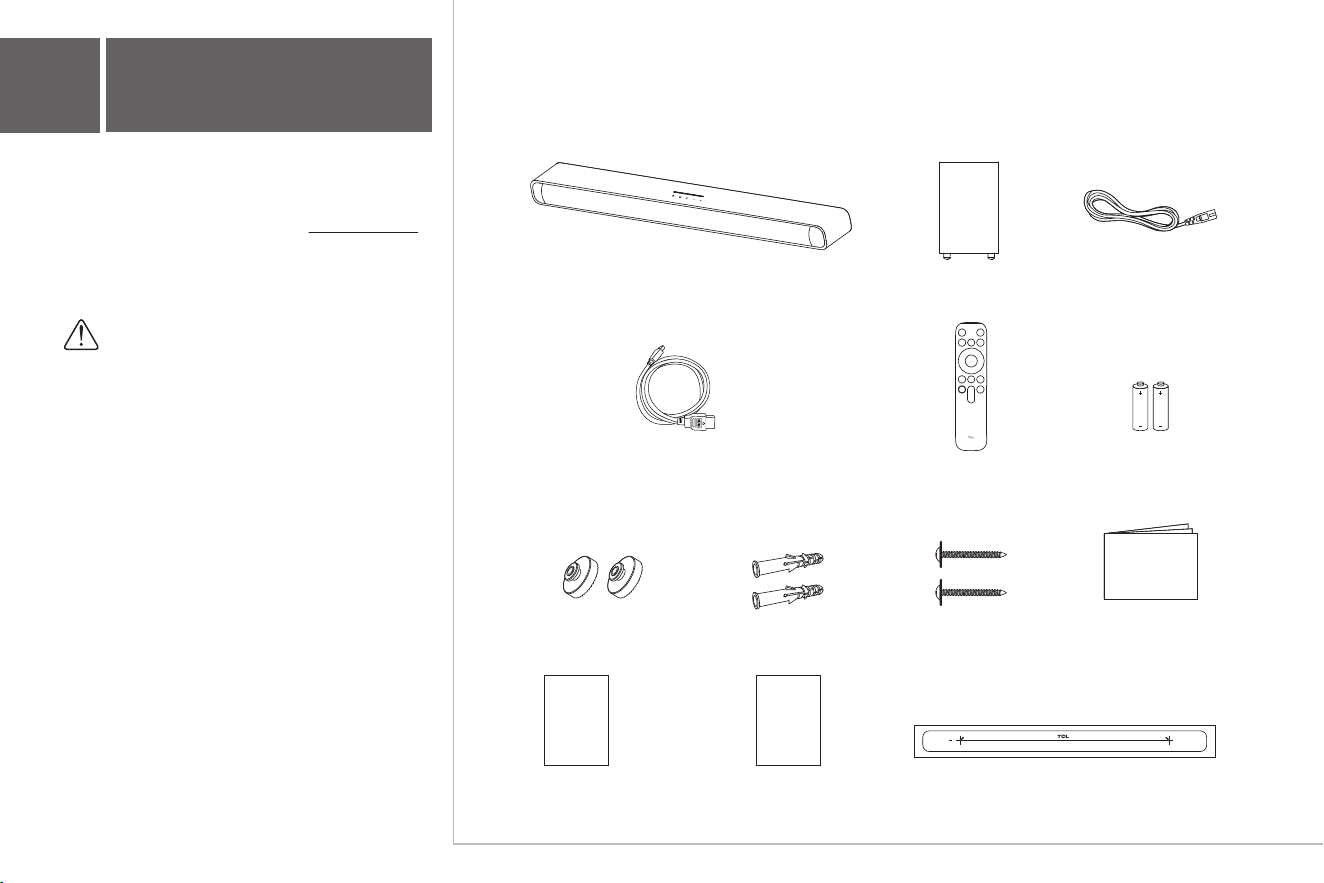
Power cord
x 2
(Cable length: 4 ft. 11")
Subwoofer
HDMI cable
(Cable length: 4 ft. 11")
Remote control AAA battery x 2
Wall mount bracket x 2 Wall anchor x 2 Wall mounting screw x 2
QSG
Quick Start Guide
Safety
instructions
Safety leaflet
Warranty
card
Warranty card
2
What’s in the box
Sound Bar
Wall mount template
Make sure you read all the safety information
before you use this product.
User Manual can be found at www.tcl.com/us
on the specific product page in the “Download”
section.
Warning:
To avoid the danger of suffocation, keep
plastic packaging away from pets, babies,
and children. Do not use packaging bags
in cribs, beds, carriages, or playpens.
TCL
TCL
3a
Overview
Sound Bar
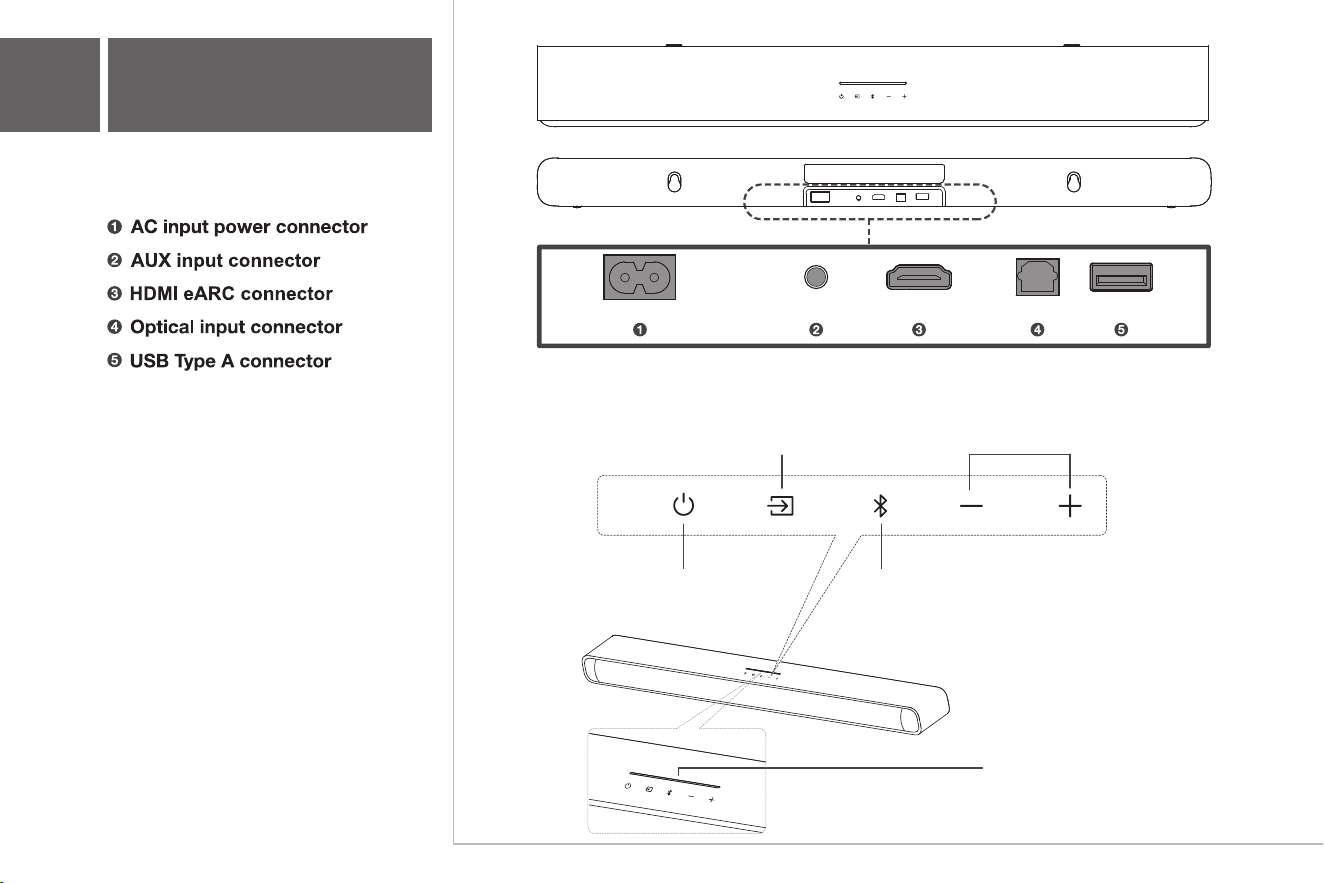
Volume buttons:
Press to increase or
decrease the volume level
Source button:
Short Press: Switch input sources
(HDMI eARC/Optical/AUX/USB/Bluetooth)
Long Press: Enter Subwoofer pairing
(If Subwoofer disconnected)
Power button:
Short Press: Power on/sleep
Long Press: Power off
Bluetooth button:
Short Press: Select Bluetooth mode
Long Press: Bluetooth pairing
Input Source LED Indicator:
HDMI eARC: Magenta
Optical: Yellow
AUX: Green
USB: Cyan
Bluetooth: Blue
AC~IN OPTICAL USBHDMI (eARC)AUX
TCL
TCL
3b
Overview
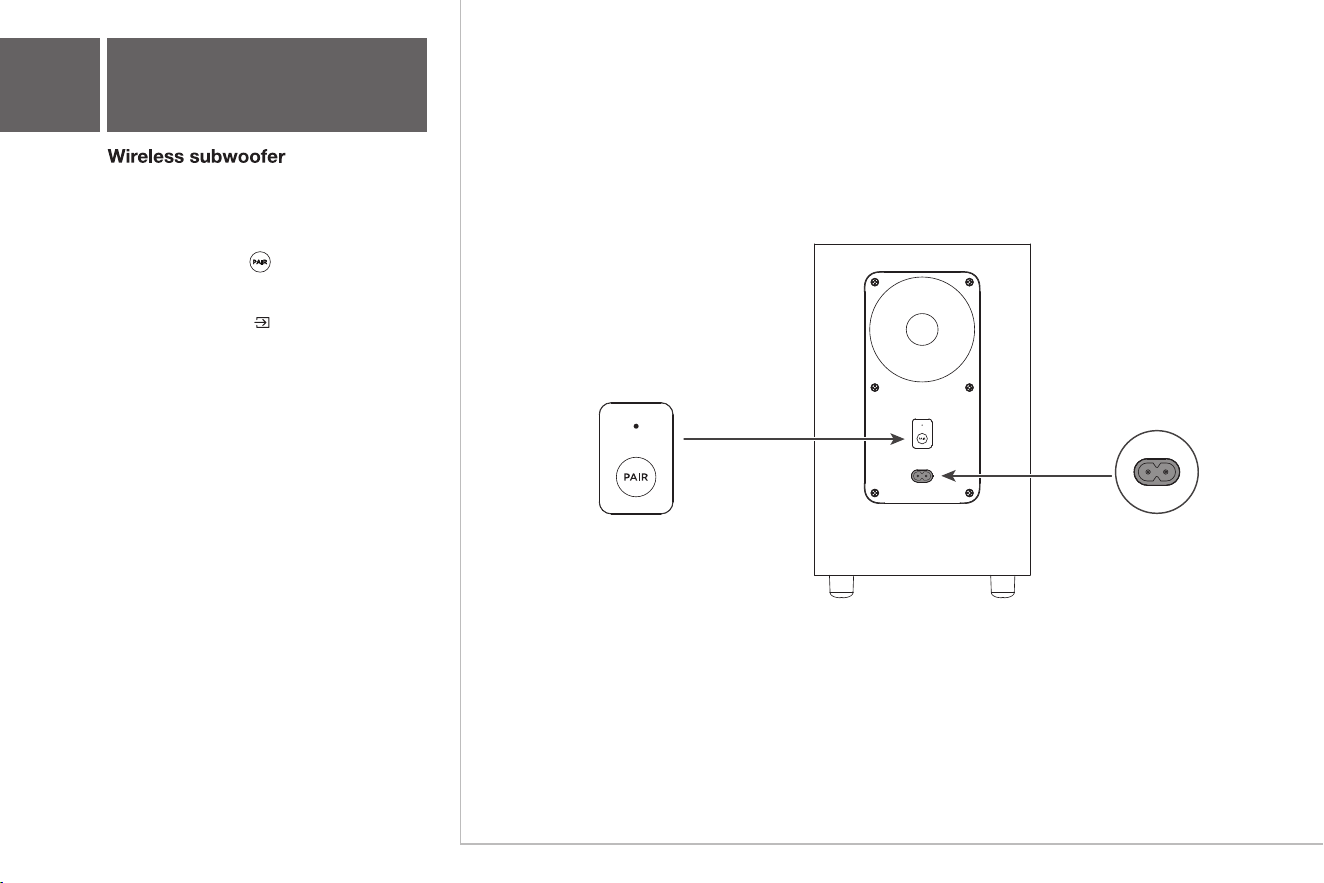
THE SUBWOOFER WILL PAIR AUTOMATICALLY
WITH SOUND BAR UPON THE FIRST USE. In
case of a problem, take the following steps to
manually pair:
The Subwoofer is now connected to the
Sound Bar.
Press and hold the button on the Subwoofer
for 3 seconds until an amber light begins flashing
above the pair button.
1.
2.
3.
Press and hold the button on the Sound
Bar for 10 seconds until a yellow LED indicator
flashes on the Sound Bar. After a short while,
a green LED indicator will be on for 5 seconds.
TCL
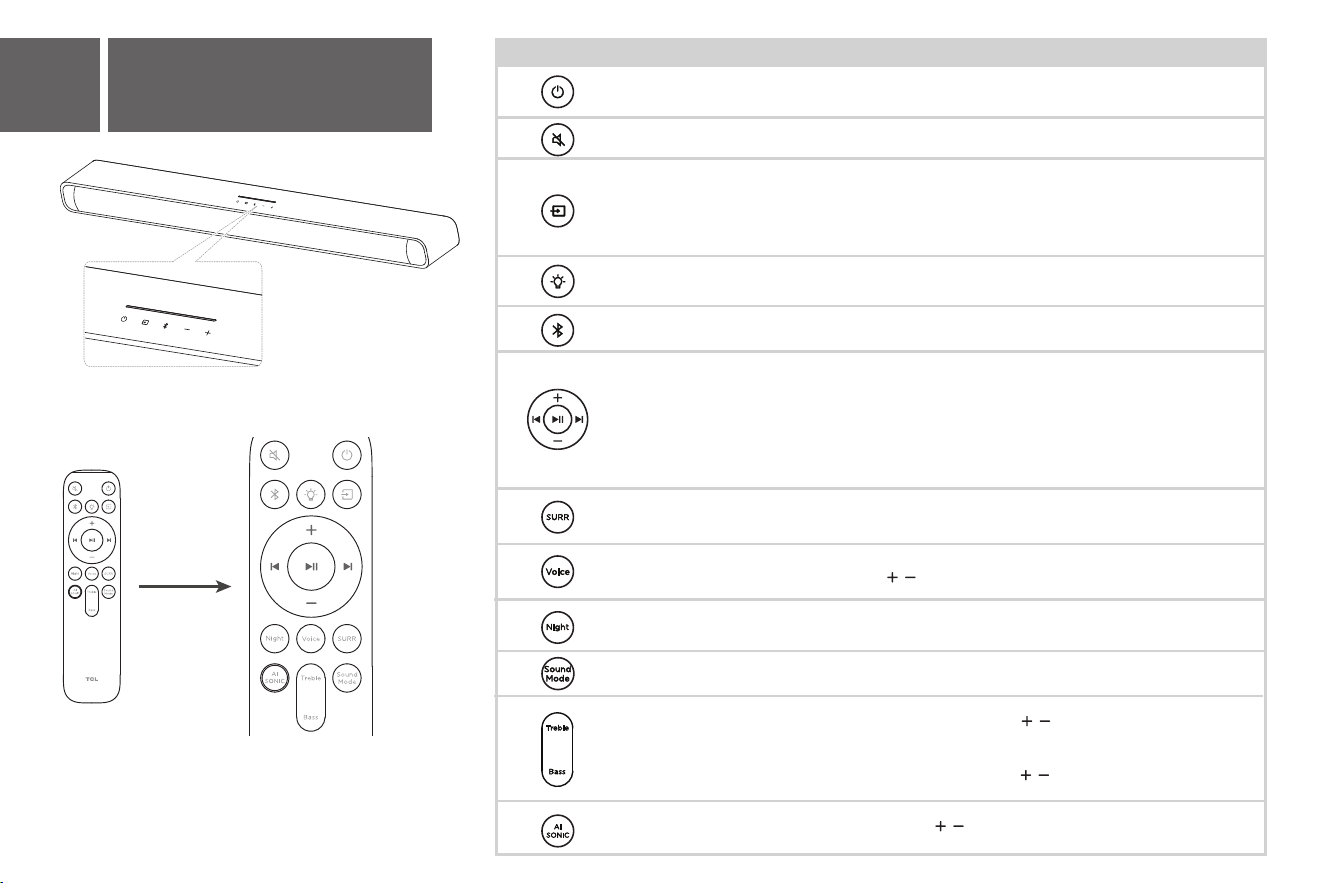
The LED display on the Sound Bar gives you
information about the LED Behavior on Sound Bar.
4
Sound Bar LED Display
TCL
Remote Control Sound Bar Action LED Behavior on Sound Bar
Power Off/Sleep
Power On
Power Off: All LEDs light turn on and turn off from the sides to
the center.
Power On: LEDs will turn on from the center to the sides.
Bluetooth Pairing
Blue LED will flash rapidly.
Voice Enhance
Source
Input Source LED Indicator:
HDMI eARC: Magenta
Optical: Yellow
Aux: Green
USB: Cyan
Bluetooth: Blue
Treble Adjustment
Bass Adjustment
Sonic Default/1/2/3
Short Press to enter AI Sonic-Adaptation Menu
Short press / to switch different AI Sonic-Adaptation:
Default/Sonic 1/Sonic 2/Sonic 3
Mute Sound
Mute On: Center LED will flash several times.
Mute Off: Current Volume Level will be shown.
Sound Mode
Press to switch sound mode in following order:
Standard /Movie/Music/Voice/Game/Sports
LED
Short Press: Change different LED brightness levels.
Long Press: Switch between LED light on or turn off.
Press to adjust four different surround sound levels.
Night Mode on: LEDs will turn on from the center to the sides.
Night Mode off: All LEDs light turn on and turn off from the
sides to the center.
Surround Enhance
Night Mode
Short Press: Show the current Voice Enhance level.
Use / keys to adjust four different levels.
Short Press: Show the current Treble level.
Increase/Decrease using / keys to adjust thirteen
different levels.
Short Press: Show the current Bass level.
Increase/Decrease using / keys to adjust thirteen
different levels.
Skip/Previous
Volume Up/Down
Volume Up: LEDs will gradually turn on from the center to the
sides.
Volume Down: LEDs will gradually turn off from the sides to
the center.
Play/Pause
Play/Pause: Short press to play or pause playing under
Bluetooth or USB mode.
Skip: LEDs move from the left to the right.
Previous: LEDs move from the right to the left.
> 2"
TV
TV
3
2
5
6
18.9"
4
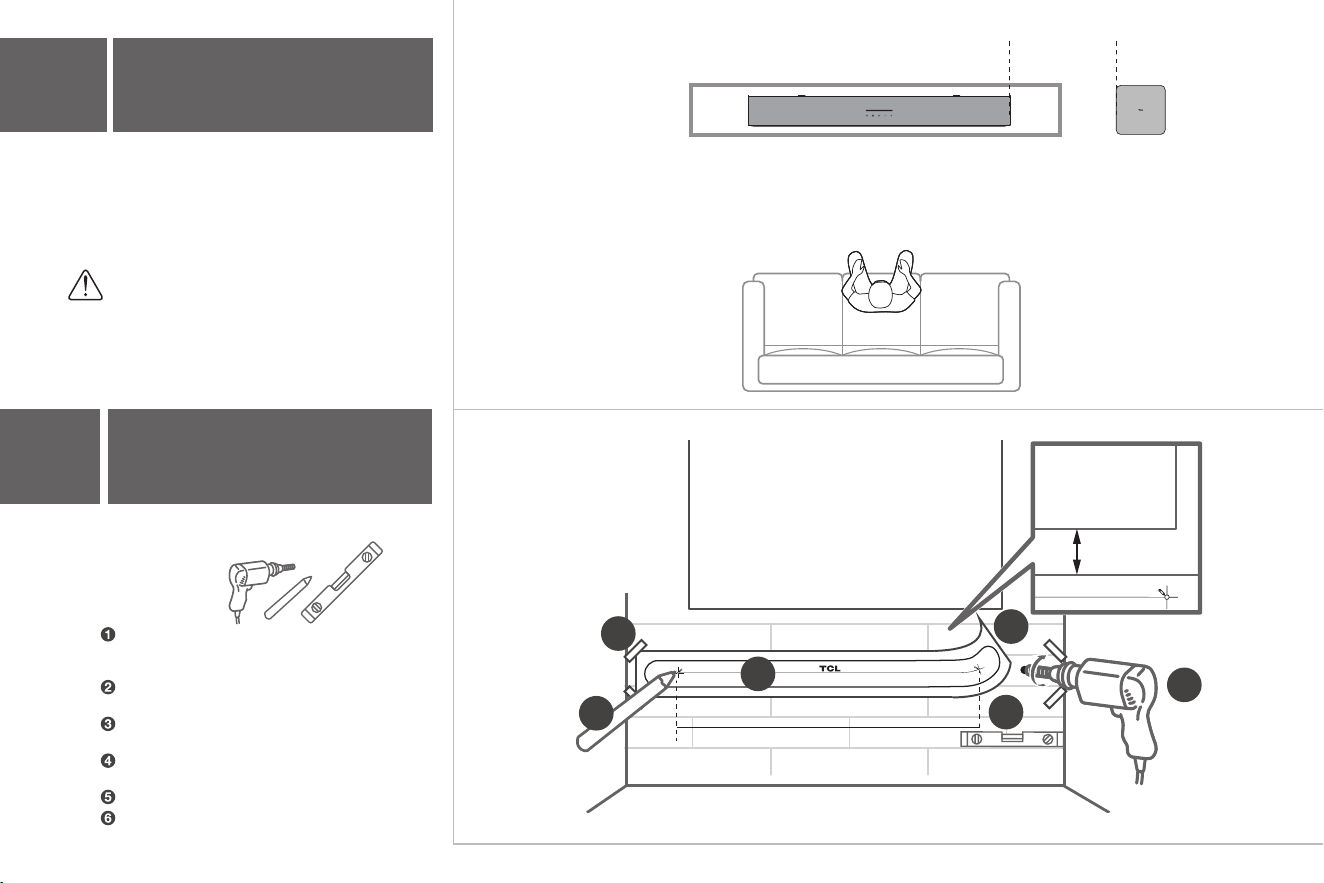
Wall mount your Sound Bar
1
5b
Required tools:
Place the supplied wall mount template on the
wall. Make sure the wall mount template is at
least 2 inches below the center of the TV.
Use the tape to stick the wall mount template
firmly on the wall.
Mark on the wall using each marking on the
template through the mounting holes.
Take away the wall mount template.
Drill a screw hole at each marking on the wall.
Use a level to make sure the wall mount template
is positioned accurately
5a
Place your Sound Bar
and Subwoofer
Top View
The ideal place to position the Sound Bar is
centered underneath your TV.
The ideal place to position the subwoofer is
adjacent to the TV on the floor.
Note: Do not place your Sound Bar in a location
exposed to direct sunlight, heat, fire, or moisture.
Sound Bar on the table
TCL
Subwoofer
< 9.8'
TCL
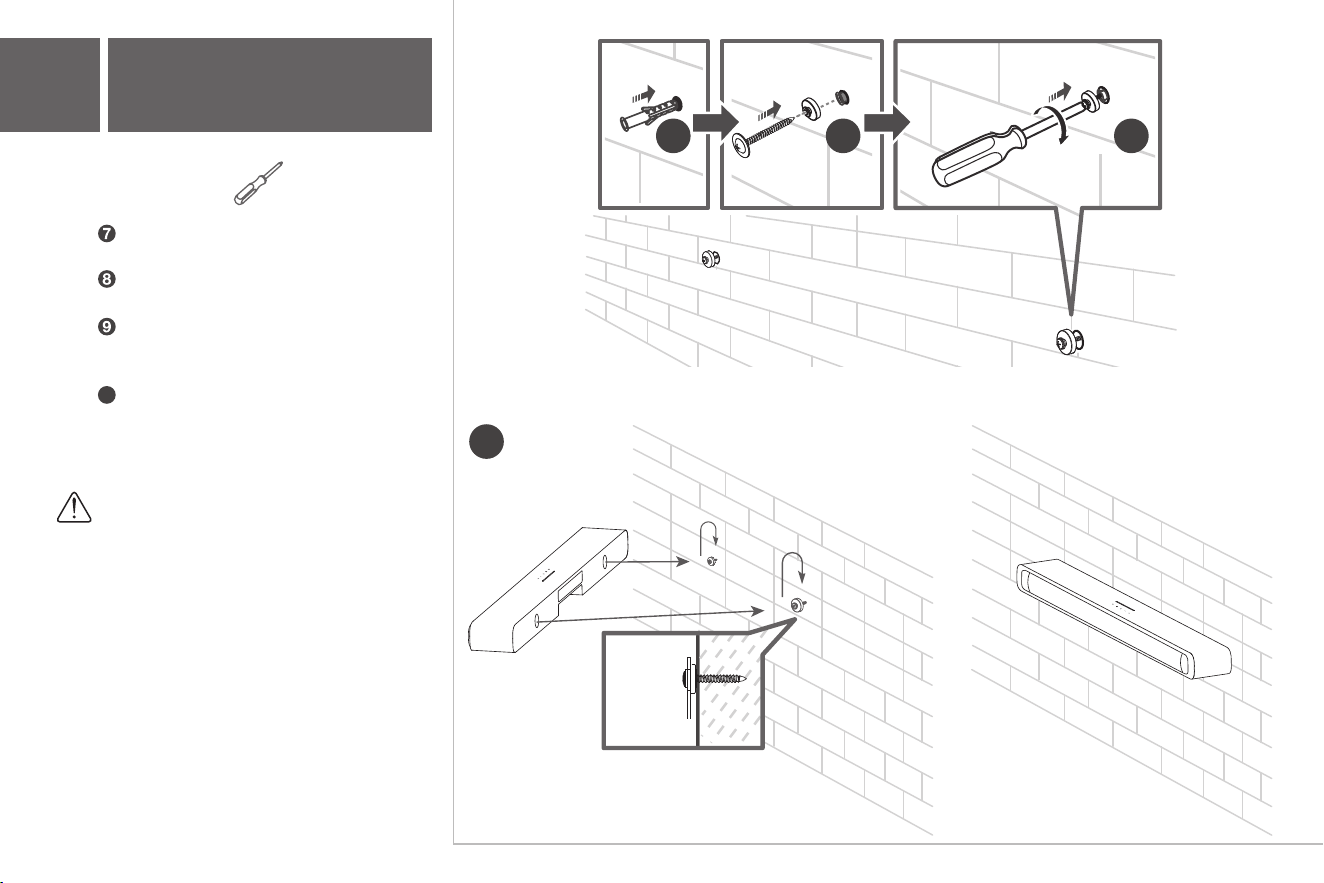
Required tools:
Insert the wall anchors in the holes on
the wall.
Insert the supplied screws with the wall
brackets into the hole of the wall anchors.
Fix and tighten the wall bracket screws on the
wall. (Keep space between the screw cap and
the brackets)
5c
Wall mount your Sound Bar
Pick up the Sound Bar and attach it to the
wall screws, similar to how you would hang a
picture. Make sure everything is tight.
7 8 9
10
Note:
Do not place your Sound Bar in a location
exposed to direct sunlight, heat, fire, or moisture.
Only suitable for mounting at heights: < 6 ft. 6.7 in.
10
TCL
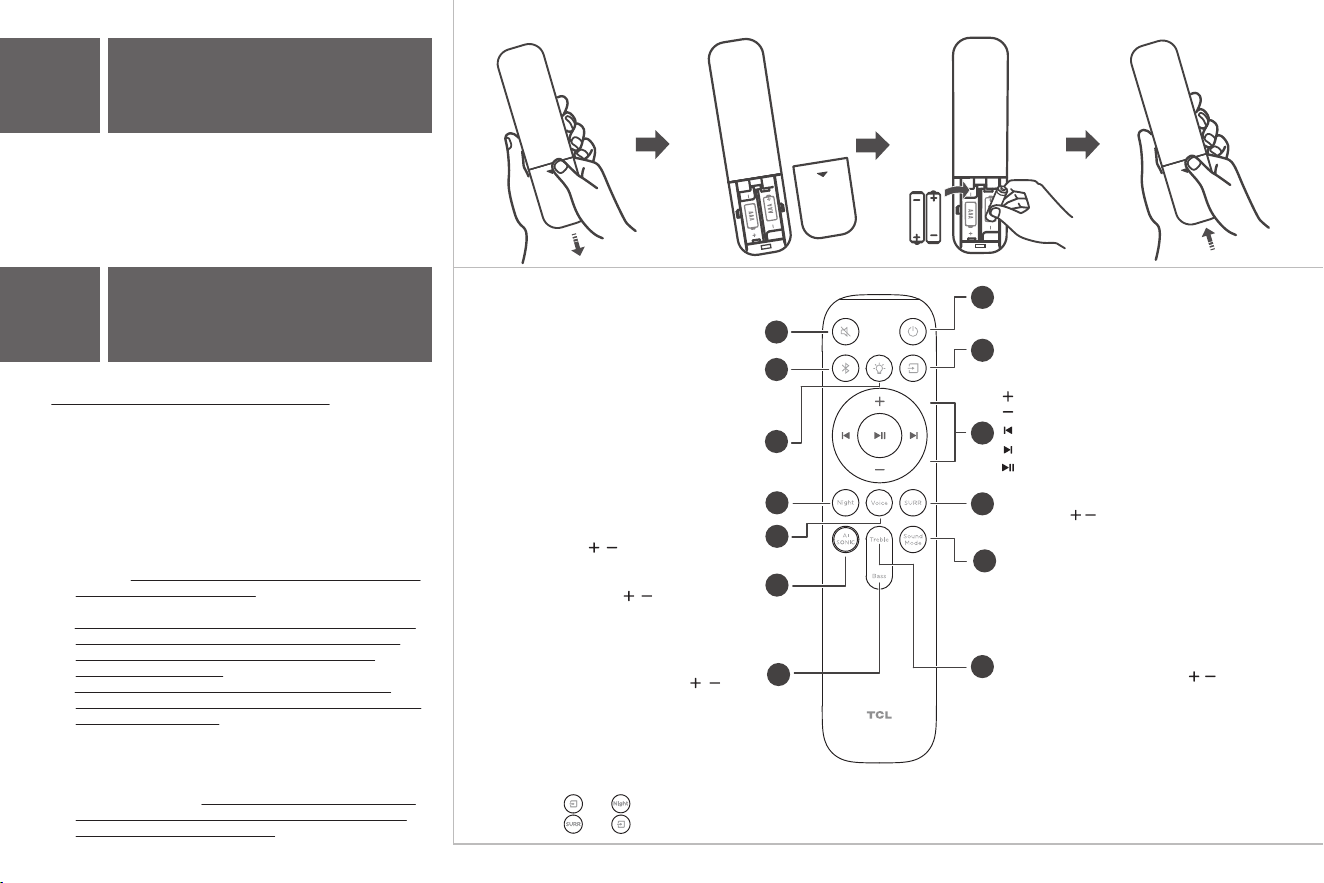
Battery type: 1.5V AAA battery x 2
6a
Install or replace the
remote batteries
6b
Use the Remote
Short Press: Mute/Unmute the sound
3
1
10
5
Press to switch Night Mode ON or OFF
Short Press: Change different LED
brightness levels
Long Press: Switch between
LED light on or turn off
7
8
2
12
Short press to adjust the treble sound effect
Increase or decrease treble with / button
Short Press: Power on/sleep
Long Press: Power off
Short Press: Switch input sources
HDMI eARC/Optical/AUX/USB/Bluetooth
Long Press: Bluetooth Pairing
Short Press: Select Bluetooth mode
6
Increase volume
Decrease volume
Play previous music; turn to previous item
Play next music; turn to next item
Play/Pause music
9
Short press to enter Surround Enhance Mode,
short press / to switch different levels
Short Press to enter AI Sonic-Adaptation Menu
Short press / to switch different
AI Sonic-Adaptation:
Default/Sonic 1/Sonic 2/Sonic 3
13
Short press to adjust the bass sound effect
Increase or decrease bass with / button
11
Short Press: Switch input sound mode
Standard/Movie/Music/Voice/Game/Sports
4
Combination keys:
1. Press both and simultaneously to activate or deactivate DTS TruVolume.
2. Press both and simultaneously to activate or deactivate DTS Virtual:X .
®
™
Short press to enter Voice Enhance Mode,
short press / to switch different levels
Battery CAUTION & Disposal Information:
1. For best results, use alkaline-type batteries.
2. Do not mix Alkaline, Standard (Carbon-Zinc), or
Rechargeable (Nickel Cadmium or Nickel Metal Hydride)
batteries.
3. Always replace depleted batteries with two same
brand-new batteries from the same manufacturer. Never
use damaged batteries.
4. Do not use Rechargeable (Nickel Cadmium or Nickel
Metal Hydride) batteries.
5. Install only new batteries of the same type in your
product. There is a risk of fire or explosion if the battery is
replaced by an incorrect type.
6. Do not mix old and new batteries.
7. Batteries should not be exposed to excessive heat, such
as prolonged direct sunlight, open flame, or fire of any
kind as it may result in an explosion, or leakage of
flammable liquid, or gas.
8. Batteries should not be exposed to extremely low air
pressure as it may result in an explosion or the leakage of
flammable liquid or gas.
9. Failure to insert batteries in the correct polarity, as
indicated in the battery compartment, may shorten the
life of the batteries or cause batteries to leak.
10. Batteries should be recycled or disposed of as per state
and local guidelines. Do not dispose of batteries in a fire,
hot oven, or mechanically crushing or cutting a battery,
which may result in an explosion.
7a
HDMI (eARC)
7
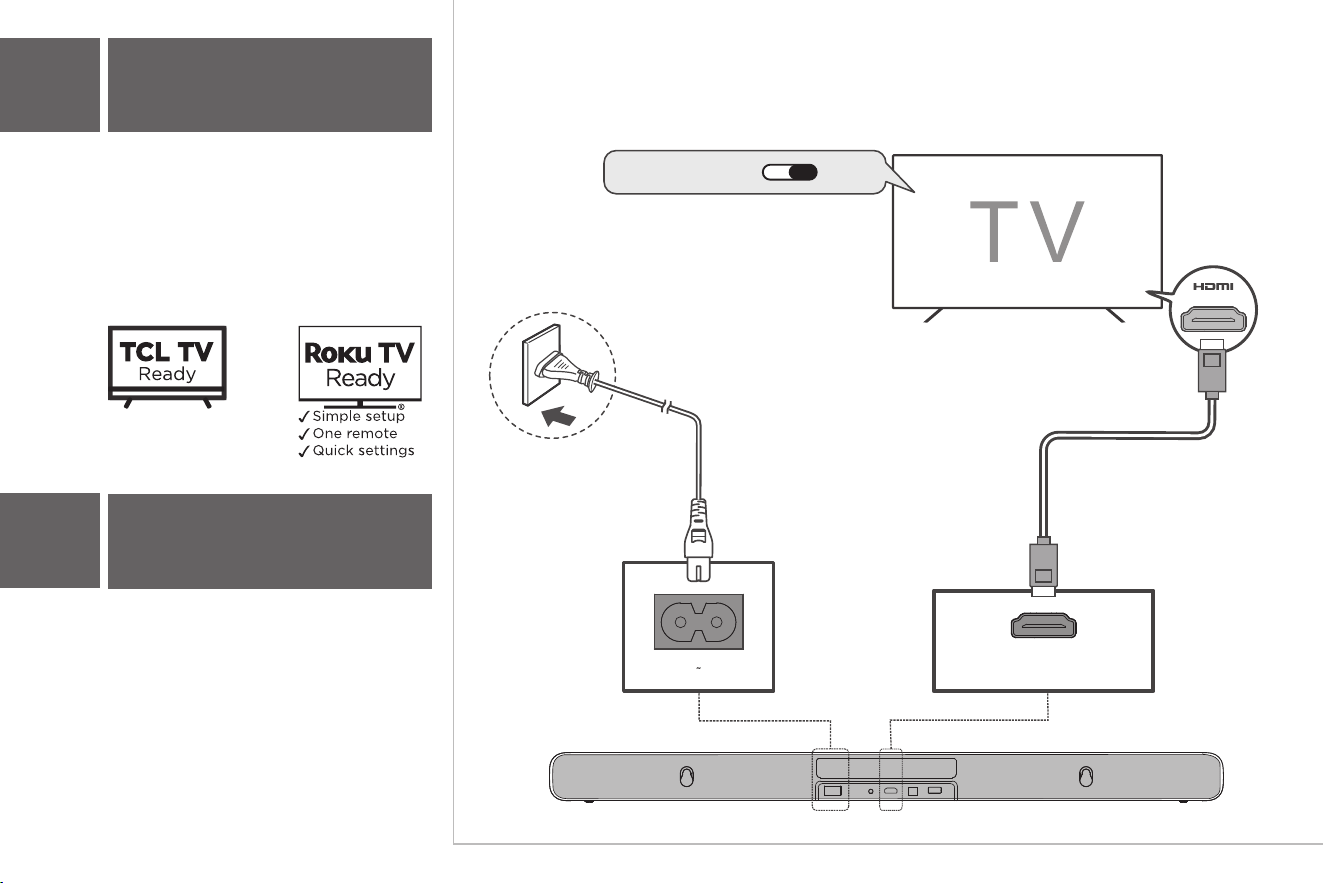
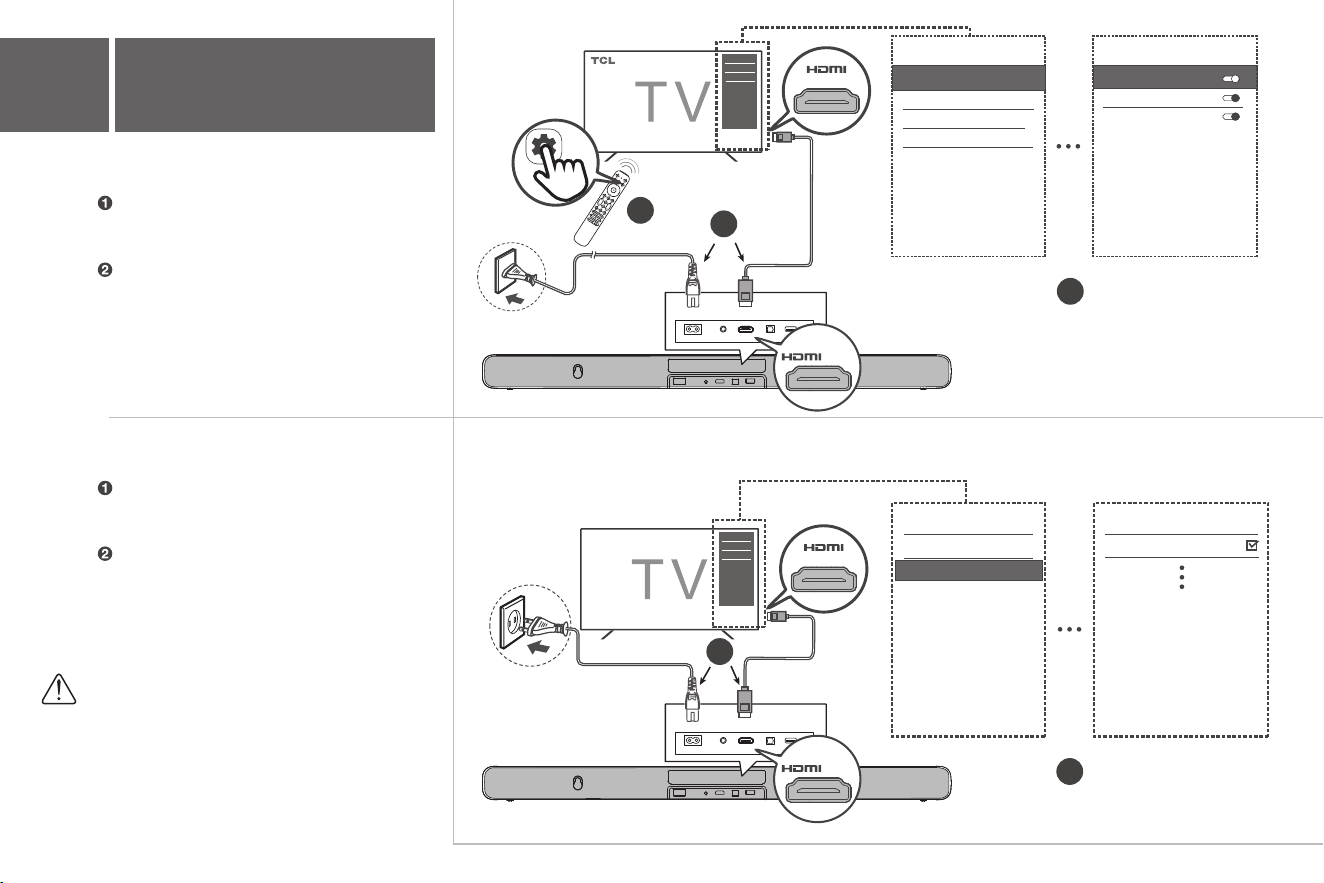
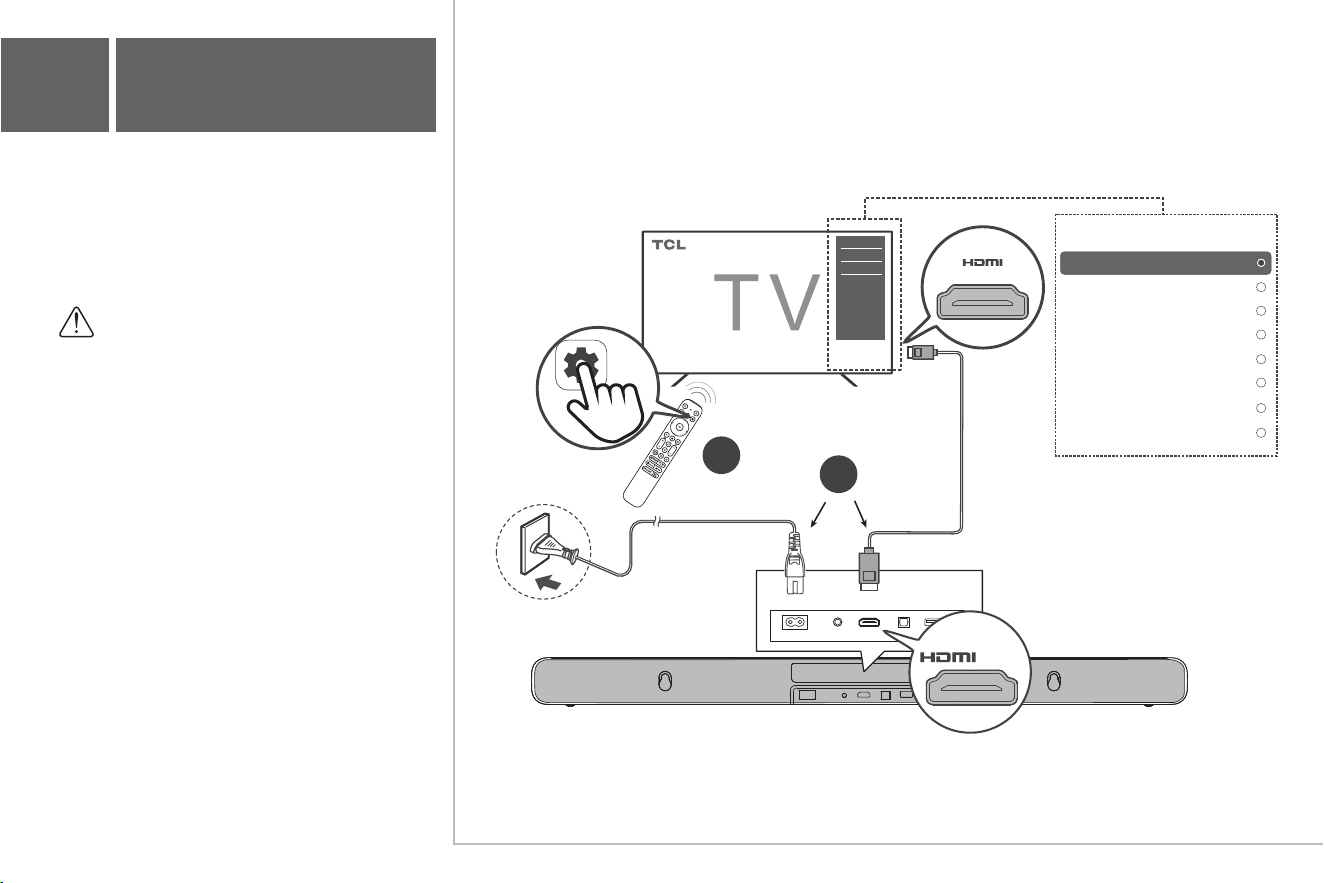
Connect to your TV
HDMI CEC ON
AC IN
Connect the Sound Bar to your TV with the
included HDMI cable.
Connect the Sound Bar to the power outlet with
the included power cord.
AC~IN OPTICAL
USBHDMI (eARC)AUX
HDMI (eARC)
This function is available
in some TCL TVs and
some TCL models.
There are 2 ways to connect your Sound Bar to
the TV (listed in order that we recommend):
HDMI eARC (refer to 7a),
and Optical (refer to 7b).
If you have a TCL/Roku TV
TM
, simply plug in
the HDMI cable to the eARC/ARC ports and
follow the Roku TV Ready
TM
on-screen
instructions.
(eARC/ARC)
AC~IN OPTICAL
USB
HDMI (eARC)AUX
AC~IN OPTICAL
USB
HDMI (eARC)AUX
2
1
7a
HDMI (eARC)
Streaming Channels
Home
Setting
eARC (HDMI 4)
Search for CEC devices
Enable the CEC function in the settings of
the TCL TV.
(See TV User Manual for instructions)
Enable CEC function on TCL TV.
Enable the CEC function in the settings of the TV.
Enable CEC function on other brand TV.
Connect HDMI cable from the HDMI (eARC)
interface on the Sound Bar to the HDMI
(eARC/ARC) interface on the TV.
Connect HDMI cable from the HDMI (eARC)
interface on the Sound Bar to the HDMI
(eARC/ARC) interface on the TV.
Note:
CEC (Consumer Electronic Control) function
naming may differ by TV manuafacturer. This
feature may be called CEC, Anynet+, SimpLink,
BRAVIA Link, EasyLink or VIERA Link. Please see
your TV's user manual for more information.
2
2
1
HDMI Control
Auto Standby
Auto Power On
External devices control (CEC)
External devices control (CEC)
HDMI 2
External Inputs
HDMI 3
HDMI 4 (eARC/ARC)
TCL S55H
HDMI 1
AC~IN OPTICAL USBHDMI (eARC)AUX
(eARC)
AC~IN OPTICAL USBHDMI (eARC)AUX
(eARC)
(eARC/ARC)
(eARC/ARC)
AC~IN OPTICAL
USB
HDMI (eARC)AUX
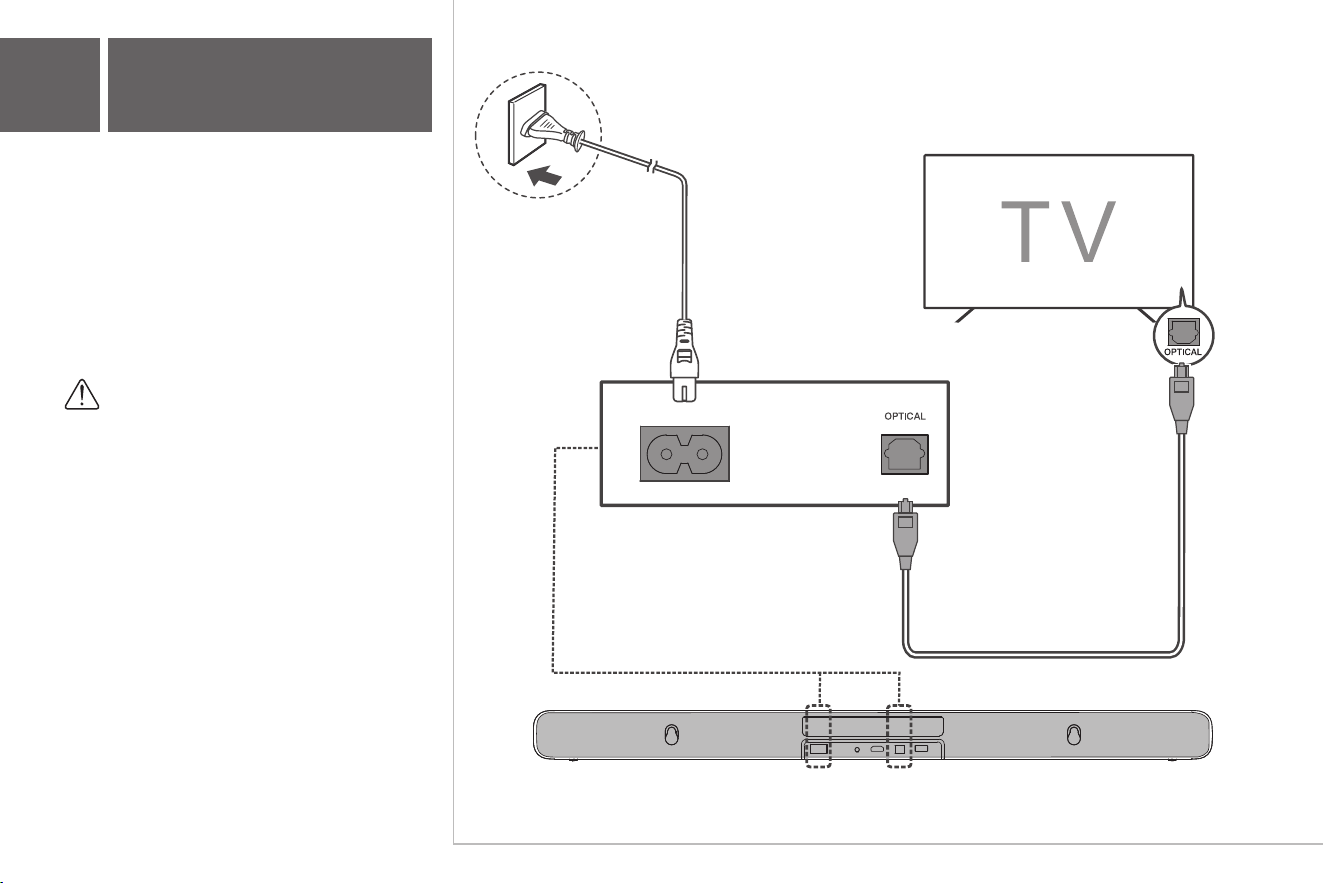
AC~IN
Connect the Sound Bar to the TV with an
Optical cable.
Connect the Sound Bar to the power supply with
7b
Optical
the included power cord.
Warning:
Do not bend or kink the optical cable (SPDIF) as it
is fragile and can easily get damaged and broken.
TCL
3
5
4
2
1
8
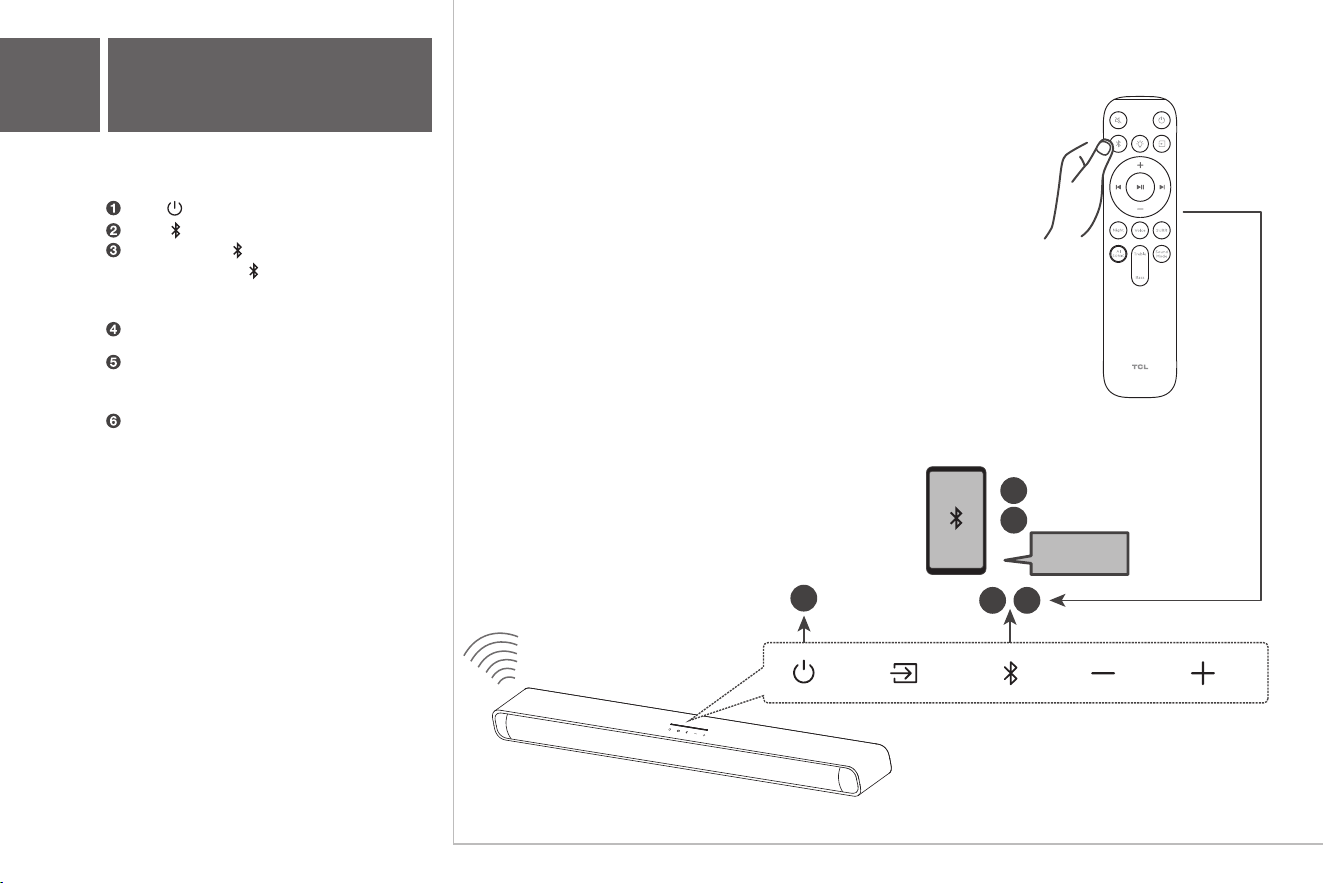
Pair with your
Bluetooth device
You can stream music from your mobile device
via Bluetooth.
Press .
Press .
Press and hold on the Remote Control
> You will see blue lights flash rapidly.
> The Sound Bar is ready to pair.
Power on your Bluetooth device and activate
its Bluetooth function.
Select
TCL S55H.
> You will see the blue light on for 3 seconds.
> Pairing is successful.
If you want to pair another device, please
repeat step 3.
or press and hold on your Sound Bar.
TCL S55H
AC~IN OPTICAL
USB
HDMI (eARC)AUX
9a
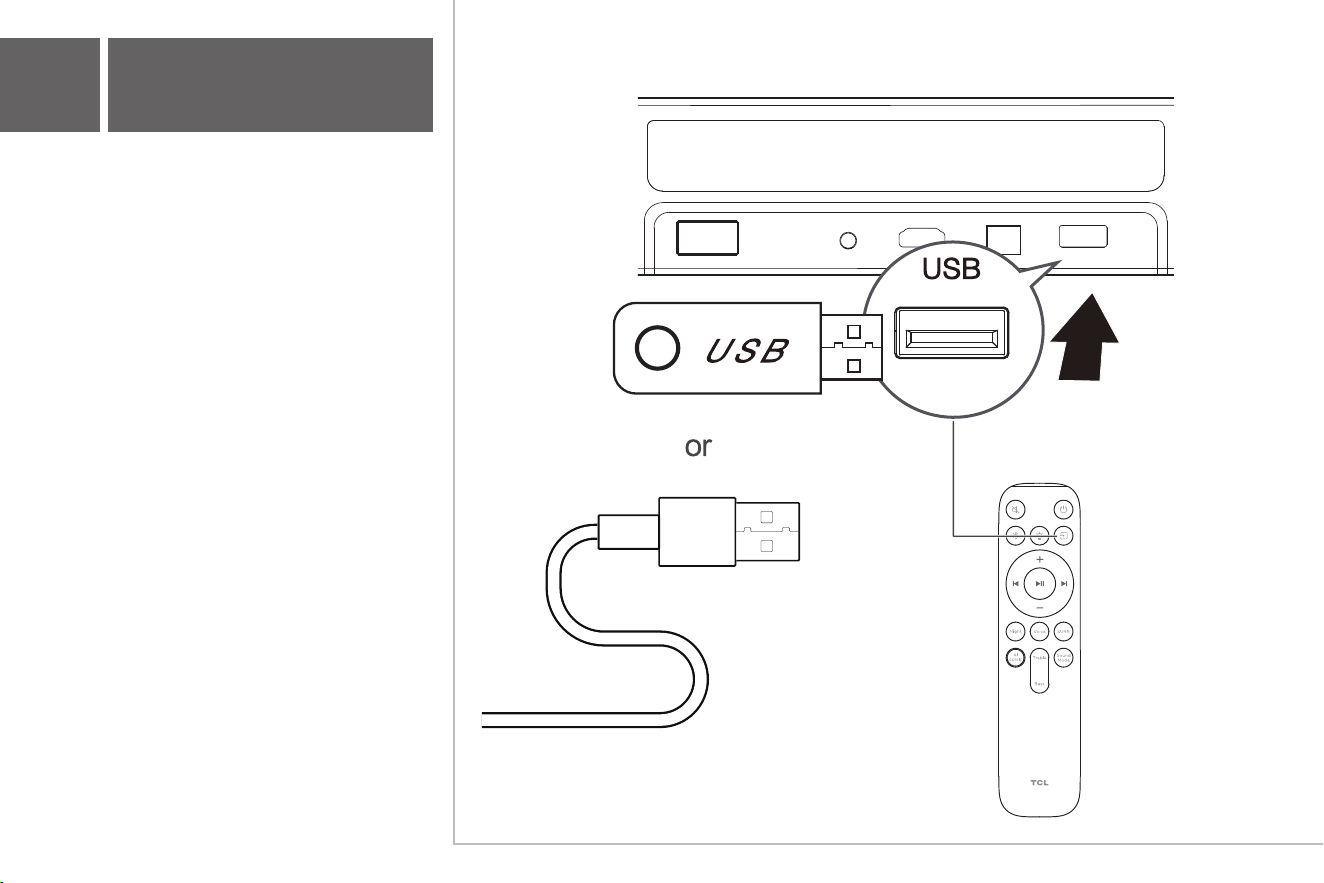
Other connections
- USB
Supported audio files: MP3, WMA, WAV, FLAC.
AC~IN OPTICAL
USB
HDMI (eARC)AUX
9b
Other connections
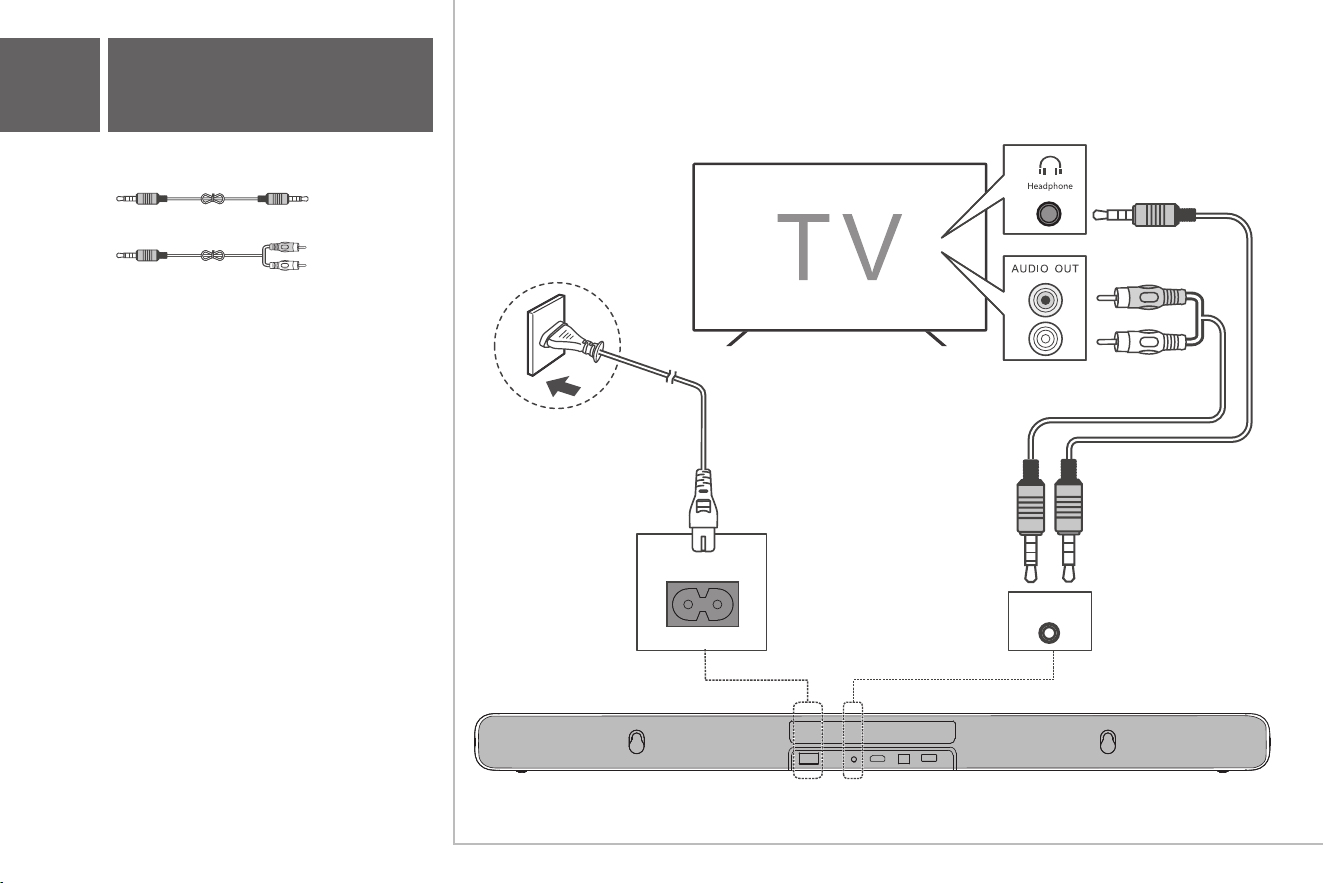
- AUX
Cables are not included.
or
or
AC~IN
AUX
AC~IN OPTICAL
USB
HDMI (eARC)AUX
10
TCL Tutti Choral
When the Sound Bar is connected, “TV+Sound Bar”
menu appears on the TV.
Settings → Display & Sound → Audio Output →
Internal Speaker+Sound Bar(HDMI)
2
1
AC~IN OPTICAL USBHDMI (eARC)
AUX
(eARC)
Internal Speaker+Sound Bar(HDMI)
Wired Headphone
ARC
Bluetooth
Optical
External Subwoofer
Audio Output
Internal Speaker
Wired headphone+Internal speaker
Note:
The message displayed may differ with
the TV model.
This function is compatible with some TCL TVs.
The operation methods for different televisions
may vary.
(eARC/ARC)
11
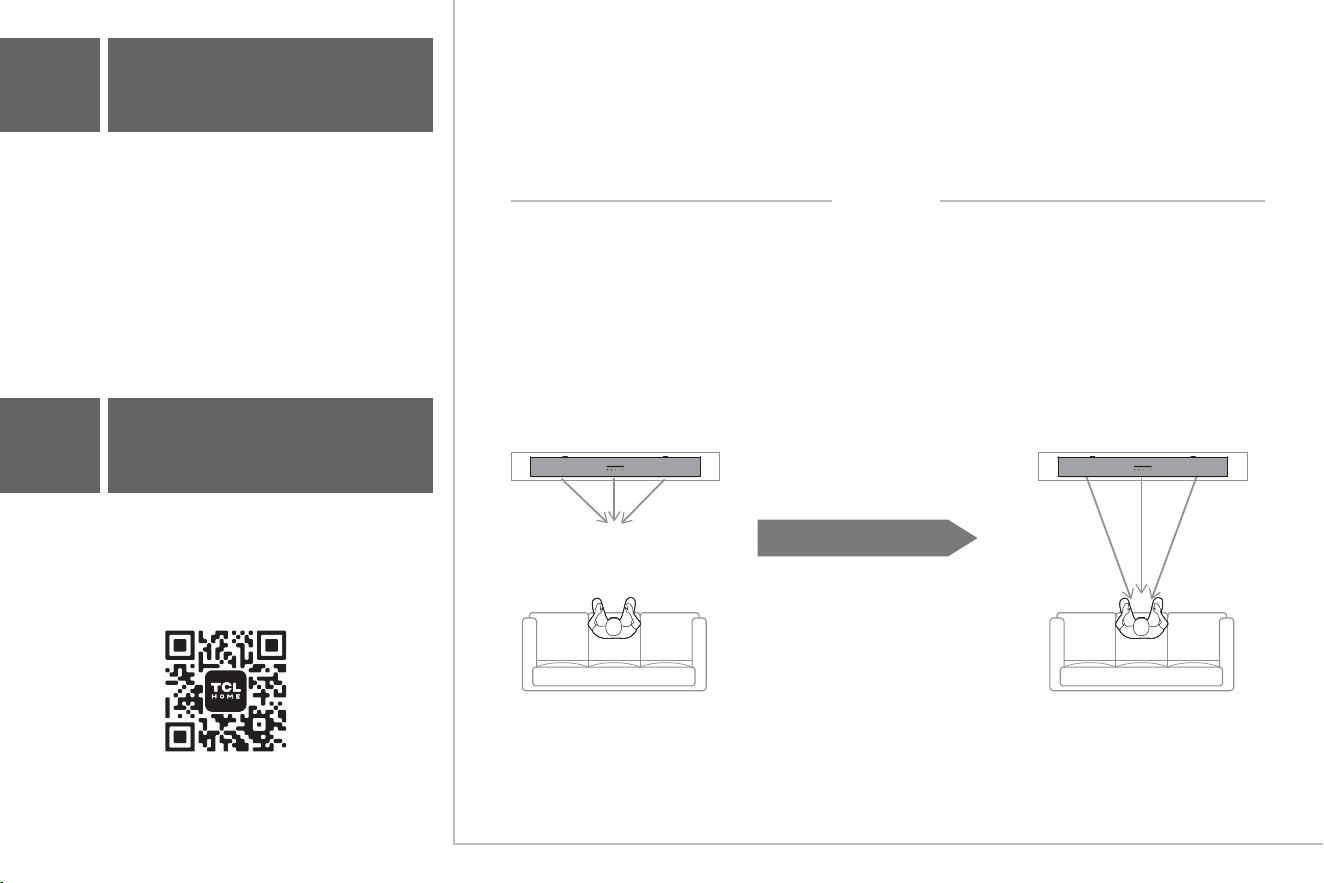
AI Sonic-Adaptation
Before AI Sonic-Adaptation
What is AI Sonic-Adaptation?
After AI Sonic-Adaptation
Speaker distance, sound pressure level,
and frequency response are all uneven.
Based on your sitting area and room field.
Speaker distance, sound pressure level,
and frequency response are all equalized.
Based on your sitting area and room field.
AI Sonic-Adaptation is a Room Calibration Technology developed by TCL Audio Lab. To use this function, you
need to download TCL Home App and follow the instructions.
The sound field will be measured
by cellphone and microphone.
Follow the on-screen instructions in
the TCL Home App.
Calibration
12
Download TCL-HOME App
How It Works?
This S-Series Sound Bar can be fully controlled via the TCL
Home App, including power, volume, input switching,
effects, AI Sonic-Adaptation and more. Use the TCL Home
App to explore additional smart features.
Please download the latest version from the app stores.
TCL TCL
TCL Home App
Your TCL Smart Hub.
Download Now!
13
Online Firmware Update
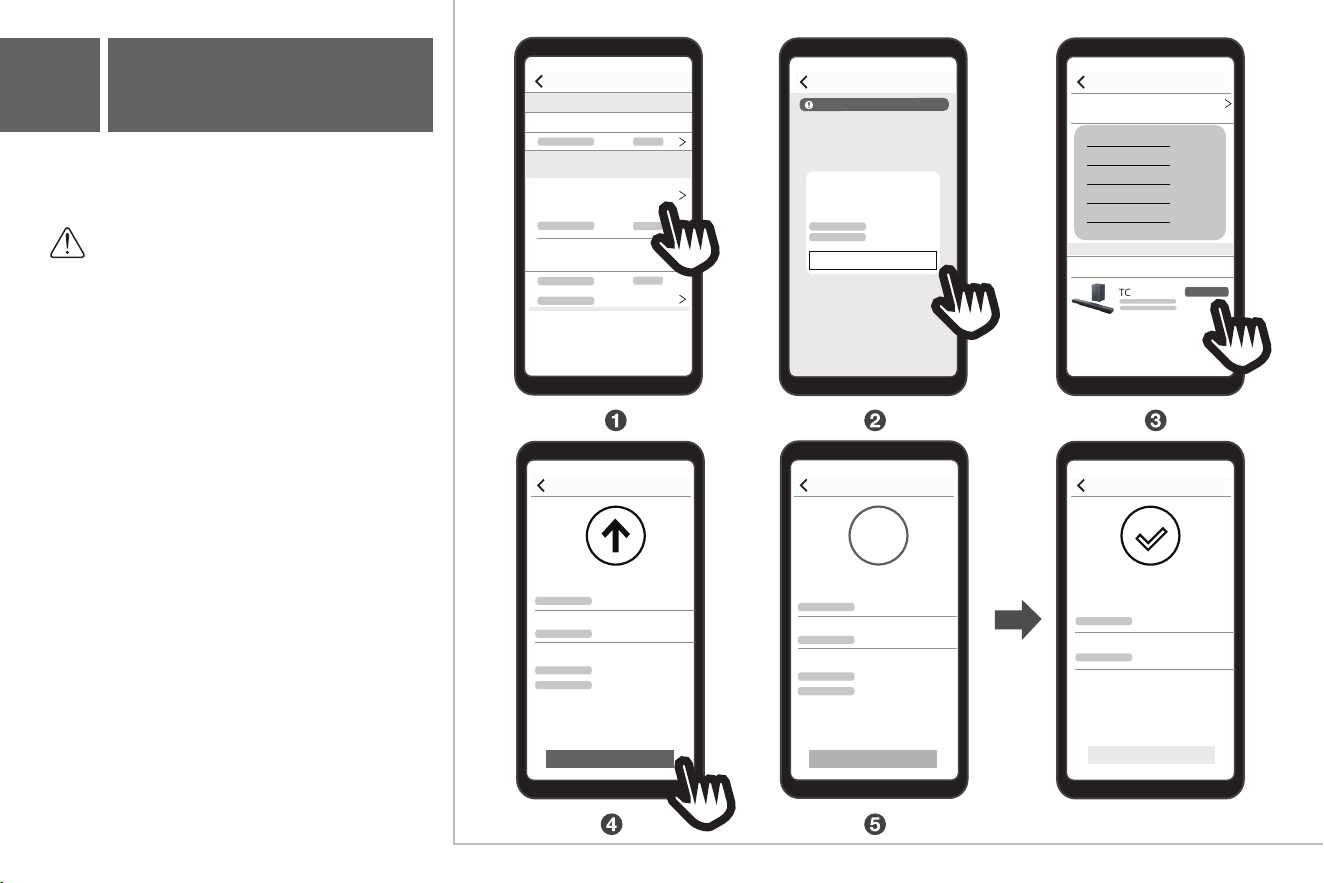
Follow the instructions on the right side to
update the firmwate on TCL-HOME app.
Note:
The message displayed may differ.
Do not exit the TCL-HOME app during the
update process.
Setting
Setting
Remove device
General settings
Device name TCL S55H
S55H
...
Oine Help
Discover new version
VX.X.X_XXXXXX
Updated content
Update
Firmware update
Latest version:
Current version:
Updated content
Please keep your phone close to
your device and don’t leave
during the update process.
Update now
Firmware update
Manual rmware update (1)
TCL S55H
Update now
Automatic rmware
upgrade
Not enabled
Firmware update
Updating...
Current version:
Updated content
Please keep your phone close to
your device and don’t leave
during the update process.
Update now
27%
Latest version:
Firmware update
Update now
Current version
System:
System:
The current version is the latest
Trademarks
For DTS patents, see http://patents.dts.com. Manufactured under license from DTS, Inc. DTS, Digital
Surround, Virtual:X, and the DTS logo are registered trademarks or trademarks of DTS, Inc. in the
United States and other countries.
© 2024 DTS, Inc. ALL RIGHTS RESERVED
Roku, the Roku logo, Roku TV, Roku TV Ready, and the Roku TV Ready logo are trademarks and/or
registered trademarks of Roku, Inc. This product is Roku TV Ready-supported in the United States
and Canada. Countries are subject to change. For the most current list of countries in which this
product is Roku TV Ready-supported, please email [email protected].
The Bluetooth
®
word mark and logos are registered trademarks owned by Bluetooth SIG, Inc. and
any use of such marks by TTE Corporation is under license. Other trademarks and trade names are
those of their respective owners.
“The terms HDMI, HDMI High-Definition Multimedia Interface, HDMI trade dress and the HDMI Logos
are trademarks or registered trademarks of HDMI Licensing Administrator, Inc.”
Dolby, Dolby Atmos, and the double-D symbol are registered trademarks of Dolby Laboratories
Licensing Corporation. Manufactured under license from Dolby Laboratories.
Confidential unpublished works. Copyright © 2012-2024 Dolby Laboratories. All rights reserved.
S55H-NA_USA_QSG_V2.1
Copyright © 2024 TCL.
All rights reserved.
support.tcl.com