
English/Espanol/日本語/中文
Element 1
User Manual
122mmX130mm
70g
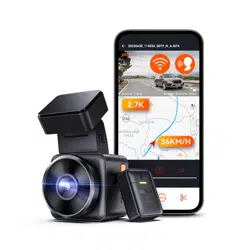
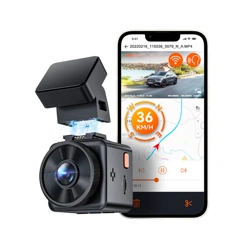
Smart Cube
Voice-controlled Dashcam
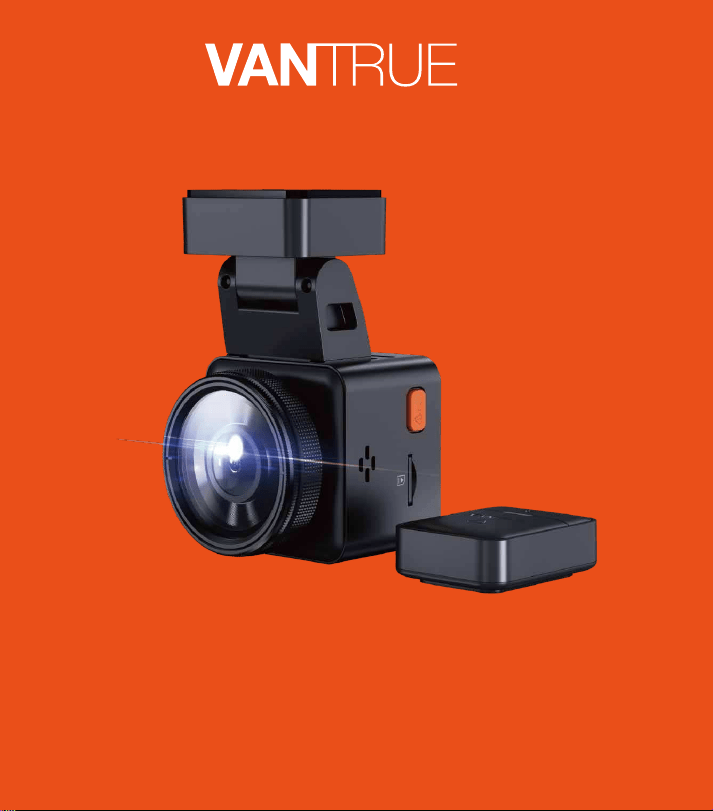
English/Espanol/日本語/中文
Element 1
User Manual
122mmX130mm
70g
Smart Cube
Voice-controlled Dashcam
Hey, find us here:
www.vantrue.net/contact
facebook.com/vantrue.live

CONTENTS
ÍNDICE
目次
目录
5
45
Installation
Instalación
取り付け方法
安装及使用说明
3.
86
125
39
81
119
156
Warranty & Support
Garantía y soporte
保証とアフターサービス
售后服务
6.
38
80
118
155
Specifications
Especificaciones
仕様
产品规格参数
5.
Camera Overview
Descripción de la cámara
ドラレコの概要
机身部件说明
2
41
83
122
2.
15
55
96
135
Basic Operation
Operación básica
基本操作
功能亮点
4.
1
40
82
121
What’s in the box?
¿Qué hay en la caja?
同梱内容
盒内物品清单
1.
- 1 -
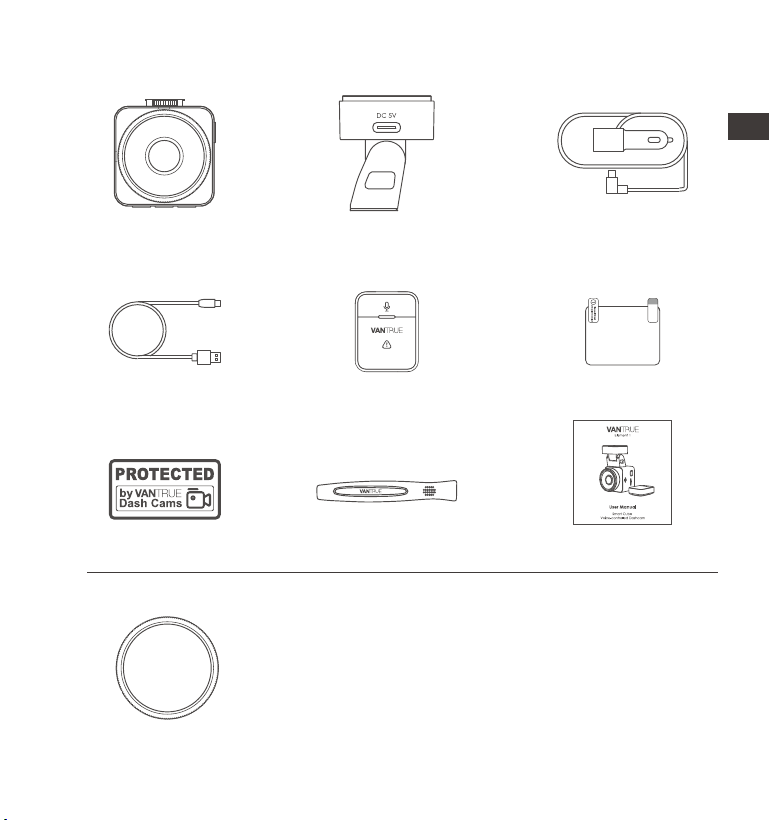
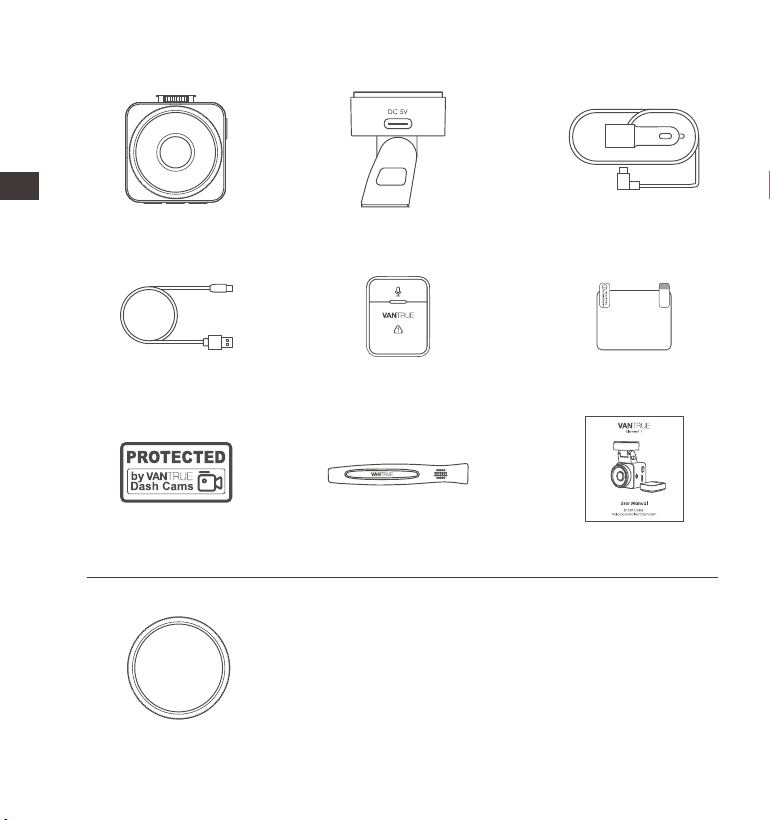
1.What'sinthebox?
J. CPL Filter
Optional Accessories
A.
Vantrue E1
Dash Cam
D.
Type C Data Cable
(3.3ft, for transferring
files only)
G.
Warning Stickers
C.
Car Charger with
Built-in Type C Cable
(11.5ft)
F.
Electrostatic stickers
I.
User Manual
B.
GPS Adhesive
Mount
E.
Wireless Remote
Control
H.
Crowbar
EN
EN
EN
EN
- 2 -
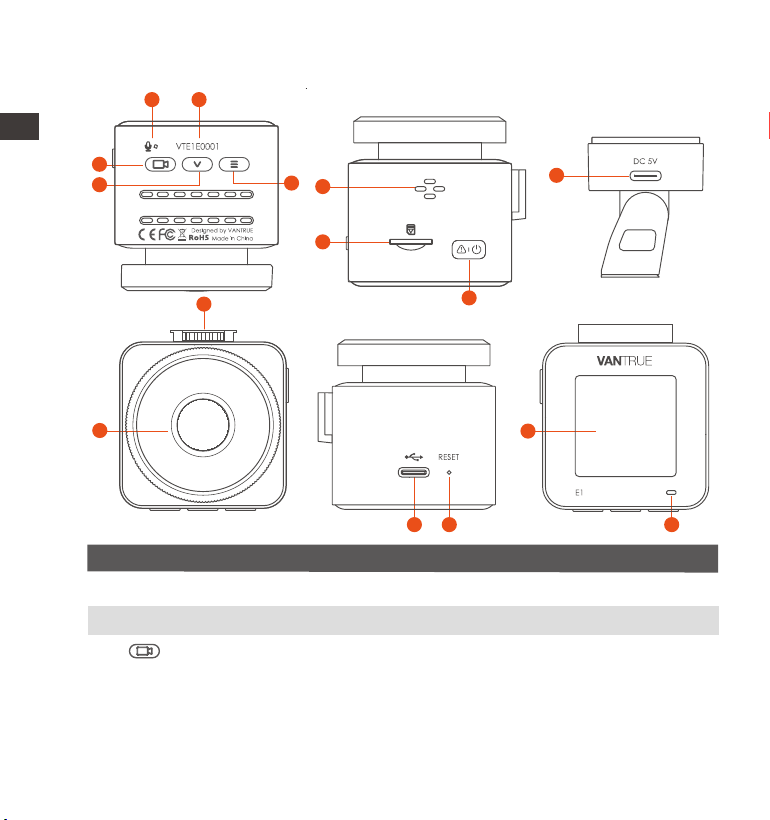
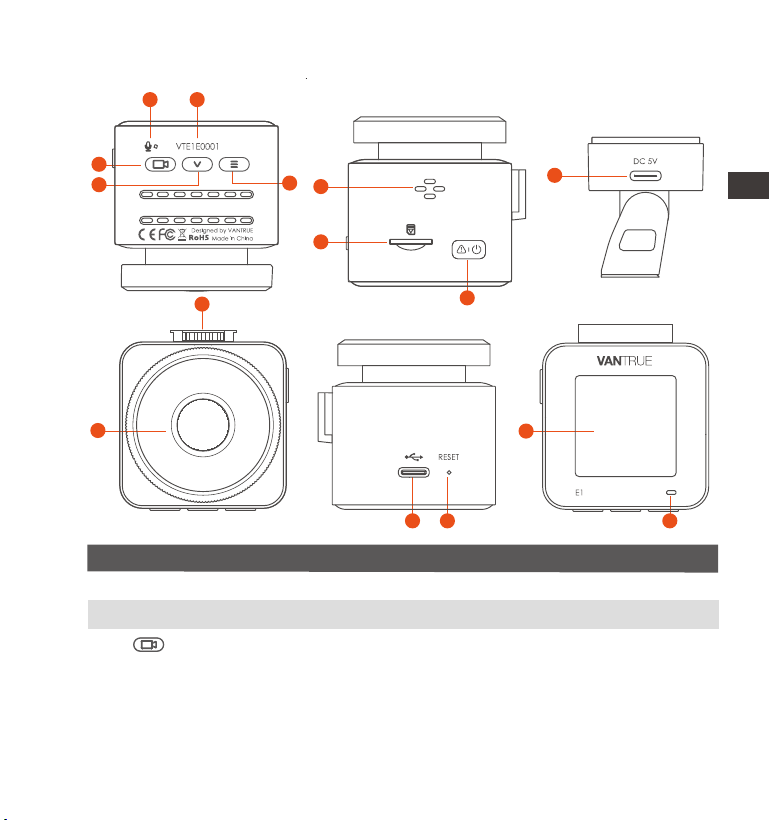
2. Camera Overview
NO. DescriptionName
During video recording, long press to turn off the
screen, short press to stop video recording and
enter standby mode; you can confirm the
selected option in the menu; when playing back
files, you can play/pause files
1 Microphone
2
3
Button
Serial Number Serial number for warranty registration.
Records clear audio with the video footage.
6
9
7
3
4
5
1 2
8
12
14
10
11
13 15
ENENENEN

- 3 -
4 During video recording and standby, long press
to quickly enter parking mode, and short press to
turn on/off the microphone; in menu settings,
long press to scroll through menu options, and
short press to display the next menu option;
during file browsing, long press to scroll to display
file, short press to display the next file; in playback
mode, short press to pop up the delete file menu
Button
6
7
8
9
10
11
12
5 Button
SD Card Slot
Speaker
During video recording and standby mode,
long press to turn on/off WiFi
Mount Port Connects to Type C cable or car charger for
external power supply
Supports Micro SD Card up to 512GB in FAT32,
Class 10
Button Power ON/OFF; long press to turn on/off the dash
cam; short press during recording to enter event
recording mode; short press to capture pictures
during event recording
Delivers sound during video playback.
Front Camera Front facing camera for video recording road
Events
For connecting mountsMount Interface
13
14
Power Port
Connects to Type C cable or car charger for
external power supply;connects the data cable
for data transfer
Short press to restart the camera.Reset Button
Screen 1.54" LCD Screen
EN
EN
EN
EN
- 4 -
15
DescriptionLED Status
15 Camera is recordingBlinking green light
Steady green light Instandbystatus
ENEN
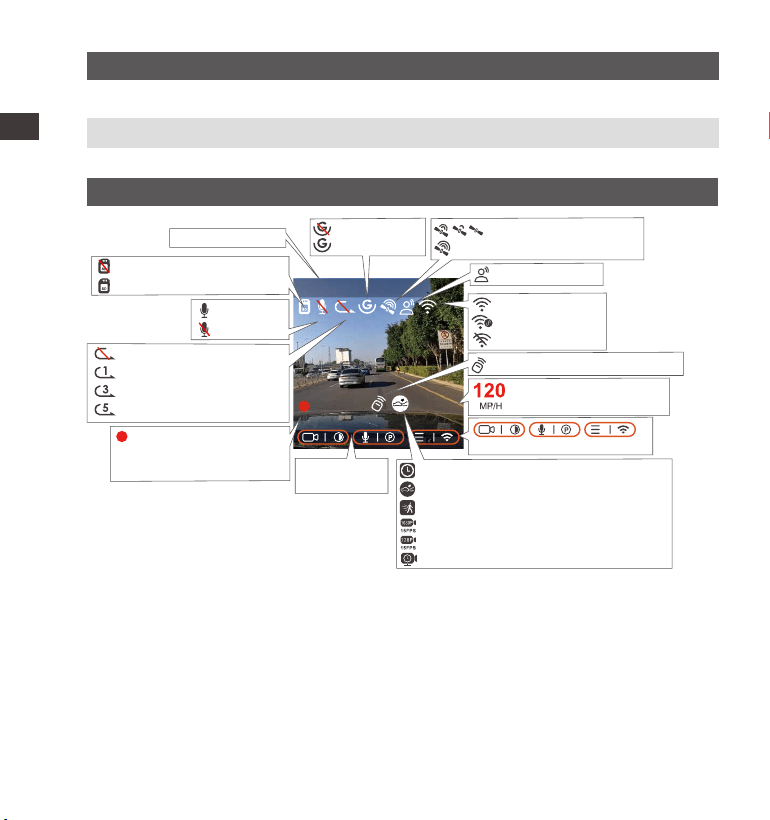
Screen Overview
2560x1440P 30FPS
MP/H
00:00:37
08-22-2022 14:09:07
120
Loop recording off
Loop recording for 1 min
Loop recording for 3 mins
Loop recording for 5 mins
G-Sensor OFF
G-Sensor ON
Remote control is connected
GPS Signal Connecting
GPS Signal Locked
Voice Assistant
Parking Mode
Recording Time
(Current Clip)
Recorded Driving Speed
(KMH or MPH)
Mic is ON
Mic is OFF
No memory card inserted
Memory card inserted
00:00:37
Current Date
and Time
Time Lapse On
Collision Detection ON
Motion Detection ON
1080P Low Bitrate Recording ON 15FPS
720P Low Bitrate Recording ON 15FPS
Low Framerate Parking Mode
Video Resolution
Icons for Indicating Buttons
WiFi ON
WiFi Connected
WiFi OFF
- 5 -
Before using this card, please follow the steps below to format it properly:
If the camera is recording, please press the icon to pause the
recording, then press the icon to enter the menu, then enter “System”,
select the" Format SD Card " , and confirm to format the memory card
until it prompts "Formatted successfully."
3. Installation
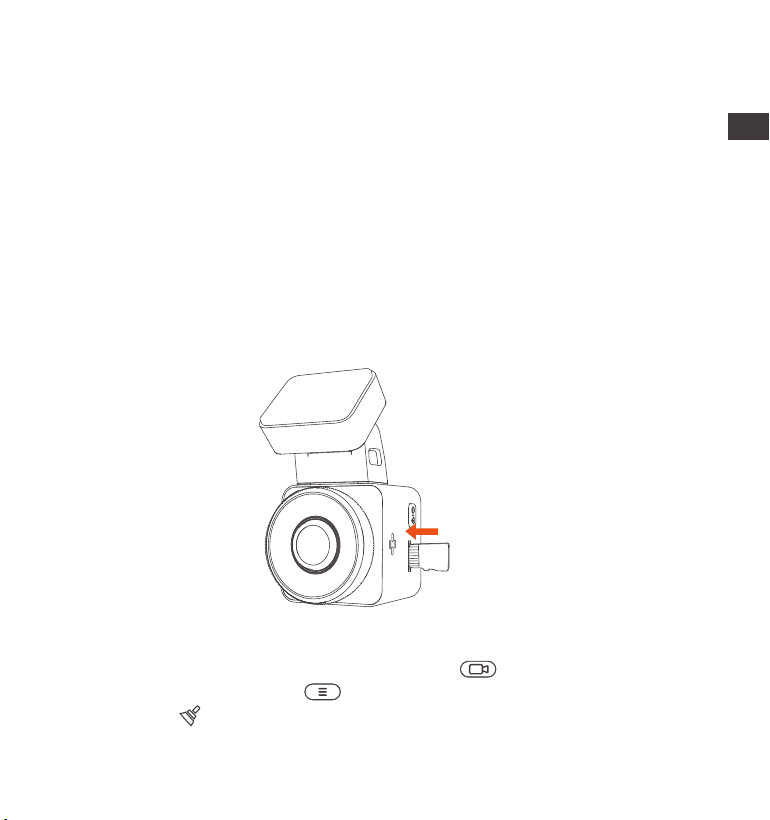
3.1 Installing a Memory Card (Recommended: Vantrue U3 high-speed micro
SD card).
Please insert a memory card (memory card capacity: 32GB-512GB, card
speed: U3/Class10/A2). The dashcam has certain requirements on the
card speed of the memory card. For reliable operation, we recommend
using a VANTRUE SD card(sold separately).
Memory Card Installation: There is an icon indicating the insertion
direction of the memory card. Please push the memory card into the
card slot according to the direction indicated by this icon, until a "click"
sound is heard in the card slot, indicating that the memory card is
inserted properly.
EN
EN
EN
EN

- 6 -
We recommend formatting the card once a month to ensure normal
operation of the dash cam.
Do not remove or insert the memory card during recording to avoid
losing important videos.
Please do not use bad cards or low-speed cards on the dash cam, as
it is easy to stop or lose the recording due to a failure of the memory
card.
Before formatting the memory card, please check the emergency
video folder in the SD card to see if there are any videos that need to
be saved separately, so as not to delete important videos by mistake.
REMINDER:
1.
2.
3.
4.
After inserting the memory card, if the screen prompts "Card error, please
format" (please note that the recorder does not record at this time),
please directly press the button to enter the menu and start the
formatting process.
REMINDER:
ENEN
- 7 -
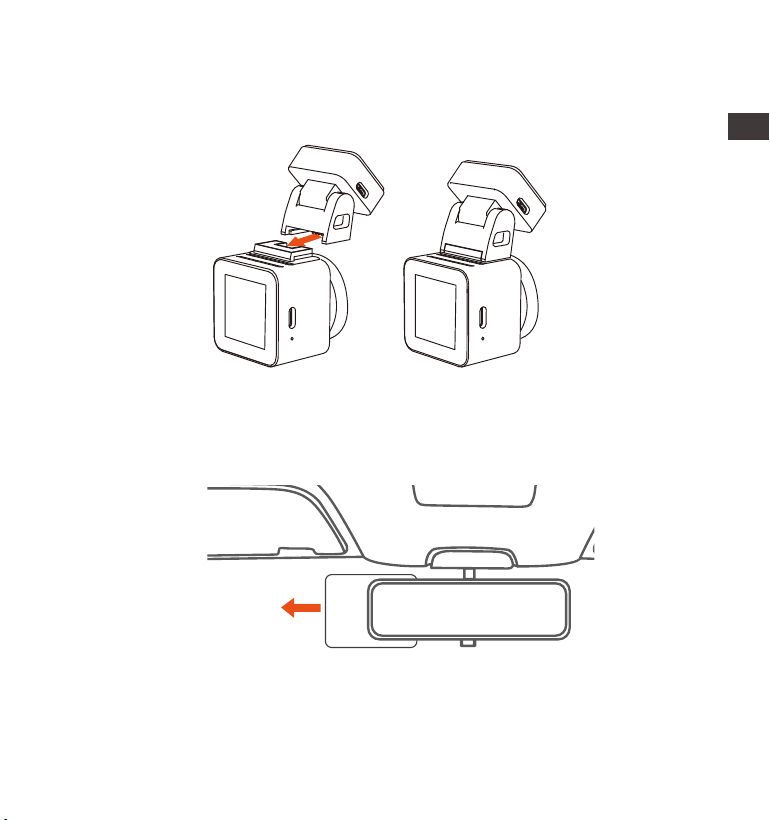
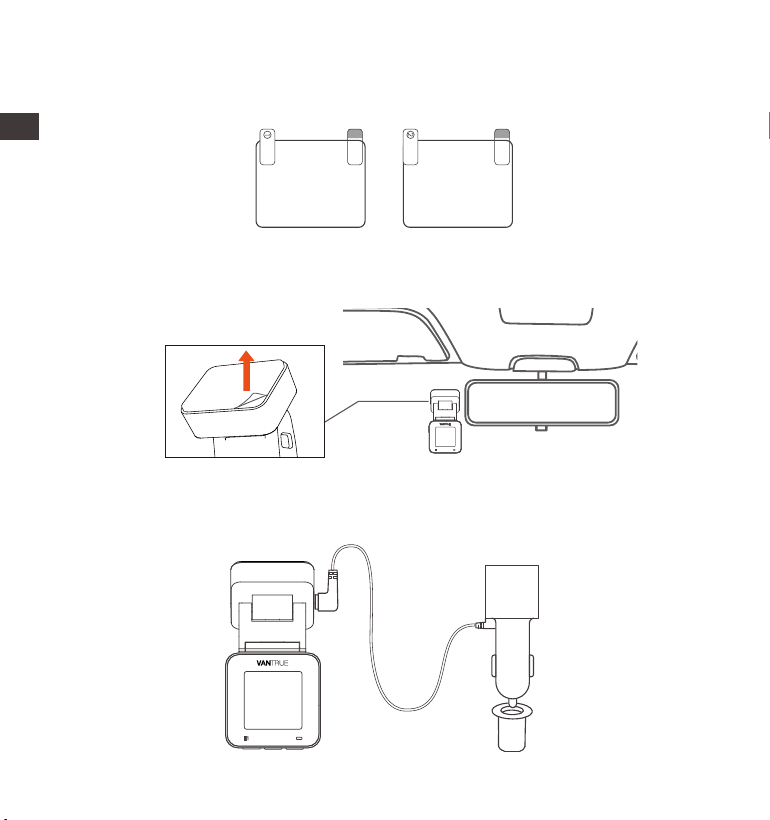
3.2 Installing the camera onto your windshield
1.
Thoroughly clean the windshield with water or alcohol, then wipe it with
a dry cloth. Stick the electrostatic sticker behind the rear-view mirror,
which is the recommended position to prevent blocking your view while
driving.
2.
Electrostatic sticker
Align the mount with the dash cam mount interface then push in until
the mount is installed
EN
EN
EN
EN
EN
EN
EN
EN
- 8 -
Remove the 3M tape from the mount, then fix the mount and camera
on the electrostatics stickers.
3.
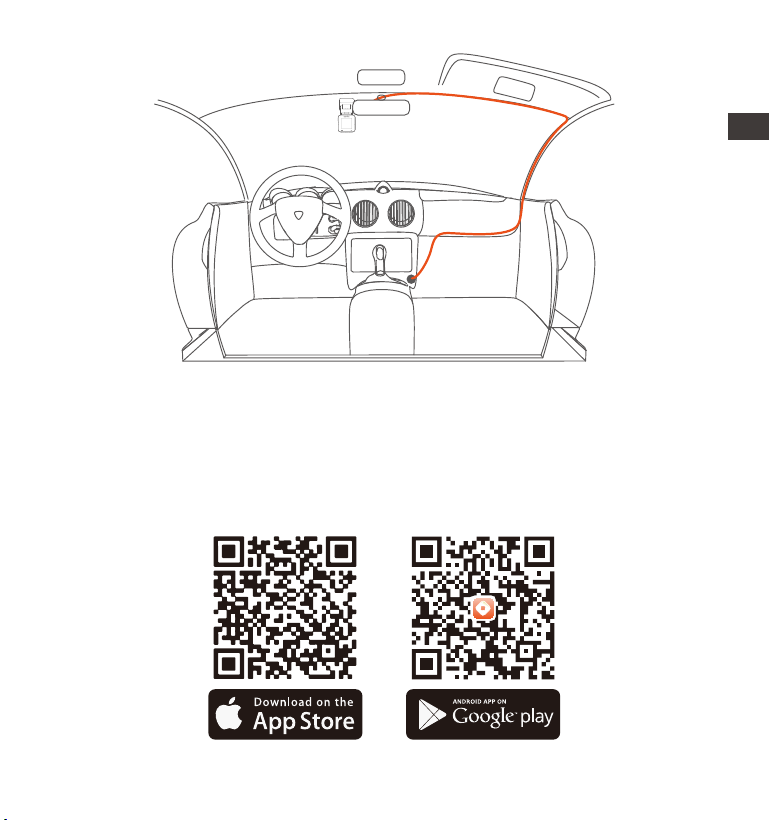
Connect the car charger to the car cigarette lighter, then insert the
USB end of the charger into the Type C USB power port of the camera.
After the car is started, the camera can be powered on immediately.
4.
Note: There are two protective films numbered 1 and 2. Please remove
the protective film from No. 1, paste the electrostatic sticker on the
windshield, and then remove the protective film from No.2.
Please peel off this mask
AFTER application completed
Please peel off this
mask BEFORE application
ENEN
ENEN
- 9 -
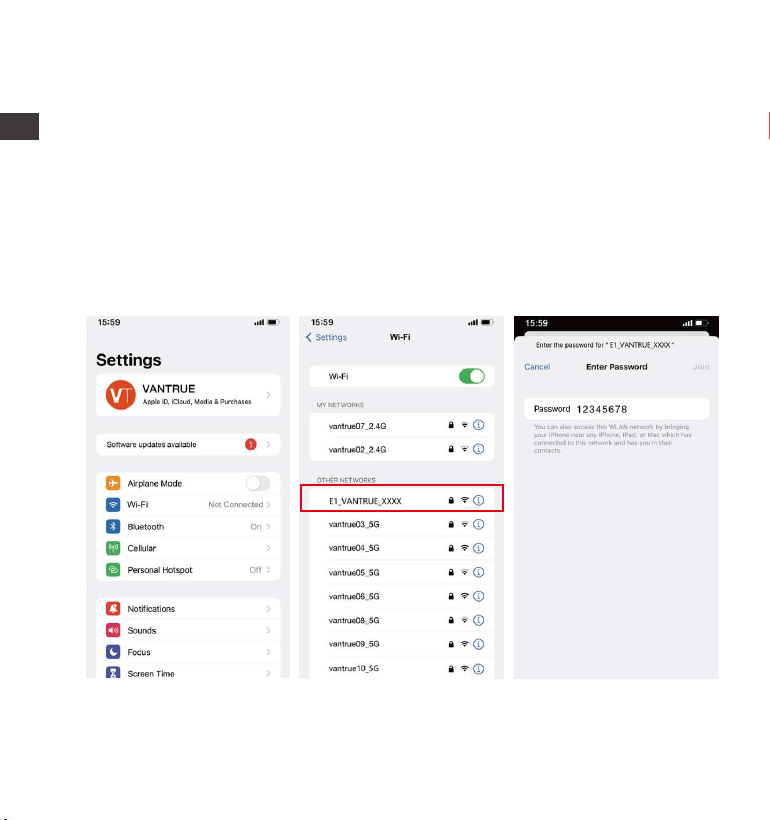
3.3 APP Download
Please scan the QR code of the relevant version below to download the
APP and install it.
Search for the "Vantrue Cam" app in App Store or Google Play Store to
find the app and then download and install it on your phone.
EN
EN
EN
EN
- 10 -
Note: After this camera is successfully connected to the mobile phone
through WiFi, it can realize real-time video preview, change camera
settings, download files without Internet connection, and play back
videos on the mobile phone. However, the GPS track playback and video
sharing functions will depend on the Internet or telecom value-added
services (requires you to turn off/disconnect the camera WiFi).
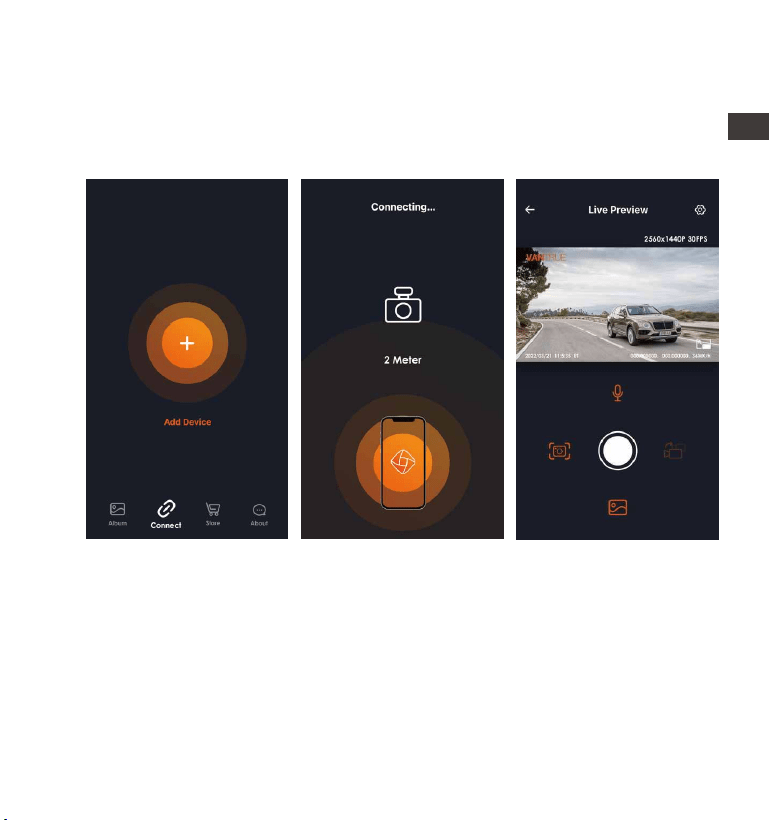
Turn on the WiFi function of the camera, enter the WiFi settings of the
mobile phone, then find the WiFi name, such as: E1_VANTRUE_XXXX, and
enter the WiFi default password: 12345678 to connect to WiFi.
3.4 WiFi Connection
ENEN
- 11 -
After the WiFi connection is successful, click "+" when opening the app for
the first time, add the camera model, then the app will automatically
connect to the camera and display the current real-time recording
situation of the camera.
3.5 App Connection
Note:
If you do not connect to WiFi before opening the app, the app will
prompt you by saying "Please connect to WiFi first", and will automati-
cally jump to the WiFi settings. Please complete the steps to connect
to WiFi first.
If the WiFi is already connected, but the app jumps to the application
permissions after selecting the model, please check whether the
wireless network permissions for the app are turned on.
1.
2.
EN
EN
EN
EN

- 12 -
3.
4.
5.
6.
The initial password for this device is only used for initial login. In order
to prevent potential security risks, please be sure to change the initial
password after the initial login to prevent others from logging into your
device without authorization or other adverse consequences.
If you forget the WiFi password, you can restore the default setting of
the device, and the Wi-Fi password of the device will also be restored
to the default password(12345678).
If the connected WiFi name does not match your dash cam model,
the app will prompt you: "Please select the correct model" and
automatically jump back to the model selection interface.
If there is no connection with the mobile phone after the WiFi is turned
on, the camera will automatically turn off the WiFi and return to the
recording interface after 10 minutes.
ENEN
- 13 -
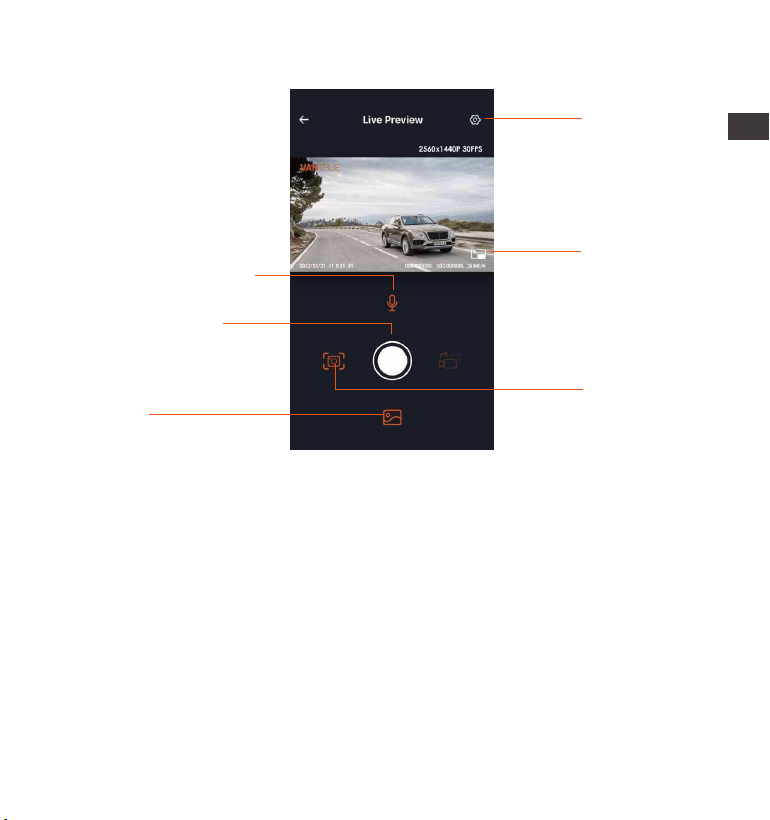
3.6 App Operation
Camera Setting
Full-Screen icon
Snapshot
Album
Stop Recording
icon
Microphone switch
After entering the app's real-time preview, you can perform the following
operations:
Video preview: After the app is successfully connected to the camera,
enter the real-time preview page, click the full-screen button or place the
phone horizontally, and the real-time screen will automatically switch to
the full-screen preview mode.
Video playback: The video and photo files recorded on the SD card can
be viewed in the app, and the video can be played back after clicking
the file.
Video download: You can select the video or picture you want to
EN
EN
EN
EN
EN
- 14 -
Vantrue Ltd.
Vantrue Cam
VantrueCam
9:41
Today Games Apps Search
Back
download in the SD card browsing interface or in the video playback
area. After downloading the video, if you play it in the local app
interface, you can view the GPS track of the video.
Video snapshot: You can capture the current screen in the real-time
preview interface of the app.
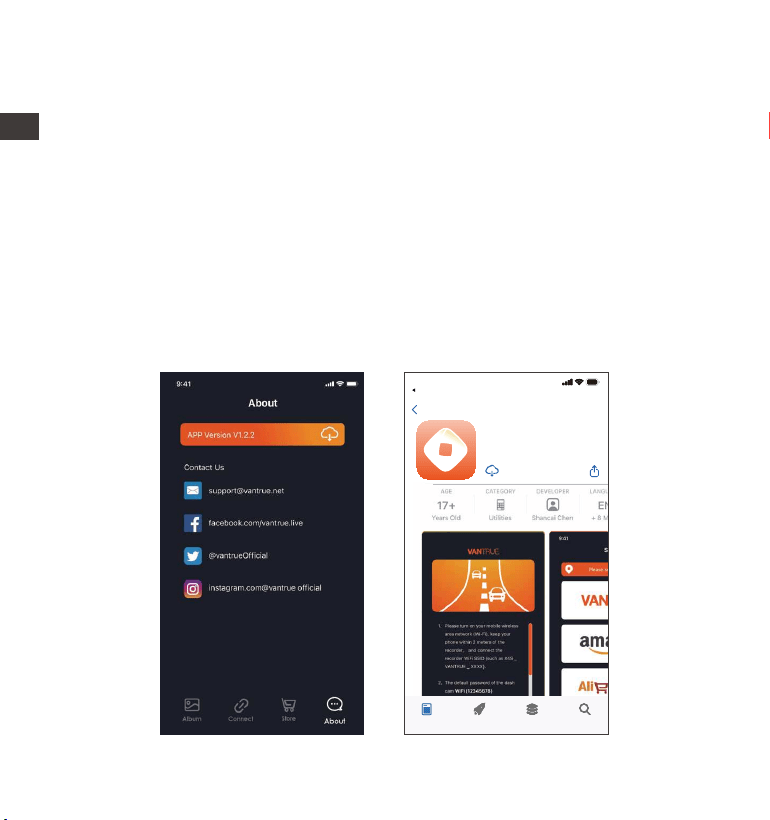
Open the "Vantrue Cam" App, connect to Wi-Fi, and enter Settings >
About > Detect New Version. The app will automatically detect whether
the its version is the latest version. If there is a new version of the app,
follow the prompts and upgrade the version.
3.7 App Upgrade
ENEN
- 15 -
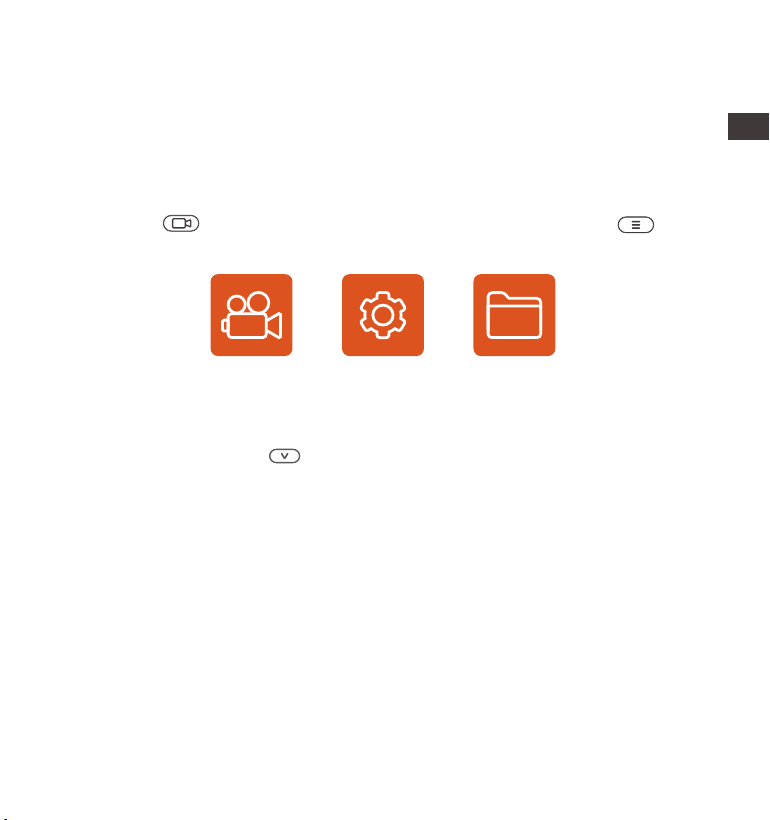
The E1 dash cam has 3 function menus, which are: record settings, system
settings, and file browsing. You can set your dash cam according to your
requirements with these function setting.
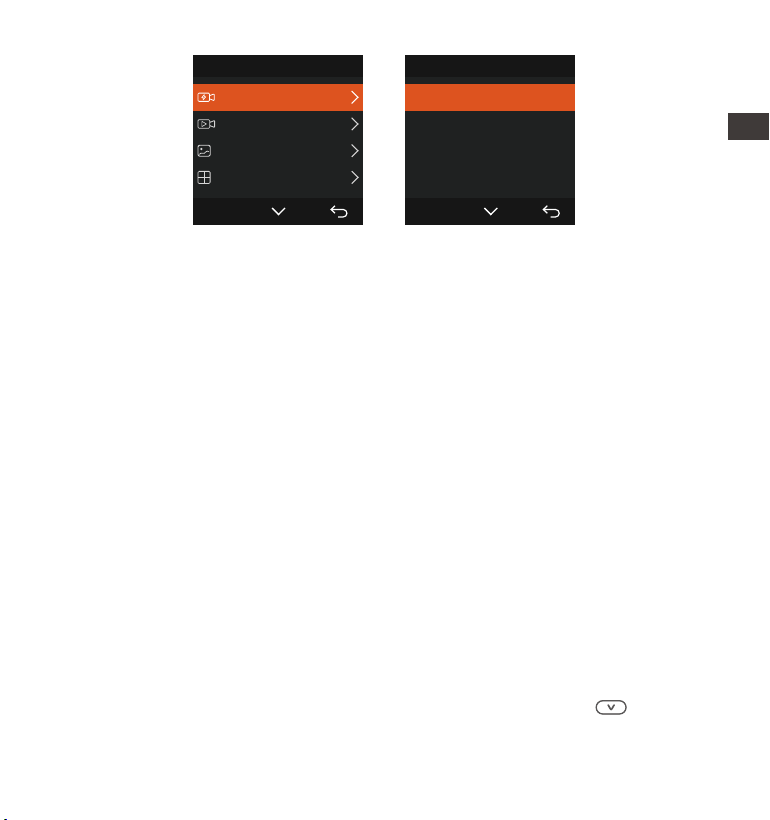
Press the button, pause the video first, and then press the button
to enter the menu settings.
4. Basic Operation
4.1 Menu Settings
Record System Files
A. Record Setup
-Resolution: Press the Button to switch the resolutions: 2592x1944P
30FPS; 2560x1440P(HDR) 30FPS; 2560x1440P 30FPS; 1920x1080P 60FPS;
1920x1080P(HDR) 30FPS; 1920x1080P 30FPS; 1280x720P(HDR) 30FPS;
1280x720P 30FPS.
-Loop Recording: Default setting is 3 min. You can choose among 1/3/5
mins and OFF.
-G-Sensor: Select the level of G-sensor you need, then you can set 3
directions (Front + Back/Left + Right/Up + Down). The G-sensor value in
each direction can be selected as 1/2/3/4/5/Off. The higher the sensitivity
level, the easier it is to trigger emergency recording. G-sensor is most
sensitive when set to 5.
-Audio Recording: The default is ON. Set recording to on or off.
-Exposure: The default value is +0.0. Adjust the exposure of the lens.
EN
EN
EN
EN

- 16 -
-REC Status Light: Default setting is ON. You can choose to turn on/off the
recording status light.
-Rotate Display: Default is off. You can choose to flip the video screen up
and down(180 Degree).
-Number Plate: Press the button to select the number or letter to be
set. After setting, your license plate number can be displayed in the
recorded video.
-Stamp: Enable or disable the watermark stamp on video and photos.
The watermark stamp includes date and time label, VANTRUE label,
license plate number, GPS location information, and speed label. All
enabled by default.
-Time Lapse: The default value is disabled. You can choose to enable
1FPS/5FPS/10FPS/15FPS.
-Parking Mode: You can choose the parking mode you need, including
Collision Detection/Motion Detection/Low Bitrate Recording/Low
Framerate Mode/OFF.
-GPS Setting: GPS is enabled by default. GPS ON/OFF settings, speed unit
settings, and GPS information are all set here.
B. System Setup
-Language: Available languages are Engish/Français/Español/Deutsch/I-
taliano/简体中文/русский/日本語/Polski.
-Wi-Fi: Once the dashcam is turned on, the Wi-Fi function is activated by
default. Wi-fi name and password can be viewed in this device.
-Display Setting: The default setting is Full Screen mode. You can switch it
to panorama mode.
-Voice Assistant: The default sensitivity is Standard. Voice commands
can be recognized after the option is turned on. You can choose options
such as low sensitivity/high sensitivity/standard/off.
-Voice Content: Voice recognition commands. You can use different
ENEN

- 17 -
commands to remote control the camera.
-Format Memory Card: Format all data on the memory card.
-Format Reminder Setup: Select the reminder options: 15 Days, 1 Month,
and Off. Default is off.
To prevent you from forgetting to format the memory card regularly, we
have added a format reminder time setting. You can choose to be
reminded after 15 days or 1 month, When the time is up, you can choose
"OK" to format, or choose "Next."
Note: If changing the format reminder option, the timing will restart as
soon as the option is changed.
-Date & Time: There are two ways to set the time and date: 1. GPS
automatic update, 2 Manual date/time setting. GPS automatic update is
enabled by default.
GPS automatically updates the date and time based on your time zone,
so you need to select the correct time zone first; you can also choose to
turn off GPS automatic update, turn on Manual date/time setting, and
manually correct date and time.
The date format and time zone settings can also be set under this menu.
-Auto LCD Off: Set the time to automatically turn off the LCD display after
no operation.
If you set the Auto LCD Off to 3 min, the camera’s LCD screen will auto
light off after 3 min but recording will continue. If the setup is Off, the
screen will not turn off. Press the Button to choose the option you
want: 30s, 1Min, 3Min and OFF.
-Device Sound: Set the volume of the device. The default volume level is
3, the lowest is 0, and the highest is 5.
-Prompt Tone: According to different situations, the dash cam is set with 5
kinds of prompt tones, which are power-on/off sound, Keys sound, File
locked sound, Format sound, abnormal stop recording reminder. All
prompt tones are turned on by default.
-Frequency: Different countries have different frequencies. In order to
EN
EN
EN
EN

- 18 -
avoid affecting the video, you can choose 50Hz or 60Hz frequency
according to different regions.
-System Info: Check the current model, firmware version, and the
Vantrue official website.
-Certifications: You can view the certification information of E1 camera.
-Default Setting: Reset the device back to factory settings.
C. Files
Review the video and photo files recorded by the camera.
-Event: Critical event videos detected by G-Sensor activity or manually
locked by user.
The file name format is 20300128_140633_0008_E_A.MP4
-Normal: Standard videos recorded. This folder saves loop recording
video, parking mode video, and time-lapse video. The file name format
of Loop Recording video is 20300128_140633_0008_N_A.MP4; the file
name format of Parking Mode video is 20300128_140633_0007_P_A.MP4;
the file name format of Time-Lapse video is
20300128_140633_0006_T_A.MP4.
-Photo: Photo files.
-All: All the standard videos and critical event videos recorded.
ENEN

- 19 -
4.2. Main Functions
4.2.1 Loop Recording
After inserting the memory card and connecting the power, the E1 dash
cam will auto turn on and enter loop recording. The duration of each
recorded video will be saved in the normal video folder according to the
loop recording time you set.
When the capacity of the normal video folder reaches 70% of the total,
new loop recording files will automatically overwrite original loop record-
ing files. After this function is enabled, the video file will automatically
overwrite the loop, so as not to stop recording during the driving process.
Notice:
2.
1.
3.
4.
EN
EN
EN
EN
The normal operation of the loop recording function is very dependent
on the speed of the memory card, so please format the memory card
regularly to avoid problems such as excessive memory card files and
card aging that affect normal loop recording.
Please check the loop recording video regularly to avoid necessary
videos being overwritten.
After loop recording is turned off, the lock video function will no longer
work.
After the loop recording is turned off, the duration of each video will
be 20 mins, and the recording will stop when the memory card
capacity is full.
- 20 -
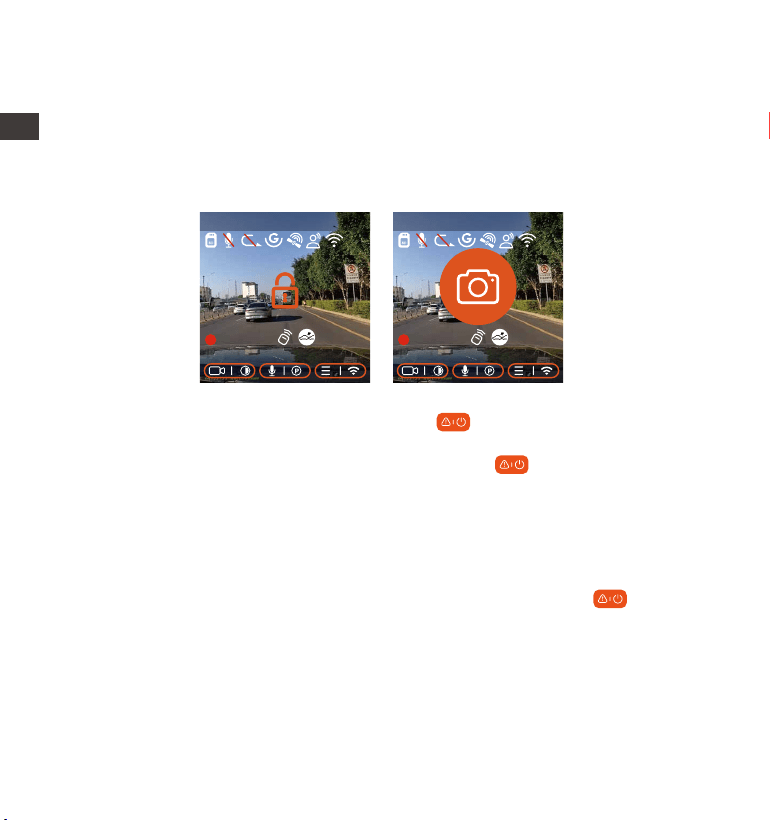
4.2.2 Event Recording
Event video is triggered by the G-sensor(Gravity Sensor), which can be
automatically triggered or manually locked.
During driving, in case of special circumstances, the camera will
automatically lock for event recording or you can manually lock it for
event recording.
To manually lock the video, just press the button to lock the current
video and capture it.
During the lock video period, you can press the button to capture
multiple times. After recording, the video will be automatically saved in
the event video folder , and the photo will be saved in the photo folder.
Automatic locking event video is triggered when the car is hit/shaken.
The dash cam detects the vibration and automatically locks the current
video, which is saved in the event video folder.
During the locked recording period, you can also press the button to
take a picture. After the event video recording ends, the video will be
saved in the emergency video folder, and the photo will be saved in the
photo folder.
ENEN
2560x1440P 30FPS
MP/H
00:00:37
08-20-2022 14:09:07
120
2560x1440P 30FPS
MP/H
00:00:37
08-20-2022 14:09:07
120
- 21 -
Parking Mode operates as a sentry function under different situations. You
can switch to different parking monitoring modes according to different
parking situations.
After parking mode is turned on, there are two ways to record. You can
wait for 5 minutes to restart automatically, or long press the button to
begin manually.
The sensitivity of the automatic locking video trigger is determined by
the sensitivity of the collision. The higher the sensitivity setting, the
greater the probability of being triggered.
The total capacity of the event video file accounts for 30% of the total
capacity of the current memory card. When the event video file
reaches the upper limit, new event video file will automatically
overwrite old event video file. It is recommended to periodically check
and save your event video files to avoid loss.
Lock recording will not trigger in either of the following situations: Loop
recording is off or time-lapse recording is on.
1.
2.
3.
Note:
4.2.3 Parking Mode(When the parking mode is turned on, the time-lapse
video function will not work. These two functions cannot run at the same
time)
Files 1/4
Event Video
Normal Video
Photo
All Files
OK
Event Video 2/5
20220820_140633_0001_E...
20220820_140633_0003_E...
2022
0820_140633_0004_E...
20220820_140633_0002_E...
OK
EN
EN
EN
EN
EN

- 22 -
Please use a hardwiring kit or other stable and continuous power supply
to power the camera to ensure that the camera works properly in
parking mode.
The E1 operating environment temperature is 14°F to 158°F (-10°C to
70°C). We recommend selecting Collision Detection within this
temperature range, as it will automatically turn off once the tempera-
ture exceeds the normal operating temperature range. If the tempera-
ture outside is high, turn off the camera when parking.
Time-lapse video recording and parking mode (including collision
detection, motion detection, low bit rate recording, and low framerate
mode) can only be enabled one at a time. When one is enabled, the
other will be automatically disabled.
All videos in parking mode(Collison Detection, Motion Detection, Low
Bitrate Recording, Low Framerate mode) will be saved in the normal
folder. In order to prevent the video in parking mode from being
overwritten in a loop, please check and save the required files in time
to prevent loss.
1.
2.
4.
3.
Note:
ENEN
- 23 -
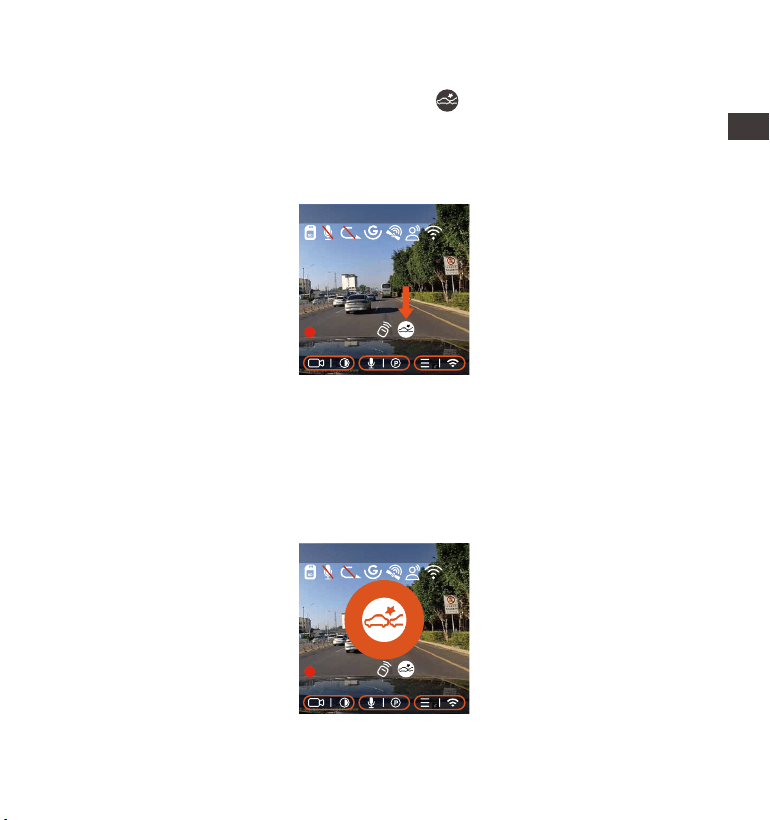
Collision Detection
When collision detection is enabled, the icon will be displayed on the
recording interface, indicating that the camera is currently using collision
detection mode. Collision detection sensitivity can be adjusted from 1 to
5 levels. You can adjust according to your habits as well as the surround-
ings of the car.
When the Collision Detection is turned on, and no movement is detected
after 5 minutes of recording (5-minute entry mechanism for short), then
Collision Detection is activated. Collision Detection icon will appear in the
middle of the screen and the camera will automatically turn off. When
the dash cam is turned off, it will start to record for 1 minute after being
shaken, then turn off the dash cam again.
EN
EN
EN
EN
2560x1440P 30FPS
MP/H
00:00:37
08-20-2022 14:09:07
120
2560x1440P 30FPS
MP/H
00:00:37
08-20-2022 14:09:07
120
- 24 -
Note:
If the dash cam continues to be hit during collision detection recording,
it will exit the collision detection mode and enter normal recording,
restarting the 5-minute entry mechanism.
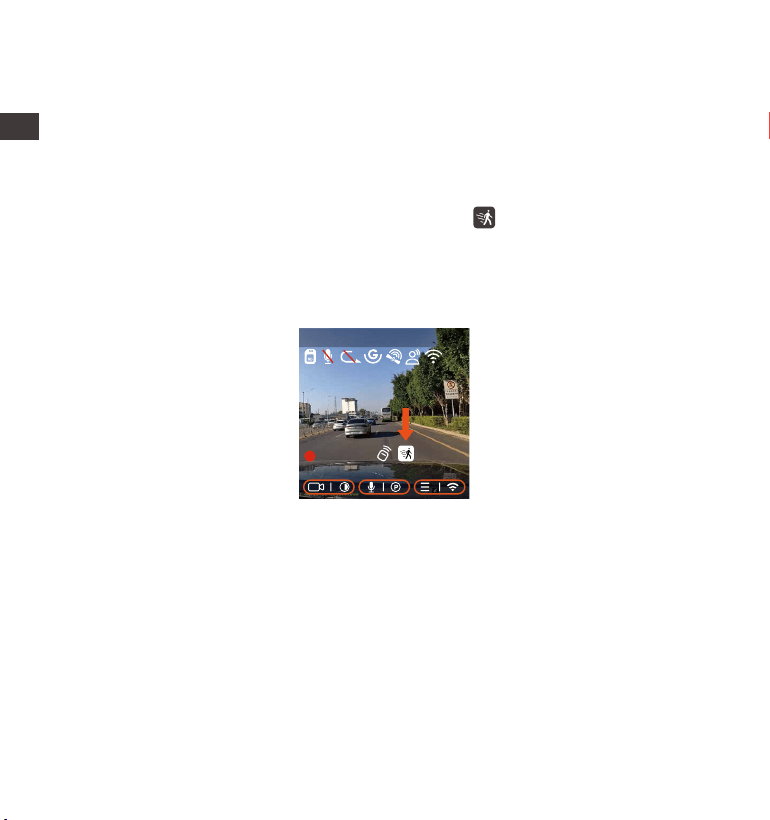
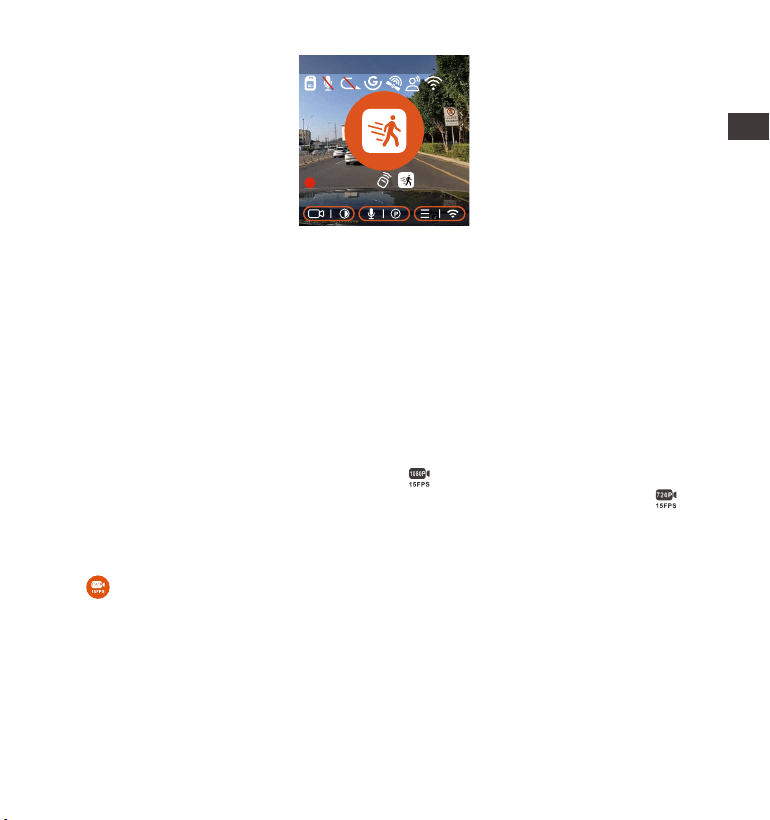
Motion Detection
When the motion detection is turned on, the icon will be displayed on
the recording interface, indicating that the dash cam is currently in
motion detection mode. Motion detection has three levels of low/medi-
um/high that can be adjusted, and the corresponding detection ranges
for motion detection is 6.6ft/13ft/19.7ft.
When the motion Detection is turned on, and no movement is detected
after 5 minutes of recording, then an orange icon will appear in the
center of the screen, and the screen will turn off after 3 minutes.
Video recording process: When the camera detects object movement
or car vibration, it will automatically trigger video recording. E1 comes
with a pre-recording function. When the motion detection recording is
over, the camera will load the pre-recorded video into the motion
detection video and save it to the normal folder.
ENEN
2560x1440P 30FPS
MP/H
00:00:37
08-20-2022 14:09:07
120
- 25 -
Note:
Motion detection mode can only be engaged when the camera is
turned on. Once the camera is turned off, the motion detection mode
will not work.
The resolution of 1944P and 1440P HDR do not support the pre-record-
ing function, so after enabling motion detection, the resolution will
automatically be changed to 1440P for recording.
1.
2.
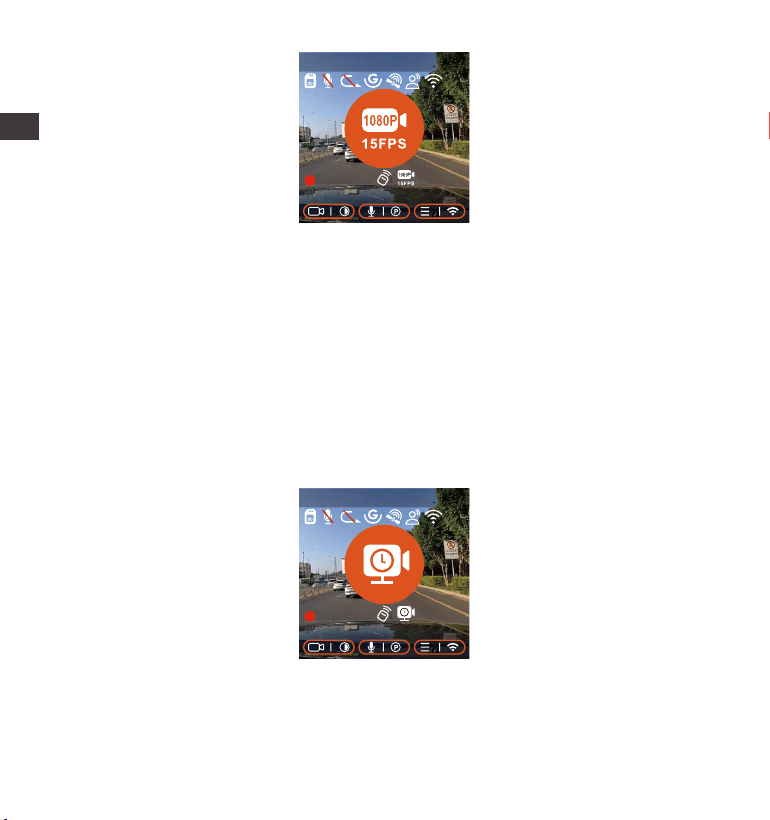
Low Bitrate Recording
When the low bitrate mode is on, the icon will be displayed in the
lower right corner of the screen if 1080P 15FPS is selected, and the icon
will be displayed in the lower right corner of the screen if 720P 15FPS is
selected.
If no movement is detected after 5 minutes of recording, there will be a
+ icon that appears in the center of the screen. The resolution of all
current video will be automatically switched to 1080P 15FPS or 720P 15FPS
for recording, and the recording duration is determined according to the
currently set loop recording duration. When the camera vibrates or is
moved, it will automatically exit, wait 5 minutes, and enter again.
EN
EN
EN
EN
EN
EN
EN
EN
2560x1440P 30FPS
MP/H
00:00:37
08-20-2022 14:09:07
120
- 26 -
ENEN
[Real Recording Time(Sec)=Low Framerate Video Time Length(Sec) x
Video Frame Tate(FPS)/Low Framerate Option (FPS)]
(Time should be converted into seconds)
Note:
Low Bitrate recording can only be engaged when the camera is turned
on. Once the camera is turned off, Low Bitrate recording will not work.
Low Framerate mode
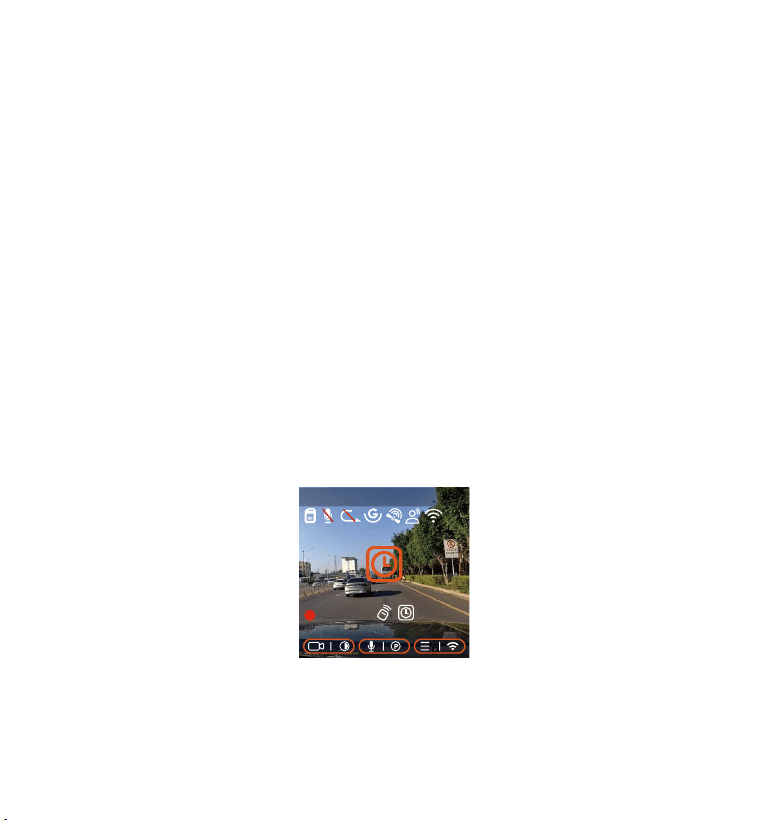
When the low framerate mode is selected, the camera will record
according to your selection among 1FPS/5FPS/10FPS/15FPS.
For example, if you select 1FPS and the current video resolution framerate
is 30FPS, the recorder will generate a 30FPS video per second. Low
framerate mode can greatly preserve the integrity of the video and save
space on the memory card.
2560x1440P 30FPS
MP/H
00:00:37
08-20-2022 14:09:07
120
2560x1440P 30FPS
MP/H
00:00:37
08-20-2022 14:09:07
120
- 27 -
EN
EN
EN
Note:
The time unit of the calculation formula is seconds, so the final normal
recording time calculated is also in seconds. If you need to convert it
into other time units, please check the units and convert.
The low framerate mode is similar to the time-lapse recording function,
but the difference is that there is no 5-minute entry mechanism for
time-lapse recording, which will be directly turned on after setting.
In low framerate mode, the camera also needs a stable power supply.
Once the power is off or exhausted, the camera will shut down.
1.
2.
3.
4.2.4 Time Lapse
When time lapse is selected, the camera will record according to your
selection among 1FPS/5FPS/10FPS/15FPS.
For example, if you select 1FPS and the current video resolution framerate
is 30FPS, the recorder will generate a 30FPS video per second. Low
framerate mode can greatly preserve the integrity of the video and save
space on the memory card.
2560x1440P 30FPS
MP/H
00:00:37
08-20-2022 14:09:07
120
The formula for calculating video duration is:
[Real Recording Time(Sec)=Time Lapse Video Time Length(Sec) x Video
Frame Tate(FPS)/Time Lapse Option (FPS)]
(Time should be converted into seconds)

- 28 -
ENEN
Note:
The GPS connection will be completed within 1 minute after you turn
on the device. If the GPS connection is not successful within 1 minute,
please check whether the DEVICE has turned on the GPS function,
whether the GPS bracket is properly connected, and whether your
environment (underground parking lot, densely populated residential
area, subway, tunnel, etc.) is affecting the reception of GPS signal.
GPS information is recorded along with video. To view it, please
download and install the VANTRUE Cam App and VANTRUE GPS Player
(available for download at www.vantrue.net).
1.
2.
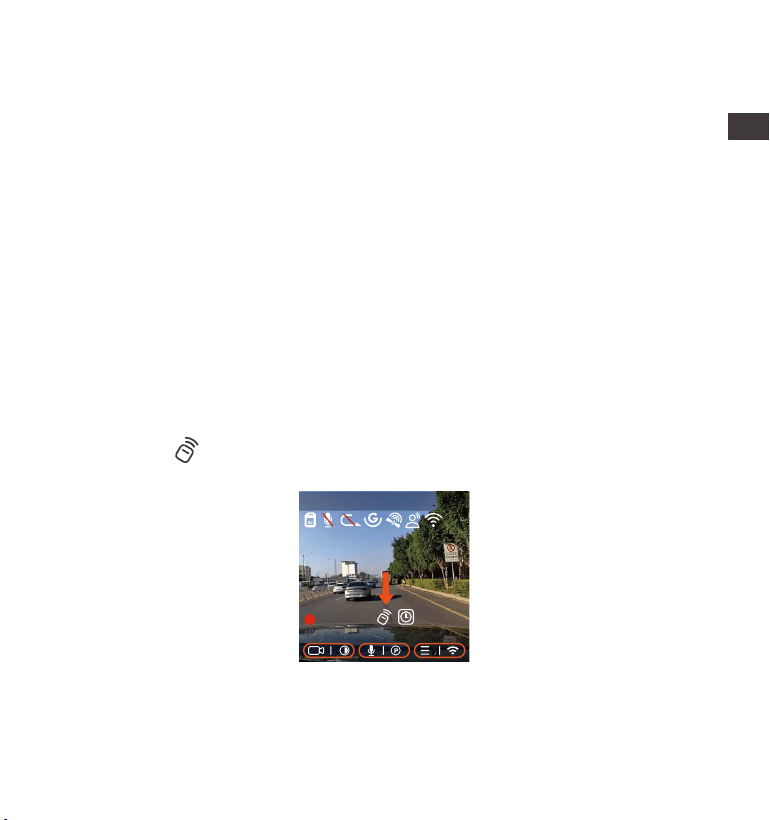
4.2.5 GPS Function
The GPS function is one of the most important functions of the dash cam.
GPS is enabled by default, and the camera receives GPS signals through
the GPS mount. It can automatically correct the time and date in your
area, recording the location where the video was taken and the speed
of the car at the time.
GPS Information
40
46
39
43
48
- 29 -
4.2.6 Automatic Time via GPS
The GPS automatic correction time setting for the E1 dash cam is turned
on by default. You can select GMT-08:00 by selecting your time zone,
such as Los Angeles. If you do not know the time zone of your location,
you can use WiFi to connect to the Vantrue Cam app, and confirm that
the automatic time adjustment function in the app is turned on.
4.2.7 Wireless Remote Control
The camera is equipped with a remote control, which can be used to
quickly control the camera to snapshot, take emergency video, set
recording on/off, and perform other functions.
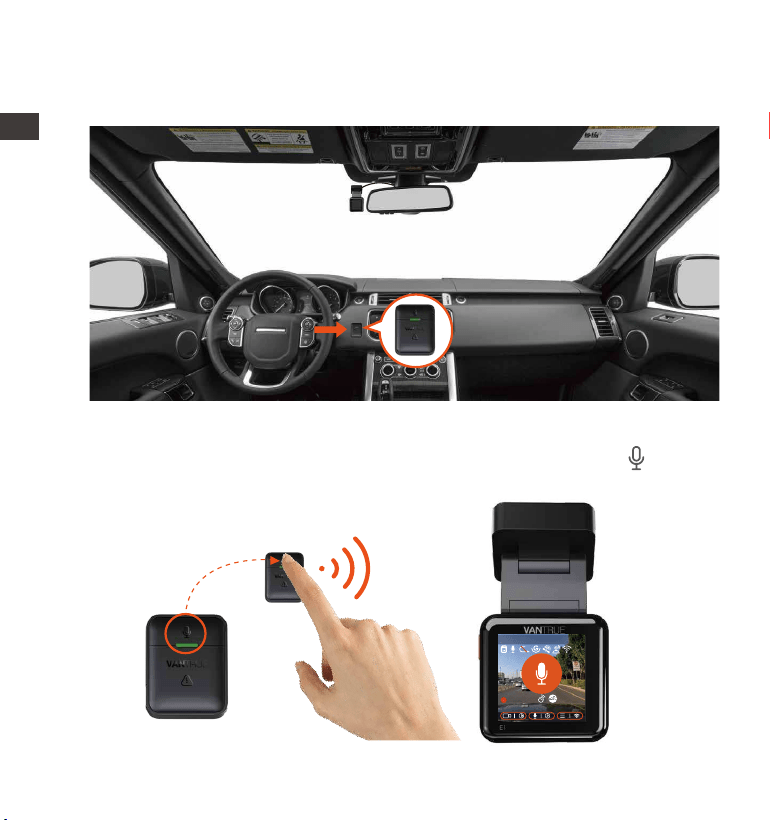
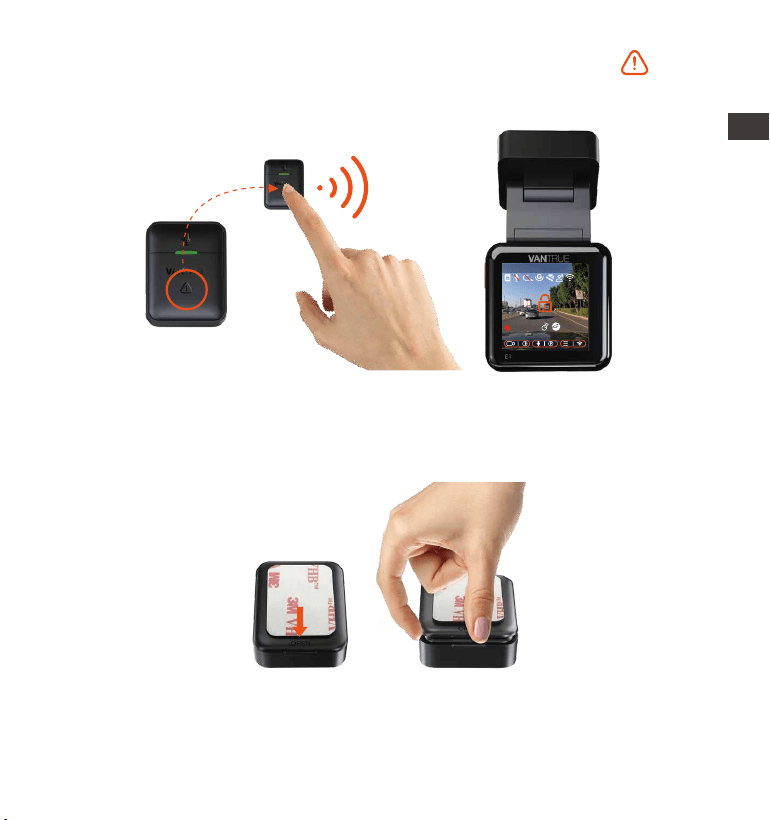
Remote control connection:
Remove the insulating strip on the remote control and the camera will
automatically match the remote control. No manual pairing with the
dash cam is required.
When the icon appears on the screen, it means that the remote
control has been successfully matched.
Installation of the remote control:
After the remote control is matched with the camera, please select a
EN
EN
EN
EN
2560x1440P 30FPS
MP/H
00:00:37
08-20-2022 14:09:07
120
- 30 -
After the remote control is successfully connected, press the button
to enable or disable audio.
1.
Functions of the remote control:
suitable location on your car, then tear off the adhesive sticker from the
remote control and stick it to your selected location. (Note: The remote
control needs to be installed in a position that does not affect safe driving)
ENEN
2560x1440P 30FPS
MP/H
00:00:37
08-20-2022 14:09:07
120
- 31 -
After the connection is successful, when you short press the button,
the camera will lock the current file and take a video snapshot;
continue to short press during the locked video, and continue to
capture the photo.
2.
There is an "OPEN" mark on the bottom of the remote control, please
slowly pry open the surrounding gap along the groove position of this
mark to open.
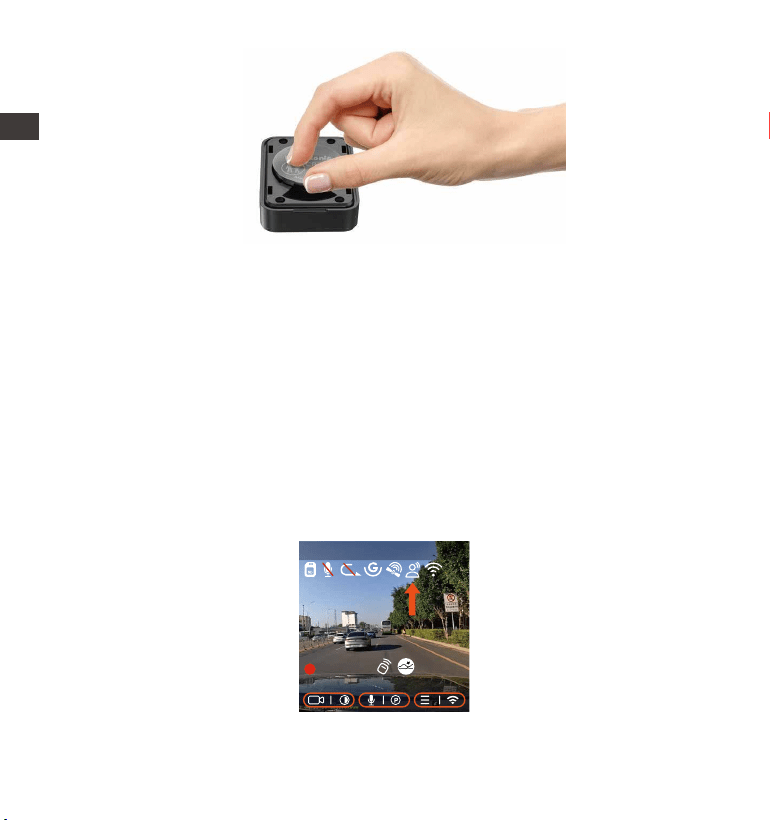
1.
After opening, gently pry the battery open from the groove in the front
of the battery compartment, then take out the old battery, put the new
battery in, and cover the back cover of the remote control.
2.
Replacing the remote control battery:
EN
EN
EN
EN
2560x1440P 30FPS
MP/H
00:00:37
08-20-2022 14:09:07
120
- 32 -
Note:
When the power is low, the battery needs to be replaced(The battery
model of the remote control is a CR2032 battery). It does not support
charging.
4.2.8 Voice Assistant
In addition to controlling the camera with the remote control, you can
also control the camera with voice command. Currently supported
languages are English, Japanese, Russian and Chinese. For more detailed
voice commands, please check System Settings > Voice Content.
The default setting is standard sensitivity. Voice recognition has options
such as low sensitivity/standard/high sensitivity/off. You can control the
camera with voice commands.
ENEN
2560x1440P 30FPS
MP/H
00:00:37
08-20-2022 14:09:07
120
- 33 -
4.2.9 Display Settings
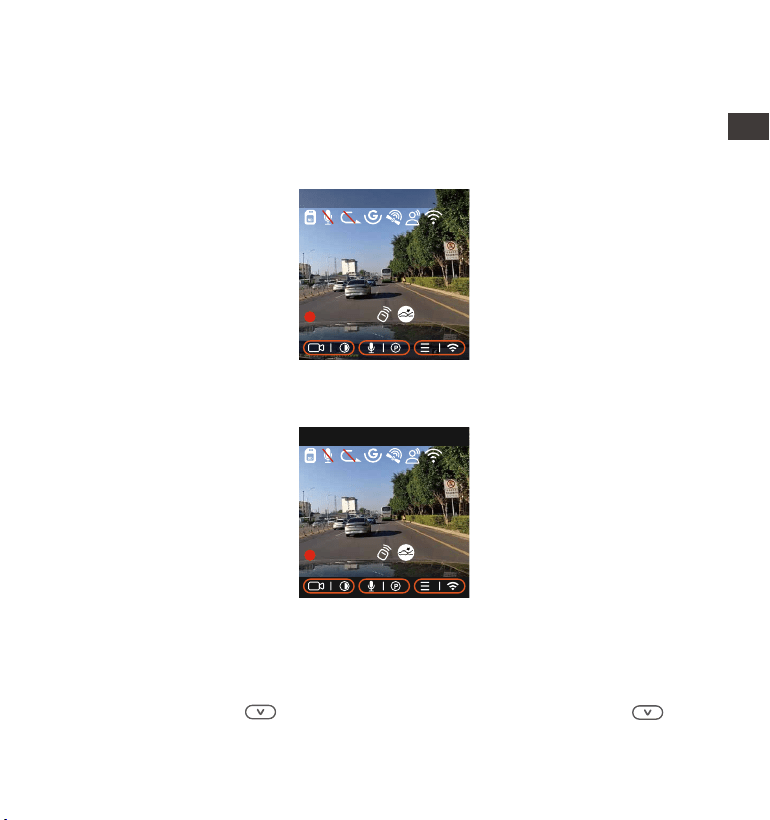
E1 is a small screen camera, so we specially set two screen display modes
for you.
The first is full-screen mode. Full-screen mode is full-screen display, with a
larger screen ratio, but it will lose some of the left and right viewing angles.
4.2.10 Viewing Video/Photos
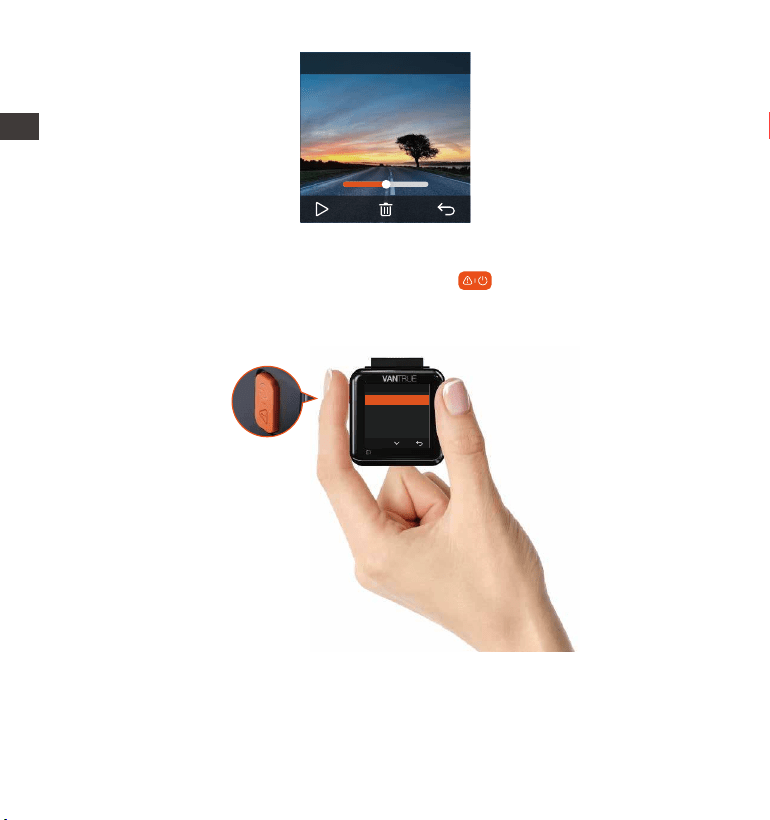
a.Viewing files on the Camera
After clicking "Files," enter any folder, and after opening the video folder,
you can press the button to select the next file, or press the button
to delete the file during playback.
The other is the panorama mode. In this mode, all the content seen by
the video camera will be displayed, and the ratio of the video screen
display is 4:3.
EN
EN
EN
EN
2560x1440P 30FPS
MP/H
00:00:37
08-20-2022 14:09:07
120
2560x1440P 30FPS
MP/H
00:00:37
08-20-2022 14:09:07
120
- 34 -
--Delete Videos
Delete the video on the camera. Press the button in the file browsing
interface to pop up the delete menu.
Normal Video
Delete This File?
Delete All Files?
OK
ENEN
00:30 01:07
1280x720
08/20/2022
7:15
20220822_140633_0002_N
- 35 -
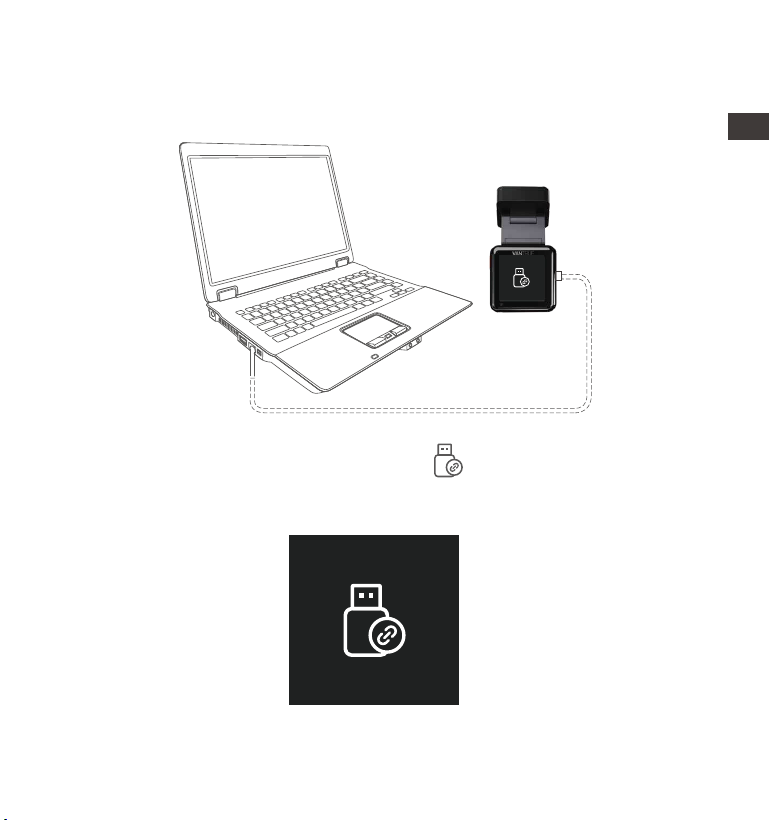
Connect the included TYPE-C USB data cable to the camera and the
computer.
b.Viewing files on a Computer
1.
After the connection is successful, the icon will appear on the
display of the camera to transfer data, and then you can view the
video files in the computer folder.
2.
EN
EN
EN
EN
- 36 -
Depending on the computer systems of different users, after the
camera is connected to the computer, it will be displayed as a
removable drive or a removable folder.
To view files on the computer, you can directly access, right-click to
open the menu and delete them.
You can also use a USB card reader to read the memory card informa-
tion.
3.
4.
5.
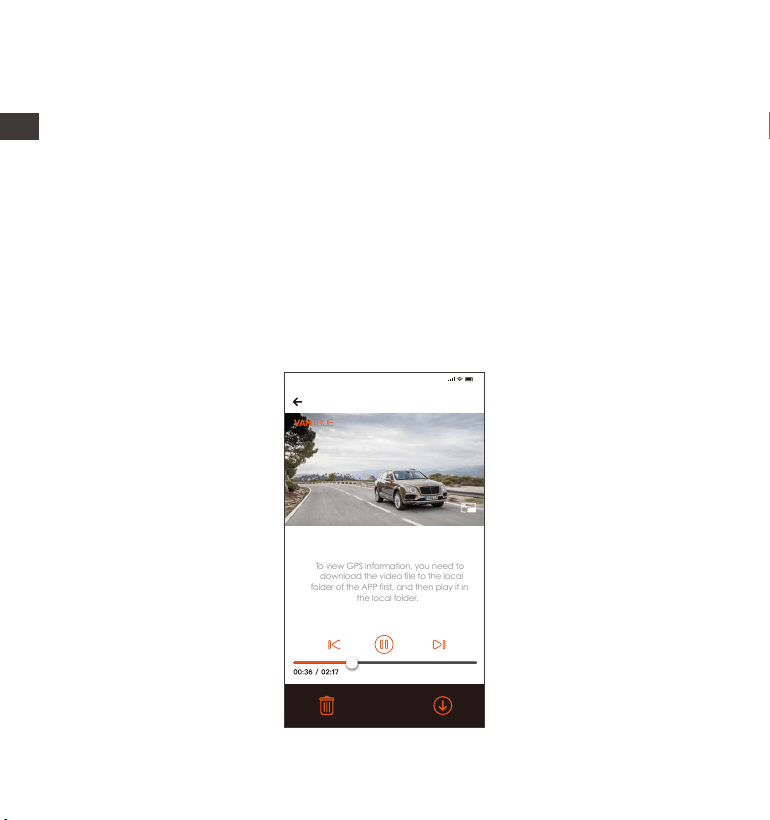
c.View on the "Vantrue Cam"App
After the camera is successfully connected to the mobile phone through
WiFi, it can play back, download and delete files in the mobile app.
20220822_115036_0079_N_A.MP4
05/01/2022 11:5:35 E1 000.000000. 000.000000. 36MK/H
To view GPS information, you need to
download the video file to the local
folder of the APP first, and then play it in
the local folder.
Note:
9:41
ENEN

- 37 -
For video playback in the app, or for downloads to SD card, there will
be no network traffic consumption.
You can view GPS track information only after the video file is down-
loaded and played back locally. At the same time, you need to
disconnect the WiFi of the dash cam, otherwise the map information
will be blank.
1.
2.
Note:
4.2.11 Upgrading the Firmware
The system will automatically update with the Micro-SD card firmware
upgrade file. The camera will restart once the upgrade has been
completed.
The latest firmware version is always available at the official VANTRUE
website (www.vantrue.net). We strongly recommend registering your
product (www.vantrue.net/register) to receive a notification email when
a new firmware update is available.
4.2.12 Working Temperature
The camera is designed to operate in temperatures from -4 to 158°F (-20
to 70°C). Temperatures outside this range risk degrading the camera’s
performance and causing damage.
To avoid damage
In hot weather, do not expose the camera directly to the sun when the
car is parked.
In extreme winter conditions, i.e. -4°F (-20°C) or lower, detach the camera
from the windshield when not in use, and store in the glove box.
EN
EN
EN
EN

- 38 -
5. Specifications
E1Model
Engish/ Français/ Español/ Deutsch/ Italiano/
简体中文/русский/ 日本語/ Polski
2592x1944P 30FPS; 2560x1440P(HDR) 30FPS;
2560x1440P 30FPS; 1920x1080P 60FPS;
1920x1080P(HDR) 30FPS; 1920x1080P 30FPS;
1280x720P(HDR) 30FPS; 1280x720P 30FPS
External: 32GB-512GB Micro SD Card, U3, Class
10(not included in the package)
Novatek high-performance processor
Sony CMOS Sensor
1.54” IPS Screen
Built-in 2.4G
The specifications of this product may change without prior notice due to
product improvements.
Chips
Image Sensor
Screen
WiFi
Front: 160° wide viewing angle; F/1. 8 wide
aperture
Languages
Built-in microphone and speaker
Audio
Memory Storage
Video Resolution
Built-in super capacitor
MP4
DC 5V 2.4A
3.5W
-4°F to 158°F(-20°C to 70°C)
-22°F to 185°F(-30°C to 85°C)
Type C
Power Source
Video File Format
Supply voltage current
Power
Working Temperature
Storage Temperature
USB Port
Lens
ENEN

- 39 -
Warranty
The VANTRUE
®
Element 1 Dash Cam comes with a full 12 months warranty.
If you register your product on our official site (www.vantrue.net/register),
you can extend the warranty to 18 months.
Support new
If you have any questions regarding your product, please do not hesitate
to contact us at [email protected], or drop us a message through the
live chat box at www.vantrue.net.
Queries are typically answered within 12-24hours.
Your opinion matters
VANTRUE
®
is firmly committed to always improving our products, services,
and user experience. If you have any thoughts on how we can do even
better, we welcome your constructive feedback and suggestions.
Connect with us today at [email protected].
6. Warranty & Support
EN
EN
EN
EN
- 40 -
1.¿Quéhayenlacaja?
J. Filtro CPL
Accesorios opcionales
A.
Dashcam Vantrue E1
D.
Cable de datos Tipo C
(1m, solo para
transferencia de archivos)
G.
Pegatinas de
advertencia
C.
Cargador de auto
con cable Tipo C
incorporado (3.5m)
F.
Pegatinas
electroestáticas
I.
Manual de usuario
B.
Montura Adhesiva
de GPS
E.
Control remoto
inalámbrico
H.
Palanquilla
ENENENES
- 41 -
2. Descripción de la cámara
Nro. DescripciónNombre
Durante la grabación de video, mantenga
presionado el botón para apagar la pantalla,
pulsación breve para dejar de grabar y entrar al
modo de espera; puede confirmar la opción
seleccionada en el menú; cuando reproduce
archivos, puede pausarlos/reanudarlos.
1 Micrófono
2
3
Botón
Número de serial Número de serial para el registro de la garantía.
Graba audio nítido con la grabación de video.
6
9
7
3
4
5
1 2
8
12
14
10
11
13 15
EN
EN
EN
ES

- 42 -
4 Durante la grabación de video y modo de
espera, mantenga presionado el botón para
entrar al modo de estacionamiento, y presione
brevemente para encender/apagar el micrófo-
no; en el menú de ajustes, mantenga presionado
el botón para desplazarse a través de las
opciones del menú, y presione brevemente para
mostrar el siguiente menú de opciones; durante
la exploración de archivo, mantenga presionado
el botón para desplazarse rápido, presione
brevemente para ver el siguiente archivo; en el
modo de reproducción, presione el botón
brevemente para que aparezca el menú de
eliminar archivo.
Botón
6
7
8
9
10
5
Botón
Botón
Ranura de
tarjeta SD
Altavoz
Durante la grabación de video y modo de espera,
manténgalo presionado para encender/apagar
el WiFi.
Puerto de
alimentación
Compatible con tarjetas Micro SD hasta 512GB
en FAT32, Clase 10.
Provee sonido durante la reproducción de video.
Cámara
delantera
Cámara delantera para grabar video de
eventos en la vía.
Para Encendido/Apagado mantenga presionado
el botón de encendido/apagado de la
dashcam; una pulsación breve durante la
grabación le permite entrar al modo de
grabación; una pulsación breve permite capturar
fotografías durante la grabación.
Conecte a un cable Tipo C o cargador de
automóvil para cargar como fuente de
alimentación externa; conecte el cable de datos
para transferir datos.
ENENENES

- 43 -
11
12
Para conectar monturas.Interfaz de
montaje
13
14
Puerto de
montura
Presiónelo brevemente para reiniciar la cámara.Botón de reinicio
Pantalla Pantalla LCD de 1.54”
15
DescripciónEstatus de luz LED
15
Luz verde estática
Luz verde parpadeante
En modo de espera.
La cámara está grabando.
Conéctelo a un cable Tipo C o cargador de
automóvil para cargar como fuente de
alimentación externa.
EN
EN
EN
ES
2560x1440P 30FPS
MP/H
00:00:37
20-08-2022 14:09:07
120
- 44 -
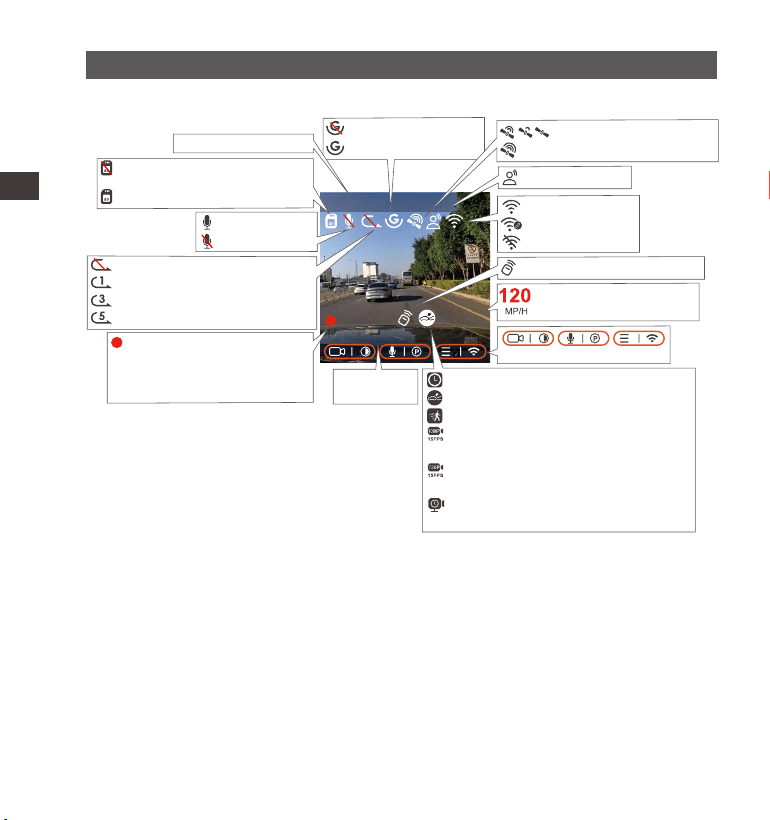
Descripción de la pantalla
Sensor G apagado
Sensor G encendido
Control remoto conectado
Conectando a señal GPS
Señal GPS bloqueada
Asistente de voz
Tiempo de
grabación en modo
de estacionamiento
(video actual)
Velocidad de grabación
grabada (KMH o MPH)
Mic encendido
Mic apagado
00:00:37
Fecha y
hora actual
Lapso de tiempo encendido
Detección de colisiones encendido
Detección de movimiento encendido
Grabación en 1080P con tasa de bits
baja en 15FPS
Grabación en 720P con tasa baja de
bits en 15FPS
Modo de estacionamiento con
velocidad de fotogramas baja
Resolución del video
Tarjeta de memoria NO
insertada
Tarjeta de memoria insertada
Grabación en bucle apagada
Grabación en bucle por 1 mins
Grabación en bucle por 3 mins
Grabación en bucle por 5 mins
ENENENES
Wskazanie przycisku
WiFi Activado
WiFi Conectado
WiFi Desactivado
- 45 -
3. Instalación
3.1 Instalar una tarjeta de memoria (se recomienda la tarjeta microSD de alta
velocidad U3 de Vantrue)
Por favor inserte una tarjeta de memoria compatible (capacidad de la
tarjeta de memoria: 32GB-512GB, velocidad de la tarjeta:
U3/Clase10/A2), debido a que la cámara tiene ciertos requerimientos
para la velocidad de la tarjeta de memoria. Para una operación
confiable, nosotros recomendamos usar la tarjeta SD VANTRUE (se vende
por separado).
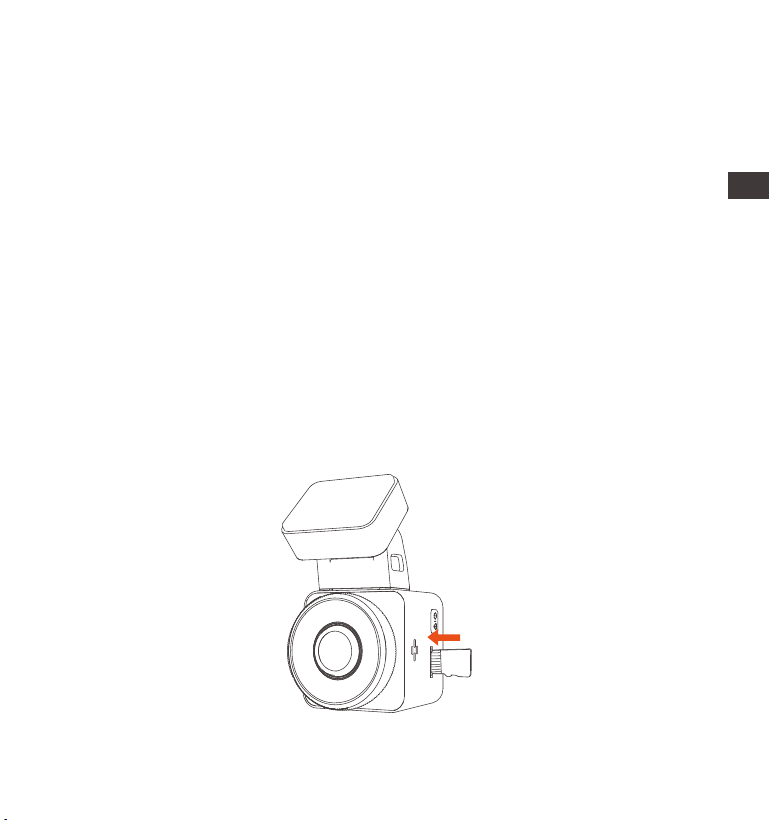
Instalación de la tarjeta de memoria: Hay un ícono indicando la
dirección de inserción de la tarjeta de memoria. Por favor introduzca la
tarjeta de memoria en la ranura de tarjeta de acuerdo a la dirección
indicada por el ícono, hasta que un “clic” audible sea escuchado en la
ranura de la tarjeta, indicando que la tarjeta de memoria fue insertada
apropiadamente.
EN
EN
EN
ES

- 46 -
Antes de usar esta tarjeta, por favor siga los siguientes pasos para
formatearla apropiadamente:
Si la cámara está grabando, por favor presione el ícono de para
pausar la grabación, entonces presione el ícono de para acceder
al menú, entonces entre a “Sistema”, seleccione la opción de formatear
tarjeta , y confirme el formateo de la tarjeta de memoria hasta que
vea en pantalla “Formateo exitoso”.
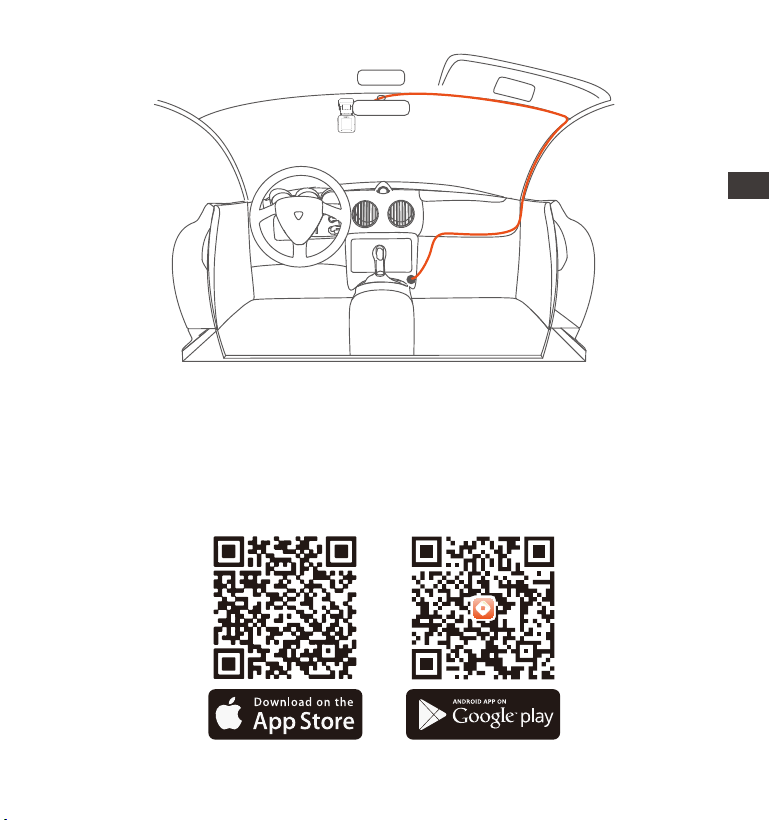
Después de insertar la tarjeta de memoria, si aparece en pantalla “error
de tarjeta, por favor formatee” (tenga en cuenta que así no se puede
grabar), por favor presione directamente el botón de para acceder
al menú y comenzar el proceso de formateo.
Nosotros recomendamos formatear la tarjeta una vez al mes para
garantizar el uso normal de la cámara;
No quite ni inserte la tarjeta de memoria durante grabaciones para
evitar la pérdida de videos importantes.
Por favor no utilice en la cámara tarjetas malas o tarjetas de baja
velocidad, ya que así es fácil que la grabación se detenga o se pierda
debido fallos en la tarjeta de memoria.
Antes de formatear la tarjeta de memoria, por favor revise el archivo
de videos de emergencia en la tarjeta SD para ver si hay algún video
que deba ser guardado en otro lado, para así no perder videos
importantes por error.
RECORDATORIO:
1.
2.
3.
4.
ENENENES
- 47 -
3.2 Instalar la cámara en su parabrisas
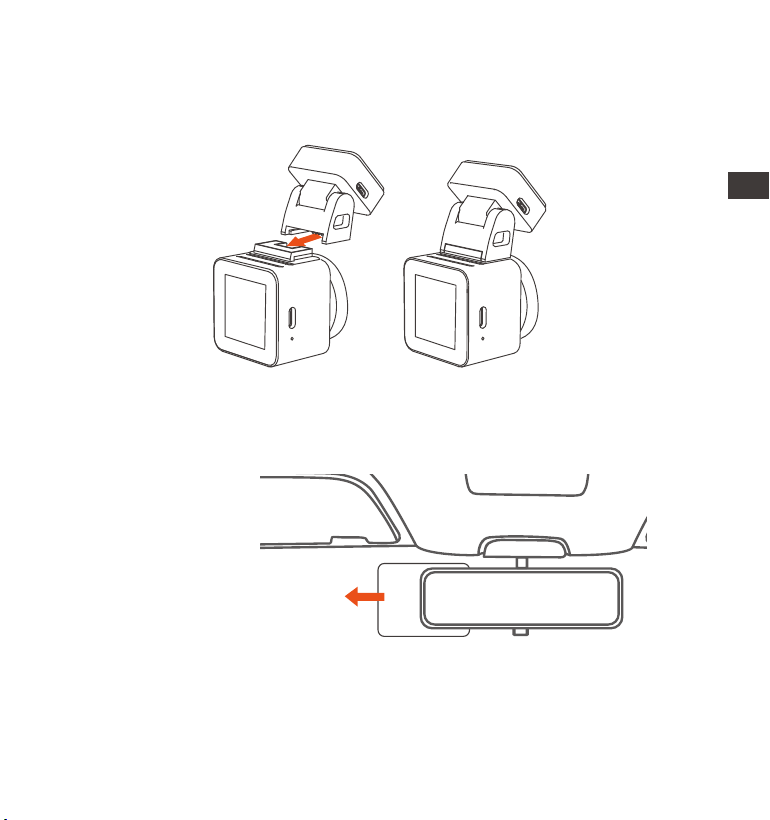
Alinee la montura con la interfaz de montura de la cámara, entonces
empuje hacia adentro hasta que la montura esté alineada.
1.
Limpie exhaustivamente el parabrisas con agua o alcohol, entonces
pase un paño seco. Fije la pegatina electroestática detrás del
retrovisor, la cual es la posición recomendada para prevenir bloqueos
de visión mientras conduce.
2.
Pegatinas electroestáticas
EN
EN
EN
ES
- 48 -
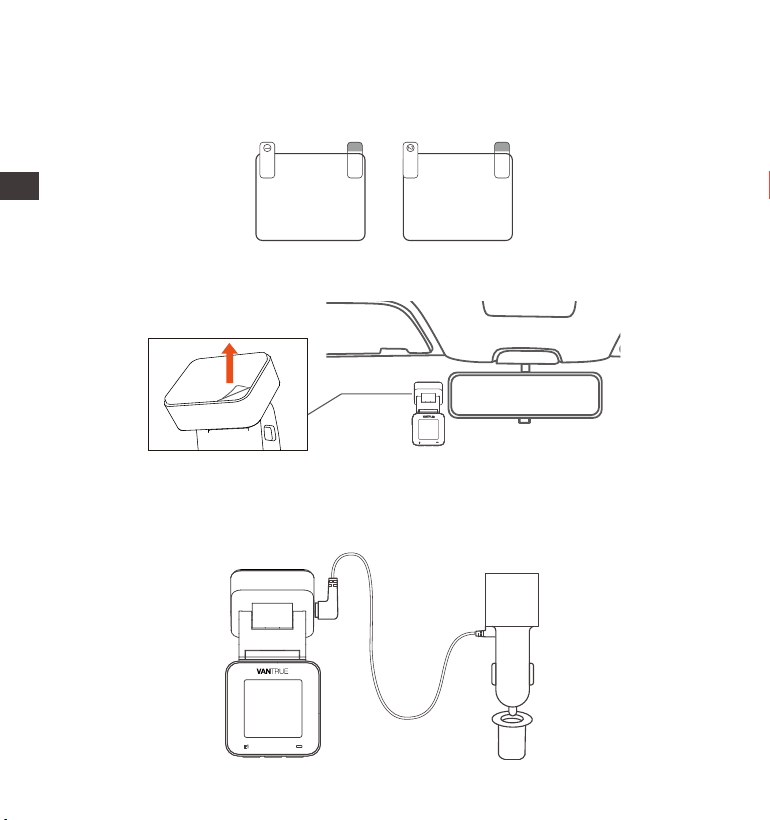
Remueva la cinta 3M de la montura, entonces fije la montura y la
cámara en la pegatina electroestática.
3.
Conecte el cargador de automóvil en el encendedor de cigarrillos del
automóvil, entonces inserte el extremo USB del cargador en el puerto
de alimentación USB Tipo C de la cámara. Después de encender el
automóvil, la cámara puede ser encendida inmediatamente.
4.
Nota: Hay dos pegatinas electroestáticas enumeradas como 1 y 2. Por
favor remueva la lámina protectora del número 1, pegue la pegatina
electroestática en el parabrisas, y entonces remueva la lámina
protectora del número 2.
Please peel off this mask
AFTER application completed
Please peel off this
mask BEFORE application
ENENENES
- 49 -
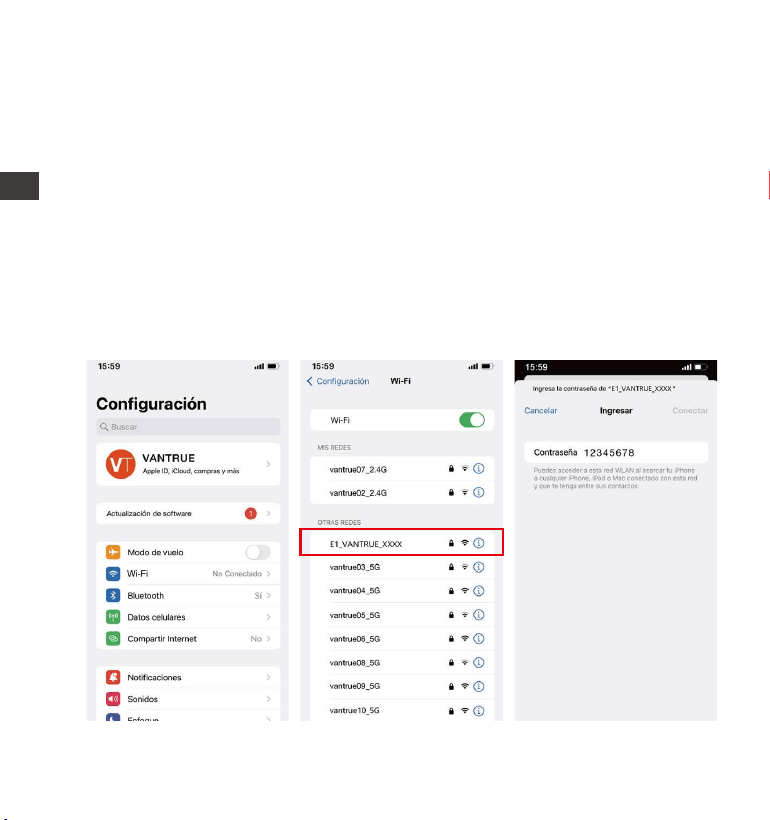
Por favor escanee la versión del código QR relevante abajo para descar-
gar e instalar la APP.
Busque la app “Vantrue Cam” en la App Store o la Google Play Store
para encontrar la app, y entonces descárguela e instálela en su teléfono
móvil.
3.3 Descargar la APP
EN
EN
EN
ES
- 50 -
Nota: Después de que esta cámara haya sido satisfactoriamente conect-
ada al teléfono móvil a través de WiFi, puede previsualizar video en
tiempo real, cambiar los ajustes de la cámara, descargar archivos sin
conexión a Internet y reproducir videos en el teléfono móvil. Sin embargo,
las funciones de reproducción de rastreo GPS y compartir video depend-
erán de los servicios de Internet o telecomunicaciones (requiere que
usted apague/desconecte el WiFi de la cámara).
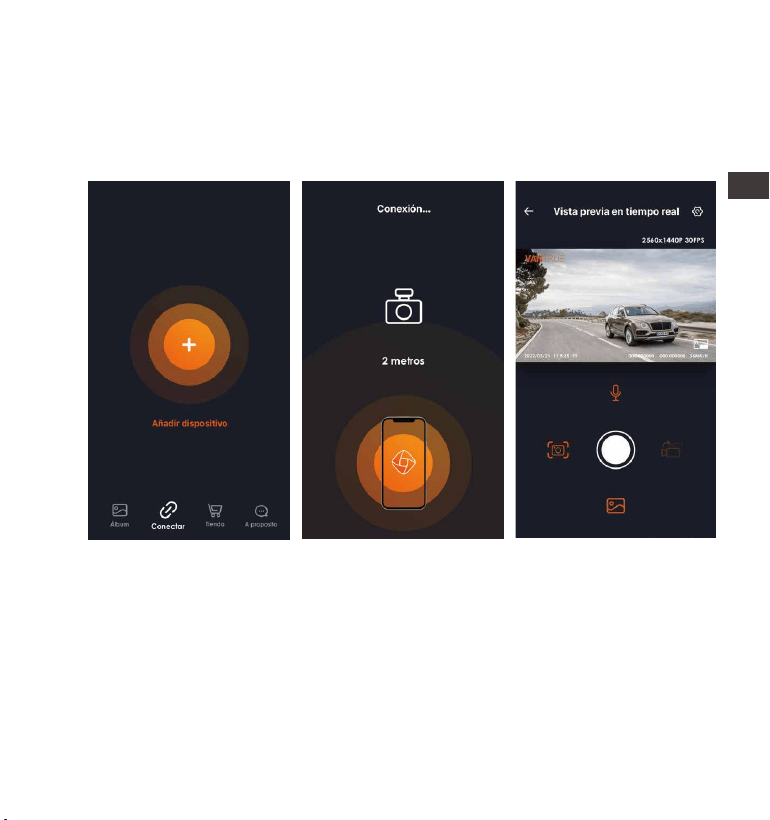
Encienda la función WiFi de la cámara, acceda a los ajustes WiFi del
teléfono móvil, y entonces encuentre el nombre del WiFi, como por
ejemplo: E1_VANTRUE_XXXX, e introduzca la contraseña predeterminada
de WiFi: 12345678 para conectarse al WiFi.
3.4 Conexión WiFi
ENENENES
- 51 -
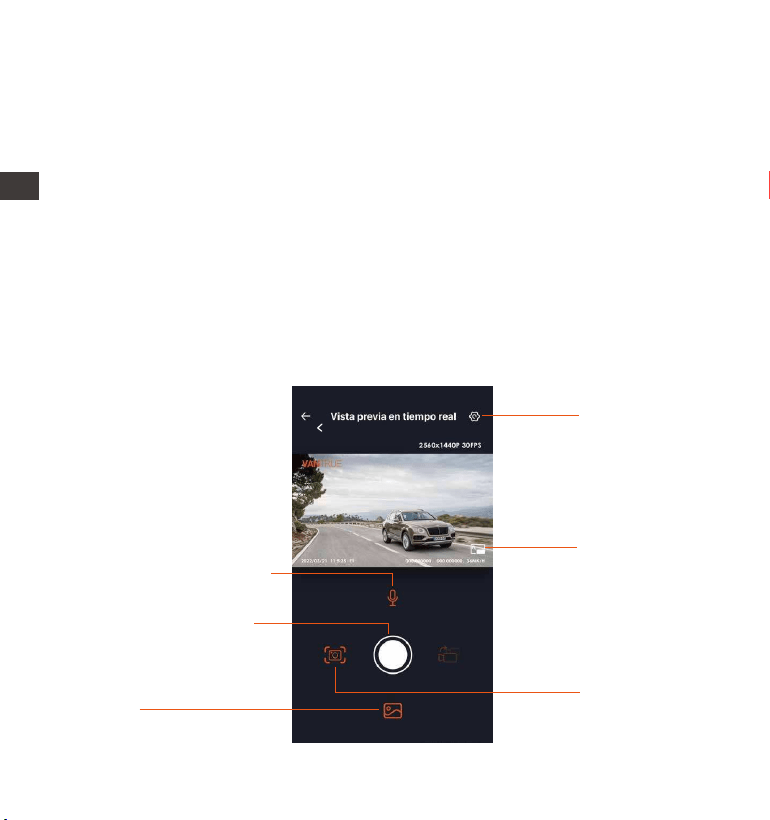
Después de que la conexión WiFi sea establecida con éxito, haga clic en
“+” cuando abra la app por primera vez, añada el modelo de cámara y
entonces la app se conectará automáticamente a la cámara y mostrará
la grabación en tiempo real de la cámara.
Nota:
Si no se conecta al WiFi antes de abrir la app, la app le mostrará “Por
favor conéctese al WiFi primero”, y automáticamente le llevará a los
ajustes de WiFi. Por favor complete los pasos para conectarse primero
al WiFi.
Si ya está conectado al WiFi, pero la app le lleva a la ventana de
permisos de aplicación después de seleccionar el modelo, por favor
verifique si el permiso de red inalámbrica de la app está habilitado.
1.
2.
3.5 Conexión con la app
EN
EN
EN
ES
- 52 -
3.6 Operación de la app
3.
4.
5.
Ustawienie
Przycisk
pełnoekranowy
Migawka
Album
Przycisk zatrzymania
nagrywania
Przełącznik mikrofonu
La contraseña inicial de este dispositivo es solo usada para el acceso
inicial. Para poder prevenir potenciales riesgos de seguridad, por favor
asegúrese de cambiar la contraseña inicial después del acceso inicial
para evitar que otros accedan a su dispositivo sin autorización o que
ocurran otras consecuencias adversas.
Si se le olvida la contraseña WiFi, puede restaurar el ajuste predetermi-
nado del dispositivo, y la contraseña Wi-Fi del dispositivo también será
restaurada a la contraseña predeterminada (12345678).
Si el nombre del WiFi conectado no coincide con el modelo de su
cámara, la app le mostrará: “Por favor seleccione el modelo correcto”
y automáticamente le llevará a la interfaz de selección de modelo
ENENENES

- 53 -
Después de acceder a la previsualización en tiempo real de la app,
puede realizar las siguientes operaciones:
Previsualización de video: Después de que la app haya sido conectada
satisfactoriamente a la cámara, acceda a la página de previsualización
en tiempo real, haga clic en el botón de pantalla completa o ponga el
teléfono móvil en posición horizontal, y la pantalla en tiempo real
cambiará automáticamente al modo de previsualización en pantalla
completa. Haga clic en el botón de cambiar de ventana para cambiar
entre las ventanas de video delantero y trasero, pero solo las cámaras de
múltiples lentes pueden usar esta función.
Reproducción de video: Los archivos de video y fotografía guardados en
la tarjeta SD pueden ser vistos en la app, y el video puede ser reproduci-
do después de hacer clic en el archivo.
Descarga de video: Puede seleccionar el video o imagen que quiere
descargar en la tarjeta SD navegando en la interfaz o en la reproducción
de video. Después de descargar el video, si lo reproduce en el archivo
local de la app, puede visualizar el rastreo GPS del video.
Captura de video: Puede realizar una captura en la pantalla actual
mediante la interfaz de previsualización en tiempo real de la app.
EN
EN
EN
ES
- 54 -
3.7 Actualización de la app
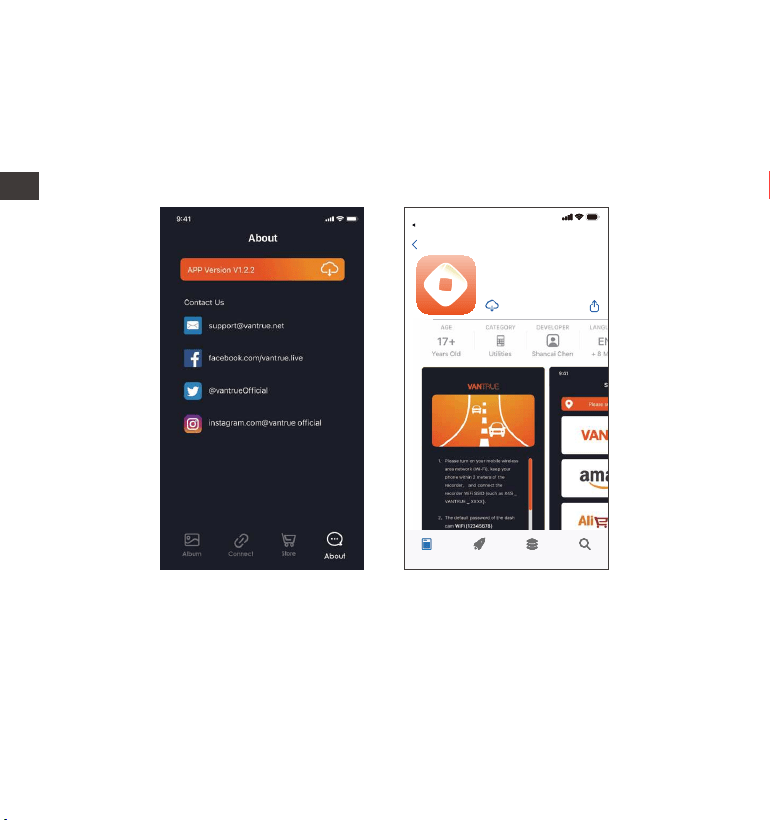
Abra la app “Vantrue Cam”, conéctese al Wi-Fi y entre a “Configura-
ción> Acerca > Detectar nueva versión". La app automáticamente
detectará si la versión de la app es la versión más reciente. Si hay una
nueva versión de la app, siga las instrucciones y actualice la versión.
Vantrue Ltd.
Vantrue Cam
VantrueCam
9:41
Today Games Apps Search
Back
ENENENES
- 55 -
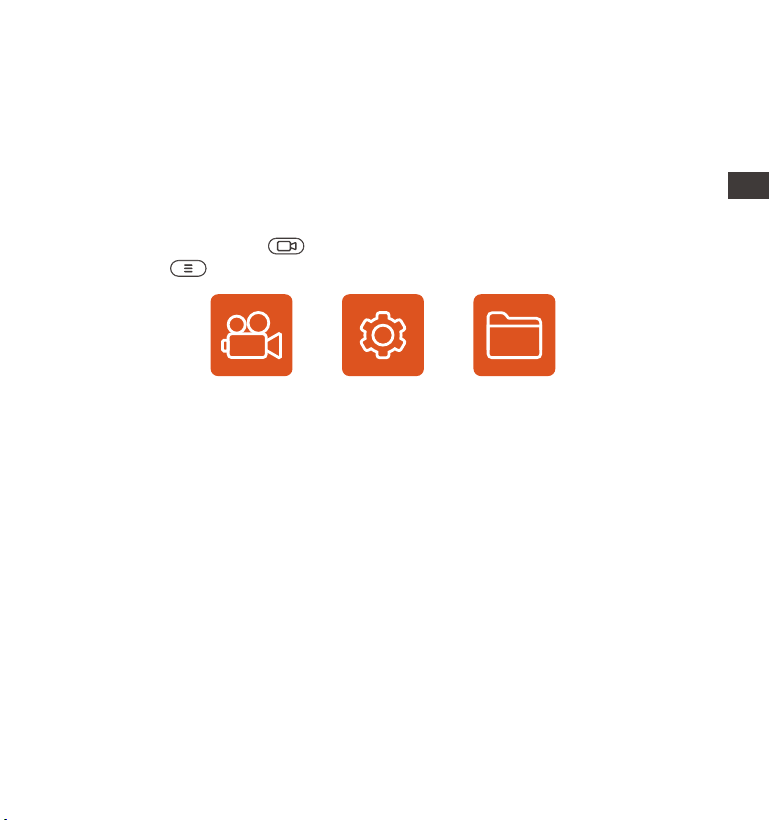
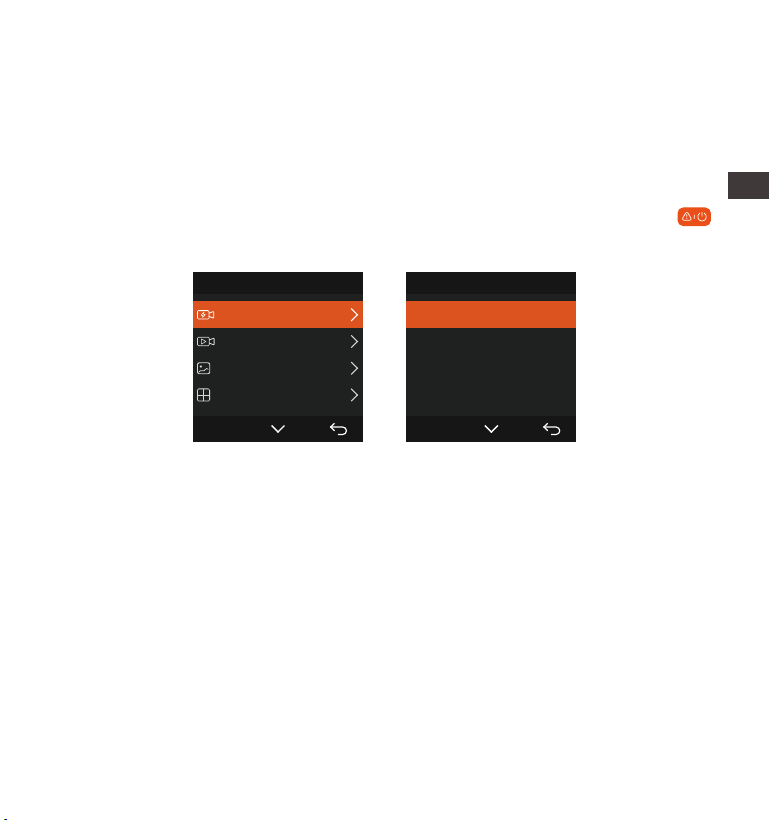
La dashcam E1 tiene 3 menús de funciones, los cuales son: configura-
ciones de grabación, configuraciones de sistema y navegador de
archivos. Usted puede configurar su cámara de acuerdo a sus requer-
imientos en esta configuración de funciones.
Presione el botón de , pause el video primero, entonces presione el
botón de para acceder al menú de configuraciones.
4. Operación básica
4.1 Ajustes del menú
Vídeo Sistema Archivos
A. Configuración de grabación
-Resolución: Presione el botón de abajo para cambiar entre las resolu-
ciones: 2592x1944P 30FPS; 2560x1440P(HDR) 30FPS; 2560x1440P 30FPS;
1920x1080P 60FPS; 1920x1080P(HDR) 30FPS; 1920x1080P 30FPS;
1280x720P(HDR) 30FPS; 1280x720P 30FPS.
-Grabación en bucle: La configuración predeterminada es de 3 mins.
Usted puede elegir opciones de 1/2/3/4/5 min y apagado.
-Sensor G: Seleccione el nivel del sensor G que necesite, y puede
configurar 3 direcciones (Delantera + Trasera/Izquierda + Derecha/Arri-
ba + Abajo). El valor del sensor G en cada dirección puede ser configu-
rado como 1/2/3/4/5/apagado. Entre más alto sea el nivel de sensibili-
dad, más fácil es activar la grabación de emergencia. El sensor G es
más sensible cuando está configurado en 5.
-Grabación de audio: La configuración predeterminada es encendido.
EN
EN
EN
ES

- 56 -
Puede configurar la grabación de audio como encendida o apagada.
-Exposición: El valor predeterminado es +0.0. Configura la exposición de
la lente.
-Luz indicadora de grabación: La configuración predeterminada es
encendido, y puede seleccionar el encender/apagar la luz de estatus
de grabación.
-Girar pantalla: La configuración predeterminada es apagado. Usted
puede elegir entre rotar la pantalla hacia arriba y abajo (180 grados).
-Número de placa: Presione el botón de abajo para seleccionar el
número o letra que desea establecer. Después de configurarlo, su
número de placa aparecerá en el video grabado.
-Sello: Habilita o deshabilita el sello de marca de agua de los videos y
fotografías. El sello de marca de agua incluye etiqueta de fecha y hora,
etiqueta VANTRUE, número de placa, información de ubicación GPS y
etiqueta de velocidad. Todo está habilitado por defecto.
-Lapso de tiempo: El valor predeterminado es deshabilitado. Usted
puede decidir habilitar 1FPS/5FPS/10FPS/15FPS.
-Modo de estacionamiento: Usted puede elegir el modo de estaciona-
miento que necesite,Detección de colisiones/Detección de movimien-
to/Modo de Tasa de Bits Baja/Modo de velocidad de fotogramas
baja/Apagado.
-Configuración de GPS: El GPS está habilitado por defecto. Aquí se
configuran los ajustes de gps y los ajustes de unidad de velocidad.
B. Configuración del sistema
-Idioma: Los idiomas disponibles son English/ Français/ Español/ Deutsch/
Italiano/简体中文/русский/ 日本語/ Polski.
-WiFi: La configuración predeterminada es apagado. Después de que el
WiFi es habilitado, los teléfonos móviles pueden conectarse a WiFi y
operar la cámara a través de sus teléfonos móviles.
-Configuración de pantalla: La configuración predeterminada es Modo
ENENENES

- 57 -
de pantalla completa. Usted puede cambiarlo al Modo de vista comple-
ta.
-Asistente de voz: La sensibilidad predeterminada es estándar. Los
comandos de voz pueden ser reconocidos después de que la opción es
encendida. Puede elegir opciones como Baja sensibilidad/Alta sensibili-
dad/Estándar/Apagado.
-Contenido de voz: Comandos de reconocimiento de voz. Puede usar
diferentes comandos para controlar de forma remota la cámara.
-Formatear la tarjeta SD: Formatea todos los datos en la tarjeta de
memoria.
-Configuración de recordatorio de formateo: Selecciona las opciones de
recordatorio: 15 días, 1 mes y apagado. La configuración por defecto es
apagado.
Para evitar que olvide formatear la tarjeta de memoria regularmente,
hemos añadido una configuración de recordatorio de formateo. Usted
puede elegir recordatorios de 15 días o 1 mes, y calcular 15 días o 1 mes
desde la fecha establecida. Cuando acabe el tiempo, puede seleccio-
nar “OK” para formatear o puede seleccionar “Siguiente”.
Nota: Si va a cambiar la opción de recordatorio de formateo, el tiempo
se reiniciará tan pronto la opción sea cambiada.
-Hora fecha: Hay dos formas de configurar la hora y la fecha: 1. Actual-
ización automática de GPS; 2. Establecer manualmente la fecha/hora.
La actualización automática del GPS está habilitada por defecto.
El GPS actualiza automáticamente la fecha y hora basado en su zona
horaria, así que necesita seleccionar primero la zona horaria correcta.
Puede elegir el apagar Actualización automática de GPS; el encender
Establecer manualmente la fecha/hora, el encender Configuración
manual de fecha/hora y el corregir manualmente la fecha y la hora.
La configuración de formato de fecha y zona horaria también puede ser
establecida en este menú.
-Apagado automático de LCD: Configura la hora para apagar automáti-
EN
EN
EN
ES

- 58 -
camente la pantalla LCD después de no detectar ningún comando.
Si usted configura Apagado automático de LCD en 3 min, la pantalla
LCD de la cámara se apagará automáticamente después de 3 min
pero continuará grabando. Si lo configura como Apagado, la pantalla
no se apagará. Presione el botón de arriba para elegir la opción que
quiera: 30s, 1min, 3min y Apagado.
-Sonido del dispositivo: Establece el volumen del dispositivo. El nivel de
volumen por defecto es 3, el más bajo es 0, y el más alto es 5.
-Tono de advertencia: De acuerdo a diferentes situaciones, la cámara
está configurada con 5 tonos de advertencia, los cuales son: Sonido de
encendido/apagado, Sonido de teclas, Bloquear tono, Formatear
sonido y Tono de grabación anormal. Todos los tonos de advertencia
están encendidos de forma predeterminada.
-Frecuencia: Diferentes países tienen diferentes frecuencias para evitar
que el video se vea afectado, puede elegir una frecuencia de 50Hz o
60Hz de acuerdo a las diferentes regiones.
-Información del sistema: Revisa el modelo actual, versión de software y
la página web oficial de Vantrue.
-Configuración por defecto: Reinicia el dispositivo de vuelta a la
configuración por defecto.
C. Archivos
Revisa los archivos de video y foto grabados por la cámara.
-Evento: Videos de eventos críticos detectados por la actividad del
sensor G o manualmente bloqueados por el usuario. El formato de
nombre de archivo es 20300128_140633_0008_E_A.MP4.
-Normal: Videos estándar grabados. Este archivo guarda videos de
ENENENES

- 59 -
grabación en bucle, videos de modo de estacionamiento y videos de
lapso de tiempo. El formato de nombre de archivo de los videos de
grabación en bucle es 20300128_140633_0008_N_A.MP4; el formato de
nombre de archivo de los videos de Modo de estacionamiento es
20300128_140633_0007_P_A.MP4; el formato de nombre de archivo de los
videos de Lapso de tiempo es 20300128_140633_0006_T_A.MP4.
-Foto: Archivos de foto.
-Todos: Todos los videos estándar y videos de evento crítico que han sido
grabados.
4.2. Especificaciones
4.2.1 Grabación en bucle
Después de insertar la tarjeta de memoria y conectar la alimentación, la
cámara E1 se encenderá automáticamente y accederá al modo de
Grabación en bucle. La duración de cada video grabado estará basada
en el tiempo de grabación en bucle que haya establecido, guardados
en el archivo de Video normal.
Cuando la capacidad del archivo de Video normal alcanza 70% de la
capacidad total, el nuevo archivo de grabación en bucle automática-
mente sobrescribirá el archivo de grabación en bucle original. Después
de que esta función es habilitada, el archivo de video sobrescribirá
automáticamente el bucle, para que así la grabación no se detenga
mientras conduce.
1.La operación normal de la función de grabación en bucle es muy
dependiente de la velocidad de la tarjeta de memoria, así que por
favor formatee la tarjeta de memoria regularmente para evitar
problemas, como por ejemplo archivos excesivos y deterioración de
la tarjeta, que afecten la grabación en bucle normal.
Aviso:
EN
EN
EN
ES
- 60 -
4.2.2 Grabación de evento
El video de evento es activado por el sensor G (sensor de gravedad), que
puede ser activado automáticamente o bloqueado manualmente.
Al conducir, dependiendo de circunstancias especiales, la cámara se
bloqueará automáticamente para grabaciones de emergencia o usted
puede bloquearla manualmente para grabaciones de emergencia.
2.
3.
4.
Por favor revise el video de grabación en bucle regularmente para
evitar que cualquier video que necesite sea sobrescrito por el bucle.
Cuando la Grabación en bucle esté apagada, la cámara grabará
video de 5 minutos por cada clip, pero no sobrescribirá los antiguos
videos cuando la tarjeta de almacenamiento esté llena.
Después de que la grabación en bucle esté apagada, la duración de
cada video será 20 mins, y la grabación se detendrá cuando la
capacidad de la tarjeta de memoria esté llena.
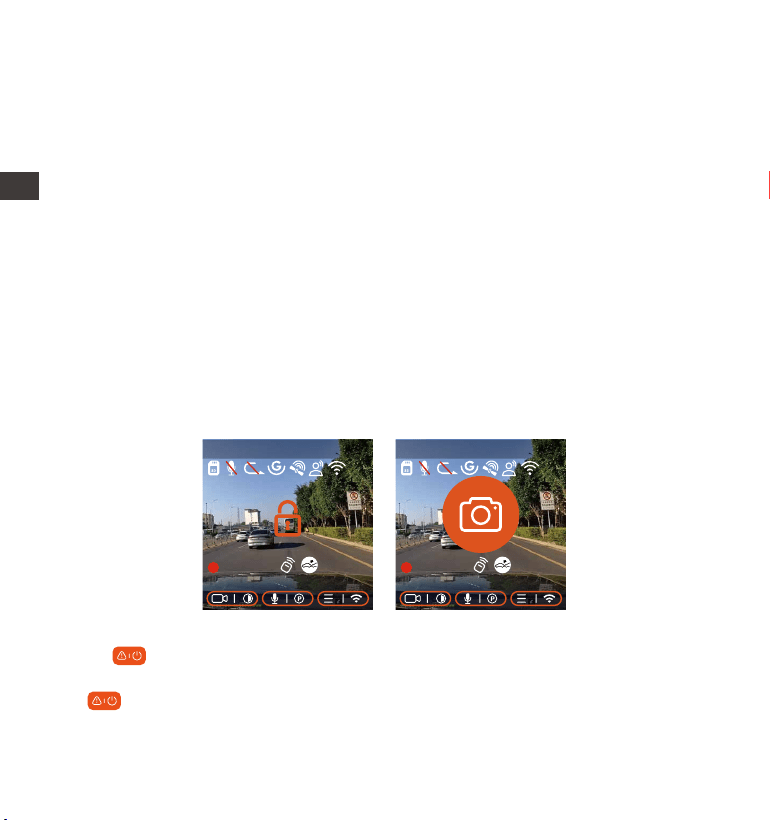
Para bloquear manualmente el video, simplemente presione el botón
de para bloquear el video actual y realizar capturas.
Durante el periodo de video bloqueado, puede presionar el botón de
para realizar capturas múltiples veces. Después de grabar, el video
será automáticamente guardado en la carpeta de videos de eventos, y
ENENENES
2560x1440P 30FPS
MP/H
00:00:37
20-08-2022 14:09:07
120
2560x1440P 30FPS
MP/H
00:00:37
20-08-2022 14:09:07
120
- 61 -
las fotos serán guardadas en la carpeta de fotos.
El bloqueo automático de video de eventos es activado cuando el
automóvil es impactado/sacudido, la cámara detecta la vibración y
automáticamente bloquea el video actual, el cual es guardado en la
carpeta de video de eventos.
Durante el periodo de grabación bloqueada, puede presionar el botón
de para tomar una fotografía. Después de que termine la grabación
del video de emergencia, el video será guardado en la carpeta de
videos de emergencia, y las fotografías serán guardadas en la carpeta
de fotos.
Nota:
La sensibilidad del bloqueo automático de activación de video es
determinado por la sensibilidad de la colisión. Entre más alta la
configuración de sensibilidad, mayor será la probabilidad de ser
activado.
La capacidad total del archivo de video de evento contabiliza el 30%
de la capacidad total de la tarjeta de memoria actual. Cuando el
archivo de video de evento alcanza su límite, un nuevo archivo de
video de evento automáticamente sobrescribirá el archivo de video
de evento original. Se recomienda revisar y guardar periódicamente
sus archivos de video de eventos para evitar pérdidas.
1.
2.
Archivos 1/4
Video del evento
Video normal
Foto
Todos los archivos
OK
Video del evento 2/5
20220820_140633_0001_E...
20220820_140633_0003_E...
2022
0820_140633_0004_E...
20220820_140633_0002_E...
OK
EN
EN
EN
ES

- 62 -
Nota:
Para garantizar que la cámara funcione apropiadamente en el modo
de estacionamiento, por favor utilice kits de hardware u otras fuentes
de alimentación estables y continuas para potenciar la cámara.
La cámara E1 tiene una temperatura de funcionamiento de -10°C a
70°C (14°F a 158°F), nosotros recomendamos seleccionar la Detección
de colisiones dentro de este rango de temperatura, ya que se
apagará automáticamente una vez que la temperatura exceda el
rango de temperatura operativa normal. Si la temperatura es alta,
apague la cámara cuando esté estacionado.
La grabación de video de lapso de tiempo y el modo de estaciona-
miento (incluyendo los modos de detección de colisiones, detección
1.
2.
3.
3. La grabación bloqueada no se activará en ninguna de las siguientes
situaciones: Grabación en bucle apagada o grabación de lapso de
tiempo encendida.
4.2.3 Modo de estacionamiento (Cuando el modo de estacionamiento
está encendido, la función de video de lapso de tiempo no funcionará.
Estas dos funciones no pueden funcionar al mismo tiempo)
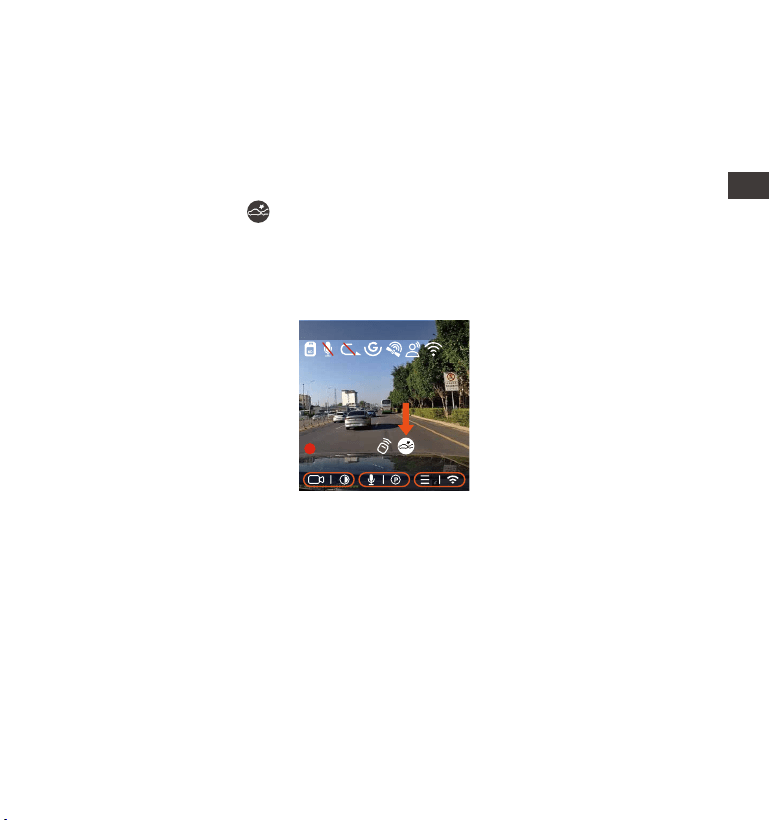
El Modo de estacionamiento funciona como vigilancia en diferentes
situaciones. Puede cambiar entre diferentes modos de monitoreo de
estacionamiento de acuerdo a las diferentes situaciones de estaciona-
miento.
Después de que el modo de estacionamiento es encendido, hay dos
formas para acceder al modo. Puede esperar 5 minutos para acceder
automáticamente, o puede mantener presionado el botón de evento
para acceder manualmente.
ENENENES
- 63 -
de movimiento, grabación de tasa baja de bits y modo de velocidad
baja de fotogramas) solo pueden ser habilitados uno a la vez. Cuando
uno esté habilitado, el otro automáticamente se deshabilitará.
Detección de colisiones
Cuando la detección de colisiones está habilitada, el ícono de detec-
ción de colisiones aparecerá en la interfaz de grabación, indicando
que la grabadora actualmente está usando el modo de detección de
colisiones. La sensibilidad de detección de colisiones puede ser ajustada
de nivel 1 al 5, pudiendo ajustarla de acuerdo a sus hábitos, al igual que
por lo que rodee al automóvil.
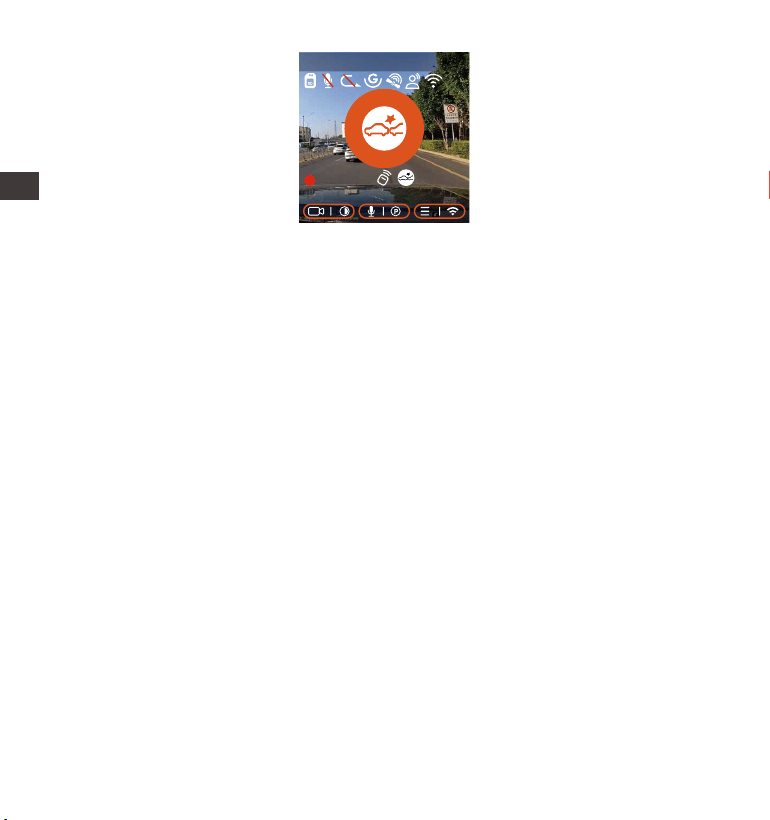
Cuando la detección de colisiones esté encendida y no se detecte
movimiento después de 5 minutos de grabación (mecanismo de
entrada de 5 minutos, para abreviar), la detección de colisiones se
activará con un ícono de detección de colisiones en la esquina inferior
derecha de la pantalla, pero la cámara se apagará automáticamente.
Cuando la cámara esté apagada, comenzará a grabar por 1 minuto
después de ser sacudida, entonces se apagará nuevamente.
EN
EN
EN
ES
EN
EN
EN
ES
2560x1440P 30FPS
MP/H
00:00:37
20-08-2022 14:09:07
120
- 64 -
Nota:
Si la cámara continúa siendo impactada durante la grabación de
detección de colisiones, saldrá del modo de detección de colisiones y
entrará a la grabación normal, reiniciando el mecanismo de entrada
de 5 minutos.
El video de detección de colisiones será guardado en la carpeta
Normal. Para evitar que el video sea borrado en bucle, por favor revise
de vez en cuando y guarde el archivo de detección de colisiones que
necesite para evitar pérdidas.
1.
2.
ENENENES
2560x1440P 30FPS
MP/H
00:00:37
20-08-2022 14:09:07
120
- 65 -
Detección de movimiento
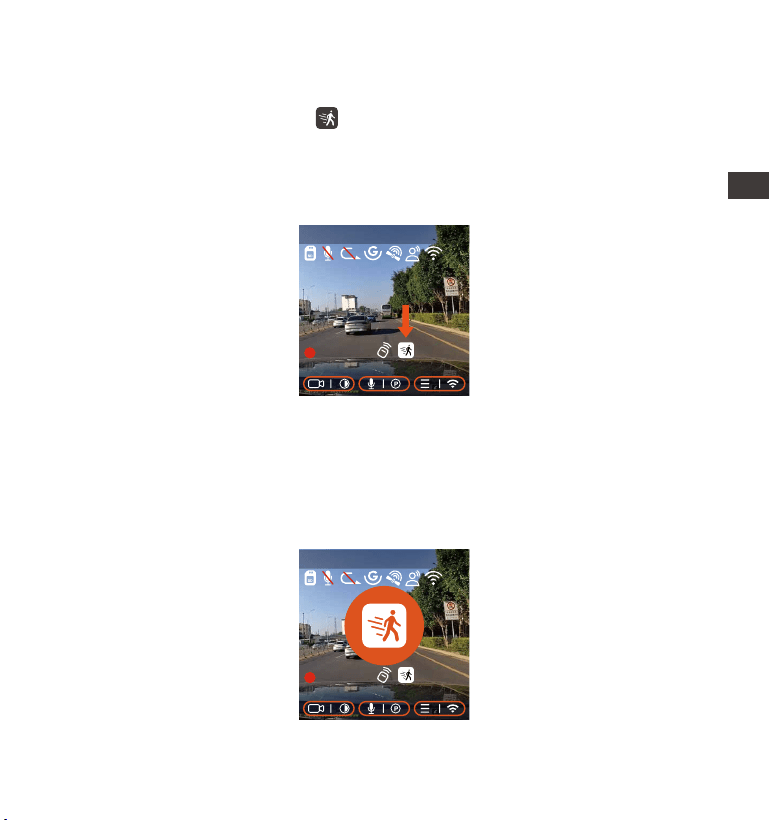
Cuando la detección de movimiento esté encendida, el ícono de
detección de movimiento aparecerá en la interfaz de grabación,
indicando que la cámara está actualmente en el modo de detección
de movimiento. La detección de movimiento tiene tres niveles, Bajo/Me-
dio/Alto, que pueden ser ajustados, y el rango de detección de
movimiento es 2m/4m/6m.
Cuando la detección de movimiento está activada y no se detecte
movimiento después de 5 minutos de grabación, un ícono anaranjado
aparecerá en el medio de la pantalla, y la pantalla se apagará después
de 3 minutos.
Cuando la cámara frontal detecta el movimiento del objeto, comenzará
a grabar automáticamente por 30 segundos y guardará la grabación en
la carpeta Normal.
EN
EN
EN
ES
2560x1440P 30FPS
MP/H
00:00:37
20-08-2022 14:09:07
120
2560x1440P 30FPS
MP/H
00:00:37
08-20-2022 14:09:07
120

- 66 -
Nota:
El modo de detección de movimiento debe ser utilizado cuando la
cámara esté encendida. Una vez que la cámara se apague, el modo
de detección de movimiento no funcionará.
Las resoluciones de 1944P y 1440P HDR no son compatibles con la
función de pregrabado, entonces después de habilitar la detección
de movimiento, la resolución automáticamente cambiará a 1440p
para grabar.
1.
2.
Grabación con tasa de bits baja
Cuando la grabación con tasa de bits baja esté habilitada, el ícono de
o aparecerá en la esquina inferior derecha de la pantalla, depend-
iendo de si elige 1080P 15FPS o 720P 15FPS.
Si no se detecta movimiento después de 5 minutos de grabación, el
ícono de aparecerá en el centro de la pantalla. La resolución del video
actual cambiará automáticamente a 1080P 15 FPS o 720P 15 FPS para
grabación, y la duración de la grabación estará determinada por la
duración establecida de la grabación en bucle. Cuando la cámara
vibre o sea movida, se saldrá automáticamente, espere 5 minutos e
inténtelo de nuevo.
ENENENES
2560x1440P 30FPS
MP/H
00:00:37
08-20-2022 14:09:07
120
- 67 -
Nota:La grabación con tasa de bits baja necesita ser realizada cuando la
cámara esté encendida. Una vez que la cámara esté apagada, la
grabación con tasa de bits baja no funcionará.
Modo de tasa baja de fotogramas
Cuando el modo de tasa baja de fotogramas es seleccionado, la
cámara grabará de acuerdo a la selección de 1FPS/5FPS/10FPS/15FPS.
Por ejemplo, si usted selecciona 1FPS y la tasa de fotogramas del video
actual es de 30FPS, la grabadora generará un video de 30FPS. El modo
de tasa baja de fotogramas puede preservar bien la integridad del video
y ahorrar espacio en la tarjeta de memoria.
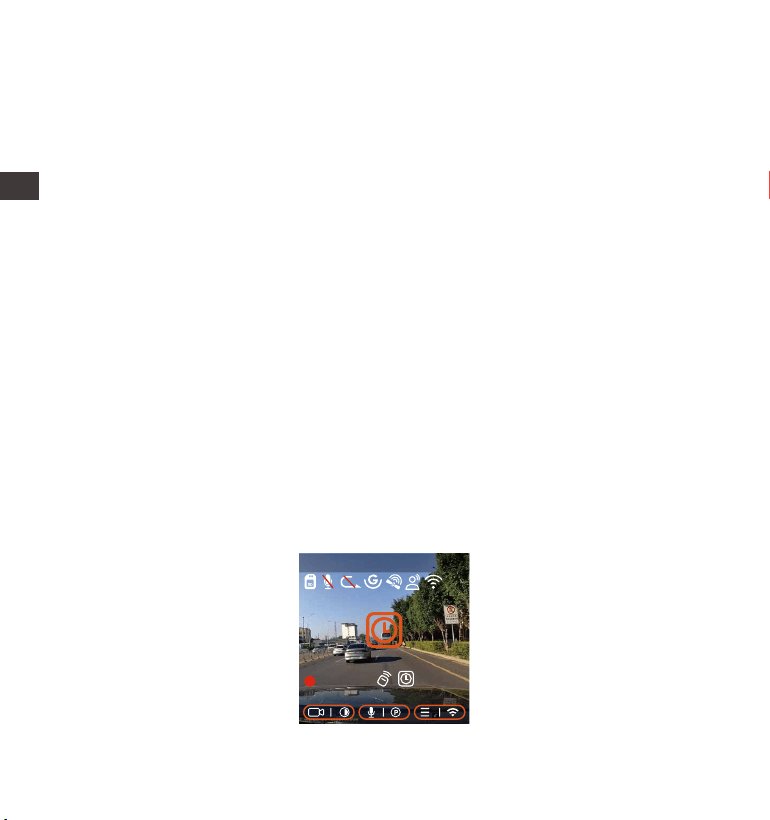
[Tiempo de grabación normal = Tiempo de grabación de lapso de
tiempo (seg) x Tasa de fotogramas de la grabación/opción de lapso de
tiempo]
(El tiempo debe ser convertido en segundos)
ES
EN
EN
EN
ES
2560x1440P 30FPS
MP/H
00:00:37
08-20-2022 14:09:07
120
- 68 -
4.2.4 Lapso de tiempo
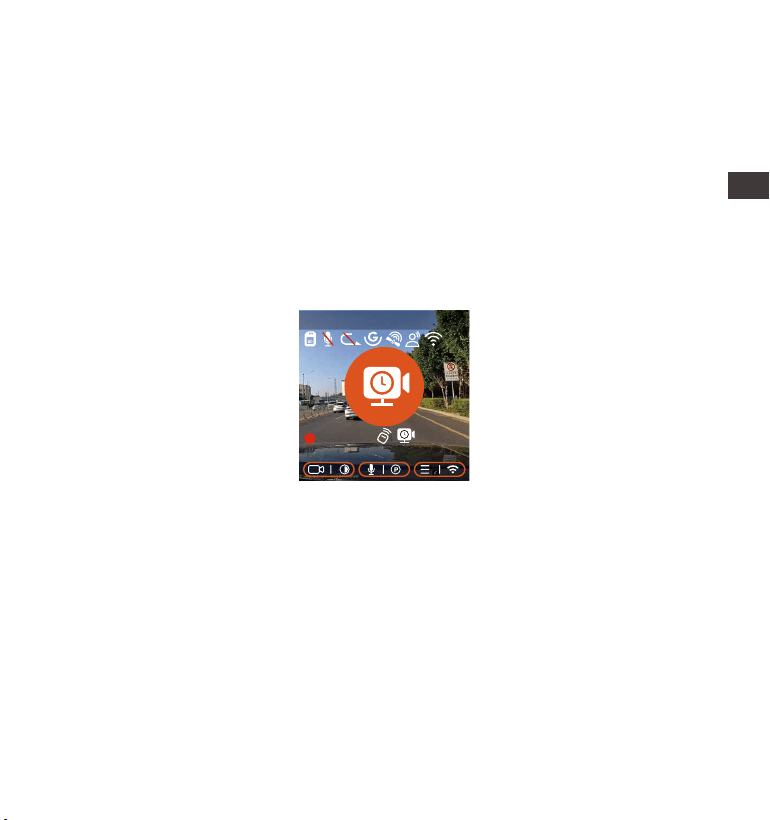
Cuando el lapso de tiempo es seleccionado, la cámara grabará de
acuerdo a la selección de 1FPS/5FPS/10FPS/15FPS.
Por ejemplo, si usted selecciona 1 FPS y la tasa de fotogramas del video
actual es de 30FPS, la cámara generará un video de 30FPS. El modo de
tasa baja de fotogramas puede preservar mucho la integridad del video
y ahorrar espacio en la tarjeta de memoria.
Nota:
La unidad de tiempo de la fórmula de cálculo es segundos, así que el
tiempo de grabación normal final calculado también es en segundos.
Si necesita convertirlo en otras unidades de tiempo, por favor realice la
conversión usted mismo.
El modo de tasa baja de fotogramas es similar a la función de
grabación de lapso de tiempo, pero la diferencia es que no hay un
mecanismo de entrada de 5 minutos para la grabación de lapso de
tiempo, la cual se encenderá directamente después de configurarla.
En el modo de tasa baja de fotogramas, la cámara también necesita
una fuente de alimentación estable. Una vez que se agote la energía,
la cámara se apagará.
1.
2.
3.
ENENENES
2560x1440P 30FPS
MP/H
00:00:37
08-20-2022 14:09:07
120

- 69 -
4.2.5. Función de GPS
La función de GPS también es una de las funciones importantes de la
dashcam. El GPS está habilitado por defecto, y la cámara recibe señales
GPS a través de la montura de GPS. Puede corregir automáticamente la
fecha y la hora en su área, guardando al mismo tiempo la ubicación
donde el video fue grabado y la velocidad del automóvil.
Nota:
La conexión GPS será completada en menos de 1 minuto después de
que encienda el dispositivo. Si la conexión GPS no es exitosa en menos
de 1 minuto, por favor revise si el DISPOSITIVO tiene la función de GPS
encendida, si el soporte del GPS está conectado apropiadamente y su
ambiente (estacionamiento subterráneo, área residencial densamente
poblada, metro, túnel, etc.) también afectará la recepción de la señal
GPS.
La información del GPS es guardada en el video que haya grabado.
Para verlo, por favor descargue e instale la app VANTRUE Cam y
VANTRUE GPS Player (disponibles en www.vantrue.net).
1.
2.
Información GPS
40
46
39
43
48
EN
EN
EN
ES
- 70 -
4.2.6 Hora automática mediante GPS
La configuración de corrección automática de hora mediante GPS de
la dashcam E1 está habilitada por defecto. Usted puede seleccionar la
hora eligiendo su zona horaria, por ejemplo GMT-08:00 Los Ángeles. Si no
sabe la zona horaria de su ubicación, puede usar el WiFi para conec-
tarse a la app de Vantrue CAM, y confirmar que la función de ajuste
automático de hora en la app está encendida.
4.2.7 Control remoto inalámbrico
La cámara está equipada con un control remoto que puede ser usado
para controlar rápidamente la cámara y tomar fotos, grabar videos de
emergencia, encender/apagar la grabación y otras funciones.
Conexión del control remoto:
Remueva el espaciador de las baterías en el control remoto, la cámara
automáticamente se sincronizará con el control remoto. No se requiere
una sincronización manual con la cámara.
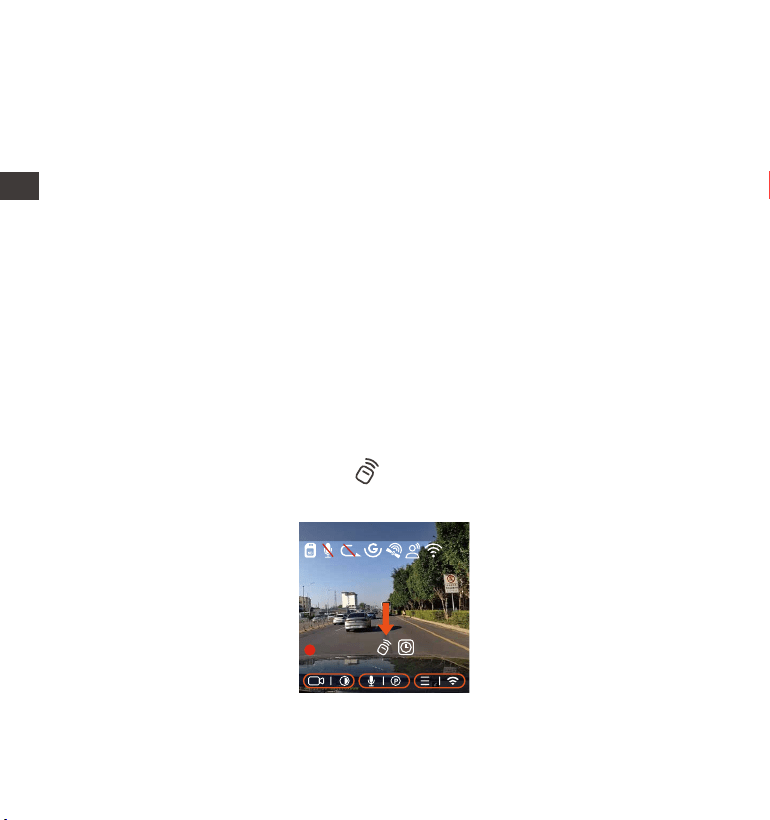
Cuando aparezca el ícono de en la pantalla, significa que el control
remoto ha sido conectado satisfactoriamente.
ENENENES
2560x1440P 30FPS
MP/H
00:00:37
20-08-2022 14:09:07
120
- 71 -
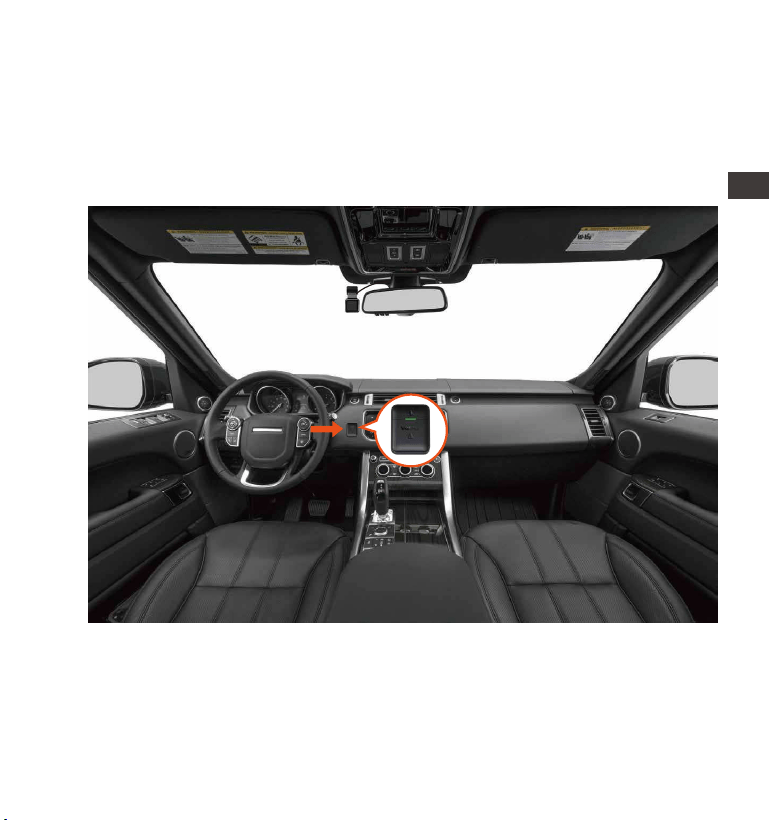
Instalación del control remoto:
Después de que el control remoto esté conectado a la cámara, por
favor seleccione la ubicación apropiada en su automóvil, entonces
remueva la pegatina adhesiva del control remoto y péguela en la
ubicación seleccionada. (Nota: El control remoto debe ser instalado en
una posición que no afecte la conducción segura)
EN
EN
EN
ES
- 72 -
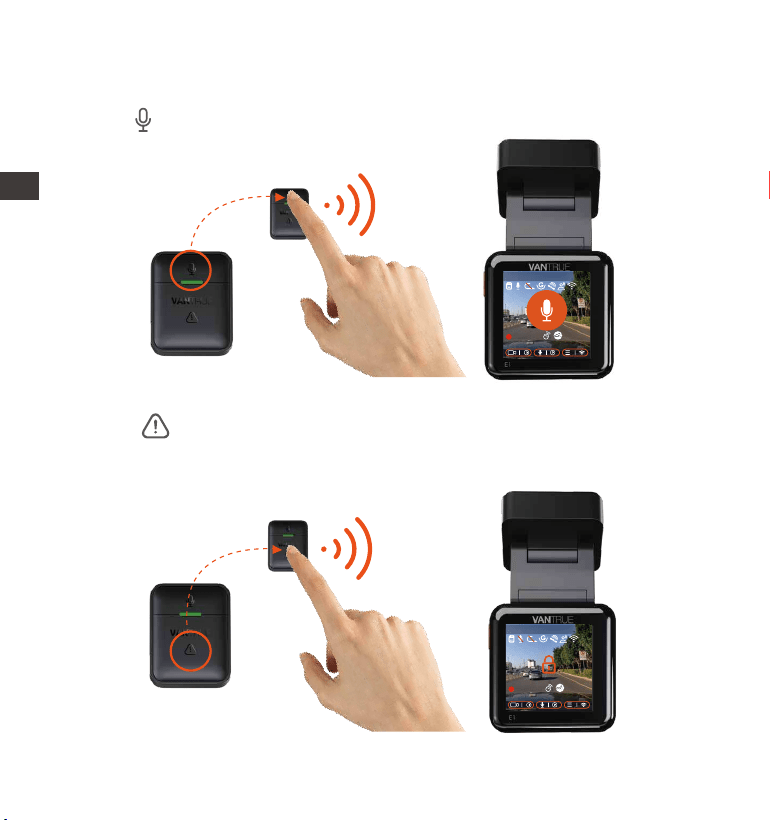
Después de que el control remoto esté conectado, presione el botón
de para habilitar o deshabilitar la grabación.
1.
Funciones del control remoto:
Después de que la conexión sea exitosa, cuando presione el botón de
SOS , la cámara bloqueará el archivo actual y realizará una
captura de video; continúe presionando durante el video bloqueado
para capturar fotografías.
2.
ENENENES
2560x1440P 30FPS
MP/H
00:00:37
20-08-2022 14:09:07
120
2560x1440P 30FPS
MP/H
00:00:37
20-08-2022 14:09:07
120
- 73 -
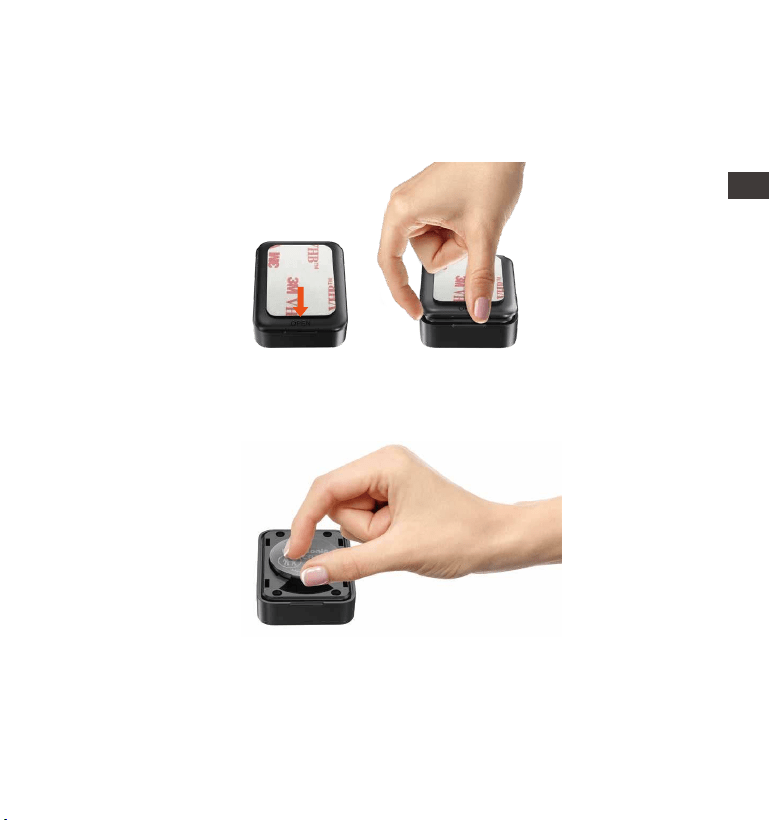
Hay una marca de “OPEN” (Abrir) en la parte inferior del control
remoto, por favor, haga palanca lentamente en el hueco que rodea
la brecha de la ranura de esta marca para abrirlo.
1.
Reemplazar la batería del control remoto:
Después de abrirlo, delicadamente retire la batería de la ranura al
frente del compartimiento de la batería, entonces reemplace la
batería por una nueva, y ponga de vuelta la tapa trasera del control
remoto.
2.
Nota:
Cuando tiene poca energía, la batería debe ser reemplazada(el modelo
de la batería del control remoto es CR2032). No es compatible con
cargado.
EN
EN
EN
ES
- 74 -
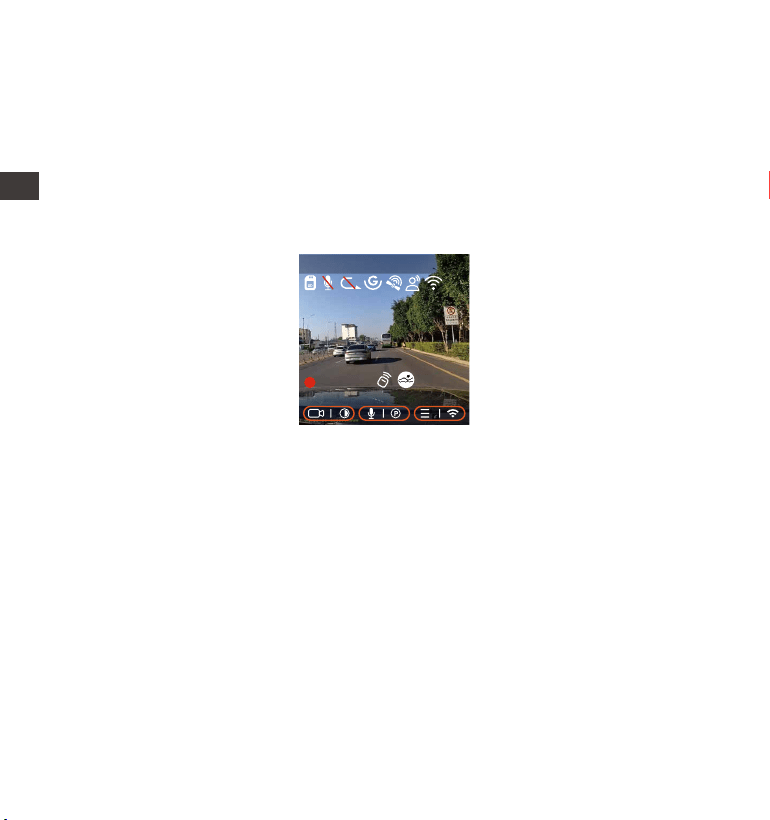
4.2.8. Asistente de voz
Además de controlar la cámara con el control remoto, usted también
puede darle comandos de voz a la grabadora a través del asistente de
voz, Para obtener información más detallada, por favor revise Configura-
ción de sistema > Contenido de voz.
La configuración por defecto es sensibilidad estándar. El reconocimiento
de voz tiene opciones como Baja sensibilidad/Estándar/Alta sensibili-
dad/Apagado. Puede controlar la cámara con comandos de voz.
ENENENES
2560x1440P 30FPS
MP/H
00:00:37
20-08-2022 14:09:07
120
- 75 -
4.2.9. Configuración de pantalla
La E1 es una cámara de pantalla pequeña, así que nosotros añadimos
especialmente dos modos de visualización para usted.
El primero es el modo de pantalla completa, con una proporción de
pantalla más grande, pero perderá algunos de los ángulos de visual-
ización izquierdo y derecho.
El otro es el modo de vista completa. En este modo, todo el contenido
visto por la cámara de video será mostrado, y la proporción del video en
pantalla es 4:3.
EN
EN
EN
ES
2560x1440P 30FPS
MP/H
00:00:37
20-08-2022 14:09:07
120
2560x1440P 30FPS
MP/H
00:00:37
20-08-2022 14:09:07
120
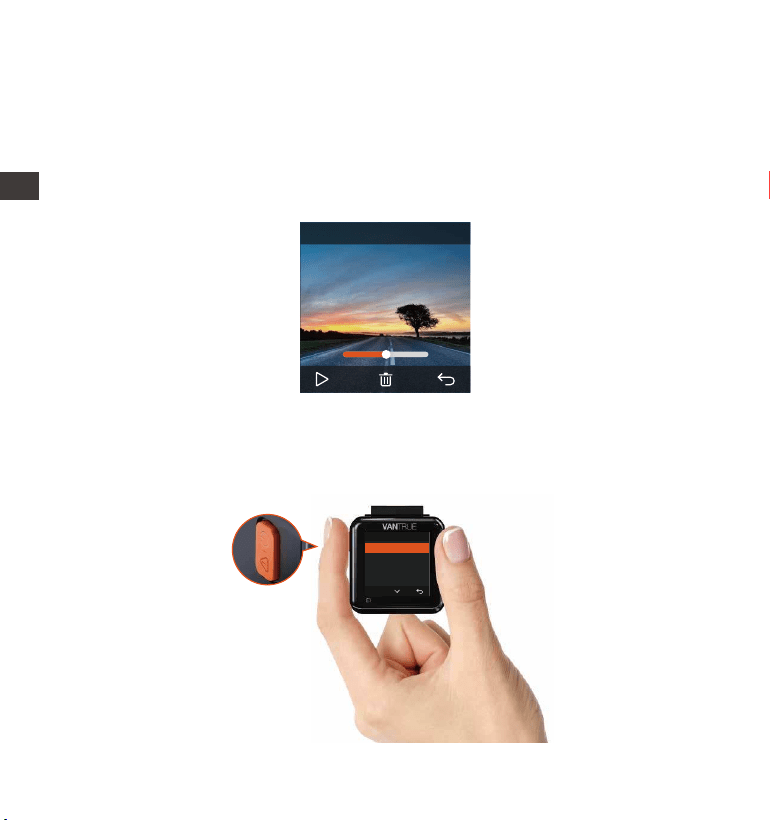
- 76 -
4.2.10. Visualización de fotos/videos
a. Visualizar archivos en la cámara
Después de acceder a “Archivos”, entre a cualquier carpeta, después de
abrir la carpeta, puede presionar el botón de abajo para seleccionar el
siguiente archivo, y presione el botón de abajo para eliminar el archivo
durante su reproducción.
Supprimer ce fichier ?
Supprimer tous les fichiers ?
OK
-- Eliminar videos
Elimina el video de la cámara. Presione el botón de grabación de
emergencia en la interfaz del explorador de archivos para hacer
emerger el menú de eliminar.
ENENENES
00:30 01:07
1280x720
08/22/2022
7:15
20220822_140633_0002_N
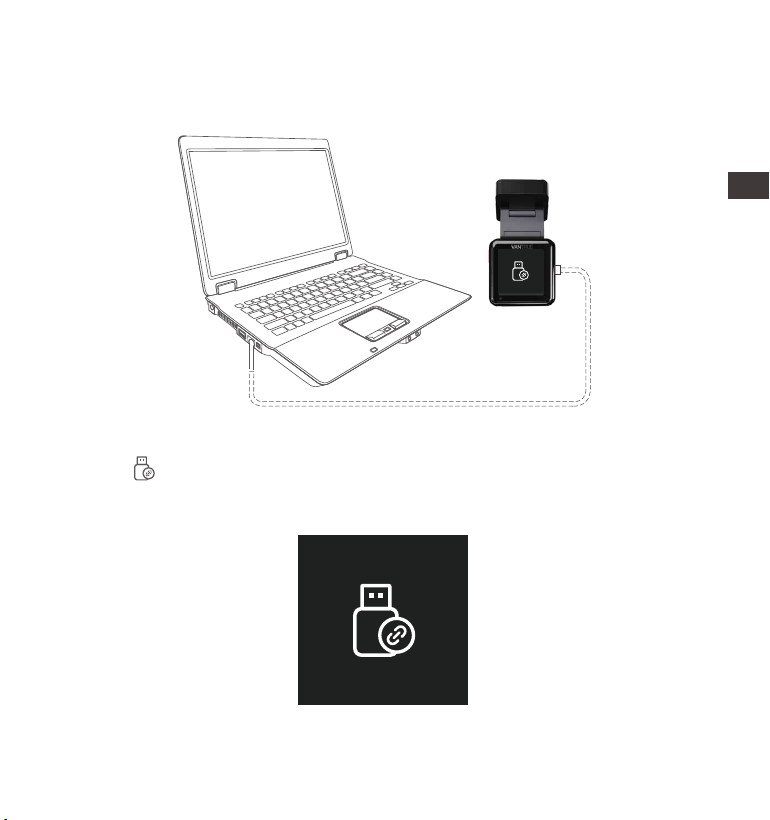
- 77 -
Después de que la conexión haya sido exitosa, aparecerá el ícono
de en la pantalla de la cámara para transferir datos, y entonces
puede ver los archivos de video en una carpeta de computadora.
b. Visualizar archivos en una computadora
1. Conecte el cable de datos USB TIPO-C a la cámara y la computadora.
2.
EN
EN
EN
ES
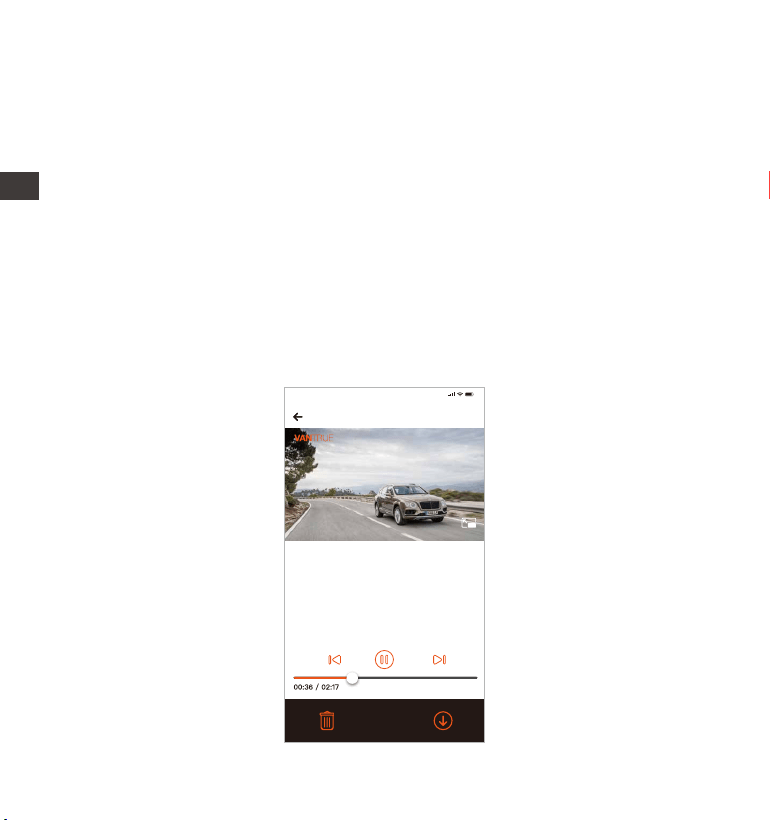
- 78 -
Dependiendo del sistema de la computadora de los diferentes
usuarios, después de que la cámara esté conectada a la computado-
ra, aparecerá como un disco removible o una carpeta removible en la
computadora.
Para ver el archivo en la computadora, puede hacer clic derecho
directamente para abrir el menú y borrarlo.
También puede usar un lector USB de tarjetas para leer la información
de la tarjeta de memoria.
3.
4.
5.
c. Visualizar en la app “Vantrue Cam”
Después de que la cámara está satisfactoriamente conectada al
teléfono móvil por WiFi, puede reproducir, descargar y eliminar videos en
la app móvil.
202200822_115036_0079_N_A.MP4
05/01/2022 11:5:35 E1 000.000000. 000.000000. 36MK/H
Nota:
9:41
Para mostrar la información del GPS,
primero debe descargar el archivo de
video a la carpeta local de la
APLICACIÓN y luego reproducirlo en
la carpeta local.
ENES
ENEN
ENES

- 79 -
Nota:
No habrá consumo de tráfico de red al reproducir videos en la app o
descargarlos hacia una tarjeta SD.
Usted puede ver información de rastreo GPS solo después de que el
archivo de video es descargado y reproducido localmente. Al mismo
tiempo, debe desconectar el WiFi en la cámara, de otra forma la
información de ubicación estará en blanco.
1.
2.
4.2.11. Actualizar el firmware
El sistema se actualizará automáticamente si el archivo de actualización
está en la tarjeta micro SD. La cámara se reiniciará una vez que la
actualización haya sido completada.
La versión de firmware más reciente siempre estará disponible en la
página web oficial de VANTRUE (www.vantrue.net). Nosotros le
recomendamos registrar su producto (www.vantrue.net/register) para
recibir un correo electrónico de notificación cuando haya una nueva
actualización de firmware disponible.
4.2.12. Temperatura de funcionamiento
La cámara está diseñada para operar en temperaturas de -20 a 70°C
(-4 a 158°F), temperaturas fuera de este rango pueden degradar del
rendimiento de la cámara y pueden causar daños.
Para evitar daños
En clima caliente, no exponga la cámara directamente al sol cuando el
automóvil esté estacionado. En condiciones congelantes extremas, p.e.,
-20°C (-4°F) o inferiores, desacople la cámara del parabrisas cuando no
esté en uso y guárdela en la guantera.
ES
EN
EN
EN
ES

- 80 -
5. Especificaciones
E1Modèle
English/ Français/ Español/ Deutsch/ Italiano/
简体中文/ русский/ 日本語/ Polski
2592x1944P 30FPS; 2560x1440P(HDR) 30FPS;
2560x1440P 30FPS; 1920x1080P 60FPS;
1920x1080P(HDR) 30FPS; 1920x1080P 30FPS;
1280x720P(HDR) 30FPS; 1280x720P 30FPS
Procesador Novatek de alto rendimiento
Sensor CMOS Sony
Pantalla táctil IPS de 1.54”
2.4G incorporado
Micrófono y altavoz incorporados
Externa: Tarjeta Micro SD U3 Clase 10 de
32GB-512GB (no incluida en el paquete)
Súper capacitador incorporado
MP4
DC 5V 2.4A
3.5W
De -20°C a 70°C (De -4°F a 158°F)
Chips
Sensor de imagen
Pantalla
WiFi
Lente
Idiomas
Audio
Memoria de
almacenamiento
Formato de archivo
de video
Corriente de
alimentación
Voltaje operativo
Resolución de video
Las especificaciones de este producto pueden cambiar sin previo aviso
debido a mejoras del producto.
Delantero: Ángulo de visión amplio de 160°;
apertura amplia de F/1. 8
Fuente de alimentación
Temperatura de
funcionamiento
ENENENES

- 81 -
Garantía
La Dashcam VANTRUE
®
E1 viene con una garantía completa de 12 meses.
Si usted registra su producto en nuestra página oficial (www.vantrue.net/
register), puede extender la garantía a 18 meses.
Soporte
Si tiene preguntas relacionadas a su producto, por favor no dude en
contactarnos a través de [email protected] o envíenos un mensaje a
través de la casilla de chat en vivo en www.vantrue.net. Las consultas son
normalmente respondidas en 12-24 horas.
Su opinión importa
VANTRUE
®
está firmemente comprometido a siempre mejorar nuestros
productos, servicio y experiencia de usuario. Si tiene alguna sugerencia
sobre cómo podemos ser inclusive mejores, nos encantaría recibir su
crítica constructiva. Contáctenos ahora en [email protected].
6. Garantía y soporte
Tipo C
Puerto USB
De -30°C a 85°C (De -22°F a 185°F)Temperatura de
almacenamiento
EN
EN
EN
ES
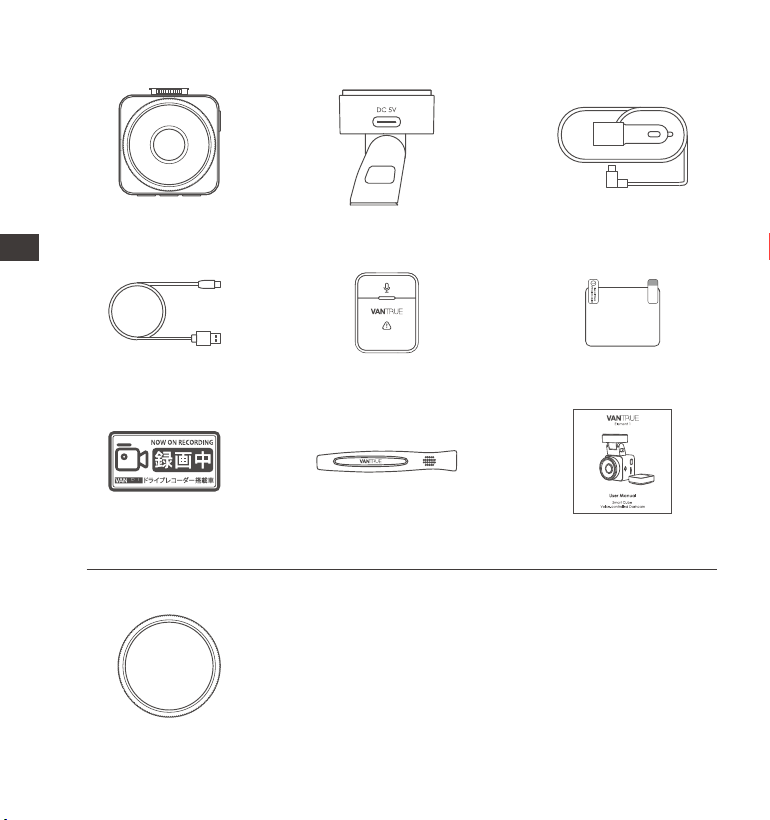
- 82 -
1.同梱内容
J. CPLフィルター
オプション品
A.
VANTRUEE1
ドライブレコーダー本体
D.
Type-C型USBケーブル
(1m/データ転送用)
G.
ドラレコステッカー
C.
Type-Cシガーソケッ
トケーブル(3.5m)
F.
静電気接着シート
I.
取扱説明書
B.
GPSマウント
E.
無線リモコン
H.
内張りはがし
ENENENJP
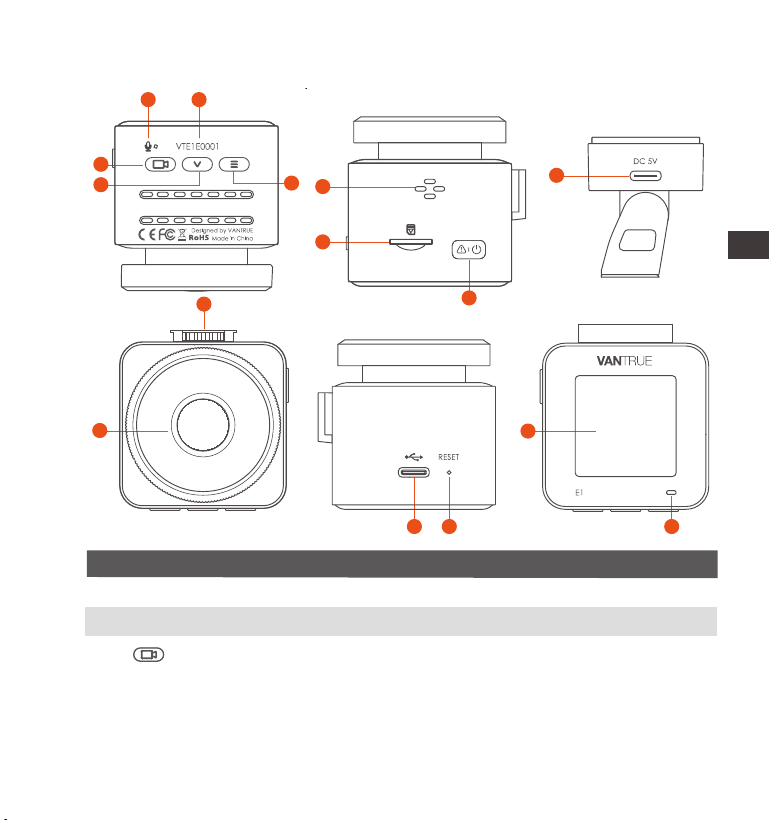
- 83 -
2. ドラレコの概要
No.
働き名称
録画中-長押しでスクリーンのオン/オフをします;
短押しで録画を停止します。
メニュー画面-確認ボタン
動画の再生画面-録画を再生/停止します。
1 マイク
2
3
ボタン/
確認ボタン
シリアル番号
保証登録用のシリアル番号。
映像とともに音声も記録します。
6
9
7
3
4
5
1 2
8
12
14
10
11
13 15
EN
EN
EN
JP

- 84 -
4
録画中/待機中-長押しで駐車モードに入ります。
短押しでマイクのオン/オフをします。
メニュー画面-次のメニューオプションへ。
動画の再生画面-次のファイルへ。
電源のオン/オフ;長押しで電源をオン/オフにします;
録画中1回短押しで緊急録画状態になり、また短押
しすれば写真を撮れます。
ボタン
6
7
8
9
10
11
12
5
ボタン
メモリカード
挿入口
スピーカー
録画中/待機中-長押しでWiFiのオン/オフをします。
録画待機中に押してメニューモードへ。
本体のType-C
ポート
向きを確認してmicroSDHCカードを挿入します。
(最大512GBのカードをサポート)
ボタン
録画の再生中に音の出口です。
フロントカメラ前方の状況を記録します。
充電やデータを転送します。
マウントと接続用です。マウント接続口
13
14
マウントの
Type-Cポート
充電用ポートです。
初期設定に戻ります。リセットボタン
スクリーン1.54インチLCDスクリーン
15
動作
LEDインジケーターの状態
15
青色ライトが点灯中
青色ライトが点滅中
待機中
録画中
EN
EN
EN
JP
ENEN
ENJP
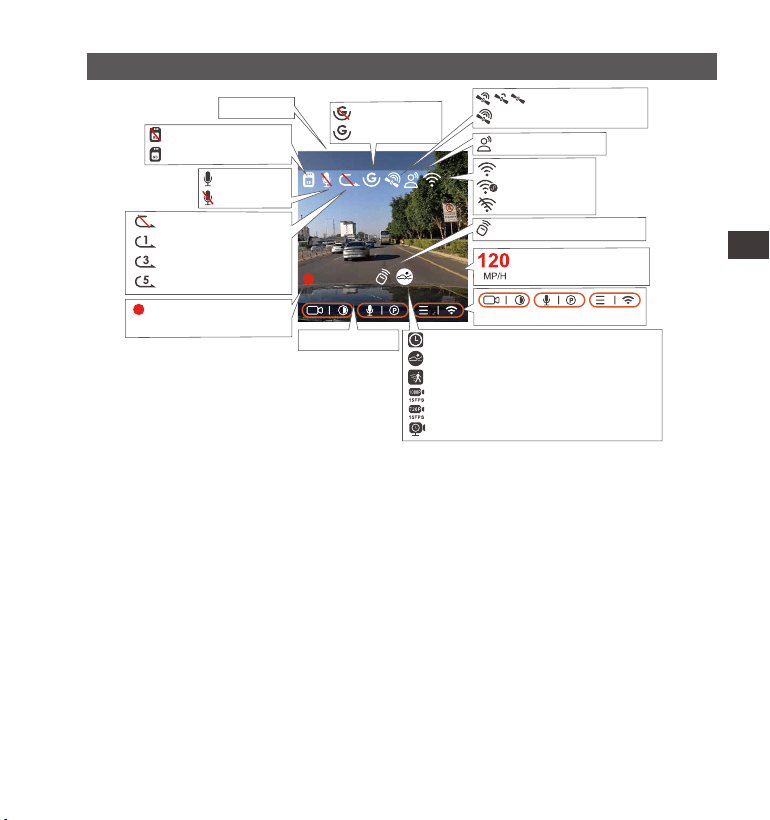
2560x1440P 30FPS
MP/H
00:00:37
08-22-2022 14:09:07
120
- 85 -
スクリーンの概要
タイムラプス撮影オン
衝撃録画 オン
動体検知 オン
1080P/15FPS 低ビートレート録画オン
720P/15FP 低ビートレート録画オン
駐車監視タイムラプス録画オン
ループ録画オフ
1分間のループで録画
3分間のループで録画
5分間のループで録画
G-Sensorオフ
G-Sensorオン
無線リモコン接続成功
GPS信号接続中
GPS信号接続成功
音声コントロール
撮影時間(現在
のファイル)
車速(KMHまたはMPH)
マイク オン
マイク オフ
メモリーカード 無し
メモリーカード あり
撮影解像度
00:00:37
日付と時刻表示
ENJP
EN
EN
EN
JP
操作ボタンの表示
WiFi オン
WiFiが接続済み
WiFi オフ
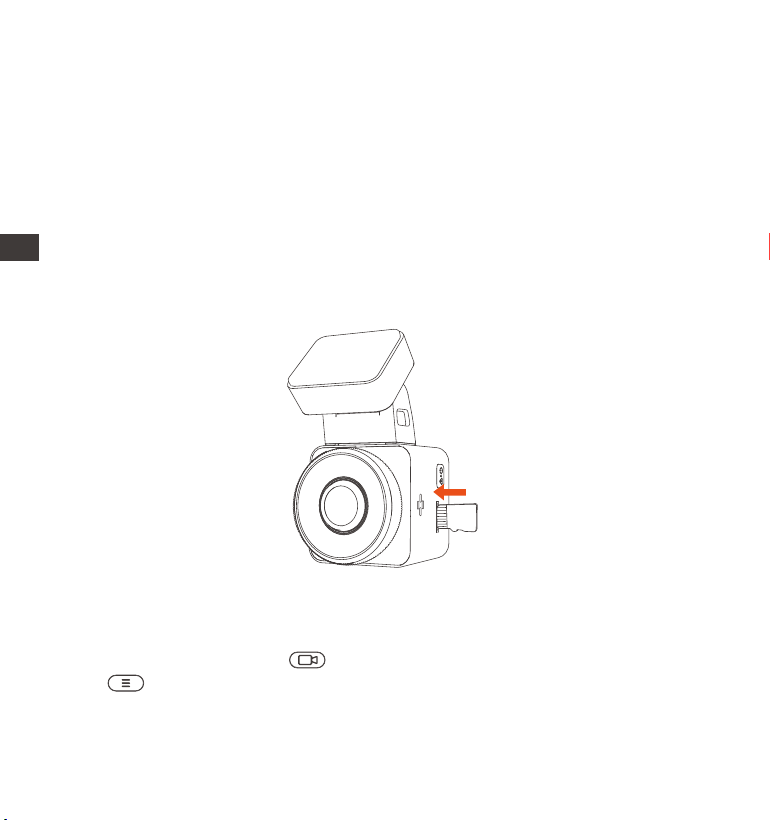
- 86 -
ご注意:microSDカードの使用前に必ず本機でフォーマットしてください。ぜひ
下記の指示通りにSDカードを一度フォーマットしてください。
●もし本体が録画中なら、ボタンを押して録画を停止してください。そし
てボタンを押してメニュー画面に入ります。その後、「システム」>>
「フォーマット」を選択してSDカードのフォーマットを実行してください。
3. 取り付け方法
3.1 メモリーカードの取り付け(VANTRUEU3MicroSDカードをお勧めです。)
C10/U3/A2以上の32GB 〜512GB microSDカードを使ってください。64GB、
128GB、256GB、512GBのカードをサポートします。VANTRUEドラレコはメモ
リーカードの書き込み速度に要求が高いため、VANTRUE Micro SD カード(別売)
をお勧めです。
挿入:microSD メモリーカードの端子面と本機の正面が同じ向きになるようにし
て、カチッと音がするまでmicroSD メモリーカード挿入口へ差し込みます。
取出し:microSDメモリーカードを1 回押すと取り出すことができます。
JP
ENEN
ENJP

- 87 -
microSDカードは消耗品です。メモリーカードの寿命を延長するため、1ヶ
月経過したら、メモリーカードをフォーマットしてください。
電源が ON の状態で microSD カードの抜き差しをしないでください。
microSD カード本体やデータ破損の原因となります。 必ず電源 OFF 後、ラ
ンプが 3 秒以上消灯したこと を確認し miciroSD カードの抜き差しを行って
ください。
VANTRUE Micro SDカードをおすすめです。安定性が弱いメモリカードがド
ライブレコーダーの運行に悪い影響があるので、ご了承ください。(例えば:
Sandisk、Transcend、シリコン、TEAM)
事故発生時は記録された録画ファイルが上書きされないように、 必ず電源を
OFF にしてからmicroSD カードを取り出し保管してください。
●「カードエラー、SDカードをフォーマットしてください」と表示される場
合、ボタンを押して「システム」>>「フォーマット」を選択してSDカー
ドのフォーマットを実行してください。
ご注意:
1.
2.
3.
4.
EN
EN
EN
JP
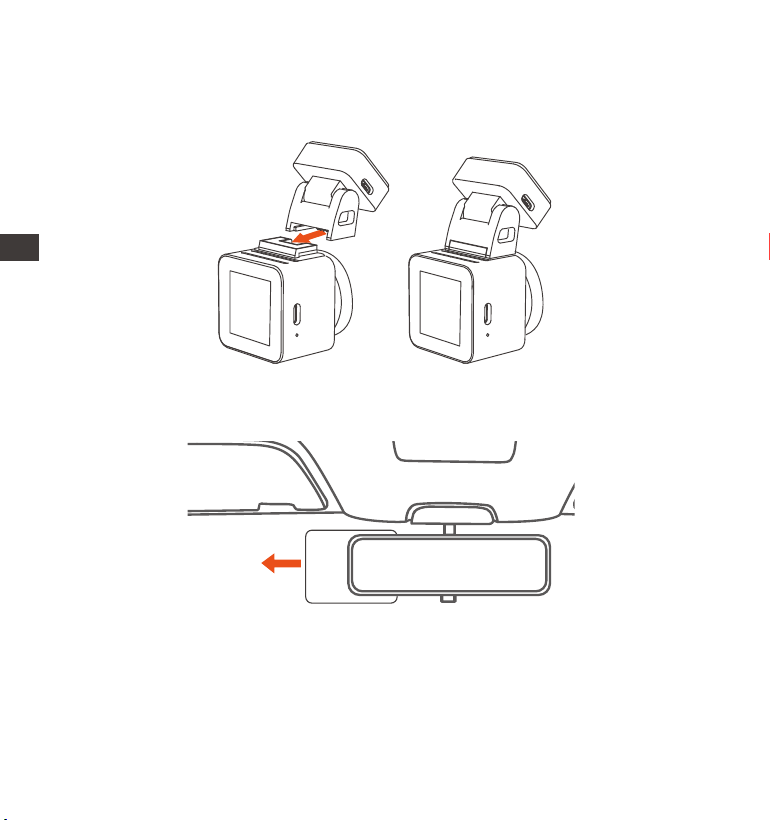
- 88 -
3.2ドライブレコーダーの取り付け
下記の画像の指示通りにマウントを本機のマウント接続口に、カチッと音が
するまで差し込んで取り付けてください。
1.
フロントガラスに取り付けたい場所を水で、またはアルコールでキレイにし
てください。そして静電気接着シートを取り付けたい場所に貼り付けてくだ
さい。
2.
ご注意:静電気接着シートの両側に2枚の保護フィルムを付いています。ま
ずは番号①の保護フィルムを剥がし、フロントガラスに静電気接着シートを
決められた場所に貼り付けてください。そして、番号②の保護フィルムを剥
がしてから、ドラレコ本体を静電気接着シートに貼り付けてください。
静電気接着シート
ENENENJP
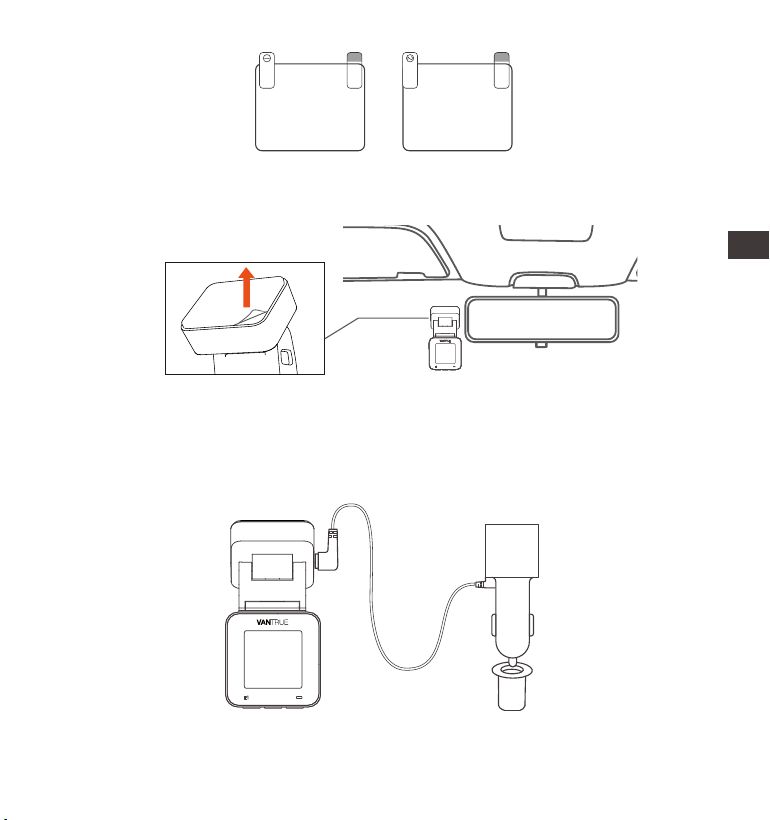
- 89 -
マウントの両面テープの剥離フィルムを剥がしてドラレコ本体を静電気接着
シートに貼り付けてください。
3.
シガーソケットケーブルのType-C USB端子をマウントのUSBポートと接続し
てください。車のシガーライターソケットに付属のシガープラグを挿入して
ください。エンジンを起動すると、本体が自動的に電源オンとなり、自動的
に録画を開始します。
4.
Please peel off this mask
AFTER application completed
Please peel off this
mask BEFORE application
EN
EN
EN
JP
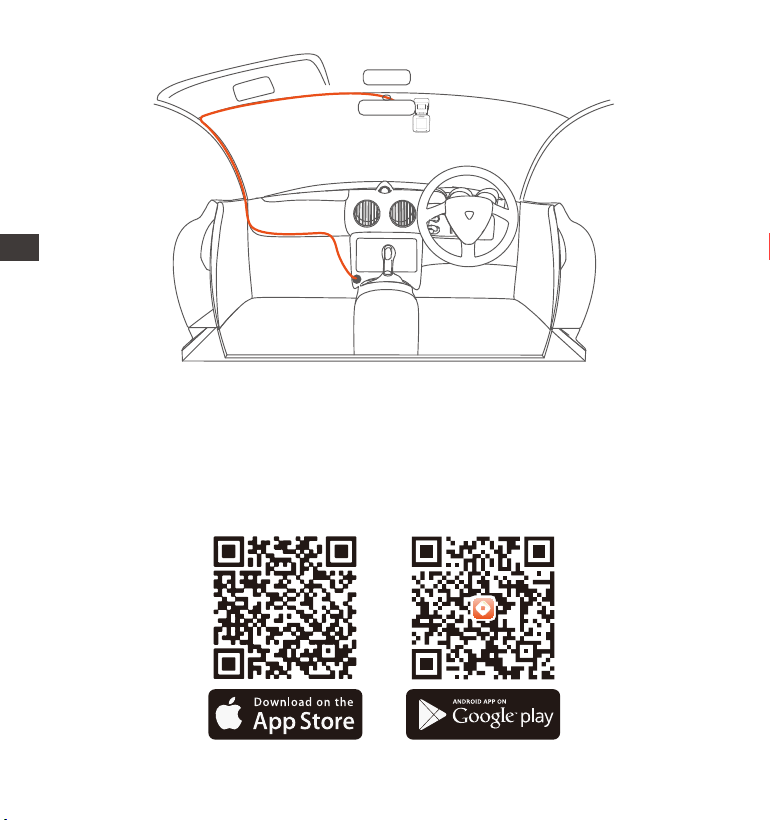
- 90 -
下記のQRコードをスキャンしてまたはAppStoreとGooglePlayで「Vantrue
Cam」を検索して専用アプリをインストールしてください。インストールが成
功しましたら、アプリを開いて指示通りに登録を行ってください。
3.3 APP のインストール
ENENENJP
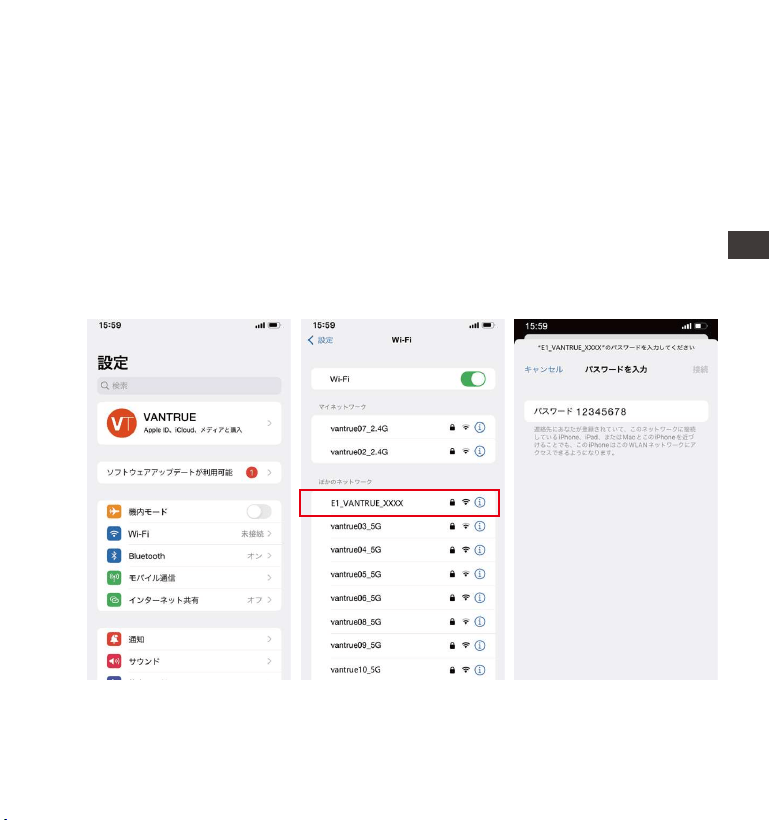
- 91 -
※ご注意:ドラレコから映像をスマホにダウンロードする場合、スマホのデータ
通信料は発生しません。ぜひご安心ください。なお、スマホでGPS情報を再生
する場合、また動画を共有したい場合はスマホとドラレコの接続を切ってスマ
ホをインターネットに接続する必要があります。この場合には、スマホのデー
タ通信料が発生します。
E1ドラレコのWiFi機能をオンにした後、またスマホのWLAN設定でE1ドラレコ
のWiFi信号(例:E1VANTRUEXXXX)を見つけて初期パスワード:12345678を入
力して接続を行ってください。
3.4WiFiの接続
EN
EN
EN
JP
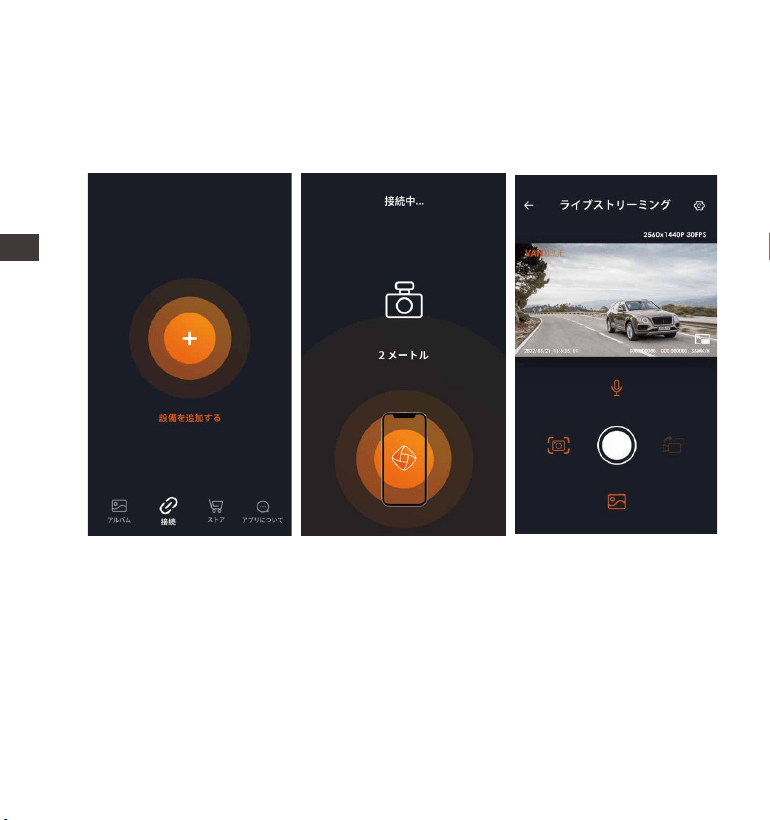
- 92 -
スマホをドラレコのWiFiに接続成功した後、APPを開いて「+」のアイコンをタ
ッチしてドラレコの型番を追加してください。そうすればAPPが自動的にドラ
レコに接続して、スマホでリアルタイムに映像を確認できます。
※ご注意:
アプリを開く前にWiFiが接続されていなかった場合に、「WiFiを接続してく
ださい。」と表示され、自動的にWiFiの設定画面に切り替えます。その際、
ぜひWiFiの接続を実行してください。
接続設定が完了し、アプリで型番を選んだ後、アプリの権限が要求された場
合はぜひ権限を許可してください。
1.
2.
3.5アプリの接続
ENENENJP
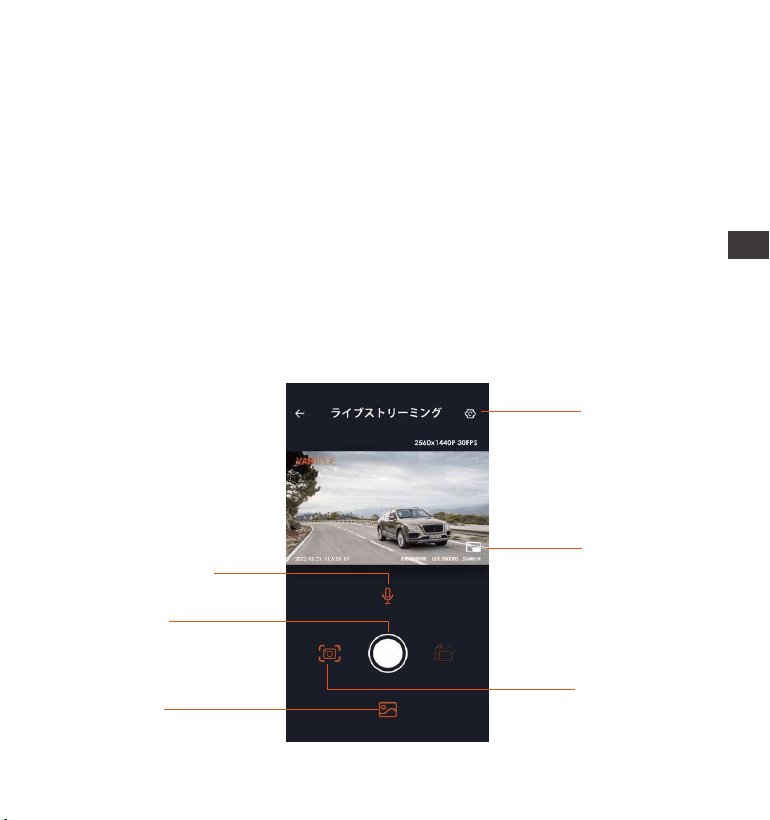
- 93 -
本製品の初期パスワードは「12345678」となっています。アプリでパスワー
ドを変更できます。安全のため、初回の接続後、パスワードを変更すること
を勧めます。
万が一、パスワードを忘れた場合は本機を初期化処理すればパスワードが初
期パスワードに戻ります。
本機と違った型番を選んだ場合、「正しい型番を選んでください。」と表示
され、自動的に型番を選ぶ画面に戻ります。
WiFiをオンにした後、10分以内に携帯電話に接続できなかった場合に、ドラ
レコが自動にWiFi機能をオフにして、録画画面に戻ります。
3.
4.
5.
6.
3.6アプリの使用
設定
フルスクリーン
スナップショット
アルバム
再生/停止
マイクON/OFF
EN
EN
EN
JP

- 94 -
ライブストリーミング:WiFiでスマホとドラレコを接続した後、アプリを開い
て、録画中の映像をアプリでリアルタイムに確認可能。フルスクリーンアイコ
ンをタッチすれば動画は画面全体に表示されます。
動画の再生:アプリでドラレコに装着しているSDカードの中の動画と写真を再
生できます。
動画のダウウンロード:アプリでドラレコから映像ファイルや写真をスマホにダ
ウンロードすることが可能です。スマホにダウンロードされた映像を再生する
と走行線路も地図で表示されます。
スナップショット:アプリの「スナップショット」ボタンをタッチすれば静止画
を撮ります。
ENENENJP
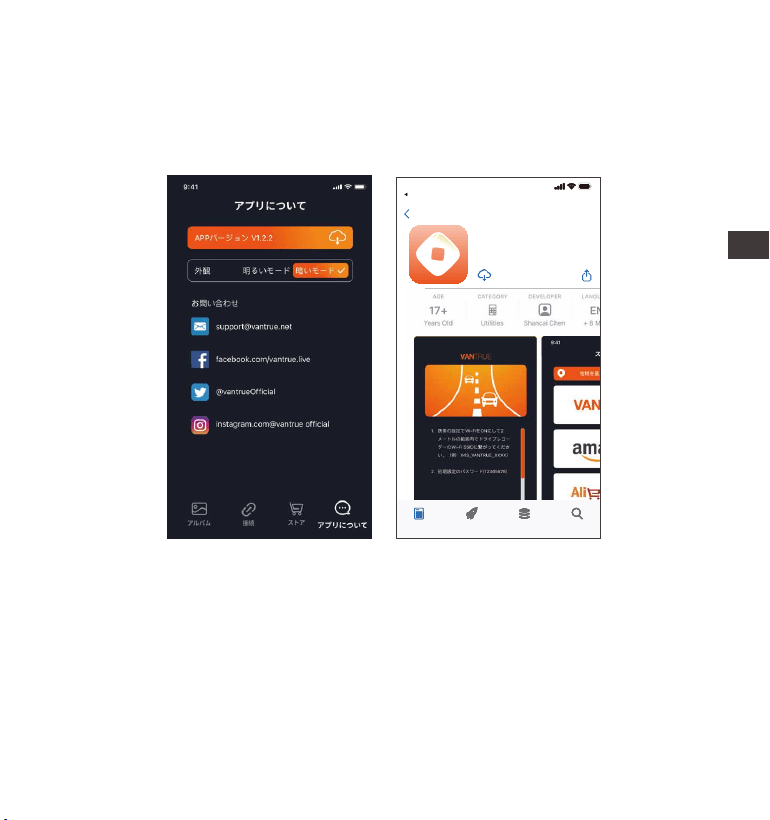
- 95 -
専用アプリを開いてWiFiを接続した後、「設定」>>「アプリについて」>>
「アプリバージョン」>>「バージョンアップ」をタッチしてください。新し
いバージョンがあればアプリが自動でアップデートを行います。
3.7アプリのアップデート
Vantrue Ltd.
戻る
Vantrue Cam
VantrueCam
9:41
トーディゲームアプリサーチ
EN
EN
EN
JP

- 96 -
E1ドライブレコーダーのメニューには「録画設定」、「システム設定」と「フ
ァイル管理」の三つの部分があります。本体を起動した後、ご希望の機能を設
定してください。
録画中/録画を停止のため【ボタン】>【ボタン】を押し、基本設定
画面を開きます。
4.基本操作
4.1メニューの設定
録画設定システム設定ファイル管理
A.録画設定
-解像度:選択可能な設定:2592*1944P30FPS;2560*1440P(HDR)30FPS;
2560*1440P30FPS;1920*1080P60FPS;1920*1080P(HDR)30FPS;
1920*1080P30FPS;1280*720P(HDR)30FPS;1280*720P30FPS。
-ループ録画設定:初期設定は3分間です。一つビデオの録画時間を設定すること
ができます。選択可能な設定:オフ、1分間、2分間、3分間、4分間、5分間で
す。
-G-センサー:G-センサーの感度を「前後」、「左右」と「上下」それぞれの方向
の感度を設定できます。感度は1/2/3/4/5/オフの6つの選択肢があります。初期
設定の感度は3です。
-録画音声:初期設定はオンです。オン/オフが選択できます。
-露光指数:初期設定は「+0.0」になっています。
-録画インジケーター:初期設定はオンです。オン/オフが選択できます。
ENENENJP

- 97 -
-液晶反転機能:初期設定はオフです。オンを選択すれば、画面を上下に反転しま
す(180度)。
-車両登録番号設定:車両番号を設定します。ダウンボタンを押し、正確な番号を
選択して確認ボタンを押してください。
-スタンプ設定:全てのスタンプ(日付/時間、VANTRUEロゴ、車両登録番号、速
度、GPSの情報)を録画ファイルに表示します。スタンプを表示させたくない場
合、スタンプをオフに選択してください。
-タイムラプス撮影:初期設定はオフです。1FPS/5FPS/10FPS/15FPSが選択できま
す。
-駐車モード:初期設定はオフです。衝撃検知/動体検知/低ビットレート録画/タイ
ムラプス録画が選択できます。駐車モードを「オフ」に設定する場合は、本体
はずっと録画を続けるので、ご注意ください。
-GPS設定:初期設定がオンです。GPSのオン/オフ、速度単位、GPS情報を設定で
きます。
B.システム設定
-言語:AvailablelanguagesareEngish/Français/Español/Deutsch/Italiano/简体
中文/русский/日本語/Polski.
-WiFi:初期設定はオフです。「オン」にすると、ドラレコ本体をスマホに接続で
きます。
-ディスプレイ設定:初期設定はフルスクリーンモードです。フルスクリーンモー
ドとフルビューモードが選択できます。
-音声コントロール:初期設定は標準感度です、低感度と高感度が選択できます。
-音声認識コマンド:運転中、音声でドラレコをコントロールできます。「システ
ム設定」>「音声認識コマンド」を選択して、詳細な音声認識コマンドを確認
できます。
-フォーマット:microSDメモリーカードのフォーマットを行います。全ての
ファイルに保存されたデータはなくなります。
EN
EN
EN
JP

- 98 -
-フォーマットアラーム:初期設定は「オフ」です。「15日」と「一ヶ月」に設
定できます。例えば、15日に設定する場合、15日後本体が起動した後「SDカー
ドをフォーマットしますか」と表示されます。こうして、SDカードを常に
フォーマットします。
-日付/時刻:時間の設定/調整は二つの方法があります。①手動で時刻を設定す
る。②GPS自動時刻補正。GPSが受信すると日付・時刻がタイムゾーンで設定さ
れた時刻に補正されます。GPS自動時刻補正機能はオン/オフに設定できます。
なお、日付/時刻設定に日付形式とGMT設定を行います。日本のタイムゾーンは
「+9」となっております。
-モニター点灯時間設定(LCD表示時間設定):自動/1/3/5分間の選択項目がありま
す。初期設定は「自動」で駐車監視モードに入る時以外、常に点灯する状態で
す。
-デバイス音量:初期設定は3です。0〜5から選べます。
-音声:初期設定はオンです。起動音、ボタン音、ロック録画の音、フォーマット
の音、録画異常停止の警告音のオン/オフをします。
-周波数:日本では、50Hzと60Hzの地域があり、一般に静岡県の富士川を境に、
東日本は50Hz、西日本は60Hzとなっています。
-システム情報:本体の型番、ファームウェアのバージョン、公式サイトを確認で
きます。
-初期設定:全ての設定をお買い上げ時の状態に戻します。
C.ファイル
撮影したビデオと画像を確認します。
イベント:イベントビデオ(自動で/手動でロックされたビデオ)が保存されます。
イベント録画のファイル名の格式は203001281406330008EA.MP4です。
ノーマル:通常の録画ビデオが保存されます。
ループ録画のファイル名の格式は203001281406330008NA.MP4です。
ENENENJP

- 99 -
駐車監視録画のファイル名の格式は203001281406330007PA.MP4です。
タイムラプス撮影のファイル名の格式は203001281406330006TA.MP4で
す。
写真:全ての写真が保存されます。
全て:全ての通常の録画ビデオ、イベントビデオが保存されます。
4.2.重要な機能の紹介
4.2.1ループ録画
microSDカードが挿入されている状態で電源を入れると、本機が自動的にオン
になり、設定した間隔でループ録画を行います。電源が入っていない場合は本
体は起動しません。
ループ録画の映像ファイルは「ノーマル」と言うフォルダーに保存されます。
「ノーマル」のフォルダーの容量はSDカードの総容量の70%となっています。
「ノーマル」の動画の容量がSDカードの総容量の70%になると古い録画ファイ
ルから順次上書きされます。
※ご注意:
ループ録画はSDカードの書き込み速度に頼っているため、書き込み速度を高
いレベルに維持するため、定期的に(月に一回)SDカードをフォーマットす
ることを勧めます。
貴重な映像ファイルが上書きされないように、保存したい映像があればお早
めに他のデバイスにご保存ください。
ループ録画をオフにすると、緊急録画機能が作動しなくなります。
ループ録画をオフにした場合、映像の長さが20分間になり、SDカードがいっ
ぱいになった後、録画が自動で停止します。
EN
EN
EN
JP
1.
2.
3.
4.
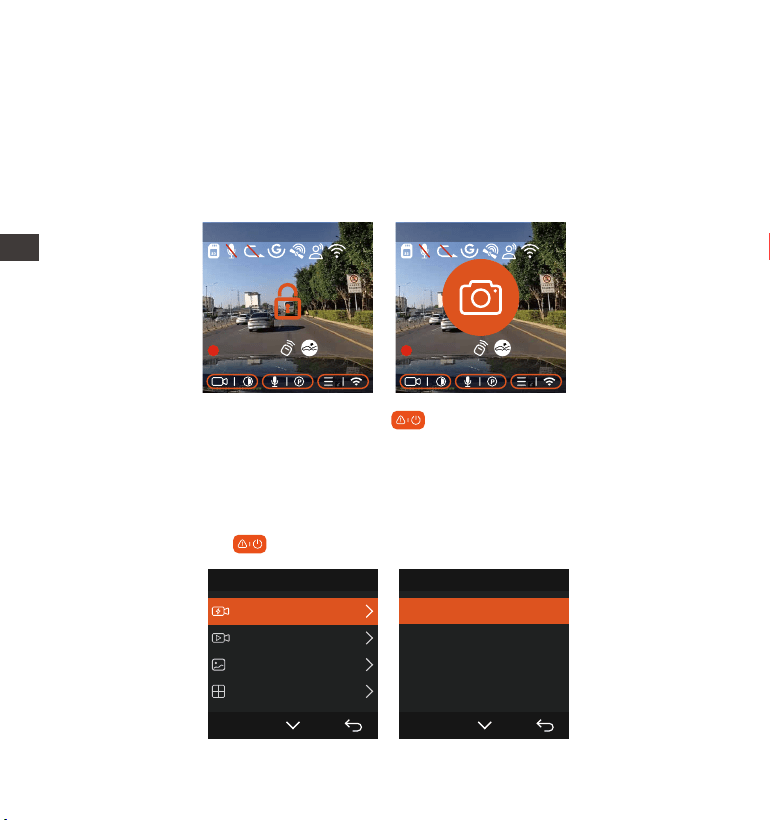
- 100 -
手動で動画をロックするため、録画中ボタンを押して、動画をロックし
て、同時に写真を撮ります。ロックされた動画が自動的にイベントフォルダに
保存されます。写真が写真ファイルに保存されます。
録画中、揺れや衝撃を設定した感度で検知すると自動的に録画ファイルをロッ
クします。緊急時にロックされた映像も自動的にイベントフォルダに保存され
ます。緊急録画中ボタンを押して、写真を撮ります。
4.2.2緊急録画
Gセンサーにより、緊急時にロックされた映像と衝撃を検知した映像は自動的
にイベントフォルダに保存されます。G-Sensor感度の設定によって、検知でき
る衝撃の感度には違いがあります。緊急時にロックされた映像と衝撃を検知し
た映像は自動的にイベントフォルダに保存されます。G-Sensor感度の設定に
よって、検知できる衝撃の感度には違いがあります。
フィルム管理1/4
イベント
ノーマル
写真
全てのファイル
OK
イベント2/5
20220820_140633_0001_E...
20220820_140633_0003_E...
2022
0820_140633_0004_E...
2022
0820_140633_0002_E...
OK
ENENENJP
2560x1440P 30FPS
MP/H
00:00:37
2022-08-22 14:09:07
120
2560x1440P 30FPS
MP/H
00:00:37
2022-08-22 14:09:07
120

- 101 -
自動の場合、G-センサーの感度に低く設定された場合、映像がロックされな
い場合があります。
「イベント」のフォルダーはSDカードの総容量の30%となっています。
「イベント」のフォルダーがいっぱいになると同じく古い録画ファイルから
順次上書きされますので、ご注意ください。
ループ録画がオンに設定された場合、またタイムラプス撮影がオンに設定さ
れた場合、「緊急録画」の機能は作動しません。
1.
2.
3.
※ご注意:
4.2.3駐車監視モード(給電が必要です)
駐車モードを使用する前に、駐車監視を開いてください。駐車モードはドラレ
コの大事な機能の一つで、駐車の際車から離れていてもきちんとご愛車を守り
ます。異なる環境によって適合性の高い駐車モードを設定できます。
録画中、約5分間車両への振動を検知せず衝撃検知録画と判断すると、本体が自
動的に駐車監視モードに入ります。ボタンを長押してで手動で駐車監視モー
ドに入ります。
駐車監視機能をご利用するには、別売の駐車監視ケーブル(VANTRUE専用の
直結電源ケーブル)が必要となります。
夏のような高温環境の場合、「衝撃検知」の駐車モードのご利用を勧めま
す。車内温度が60°以上になった場合、ドラレコが故障しないように電源を
オフにすることを勧めます。
1.
2.
※ご注意:
EN
EN
EN
JP
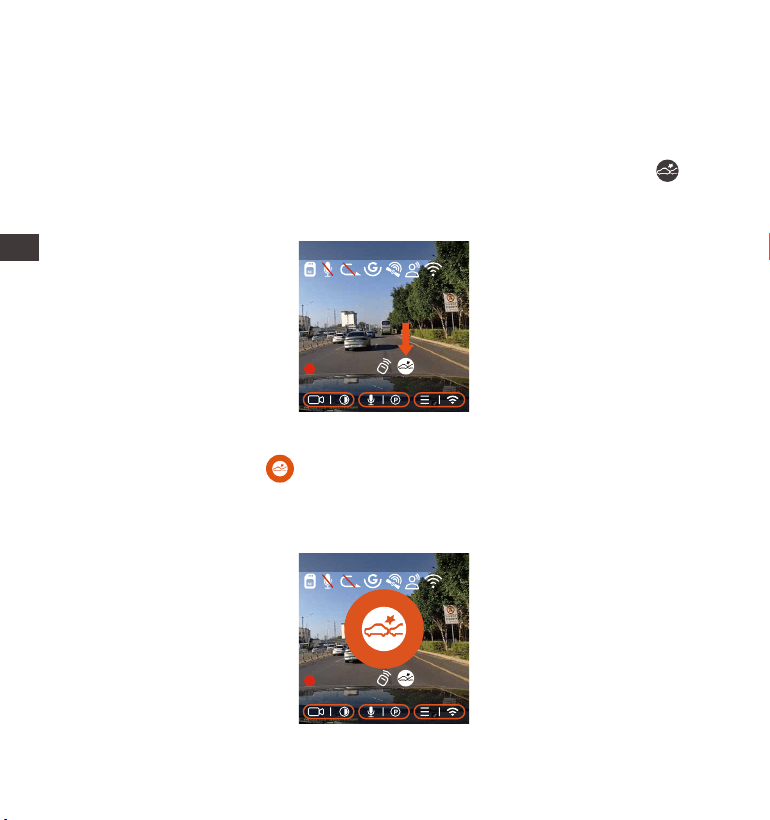
- 102 -
録画中、約5分間車両への振動を検知せず衝撃検知録画と判断すると、画面の中
央に衝撃検知のマークが表示されます。本体も自動にオフになります。揺
れや衝撃を発生した場合、本体がオンにして、1分間の録画を開始します。動き
を停止した5分ぐらい、録画は停止になり、本体が自動にオフになります。
3.
衝撃検知
駐車モードに衝撃録画を選択すれば、画面の右下角に衝撃検知のマークが表
示されます。「衝撃検知」の感度は1から5まで設定でき、車の環境によって適
合の感度を選んでください。
ENENENJP
2560x1440P 30FPS
MP/H
00:00:37
2022-08-22 14:09:07
120
2560x1440P 30FPS
MP/H
00:00:37
2022-08-22 14:09:07
120
タイムラプス撮影がオンの状態では、駐車モードは作動しません。この二つ
の機能を同時に利用できません。
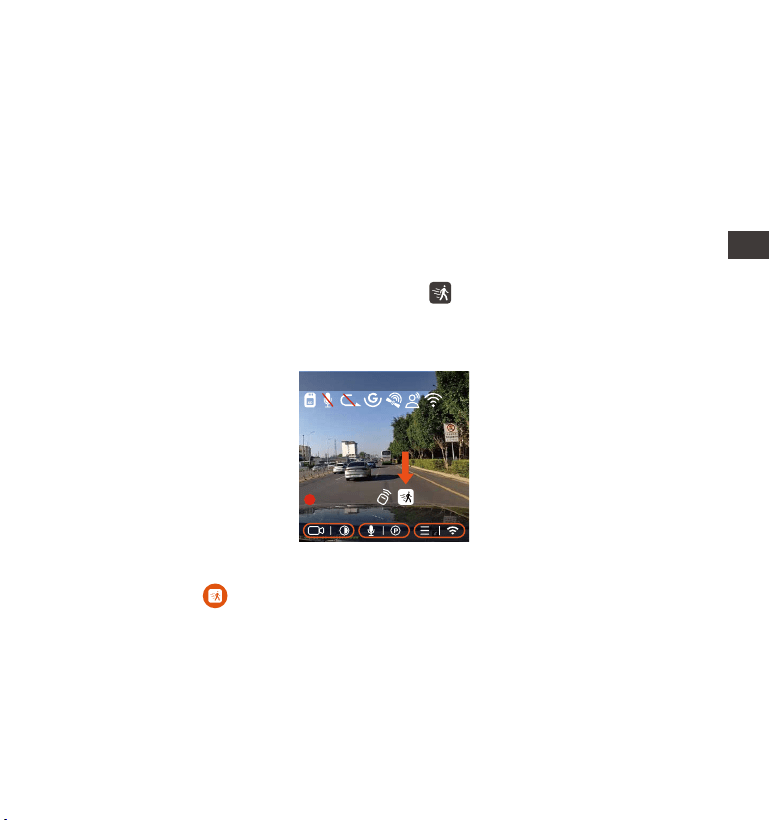
- 103 -
動体検知
動体検知を設定すると、モニター画面にはのアイコンが表示され、動体検
知をご利用中と示します。動体検知は「高、中、低」の三つの感度を設定で
き、6m/4m/2mの検知距離をそれぞれ意味します。
録画中、約5分間車両への振動を検知せず動体検知中と判断すると、画面の中部
にオレンジのマークが表示されます。駐車監視待機状態に入り、3分後モ
ニターがオフになります。動きを検知してから、自動的に録画を開始します。
動体検知の信頼性を高めるために、業界初のプリレコード録画機能が搭載され
ております。検知前の動画と動体検知後の動画を合わせて、ノーマルフォルダ
に保存されます。
停車中連続で衝撃を検出した場合、ドラレコは駐車モードを退出して常時録画
モードに戻ります。
衝撃検知の駐車モードで録画された映像ファイルは「ノーマル」のフォルダー
に保存されます。貴重な映像データが上書きされないようにお早めに衝撃検知
の映像データをパソコンに保存することを勧めます。
1.
2.
※ご注意:
EN
EN
EN
JP
2560x1440P 30FPS
MP/H
00:00:37
2022-08-22 14:09:07
120
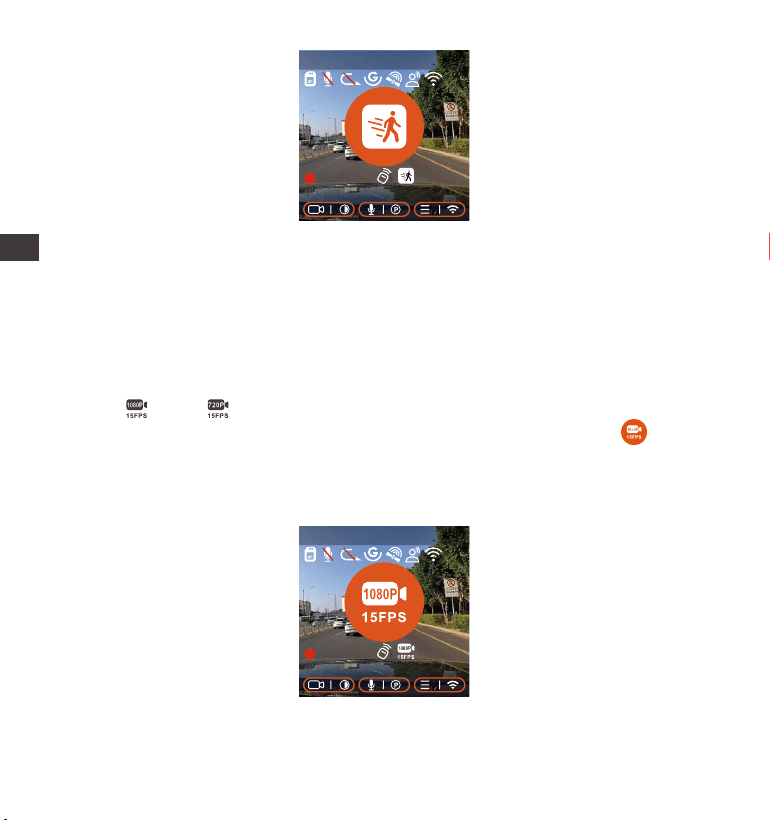
- 104 -
低ビットレート録画
低ビットレート録画モードを設定すると、お選んだ解像度によりモニター画面
には或いはのアイコンが表示されます。停車後、5分間内動きを検知しな
い場合、低ビットレート録画駐車モードに入ります。画面の中部にのマーク
が表示されます。本機は1080P15FPSまたは720P15FPSの解像度で録画します。
動きや衝撃を検知する場合、「解像度設定」に設定された解像度で常時録画に
戻ります。その後、また「5分間」のルールで低ビットレートの録画モードに戻
ります。
動体検知の駐車モードは本体が電源オンのまましか作動しません。
1944Pと1440P/HDRの解像度はプレレコード機能に対応していないため、動
体検知を選択すると解像度は自動的に1440Pに変更されます。
1.
2.
※ご注意:
ENENENJP
2560x1440P 30FPS
MP/H
00:00:37
2022-08-22 14:09:07
120
2560x1440P 30FPS
MP/H
00:00:37
2022-08-22 14:09:07
120
ご注意:低ビットレート録画の駐車モードも本体の電源がオンの状態でしか利用
できません。
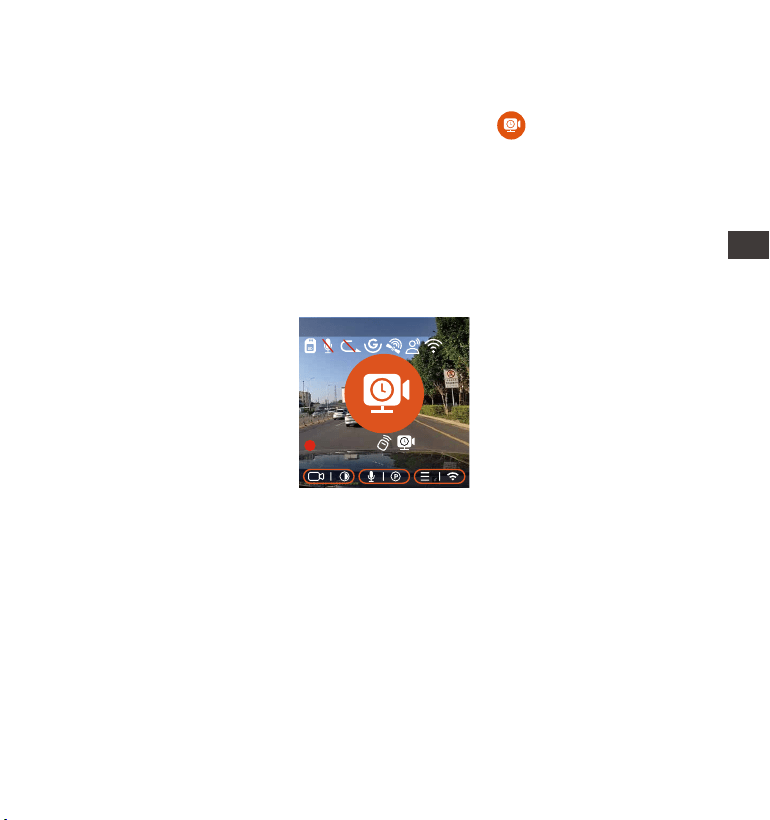
- 105 -
タイムラプス録画
他の駐車モードと同じ、停車後5分間内動き/衝撃を検出しなかった場合自動で
タイムラプス録画モードに入ります。画面の中部にオレンジのマークが表
示されます。タイムラプス録画はフレームレートを1FPS/5FPS/10FPS/15FPSに
設定できます。例えば1FPSに設定すると、録画のフレームレートは30FPSのた
め、1秒の映像が30フレームが必要するため、1FPSの場合は1秒の映像は30秒
の録画が必要となります。つまり、1FPSに設定する場合、30秒の映像は1秒に
短くされます。
車が動き出すとタイムラプス録画駐車モードは自動的に解除になります。本体
は常時のループ録画に戻ってまた「5分間のルール」でタイムラプス録画の駐
車モードに入ります。
通常録画時間=タイムラプス撮影時間(Sec)x録画フレームレートFPS/タイムラ
プス総撮影時間
ご注意:
1.
2.
駐車監視のタイムラプス録画とタイムラプス撮影は同じく映像を短く撮影し
ますが、タイムラプス撮影には「5分間のルール」はありません。
タイムラプス録画の駐車モードも本体の電源がオンの状態でしか作動しませ
ん。
EN
EN
EN
JP
2560x1440P 30FPS
MP/H
00:00:37
2022-08-22 14:09:07
120
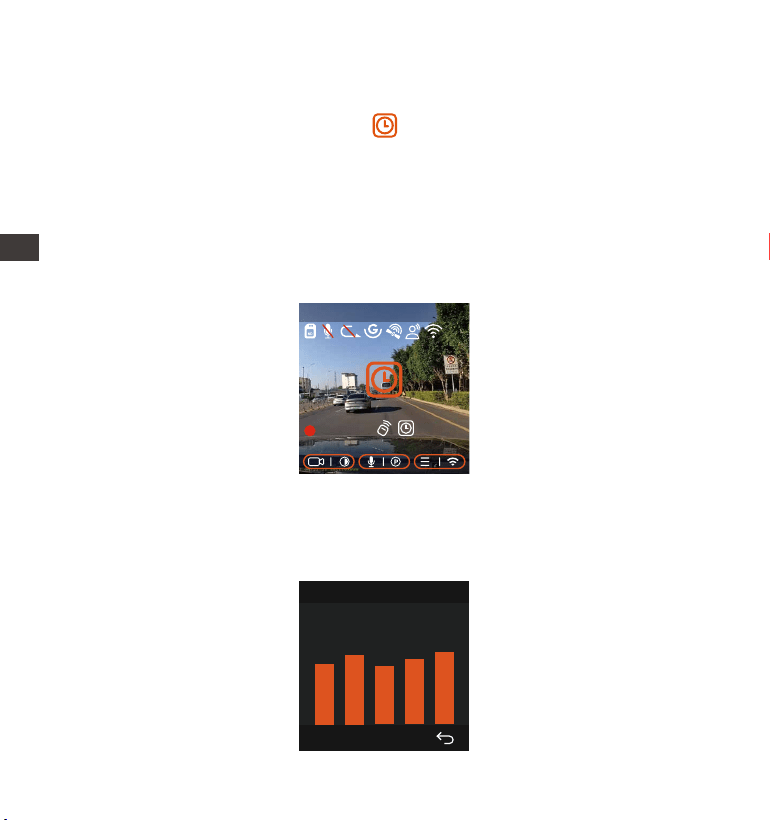
- 106 -
4.2.4タイムラプス撮影
初期設定はオフです。1FPS/5FPS/10FPS/15FPSに設定できます。タイムラプス
撮影を設定してから、画面の中部にオレンジのマークが表示されます。タ
イムラプス撮影モード:一定の間隔を空けて画像を撮影し、連続して再生させ
ることで長時間の映像を短時間で確認できる微速度撮影です。
タイムラプス撮影は1FPSを選択すると、毎秒1つの写真を撮ります、本機の録
画速度は30fpsです。タイムラプス撮影1秒で8時間連続録画をすると、16分(=8
x60x60/30/60)の動画を作成します。
通常録画時間=タイムラプス撮影時間(Sec)x録画フレームレートFPS×タイム
ラプス総撮影時間
4.2.5GPS機能
付属のマウントにはGPS受信機が内蔵されております。初期設定ではGPS機能は
「オン」に設定されています。付属のマウントと接続して本体の電源がオンに
なった後、広い場所でGPS信号が直ぐに捕られます。GPS情報は撮られた映像に
記録されます。
GPS情報
40
46
39
43
48
ENENENJP
2560x1440P 30FPS
MP/H
00:00:37
2022-08-22 14:09:07
120

- 107 -
密集した住宅地、地下駐車場、トンネルなどでは、GPS信号の受信に影響が出
る場合があります。
弊社の専用アプリ「VantrueCam」で、または弊社の専用「VantrueGPS
Player」で映像を再生すれば、GPS情報も同時に再生されます。(ダウンロード
リンク:www.vantrue.net)
ご注意:
1.
2.
4.2.6GPS自動時刻補正
GPS自動時刻補正機能の初期設定はオンです。GPSが受信すると日付・時刻が
タイムゾーンで設定された時刻に補正されます。GPS自動時刻補正機能はオン/
オフに設定できます。
なお、日付/時刻設定に日付形式とGMT設定を行います。日本のタイムゾーンは
「+9」となっております。
4.2.7無線リモコン
操作の便利性を高めるため、E1ドラレコは無線リモコンが装備されています。
無線リモコンで本体(スナップショット、音声のオン/オフ、録画のロックなど)
を操作できます。
無線リモコンの接続:
リモコンのバッテリーの絶縁シートを取り出すと、リモコンは自動的にドラレ
コに接続します。手動でペアリングの必要がありません。本体と接続したら、
画面にアイコンが表示されます。
EN
EN
EN
JP
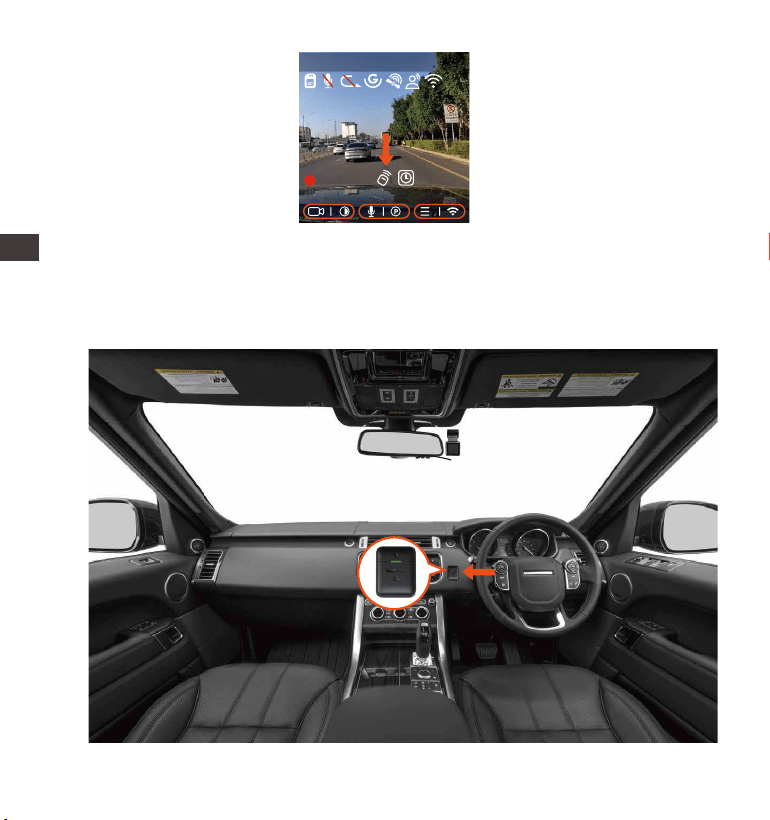
- 108 -
無線リモコンの取り付け:
ドラレコに接続した後、最適な取り付け場所を決め、リモコンの剥離フィルム
を剥がし、決められた場所にに取り付けてください。
(運転の安全性のため、運転に影響がない位置に設置してください。)
ENENENJP
2560x1440P 30FPS
MP/H
00:00:37
2022-08-22 14:09:07
120
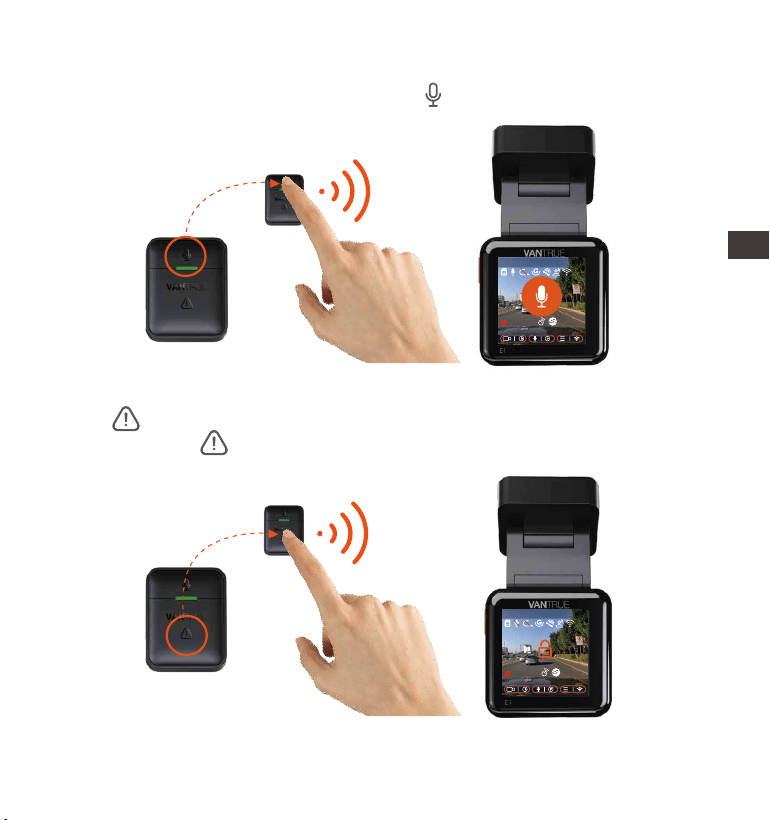
- 109 -
EN
EN
EN
JP
リモコンの働き:
無線リモコンをドラレコに接続したら、ボタンを押して、録音をオン/オフ
にします。
1.
ボタンを押して、動画をロックして、同時に写真を撮ります。ロック録
画中、またボタンを押すと、写真を撮り続けます。
2.
2560x1440P 30FPS
MP/H
00:00:37
2022-08-22 14:09:07
120
2560x1440P 30FPS
MP/H
00:00:37
2022-08-22 14:09:07
120
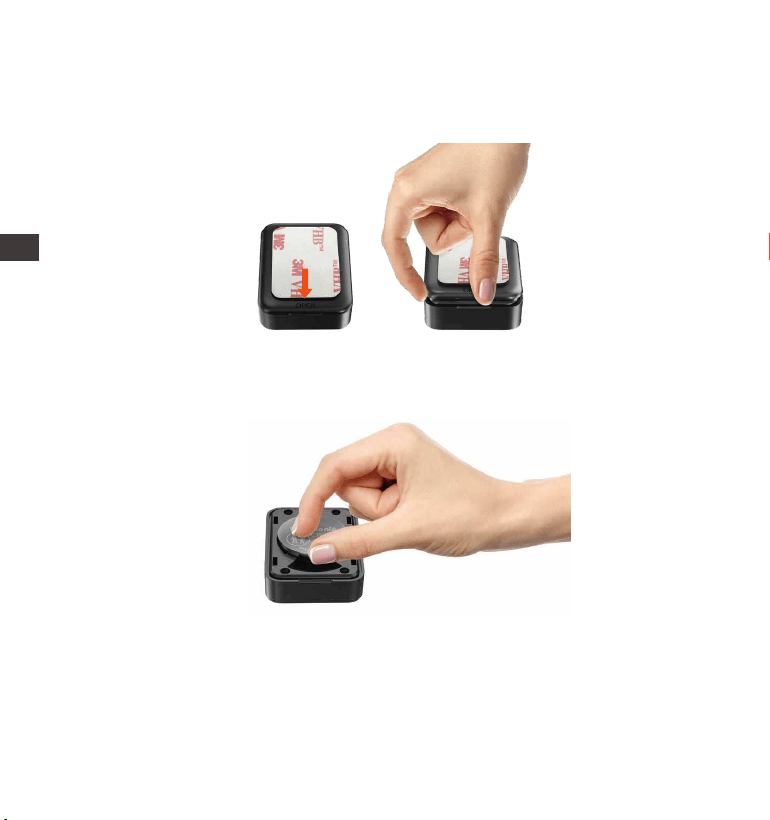
- 110 -
ENENENJP
リモコンの電池交換:
リモコンの底部に「OPEN」のマークがあります。マイナスドライバーもし
くは付属の内張りはがしで「OPEN」マークの側にある溝に沿ってふたを開
きます。
1.
リモコンに入っている電池を外し、同じ型番の新しい電池と交換します。電
池交換後、電池カバーを閉めてください。
2.
ご注意:
電池残量が不足になると、お早めに新しい電池に交換してください。付属の電池
は充電に対応していません。リモコンに内蔵している電池の型番はCR2032です。
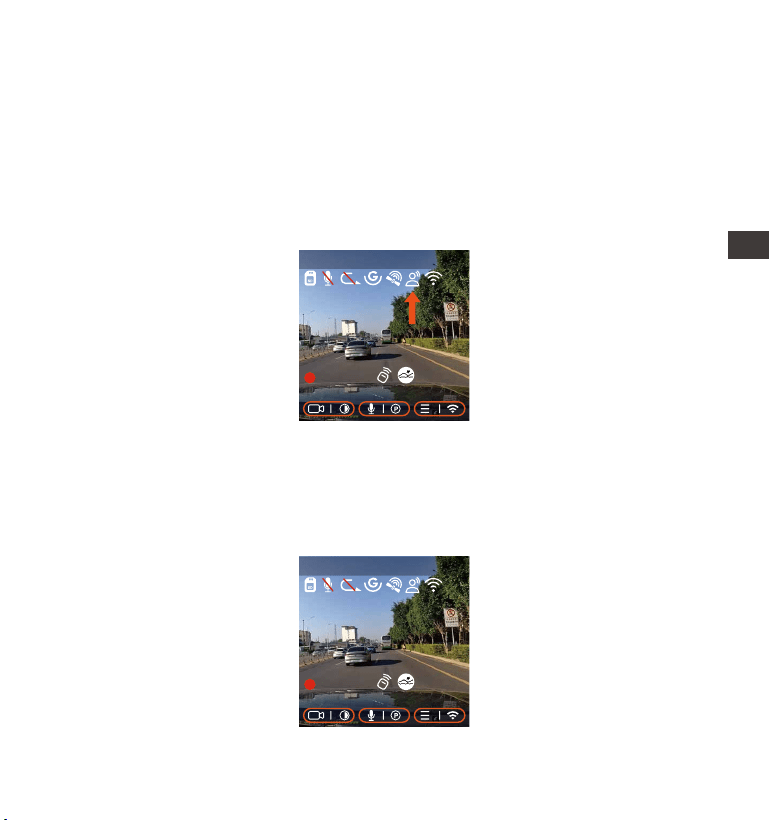
- 111 -
EN
EN
EN
JP
4.2.8音声コントロール
運転中、音声でドラレコをコントロールできるので、安心して運転できます。
例えば:写真を撮る、ビデオロックなどです。英語、日本語、ロシア語、中国語
に対応します。
「システム設定」>「音声認識コマンド」を選択して、詳細な音声認識コマン
ドを確認できます。
初期設定は標準感度です。低感度、標準感度、高感度、オフが選択できます。
4.2.9.ディスプレー設定
E1ドラレコに二つの画面表示モードがあります。
フルスクリーンモード:フルスクリーンモードを選択すれば、全画面で表示しま
す。画面の比率が大きくなりますので、動画の左右両側の一部が表示されませ
ん。
2560x1440P 30FPS
MP/H
00:00:37
2022-08-22 14:09:07
120
2560x1440P 30FPS
MP/H
00:00:37
2022-08-22 14:09:07
120
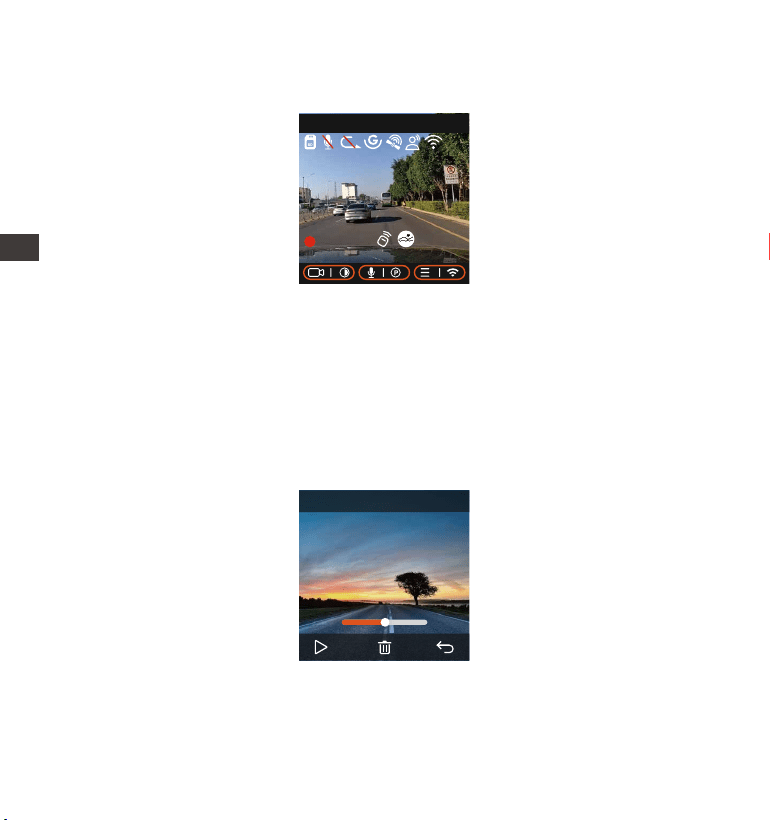
- 112 -
ENENENJP
フルビューモード:フルビューモードを選択すると、レンズの撮影範囲内の画面
が全部で表示されます。動画の画面比率は4:3になります。
4.2.10動画/写真の再生
a.本体で表示
メニュー画面で、【ファイル】>【ノーマル】/【イベント】/【全て】を選択
して動画を選択し、確認ボタンを押して再生します。ビデオの再生中に、ダウ
ンボタンを押すとビデオを削除できます。
00:30 01:07
1280x720
08/22/2022
7:15
20220822_140633_0002_N
2560x1440P 30FPS
MP/H
00:00:37
2022-08-22 14:09:07
120
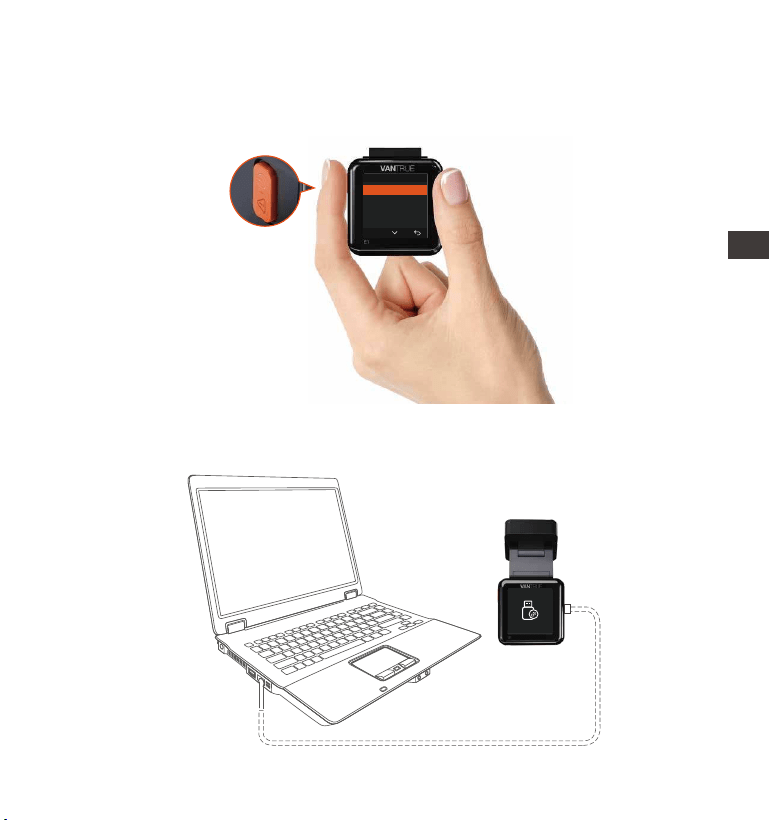
- 113 -
EN
EN
EN
JP
--動画の削除
本体で動画を削除します。ファイル一覧画面に電源/緊急録画ボタンを押して、
ファイルを削除できます。
ノーマル
この映像を削除しますか?
全ての映像を削除しますか?
OK
b.PCで表示
1.付属のUSBケーブルでカメラ本体のUSBポートと接続してください。
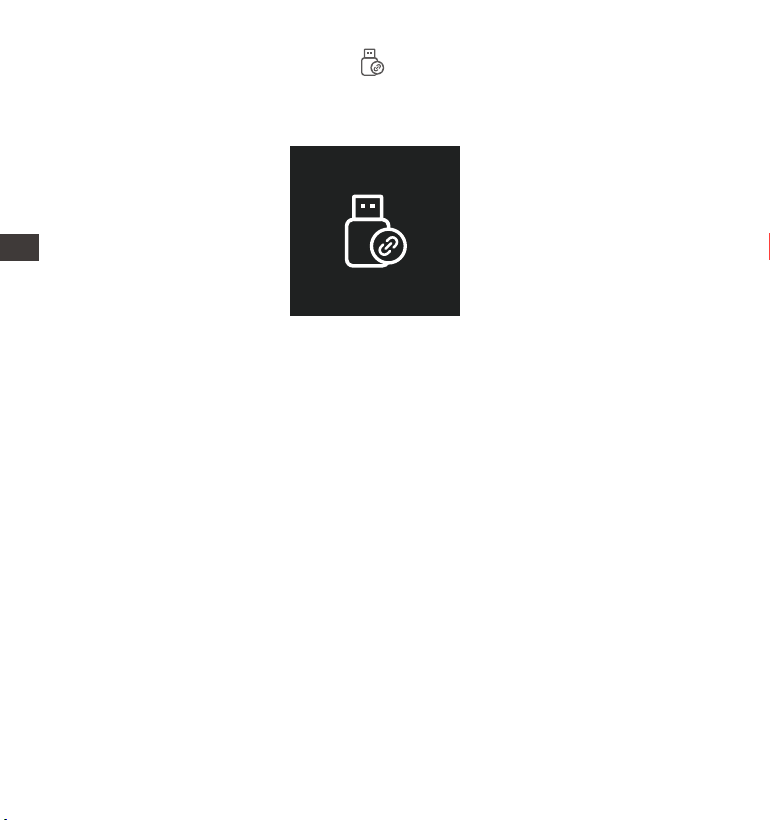
- 114 -
ENENENJP
パソコンと接続した後、画面にというアイコンが表示されます。USB接続
中に本体での操作は受け付けずコンピューター側でのみデータを読み取るこ
とができます。正常に接続されるとコンピューターでビデオを再生できま
す。
2.
3.カードリーダーなどを使用してコンピューターで再生します。
- 115 -
EN
EN
EN
JP
c.「VantrueCam」アプリで表示
WiFi機能でスマホをドラレコに接続した後、専用アプリ「VantrueCam」で映像
ファイルを再生/ダウンロード/削除できます。
20220822_115036_0079_N_A.MP4
05/01/2022 11:5:35 E1 000.000000. 000.000000. 36MK/H
ご注意:
9:41
GPS情報も同時に再生したい場合、
ぜひ映像ファイルをダウンロード
してまた再生してください。
ドラレコから映像をスマホにダウンロードする場合、スマホのデータ通信料
は発生しません。ぜひご安心ください。
スマホでGPS情報を再生する場合や、動画を共有したい場合には、スマホが
ドラレコとの接続を切ってインターネットに接続する必要があります。この
場合には、スマホのデータ通信料が発生します。
1.
2.
ご注意:

- 116 -
ENENENJP
高温環境で駐車監視機能をご利用する場合、「衝撃検知」の駐車モードを使
用することを勧めます。
気温が-20℃以下になるような冬期に本機を使用しない場合、駐車中はフロン
トガラスから取り外し収納ボックス等に保管してください。
1.
2.
ご注意:
4.2.11本機のアップデート
最新のファームウェアはVANTRUE公式サイトwww.vantrue.netに公開されま
す。バージョンアップしたい場合、ぜひ公式サイトから最新のファームウェア
とバージョンアップの方法をダウンロードください。
ご注意:アップデート中は必ず電源を切らないでください。アップデート中、電
源が切れると、本機が不具合になる可能性があります。万が一、アップデート
が失敗した場合、ぜひ弊社のサポートセンターまでお問い合わせください。
弊社のサポートが対応させていただきます。
4.2.12動作環境温度
本機の動作環境温度範囲は-20〜70℃です、動作環境温度範囲を超える場合、
動作や本体の寿命に影響を及ぼす可能性があります。
夏場など車内が非常に高温になることが見込まれる際は長時間放置しないでく
ださい。温度が上がりすぎると保護機能により、温度が下がるまで本製品は動
作を停止します。

- 117 -
EN
EN
EN
JP
5.仕様
E1型番
Engish/ Français/ Español/ Deutsch/ Italiano/
简体中文/русский/ 日本語/ Polski
2592x1944P 30FPS; 2560x1440P(HDR) 30FPS;
2560x1440P 30FPS; 1920x1080P 60FPS;
1920x1080P(HDR) 30FPS; 1920x1080P 30FPS;
1280x720P(HDR) 30FPS; 1280x720P 30FPS
U3/Class 10以上の32GB-512GB Micro SDカード
(別売)をサポートします。
Novatek高性能プロセッサー
Sony CMOS センサー
1.54インチIPS スクリーン
2.4GHz
フロント: 160°広視野角; F/1. 8大口径
マイク /スピーカー内蔵
本製品の仕様及び外観は、改良のため予告なく変更することがあります。予め
ご了承ください。
チップ
イメージセンサー
スクリーン
WiFi
レンズ
言語
オーディオ
メモリーカード
解像度
スーパーキャパシター
MP4
DC 5V 2.4A
3.5W
-20°C-70°C
-30°C -85°C
Type C
バッテリー
動画ファイル形式
動作電圧
消耗電力
動作環境温度
保存温度
USB ポート

- 118 -
ENENENJP
保証について
VANTRUE®OnDashE1ドライブレコーダーは12ヶ月の保証期間があります。
18ヶ月の延長保証をご希望の際は、購入日から6ヶ月以内弊社の公式ウェブサ
イトで(www.vantrue.net/register)ご購入いただいた商品のご登録をお願い致し
ます。
サポートについて
製品に何のご質問・問題がございましたら、いつでもお気軽にLINE経由(LINE
ID:vantruecam)でお問い合わせいただくかあるいは[email protected]までお
問い合わせください。営業日の場合、弊社はなるべく24時間以内にご返信を差
し上げます。
ご意見
当社は製品とサービスの品質、ユーザーエクスペリエンスを向上させるため日
夜全力で取り組んでいます。製品を改善するうえでの貴重な御意見やアドバイ
スがございましたらご遠慮なく弊社までご連絡をお願いいたします。お客様か
らのお声を期待しております。
お問合せ先:
LINEID:vantruecam
VANTRUEをご選択いただき、誠にありがとうございます。
6.保証とアフターサービス
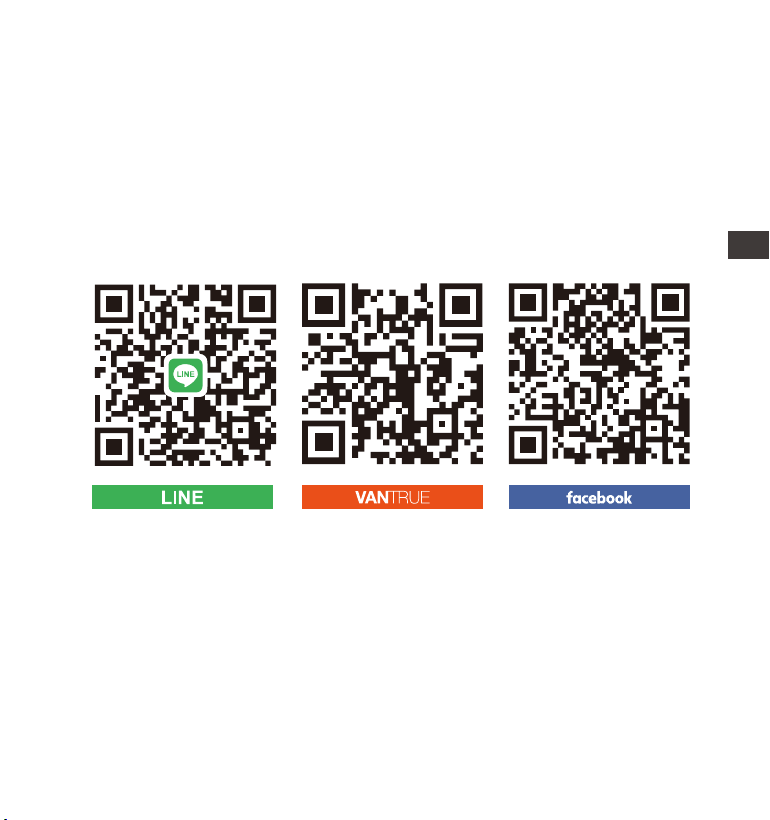
- 119 -
EN
EN
EN
JP
製品をご購入頂き、誠にありがとうございます。
お問い合わせ:
www.vantrue.net/contact
facebook.com/vantrue.live
LINE ID:vantruecam
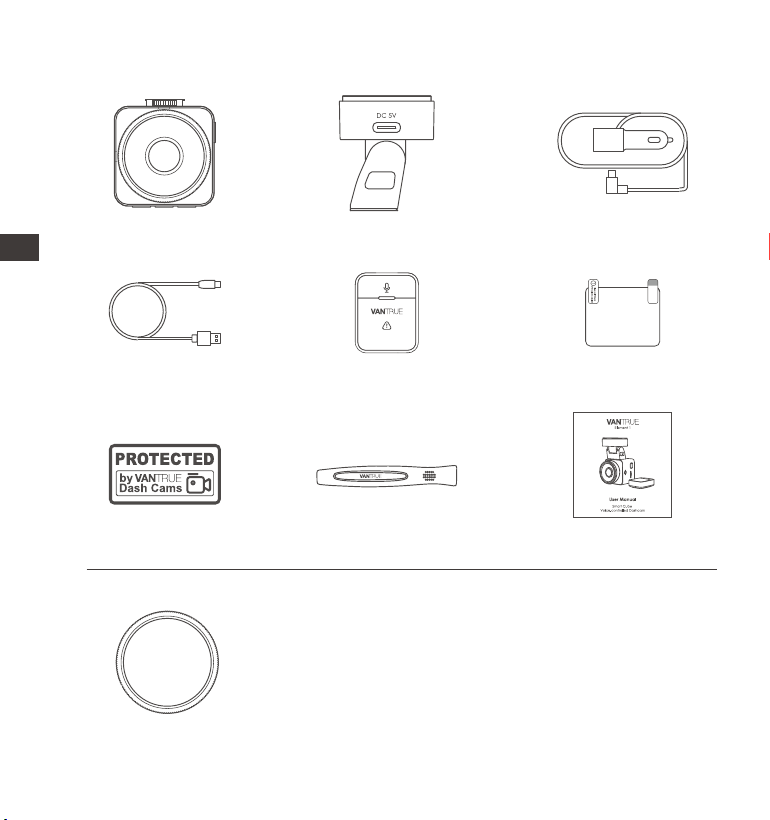
- 120 -
ENENENJP
1. 盒内物品清单
J. CPL滤镜(选配)
选配配件
A.
VANTRUE E1记录仪
D.
TYPE-C数据线
(1米,仅用于数据传输)
G.
警示贴(2张)
C.
Type-c车充(3.5米)
F.
静电贴(2张)
I.
说明书
B.
GPS支架
E.
VANTRUE
无线遥控器
H.
撬棒(1个)
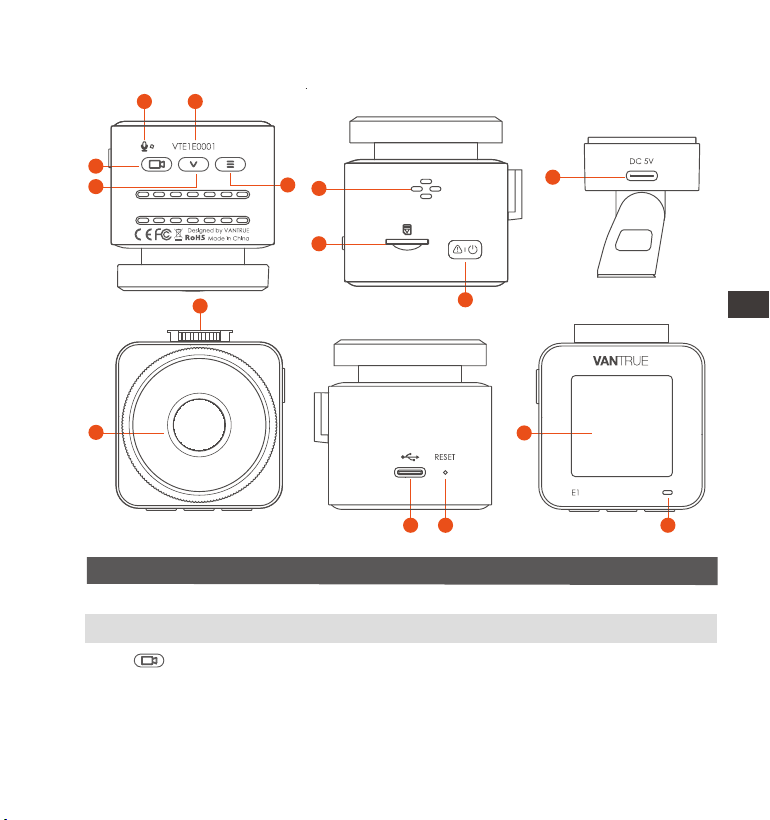
- 121 -
EN
EN
EN
CN
2. 机身部件说明
序号
功能名称
录影中可长按熄灭屏幕,短按可停止录影,进入
待机状态;在菜单中可确认选择的选项;回放文
件时,可播放/暂停播放文件。
1 麦克风
2
3
按键
序列号
产品售后追溯凭证
记录录影声音
6
9
7
3
4
5
1 2
8
12
14
10
11
13 15

- 122 -
ENENENCN
4
录影中和待机状态中,长按可快速进入停车模
式,短按可开启/关闭麦克风;菜单设置中,长按
滚动显示菜单选项,短按显示下一个菜单选项;
文件浏览中,长按滚动显示文件,短按显示下一
个文件;回放模式中,短按弹出删除文件菜单
6
7
8
9
10
11
12
5
SD卡接口
喇叭
录影中和待机模式中,长按可打开/关闭WiFi;
待机状态中,短按进入菜单
长按可开启/关闭记录仪;录影中,短按可进入
紧急录影状态中,在此状态中短按此按键可抓拍
图片
支架电源接口
内存卡安装位置
按键
播放记录仪的音源
按键
按键
前镜头 记录仪前镜头,用于录制车前行车情况
用于电源输入
用于连接记录仪支架支架接口
13
14
电源接口 用于数据传输以及电源输入
短按可重启记录仪复位键
屏幕 1.54英寸LCD显示屏
15
灯光说明
15
绿灯恒亮 正处于待机状态
绿灯闪烁 正在录影中
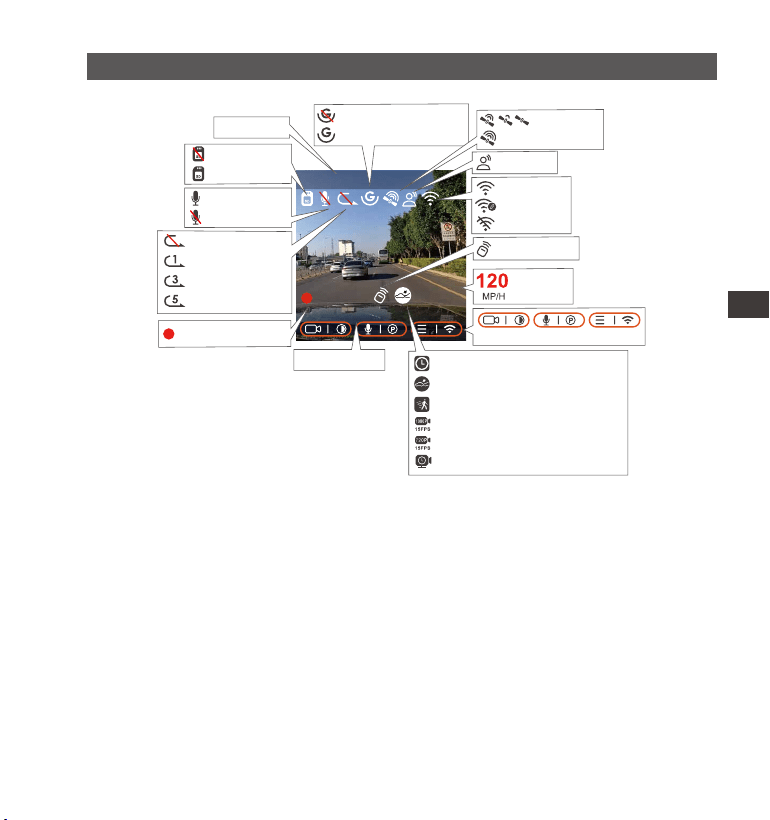
- 123 -
EN
EN
EN
CN
2560x1440P 30FPS
MP/H
00:00:37
2022-08-22 14:09:07
120
屏幕符号说明
缩时录影
碰撞侦测停车模式
移动侦测停车模式
1080P15FPS 低比特率停车模式
720P15FPS 低比特率停车模式
低帧率停车模式
循环录影已关闭
循环录影1分钟
循环录影3分钟
循环录影5分钟
G-sensor感应已关闭
G-sensor感应已打开
遥控器已连接
GPS连接中
GPS已连接
语音识别
录影时间
车速显示
麦克风已打开
麦克风已关闭
无内存卡
已插入内存卡
撮影解像度
00:00:37
当前时间日期
按键指示
WiFi已打开
WiFi已连接
WiFi已关闭
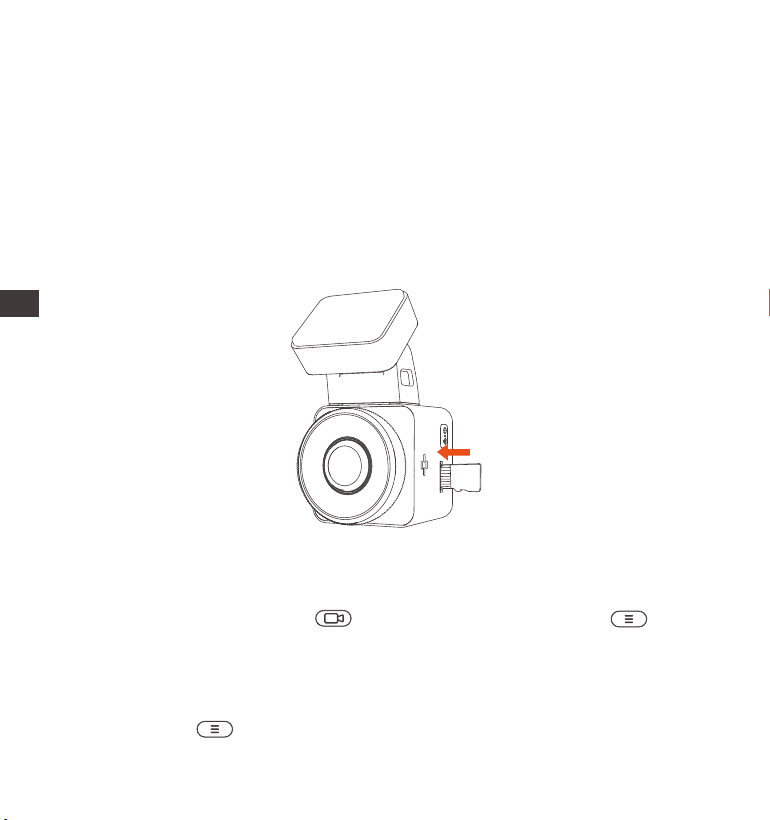
- 124 -
ENENENCN
当内存卡插入后,为了保证记录仪正常使用,建议您将内存卡格式化,格式化内
存卡的方法如下:
●记录仪如在录影中,请按“ ”录影按键暂停录影,然后按“ ”菜单键
进入菜单,进入“系统设置”菜单,选择“格式化”,确定格式化内存卡,直到
提示“格式化成功”即可。
●如您插入内存卡后,提示“卡错误,请格式化”,这时候记录仪是不会录影的,
可直接按下“ ”菜单键进入,开始格式化流程。
3. 安装及使用说明
3.1 安装内存卡
请您插入一张内存卡(内存卡容量:32GB-512GB,卡速:U3/Class10/A2),因
为记录仪录影对内存卡的卡速有一定的要求,为了您使用顺利,我们向您推荐
VANTRUE定制高速内存卡(但是需要您另行选购)。
内存卡安装方法:卡槽位置有内存卡插入方向图标,请根据图标指示方向,将内
存卡推入卡槽内,直到卡槽内发出“咔哒”声音后,表示内存卡已经插好。
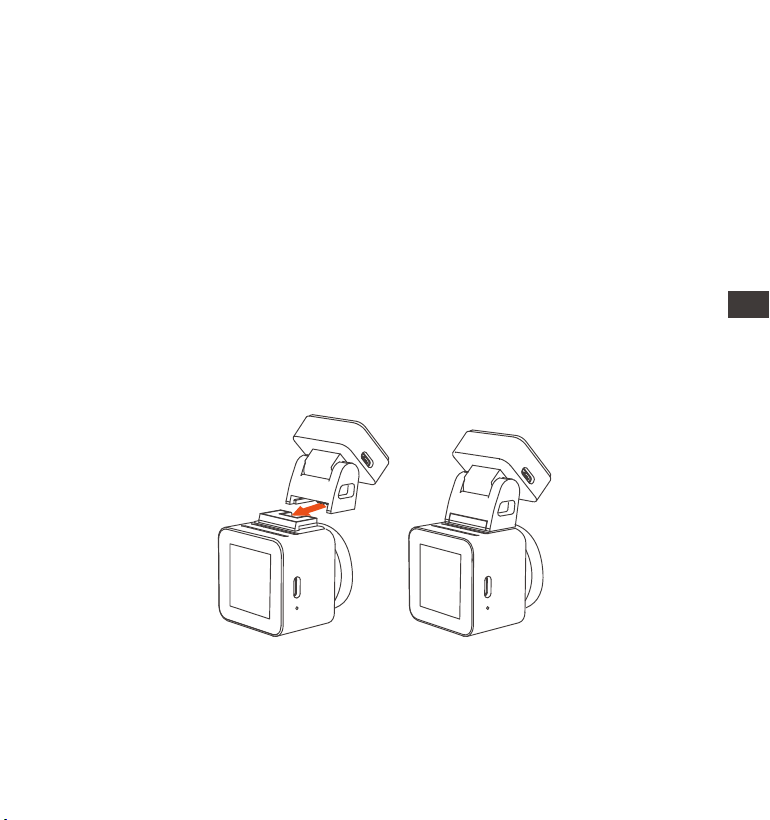
- 125 -
EN
EN
EN
CN
内存卡使用时,建议一个月格式化一次,可以保证记录仪的正常使用;
录影中,请勿直接插拔内存卡,以免丢失重要的录影视频
请勿在记录仪上使用不良卡或者是低速卡,会容易因为内存卡故障,导致停录、
漏录视频等问题出现。
格式化卡前,请检查SD卡内的紧急录影文件夹,是否有需要另外保存的视频,
以免误删除重要的视频。
注意:
1.
2.
3.
4.
3.2 安装记录仪
步骤1
1. 将支架对准记录仪支架接口推入,直至支架安装完毕
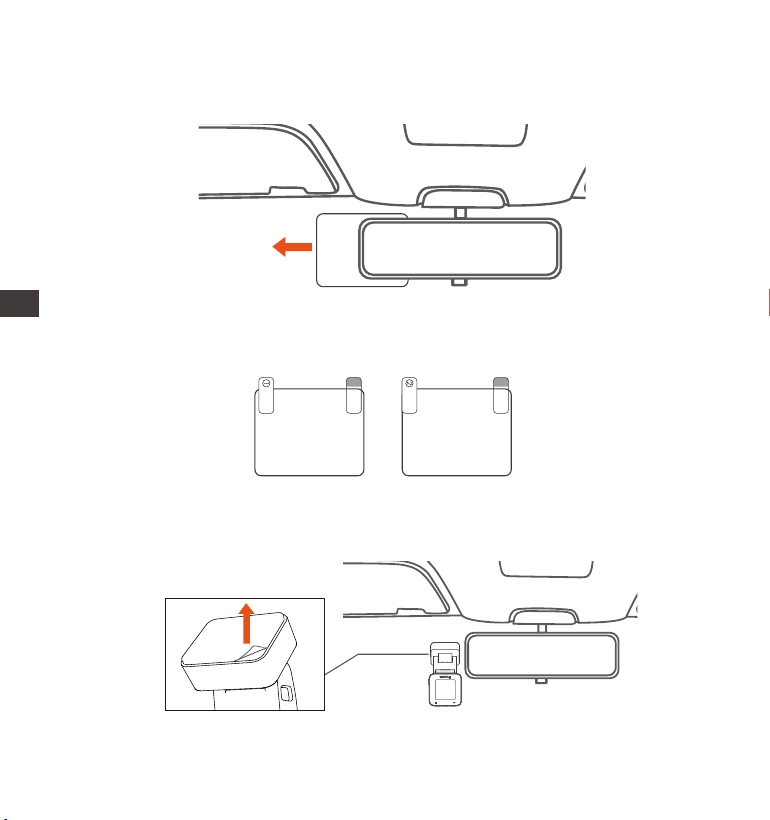
- 126 -
ENENENCN
请在挡风玻璃上选择合适的位置,并清洁干净,先把静电贴装上。建议您先接
电开机,通过观察镜头画面,来选择最佳的安装位置。
2.
3. 将支架上的保护膜撕掉后,安装在静电贴上。
静电贴的安装:静电贴有①/②面,请先将①的保护膜撕掉后,贴在挡风玻璃
上。您需要安装记录仪时,再将②保护膜撕下。
Please peel off this mask
AFTER application completed
Please peel off this
mask BEFORE application
静电贴
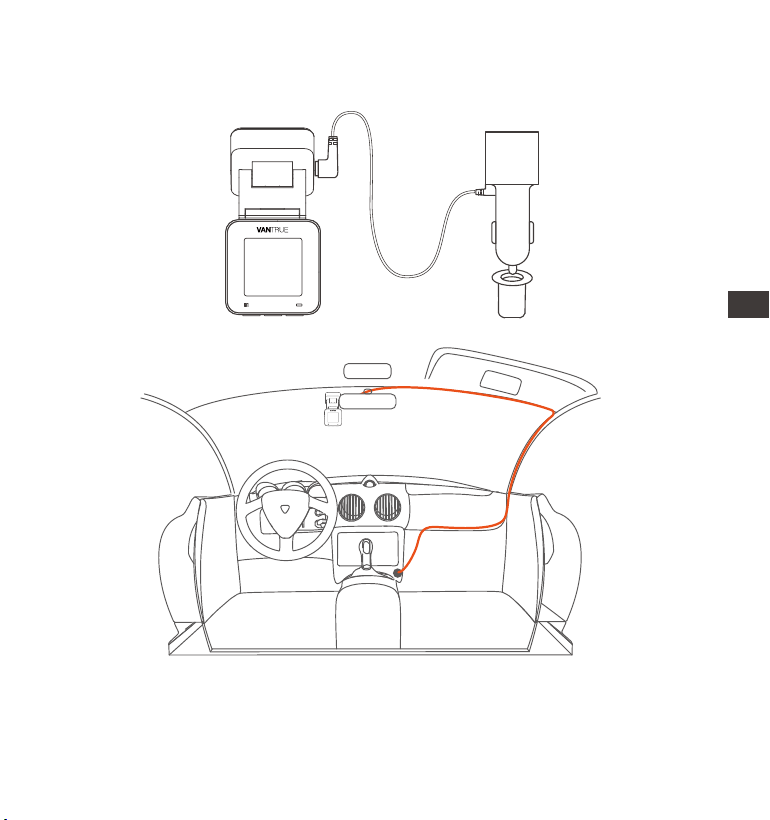
- 127 -
EN
EN
EN
CN
取出车充,车充一端连接点烟器,另一端连接在支架电源接口,汽车启动后,
记录仪即可通电开机
4.

- 128 -
ENENENCN
请用手机扫描下方的二维码,下载并安装VANTRUE Cam APP,并根据提示完成
安装。
注意:本产品可通过WiFi连接手机后,实现录影实时预览、更改记录仪设置、文
件0流量下载、手机回放视频等功能,但是GPS轨迹回放、视频分享功能将依赖于
互联网或者是电信增值服务(需要您关闭记录仪WiFi)。
3.3 APP下载
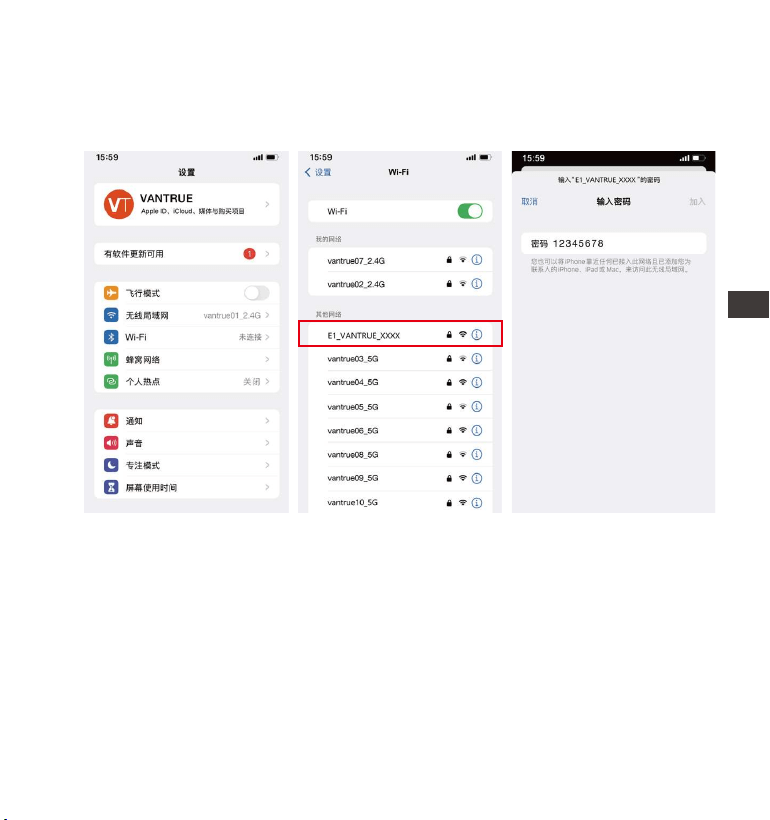
- 129 -
EN
EN
EN
CN
打开记录仪WiFi功能,然后打开手机WiFi设置,找到WiFi名称如:E1_VAN-
TRUE_XXXX,输入WiFi默认密码:12345678,即可连接到WiFi。
3.4 WiFi连接
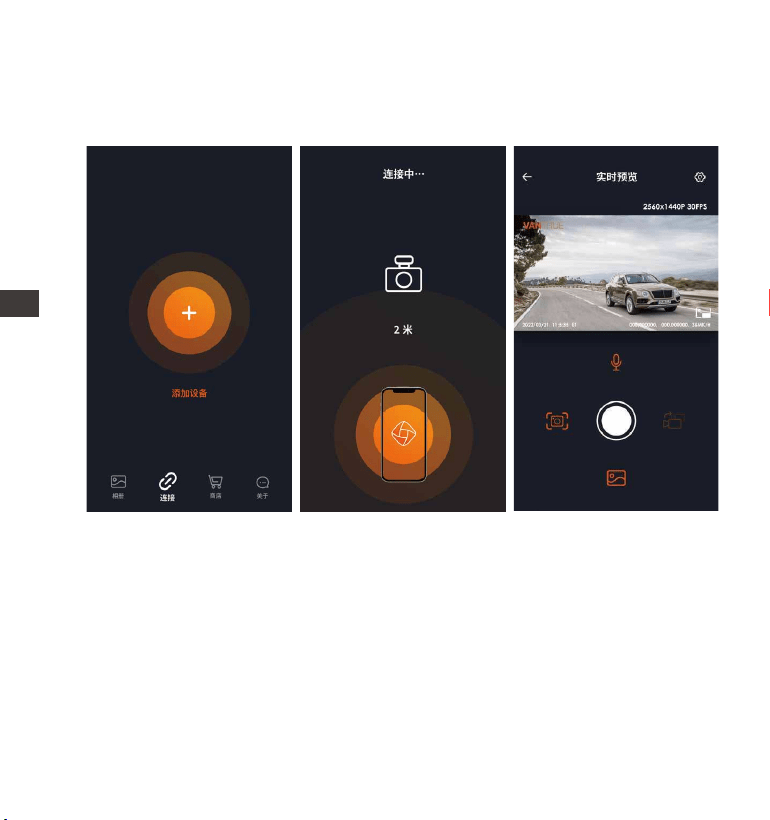
- 130 -
ENENENCN
WiFi连接成功后,首次打开APP点击“+”,添加记录仪型号,然后APP将会自
动连接到记录仪,并显示出记录仪镜头当前实时录影情况。
注意:
若您打开APP前没有连接WiFi,APP将提示您“请先连接WiFi”,并会自动跳
转到WiFi设置中,请您先完成连接WiFi的步骤。
若您WiFi已经连接,但是APP选择机型后跳转到APP的应用权限,请您检查一
下APP的无线网络权限是否打开
本设备的初始密码仅供初次登录使用。为杜绝安全隐患,请您务必在初次登录
后及时修改初始密码,以防他人未经授权登录您的设备或其他不良后果。
1.
2.
3.
3.5 APP连接
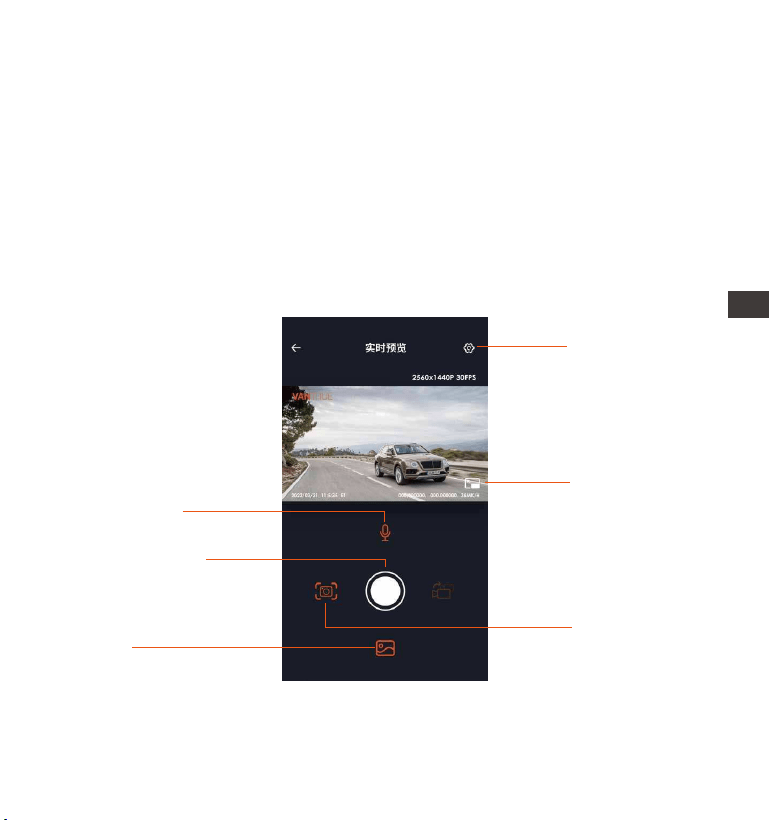
- 131 -
EN
EN
EN
CN
4.
5.
6.
若您忘记WiFi密码,可以选择恢复记录仪默认出厂设置,设备的Wi-Fi密码也
将恢复默认密码12345678。
若连接的WiFi名称与机型不匹配,APP会提示“请选择正确的机型”,并跳回
到选择机型界面。
若您打开WiFi后没有与手机连接,记录仪会在10分钟后关闭WiFi,并回到录
影界面。
3.6 APP使用
设置
全屏
抓拍
相册
开始/暂停录影
麦克风开关

- 132 -
ENENENCN
视频预览:APP连接记录仪成功后,记录仪进入实时预览页面,点击全屏按钮
或者手机横放,实时画面自动切换到全屏预览模式。点击窗口切换按钮切换前
后路视频窗口,但是只有多镜头记录仪可使用此功能。
回放视频:APP内可查看SD卡已录制的视频或者照片文件,点击文件后可进
行视频回放。
视频下载:在SD卡浏览文件界面或者在视频回放中可选择下载视频或者图
片。下载视频后,在App本地文件内播放,可查看视频GPS轨迹。
视频抓拍:App实时预览界面可抓拍当前画面。
进入APP实时预览后,可以进行以下操作:
1.
2.
3.
4.
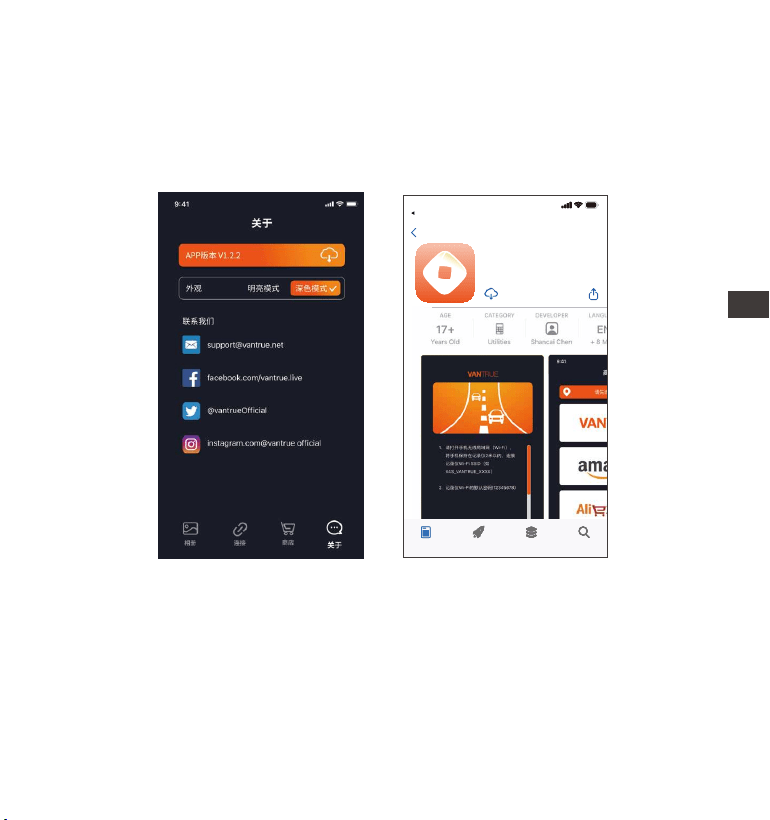
- 133 -
EN
EN
EN
CN
打开“Vantrue Cam”App,连接记录仪Wi-Fi,进入“设置>关于>检测新版
本“,App会自动检测App版本是否是最新版本。如App有新版,根据App提示
操作,升级版本既可。
3.7 APP升级
Vantrue Ltd.
返回
Vantrue Cam
VantrueCam
9:41
Today
游戏
App
搜索

- 134 -
ENENENCN
E1记录仪有三大功能菜单,分别是录影设置、系统设置、文件浏览。您可以在这
三大功能设置中选择您喜欢的组合设置来运行您的记录仪。
按 录影按键,暂停录影后,再按下 菜单键进入菜单设置。
4. 功能亮点
4.1 E1主要功能
录影设置
系统设置
文件浏览
录影设置包括:
a. 分辨率:E1记录仪包含了2592x1944P 30FPS、2560x1440P(HDR) 30FPS、
2560x1440P 30FPS、1920x1080P 60FPS、1920x1080P(HDR) 30FPS、
1920x1080P 30FPS、1280x720P(HDR) 30FPS、1280x720P 30FPS等 8种分
辨率选择
b. 循环录影:默认3分钟,此功能包含了4个选项,分别是关闭、1分钟、3分
钟、5分钟
c. 碰撞灵敏度:选择您需要的碰撞灵敏度等级,分别有三个方向(前后/左右/上
下),六个等级选项1/2/3/4/5/关闭选择,默认3等级。
d. 录影音频:默认开,这里可设置录音开/关。
e. 曝光补偿:默认+0.0,通过此选项可以调整镜头的曝光度高低。
f. 录影指示灯:默认开启,调整录影指示灯开启或者关闭。
g. 旋转显示:默认关闭,可选择上下翻转视频画面显示
h. 车牌号设置:设置后,可在录影视频中显示您的车牌号

- 135 -
EN
EN
EN
CN
i. 标签戳: 在录影视频中显示时间日期、VANTRUE品牌名称、车牌号、GPS位置
信息、车速,默认全部开启。
j. 缩时录影:默认关闭,您可以选择开启1FPS/5FPS/10FPS/15FPS。
k. 停车模式:在这里可设置您所需要的停车模式,碰撞侦测/移动侦测/低比特率
录影/低帧率模式/关,默认关闭。
l. GPS设置:GPS默认开启,GPS开关、速度单位设置、GPS信息都在此功能下。
系统设置包括:
a. 语言:可设置语言有英语、法语、西班牙语、德语、意大利语、简体中文、俄
语、日语、波兰语
b. Wi-Fi:默认关闭,打开后可用手机连接WIFI,并通过手机操作记录仪。
c. 显示设置:默认全屏模式,可切换成全景模式
d. 语音识别:默认标准灵敏度,打开后可识别语音指令,有低灵敏/标准灵敏度/
高灵敏/关闭选项。
e. 语音内容:语音识别指令,用户可以通过不同的指令去遥控记录仪工作。
f. 格式化:格式化内存卡所有数据。
g. 格式化提醒设置:默认关闭,为了避免您忘记格式化内存卡时间,增加了格式
化提醒时间,可选择15天或者1个月后提醒,根据设定当天起计算15天或者是1个
月,到达时间后,您可选择“确定”进行格式化,或者选择“下一次”,若您选择
“下一次”后,会重新计算时间。
h. 日期/时间:日期与时间有两种设定方式,①GPS自动更新,②手动设置日期/
时间。默认打开GPS自动更新,GPS自动更新日期时间是根据您所在的时区进行
的,所以需要您选择正确的时区;您也可以选择关闭GPS自动更新,打开手动设置
日期/时间,手动校正日期时间。
另外,日期格式、时区设置也是在此菜单内。
i. 屏保设置:屏保设置默认是关闭状态,您可以选择30秒、1分钟、3分钟屏保时

- 136 -
ENENENCN
间。
j. 音量:默认音量大小是3档,最低是0档,最高是5档。
k. 提示音:根据不同的情况,记录仪设定了5种提示音,分别是开关机声音、按
键音、加锁提示音、格式化提醒音、异常录音提示音。所有提示音默认打开。
l. 光源频率:不同国家有不同的光源频率,为了避免影响录影,根据不同的地区
选择50Hz或者60Hz的光源频率。
m. 系统信息:查看机器型号、软件版本号、VANTRUE官网网址。
n. 认证信息:查看本机已有认证信息。
o. 默认设置:恢复系统默认设置。
文件浏览包括:
在此功能下,您可以查看记录仪记录的视频文件和照片文件。
a. 紧急视频:此文件夹内保存紧急录影文件,文件名格式为
20300128_140633_0008_E_A.MP4
b. 普通视频:此文件夹内保存循环录影视频、停车模式视频、缩时录影视频。循
环录影文件名为20300128_140633_0008_N_A.MP4;停车模式视频文件名为
20300128_140633_0007_P_A.MP4;缩时录影文件名为
20300128_140633_0006_T_A.MP4。
c. 照片:照片文件存放在此文件夹内
d. 所有:所有文件都可以查看。

- 137 -
EN
EN
EN
CN
4.2 重要功能介绍
记录仪在开机后会自动进入循环录影模式,录影视频将以预先设定的循环录时长
进行保存,保存在普通视频文件夹中。普通视频文件夹占用总内存的70%容量,
当文件夹容量达到总容量70%后,新的循环录影文件会自动覆盖最初一段循环录
影文件。该功能开启后,视频文件自动覆盖循环,以免在行驶过程中卡满停录。
4.2.1 循环录影
注意:
循环录影功能的正常运行非常依赖内存卡的卡速,所以请您定期进行内存卡
格式化,以免内存卡文件过多、卡片老化等问题影响循环录影。
请您定期检查循环录影视频,避免有必要保留的视频被循环覆盖。
如您关闭循环录影后,锁定视频功能将不再起效
关闭循环录影后,每段影片时间为20分钟,录制到卡满后,记录仪会停止录
影,并且提示“卡满!”
1.
2.
3.
4.
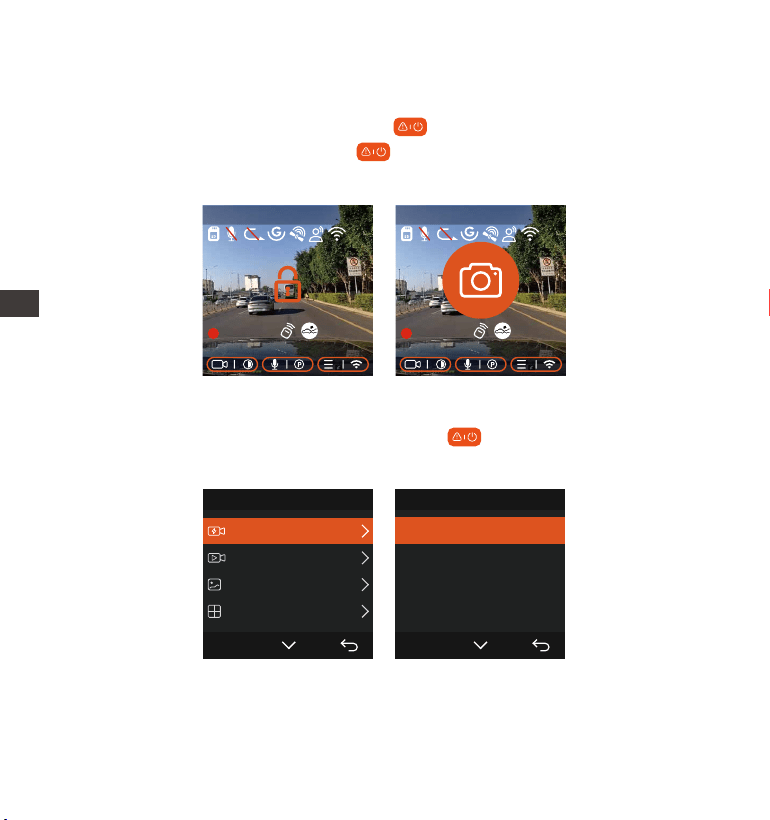
- 138 -
ENENENCN
4.2.2 紧急录影
注意:
自动锁定触发的灵敏度由碰撞灵敏度决定,灵敏度越高,触发的几率越大
紧急视频文件的总容量占当前内存卡总容量30%,当紧急视频文件达到容量上
1.
2.
在行驶过程中,如遭遇特殊情况,您可手动锁定或者是记录仪自动锁定进行紧急
录影。手动锁定只需按下紧急录影按键 ,即可锁定当前录影并抓拍,并且,
在锁定录影期间,您可以通过按下 紧急录影按键,多次抓拍。录影结束后,
视频会自动保存在紧急视频文件夹内,照片会保存在照片文件夹内。
自动锁定紧急录影触发,当汽车遭到碰撞或者震动后,记录仪感应到震动自动触发
锁定当前视频,在锁定录影期间,您也可以按 紧急录影按键,抓拍图片。紧
急录影结束后,视频会保存在紧急视频文件夹内,照片会保存在照片文件夹内。
文件浏览1/4
紧急视频
普通视频
照片
所有
OK
紧急视频2/5
20220820_140633_0001_E...
20220820_140633_0003_E...
2022
0820_140633_0004_E...
2022
0820_140633_0002_E...
OK
2560x1440P 30FPS
MP/H
00:00:37
2022-08-22 14:09:07
120
2560x1440P 30FPS
MP/H
00:00:37
2022-08-22 14:09:07
120

- 139 -
EN
EN
EN
CN
3.
注意:
为了确保记录仪能正常使用停车模式,请使用降压线或者是其他稳定持续的电
源给记录仪供电。
在夏季高温的暴晒环境下,我们建议您使用碰撞侦测模式。当车内环境温度高
达60℃时,建议您关闭记录仪,以免高温导致记录仪工作异常。
缩时录影与停车模式 (包含碰撞侦测、移动侦测、低比特率录影、低帧率模式)
两者只能开启其中一个,开启其中一个会自动关闭另外一个。
1.
2.
3.
停车模式是记录仪重要的功能之一,它肩负着汽车停放时安全监控的重要职责。
您可以根据不同的停车情况,切换不同的停车监控模式。停车模式开启后,进入
方式有两种,停车后等待5分钟自动进入,也可以选择长按 向下键手动进入。
4.2.3 停车模式(开启停车模式后,缩时录影功能将无法工作,两个功能不能同时
运行。)
限后,新的紧急视频文件会自动覆盖最初的一段紧急视频文件,建议定期查看
并另外保存您的紧急视频文件,以免丢失。
锁定录影在以下两种情况中均不会触发,关闭循环录影或是开启缩时录影。关
闭循环录影和开启缩时录影只能抓拍图片。
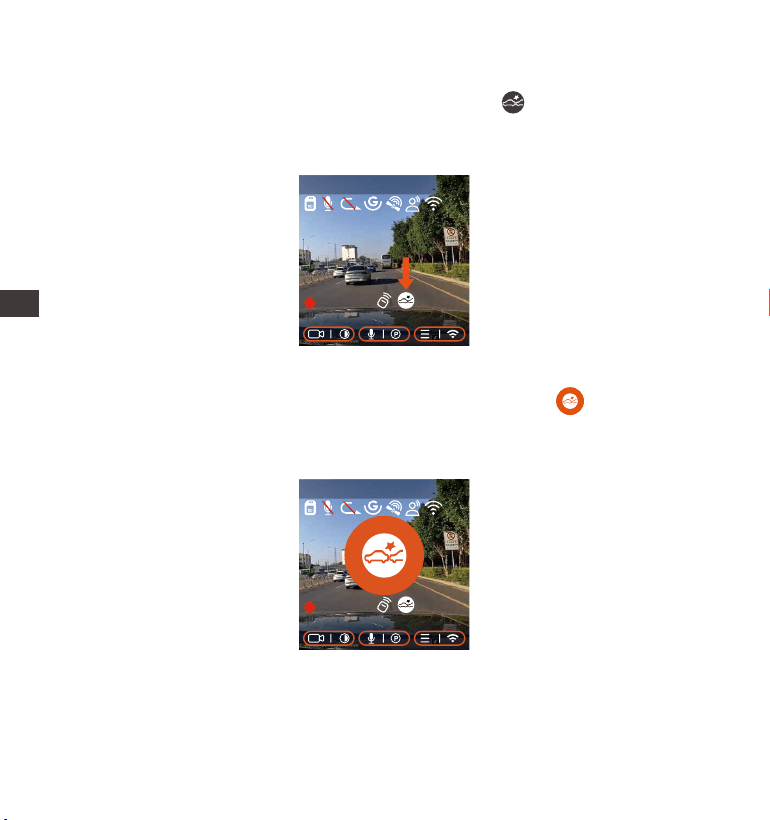
- 140 -
EN
EN
EN
CN
ENEN
ENCN
碰撞侦测
当碰撞侦测打开后,在录影界面会显示碰撞侦测图标 ,表示记录仪当前使用的
是碰撞侦测模式。碰撞侦测灵敏度有1到5档灵敏度可调节,您可以根据自身习
惯,以及汽车状况自行调节。
当记录仪的G-sensor检测到汽车在5分钟内没有发生移动或是振动(简称5分钟进
入机制),碰撞侦测模式自动进入,记录仪屏幕中间会显示 碰撞侦测图标,
随后记录仪自动关机。记录仪关机后,当G-sensor检测到汽车发生振动或者移
动,自动开机录影1分钟,随后关机。
注意:如果记录仪在碰撞侦测录影过程中持续遭到碰撞,将会退出碰撞侦测模式,
进入正常录影,重新开始5分钟进入机制。
2560x1440P 30FPS
MP/H
00:00:37
2022-08-22 14:09:07
120
2560x1440P 30FPS
MP/H
00:00:37
2022-08-22 14:09:07
120
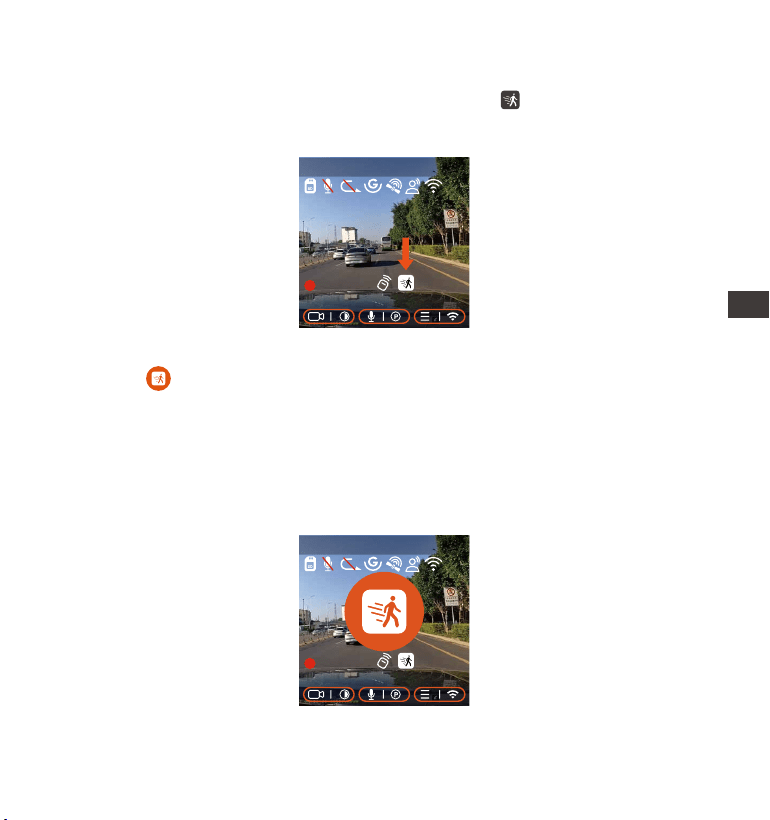
- 141 -
EN
EN
EN
CN
移动侦测
当移动侦测打开后,在录影界面会显示移动侦测图标 ,表示记录仪当前已开启
移动侦测模式。移动侦测有低/中/高三档调节,分别对应移动侦测2米/4米/6米的
侦测范围。
停车后,记录仪会开启5分钟进入机制,移动侦测模式自动进入,记录仪屏幕中间
会显示 图标。记录仪进入待机状态,3分钟后屏幕熄灭。为了增加移动侦测的
可靠性,我们新增了预录功能,把移动侦测前5秒的画面一起放入移动侦测视频
中。
录影过程:当记录仪检测到物体移动或者是感受到汽车震动,将会自动触发录
影,E1带有预录5秒的功能,所以当移动侦测录影结束后,记录仪会将移动侦测触
发前5秒的视频内容与移动侦测触发的30秒内容,组成一段35秒的停车移动侦测
视频。
2560x1440P 30FPS
MP/H
00:00:37
2022-08-22 14:09:07
120
2560x1440P 30FPS
MP/H
00:00:37
2022-08-22 14:09:07
120
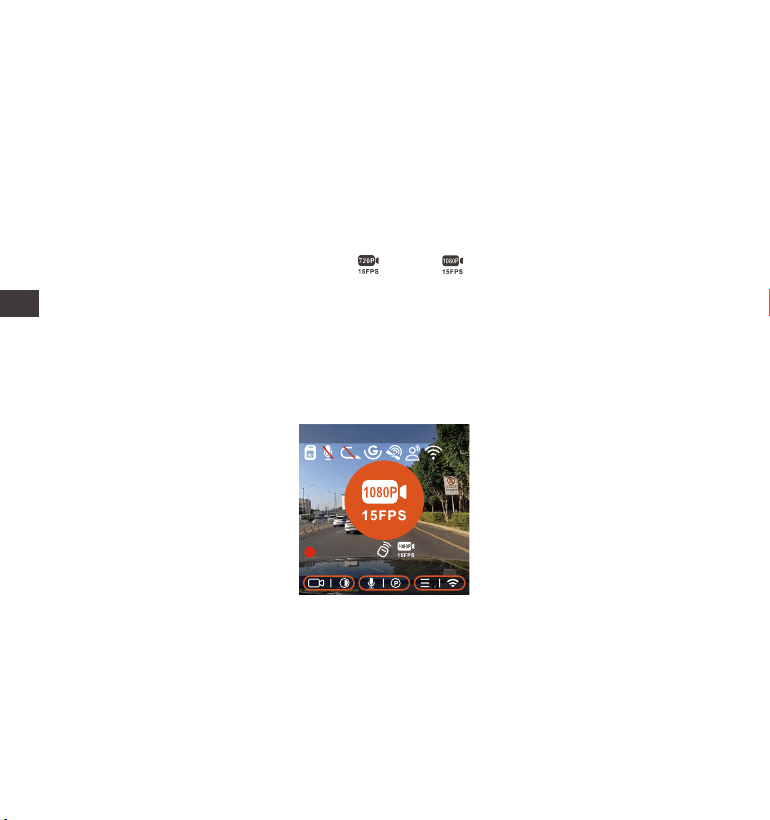
- 142 -
ENENENCN
注意:
移动侦测模式需要在开机的情况下进行,记录仪一旦关闭,移动侦测模式将不
会起作用。
1944P和1440P HDR的解析度,暂不支持预录功能,因此开启移动侦测后,
自动修改为1440P的解析度进行录影。
1.
2.
低比特率录影开启后,屏幕会显示 或者是 的图标,根据您选择是1080P
15FPS或是720P 15FPS选项而定。
停车后,记录仪会开启5分钟进入机制,低比特率模式会自动进入,屏幕中央会显
示低比特率图标(表示进入低比特率模式),当前所有镜头的分辨率会自动切换
为1080P 15FPS或是720P 15FPS进行录影,录影时长是按照当前设定的循环录影
时长决定。当机子受到振动或者是移动后会自动退出,等待五分钟后再次进入。
低比特率录影
注意:低比特率模式需要在开机的情况下进行,记录仪一旦关闭,低比特率模式
将不会起作用。
低帧率模式
当选择开启低帧率模式后,记录仪将会根据选择1FPS/5FPS/10FPS/15FPS进行
录影。例如,您选择的1FPS,当前视频分辨率帧数为30FPS,记录仪将会每秒产
2560x1440P 30FPS
MP/H
00:00:37
2022-08-22 14:09:07
120

- 143 -
EN
EN
EN
CN
EN
EN
EN
CN
4.2.4.缩时录影
当选择开启缩时录影后,记录仪将会根据选择1FPS/5FPS/10FPS/15FPS进行循
环录影。例如,您选择的1FPS缩时录影(当前视频分辨率帧数为30FPS,循环录
影时间为1分钟),记录仪将会每秒产生一段30FPS的视频。
视频时长的计算公式为:缩时录影文件时长*缩时录影帧数/分辨率帧数=录制文
件实际时长(时间须换算成秒)
注意:
计算公式的时间单位是秒,所以计算得到的最后的正常录影时间也是秒,如需
换算成其他时间单位,请自行查询后换算。
低帧率模式与缩时录影功能相似,两者区别在于5分钟进入机制,缩时录影没
有5分钟进入机制,设定后会直接开启。
低帧率模式下,记录仪也需要有稳定电源供电,一旦电源关闭或者是耗尽,记
录仪将会关机。
1.
2.
3.
生一段30FPS的视频。
停车后,记录仪会开启5分钟进入机制,低帧率模式会自动进入。缩时录影视频
可以很大程度保存视频的完整性,以及节省内存卡空间。
2560x1440P 30FPS
MP/H
00:00:37
2022-08-22 14:09:07
120
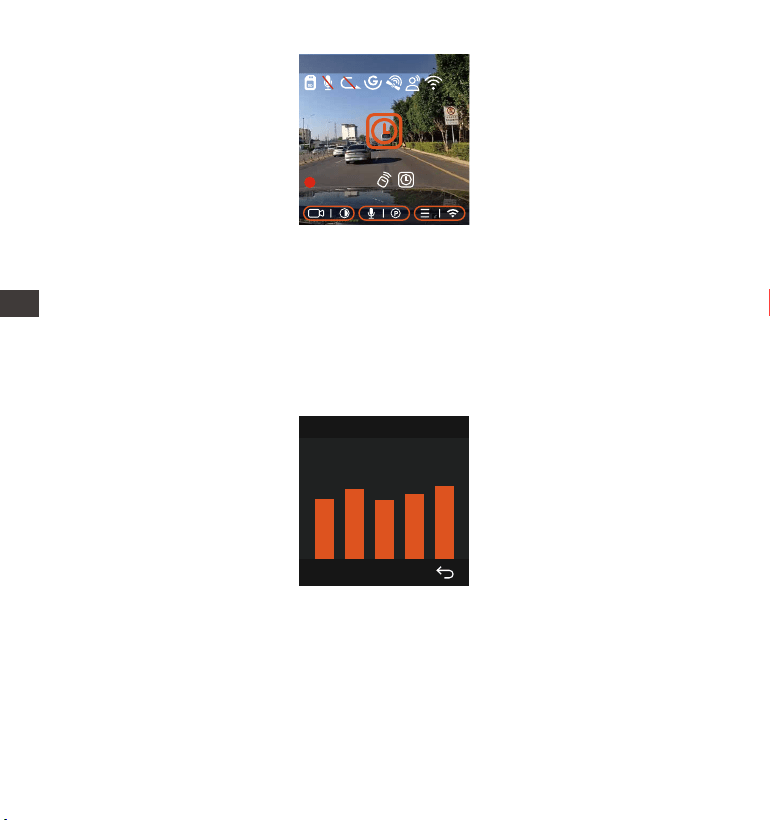
- 144 -
ENENENCN
注意:
GPS会在您开机后的1分钟内完成连接,若您超过1分钟内还没连接成功,请检
查设备是否已经打开GPS功能、是否连接GPS支架,以及您所在的环境(地下停
车场,楼房密集居民区、地铁、隧道等地区会影响GPS信号的接收)。
GPS信息是记录在您录制的视频内,如需查看,请下载并安装VANTRUE Cam
APP和VANTRUE GPS播放器。
1.
2.
视频时长的计算公式为:缩时录影文件时长*缩时录影帧数/分辨率帧数=录制文
件实际时长(时间须换算成秒)
4.2.5.GPS功能
GPS功能也是记录仪重要的功能之一,GPS默认为打开,并且通过GPS支架接收
GPS信号。它可以自动校正您所在的地区的时间日期,记录视频所在的位置、车
速信息。
40
46
39
43
48
GPS功能
2560x1440P 30FPS
MP/H
00:00:37
2022-08-22 14:09:07
120
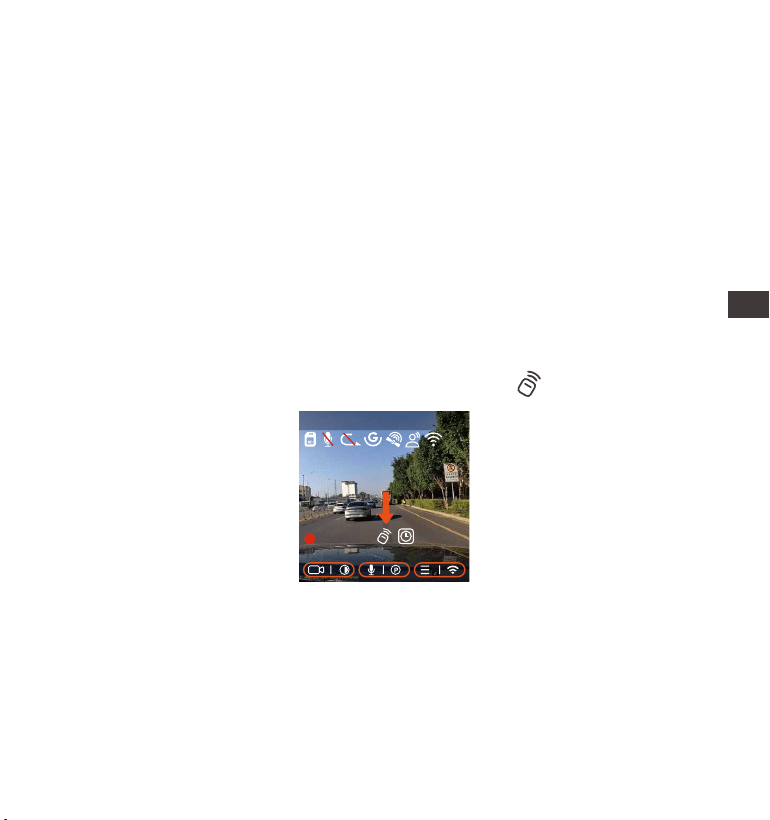
- 145 -
EN
EN
EN
EN
CN
4.2.6.GPS自动校正时间
E1记录仪默认打开GPS自动校正时间,您可以通过选择您所在的时区,如您所在
地区是洛杉矶,可选择GMT-08:00。如不了解自己所在位置的时区,可用WIFI连
接Vantrue Cam APP,确认APP中的自动校时功能开启,连接成功后,会根据您
手机的时区,强制修正记录仪的时区。
4.2.7.遥控器
记录仪出厂配备了遥控器,可以通过遥控器快速操作抓拍、紧急录影、录音开启/
关闭等功能。
遥控器连接:
拆除包装后,取出遥控器,取下遥控器上的电池绝缘片,记录仪会自动与遥控器
匹配,不需要手动与行车记录仪配对。当屏幕显示出现 图标后,表示遥控器
已匹配成功。
遥控器安装:
遥控器与记录仪匹配后,请在您车上选取一个合适的位置,然后将遥控器的黏胶
贴纸撕下,粘贴在选择的位置上。(注意:遥控器需安装在不影响安全驾驶的位置
上)
2560x1440P 30FPS
MP/H
00:00:37
2022-08-22 14:09:07
120
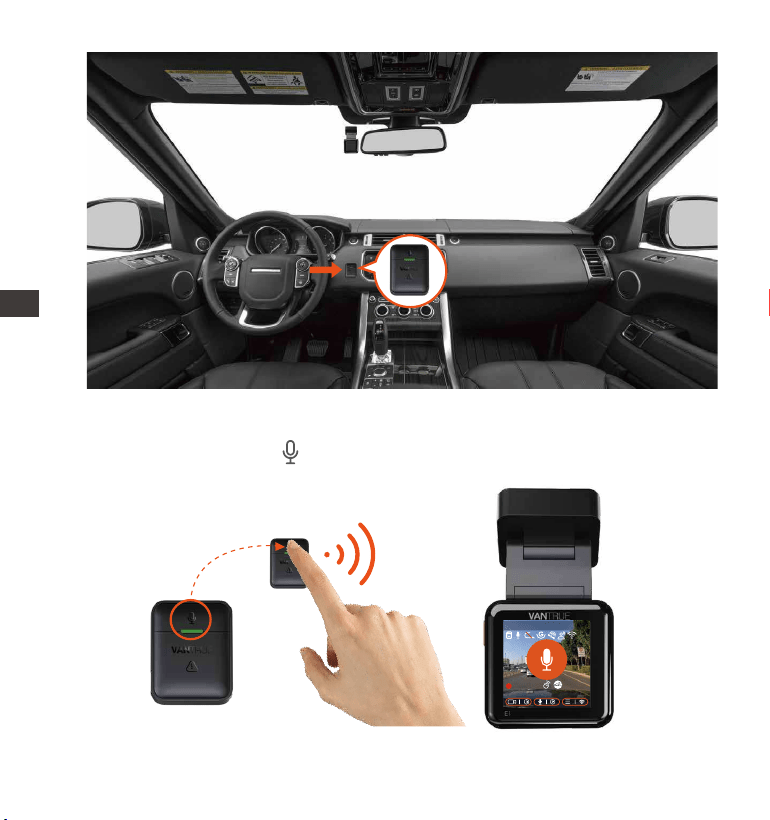
- 146 -
ENENENCN
1.遥控器连接成功后使用 录音键,可以开启或者关闭录音。
遥控器功能:
2560x1440P 30FPS
MP/H
00:00:37
2022-08-22 14:09:07
120
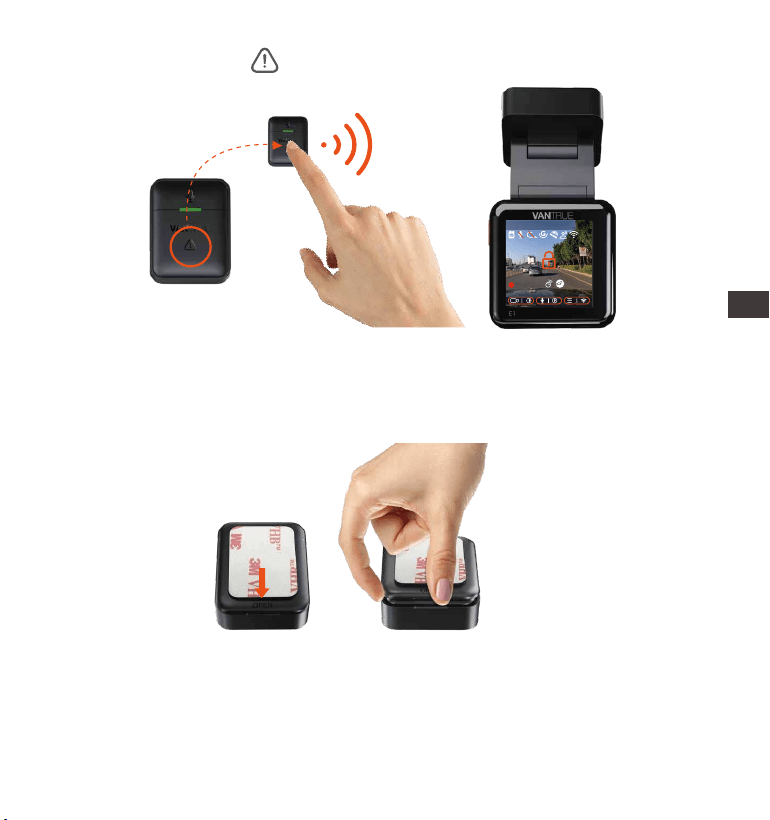
- 147 -
EN
EN
EN
EN
EN
EN
CN
遥控器更换电池:
连接成功后,使用 SOS按键短按一下,加锁当前文件并抓拍;加锁录影中
继续短按,会继续抓拍照片
2.
在遥控器底部有一个“OPEN”标志,请沿着此标志的凹槽位置往周围缝隙慢
慢撬开即可打开。
1.
打开后,电池仓前面的凹槽轻轻的把电池撬开,然后取出旧电池,再把新电池
放入,把遥控器后盖盖好。
2.
2560x1440P 30FPS
MP/H
00:00:37
2022-08-22 14:09:07
120
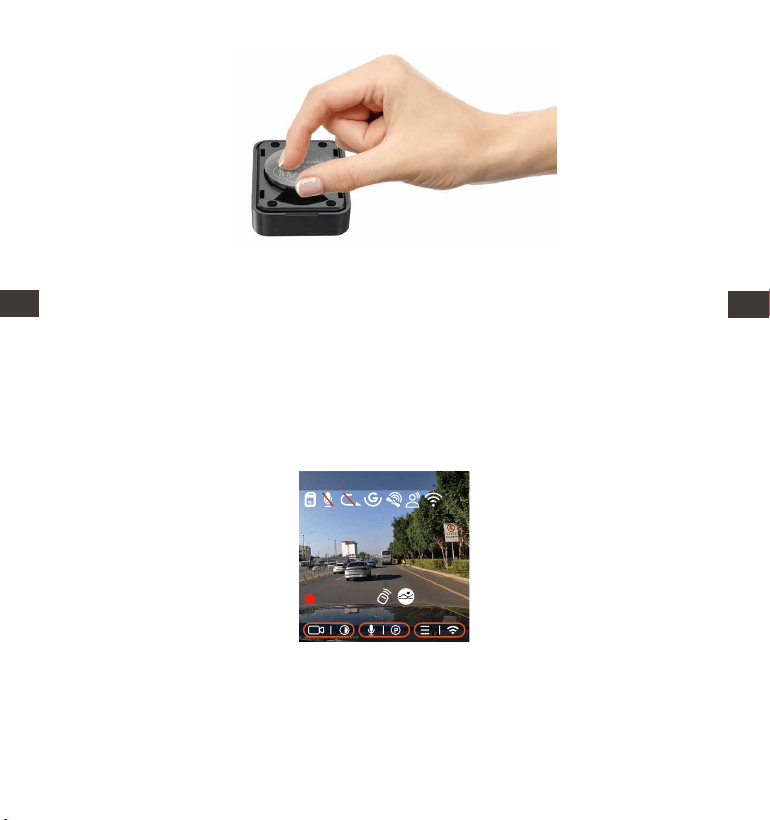
- 148 -
ENENENCN
CN
注意:遥控器电量不足时请更换电池,遥控器不支持充电。遥控器电池的型号是
CR2032纽扣电池。
4.2.8.语音识别
除了遥控器操控记录仪外,您还可以给记录仪下达语音指令,如抓拍图片、视频
加锁等。目前支持语种有英语、日语、俄语、中文,更加详细的语音指令请查看
系统设置>语音内容。语音识别有低灵敏/标准/高灵敏/关闭等选项,默认为标准
灵敏度。
2560x1440P 30FPS
MP/H
00:00:37
2022-08-22 14:09:07
120
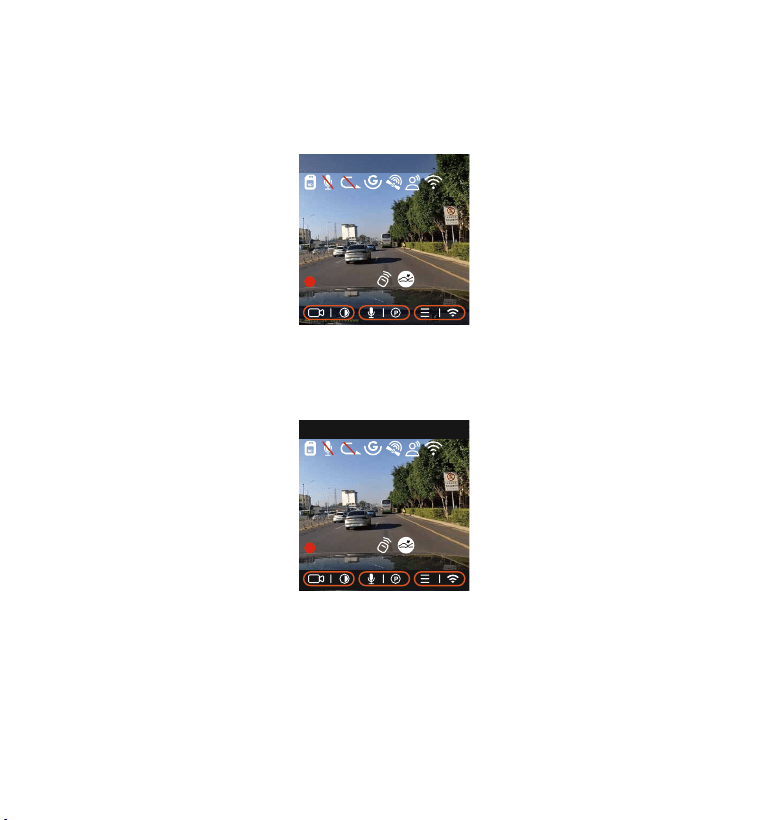
- 149 -
EN
EN
EN
4.2.9.显示设置
E1为小屏记录仪,因此我们特地为您设置了两种屏幕显示模式。
第一种是全屏模式,全屏模式是全屏显示画面,更大的屏占比,但会损失左右部
分视角(如下图)。
另一种是全景模式,此模式下,录影镜头看到的内容会全部显示出来,录影画面
显示的比例就是4:3的画面比例。
注意:以上仅为显示模式,不会影响视频的录影角度。
2560x1440P 30FPS
MP/H
00:00:37
2022-08-22 14:09:07
120
2560x1440P 30FPS
MP/H
00:00:37
2022-08-22 14:09:07
120
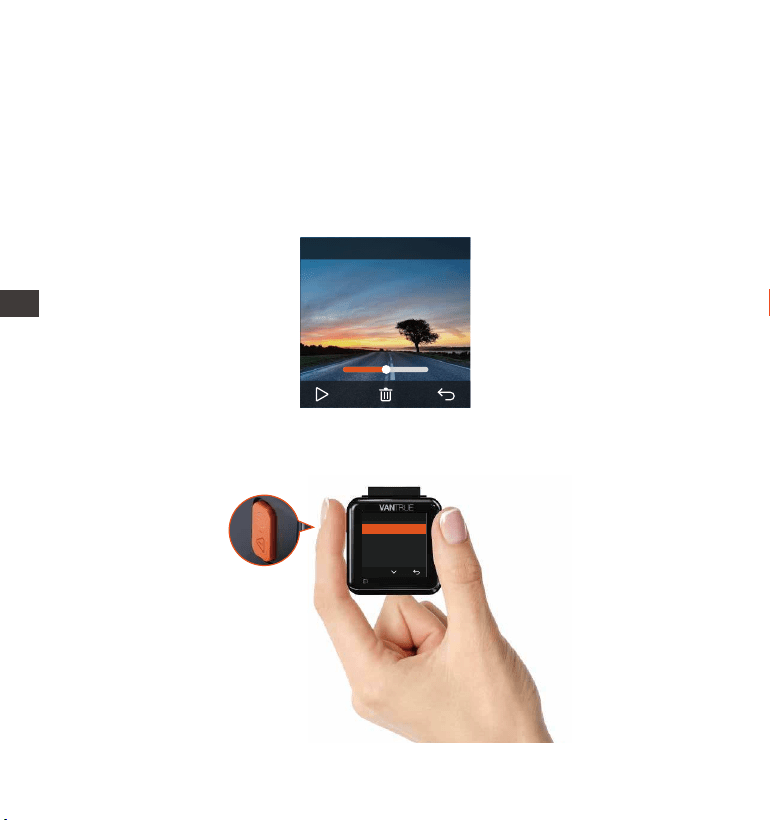
- 150 -
ENENENCN
4.2.10.回放、删除文件的途径
a.记录仪上操作
---回放视频
进入文件浏览后,任意选择文件夹进入,打开视频文件后,可以按下键选择下一
段文件,播放中可选择删除文件。
---删除视频
记录仪上删除视频,在文件浏览界面,按紧急录影按键可弹出删除菜单。
普通视频
刪除这个文件?
刪除所有文件?
OK
00:30 01:07
1280x720
08/22/2022
7:15
20220822_140633_0002_N
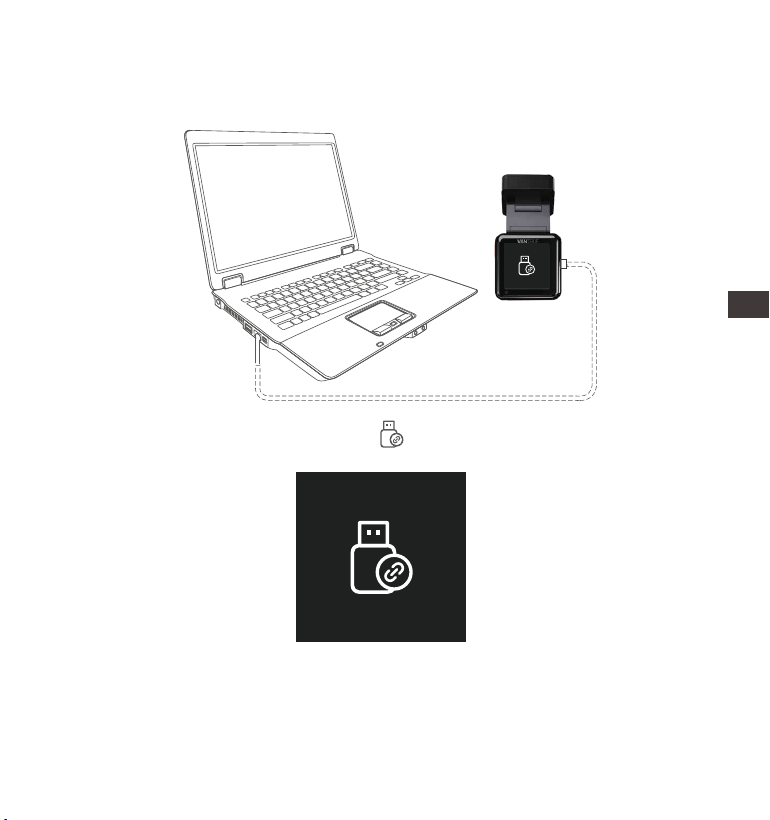
- 151 -
EN
EN
EN
CN
b.在电脑上回放、删除文件
1. 使用Type-C USB数据线插入电脑,使得记录仪与电脑连接在一起。
根据用户的电脑系统,记录仪连接电脑后会在电脑中显示为可移动驱动器或者
是可移动文件夹。
电脑查看文件可直接右键打开菜单进行删除即可
3.
4.
连接成功后,记录仪显示屏中会 “ ”,随后即可在电脑文件夹中查看得到
视频文件。
2.
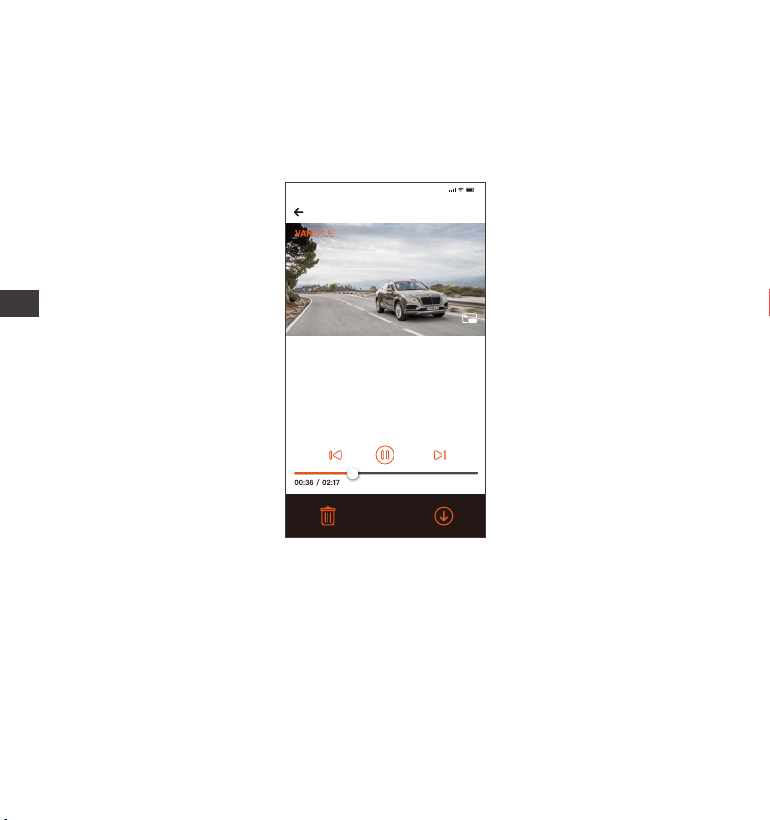
- 152 -
ENENENCN
5.
c.在APP内回放、删除文件
记录仪通过WiFi与手机连接后,可以在手机APP内相机文件夹中回放、下载、删
除文件。
20220822_115036_0079_N_A.MP4
05/01/2022 11:5:35 E1 000.000000. 000.000000. 36MK/H
注意;
9:41
要显示GPS信息,您必须先将视频文
件下载到APP的本地文件夹,然后在
本地文件夹播放。
注意:
APP内回放、下载SD卡文件,不会产生数据流量的消耗。
视频文件下载至本地后回放,可以查看GPS轨迹信息,但是需要您断开记录仪
WIFI,否者地图信息会显示空白。
1.
2.
也可使用USB读卡器读取内存卡信息。

- 153 -
EN
EN
EN
CN
4.2.11.升级记录仪软件
为了达到更好的用户体验,我们会不定期的更新记录仪软件,您可以通过联系我
们客服人员或者是登录我们官方网站去下载最新的软件版本。软件下载后,请根
据官网提示进行升级即可。
注意:记录仪在升级过程中,请勿断电,否则会导致记录仪升级不成功或损坏记
录仪。若突发断电导致升级失败,您可以联系我们客服人员,会有专人为您解决
问题。
4.2.12.记录仪工作环境
行车记录仪正常的工作环境为-20℃到70℃,超出此温度范围工作会影响记录仪
的性能,长此以往会损害记录仪的使用寿命。
因此,我们建议您:
在炎热高温的环境长时间停车时,请使用碰撞侦测模式或者是暂停使用记录
仪。
在极端严寒的环境中,记录仪电池的活性会降低,如若长时间不需要使用记录
仪时,请把记录仪取下放置在扶手箱内,以保证记录仪正常使用。
1.
2.

- 154 -
ENENENCN
5. 产品规格参数
E1
型号
English、简体中文、日本語、Deutsch、Italiano、
Español、Français、Русский язык、Polski
Micro SD卡(支持32GB-512GB,U3或更高卡速的
内存卡)
为了您更好的产品体验,我们会对产品进行升级,产品规格可能会改变,恕不另
行通知。
芯片处理器
图像传感器
G-sensor
WIFI
屏幕
镜头角度
光圈
联咏高性能处理器
Sony Sensor
内置三轴传感器
2.4GHz
1.54"IPS显示屏
160°超大广角
F1.8
Type-C
超级电容
DC 5V 2.4A
3.5W
-4℉至158℉(-20℃至70℃)
-22℉至185℉(-30℃至85℃)
USB接口
电池类型
供电电流
工作功率
工作温度
存储温度
MP4
内置麦克风和扬声器
视频格式
音频
储存方式
语言
- 155 -
EN
EN
EN
CN
6. 售后服务
VANTRUE品牌保修服务周期为12个月,如果您有任何关于产品的问题,可以联
系您购买渠道的客服人员,或者是发送邮件至我们官方邮箱 support@vantrue.
net 我们将会有专门人员在12-24小时内回复问题。
VANTRUE
®
品牌一直坚定不移地致力于不断改进产品,提高服务以及用户体验。
如果您对于我们如何能做的更好有任何的想法,欢迎您在我们的官方邮箱
[email protected]留下宝贵的意见及建议。
感谢您选择VANTRUE
®
京东旗舰店
https://vantrue.jd.com/
联系我们:
微信号: vantrue001
微信小管家