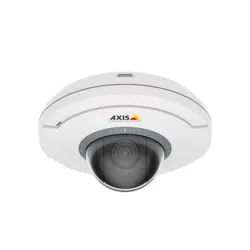


AXISM5075-GPTZCamera
TableofContents
Getstarted................................................3
Findthedeviceonthenetwork....................................3
Openthedevice'swebpage.......................................3
Webpageoverview..............................................4
Congureyourdevice........................................5
Adjusttheimage................................................5
Adjustthecameraview(PTZ)......................................10
Viewandrecordvideo............................................11
Setuprulesforevents...........................................12
Audio.........................................................16
Cleaningrecommendations...................................17
Learnmore................................................18
Capturemodes.................................................18
Privacymasks..................................................18
Overlays.......................................................19
Pan,tilt,andzoom(PTZ)..........................................19
WirelessI/O(Z-WavePlus
TM
v2)....................................19
Streamingandstorage...........................................23
Applications....................................................26
Troubleshooting............................................28
Resettofactorydefaultsettings...................................28
Firmwareoptions...............................................28
Checkthecurrentrmwareversion.................................
28
Upgradethermware............................................28
Technicalissues,clues,andsolutions................................
29
Performanceconsiderations.......................................
30
Contactsupport.................................................31
Specications..............................................32
Productoverview................................................
32
LEDindicators..................................................
32
SDcardslot....................................................
32
Buttons.......................................................
32
Connectors....................................................
33
2

AXISM5075-GPTZCamera
Getstarted
Getstarted
Findthedeviceonthenetwork
TondAxisdevicesonthenetworkandassignthemIPaddressesinWindows®,useAXISIPUtilityorAXISDeviceManager.Both
applicationsarefreeandcanbedownloadedfromaxis.com/support.
FormoreinformationabouthowtondandassignIPaddresses,gotoHowtoassignanIPaddressandaccessyourdevice.
Browsersupport
Youcanusethedevicewiththefollowingbrowsers:
Chrome
TM
Firefox
®
Edge
TM
Safari
®
Windows
®
recommended
recommended
macOS
®
recommendedrecommended
Linux
®
recommendedrecommended
Otheroperatingsystems*
*TouseAXISOSwebinterfacewithiOS15oriPadOS15,gotoSettings Settings
Settings
> >
>
Safari Safari
Safari
> >
>
Advanced Advanced
Advanced
> >
>
Experimental Experimental
Experimental
Features Features
Features
anddisable
NSURLSessionWebsocket.
Ifyouneedmoreinformationaboutrecommendedbrowsers,gotoAXISOSPortal.
Openthedevice'swebpage
1.OpenabrowserandentertheIPaddressorhostnameoftheAxisdevice.
IfyoudonotknowtheIPaddress,useAXISIPUtilityorAXISDeviceManagertondthedeviceonthenetwork.
2.Entertheusernameandpassword.Ifyouaccessthedeviceforthersttime,youmustsettherootpassword.SeeSeta
newpasswordfortherootaccountonpage3.
Verifythatnoonehastamperedwiththermware
TomakesurethatthedevicehasitsoriginalAxisrmware,ortotakefullcontrolofthedeviceafterasecurityattack:
1.Resettofactorydefaultsettings.SeeResettofactorydefaultsettingsonpage28.
Afterthereset,securebootguaranteesthestateofthedevice.
2.Congureandinstallthedevice.
Setanewpasswordfortherootaccount
Thedefaultadministratorusernameisroot.There’snodefaultpasswordfortherootaccount.Yousetapasswordtherst
timeyoulogintothedevice.
1.Typeapassword.Followtheinstructionsaboutsecurepasswords.SeeSecurepasswordsonpage4.
2.Retypethepasswordtoconrmthespelling.
3.ClickAdduser.
Important
Ifyoulosethepasswordfortherootaccount,gotoResettofactorydefaultsettingsonpage28andfollowtheinstructions.
3

AXISM5075-GPTZCamera
Getstarted
Securepasswords
Important
Axisdevicessendtheinitiallysetpasswordincleartextoverthenetwork.Toprotectyourdeviceaftertherstlogin,set
upasecureandencryptedHTTPSconnectionandthenchangethepassword.
Thedevicepasswordistheprimaryprotectionforyourdataandservices.Axisdevicesdonotimposeapasswordpolicyasthey
maybeusedinvarioustypesofinstallations.
Toprotectyourdatawestronglyrecommendthatyou:
•Useapasswordwithatleast8characters,preferablycreatedbyapasswordgenerator.
•Don’texposethepassword.
•Changethepasswordatarecurringinterval,atleastonceayear.
Webpageoverview
Thisvideogivesyouanoverviewofthedeviceinterface.
Towatchthisvideo,gotothewebversionofthisdocument.
www.axis.com/products/online-manual/73039#t10157625
Axisdevicewebinterface
4

AXISM5075-GPTZCamera
Configureyourdevice
Configureyourdevice
Adjusttheimage
Thissectionincludesinstructionsaboutconguringyourdevice.Ifyouwanttolearnmoreabouthowcertainfeatureswork,go
toLearnmoreonpage18.
Levelthecamera
Toadjusttheviewinrelationtoareferenceareaoranobject,usethelevelgridincombinationwithamechanicaladjustment
ofthecamera.
1.GotoVideo>Image>andclick
.
2.Click
toshowthelevelgrid.
3.Adjustthecameramechanicallyuntilthepositionofthereferenceareaortheobjectisalignedwiththelevelgrid.
Adjustthefocus
Thisproducthasthreefocusmodes:
•Auto:Thecameraautomaticallyadjustsfocusbasedontheentireimage.
•Area:Thecameraautomaticallyadjustsfocusbasedonaselectedareaoftheimage.
•Manual:Thefocusissetmanuallyataxeddistance.
Toturnoffautofocusandadjustthefocusmanually:
1.Intheliveviewwindow,iftheZoomsliderisvisible,clickZoomandselectFocus.
2.ClickMandusetheslidertosetthefocus.
Adjustthefocusfasterwithfocusrecallareas
Tosavethefocussettingsataspecicpan/tiltrange,addafocusrecallarea.Eachtimethecameramovesintothatareaitrecallsthe
previouslysavedfocus.It’senoughtocoverhalfofthefocusrecallareaintheliveview.
Werecommendthefocusrecallfeatureinthefollowingscenarios:
•Whenthereisalotofmanualoperationinliveview,forexamplewithajoystick.
•WherePTZpresetpositionswithmanualfocusarenotefcient,forexamplemovementswherethefocussettingchanges
continuously.
•Inlow-lightscenarios,wheretheautofocusischallengedbythelightingconditions.
Important
•Thefocusrecalloverridesthecamera’sautofocusatthespecicpan/tiltrange.
•Apresetpositionoverridesthefocussettingsavedinthefocusrecallarea.
•Themaximumnumberoffocusrecallareasis20.
Createafocusrecallarea
1.Pan,tilt,andzoomintotheareawhereyouwouldliketohavefocus.
5

AXISM5075-GPTZCamera
Configureyourdevice
Aslongasthefocusrecallbuttonshowsaplus,youcanaddafocusrecallareainthatposition.
2.Adjustthefocus.
3.Clickthefocusrecallbutton.
Deleteafocusrecallarea
1.Pan,tilt,andzoomintothefocusrecallareayouwanttodelete.
Thefocusrecallbuttontogglestominuswhenthecameradetectsafocusrecallarea:
.
2.Clickthefocusrecallbutton.
Reduceimageprocessingtimewithlowlatencymode
Youcanoptimizetheimageprocessingtimeofyourlivestreambyturningonlowlatencymode.Thelatencyinyourlivestreamis
reducedtoaminimum.
1.GotoSystem>Plaincong.
2.SelectImageSourcefromthedrop-downlist.
3.GotoImageSource/I0/Sensor>LowlatencymodeandselectOn.
4.ClickSave.
Selectexposuremode
Toimproveimagequalityforspecicsurveillancescenes,useexposuremodes.Exposuremodesletsyoucontrolaperture,shutter
speed,andgain.GotoVideo>Image>Exposureandselectbetweenthefollowingexposuremodes:
•Formostusecases,selectAutomaticexposure.
•Forenvironmentswithcertainarticiallighting,forexampleuorescentlighting,selectFlicker-free.
Selectthesamefrequencyasthepowerlinefrequency.
•Forenvironmentswithcertainarticiallightandbrightlight,forexampleoutdoorswithuorescentlightingatnightand
sunduringdaytime,selectFlicker-reduced.
Selectthesamefrequencyasthepowerlinefrequency.
•Tolockthecurrentexposuresettings,selectHoldcurrent.
BenetfromIRlightinlow-lightconditionsbyusingnightmode
Yourcamerausesvisiblelighttodelivercolorimagesduringtheday.Astheavailablelightdiminishes,youcansetthecamerato
automaticallyshifttonightmode,inwhichthecamerausesbothvisiblelightandnear-infraredlighttodeliverblack-and-white
images.Sincethecamerausesmoreoftheavailablelight,itcandeliverbrighter,moredetailedimages.
1.GotoVideo>Image>Day-nightmode,andmakesurethattheIR-cutlterissettoAuto.
2.Tosetthelightlevelatwhichthecamerawillshifttonightmode,movetheThresholdslidertowardBrightorDark.
Note
Ifyousettheshifttonightmodetooccurwhenit’sbrighter,theimageremainssharperastherewillbelesslow-light
noise.Ifyousettheshifttooccurwhenit’sdarker,theimagecolorsaremaintainedforlonger,buttherewillbemore
imageblurduetolow-lightnoise.
6

AXISM5075-GPTZCamera
Configureyourdevice
Reducenoiseinlow-lightconditions
Toreducenoiseinlow-lightconditions,youcanadjustoneormoreofthefollowingsettings:
•Adjustthetrade-offbetweennoiseandmotionblur.GotoVideo>Image>ExposureandmovetheBlur-noisetrade-off
slidertowardLownoise.
•Settheexposuremodetoautomatic.
Note
Ahighmaxshuttervaluecanresultinmotionblur.
•Toslowdowntheshutterspeed,setmaxshuttertothehighestpossiblevalue.
Note
Whenyoureducethemaxgain,theimagecanbecomedarker.
•Setthemaxgaintoalowervalue.
•Opentheaperture.
•Reducesharpnessintheimage,underAppearance.
Reducemotionblurinlow-lightconditions
Toreducemotionblurinlow-lightconditions,adjustoneormoreofthefollowingsettingsinVideo>Image>Exposure:
•MovetheBlur-noisetrade-offslidertowardLowmotionblur.
Note
Whenyouincreasethegain,imagenoisealsoincreases.
•SetMaxshuttertoashortertime,andMaxgaintoahighervalue.
Ifyoustillhaveproblemswithmotionblur:
•Increasethelightlevelinthescene.
•Mountthecamerasothatobjectsmovetowarditorawayfromitratherthansideways.
Handlesceneswithstrongbacklight
Dynamicrangeisthedifferenceinlightlevelsinanimage.Insomecasesthedifferencebetweenthedarkestandthebrightest
areascanbesignicant.Theresultisoftenanimagewhereeitherthedarkorthebrightareasarevisible.Widedynamicrange
(WDR)makesbothdarkandbrightareasoftheimagevisible.
ImagewithoutWDR.
7

AXISM5075-GPTZCamera
Configureyourdevice
ImagewithWDR.
Note
•WDRcancauseartifactsintheimage.
•WDRmaynotbeavailableforallcapturemodes.
1.GotoVideo>Image>Widedynamicrange.
2.TurnonWDR.
3.UsetheLocalcontrastslidertoadjusttheamountofWDR.
4.UsetheTonemappingslidertoadjusttheamountofWDR.
5.Ifyoustillhaveproblems,gotoExposureandadjusttheExposurezonetocovertheareaofinterest.
FindoutmoreaboutWDRandhowtouseitataxis.com/web-articles/wdr.
Compensateforbarreldistortion
Barreldistortionisaphenomenonwherestraightlinesappearincreasinglybentclosertotheedgesoftheframe.Awideeldofview
oftencreatesbarreldistortioninanimage.Barreldistortioncorrectioncompensatesforthisdistortion.
Note
Barreldistortioncorrectionaffectstheimageresolutionandeldofview.
1.GotoSettings>Image>Imagecorrection.
2.TurnonBarreldistortioncorrection(BDC).
3.Usetheslidertoimprovetheimage.
Monitorlongandnarrowareas
Usecorridorformattobetterutilizethefulleldofviewinalongandnarrowarea,forexampleastaircase,hallway,road,ortunnel.
8

AXISM5075-GPTZCamera
Configureyourdevice
1.Dependingonyourdevice,turnthecameraorthe3-axislensinthecamera90°or270°.
2.Ifthedevicedoesn’thaveautomaticrotationoftheview,gotoVideo>Installation.
3.Rotatetheview90°or270°.
Findoutmoreataxis.com/axis-corridor-format.
Verifythepixelresolution
Toverifythatadenedpartoftheimagecontainsenoughpixelsto,forexample,recognizethefaceofaperson,youcanusethe
pixelcounter.
1.GotoVideo>Imageandclick.
2.Click
forPixelcounter.
3.Inthecamera’sliveview,adjustthesizeandpositionoftherectanglearoundtheareaofinterest,forexamplewhere
youexpectfacestoappear.
Youcanseethenumberofpixelsforeachoftherectangle’ssides,anddecideifthevaluesareenoughforyourneeds.
Hidepartsoftheimagewithprivacymasks
Youcancreateoneorseveralprivacymaskstohidepartsoftheimage.
9

AXISM5075-GPTZCamera
Configureyourdevice
1.GotoVideo>Privacymasks.
2.Click
.
3.Clickthenewmaskandtypeaname.
4.Adjustthesizeandplacementoftheprivacymaskaccordingtoyourneeds.
5.Tochangethecolorforallprivacymasks,expandPrivacymasksandselectacolor.
Seealso
Showanimageoverlay
Youcanaddanimageasanoverlayinthevideostream.
1.GotoVideo>Overlays.
2.SelectImageandclick
.
3.GototheImagestab.
4.Draganddropanimage.
5.ClickUpload.
6.GototheManageoverlaytab.
7.Selecttheimageandaposition.Youcanalsodragtheoverlayimageintheliveviewtochangetheposition.
Showthepanortiltpositionasatextoverlay
Youcanshowthepanortiltpositionasanoverlayintheimage.
1.GotoVideo>Overlaysandclick
.
2.Inthetexteld,type#xtoshowthepanposition.
Type#ytoshowthetiltposition.
3.Chooseappearance,textsize,andalignment.
4.Thecurrentpanandtiltpositionsshowupintheliveviewimageandintherecording.
Adjustthecameraview(PTZ)
Tolearnmoreaboutdifferentpan,tilt,andzoomsettings,seePan,tilt,andzoom(PTZ)onpage19.
Limitthepan,tilt,andzoommovements
Iftherearepartsofthescenethatyoudon’twantthecameratoreach,youcanlimitthepan,tilt,andzoommovements.For
example,youwanttoprotecttheprivacyofresidentsinanapartmentbuilding,whichislocatedclosetoaparkinglotthatyou
intendtomonitor.
Tolimitthemovements:
1.Click
andselectLegacydeviceinterface.
10

AXISM5075-GPTZCamera
Configureyourdevice
2.GotoSettings>PTZ>Limitsandsetthelimitsasneeded.
Viewandrecordvideo
Thissectionincludesinstructionsaboutconguringyourdevice.Tolearnmoreabouthowstreamingandstorageworks,goto
Streamingandstorageonpage23.
Reducebandwidthandstorage
Important
Reducingthebandwidthcanresultinlossofdetailsintheimage.
1.GotoVideo>Stream.
2.Click
intheliveview.
3.SelectVideoformatH.264.
4.GotoVideo>Stream>GeneralandincreaseCompression.
5.GotoVideo>Stream>H.264andH.265encodinganddooneormoreofthefollowing:
-SelecttheZipstreamlevelthatyouwanttouse.
Note
TheZipstreamsettingsareusedforbothH.264andH.265.
-TurnonDynamicFPS.
-TurnonDynamicGOPandsetahighUpperlimitGOPlengthvalue.
Note
Mostwebbrowsersdon’tsupportH.265decodingandbecauseofthisthecameradoesn’tsupportitinitswebinterface.
InsteadyoucanuseavideomanagementsystemorapplicationthatsupportsH.265decoding.
Setupnetworkstorage
Tostorerecordingsonthenetwork,youneedtosetupyournetworkstorage.
1.GotoSystem>Storage.
2.Click
AddnetworkstorageunderNetworkstorage.
3.TypetheIPaddressofthehostserver.
4.TypethenameofthesharedlocationonthehostserverunderNetworkshare.
5.Typetheusernameandpassword.
6.SelecttheSMBversionorleaveitonAuto.
7.SelectAddshareevenifconnectionfailsifyouexperiencetemporaryconnectionissues,oriftheshareisnotyet
congured.
8.ClickAdd.
11

AXISM5075-GPTZCamera
Configureyourdevice
Recordandwatchvideo
Recordvideodirectlyfromthecamera
1.GotoVideo>Image.
2.Tostartarecording,click
.
Ifyouhaven’tsetupanystorage,click
and.Forinstructionsonhowtosetupnetworkstorage,seeSetup
networkstorageonpage11
3.Tostoprecording,click
again.
Watchvideo
1.GotoRecordings.
2.Click
foryourrecordinginthelist.
Setuprulesforevents
Youcancreaterulestomakeyourdeviceperformanactionwhencertaineventsoccur.Aruleconsistsofconditionsandactions.
Theconditionscanbeusedtotriggertheactions.Forexample,thedevicecanstartarecordingorsendanemailwhenitdetects
motion,orshowanoverlaytextwhilethedeviceisrecording.
Tolearnmore,checkoutourguideGetstartedwithrulesforevents.
Triggeranaction
1.GotoSystem>Eventsandaddarule.Theruledeneswhenthedevicewillperformcertainactions.Youcanset
uprulesasscheduled,recurring,ormanuallytriggered.
2.EnteraName.
3.SelecttheConditionthatmustbemettotriggertheaction.Ifyouspecifymorethanoneconditionfortherule,allofthe
conditionsmustbemettotriggertheaction.
4.SelectwhichActionthedeviceshouldperformwhentheconditionsaremet.
Note
Ifyoumakechangestoanactiverule,therulemustbeturnedonagainforthechangestotakeeffect.
Recordvideowhenthecameradetectsanobject
ThisexampleexplainshowtosetupthecameratostartrecordingtotheSDcardvesecondsbeforeitdetectsanobjectandto
stoponeminuteafter.
1.Starttheapplicationifitisnotalreadyrunning.
2.Makesureyouhavesetuptheapplicationaccordingtoyourneeds.
Createarule:
1.GotoSystem>Eventsandaddarule.
2.Typeanamefortherule.
3.Inthelistofactions,underRecordings,selectRecordvideowhiletheruleisactive.
12

AXISM5075-GPTZCamera
Configureyourdevice
4.Inthelistofstorageoptions,selectSD_DISK.
5.Selectacameraandastreamprole.
6.Settheprebuffertimeto5seconds.
7.Setthepostbuffertimeto1minute.
8.ClickSave.
Showatextoverlayinthevideostreamwhenthedevicedetectsanobject
Thisexampleexplainshowtodisplaythetext“Motiondetected”whenthedevicedetectsanobject.
1.Starttheapplicationifitisnotalreadyrunning.
2.Makesureyouhavesetuptheapplicationaccordingtoyourneeds.
Addtheoverlaytext:
1.GotoVideo>Overlays.
2.UnderOverlays,selectTextandclick
.
3.Enter#Dinthetexteld.
4.Choosetextsizeandappearance.
5.Topositionthetextoverlay,click
andselectanoption.
Createarule:
1.GotoSystem>Eventsandaddarule.
2.Typeanamefortherule.
3.Inthelistofactions,underOverlaytext,selectUseoverlaytext.
4.Selectavideochannel.
5.InText,type“Motiondetected”.
6.Settheduration.
7.ClickSave.
Note
Ifyouupdatetheoverlaytextitwillbeautomaticallyupdatedonallvideostreamsdynamically.
Directthecameratoapresetpositionwhenthecameradetectsmotion
Thisexampleexplainshowtosetupthecameratogotoapresetpositionwhenitdetectsmotionintheimage.
1.Starttheapplicationifitisnotalreadyrunning.
2.Makesureyouhavesetuptheapplicationaccordingtoyourneeds.
Addapresetposition:
GotoPTZandsetwhereyouwantthecameratobedirectedbycreatingapresetposition.
Createarule:
13

AXISM5075-GPTZCamera
Configureyourdevice
1.GotoSystem>Eventsandaddarule.
2.Typeanamefortherule.
3.Inthelistofactions,selectGotopresetposition.
4.Selectthepresetpositionyouwantthecameratogoto.
5.ClickSave.
DirectthecameratoapresetpositionwhenthewirelessPIRmotionsensordetectsmotion
Note
Theremaybeupto2sdelayfromwhenthemotionisdetectedtowhenthecameratriggerstherule.Considerthislatency
whendecidingthebestplacementoftheproducts.
Addapresetposition:
1.GotoSettings>PTZandsetwhereyouwantthecameratobedirectedbycreatingapresetposition.
CreatearuleforthePIRsensor:
2.GotoSettings>System>Events>Rulesandaddarule.
3.Typeanamefortherule.
4.Inthelistofconditions,selectZ-Waveinput.
5.Select<devicename>-MotionDetected.
6.Inthelistofactions,selectGotopresetposition.
7.Selectavideochannelandthepresetpositionyouwantthecameratogoto.
8.Ifyouwantthecameratoreturntoit’shomepositionwhentheruleisnolongeractive,selectHometimeout.
9.ClickSave.
Torecordvideo,addanadditionalrule:
10.GotoSettings>System>Events>Rulesandaddarule.
11.Typeanamefortherule.
12.Inthelistofconditions,selectPTZpresetpositionreached.
13.Inthelistofactions,selectRecordvideo.
14.Selectanexistingstreamproleorcreateanewone.
15.Settheprebufferto5seconds.
16.Setthepostbufferto60seconds.
17.SelectSDcardfromthelistofstorageoptions.
18.ClickSave.
Recordvideowhenthecameradetectsloudnoises
ThisexampleexplainshowtosetupthecameratostartrecordingtotheSDcardvesecondsbeforeitdetectsloudnoiseand
tostoptwominutesafter.
Turnonaudio:
14

AXISM5075-GPTZCamera
Configureyourdevice
1.Setupthestreamproletoincludeaudio,seeAddaudiotoyourrecordingonpage16.
Turnonaudiodetection:
1.GotoSystem>Detectors>Audiodetection.
2.Adjustthesoundlevelaccordingtoyourneeds.
Createarule:
1.GotoSystem>Eventsandaddarule.
2.Typeanamefortherule.
3.Inthelistofconditions,underAudio,selectAudioDetection.
4.Inthelistofactions,underRecordings,selectRecordvideo.
5.Inthelistofstorageoptions,selectSD_DISK.
6.Selectthestreamprolewhereaudiohasbeenturnedon.
7.Settheprebuffertimeto5seconds.
8.Setthepostbuffertimeto2minutes.
9.ClickSave.
Zoominonaspecicareaautomaticallywithgatekeeper
Thisexampleexplainshowtousethegatekeeperfunctionalitytomakethecamerazoominautomaticallyonthelicenseplateofa
carthatpassesthroughagate.Whenthecarhaspassed,thecamerazoomsouttothehomeposition.
Createthepresetpositions:
1.GotoPTZ>Presetpositions.
2.Createthehomepositionthatincludestheentranceofthegate.
3.Createthezoomed-inpresetpositionsothatitcoverstheareaintheimagewhereyouassumethatthelicenseplate
willappear.
Createarule:
1.GotoSystem>Eventsandaddarule.
2.Nametherule“Gatekeeper”.
3.Inthelistofactions,underPresetpositions,selectGotopresetposition.
4.SelectaVideochannel.
5.SelectthePresetposition.
6.Tomakethecamerawaitawhilebeforeitreturnstothehomeposition,selectHometimeout,andsetatime.
7.ClickSave.
Sendanemailautomaticallyifsomeonespraypaintsthelens
Activatethetamperingdetection:
1.GotoSystem>Detectors>Cameratampering.
2.SetadurationforTriggerafter.Thevalueindicatesthetimethatmustpassbeforeanemailissent.
15

AXISM5075-GPTZCamera
Configureyourdevice
3.TurnonTriggerondarkimagestodetectifthelensissprayed,covered,orrenderedseverelyoutoffocus.
Addanemailrecipient:
4.GotoSystem>Events>Recipientsandaddarecipient.
5.Typeanamefortherecipient.
6.SelectEmail.
7.Typeanemailaddresstosendtheemailto.
8.Thecameradoesn’thaveit’sownemailserver,soithastologintoanotheremailservertosendmails.Fillintherestofthe
informationaccordingtoyouremailprovider.
9.Tosendatestemail,clickTest.
10.ClickSave.
Createarule:
11.GotoSystem>Events>Rulesandaddarule.
12.Typeanamefortherule.
13.Inthelistofconditions,underVideo,selectTampering.
14.Inthelistofactions,underNotications,selectSendnoticationtoemailandthenselecttherecipientfromthelist.
15.Typeasubjectandamessagefortheemail.
16.ClickSave.
Audio
Addaudiotoyourrecording
1.GotoVideo>Stream>Audioandincludeaudio.
2.Ifthedevicehasmorethanoneinputsource,selectthecorrectoneinSource.
3.GotoAudio>Devicesettingsandturnonthecorrectinputsource.
4.Ifyoumakeanychangestotheinputsource,clickActivatechanges.
5.Editthestreamprolethatisusedfortherecording:
5.1GotoSystem>Streamprolesandselectthestreamprole.
5.2SelectIncludeaudioandturniton.
5.3ClickSave.
16

AXISM5075-GPTZCamera
Cleaningrecommendations
Cleaningrecommendations
NO NO
NO
TICE TICE
TICE
Neveruseharshdetergent,forexamplegasoline,benzene,oracetone.
1.Useacanofcompressedairtoremoveanydustorloosedirtfromthedevice.
2.Ifnecessary,cleanthelenswithasoftclothdampenedwithlukewarmwater.
Note
Avoidcleaningindirectsunlightoratelevatedtemperatures,asthismaycausestainswhenthewaterdropletsdry.
17

AXISM5075-GPTZCamera
Learnmore
Learnmore
Capturemodes
Acapturemodeisapresetcongurationthatdeneshowthecamerawillcaptureimages.Theselectedmodecanaffectthe
maximumresolutionandmaximumframerateavailableintheAxisproduct.Ifusingacapturemodewithalowerresolutionthan
themaximum,theeldofviewmightbereduced.Thecapturemodealsoaffectstheshutterspeed,whichinturnaffectsthelight
sensitivity—acapturemodewithahighmaximumframeratewillhavereducedlightsensitivity,andviceversa.Notethatwhen
usingcertaincapturemodesyoumightnotbeabletouseWDR.
Thelowerresolutioncapturemodemaybesampledfromtheoriginalresolution,oritmaybecroppedoutfromtheoriginal,in
whichcasetheeldofviewmayalsobeaffected.
Theimageshowshowtheeldofviewandaspectratiocanchangebetweentwodifferentcapturemodes.
Thecapturemodetochoosedependsontherequirementsfortheframerateandresolutionforthespecicsurveillancesetup.For
specicationsaboutavailablecapturemodes,seetheproduct’sdatasheetataxis.com.
Privacymasks
Aprivacymaskisauser-denedareathatpreventsusersfromviewingapartofthemonitoredarea.Inthevideostream,privacy
masksappearasblocksofsolidcolor.
18

AXISM5075-GPTZCamera
Learnmore
Aprivacymaskisauser-denedareathatcoversapartofthemonitoredarea.Inthevideostream,privacymasksappeareitheras
blocksofsolidcolororwithamosaicpattern.
You’llseetheprivacymaskonallsnapshots,recordedvideo,andlivestreams.
YoucanusetheVAPIX®applicationprogramminginterface(API)toturnofftheprivacymasks.
Important
Ifyouusemultipleprivacymasksitmayaffecttheproduct’sperformance.
Overlays
Overlaysaresuperimposedoverthevideostream.Theyareusedtoprovideextrainformationduringrecordings,suchasatimestamp,
orduringproductinstallationandconguration.Youcanaddeithertextoranimage.
Thevideostreamingindicatorisanothertypeofoverlay.Itshowsyouthattheliveviewvideostreamislive.
Pan,tilt,andzoom(PTZ)
Presetpositions
Apresetpositionisasavedviewthatcanbeusedtoquicklymovethecameraviewtoaspecicposition.
Apresetpositioncanconsistofthefollowingvalues:
•Zoomposition
•Focusposition(manualorautomatic)
•Irisposition(manualorautomatic)
Thepresetpositionscanbereachedatanytime:
•fromthedrop-downlistintheliveviewwindow
•asactionsintheeventsystem
•astriggersintheeventsystem
•whensettingupaguardtour
WirelessI/O(Z-WavePlus
TM
v2)
ThisisasecurityenabledZ-WavePlus
TM
v2productthatcanuseencryptedZ-WavePlusv2messagestocommunicatewithsecurity
enabledZ-WavePlusv2devices.TheproductcanbeoperatedinanyZ-Wave
®
networkwithcompatibleZ-Wavecertieddevicesfrom
othermanufacturers.Toincreasethenetworkreliability,allnon-batteryoperatedZ-Wavedevicesinthenetworkactasrepeaters
regardlessofvendor.ThisproductactsasthecontroldeviceandtheZ-Wavedevicesaddedtoitactassecondarydevices.
Considerations
BeforeusingwirelessI/OwithZ-WavePlusv2,considerthefollowing:
•YouneedtobeanadministratortodotheZ-Wavecongurations.
•WhenperformingZ-Waverelatedactionsontheproduct’swebpage,suchasadding,removingandreplacingZ-Wave
devicesorresettingtheZ-Wavenetwork,werecommendthatyoudonotreloadthepageormoveawayfromitwhenthe
actionprocessisongoing.Ifdone,theaction’sactualanddisplayedstatusesmaydiffer.Torecover,youmayneedtowait
uptoseveralminutesandthenreloadthepageagain.
•Replication,i.e.copyingnetworkinformationtoanothercontroldevice,isexecutedaspartoftheinclusionprocess.
19

AXISM5075-GPTZCamera
Learnmore
•ThisproductignoresallcommandsintheBasicCommandClass.
•Ifthenetworkprimarycontrollerismissingorotherwiseinoperable,youneedtoresettofactorydefaultsettingsfromthe
product’swebpage.Todothis,gotoSettings>System>Maintenance>Reset,andclickDefault.
Associations
•Thisproductsupportsoneassociationgroupwithgroupidentier=1(LifeLine).
•Maximumnumberofdevicesthatcanbeaddedtotheassociationgroup=1.
•Groupidentier1isusedtosendtheDeviceResetLocallyreport.
Commandclasses
Thisproductsupportsthefollowingcommandclasses:
•COMMAND_CLASS_APPLICATION_STATUS
•COMMAND_CLASS_ASSOCIATION_V3(secured)
•COMMAND_CLASS_ASSOCIATION_GRP_INFO_V3(secured)
•COMMAND_CLASS_CRC_16_ENCAP
•COMMAND_CLASS_DEVICE_RESET_LOCALLY(secured)
•COMMAND_CLASS_FIRMWARE_UPDATE_MD_V5(secured)
•COMMAND_CLASS_INCLUSION_CONTROLLER
•COMMAND_CLASS_INDICATOR_V3(secured)
•COMMAND_CLASS_MANUFACTURER_SPECIFIC_V2(secured)
•COMMAND_CLASS_MULTI_CHANNEL_ASSOCIATION_V4(secured)
•COMMAND_CLASS_MULTI_CMD
•COMMAND_CLASS_NETWORK_MANAGEMENT_BASIC_V2(secured)
•COMMAND_CLASS_NETWORK_MANAGEMENT_INCLUSION_V4(secured)
•COMMAND_CLASS_NETWORK_MANAGEMENT_INSTALLATION_MAINTENANCE_V4(secured)
•COMMAND_CLASS_NETWORK_MANAGEMENT_PROXY_V4(secured)
•COMMAND_CLASS_NODE_PROVISIONING(secured)
•COMMAND_CLASS_POWERLEVEL(secured)
•COMMAND_CLASS_SECURITY
•COMMAND_CLASS_SECURITY_2
•COMMAND_CLASS_SUPERVISION
•COMMAND_CLASS_TIME
•COMMAND_CLASS_TRANSPORT_SERVICE_V2
•COMMAND_CLASS_VERSION_V3(secured)
•COMMAND_CLASS_ZWAVEPLUS_INFO_V2(secured)
20

AXISM5075-GPTZCamera
Learnmore
Note
TheproductsupportsCOMMAND_CLASS_INDICATOR_V3,howeverthereisnovisibleindicator.
TurnonZ-Wave
1.GotoSettings>System>Z-Wave.
2.GotoGatewaysettingswirelessI/OandturnonZ-Wave.YoumayneedtowaitforafewminutesforZ-Waveto
becomeactive.
AddaZ-Wavedevice
ThoughnotlimitedbytheZ-WavePlusv2protocol,yourproduct’seventsystemallowsyoutoaddZ-Wavedevicesatanygiventime.
Ifthemaximumnumberisreached,youneedtoremoveaZ-Wavedevicebeforeyoucanaddanewone.Seetheproduct’sdatasheet
forinformationaboutmaximumnumberofZ-Wavedevices.
1.GotoSettings>System>Z-Wave.
2.GotoDevicemanagementandclick
.TheproductstartslookingforZ-WavedevicesintheZ-Wavenetwork.
3.SettheZ-Wavedevicetobeaddedintoinclusion/exclusionmodeasdescribedinitsUserManual.
4.Ifrequested,enterthePINdeliveredwiththeZ-Wavedevice,andclickOK.
5.Waituntiltheaddingprocessisnalizedasindicatedbyanoticationonthewebpage.
TheaddedZ-Wavedeviceisnowvisibleinthedevicemanagementlist.
Note
IftheZ-Wavedeviceisnotfound,theaddingprocessisterminatedautomatically.
ToseethedetailedstatusinformationoftheaddedZ-Wavedevice,expandthedeviceinformationinthedevicemanagementlist.
Note
StatusinformationforanaddedZ-Wavedevicevariesdependingonthedevicetype.Formoreinformation,seetheonline
help
.
YoucansettheproducttotriggerruleswithspeciedZ-Wavetriggerconditions.TheavailableZ-Waveconditionsandactionsvary
dependingontheaddedZ-Wavedevicetype.
AddaZ-WavedevicewithSmartStartinclusion
YoucanaddaZ-WavedevicetotheZ-WavenetworkwithSmartStartinclusion.AZ-WavedeviceaddedtotheSmartStartlistis
automaticallyaddedtothedevicemanagementlistwithin10minutesofbeingpoweredoninthenetworkvicinity.
1.GotoSettings>System>Z-Wave.
2.GotoSmartStartandclick
.
3.Typethedevicespecickeyandanyoptionalinformation.
4.ClickOK.
RemoveaZ-Wavedevicethroughinclusion/exclusionmode
Note
Thisistherecommendedremovalprocedure.
21

AXISM5075-GPTZCamera
Learnmore
1.GotoSettings>System>Z-Wave.
2.GotoDevicemanagementandclick
.TheproductstartslookingforZ-WavedevicesintheZ-Wavenetwork.
3.SettheZ-Wavedevicetoberemovedintoinclusion/exclusionmodeasdescribedinitsUserManual.
4.Waituntiltheremovalprocessisnalizedasindicatedbyanoticationonthewebpage.
TheZ-Wavedeviceisnowremovedfromthedevicemanagementlist.
Note
Allproduct-relatedinformationintheremovedZ-Wavedeviceisdeleted.
Note
IftheZ-Wavedeviceisnotfound,theremovalprocessisterminatedautomatically.
RemoveaZ-Wavedevicethroughforcedprocess
Theremaybeacommunicationfail,forexampleduetodrainedbattery,soyoumaynotbeabletoremovetheZ-Wavedeviceby
settingittoinclusion/exclusionmode.YoucanperformaforcedremovalofaZ-WavedevicethatshowsstatusDowninthe
devicemanagementlist.
1.GotoSettings>System>Z-Wave.
2.GotoDevicemanagementandexpandthedeviceinformationfortheZ-Wavedevicetoberemoved.
3.GotoNode>Statusandclick
.
4.Waituntiltheexclusionprocessisnalizedasindicatedbyanoticationonthewebpage.
TheZ-Wavedeviceisnowremovedfromthedevicemanagementlist.
Note
Allproduct-relatedinformationintheremovedZ-Wavedeviceisretained.
RemoveaZ-WavedevicefromtheSmartStartlist
Note
AZ-WavedevicewillnotberemovedfromthedevicemanagementlistifyouremoveitfromtheSmartStartlist.
1.GotoSettings>System>Z-Wave.
2.GotoSmartStart.
3.Click
nexttotheZ-WavedevicetoberemovedfromtheSmartStartlist.
ReplaceaZ-Wavedevice
Theremaybeacommunicationfail,forexampleduetoafaultyZ-Wavedevice,andyouwanttoreplacethedevicewithanotherone.
YoucanperformaforcedreplacementofaZ-WavedevicethatshowsstatusDowninthedevicemanagementlist.
1.GotoSettings>System>Z-Wave.
2.GotoDevicemanagementandexpandthedeviceinformationfortheZ-Wavedevicetobereplaced.
3.GotoNode>Statusandclick
.TheproductstartslookingforZ-WavedevicesintheZ-Wavenetwork.
4.SettheZ-Wavedevicethatistoreplacetheexistingdeviceintoinclusion/exclusionmodeasdescribedinitsUserManual.
22

AXISM5075-GPTZCamera
Learnmore
5.Waituntilthereplacementprocessisnalizedasindicatedbyanoticationonthewebpage.
ThenewZ-Wavedevicewithsomestatusinformationisnowvisibleinthedevicemanagementlist.
Note
NodeIDandeventactioninformationishandedovertothenewZ-Wavedevice.Allotherinformationisdeleted.
Note
IftheZ-Wavedeviceisnotfound,thereplacementprocessisterminatedautomatically.
ResettheZ-Wavenetwork
Important
•ThisprocedureremovesallZ-Wavedevicesfromtheproduct.
•AfterresettingtheZ-Wavenetwork,youalsoneedtoeitherremoveeachZ-Wavedeviceorresetittofactorydefault
beforeyoucanaddittoanynetworkagain.
•Usethisprocedureonlywhenthenetworkprimarycontrollerismissingorotherwiseinoperable.
1.GotoSettings>System>Z-Wave.
2.GotoDevicemanagementandclick
.
3.ClickOKtoconrmthereset.
AlladdedZ-Wavedevicesarenowremovedfromtheproduct,andthedevicemanagementlistisempty.
UseZ-WaveasI/O
Thisproductdoesn’thaveanyphysicalI/Oconnectors,butyoucanuseZ-WavefunctionsintheI/Ointerface.
YoucanassignanI/OportnumbertouptoamaximumofsixconnectedZ-Wavedevices.Toseetheportnumbers,gotoSettings>
System>I/Oports.TheI/OportnumbercanbechangedintheZ-Wavedevice’sinformationwindow.
Whenusedasadigitalinputportevent,theZ-Wavedevicecanonlyuseonefunction.Thedefaultfunctiondependsonwhattypeof
deviceitis.Tochangewhichfunctiontouse,gotothedevice’sinformationwindow.
FormoreinformationaboutusingI/Oports,seetheproduct'sbuilt-inhelp.
Streamingandstorage
Videocompressionformats
Decidewhichcompressionmethodtousebasedonyourviewingrequirements,andonthepropertiesofyournetwork.The
availableoptionsare:
MotionJPEG
MotionJPEG,orMJPEG,isadigitalvideosequencethatismadeupofaseriesofindividualJPEGimages.Theseimagesarethen
displayedandupdatedataratesufcienttocreateastreamthatshowsconstantlyupdatedmotion.Fortheviewertoperceivemotion
videotheratemustbeatleast16imageframespersecond.Fullmotionvideoisperceivedat30(NTSC)or25(PAL)framespersecond.
TheMotionJPEGstreamusesconsiderableamountsofbandwidth,butprovidesexcellentimagequalityandaccesstoeveryimage
containedinthestream.
H.264orMPEG-4Part10/AVC
23
AXISM5075-GPTZCamera
Learnmore
Note
H.264isalicensedtechnology.TheAxisproductincludesoneH.264viewingclientlicense.Toinstalladditionalunlicensed
copiesoftheclientisprohibited.Topurchaseadditionallicenses,contactyourAxisreseller.
H.264can,withoutcompromisingimagequality,reducethesizeofadigitalvideolebymorethan80%comparedtotheMotion
JPEGformatandbyasmuchas50%comparedtoolderMPEGformats.Thismeansthatlessnetworkbandwidthandstoragespace
arerequiredforavideole.Orseenanotherway,highervideoqualitycanbeachievedforagivenbitrate.
H.265orMPEG-HPart2/HEVC
H.265can,withoutcompromisingimagequality,reducethesizeofadigitalvideolebymorethan25%comparedtoH.264.
Note
•H.265islicensedtechnology.TheAxisproductincludesoneH.265viewingclientlicense.Installingadditionalunlicensed
copiesoftheclientisprohibited.Topurchaseadditionallicenses,contactyourAxisreseller.
•Mostwebbrowsersdon’tsupportH.265decodingandbecauseofthisthecameradoesn’tsupportitinitswebinterface.
InsteadyoucanuseavideomanagementsystemorapplicationsupportingH.265decoding.
HowdoImage,Stream,andStreamprolesettingsrelatetoeachother?
TheImagetabcontainscamerasettingsthataffectallvideostreamsfromtheproduct.Ifyouchangesomethinginthistab,it
immediatelyaffectsallvideostreamsandrecordings.
TheStreamtabcontainssettingsforvideostreams.Yougetthesesettingsifyourequestavideostreamfromtheproductanddon’t
specifyforexampleresolution,orframerate.WhenyouchangethesettingsintheStreamtab,itdoesn’taffectongoingstreams,but
itwilltakeeffectwhenyoustartanewstream.
TheStreamprolessettingsoverridethesettingsfromtheStreamtab.Ifyourequestastreamwithaspecicstreamprole,the
streamcontainsthesettingsofthatprole.Ifyourequestastreamwithoutspecifyingastreamprole,orrequestastreamprole
thatdoesn'texistintheproduct,thestreamcontainsthesettingsfromtheStreamtab.
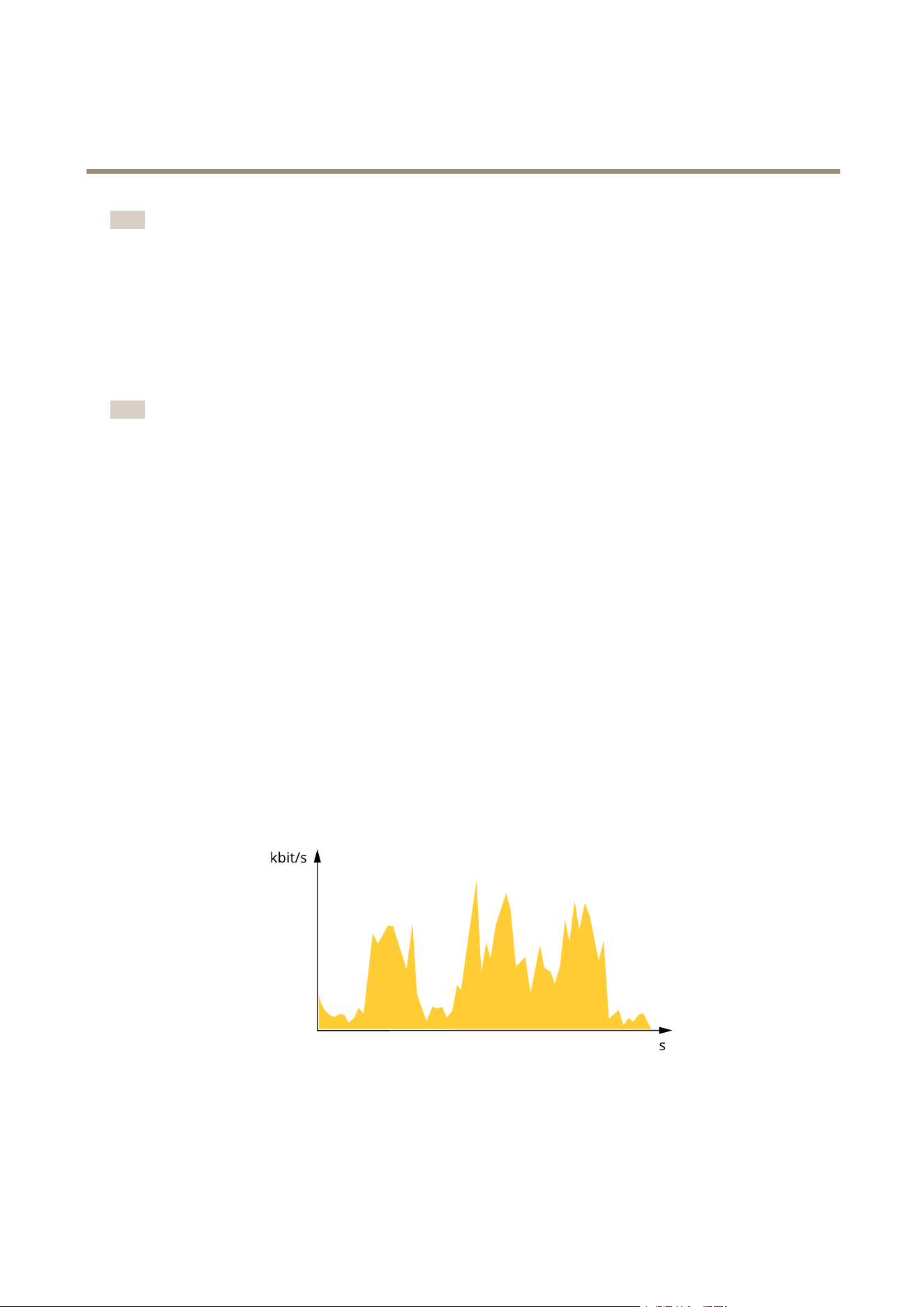
Bitratecontrol
Withbitratecontrol,youcanmanagethebandwidthconsumptionofyourvideostream.
Variablebitrate(VBR)
Withvariablebitrate,thebandwidthconsumptionvariesbasedonthelevelofactivityinthescene.Themoreactivityinthescene,
themorebandwidthyouneed.Youareguaranteedconstantimagequalitybutitrequiresstoragemargins.
Maximumbitrate(MBR)
Withmaximumbitrate,youcansetatargetbitratetohandlebitratelimitationsinyoursystem.Youmayseeadeclineinimage
qualityorframeratewhentheinstantaneousbitrateiskeptbelowthespeciedtargetbitrate.Youcanchoosetoeitherprioritize
imagequalityorframerate.Werecommendthatyoucongurethetargetbitratetoahighervaluethantheexpectedbitrate.This
givesyouamarginforadditionalcomplexitythatneedstobecaptured.
24

AXISM5075-GPTZCamera
Learnmore
1
Targetbitrate
Averagebitrate(ABR)
Withaveragebitrate,thebitrateisautomaticallyadjustedoveralongertimescale.Thisissoyoucanmeetthespeciedtargetand
providethebestvideoqualitybasedonyouravailablestorage.Bitrateishigherinsceneswithalotofactivity,comparedtostatic
scenes.Youaremorelikelytogetbetterimagequalitywhenneededwhenusingtheaveragebitrateoption.Youcandenethetotal
storagerequiredtostorethevideostreamforaspeciedamountoftime(retentiontime)whenimagequalityisadjustedtomeetthe
speciedtargetbitrate.Specifytheaveragebitratesettingsinoneofthefollowingways:
•Tocalculatetheestimatedstorageneed,setthetargetbitrateandtheretentiontime.
•Tocalculatetheaveragebitrate,basedonavailablestorageandrequiredretentiontime,usethetargetbitratecalculator.
kbit/s
s
1
2
1
Targetbitrate
2
Actualaveragebitrate
Youcanalsoturnonmaximumbitrateandspecifyatargetbitratewithintheaveragebitrateoption.
25

AXISM5075-GPTZCamera
Learnmore
kbit/s
s
1
2
1
Targetbitrate
2
Actualaveragebitrate
Applications
AXISCameraApplicationPlatform(ACAP)isanopenplatformthatenablesthirdpartiestodevelopanalyticsandotherapplications
forAxisproducts.Tondoutmoreaboutavailableapplications,downloads,trialsandlicenses,gotoaxis.com/applications.
TondtheusermanualsforAxisapplications,gotoaxis.com.
Note
•Severalapplicationscanrunatthesametimebutsomeapplicationsmightnotbecompatiblewitheachother.Certain
combinationsofapplicationsmightrequiretoomuchprocessingpowerormemoryresourceswhenruninparallel.Verify
thattheapplicationsworktogetherbeforedeployment.
Towatchthisvideo,gotothewebversionofthisdocument.
www.axis.com/products/online-manual/73039#t10001688
Howtodownloadandinstallanapplication
26

AXISM5075-GPTZCamera
Learnmore
Towatchthisvideo,gotothewebversionofthisdocument.
www.axis.com/products/online-manual/73039#t10001688
Howtoactivateanapplicationlicencecodeonadevice
AXISPeopleCounter
AXISPeopleCounterisananalyticapplicationthatyoucaninstallonanetworkcamera.Youcanusetheapplicationtocounthow
manypeoplepassthroughanentrance,inwhatdirectiontheypass,andifmorethanonepersonpassesduringapredenedinterval.
Youcanalsouseittoestimatehowmanypeoplearecurrentlyoccupyinganarea,andtheaveragevisitingtime.
Theapplicationrunsembeddedinthecamerawhichmeansyoudon’tneedadedicatedcomputertoruntheapplication.
AXISPeopleCounterissuitableforanyindoorenvironment,likestores,libraries,orgyms.
Howdoesestimatingoccupancywork?
Youcanusetheapplicationtoestimateoccupancyinareaswithoneorseveralentrancesandexits.Eachentranceandexitneedstobe
equippedwithanetworkcamerawithAXISPeopleCounterinstalled.Ifthereareseveralcameras,theycommunicatewitheachother
overthenetworkinaprimaryandsecondaryconcept.Theprimarycameracontinuouslyfetchesdatafromthesecondarycamerasand
presentsthedataintheliveview.Everyfteenminutes,theprimarycamerasendsthestatisticaldatatoAXISStoreDataManager.
Consequently,thereportsgeneratedfromAXISStoreDataManagercanpresentthedatainaminimumof15minutestimeinterval.
27

AXISM5075-GPTZCamera
Troubleshooting
Troubleshooting
Resettofactorydefaultsettings
Important
IfyouhaveaZ-Wavenetwork,youmustresettheZ-Wavenetworkbeforeresettingyourdevicetofactorydefault.SeeReset
theZ-Wavenetworkonpage23.
Important
Resettofactorydefaultshouldbeusedwithcaution.Aresettofactorydefaultresetsallsettings,includingtheIPaddress,to
thefactorydefaultvalues.
Toresettheproducttothefactorydefaultsettings:
1.Disconnectpowerfromtheproduct.
2.Pressandholdthecontrolbuttonwhilereconnectingpower.SeeProductoverviewonpage32.
3.Keepthecontrolbuttonpressedfor15–30secondsuntilthestatusLEDindicatorashesamber.
4.Releasethecontrolbutton.TheprocessiscompletewhenthestatusLEDindicatorturnsgreen.Theproducthasbeenreset
tothefactorydefaultsettings.IfnoDHCPserverisavailableonthenetwork,thedefaultIPaddressis192.168.0.90.
5.UsetheinstallationandmanagementsoftwaretoolstoassignanIPaddress,setthepassword,andaccessthedevice.
Theinstallationandmanagementsoftwaretoolsareavailablefromthesupportpagesonaxis.com/support.
Youcanalsoresetparameterstofactorydefaultthroughthedevice’swebpage.GotoMaintenance>Factorydefaultandclick
Default.
Firmwareoptions
Axisoffersproductrmwaremanagementaccordingtoeithertheactivetrackorthelong-termsupport(LTS)tracks.Beingonthe
activetrackmeanscontinuouslygettingaccesstoallthelatestproductfeatures,whiletheLTStracksprovideaxedplatformwith
periodicreleasesfocusedmainlyonbugxesandsecurityupdates.
Usingrmwarefromtheactivetrackisrecommendedifyouwanttoaccessthenewestfeatures,orifyouuseAxisend-to-endsystem
offerings.TheLTStracksarerecommendedifyouusethird-partyintegrations,whicharenotcontinuouslyvalidatedagainstthelatest
activetrack.WithLTS,theproductscanmaintaincybersecuritywithoutintroducinganysignicantfunctionalchangesoraffecting
anyexistingintegrations.FormoredetailedinformationaboutAxisproductrmwarestrategy,gotoaxis.com/support/rmware.
Checkthecurrentrmwareversion
Firmwareisthesoftwarethatdeterminesthefunctionalityofnetworkdevices.Whenyoutroubleshootaproblem,werecommend
youtostartbycheckingthecurrentrmwareversion.Thelatestrmwareversionmightcontainacorrectionthatxesyour
particularproblem.
Tocheckthecurrentrmware:
1.Gotothedeviceinterface>Status.
2.SeethermwareversionunderDeviceinfo.
28

AXISM5075-GPTZCamera
Troubleshooting
Upgradethermware
Important
Preconguredandcustomizedsettingsaresavedwhenyouupgradethermware(providedthatthefeaturesareavailablein
thenewrmware)althoughthisisnotguaranteedbyAxisCommunicationsAB.
Important
Makesurethedeviceremainsconnectedtothepowersourcethroughouttheupgradeprocess.
Note
Whenyouupgradethedevicewiththelatestrmwareintheactivetrack,theproductreceivesthelatestfunctionality
available.Alwaysreadtheupgradeinstructionsandreleasenotesavailablewitheachnewreleasebeforeyouupgradethe
rmware.Tondthelatestrmwareandthereleasenotes,gotoaxis.com/support/rmware.
1.Downloadthermwareletoyourcomputer,availablefreeofchargeataxis.com/support/rmware.
2.Logintothedeviceasanadministrator.
3.GotoMaintenance>FirmwareupgradeandclickUpgrade.
Whentheupgradehasnished,theproductrestartsautomatically.
YoucanuseAXISDeviceManagertoupgrademultipledevicesatthesametime.Findoutmoreat
axis.com/products/axis-device-manager.
Technicalissues,clues,andsolutions
Ifyoucan’tndwhatyou’relookingforhere,trythetroubleshootingsectionataxis.com/support.
Problemsupgradingthermware
FirmwareupgradefailureIfthermwareupgradefails,thedevicereloadsthepreviousrmware.Themostcommonreason
isthatthewrongrmwarelehasbeenuploaded.Checkthatthenameofthermwarele
correspondstoyourdeviceandtryagain.
Problemsafterrmware
upgrade
Ifyouexperienceproblemsafterarmwareupgrade,rollbacktothepreviouslyinstalledversion
fromtheMaintenancepage.
ProblemssettingtheIPaddress
Thedeviceislocatedona
differentsubnet
IftheIPaddressintendedforthedeviceandtheIPaddressofthecomputerusedtoaccessthe
devicearelocatedondifferentsubnets,youcannotsettheIPaddress.Contactyournetwork
administratortoobtainanIPaddress.
TheIPaddressisbeingused
byanotherdevice
DisconnecttheAxisdevicefromthenetwork.Runthepingcommand(inaCommand/DOSwindow,
typepingandtheIPaddressofthedevice):
•Ifyoureceive:Replyfrom<IPaddress>:bytes=32;time=10...
thismeansthattheIPaddressmayalreadybeinusebyanotherdeviceonthenetwork.
ObtainanewIPaddressfromthenetworkadministratorandreinstallthedevice.
•Ifyoureceive:Requesttimedout,thismeansthattheIPaddressisavailable
forusewiththeAxisdevice.Checkallcablingandreinstallthedevice.
PossibleIPaddressconict
withanotherdeviceonthe
samesubnet
ThestaticIPaddressintheAxisdeviceisusedbeforetheDHCPserversetsadynamicaddress.
ThismeansthatifthesamedefaultstaticIPaddressisalsousedbyanotherdevice,theremay
beproblemsaccessingthedevice.
29

AXISM5075-GPTZCamera
Troubleshooting
Thedevicecan’tbeaccessedfromabrowser
Can’tlogin
WhenHTTPSisenabled,ensurethatthecorrectprotocol(HTTPorHTTPS)isusedwhenattempting
tologin.Youmayneedtomanuallytypehttporhttpsinthebrowser’saddresseld.
Ifthepasswordfortheuserrootislost,thedevicemustberesettothefactorydefaultsettings.
SeeResettofactorydefaultsettingsonpage28.
TheIPaddresshasbeen
changedbyDHCP
IPaddressesobtainedfromaDHCPserveraredynamicandmaychange.IftheIPaddresshasbeen
changed,useAXISIPUtilityorAXISDeviceManagertolocatethedeviceonthenetwork.Identify
thedeviceusingitsmodelorserialnumber,orbytheDNSname(ifthenamehasbeencongured).
Ifrequired,astaticIPaddresscanbeassignedmanually.Forinstructions,gotoaxis.com/support.
Certicateerrorwhenusing
IEEE802.1X
Forauthenticationtoworkproperly,thedateandtimesettingsintheAxisdevicemustbe
synchronizedwithanNTPserver.GotoSystem>Dateandtime.
Thedeviceisaccessiblelocallybutnotexternally
Toaccessthedeviceexternally,werecommendyoutouseoneofthefollowingapplicationsforWindows
®
:
•AXISCompanion:freeofcharge,idealforsmallsystemswithbasicsurveillanceneeds.
•AXISCameraStation:30-daytrialversionfreeofcharge,idealforsmalltomid-sizesystems.
Forinstructionsanddownload,gotoaxis.com/vms.
Problemswithstreaming
MulticastH.264only
accessiblebylocalclients
Checkifyourroutersupportsmulticasting,orifyouneedtoconguretheroutersettingsbetween
theclientandthedevice.YoumightneedtoincreasetheTTL(TimeToLive)value.
NomulticastH.264
displayedintheclient
CheckwithyournetworkadministratorthatthemulticastaddressesusedbytheAxisdevice
arevalidforyournetwork.
Checkwithyournetworkadministratortoseeifthereisarewallthatpreventsviewing.
PoorrenderingofH.264
images
Ensurethatyourgraphicscardusesthelatestdriver.Youcanusuallydownloadthelatestdrivers
fromthemanufacturer’swebsite.
Colorsaturationisdifferent
inH.264andMotionJPEG
Modifythesettingsforyourgraphicsadapter.Gototheadapter’sdocumentationformore
information.
Lowerframeratethan
expected
•SeePerformanceconsiderationsonpage30.
•Reducethenumberofapplicationsrunningontheclientcomputer.
•Limitthenumberofsimultaneousviewers.
•Checkwiththenetworkadministratorthatthereisenoughbandwidthavailable.
•Lowertheimageresolution.
•Logintothedevice’swebpageandsetacapturemodethatprioritizesframerate.If
youchangethecapturemodetoprioritizeframerateitmightlowerthemaximum
resolution,dependingonthedeviceusedandcapturemodesavailable.
Can'tselectH.265encoding
inliveview
Webbrowsersdon’tsupportH.265decoding.Useavideomanagementsystemorapplication
thatsupportsH.265decoding.
Performanceconsiderations
Whensettingupyoursystem,itisimportanttoconsiderhowvarioussettingsandsituationsaffecttheperformance.Somefactors
affecttheamountofbandwidth(thebitrate)required,otherscanaffecttheframerate,andsomeaffectboth.Iftheloadonthe
CPUreachesitsmaximum,thisalsoaffectstheframerate.
Thefollowingfactorsarethemostimportanttoconsider:
•Highimageresolutionorlowercompressionlevelsresultinimagescontainingmoredatawhichinturnaffectsthe
bandwidth.
30

AXISM5075-GPTZCamera
Troubleshooting
•RotatingtheimageintheGUIwillincreasetheproduct'sCPUload.
•AccessbylargenumbersofMotionJPEGorunicastH.264clientsaffectsthebandwidth.
•AccessbylargenumbersofMotionJPEGorunicastH.265clientsaffectsthebandwidth.
•Simultaneousviewingofdifferentstreams(resolution,compression)bydifferentclientsaffectsbothframerateand
bandwidth.
Useidenticalstreamswhereverpossibletomaintainahighframerate.Streamprolescanbeusedtoensurethat
streamsareidentical.
•AccessingMotionJPEGandH.264videostreamssimultaneouslyaffectsbothframerateandbandwidth.
•AccessingMotionJPEGandH.265videostreamssimultaneouslyaffectsbothframerateandbandwidth.
•Heavyusageofeventsettingsaffectstheproduct’sCPUloadwhichinturnaffectstheframerate.
•UsingHTTPSmayreduceframerate,inparticularifstreamingMotionJPEG.
•Heavynetworkutilizationduetopoorinfrastructureaffectsthebandwidth.
•Viewingonpoorlyperformingclientcomputerslowersperceivedperformanceandaffectsframerate.
•RunningmultipleAXISCameraApplicationPlatform(ACAP)applicationssimultaneouslymayaffecttheframerateand
thegeneralperformance.
Contactsupport
Contactsupportataxis.com/support.
31

AXISM5075-GPTZCamera
Specifications
Specifications
Productoverview
1
Microphone
2
StatusLEDindicator
3
microSDcardslot
4
Networkconnector(PoE)
5
Controlbutton
6
Partnumber(P/N)andserialnumber(S/N)
LEDindicators
StatusLED
Indication
Unlit
Connectionandnormaloperation.
GreenShowssteadygreenfor10secondsfornormaloperationafterstartupcompleted.
Amber
Steadyduringstartup.Flashesduringrmwareupgradeorresettofactorydefault.
Amber/RedFlashesamber/redifnetworkconnectionisunavailableorlost.
SDcardslot
NO NO
NO
TICE TICE
TICE
•RiskofdamagetoSDcard.Donotusesharptools,metalobjects,orexcessiveforcewheninsertingorremovingthe
SDcard.Useyourngerstoinsertandremovethecard.
•Riskofdatalossandcorruptedrecordings.DonotremovetheSDcardwhiletheproductisrunning.UnmounttheSDcard
fromtheproduct’swebpagebeforeremoval.
ThisproductsupportsmicroSD/microSDHC/microSDXCcards.
ForSDcardrecommendations,seeaxis.com.
microSD,microSDHC,andmicroSDXCLogosaretrademarksofSD-3CLLC.microSD,microSDHC,microSDXCare
trademarksorregisteredtrademarksofSD-3C,LLCintheUnitedStates,othercountriesorboth.
32

AXISM5075-GPTZCamera
Specifications
Buttons
Controlbutton
Thecontrolbuttonisusedfor:
•Resettingtheproducttofactorydefaultsettings.SeeResettofactorydefaultsettingsonpage28.
•Connectingtoaone-clickcloudconnection(O3C)serviceovertheinternet.Toconnect,pressandholdthebutton
forabout3secondsuntilthestatusLEDashesgreen.
Connectors
Networkconnector
RJ45EthernetconnectorwithPoweroverEthernet(PoE).
33

UserManualVer.M1.13
AXISM5075-GPTZCamera
Date:April2022
©AxisCommunicationsAB,2022
PartNo.T10173004