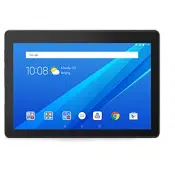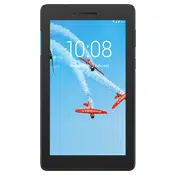
Lenovo Tab E7
User Guide
Lenovo TB-7104F
Lenovo TB-7104I
All information labeled with * in this guide refers only to the WLAN+3G model (Lenovo TB-
7104I).
Basics
Before using this information and the product it supports, be sure to read the following:
Safety, Warranty & Quick Start Guide
Regulatory Notice
“Important safety and handling information” in "Appendix".
The Safety, Warranty & Quick Start Guide and the Regulatory Notice are available on the website at
http://support.lenovo.com
.
Note All pictures and illustrations in this document are for reference only and may differ from the
final product.
Lenovo Help
Looking for help? The Lenovo Help app can offer you support for getting direct access to Lenovo's web
assistance and forums*, frequent Q&A*, system upgrades*, hardware function tests, warranty status
checks*, service requests**, and repair status**.
Note:
* requires data network access.
** is not available in some countries.
You have two ways to get this app:
Search for and download the app from Google Play.
Scan the following QR code with a Lenovo Android device.
Technical specifications
Model Lenovo TB-7104F Lenovo TB-7104I
CPU MediaTek® MT8167 A/D MediaTek® MT8321 A/D
Battery 2750mAh 2750mAh
Wireless
communication
Bluetooth 4.0; WLAN 802.11 b/g/n
Bluetooth 4.0; WLAN 802.11 b/g/n;
GPS/A-GPS; GSM/UMTS
Home screen
The home screen is the starting point for using your device. For your convenience, the home screen is
already set up with some useful apps and widgets.
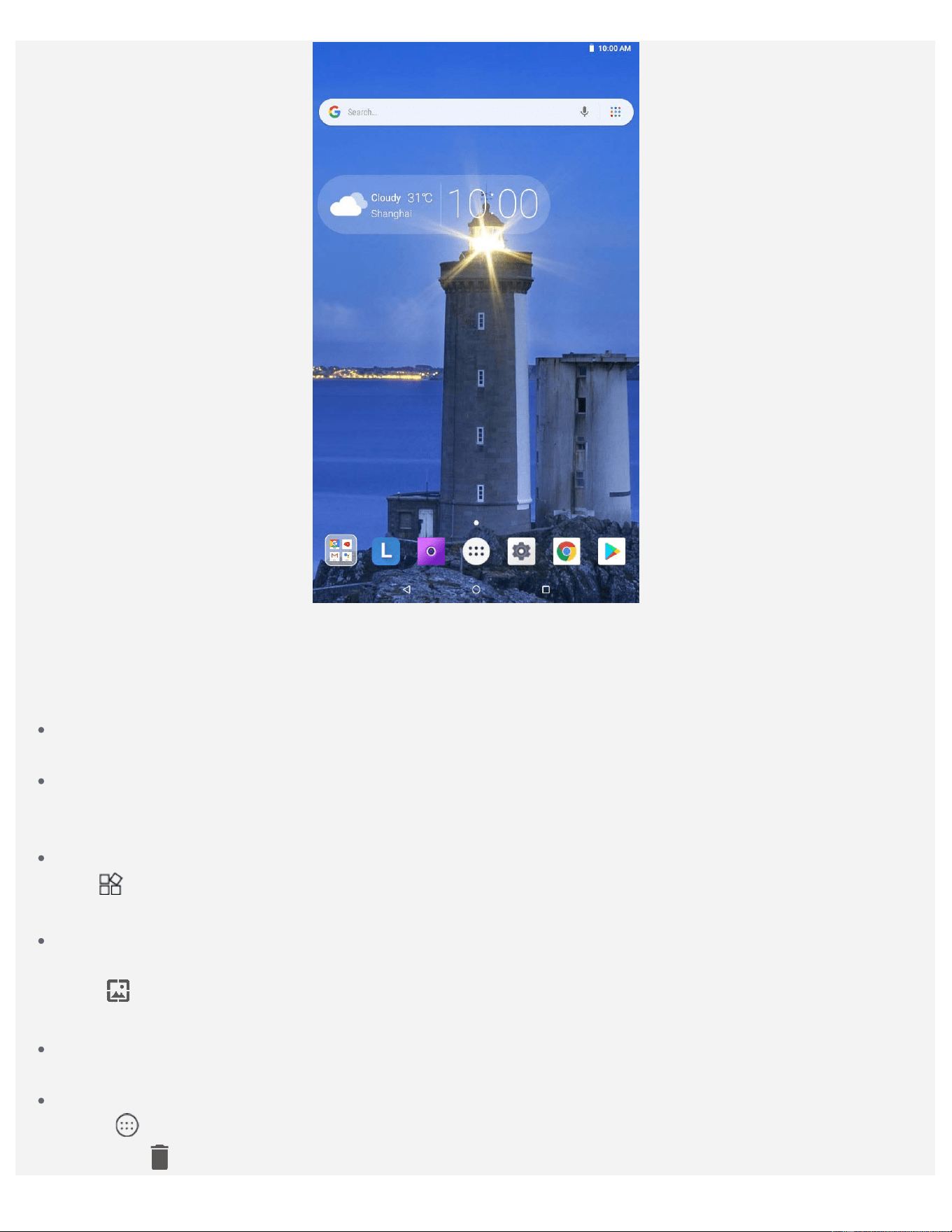
Note: Your device's features and the home screen may be different depending on your
location, language, carrier, and device model.
You can customize your home screen at any time.
Home screen
On the first home screen, there is a Google Search bar and some useful apps.
Preview screen
Press and hold anywhere on the home screen except the icons.
At the bottom of the screen are WALLPAPERS and WIDGETS.
Add a widget to a home screen
Tap
at the bottom of the preview screen, press and hold the widget you want to add, drag it to
where you want to place, then release it.
Change the wallpaper
You can change the wallpaper by doing one of the following
- Tap at the bottom of the preview screen, and then choose the wallpaper that you like.
- Go to Settings > Display > Wallpaper and choose the wallpaper that you like.
Move an app to another screen
Press and hold an app that you want to move, drag it to where you want to place, then release it.
Uninstall an app
1.Tap
, press and hold an app that you want to uninstall.
2. Drag to , release, and tap OK.
Note: Some of the system apps cannot be uninstalled.
Screen Buttons
There are three buttons in the taskbar.
Back button: Tap to return to the previous page.
Home button: Tap to return to the default home screen.
Recent button: Tap to see recent apps. You can do any of the following:
- Tap an app to open it.
- Swipe an app window right or left to close it.
- Tap
to lock the app or tap to unlock it.
- Tap
to stop running the app.
- Tap
to stop running all the apps.
Notifications and Quick Settings
The Notifications panel informs you of new messages, USB connection, and activities in progress such as
file downloading. The Quick Settings panel allows you to access frequently-used settings such as the
WLAN switch.
You can do any of the following:
To see notifications, swipe down from the top of the screen.
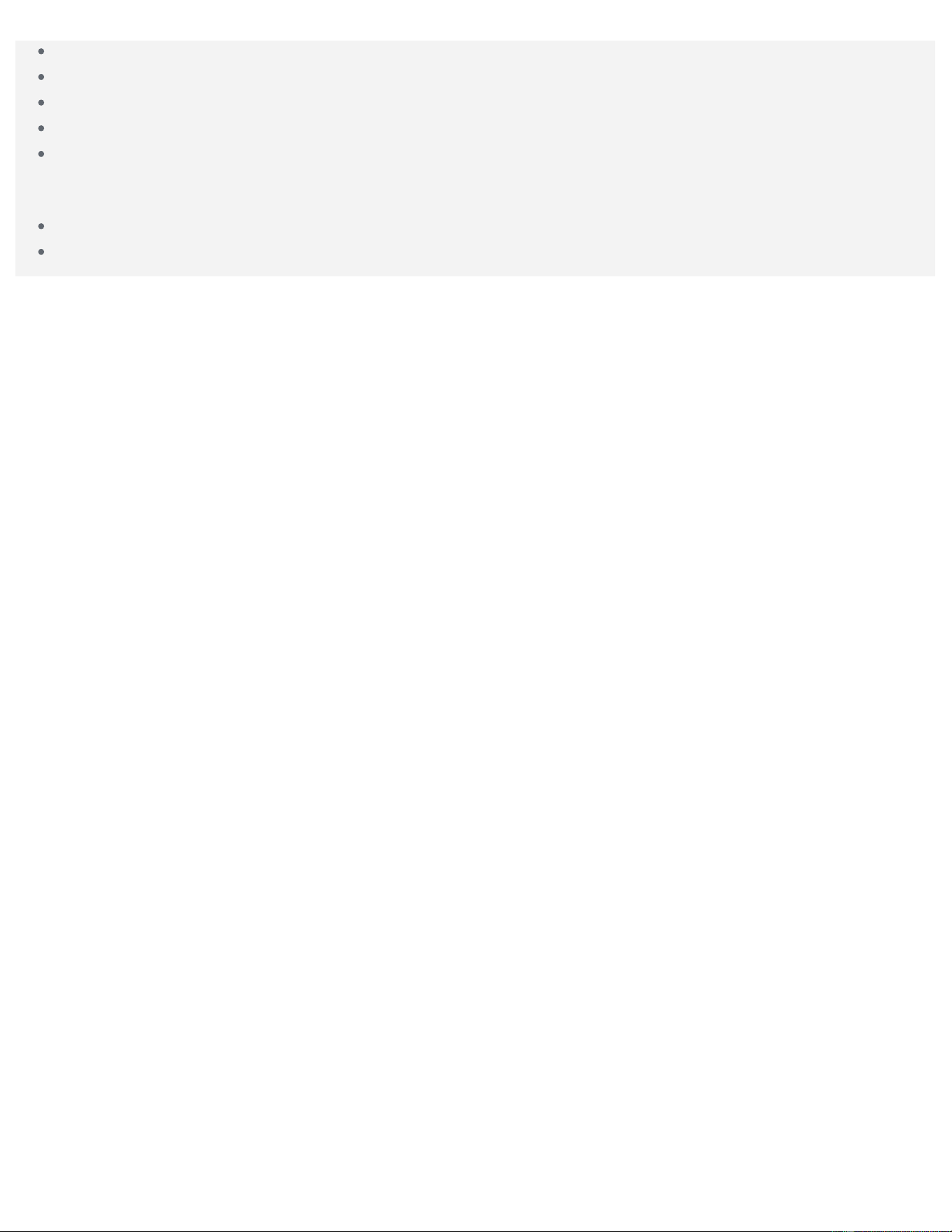
To close the Notifications panel, swipe up from the bottom of the screen.
To dismiss a notification, swipe left or right across the notification.
To dismiss all notifications, tap CLEAR ALL at the bottom of the Notifications panel.
To open the Quick Settings panel, swipe down from the top of the screen twice.
To close the Quick Settings panel, swipe up from the bottom of the screen.
Force shutdown/reboot
Press and hold the power button for about 8 seconds to force shutdown.
Press and hold the power button for about 10 seconds to reboot.
Network
You need to set up a wireless network before connecting to the Internet.
Set up a WLAN network
*Set up a mobile network
Set up a VPN network
*Set up a hotspot
Setting up a WLAN network
Go to Settings > Network & Internet > WLAN.
Turn on the WLAN switch and tap a WLAN hotspot in the list to connect to the Internet.
When you are connecting to a secure hotspot, you need to enter the password to connect.
*Setting up a mobile network
Go to Settings > Network & Internet > Data usage.
Note: You need a valid SIM card with a data service. If you don't have a SIM card, contact your
carrier.
Setting up a VPN network
VPNs are used within organizations to allow you to communicate private information securely over a
non-private network. You may need to configure a VPN, for example, to access your work email. Ask the
network’s administrator for the settings necessary to configure a VPN for your network.
Go to Settings > Network & Internet > VPN.
Tap to edit the VPN profile including the server name, the type, and the server address, and then
tap SAVE.
Tap the VPN server name, input the username and password, and then tap CONNECT to connect to
the VPN network.
Tap to edit or delete the VPN.
Note: You need to set a lock screen pattern, PIN, or password before using a VPN. Go to Settings >
Security & location > Screen lock to select a screen lock option and set up the screen lock.
*Setting up a hotspot
You can use personal hotspot to share an Internet connection with a computer or other device.
Go to Settings > Network & Internet > Hotspot & tethering and do the following:
1. Tap WLAN hotspot and switch it on.
2. Tap Set up WLAN hotspot to configure the hotspot.
You can also use Bluetooth tethering or USB tethering.

Note: Tell your friends the Network name and password, and then they can share your mobile
network.
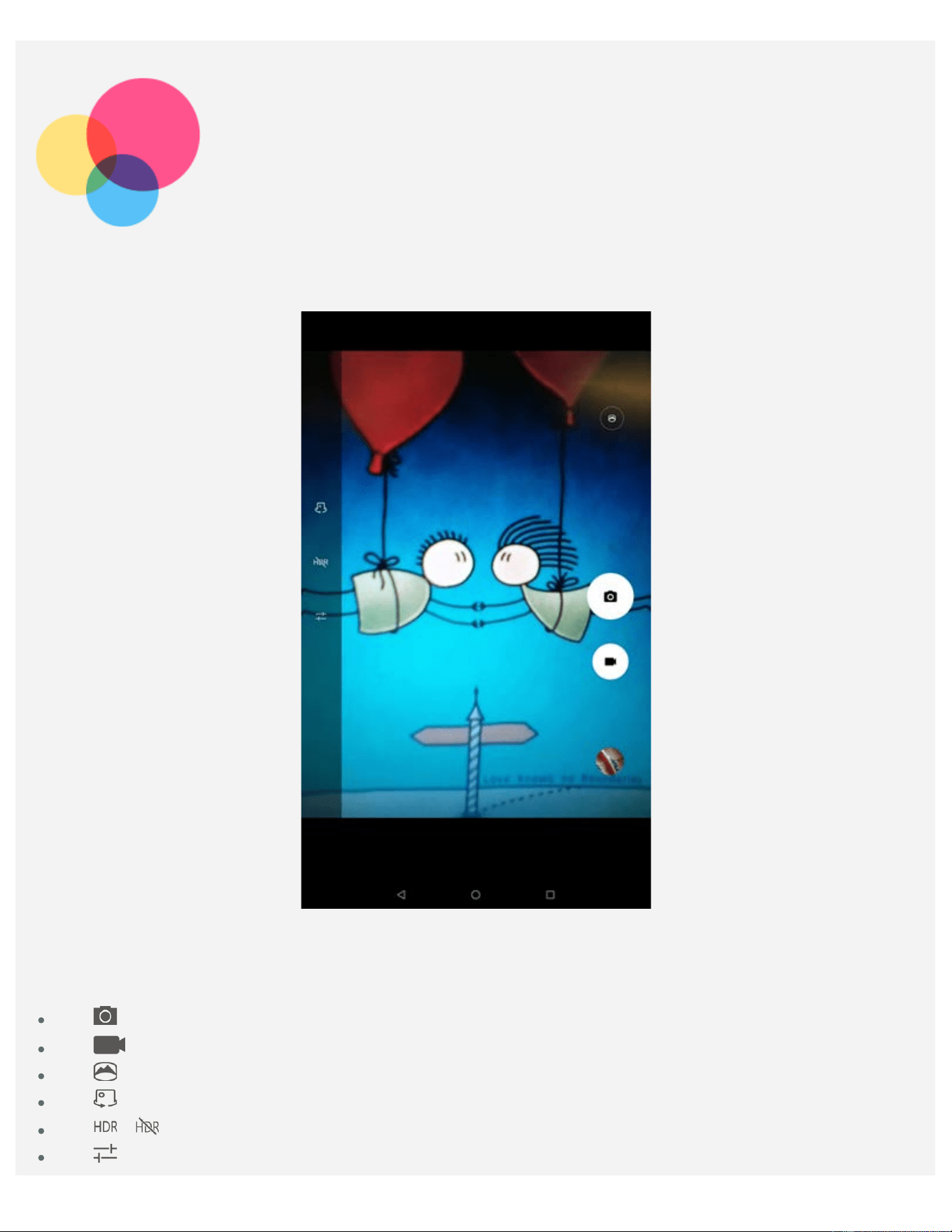
Camera
To open the Camera app, go to Camera.
Taking photos and videos
You can take photos and record videos with your device's built-in camera.
Tap to take a photo.
Tap to record a video.
Tap to convert to panorama mode.
Tap to switch between the front and the rear camera.
Tap / to enable or disable HDR.
Tap to configure other camera settings.
Taking screenshots
You can take screenshots by doing one of the following
Press and hold the Power button and the Volume down button at the same time.
Open the Quick Settings panel, then tap .
Viewing pictures and videos
Photos and videos are stored in your device's internal storage. You can view your photos and videos by
using the following methods:
Tap the thumbnail when using the Camera app.
Go to Photos.
Go to Files Go.
The screenshots are stored in your device's internal storage. You can view your screenshots by using the
following methods:
Go to Photos.
Go to Files Go.
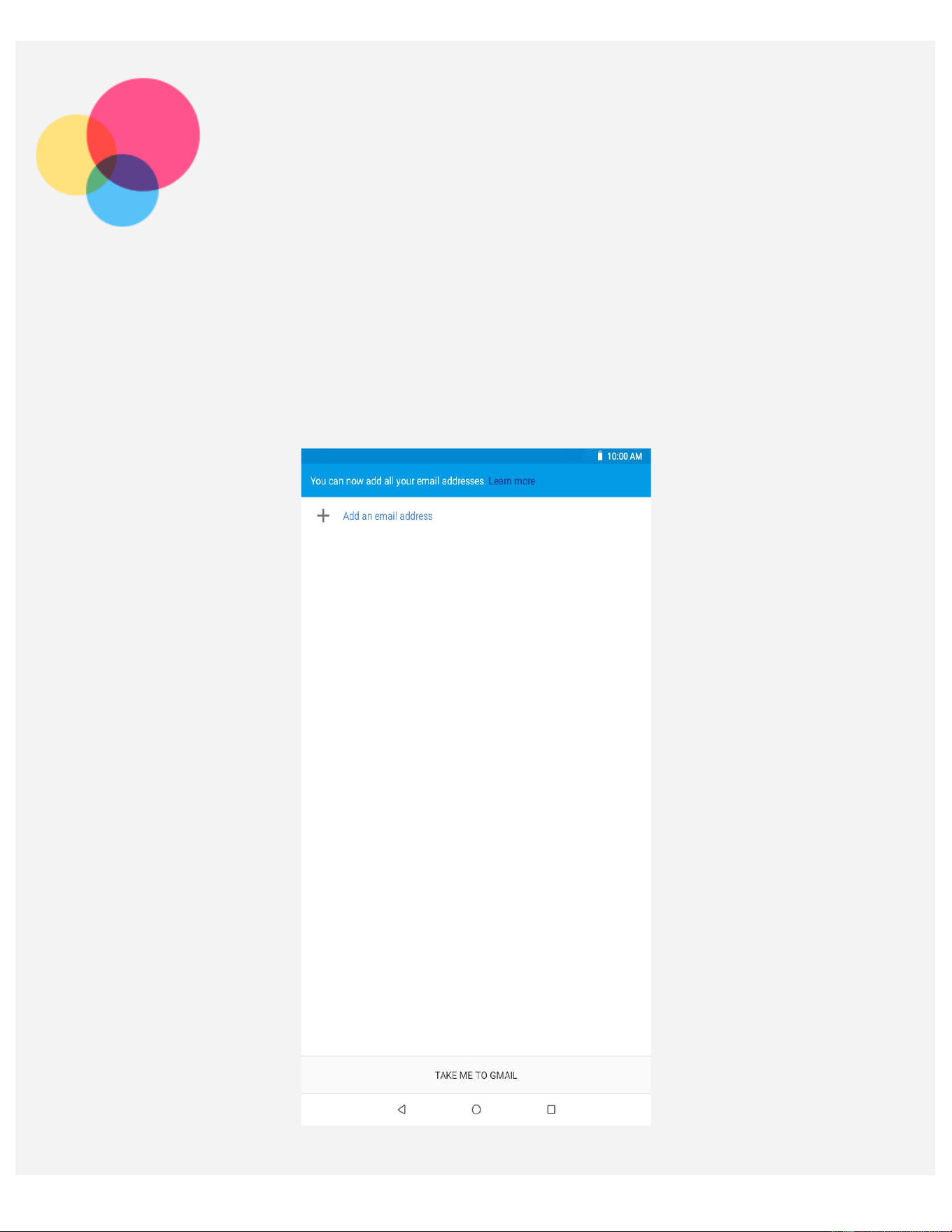
Gmail
You can send and receive emails if your device is connected to a wireless network.
To access the Gmail app, go to Gmail.
Setting up a Gmail account
You can sign into Gmail if you have a Gmail account. If not, you will need to create a Gmail account, and
you can also sign into email accounts provided by other companies.
Using Gmail

After setting up a Gmail account you can use the Gmail app to send and receive emails.
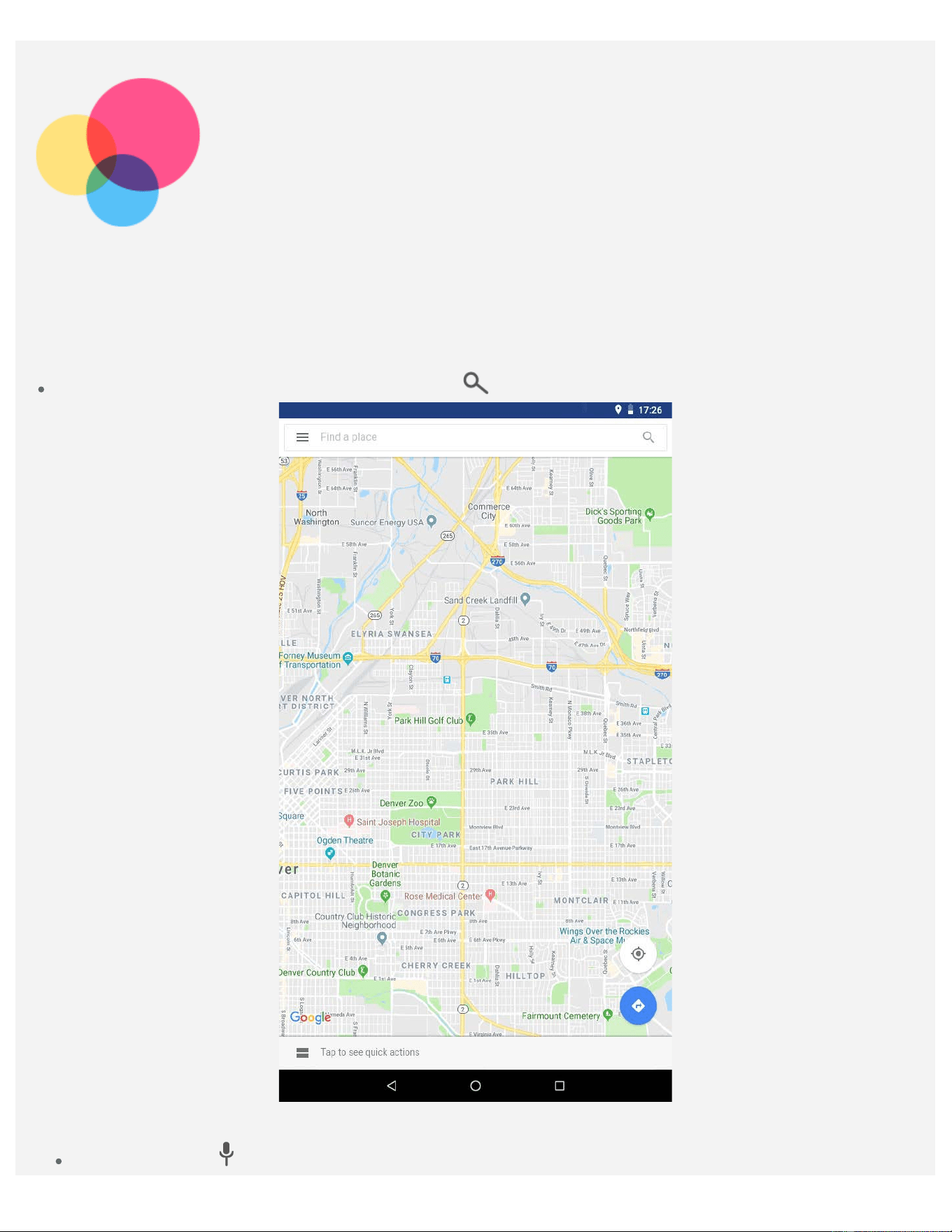
Maps Go
You need to do the following settings before you can use Maps Go.
Go to Settings > Security & location. Tap Location to turn it on.
Finding a location
Type the address that you want to find, then tap .
You can also tap , then say the address you want.
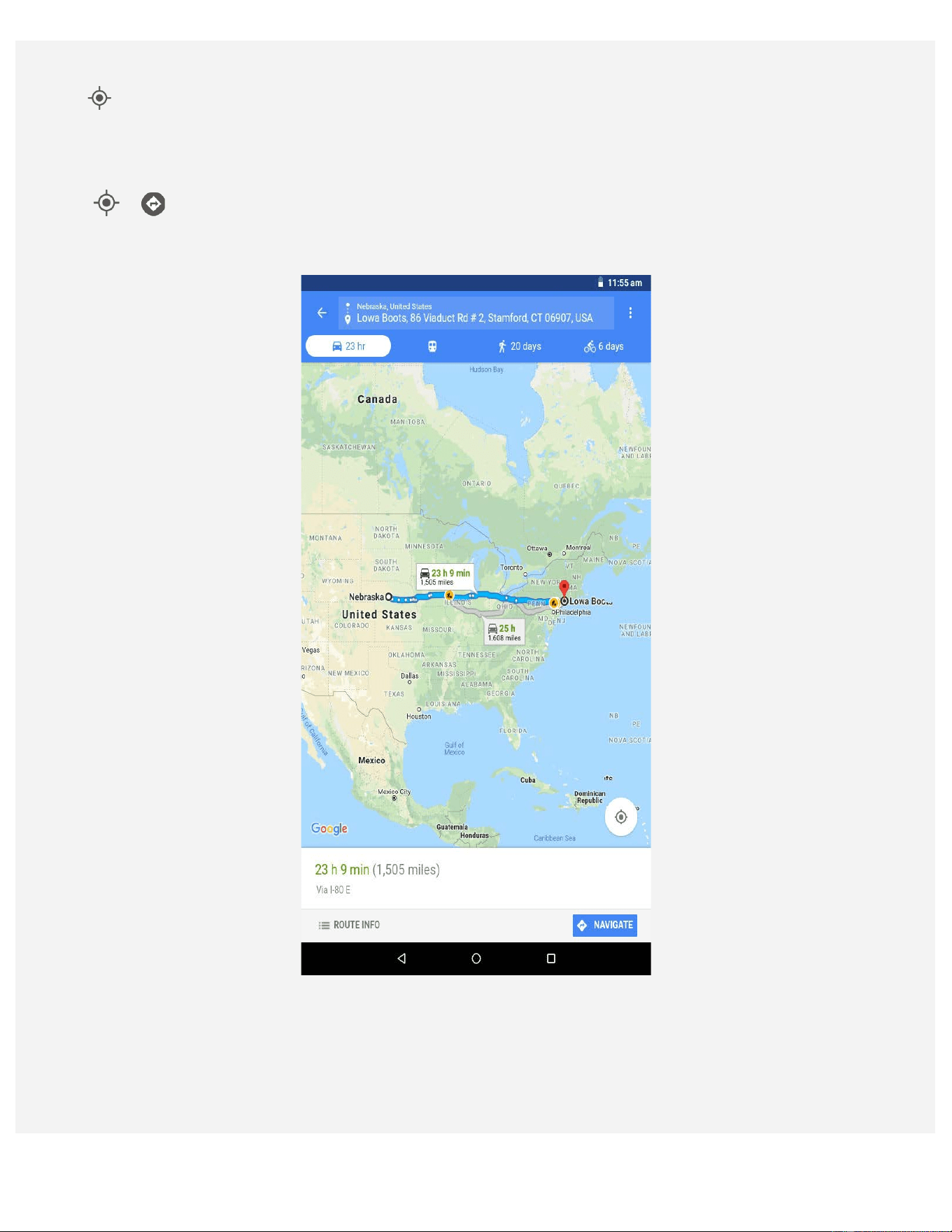
Current location
Tap to see your current location.
Planning a route
Tap > and type in "Your location" and "Choose destination", or just choose the starting
point as "Your location".
Choose the travel mode: by car, by bus, on foot, or by bicycle.
Sync
You can transfer data between your device and computer such as music, pictures, videos, documents,
Android application package (APK) files, and so on.
Connecting your device to your computer
Connect your device and computer using a USB cable.
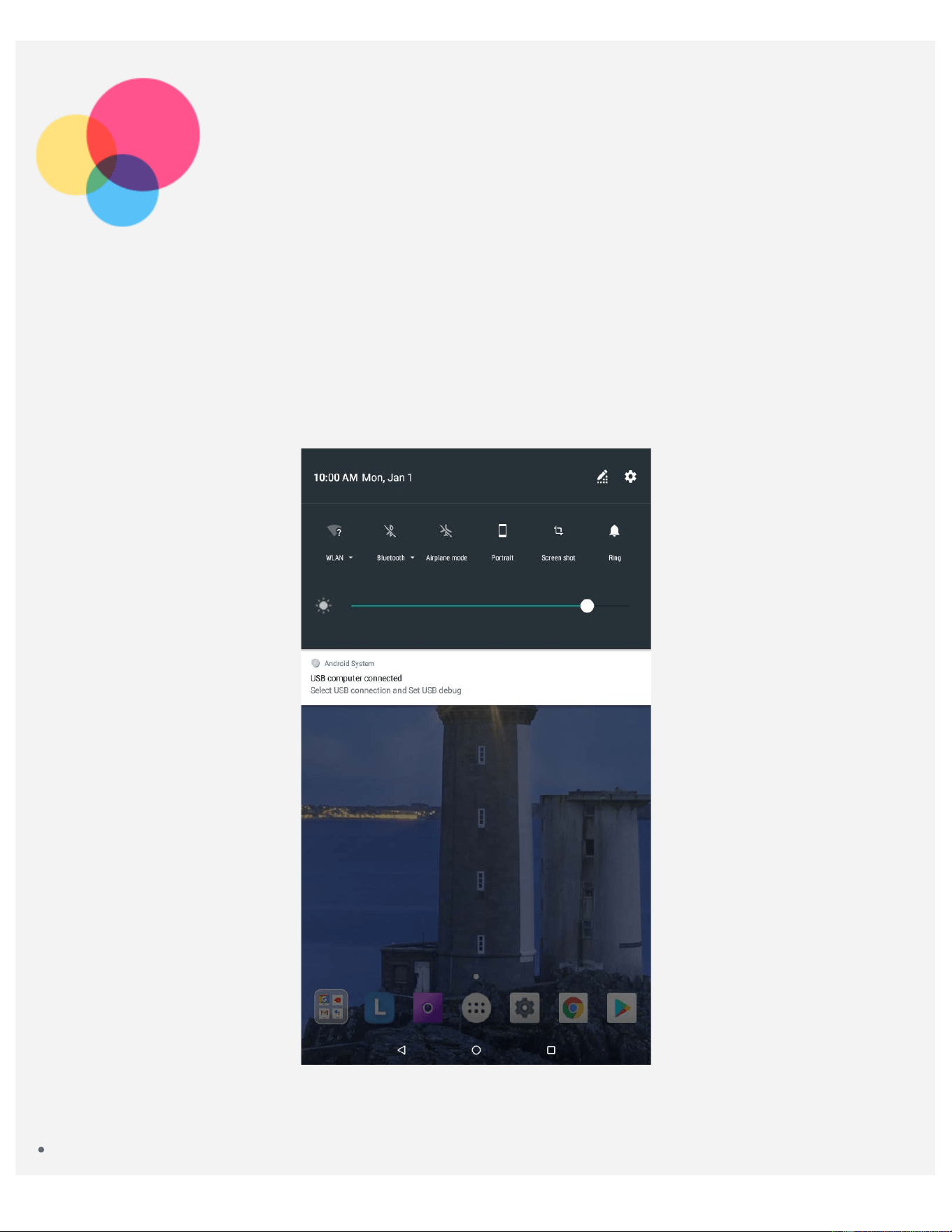
Swipe down from the top of the screen, you will see "USB computer connected" in the notifications bar.
Tap USB computer connected for other options.
Selecting the computer connection mode
You can select one of the following options
Media device (MTP): Select this mode if you want to transfer media files such as photos, videos, and
ringtones between your tablet and the computer.
Camera (PTP): Select this mode if you want to transfer only photos and videos between your tablet
and the computer.
MIDI: Select this mode if you want MIDI-enabled apps on your device to work with MIDI software on
the computer.
Charging: Select this mode if you want to charge your tablet only.
Communication
You can use the device to send messages and manage contacts.
Contacts
You can manage contacts through the Contacts application, and you can create and manage contacts.
Create a contact
1. Go to Contacts.
2. Tap
to create a new contact.
3. Select the storage location, enter the contact information, and then tap SAVE.
Import contacts
1. Go to Contacts.
2. Tap
> Settings > Import, select the contact you want to import.
Export contacts
1. Go to Contacts.
2. Tap
> Settings > Export, select the contact you want to export.
*Make a call
1. Go to Phone.
2. Tap
, enter the number, and tap to make a call.
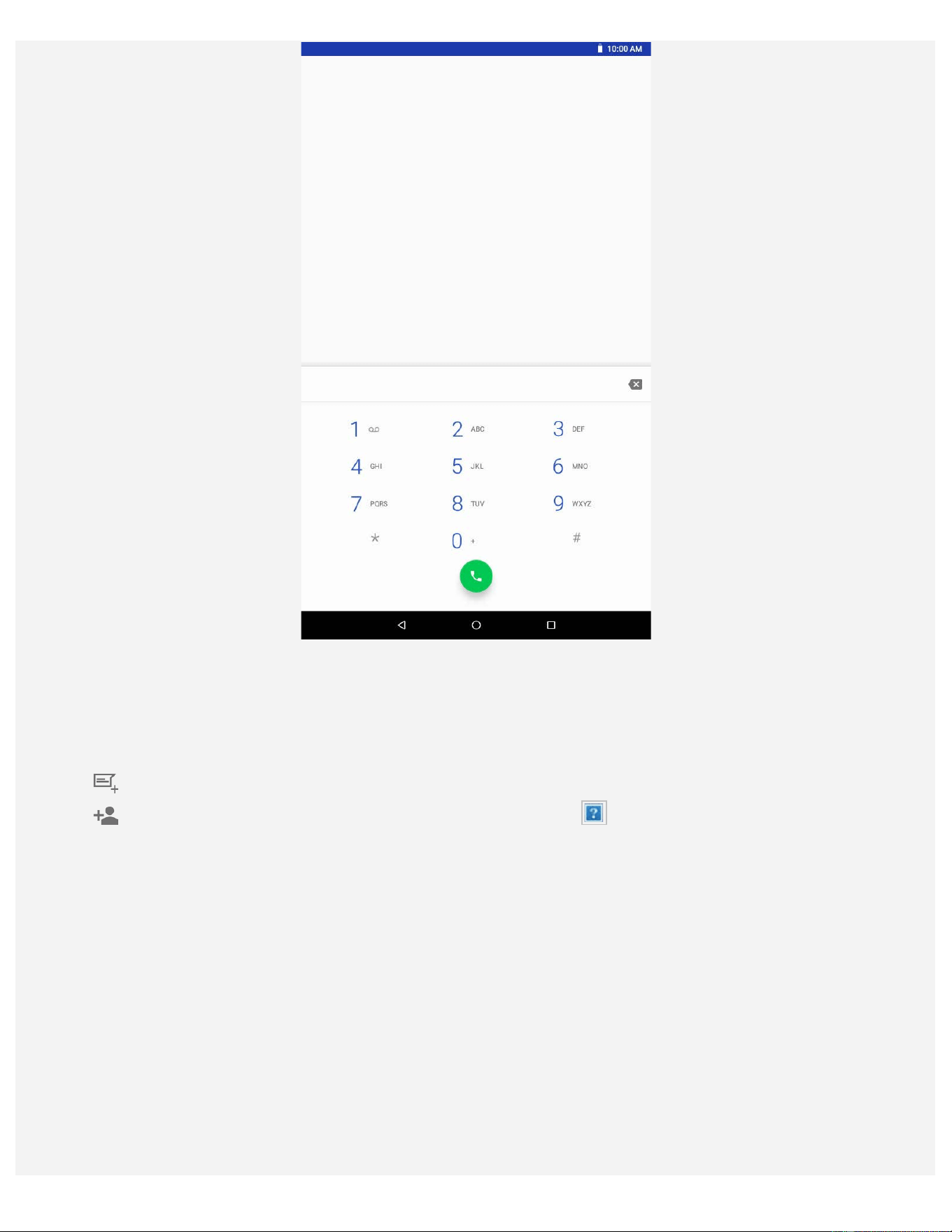
Note: A Nano-SIM card needs to be inserted for personal calls. Otherwise, only emergency calls
are available.
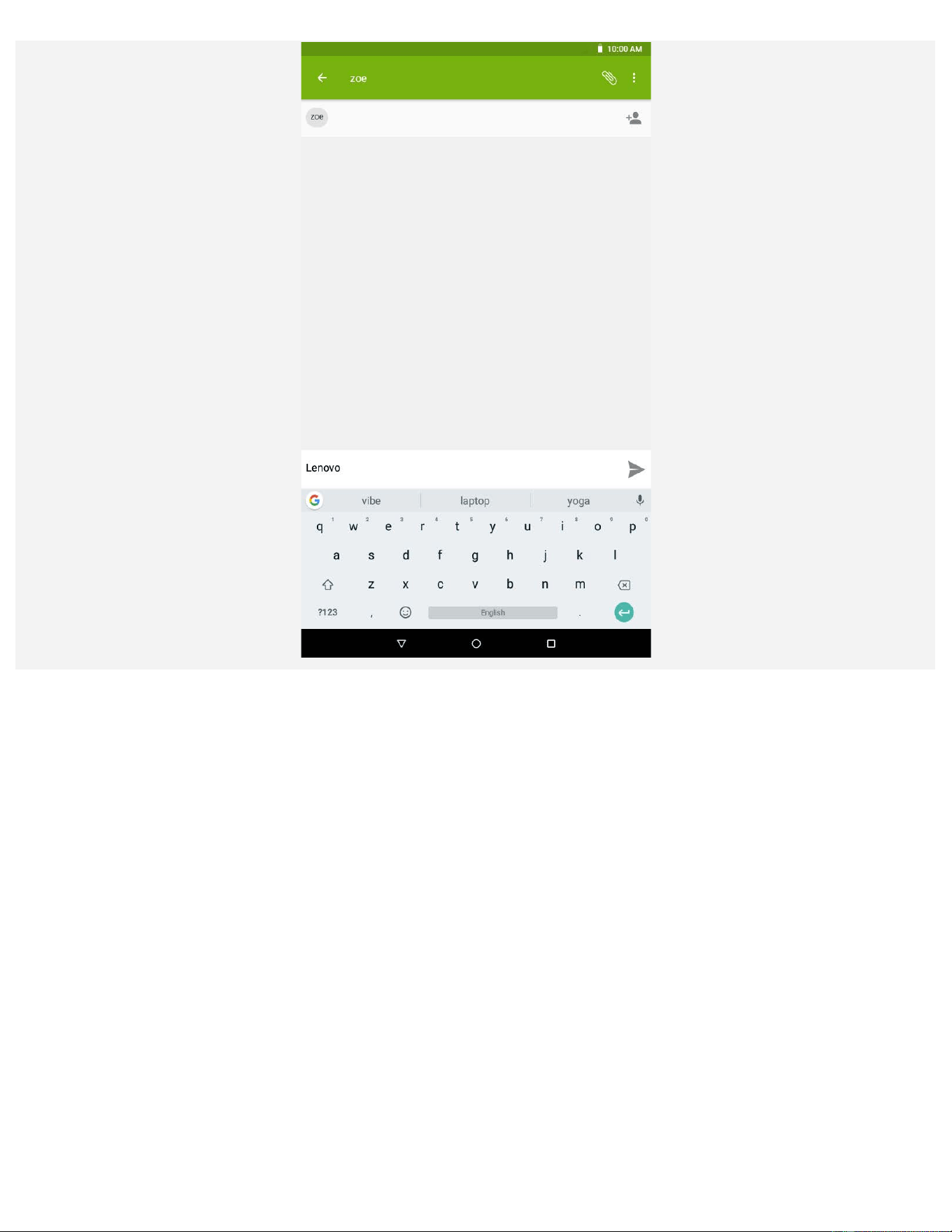
*Send a message
1. Go to Messaging.
2. Tap
to create a message.
3. Tap
to choose a contact or type the numbers, and then tap to send the message.
Settings
Setting the language
1. Go to Settings > System > Languages & input > Languages > Add a language.
2. Select the language that you want to add.
3. Drag the added language to the first line.
Setting a screen lock
Go to Settings > Security & location > Screen lock to select a screen lock option and set up the screen
lock.
Setting the ringtone
You can define the default ringtone for incoming calls, messages, and notifications. You can also adjust
the volume for each sound type.
Go to Settings > Sound.
Performing a factory reset
Factory reset will erase all data from your device's internal storage. Back up important data on your
device before restoring factory settings.
1. Go to Settings > System > Reset options > Erase all data(factory reset).
2. Tap RESET TABLET.
Appendix
Important safety and handling information
To avoid personal injury, property damage, or accidental damage to the product, read all of the
information in this section before using the product. For additional tips to help you operate your device
safely, go to http://www.lenovo.com/safety
.
Handle your device with care
Do not drop, bend, or puncture your device; do not insert foreign objects into or place heavy objects on
your device. Sensitive components inside might become damaged.
Your device screen is made of glass. The glass might break if the device is dropped on a hard surface, is
subjected to a high impact, or is crushed by a heavy object. If the glass chips or cracks, do not touch the
broken glass or attempt to remove it from the device. Stop using the device immediately and contact
Lenovo technical support for repair, replacement, or disposal information.
When using your device, keep it away from hot or high-voltage environments, such as electrical
appliances, electrical heating equipment, or electrical cooking equipment. Use your device only in the
temperature range of 0°C (32°F) to 40°C (104°F) (storage -20°C (-4°F) to 60 °C (140°F)) to avoid
damage.
Don't expose your device to water, rain, extreme humidity, sweat or other liquids.
Do not disassemble or modify your device
Your device is a sealed unit. There are no end-user serviceable parts inside. All internal repairs must be
done by a Lenovo-authorized repair facility or a Lenovo-authorized technician. Attempting to open or
modify your device will void the warranty.
Built-in rechargeable battery notice
Do not attempt to replace the internal rechargeable lithium ion battery. There is risk of explosion if the
battery is replaced with an incorrect type. Contact Lenovo Support for factory replacement.
Plastic bag notice
DANGER:
Plastic bags can be dangerous. Keep plastic bags away from babies and children to avoid danger
of suffocation.
Adapter information
Prevent your device and AC adapter from getting wet.
Do not immerse your device in water or leave your device in a location where it can come into contact
with water or other liquids.
Use approved charging methods only.
Note: Please only use standard Lenovo power adapters. The use of third-party power adapters will
affect the charging speed, resulting in abnormal charging and potential damage to the equipment.
Connect a standard power adapter to a suitable power outlet.
Use a standard data cable to connect the device to a PC or a device that complies with USB 2.0 or
higher.
Charging devices might become warm during normal use. Ensure that you have adequate ventilation
around the charging device. Unplug the charging device if any of the following occurs:
The charging device has been exposed to rain, liquid, or excessive moisture.
The charging device shows signs of physical damage.
You want to clean the charging device.
Warning:
Lenovo is not responsible for the performance or safety of products not manufactured or approved
by Lenovo. Use only approved Lenovo ac adapters and batteries.
EU ErP (EcoDesign) Directive (2009/125/EC) - external power adapters (Regulation (EU) 2019/1782)
Lenovo products are designed to work with a range of compatible power adapters. Access
https://www.lenovo.com/us/en/compliance/eu-doc
to view the compatible power adapters. For the
detailed power adapter specifications for your computer, go to https://support.lenovo.com
.
Caution about high volume usage
Warning exposure to loud noise from any source for extended periods of time may affect your hearing.
The louder the sound, the less time is required before your hearing could be affected. To protect your
hearing:
Limit the amount of time you use headsets or headphones at high volume.
Avoid turning up the volume to block out noisy surroundings.
Turn the volume down if you can’t hear people speaking near you.
If you experience hearing discomfort, including the sensation of pressure or fullness in your ears, ringing
in your ears or muffled speech, you should stop listening to the device through your headset or
headphones and have your hearing checked.
Take care when using your device in a motor vehicle or on a bicycle
Always prioritize your safety and the safety of others. Follow the law. Local laws and regulations might
govern how you can use mobile electronic devices, such as your device, while you drive a motor vehicle
or ride a bicycle.
Dispose according to local laws and regulations
When your device reaches the end of its useful life, do not crush, incinerate, immerse in water, or
dispose of your device in any manner contrary to local laws and regulations. Some internal parts contain
substances that can explode, leak, or have an adverse environmental effects if disposed of incorrectly.
See “Recycling and environmental information” for additional information.
Keep your device and accessories away from small children
Your device contains small parts that can be a choking hazard to small children. Additionally, the glass
screen can break or crack if dropped on or thrown against a hard surface.
Protect your data and software
Do not delete unknown files or change the name of files or directories that were not created by you;
otherwise, your device software might fail to work.
Be aware that accessing network resources can leave your device vulnerable to computer viruses,
hackers, spyware, and other malicious activities that might damage your device, software, or data. It is
your responsibility to ensure that you have adequate protection in the form of firewalls, antivirus
software, and anti-spyware software and keep such software up to date.
Keep electrical appliances away from your device. These include electric fans, radios, high-powered
speakers, air-conditioners, and microwave ovens. The strong magnetic fields generated by electrical
appliances can damage the screen and the data on the device.
Be aware of heat generated by your device
When your device is turned on or the battery is charging, some parts might become hot. The temperature
that they reach depends on the amount of system activity and the battery charge level. Extended contact
with your body, even through clothing, could cause discomfort or even a skin burn. Avoid keeping your
hands, your lap, or any other part of your body in contact with a hot section of the device for any
extended time.
Electronic emission notices
FCC Compliance Statement
This equipment has been tested and found to comply with the limits for a Class B digital device, pursuant
to Part 15 of the FCC Rules. These limits are designed to provide reasonable protection against harmful
interference in a residential installation. This equipment generates, uses, and can radiate radio
frequency energy and, if not installed and used in accordance with the instructions, may cause harmful
interference to radio communications. However, there is no guarantee that interference will not occur in
a particular installation. If this equipment does cause harmful interference to radio or television
reception, which can be determined by turning the equipment off and on, the user is encouraged to try to
correct the interference by one or more of the following measures:
Reorient or relocate the receiving antenna.
Increase the separation between the equipment and receiver.
Connect the equipment into an outlet on a circuit different from that to which the receiver is connected.
Consult an authorized dealer or service representative for help.
Lenovo is not responsible for any radio or television interference caused by unauthorized changes or
modifications to this equipment. Unauthorized changes or modifications could void the user’s authority to
operate the equipment.
This device complies with Part 15 of the FCC Rules. Operation is subject to the following two conditions:
(1) this device may not cause harmful interference, and (2) this device must accept any interference
received, including interference that may cause undesired operation.
Responsible Party:
Lenovo (United States) Incorporated
1009 Think Place - Building One
Morrisville, NC 27560
Telephone: 1-919-294-5900
ISED Caution
This device complies with Industry Canada license-exempt RSS standard(s). Operation is subject to the
following two conditions:
(1) This device may not cause interference, and
(2) this device must accept any interference, including interference that may cause undesired operation
of the device.
Le présent appareil est conforme aux CNR d'Industrie Canada applicables aux appareils radio exempts
de licence. L'exploitation est autorisée aux deux conditions suivantes:
(1) l'appareil ne doit pas produire de brouillage, et
(2) l'utilisateur de l'appareil doit accepter tout brouillage radioélectrique subi, même si le brouillage est
susceptible d'en compromettre le fonctionnement.
Japanese VCCI Class B statement
この装置は、クラス
B
情報
技
術装置です。この装置は、家庭環
境
で使用することを目的としていますが、この装
置がラジオやテレビジョン受信
機
に近接して使用されると、受信障害を引き
起
こすことがあります。
取扱説明書
に従って正しい取り扱いをして下さい。VCCI-B
Japan compliance statement for products that connect to power mains rated at less than or equal to 20A
per phase
日本の定格電流が 20A/相 以下の機器に対する高調波電流規制
高
調波電流
規
格
JIS C 61000-3-2
適合品
Environmental, recycling, and disposal information
General recycling statement
Lenovo encourages owners of information technology (IT) equipment to responsibly recycle their
equipment when it is no longer needed. Lenovo offers a variety of programs and services to assist
equipment owners in recycling their IT products. For information on recycling Lenovo products, go to
http://www.lenovo.com/recycling
.
Important battery and WEEE information
Batteries and electrical and electronic equipment marked with the symbol of a crossed-out wheeled bin
may not be disposed as unsorted municipal waste. Batteries and waste of electrical and electronic
equipment (WEEE) shall be treated separately using the collection framework available to customers for
the return, recycling, and treatment of batteries and WEEE. When possible, remove and isolate batteries
from WEEE prior to placing WEEE in the waste collection stream. Batteries are to be collected
separately using the framework available for the return, recycling, and treatment of batteries and
accumulators.
Country-specific information is available at http://www.lenovo.com/recycling
.
Battery recycling information for Brazil
Declarações de Reciclagem no Brasil
Descarte de um Produto Lenovo Fora de Uso Equipamentos elétricos e eletrônicos não devem ser
descartados em lixo comum, mas enviados à pontos de coleta, autorizados pelo fabricante do produto
para que sejam encaminhados e processados por empresas especializadas no manuseio de resíduos
industriais, devidamente certificadas pelos orgãos ambientais, de acordo com a legislação local. A
Lenovo possui um canal específico para auxiliá-lo no descarte desses produtos. Caso você possua um
produto Lenovo em situação de descarte, ligue para o nosso SAC ou encaminhe um e-mail para:
[email protected], informando o modelo, número de série e cidade, a fim de enviarmos as instruções
para o correto descarte do seu produto Lenovo.
Recycling information for Japan
Recycling and disposal information for Japan is available at http://www.lenovo.com/recycling/japan
.
Recycling information for India
Recycling and disposal information for India is available at
http://www.lenovo.com/social_responsibility/us/en/sustainability/ptb_india.html
.
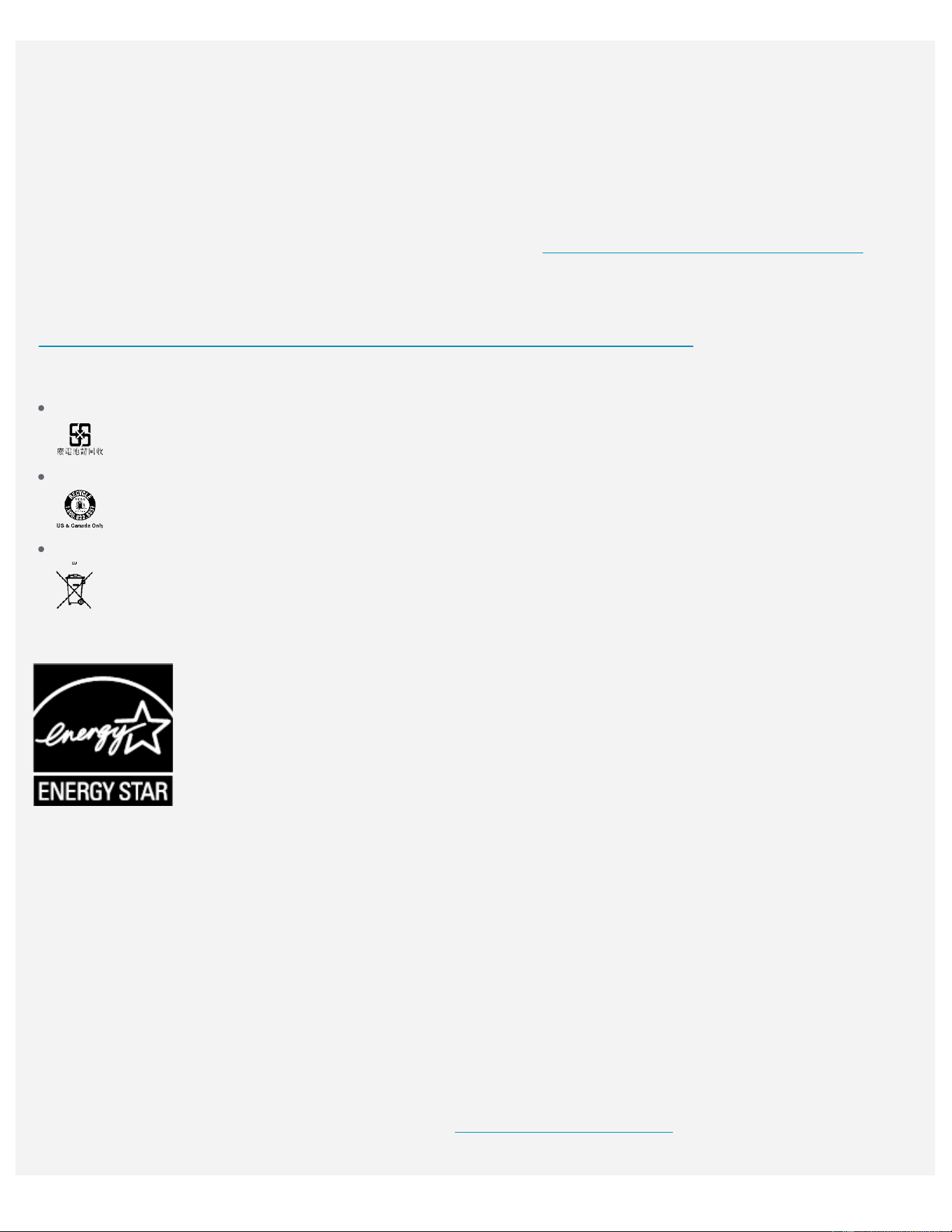
Battery recycling marks
The battery recycling information of Taiwan
Battery recycling information for the United States and Canada
Battery recycling information for the European Union
ENERGY STAR model information
ENERGY STAR® is a joint program of the U.S. Environmental Protection Agency and the U.S.
Department of Energy aimed at saving money and protecting the environment through energy efficient
products and practices.
Lenovo is proud to offer our customers products with the ENERGY STAR qualified designation. You might
find an ENERGY STAR mark affixed on the computer or displayed on the power settings interface.
Lenovo phones of the following model name, if carry an ENERGY STAR mark, have been designed and
tested to conform to the ENERGY STAR program requirements for phones.
Lenovo TB-7104F
By using ENERGY STAR qualified products and taking advantage of the power-management features of
the phone, you can help reduce the consumption of electricity. Reduced electrical consumption can
contribute to potential financial savings, a cleaner environment, and the reduction of greenhouse gas
emissions.
For more information about ENERGY STAR, go to http://www.energystar.gov
.
Export classification notice
This product is subject to the United States Export Administration Regulations (EAR) and has an Export
Classification Control Number (ECCN) of 5A992.c. It can be re-exported except to any of the embargoed
countries in the EAR E1 country list.
Troubleshooting
Insufficient memory prompt appears during app installation
Please free up some memory and try to install again.
The touch screen does not work or is not sensitive
Please press and hold the power button for more than 8 seconds until the device turns off. Then switch it
on again in normal way.
Device does not power on or system crashes
Please charge the battery for half an hour and then press and hold the power button for more than 8
seconds until the device turns off. Then switch it on again in normal way.
The device cannot access the internet via a wireless network
Restart the wireless router or go to Settings and restart WLAN.
The device cannot wake up from sleep mode
Please press and hold the power button for more than 8 seconds until the device turns off. Then switch it
on again in normal way.