This supplement contains explanations and instructions for correctly operating the following systems.
· Navigation System
·
Audio and
Visual System
·
Handsfree S
ystem
·
APPS
If your vehicle contains one of the systems above, be sure to check the contents of this supplement carefully.
If you transfer the ownership of the vehicle to another person, make sure that this supplement is provided with the Owner’s Manual inside the
vehicle.
The information, specications and illustrations found in this Owner
’
s Manual supplement are those in eect at the time of printing. SUBARU
CORPORATION reserves the right to change specications and designs at any time without prior notice and without incurring any obligation to make
the same or similar changes on vehicles previously sold.
This Owner’s Manual supplement applies to all models, and describes all devices, including manufacturer-installed options. This means that
information may be included about devices that are not installed in your vehicle.
Please be aware that the content of this Owner’s Manual supplement may be dierent from the system in some cases, such as due to software
updates and changes to specications.
Refer to P.14 for details on each of the dierent models.
Foreword
SUBARU STARLINK is the “in-car connectivity system” available on select Subaru vehicles.
SUBARU CORPORATION, TOKYO, JAPAN
“
SUBARU
”
and the six-star cluster design are registered trademarks of SUBARU CORPORATION.
©Copyright 2024, SUBARU CORPORATION
1
TK5_US.indb 1 2024/08/02 12:00:01
TABLE OF CONTENTS
Quick Guide
Basic Function
Settings
Phone
Apps
Audio
Navigation System (If equipped)
Voice Recognition System
Appendix/What To Do If/Index
1
2
3
4
5
6
7
8
9
2
TK5_US.indb 2 2024/08/02 12:00:01

· System Types... 14 · Function Overview... 15 · Main Product Features... 16 · Basic Function... 19 · Steering Wheel Controls... 41
· Basic Information Before Operation... 44
· Registering A Bluetooth Phone/Device For The First Time... 54 · Registering A Bluetooth Phone/Device... 58
· Phone Settings... 57 · Setting Driver Proles... 64 · General Settings... 66 · Sound Settings... 73 · Radio Settings... 75
· Calling On The Bluetooth Phone... 84 · Receiving On The Bluetooth Phone... 87
· Talking On The Bluetooth Phone... 88 · Bluetooth Phone Message Function... 90
· Apple CarPlay... 101 · Android Auto... 104 · SiriusXM Travel Link... 107
· Basic Operation... 114 · Radio Operation... 120 · Media Operation... 132 · Audio Remote Controls... 147
· Map Screen... 156 · Main Menu Screen... 163 · Route Guidance... 172 · Setup... 179
· SUBARU Map Update... 183
· Voice Recognition System Operation... 188
· Troubleshooting... 201 · Index... 212
13
43
53
79
97
113
155
187
195
Quick Guide
Basic Function
Settings
Phone
Apps
Audio
Navigation System (If equipped)
Voice Recognition System
Appendix/What To Do If/Index
3
TK5_US.indb 3 2024/08/02 12:00:01

INTRODUCTION
INTRODUCTION
The symbols described below are found in this instruction
manual as well as on the unit itself to ensure its proper and safe
usage and to prevent injury or damage to property. Make sure
you understand the meaning of these symbols before reading
the rest of this manual.
READ FIRST
We recommend that you wait until the positioning stabilizes
before starting to drive.
If you start to drive while the positioning is not complete, the
indicated position may dier from the actual vehicle position.
The screens shown in this manual may dier from the actual
screens depending on the data type or when the map data was
created.
When maps are created, land surveys are conducted and
informationon road improvements and reopening is collected
to provide the most accurate information possible. However,
modicationsto roads, place names and facilities may be carried
out at any time. Consequently, we cannot guarantee that map
data contains no errors in road positions, conguration and
names, or in facility names.
INTRODUCTION
4
TK5_US.indb 4 2024/08/02 12:00:01
Information in this manual that must be observed for the unit,
and information that is useful to know is indicated as follows.
WARNING
l This sign indicates a situation in which incorrect handling through
disregard of written information might result in death or serious
personal injury.
CAUTION
l This sign indicates a situation in which incorrect handling through
disregard of written information might result in personal injury or
damage to property.
NOTE
l Useful information for the user is described.
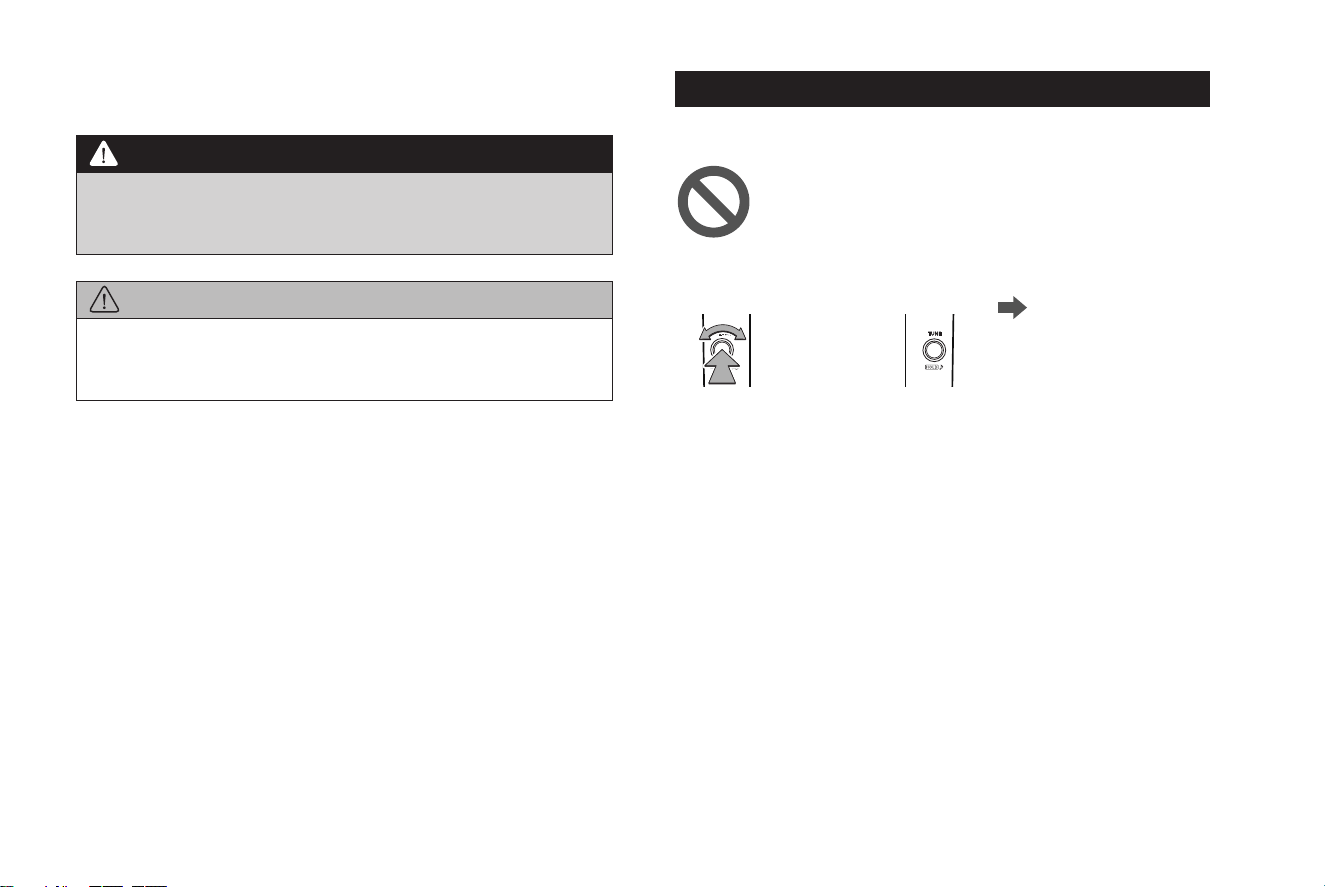
SYMBOLS USED IN ILLUSTRATIONS
Safety symbol
The symbol of a circle with a slash through it means “Do
not”, “Do not do this” or “Do not let this happen”.
Arrows indicating operations
Indicates the action
(selecting, turning,
etc.) used to operate
switches and other
devices.
INTRODUCTION
INTRODUCTION
5
TK5_US.indb 5 2024/08/02 12:00:02

PRECAUTIONS FOR USE
WARNING
l The main unit requires a 12 V DC power supply. The main unit
should not be installed in any vehicle which does not have a
12 V power system with a ground-connected negative side.
An installation other than the one intended may cause severe
damage to the main unit, and electric shock or serious injury to
the users.
l Ev
en when using the route guidance of the navigation system, be
sure to drive by following the actual trac regulations. If you drive
by following only the route guidance of the navigation system,
you may violate the actual trac regulations and cause a trac
accident.
l To ensur
e safety, the driver should not operate the navigation
system while driving. Operating the navigation system while
driving may result in an accidental steering wheel operation or
otherwise cause an accident. Stop the vehicle before operating
the navigation system. Also, do not watch the screen while driving
because doing so may be dangerous (ETC). Inattention to road
conditions ahead may result in an accident.
l The dr
iver should not perform operations such as volume
adjustment while driving. Inattention to road conditions ahead
may result in an accident, so be sure to stop the vehicle in a safe
place before performing the operation.
l The
driver should not perform operations such as adding a
location or setting the memory while driving. Inattention to road
conditions ahead may result in an accident, so be sure to stop the
vehicle in a safe place before performing the operation.
l Before viewing a video, be sure to stop the vehicle in a safe place
and apply the parking brake. To ensure safety, videos are not
displayed during driving.
l To ensure safety, never operate a cell phone while driving.
l Do not disassemble or modify the unit
. Doing so may result in an
accident, re or electric shock.
l Do not
let water or foreign objects enter the internal parts of the
unit. Doing so may result in smoke, re or an electric shock.
l Do not use the unit when it is malfunc
tioning, such as when the
screen is not lit or no sound comes out. Doing so may result in an
accident, re or electric shock.
l Alw
ays replace fuses with fuses of the same specied capacity
(amperage). Using a fuse with a higher capacity than the
specication may result in a re.
l If a f
oreign object or water enters the unit, smoke or a strange
odor may be emitted. If such an abnormality occurs, stop using
the unit immediately and contact your SUBARU dealer. An
accident, re or electric shock may result if you continue to use the
unit under these conditions.
l In a thunderst
orm, do not touch the antenna line or the unit.
Lightning may cause an electric shock.
l Do not par
k or stop in prohibited areas to use the unit.
l If dir
ect sunlight shines into the vehicle, light may reect o the
product. Be very careful while driving.
l Never use headphones or earphones while driving. Driving while
not being able to hear sounds from outside the vehicle may result
in a trac accident.
INTRODUCTION
6
TK5_US.indb 6 2024/08/02 12:00:02

CAUTION
l Although the unit can be used when the ignition switch is set
to either “ACC” or “ON” position, to protect the battery, start the
engine before using the unit.
l Do not use the unit anywhere other than in a vehicle. Doing so
may result in an electric shock or other injury.
l While dr
iving, keep the volume low enough for you to hear
outside sounds. Driving while not being able to hear sounds from
outside the vehicle may result in an accident.
l Be careful of the volume when turning on the power. If a loud
noise is emitted suddenly when you turn on the power, it may
damage your hearing.
l Do not apply a strong force to the display. Doing so may result in a
malfunction.
l Do not touch the hot parts of the unit. The hot parts may burn you.
l Do not use while there is an abnormality such as sound breakup or
distortion. Doing so may result in a re.
l Using the unit during extremely high or low temperature may
result in mistaken operation or a malfunction. In particular, the
temperature inside the vehicle can often rise to a high level during
the summer. Cool the vehicle, for example by opening a window,
before using the unit.
l Be
careful if metal or water enters the unit, or the unit is exposed
to a strong impact, because it may result in a malfunction.
l The touch buttons on the display screen may not operate correctly
if condensation forms inside them. If this happens, do not attempt
to operate the switches until the condensation has disappeared.
l If juice or similar liquid is spilled on the display, wipe o
immediately. Failure to do so may result in product malfunction.
l The scr
een is easily marked by ngerprints and tends to attract
dust, and should therefore be cleaned occasionally. When
cleaning, turn o the power, and wipe lightly with a soft, dry cloth.
To remove dirt, soak a soft cloth in neutral detergent and squeeze
well before wiping. Do not use a wet oor-cloth, organic solvents
(benzene, ethanol, thinner, etc.), acids, or alkalis. Using such
agents will result in screen deterioration. Furthermore, do not hit
the screen or rub it with hard objects.
INTRODUCTION
INTRODUCTION
7
TK5_US.indb 7 2024/08/02 12:00:02

NOTE
l SUBARU CORPORATION is not responsible for any damages to the
purchaser or third parties that occur from using the map data.
l We do not pr
ovide any replacements or refunds for any mistakes
there may be in the map data displays or contents, such as
misspelling, omissions or misaligned positions.
l SUBARU CORPOR
ATION makes no guarantee that the functions
included in the map data will be appropriate for the specic
objectives of the purchaser.
l Func
tions that cannot be operated while driving have their colors
toned down when the vehicle is being driven, and their operation is
disabled. Touching a disabled switch may result in the display of an
operation prohibited message on the screen.
l When using the unit f
or the rst time after purchase, or after the
battery was removed for a long time, the current position may not
be displayed correctly. Wait a short time until the GPS positioning
corrects the displayed position.
l This device is precision-engineered equipment and the recorded
data can be lost as a result of static electricity, electrical noise,
vibration, or other inuences. To protect the device against data
loss, we recommend keeping a separate record of the data that you
record after purchase.
l The screen may be adversely aected or disturbed by noise if
electrical equipment that generates powerful electrical noise is used
near the system. In such cases, keep the electrical equipment at a
distance, or refrain from use.
l The display may appear brighter when the temperature is low,
or immediately after starting the engine, however, this is a
characteristic of the LED elements, and does not indicate a fault. The
display will return to its original brightness when the vehicle cabin
has warmed up.
NOTE
l When you look at the screen through polarized material such as
polarized sunglasses, the screen may be dark and hard to see. If so,
look at the screen from dierent angles, adjust the screen settings on
the general settings screen or take o your sunglasses.
l It may be dicult to view the screen if the display is exposed to
sunlight from an awkward angle.
l The LCD screen may not function normally if covered with a
protective lm. Do not ax a protective lm.
l The t
ouch panel may function incorrectly or fail to respond if
operated with objects other than ngers (nails, operation when
wearing gloves, pens, etc.)
l If the sy
stem functions unexpectedly such as an area other than the
one touched being selected, or failure to respond when touched,
there is a possibility that another nger or part of the hand is in
contact with display.
l Scratches on the system panel surface are easily noticeable, and it
should therefore be handled with care.
l If a device that uses wireless communication is installed in the
vehicle, functions using a Bluetooth device, the radio broadcast
receiver, navigation system, etc. may not operate properly.
INTRODUCTION
8
TK5_US.indb 8 2024/08/02 12:00:02
WHEN TRANSFERRING OWNERSHIP OF THE
VEHICLE
CAUTION
l When transferring ownership of your vehicle, delete the personal
information registered in the vehicle by performing a Factory
Data Reset. For details about the Factory Data Reset, refer to the
“GENERAL SETTINGS SCREEN” section. (→P.66)
Note that certain personal information inputted in the system
and the phone number of any paired device will remain in vehicle
data logs even after the Factory Data Reset. These data logs are
strictly for quality assurance purposes and not viewable by any
subsequent purchaser. To have those logs deleted permanently
from the vehicle, please contact your SUBARU dealer.
SAFETY INSTRUCTION (11.6-inch display
system only)
To use this system in the safest possible manner, follow all the
safety tips shown below.
Do not use any feature of this system to the extent it becomes
a distraction and prevents safe driving. The rst priority while
driving should always be the safe operation of the vehicle. While
driving, be sure to observe all trac regulations.
Prior to the actual use of this system, learn how to use it and
become thoroughly familiar with it. Read the entire manual
to make sure you understand the system. Do not allow other
people to use this system until they have read and understood
the instructions in this manual.
For your safety, some functions may become inoperable when
driving. Unavailable screen buttons are dimmed.
INTRODUCTION
INTRODUCTION
9
TK5_US.indb 9 2024/08/02 12:00:02
WARNING
l For safety, the driver should not operate the system while he/she
is driving. Insucient attention to the road and trac may cause
an accident.
SAFETY INSTRUCTION (11.6-inch display with
Navi system only)
To use this system in the safest possible manner, follow all the
safety tips shown below.
This system is intended to assist in reaching the destination
and, if used properly, can do so. The driver is solely responsible
for the safe operation of your vehicle and the safety of your
passengers.
Do not use any feature of this system to the extent it becomes
a distraction and prevents safe driving. The rst priority while
driving should always be the safe operation of the vehicle. While
driving, be sure to observe all trac regulations.
Prior to the actual use of this system, learn how to use it and
become thoroughly familiar with it. Read the entire manual
to make sure you understand the system. Do not allow other
people to use this system until they have read and understood
the instructions in this manual.
For your safety, some functions may become inoperable when
driving. Unavailable screen buttons are dimmed. Only when the
vehicle is not moving, can the destination and route selection
be done.
WARNING
l For safety, the driver should not operate the system while he/she
is driving. Insucient attention to the road and trac may cause
an accident.
l While driving, be sure to obey the trac regulations and maintain
awareness of the road conditions. If a trac sign on the road
has been changed, route guidance may not have the updated
information such as the direction of a one way street.
INTRODUCTION
10
TK5_US.indb 10 2024/08/02 12:00:02

While driving, listen to the voice instructions as much as
possible and glance at the screen briey and only when it is safe.
However, do not totally rely on voice guidance. Use it just for
reference. If the system cannot determine the current position
correctly, there is a possibility of incorrect, late, or non-voice
guidance.
The data in the system may occasionally be incomplete. Road
conditions, including driving restrictions (no left turns, street
closures, etc.) frequently change. Therefore, before following
any instructions from the system, look to see whether the
instruction can be done safely and legally.
This system cannot warn about such things as the safety of an
area, condition of streets, and availability of emergency services.
If unsure about the safety of an area, do not drive into it. Under
no circumstances is this system a substitute for the driver’s
personal judgement.
Use this system only in locations where it is legal to do so. Some
states/provinces may have laws prohibiting the use of video and
navigation screens next to the driver.
INTRODUCTION
INTRODUCTION
11
TK5_US.indb 11 2024/08/02 12:00:02
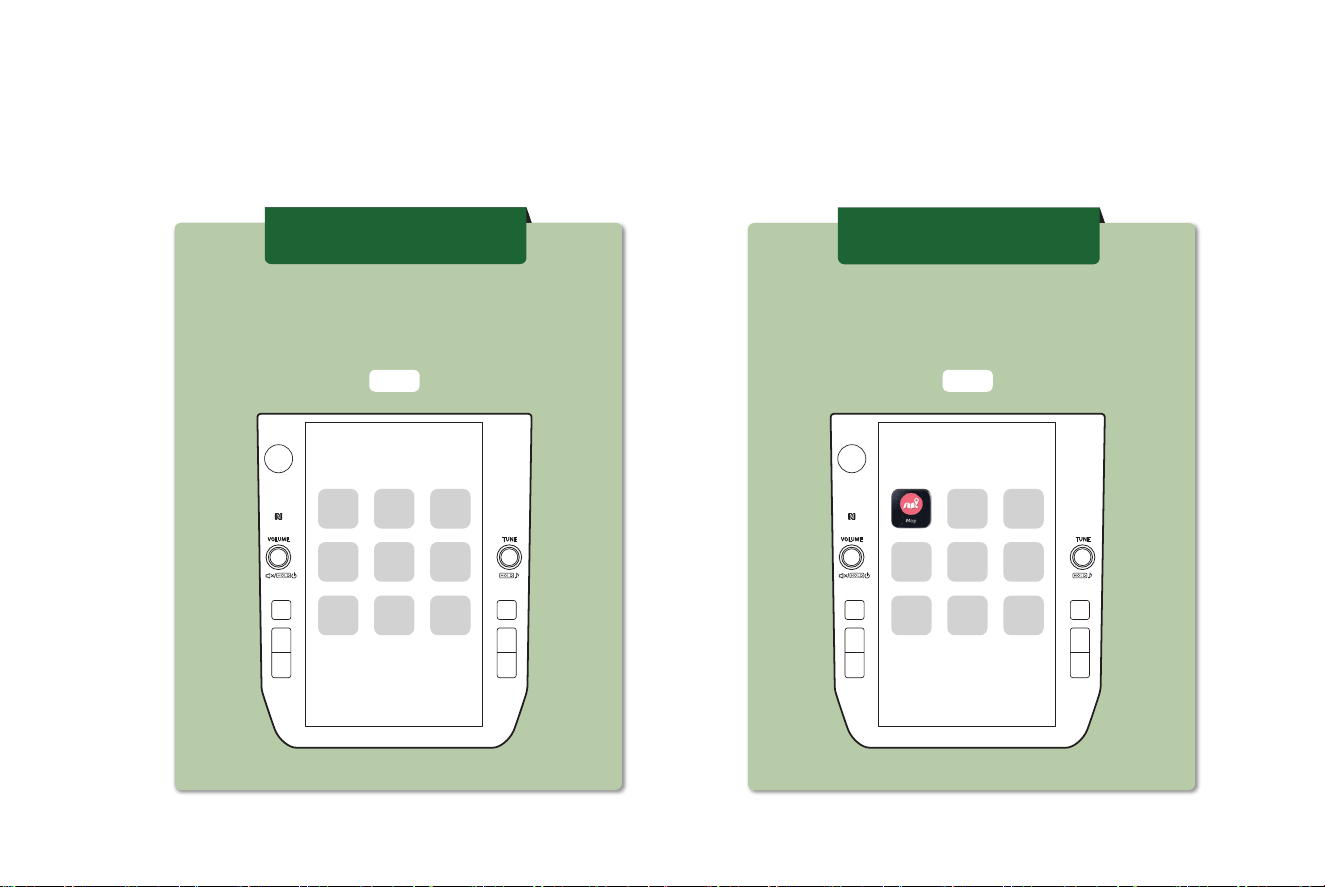
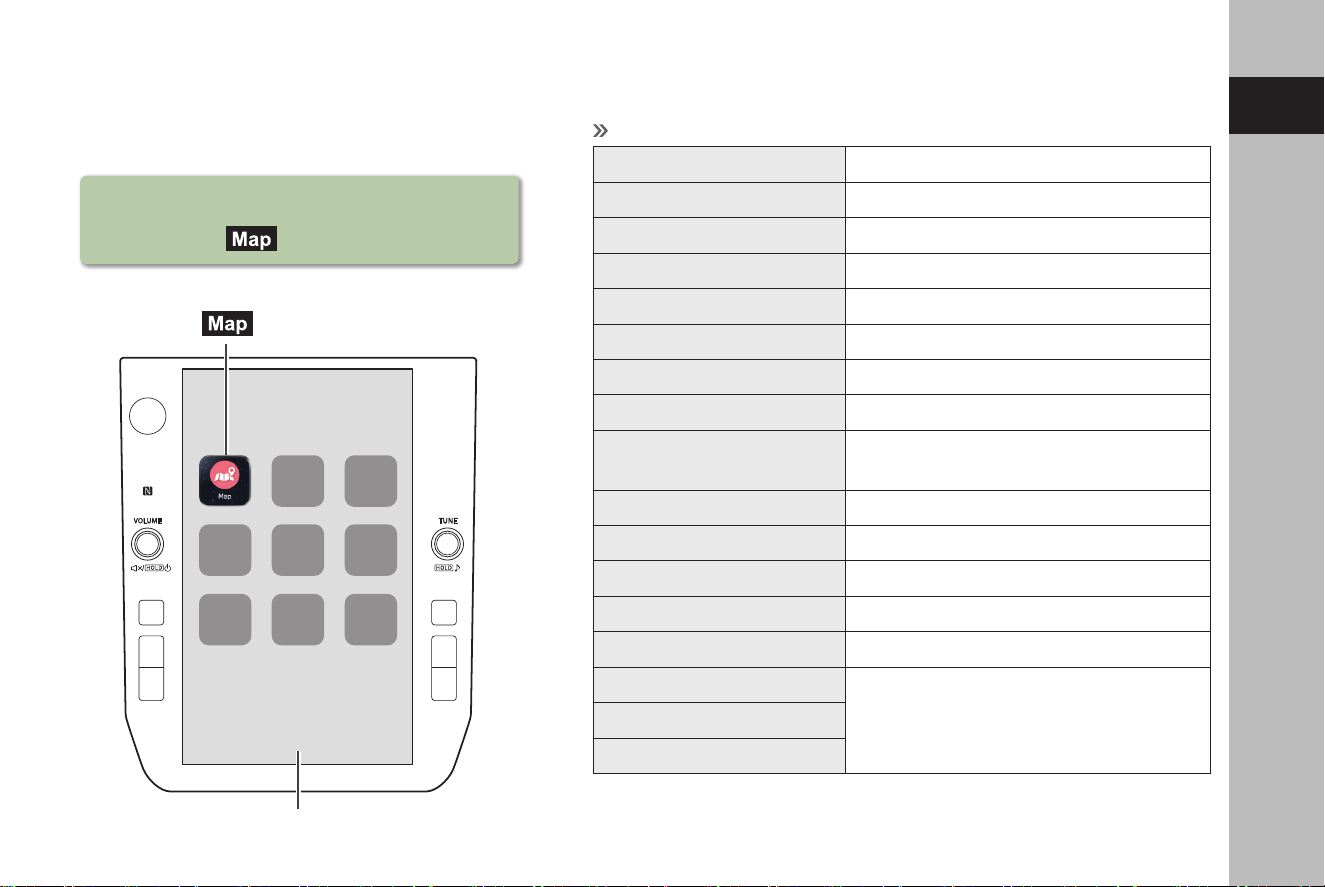
HOW TO READ THIS MANUAL
No. Name Description
Operational Outlines An outline of the operation is explained.
Main Operations The steps of an operation are explained.
Supplemental information Describes supplemental information relating to main operation.
● When a panel button should be selected, button names are shown as .
● When a touch button on the screen should be selected, button names are shown as
.
INTRODUCTION
12
TK5_US.indb 12 2024/08/02 12:00:03

Quick Guide
13
System Types
14
Function Overview
15
Main Product Features
16
Basic Function
19
Overview
19
Home Screen
20
Pairing The System
With A Bluetooth Phone/Device
22
Managing A Bluetooth Phone/Device
23
Create A Driver Prole
24
Car Information Screen
25
Phone Screen
26
Map Screen
30
Radio Screen
32
Useful SiriusXM
®
Radio Functions
33
Media Screen
34
Connecting A USB Memory Device/
Portable Device
35
Apps Screen
36
Settings Screen
39
Steering Wheel Controls
41
Steering Wheel Controls
41
TK5_US.indb 13 2024/08/02 12:00:03
SYSTEM TYPES
14
P.15
SYSTEM TYPES
This Owner’s Manual describes the following two types of system.
11.6-inch display
system
11.6-inch display
with Navi system
11.6-inch touch screen
Display audio system
11.6-inch touch screen
Display audio with
Navigation system
P.15
TK5_US.indb 14 2024/08/02 12:00:04
FUNCTION OVERVIEW
15
1
Quick Guide
FUNCTION OVERVIEW
FUNCTION OVERVIEW
- 11.6-inch touch screen
-
(Map) button*
1
*
2
Features:
(Map) button*
1
*
2
11.6-inch touch screen
MAIN FUNCTIONS
Pairing (Bluetooth 5.0) P.22
Navigation system*
1
P.30
Apps P.36
Apple CarPlay P.101
Android Auto P.104
AM/FM radio P.32
HD Radio receiver P.122
SiriusXM® radio P.33
Media operation
USB: P.132 iPod/iPhone: P.134
Bluetooth audio: P.137 AUX: P.140
Phone P.26
Voice recognition system P.188
NFC P.22
Valet mode P.18
Steering wheel controls P.41
Rear view camera
Refer to the vehicle Owner’s Manual.Car settings/informations
Climate controls
*
1
: If equipped
*
2
: Displayed position may dier
TK5_US.indb 15 2024/08/02 12:00:04
MAIN PRODUCT FEATURES
16
MAIN PRODUCT FEATURES
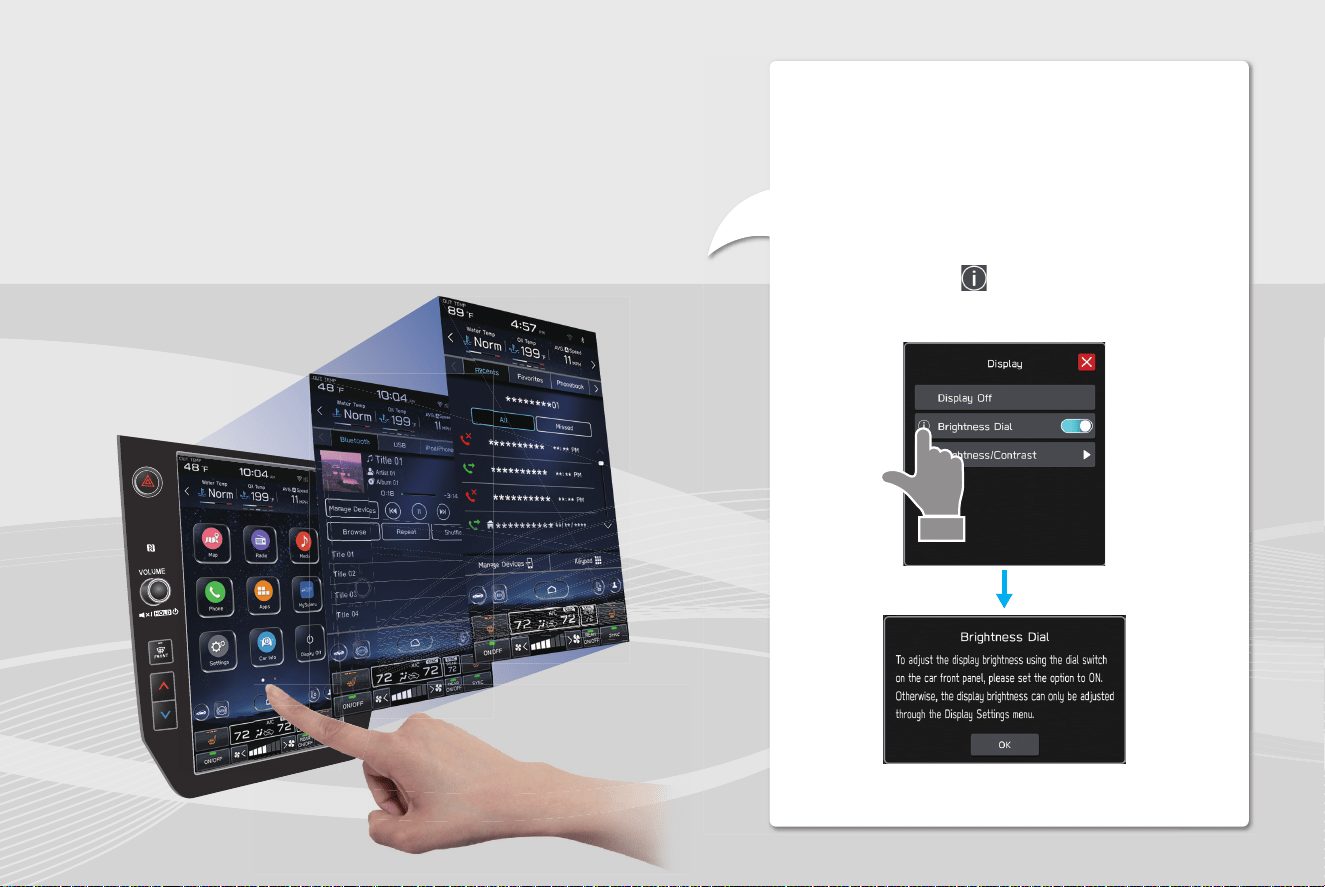
Adoption of intuitive and easy-to-use
smartphone-like graphical user interface
Meter cluster linked display
A large 11.6-inch touch screen display has
been adopted. Information can be displayed
seamlessly between this display and the display
in the meter cluster.
Function description display function
Function descriptions or operation hints can be
displayed when an
icon displayed next to the
name of a function.
TK5_US.indb 16 2024/08/02 12:00:08
MAIN PRODUCT FEATURES
17
1
Quick Guide
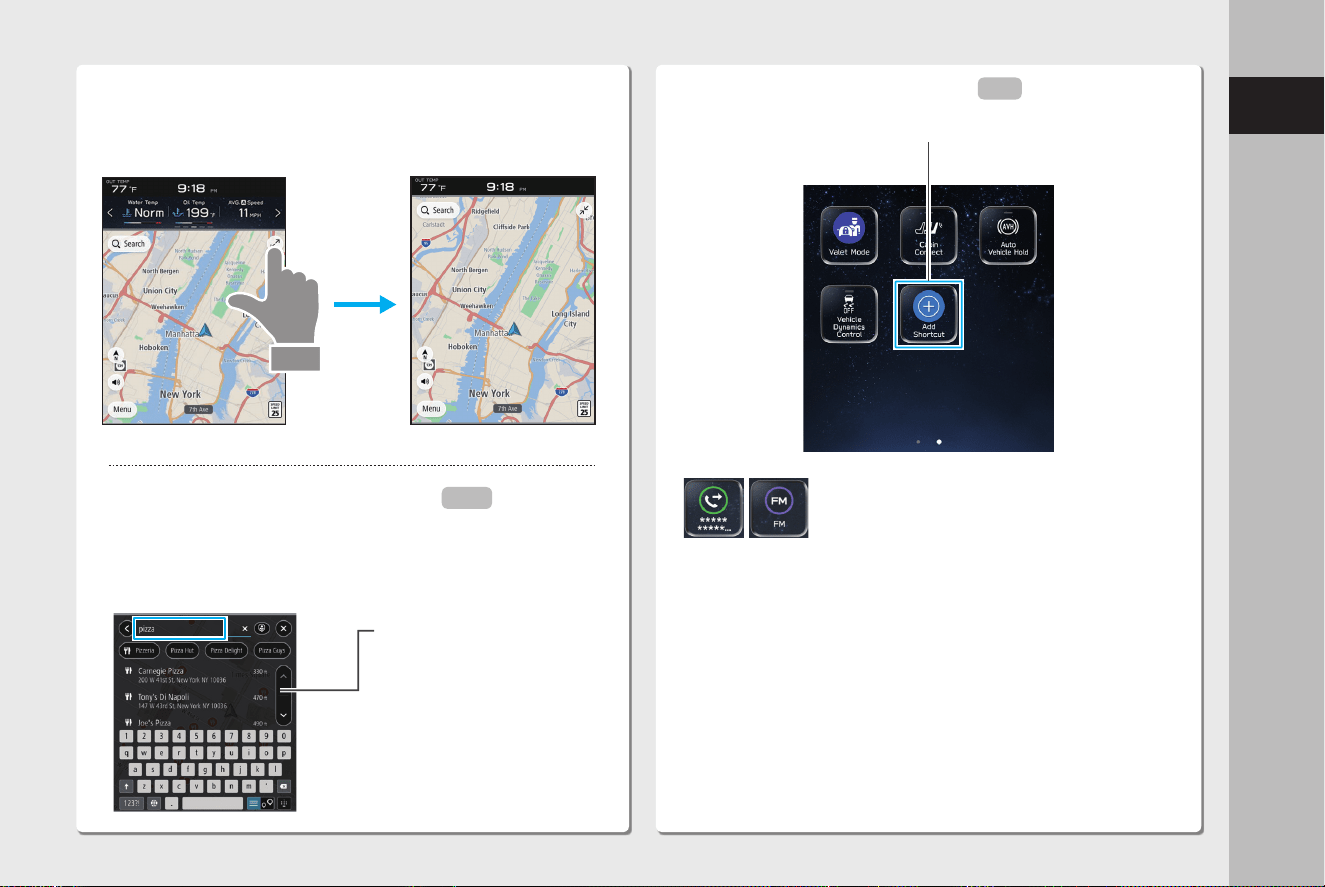
Expandable map screen*
The map screen can be expanded to ll more of the
display.
Rough destination search function*
Start a search with a variety of words such as addresses,
facility names, intersection names, latitude/longitude, or
“what3words”.
Displays search prediction
· Search results are predicted
and candidates displayed
even if only partial words are
known
· Searches can even be
performed with multiple
keywords.
*: If equipped
P.165
Customized home screen layout
Frequently used functions and operations can be added to
the home screen.
Example: For calling specic phone numbers, listening to FM
radio stations, etc.
The position of screen buttons can be changed by selecting
and holding it, then dragging it to the desired position.
P.52
TK5_US.indb 17 2024/08/02 12:00:10
MAIN PRODUCT FEATURES
18
System and Bluetooth phone/device pairing
Functions such as hands-free and applications
can be used by connecting the system with
Bluetooth phones/devices wirelessly.
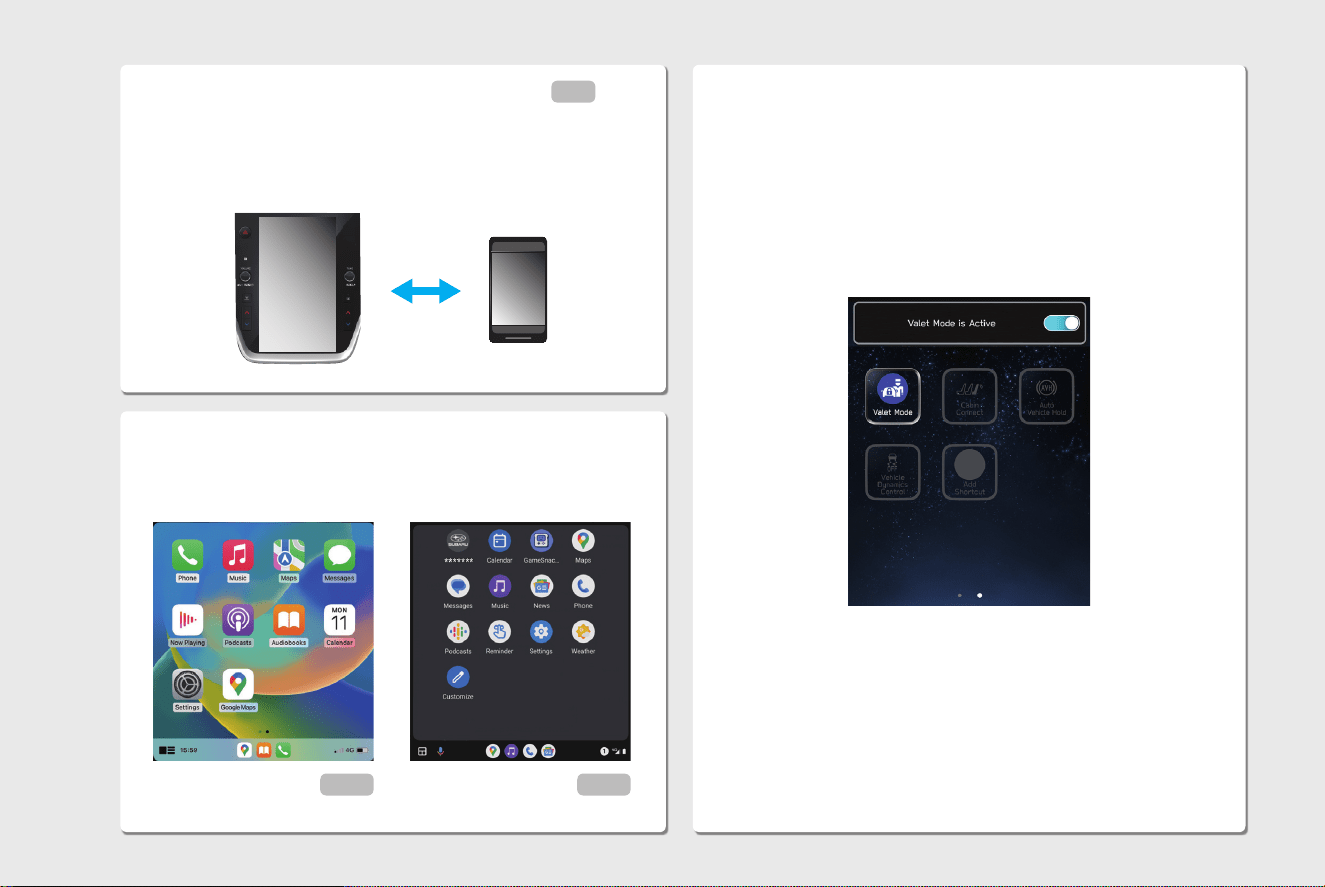
Apple CarPlay/Android Auto
Apple CarPlay/Android Auto can be used wirelessly.
P.22
Valet mode
Valet mode restricts operations of the system when valet
parking is used, to prevent unwanted access to personal
information stored in the system.
To enable/disable valet mode, enter a password preset by
the user.
Refer to the vehicle Owner’s Manual.
P.101 P.104
TK5_US.indb 18 2024/08/02 12:00:10
BASIC FUNCTION
19
1
Quick Guide
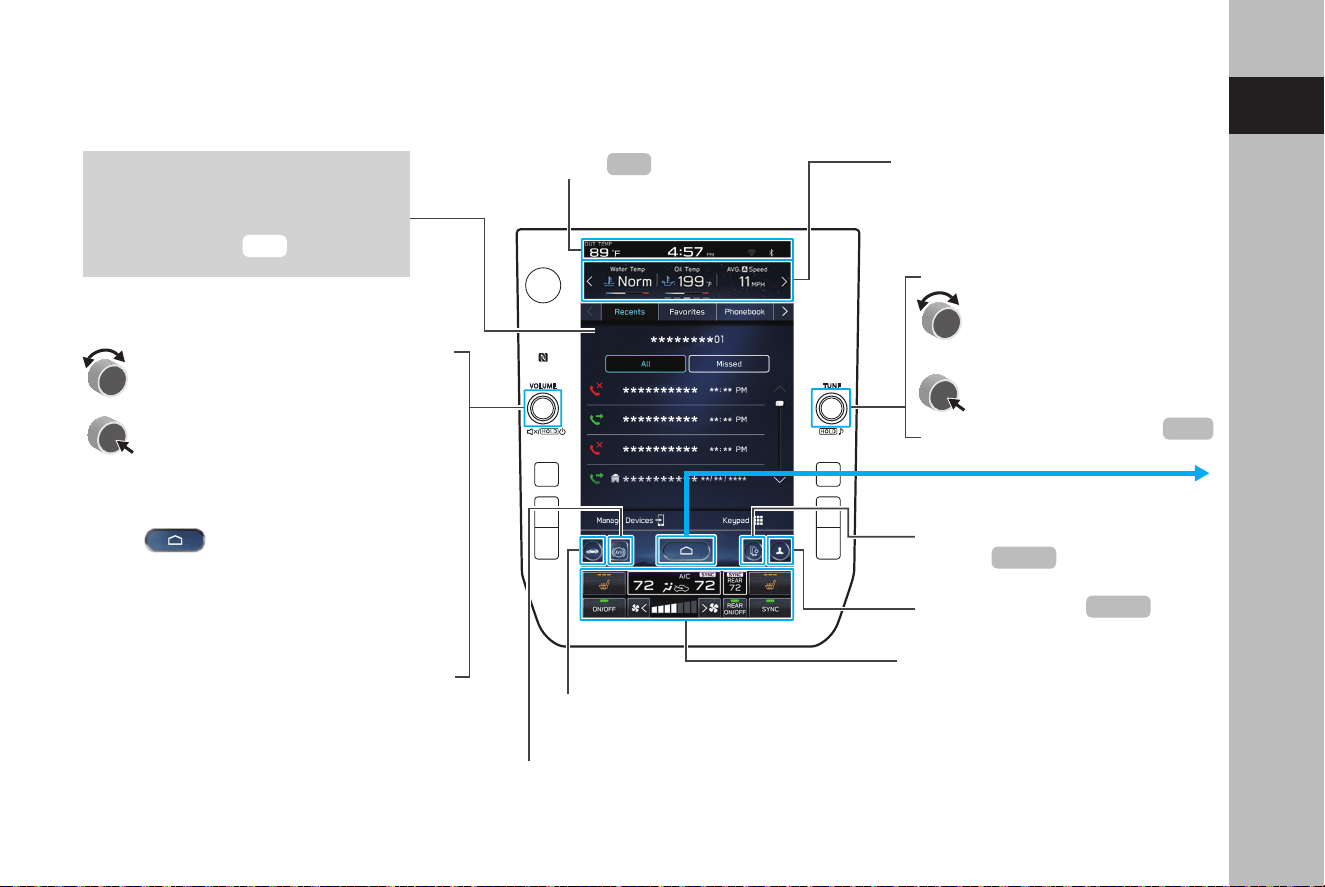
TOUCH SCREEN
Operations are performed by
touching the touch screen directly
with your nger.
*: Refer to the vehicle Owner’s Manual.
Status bar
Information bar*
Touch to display the operation
screen of the selected category.
BASIC FUNCTION
OVERVIEW
Turn the knob to adjust the volume.
Press the knob to turn the volume
mute on/o.
Press and hold the knob to turn the
audio system o. To turn the audio
system on, press and hold the knob
again or touch the screen to display
and select it.
Press and hold the knob for 10
seconds or longer to reset the
system if the touch screen becomes
unresponsive during operation or if
any other system error occurs.
Turn the knob to select a
radio station or skip to the
next or previous track/le.
Press and hold the knob
to display the sound
customization screen.
Display the home screen.
Climate control screen*
Set a driver prole
Display the manage devices
screen.
Car settings icon*
P.45
P.116
P.51
P.24,64
P.22,23
Auto Vehicle Hold (AVH) ON/OFF icon*
TK5_US.indb 19 2024/08/02 12:00:11
*: If equipped
BASIC FUNCTION
20
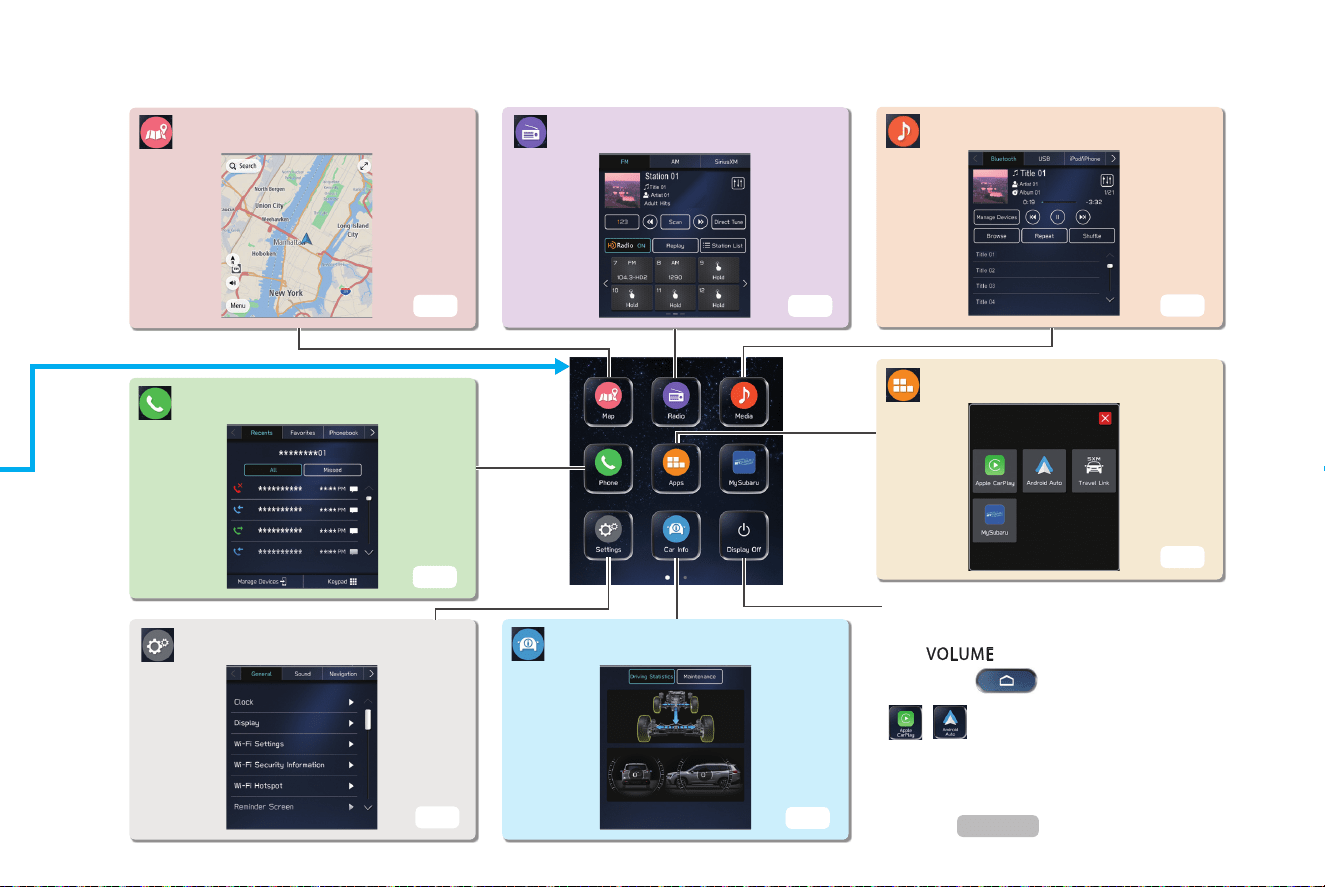
While Apple CarPlay or Android Auto is
being used, an Apple CarPlay or Android
Auto icon will be displayed on the home
screen.
HOME SCREEN
Radio SCREEN
Apps SCREEN
Settings SCREEN
Media SCREEN
Phone SCREEN
Map SCREEN*
P.26
P.30
P.39
P.36
P.34
P.32
Car information SCREEN
P.25
*: If equipped
P.101,104
Turn the display o.
To turn the display on, press and hold
the “ ” knob or touch the screen
to display
and select it.
TK5_US.indb 20 2024/08/02 12:00:12
BASIC FUNCTION
21
1
Quick Guide
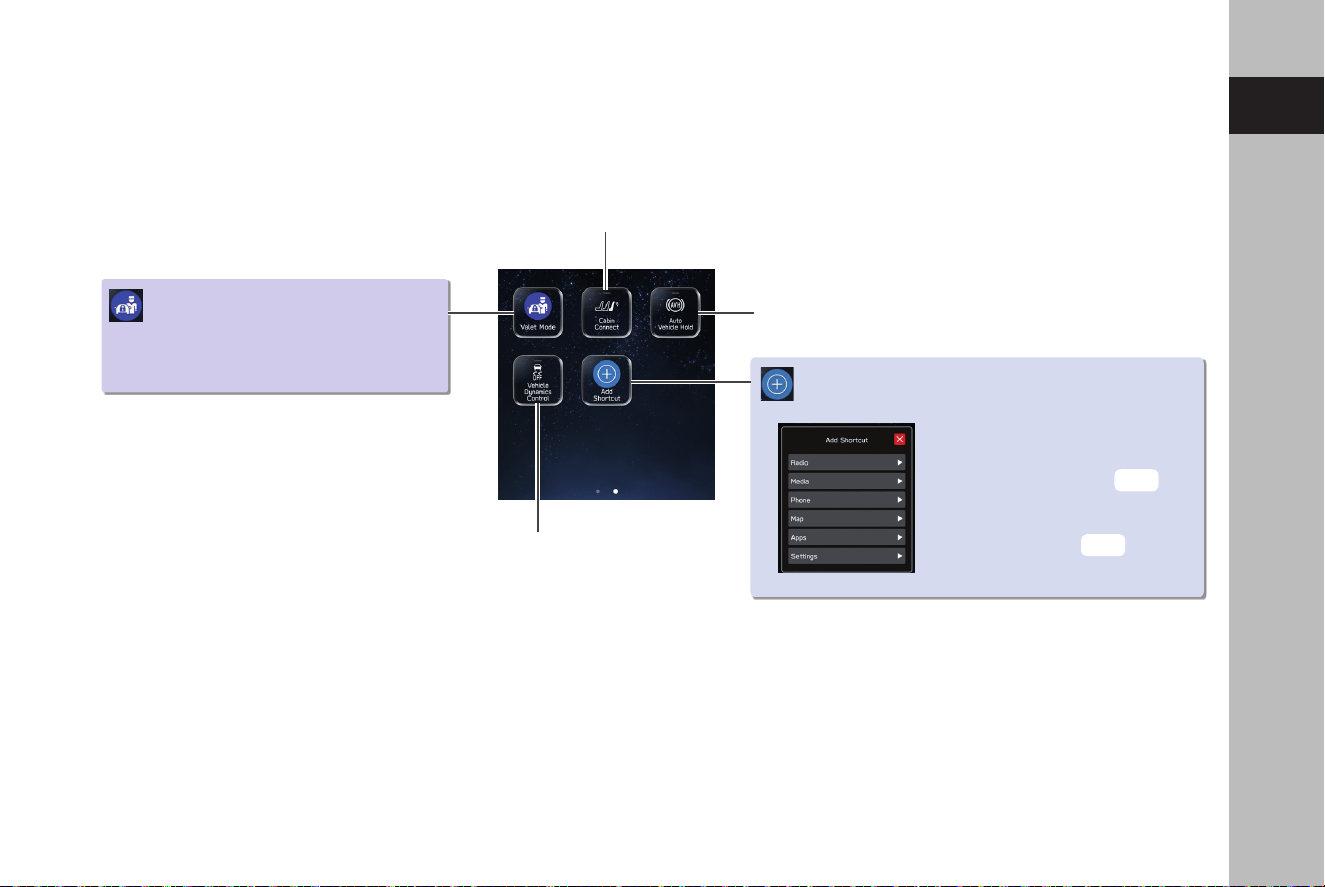
Valet Mode
Add Shortcut
Refer to the vehicle Owner’s Manual.
Frequently used functions
and operations can be added
to the home screen.
Button positions can be
changed freely.
P.52
P.52
Turn the Cabin Connect system* on/o.
Refer to the vehicle Owner’s Manual.
Turn the Vehicle Dynamics Control system on/o.
Refer to the vehicle Owner’s Manual.
Turn the Auto Vehicle Hold (AVH) system on/o.
Refer to the vehicle Owner’s Manual.
*: 11.6-inch display with Navi system only
TK5_US.indb 21 2024/08/02 12:00:12
BASIC FUNCTION
22
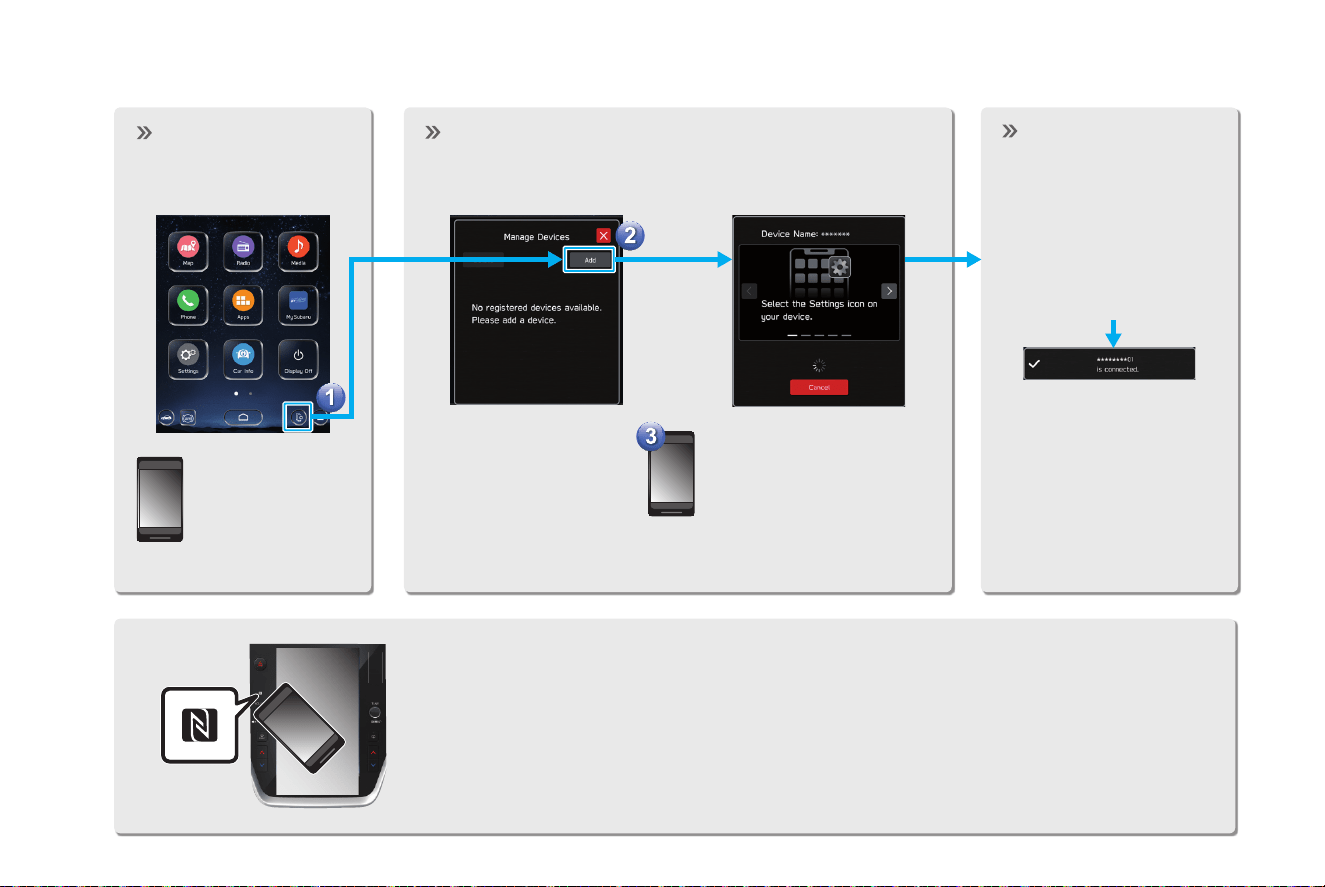
PAIRING THE SYSTEM WITH A Bluetooth PHONE/DEVICE
Display the manage
devices screen.
Prepare the
Bluetooth phone/
device to be
paired.
Operate the Bluetooth phone/device.
Follow instructions
displayed to operate the
Bluetooth phone/device.
Register the
Bluetooth phone/
device.
If unable to pair, check
whether your Bluetooth
phone/device is compatible
with the system.
If a conrmation message
appears asking whether to
transfer the phone’s contact
data to the system, select
the appropriate button.
When using an NFC compatible device, it is not necessary to perform the above
procedure.
Pairing can be performed by holding the device against the NFC logo of the
audio system with the NFC setting on.
TK5_US.indb 22 2024/08/02 12:00:12
BASIC FUNCTION
23
1
Quick Guide
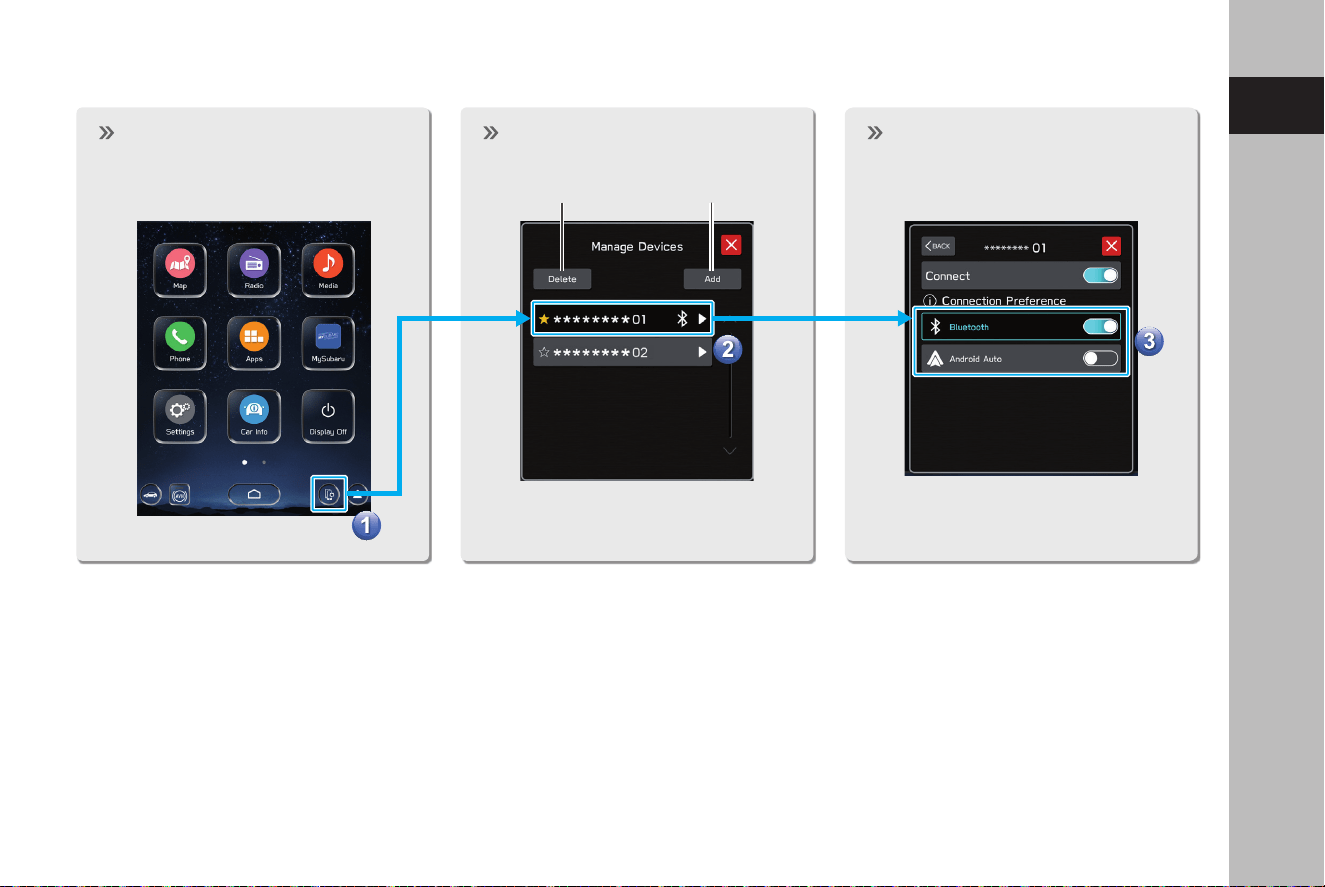
MANAGING A Bluetooth PHONE/DEVICE
Display the manage devices
screen.
Select a device Select to enable/disable the
function.
Add the deviceDelete the device
TK5_US.indb 23 2024/08/02 12:00:13
BASIC FUNCTION
24
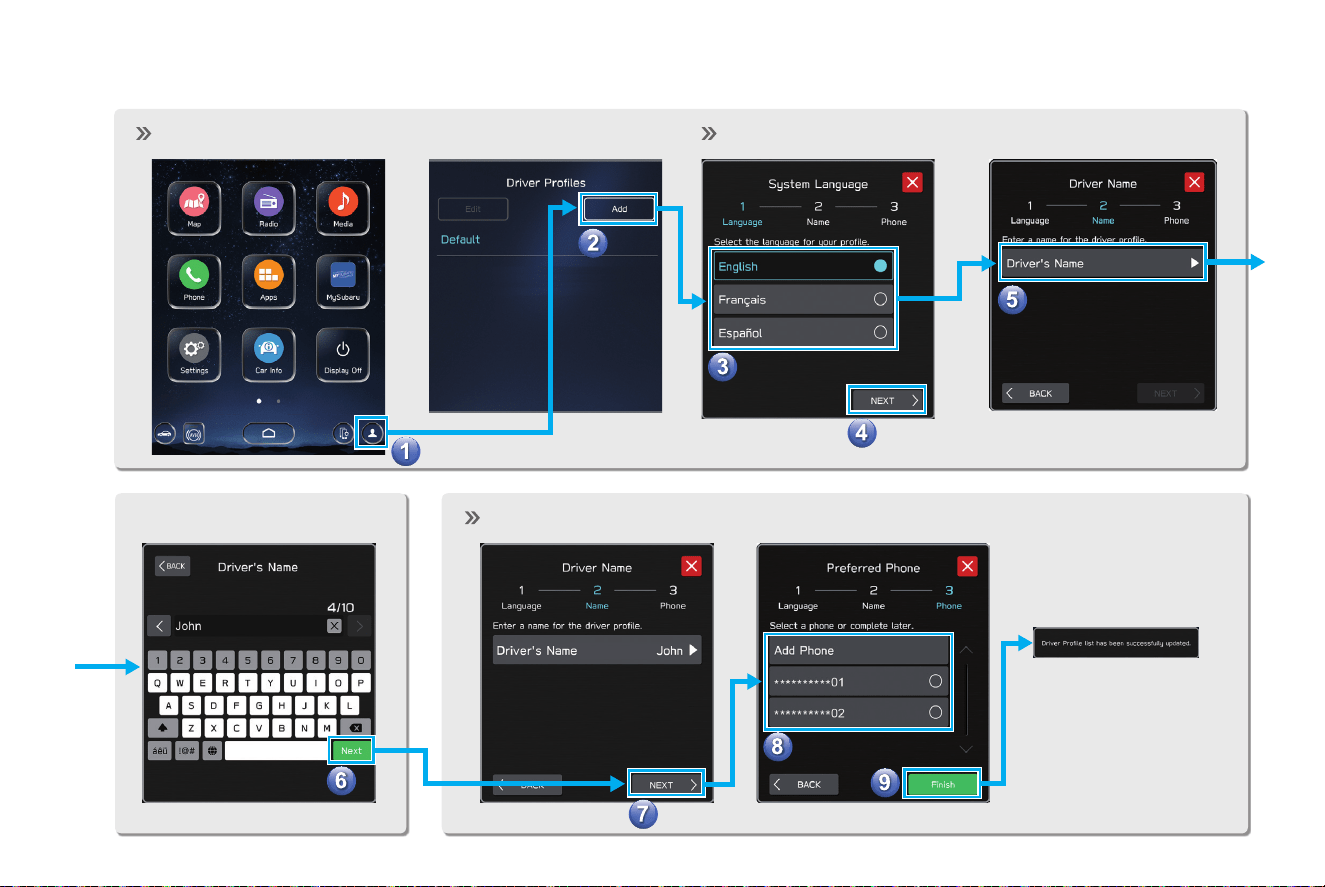
Add a new prole.
Registering a Bluetooth phone
Enter a name.
Procedure complete.
CREATE A DRIVER PROFILE
Select a language.
TK5_US.indb 24 2024/08/02 12:00:14
BASIC FUNCTION
25
1
Quick Guide
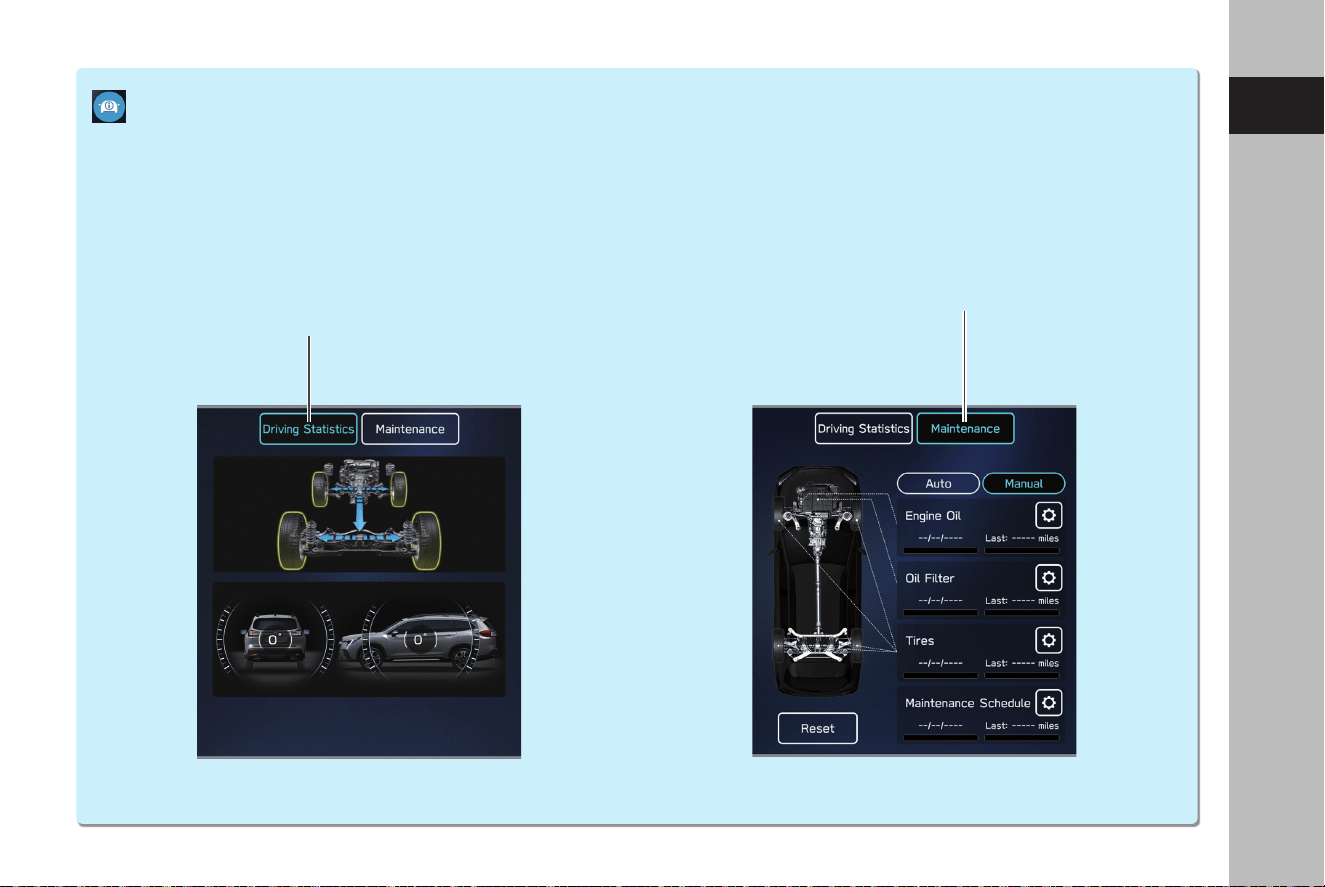
Displays the operating status of vehicle
functions, vehicle status, and vehicle
inclination.
Refer to the vehicle Owner’s Manual.
Setup and display vehicle part
replacement intervals.
Refer to the vehicle Owner’s Manual.
Car information SCREEN
TK5_US.indb 25 2024/08/02 12:00:14
BASIC FUNCTION
26
Phone SCREEN
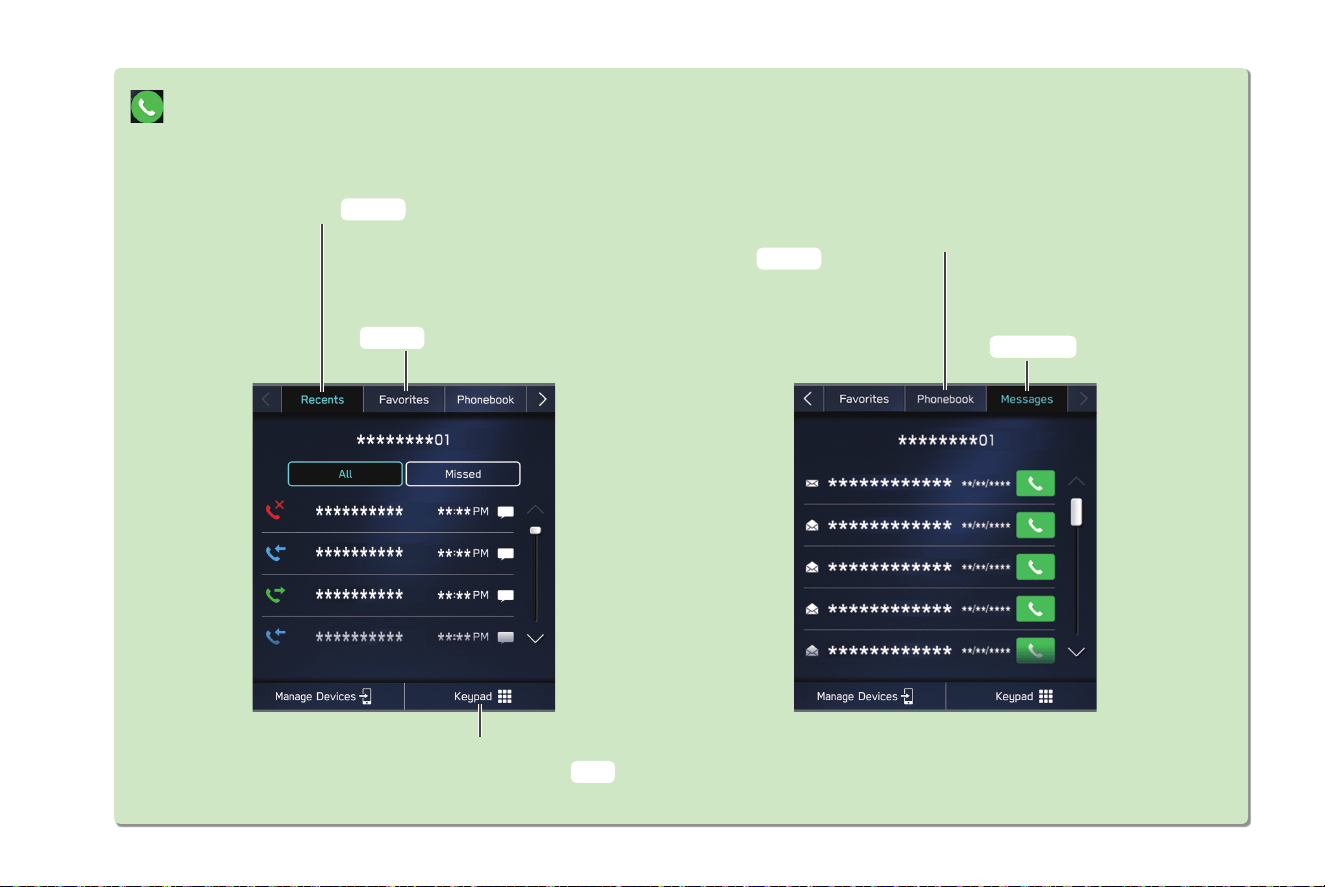
Directly input a number
to place a call
Call or send a text message* to
a registered favorite
Call or send a text message* to
a recent contact
Call or send a text message* to a
contact in the phonebook on the
Bluetooth connected phone
Check or reply* to
messages/place calls from
received message list
*: If available (for iOS only reception possible)
P.86
P.85,94
P.84,94
P.86,94
P.93,93,95
TK5_US.indb 26 2024/08/02 12:00:14
BASIC FUNCTION
27
1
Quick Guide
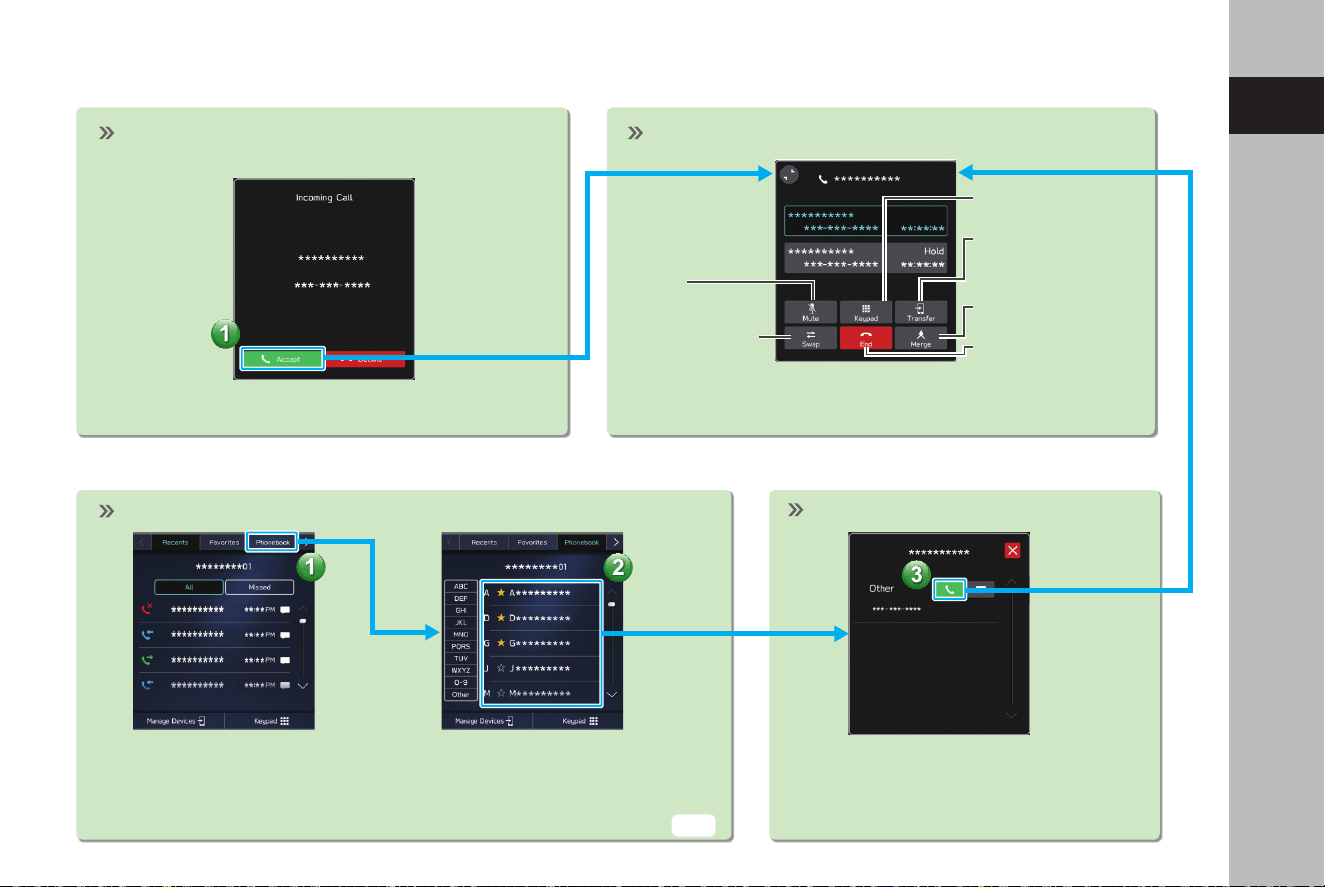
- Operation Flow: Receiving Calls and Using the Bluetooth Phone -
Incoming call screen is displayed. In-call screen is displayed.
Start three-way call
End call
Mute the
connected
smartphone’s
voice
Transfer call to
Bluetooth phone
Keypad
Switch to call
with other party
In-call screen display and operation may dier, or may
not be possible depending on the Bluetooth phone used.
- Operation Flow: Placing Calls from the Phonebook -
Select call recipient from phonebook.
The notication setting on the Bluetooth phone may need to be activated in
order to download the phonebook. If the phonebook download setting is o
and a phonebook has not been downloaded, a message will be displayed and
the phonebook of the connected Bluetooth phone can be downloaded.
Select number for making call.
Place call
P.63
TK5_US.indb 27 2024/08/02 12:00:15
BASIC FUNCTION
28
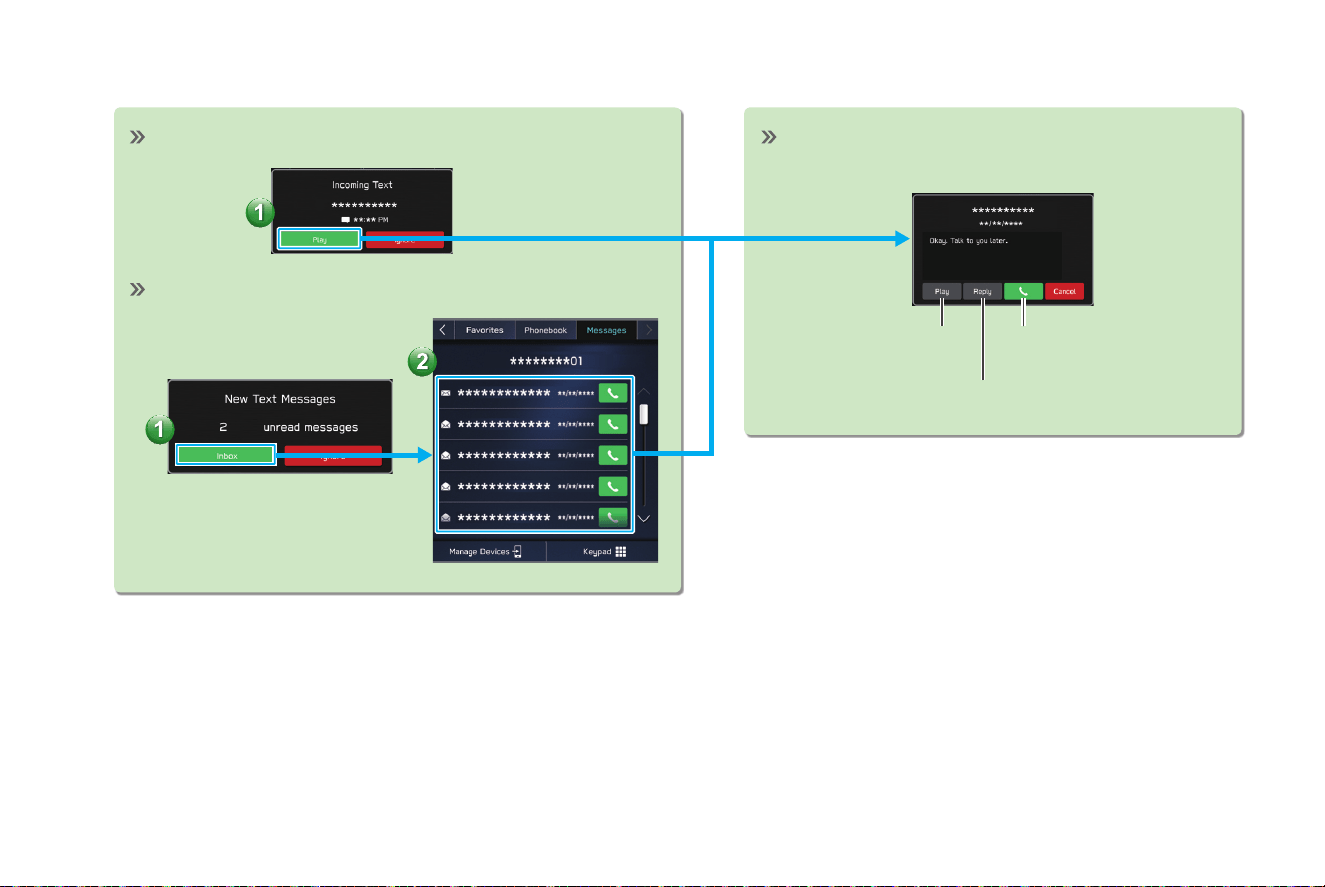
- Operation Flow: Receiving a Message* -
Incoming text screen is displayed. Message screen is displayed.
Having messages
read out
Calling the message
sender
Replying to a message
When there are unread messages in the message inbox
*: If available (for iOS only reception possible)
TK5_US.indb 28 2024/08/02 12:00:15
BASIC FUNCTION
29
1
Quick Guide
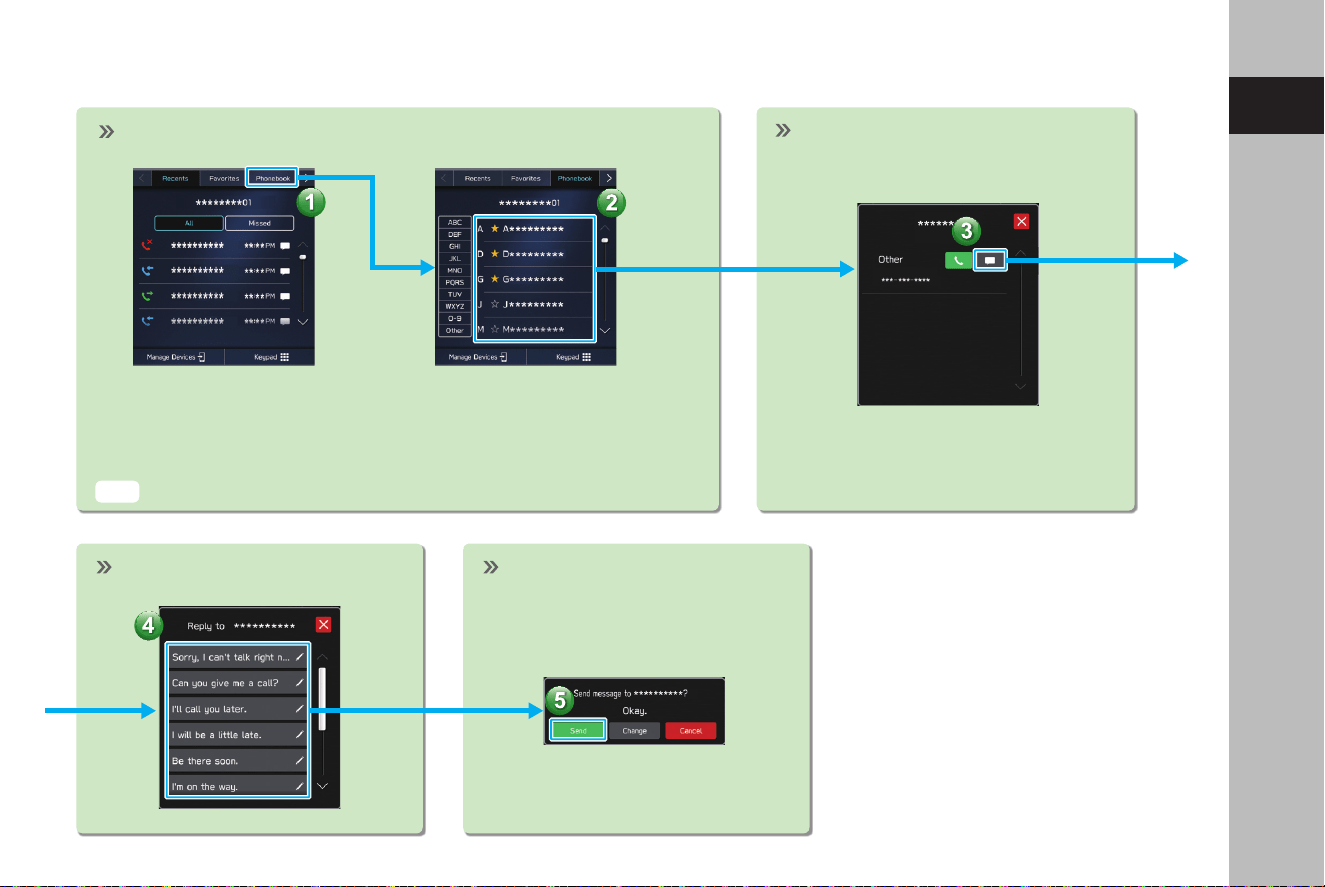
- Operation Flow: Sending a Message* from the Phonebook -
Select message.
Send message.
Select a contact from phonebook.
The notication setting on the Bluetooth phone may need to be activated
in order to download the phonebook. If the phonebook download setting is
o and a phonebook has not been downloaded, a message will be displayed
and the phonebook of the connected Bluetooth phone can be downloaded.
Select the message icon next to
the desired number.
*: If available (for iOS only reception possible)
P.63
TK5_US.indb 29 2024/08/02 12:00:16
BASIC FUNCTION
30
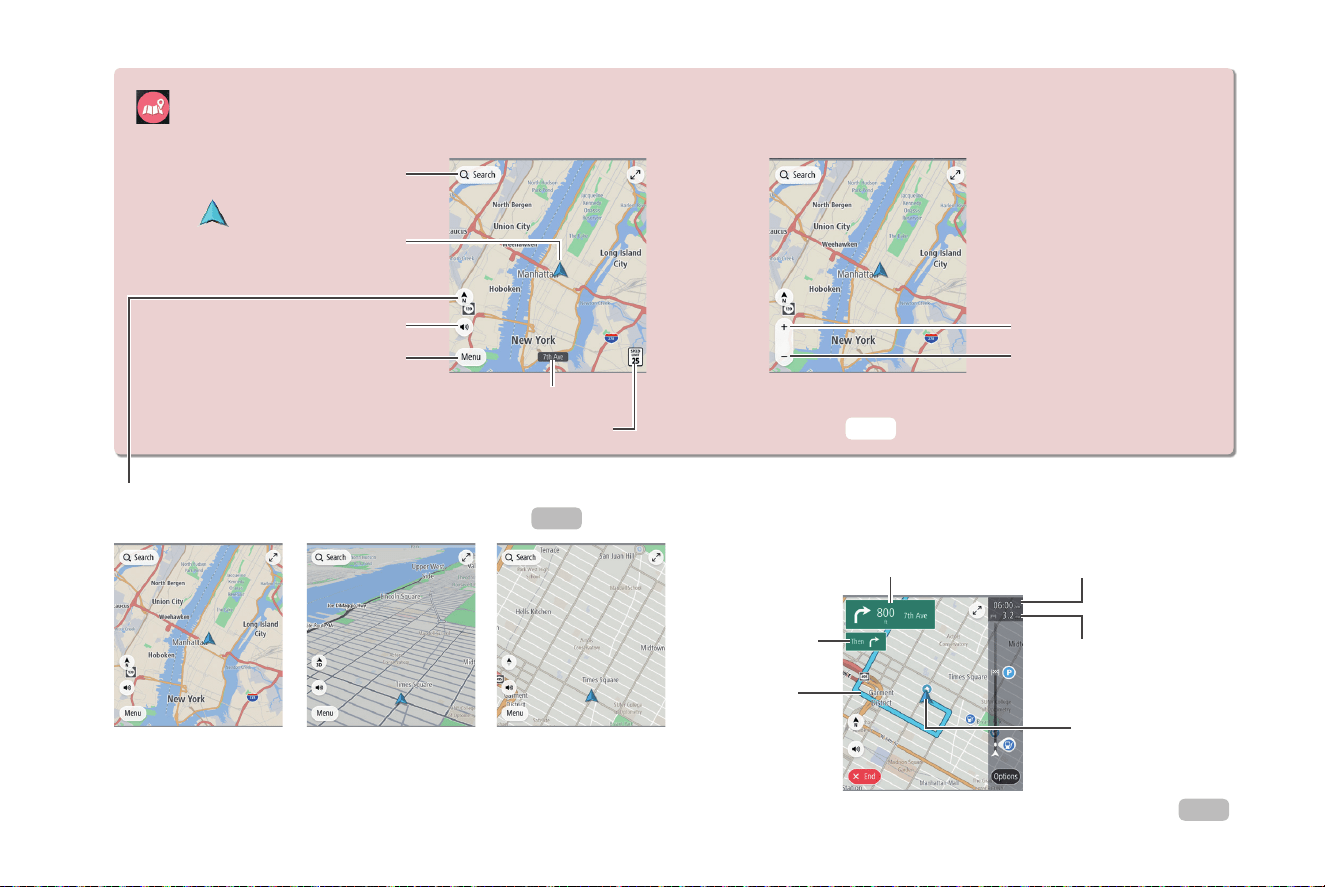
Map SCREEN*
CURRENT POSITION MAP
Current vehicle position
(facing direction of travel)
Menu button
Zoom out
Voice guidance enable/disable
Zoom in
Search by address,
category, POI, etc.
Current street
Speed limit
The orientation of the map can be changed between
2D north-up, 3D heading-up and 2D heading-up.
2D North-up screen
Touch screen to display
automatically hidden
buttons.
3D Heading-up screen 2D Heading-up screen
ROUTE GUIDANCE SCREEN
Guidance display
after next
Guidance route
Current position
Distance to the next turn, an
arrow indicating the turning
direction and next street name
Remaining distance and/
or remaining time
Route guidance
P.159
P.157
P.172
*: If equipped
Estimated time of arrival
TK5_US.indb 30 2024/08/02 12:00:16
BASIC FUNCTION
31
1
Quick Guide
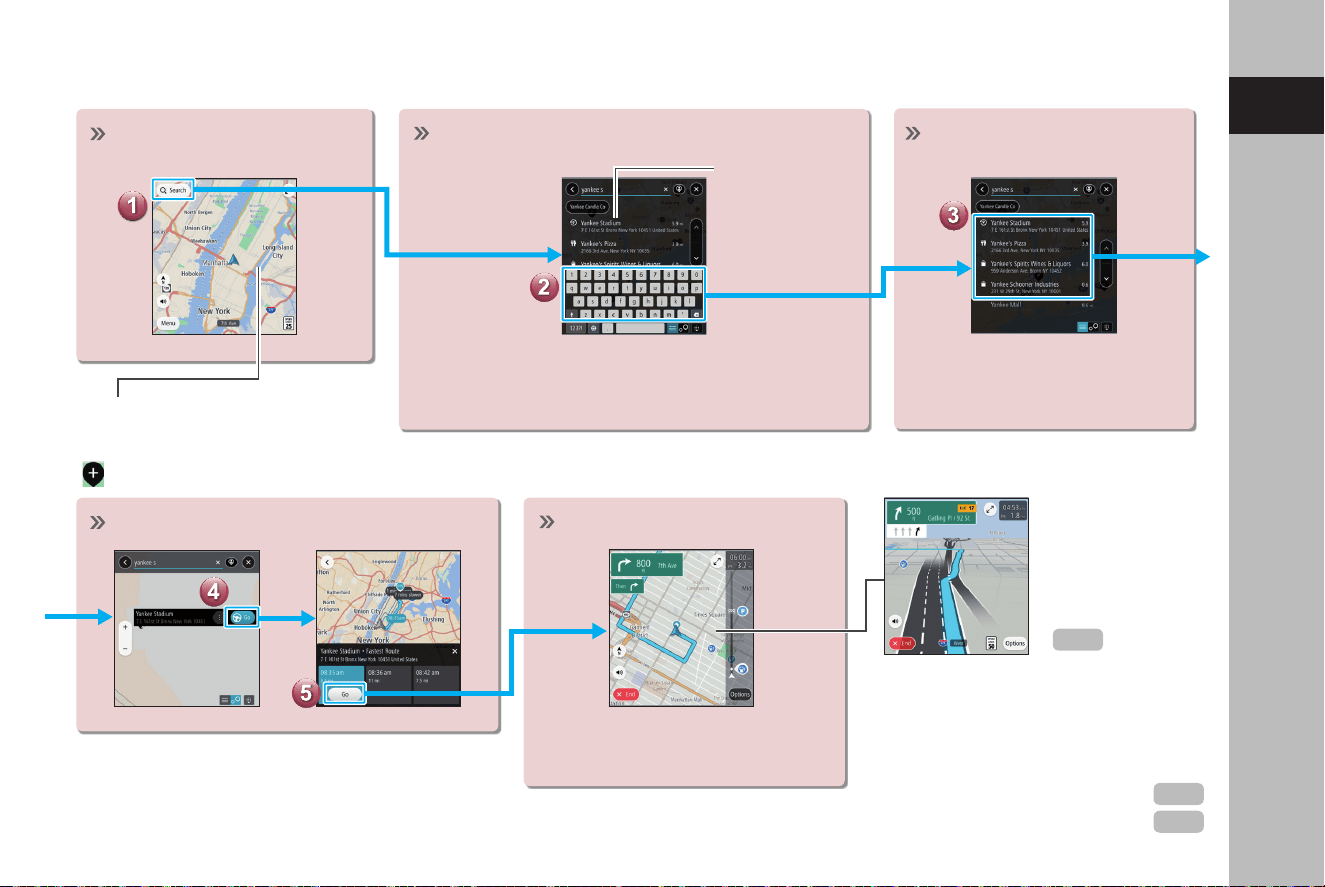
- Operation Flow: Route Guidance -
Display the destination
search menu.
Destinations can also be set directly
from the Map screen by selecting and
holding at the desired position until
is displayed.
Search for your destination.
Start a search by typing an address, category,
POI, etc.
Predicted search
results will
automatically
appear as you
type.
Select your destination.
Destinations matching the
search words are displayed in
a list.
Start driving.
Route guidance starts.
The travel route is displayed,
and voice guidance starts.
The screen display
automatically
changes to
display travel lanes
at expressway
junctions, etc.
JUNCTION SCREEN
RETURNING HOME
If you register an address as Home, it
can be quickly set as a destination.
Register an address as Home
Setting Home as the destination
P.173
P.169
P.165
TK5_US.indb 31 2024/08/02 12:00:17
BASIC FUNCTION
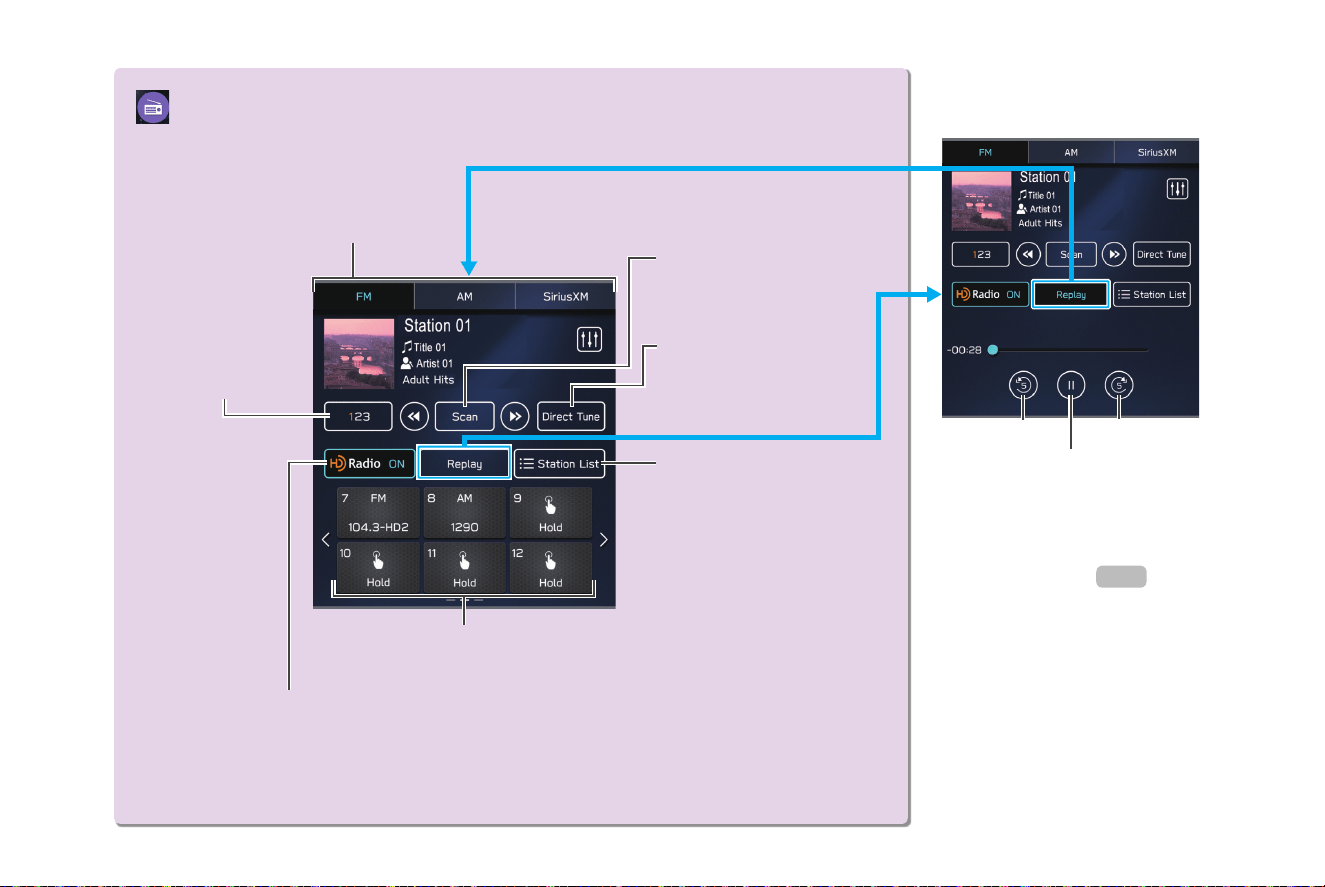
32
Change
radio mode
Select to scan for
receivable stations/
channels.
Select to search for
stations/channels by
entering frequency/
channel number.
Select to turn HD Radio
mode on/o (AM/FM).
Select to display a list
of receivable stations
(AM/FM).
Preset stations/channels
Select to change
multicast channels
available (FM).
Radio SCREEN
PAUSE AND PLAYBACK LIVE
RADIO
Depending on the radio
broadcast, the broadcast can
be temporarily saved and
played back later.
Skip backward Skip forward
Pause/play
P.124
TK5_US.indb 32 2024/08/02 12:00:17
BASIC FUNCTION
33
1
Quick Guide
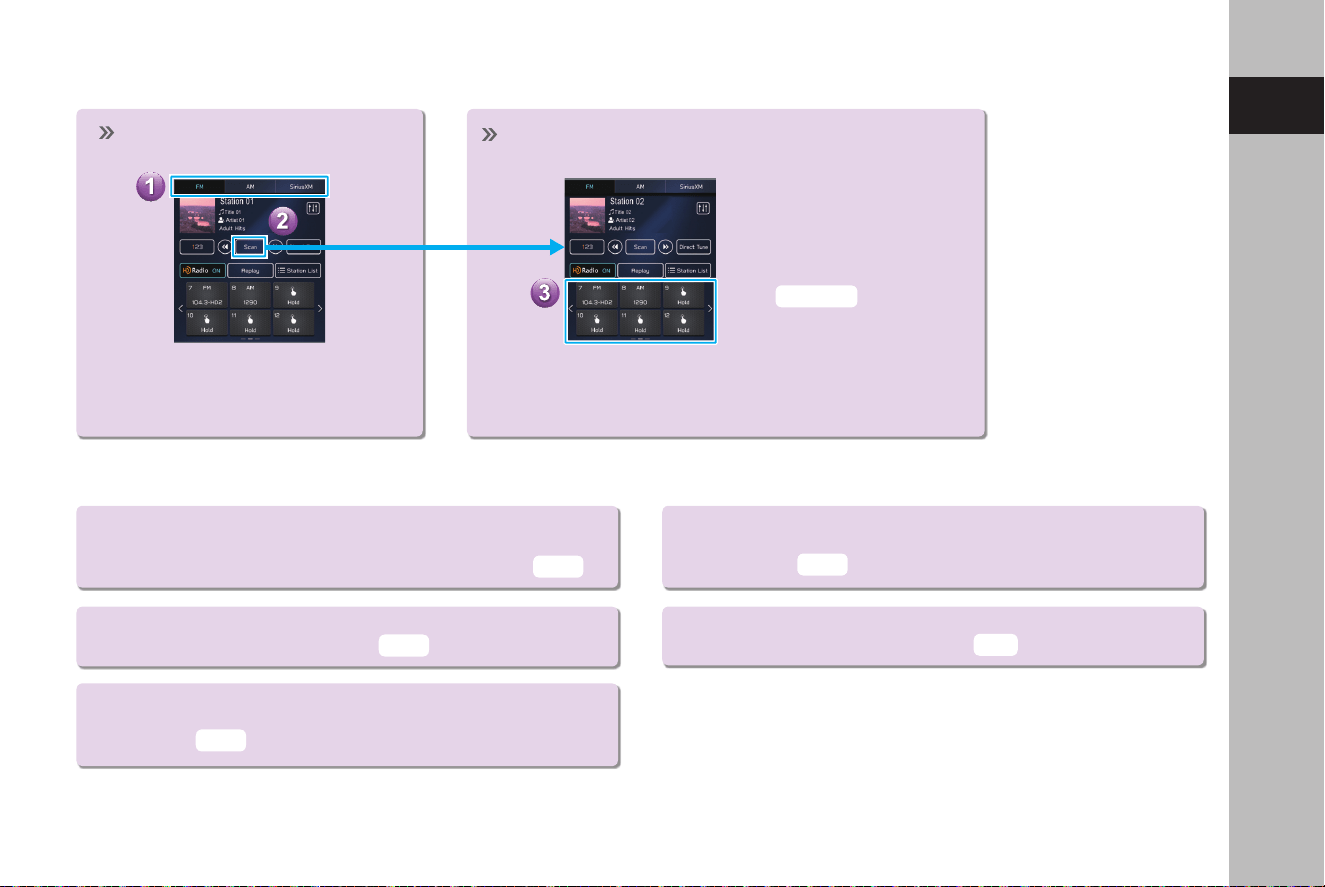
- Operation Flow: Presetting a Radio Station -
Select the radio band and the
radio station.
A valid subscription to SiriusXM®
Radio is required to receive satellite
radio service.
Select and hold one of the
preset buttons.
Mix preset function
Multiple stations can be
registered as presets. (AM,
FM or SiriusXM® Radio)
Register the radio station.
● For you:
Displays content suggestions based on the registered descriptions
of driver prole and history of SiriusXM contents access.
● Categories:
Displays a channel list by category.
● Related:
Display a list of contents related to the current content you are
listening to.
USEFUL SiriusXM® Radio FUNCTIONS
P.121,129
P.125
P.125
P.125
● Search:
Enables search content by voice command or by using keypad/
keyboard.
P.125
● Streaming contents:
Contents can be accessed by log-in.
P.77
TK5_US.indb 33 2024/08/02 12:00:18
BASIC FUNCTION
34
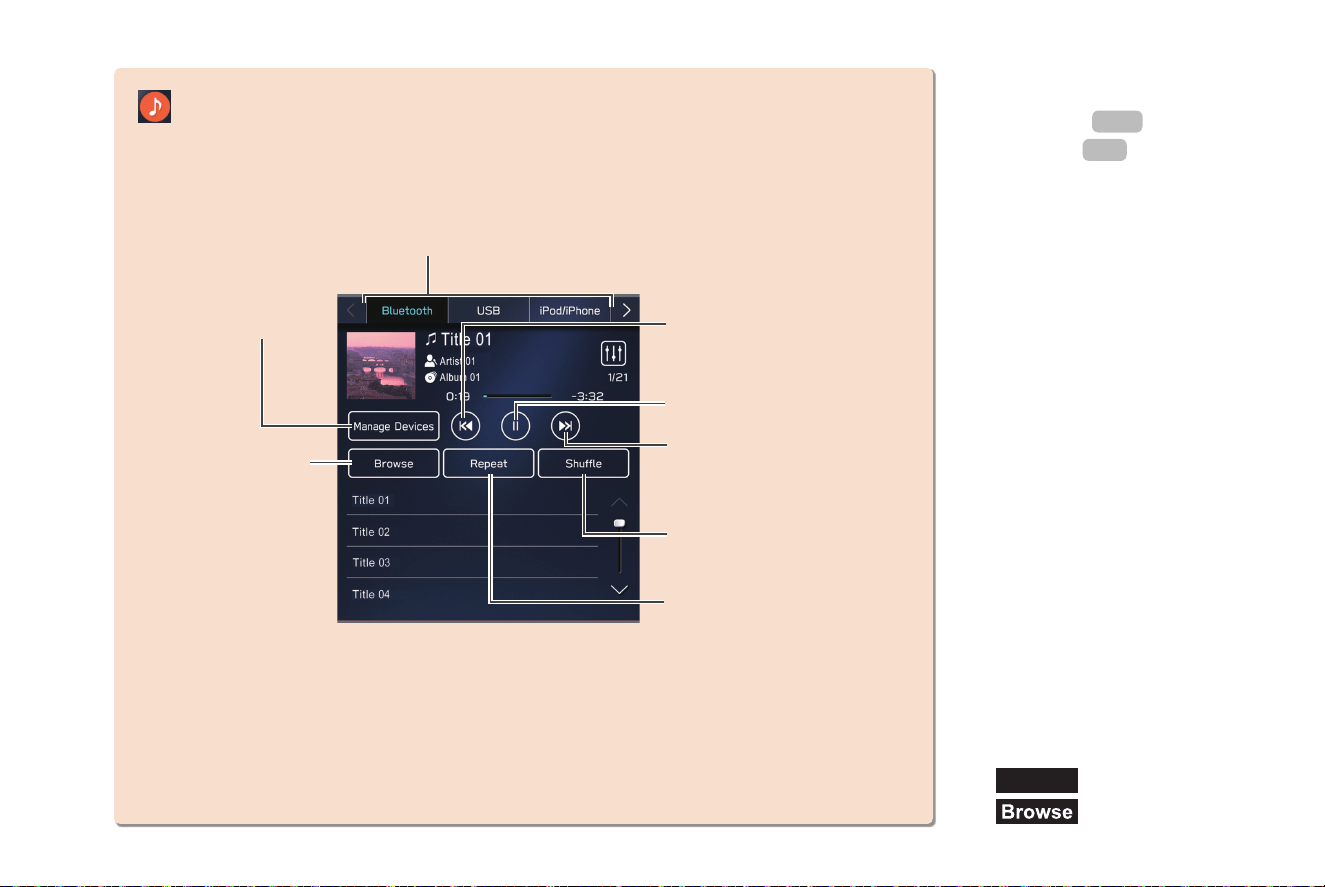
Media SCREEN
Change media source
Random
playback on/o
Change tracks
Select and hold to
fast rewind
Change to other
Bluetooth audio device/
register new device
(Bluetooth audio)
Change tracks
Select and hold to fast
forward
Pause/play
Playback tracks and
programs, etc. in a
variety of playback
modes
SUPPORTED MEDIA
Repeat all tracks* → repeat
current album/folder →
repeat current track → cancel
repeat
USB/iPod/iPhone
Bluetooth audio
P.151
P.55
*: Operable when USB Audio is used and
Folders
(Folders) is selected from
(Browse)
TK5_US.indb 34 2024/08/02 12:00:18
BASIC FUNCTION
35
1
Quick Guide
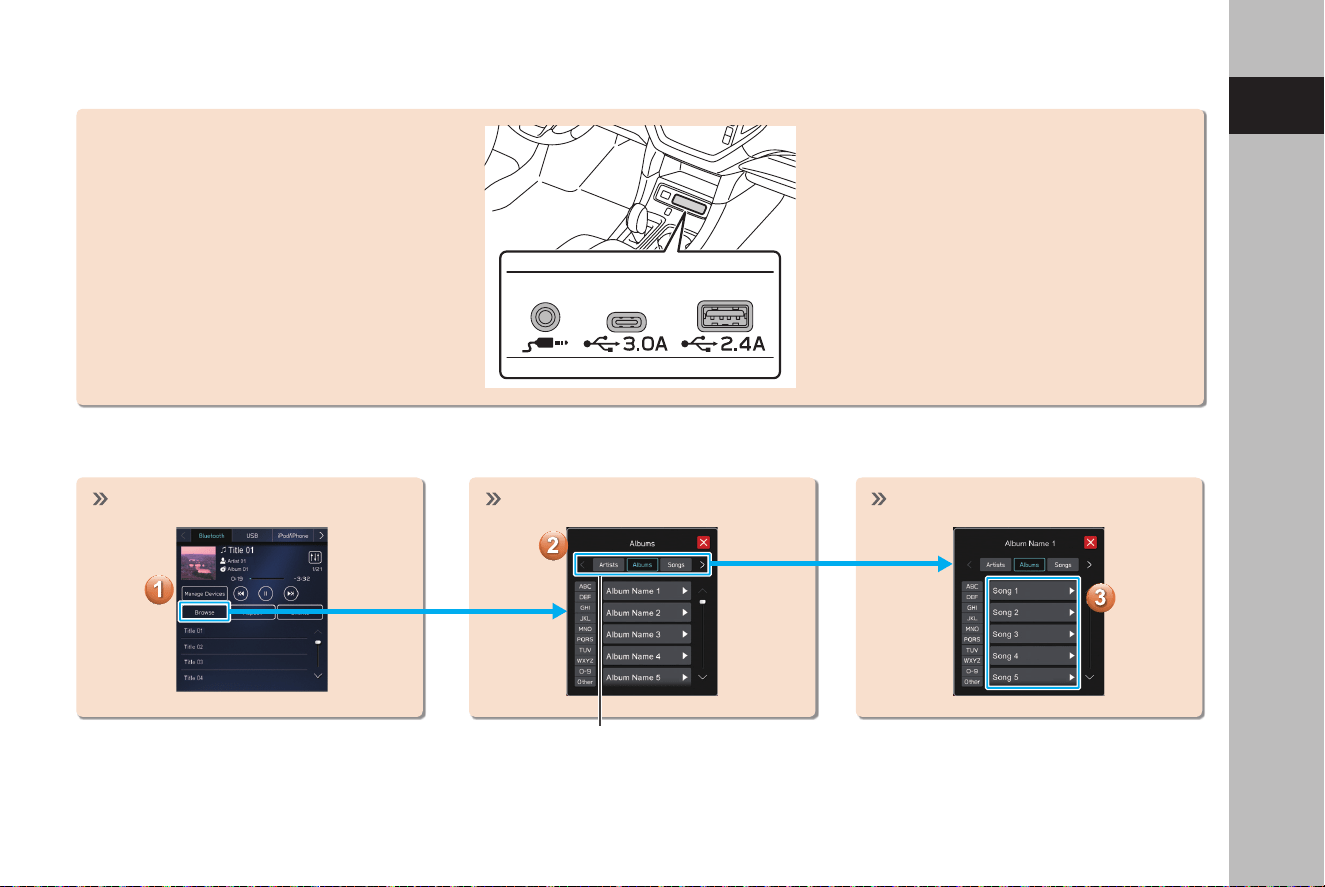
- Operation Flow: Using Playback Modes -
Display the playback mode list. Select the playback mode. Play a track.
Depending on the audio source, several
items from these categories are displayed
in a list.
CONNECTING A USB MEMORY DEVICE/PORTABLE DEVICE
TK5_US.indb 35 2024/08/02 12:00:19
BASIC FUNCTION
36
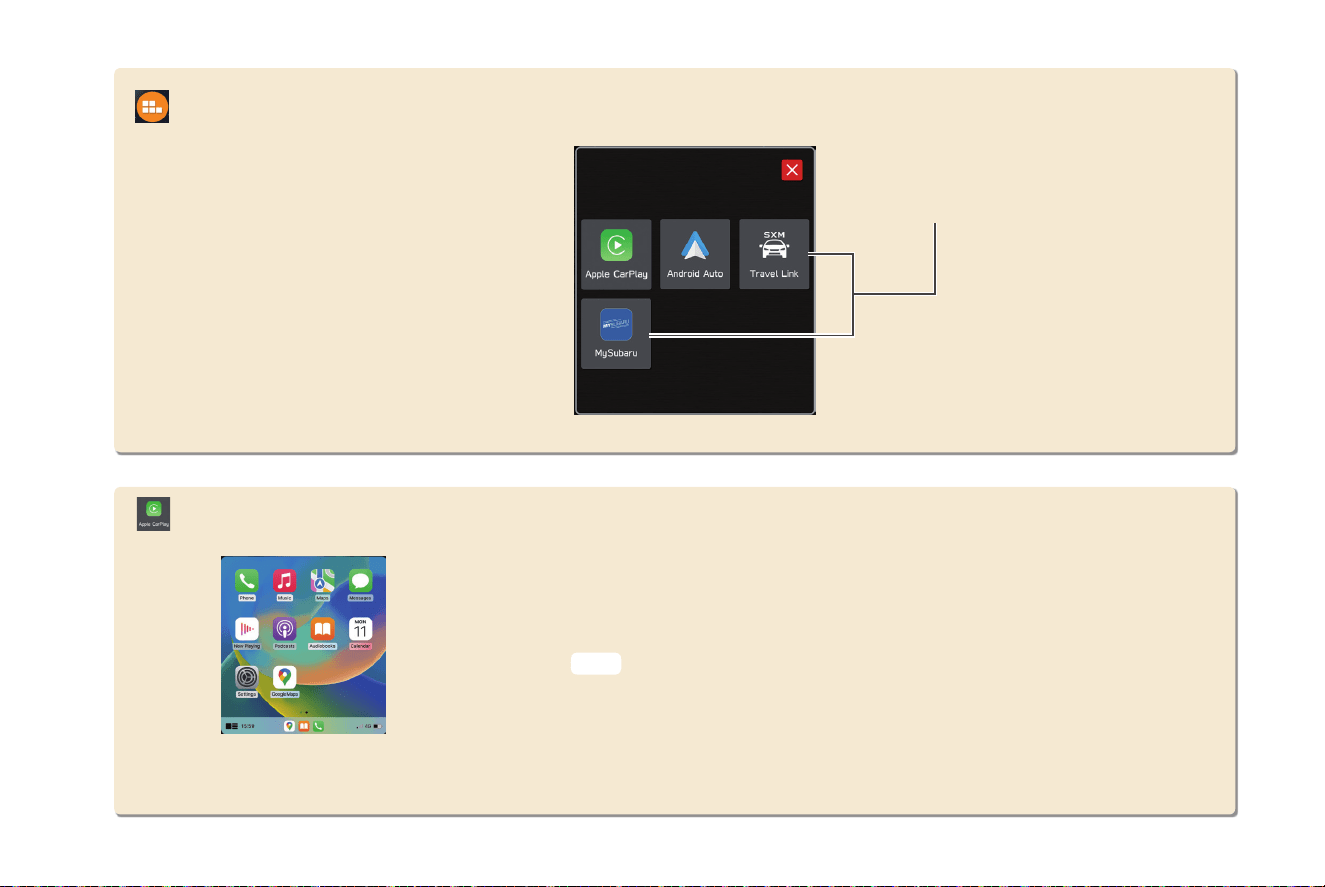
Apps SCREEN
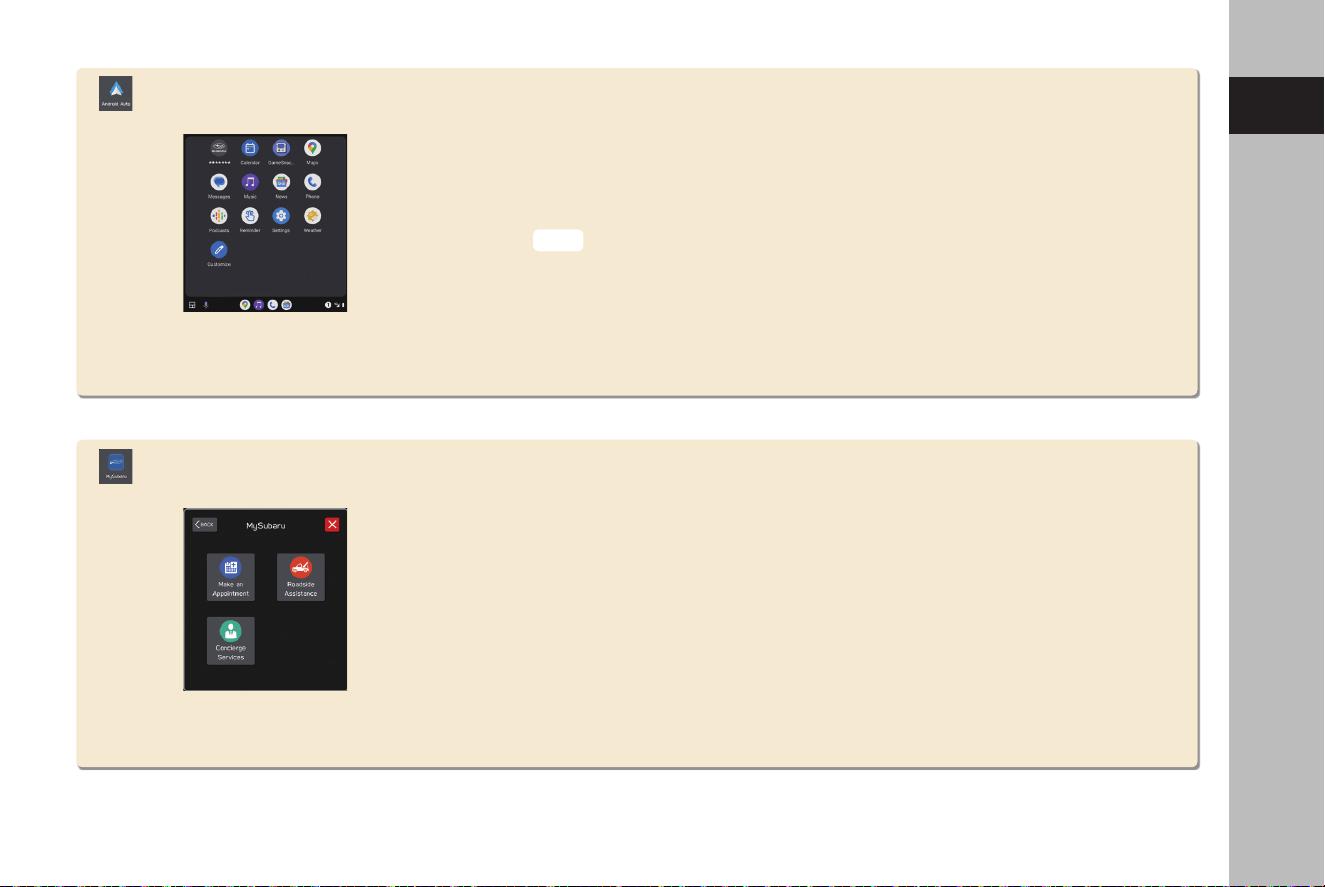
Apple CarPlay can be used to view Apple Maps, play music, and place calls by connecting
an Apple CarPlay device to the system. Supported applications can also be run.
To use the Apple CarPlay application, connect an Apple CarPlay device to the system
wirelessly.
For details on the services or the operations, check the Apple CarPlay site
(https://www.apple.com/ios/carplay/).
P.101
Usable
applications
Apple CarPlay
TK5_US.indb 36 2024/08/02 12:00:19
BASIC FUNCTION
37
1
Quick Guide
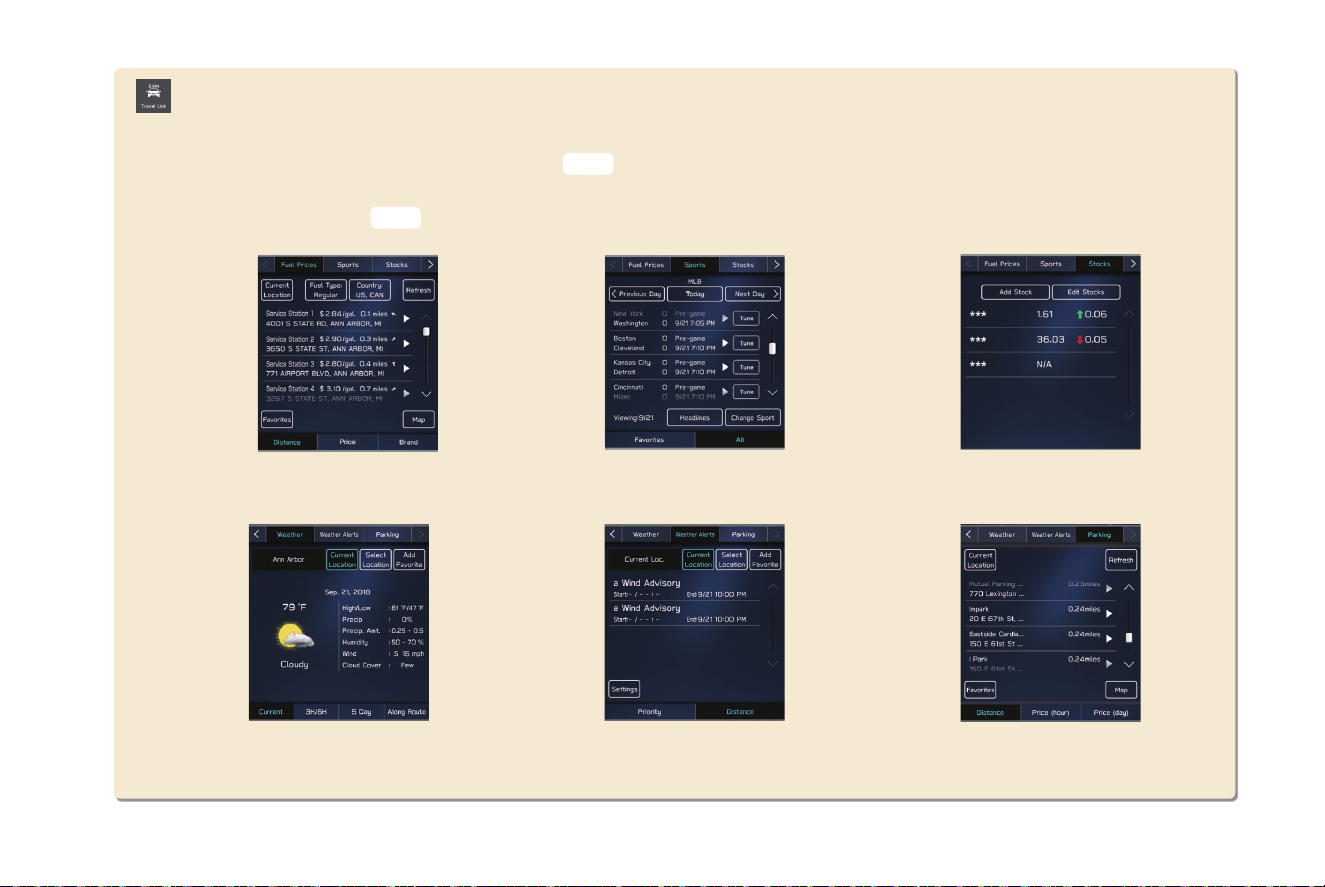
Android Auto can be used to view Google Maps, play music, and place calls by connecting
an Android Auto device to the system. Supported applications can also be run.
To use the Android Auto application, connect an Android Auto device to the system
wirelessly.
For details on the services or the operations, check the Android Auto site
(https://www.android.com/auto/) and (https://support.google.com/androidauto/).
MySubaru
Access MySubaru from “SUBARU STARLINK Safety and Security” for a variety of remote
services.
Refer to the Owner’s Manual supplement for “SUBARU STARLINK Safety and Security”
for details.
P.104
Android Auto
TK5_US.indb 37 2024/08/02 12:00:19
BASIC FUNCTION
38
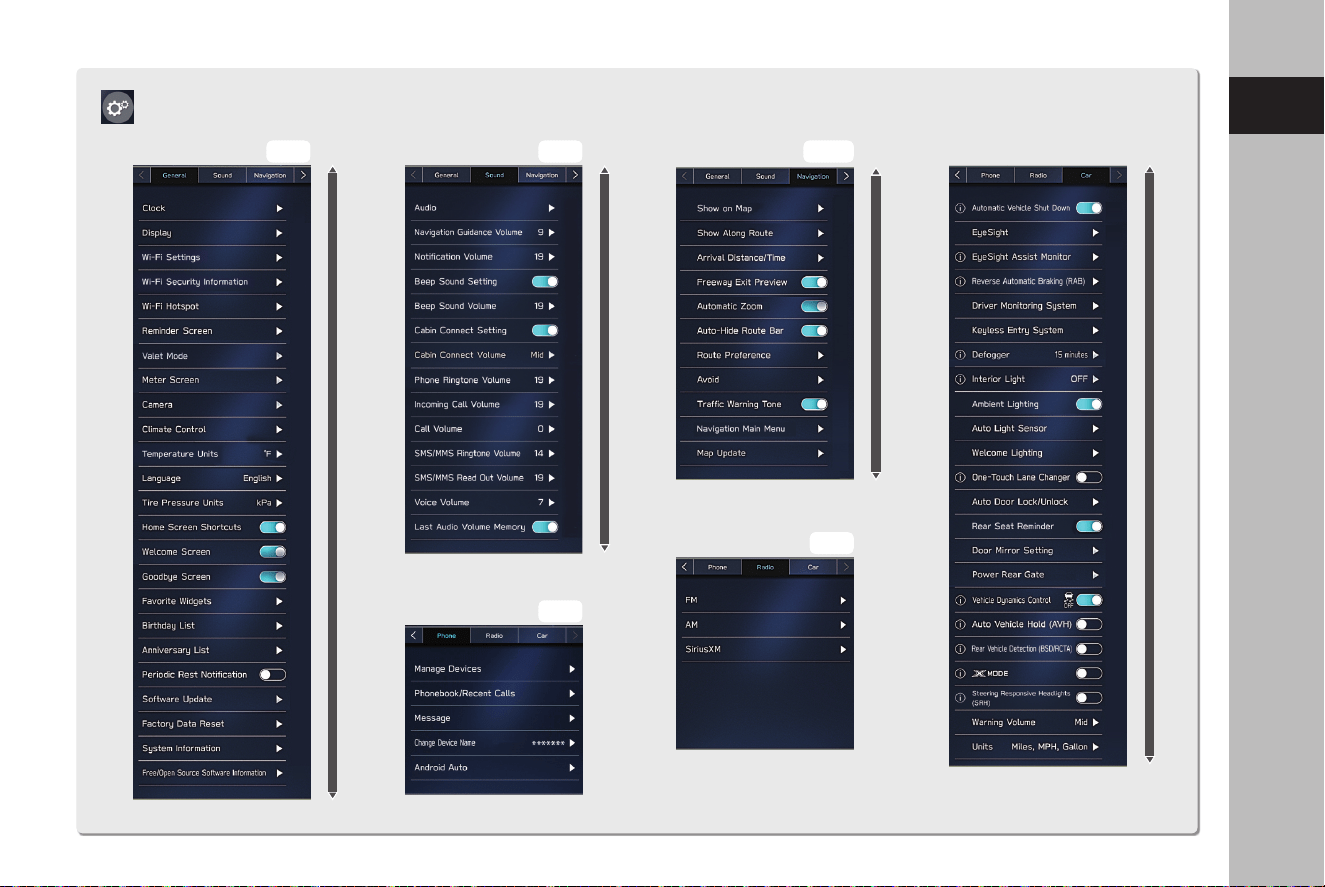
SiriusXM Travel Link is a service provided by SiriusXM® Radio, and can be used to view information on fuel prices, sports,
stocks, weather, weather alerts and parking.
To receive the data service information in the vehicle, a subscription to the SiriusXM® Radio Service is necessary
following a free trial.
SiriusXM Travel Link
Fuel prices
Weather
Sports
Weather alerts
Stocks
Parking
P.127
P.107
TK5_US.indb 38 2024/08/02 12:00:20
BASIC FUNCTION
39
1
Quick Guide
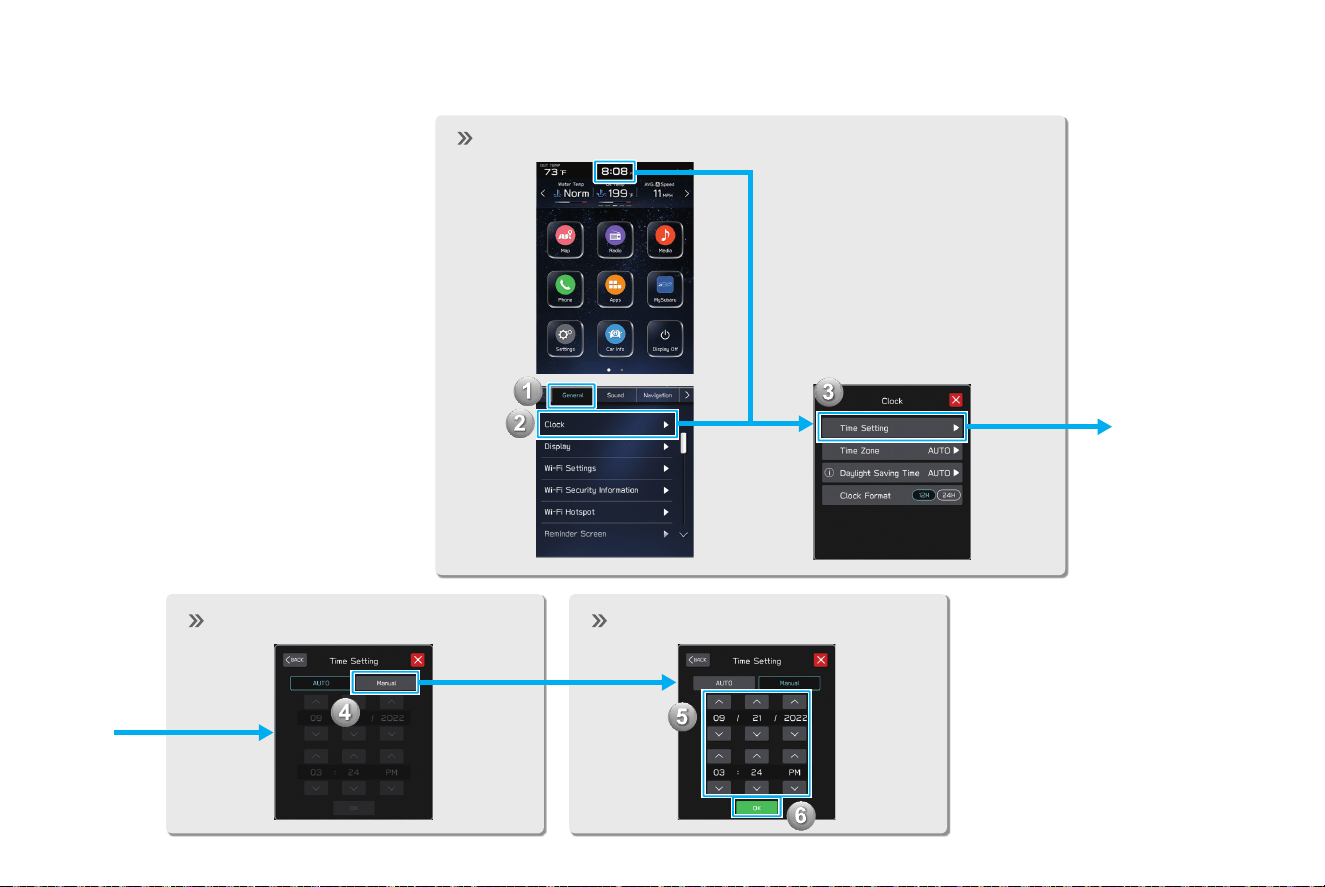
Settings SCREEN
General
SCROLL
Car*
SCROLL
Sound
SCROLL
Phone
P.57
P.73P.66
Navigation
SCROLL
P.179
Radio
P.75
*: For settings related to EyeSight, refer to the Owner’s Manual supplement
for the EyeSight system.
For all other functions and settings, refer to the vehicle Owner’s Manual.
TK5_US.indb 39 2024/08/02 12:00:20
BASIC FUNCTION
40
- Operation Flow: Setting the Clock Manually -
Under normal conditions,
the clock is adjusted
automatically when the
system receives GPS signals*
1
/
DCM (Data Communication
Module in vehicle cellular
connection) signals*
2
or
when a Bluetooth phone is
connected to the system*
3
.
If the clock is not adjusted
automatically, it is necessary
to adjust the clock manually.
Display the clock settings screen.
Select the manual mode. Adjust the clock.
*
1
: 11.6-inch display with Navi system
*
2
: 11.6-inch display system with SUBARU
STARLINK Safety and Security
*
3
: 11.6-inch display system without
SUBARU STARLINK Safety and Security
TK5_US.indb 40 2024/08/02 12:00:21
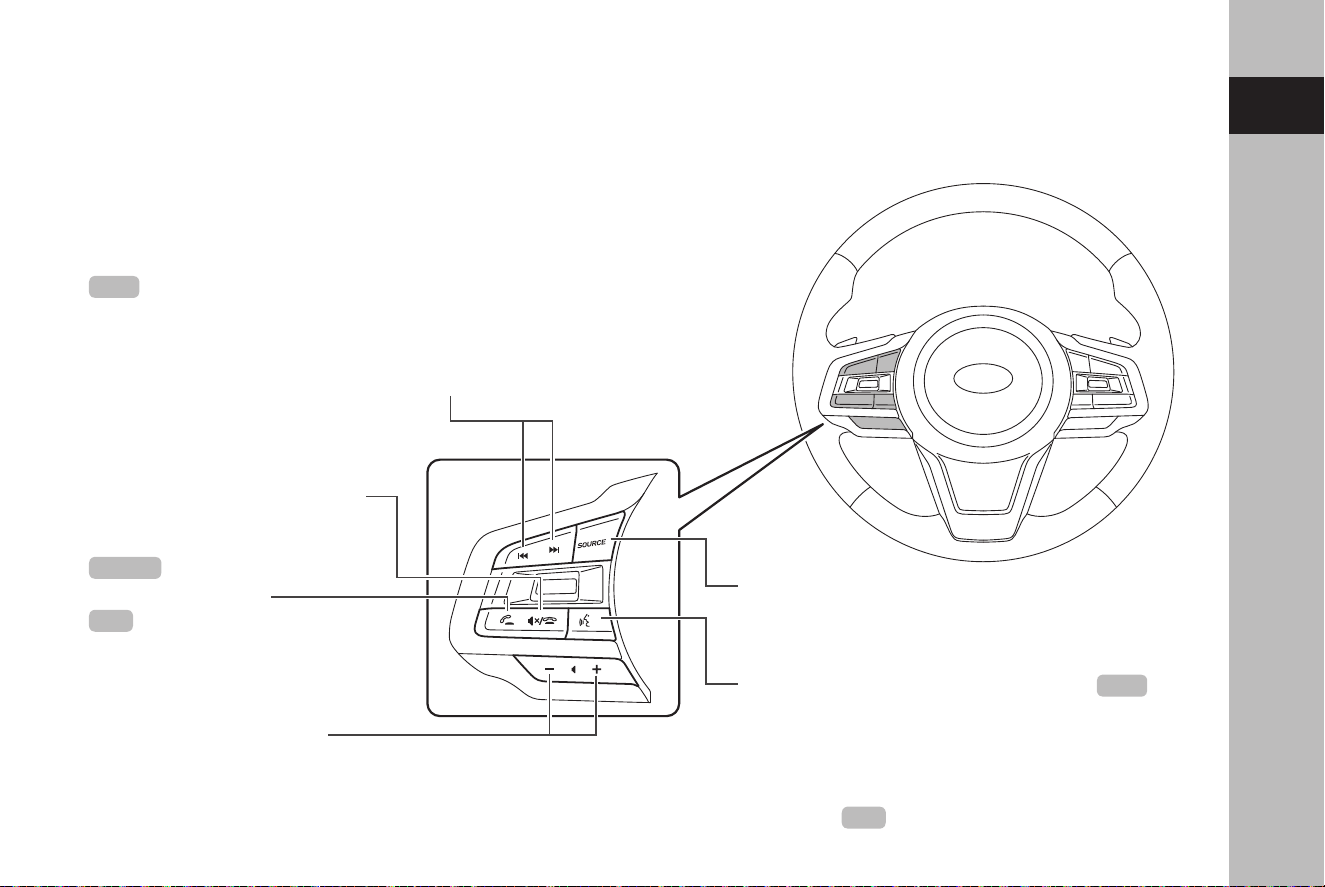
STEERING WHEEL CONTROLS
41
1
Quick Guide
STEERING WHEEL CONTROLS
STEERING WHEEL CONTROLS
Press: Start the voice recognition system
Press and hold: Start the Apple CarPlay/Android Auto
voice recognition function
When an Apple CarPlay/Android Auto is not used, the
registration screen of a Bluetooth phone/device will be
displayed.
Press: Turn on the audio system or change the
audio source mode
Press and hold: Turn o the audio system
Some parts of the audio system
can be controlled using
the steering wheel controls.
Press: Volume up/down
Press and hold: Volume
up/down continuously
Press: End a call (during a call)
or turn mute on/o (while in
audio system mode)
Press: Receive a call
P.82
P.147
P.188
RADIO
Press: Preset station/channel up/down
Press and hold: Scan and stop at the
rst received station when the switch is
released
MEDIA
Press: Change a track/le
Press and hold: Fast forward/rewind
P.82,147
P.58
TK5_US.indb 41 2024/08/02 12:00:21

MEMO
42
TK5_US.indb 42 2024/08/02 12:00:21

43
Basic Function
Basic Information Before Operation
44
Initial Screen
44
Initial Screen
44
Connecting And Disconnecting
A USB Memory Device/Portable Device
45
Connecting A Device
45
Touch Screen Gestures
45
Touch Screen Operation
46
Entering Letters And Numbers/
List Screen Operation
47
Entering Letters And Numbers
47
List Screen Operation
49
Screen Adjustment
50
Adjusting Brightness
50
Changing Between Day And Night Mode
50
Status Bar
51
Home Screen Operation
52
Adding Shortcut Icons To The Home Screen
52
Moving And Deleting Shortcut Icons
52
TK5_US.indb 43 2024/08/02 12:00:21
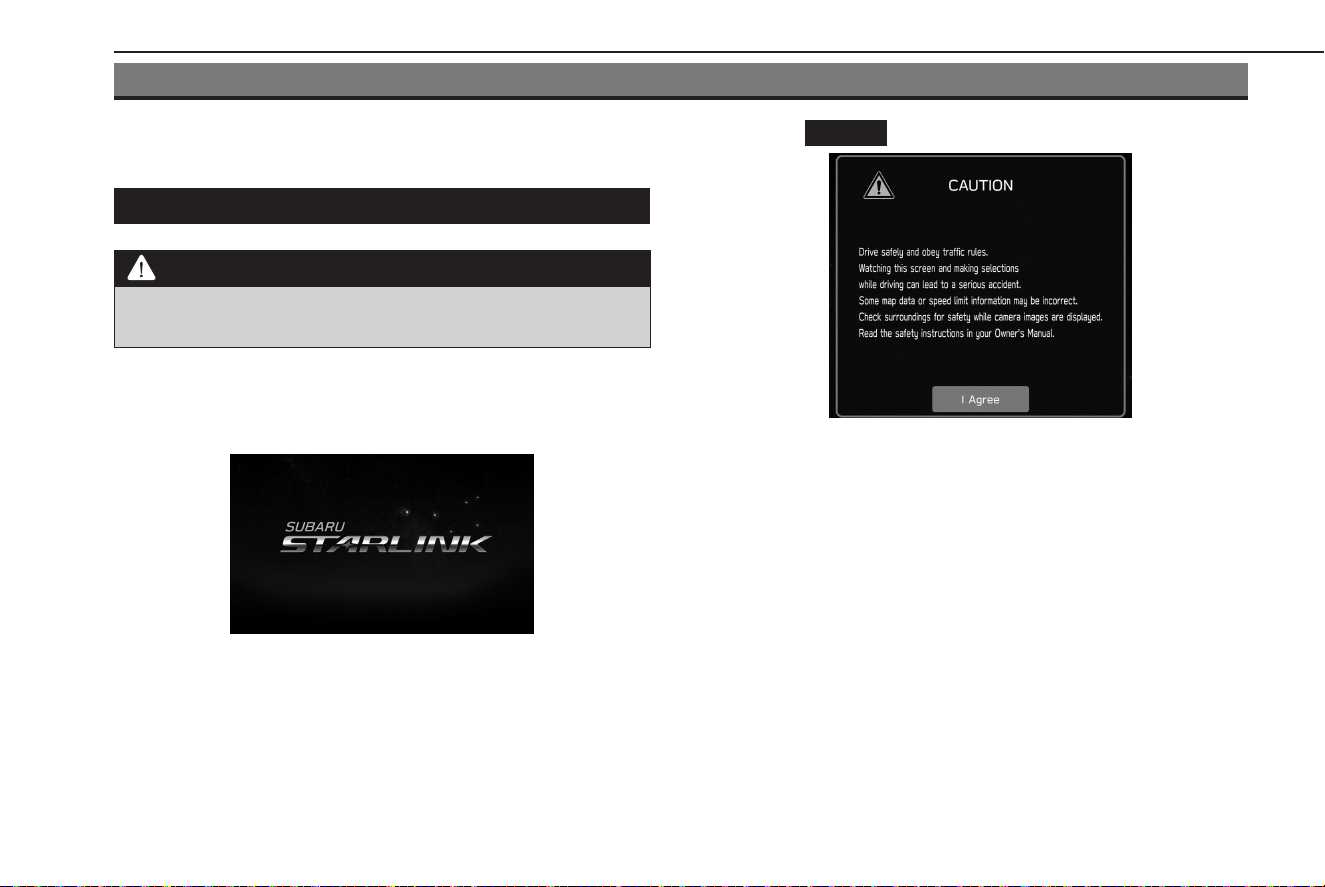
BASIC INFORMATION BEFORE OPERATION
INITIAL SCREEN
INITIAL SCREEN
WARNING
l When the vehicle is stopped with the engine running, always
apply the parking brake for safety.
1.
When the ignition switch is turned to the “ACC” or “ON”
position, the initial screen will be displayed and the system
will begin operating.
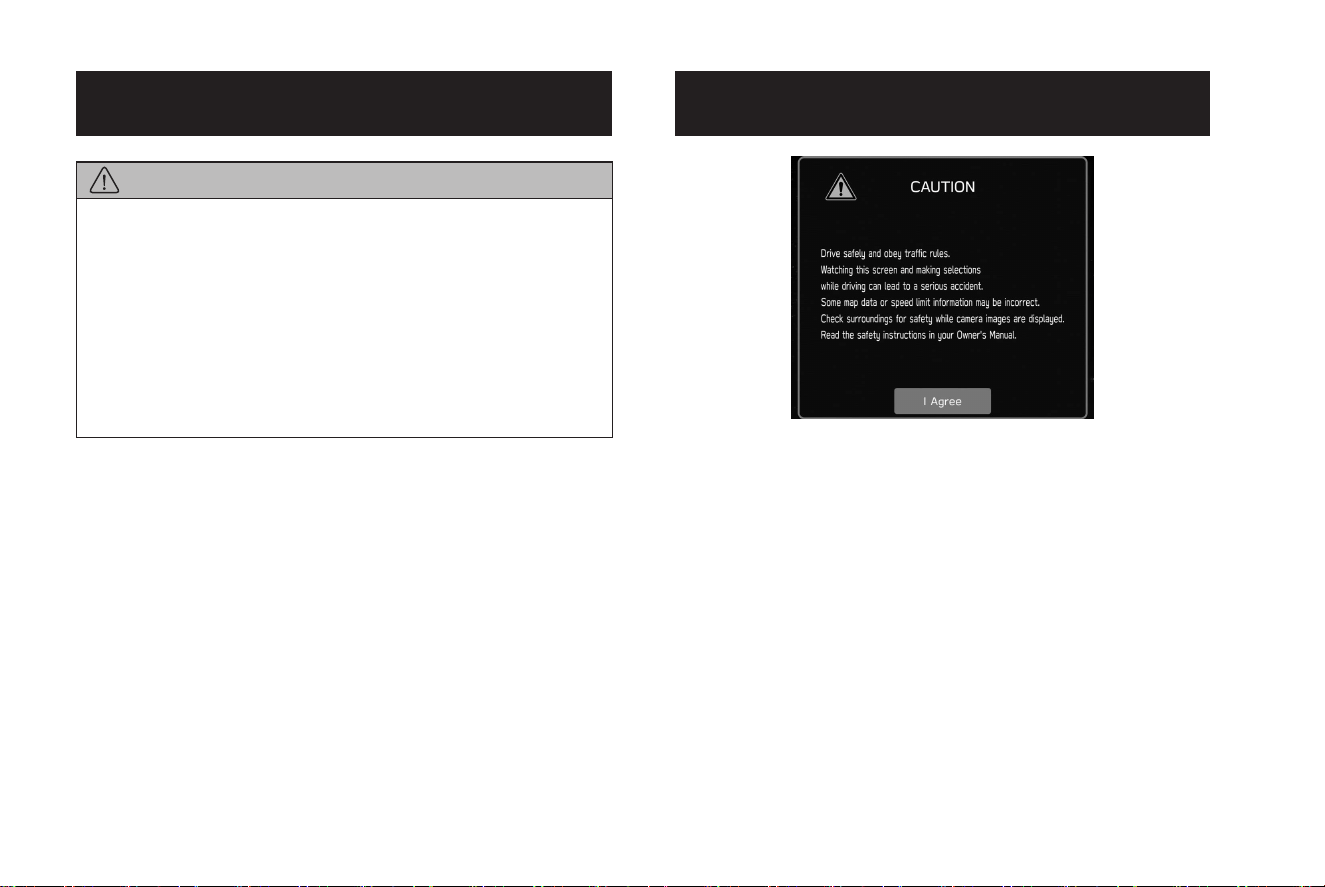
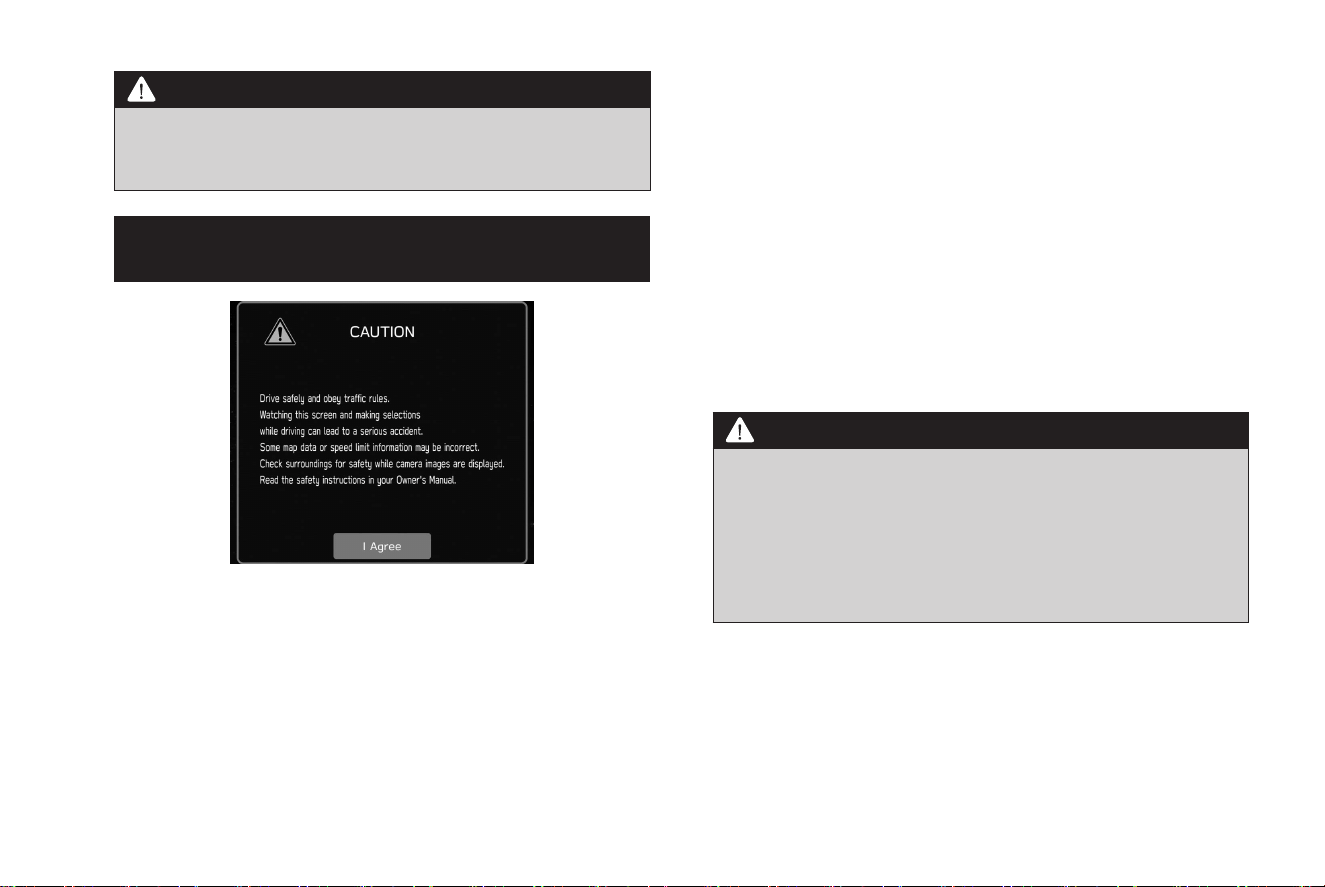
● After a few seconds, the “CAUTION” screen will be
displayed.
2.
Select
I Agree
(I Agree).
BASIC INFORMATION BEFORE OPERATION
44
TK5_US.indb 44 2024/08/02 12:00:22
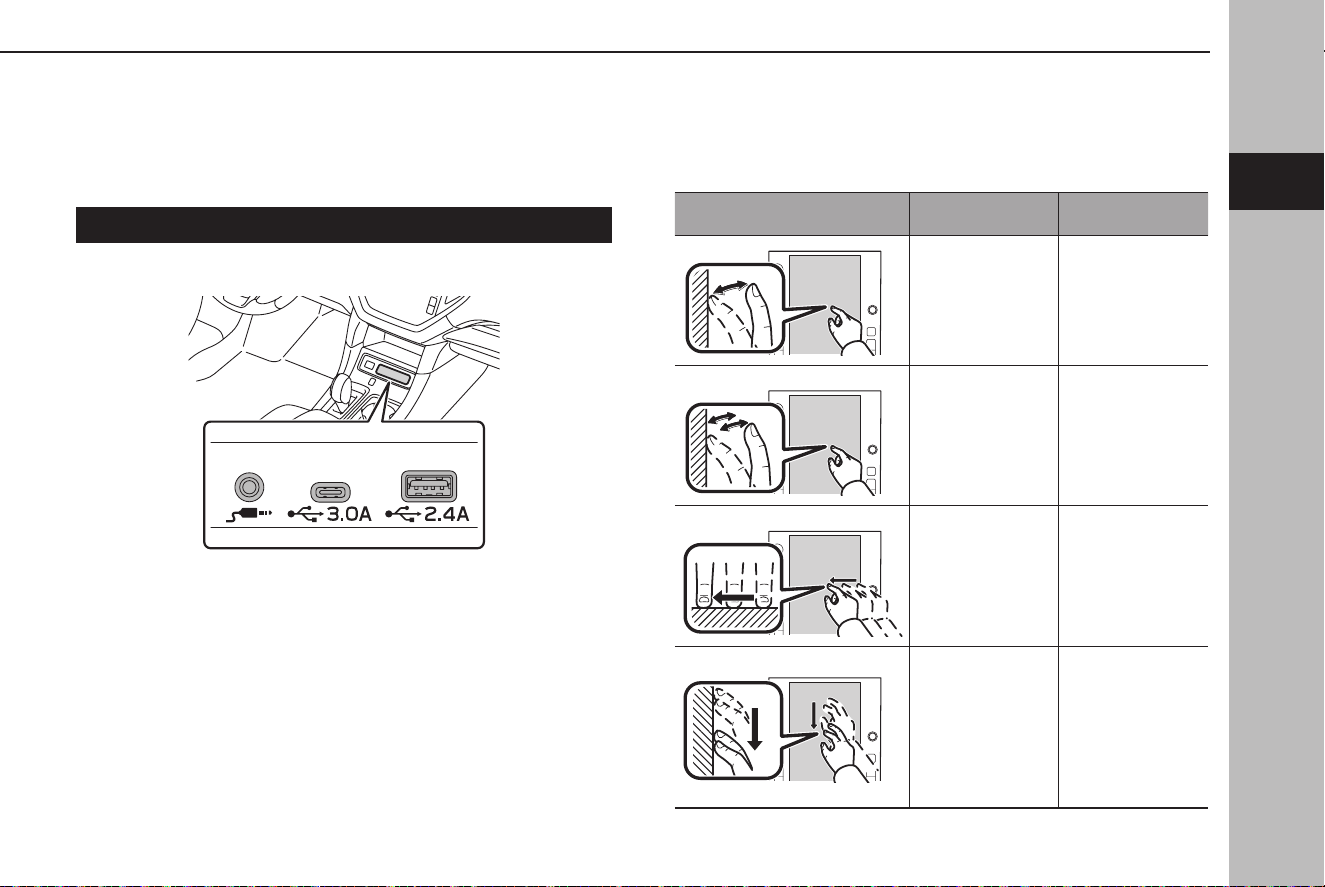
CONNECTING AND DISCONNECTING
A USB MEMORY DEVICE/PORTABLE
DEVICE
CONNECTING A DEVICE
1.
Connecta device.
● Turn on the power of the device if it is not turned on.
NOTE
l Compatible USB memory device: →P.151
l Compatible iPod/iPhone: →P.151
l This unit does not support commercially available USB hubs.
l By connecting a device such as a cellular phone, charging starts
depending on the device.
TOUCH SCREEN GESTURES
Operations are performed by touching the touch screen directly
with your nger.
Operation method Outline Main use
Touch
Quickly touch
and release once.
Changing and
selecting various
settings
Double Touch
with one
nger*
1
Quickly touch
and release twice
with one nger.
Enlarging the
scale of the map
screen
Drag*
2
Touch the screen
with your nger,
and move the
screen to the
desired position.
• Scrolling the
lists
• Scrolling the
map screen*
1
Drag with two
ngers*
1
Touch the screen
with two ngers
and move the
displayed screen
as desired.
Changing the
displayed angle
of the 3D map
screen
BASIC INFORMATION BEFORE OPERATION
45
Basic Function
2
TK5_US.indb 45 2024/08/02 12:00:23
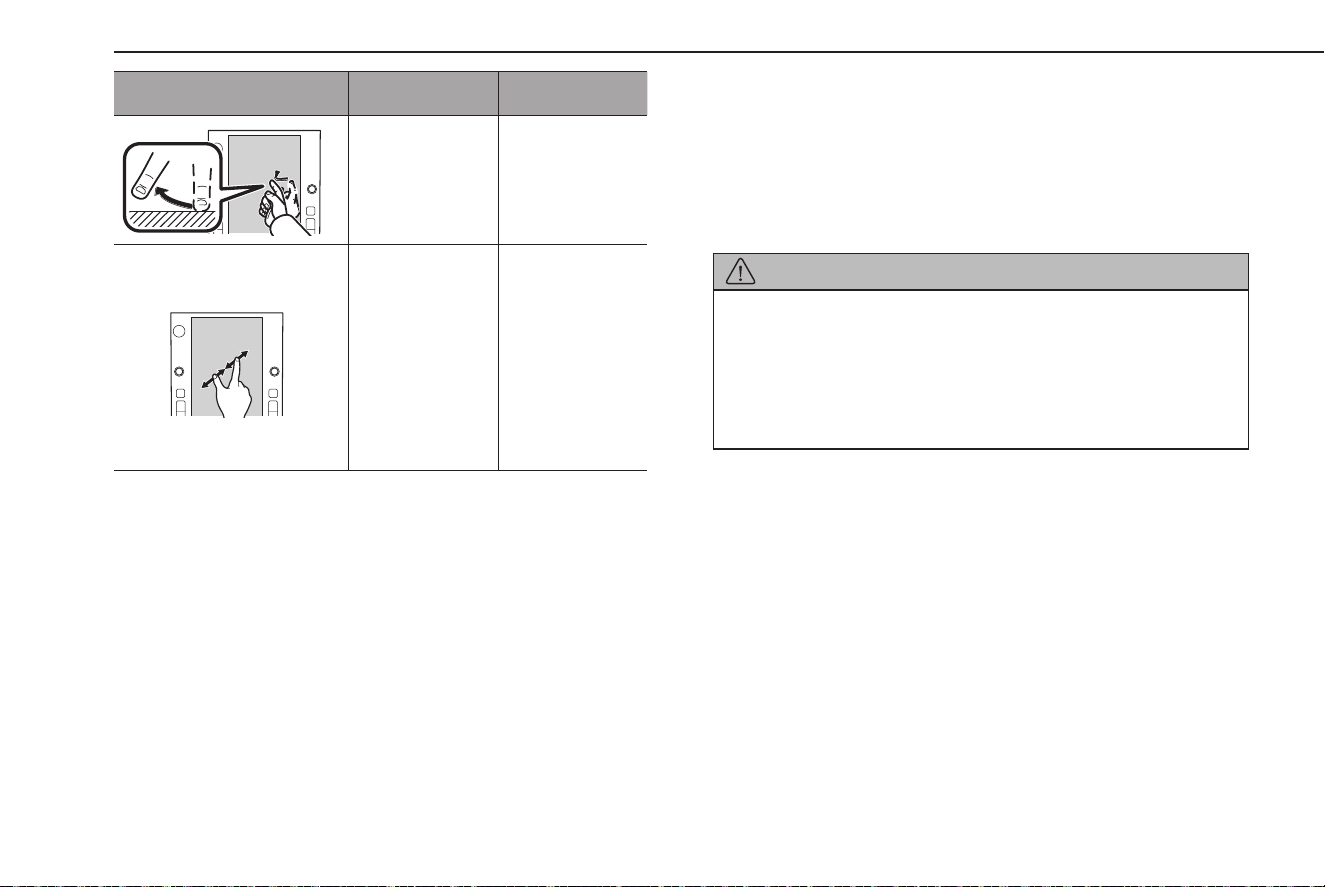
Operation method Outline Main use
Swipe*
2
Quickly move
the screen by
swiping with
your nger.
• Scrolling the
lists
• Scrolling the
map screen*
1
Pinch*
1
Move your two
ngers further
apart (pinch-out)
to zoom in the
map. Move your
two ngers closer
together (pinch-
in) to zoom out
the map.
Changing the
scale of the map
screen
*
1
: 11.6-inch display with Navi system only
*
2
: The above operations may not be performed on all screens.
NOTE
l Swipe operations may not be performed smoothly in high altitudes.
TOUCH SCREEN OPERATION
This system is operated mainly by the buttons on the screen.
(Referred to as screen buttons in this manual.)
● When a scr
een button is touched, a tone sounds. The
tone sound can be adjusted. (→P.73)
CAUTION
l To prevent damaging the screen, lightly touch the screen buttons
with your nger.
l Do not use objec
ts other than your nger to touch the screen.
l Wipe o ngerprints using a glass cleaning cloth. Do not use
chemical cleaners to clean the screen, as they may damage the
touch screen.
NOTE
l If the system does not respond to touching a screen button, move
your nger away from the screen and then touch it again.
l Dimmed screen buttons cannot be operated.
l The displayed image may become darker and moving images may
be slightly distorted when the screen is cold.
l When it is extremely cold, screens may not be displayed properly and
the data input by a user may be deleted. Also, the screen buttons
may not operate correctly.
BASIC INFORMATION BEFORE OPERATION
46
TK5_US.indb 46 2024/08/02 12:00:23
NOTE
l When is displayed on the screen, select to close a pop-up
screen.
l If the t
ouch screen is operated while wearing gloves, it may be
unresponsive or may not function properly.
ENTERING LETTERS AND NUMBERS/
LIST SCREEN OPERATION
ENTERING LETTERS AND NUMBERS
When entering data, letters and numbers can be entered via the
screen.
XType A
BASIC INFORMATION BEFORE OPERATION
47
Basic Function
2
TK5_US.indb 47 2024/08/02 12:00:24
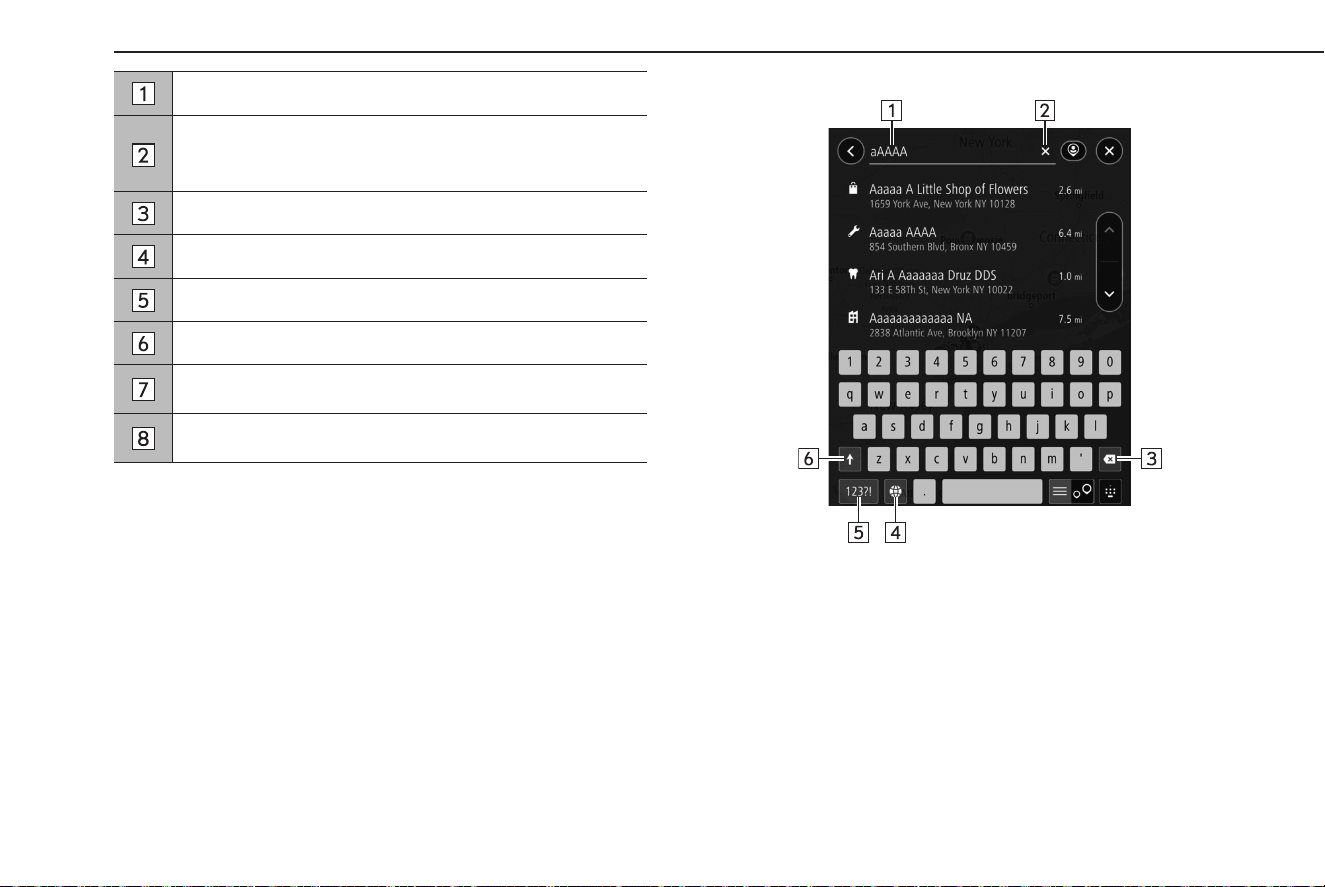
Select to move the cursor.
Input eld
• The position of the cursor can be moved by selecting the
desired location in the input eld.
Select to clear the input eld.
Select to erase one character.
Select to enter the item.
Select to change keyboard types.
Select to enter symbols.
Select to enter characters in lower case or in upper case.
XType B
BASIC INFORMATION BEFORE OPERATION
48
TK5_US.indb 48 2024/08/02 12:00:25
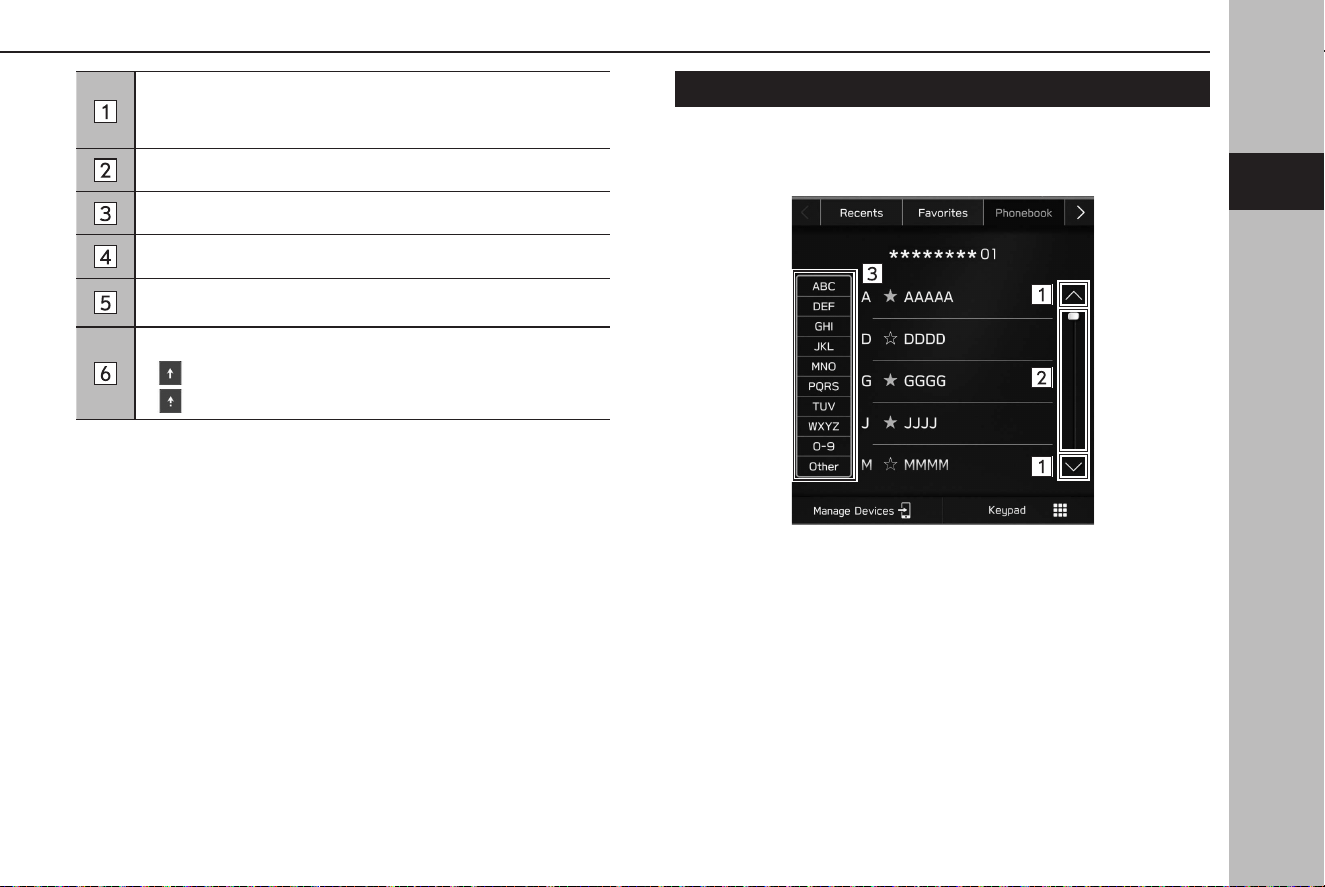
Input eld
• The position of the cursor can be moved by selecting the
desired location in the input eld.
Select to clear the input eld.
Select to erase one character.
Select to change keyboard types.
Select to enter symbols.
Select to enter characters in lower case or in upper case.
• : Enables capital letter input of one character only.
• : Enables capital letter input successively.
NOTE
l The appearance of the keyboard may change or the input method
may be limited depending on the circumstances where the software
keyboard is displayed.
LIST SCREEN OPERATION
The list screen can be scrolled by a swipe gesture.
For detailson the operation: →P. 45
BASIC INFORMATION BEFORE OPERATION
49
Basic Function
2
TK5_US.indb 49 2024/08/02 12:00:25
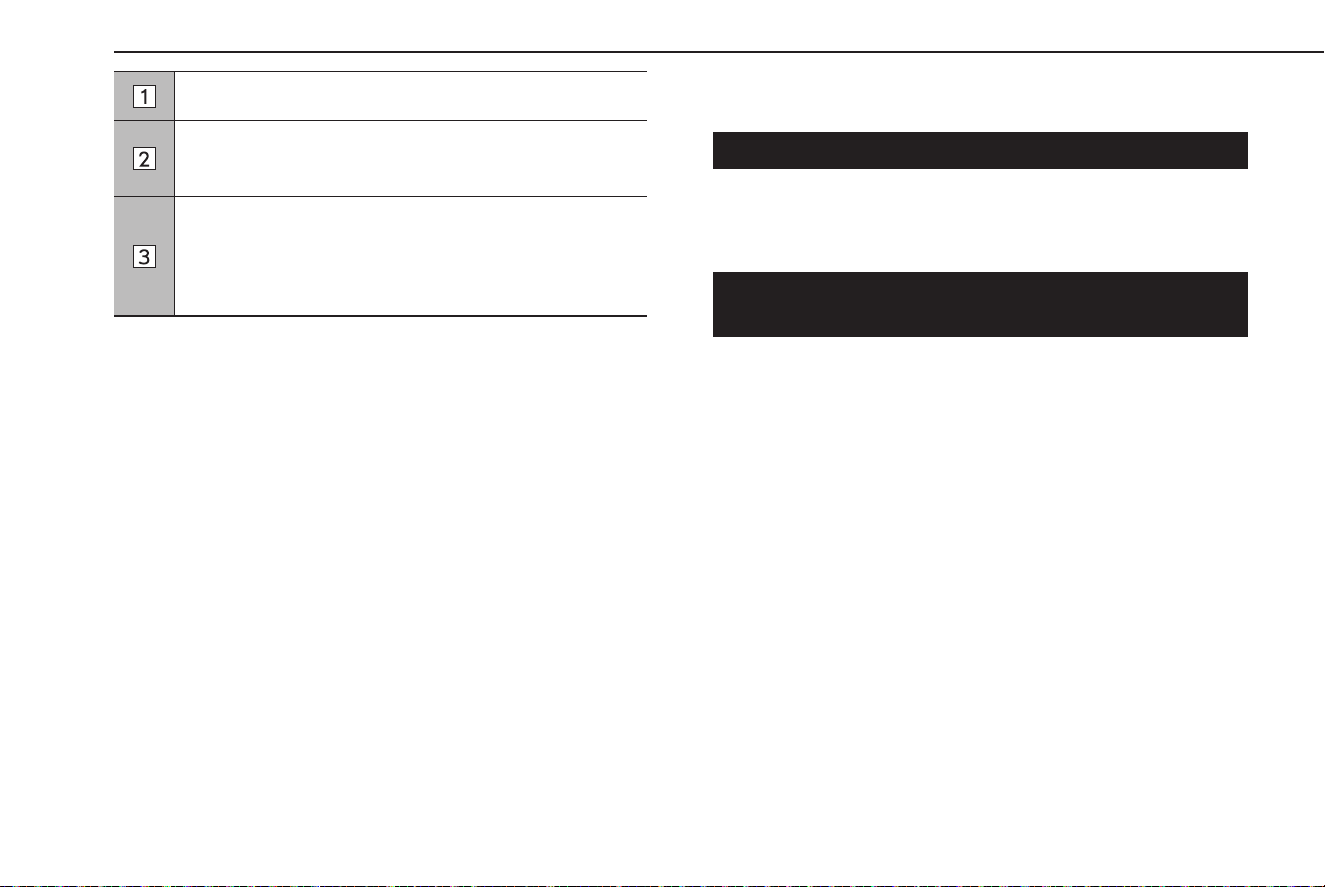
Select to skip to the next or previous page.
This indicates the displayed screen’s position.
To scroll: Drag the position indicator.
To jump: Touch the desired position of the rail.
Some lists contain character screen buttons which allow
users to jump directly to list entries that begin with the same
letter as the character screen button.
Every time the same character screen button is selected, the
list starting with the subsequent character is displayed.
SCREEN ADJUSTMENT
ADJUSTING BRIGHTNESS
The brightness of the screen can be adjusted.
Refer to the vehicle Owner’s Manual for details.
CHANGING BETWEEN DAY AND NIGHT MODE
(11.6-inch display with Navi system only)
The screen mode of the map screen changes to day or night
mode depending on the position of the headlight switch. The
screen’s mode also changes to day or night mode depending
on the position of the illumination brightness control dial, and
surrounding brightness.
BASIC INFORMATION BEFORE OPERATION
50
TK5_US.indb 50 2024/08/02 12:00:25
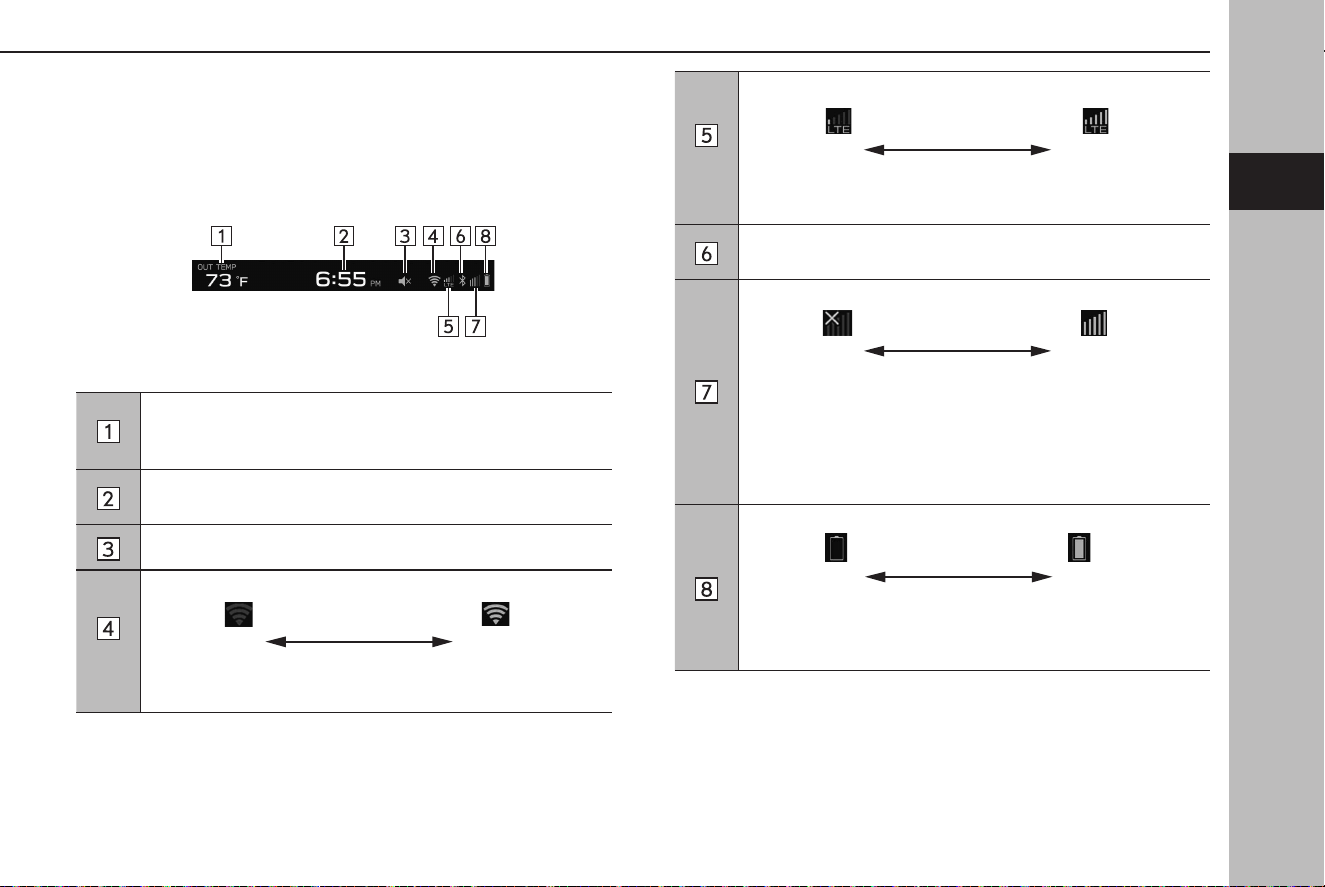
STATUS BAR
The status of the Bluetooth connection, etc. is displayed on the
screen.
Display an outside temperature.
Unit of measurements displayed can be changed.
Refer to the vehicle Owner’s Manual.
Display a current time.
Select to display the clock setting screen.
This icon is displayed when the audio system volume is mute.
*
1
*
2
Poor Excellent
Display the level of Wi-Fi® reception.
When Wi-Fi® function is o, no item is displayed.
*
3
*
4
Poor Excellent
Display the level of Wi-Fi® Hotspot reception.
When Wi-Fi® Hotspot function is o, no item is displayed.
This icon is displayed when the Bluetooth connection is
established.
Poor Excellent
Display the level of phone reception.
If a cellular phone is not connected via Bluetooth, this icon
will not be displayed.
The level of reception does not always correspond with the
level displayed on the cellular phone. The level of reception
may not be displayed depending on the phone you have.
Low Full
Display the remaining of Bluetooth device battery charge.
The amount displayed does not always correspond with the
amount displayed on the Bluetooth device.
*
1
: 11.6-inch display with Navi system only
*
2
: This function is not available in some countries/areas.
*
3
: If equipped
*
4
: Refer to the Owner’s Manual supplement for “SUBARU STARLINK Safety and
Security” for details.
BASIC INFORMATION BEFORE OPERATION
51
Basic Function
2
TK5_US.indb 51 2024/08/02 12:00:27

HOME SCREEN OPERATION
ADDING SHORTCUT ICONS TO THE HOME
SCREEN
Shortcut icons for various functions can be added to the home
screen when the home screen shortcut function is turned on.
(→P.66)
1.
Select .
2.
Select (Add Shortcut).
3.
Select the desired function.
4.
Select the desired shortcut function.
● Depending on the function, select other items and enter
necessary information.
5.
Check that the shortcut icon is displayed on the home
screen.
NOTE
l When shortcuts are added, the home screen can be expanded to up
to 4 pages. The page can be changed by swiping.
MOVING AND DELETING SHORTCUT ICONS
Users can rearrange the home screen buttons when the home
screen shortcut function is turned on. (→P.66)
1.
Select and hold the shortcut icon to enter edit mode.
XWhen moving shor
tcut icons
2.
Drag the button to the desired position.
● User can mov
e buttons to another page by dragging
them to the corresponding end of the screen if the
number of buttons allows for multiple pages.
XWhen deleting shortcut icons
2.
Drag the button to “DRAG HERE TO DELETE” area.
3.
Select to leave the edit mode.
BASIC INFORMATION BEFORE OPERATION
52
TK5_US.indb 52 2024/08/02 12:00:27

53
Settings
Bluetooth® Settings
54
Registering A Bluetooth Phone/
Device For The First Time
54
Proles
55
Bluetooth Settings
57
Phone Settings Screen
57
Registering A Bluetooth Phone/Device
58
Connecting Or Disconnecting
Bluetooth Phone/Device
60
Deleting Bluetooth Phones/Devices
62
Setting Phonebook/Recent Calls Download
63
Other Settings
64
Setting Driver Proles
64
Registering A Driver Prole
64
Recalling A Driver Prole
65
Editing A Driver Prole
66
Deleting A Driver Prole
66
General Settings
66
General Settings Screen
66
Setting Wi-Fi® Connection
68
Updating The System
71
Sound Settings
73
Sound Settings Screen
73
Radio Settings
75
Setting AM/FM Radio
75
Setting The SiriusXM® Radio
77
TK5_US.indb 53 2024/08/02 12:00:27

Bluetooth® SETTINGS
REGISTERING A Bluetooth PHONE/
DEVICE FOR THE FIRST TIME
To use the hands-free system or the Bluetooth audio system, it is
necessary to register a Bluetooth phone/device with the system.
Once the Bluetooth phone/device has been registered, it is
possible to use the hands-free system and the Bluetooth audio
system.
This operation cannot be performed while driving.
For detailson registering a Bluetooth phone/device: →P.58
1.
Turn the Bluetooth connection setting of your Bluetooth
phone/device on.
● This function is not a
vailable when the Bluetooth
connection setting of your Bluetooth phone/device is set
to o.
2.
Select .
3.
Follow the STEPS 2 to 6 in “REGISTERING A Bluetooth
PHONE/DEVICE”. (→P.58)
Bluetooth® SETTINGS
54
TK5_US.indb 54 2024/08/02 12:00:27
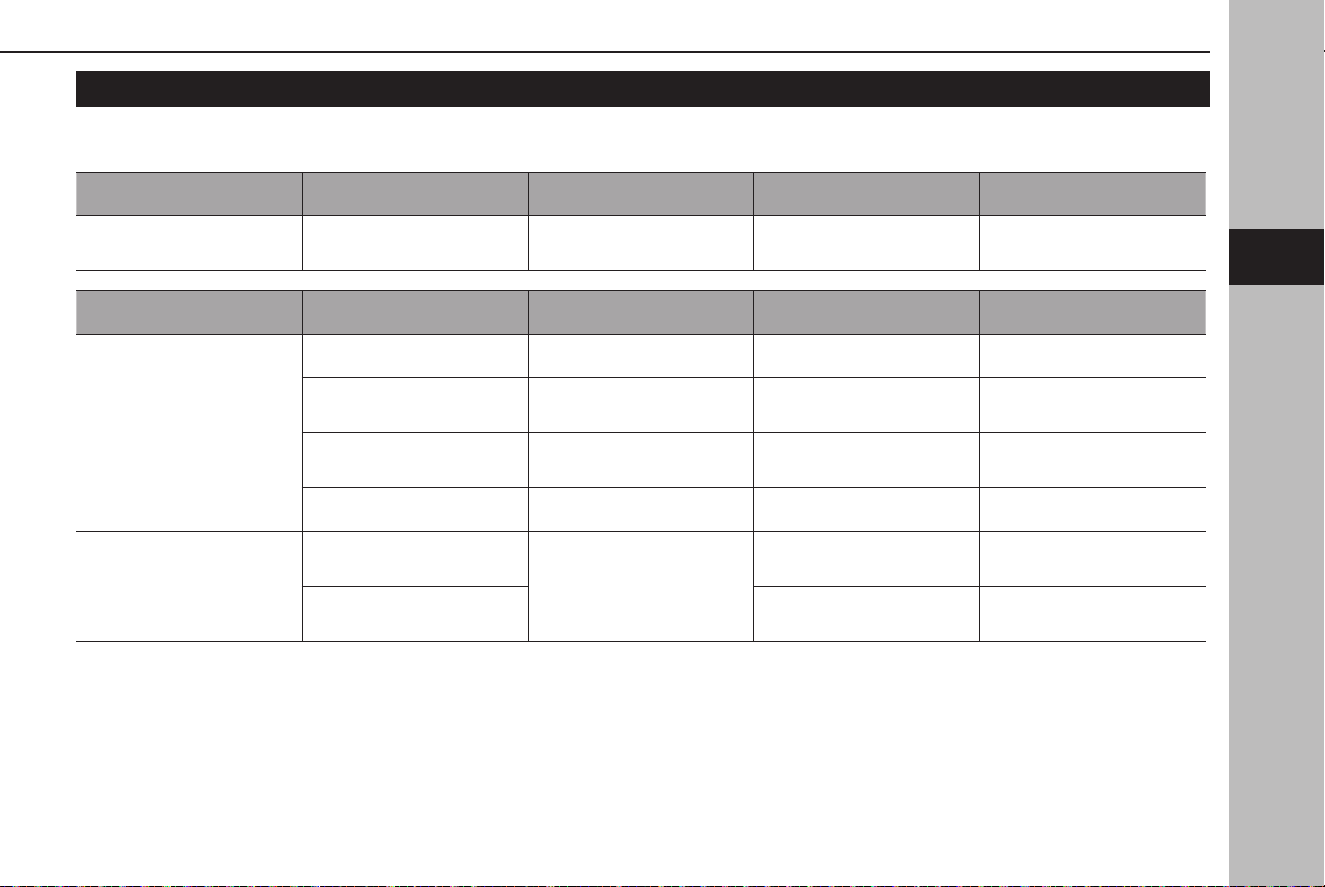
PROFILES
This system supports the following services.
Bluetooth Device Spec. Function Requirements Recommendations
Bluetooth Phone/Device Bluetooth Specication
Registering a Bluetooth
phone/device
Ver. 2.1 Ver. 5.0
Bluetooth Device Prole Function Requirements Recommendations
Bluetooth Phone
HFP (Hands-Free Prole) Hands-free system Ver. 1.0 Ver. 1.8
PBAP (Phone Book Access
Prole)
Transferring the contacts Ver. 1.0 Ver. 1.2.3
MAP (Message Access
Prole)
Bluetooth phone message - Ver. 1.4.2
SPP (Serial Port Prole) APPS function - Ver. 1.2
Bluetooth Device
A2DP (Advanced Audio
Distribution Prole)
Bluetooth audio system
Ver. 1.0 Ver. 1.3.2
AVRCP (Audio/Video
Remote Control Prole)
Ver. 1.0 Ver. 1.6.2
3
Bluetooth® SETTINGS
55
Settings
3
TK5_US.indb 55 2024/08/02 12:00:27

NOTE
l If your cellular phone does not support HFP, registering the Bluetooth phone or using PBAP, MAP or SPP proles individually will not be possible.
l If
the connected Bluetooth phone/device version is older than recommended or incompatible, the Bluetooth phone/device function may not work
properly.
l If the application is not running smoothly or is unstable, disconnect and reconnect the Bluetooth phone/device via Bluetooth (→P.60) and/or USB
cable (→P.45). If the problem continues, reboot the Bluetooth phone/device.
Bluetooth® SETTINGS
56
TK5_US.indb 56 2024/08/02 12:00:27
Bluetooth SETTINGS
1.
Select .
2.
Select
Settings
(Settings).
3.
→
Phone
(Phone)
4.
Select the items to be set.
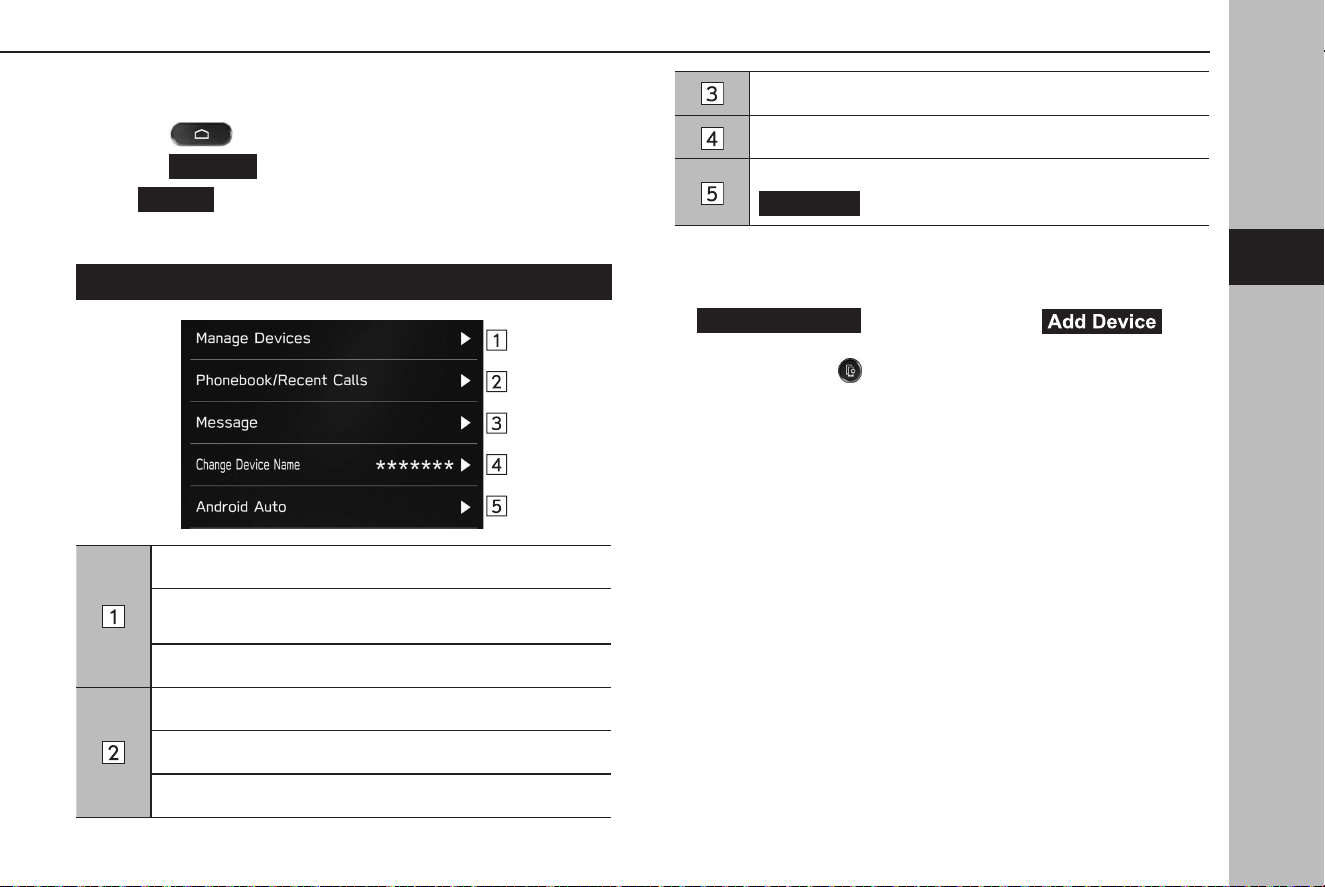
PHONE SETTINGS SCREEN
Registering a Bluetooth phone/device: →P.58
Connecting or disconnecting Bluetooth phones/devices:
→P.60
Deleting Bluetooth phones/devices: →P.62
Setting phonebook/recent calls download: →P.63
Sorting the recent calls list and contacts list: →P.85
Deleting all favorites list: →P.86
Setting the message: →P.91
Changing the device name
Displays current Wi-Fi® password.
Generate
(Generate): Generates a new password.
NOTE
l “Manage Devices” screen can also be displayed by selecting
Manage Devices
(Manage Devices) or (Add
Device) on the phone screen (→P.80) or Bluetooth audio control
screen (→P.138) or
.
3
Bluetooth® SETTINGS
57
Settings
3
TK5_US.indb 57 2024/08/02 12:00:29
REGISTERING A Bluetooth PHONE/DEVICE
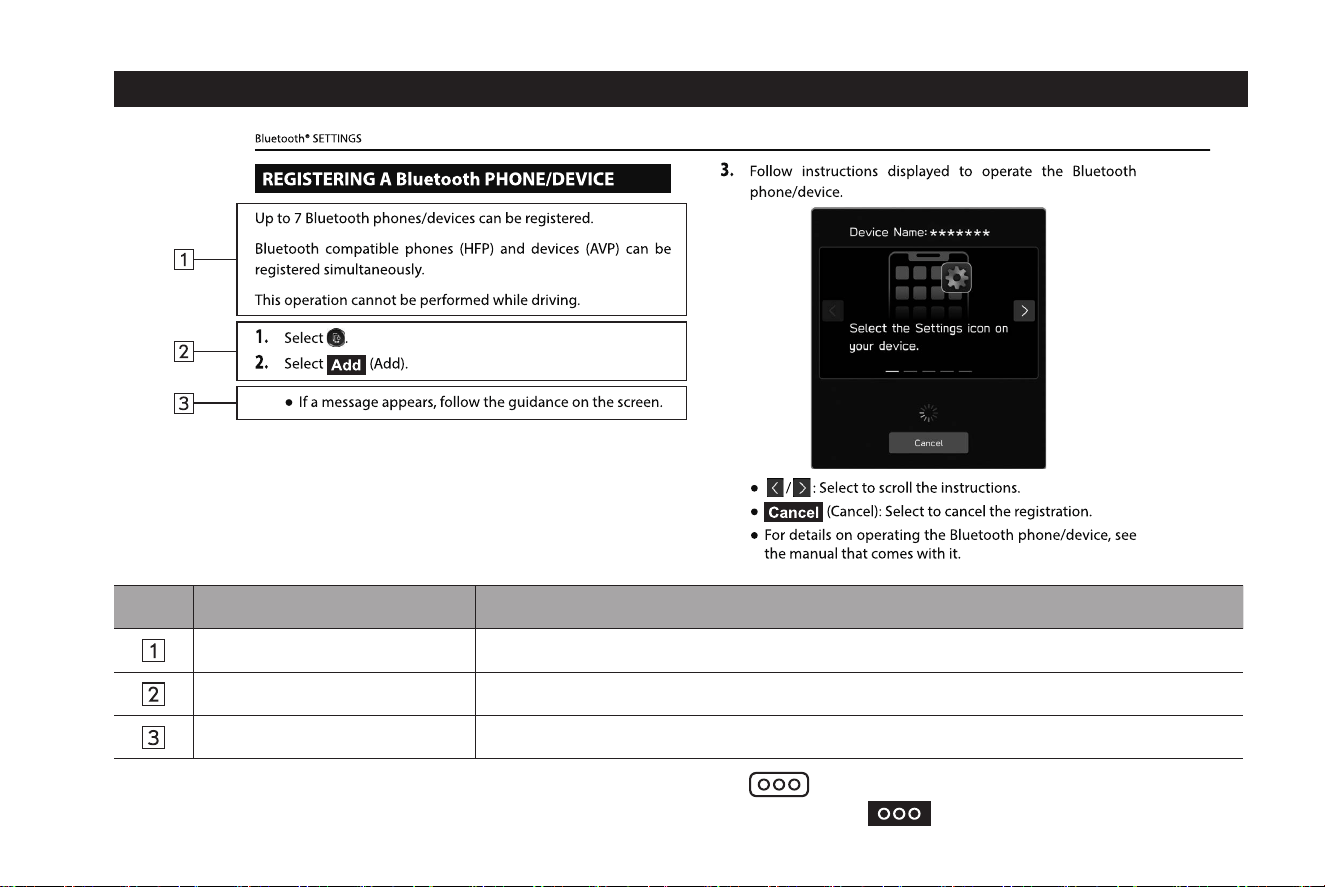
Up to 7 Bluetooth phones/devices can be registered.
Bluetooth compatible phones (HFP) and devices (AVP) can be
registered simultaneously.
This operation cannot be performed while driving.
1.
Select .
2.
Select (Add).
● If a message appears, f
ollow the guidance on the screen.
3.
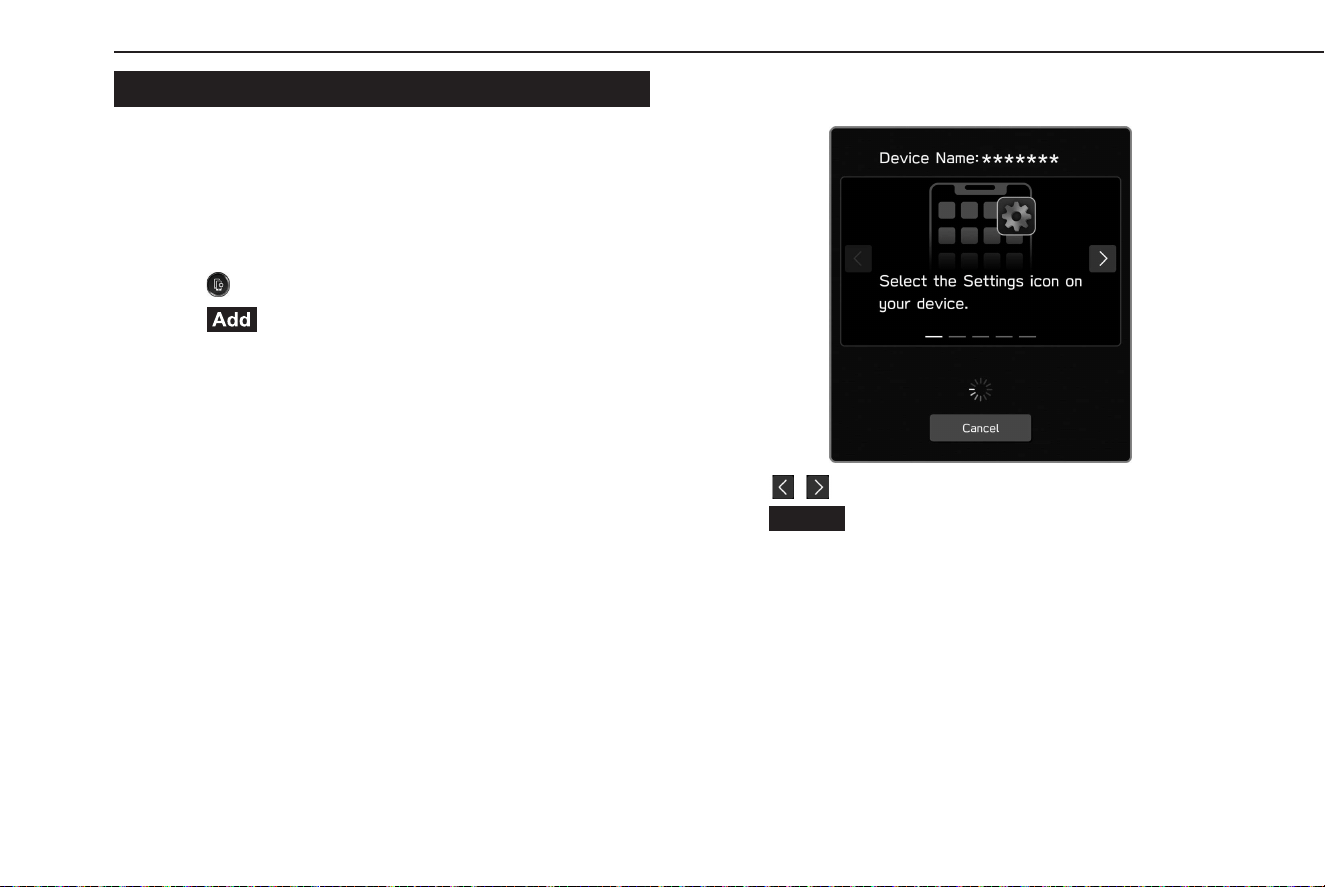
Follow instructions displayed to operate the Bluetooth
phone/device.
● / : Select to scroll the instructions.
●
Cancel
(Cancel): Select to cancel the registration.
● For details on operating the Bluetooth phone/device, see
the manual that comes with it.
Bluetooth® SETTINGS
58
TK5_US.indb 58 2024/08/02 12:00:29
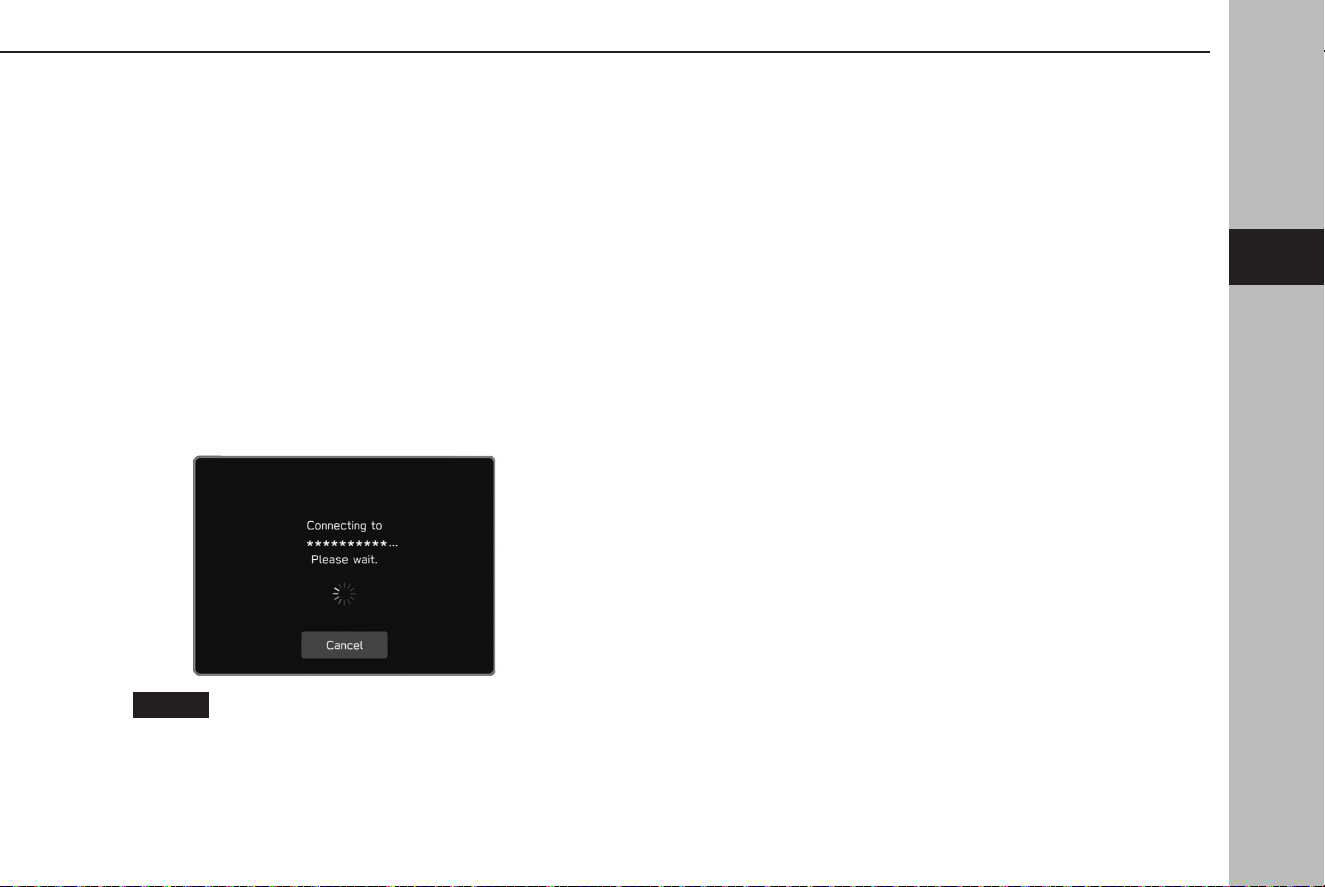
4.
Register using your Bluetooth phone/device.
● A PIN-code is not r
equired for SSP (Secure Simple Pairing)
compatible Bluetooth phones/devices. Depending on
the type of Bluetooth phone/device being connected,
a message conrming registration may be displayed
on the Bluetooth phone’s/device’s screen. Respond and
operate the Bluetooth phone/device according to the
conrmation message.
NOTE
l To re-register your Bluetooth phone/device after having deleted it
from the system, operate the Bluetooth phone/device and register it
after deleting the previously registered system information from the
Bluetooth phone/device.
5.
Check that the following pop-up screen may be displayed.
●
Cancel
(Cancel): Select to cancel the registration.
● If a conrmation message appears asking whether to
transfer the phone’s contact data to the system, select the
appropriate button.
6.
When the connection is completed, conrm that a
connected device name is displayed.
● If an err
or message appears, follow the guidance on the
screen to try again.
NOTE
l When registering an NFC compatible device, registration is
performed when the Bluetooth phone/device is held against the NFC
logo of the audio system until a connection is established.
3
Bluetooth® SETTINGS
59
Settings
3
TK5_US.indb 59 2024/08/02 12:00:29
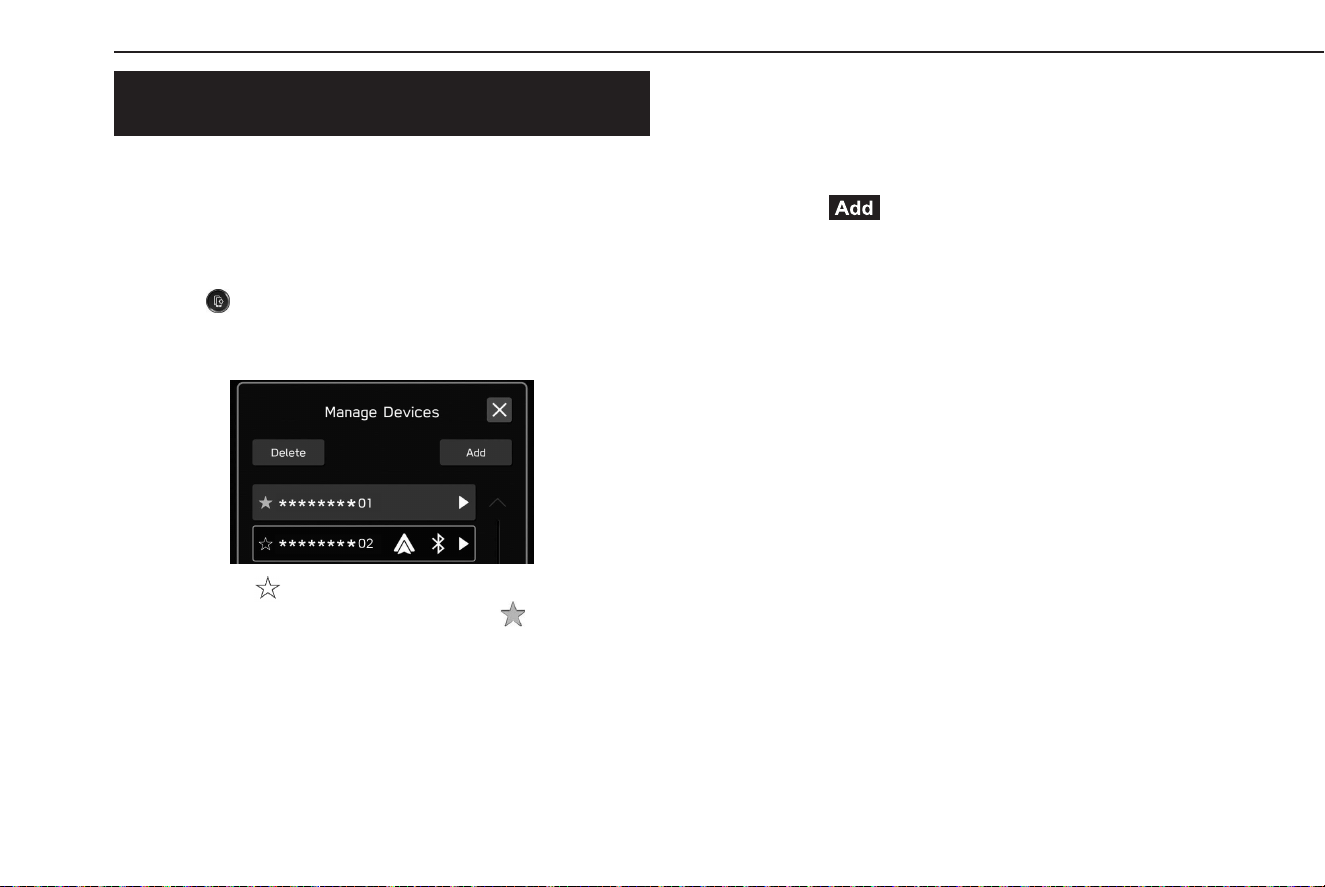
CONNECTING OR DISCONNECTING Bluetooth
PHONE/DEVICE
Up to 7 Bluetooth phones/devices (Phones (HFP) and devices
(AVP)) can be registered.
If more than 1 Bluetooth phone/device has been registered,
select which Bluetooth phone/device to connect to.
1.
Select .
2.
Select the Bluetooth phone/device to be connected or
disconnected.
● Selecting besides the name of the desired Bluetooth
phone/device changes the icon to
(yellow). The
selected Bluetooth phone/device will be registered as
a favorite and moved to the top of the list. When the
ignition switch is turned to the “ACC” or “ON” position,
the favorite-registered device will be connected
automatically. (→P.61)
● Bluetooth phone/device cur
rently being connected is
displayed in blue frame. Icons of functions currently
in use are displayed beside the name of the Bluetooth
phone/device.
● If the desired Bluet
ooth phone/device is not on the list,
select
(Add) to register the Bluetooth phone/
device. (→P.58)
3.
To connect the Bluetooth phone/device, select “Bluetooth”
of “Connection Preference”.
● When “Bluet
ooth” of “Connection Preference” is already
enabled, turning “Connect” to on will connect the
Bluetooth phone/device. Turning “Connect” to o will
disconnect the Bluetooth phone/device.
● By using “
Connection Preference”, function connected
when the Bluetooth phone/device is connected can be
selected.
Bluetooth® SETTINGS
60
TK5_US.indb 60 2024/08/02 12:00:30
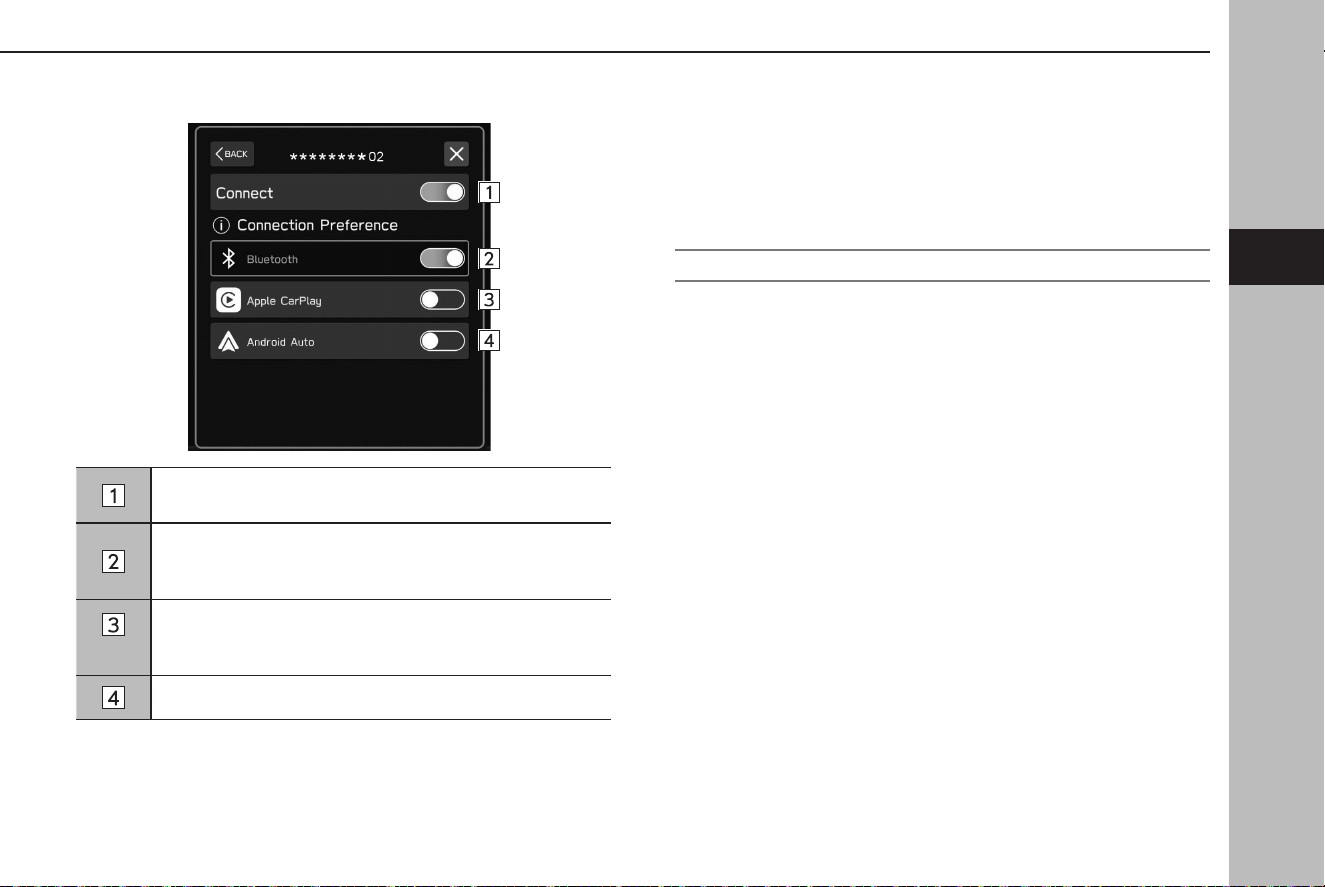
● If an error message appears, follow the guidance on the
screen to try again.
Select to connect/disconnect the enabled function of
“Connection Preference”.
Select to connect/disconnect Bluetooth.
When “Apple CarPlay” is turned on while “Bluetooth” is
already enabled, “Bluetooth” is turned o automatically.
*
Select to connect/disconnect Apple CarPlay.
When “Bluetooth” is turned on while “Apple CarPlay” is
already enabled, “Apple CarPlay” is turned o automatically.
Select to connect/disconnect Android Auto.
*: Displayed when a compatible device is operated and the function is enabled.
NOTE
l It may take time if the Bluetooth phone/device connection is carried
out during Bluetooth audio playback.
l Depending on the type of Bluet
ooth phone/device being connected,
it may be necessary to perform additional steps on the Bluetooth
phone/device.
AUTO CONNECTION MODE
Leave the Bluetooth phone/device in a location where the
connection can be established.
● When the ig
nition switch is turned to the “ACC” or “ON”
position, the system searches for a nearby registered
Bluetooth phone/device.
● If a nearb
y registered Bluetooth phone/device is
registered to favorite, the device will be connected
automatically. (→P.60)
If there are no devices registered to favorite, the system
will connect with the registered Bluetooth phone/device
that was last connected, if it is nearby.
3
Bluetooth® SETTINGS
61
Settings
3
TK5_US.indb 61 2024/08/02 12:00:30
CONNECTING MANUALLY
When the auto connection has failed, it is necessary to connect
Bluetooth phones/devices manually.
Follow the “CONNECTING OR DISCONNECTING Bluetooth
PHONE/DEVICE”. (→P.60)
RECONNECTING THE Bluetooth PHONE/DEVICE
If a Bluetooth phone/device is disconnected due to poor
reception from the Bluetooth network when theignition switch
is turned to the “ACC” or “ON” position, the system automatically
reconnects the Bluetooth phone/device.
● If a Bluetooth phone/devic
e is disconnected on purpose,
such as turning it o, this does not happen. Reconnect
the Bluetooth phone/device manually.
NOTE
l When a Bluetooth phone/device is registered to the prole of a
driver, a message may be displayed asking if the change of prole to
the driver is desired. (→P.65)
DELETING Bluetooth PHONES/DEVICES
1.
Select .
2.
Select
Delete
(Delete).
3.
Select for the Bluetooth phone/device you wish to
delete.
4.
Select
OK
(OK) when the conrmation message appears.
NOTE
l The Bluetooth phone/device will still contain information from
this system even after the Bluetooth phone/device has been
deleted. Operate the Bluetooth phone/device to delete the system
information saved inside the Bluetooth phone/device.
Bluetooth® SETTINGS
62
TK5_US.indb 62 2024/08/02 12:00:31
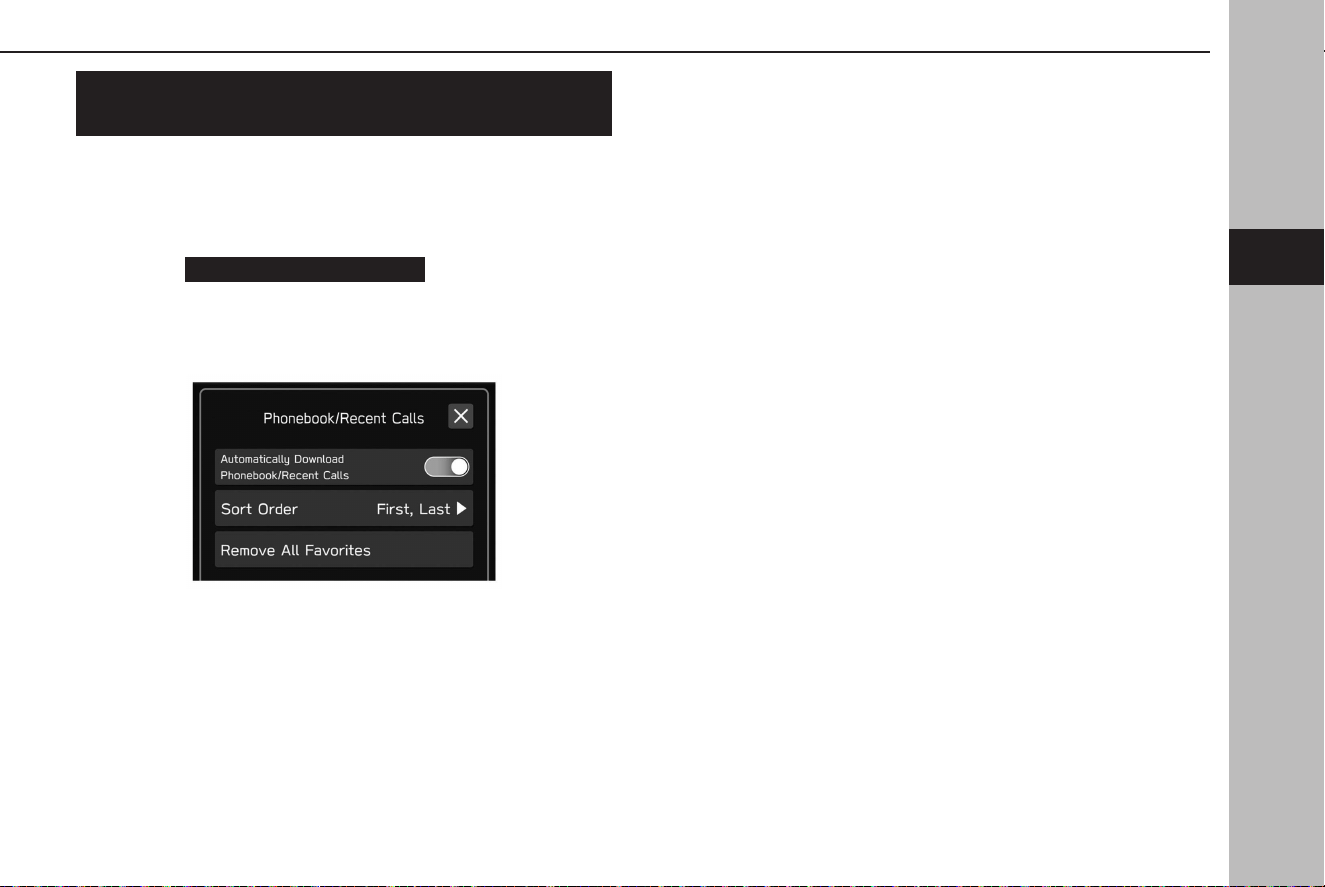
SETTING PHONEBOOK/RECENT CALLS
DOWNLOAD
When this function is activated, the phonebook data of the
connected Bluetooth phone will be downloaded automatically.
1.
Display the phone settings screen. (→P.57)
2.
Select
Phonebook/Recent Calls
(Phonebook/Recent
Calls).
3.
Select to turn “Automatically Download Phonebook/Recent
Calls” on/o.
NOTE
l The prole version of the connected Bluetooth phone may not be
compatible with downloading phonebook data. For details, contact
your SUBARU dealer.
l Up to 2000 contacts in the phonebook of the connected Bluetooth
phone can be downloaded. Up to 5 phone numbers registered to a
contact can be downloaded.
l The notication setting on the Bluetooth phone may need to be
activated in order to download the phonebook. For details, check
the instructions for the connected Bluetooth phone. When the
system’s clock settings are set to auto, the auto-adjustment function
and message function (→P.90) will not function properly if the
phonebook is not downloaded.
l The Bluetooth phone
’s favorite list will not be downloaded
automatically even after the phonebook data has been downloaded
from the Bluetooth phone. This system does not currently support
transfer of data from the Bluetooth phone favorites list. To add the
Bluetooth phone’s favorites list to the system’s favorites list, you need
to register it through the system phonebook contacts list. (→P.86)
Bluetooth® SETTINGS
63
Settings
3
TK5_US.indb 63 2024/08/02 12:00:31
OTHER SETTINGS
SETTING DRIVER PROFILES
Once a driver prole is registered, some of the contents
customized by the driver, such as navigation, radio, and sound
settings, etc., will be categorized and memorized for that driver.
When the vehicle is shared by multiple drivers, such as by
family members, some settings altered by other drivers will be
overwritten by recalling a registered driver prole.
Additionally, a driver prole, if linked to a Bluetooth phone/
device, can be recalled automatically when the Bluetooth
phone/device is connected.
NOTE
l Some of the memorized contents will be shared, not categorized
by driver. Even though your driver prole is recalled, some settings
changed by another driver may remain.
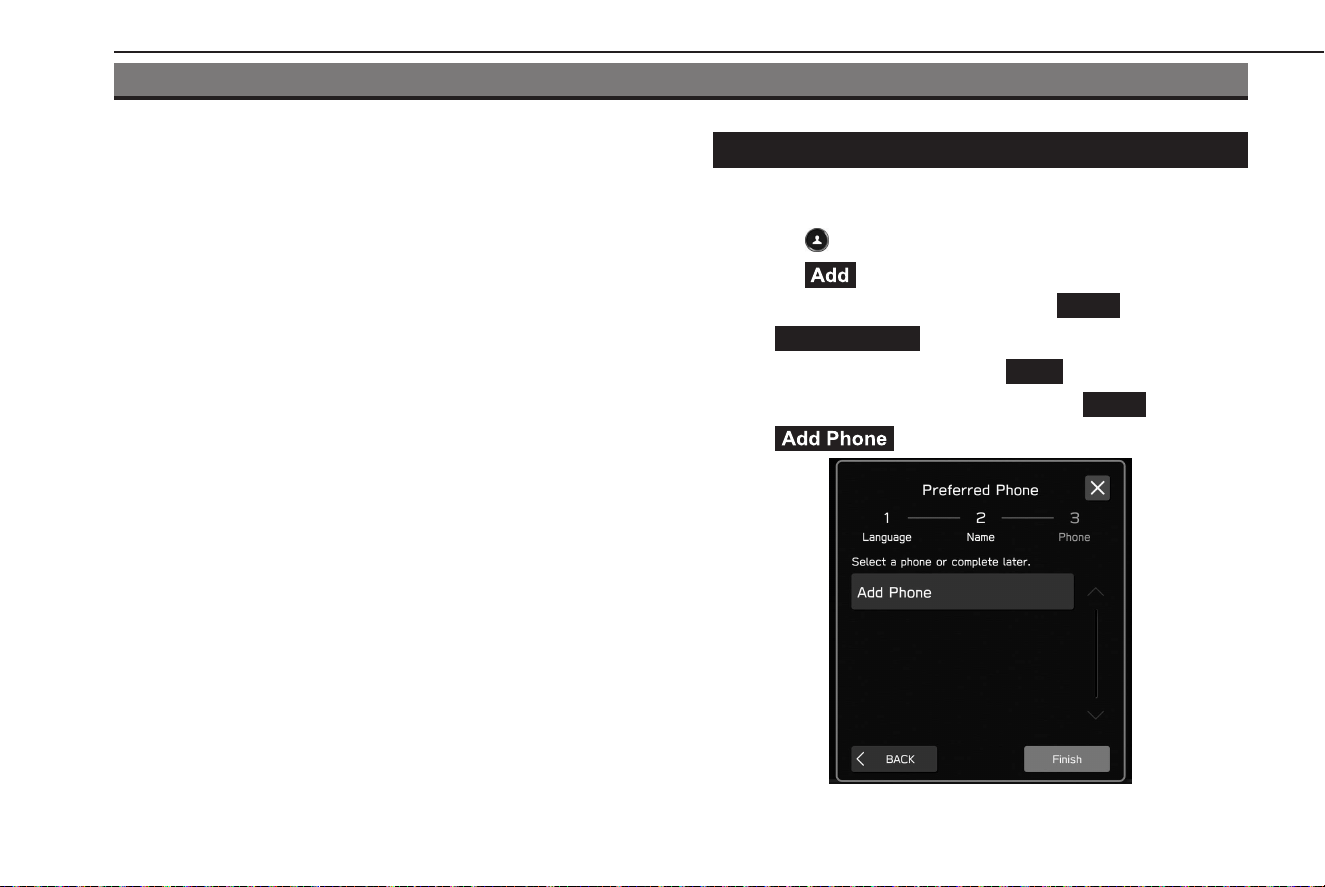
REGISTERING A DRIVER PROFILE
Proles of up to 4 drivers can be registered.
1.
Select .
2.
Select (Add).
3.
Select a desired language and select
NEXT
(NEXT).
4.
→
Driver’s Name
(Driver’s Name)
5.
Enter a driver name and select
Next
(Next).
6.
Check driver name displayed and select
NEXT
(NEXT).
7.
→ (Add Phone)
OTHER SETTINGS
64
TK5_US.indb 64 2024/08/02 12:00:32

● By following the STEPS 3 to 6 in “REGISTERING A
Bluetooth PHONE/DEVICE”, register a Bluetooth phone/
device. (→P.58)
●
Finish
(Finish): Exits without registering a Bluetooth
phone/device.
● When registering a Bluetooth phone/device already
registered to the system, select it from the displayed
listing.
8.
Select the registered Bluetooth phone/device then
Finish
(Finish).
9.
Check the registered driver name is displayed.
NOTE
l The prole of a driver with a Bluetooth phone/device registered can
be recalled automatically when connected. (→P.65)
RECALLING A DRIVER PROFILE
RECALLING A DRIVER PROFILE AUTOMATICALLY
When a Bluetooth phone/device, registered to the prole of a
driver, is connected, a message will be displayed asking if the
change of prole to the driver is desired. To change to the prole
of that driver, select
OK
(OK).
NOTE
l Even though a Bluetooth phone/device registered to a driver prole
is in the vehicle, the driver prole will not be recalled automatically
when another Bluetooth phone/device is connected. Manually
change prole if desired.
l When there ar
e more than one Bluetooth phone/device in the
vehicle that can be connected, a message may be displayed asking
if the change of prole to the suggested driver is desired. If the
suggested change is not desired, select
Cancel
(Cancel) then
change manually to the desired driver prole.
RECALLING A DRIVER PROFILE MANUALLY
1.
Select .
2.
Select the desired driver name then
OK
(OK).
NOTE
l When a driver prole is recalled manually, the Bluetooth phone/
device of the driver will not be connected automatically.
OTHER SETTINGS
65
Settings
3
TK5_US.indb 65 2024/08/02 12:00:32
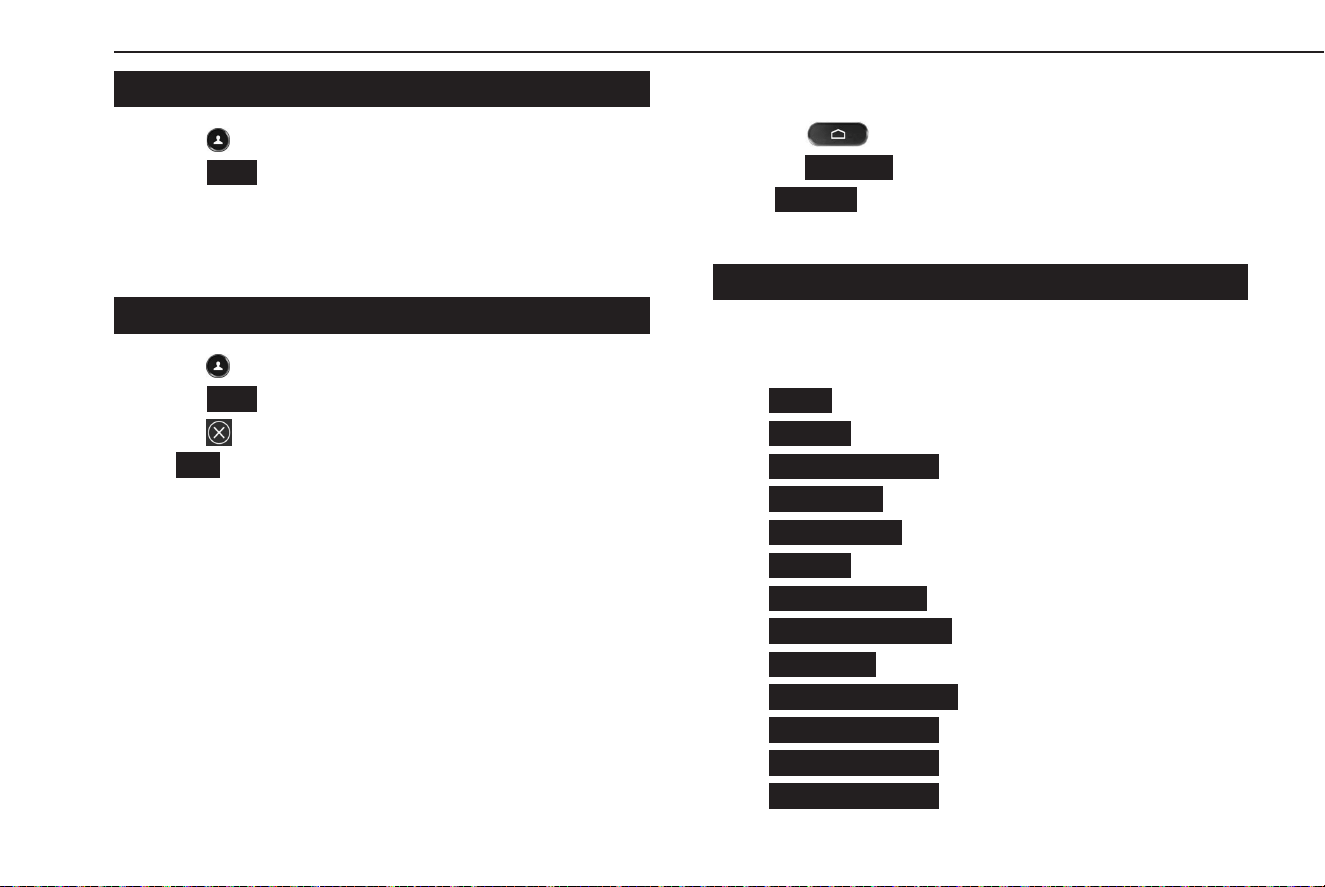
EDITING A DRIVER PROFILE
1.
Select .
2.
Select
Edit
(Edit).
3.
Select a desired driver prole name to edit.
4.
Follow the STEPS 3 to 8 in “REGISTERING A DRIVER PROFILE”.
(→P.64)
DELETING A DRIVER PROFILE
1.
Select .
2.
Select
Edit
(Edit).
3.
Select for the driver prole name you wish to delete.
4.
→
OK
(OK)
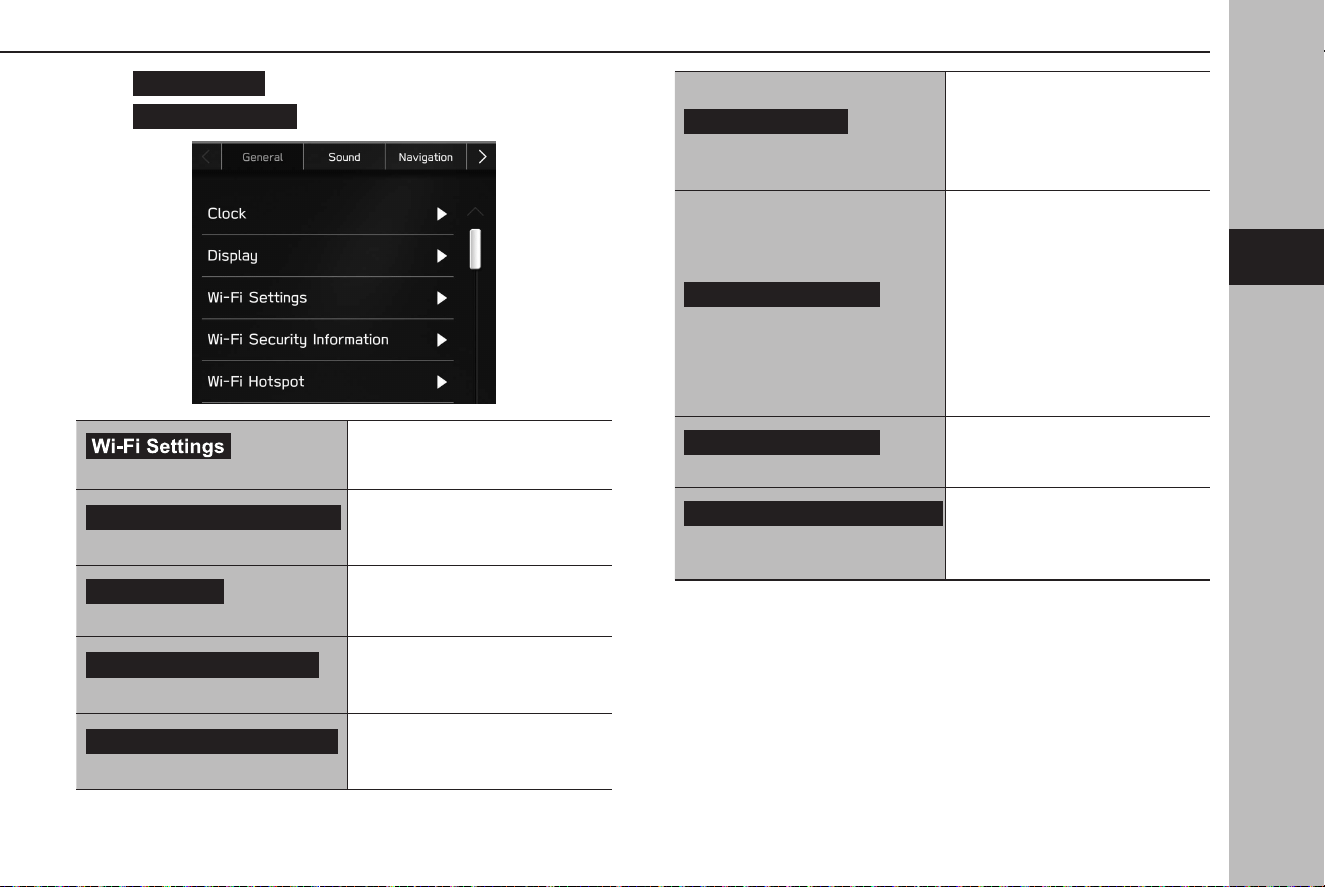
GENERAL SETTINGS
1.
Select .
2.
Select
Settings
(Settings).
3.
→
General
(General)
4.
Select the items to be set.
GENERAL SETTINGS SCREEN
For details about the following menu, refer to the vehicle
Owner’s Manual.
●
Clock
(Clock)
●
Display
(Display)
●
Reminder Screen
(Reminder Screen)
●
Valet Mode
(Valet Mode)
●
Meter Screen
(Meter Screen)
●
Camera
(Camera)
●
Climate Control
(Climate Control)
●
Temperature Units
(Temperature Units)
●
Language
(Language)
●
Tire Pressure Units
(Tire Pressure Units)
●
Welcome Screen
(Welcome Screen)
●
Goodbye Screen
(Goodbye Screen)
●
Favorite Widgets
(Favorite Widgets)
OTHER SETTINGS
66
TK5_US.indb 66 2024/08/02 12:00:35
●
Birthday List
(Birthday List)
●
Anniversary List
(Anniversary List)
(Wi-Fi Settings)*
1
*
2
Select to set the Wi-Fi® function
settings. (→P.68)
Wi-Fi Security Information
(Wi-Fi Security Information)*
3
Select to display Wi-Fi® security
type that Wireless Apple CarPlay
or Wireless Android Auto uses.
Wi-Fi Hotspot
(Wi-Fi Hotspot)*
4
*
5
Select to set the Wi-Fi® Hotspot
settings.
Home Screen Shortcuts
(Home Screen Shortcuts)
Select to turn the home screen
shortcuts function on/o.
(→P.52)
Periodic Rest Notification
(Periodic Rest Notication)*
1
Select to turn the display for the
periodic rest notication pop-up
screen on/o. (→P.162)
Software Update
(Software Update)*
2
*
5
The system software can
be updated via DCM (Data
Communication Module in
vehicle cellular connection).
(→P.71)
Factory Data Reset
(Factory Data Reset)
Select to reset all setup items.
The audio system restarts
automatically after resetting
factory data. To complete the
reset process, turn the ignition
switch to the “LOCK”/“OFF”
position after the audio system
has restarted, and then turn to
the “ACC” or “ON” position after
approximately 3 minutes.
System Information
(System Information)
Select to display the system
information.
Free/Open Source Software Information
(Free/Open Source Software
Information)
Select to display the free/open
source software information.
OTHER SETTINGS
67
Settings
3
TK5_US.indb 67 2024/08/02 12:00:37
*
1
: 11.6-inch display with Navi system only
*
2
: This function is not available in some countries/areas.
*
3
: Displayed when Wireless Apple CarPlay/Wireless Android Auto is used.
*
4
: If equipped
*
5
: Refer to the Owner’s Manual supplement for “SUBARU STARLINK Safety and
Security” for details.
SETTING Wi-Fi® CONNECTION (11.6-inch display
with Navi system only)*
*: This function is not available in some countries/areas.
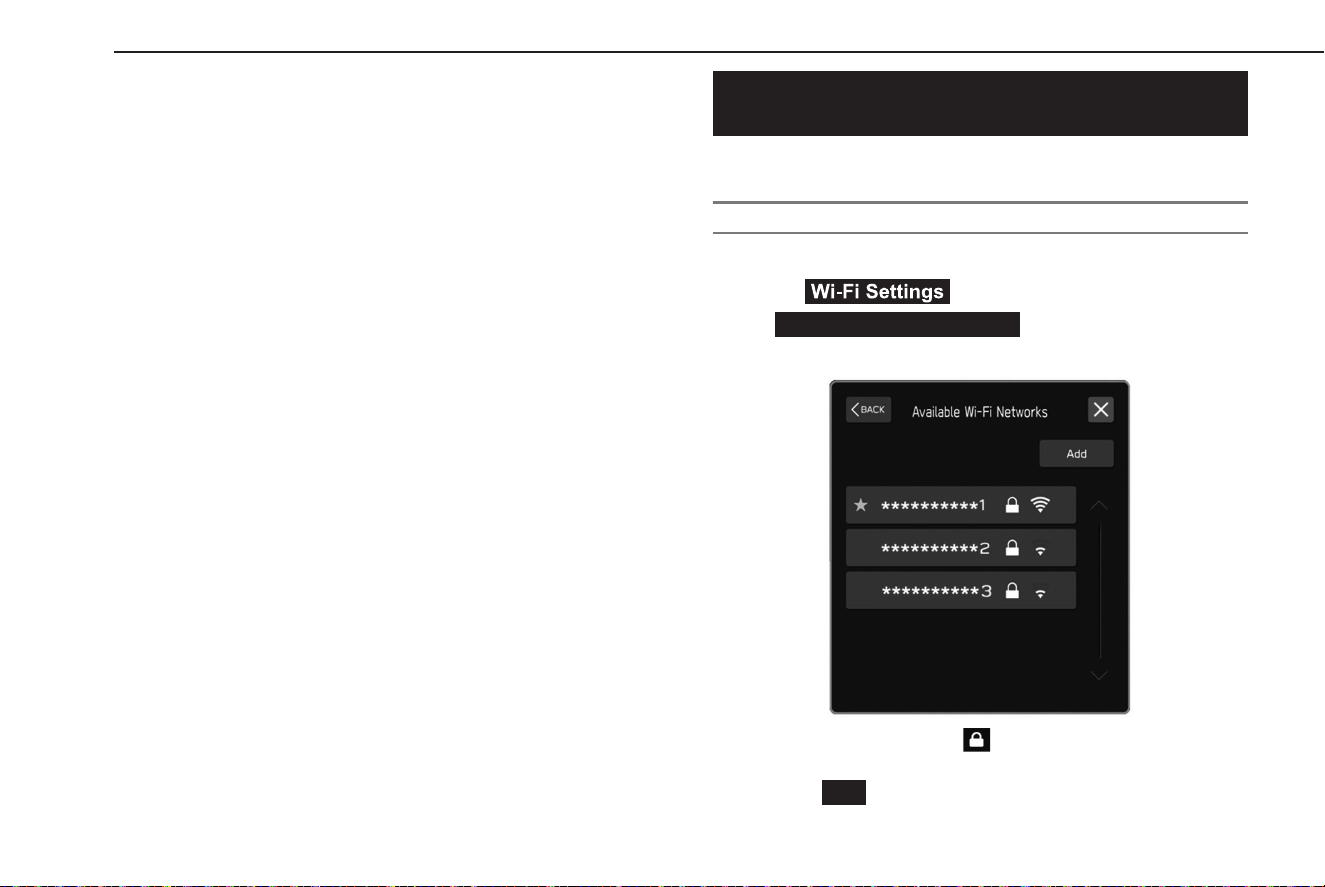
CONNECTING TO A Wi-Fi® NETWORK
1.
Display the general settings screen. (→P.66)
2.
Select (Wi-Fi Settings).
3.
→
Available Wi-Fi Networks
(Available Wi-Fi Networks)
4.
Select the desired network.
● When a network with is selected and the password
entry screen is displayed, enter the password, and then
select
OK
(OK).
OTHER SETTINGS
68
TK5_US.indb 68 2024/08/02 12:00:37
SETTING UP A CONNECTION QUICKLY
If a Wi-Fi® device is Wi-Fi® Protected Setup compatible, it can be
connected to more quickly.
1.
Display the general settings screen. (→P.66)
2.
Select (Wi-Fi Settings).
3.
→
Wi-Fi Protected Setup
(Wi-Fi Protected Setup)
4.
Select
PIN Setup
(PIN Setup) or
Push Button Setup
(Push Button Setup) as determined by the device.
5.
Operate the Wi-Fi® device to connect.
● When
PIN Setup
(PIN Setup) is selected: Enter the
displayed PIN code into the Wi-Fi® network device.
● When
Push Button Setup
(Push Button Setup) is
selected: Push the WPS button on the Wi-Fi® network
device.
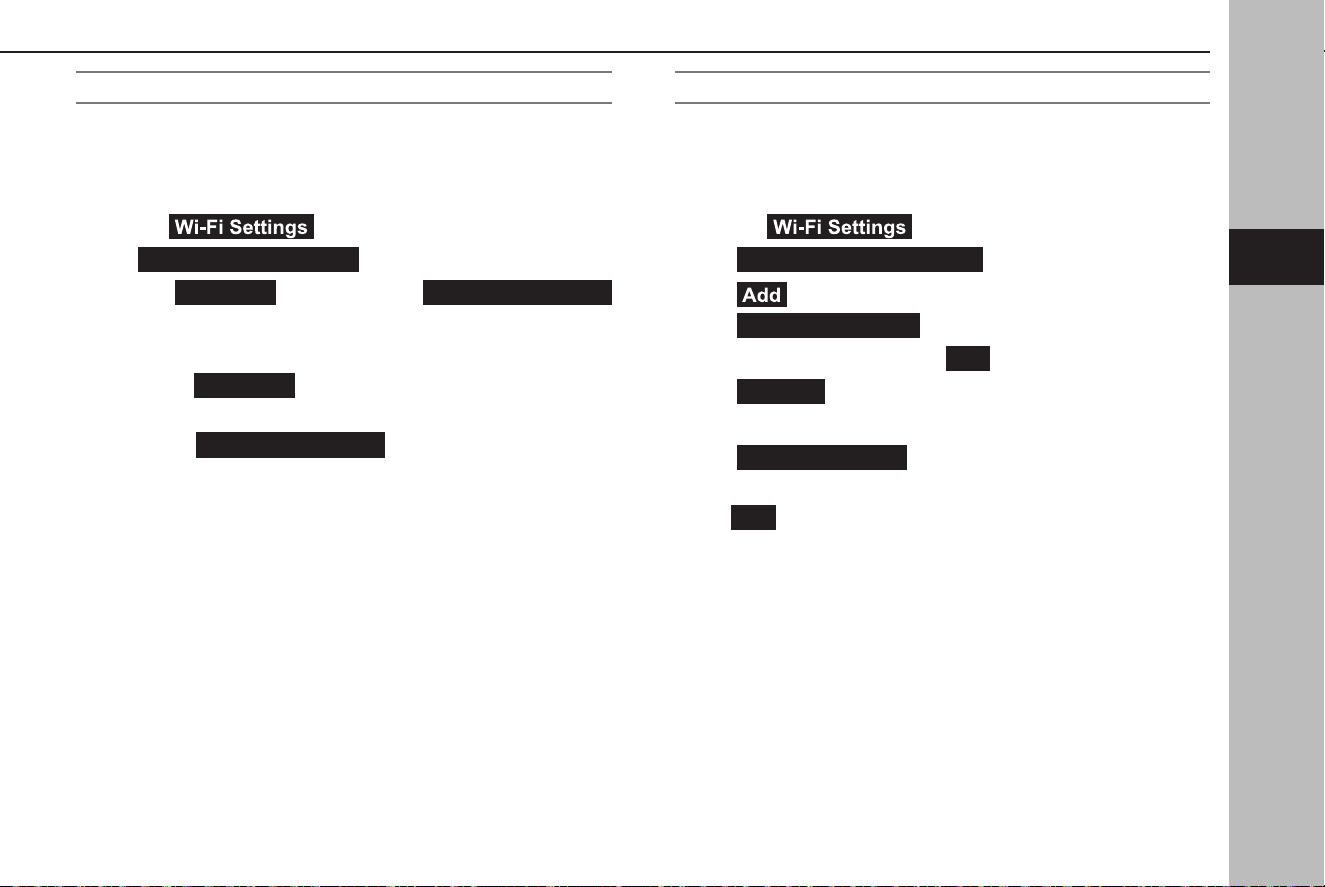
ADDING A Wi-Fi® NETWORK
Available networks which are not displayed by searching can be
added.
1.
Display the general settings screen. (→P.66)
2.
Select (Wi-Fi Settings).
3.
→
Available Wi-Fi Networks
(Available Wi-Fi Networks)
4.
→ (Add)
5.
→
Wi-Fi Name (SSID)
(Wi-Fi Name (SSID))
6.
Enter the network name. →
OK
(OK)
7.
→
Security
(Security)
8.
Select the security type.
9.
→
Start Connection
(Start Connection)
● When a password is required, enter the password. →
OK
(OK)
OTHER SETTINGS
69
Settings
3
TK5_US.indb 69 2024/08/02 12:00:38
DELETING A Wi-Fi® NETWORK
1.
Display the general settings screen. (→P.66)
2.
Select (Wi-Fi Settings).
3.
Select
Wi-Fi
(Wi-Fi) to turn the Wi-Fi® function o.
4.
→
Registered Wi-Fi Networks
(Registered Wi-Fi
Networks)
5.
→
Delete
(Delete)
6.
Select for the Wi-Fi® network you wish to delete. →
OK
(OK)
WARNING
l Use Wi-Fi® devices only when safe and legal to do so.
l This syst
em is tted with Wi-Fi® antennas. People with implantable
cardiac pacemakers, cardiac resynchronization therapy-
pacemakers or implantable cardioverter debrillators should
maintain a reasonable distance between themselves and the
Wi-Fi® antennas. The radio waves may aect the operation of such
devices.
l Befor
e using Wi-Fi® devices, users of any electrical medical
device other than implantable cardiac pacemakers, cardiac
resynchronization therapy-pacemakers or implantable
cardioverter debrillators should consult the manufacturer of the
device for information about its operation under the inuence of
radio waves.
Radio waves could have unexpected eects on the operation of
such medical devices.
OTHER SETTINGS
70
TK5_US.indb 70 2024/08/02 12:00:39

SUPPORTED Wi-Fi® NETWORK SPECIFICATIONS
The system can connect to a Wi-Fi® network that supports the
following standards.
● Communica
tion standards:
• IEEE802.11a
• IEEE802.11b
• IEEE802.11g
• IEEE802.11n
• IEEE802.11ac
● Security:
• WPA
TM
• WPA2
TM
• WPA3
TM
NOTE
l WPA, WPA2 and WPA3 are registered mark of the Wi-Fi Alliance®.
l As the frequency band used for Wi-Fi® diers by country or region, it
may not be possible to use 5GHz band.
l When using a mobile router or tethering function of a smartphone,
you may wish to mind the upper limits of data usage. If exceeded,
additional communication cost may be charged.
UPDATING THE SYSTEM*
*: This function is not available in some countries/areas.
Please ask your dealer to update the system software*
1
.
System equipped with DCM (Data Communication Module
in vehicle cellular connection) only: You may also update
the system software via DCM (Data Communication Module
in vehicle cellular connection). The update process involves
downloading and installing a software update*
2
. Note that
system functionality will be restricted during installation.
*
1
: Please check with your dealer for specic details on the update content.
*
2
: Depending on the software update content, your radio station presets and
volume settings may be reset by the update process.
NOTE
l Update using DCM (Data Communication Module in vehicle cellular
connection) may not be available in some countries.
OTHER SETTINGS
71
Settings
3
TK5_US.indb 71 2024/08/02 12:00:39
DOWNLOAD UPDATE
Updated software will be downloaded automatically.
When download is completed, a message asking if installation is
desired or not will be displayed. (→P.72)
UPDATE INSTALLATION
CAUTION
l Park your vehicle in a safe place when installing the update.
l The f
ollowing system functions are restricted during the update
installation.
• It will not be possible to use general system functions.
• Only the rear view camera image will be displayed. Or the
image will disappear temporarily.
1.
When a message asking if installation is desired or not is
displayed, select
Yes
(Yes).
● Installa
tion will take several minutes.
●
Remind Me Later
(Remind Me Later): Select to extend
the installation timing by up to twice.
NOTE
l During software update installation, the screen may icker. However,
this is not a malfunction.
2.
When installation is complete, select
OK
(OK) on the
conrmation message.
● If the upda
te procedure fails, refer to the
“TROUBLESHOOTING” section. (→P.209)
3.
Turn the ignition switch to the “LOCK”/“OFF” position and
exit the vehicle.
4.
Close the driver’s door and lock the doors, then move at
least 10 feet (3 m) away from the vehicle to prevent the key
from interfering.
5.
After at least 5 minutes have elapsed, start the engine
again.
● The new sof
tware will be applied.
OTHER SETTINGS
72
TK5_US.indb 72 2024/08/02 12:00:39
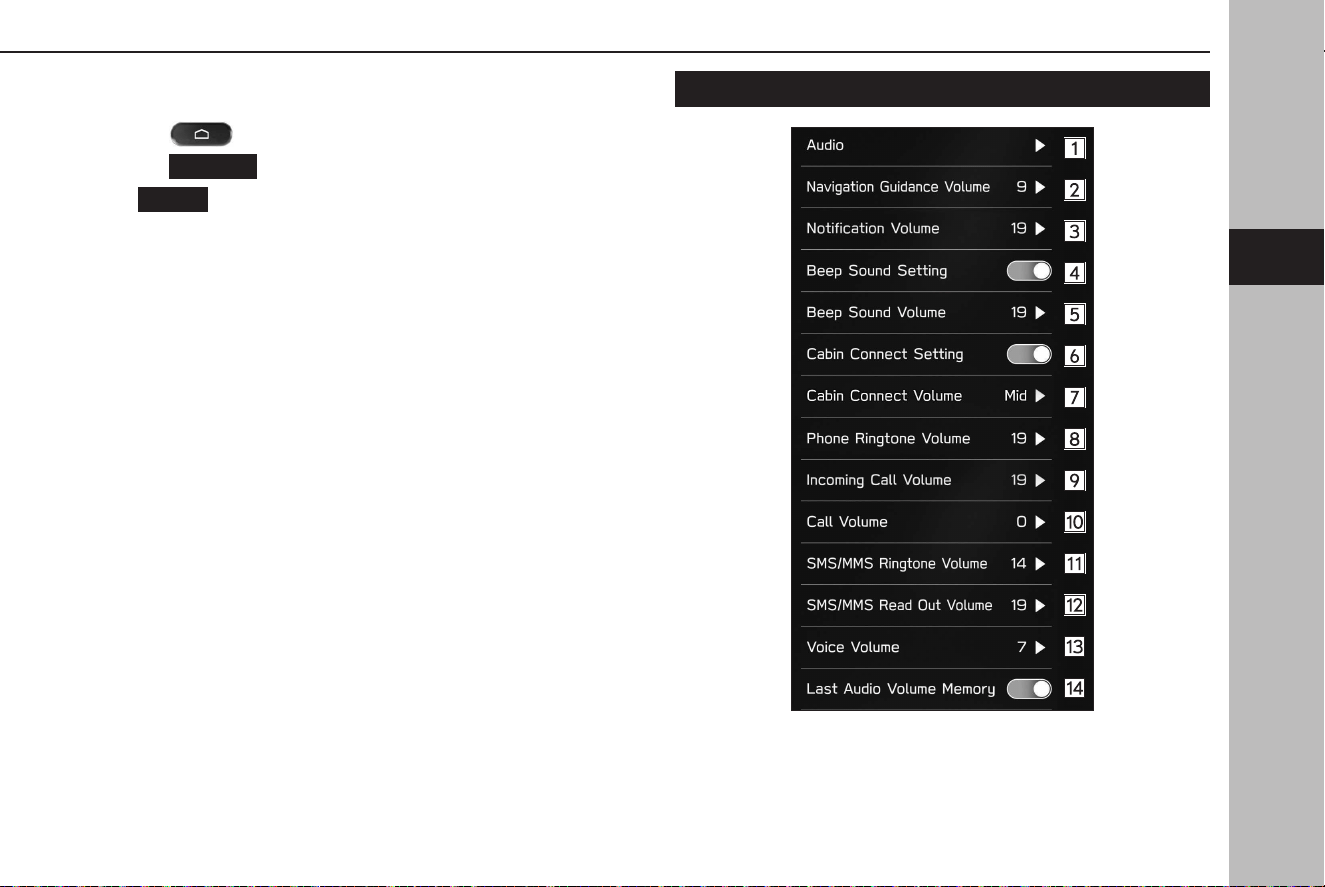
SOUND SETTINGS
1.
Select .
2.
Select
Settings
(Settings).
3.
→
Sound
(Sound)
4.
Select the items to be set.
SOUNDSETTINGS SCREEN
OTHER SETTINGS
73
Settings
3
TK5_US.indb 73 2024/08/02 12:00:40
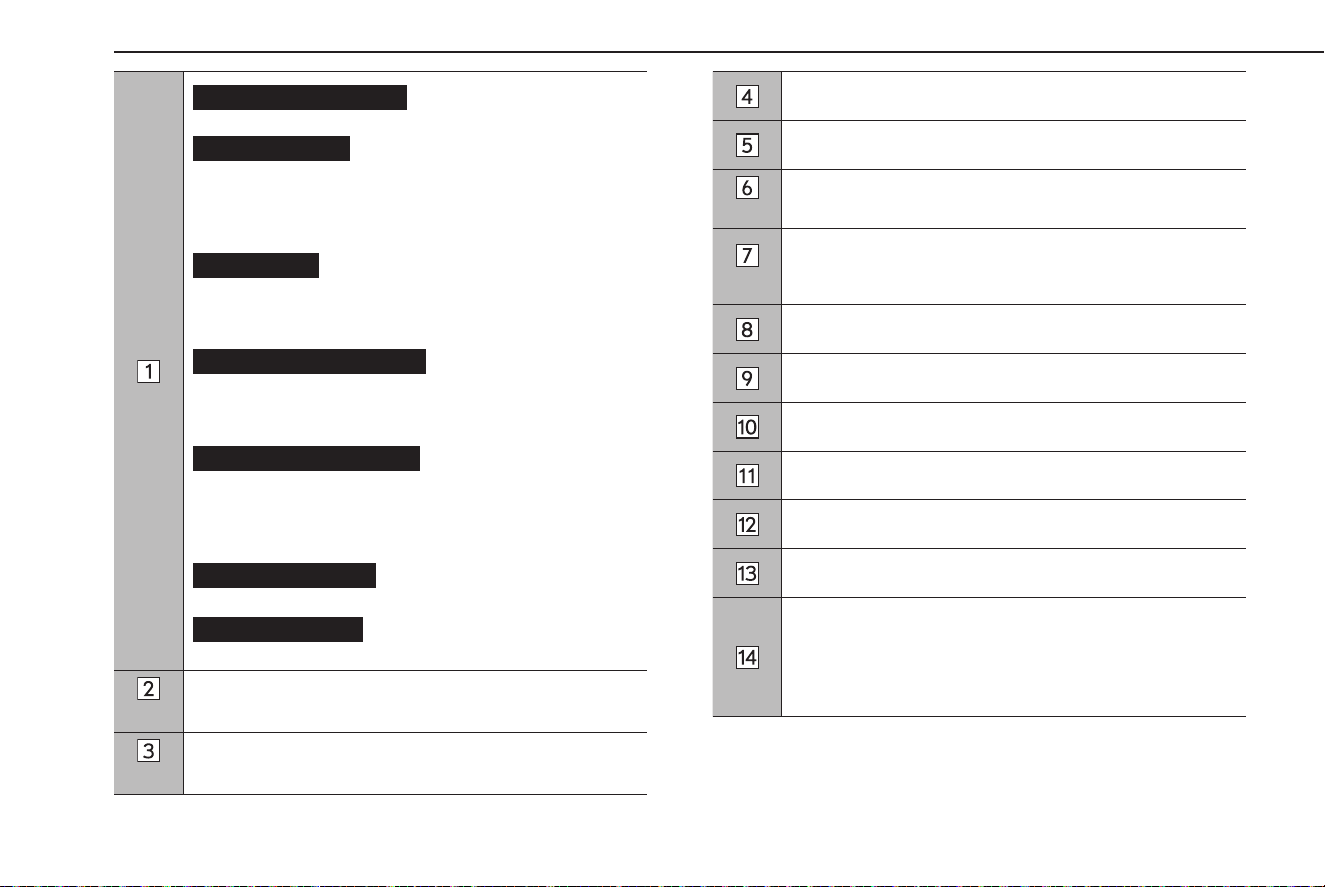
Sound Customization
(Sound Customization): Select
to display the sound customization screen. (→P.116)
Sound Restorer
(Sound Restorer)*
1
: Select to turn the
sound restorer function on/o.
This function plays compressed audio with quality near
original sound by adding the complement signal of high
tone.
Virtual Bass
(Virtual Bass)*
1
: Select to set the virtual
bass function.
This function corrects the bass sound by adding harmonic
sound.
Dynamic Beat Enhancer
(Dynamic Beat Enhancer)*
1
:
Select to set the dynamic beat enhancer function.
This function expands the dynamic range lost in data
compression and creates a sharp beat sound.
Speed Volume Control
(Speed Volume Control)*
1
:
Select to set the speed volume.
The system adjusts to the optimum volume and tone quality
according to vehicle speed to compensate for increased
vehicle noise.
AUX Volume Gain
(AUX Volume Gain): Select to set
AUX volume gain.
Surround Sound
(Surround Sound)*
1
: Select to turn
the surround sound on/o.
*
2
Select to set the navigation prompt volume.
*
3
Select to adjust the interrupt guidance volume.
Select to turn the tone sound on/o.
Select to adjust the tone sound volume.
*
2
Select to turn the cabin connect system on/o.
*
2
Select to adjust the volume of speech of the driver/front
passenger output from the speakers when the cabin
connect system is used.
Select to adjust the ringtone volume.
Select to adjust the volume of a received call.
Select to adjust the call volume.
Select to adjust the SMS/MMS ringtone volume.
Select to adjust the SMS/MMS read out volume.
Select to set the voice recognition prompts volume.
Select to enable/disable memorizing the volume level of the
audio source.
When enabled and when the ignition switch is turned from
“LOCK”/“OFF” to “ACC” or “ON”, the volume level of the audio
source last used will be recalled.
OTHER SETTINGS
74
TK5_US.indb 74 2024/08/02 12:00:42
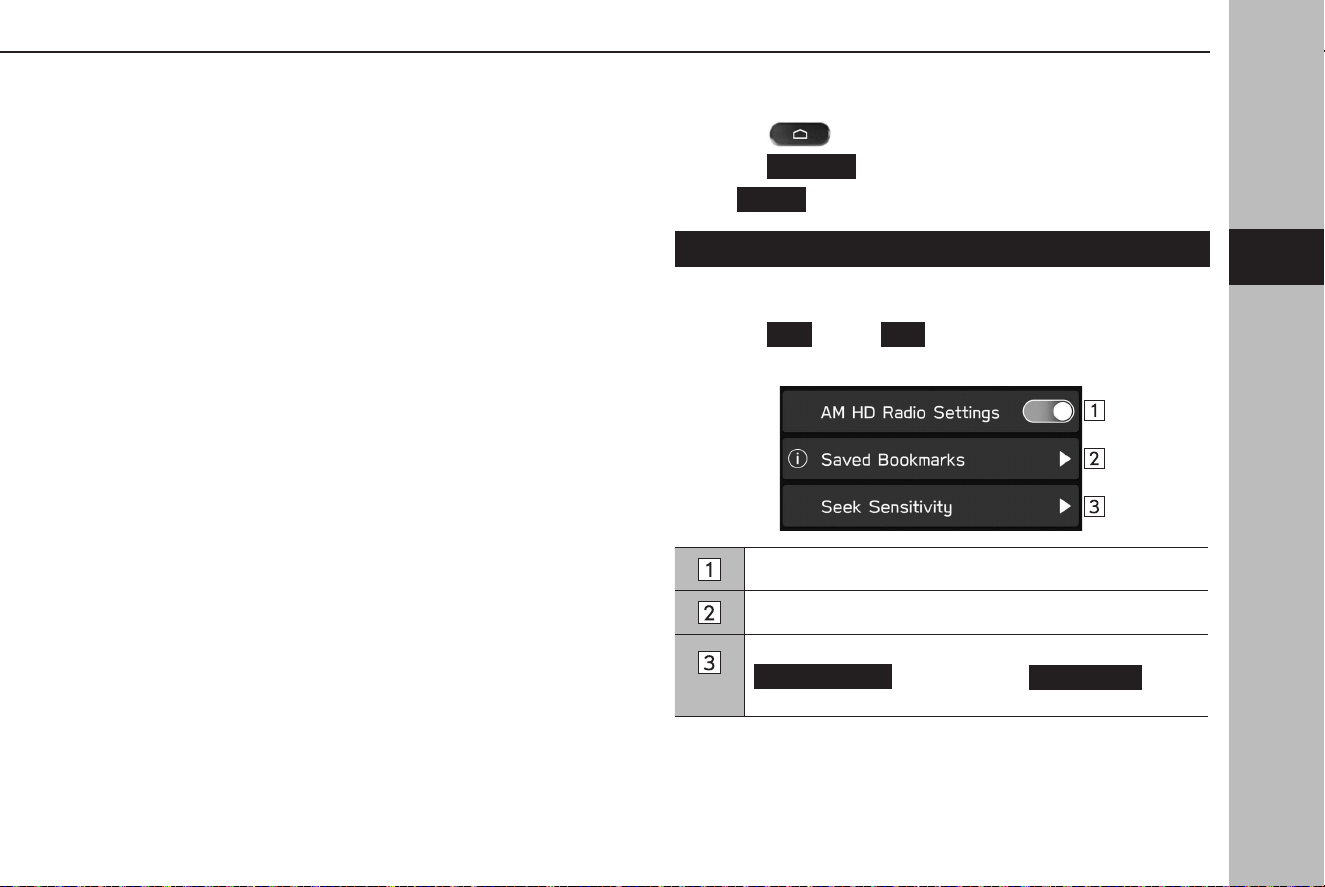
*
1
: This setting can be made depending on the connected amplier type.
*
2
: 11.6-inch display with Navi system only
*
3
: 11.6-inch display system only
RADIO SETTINGS
1.
Select .
2.
Select
Settings
(Settings).
3.
→
Radio
(Radio)
SETTING AM/FM RADIO
1.
Display the radio settings screen. (→P.75)
2.
Select
AM
(AM) or
FM
(FM).
3.
Select the desired item to be set.
Select to turn the HD Radio mode on/o.
Select to display the saved bookmark list. (→P.76)
*
Select to set seek sensitivity of AM band as
DX (Distance)
(DX (Distance)) or
LO (Local)
(LO
(Local)).
*: AM radio only
OTHER SETTINGS
75
Settings
3
TK5_US.indb 75 2024/08/02 12:00:44

DISPLAYING THE BOOKMARK DETAILS
Cover art/track title/artist/album name are displayed for
bookmarked tracks.
A QR code containing the track title/artist/album name can be
displayed.
1.
Display the AM settings screen or FM settings screen.
(→P.75)
2.
Select
Saved Bookmarks
(Saved Bookmarks).
3.
Select the desired bookmark.
DELETING THE BOOKMARK
1.
Display the AM settings screen or FM settings screen.
(→P.75)
2.
Select
Saved Bookmarks
(Saved Bookmarks).
3.
→
Edit
(Edit)
4.
Select for the bookmark you wish to delete. →
OK
(OK)
● Deleting the bookmar
k can also be deleted select to
from the bookmark details screen.
OTHER SETTINGS
76
TK5_US.indb 76 2024/08/02 12:00:44
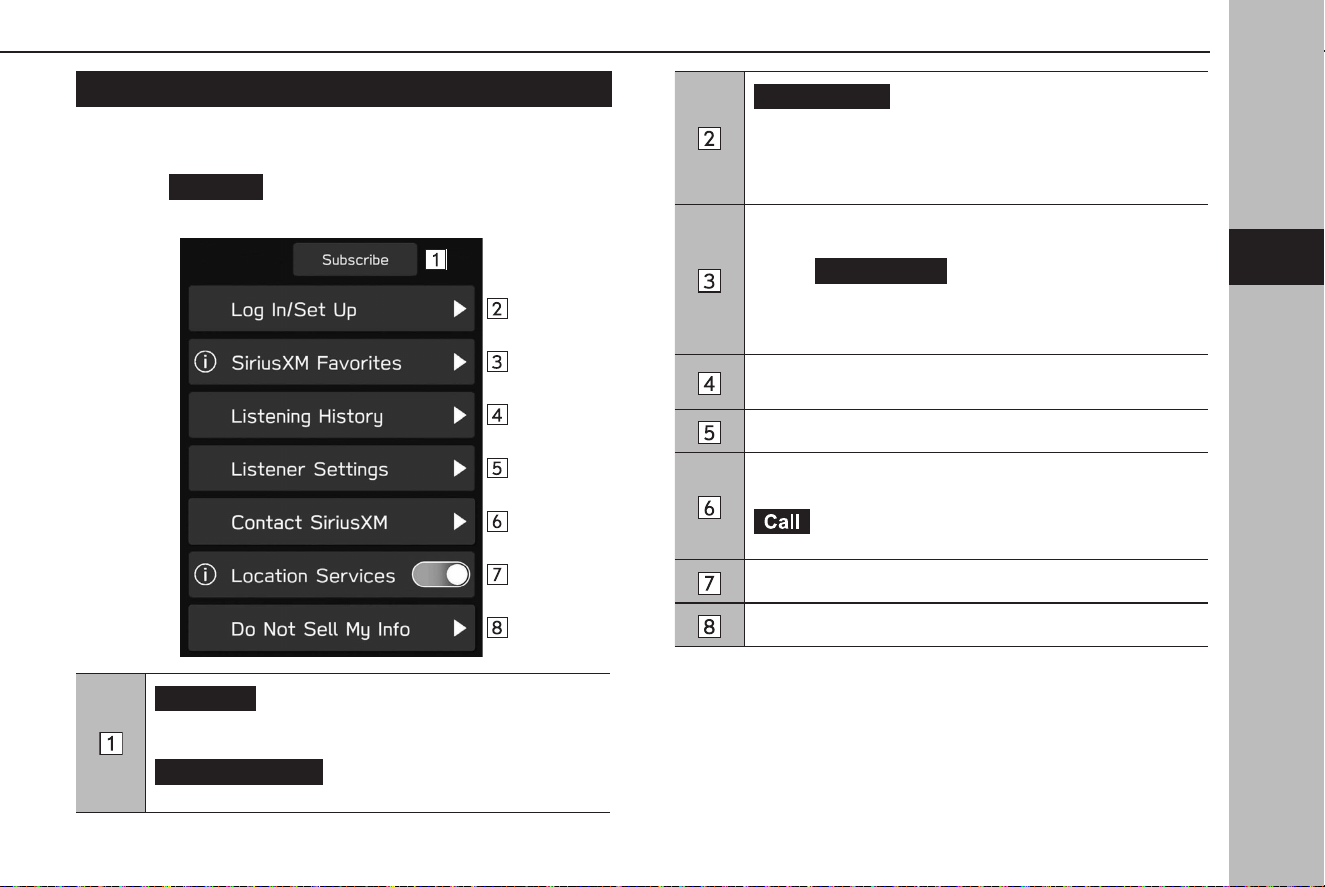
SETTING THE SiriusXM® Radio
1.
Display the radio settings screen. (→P.75)
2.
Select
SiriusXM
(SiriusXM).
3.
Select the desired item to be set.
Subscribe
(Subscribe):
Select to enter into a contract for the package plan of the
SiriusXM® with 360L.
Manage Account
(Manage Account):
Select to manage/switch SiriusXM® with 360L accounts.
Log In/Set Up
(Log In/Set Up):
Select to select setting for listening of SiriusXM® with 360L/
log in.
When logged in, select the touch button with the listener
name on it to edit listener name, avatar, etc.
Select to register desired channels to favorite or display/edit
registered favorites.
• Select
Add Current
(Add Current) to register the
current channel as a favorite.
• Select a registered channel to display the screen for
listening.
Select to select a channel from listening history of SiriusXM®
Radio.
Select to set the Listener Settings. (→P.78)
Select to display the phone number of SiriusXM® customer
care and your radio ID.
(Call): Select to make a call when a Bluetooth-
compatible phone is connected.
Select to enable/disable the Location Service.
Select to display descriptions regarding Do Not Sell My Info.
OTHER SETTINGS
77
Settings
3
TK5_US.indb 77 2024/08/02 12:00:45
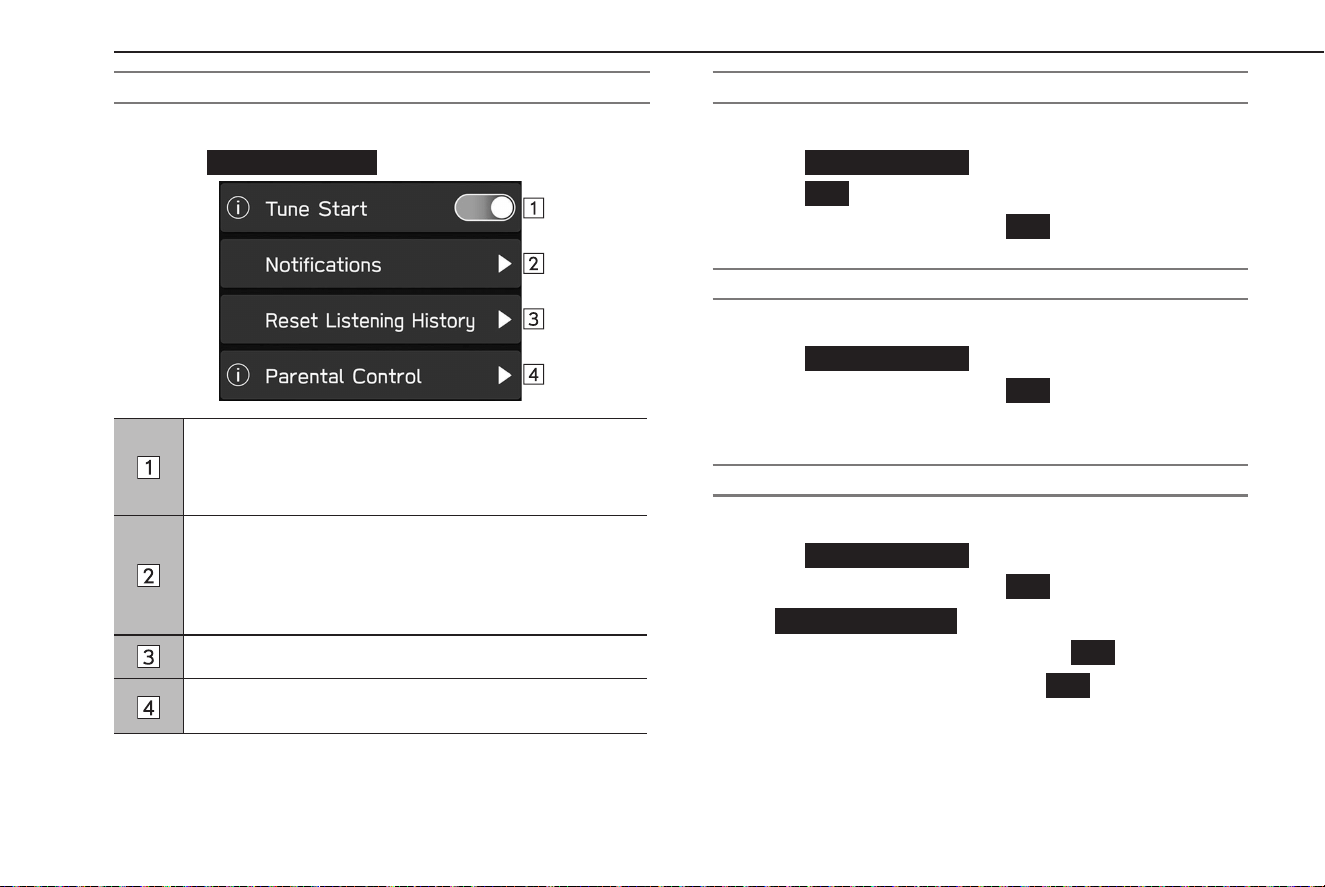
SETTING THE LISTENER SETTINGS
1.
Display the SiriusXM settings screen. (→P.77)
2.
Select
Listener Settings
(Listener Settings).
When this function is on, channels registered as Smart
Favorites will be cached, and when the channel is changed,
the song on that channel can be listened to from the
beginning.
Select to enable/disable notication of registered sports
teams or music artists/tunes, such as their game match
starting time or tune to be played.
Registered teams, artists, and tunes for notication can be
edited.
Select to delete all the listening history.
Select to enable/disable parental control and to set
passcode of the parental control screen. (→P.78)
SETTING THE PARENTAL CONTROL PASSCODE
1.
Display the Listener Settings screen. (→P.78)
2.
Select
Parental Control
(Parental Control).
3.
Select
OK
(OK) when the conrmation message appears.
4.
Enter the 4 digits passcode. →
OK
(OK)
ENABLING/DISABLING PARENTAL CONTROL
1.
Display the Listener Settings screen. (→P.78)
2.
Select
Parental Control
(Parental Control).
3.
Enter the 4 digits passcode. →
OK
(OK)
4.
Select to turn the “Block Explicit” on/o.
CHANGING THE PARENTAL CONTROL PASSCODE
1.
Display the Listener Settings screen. (→P.78)
2.
Select
Parental Control
(Parental Control).
3.
Enter the 4 digits passcode. →
OK
(OK)
4.
→
Change Passcode
(Change Passcode)
5.
Enter the 4 digits current passcode. →
OK
(OK)
6.
Enter the 4 digits new passcode. →
OK
(OK)
OTHER SETTINGS
78
TK5_US.indb 78 2024/08/02 12:00:46

79
Phone
Phone Operation
80
Phone Screen
80
Some Basics
81
Registering/Connecting A Bluetooth Phone
82
Using The Phone Switch/Microphone
82
Voice Recognition System
83
About The Contacts In The Contact List
83
Calling On The Bluetooth Phone
84
By Recent Calls List
84
By Favorites List
85
By Keypad
86
By Contacts List
86
Receiving On The Bluetooth Phone
87
Incoming Calls
87
Talking On The Bluetooth Phone
88
Call Waiting
89
Bluetooth Phone Message Function
90
Setting The Message
91
Receiving A Message
92
Checking Messages
93
Replying To A Message (Quick Reply)
93
Sending A New Short Message
94
Editing The Quick Reply Message
94
Deleting The Quick Reply Message
94
Adding The Quick Reply Message
95
Calling The Message Sender
95
TK5_US.indb 79 2024/08/02 12:00:46
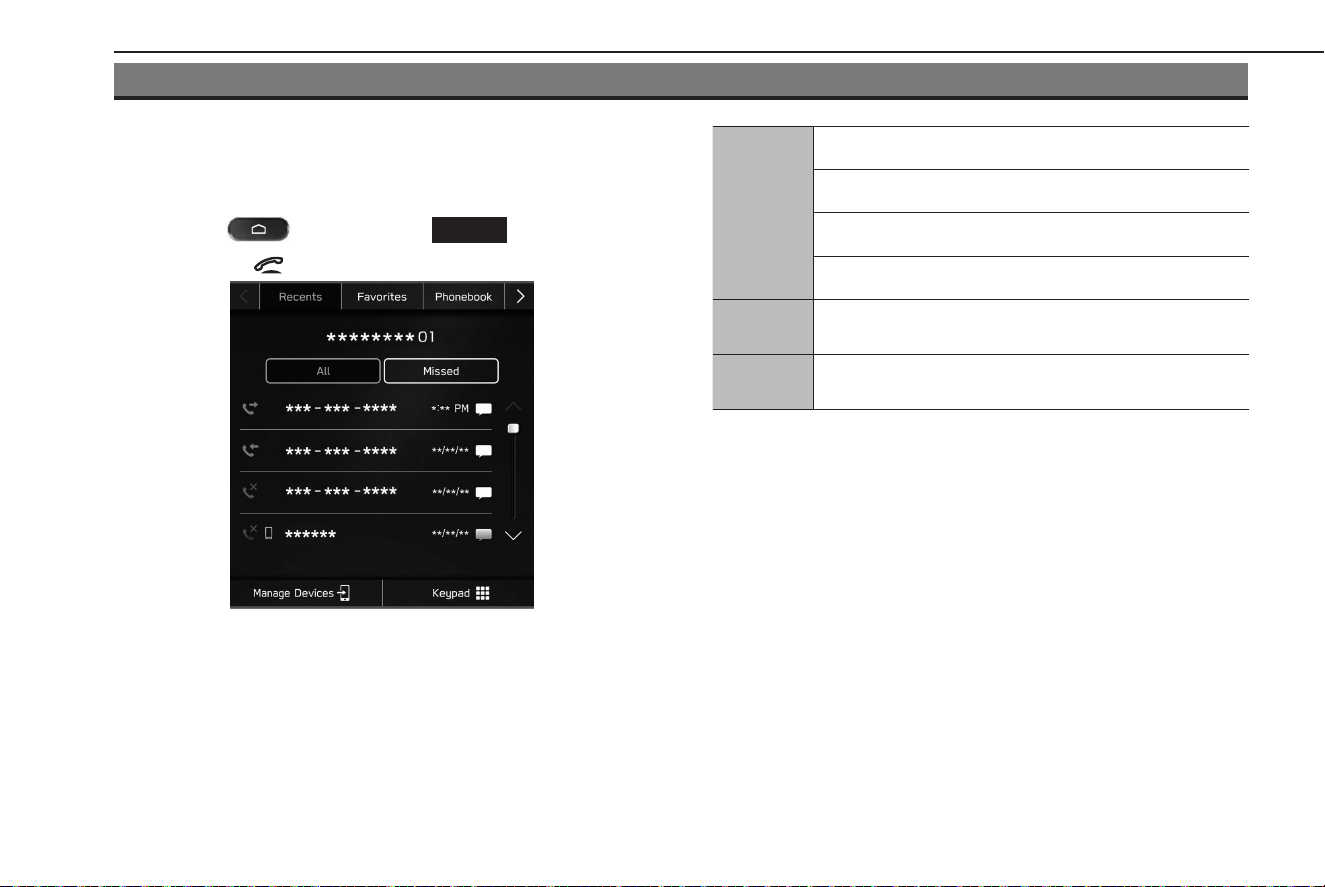
PHONE OPERATION (HANDS-FREE SYSTEM FOR CELLULAR PHONES)
PHONE SCREEN
The phone screen can be accessed with the following methods:
● Select
, and then select
Phone
(Phone).
● Press the
switch on the steering wheel.
Phone
operation
Registering a Bluetooth phone/device: →P.54
Calling on the Bluetooth phone: →P.84
Receiving on the Bluetooth phone: →P.87
Talking on the Bluetooth phone: →P.88
Message
function
Using the Bluetooth phone message function: →P.90
Setting up
a phone
Setting the Bluetooth phone/device: →P.57
NOTE
l When Apple CarPlay/Android Auto is used, the phone screen of the
Apple CarPlay/Android Auto will be displayed, not the phone screen
of the system.
PHONE OPERATION (HANDS-FREE SYSTEM FOR CELLULAR PHONES)
80
TK5_US.indb 80 2024/08/02 12:00:47
SOME BASICS
The hands-free system enables calls to be made and received
without having to take your hands o the steering wheel.
This system supports Bluetooth. Bluetooth is a wireless data
system that enables cellular phones to be used without being
connected by a cable or placed in a cradle.
The operating procedure of the phone is explained here.
WARNING
l While driving, do not use a cellular phone or connect the
Bluetooth phone.
l This sy
stem is tted with Bluetooth antennas. People with
implantable cardiac pacemakers, cardiac resynchronization
therapy-pacemakers or implantable cardioverter debrillators
should maintain a reasonable distance between themselves and
the Bluetooth antennas. The radio waves may aect the operation
of such devices.
l Before using Bluetooth phones, users of any electrical medical
device other than implantable cardiac pacemakers, cardiac
resynchronization therapy-pacemakers or implantable
cardioverter debrillators should consult the manufacturer of the
device for information about its operation under the inuence of
radio waves. Radio waves could have unexpected eects on the
operation of such medical devices.
CAUTION
l Do not leave your cellular phone in the vehicle. The temperature
inside may rise to a level that could damage the phone.
NOTE
l If your cellular phone does not support Bluetooth, this system cannot
function. Certain functions may not be available depending on the
type of cellular phone.
l In the f
ollowing conditions, the system may not function:
• The cellular phone is turned o.
• The current position is outside the communication area.
• The cellular phone is not connected.
• The cellular phone has a low battery.
l When using the
hands-free function and other Bluetooth functions
at the same time, the following problems may occur:
• The Bluetooth connection may be cut.
• Noise may be heard when playing back voice with the Bluetooth
function.
l The other par
ty’s voice will be heard from the front speakers. The
audio system will be muted during phone calls or when hands-free
voice commands are used.
l Talk alt
ernately with the other party on the phone. If both parties
speak at the same time, the other party may not hear what has been
said. (This is not a malfunction.)
l Keep call volume do
wn. Otherwise, the other party’s voice may
be audible outside the vehicle and voice echo may increase. When
talking on the phone, speak clearly towards the microphone.
PHONE OPERATION (HANDS-FREE SYSTEM FOR CELLULAR PHONES)
81
Phone
4
TK5_US.indb 81 2024/08/02 12:00:47
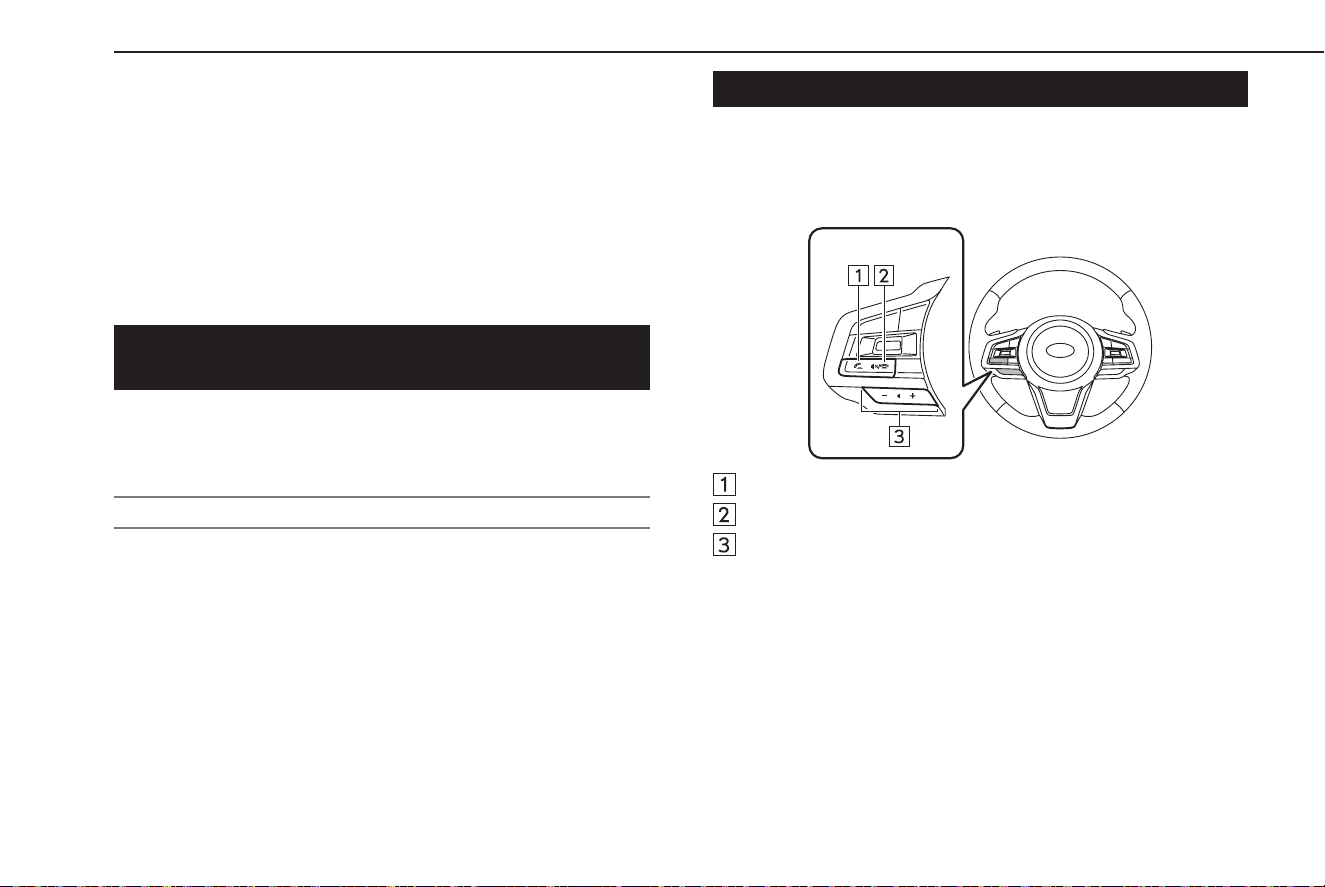
NOTE
l The other party may not hear you clearly when:
• Driving on an unpaved road. (Making excessive trac noise.)
• Driving at high speeds.
• Driving with a window open.
• When air from the ventilator blows directly toward the
microphone.
• The sound of the air conditioning fan is loud.
• There is a negative eect on sound quality due to the phone and/
or network being used.
REGISTERING/CONNECTING A Bluetooth
PHONE
To use the hands-free system for cellular phones, it is necessary
to register a cellular phone with the system. (→P.54)
Bluetooth PHONE CONDITION DISPLAY
The condition of the Bluetooth phone appears on the upper
right side of the screen. (→P.51)
USING THE PHONE SWITCH/MICROPHONE
XSteering switch
By pressing the phone switch, a call can be received or ended
without taking your hands o the steering wheel.
O hook switch
On hook switch
Volume control switch
● Pr
ess the “+” side to increase the volume.
● Press the “-” side to decrease the volume.
PHONE OPERATION (HANDS-FREE SYSTEM FOR CELLULAR PHONES)
82
TK5_US.indb 82 2024/08/02 12:00:48
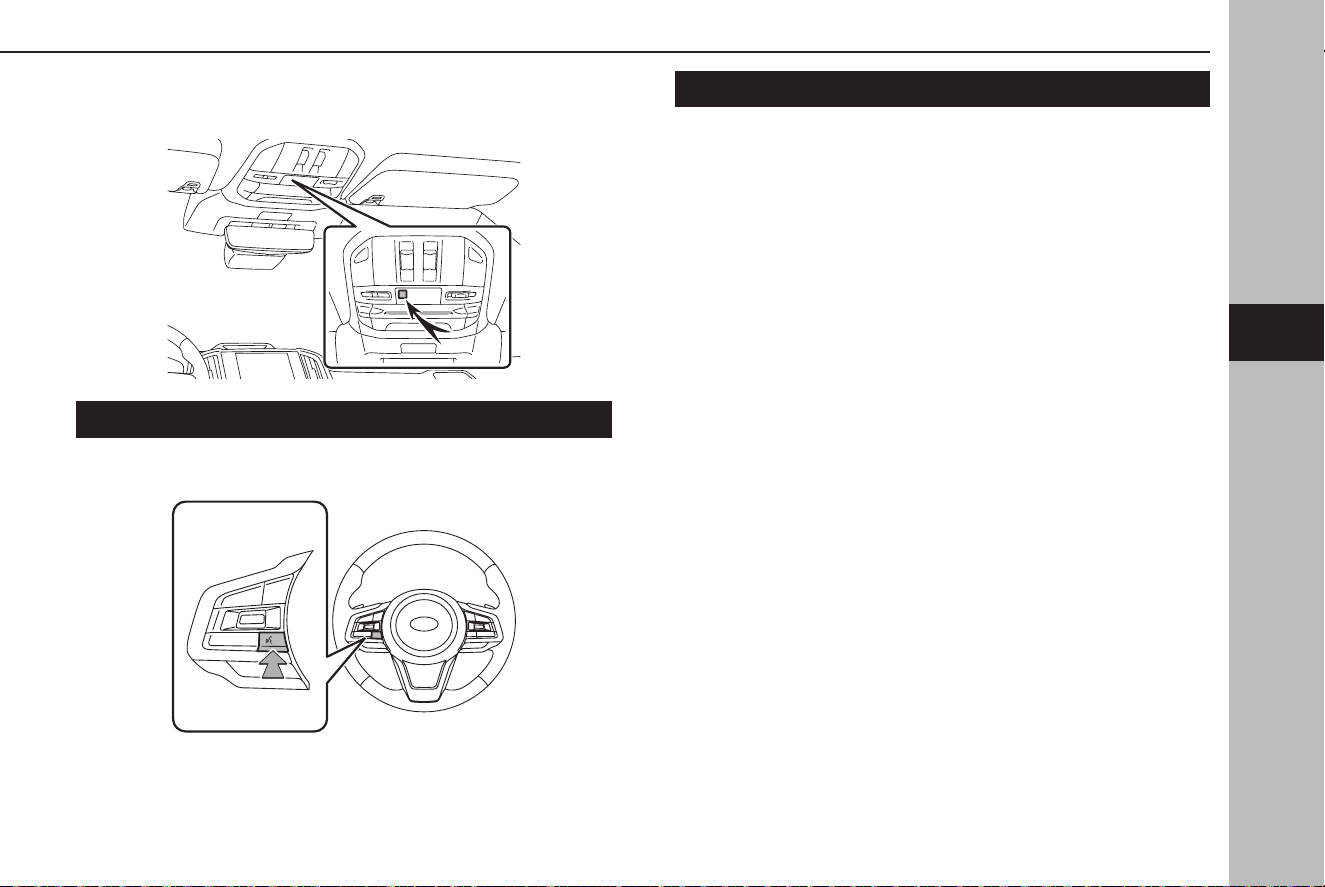
XMicrophone
The microphone is used when talking on the phone.
VOICERECOGNITION SYSTEM
Press this switch to operate the voicerecognition system.
● The voice recognition system and its list of commands
can be operated. (→P.188)
ABOUT THE CONTACTS IN THE CONTACT LIST
● The following data is stored for every registered phone.
When another phone is connected, the following
registered data cannot be read:
• Contact data
• Call history data
• Favorites data
• All phone settings
NOTE
l When a phone’s registration is deleted, the above-mentioned data is
also deleted.
PHONE OPERATION (HANDS-FREE SYSTEM FOR CELLULAR PHONES)
83
Phone
4
TK5_US.indb 83 2024/08/02 12:00:48
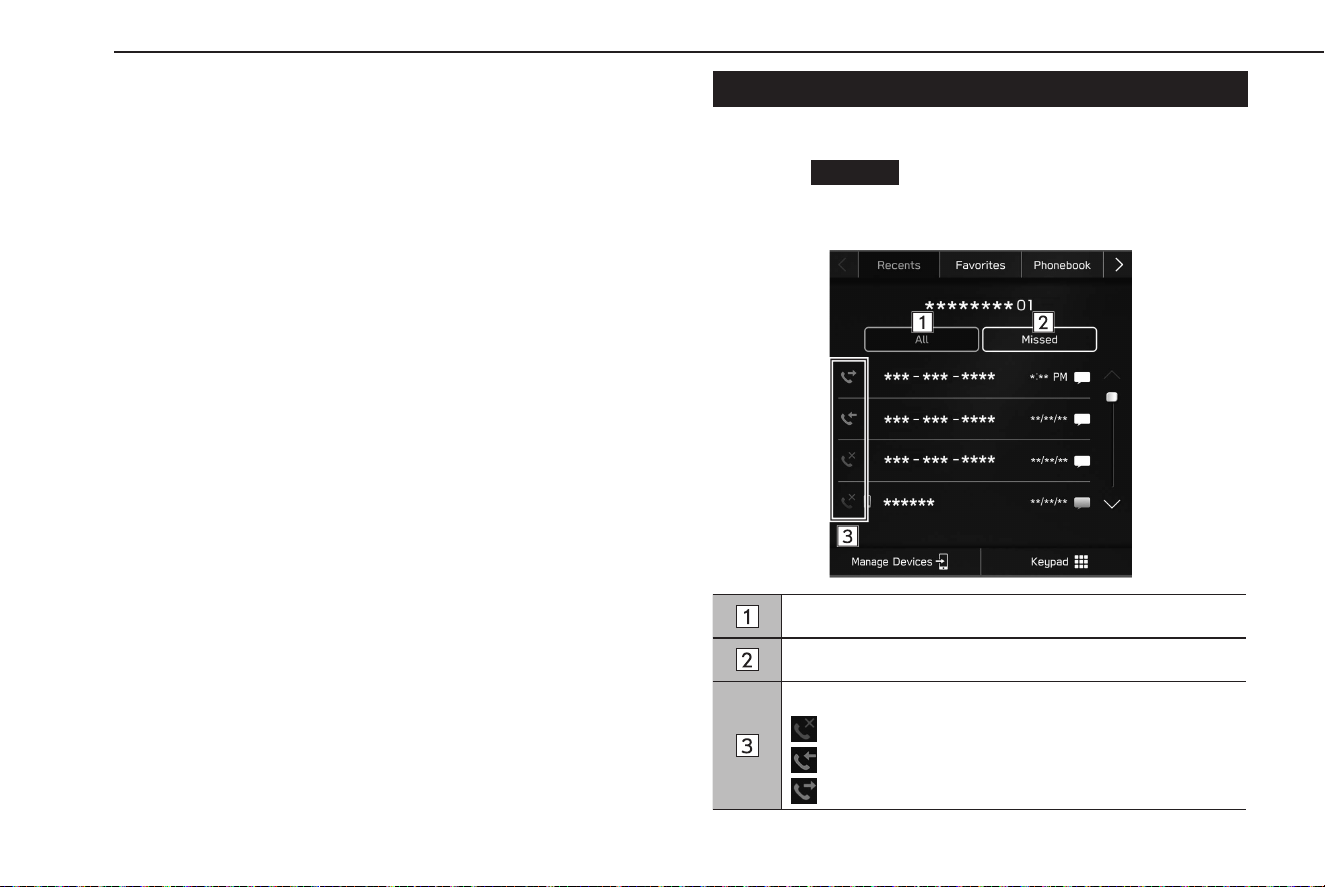
CALLING ON THE Bluetooth PHONE
After a Bluetooth phone has been registered, a call can be made
using the hands-free system. There are several methods by
which a call can be made, as described below.
1.
Display the phone screen. (→P.80)
2.
Select the desired button to call from.
● By rec
ent calls list: →P.84
● Byfav
orites list: →P.85
● By keypad*
1
: →P.86
● By con
tacts list: →P.86
● By SMS/MMS: →
P.95
● By POI call*
2
: →P.158
● By voicerecognition system: →P.188
*
1
: The operation cannot be performed while driving.
*
2
: 11.6-inch display with Navi system only
NOTE
l If Siri is activated on an iPhone which is connected to the system
via Bluetooth, an active call screen of the connected iPhone will be
displayed. The iPhone can be operated using Siri.
BY RECENT CALLS LIST
1.
Display the phone screen. (→P.80)
2.
Select
Recents
(Recents), and then select the desired
contact.
● The outgoing call scr
een is displayed.
Select to display all latest call history items.
Select to display missed calls.
Displays the call type icons.
: Missed call
: Incoming call
: Outgoing call
PHONE OPERATION (HANDS-FREE SYSTEM FOR CELLULAR PHONES)
84
TK5_US.indb 84 2024/08/02 12:00:48
NOTE
l Pressing on the steering wheel will make a call to the phone
number displayed at the top of the list.
l When a phone number reg
istered in the contact list is received, the
name is displayed.
l International phone calls may not be made depending on the type of
cellular phone you have.
SORTING THE PHONEBOOK LIST
The order of the phonebook list can be sorted by rst name or
last name.
1.
Display the phone settings screen. (→P.57)
2.
Select
Phonebook/Recent Calls
(Phonebook/Recent
Calls).
3.
→
Sort Order
(Sort Order)
4.
Select the desired sorting criteria.
BY FAVORITES LIST
Calls can be made using registered contacts which can be
selected from a contact list.
For details on registering contacts:→P.86
Up to 15 contact lists can be registered in the favorites list.
1.
Display the phone screen. (→P.80)
2.
Select
Favorites
(Favorites), and then select the desired
contact.
3.
Select next to the desired number.
● The outgoing call screen is displayed.
NOTE
l This system’s favorites list and that of your Bluetooth phone are not
synchronized. This system does not currently support transfer of
favorites list data from the Bluetooth phone. To add the Bluetooth
phone’s favorites list to the system’s favorites list, you need to register
it through the system phonebook contacts list. (→P.86)
PHONE OPERATION (HANDS-FREE SYSTEM FOR CELLULAR PHONES)
85
Phone
4
TK5_US.indb 85 2024/08/02 12:00:49
DELETING ALL FAVORITES LIST
1.
Display the phone settings screen. (→P.57)
2.
Select
Phonebook/Recent Calls
(Phonebook/Recent
Calls).
3.
→
Remove All Favorites
(Remove All Favorites) →
OK
(OK)
BY KEYPAD
1.
Display the phone screen. (→P.80)
2.
Select (Keypad).
3.
Enter the phone number. → (Call)
● The outgoing call screen is displayed.
NOTE
l Depending on the type of Bluetooth phone being connected, it may
be necessary to perform additional steps on the phone.
BY CONTACTS LIST
Calls can be made by using contact data which is downloaded
from the connected Bluetooth phone.
1.
Display thephone screen. (→P.80)
2.
Select (Phonebook), and then select the
desired contact.
● When
is selected, changes to (yellow).
• The number is registered in the favorites list. (→P.85)
● Each time the symbol is selected
, the symbol changes
between
and (yellow).
3.
Select next to the desired number.
● Numbers may include Home,
Work, Mobile and Other
as categories depending on the phonebook data of the
connected cellular phone.
● The outgoing call screen is displayed.
NOTE
l Up to 2000 contacts can be downloaded and displayed on the
phonebook screen. (Up to 5 phone numbers per contact will be
downloaded.)
l When “
Automatically Download Phonebook/Recent Calls” is set to on,
contacts is downloaded automatically. (→P.63)
PHONE OPERATION (HANDS-FREE SYSTEM FOR CELLULAR PHONES)
86
TK5_US.indb 86 2024/08/02 12:00:50
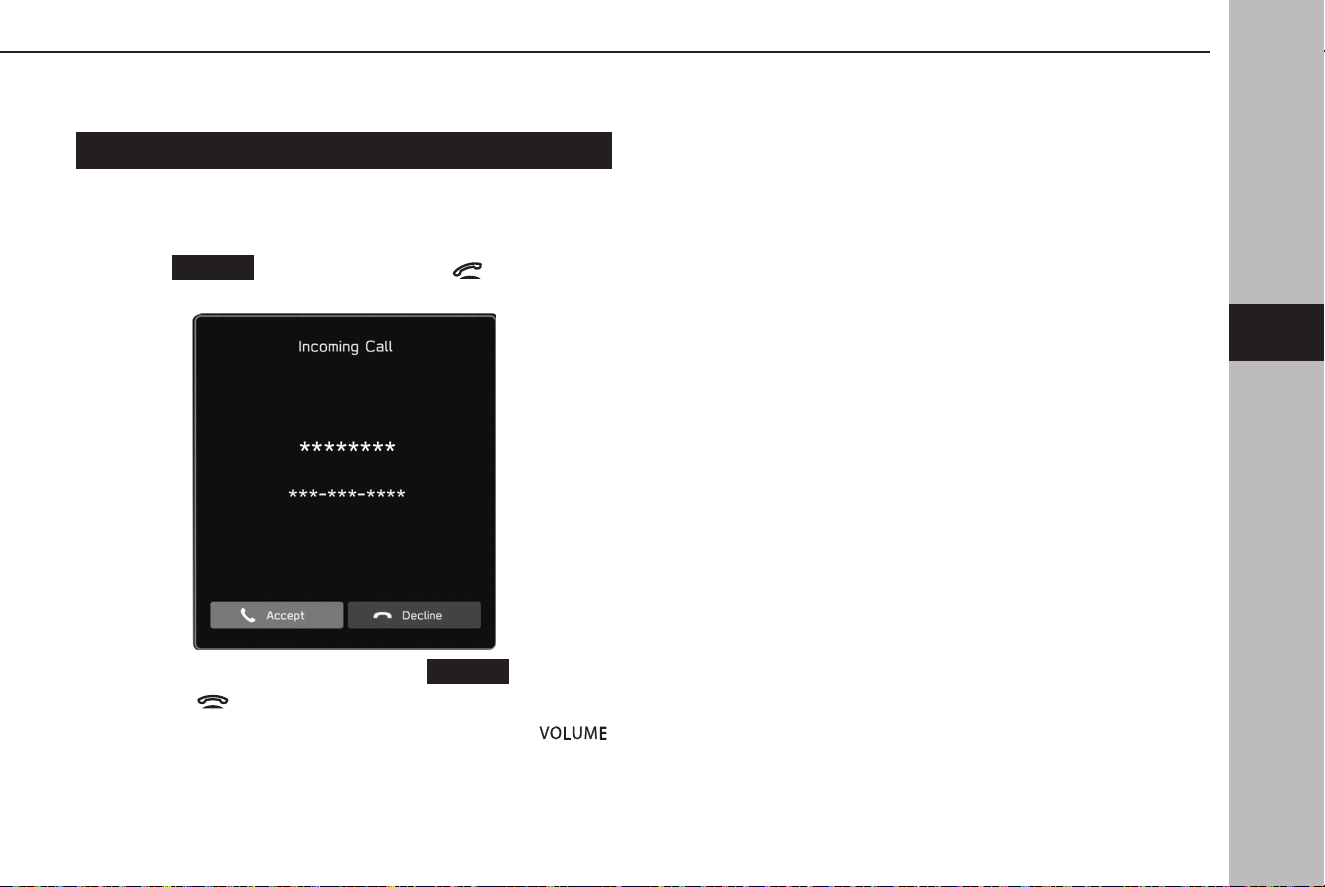
RECEIVING ON THE Bluetooth PHONE
INCOMING CALLS
When a call is received, the incoming call screen pops up with
sound.
1.
Select
Accept
(Accept) or press the switch on the
steering wheel to talk on the phone.
To refuse to receive the call: Select
Decline
(Decline) or
press the
switch on the steering wheel.
To adjust the volume of a received call: Turn the“
”
knob, or use the “+/-” switch on the steering wheel.
NOTE
l During international phone calls, the other party’s name or number
may not be displayed correctly depending on the type of cellular
phone you have.
l The ringtone volume can also be set from the sound settings screen.
(→P.73)
PHONE OPERATION (HANDS-FREE SYSTEM FOR CELLULAR PHONES)
87
Phone
4
TK5_US.indb 87 2024/08/02 12:00:51
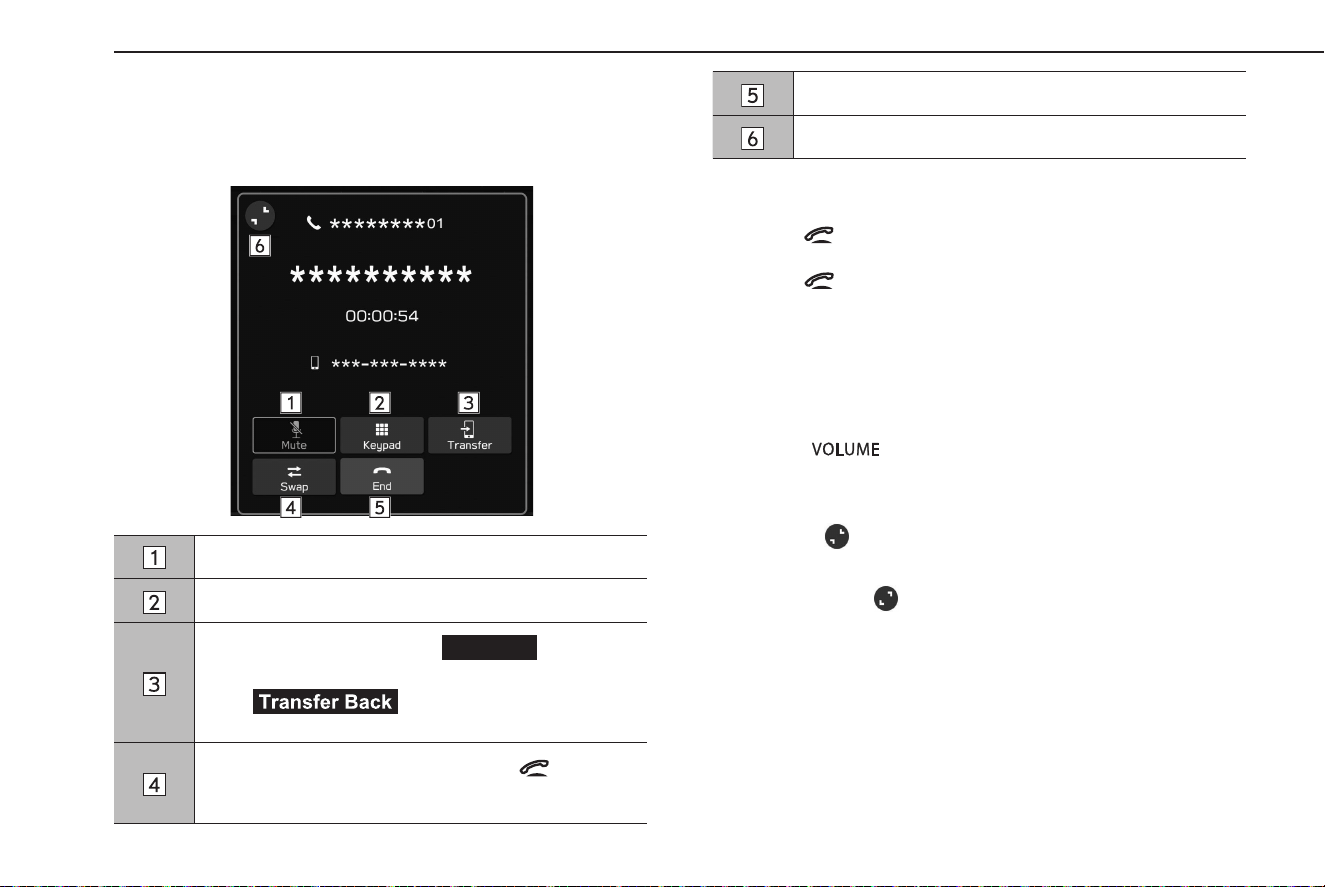
TALKING ON THE Bluetooth PHONE
While talking on the phone, this screen is displayed. The
operations outlined below can be performed on this screen.
Select to mute your voice to the other party.
Select to enter the desired numbers/output tones.
Select to transfer the call. Select
Transfer
(Transfer)
to change from a hands-free call to a cellular phone call.
Select (Transfer Back) to change from
cellular phone call to hands-free call.
When a call is put on hold by pressing the switch on
the steering wheel:
Select to resume the on-hold call.
Select to hang up the phone.
Select to minimize the active call screen.
NOTE
l Pressing switch on the steering wheel during a call will put the
call on hold.
Pressing switch on the steering wheel again will resume the on-
hold call.
l Changing betw
een cellular phone call and hands-free call can be
performed by operating the cellular phone directly.
l Transf
erring methods and operations will be dierent depending on
the type of cellular phone you have.
l For the opera
tion of the cellular phone, see the manual that comes
with it.
l Turn the “
” knob, or use the “+/-” switch on the steering
wheel to adjust the volume of the other party’s voice.
XWhen using another function during a call
By selecting
, the active call screen will be minimized and
other functions can be used.
● By selecting
, the active call screen will be maximized.
PHONE OPERATION (HANDS-FREE SYSTEM FOR CELLULAR PHONES)
88
TK5_US.indb 88 2024/08/02 12:00:52
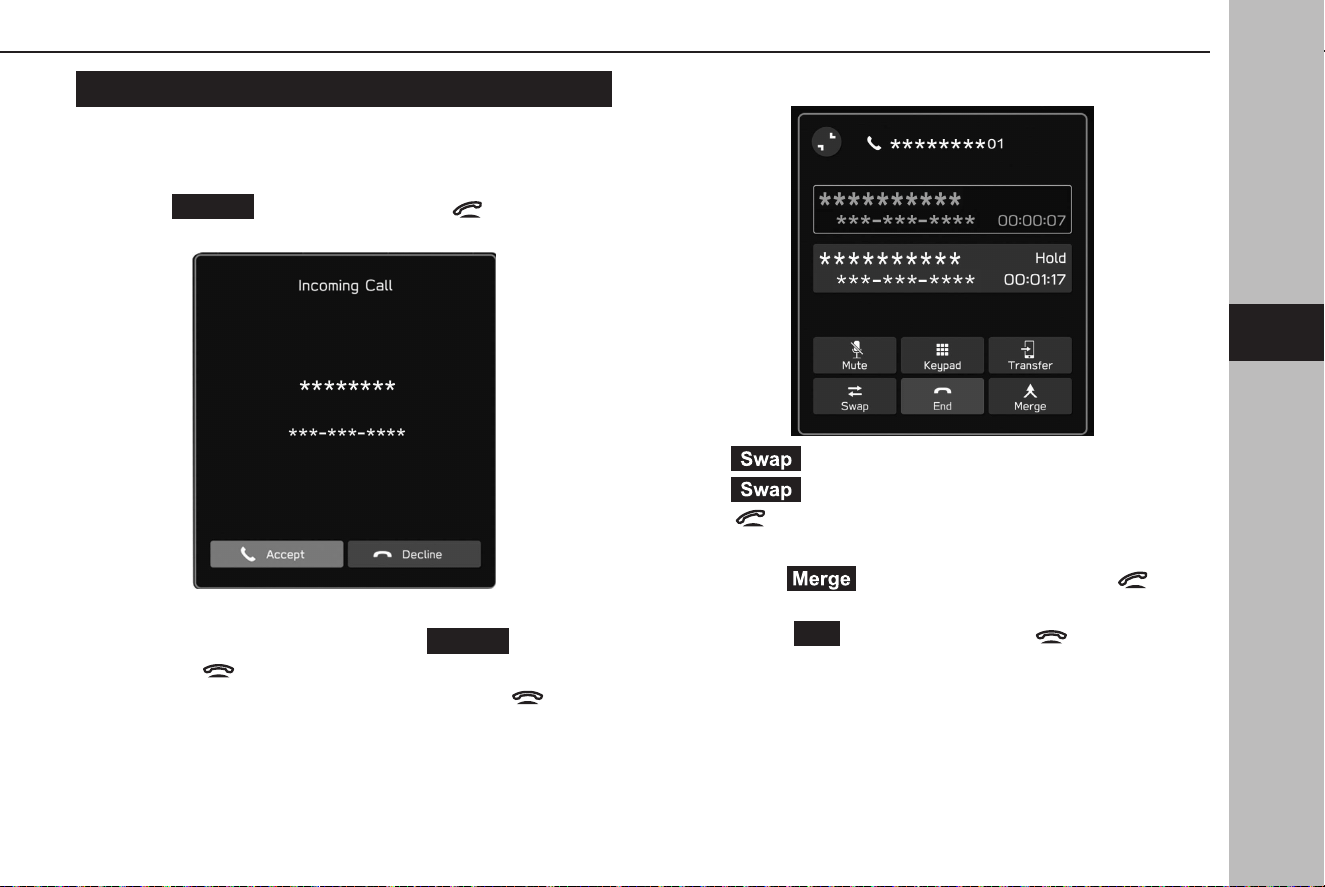
CALL WAITING
When a call is interrupted by a third party while talking, the
incoming call screen pops up with sound.
1.
Select
Accept
(Accept) or press the switch on the
steering wheel to start talking with the other party.
● The rst call is put on hold.
To refuse to receive the call: Select
Decline
(Decline) or
press the
switch on the steering wheel. To end both
the rst call and second call, press and hold
on the
steering wheel.
2.
Check that the call waiting screen is displayed.
● (Swap): Select to change parties. Each time
(Swap) or name area is selected, or press the
switch on the steering wheel, the party who is on
hold will be switched.
● Select
(Merge) or press and hold the switch
on the steering wheel to change to a conference call.*
● Select
End
(End) or press the switch on the
steering wheel to end the call and return to the
conversation with the party on hold when having a two-
way conversation, and to end the call with both parties
when having a three-way conversation.
PHONE OPERATION (HANDS-FREE SYSTEM FOR CELLULAR PHONES)
89
Phone
4
TK5_US.indb 89 2024/08/02 12:00:53

● To end all of the calls connected, press and hold
switch on the steering wheel.
*: Depending on the company of the Bluetooth phone that is connected to the
system, the conference call function may not be available.
Bluetooth PHONE MESSAGE
FUNCTION
Received messages can be forwarded from the connected
Bluetooth phone, enabling checking and replying using the
system.
Depending on the type of Bluetooth phone connected, received
messages may not be transferred to the message inbox.
If the phone does not support the message function, this
function cannot be used.
Depending on the Bluetooth phone type, the screen display
may dier, and it may not be possible to use certain functions.
To use this function, it is necessary to set the phonebook
download function to on. (→P.63)
NOTE
l Depending on the model of your Bluetooth phone, the setting
of the connected phone may need to be changed. (ex: For iOS or
other models, the notication setting may need to be activated.) For
details, check the instructions for the connected Bluetooth phone.
PHONE OPERATION (HANDS-FREE SYSTEM FOR CELLULAR PHONES)
90
TK5_US.indb 90 2024/08/02 12:00:53
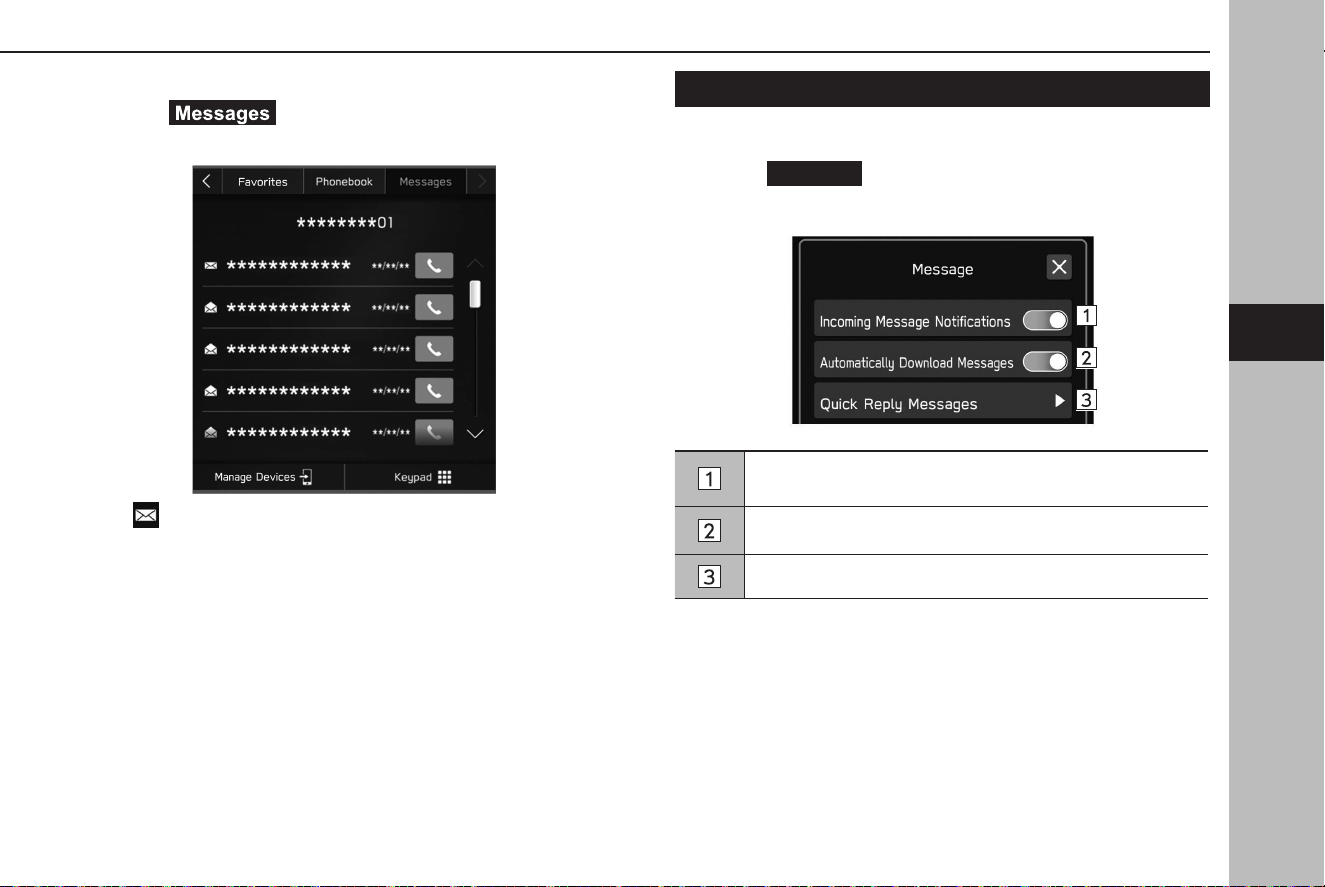
1.
Display the phone screen. (→P.80)
2.
Select (Messages).
3.
Check that the message inbox screen is displayed.
●
: Unread message icon
● Receiving a message:
→P.92
● Checking messages: →P.93
● Replying to a message (quick reply): →P.93
● Sending a new short message: →P.94
● Calling the message sender: →P.95
SETTING THE MESSAGE
1.
Display the phone settings screen. (→P.57)
2.
Select
Message
(Message).
3.
Select the items to be set.
Select to set the incoming message notication pop-up on/
o.
Select to set automatically download messages on/o.
Select to edit quick reply messages. (→P.94)
PHONE OPERATION (HANDS-FREE SYSTEM FOR CELLULAR PHONES)
91
Phone
4
TK5_US.indb 91 2024/08/02 12:00:53
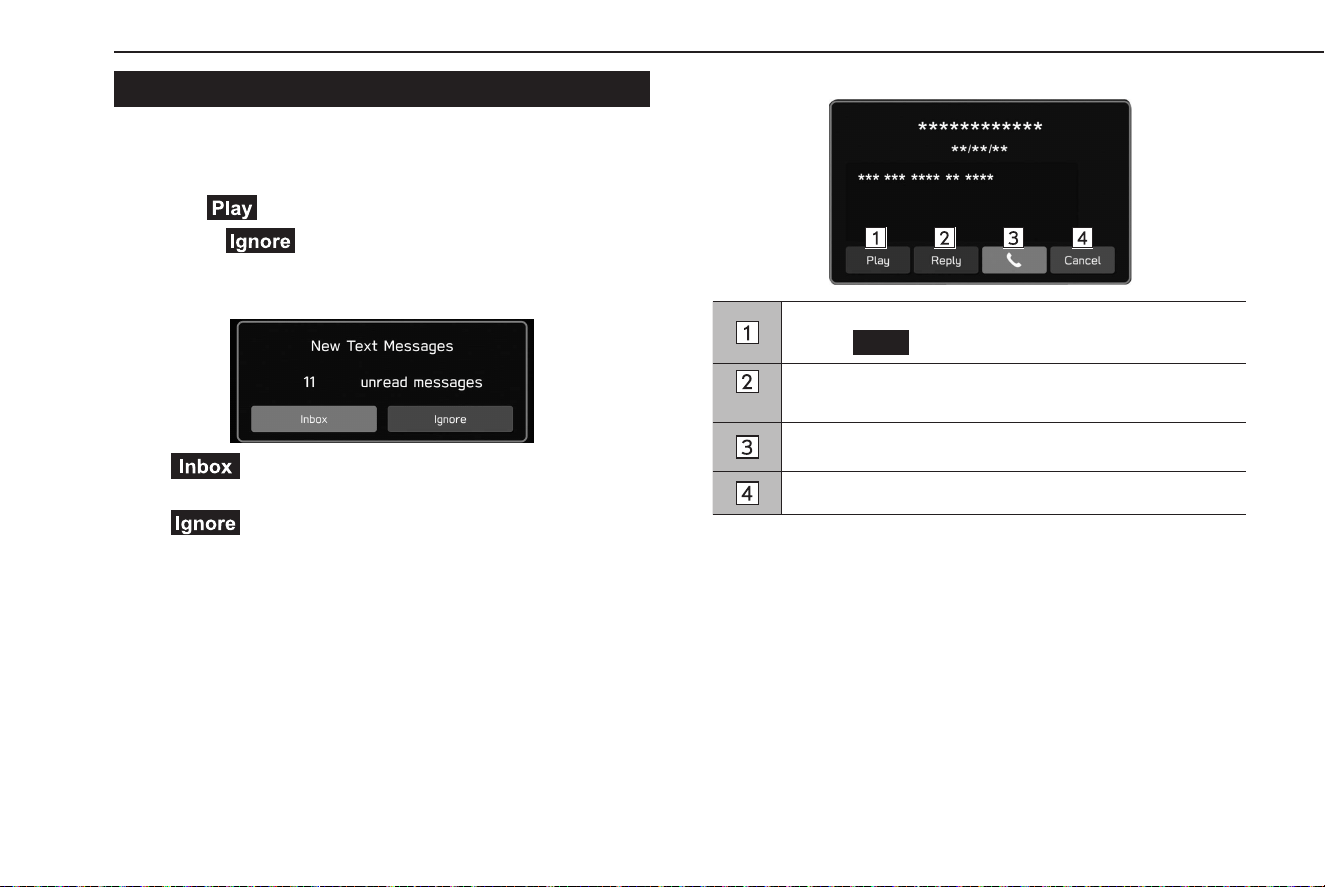
RECEIVING A MESSAGE
When an SMS/MMS is received, the incoming message screen
pops up with sound and is ready to be operated on the screen.
1.
Select (Play).
● Select
(Ignore) to not open the message.
XIf there ar
e any unread messages
The following screen is displayed.
● (Inbox): Select to display the message inbox
screen.
●
(Ignore): Select to not open the message.
2.
The following screen is displayed.
Select to have messages read out.
• Select
Stop
(Stop) to stop the message read out.
*
Select to reply the message. (→P.93)
Select to call the message sender.
Select to close this screen.
*: Depending on the Bluetooth phone that is connected to the audio system, this
function is not available.
NOTE
l Depending on the cellular phone used for receiving messages, or its
registration status with the system, some information may not be
displayed.
PHONE OPERATION (HANDS-FREE SYSTEM FOR CELLULAR PHONES)
92
TK5_US.indb 92 2024/08/02 12:00:54
PHONE OPERATION (HANDS-FREE SYSTEM FOR CELLULAR PHONES)
93
Phone
4
CHECKING MESSAGES
1.
Display the message inbox screen. (→P.90)
2.
Select the desired message from the list.
3.
Check the message. (→P.92)
NOTE
l Depending on the type of Bluetooth phone being connected, it may
be necessary to perform additional steps on the phone.
l Only rec
eived messages on the connected Bluetooth phone can be
displayed.
l The t
ext of the message is not displayed while driving.
l Turn the “
” knob, or use the “+/-” switch on the steering
wheel to adjust the message readout volume.
REPLYING TO A MESSAGE (QUICK REPLY)*
*: Depending on the Bluetooth phone that is connected to the audio system, this
function is not available.
1.
Display the message inbox screen. (→P.90)
2.
Select the desired message from the list.
3.
→ (Reply)
4.
Select the desired message.
5.
→
Send
(Send)
●
Change
(Change): Select to change the message.
●
Cancel
(Cancel): Select to cancel sending the message.
NOTE
l 10 messages have already been stored.
TK5_US.indb 93 2024/08/02 12:00:55
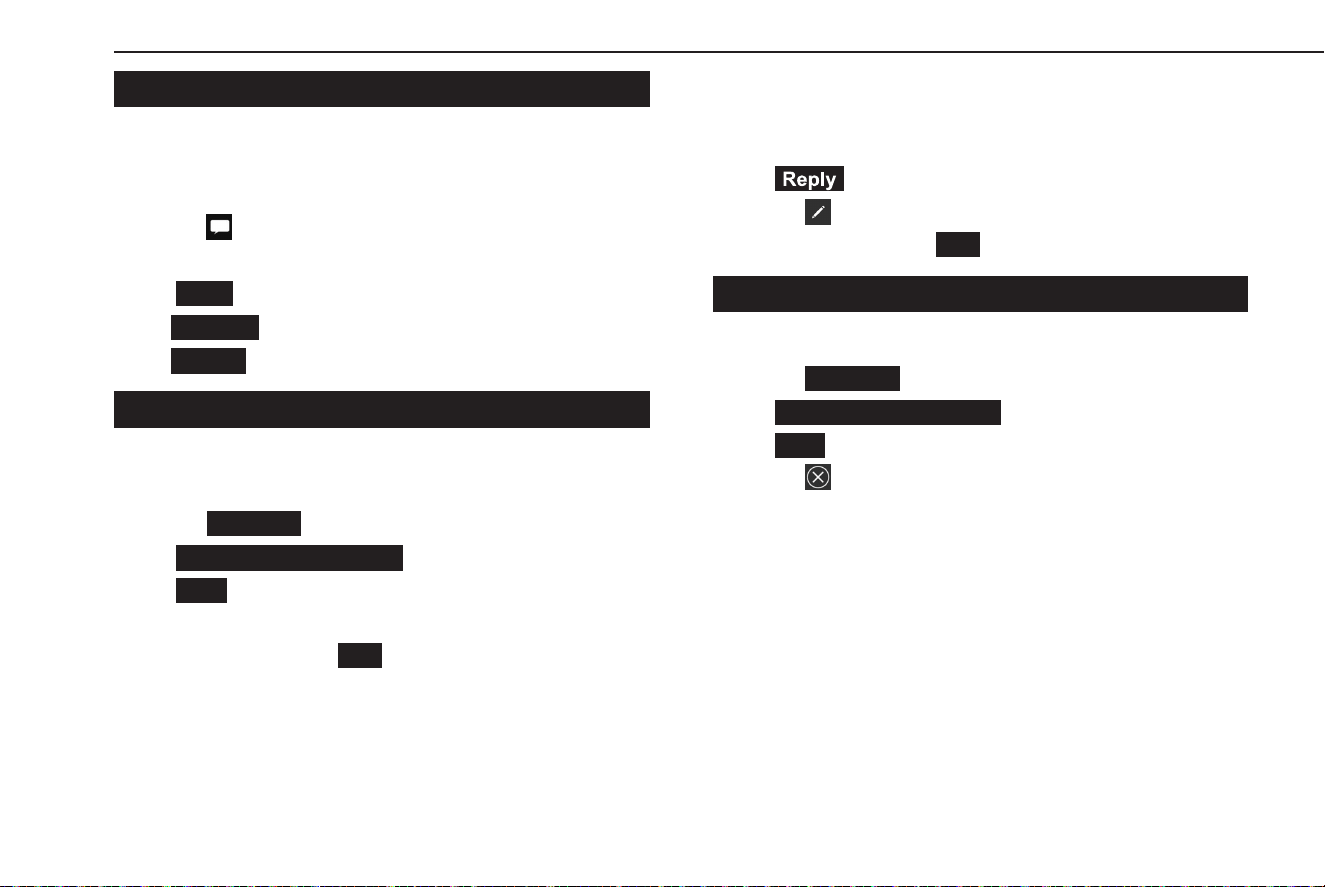
SENDING A NEW SHORT MESSAGE
1.
Display the favorites detail screen (→P.85), the recent
calls list screen (→P.84) or the contact detail screen
(→P.86).
2.
Select next to the desired number.
3.
Select the desired message.
4.
→
Send
(Send)
●
Change
(Change): Select to change the message.
●
Cancel
(Cancel): Select to cancel sending the message.
EDITING THE QUICK REPLY MESSAGE
XEditing the message in the phone settings screen
1.
Display the phone settings screen. (→P.57)
2.
Select
Message
(Message).
3.
→
Quick Reply Messages
(Quick Reply Messages)
4.
→
Edit
(Edit)
5.
Select the desired message.
6.
Enter the message. →
OK
(OK)
XEditing the message in the message screen
1.
Display the message inbox screen. (→P.90)
2.
Select the desired message from the list.
3.
→ (Reply)
4.
Select next to the desired message.
5.
Enter the message. →
OK
(OK)
DELETING THE QUICK REPLY MESSAGE
1.
Display the phone settings screen. (→P.57)
2.
Select
Message
(Message).
3.
→
Quick Reply Messages
(Quick Reply Messages)
4.
→
Edit
(Edit)
5.
Select next to the desired message.
PHONE OPERATION (HANDS-FREE SYSTEM FOR CELLULAR PHONES)
94
TK5_US.indb 94 2024/08/02 12:00:56

ADDING THE QUICK REPLY MESSAGE
1.
Display the phone settings screen. (→P.57)
2.
Select
Message
(Message).
3.
→
Quick Reply Messages
(Quick Reply Messages)
4.
→ (Add)
5.
Enter the message. →
OK
(OK)
CALLING THE MESSAGE SENDER
Calls can be made to an SMS/MMS message sender’s phone
number.
1.
Display the message inbox screen. (→P.90)
2.
Select next to the desired sender.
● The outgoing call screen is displayed.
PHONE OPERATION (HANDS-FREE SYSTEM FOR CELLULAR PHONES)
95
Phone
4
TK5_US.indb 95 2024/08/02 12:00:56

MEMO
96
TK5_US.indb 96 2024/08/02 12:00:56

97
Apps
Before Using Applications 98
Before Using Applications
98
Settings Required To Use Applications
99
About App-based Connected Content
99
Communication Standards Regarding
Application
100
Apple CarPlay
101
Apple CarPlay
101
Connecting The Apple CarPlay Device
102
Overview
102
Enabling Apple CarPlay
103
Disabling Apple CarPlay
103
Android Auto
104
Android Auto
104
Connecting An Android Auto Device
105
Overview
105
Enabling Android Auto
106
Disabling Android Auto
106
SiriusXM Travel Link
107
SiriusXM Travel Link
107
Displaying Sports Information
107
Displaying Weather Information
108
Displaying Weather Alerts
109
Displaying Stocks Information
110
Displaying Fuel Information
110
Displaying Parking Information
112
TK5_US.indb 97 2024/08/02 12:00:56
BEFORE USING APPLICATIONS
BEFORE USING APPLICATIONS
Precautions to be aware of when using applications are shown
below.
In this chapter, iPhone or Android devices will be referred to as a
smartphone.
WARNING
l Do not connect or operate the smartphone while driving.
l Be sure to park the vehicle in a safe place before connecting or
operating the smartphone.
CAUTION
l Do not leave your smartphone in the vehicle. In particular, high
temperatures inside the vehicle may damage the smartphone.
l Do not push down on or apply unnecessary pressure to the
smartphone while it is connected as this may damage the
smartphone or its terminal.
l If connecting your smartphone via USB, do not insert foreign
objects into the USB port as this may damage the smartphone or
its terminal.
NOTE
l Depending on the application, certain functions are not available
while driving for reasons of safety.
l In or
der to maximize signal reception, performance and precision of
the smartphone, please ensure the smartphone is placed as close to
the system as possible, while ensuring it is stowed and secure while
driving.
l When connecting your smartphone via USB, use the original cables
provided with your smartphone or equivalent third-party (certied)
cables.
l If a smartphone is connected to the USB port, turning the ignition
switch to the “ACC” or “ON” position will start charging the
smartphone.
l If c
onnecting your smartphone via USB, smartphone may not be
recognized when the ignition switch is turned to the “ACC” or “ON”
position. In this case, remove the smartphone and reconnect it.
l The ac
curacy of the displayed information or the signal reception
performance depends on the smartphone or the connected device,
and its wireless connection.
l For oper
ating the smartphone, see the instruction manual that
comes with it.
l Follo
w the specic operation procedures for the smartphone
application.
l When connecting the device via Bluetooth, the communication
speed may become slower than via USB.
l If the applica
tion is not running smoothly or is unstable, disconnect
and reconnect the smartphone via Bluetooth (→P.60) and/or USB
cable (→P.45). If the problem continues, reboot the smartphone.
BEFORE USING APPLICATIONS
98
TK5_US.indb 98 2024/08/02 12:00:57

SETTINGS REQUIRED TO USE APPLICATIONS
In order to use an application on this system, the application
must be installed on your smartphone.
● Sear
ch and download the application from your
smartphone app.
• iPhone: App Store via iTunes
• Android device: Google Play Store
● Create an account and login to the application on the
smartphone.
NOTE
l Please use the latest version of the application.
l Apple CarPlay does not require an application to be installed. Refer
to “Apple CarPlay” for details on Apple CarPlay operation. (→P.101)
ABOUT APP-BASED CONNECTED CONTENT
Requirements for using the connected content services of the
application on this system.
● The la
test version of the system is compatible with
connected content application(s) for the smartphones,
and is downloaded to your smartphone.
● A current account with a wireless content service
provider.
● A smartphone data plan: If the data plan for your
smartphone does not provide for unlimited data usage,
additional charges from your carrier may apply for
accessing app-based connected content via 3G, 4G,
Wi-Fi®, or 4G LTE wireless networks.
● Connection to the internet via 3G, 4G, Wi-Fi®, or 4G LTE
networks.
NOTE
l Changes to product specications may result in dierences between
the content of the manual and features of the product.
l Be careful not to exceed the data usage limits for your smartphone.
Doing so will result in additional data usage charges from your
phone carrier.
BEFORE USING APPLICATIONS
99
Apps
5
TK5_US.indb 99 2024/08/02 12:00:57

NOTE
l Limitations:
• Access to app-based connected content will depend on the
availability of wireless cellular and/or Wi-Fi® network coverage
for the purpose of allowing your smartphone to connect to the
internet.
• Service availability may be geographically limited by region.
Consult the wireless connected content service provider for
additional information.
• Ability of this product to access connected content is subject
to change without notice and could be aected by any of the
following: compatibility issues with future rmware versions of
the smartphone; compatibility issues with future versions of the
connected content application(s) for the smartphone; changes
to or discontinuation of the connected content application(s) or
service by its provider.
l Since some applications use signals from GPS satellites and wireless
communication lines, they may not work properly in the following
locations.
• In tunnels
• In underground parking lots
• Outside wireless communication range, such as some countryside
areas
• Where the wireless communication network is congested, or
where communications are restricted
l Depending on the circumstances and environment, the signal may
be weak or not be received. In such cases, an error may occur.
l Communication and phone call charges for smartphones should be
paid by the wireless subscriber.
l If you lose the data in a smartphone or other device while using it
with the system, no compensation will be given for the lost data.
NOTE
l SUBARU CORPORATION does not guarantee content provided by the
application.
l The applica
tion may not work due to factors on smartphones,
smartphone applications or stations. SUBARU CORPORATION accepts
no responsibility for this.
COMMUNICATION STANDARDS REGARDING
APPLICATION
For connecting wireless Apple CarPlay or wireless Android Auto,
Wi-Fi® communication is used. The vehicle is compatible with
the following Wi-Fi® communication standards:
● Communication standards:
• IEEE802.11a
• IEEE802.11b
• IEEE802.11g
• IEEE802.11n
• IEEE802.11ac
● Security:
• WPA
TM
• WPA2
TM
• WPA3
TM
NOTE
l WPA, WPA2 and WPA3 are registered mark of the Wi-Fi Alliance®.
l As the frequency band used for Wi-Fi® diers by country or region, it
may not be possible to use 5GHz band.
BEFORE USING APPLICATIONS
100
TK5_US.indb 100 2024/08/02 12:00:57
Apple CarPlay
Apple CarPlay
Apple CarPlay can be used to view Apple Maps, play music, and
place calls by connecting an Apple CarPlay device to the system.
Supported applications can also be run.
● For
details on the services or the operations, check the
Apple CarPlay site
(https://www.apple.com/ios/carplay/).
To enable the use of the Apple CarPlay application on the
vehicle system, register a device compatible with Apple
CarPlay to the vehicle system and connect them wirelessly.
When using the application, read the precautions indicated in
“BEFORE USING APPLICATIONS”. (→P.98)
WARNING
l This system is tted with Wi-Fi® antennas. People with implantable
cardiac pacemakers, cardiac resynchronization therapy-
pacemakers or implantable cardioverter debrillators should
maintain a reasonable distance between themselves and the
Wi-Fi® antennas. The radio waves may aect the operation of such
devices.
l Bef
ore using Wi-Fi® devices, users of any electrical medical
device other than implantable cardiac pacemakers, cardiac
resynchronization therapy-pacemakers or implantable
cardioverter debrillators should consult the manufacturer of the
device for information about its operation under the inuence of
radio waves.
Radio waves could have unexpected eects on the operation of
such medical devices.
NOTE
l Enable Apple CarPlay in the Apple CarPlay device’s restriction
settings before using this function.
Apple CarPlay
101
Apps
5
TK5_US.indb 101 2024/08/02 12:00:57
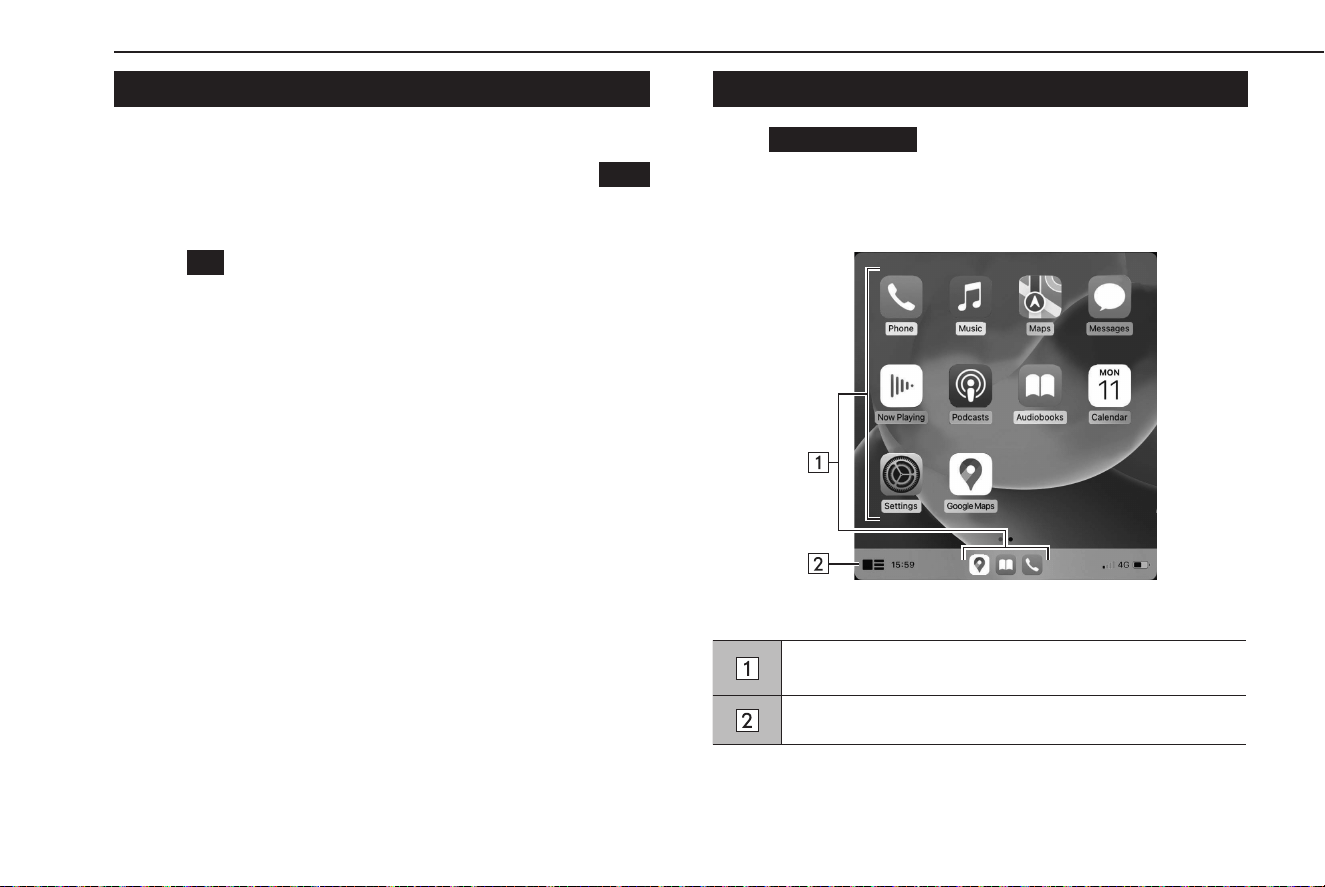
CONNECTING THE Apple CarPlay DEVICE
1.
Connect a device compatible with Apple CarPlay. (→P.60)
2.
Check the conrmation message, and then select
Yes
(Yes).
● The Apple CarPlay screen will be displayed.
● If
No
(No) is selected, Apple CarPlay will not start. When
connected to a USB port, the device will be recognized as
an iPod/iPhone. (→P.134) When not connected to a USB
port, the device will be recognized as a Bluetooth device.
(→P.137)
OVERVIEW
Select
Apple CarPlay
(Apple CarPlay) on the home screen or
the apps screen (→P.19, 20) to display the Apple CarPlay
screen.
XContr
ol screen*
*: The displayed screen will dier depending on the connected Apple CarPlay
device.
Displays the application buttons.
Select to start the application.
Select to change the home screen of Apple CarPlay.
Apple CarPlay
102
TK5_US.indb 102 2024/08/02 12:00:58

ABOUT THE SUPPORTED DEVICES
This system compatible with iOS 16.3.1 or later are supported.
ENABLING Apple CarPlay
1.
Select .
2.
Select a device to be used for Apple CarPlay from the device
list.
3.
Select Apple CarPlay from the connection preference list to
enable it.
DISABLING Apple CarPlay
1.
Select .
2.
Select the desired device used for Apple CarPlay from the
device list.
3.
Select Apple CarPlay from the connection preference list to
disable it.
Apple CarPlay
103
Apps
5
TK5_US.indb 103 2024/08/02 12:00:58
Android Auto
Android Auto
Android Auto can be used to view Google Maps, play music, and
place calls by connecting an Android Auto device to the system.
Supported applications can also be run.
● For
details on the services or the operations, check the
Android Auto site (https://www.android.com/auto/) and
(https://support.google.com/androidauto/).
The Android Auto application can be used in either of the
following methods:
● Register a de
vice compatible with Android Auto to
the vehicle system then connect it wirelessly.
● Connec
t a device compatible with Android Auto to a
USB port.
When using the application, read the precautions indicated in
“BEFORE USING APPLICATIONS”. (→P.98)
WARNING
l This system is tted with Wi-Fi® antennas. People with implantable
cardiac pacemakers, cardiac resynchronization therapy-
pacemakers or implantable cardioverter debrillators should
maintain a reasonable distance between themselves and the
Wi-Fi® antennas. The radio waves may aect the operation of such
devices.
l Bef
ore using Wi-Fi® devices, users of any electrical medical
device other than implantable cardiac pacemakers, cardiac
resynchronization therapy-pacemakers or implantable
cardioverter debrillators should consult the manufacturer of the
device for information about its operation under the inuence of
radio waves.
Radio waves could have unexpected eects on the operation of
such medical devices.
NOTE
l Use an undamaged genuine USB cable when connecting to a USB
port to use Android Auto.
l To use this function, check to make sure that your Android Auto
device is set to accept connection with a new vehicle.
l Depending on the model, the talkback volume of the voice
recognition function of Android Auto may dier from the volume
setting of other functions. Set the volume to a level that is easy to
hear.
Android Auto
104
TK5_US.indb 104 2024/08/02 12:00:58
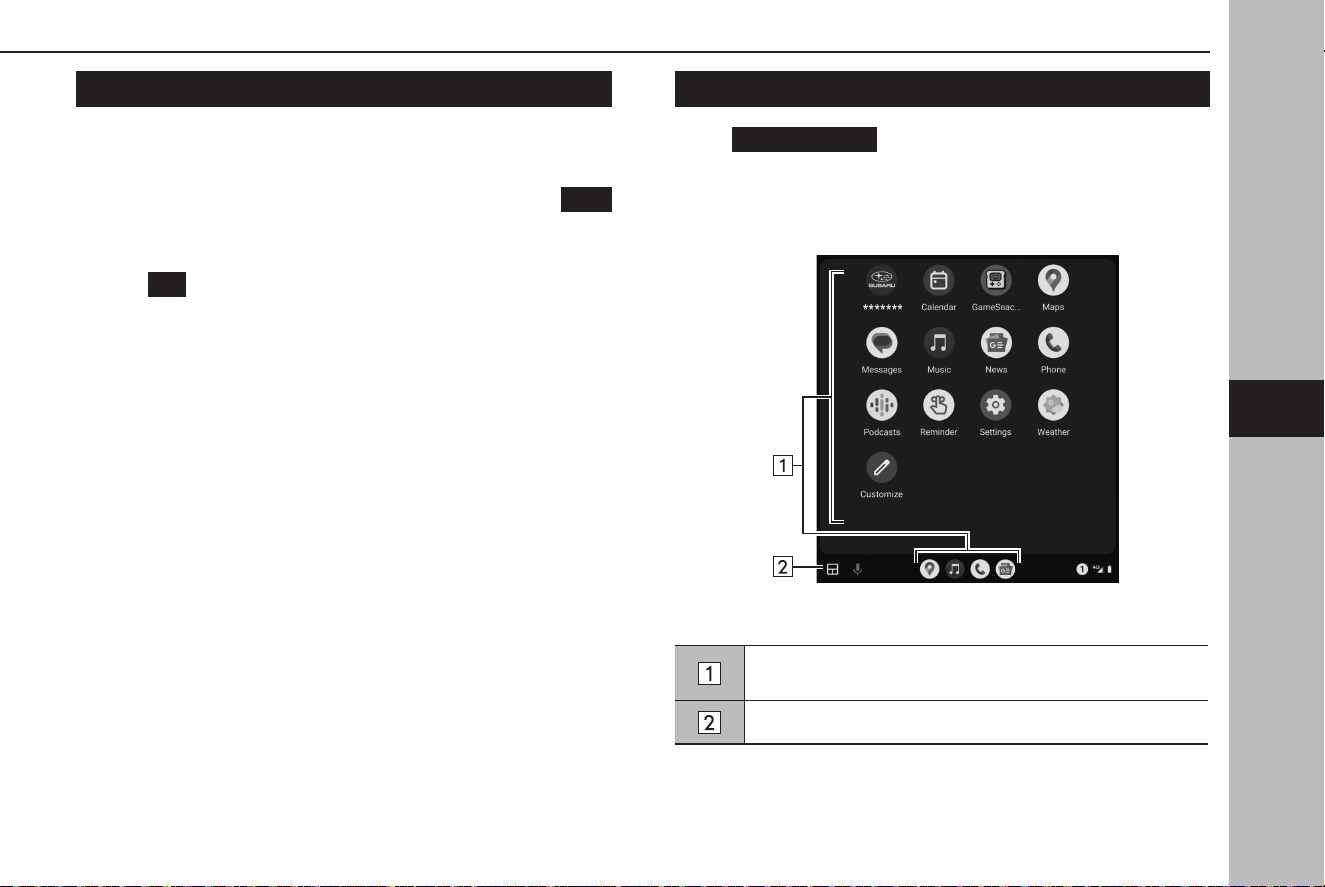
CONNECTING AN Android Auto DEVICE
1.
Connect a device compatible with Android Auto. (→P.45,
60)
2.
Check the conrmation message, and then select
Yes
(Yes).
● The Android Auto screen will be displayed.
● If
No
(No) is selected, Android Auto will not start.
OVERVIEW
Select
Android Auto
(Android Auto) on the home screen or
the apps screen (→P.19, 20) to display the Android Auto
screen.
XContr
ol screen*
*: The displayed screen will dier depending on the connected Android Auto
device.
Displays the application buttons.
Select to start the application.
Select to change the home screen of Android Auto.
Android Auto
105
Apps
5
TK5_US.indb 105 2024/08/02 12:00:58

ABOUT THE SUPPORTED DEVICES
This system compatible with Android 11.0 or later are
supported.
ENABLING Android Auto
1.
Select .
2.
Select a device to be used for Android Auto from the device
list.
3.
Select Android Auto from the connection preference list to
enable it.
DISABLING Android Auto
1.
Select .
2.
Select the desired device used for Android Auto from the
device list.
3.
Select Android Auto from the connection preference list to
disable it.
Android Auto
106
TK5_US.indb 106 2024/08/02 12:00:58
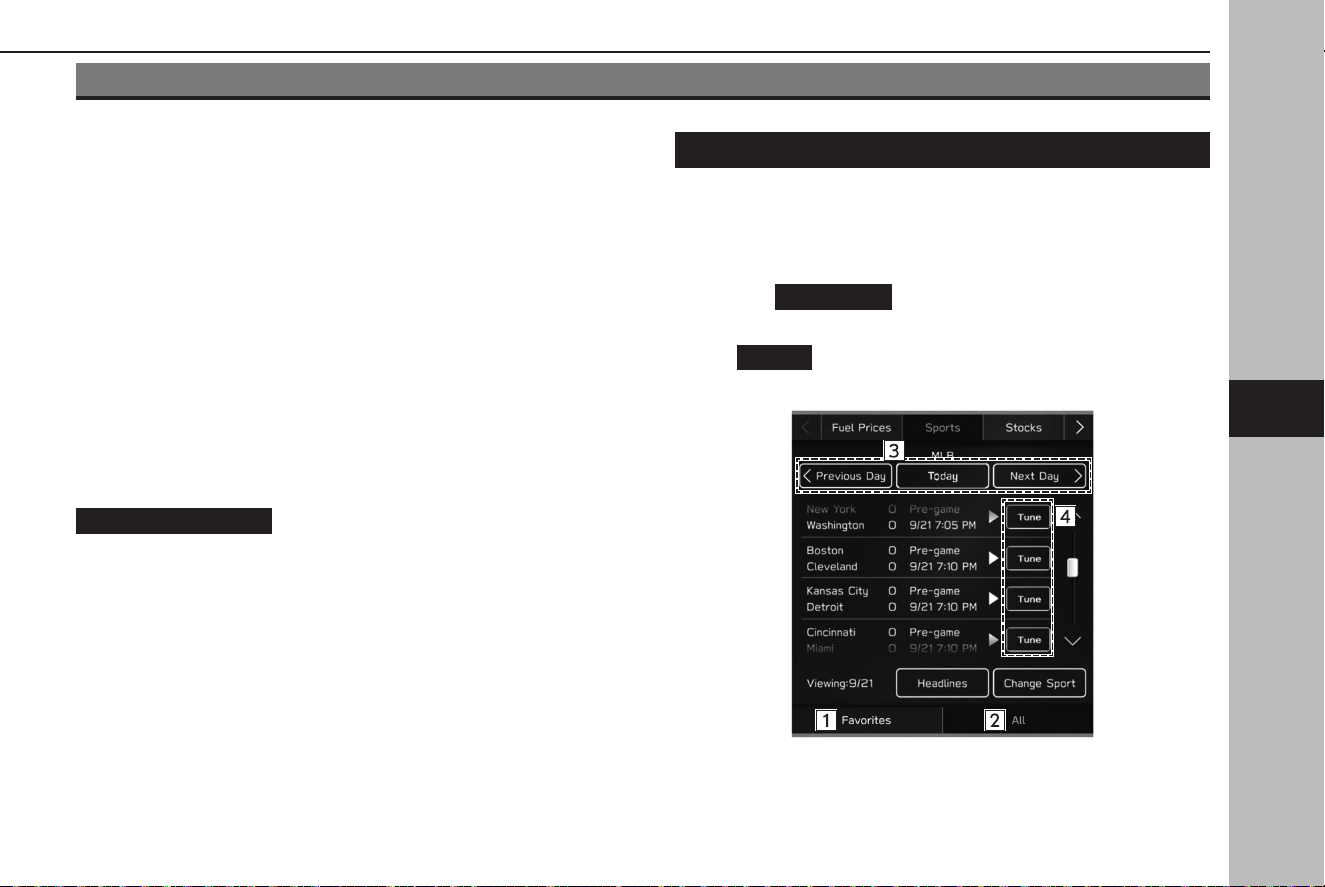
SiriusXM Travel Link
SiriusXM Travel Link*
*: SiriusXM U.S. satellite and data services are available only in the 48 contiguous
USA and DC. SiriusXM satellite service is also available in Canada;
see www.siriusxm.ca.
Data service information, which is comprised of sports
information, weather information, stock information, parking
information and fuel information, can be received via the
SiriusXM® Radio.
To receive the data service information in the vehicle, a
subscription to the SiriusXM® Radio Service is necessary
following a free trial. (→P.127)
Content that uses the SiriusXM® Radio Service is reset
when personal information is initialized by selecting
Factory Data Reset
(Factory Data Reset) at the “GENERAL
SETTINGS SCREEN”. (→P.66)
NOTE
l Information available on the SiriusXM Travel Link services can be
registered, within limited numbers.
DISPLAYING SPORTS INFORMATION
Sports information such as games and results, the status of
games still in progress, and future game schedules can be
displayed.
1.
Select
Travel Link
(Travel Link) on the Apps screen.
(→P.36)
2.
→
Sports
(Sports)
3.
Check that sports information is displayed.
SiriusXM Travel Link
107
Apps
5
TK5_US.indb 107 2024/08/02 12:00:59
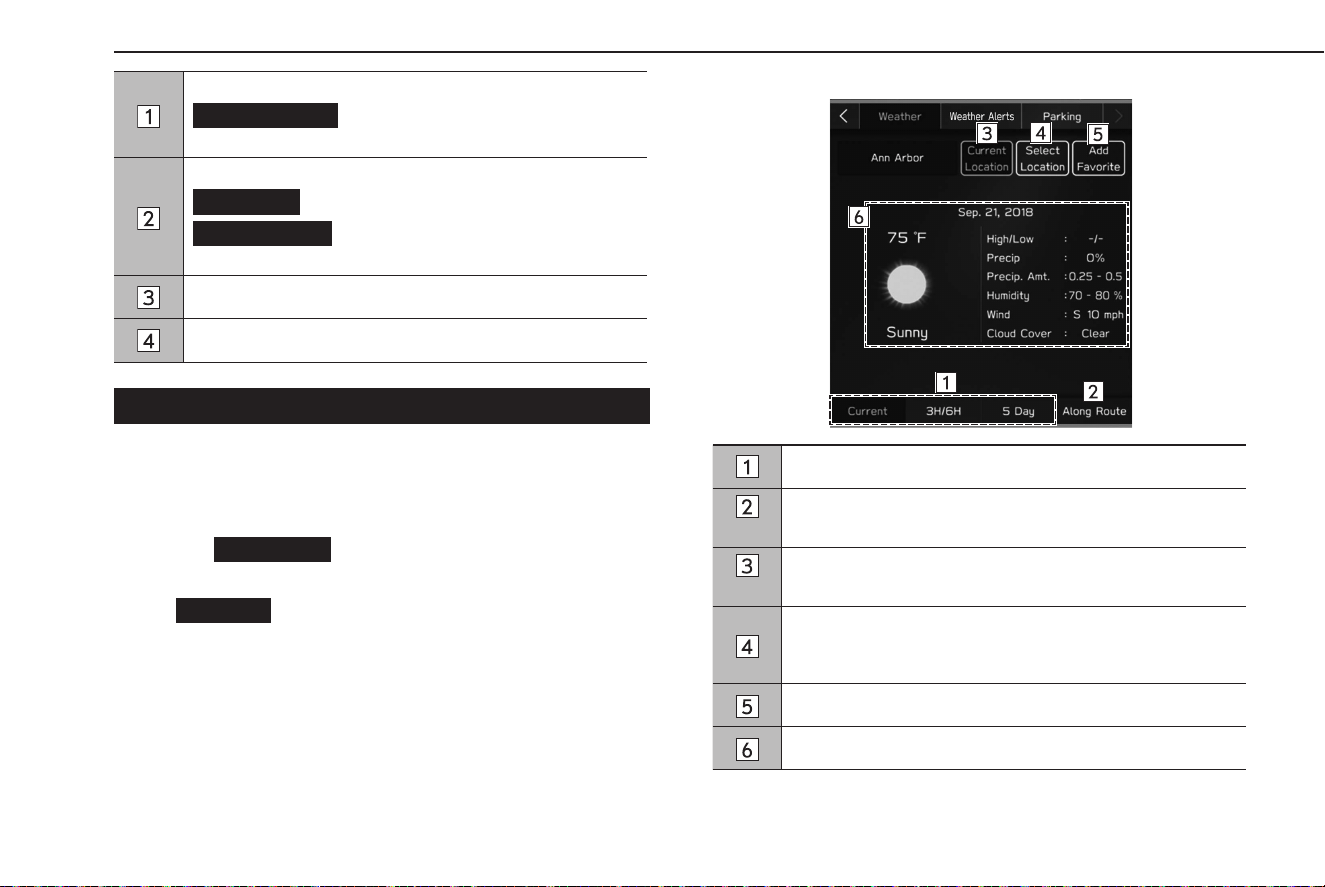
Select to display the favorite teams information.
Favorite Team
(Favorite Team): Select to register, edit
or select your favorite team.
Select to display all information for a selected sport.
Headlines
(Headlines): Select to display the headlines.
Change Sport
(Change Sport): Select to change the
sport.
Select to change the displayed information.
Select to listen to a broadcast.
DISPLAYING WEATHER INFORMATION
Weather forecasts, forecast temperature or highest/lowest
temperature, and the chances of precipitation, etc. can be
displayed in weather information.
1.
Select
Travel Link
(Travel Link) on the Apps screen.
(→P.36)
2.
→
Weather
(Weather)
3.
Check that weather information is displayed.
Select to switch the timing of the displayed forecast.
*
Select to display the weather forecast for the route being
traveled during route guidance.
*
Select to display the weather forecast from your current
location to your destination.
Select to change the region which information will be
displayed. The region can be selected from registered
favorites or a full list of regions.
Select to add the currently displayed location as a favorite.
Weather information is displayed.
*: 11.6-inch display with Navi system only
SiriusXM Travel Link
108
TK5_US.indb 108 2024/08/02 12:01:01
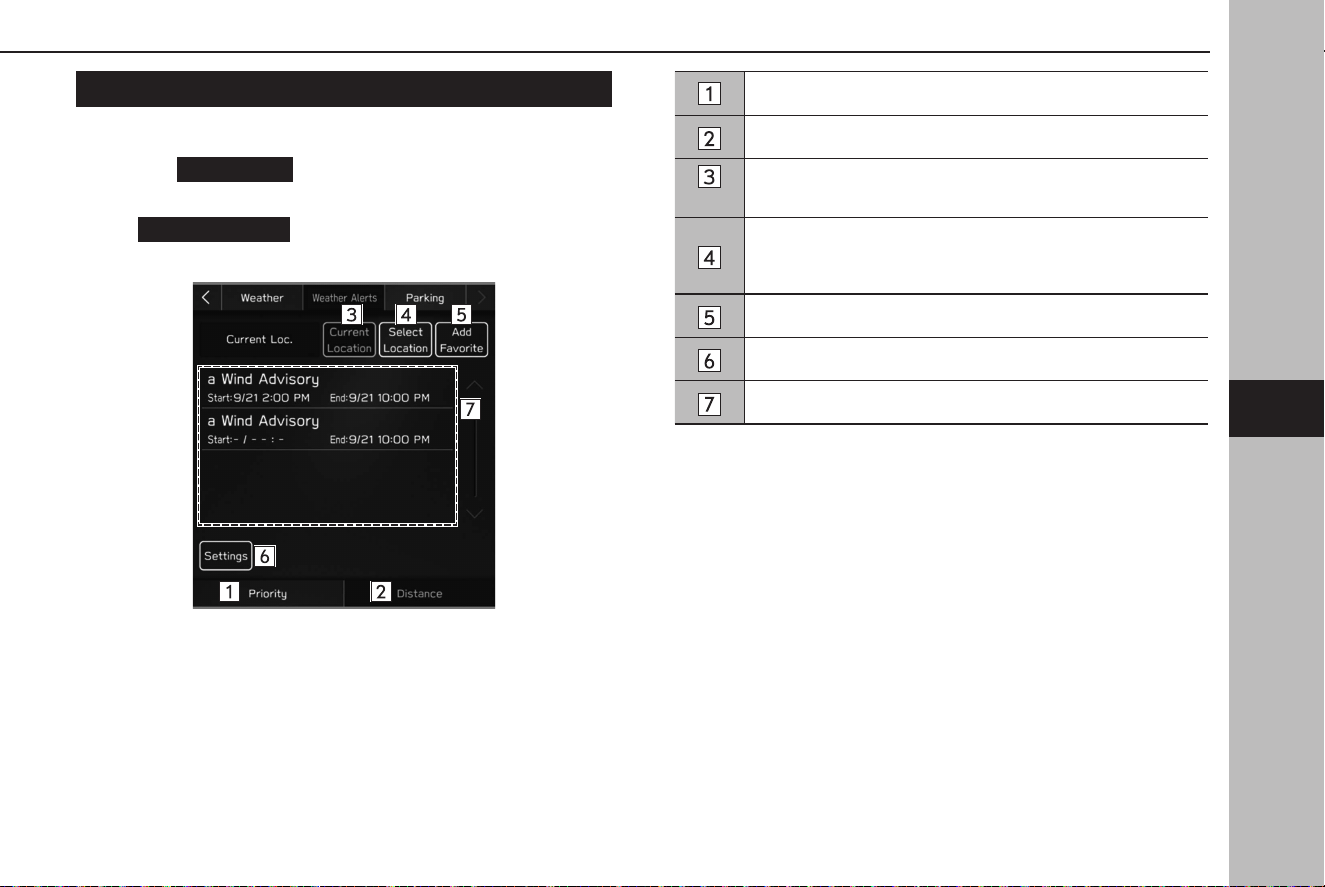
DISPLAYING WEATHER ALERTS
Weather alerts can be displayed.
1.
Select
Travel Link
(Travel Link) on the Apps screen.
(→P.36)
2.
→
Weather Alerts
(Weather Alerts)
3.
Check that weather alerts are displayed.
Select to sort weather alerts by priority.
Select to sort weather alerts by distance.
*
Select to display the weather alerts from your current
location to your destination.
Select to change the region which information will be
displayed. The region can be selected from registered
favorites or a full list of regions.
Select to add the favorite regions list.
Select to set the alert types, zone and notications.
Weather alerts are displayed.
*: 11.6-inch display with Navi system only
SiriusXM Travel Link
109
Apps
5
TK5_US.indb 109 2024/08/02 12:01:01
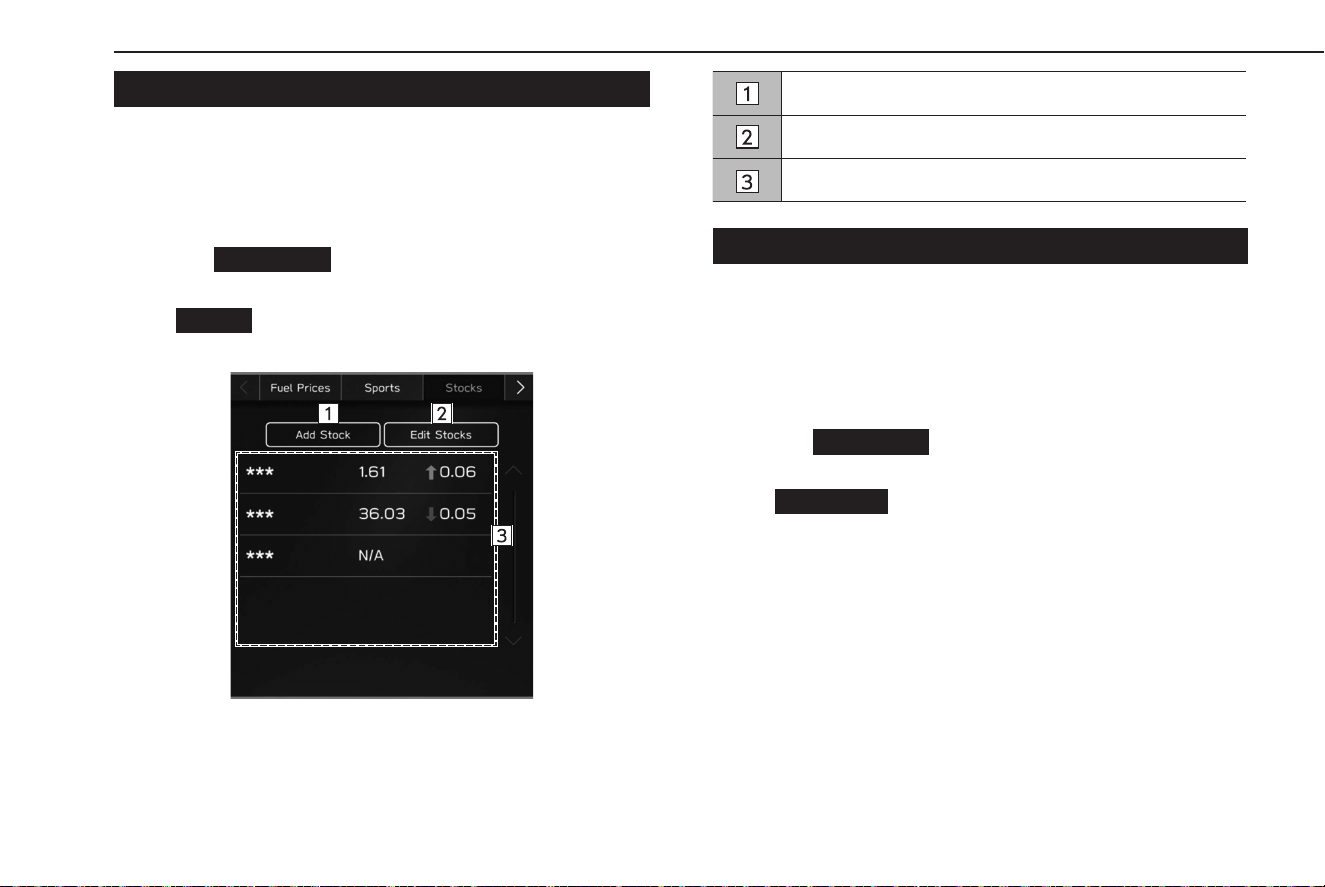
DISPLAYING STOCKS INFORMATION
Company names, stock prices, and price uctuations can be
displayed in stock information. Fluctuations greater than zero
are displayed with green arrows, and uctuations less than zero
are displayed with red arrows.
1.
Select
Travel Link
(Travel Link) on the Apps screen.
(→P.36)
2.
→
Stocks
(Stocks)
3.
Check that stock information is displayed.
Select to add stocks.
Select to delete stocks.
Stock information is displayed.
DISPLAYING FUEL INFORMATION
Gas station information can be displayed, and gas stations can
be set* as the destination. When Bluetooth is enabled on your
cellular phone, calls can be placed if the displayed information
screen contains phone number information.
*: 11.6-inch display with Navi system only
1.
Select
Travel Link
(Travel Link) on the Apps screen.
(→P.36)
2.
→
Fuel Prices
(Fuel Prices)
SiriusXM Travel Link
110
TK5_US.indb 110 2024/08/02 12:01:02
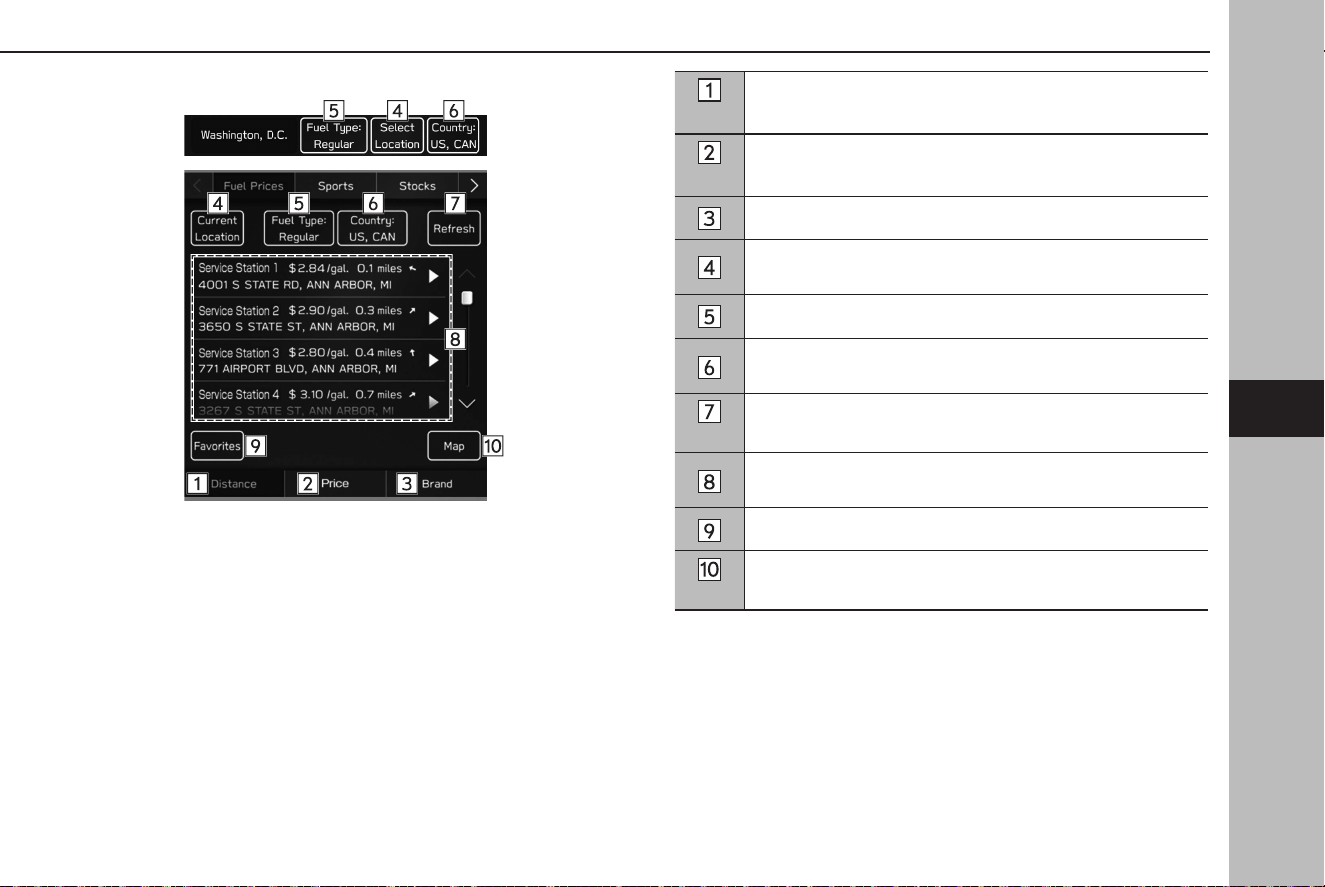
3.
Check that fuel information is displayed.
*
1
Select to sort the display order of gas stations by distance
from the current position.
*
2
Select to sort the display order of gas stations by price.
Select to sort the display order of gas stations by brand.
Select to change the location for which fuel information is
displayed.
Select to set the fuel type.
Select to change the country which information will be
displayed.
*
1
Select to update the gas station information.
Select to display information about a gas station and be
able to add it to favorites.
Select to display the favorite gas stations list.
*
1
Select to display the currently displayed gas stations on the
map.
*
1
: 11.6-inch display with Navi system only
*
2
: Not available when “US & CAN” is selected for countries for which information
is displayed
SiriusXM Travel Link
111
Apps
5
TK5_US.indb 111 2024/08/02 12:01:03
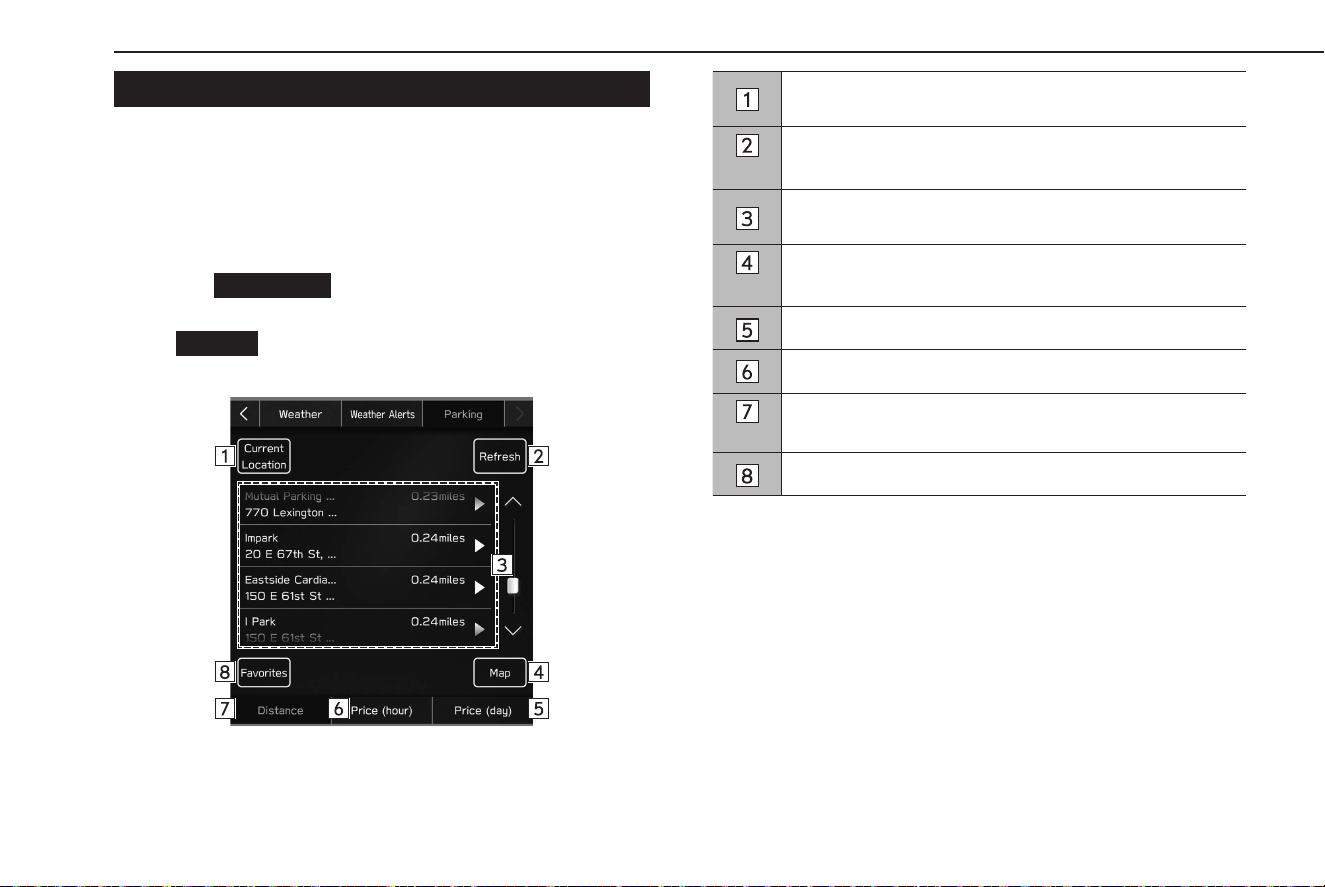
DISPLAYING PARKING INFORMATION
Parking information can be displayed, and parking can be set*
as the destination. When Bluetooth is enabled on your cellular
phone, calls can be placed if the displayed information screen
contains phone number information.
*: 11.6-inch display with Navi system only
1.
Select
Travel Link
(Travel Link) on the Apps screen.
(→P.36)
2.
→
Parking
(Parking)
3.
Check that parking information is displayed.
Select to change the region which information will be
displayed.
*
Select to update the parking information.
Select to display information about a parking lot and be
able to add it to favorites.
*
Select to display the currently displayed parking lots on the
map.
Select to sort parking lots by price per day.
Select to sort parking lots by price per hour.
*
Select to sort the display order of parking lots by distance
from the current position.
Select to display the favorite parking lots list.
*: 11.6-inch display with Navi system only
SiriusXM Travel Link
112
TK5_US.indb 112 2024/08/02 12:01:04

113
Audio
Basic Operation
114
Some Basics
114
Turning The System On And O
114
Selecting An Audio Source
115
Sound Settings
116
Voice Recognition System
119
Radio Operation
120
AM/FM Radio
120
Overview
120
Registering A Station As A Preset
121
Selecting A Station From The List
121
Radio Broadcast Data System
122
Available HD Radio
TM
Technology
122
Caching Radio Programs
124
SiriusXM® Radio
125
Overview
125
How To Subscribe To SiriusXM®
127
Displaying The Radio ID
129
Presetting A Channel
129
Searching For A Current Content
130
Media Operation
132
USB Memory
132
Overview
132
iPod/iPhone
134
Connecting The iPod/iPhone
134
Overview
135
Bluetooth Audio
137
Overview
137
Connecting A Bluetooth Device
140
AUX
140
Overview
140
Apple CarPlay
142
Connecting An Apple CarPlay Device
142
Overview
142
Android Auto
144
Connecting An Android Auto Device
144
Overview
145
Audio Remote Controls
147
Steering Wheel Controls
147
Tips For Operating The Audio System
149
Operating Information
149
Radio
149
USB Memory Device
151
iPod/iPhone
151
File Information
151
TK5_US.indb 113 2024/08/02 12:01:04
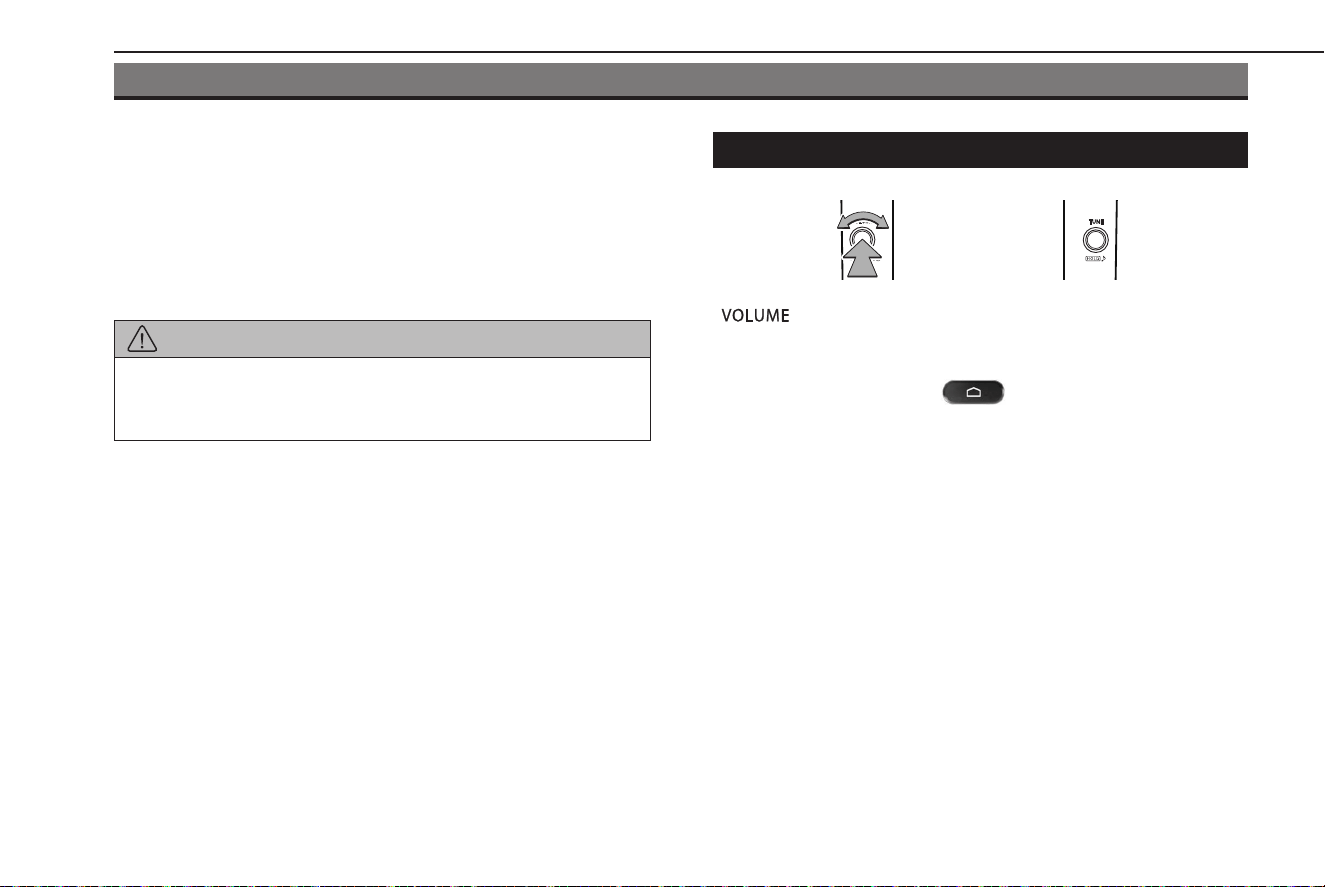
BASIC OPERATION
SOME BASICS
This section describes some of the basic features of the audio
system. Some information may not pertain to your system.
Your audio system works when theignition switch is turned to
the “ACC” or “ON” position.
CAUTION
l To prevent the battery from being discharged, do not leave the
audio system on longer than necessary when the engine is not
running.
TURNING THE SYSTEM ON AND OFF
“ ” knob: Press and hold until a message is displayed,
wait a few seconds for the audio system to turn o.
To turn the audio system on, press and hold the knob again or
touch the screen to display
and select it.
The system will turn on with the last audio source used. Turn this
knob to adjust the volume.
Press to turn the volume mute on/o.
NOTE
l The audio system will remain o if you change the position of the
ignition switch from “LOCK”/“OFF” to “ACC”/“ON” while the audio
system is o. If you had set the volume to mute, the audio system will
remain mute and the track will start playing from where it was last
stopped.
BASIC OPERATION
114
TK5_US.indb 114 2024/08/02 12:01:04
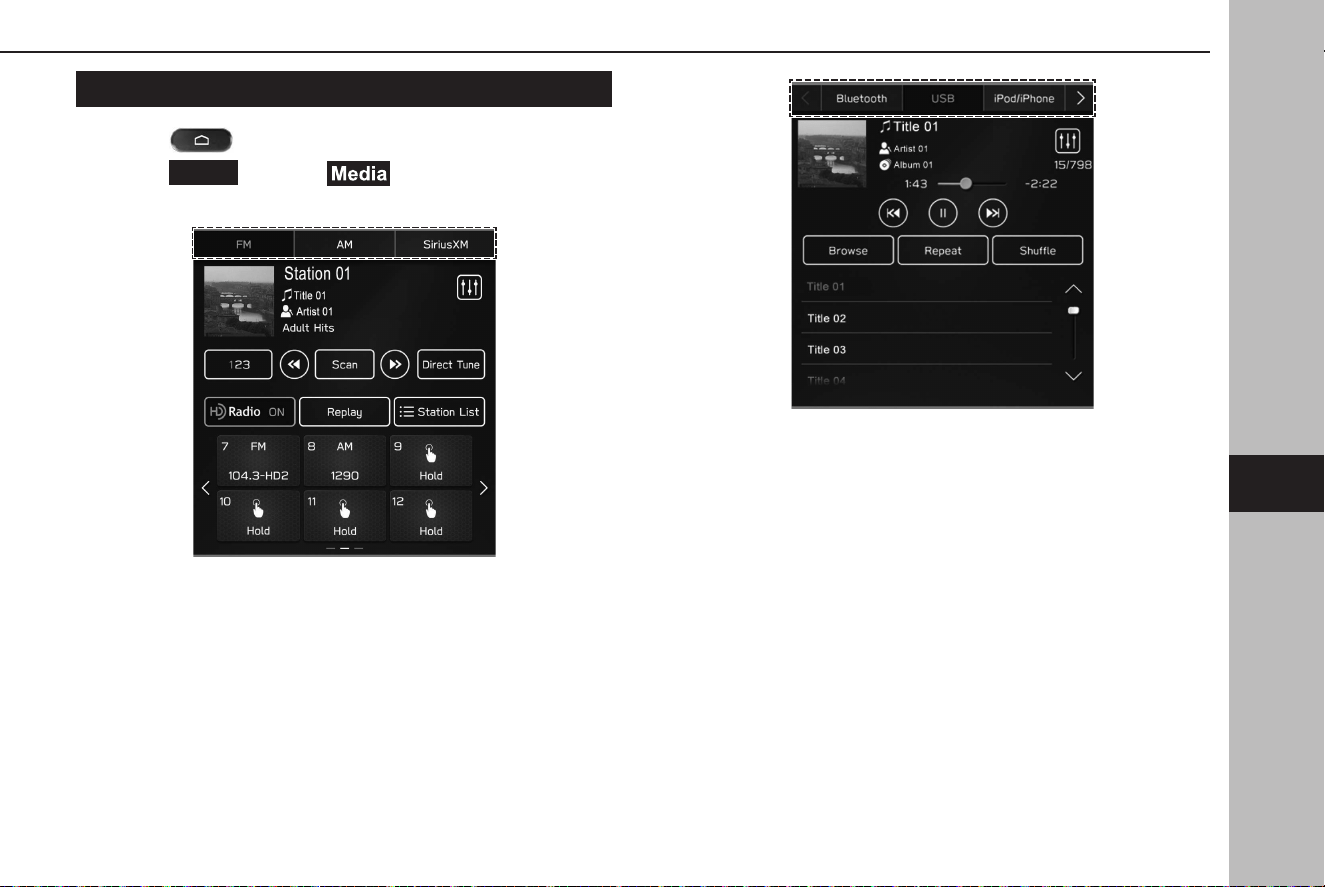
SELECTING AN AUDIO SOURCE
1.
Select .
2.
Select
Radio
(Radio) or (Media).
3.
Select the desired audio source.
<Radio screen>
<Media screen>
BASIC OPERATION
115
Audio
6
TK5_US.indb 115 2024/08/02 12:01:05
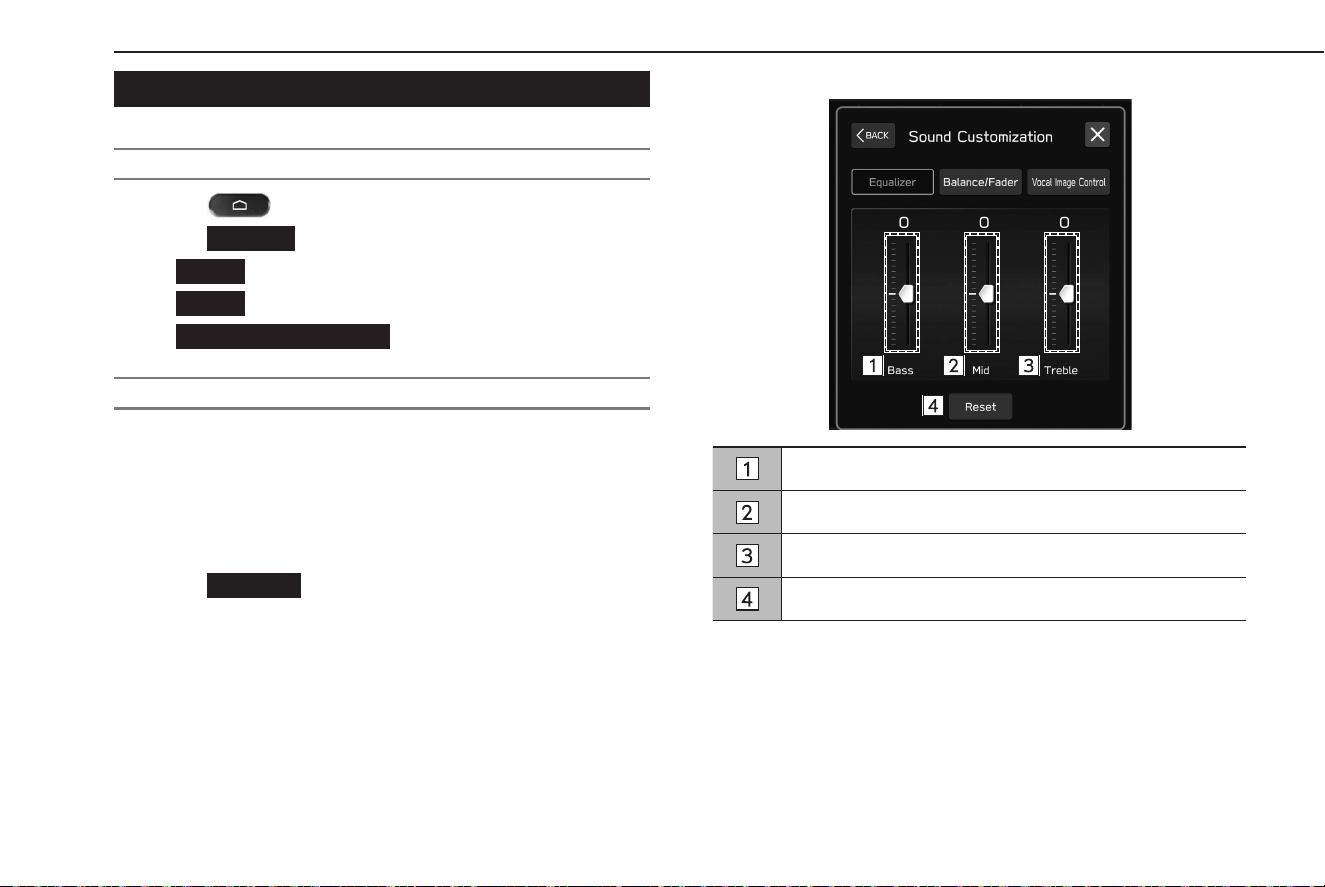
SOUND SETTINGS
DISPLAYING THE SOUND CUSTOMIZATION SCREEN
1.
Select .
2.
Select
Settings
(Settings).
3.
→
Sound
(Sound)
4.
→
Audio
(Audio)
5.
→
Sound Customization
(Sound Customization)
EQUALIZER SETTINGS
How good an audio program sounds is largely determined by
the mix of the treble, mid and bass levels. In fact, dierent kinds
of music and vocal programs usually sound better with dierent
mixes of treble, mid and bass.
1.
Display the “Sound Customization” screen. (→P.116)
2.
Select
Equalizer
(Equalizer).
3.
Set the desired item.
Select the sliders to adjust low-pitched tones.
Select the sliders to adjust mid-pitched tones.
Select the sliders to adjust high-pitched tones.
Select to reset all setup items.
BASIC OPERATION
116
TK5_US.indb 116 2024/08/02 12:01:07
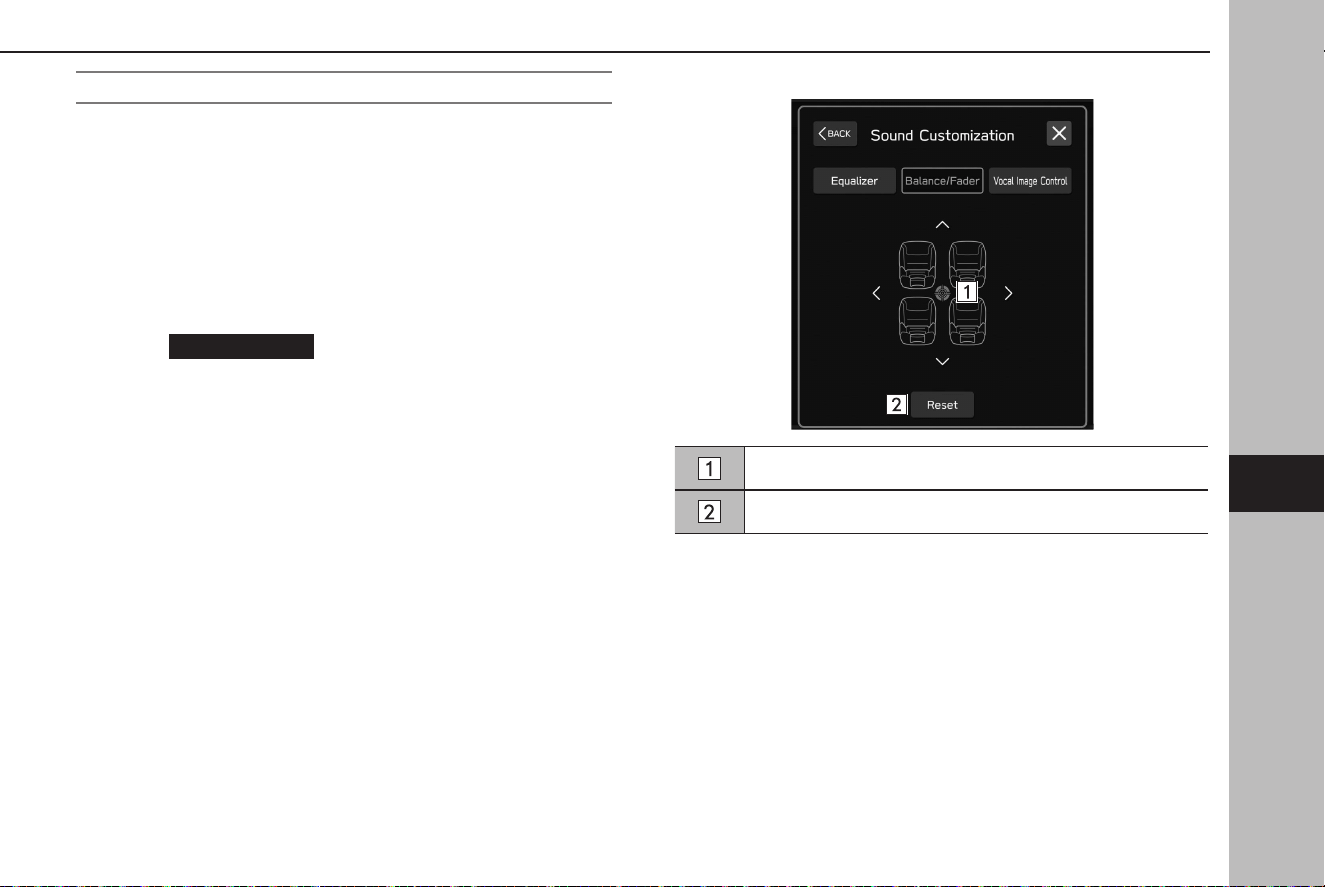
BALANCE/FADER SETTINGS
A good balance of the left and right stereo channels and of the
front and rear sound levels is also important.
Keep in mind that when listening to a stereo recording or
broadcast, changing the right/left balance will increase the
volume of 1 group of sounds while decreasing the volume of
another.
1.
Display the “Sound Customization” screen. (→P.116)
2.
Select
Balance/Fader
(Balance/Fader).
3.
Adjust to the desired position.
Select the icon to adjust sound balance.
Select to reset the adjusted position.
BASIC OPERATION
117
Audio
6
TK5_US.indb 117 2024/08/02 12:01:07
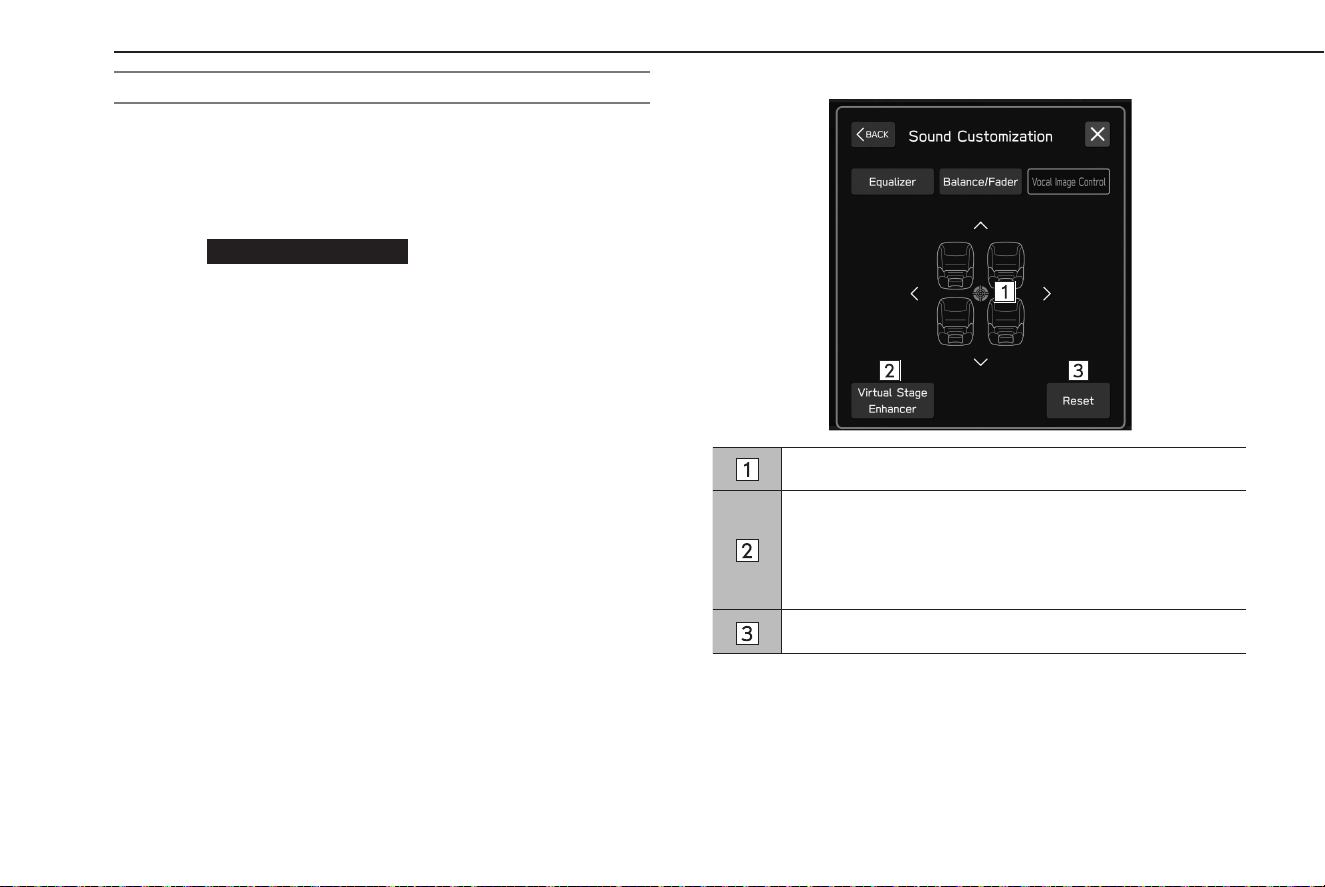
VOCAL IMAGE CONTROL SETTINGS*
*: This setting can be made depending on the connected amplier type.
Extract only vocal sound from whole sound and adjust volume
balance of it.
1.
Display the “Sound Customization” screen. (→P.116)
2.
Select
Vocal Image Control
(Vocal Image Control).
3.
Adjust to the desired position.
Select the icon to adjust vocal image control.
Select to set the virtual stage enhancer function.
This function adjusts the sounds to the high realistic
surround sound by enhancing the vocals. When this setting
is on, the front and rear setting of “Vocal Image Control”
cannot be set.
Select to reset the vocal image control settings.
BASIC OPERATION
118
TK5_US.indb 118 2024/08/02 12:01:08
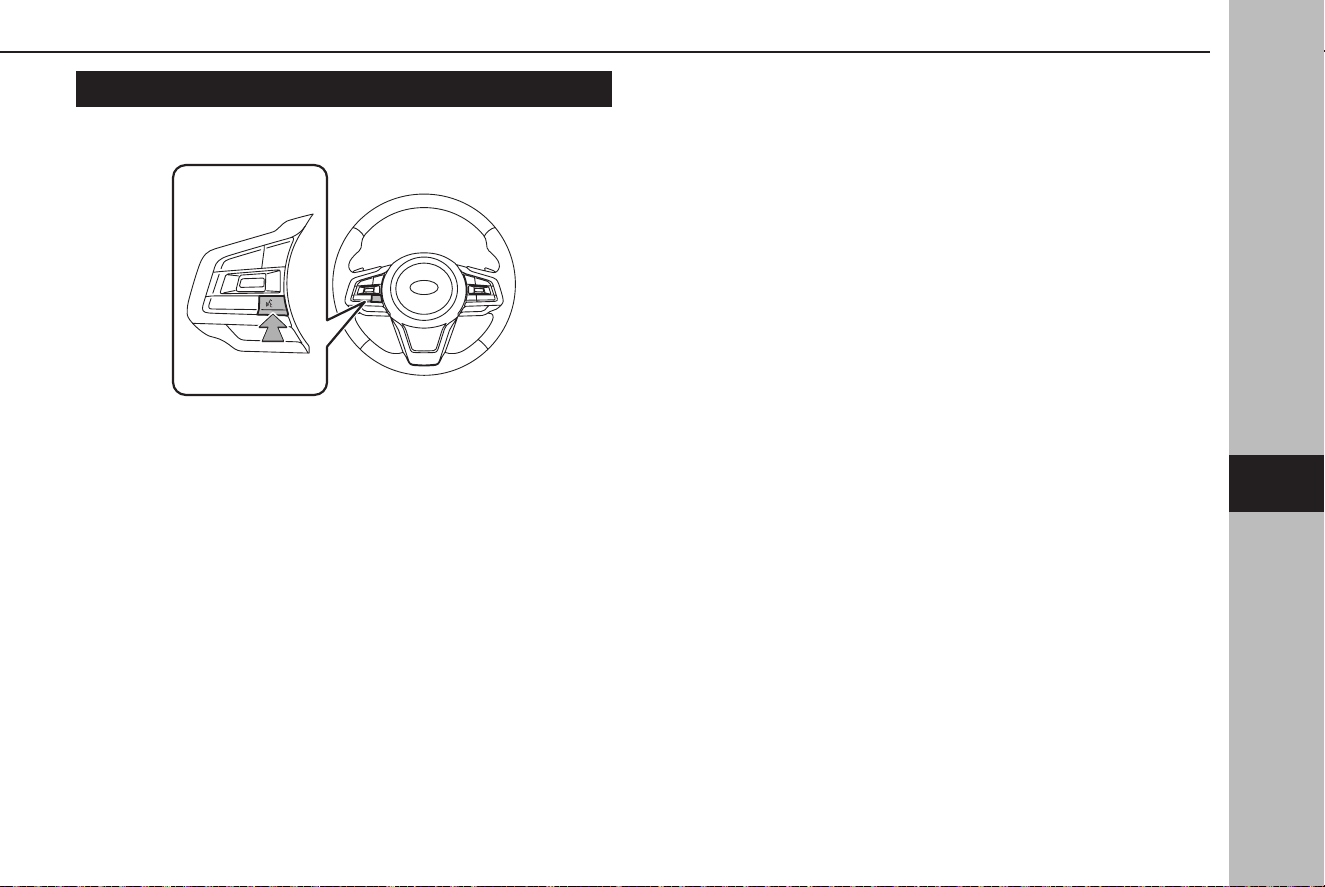
VOICERECOGNITION SYSTEM
1.
Press this switch to operate the voicerecognition system.
● The voice recognition system and its list of commands
can be operated. (→P.188)
BASIC OPERATION
119
Audio
6
TK5_US.indb 119 2024/08/02 12:01:08
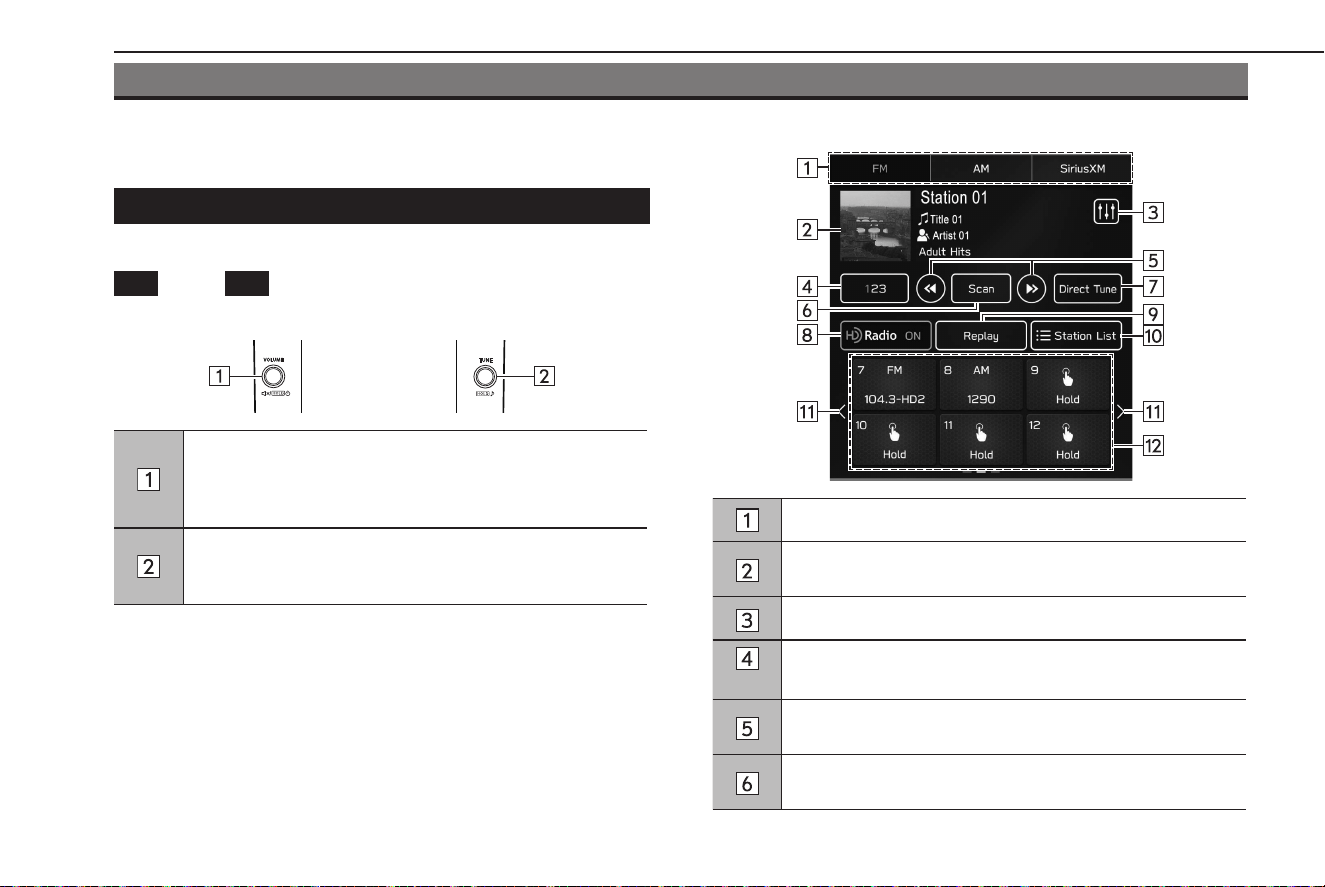
RADIO OPERATION
AM/FM RADIO
OVERVIEW
The FM/AM radio operation screen can be accessedby selecting
FM
(FM) or
AM
(AM) on the radio control screen. (→P.115)
XControl panel
Turn to adjust the volume.
Press to mute the audio system.
Press and hold to turn the audio system o, and press and
hold to turn it on again.
Turn to step up/down frequencies.
Press and hold to display the sound customization screen.
(→P.116)
XControl screen
Select to change radio modes.
Press and hold to save a specic song to your Bookmark List.
(→P.75)
Select to display the sound customization screen. (→P.116)
*
Select to change multicast channels available. (→P.123)
Select to step up/down frequencies.
Select and hold to seek frequencies.
Select to scan for receivable stations/channels.
The scan will continue until selected again.
RADIO OPERATION
120
TK5_US.indb 120 2024/08/02 12:01:09
Select to search for stations by entering frequency number.
Select to turn HD Radio mode on/o.
Select to display the cache radio operation buttons.
(→P.124)
Select to display a list of receivable stations. (→P.121)
Select to scroll the list of preset buttons.
Select to tune to preset stations/channels.
The preset station list can be scrolled by swiping the list.
*: FM Radio only
NOTE
l The radio automatically changes to stereo reception when a stereo
broadcast is received.
l When the HD Radio mode is on, the radio automatically tunes to an
HD Radio signal in AM or FM where available.
REGISTERING A STATION AS A PRESET
Multiple stations can be registered as presets.
1.
Tune to the desired station.
2.
Selectand hold one of the desired preset station buttons.
● To change the preset station to a dierent one, follow the
same procedure.
SELECTING A STATION FROM THE LIST
A station list can be displayed.
1.
Select
Station List
(Station List).
●
Update
(Update): Select to update the station list.
XFM R
adio only
2.
Select the desired list.
●
All
(All): Select to display all stations.
●
Genres
(Genres): Select to display categories.
3.
Select the desired station.
RADIO OPERATION
121
Audio
6
TK5_US.indb 121 2024/08/02 12:01:10
RADIO BROADCAST DATA SYSTEM
This audio system is equipped with Radio Broadcast Data
Systems (RBDS).
RBDS mode allows text messages to be received from radio
stations that utilize RBDS transmitters.
RBDS features are available only when listening to an FM station
that broadcasts RBDS information.
AVAILABLE HDRadio™ TECHNOLOGY
HD Radio Technology manufactured under license from iBiquity
Digital Corporation. U.S. and Foreign Patents. For patents see
http://dts.com/patents. HD Radio, Artist Experience, and the
HD, HD Radio, and “ARC” logos are registered trademarks or
trademarks of iBiquity Digital Corporation in the United States
and/or other countries.
RADIO OPERATION
122
TK5_US.indb 122 2024/08/02 12:01:11
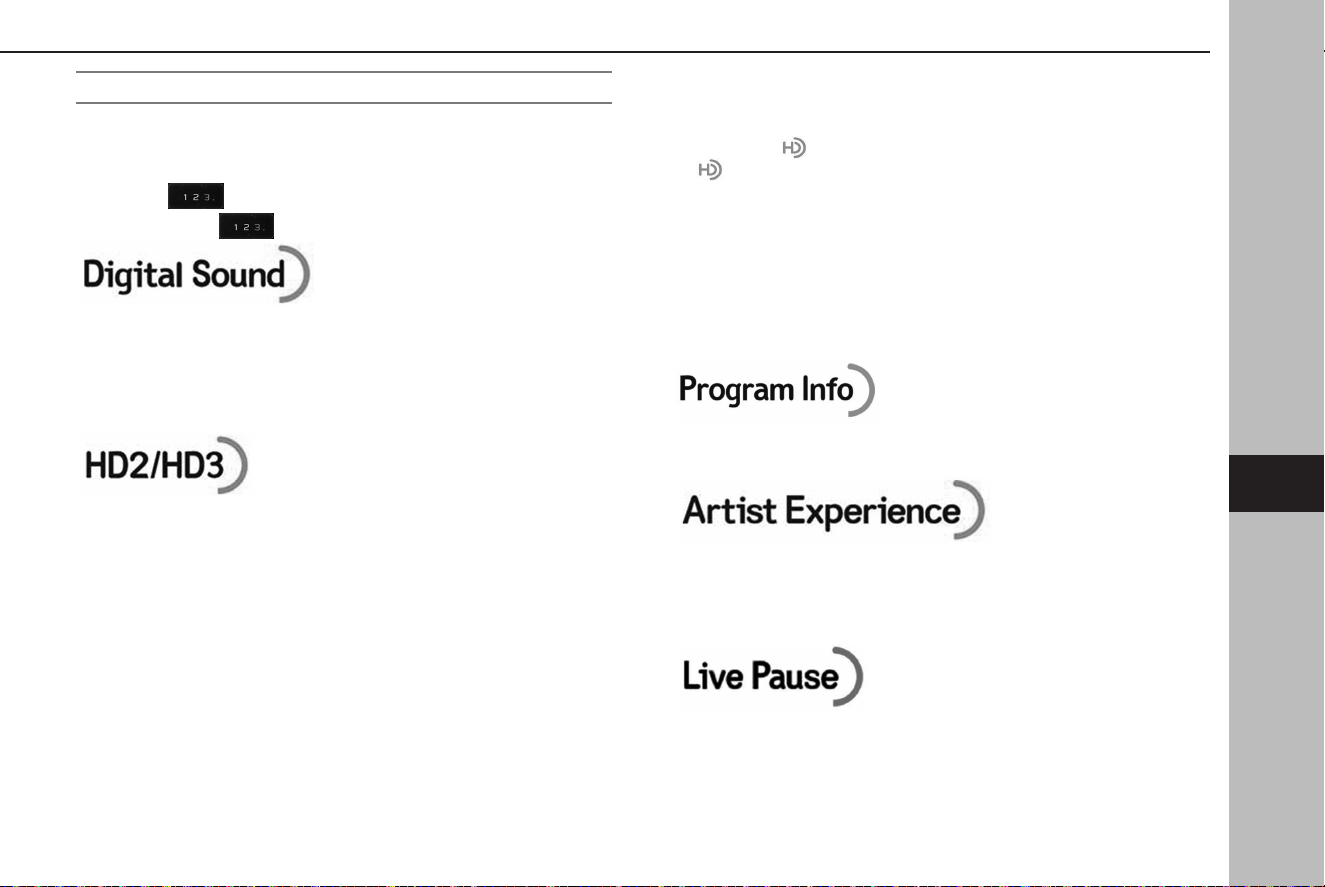
MULTICAST
On the FM radio frequency most digital stations have additional
programs on one FM station.
1.
Select .
● Each time
is selected, the channel can be changed.
● HD Radio
TM
Technology improves the audio quality of your
local stations and delivers a crystal clear digital signal to your
receiver. HD Radio Technology enables local radio stations to
broadcast a clean digital signal. AM sounds like today’s FM
and FM sounds like clear digital.
● FM stations can provide additional digital-only audio
programming on HD2/HD3 Channels.
● EXAMPLE:
101.1 HD1
101.1 HD2
101.1 HD3
NOTE
l HD Radio™ stations can be preset.
l An orange
will be displayed on the screen when in digital. The
will rst appear in a gray color indicating the digital station is
being acquired. Once the digital signal is acquired, the logo will
change to a bright orange color.
l The song title and artist name will appear on the screen when
available by the radio station. The radio station can send album
pictures when available.
l As a user wor
ks through the analog radio stations, (where applicable)
the radio receiver will automatically tune from an analog signal to a
digital signal within 5 seconds.
● Program info provides song name, artist, station ID, and other
relevant data to your receiver.
● Visual images of album cover art and station logos are
broadcasted with the audio to your receiver, such as Album
Art, historical photographs, still art from live broadcasts,
station logos, among other related content.
● Allows HD Radio receivers to store content (songs/programs
and data) in a buer. Playback shall start at any point in the
buer and shall continue until the end of the buer or until
the user has selected to stop playback. Live Pause has the
ability to store both analog and digital content in the buer.
RADIO OPERATION
123
Audio
6
TK5_US.indb 123 2024/08/02 12:01:11
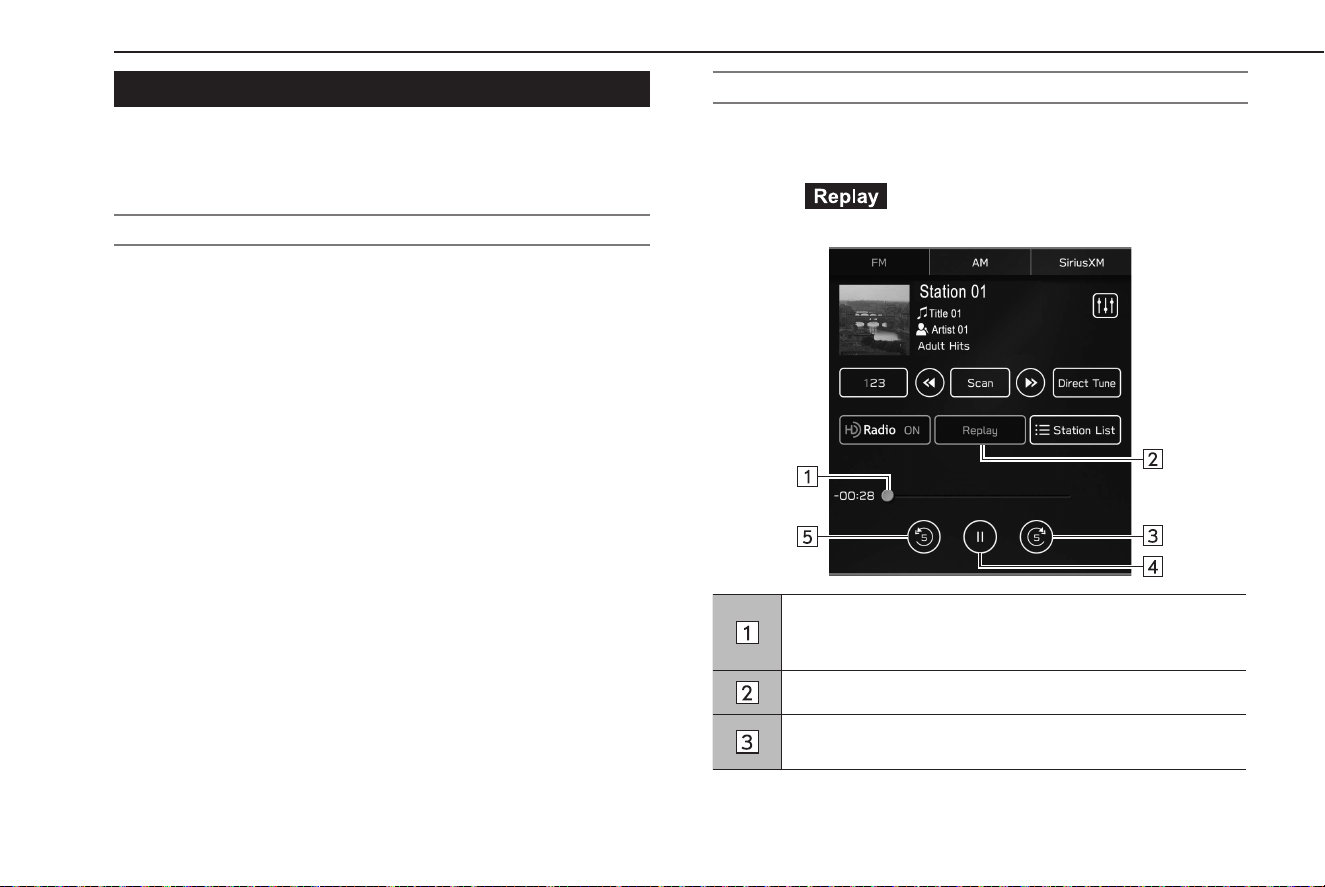
CACHING RADIO PROGRAMS
A radio program can be cached and played back in a time-
shifted manner.
AUTOMATIC PLAYBACK OF THE CACHE
If the radio broadcast is interrupted by another audio output,
such as an incoming phone call, the system will automatically
cache the interrupted portion. To manually operate the cache
operation: →P.124
NOTE
l The system can store up to 30 minutes. Cached data will be erased
when the radio mode or station is changed or when the audio
system is turned o.
PLAYING BACK THE CACHE MANUALLY
The broadcast cached in the program cache can be played back
manually.
1.
Select (Replay). (→P.120)
2.
Select the desired cache radio operation button.
Shows the current playback location.
The playback location can be changed by dragging the
sliders.
Select to display the preset stations/channels. (→P.120)
Select: Skips forward5 seconds.
Select and hold: Fast forwards continuously.
RADIO OPERATION
124
TK5_US.indb 124 2024/08/02 12:01:11
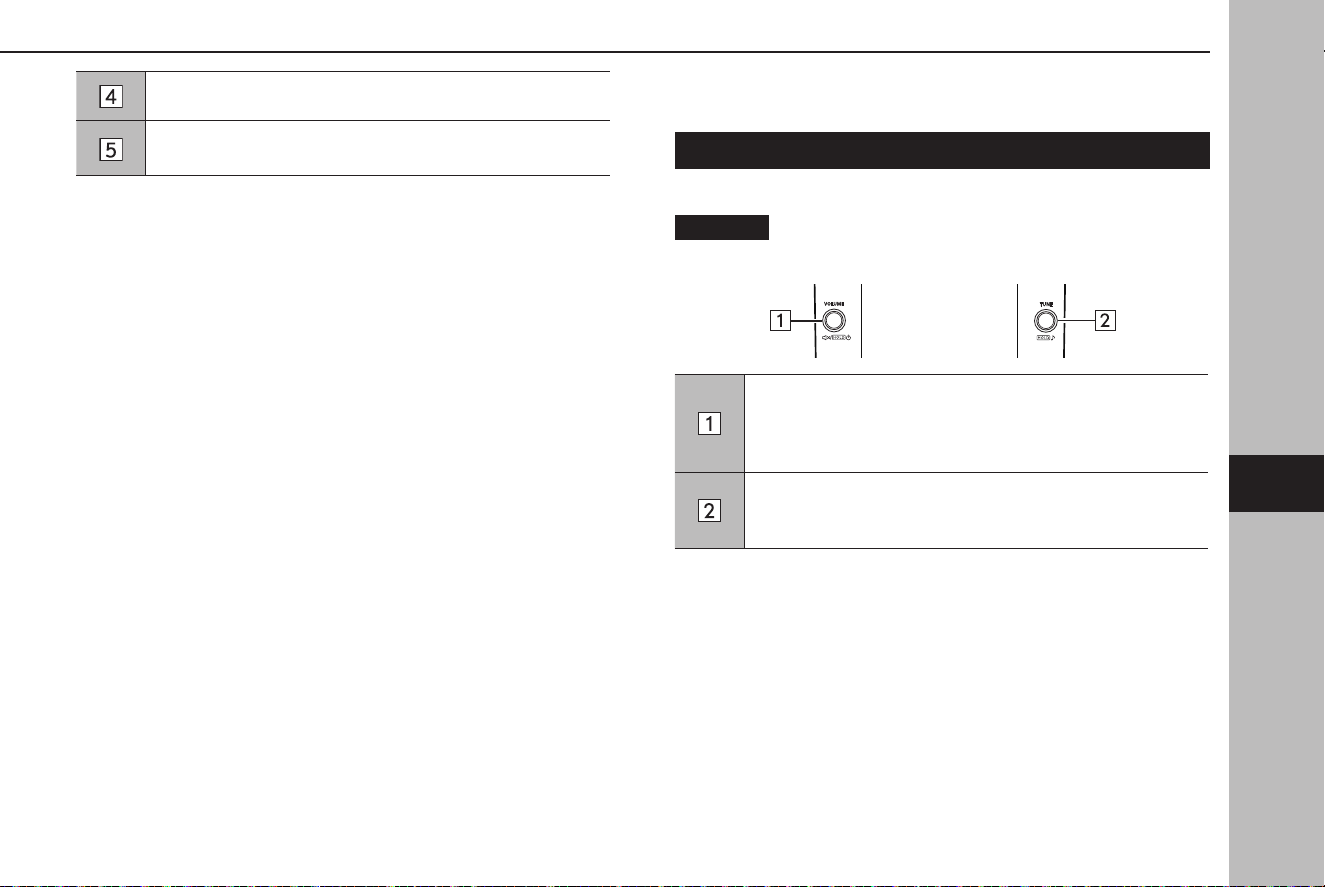
Pauses or plays the radio broadcast.
Select: Skips backward5 seconds.
Select and hold: Fast rewinds continuously.
NOTE
l The time displayed on the bar scale may dier from the actual time.
SiriusXM® Radio
OVERVIEW
The SiriusXM® control screen can be accessed by selecting
SiriusXM
(SiriusXM) on the radio control screen. (→P.115)
XControl panel
Turn to adjust the volume.
Press to mute the audio system.
Press and hold to turn the audio system o, and press and
hold to turn it on again.
Turn to step up/down channels.
Press and hold to display the sound customization screen.
(→P.116)
RADIO OPERATION
125
Audio
6
TK5_US.indb 125 2024/08/02 12:01:12
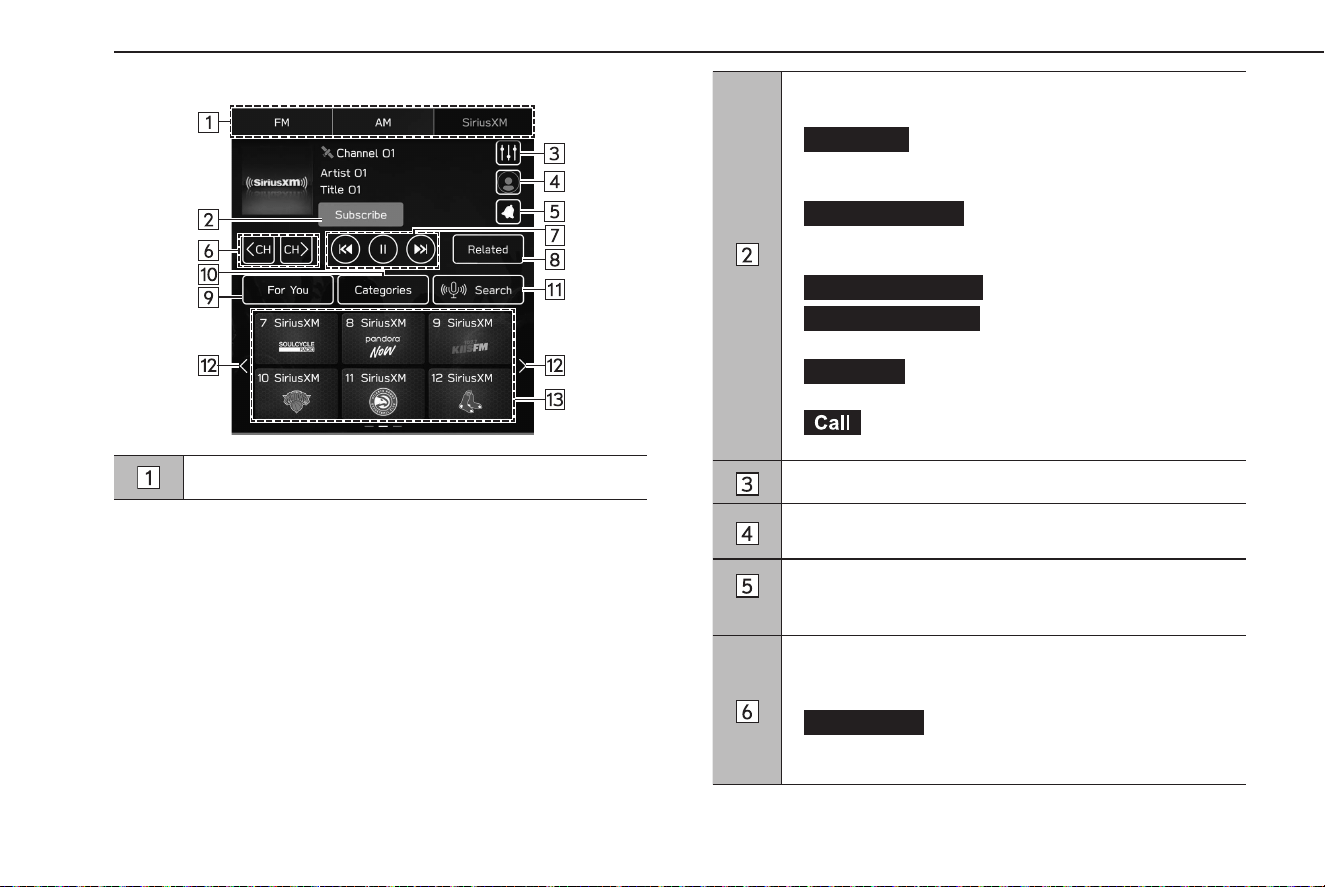
XControl screen
Select to change radio modes.
*
1
The following buttons will be displayed for some time when
operable:
•
Start Over
(Start Over): Select to replay currently
aired program of IP (Internet Protocol) broadcast from the
beginning.
•
Restart Episode
(Restart Episode): Select to replay
currently aired episode of On-Demand broadcast from the
beginning.
•
Switch to Satellite
(Switch to Satellite)/
Switch to Internet
(Switch to Internet): Select to
switch Satellite/IP (Internet Protocol) of the same content.
•
Subscribe
(Subscribe): Select to display the phone
number of SiriusXM® customer care and your radio ID.
(Call): Select to make a call when a Bluetooth-
compatible phone is connected.
Select to display the sound customization screen. (→P.116)
Select to display the SiriusXM® radio setting screen.
(→P.77)
*
2
Select to enable/disable notication of registered sports
teams or music artists/tunes, such as their game match
starting time or tune to be played.
Select to display currently available channels and select a
channel.
Can be swiped for a tune.
•
Direct Tune
(Direct Tune): The channel list screen can
be changed to channel number entering screen to search
a channel.
RADIO OPERATION
126
TK5_US.indb 126 2024/08/02 12:01:13
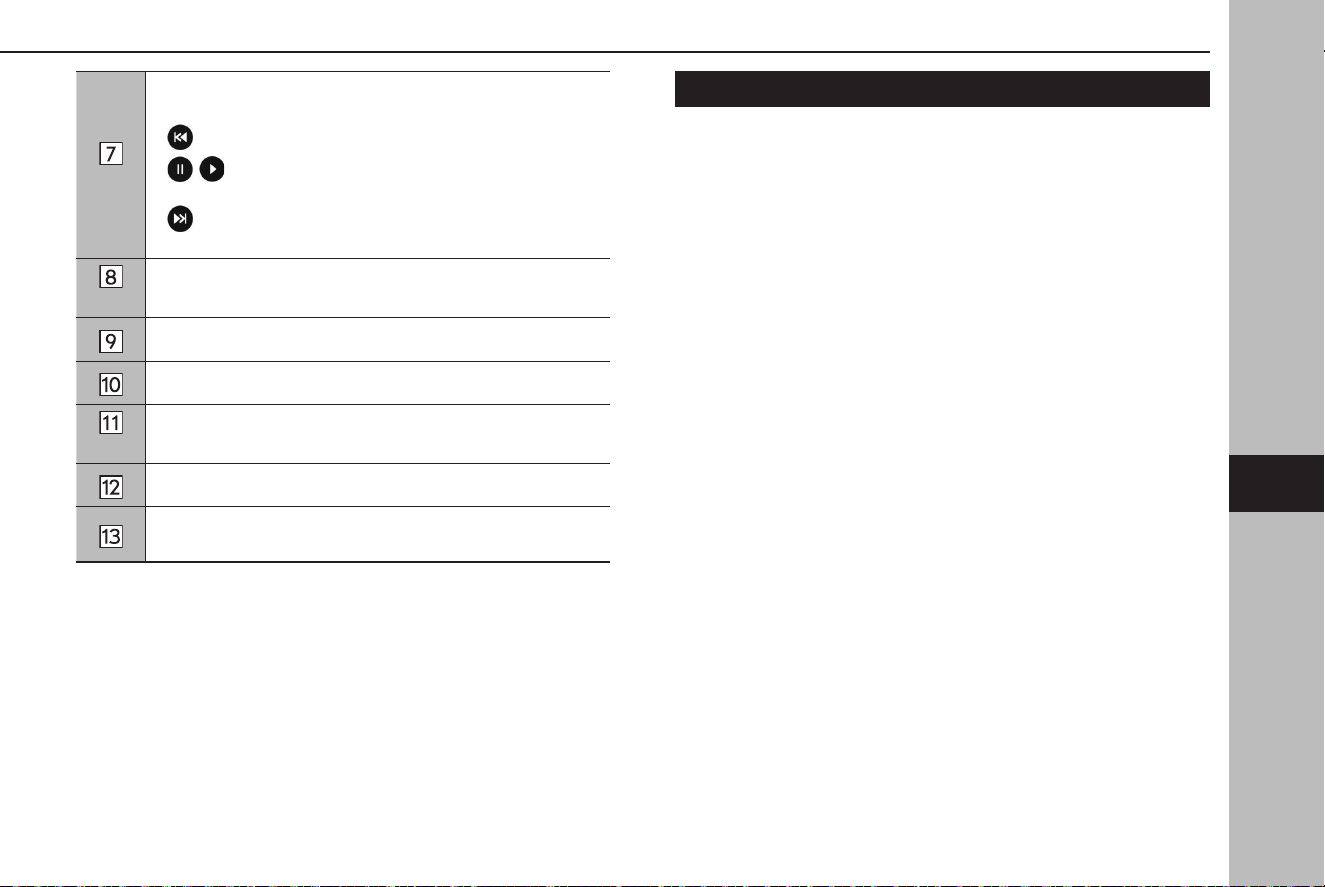
*
2
Select to operate previous content of the currently selected
channel that is cashed in the vehicle system.
•
: Select to skip back the cashed content.
•
/ : Select to pause/release pause of the cached
content playback.
•
: Select to skip forward the cashed content until “LIVE”
is displayed.
*
3
Select to display a list of contents related to the current
content you are listening to.
Select to display a list of contents recommended to the user.
Select to display a channel list by category.
*
3
Select to display the search screen. (→P.131)
Select to scroll the list of preset buttons.
Select to tune to preset channels.
The preset channel list can be scrolled by swiping the list.
*
1
: Displayed before subscribing to SiriusXM® radio
*
2
: Displayed after subscribing to SiriusXM® radio
*
3
: Operation is available after subscribing to SiriusXM® radio
HOW TO SUBSCRIBE TO SiriusXM®
To listen to a SiriusXM broadcast in the vehicle, a subscription
to SiriusXM is required following any trial included with the
purchase of your vehicle.
SiriusXM is only available in the U.S. and Canada.
RADIO OPERATION
127
Audio
6
TK5_US.indb 127 2024/08/02 12:01:14
HOW TO SUBSCRIBE
SiriusXM audio and infotainment services provided by Sirius XM
Radio Inc.
Trial Subscription Details: Your SiriusXM trial subscription will
automatically stop at the end of your trial period. If you decide
to purchase a subscription plan after your trial, your service will
automatically renew in accordance with your selected plan and
you will be charged according to your chosen payment method
at the then-current rates, plus applicable fees and taxes. Services
are subject to the SiriusXM Customer Agreement and Privacy
Policy available at siriusxm.com (if in Canada, Siriusxm.ca) which
includes complete terms and how to cancel. All fees, content
and features are subject to change.
● For
more information on your SiriusXM service or to
subscribe please refer to the following:
XU.S.A.
Refer to www.siriusxm.com or call
To Subscribe: 1-877-447-0011.
To Cancel: 1-866-635-2349.
XCanada
Ref
er to www.siriusxm.ca or call
To Subscribe/Cancel: 1-877-209-0079.
WARNING
l Explicit Language Notice — Channels with frequent explicit
language are indicated with an “XL” preceding the channel name.
Channel blocking is available for SiriusXM® Radio receivers by
notifyingSiriusXM at;
U.S.A. Customers:
Visit www.siriusxm.com or calling
1-877-447-0011
Canadian Customers:
Visit www.siriusxm.ca or calling
1-877-209-0079
CAUTION
l It is prohibited to copy, decompile, disassemble, reverse engineer,
hack, manipulate, or otherwise make available any technology
or software incorporated in receivers compatible with the
SiriusXM® Radio Services or that support theSiriusXM website, the
Streaming Service or any of its content. Furthermore, the AMBE®
voice compression software included in this product is protected
by intellectual property rights including patent rights, copyrights,
and trade secrets of Digital Voice Systems, Inc.
l Note: this applies to SiriusXM® Radio receivers only and not
SiriusXM Ready devices.
RADIO OPERATION
128
TK5_US.indb 128 2024/08/02 12:01:14

NOTE
l About SiriusXM Trial Subscription
ABOUT
The SiriusXM Platinum Plan is the ultimate entertainment
experience, featuring expertly curated ad-free music and exclusive
artist created music channels, premium sports coverage with live
play-by-play from every major sport, and sports talk including all of
our ocial league and college conference channels. It also includes
exclusive comedy, talk and news. Discover even more when you
stream on the SXM App, with Xtra music channels for any mood or
activity, podcasts including SiriusXM originals, all included with your
trial.
SiriusXM also delivers a wide variety of services such as Trac,
Weather, Sports Scores, Movie Listings, Fuel Prices, Stock Prices to
navigation equipped vehicles. For a list of available features in your
vehicle, visit siriusxm.com/infotainment and get the most out of your
driving experience.
RADIO OPERATION
Look for the Sirius, XM, SXM, Band, SAT, AUX, Radio or Source button
and you’re in.
If you can’t hear us, it’s easy to get started:
• Locate your Radio ID/ESN by turning to Channel 0. If you don’t see
your number there, go to Siriusxm.com/activationhelp to nd it.
• Visit siriusxm.com/refresh or call 1-855-MYREFRESH (697-3373) to
send a refresh signal to your radio.
Canadian Customers:
• Locate your Radio ID/ESN by turning to Channel 0.
• Visit siriusxm.ca/refresh to send a refresh signal to your radio or
call 1-888-539-7474 for service.
DISPLAYING THE RADIO ID
Each SiriusXM tuner is identied with a unique radio ID. The
radio ID is required when activating your SiriusXM radio or when
reporting a problem.
1.
Select
.
2.
→
Contact SiriusXM
(Contact SiriusXM)
3.
Your radio ID will be displayed.
PRESETTING A CHANNEL
Multiple stations can be registered as presets.
1.
Tune to the desired channel.
2.
Select and hold one of the desired preset station buttons.
● To change the preset station to a dierent one, follow the
same procedure.
RADIO OPERATION
129
Audio
6
TK5_US.indb 129 2024/08/02 12:01:14
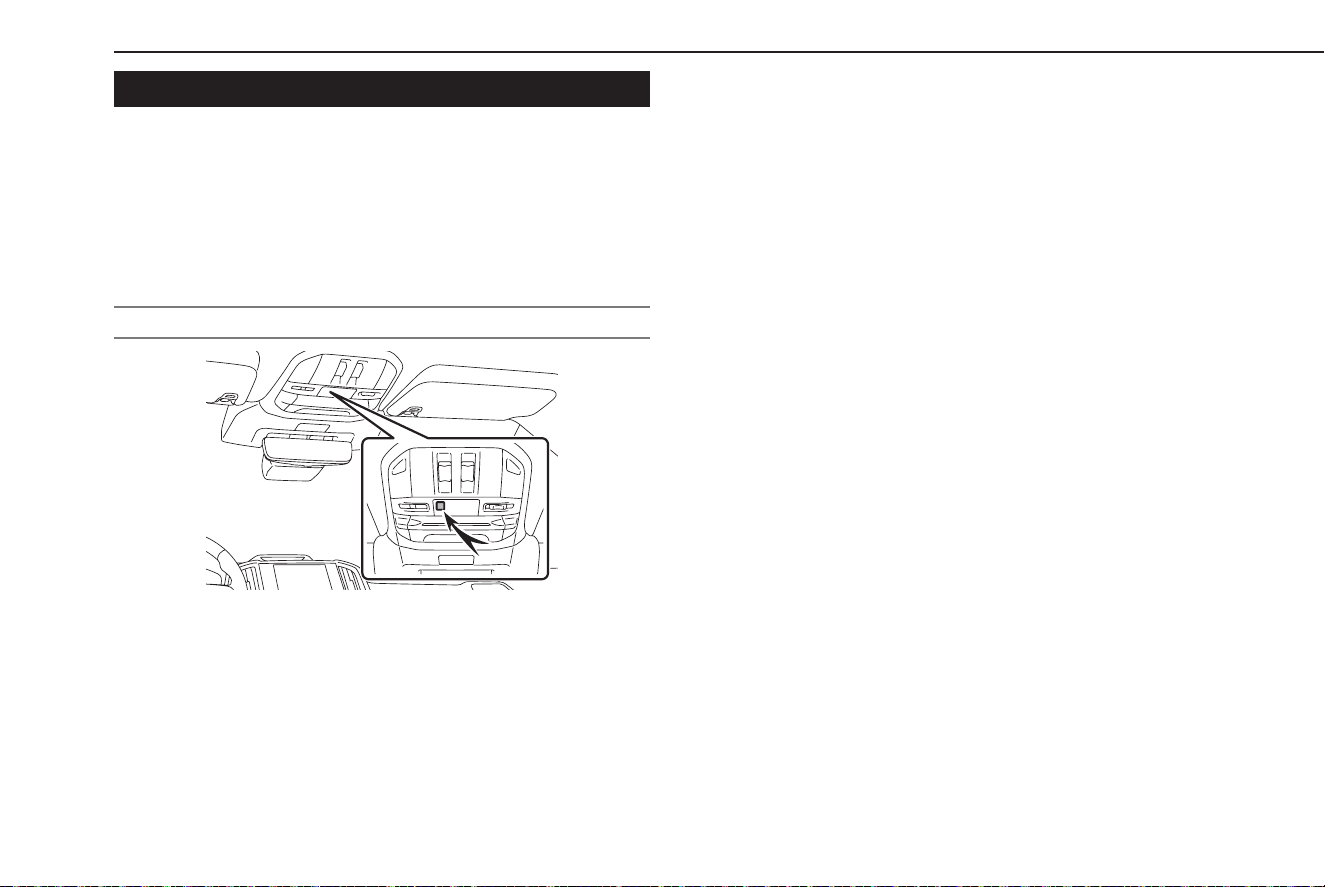
SEARCHING FOR A CURRENT CONTENT
A currently aired program can be searched for by keyword(s),
such as channel number, category, team name, etc., using either
voice recognition or on screen. To enable search, display the
search screen.
Select the desired content from the search results list displayed.
MICROPHONE
● User’s speech is recognized by a built-in microphone.
NOTE
l Wait for the conrmation beep before speaking a command.
NOTE
l Voice commands may not be recognized if:
• Spoken too quickly.
• Spoken at a low or high volume.
• Driving with a window open.
• Passengers are talking while voice commands are spoken.
• The air conditioning speed is set high.
• The current position is outside the communication area.
• When air from the ventilator blows directly toward the
microphone.
l If there is excessive background noise, such as wind noise, the
system may not recognize the command properly and using voice
commands may not be possible.
RADIO OPERATION
130
TK5_US.indb 130 2024/08/02 12:01:15
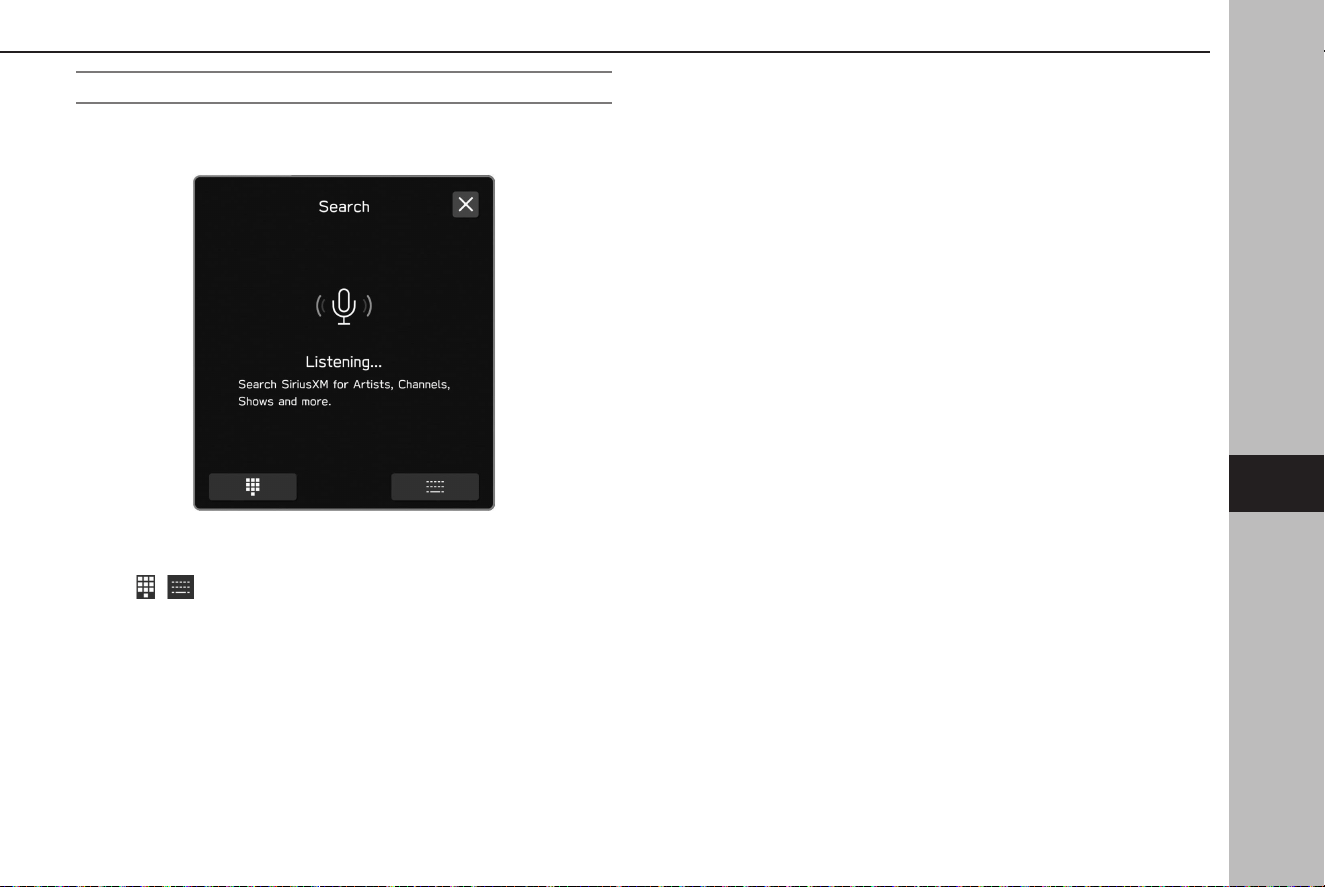
SEARCHING FOR THE DESIRED CONTENT
1.
Speak when the search screen is displayed and a beep is
heard.
● Displays the status of voice recognition, searching, etc.
with a microphone icon or text message.
●
/ : Select to display keypad/keyboard to enter text
for search.
● Touch the microphone ic
on to refresh speech
recognition.
RADIO OPERATION
131
Audio
6
TK5_US.indb 131 2024/08/02 12:01:15
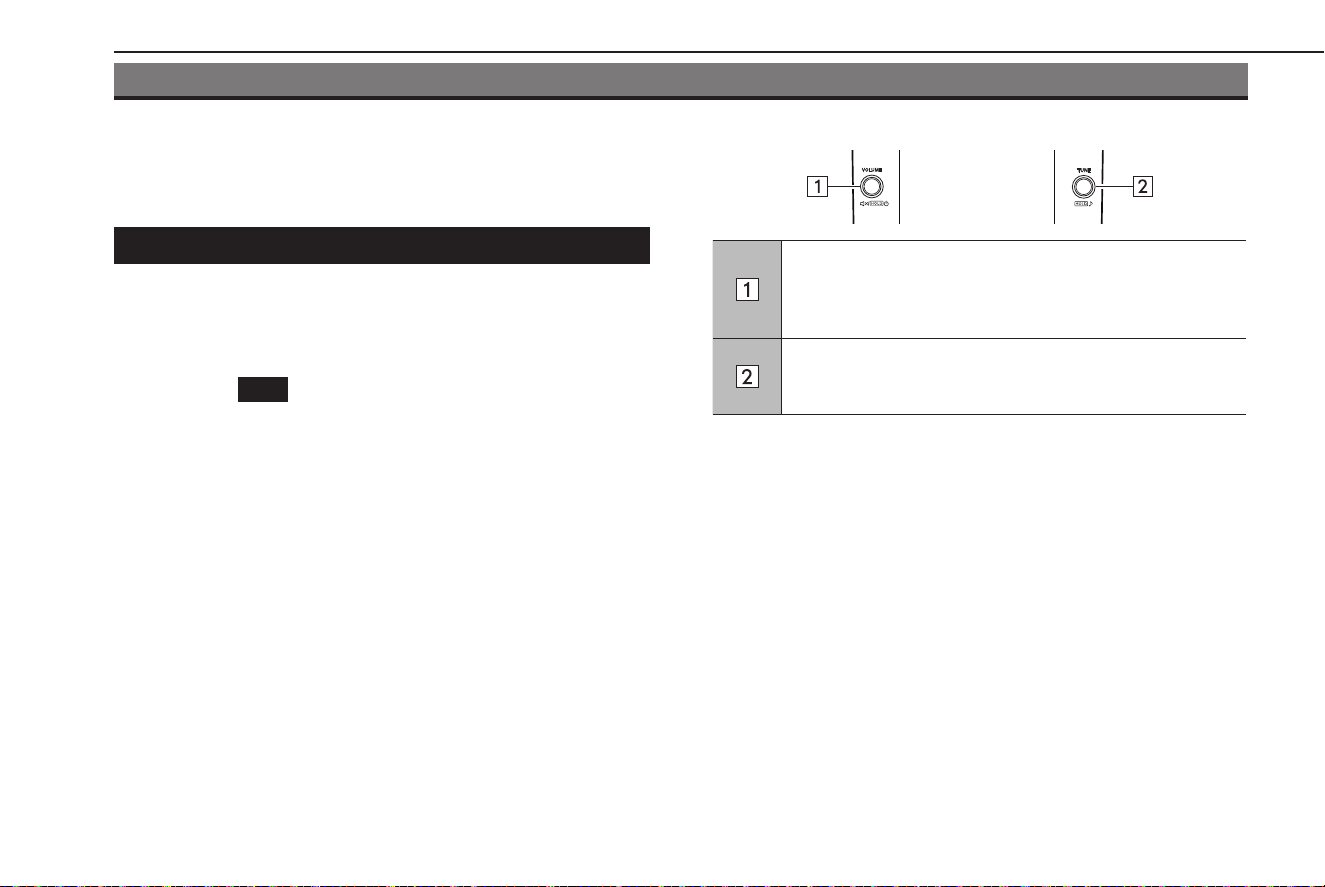
MEDIA OPERATION
USB MEMORY
Audio les on a USB memory device can be played back.
OVERVIEW
The USB Audio playback screen can be accessed with the
following methods:
● Connec
t a USB memory device. (→P.45)
● Selec
t
USB
(USB) on the media control screen.
(→P.115)
NOTE
l Compatible USB memory device: →P.151
XControl panel
Turn to adjust the volume.
Press to mute the audio system.
Press and hold to turn the audio system o, and press and
hold to turn it on again.
Turn to change the track.
Press and hold to display the sound customization screen.
(→P.116)
MEDIA OPERATION
132
TK5_US.indb 132 2024/08/02 12:01:15
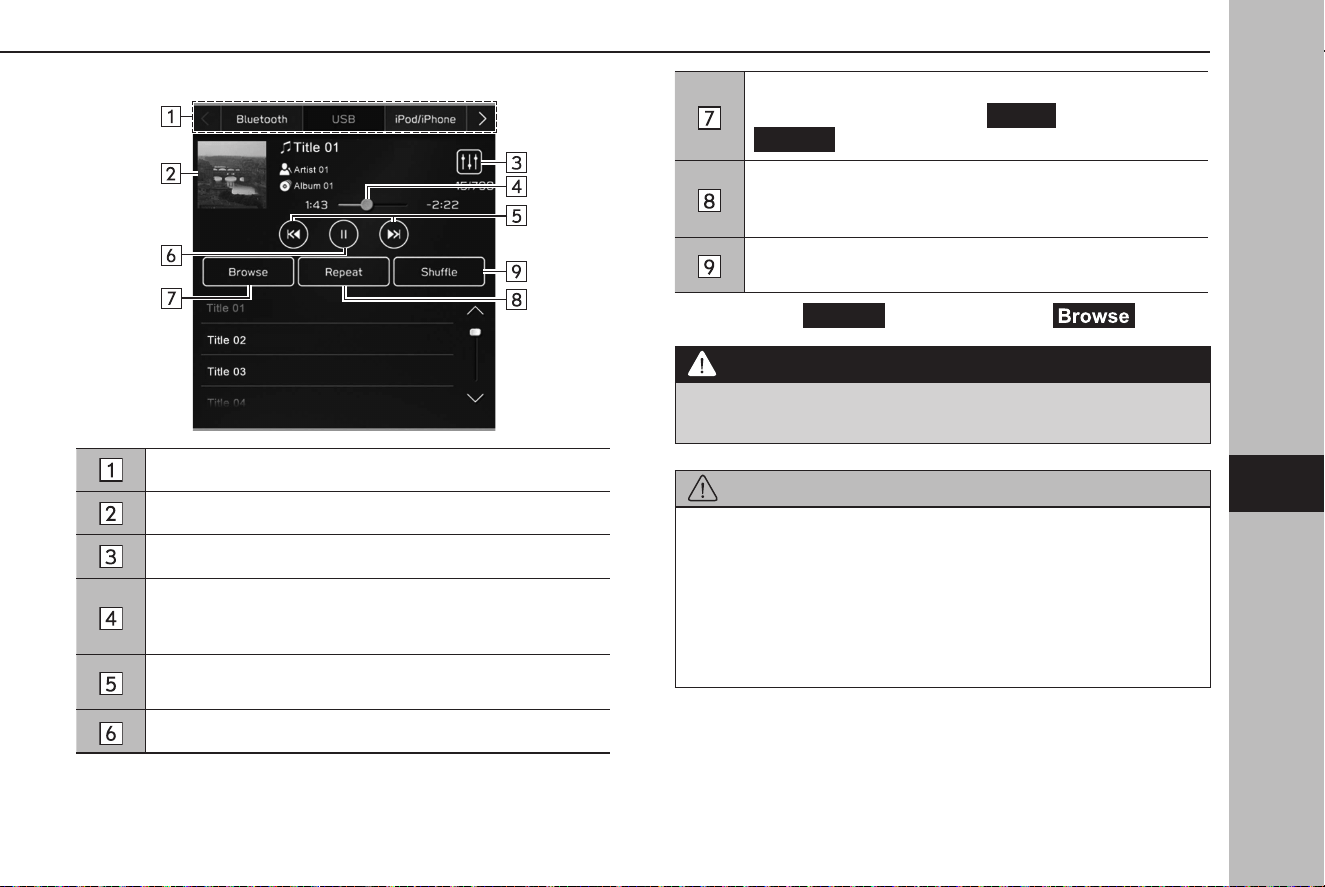
XControl screen
Select to switch between other media sources.
Displays cover art.
Select to display the sound customization screen. (→P.116)
Shows progress.
The playback location can be changed by dragging the
sliders.
Select to change the track.
Select and hold to fast forward/rewind.
Select to pause/play.
Select to display the track search screen.
Playback categories, such as by
Artists
(Artists) or
Albums
(Albums), can be selected.
Changes between repeat all tracks* → repeat current
album/folder → repeat current track → cancel repeat each
time this button is selected.
Select to enable/disable random playback for the tracks
currently playing from the USB memory device.
*: Operable when
Folders
(Folders) is selected from (Browse)
WARNING
l Do not operate the player’s controls or connect the USB memory
device while driving.
CAUTION
l Do not leave your portable player in the vehicle. In particular, high
temperatures inside the vehicle may damage the portable player.
l Do not push down on or apply unnec
essary pressure to the
portable player while it is connected as this may damage the
portable player or its terminal.
l Do not insert foreign objects into the port as this may damage the
portable player or its terminal.
MEDIA OPERATION
133
Audio
6
TK5_US.indb 133 2024/08/02 12:01:16

NOTE
l Depending on the device or music le being played, the cover art
may not be displayed.
iPod/iPhone
When an iPod/iPhone is connected to the USB port, you can
play iPod/iPhone music les. On this unit, you can perform
operations such as selecting a le from a list or changing to the
random playback mode.
CONNECTING THE iPod/iPhone
1.
Connect an iPod/iPhone to the USB port. (→P.45)
● When A
pple CarPlay is started, disable Apple CarPlay on
the “Manage Devices” screen. (→P.60)
NOTE
l Compatible iPod/iPhone: →P.151
MEDIA OPERATION
134
TK5_US.indb 134 2024/08/02 12:01:16
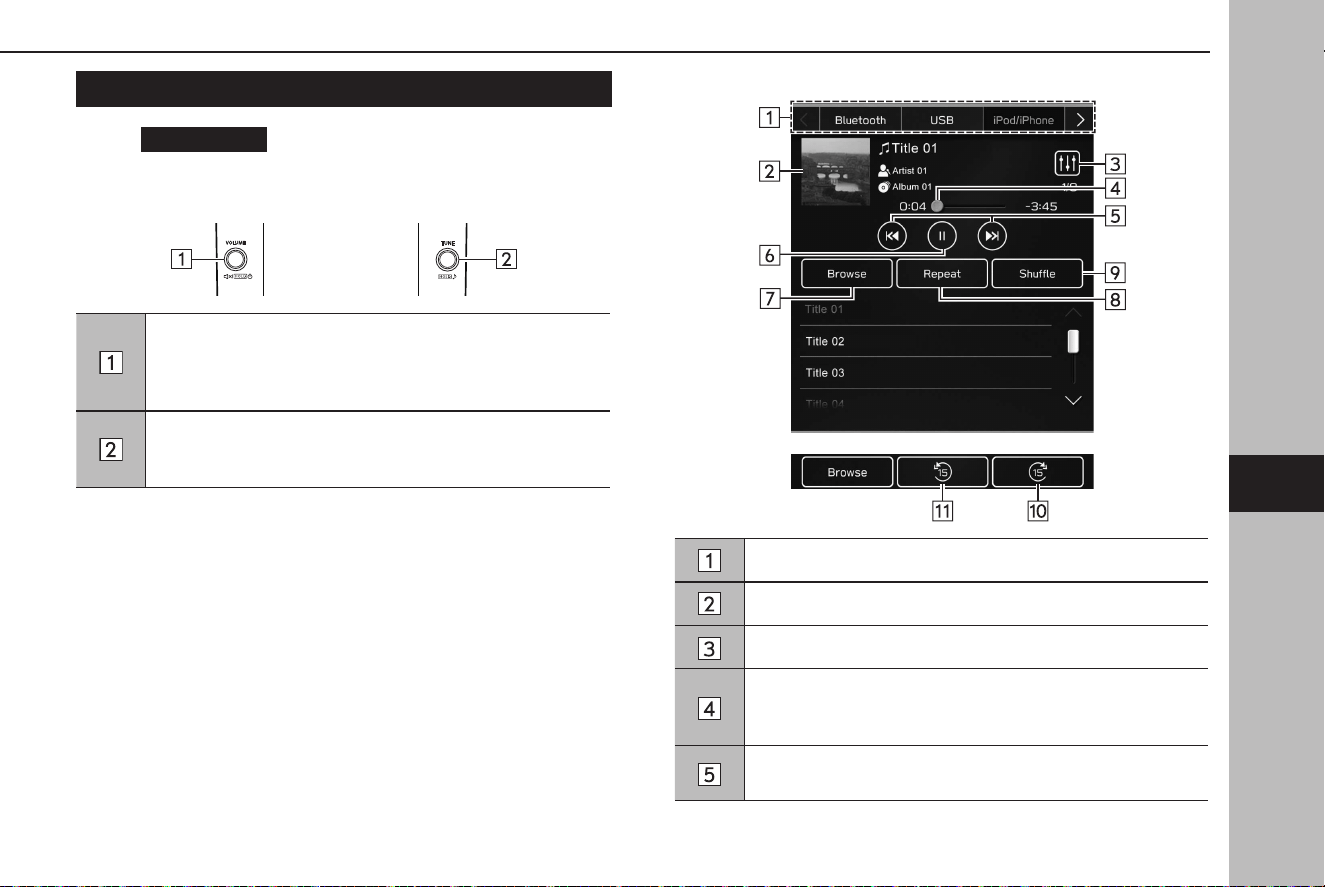
OVERVIEW
Select
iPod/iPhone
(iPod/iPhone) on the media control
screen. (→P.115)
XContr
ol panel
Turn to adjust the volume.
Press to mute the audio system.
Press and hold to turn the audio system o, and press and
hold to turn it on again.
Turn to change the track.
Press and hold to display the sound customization screen.
(→P.116)
XControl screen
Select to switch between other media sources.
Displays cover art.
Select to display the sound customization screen. (→P.116)
Shows progress.
The playback location can be changed by dragging the
sliders.
Select to change the track.
Select and hold to fast forward/rewind.
MEDIA OPERATION
135
Audio
6
TK5_US.indb 135 2024/08/02 12:01:16
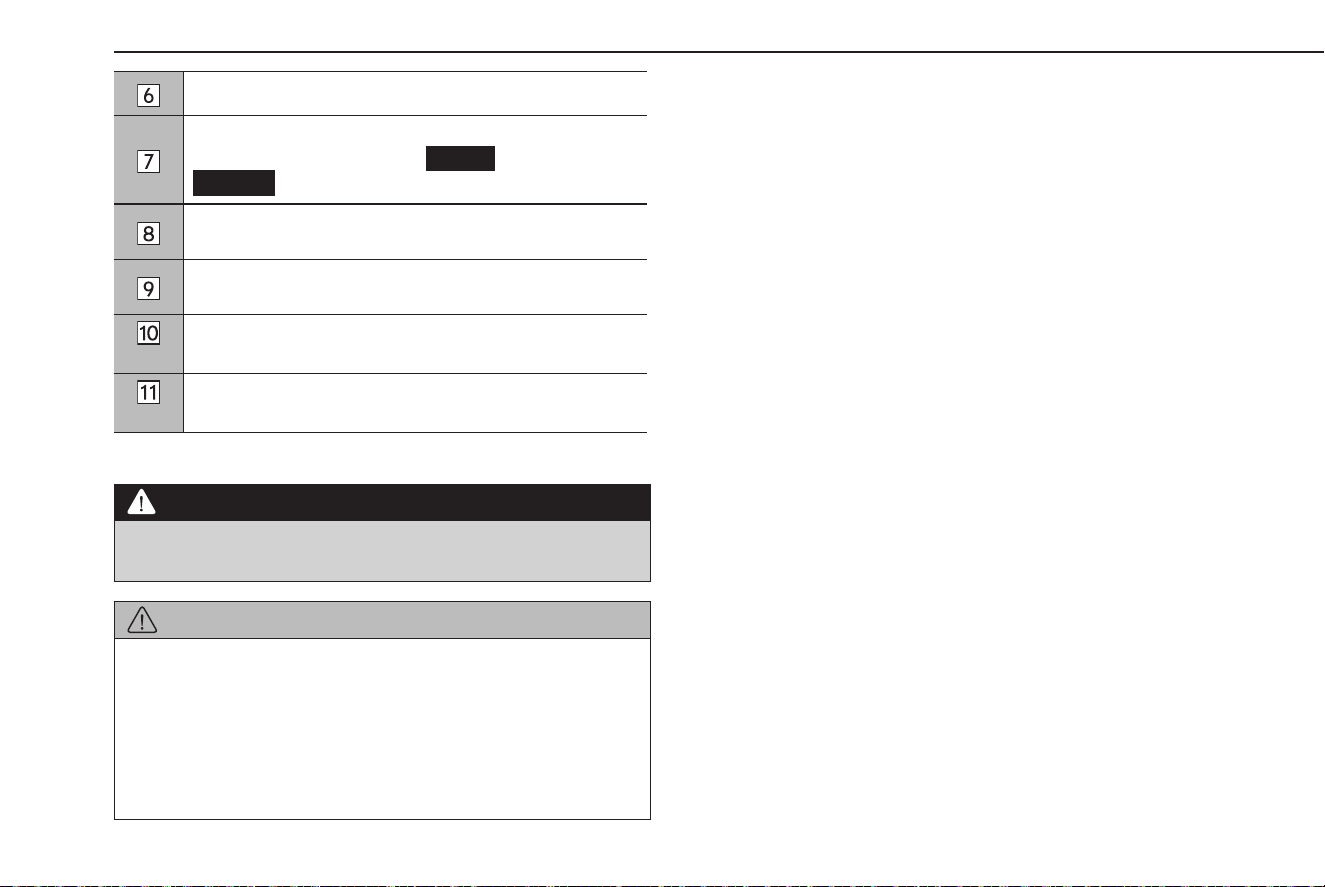
Select to pause/play.
Select to display the track search screen.
Playback categories, such as by
Artists
(Artists) or
Albums
(Albums), can be selected.
Changes between repeat current album → repeat current
track → cancel repeat each time this button is selected.
Select to enable/disable random playback for the tracks
currently playing on the iPod/iPhone.
*
Select to fast forward the current content item in xed
intervals.
*
Select to rewind the current content item in xed intervals.
*: Display when playing Audiobooks or Podcasts
WARNING
l Do not operate the player’s controls or connect the iPod/iPhone
while driving.
CAUTION
l Do not leave your iPod/iPhone in the vehicle. In particular, high
temperatures inside the vehicle may damage it.
l Do not push down on or apply unnecessary pressure to the
connector area of the iPod/iPhone while it is connected as this
may damage the device or its terminals.
l Do not insert foreign objects into the port as this may damage the
device or its terminals.
NOTE
l When an iPod/iPhone is connected using an undamaged genuine
iPod/iPhone cable, battery of the iPod/iPhone will be charged.
l When pla
ying music on an iPod/iPhone, operate connect it to
the system using an undamaged genuine iPod/iPhone cable and
operate the iPod/iPhone from the system. Certain functions may
not be available if connected using other methods. Furthermore,
depending on the connected iPod/iPhone, certain functions may not
be available.
l Depending on the iPod/iPhone or music le being played, the cover
art may not be displayed.
l When an iPod/iPhone is connected and the audio source is changed
to iPod/iPhone mode, the iPod/iPhone will resume playing from the
same point it was last used.
l Tracks selected by operating a connected iPod/iPhone may not be
recognized or displayed properly.
MEDIA OPERATION
136
TK5_US.indb 136 2024/08/02 12:01:16
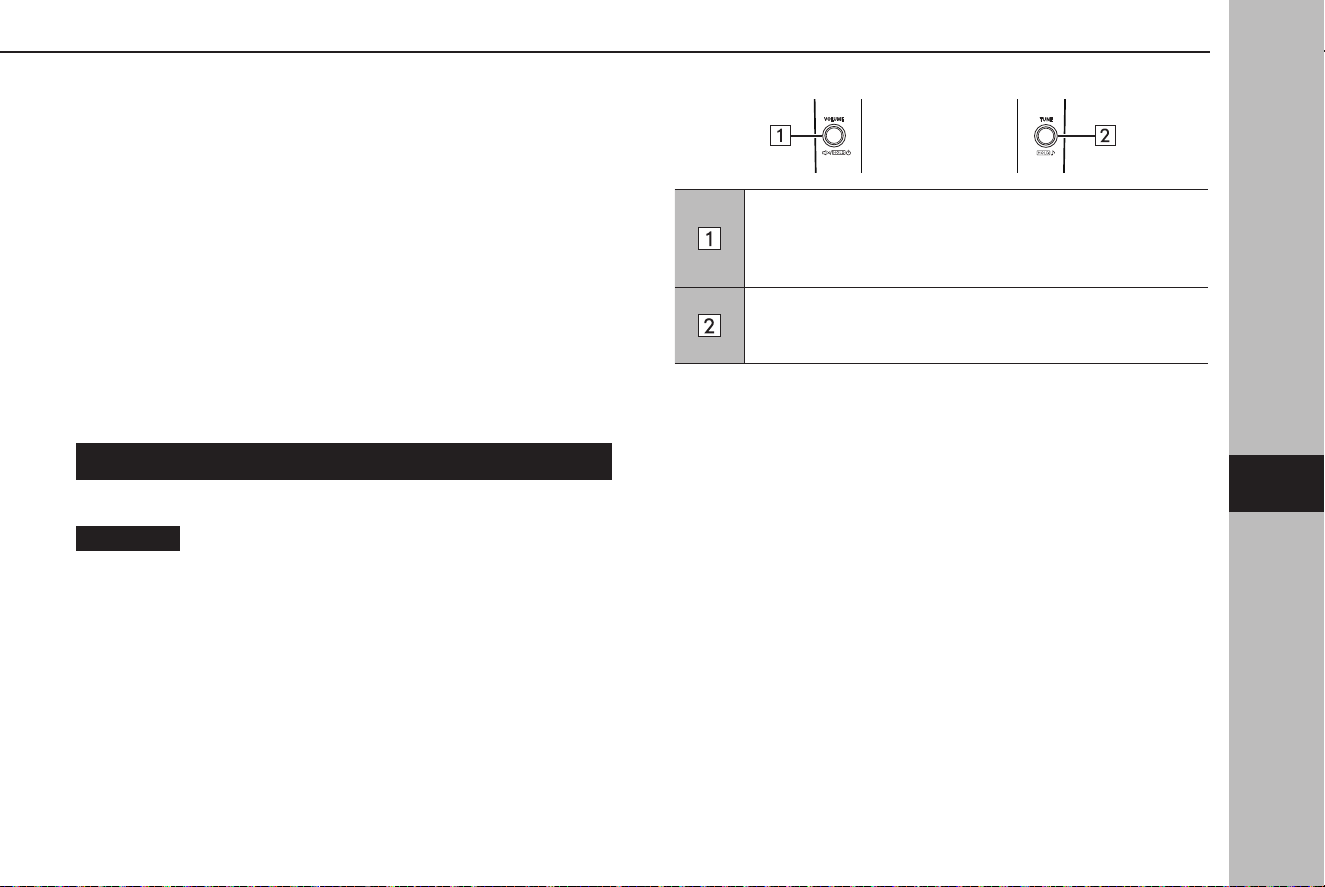
Bluetooth AUDIO
The Bluetooth audio system enables users to play music les
stored on Bluetooth devices through the vehicle speakers via
wireless communication.
This audio system supports Bluetooth, a wireless data system
capable of playing portable audio music without cables. If your
device does not support Bluetooth, the Bluetooth audio system
will not function.
NOTE
l When Apple CarPlay/Android Auto is used, Bluetooth audio of the
same Bluetooth phone/device cannot be used.
OVERVIEW
The Bluetooth audio control screen can be accessedby selecting
Bluetooth
(Bluetooth) on the media control screen. (→P.115)
Depending on the type of portable player connected, some
functions may not be available and/or the screen may look
dierently than shown in this manual.
XControl panel
Turn to adjust the volume.
Press to mute the audio system.
Press and hold to turn the audio system o, and press and
hold to turn it on again.
Turn to change the track.
Press and hold to display the sound customization screen.
(→P.116)
MEDIA OPERATION
137
Audio
6
TK5_US.indb 137 2024/08/02 12:01:17
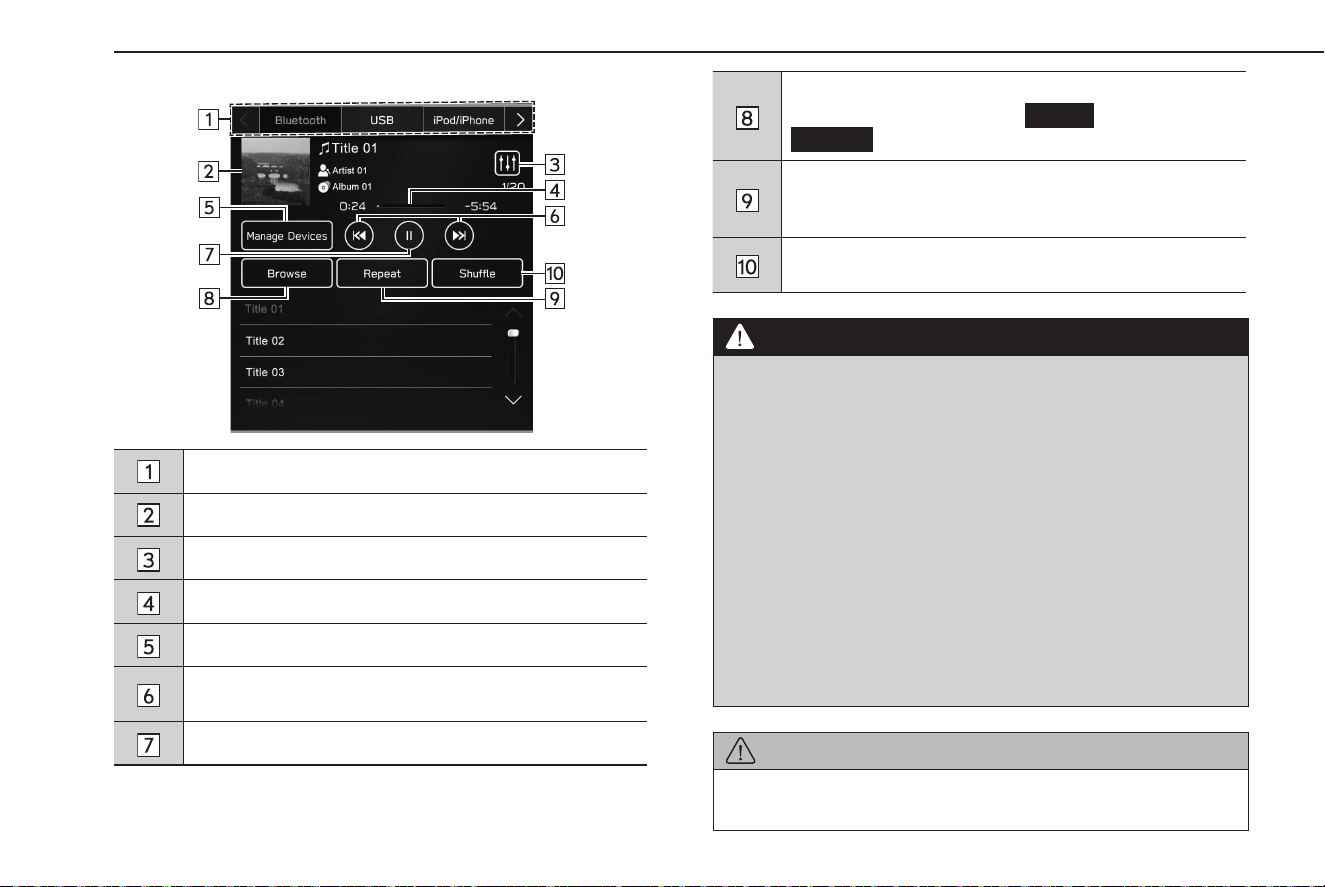
XControl screen
Select to switch between other media sources.
Displays cover art.
Select to display the sound customization screen. (→P.116)
Shows progress.
Select to display the“Manage Devices” screen. (→P.140)
Select to change the track.
Select and hold to fast forward/rewind.
Select to pause/play.
Select to display the track search screen.
Playback categories, such as by
Artists
(Artists) or
Albums
(Albums), can be selected.
Changes between repeat current album/folder → repeat
current track → cancel repeat each time this button is
selected.
Select to enable/disable random playback for the tracks
currently playing on the Bluetooth device.
WARNING
l Do not operate the player’s controls or connect to the Bluetooth
audio system while driving.
l This system is tted with Bluetooth antennas. People with
implantable cardiac pacemakers, cardiac resynchronization
therapy-pacemakers or implantable cardioverter debrillators
should maintain a reasonable distance between themselves and
the Bluetooth antennas. The radio waves may aect the operation
of such devices.
l Befor
e using Bluetooth devices, users of any electrical medical
device other than implantable cardiac pacemakers, cardiac
resynchronization therapy-pacemakers or implantable
cardioverter debrillators should consult the manufacturer of the
device for information about its operation under the inuence of
radio waves. Radio waves could have unexpected eects on the
operation of such medical devices.
CAUTION
l Do not leave your portable player in the vehicle. In particular, high
temperatures inside the vehicle may damage the portable player.
MEDIA OPERATION
138
TK5_US.indb 138 2024/08/02 12:01:17
NOTE
l Depending on the Bluetooth device that is connected to the system,
the music may start playing when selecting while it is paused.
Conversely, the music may pause when selecting while it is
playing.
l In the f
ollowing conditions, the system may not function:
• The Bluetooth device is turned o.
• The Bluetooth device is not connected.
• The Bluetooth device has a low battery.
l It ma
y take time to connect the phone when Bluetooth audio is
being played.
l For operating the portable player, see the instruction manual that
comes with it.
l If the Bluetooth device is disconnected due to poor reception from
the Bluetooth network when the ignition switch is turned to the
“ACC” or “ON” position, the system will automatically reconnect to the
portable player.
l If the Bluetooth device is disconnected on purpose, such as it was
turned o, this does not happen. Reconnect the portable player
manually.
l Bluetooth device information is registered when the Bluetooth
device is connected to the Bluetooth audio system. When
transferring ownership of your vehicle, remove the Bluetooth audio
information from the system. (→P.66)
l Depending on the Bluetooth device or music le being played, the
cover art may not be displayed.
l If the Bluetooth device does not play automatically when connected,
device operation may be necessary.
l Operability of all Bluetooth devices with this system is not
guaranteed.
NOTE
l Depending on the Bluetooth device connected, irregularities, such
as disabled operation of the audio system, inconsistent display with
the connected device, longer time required for audio playback, may
result.
l Depending on the music playback application of a Bluetooth device,
the Bluetooth audio may not operate properly.
l If the specications or prole of the connected Bluetooth device is
lower than recommended or not compatible, the Bluetooth device
may not function properly.
l If a Bluetooth device is enclosed by metal object or in a remote area
away from the vehicle’s Bluetooth module, sound quality of the
playback may be deteriorated or the wireless communication may be
severed.
MEDIA OPERATION
139
Audio
6
TK5_US.indb 139 2024/08/02 12:01:17
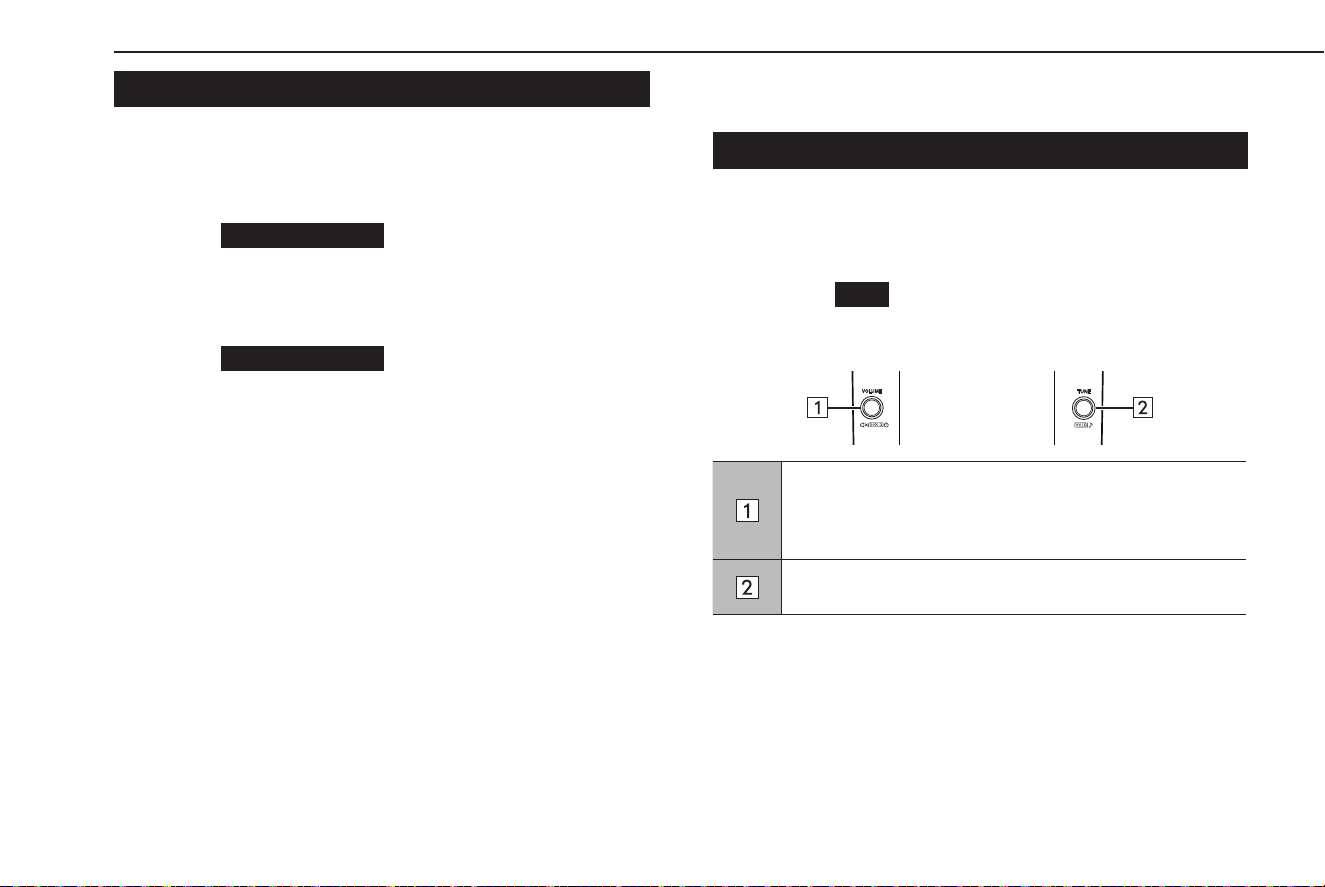
CONNECTING A Bluetooth DEVICE
To use the Bluetooth audio system, it is necessary to register a
Bluetooth device with the system.
XRegistering an additional de
vice
1.
Select
Manage Devices
(Manage Devices) on the
Bluetooth audio control screen.
2.
For more information: →P.58
XSelec
ting a registered device
1.
Select
Manage Devices
(Manage Devices) on the
Bluetooth audio control screen.
2.
Select the Bluetooth device to be connected.
AUX
OVERVIEW
The AUX control screen can be accessed with the following
methods:
● Connec
t a portable audio device. (→P.45)
● Selec
t
AUX
(AUX) on the media control screen.
(→P.115)
XCon
trol panel
Turn to adjust the volume.
Press to mute the audio system.
Press and hold to turn the audio system o, and press and
hold to turn it on again.
Press and hold to display the sound customization screen.
(→P.116)
MEDIA OPERATION
140
TK5_US.indb 140 2024/08/02 12:01:18
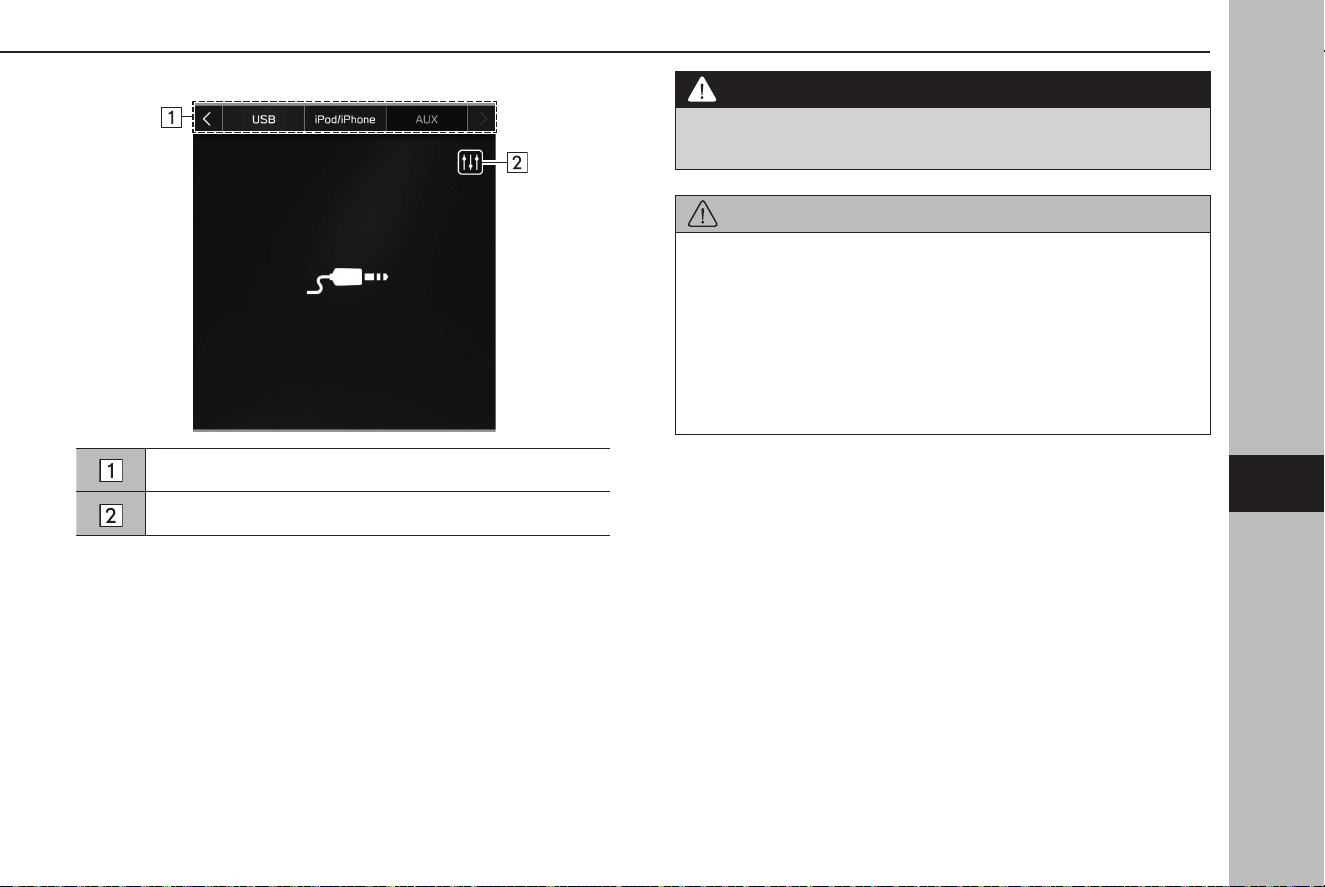
XControl screen
Select to switch between other media sources.
Select to display the sound customization screen. (→P.116)
WARNING
l Do not operate the player’s controls or connect the portable audio
device while driving.
CAUTION
l Do not leave portable audio device in the vehicle. The temperature
inside the vehicle may become high, resulting in damage to the
player.
l Do not push down on or apply unnec
essary pressure to the
portable audio device while it is connected as this may damage
the portable audio device or its terminal.
l Do not insert foreign objects into the port as this may damage the
portable audio device or its terminal.
MEDIA OPERATION
141
Audio
6
TK5_US.indb 141 2024/08/02 12:01:18
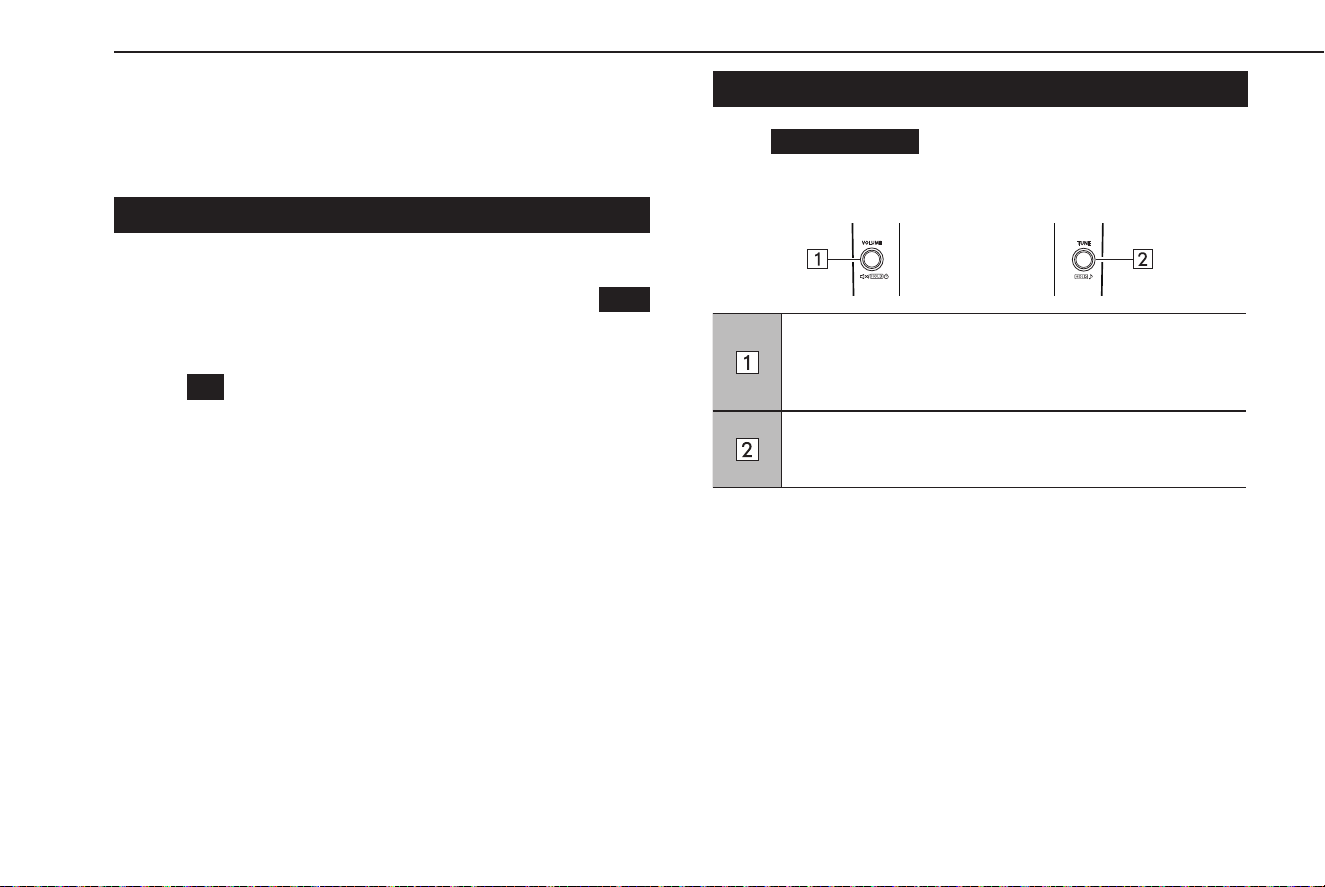
Apple CarPlay*
*: When connected as an Apple CarPlay device
Audio les on an Apple CarPlay device can be played back.
CONNECTING AN Apple CarPlay DEVICE
1.
Connect a device compatible with Apple CarPlay. (→P.60)
2.
Check the conrmation message, and then select
Yes
(Yes).
● The A
pple CarPlay screen will be displayed.
● If
No
(No) is selected, Apple CarPlay will not start. When
connected to a USB port, the device will be recognized as
an iPod/iPhone. (→P.134) When not connected to a USB
port, the device will be recognized as a Bluetooth device.
(→P.137)
NOTE
l Enable Apple CarPlay in the Apple CarPlay device’s restriction
settings before using this function.
OVERVIEW
Select
Apple CarPlay
(Apple CarPlay) on the media control
screen. (→P.115)
XCon
trol panel
Turn to adjust the volume.
Press to mute the audio system.
Press and hold to turn the audio system o, and press and
hold to turn it on again.
Turn to change the track.
Press and hold to display the sound customization screen.
(→P.116)
MEDIA OPERATION
142
TK5_US.indb 142 2024/08/02 12:01:19
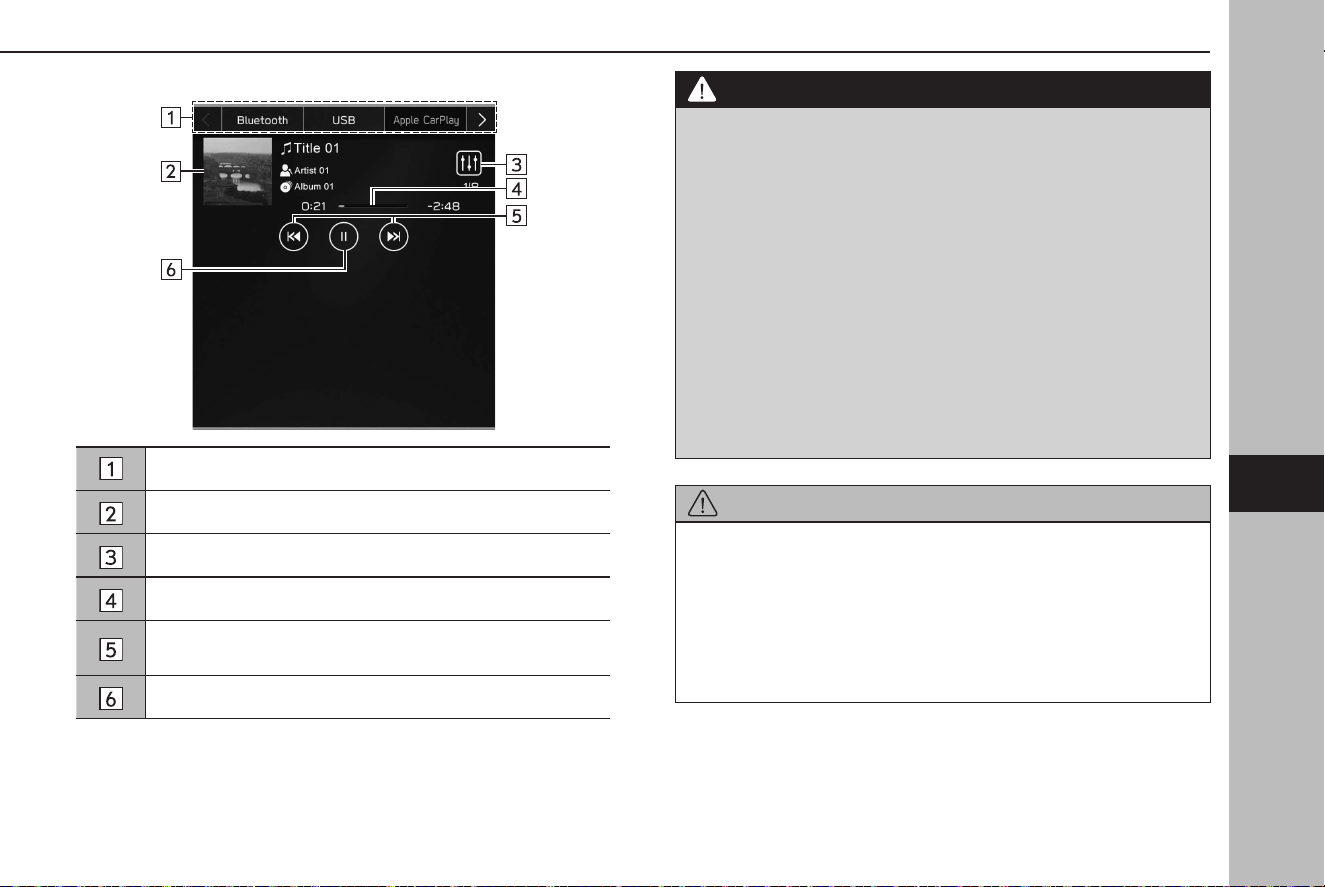
XControl screen
Select to switch between other media sources.
Displays cover art.
Select to display the sound customization screen. (→P.116)
Shows progress.
Select to change the track.
Select and hold to fast forward/rewind.
Select to pause/play.
WARNING
l Do not operate or connect an Apple CarPlay device while driving.
l This syst
em is tted with Wi-Fi® antennas. People with implantable
cardiac pacemakers, cardiac resynchronization therapy-
pacemakers or implantable cardioverter debrillators should
maintain a reasonable distance between themselves and the
Wi-Fi® antennas. The radio waves may aect the operation of such
devices.
l Before using Wi-Fi® devices, users of any electrical medical
device other than implantable cardiac pacemakers, cardiac
resynchronization therapy-pacemakers or implantable
cardioverter debrillators should consult the manufacturer of the
device for information about its operation under the inuence of
radio waves.
Radio waves could have unexpected eects on the operation of
such medical devices.
CAUTION
l Do not leave your Apple CarPlay device in the vehicle. In particular,
high temperatures inside the vehicle may damage it.
l Do not push down on or apply unnecessary pressure to the
connector area of the Apple CarPlay device while it is connected
as this may damage the device or its terminals.
l Do not insert foreign objects into the port as this may damage the
device or its terminals.
MEDIA OPERATION
143
Audio
6
TK5_US.indb 143 2024/08/02 12:01:19

NOTE
l When an Apple CarPlay device is connected using an undamaged
genuine Apple CarPlay device cable, battery of the Apple CarPlay
device will be charged.
l When playing music on an Apple CarPlay device, operate the Apple
CarPlay device from the system. Furthermore, depending on the
connected Apple CarPlay device, certain functions may not be
available.
l Depending on the Apple CarPlay device or music le being played,
the cover art may not be displayed.
l When
an Apple CarPlay device is connected and the audio source is
changed to Apple CarPlay device mode, the Apple CarPlay device
will resume playing from the same point it was last used.
l Tr
acks selected by operating a connected Apple CarPlay device may
not be recognized or displayed properly.
Android Auto*
*: When connected as an Android Auto device
Audio les on an Android Auto device can be played back.
CONNECTING AN Android Auto DEVICE
The Android Auto application can be used in either of the
following methods:
● Reg
ister a device compatible with Android Auto to the
vehicle system then connect it wirelessly. (→P.105)
● Connec
t a device compatible with Android Auto to a USB
port. (→P.105)
MEDIA OPERATION
144
TK5_US.indb 144 2024/08/02 12:01:19
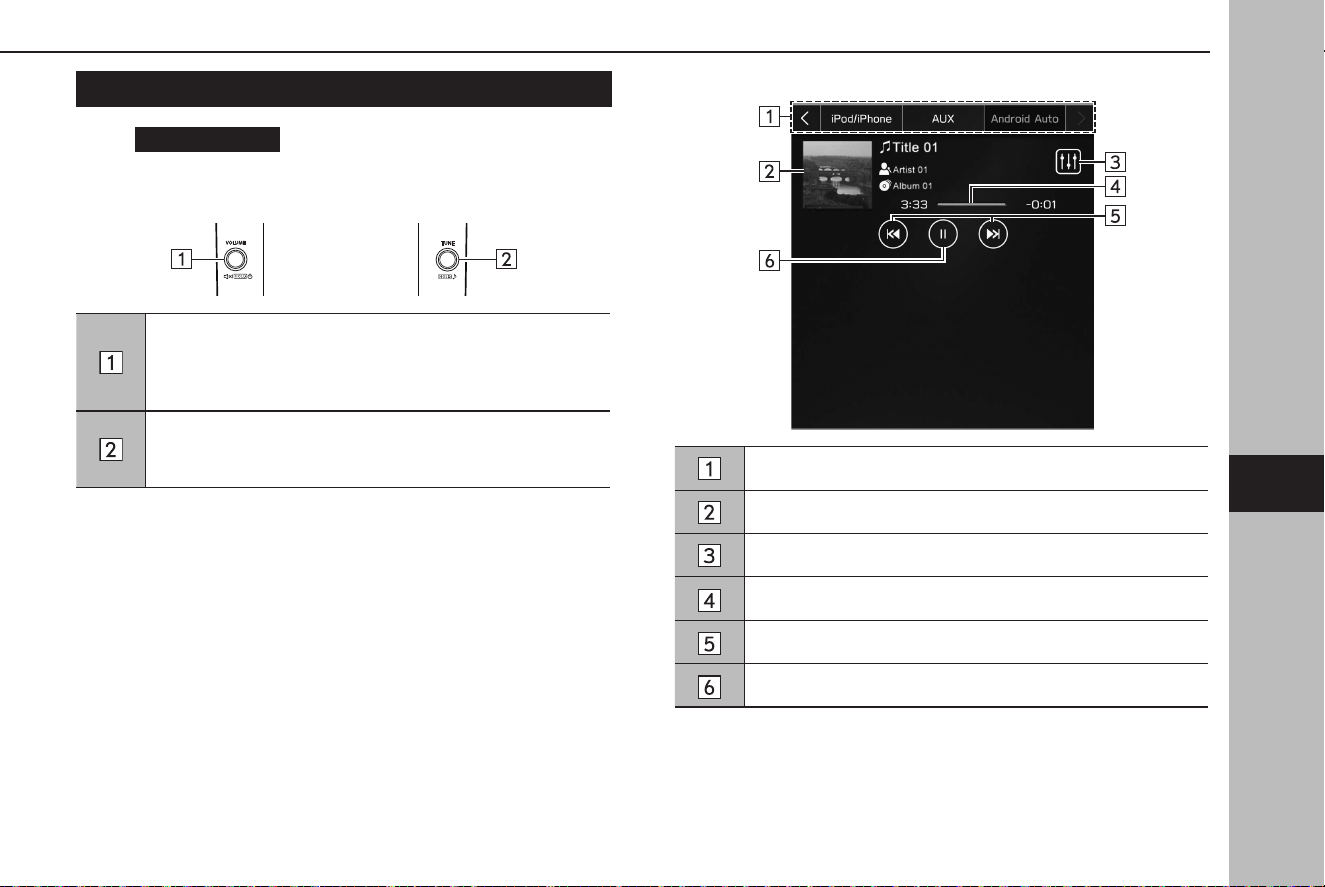
OVERVIEW
Select
Android Auto
(Android Auto) on the media control
screen. (→P.115)
XContr
ol panel
Turn to adjust the volume.
Press to mute the audio system.
Press and hold to turn the audio system o, and press and
hold to turn it on again.
Turn to change the track.
Press and hold to display the sound customization screen.
(→P.116)
XControl screen
Select to switch between other media sources.
Displays cover art.
Select to display the sound customization screen. (→P.116)
Shows progress.
Select to change the track.
Select to pause/play.
MEDIA OPERATION
145
Audio
6
TK5_US.indb 145 2024/08/02 12:01:19
WARNING
l Do not operate or connect an Android Auto device while driving.
l This sy
stem is tted with Wi-Fi® antennas. People with implantable
cardiac pacemakers, cardiac resynchronization therapy-
pacemakers or implantable cardioverter debrillators should
maintain a reasonable distance between themselves and the
Wi-Fi® antennas. The radio waves may aect the operation of such
devices.
l Before using Wi-Fi® devices, users of any electrical medical
device other than implantable cardiac pacemakers, cardiac
resynchronization therapy-pacemakers or implantable
cardioverter debrillators should consult the manufacturer of the
device for information about its operation under the inuence of
radio waves.
Radio waves could have unexpected eects on the operation of
such medical devices.
CAUTION
l Do not leave your Android Auto device in the vehicle. In particular,
high temperatures inside the vehicle may damage it.
l Do not push down on or apply unnecessary pressure to the
connector area of the Android Auto device while it is connected as
this may damage the device or its terminals.
l Do not insert foreign objects into the port as this may damage the
device or its terminals.
NOTE
l Depending on the device or music le being played, the cover art
may not be displayed.
MEDIA OPERATION
146
TK5_US.indb 146 2024/08/02 12:01:19
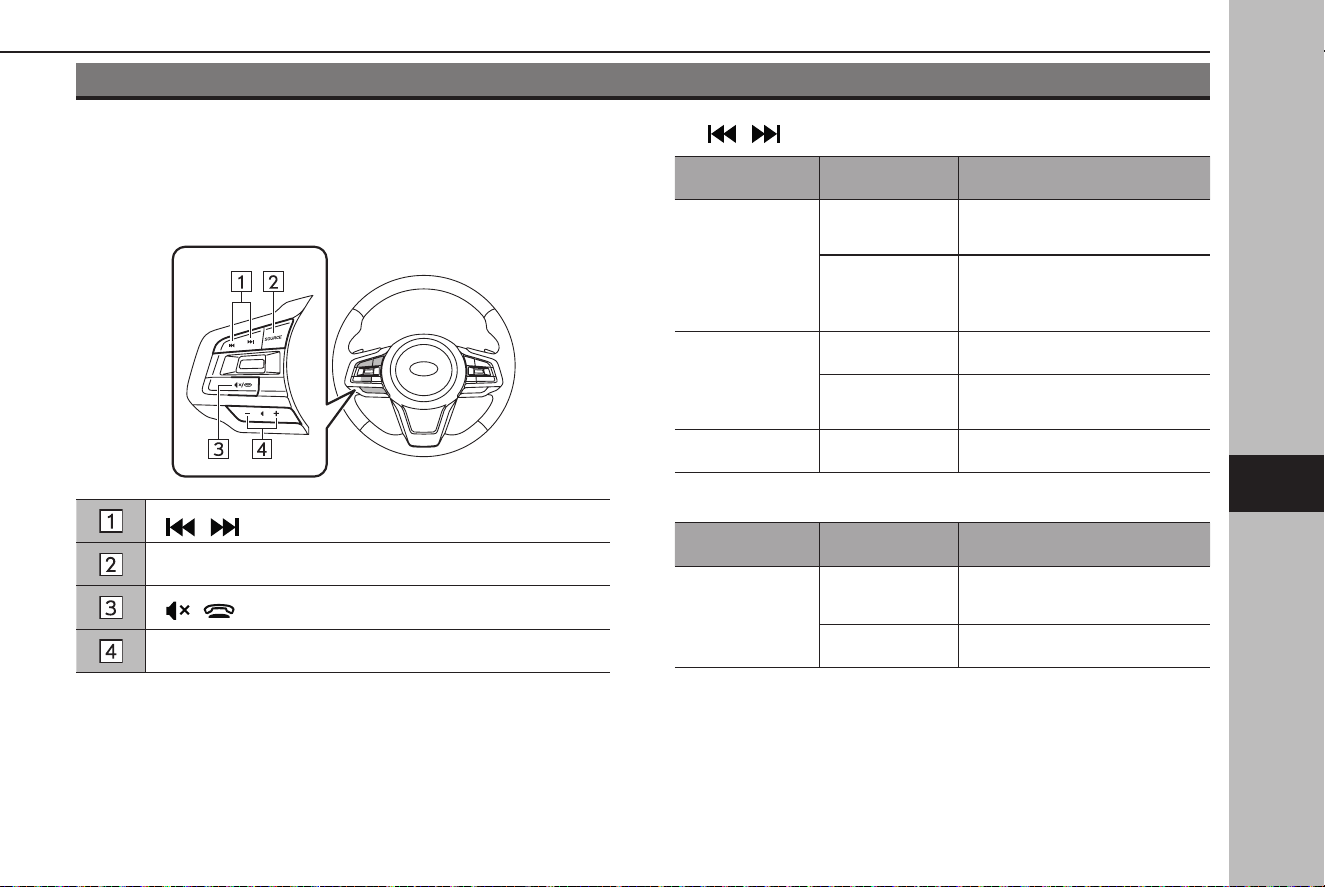
AUDIO REMOTE CONTROLS
STEERING WHEEL CONTROLS
Some parts of the audio system can be controlled using the
steering wheel controls.
“ / ” switch
“SOURCE” switch
“ / ” switch
“+/-” switch
X“ / ” switch
Mode Operation Function
AM/FM Radio,
SiriusXM®
Press
Preset station/channel up/
down
Press and hold
Scan and stop at the rst
received station when the
switch is released
USB,
iPod/iPhone,
Bluetooth audio,
Apple CarPlay
Press Change a track/le
Press and hold Fast forward/rewind
Android Auto Press Change a track
X“SOURCE” switch
Mode Operation Function
All
Press
Turn on the audio system or
change the audio source mode
Press and hold
Turn o the audio system
AUDIO REMOTE CONTROLS
147
Audio
6
TK5_US.indb 147 2024/08/02 12:01:20
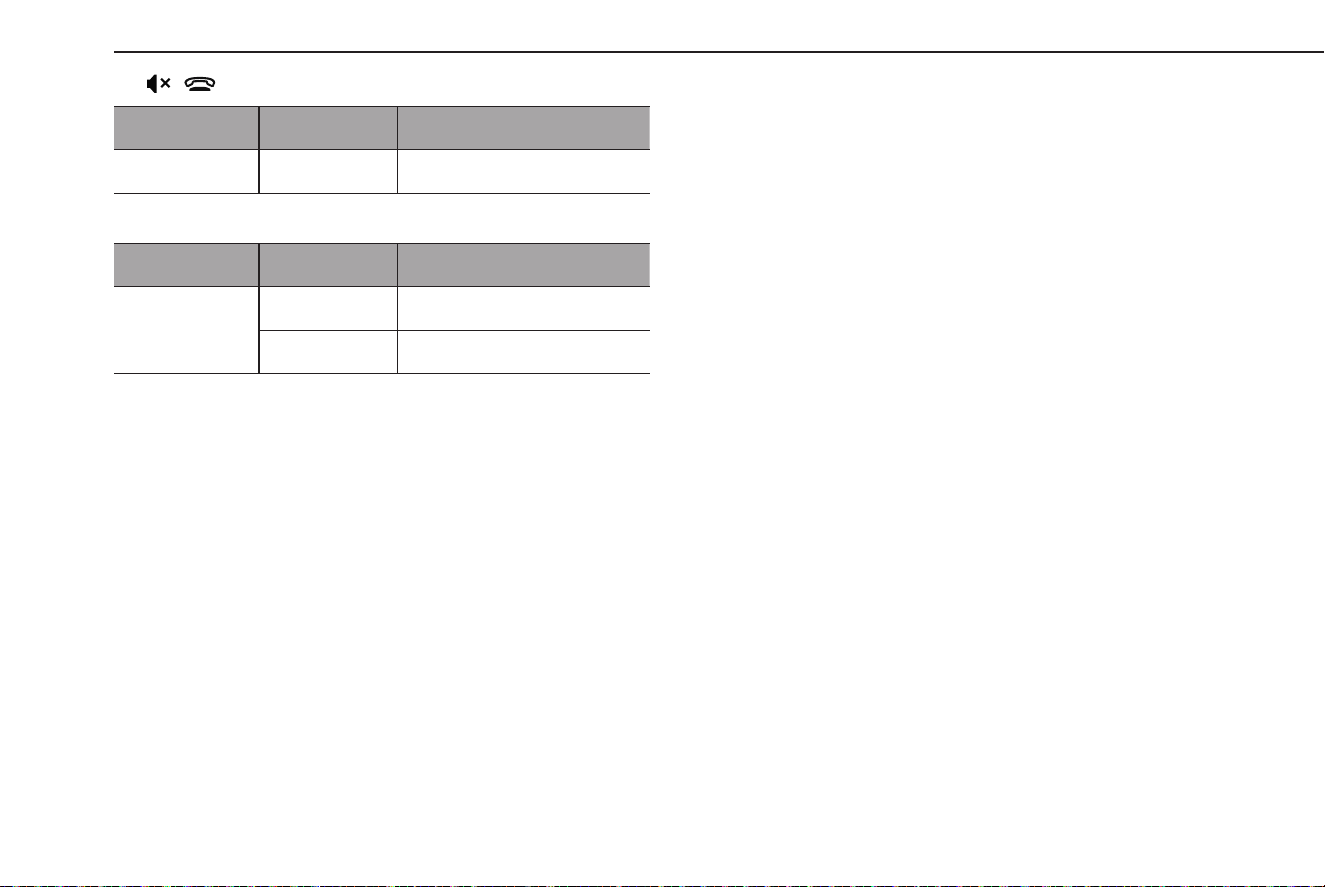
X“ / ” switch
Mode Operation Function
All Press Audio volume mute on/o.
X“+/-” switch
Mode Operation Function
Volume
Press Volume up/down
Press and hold Volume up/down continuously
AUDIO REMOTE CONTROLS
148
TK5_US.indb 148 2024/08/02 12:01:20
TIPS FOR OPERATING THE AUDIO SYSTEM
OPERATING INFORMATION
CAUTION
l To avoid damage to the audio system, be careful not to spill
beverages over the audio system.
NOTE
l The use of a cellular phone inside or near the vehicle may cause a
noise from the speakers of the audio system which you are listening
to. However, this does not indicate a malfunction.
RADIO
Usually, a problem with radio reception does not mean there
is a problem with the radio — it is just the normal result of
conditions outside the vehicle.
For example, nearby buildings and terrain can interfere with
FM reception. Power lines or phone wires can interfere with AM
signals. And of course, radio signals have a limited range. The
farther the vehicle is from a station, the weaker its signal will
be. In addition, reception conditions change constantly as the
vehicle moves.
Here, some common reception problems that probably do not
indicate a problem with the radio are described.
TIPS FOR OPERATING THE AUDIO SYSTEM
149
Audio
6
TK5_US.indb 149 2024/08/02 12:01:20

FM
Fading and drifting stations: Generally, the eective range of
FM is about 25 miles (40 km). Once outside this range, you may
notice fading and drifting, which increase with the distance
from the radio transmitter. They are often accompanied by
distortion.
Multi-path: FM signals are reective, making it possible for
2 signals to reach the vehicle’s antenna at the same time. If
this happens, the signals will cancel each other out, causing a
momentary utter or loss of reception.
Static and uttering: These occur when signals are blocked by
buildings, trees or other large objects. Increasing the bass level
may reduce static and uttering.
Station swapping: If the FM signal being listened to is
interrupted or weakened, and there is another strong station
nearby on the FM band, the radio may tune in the second
station until the original signal can be picked up again.
AM
Fading: AM broadcasts are reected by the upper atmosphere
— especially at night. These reected signals can interfere with
those received directly from the radio station, causing the radio
station to sound alternately strong and weak.
Station interference: When a reected signal and a signal
received directly from a radio station are very nearly the same
frequency, they can interfere with each other, making it dicult
to hear the broadcast.
Static: AM is easily aected by external sources of electrical
noise, such as high tension power lines, lightening or electrical
motors. This results in static.
SiriusXM®
● Cargo loaded on the roof luggage carrier, especially
metal objects, may adversely aect the reception of
SiriusXM® Radio.
● Alternation or modications carried out without
appropriate authorization may invalidate the user’s right
to operate the equipment.
TIPS FOR OPERATING THE AUDIO SYSTEM
150
TK5_US.indb 150 2024/08/02 12:01:20
USB MEMORY DEVICE
● USB communication formats: USB 2.0 LS (1.5 Mbps)/FS
(12 Mbps)/HS (480 Mbps)
● File formats: FAT32/NTFS/HFS+/EXT4
● Cor
respondence class: Mass storage class
iPod/iPhone
The following iPod touch and iPhone devices can be used with
this system.
Made for
● iPhone 12 P
ro Max
● iPhone 12 Pro
● iPhone 12
● iPhone 12 mini
● iPhone 11 Pro Max
● iPhone 11 P
ro
● iPhone 11
● iPhone XS Max
● iPhone XS
● iPhone XR
● iPhone X
● iPhone 8 P
lus
● iPhone 8
● iPhone 7 P
lus
● iPhone 7
● iPhone SE
● iPhone 6s P
lus
● iPhone 6s
● iPhone 6 P
lus
● iPhone 6
● iPod touch (7th generation)
● iPod t
ouch (6th generation)
● For USA cust
omers, please visit www.subaru.com for
details. Outside of the USA customers, contact your local
dealer to arrange a demonstration in order to conrm
whether or not the phone can be paired with the vehicle.
FILE INFORMATION
Codec Description Channels
Container/
Extension
MPEG-4 AAC
LC
8-48 kHz sampling rate
8-320 kbps CBR, VBR
Mono and
stereo
.m4a, .aac
MPEG-4 HE
AAC
16-48 kHz sampling rate
8-320 kbps CBR, VBR
Mono and
stereo
.m4a, .aac
MPEG-4 HE
AAC v2
16-48 kHz sampling rate
8-320 kbps CBR, VBR
Mono and
stereo
.m4a, .aac
MP3
8-48 kHz sampling rate
8-320 kbps CBR, VBR
Mono,
Stereo,
and Joint
.mp3
WMA2/7/8/
9/9.1/9.2
16-48 kHz sampling rate
8-320 kbps CBR, VBR
Mono and
stereo
.wma
TIPS FOR OPERATING THE AUDIO SYSTEM
151
Audio
6
TK5_US.indb 151 2024/08/02 12:01:20

Codec Description Channels
Container/
Extension
PCMWAVE
8 bit and 16 bit
8000, 16000, and 44100 Hz
sampling frequency
Mono and
stereo
.wav
FLAC
44.1 kHz, 48 kHz, 88.2 kHz,
96 kHz, 176.4 kHz, 192 kHz
sampling rate
16 bit, 24 bit
Mono and
stereo
.ac
ALAC
44.1 kHz, 48 kHz, 88.2 kHz,
96 kHz, 176.4 kHz, 192 kHz
sampling rate
16 bit, 24 bit
Mono and
stereo
.m4a
● The player is compatible with VBR (Variable Bit Rate).
● MP3 (MPEG Audio La
yer 3), WMA (Windows Media
Audio) and AAC (Advanced Audio Coding) are audio
compression standards.
● This system can play AAC/AAC+ v2/MP3/WMA les on
USB memory device and Bluetooth device.
● When naming an AAC/AAC+ v2/MP3/WMA le, add an
appropriate le extension (.mp3/.wma/.m4a).
● This system plays back les with .mp3/.wma/.m4a le
extensions as AAC/AAC+ v2/MP3/WMA les respectively.
To prevent noise and playback errors, use the appropriate
le extension.
● MP3 les are compatible with the ID3 Tag Ver. 1.0, Ver. 1.1,
Ver. 2.2 and Ver. 2.3 formats. This system cannot display
folder name, le name and artist name in other formats.
● WMA/AA
C les can contain a WMA/AAC tag that is used
in the same way as an ID3 tag. WMA/AAC tags carry
information such as le name and artist name.
● This system can play back AAC les encoded by iTunes.
● The sound quality of MP3/WMA les generally improves
with higher bit rates. In order to achieve a reasonable
level of sound quality, USB memory device recorded with
a bit rate of at least 128 kbps are recommended.
● MP3i (MP3 interactive) and MP3PRO formats are not
compatible with the audio device.
● When playing back les recorded as VBR (Variable Bit
Rate) les, the play time will not be correctly displayed if
the fast forward or rewind operations are used.
● It is not possible t
o check folders that do not include
AAC/AAC+ v2/MP3/WMA les.
TIPS FOR OPERATING THE AUDIO SYSTEM
152
TK5_US.indb 152 2024/08/02 12:01:20

● AAC/AAC+ v2/MP3/WMA les in folders up to 3 levels
deep can be played. However, the start of playback
may be delayed when using USB memory device
containing numerous levels of folders. For this reason, we
recommend creating USB memory device with no more
than 2 levels of folders.
001.mp3
002.wma
Folder 1
003.mp3
Folder 2
004.mp3
005.wma
Folder 3
006.m4a
● The play order may change depending on the personal
computer and AAC/AAC+ v2/MP3/WMA encoding
software that were used.
● WMA (Windows Media Audio) is an audio compression
format developed by Microsoft®. It compresses les into a
size smaller than that of MP3 les. The decoding formats
for WMA les are Ver. 7, 8 and 9. This product is protected
by certain intellectual property rights of Microsoft
Corporation and third parties. Use or distribution of such
technology outside of this product is prohibited without
a license from Microsoft or an authorized Microsoft
subsidiary and third parties.
● MP3 is an audio compression standar
d determined by a
working group (MPEG) of the ISO (International Standard
Organization). MP3 compresses audio data to about 1/10
the size of that on conventional discs.
TIPS FOR OPERATING THE AUDIO SYSTEM
153
Audio
6
TK5_US.indb 153 2024/08/02 12:01:21

MEMO
154
TK5_US.indb 154 2024/08/02 12:01:21

155
Navigation System
(If equipped)
Basic Operation
156
Map Screen
156
Map Screen Overview
156
Map Screen Buttons Overview
157
Map Screen Operation
157
Current Position Display
157
Map Scale
158
Location Menu Pop-up
158
Orientation Of The Map
159
Map Screen Information
161
Gas Station/Parking Lot/Rest Area Icons
161
Trac Information
161
Other Information
162
Main Menu Screen
163
Main Menu Screen Overview
163
Search Screen
165
Favorites Screen
167
Edit List Screen
170
Route Calculation
170
Route Calculation Screen
170
Route Guidance
172
Route Guidance
172
Route Guidance Screen
172
Current Route Screen
175
Standard Map Icon
177
Typical Voice Guidance Prompts
178
Setup
179
Navigation Settings
179
Navigation Settings Screen
179
Tips For The Navigation System
181
GPS (Global Positioning System)
181
Regarding Errors In Current Position Display
181
Limitations Of The Navigation System
181
Map Data
183
Regarding Roads And Place Name Data
183
SUBARU Map Update
183
Updating The Map Data Manually
Using A USB Memory Device
184
Updating The Map Data Manually
Using Wi-Fi®
185
Updating The Map Data Automatically
Using Wi-Fi®
186
TK5_US.indb 155 2024/08/02 12:01:21
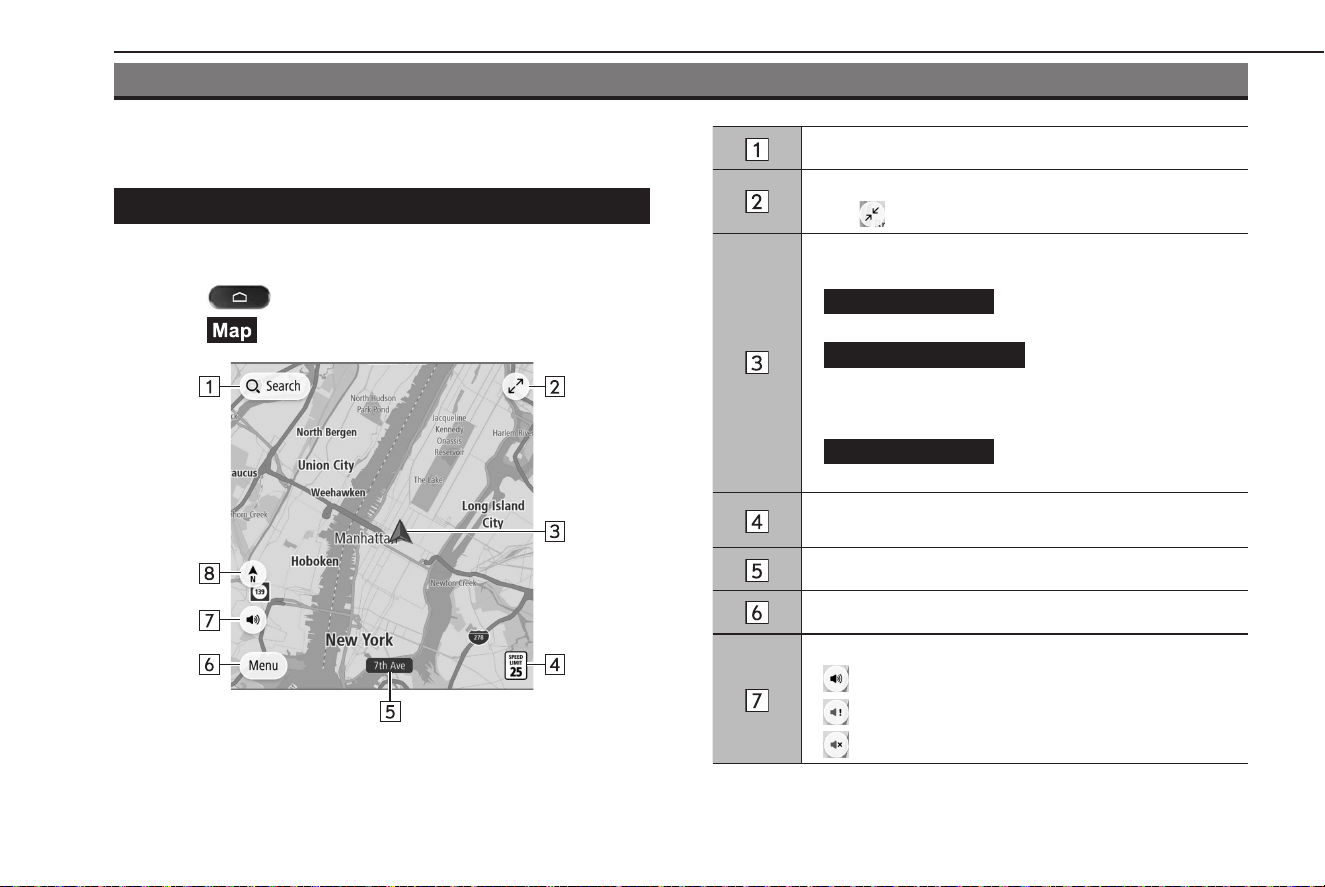
BASIC OPERATION
MAP SCREEN
MAP SCREEN OVERVIEW
The map screen can be displayed using the following method:
1.
Select .
2.
Select (Map).
Select to display the search screen. (→P.165)
Select to increase the size of the map screen.
Select to reduce the size of the map screen.
Displays the current vehicle position.
Select to display the following pop-up:
•
Add to Favorites
(Add to Favorites): Select to
register your current location as a favorite.
•
Avoid Blocked Road
(Avoid Blocked Road)*:
Select to display the alternate route screen and search
for 3 additional routes to the selected destination.
(→P.170)
•
Current Location
(Current Location): Select to
display the current position information.
Displays the speed limitfor the road currently being
traveled on.
Displays the current street name.
Select to display the main menu screen. (→P.163)
Select to set a voice guidance.
• : Enables voice guidance
•
: Enables the voice guidance of alerts only
•
: Disables voice guidance
BASIC OPERATION
156
TK5_US.indb 156 2024/08/02 12:01:22
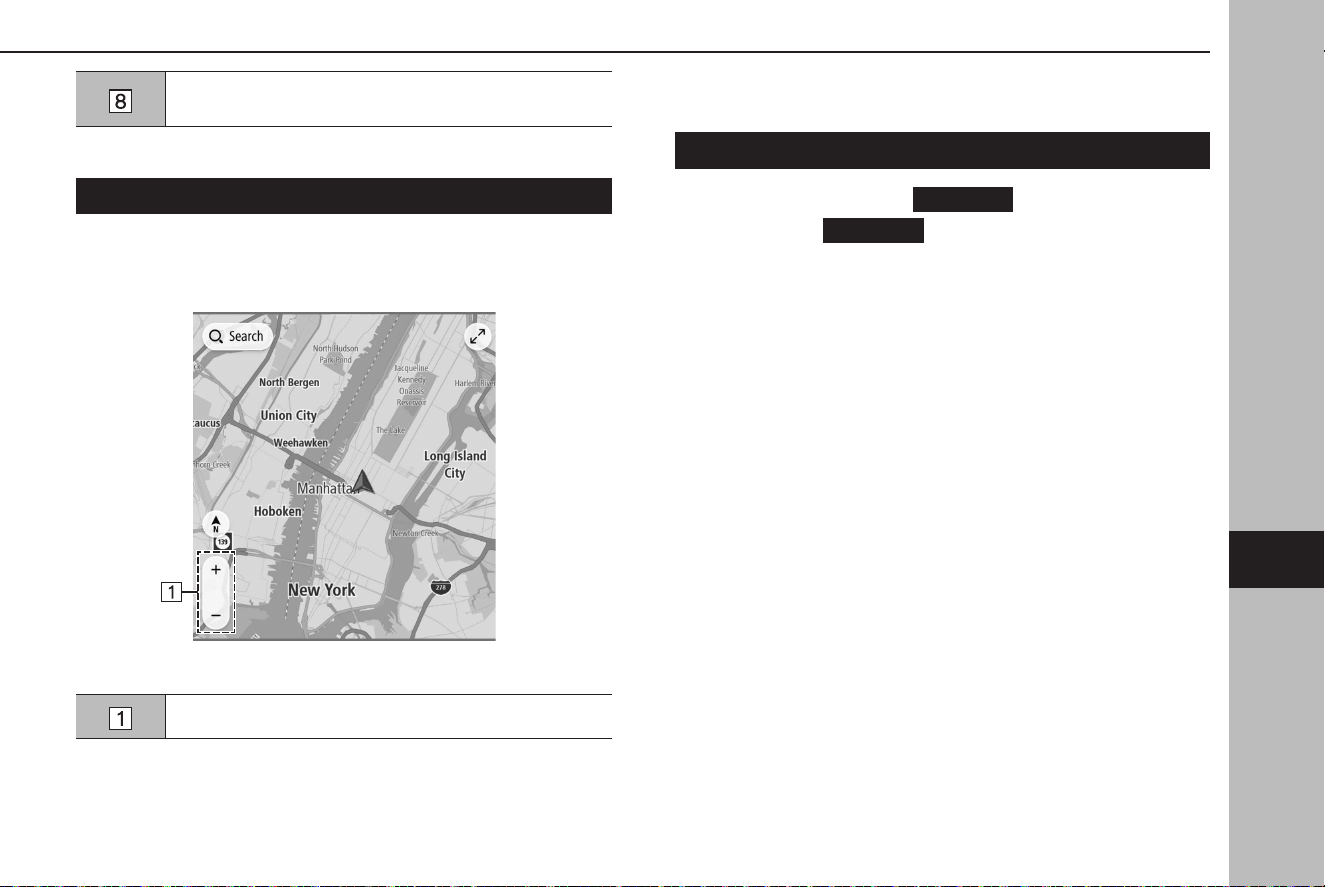
Select to change the map display mode between 2D
north-up, 2D heading-up, or 3D heading-up. (→P.159)
*: This item can only be displayed when a route is set.
MAP SCREEN BUTTONS OVERVIEW
The map screen buttons can be accessed by selecting any point
on the map.
Select to change the scale of the map screen. (→P.158)
MAP SCREEN OPERATION
CURRENT POSITION DISPLAY
After moving the map,
Re-center
(Re-center) may be
displayed. Select
Re-center
(Re-center) to return the map to
the current position.
NOTE
l While driving, the current position mark is xed on the screen and
the map moves.
l The curr
ent position is automatically set as the vehicle receives
signals from the GPS (Global Positioning System). If the current
position is not correct, it is automatically corrected after the vehicle
receives signals from the GPS.
l If the batt
ery has been disconnected or when the vehicle is new, the
current position may not be correct. As soon as the system receives
signals from the GPS, the correct current position will be displayed.
l Aft
er moving the map, if it is not moved for a certain amount of time,
it will automatically return to the current position.
BASIC OPERATION
157
Navigation System
7
TK5_US.indb 157 2024/08/02 12:01:23
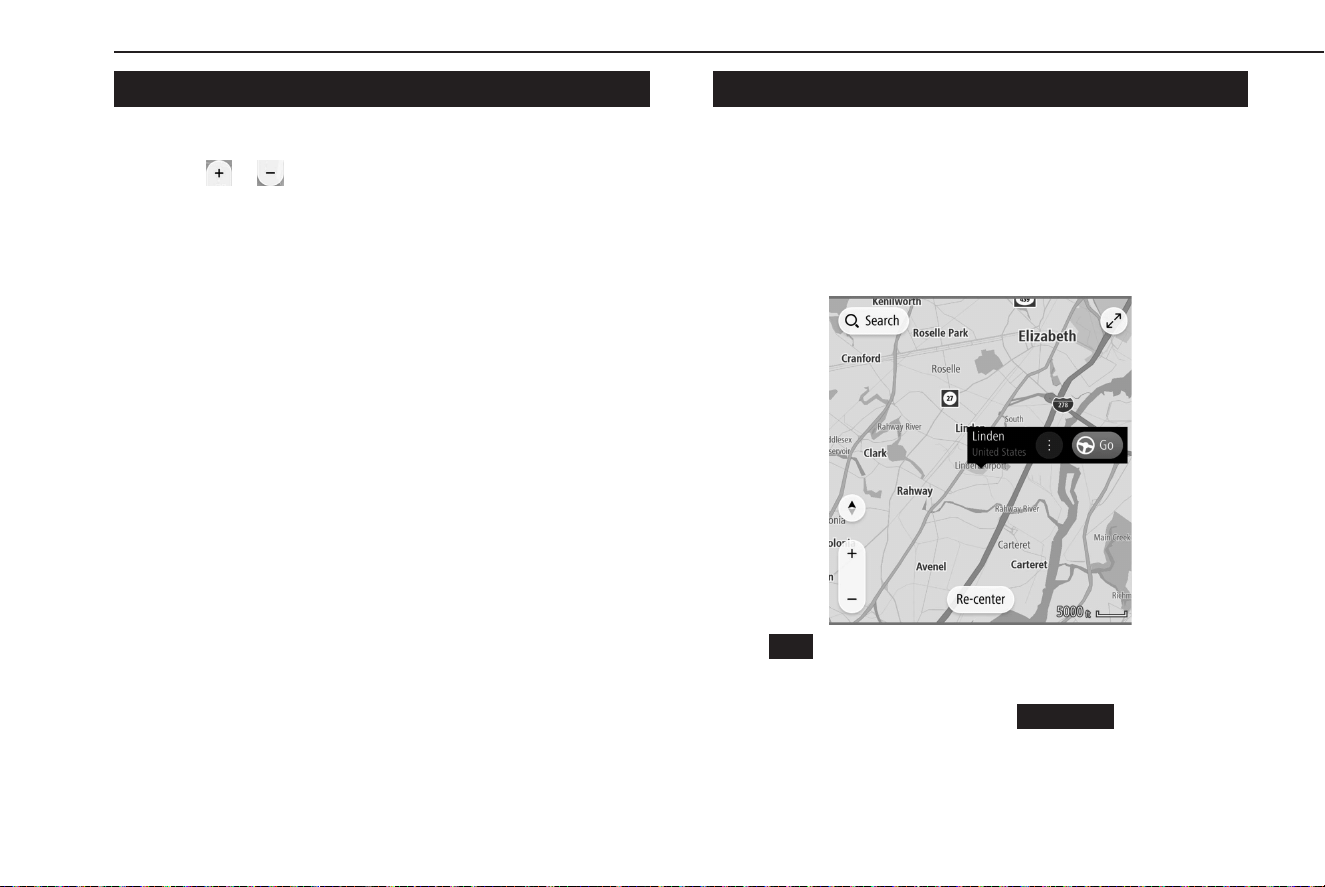
MAP SCALE
1.
Select any point on the map.
2.
Select or to change the scale of the map screen.
● When the automa
tic zoom function is on (→P.179)
during route guidance, the map is zoomed in
automatically when approaching intersections or turning
points.
NOTE
l The scale of the map screen can also be changed with the double
touch or pinch operation. (→P.45)
l If the map scale has been changed aft
er moving the map, the map
scale will return to previous scale when the map is returned to the
current position.
l The automa
tic zoom function may not operate if the map scale is
adjusted manually during route guidance. To reenable the automatic
zoom function, change the orientation of the map screen. (→P.159)
LOCATION MENU POP-UP
The location menu pop-up can be displayed using the following
methods:
● Select and hold an
y point on the map.
● Select a poin
t from a list.
● Select a POI icon.
Select
Go
(Go) to search for a route to the selected point and
display the route calculation screen. (→P.170)
During a route guidance, selecting
Add Stop
(Add Stop) will
add a waypoint.
BASIC OPERATION
158
TK5_US.indb 158 2024/08/02 12:01:24
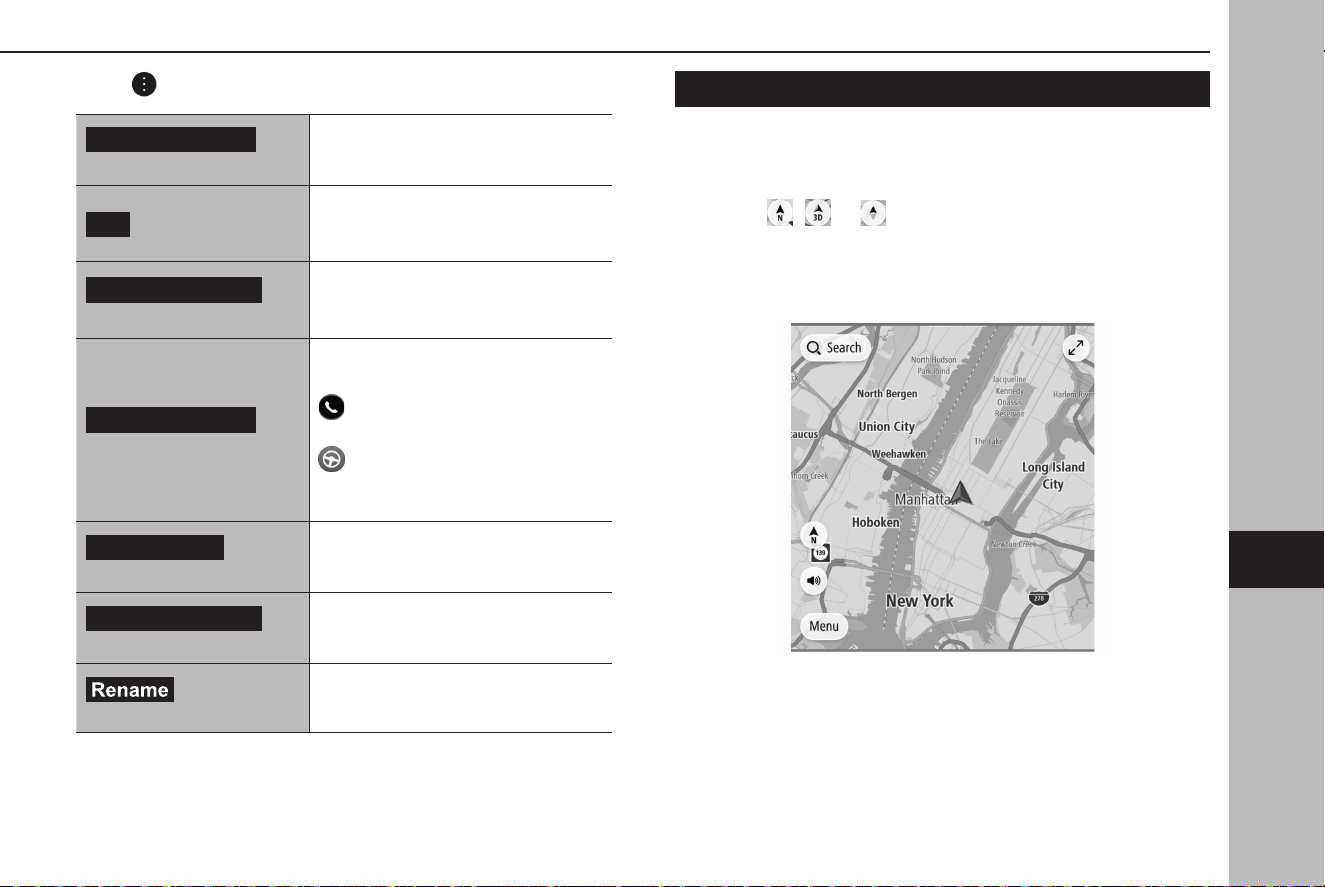
Select to display the following options.
Add to Favorites
(Add to Favorites)
Select to register the selected point as
a favorite.
Go
(Go)
Select to search for a route to the
selected point and display the route
calculation screen. (→P.170)
Search Near Here
(Search Near Here)
Select to display the search screen
and search near the selected point.
(→P.165)
More Information
(More Information)
Select to display detailed information
about the selected point or POI.
: Select to call the registered
phone number of POI.
: Select to search for a route to the
selected point or POI and display the
route calculation screen. (→P.170)
Edit Location
(Edit Location)
Select to edit the point registered as
home/work.
Remove Location
(Remove Location)
Select to erase the point registered as
home/work.
(Rename)
Select to change the name of a
registered favorite.
ORIENTATION OF THE MAP
The orientation of the map can be changed between 2D north-
up, 2D heading-up, and 3D heading-up.
1.
Select , ,or .
● Each time the symbol is select
ed, the orientation of the
map changes.
X2D north-up
● Regardless of the direction of vehicle travel, north is
always up.
BASIC OPERATION
159
Navigation System
7
TK5_US.indb 159 2024/08/02 12:01:25
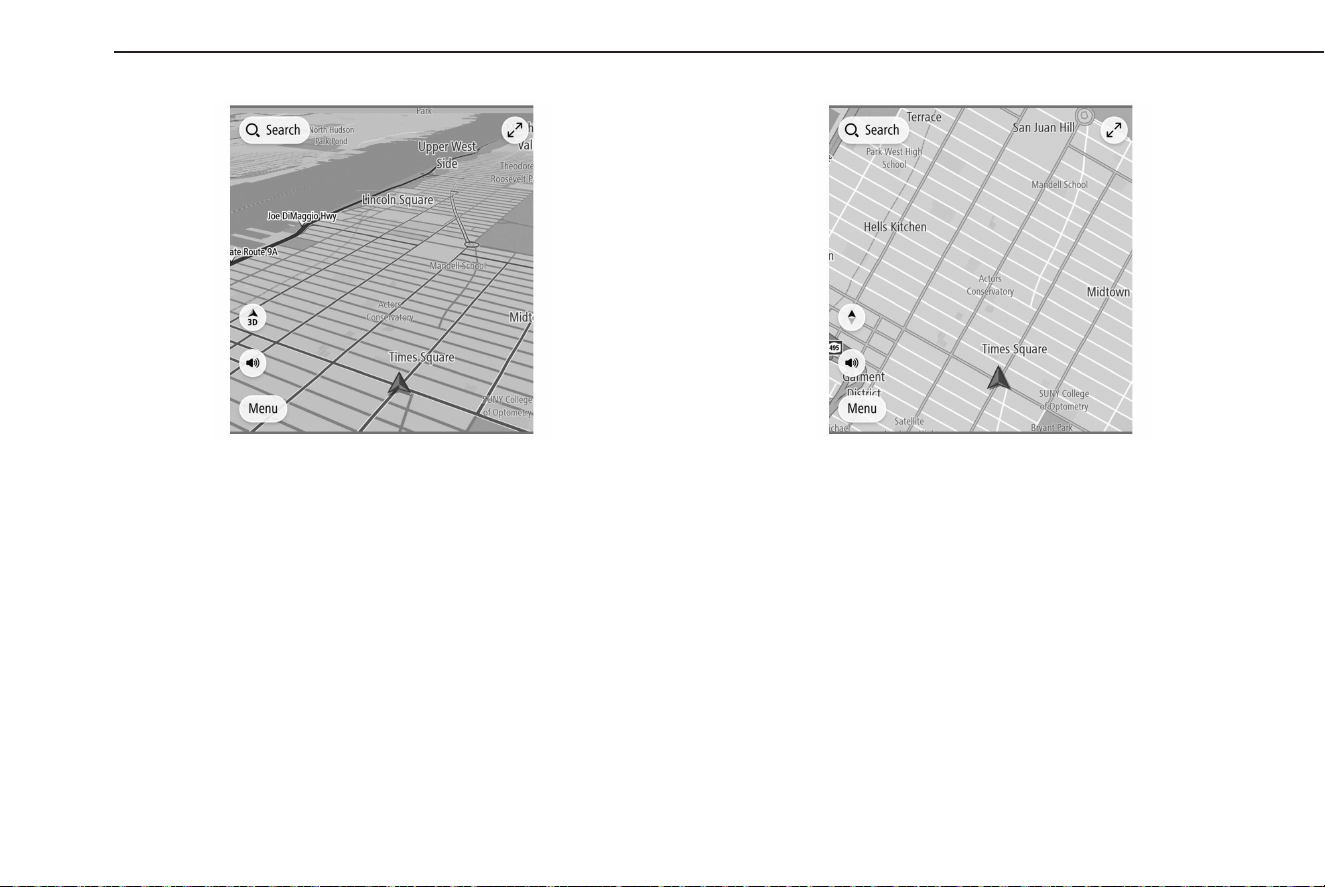
X3D heading-up
● The direction of vehicle travel is always up.
X2D heading-up
● The direction of vehicle travel is always up.
BASIC OPERATION
160
TK5_US.indb 160 2024/08/02 12:01:25
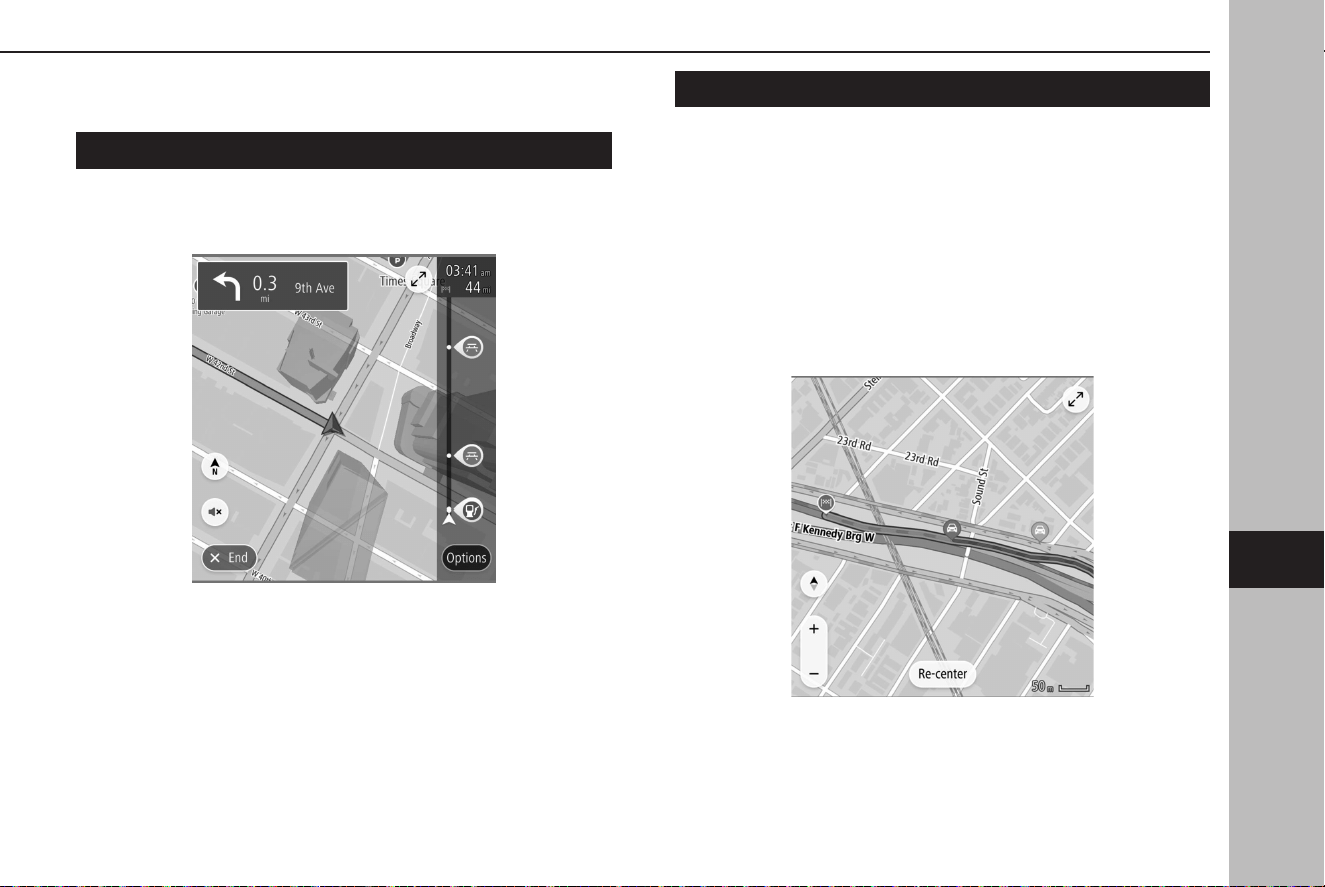
MAP SCREEN INFORMATION
GAS STATION/PARKING LOT/REST AREA ICONS
Gas stations, parking lots and rest areas can be displayed on the
route. Their location can also be set as a destination.
● The display of gas station/parking lots/rest area icons can
be turned on/o. (→P.179)
TRAFFIC INFORMATION*
*: Use of this function may not be possible depending on country and vehicle.
Road sections aected by trac conditions are displayed in a
dierent color on the map, and a small icon representing the
type of trac condition is displayed above the road.
This feature is available at certain map scales.
To receive the data service information in the vehicle, a
subscription to the SiriusXM® Radio Service is necessary
following a free trial. (→P.127)
BASIC OPERATION
161
Navigation System
7
TK5_US.indb 161 2024/08/02 12:01:25
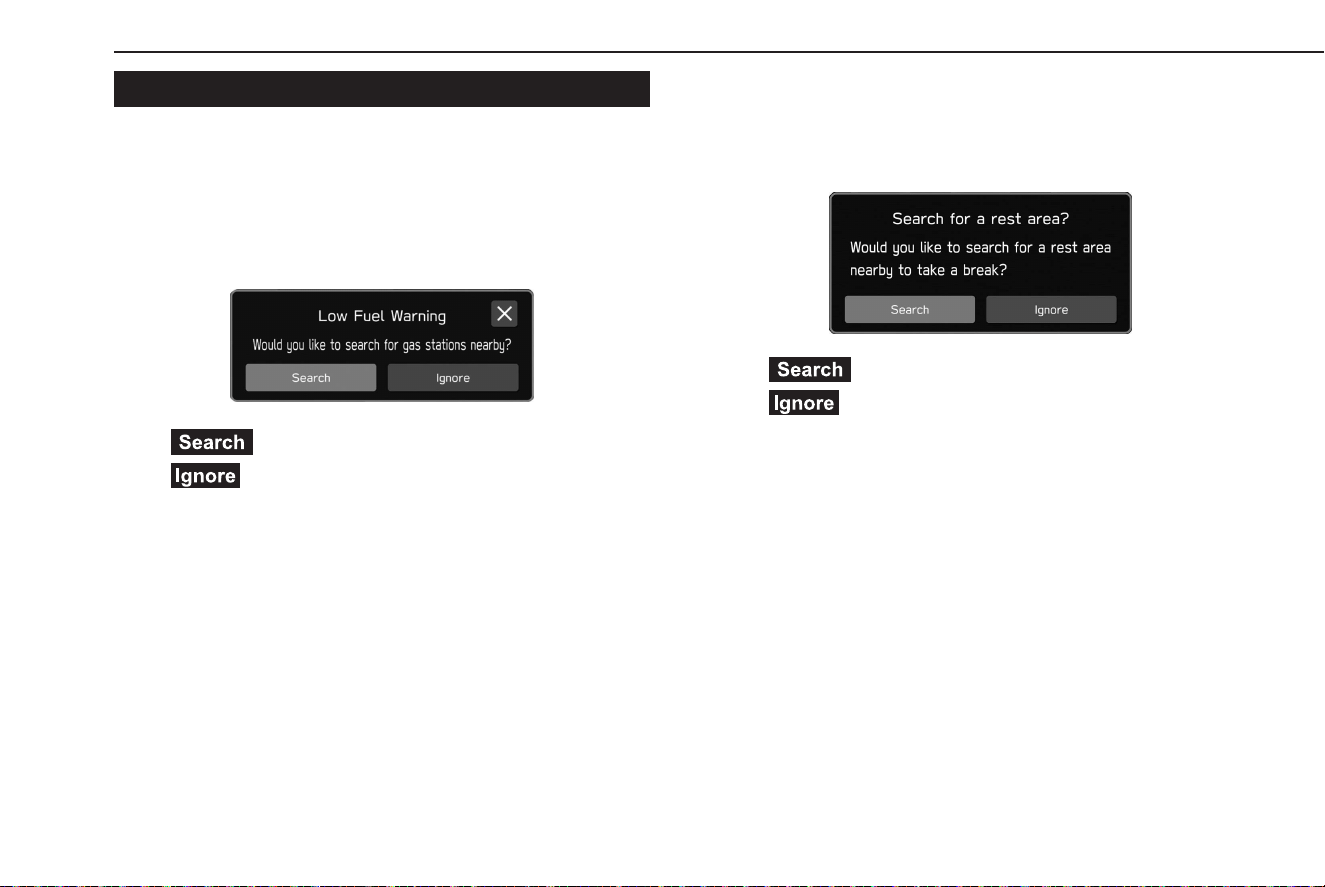
OTHER INFORMATION
A pop-up screen will be displayed based on the driving
situation, etc.
XLow fuel w
arning
When the fuel level is low, a warning message will pop up on the
screen.
● (Search): Select to search for gas stations.
●
(Ignore): Select to delete the message.
XPeriodic r
est notication
If the system determines, based on the driver’s condition, that a
rest may be necessary, a pop-up message will be displayed on
the screen.
● (Search): Select to search for rest areas.
●
(Ignore): Select to delete the message.
● Pop-up
screens can be turned on/o using the “Periodic
Rest Notication” setting on the general settings screen.
(→P.66)
BASIC OPERATION
162
TK5_US.indb 162 2024/08/02 12:01:25
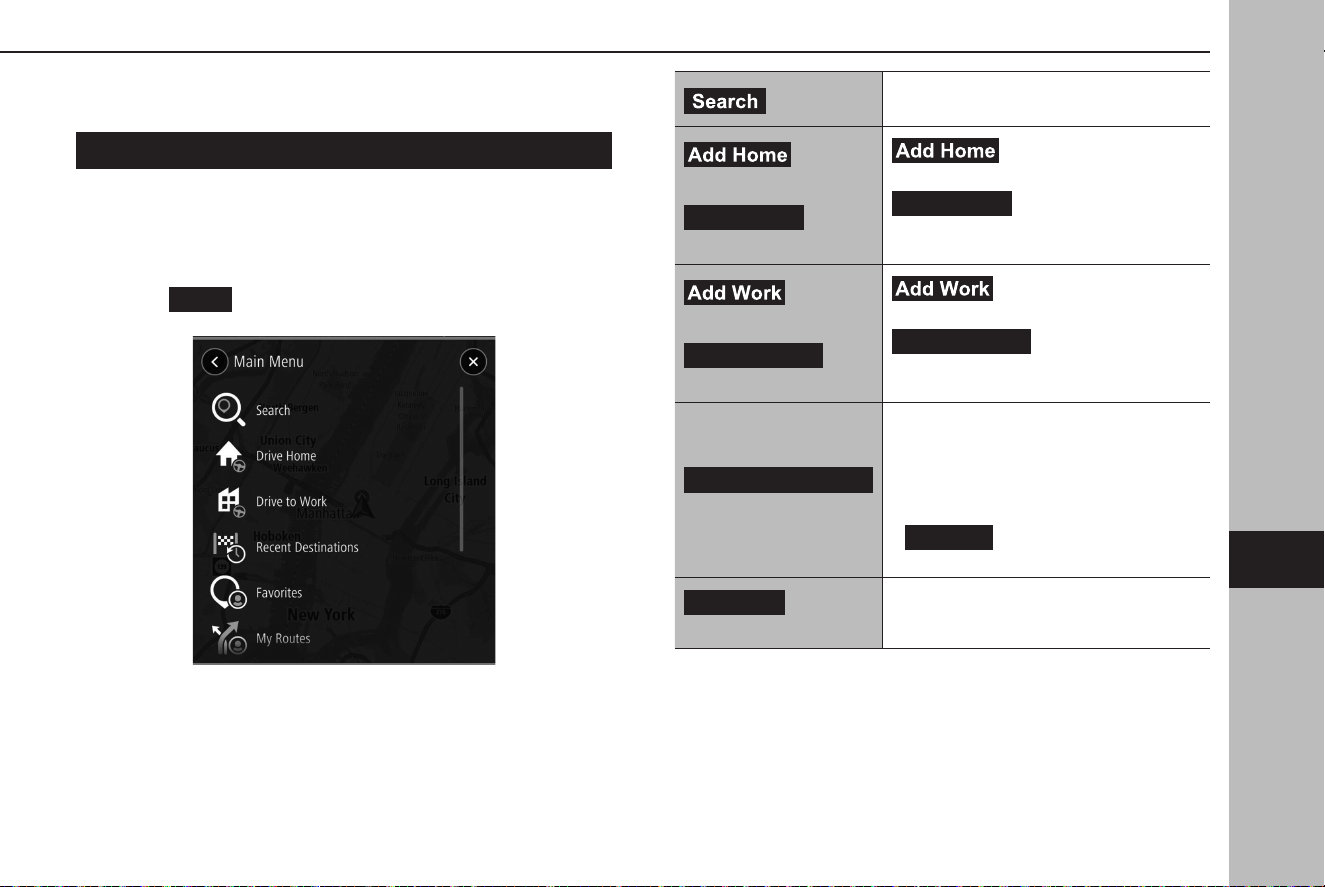
MAIN MENU SCREEN
MAIN MENU SCREEN OVERVIEW
The main menu screen can be displayed using the following
method:
1.
Display the map screen. (→P.156)
2.
Select
Menu
(Menu).
(Search)
Select to display the search screen.
(→P.165)
(Add Home)*
1
/
Drive Home
(Drive Home)*
2
(Add Home): Select to
register a point as home. (→P.169)
Drive Home
(Drive Home): Select to
set the point registered as home as the
destination.
(Add Work)*
3
/
Drive to Work
(Drive to Work)*
4
(Add Work): Select to
register a point as work. (→P.169)
Drive to Work
(Drive to Work): Select
to set the point registered as work as the
destination.
Recent Destinations
(Recent Destinations)
Select to display a list of recently set
destinations.
Then select a point from the list. Location
menu pop-up for the point will be
displayed on the map screen. (→P.158)
•
Edit List
(Edit List): Select to display
the edit list screen. (→P.170)
Favorites
(Favorites)
Select to display the favorite screen.
(→P.167)
BASIC OPERATION
163
Navigation System
7
TK5_US.indb 163 2024/08/02 12:01:27
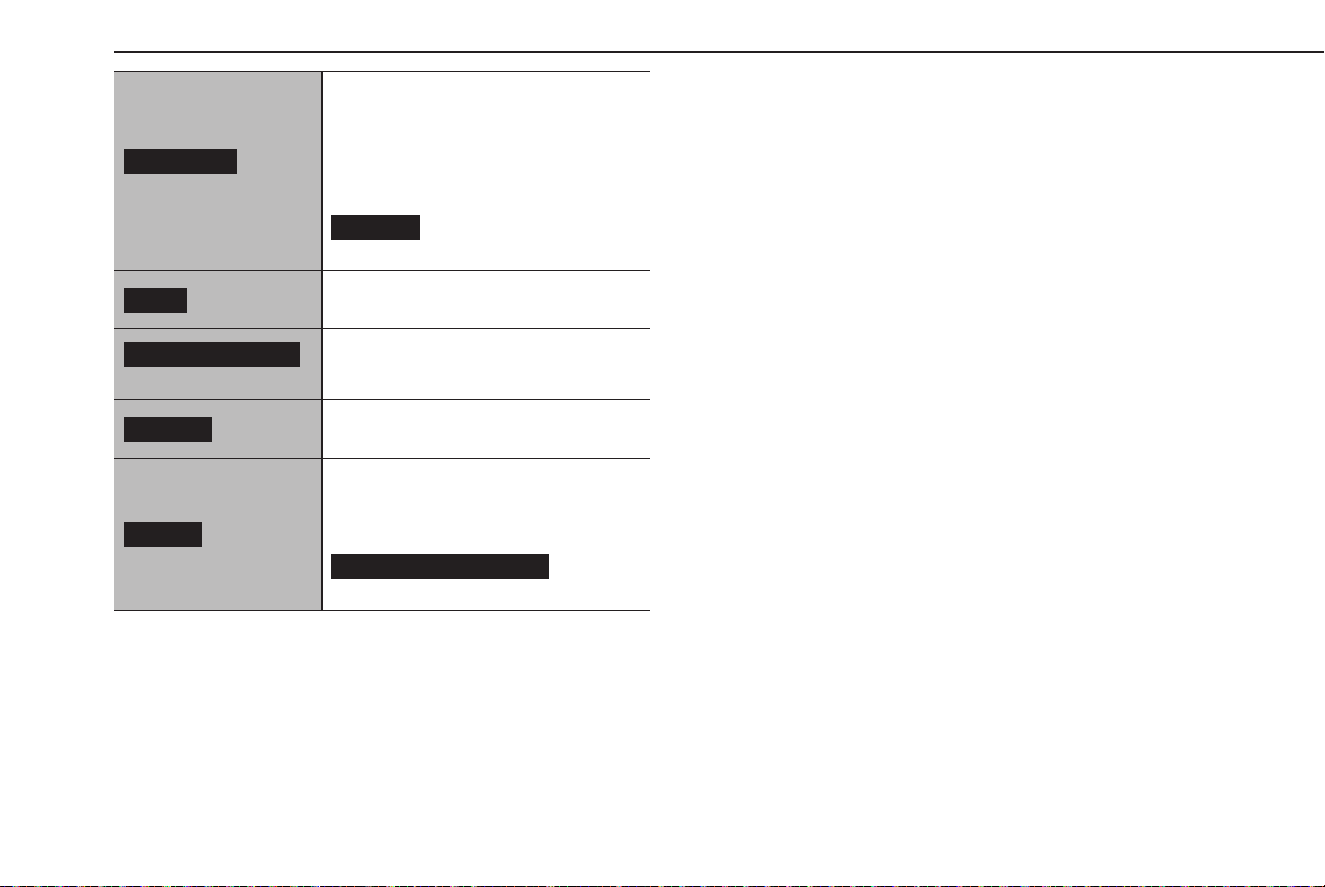
My Routes
(My Routes)*
5
Select to name the current route
and register it so that it can be used
repeatedly. (→P.175)
My route name: Select a registered route
to display the route calculation screen.
(→P.170)
Edit List
(Edit List): Select to display
the edit list screen. (→P.170)
Maps
(Maps)
Select to display the map update screen.
(→P.185)
Legal Information
(Legal Information)
Select to display the legal information
screen.
Settings
(Settings)
Selecrt to display the navigation settings
screen. (→P.179)
Privacy
(Privacy)
To display frequently set destinations,
select “Keep trip history on this device
for optional features” and “Predict
frequent destinations” to on then select
Frequent destinations
(Frequent
destinations).
*
1
: If a point has not been registered as home.
*
2
: If a point has been registered as home.
*
3
: If a point has not been registered as work.
*
4
: If a point has been registered as work.
*
5
: This item can only be selected when a route has been registered to My Routes.
BASIC OPERATION
164
TK5_US.indb 164 2024/08/02 12:01:28
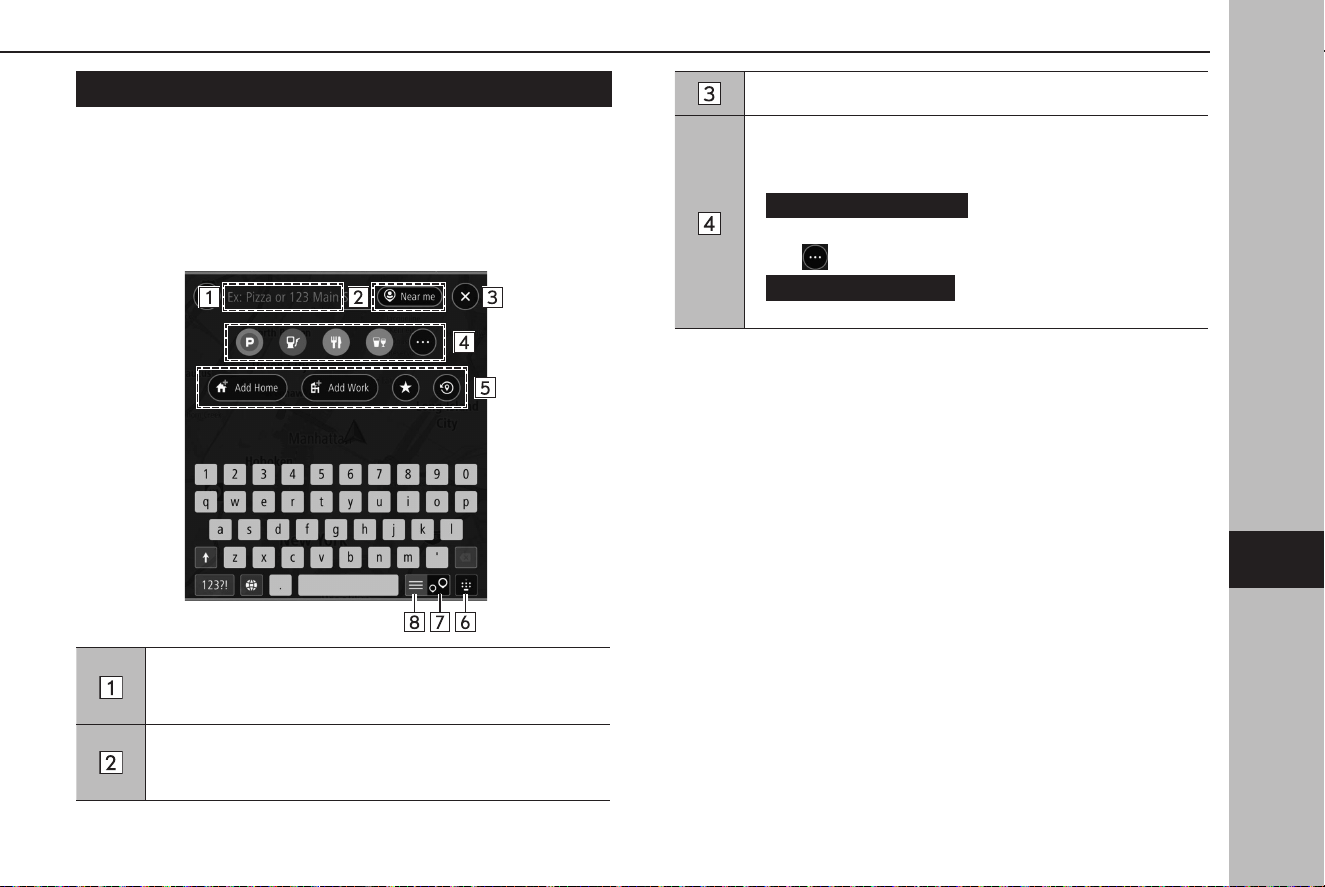
SEARCH SCREEN
Destinations can be set by address, category, POI, etc.
By entering three words hit by search using the “what3words”
function, destinations can be set for places where postal address
is not precisely allocated.
Enter keyword(s) to search for a destination.
To use “what3words”, enter “ . ” in-between the three words.
Search results screen will be displayed. (→P.166)
Select to set the radius lter. Once the radius lter has been
set, a search will only be performed for items within that
radius.
Select to display the current vehicle position.
Select to select a POI category. Search will be performed
within the radius lter set.
Search results screen will be displayed. (→P.166)
•
Show Subcategories
(Show Subcategories): Select
to display more detailed categories.
Select
to display other POI categories.
•
Browse Categories
(Browse Categories): Select to
display all of the POI categories.
BASIC OPERATION
165
Navigation System
7
TK5_US.indb 165 2024/08/02 12:01:29
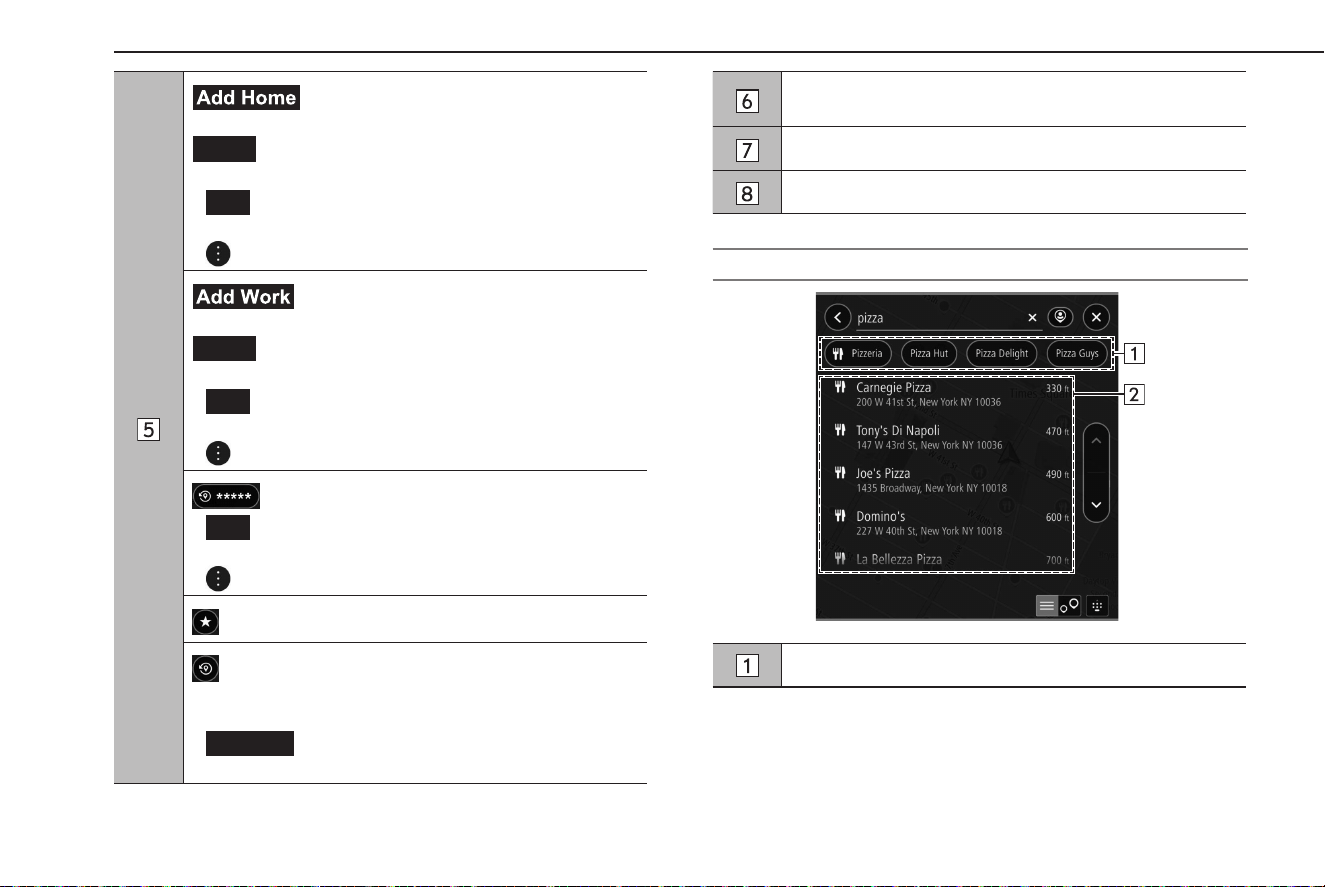
(Add Home): Select to register a point as
home. (→P.169)
Home
(Home): Select to set the point registered as home
as the destination.
•
Go
(Go ): Select to display the route calculation screen.
(→P.170)
• : Select to display location menu pop-up. (→P.158)
(Add Work): Select to register a point as work.
(→P.169)
Work
(Work): Select to set the point registered as work as
the destination.
•
Go
(Go ): Select to display the route calculation screen.
(→P.170)
• : Select to display location menu pop-up. (→P.158)
: Select to display the last set destination.
•
Go
(Go ): Select to display the route calculation screen.
(→P.170)
• : Select to display location menu pop-up. (→P.158)
: Select to display the favorite screen. (→P.167)
: Select to display a list of recently set destinations.
Then select a point from the list. Location menu pop-up for
the point will be displayed on the map screen. (→P.158)
•
Edit List
(Edit List): Select to display the edit list screen.
(→P.170)
Each time the button is selected, select to display/hide the
keyboard.
Select to display the search map screen.
Select to display the search list screen.
SEARCH RESULTS SCREEN
Select to narrow down the list by POI category.
BASIC OPERATION
166
TK5_US.indb 166 2024/08/02 12:01:29
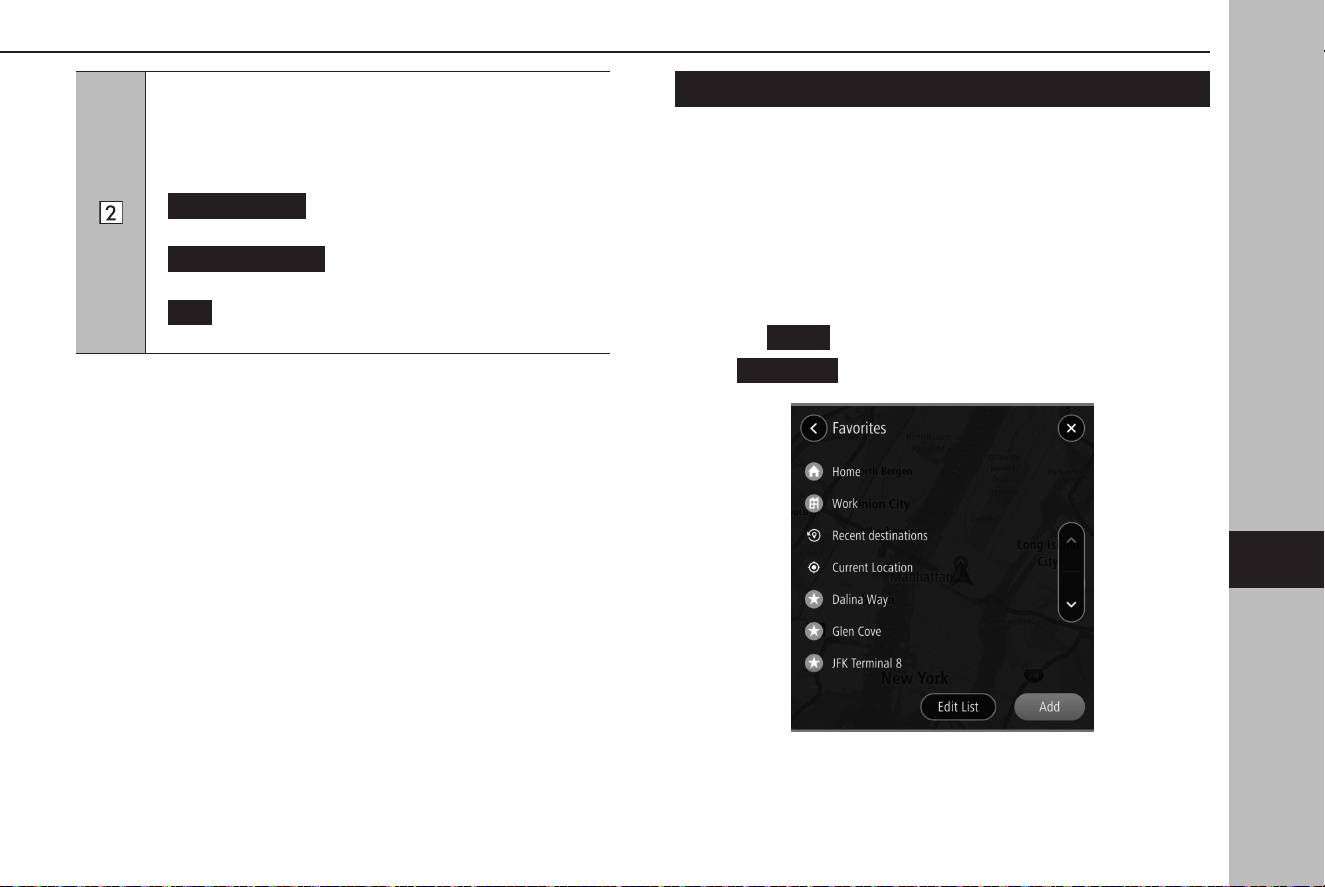
Some candidate destinations are displayed based on the
input characters. The location menu pop-up is displayed on
the map screen when an item is selected. (→P.158)
If a non-specic point is selected, such as a street name, the
following items will be displayed.
•
Show on Map
(Show on Map): Select to display the
location menu pop-up on the map screen. (→P.158)
•
Add Crossroad
(Add Crossroad): Select to select an
intersecting road and further rene the results.
•
Go
(Go ): Select to search for a route to the selected
destination. (→P.170)
FAVORITES SCREEN
The desired point can be registered as home, work, or favorite.
The registered points can be set as a destination.
Registered points can be added, changed and deleted on the
favorites screen.
The favorites screen can be accessed with the following method:
1.
Display the map screen. (→P.156)
2.
Select
Menu
(Menu).
3.
→
Favorites
(Favorites)
BASIC OPERATION
167
Navigation System
7
TK5_US.indb 167 2024/08/02 12:01:30
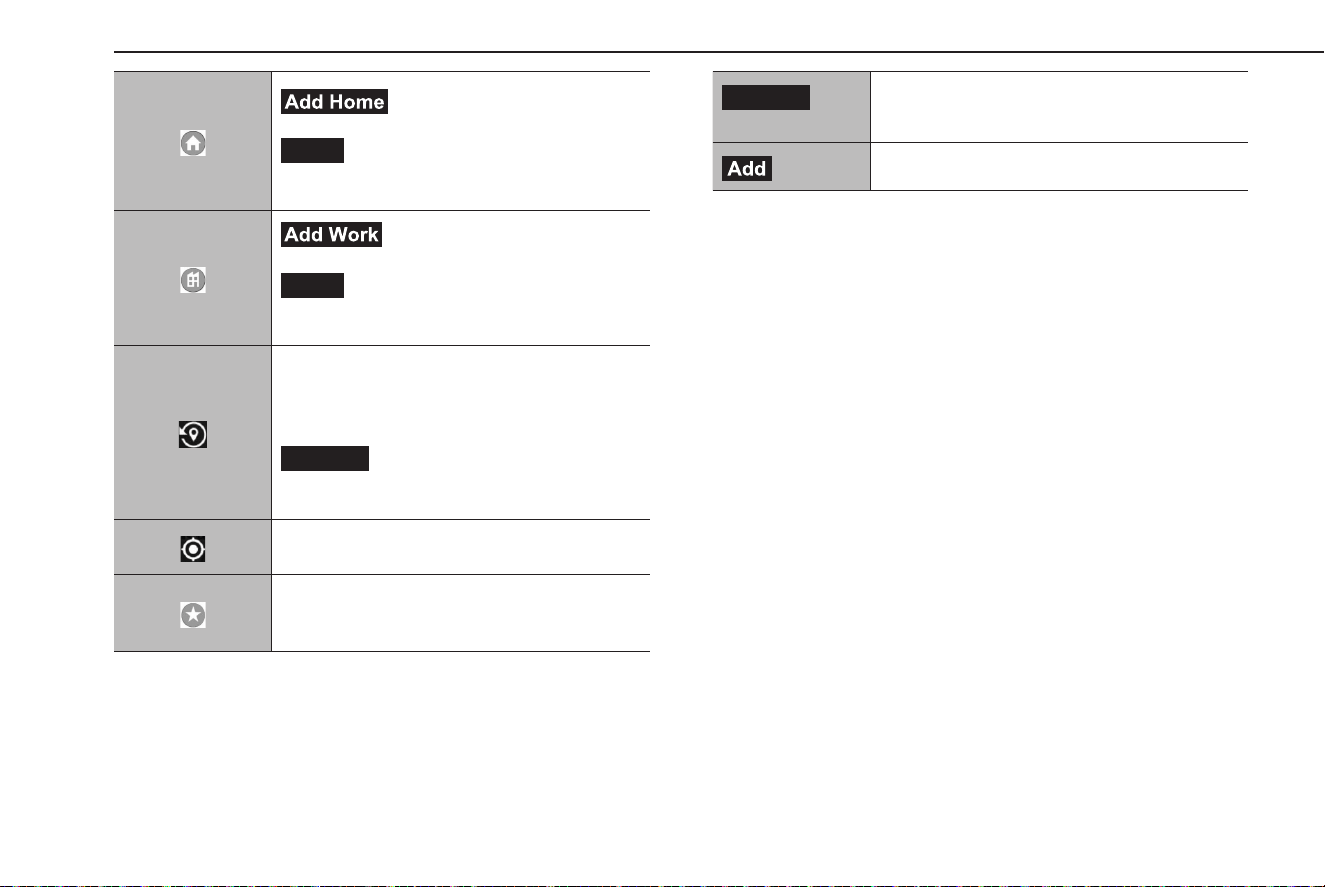
(Add Home): Select to register
the home. (→P.169)
Home
(Home): Select to display the location
menu pop-up for the point registered as home
on the map screen. (→P. 158)
(Add Work): Select to register the
work. (→P. 169)
Work
(Work): Select to display the location
menu pop-up for the point registered as work
on the map screen. (→P. 158)
Select to display the recent destination screen.
Recent destinations: Select a recent destination
to display the location menu pop-up for that
point on the map screen. (→P. 158)
Edit List
(Edit List): Select to display the edit
list screen to delete the recent destinations.
(→P.170)
Select to display information of the current
location.
Select a favorite to display the location menu
pop-up for that point on the map screen.
(→P. 158)
Edit List
(Edit List)
Select to display the edit list screen to delete the
favorites. (→P.170)
(Add)
Select to register the favorite. (→P.169)
BASIC OPERATION
168
TK5_US.indb 168 2024/08/02 12:01:30
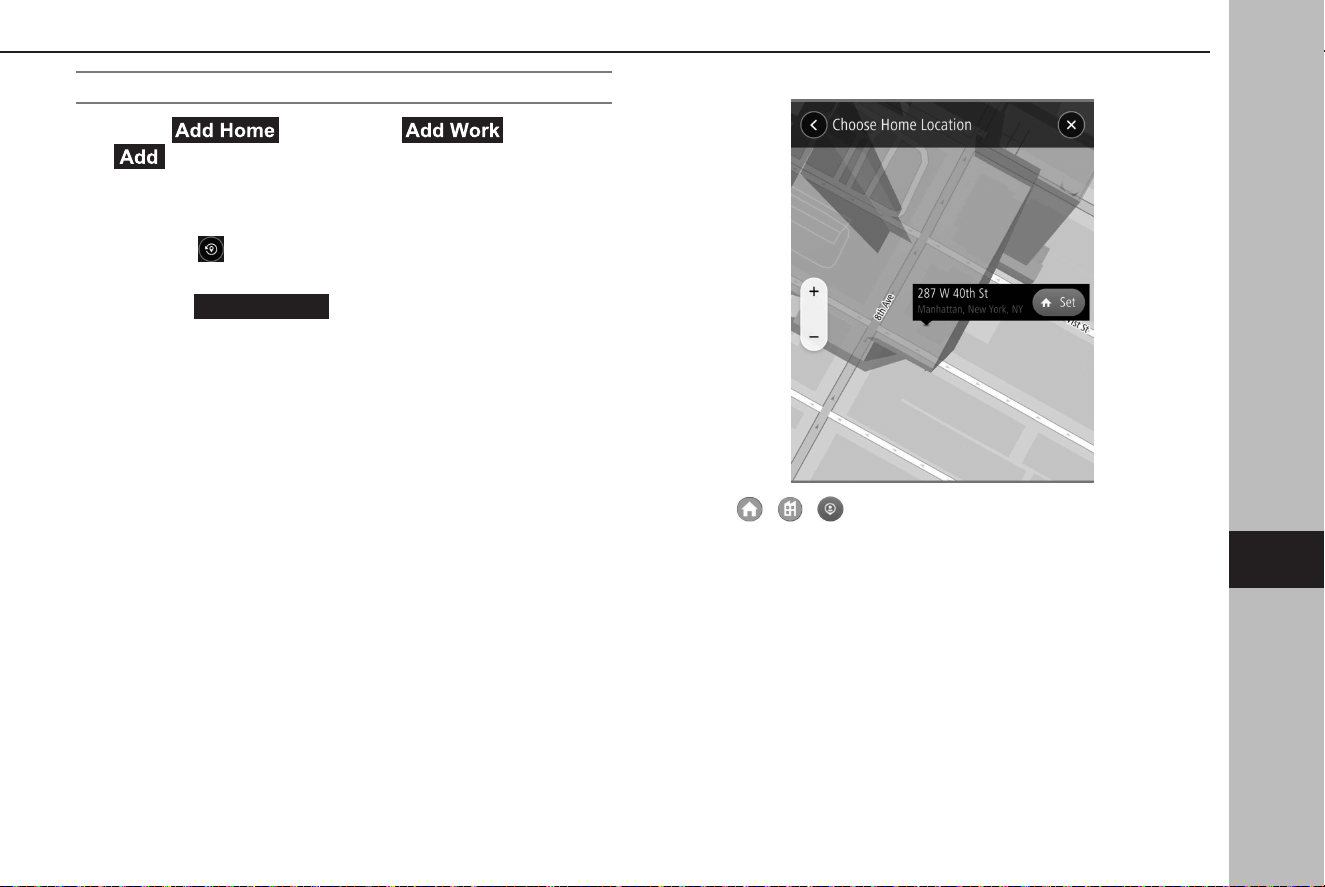
REGISTERING HOME/WORK/FAVORITE POINT
1.
Select (Add Home)/ (Add Work)/
(Add).
2.
Perform any of the following to display a point you wish to
register:
● Select
and select the desired point from the
destination history.
● Select
Set from map
(Set from map) and select the
desired point on the map.
● Enter key
word(s) in the keyword entry section and select
the desired point from the candidates list.
● Select the desired point on the map.
3.
→ / /
● To register a favorite, enter a name.
● Icons will be displayed on the map to indicate registered
points.
BASIC OPERATION
169
Navigation System
7
TK5_US.indb 169 2024/08/02 12:01:31
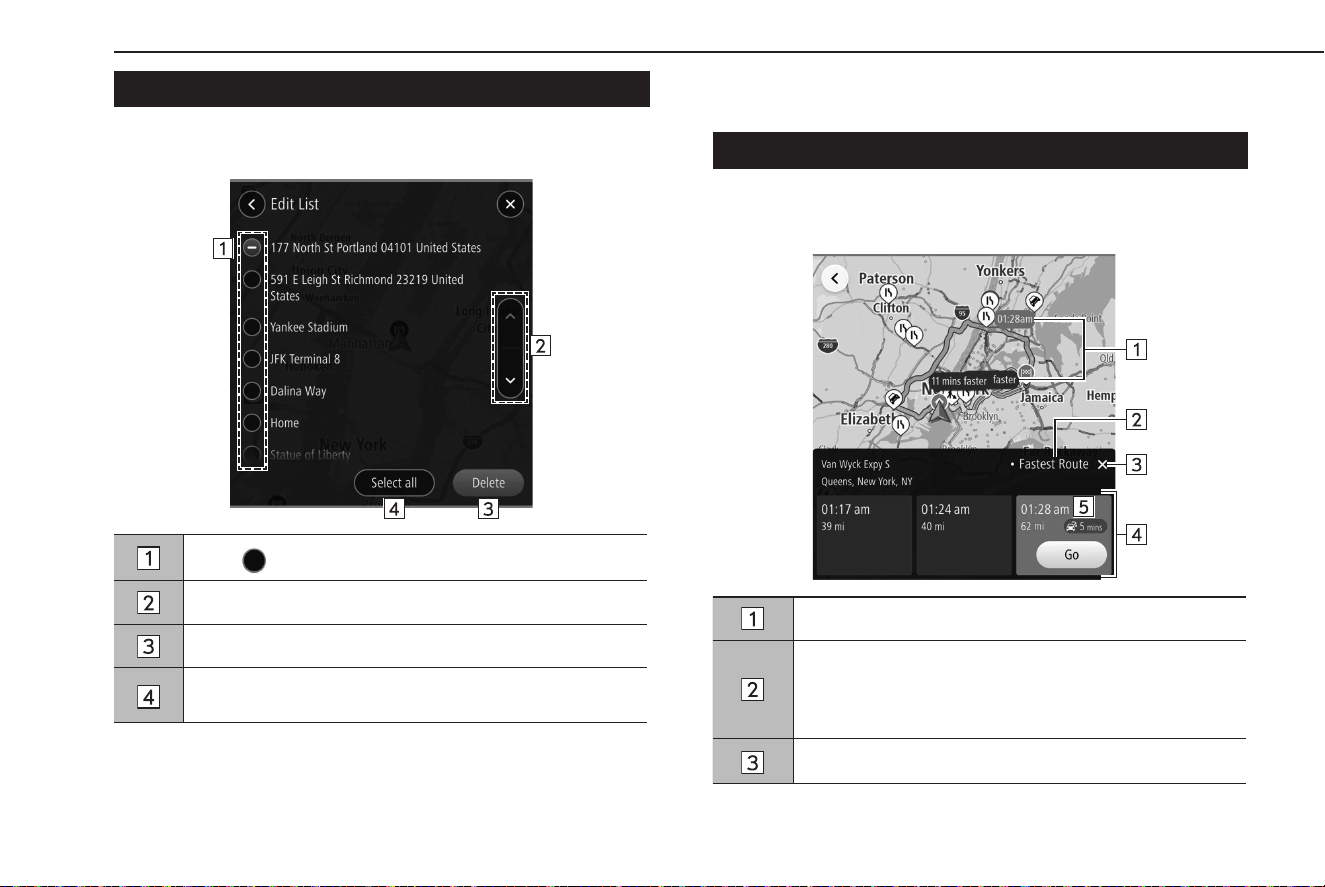
EDIT LIST SCREEN
Unnecessary items can be deleted on the edit list screen.
Select for the item you wish to delete.
Select to skip to the next or previous page.
Select to delete selected item(s).
Select to select all items.
Select again to deselect all items.
ROUTE CALCULATION
ROUTE CALCULATION SCREEN
Up to 3 candidate routes searched are displayed according to
conditions preset by the user.
Candidate route overview
Route search conditions
A route search condition ( “Fastest Route”, “Shortest
Route”, or “Most Eco-friendly Route”) can be pre-set on the
navigation settings screen. (→P.179)
Select to cancel route conrmation.
BASIC OPERATION
170
TK5_US.indb 170 2024/08/02 12:01:31
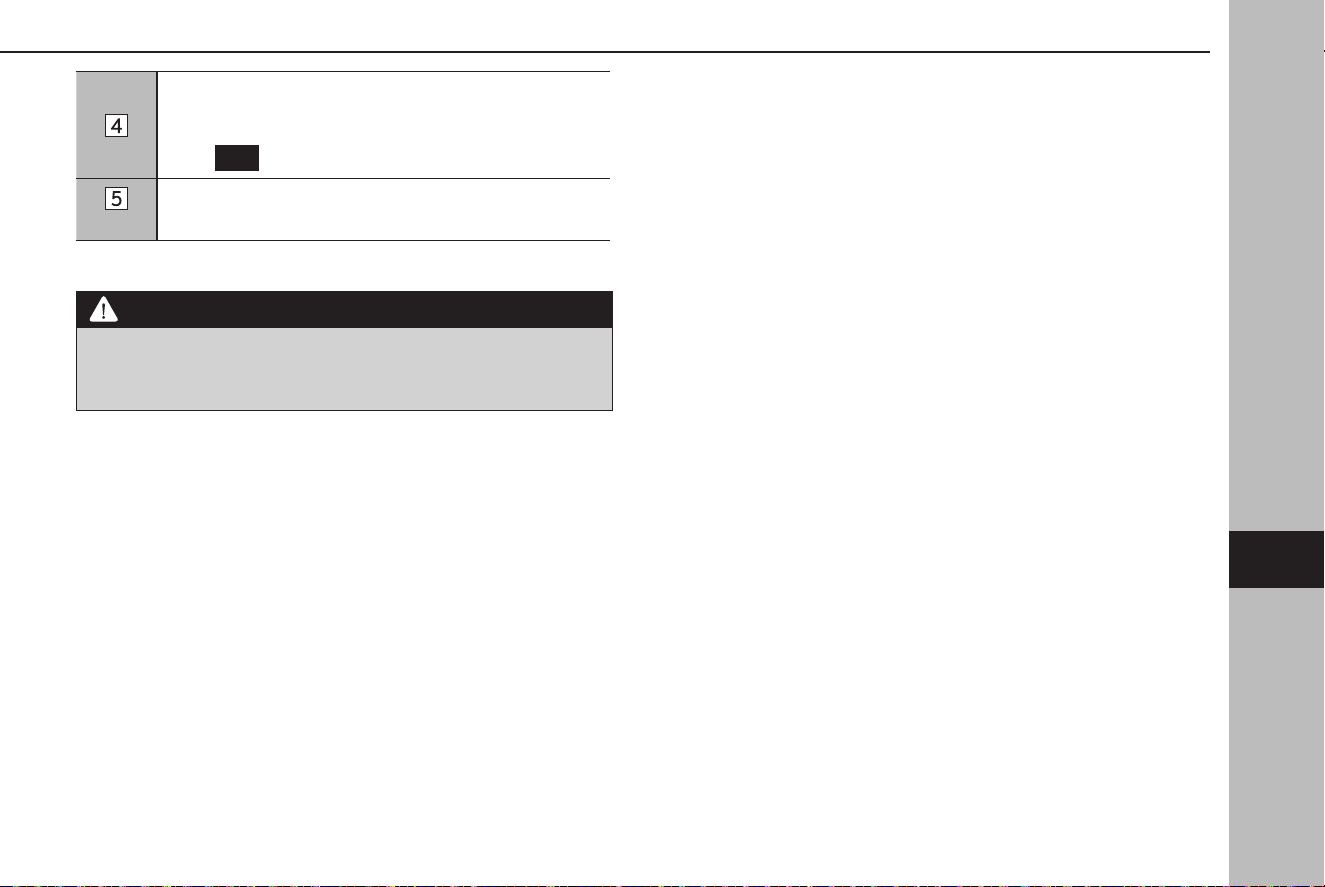
Candidate routes (max. 3 routes)
Displays estimated time of arrival and remaining distance
of each candidate route displayed.
Select
Go
(Go) to start route guidance.
*
If trac jam is detected on the route, expected delay time
will also be displayed.
*: Use of this function may not be possible depending on country and vehicle.
WARNING
l Be sure to obey trac regulations and keep road conditions in
mind while driving. If a trac sign on the road has been changed,
the route guidance may not indicate such changed information.
NOTE
l The route for returning may not be the same as that for going.
l The route guidance to the destination may not be the shortest route
or a route without trac congestion.
l Route guidance may not be available if there is no road data for the
specied location.
l If a destination that is not located on a road is set, the vehicle will be
guided to the point on a road nearest to the destination. The road
nearest to the selected point is set as the destination.
BASIC OPERATION
171
Navigation System
7
TK5_US.indb 171 2024/08/02 12:01:31
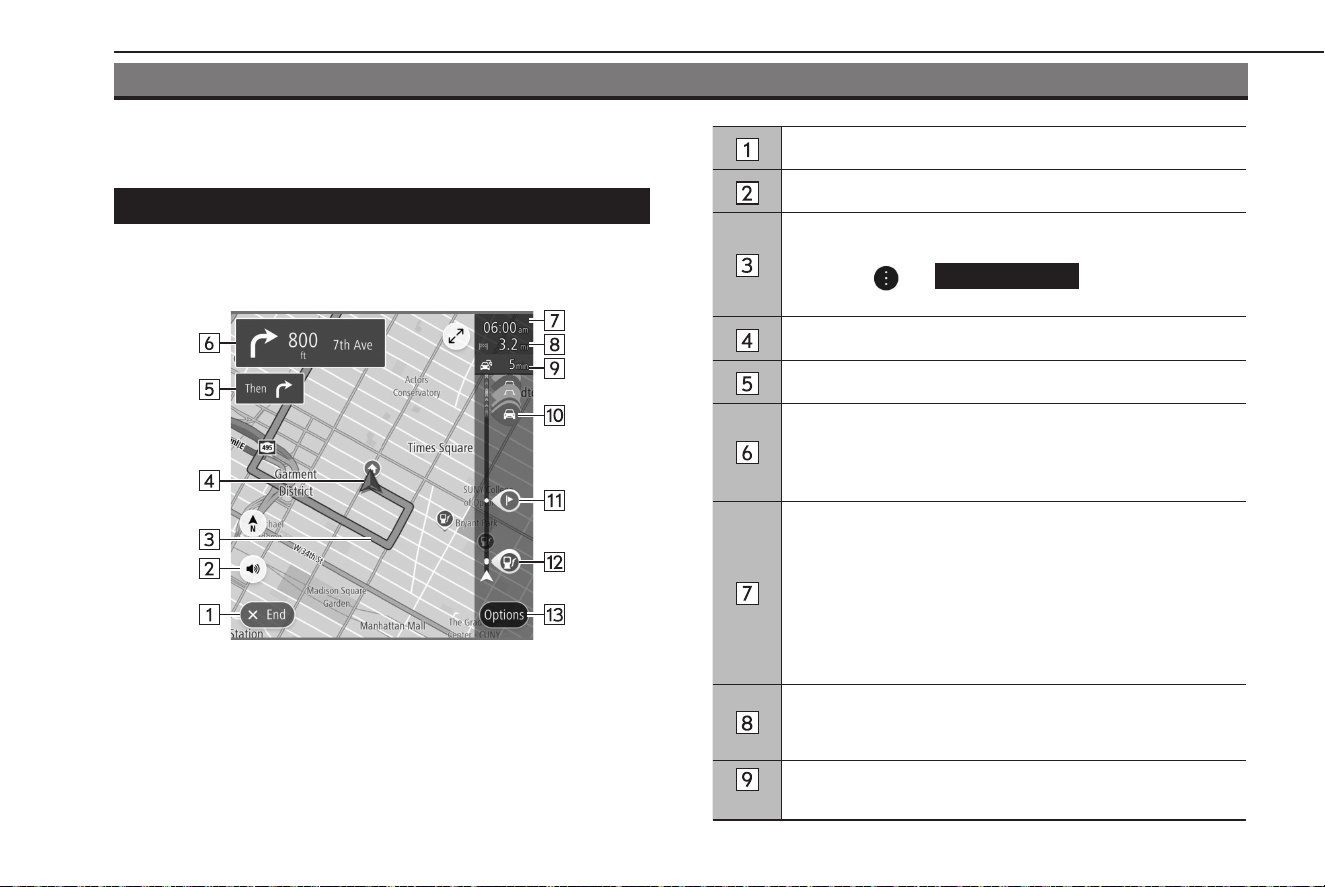
ROUTE GUIDANCE
ROUTE GUIDANCE
ROUTE GUIDANCE SCREEN
During route guidance, various types of guidance screens can
be displayed depending on conditions.
Select to stopping route guidance.
Select to enable/disable voice guidance. (→P.156)
Guidance route
To display the current route screen, select the guidance
route then
and
Manage Route
(Manage Route).
(→P.175)
Current position
Guidance display after next
Next guidance display
Displays the next street name, distance to the next turn, and
an arrow indicating the turning direction.
Select to display the route event list screen.
Estimated time of arrival
Select to change the displayed information between a
waypoint and the destination.
• Select and hold to turn display of the route bar on/o.
• If “Auto-Hide Route Bar” on the navigation settings screen
is turned on, the route bar will automatically be hidden
and will only be displayed when new route information is
available.
Remaining distance and/or remaining time
The displayed details can be changed on the navigation
settings screen. (→P.179)
*
Displays the amount of travel time to be changed due to the
trac information received.
ROUTE GUIDANCE
172
TK5_US.indb 172 2024/08/02 12:01:32
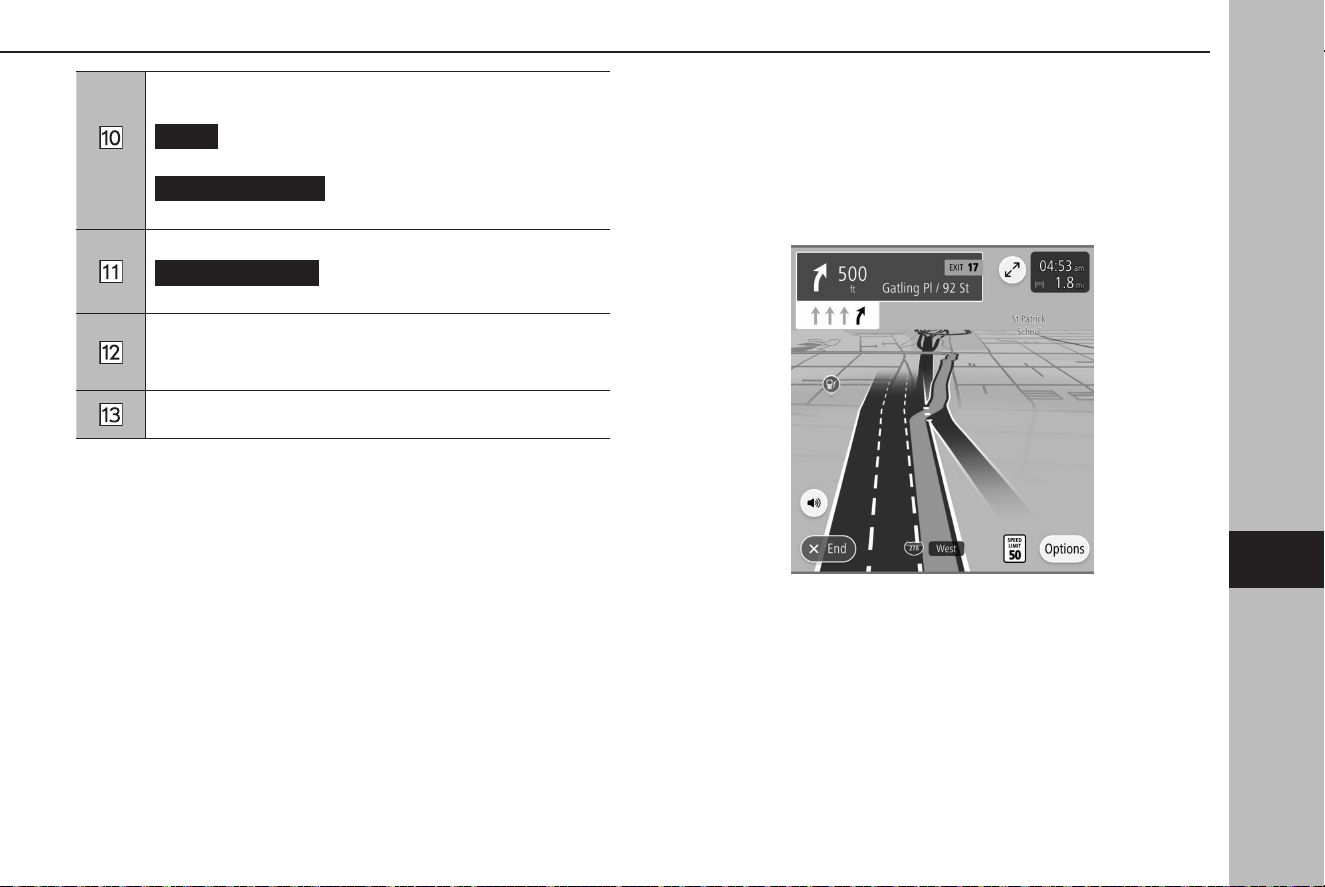
*
Trac information icon
Select to display the trac information pop-up.
Avoid
(Avoid): Select to avoid a section of the current
route based on trac information.
More Information
(More Information): Select to display
detailed information for the selected trac information.
Select to display the waypoint information pop-up.
Delete This Stop
(Delete This Stop) :Select to delete
the selected waypoint from the route.
Displays a POI on the route.
Select a displayed icon to display the location menu pop-up.
(→P.158)
Select to display route option screen. (→P.174)
*: Use of this function may not be possible depending on country and vehicle.
NOTE
l During route guidance, if the Apple CarPlay/Android Auto maps app
is operated for route guidance, the system’s route guidance will be
canceled.
XJunction screen
When approaching an expressway exit or a complicated
intersection, the map switches to a 3D display if the necessary
information can be displayed. An arrow indicates the lane
in which you should drive. Signs are also displayed if the
information is available.
● This function can be turned on/o on the navigation
settings screen. (→P.179)
ROUTE GUIDANCE
173
Navigation System
7
TK5_US.indb 173 2024/08/02 12:01:33
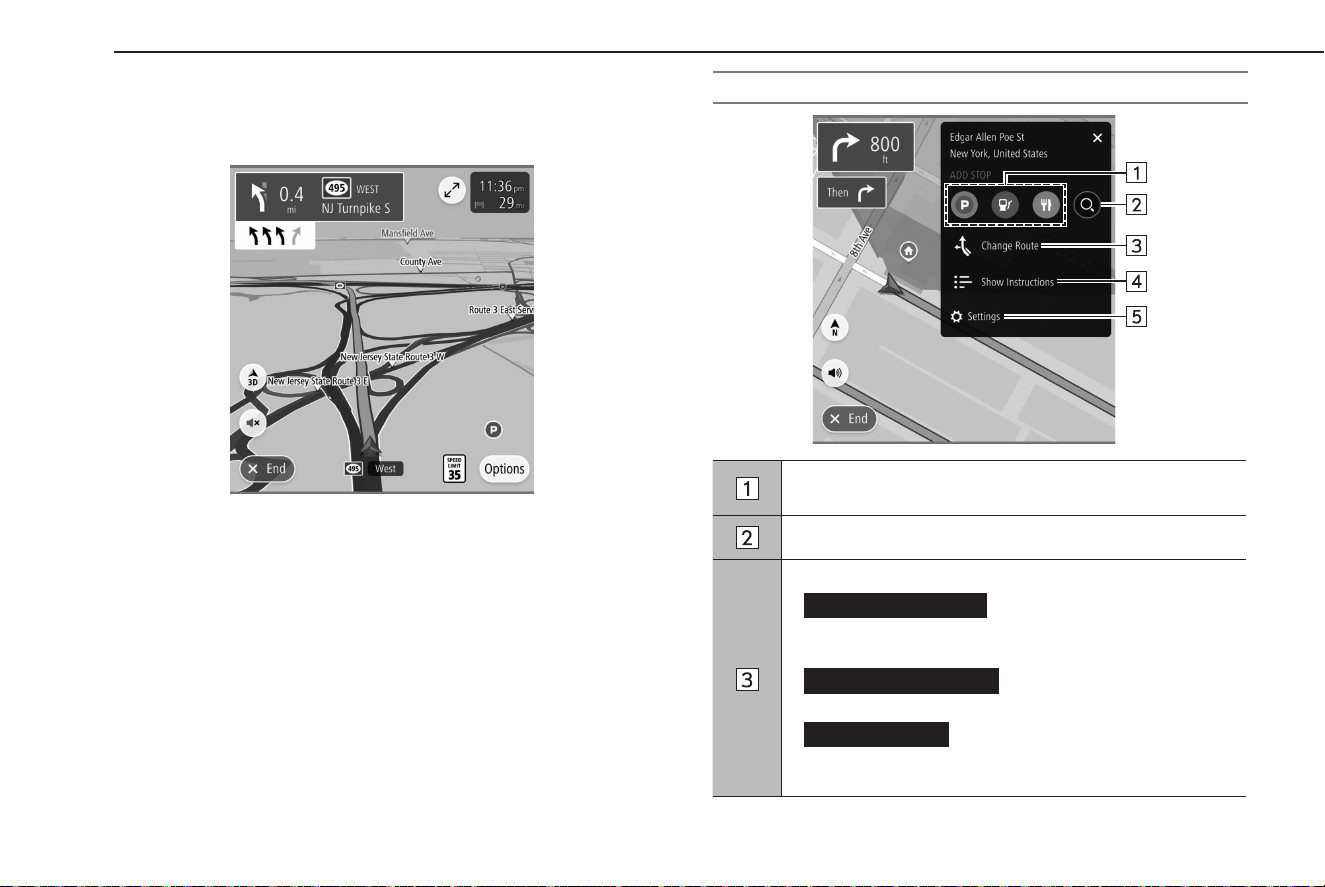
XLane recommendation screen
When approaching a turning point, the lane recommendation
will be displayed automatically.
NOTE
l If the vehicle goes o the guidance route, the route is searched again.
l For some areas, the roads have not been completely digitized in our
database. For this reason, the route guidance may select a road that
should not be traveled on.
ROUTE OPTION SCREEN
Select to enable search for a parking place near the
destination or a gas station or restaurant along the route.
Select to display the search screen. (→P.165)
Select to display the change route screen.
•
Show Alternatives
(Show Alternatives): Displays up
to 3 candidate routes searched according to conditions
preset by the user. (→P.170)
•
Avoid Part of Route
(Avoid Part of Route): Select to
display a list of sections of the current route. (→P.175)
•
Reorder Stops
(Reorder Stops): Select to change
the order of the currently set destination and waypoints.
(→P.175)
ROUTE GUIDANCE
174
TK5_US.indb 174 2024/08/02 12:01:34
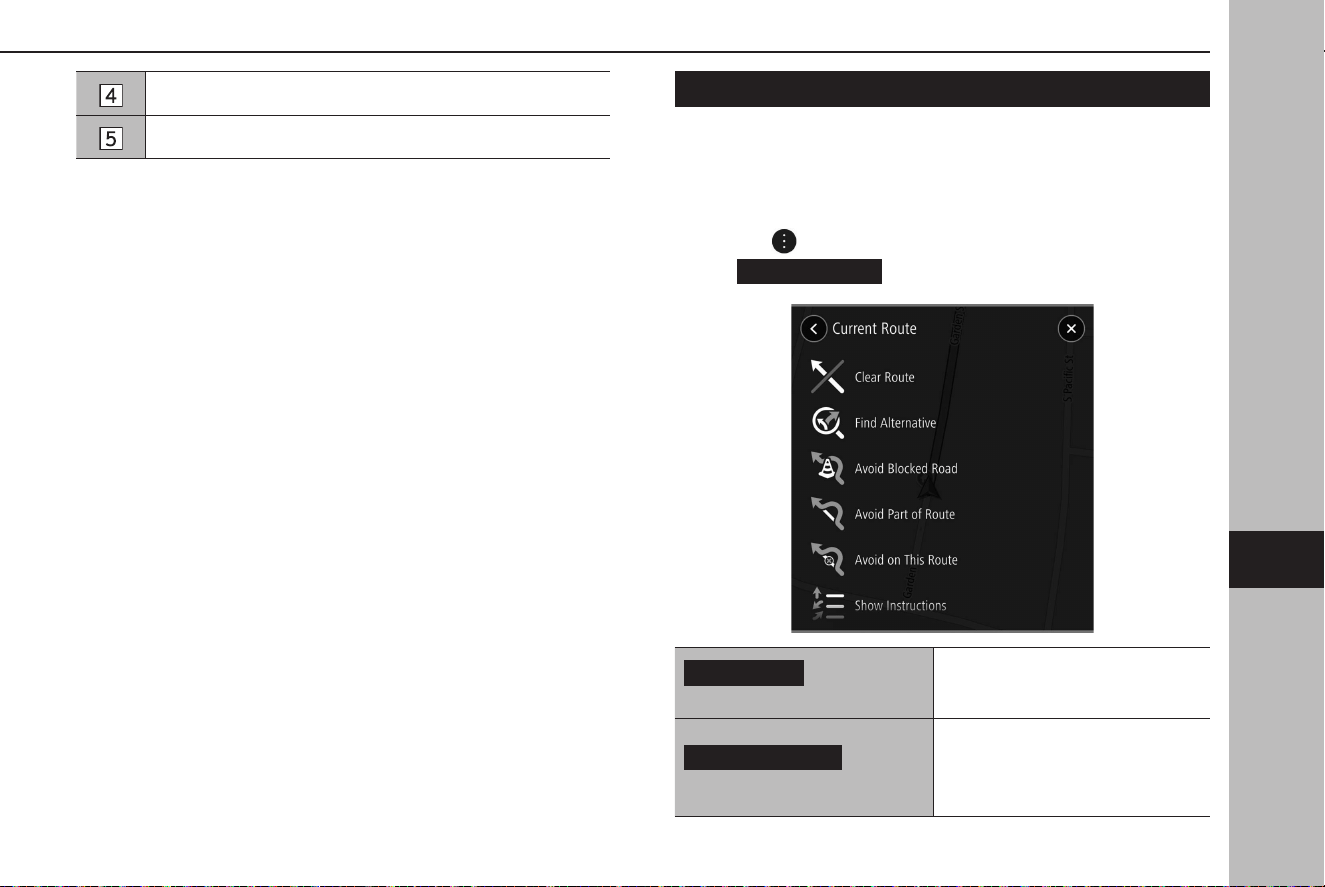
Select to display the route details conrmation screen.
Select to display the navigation settings screen. (→P.179)
CURRENT ROUTE SCREEN
The current route screen can be displayed using the following
method:
1.
Select a guidance route on the route guidance screen.
2.
Select .
3.
→
Manage Route
(Manage Route)
Clear Route
(Clear Route)
Select to stop the route guidance.
Find Alternative
(Find Alternative)
Select to display the alternate
route screen and search for 3
additional routes to the selected
destination. (→P.170)
ROUTE GUIDANCE
175
Navigation System
7
TK5_US.indb 175 2024/08/02 12:01:34
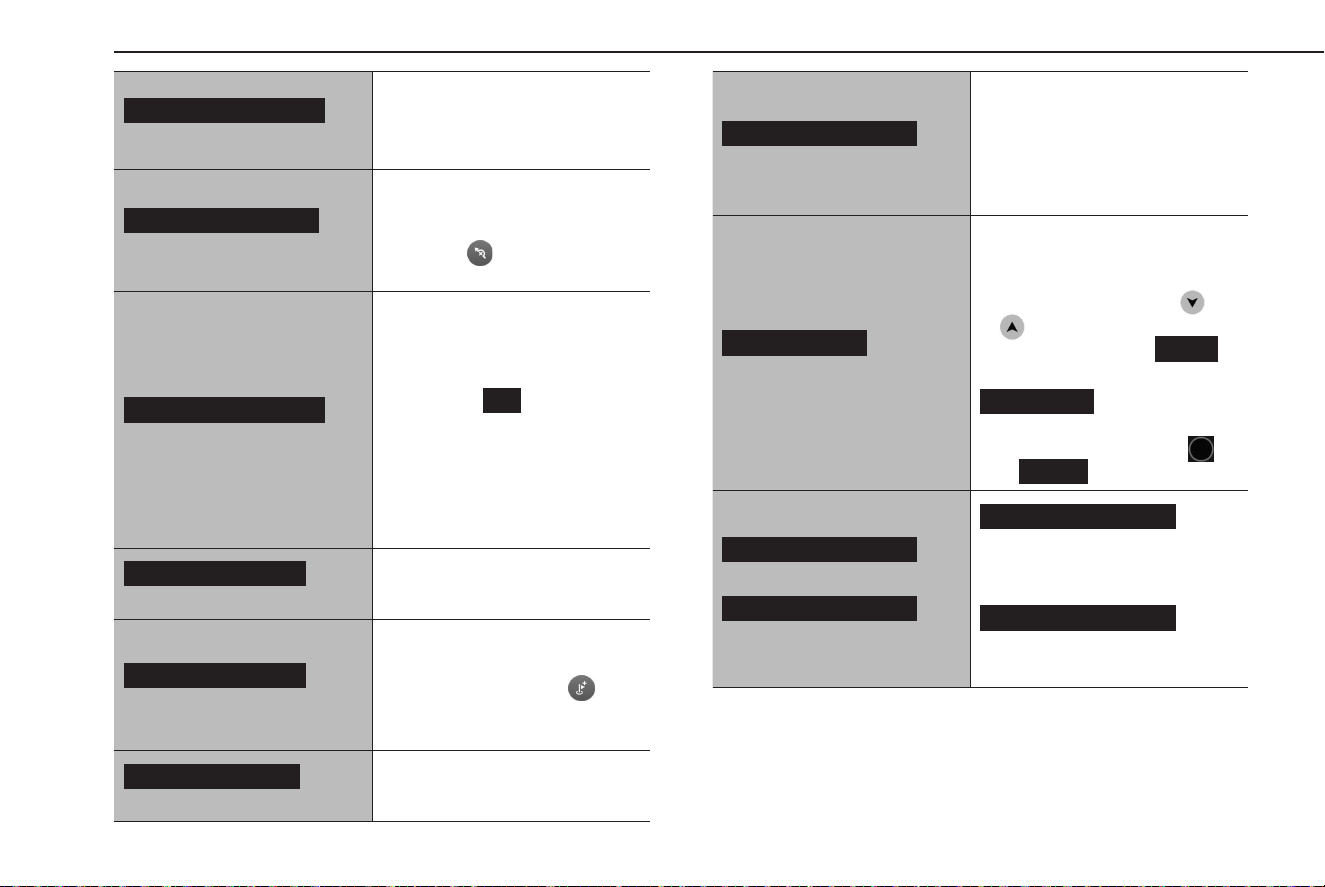
Avoid Blocked Road
(Avoid Blocked Road)
Select to display the alternate
route screen and search for 3
additional routes which avoid the
current road. (→P.170)
Avoid Part of Route
(Avoid Part of Route)
Select to display a list of sections
of the current route. Select the
section you wish to avoid and
then select
to search for a new
route.
Avoid on This Route
(Avoid on This Route)
Select to change the avoidance
criteria for the current route and
search for a dierent route.
When avoidance criteria are
changed and
OK
(OK) is selected,
the route calculation screen will be
displayed. (→P.170)
This item can only be selected
when the current route has a
section which is included in the
avoidance criteria.
Show Instructions
(Show Instructions)
Select to display the route details
conrmation screen.
Add Stop to Route
(Add Stop to Route)
Select to search for a waypoint
on the map or search screen
(→P.165) and then select
to add it to the current route
(→P.170).
Add to My Routes
(Add to My Routes)
Select to name the current route
and register it to My Routes.
Change Route Type
(Change Route Type)
Select to change the route type of
the current route and search for a
new route.
When route types are changed,
the route calculation screen will be
displayed. (→P.170)
Reorder Stops
(Reorder Stops)
Select to change the order of
the currently set destination and
waypoints.
Select a destination, select
or to change its position in
the list, and then select
Done
(Done) to conrm the change.
Edit Stops
(Edit Stops): Select
to display the edit stops screen.
To delete a waypoint, select
then
Delete
(Delete).
Play Route Preview
(Play Route Preview)/
Stop Route Preview
(Stop Route Preview)
Play Route Preview
(Play Route Preview): Select
to enter route preview mode.
(→P.177)
Stop Route Preview
(Stop Route Preview): Select to exit
route preview mode.
ROUTE GUIDANCE
176
TK5_US.indb 176 2024/08/02 12:01:36
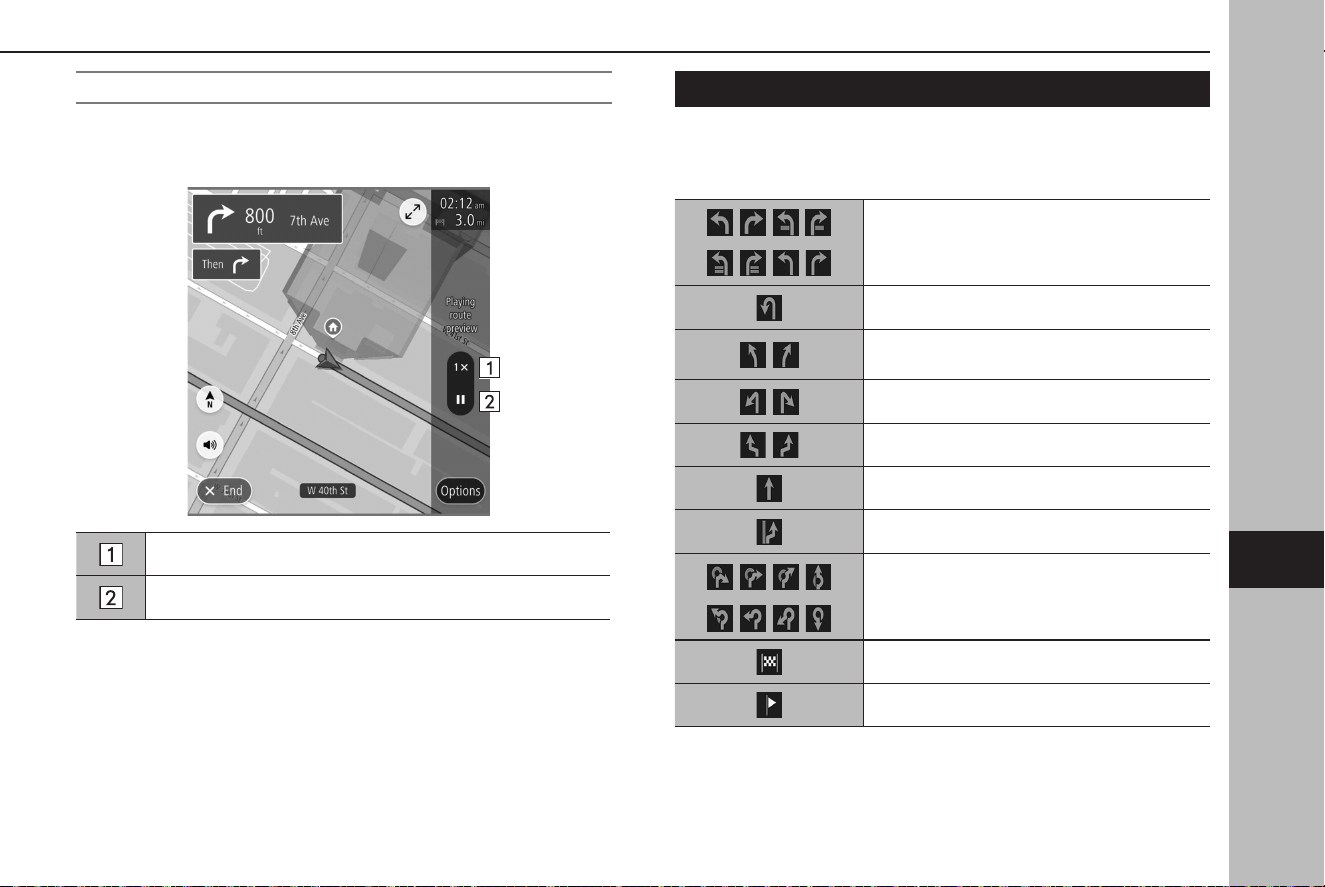
PREVIEWING THE ROUTE
A selected route can be previewed.
The speed of the preview can be changed.
Select to change the preview speed to “1X”/“2X”/“4X”.
Select to temporarily stop the preview.
STANDARD MAP ICON
The following table shows the most frequently displayed route
events.
Turn left/right
U-turn
Keep left/right at the fork in the road.
Turn left/right & sharp curve.
Stay in the left/right lane.
Go straight ahead at the intersection.
Exit the junction
Roundabout
You have arrived at your destination.
You have arrived at your waypoint.
ROUTE GUIDANCE
177
Navigation System
7
TK5_US.indb 177 2024/08/02 12:01:37
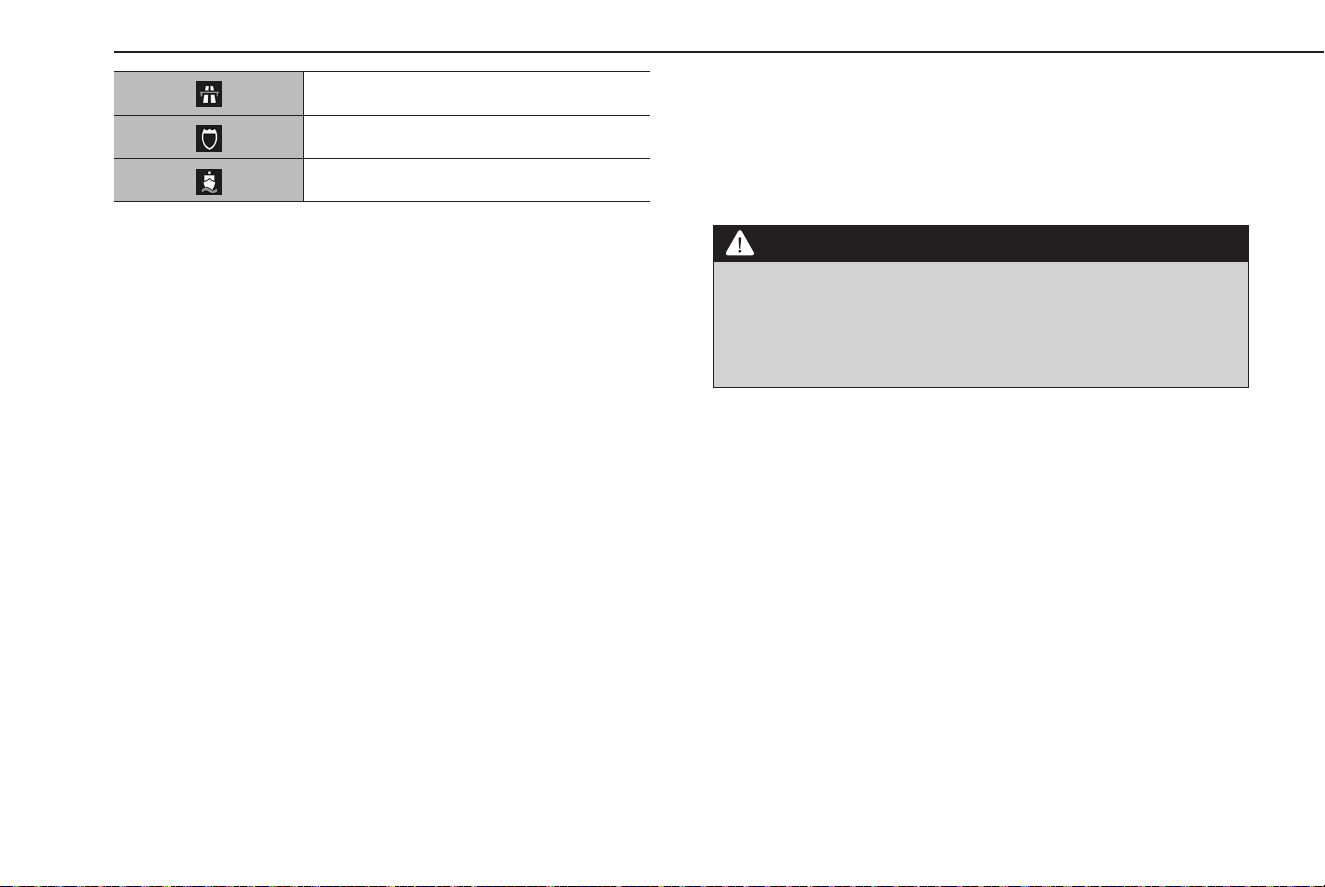
Toll road
Freeway
Ferry trip
TYPICAL VOICE GUIDANCE PROMPTS
As the vehicle approaches an intersection, or point, where
maneuvering the vehicle is necessary, the system’s voice
guidance will provide various messages.
WARNING
l Be sure to obey the trac regulations and keep the road condition
in mind, especially when driving on IPD roads (roads that are not
completely included in the map database). The route guidance
may not have the most up-to-date information, such as the
direction of a one way street.
NOTE
l To adjust the voice guidance volume: →P.73
l Setting voice guidance: →P.156
l Voice guidance may be made early or late.
l If the system cannot determine the current position correctly,
you may not hear voice guidance or may not see the magnied
intersection on the screen.
ROUTE GUIDANCE
178
TK5_US.indb 178 2024/08/02 12:01:37
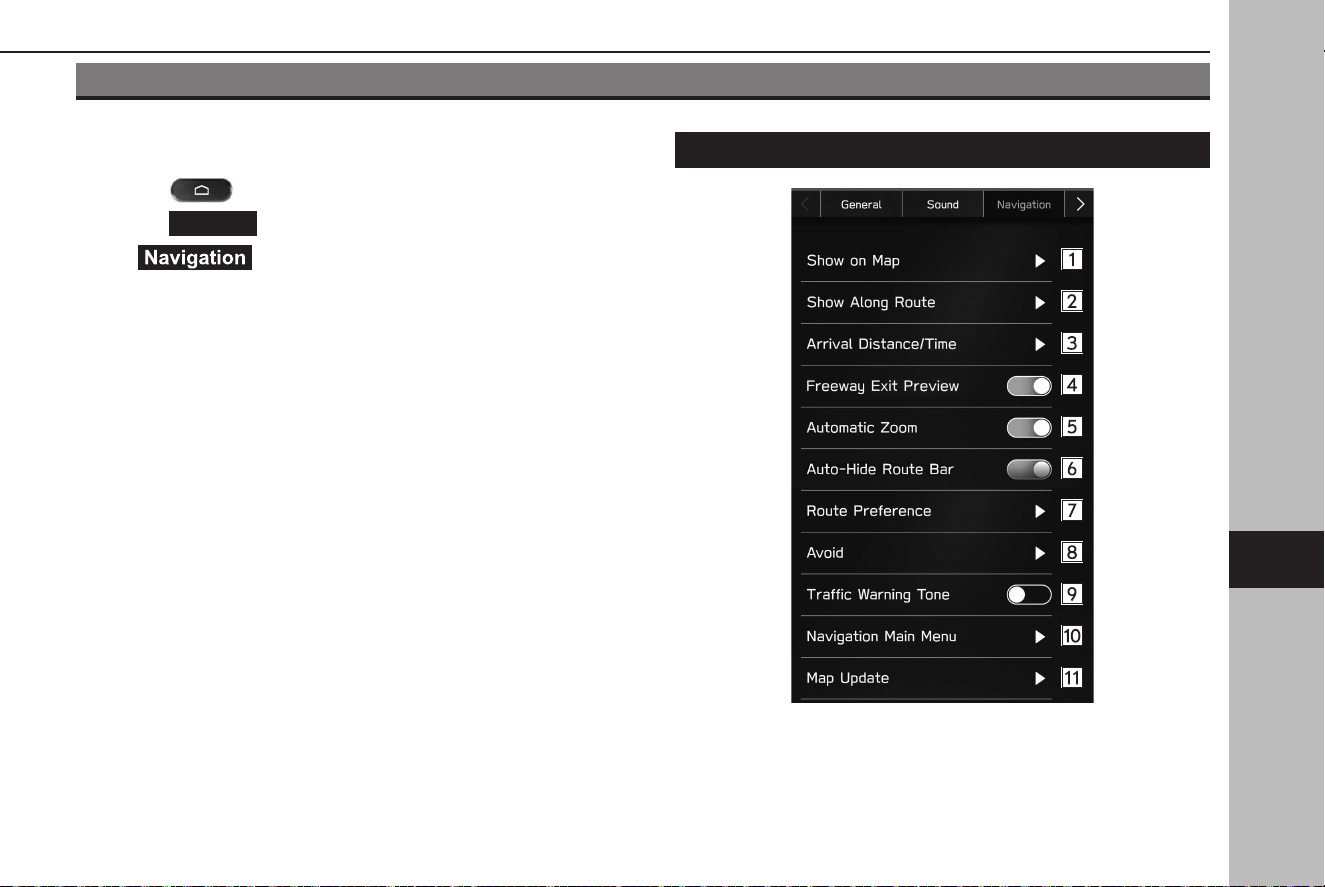
SETUP
NAVIGATION SETTINGS
1.
Select .
2.
Select
Settings
(Settings).
3.
→ (Navigation)
4.
Select the desired item to be set.
NAVIGATION SETTINGS SCREEN
SETUP
179
Navigation System
7
TK5_US.indb 179 2024/08/02 12:01:38

POI icons can be displayed on the map screen when “Show
POI Icons on Map” is turned on and up to 5 POI icon types
have been selected.
Select to turn the display for parking lots, gas stations and
rest areas on/o for the route being traveled during route
guidance.
Select to set the displays for the estimated remaining
distance and estimated remaining time to the destination.
(→P.172)
Select to turn the freeway exit preview on/o.
Select to set whether to automatically enlarge the map
when approaching intersections or turning points during
route guidance.
Select to turn the route bar auto-hide function on/o.
(→P.172)
Select to change the preferred route type when searching
for a new route.
Select to set avoidance criteria for the route calculation.
Select to turn the trac alert sound on/o.
During a route guidance: Select to display route option
screen. (→P.174)
Not during a route guidance: Select to display the main
menu screen. (→P.163)
Select to set the updating of map data. (→P.183)
SETUP
180
TK5_US.indb 180 2024/08/02 12:01:38
TIPS FOR THE NAVIGATION SYSTEM
GPS (GLOBAL POSITIONING SYSTEM)
REGARDING ERRORS IN CURRENT POSITION
DISPLAY
The system displays the vehicle current position based on GPS
information and data from various sensors and road maps.
However, when the radiowave signals from GPS satellites are
weak or when signals are received from only two satellites or
less, errors may occur in the position. Modifying or adjusting the
system will not prevent these errors.
LIMITATIONS OF THE NAVIGATION SYSTEM
This navigation system calculates the current position using
satellite signals, various vehicle signals, map data, etc. However,
an accurate position may not be shown depending on satellite
conditions, road conguration, vehicle condition or other
circumstances.
The Global Positioning System (GPS) developed and operated
by the U.S. Department of Defense provides an accurate current
position, normally using 4 or more satellites, and in some case 3
satellites. The GPS system has a certain level of inaccuracy. While
the navigation system compensates for this most of the time,
occasional positioning errors of up to 300 feet (100 m) can and
should be expected. Generally, position errors will be corrected
within a few seconds.
The GPS signal may be physically obstructed, leading to
inaccurate vehicle position on the map screen. Tunnels, tall
buildings, trucks, or even the placement of objects on the
instrument panel may obstruct the GPS signals.
The GPS satellites may not send signals due to repairs or
improvements being made to them.
Even when the navigation system is receiving clear GPS
signals, the vehicle position may not be shown accurately or
inappropriate route guidance may occur in some cases.
CAUTION
l The installation of window tinting may obstruct the GPS signals.
Most window tinting contains some metallic content that
will interfere with GPS signal reception of the antenna in the
instrument panel. We advise against the use of window tinting on
vehicles equipped with navigation systems.
TIPS FOR THE NAVIGATION SYSTEM
181
Navigation System
7
TK5_US.indb 181 2024/08/02 12:01:38

● Accurate current position may not be shown in the
following cases:
• When driving on a small angled Y-shaped road.
• When driving on a winding road.
• When driving on a slippery road such as in sand, gravel,
snow, etc.
• When driving on a long straight road.
• When freeway and surface streets run in parallel.
• After moving by ferry or vehicle carrier.
• When a long route is searched during high speed
driving.
• After repeating a change of direction by going forward
and backward, or turning on a turntable in a parking
lot.
• When leaving a covered parking lot or parking garage.
• When a roof carrier is installed.
• When driving with tire chains installed.
• When the tires are worn.
• After replacing a tire or tires.
• When using tires that are smaller or larger than the
factory specications.
• When the tire pressure in any of the 4 tires is not
correct.
● Inappropriate route guidance may occur in the following
cases:
• When turning at an intersection o the designated
route guidance.
• If you set more than 1 destination but skip any of
them, auto reroute will display a route returning to the
destination on the previous route.
• When turning at an intersection for which there is no
route guidance.
• When passing through an intersection for which there
is no route guidance.
• During auto reroute, the route guidance may not be
available for the next turn to the right or left.
• During high speed driving, it may take a long time for
auto reroute to operate. In auto reroute, a detour route
may be shown.
• After auto reroute, the route may not be changed.
• If an unnecessary U-turn is shown or announced.
• If a location has multiple names and the system
announces 1 or more of them.
• When a route cannot be searched.
• If the route to your destination includes gravel,
unpaved roads or alleys, the route guidance may not
be shown.
• Your destination point might be shown on the
opposite side of the street.
TIPS FOR THE NAVIGATION SYSTEM
182
TK5_US.indb 182 2024/08/02 12:01:38

• When a portion of the route has regulations
prohibiting the entry of the vehicle that vary by time or
season or other reasons.
• The road and map data stored in the navigation system
may not be complete or may not be the latest version.
NOTE
l This navigation system uses tire turning data and is designed to work
with factory-specied tires for the vehicle. Installing tires that are
larger or smaller than the originally equipped diameter may cause
inaccurate display of the current position. The tire pressure also
aects the diameter of the tires, so make sure that the tire pressure
of all 4 tires is correct.
MAP DATA
REGARDING ROADS AND PLACE NAME DATA
When maps are created, land surveys are conducted and
informationon road improvements and reopening is collected
to provide the most accurate information possible. However,
modicationsto roads, place names and facilities may be carried
out at any time. Consequently, we cannot guarantee that map
data contains no errors in road positions, conguration and
names, or in facility names.
SUBARU MAP UPDATE
Map data can be updated using the following methods:
● USB memory: All map data can be updated at once.
→P.184
● Wi-Fi®: Individual regions can be selected and their map
data updated.* →P.185, 186
*: Up to 8 regions can be selected for the automatic update function.
TIPS FOR THE NAVIGATION SYSTEM
183
Navigation System
7
TK5_US.indb 183 2024/08/02 12:01:38

NOTE
l Map update using Wi-Fi® may not be available in some countries.
l For the best possible na
vigation experience, regularly update
maps for all frequented regions, including nearby states. Failure to
update maps for surrounding states may result in inaccurate map
information during interstate travel. Updates made using a USB
memory device will update map information for all states. Please visit
Subaru.com for more information and the latest updates.
l If the map update fails or cannot be performed when using Wi-Fi®,
check the communication status of the connected device. If there is a
problem with communication, perform the procedure again using a
dierent Wi-Fi® access point.
l If the map update procedure fails, refer to the “TROUBLESHOOTING”
section. (→P.210)
l Subaru may terminate or suspend your access to all or part of these
services for any or no reason, including without limitation, any violation
of the terms detailed at:
https://subaru-maps.com/#/termsofuse
UPDATING THE MAP DATA MANUALLY USING A
USB MEMORY DEVICE
Maps can be updated using a USB memory device.
For details and to download update data, refer to the following
URL:
https://subaru-maps.com/
1.
Connect to a USB memory device. (→P.45)
2.
Select (Map Update) on the navigation
settings screen. (→P.179)
3.
→
USB
(USB)
4.
After the updates have been completed, turn the ignition
switch to the “LOCK”/“OFF” position and exit the vehicle.
5.
Close the driver’s door and lock the doors, then move at
least 10 feet (3 m) away from the vehicle to prevent the key
from interfering.
6.
After at least 5 minutes have elapsed, start the engine
again.
● The new map data will be applied.
TIPS FOR THE NAVIGATION SYSTEM
184
TK5_US.indb 184 2024/08/02 12:01:38
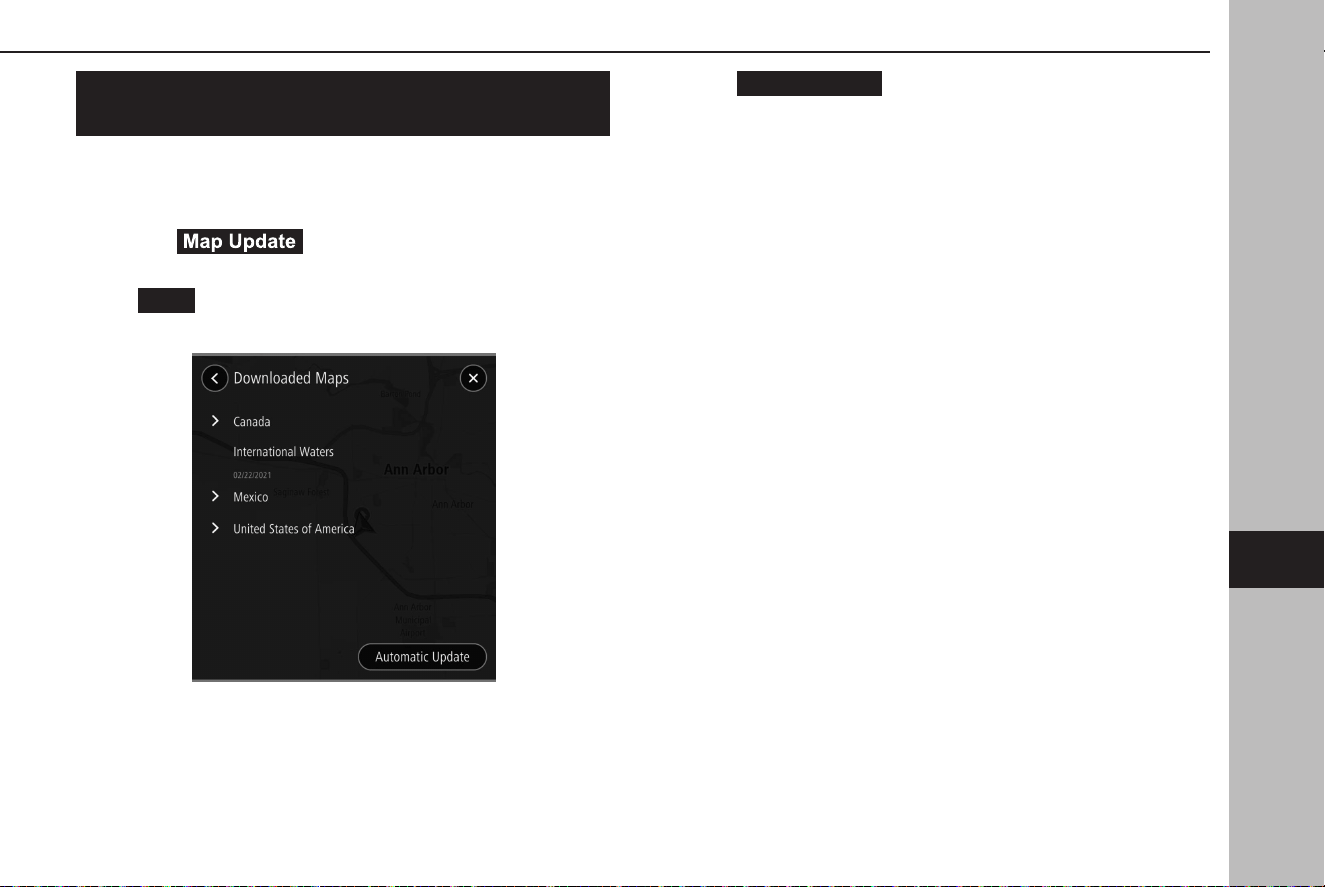
UPDATING THE MAP DATA
MANUALLY USING
Wi-Fi®
The map data may also be updated via Wi-Fi® network.
1.
Connect to a Wi-Fi® network. (→P.68)
2.
Select (Map Update) on the navigation
settings screen. (→P.179)
3.
→
Wi-Fi
(Wi-Fi)
4.
Select the regions for which maps are to be updated.
5.
→
Update XX MB
(Update XX MB)
● The updat
e for the selected region will be automatically
downloaded and installed.
6.
After the updates have been completed, turn the ignition
switch to the “LOCK”/“OFF” position and exit the vehicle.
7.
Close the driver’s door and lock the doors, then move at
least 10 feet (3 m) away from the vehicle to prevent the key
from interfering.
8.
After at least 5 minutes have elapsed, start the engine
again.
● The new map data will be applied
.
TIPS FOR THE NAVIGATION SYSTEM
185
Navigation System
7
TK5_US.indb 185 2024/08/02 12:01:39

UPDATING THE MAP DATA AUTOMATICALLY
USING Wi-Fi®
1.
Follow STEPS 1 to 3 in “UPDATING THE MAP DATA
MANUALLY USING Wi-Fi®”. (→P.185)
2.
Select
Automatic Update
(Automatic Update).
3.
Set “Update maps automatically (at most 8 maps can be
selected)”.
4.
Select the regions that you would like to be updated.
5.
After the updates have been completed, turn the ignition
switch to the “LOCK”/“OFF” position and exit the vehicle.
6.
Close the driver’s door and lock the doors, then move at
least 10 feet (3 m) away from the vehicle to prevent the key
from interfering.
7.
After at least 5 minutes have elapsed, start the engine
again.
● The new map data will be applied.
TIPS FOR THE NAVIGATION SYSTEM
186
TK5_US.indb 186 2024/08/02 12:01:39

187
Voice Recognition System
Voice Recognition System Operation
188
Voice Recognition System
188
Using The Voice Recognition System
188
Voice Recognition System Operation
189
Command List
190
TK5_US.indb 187 2024/08/02 12:01:39
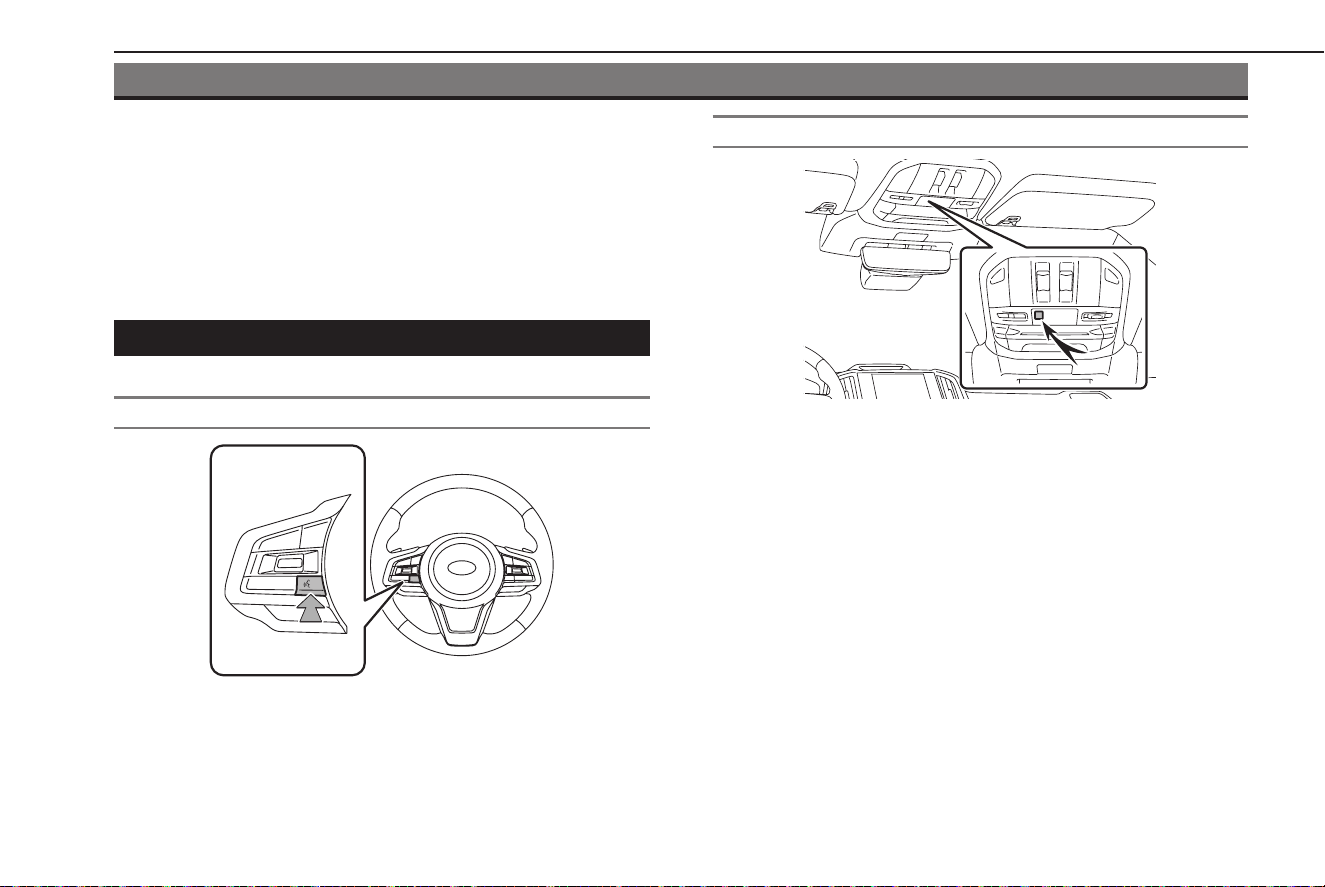
VOICERECOGNITION SYSTEM OPERATION
VOICERECOGNITION SYSTEM
The voice recognition system enables the navigation, audio,
hands-free systems, etc. to be operated using voice commands.
Refer to the command list for samples of voice commands.
(→P.190)
USING THE VOICERECOGNITION SYSTEM
STEERING SWITCH
● Press the talk switch to start the voicerecognition system.
● To cancel voice recognition, press and hold the talk
switch.
MICROPHONE
● It is unnecessary to speak directly into the microphone
when giving a command.
NOTE
l This function or part of this function may not be available in some
languages and countries.
l Wait for the conrmation beep before speaking a command.
VOICERECOGNITION SYSTEM OPERATION
188
TK5_US.indb 188 2024/08/02 12:01:40
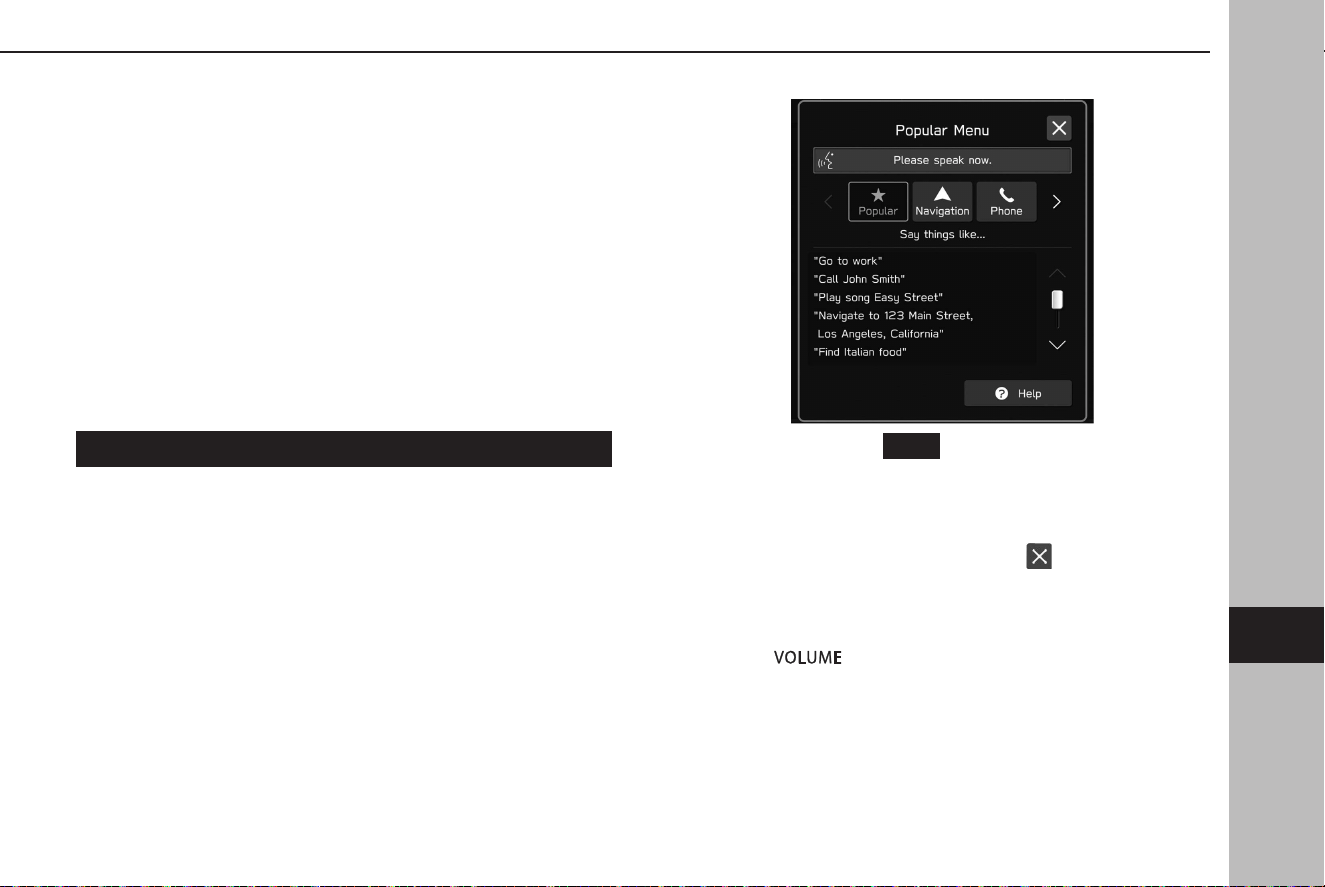
NOTE
l Voice commands may not be recognized if:
• Spoken too quickly.
• Spoken at a low or high volume.
• Driving with a window open.
• Passengers are talking while voice commands are spoken.
• The air conditioning speed is set high.
• When air from the ventilator blows directly toward the
microphone.
l In the following conditions, the system may not recognize the
command properly and using voice commands may not be possible:
• The command is incorrect or unclear. Note that certain words,
accents or speech patterns may be dicult for the system to
recognize.
• There is excessive background noise, such as wind noise.
VOICERECOGNITION SYSTEM OPERATION
1.
Press the talk switch.
● Aft
er the voice recognition top screen has been
displayed, speech guidance will commence.
2.
Say the command.
● When selecting
Help
(Help) or saying “Help”, all
commands supported by the system are listed.
● If a category name is selected, the selected category
command list will be displayed.
● To cancel voice recognition, select
, or press and hold
the talk switch.
NOTE
l Turn the “ ” knob, or use the “+/-” switch on the steering
wheel to adjust the speech guidance volume.
VOICERECOGNITION SYSTEM OPERATION
189
Voice Recognition System
8
TK5_US.indb 189 2024/08/02 12:01:40

COMMAND LIST
Recognizable voice commands and their actions are shown
below.
● Fr
equently used commands are listed in the following
tables.
● For devic
es that are not installed in the vehicle, the
related commands will not be displayed in the screen.
Also, according to conditions, other commands may not
be displayed in the screen.
● The func
tions available may vary according to the system
installed.
● If the system language is changed on the general settings
screen, the language of the voice recognition function
will also change.
Refer to the vehicle Owner’s Manual for details.
NOTE
l The notations used in the commands are as follows.
• <○○○>: Numbers, titles, or names to be spoken
XNavigation commands*
*: If equipped
Voice command Function
Enter an address
Enables setting a destination by saying the
address with city and state
Navigate to <address>
Enables setting a destination by saying the
address with city and state
Find <POI>
Displays a list of POI category near the
current position
Go home Displays the route to home
Go to work Displays the route to work
Cancel route Cancels route guidance
Search favorites Displays the favorite location
Favorite <favorite
name*>
Displays the favorite location
Previous destination Displays the previous destinations
Delete destination Cancels route guidance
Show map Displays the map screen
Find <POI> in a city
Displays a list of POI category near the
current position
Change country
<country>
Changes a country
VOICERECOGNITION SYSTEM OPERATION
190
TK5_US.indb 190 2024/08/02 12:01:40
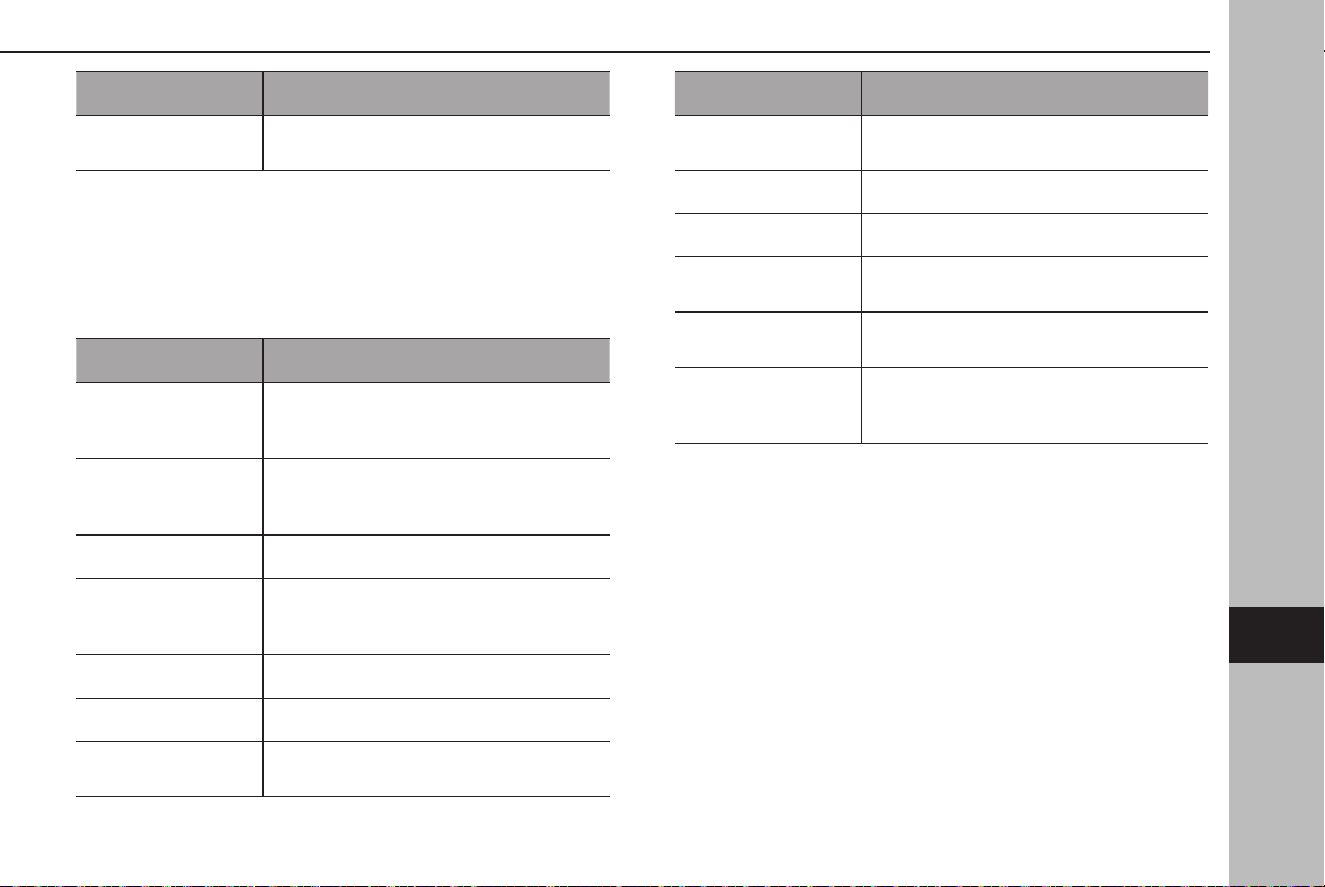
Voice command Function
Navigate to
what3words
Enables setting a destination by saying
three words hit by “what3words” search.
*: Depending on how the name of a registered favorite is entered, the way it
should be spoken when using the voice recognition function will change.
Lower case letters should be spoken phonetically.
Upper case letters should be spoken as individual letters.
When speaking the name of registered points, be sure to say it as it is
registered.
XPhone commands
Voice command Function
Call a contact
Places a call to the spoken contact name
and phone type of the contact from the
phonebook
Call <name> <phone
type>
Places a call to the spoken contact name
and phone type of the contact from the
phonebook
Pair phone Displays manage devices screen
Send a text by contact
Sends the preset message to the spoken
contact name and phone type of the
contact from the phonebook
Dial a number Places a call to the spoken phone number
Dial <number> Places a call to the spoken phone number
Call back
Places a call to the phone number of the
latest incoming call
Voice command Function
Redial
Places a call to the phone number of the
latest outgoing call
Show messages Displays received text messages
Show recent calls Displays the call history screen
Send a text to
<number>
Sends a text message to the spoken phone
number
Send a text by recent
calls
Sends a text message by the recent call list
Send a text to
<name> <phone
type>
Sends a text message to the spoken contact
name and phone type of the contact from
the phonebook
VOICERECOGNITION SYSTEM OPERATION
191
Voice Recognition System
8
TK5_US.indb 191 2024/08/02 12:01:40

XMusic commands
Voice command Function
Turn music on Turns music on
Turn music o Turns music o
Play song <name> Plays the selected song
Play artist <name> Plays tracks from the selected artist
Play playlist <name> Plays tracks from the selected playlist
FM radio Switches to FM radio
AM radio Switches to AM radio
Sirius XM Switches to SiriusXM® Radio
iPod Switches to iPod/iPhone
Radio frequency Tunes radio frequency
Go to a preset Selects a preset
Channel <name>
Switches to a selected satellite radio
channel
Play genre <name> Plays tracks from the selected genre
Play album <name> Plays tracks from the selected album
Voice command Function
Play composer
<name>
Plays tracks from the selected composer
Play audiobook
<name>
Plays the selected audiobook
Play podcast <name> Plays the selected podcast
Browse genre <name> Displays the list of artists of genre
Browse artist <name> Displays the list of albums of the artist
Browse album
<name>
Displays the list of songs of the album
Browse playlist
<name>
Displays the list of playlist
Browse composer
<name>
Displays the list of albums from the
composer
Browse songs Displays the list of songs
Browse audiobooks Displays the list of audiobooks
Browse podcasts Displays the list of podcasts
Auxiliary Switches source to auxiliary
USB Switches source to USB
VOICERECOGNITION SYSTEM OPERATION
192
TK5_US.indb 192 2024/08/02 12:01:40
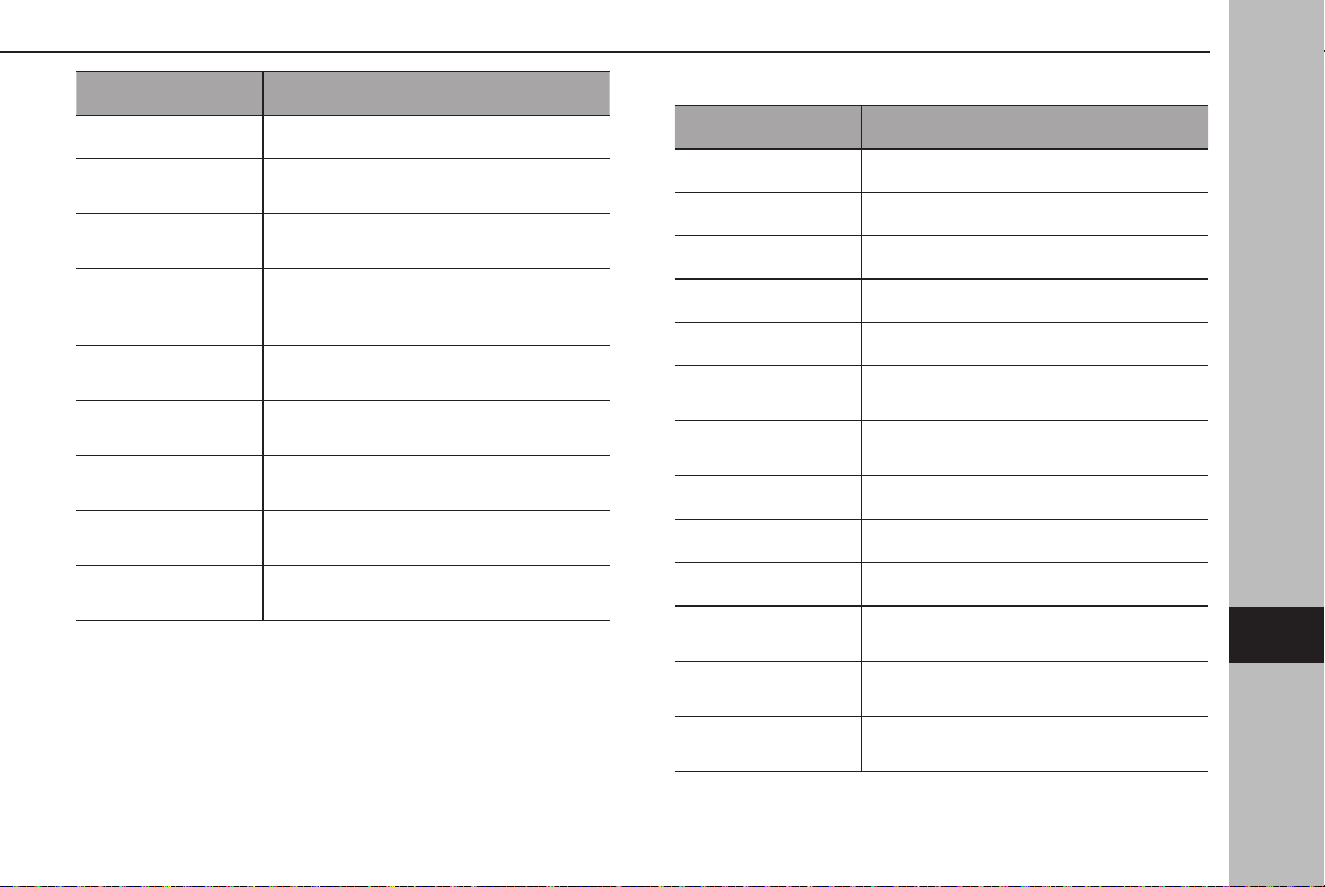
Voice command Function
Bluetooth audio Switches source to Bluetooth audio
Tune to <frequency>
AM
Tunes AM radio frequency
Tune to <frequency>
FM
Tunes FM radio frequency
Tune to FM
<frequency> HD
<subchannel>
Tunes FM radio frequency
Listen to a radio genre
- FM radio -
Selects a radio genre
Listen to a <genre>
FM station
Selects a radio genre
Tune to preset
<number>
Selects a preset
Tune to channel
number
Selects a satellite radio channel
Satellite channel
<number>
Selects a satellite radio channel
NOTE
l Depending on the device, your iPod/iPhone may not work when
operated via voice recognition.
XClimate commands
Voice command Function
Auto AC on Switches on the Auto AC mode on
Warmer Increases the temperature
Cooler Decreases the temperature
Increase fan speed Increases the fan speed
Decrease fan speed Decreases the fan speed
Set temperature to
<temperature>
Sets the temperature to the spoken
temperature
Change temperature
Sets the temperature to the spoken
temperature
Fan speed Sets the fan speed to the spoken fan speed
Turn on heated seat* Turns the seat heater on
Turn o heated seat* Turns the seat heater o
Set heated seat to
<high - low>*
Sets the level of the seat heater intensity
Turn on ventilated
seat*
Turns the seat ventilator on
Turn o ventilated
seat*
Turns the seat ventilator o
VOICERECOGNITION SYSTEM OPERATION
193
Voice Recognition System
8
TK5_US.indb 193 2024/08/02 12:01:40
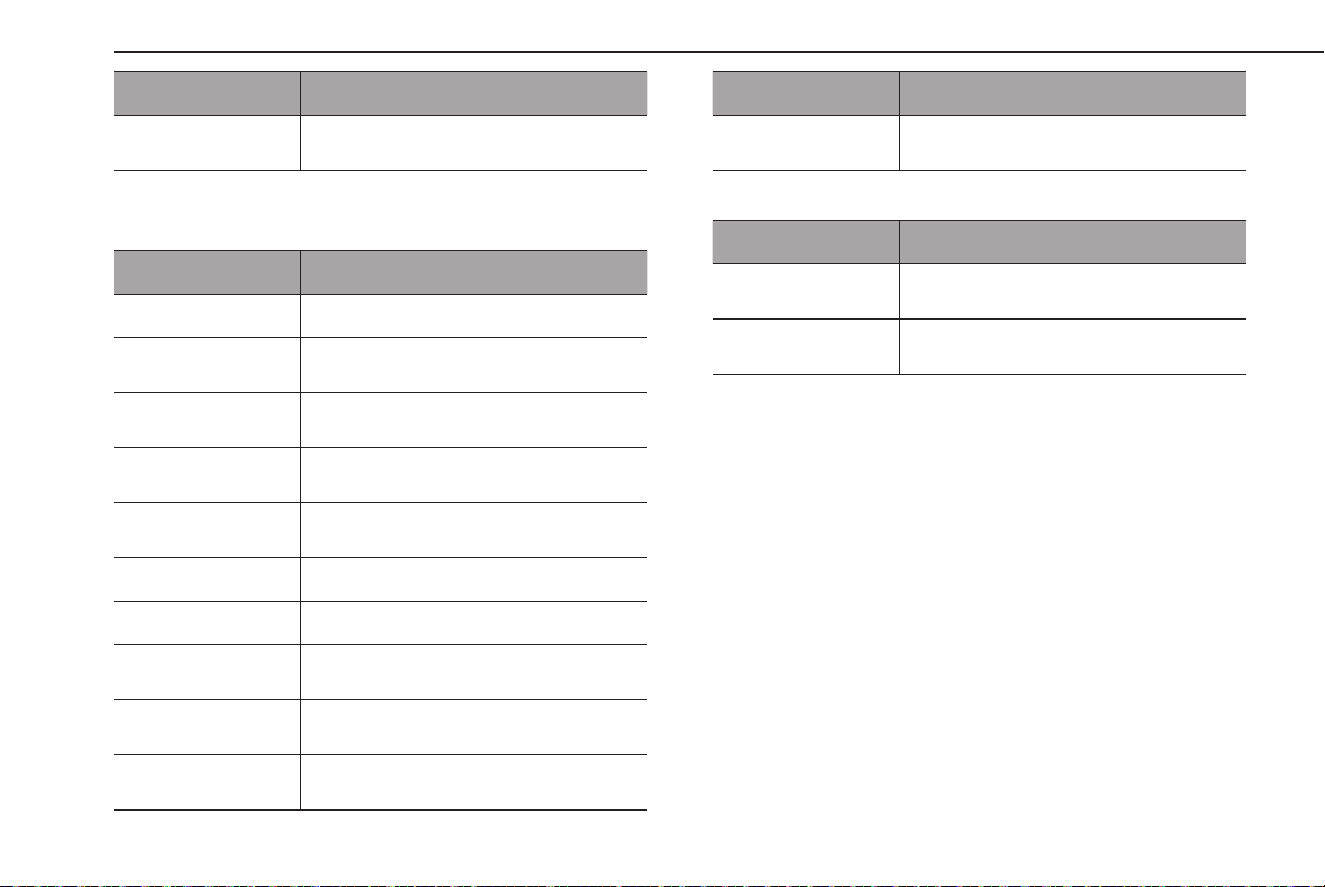
Voice command Function
Set ventilated seat to
<high - low>*
Sets the level of the seat ventilator intensity
*: If equipped
XApps commands
Voice command Function
Launch <app name> Changes screen to selected application
Weather
Changes screen to SiriusXM Travel Link
Weather
Weather alert
Changes screen to SiriusXM Travel Link
Weather Alerts
Parking
Changes screen to SiriusXM Travel Link
Parking
Sports
Changes screen to SiriusXM Travel Link
Sports
Go to CarPlay Changes screen to Apple CarPlay
Go to Android Auto Changes screen to Android Auto
Stocks
Changes screen to SiriusXM Travel Link
Stocks
Fuel prices
Changes screen to SiriusXM Travel Link Fuel
Prices
Show weather for a
city
Changes screen to SiriusXM Travel Link
Weather
Voice command Function
Show weather forecast
for <city name>
Changes screen to SiriusXM Travel Link
Weather
XVehicle commands
Voice command Function
Lane Departure
Options
Changes the settings of the Lane Departure
function
Cruise Control Options
Changes the settings of the Cruise Control
function
VOICERECOGNITION SYSTEM OPERATION
194
TK5_US.indb 194 2024/08/02 12:01:40

195
Appendix/What To Do If/Index
Certication
196
Certication
196
SiriusXM® Radio
196
SiriusXM Data Service
196
Radio Wave Communications
196
Bluetooth
198
iPhone/iPod
198
Apple CarPlay
199
Android Auto
199
Gracenote
199
Others
199
How To Get The Source Code
Using The Open Source
200
What To Do If
201
Troubleshooting
201
Troubleshooting Issues Common
To This System
201
Radio Operation
202
Phone
203
Apps
208
Updating The System
209
Map Update
210
Index
212
TK5_US.indb 195 2024/08/02 12:01:40
CERTIFICATION
CERTIFICATION
SiriusXM® Radio
● © 2024 Sirius XM Radio Inc. Sirius, XM, SiriusXM and all related
marks and logos are trademarks of Sirius XM Radio Inc. All
other marks, channel names and logos are the property of
their respective owners. All rights reserved.
SiriusXM DATA SERVICE
Neither Sirius XM Radio Inc. nor SUBARU CORPORATION is
responsible for any errors or inaccuracies in the SiriusXM data
services or its use in vehicle.
RADIO WAVE COMMUNICATIONS
XU.S.A.
● FCC ID: HY
QDNNS122
● This device c
omplies with part 15 of the FCC Rules. Operation
is subject to the following two conditions: (1) This device
may not cause harmful interference, and (2) this device must
accept any interference received, including interference that
may cause undesired operation.
WARNING
l FCC WARNING:
Changes or modications not expressly approved by the party
responsible for compliance could void the user’s authority to
operate the equipment.
l CAUTION: R
adio Frequency Radiation Exposure
This equipment complies with FCC radiation exposure limits set
forth for an uncontrolled environment and meets the FCC radio
frequency (RF) Exposure Guidelines. This equipment should be
installed and operated keeping the radiator at least 20cm or more
away from person’s body.
l Co-location:
This transmitter must not be co-located or operated in
conjunction with any other antenna or transmitter.
CERTIFICATION
196
TK5_US.indb 196 2024/08/02 12:01:41
XCanada
● This devic
e contains licence-exempt transmitter(s)/receiver(s)
that comply with Innovation, Science and Economic
Development Canada’s licence-exempt RSS(s). Operation is
subject to the following two conditions:
(1) This device may not cause interference.
(2) This device must accept any interference, including
interference that may cause undesired operation of the
device.
The antenna cannot be removed (and changed) by user.
Co-location: This transmitter must not be co-located
or operated in conjunction with any other antenna or
transmitter.
L’émetteur/récepteur exempt de licence contenu dans le
présent appareil est conforme aux CNR d’Innovation, Sciences
et Développement économique Canada applicables aux
appareils radio exempts de licence. L’exploitation est autorisée
aux deux conditions suivantes :
(1) L’appareil ne doit pas produire de brouillage;
(2) L’appareil doit accepter tout brouillage radioélectrique
subi, même si le brouillage est susceptible d’en compromettre
le fonctionnement.
L’utilisateur n’est pas autorisé à retirer (ou modier) l’antenne.
Emplacement : Cet émetteur ne doit pas être installé ou utilisé
conjointement avec d’autres antennes ou émetteurs.
WARNING
l CAUTION: Radio Frequency Radiation Exposure
This equipment complies with ISED radiation exposure limits set
forth for an uncontrolled environment and meets RSS-102 of the
ISED radio frequency (RF) Exposure rules. This equipment should
be installed and operated keeping the radiator at least 20 cm or
more away from person’s body.
ATTENTION: exposition aux radiofréquences
- Cet équipement est conforme aux limites d’exposition aux
rayonnements d’ISDE établies pour un environnement non
contrôlé ainsi que la norme CNR-102 de la réglementation d’ISDE
relative à l’exposition aux radiofréquences (RF). Cet équipement
doit être installé et utilisé avec un minimum de 20 cm de distance
entre la source de rayonnement et le corps.
CERTIFICATION
197
Appendix/What To Do If/Index
9
TK5_US.indb 197 2024/08/02 12:01:41
Bluetooth
● The Bluetooth® word mark and logos are registered
trademarks owned by Bluetooth SIG, Inc. and any use of such
marks by SUBARU CORPORATION and DENSO Corporation is
under license. Other trademarks and trade names are those of
their respective owners.
iPhone/iPod
● Use of the Made for Apple badge means that an accessory has
been designed to connect specically to the Apple product(s)
identied in the badge and has been certied by the
developer to meet Apple performance standards. Apple is not
responsible for the operation of this device or its compliance
with safety and regulatory standards.
● Please note tha
t the use of this accessory with an Apple
product may aect wireless performance.
● iPhone,
iPod, iPod classic, iPod nano, iPod touch, Lightning
and App Store are trademarks of Apple Inc., registered in the
U.S. and other countries and regions.
CERTIFICATION
198
TK5_US.indb 198 2024/08/02 12:01:41
Apple CarPlay
● Use of the Apple CarPlay logo means that a vehicle user
interface meets Apple performance standards. Apple is not
responsible for the operation of this vehicle or its compliance
with safety and regulatory standards. Please note that the
use of this product with iPhone or iPod may aect wireless
performance.
● Apple, iPhone, iPod, iPod touch and Apple CarPlay are
trademarks of Apple Inc., registered in the U.S. and other
countries and regions.
Android Auto
● Android Auto is a trademark of Google LLC.
Gracenote
● Gracenote, the Gracenote logo and logotype are either a
registered trademark or a trademark of Gracenote, Inc. in the
United States and/or other countries.
OTHERS
● what3words® is a trademark of what3words Limited.
● QR Code is reg
istered trademarks of DENSO WAVE
INCORPORATED.
● QR Code est une marque déposée de DENSO WAVE
INCORPORATED.
● © 1982-2013, QNX Software Systems Limited. All rights
reserved.
● Cinemo is a trademark of Cinemo GmbH, Karlsruhe.
Please visit http://www.cinemo.com
CERTIFICATION
199
Appendix/What To Do If/Index
9
TK5_US.indb 199 2024/08/02 12:01:41

HOW TO GET THE SOURCE CODE USING THE OPEN SOURCE
This product contains Free/Open Source Software(FOSS).
The license information and/or the source code of such FOSS
can be found at the following URL.
https://www.denso.com/global/en/opensource/ivi/subaru/
HOW TO GET THE SOURCE CODE USING THE OPEN SOURCE
200
TK5_US.indb 200 2024/08/02 12:01:41
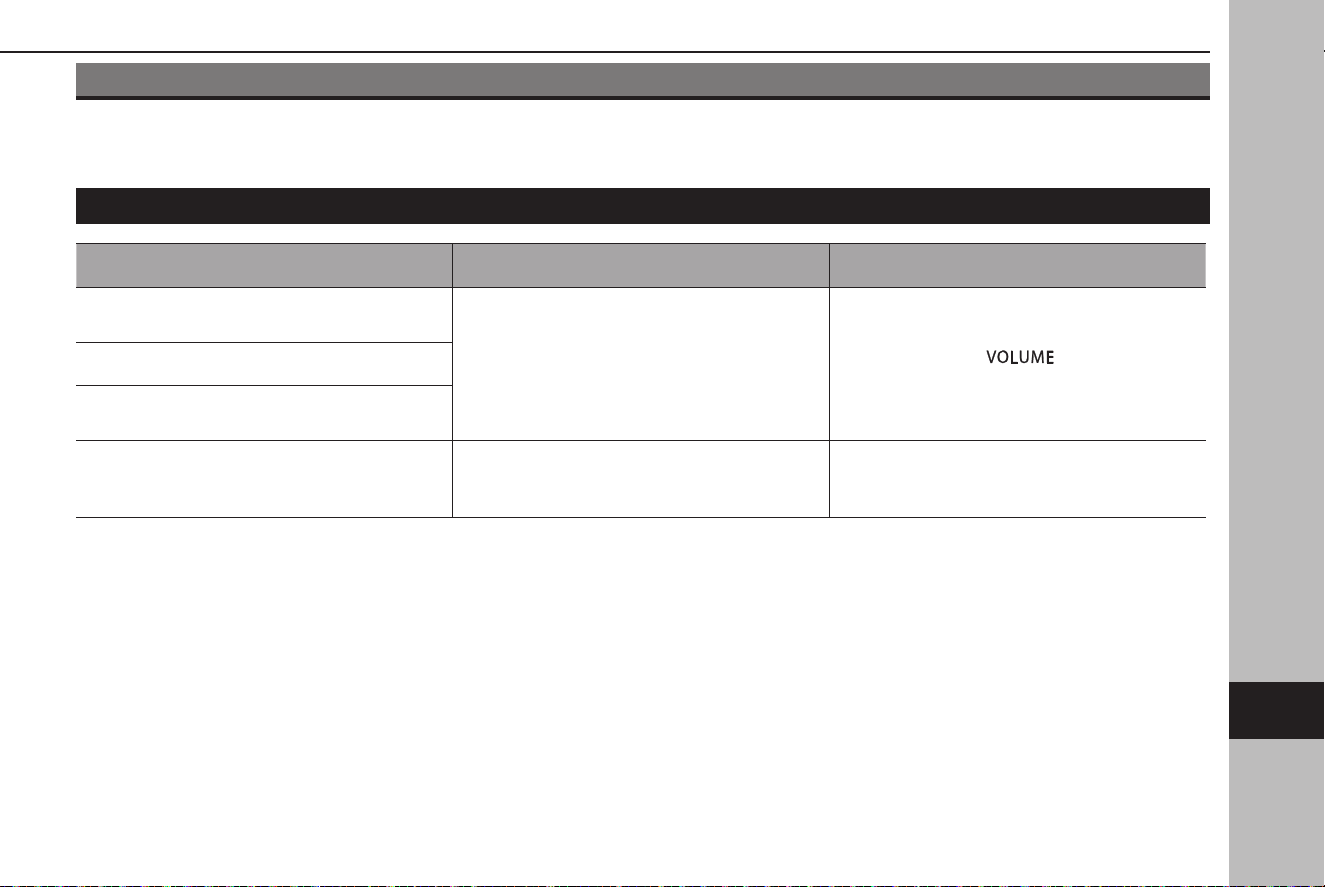
WHAT TO DO IF
TROUBLESHOOTING
TROUBLESHOOTING ISSUES COMMON TO THIS SYSTEM
Symptom Cause Action
The touch screen becomes unresponsive during
operation.
An error has occurred in the system.
Press and hold the “
” knob for 10
seconds or longer to reset the system.
The sound suddenly stops working.
Only the background is displayed on the screen
and no icons appear.
The sound of radio or connected media stops
working.
When Apple CarPlay/Android Auto is used, a
smartphone application, such as camera, is
operated.
Terminate either Apple CarPlay/Android Auto or
the operated smartphone application.
WHAT TO DO IF
201
Appendix/What To Do If/Index
9
TK5_US.indb 201 2024/08/02 12:01:41

RADIO OPERATION
Symptom Cause Action
Mismatch of time alignment- a user may hear
a short period of programming replayed or an
echo, stutter or skip.
The radio stations analog and digital volume
is not properly aligned or the station is in
ballgame mode.
None, radio broadcast issue. A user can contact
the radio station.
Sound fades, blending in and out.
Radio is shifting between analog and digital
audio.
Reception issue, may clear-up as the vehicle
continues to be driven. Turning the indicator of
the HD Radio button o can force radio in an
analog audio.
Audio mute condition when an HD2/HD3
multicast channel had been playing.
The radio does not have access to digital signals
at the moment.
This is normal behavior, wait until the digital
signal returns. If out of the coverage area, seek a
new station.
Audio mute delay when selecting an HD2/HD3
multicast channel preset.
The digital multicast content is not available
until HD Radio™ broadcast can be decoded and
make the audio available. This takes up to 7
seconds.
This is normal behavior, wait for the audio to
become available.
Text information does not match the present
song audio.
Data service issue by the radio broadcaster. Broadcaster should be notied.
No text information shown for the present
selected frequency.
Data service issue by the radio broadcaster. Broadcaster should be notied.
WHAT TO DO IF
202
TK5_US.indb 202 2024/08/02 12:01:41

PHONE
If there is a problem with the hands-free system or a Bluetooth phone, rst check the table below.
XWhen using the hands-free system with a Bluetooth phone
Symptom Likely cause Solution
Page
Cellular
phone
This
system
The hands-free system or Bluetooth
phone does not work.
The connected Bluetooth phone may
not be a compatible Bluetooth cellular
phone.
For a list of specic Bluetooth phones
which operation has been conrmed on
this system.
For USA customers, please visit
www.subaru.com for details.
Outside of the USA customers,
contact your local dealer to arrange
a demonstration in order to conrm
whether or not the phone can be paired
with the vehicle.
* 55
The Bluetooth version of the connected
cellular phone may be older than the
specied version.
Use a cellular phone with Bluetooth
version 2.1 or higher.
Recommended: Ver. 5.0 or higher
* 55
*: For details, refer to the owner’s manual that came with the cellular phone.
WHAT TO DO IF
203
Appendix/What To Do If/Index
9
TK5_US.indb 203 2024/08/02 12:01:41

XWhen registering/connecting a cellular phone
Symptom Likely cause Solution
Page
Cellular
phone
This
system
A cellular phone cannot be registered.
An incorrect passcode was entered on
the cellular phone.
Enter the correct passcode on the
cellular phone.
* -
The registration operation has not been
completed on the cellular phone side.
Complete the registration operation on
the cellular phone (approve registration
on the phone).
* -
Old registration information remains on
either this system or the cellular phone.
Delete the existing registration
information from both this system and
the cellular phone, then register the
cellular phone you wish to connect to
this system.
* 62
A Bluetooth connection cannot be
made.
Another Bluetooth phone is already
connected.
Manually connect the cellular phone
you wish to use to this system.
- 60
Bluetooth function is not enabled on
the cellular phone.
Enable the Bluetooth function on the
cellular phone.
* -
*: For details, refer to the owner’s manual that came with the cellular phone.
XWhen making/receiving a call
Symptom Likely cause Solution
Page
Cellular
phone
This
system
A call cannot be made/received. Your vehicle is in a “No Service” area. Move into the service area. - -
WHAT TO DO IF
204
TK5_US.indb 204 2024/08/02 12:01:41
XWhen using the phonebook
Symptom Likely cause Solution
Page
Cellular
phone
This
system
Phonebook data cannot be transferred
automatically.
The prole version of the connected
cellular phone may not be compatible
with transferring phonebook data.
For a list of specic Bluetooth phones
which operation has been conrmed on
this system.
For USA customers, please visit
www.subaru.com for details.
Outside of the USA customers,
contact your local dealer to arrange
a demonstration in order to conrm
whether or not the phone can be paired
with the vehicle.
* 55
Automatic contact transfer function on
this system is set to o.
Set automatic contact transfer function
on this system to on.
- 63
*: For details, refer to the owner’s manual that came with the cellular phone.
WHAT TO DO IF
205
Appendix/What To Do If/Index
9
TK5_US.indb 205 2024/08/02 12:01:41
XWhen using the Bluetooth message function
Symptom Likely cause Solution
Page
Cellular
phone
This
system
Messages cannot be viewed.
Message transfer is not enabled on the
cellular phone.
Enable message transfer on the cellular
phone (approve message transfer on
the phone).
* -
*: For details, refer to the owner’s manual that came with the cellular phone.
WHAT TO DO IF
206
TK5_US.indb 206 2024/08/02 12:01:41
XIn other situations
Symptom Likely cause Solution
Page
Cellular
phone
This
system
Even though all conceivable measures
have been taken, the symptom status
does not change.
The cellular phone is not close enough
to this system.
Bring the cellular phone closer to this
system.
- -
The cellular phone is the most likely
cause of the symptom.
Turn the cellular phone o, remove
and reinstall the battery pack, and then
restart the cellular phone.
* -
Enable the cellular phone’s Bluetooth
connection.
* -
Stop the cellular phone’s security
software and close all applications.
* -
Before using an application installed
on the cellular phone, carefully check
its source and how its operation might
aect this system.
* -
*: For details, refer to the owner’s manual that came with the cellular phone.
WHAT TO DO IF
207
Appendix/What To Do If/Index
9
TK5_US.indb 207 2024/08/02 12:01:41
APPS
If a problem occurs while using an app function, refer to the following table.
Symptom Likely cause Solution
Page
Cellular
phone
This
system
Function of Apple CarPlay cannot be
enabled.
Apple CarPlay function of the
connected cellular phone may not have
been enabled.
Enable Apple CarPlay of the cellular
phone.
* -
*: For details, refer to the owner’s manual that came with the cellular phone.
WHAT TO DO IF
208
TK5_US.indb 208 2024/08/02 12:01:41
UPDATING THE SYSTEM*
*: This function is not available in some countries/areas.
If a problem occurs when attempting to perform a system update, refer to the following table.
Symptom Cause Solution
“No server response.” is displayed and software
cannot be downloaded.
The vehicle may be in an area having weak
communication signals.
Move the vehicle to an area where
communication signals can be received
normally. If it is still not possible to download,
contact your SUBARU dealer.
An error occurred at the server. (Server cannot
respond temporarily due to maintenance, etc.)
Wait for the server to return to normal. If it is still
not possible to download, contact your SUBARU
dealer.
“The software install failed.” is displayed.
Software installation may have failed or an error
of unidentied cause may have occurred.
Contact your SUBARU dealer.
WHAT TO DO IF
209
Appendix/What To Do If/Index
9
TK5_US.indb 209 2024/08/02 12:01:41
MAP UPDATE (IF EQUIPPED)
If a problem occurs when attempting to perform a map update, refer to the following table.
XErrors when updating via USB
Error code Cause Solution
“Installation
Failed (1)”
Reading of the data on the USB memory device failed.
Disconnect and then reconnect the USB memory device, check that it is
connected correctly, and attempt to perform the update again.
“Installation
Failed (2)”
Corruption of the data on the USB memory device was
detected.
Attempt to perform the update again. If the same error is detected,
download the map update data again, copy it to a dierent USB memory
device and attempt to perform the update again.
“Installation
Failed (5)”
An error in the system data was detected while
performing the update.
Attempt to perform the update again. If the same error is detected,
download the map update data again, copy it to a dierent USB memory
device and attempt to perform the update again.
“Installation
Failed (X)”
An unspecied error has occurred.
Attempt to perform the update again. If the same error is detected,
contact your SUBARU dealer.
WHAT TO DO IF
210
TK5_US.indb 210 2024/08/02 12:01:41
XErrors when updating via Wi-Fi®
Error code Cause Solution
#6 Communication failure with server
Move to a place where communication status is good and then attempt to
perform the update again.
404
The system ID number of the center information display
is not registered to the server.
Contact your SUBARU dealer.
XXX (Three-
digit numeral/
code)
An error occurred with the connected server.
Wait for a while and then attempt to perform the update again.
If the update procedure fails again, contact your SUBARU dealer.
WHAT TO DO IF
211
Appendix/What To Do If/Index
9
TK5_US.indb 211 2024/08/02 12:01:41
INDEX
A
AM radio ..................................................................................................................... 120
Android Auto ............................................................................................................ 104
Apple CarPlay ............................................................................................................ 101
AUX ............................................................................................................................... 140
B
Bluetooth ...................................................................................................................... 54
Proles ...................................................................................................................... 55
Registering Bluetooth device
.......................................................................... 54
Bluet
ooth audio
....................................................................................................... 137
Bluet
ooth phone message
..................................................................................... 90
C
Calling on Bluetooth phone .................................................................................. 84
By contacts list ....................................................................................................... 86
By favorites list ...................................................................................................... 85
By keypad ................................................................................................................ 86
By recent calls list ................................................................................................. 84
Command list ............................................................................................................ 190
D
Destination search .................................................................................................. 165
Driver prole ........................................................................................................ 24, 64
E
Entering letters, numbers/list screen ................................................................. 47
Entering letters/numbers .................................................................................. 47
List screen operation ........................................................................................... 49
F
Favorites settings ..................................................................................................... 167
FM radio ...................................................................................................................... 120
G
General settings ......................................................................................................... 66
GPS ............................................................................................................................... 181
Limitations ............................................................................................................ 181
H
Hands-free system .................................................................................................... 80
Home screen operation .......................................................................................... 52
Adding shortcut icons ........................................................................................ 52
Moving/deleting shortcut icons ..................................................................... 52
I
Initial screen ................................................................................................................ 44
iPod/iPhone ............................................................................................................... 134
INDEX
212
TK5_US.indb 212 2024/08/02 12:01:42

M
Map data ..................................................................................................................... 183
Update .................................................................................................................... 183
Map screen information ........................................................................................ 161
Map screen operation ............................................................................................ 157
Current position display .................................................................................. 157
Map scale .............................................................................................................. 158
Orientation of the map .................................................................................... 159
Media operation ...................................................................................................... 132
AUX .......................................................................................................................... 140
Bluetooth audio .................................................................................................. 137
iPod/iPhone .......................................................................................................... 134
USB memory
........................................................................................................ 132
M
emory points settings
........................................................................................ 167
N
Navigation settings ................................................................................................. 179
P
Phone settings ............................................................................................................ 57
R
Radio operation ....................................................................................................... 120
AM/FM radio ........................................................................................................ 120
SiriusXM® radio .................................................................................................... 125
Receiving on Bluetooth phone ............................................................................ 87
Incoming calls ....................................................................................................... 87
Route guidance ........................................................................................................ 172
Route related functions .............................................................................. 170, 175
S
Screen adjustment .................................................................................................... 50
Adjusting brightness ........................................................................................... 50
Day and night mode ........................................................................................... 50
Search operation ..................................................................................................... 165
Setting ........................................................................................................................... 53
General ..................................................................................................................... 66
Navigation ............................................................................................................ 179
Phone ....................................................................................................................... 57
Radio ......................................................................................................................... 75
Sound ....................................................................................................................... 73
SiriusXM® radio ......................................................................................................... 125
SiriusXM Travel Link ................................................................................................ 107
Sound settings ........................................................................................................... 73
Status bar ..................................................................................................................... 51
Steering wheel controls ........................................................................................ 147
INDEX
213
Appendix/What To Do If/Index
9
TK5_US.indb 213 2024/08/02 12:01:42
T
Talking on Bluetooth phone .................................................................................. 88
Touch screen gestures ............................................................................................. 45
Touch screen operation .......................................................................................... 46
Trac information ................................................................................................... 161
Troubleshooting ...................................................................................................... 201
Typical voice guidance prompts ........................................................................ 178
U
USB memory ............................................................................................................. 132
V
Voicerecognition system ..................................................................................... 188
INDEX
214
TK5_US.indb 214 2024/08/02 12:01:42

MEMO
215
TK5_US.indb 215 2024/08/02 12:01:42

MEMO
216
TK5_US.indb 216 2024/08/02 12:01:42