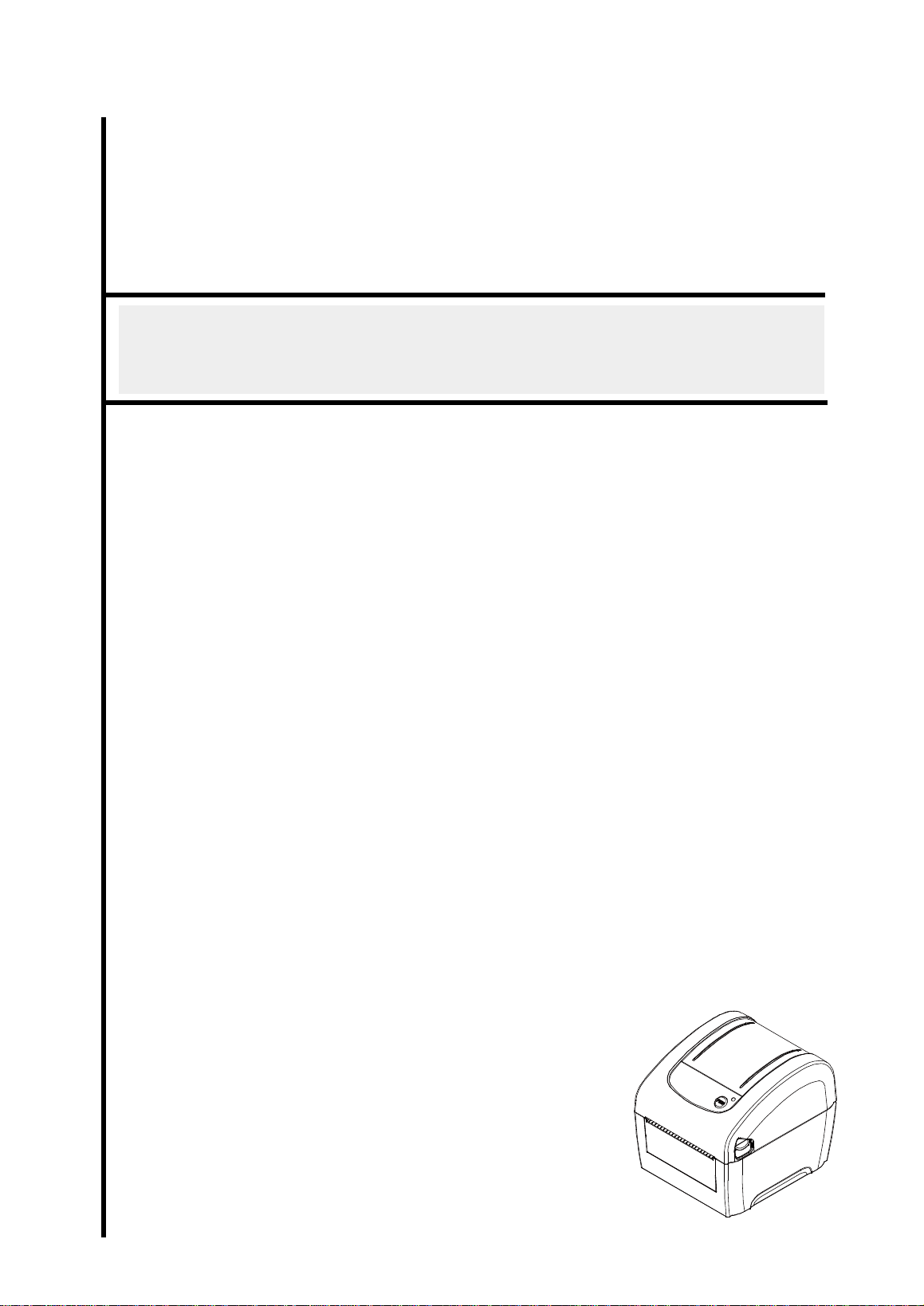
USER’S
MANUAL
DA210/ DA310 Series
DA220/ DA320 Series
Direct Thermal Bar Code Printer

Copyright Information
© 2017 TSC Auto ID Technology Co., Ltd.
The copyright in this manual, the software and firmware in the printer described
therein are owned by TSC Auto ID Technology Co., Ltd, All rights reserved.
CG Triumvirate is a trademark of Agfa Corporation. CG Triumvirate Bold
Condensed font is under license from the Monotype Corporation. Windows is a
registered trademark of Microsoft Corporation.
All other trademarks are the property of their respective owners.
Information in this document is subject to change without notice and does not
represent a commitment on the part of TSC Auto ID Technology Co. No part of
this manual may be reproduced or transmitted in any form or by any means, for
any purpose other than the purchaser’s personal use, without the expressed
written permission of TSC Auto ID Technology Co.

- ii -
Agency Compliance and Approvals
EN 55032, Class A
EN 55024
EN 60950-1; EN 61000-3-2; EN 61000-3-3
This is a class A product. In a domestic environment this product may
cause radio interference in which case the user may be required to take
adequate measures.
FCC part 15B, Class A
ICES-003, Class A
This equipment has been tested and found to comply with the limits for a
Class A digital device, pursuant to Part 15 of the FCC Rules. These limits
are designed to provide reasonable protection against harmful interference
when the equipment is operated in a commercial environment.
This equipment generates, uses, and can radiate radio frequency energy
and, if not installed and used in accordance with the manufacturer’s
instruction manual, may cause harmful interference with radio
communications. Operation of this equipment in a residential area is likely
to cause harmful interference, in which case you will be required to correct
the interference at your own expense.
This Class A digital apparatus complies with Canadian ICES-003.
Cet appareil numérique de la classe A est conform à la norme NMB-003 du
Canada.
This device complies with Part 15 of the FCC Rules. Operation is subject to
the following two conditions: (1) This device may cause harmful
interference, and (2) this device must accept any interference received,
including interference that may cause undesired operation.
AS/NZS CISPR 32, Class A
KN 32
KN 35
이 기기는 업무용(A급) 전자파적합기기로서 판매자 또는 사용자는 이 점을
주의하시기 바라며, 가정외의 지역에서 사용하는 것을 목적으로 합니다.
GB 4943.1
GB 9254, Class A
GB 17625.1
此为 A 级产品,在生活环境中,该产品可能会造成无线电干扰,
在这种情况下,可能需要用户对干扰采取切实可行的措施。
IS 13252(Part 1)/
IEC 60950-1
UL 60950-1(2nd Edition)
CSA C22.2 No. 60950-1-07(2nd Edition)
Energy Star for Imaging Equipment Version 2.0

- iii -
TP TC 004/2011
TP TC 020/2011
LP0002
Note: There may have certification differences in the series models, please refer to product label for accuracy.
Important safety instructions:
1. Read all of these instructions and keep them for later use.
2. Follow all warnings and instructions on the product.
3. Disconnect the power plug from the AC outlet before cleaning or if fault happened.
Do not use liquid or aerosol cleaners. Using a damp cloth is suitable for cleaning.
4. The mains socket shall be installed near the equipment and easily accessible.
5. The unit must be protected against moisture.
6. Ensure the stability when installing the device, Tipping or dropping could cause damage.
7. Make sure to follow the correct power rating and power type indicated on marking label
provided by manufacture.
8. Please refer to user manual for maximum operation ambient temperature.
WARNING:
Hazardous moving parts, keep fingers and other body parts away.
CAUTION:
(For equipment with RTC (CR2032) battery or rechargeable battery pack)
Risk of explosion if battery is replaced by an incorrect type.
Dispose of used batteries according to the Instructions as below.
1. DO NOT throw the battery in fire.
2. DO NOT short circuit the contacts.
3. DO NOT disassemble the battery.
4. DO NOT throw the battery in municipal waste.
5. The symbol of the crossed out wheeled bin indicates that the battery should not be
placed in municipal waste.
Caution: The printhead may be hot and could cause severe burns. Allow the printhead to
cool.
CAUTION:
Any changes or modifications not expressly approved by the grantee of this device could
void the user's authority to operate the equipment.
Below statement are for product with optional RF function.
CE Statement:
This equipment complies with EU radiation exposure limits set forth for an uncontrolled environment.
This equipment should be installed and operated with minimum distance 20 cm between the radiator &
your body.
- iv -
All operational modes:
2.4GHz: 802.11b, 802.11g, 802.11n (HT20), 802.11n (HT40)
5GHz: 802.11a,
The frequency, mode and the maximum transmitted power in EU are listed below:
2400 MHz – 2483.5 MHz: 19.88 dBm (EIRP)(Wi-Fi)
5150 MHz – 5250 MHz: 17.51 dBm (EIRP)(Wi-Fi)
2402 MHz – 2480 MHz: 6.02 dBm (EIRP)(Bluetooth)
Requirements in
AT/BE/BG/CZ/DK/EE/FR/DE/IS/IE/IT/EL/ES/CY/LV/LI/LT/LU/HU/MT/NL/NO/PL/PT/RO/SI/SK/TR/FI/S
E/CH/UK/HR. 5150MHz~5350MHz is for indoor use only.
5150-5350MHz for Only indoor use
5470-5725MHz for indoor/outdoor use
Restrictions In AZE
National restrictions information is provided below
Frequency Band
Country
Remark
5150-5350MHz
Azerbaijan
No license needed if used indoor and
power not exceeding 30mW
5470-5725MHz
Hereby, TSC Auto ID Technology Co., Ltd. declares that the radio equipment type [Wi-Fi] IEEE 802.11
a/b/g/n is in compliance with Directive 2014/53/EU
The full text of the EU declaration of conformity is available at the following internet address:
http://www.tscprinters.com/cms/theme/index-39.html
FCC Statement:
RF exposure warning (For Wi-Fi)
This equipment must be installed and operated in accordance with provided instructions and must not
be co-located or operating in conjunction with any other antenna or transmitter. End-users and
installers must be providing with antenna installation instructions and transmitter operating conditions
for satisfying RF exposure compliance.
RF exposure warning (For Bluetooth)
The equipment complies with FCC RF exposure limits set forth for an uncontrolled environment.

- v -
The equipment must not be co-located or operating in conjunction with any other antenna or
transmitter.
Canada, Industry Canada (IC) Notices
This Class B digital apparatus complies with Canadian ICES-003 and RSS-210.
Operation is subject to the following two conditions: (1) this device may not cause interference, and (2)
this device must accept any interference, including interference that may cause undesired operation of
the device.
Radio Frequency (RF) Exposure Information
The radiated output power of the Wireless Device is below the Industry Canada (IC) radio
frequency exposure limits. The Wireless Device should be used in such a manner such that
the potential for human contact during normal operation is minimized.
This device has also been evaluated and shown compliant with the IC RF Exposure limits under
portable exposure conditions. (Antennas are less than 20 cm of a person's body). (For Bluetooth)
Canada, avis de l'Industry Canada (IC)
Cet appareil numérique de classe B est conforme aux normes canadiennes ICES-003 et RSS-210.
Son fonctionnement est soumis aux deux conditions suivantes : (1) cet appareil ne doit pas causer
d'interférence et (2) cet appareil doit accepter toute interférence, notamment les interférences qui
peuvent affecter son fonctionnement.
Informations concernant l'exposition aux fréquences radio (RF)
La puissance de sortie émise par l’appareil sans fil est inférieure à la limite d'exposition aux
fréquences radio de l'Industry Canada (IC). Utilisez l’appareil sans fil de façon à minimiser
les contacts humains lors du fonctionnement normal.
Ce périphérique a également été évalué et démontré conforme aux limites d'exposition radio-
fréquence par l'IC pour des utilisations par des opérateurs mobiles (les antennes sont à moins de 20
cm du corps d'une personne). (Pour le Bluetooth)
NCC 警語:
經型式認證合格之低功率射頻電機,非經許可,公司、商號或使用者均不得擅自變更頻率、加大功率或
變更原設計之特性及功能。(即低功率電波輻射性電機管理辦法第十二條)
低功率射頻電機之使用不得影響飛航安全及干擾合法通信;經發現有干擾現象時,應立即停用,並改善
至無干擾時方得繼續使用。
前項合法通信,指依電信法規定作業之無線電通信。低功率射頻電機須忍受合法通信或工業、科學及醫
療用電波輻射性電機設備之干擾。(即低功率電波輻射性電機管理辦法第十四條)
BSMI Class A 警語:
這是甲類的資訊產品,在居住的環境使用中時,可能會造成射頻 干擾,在這種情況下,使用者會被要求
採取某些適當的對策。

- vi -
Contents
1. Introduction ......................................................................................................................................... 1
1.1 Product Introduction ..................................................................................................................... 1
1.2 Product Features .......................................................................................................................... 2
1.2.1 Printer Standard Features ................................................................................................ 2
1.2.2 Printer Optional Features ................................................................................................. 3
1.3 General Specifications ................................................................................................................. 4
1.4 Print Specifications ....................................................................................................................... 4
1.5 Media Specifications .................................................................................................................... 5
2. Operations Overview .......................................................................................................................... 6
2.1 Unpacking and Inspection ............................................................................................................ 6
2.2 Printer Overview ........................................................................................................................... 7
2.2.1 Front & rear ........................................................................................................................ 7
2.2.2 Interior View ....................................................................................................................... 8
2.3 LED and Button Function ............................................................................................................. 9
2.3.1 LED Indication ................................................................................................................... 9
2.3.2 Regular Button Function .................................................................................................. 9
3. Setup ................................................................................................................................................ 10
3.1 Setting up the Printer .................................................................................................................. 10
3.2 Loading the Media ...................................................................................................................... 11
3.2.1 Loading the Roll Labels ................................................................................................. 11
3.2.2 Loading External Media .................................................................................................. 13
3.2.3 Loading Media in Peel-off Mode (Option for DA220 series) ....................................... 15
3.2.4 Loading Media in Cutter Mode (Option for DA220 series) .......................................... 17
3.3 Install the Adapter for 1.5” Paper Core (Option) ........................................................................ 18
4. Power-on Utilities.............................................................................................................................. 19
4.1 Gap/Black Mark Sensor Calibration ........................................................................................... 20
4.2 Gap/Black Mark Calibration, Self-test and Dump Mode ............................................................ 21
4.2.1 Self-test ............................................................................................................................ 22
4.2.2 Dump mode ..................................................................................................................... 24
4.3 Printer Initialization ..................................................................................................................... 25
4.4 Set Black Mark Sensor as Media Sensor and Calibrate the Black Mark Sensor ..................... 26
4.5 Set Gap Sensor as Media Sensor and Calibrate the Gap Sensor ........................................... 26
4.6 Skip AUTO.BAS ........................................................................................................................ 27

- vii -
5. Diagnostic Tool ................................................................................................................................. 28
5.1 Start the Diagnostic Tool ............................................................................................................ 28
5.2 Printer Function .......................................................................................................................... 29
5.3 Setting Ethernet by Diagnostic Tool (For DA220 series) ........................................................... 30
5.3.1 Using USB interface to setup Ethernet interface ......................................................... 30
5.3.2 Using RS-232 interface to setup Ethernet interface .................................................... 31
5.3.3 Using Ethernet interface to setup Ethernet interface.................................................. 32
6. Troubleshooting ................................................................................................................................ 35
6.1 LED Status ................................................................................................................................. 35
6.2 Print Problem .............................................................................................................................. 36
7. Maintenance ..................................................................................................................................... 37
Revise History ....................................................................................................................................... 38


1. Introduction
1.1 Product Introduction
Thank you very much for purchasing TSC bar code printer.
The DA210 series of direct thermal desktop printers are ideal for a wide variety of applications including
product marking, point of sale, retail, small office, shipping labels, and other labeling and tag applications at
the best price anywhere.
The DA210 series is a perfect combination of affordability with a durable and reliable design. With a cost that
can’t be beat, the DA210 series offers both 203 and 300 dots per inch print resolution with printing speeds up
to a fast 6 inches per second. The large 60 watt power supply produces high quality printed labels, even at its
fastest print speeds.
For easy loading, the DA210 employs a user-friendly double-wall clamshell design with a large five-inch
(outside diameter) center-biased media bay. The spring-loaded label roll holder makes loading simple. Top-
of-form sensing – by gap, black mark, or notch – is standard. The printer also comes with a head-open
sensor.
To print label formats, please refer to the instructions provided with your labeling software; if you need to
write the custom programs, please refer to the TSPL/TSPL2 programming manual that can be found on the
accessories CD-ROM or on TSC website at http://www.tscprinters.com.
− Applications
Small Parcel Shipping
Mail Room Address and Routing Labels
Shipping & Receiving
Entertainment and Transportation Ticketing
Retail Point-of-Sale
File-Folder Labeling
- 2 -
1.2 Product Features
1.2.1 Printer Standard Features
The printer offers the following standard features.
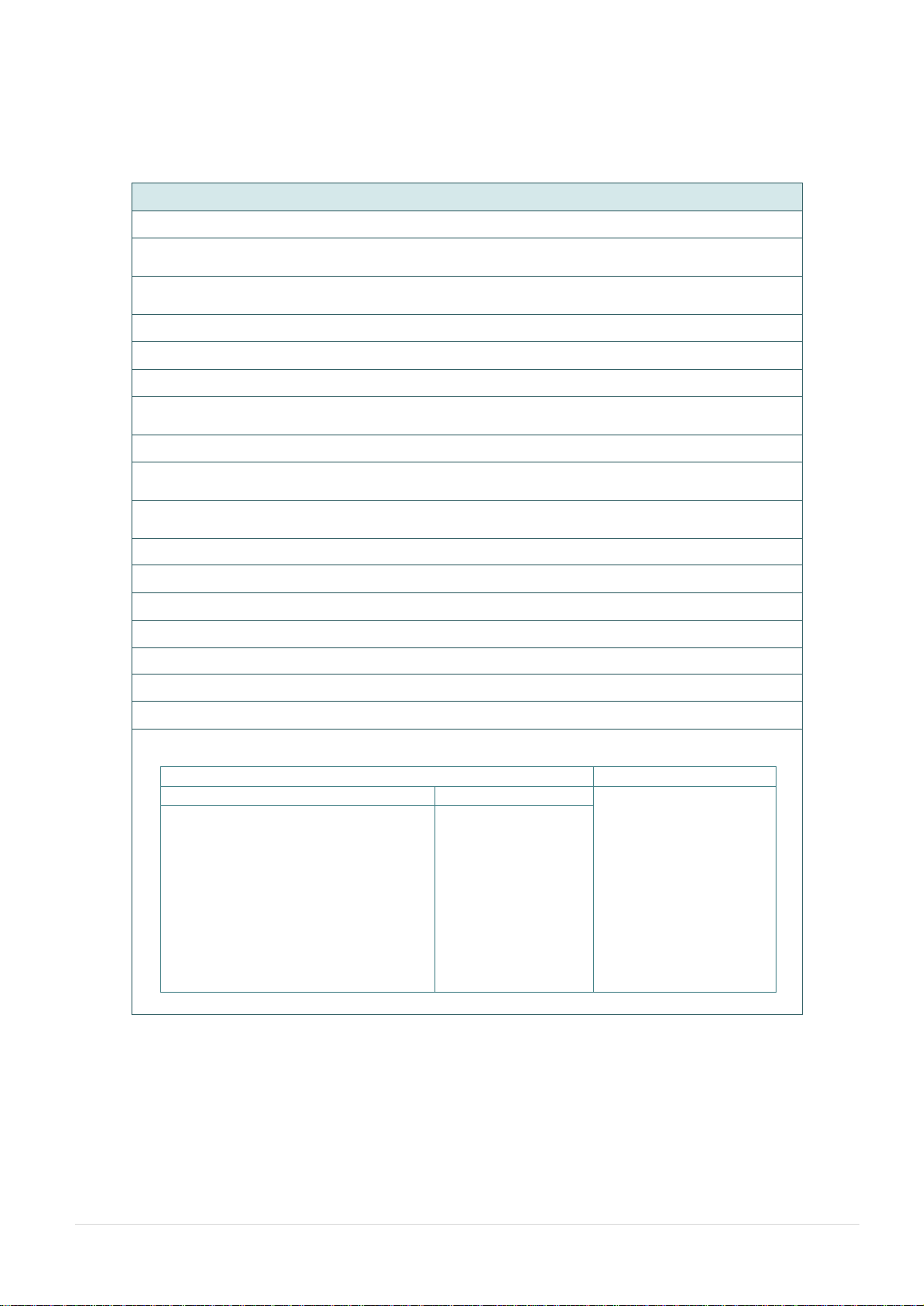
Product standard feature
Direct thermal printing
Gap transmissive sensor
(Fixed, center of offset to right 4 mm from center)
Black mark reflective sensor
(Fixed, center of offset to right 4 mm from center)
Head open sensor
1 operation button
1 LED with 3 colors
USB 2.0 (High speed mode) port for DA210/310 series
USB 2.0+USB host+RS-232+Ethernet ports for DA220/320 series
32-bit RISC high performance processor
16 MB DRAM memory for DA210/310 series
64 MB DRAM memory for DA220/320 series
8 MB Flash memory for DA210/310 series
128 MB Flash memory for DA220/320 series
Eltron
®
EPL, Zebra
®
ZPL and Datamax
®
DPL emulation languages support
Internal 8 alpha-numeric bitmap fonts
One Monotype Imaging® CG Triumvirate Bold Condensed scalable font
Built-in Monotype True Type Font engine
Fonts and bar codes can be printed in any one of the four directions (0, 90,180, 270 degree)
Downloadable fonts from PC to printer memory
Downloadable firmware upgrades
Bar code, graphics/image printing
Supported bar code
Supported image
1D bar code
2D bar code
BITMAP, BMP, PCX
(Max. 256 colors
graphics)
Code128 subsets A.B.C,
Code128UCC, EAN128, Interleave 2
of 5, Code 39, Code 93, EAN-13,
EAN-8, Codabar, POSTNET, UPC-A,
UPC-E, EAN and UPC 2(5) digits,
MSI, PLESSEY, China Post, ITF14,
EAN14, Code 11, TELPEN,
PLANET, Code 49, Deutsche Post
Identcode, Deutsche Post Leitcode,
LOGMARS
CODABLOCK F
mode, DataMatrix,
Maxicode, PDF-417,
Aztec,
MicroPDF417, QR
code, RSS Barcode
(GS1 Databar)

- 3 -
Code page
Codepage 437 (English - US)
Codepage 737 (Greek)
Codepage 850 (Latin-1)
Codepage 852 (Latin-2)
Codepage 855 (Cyrillic)
Codepage 857 (Turkish)
Codepage 860 (Portuguese)
Codepage 861 (Icelandic)
Codepage 862 (Hebrew)
Codepage 863 (French Canadian)
Codepage 864 (Arabic)
Codepage 865 (Nordic)
Codepage 866 (Russian)
Codepage 869 (Greek 2)
Codepage 950 (Traditional Chinese)
Codepage 936 (Simplified Chinese)
Codepage 932 (Japanese)
Codepage 949 (Korean)
Codepage 1250 (Latin-2)
Codepage 1251 (Cyrillic)
Codepage 1252 (Latin-1)
Codepage 1253 (Greek)
Codepage 1254 (Turkish)
Codepage 1255 (Hebrew)
Codepage 1256 (Arabic)
Codepage 1257 (Baltic)
Codepage 1258 (Vietnam)
ISO-8859-1: Latin-1 (Western European)
ISO-8859-2: Latin-2 (Central European)
ISO-8859-3: Latin-3 (South European)
ISO-8859-4: Latin-4 (North European)
ISO-8859-5: Cyrillic
ISO-8859-6: Arabic
ISO-8859-7: Greek
ISO-8859-8: Hebrew
ISO-8859-9: Turkish
ISO-8859-10: Nordic
ISO-8859-15: Latin-9
UTF-8
1.2.2 Printer Optional Features
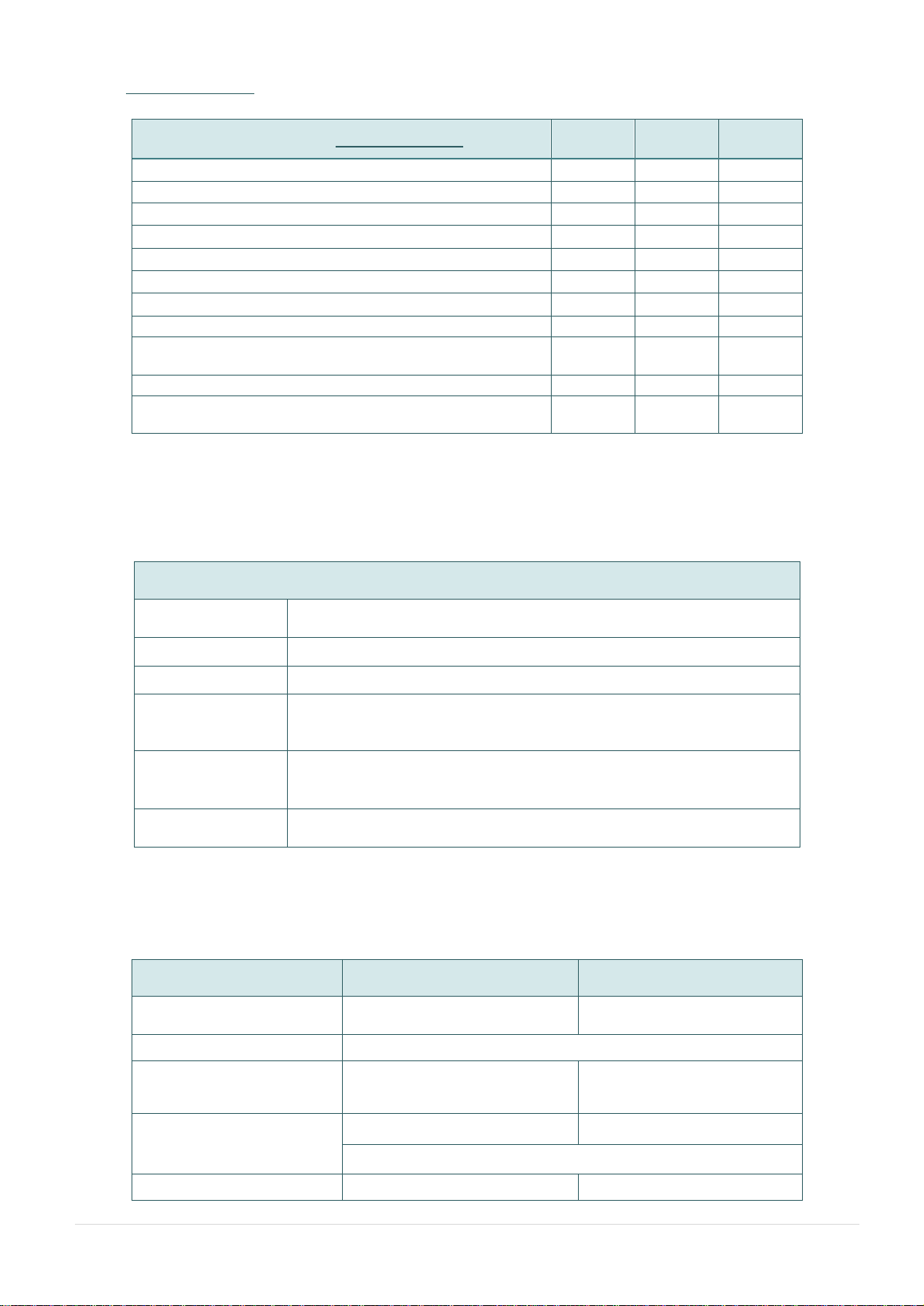
The printer offers the following optional features.
DA210/310 Series
Product option feature for DA210/310 series
User
option
Dealer
option
Factory
option
1.5” adapter
○
External roll mount, media OD. 214 mm (8.4”) with 76.2
mm (3”) core
○
Internal Bluetooth 4.0 module
○
- 4 -
DA220/320 Series
Product option feature for DA220/320 series
User
option
Dealer
option
Factory
option
Peel-off module
○
Guillotine cutter (full cut or partial cut)
○
Main board for USB & IE ports only
○
Real time clock
○
Internal 802.11 a/b/g/n wireless module
○
Internal Bluetooth 4.0 module
○
1.5” adapter for i.5” paper core
○
KP-200 Plus keyboard display unit (option with RS-232)
○
KU-007 Plus programmable smart keyboard (option with
RS-232)
○
External Bluetooth connectivity (option with RS-232)
○
External roll mount, media OD. 214 mm (8.4”) with 76.2
mm (3”) core
○
1.3 General Specifications
General Specifications
Physical
dimensions
172 mm (W) x 165 mm (H) x 195 mm (D)
Mechanism
Plastic with double-walled clamshell design
Weight
1.5 kg
Power
External universal switching power supply
Input: AC 100-240V, 50-60Hz
Output: DC 24V, 2.5A, 60W
Environmental
condition
Operation: 5 ~ 40˚C, 25~85% non-condensing
Note : Peeler mode : 40˚C/ 45%
Storage: -40 ~ 60 ˚C, 10~90% non-condensing
Environmental
concern
Comply with RoHS, WEEE
1.4 Print Specifications
Print Specifications
203 dpi models
300 dpi models
Print head resolution
(dots per inch/mm)
203 dots/inch
(8 dots/mm)
300 dots/inch
(12 dots/mm)
Printing method
Direct thermal
Dot size
(width x length)
0.125 x 0.125 mm
(1 mm = 8 dots)
0.084 x 0.084 mm
(1 mm = 11.8 dots)
Max. print speed
(inches per second)
152.4 mm (6”)
102 mm (4”)
2,3 ips for peeler mode
Max. print width
108 mm (4.25”)
105.7 mm (4.16”)
- 5 -
Max. print length
2,794 mm (110”) for DA210
1,016 mm (40”) for DA310
25,400 mm (1000”) for DA220
11,430 mm (450”) for DA320
Printout bias
Vertical: max. 1 mm
Horizontal: max. 1 mm
1.5 Media Specifications
Media Specifications
Media roll capacity
127 mm (5") OD
Media core diameter
1" (1.5") ID core
Note : 1.5’’ adapter (option)
Media type
Continuous, die-cut, black mark, External fan-fold, receipt
Media wound type
Outside wound
Media width
19 mm ~ 114 mm (0.7”~ 4.5”)
Media thickness
0.055 mm ~ 0.19 mm (2.16 ~ 7.48 mil)
Label length
10 ~ 2,794 mm (0.39” ~ 110”) for DA210
10 ~ 1,016 mm (0.39” ~ 40”) for DA310
10 ~ 25,400 mm (0.39” ~ 1000”) for DA220
10 ~ 11,430 mm (0.39” ~ 450”) for DA320
1” ~ 6” for peeler mode
1” ~ max. for cutter mode
Gap height
Min. 2 mm
Black mark height
Min. 2 mm
Black mark width
Min. 16 mm
- 6 -
2. Operations Overview
2.1 Unpacking and Inspection
This printer has been specially packaged to withstand damage during shipping. Please carefully inspect the
packaging and printer upon receiving the bar code printer. Please retain the packaging materials in case you
need to reship the printer.
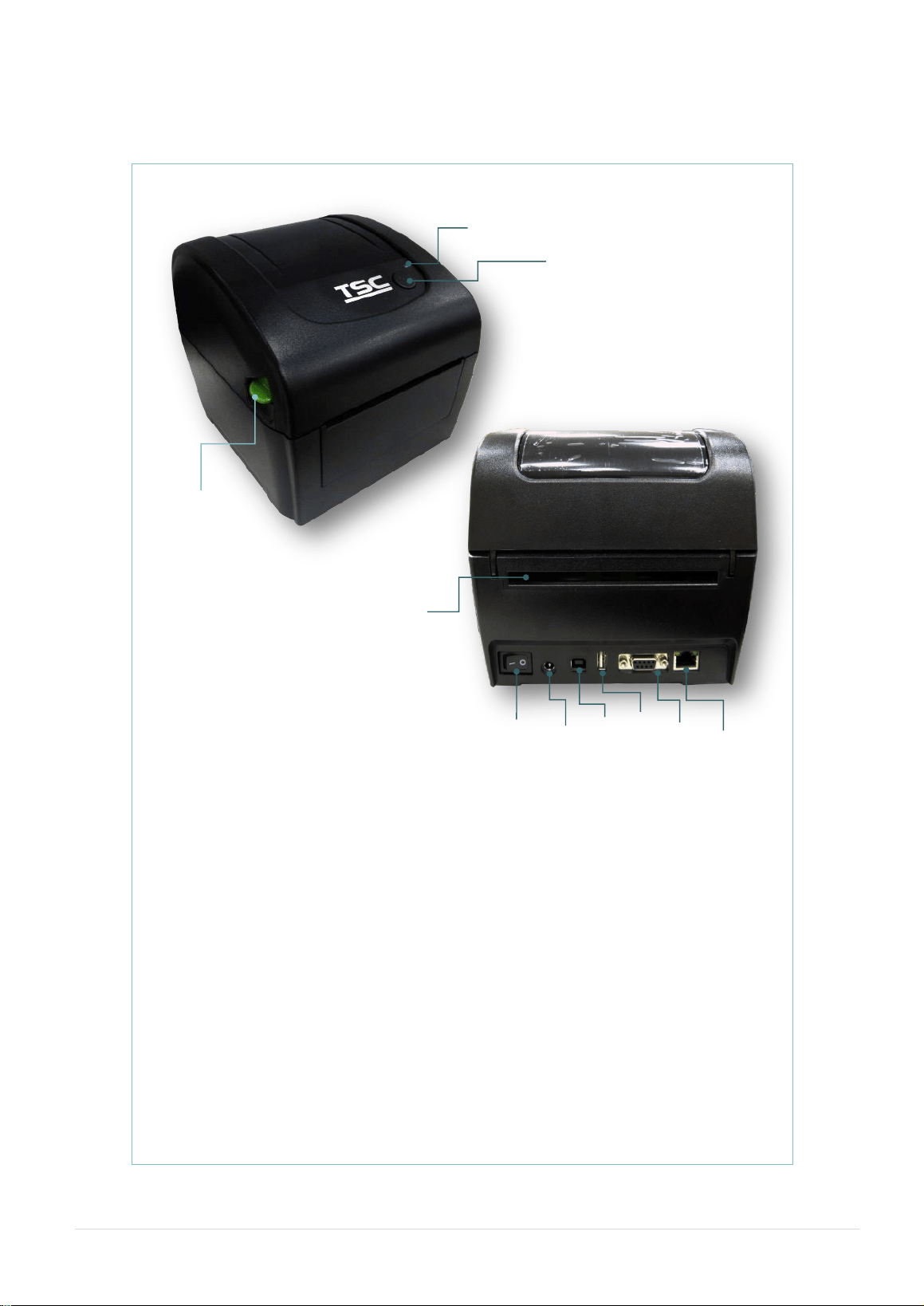
Unpacking the printer, the following items are included in the carton. If any parts are missing, please contact
the Customer Service Department of your purchased reseller or distributor.
One printer unit
One Windows labeling software/ Windows driver CD disk
One quick installation guide
One USB port cable
One power cord
One power supply
- 7 -
2.2 Printer Overview
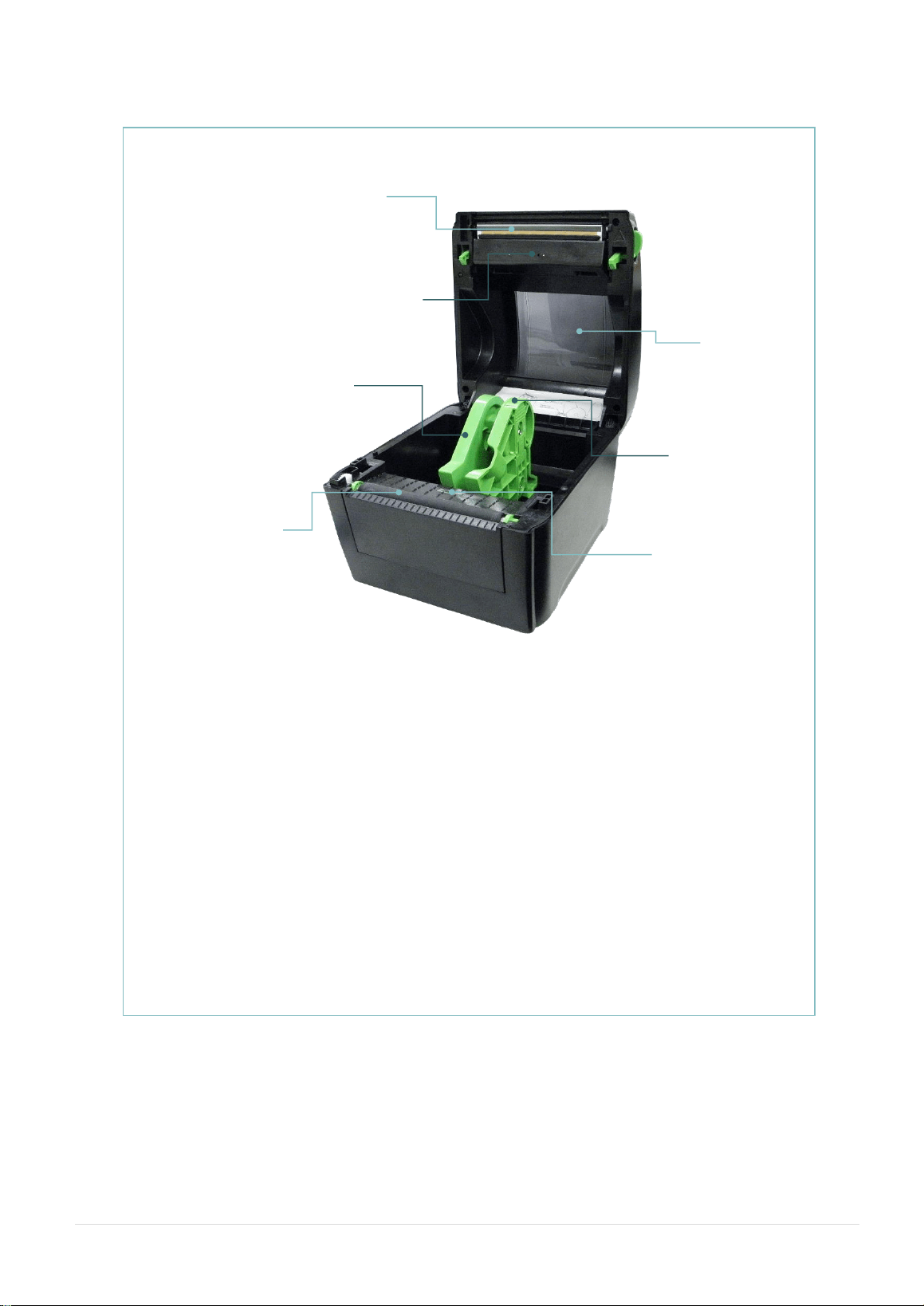
2.2.1 Front & rear
1. Top cover open lever
2. LED indicators
3. Feed/Pause button
4. External label entrance chute
5. Power switch
6. Power jack socket
7. USB interface
8. USB host (For DA220 series)
9. RS-232 interface (For DA220 series)
10. Ethernet interface (For DA220 series)
Note:
The interface picture in here is for reference only. Please refer to the product
specification for the interfaces availability.
6
5
4
P
o
w
e
r
L
E
D
i
n
d
i
c
a
t
o
r
7
8
9
10
2
3
P
o
w
e
r
L
E
D
i
n
d
i
c
a
t
o
r
1
- 8 -
2.2.2 Interior View
1. Print head
2. Gap sensor (transmitter)
3. Media viewer
4. Media holder
5. Platen roller
6. Media holder lock switch
7. Black mark sensor/ Gap sensor (receiver)
1
3
2
7
US
B
inte
rfa
ce
6
USB
inter
face
5
4
US
B
inte
rfa
ce
- 9 -
2.3 LED and Button Function
This printer has one button and one three-color LED indicator. By indicating the LED with different color
and pressing the button, printer can feed labels, pause the printing job, select and calibrate the media
sensor, print printer self-test report, reset printer to defaults (initialization). Please refer to the button
operation below and “Power-on Utilities” section for different functions.
2.3.1 LED Indication
LED Color
Description
Green/ Solid
This illuminates that the power is on and the device is ready to
use.
Green/ Flash
This illuminates that the system is downloading data from PC
to memory or the printer is paused.
Amber
This illuminates that the system is clearing data from printer.
Red / Solid
This illuminates printer head open, cutter error.
Red / Flash
This illuminates a printing error, such as head open, paper
empty, paper jam, or memory error etc.
2.3.2 Regular Button Function
1. Feed labels
When the printer is at ready states (Green/ Solid), press the button to feed one label to the beginning of next.
2. Pause the printing job
When the printer is at printing states, press the button to pause a print job. When the printer is paused the
LED will be green blinking. Press the button again to continue the printing job.
- 10 -
3. Setup
3.1 Setting up the Printer
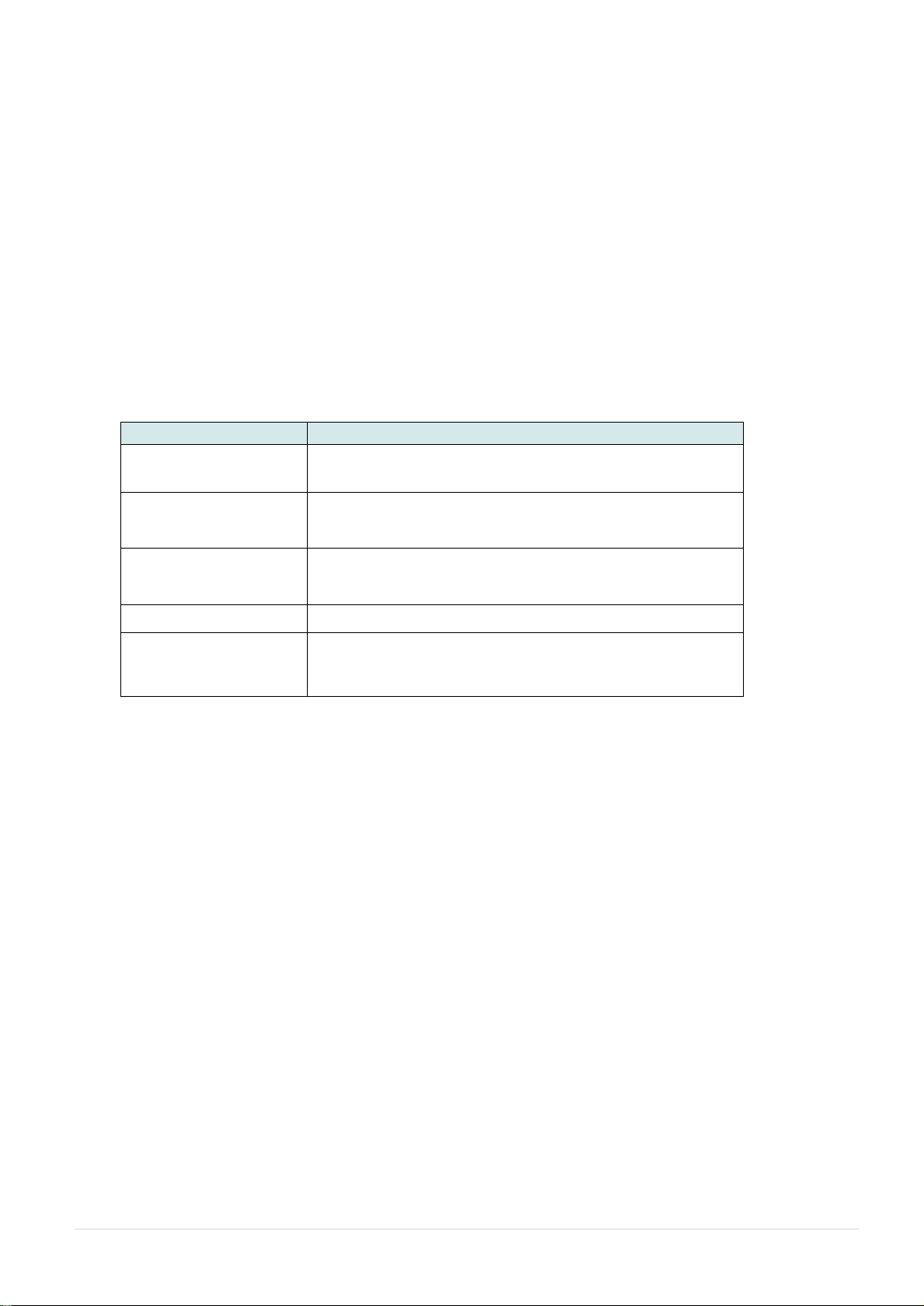
1. Place the printer on a flat, secure
surface.
2. Make sure the power switch is off.
3. Connect the printer to the computer
with the provided USB cable.
4. Plug the power cord into the AC
power cord socket at the rear of the
printer, and then plug the power cord
into a properly grounded power
outlet.
Note:
* Please switch OFF (O) printer power switch prior to plug in the power cord to printer power
jack.
* The interface picture here is for reference only. Please refer to the product specification for
the interfaces availability.
- 11 -
3.2 Loading the Media
3.2.1 Loading the Roll Labels
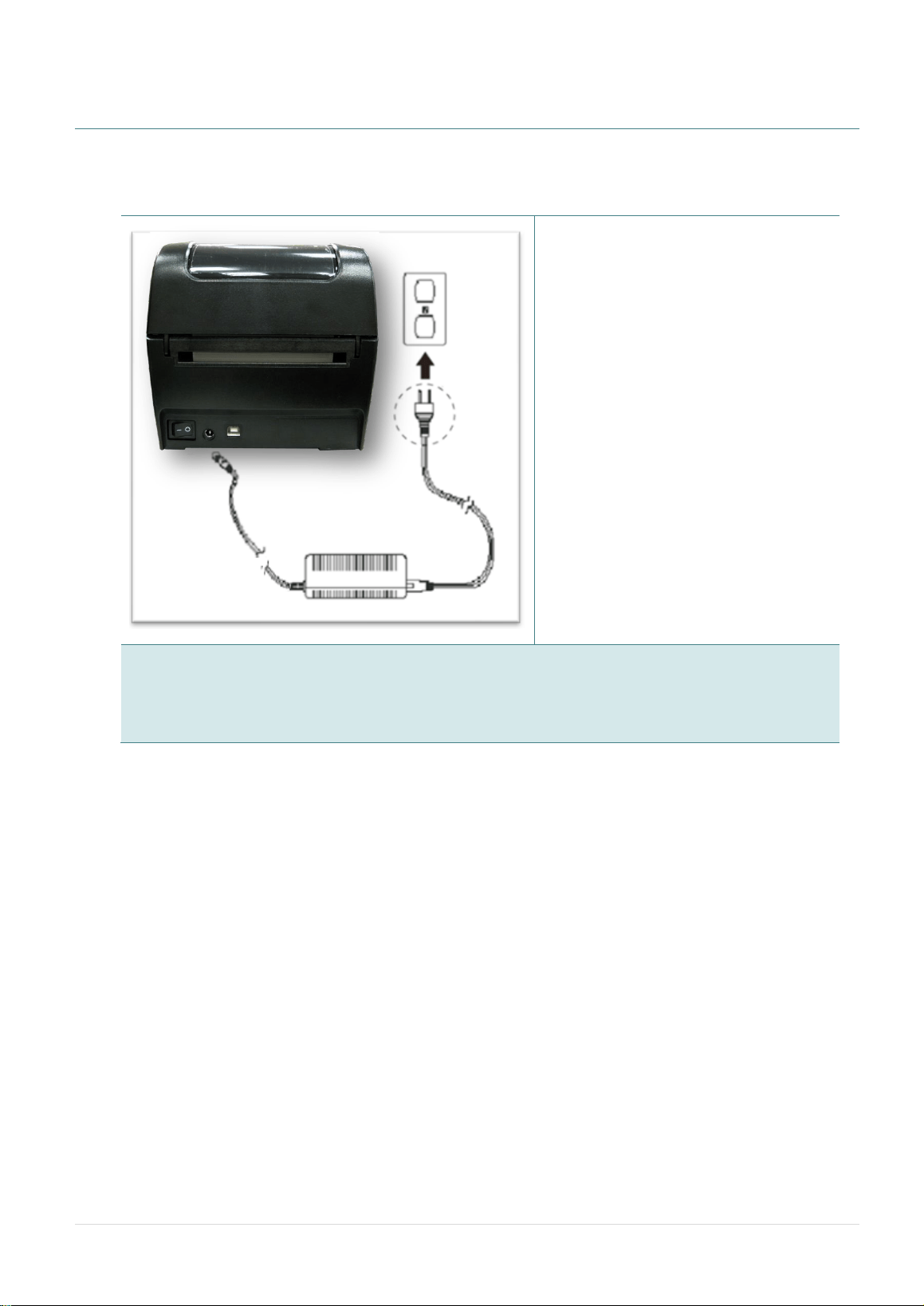
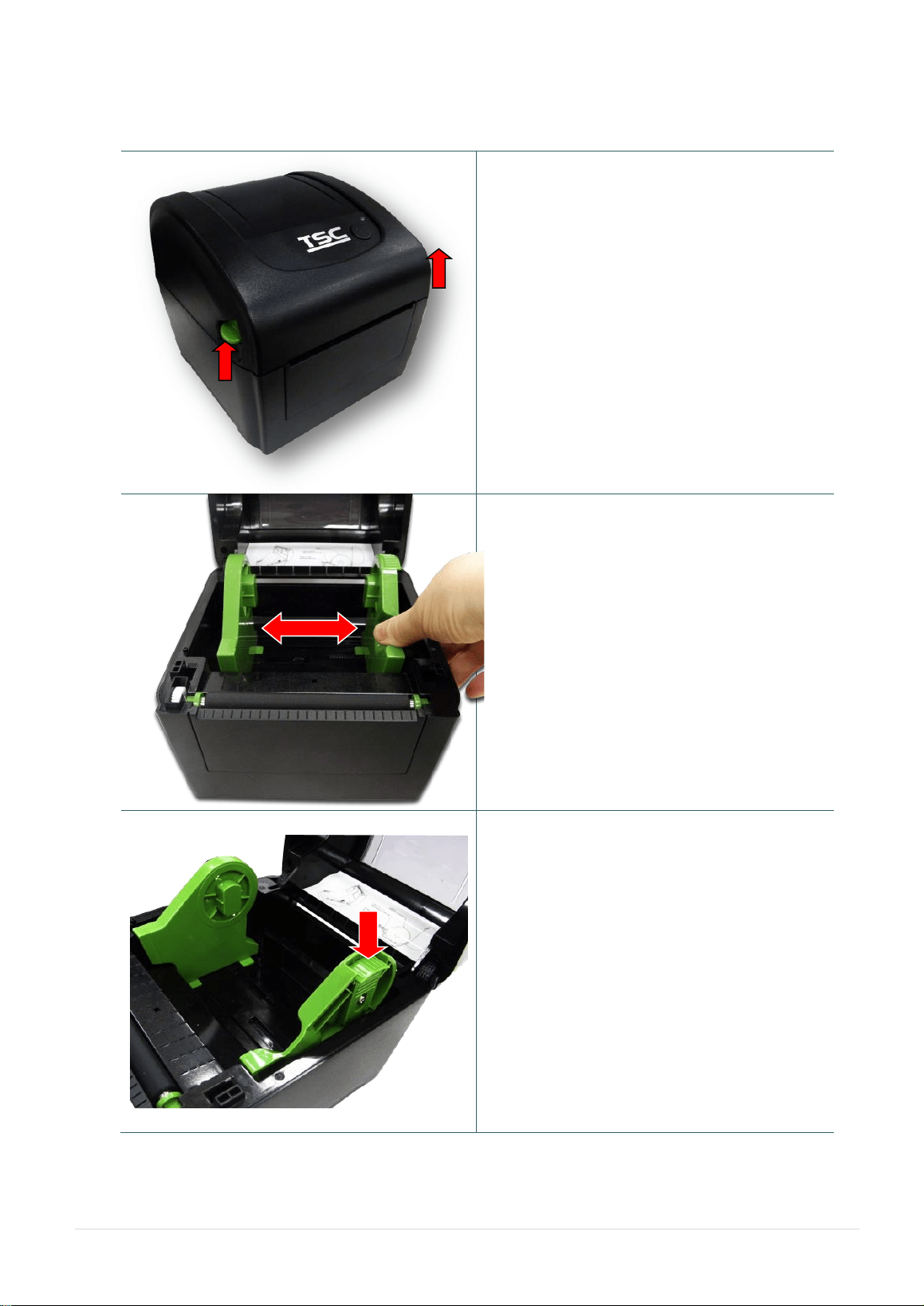
1. Open the printer top cover by pressing
up the top cover open tabs located on
each side of the printer.
2. Separate the media holders to the label
roll width.
3. Place the roll between the holders and
close them onto the core.
- 12 -
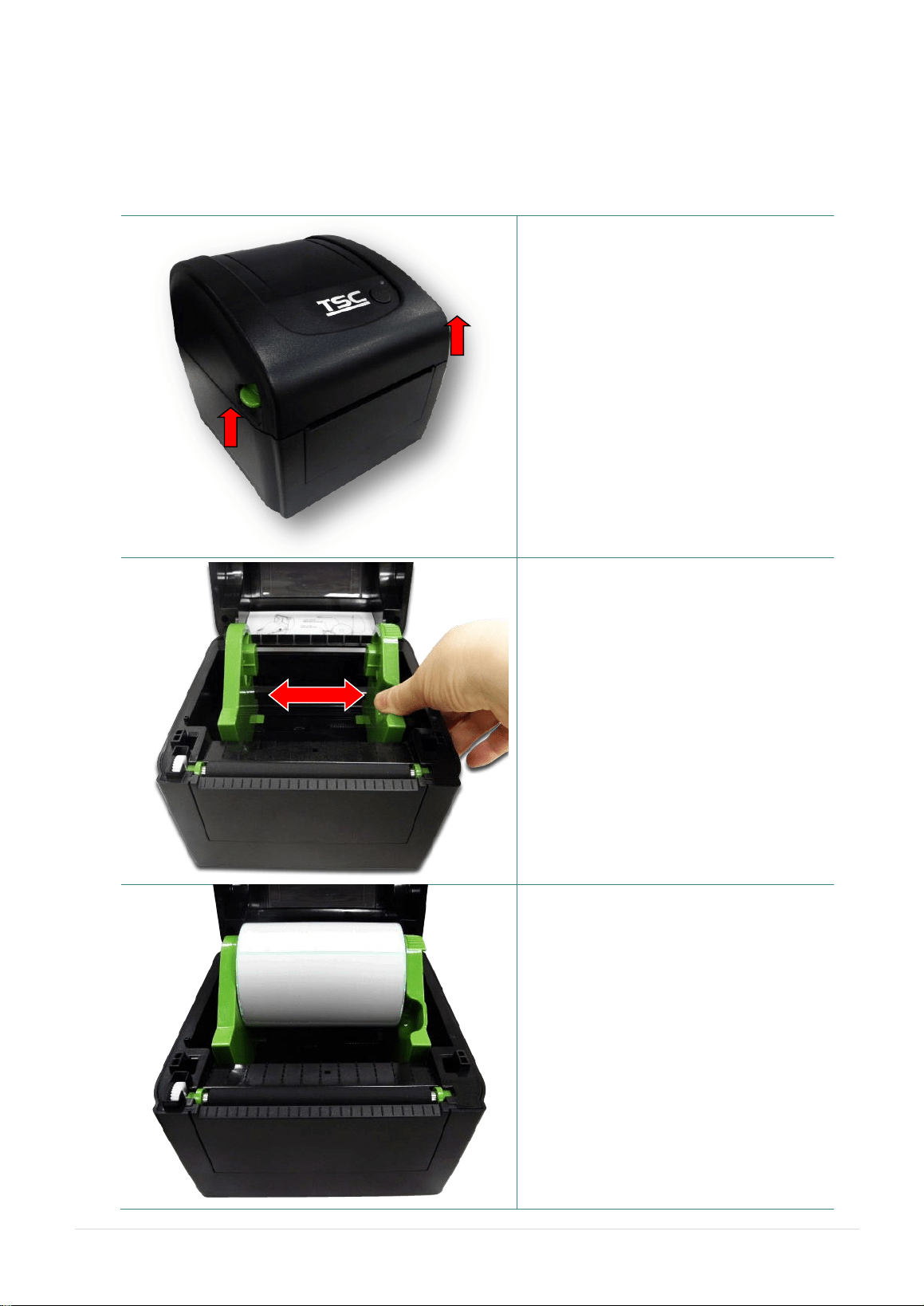
4. Place the label leading edge onto the
platen roller. (printing side face up)
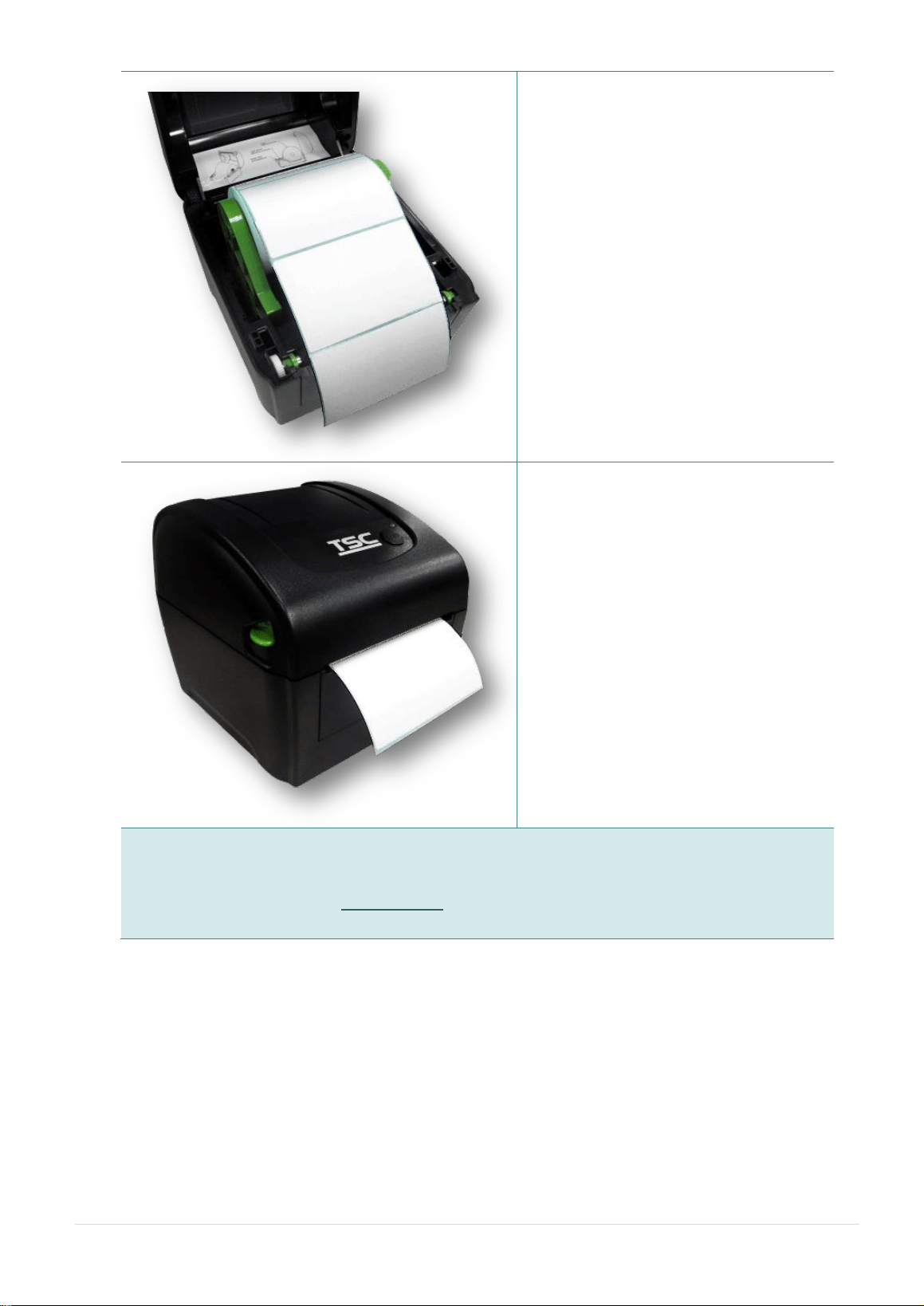
5. Close the top cover gently and make
sure the cover latches securely.
6. Use “Diagnostic Tool” to set the media
sensor type and calibrate the selected
sensor. (Start the “Diagnostic tool”
Select the “Printer Configuration” tab
Click the “Calibrate Sensor” button)
Note:
* Please calibrate the gap/black mark sensor when changing media.
* Please refer to video on TSC YouTube or driver CD.
- 13 -
3.2.2 Loading External Media
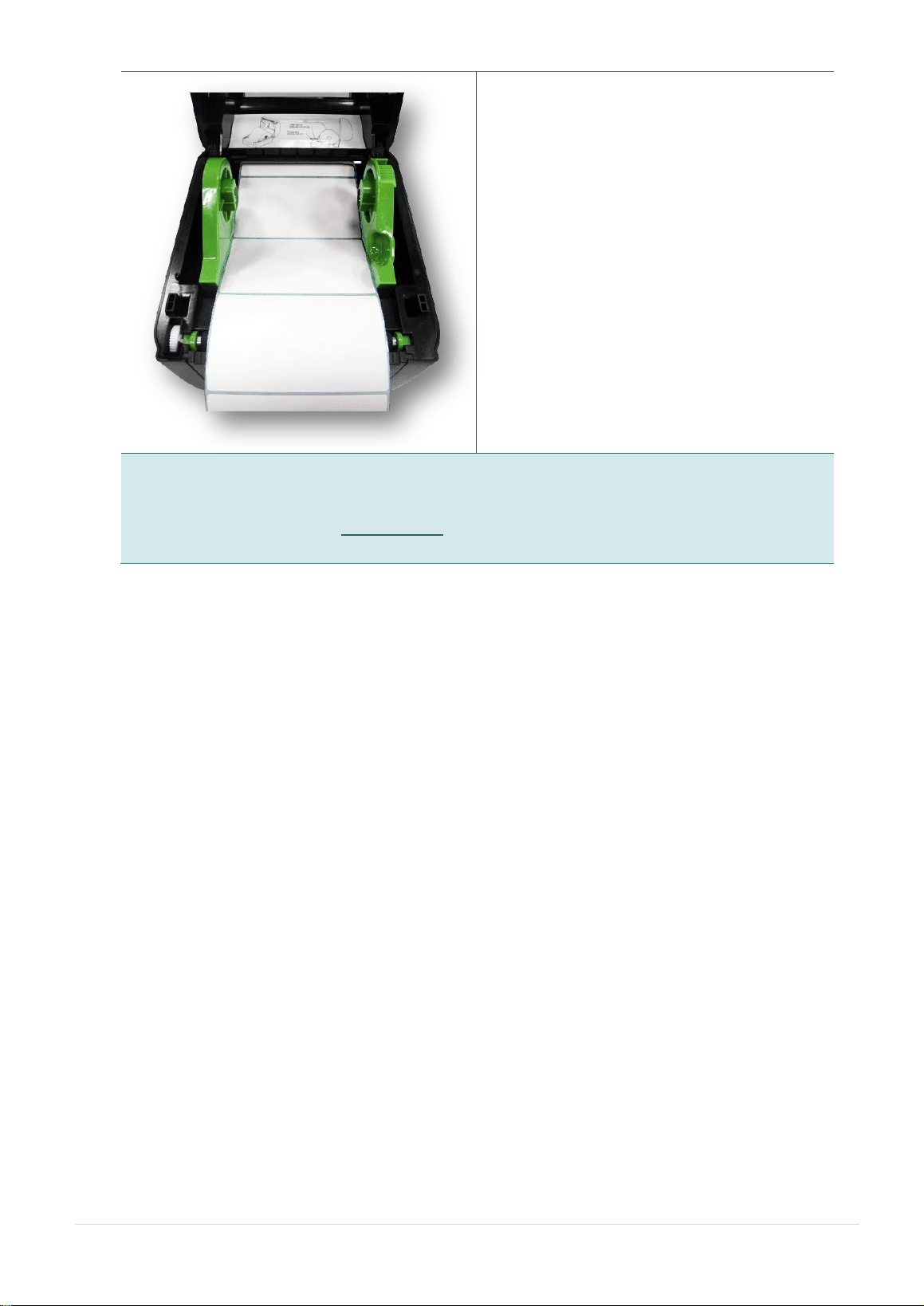
1. Open the printer top cover by pressing up the
top cover open tabs located on each side of
the printer.
2. Separate the media holders to the label
width.
3. Press down the media holder lock switch to
fix the media holder.
- 14 -
4. Feed the media through the rear external
label entrance chute. (printing side face up)
Place the label leading edge onto the platen
roller.
5. Close the top cover gently and make sure the
cover latches securely.
6. Use “Diagnostic Tool” to set the media
sensor type and calibrate the selected
sensor. (Start the “Diagnostic tool” Select
the “Printer Configuration” tab Click the
“Calibrate Sensor” button)
Note:
* Please calibrate the gap/black mark sensor when changing media.
* Please refer to video on TSC YouTube or driver CD.
- 15 -
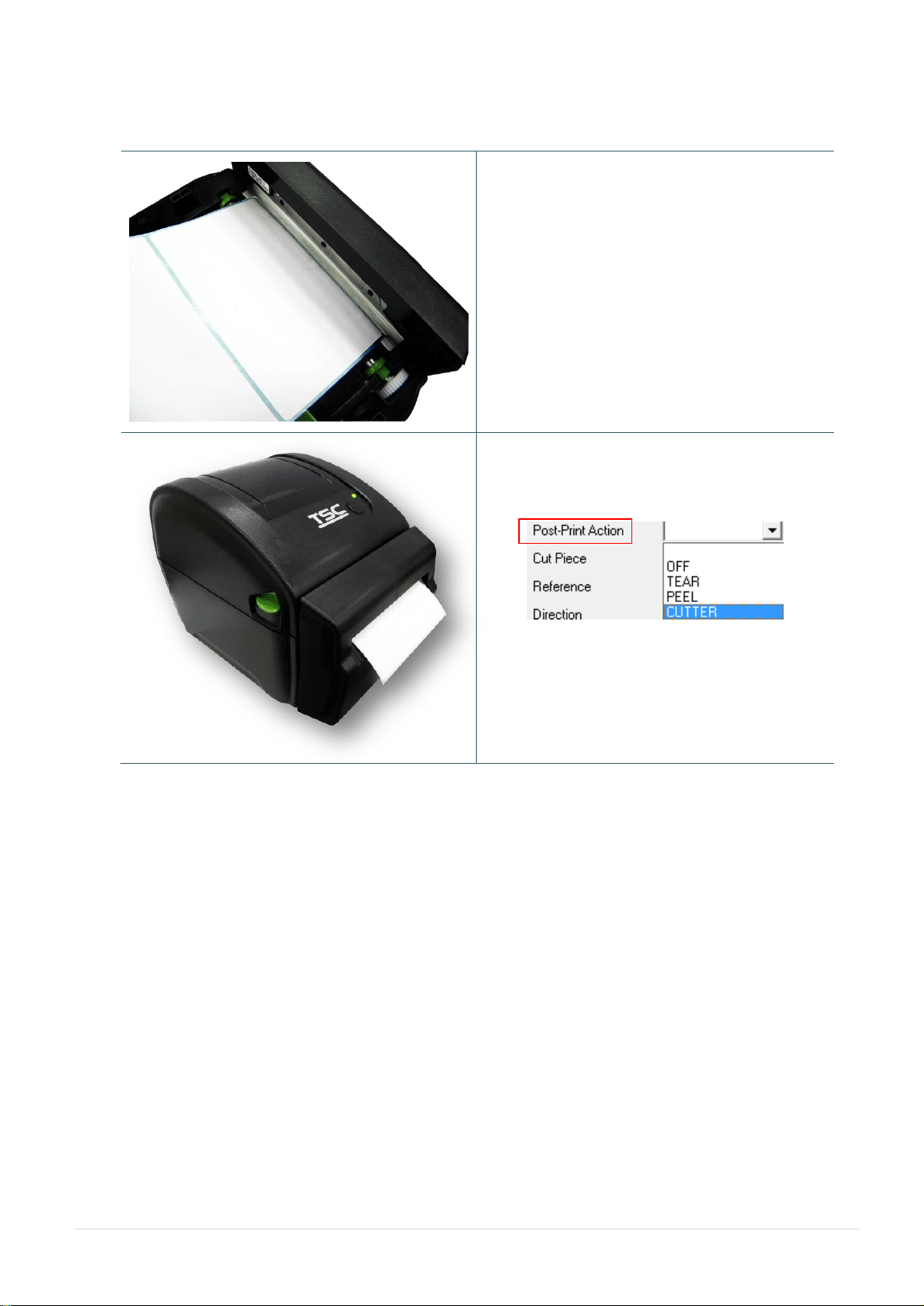
3.2.3 Loading Media in Peel-off Mode (Option for DA220 series)
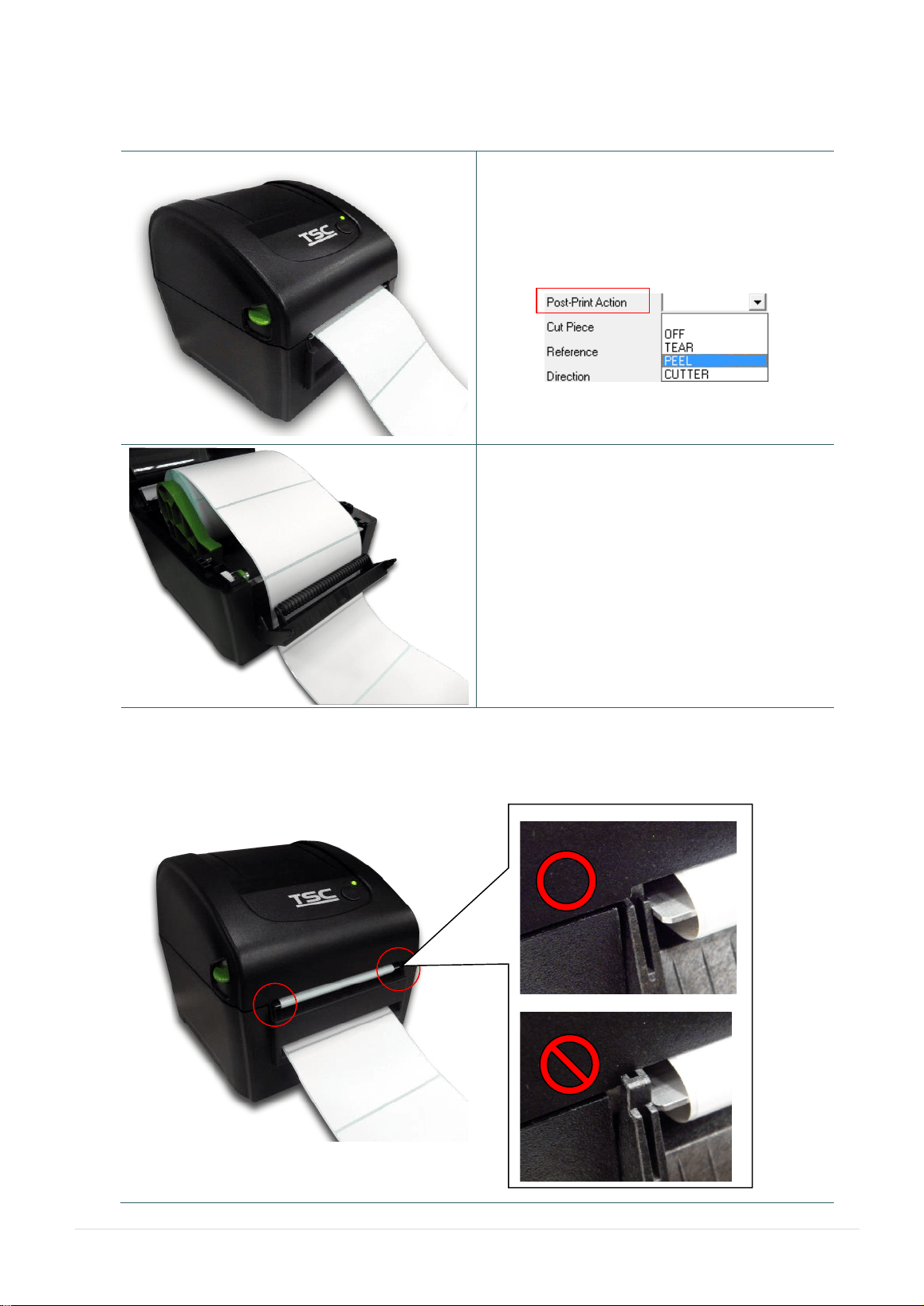
1. Please refer to section 3.2.1 to load the
media. Place the label leading edge onto the
platen roller.
2. Close the top cover gently. Use “Diagnostic
Tool” to set the media sensor type, calibrate
the selected sensor and set the post-print
action to “PEEL”.
Note:
Please calibrate the sensor before loading media
into the peel-off module for avoiding paper jam.
3. Open the top cover and peel-off cover. Feed
the media into peel-off cover slot.
4. Close the peel-off cover and printer cover.
Note:
Make sure the latches of peel-off cover are engaged securely by printer cover.
- 17 -
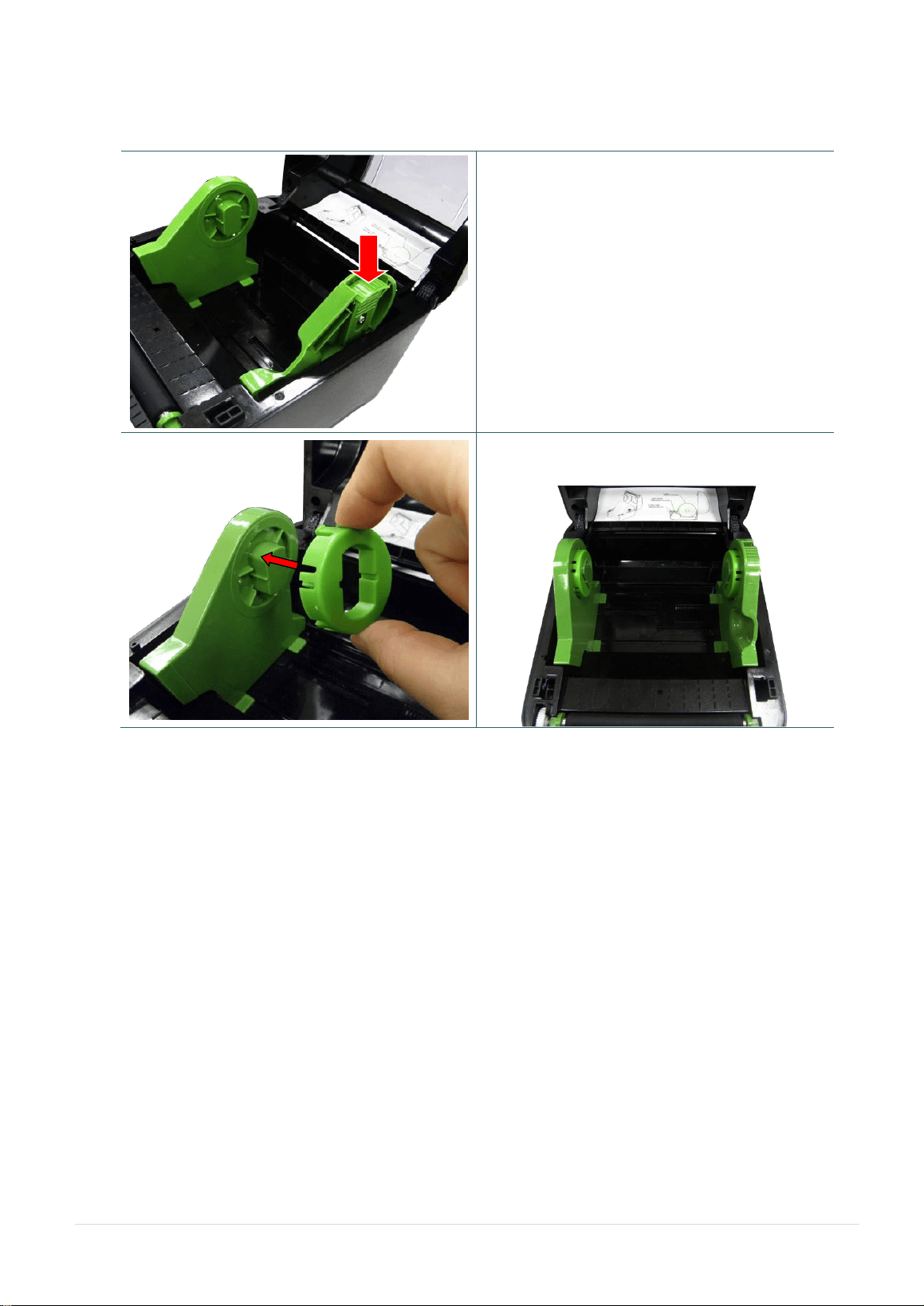
3.2.4 Loading Media in Cutter Mode (Option for DA220 series)
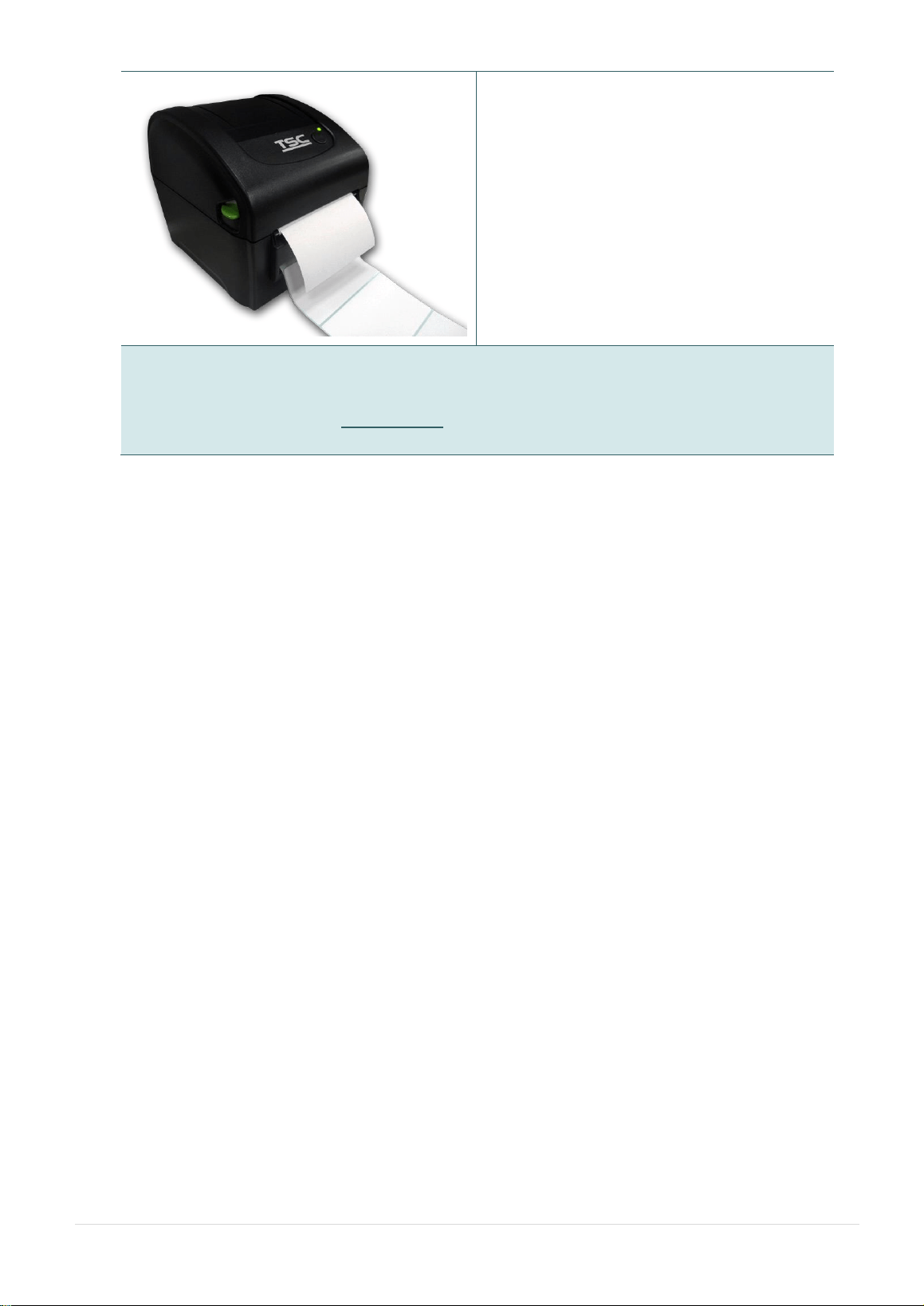
1. Please refer to section 3.2.1 to load the
media. Lead the paper through the cutter
paper opening.
2. Close the top cover gently.
3. Use “Diagnostic Tool” to set the media
sensor type, calibrate the selected sensor
and set the post-print action to “CUTTER”.
- 18 -
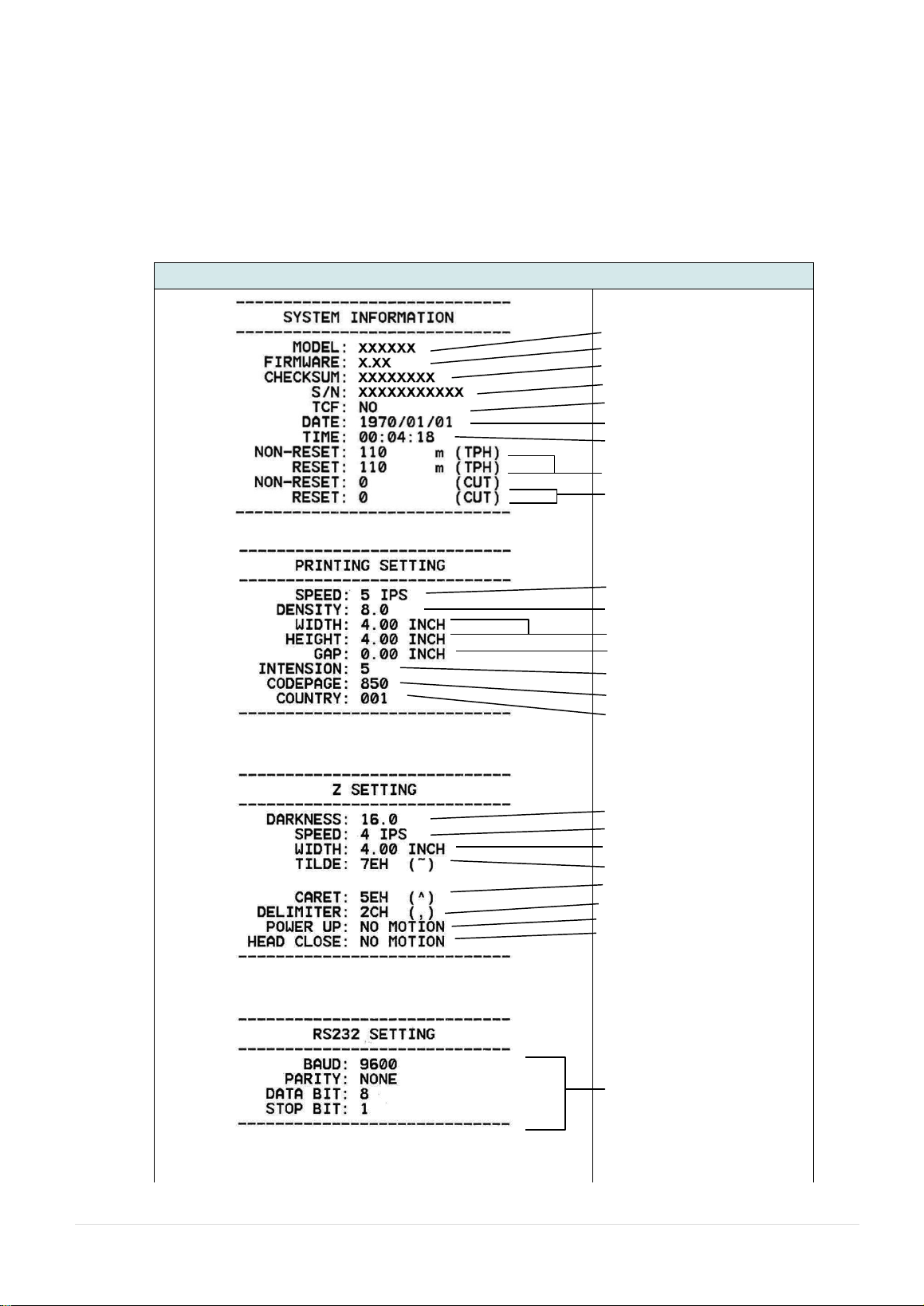
3.3 Install the Adapter for 1.5” Paper Core (Option)
1. Please refer to section 3.2.2 to fix the media
holders for installing the 1.5” adapters.
2. Press 1.5” adapters into both media holders
for using 1.5: core media roll.

- 19 -
4. Power-on Utilities
There are six power-on utilities to set up and test printer hardware. These utilities are activated by pressing
FEED button then turning on the printer power simultaneously and release the button at different color of
LED.
Please follow the steps below for different power-on utilities.
1. Turn off the power switch.
2. Hold on the button then turn on the power switch.
3. Release the button when LED indicates with different color for different functions.
Power on utilities
The LED color will be changed as following pattern:
LED color
Functions
Amber
Red
(5 blinks)
Amber
(5 blinks)
Green
(5 blinks)
Green/Amber
(5 blinks)
Red/Amber
(5 blinks)
Solid green
1. Gap / black mark sensor calibration
Release
2. Gap / black mark sensor calibration,
Self-test and enter dump mode
Release
3. Printer initialization
Release
4. Set black mark sensor as media
sensor and calibrate the black mark
sensor
Release
5. Set gap sensor as media sensor and
calibrate the gap sensor
Release
6. Skip AUTO.BAS
Release

- 20 -
4.1 Gap/Black Mark Sensor Calibration
Gap/black mark sensor sensitivity should be calibrated at the following conditions:
1. A brand new printer
2. Change label stock.
3. Printer initialization.
Please follow the steps below to calibrate the gap/black mark sensor.
1. Turn off the power switch.
2. Hold on the button then turn on the power switch.
3 Release the button when LED becomes red and blinking. (Any red will do during the 5 blinks).
It will calibrate the gap/black mark sensor sensitivity.
The LED color will be changed as following order:
Amber red (5 blinks) amber (5 blinks) green (5 blinks) green/amber (5 blinks) red/amber
(5 blinks) solid green
Note:
1. Sensor calibration can be done by Diagnostic Tool or by power on utility. Please refer to
“Diagnostic Tool” section for more information.
2. Please select gap or black mark sensor type prior to calibrate the sensor.

- 21 -
4.2 Gap/Black Mark Calibration, Self-test and Dump Mode
While calibrate the gap/black mark sensor, printer will measure the label length, print the internal
configuration (self-test) on label and then enter the dump mode. To calibrate gap or black mark sensor,
depends on the sensor setting in the last print job.
Please follow the steps below to calibrate the sensor.
1.Turn off the power switch.
2. Hold on the button then turn on the power switch.
3. Release the button when LED becomes amber and blinking. (Any amber will do during the 5 blinks)
The LED color will be changed as following order.
Amber red (5 blinks) amber (5 blinks) green (5 blinks) green/amber (5 blinks)
red/amber (5 blinks) solid green
4. It calibrates the sensor and measures the label length and prints internal settings then enter the dump
mode.
Note:
1. Sensor calibration can be done by Diagnostic Tool or by power on utility. Please refer to
“Diagnostic Tool” section for more information.
2. Please select gap or black mark sensor type prior to calibrate the sensor.
- 22 -
4.2.1 Self-test
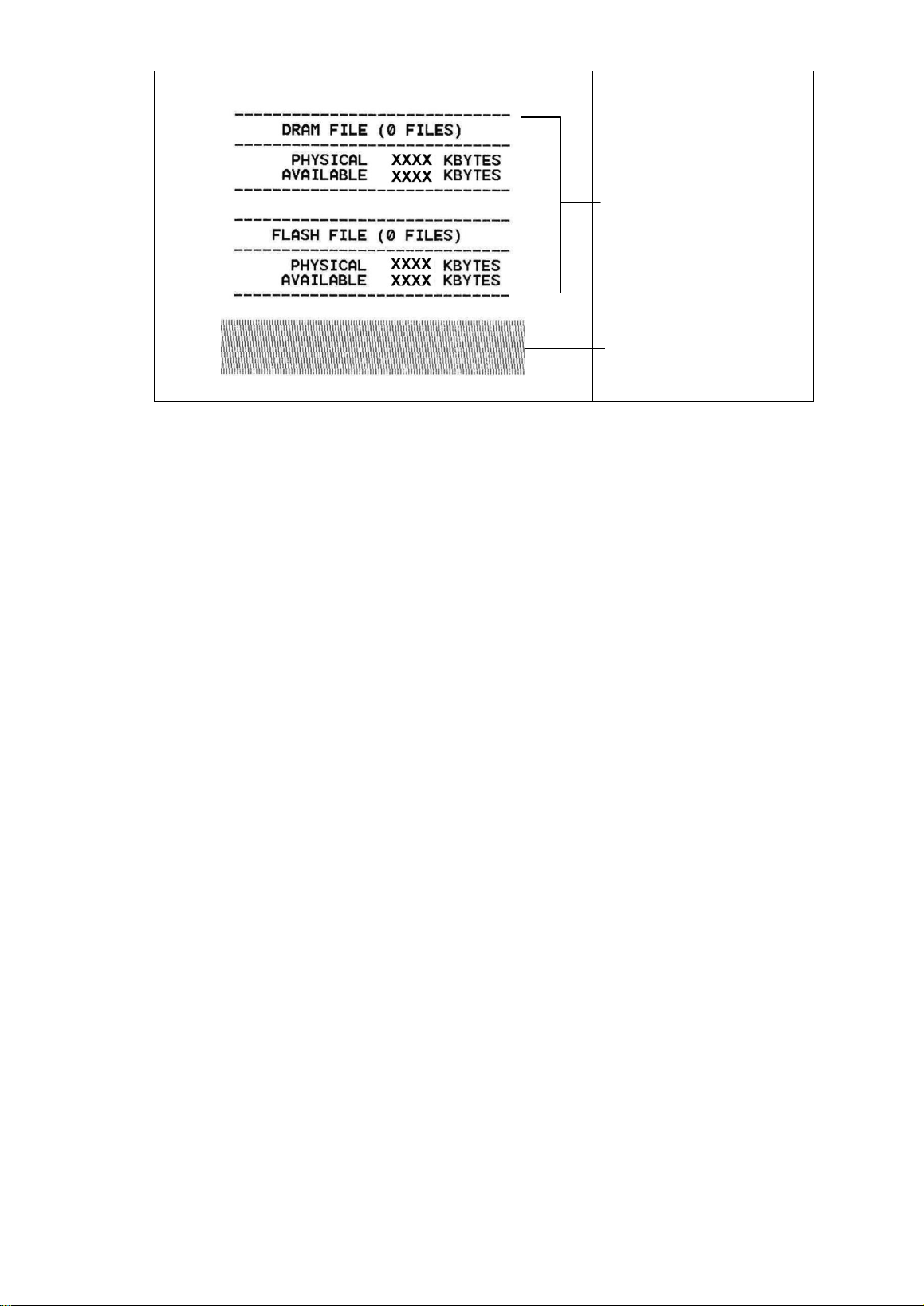
Printer will print the printer configuration after media sensor calibration. Self-test printout can be used to
check if there is any dot damage on the heater element, printer configurations and available memory
space.
Self-test printout
Model name
F/W version
Firmware checksum
Printer S/N
TSC configuration file
System date
System time
Printed mileage (meter)
Cutting counter
Print speed (inch/sec)
Print darkness
Label size (inch)
Gap distance (inch)
Gap/black mark sensor
intension
Code page
Country code
ZPL setting information
Print darkness
Print speed (inch/sec)
Label size
Control prefix
Format prefix
Delimiter prefix
Printer power up motion
Printer head close motion
Note:
ZPL is emulating for Zebra
®
language.
RS232 serial port
configuration
- 23 -
Numbers of download files
Total & available memory
space
Print head check pattern
- 24 -
4.2.2 Dump mode
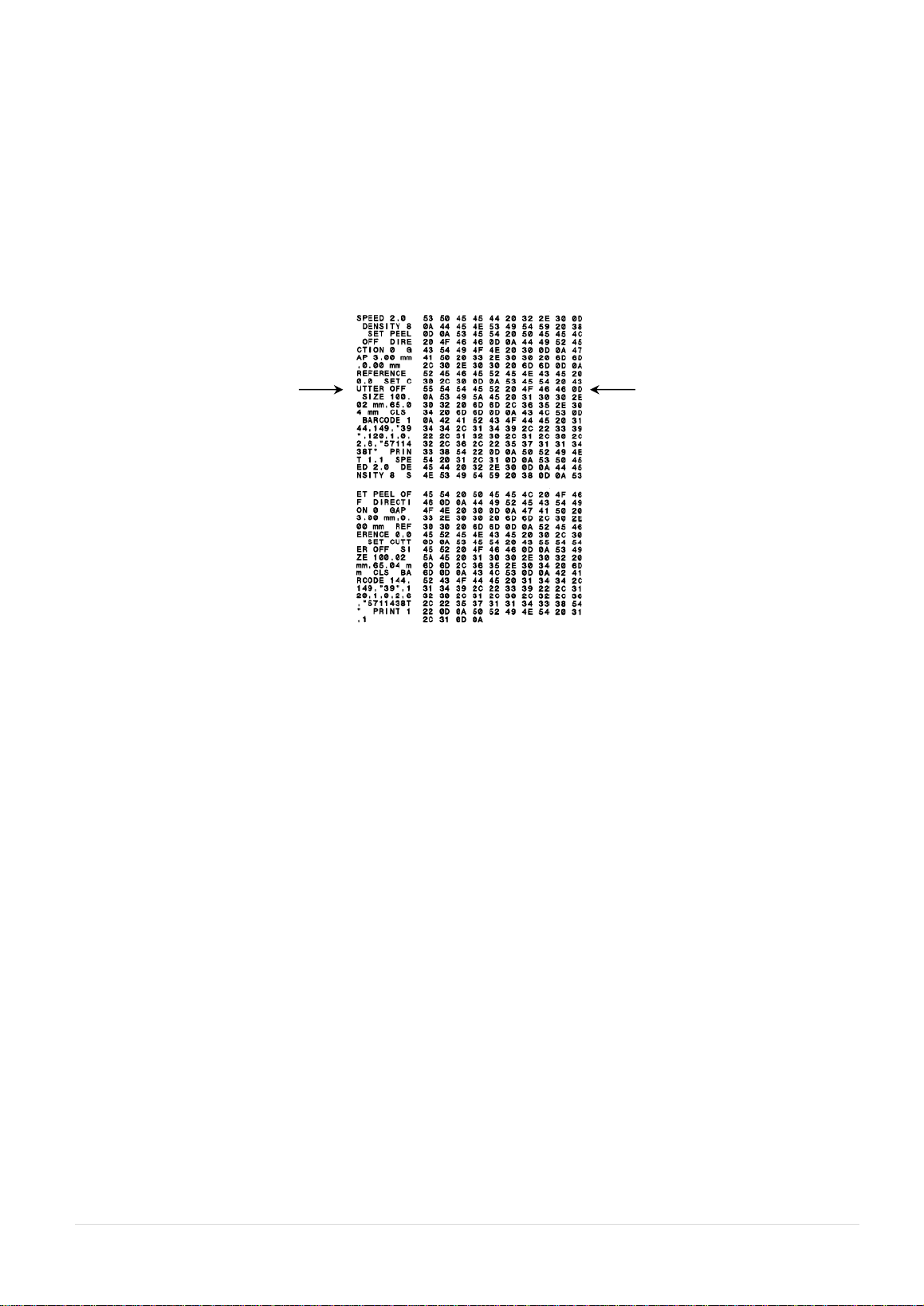
Printer will enter dump mode after printing printer configuration. In the dump mode, all characters will
be printed in 2 columns as following. The left side characters are received from your system and right
side data are the corresponding hexadecimal value of the characters. It allows users or engineers to
verify and debug the program.
Note:
1. Dump mode requires 4” wide paper width.
2. Turn off / on the power or press FEED button to resume printer for normal printing. (Ready
mode)
ASCII Data
Hex decimal data related to left
column of ASCII data

- 25 -
4.3 Printer Initialization
Printer initialization is used to clear DRAM and restore printer settings to defaults.
Printer initialization is activated by the following procedures.
1. Turn off the power switch.
2. Hold on the button then turn on the power switch.
3. Release the button when LED turns green after 5 amber blinks. (Any green will do during the 5 blinks).
The LED color will be changed as following:
Amber red (5 blinks) amber (5 blinks) green (5 blinks) green/amber (5 blinks) red/amber
(5 blinks) solid green
Printer configuration will be restored to defaults as below after initialization.
Parameter
Default setting
Speed
127 mm/sec (5 ips) (203DPI)
76.2 mm/sec (3 ips) (300 DPI)
Density
8
Media Width
4” (101.5 mm)
Media Height
4” (101.5 mm)
Sensor Type
Gap sensor
Print Direction
0
Reference Point
0,0 (upper left corner)
Gap Offset
0
Post-Print Action
Tear mode
Serial Port Settings
9600 bps, none parity, 8 data bits, 1 stop bit
Code Page
850
Country Code
001
Clear Flash Memory
No
Note:
When printer initialization has done, please calibrate the gap or black mark sensor before printing.

- 26 -
4.4 Set Black Mark Sensor as Media Sensor and Calibrate the Black Mark
Sensor
Please follow the steps as below.
1. Turn off the power switch.
2. Hold on the button then turn on the power switch.
3. Release the button when LED turns green/amber after 5 green blinks. (Any green/amber will do during the
5 blinks).
The LED color will be changed as following:
Amber red (5 blinks) amber (5 blinks) green (5 blinks) green/amber (5 blinks)
red/amber (5 blinks) solid green
4.5 Set Gap Sensor as Media Sensor and Calibrate the Gap Sensor
Please follow the steps as below.
1. Turn off the power switch.
2. Hold on the button then turn on the power switch.
3. Release the button when LED turns red/amber after 5 green/amber blinks. (Any red/amber will do during
the 5 blinks).
The LED color will be changed as following:
Amber red (5 blinks) amber (5 blinks) green (5 blinks) green/amber (5 blinks) red/amber
(5 blinks) solid green

- 27 -
4.6 Skip AUTO.BAS
TSPL2 programming language allows user to download an auto execution file to flash memory. Printer will
run the AUTO.BAS program immediately when turning on printer power. The AUTO.BAS program can be
interrupted without running the program by the power-on utility.
Please follow the procedures below to skip an AUTO.BAS program.
1. Turn off printer power.
2. Press the FEED button and then turn on power.
3. Release the FEED button when LED becomes solid green.
The LED color will be changed as following:
Amber red (5 blinks) amber (5 blinks) green (5 blinks) green/amber (5 blinks) red/amber
(5 blinks) solid green
4. Printer will be interrupted to run the AUTO.BAS program.
- 28 -
5. Diagnostic Tool
TSC’s Diagnostic Utility is an integrated tool incorporating features that enable you to explore a printer’s
settings/status; change a printer’s settings; download graphics, fonts and firmware; create a printer bitmap
font; and send additional commands to a printer. With the aid of this powerful tool, you can review printer
status and setting in an instant, which makes it much easier to troubleshoot problems and other issues.
5.1 Start the Diagnostic Tool
1. Double click on the Diagnostic tool icon to start the software.
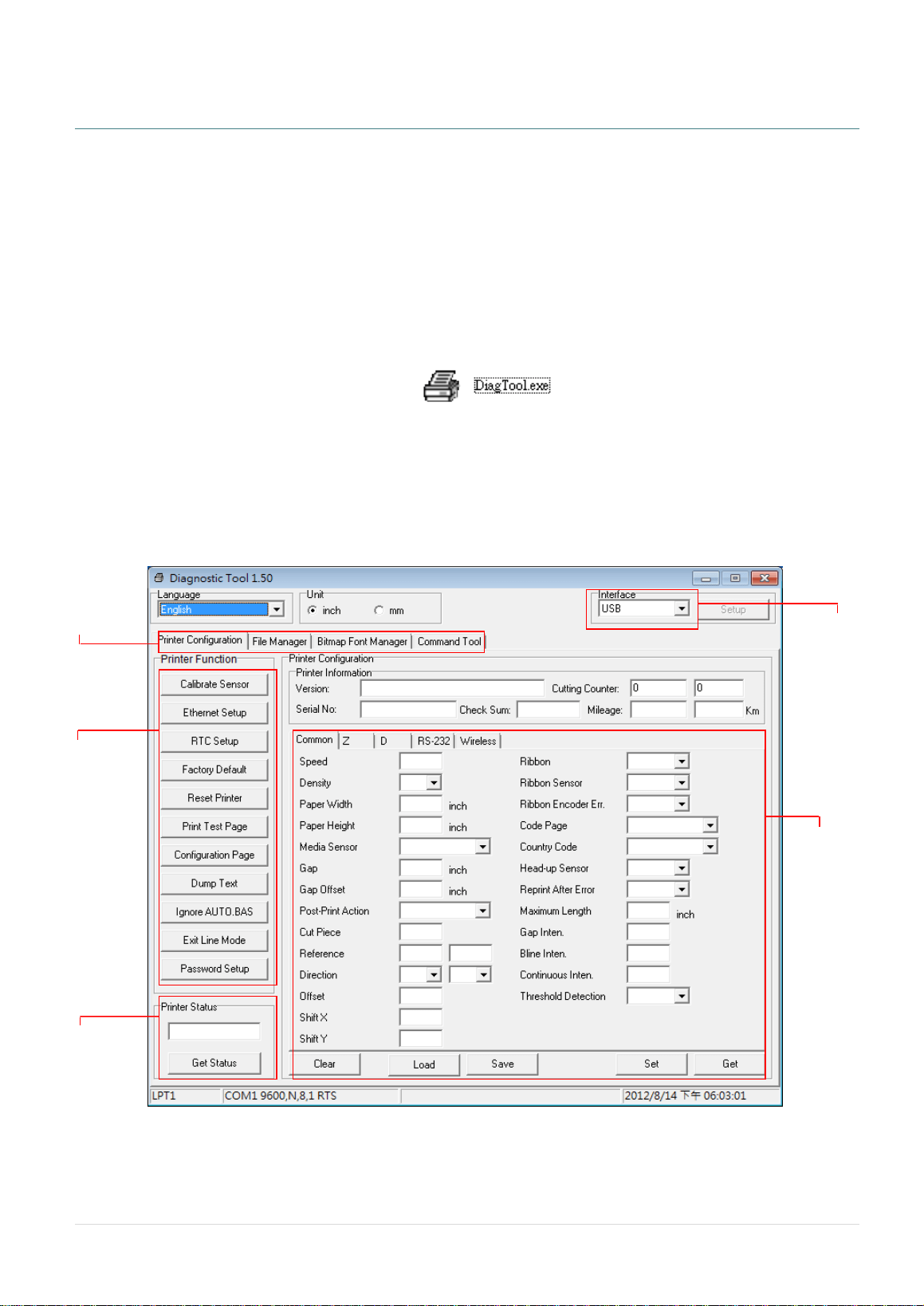
2. There are four features (Printer Configuration, File Manager, Bitmap Font Manager, Command Tool)
included in the Diagnostic utility.
Features tab
Printer
functions
Interface
Printer Status
Printer setup
- 29 -
5.2 Printer Function
1. Connect the printer and computer with a cable.
2. Select the PC interface connected with bar code printer.
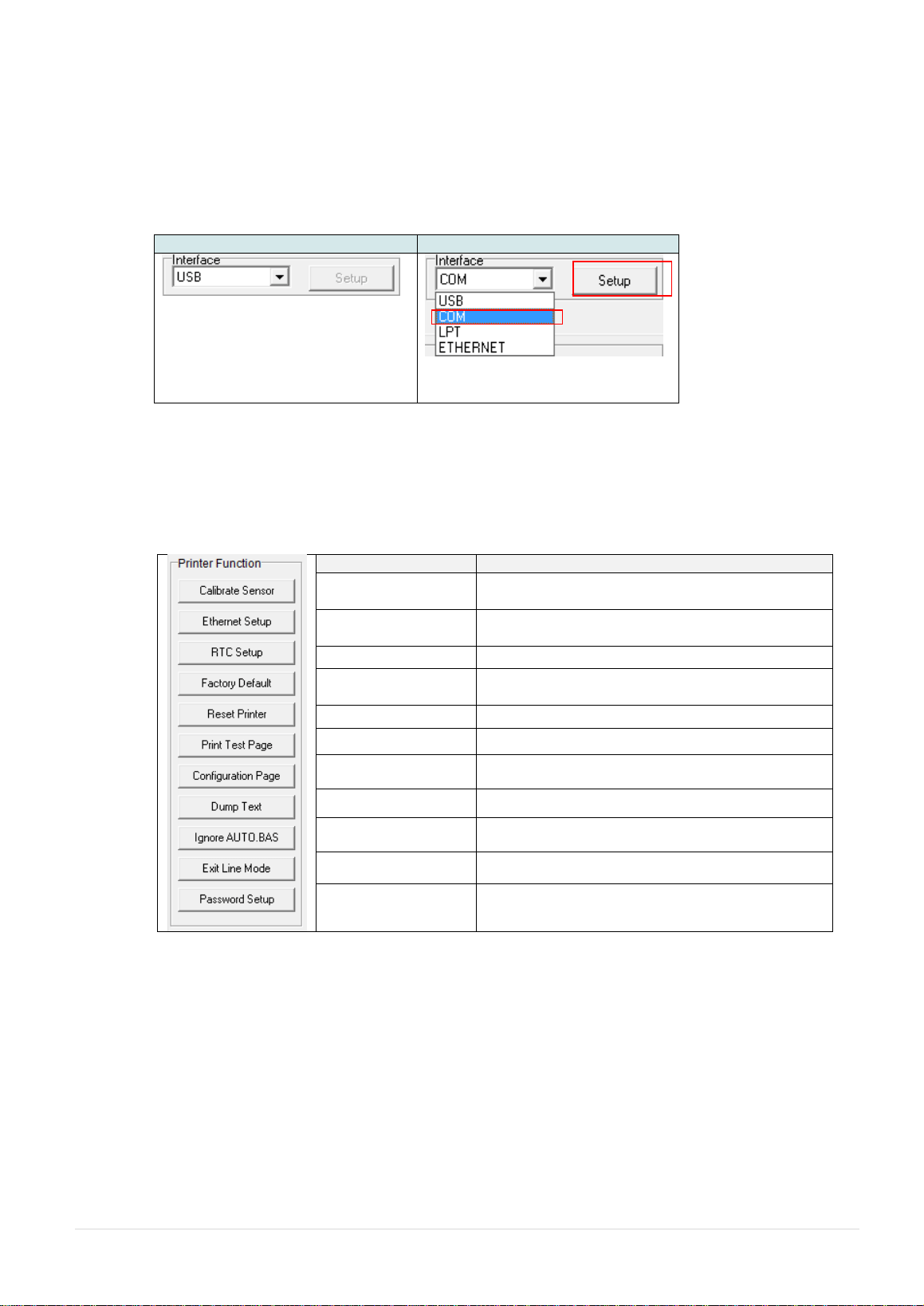
USB interface
Others interface
The default interface setting is USB
interface. If USB interface is
connected with printer, no other
settings need to be changed in the
interface field.
3. Click the “Printer Function” button to setup.
4. The detail functions in the Printer Function Group are listed as below.
Function
Description
Calibrate Sensor
Calibrate the sensor specified in the Printer
Setup group media sensor field
Ethernet Setup
Setup the IP address, subnet mask, gateway for
the on board Ethernet
RTC Setup
Synchronize printer Real Time Clock with PC
Factory Default
Initialize the printer and restore the settings to
factory default.
Reset Printer
Reboot printer
Print Test Page
Print a test page
Configuration Page
Print printer configuration
Dump Text
To activate the printer dump mode.
Ignore AUTO.BAS
Ignore the downloaded AUTO.BAS program
Exit Line Mode
Exit line mode.
Password Setup
Set the password to protect the settings
For more information about Diagnostic Tool, please refer to the diagnostic utility quick start
guide in the CD disk \ Utilities directory.
1
2
- 30 -
5.3 Setting Ethernet by Diagnostic Tool (For DA220 series)
The Diagnostic Utility is enclosed in the CD disk \Utilities directory or can be downloaded from
www.tscprinters.com website. Users can use Diagnostic Tool to setup the Ethernet by USB and Ethernet
interfaces. The following contents will instruct users how to configure the Ethernet by these interfaces.
5.3.1 Using USB interface to setup Ethernet interface
1. Connect the USB cable between the computer and the printer.
2. Turn on the printer power.
3. Start the Diagnostic Utility by double clicking on the icon.
4. The Diagnostic Utility default interface setting is USB interface. If USB interface is connected with printer,
no other settings need to be changed in the interface field.
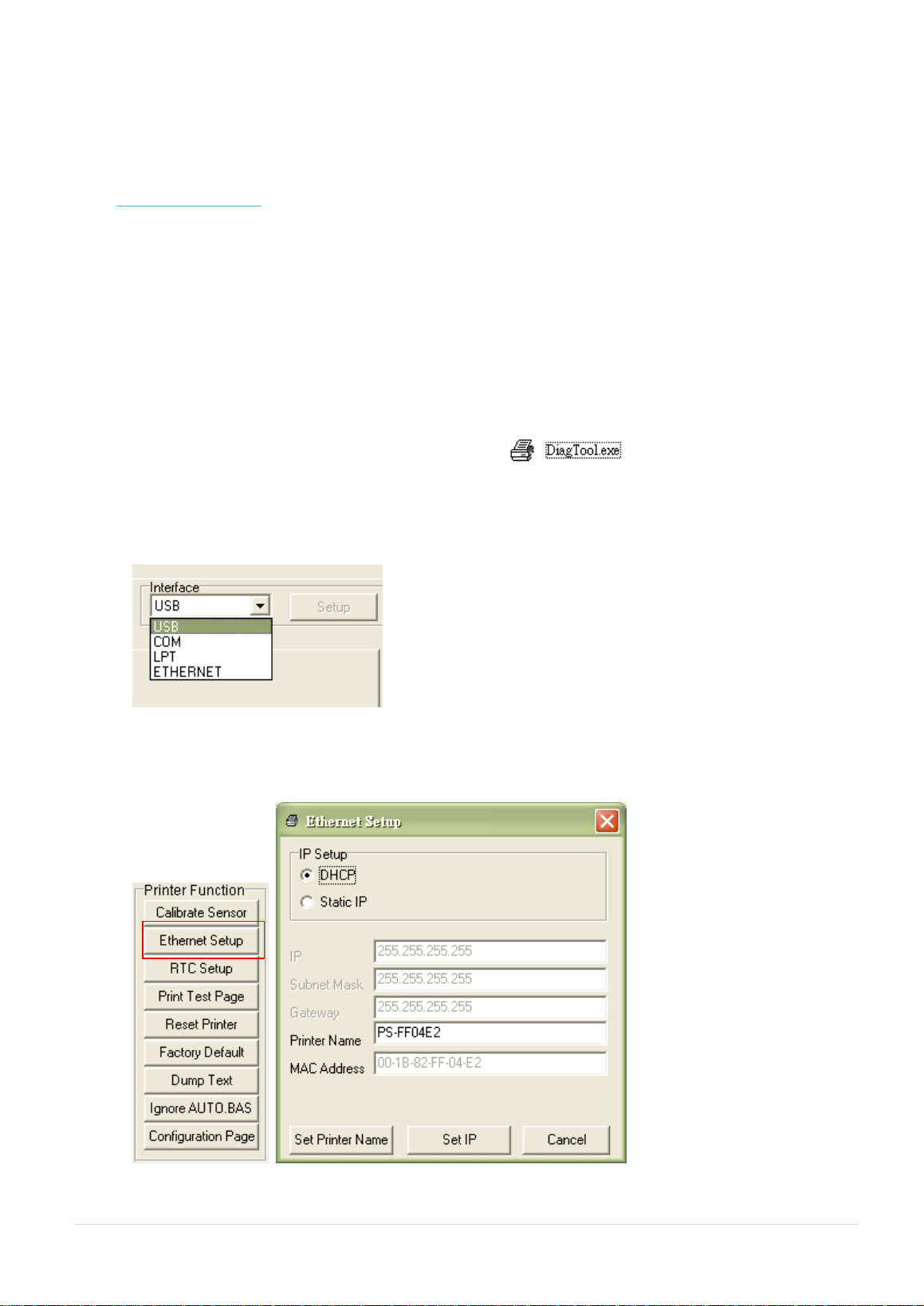
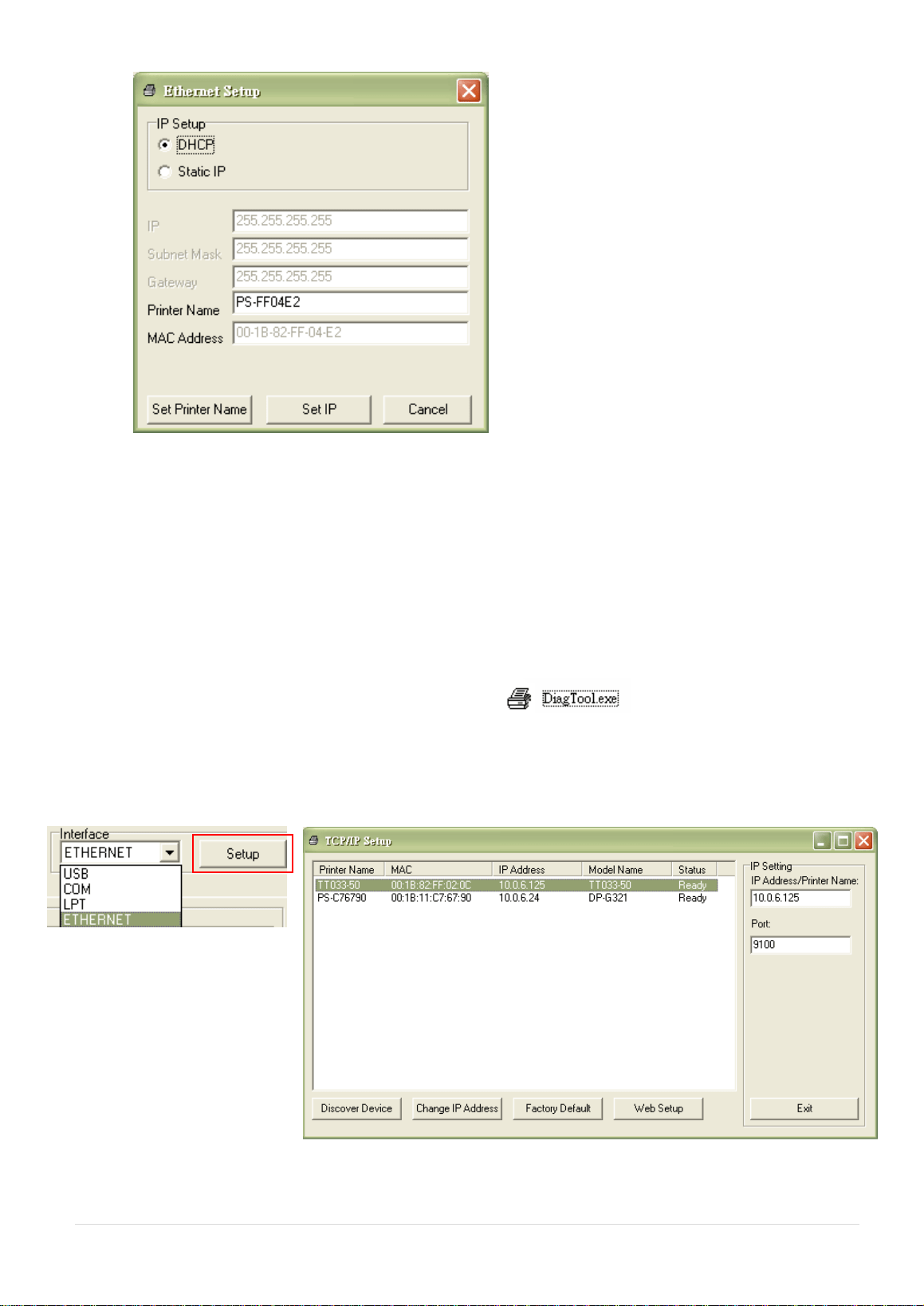
5. Click on the “Ethernet Setup” button from “Printer Function” group in Printer Configuration tab to setup the
IP address, subnet mask and gateway for the on board Ethernet.
- 31 -
5.3.2 Using RS-232 interface to setup Ethernet interface
1. Connect the computer and the printer with a RS-232 cable.
2. Turn on the printer power.
3. Start the Diagnostic Utility by double clicks on the icon.
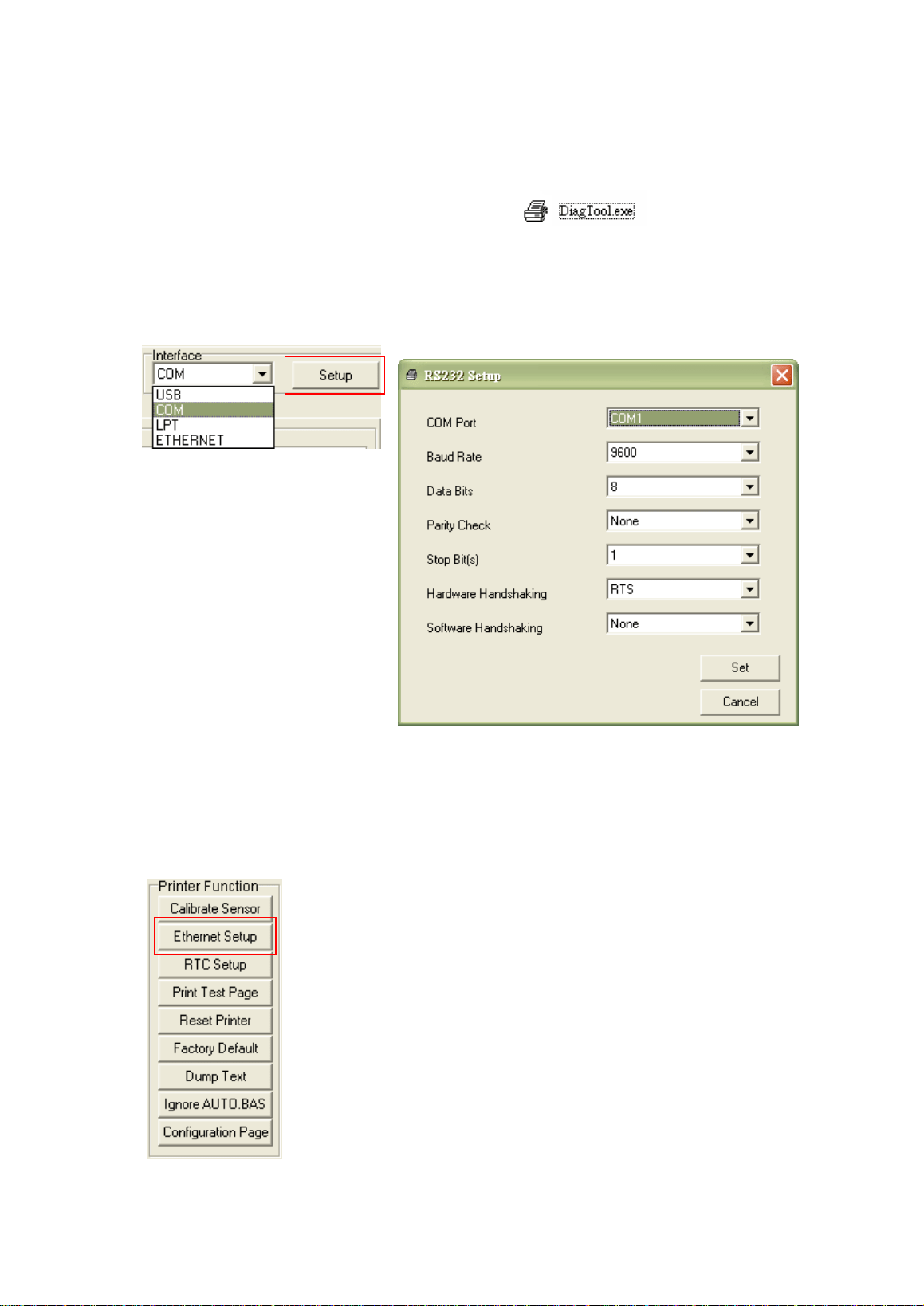
4. Select “COM” as interface then click on the “Setup” button to setup the serial port baud rate, parity check,
data bits, stop bit and flow control parameters.
5. Click on the “Ethernet Setup” button from printer function of Printer Configuration tab to setup the IP
address, subnet mask and the gateway for the on board Ethernet.
- 32 -
5.3.3 Using Ethernet interface to setup Ethernet interface
1. Connect the computer and the printer to the LAN.
2. Turn on the printer power.
3. Start the Diagnostic Utility by double clicks on the icon.
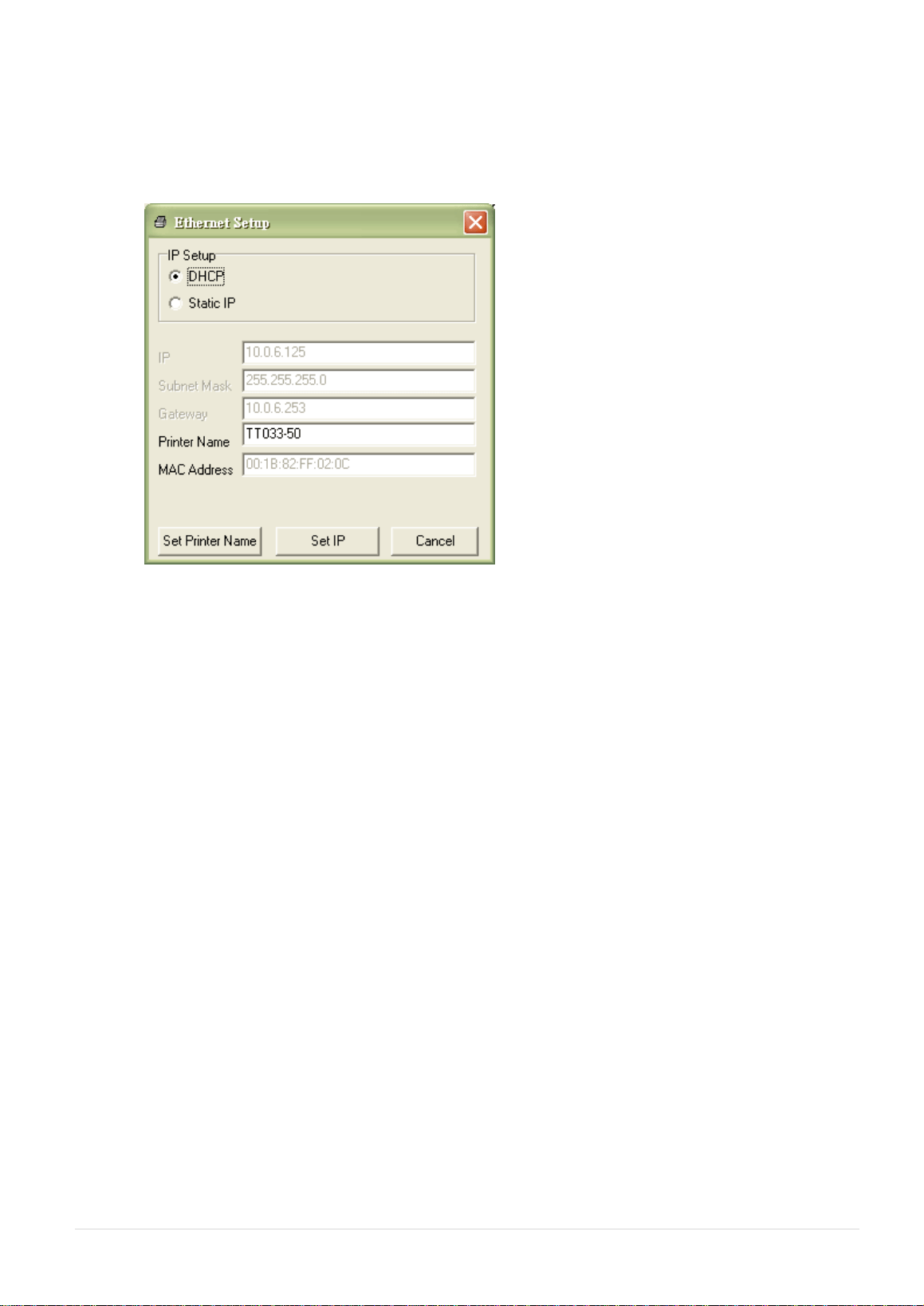
4. Select “Ethernet” as the interface then click on the “Setup” button to setup the IP address, subnet mask
and gateway for the on board Ethernet.
5. Click the “Discover Device” button to explore the printers that exist on the network.
- 33 -
6. Select the printer in the left side of listed printers, the correspondent IP address will be shown in the right
side “IP address/Printer Name” field.
7. Click “Change IP Address” to configure the IP address obtained by DHCP or static.
The default IP address is obtained by DHCP. To change the setting to static IP address, click “Static IP”
radio button then enter the IP address, subnet mask and gateway. Click “Set IP” to take effect the
settings.
Users can also change the “Printer Name” by another model name in this fields then click “Set Printer
Name” to take effect this change.
Note: After clicking the “Set Printer Name” or “Set IP” button, printer will reset to take effect the
settings.
8. Click “Exit” button to exit the Ethernet interface setup and go back to Diagnostic Tool main screen.
Factory Default button
This function will reset the IP, subnet mask, gateway parameters obtained by DHCP and reset the printer
name.

- 34 -
Web setup button
Except to use the Diagnostic Utility to setup the printer, you can also explore and configure the printer
settings and status or update the firmware with the IE or Firefox web browser. This feature provides a
user friendly setup interface and the capability to manage the printer remotely over a network.

- 35 -
6. Troubleshooting
The following guide lists the most common problems that may be encountered when operating this
bar code printer. If the printer still does not function after all suggested solutions have been
invoked, please contact the Customer Service Department of your purchased reseller or distributor
for assistance.
6.1 LED Status
This section lists the common problems that according to the LED status and other problems you may
encounter when operating the printer. Also, it provides solutions.
LED Status /
Color
Printer Status
Possible Cause
Recovery Procedure
OFF
No response
No power
* Turn on the power switch.
* Check if the green LED is lit on power supply. If
it is not lit on, power supply is broken.
* Check both power connections from the power
cord to the power supply and from the power
supply to the printer power jack if they are
connected securely.
Solid Green
ON
The printer is ready to
use
* No action necessary.
Green with
blinking
Pause
The printer is paused
* Press the FEED button to resume for printing.
Red with
blinking
Error
The out of label or the
printer setting is not
correct
1. Out of label
* Load a roll of label and follow the instructions in
loading the media then press the FEED button
to resume for printing.
2. Printer setting is not correct
* Initialize the printer by instructions in “Power on
Utility” or “Diagnostic Tool”.
Note:
Printer status can be easily shown on the Diagnostic Tool. For more information about the
Diagnostic Tool, please refer to the instruction in the software CD disk.
- 36 -
6.2 Print Problem
Problem
Possible Cause
Recovery Procedure
Not Printing
Check if interface cable is well
connected to the interface connector.
Re-connect cable to interface.
The serial port cable pin configuration is
not pin to pin connected.
Please replace the cable with pin to
pin connected.
The serial port setting is not consistent
between host and printer.
Please reset the serial port setting.
The port specified in the Windows driver
is not correct.
Select the correct printer port in the
driver.
The Ethernet IP, subnet mask, gateway
is not configured properly.
Configure the IP, subnet mask and
gateway.
No print on the
label
Label loaded not correctly.
Follow the instructions in loading the
media.
Continuous feeding
labels
The printer setting may go wrong.
Please do the initialization and
gap/black mark calibration.
Paper Jam
Gap/black mark sensor sensitivity is not
set properly (sensor sensitivity is not
enough)
Calibrate the gap/black mark sensor.
Make sure label size is set properly.
Set label size exactly as installed
paper in the labeling software or
program.
Labels may be stuck inside the printer
mechanism near the sensor area.
Remove the stuck label.
Poor Print Quality
Top cover is not closed properly.
Close the top cover completely and
make sure the right side and left side
levers are latched properly.
Wrong power supply is connected with
printer.
Check if 24V DC output is supplied by
the power supply.
Check if supply is loaded correctly.
Reload the supply.
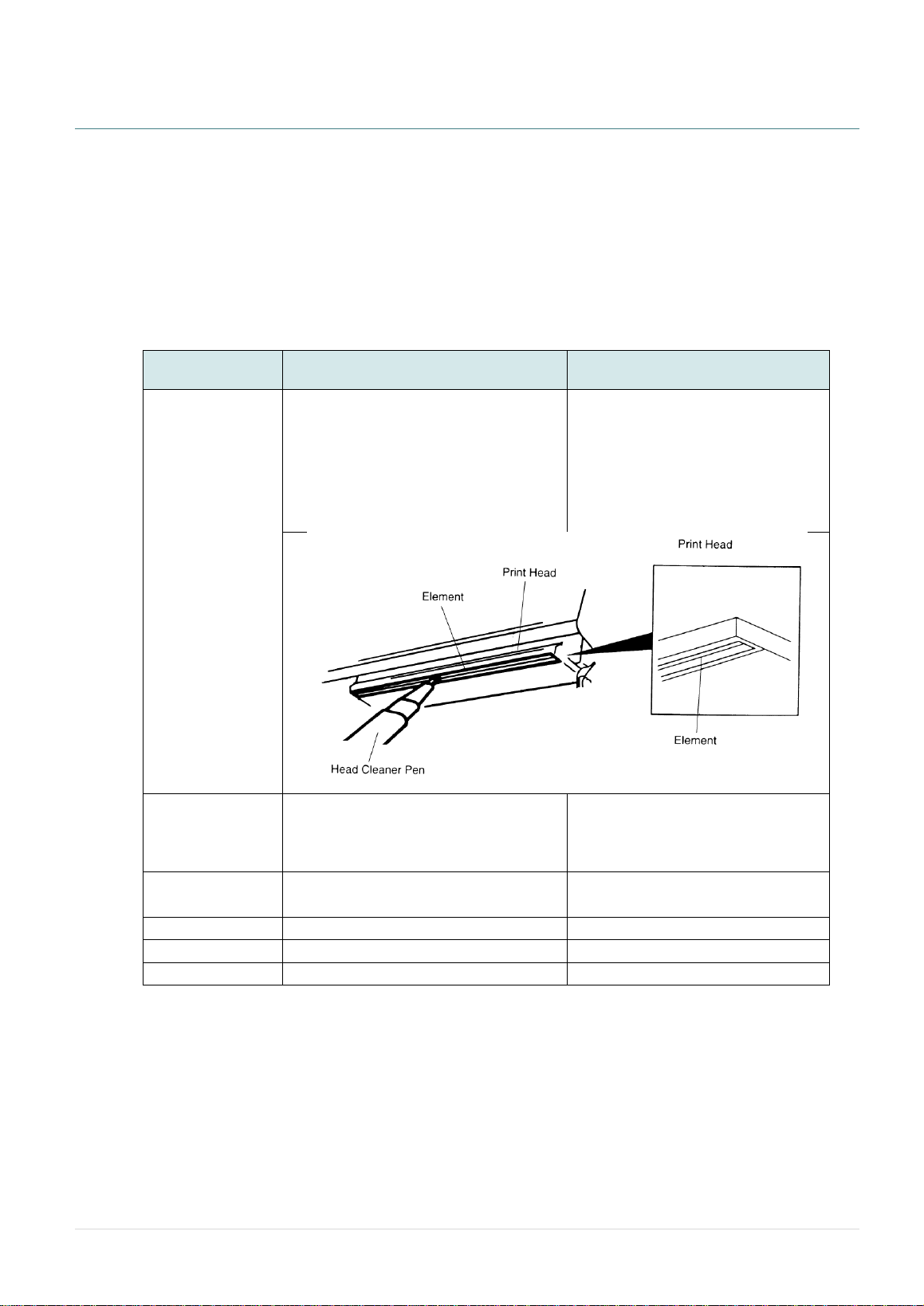
Check if dust or adhesives are
accumulated on the print head.
Clean the print head.
Check if print density is set properly.
Adjust the print density and print
speed.
Check print head test pattern if head
element is damaged.
Run printer self-test and check the
print head test pattern if there is dot
missing in the pattern.
- 37 -
7. Maintenance
This session presents the clean tools and methods to maintain your printer.
1. Please use one of following material to clean the printer.
Cotton swab
Lint-free cloth
Vacuum / Blower brush
100% Ethanol or Isopropyl Alcohol
2. The cleaning process is described as following,
Printer Part
Method
Interval
Print Head
1. Always turn off the printer before
cleaning the print head.
2. Allow the print head to cool for a
minimum of one minute.
3. Use a cotton swab and 100% Ethanol
or Isopropyl Alcohol to clean the print
head surface.
Clean the print head when changing
a new label roll.
Platen Roller
1. Turn the power off.
2. Rotate the platen roller and wipe it
thoroughly with water.
Clean the platen roller when
changing a new label roll
Peel Bar
Use the lint-free cloth with 100% ethanol
to wipe it.
As needed
Sensor
Compressed air or vacuum
Monthly
Exterior
Wipe it with water-dampened cloth
As needed
Interior
Brush or vacuum
As needed
Note:
Do not touch printer head by hand. If you touch it careless, please use ethanol to clean it.
Please use 100% Ethenol or Isopropyl Alcohol. DO NOT use medical alcohol, which may damage
the printer head.
Regularly clean the print head and supply sensors once change a new media to keep printer
performance and extend printer life.
- 38 -
Revise History
Date
Content
Editor


Corporate Headquarters Li Ze Plant
9F., No.95, Minquan Rd., Xindian Dist., No.35, Sec. 2, Ligong 1st Rd., Wujie Township,
New Taipei City 23141, Taiwan (R.O.C.) Yilan County 26841, Taiwan (R.O.C.)
TEL: +886-2-2218-6789 TEL: +886-3-990-6677
FAX: +886-2-2218-5678 FAX: +886-3-990-5577
Web site: www.tscprinters.com
E-mail: printer_sales@tscprinters.com
tech_support@tscprinters.com
TSC Auto ID Technology Co., Ltd.