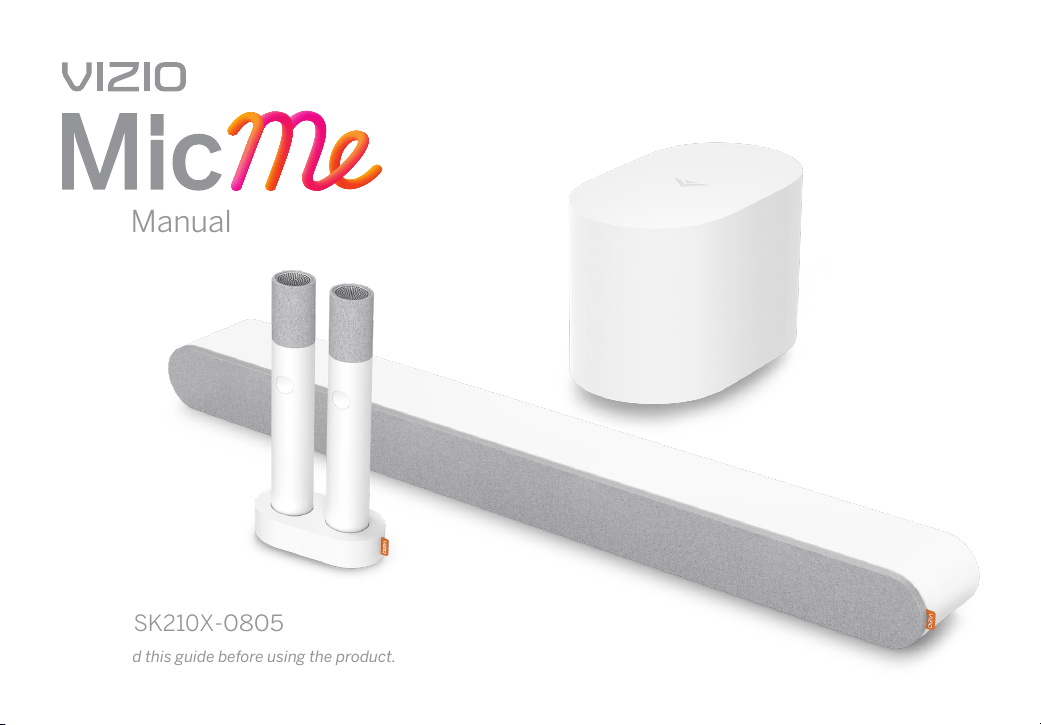
Model: SK210X
-0805
Please read this guide before using the product.
User Manual

Accessibility
Contact VIZIO for accessibility support at:
Email: accessibility@vizio.com
Phone: 1-877-698-4746
Binding Arbitration Agreement and Class Action Waiver
This purchase is subject to full VIZIO Terms and Conditions, including Binding Arbitration Agreement and Class Action
Waiver, which may be viewed at vizio.com/en/terms/terms-of-service.
By using this device, you accept those Terms and Conditions.
You have the right to opt out of the Binding Arbitration Agreement and Class Action Waiver within 60 calendar days of your
purchase. Please refer to the Limited Warranty section of this User Manual or view the full VIZIO Terms and Conditions for
opt-out instructions.

ii
Your Unit is designed and manufactured to operate within dened design limits, and misuse may result in electric shock or re. To prevent your Unit from being damaged,
the following rules should be observed for its installation, use, and maintenance. Please read the following safety instructions before operating your Unit. Keep these
instructions in a safe place for future reference.
• Heed all warnings and follow all instructions.
• Do not use this Unit or any components that are part of this Unit near water.
• When cleaning, ensure the microphone is powered o. For microphone care instructions see “Microphone Care Instructions” on page 14.
• Do not block any ventilation openings. Install in accordance with the manufacturer’s instructions.
• Do not install near any heat sources such as radiators, heat registers, stoves, or other Unit (including ampliers) that produce heat.
• Do not defeat the safety purpose of the polarized or grounding-type plug. A polarized plug has two blades with one wider than the other. A grounding type plug has two
blades and a third grounding prong. The wide blade or the third prong are provided for your safety. If the provided plug does not t into your outlet, consult an electrician
for replacement of the obsolete outlet.
• Protect the power cord from being walked on or pinched particularly at the ends where the plug is located, near convenience receptacles, or where they exit from the Unit.
• When using the QuickFit mounting feature, the attached VIZIO device shall not exceed 25 pounds in weight.
• Unplug this unit during lightning storms or when unused for long periods of time.
• Refer all servicing to qualied service personnel. Servicing is required when the Unit has been damaged in any way, such as when the power supply cord or plug is
damaged, liquid has been spilled or objects have fallen into the Unit, the Unit has been exposed to rain or moisture, does not operate normally, or has been dropped.
• To reduce the risk of electric shock or component damage, switch o the power before connecting other components to your Unit.
• Unplug the power cord before cleaning your Unit. Do not use a liquid or a spray cleaner on your Unit. Do not use abrasive cleaners.
• Always use the accessories recommended by the manufacturer to ensure compatibility.
• When moving your Unit from an area of low temperature to an area of high temperature, condensation may form in the housing. Wait before turning on your Unit to avoid
causing re, electric shock, or component damage.
• Slots and openings in the back and bottom of the Unit are provided for ventilation. To ensure reliable operation of your Unit and to protect it from overheating, be sure
these openings are not blocked or covered. Do not place your Unit in a bookcase or cabinet unless proper ventilation is provided.
• Never push any object into the slots and openings on your Unit. Do not place any objects on the top of your Unit. Doing so could short circuit parts causing a re or
electric shock. Never spill liquids on your Unit.
• Do not block the subwoofer ports. Allow for 1-2 inches of space around all sides for ventilation.
• WARNING: Exposure to loud sounds can damage your hearing causing hearing loss and tinnitus (ringing or buzzing in the ears). With continued exposure to loud noises,
ears may become accustomed to the sound level, which may result in permanent damage to hearing without any noticeable discomfort.
• WARNING: If you experience a sensation of pressure or fullness in your ears, ringing in your ears, or mued speech or believe you may have experienced noise induced
hearing loss, you should have your hearing checked by an ear doctor.
IMPORTANT SAFETY INSTRUCTIONS

• When connected to a power outlet, power is always owing into your Unit. To totally disconnect power, unplug the power cord.
• Do not overload power strips and extension cords. Overloading can result in re or electric shock.
• The wall socket should be located near your Unit and be easily accessible.
• Always place microphones in charging dock upright.
• Keep your Unit away from moisture. Do not expose your Unit to rain or moisture. If water penetrates into your Unit, unplug the power cord and contact your dealer.
Continuous use in this case may result in re or electric shock.
• Do not use your Unit if any abnormality occurs. If any smoke or odor becomes apparent, unplug the power cord and contact your dealer immediately. Do not try to repair
your Unit yourself.
• Avoid using dropped or damaged appliances. If your Unit is dropped and the housing is damaged, the internal components may function abnormally. Unplug the power
cord immediately and contact your dealer for repair. Continued use of your Unit may cause re or electric shock.
• Do not install your Unit in an area with heavy dust or high humidity. Operating your Unit in environments with heavy dust or high humidity may cause re or electric shock.
• Ensure that the power cord and any other cables are unplugged before moving your Unit.
• When unplugging your Unit, hold the power plug, not the cord. Pulling on the power cord may damage the wires inside the cord and cause re or electric shock. When
your Unit will not be used for an extended period of time, unplug the power cord.
• To reduce risk of electric shock, do not touch the connector with wet hands.
• Read and follow all warnings printed on the Unit.
• WARNING: This equipment is not waterproof. To prevent a re or shock hazard, do not place any container lled with liquid near the equipment (such as a vase or ower
pot) or expose it to dripping, splashing, rain, or moisture.
• CAUTION: Danger of explosion or re if batteries are mistreated.
• Do not leave the batteries exposed to direct sunlight for a long period of time with doors and windows closed. Do not disassemble the batteries or dispose of it in re.
• If the main wall plug or the appliance coupler is disconnected, the disconnected device will remain readily operable upon reconnection to an appropriate power source.
• No open ames, such as lighted candles, should be placed on the Unit.
• The ventilation should not be impeded by covering the ventilation openings with items,such as newspapers, table-cloths, curtains, etc.
• The equipment shall be used at maximum 113°F(45°C) ambient temperature.
• Battery packs may explode or release toxic materials. Risk of re or burns. Do not open, crush, modify, disassemble, heat above 140°F (60°C), or incinerate.
• Do not attempt to modify this product. Doing so could result in personal injury and/or product failure.
• Do not subject batteries to mechanical shock.
• In the event of a battery leaking, do not allow the liquid to come in contact with the skin or eyes. If contact has been made, wash the aected area with copious amounts
of water and seek medical advice.
IMPORTANT SAFETY INSTRUCTIONS
WARNING: To reduce the risk of re or electric shock, do not expose this Unit or components to rain or moisture.
CAUTION
RISK OF ELECTRIC
SHOCK DO NOT OPEN
• Do not use any charger other than that specically provided for use with the equipment.
• Do not leave a battery on prolonged charge when not in use.
• After extended periods of storage, it may be necessary to charge and discharge the batteries several times to obtain maximum performance.
• Batteries give their best performance when they are operated at normal room temperature 68°F (20°C) ± 9°F (5°C).
• The battery provided with your system is not user serviceable. Contact VIZIO Customer Service for all battery related issues.
• WARNING: This product contains magnetic material. Contact your physician if you have questions on whether this might aect the operation of your implantable
medical device.
The lighting ash with arrowhead symbol within an
equilateral triangle is intended to alert the user to the
presence of not isolated dangerous voltage within
the appliance that may be sucient magnitude to
constitute a risk of shock to persons.
The exclamation point within an equilateral triangle is
intended to alert the user to the presence of important
operating and servicing instructions in the literature
accompanying the appliance.
Warning: This equipment is a Class II or double
insulated electrical appliance. It has been designed in
such a way that it does not require a safety connection
to electrical earth.
IMPORTANT SAFETY INSTRUCTIONS

Package Contents ......................................................................................................................................................................................................... 1
Controls & Connections ............................................................................................................................................................................................... 2
First-time Setup ............................................................................................................................................................................................................ 7
Microphone Setup ........................................................................................................................................................................................................ 11
Microphone Care & Precautions ................................................................................................................................................................................ 15
Audio System Placement ............................................................................................................................................................................................ 16
Controlling Your Soundbar .......................................................................................................................................................................................... 17
VIZIO Mobile App .......................................................................................................................................................................................................... 18
Bluetooth Pairing for App Control .............................................................................................................................................................................. 19
Bluetooth Pairing for Streaming Music ..................................................................................................................................................................... 20
Using Bluetooth Mode .................................................................................................................................................................................................. 22
Where to nd Karaoke Music ...................................................................................................................................................................................... 23
Unpairing or Disconnecting Your Soundbar............................................................................................................................................................. 24
Using Bluetooth Input Mode ....................................................................................................................................................................................... 25
Using the Physical Soundbar Buttons ....................................................................................................................................................................... 26
Connecting a Subwoofer ............................................................................................................................................................................................. 27
QuickFit Mounting ........................................................................................................................................................................................................ 28
Wall Mounting ................................................................................................................................................................................................................ 29
Product Registration & Support ................................................................................................................................................................................. 31
Help & Troubleshooting ............................................................................................................................................................................................... 32
Limited Warranty .......................................................................................................................................................................................................... 35
Legal & Compliance ...................................................................................................................................................................................................... 38
Specications ................................................................................................................................................................................................................ 39
Table of Contents
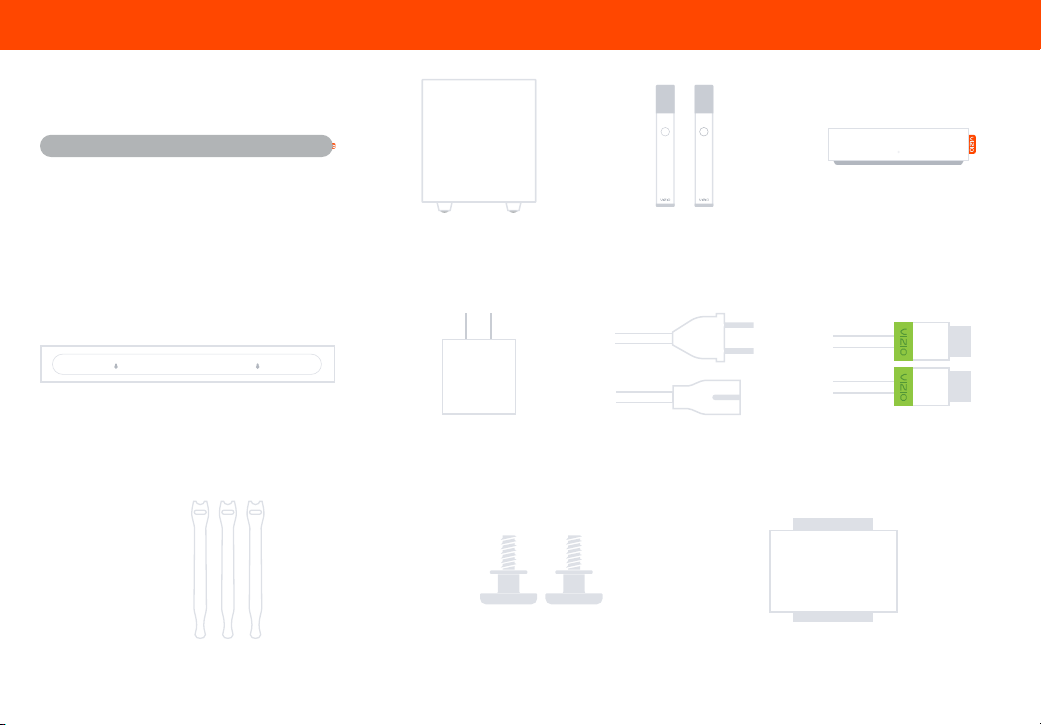
1
Soundbar
Wireless Subwoofer
Wall Mount Template 2x Power Cables
2x Microphones Microphone Charging Dock
SETUP
SETUP
Quick Setup Guide and
Safety & Legal Sheet
Microphone Charging
Dock Power Adapter
HDMI
®
Cable
Package Contents
3x Cable Management Straps 2x QuickFit Screws
2
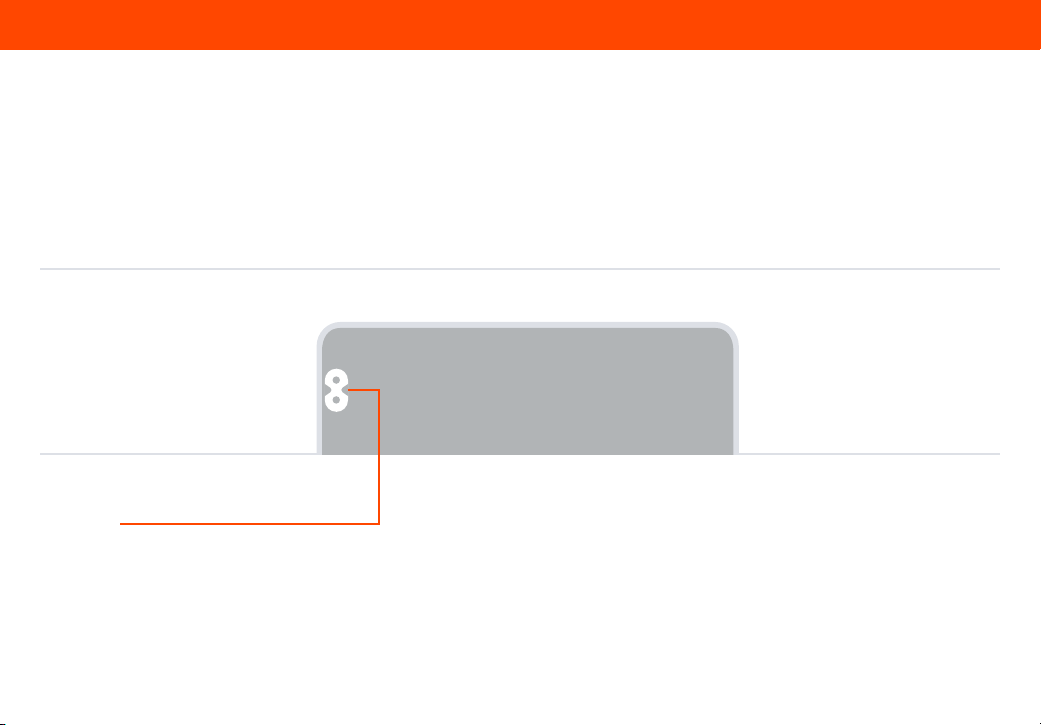
Controls & Connections
Back of Soundbar
Power in
3
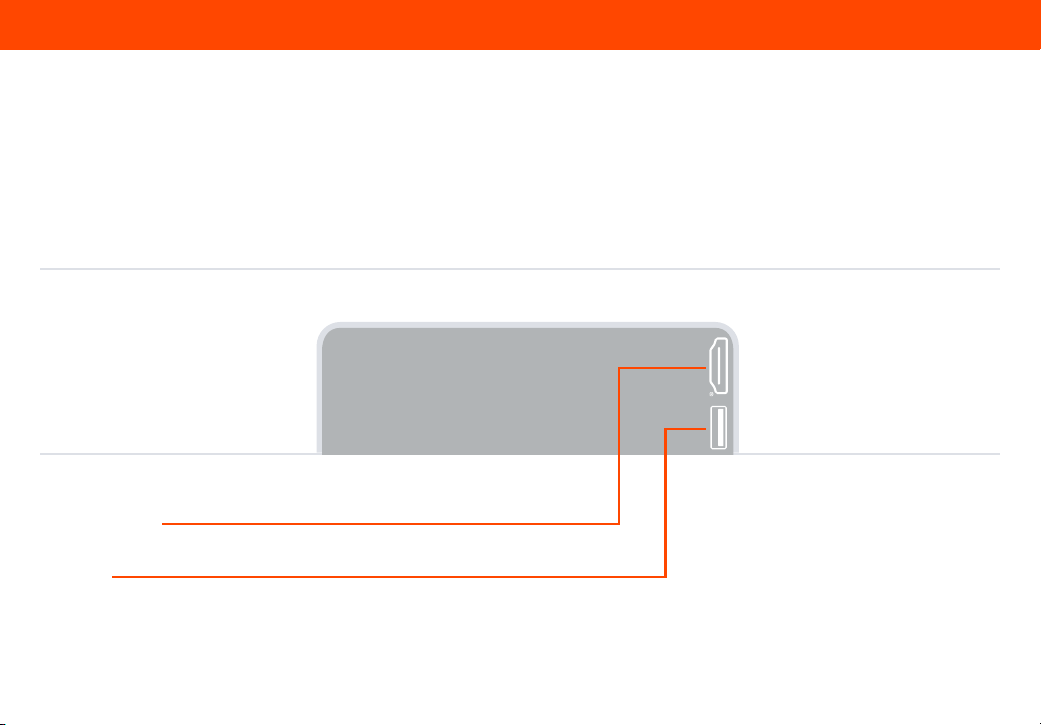
*Supports .WAV and .MP3 le format playback only.
Controls & Connections
Back of Soundbar
HDMI (eARC)
(to TV)
USB
*
in
4
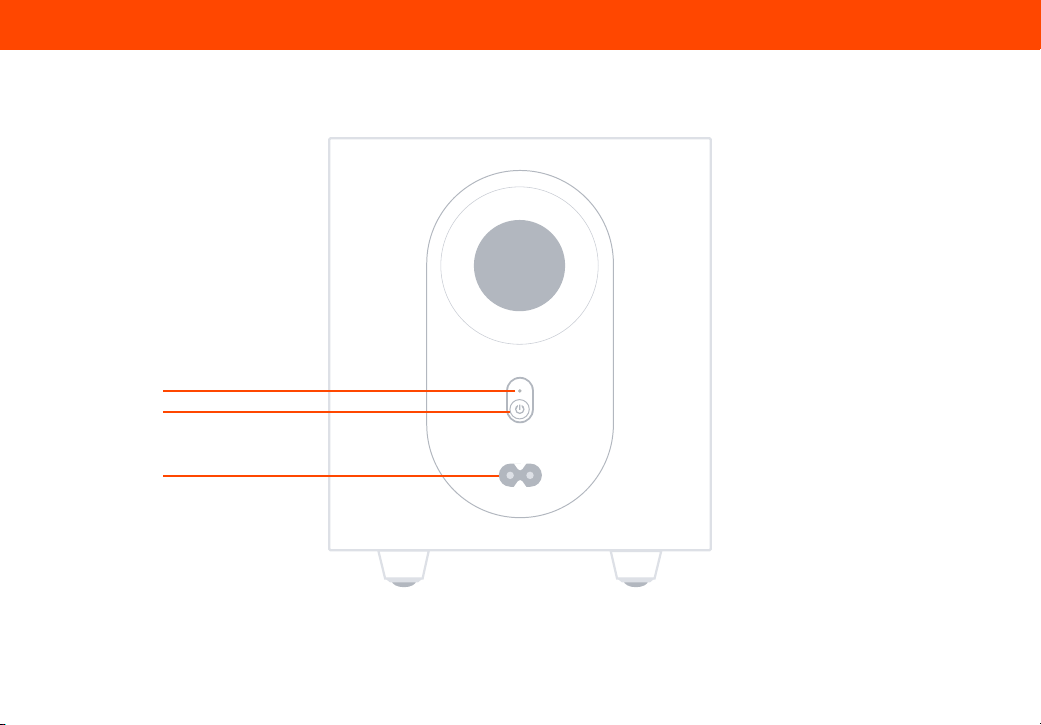
Controls & Connections
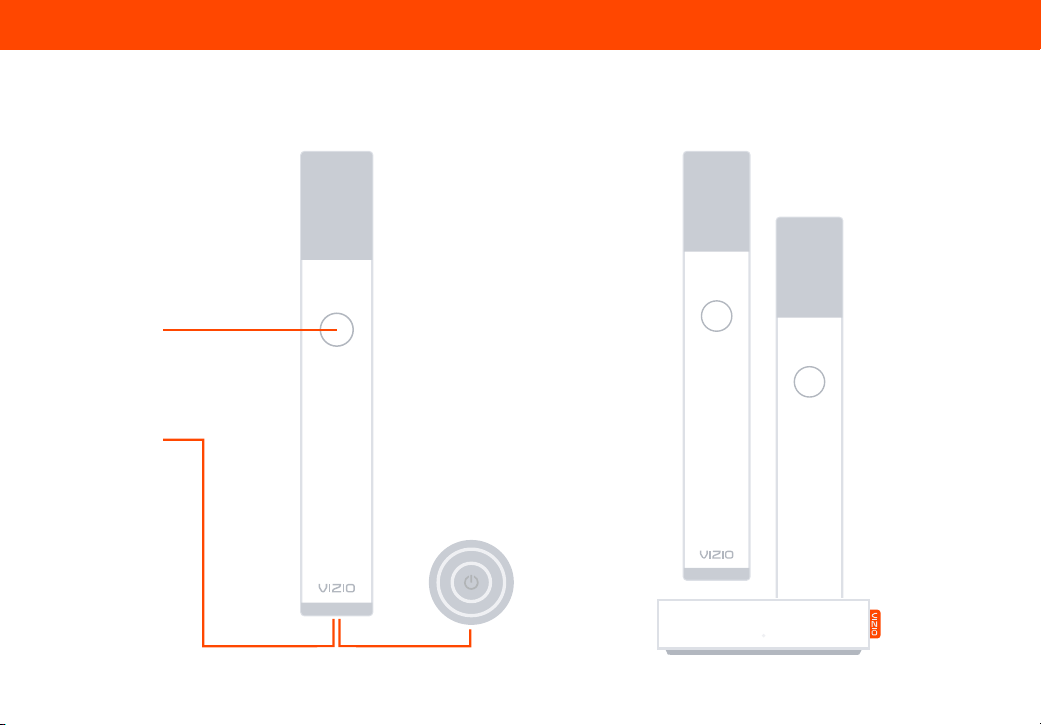
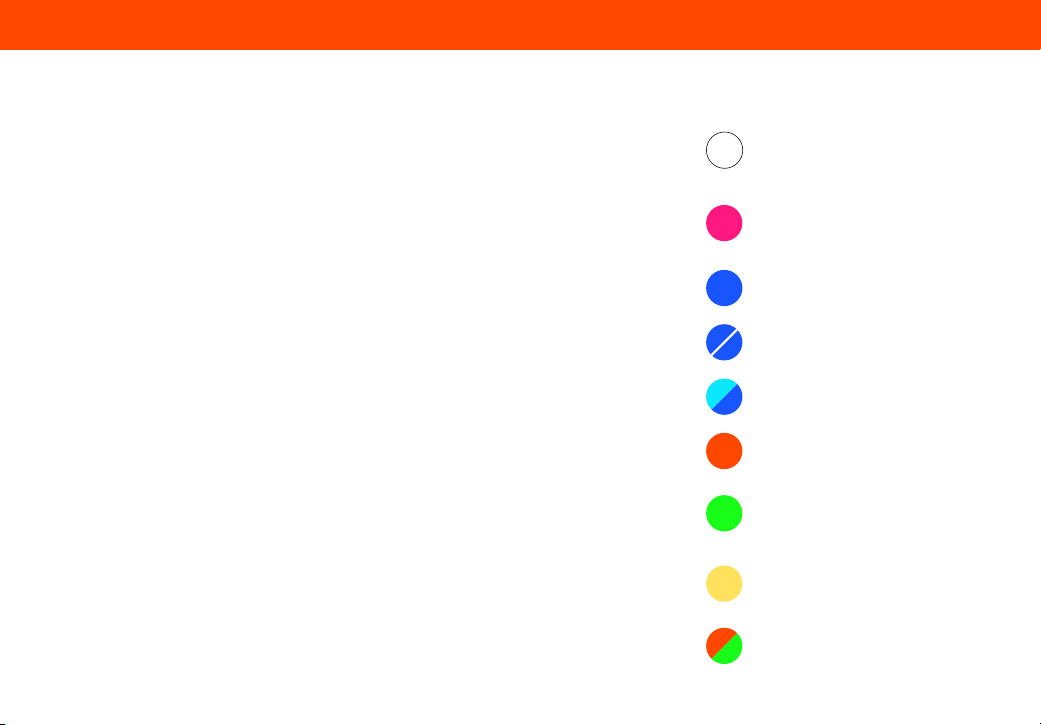
Back of Subwoofer
LED Indicator
Power Button
Power Port
• White LED will be Solid when
the Subwoofer is connected
• White LED will blink when the
Subwoofer is disconnected,
or is in Pairing mode
LED Indicator Behavior
5
Controls & Connections
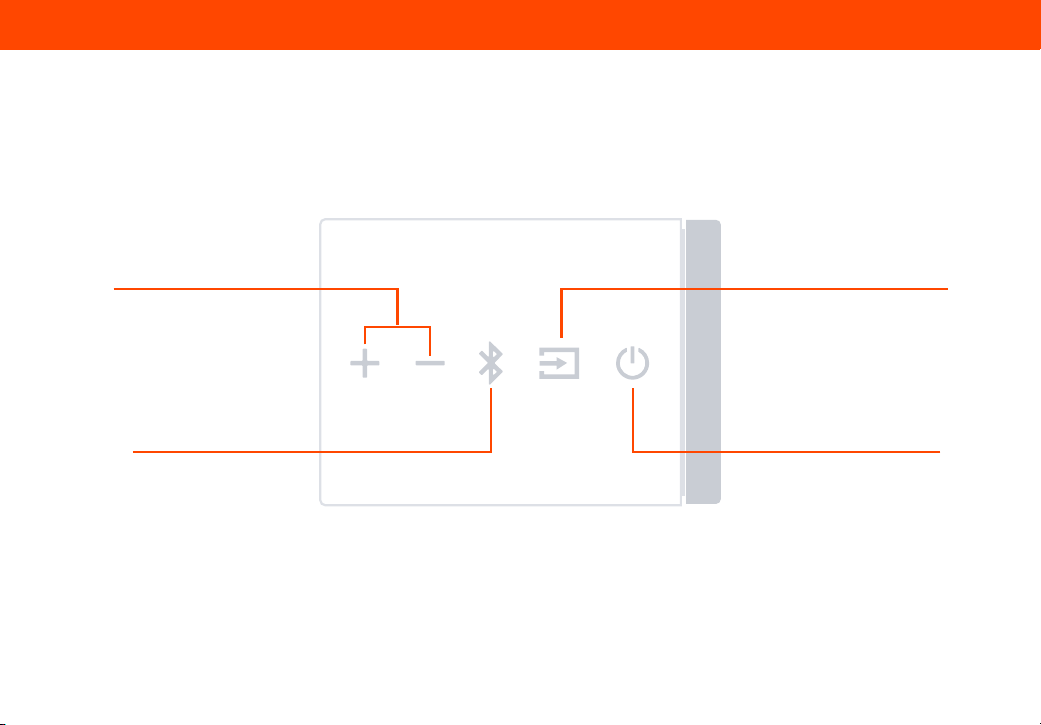
Mode Button
Power Button
Microphone and Microphone Charging Dock
6
Controls & Connections
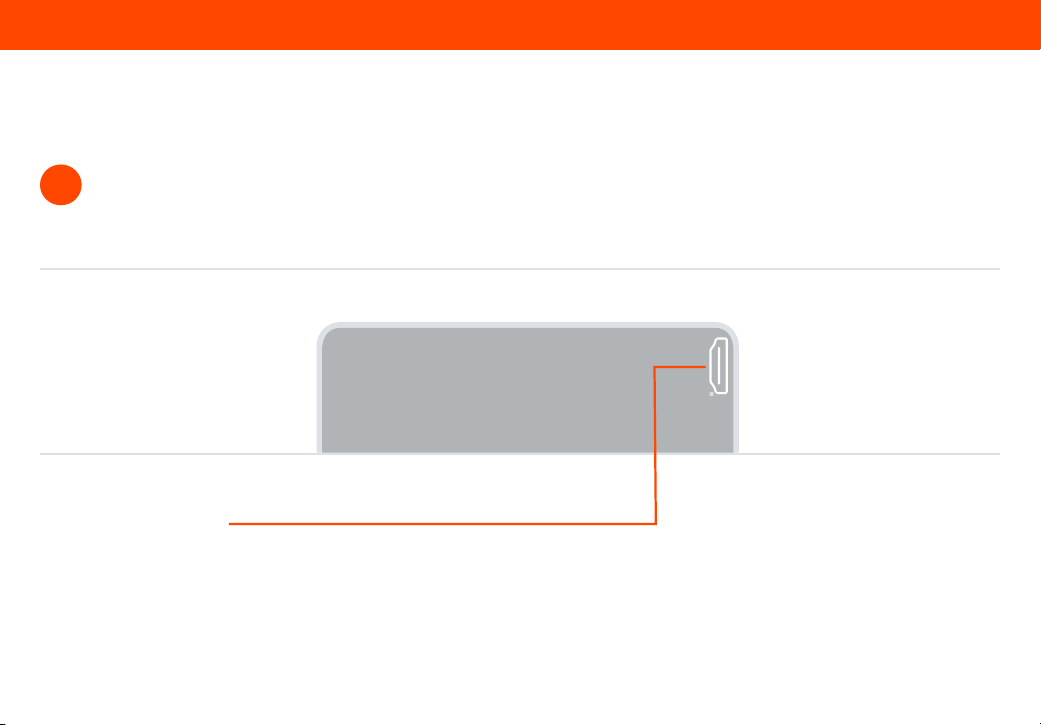
Side of Soundbar
Power
Press to enter or exit
standby mode
Input
Press to change the audio source
Bluetooth
See Bluetooth Pairing
sections for more information
Volume
Increase or decrease the
loudness of the audio
7
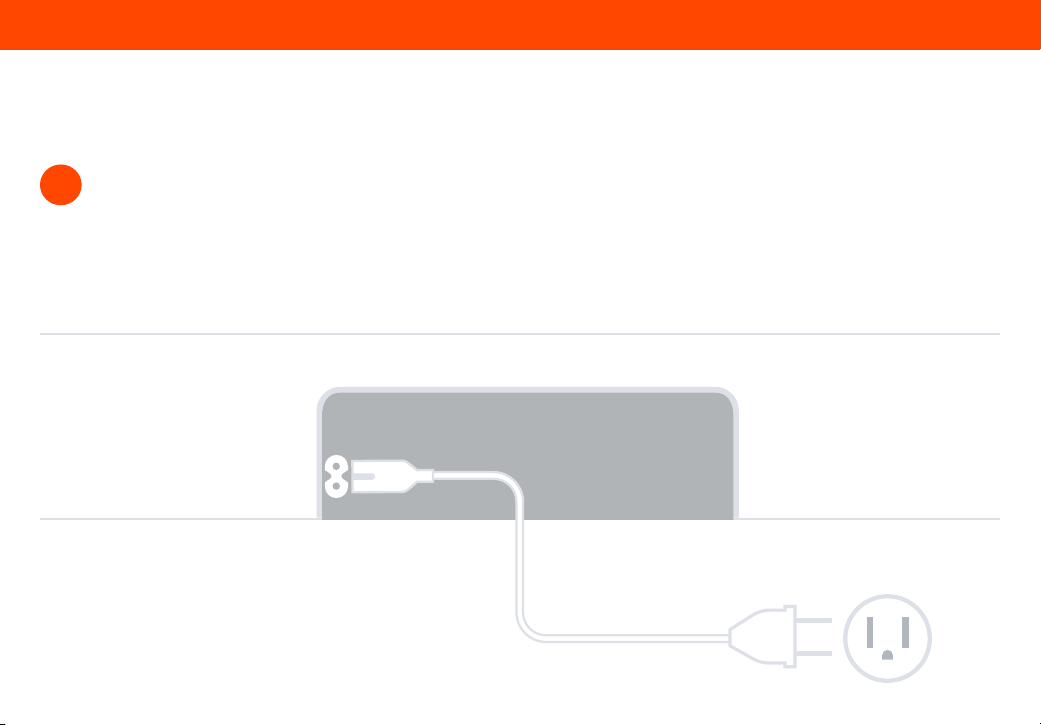
Connect the soundbar to the HDMI ARC or eARC port on
your TV with the included HDMI cable.
1
First-Time Setup
Back of Soundbar
HDMI (eARC) (to TV)
8
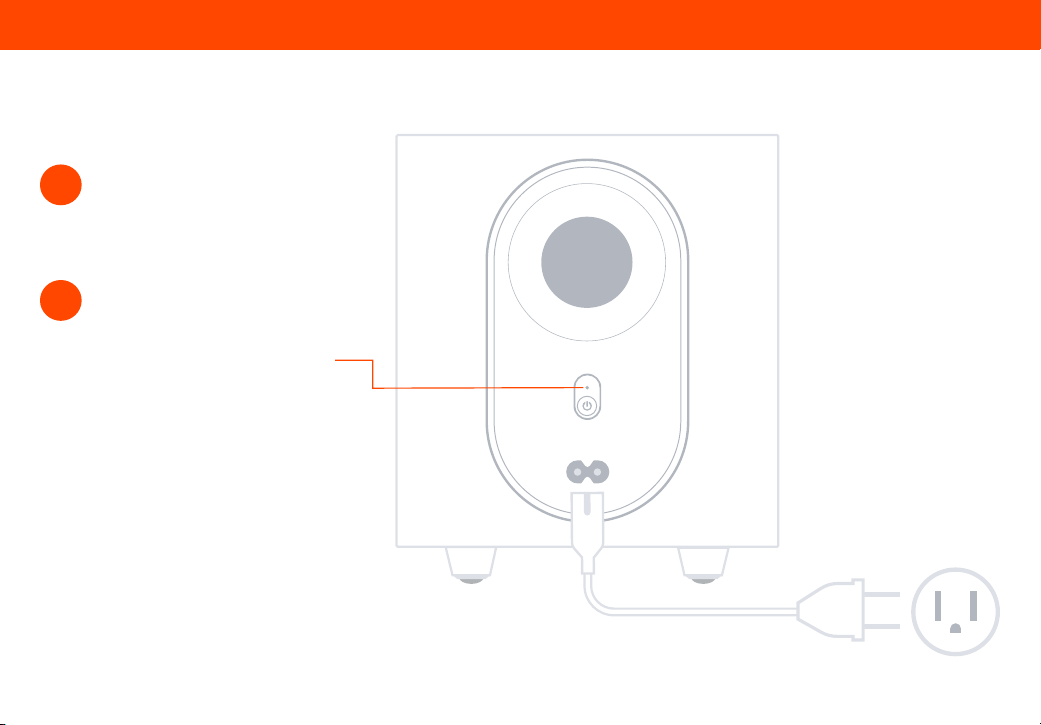
Connect the power cable to the soundbar AC IN as shown. Plug the power cable into an electrical outlet.
When rst plugging the soundbar into an electrical outlet, the soundbar LED will be a bright white and a
welcome tone will play. The soundbar LED will then cycle through a standard setup process by displaying a
magenta light for 3 seconds and then return to a dim white light indicating your soundbar is powered on.
2
Back of Soundbar
First-Time Setup
9
5
Connect the power cable to the
subwoofer AC IN as shown. Plug the
power cable into an electrical outlet.
3
4
The subwoofer should automatically
power on and link to the soundbar
when plugged in.
The LED will glow solid to conrm
connection with soundbar.
If the Subwoofer LED is blinking, it
may be disconnected. Please refer
to the ‘Connecting a Subwoofer’
section.
Back of Subwoofer
First-Time Setup
10
Soundbar
First-Time Setup
Your MicMe Soundbar has an Auto HDMI feature for easy audio enjoyment.
• If using Bluetooth to stream content, after disconnecting the mobile device from
Bluetooth, the soundbar will default to HDMI input.
• If no audio content is streamed for 3 minutes, the soundbar defaults to HDMI input.
• The VIZIO Mobile App has a toggle to turn ‘Auto HDMI’ ON/OFF (when toggled
OFF this removes the automatic switch over to HDMI Input from Bluetooth).
Soundbar Behaviors
• Soundbar defaults to HDMI input when plugged in and powered ON.
• Soundbar enters Standby Mode when TV powers OFF or when Soundbar Power
panel button is pressed below power indicator
• If the bar is in Standby Mode, press and release the Volume (+) on the
soundbar to wake up the soundbar.
Soundbar LED behavior when connected to a VIZIO TV
• When volume and mute adjustments are made, the LED will not blink.
Reference the TV screen to see volume adjustment.
Soundbar LED behavior when connected to a Non-VIZIO TV
• When volume is adjustmented the LED will blink with every adjustment made.
• The white LED will slowly blink when the Soundbar is MUTED.
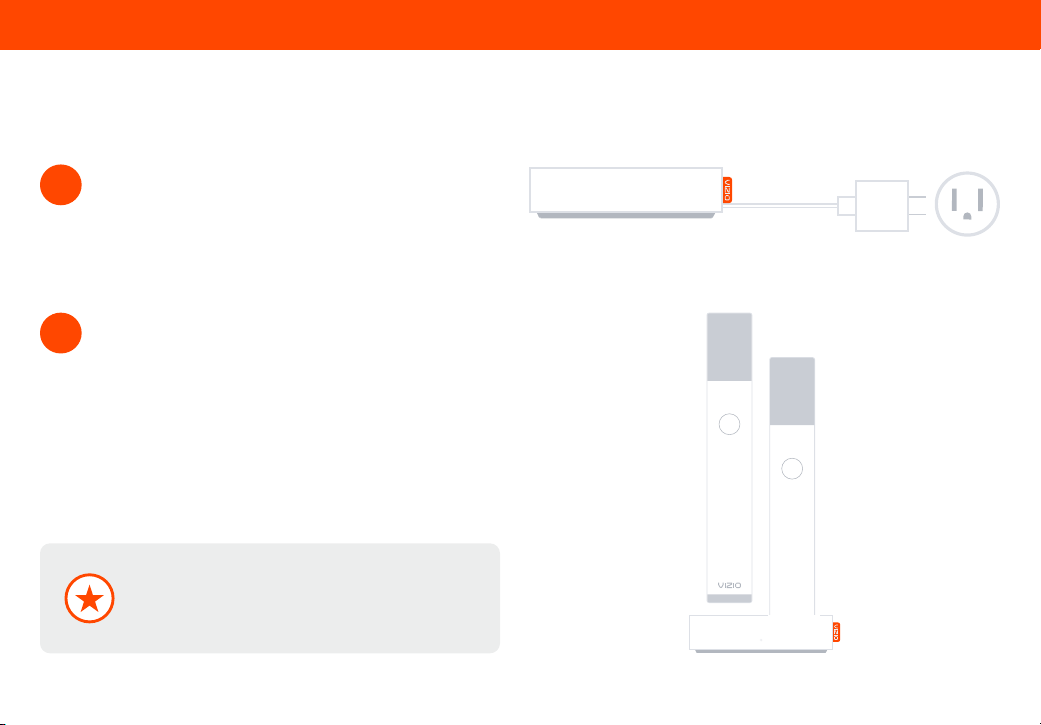
White
Power indicator
Lights up full bright then dims
Magenta
HDMI input
Bright light for 3 seconds then dims to White
Dark Blue
Bluetooth input
Orange
USB input
Green
Dolby Atmos
®
content is detected
Bright light for 2 seconds, then dims to White
Yellow
DTS:X
®
content is detected
Bright light for 2 seconds, then dims to White
Light + Dark Blue Flashing
Bluetooth pairing mode for mics
Orange + Green Flashing
Firmware is being updated
Soundbar LED light guide
Dark Blue Flashing
Bluetooth pairing mode
11
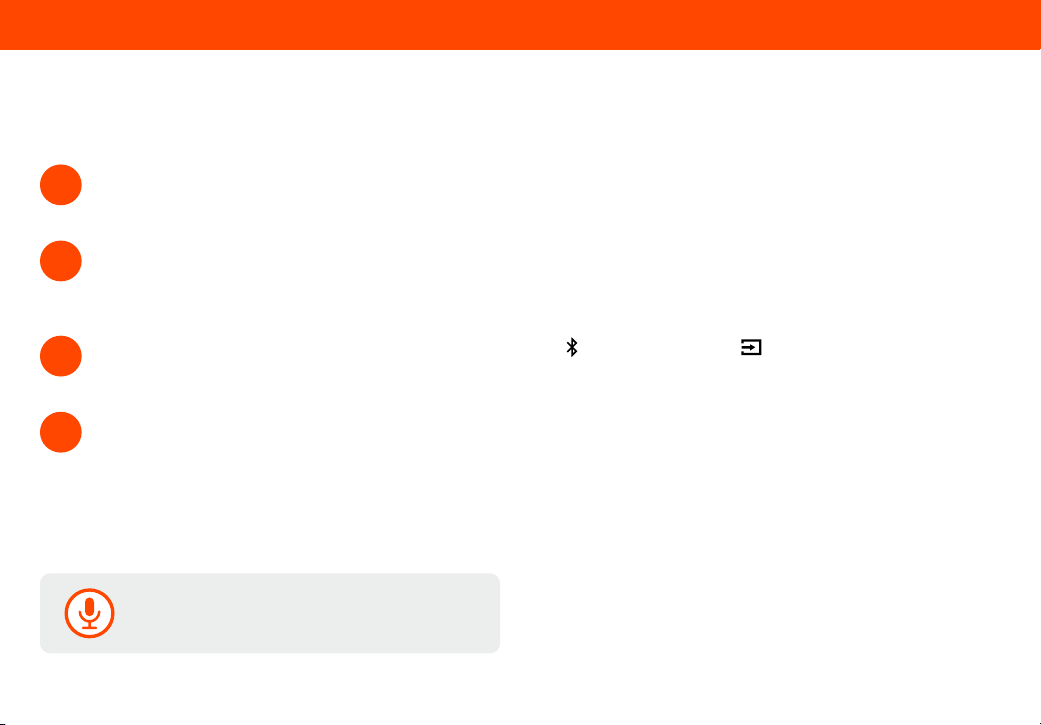
Plug in the microphone charging dock power cable
using the included adapter.
1
Charge the microphones when not in use by placing
them upright into the charging dock as shown.
NOTE: Microphones will not be usable while in the
charging dock.
2
Charging Dock
The Charging Dock does not need to be in the same
room as the soundbar. For most environments, VIZIO
recommends performing within 10 m (30 ft) of the
soundbar without obstructions.
Microphone Setup

12
Manually adjusting microphone settings:
• Press the Mode button once to adjust the Microphone Volume. Press the + or ‒ button on the mic to increase or
decrease the mic sensitivity to your voice. The +/‒ keys will disappear 5 seconds after the last key press.
• Press the Mode button twice to adjust the Echo Eect. Press the + or ‒ button on the mic to increase or decrease
the mic echo intensity of the depth and carry of your voice.
• Press the Mode button three times to select an Ambient Light color. Press the + or ‒ button on the mic to lter
through the 9 color options for a fun and unique way to customize each mic.
The microphones are pre-paired with your soundbar.
1
Make sure your soundbar and microphones are powered ON.
Mics will automatically power on and connect with the MicMe soundbar when removed from the charging dock.
If your microphone is o, press and hold the power button on the bottom of the mic for 2 seconds to power ON.
If you need to reconnect or connect a replacement mic, see the instructions on the next page.
2
The rst mic that connects will identify as MIC 1.
The second mic that connects will identify as MIC 2.
3
Microphone
Microphone Setup
13
The following instructions are for re-pairing a microphone or pairing a replacement microphone.
Replacing or Re-Pairing a Microphone
Turn ON both microphones by removing them from the charging dock or pressing the power button on the bottom of the
mic for 2 seconds. Verify that your remaining microphone is connected to the soundbar by speaking into the microphone
(you should hear your voice coming from the soundbar).
2
On the soundbar side panel, press and hold the Bluetooth button ( ) and the input button ( ) on the MicMe soundbar at
the same time for 5 seconds, then release.
3
Once connected the microphones will identify as ‘MIC 1 and MIC 2’ (this conrms successful pairing and connection).
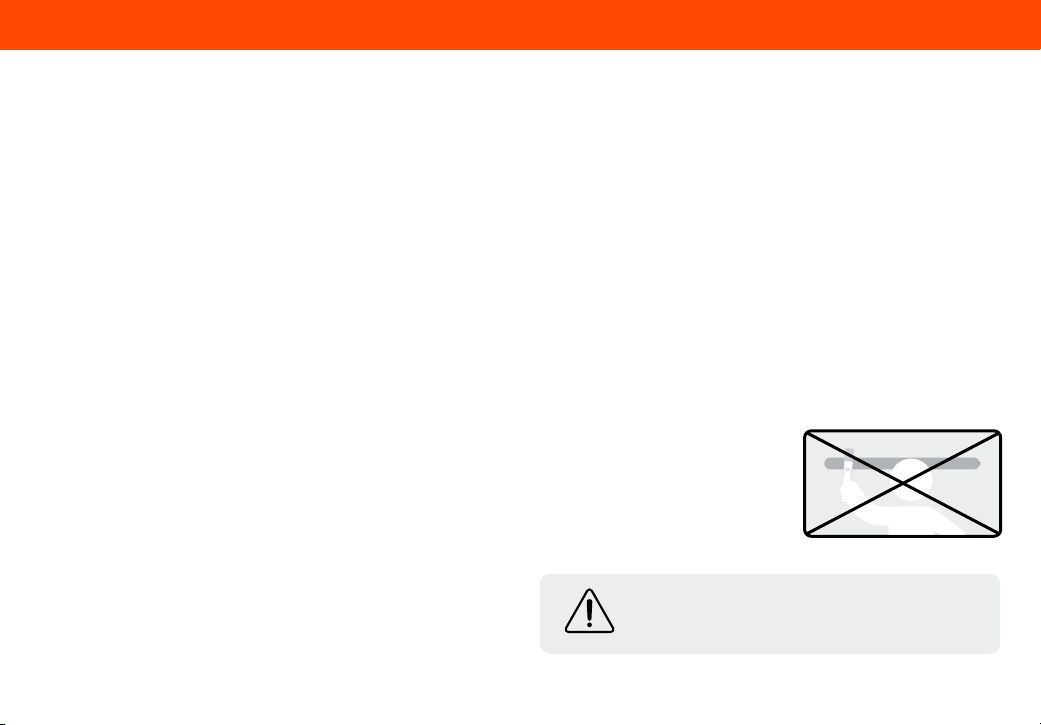
Do not stand within 1/2 meter (approx. 2 feet) while pointing your microphone at the soundbar. This will create feedback.
4
Stand in front of your MicMe soundbar and ensure it is powered on.
1
No more than two MicMe karaoke mics can be paired or
connected to the MicMe Soundbar at any given time.
Microphone Setup
14
• When fully charged, microphones have up to an 8 hour battery life. Mics will go into Sleep mode after 10 minutes of no use or audio input
and will automatically power o after 30 minutes. Place mics back in the charging dock when not in use.
• When powered on, mics will display a greeting, identify as MIC 1 or MIC 2, and the remaining battery life percentage. If you see
CONNECTING displayed for more than 7 seconds, your microphone is not connected. You may be out of range or your soundbar is in
Standby mode if your TV is powered OFF.
• Only two mics can be paired to the soundbar at a time. VIZIO MicMe mics are only compatible with the VIZIO MicMe soundbar.
• Microphone Volume is individually controlled by mic user.
• Echo is shared between MIC 1 and MIC 2. When adjusting Echo on the mic using the mode button, the Echo level that was last selected
will be applied to both mics. Use Echo Slider in the VIZIO Mobile App to simultaneously adjust the Echo for both microphones.
• Features
• Ambient Light: MicMe karaoke mics oer 9 individual colors and a rainbow light option.
• Light Reaction: The louder you sing, the higher the light will travel up the mic.
• Echo Eect: Adds depth and dimension to your voice.
• Mic Volume: Adjusts the mic sensitivity (also known as gain) to your voice.
NOTE: This does not adjust the volume of the soundbar.
• Decoding and Playback: To provide the best karaoke
experience, Dolby Atmos and DTS:X functionality disable
when MicMe microphones are powered on. Mics can either be
placed in the charging dock or powered o to restore Dolby
Atmos and DTS:X decoding and playback to the soundbar.
Getting to Know Your Microphone
Do not stand within 1/2 meter (approx. 2 feet) while
pointing your microphone at the soundbar. This will
create feedback.
Microphone Setup

15
• Wipe the bottom of your microphones with a dry lint-free cloth to ensure the bottom is clean and will have proper contact with the
charging dock.
• Use regular tap water to lightly moisten a soft, lint-free cloth and gently wipe down the fabrics on the microphones.
• Avoid using bleach, acetone/nail polish, strong solvents, or abrasives on your microphones.
• Rechargeable batteries are built in and non-removable. As with any rechargeable battery, please note the precautions below.
• Battery packs inside microphone may explode or release toxic materials. Risk of re or burns. Do not open, crush, modify,
disassemble, heat above 140°F (60°C), or incinerate.
• Do not subject microphone batteries to mechanical shock.
• In the event of a battery leaking, do not allow the liquid to come in contact with skin or eyes. If contact has been made, wash the
aected area with copious amounts of water and immediately seek medical advice.
• Do not use any charger other than that specically provided for use with the equipment.
• Do not leave microphone battery on prolonged charge when not in use.
• After extended periods of storage, it may be necessary to charge and discharge the batteries several times to obtain maximum
performance.
• Microphone batteries give their best performance when they are operated at normal room temperature 68°F (20°C) ± 9°F (5°C).
• Microphone batteries provided with your system is not user serviceable. Contact VIZIO Customer Service for charging related issues.
Microphone Care & Precautions
Microphone Care Instructions
Battery Care Instructions
16
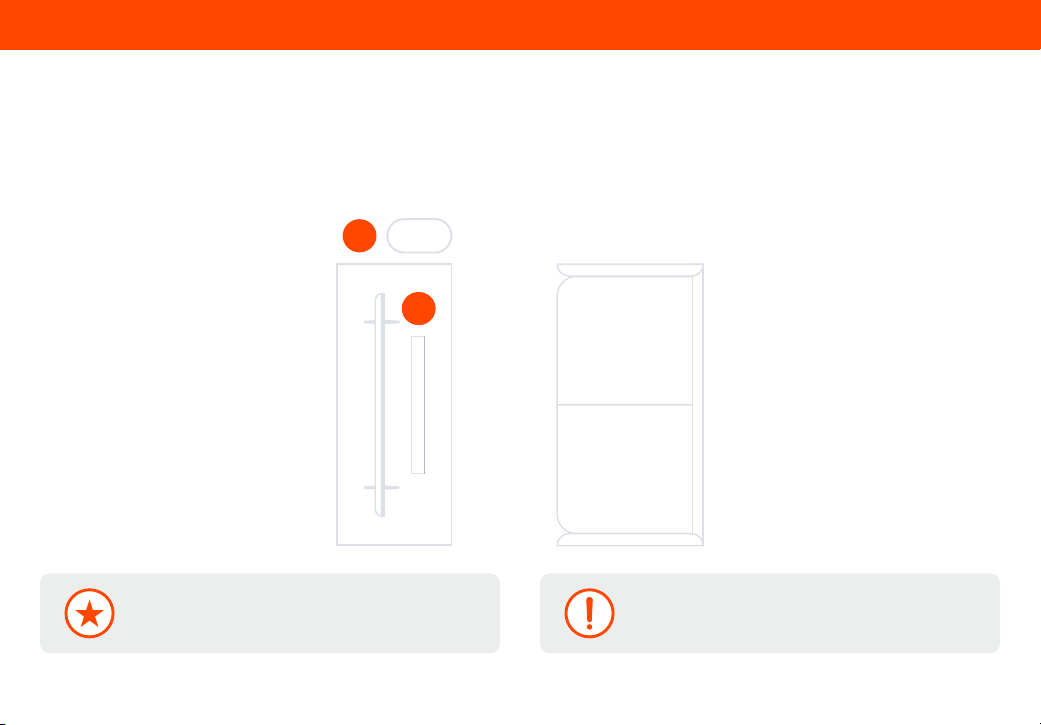
Position the soundbar (A) and subwoofer (B) as shown in the image to the right.
This Soundbar comes with two QuickFit mounting screws. QuickFit allows you to attach this soundbar to select VIZIO TVs.
For more information, visit www.vizio.com/quickt
A
B
Audio System Placement
Placement
Note: Do not block the subwoofer port.
The image above shows the recommended placement.
The subwoofer can be placed anywhere in the room.
17
r
Soundbar Volume
30
Example Remote Control
Controlling Your Soundbar
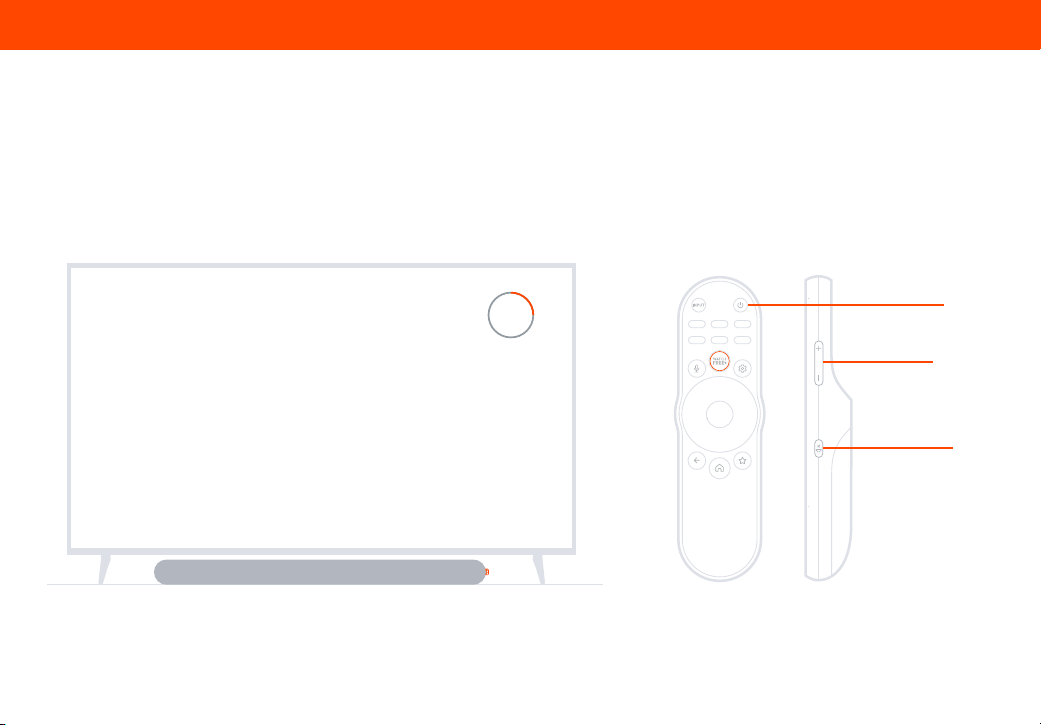
Use your existing TV remote to power on your TV; your soundbar will automatically wake up.
Use your TV remote to adjust the volume and to mute and unmute. Soundbar remote control not included. If preferred, a soundbar
remote can be purchased on vizio.com.
Controlling Your Soundbar
Volume
Mute
Power
18
VIZIO Mobile App
The VIZIO Mobile App and a VIZIO Account are required for
advanced control of soundbar and karaoke functionality,
settings, and to receive system updates. Limited audio settings
can be controlled via the TV remote. Scan to download.
Take control with the VIZIO Mobile App
• Microphone Volume
Adjusts microphone sensitivity to your voice
• Echo Eect
Adjusts the depth and carry of your voice
• Voice Enhancements
Explore the dierent voice enhancements to rene and amplify
your voice to ensure singers voices remain true to themselves.
• Advanced Ambient Light settings
Discover Karaoke Settings in the VIZIO Mobile App
No smart phone? Limited audio settings can be
controlled via the TV remote. Limited mic settings can
be controlled via the mic Mode button.
Use your favorite karaoke app or music on your smart TV or
stream via Bluetooth from a mobile device to listen and sing
through the MicMe Soundbar. Third-party applications may
require fees or subscription charges.
Karaoke Streaming
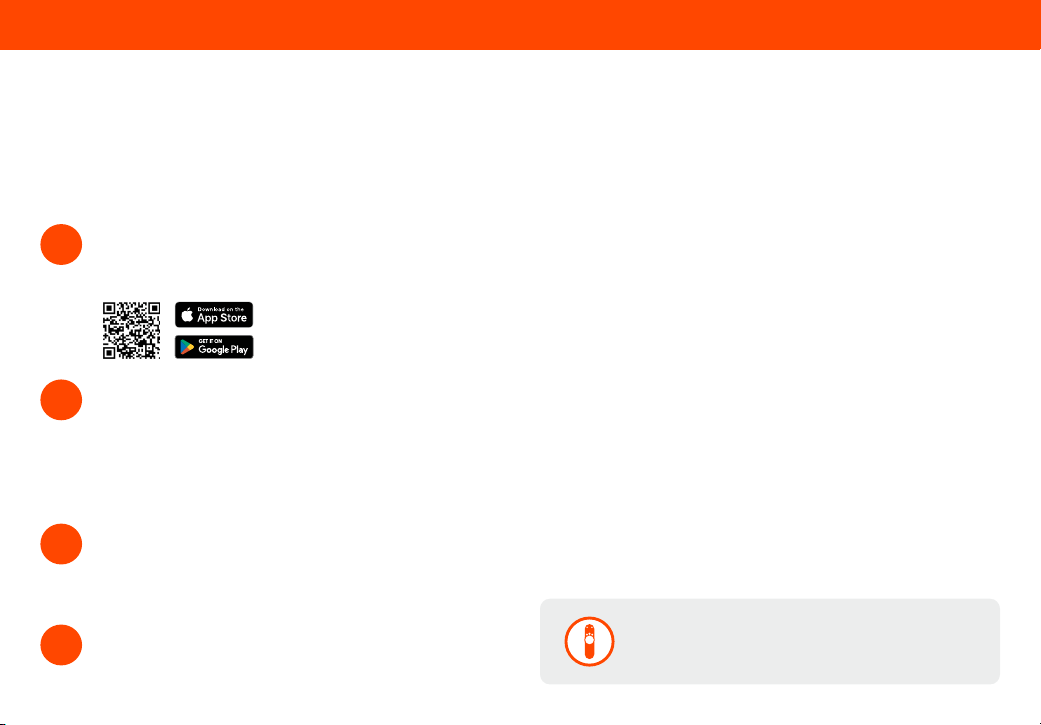
Download the VIZIO Mobile App and create a VIZIO
Account. Activate Bluetooth on your phone while
standing next to your soundbar that is powered on.
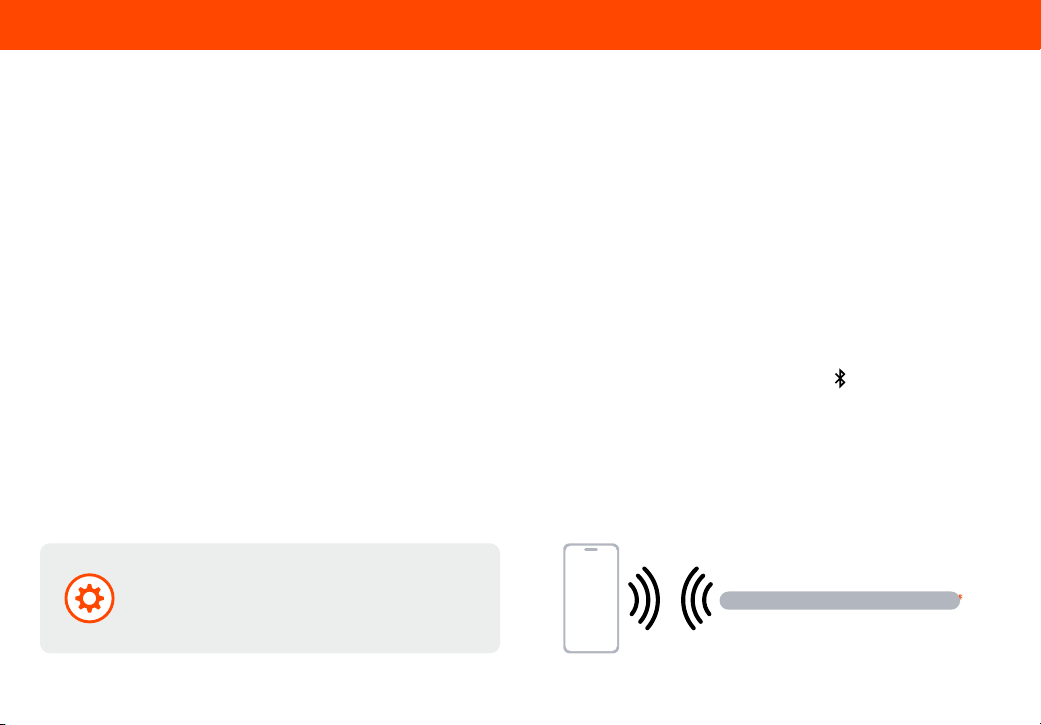
1
Open the VIZIO Mobile App to pair and connect to the
MicMe soundbar. In the VIZIO Mobile App, press the
remote button and tap to select your device from the
list of discovered devices (VIZIO MicMe SB).
The app automatically recognizes your soundbar for
the rst hour after installation.
2
If pairing after the rst hour, press and hold the
soundbar Bluetooth button for 5 seconds and release
to initiate the pairing process for up to 3 minutes.
The soundbar blue LED light will blink slowly.
3
Once paired, you can adjust audio levels, microphone
functions and enable Bluetooth music streaming in
the app.
4
19
Bluetooth Pairing for App Control
1. The soundbar will be in pairing mode for one hour after you plug it into an electrical outlet.
2. Download the VIZIO Mobile App and open the app.
3. In the VIZIO Mobile App, select your device from the list of discovered devices (VIZIO MicMe SB).
4. Now you are connected and can control the soundbar and microphones via the VIZIO Mobile App while the app is open and you are
within range.
1. Download the VIZIO Mobile App and open the app on the device that you wish to pair to the soundbar.
2. Ensure the Soundbar is on by quickly pressing the Volume (+) button. Press and hold the Bluetooth Button ( ) on the soundbar for
at least 5 seconds, then release. This will put the soundbar into pairing mode for 3 minutes. You will see the LED blinking slowly in
blue when it is in this state.
3. In the VIZIO Mobile App, select your device from the list of discovered devices (VIZIO MicMe SB).
4. Now you are connected and can control the soundbar and microphones via the VIZIO Mobile App while the app is open and you are
within range.
To pair the soundbar with the VIZIO Mobile App during the rst-time setup:
To pair the soundbar with the VIZIO Mobile App after the rst-time setup or to pair an additional Smart Phone
Only one paired device can control the soundbar at a
time. To switch which device has the active controls,
close the app on the device you’re not using and open
the app on the device that you want to use.
VIZIO Mobile App
20
Bluetooth Pairing for Streaming Music
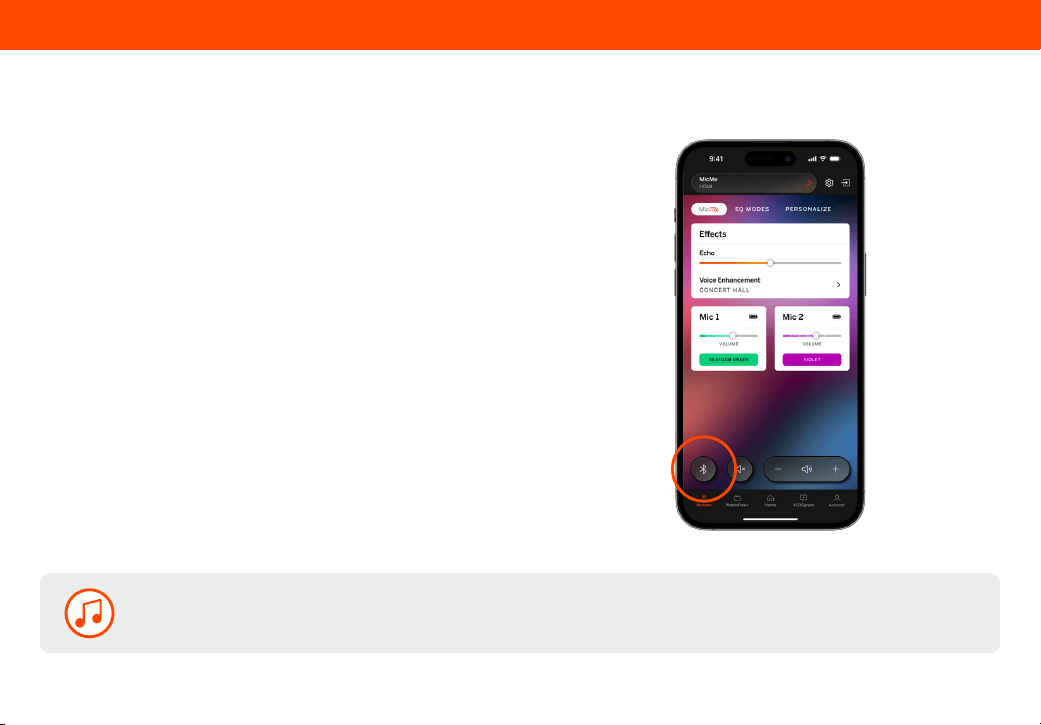
1. In the VIZIO Mobile App for the soundbar, on the MicMe
tab, press the Bluetooth button.
2. A prompt will appear asking if you want to switch
to Bluetooth input, Pair to stream music, or Pair a
replacement microphone. Select “Pair to stream music”.
3. The soundbar will switch to Bluetooth input and begin
pairing mode. You will see the blue LED on the soundbar
blinking rapidly and a tone will play twice.
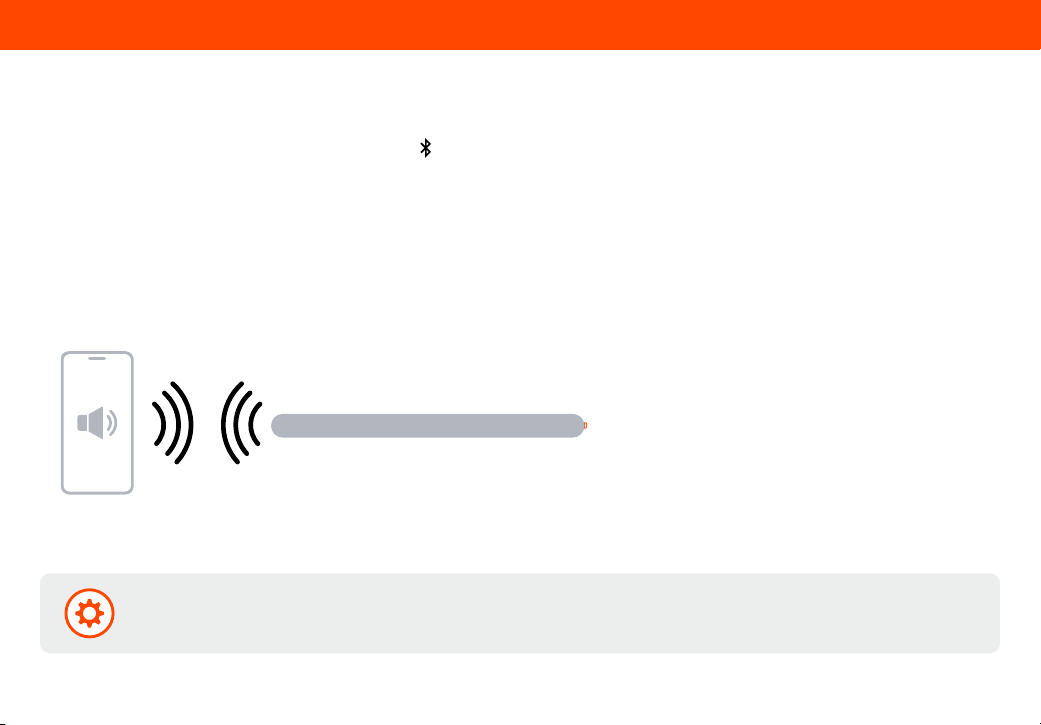
4. Search for the soundbar (VIZIO MicMe SB) using your
Bluetooth device’s mobile device settings and select to pair.
5. Once successfully paired, the blue LED will stop blinking
and a conrmation tone will be heard from the soundbar.
6. Now you can play audio from your Bluetooth device while it
is in range and your soundbar is in Bluetooth Input.
Pair the soundbar with a Bluetooth device for streaming music from the VIZIO Mobile App
Only one paired device can stream music to the soundbar at a time. To connect a new device, you must initiate pairing mode for music
streaming again.
21
Bluetooth Pairing for Streaming Music
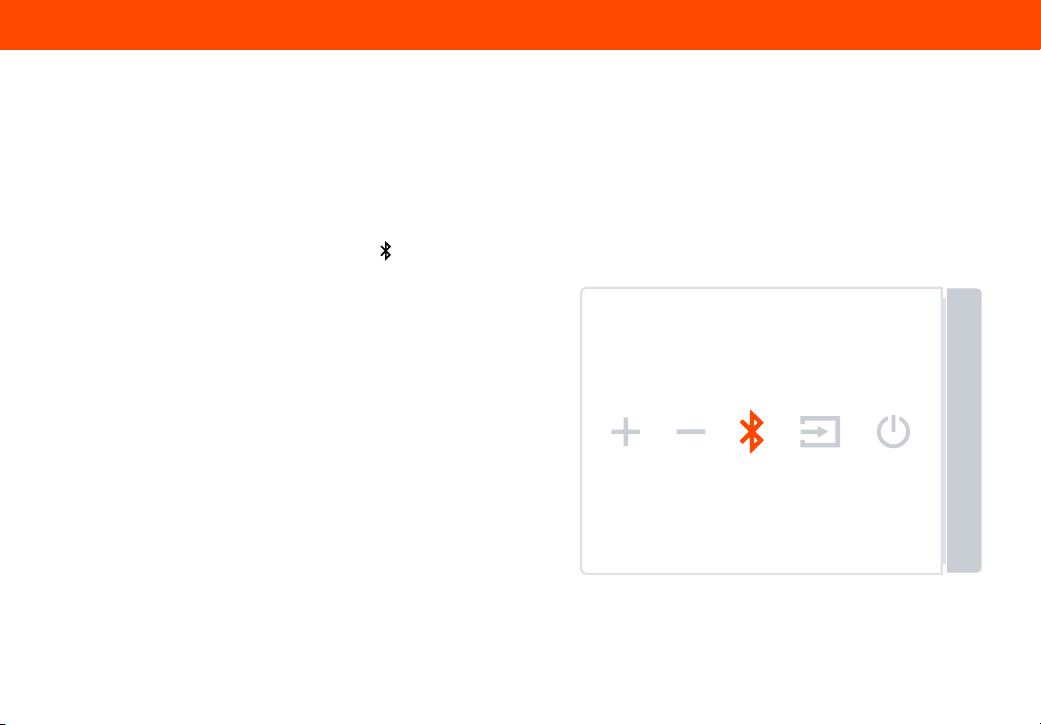
1. Quickly press and release the Bluetooth button ( ) on the soundbar to initiate Bluetooth pairing mode. The blue LED
will remain solid for 5 seconds, then it will begin blinking rapidly and a tone will play twice.
2. Search for the soundbar (VIZIO MicMe SB) using your Bluetooth device in its mobile device settings and select to pair.
3. Once successfully paired, the blue LED will stop blinking and a conrmation tone will be heard from the soundbar.
4. Now you can play audio from your Bluetooth device while it is in range and your soundbar is in Bluetooth Input.
Pair the soundbar with a Bluetooth device for streaming music from the soundbar button panel
Only one paired device can stream to the soundbar at a time. To switch which device is streaming, disconnect the streaming device from
the soundbar in your Device Settings (see Unpairing or Disconnecting Your Soundbar) and connect the device you want to stream from.
22
Using Bluetooth Mode
The Soundbar must be on and not in standby mode for pairing mode to launch.
If the bar is in standby mode, quickly press and release the Volume (+) button to wake up the soundbar.
Quick Press
Quickly press and release the Bluetooth button ( ) on the
soundbar to wake it up and switch to Bluetooth to reconnect
to your paired devices (LED will turn to a solid dark blue), then
launches Music Pairing if no device reconnects (LED will blink
dark blue rapidly, and a tone will play twice). A conrmation tone
will play when a device has been connected.
Music Pairing Mode
To force Bluetooth pairing (such as connecting to a new mobile
device), press and hold the Bluetooth button on the soundbar for
2 seconds, then release to launch Music pairing mode. You will
see the LED blinking rapidly in blue when it is in this state and a
tone will play twice.
VIZIO Mobile App Pairing Mode
Press and hold the Bluetooth button on the soundbar for 5
seconds, then release to launch VIZIO Mobile App pairing mode.
You will see the LED blinking slowly in blue when it is in this state.
From the Soundbar Side Panel
23
Where to nd Karaoke music
Not sure where to nd karaoke music?
Here are a few suggestions:
Access over 85,000 karaoke songs by downloading
the free MicMe Karaoke by Stingray app for your iOS
or Android device.
• Launch your favorite music or karaoke app from your
phone and stream via Bluetooth.
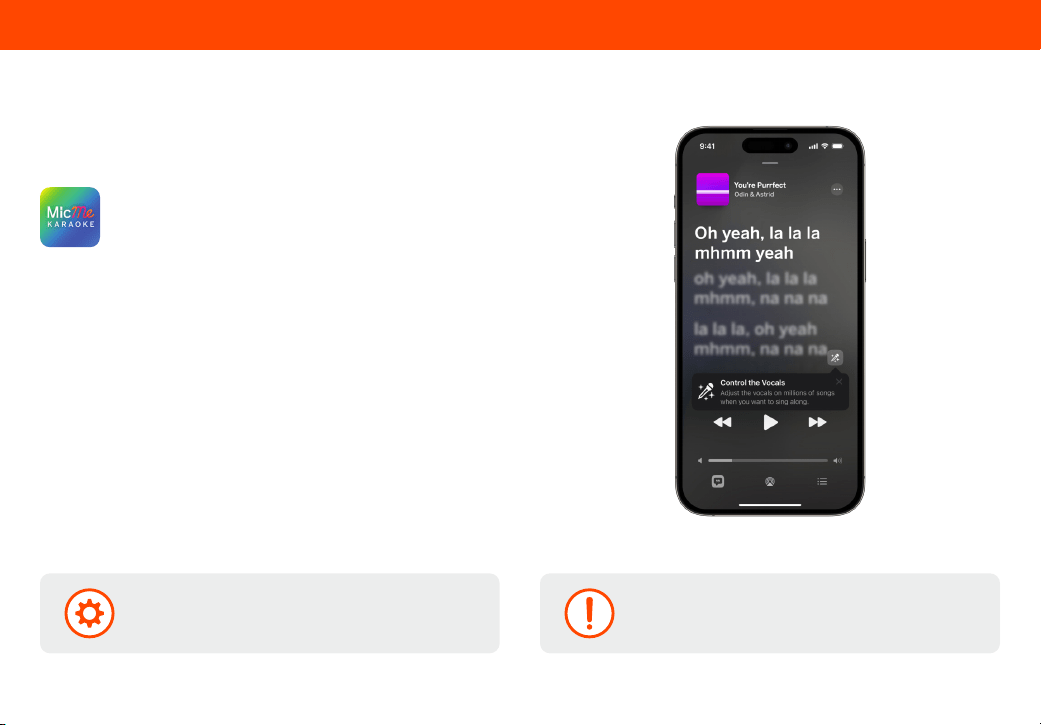
• Go into a music app, such as Apple Music. Select Lyrics
and click on the microphone to remove original vocals and
start your performance.
• Other highly rated karaoke apps: Stingray Karaoke, Smule,
Yokee Karaoke, and Starmaker.
• Open an app from your smart TV, such as Stingray
Karaoke, Kanto Karaoke, Party Tyme Karaoke or YouTube
(check out Sing King).
Any third-party IP contained herein is
the property of its respective owners.
MicMe works with all popular apps
Have questions? We’re here to help.
Contact VIZIO support at support.vizio.com
Note: Some music and karaoke apps require
a user subscription.
24
1. Press the name of your soundbar at the top of the VIZIO Mobile App Screen
2. Under “Paired Devices” you will see the name of your soundbar. Press the Information ( ) button to open
up the device info screen.
3. Scroll down and press “Unpair Device”.
4. The VIZIO Mobile App will ask for conrmation. Press “Yes.” Your device will be unpaired from the soundbar.
Unpairing the Soundbar from your VIZIO Mobile App
For iOS users, an extra step is required to fully unpair your iPhone from the soundbar. After going through the above steps, navigate to
Bluetooth on your mobile device settings, then press the information button and press unpair from “VIZIO Mobile App.”
Unpairing or Disconnecting Your Soundbar
25
1. Your soundbar supports music streaming from devices with Bluetooth capability.
(Device compatibility will vary, see your device’s documentation for more information.)
2. If the input is changed back to Bluetooth, the most recently connected Bluetooth device will reconnect automatically.
3. If the soundbar input is changed, the Bluetooth device will disconnect.
A Bluetooth signal has a range of up to 30 feet. Keep in mind that Bluetooth is a compressed audio format, so streamed music may
lose some integrity when compared to a wired connection. Try the following if your sound quality is less than optimal:
• If you hear any break-up or you are disconnected while streaming music from your device, move the source device closer to the
soundbar.
• Be sure that there are no solid obstructions in the line-of-sight between the soundbar and the source device.
• Other wireless devices can aect Bluetooth range, including wireless security cameras, wireless video baby monitors, cordless
phones, and microwave ovens. Turning o or moving these devices may improve Bluetooth range.
From the VIZIO Mobile App:
Maximizing Signal
VIZIO MicMe microphones will only function with your
VIZIO MicMe soundbar. The microphones will not
function with other devices.
Reduce the volume levels on your device and on the
soundbar before pressing Play. High volume levels can
damage your hearing.
Using Bluetooth Mode
26
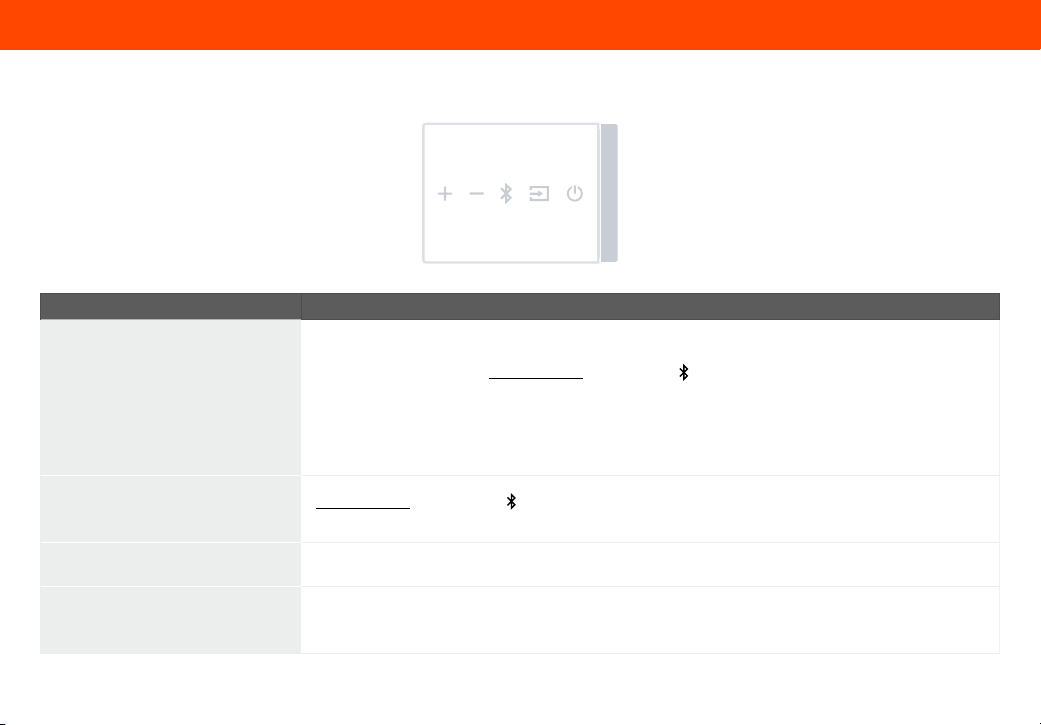
There are functions that are triggered by dierent button combinations on the soundbar.
Function Description
Factory Reset
Reset the soundbar to the factory default settings.
To perform a Factory Reset, Press and hold the Bluetooth ( ) and Volume Down (—) buttons for 5 seconds
and release.
Notes:
• This will erase all settings and preferences that you have set.
• The subwoofer and microphones will remain paired, but the VIZIO Mobile App will need to be repaired.
Speaker Test
Press and hold the Bluetooth ( ) and Volume Up (+) buttons for 5 seconds and release.
This function is also available within the VIZIO Mobile App.
Bluetooth Button Behaviors Reference pages 19 - 22 for detailed Bluetooth information.
Switching Soundbar Inputs
Press and release the Input button to see the following cycle of options: HDMI (Magenta LED),
Bluetooth (Dark Blue LED), USB (Orange LED)
Using the Physical Soundbar Buttons
27
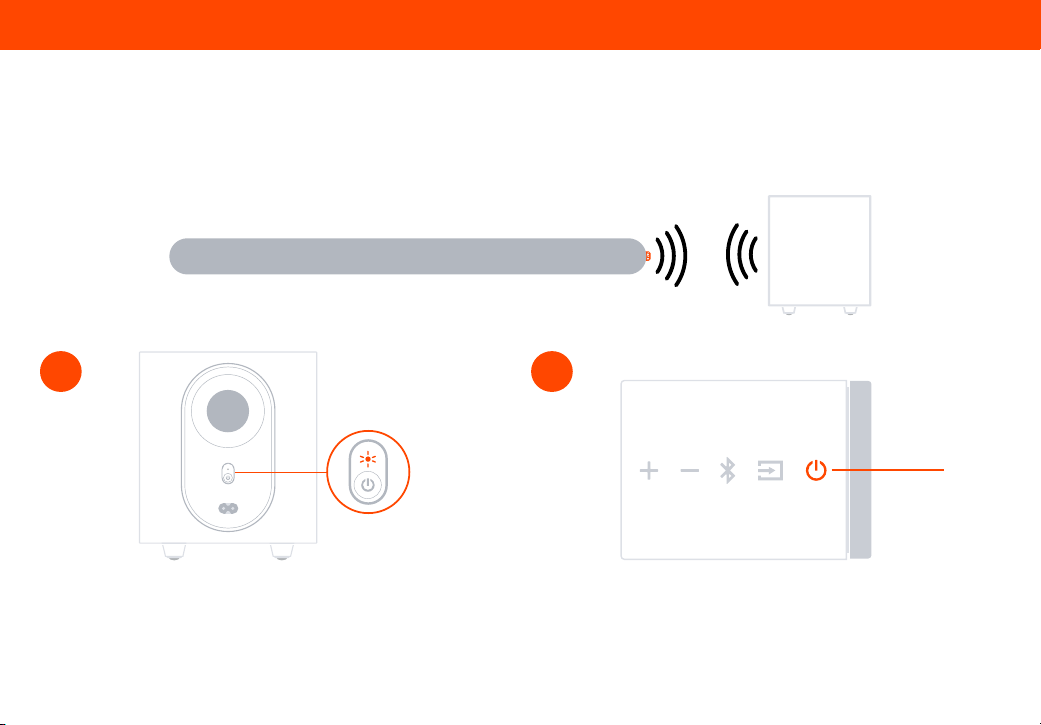
First, conrm that the power LED is illuminated. Press and hold
the ON/OFF button on the back of the subwoofer for 5 seconds.
The LED on the back of the subwoofer will blink white.
Press and hold the Power button on the side of the soundbar for
5 seconds. The LED indicator on the front will ash white until
paired. Once paired, the LED will ash green, then turn solid white.
1 2
Connecting a Subwoofer
The subwoofer has already been paired with the soundbar by VIZIO. However, the subwoofer may need to be re-paired to the soundbar if
there is no sound coming from the subwoofer. If the Subwoofer is not paired, the LED indicator on the subwoofer will blink white.
Connecting a Subwoofer
Power
28
TO TV
HDMI OUT
(eARC)
eARC
TV
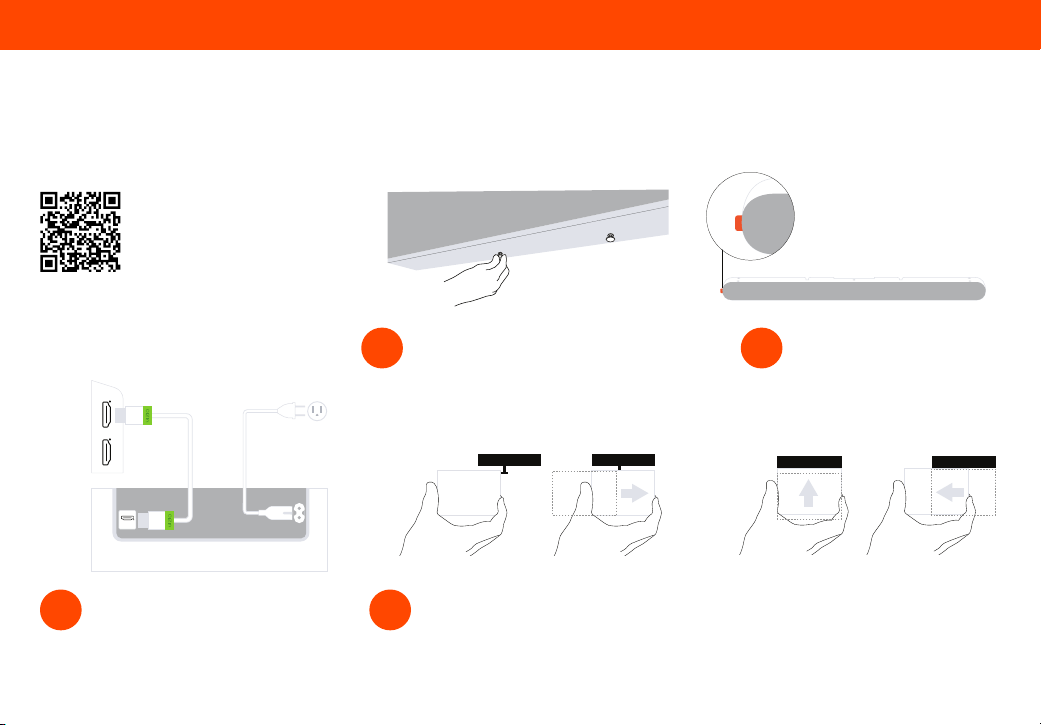
Your soundbar may be attached directly to the bottom of QuickFit compatible VIZIO TVs. For additional information and VIZIO TV
compatibility, visit www.vizio.com/quickt.
To detach the soundbar, hold it from the
bottom and push up to release, then pull it
away from your TV.
Note: When using the QuickFit mounting feature, the attached VIZIO device shall not exceed 25 pounds in weight.
Mounting with Quickt
Plug the power cable into a nearby wall
outlet and connect the soundbar to
the HDMI eARC port on your QuickFit
compatible VIZIO TV.
3
Align the soundbar with the thumb screws
inserted into your TV as illustrated in step 2.
Push the soundbar in until it locks in place.
4
Locate the thumb screws inside the included
accessory bag and screw them into the
bottom of your QuickFit compatible VIZIO TV.
1
Rotate the soundbar so
that it is upside down with
the orange tab on the left.
2
Before you begin, scan the QR code
to learn more about setting up
your QuickFit compatible device,
including installation guidelines
and important safety information.
QuickFit Mounting
29
729999-000558
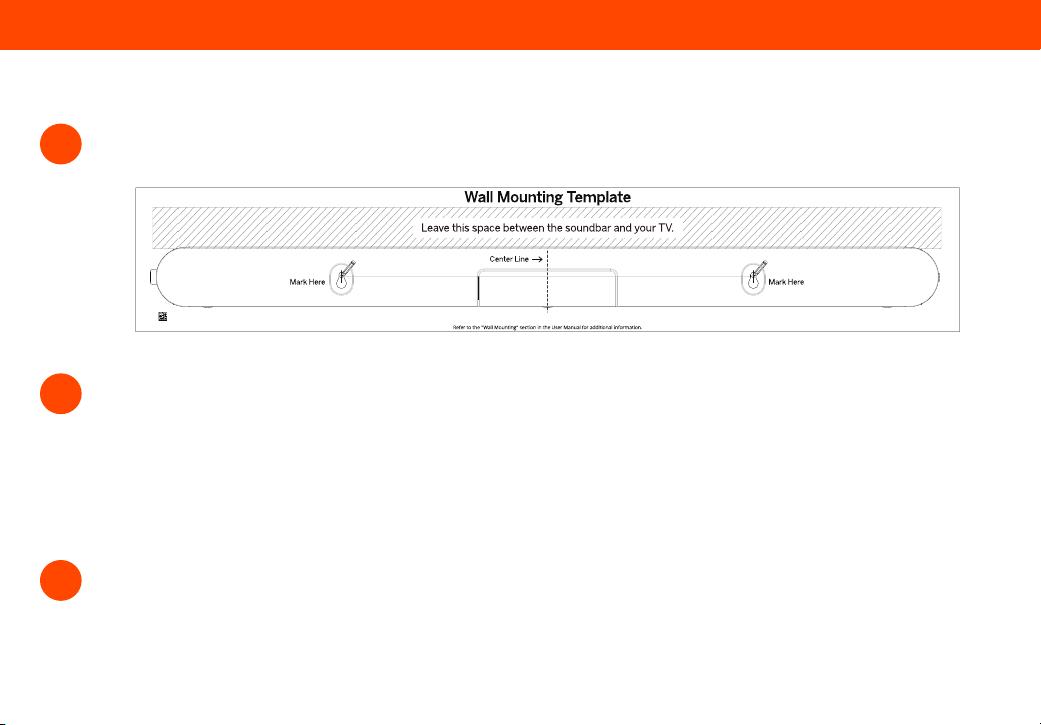
Install the screws to the wall. Be sure your screws are attached to wood studs, drywall anchors (for drywall), or concrete
anchors (for brick/concrete walls).
Suggested screw size:
4.5mm diameter
25 mm minimum length
VIZIO recommends leaving 4-8 mm of clearance between the screw head and the wall.
2
Wall Mounting
1
Place the included Wall Mounting Template against the wall under your TV. Mark the two bracket holes using a pencil.
Wall Mounting
3
Ensure that your soundbar is plugged into a working power outlet. Insert one end of the provided HDMI cable to the HDMI
eARC port on your soundbar. Attach the other end to your TV’s ARC/eARC port.
30
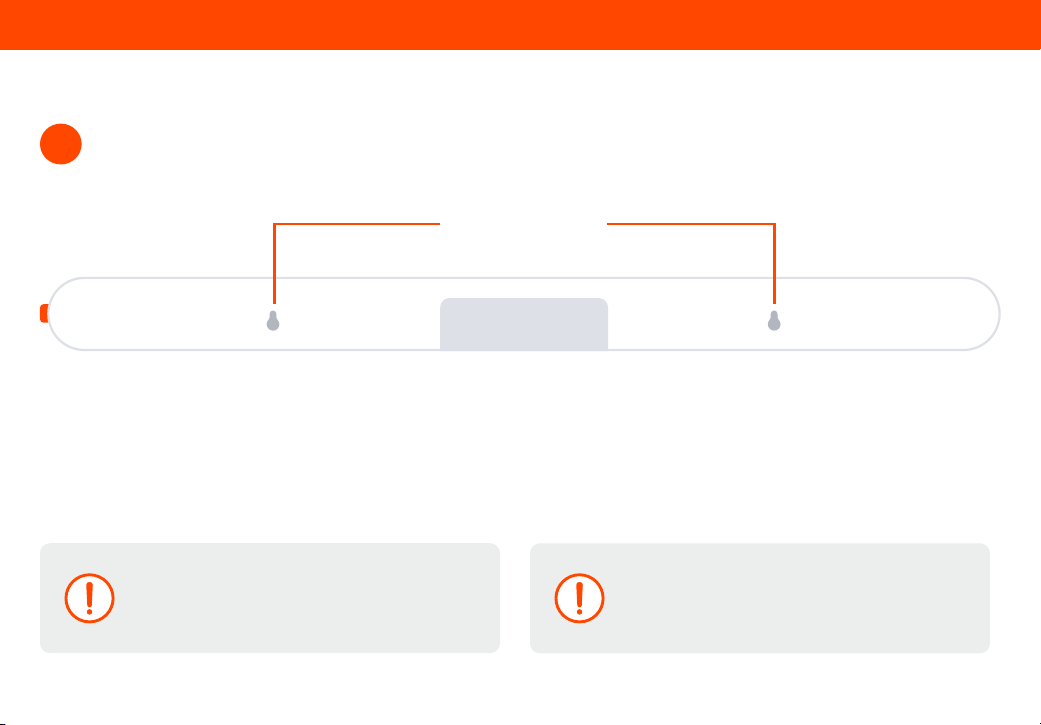
Slide the soundbar’s wall mount slots over the installed screws.
4
Wall Mount Slots
Screws for wall mounting are not included.
Use the screw type and length noted above and on the
Wall Mounting Template and appropriate to your home’s
construction. If in doubt, consult a professional installer.
Do not use any of the included screws for the wall mount
installation. These are not intended for wall mounting.
Wall Mounting
31
More questions? Find answers at:
SUPPORT.VIZIO.COM
Get helpful tips and register your soundbar.
Scan with your phone camera or QR reader.
Customized Support
Get assistance quickly with your information on hand.
News and Oers
Take advantage of the latest news and special oers from VIZIO.
Updates and Enhancements
Stay up-to-date with important product updates and notications.
Product Registration & Support

32
Can’t hear Dolby Atmos
and DTS: X coming
from the soundbar
To provide the best karaoke experience, Dolby Atmos and DTS:X functionality disable when MicMe microphones
are powered on. Mics can either be placed in the charging dock or powered o to restore Dolby Atmos and DTS:X
decoding and playback to the soundbar.
There is no power
Press the POWER button on the TV remote control or on the side of your soundbar.
Ensure the power cord is securely connected.
Plug a dierent device into the electrical outlet to verify that the outlet is working correctly.
There is no sound
Increase the volume. Press VOLUME UP on the TV remote or on the side of your soundbar.
Press MUTE on the TV remote to ensure the soundbar is not muted.
Press INPUT on the TV remote or on the side of your soundbar to select a dierent input source.
Input LEDs will ash rapidly if an unsupported format is present. Set the source to output PCM.
Your TV may be set to variable audio output. Conrm that the audio output setting is set to FIXED or STANDARD, not
VARIABLE. Consult your TV’s user manual for more detailed information.
If using Bluetooth, ensure that the volume on your source device is turned up and that the device is
not muted.
I hear buzzing
or humming
Ensure all cables and wires are securely connected.
Connect a dierent source device (TV, Blu-ray player, etc.) to see if the buzzing persists. If it does not, the problem
may be with the original device.
How do I know if there
is a Firmware Update
available?
Open the VIZIO Mobile App. Select “VIZIO MicMe SB” at the top of the app which will pull up all paired devices in the
app. Select “VIZIO MicMe SB” again to take you to the soundbar general information page. From there, you can select,
“Check for updates”. If your soundbar does not have an update, you will see a pop up at the bottom of the screen
letting you know. If an update is available, you can select to install the new rmware update in the app.
To check the firmware version from the soundbar, press and hold both the Volume + and Volume - buttons at the
same time for 4 seconds then release. The soundbar will announce the firmware version.
Help & Troubleshooting

33
There is microphone
feedback
Do not stand within 1/2 meter (approx. 2 feet) while pointing your microphone at the soundbar. This will create Do not stand within 1/2 meter (approx. 2 feet) while pointing your microphone at the soundbar. This will create
feedback.feedback.
Microphones won’t
power on
Press and hold the power button for 2 seconds on the bottom of the mic to power it on.Press and hold the power button for 2 seconds on the bottom of the mic to power it on.
It is possible that your microphone battery is depleted and needs to be recharged, follow these steps:It is possible that your microphone battery is depleted and needs to be recharged, follow these steps:
1. 1. Make sure the charging dock is plugged in to a known good power outlet. Make sure the charging dock is plugged in to a known good power outlet.
2. 2. Place your mics into the charging dock. The mic LED Display will show the battery charging icon. Place your mics into the charging dock. The mic LED Display will show the battery charging icon.
3. 3. Wait 30 minutes and remove the mics from the charging dock. When the mics turn on, they will show the Wait 30 minutes and remove the mics from the charging dock. When the mics turn on, they will show the
remaining battery percentage. remaining battery percentage.
4. 4. Place mics onto the charging dock to complete the charging cycle.Place mics onto the charging dock to complete the charging cycle.
Microphones won’t
power o
After 10 minutes of no voice input, the mics will go into sleep mode. After 30 minutes without use, they will After 10 minutes of no voice input, the mics will go into sleep mode. After 30 minutes without use, they will
automatically power o. automatically power o.
To power o the mics, place them into the charging dock, or press and hold the power button for 2 seconds on the To power o the mics, place them into the charging dock, or press and hold the power button for 2 seconds on the
bottom of each mic.bottom of each mic.
Microphones won’t
charge
1. 1. Make sure the charging dock is plugged in to a known good power outlet. Make sure the charging dock is plugged in to a known good power outlet.
2. 2. Wipe the bottom of your microphones with a dry lint-free cloth to ensure the bottom is clean and will have Wipe the bottom of your microphones with a dry lint-free cloth to ensure the bottom is clean and will have
proper contact with the charging dock. proper contact with the charging dock.
3. 3. Place your mics into the charging dock. The mic LED Display will show the battery charging icon. Place your mics into the charging dock. The mic LED Display will show the battery charging icon.
4. 4. Wait 30 minutes and remove the mics from the charging dock. When the mics turn on, they will show the Wait 30 minutes and remove the mics from the charging dock. When the mics turn on, they will show the
remaining battery percentage. remaining battery percentage.
5. 5. Place mics back onto the charging dock to complete the charging cycle.Place mics back onto the charging dock to complete the charging cycle.
Help & Troubleshooting

34
Microphones aren’t
connecting to the
MicMe soundbar/Out
of Range
Mics are only compatible with the VIZIO MicMe Soundbar. They cannot be paired to any other Bluetooth speaker or Mics are only compatible with the VIZIO MicMe Soundbar. They cannot be paired to any other Bluetooth speaker or
VIZIO Soundbar.VIZIO Soundbar.
Only two MicMe mics can be paired and connected to the MicMe soundbar at a time. Only two MicMe mics can be paired and connected to the MicMe soundbar at a time.
Mics will pair and connect within 30 feet of the MicMe soundbar. Mics will pair and connect within 30 feet of the MicMe soundbar.
Mics may have become disconnected from the MicMe soundbar. Power on both mics by pressing the power button Mics may have become disconnected from the MicMe soundbar. Power on both mics by pressing the power button
on the bottom or removing them from the charging dock. Press and hold the Bluetooth and Input button on your on the bottom or removing them from the charging dock. Press and hold the Bluetooth and Input button on your
MicMe soundbar and release after 5 seconds. Once connected the microphones will identify as ‘MicMe soundbar and release after 5 seconds. Once connected the microphones will identify as ‘MIC 1MIC 1 and and MIC 2 MIC 2’ ’
(this conrms successful pairing and connection). Do not stand within 1/2 meter (approx. 2 feet) while pointing your (this conrms successful pairing and connection). Do not stand within 1/2 meter (approx. 2 feet) while pointing your
microphone at the soundbar. This will create feedback.microphone at the soundbar. This will create feedback.
How to use the
microphone
Mode button
Some functionality can be controlled directly on the mics. Some functionality can be controlled directly on the mics.
Press the Mode button once to adjust the microphone Volume. Press the + or ‒ key to increase or decrease the Press the Mode button once to adjust the microphone Volume. Press the + or ‒ key to increase or decrease the
microphone volume sensitivity to your voice. microphone volume sensitivity to your voice.
Press the Mode button twice to adjust the microphone Echo Eect. Press the + or ‒ key to increase or decrease the Press the Mode button twice to adjust the microphone Echo Eect. Press the + or ‒ key to increase or decrease the
echo intensity to your voice.echo intensity to your voice.
Press the Mode button three times to select from a variety of Ambient Light colors including RGB Mode (Rainbow Press the Mode button three times to select from a variety of Ambient Light colors including RGB Mode (Rainbow
Mode) on your microphone. Press the + or ‒ key to lter through the dierent color options for a fun and unique way to Mode) on your microphone. Press the + or ‒ key to lter through the dierent color options for a fun and unique way to
customize your experience. customize your experience.
Microphone button
functions vs.
app functions
The Microphone Volume, Echo Eect, and Ambient Light settings can be controlled directly through the mic Mode The Microphone Volume, Echo Eect, and Ambient Light settings can be controlled directly through the mic Mode
button. These controls as well as advanced settings like Voice Enhancements can also be adjusted within the button. These controls as well as advanced settings like Voice Enhancements can also be adjusted within the
VIZIO Mobile App. You can access additional soundbar settings within the VIZIO Mobile App, such as Bass, Treble, VIZIO Mobile App. You can access additional soundbar settings within the VIZIO Mobile App, such as Bass, Treble,
Subwoofer, ClearDialog, Height and Volume can all be adjusted to your preference.Subwoofer, ClearDialog, Height and Volume can all be adjusted to your preference.
Help & Troubleshooting

35
UNITED STATES
By using this VIZIO product, you accept all VIZIO Terms and Conditions, including all the Terms of Warranty, BINDING ARBITRATION AGREEMENT, and
Class Action Waiver. If you do not agree to the terms of this warranty, do not use the VIZIO product and, within thirty (30) days of the date of purchase, return it
for a refund to the authorized retailer where you purchased it. You have the right to opt out of the Arbitration Agreement and Class Action Waiver within 60
calendar days of your purchase. Please refer to the full section “Binding Arbitration Agreement; Class Action Waiver” below for more details and instructions for
opt-out. Full Terms and Conditions may be viewed at vizio.com/en/terms/terms-of-service.
How Long This Warranty Lasts
For non-commercial use, VIZIO warrants the product on the terms set forth below for one (1) year from the date of original purchase. For commercial use, VIZIO
warrants this product on the terms set forth below for ninety (90) days from the date of original purchase.
What This Warranty Covers
VIZIO warrants the product against defects in materials and workmanship when the product is used normally in accordance with VIZIO’s user guides and manuals.
Except where restricted by law, this warranty applies only to the original purchaser of a new product. The purchase must have been made from an authorized
retailer in the United States (including Puerto Rico). The product must also be located in the country where it was purchased at the time of warranty service.
How to Get Service
Before obtaining warranty service, you may visit www.vizio.com for additional help and troubleshooting. To obtain warranty service, contact VIZIO Customer
Support by going to support.vizio.com and selecting Contact Us. You can also call Customer Support (US): 855-209-4106.
Your Obligations Before Service
You must obtain pre-authorization before sending your product to a VIZIO service center. You may be required to supply a purchase receipt (or copy) to show that
the product is within the warranty period.
When you return a product to a VIZIO service center, you must ship the product in its original packaging or in packaging that aords an equal degree of protection.
VIZIO Technical Support will provide instructions for packing and shipping the product to the VIZIO service center.
ALL USER DATA AND DOWNLOADED APPLICATIONS STORED ON A PRODUCT WILL BE DELETED IN THE COURSE OF SOME IN-HOME AND ALL SHIP-IN
WARRANTY SERVICE. If this occurs, your product will be restored to its original state. You will be responsible for restoring all applicable user data and
downloaded applications. Recovery and reinstallation of user data and downloaded applications is not covered under this warranty. In order to protect your
personal information, VIZIO recommends that you always clear all personal information from the product before it is serviced, regardless of the servicer.
VIZIO’s Responsibilities
If VIZIO determines that a product is covered by this warranty, VIZIO will (at its option) repair or replace it, or refund the purchase price to you. There will be no
charge for parts or labor during the warranty period. Replacement parts may be new or recertied at VIZIO’s option and sole discretion. Replacement parts and
VIZIO’s labor are warranted for the remaining portion of the original warranty or for ninety (90) days from warranty service, whichever is longer.
Types of Service
Products must be sent to a VIZIO service center to obtain warranty service. VIZIO is not responsible for transportation costs to the service center, but VIZIO will
cover return shipping to the customer.
Limited Warranty

36
What This Warranty Does Not Cover
This warranty does not cover: (a) cosmetic damage; (b) normal wear and tear; (c) improper operation; (d) improper voltage supply or power surges; (e) signal
issues; (f) damage from shipping; (g) acts of God; (h) customer misuse, modications or adjustments; (i) installation, set-up, or repairs attempted by anyone
other than by a VIZIO authorized service center; (j) products with unreadable or removed serial numbers; (k) products requiring routine maintenance; or (l)
products sold “AS IS”, “CLEARANCE”, “FACTORY RECERTIFIED”, or by a non-authorized reseller.
What to Do If You Are Not Satised With Service
If you feel VIZIO has not met its obligations under this warranty, you may attempt to resolve the issue informally with VIZIO. If you are unable to resolve the issue
informally and wish to le a formal claim against VIZIO, and if you are a resident of the United States, you must submit your claim to binding arbitration according
to the procedures described below, unless an exception applies. Submitting a claim to binding arbitration means that you do not have the right to have your claim
heard by a judge or jury. Instead your claim will be heard by a neutral arbitrator.
Binding Arbitration Agreement; Class Action Waiver (U.S. Residents Only)
UNLESS YOU HAVE BROUGHT AN ELIGIBLE CLAIM IN SMALL CLAIMS COURT OR HAVE OPTED OUT AS DESCRIBED BELOW, ANY CONTROVERSY OR CLAIM
RELATING IN ANY WAY TO YOUR VIZIO PRODUCT, INCLUDING ANY CONTROVERSY OR CLAIM ARISING OUT OF OR RELATING TO THIS WARRANTY, A BREACH
OF THIS WARRANTY, OR THE VIZIO PRODUCT’S SALE, CONDITION OR PERFORMANCE, WILL BE SETTLED BY BINDING ARBITRATION ADMINISTERED BY
THE AMERICAN ARBITRATION ASSOCIATION AND CONDUCTED BY A SINGLE ARBITRATOR APPOINTED BY THE AMERICAN ARBITRATION ASSOCIATION,
IN ACCORDANCE WITH ITS COMMERCIAL ARBITRATION RULES AND ITS SUPPLEMENTARY PROCEDURES FOR CONSUMER-RELATED DISPUTES. You may
learn more about the American Arbitration Association and its rules for arbitration by visiting www.adr.org or by calling 800-778-7879. Since this warranty
concerns a transaction in interstate or international commerce, the Federal Arbitration Act will apply.
The ling fees to begin and carry out arbitration will be shared between you and VIZIO, but in no event will your fees ever exceed the amount allowable by the
American Arbitration Association, at which point VIZIO will cover all additional administrative fees and expenses. VIZIO waives its right to recover attorneys’ fees
in connection with any arbitration under this warranty. If you are the prevailing party in an arbitration to which the Supplementary Procedures for Consumer-
Related Disputes applies, then you are entitled to recover attorneys’ fees as the arbitrator may determine.
The dispute will be governed by the laws of the state or territory in which you resided at the time of your purchase (if in the United States). The place of arbitration
will be Irvine, California, or your county of residence (if in the United States). The arbitrator will have no authority to award punitive or other damages not
measured by the prevailing party’s actual damages, except as may be required by statute. The arbitrator will not award consequential damages, and any award
will be limited to monetary damages and will include no equitable relief, injunction, or direction to any party other than the direction to pay a monetary amount.
Judgment on the award rendered by the arbitrator will be binding and nal, except for any right of appeal provided by the Federal Arbitration Act, and may be
entered in any court having jurisdiction. Except as may be required by law, neither you nor VIZIO nor an arbitrator may disclose the existence, content, or results
of any arbitration under this warranty without the prior written consent of you and VIZIO.
ANY DISPUTE, WHETHER IN ARBITRATION, IN COURT, OR OTHERWISE, WILL BE CONDUCTED SOLELY ON AN INDIVIDUAL BASIS. VIZIO AND YOU AGREE
THAT NO PARTY WILL HAVE THE RIGHT OR AUTHORITY FOR ANY DISPUTE TO BE ARBITRATED AS A CLASS ACTION, A PRIVATE ATTORNEY GENERAL
ACTION, OR IN ANY OTHER PROCEEDING IN WHICH EITHER PARTY ACTS OR PROPOSES TO ACT IN A REPRESENTATIVE CAPACITY.
NO ARBITRATION OR PROCEEDING WILL BE JOINED, CONSOLIDATED, OR COMBINED WITH ANOTHER ARBITRATION OR PROCEEDING WITHOUT THE
PRIOR WRITTEN CONSENT OF ALL PARTIES TO ANY SUCH ARBITRATION OR PROCEEDING.
Limited Warranty

37
Opt-Out Instructions
IF YOU DO NOT WISH TO BE BOUND BY THE BINDING ARBITRATION AGREEMENT AND CLASS ACTION WAIVER, THEN: (1) you must notify VIZIO in writing
within sixty (60) days of the date that you purchased the product; (2) your written notication must be mailed to VIZIO at 39 Tesla, Irvine, CA 92618, Attn: Legal
Department; and (3) your written notication must include (a) your name, (b) your address, (c) the date you purchased the product, and (d) a clear statement that
you wish to opt out of the binding arbitration agreement and class action waiver.
In addition, you may pursue a claim in small claims court in your county of residence (if in the United States) or in Orange County, California. In such case the
provisions of the section titled “Binding Arbitration Agreement; Class Action Waiver (U.S. Residents)” will not apply.
Exclusions and Limitations
TO THE GREATEST EXTENT PERMITTED BY APPLICABLE LAW, THERE ARE NO EXPRESS WARRANTIES OTHER THAN THOSE DESCRIBED ABOVE. ANY
IMPLIED WARRANTIES, INCLUDING ANY IMPLIED WARRANTY OF MERCHANTABILITY AND FITNESS FOR A PARTICULAR PURPOSE, WILL BE LIMITED IN
DURATION TO THE WARRANTY PERIOD SET FORTH ABOVE. SOME STATES AND PROVINCES DO NOT ALLOW LIMITATIONS ON HOW LONG AN IMPLIED
WARRANTY LASTS, SO THE ABOVE LIMITATION MAY NOT APPLY TO YOU.
VIZIO WILL NOT BE RESPONSIBLE FOR LOSS OF USE, LOSS OF INFORMATION OR DATA, COMMERCIAL LOSS, LOST REVENUE OR LOST PROFITS, OR OTHER
INDIRECT, SPECIAL, INCIDENTAL OR CONSEQUENTIAL DAMAGES, EVEN IF VIZIO HAS BEEN ADVISED OF THE POSSIBILITY OF SUCH DAMAGES, AND EVEN
IF THE REMEDY FAILS OF ITS ESSENTIAL PURPOSE. SOME STATES AND PROVINCES DO NOT ALLOW THE EXCLUSION OR LIMITATION OF INCIDENTAL OR
CONSEQUENTIAL DAMAGES, SO THE ABOVE LIMITATION OR EXCLUSION MAY NOT APPLY TO YOU.
IN LIEU OF ANY OTHER REMEDY FOR ANY AND ALL LOSSES AND DAMAGES RESULTING FROM ANY CAUSE WHATSOEVER (INCLUDING VIZIO’S NEGLIGENCE,
ALLEGED DAMAGE, OR DEFECTIVE GOODS, NO MATTER WHETHER SUCH DEFECTS ARE DISCOVERABLE OR LATENT), VIZIO MAY, AT ITS SOLE AND
EXCLUSIVE OPTION AND IN ITS DISCRETION, REPAIR OR REPLACE YOUR PRODUCT, OR REFUND ITS PURCHASE PRICE. AS NOTED, SOME STATES AND
PROVINCES DO NOT ALLOW THE EXCLUSION OR LIMITATION OF INCIDENTAL OR CONSEQUENTIAL DAMAGES, SO THE ABOVE LIMITATION OR EXCLUSION
MAY NOT APPLY TO YOU.
How the Law Applies
This warranty gives you specic legal rights, and you may also have other rights, which vary from state to state and province to province. This warranty applies to
the greatest extent permitted by applicable law.
General
No employee or agent of VIZIO may modify this warranty. If any term of this warranty, other than the class action waiver, is found to be unenforceable, that term
will be severed from this warranty and all other terms will remain in eect. If the class action waiver is found to be unenforceable, then the entire section titled
“Binding Arbitration Agreement; Class Action Waiver (U.S. Residents Only)” will not apply. This warranty applies to the maximum extent not prohibited by law.
Changes to Warranty
This warranty may change without notice, but any change will not aect your original warranty. Check www.vizio.com for the most current version.
Limited Warranty

38
FCC Class B Radio Interference Statement
NOTE: This equipment has been tested and found to comply with the limits for a Class B digital device, pursuant to Part 15 of the FCC Rules. These limits are designed to provide
reasonable protection against harmful interference in a residential installation. This equipment generates, uses and can radiate radio frequency energy, and if not installed
and used in accordance with the instructions, may cause harmful interference to radio communications. However, there is no guarantee that interference will not occur in a
particular installation. If this equipment does cause harmful interference to radio or television reception, which can be determined by turning the equipment o and on, the user
is encouraged to try to correct the interference by one or more of the following measures:
1. Reorient or relocate the receiving antenna.
2. Increase the separation between the equipment and receiver.
3. Connect the equipment into an outlet on a circuit dierent from that to which the receiver is connected.
4. Consult the dealer or an experienced radio/TV technician for help.
This device complies with Part 15 of the FCC Rules. Operation is subject to the following two conditions: (1) this device may not cause harmful interference, and (2) this device must
accept any interference received, including interference that may cause undesired operation.
Notice:
1. Any Changes or modications not expressly approved by the party responsible for compliance could void the user’s authority to operate the equipment.
2. Shielded interface cables and AC power cord, if any, must be used in order to comply with the emission limits.
3. The manufacturer is not responsible for any radio or TV interference caused by unauthorized modication to this equipment. It is the responsibilities of the user to correct such
interference.
FCC RF Radiation Exposure Statement
1. This transmitter must not be co-located or operating in conjunction with any other antenna or transmitter.
2. This equipment complies with FCC radiation exposure limits set forth for an uncontrolled environment. This equipment should be installed and operated with minimum
distance 20cm between the radiator & your body.
3. The device has been evaluated to meet general RF exposure requirements. The device can be used in portable exposure condition without restriction.
Battery Disposal and Recycling
This product contains rechargeable lithium-ion batteries. Do not attempt to remove or replace the batteries in this product. Always properly dispose of your VIZIO products in
accordance with local laws and regulations. For information on how to properly recycle your VIZIO products and to learn more about consumer electronics recycling laws, visit
vizio.com/environment or call (844) 254-8087.
Software Licenses
All software is provided subject to software license agreements and you agree that you will be bound by such license agreements in addition to other applicable terms of use.
By using the VIZIO products, you agree to the VIZIO Terms of Service and Privacy Policy. The VIZIO Terms of Use and Privacy Policy may be updated from time to time and are
available to view at vizio.com/terms and vizio.com/privacy, respectively.
Export Regulations
Customer acknowledges that the VIZIO products, which include technology and software, are subject to customs and export control laws in the United States (“US”). The
products may also be subject to the customs and export control laws and regulations of the country in which the products are manufactured and/or received.
© 2024 VIZIO, Inc. All Rights Reserved.
This User Manual may not be copied in whole or in part without the written permission of VIZIO, Inc. VIZIO, Inc. has made reasonable eorts to ensure the accuracy of the
information provided herein. All product specications, functionality, features, congurations, performance, design and other product information described herein are subject
to change without notice. VIZIO, Inc. is not responsible for typographical, technical, or descriptive errors. To review the most updated version of this User Manual and the
associated Quick Start Setup guide, go to vizio.com.
VIZIO, the VIZIO logo, the V logo, and other terms and phrases are trademarks or registered trademarks of VIZIO, Inc.
Legal & Compliance
39
Soundbar: Two 1.77” x 3.94” (45 x 100 mm) Full Range Driver for each channel (1 for left, 1 for right)
Subwoofer: One 5" (127 mm) Driver
Dimensions:
Soundbar - 30” x 2.32” x 3.33” (W x H x D) // 762 mm x 59 mm x 84.5 mm
Subwoofer - 6.1” x 7.15” x 10.24” (W x H x D) // 155 mm x 181 mm x 260 mm
Connections:
HDMI (eARC)
Bluetooth
USB (Supports .WAV and .MP3 format only)
No optical output connection is available on MicMe soundbar
Sound Pressure Level
*
(System): 96 dB SPL
Frequency Response (System): 50Hz - 16kHz +/- 5dB
Microphone: 100Hz - 16kHz
Voltage: 100-240Vac, 50/60Hz
Compliances: cTUVus/FCC Class B
*
Sound pressure level measured using pink noise at 1 meter, c-weighted.
Soundbar/Subwoofer
Specications

40
Dimensions:
1.3” x 8.56” x 1.3”(W x H x D) // 33.5 mm x 217.4 mm x 33.5 mm
Frequency Response:
100Hz - 16kHz
Working Distance:
Up to 20 meters (or 60 feet)
Battery Life:
Up to 8 hours (on a full charge)
Charging Time:
3.5 hours
Battery Type:
2000 mAh Lithium-Ion
Condensor Type:
Dynamic Cardioid Unidirectional Microphone
Compliances:
cTUVus/FCC Class B
Microphone Charging Dock
Dimensions:
4.44” x 1.1” x 2.33” (W x H x D) // 112.8mm x 28 mm x 59 mm
Connection Type:
USB Type A
Dock:
Input: 5V, 3.1A Max
Output: 5V, 2A Max
Power Adapter:
Input: 100-240V/50-60Hz 1.0A Max
USB Output: 5.0V, 3.1A (15.5W Max)
Microphones
Specications

41
The terms HDMI, HDMI High-Denition Multimedia Interface, HDMI Trade dress and the HDMI Logos are
trademarks or registered trademarks of HDMI Licensing Administrator, Inc.
®
The Bluetooth® word mark and logos are registered trademarks owned by Bluetooth SIG, Inc. and any use of such
marks by VIZIO Inc. is under license. Other trademarks and trade names are those of their respective owners.
Dolby, Dolby Atmos, and the double-D symbol are registered trademarks of Dolby Laboratories Licensing
Corporation. Manufactured under license from Dolby Laboratories. Condential unpublished works.
Copyright © 2012-2024 Dolby Laboratories. All rights reserved.
For DTS patents, see http://patents.dts.com. Manufactured under license from DTS, Inc. or DTS Licensing
Limited. DTS, DTS:X, Virtual:X, and the DTS:X logo are registered trademarks or trademarks of DTS, Inc. in the
United States and other countries. © 2021 DTS, Inc. ALL RIGHTS RESERVED.
Specications

© 2024 VIZIO INC. ALL RIGHTS RESERVED.
082024