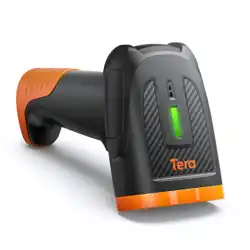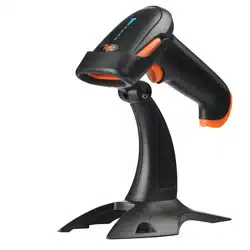
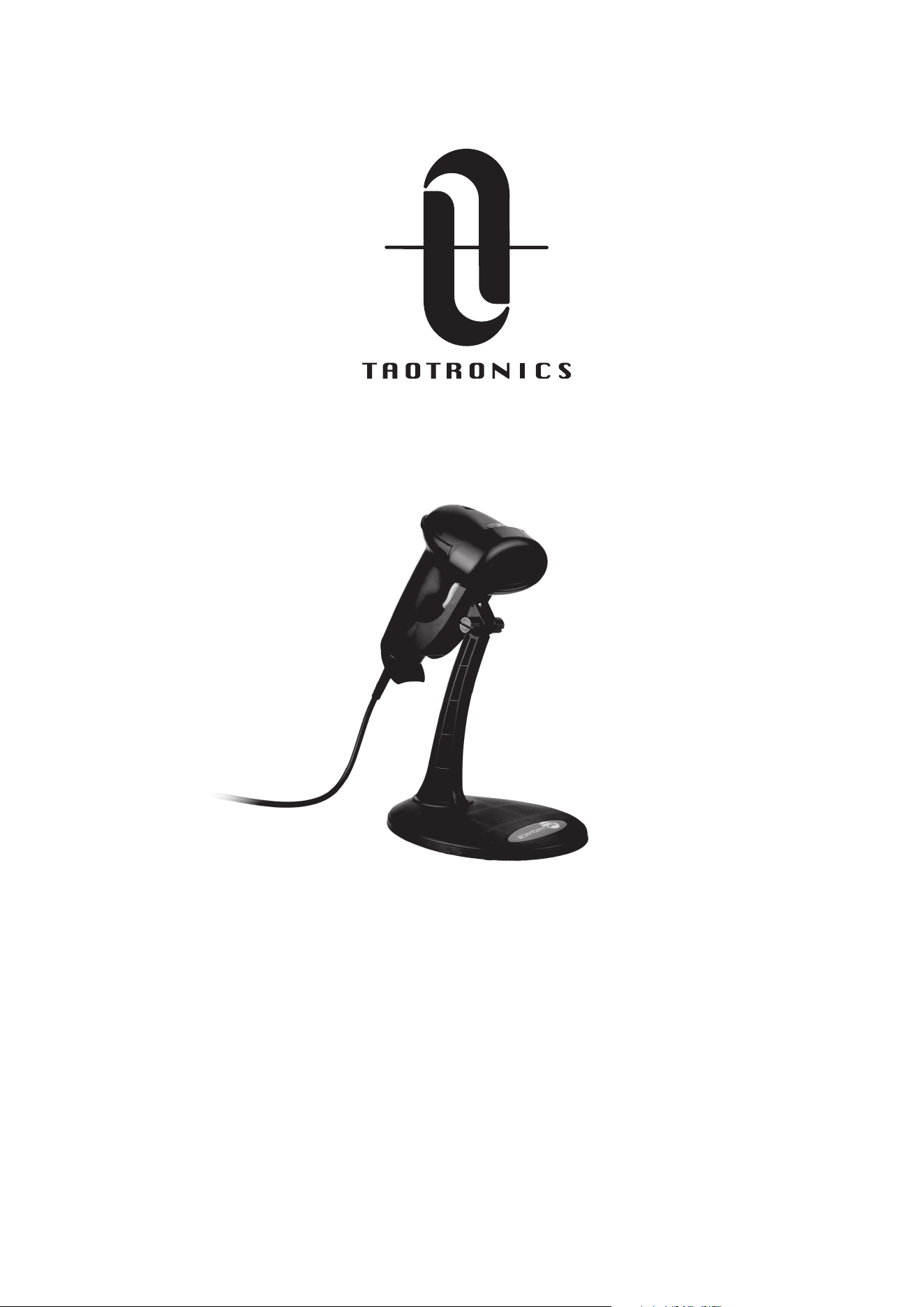
Model: TT-BS003
TaoTronics Laser Barcode Scanner
User Guide

Contents
English User Manual --------------------- 1 - 9
Troubleshoots ------------------------------ 10-14
Japanese User Manual ------------------ 15 - 25
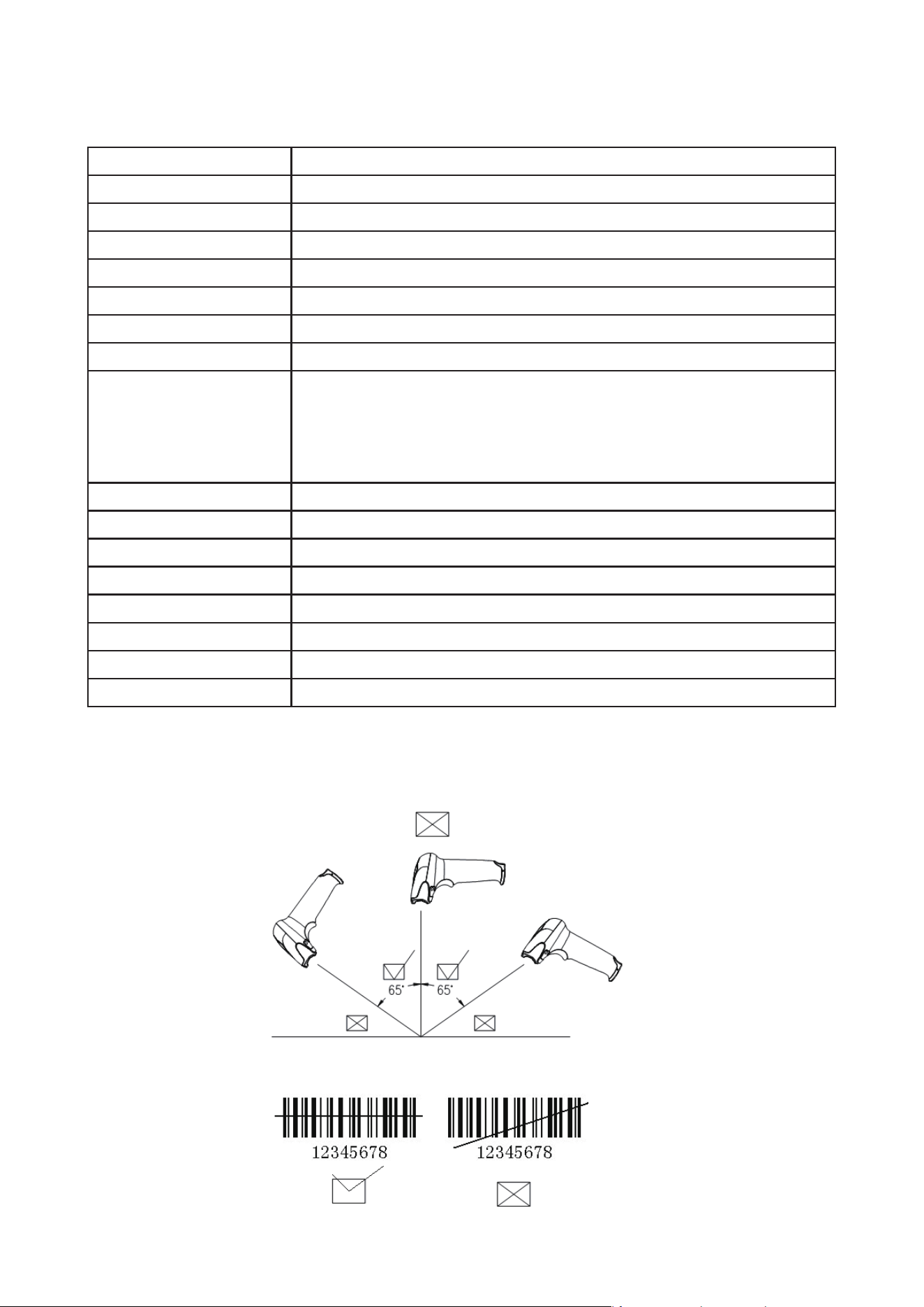
Technical parameters
Aiming:
Note:
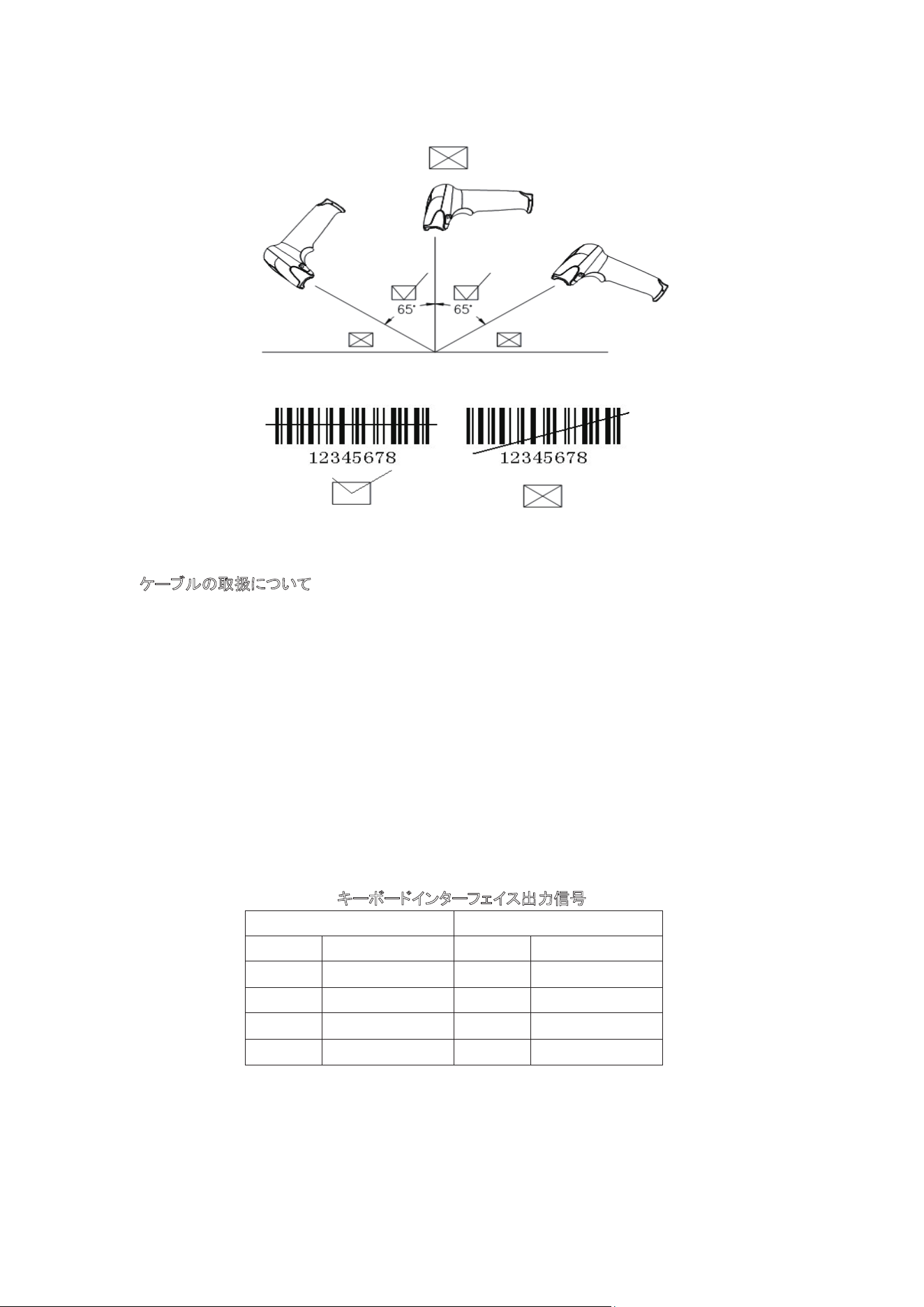
The scanner performs best when it is not exactly perpendicular to the barcode
Input voltage
Power
Current
Light
Laser Level
Decoding speed
scan angle
Resolution
Ability decode
Prompt manner
System interface
Trigger manual
Interface Type
Temperature
Humidity
Seismic capacity
Program update
DC 5 V ± 0.25 V
425 mW (work); 500 mW (instantaneous)
85 mA (work); 100 mA (maximum moment)
Visible light laser diode, wavelength 650 nm
Laser Level two laser safety standards
100 times / sec
± 60 °, ± 65 °, ± 42 ° (about turn)
0.10 mm (4mil)
UPC-A, UPC-E, EAN-13, EAN-8 ISBN / ISSN, code39,
code39(ASCII code), cross Code 25 IT 25, Coda bar, Code
128, code93 code 11, the MSI /Plessey, UCC/EAN128
buzzer, LED indicator
PS2 keyboard; RS-232 serial port; USB
automatic infrared sensor (optional)
RJ-45 crystal head
0℃to 45℃(work)-40℃to 60℃(storage)
5-90%
multiple 1.5 m drops to concrete floor impact
computer online updates
-1-
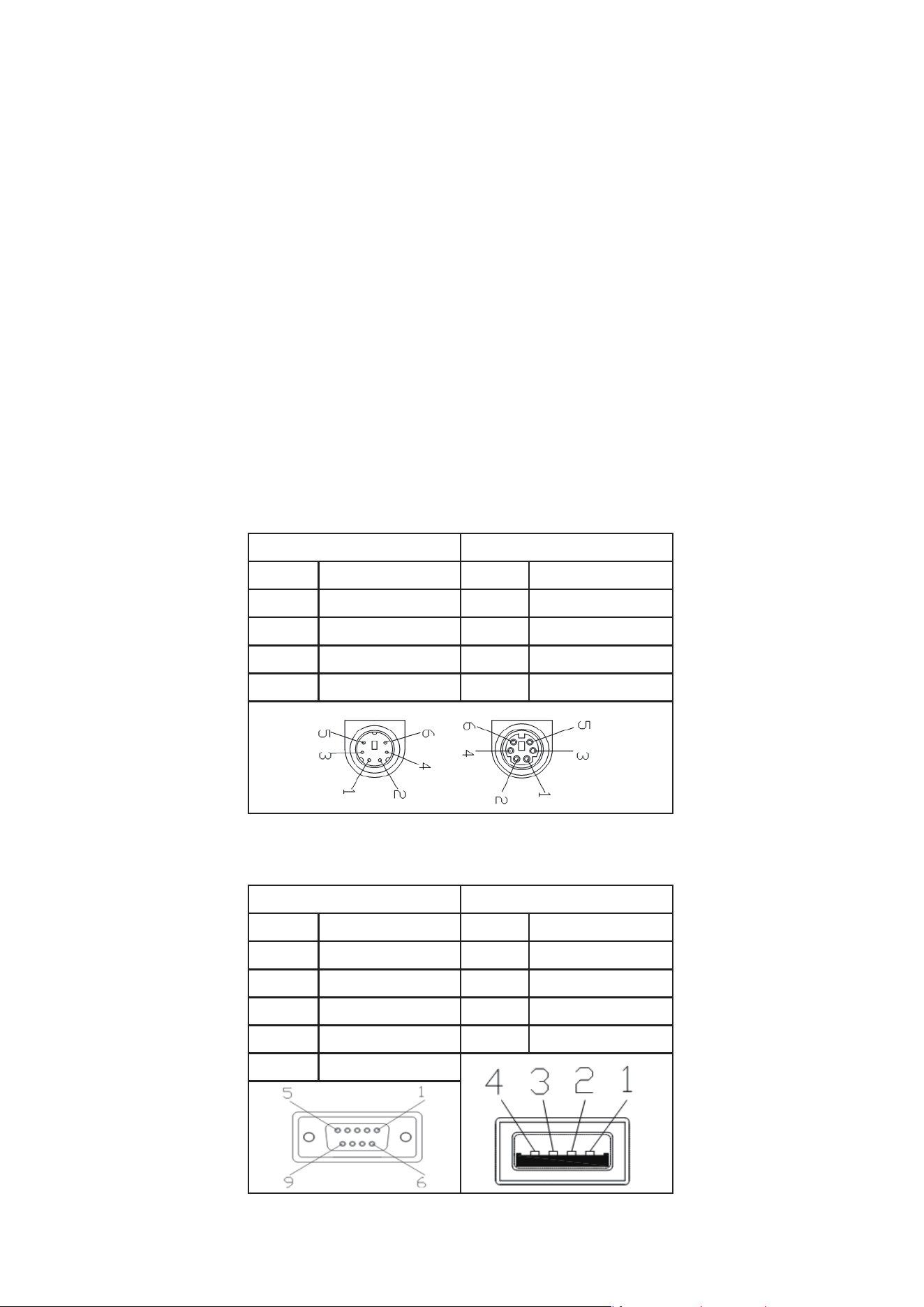
Installing the Interface Cable
Installation procedures:
(1) Plug the modular (RJ45) connector of the cable into the bottom of the scanner until you
hear a click sound.
(2) Turn off your PC or terminal
(3) Unplug the keyboard from the PC or terminal.
(4) Plug the keyboard into a connector of the Y cable that mates with it.
(5) Plug the remaining connector of the cable into the keyboard port of your PC or
terminal.
Note: The bar code reader defaults to USB mode . if the switch to keyboard mode, replace
the keyboard port of wire code and scan keyboard mode is set; if the switch to serial
mode, replace the serial interface cables and scan the serial port mode is set to
code.
-2-
Keyboard interface output sign
PS/2 PS/2
PIN
1
2
3
4
SIGN
PC DATA
GND
Vcc
PC CLK
PIN
1
2
3
4
SIGN
KB DATA
GND
Vcc
KB CLK
RS-232 interface output sign USB interface output sign
DB9 USB
PIN
2
3
5
7
8
SIGN
TXD
RXD
GND
CTS
RTS
PIN
1
2
3
4
SIGN
VCC
D-
D+
GND
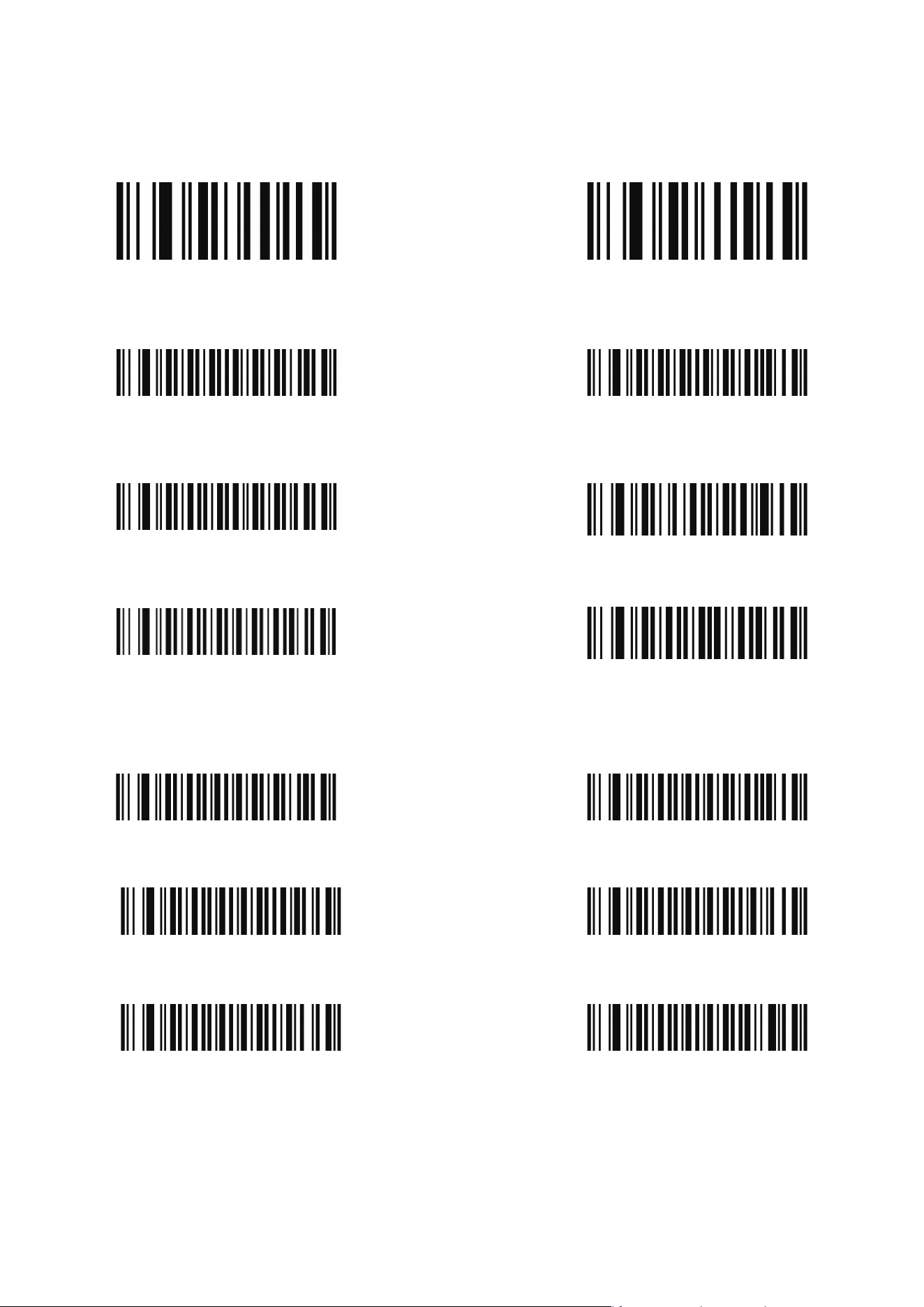
Multiscan Functions
Defaults Version
Output Mode
USB Serial
Buzzer Mode
Good Read Beep Tone-None Good Read Beep Tone-Reset
Good Read Beep Duration LED Power Save Mode-Enable
Reading Mode
Single Scan Single Scan No Trigger
Multi Scan Multi Scan No Trigger
Continuous Scan Pulse Scan
-3-
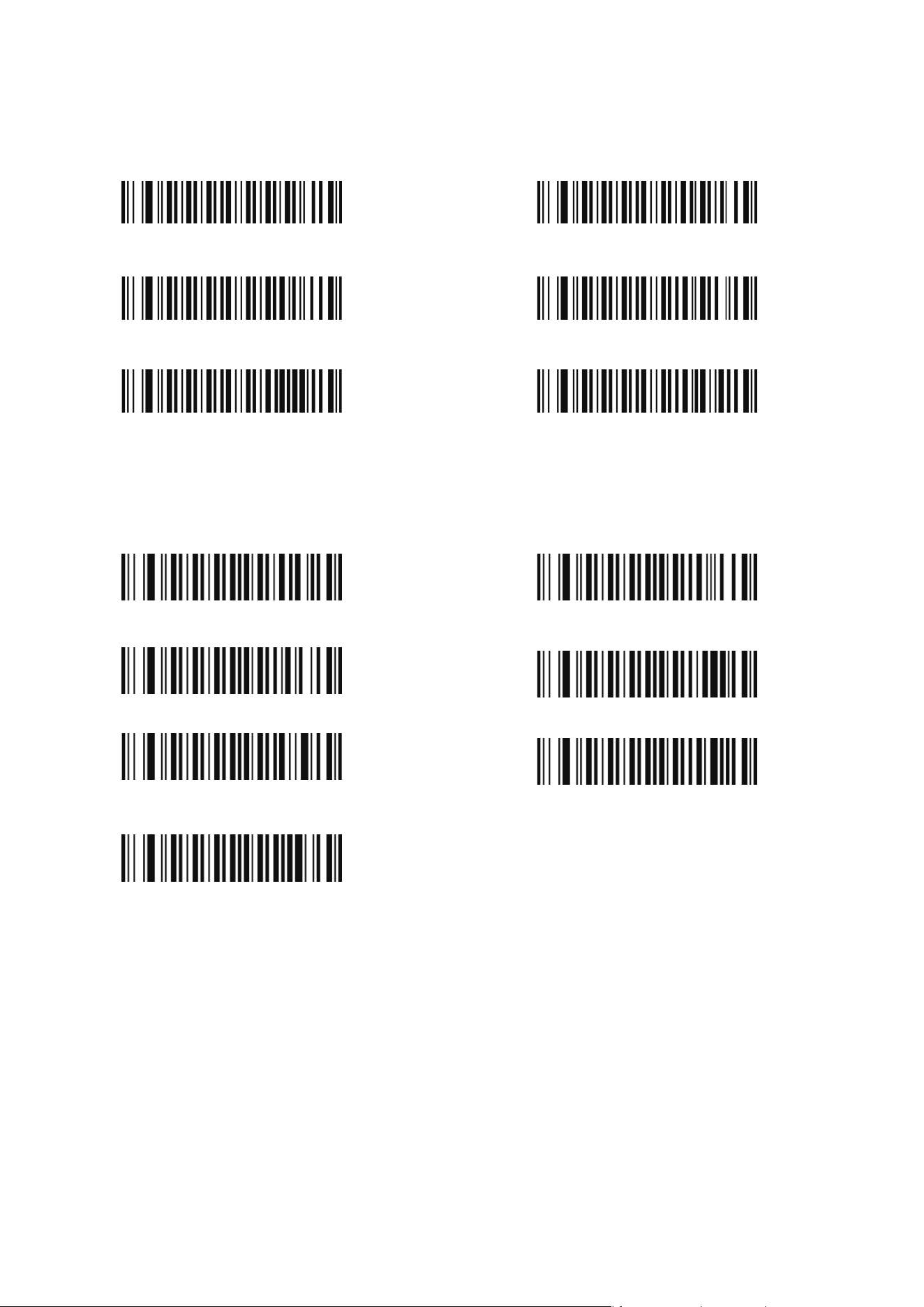
Language
USA German
France Spain
Portugal Universal
Baud Rate
600 1200
2400 4800
9600 19200
38400
-4-
-5-
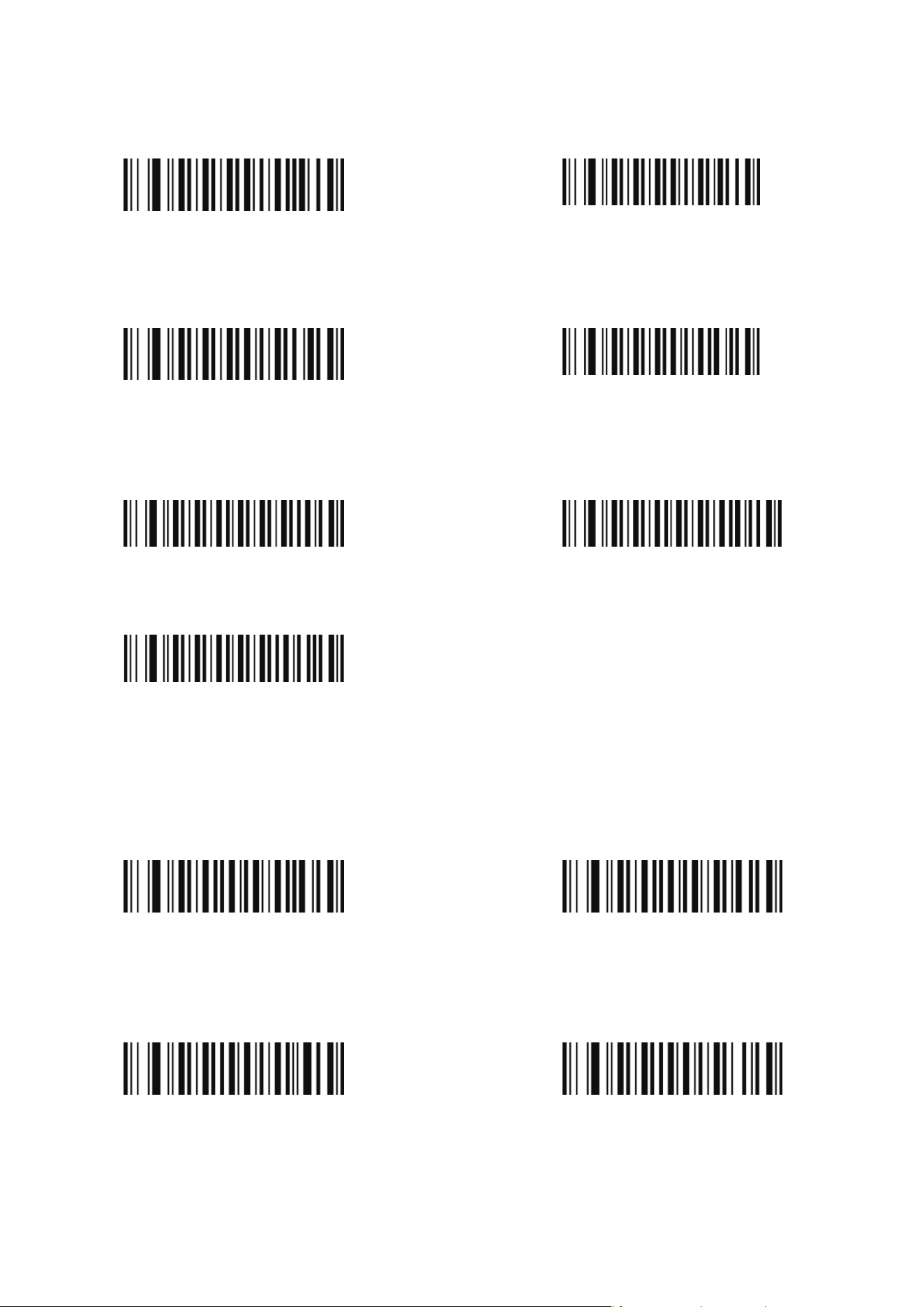
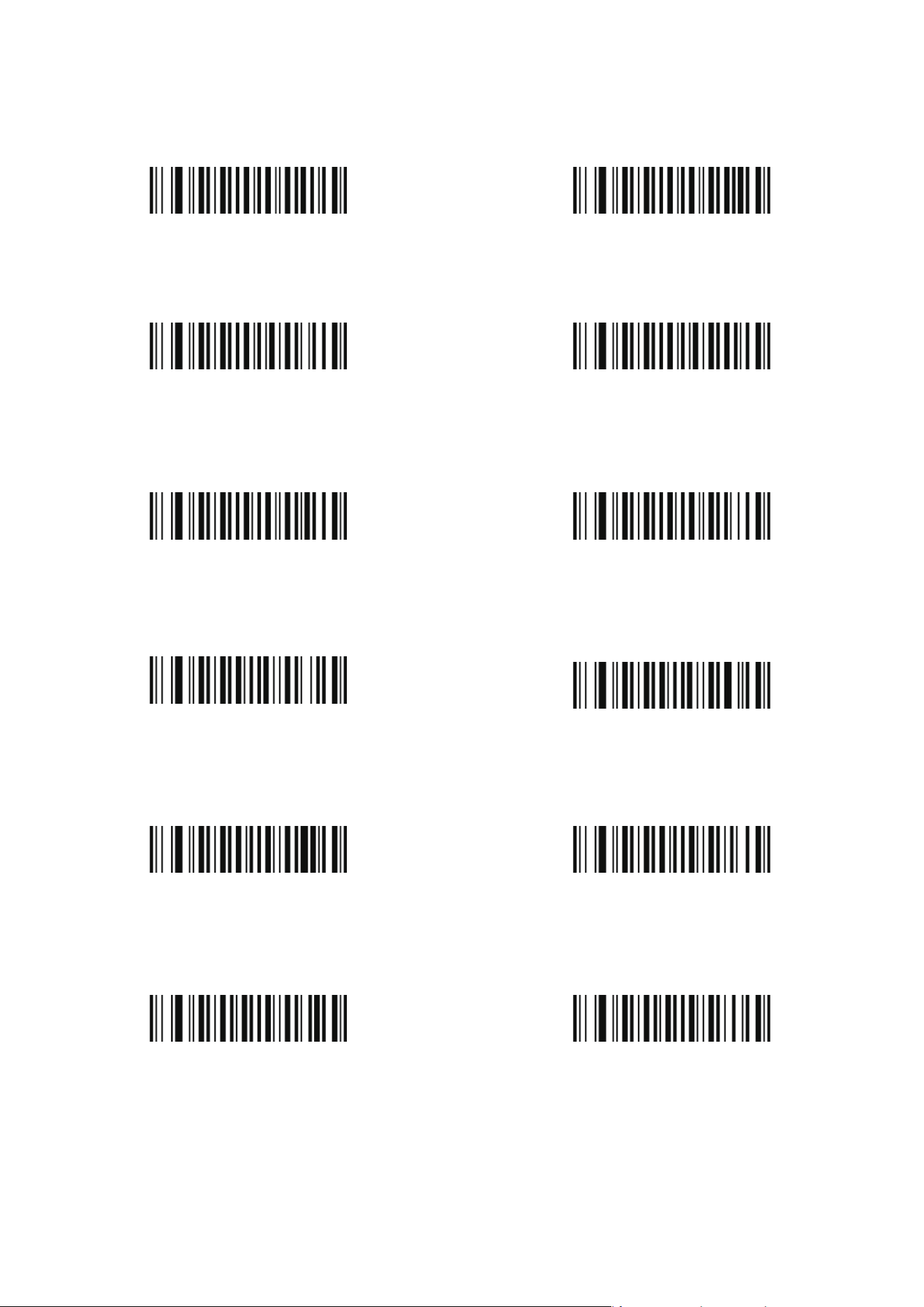
BITS-8
BITS-1
NONE
EVEN
Enable Disable
Disable
Enable
Data Bit
tops Bit
Parity Bit
Symbol On/Off
CODE11
CODE128
BITS-7
BITS-2
ODD
-6-
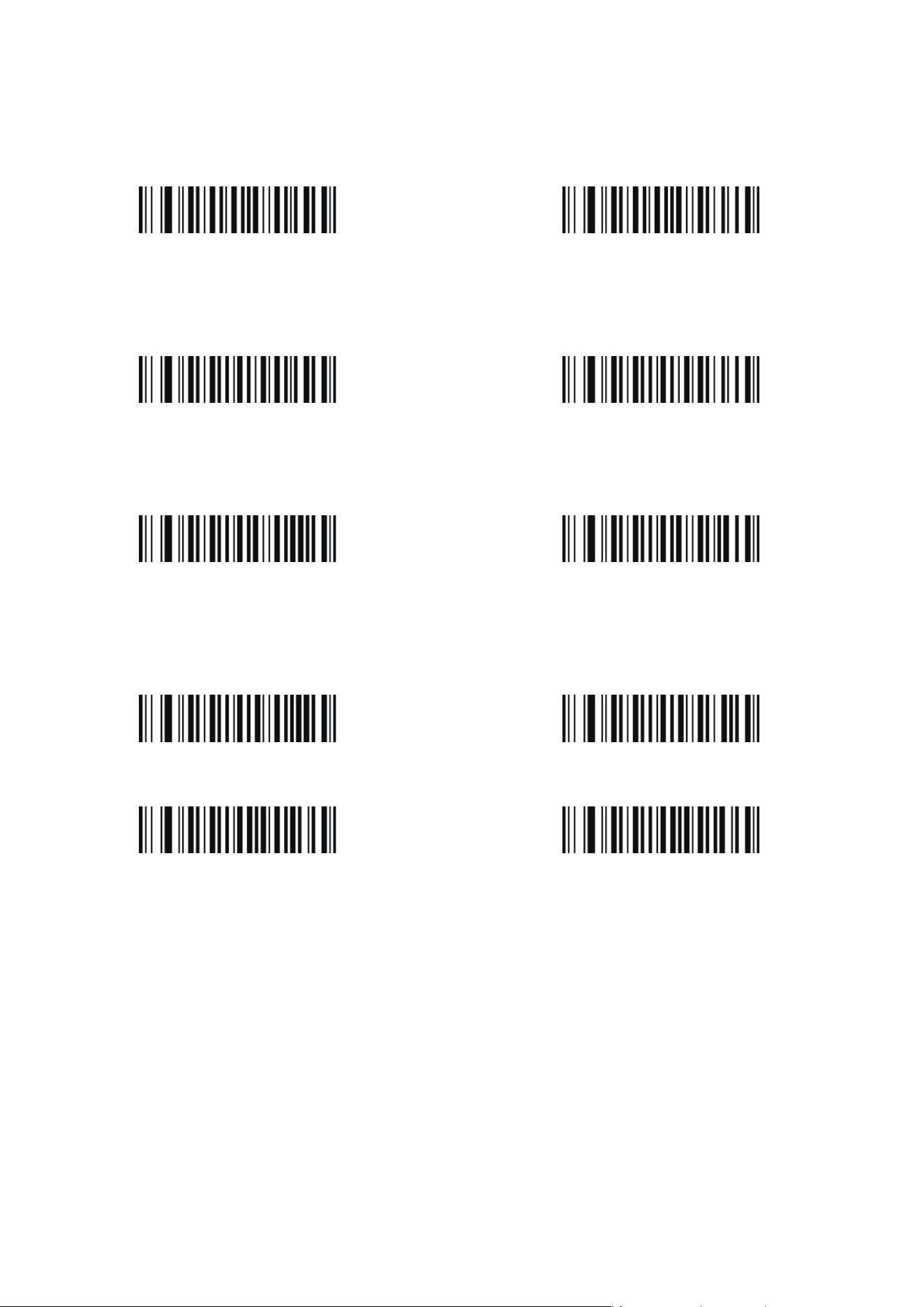
Enable
Enable Disable
Disable
FULL ASCII Disable
Disable
Disable
Disable
Enable
Enable
Enable
FULL ASCII Enable
CODE 39
CODE 93
CODABAR
Interleaved 2 Of 5
Industrial 2 Of 5
-7-
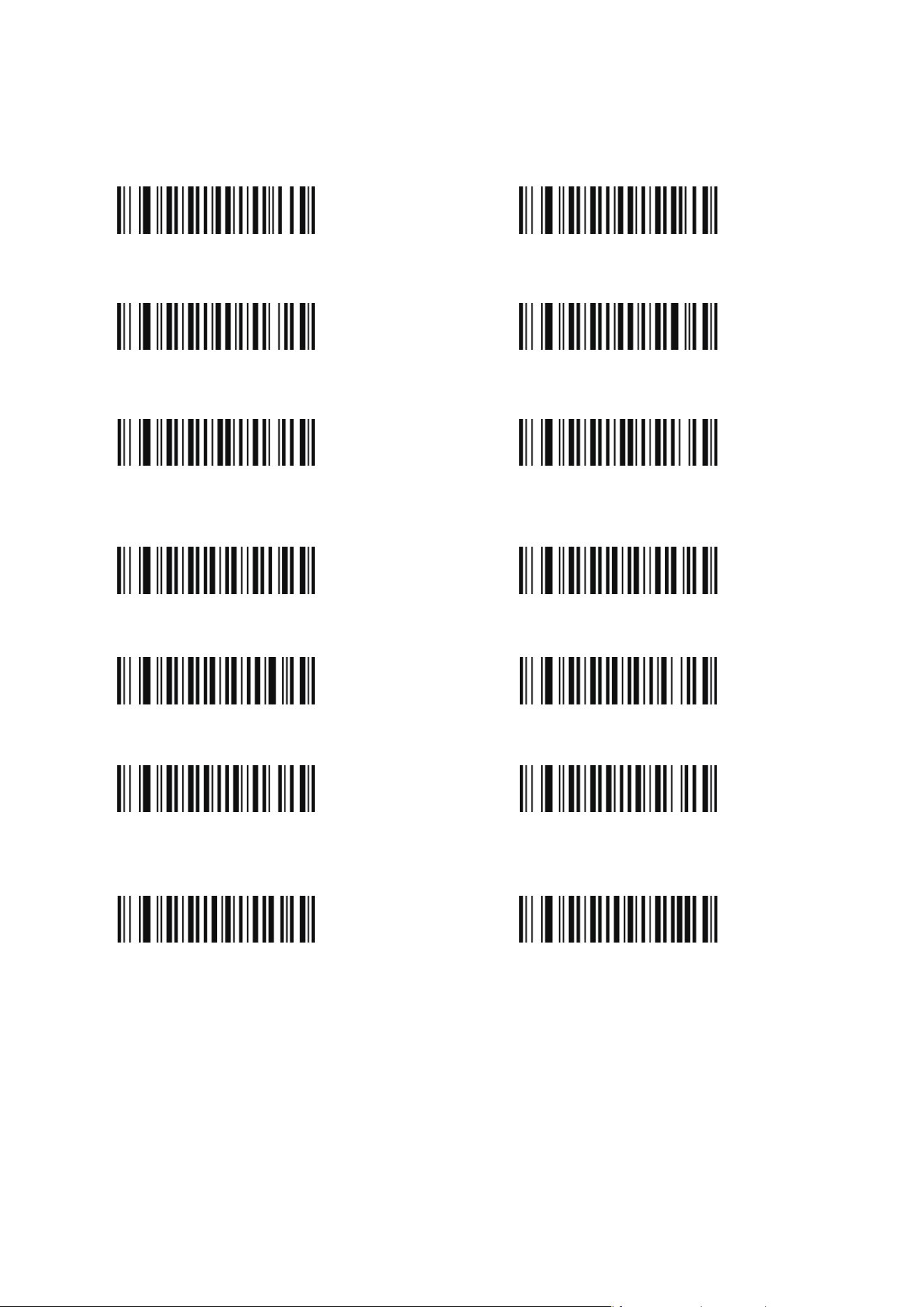
Enable
Enable
Enable
Enable
Enable
Disable
Disable
Disable
Disable
Disable
MSI/PLESSEY
UPC-A UPC-E
EAN-13
EAN-8
-8-
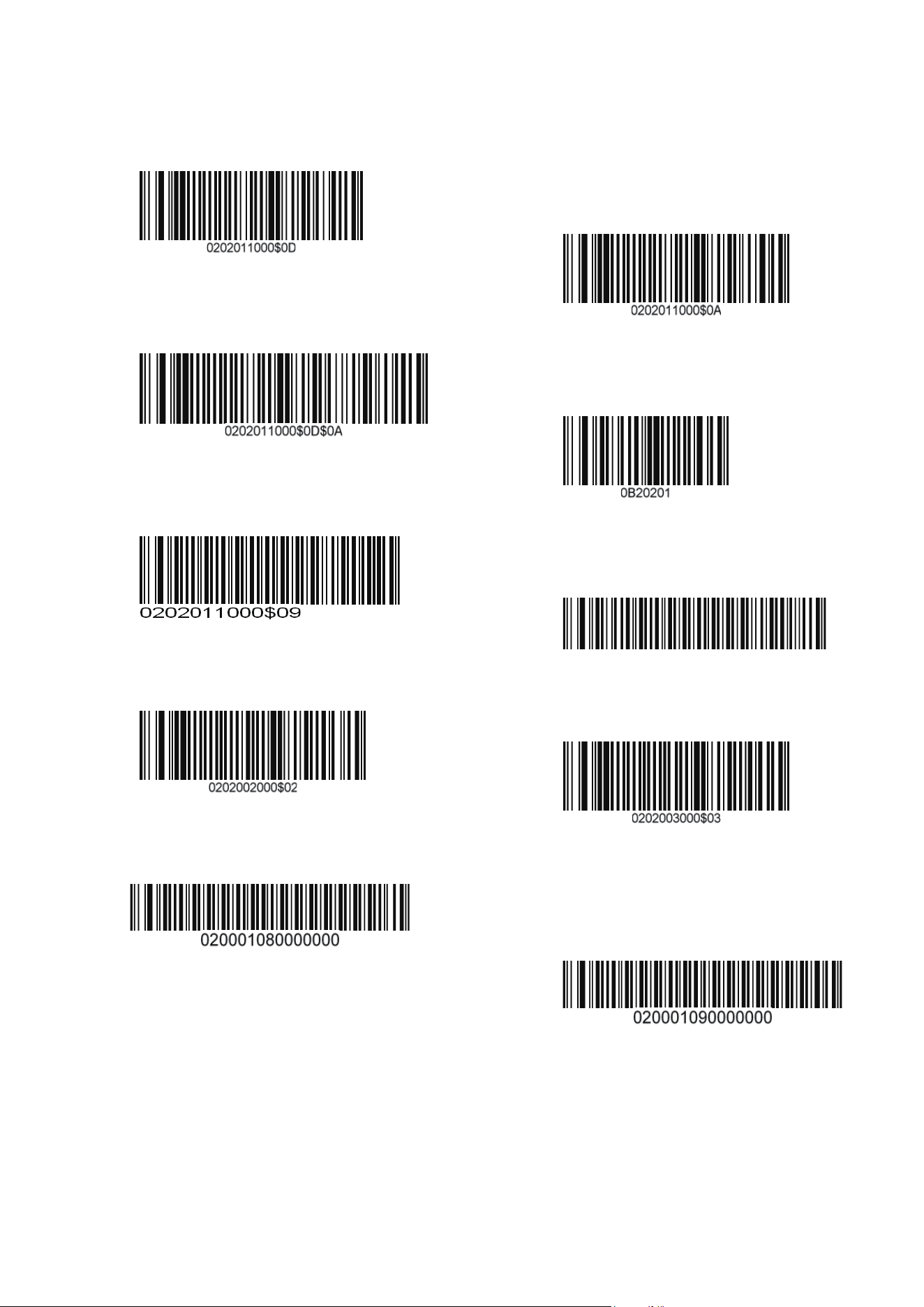
Expand UPC-E to UPC-A Enable
Expand UPC-A to EAN-13 Enable
Convert EAN-13 to ISBN Enable
UPC/EAN Supplements Disable
UPC/EAN Supplements-5 ONLY
CODABAR Send Chars Enable
CODE39 Send Chars Enable
UPC/EAN Supplements-2 ONLY
UPC/EAN Supplements-2&5 ONLY
CODABAR Send Chars Disable
CODE39 Send Chars Disable
Convert EAN-13 to ISBN Disable
Expand UPC-A to EAN-13 Disable
Expand UPC-E to UPC-A Disable
I REHTO I REHTO
-9-
Termination Char-CR
Termination Char-CR+LF
TERMINATION CHAR -TAB
Codes Preamble‘STX’
Convert To Uppercase
OTHER II
Termination Char-LF
Disable
REMOVE TERMINATION CHAR TAB
Codes Preamble ‘ETX’
Convert To Lowercase
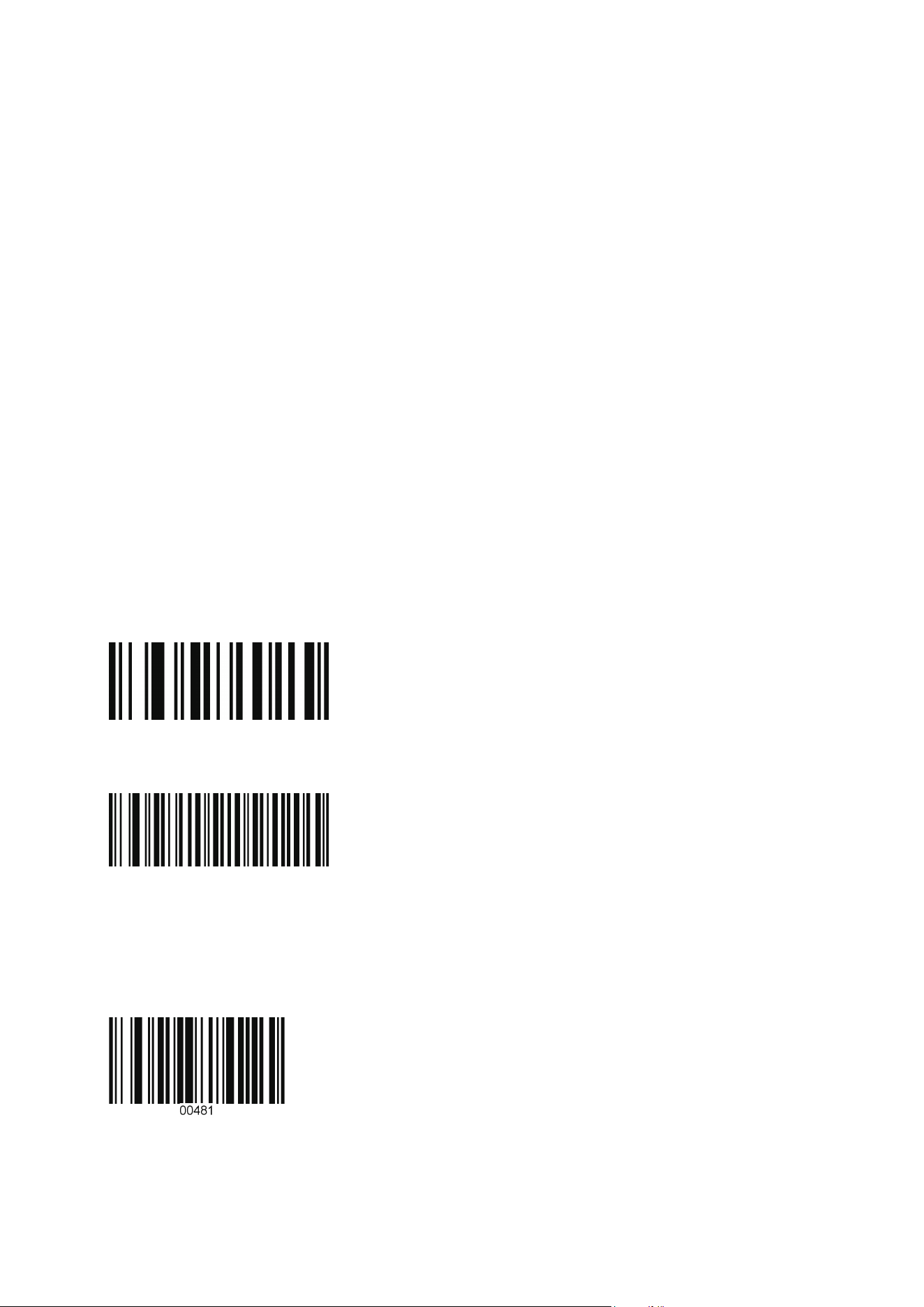
Troubleshooting on using this scanner
1. How to get into manual mode?
Please hard press the yellow trigger for 8 about seconds. Please keep in mind that
manual mode cannot be setup everlasting. It will enter into auto mode once it plug out
your PC and plugged in again
2. Can the scanner read QR code?
No, our scanner is just a 1 D scanner.
3. Why cannot I enter into setup mode?
To enter into Setup mode, a RS232 cable is required. What’s more this kind mode
requires a knowledgeable person on this mode and must be very familiar with scanners.
We’d suggest our customers send us E-mails instead of set up scanner into this mode
when they have any special needs since we haven’t provide this kind cable in the
products
4. How to get into factory default?
Scan the bar code Defaults
5. How to disable the auto Tab function?
Scan the bar code below:
6. Why cannot my scanner read ISBN NO?
Scan the bar code below:
Convert EAN-13 to ISBN Enable
-10-
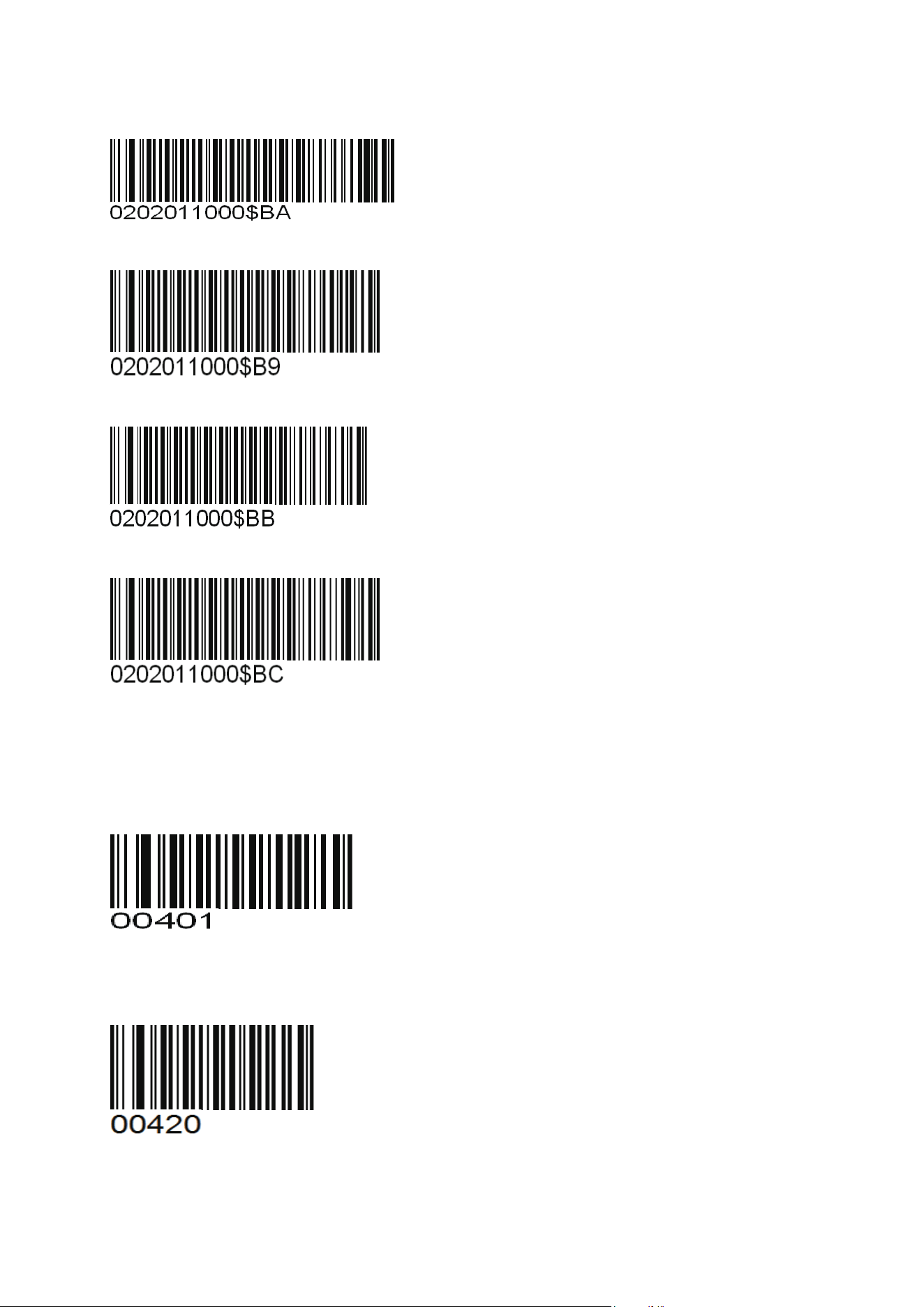
7. Bar code directions setting
Down arrow
Up arrow
Left arrow
Right arrow
8. How to setup my scanner so that it will only read the 10 digits in the middle of a UPC-A
bar code
Delete the first digit
UPC-A do not send system number
Delete the last digit
UPC-A do not send check number
-11-
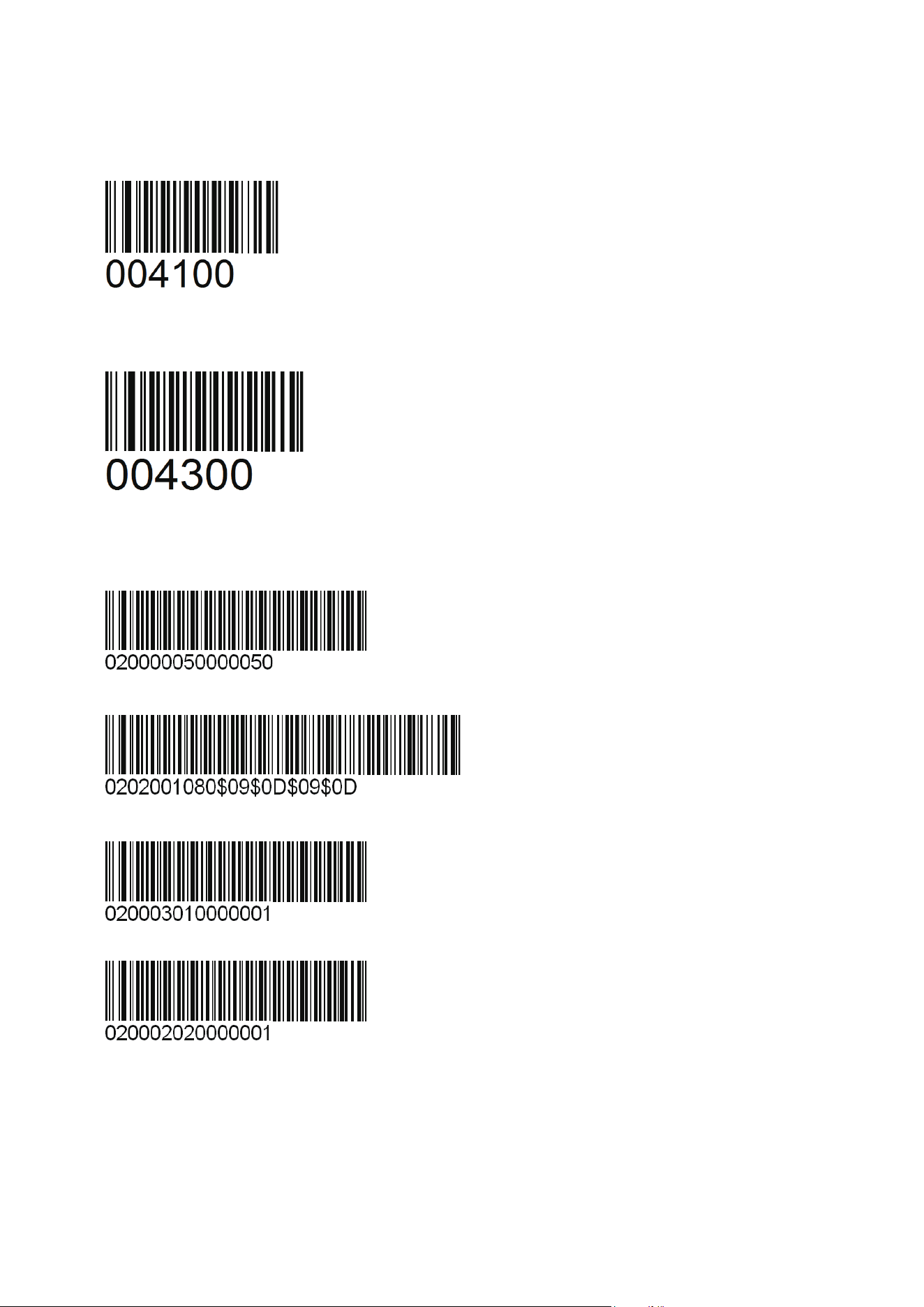
9. How to setup my scanner so that it will only read the 10 digits in the middle of a UPC-E
bar code
Delete the first digit
UPC-E do not send system number
Delete the last digit
UPC-E do not send check number
10. Delete all 2 in your bar codes
11. CODE128 + TAB ENTER TAB ENTER
12. Delete the first bar code
13. Delete the last bar code
-12-
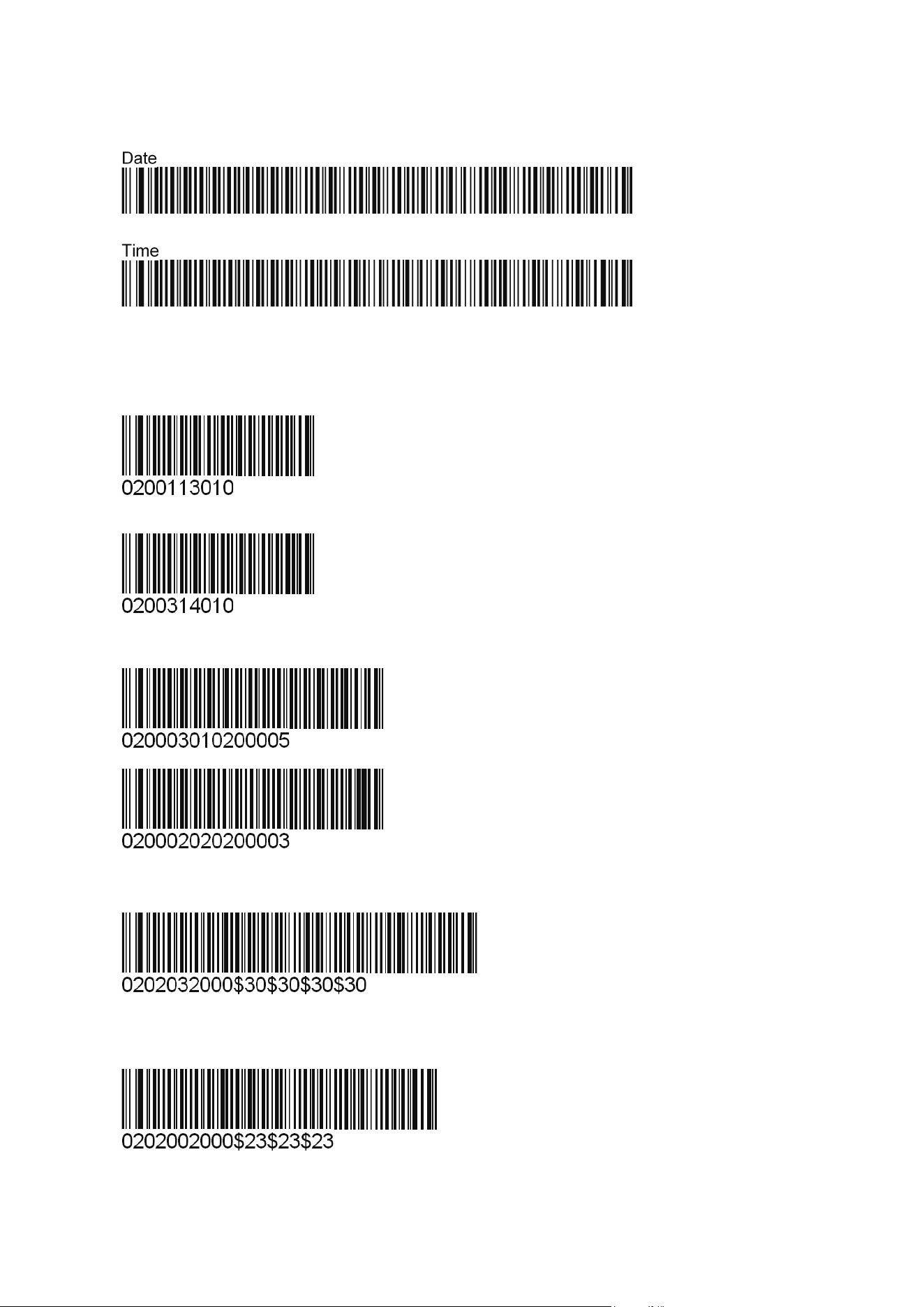
14. set time and date after your bar code
1
2
1 then 2
15. UPC-A omit the first digit
16. UPC-E omit the first digit
17. Delete five and the last three
18. Add 4 zeros in front of bar code
19. Add 2 # in front of bar code
-13-
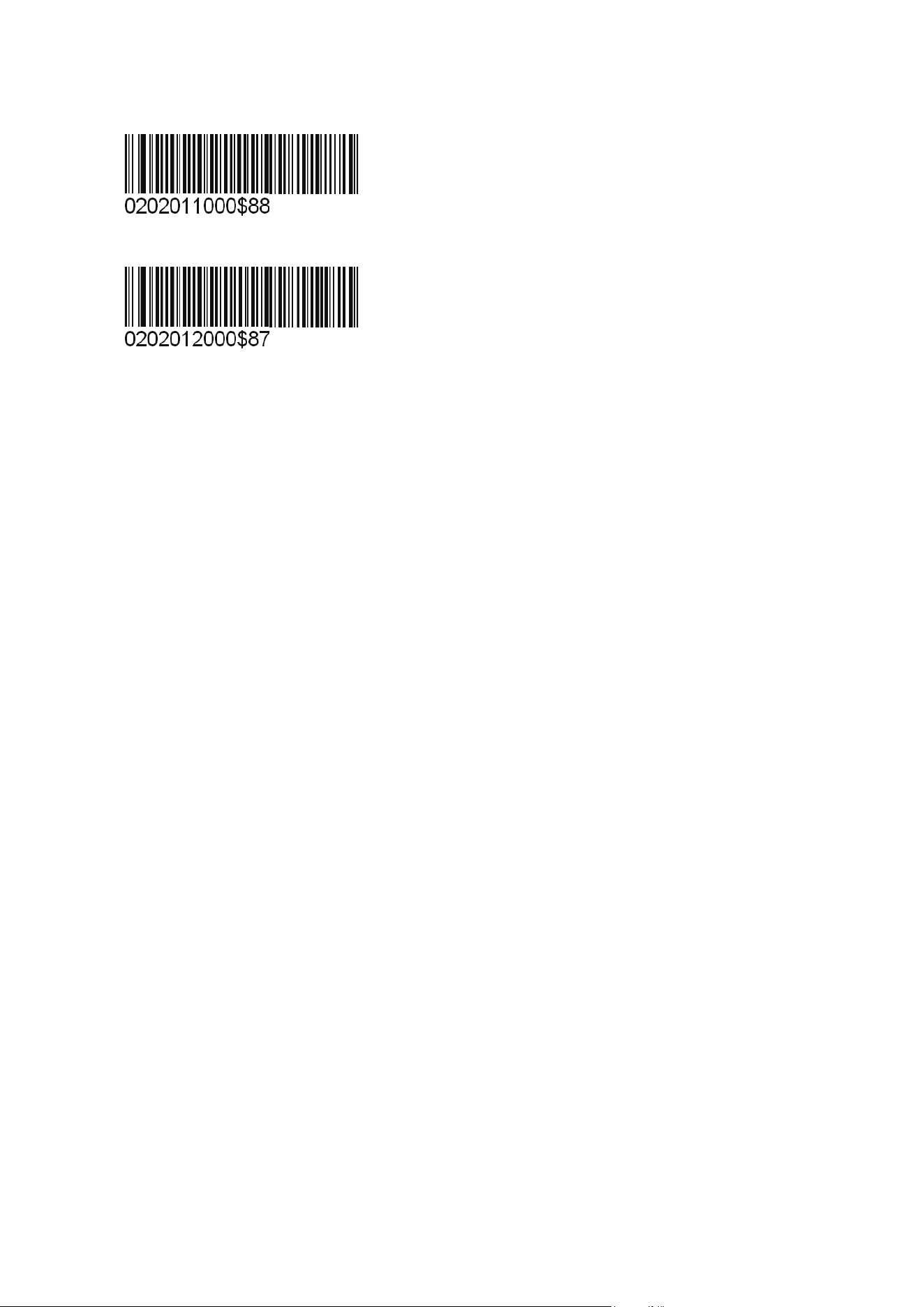
20. F9 AND F8
DATA+F9
DATA+F8
Note: Please scan the bar code 0B whenever you want to delete the original special setup
Please do not hesitate to contact us at support@TaoTronics.com ,if you have any further
problems upon your scanner.
-14-
-15-
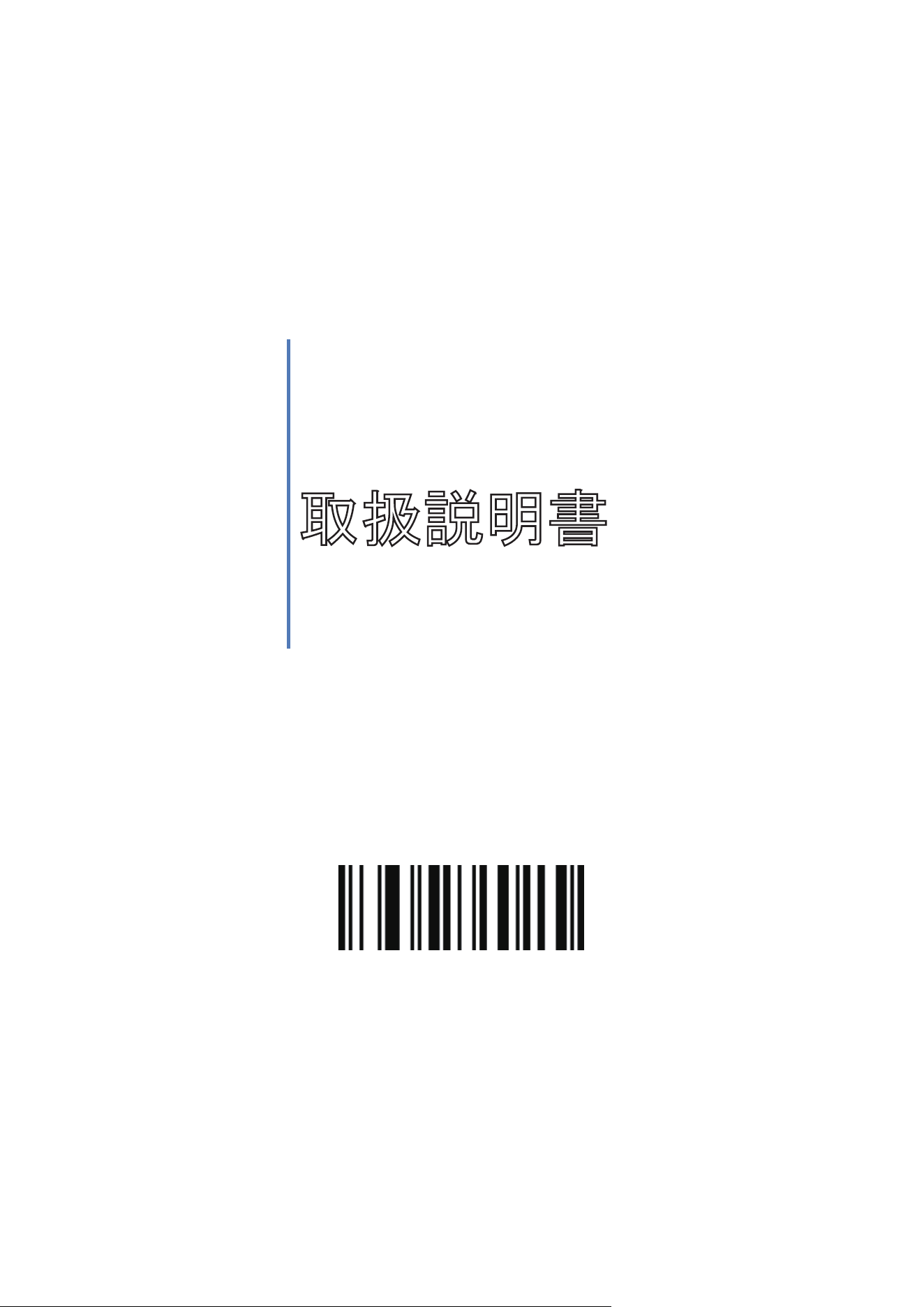
工場出荷時のデフォルト状態
レーザーバーコードリー
ダー
取扱説明書
日本語
-16-
はじめに
Taotronics をご購入いただきまして、誠にありがとうございます。
本製品をご使用する前に、必ず本書をお読みの上で、内容を十分にご理解した上で正しく使用
してください。
注
意事項
機械は絶対に分解・改造しないでください。
幼児の手の届かない場所でご利用ください。
光源を目に当てたり見つめたりしないでください。
医療機械・原子力設備等人命に関わる機器として使用しないでください。
バーコードの読取以外で使用しないでください。
安
全に正しくご使用いただくために
ケーブルの着脱時は、必ず本製品に接続している機器の電源をきってください。
本製品を直射日光が長時間あたる場所、粉塵の多い場所、湿気が多い場所、油煙や湯気
のあたる場所、急激な温度変化のある場所、暖房器具等発熱物の近くでは使用・保管しな
いでください。
本製品は精密機械ですので、落下させる場合破損する恐れがあります。
本製品の受光部に、水・油・ほこり等を付着させないでください。
シンナー・ベンジン等の溶剤で拭いたり、殺虫剤を掛けたりしないでください。
製
品保証とアフターサービス
1 年の安心保証
お買い上げ日から 1 年間の保障を提供いたします。この期間中に製品は問題がある場合、
弊社に連絡ください。条件によって、商品の修理或いは返品を提供いたします。
お
問い合わせ:
ウェブサイト:www.taotronics.com
メール:support.jp@taotronics.com
受付時間:8:00~17:00、月~金(土、日祝祭日は休み)
-17-
製品仕様
定格入力 5V±0.25V
パワー
425 ミリワット(作業);500 ミリワット(瞬間が
最大です)
消費電流
85 ミリアンペア(作業);100 ミリアンペア(瞬
間が最大です)
光源 650nm 可視光半導体レーザー
スキャンレート 100 スキャン/秒
読取角度 ±60°,±65°,±42°
分解能 0.1mm (4mil)
読取可能コー
ド
UPC-A,UPC-E,EAN-13,EAN-8,
ISBN/ISSN,Code 39,Code 39
(FullASCll),Interleaved 2of5 (ITF),
Industrial 2of5,Codabar
, Code 128 , Code 93 , Code 11 ,
MSI/Plessey,UCC/EAN128
提示方式 ブザー,LED 指示灯
インターフェイ
ス
USB、PS2 キーボード割込み、 RS232
接触方式 手動,赤外線自動センサー(選択可能)
コネクタ形状
RJ-45 コネクタ
使用環境温度 0℃~45℃(作業);-40℃~60℃(保管)
使用環境湿度 5%~90%
衝撃耐性 1.5m 上方からコンクリート面へ落下テスト合格
プログラムの
更新
PC オンライン更新
正
確動作方法
ご注意:スキャン効果はスキャナーとバーコードの角度は 90°ではないの場合が最良です。
-18-
ケ
ーブルの取扱について
次の手順でケーブルを交換してください。
(1) 「カチッ」と音がするまでにケーブルの一端をスキャナー底部に挿し込みます。
(2) コンピューター或は端末設備の電源を切ってください。
(3) ケーブル他の一端をコンピューター或は端末設備に接続します。
(4) コンピューター或は端末設備を起動します。
(5) バーコードを読むよりインターフェイスを設定します。
ご注意:当バーコードリーダーは USB モードを黙認します。若しくはキーボードモードを替えるな
らば、キーボード接続用ケーブルを変えてキーボードモード設定のバーコードをスキャンします。
若しくは RS232 モードを替えるならば、RS232 口接続用ケーブルを変えて RS232 モード設定の
バーコードをスキャンします。
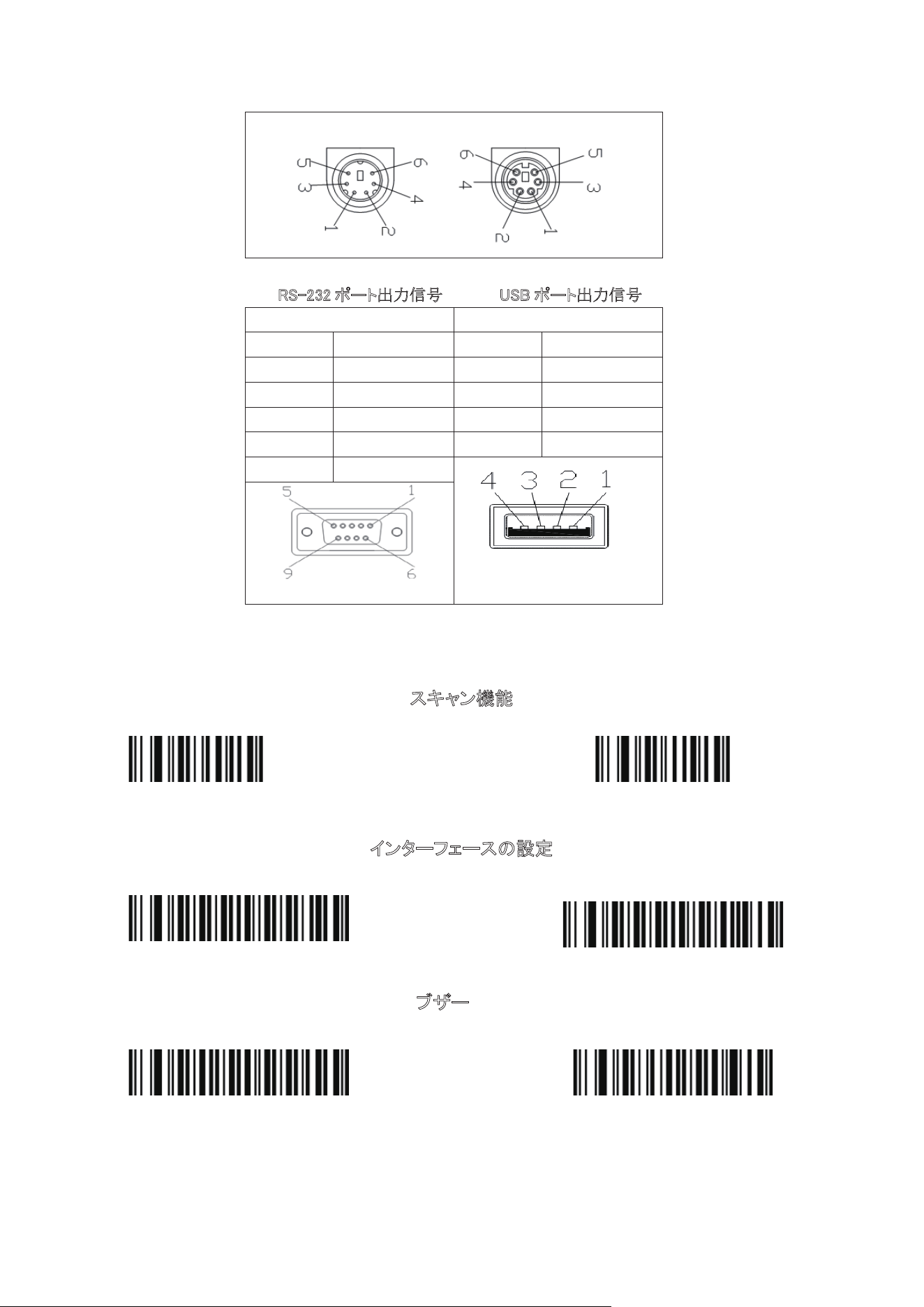
キーボードインターフェイス出力信号
PS/2 (オス) PS/2 (メス)
ピン 機能 ピン 機能
1 PC DATA 1 KB DATA
3 GND 3 GND
4 Vcc 4 Vcc
5 PC CLK 5 KB CLK
-19-
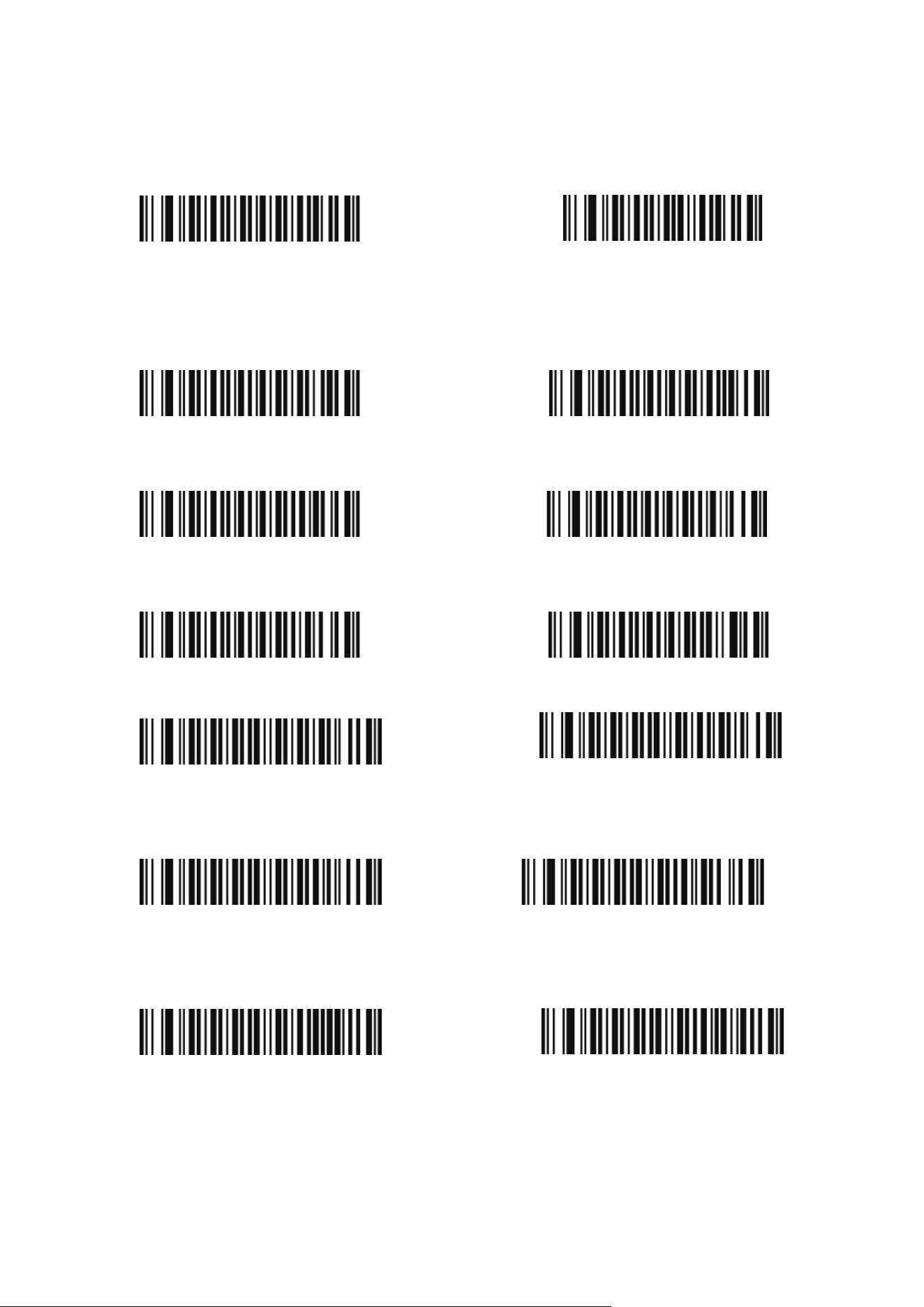
RS-232 ポート出力信号 USB ポート出力信号
DB9(メス) USB
ピン 信号 ピン 信号
2 TXD 1 VCC
3 RXD 2 D-
5 GND 3 D+
7 CTS 4 GND
8 RTS
スキャン機能
デフォルト
バージョン番号
インターフェースの設定
USB モード
RS232 モード
ブザー
音を OFF にします
音を ON にします
-20-
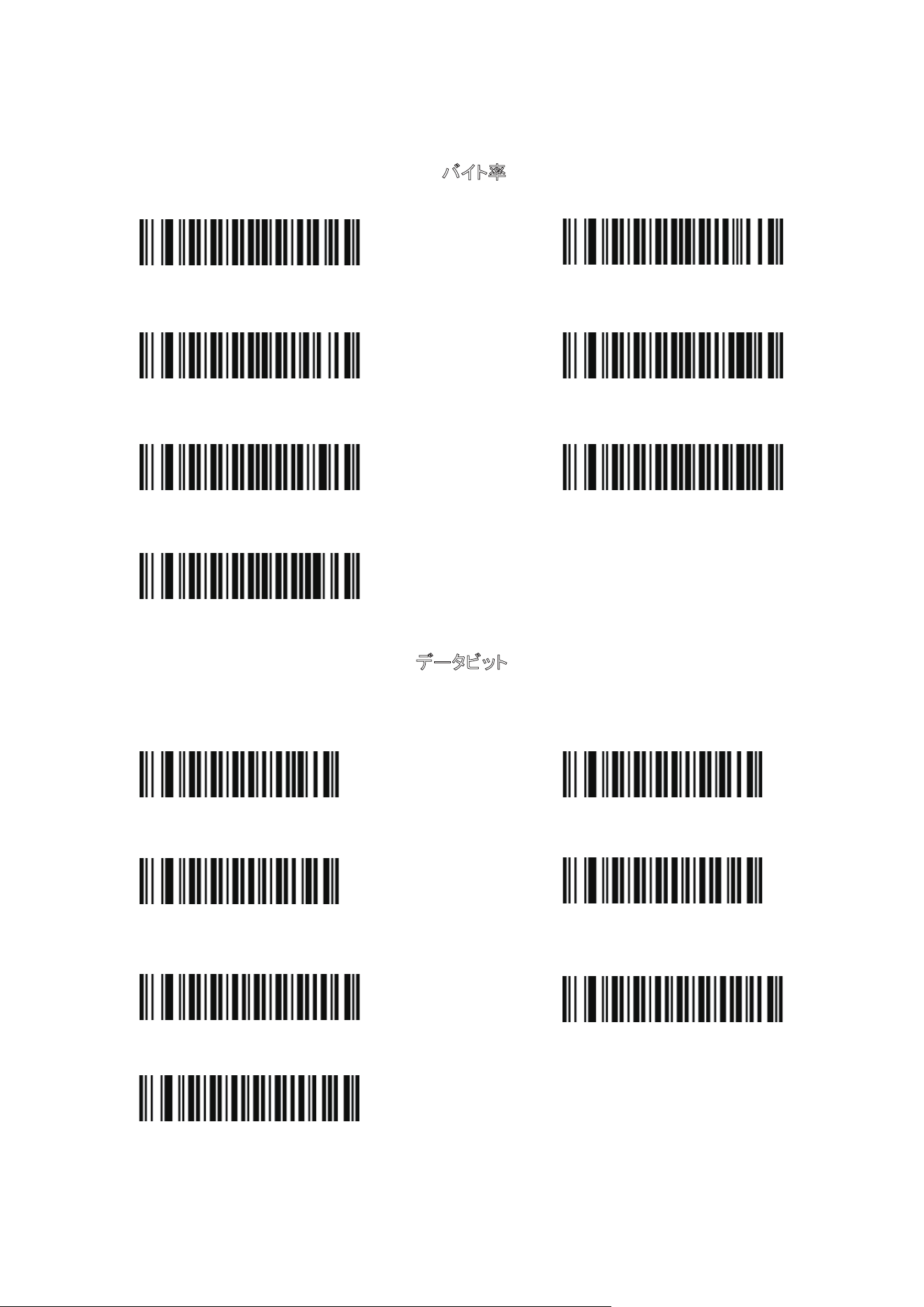
ボリュームを下げます
省電力モード
シングルスキャンモード シングルトリガなしモード
多重スキャンモード 多重トリガなしモード
自動連続スキャンモード
パルスモード
アメリカ
ドイツ
フランス
スペイン
ポルトガル
全世界通用
-21-
バ
イト率
600
1200
2400
4800
9600
19200
38400
データビット
8
7
1 2
なし
Odd
Even
-22-
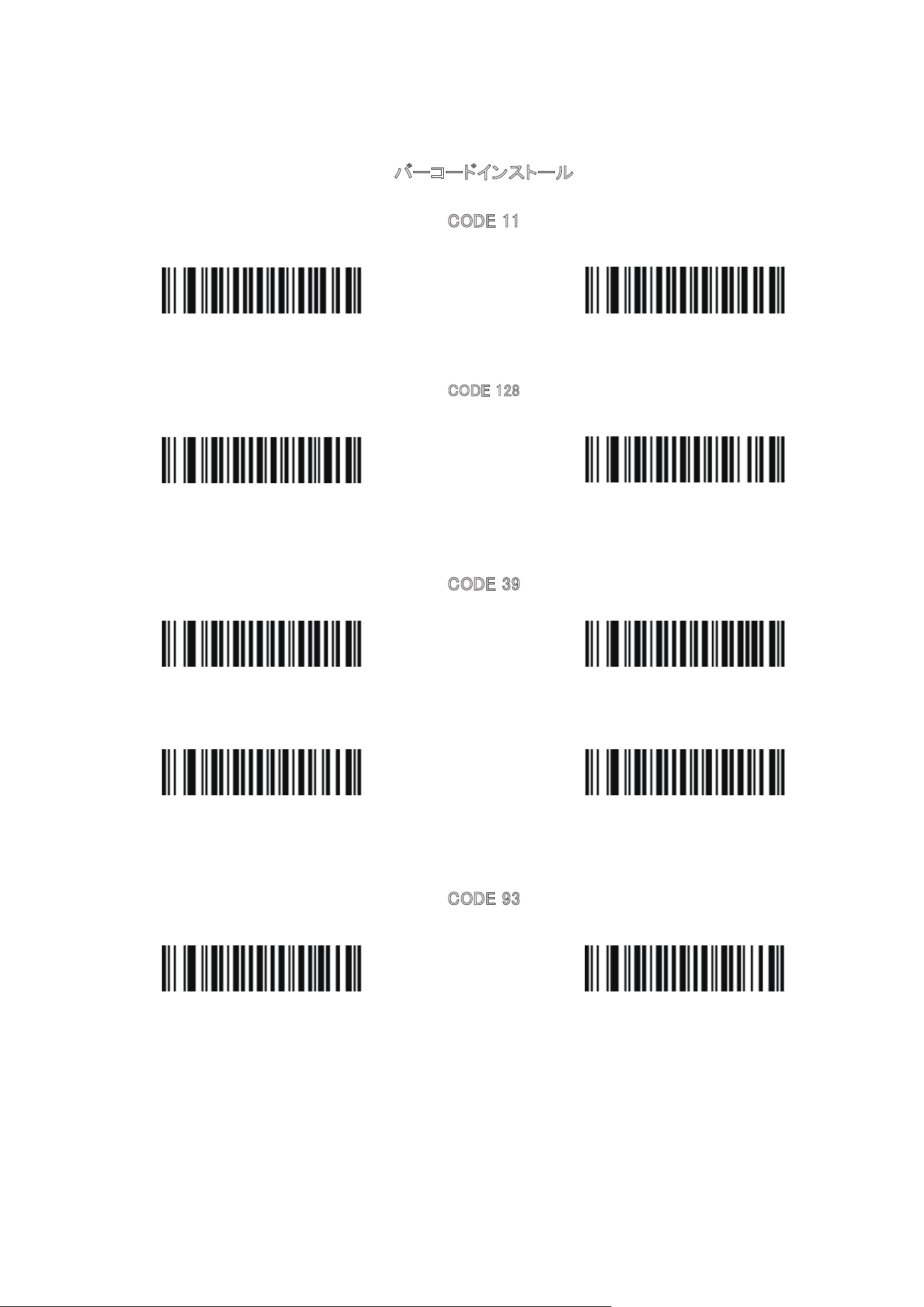
バ
ーコードインストール
C
ODE 11
ON OFF
C
ODE 128
ON
OFF
CODE 39
ON
OFF
Full ASCII モード ON
Full ASCII モード OFF
CODE 93
ON
OFF
-23-
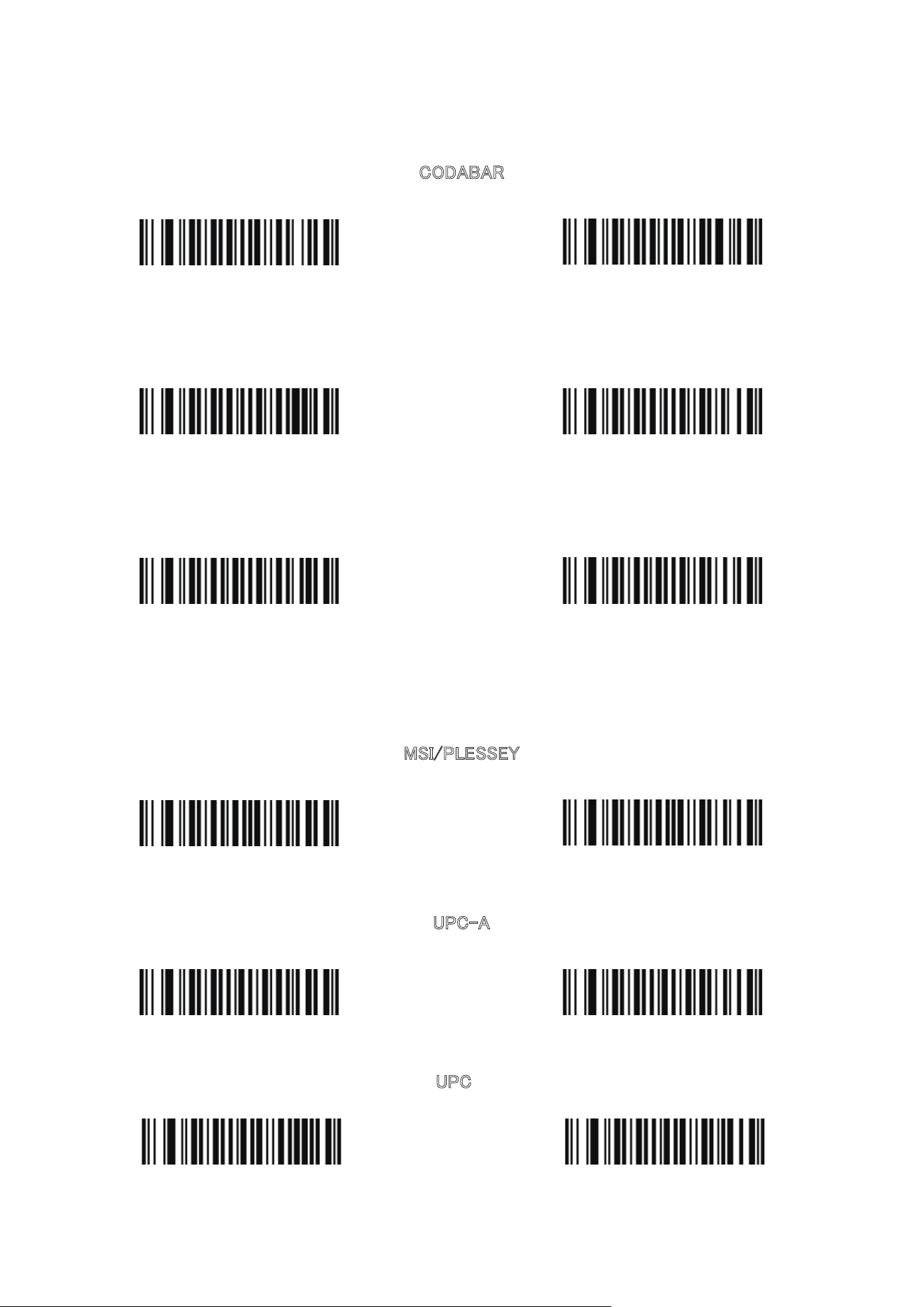
C
ODABAR
ON
OFF
Interleaved 2of5 (ITF)
ON
OFF
Industrial 2of5
ON
OFF
M
SI/PLESSEY
ON
OFF
UPC-A
ON
OFF
UPC
ON
OFF
-24-
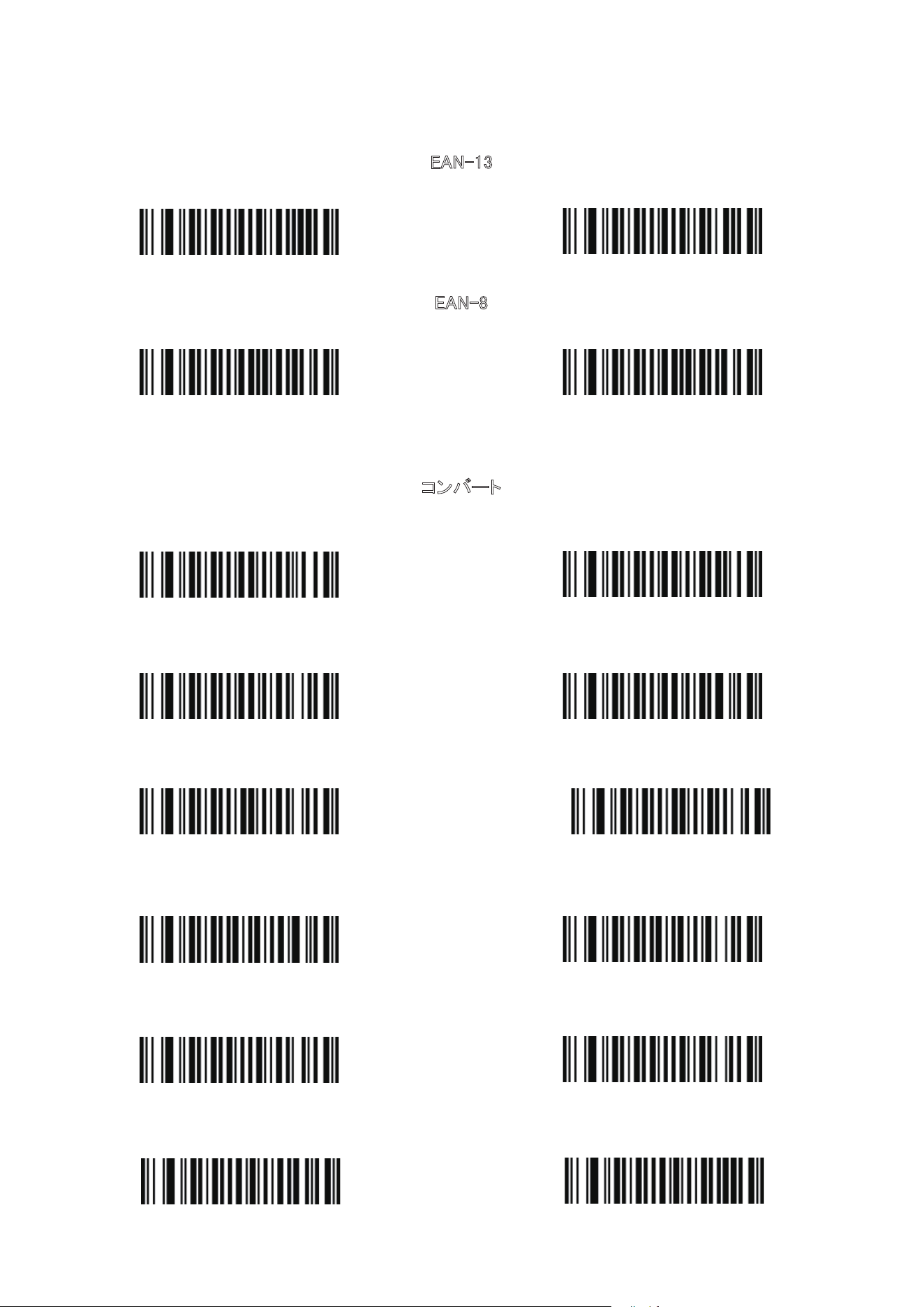
E
AN-13
ON
OFF
EAN-8
ON
OFF
コンバート
UPC-E を UPC-A に変換(ON) UPC-E を UPC-A に変換(OFF)
UPC-A を EAN-13 に変換(ON) UPC-A を EAN-13 に変換(OFF)
EAN-13 を ISBN に変換(ON)
EAN-13 を ISBN に変換(OFF)
UPC/EAN に 5 桁コードを付加します
UPC/EAN に 2 桁&5 桁コードを付加します
CODABAR 桁数転送設定(ON)
CODABAR 桁数転送設定(OFF)
CODE39 桁数転送設定(ON)
CODE39 桁数転送設定(OFF)
-25-
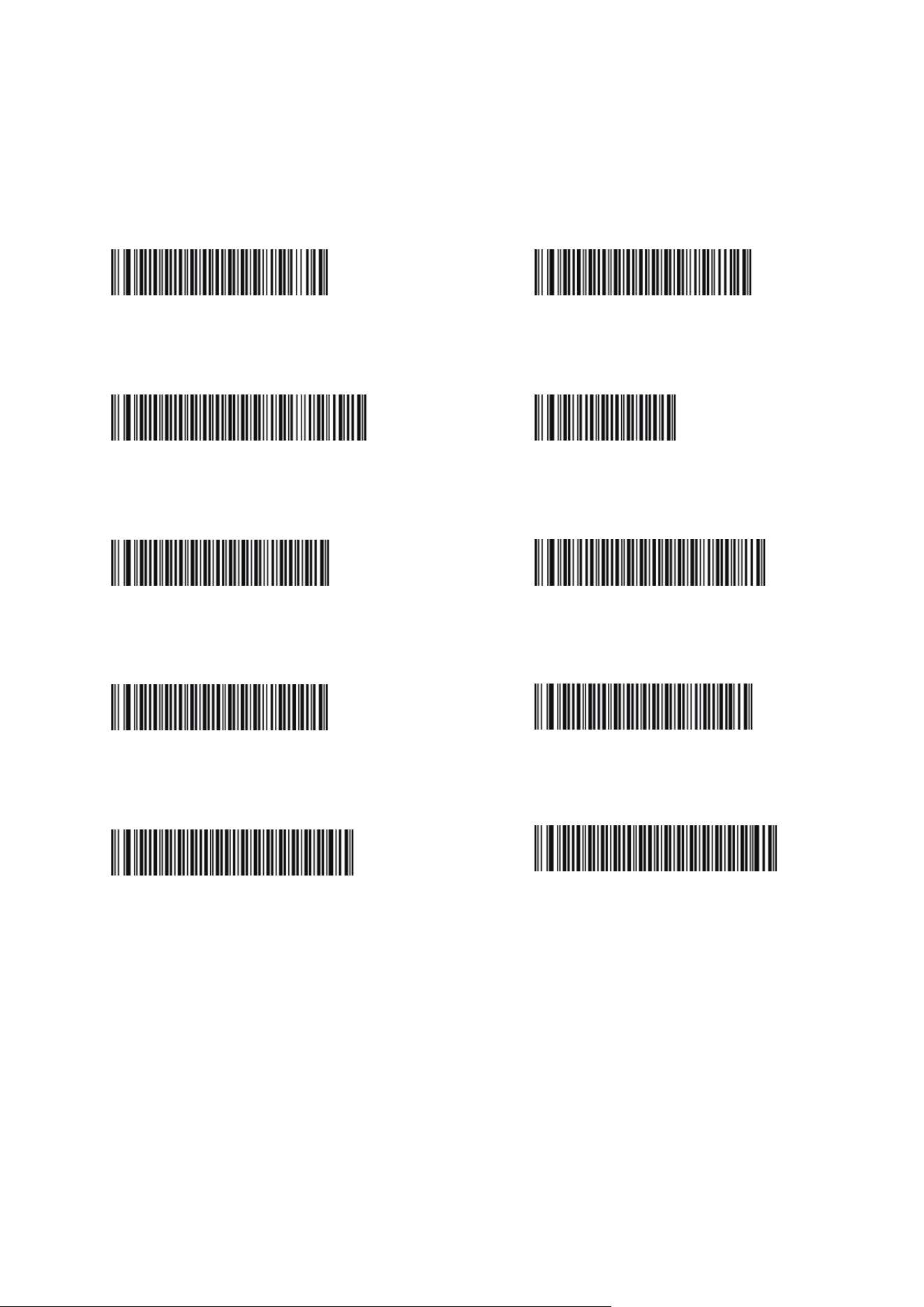
拡張子を付加します-リターン
拡張子を付加します-
改行
拡張子を付加します-リターン&改行
拡張子をキャンセルします-リターン
バーコードに拡張子 TAB を付加します バーコードに拡張子 TAB をキャンセルします
バーコード先頭「STX」コードを付加します
バーコード後ろ「ETX」を付加します
大文字
に転換
小文字に転換
付加設置コード2

FCC Compliance
This device complies with Part 15 of the FCC Rules. Operation is subject to the
following two conditions:
(1) This device may not cause harmful interference, and
(2) This device must accept any interference received, including interference
that may cause undesired operation.
WEEE Compliance
Correct Disposal of This Product (Waste Electrical & Electronic Equipment)
(Applicable in countries with separate collection systems)
This marking on the product, accessories or literature indicates that the product
and its electronic accessories should not be disposed of with other household
waste at the end of their working life. To prevent possible harm to the environment
or human health from uncontrolled waste disposal, please separate these items
from other types of waste and recycle them responsibly to promote the sustainable
reuse of material resources. Household users should contact either the retailer
where they purchased this product, or their local government office, for details of
where and how they can take these items for environmentally safe recycling. Busi-
ness users should contact their supplier and check the terms and conditions of the
purchase contract. This product and its electronic accessories should not be mixed
with other commercial wastes for disposal.

E-mail:
support@taotronics.com
MANUFACTURER
Manufacturer: Shenzhen NearbyExpress Technology Development Co.,Ltd.
Address: Floor 7, Building E, Galaxy World Phase II, Shenzhen, China
Learn more about the EU Declaration of Conformity:
https://www.taotronics.com/pages/user-manual
www.taotronics.com
TT-BS003_V1.1_EN-JP