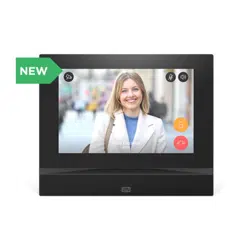

The 2N TELEKOMUNIKACE a.s. is a Czech manufacturer and supplier of
telecommunications equipment.
The product family developed by 2N TELEKOMUNIKACE a.s. includes GSM gateways,
private branch exchanges (PBX), and door and lift communicators. 2N
TELEKOMUNIKACE a.s. has been ranked among the Czech top companies for years
and represented a symbol of stability and prosperity on the telecommunications
market for almost two decades. At present, we export our products into over 120
countries worldwide and have exclusive distributors on all continents.
2N is a registered trademark of 2N TELEKOMUNIKACE a.s. Any product and/or other
®
names mentioned herein are registered trademarks and/or trademarks or brands
protected by law.
2N TELEKOMUNIKACE a.s. administers the FAQ database to help you quickly find
information and to answer your questions about 2N products and services. On www.
faq.2n.cz you can find information regarding products adjustment and instructions for
optimum use and procedures „What to do if...".
2N TELEKOMUNIKACE a.s. hereby declares that the 2N product complies with all
basic requirements and other relevant provisions of the 1999/5/EC directive. For the
full wording of the Declaration of Conformity see the CD-ROM (if enclosed) or our
website at www.2n.cz.
The 2N TELEKOMUNIKACE a.s. is the holder of the ISO 9001:2009 certificate. All
development, production and distribution processes of the company are managed by
this standard and guarantee a high quality, technical level and professional aspect of
all our products.

2N TELEKOMUNIKACE a.s., www.2n.cz 3/117
Content:
1. Product Description
1.1 Product Description
1.2 Differences between Models and Associated Products
1.3 Terms and Symbols Used
1.4 Safety Precautions
2. Description and Installation
2.1 Before You Start
2.2 Quick installation guide
2.3 Installation Conditions
2.4 2N® Indoor View LAN Location via 2N® Network Scanner
2.5 IP Address Lookup
3. Configuration
3.1 Factory Reset
3.2 Software Configuration
4. Device Control via Display
4.1 Call Log
4.2 Directory
4.3 Settings
5. Operational Statuses
6. Technical Parameters
7. Supplementary Information
7.1 Troubleshooting
7.2 Directives, Laws and Regulations – General Instructions and Cautions

2N TELEKOMUNIKACE a.s., www.2n.cz 4/117
1. Product Description
In this section, we introduce the product, outline its application 2N Indoor View
®
options and highlight the advantages following from its use. The section also includes
safety precautions.
1.1 Product Description
1.2 Differences between Models and Associated Products
1.3 Terms and Symbols Used
1.4 Safety Precautions

2N TELEKOMUNIKACE a.s., www.2n.cz 5/117
1.1 Product Description
2N Indoor View
®
is a stylish, compact-design indoor IP/SIP unit providing audio and
video communication with the . The device includes a 4 mm enhanced 2N IP intercoms
glass touchscreen panel, Speakerphone, high-quality microphone with excellent
audibility and intelligibility properties, Ethernet LAN interface and induction loop and
doorbell external supply connectors. is a top-quality, cost efficient 2N Indoor View
®
and easy to install and configure answering unit. One installation can combine variable
answering units manufactured by 2N Telekomunikace a.s.
2N Indoor View
®
is equipped with a specific user interface for an increased user
comfort and safety.
2N Indoor View
®
basic features
7" color LCD video display
full duplex handsfree HD audio communication
LAN interface with PoE supply option
easy flush mounting
the device can be combined in installations with , 2N Indoor Touch
®
2N Indoor
®
or answering units,Compact 2N Indoor Talk
®
remote administration and configuration via 2N Remote Configuration
®
call setup option via on a smartphone2N Mobile Video
®
DND mode and parental lock
remote door lock control
time display at relax
display of the current weather,
integrated administrator web interface,
external doorbell button input
external power supply input
induction loop output

2N TELEKOMUNIKACE a.s., www.2n.cz 6/117
1.2 Differences between Models and
Associated Products
2N ® Indoor View indoor units
2N Part No. 91378601
Axis Part No. 02087-001
2N Indoor View
®
– black
Indoor answering audio/video unit with
touchscreen designed for all 2N IP
intercoms
2N Part No. 91378601WH
Axis Part No. 02088-001
2N Indoor View
®
– white
Indoor answering audio/video unit with
touchscreen designed for all 2N IP
intercoms

2N TELEKOMUNIKACE a.s., www.2n.cz 7/117
Other Indoor Units and Accessories
Part Numbers:
913783752N Part No.
Axis Part No. 01668-001
913783762N Part No.
Axis Part No. 01670-001
2N Indoor Touch 2.0
®
– black
WiFi version (third and fourth Part Nos.)
2N Indoor Touch 2.0
®
, an elegant indoor touch
panel, is designed for all of the . The 2N IP intercoms
display panel shows you the person standing at
your door and helps you make conversation with
the visitor, open the door lock or switch on the
entrance hall lights.
913783822N Part No.
Axis Part No. 01425-001
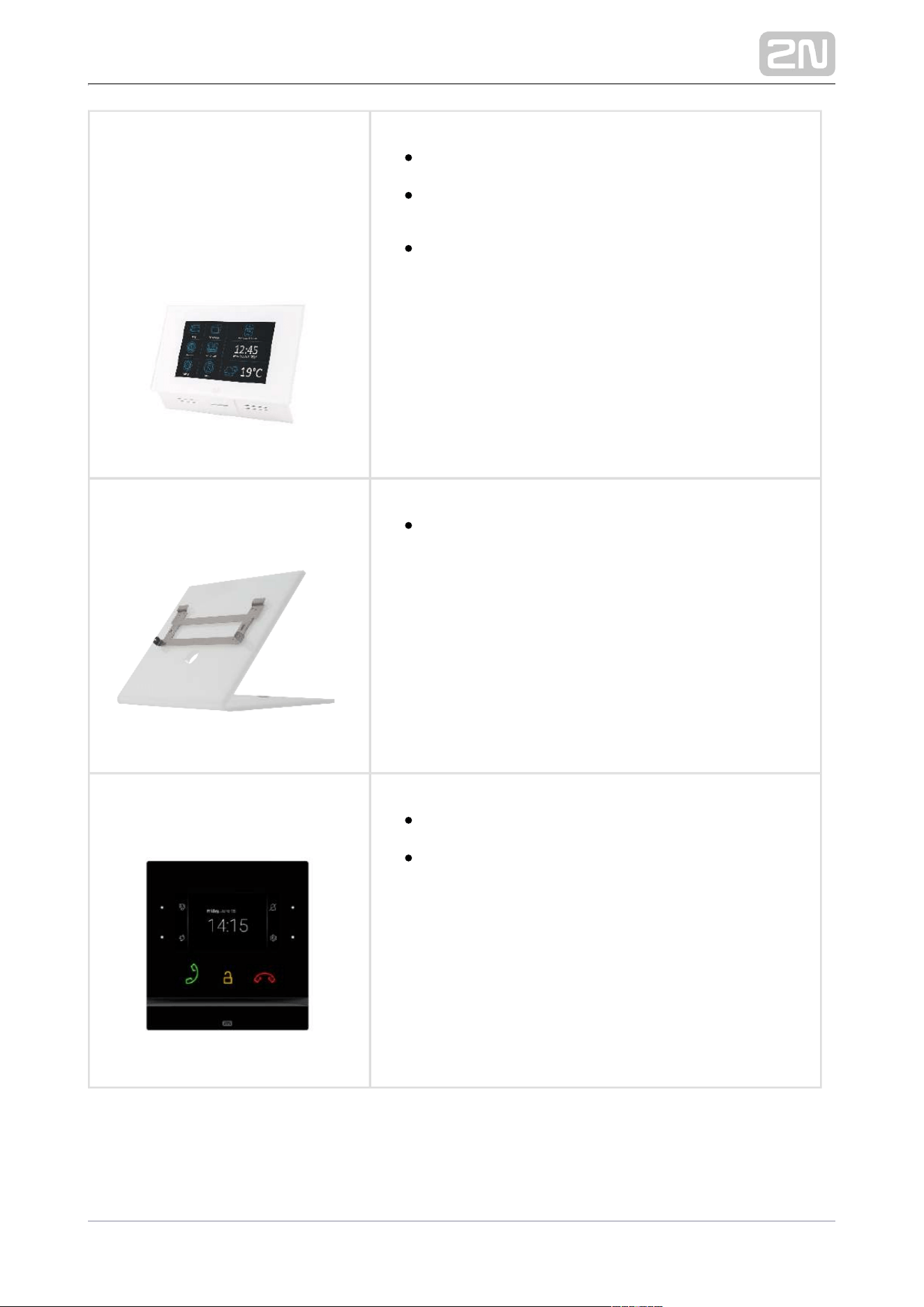
2N Indoor Touch
®
– desk stand black
2N TELEKOMUNIKACE a.s., www.2n.cz 8/117
Part Numbers:
91378375WH2N Part No.
Axis Part No. 01669-001
91378376WH2N Part No.
Axis Part No. 01671-001
2N Indoor Touch 2.0
®
– white
WiFi version (third and fourth Part Nos.)
2N Indoor Touch 2.0
®
, an elegant indoor touch
panel, is designed for all of the . The 2N IP intercoms
display panel shows you the person standing at
your door and helps you make conversation with
the visitor, open the door lock or switch on the
entrance hall lights.
2N Part No. 91378382W
Axis Part No. 01426-001
2N Indoor Touch
®
– desk stand white
2N Part No. 91378501
Axis Part No. 01935-001
2N Indoor Compact
®
– black
Indoor answering audio/video unit with touchscreen
designed for all 2N IP intercoms

2N TELEKOMUNIKACE a.s., www.2n.cz 9/117
2N Part No. 91378501WH
Axis Part No. 01936-001
2N Indoor Compact
®
– white
Indoor answering audio/video unit with touchscreen
designed for all 2N IP intercoms
2N Part No. 91378401
Axis Part No. 01698-001
2N Indoor Talk
®
– black
Indoor answering audio unit with touchscreen
designed for all 2N IP intercoms
2N Part No. 91378401WH
Axis Part No. 01699-001
2N Indoor Talk
®
– white
Indoor answering audio unit with touchscreen
designed for all 2N IP intercoms

2N TELEKOMUNIKACE a.s., www.2n.cz 10/117
Mounting Accessories
913788002N Part No.
Axis Part No. 01700-001
Installation box for 2N indoor answering units for
installation in a wall or plasterboard.
Not included in the package.2N Indoor View
®
2N Part No. 91378803
Axis Part No. 02320-001
Wall mounting box for 2N answering units
Not included in the package. 2N Indoor View
®
913788022N Part No.
Axis Part No. 02039-001
Stand for the 2N indoor answering unit.
Not included in the package.2N Indoor View
®

2N TELEKOMUNIKACE a.s., www.2n.cz 11/117
VoIP Phones
913783582N Part No.
Axis Part No. 01421-001
Grandstream GXV3240 VoIP video telephone
GXV3240 is the successor to the popular GXV3140 model,
which provides comfortable video calls in the IP network.
Touchscreen and keypad control.
913783572N Part No.
Axis Part No. 01422-001
Grandstream GXV3275 VoIP video telephone
GXV3275 is the successor to the popular GXV3175 model,
which provides comfortable video calls in the IP network.
Touchscreen control.

2N TELEKOMUNIKACE a.s., www.2n.cz 12/117
1.3 Terms and Symbols Used
The following symbols and pictograms are used in the manual:
Safety
Always abide by this information to prevent persons from injury.
Warning
Always abide by this information to prevent damage to the device.
Caution
Important information for system functionality.
Tip
Useful information for quick and efficient functionality.
Note
Routines or advice for efficient use of the device.

2N TELEKOMUNIKACE a.s., www.2n.cz 13/117
1.4 Safety Precautions
The manufacturer reserves the right to modify the product in order to improve its
qualities. The manufacturer continuously responds to the clients' requirements by
improving the software. Refer to the company websites for the latest www.2n.cz 2N
®
firmware and User Manual.Indoor View
Where necessary, the device can be installed at a safe distance from the
prohibited area and an Ethernet cable can only be carried to the required site.
Install out of reach of sensitive devices and human bodies as it 2N Indoor View
®
emits electromagnetic interference.
The permitted scope of operating temperatures is specified in chapter 6.
.Technical Parameters
The device may not be operated at places exposed to direct sunlight or near
heat sources.
2N Indoor View
®
is designed for indoor use. It may not be exposed to rain,
flowing water, condensing moisture, fog, and so on.
It may not be exposed to aggressive gases, acid and solvent vapors, etc.
It is designed for LAN connection.
Caution
This product and its installation and configuration techniques are not
intended for persons with diminished physical, sensory or mental
capacities or persons with limited experience and knowledge unless
expertly supervised or duly advised as to the use of this product by a
person responsible for their safety.

2N TELEKOMUNIKACE a.s., www.2n.cz 14/117
2. Description and Installation
This section describes how to install and connect properly.2N Indoor View
®
Here is what you can find in this section:
2.1 Before You Start
2.2 Quick installation guide
2.3 Installation Conditions
2.4 2N® Indoor View LAN Location via 2N® Network Scanner
2.5 IP Address Lookup
2N TELEKOMUNIKACE a.s., www.2n.cz 15/117
2.1 Before You Start
Package Completeness Check
Please check the product delivery before starting installation: Contents:
1x
2N Indoor View
®
2x External power and doorbell button terminals
1x Certificate of ownership
1x 2.5 mm hexagon key wrench
1x Quick Start manual
1x display cleaning cloth

2N TELEKOMUNIKACE a.s., www.2n.cz 16/117
1.
2.
3.
4.
Front Layout
Display
Microphone
Speaker
Anchoring holes

2N TELEKOMUNIKACE a.s., www.2n.cz 17/117
1.
2.
3.
4.
5.
Backside Connectors
Output for connection of an external induction loop
Reset button
Doorbell button input
12 V / 1 A DC power supply input
Ethernet
2N Indoor View
®
is designed for flush mounting (brick, plasterboard, wood). Use the
flush mounting box (Part No. 91378800), which is not included in the package.
Alternatively, the product can be mounted into a desk stand (Part No. 91378802),
which is not included in the package.
Caution
Before starting the mechanical installation on a selected place, make

2N TELEKOMUNIKACE a.s., www.2n.cz 18/117
Before starting the mechanical installation on a selected place, make
sure carefully that the preparations connected with it (drilling, wall
cutting) cannot damage the electrical, gas, water and other existing
wires and pipes.

2N TELEKOMUNIKACE a.s., www.2n.cz 19/117
Cut a circular hole in the wall of the diameter of 103 mm and depth of 50 mm before
installation. It is assumed that all necessary cables of the maximum length of 25 cm
will lead to the hole. Put the flush mounting box in the hole to make sure that the hole
is deep enough. If the hole complies with the box size, wall in the box and level the
box using a water level on the holding clips. When the mortar hardens, break off the
clips and cap the box with the cover provided. Use anchoring elements to fix the
device into plasterboard.
Tip
Drill template.pdf

2N TELEKOMUNIKACE a.s., www.2n.cz 20/117
For actual fixing of the to the flush-mount box, have the 2.5 mm 2N Indoor View
®
Allen key which is included in the box of the at the ready.2N Indoor View
®
Note
When installing the into the wall, the local standards 2N Indoor View
®
relating to installation of electrical devices in flammable material must
be taken into consideration.

2N TELEKOMUNIKACE a.s., www.2n.cz 21/117
2.2 Quick installation guide
Remove the cover from the walled-in flush mounting box. Remove 2N Indoor View
®
the pre-prepared cabling, UTP cable, doorbell twin cable and power supply cable.
Shorten the cables to 150 mm or less as required. Connect the doorbell twin cable or
power supply cable to the connector provided. Crimp the RJ-45 connector onto the
UTP cable. Take and lean its bottom edge against the wall below the 2N Indoor View
®
flush mounting box. First plug the green power/doorbell connector. Connect the LAN
connector. Put the cables carefully in the pre-drilled back slot to 2N Indoor View
®
prevent them from blocking any horizontal levelling movement during the final
installation stage. Insert in the flush mounting box making sure that 2N Indoor View
®

2N TELEKOMUNIKACE a.s., www.2n.cz 22/117
it clicks onto the levelling pins, The pins allow for a 5–6 ° inclination on either side for
Apply the box screw nuts with the hexagon key wrench accurate horizontal levelling.
provided. Level with a water level and tighten the screws gently. 2N Indoor View
®
Now is ready for basic operation.2N Indoor View
®
2N Indoor View
®
consumption with variable power supplies:
Supply type Consumption
PoE, IEEE 802.3af 12 W
12 V / 1 A 12 W
Warning
Do not connect any external power supply if PoE is used and vice versa.
If you use a power adapter other than the recommended one, do not
exceed the 12 V rated supply voltage. Also check the supply voltage
polarity. Higher voltage values or misconnections may result in an
irreplaceable device damage.

2N TELEKOMUNIKACE a.s., www.2n.cz 23/117
1.
2.
2.3 Installation Conditions
Make sure that the following installation conditions are met: 2N Indoor View
®
There must be enough space for the device installation.
The device is designed for vertical wall mounting (perpendicular to the floor) in
the height of up to 120 cm above the floor. If necessary, operate the device in a
position other than as aforementioned for a short time only, for quick testing
purposes in a servicing center, for example.
Exceeding the allowed operating temperature may not affect the device
immediately but leads to premature ageing and lower reliability. For the
acceptable range of operating temperatures and relative humidity values refer
to S. .6. Technical Parameters
The device is not designed for environments with increased vibrations such as
means of transport, machine rooms and so on.
The device is not intended for dusty environments and places with unstable
humidity and abrupt temperature changes.
The device may not be exposed to aggressive gas, acid vapors, solvents, etc.
The device is not intended for direct connection into the Internet/WAN.
The device must be connected to the Internet/WAN via a separating active
network element (switch/router).
The device is designed for indoor use. It may not be exposed to rain, flowing
water, condensing moisture, fog, etc.
The device cannot be operated on places exposed to direct sunshine and near
heat sources.
Keep some free space above and below the device to allow air to flow and
conduct heat away.
No strong electromagnetic radiance is allowed on the installation site.
Make sure that the VoIP connection is configured properly according to the SIP
and other VoIP recommendations.
It is recommended that the power adapter be connected to the mains via a UPS
and reliable overvoltage protection.
Power Supply Connection
You can feed as follows:2N Indoor View
®
Use a 12 V / 1 A DC power adapter connected to the backside terminal board.
Use an Ethernet cable connected to a PoE supply or PoE supporting Ethernet
switch/router.
PoE Supply Connection
2N TELEKOMUNIKACE a.s., www.2n.cz 24/117
PoE Supply Connection
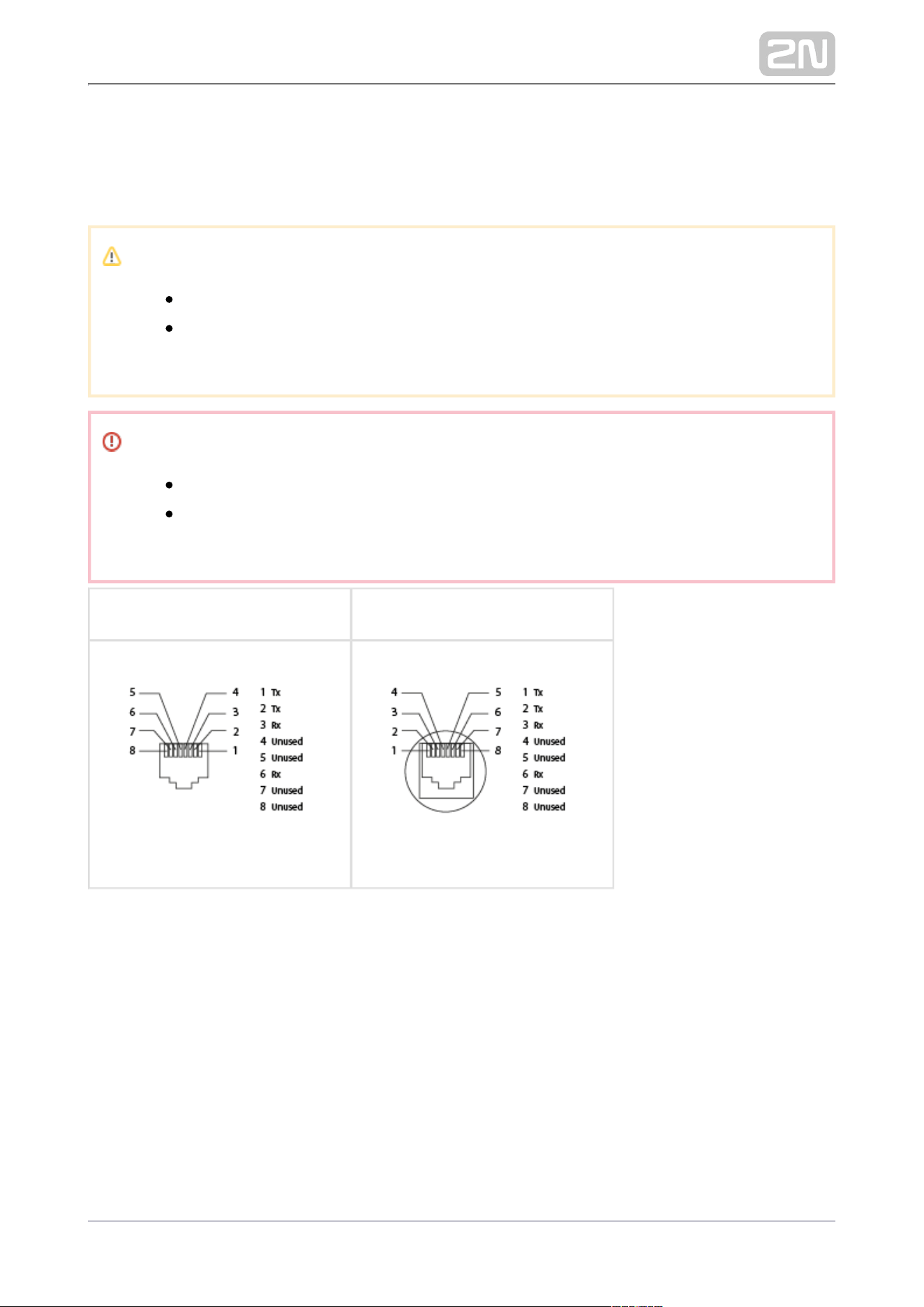
Use a standard straight RJ-45 terminated cable to connect to the 2N Indoor View
®
Ethernet. The device supports the 10BaseT and 100BaseT protocols.
Caution
Factory reset results in a change of the Ethernet interface configuration!
A defective Ethernet cable may lead to a high packet loss in the
Ethernet and subsequent instability and poor call quality!
Warning
Do not connect any external power supply if PoE is used and vice versa.
Connection of a defective or improper power supply may lead to a
temporary or permanent device failure.
Ethernet cable connector Ethernet socket
Firmware Upload
We recommend you to upgrade the firmware during installation. 2N Indoor View
®
Refer to for the latest FW version. Refer to for the firmware www.2n.cz 3.2.5 System
upgrade procedure.

2N TELEKOMUNIKACE a.s., www.2n.cz 25/117
1.
2.
3.
2.4 2N® Indoor View LAN Location via 2N®
Network Scanner
2N Indoor View
®
is configured via the administration web server. Connect the device
to the LAN IP and make sure it is properly powered.
2N ® Network Scanner Description
The application helps find the IP addresses of all the devices in the 2N
®
Indoor View
LAN. Download the app from the 2N web sites ( ). Make sure that Microsoft .www.2n.cz
NET Framework 2.0 is installed for successful app installation.
Run the .2N
®
Network Scanner
Use the Setup Wizard for successful installation.
Setup Wizard application 2N
®
IP Network Scanner
Having installed the , start the application using the 2N
®
IP Network Scanner
Microsoft Windows Start menu.

2N TELEKOMUNIKACE a.s., www.2n.cz 26/117
Once started, the application begins to automatically search for all the 2N IP intercoms
in the LAN including their smart extensions ( , 2N Indoor View,
®
2N Indoor Compact
®
, ), which are DHCP/statically assigned IP addresses. 2N
®
Indoor Talk 2N
®
Indoor Touch
All the devices are displayed in a table
2N
®
IP Network Scanner
Select the device to be configured and right-click it. Select 2N
®
Indoor View
Browse…
to open the administration web interface login window for 2N
®
Indoor View
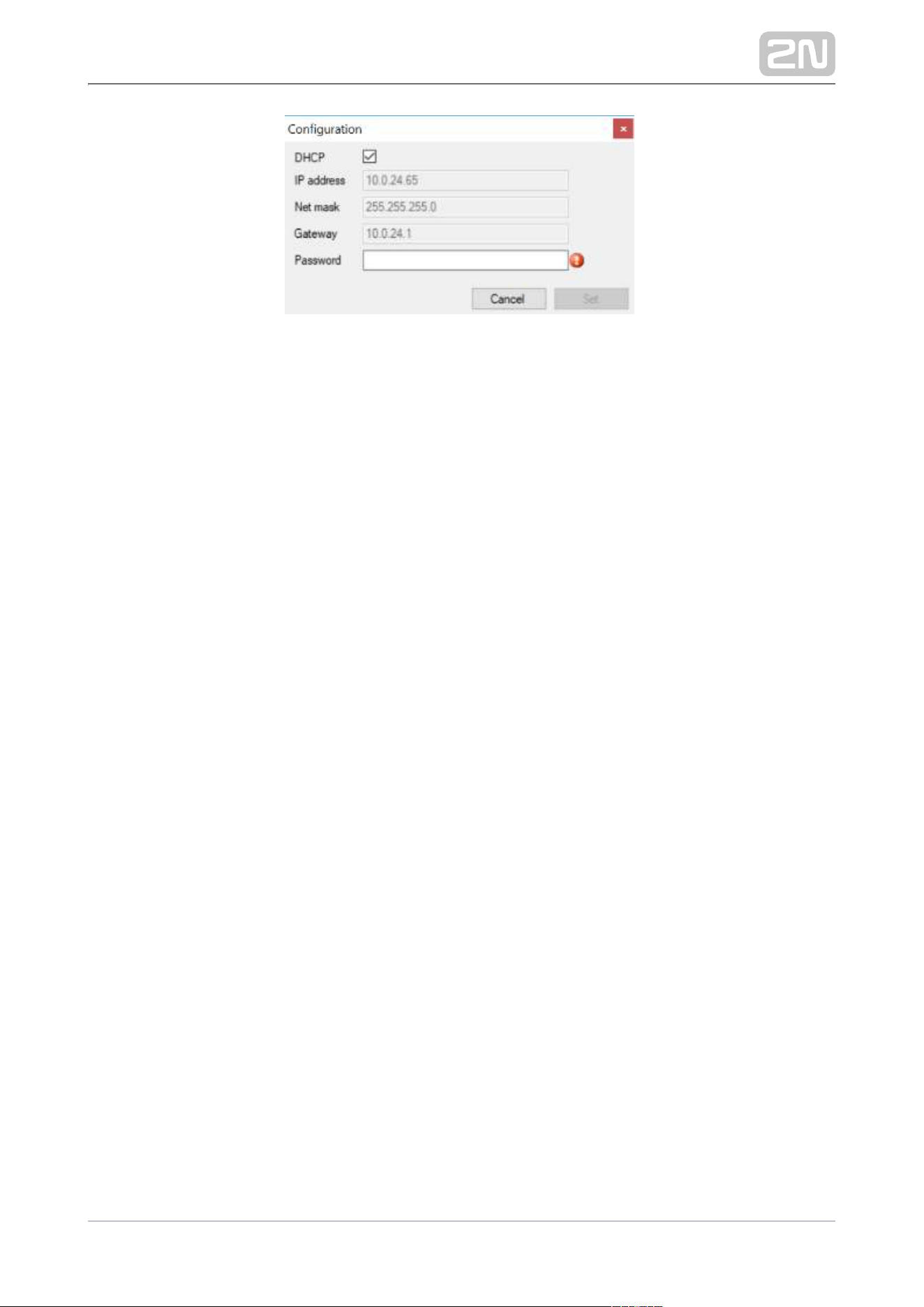
configuration. To change the device IP address, select and enter the required
Config
static IP address or activate DHCP. The default configuration password is 2n. If the
found device is grey highlighted, its IP address cannot be configured using this
application. In that case, click Refresh to find the device again and check whether
multicast is enabled in your network.
Tip
Double click the selected row in the list to 2N
®
IP Network Scanner
access the device web interface easily.
2N TELEKOMUNIKACE a.s., www.2n.cz 27/117
2N
®
IP Network Scanner IP Address Change

2N TELEKOMUNIKACE a.s., www.2n.cz 28/117
2.5 IP Address Lookup
To look up the device IP address, take the following steps: Use the free 2N Network
®
application or view the information on the device display.Scanner
To find the IP address via the , follow the 2N Indoor View
®
2N Network Scanner
®
steps mentioned in the previous subsection, 2.4 2N Indoor View LAN Location via 2N
®
. Once started, the application begins to automatically search for Network Scanner
®
all the in the LAN including their smart extensions ( ,2N IP intercoms 2N Indoor View
®
, , ), which are DHCP/statically 2N Indoor Compact
®
2N
®
Indoor Talk 2N
®
Indoor Touch
assigned IP addresses. All the devices are displayed in a table including the IP
addresses assigned to them.
To find the IP address using the display, press any key on the 2N Indoor View
®
display to quit the sleep mode. The Settings menu is displayed on the home screen
after pressing the settings icon in the bottom right corner. Find the IP address
information in the Settings / About device menu.

2N TELEKOMUNIKACE a.s., www.2n.cz 29/117
Dynamic/Static IP Address Switching
2N Indoor View
®
is connected to the LAN and has to be assigned a valid IP address or
obtain the IP address from the LAN DCHP server. Configure the IP address and DHCP
in the System / Network menu.
Use DHCP server – enable automatic obtaining of the IP address from the LAN
DHCP server. If there is no DHCP server or the DHCP cannot be used in your
network, use the manual network setting.
Static IP Address – static IP address of the device. The address is used together
with the parameters below unless Use DHCP server is enabled.
Network mask – set the network mask.

2N TELEKOMUNIKACE a.s., www.2n.cz 30/117
Default gateway – address of the default gateway, which provides
communication with off-LAN equipment.
Primary DNS – primary DNS address for domain name-to-IP address translation.
Secondary DNS – secondary DNS address where the primary DNS is unavailable.

2N TELEKOMUNIKACE a.s., www.2n.cz 31/117
3. Configuration
Login
Fill in the address or domain name into the internet browser. to 2N
®
Indoor View
display the login screen. The default login user name and password are as follows:
Username: Admin
Password: 2n
Should the login screen fail to appear, you must have typed a wrong IP address/port
or the administration web server has been switched off. To find the 2N Indoor View
®
correct IP address, use the as described in 2N
®
Network Scanner 2.4 2N® Indoor View
LAN Location via 2N Network Scanner
®
Language Selection
Use the menu in the right-hand upper corner of the web interface to select language.
Language Selection
3.1 Factory Reset
3.2 Software Configuration

2N TELEKOMUNIKACE a.s., www.2n.cz 32/117
3.1 Factory Reset
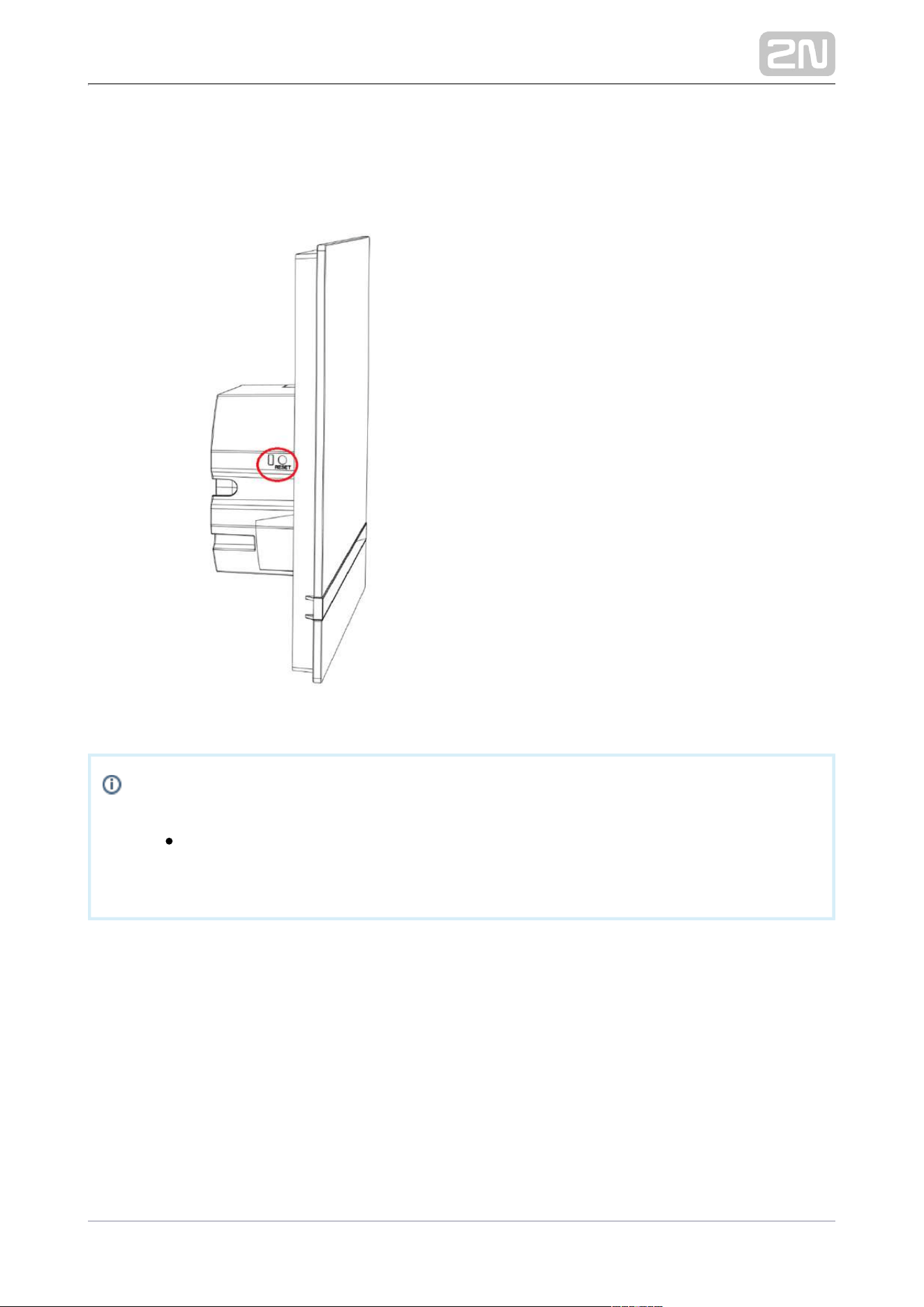
Reset Button
Located among the main unit connectors, the Reset button helps you reset the factory
default values, restart the device, find the device IP address and switch the static
/dynamic mode.
IP Address Finding
Follow the instructions below to :identify the current IP address
Press and hold the RESET button.
Wait until the red and green LEDs go on simultaneously on the device and the
acoustic signal can be heard (approx. 15–35 s).
Release the RESET button.
The device announces the current IP address via the speaker automatically.
Note
The delay after pressing RESET till the first light and sound signalling is
set to 15–35 s depending on the 2N IP intercom/answering unit model
used.
The time interval 18 s applies to the .2N Indoor View
®
Static IP Address Setting
Follow the instructions below to switch on the (DHCP OFF): Static IP address mode
Press and hold the RESET button.

2N TELEKOMUNIKACE a.s., www.2n.cz 33/117
Wait until the red and green LEDs go on simultaneously on the device and the
acoustic signal can be heard (approx. 15–35 s).
Wait until the red LED goes off and the acoustic signal can be heard
(approx. for another 3 s).
Release the RESET button.
The following network parameters will be set after restart:
IP address: 192.168.1.100
Network mask: 255.255.255.0
Default gateway: 192.168.1.1
Dynamic IP Address Setting
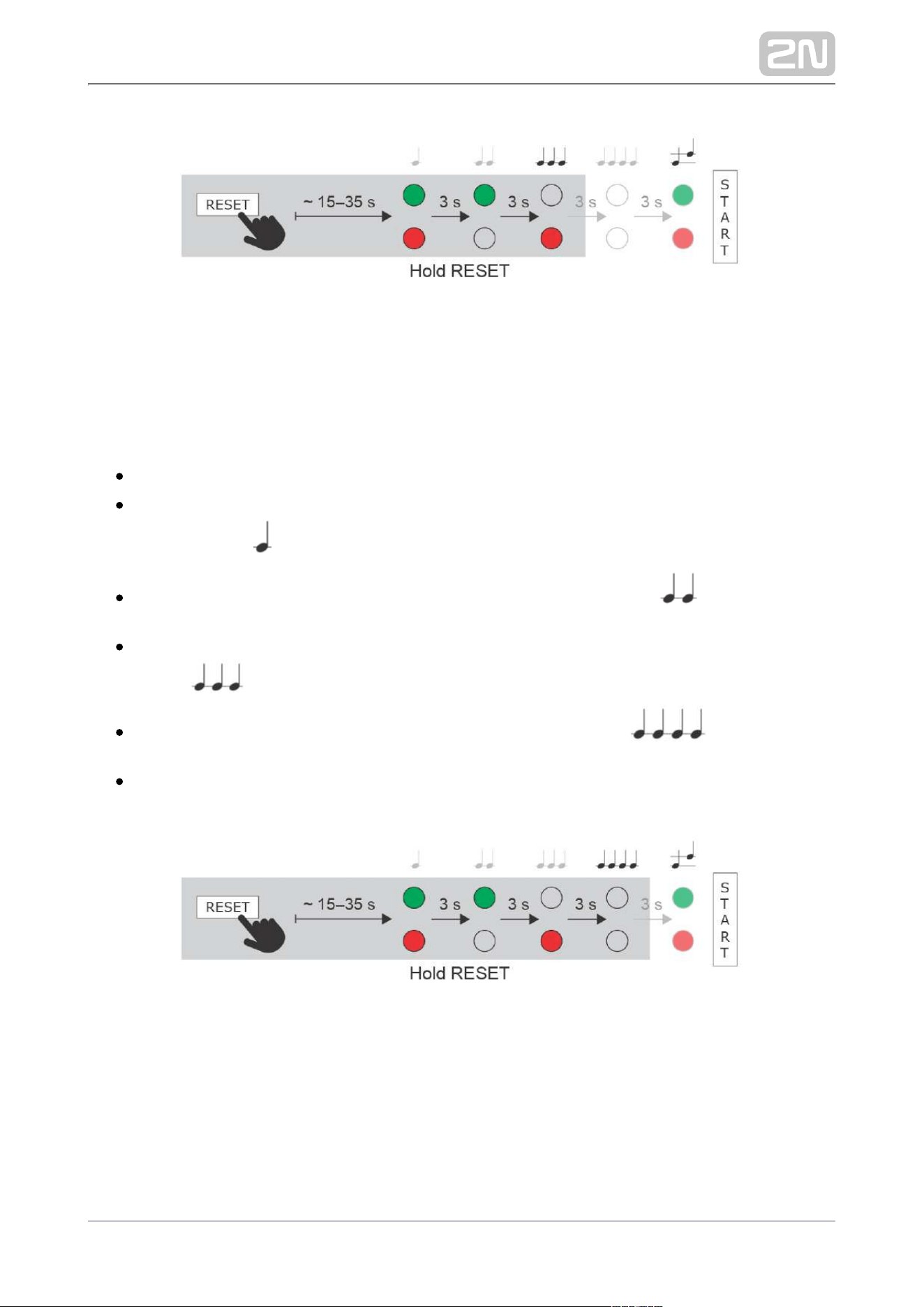
Follow the instructions below to switch on the (DCHP ON):Static IP address mode
Press and hold the RESET button.
Wait until the red and green LEDs go on simultaneously on the device and the
acoustic signal can be heard (approx. 15–35 s).
Wait until the red LED goes off and the acoustic signal can be heard
(approx. for another 3 s).
Wait until the green LED goes off and the red LED goes on again and the
acoustic signal can be heard (approx. for another 3 s).
Release the RESET button.
2N TELEKOMUNIKACE a.s., www.2n.cz 34/117
Factory Reset
Follow the instructions below to :reset the factory default values
Press and hold the RESET button.
Wait until the red and green LEDs go on simultaneously and the acoustic signal
(approx. 15–35 s). can be heard
Wait until the red LED goes off and the can be heard acoustic signal
(approx. for another 3 s).
Wait until the green LED goes off and the red LED goes on again and acoustic
can be heard (approx. for another 3 s). signal
Wait until the red LED goes off and the can be heard acoustic signal
(approx. for another 3 s).
Release the RESET button.
2N TELEKOMUNIKACE a.s., www.2n.cz 35/117
Device Restart
Press the button shortly (< 1 s) to restart the system without changing configuration.
Note
For the , the time interval between a quick press of the 2N Indoor View
®
RESET button and reconnection of the device to the network is 20 s.

2N TELEKOMUNIKACE a.s., www.2n.cz 36/117
3.2 Software Configuration
Start Screen
The start screen is displayed when you log in to the web interface. 2N Indoor View
®
Use the button in the left-hand upper corner on each of the following web
interface pages to return to this screen anytime. The screen header includes the
device name (refer to the Display Name parameter in the Services / Phone / SIP
menu). Use the buttons to select the web interface languages. Click the Log out
button in the right-hand upper corner to log out.
The start screen also provides the first menu level and quick tile navigation to selected
configuration sections. Some tiles also display the state of selected 2N Indoor View
®
services.


2N TELEKOMUNIKACE a.s., www.2n.cz 38/117
3.2.1 Status
The menu provides clear status and other current information on the device. Status
The menu consists of three tabs: , , .Device Services Events
3.2.1.1 Device
3.2.1.2 Services
3.2.1.3 Events
3.2.1.1 Device
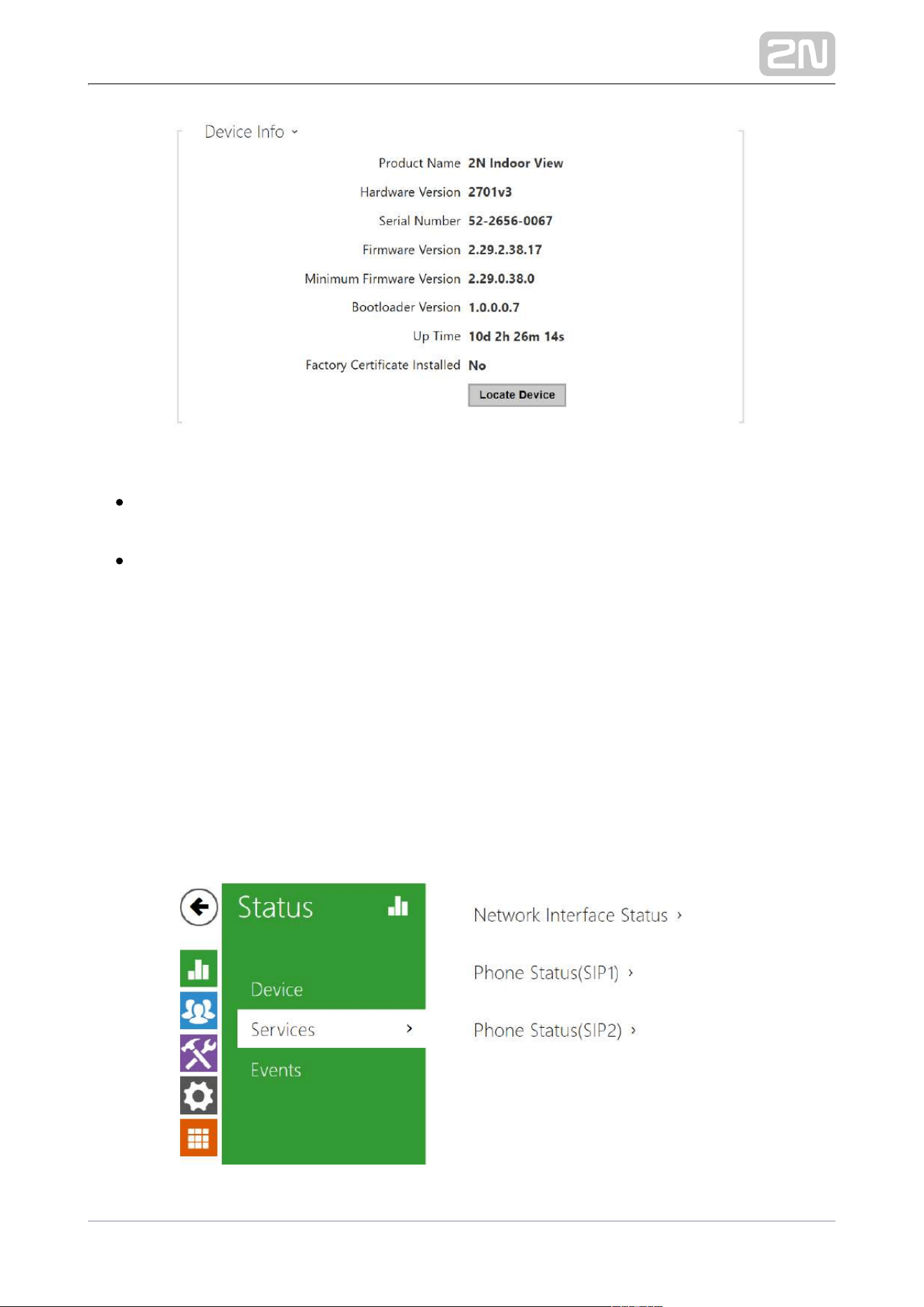
Device
The tab displays information on the model, its features, firmware and bootloader
versions, etc.
2N TELEKOMUNIKACE a.s., www.2n.cz 39/117
Factory Certificate Installed – specify the user certificate and private key to
validate the intercom right to communicate with the ACS.
Locate device – optical and acoustic signalling of a device. Optical signalling is
possible only if the device is equipped with control backlight ( , 2N IP Verso
®
2N
®
, , , , a IP Solo 2N IP Base
®
2N IP Vario
®
2N IP Force
®
2N IP Safety
®
2N IP Uni ,
®
2N
, , , , View Indoor
®
Compact2N Indoor
®
Talk2N Indoor
®
2N Indoor Touch 2.0
®
2N
). If a speaker is not integrated in the device, make sure than IP Indoor Touch
®
an external speaker is connected ( a ). to use 2N IP Audio Kit
®
2N IP Video Kit
®
sound signalling.
3.2.1.2 Services

2N TELEKOMUNIKACE a.s., www.2n.cz 40/117
Services
The Services tab displays the status of the network interface and selected services.

2N TELEKOMUNIKACE a.s., www.2n.cz 41/117
3.2.1.3 Events
Events
The tab displays the last 500 events captured by the device. Every event includes the
capturing time and date, event type and detailed description. The events can be
filtered by type in a dropdown menu above the event log.

2N TELEKOMUNIKACE a.s., www.2n.cz 42/117
3.2.2 Directory
Directory is one of the crucial parts of the device configuration. It helps add new
devices (2N IP intercoms and other answering units) and provides essential
information on them. Up to 200 devices can be added to the directory.
The Search function works as a fulltext search in names and phone numbers. It
searches for all matches in the whole directory. The icon helps find registered
devices and add them to the Directory list if necessary. The icon helps create a
new device and the icon displays the user settings details. The icon helps
remove a device from the list deleting all its data. You can arrange the list according
to the name or feature ( indicates that the device may be displayed,
indicates that incoming calls are allowed to the device, indicates the feature of
the device to which the call started with a short call button press is created and
indicates the feature of the device to which the alarm call started with a the doorbell
button press is created). One list page can include 15, 25 or 50 devices.
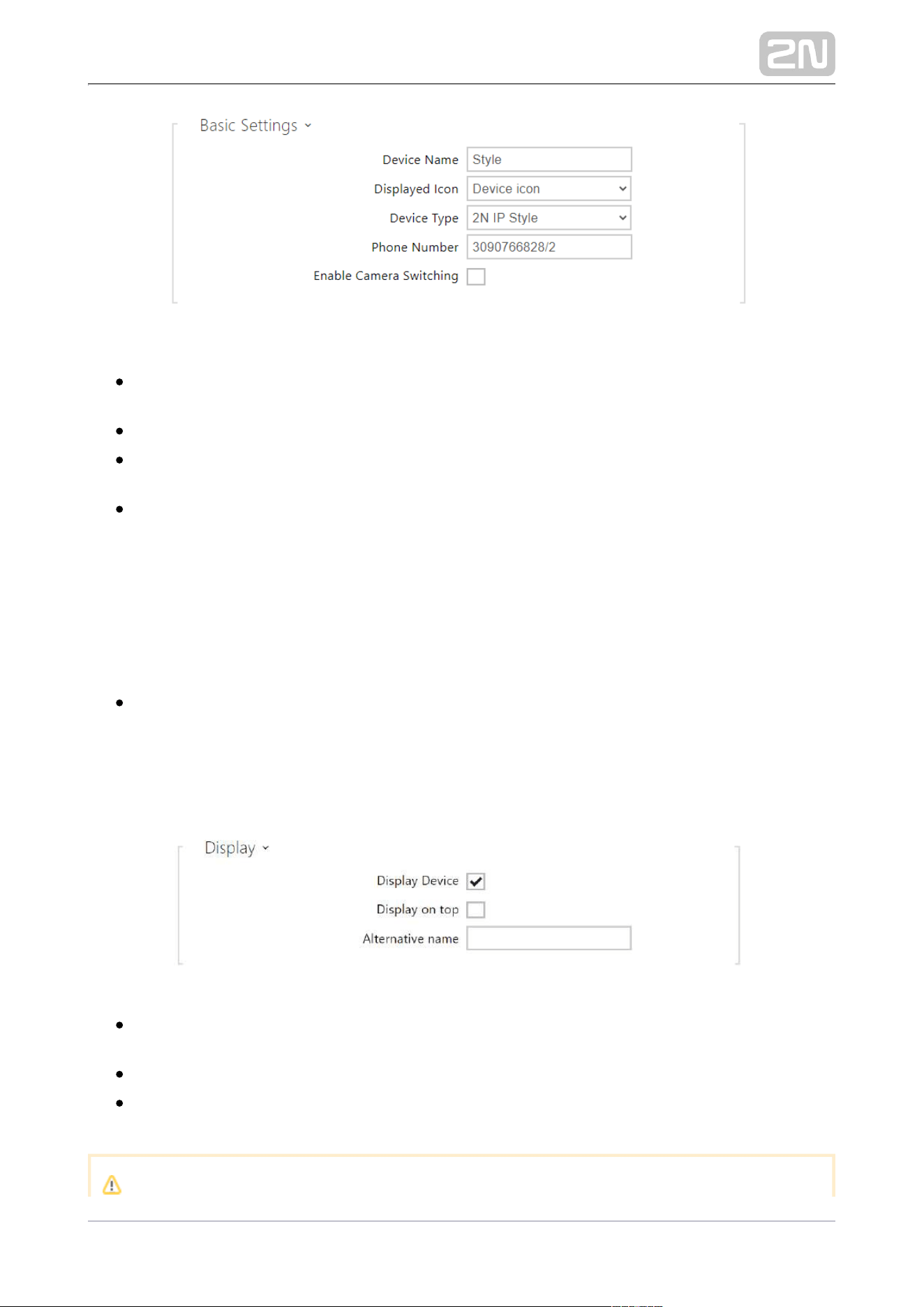
Each device list item includes the following data:
2N TELEKOMUNIKACE a.s., www.2n.cz 43/117
Device Name – enter the device name for the selected Phone Book position. This
parameter is optional and helps you find items in the Phone Book more easily.
Displayed Icon – display the reception desk symbol or a standard symbol.
Device Type – set this parameter manually or automatically using the search for
registered devices in the directory.
Phone number – enter the phone number of the station to which the call shall be
routed. Enter sip:[user_id@]domain[:port] for Direct SIP calling, e.g.: sip:
200@192.168.22.15 or sip:name@yourcompany. Enter device:device_name for
calls to the application. Set the device name in the mobile 2N IP Mobile
®
application. Enter or behind the phone number to specify which SIP account /1 /2
shall be used for outgoing calls (account 1 or 2). Enter /S or /N to force an
encrypted or unencrypted call respectively. The account and encryption
selections can be combined into the suffix /1S, for example.
Enable Camera Switching – set whether or not an external camera is available at
the contact terminal equipment (accordingly, the internal/external camera
button is/is not displayed during calls and call previews). With some 2N terminal
equipment in the LAN, the information sent by the 2N terminal equipment is
preferred to this setting (i.e. this setting is not needed for contacts using 2N
terminals or camera-less devices).
Display Device – display this device. The user can select and call for any device
displayed.
Display on Top – display the device on the top.
Alternative Name – display an alternative name instead of the device name. If no
alternative name has been entered, this is shown on the display.

2N TELEKOMUNIKACE a.s., www.2n.cz 44/117
Caution
The <, > and / characters are not permitted for the parameters Device
name and Alternative name.
Start call with a doorbell button press – a phone call to this device will be set up
after the alarm call button is pressed. Set the doorbell alarm call function in HW
/ Digital inputs / Doorbell button.
Name – enter the code assigned to unlock button #1, #2, #3, #4.
Lift – select the door lock / lift unlock button icon on the display .
Code 1, 2, 3, 4 – It is used for remote unlocking of the entrance door, for
example. Make sure that the code includes at least two door unlocking
characters via the intercom keypad and at least one door unlocking DTMF
character via a phone. Four The supported characters also inlcude * or #.
characters at least are recommended.
3.2.3 Services

2N TELEKOMUNIKACE a.s., www.2n.cz 46/117
3.2.3.1. Phone
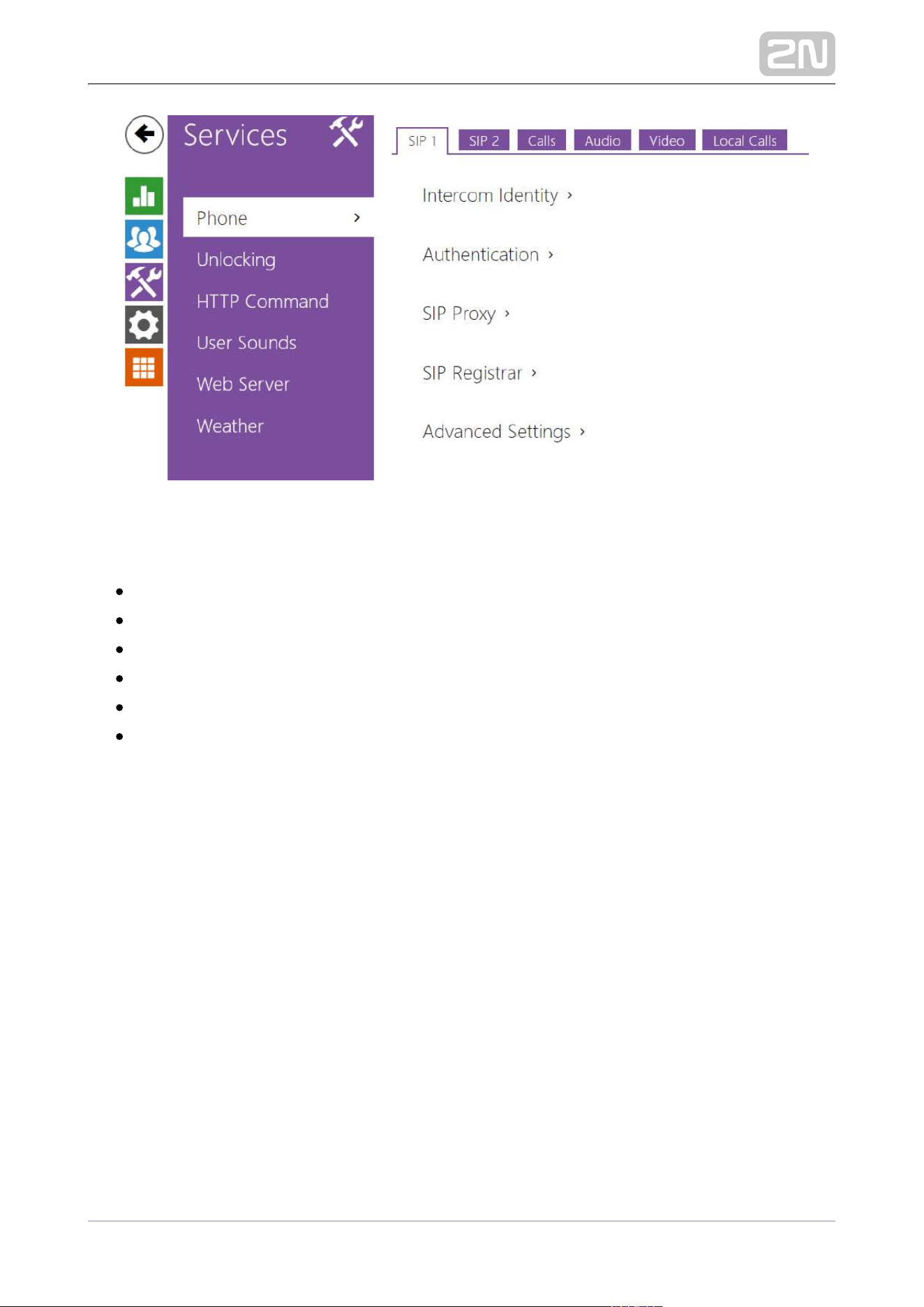
Phone is an essential function of allowing you to establish 2N Indoor View
®
connections to other IP network terminals. supports the extended 2N Indoor View
®
SIP.
List of Parameters
2N Indoor View
®
Phone includes the following four tabs:
SIP 1– complete SIP account settings.
SIP 2– complete SIP account settings.
Calls – incoming and outgoing call settings.
Audio – audio codec, DTMF and other audio stream parameter transmission
settings.
Video – video codec and SDP codec settings.
2N Indoor Units – general parameters and count of identified LAN devices.
SIP 1 and SIP 2
2N Indoor View
®
helps you configure one SIP account.

2N TELEKOMUNIKACE a.s., www.2n.cz 47/117
Display Name – set the name to be displayed as CLIP on the called party's
phone.
Phone Number (ID) – set your device phone number (or another unique ID
composed of characters and digits). Together with the domain, this number
uniquely identifies the device in calls and registration.
Domain – set the domain name of the service with which the device is registered.
Typically, it is equivalent to the SIP Proxy or Registrar address.
Test Call – display a dialogue window enabling you to make a test call to a
selected phone number, see below.
Use Authentication ID – select the use of an alternative ID for device
authentication. Otherwise, the Phone number value from the previous section is
used for authentication.
Authentication ID – set the alternative user ID for device authentication.
Password – set the device authentication password. If your PBX requires no
authentication, the parameter will not be applied.
Proxy Address – set the SIP Proxy IP address or domain name.
Proxy Port – set the SIP Proxy port (typically 5060).
Backup Proxy Address – set the backup SIP Proxy IP address or domain name.

2N TELEKOMUNIKACE a.s., www.2n.cz 48/117
Backup Proxy Address – set the backup SIP Proxy IP address or domain name.
The address is used where the main proxy fails to respond to requests.
Backup Proxy Port – set the backup SIP Proxy port (typically 5060).
Registration Enabled – enable device registration with the set SIP Registrar.
Registrar address – set the SIP Registrar IP address or domain name.
Registrar Port – set the SIP Registrar port (typically 5060).
Backup Registrar Address – set the backup SIP Registrar IP address or domain
name. The address is used where the main registrar fails to respond to requests.
Backup Registrar Port – set the backup SIP registrar port (typically 5060).
Registration Expires – set the registration expiry, which affects the network and
SIP Registrar load by periodically sent registration requests. The SIP Registrar
can alter the value without letting you know.
Registration State – display the current registration state (Unregistered,
Registering..., Registered, Unregistering...).
Failure Reason – display the reason for the last registration attempt failure: the
registrar’s last error reply, e.g. 404 Not Found.

2N TELEKOMUNIKACE a.s., www.2n.cz 49/117
SIP Transport Protocol – set the SIP communication protocol: UDP (default), TCP
or TLS.
Local SIP Port – set the local port for the device for SIP signaling. A change of
this parameter will not be applied until the device is restarted. The default value
is 5060.
PRACK Enabled – enable the PRACK method for reliable confirmation of SIP
messages with codes 101–199.
REFER Enabled – enable call forwarding via the REFER method.
Send Keep Alive Packets – set that the device shall inquire periodically about the
state of the called station via SIP OPTIONS requests during the call (used for
station failure detection during the call).
IP Address Filter Enabled – enable the blocking of SIP packet receiving from
addresses other than SIP Proxy and SIP Registrar. The primary purpose of the
function is to enhance communication security and eliminate unauthorized
phone calls.
Receive Encrypted Calls Only (SRTP) – set that SRTP encrypted calls shall only
be received on this account. Unencrypted calls will be rejected. At the same
time, TLS is recommended as the SIP transport protocol for higher security.
Encrypted Outgoing Calls (SRTP) – set that outgoing calls shall be SRTP
encrypted on this account. At the same time, TLS is recommended as the SIP
transport protocol for higher security.

2N TELEKOMUNIKACE a.s., www.2n.cz 50/117
Do Not Play Incoming Early Media – disable playing of the incoming audio
stream before the call sent by some PBXs or other devices is picked up (early
media). A standard local ringtone is played instead.
QoS DSCP Value – set the SIP packet priority in the network. The set value is
sent in the TOS (Type of Service) field in the IP packet header. Enter the value as
a decimal number. A change of this parameter will not be applied until the
device is restarted.
External IP Address – set the public IP address or router name to which the
device is connected. If the device IP address is public, leave this parameter
empty.
Starting RTP Port – set the initial local RTP port in the range of 64 ports used for
audio and video transmission. The default value is 4900 (i.e. the range is 4900–
4963). The parameter is only set for account 1 but applies to both the SIP
accounts.
RTP Timeout – set the audio stream RTP packet receiving timeout during a call.
If this limit is exceeded (RTP packets are not delivered), the call will be
terminated by the device. Enter 0 to disable this parameter. The parameter is
only set for account 1 but applies to both the SIP accounts.
Broadsoft Compatibility Mode – set the Broadsoft PBX compatibility mode.
Having received re-invite from a PBX in this mode, the intercom replies by
repeating the last sent SDP with currently used codecs instead of sending a
complete offer.
Rotate SRV records – allow SRV record rotation for SIP Proxy and Registrar. This
is an alternative method of transition to backup servers in the event of main
server failure or unavailability.
Calls
General Settings – set the call time limit after which the call is automatically
terminated. The intercom signals termination with a beep 10 s before the call
end. Enter any DTMF character into the call (# on your IP phone, e.g.) to extend
the call time.
Call Receiving Mode (SIP 1, SIP 2) – set the way of receiving incoming calls. The

2N TELEKOMUNIKACE a.s., www.2n.cz 51/117
Call Receiving Mode (SIP 1, SIP 2) – set the way of receiving incoming calls. The
following three options are available:
Always busy – the device rejects incoming calls.
Manual answering – the device rings to signal incoming calls and the user
can press a keypad button to pick up.
Automatic – the device picks up incoming calls automatically. You can set
the call receiving mode for each SIP account separately.
Local Call Receiving Mode – set the way of receiving incoming local calls.
Always busy – the device rejects incoming calls.
Manual answering – the device rings to signal incoming calls and the user
can press a keypad button to pick up.
Automatic – the device picks up incoming calls automatically. You can set
the call receiving mode for each SIP account separately.
Pick up in – this parameter is only active when the Automatic pickup mode is
enabled. The call is picked up automatically after the preset timeout.
Ring time limit – set the maximum call setup and ringing time in which all
outgoing calls are automatically terminated. If the calls are routed to the GSM
network via GSM gateways, you are advised to set a value longer than 20 s.
Minimum value: 1 s, maximum value: 600 s. Set 0 to disable the time parameter.
Save image from call – select this to save an image from every video call into the
call list.
2N TELEKOMUNIKACE a.s., www.2n.cz 52/117
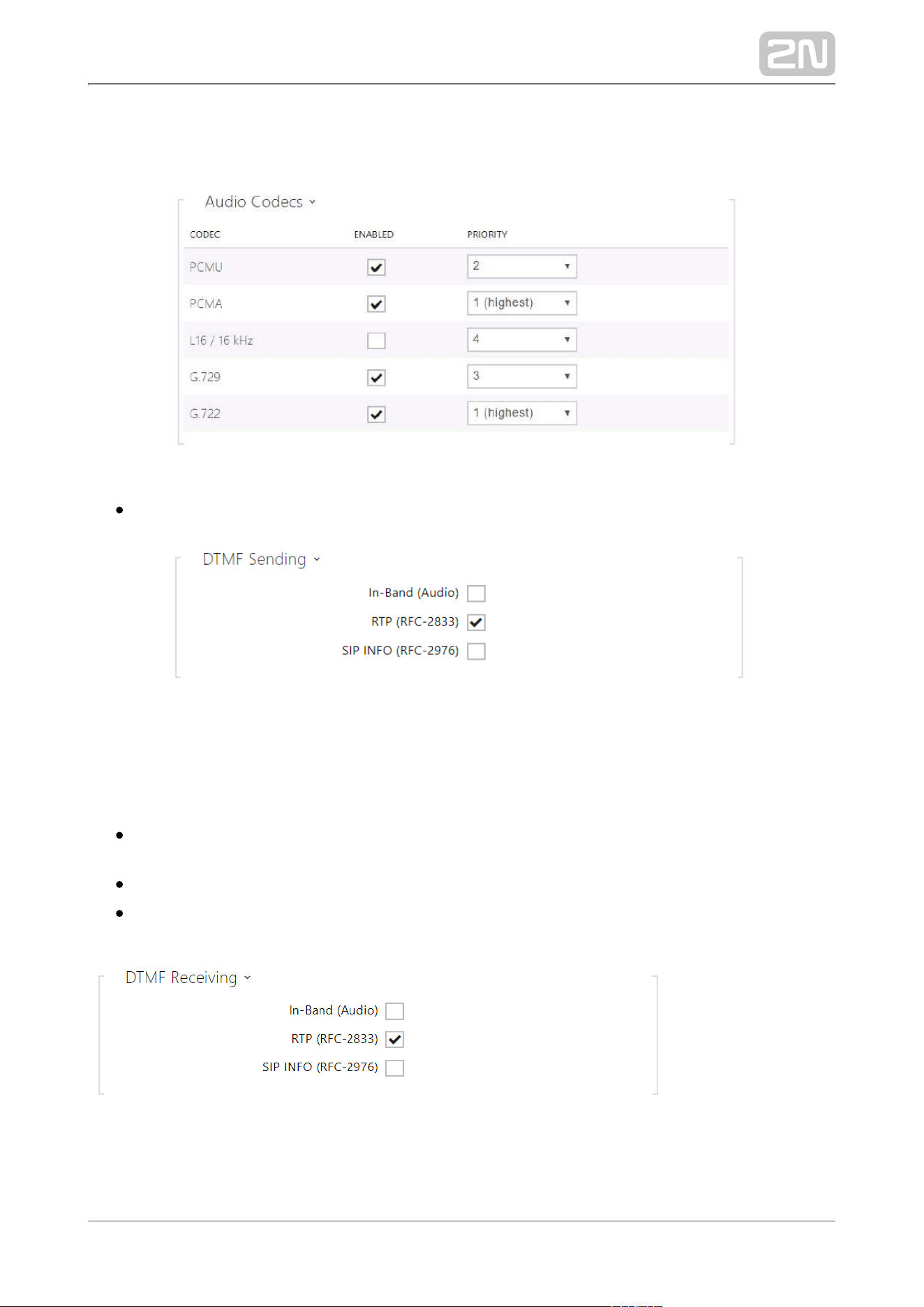
Audio
Enable/disable the use of audio codecs for call setups and set their priorities.
The tab below helps you define how DTMF characters shall be sent from the intercom.
Check the opponent’s DTMF receiving options and settings to make the function work
properly.
In-Band (Audio) – enable the classic method of sending DTMF in the audio band
using standardized dual tones.
RTP (RFC-2833) – enable DTMF sending via the RTP according to RFC-2833.
SIP INFO (RFC-2976) – enable DTMF sending via SIP INFO messages according
to RFC-2976.
The tab below helps you define how DTMF characters shall be received from the intercom. Check the
opponent’s DTMF receiving options and settings to make the function work properly.

2N TELEKOMUNIKACE a.s., www.2n.cz 53/117
In-Band (Audio) – enable classic DTMF dual tone receiving in the audio band.
RTP (RFC-2833) – enable DTMF receiving via RTP according to RFC-2833.
SIP INFO (RFC-2976) – enable DTMF receiving via SIP INFO messages according
to RFC-2976.
QoS DSCP Value – set the audio RTP packet priority in the network. The set
value is sent in the TOS (Type of Service) field in the IP packet header.
Jitter Compensation – set the buffer length for compensation of interval
unevenness in audio packet arrivals. A higher capacity improves the transmission
resistance at the cost of a greater sound delay.
Video
Enable/disable the use of video codecs for call setups and set their priorities.
H.264 Payload Type (1), (2) – set the video codec H.264 payload type
(packetization mode 1). Set a value from the range of 96 through 127, or 0 to
disable this codec type.

2N TELEKOMUNIKACE a.s., www.2n.cz 54/117
Local Calls
Enable Local Calls – enable calls between 2N devices in the LAN. With this
function off, the other LAN devices cannot locate this device, i.e. cannot call the
device in the device:device_ID format.
Device ID – set the device ID to be displayed in the LAN device list in all the 2N
devices in one and the same LAN. You can direct a call to this device by setting
the user phone number as device:device_ID in these devices.
Access Key 1, 2 – set the access key shared by the 2N answering units and
intercoms. If the keys in the 2N answering units and the intercoms fail to match,
the devices cannot communicate, i.e. the intercom cannot call the 2N answering
unit and vice versa.
Access Key – set the access key shared by the 2N answering units and
intercoms. If the keys in the 2N answering units and the intercoms fail to match,
the devices cannot communicate, i.e. the intercom cannot call the 2N answering
unit and vice versa.
Multicast Address – set the network multicast address to which the answering
unit message shall be sent.
2N TELEKOMUNIKACE a.s., www.2n.cz 55/117
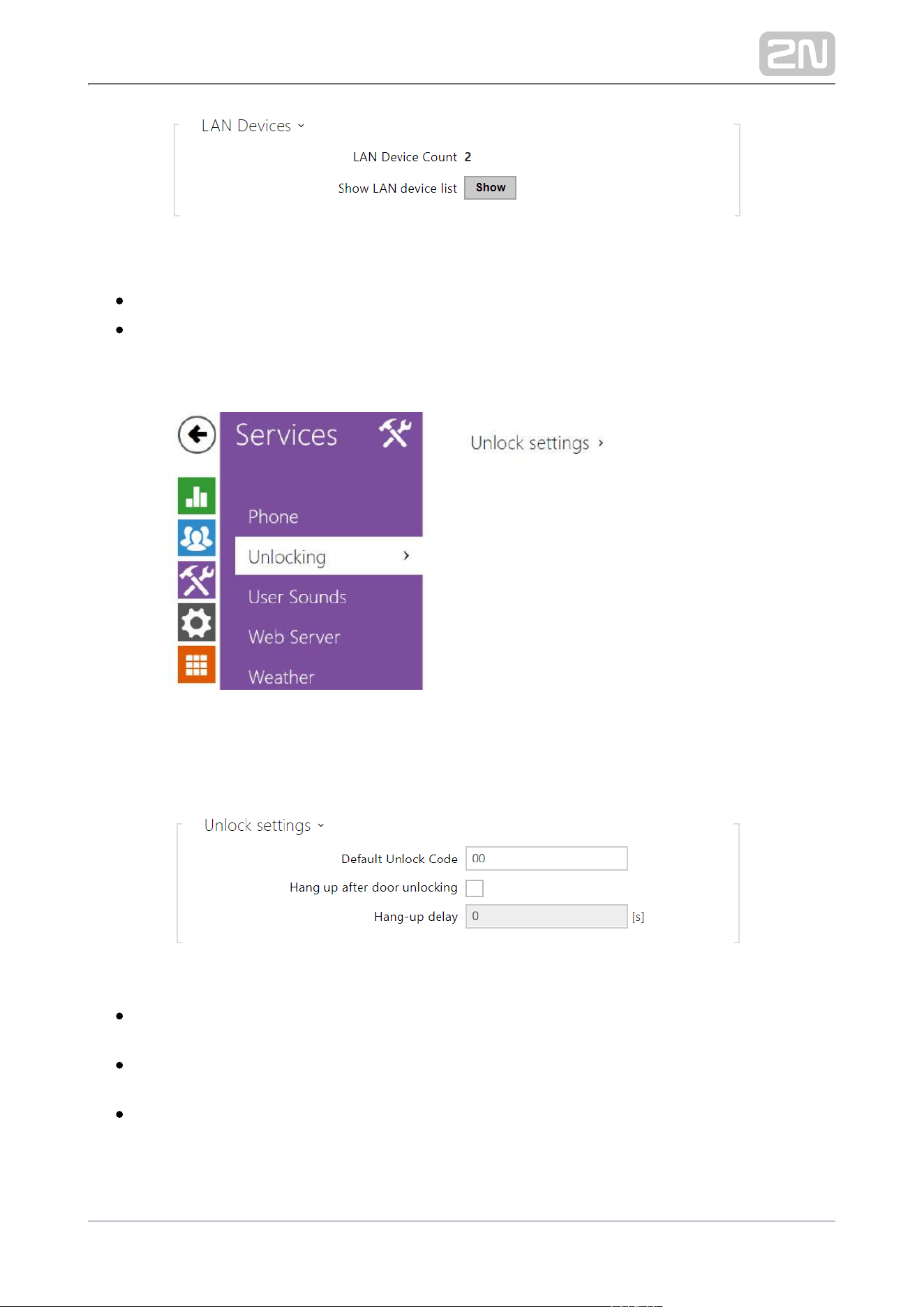
LAN Device count – display the number of local devices in the network.
Show LAN devices list – display a detailed list of local devices in the network.
3.2.3.2 Unlocking
Unlocking is another function of , which sets the remote door 2N Indoor View
®
unlocking parameters.
Default Unlock Code – use this code when a call has been set up with a device
/phone number that is not added to the unit phone book.
Hang Up After Door Unlocking – end the call when the door unlocking request
has been sent successfully.
Hang-Up Timeout – end the call when the door unlocking request sending
timeout has elapsed.

2N TELEKOMUNIKACE a.s., www.2n.cz 56/117
3.2.3.3 HTTP Command
HTTP Command on the answering unit helps you send a selected 2N Indoor View
®
HTTP command by pressing a button. The button is displayed on the home page
under a selected icon in case the function is enabled. The function is disabled by
default.
HTTP Command Enable – enable/disable HTTP command sending by pressing a
button.
Icon – choose the HTTP command button icon. The button is displayed on the
device home page and can be used for sending the set HTTP command.
URL – set the HTTP command to be sent to an external device by pressing a
button. The command is sent via the HTTP (GET request). The command format
is . E.g. . If the parameter is http://ip_address/path http://192.168.1.50/relay1=on
empty, the command is not sent.
Username – set the user name for authentication of the HTTP command to be

2N TELEKOMUNIKACE a.s., www.2n.cz 57/117
1.
a.
b.
c.
d.
e.
Username – set the user name for authentication of the HTTP command to be
sent by pressing a button. The parameter is mandatory only if the requested
device requires authentication.
Password – set the password for authentication of the HTTP command to be
sent by pressing a button. The parameter is mandatory only if the requested
device requires authentication.
3.2.3.4 User Sounds
2N Indoor View
®
signals variable operational statuses with a sequence of tones. If the
standard signaling tones do not meet your requirements, you can modify them.
The device allows you to modify sound signaling for the following states:
Ringtone before call pickup
Ringing tone
Busy tone
Call end signaling
Doorbell
Sound Mapping

2N TELEKOMUNIKACE a.s., www.2n.cz 58/117
Ringing before Call Pickup – set the ringtone to be played before an incoming
call is picked up (device ringtone).
Ringback Tone – set the sound to be played when the called user is ringing. The
PBX ringtone is preferred to the user ringtone in the device.
Call Busy Tone – set the tone to be played when the called user is busy.
Call Hang-Up Signaling – set the tone to signal the call end.
Doorbell – set the tone to be played when the doorbell is used.
Sound Upload
You can upload up to 10 user sound files to the device and name each of them for
better orientation.

2N TELEKOMUNIKACE a.s., www.2n.cz 59/117
Press to upload a sound file to the device. Select a file from your PC and click
. Press to remove a file. Click to play a successfully uploaded sound file Upload
(locally on your PC). Press to record a sound file via your PC microphone.

2N TELEKOMUNIKACE a.s., www.2n.cz 60/117
3.2.3.5 Web Server
2N Indoor View
®
can be configured using a common browser that approaches the
web server integrated in the device. The HTTPS protocol is used for the browser -
device communication. Enter the login user name and password first. The default
values are and respectively. We recommend to you change the default admin 2n
password as soon as possible.
List of Parameters
Device Name – set the device name to be displayed in the right-hand upper
corner of the web interface, in the login window and in other applications if
necessary (Network Scanner, etc.)
Web Interface Language – set the default language after the administration web
server login. Use the upper toolbar buttons to change the web interface
language temporarily any time.
Password – set the device login password. Click to edit the password. Make
sure that the password contains 8 characters at least, including one small
alphabet letter, one capital alphabet letter and one digit.
2N TELEKOMUNIKACE a.s., www.2n.cz 61/117
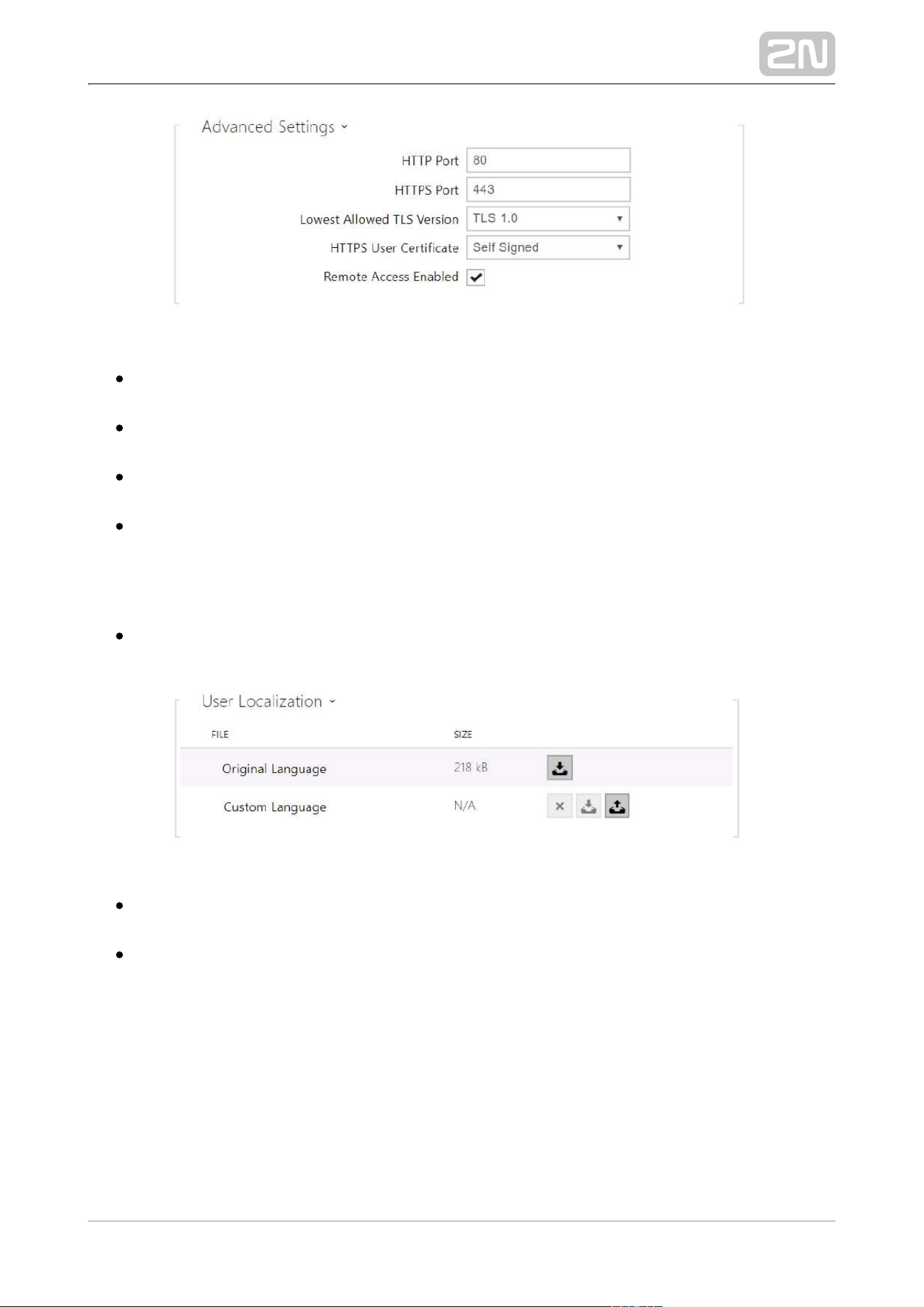
HTTP Port – set the web server port for HTTP communication. The port change
will not be applied until the device is restarted.
HTTPS Port – set the web server port for HTTPS communication. The port
change will not be applied until the device is restarted.
Minimum Allowed TLS Version – set the lowest TLS version to be accepted for
device connection.
HTTPS User Certificate – set the user certificate and private key for
communication encryption between the device HTTP server and the user web
browser. Choose one of the three sets of user certificates and private keys (refer
to the Certificates subs.) or keep the setting, in which the certificate Self Signed
automatically generated upon the first intercom power up is used.
Remote Access Enabled – enable remote access to the device web server from
off-LAN IP addresses.
Original Language – download an original file from the device including all user
interface texts in English. The file format is XML; see below.
User Language – upload, download and/or remove user files including
translations of the user interface texts.

2N TELEKOMUNIKACE a.s., www.2n.cz 62/117
3.2.3.6 Weather
The service offers display of information about the current weather for the Weather
selected location on the home screen.2N Indoor View
®
Show Weather – display information about the current weather on the device.
Location – set the device location for weather forecast. If Show Weather is
enabled and the Location parameter is empty, Prague will be displayed by
default. Otherwise, the weather and Location values will be hidden.
– location Shown on Display. If not completed, the weather Displayed Location
forecast location is displayed.
Temperature Units – select the temperature units to be displayed.

2N TELEKOMUNIKACE a.s., www.2n.cz 63/117
Last Update – precise date of the last server data update.
Location Found – weather forecast location found by the weather service.
Country – country of the automatically defined or completed location.


2N TELEKOMUNIKACE a.s., www.2n.cz 65/117
3.2.4.1 Audio
2N Indoor View
®
is equipped with a speaker. Set the phone call and state signaling
volume control in this configuration section. controls the general Master Volume
device volume including call volume, signaling tone volume, and so on. Consider the
noise level of the ambient environment while setting this parameter.
List of Parameters
Call Volume – set the phone call volume.
Ringtone Volume – set the incoming call ringtone volume.
Call Progress Tone Volume – set the dialtone, ringtone and busy tone volume
levels. In case the call progress tones are automatically generated by the PBX,
this setting will not be applied.
2N TELEKOMUNIKACE a.s., www.2n.cz 66/117
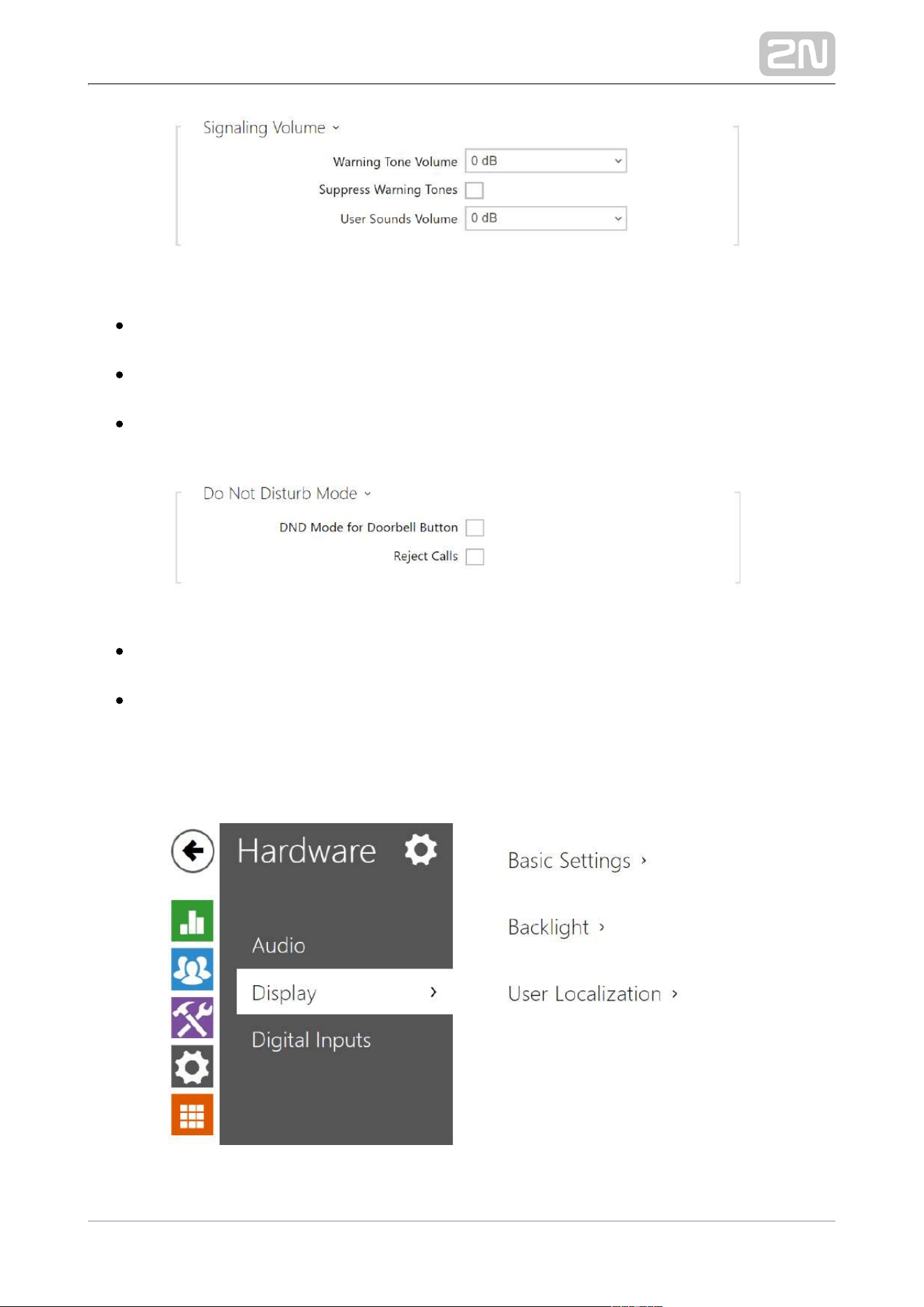
Warning Tone Volume – set the volume of warning and signaling tones. The
volume values are relative against the set master volume.
Suppress Warning Tones – suppress signaling of the following operational
states: Internal application started, IP address received and IP address lost.
User Sound Volume – set the volume of the user sounds. The volume values are
relative against the set master volume.
DND Mode for Doorbell Button – if this function is activated, the device will not
ring when the doorbell is pressed.
Reject Call – if this function is activated, the device reject calls in the Do not
Disturb mode. The function can be used for immediate call redirection at
absence to a mobile phone call, for example.
3.2.4.2 Display

2N TELEKOMUNIKACE a.s., www.2n.cz 67/117
Set the basic display parameters on this tab.
Language – set the language for the texts to be displayed. Choose one of the
seven pre-defined languages (CZ, EN, DE, FR, ES, IT, RU).
Date Format – set the date format to be displayed.
Time Format – set the time format to be displayed.
Screen Lock Enabled – activate the screen lock function.
Screen Lock PIN – set the screen lock activation/deactivation code.
Display Setting Menu – display the Setting menu.
Display Time in Idle Mode – switch off the device display and all backlight in the
idle mode.
Display Backlight Intensity – set the backlight brightness level. Set the value as a
percentage of the maximum possible LED brightness.
Reduction of intensity in idle mode to – sets the level of reduction of the
intensity of backlighting if the device goes into Idle Mode.
Go to Idle Mode in – set the inactivity timeout after which the device switches to
the idle mode.

2N TELEKOMUNIKACE a.s., www.2n.cz 68/117
Original language – download a preset XML file with all the texts to be displayed.
It is an XML file with all the texts to be displayed.
Note
If none of the pre-defined languages is convenient for you, proceed as follows:
Download the original language file (English).
Modify the file using a text editor (replace the English texts with your
own ones).
Upload the modified localization file back to the intercom.
Set to .Language Settings | Language Custom
Check and correct if necessary the texts on the intercom display.
2N TELEKOMUNIKACE a.s., www.2n.cz 69/117
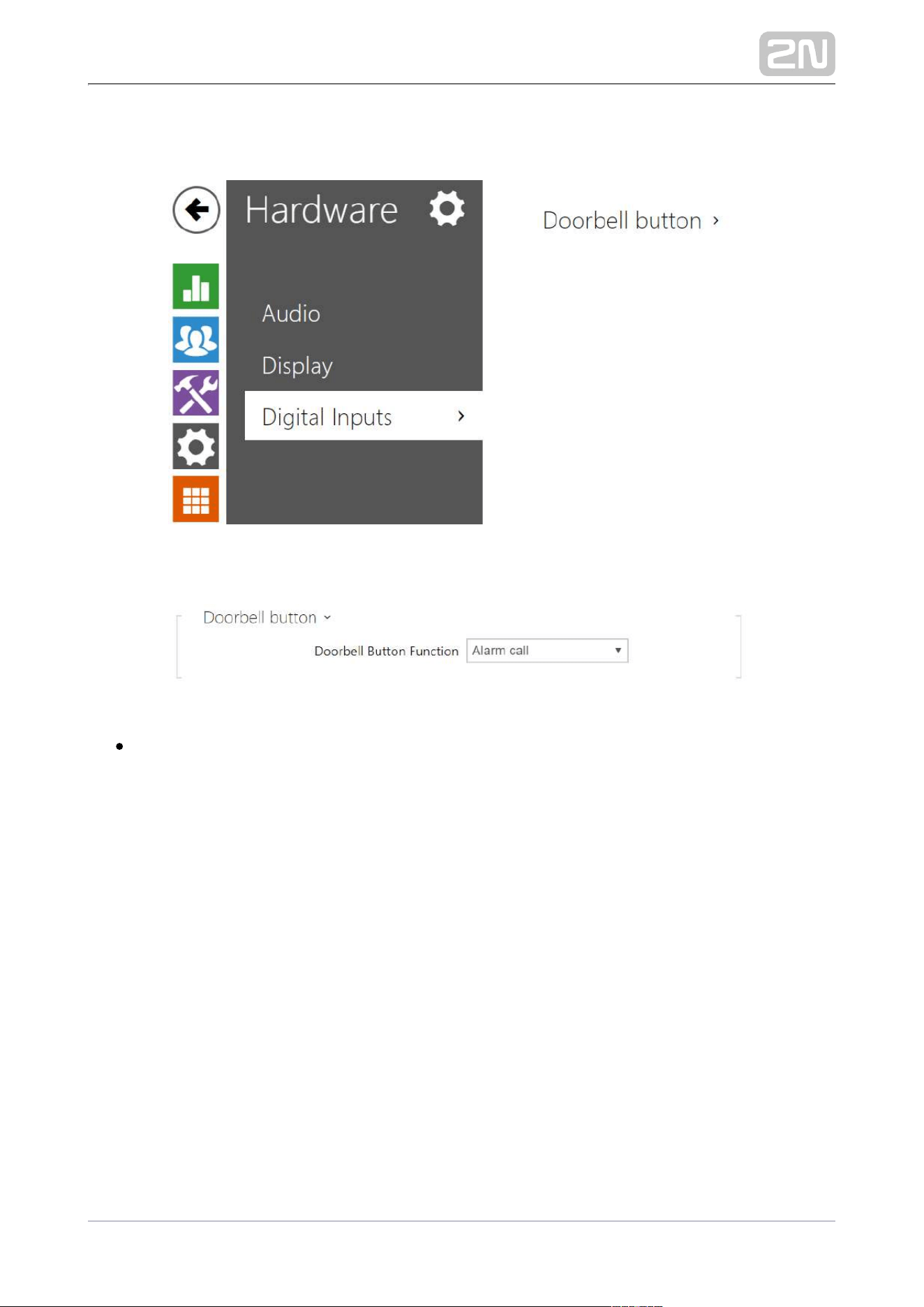
3.2.4.3 Digital Inputs
This subsection describes the digital input options of the device.
Doorbell Button Function – select doorbell function (doorbell, alarm call). The
button is used either as a classical doorbell or for alarm call activation.


2N TELEKOMUNIKACE a.s., www.2n.cz 71/117
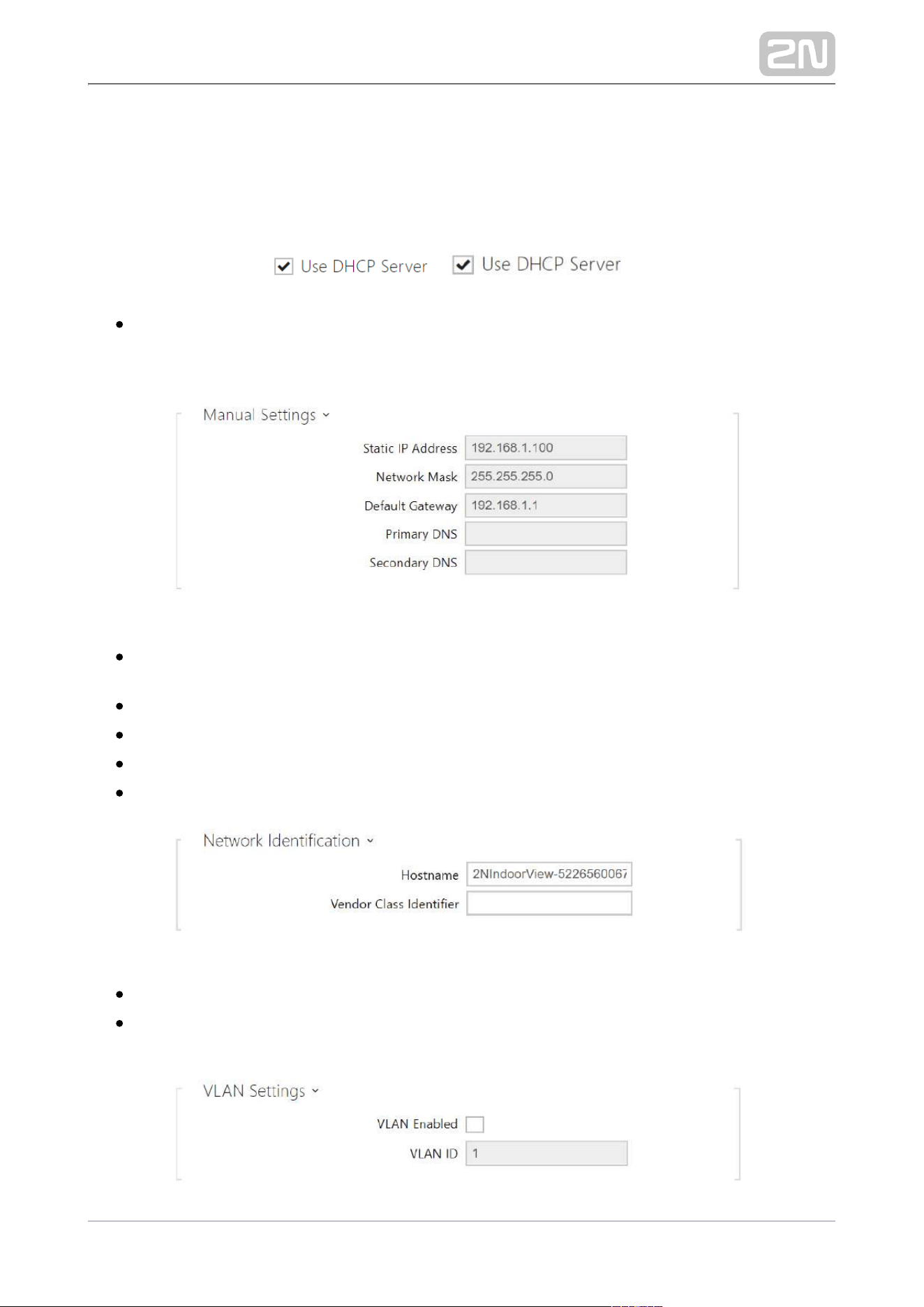
3.2.5.1 Network
2N Indoor View
®
is connected to the LAN and has to be assigned a valid IP address or
obtain the IP address from the LAN DCHP server. The Network section helps you
configure the IP address and DHCP.
Tip
If you want to ascertain the current IP address of your , 2N Indoor View
®
you can use the application which can be freely 2N Network Scanner
®
downloaded from and use the mechanism described in www.2n.cz
chapter
2.4 Searching for the 2N Indoor View device in the network
®
with the aid of 2N Network Scanner
®
.
2N TELEKOMUNIKACE a.s., www.2n.cz 72/117
List of Parameters
Basic
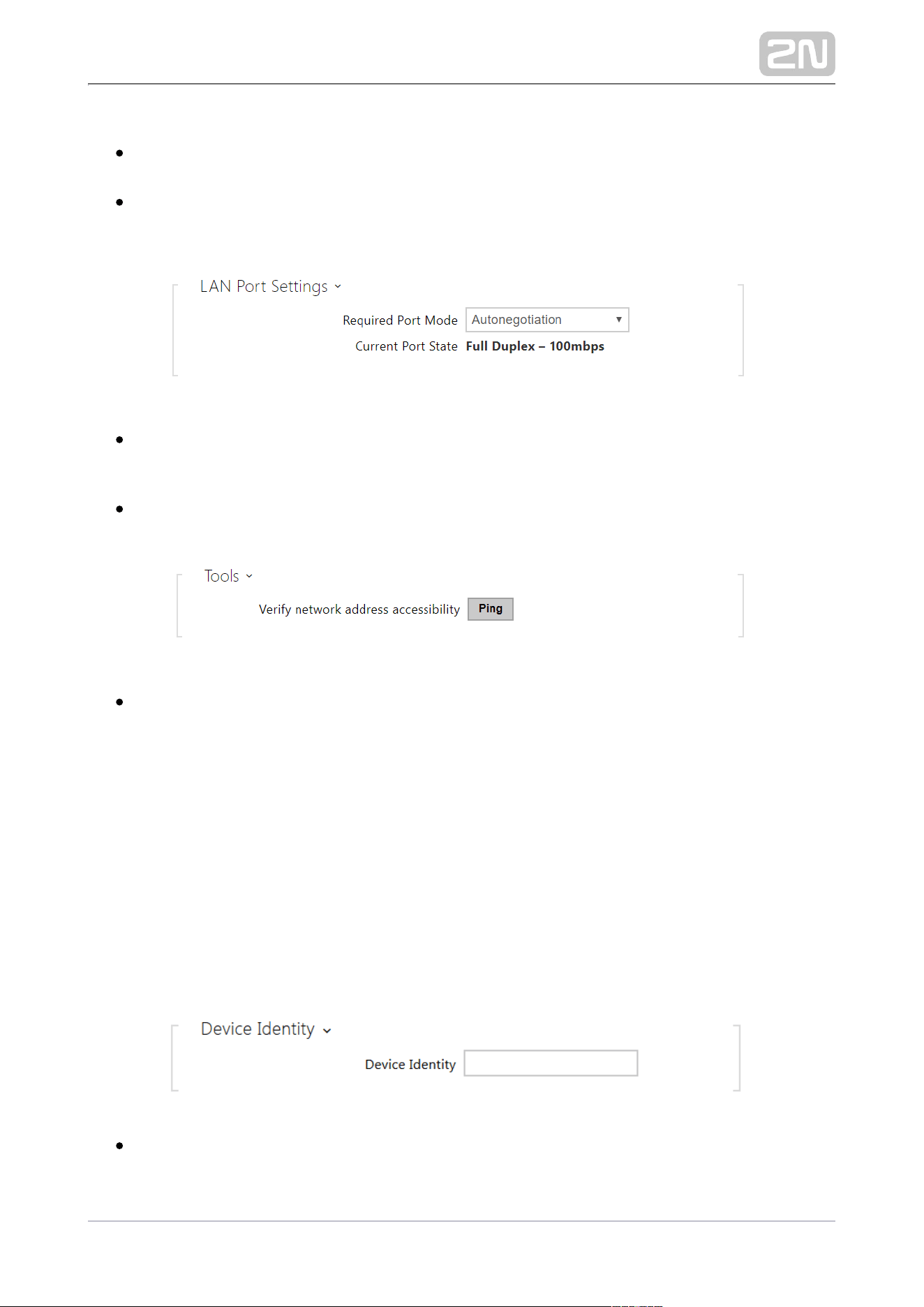
Use DHCP server – enable automatic obtaining of the IP address from the LAN
DHCP server. If the DHCP server is unavailable or otherwise inaccessible in your
LAN, use the manual network settings.
Static IP Address – static IP address of the device. The address is used together
with the parameters below unless Use DHCP server is enabled.
Network Mask – network mask setting.
Default Gateway – default gateway address for off-LAN communication.
Primary DNS – primary DNS address for domain name-to-IP address translation.
Secondary DNS – secondary DNS address where the primary DNS is unavailable.
Hostname – set the device LAN identification.
Vendor Class Identifier – set the manufacturer identifier as a character string for
DHCP Option 60.
2N TELEKOMUNIKACE a.s., www.2n.cz 73/117
VLAN Enabled – enable the virtual network support (VLAN according to 802.1q).
Remember to set the VLAN ID too.
VLAN ID – choose a VLAN ID from the range of 1–4094. The device shall only
receive packets with the set ID. An incorrect setting may result in a connection
loss and subsequent factory reset.
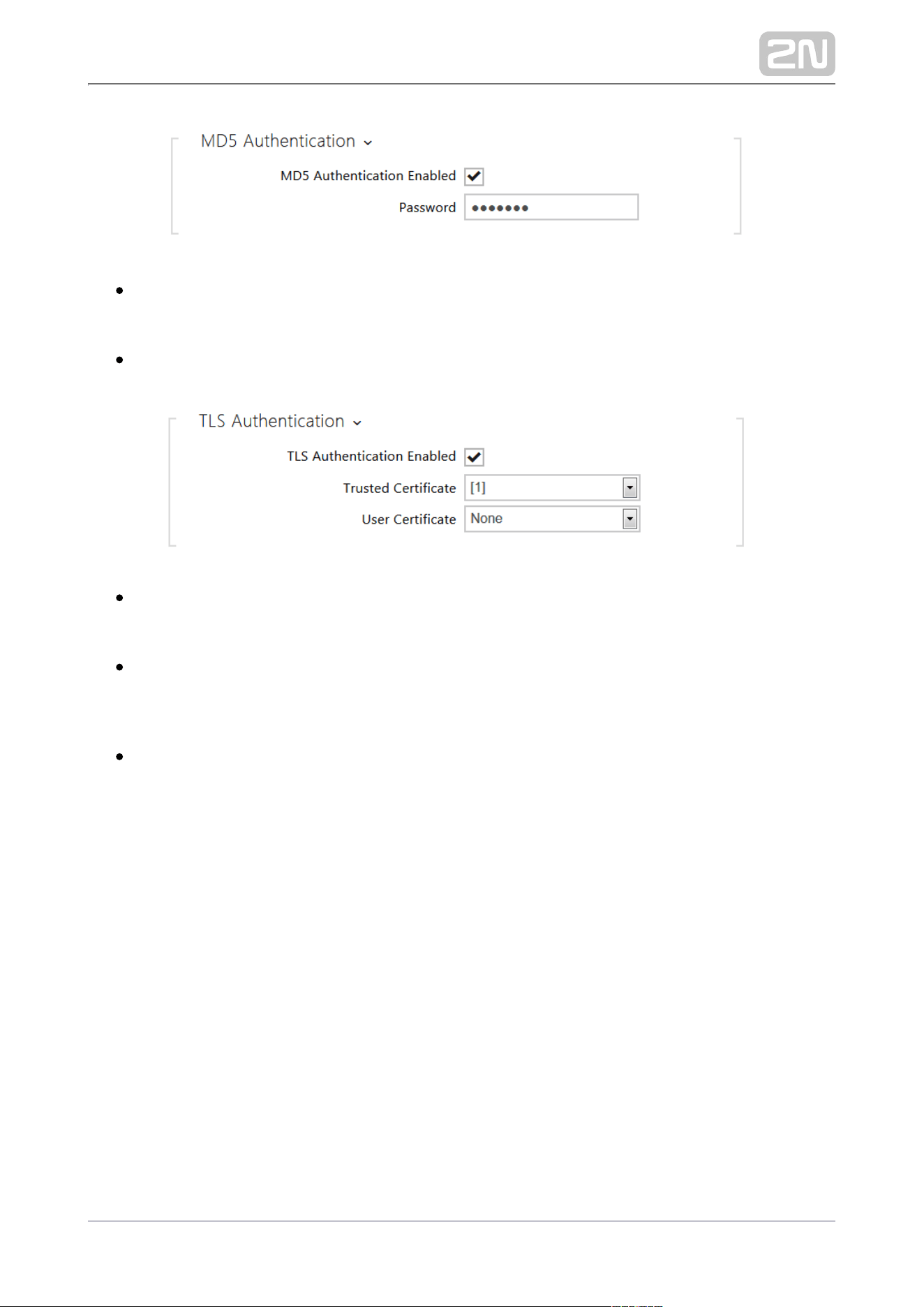
Required Port Mode – set the LAN port mode to be preferred: Automatic or Half
Duplex – 10 Mbps. The bit rate is reduced to 10 Mbps in case the available LAN
cabling is unreliable for a 100 Mbps traffic.
Current Port State – current LAN port state: Half or Full Duplex – 10 Mbps or 100
Mbps.
Verify the network address accessibility – verify the network address
accessibility via the Ping command in standard operating systems. Press Ping to
display a dialogue for you to enter the IP address/domain name and press Ping
to send the test data to the set address. If the IP address/domain name is
invalid, a warning is displayed and the Ping button remains inactive until the IP
address becomes valid. The dialogue also displays the procedure state and
result. Failed means that either the IP address was unavailable within 10 s or it
was impossible to translate the domain name into an address. If a valid response
is received, the response sending IP address and response waiting time in
milliseconds are displayed. Press Ping again to send another query to the same
address.
801.1x
Device Identity – username (identity) for authentication via EAP-MD5 and EAP-
TLS.
2N TELEKOMUNIKACE a.s., www.2n.cz 74/117
MD5 Authentication Enabled – enable authentication of network devices via the
802.1x EAP-MD5 protocol. Do not enable this function if your LAN does not
support 802.1x. If you do so, the intercom will become inaccessible.
Password – enter the access password for EAP-MD5 authentication.
TLS Authentication Enabled – enable authentication of network devices via the
802.1x EAP-TLS protocol. Do not enable this function if your LAN does not
support 802.1x. If you do so, the intercom will become inaccessible.
Trusted Certificate – specify the set of trusted certificates for verification of the
RADIUS server public certificate validity. Choose one of three sets of certificates;
refer to the Certificates subsection. If no trusted certificate is included, the
RADIUS public certificate is not verified.
User Certificate – specify the user certificate and private key for verification of
the intercom authorisation to communicate via the 802.1x-secured network
element port in the LAN. Choose one of three sets of user certificates and
private keys; refer to the Certificates subsection.
2N TELEKOMUNIKACE a.s., www.2n.cz 75/117
Note
This function is available with the Gold or Enhanced Security license only.
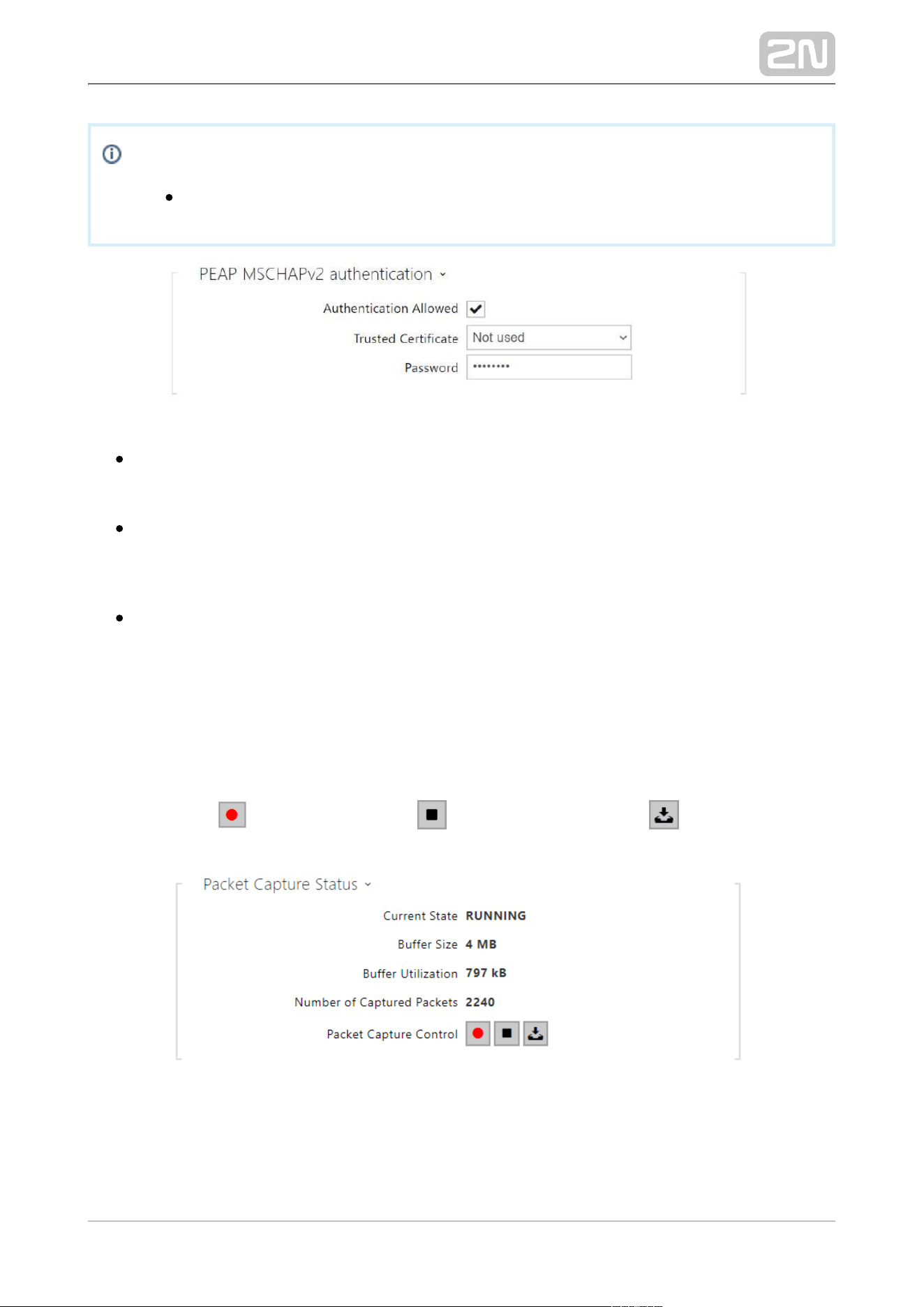
Authentication Allowed – enable authentication of network devices via the 802.1
x PEAP MSCHAPv2 protocol. Do not enable this function if your LAN does not
support 802.1x. If you do so, the device will become inaccessible.
Trusted Certificate – specify the set of trusted certificates for verification of the
RADUIS server public certificate validity. Choose one of three certificate sets,
see the Certificates subsection. If no trusted certificate is included, the RADIUS
public certificate is not verified.
Password – enter the access password for PEAP-MSCHAPv2 authentication.
Trace
The Trace tab helps you trigger capturing of incoming and outgoing packets via the 2N
LAN interface. The captured packets are stored in a 4 MB buffer. When Indoor View
®
the buffer storage capacity is full, the oldest packets are rewritten automatically. You
are recommended to keep the video stream bit rate below 512 kbps while capturing
packets. Press to start capturing, to stop capturing and to download the
captured packet file.

2N TELEKOMUNIKACE a.s., www.2n.cz 76/117
3.2.5.2 Date and Time
2N Indoor View
®
is equipped with a real time clock to back up the device for even a
few days in case of power outage. Click to synchronise your Synchronise 2N Indoor
®
time with your PC time value any time.View
Time in can be synchronised with any available SNTP server.2N Indoor View
®
Note
A correct date/time value is unnecessary for the basic function of 2N
®
but crucial for a proper function of time profiles and correct Indoor View
event times in variable lists (Syslog, Entered cards, Logs downloaded via
, etc.).HTTP API
In standard operational conditions, the real time circuit accuracy is 2N Indoor View
®
±0.005 %, which may represent an error of up to ±2 minutes per month.
2N TELEKOMUNIKACE a.s., www.2n.cz 77/117
List of Parameters
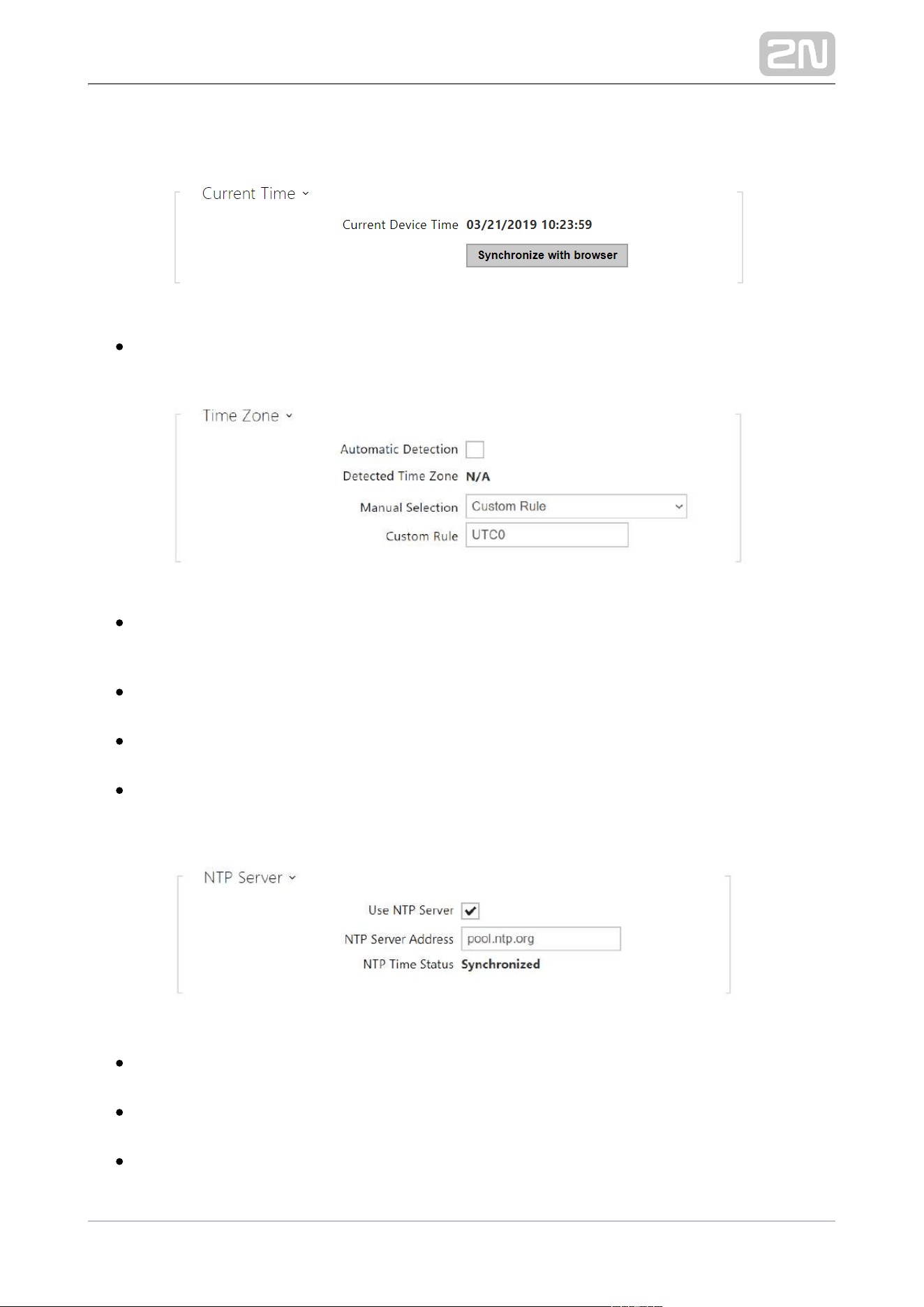
Synchronize with browser – click the button to synchronize the device time with
your current PC time value.
Automatic Detection – define whether the time zone shall be detected
automatically from My2N. In case automatic detection is disabled, the Manual
selection parameter is Used (manually selected time zone or Own rule).
Detected Time Zone – display the automatically found time zone. In case the
function is unavailable or disabled, N/A is displayed.
Manual Selection – set the installation site time zone. Set the time shift and
summer/winter time transitions.
Custom Rule – if the device is installed on a site that it not included in the Time
Zone parameter, set the time zone rule manually. The rule is applied only if the
Time Zone parameter is set to Manual.
Use NTP Server – enable the use of the NTP server for internal time
Synchronization.
NTP Server Address – set the IP address/domain name of the NTP server used
for the device internal time synchronization.
NTP Time Status – display the state of the last local time synchronization
attempt via NTP: Unsynchronized. Synchronized, Error.
2N TELEKOMUNIKACE a.s., www.2n.cz 78/117
1.
a.
b.
c.
d.
3.2.5.3 Certificates
Some LAN services use the secure TLS protocol for communication 2N Indoor View
®
with the other LAN devices. This protocol prevents third parties from eavesdropping
on or modifying call contents. TLS is based on one/two-sided authentication, which
requires certificates and private keys.
2N Indoor View
®
services that use TLS:
Web server (HTTPS)
E-mail (SMTP)
802.1x (EAP-TLS)
SIPs
2N Indoor View
®
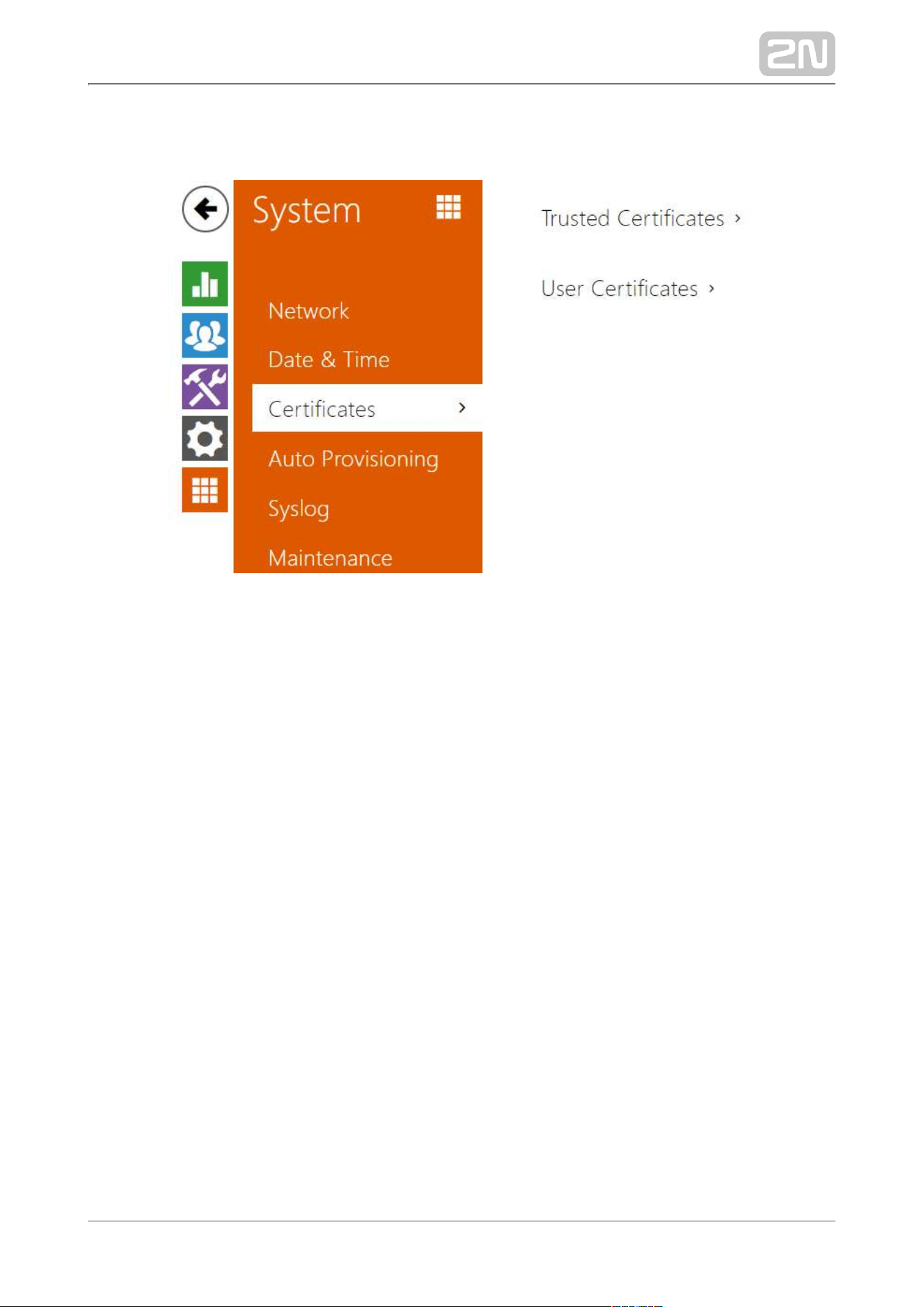
allows you to download up to 3 sets of certificates from certification
authorities, which help you authenticate the communicating device, and also 3 user
certificates and private keys for encryption purposes.
Each certificate requiring service can be assigned one certificate set, refer to the Web
, and subsections. The certificates can be shared by the Server E-mail Streaming
services.
2N Indoor View
®
accepts the DER (ASN1) and PEM certificates.

2N TELEKOMUNIKACE a.s., www.2n.cz 79/117
Once powered, generates automatically the so-called 2N Indoor View
®
Self Signed
and a , which can be used for the and certificate private key Web server E-mail
services without the need to load a unique certificate and private key.
Note
If you use the
Self Signed certificate for encryption, the 2N Indoor View
®
web server – browser communication is secure, but the browser notifies
you that it cannot authenticate the certificate.2N Indoor View
®
Refer to the tables below for the current list of trusted and user certificates:
2N TELEKOMUNIKACE a.s., www.2n.cz 80/117
Click to upload a certificate saved on your PC. Select the certificate (or private
key) file in a dialogue window and click . Press to remove a certificate from Upload
.2N Indoor VIew
®
Caution
Note that a certificate with a private RSA key longer than 2048 bits may
b e r e j e c t e d :
The private key file or password has not been accepted by the device!
For certificates based on elliptic curves use the secp256r1 (aka
prime256v1 aka NIST P-256) and secp384r1 (aka NIST P-384) curves
only.

2N TELEKOMUNIKACE a.s., www.2n.cz 81/117
3.2.5.4 Auto Provisioning
The help you update firmware and configuration manually, or 2N Indoor View
®
automatically from a storage on a TFTP/HTTP server selected by you according to
predefined rules.
The TFTP and HTTP server addresses can be configured manually. The 2N Indoor
®
support automatic identification of the local DHCP server address (Option 66).View
My2N / TR069
Use this tab to enable and configure remote device management via the TR-069
protocol. TR-069 helps you reliably configure the device parameters, update and back
up configuration and/or upgrade device firmware.
The TR-069 protocol is utilized by the My2N cloud service. Make sure that TR-069 is
enabled and Active profile set to My2N to make the device work with My2N properly.
Only then the device will be able to log in to My2N periodically for configuration.
This function helps you connect the device to your ACS (Auto Configuration Server).
In this case, the connection to My2N will be disabled in the device.
My2N / TR069 Enabled – enable connection to My2N or another ACS server.

2N TELEKOMUNIKACE a.s., www.2n.cz 82/117
Active Profile – select one of the pre-defined profiles (ACS), or choose a setting
of your own and configure the ACS connection manually.
Next Synchronization in – display the time period in which the device shall
contact a remote ACS.
Connection Status – display the current ACS connection state or error state
description if necessary.
Communication Status Detail – server communication error code or HTTP status
code.
Connection test – test the TR069 connection according to the set profile, see
the Active profile. The test result is displayed in the Connection status.
My2N ID – unique identifier of the company created via the My2N portal.
My2N Security Code – device code for adding to My2N.

2N TELEKOMUNIKACE a.s., www.2n.cz 83/117
3.2.5.5 Syslog
2N Indoor View
®
allows you to sends syslog messages including relevant device
state and process information to a syslog server for recording and further analysis or
auditing of the device observed. It is unnecessary to configure this service for
common operations.
List of Parameters
Send Syslog Messages – enable sending of syslog messages to the Syslog server.
Make sure that the server address is valid.
Server Address – set the IP/MAC address of the server on which the Syslog
application is running.
Severity Level – set the severity level of the messages to be sent (Error,
Warning, Notice, Info, Debug 1–3). Debug 1–3 level setting is only recommended
to facilitate troubleshooting for the Technical Support department.

2N TELEKOMUNIKACE a.s., www.2n.cz 84/117
General overview of local syslog messages.

2N TELEKOMUNIKACE a.s., www.2n.cz 85/117
3.2.5.6 Maintenance
This menu helps you maintain the device configuration and firmware. You can back up
and restore all the parameters, upgrade firmware and/or factory reset the device.
Restore Configuration – restore configuration from a previous backup. Press the
button to display a dialogue window to select a configuration file and upload it
to the device. Before uploading choose whether or not the LAN settings and SIP
PBX connection settings are to be applied.
Backup Configuration – back up the complete current device configuration.
Press the button to download the configuration file to your PC.
Caution
As the configuration may include delicate information, such as user
phone numbers and access passwords, handle the file cautiously.

2N TELEKOMUNIKACE a.s., www.2n.cz 86/117
Reset Configuration – reset all the device parameters except for the LAN
parameters. To reset the device completely, use the jumper or press Reset.
Upgrade firmware – upload a new firmware version to the device. Press the
button to display a dialogue window to select the proper firmware file. Once the
firmware is uploaded, the device is restarted automatically and becomes fully
operational with a new firmware version. The whole upgrading process takes
less than one minute. Download the current firmware version for your device
from FW upgrade does not affect configuration The device checks www.2n.cz
the firmware file and prevents you from uploading an incorrect or corrupt file.
Check – check online if a later firmware version is available. If so, the
downloading option is offered followed by automatic upgrade.
Notify of Beta Versions – enable monitoring and downloading of the latest
firmware beta version.
Restart – restart the device. The process takes about 30 s. Once restart is
completed and the device is assigned its IP address, the login window will be
displayed automatically.
Licenses – click Show to open a dialogue window including a list of used licenses
and third-party libraries. It also includes a EULA link.

2N TELEKOMUNIKACE a.s., www.2n.cz 87/117
Send anonymous statistics data – enable sending of anonymous statistic data on
device usage to the manufacturer. No such delicate information as passwords,
access codes or phone numbers are included. This information helps 2N
TELEKOMUNIKACE a.s. improve the software quality, reliability and
performance. You can participate in this voluntarily and cancel your statistic
data deliveries any time.

2N TELEKOMUNIKACE a.s., www.2n.cz 88/117
4. Device Control via Display
Sleep Mode
The device will automatically go into sleep mode if there is no activity (after selection
of the timeout from 15 s to 10 min).
2N TELEKOMUNIKACE a.s., www.2n.cz 89/117
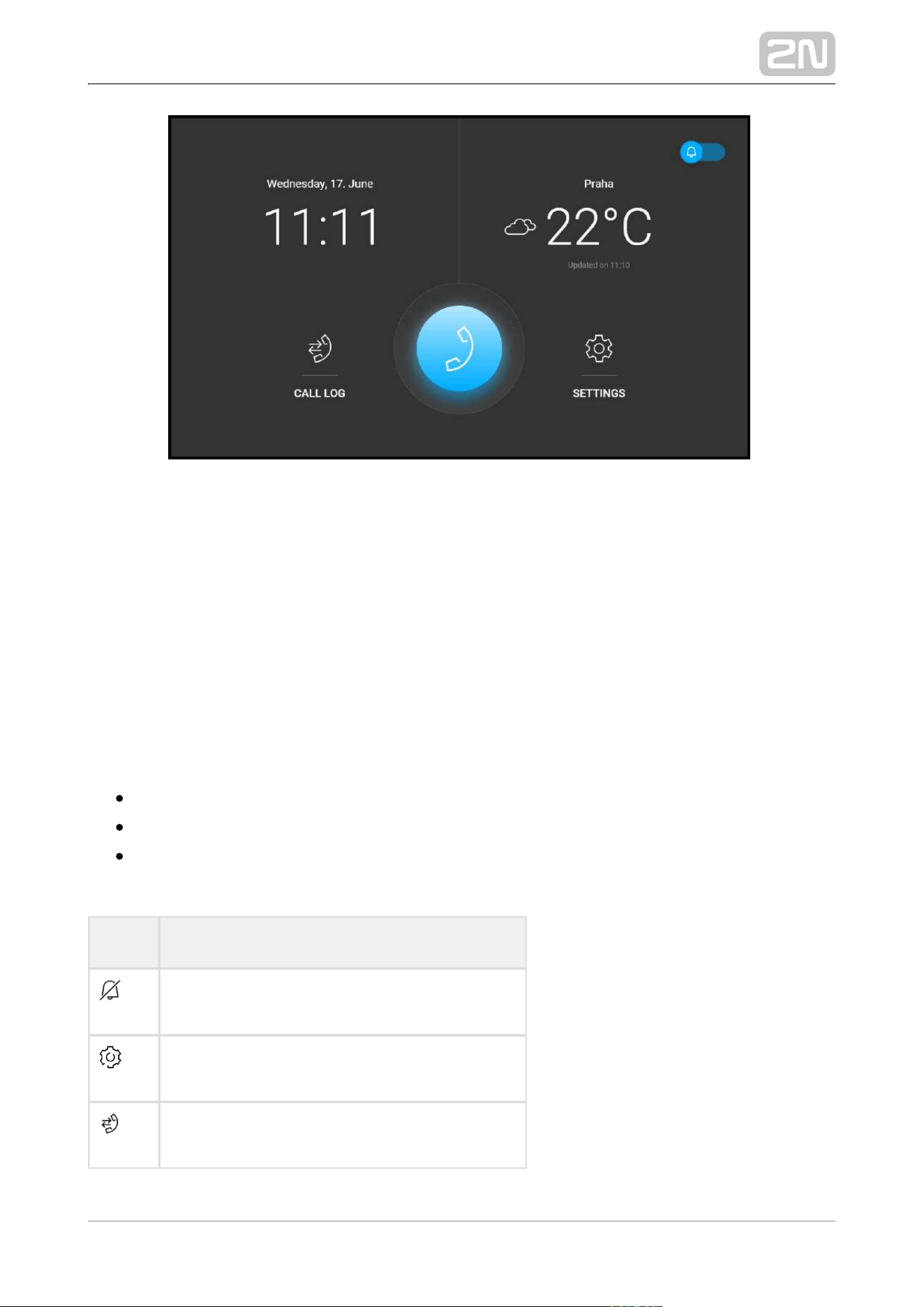
Home Page
The Home page is set as the introductory screen, which is displayed when the device is switched
from the Idle mode by the touch of a finger. It shows the current date, time and temperature,
gives you access to the Access Logs, Directory and Settings menus and allows you to activate
the Do Not Disturb mode directly.
The dominant of the Home page is a phone earpiece icon on a blue background, which allows
you to make calls to the destinations listed in the Directory.
Detailed device settings are described in the following sub-chapters.
4.1 Call Log
4.2 Directory
4.3 Settings
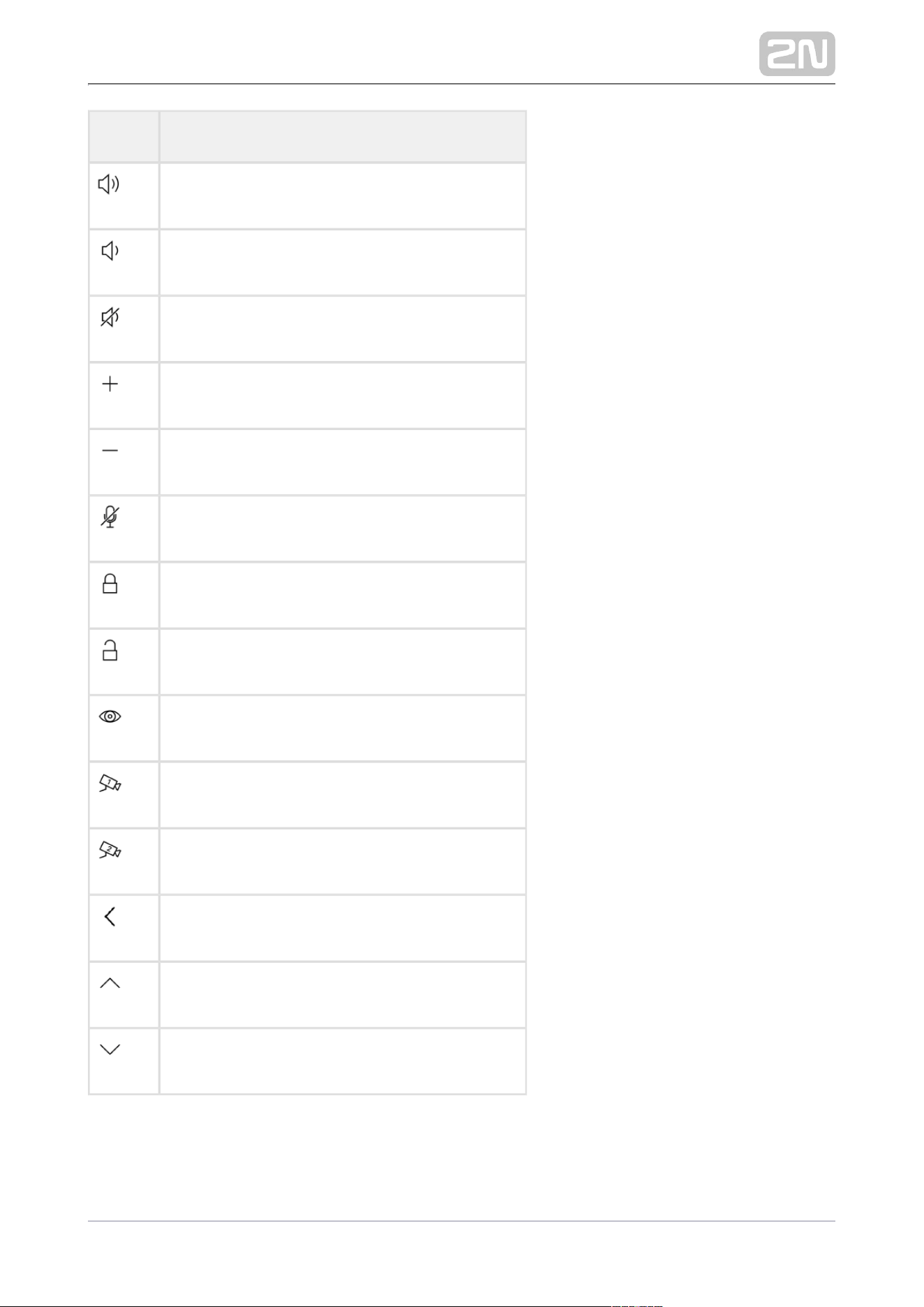
Icons used on the display
Icon Description
DND mode
Device configuration
Call list
2N TELEKOMUNIKACE a.s., www.2n.cz 90/117
Icon Description
Incoming call ringtone volume up
Incoming call ringtone volume down
Incoming call ringtone volume mute
Value up
Value down
Microphone mute in call
Locked, screen lock
Unlocked, screen lock activated/deactivated
Camera Preview
Camera 1
Camera 2
Back
Move up
Move down

2N TELEKOMUNIKACE a.s., www.2n.cz 91/117
The device will automatically go into sleep mode if there is no activity (after selection
of the timeout from 15 s to 10 min). In this mode, the device only shows the date, time
and current weather.

2N TELEKOMUNIKACE a.s., www.2n.cz 92/117
4.1 Call Log
Press the button
to display the Call list. The menu provides a list of all accomplished calls including
date, time, status (ougoing/incoming/missed) and information on from/to which
destination the call was made. The maximum call count is 20.
You can choose any of the following actions from the call list:2N Indoor View
®
using the left-hand upper button. Return to Home page
of call which was made using the button. Displays a shot from Display detail
the camera, if available, and identification of the caller and call time.
through the list by swiping your finger.Move up and down
by pressing the button.Delete all records
Caution
The device restart results in a deletion of the call list.

2N TELEKOMUNIKACE a.s., www.2n.cz 93/117
4.2 Directory
Find the Directory menu under the phone earpiece icon The menu provides a list of
destinations that can be called. The destinations include their names and the device
type they are equipped with. The Directory provides either a list view where you can
scroll up/down, or a tile view where you can browse from right to left to choose a
destination.
Press the call receiving button to start a call to the selected device or user. Press the
eye button to show the camera preview (the button is only available if the device is
equipped with a camera). The camera preview option is based on the 2N Enhanced
®
Click the lock button to open the door during an license of the selected device. Video
incoming/outgoing call for the selected device.
When the intercom camera view is displayed on during the call, you 2N Indoor View
®
can choose any of the following actions:
Switch camera using the left-hand button at the / icon.
Switch off microphone in call using the button.
Increase and decrease volume using the button.
Switch off ringtone using the button.
Open door using the door lock button .

2N TELEKOMUNIKACE a.s., www.2n.cz 94/117
End call using the call end button.
Caution
The camera switching function is only displayed if it has been activated
and properly configured in the intercom.
Set the Directory via the web interface in the Directory / Device section. You can add
a device manually, by clicking on the device adding icon or automatically by
clicking the registered device searching icon . Select the device in the list to add it
automatically to the Directory list. The values are completed in the basic settings.
With manual addition of a device/user to the Directory, the basic parameters are not
completed automatically but have to be added manually. Make sure to complete the
proper parameter in the Display section to display the CLIP. This helps the user
choose and call any device displayed; refer to for more details.3.2.2 Directory
2N TELEKOMUNIKACE a.s., www.2n.cz 95/117
4.3 Settings
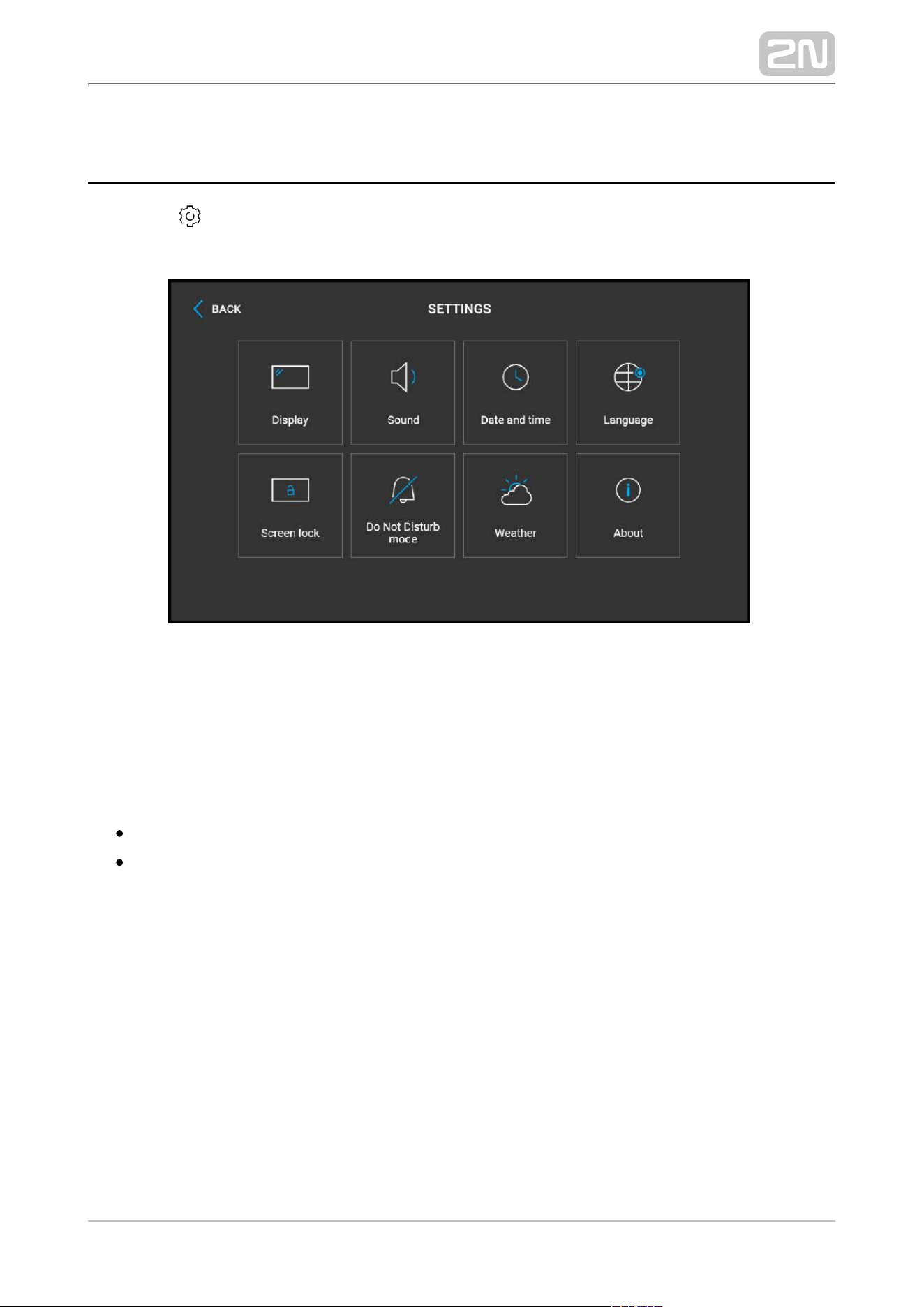
Press the button on the home screen to display the Device Settings section. Use
the Settings menu for local device settings.
The menu contains 8 sections:
Display
Brightness – set the display backlight value.
Screen timeout – timeout after which the device automatically goes into the
Sleep Mode if there is no activity.

2N TELEKOMUNIKACE a.s., www.2n.cz 96/117
Ringtone volume – set the incoming call ringtone volume.
Call volume – set the phone call volume.
Call Ringtone – set the ringtone for incoming calls on the device.
Doorbell tone – set the tone to be played when the doorbell is used.
Set date and time automatically – activate a mode in which the date and time
will be taken from the network.
Set date – set the date manually.
Set time – set the time manually.

2N TELEKOMUNIKACE a.s., www.2n.cz 97/117
Set time zone – set the time zone for your installation site to define time shifts
and summer/winter time transitions.
Time format – set the time format to be displayed.
Date format – set the date format to be displayed.
Language – set the language for the texts to be displayed. Choose one of the
seven pre-defined languages (CZ, EN, DE, FR, ES, IT, RU).
– set the language for the texts to be displayed from an Custom Language
uploaded language file of the user localization.

2N TELEKOMUNIKACE a.s., www.2n.cz 98/117
Screen lock – switch the screen lock or also the so-called parental lock on/off.
Enter the PIN code to enable the screen lock. Enter the same PIN code to disable
the screen lock.
Do Not Disturb mode – switch the Do Not Disturb mode on/off. This allows you
to switch off the ringtone for the incoming call while this mode is active. By
default, the DND mode does not apply to doorbell notification, i.e. the incoming
ringtone is off and the doorbell ringtone is on. Change this setting via the web
interface in the Hardware / Audio menu.
Show weather – display or hide information about the current weather on the
home screen.

2N TELEKOMUNIKACE a.s., www.2n.cz 99/117
Location – device location for weather forecast. Location setting is only possible
via the device web interface. Prague is the defualt location value.
Units – set the metric (°C) or imperial (°F) units to be displayed.
This section provides basic information on the device (serial number, MAC address,
FW version, IP address, My2N ID).

2N TELEKOMUNIKACE a.s., www.2n.cz 100/117
5. Operational Statuses
This section describes the user scenarios and states that may occur during operation,
including the user options and expected results of actions.
Status and Description User Actions Navigation Actions and Result
Sleep Mode Only the current date, time and weather are shown on the
display.
End relax mode Touch of the
display.
Home page/parental
lock is displayed.
Parental Lock
Device shows the instruction "Enter PIN code " and codelist.
Parental lock
settings
Activation of the
function and
setting of the 4-
digit PIN code
with subsequent
confirmation
Parental lock is
activated.
Deactivate
parental lock
Correct PIN
entering
Device is unlocked.
Enter invalid PIN
PIN mistyping
The PIN code reentering
command is displayed.

2N TELEKOMUNIKACE a.s., www.2n.cz 101/117
Status and Description User Actions Navigation Actions and Result
Home Page Device is in relax mode.
Display
Directory
Press the blue
backlit phone
earpiece button
The list of all available
devices is displayed.
Display Call list Button pressed The list of all
accomplished calls is
displayed.
Activate DND
mode
Press the
button in the
top right corner
DND is activated and
the activation message
is displayed.
Display Settings Button pressed The Settings section is
displayed.
Access Logs
The device displays a list of all accomplished calls including
date, time, status (outgoing/incoming/missed) and information
on from/to which destination the call was made.
Show call detail Press row of
selected call
The call detail is
displayed.
Outgoing Call Press button for
taking call
in call detail
Creation of an outgoing
call on the device in the
list.
Unlock door Press lock
button in
call detail
A call is set up or not
depending on the
connection type and the
door is unlocked. If
automatic call end after
unlocking is enabled,
the call is ended after
door unlocking.
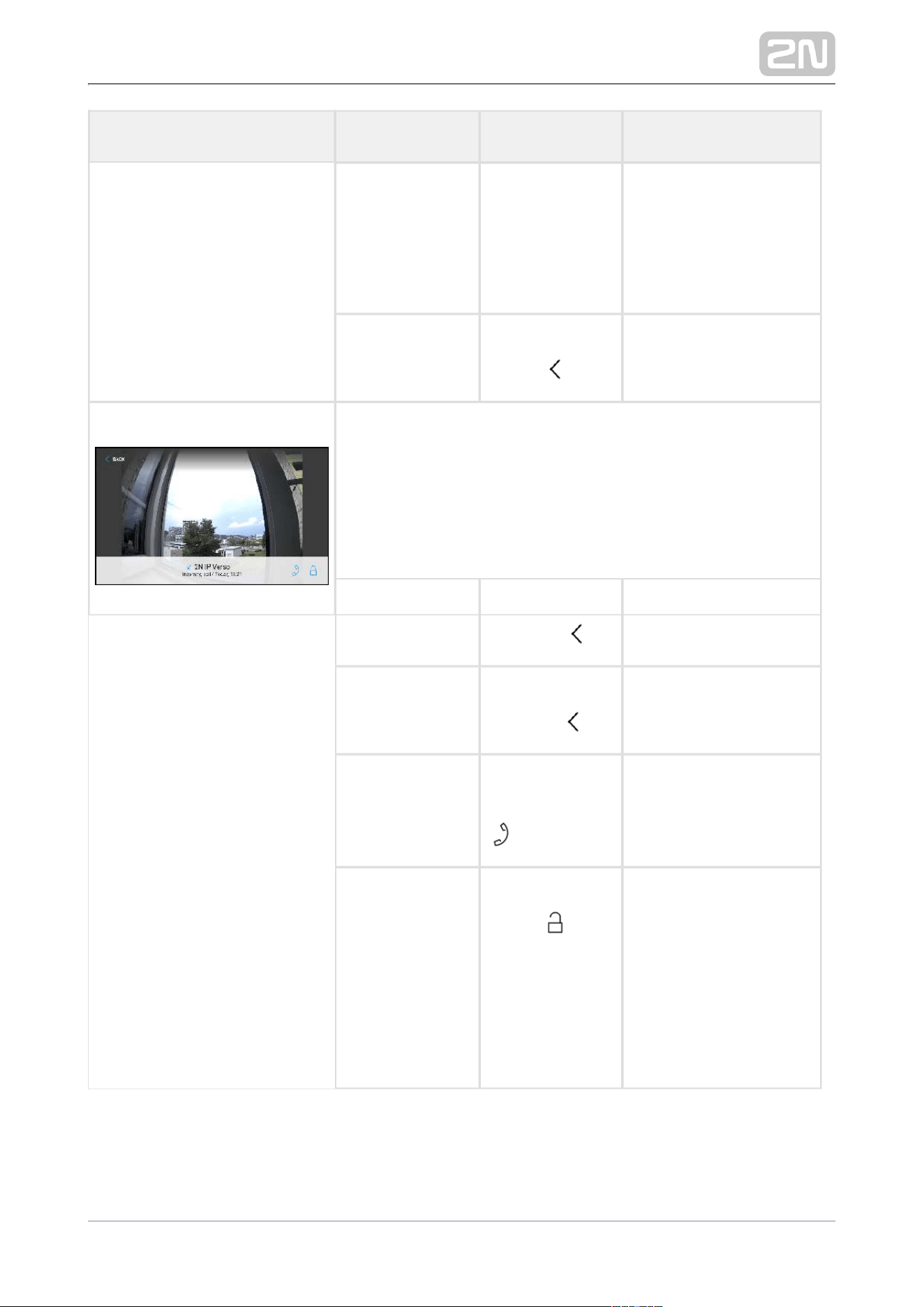
2N TELEKOMUNIKACE a.s., www.2n.cz 102/117
Status and Description User Actions Navigation Actions and Result
Move up and
down in list
Press display
with finger and
slide up or down
The list scrolls up or
down in the list. Once
the end of the list has
been reached, scrolling
stops.
Return to Home
page
Press back
button
Home page is displayed.
Detail in list
The display shows a snapshot from the camera set in the 2N IP
intercom if a camera-equipped device initiated the call. A
device symbol is displayed if the call initiating device is not
equipped with a camera. Furthermore, the call day, date and
time, description of the calling/called device and call status
(outgoing/incoming/missed) are displayed.
Return to Home
page
Press back
button 2x
The device returns to
Home page.
Return to call list Press back
button 1x
The device returns to
the call list.
Outgoing Call Press the call
receiving button
The device gets in the In
call state.
Door unlocking
Press the lock
button
A call is set up or not
depending on the
connection type and the
door is unlocked. If
automatic call end after
unlocking is enabled,
the call is ended after
door unlocking.

2N TELEKOMUNIKACE a.s., www.2n.cz 103/117
Status and Description User Actions Navigation Actions and Result
Directory
The device displays a list of destinations that can be called. The
destinations include their names and the device type they are
equipped with.
Return to Home
page
Press back
button
Home page is displayed.
Scroll up and
down in
directory
Press display
with finger and
slide up or down
The list scrolls up or
down in the list. Once
the end of the list has
been reached, scrolling
stops.
Outgoing Call Press call
receipt button
in the row
of the selected
device
The device gets in the In
call mode.
Door unlocking Press the lock
button
A call is set up or not
depending on the
connection type and the
door is unlocked. If
automatic call end after
unlocking is enabled,
the call is ended after
door unlocking.
Directory format
– list
Press icon
in top right
corner
The list of devices in the
directory is displayed
one under the other.
Directory format
– tiles
Press the
icon in the top
right corner
The list of devices in the
directory is displayed
one after the other.

2N TELEKOMUNIKACE a.s., www.2n.cz 104/117
Status and Description User Actions Navigation Actions and Result
Incoming Call The device is playing the selected ringtone. The display shows
the camera view if available, CLIP and Incoming call message.
Pick up call Touch of the
display
The connection is
established and the In
call mode is switched
on.
Reject call Press the call
end button
The incoming call is
discontinued and Home
page is returned to.
Door unlocking Press the lock
button
A call is set up or not
depending on the
connection type and the
door is unlocked. If
automatic call end after
unlocking is enabled,
the call is ended after
door unlocking.
The camera is
switched (if
installed and
configured in the
2N IP intercom).
Press the button
for switching the
camera /
The display shows a
preview from the other
camera, identification of
the device being called
to and the message
Incoming Call.
Increase and
decrease
ringtone volume
Press the
button and
select the
required volume
with the + or −
button, or by
moving the
volume marker
on the volume
bar.
The volume of the
ringtone is increased or
decreased by one level
at each individual press
of + or . If the volume −
marker is moved, the
ringtone is increased or
decreased according to
the position on the
volume bar.
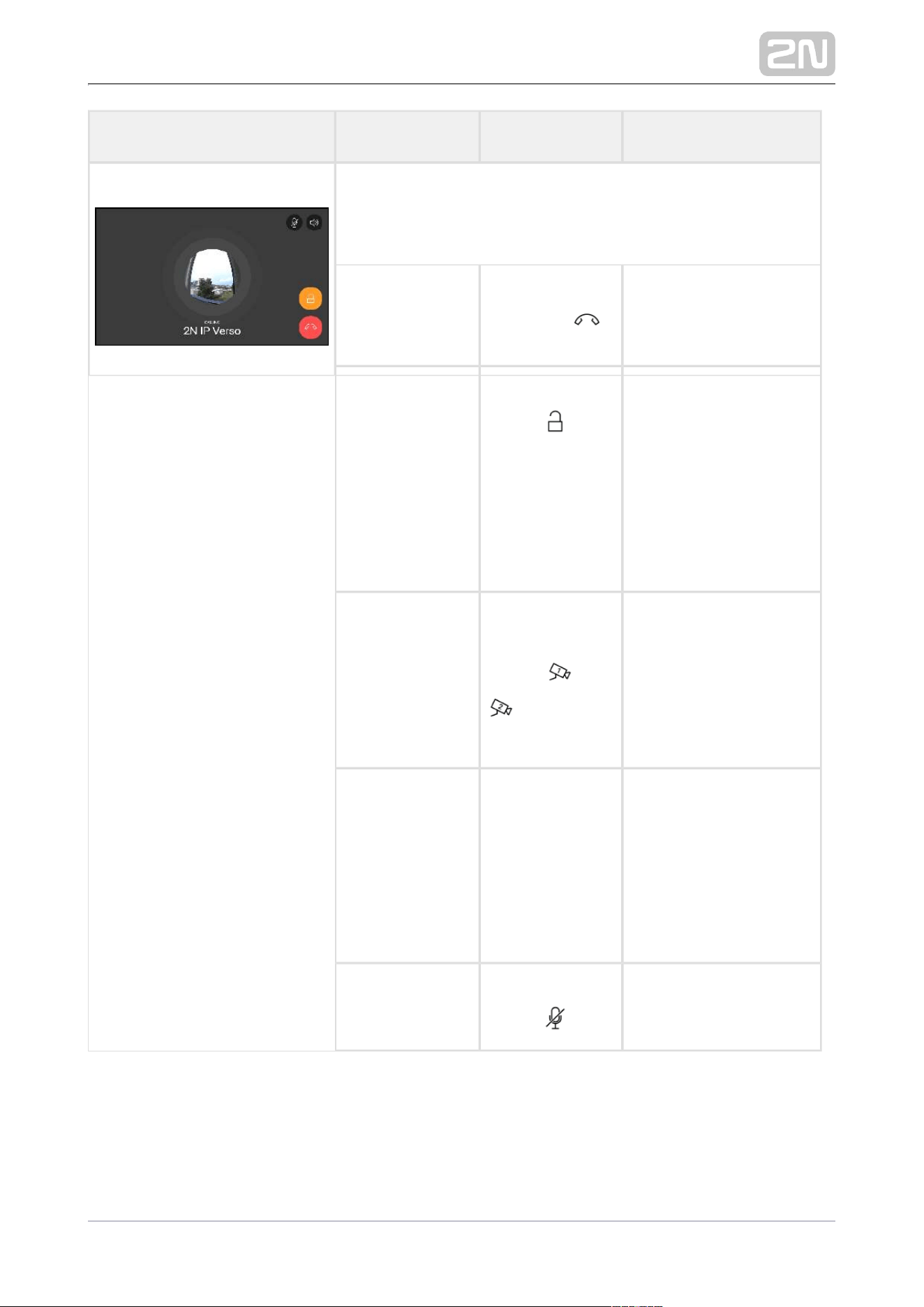
2N TELEKOMUNIKACE a.s., www.2n.cz 105/117
Status and Description User Actions Navigation Actions and Result
Outgoing Call
The device is playing the ringtone. The display shows the
camera view if available, called device ID and Outgoing call
message.
End call Press the call
end button
The outgoing call is
discontinued and Home
page is returned to.
Door unlocking Press the lock
button
A call is set up or not
depending on the
connection type and the
door is unlocked. If
automatic call end after
unlocking is enabled,
the call is ended after
door unlocking.
Switch camera Press the button
for switching the
camera /
The display shows a
preview from the other
camera, identification of
the device being called
to and the message
Incoming Call.
Reject call The call is
rejected by the
called device,
not the 2N
®
Indoor View
user.
The display shows Call
rejected, the call is
terminated and Home
page is returned to.
Mute call
Press the Mute
button
The call is muted.

2N TELEKOMUNIKACE a.s., www.2n.cz 106/117
Status and Description User Actions Navigation Actions and Result
In Call
The display shows the camera view if available, or the called
device ID if no camera is available. A timer is running at the
view.
Mute call Press the Mute
button
The device is in the In
call mode but sound is
not transferred to the
calling device. The Mute
icon turns red. "No one
hears you" message is
displayed.
End call Press the call
end button
The outgoing call is
discontinued and Home
page is returned to.
Door unlocking Press the lock
button
A call is set up or not
depending on the
connection type and the
door is unlocked. If
automatic call end after
unlocking is enabled,
the call is ended after
door unlocking.
Switch camera
Press button to
switch camera
/
The display shows the
camera 2 view, called
device ID and timer.

2N TELEKOMUNIKACE a.s., www.2n.cz 107/117
Status and Description User Actions Navigation Actions and Result
Increase and
decrease call
volume
Button pressed
and
required volume
selected by
pressing the + or
button, or by −
moving the
volume marker
on the volume
bar.
The volume of the call is
increased or decreased
by one level at each
individual press of + or
. If the volume marker −
is moved, the ringtone is
increased or decreased
according to the
position on the volume
bar.
Cancel call
muting
Press the Mute
button
The device is in the In
call mode and sound is
transmitted again to the
calling device.
Do Not Disturb Mode
Device is in basic relax status. The doorbell icon is red.
Display
Directory
Press the blue
backlit phone
earpiece button
The list of all available
devices is displayed.
Display Call list Button pressed The list of all
accomplished calls is
displayed.
Switch off Do
Not Disturb
mode
Press the in
the right-hand
upper corner
DND is deactivated, the
doorbell icon turns
white.
Display Settings
Button pressed
The Settings section is
displayed.

2N TELEKOMUNIKACE a.s., www.2n.cz 108/117
Status and Description User Actions Navigation Actions and Result
Incoming call in Do Not
Disturb mode
The device does not play the selected ringtone. The display
shows the camera view if available, CLIP and Incoming call
message.
Pick up call Press the call
receiving button
The call is connected.
The device is in the In
call mode.
Reject call Press the call
end button
The incoming call is
discontinued and Home
page is returned to.
Switch camera Press the button
for switching the
camera /
The display shows a
preview from the other
camera, identification of
the device being called
to and the message
Incoming Call.
Incoming Call with Parental
Lock On
The device is playing the selected ringtone. The display shows
a preview from the camera, if available, identification of the
caller and the message Incoming Call. After pressing the
display, an instruction is displayed prompting the user to
deactivate the parental lock. A preview of the call is shown in
the background.
2N TELEKOMUNIKACE a.s., www.2n.cz 109/117
6. Technical Parameters
Power Supply
Type: 12 V DC +/−10 % adapter or PoE 802.3af
Recommended power supply: 12 V / 1 A
Polarity reversal protection: yes
Power Consumption
In idle:
12 V: 2,28 W – 0,19 A
PoE: 2,9 W
Max. in active state: 12 W / 1 A
User Interface
Controls: capacitive touch panel
Display: 7 with 1024 x 600 pixel resolution´´
Service:RESET button with long press option for factory reset
Signalling protocol
SIP (UDP, TCP, TLS)
Audio
Microphone: integrated
Speaker: 2 W integrated
Induction loop output: 600 mV RMS
Audio stream
Protocols: RTP / RTSP
Codecs: G.711, G.729, G.722, L16/16kHz
Video stream
Protocols: RTP / RTSP / HTTP, MJPEG

2N TELEKOMUNIKACE a.s., www.2n.cz 110/117
Protocols: RTP / RTSP / HTTP, MJPEG
Codecs: H.264, M-JPEG
Interface
LAN: 10/100BaseT, RJ-45; Cat5e or higher
Doorbell Input
Input type: switching contact (button/relay)
Contact type: normally open (NO)
Contact parameters: up to 50 V / 5 mA, DC
Mechanical Parameters
Dimensions (w x h x d): 193 x 157 x 50 mm
Weight: 555 g
Operating temperature: 0 to 50 °C
Relative humidity: 10 to 90 % non-condensing
Storing temperature: −20 to 70 °C
Recommended altitude: 0–2000 m



2N TELEKOMUNIKACE a.s., www.2n.cz 113/117
7.2 Directives, Laws and Regulations –
General Instructions and Cautions
2N Indoor View
®
conforms to the following directives and regulations:
2014/35/EU for electrical equipment designed for use within certain voltage
limits
2014/30/EU for electromagnetic compatibility
2011/65/EU on the restriction of the use of certain hazardous substances in
electrical and electronic equipment
2012/19/EU on waste electrical and electronic equipment
Industry Canada
This Class B digital apparatus complies with Canadian ICES-003/NMB-003.
FCC
This equipment has been tested and found to comply with the limits for a Class B
digital device, pursuant to part 15 of the FCC Rules.
NOTE: These limits are designed to provide reasonable protection against harmful
interference in a residential installation. This equipment generates, uses and can
radiate radio frequency energy and, if not installed and used in accordance with the
instructions, may cause harmful interference to radio communications.
However, there is no guarantee that interference will not occur in a particular
installation. If this equipment does cause harmful interference to radio or television
reception, which can be determined by turning the equipment off and on, the user is
encouraged to try to correct the interference by one or more of the following
measures:
Reorient or relocate the receiving antenna
Increase the separation between the equipment and receiver
Connect the equipment into an outlet on a circuit different from that to which
the receiver is connected
Consult the dealer or an experienced radio/TV technician for help
Changes or modifications to this unit not expressly approved by the party responsible
for compliance could void the user's authority to operate this equipment.

2N TELEKOMUNIKACE a.s., www.2n.cz 114/117
Caution
Varování
Za účelem dosažení plné funkčnosti a zaručených výkonů důrazně
doporučujeme vždy již při instalaci ověřit aktuálnost používané verze
produktu či zařízení. Zákazník tímto bere na vědomí, že produkt či zařízení
může dosahovat zaručených výkonů a být plně funkční dle propozic výrobce
pouze v případě, je-li používána nejnovější verze produktu či zařízení, která
byla otestována na plnou interoperabilitu a která nebyla výrobcem označena
jako nekompatibilní s určitými verzemi jiných produktů, a to pouze v souladu s
pokyny, návodem či doporučením výrobce a pouze ve spojení s vyhovujícími
produkty a zařízeními jiných výrobců. Nejnovější verze jsou dostupné na
internetových stránkách https://www.2n.cz/cs_CZ/, popř. jednotlivá zařízení
podle svých technických možností umožňují aktualizaci v konfiguračním
rozhraní. Používá-li zákazník jinou než nejnovější verzi produktu či zařízení,
popř. používá-li verzi, kterou výrobce označil za nekompatibilní s určitými
verzemi jiných produktů, nebo používá-li zákazník produkt či zařízení v
rozporu s pokyny, návodem či doporučením výrobce nebo ve spojení s
nevyhovujícími produkty či zařízeními jiných výrobců, je srozuměn s veškerými
případnými omezeními funkčnosti takového produktu či zařízení a s důsledky s
tím spojenými. Použitím jiné než nejnovější verze produktu či zařízení, popř.
verze, kterou výrobce označil za nekompatibilní s určitými verzemi jiných
produktů, nebo použitím produktu či zařízení v rozporu s pokyny, návodem či
doporučením výrobce, popř. použitím s nevyhovujícími produkty či zařízeními
jiných výrobců, zákazník souhlasí s tím, že společnost 2N TELEKOMUNIKACE a.
s. není odpovědná za jakékoli omezení funkčnosti takového produktu ani za
újmu související s takovým případným omezením funkčnosti.

2N TELEKOMUNIKACE a.s., www.2n.cz 115/117
Please read this User Manual carefully before using the product. Follow all instructions
and recommendations included herein.
Any use of the product that is in contradiction with the instructions provided herein
may result in malfunction, damage or destruction of the product.
The manufacturer shall not be liable and responsible for any damage incurred as a
result of a use of the product other than that included herein, namely undue
application and disobedience of the recommendations and warnings in contradiction
herewith.
Any use or connection of the product other than those included herein shall be
considered undue and the manufacturer shall not be liable for any consequences
arisen as a result of such misconduct.
Moreover, the manufacturer shall not be liable for any damage or destruction of the
product incurred as a result of misplacement, incompetent installation and/or undue
operation and use of the product in contradiction herewith.
The manufacturer assumes no responsibility for any malfunction, damage or
destruction of the product caused by incompetent replacement of parts or due to the
use of reproduction parts or components.
The manufacturer shall not be liable and responsible for any loss or damage incurred
as a result of a natural disaster or any other unfavourable natural condition.
The manufacturer shall not be held liable for any damage of the product arising during
the shipping thereof.
The manufacturer shall not make any warrant with regard to data loss or damage.
The manufacturer shall not be liable and responsible for any direct or indirect damage
incurred as a result of a use of the product in contradiction herewith or a failure of the
product due to a use in contradiction herewith.
All applicable legal regulations concerning the product installation and use as well as
provisions of technical standards on electric installations have to be obeyed. The
manufacturer shall not be liable and responsible for damage or destruction of the
product or damage incurred by the consumer in case the product is used and handled
contrary to the said regulations and provisions.
The consumer shall, at its own expense, obtain software protection of the product.
The manufacturer shall not be held liable and responsible for any damage incurred as
a result of the use of deficient or substandard security software.
The consumer shall, without delay, change the access password for the product after
installation. The manufacturer shall not be held liable or responsible for any damage
incurred by the consumer in connection with the use of the original password.
The manufacturer also assumes no responsibility for additional costs incurred by the
consumer as a result of making calls using a line with an increased tariff.

2N TELEKOMUNIKACE a.s., www.2n.cz 116/117
Electric Waste and Used Battery Pack Handling
Do not place used electric devices and battery packs into municipal waste containers.
An undue disposal thereof might impair the environment!
Deliver your expired electric appliances and battery packs removed from them to
dedicated dumpsites or containers or give them back to the dealer or manufacturer
for environmental-friendly disposal. The dealer or manufacturer shall take the product
back free of charge and without requiring another purchase. Make sure that the
devices to be disposed of are complete.
Do not throw battery packs into fire. Battery packs may not be taken into parts or
short-circuited either.

2N TELEKOMUNIKACE a.s., www.2n.cz 117/117
2N TELEKOMUNIKACE a.s.
Modřanská 621, 143 01 Prague 4, Czech Republic
Phone: +420 261 301 500, Fax: +420 261 301 599
E-mail: [email protected]
Web: www.2n.cz
v2.33