
User Manual
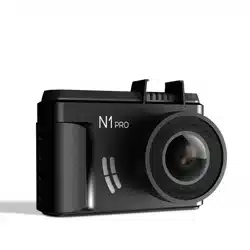
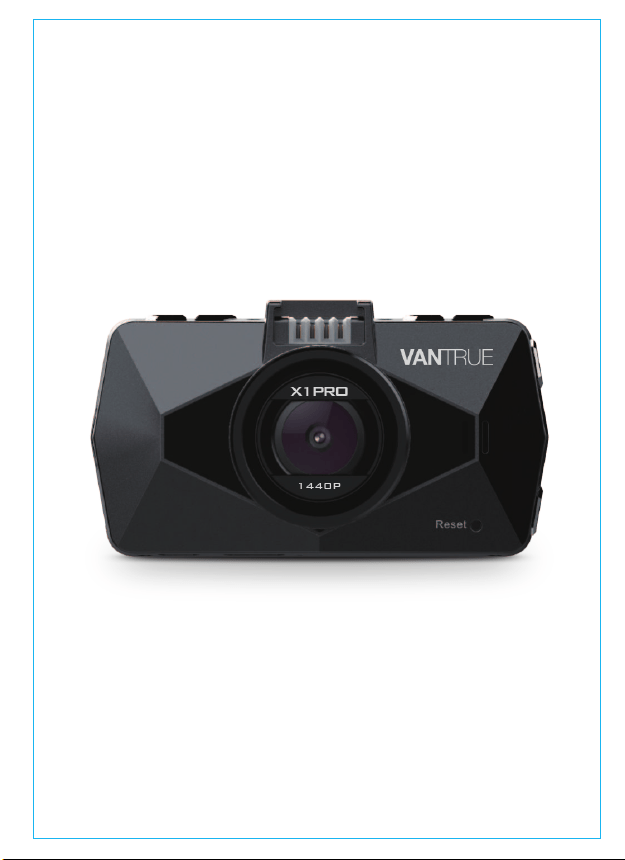
OnDash X1 PRODash Cam
User Manual
OnDash X1 PRODash Cam
www.vantrue.net/contact facebook.com/vantrue.live
f
Always a surprise in Vantrue
Hey, find us here:
- 1 -

1. What’s in the box? 3
2. Camera Overview 4
3. Getting Started 6
4. Basic Operation 9
5. Specifications 38
6. Warranty & Support 39
ボックスに何が入っていますか?3
ドラレコの概要21
入門23
基本操作26
製品仕様38
保証とアフターサービス39
- 2 -
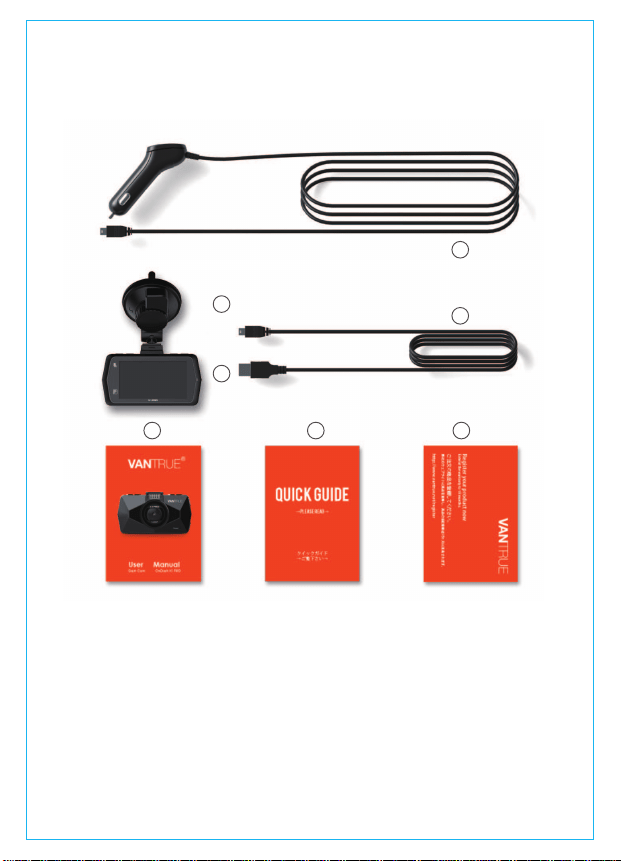
1. What’s in the box?
A. Car charger with built-in 10ft
mini USB cable
B. VANTRUE X1 Pro dash cam
C. Suction cup mount
D. 3ft USB data cable
E. X1 Pro dash cam user manual
F. Quick Guide
G. Warranty card
A
D
C
B
E
F G
ボックスに何が入っていますか?
デュアルUSBポート付きの車載充
電器(3m)
VANTRUEX1Proドライブレーコ
ーダー
吸盤マウント
USBデーターケーブル(1m)
X1Proドラレコ取扱説明書
クィックスタートガイド
保証書
- 3 -
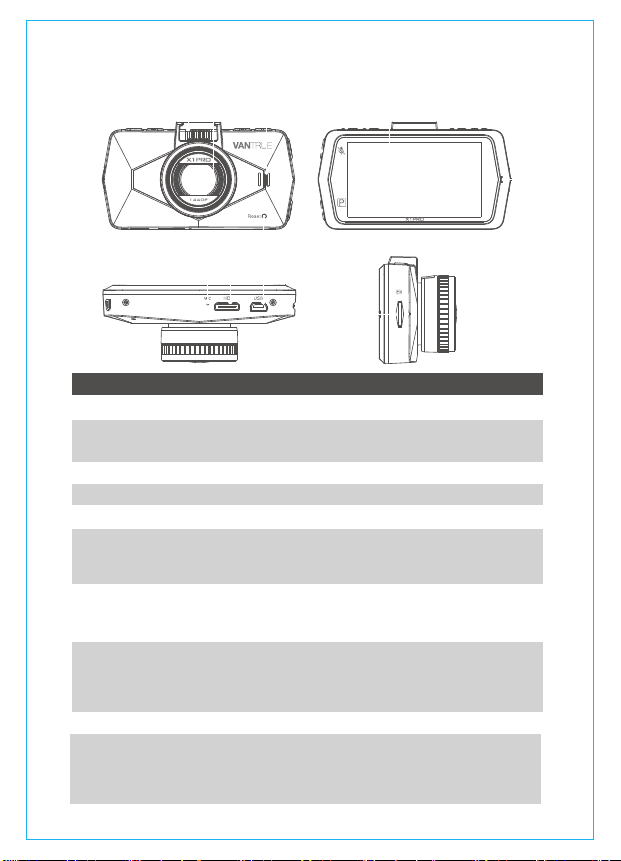
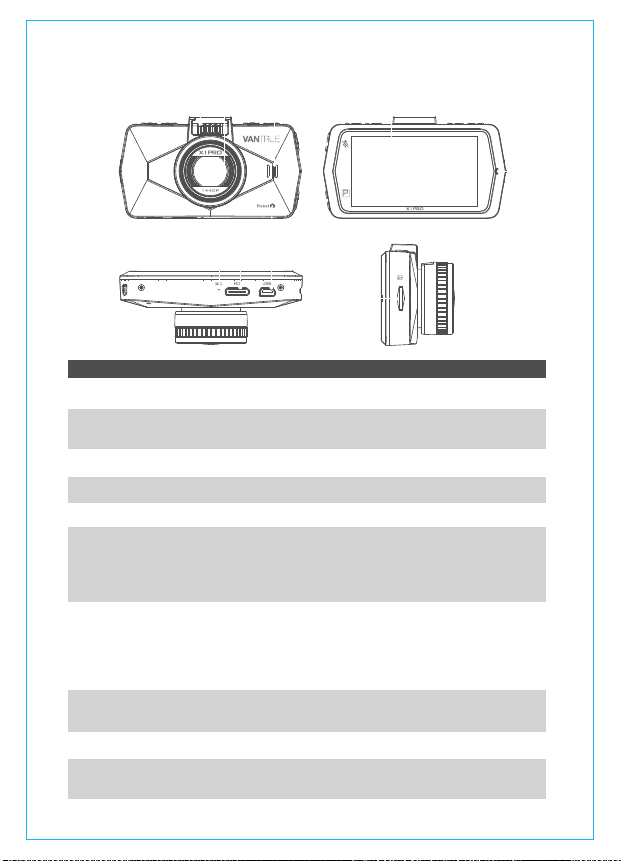
2. Camera Overview
NO. Name Description
1
2
3
4
Mount Connector
Speaker
Camera Lens
Reset Button
Connects to the suction cup mount.
Delivers sound when playing back videos.
Front facing F1.8 170°wide camera
for video recording.
Press to force the device to restart.
5
6
7
8
LCD Screen
UP Button
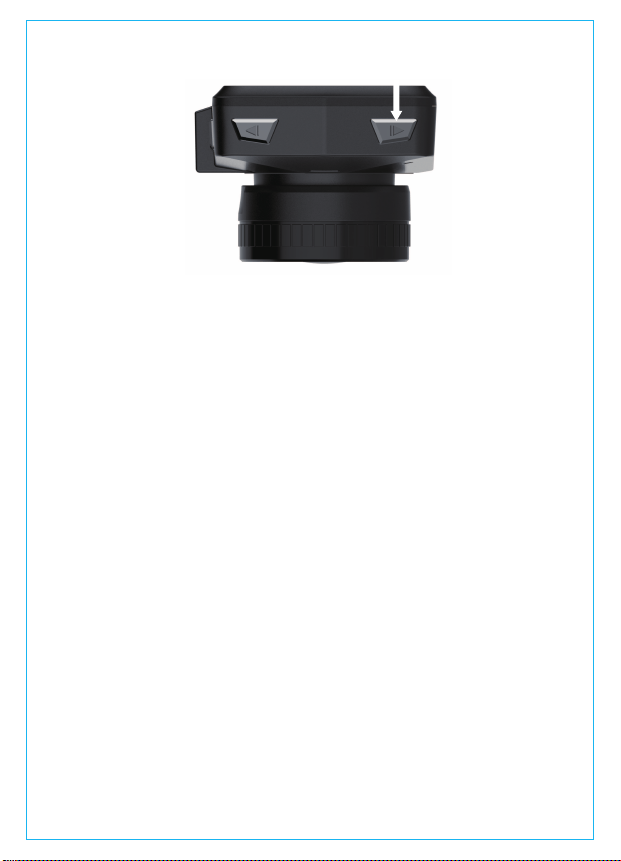
Down / Parking Mode
Switch Button
Menu/ Snapshot Button
2.7” TFT LCD screen.
Upward selection;
Slow forward when playing back videos;
Microphone ON/OFF switch.
Downward selection;
Fast forward when playing back videos;
Long press to enter Parking Mode.
Enter/exit setup menu when the camera
is not recording;
Take snapshot when the camera is
recording.
9
10
Power Button
Camera Button/
Emergency Button
Power ON/OFF.
Lock up the current video when the
camera is recording;
Switch to Camera Mode when the
camera is not recording.
- 4 -
1 2 3
4
58 9 10 11
12
13 14 15
16
6
7
11 OK Button Confirms the setup;
Stops/Starts the video recording;
Take picture in camera mode.
12 LED Indicator
13 Mic Records audio along with video.
Charging/Recording LED indicator.
14
15
HDMI Port Connects to HDMI cable.
16
Mini USB Port USB port for charging or data
transferring.
Memory Card Slot Location for the microSD memory
card.
LED Indicator
Blue LED solid on
Blue LED blinks
Camera is on, but not recording.
Camera is recording videos.
Red LED solid on
Red LED blinks fast
Camera is being charged.
Camera is nearly full charged.
Blue LED solid on, red LED
solid on
Blue LED blinks, red LED solid
on
Camera is on but not recording, and
is being charged.
Camera is being charged and is
recording videos.
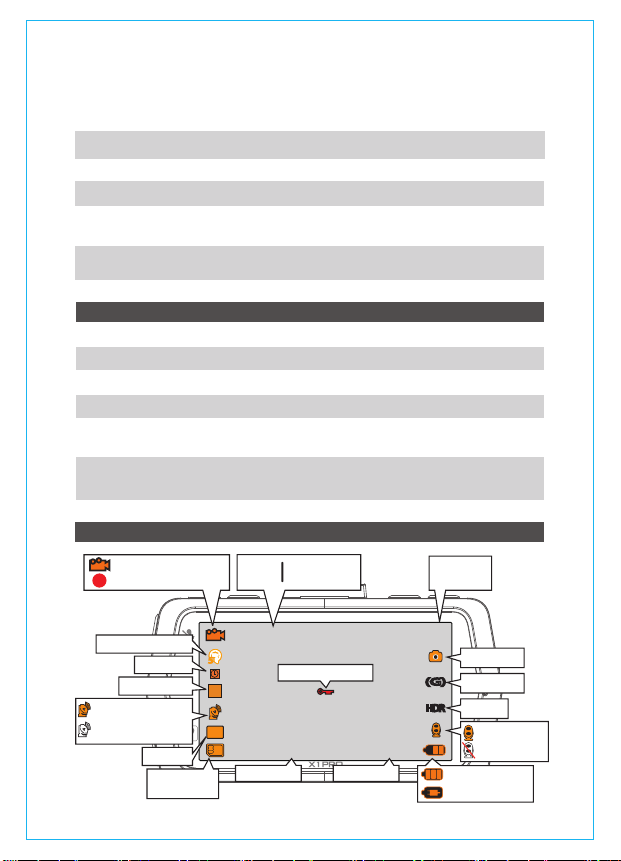
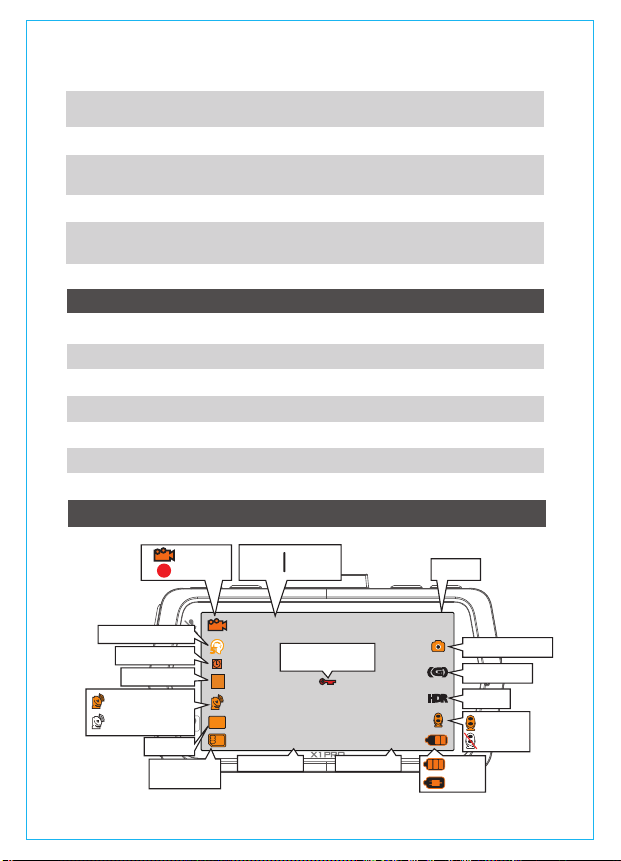
Screen overview
- 5 -
HDRHDR
(G)(G)
1440FHD
Video resolution
Emergency file lock
1080FHD
720P
00:12:34
12:34:56
12/01/2017
5555
Recording standby status
Loop recording time
Parking mode
Time lapse
Exposure
connected
GPS signal connecting
HDR on
G-Sensor on
Snapshot
Recording
Recording
time
Time stamp Date stamp
Battery level
Battery is charging
Microphone ON
Microphone OFF
Memory card
inserted or not
+
0
-
P
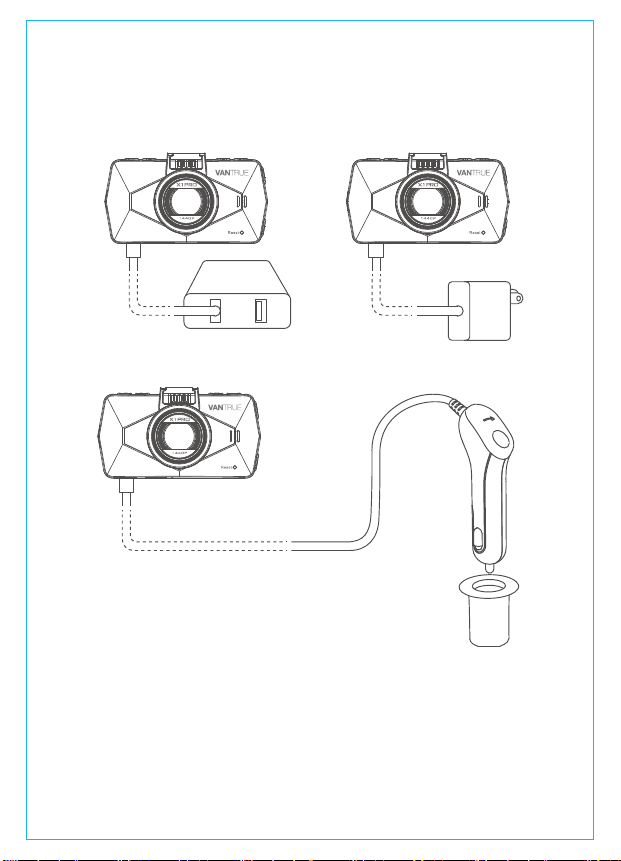
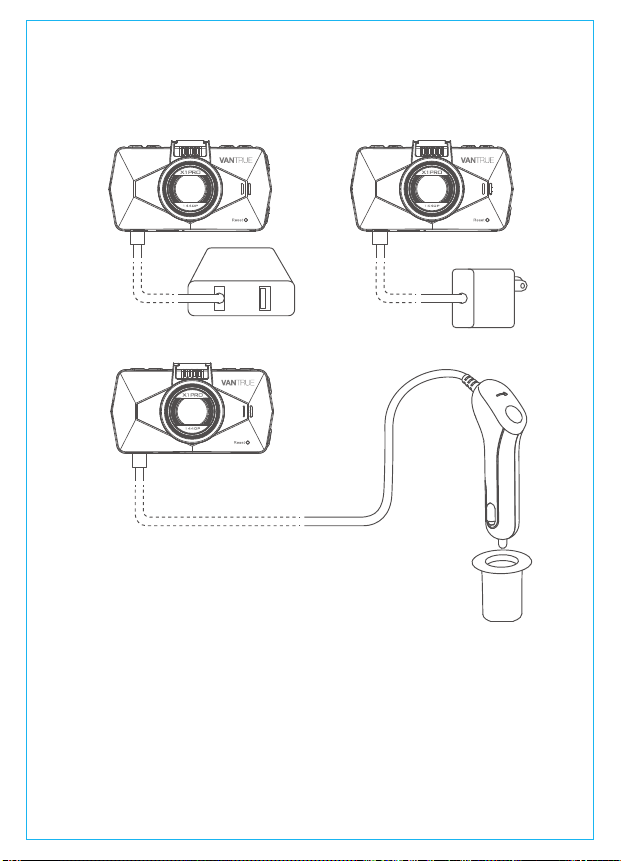
B. Charge via the car charger
While charging, the LED indicator light is blinking red.
Note:
1. The device has two ports available for charging - the USB port on the
camera and the USB port on the suction cup mount.
2. When charging via a computer, please use the USB port on the mount.
If you use the port on the camera, the camera display will show ‘Mass
Storage’ and ‘Power On’ options, press OK button to enter into Mass
Storage, in which the camera will not be setup or operated.
A. Charge via your USB charger
3. Getting started
3.1. Before using, charge the camera for 2-3 hours
- 6 -
POWER BANK
USB Charger
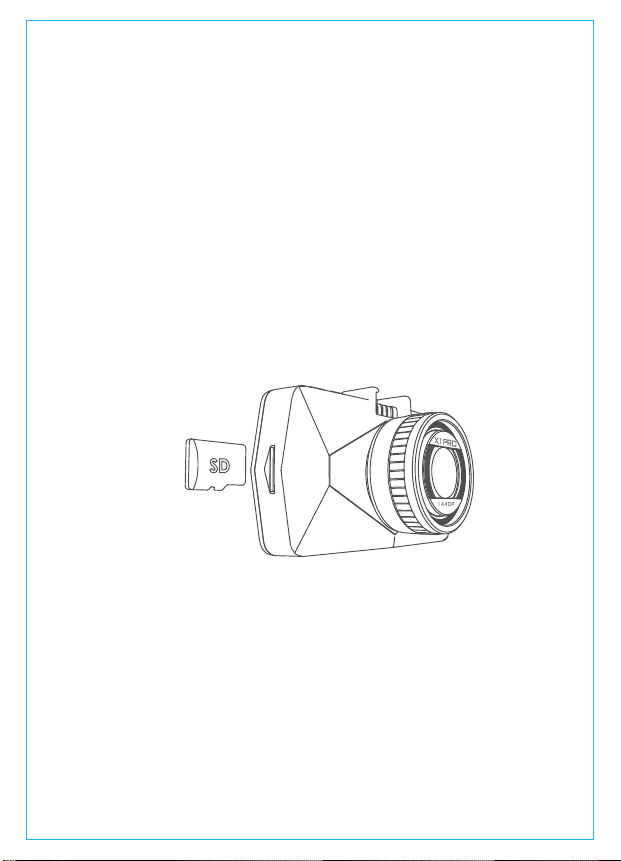
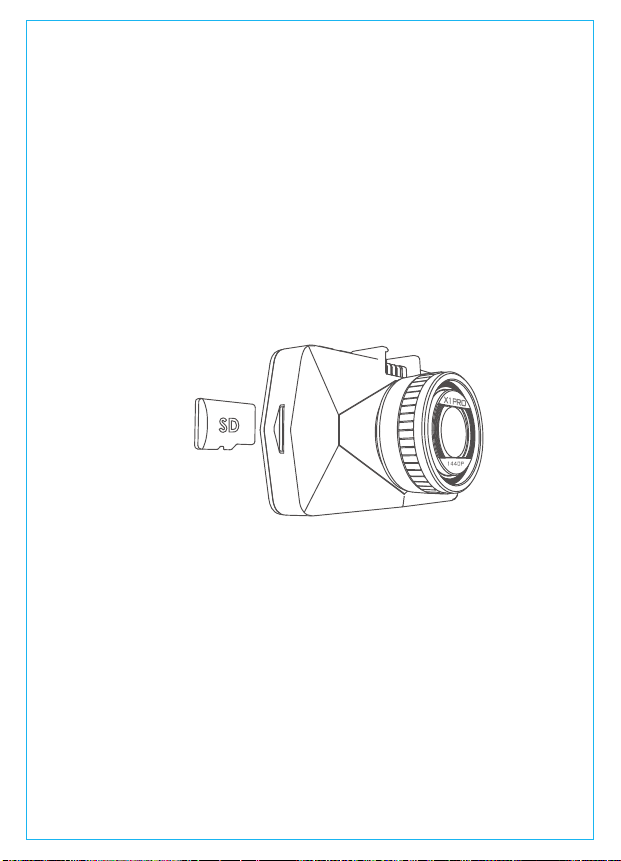
Please use a genuine microSD memory card of from 8GB to 32GB with
a speed rating of class 10 or higher. Insert the memory card to the
camera’s card slot, press it until it clicks. To take the card out, turn
off the camera first, then push the card into the slot until it clicks out.
Before using, please format the card following these steps:
Press MENU to enter the setup (if the camera is recording video, press
Confirm button to stop the recording first) interface, press DOWN
button to select the System Setup option, press Confirm to enter the
settings, press DOWN button to select Format item, press Confirm and
DOWN button to select YES.
3.2 Installing memory card
NOTE: When using a 64GB card, please format it to FAT32 on
computer first.
(Search and see “How to format a 64GB microSD card to FAT32”
online.)
REMINDER:
1. The MicroSD card should be formatted every 2 weeks to maximize
the lifetime of the memory card.
2. Please do not take the card out when the camera is recording in
case that the important video files missing.
1. Connect the suction mount to the camera’s mounting socket,
push it in till it clicks.
3.3 Installing the camera onto your windshield
- 7 -
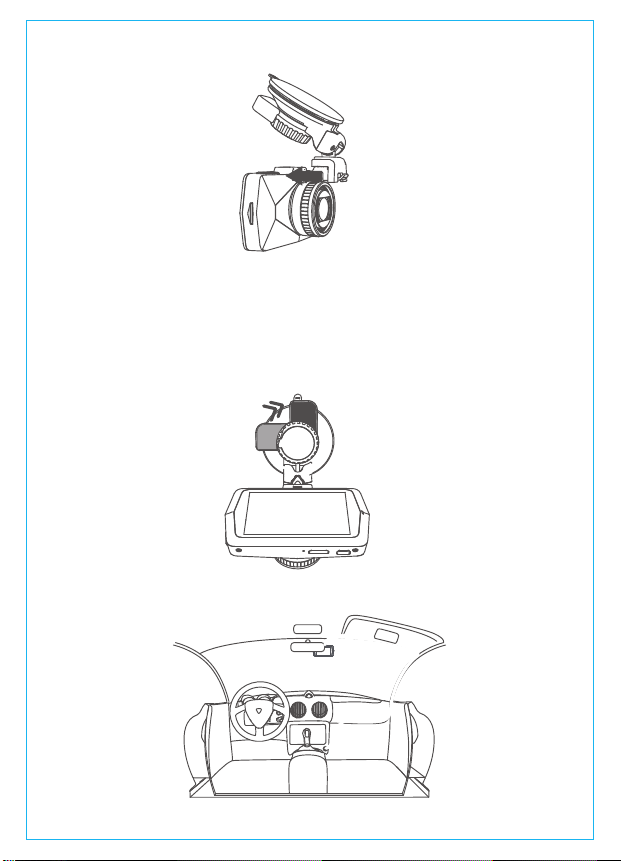
2. Clean the windshield using water or alcohol, and wipe clean with
aint-free cloth.
3. Wipe clean the suction mounting pad on the camera mount.
4. install the suction mount to the windshield, and rotate the locking bar
on the mount upward 90 degrees till it clicks, then the camera is
mounted on the windshield securely.
5. Line the power cable around the trim of your vehicle.
- 8 -
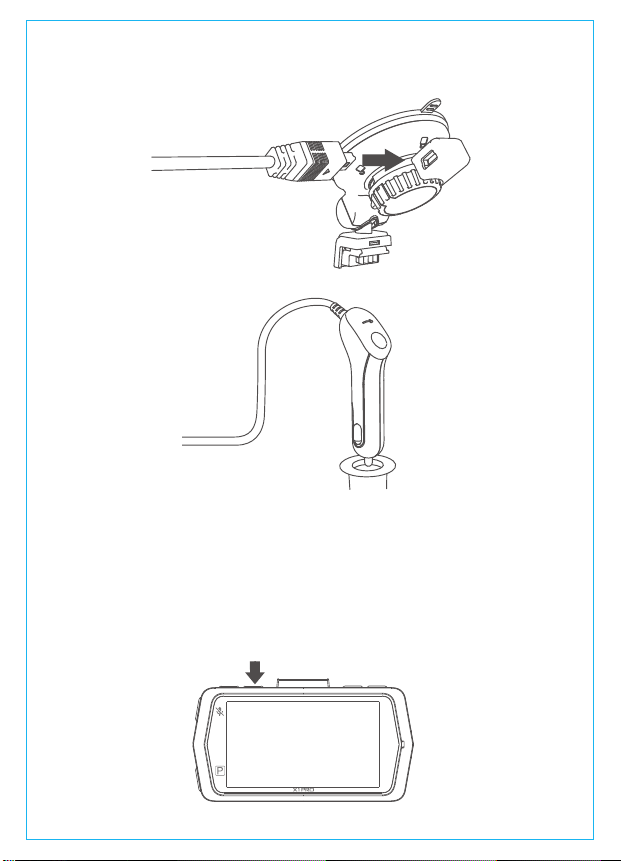
6. Plug the mini USB connect of the cable to the USB port on the
suction cup mount’s locking bar.
7. Insert the car charger into your vehicle’s cigarette lighter port.
8. Start the car, the camera will auto turn on and start recording.
A. Manually
One press the Power button to turn on the camera, long press
to power it off.
vehicle’s cigarette
lighter port
4. Basic Operation
4.1. Power on/off the camera.
- 9 -
B. Automatically
When connecting to car charger, the camera will auto turn on
after you start your car and the battery charging starts. It will
auto turn off in 30 seconds after you shut off the car.
After powering on, press the MENU button to enter the setup menus.
(If the camera is recording video, press the Confirm button to stop
the recording and then press the MENU button.)
Press the DOWN button to choose the Record Setup option, press
Confirm button to enter the settings, and press UP/DOWN button
to select setting items.
-Resolution: Default setting is 1440P. Press Confirm button to select
between 1440P, 1080P 60FPS, 1080P and 720P (fps: Frames per
Seconds).
-Loop Recording: Default setting is 3mins per video clip. Press
Confirm button to select among 1 min, 3mins, 5mins and Off.
-G-Sensor : Default setting is Medium. Press Confirm button to select
among OFF, Low, Medium and High.
-Audio Recording: Default setting is ON. Press Confirm and DOWN
button to turn it Off/ON.
-Parking Mode: Default setting is OFF. Press Confirm and DOWN
button to turn it ON/OFF.
4.2. Settings in the menu
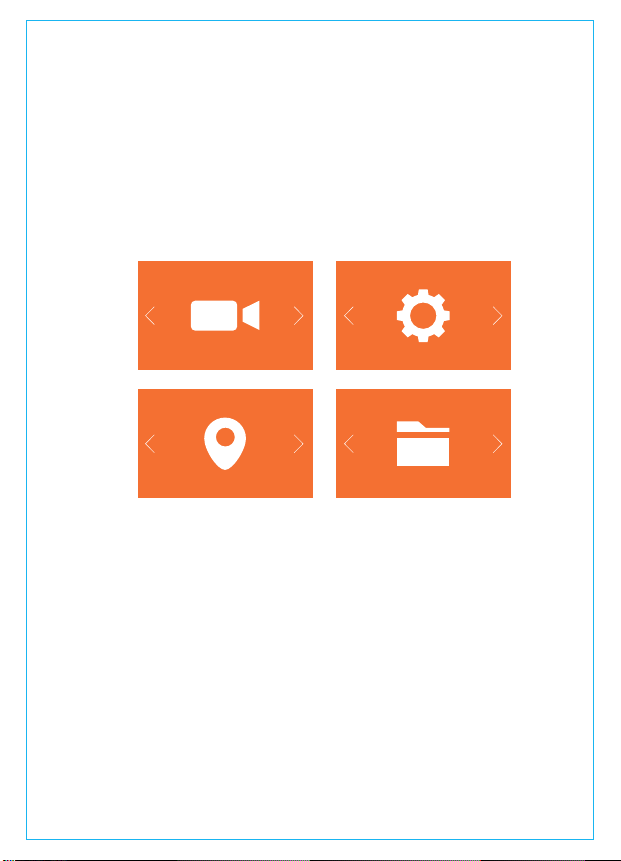
Record Setup System Setup
GPS Setup
Files
A. Record Setup
- 10 -

-Exposure: Default setting is 0. Press Confirm button to select
between +2.0, +1.0, 0, -1.0 and -2.0
-Number Setup: Press UP/DOWN and Confirm button to setup
numbers and letters. When finished, press MENU button to exit.
-Stamp: Default setting is ON. Press Confirm button to turn off/on
the date/time, logo, number, Speed and GPS Location stamp.
-Rotate Display: Default setting is OFF. Press Confirm and DOWN
button to turn is ON/OFF.
-Time Lapse: Default setting is OFF. Press Confirm button to select
between Off, 1 Sec, 5Secs, 10Secs, 30Secs and 1 Min.
-Power Off Delay: Default setting is ON. Press Confirm and DOWN
button to turn it Off/ON.
-Language: Default setting is English. Press Confirm button to select
among English, Chinese, Deutsch, Japanese, Español, Français
and Italiano.
-Format SD Card: Press Confirm and DOWN select OK to format
the microSD card.
-Time & Date: Press UP/DOWN and Confirm button to setup date
and time. When finished, press MENU button to exit.
-Auto LCD Off: Default setting is 3Mins, the camera screen will turn
off in 3mins while recording. Press Confirm button to select among
1Min, 3Mins and 5Mins or turn it OFF to disable it.
-Device Sound: Default setting is ON. Press Confirm button to
enable or disable it.
-Non-Use Auto Power OFF: Default setting is 3Mins, when the
camera is on but not in use, it will auto turn off after 3 minutes.
Press Confirm button to select among 1 Min, 2Mins and 3Mins, or
turn it OFF to disable it.
-Frequency: Default setting is 50Hz. Press Confirm to select 60Hz.
-System Info: Press the Confirm button to check the Version info.
-Default Setting: Press Confirm and select YES to set the device
back to factory settings.
B. System Setup
Note: to use the GPS function, you need to purchase an extra
GPS mount for the camera.
C. GPS Setup
- 11 -
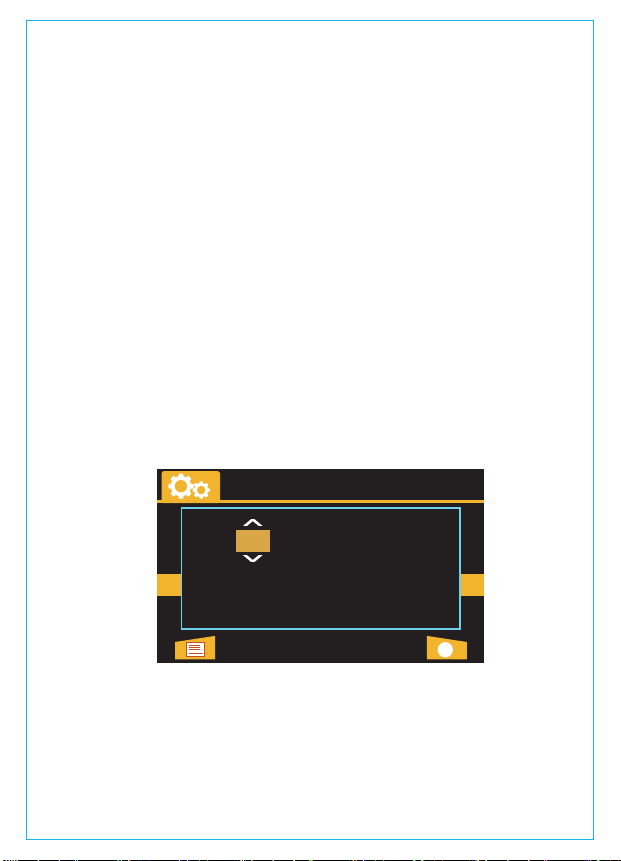
-GPS Setup: Default setting is On. Press Confirm to turn OFF/ON.
-Speed Unit: Default setting is MPH. Press Confirm to select KMH
or MPH.
When the setup finished, press MENU button to exit.
Check and delete videos/images in the Normal/Event folder.
-Event: Event videos (detected by G-Sensor and manually
locked) stored.
-Normal: Normal recording videos stored.
-Photo: Images stored.
-All: Event videos, Normal recording videos and images stored.
D. Files
Go to the MENU interface, and “System Setup”>“Time & Date”,
press Confirm button to set. In the time setup interface, press UP
or DOWN button to select date and time value, press Confirm
to confirm and go to next. When the setup is finished, press
MENU button to exit.
4.3 Date/Time setting
After installing the memory card, by default, the camera imme
diately starts loop recording video when it connects to a power
source and turn on. If it doesn’t connect to a power source, when
you press the power key to turn it on, it will not auto start recording,
you should press the Confirm button to start recording.
4.4 Loop recording
- 12 -
Time&Date
02 06
13 : 25 : 09
DD / MM / YY
BACK ENTER
2017//
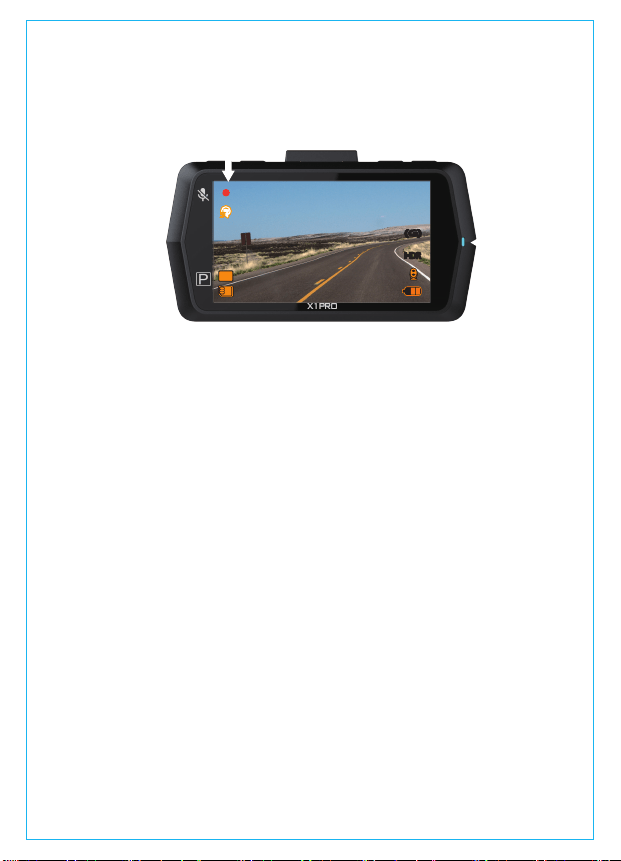
The event detection is triggered by G-Sensor (Gravity Sensor), it
auto detects possible accident collisions, locks up the current loop
recording video clip and saves the footage in the Event folder so
it would not be over-written when the card is full.
The G-Sensor sensibility is adjustable, it is Medium by default, but
you could adjust to Low or High or turn it Off in “Record Setup”>
“G-Sensor Set”.
You could also lock a video footage manually, when the camera
is recording, press the Emergency Button. A key icon will appear
on the center of the screen.
4.5 Event recording
While recording, the LED indicator is blinking blue, and a red dot will
flash on the top left of the screen. You can stop/start the recording
by pressing the Confirm button.
- 13 -
By default, the loop recording time is 3mins. Please go to “Record
Setup”>“Loop Recording” to change to 1 min, 3 mins, or 5mins for
your need. When it turns off, the camera will record video in 30 mins
per clip, but would not over write the old videos when the card is full.
The loop recording video is named by “Year_Date_Time_Serial”
(for example, “2017_0101_060101_001”) format and stored in
“Video”>“Normal” folder. When the microSD card is full, the camera
will write over the old files with new recording.
HDRHDR
(G)(G)
1440FHD
00:12:34
12:34:56
12/01/2017
5555
+
0
-
- 14 -
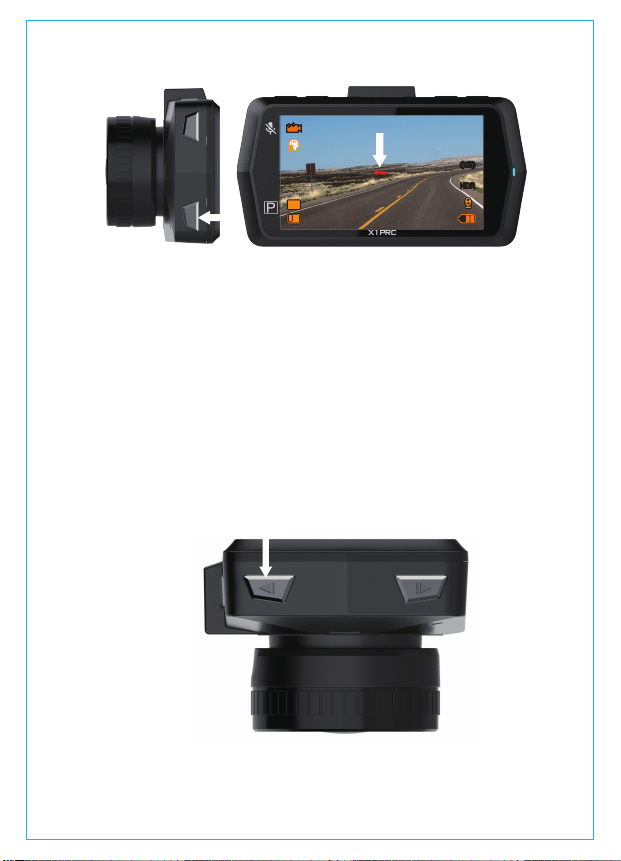
By default, the voice recording is ON. You could turn it off in two
ways:
- Go to “Record Setup”>“Audio recording”, and press Confirm
and select OFF;
- While the camera is recording videos, press UP button to turn
OFF/ON the voice recording.
When the voice recording has been turned off, the mic icon at the
right bottom of the screen will turn white with a red line across it.
4.6 Audio recording
The event video is stored in “Files”>“Event” folder, and would not
be over-written.
HDRHDR
(G)(G)
1440FHD
00:12:34
12:34:56
12/01/2017
5555
+
0
-
- 15 -
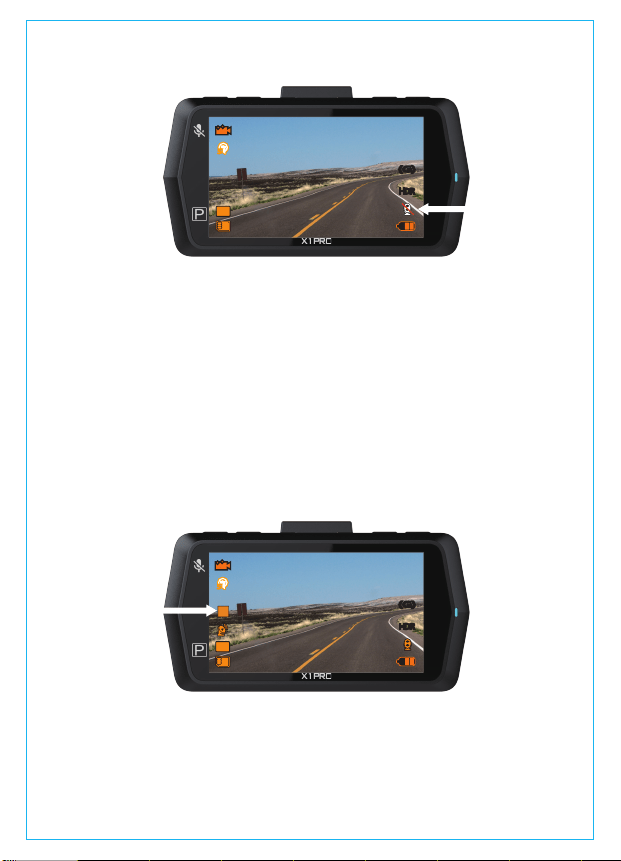
To use the parking mode, go to “Record Setup”>“Parking Monitor”
and select ON.
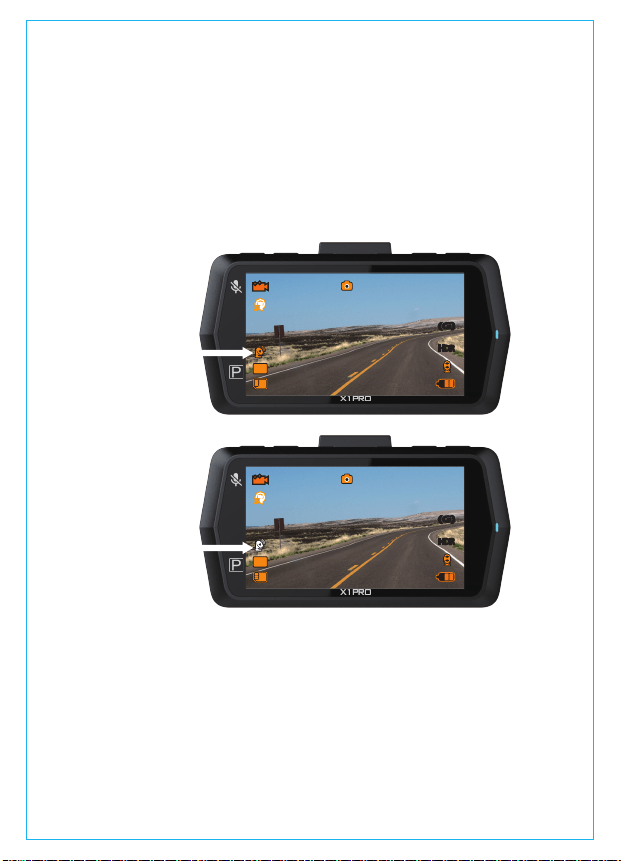
Triggered by the Motion Detection, the camera will auto switch
to parking mode once it detects no movement in front of the
camera for 5 minutes while recording. Parking mode icon will
appear at the left side of the screen. In Parking Mode, once the
camera detects movement in front, it will auto start recording; and
when the movement stops, it will end recording after 10 seconds.
You can also turn on the Parking Mode manually: press and hold
the DOWN button till the P icon appears on the screen, then the
parking mode activates.
4.7 Parking Mode
HDRHDR
(G)(G)
1440FHD
00:12:34
12:34:56
12/01/2017
5555
+
0
-
P
HDRHDR
(G)(G)
1440FHD
00:12:34
12:34:56
12/01/2017
5555
+
0
-
The parking mode will exit once the camera detects itself moved.
NOTE:To keep the camera working in parking mode, please keep
powering it with an extra power bank or hardwire it to the car
battery directly. Don’t recommend to keep the camera working
all the time for over 10 hours.
To use the Time Lapse function, please go to “Record Setup”>
“Time Lapse” to set up.
The default setting is OFF. Press Confirm button to select between
Off, 1 Sec, 5Secs, 10Secs, 30Secs and 1 Min. In this mode, the
camera will keep taking photos at the set time interval and then
auto edit them together to a video clip.
For example, if you set Time Lapse 1sec, the camera will take one
photo every second, and then stitch the photos together into a
1 fps video. With a maximum recording frame rate of 30fps,
recording 8 hours of video with Time Lapse 1Sec will generate a
time lapse video lasting just 16 minutes (=8 x 60 x 60/30/60). This
Eco Mode is recommended for storage cards with smaller
capacities.
Normal Recording Time = Time Lapse Recording Time (Sec) x
Recording Frame Rate FPS x Time Lapse Option
4.8 TIME LAPSE
- 16 -
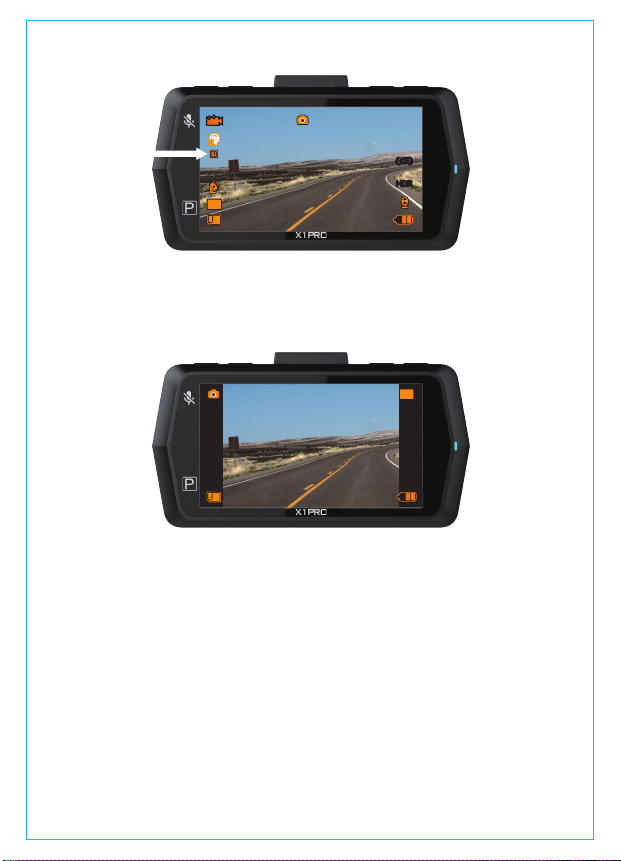
-When the camera is not recording videos, press the Camera button
to take picture in 16M pixels.
-While the camera is recording video, press the Camera button to
take a snapshot.
4.9 Taking a picture
To use the camera’s GPS function, please purchase an external
GPS receiver mount. The external GPS receiver mount could be
purchased from Amazon.
4.10 Connecting external GPS receiver (Optional accessory)
- 17 -
1. Install the external GPS mount onto the camera instead of the
original mount.
2. Plug the mini USB connector to the port on the GPS mount,
power it.
HDRHDR
(G)(G)
1440FHD
00:12:34
12:34:56
12/01/2017
5555
+
0
-
16M
+
0
-
3. Once it gets charged, the camera turns on; and if it is has
microSD card inserted, it will start recording, press Confirm
button to stop recording first. Press MENU button to enter the
setup interface, go to “GPS Setup”>“GPS Setup” to turn on the
GPS function on the camera.
4. The GPS receiver starts to search and receive GPS signal, and
the GPS icon is gray on the screen. Once it gets GPS signal
=successfully, the icon will turn orange.
5. You can include GPS tracking and vehicle speed on the video
footage, go to “Record Setup”>“Stamp”>“GPS Location Stamp”
and “Speed Stamp” to set.
6.You can review recorded video using the VANTRUE GPS Viewer
(available for download on www.vantrue.net).
Press MENU and go to “Files”>“Normal”, “Files”>“Event” or “Files”>
4.11 Viewing video and photos
- 18 -
HDRHDR
(G)(G)
1440FHD
00:12:34
12:34:56
12/01/2017
5555
+
0
-
HDRHDR
(G)(G)
1440FHD
00:12:34
12:34:56
12/01/2017
5555
+
0
-
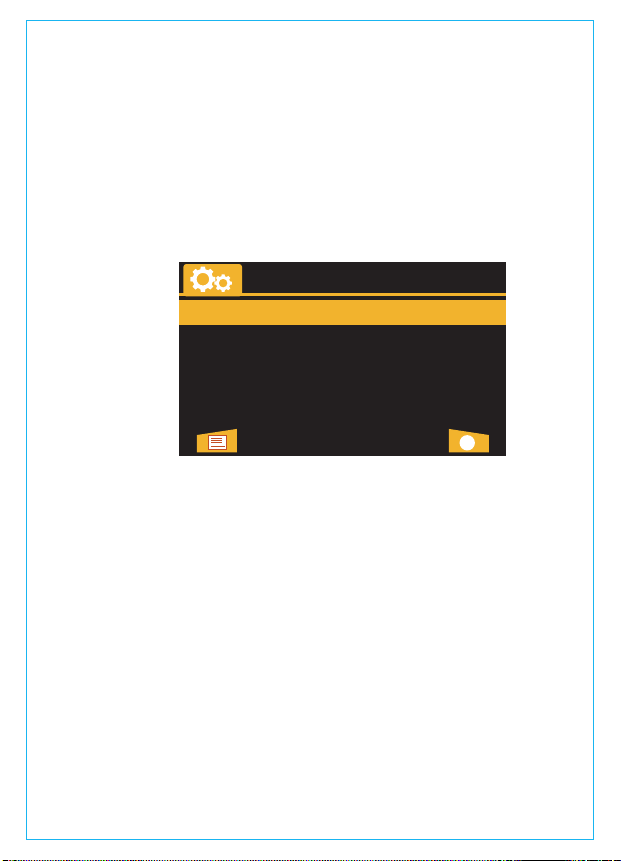
“Photo” to view and playback videos/photos on the camera.
Press UP/DOWN button to select videos and Confirm button to
playback/pause. When playing back, press UP to slow forward
the playback, press DOWN to fast forward.
To delete/protect files, please press the OK button to pause the
video first then press the Camera button to delete/protect video.
Note:To delete the protect file, please unprotect it first.
Viewing files on a computer
1. Connect the camera to your computer using the supplied USB
cable.
2. “Mass Storage” and “Power On” will be displayed on the camera
screen, please navigate to “Mass Storage” and press OK button
to transfer data.
3. Depending on your computer OS, the device will appear either
as a removable drive or a removable volume.
NOTE: When connected to your computer under “Mass Storage”
status, standard camera setup and operations will be disabled.
The camera has a mini HDMI port for connecting an external
display such as a monitor or TV. Please note that the product
doesn’t come supplied a mini HDMI to HDMI cable.
View on a TV
- 19 -
Playback Menu
Delete Files
Protect Files
BACK ENTER

1. Use a USB charger to charge the camera.
2. Insert the mini HDMI connectori nto the camera’s HDMI port.
3. Insert the HDMI connector end into your TV or monitor’s HDMI
port.
4. Adjust your displaysettings to detect the HDMI input source.
5. Once connected to your TV, the camera’s screen will turn
black and be output to your TV screen.
•In hot weather, do not expose the camera directly to the sun
when the car is parked.
•In extreme winter conditions, i.e. 32°F (0°C) or lower, detach
the camera from the windshield when not in use, and store in
the glove box.
To avoid damage
The system will automatically update if the microSD card contains
the firmware upgrade file. The camera will restart once the upgrade
has been completed.
Always stay up-to-date
The latest firmware versionis always available at theofficial VANTRUE
website (www.vantrue.net). We strongly recommend registering your
product (www.vantrue.net/register) to receive a notification email
when a new firmware update is available.
4.12 Upgrading the Firmware
The camera is designed to operate in temperatures from 32 – 158°F
(0-70°C), temperatures outside this range risk degrading the
camera’s performance work and causing damage.
4.13 Working Temperature
NOTE:
1. To use the HDMI Output Mode, the camera requires a constant
power connection via USB.
2. When connected to an external display,the camera’s video
recording function is disabled.
- 20 -
1 2 3
4
58 9 10 11
12
13 14 15
16
6
7
2.ドラレコの概要
NO.名称働き
1
2
3
4
ブラケットホルダー
リセットボタン
付属のブラケットを取り付けます。
スピーカー動画を再生する場合サウンドを実現します。
カメラレンズ
広視野角170度大口径F/1.8の光学6G多層
ガラスレンズ。
初期設定に戻します。
5
6
7
8
LCD
アップボタン
ダウン/駐車モードボタン
メニュー/スナップショッ
トボタン
大型2.7インチTFTLCDディスプレイ。
メニューモード−メニュー表示内容を上
に移動します;
再生中−巻き戻し;
録画中、マイクのオン/オフをします。
メニューモード−メニュー表示内容を下
に移動します;
再生中−早送り;
録画待機時に、3秒間押し続けて、駐車モ
ードに入ります。
録画停止中に押してメニューモードへ;
録画中、写真をキャプチャします。
9
10
電源ボタン
モード/緊急ボタン
電源のオン/オフをします。
録画中−緊急時上書き禁止ファイルへ変更;
録画停止中−カメラモードへ変更。
- 21 -
12 LEDインジケーター充電/録画LEDインジケーター
11
OKボタン
確認ボタン●録画中、押して録画停止
13 マイク映像とともに音声も記録します。
14
15
16
HDMIポート
ミニUSBポート
HDMIケーブルを接続し、外部モニター
へ出力します。
充電やデータを転送します。
メモリカード挿入口向きを確認してmicroSDHCカードを挿
入します。
LEDインジケータ
青色のLEDが点灯
青色のLEDが点滅
ドラレコはオンにし、録画していません。
録画中
赤いLEDが点灯
青色のLEDが点滅
充電中
カメラはほぼ完全に充電されています。
青色のLEDが点灯、赤いLEDが点灯
青色のLEDが点滅、赤いLEDが点灯
充電中、録画していません。
録画中、充電中
スクリーンの概要
- 22 -
HDRHDR
(G)(G)
P
1440FHD
撮影解像度
上書禁止動画撮影時
鍵マーク点灯します。
1080FHD
720P
00:12:34
12:34:56
12/01/2017
5555
録画待機中
ループ録画設定時間
駐車監視モード
露光指数
GPS受信モードON
(要・別売GPS受信機)
GPS受信モードON
(要・別売GPS受信機)
HDRON
G-センサーON
録画中に静止画撮影
録画中
撮影時間
時刻表示日付表示
残量
充電中
マイクON
マイクOFF
マイクロSDカ
ード有無
+
0
-
タイムラプス撮影
a.USB充電器で充電
3.入門
3.1.使用の前に、ドラレコに2-3時間充電してください。
b.車載充電器で充電
充電中、LEDインジケーターは赤く点灯しています。
注意:
1.デバイスは二つの充電用USBポートがあります。本体の下部にUSBポートが
あり、吸盤マウントの上部にUSBポートがあります。
2.パソコンで充電すれば、マウントにあるUSBポートを使用してください。も
しカメラ本体のUSBポートと接続すると、画面で「ストレージ」と「電源オ
ン」が表示されます。「ストレージ」を選択して、ドラレコを操作出来なく、
ただパソコンでデータを読み取ることができます。もしドラレコに給電した
い、「電源オン」を選択してください。
- 23 -
USBチャージャー
モバイルバッテリー
クラス10以上と8GB以上のmicroSDを使ってください。最大32GBのカ
ードをサポートします。ご使用前に、microSDはフォーマットを行って
ください。本製品の動作中にカードを取り出すことをしないでください。
挿入:microSDメモリーカードの端子面と本機の背面が同じ向きになる
ようにして、カチッと音がするまでmicroSDメモリーカード挿入口へ
差し込みます。
取出し:microSDメモリーカードを1回押すと取り出すことができます。
注意:64GBのメモリーカードを使用したい、パソコンで「FAT32」へフォ
ーマットしてください。
3.2メモリーカードの取り付け
注意:
1.microSDカードは消耗品です。メモリーカードの寿命を延長するため、
2週間を経って、メモリーカードをフォーマットしてくださいね。
2.事故発生時は記録された録画ファイルが上書きされないように、必ず
電源をOFFにしてからmicroSDカードを抜いて保管して下さい。
3.電源がONの状態でmicroSDカードの抜き差しをしないでください。
microSDカード破損の原因となります。必ず電源OFF後ランプが3秒
以上消灯したことを確認しmiciroSDカードの抜き差しを行ってください。
- 24 -
1.ブラケットを本機ブラケットホルダーに、カチッと音がするまで差
し込んで取り付けてください。
3.3ドライブレコーダーの取り付け
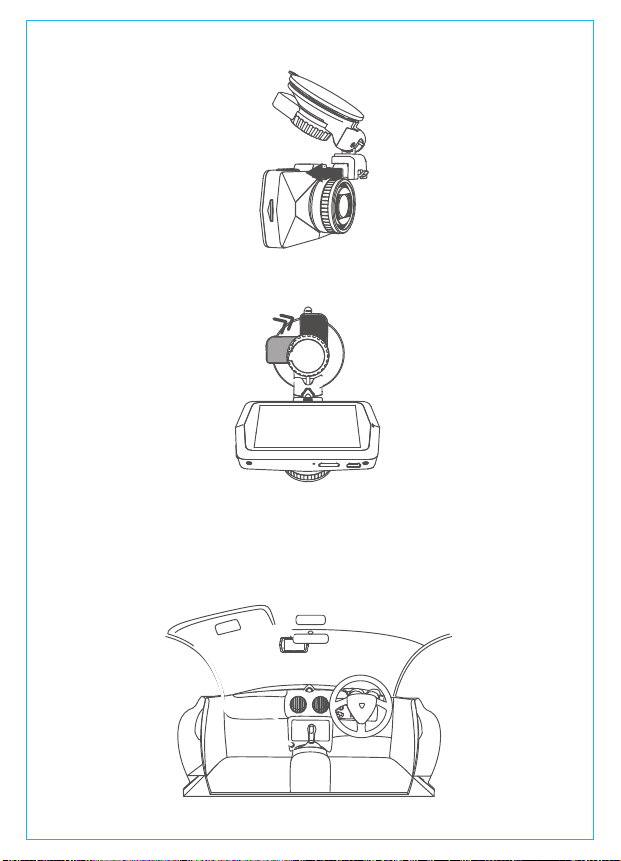
2.フロントガラスを拭いて事前に決めた位置に軽く押し当て、マウ
ントをロック方向に90度まわしてください。
3.【フロントガラス上部より1/5以内、ルームミラー裏側で視界を
妨げない場所へ設置して下さい】
4.ワイパーの可動範囲にカメラを取り付けてください。
- 25 -
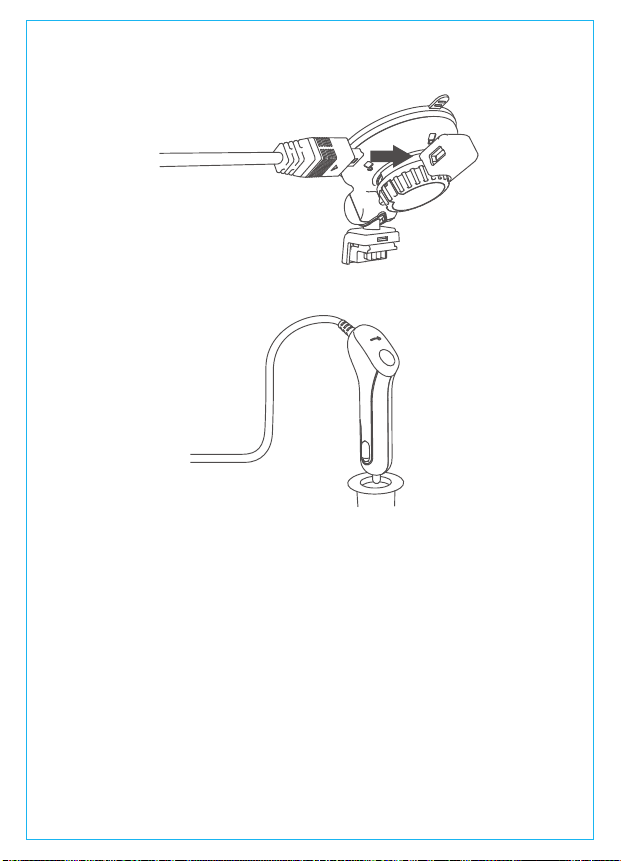
車のシガーライターソケ
ット
5.シガープラグのUSBケーブルでマウントのUSBポートと接続してく
ださい。
6.車のシガーライターに付属のシガープラグを挿入してください。
7.エンジンを起動します。
8.ドライブレコーダーは自動にオンをし、自動に録画を開始します。
- 26 -
A.手動で。
電源ボタンを押し、ドラレコを起動します;電源ボタンを3秒間押し
続いて、ドラレコはオフになります。
4.基本操作
4.1.電源のオン/オフ
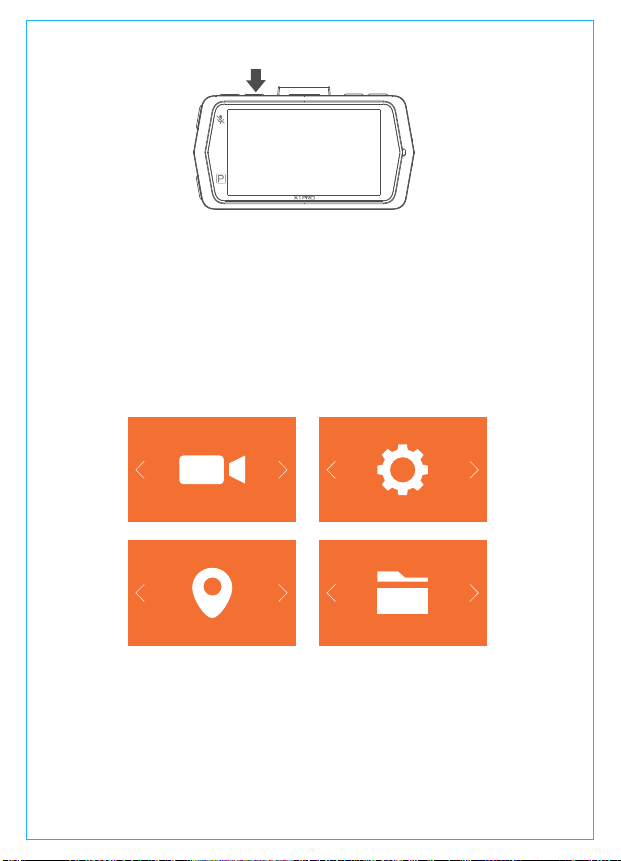
録画中/録画を停止のた【確認ボタン】>【メニューボタン】を押し、
基本設定画面を開きます。
4.2.メニューの設定
録画設定システム設定
GPS設定
ファイル
b.自動で。
シガーライターソケットや他の外部電源に接続すると、カメラは自
動的にオンになります。電源が切られた30秒後、本機の電源は自動
的にオフになります。
- 27 -
ダウンボタンを押し、録画設定を選択してください、確認ボタンを押
し、録画設定を入力して、ダウンボタン/アップボタンで設定項目を選
択してください。
▶解像度:解像度の初期設定は1440Pです。選択可能な設定:1440P、
1080PFPS、1080P、720Pの四種類です。(fps:FramesperSeconds)
A.録画設定

▶ループ録画設定:初期設定は5分です。一つビデオの録画時間を設定
することができます。選択可能な設定:オフ、1分、3分、5分、オフで
す。
▶G−センサー設定:G−センサー設定の初期値は標準感度です。状況に
より、適切なレベル(低感度、標準感度、高感度、オフ)を選択してく
ださい。録画中、揺れや衝撃を発生した場合、感度に合わ自動的に録画
ファイルをロックします。
▶録画音声:初期設定はオンです。オン/オフが選択できます。
▶駐車モード:初期設定はオフです。オン/オフが選択できます。
▶露光指数:初期設定は0です。選択可能な設定:0、-1.0、-2.0、+2.0、+1.0
▶車両番号:車両番号を設定します。アップ/ダウンボタンを押し、正確
な番号を選択して確認ボタンを押してください。設定完成したあと、メ
ニューボタンを押して退出します。
▶スタンプ:初期設定はオンです。全てのスタンプ(情報を録画ファイル
に表示)が表示しています。画面に日付/時間、車両登録番号、ブラン
ドロゴのスタンプを表示したくない場合、スタンプをオフにします。
▶液晶反転設定:初期設定はオフです。オン/オフが選択できます。
▶タイムラプス撮影:初期設定はオフです。選択可能な設定:1秒、5秒、
10秒、30秒、1分
▶電源オフ遅延:初期設定はオンです。オン/オフが選択できます。
▶言語選択:言語設定の初期値は英語です。英語、中国語、日本語、ド
イツ語、スペイン語、フランス語、イタリア語の7種の言語が選択でき
ます。
▶フォーマット:microSDメモリーカードのフォーマットを行います。
全てのファイルに保存されたデータはなくなります。
▶日付/時間設定:日付/時間を設定します。画面にスタンプを現わしたい
場合、スタンプ設定に選択してください。設定完成したあと、メニュー
ボタンを押して退出します。
▶モニター点灯時間設定(LCD表示時間設定):初期設定は3分です。起動
時の画面表示時間を変更できます。録画中、設定時間経過後カメラの
モニターは自動的にオフになります。選択項目は1分、3分、5分、オフ
があります。
▶デバイス音声:初期設定はオンです。オン/オフが選択できます。
▶オートパワーオフ:初期設定は3分です。カメラが動かず3分を経った
後、電源が自動的にオフになるオートパワーオフの時間を調整すること
できます。1分、2分、3分オフを選択できます。
B.システム設定
- 28 -

▶周波数:初期設定は50Hzです。光源周波数は50Hz/60Hzを選択できま
す。
▶システム情報:ファームウェアのバージョンを確認できます。
▶初期設定:全ての設定をお買い上げ時の状態に戻します。
設定完成したあと、メニューボタンを押して退出します。
C.GPS設定
注意:GPSを使用する場合:VANTRUEOnDashX1Rroドライブレコーダ
ー専用なVANTRUEGPS受信機を購入してください。
▶GPS設定:初期設定はオンです。別売りのGPS受信機と接続した後、
GPS機能をオフ/オンにしてください。
▶速度の単位:初期設定はMP/Hです。MP/H、KM/Hを選択できます。
通常ではKM/Hを選択して下さい。
設定完成したあと、メニューボタンを押して退出します。
D.ファイル
ノーマル/イベントフォルダのビデオ/画像を確認し、削除します。
▶ノーマル:通常の録画ビデオが保存されます。
▶イベント:イベントビデオ(自動で/手動でロックされたビデオ)が保存さ
れます。
▶画像:通常の画像が保存されます。
▶全て:全ての通常の録画ビデオ、画像とイベントビデオが保存されま
す。
- 29 -
【システム設定】>【時間設定】を選択し、確認ボタンを押してくださ
い。
まず、年を設定してください、アップ/ダウンボタンを押しで、正確な番
号を選択し、確認ボタンを押して、次、月を設定してください、確認ボ
タンを押し、年、月、日、そして、時間は全部設定した後、確認ボタン
を押してください。そうしたら、設定終了しました。
4.3.日付/時間の設定
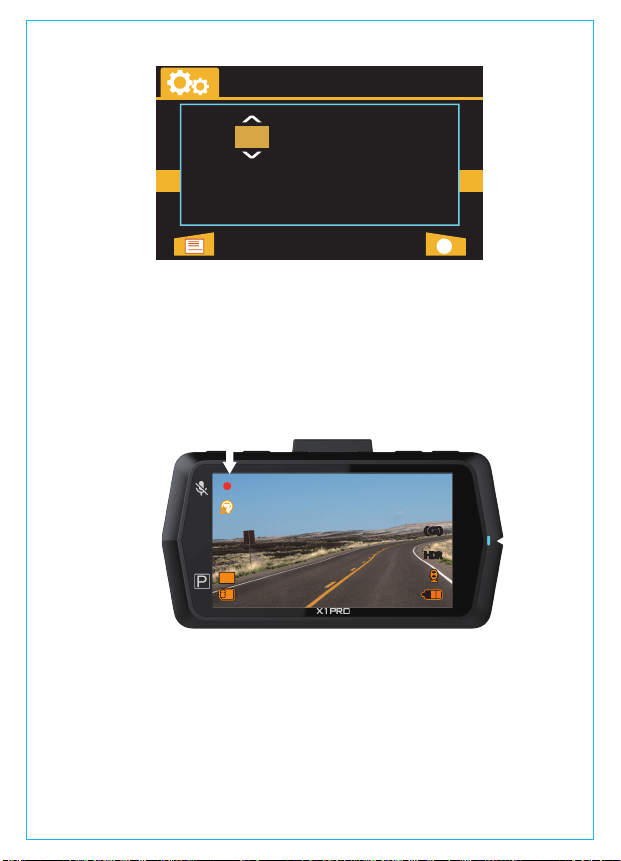
ビデオを保存するため、カメラにイベントとノーマルという二つのフ
4.5.イベント録画
メモリーカードを差し込んでいた後、電源を入れると、ドラレコは自動
的にオンになり、初期設定によってループ録画を開始します。電源を入
れない場合に、電源ボタンを押し、ドラレコは自動的に録画できません
です、ご注意ください。確認ボタンを押して、録画を開始します。
録画中、グリーンのLEDライトは点滅しています、左上角の赤い点も点
滅しています。確認ボタンを押し、録画のオン/オフをします。
4.4.ループ録画
- 30 -
初期設定は3分です。一つビデオの録画時間を設定することができます。
1分、3分、5分を選択できます。オフを選択する場合に、一つビデオの
録画時間は30分になり、microSDメモリーカードの容量がなくなると、
自動的に古い記録ファイルから順に上書きされません。
日付き/時間
02 06
13 : 25 : 09
DD / MM / YY
戻る確認
2017//
HDRHDR
(G)(G)
1440FHD
00:12:34
12:34:56
12/01/2017
5555
+
0
-
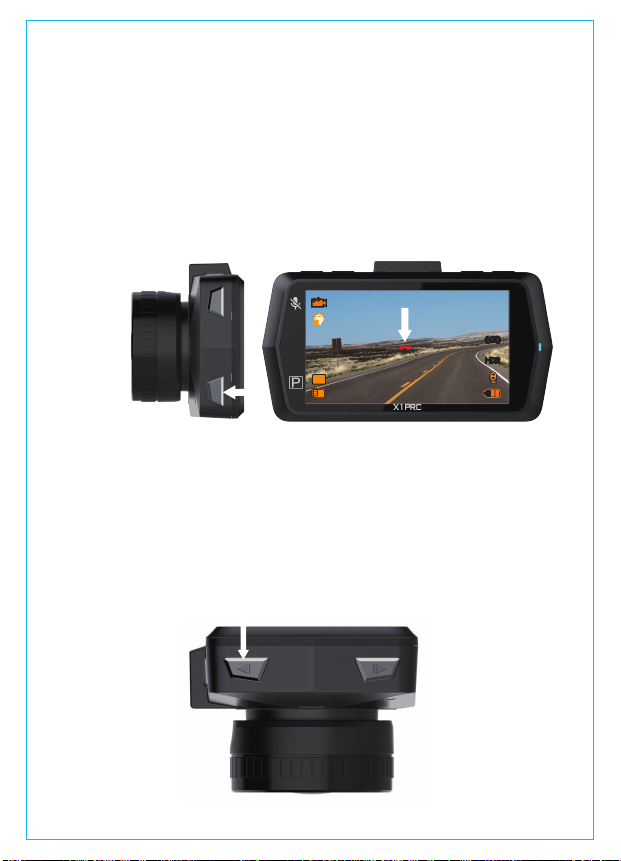
ォルダを設置します。緊急時刻にロックされた映像と衝撃を発生した
ビデオは自動的にイベントファイルに保存されます。G-Sensor感度の
設定によって、検知できる衝撃の感度は違いがあります。【録画設定】
>【G-センサー設定】を選択して、適切な感度を選択してください。
カメラはオンをする場合に、普通の映像は一般的にノーマルファイル
に保存されます。
録画中、揺れや衝撃を発生した場合、感度に合わ自動的に録画ファイ
ルをロックします。その際画面の真ん中にキーのアイコンが現れます。
ロックされた映像は新たなビデオに上書きされません。
- 31 -
初期設定はオンです。オフの方法は以下のように:
▶【録画設定】>【録画音声】を選択し、オフを選択してください。
▶録画中、アップボタンを押し、録画音声のオン/オフをします。
4.6.音声記録
HDRHDR
(G)(G)
1440FHD
00:12:34
12:34:56
12/01/2017
5555
+
0
-
microSDメモリーカードの容量がなくなると、自動的に古い記録ファ
イルから順に上書きされて繰り返し保存し続けます。イベントに保存
されたビデオは覆われていません。
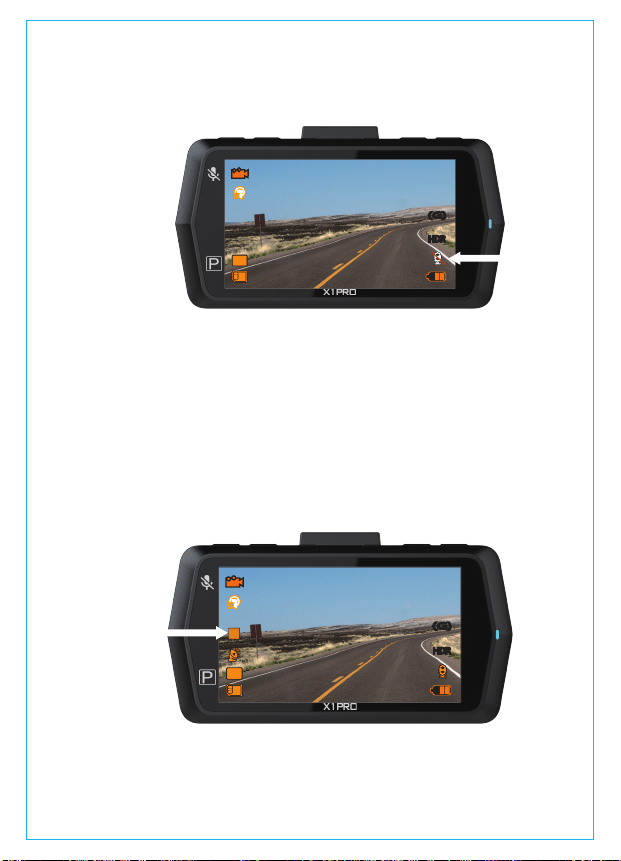
音声を閉める時、右下部のマイクアイコンはグレーで、斜め线があり
ます。
- 32 -
HDRHDR
(G)(G)
1440FHD
00:12:34
12:34:56
12/01/2017
5555
+
0
-
P
駐車モードを使用する前に、駐車監視を開いてください。【録画設定】
>【駐車モード】を押し、オンを選択してください。
駐車モードをオンにします。駐車時、フロントカメラで動きを感知して
録画を開始できます。
自動駐車モード:録画中、5分を連続して、動きを検出していない場合に、
ドラレコは自動的に駐車モードに入ります。スクリーンの左边に「P」
のアイコンが現れます。
駐車モードで、駐車中にフロントカメラで動きを感知して記録できま
す。駐車中に動きを停止した10秒ぐらい、録画は停止になります。
4.7.駐車モード
HDRHDR
(G)(G)
1440FHD
00:12:34
12:34:56
12/01/2017
5555
+
0
-
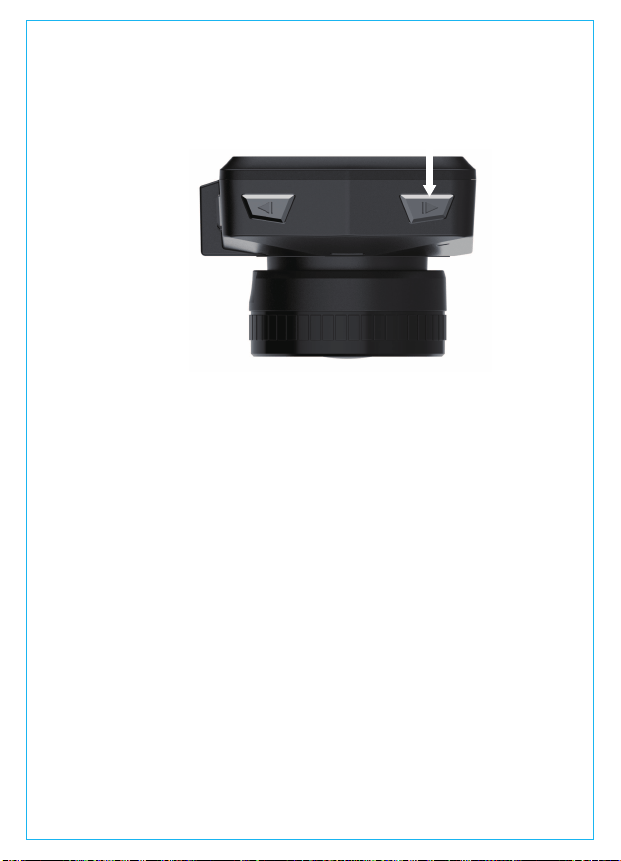
ドラレコ本体は移動される場合に、駐車モードは自動的に退出します。
★注意:カメラはオンにしているとき、動きの感知ができます。内蔵
しているバッテリーの容量は小さいので短時間しか機能しません。長
時間(10時間以下)使用する場合、外部電源を接続してください。また
バッテリー消費を少なくする為LCDスクリーンセーバーにて選択時間
をなるべく短くすることをお勧めします。
- 33 -
タイムラプス撮影にオンを選択してください。
タイムラプス撮影モード:一定の間隔を開けて画像を撮影し、連続し
て再生させることで長時間の映像を短時間で確認できる感覚の微速度
撮影です。
例えば:タイムラプス撮影1秒を選択して、毎秒、ドラレコは一つの写真
を撮ります、ドラレコの録画速度は30fpsです。タイムラプス撮影1秒で
8時間に連続して録画して、最終、全ての画像は16分(=8*60*60/30/60)の
ビデオに合成されました。
通常録画時間=タイムラプス撮影時間(Sec)*録画フレームレートFPS*
タイムラプス設定の時間
4.8タイムラプス撮影
録画待機時に【駐車モードボタン】を3秒間長押しで駐車モードを開
始します。その際画面の左中央に「P」のアイコンが現れます。駐車中
に衝撃や動きがあるまで待機状態になります。
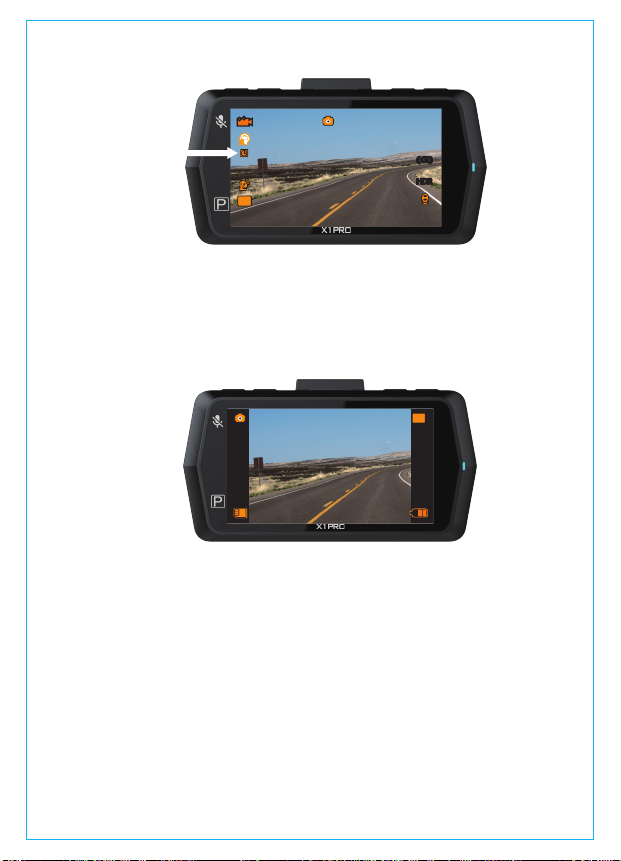
▶録画中、メニュー/スナップショットボタンを押し、写真を撮ること
もできます。
▶録画停止中、モード/緊急ボタンを押し、写真を撮ることができます。
写真の画素は1600万画素です。
4.9静止画モード
VANTRUEOnDashX1ドライブレコーダーはGPS受信機を含んでいない
ので、GPS機能を使いたい場合は、AmazonでVANTRUEGPS受信機を購
入してください。
GPS受信機を使用すると、経路と速度の追跡、車両位置を記録できます。
GPS機能を使用するには、以下の手順に操作してください:
1.付属のマウントの代わりに、GPSマウントを取り付けてください。
2.GPSマウントのUSBポートで給電してください。
3.電源を入れると、ドラレコは自動的に録画します、確認ボタンを押し、
録画を停止します。そして、メニューボタンを押し、【GPS設定】>
【GPS設定】を押し、オンを選択してください。
4.10専用なGPS受信機の取り付け(別売品)
- 34 -
HDRHDR
(G)(G)
1440FHD
00:12:34
5555
+
0
-
16M
+
0
-
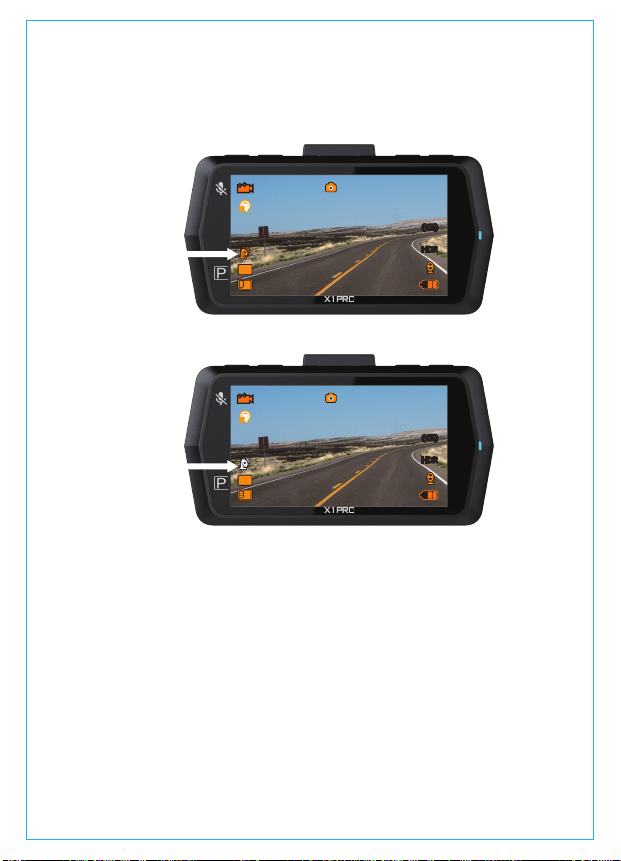
4.GPS受信機をオンになると、GPS信号の捕捉を開始します、最初のGPS
アイコンはグレーにしています。GPS信号を受信した後、アイコンはオ
レンジになります。
ドライブレコーダーで表示本機モニターで再生できます。
メニュー画面で、【ファイル】>【ノーマル】/【イベント】/【画像】
/【全て】を押し、動画の選択をし、確認ボタンを押して再生します。
ビデオ再生している場合に、【確認ボタン】を押すと停止になります。
【ダウンボタン】を押すと早送り、【アップボタン】を押すと巻き戻
しになります。
4.11画像/動画の再生
5.画面にGPSと速度のスタンプを現わしたい場合、【録画設定】>
【スタンプ】>【GPSスタンプ】、【速度スタンプ】を設定してくだ
さい。
6.VANTRUEGPSViewerでGPS情報を含まれているビデオを再生できま
す。(VANTRUEGPSViewerのダウンロードアドレス:(www.vantrue.net)
- 35 -
HDRHDR
(G)(G)
1440FHD
00:12:34
12:34:56
2017/01/12
5555
+
0
-
HDRHDR
(G)(G)
1440FHD
00:12:34
12:34:56
2017/01/12
5555
+
0
-

ビデオを選択し【モード/緊急ボタン】を押すと、【削除/保護】を選
択することができます。
削除を選択>まとめて削除の場合は(全部削除)、選択中のみ削除す
る場合(現在のファイルの削除)を選択してください。
PCで表示
1.カードリーダーなどを使用してパソコンで再生します。ファイルを
MOVをサポートするプレーヤー使用すると、ビデオとオーディオファ
イルを再生することができます。
2.付属のUSBケーブルでカメラ本体のUSBポートと接続すると、画面で
「ストレージ」と「電源オン」が表示されます。「ストレージ」を選択
して、ドラレコを操作出来なく、ただパソコンでデータを読み取ること
ができます。PCでビデオを再生することができます。
- 36 -
注意:パソコンでドラレコに給電する場合に、マウントのUSBポートと接
続してください。
TVで表示
HDMIケーブルでHDTVと接続し、動画を見ることができます。HDMIケ
ーブルが含まれていませんです、自分でHDMIケーブルを用意してくだ
さい。
1.USB充電器でドラレコに給電してください。
2.ミニHDMIケーブルでドラレコをHDTVと接続してください。
3.テレビをHDMI入力モードに調整します。
4.正常に接続されると、カメラの画面は黒くなり、テレビ画面に投影さ
れます。
注意:HDMIモードを使用する時、必ずドラレコに給電してください。
再生モード
削除
保護
戻る確認

メモリーカードの中にファームウェアがあると、システムは自動的に
ファームウェアを進級します。そして、バージョンアップが完了され
たあと、カメラは自動的に再起動します。
定期にお手元のファームウェアのバージョンを検査してくださいね。
弊社のウェブサイトで(www.vantrue.net)最新のファームウェアをダ
ウンロードできます。お手数ですが、弊社のウエブサイトで
(www.vantrue.net/register)商品を登録してください、ファームウェア
を更新する時、こちらはメールでお知らせていただきます。
4.12ファームウェアのバージョン
- 37 -
ドラレコの動作環境温度範囲は0〜70℃です、動作環境温度範囲を超
える場合に、ドラレコの運行に影響があり、本体の寿命に影響を及ぼ
す可能性があります。
暑い日に長い時間でそれを放置しないでください。温度が高すぎると、
本製品が動作を停止し、熱保護を起動します。温度が下がるときにそ
れを再起動します。厳冬に温度が32℉(0℃)以下になる場合は、カ
メラを使用する必要がない場合は、フロントガラスから取り外して、
駐車中に収納ボックスに保管してください。
4.13動作環境温度

Model
Processor
Image Sensor
Display
Lens
Languages
Video
Image
Audio
Memory Storage
Shutter Type
X1 Pro
NOVATEK NT96660
OV4689
2.7 inch TFT LCD (16:9)
170° wide viewing angle, full 6 layer glass lens with
F/1.8 wide aperture.
English/Deutsch/Japanese/Spanish/French/Italian/
简体中文(Simplified Chinese)
英語、中国語、日本語、ドイツ語、スペイン語、フランス語、
イタリア語
H.264 compressed format; 2560x1440P30,
1920x1080P60, 1920x1080P30, 1280x720P30
JPEG; 16M
Built-in microphone and speaker
Internal memory: 4MB
External: SDHC MicroSD Card (8 to 64GB Card in FAT32,
Class 10)
Electronic
5. Specifications
The specifications of this product may change without prior notice due
to product improvements.
型番
プロセッサー
画像センサ
液晶サイズ
レンズ
言語
ビデオ
画像
オーディオ
メモリーストレージ
シャッター
X1Pro
NOVATEKNT96660
OV4689
2.7インチTFTLCD(16:9)
広角170度大口径F/1.8の光学6G多層ガラスレンズ
H.264圧縮技術;2560x1440P30、1920x1080P60、
1920x1080P30、1280x720P30
JPEG;
MIC/スピーカーが内蔵しています。
内部メモリ: 4M
外部: SDHC (Class10 以上の8GB−64GB(FAT32)のmicroSD
メモリーカード)
電子シャッター
製品仕様
本製品の仕様及び外観は、改良のため予告なく変更することがあります。予
めご了承ください。
- 38 -
USB Port
USBポート
USB2.0 (mini)
USB2.0,mini

Battery
Working Temperature
130mAh 3.7V Polymer Li-ion battery
32 – 158°F (0-70°C)
電池
動作環境温度
130mAh3.7Vリチウムイオン電池
0-70°C
Storage Temperature
Compatible OS
14 – 176°F (-10 to -80°C)
Windows XP/Vista/7/8/10 & Mac OS
保存温度
対応パソコンOS
‐10−-80℃
Windows XP/Vista/Windows 7/Windows 8/Windows 10/Mac OS
6. Warranty & Support
Warranty
Support
If you have any questions regarding your product, please do not
hesitate to contact us at [email protected], or drop us a message
through the live chat box at www.vantrue.net. Queries are typically
answered within 12-24hours.
保証とアフターサービス
保証について
VANTRUE®OnDashX1Proドライブレコーダーは12ヶ月の保証期間があり
ます。18ヶ月の保証期間に延長するため、弊社のウェブサイトで
(www.vantrue.net/register)ご注文の商品を登録してください。
サポートについて
製品に何のご質問・問題がございましたら、いつでもお気軽にアマゾン経
由でお問い合わせいただくか。或いは、[email protected]までご連絡
ください。すべてのお問い合わせは、営業日に24時間以内にご返信を差し
上げます。
The VANTRUE OnDash X1 Pro Dash Cam comes with a full 12 months
warranty.If you register your product on our official site
(www.vantrue.net/register), you can extend the warranty to 18 months.
®
- 39 -

Your opinion matters
Thank you for choosing VANTRUE!
ご意見?
製品について何の意見がございますか?いつも私たちの製品とサービスの
品質とユーザーエクスペリエンスを向上させるために全力で取り組んでい
ます。製品を改善する上の意見やアドバイスを持っている場合は、ご遠慮
なく弊社までご連絡をお願いいたします(アマゾお問い合わせ或いは
[email protected]より)。お客様からの声を期待しております。
VANTRUEをご利用いただき、誠にありがとうございます。
VANTRUE is firmly committed to always improving our products,
services, and user experience. If you have any thoughts on how we
can do even better, we welcome your constructive feedback and
suggestions. Connect with us today at [email protected].
®
- 40 -
www.vantrue.net/contact facebook.com/vantrue.live
f
製品をご購入頂き、誠にありがとうございます。
お問い合わせ:
- 41 -