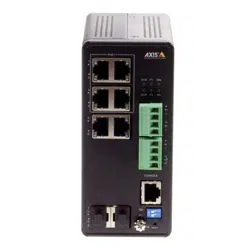


AXISD8208-RIndulstrialPoE++Switch
Aboutthisdocument
Aboutthisdocument
Note
Theproductisintendedforusebynetworkadministratorswhoareresponsibleforoperatingandmaintainingnetwork
equipment.Basicworkingknowledgeofgeneralswitchfunctions,security,theInternetProtocol(IP),andSimpleNetwork
ManagementProtocol(SNMP)isassumed.
ThisUserManualprovidesinformationmainlyonhowto:
•accesstheproduct
•accessconnectedIPdevicesintheproduct’stopologyview
•congureselectedsetupexamples
•performmaintenanceontheproduct
Productfeaturesandtheirsettingsarecoveredinmoredetailintheproduct’scontext-sensitivebuilt-inhelp.Formoreinformation,
seeGettoknowyourproduct’sbuilt-inhelponpage5.
2
AXISD8208-RIndulstrialPoE++Switch
Solutionoverview
Solutionoverview
3

AXISD8208-RIndulstrialPoE++Switch
Getstarted
Getstarted
Accesstheproductfromabrowser
Note
Install,connectandpoweruptheproductasspeciedinitsInstallationGuide.
1.UseAXISIPUtilityorAXISDeviceManagertondtheproductonthenetwork.Forinformationonhowtodiscoverand
assignanIPaddress,gotoaxis.com/support
2.Entertheusernameandpasswordprovidedontheproductlabel.
3.Followthestepsinthesetupwizardto:
-Changethepassword(recommendedforsecurityreasons)
-SettheIPaddressviaDHCPormanually
-ConguretheDHCPserver
-Setthedate&timeinformation
-Setthesysteminformation
4.ClickApply.
5.Reloginusingthenewpassword.
Youwillnowentertheproduct’swebpage,andwillbeabletocongureandmanagetheproduct.
4
AXISD8208-RIndulstrialPoE++Switch
Getstarted
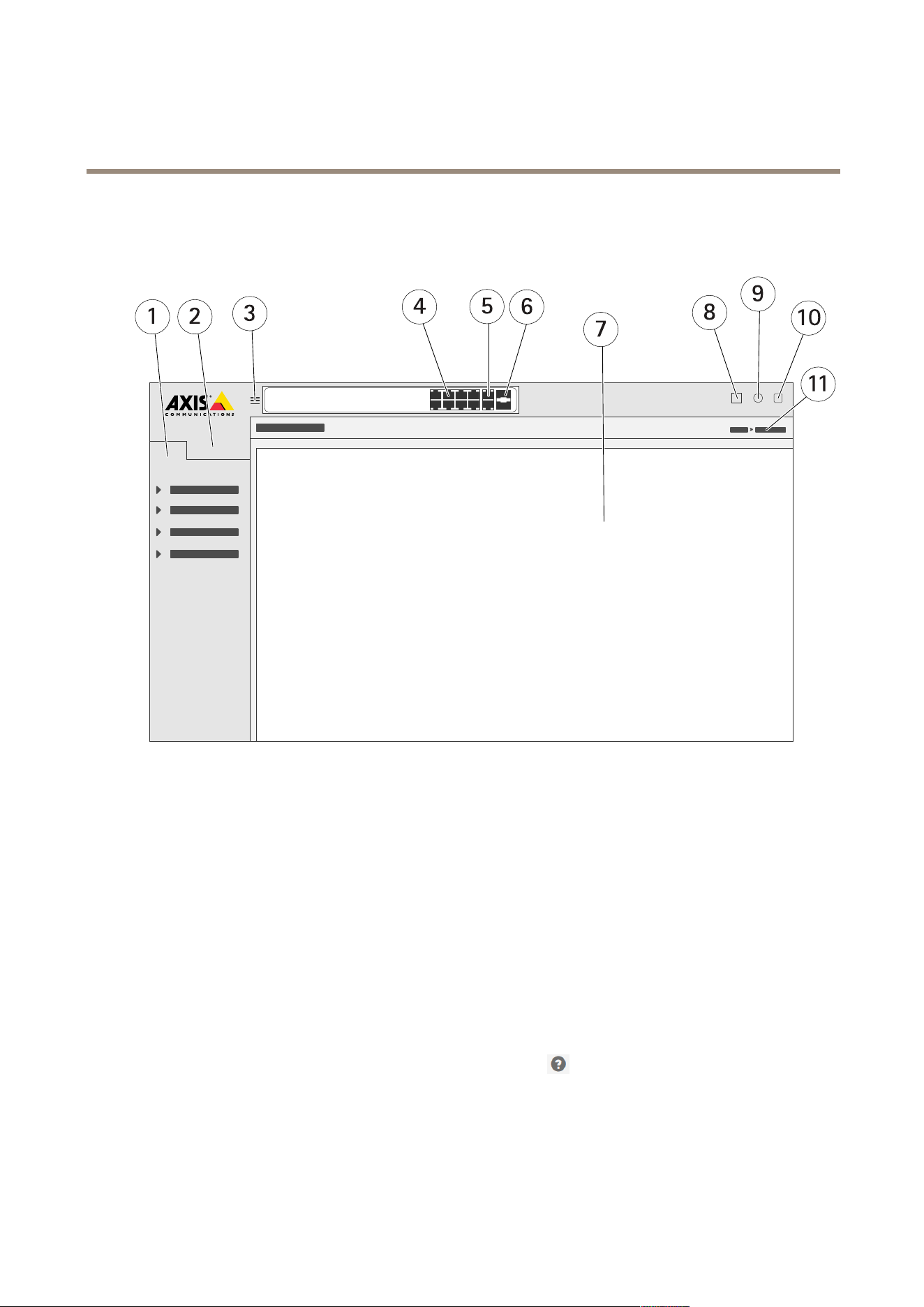
Gettoknowyourproduct’swebpage
1
Basicfeatures
2
Advancedfeatures
3
Togglebutton-switchbetweenwindowedandfullscreens
4
RJ45port(PoE+)statusindicators
5
RJ45port(non-PoE)statusindicators
6
SFPportstatusindicators
7
Contentareaforbasic/advancedfeatures
8
Savebutton-savethestart-upconguration
9
Helpbutton-accessthecontext-sensitivebuilt-inhelp
10
Logoutbutton
11
Menupath
Gettoknowyourproduct’sbuilt-inhelp
Yourproducthasacontext-sensitivebuilt-inhelp.Thehelpprovidesmoredetailedinformationontheproduct’sbasicandadvanced
featuresandtheirsettings.Toaccessthehelpcontentforanygivenview,click
.Somehelpcontentalsoincludesclickableterms
andacronymsthatareexplainedinmoredetailinthebuilt-inglossary.
5
AXISD8208-RIndulstrialPoE++Switch
Accessdevicesinyourproduct'snetwork
Accessdevicesinyourproduct'snetwork
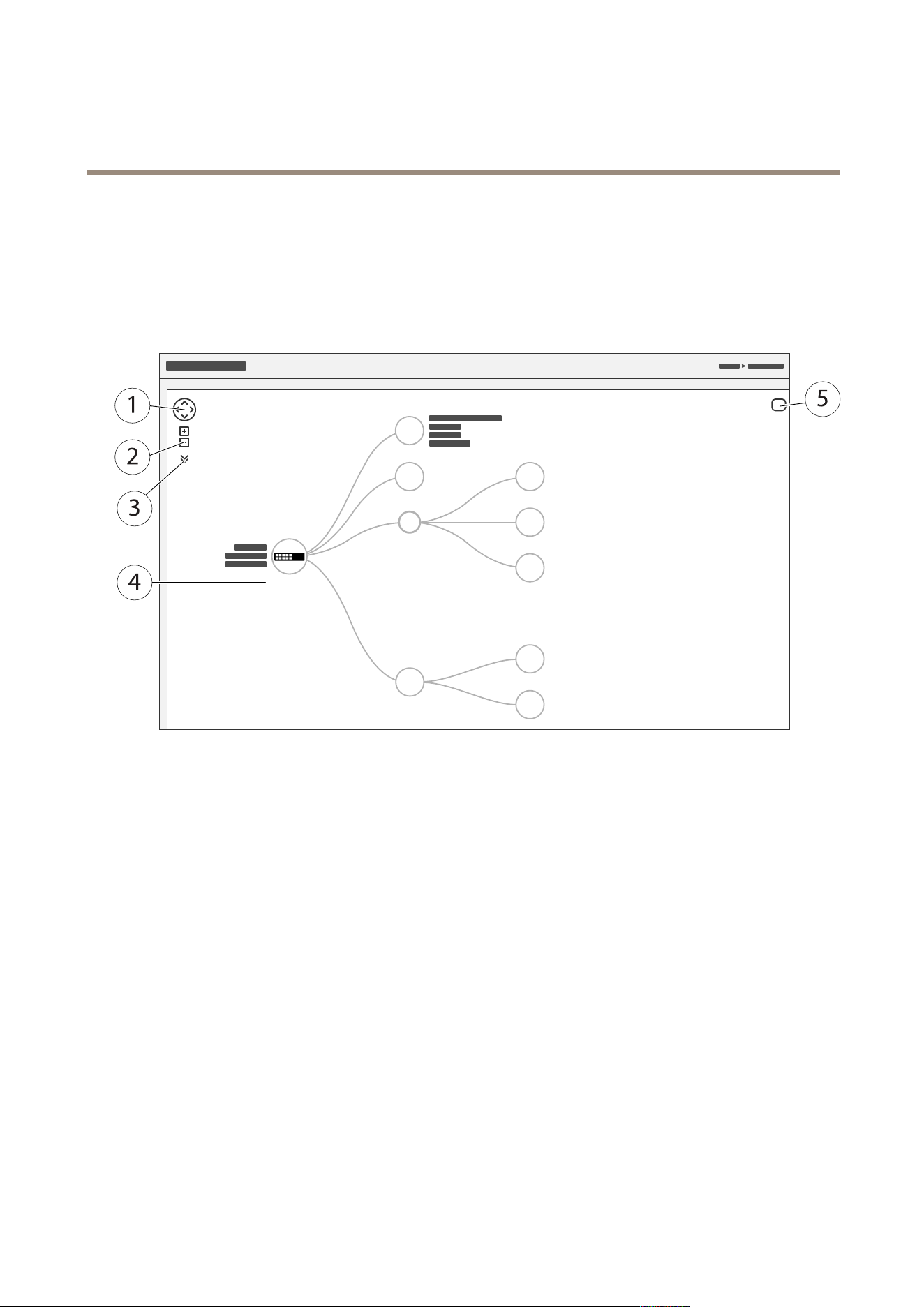
Topologyview
Thetopologyviewallowsyoutoremotelyaccess,manageandmonitoralldiscoveredIPdevicesinyourproduct’snetwork,for
exampleviaatabletorasmartphone.TodisplaythediscoveredIPdevicesinagraphicalnetwork,gotoBasic>TopologyView.
1
Arrowbuttontomovetheviewinfourdirections
2
Zoominandzoomoutbuttons
3
Drop-downbuttontoaccessandchangedeviceinformationtobedisplayedintheview
4
Contentareafordevicesdiscoveredinthenetwork
5
Settingsbuttontoaccessandchangedevice,groupandcongurationinformation
Whenyouclickadeviceiconinthetopologyview,adeviceconsoleisopenedtoallowyouaccessto:
•dashboardconsolewithdeviceinformationandavailabledevice-specicactions,suchaslogin,diagnostics,ndswitch,
PoEcongurationandreboot
•noticationconsolewithinformationonalarmsandlogstriggeredbyevents
•monitorconsolewithinformationondevicetrafc
6

AXISD8208-RIndulstrialPoE++Switch
Setupexamples
Setupexamples
SetupaccessVLANs
VLANSaretypicallyusedonlargenetworkstocreatemultiplebroadcastdomains,buttheycanalsobeusedtosegregatenetwork
trafc.Forexample,videotrafccanbepartofoneVLAN,andothernetworktrafccanbepartofanother.
1.GotoAdvanced>VLANs>Conguration.
2.UnderGlobalVLANConguration,entertheVLANsyouwanttocreatetotheAllowedAccessVLANseld.Forexample,if
youenter,1,10-13,200,300,thefollowingVLANIDswillbecreated:1,10,11,12,13,200and300.
3.ToassignacreatedVLANIDtoagivenportunderPortVLANConguration,entertheIDtothePortVLANeld.
4.ClickApply.
ReserveanIPaddressbasedonMACaddress
1.GotoAdvanced>DHCPServer>Conguration>Pool.
2.ClickAddNewPool.
3.Enteranameforthepool,forexample00:01:02:03:04:05,andclickApply.Nospacesareallowedinthename.
4.Toaccessthepoolsettings,clicktheaddedname.
5.IntheTypedrop-downmenu,selectHost.
6.Enterotherrequiredsettings,suchasIPaddress,SubnetMaskandDefaultRouter.
7.IntheClientIdentierdrop-downmenu,selectMAC.
8.IntheHardwareAddresseld,enterF8-16-54-B2-35-63.
9.ClickApply.
Tosavethestart-upconguration,click
ontheproduct’swebpage.SeeGettoknowyourproduct’swebpageonpage4.
SetaPoEschedule
IfyouhaveacertaintimeframewhereyouwanttheswitchtoprovidePoE,forexample,toyourcameras,itcanbeusefultocreatea
PoEscheduleandassignittooneormorePoEports.Youcancreateupto16PoEscheduleproles.
TocreateaPoEschedule:
1.GotoAdvanced>PoE>Conguration>ScheduleProle.
2.IntheProledrop-downmenu,selectanumberfortheprole.
3.Changethedefaultprolenameasneeded.
4.TospecifywhenyouwantPoEtoswitchon,selecthours(HH)andminutes(MM)intheStartTimedrop-downmenu.
5.TospecifywhenyouwantPoEtoswitchoff,selecthours(HH)andminutes(MM)intheEndTimedrop-downmenu.
-Ifyouwanttousethesamescheduleforalldaysoftheweek,selectthestartandendtimesontheWeekDay
rowmarkedwithanasterisk(*).
-Ifyouwanttousethesamescheduleforcertaindaysoftheweekonly,selectthestartandendtimesfor
selecteddaysontherespectiveWeekDayrows.
7

AXISD8208-RIndulstrialPoE++Switch
Setupexamples
6.ClickApply.
ToassignthecreatedPoEscheduletooneormorePoEports:
1.GotoBasic>BasicSettings>PoE>PowerManagement.
2.UnderPoEPortCongurationinthePoEScheduledrop-downmenu,selectthenumberofthespeciedPoEschedule
prole.
-Ifyouwanttoassignthesameproleforallports,selecttheprolenumberonthePortrowmarkedwithan
asterisk(*).
-Ifyouwanttoassignthesameproleforcertainportsonly,selecttheprolenumbersforselectedportsonthe
respectivePortnumberrows.
3.ClickApply.
CheckconnectionstatusviaPoEautochecking
YoucanusePoEautocheckingifyouwanttoperiodicallychecktheconnectionstatusbetweenyourswitchandthePoEenabled
networkdeviceconnectedtoit.If,duringautochecking,thenetworkdevicedoesnotrespondtotheswitch,theswitchwill
automaticallyrestartthePoEportthenetworkdeviceisconnectedto.
Toenableautocheckingviathetopologyview:
1.GotoBasic>TopologyView.
2.ToopentheDashboardconsoleofyourswitch,clicktheswitchicon.
3.ClickPoECong.
4.InthePoEAutoCheckingdrop-downmenu,selectEnable.
Toconguretheautocheckingparameters:
1.GotoAdvanced>PoE>Conguration>AutoChecking.
2.InthePingIPAddresseld,entertheIPaddressofthedevicethatisconnectedtotheportyouwanttoassignauto
checkingfor.
3.Entertheotherneededparameters,forexample:
-Port:1
-PingIPAddress:192.168.0.90
-StartupTime:60
-IntervalTime(sec):30
-RetryTime:3
-FailureAction:RebootRemotePD
-Reboottime(sec):15
4.ClickApply.
HowtoconnectamodeBcamera
Forthefollowingcameramodels,youneedtochangethePoEsettings:
•AXISQ6010-ENetworkCamera
8

AXISD8208-RIndulstrialPoE++Switch
Setupexamples
•AXISQ6000-EPTZDomeNetworkCamera
•AXISQ6100-ENetworkCamera
1.GotoBasic>BasicSettings>PoE>PowerManagement.
2.Fortheportthatyourcameraisconnectedto,setPoEModetoforce90w.
3.Fortheportthatyourcameraisconnectedto,setLLDPtoDisabled.
Howtousetheconsoleport
Theswitchhasaserialconsoleportthatallowsyoutomanagetheswitchthroughthecommand-lineinterface.
1.Connectthesuppliedconsolecabletotheconsoleconnectorontheswitch.
2.ConnecttheconsolecabletotheCOM-portonyourcomputer.
3.Onyourcomputer,openateminalemulatortomanagetheswitch.
UsetheseCOMportsettings:
-Baudrate:115200
-Stopbits:1
-Databits:8
-Parity:N
-Flowcontrol:None
CreateRapidRinglinksfornetworkredundancy
Ifnetworkredundancyisrequired,youcancreateredundantlinksbetweenswitchesusingRapidRing.
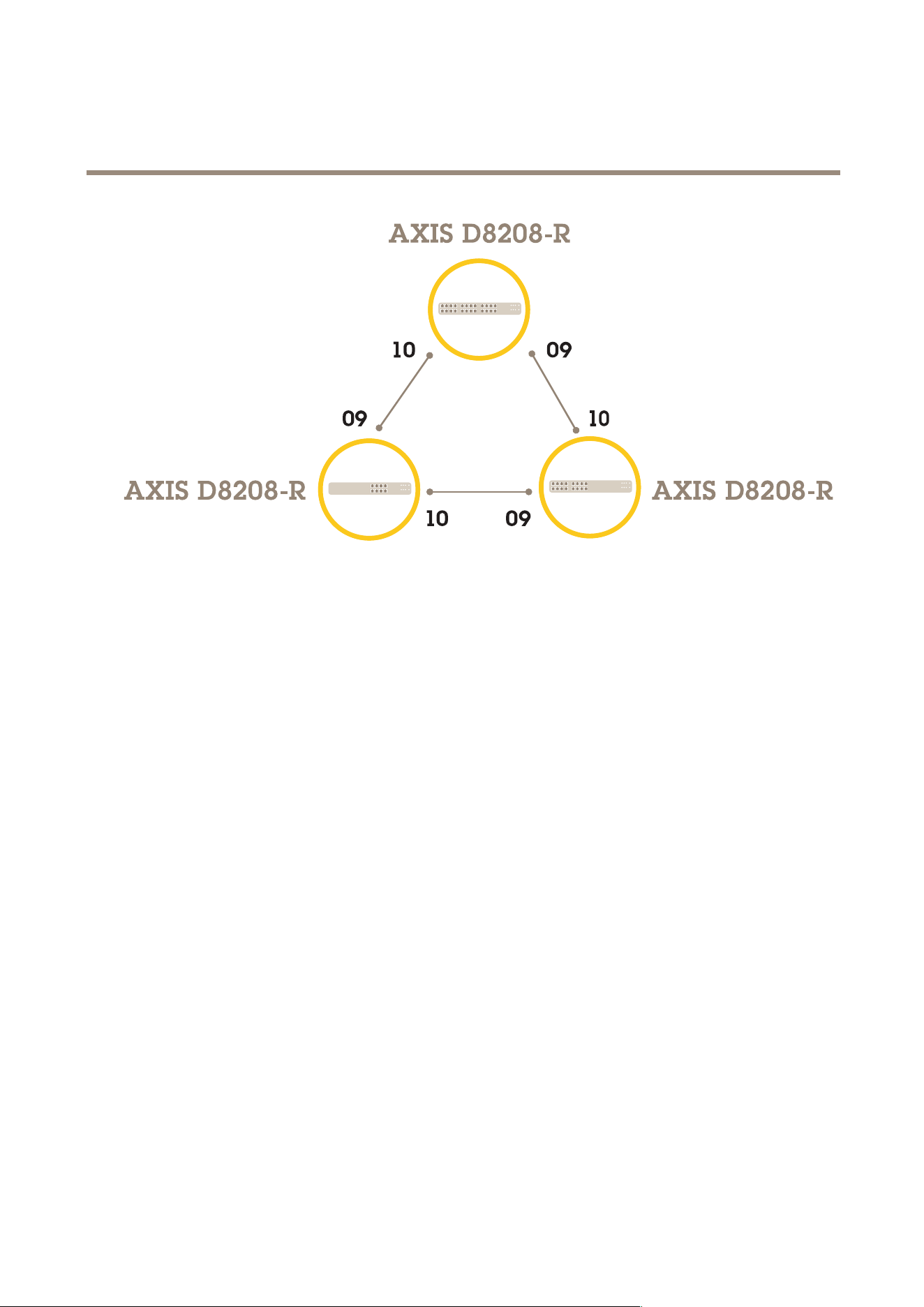
Inthisexample,thereare3switchesconnectedbyaredundantlinkandnoextraVLANS.Ifanyoftheuplinksbetweentheswitches
shouldfail,theredundantlinkisactivatedandprovidesnetworkconnectivity.
DeviceNameModelName
Switch-01AXISD8208-R
Switch-02AXISD8208-R
Switch-03AXISD8208-R
9
AXISD8208-RIndulstrialPoE++Switch
Setupexamples
Fortheswitchyouwanttouseasmaster:
1.GotoAdvanced>RapidRing.
2.UnderRole,selectMaster.
3.ClickApply.
Foralltheotherswitches:
1.GotoAdvanced>RapidRing.
2.UnderRole,selectMember.
3.ClickApply.
10

AXISD8208-RIndulstrialPoE++Switch
Setupexamples
Tosavethestart-upconguration,click
ontheproduct’swebpage.SeeGettoknowyourproduct’swebpageonpage4.
Switchportson/offusingVAPIX
UsethefollowingcommandinVAPIX:
•Toswitchtheporton:
http://[IPaddressoftheswitch]/axis-cgi/nvr/poe/setportmode.cgi?port=[number
oftheportontheswitch]enabled=yes&schemaversion=1
•Toswitchtheportoff:
11

AXISD8208-RIndulstrialPoE++Switch
Setupexamples
http://[IPaddressoftheswitch]/axis-cgi/nvr/poe/setportmode.cgi?port=[number
oftheportontheswitch]enabled=no&schemaversion=1
Connecta1GbpsSFPmodule
1.GotoAdvanced>PortManagement>PortConguration.
2.Fortheportthatyouconnectedthemoduleto(9or10),setConguredto1GbpsFDX.
Note
IfyousettheporttoAuto,bothSFPandSFP+willwork.
12

AXISD8208-RIndulstrialPoE++Switch
Maintenance
Maintenance
Restarttheproduct
Note
Anycongurationlesorscriptsyouhavesavedintheproductareavailableafterrestart.
1.GotoAdvanced>Maintenance>RestartDevice.
2.Ifyouwanttosimulateapower-on(coldrestart),selectForceCoolRestart.Thiswillimpactthetrafcroutedthrough
theproduct.
3.ClickYes.
Afterrestart,theproductwillbootnormally.
Setarebootschedule
Note
Anycongurationlesorscriptsyouhavesavedintheproductareavailableafterreboot.
1.GotoAdvanced>Maintenance>RebootSchedule.
2.SetModetoEnabled.
3.Selecttheweekdayandtimeforreboot.
4.ClickApply.
Restoretheproducttofactorydefaultvalues
Important
Anycongurationlesorscriptsyouhavesavedintheproductarerestoredtofactorydefaultvalues.
1.GotoAdvanced>Maintenance>FactoryDefaults.
2.IfyouwanttokeepthecurrentIPsettings,selectKeepIPsetup.
3.ClickYes.
Note
Formoreinformationonhowtorestoretheproducttofactorydefaultvaluesusingthemode/resetbutton,seeButtons
onpage15.
Upgradetheproductrmware
Important
Thermwareupgradetakesupto10minutes.Donotrestartorpoweroffthedeviceduringthistime.
1.GotoAdvanced>Maintenance>Firmware>FirmwareUpgrade.
2.Toselectthermwarelefromaspeciedlocation,clickBrowse.
3.Ifyouwanttosimulateapower-on(coldrestart)afterrmwareupgrade,selectForceCoolRestart.Thiswillimpactthe
trafcroutedthroughtheproduct.
13

AXISD8208-RIndulstrialPoE++Switch
Maintenance
4.ClickUpload.
Afterrmwareupgrade,theproductwillrestartnormally.
Reverttoalternatermwareimage
Youcanchoosetousethealternate(backup)rmwareimageinsteadoftheactive(primary)rmwareimageintheproduct.
InformationtablesonbothimagesareshownunderAdvanced>Maintenance>Firmware>FirmwareSelection.
Note
•Iftheactiveimageisalreadysetasthealternateimage,onlytheActiveImagetableisshown,andtheActivateAlternate
Imagebuttonisdisabled.
•Ifthealternateimageisalreadysetastheactiveimage(eithermanuallyorduetocorruptedprimaryimage),andanew
rmwareimageisuploadedtotheproduct,thenewimagewillautomaticallybesetastheactiveimage.
•Firmwareversionanddateinformationmaybeemptyforolderrmwarereleases.Thisisnormal.
Tosetthealternateimageastheactiveimage:
1.GotoAdvanced>Maintenance>Firmware>FirmwareSelection.
2.ClickActivateAlternateImage.
14
AXISD8208-RIndulstrialPoE++Switch
Specifications
Specifications
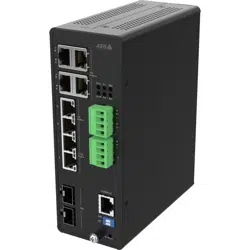
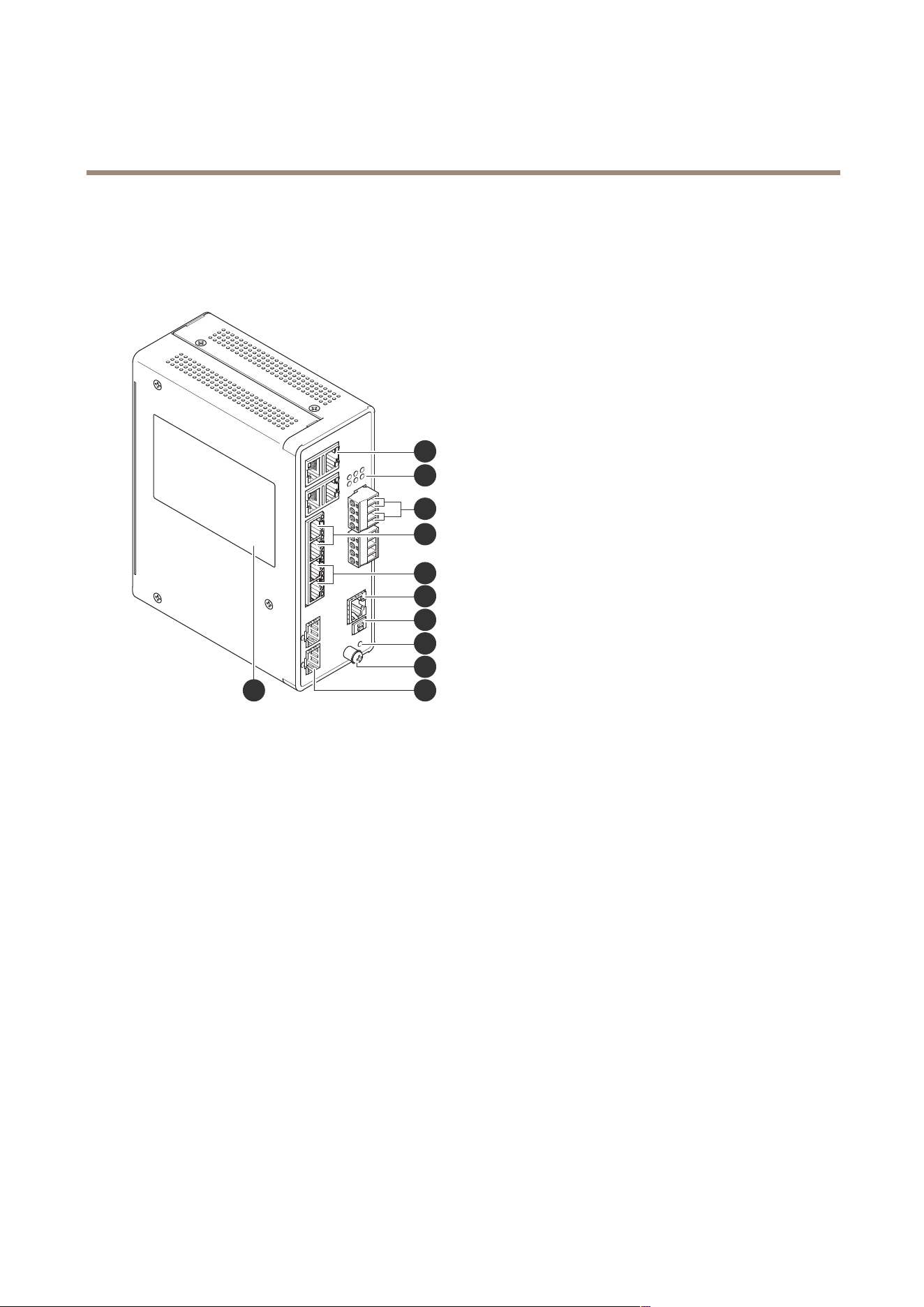
Productoverview
8
2
1
10
9
6
7
5
4
3
11
1
RJ45ports(PoE++)10M/100M/1Gx4
2
LEDs(frontpanel)
3
Powerconnectorsx2
4
RJ45ports(PoE++)10M/100M/1Gx2
5
RJ45ports(PoE++)100M/1G/2.5Gx2
6
Consoleconnector
7
DIPswitch
8
Controlbutton
9
Groundingscrew
10
SFP+portsx2
11
Productlabel
Buttons
Resetbutton
Toresettheswitchtofactorydefault:
1.Starttheswitch.
2.Pressandholdtheresetbutton.
3.WhentheLEDslightup,releasethebutton.
15

AXISD8208-RIndulstrialPoE++Switch
Specifications
LEDindicators
PowerLED
LED
Color
Indication
Green(lit)
TheswitchispoweredON.
Power1
N/A
Theswitchisnotreceivingpowerfrom
power1.
Green(lit)
TheswitchispoweredON.
Power2
N/A
Theswitchisnotreceivingpowerfrom
power2.
SystemLED
LED
Color
Indication
Green(lit)
Theswitchisready.
System
N/A
Theswitchisnotready.
AlarmLED
LED
Color
Indication
Red(lit)
Theswitchhasdetectedanabnormal
state,forexampletemperatureorvoltage
outofrange.
Alarm
N/A
Thesystemisnormal.
RingmasterLED
LED
Color
Indication
Green(lit)
RingMasterhasbeendetectedinthe
switch.
Amber(lit)
RingMemberhasbeendetectedinthe
switch.
RM
N/A
Ringmasterdisabled.
RapidchainLED
LED
Color
Indication
Green(lit)
RapidChainhasbeendetectedinthe
switch(activepath).
Amber(lit)
RapidChainhasbeendetectedinthe
switch(backuppath).
Amber(blink)
Error:Thereisnocorrespondingrapid
chainswitchfound.
RC
N/A
Rapidchaindisabled.
PortstatusLEDs
16

AXISD8208-RIndulstrialPoE++Switch
Specifications
LED
Color
Indication
Green(lit)
Theportisenabledandestablishedalink
toconnecteddevice,andtheconnection
speedis1000Mbps.
Green(blink)
Theportistransmitting/receivingpackets,
andtheconnectionspeedis1000Mbps.
Amber(lit)
Theportisenabledandestablishedalink
toconnecteddevice,andtheconnection
speedis10/100Mbps.
Amber(blink)
Theportistransmitting/receivingpackets,
andtheconnectionspeedis10/100Mbps.
RJ45ports(1–6)
N/A
Theporthasnoactivenetworkcable
connected,oritisnotestablishedalink
toconnecteddevice.Otherwise,theport
mayhavebeendisabledthroughthe
productuserinterface.
Green(lit)
Theportisenabledandestablishedalink
toconnecteddevice,andtheconnection
speedis2500Mbps.
Green(blink)
Theportistransmitting/receivingpackets,
andtheconnectionspeedis2500Mbps.
Amber(lit)
Theportisenabledandestablishedalink
toconnecteddevice,andtheconnection
speedis100/1000Mbps.
Amber(blink)
Theportistransmitting/receiving
packets,andtheconnectionspeedis
100/1000Mbps.
RJ45ports(7–8)
N/A
Theporthasnoactivenetworkcable
connected,oritisnotestablishedalink
toconnecteddevice.Otherwise,theport
mayhavebeendisabledthroughthe
productuserinterface.
Green(lit)
PoEison.
Amber(lit)
PoEisabnormal.
PoEports(1–8)
N/A
PoEisoff.
Green(lit)
Theportisenabledandestablishedalink
toconnecteddevice,andtheconnection
speedis1000Mbps.
Green(blink)
Theportistransmitting/receivingpackets,
andtheconnectionspeedis1000Mbps.
Blue(lit)
Theportisenabledandestablishedalink
toconnecteddevice,andtheconnection
speedis10Gbps.
Blue(blink)
Theportistransmitting/receivingpackets,
andtheconnectionspeedis10Gbps.
SFP+ports(9–10)
N/A
Theporthasnoactivenetworkcable
connected,oritisnotestablishedalink
toconnecteddevice.Otherwise,theport
17

AXISD8208-RIndulstrialPoE++Switch
Specifications
mayhavebeendisabledthroughthe
productuserinterface.
18

UserManualVer.M1.13
AXISD8208-RIndulstrialPoE++Switch
Date:December2022
©AxisCommunicationsAB,2022
PartNo.T10180700