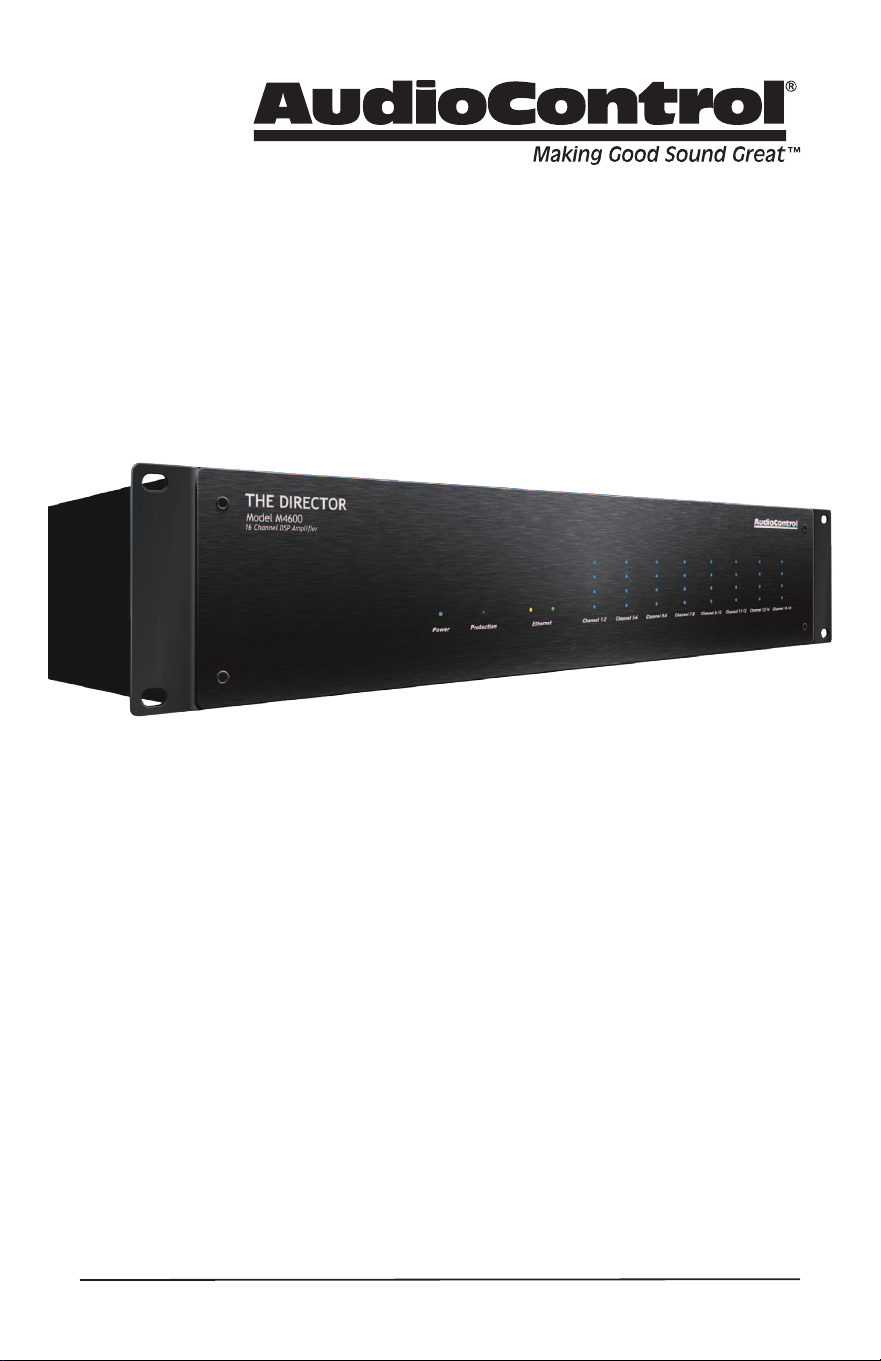
The Director
™
Model D4600
16 CHANNEL MULTI-ZONE DSP AMPLIFIER
Installation Manual
2
Important Safety
Instructions
1. Read these instructions.
2. Keep these instructions.
3. Heed all warnings.
4. Follow all instructions.
5. Do not use this apparatus near water.
6. Clean only with a dry cloth.
7. Do not block any ventilation openings. In-
stall in accordance with the manufacturer’s
instructions.
8. Do not install near any heat sources such
as radiators, heat registers, stoves, or
other apparatus (including ampliers) that
produce heat.
9. Protect the power cord from being walked
on or pinched particularly at plugs, conve-
nience receptacles, and the point where
they exit from the apparatus.
10. Only use attachments/accessories speci-
ed by the manufacturer.
11. Unplug this apparatus during lightning
storms or when unused for long periods of
time.
12. Refer all servicing to qualied service
personnel. Servicing is required when
the apparatus has been damaged in any
way, such as power-supply cord or plug is
damaged, liquid has been spilled or objects
have fallen into the apparatus, the appara-
tus has been exposed to rain or moisture,
does not operate normally, or has been
dropped.
13. This apparatus shall not be exposed to
dripping or splashing, and no object lled
with liquids, such as vases or glasses, shall
be placed on the apparatus.
The lightning ash with arrowhead
symbol within an equilateral triangle
is intended to alert the user to the
presence of uninsulated “dangerous voltage”
within the product’s enclosure, that may be
of sucient magnitude to constitute a risk of
electric shock to persons.
The exclamation point within an
equilateral triangle is intended to alert
the user of the presence of import-
ant operating and maintenance (servicing)
instructions in the literature accompanying the
appliance.
Caution: to reduce the risk of electric shock,
do not remove the top cover. There are no
user-serviceable parts inside. Refer servicing to
qualied personnel.
This equipment has been tested and found
to comply with the limits for a Class B digital
device, pursuant to part 15 of the FCC Rules.
These limits are designed to provide reasonable
protection against harmful interference in a
residential installation.
This equipment generates, uses, and can radi-
ate radio frequency energy and, if not installed
and used in accordance with the instructions,
may cause harmful interference to radio com-
munications. However, there is no guarantee
that interference will not occur in a particular
installation.
If this equipment does cause harmful interfer-
ence to radio or television reception, which can
be determined by turning the equipment o
and on, the user is encouraged to try to correct
the interference by one or more of the follow-
ing measures:
• Reorient or relocate the receiving antenna.
• Increase the separation between the equip-
ment and the receiver.
• Connect the equipment into an outlet on
a circuit dierent from that to which the
receiver is connected.
• Consult the dealer or an experienced radio/
TV technician for help.
CAUTION: Changes or modications to this
device not expressly approved by AudioControl
Inc. could void the user’s authority to operate
the equipment under FCC rules.
Recycling notice: If the time comes
and this apparatus has fullled its
destiny, do not throw it out into the
trash. It has to be carefully recycled
for the good of mankind, by a facility specially
equipped for the safe recycling of electronic
apparatii. Please contact your local or state
recycling leaders for assistance in locating a
suitable nearby recycling facility. Or, contact us
and we might be able to repair it for you.
Important Safety Instructions

3
Installation Manual
Model D4600
THE DIRECTOR
™
Table of Contents
Table of Contents
©2018 AudioControl Inc All rights reserved.
Based on a true story.
Network Settings
Default IP Address 192.168.0.249
Important Safety Instructions .......2
Introduction .......................4
Getting Started ....................8
Installation Examples ..............9
Front Panel Features ...............12
Rear Panel Features ................14
Speaker Connections ...............17
12 Volt Trigger Ins and Outs .........19
Ventilation ...................... 21
Internet Connectivity and Control ....22
Control Via Telnet ................ 24
Operation Tab ................... 25
Device Conguration Tab .......... 27
Zone Conguration Tab ........... 29
Acoustics ....................... 32
Equalization .......................33
Advanced Discussions ..............36
Troubleshooting ...................38
Block Diagram .....................40
Specications ......................41
Service ............................42
The Warranty ......................43
Installation Notes .................45
4
Flowery Marketing Introduction
When a whole-house audio system de-
mands high levels of audio performance,
but the physical installation space is
limited, the AudioControl Director D4600
is an ideal solution. Requiring only two
rack spaces, the D4600 16 channel power
amplier produces at least 100 Watts per
channel into 8 Ohms, and 200 Watts per
channel into 4 Ohms. Extensive protection
features prevent damage to your loud-
speakers.
Congratulations!
You are now installing a component which
will dramatically improve the performance
of any distributed audio system, espe-
cially those utilizing in-wall, in-ceiling,
and invisible speakers. Ethernet control,
unparalleled energy eciency, rack saving
compact design, superb sound quality and
bulletproof reliability are just a few key
features of The Director D4600.
This 16 channel power amplier provides
high levels of power, pristine sound qual-
ity, plus a number of installation-friendly
features that makes it the perfect product
for performance oriented audio sys-
tems. The Director D4600 is an Ameri-
can-designed and built, “set and forget”
component which will provide a lifetime
of trouble-free service for your multi-room
audio system.
Introduction
The Director D4600 is designed and
manufactured by AudioControl, the only
electronics company in the world that
specializes in ampliers, equalizers, signal
processors and audio analyzers. Our pas-
sion for high quality, meticulous attention
to detail, and pro sound heritage shows
itself in the dozens of awards we have won
for our designs, products, and service.
Now, as when we began, our greatest
satisfaction is our reputation for sonic
excellence and reliability among people
just like you throughout the world.
This is a professional installer’s manual.
We assume you are experienced with
multi-channel ampliers and the use of
Ethernet. The product setup, adjustment
and operation requires network access.
This manual is designed to help you get
the best out of the amplier.

5
Installation Manual
Model D4600
THE DIRECTOR
™
Features
Features
Here are some of the features that make
The Director D4600 very unique, unlike
any other amplier:
• Bus and Local input switching
Each zone can select and play a
source from either of the two analog
Bus inputs (A and B) or the Local in-
put. This can be via automation or via
the Web GUI. Each Local input and
the Bus A input oers a direct analog
loop output as well!
• High Power Levels
The D4600 has 16 channels of 100
Watts each into 8 Ohms, or 200
Watts into 4 Ohms. Each channel
pair can also be run in bridged mono
at 400 Watts into 8 Ohms. Each
high-eciency amplier is made
from discrete components.
• Superior Sound Quality
Pristine sonics happens rst in all
AudioControl designs and is not com-
promised by any other feature.
• Unparalleled Energy Eciency
From the point of view of saving
electricity, the Director amplier has
no equal. It is VERY energy ecient
during operation, and equally impres-
sive during standby.
• Ethernet Control
Via a browser or Telnet commands,
you can control and query almost all
the functions, mute zones, switch
to and from Local and Bus inputs
dynamically, recall EQ presets, check
line voltage, display protection logs,
and get an email if something goes
wrong.
• Sound Partner Speaker Proles
The Director M and D series ampli-
ers come loaded with Speaker Pro-
les. These Speaker Proles contain
High Pass/Low Pass and EQ presets
that are carefully chosen by each
speaker manufacturer. This allows
you to quickly set the DSP for each
speaker being installed. You can then
make a few select adjustments via
the graphic EQs for the room. Makes
for a quick and easy set up!
• Signal Processing
You have at your command: graphic
equalization, parametric equal-
ization, tweeter protection lters
and low frequency cuto lters. In
addition, you can set up any zone
with low-pass and high-pass channels
for a two-way setup. The equalizer
settings are ganged with left and
right channels together, or separate-
ly. Plus, there are six EQ presets per
zone to save and recall settings.
• LightDrive Anti-clipping
With durability in mind, AudioCon-
trol’s LightDrive anti-clipping pro-
tection defends the system against
clipping, distortion, and damage. The
Director D4600 features the latest
evolution of LightDrive which adds a
power-supply-tracking instantaneous
dynamic control to the smooth sound
of the traditional AudioControl Light-
Drive.
• Self Resetting Protection Features
Protection features are extensive and
include thermal, short circuit, clip-
ping, ultrasonic and DC oset among
others. If the fault is removed, the
Director resets. Plus, it can send you
an email if something happens.
• Pacic Northwest Heritage
We make this product in the USA,
and we are very proud of that fact.
What is more important is the care
we craft in at every step, and the
extensive knowledge we have in all
aspects of the product. Plus, we back
this up with a conditional ve year
warranty.

6
Complimentary Features
Features continued
• DHCP: An IP address is obtained
via DHCP by default. If a DHCP
server is not found on the network,
The Director D4600 will default to
192.168.0.249.
• Groups: Grouping has been enabled
for quick control of zones through
Telnet commands. Up to 8 groups can
be dened for control over Standby
and Source Selection.
• Import/Export: Exporting and Im-
porting of the amplier’s settings
– including EQ settings – has been
enabled. Now you can congure your
EQ settings as a template and apply
these to each Director amplier in
your system. A little rening of those
settings for each amp and you will be
in and out in no time.
• 16 channels of AudioControl
amplication
• Ecient power ampliers and power
supplies
• Power consumption is less than 2 Watts
in standby
• Rack mountable 2U form factor
• Removable rack ears
• Light weight
• Stackable with other Director or Archi-
tect Models
• Signal sense independent for each zone
• Input assignment independent for each
zone
• Super wonderful signal processing
allows for a wide variety of EQ options
and adjustments
• 12V Master trigger usable with contact
closure or 12V external source
• Bus A and B can be assigned to any
output via the web GUI or dynamically
via automation
• 9 stereo Analog RCA loop-through
output – Bus A and all Local inputs!
7
Installation Manual
Model D4600
THE DIRECTOR
™
Quick View
Quick View
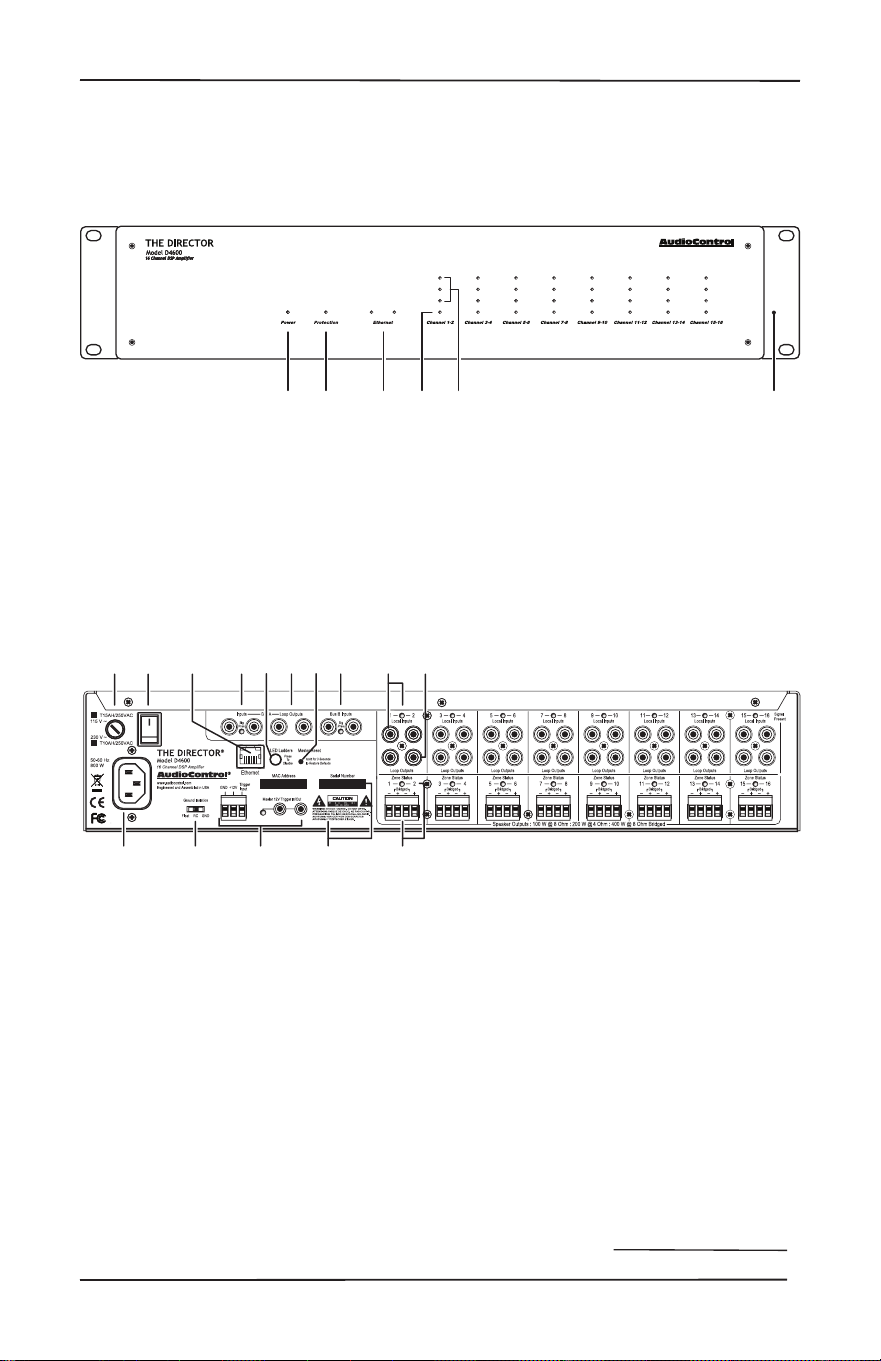
Front Panel
4. Zone Status LED
5. Zone Level LED Ladder
6. Rack Mount Ears
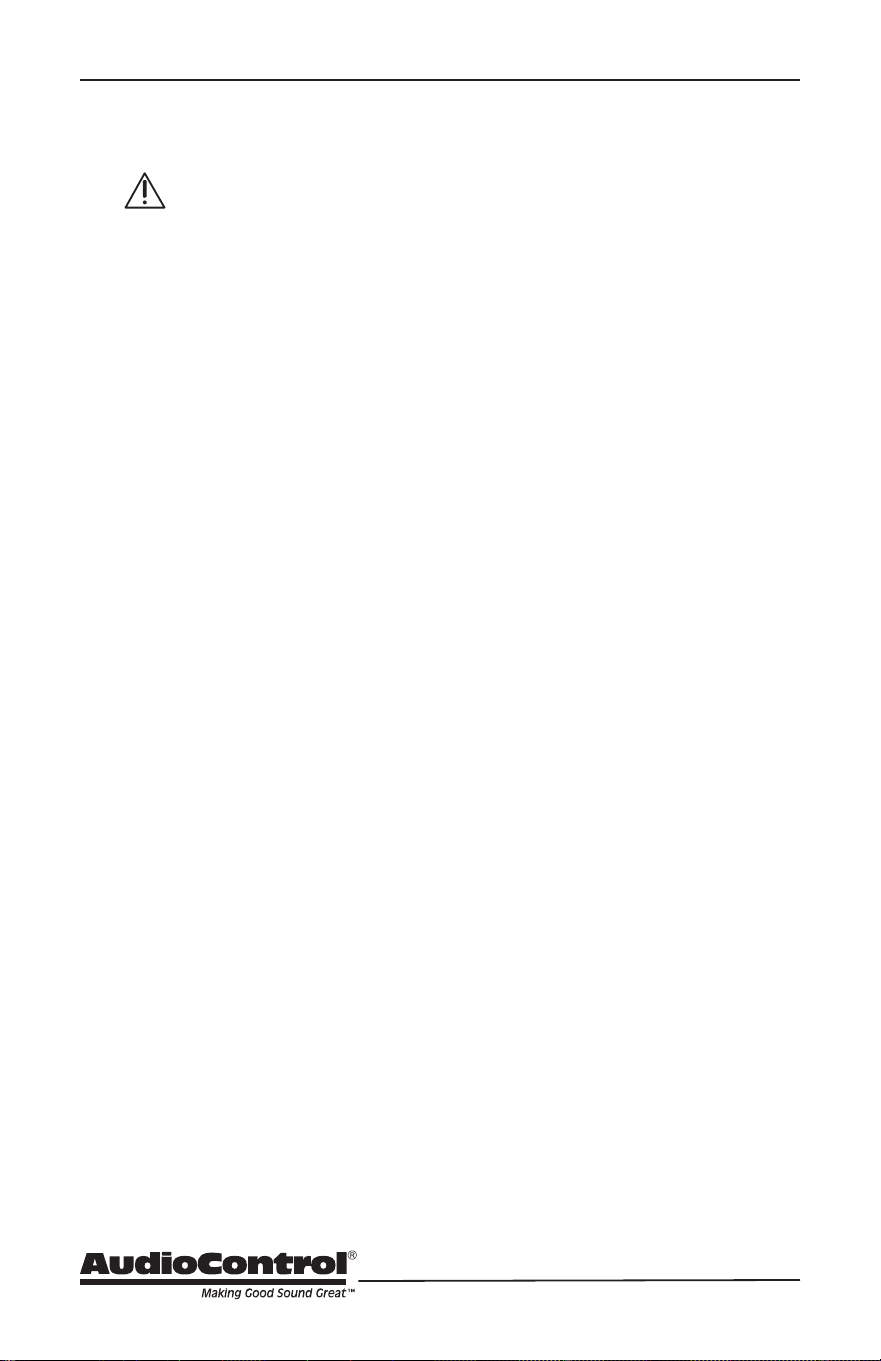
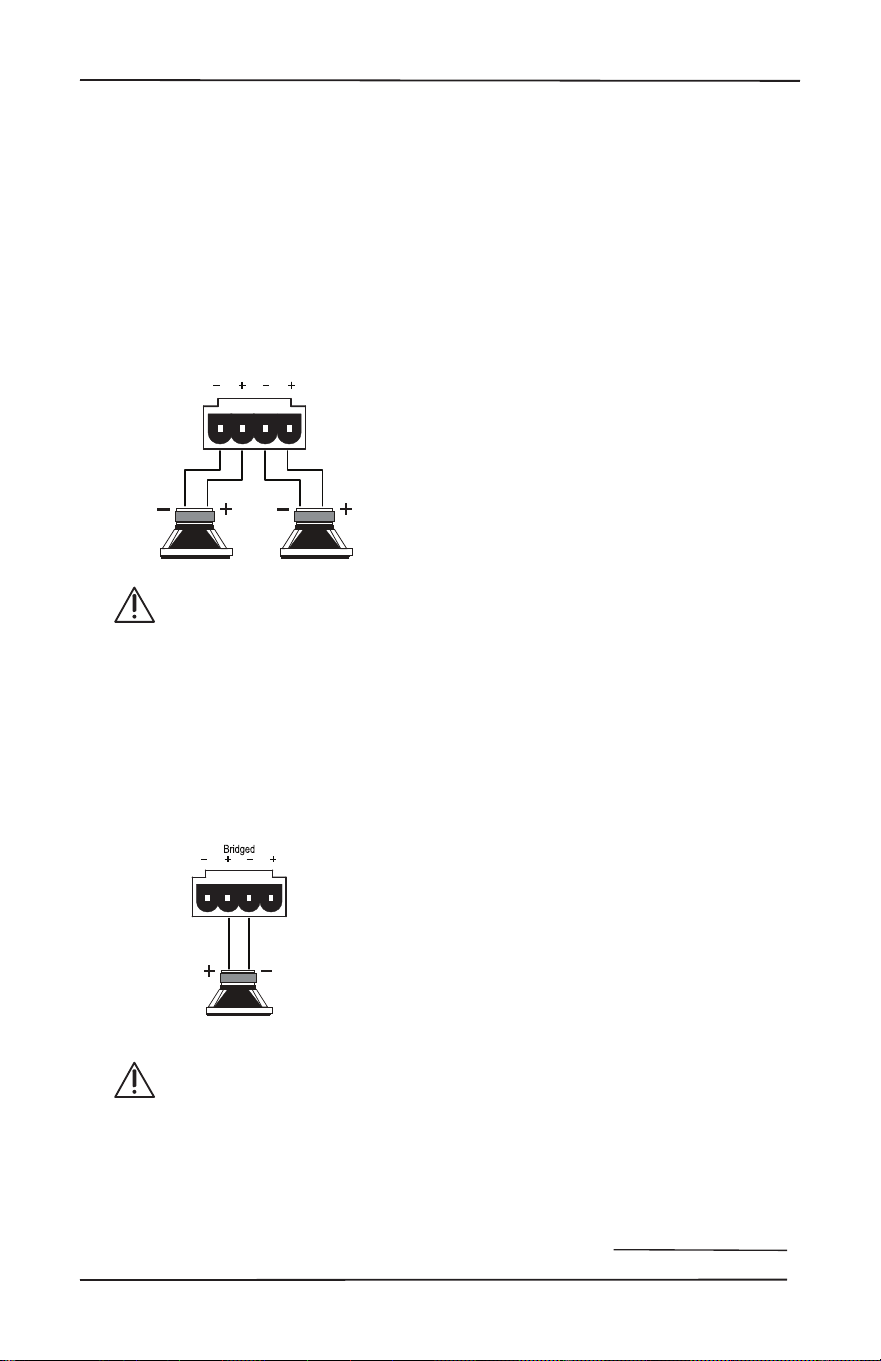
9. Bus A and Bus B inputs
10. Bus A loop outputs
11. Analog RCA Line Level Inputs and
LEDs
12. Loop Outputs
13. Speaker Outputs and Zone Status
LEDs
8 13101 4
762 3 5 1199 10 12
Rear Panel
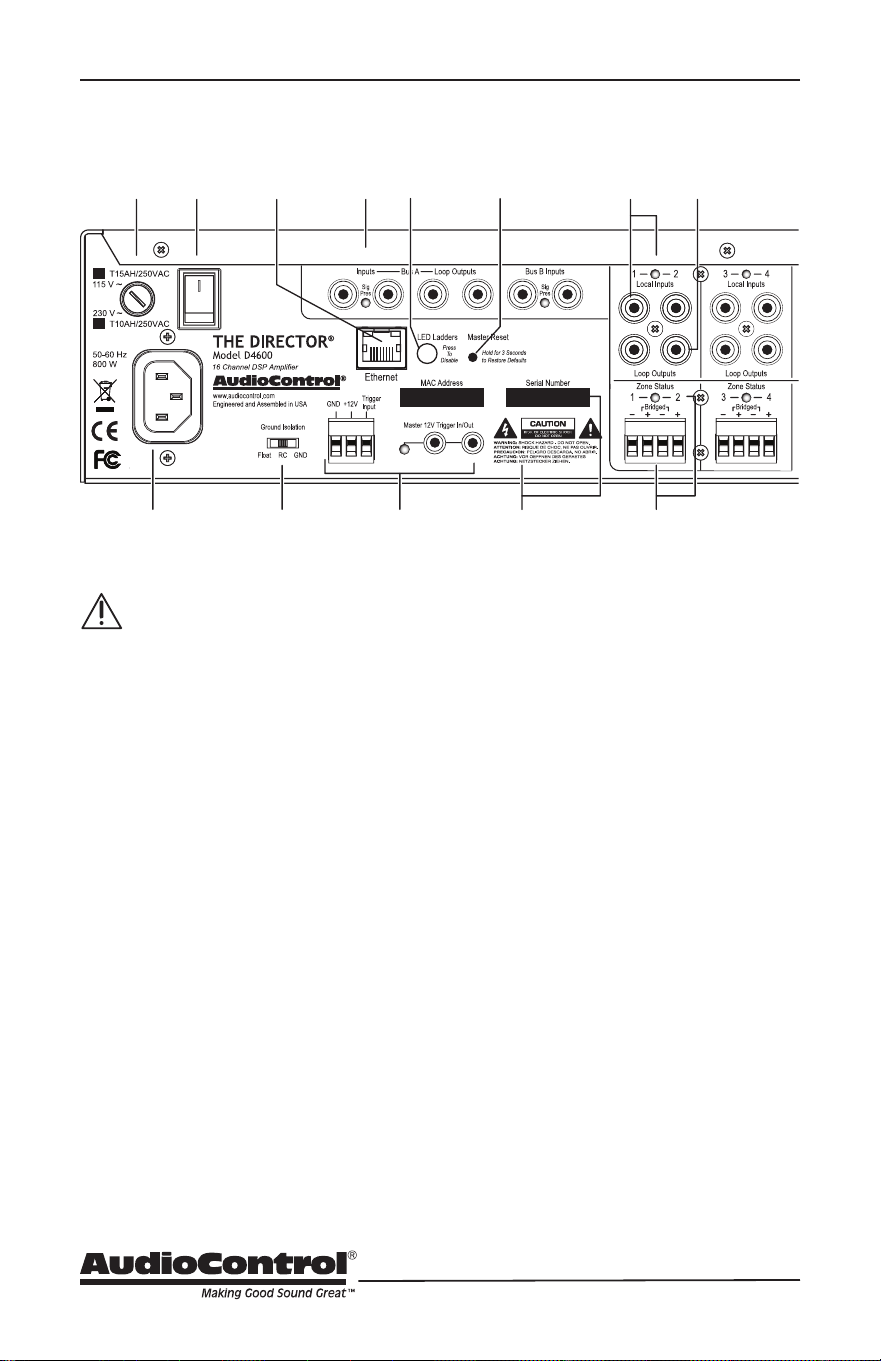
1. AC Input
2. AC Fuse
3. AC Power Switch
4. Ground Isolation Switch
5. Ethernet Port
6. Disable front LED Ladders
7. Master Reset Button
8. Master Trigger
1. Power LED
2. Protection LED
3. Ethernet Status LEDs
12 4653
8
Getting Started
1. Turn o power to all com-
ponents before making any
connections.
2. When making connections, des-
ignate red RCA plugs as right, and
designate white, black, or grey plugs
as left. This is a good idea for all sig-
nal connections made in your audio
system. The key is consistency. Stick
with the same color coding and you’ll
reduce possible problems.
3. Whenever possible, keep power
cords away from signal cables to pre-
vent induced hum. This is especially
important if you bundle the cables to
keep the installation neat looking.
4. Use quality interconnect cables. We
know from experience that really
cheap cables can cause a multitude
of problems. They tend to break
inside or corrode, causing a loss of
signal or hum. They also have poor
shielding.
5. If you need to run the RCA audio
cables more than 20 feet, consider
using an active balanced line driver
for the signals. This will provide
better noise rejection against nasty
things like hum, spikes, local talk
radio, and metaphysical paranormal
phenomena, etc. The AudioControl
balanced line driver components
(BLD-10, BLR-10 and BLX-10) are an
excellent way to send audio over long
distances with standard Cat-5 wiring.
Check them out at audiocontrol.com.
6. Dance in a fairy circle at midnight, on
the rst full moon of the new year.
Ask Queen Mab for the IP address.
Getting Started
7. Connect The Director D4600 to the
network with an Ethernet cord, pref-
erably one in good condition without
a broken tab or covered in Marmite®.
8. Open your favorite internet browser
and open the web server within the
unit. It will show all features and
controls of the unit.
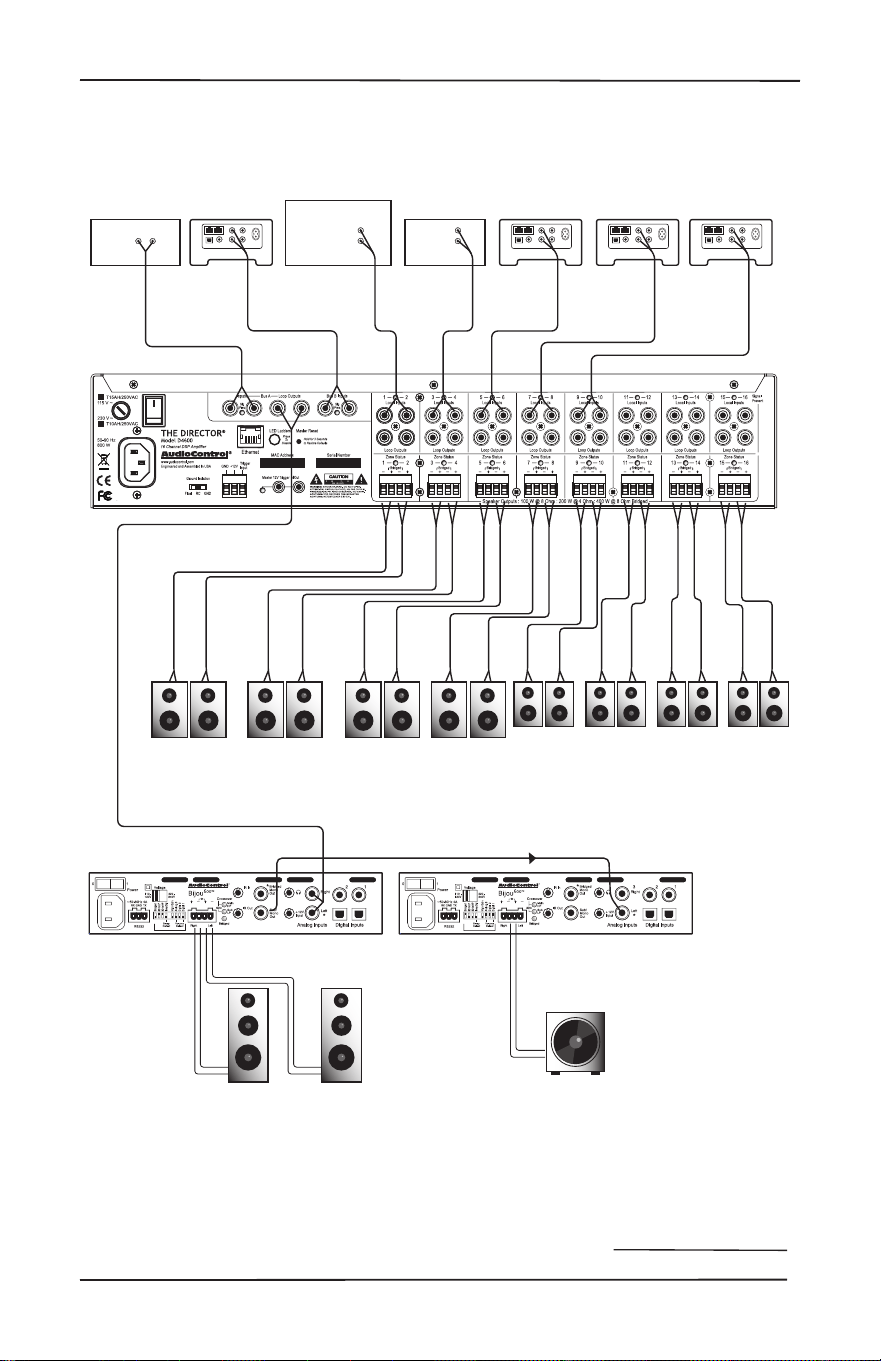
Installation Examples
The next pages show some typical instal-
lations of The Director D4600, and also
shows some of our ne AudioControl
components.
9
Installation Manual
Model D4600
THE DIRECTOR
™
Installation Examples
Garage
Super
Den
Art StudioPool Patio
Living
Room
KitchenDining
Room
Family
Room
Sonos 4Sonos 3Sonos 2CDHD Tuner
Receiver
Zone 2
Analog out
Analog
Out
Analog
Out
Analog
Out
Analog Out (Loop Out from Bus A)
Analog
Out
Analog
Out
Analog
Out
Sonos 1
Bijou 600 in
Bridged Mono
Bijou 600 in
Stereo
Installation with 2 Bijou 600 Ampliers
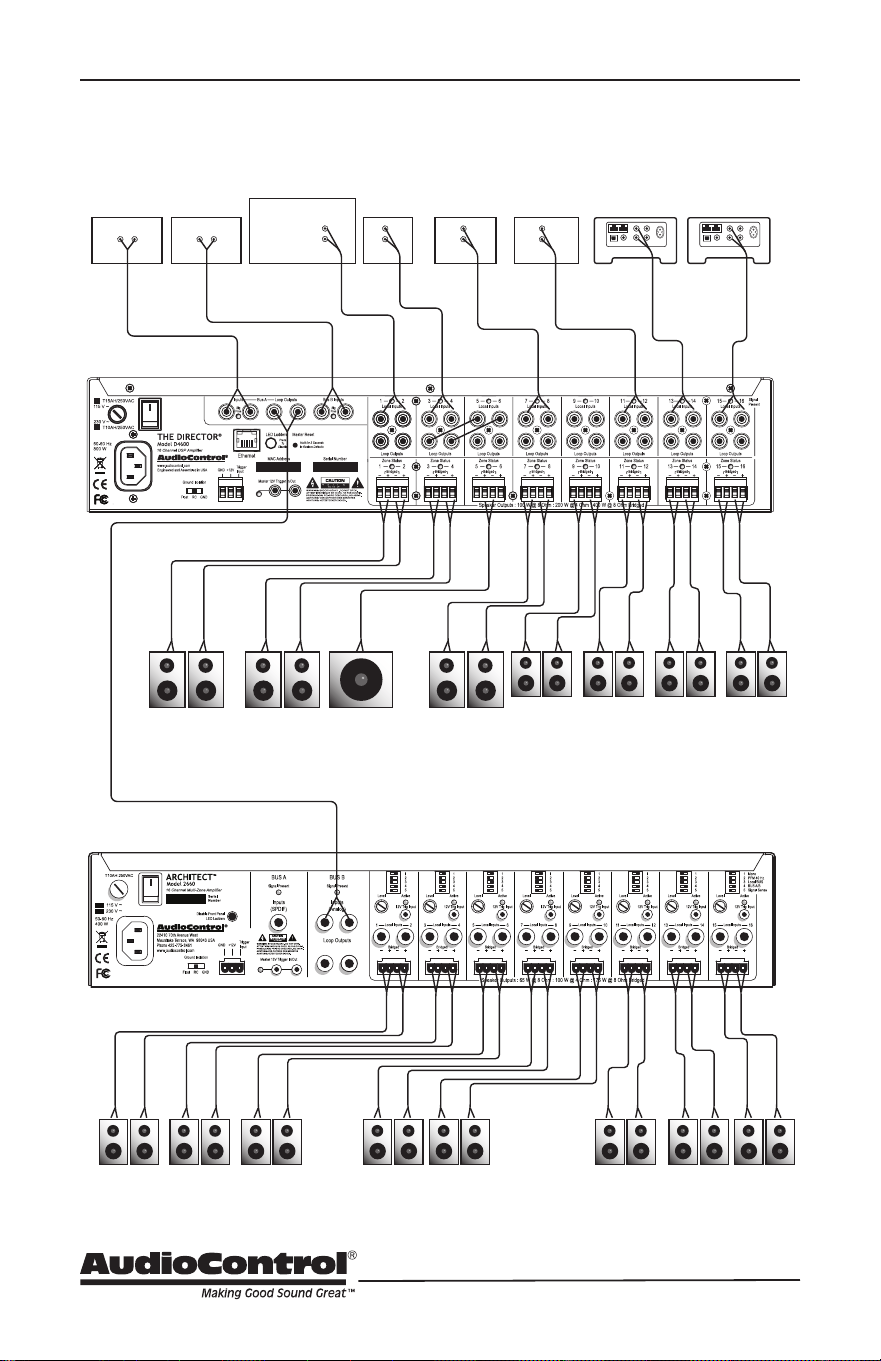
10
Installation Examples
Bed 2
Architect 2660 (Lower FLoor)
NurseryMaster
Closet
Bed 1
Upstairs Deck SubMids/Highs
Master Bedroom
Master Bath
Living Room Dining Room Hall Bath Patio
Sonos 2Sonos 1CD
Front
Door
Service
Entrance
AVR
Zone 2
Analog out
Analog
Out
Analog
Out
Analog
Out
Analog
Out
Analog
Out
Bus B Input All inputs set to Bus B
HD Tuner
Analog
Out
Analog
Out
Analog Out (Loop Out from Bus A)
TV
Installation with an Architect 2660
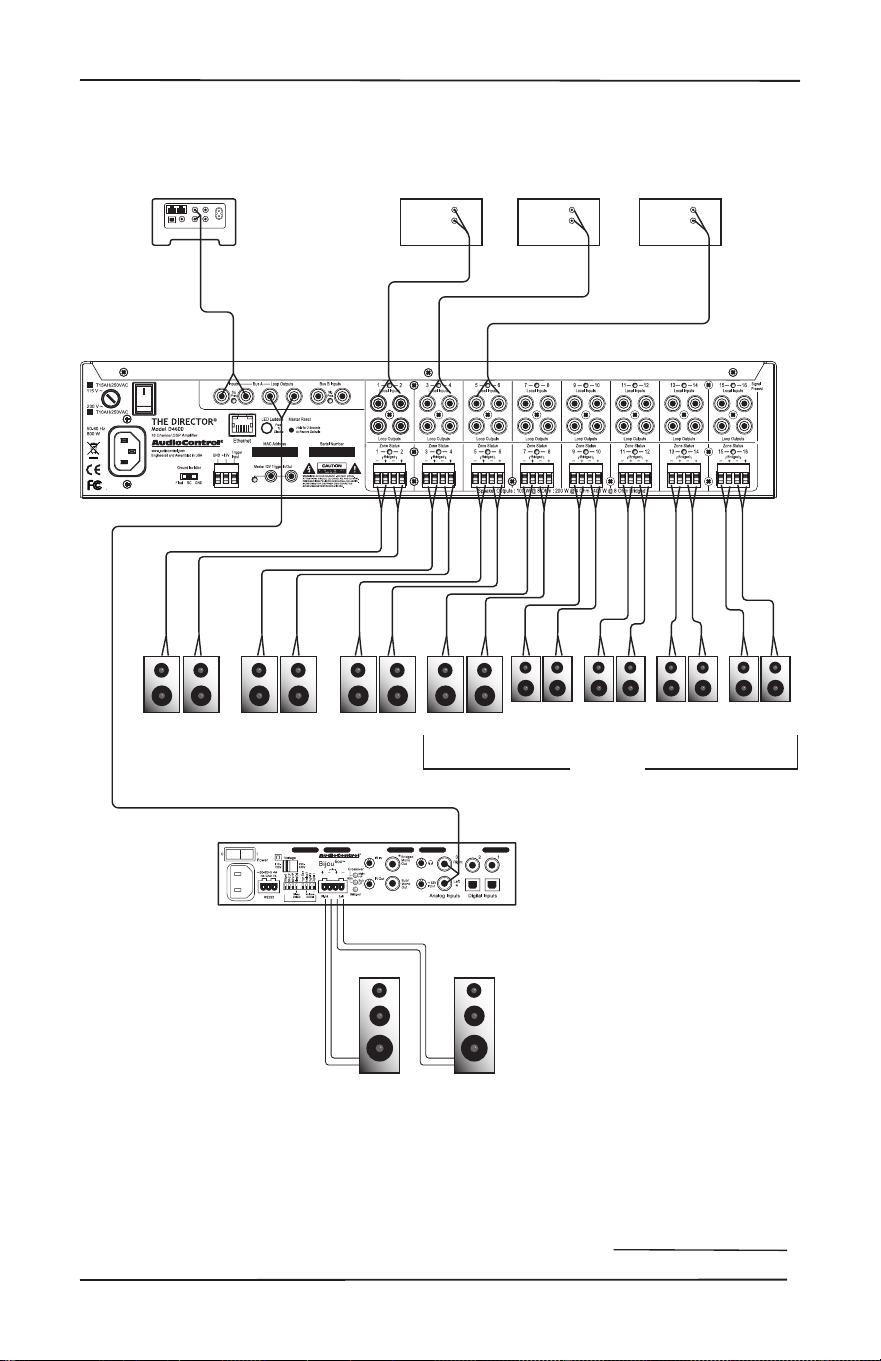
11
Installation Manual
Model D4600
THE DIRECTOR
™
Installation Examples
Bed 3 Quilting
Room
Conservatory
Bed 1
Play Bus A
Bed 2
Living
Room
KitchenDining
Room
Family
Room
Cable BoxHD TunerCD
Analog
Out
Analog
Out
Analog
Out
Analog
Input
Sonos
Bijou 600 in
Stereo
Analog Out (Loop Out from Bus A)
Installation with one Bijou 600 Amplier
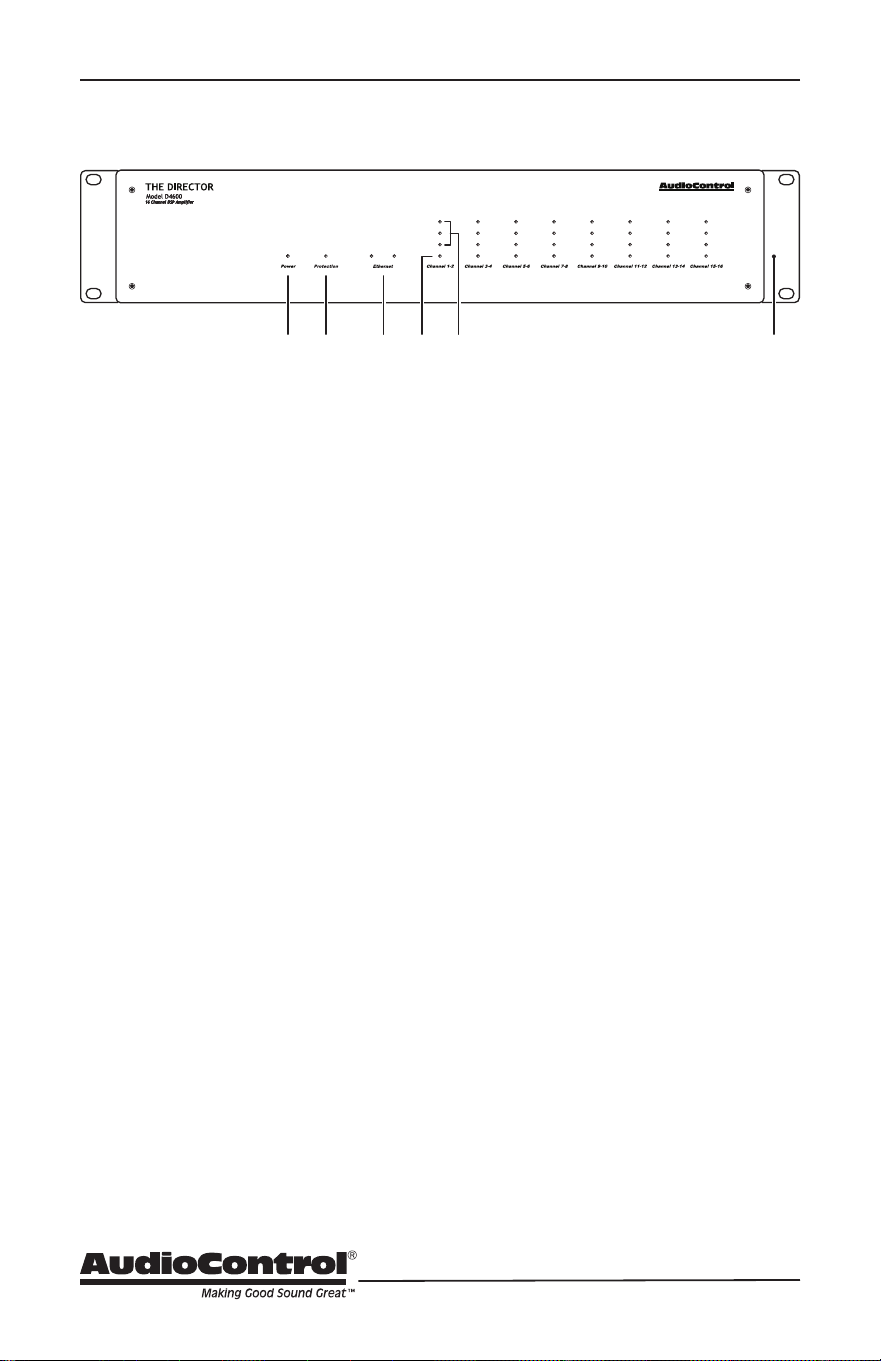
12
Front Panel
Front Panel Features
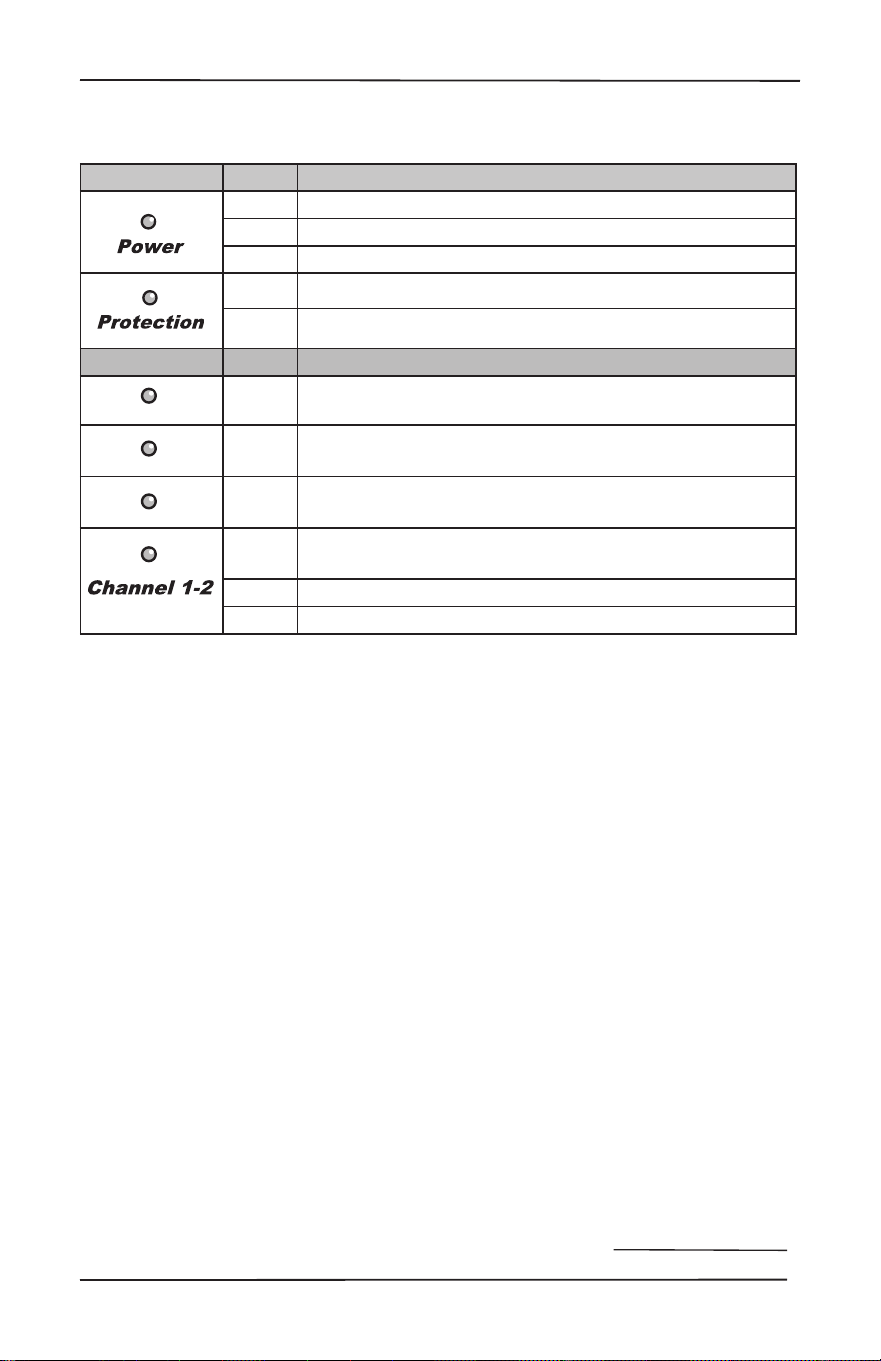
1. Power LED – This dual color LED indi-
cates when the unit is in standby, on,
or o
Red: The unit is in standby mode
and is ready to be turned on
via Ethernet or 12V triggering
Blue: The unit is on
Green: Coee brewed
OFF: The unit is powered o
2. Protection LED – This red LED will
illuminate briey during turn on/o
phases, and if a fault is detected in any
amplier or the power supply (such
as overheating, over-current, or DC
oset). If a fault is detected, then the
unit will go into its protection mode to
prevent any damage to loudspeakers,
and to allow cooling.
3. Ethernet LEDs – These indicate the
status, readiness, and willingness, of
The Director’s Ethernet communica-
tions protocol to (getting all technical
for a moment) strut its funky stu. The
green LED glows when the Ethernet
is connected and operational, and the
yellow LED blinks during data activity.
4. Zone Status LED – This dual-color
LED indicates when the zone is in fault
mode, active, or in standby.
Red: The zone has detected a fault,
such as a DC oset or a load
short circuit.
Blue: The zone is active
OFF: The zone is in standby
5. Zone Level LEDs – These three LEDs
light from the bottom to the top
depending on the zone’s output level
(-33, -20, -10 dBFS). These LEDs can be
turned o using the rear panel switch.
6. Rack Mount Ears – The unit comes
supplied with removable rack mount
ears. These allow the unit to be rack
mounted in a standard 19” wide rack,
with a 2U height. Use standard rack
mount screws and washers to secure
the unit in a rack. The unit does not
have to be supported at the rear if the
rack is located in a xed location.
To remove the rack ears (making the
unit 17” wide), rst unplug the power
cord, and then locate and undo the
four screws securing each ear to the
side of the chassis, and remove the
ears. Replace the screws securely back
into the chassis. Do not remove any of
the other screws from the chassis or
top cover. There are hazardous voltag-
es inside the unit. Keep the rack ears in
a safe place.
12 4653
13
Installation Manual
Model D4600
THE DIRECTOR
™
Front Panel
LED Function Table
LED Color Description
Red The unit is in standby mode
Blue The unit is on
O The unit is powered o, or all the lights are o in your town
Red The unit has detected a fault and is in protect mode*
O The unit is operating normally, or it is powered o
ZONE LEDs Color Description
Blue -10 dBFS zone output level
Blue -20 dBFS zone output level
Blue -33 dBFS zone output level
Red
The zone has detected a fault, or a smooth-jazz saxophone
solo, and is in protect mode
Blue The zone is active
O The zone is in standby
*The protection LED also comes on for a short time during
power up or down
14
Rear Panel
Rear Panel Features
AC section
When rack-mounting the unit,
make sure that the power cord
and the AC power switch remain
readily accessible.
1. AC Input – Connect the supplied AC
power cord securely to this input. Plug
the other end into an AC mains outlet
of the correct voltage rating for your
unit. They are either 100 -120 VAC (50
– 60 Hz) or 220 – 240 VAC (50 – 60 Hz);
look at the check box to see how your
unit has been congured. The voltage
setting is not user-settable. This unit
is a class 1 device, do not defeat the
safety ground connection or use a
power cord that does not have the
safety ground pin.
2. AC Fuse – The main power supply fuse
may be checked or replaced. Make
sure that the power cord is unplugged
from the AC mains rst. Then use a
at-headed screwdriver to undo the
fuse carrier from the fuse holder.
Inspect the fuse and replace with the
exact same type indicated on the unit.
The use of any other type of fuse may
lead to an unsafe condition. If the fuse
blows again immediately, then unplug
the power cord and contact our ne
folks in customer service. Do not open
the unit, as there are no user-ser-
viceable parts inside, and dangerous
voltages exist.
3. AC Power Switch – This switch shuts
o the main AC power. Normally the
only time you need to turn this o is
if the system is going to be shut down
for an extended period of time. Use
the Ethernet or master trigger inputs
to switch the unit between standby
and on.
Also turn the power switch o during
lightning storms, wind storms with
frequent power outages, or when a
giant robot from space is heading to
the power station for a light lunch.
4. Ground Isolation Switch – This switch
selects the level of isolation between
the audio signal ground and the AC
earth ground. In normal operation this
switch should be in the GND Ground
position. If there is trouble with an AC
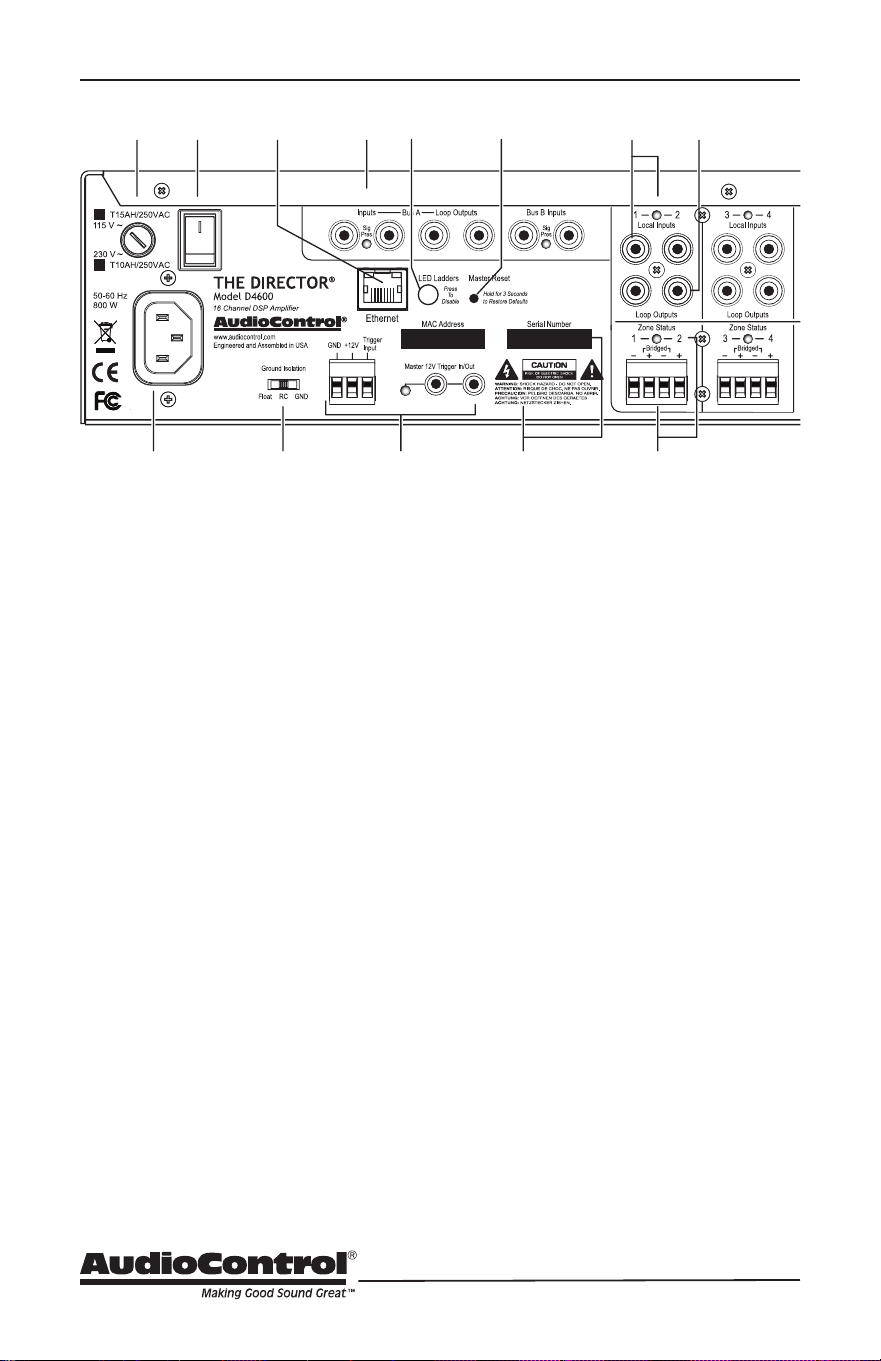
8 12101 4
762 3 5
10
9 11

15
Installation Manual
Model D4600
THE DIRECTOR
™
Rear Panel
ground hum, try the other two settings
for the best operation. For safety, the
chassis is always connected to the
earth ground regardless of the switch
setting.
5. Ethernet LAN Port – This standard
port allows The Director to be connect-
ed to a 10BaseT network via CAT5 ca-
bling. The unit can then be controlled
using its internal web server, acces-
sible through standard and popular
(and some unpopular) web browsers.
No external software is required to
run The Director. See the section on
Internet Connectivity and Control for
detailed information.
6. Disable Front Panel LED Ladders –
The front panel LED ladders show the
output levels of each zone. If this is
distracting, or your pets or children
keep getting hypnotized, press this
switch in to turn o the LED ladders.
This switch does not aect the Power,
Protection, or Zone Status LEDs.
7. Master Reset – If things are not going
well, for example you are unable to
communicate with The Director, press
and hold down this button for more
than 3 seconds. This will reset the in-
ternal Ethernet settings and other odd
things, and hopefully lead you along
the pathway to Ethernet communica-
tions once again. Warning: Do not do
this while turning on the power switch,
because all ash memory will be
erased, and the milk in your fridge will
go bad. In this case you will have to go
to the store and get more milk, and
inquire from our ne lads in technical
support about the latest rmware le.
8. Master Trigger – If you are not using
the Ethernet connection to turn the
unit on, then you can use the TS 1/8”
connectors or the 3-pin block connec-
tor to turn on the unit or place it into
standby mode. Any one of these three
connections can be used as a trigger
input. For example, you could have
an external device such as one of our
glorious AudioControl home theater
receivers, turn on The Director when it
is turned on.
If you are not using the Ethernet
connection to turn on The Director,
and there is no trigger voltage present
at any of these trigger inputs, then the
unit will be in standby, with all zones
muted.
LED indicator – This LED is blue when
the master trigger input is active, and
o when it is inactive.
Bus Inputs/Outputs
9. Bus Inputs – There are analog RCA
inputs for A and B.
The analog signals are transferred
to the advanced DSP section, and
are then available to any zone or all
zones at the same time. The analog
Bus inputs are selected for any or all
zones using The Director’s web page
interface.
The Signal Present LEDs light whenev-
er an analog input signal is present at
the A or B inputs.
Bus Outputs – These analog outputs
use standard RCA connectors. The
output signals are an exact copy of the
analog audio signals coming into the
Bus A inputs. These outputs can be
used as a loop output to send the input
signals to another unit.
16
Zone Section
(All details are the same for each zone)
10. Local Analog Inputs – These are
line-level analog RCA inputs. Analog
signals entering here from sources
such as CD players, DVD players, and
TV outputs, to play in this zone. The
LED will light when an analog input
signal is present.
11. Loop Outputs – These line-level
analog RCA outputs are a hard-wired
copy of whatever is coming in on the
analog inputs directly above. These
can be used to feed the incoming
signals to the analog inputs of another
Director D4600, or other external
equipment such as stereo zone ampli-
ers.
8 12101 4
762 3 5
10
9 11
Almost Done With The Rear Panel
17
Installation Manual
Model D4600
THE DIRECTOR
™
Speaker Connections
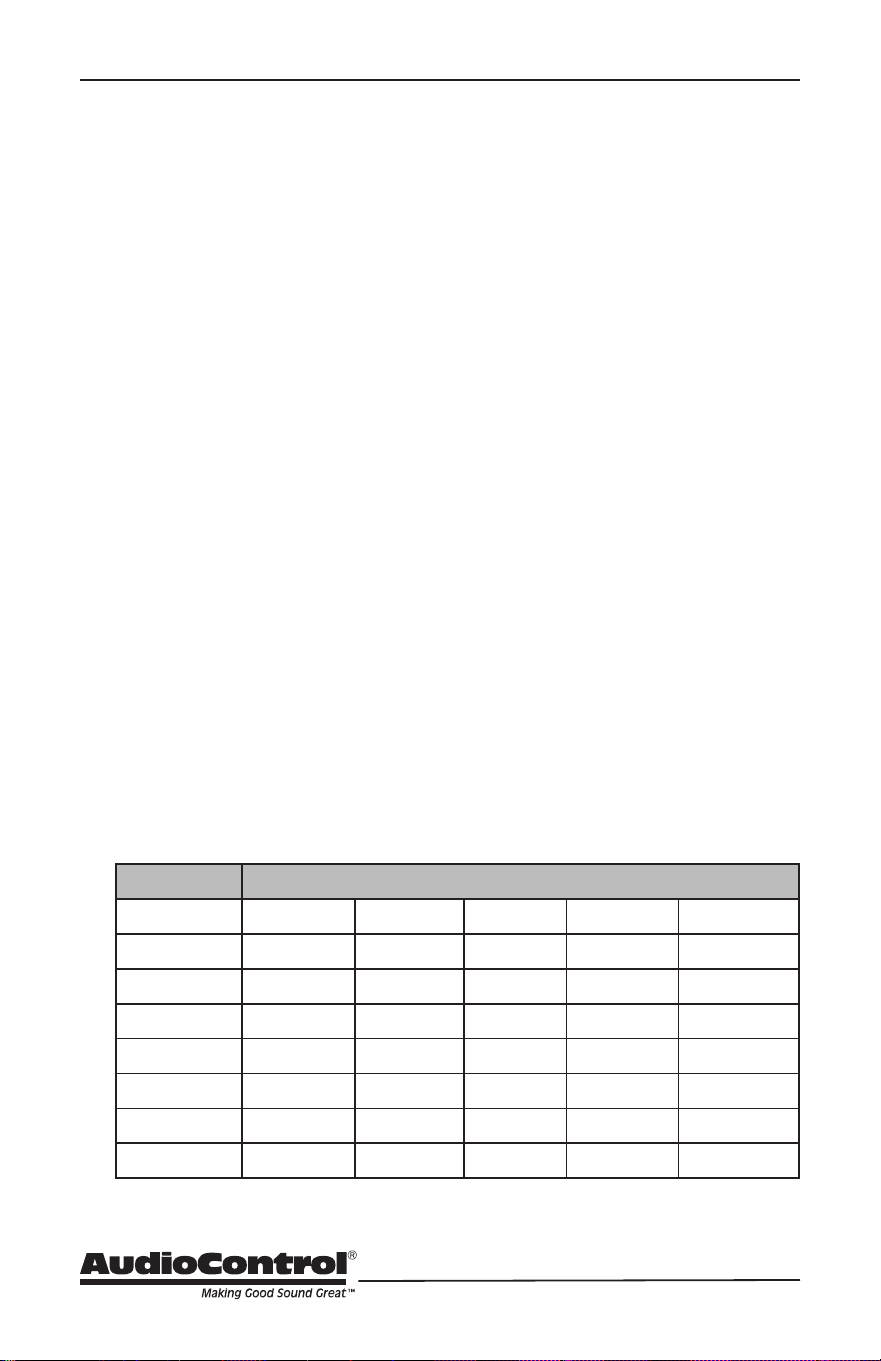
12. Speaker Outputs – This 4-pin
connector allows easy connection of
two speakers for stereo operation,
or one speaker for bridged mono
operation.
Stereo Speaker Connection:
Note the polarity markings for each
pair of outputs.
The speaker impedance
should be 4 Ohms minimum in
stereo operation.
Bridged Mono Speaker Connection:
Note the polarity markings of the inner
pair of connections. In this mode, the
input signals are combined in mono,
and the power from both channels
is combined to drive a single, more
powerful, speaker.
The speaker impedance
should be 8 Ohms minimum in
bridged mono operation.
To set the output to be in mono, use
The Director’s web server Operation
menu (the rst page that shows up)
and click on the Mono box for this
zone.
Speaker Wiring
Establish a standard connection color
code and stick with it. One conductor of
the speaker wire is normally marked by
a dierent color (silver versus copper) or
there is a ribbing on one side. Typically this
marked conductor is used for the positive
(+) speaker leads. Some wires have pos-
itive and negative printed right onto the
wire jacket.
Match the polarity markings on the
unit with the polarity markings on your
speakers. If the wiring is incorrect then the
speakers will be out-of-phase, with a no-
ticeable decrease in the bass response and
less than goodly-sounding awesomeness.
See the next page for some handy
information about speaker and wiring
impedance.
Almost Done With The Rear Panel
18
Speaker and Wiring Impedance
Speaker and Wiring Impedance
Wire Gauge Run Length
25’ 50’ 100’ 250’ 500’
24 GA 1.3Ω 2.6Ω 5.1Ω 12.8Ω 25.7Ω
22 GA 0.8Ω 1.6Ω 3.24Ω 8.1Ω 16.0Ω
20 GA 0.5Ω 1.0Ω 2.0Ω 5.0Ω 10.1Ω
18 GA 0.3Ω 0.6Ω 1.28Ω 3.2Ω 6.4Ω
16 GA 0.2Ω 0.4Ω 0.8Ω 2.0Ω 4.0Ω
14 GA 0.1Ω 0.25Ω 0.5Ω 1.26Ω 2.5Ω
12 GA 0.08Ω 0.16Ω 0.32Ω 0.8Ω 1.6Ω
Speaker Wire Resistance:
Wire Gauge versus Run Length
ues in portions of their frequency range,
and speakers that are rated at unusual
impedances, for example 3.5 Ohms. The
Director D4600 are tolerant of lower im-
pedance loads, however, all good designs
use some margin of error.
Your choice of speaker wire gauge and the
length of the runs, also aects the speaker
impedance load presented to the ampli-
ers. As you can see in this table, even fairly
short speaker runs can have signicant
resistance if you use a smaller wire gauge.
This can be a benet if you are paralleling
lots of speakers. The wire itself acts as
an impedance limiter, since the amplier
cannot see a speaker load lower than the
resistance of the wire. The downside of
this wire resistance is that you waste some
part of the total power available to the
speakers.
Speakers, like other resistors, when wired
in parallel “show” lower values than the
individual components. Here are two
examples for calculating speakers wired in
parallel:
Calculating Impedance
For three 8 Ohm speakers wired in
parallel (pluses connected to pluses)
the impedance is 1/8 + 1/8 + 1/8 = 3/8
Then take the inverse or 8/3 = 2.66 Ω
For two 8 Ohm speakers wired in
parallel (pluses connected to pluses)
the impedance is 1/8 + 1/8 = 2/8
Then take the inverse or 8/2 = 4 Ω
Often the real world is more complicated
than theory, and for speakers this is the
case. An eight Ohm speaker is not eight
Ohms at all frequencies. Plus passive
crossover networks add their own chang-
ing conditions. Be aware of speakers that
have signicant dips from “nominal” val-
19
Installation Manual
Model D4600
THE DIRECTOR
™
12 Volt Trigger Ins and Outs
12 Volt Trigger Ins and Outs
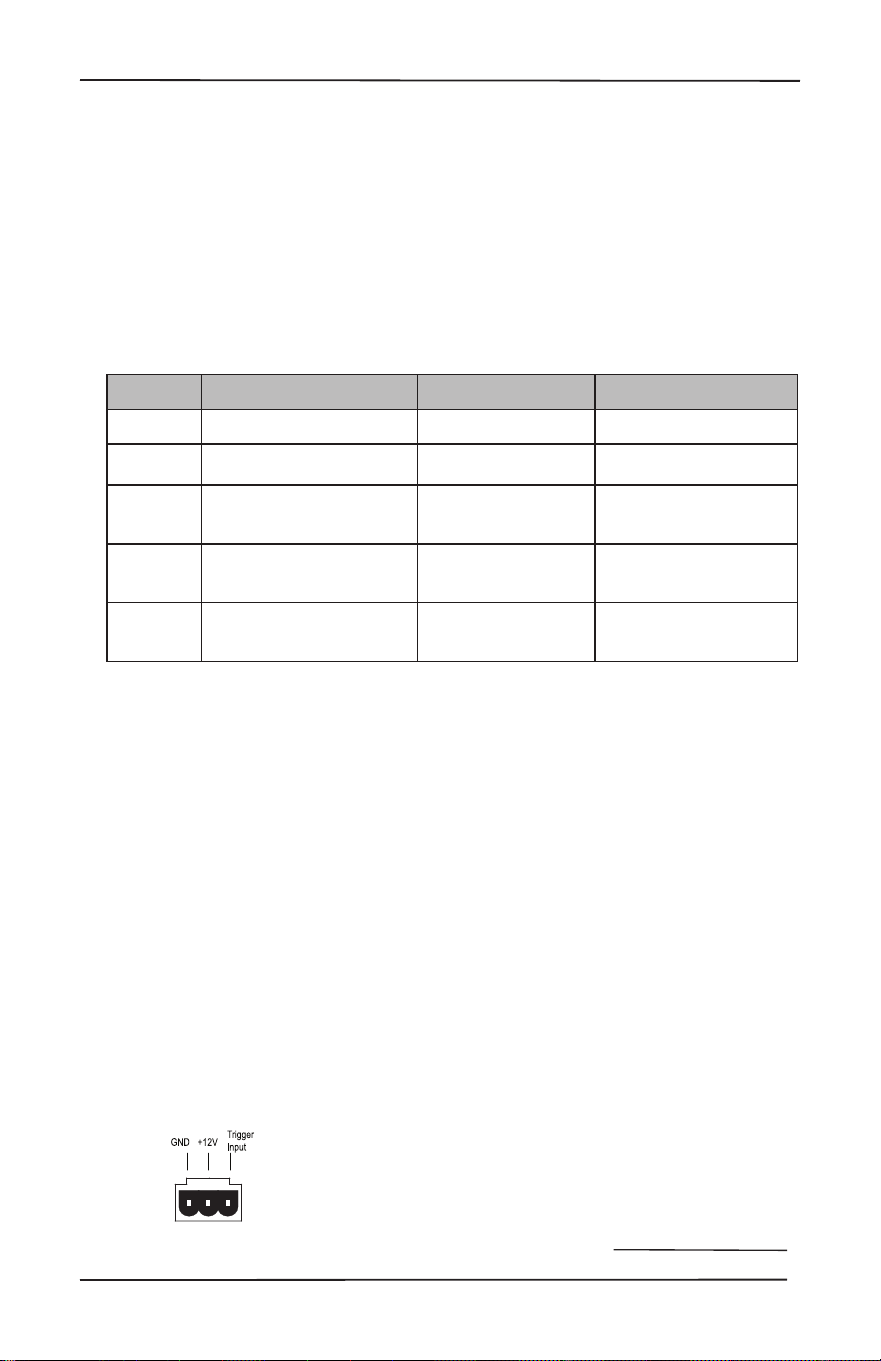
The Director D4600 has ve ways you can
bring the unit from standby to turn on and
be ready to serve. In addition, you can use
the triggers from The Director to turn on
more Directors or other components as
well. All this exibility can be a little daunt-
ing, so the table below should make it a
tad clearer:
* +12 volts on tip, mono jack
The following details apply if you do not
want to use the Ethernet web server to
turn on The Director D4600.
3-pin connector – To remotely turn on the
unit, use either a contact closure between
the Trigger Input and the +12V output,
or an external +12V trigger between the
Trigger In and GND terminals. The +12V
output is not designed to power other
pieces of equipment or jump start your car.
Pinout:
GND Ground
+12V Output
+12V Trigger Input
1/8” TS mono jacks – These are wired in
parallel to each other, and work in con-
junction with the 3-pin connector. Either
input can receive a +12V trigger which
will turn on the unit. This will then allow
the unused jack to output +12V that can
be used to turn-on a second unit. If the
3-pin connector is used to trigger the unit,
then both of the 1/8” jacks can be used to
provide output triggers to other units.
Pinout:
Tip = +12V Trigger Input
Sleev
e = Ground
Method How
Triggered
LED
Indicator Mini Jacks Powered*
1 Ethernet Ethernet Triggered No
2 12 volt mini plug
input* 12 v Trigger Active Yes, unused jack
3 Jumped Phoenix
connector
12 v Trigger Active Yes
4
Contact closure on
Phoenix connector
12 v Trigger Active Yes
5
12 volt input on
Phoenix
connector
12 v Trigger Active Yes
20
Power Up Process: When a +3 to +12V sig-
nal is sensed at the trigger input of either
of the 1/8” TS connectors, or the 3-pin
connector, the rear panel master trigger
indicator LED will change from o to blue.
All the zones will be held in standby for
about 2 seconds until the power supplies
have fully charged and performed their
self-tests. During this short process, the
front panel Power and Protection LEDs
will be red. Once this is complete, the
Power LED will turn blue and the Protec-
tion LED will turn o.
Power Down Process: As soon as a 0V
signal is sensed at the master trigger in-
puts, all zones will be muted and placed in
standby, and the rear panel master trigger
LED will change from blue to o. The front
panel Power LED will remain on, as the
main power supplies will be still energized.
If the master trigger Inputs remain at 0V
for 2 seconds, the main power supplies
will shut o; the front panel Power LED
will change from blue to red. The Protec-
tion LED will ash red once during the
power-down process.
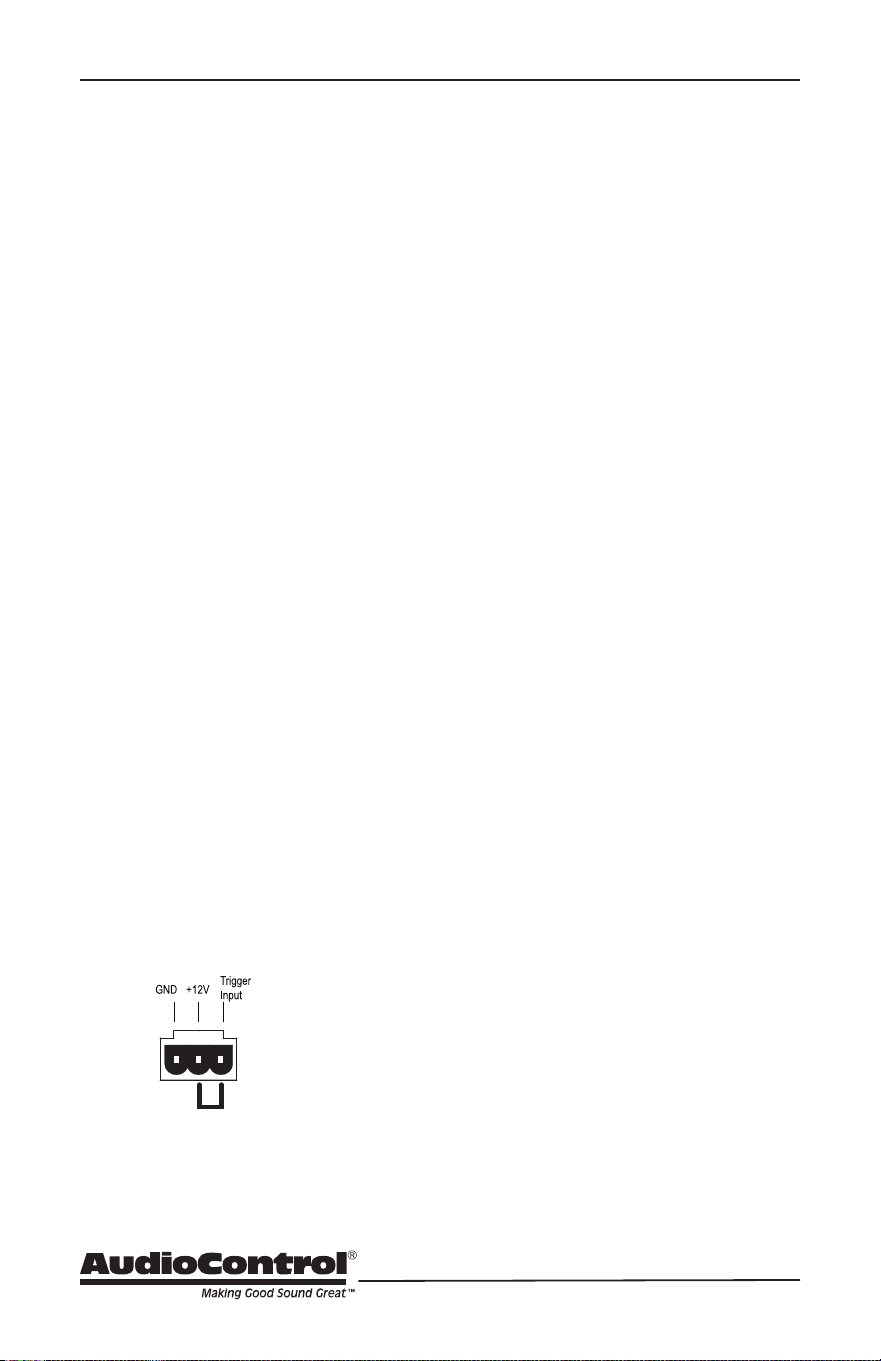
The trigger input is biased towards
ground. This keeps the unit in standby
when nothing is connected.
If you are not using master triggering or
the Ethernet connection, then you must
install a short wire link from the +12V
output to the trigger input. To put the unit
into standby, remove the link.
Wire Link
To trigger ON with a contact closure:
Connect the contact closure between
+12V and Trigger Input
To trigger OFF with a contact closure:
Connect a 1 kΩ resistor between +12V
and Trigger Input
Connect the contact closure between
Trigger Input and GND
To use an external 12V trigger:
Connect the external ground to the
Director D4600 GND
Connect the external +12V output
voltage to the Director D4600 Trigger
Input
12 Volt Trigger (continued)
21
Installation Manual
Model D4600
THE DIRECTOR
™
Ventilation
Ventilation
This may be as good a time as any to have
“the talk” about ventilation. The Director
D4600 features cool-running ecient
switch mode power supplies and Class D
ampliers, and they are equipped with
thermally controlled fans. They are still 16
channel ampliers, and therefore require
plenty of good ventilation to properly
cool.
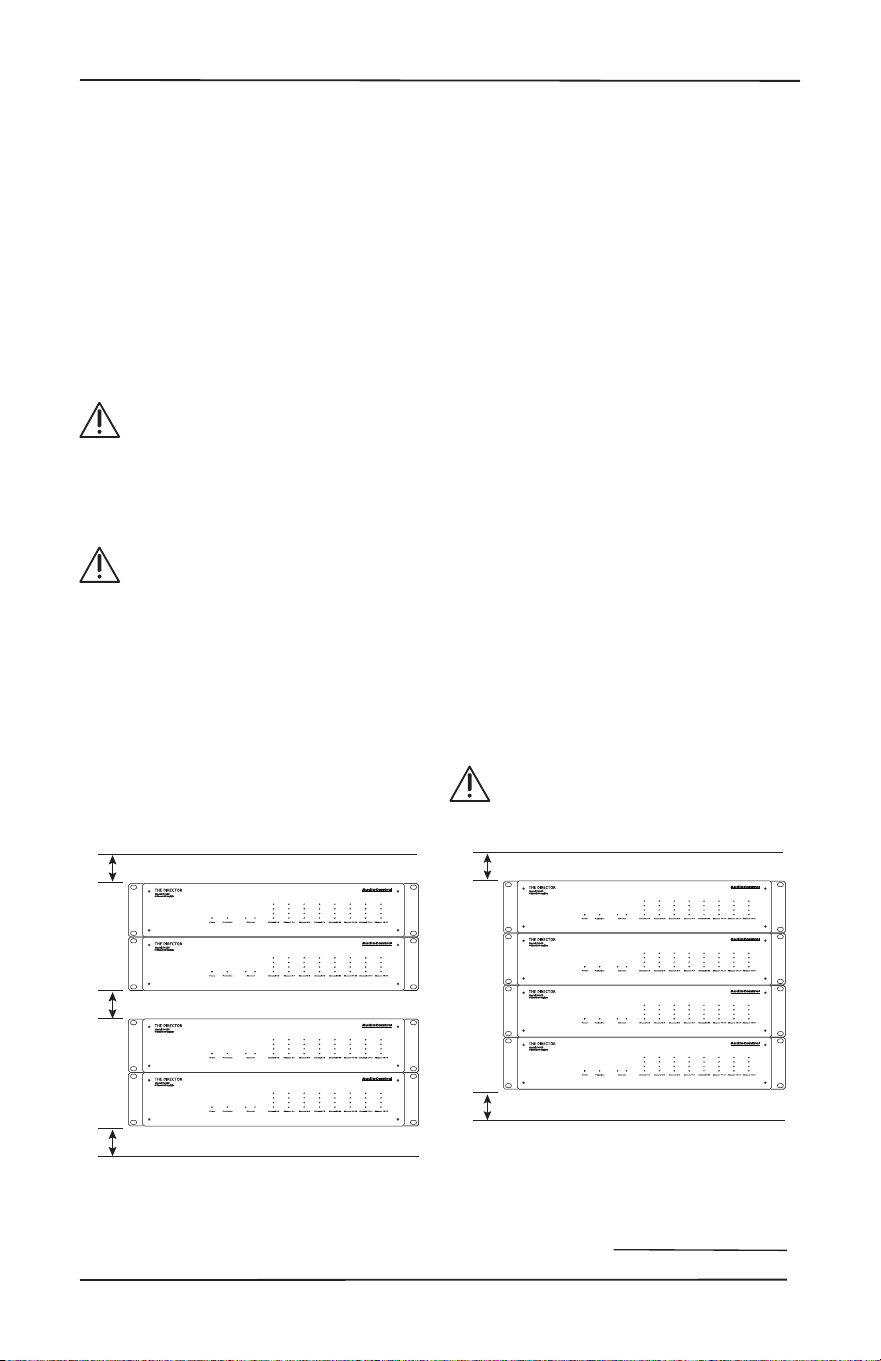
Please be advised that no more
than 4 Director models may be
stacked together. Any more than
that, then a rack space above and
below is required for adequate
ventilation.
Review the heat load specica-
tions and ensure that your rack
room meets these requirements.
If the amplier should overheat, a thermal
sensor will put it into standby mode,
allowing the heatsink to cool down.
Once the amplier has cooled to a safe
operating temperature, the amplier will
reactivate. If this occurs often, identify the
cause of the problem and take corrective
action, for example:
Provide additional ventilation
Do not install in a sealed location
with limited or no airow
Install a fan in the rack
Make sure that the ampliers are not
overloaded with speaker impedances
below the recommended minimum
Check that there are no short circuits
in the speaker cables or speakers.
Note: Each zone will shut o inde-
pendently when a short circuit is
detected.
1U
1U
Ideal Spacing 1U rack space or more
above and below each pair
1U
1U
1U
No more than four units can be stacked
without a rack space between them.
Allow 1U rack space or more above and
below each stack of four.

22
Internet Connectivity and Control
Setting up The Director D4600 is a breeze.
Just plug it in to an existing network and
let the DHCP server assign The Director
D4600 amplier an IP address. You should
take note of the unit’s MAC address there
on the back at this time – maybe write
down the last couple of values. After the
amp has taken an IP address from the
DHCP server (give it a few seconds), you
can scan for The Director’s MAC address
across the network using your favourite
network scanner – like Fing or Angry IP
Scanner. After you have the unit’s IP
address, type it into your browser and The
Director’s Operations page will open up.
Other than connecting to the browser
for initial set up, conguration and EQ
settings, you will be able to control the
amplier via Telnet. This is done through
the telnet port 23.
Control Using a Browser
For Microsoft operating systems:
There are multiple ways to connect to The
Director amplier. The simplest way is
to connect The Director via the Ethernet
port to a network with a DHCP server. The
Director will obtain a local address from
the DHCP server.
If no DHCP server has been enabled in
your network, or you would like to directly
connect to The Director, use an Ethernet
cable and connect the two devices togeth-
er. The default IP address of The Director
is 192.168.0.249 when a DHCP server is
unavailable, so in order to connect to The
Director, you will need to give your com-
puter a static IP address.
In your Windows based computer, change
your computer’s IP address to a static
address of 192.168.0.x – where x is a value
between 1 through 254, but not using 249.
If you don’t know where to start to nd
out how to give your computer a static IP
address, please consult the Interwebs.
Be sure not to use a static IP address for
your computer that is in use by another
device – an IP address should be unique
across the local network – if it is not you’re
going to have a bad time.
Important Note:
DCHP is default for The Director
D4600. However, if a DCHP server
is not found, the Director’s default
IP address is 192.168.0.249. If you
aren’t using DCHP and plan to assign
static addresses, individually set the IP
address by connecting directly to The
Director with a computer rst. Never
allow two devices with the same IP
address on the network.
Internet Connectivity and Control

23
Installation Manual
Model D4600
THE DIRECTOR
™
Internet Connectivity and Control
For Apple/Mac Desktops and Laptops:
Your easiest method for connecting with a
Mac is to directly connect to The Director.
The default IP address of The Director is
192.168.0.249 so in order to connect to
The Director D4600, you will need to give
your computer a static IP address.
Change your Mac’s IP address to a static
address of 192.168.0.x – where x is a value
between 1 through 254, but not using 249.
If you don’t know where to start to nd
out how to give your computer a static IP
address, please consult the Interwebs.
Be sure not to use a static IP address for
your computer that is in use by another
device – an IP address should be unique
across the local network – if it is not you’re
going to have another bad time.
Communications Options
The Director’s web server “Device Cong-
uration” page has lots of communications
options you can play about with to your
own delight or at your peril. If you know
what you are doing, then you will feel
right at home.
Here are a few notes:
Server Gateway must be specied in order
to access the SNTP time server, likewise
for your email alerts to function properly.
DNS must be specied as well for the
SNTP and SMTP functions to work –
8.8.8.8 (Default) or 8.8.4.4 are public DNS
servers that the good folks at Google have
enabled for you to use.

24
Control Via Telnet Commands
To control The Director D4600 in an auto-
mation network, you will need nerves of
steel, and a controller that can send and
receive telnet commands and responses.
The command and response structures
of the controls provided via telnet are
in simple human language. Power on is
simply “power1” followed by a carriage
return to end the command. Command
feedback is conrmed by an echo of
the command, followed by a carriage
return, then another statement of “01”
followed by the command string, then a
carriage return and a line feed to end the
response string. If there is a value-change
like volume up, then the conrmation
response will include the new value at the
end of the string.
Telnet Session Length:
Sending a command to the The Director
opens a telnet session – nothing tricky,
just send it a command and it will respond.
The session will remain open for 4 hours,
and then close. If another command is
received within that 4 hours, then the
clock restarts. The session will close 4
hours from the time of the last command
received. If your automation system treats
such activity as dropping o the network,
then pinging it in the early AM every day is
probably a good practice.
Control Command Examples:
Increment volume by 1, in Zone 3, where
volume before the command is 51:
Command: Z3vol+<CR>
Response: Z3vol+<CR>
01Z3vol52<CR><LF>
To turn on main power:
Command: power1<CR>
Response: power1<CR>
01power1<CR><LF>
To mute or turn Zone 5 o:
Command: Z5o<CR>
Response: Z5o<CR>
01Z5o<CR><LF>
Note:
The query ZONEON? returns a descrip-
tion of the on state of all the zones,
where each zone is separated by a space.
1 equals on, and 0 equals o. So if zones
6 and 7 are on and all the other zones are
o the information will be displayed like:
0 0 0 0 0 1 1 0 0 0. Also note that the last
two values in position 9 and 10 are reect-
ing the state of the digital outputs. The re-
sponse to the query ZONEOFF? will return
the opposite values if zones 6 and 7 are o
as it is conrming that the zones are o so
that value is positive: 1 1 1 1 1 0 0 1 1 1.
Please visit our delightful website for
further information and a splendid table of
control commands:
http://www.audiocontrol.com/home-au-
dio/network-ampliers/the-director-m-se-
ries/the-director-model-m4840/
(As things in the fast-paced world of
technical documentation are constantly
changing, visiting our website is one way
to make sure you have the latest informa-
tion.)
Control via Telnet Commands
25
Installation Manual
Model D4600
THE DIRECTOR
™
Operation Tab
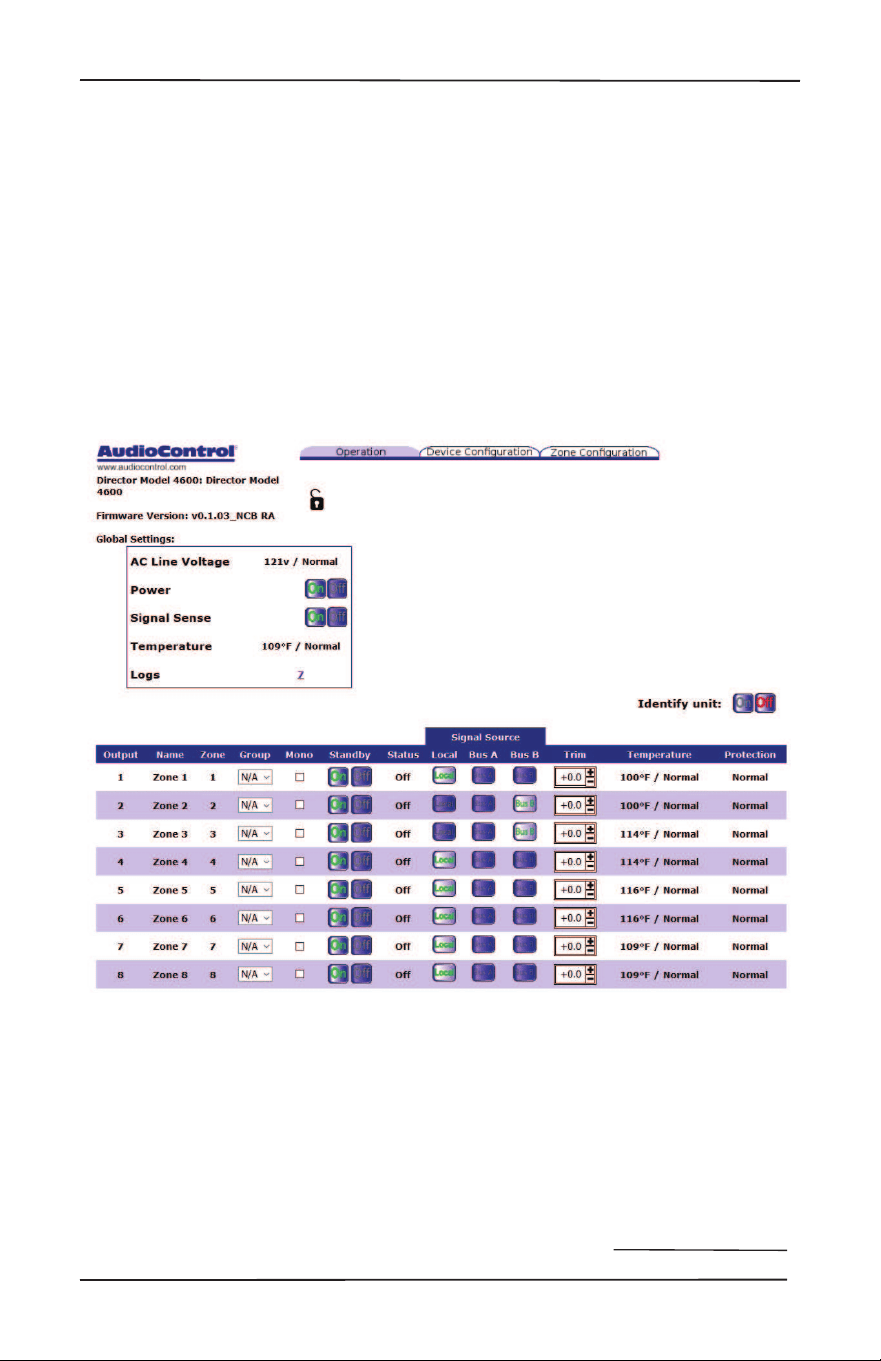
This is the rst page you see when con-
necting to The Director D4600 via a web
browser.
Lock: Click the padlock logo to lock or
unlock the pages for editing. Locking will
provide protection from accidental or
not so accidental adjustments of the unit
congurations.
Build: This shows the version number of
the currently installed rmware.
Global Settings: This section shows the
AC line voltage status, the overall tem-
perature of the unit, and allows you to
turn the power on or o, and the signal
sensing on or o. The log count is
also a link to a pop up page which will
describe the most recent events.
Operation Tab

26
Groups: Grouping allows for channels
to be grouped (there are 4 groups to
choose from in the tiny box) for con-
trol via telnet for simple and ecient
operations. The telnet commands
are listed on our website of destiny.
Grouping allows for quick control over
the on/o and signal source states of
each group.
Mono: Click this button to combine both
channels in this zone into mono. This
is useful if you want to connect a
single speaker, such as a subwoofer,
in bridged mono, thus combining the
power of the two ampliers into one.
Make sure your speaker’s impedance
is 8 Ohms or higher. Alternatively, you
could leave the two speakers con-
nected as normal and they will both
play the same. This can be ideal where
stereo sound is not really needed.
Standby: The standby on/o buttons
control the state of each individual
channel – whether the channel is on
or not.
Input Source: Allows you to choose where
each channel pair is getting its input
source. The small drop-down menu
shows the available input sources.
Trim: Trim the levels of the zone output.
The range of adjustment is suitable for
balancing SPL in grouped zones, for
example, 3 sets of speakers grouped
for a living room. It will also serve as
a way to limit volume in a particular
zone if, for some reason, you don’t
want to use the maximum volume
setting found in the zone conguration
page. Input levels can be set using the
Device Conguration Tab.
Temperature: Provides the status of the
channel temperature.
Protection: Shows the channel protection
status.
Operation Tab (continued)
27
Installation Manual
Model D4600
THE DIRECTOR
™
Device Conguration Tab
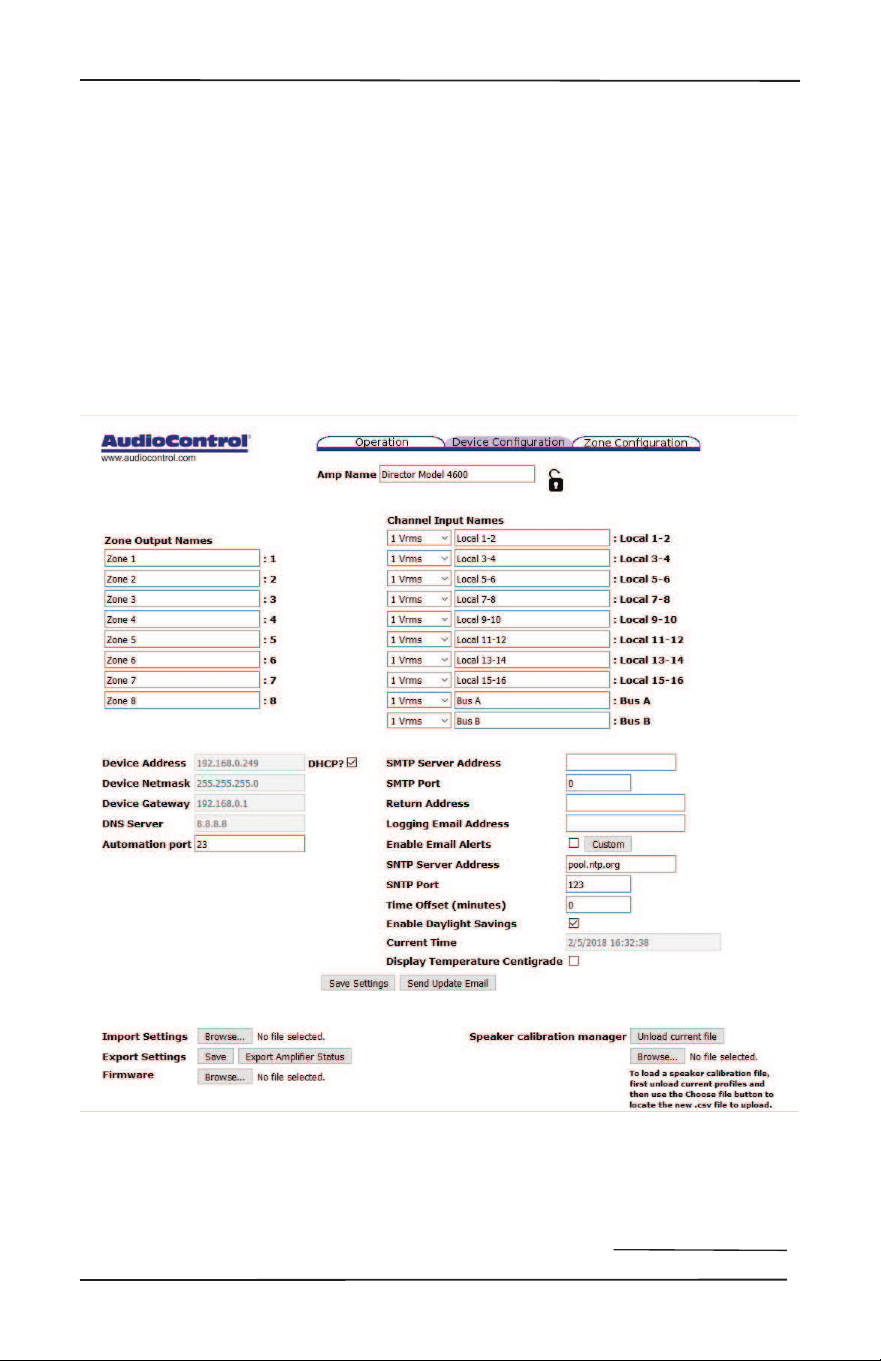
In this menu, you can rename the
amplier, rename each channel pair or
zone, rename the input sources, set the
global networking parameters, save your
settings, export your signal processing EQ
settings and conguration data as a le,
and Import previously-exported settings,
even from another Director D4600 am-
plier in the system, or pre-designed EQ
curve templates.
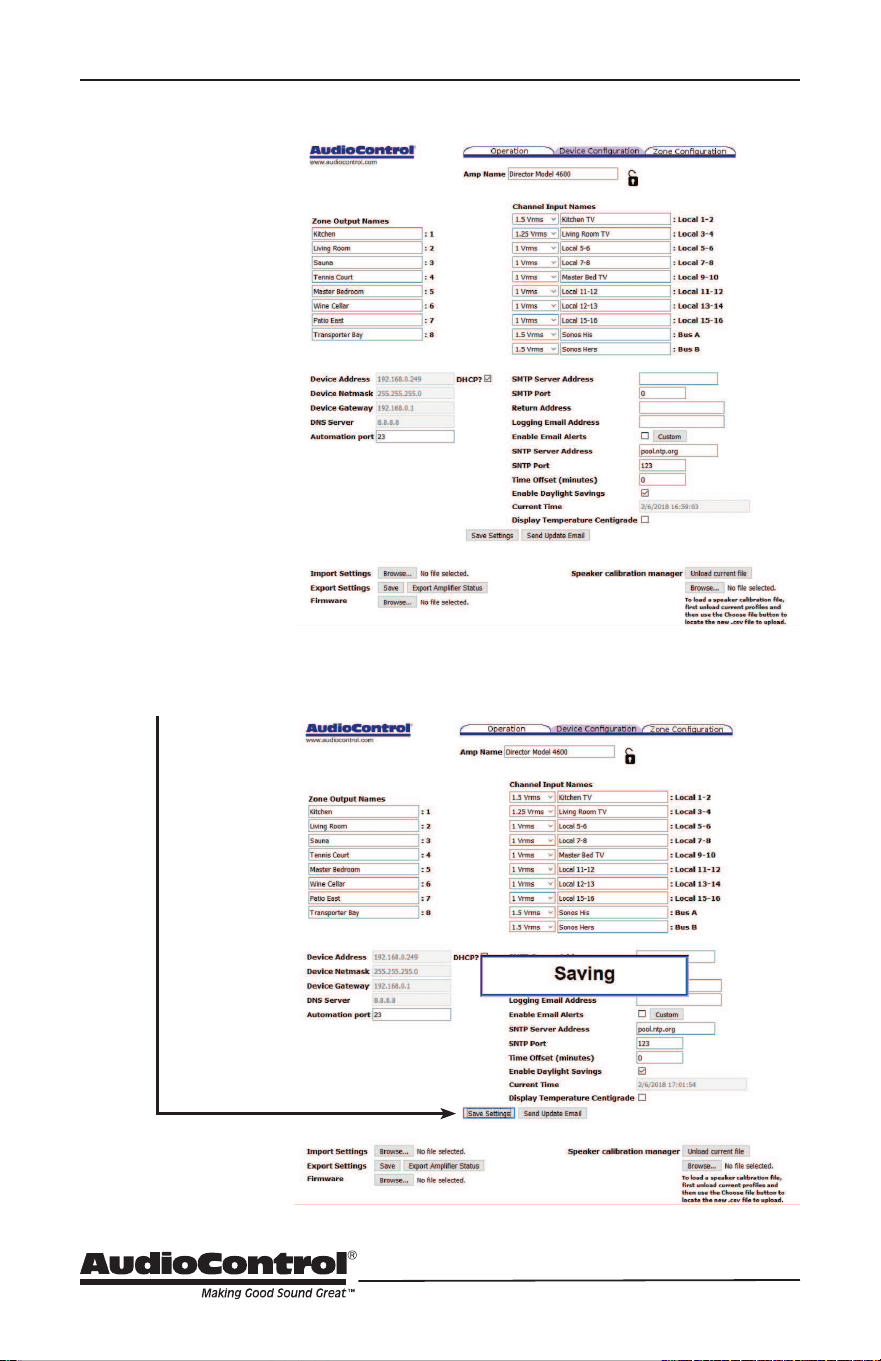
Be sure to select “Save Settings” after
you have completed your changes on this
page, otherwise your changes will disap-
pear and you will be snookered.
The renamed zones and input source
names will appear in the other menu tabs
and drop-down menus.
Device Conguration Tab
28
Here is one example where the amp, zone, and input names have been changed:
Here is what happens when you are save your settings using the “Save Settings” button
Device Conguration Tab
29
Installation Manual
Model D4600
THE DIRECTOR
™
Zone Conguration Tab
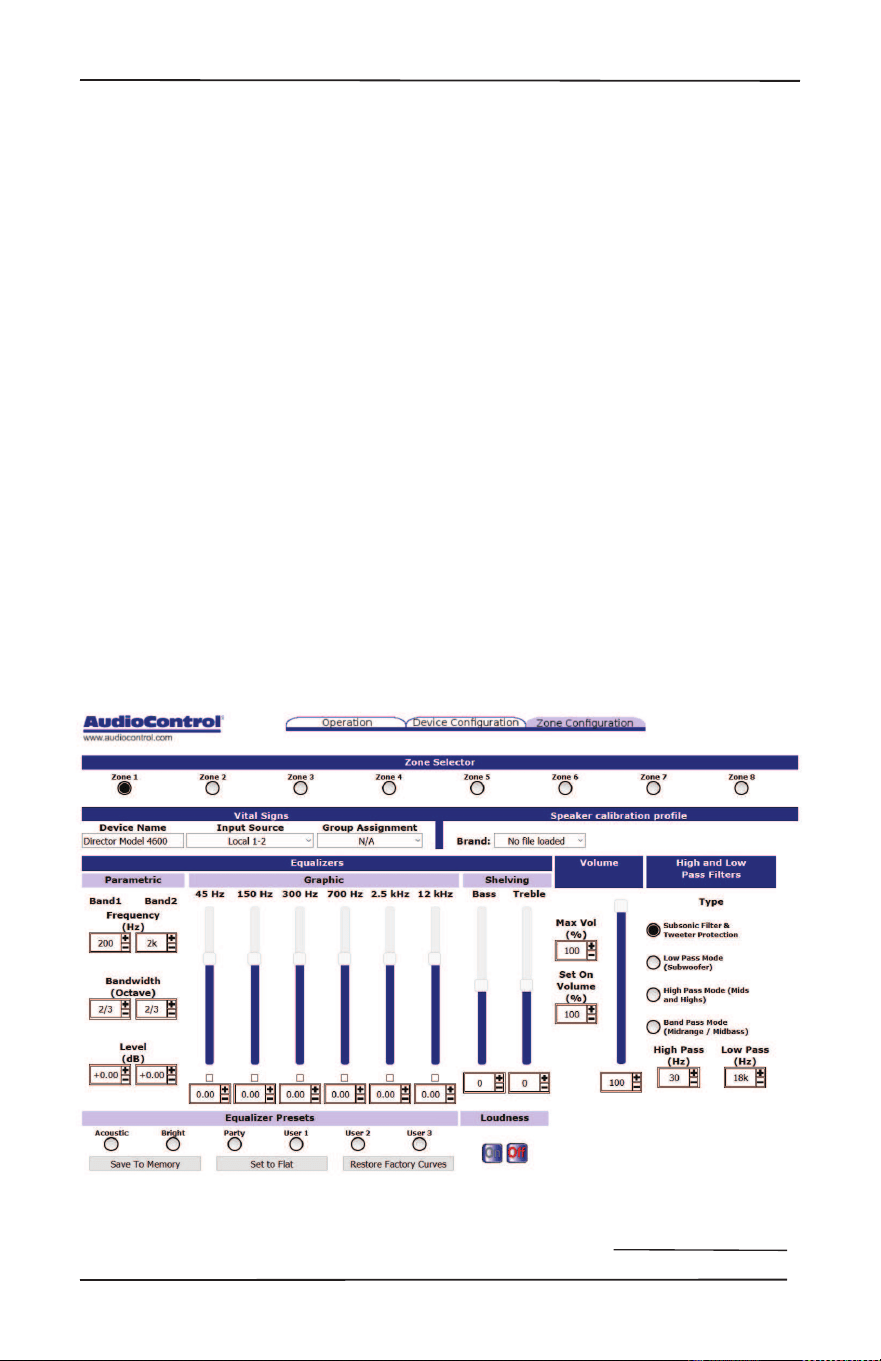
Equalization of each zone’s sonic good-
ness aects both channels within each
zone. First select the zone of interest
using the row of 8 buttons along the top
of the signal processing display. Please
see a later section for a discussion of the
methods and benets of equalization,
and see the notes below regarding saving
your settings. Equalization can be very
powerful, however it takes some work to
adjust properly, and like makeup, it can
easily be done wrong. It is much easier
and more accurate, if you have some in-
strumentation/audio analysis gear. Please
see our website for details of our ne
audio analyzer products that will take the
guesswork out of successfully setting the
EQ in each zone.
Vital Signs: This line displays a quick view
of the device name, input source,
group, zone status, temperature, and
protection status.
Graphic EQ: Adjustment of the graphic
EQ of the selected zone is done by
dragging the EQ sliders to the desired
position, or by clicking where you want
the position/ value to be, or by clicking
the +/- buttons. Note that the sliders
can be moved down as well as up, and
this is not a sign of weakness.
Parametric EQ: In addition (or sub-
traction) to the graphic EQ sliders,
there are two separate parametric
equalizers per zone, for the ultimate
in room-acoustics problem solving
(or problem creating). Each para-
metric EQ has adjustments for the
frequency, width, and the level boost
or cut. For an example of their use, if a
certain frequency sets all the teacups
rattling in an old folk’s home, a
narrow-width lter can be tried at the
teacup-rattling-onset-frequency, with
a cut in the level.
Zone Conguration Tab

30
Shelving EQ: Just when you would be
forgiven for thinking “wow, that’s a lot
of EQ exibility,” wait.. there’s more.
At no extra charge, two sliders oer
bass and treble EQ adjustment of
the shelving kind. Shelving EQ, used
in combination with the graphic EQ
and parametric EQ, gives you the ne
opportunity to upset things royally, or
to be the better person, with kindness
and EQ moderation for all. Start with
the graphic EQ at, apply a bit of
shelving bass or treble EQ, and see
how that sounds. Maybe that will do.
Volume: The volume slider, as the name
suggests, was designed to hypnotize
little kittens that might be watching
the little rectangle go up and down
on your screen. The eect is quite
adorable. The slider can also be used
to set the volume in the zone. One
extra adjustment allows you to set the
maximum-allowable volume per zone,
such as teenager’s rooms, and one
adjustment sets the turn-on volume
level. The maximum level is dened as:
“That threshold volume level, which
if exceeded, brings forth the coming
of the broom-handle thumping on the
ceiling, and the loud exclamations of
“turn it down.””
High and Low Pass Filters: These 4 dif-
ferent lter types allow you to quickly
choose a design for your system,
either to set up protection from low
and high frequencies, set up a 2-way
crossover with a subwoofer and mids/
highs, or set up a bandpass lter. The
lters can also be chosen slowly, with
considerable forethought and care,
possibly while mulling things over in
your favorite comfy chair, with a cup
of tea and a plate of delicious buttered
crumpets. As each lter type is chosen,
the current high pass and low pass fre-
quencies are shown in the adjustable
boxes just below.
To prevent over-stress of speakers by
sending frequencies lower than they
are physically able to handle, use the
subsonic lter. For most inwall speak-
ers, we recommend a setting of 40 Hz
or higher. Contrary to popular thought,
higher often sounds better for this low
frequency lter. Similarly, to save the
tweeters, be conservative with the
setting of the tweeter protection lter.
It could save you a service call.
As there is a plethora of power
available (do not be fooled by The
Director’s lightweight appearance)
you can set up a 2-way crossover with
a subwoofer playing the lows, and a
pair of speakers paying the mids and
highs. Enable the Low Pass Mode lter
and bridge-mono the output from one
zone for your subwoofer. It will just
receive the low frequencies (in mono)
and receive the combined power
from both channels. Then use another
zone’s channel pair in stereo with
the High Pass mode selected for that
zone, to power the speakers playing
the mids and highs. Select the same
input channel for both zones. See the
system diagrams for a picture of this,
or see the video on our website of our
technical support engineers perform-
ing an interpretive dance.
Loudness: Select this for the zone for a
low frequency boost at lower listening
levels
Signal Sense: Select this, and the zone
will turn on automatically when it
senses a signal present at its selected
input.
Once you have the EQ settings just the
way you like them, you must save the
settings. Please see the details on the
next page.
Zone Conguration Tab (continued)

31
Installation Manual
Model D4600
THE DIRECTOR
™
Saving EQ memories and Import/Export:
It is important to save your Signal Pro-
cessing to a memory. If you do not need to
have multiple EQ memories for recall, it is
still necessary for the Signal Processing to
be saved should the power go out. When
saving your Signal Processing, the Save
function saves all 8 zones of Signal Pro-
cessing. Once these are saved, you can ex-
port these settings from the conguration
page for back up purposes or for making a
template that can be repeatedly used.
You may save all of the information on
this page by selecting “Save To Memory”.
All the graphic and parametric equalizer
settings as well as any crossover setting
will be retained in that number memory.
The information saved in the memory is
the information on this Signal Processing
web page since the information on the
other pages is saved separately.
Saving EQ memories and Import/Export
32
Acoustics
Magazine reviewers and audio system
owners spend much time critically apprais-
ing speakers and other audio components.
Unfortunately, a phenomenon that has a
very large eect upon sound is not easily
judged or changed. That eect is the
ACOUSTICS of the environment in which
you are listening.
Room acoustics is a complicated subject
about which hefty textbooks have been
written, and entire galaxies have gone to
war over. We simply want you to be aware
of a few basics that have a direct eect on
real time audio analysis.
As you probably learned in high school,
sound travels in waves. In an audio
system, these waves are created by the
speakers. Like waves in a pond created by
a splash, sound waves emanate from the
transducers (speakers) and spread out into
the room. If your room were innitely big,
that’s all there would be to it. But just as
waves in a pond reach the bank and reect
back, sound waves bounce o walls, ceil-
ings, and oors, reecting, reinforcing and
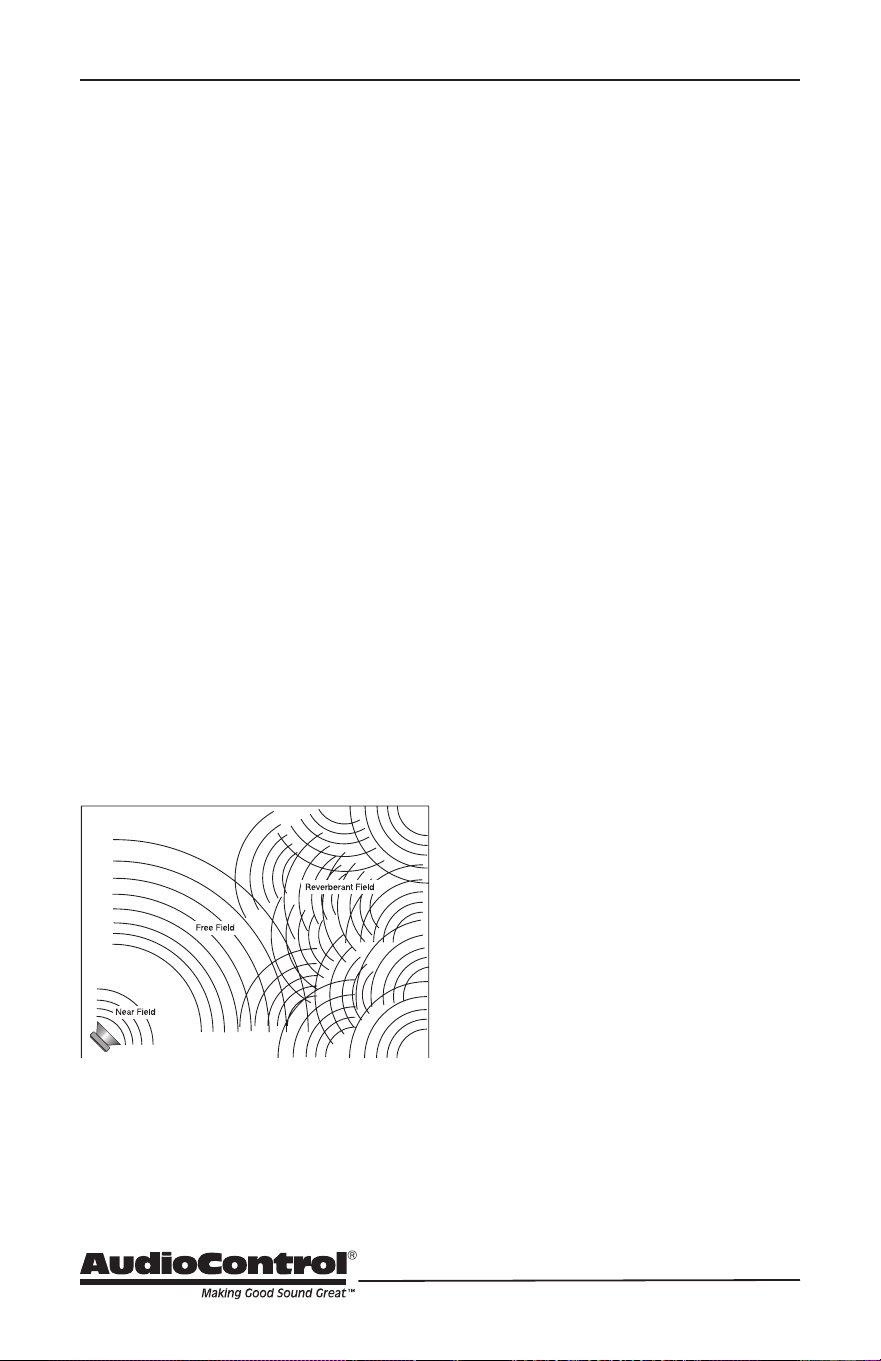
canceling each other as shown here:
Since sound is energy, the way it reects
depends upon the angle of the surface,
the type of material and the frequency of
the sound wave. Because your listening
position is likely to be towards the back
of the Free Field (waves shown in the
diagram), you also get part of the reect-
ed Reverberant Field as well.
Now we add the next set of complications:
Dierent frequencies of sound have dier-
ent wave lengths (a function of frequency
and the speed of sound). Each frequency’s
wavelength contributes dierently to the
Free and Reverberant Fields because they
are dierent sizes. For example, a 32 Hz
bass note has a wavelength of 35 feet,
while a 16,000 Hz note has a wavelength
just under a tenth of an inch. Tiny treble
waves can be caught and neutralized by
draperies, carpeting, upholstered furniture
and gangs of indolent Persian cats…while
gigantic bass waves simply slosh back and
forth in the room.
Another set of variables is the shape and
volume of your listening room. Large
rooms require more bass energy to excite
waves within them. Small rooms need less
energy, but reect it dierently. And then
there’s the fact that most rooms don’t
have four walls anymore, but open into
dining rooms, lofts, cathedral ceilings, etc.
All of this means that predicting sound
interaction patterns is very dicult due to
the irregularities of the room shape.
As you can see, room acoustics is an
important but complicated subject. To
learn more about room acoustics, get a
copy of AudioControl’s Technical Paper
107, “Small Room Acoustics De-Mytholo-
gized”. You can download this paper from
www.audiocontrol.com (search “De-my-
thologized”) or if you’re still into the
printed page, call us and we’ll mail you a
copy. The overall point that we’re trying to
make is that the various rooms in a home
function as gigantic mechanical equaliz-
ers, boosting or cutting certain frequen-
cies depending on size, shape, volume,
acoustic treatment and the position of the
speakers.
Acoustics

33
Installation Manual
Model D4600
THE DIRECTOR
™
Benets of Equalization
Rarely is the room and room decor
designed to get the most out of the
audio system. In fact, almost always the
opposite is the case where the speaker
positions and sizes are dictated by some
factors which are actually contrary to
good sound. This real world situation is
where equalization can provide great
benets.
Speaker positions, furniture, and general
room layouts may cause peaks in the fre-
quency response. Fortunately these peaks
can be tamed by judicious equalization.
Also, it may be that the client has specic
tastes, such as being the most interested
in hearing voices such as cricket broad-
casts, and you can tailor the sound to
these tastes. Remember there are memo-
ries in The Director D4600, and you could
use dierent settings via the memories for
dierent sources.
At all times, though, the laws of physics
are hard to violate, although we do try our
best. Equalization cannot make terrible
acoustics sound terric, only better. If the
room has a tile oor and glass walls for
example, the best case results will still be
pretty bad by most measures. Further,
while equalization can do wonders to help
a less than perfect speaker, nothing will
make a mediocre speaker sound fabu-
lous. In other words, for best results, start
with good speakers and reasonable room
acoustics, if possible.
Note: For the absolutely
best results, the
equalizer controls on The Director D4600
should be adjusted with a real time
ana-
lyzer such as the AudioControl
Industrial
SA-4100i. Visit www.audiocontrolindus-
trial.com for more
analysis products.
Equalizing the System
Before proceeding with equalizing the sys-
tem, it is a good idea to make sure every-
thing is connected and working properly.
You know how to check connections, and
here are some reminders specic to The
Director D4600, as well as the steps to
equalize.
1. Turn on the system. The Power light on
the left front panel should be blue .
2. Connect to this specic Director unit
over the network by entering its
unique IP address into a browser (Fire-
fox, Safari, Chrome are preferred).
3. Make sure the unit is turned on and
turn o signal sense in the Operation
page on the browser. On the front
panel all zone status lights should start
red and then turn to blue.
4. If any are not blue, check the Opera-
tion page to see if you need to unmute
any zones.
5. Play pink noise through the system
into the zones you are going to adjust.
If needed, there is a pink noise audio
le at www.audiocontrol.com. Search
for “pink noise”. The signal is play-
ing through The Director unit when
the LED’s level meter on front panel
responds to the volume.
6. Assuming you have wireless network
access, now grab your trusty real time
analyzer (RTA) and go into the zone
you wish to adjust.
7. Place the microphone in the middle of
the area of listening at the height of
the typical listeners head.
Equalization

34
8. In general, use the equalizer con-
trols to lower peaks in the frequency
response rst. Peaks obscure the
surrounding sounds and lowering the
peaks will unleash overshadowed
sounds. There is more information in
the next section on equalization and
AudioControl has factory training,
called Train in the Rain where we
explore this subject in depth.
You can save dierent settings to dierent
memories and see which one the clients
like. Their taste may be dierent than
yours.
Parametric and Graphic
Equalization
The graphic equalization controls in The
Director D4600 are selected to correspond
with the characteristics of wall and ceiling
speakers, and as such are very eective.
Graphic controls are the easiest to tune
and provide a “graphic” representation
of what the adjustments are. Paramet-
ric equalization requires selecting the
frequency, the bandwidth of the control,
as well as the level of adjustment, not
an easy task to get correct. In general,
parametric equalization is valuable for
very large areas of change or very narrow
areas.
Parametric equalization in The Director
D4600 is most likely best used for taming
very narrow peaks. Do not use for very
narrow dips as these dips are likely caused
by cancellations and will not respond to
equalization boost.
Here is an introduction to each of the
graphic control frequencies and what their
aect is on music.
45 Hz — Low bass. This is about the
lowest frequency which in-wall, ex-
tension and small bookshelf speakers
can achieve. Boosting it too far might
cause problems, even though The
Director M6400’s subsonic lter cuts
frequencies below your adjustment
point. But if your speakers can take
it, a mild boost will enhance bass
instruments such as Fender bass, kick
drum, oor toms, timpani and double
bass viols.
150 Hz — High bass. There’s a lot of bass
information at this frequency. In fact,
most modern music is mixed to en-
hance this area of the frequency spec-
trum. 150Hz also determines the depth
of male vocals and contains reverber-
ant information which contributes to
the spaciousness of sound. Boosting
150Hz can add “POW!” and impact to
bass or it can make the sound “bonky”
and “boomy”. This is a critical adjust-
ment with small or in-wall speakers.
Experiment with it.
300 Hz and 700 Hz — High and low mid-
range. These controls directly aect
the sound of instruments and vocals.
These bands also determine the
speaker’s presence (whether the music
sounds far away or close in). Small
speakers often produce too much mid-
range, so these controls can be turned
down slightly during your initial experi-
mentation. Consider reducing 700Hz
if you are only using your extension
speakers for background music.
2500 Hz — Treble. Female vocals and the
“edge” of instruments such as guitars,
snare drums, saxes, violins, etc. are
found in this range. If accentuated too
much (by boosting this control) sounds
Parametric and Graphic EQ

35
Installation Manual
Model D4600
THE DIRECTOR
™
in the 2500Hz range can seem harsh
and fatiguing to the ear due to exces-
sive output by the speaker or because
of live, reective room acoustics.
12 kHz — High treble. The ne detail,
texture and sheen of music is found
here. The breathiness of vocals, the
“sheen” of cymbals, the high over-
tones of piano and strings. Actually,
there’s audible music information up
to 20,000Hz on some CDs and most
adult’s hearing is still pretty good at
15,000Hz. We’ve chosen 12,000Hz be-
cause it provides more useful control
to compensate for room acoustics and
common small-speaker deciencies.
Subsonic and Tweeter
Protection Filters
The Subsonic (aka High Pass) lter and
Tweeter Protection (aka Low Pass) lter
are adjusted on the signal processing web
page along with equalization. Their func-
tion is simply to make the speakers sound
better, play louder, and last longer.
All speakers have frequency response
limitations. For the best performance, we
want to operate speakers in their linear
zone, that is the frequencies where their
sound reproduction is not compromised
by mechanical limitations.
If you do operate speakers near or at their
mechanical limits, sound is compromised
and parts of the speakers are stressed and,
in some cases, heat up shortening its life.
In other words, both the tweeter protec-
tion and subsonic lter are very important
tools. Experiment with higher subsonic
lters, and lower tweeter protection
settings, than you might think from the
published specications of the speaker.
If you do these experiments with higher/
lower settings, most likely, you will nd
the system actually sounds much better
than pushing the frequency limits. For
sure the speaker will be less stressed and
last longer.
Subsonic and Tweeter Protection
Presets
The Director D4600 has six memories if
you wish to have dierent congurations.
These memories are saved on the Zone
Conguration tab. When saving a memo-
ry, you are saving all the signal processing
page settings (equalization and lters).

36
Advanced Discussions
In Wall Volume Controls
What happens to the in-wall volume con-
trol if the amplier power is greater than it
can handle?
It will not be pretty but then again no
one will die. Typically, the magnetics of
the volume control will be over taxed,
saturate and thereby become a lower
impedance than rated. This will en-
courage The Director amplier to put
out even more power possibly putting
the amp into protection. If not this
extreme, there is an excellent chance
the volume control saturation will
damage the sound quality. The upshot
is use a volume control with a margin
of safety.
Installation of multiple units
Can you stack The Director D4600 units on
top of each other without an air space in
between?
You can stack a maximum of 4 units
on top of one another, and allow a free
rack space above and below.
Ideally, 2 units can be stacked with a
free space above and below, as this
will improve the ventilation to the
units.
May you daisy chain or y-cord audio and
power trigger connections?
Daisy chaining audio is easy as there
are Loop output jacks, which can be
used to drive the next amplier.
For power control, it is easiest to have
an Ethernet connection to each unit.
The 12 volt mini jacks are powered to
turn on another unit when the main
unit is on (not standby). If you need
more than 15 milliamps current on the
12 volt output, use a relay to prevent
over loading The Director. (The Direc-
tor itself only takes 1 milliamp to turn
on.)
What are the power requirements and
BTU outputs of The Director?
More detailed information is shown in
the specications section. In general,
we feel a conservative, real life design
criteria is 1/8th power. This will be
a quite loud listening level for most
rooms and assumes all zones driven at
the same time. You will be amazed at
how cool The Director is at this level.
One rule does not t all situations, so
apply your knowledge of the particular
circumstances involved. Also, see the
section below on unique rooms and
SPL.
How many units may I put on one 15
amp breaker?
It depends. Since you are limited to
1500 watts per device by most codes,
there should be a separate 15 amp
circuit for each unit.
The circumstances where The Director
D4600 draws maximum power are
very rare outside of an engineering
lab. Maximum power is using a sine
wave input which has at least a third
higher energy density than music.
This would mean that all channels are
operating at maximum, an unlikely
situation even during a really fun party.
Even more unlikely is all channels on
multiple units operating at full output.
You know the system better than we
do, so it is your decision. If the only
use is background music, then the
one-eighth power in the specications
is a reasonable (actually conserva-
tive) power draw. Of course, you will
want to include a margin of safety for
Advanced Discussions

37
Installation Manual
Model D4600
THE DIRECTOR
™
unusual circumstances. And in the
nal analysis, you have to do what the
electrical inspector tells you to do.
What should I use the “Trim” controls in
the browser for?
The Trim controls are an easy-to-ac-
cess level setting control which you
can use while in the zone. The Trim
controls allow minor not major adjust-
ments.
Unique Rooms and SPL in Large Areas
Are there any special considerations for
bathrooms?
Bathrooms are irregular rooms, rooms
within a room, with high ambient
background noise, often with noise
masking type of ambient sound, highly
reective, and often fairly large. If
you pause and think about that for a
moment, these are some of the more
challenging rooms.
Commercial noise masking systems
rely on “white noise” which sounds
remarkably like a bathroom exhaust
fan and like the sound of water in a
shower-both of which are louder than
the background noise level in the other
parts of the house. So if the client
wants to rock out in the bathroom,
and particularly the shower, you need
to have speakers very near to them.
Modern day larger bathrooms need
more than two speakers for these
reasons.
What about large rooms as well as
rooms where the listener is far from the
speakers?
Typical in-wall speakers are designed
to be near the listener. In common
rooms with eight foot ceilings and
other usual dimensions, in-wall speak-
ers typically are not much more than
eight feet from the listener. In large
mansions, the game changes. Twenty
foot ceilings are normal and typical
speakers are too far away to provide
the client much SPL (sound pressure
level). There are in-wall speakers
designed for these longer “throw” dis-
tances. In general, larger rooms with
more height require more speakers
and speakers with tighter “directivity”
to get party-level SPL. In this case,
also, size matters and bigger speakers
are better.
Advanced Discussions

38
Troubleshooting
Many problems can be eliminated by
re-checking the wiring and settings of the
unit. If a problem cannot be solved using
the guide below, please call the AudioCon-
trol team for further assistance, or e-mail
us at [email protected]
1. No Sound
a. Verify the Power LED is Blue.
b. Verify Protection LED is O.
c. Verify Zone Status LED is Blue.
d. Verify that the correct input has
been selected in the web server
menus
e. Verify the source unit is operating.
f. Check the speaker connector plugs
on the rear panel are secure.
g. Unplug the power cord and check
the AC Power Fuse on the rear
panel.
2. Protection LED is o, but none of
the Zone Status LEDs are on:
a. Defeat the signal-sense circuits
using the signal sense switch on the
web server Operation tab. All of the
zone status LEDs should turn on.
If they do not, call AudioControl’s
customer service.
b. Verify the source unit is operating.
c. Increase the preamp volume if sig-
nal sense is engaged, or just going
steady.
3. Channel Status LED is Red:
a. Check speaker leads for a short.
Swap speaker connectors on rear to
see if the problem moves with the
wires.
b. If the unit is excessively hot, turn
down the volume and allow it to
cool o. The protection LED should
turn o after a short while. Verify
that any ventilation holes have not
become blocked.
c. The speaker impedance may be too
low. Use an ohmeter to measure
the impedance on the speaker
wires.
4. Speaker channels are cutting in and
out:
a. If using external volume controls,
check that they can handle the
power output.
b. Make sure the speaker impedance
is not less than 4 Ohms, or 8 Ohms
when used in bridged mono.
c. There may be a short in the wires.
Suspect a short if the problem hap-
pens only at the highest volumes.
5. Protection LED is Red:
a. Disconnect power from the unit
for 3 to 4 minutes and reconnect to
power.
b. Disconnect all speaker wires. If
it still turns red, and the unit has
cooled, something rather serious
has happened inside the unit. Call
AudioControl’s lonely folks in cus-
tomer service.
Troubleshooting

39
Installation Manual
Model D4600
THE DIRECTOR
™
Troubleshooting
6. Speaker Buzzing or Crackling at high
volume:
a. Reduce any preamplier/equalizer
low-frequency boost.
b. Turn o your “Sounds of the
Pacic Northwest” chainsaw and
bacon-frying CD.
7. There is no audio input signal, but
the Zone Status LEDs are still blue:
a. Check the signal-sense switches in
the unit’s web server tabs. If they
are not engaged, the zone status
LEDs will stay on as long as the
master trigger is enabled.
b. The zone status LEDs stays on for
2 minutes (depending on music
volume) after the audio signal has
stopped. This delay helps prevent
prematurely muting during quiet
passages or song changes.
8. The unit is on but you cannot trigger
it o
• The unit will stay on if either the
12v master trigger is on, or jum-
pered on.
9. Is an in-wall volume control rated at
100 Watts (continuous) adequate?
• Just barely is the simple answer. Go
for one with a higher rating if you
want a reliable long-lasting system.
Though the Director D4600 is rated
at 100 Watts, it is a conservative
number, and it can put out more
power if only a few channels are
driven. In contrast to the conserva-
tive rating of The Director D4600,
the wall volume control may be
rated using favorable assump-
tions. Also make sure the volume
control power rating is continuous
not peak. The continuous rating is
about one-third of peak.
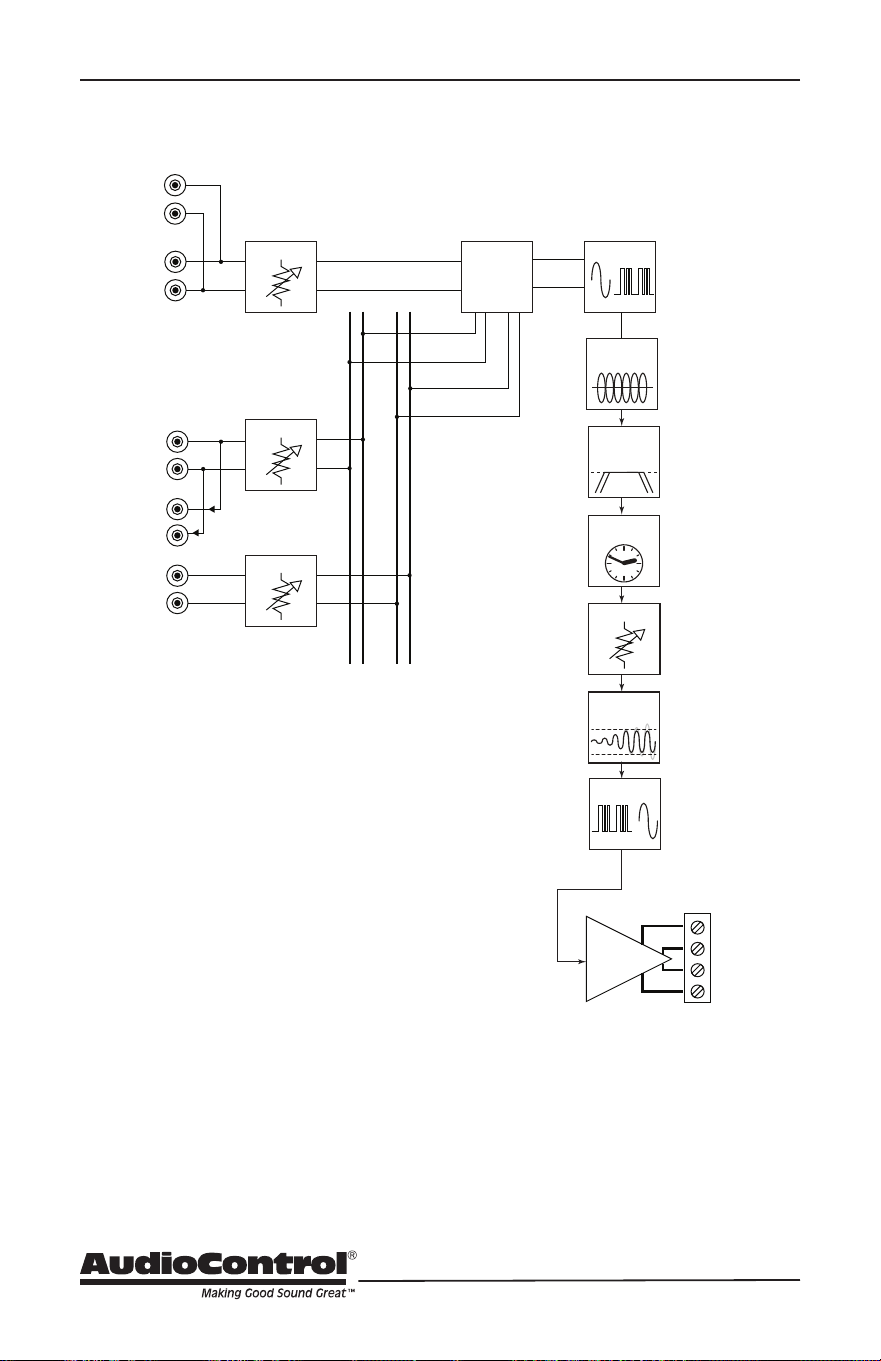
40
Block Diagram
Block Diagram
Time Align
Delay
Analog
Pass Thrus
1 - 16
Analog
Inputs
1 - 16
DAC
ADC
Parametric
Graphic EQ
High Pass /
Low Pass
Filters
Volume
Gain
Gain
Gain
BUS A
Inputs
BUS A
BUS A
LOCAL
INPUT
SELECT
BUS B
BUS B
Limiter
Amplifiers
Speaker
Outputs
1 - 16
BUS A
Loop
Outputs
BUS B
Inputs

41
Installation Manual
Model D4600
THE DIRECTOR
™
Specications
D4600 Specications
Output Power
Per Channel ............................................ 100 Watts @ 8 Ohm, 200 Watts @ 4 Ohm
Bridged Mono .......................................................................... 400 Watts @ 8 Ohm
Signal to Noise Ratio ............................................................. > 95 (A wtd, ref full output)
Crosstalk ............................................................................................... > 80 dB @ 1 kHz
Damping Factor ......................................................................................................> 300
Gain ....................................................................................................................... 30 dB
Analog Input Sensitivity ....................................1 Vrms for full output, level at maximum
DAC Specications ............................................32 – 96 kHz sample rate, 16/24 bit depth
AC Power Requirements
Standby .................................................................................................... <2 Watts
Idle ............................................................................................................ 53 Watts
1/8th power (loud listening level) ..............................................................330 Watts
Full Power (20 A residential service limited) ........................................... 2400 Watts
BTU/hr Output
Standby ..................................................................................................6.8 BTU/hr
Idle ........................................................................................................ 180 BTU/hr
1/8 power (loud listening level) .............................................................. 460 BTU/hr
Full Power ............................................................................................ 2124 BTU/hr
Dimensions
Height ....................................................................................................... 3.5” (2U)
Width (ears on) ................................................................................................19.0”
Width (ears o) ................................................................................................ 17.0”
Depth .............................................................................................................. 15.5”
Weight ............................................................................................................ 21 lbs
Network Settings
Default IP Address ...........................................................................192.168.0.249
Please note: Because of AudioControl’s bold and daring quest to push back the frontiers of
audio perfection, all specications are subject to change without notice, and at any time,
including (and not limited to) elevenses, lunchtime, or teatime.

42
Service
What to do if you need service
First, if you need service, it is probably
best to go and see a trained health care
professional.
If the Director D4600 needs service, then
please contact AudioControl, either by
e-mail or phone. We will verify if there is
anything wrong in the system that you can
correct yourself, or if it needs to be sent
back to our factory for repair.
Please include the following items when
returning the unit:
1. A copy of your proof of purchase. No
originals please. We cannot guarantee
returning them to you.
2. A brief explanation of the trouble you
are having with the unit. (You’d be
surprised how many people forget
this.) If you can supply a really detailed
description of the problem, this would
be so much better, and our service
technicians may add you to their
Christmas Card list. Please include
any notes about the system and other
components you are using. Is it an
intermittent problem that only occurs
on the rst full moon of Spring?
3. A return street address. (No PO Boxes,
please).
4. A daytime phone number in case our
technicians have a question about the
problem you are having, or if they are
just feeling lonely.
5. Package the unit in the original
packaging if you still have it, and if the
cat hasn’t had three litters of kittens
in the box. Use great care and plenty
of good packing materials to protect
the unit and prevent it from moving
about inside the box. Do not use loose
materials like packing peanuts or real
peanuts.
You are responsible for the freight charges
to us, but we’ll pay the return freight back
as long as the unit is under warranty. We
match whatever shipping method you
use to send it to us, so if you return the
unit overnight freight, we send it back
overnight. We recommend United Parcel
Service (UPS) for most shipments.
Repair service is available at:
Attention: Service Department
22410 70th Avenue West,
Mountlake Terrace,
WA 98043 USA
Phone 425-775-8461
FAX 425-778-3166
e-mail: sound.great@audiocontrol.
com

43
Installation Manual
Model D4600
THE DIRECTOR
™
The Warranty
In just the same way as being covered in
honey and thrown into a dark pit full of
hungry woodchucks, people are scared of
warranties. Lots of ne print. Months of
waiting around. Well, fear no more. This
warranty is designed to make you rave
about AudioControl. It’s a warranty that
looks out for you and your client, plus
helps you resist the temptation to have
your friend Sparky, who’s “good with elec-
tronics,” try to repair your AudioControl
product. So go ahead, read this warranty,
then register the information at www.
audiocontrol.com/product-registration
and include your comments.
Our warranty has conditional conditions!
“Conditional” doesn’t mean anything
ominous. The Federal Trade Commission
tells all manufacturers to use the term
to indicate that certain conditions have
to be met before they’ll honor the war-
ranty. If you meet all of these conditions,
AudioControl will, at its discretion, repair
or replace any AudioControl products
that exhibit defects in materials and/or
workmanship during the warranty on your
product for ve (5) years from the date
you bought it, and we will x or replace it,
at our option, during that time.
Here are the conditional conditions:
1. You must fully register your purchase
within 15 days of the purchase date
by going to the AudioControl product
registration page at www.audiocon-
trol.com/product-registration. Failure
to register your product will negate
the warranty.
2. You need to hold on to your sales
receipt! All warranty service requires
original sales receipt documentation.
The warranty only applies to the
original purchaser from an authorized
AudioControl dealer. Note: Products
purchased from unauthorized dealers
are not covered under warranty.
3. If an authorized AudioControl dealer
installs your AudioControl product,
the warranty is ve years, otherwise
the warranty is limited to one year.
4. Our warranty covers AudioControl
products that have been installed
according to the instructions in the
installation manual.
5. You cannot let anybody who isn’t:
(A) the AudioControl factory; or (B)
somebody authorized in writing by
AudioControl service your AudioCon-
trol product. If anyone other than (A),
or (B) messes with your AudioControl
product, the warranty is void.
6. The warranty is void if the serial num-
ber is altered, defaced or removed,
or if your product has been used
improperly. Now that may sound like
a big loophole, but here is what we
mean by this: Unwarranted abuse is:
(A) physical damage (don’t use your
product to level your dining room
table); (B) improper connections (120
volts into the RCA jacks can fry the
poor thing); (C) sadistic things! This
is the best product we know how to
build, but for example if you mount it
to the front bumper of your car, drop
it over the Niagara Falls or use it for
Clay Pigeon shooting practice, some-
thing will go wrong.
Assuming you conform to 1 through 6, and
it really isn’t all that hard to do, we get the
option of xing your product or replacing
it with a new one at our discretion.
In the event that your product is out of
warranty or not covered under our warran-
ty you may request to have any damage
repaired at our normal “Out of Warranty”
repair cost.
Please Remain Calm

44
Please Remain Calm
Legalese Section
This is the only warranty issued by Audio-
Control. This warranty gives you specic
legal rights, and you may also have rights
that vary from state to state. Promises of
how well your AudioControl product will
work are not implied by this warranty.
Other than what we’ve said we’ll do in this
warranty, we have no obligation, express
or implied. We make no warranty of mer-
chantability or tness for any particular
purpose. Also neither we nor anyone else
who has been involved in the develop-
ment or manufacture of the unit will have
any liability of any incidental, consequen-
tial, special or punitive damages, includ-
ing but not limited to any lost prots or
damage to other parts of your system by
hooking up to the unit (whether the claim
is one for breach of warranty, negligence
of other tort, or any other kind of claim).
Some states do not allow limitations of
consequential damages.
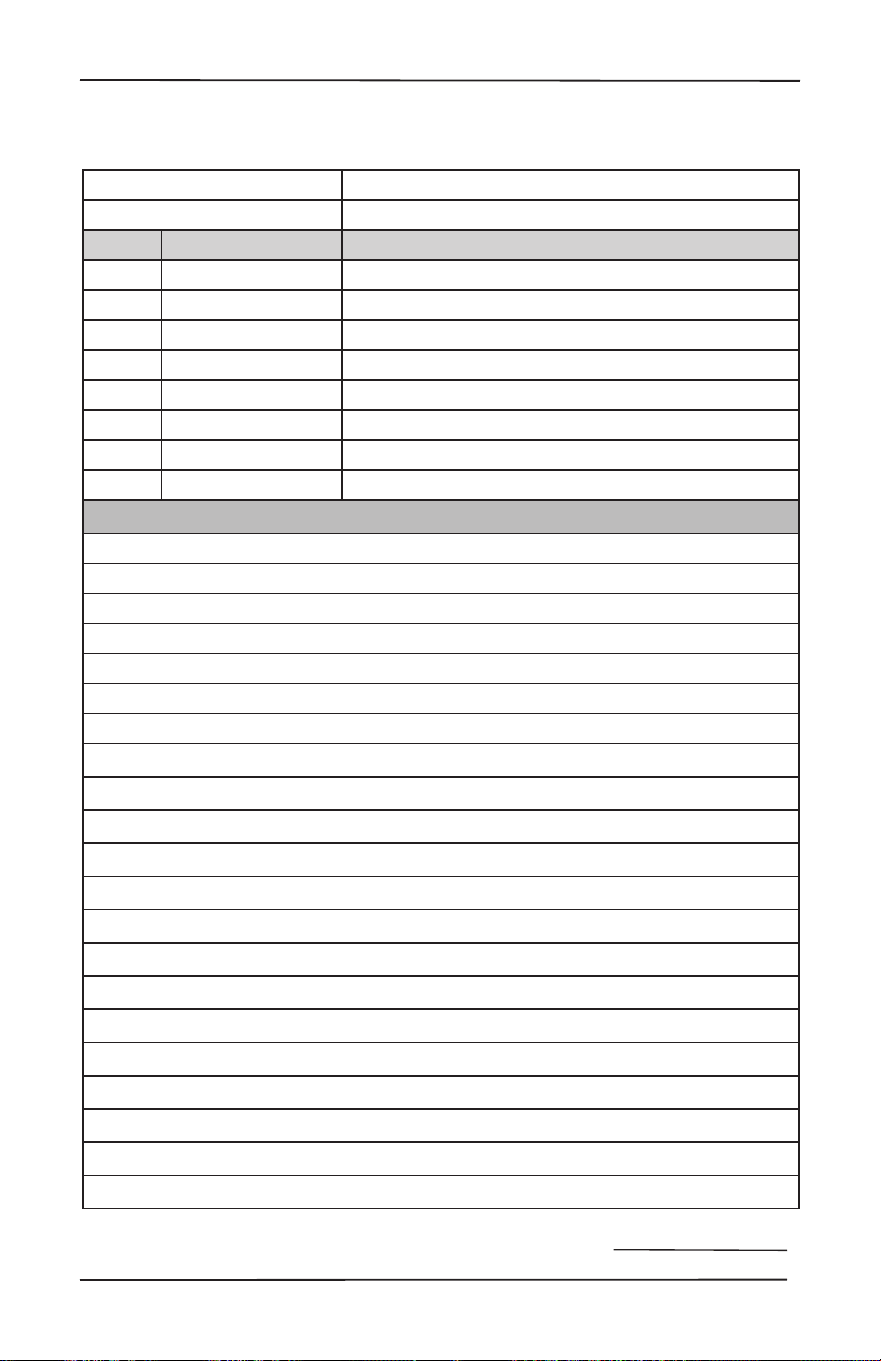
45
Installation Manual
Model D4600
THE DIRECTOR
™
Installation Notes
Installation:
Installer:
Zone Room Source
1/2
3/4
5/6
7/8
9/10
11/12
13/14
15/16
Notes/Poems/Sagas/Odes
Installation Notes

46

47
Installation Manual
Model D4600
THE DIRECTOR
™
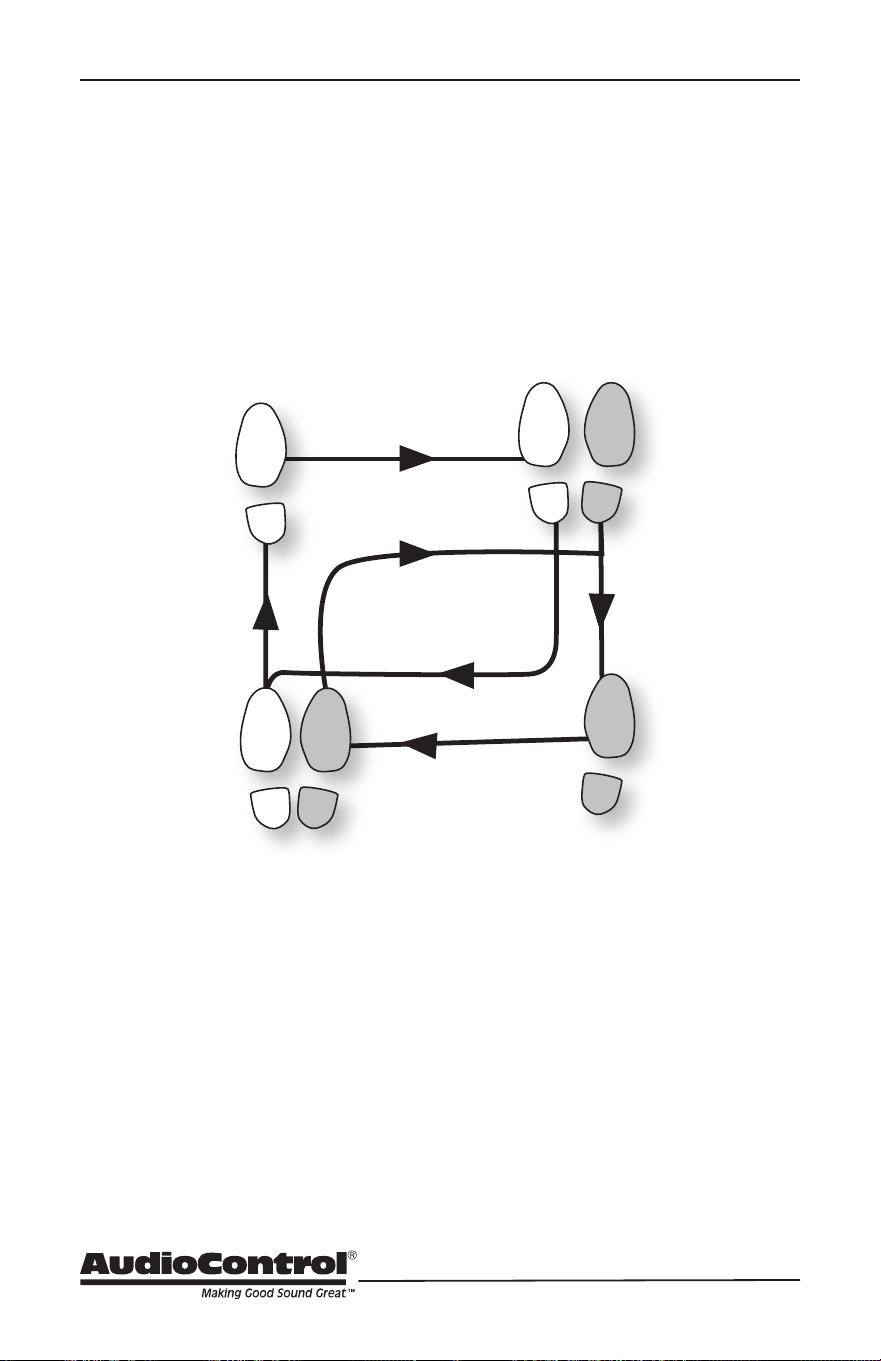
48
Hurrah, you are done!
Manual PN 913-149-0 Rev A
The Brown Ale Waltz
2
1
5 6
3
START
FINISH
4