
VIVOTEK - Built with Reliability
2 - User's Manual
Table of Contents
Chapter One Hardware Installation and Initial Conguration ...................................................................................... 7
Introducing the Network Video Recorder ............................................................................................................... 7
Special Features ............................................................................................................................................. 7
Safety .............................................................................................................................................................. 8
Chassis Dimensions .................................................................................................................................... 9
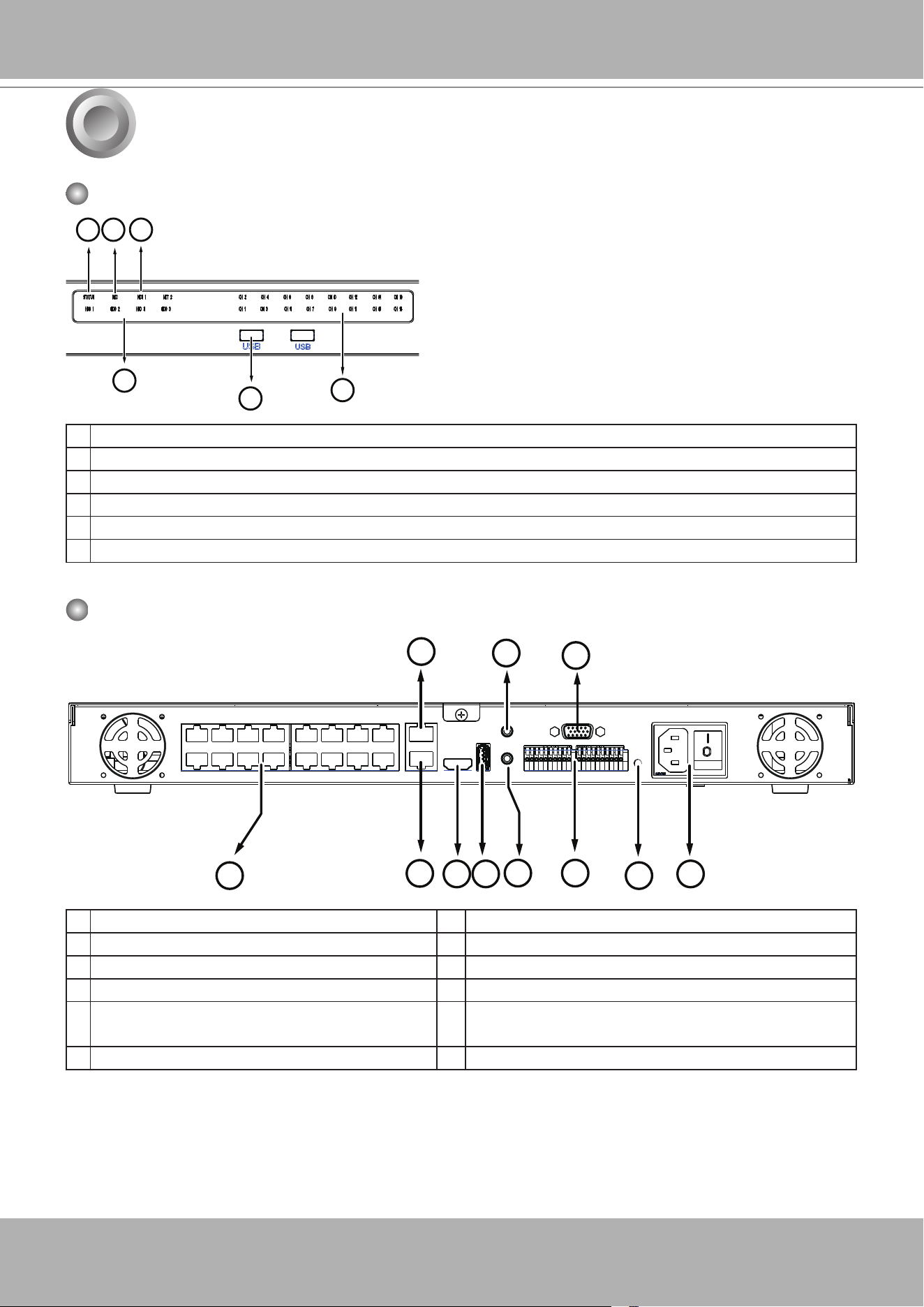
Physical Description ........................................................................................................................................... 10
LED Indicators ...................................................................................................................................................... 31
Power Up and Power Down ................................................................................................................................. 32
Section One Management over a Local Console ...................................................................................................... 33
Chapter Two Introduction to the Local Console Interface .......................................................................................... 33
2-1. How to Begin .......................................................................................................................................... 35
2-2. Operation on Camera View Cell ............................................................................................................. 41
2-2-1. PTZ Panel ........................................................................................................................................... 41
2-2-2. Digital zoom Panel .............................................................................................................................. 44
2-2-3. Play Recording Clips Panel ................................................................................................................ 45
2-2-4. DI/DO .................................................................................................................................................. 46
2-2-5. Others ................................................................................................................................................. 46
2-2-6. Right-click Commands ........................................................................................................................ 47
Chapter Three Conguation Using the Local Console .............................................................................................. 48
The Main Control Portal ....................................................................................................................................... 48
3-1. Layout .................................................................................................................................................... 48
3-2. DI/DO ..................................................................................................................................................... 48
3-3. Search recording clips ........................................................................................................................... 49
3-3-1. Basic Search ................................................................................................................................ 49
3-3-2. Advanced Search......................................................................................................................... 53
3-3-3. Storyboard ................................................................................................................................... 56
3-4. Export recordings ................................................................................................................................... 60
3-5. Settings .................................................................................................................................................. 62
3-5-1. Settings - Overview ...................................................................................................................... 62
3-5-2. Settings - Camera - Management................................................................................................ 63
3-5-3. Settings - Camera - Recording .................................................................................................... 68
3-5-4. Settings - Camera - Recording .................................................................................................... 69
3-5-5. Settings - Camera - Media ........................................................................................................... 71
3-5-6. Settings - Camera - Image ........................................................................................................... 77
3-5-7. Settings - Camera - Motion Detection.......................................................................................... 79
3-5-8. Settings - Camera - PTZ settings ................................................................................................ 80
3-5-9. Settings - Alarm - Alarm ............................................................................................................... 82
3-5-10. Settings - Alarm - Email ............................................................................................................. 91
3-5-11. Settings - System - Information .................................................................................................. 92
3-5-12. Settings - System - Maintenance ............................................................................................... 93

VIVOTEK - Built with Reliability
User's Manual - 3
3-5-13. Settings - System - Display ....................................................................................................... 94
3-5-14. Settings - System - PoE management...................................................................................... 95
3-5-15. Settings - System - UPS ........................................................................................................... 96
3-5-16. Settings - System - Log ............................................................................................................ 97
3-5-17. Settings - System - VIVOCloud service .................................................................................... 99
3-5-18. Settings - User ........................................................................................................................ 100
3-5-19. Settings - Storage ................................................................................................................... 102
Storage Volume RAID Levels ..................................................................................................................... 104
3-5-18. Settings - Network .................................................................................................................. 109
Settings - Network - IP .........................................................................................................................110
Settings - DDNS ................................................................................................................................... 111
Settings - Service .................................................................................................................................112
3-6. POS .....................................................................................................................................................113
3-7. Information ...........................................................................................................................................115
Section Two Management over a Web Console .....................................................................................................116
Chapter Four Login and Getting Started .................................................................................................................117
4-1. Login ...........................................................................................................................................................117
4-2. Graphical Layout and Screen Elements - Liveview .................................................................................... 121
4-2-1. Camera List Panel ........................................................................................................................... 122
4-2-2. Layout .............................................................................................................................................. 124
4-2-3. Layout contents ............................................................................................................................... 125
4-2-4. Logo & Menu ................................................................................................................................... 125
4-2-5. View Cell panel ................................................................................................................................ 126
Adding Cameras to View Cells ................................................................................................................... 126
4-2-6. PTZ panel ........................................................................................................................................ 135
4-2-7. Alarm panel ...................................................................................................................................... 137
4-3. Graphical Layout and Screen Elements - Search recording clips .............................................................. 141
4-3-1. Camera List Panel ........................................................................................................................... 142
4-3-2. Search Recording Clips Layout ....................................................................................................... 143
4-3-3. Logo & Menu ................................................................................................................................... 143
4-3-4. View Cells in Search Recording Clips .............................................................................................. 144
Search Recording Clips Control Panel ...................................................................................................... 145
4-3-5. Alarm Panel ..................................................................................................................................... 147
4-3-6. Calendar Panel ................................................................................................................................ 148
Chapter Five System Settings ................................................................................................................................ 149
Chapter Six Operation ............................................................................................................................................ 151
6-1. Liveview ..................................................................................................................................................... 151
6-1-1. Placing Cameras into the Layout ..................................................................................................... 151
6-1-2. PTZ and Other Screen Controls ...................................................................................................... 155
6-1-3. Audio ................................................................................................................................................ 158
6-1-4. Camera Properties and Controls ..................................................................................................... 159
6-1-5. Alarm Panel ..................................................................................................................................... 160
6-1-6. Layout view Control Buttons ............................................................................................................ 161

VIVOTEK - Built with Reliability
4 - User's Manual
6-2. Search Recording Clips .............................................................................................................................. 162
6-2-1. Begin Playback and Search for Past Recordings ............................................................................. 162
6-2-2. Past Alarms and Bookmarks ............................................................................................................. 163
6-2-3. Synchronous Playback ..................................................................................................................... 164
6-2-4. Export media ..................................................................................................................................... 165
6-2-5. Time Search ...................................................................................................................................... 166
Technical Specications .......................................................................................................................................... 168
Safety and Compatibility .......................................................................................................................................... 171
VIVOTEK - Built with Reliability
User's Manual - 5
Revision History
* Rev. 1.0: Initial release.
1. Supports Dual mode only for the dual
Ethernet ports.
2. Supports PoE management.
3. Specied change to the power switch
function.
4. Removed the network failure alarm.
* Note that the Settings pages on the web console has been changed to that identical to the
local console.
Limitations on text entry lenth:
* User account: 64 alpha-numeric characters
* Account password: 64 alpha-numeric characters
* Path name: 256 alpha-numeric characters
* IP domain name: host.xxx.yyy.zzz - 63 bytes; total: 253 bytes
* Email account: local@domain_name_part - local -63bytes
domain_name_part - 253 bytes.
* Do not use < >)( " % ; # & +-\
VIVOTEK - Built with Reliability
6 - User's Manual
Symbols and Statements in this Document
i
INFORMATION:
provides important messages or advices that might help prevent inconvenient
or problem situations.
NOTE
: Notices provide guidance or advices that are related to the functional integrity of the
machine.
Tips
: Tips are useful information that helps enhance or facilitate an installation, function, or
process.
WARNING!
or
IMPORTANT
: These statements indicate situations that can be dangerous or
hazardous to the machine or you.
Electrical Hazard
: This statement appears when high voltage electrical hazards might occur
to an operator.
Read Before Use
The use of surveillance devices may be prohibited by law in your country. The Network Camera
is not only a high-performance web-ready camera but can also be part of a exible surveillance
system. It is the user’s responsibility to ensure that the operation of such devices is legal before
installing this unit for its intended use.
It is important to first verify that all contents received are complete according to the Package
Contents listed below. Take note of the warnings in the Quick Installation Guide before the
Network Camera is installed; then carefully read and follow the instructions in the Installation
chapter to avoid damage due to faulty assembly and installation. This also ensures the product is
used properly as intended.
The Network Camera is a network device and its use should be straightforward for those who
have basic networking knowledge. It is designed for various applications including video sharing,
general security/surveillance, etc. The Configuration chapter suggests ways to best utilize the
Network Camera and ensure proper operations. For creative and professional developers, the
URL Commands of the Network Camera section serves as a helpful reference to customizing
existing homepages or integrating with the current web server.
Package Contents
■ ND9541P or ND9441P
■ Power cord
■ Software CD
■ Quick Installation Guide
■ Mouse
■ Screws and HDD brackets
■ Slide rails (separately purchased)
The operating system and management software are installed on a ash memory mounted on
the main board. Except for running the plug-ins for the onscreen control on a web console, there
is no need to install software.
NOTE:

VIVOTEK - Built with Reliability
User's Manual - 7
Chapter One Hardware Installation and
Initial Conguration
Introducing the Network Video Recorder
VIVOTEK’s ND9441P and ND9541P are H.265 Linux-based standalone NVRs with embedded
PoE. Equipped for up to 16-CH/32-CH network cameras, the NVRs both support 16x 802.3 at/af
PoE ports which feature PoE Management function to help users troubleshoot the physical layer
structure. Both also display the PoE power information, providing for a more convenient and
smarter installation.
The ND9441P/ND9541P also supports remote and mobile access via VIVOCloud and iViewer
apps for both iOS and Android handheld devices. The VIVOCloud app provides instant push no-
tification and direct video playback functions when triggered by an alarm notification, providing
users with a flexible and intelligent NVR for seamless use in small to medium sized video sur-
veillance applications.
With H.265 compression technology and embedded with 4 HDD’s providing up to 32TB, the
ND9441P/ND9541P offers greater than 30% more recording capacity than H.264 systems. This
advancement provides users with more storage space for longer durations of video recording. In
addition, the RAID 0/1/5 configurations provide further data security in the rare event of a hard
drive failure.
For high-quality and detailed images, the ND9441P/ND9541P supports a maximum network
camera resolution of 12-Megapixels. To intelligently manage bandwidth while maintaining this
high-quality, the “Auto Adaptive Stream” function will adjust the display resolution automati-
cally for each different layout type. Furthermore, the NVR supports VIVOTEK’s fisheye network
camera “Fisheye Dewarp” function, which provides multiple de-warping modes in live view and
playback, ensuring the correct angle of video view and detailed information for flexible usage.
Lastly, to quickly and intuitively find any target event, the ND9441P/ND9541P is equipped with
the “Story-Board Search” function, which provides a glimpse of past recordings over an intuitive
timeline.
The ND9441P/ND9541P supports HDMI and VGA local video output, so users can control the
GUI OSD interface via mouse & keyboard, eliminating the need for a separate PC to search vid-
eo or playback from the NVR. Additionally, the intuitive and friendly VIVOTEK GUI design gives
users a smoother control experience than ever before.
Special Features
● Runs on embedded Linux
● 1 x HDMI and 1 x VGA for local display
● 4 x HDD bay, for a max. capacity of 24TB
● 2 x Gigabit RJ45 Ethernet ports;
● 3 x USB Ports (2 USB 2.0 in front and 1 USB 3.0 in Back)
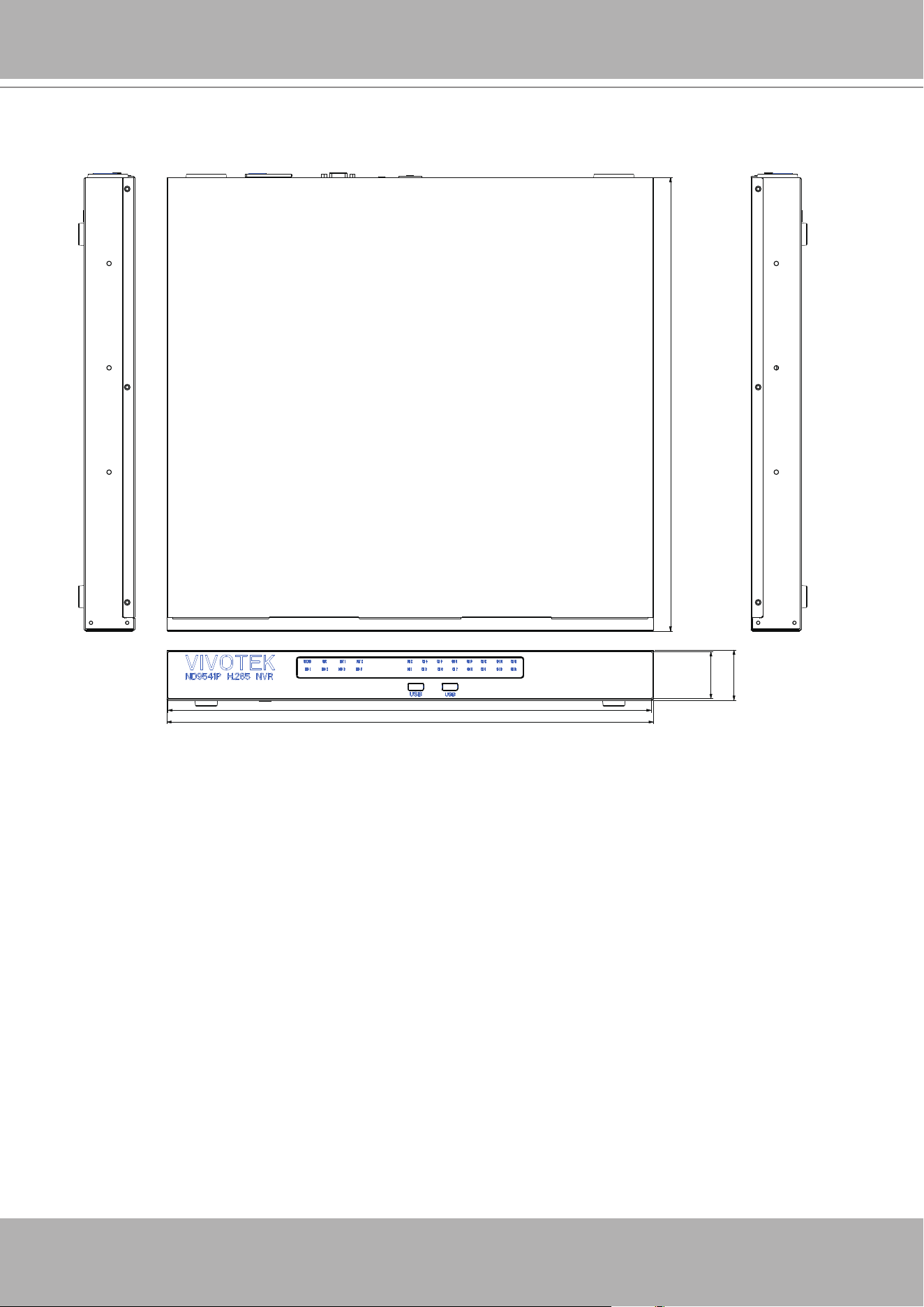
● Size: 430 mm (W) x 400 mm (D) x 44.5 mm (H). Weight: 3.87kg.
● 32- or 16-CH Live View & 4-CH Synchronous Playback (web console)
● H.265 / H.264 / MJPEG
● Supports RAID0, 1, 5. volume configuration.

VIVOTEK - Built with Reliability
8 - User's Manual
Safety
Connect the system to an earthed main power outlet.
Never open the housing of the power supply unit.
Install and operate the system only in a dry, weather-proof location.
Observe the following safety factors:
•
Is there visible damage to the system or power cord?
•
Is the system operating correctly?
•
Has the system been exposed to rain or moisture?
•
Has the system been in a long storage under harsh conditions or exposed to
unconforming stress?
The relevant electrical engineering regulations must be complied with at all times during
installation.
Ensure that all maintenance and repair work is handled by qualified personnel such as
electrical engineers or network specialists.
Read this manual before installing or operating the system. The documentation contains
important safety instructions about permitted uses.
The rated AC input is:
100-240V~ 2-1A, 60-50Hz
; the max. consumption:
250W
If a fault occurs, disconnect the power cord from the power supply.
Do not install the system close to heaters or other heat sources. Avoid locations with direct
sunlight.
All ventilation openings must not be blocked.
Use only the cables shipped with system or use appropriate cables that can withstand elec-
tromagnetic interference.
● PTZ Support
● Snapshot / Export Media
● Digital zoom Video Control
● VIVOCloud for effortless access from cell phones using a QR code
● Terminal block pins for DI/DO and RS-485 connection.
● Configuration Backup / Restore
● Compatible with VIVOTEK VAST Central Management Software*
● Integration with VIVOTEK Network Cameras
● VIVOTEK iViewer Support (iOS/Android cellphone/hand-held devices)
*The VIVOTEK VAST Central Management Software is not included in the package.
VIVOTEK - Built with Reliability
User's Manual - 9
Chassis Dimensions
430
427
41.5
44.5
400.3
VIVOTEK - Built with Reliability
10 - User's Manual
Physical Description
Front View
Rear View
4
5
1
2
3
6
9
1
2
3
4
5
6
7
8
10
11
1 System status LED
2 Recording activity LED
3 Network uplink status/activity LED
4 HDD activity LED (#1 ~ 4)
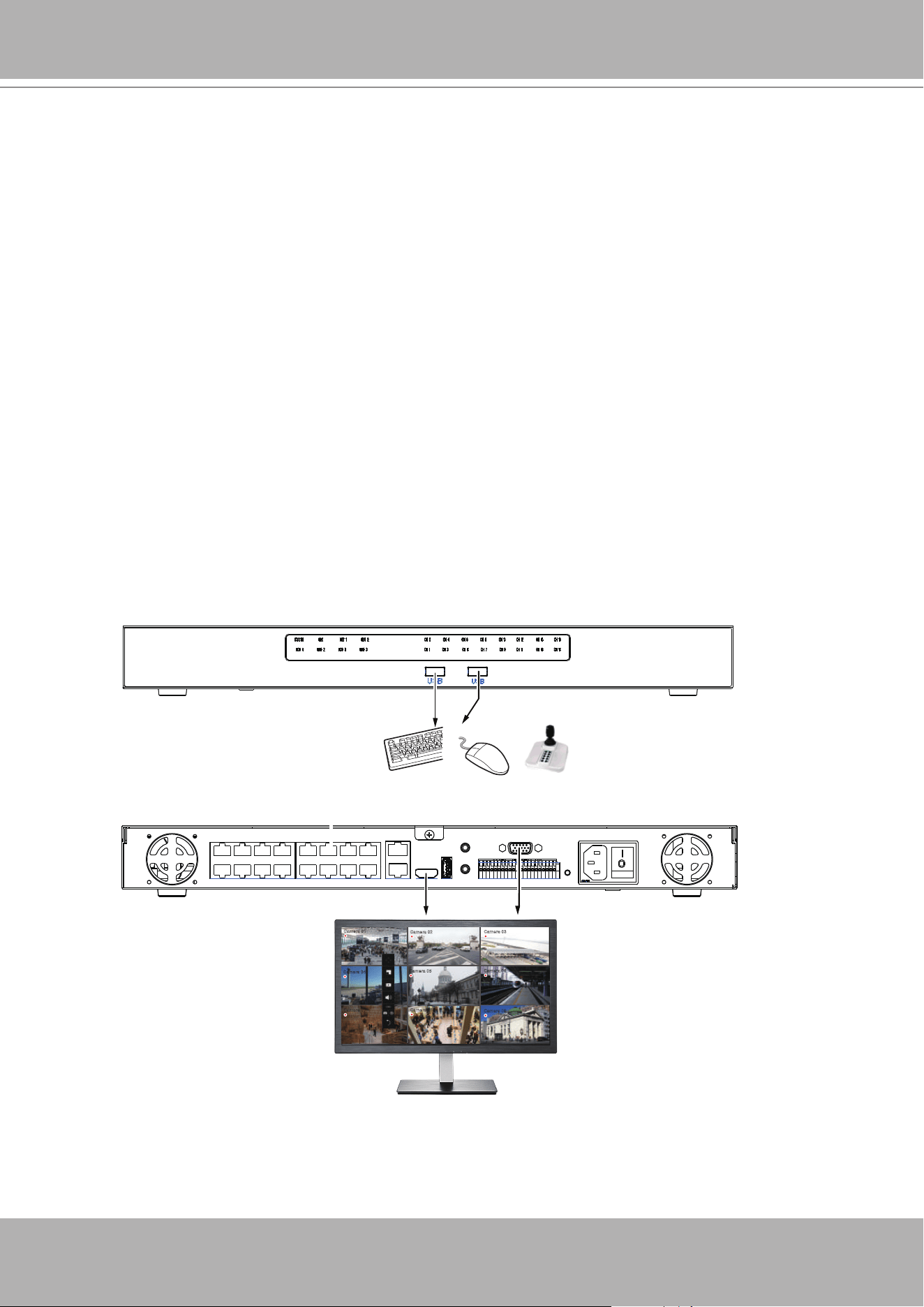
5 USB 2.0 ports for mouse, keyboard, or joystick
6 #1 ~ 16 PoE port status/activity LED
1 PoE ports # 1 to #16 7 Audio IN
2 Net 1 RJ45 port - GbE uplink 8 VGA
3 Net 2 RJ45 port - GbE uplink 9 DI/DO terminal block
4 HDMI 10 Reset button
5 USB 3.0 port 11 Power socket (110/240V AC), w/ a power
button
6 Audio OUT
1
VIVOTEK - Built with Reliability
User's Manual - 11
IMPORTANT:
It is important to leave a clearance of 25cm behind the chassis. The clearance is required to
ensure an adequate airow through the chassis to ventilate heat.
25cm
SATA hard disk(s) are user-supplied. The network video recorder can readily accommodate
most of the off-the-shelf SATA hard drives.
Hardware Installation
2
To ensure normal operation, maintain ambient airow. Do not block the airow around chassis
such as placing the system in a closed cabinet.
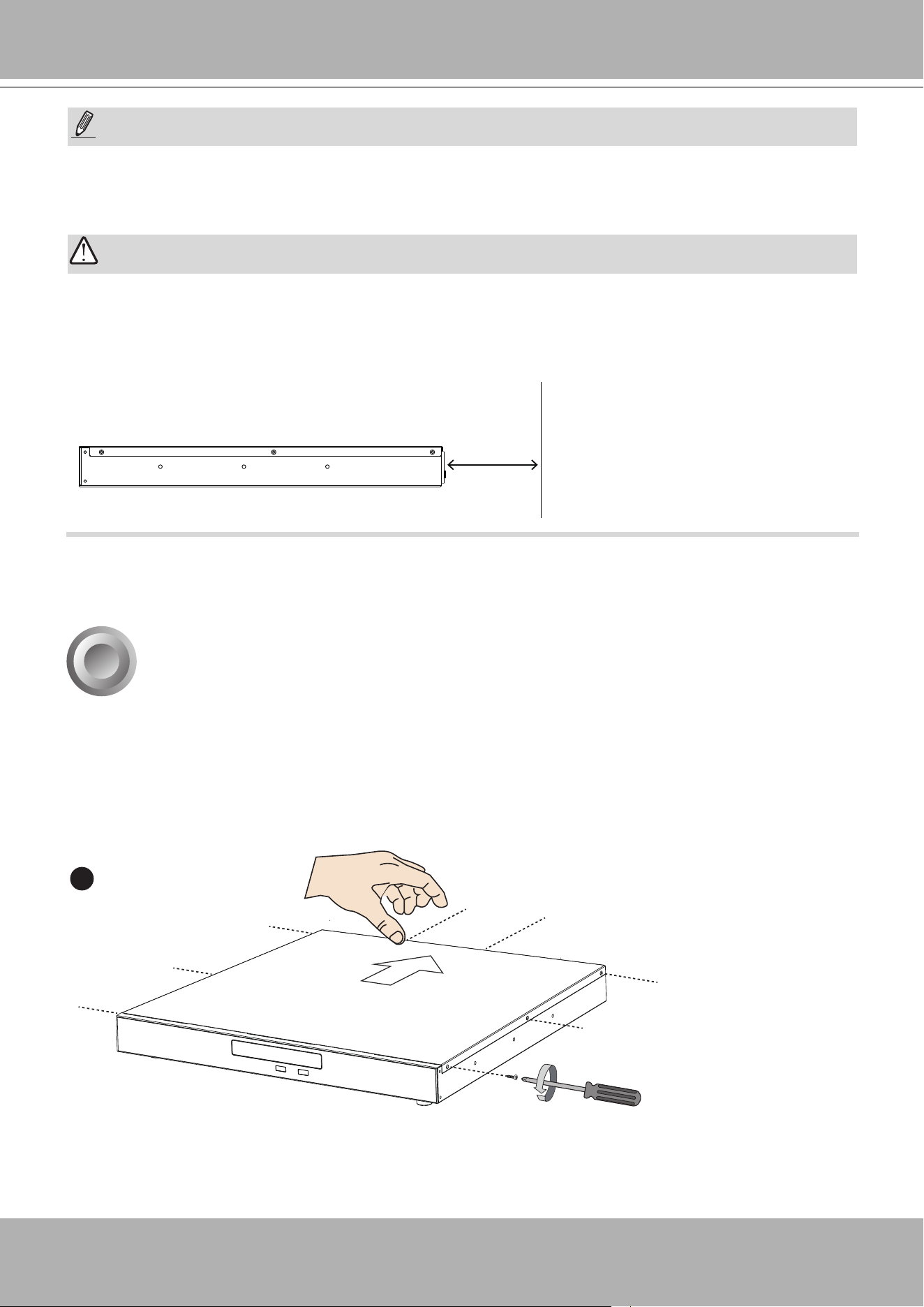
1. Use a screwdriver to loosen the retention screw on the sides of the chassis. Slide the top
cover back, and then remove the top cover.
NOTE:
You can also use the Reset button to restore system defaults. Press and hold down the button
for longer than
5
seconds. The system should start restoring defaults.
1
VIVOTEK - Built with Reliability
12 - User's Manual
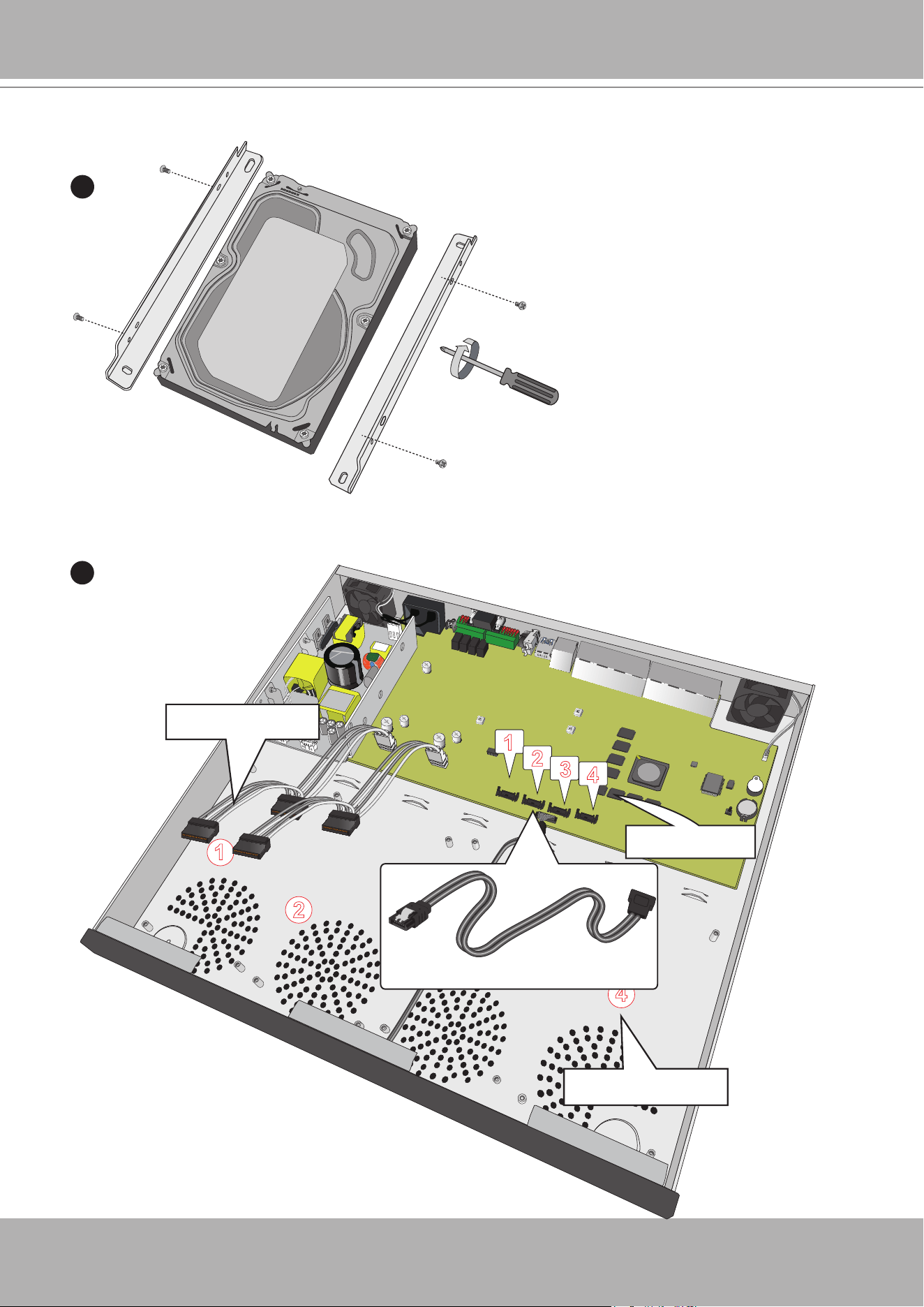
2. Secure the HDD brackets to the hard drives.
2
Label side
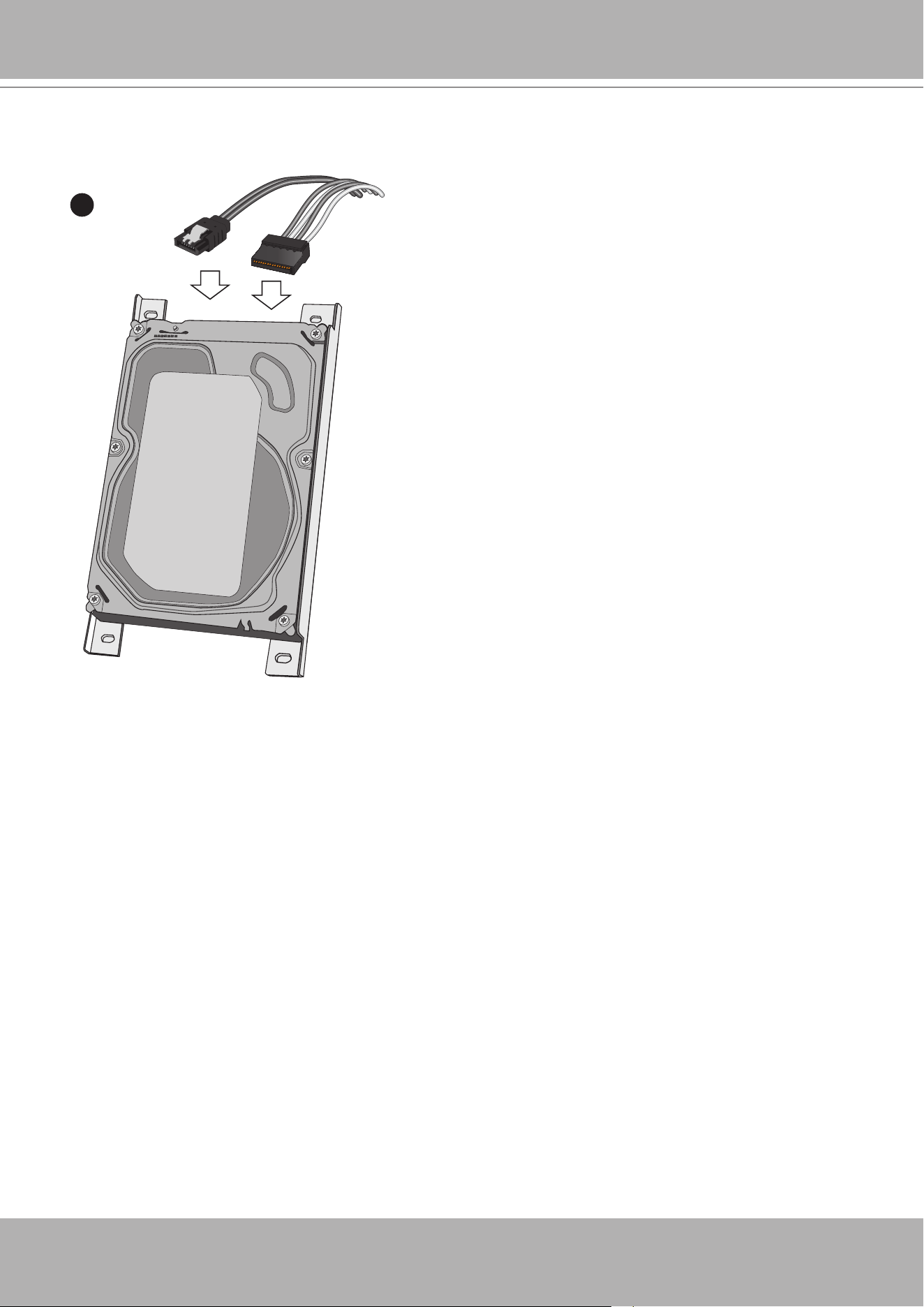
3. Note the locations of hard drives and the connectors on the main board.
3
1
2
3
4
1
3
4
2
1
2
3
4
HDD connectors
SATA Power
SATA Data
HDD positions
VIVOTEK - Built with Reliability
User's Manual - 13
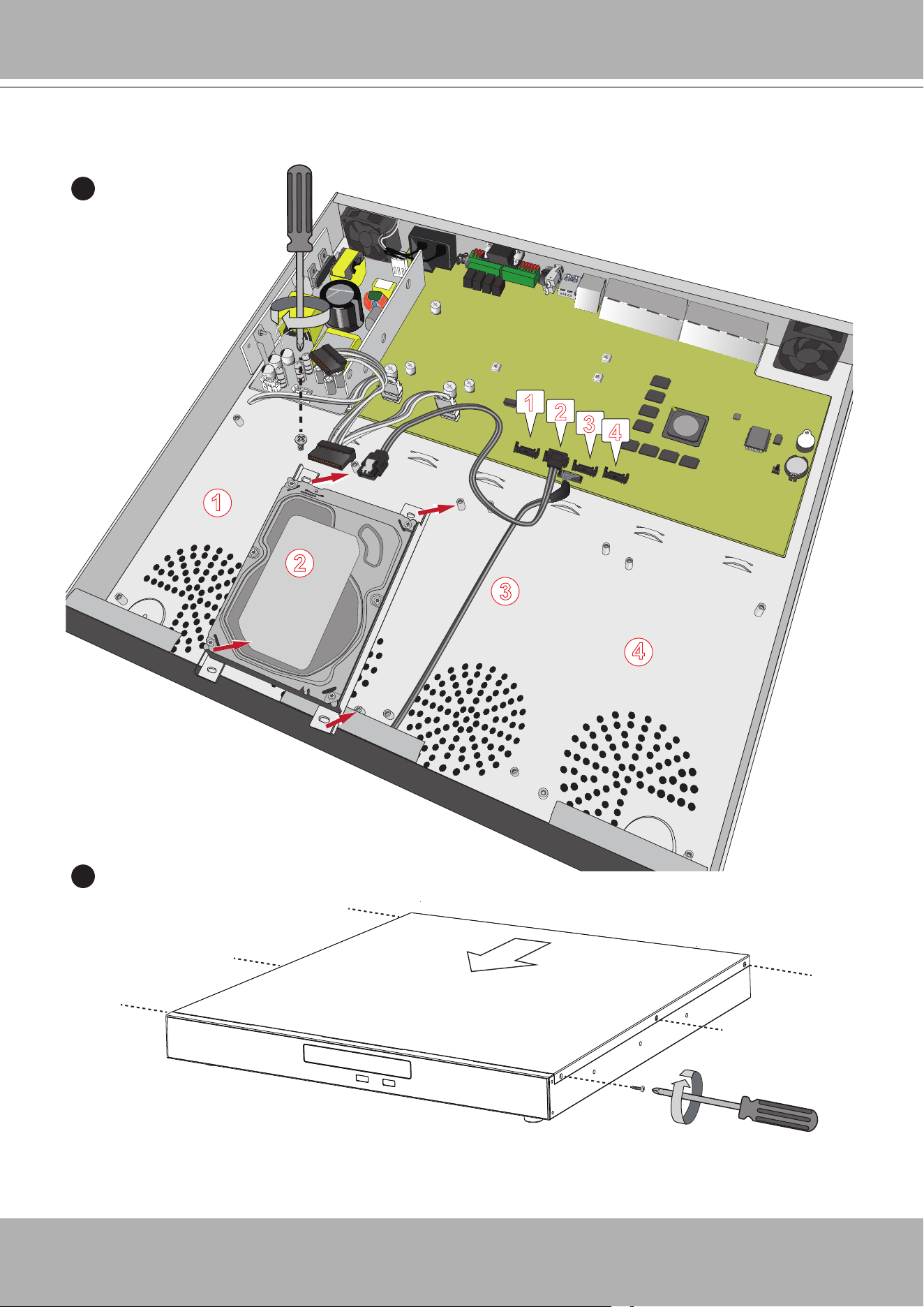
SATA Data SATA Power
4. Connect SATA data and power cables to the hard drives.
4
VIVOTEK - Built with Reliability
14 - User's Manual
5
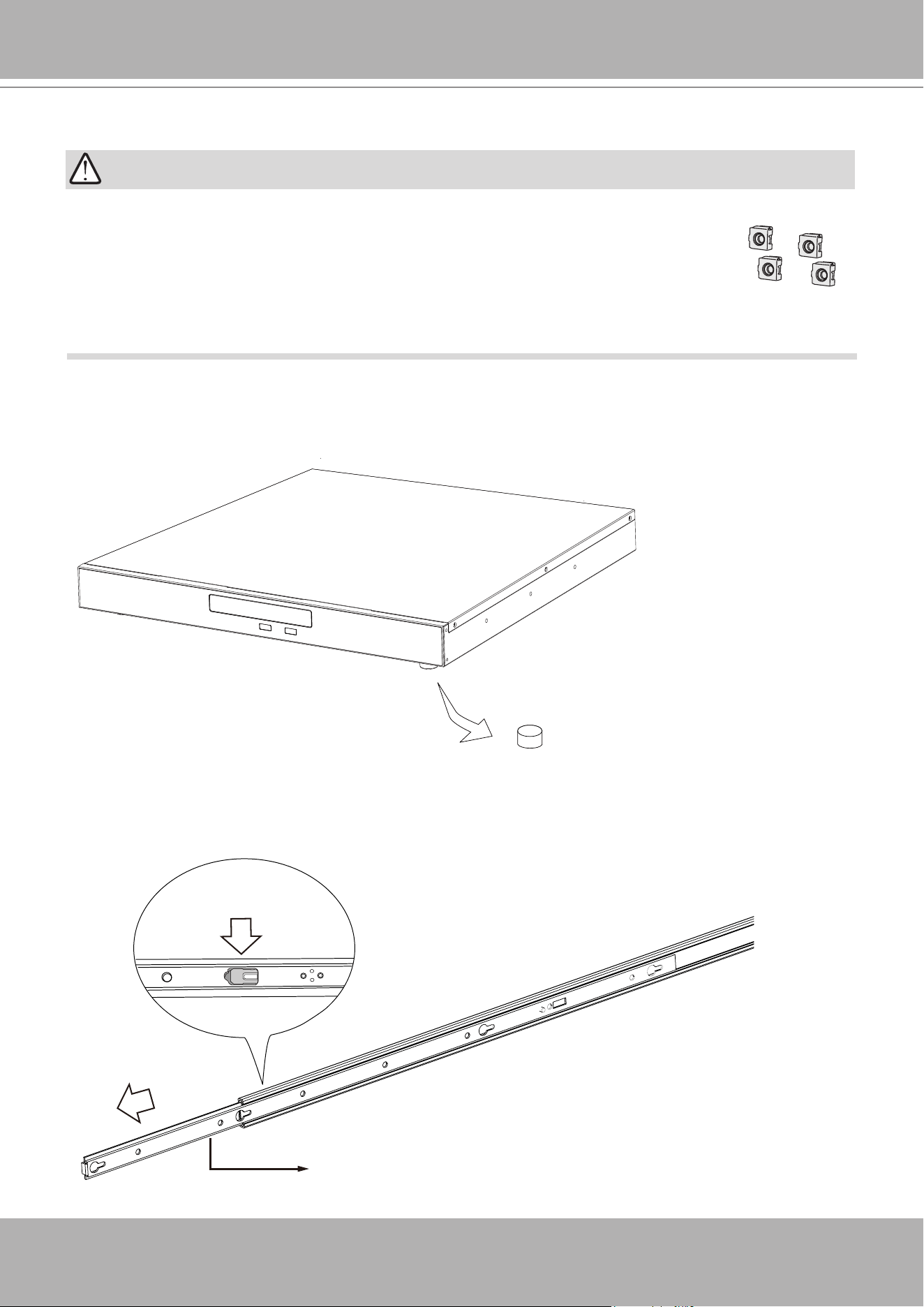
6. When done, install the top cover.
5. Secure the hard disks to the mounting positions in the chassis with its label side facing up,
and the connectors facing the inside of the chassis. The sample drawing below shows the
position of drive #2.
6
1
2
3
4
1
2
3
4
1
3
4
2
VIVOTEK - Built with Reliability
User's Manual - 15
Rack-mounting
(Optional, and the slide rails are separately purchased)
x4
If you need to install the NVR system into a rack cabinet,
1. Remove the foot pads from underneath the chassis.
2. Unpack the rack-mount rails' package, and detach the inner rails from the rail assembly.
Detach the inner rail by pressing on the release tab.
Inner rail
Release tab
If you have either a round-holed or square-holed rack, install cage nuts or clip nuts to the
desired positions on the rack posts.
The instructions below are based on the installation to a 4-post equipment rack.
The slide rails apply to rack cabinet of a depth of 700 to 900mm. With 4 hard drives, the
chassis can weigh up to 7kg.
IMPORTANT:
VIVOTEK - Built with Reliability
16 - User's Manual
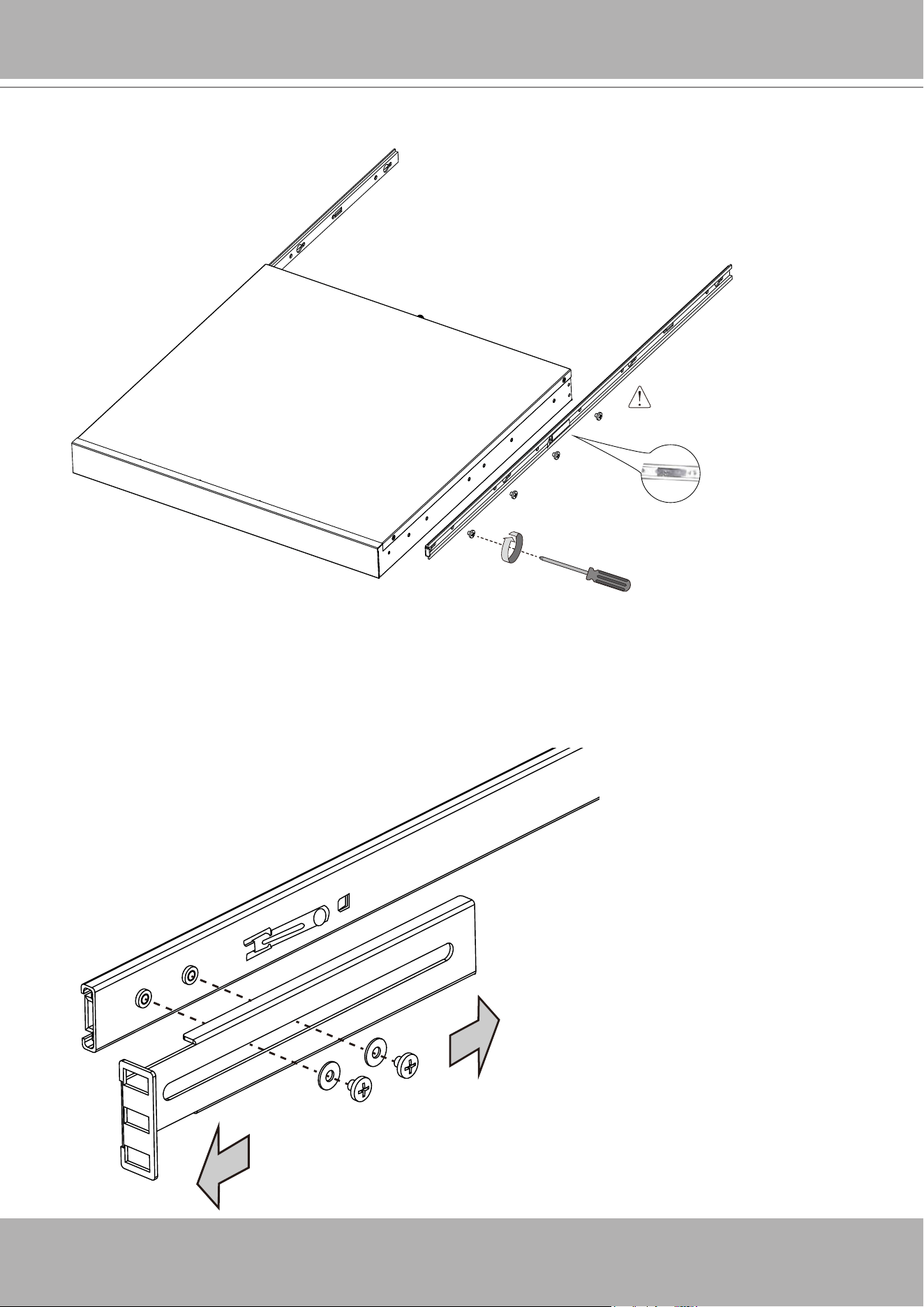
3. Secure the inner rails to the sides of the chassis using the M4 screws.
M4 x6
Locking Clip to the rear
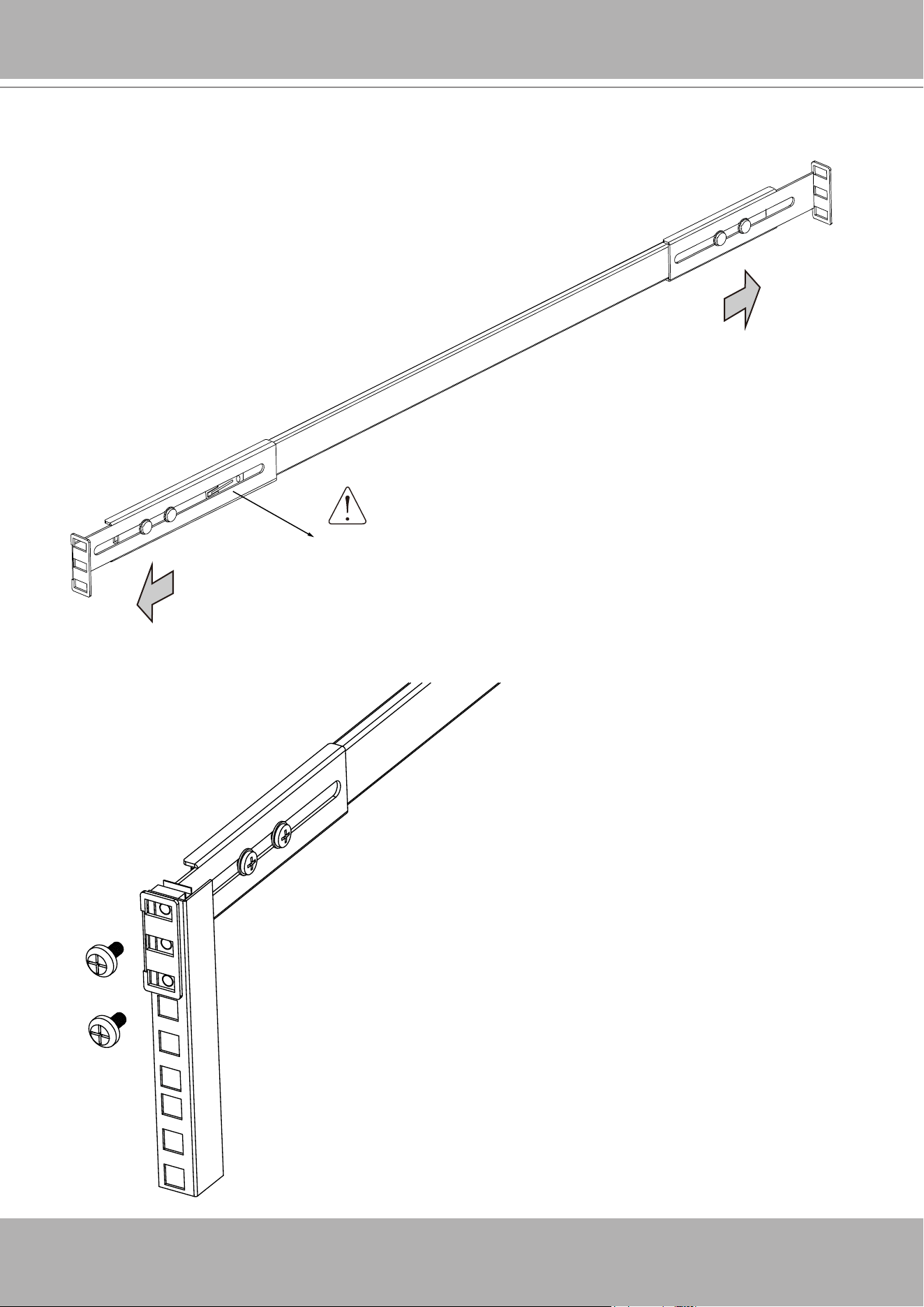
4. Secure the L-shape brackets to the front- and rear-ends of outer rails using the
black
round
head screws and washers. Do not completely tighten the screws yet. Adjust the length of slide
rails by extending and matching the rails between rack posts.
M4 screws
VIVOTEK - Built with Reliability
User's Manual - 17
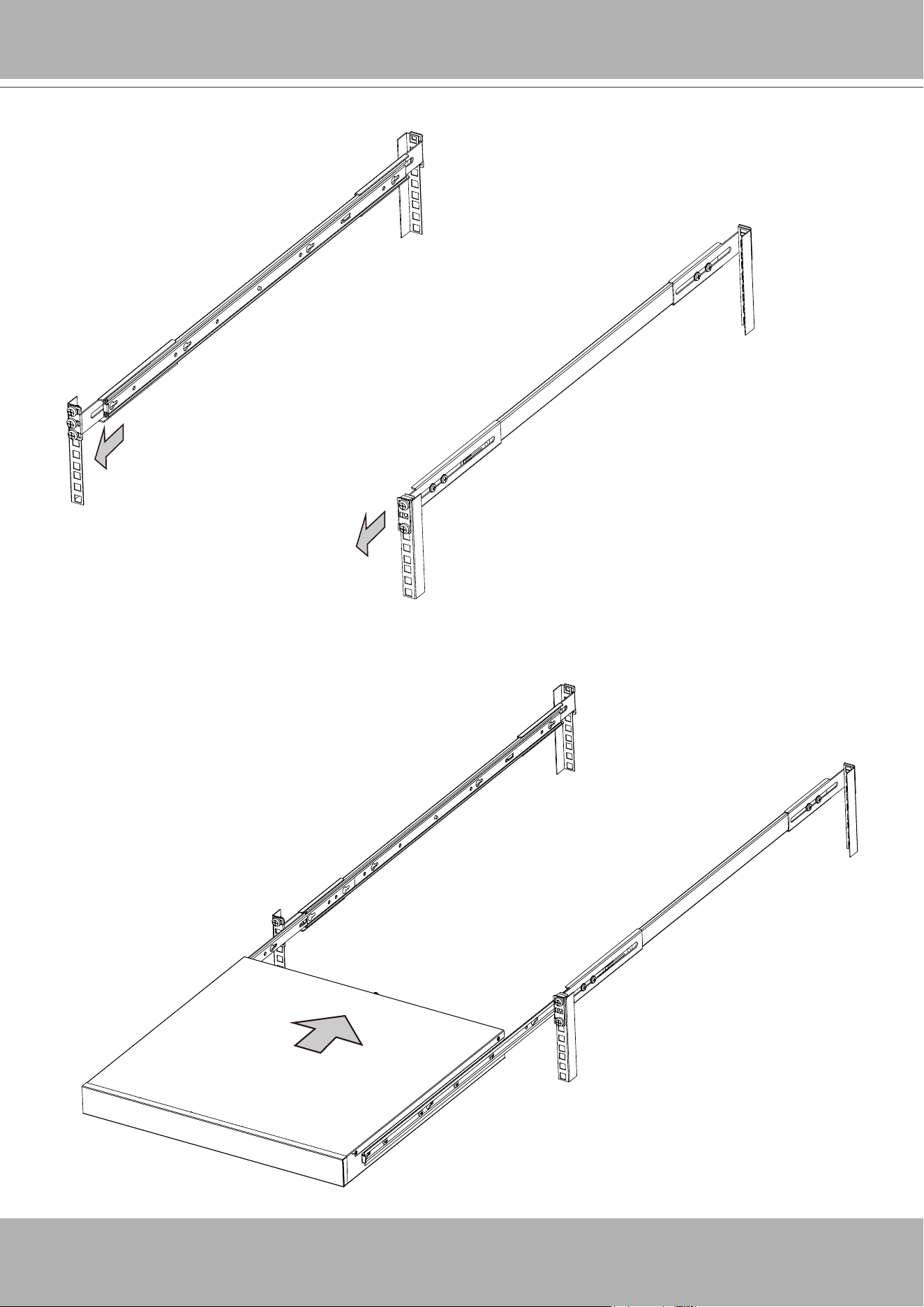
The side w/ a locking clip to the front
Adjust the length of rails to match the rack posts.
5. Secure the slide rails to rack posts using the #10 screws.
VIVOTEK - Built with Reliability
18 - User's Manual
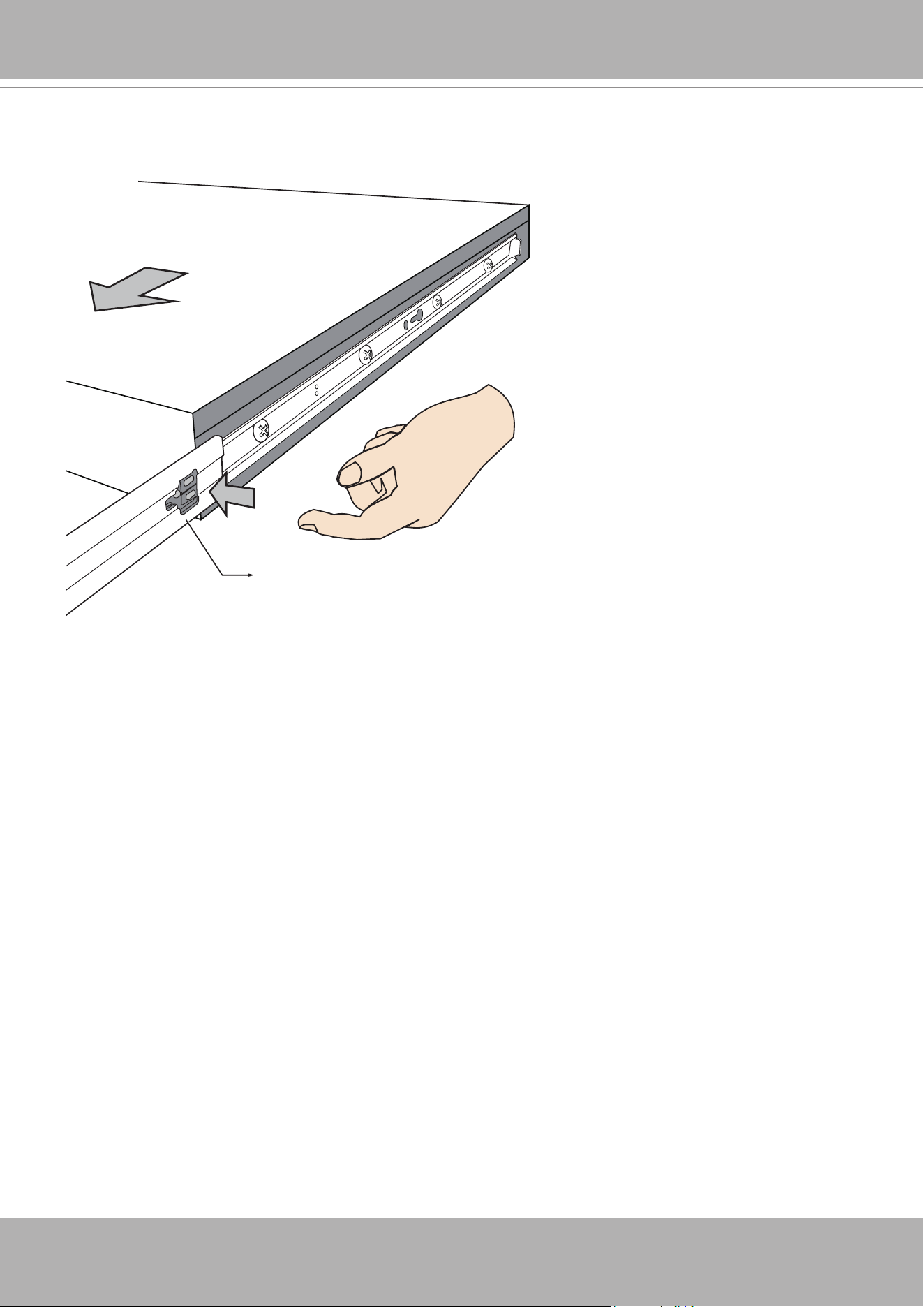
7. Hold the chassis using both hands on the sides of the chassis. Align the tips of inner rails
on the chassis with the open portion of the slide rail assemblies. Push the system into the
assemblies until the system stops.
6. Pull the middle rails out of the slide rail assemblies.
VIVOTEK - Built with Reliability
User's Manual - 19
Release tab
8. The inner rails and the rail assemblies should be locked on the way into the rack cabinet.
Press the release tabs on the sides to slide the chassis into rack.
VIVOTEK - Built with Reliability
20 - User's Manual
Interface Connections
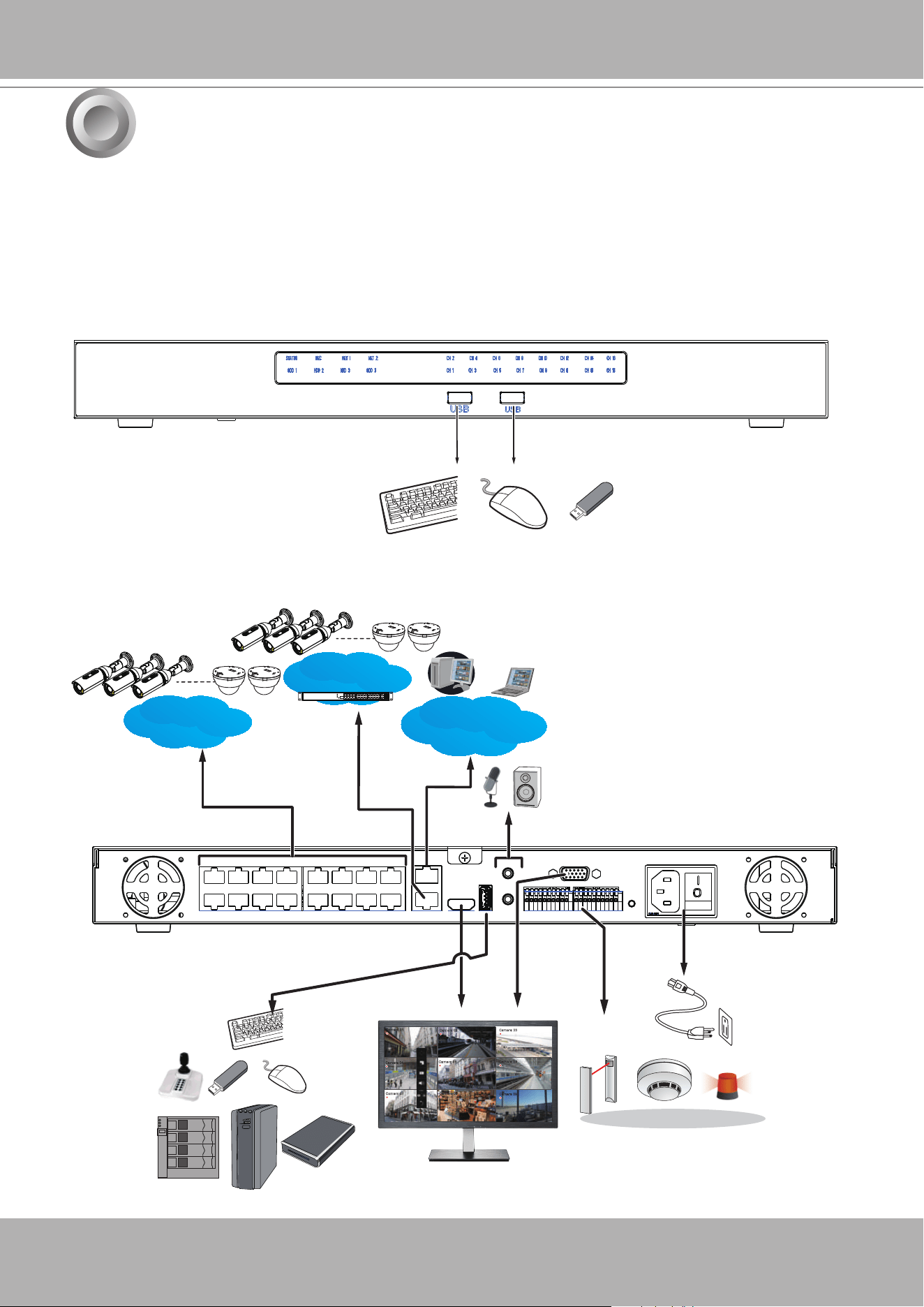
1. Connect to a monitor using an HDMI cable. VGA is also supported.
2. Connect CAT5e or better-quality Ethernet cable to the GbE Ethernet ports. For the ND9541P,
another 16 cameras are connected via an Ethernet switch or PoE switches.
3. Connect USB devices such as, mouse, keyboard, USB optical drive, or USB thumb drive (for-
matted in FAT format), joystick, or UPS.
4. Connect external devices, such as sensors, relays, or alarms to the terminal block.
5. Connect the power adaptor to the power mains and the system.
3
Camera 01
Camera 02
Camera 03
Camera 04
Camera 06
Camera 05
Camera 07
Camera 08
Camera 09
AC100~240V
50/60Hz, ≤250W
LAN
USB 3.0
NET1
NET2
LAN/WAN
#1 ~ 16
PoE
ND9541P
LAN
#17 ~ 32
cameras
ND9541P
VIVOTEK - Built with Reliability
User's Manual - 21
Camera 01
Camera 02
Camera 03
Camera 04
Camera 06
Camera 05
Camera 07
Camera 08
Camera 09
AC100~240V
50/60Hz, ≤250W
LAN
USB 3.0
NET1
NET2
LAN/WAN
#1 ~ 16
PoE
ND9441P
ND9441P
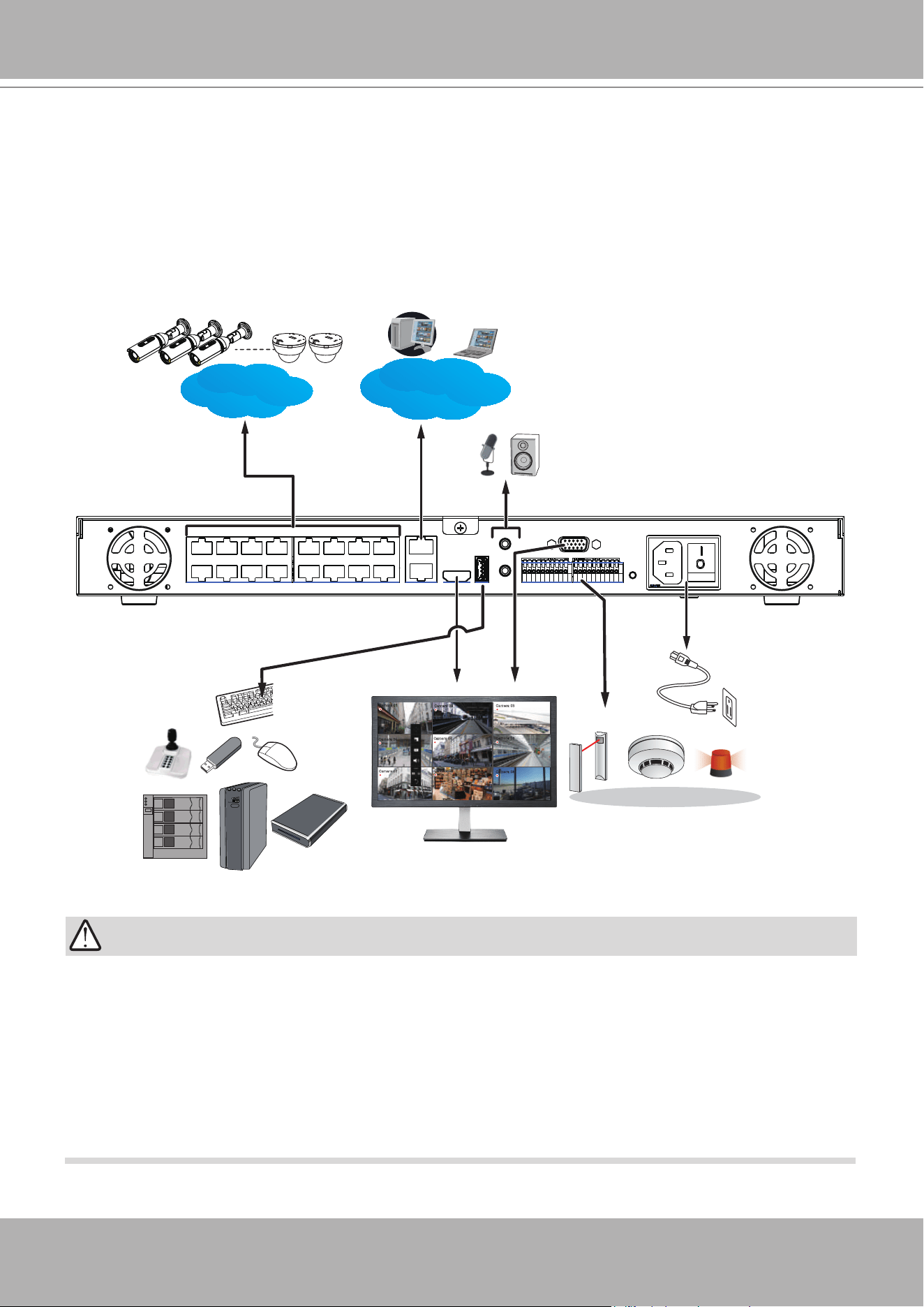
ND9541P supports 32 channel recording, and the onboard 16 PoE ports supply power and
data connectivity for 16 cameras. The NET2 GbE port should be used to connect another 16
cameras in a local network via a PoE switch or mid span.
Note that you should not connect NET1 and NET2 into the same subnet. By default, the NET1
interface should be connected to a network consisting of multiple subnets. Congure the de-
fault gateway conguration on NET1. If DHCP is available, gateway conguration will not be
necessary.
In a single-subnet network managed by a gateway, you can congure the default gateway con-
guration on NET2. NET2 is interfaced with the onboard PoE ports, while NET1 is not. Con-
nect NET2 to such network. NET1 will then be left unused.
IMPORTANT:

VIVOTEK - Built with Reliability
22 - User's Manual
1. Although the system supports MAC Binding, the system should be able to detect VIVOTEK's
cameras within the network regardless of the presence of a DHCP server. Ideally, cameras
and the NVR should reside in the same subnet. If a camera's IP is changed for some reasons,
the system should be able to detect its new IP.
2. Note on external storage enclosure via the USB 3.0 interface:
NOTE:
2-1. If external USB 3.0 storage is attached, a max. volume size of 16TB is supported (6TB
max. for single disk drives). The NVR supports the connection to a USB3.0 storage with
a maximum of 5 disk drives. The minimum storage size in the external storage is 64GB.
2-2. The external storage must be powered on rst before the NVR.
2-3. Hot-swapping is not supported. If the external storage is disconnected, recording will be
continued using the NVR's internal disk drives.
2-4. The storage conguration on the external storage is separately congured, e.g., RAID
conguration. The RAID volume on the external storage appears to the NVR as a single
large disk drive, and you should create a volume from it from the Storage conguration
page.
2-5. If the disk drives in the external storage are not congured into the NVR's storage
volumes, you can use them as the external backup devices. To do so, you should format
disk drives in the external storage in the FAT32 or NTFS format, and export the recorded
video on NVR to these disk drives.
2-6.
Limitations
:
• When you are exporting video to the disk drives in an external storage, you cannot
select the other disk drives to create a new volume.
• If the disk drives or volumes in the external storage is smaller than 1TB, you cannot
congure them as volumes for the NVR.
• The connection interface to external storage must comply with the USB 3.0
specications.
2-7. The RAID or volume conguration in the NVR does not extend to include devices in the
external storage.
VIVOTEK - Built with Reliability
User's Manual - 23
Terminal Block Connections
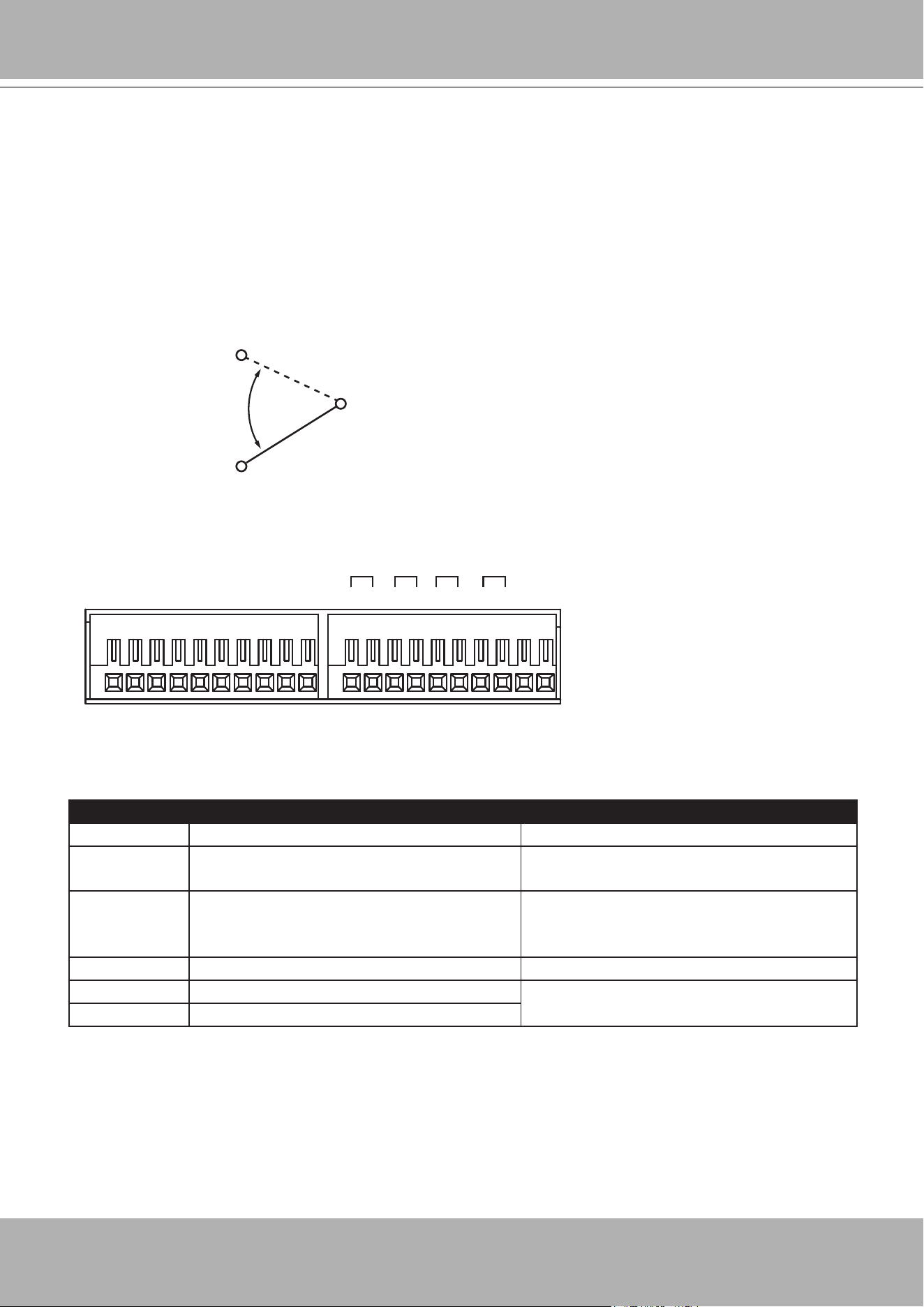
The terminal block pinouts is shown as follows:
The DO pins default status is set to Normally Closed. Connect your relay or external devices’
signal wires to the system, the system will automatically detect the current signal status. You
can then trigger the external devices using the DI/DO panel on the live view.
You can also congure the system alarm setting for the system to automatically trigger a DO on
the occurrence of system events. See Alarm settings on page 82.
Normally Closed
Normally Open
COMMON
The pins are listed and described from left to right as shown in the drawing above.
Pin Description NOTE
DI no. 1 ~ 8 Open-short-to-GND
G Pins #1~4 share a common ground.
Pins #5~8 share a common ground.
NO Normally open. Use the DO trigger
buttons on the live view window to
trigger the digital output.
COM Common pin
RS485+ RS485 Data+ A 120Ω terminator is enabled on the
bus. The terminator cannot be disabled.
RS485- RS485 Data-
RS485
+
-
4321
Alarm OUT
G8765 G4321
Alarm IN
NO COM NO COMNO COM NO COM
NO = Normally Open
COM = Common pin
VIVOTEK - Built with Reliability
24 - User's Manual
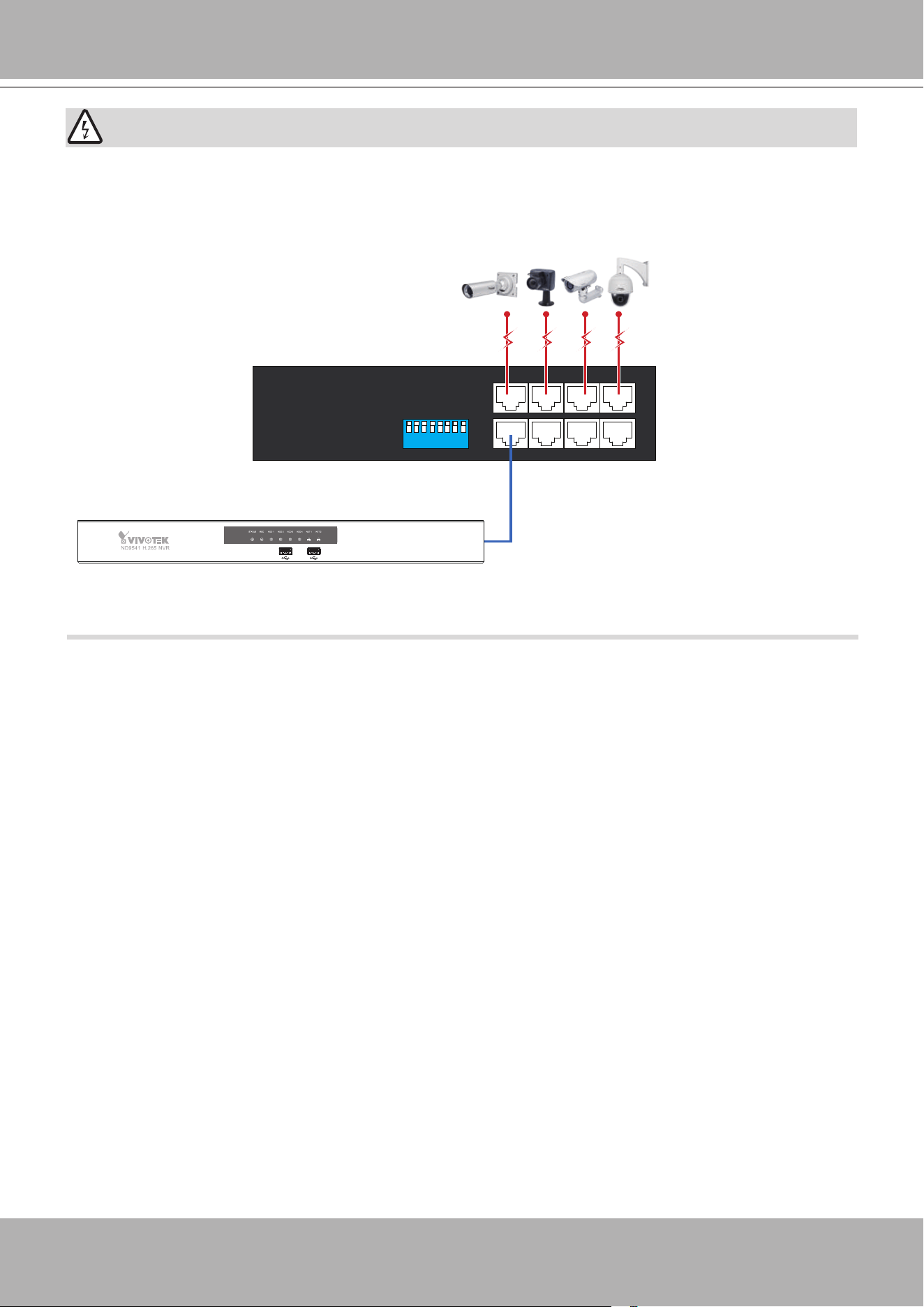
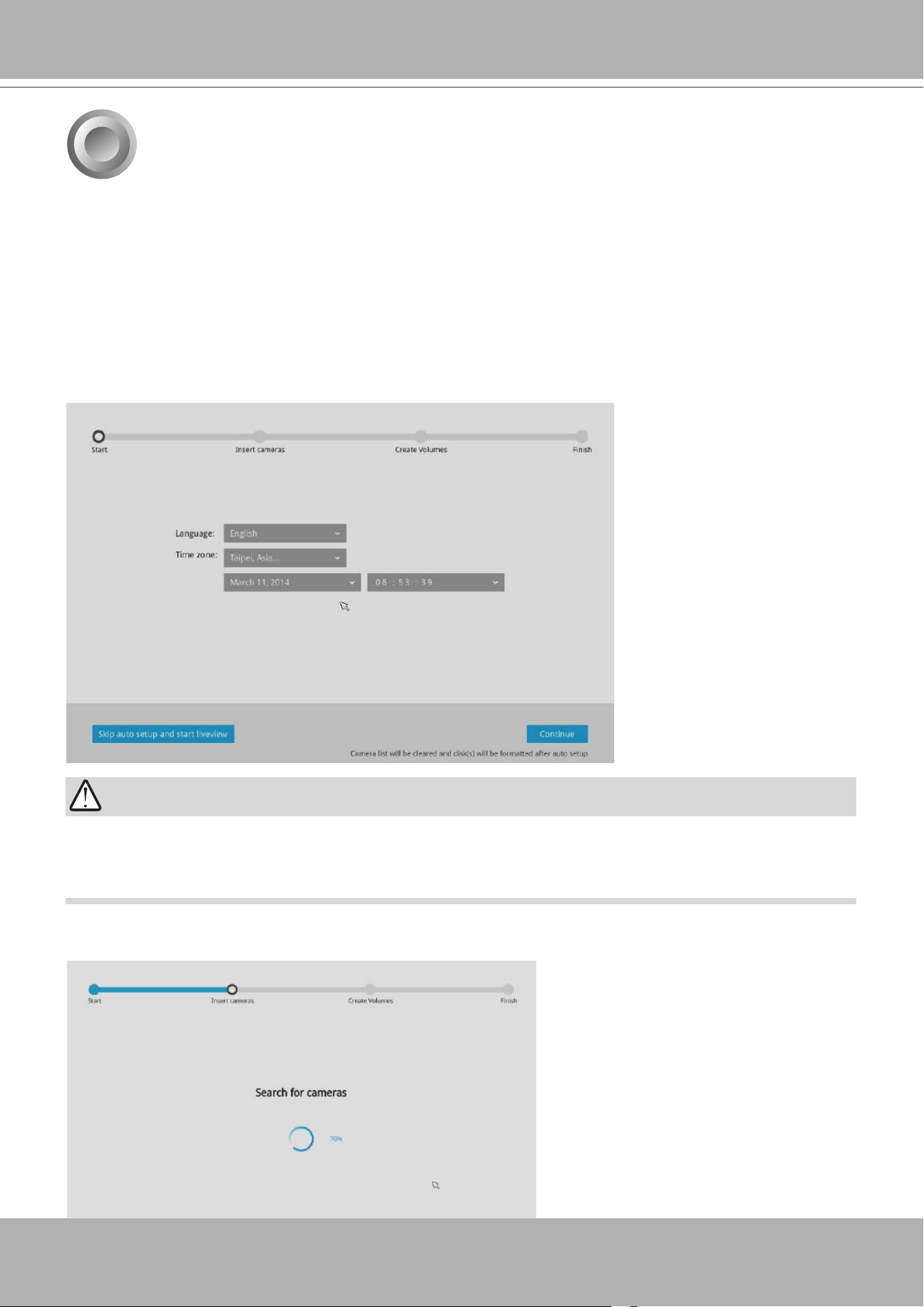
If you connect the NVR to a PoE port of the AW-FED series PoE switch, make sure you turn off
the PoE output on that specic port using the onboard DIP switch. Otherwise, the high power
output can damage the LAN port on NVR.
WARNING:
ON
1 2 3 4
5
6 7 8
PoE cameras
NVR
AW-FED PoE switch
PoE ON/OFF switch
VIVOTEK - Built with Reliability
User's Manual - 25
Initial Conguration - via a Local Console
4
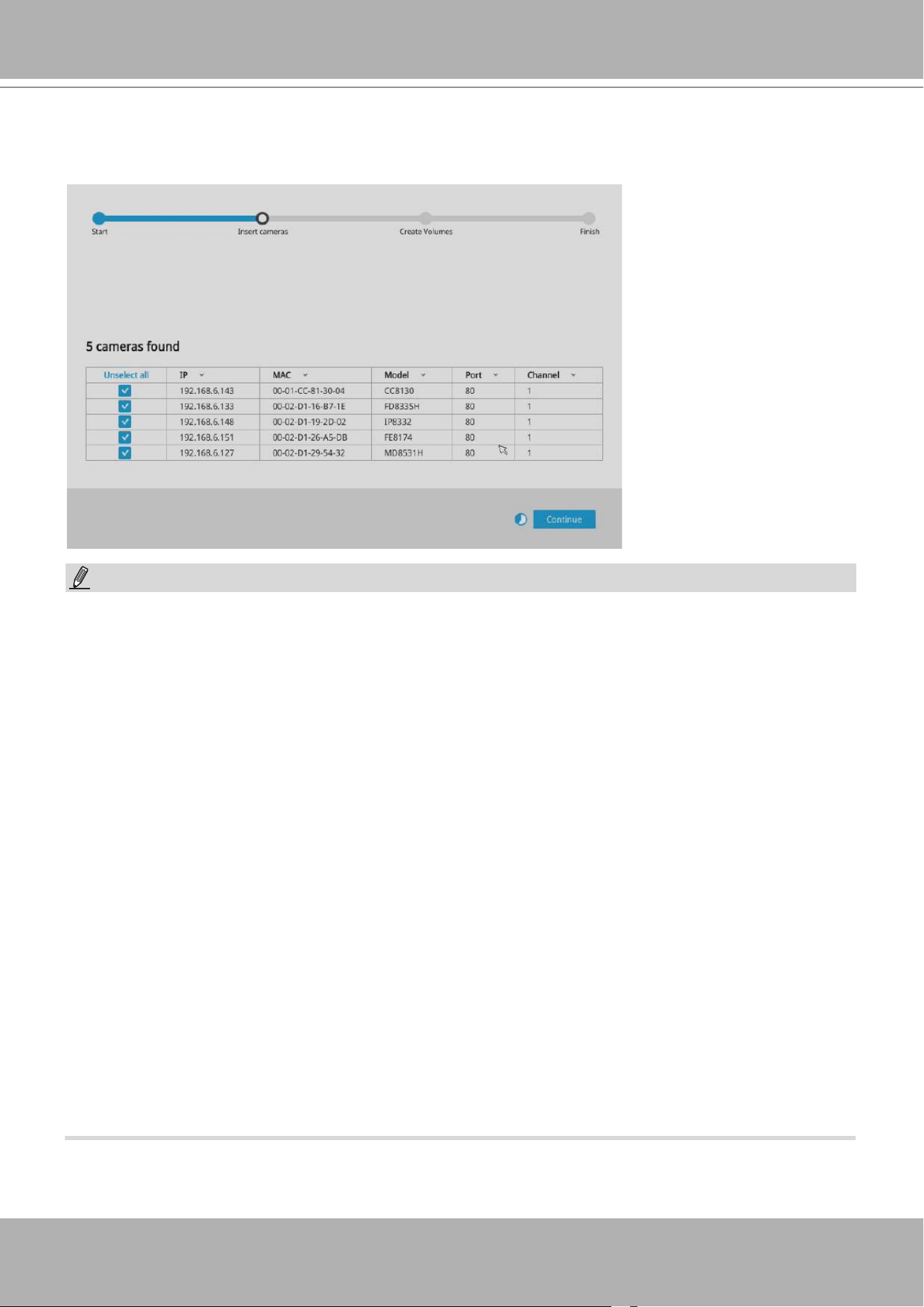
Follow the onscreen messages to complete the initial conguration:
1. Select the UI language, Time zone, and current date and time. Click on the Continue button
to proceed.
A local console requires the following:
1. A monitor is connected via an HDMI or VGA cable.
2. A mouse and/or a keyboard are connected to the system.
3. It is presumed that the system has not been congured yet.
Except in the initial setup, changing system time can produce disruptions to the existing
recordings. Turning the current system time back to a time when video recording was taking
place can generate duplicate les. And those les may not be playable.
IMPORTANT:
2. The system will then start to scan the local subnet for connected cameras.
VIVOTEK - Built with Reliability
26 - User's Manual
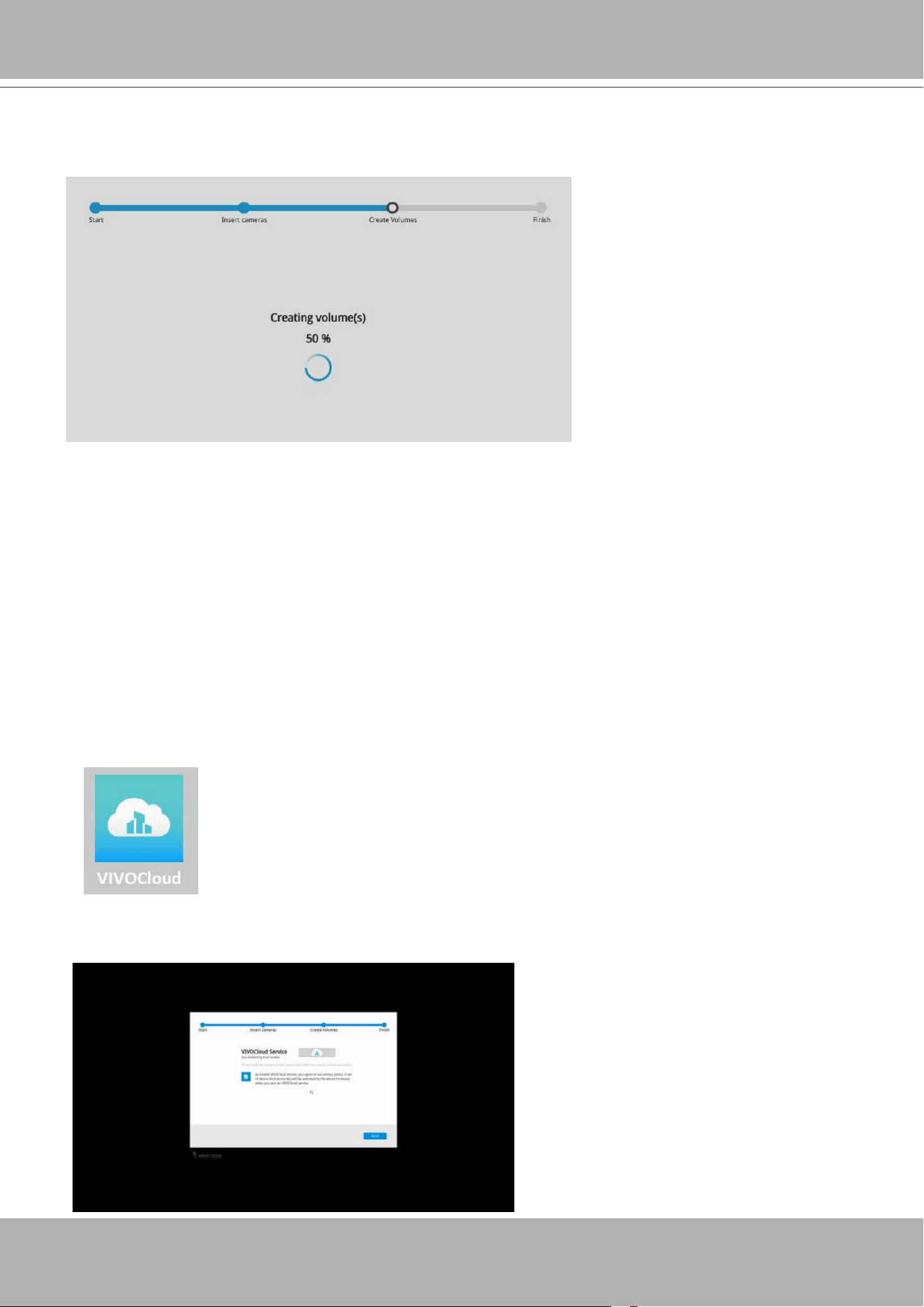
3. All cameras detected on the network will be automatically selected. If necessary, deselect the
cameras you want to exclude from the conguration. Click
Continue
to proceed.
1. The maximum recording bandwidth is
2560x1920 @ 120 fps (4-CH)
1920x1080 @ 480 fps (16-CH)
1280x720 @ 960 fps (32-CH)
Display bandwidth:
2560x1920 @ 30 fps (1-CH)
1920x1080 @ 120 fps (4-CH)
1280x720 @ 240 fps (8-CH)
1280x720 @ 480 fps (16-CH)
720x480 @ 960 fps (32-CH)
When cameras are recruited into the conguration, their stream 1 is used as the recording
stream.
The resolution and fps (frame rate per second) of stream 1 may vary depending on the
specications of different cameras.
2. If there are more than 16 or 32 cameras in your local network, you will need to manually
select cameras.
If there are less than 8 or 16 cameras, the Auto Setup will automatically move to the next
conguration step.
NOTE:
VIVOTEK - Built with Reliability
User's Manual - 27
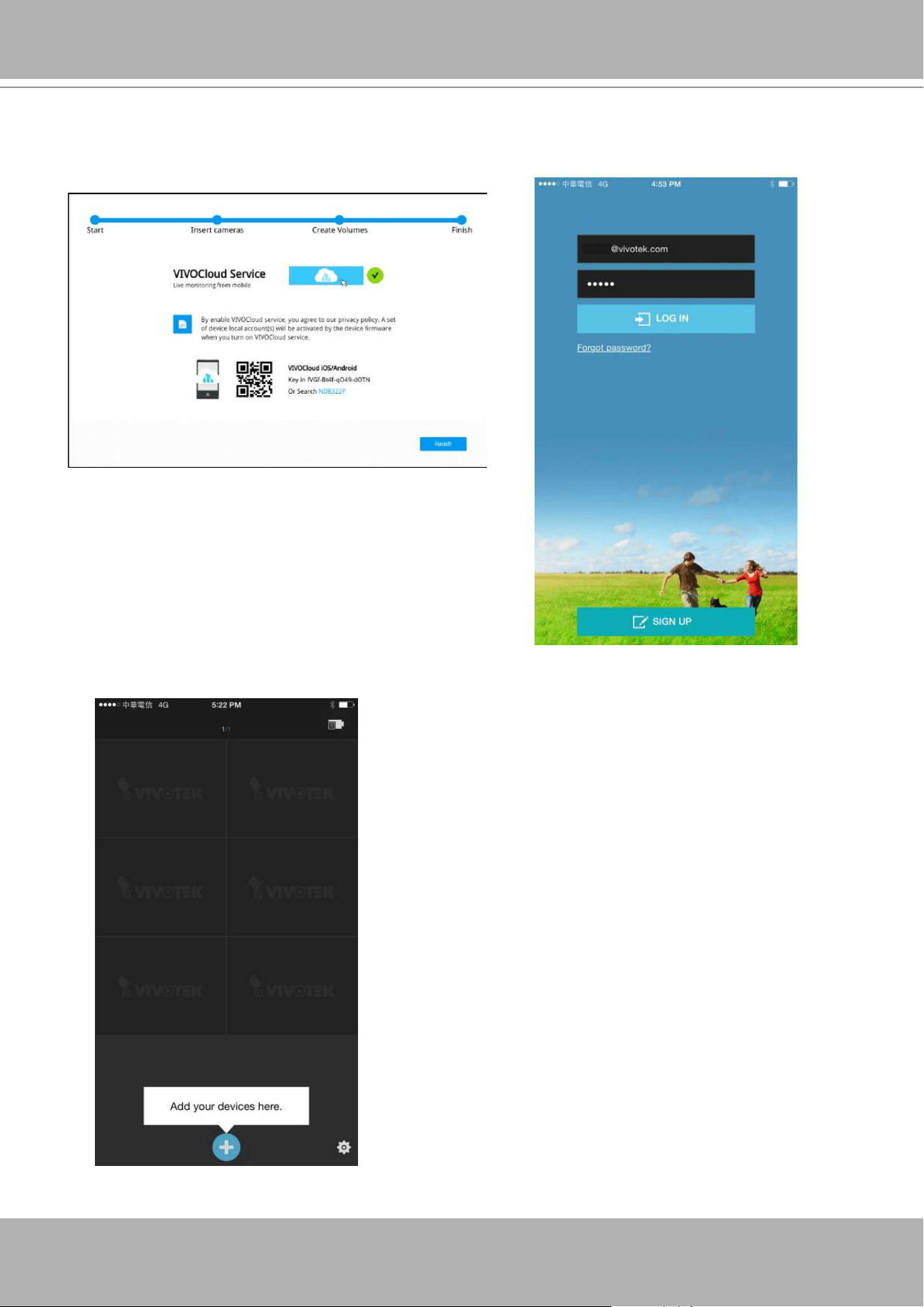
4. The system will automatically create volumes from the installed disk drives. The process will
take several minutes. Hard disks will be congured into single-disk volumes. You can delete
these volumes and then create RAID volumes in the
Settings
>
Storage
page.
5. An optional utility,
VIVOCloud
, is available through the Apple and Android App Stores. The
VIVOCloud works with a server hosted by VIVOTEK for bridging and tunneling video requests
between client devices and network cameras/CMS/NVR. The utility simplies and facilitates
network conguration for access across the Internet.
The prerequisites for using the VIVOCloud are as follows:
1. Download and install the VIVOCloud utility to your cell phone.
2. Both the NVR and your cell phone have access to the Internet.
With this utility, you do not need to congure IP port forwarding on router or set up a DDNS
address for the NVR. You do not even need to know the IP address of the NVR. The
VIVOCloud utility automatically manages the network parameters required for making the
connection. The VIVOCloud comes with viewing and playback interfaces very similar to those
in the iViewer utility.
To connect the NVR from a cell phone using the VIVOCloud:
5-1. Click on the
VIVOCloud
button on the wizard.
VIVOTEK - Built with Reliability
28 - User's Manual
5-2. The QR code will be generated.
5-3. Open the QR code utility from your cell phone. If you already registered an account, tap
LOG IN
. If not, tap
SIGN UP
to register an account from a VIVOTEK server.
User
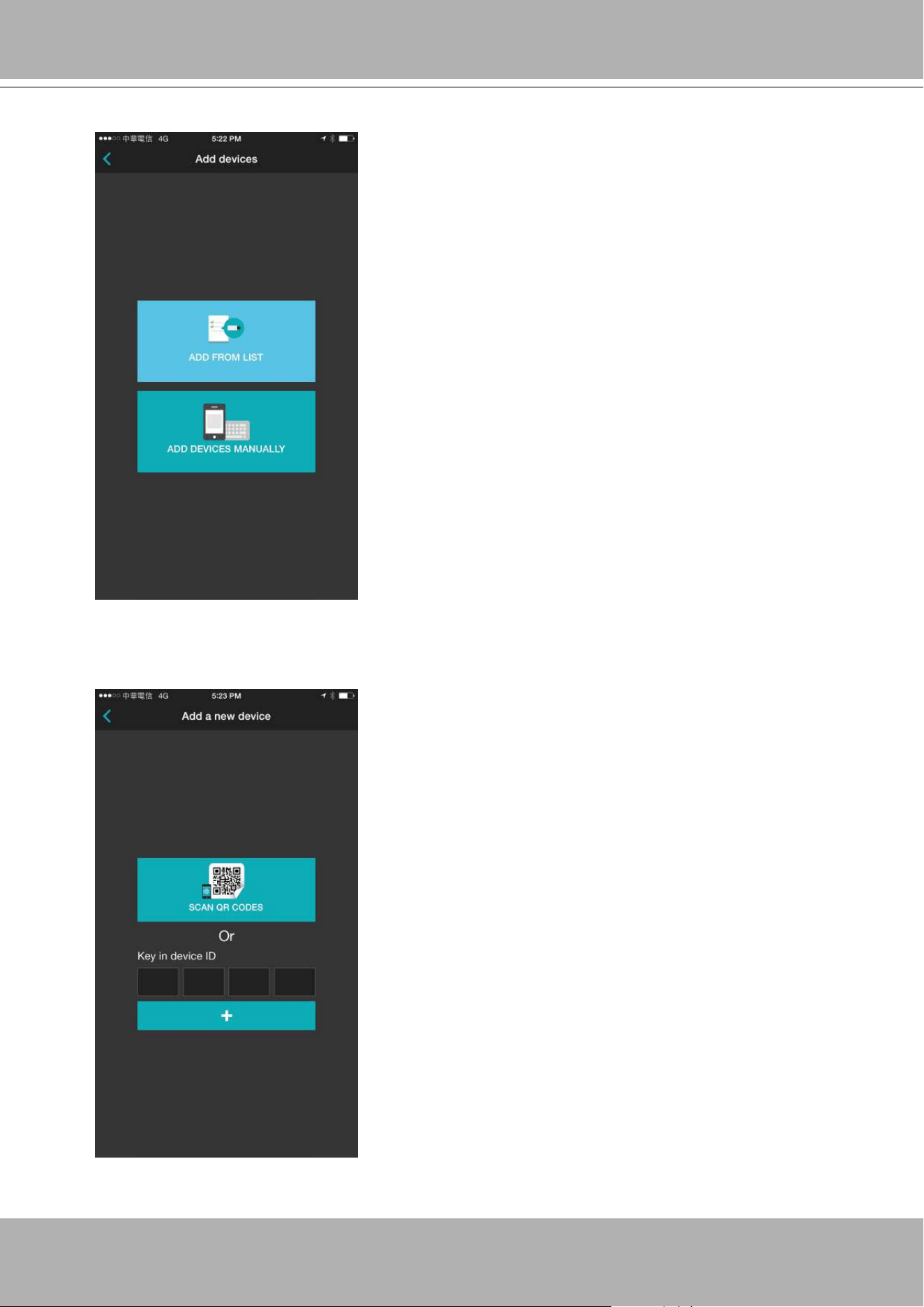
5-4. You can be defaulted to the Live view page. Tap the Add button below to add devices.
VIVOTEK - Built with Reliability
User's Manual - 29
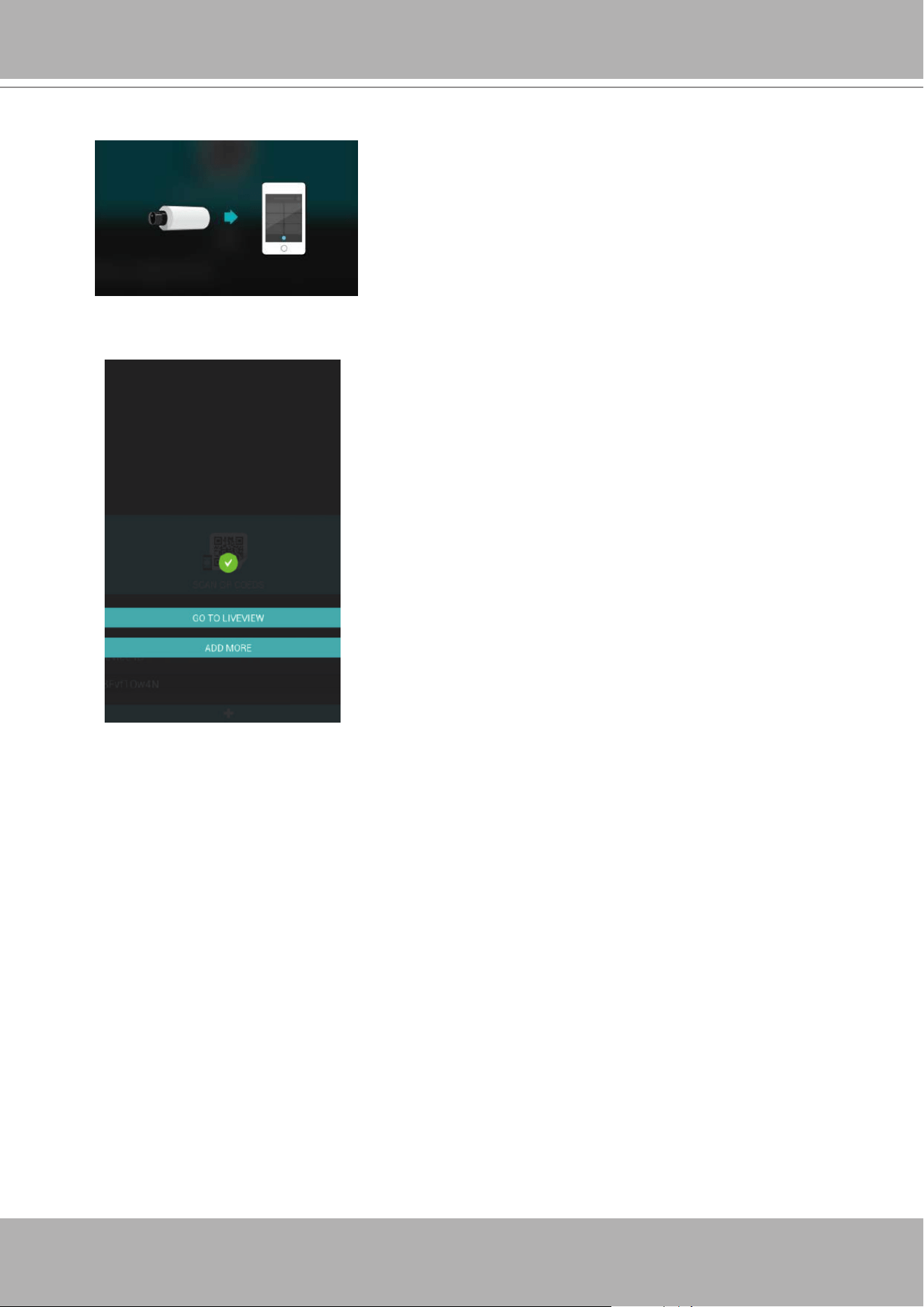
5-5. Tap the
ADD DEVICES MANUALLY
button.
5-6. You can then point your cell phone lens at the NVR screen (Step 5-3.) and use the
SCAN QR CODES
function to establish the connection. You may also manually enter
the device ID.
VIVOTEK - Built with Reliability
30 - User's Manual
6. Click the Done button. The
LiveClient
screen will display, and, by default, the recording from
the selected cameras will immediately take place.
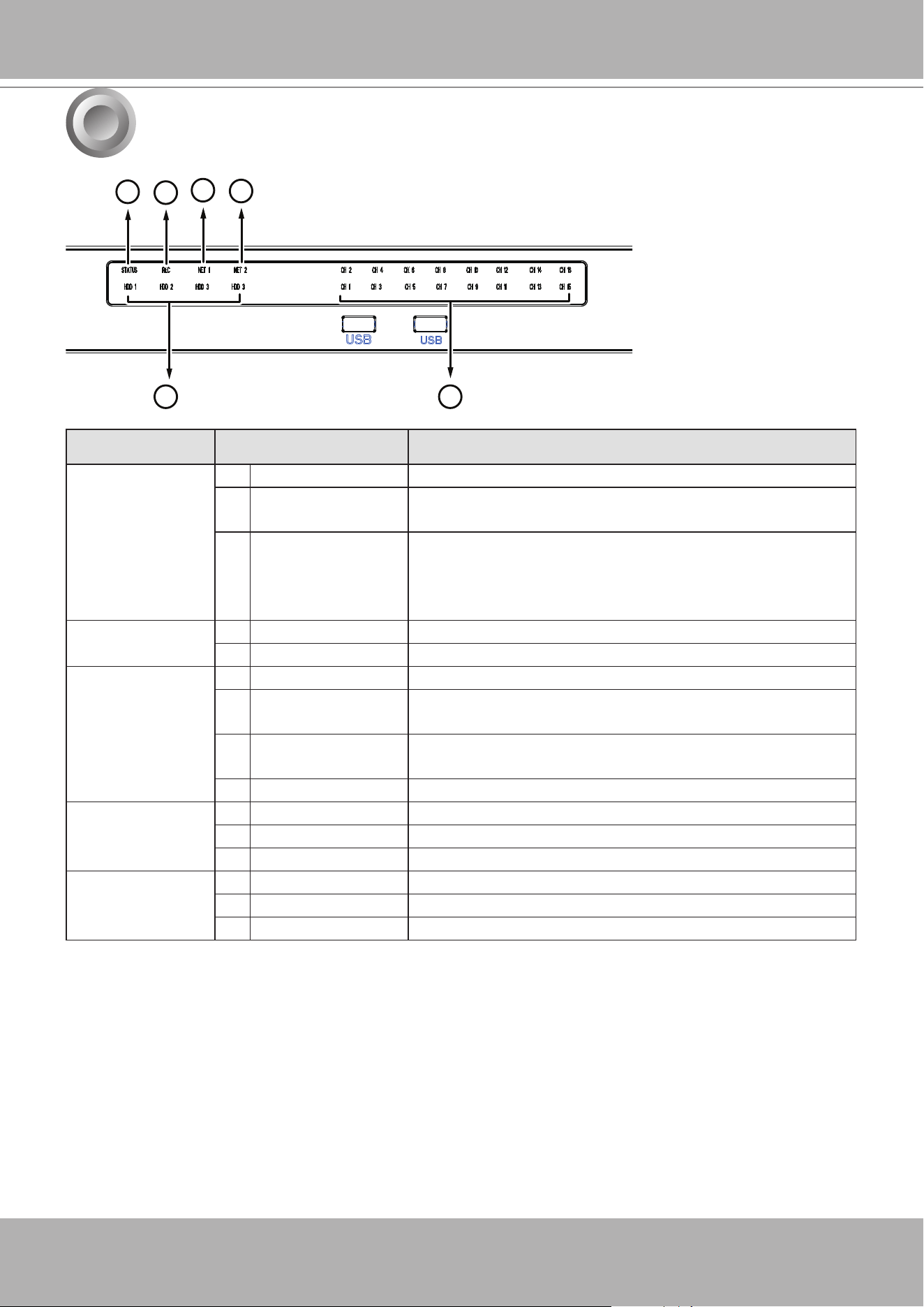
5-7. The process will take several seconds to complete.
5-8. The NVR and the cameras under it will be ready for access.
VIVOTEK - Built with Reliability
User's Manual - 31
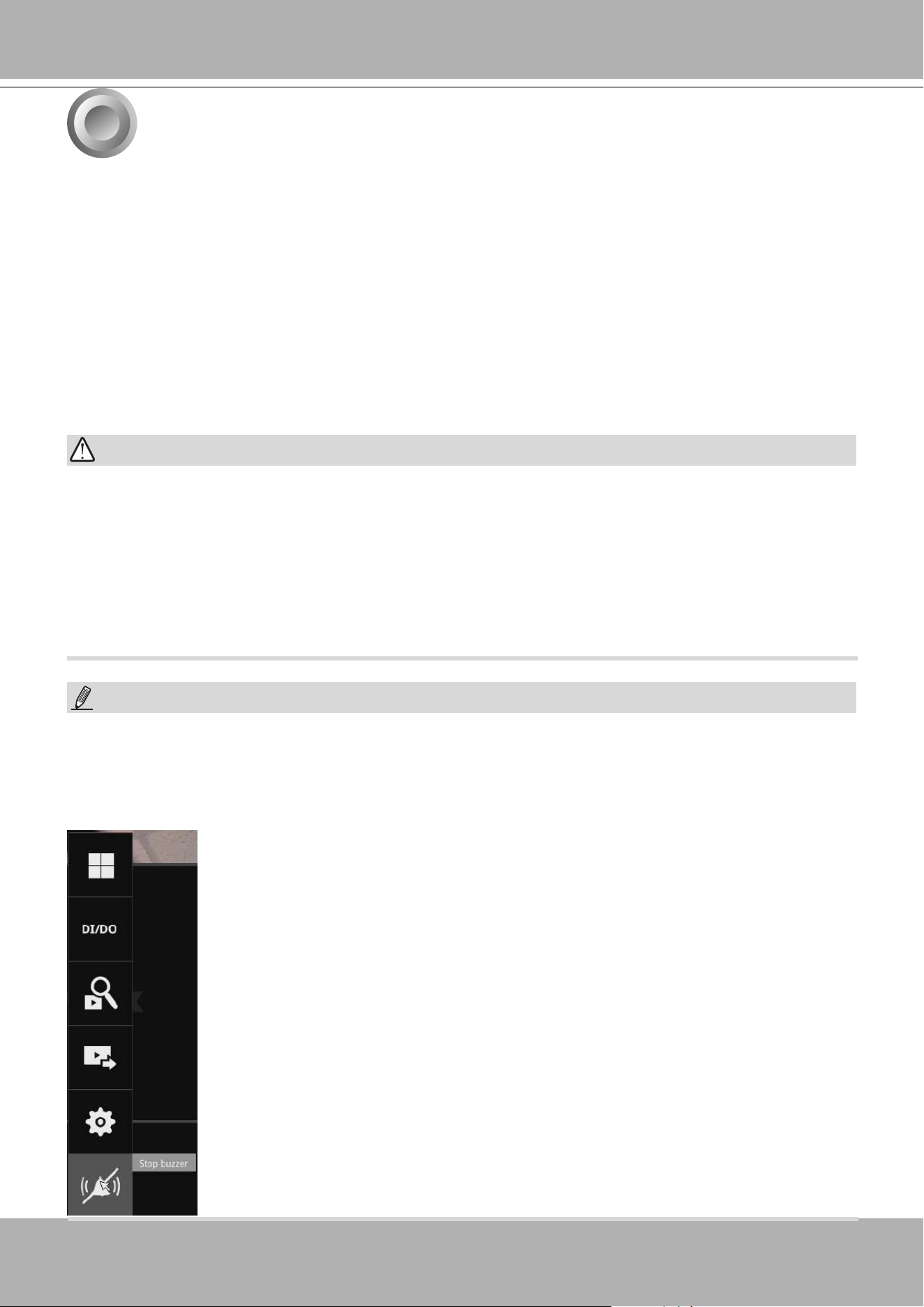
LED Indicators
Name Behavior Denitions
1. Status
LED 1 Constant Green System is ready.
2 Blinking Green
every 1 second
Updating rmware or device pack.
3 Constant Red S.M.A.R.T.-related disk errors, or a congured H.D.D.
is missing, or H.D.D. is full. Buzzer will also be
sounded. When buzzer is turned off, LED will return
normal.
2. Record
LED 1 Flashing Red Camera streams are recorded to the system storage.
2 OFF No recording.
3. HDD
activity
LED
1 Constant Green H.D.D. is connected and ready.
2 Constant Red SMART-related disk errors or a congured H.D.D. is
missing.
3 Blinking Red every
1 second
H.D.D. conguration errors.
4 OFF H.D.D. is disconnected or removed.
4 & 5. NET
activity LED
1 Flashing Orange Indicating on-going trafc over the LAN connection.
2 Solid Orange Ethernet is connected.
3 OFF Ethernet is disconnected.
6. PoE
port
activity LED
1 Constant Green A powered device (network camera) is connected.
2 Blinking Green Data is being transmitted and received.
3 OFF No device is connected to port.
5
1
2
3
4
5
6
VIVOTEK - Built with Reliability
32 - User's Manual
To power up and power down,
On the initial conguration:
1. Connect the power cord between the system and power outlet.
2. Turn on the system using the power button on the back of chassis.
After the initial connection,
Use the power down button on the lower right corner of the Settings page. The system
should start ushing the cached contents in system memory and gracefully shut down. You
should then ip the power switch button on the back of chassis to completely shut down the
system.
Press the Reset button for longer than
5
seconds can restore system defaults.
Power Up and Power Down
1. No storage system is completely fail-safe. Damage to data might occur due to le system
corruption, operating system malfunction, virus infection, HDD component failures, and so on.
Therefore, it is highly recommended to regularly back up your data, and VIVOTEK disclaims
responsibilities of data loss or recovery.
2. Always power off the system using the power button on the back of chassis. They system is
powered off when you observe that all LEDs go off. Do not disconnect the power cord while
the system is still operating. Doing so will result in data inconsistencies. The normal power-off
procedure allows cached data to be written to disks.
If system buzzer is sounded, move your mouse cursor to reveal the main screen portal, and
then click on the
Stop buzzer
button.
Serious system faults, such as a missing volume, can trigger the system buzzer. Verify the
cause of system fault and turn off the buzzer.
NOTE:
WARNING:
6
VIVOTEK - Built with Reliability
User's Manual - 33
Section One
Management over a
Local Console
Chapter Two
Introduction to the Local Console Interface
Camera 01
Camera 02
Camera 03
Camera 04
Camera 06
Camera 05
Camera 07
Camera 08
Camera 09
VIVOTEK - Built with Reliability
34 - User's Manual
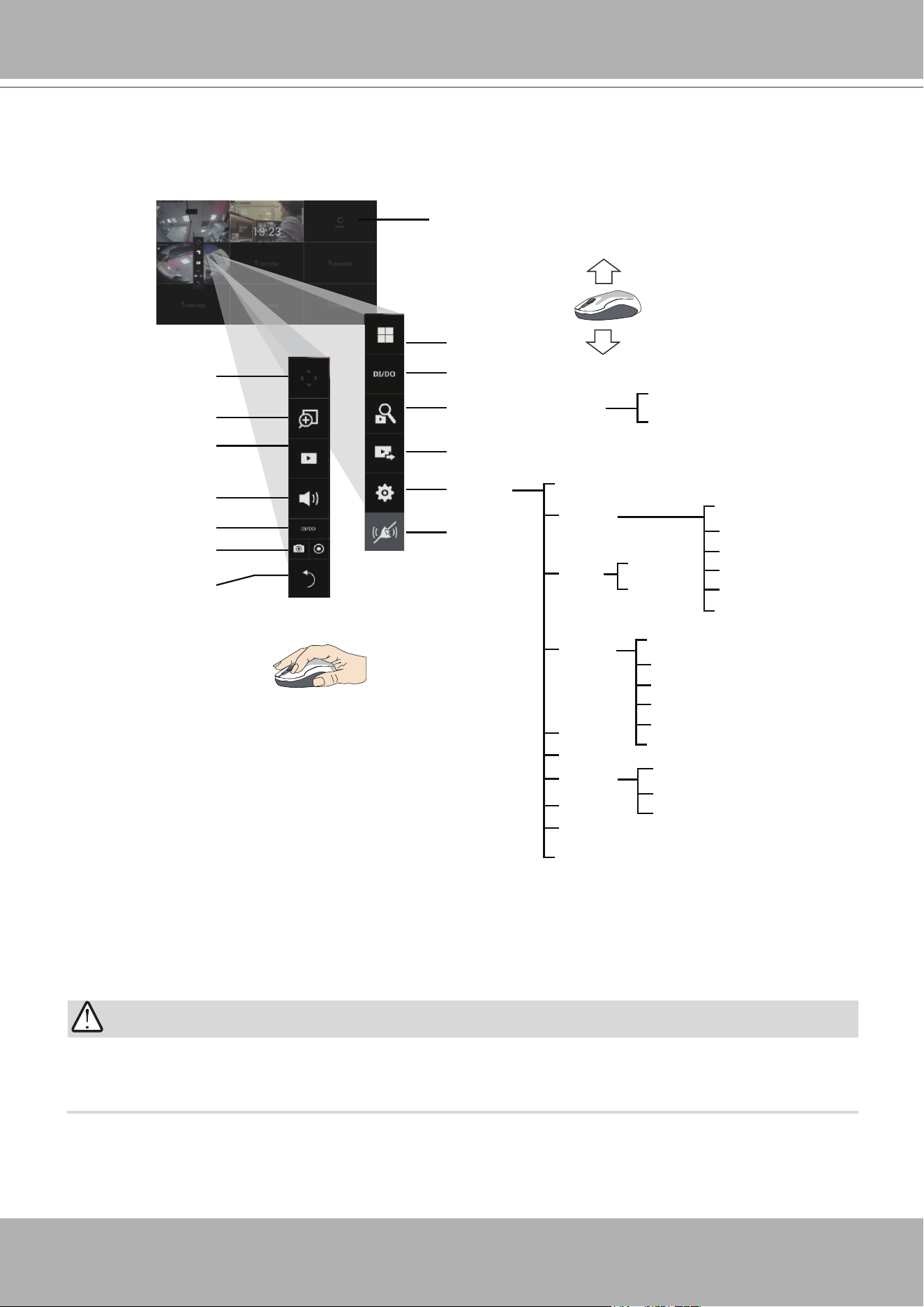
By default, a live view appears on an HDMI monitor. The interface architecture of the local
console is illustrated as follows:
LiveView Main screen
Main control portals
Search recording clip
DI/DO
Layout
Settings
Search panel
Storyboard
Camera
Alarm
Management
Recording
Media
Image
Motion detection
PTZ settings
Alarm
Email
System
Information
Maintenance
Display
UPS
Logs
User
Storage
Network
IP
DDNS
Services
Overview (camera connection & storage)
Stop buzzer
Play recording clip
Digital zoom
PTZ
DI/DO
Snapshot | Manual
recording
Deselect camera
Config. portal
Camera portal
Information
Audio
Export recordings
VIVOCloud service
Virtual keypad
POS
When a view cell is selected.
Due to the limitation of system resources, the sheye dewarp (1R, 1P, 1O3R, 1O8R modes) can
only take place on one view cell, for one sheye camera.
IMPORTANT:
After you nish conguring using a Camera portal, click again on the camera view cell to reveal
the main control portals.
For the Export recordings function, refer to page 60.
VIVOTEK - Built with Reliability
User's Manual - 35
2-1. How to Begin
1. How to access the Conguration Portal?
Make sure a mouse is attached to your NVR. Move your mouse cursor, and the Conguration
Portal will appear on screen. For all the congurable options available through this portal,
please refer to Chapter 3 on page 48.
2. How to access the Camera Portal?
Single click to select a view cell, the Camera Portal will appear. The system automatically
detects the characteristics of an individual camera when you select a view cell.
This portal appears with a camera that supports mechanical PTZ.
This portal appears with a camera that does not support mechanical PTZ.
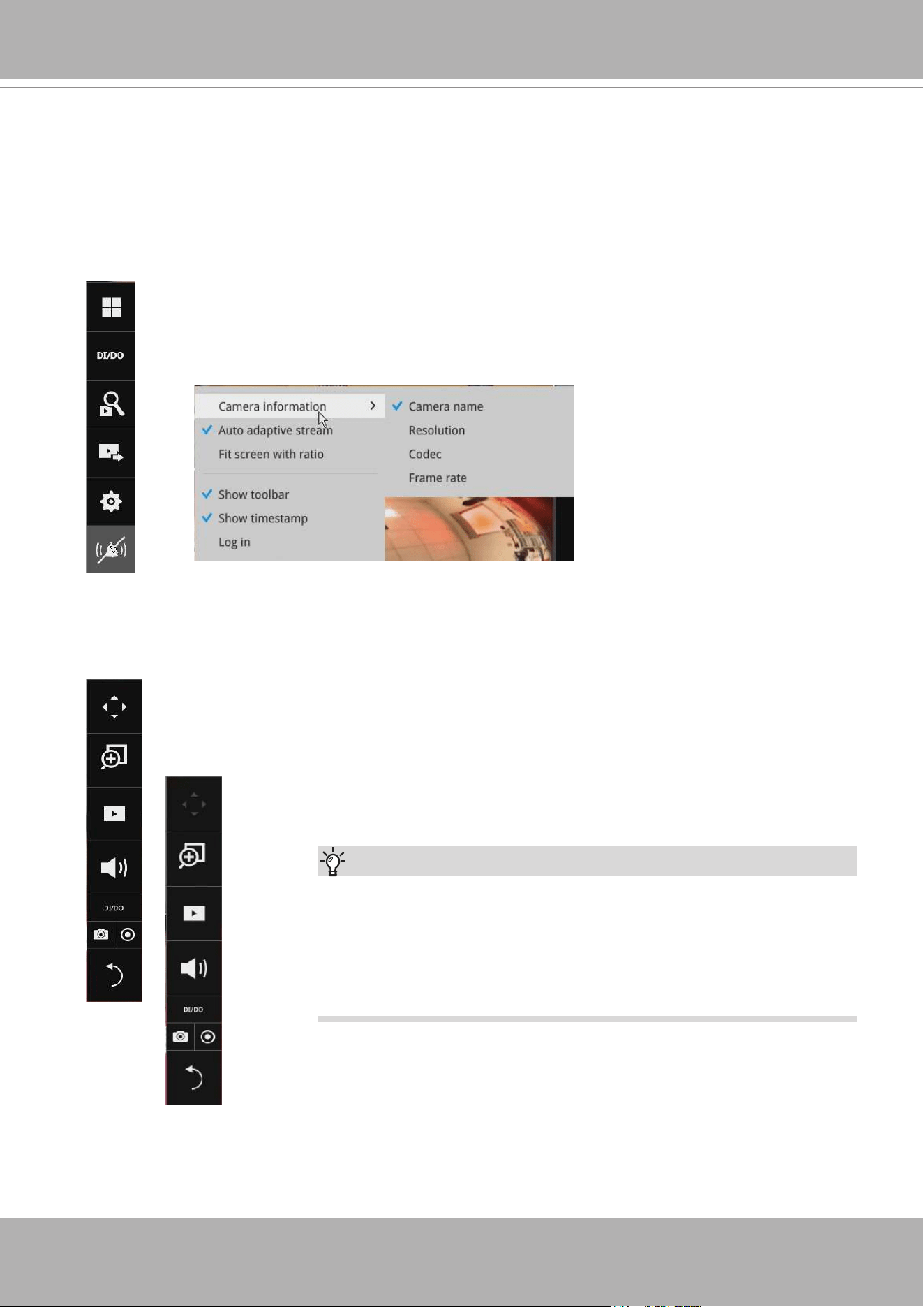
You can also hide these portal toolbar. Right-click on the LiveView screen to
display the option.
Here are some operation steps using the tool bar:
1. Single-click to select a view cell and bring out the tool bar.
2. Double-click to expand a view cell to the full view.
3. Double-click again to shrink the view cell to the original size.
Tips:
VIVOTEK - Built with Reliability
36 - User's Manual
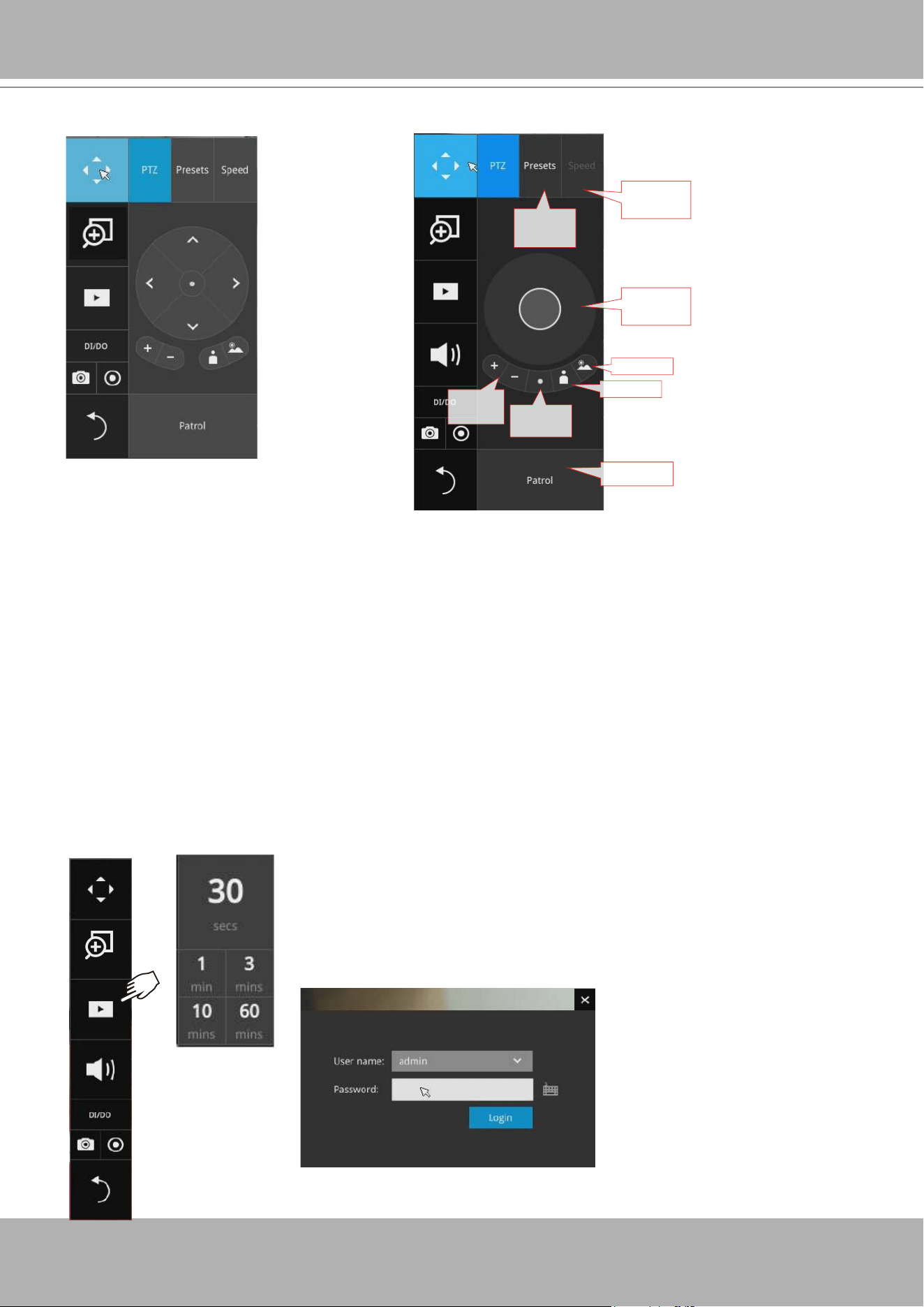
Pan/Tilt
controller
Zoom
controller
Preset
points
Move
speed config
Home
posion
Focus far
Focus near
Patrol button
PTZ control panel for ordinary PTZ type
PTZ control panel for joystick type PTZ
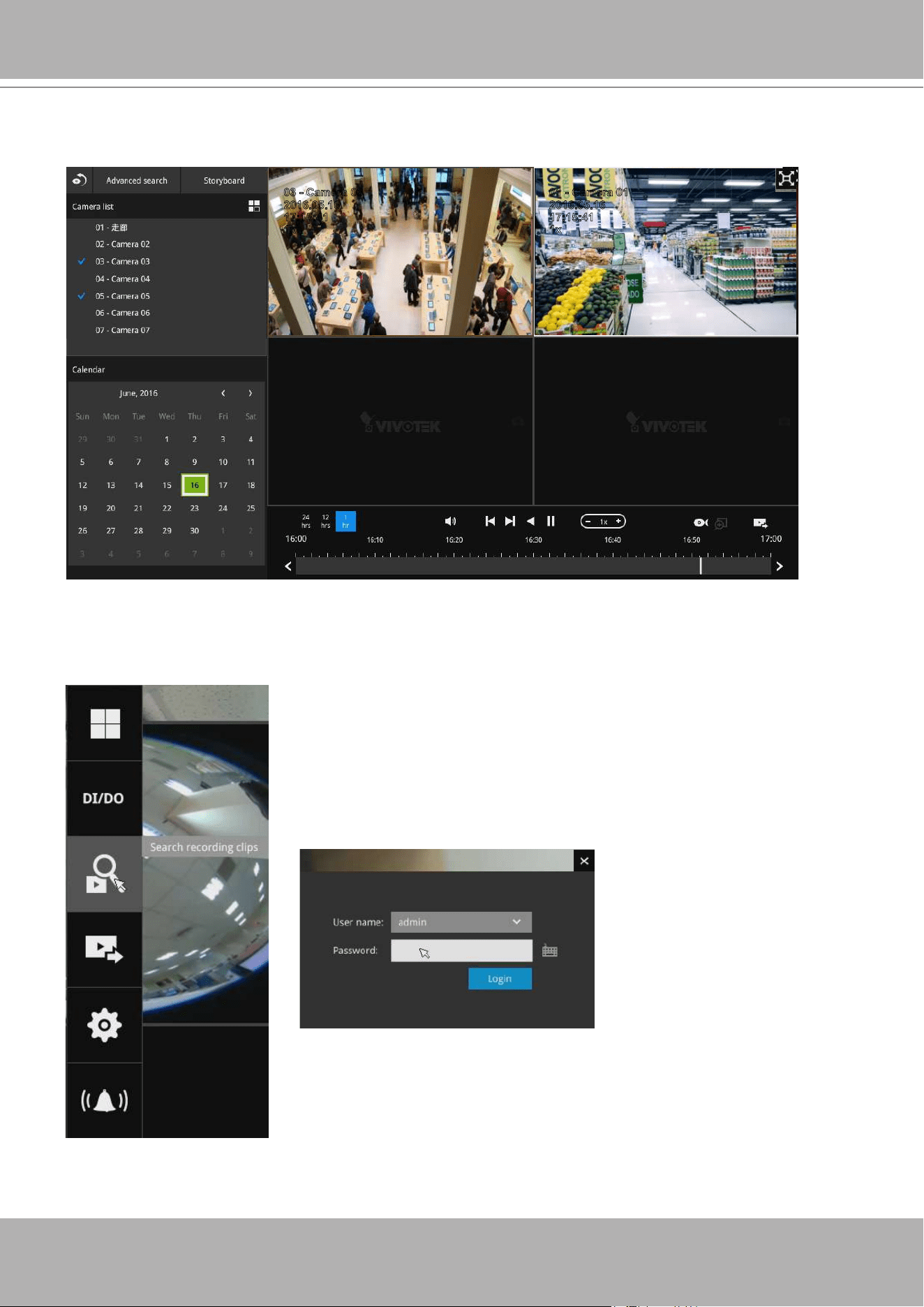
3. How to retrieve and access recorded videos?
3-1. One is to access the video clips taken within 2 hours. Left-click to select a view cell, and
then click on the Recording clips button.
Select a time value by a single click. You will be prompted for User
name and Password, enter
admin
and
admin
(the default user name
and password), and then click
Login
.
PTZ presets
: If your PTZ cameras have preset locations, click on the button to unfold the preset
menu. Click on any of the preset locations to move to the area of your interest.
Pan/Tilt controller
: Pull the inner circle to the direction you prefer. Release the mouse button to
stop moving.
Zoom controller
: The zoom controller buttons only apply to cameras that come with an optical
zoom module, such as a speed dome camera.
Focus controller
: The focus controller buttons apply to cameras that come with focus control
over its lens module, such as a speed dome camera.
VIVOTEK - Built with Reliability
User's Manual - 37
10:32:56
2015.09.22 1x
2016.05.16
03 - Camera 03
17:15:41
1x
2016.05.16
01 - Camera 01
17:15:41
1x
The
Playback
window will prompt, and a playback begins from the point in time you selected,
e.g., 30 seconds ago. This function allows you to quickly review what has just happened.
3-2. Another way to access past videos is to open the
Search recording clips
window. Move
your mouse cursor to display the
Conguration Portal
(without selecting any view cell).
Click on the Search recording clips button. Please refer to page 49 for more information
about the search functions.
You will be prompted for User name and Password, enter
admin
and
admin
(the default user name and password) and click Login.
It is highly recommended to change the password after you log in.
VIVOTEK - Built with Reliability
38 - User's Manual
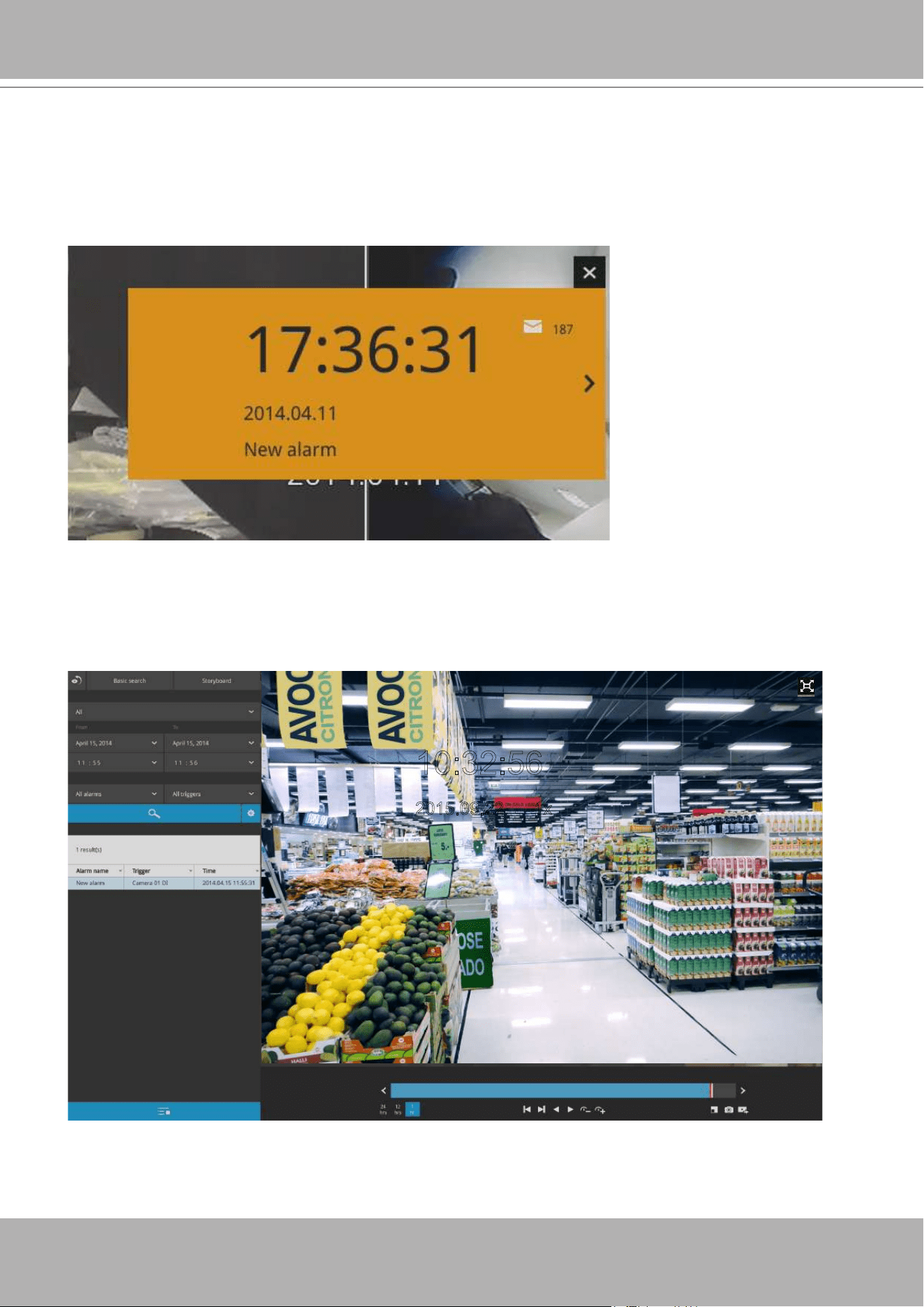
4. How to recieve system alarm?
Please refer to page 82 for how to congure system alarm triggers. When the alarm is triggered,
e.g., by digital inputs or motion detection, an alarm message will prompt on the screen.
Use the > arrow button to browse through the alarm messages.
10:32:56
2015.09.22 1x
If the alarm is congured with video recording as the responding action, you can click on the
alarm entry. The Playback window will appear, allowing an instant playback of the alarm-related
footage. You will enter the "Search alarm results" page even if the alarm does not trigger a
recording action.
VIVOTEK - Built with Reliability
User's Manual - 39
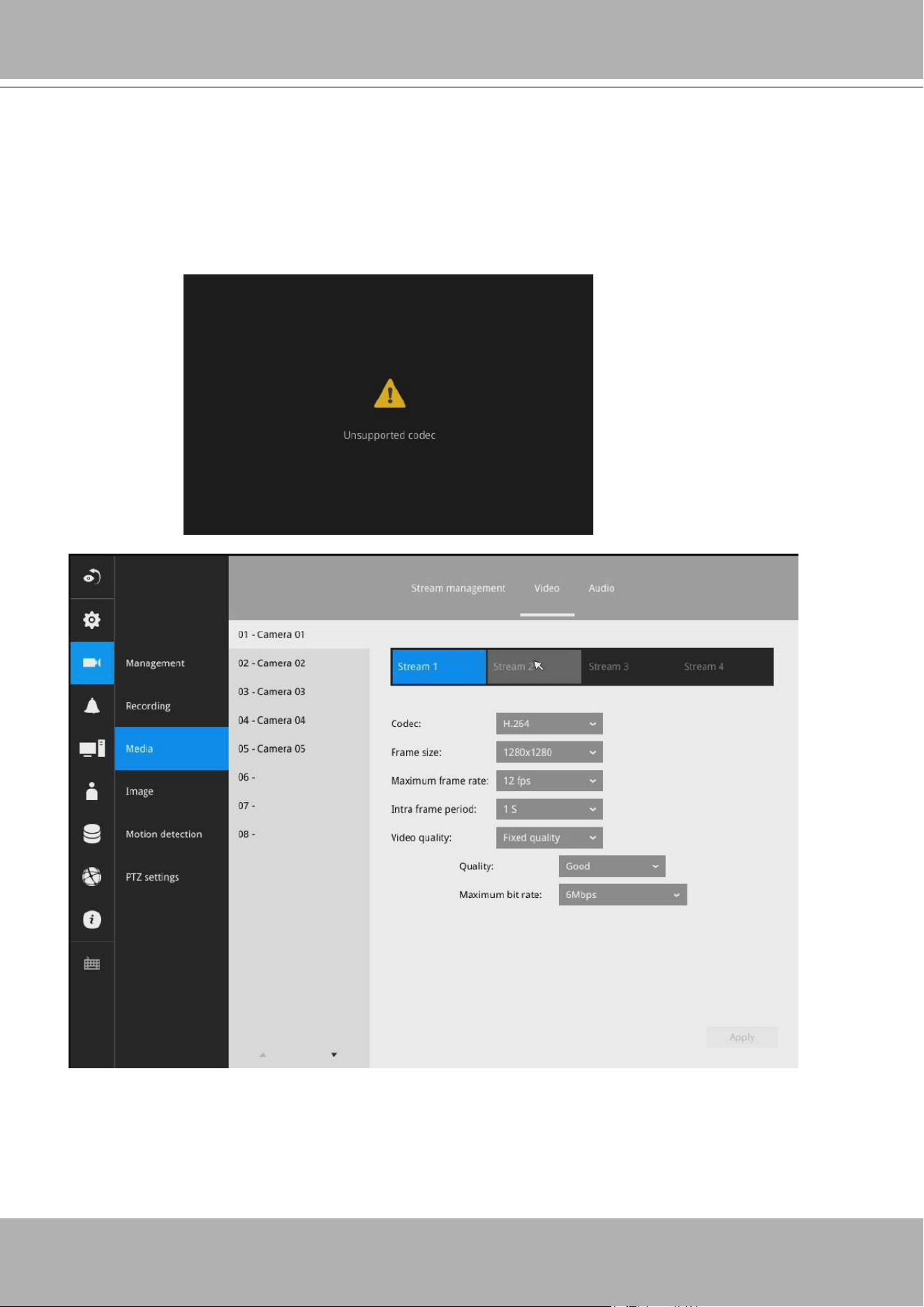
5. Why live view is unavailable?
The default live view receives a camera's stream #1. If a camera's stream #1 is congured using
MPEG-4
as the video codec, the following message will prompt.
You can go to the Settings > Camera > Media > Video window to congure the video codec of
stream #1 into H.264 or H.265.
VIVOTEK - Built with Reliability
40 - User's Manual
6. How do I move to another layout page?
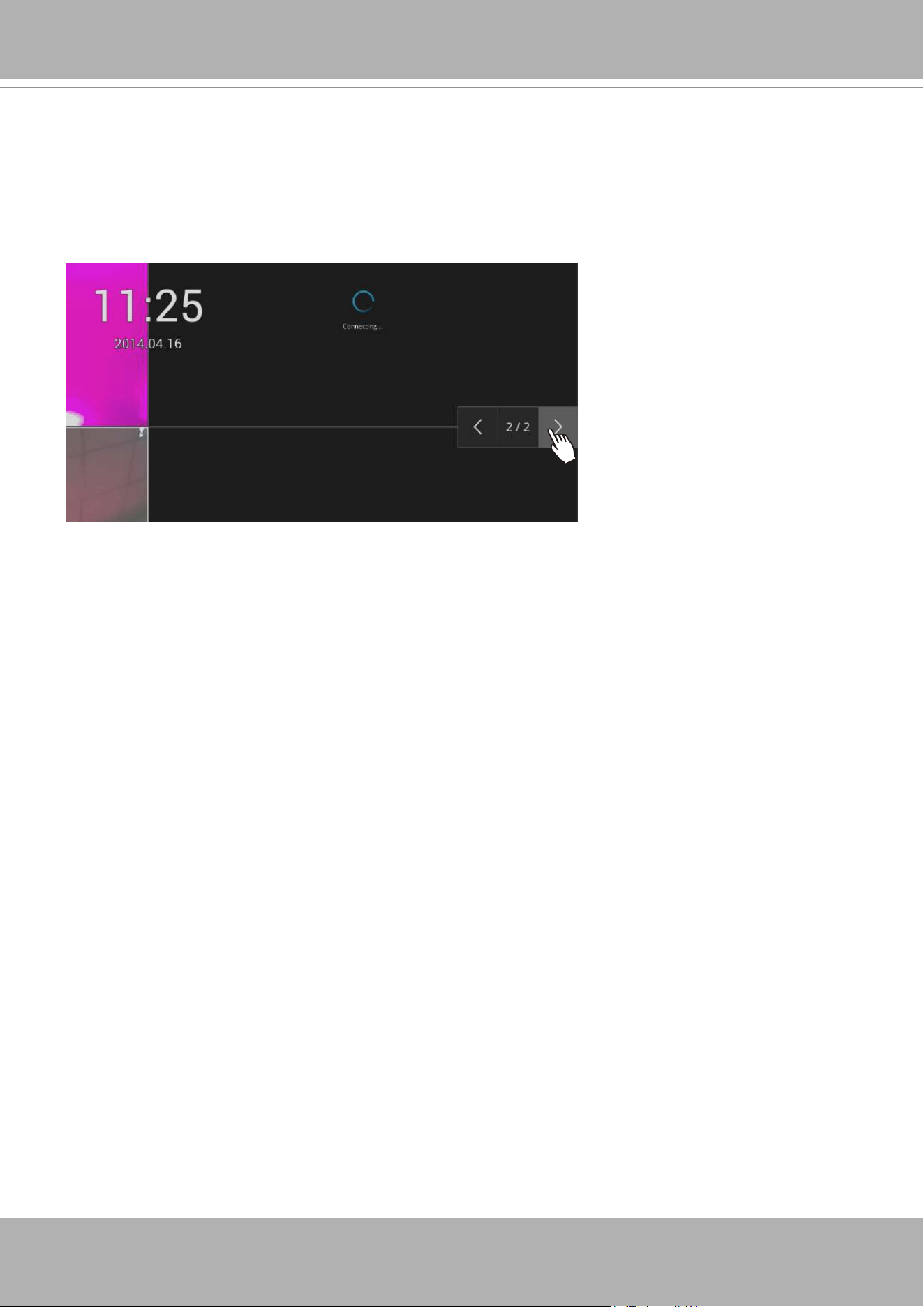
Move your cursor to the right hand side of your screen. The page turner buttons will appear as
shown below.
For example, if you have 8 cameras placed on 2 2x2 layout pages, use these buttons to visit
different pages.
7. Why the onscreen tool bars disappear after some time?
The system comes with idle modes. Below are the applicable conditions:
1.
Live view:
if no management activities occur for 5 seconds, the tool bars disappear from
screen. When in the idle mode, mouse cursor and tool bars will disappear. Moving the mouse
cursor will re-activate the screen.
2.
Settings page
: If left unattended for 10 minutes, system will automatically log out. The
system will prompt for user credentials if a user tries to access the Settings page again.
3.
Search recording clips
window: If currently there is a video playback, the system will not
enter the idle mode.
VIVOTEK - Built with Reliability
User's Manual - 41
2-2. Operation on Camera View Cell
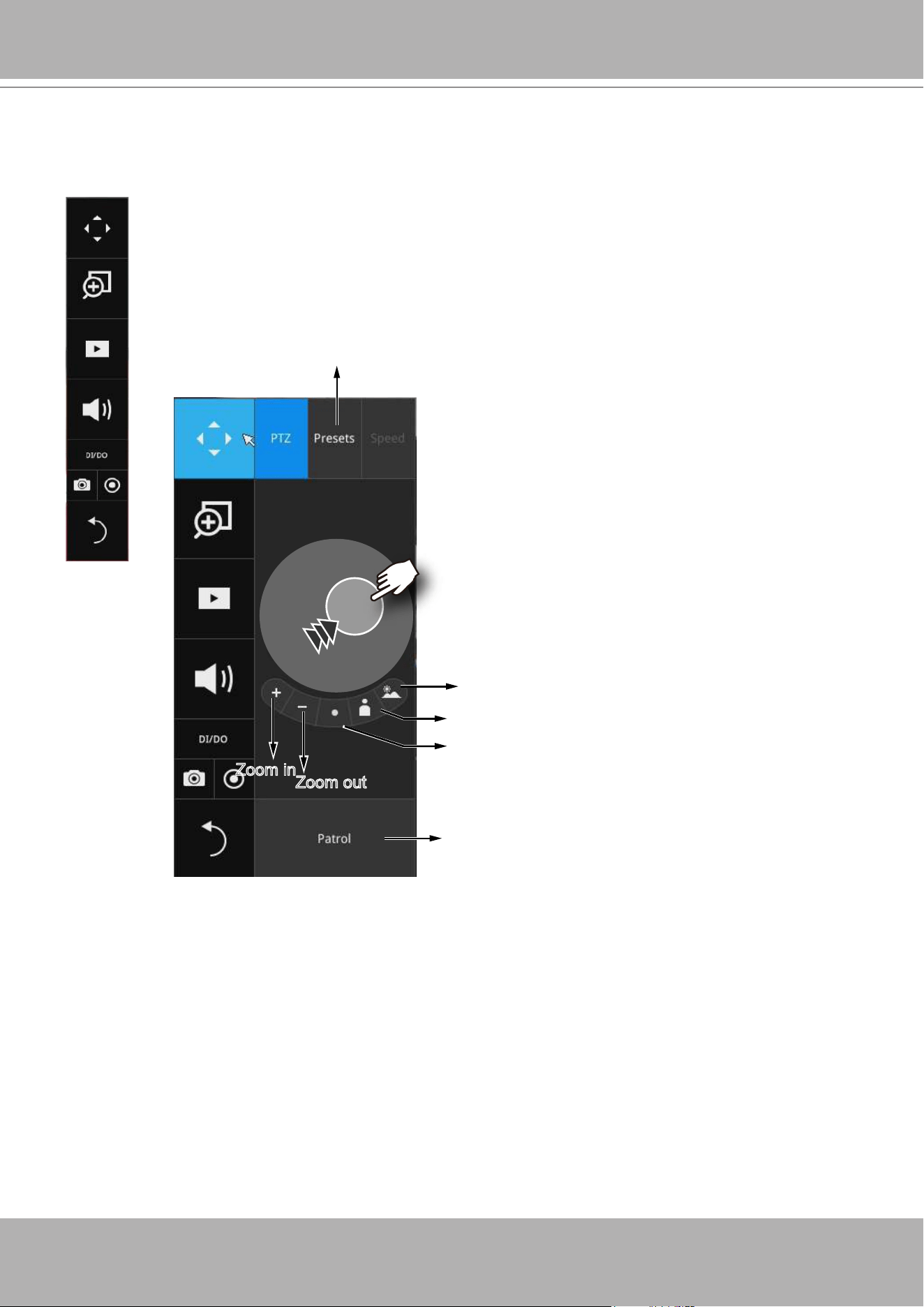
Once you selected a camera, click on the PTZ button on a camera portal.
2-2-1. PTZ Panel
List of preset positions
Focus far
Focus near
Starts patrol
Home
Zoom out
Zoom in
The PTZ panel will prompt. Below are the description of its functions:
1. PTZ control: Click and drag the nudget in the center towards the direction you wish
to move to.
2. Focus: Click on the Focus near and Focus far buttons to adjust camera focus.
3. Home: Click to move the camera lens towards the default home position.
4. Zoom: Use the Zoom in and Zoom out buttons to adjust the camera's zoom ratio.
5. Presets: If you congured preset positions, a list of preset positions will appear.
6. Patrol: If you congured preset positions into a patrolling tour, click on this button
and the camera will proceed with patrolling through preset points.
Note that on a speed dome camera, the farther you pull the nudget away from the
center, the faster the lens moves. This works like speed control.
VIVOTEK - Built with Reliability
42 - User's Manual
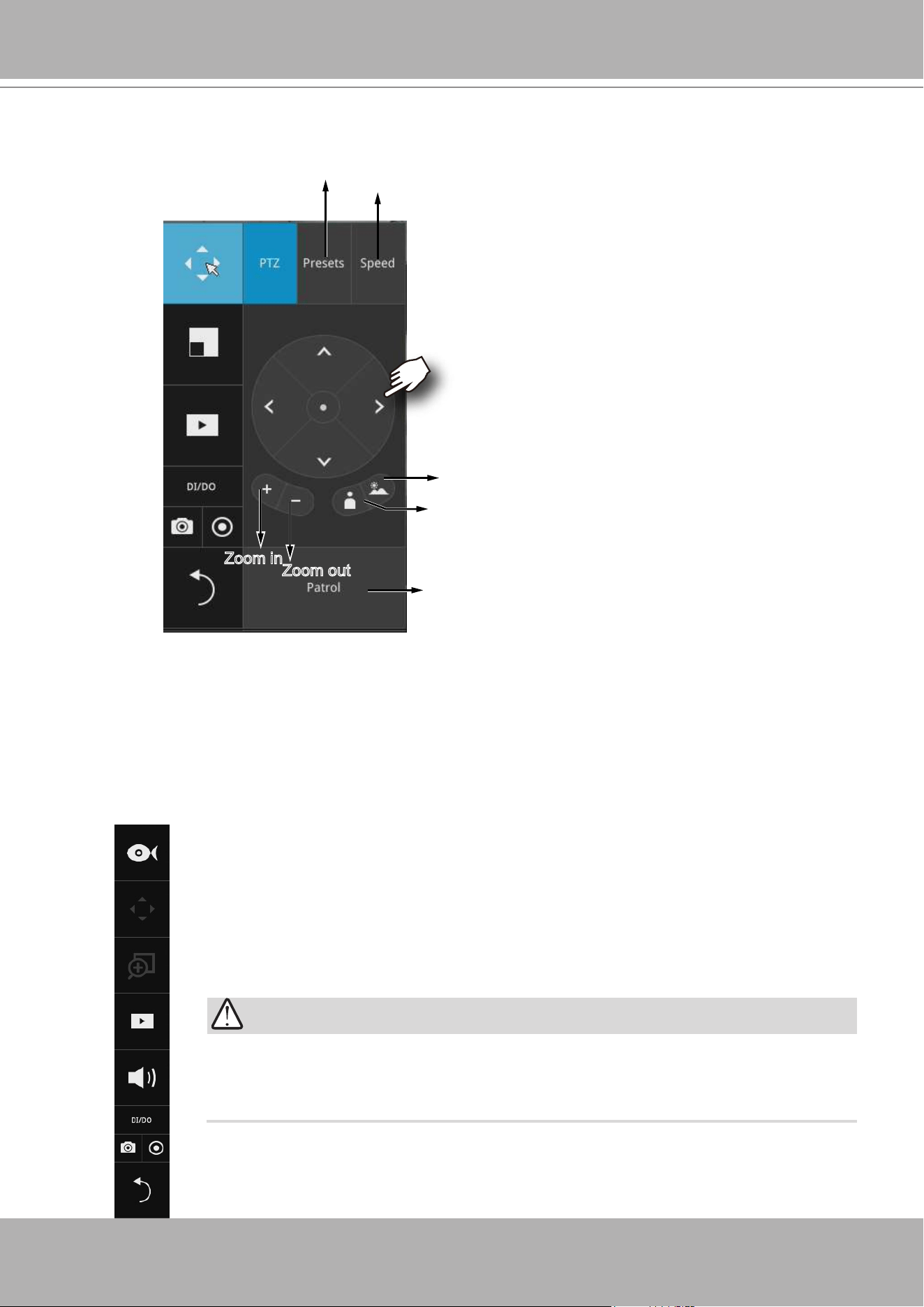
List of preset positions
Focus far
Focus near
Starts patrol
Zoom out
Zoom in
Speed selector
1. PTZ control: Click on the arrow buttons to move towards the direction you wish to
move to.
2. Focus: Click on the Focus near and Focus far buttons to adjust camera focus.
3. Zoom: Use the Zoom in and Zoom out buttons to adjust the camera's zoom ratio.
4. Presets: If you congured preset positions, a list of preset positions will appear.
5. Speed: Adjusts the speed when moving across the eld of view.
6. Patrol: If you congured preset positions into a patrolling tour, click on this button
and the camera will proceed with patrolling through the preset points.
Below is the PTZ panel that appears with ordinary PTZ cameras.
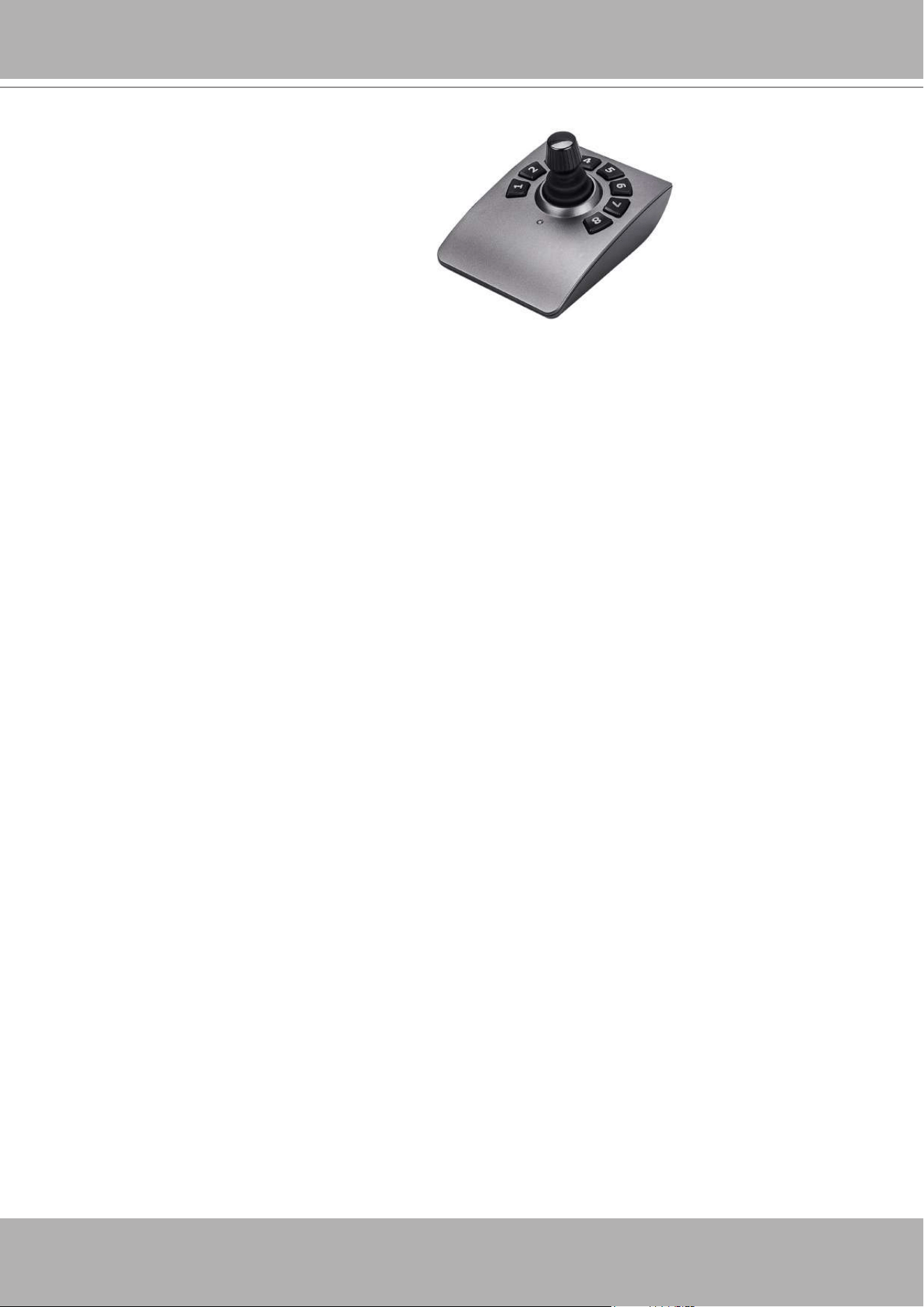
This portal appears with a sheye camera. The PiP and PTZ
buttons will then be disabled.
Due to the limitation of system resources, the sheye dewarp (1R & 1P) can
only take place on one view cell, for one sheye camera.
IMPORTANT:
VIVOTEK - Built with Reliability
User's Manual - 43
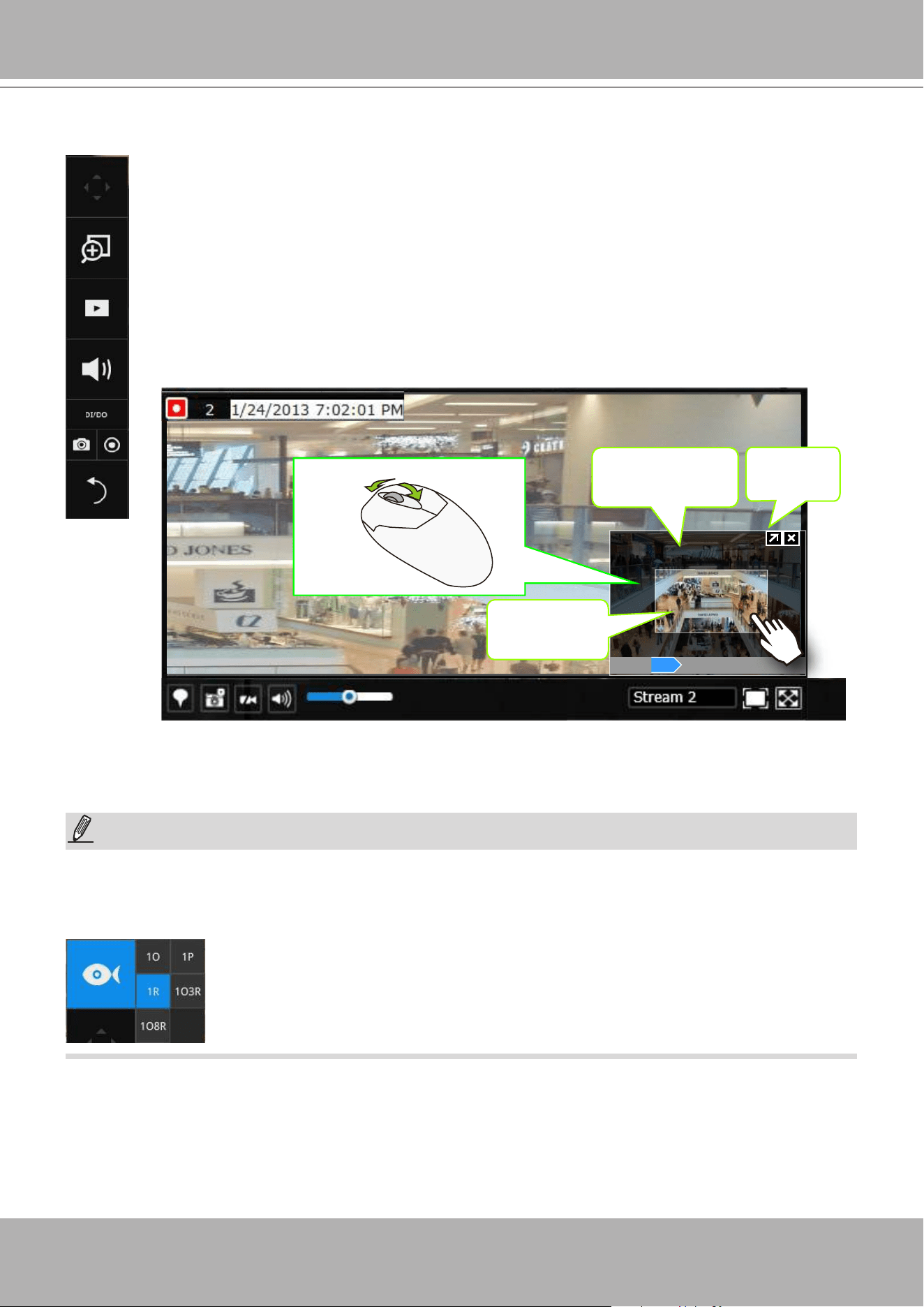
Joystick support
The joystick related operations are listed below:
1. Pan: Continuous move is supported. (joystick X-axis movement)
2. Tilt: Continuous move is supported. (joystick Y-axis movement)
3. Zoom: Continuous move is supported. To zoom in, move joystick Z-axis clockwise (or use
button #2). To zoom out, move joystick Z-axis counter-clockwise (or use button #3)
4. Home: joystick button #1.
5. Auto Pan: joystick button #5.
6. Patrol: joystick button #7. Preset positions must be pre-congured for the camera.
7. Stop: Stops auto pan or patrol. Joystick button #6.
VIVOTEK - Built with Reliability
44 - User's Manual
2-2-2. Digital zoom Panel
Digital zoom is a function that provides digital zoom into a live video. Be sure you
place your mouse cursor inside the Global view window for the zoom function to take
effect.
When activated, a Global view window will appear at the lower right of the view cell
as shown below. You can display only a portion of the complete video frame as an
area of your interest. Using a click and drag on the ROI window, you can instantly
move to other areas within the video frame. Use the zoom ratio pull bar at the bottom
to change the zoom ratio. You may also move the ROI around by click and drags.
Global view
Zoom In Zoom Out
160%
ROI
Shrink/
Expand
Note that not every camera supports the PiP function.
Please refer to page 133 for the description of sheye display modes. The working theory on
sheye modes is identical for use on both local and web consoles. The sheye mount type
setting is found in the
Settings
window.
NOTE:
VIVOTEK - Built with Reliability
User's Manual - 45
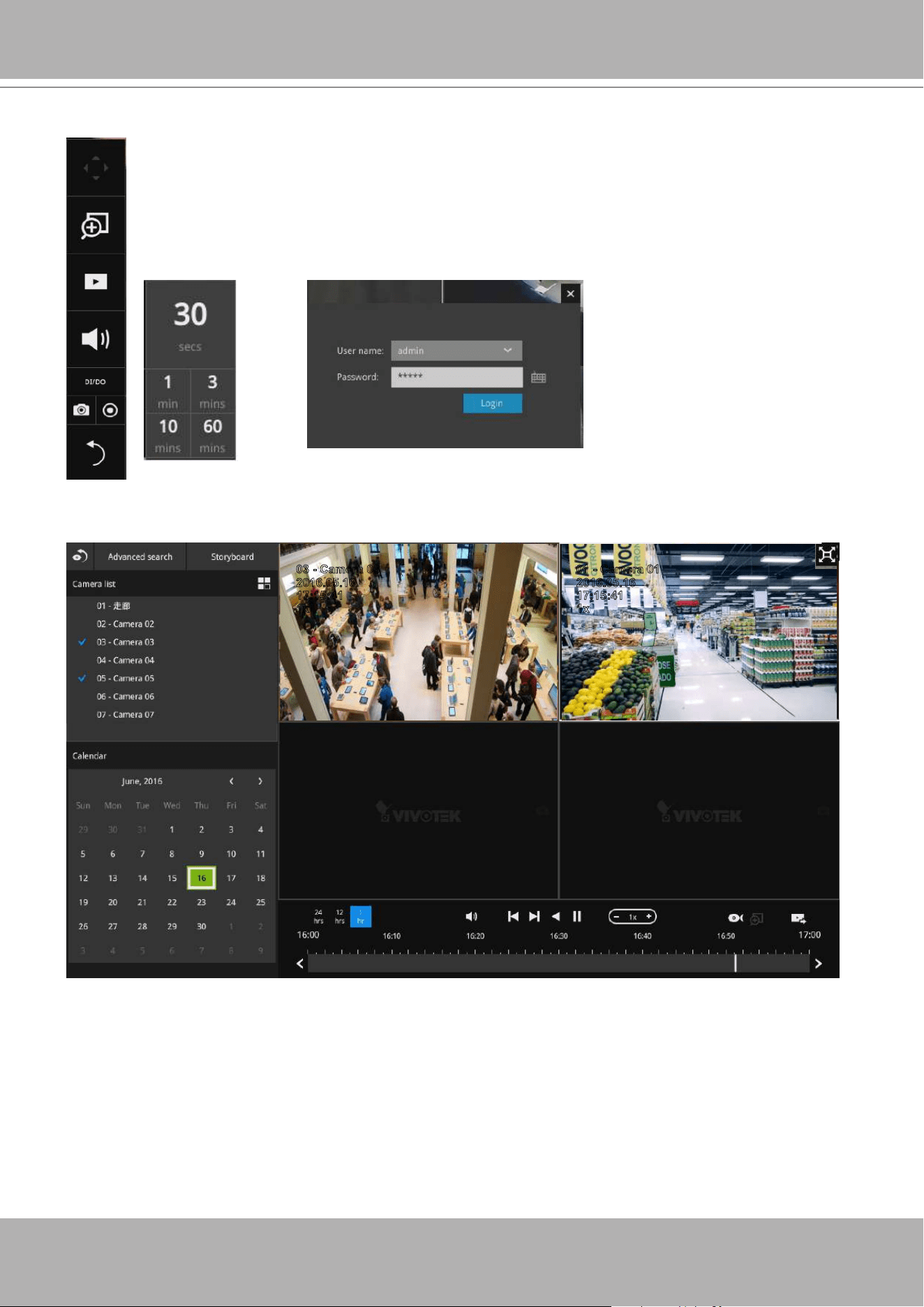
2-2-3. Play Recording Clips Panel
The Play Recording Clips function provides a shortcut to the latest recordings
on the system. You can select 30 secs, 1 min, 3 mins, 10 mins, and 60 mins
for an immediate playback.
For security reasons, using this function requires users to enter his/her
credentials.
10:32:56
2015.09.22 1x
2016.05.16
03 - Camera 03
17:15:41
1x
2016.05.16
01 - Camera 01
17:15:41
1x
The
Playback
window will prompt, and a playback begins from the point in time you selected,
e.g., 30 seconds ago. This function allows you to quickly review what has just happened.
VIVOTEK - Built with Reliability
46 - User's Manual
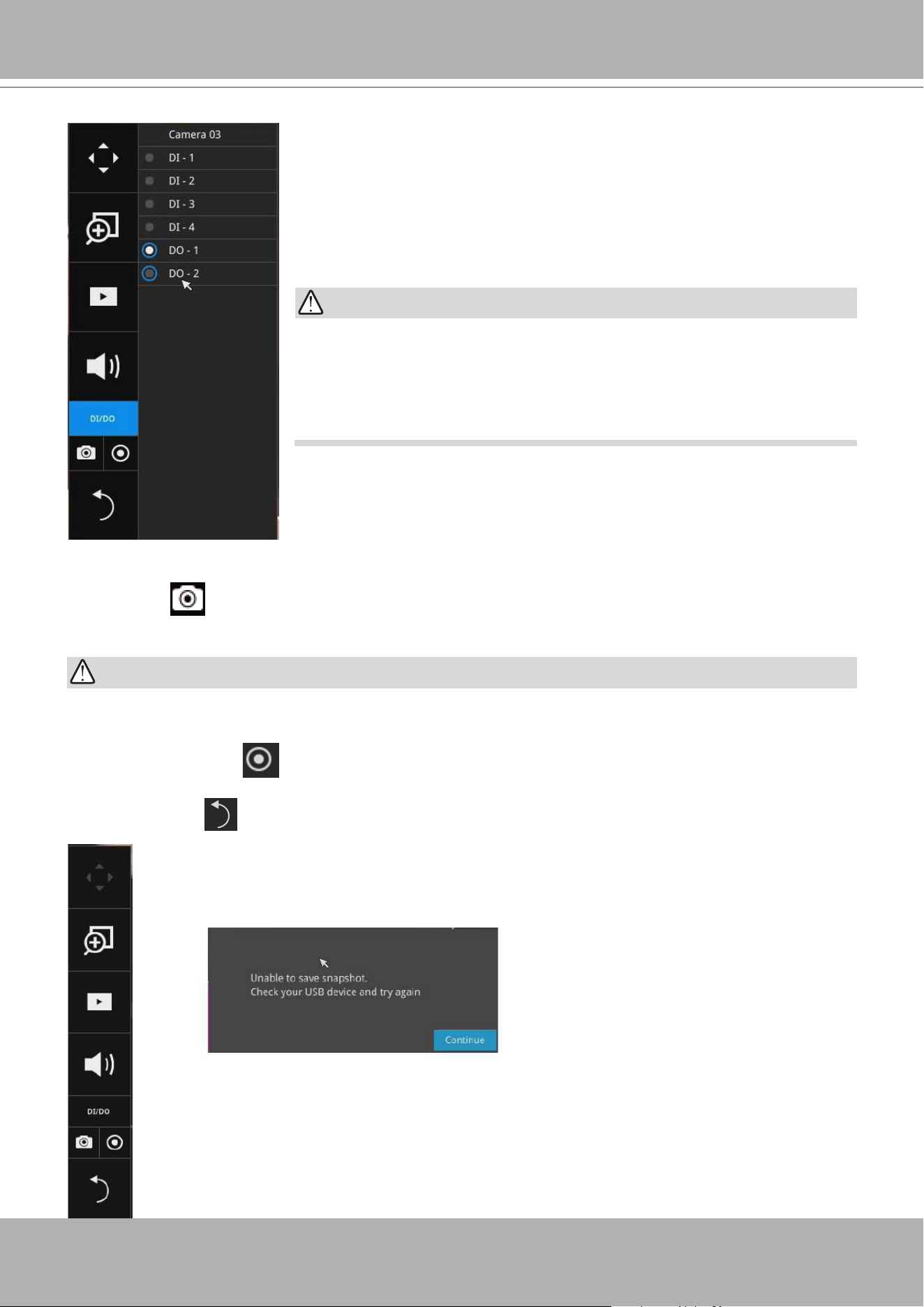
2-2-4. DI/DO
The DI/DO panel provides a glimpse of all DI and DO signal
statuses from the connected cameras. You can manually trigger a
digital output by clicking on its indicators.
When a digital input is triggered, its status will also be indicated on
the panel.
Please note that DO is triggered by one click. You should then
click again to disable the DO. Otherwise, the DO signal will be
continuously triggered. As the result, if the DO is congured as an
alarm trigger, many alarm messages will be generated.
WARNING:
2-2-5. Others
1. Snapshot : is used to take a snapshot from the camera currently selected. Note that this
function only saves the snapshot (in JPEG) to a USB thumb drive.
The USB thumb drive has to be one that is formatted in FAT format.
2. Manual Recording : Press the button to start a manual recording from a selected camera.
Click again to stop the recording.
3. Return button : Click to return to the LiveView window.
IMPPORTANT:
VIVOTEK - Built with Reliability
User's Manual - 47
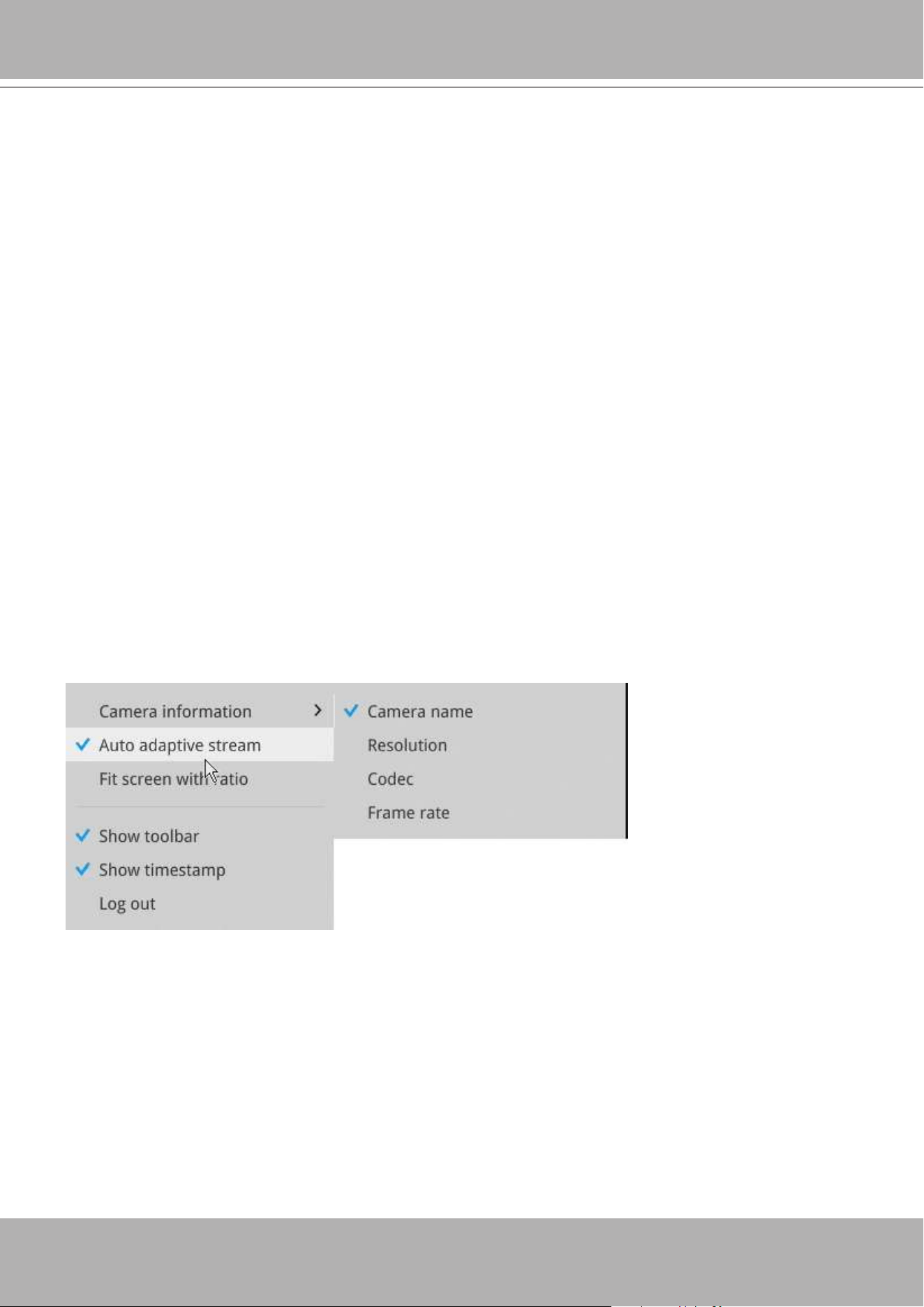
2-2-6. Right-click Commands
Left-click to select a camera. Right-click to display the selection menu.
1.
Camera information
: Click to display camera name, resolution, codec, or frame rate on the
view cell. The information will display on the upper left corner of a view cell.
2.
Auto adaptive stream
: Default is enabled. The Auto adaptive stream automatically polls a
video stream of a smaller resolution in order to reduce the streaming efforts. For example,
when a view cell is placed in a 3x3 layout, it may not be necessary to stream the video in its
full resolution. In a full view, the system displays a video in its full resolution. Due to the size
of view cells on your monitor, when in a multi-cell layout, the system automatically polls the
camera for a smaller resolution stream.
The Auto adaptive stream feature can be disabled if you prefer consistent display resolution.
3.
Fit screen with ratio
: The NVR server automatically optimizes the display of camera view
cells. However, you can still select this option to display the camera's original aspect ratio: for
example, the original video feed can be 4:3. Without the t screen, every camera's image will
be expanded to ll the view cell.
4.
Show tool bar
: You can hide the tool bars by deselecting this option.
5.
Show timestamp
: You can hide the time stamp bars by deselecting this option.
6.
Log in/Log out
: Log in to enable system conguration.
VIVOTEK - Built with Reliability
48 - User's Manual
Chapter Three
Conguation Using the Local Console
The Main Control Portal
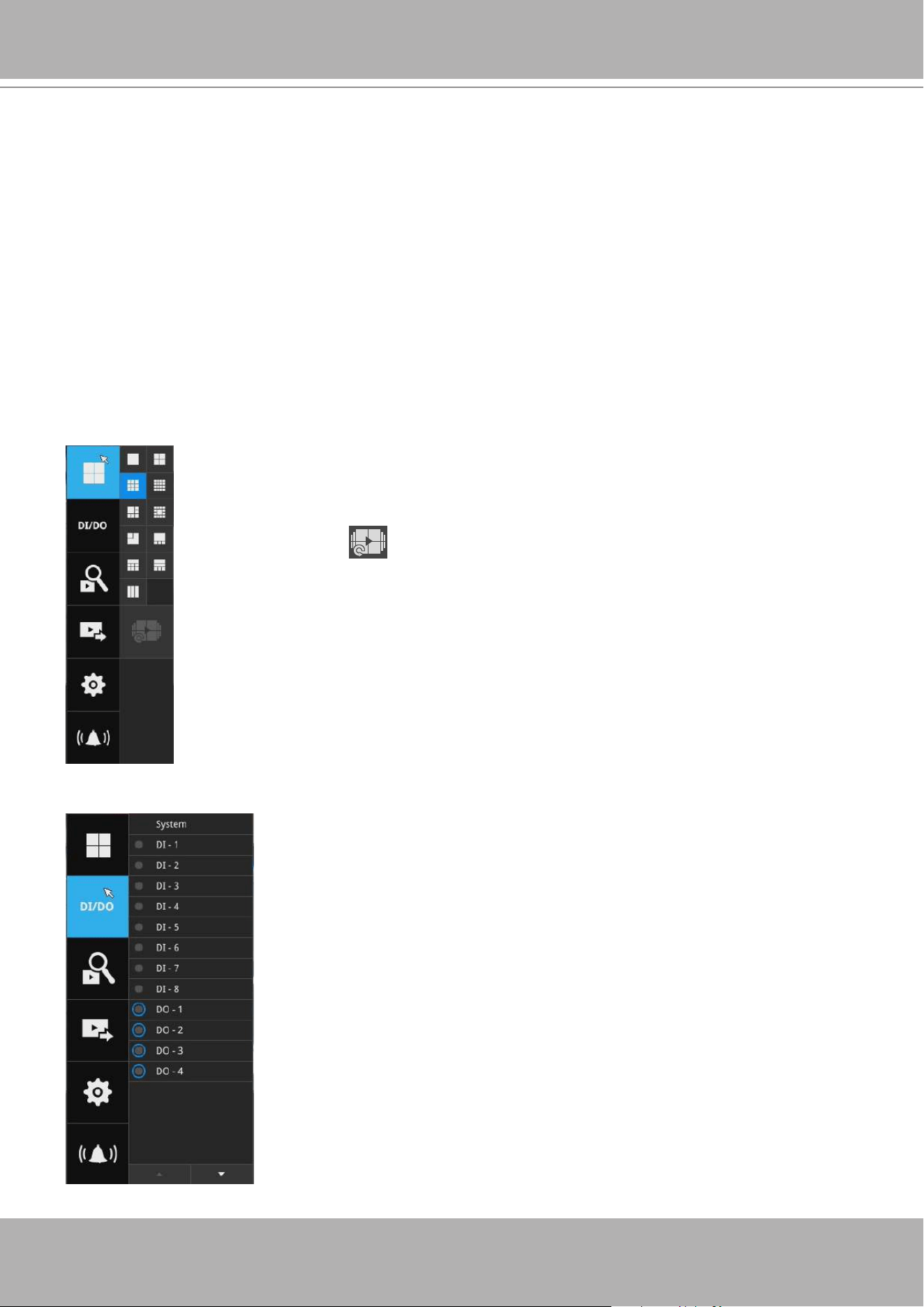
3-1. Layout
By default, 5 typical layouts are provided for the user. They include: 1x1, 2x2,
3x3, 4x4, 1P+3, 1M+5, 1M+12, and 1M+31. If you select the single view layout,
the rotation button will appear. Click the rotation button below to let the
system swap the display of different cameras by every 10 seconds. The rotation
speed is congurable via Settings > System > Display.
Move your mouse cursor across the screen to display the portal.
3-2. DI/DO
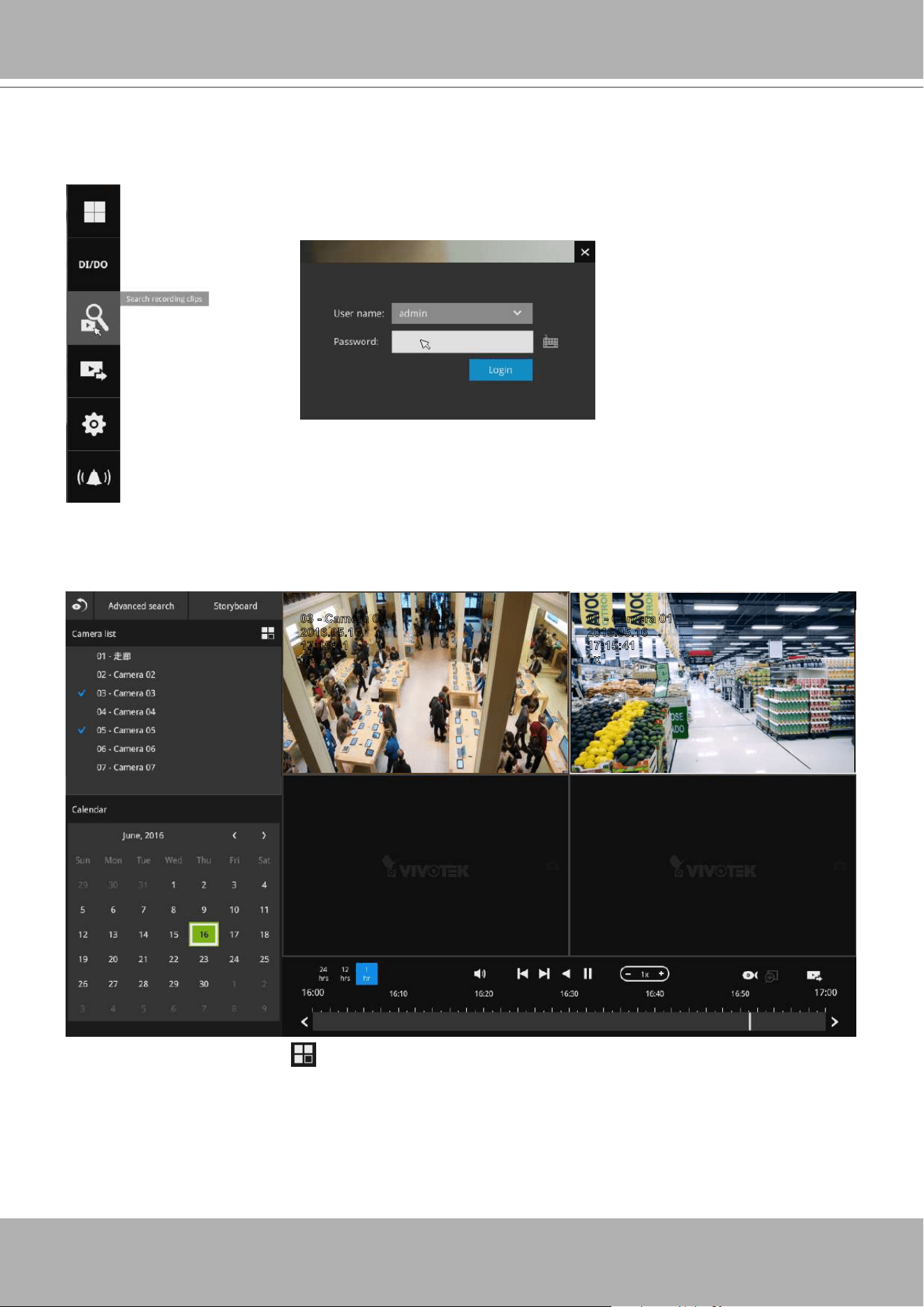
Click on the DI/DO button to display the full list of all DI and DO
signals (whether they are connected or not) from all cameras in the
conguration. If a digital input signal is triggered, e.g., the DI-4 on the
left, its indicator will turn solid white.
VIVOTEK - Built with Reliability
User's Manual - 49
3-3. Search recording clips
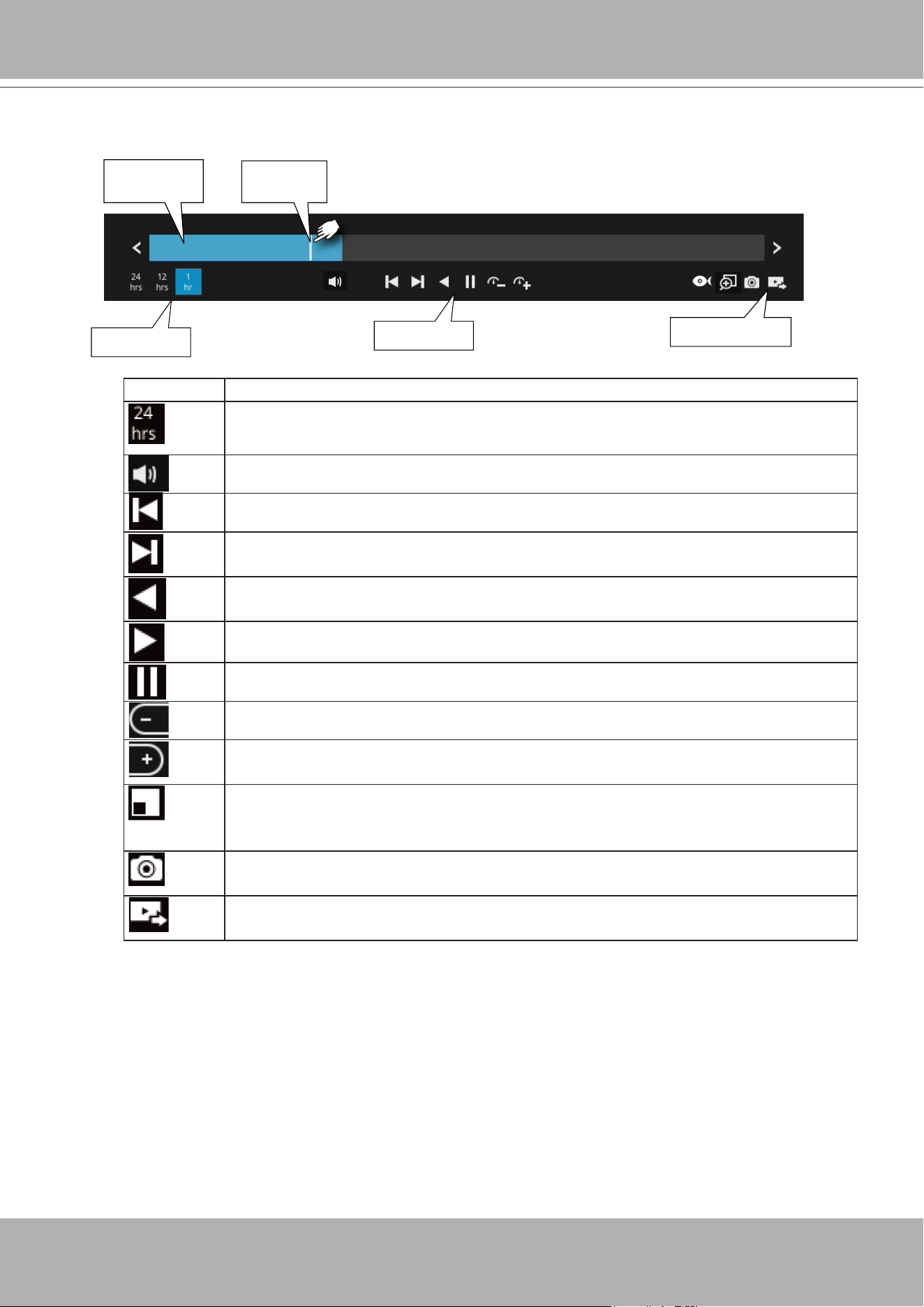
Click the button to start searching for recorded clips. A conrm box will
prompt. Enter User name and Password to proceed.
2016.05.16
03 - Camera 03
17:15:41
1x
2016.05.16
01 - Camera 01
17:15:41
1x
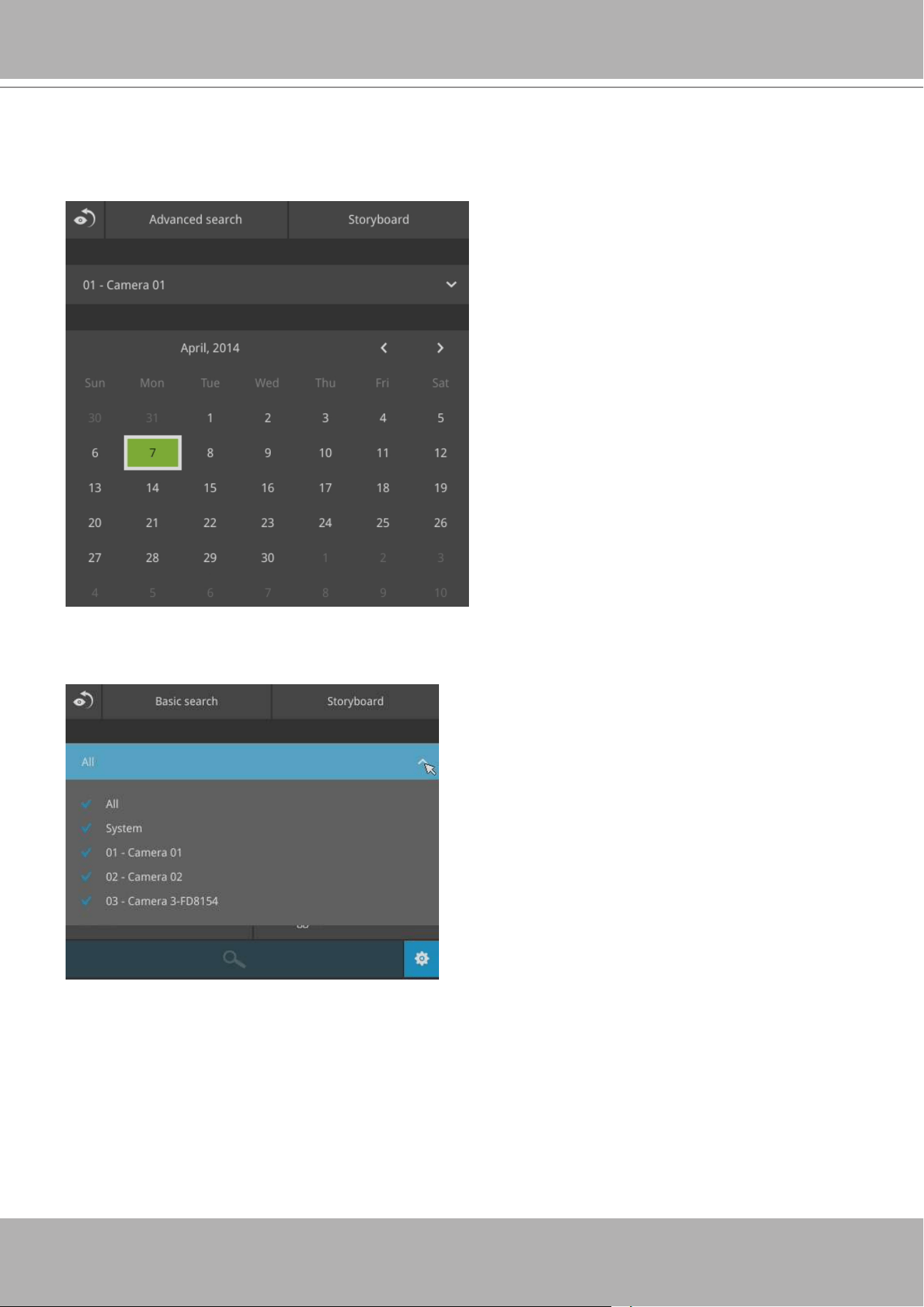
The search and calendar view will appear. Select a day on the calendar to select the
date when the recordings of your interest took place (the days with recorded clips will be
highlighted in blue and green).
Double-click on a day to begin playback and search.
The date highlighted in green indicates today, and the green indicator does not
necessarily mean that there are recorded videos today.
3-3-1. Basic Search
Use the layout button to adjust view cell arangement on screen. You can retrieve the
recorded videos from a max. of 4 cameras at the same time.
Once you select to playback multiple cameras, the playback window will automatically
turns into the 2x2 layout. Up to 4 cameras' recording can be played back simultaneously.
This enables the synchronized playback of video produced by multiple cameras. Users do
not need to switch from one camera to another when searching for forensic evidences.
VIVOTEK - Built with Reliability
50 - User's Manual
Current time
indicator
Span of existing
recording
Timeline scale
Control buttons
Functional buttons
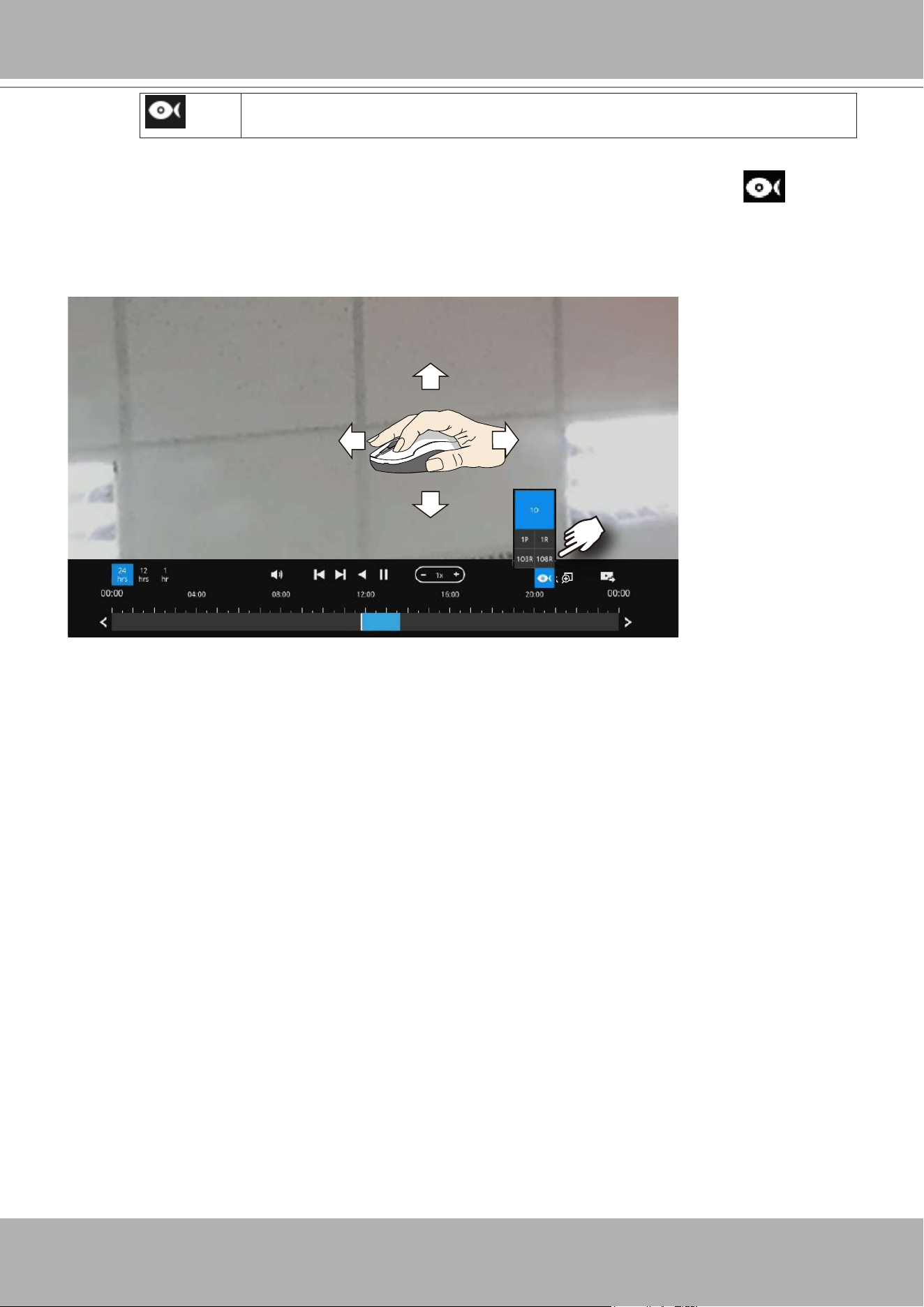
The timeline bar enables quick skimming through the recording. Its functions are
described as follows:
Buttons Description
Time scale selector. Use the buttons to select the span of time displayed on
the tool bar.
Audio volume. Use it to adjust the playback volume.
Previous frame. (I-frame only)
Next frame. (I-frame only) After you paused a playback, use this button to
browse video frame by frame.
Play backwards.
Play. This button is available after you paused a playback.
Pause.
Each click on it speeds down by 1/2. The slowest speed is 1/16.
Each click on it speeds up by 2x. The fastest speed is 16 times.
The current playback status is indicated on the screen.
PiP (Picture in Picture). This applies when a camera is not displaying the
full of its eld of view. You can use the PiP function to move to unrevealed
areas.
Snapshot. Takes a snapshot of the current FOV. This button is moved to the
right hand side of the screen.
Export clips. Use this function to select a span of time you want to export to
other medias.
By default, the playback starts from the beginning of a day's recording. While playing the
recorded video, click on the timeline to replay a point in time in the video.
VIVOTEK - Built with Reliability
User's Manual - 51
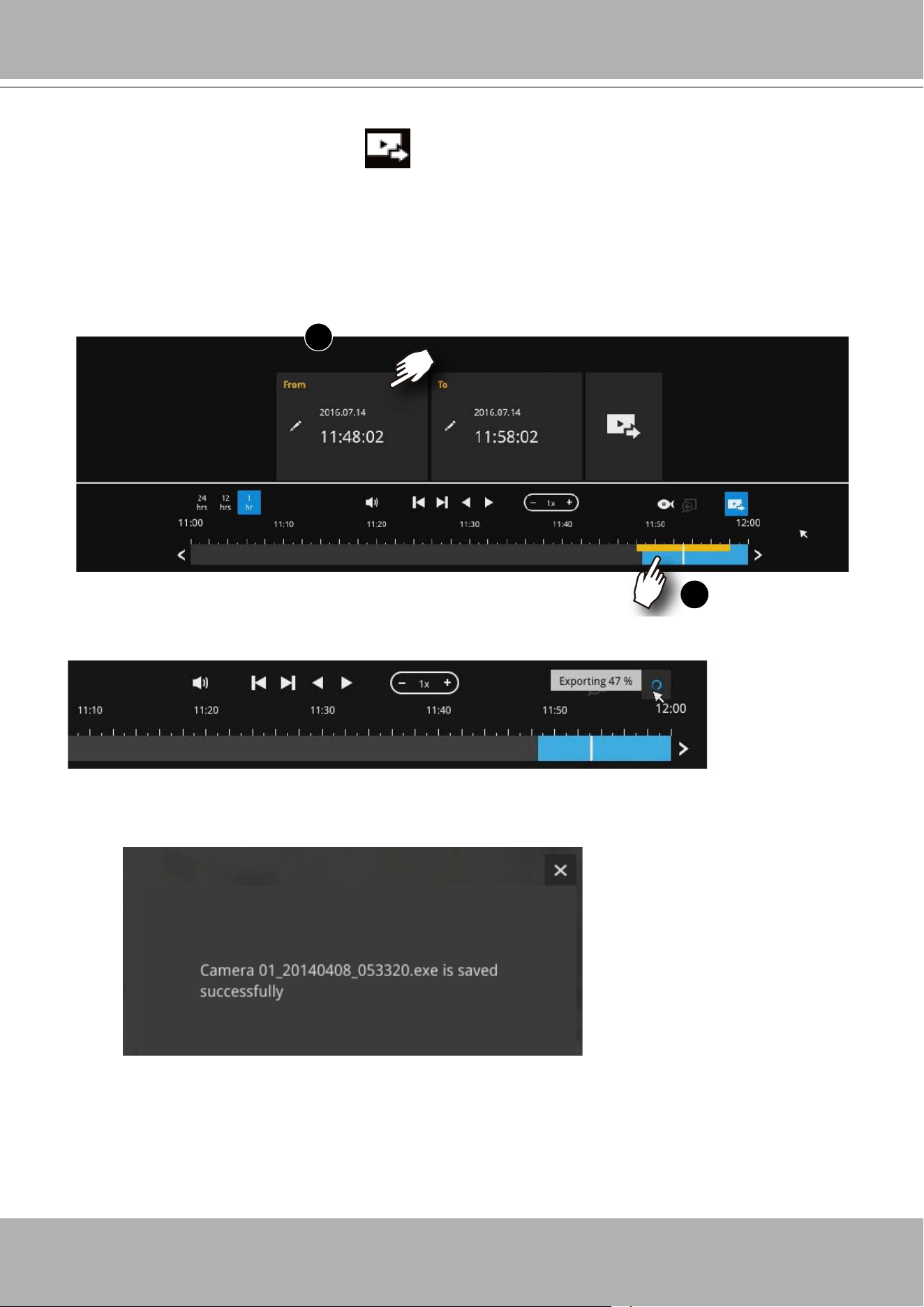
The sheye dewarp modes can be selected during a playback: e.g., 1R,
1P, 1O3R, or 1O8R.
When playing the video recorded by a sheye camera, the sheye display options will be
available on screen. You can click to select the 1O, 1P (Panoramic), 1R (Regional), or 1O3R (1
Original and 3 Regional), or 1O8R modes. If 1P, 1R, 1O3R, or 1O8R mode is selected, you can
exert the mouse control on screen, such as swiping the view, or hold down the mouse button
and swipe the eld of view.
Please refer to the User Manuals that came with sheye cameras, or page 133 for description of
sheye display modes.
VIVOTEK - Built with Reliability
52 - User's Manual
Note that to export a video segment from the playback timeline,
1. Click on the
Export
button ,
2. Insert a USB drive formatted in the FAT format.
3. Select the "From time" by clicking on the timeline. You can also manually enter the
"From time" and the "To time."
4. Click on the "From time" tab using a single click.
5. Repeat steps 3 and 4 to congure the To time.
6. Click on the Export button.
1
2
The export process is indicated on the right. Depending on the length of footage to be
exported, this process can take minutes.
When completed, a message will display on screen.
The default for export is 5 minutes before and 5 minutes after the point in time that is
currently selected.
VIVOTEK - Built with Reliability
User's Manual - 53
3-3-2. Advanced Search
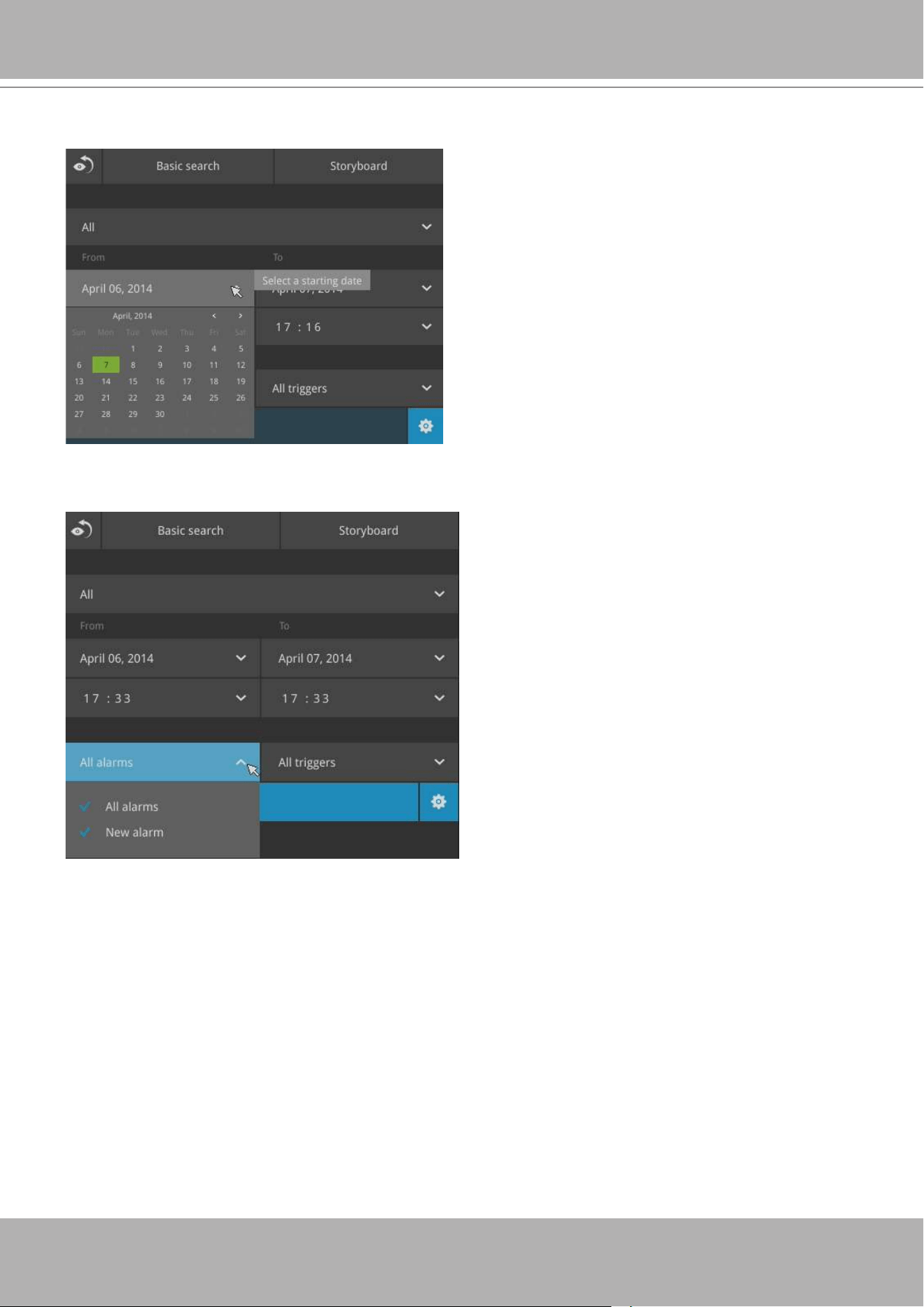
Click on the Advanced search button on the upper left of the screen to enter the Advanced
Search mode.
You can specify the search criteria by selecting the devices to be involved in the advanced
search.
VIVOTEK - Built with Reliability
54 - User's Manual
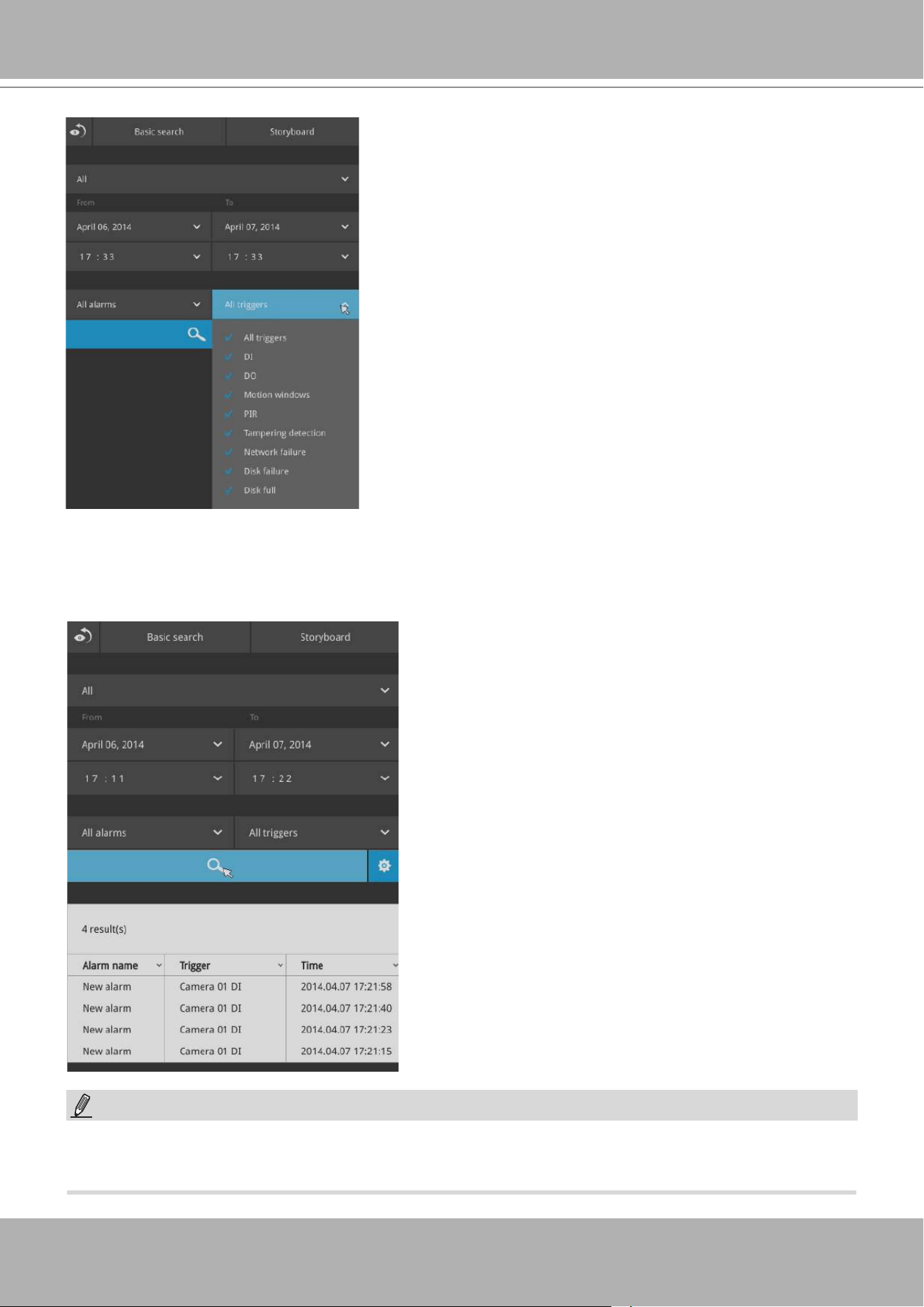
You can then specify the start time and end time to congure a span of time to be searched.
You can also determine what alarms will be included in the search.
VIVOTEK - Built with Reliability
User's Manual - 55
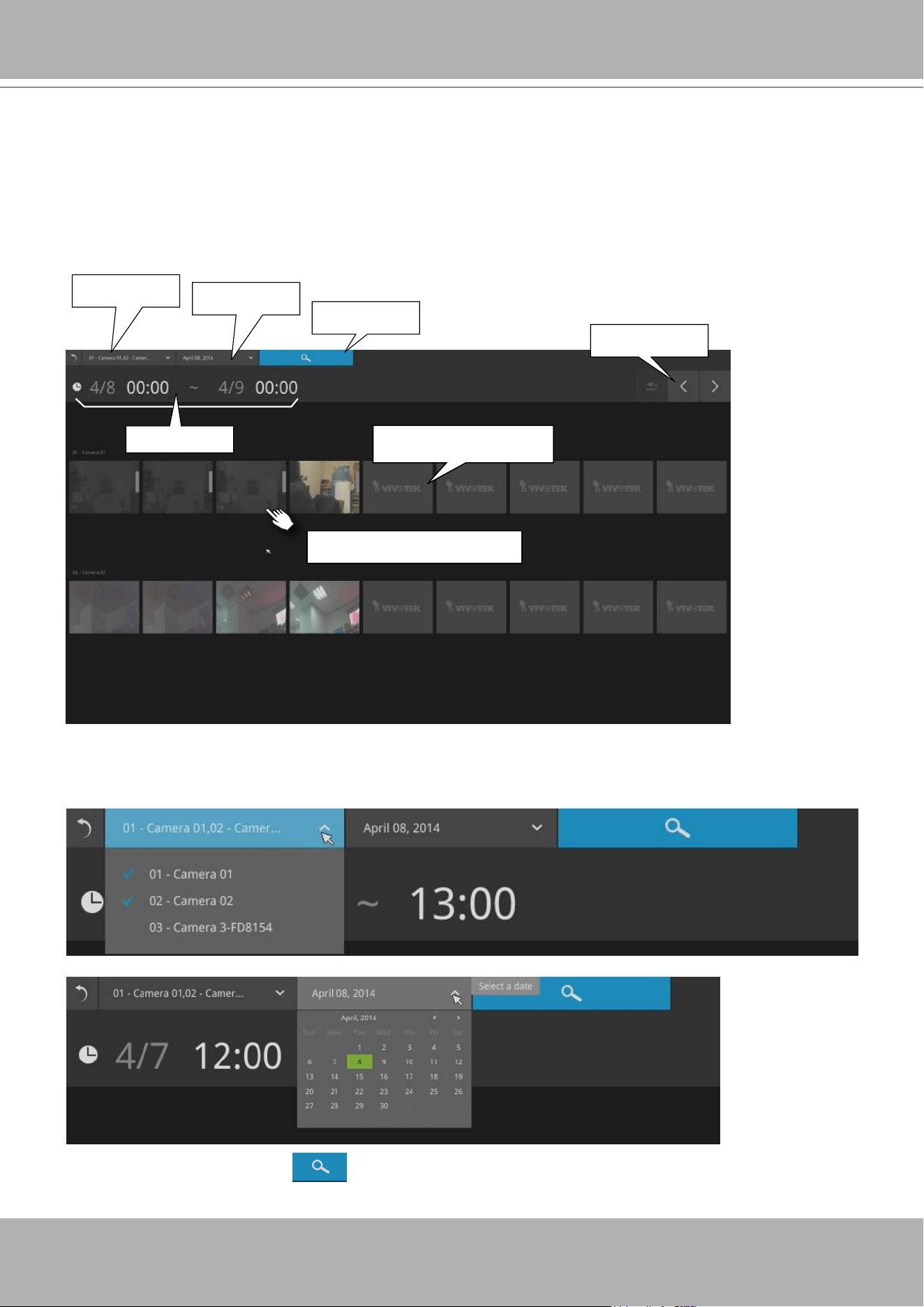
You can select what types of triggers were associated with the recordings you want to nd.
When done with the selection, click on the Search button. In the sample screen below, a list of
alarms is displayed, and you can double-click on any of them to replay the moment when the
alarm was triggered. The alarm-related recording will typically include a length of 5 seconds of
pre-alarm and 20 seconds of post-alarm footage.
When the Search window is left unattended for 10 minutes, the NVR will return to the live view
display. To enter the Search window, you will have to enter the user credentials again.
NOTE:
Up to 200 search result entries will appear. If more
than 200 entries have been found, click on the New
results button on the last entry page.
If two cameras participate in the recording of an
alarm-related event, the footage of one camera will
be played rst, and then that of the other.
If a user's operation takes place (pause, rewind,
etc.) during the playback, the system will stop the
consecutive playback of multiple alarm footages.
VIVOTEK - Built with Reliability
56 - User's Manual
3-3-3. Storyboard
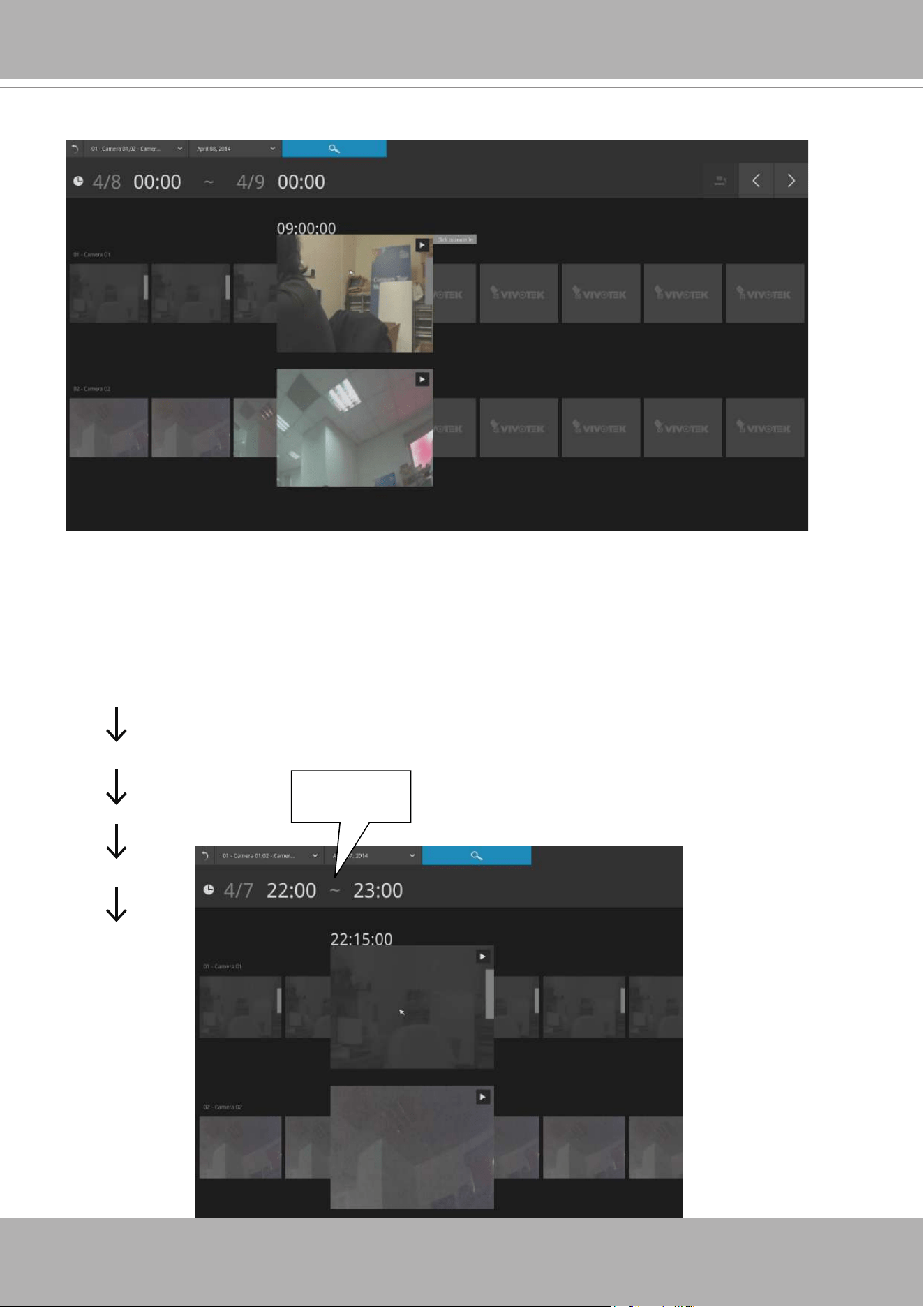
Camera selector
Time selector
Search button
Time span
Snapshots during the time
span
Fore- & backward
buttons
Click to enter a shorter time span
The Storyboard interface provides a glimpse of past recordings over a timeline. It looks and
operates like doing the lm editing after a lm was shot.
To enter the Storyboard window, click on the Storyboard shortcut on the upper-left of screen.
Below are the screen elements of the Storyboard window:
To search for a particular video footage, select the target cameras and the time of recording. On
the Storyboard, the timelines of up to two cameras can be displayed.
Click on the
Search
button .
VIVOTEK - Built with Reliability
User's Manual - 57
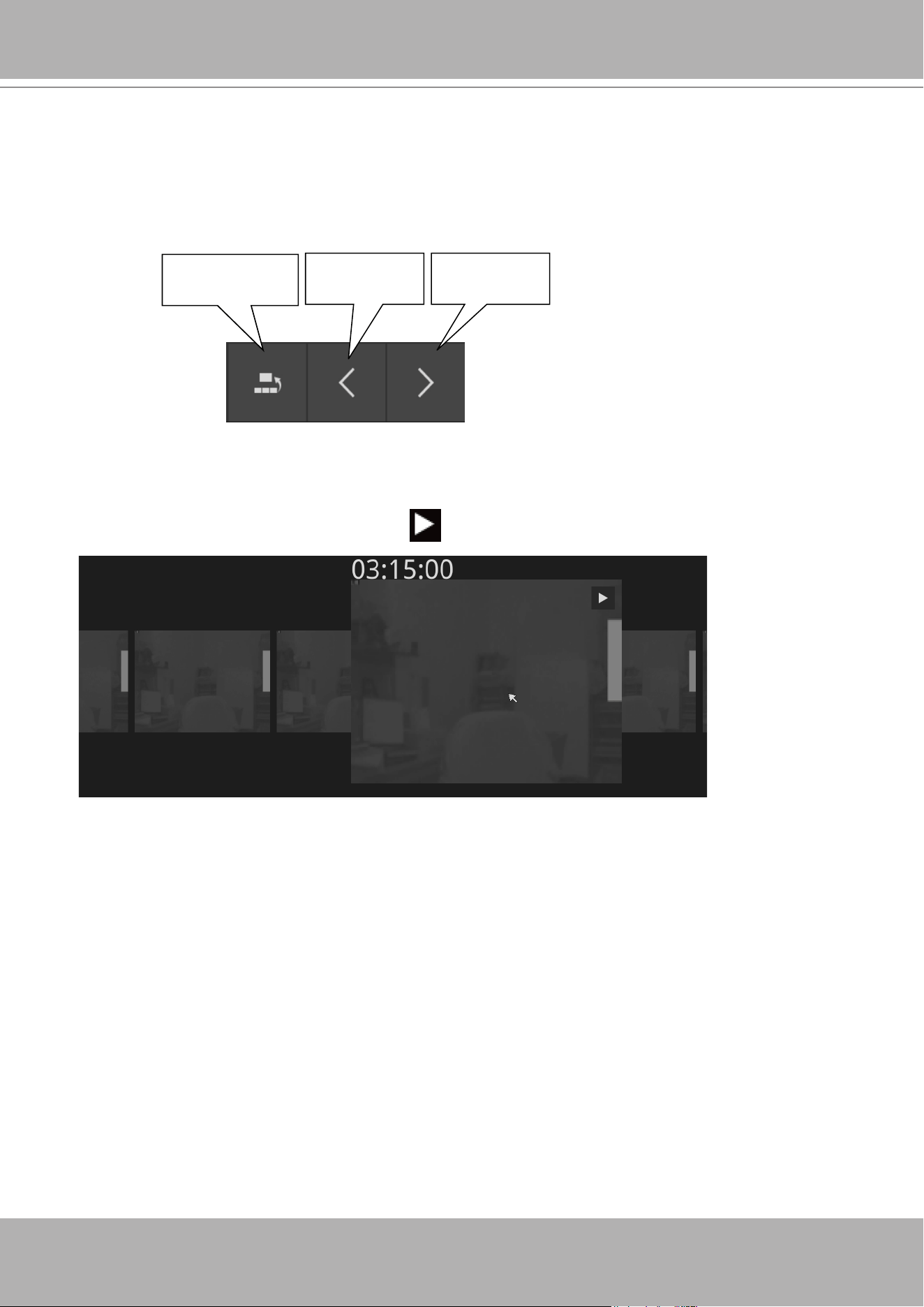
Mouse over the line of snapshots to display its time of recording. Click on a snapshot of your
interest. The time of recording is immediately displayed on top of it.
The detailed search is based on a narrow-down criteria. The search begins from a 24-hour time
span, and then moving in to a 4-hour, 1-hour, 10-minutes, and 2-minutes span. When the screen
displays a 24-hour span, each snapshot represents a 3-hour time span.
Each click on a snapshot brings you deeper into the timeline.
24 hour
4 hour
1 hour
10 mins
2 mins
Time span:
1 hour
22:00:00 22:07:30
22:22:30
22:30:00 22:37:30
Below is a sample screen showing the screen of a one-hour time span. Each
snapshot represents a point in time 7.5 minutes apart. Click on a snapshot of
your interest to get deeper into the timeline.
VIVOTEK - Built with Reliability
58 - User's Manual
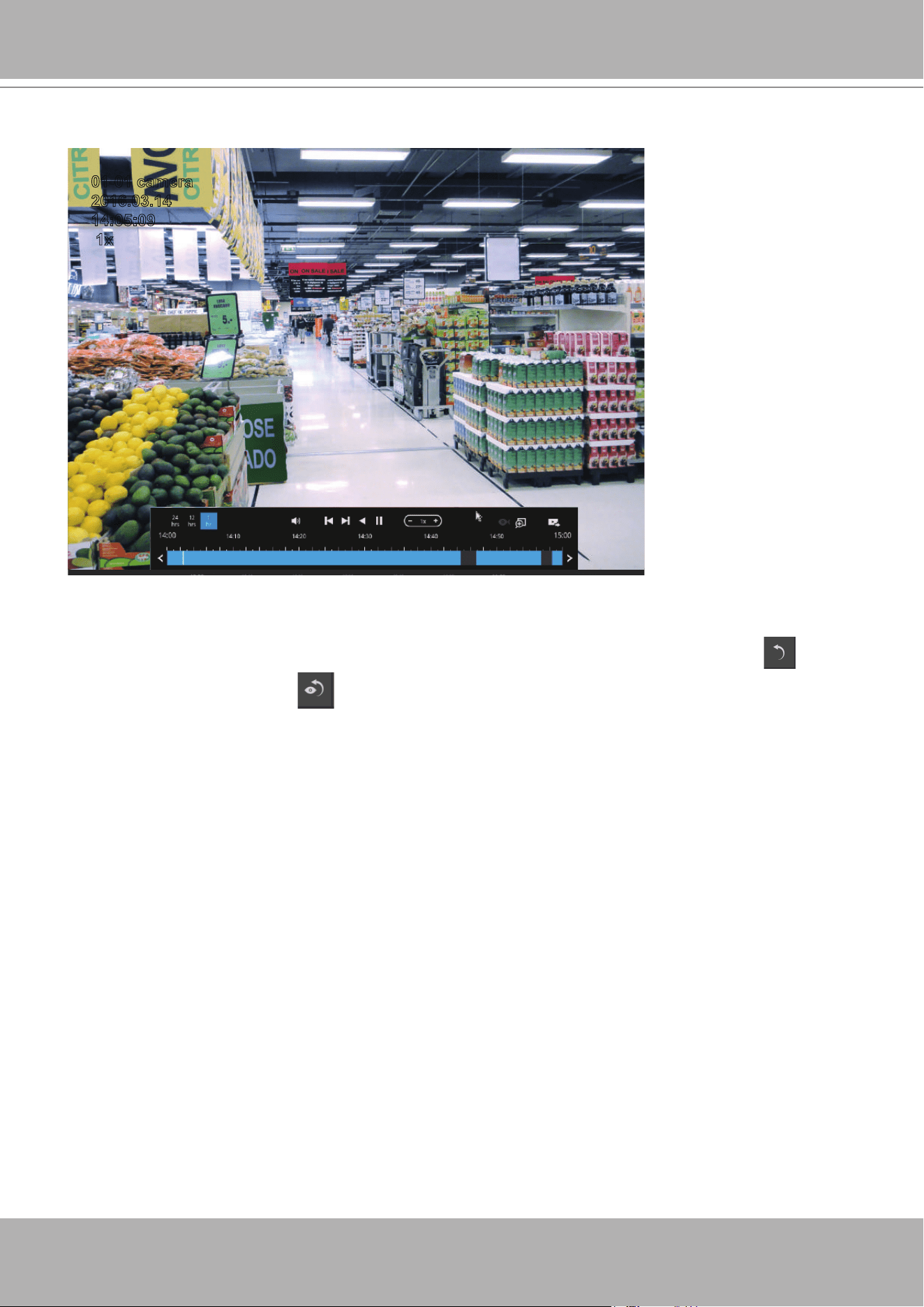
If you nd yourself in the wrong segment on the timeline, use the buttons on the upper-right
of the screen to travel.
The denitions of these buttons depend on the time span of your current position. For
example, if you are in a 4-hour time span, the "Back to previous state button" will bring you
back to the 24-hour time span.
Back to
previous state
Previous
# hours/mins
Next
# hours/mins
The smallest time span is 2 minutes. And on the screen of 2-mins span, each snapshot
represents a 15 seconds video footage.
You can then click on the Play button to playback the recorded footage.
VIVOTEK - Built with Reliability
User's Manual - 59
01-01 camera
2016.03.14
14:05:09
1x
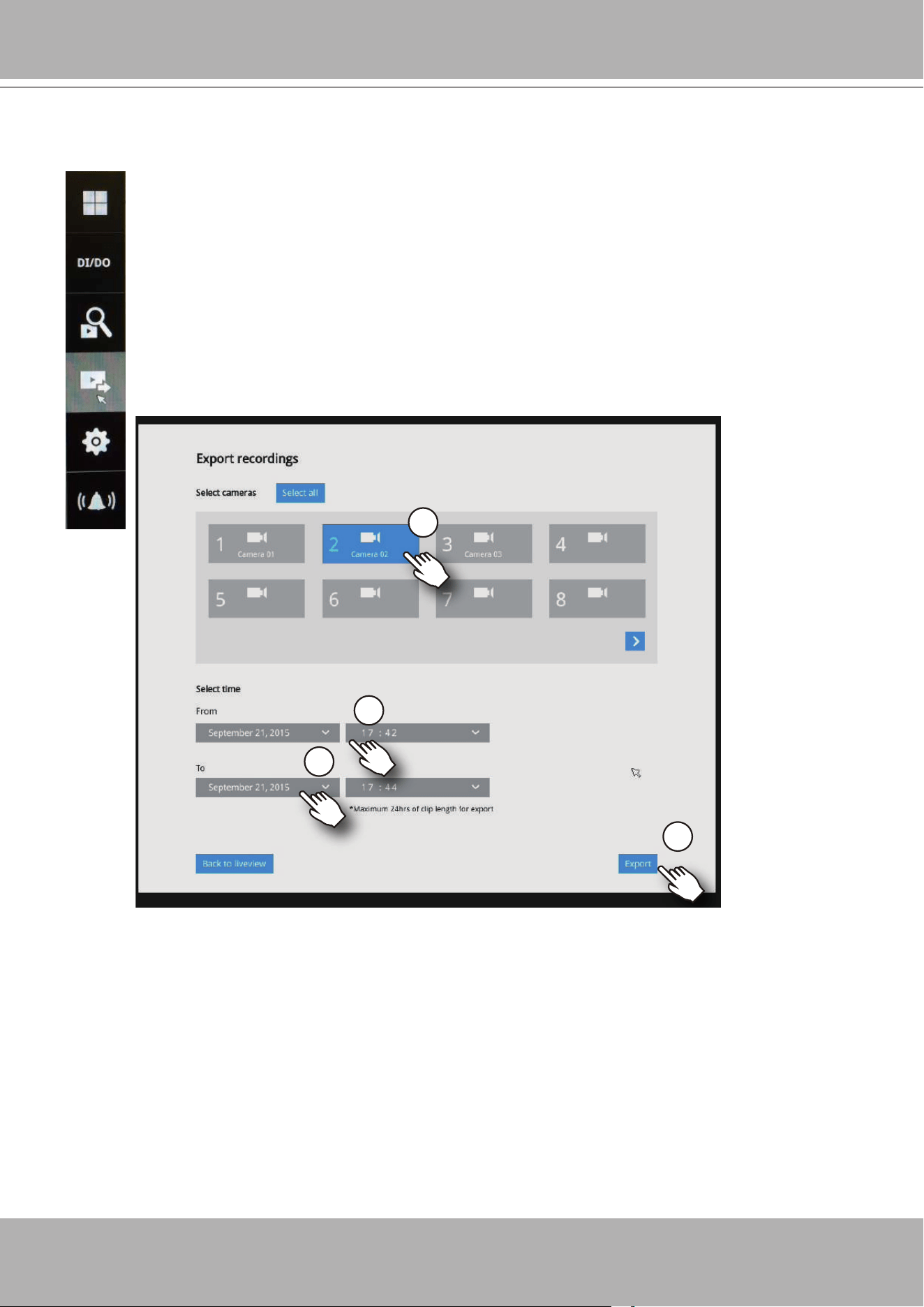
The playback window will appear. Please refer to page 50 for the operation details.
To return to the Live View window, click on the Back to Search recording clips button and
the Back to Liveview button on the upper-left of the screen.
VIVOTEK - Built with Reliability
60 - User's Manual
3-4. Export recordings
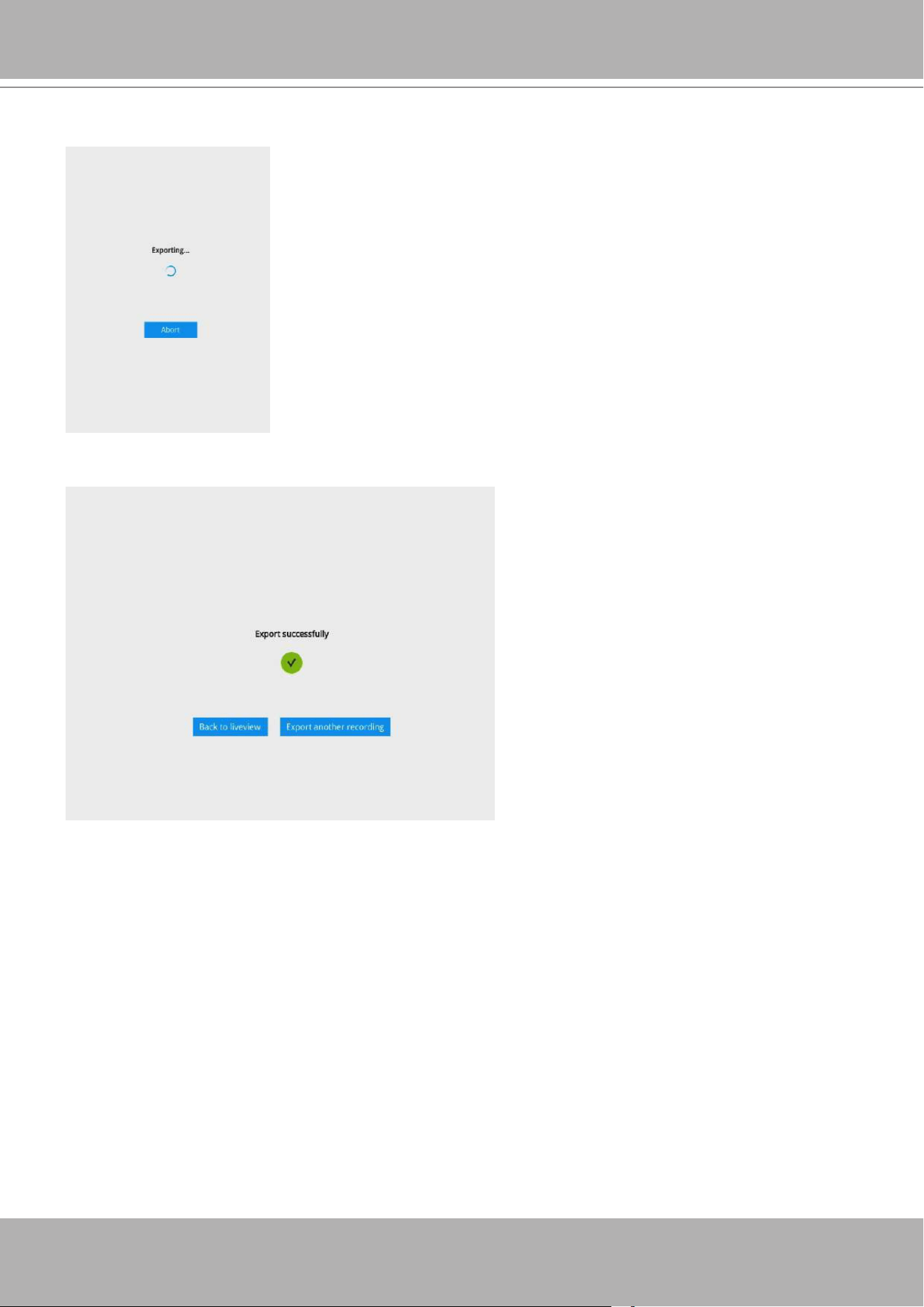
The Export recordings button allows users to directly select a piece of recordings by a
specic camera, and export that to a USB thumb drive. Users can select one or multiple
cameras, select a period of time in which the recording took place, and then click
export.
The max. length of recording export is 24 hours.
To export recordings:
1. Attach a USB thumb drive formatted in FAT format to the NVR's USB port.
2. Select one or multiple cameras from the list.
2
3
4
5
3. Select the start time of the period of recording time.
4. Select the end time of the period of recoding time.
5. Click the Export button.
VIVOTEK - Built with Reliability
User's Manual - 61
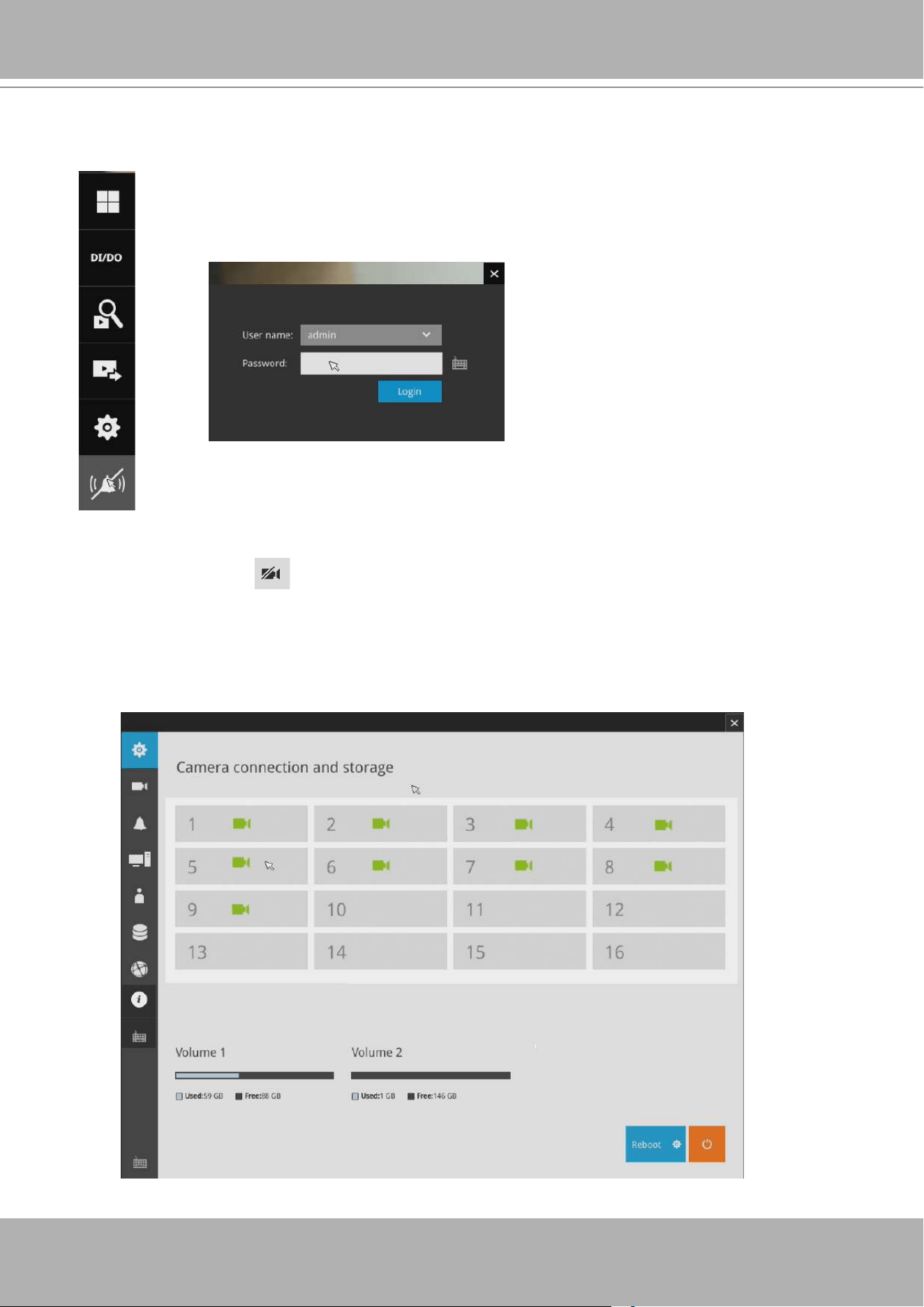
6. The Export progress will be shown.
7. When the Export process is done, select to resume another export or go back to the live view.
Note that the Export process can take a long time if the time span of the selected video is very
long.
VIVOTEK - Built with Reliability
62 - User's Manual
3-5. Settings
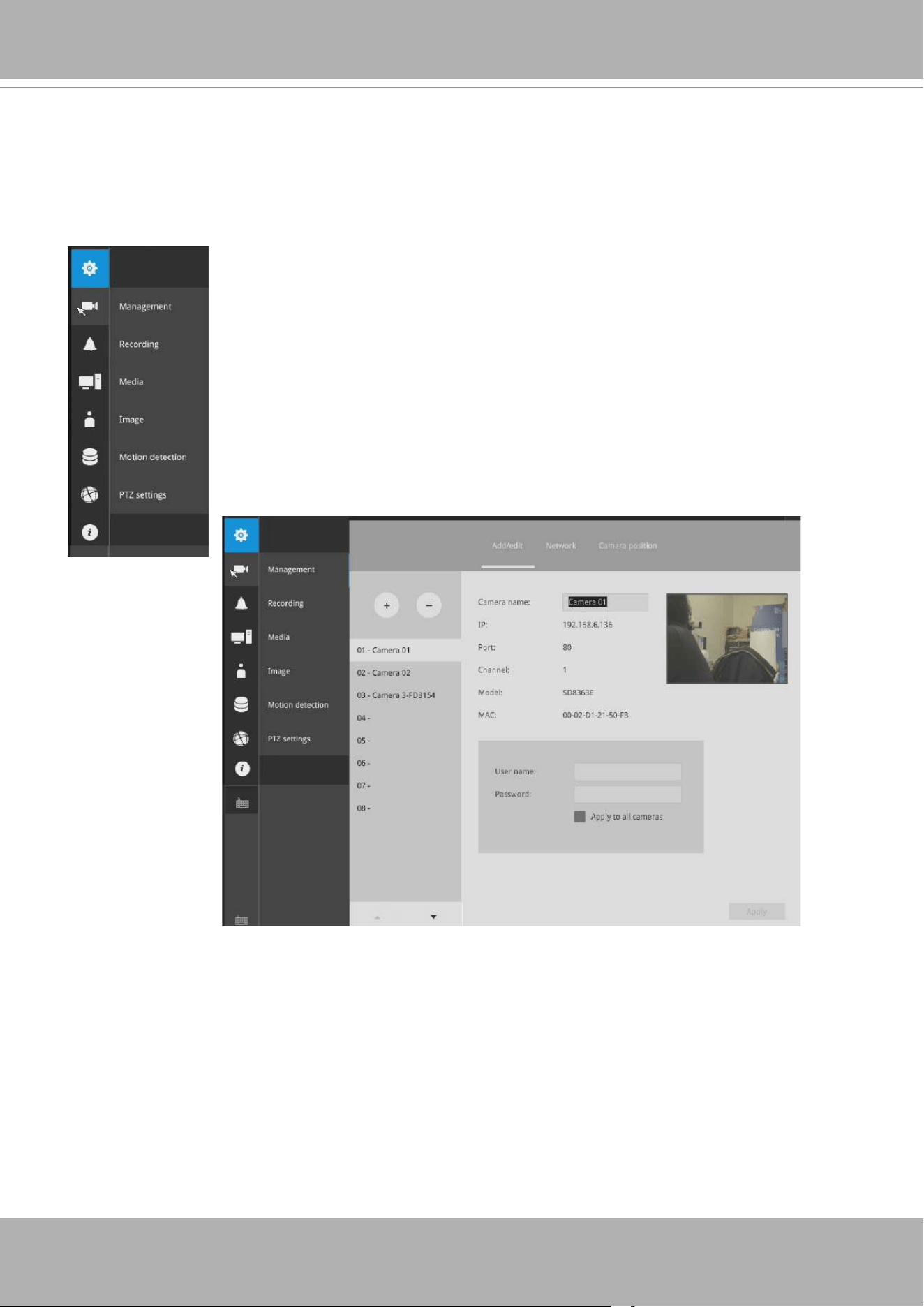
Click the Settings button to start the camera and system settings window. A
conrm box will prompt. Enter User name and Password to proceed.
The system will default to the overview page displaying the camera connection and
storage statuses. An empty position will be left in blank, and a disconnected camera will
be indicated as . The storage volume usage is displayed as the used and unused
spaces.
The
Stop Buzzer
,
Reboot
, and
Power-down
buttons are also available on this page.
There are critical conditions that can sound the system buzzer, such as a disk failure.
3-5-1. Settings - Overview
VIVOTEK - Built with Reliability
User's Manual - 63
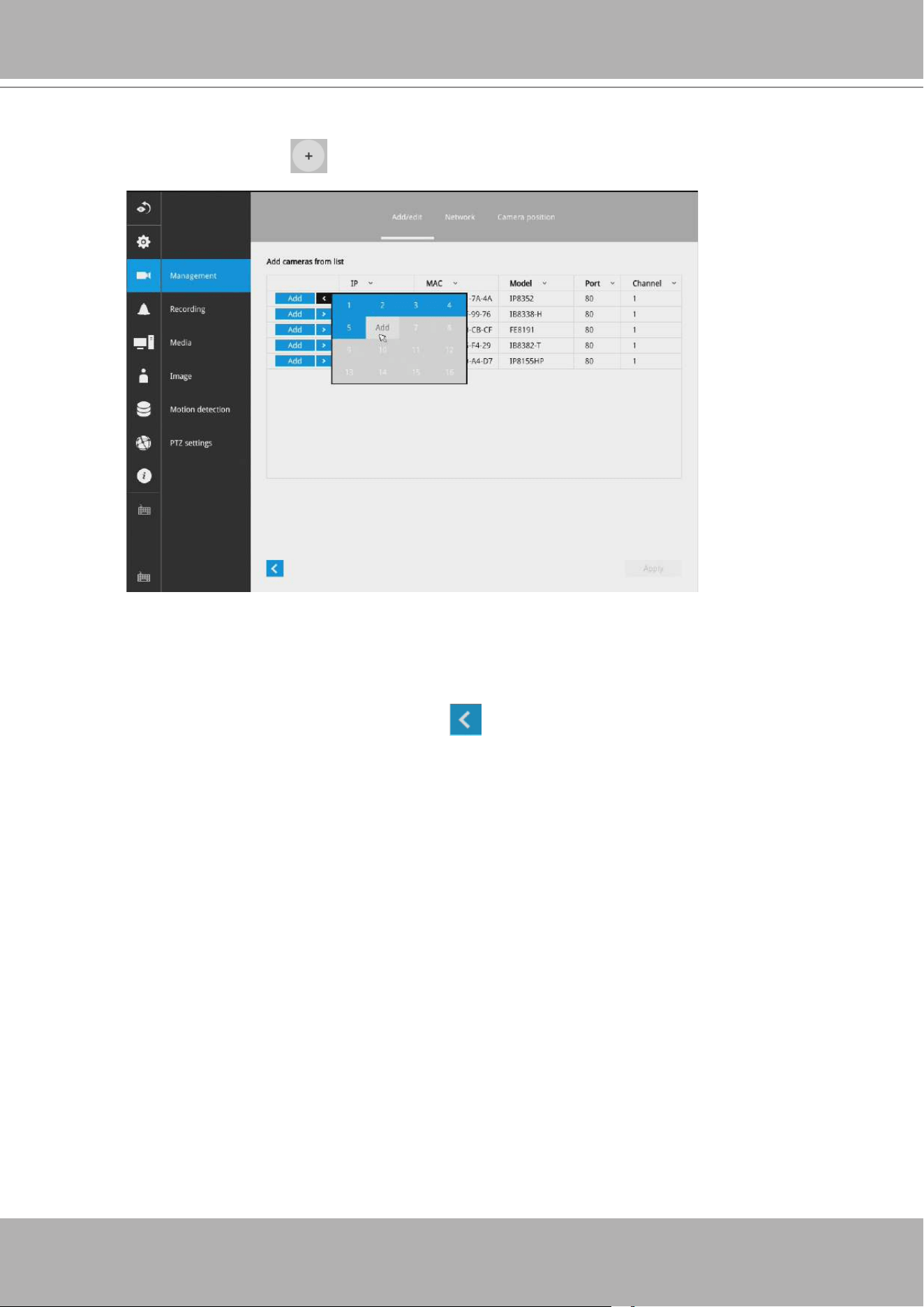
On the camera Management page, you can congure the following:
1. Recruit or disband cameras.
2. Create a camera name.
3. Assign User name and Password, or apply the credentials to all cameras in
your conguration.
4. Change the Network settings.
5. Change the cameras' positions on the layout screen.
3-5-2. Settings - Camera - Management
The Camera menu provides access to
Management
,
Recording
,
Media
,
Image
,
Motion
detection
, and
PTZ settings
pages.
For camera name, you can enter up to 64 alphabetic and numeric characters including
[0-9][a-z][A-Z][_][-][ ]. For user name and password, you can enter up to 64 alphabetic
and numeric characters including [0-9][a-z][A-Z][!][$][%][-][.][@][''][~].
VIVOTEK - Built with Reliability
64 - User's Manual
To recruit cameras:
1. Click on the Add button. A list of cameras in the same subnet will appear.
2. Click the
Add
button, the camera will be placed at an unoccupied position. You may
also expand the menu on the side of the Add button to select a position number.
3. When a camera is added, it should appear on the graphical placement below.
4. Click the Apply button after you added cameras.
5. You may click the page back button to return to the previous window.
VIVOTEK - Built with Reliability
User's Manual - 65
To disband cameras:
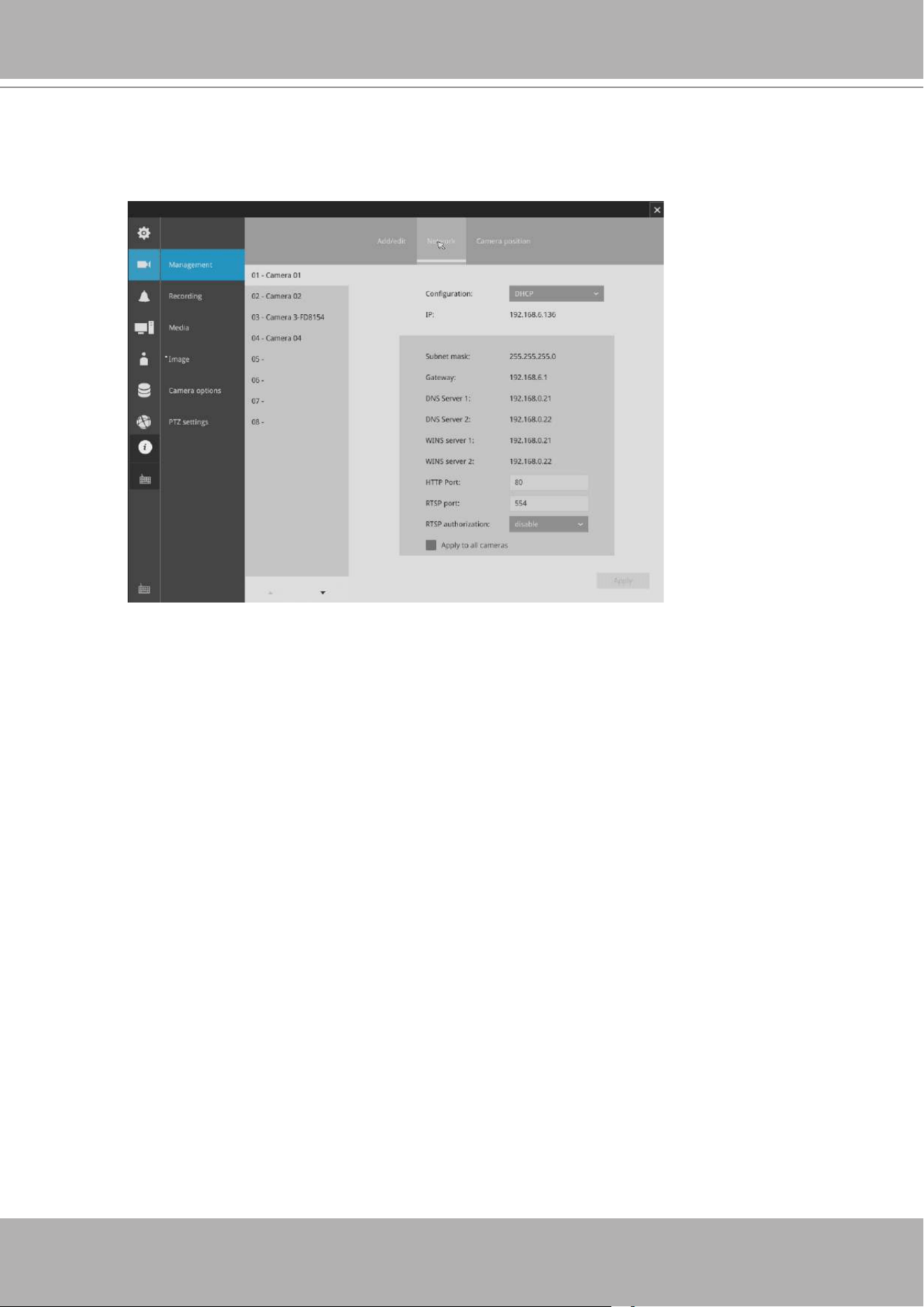
1. Click on the Remove button. A list of cameras will appear.
2. The
Remove
button will turn yellow . Mouse over to the camera you want to
remove, and its entry will display the
Remove
message.
3. Click on the Remove message. The camera should then disappear from the camera
list. The recording from that camera will also be discontinued.
VIVOTEK - Built with Reliability
66 - User's Manual
Network
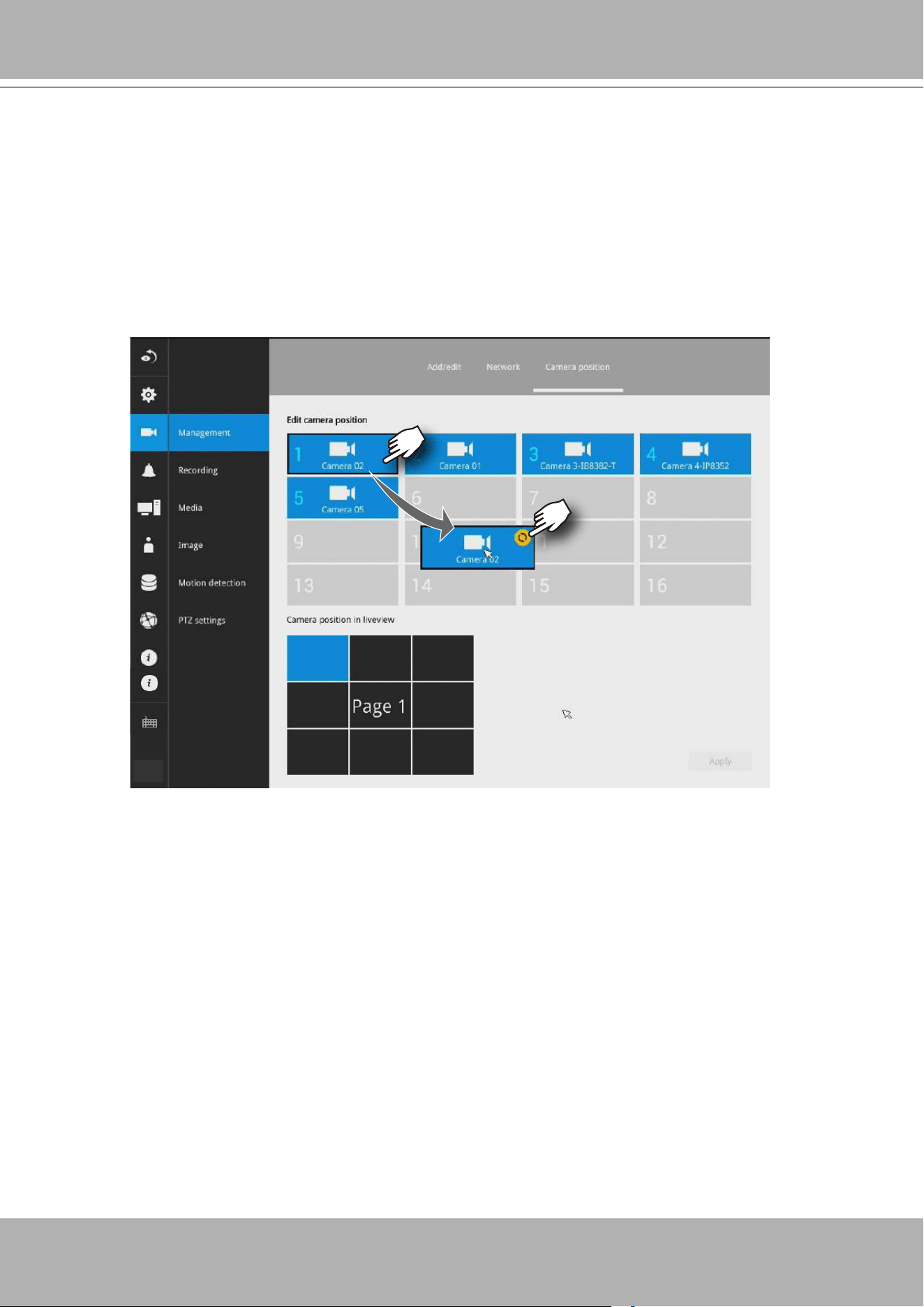
On the Network tabbed window, you can congure the network type, IP address, and the
connection ports for video streaming.
You can select DHCP as the method for cameras to acquire IP addresses, or you
can manually congure static IPs for a single or all cameras. Using static IPs is
recommended. Although the NVR can remember the MAC addresses of cameras, if
IPs are changed under the DHCP conguration, your NVR may still fail to connect the
cameras. Please consult your network administrator for details about network settings.
It is usually not necessary to change port numbers for the HTTP and RTSP ports unless
there is a conict in your network environment.
VIVOTEK - Built with Reliability
User's Manual - 67
Camera position
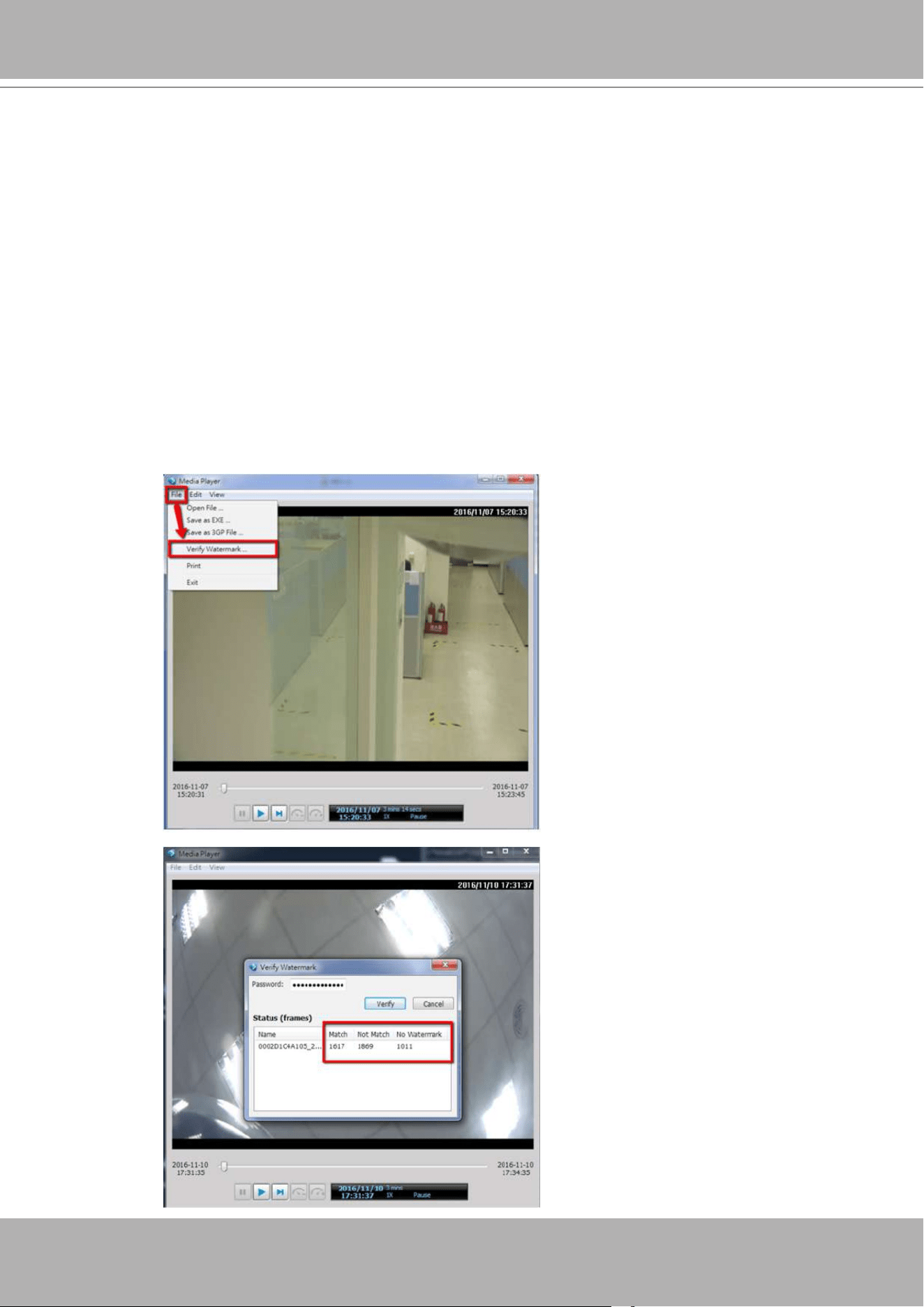
To change a camera's position on the Liveview layout, click and drag a camera to an
unpopulated position. Note that you cannot swap the positions of two cameras by
dragging a camera onto a position already populated by the other. Also, the camera
index number on the management list is not affected by the change of positions.
Click the
Apply
button for the conguration change to take effect. The position screen
displays the current layout on the Liveview screen.
VIVOTEK - Built with Reliability
68 - User's Manual
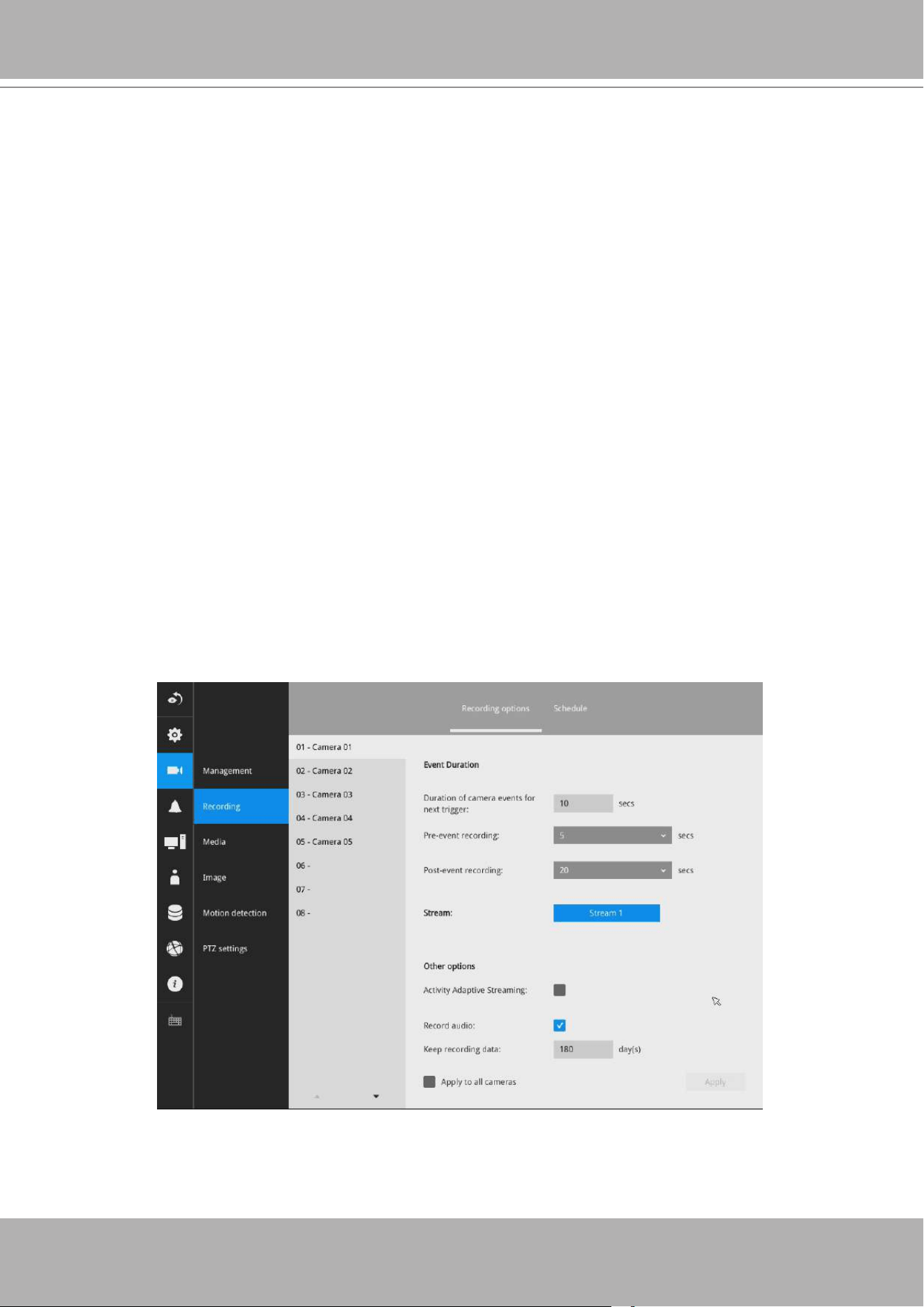
3-5-3. Settings - Camera - Recording
Recording options
On the camera Recording page, you can congure the following:
1. Congure the duration of camera events, for the concern that camera can be too
frequently triggered.
2. Enter the Pre- and Post-event recording time. The triggering events can be DI,
DO, Motion detection, PIR, or Tampering detection.
3. The default recording stream is Stream 1, and the system automatically adjusts
the frame rate, resolution, etc. for optimum performance. However, you can still
change the streaming characteristics. Note that you can not assign the recording
task to other video stream.
4. Watermark password: Congure a password in a length of 16 to 64 characters.
You can use it to verify the authenticity of exported videos using the included video
player.
Select File > Verify Watermark.
Enter the password to verify. If the
Not match value is 0, the video is the
original and has not been tampered
with.
VIVOTEK - Built with Reliability
User's Manual - 69
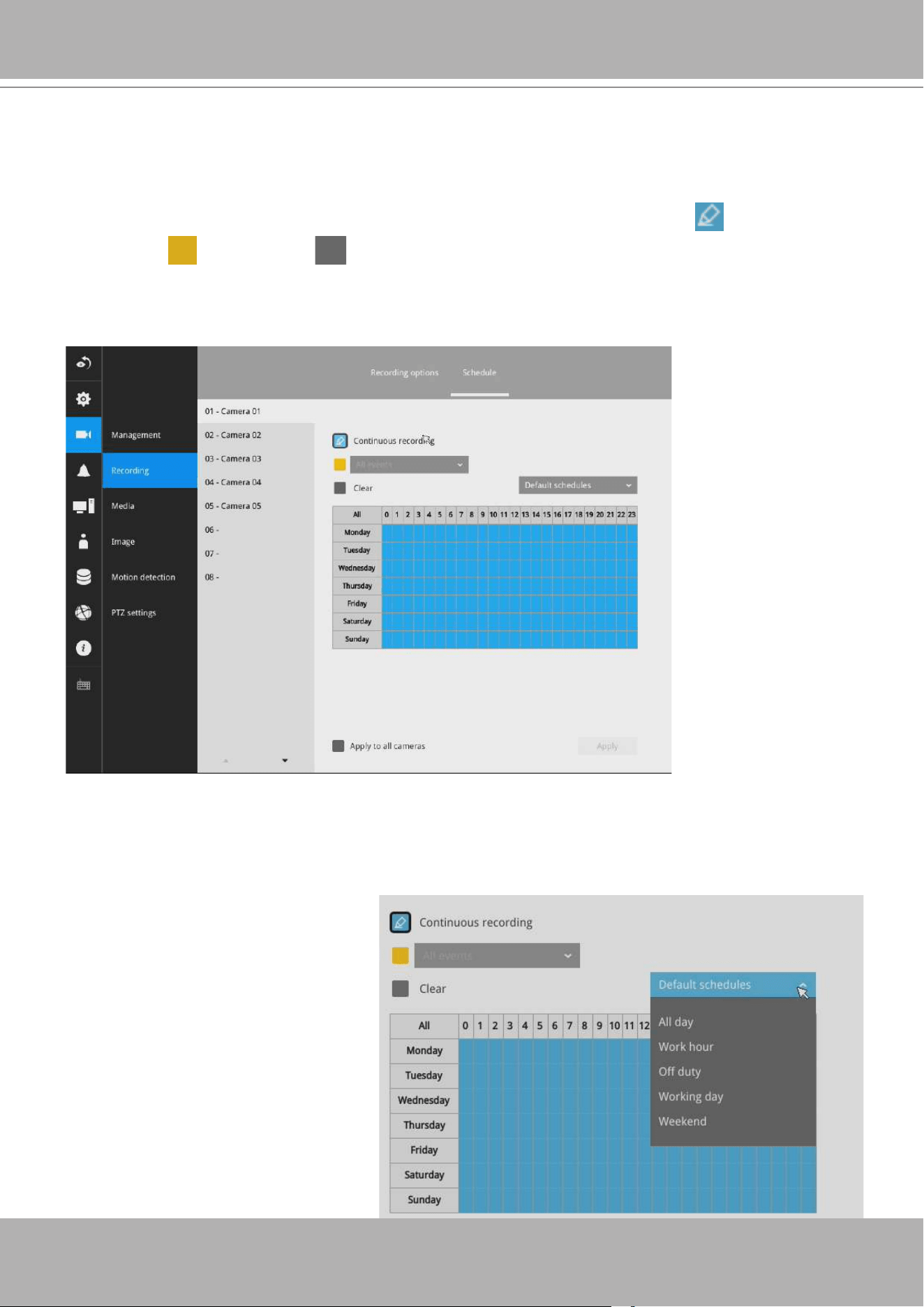
Recording options
On the camera Recording page, you can congure the following:
1. Congure the duration of camera events, for the concern that camera can be too
frequently triggered.
2. Enter the Pre- and Post-event recording time. The triggering events can be DI, DO,
Motion detection, PIR, or Tampering detection. A recording length of 10 seconds of
pre-event and up to 300 seconds of post-event can be congured.
3. The default recording stream is Stream 1, and the system automatically adjusts
the frame rate, resolution, etc. for optimum performance. However, you can still
change the streaming characteristics. Note that you can not assign the recording
task to other video stream.
4. Enable the Activity Adaptive Streaming feature. This feature records the I-frames
only when there are no activities detected. When activities or alarm are triggered,
the camera raises the recording stream to the full frame rate. This feature can
save tremendous ammount of bandwidth.
5. Enable or disable audio recording. Note that audio transmission through HDMI
cable is currently not available.
6. Change the life expectancy of the recording data.
7. You can apply a typical conguration to all cameras using the Apply to all cameras
checkbox.
3-5-4. Settings - Camera - Recording
You can refer to the User Manuals that come with your network cameras for more
discussions of these congurable options.
VIVOTEK - Built with Reliability
70 - User's Manual
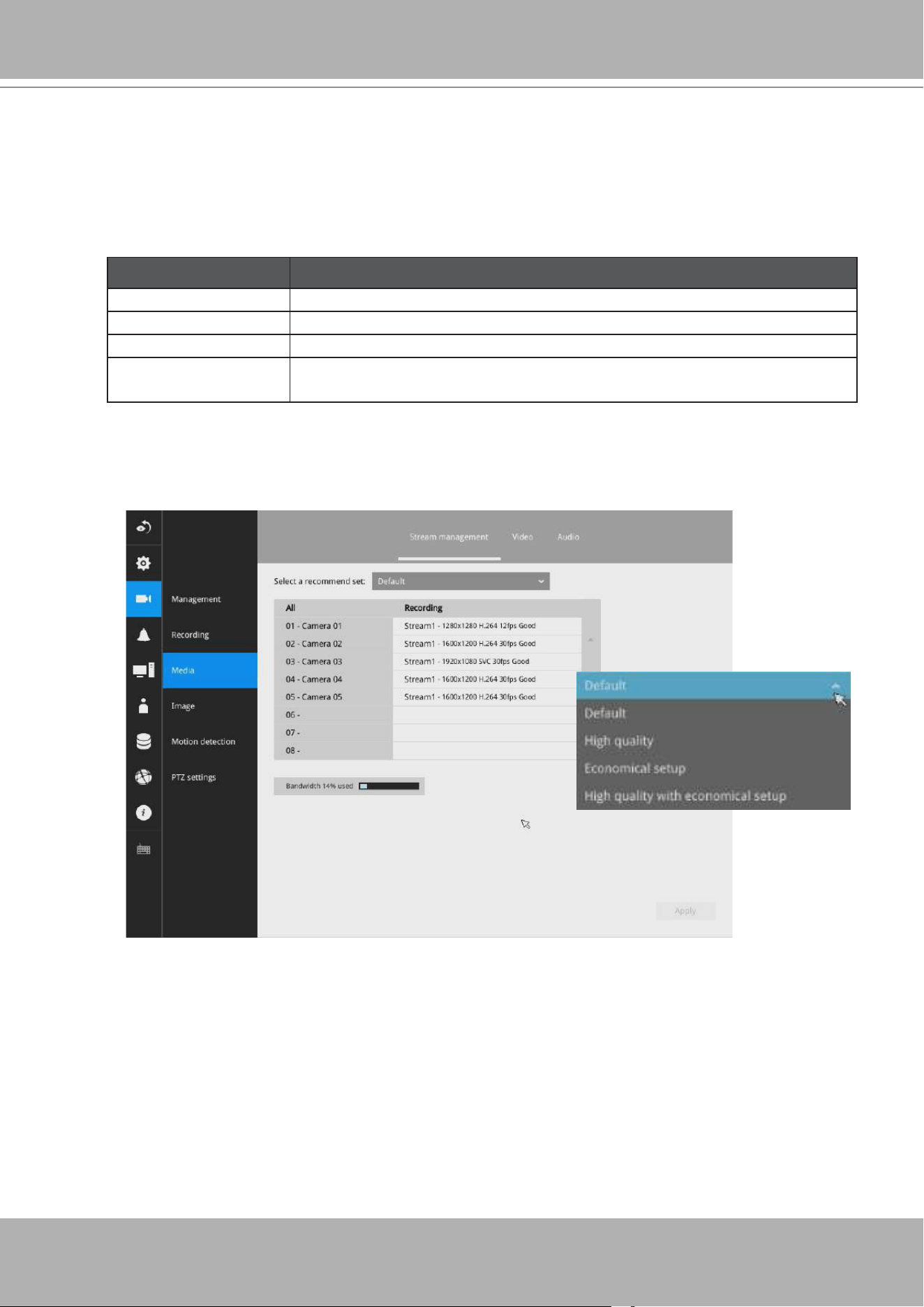
Recording Schedule
By default, all video feeds from cameras are recorded at all time. You can modify the recording
task using the schedule tool:
1. Click to select a recording condition's checkbox - 1. Continuous recording , Event
recording , and 3. Clear (no recording).
2. Click and drag on the cells on the time table. For example, to stop the recording during a
period of time, select the the Clear checkbox and move the cursor across the time table. The
minimum unit on the table is half an hour.
3. You may also use the scheduler tool on the right to facilitate the process. You can select a
condition checkbox, and then select the All day, Work hour, Off duty, Working day, Weekend
options to apply a time selection.
4. Repeat the process on individual cameras or select the
Apply to all
checkbox if the schedule
can apply to all cameras.
5. When done with the conguration,
click on the Apply button.
Note that Event-triggered
recording and continuous
recording can not be take place at
the same time.
VIVOTEK - Built with Reliability
User's Manual - 71
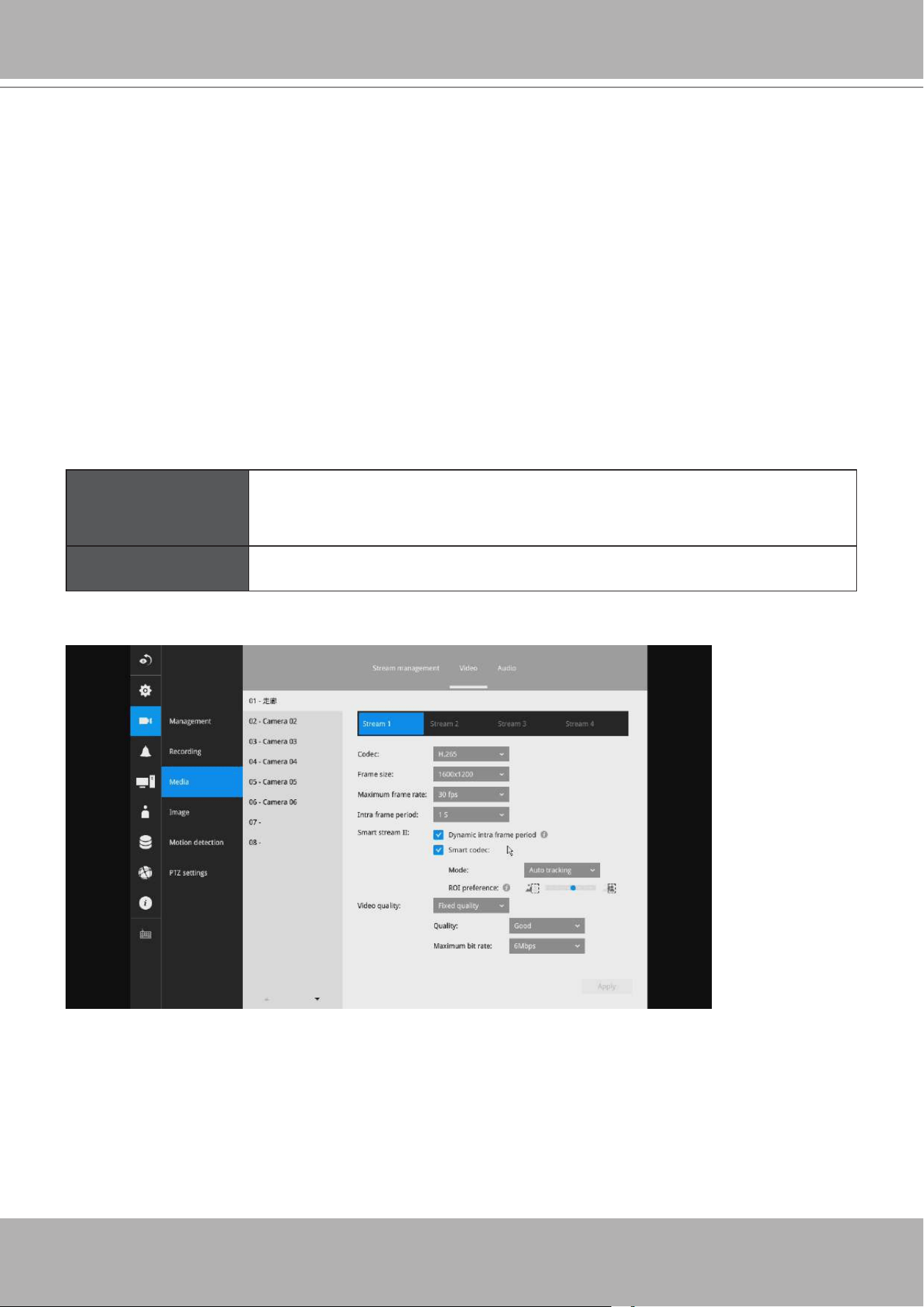
Stream management
The stream here refers to the recording stream, namely, Stream 1. You can use these
preset conditions to congure the resolution, image quality, frame rate, and the bandwidth
consumption of the recording stream on this window.
Recommended setting
Conguration
Default Medium resolution; full frame rate
High Quality Guaranteed video quality set as Good; full frame rate
Economical Medium to low resolution; frame rate at 5fps
High quality w/
economical
High resolution, Good image quality; frame rate at 5fps
With each recommended conguration applied, the estimated bandwidth consumption
value is immediately calculated and displayed at the lower screen.
Click the
Apply
button for the conguration change to take effect.
3-5-5. Settings - Camera - Media
VIVOTEK - Built with Reliability
72 - User's Manual
Video
The Video window allows you to congure all video streams (the no. of stream available can be
different for different models). You can congure the following:
1. Codec: video compression codec in H.264, MPEG-4, or MJPEG. Note that MPEG-4 is not
supported for Liveview.
2. Frame size: video resolution. Note that due to the limited CPU resources, you may not be
able to change the resolution to a very high value, e.g., 5MP in the 1920x1920 resolution.
3. Maximum frame rate: the highest frame rate.
4. Intra frame period: How often an I-frame will be inserted into the video stream.
5. Smart Stream II: Some newer camera models come with Smart Stream features. Please refer
to the next page for detailed information.
6. Video quality: You may either select Constant bit rate or Fixed Quality as the dening rules for
video transmission:
Constant bit rate Places a packet size threshold on video frames; This guarantees
the frame rate per second performance, yet image quality can be
compromised if bandwidth is not sufcient in your network environment.
Fixed Quality Guaranteed video quality, and to ensure image quality, some frames may
be dropped when bandwidth is not sufcient.
When done with the conguration, click the
Apply
button.
VIVOTEK - Built with Reliability
User's Manual - 73
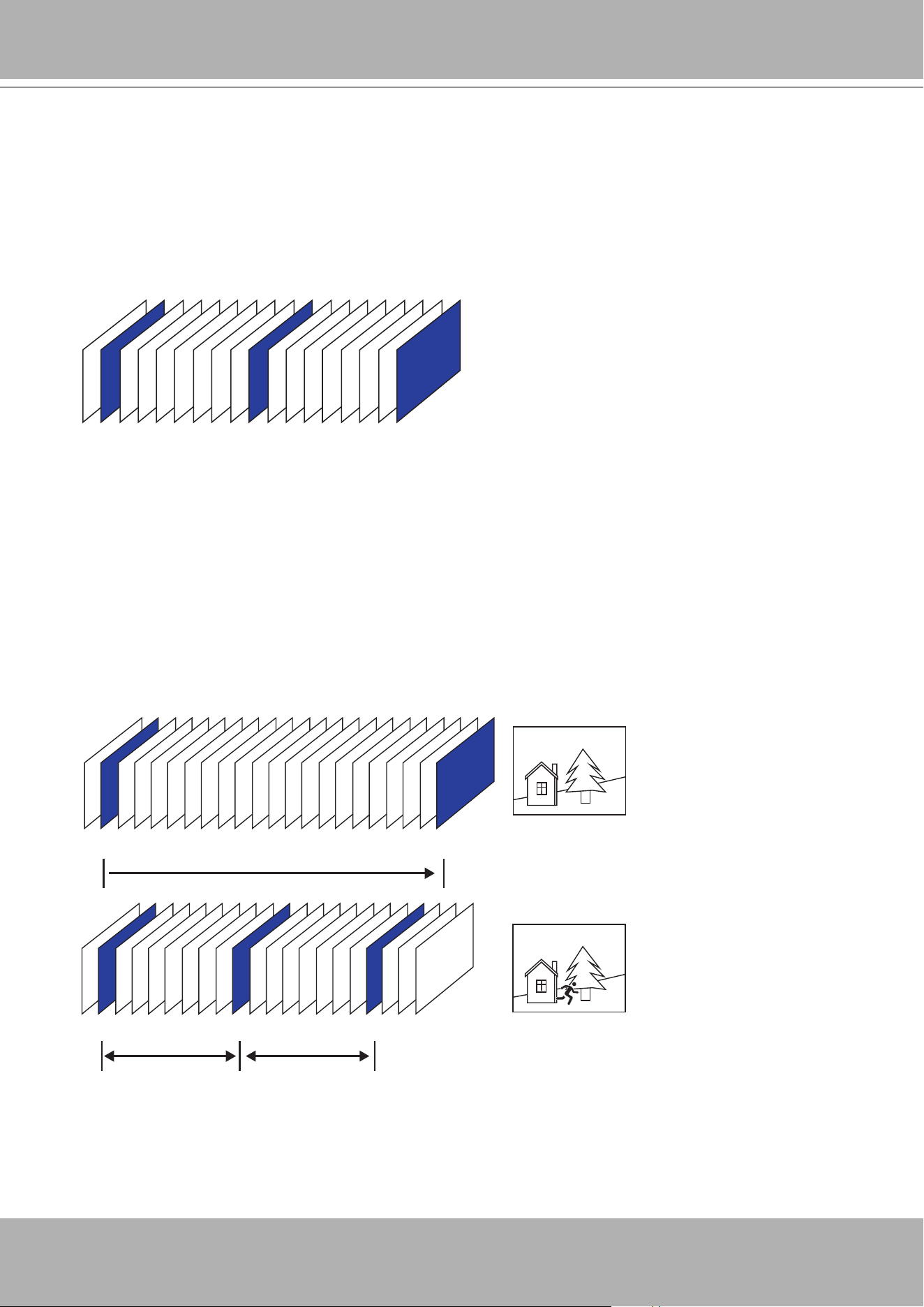
■ Dynamic Intra frame period
High quality motion codecs, such as H.265, utilize the redundancies between video frames to deliver
video streams at a balance of quality and bit rate.
The encoding parameters are summarized and illustrated below. The
I-frames
are completely self-
referential and they are largest in size. The
P-frames
are predicted frames. The encoder refers to the
previous I- or P-frames for redundant image information.
P I P P P P P P P P P P P P P P P P P P P I
P I P P P P P P P I P P P P P P P I
Static scene
Activities
P P P
P I P P P P P P P I P P P P P P P I
By dynamically prolonging the intervals for I-frames insertion to up to 10 seconds, the bit rates
required for streaming a video can be tremendously reduced. When streaming a video of a
static scene, the Dynamic Intra frame feature can save up to 53% of bandwidth. The amount of
bandwidth thus saved is also determined by the activities in the eld of view. If activities occur
in the scene, rmware automatically shortens the I-frame insertion intervals in order to maintain
image quality. In the low light or night conditions, the sizes of P-frames tend to be enlarged due
to the noises, and hence the bandwidth saving effect is also reduced.
Streaming a typical 2MP scene normally requires 3~4Mb/s of bandwidth. With the Dynamic Intra
frame function, the bandwidth for streaming a medium-trafc scene can be reduced to 2~3Mb/s,
and during the no-trafc period of time, down to 500kb/s.
H.264/265 Frame Types
Dynamic Intra Frame w/
static scenes
Dynamic Intra Frame w/
activities in scenes
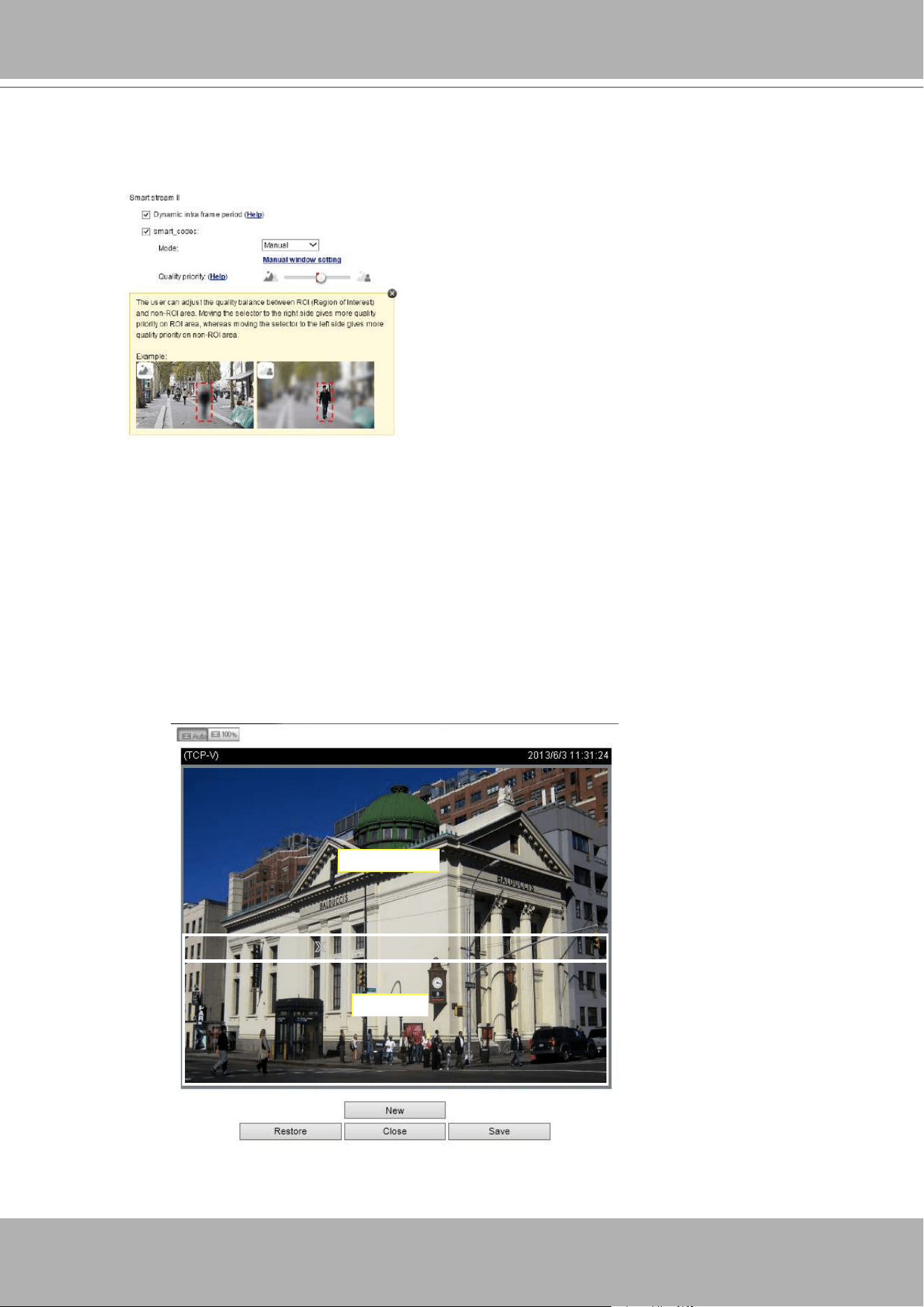
VIVOTEK - Built with Reliability
74 - User's Manual
■
Smart codec
effectively reduces the quality of the whole or the non-interested areas on a
screen and therefore reduces the bandwidth consumed.
XROI_0 XROI_0
ROI
non-interested
You can manually specify the video quality for the foreground and the background areas.
Select an operation mode if Smart codec is preferred.
-
Auto tracking
: The Auto mode congures the whole screen into the non-interested area.
The video quality of part of the screen returns to normal when one or more objects
move in that area. The remainder of the screen where there are no moving objects
(no pixel changes) will still be transmitted in low-quality format.
-
Manual
: The Manual mode allows you to congure 3 ROI windows (Region of Interest,
with Foreground quality) on the screen. Areas not included in any ROI windows
will be considered as the non-interested areas. The details in the ROI areas will be
transmitted in a higher-quality video format.
As illustrated below, the upper screen may contain little details of your interest,
while the sidewalk on the lower screen is included in an ROI window.
Slide bar to the right - higher quality in the ROI
areas
Slide bar to the left - higher quality in the non-ROI
areas.
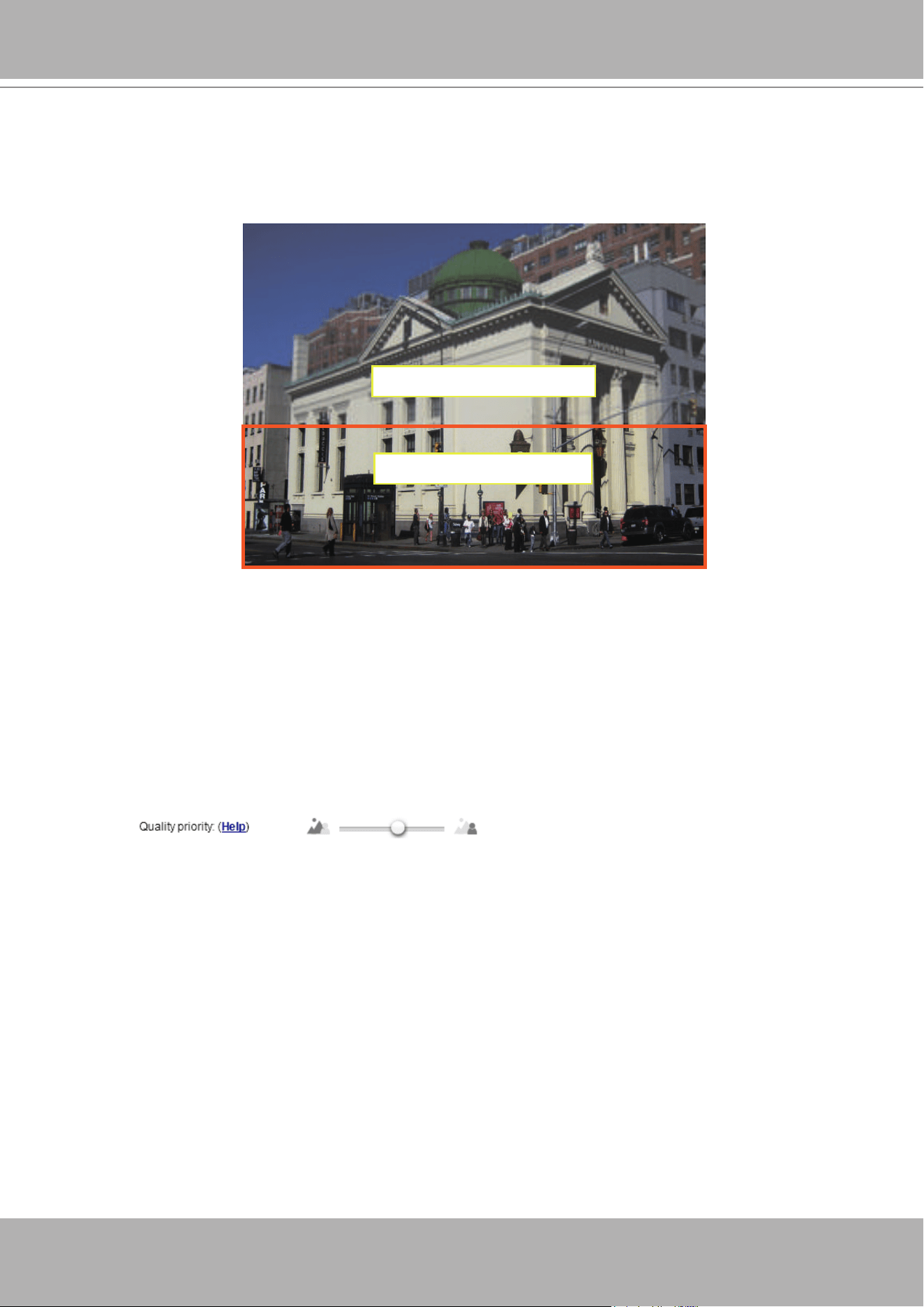
VIVOTEK - Built with Reliability
User's Manual - 75
ROI: higher-quality
non-ROI: lower-quality
As the result, the lower screen is constantly displayed in high details,
while the upper half is transmitted using a lower-quality format. Although
the upper half is transmitted using a lower quality format, you still have an
awareness of what is happening on the whole screen.
-
Hybrid
: The major difference between the “Manual” mode and the “Hybrid”
mode is that:
In the “
Hybrid
“ mode, any objects entering the non-interested area will
restore the video quality of the moving objects and the area around
them. The video quality of the associated non-interested area is
immediately restored to normal to cover the moving objects.
In the “
Manual
” mode, the non-interested area is always transmitted
using a low-quality format regardless of the activities inside.
You should also select the Maximum bit rate from the pull-down menu as the
threshold to contain the bandwidth consumption for both the high- and low-
quality video sections in a smart stream.
-
Quality priority
: Use the slide bar to tune the quality contrast between the ROI
and non-interested areas.
The farther the slide bar button is to the right, the higher the image
quality of the ROI areas. On the contrary, the farther the slide bar button
to the left, the higher the image quality of the non-interested area.
In this way, you may set up an ROI window as a privacy mask by
covering a protected area using an ROI window, while the remaining
screen become the non-interested area. You may then configure the
non-interested area to have a high image quality, or vice versa.
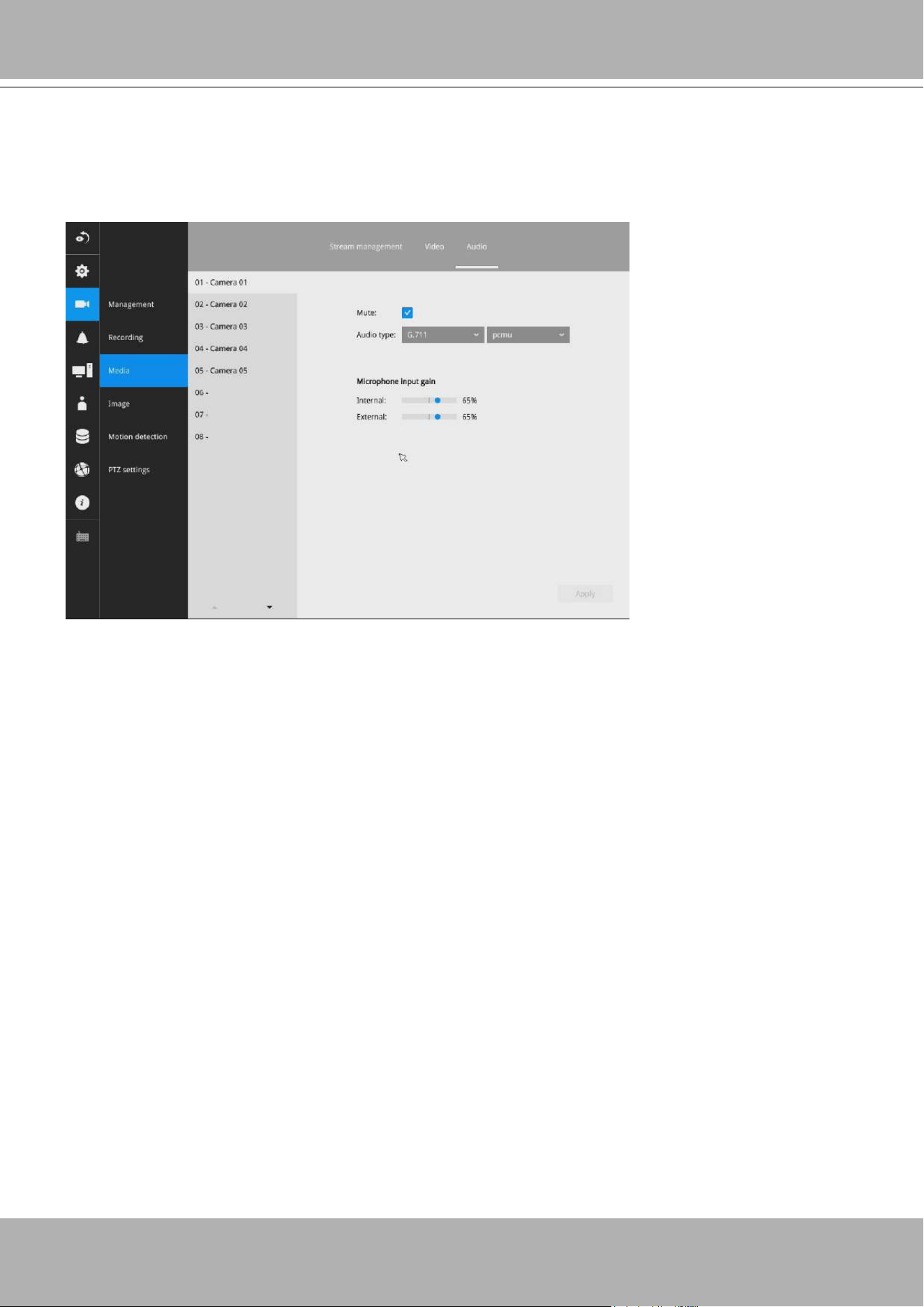
VIVOTEK - Built with Reliability
76 - User's Manual
Audio
The Audio window allows you to congure all audio codec, sampling rate, and Microphone input
gains. Depending on design of the camera models, some codecs may not be available. Also,
there are cameras that come without embedded mircrophones.
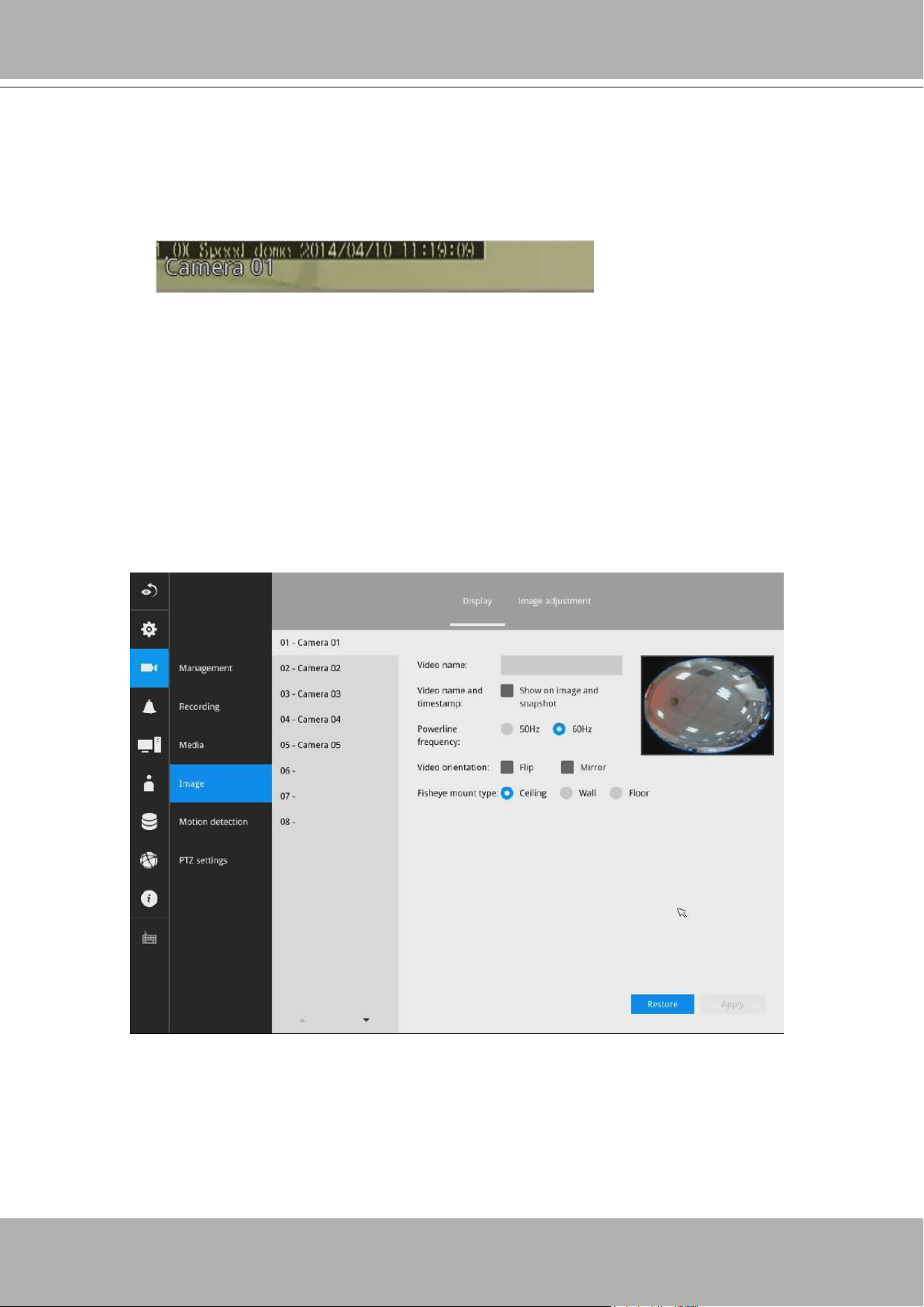
VIVOTEK - Built with Reliability
User's Manual - 77
Display
The Display window allows users to tune the image display options:
1. Video name: the video name is displayed on the title bar that is displayed on each
view cell. The screen shot below shows a name as "Speed dome."
2. Video name and timestamp: Default is enabled. If enabled, the video name and time
is displayed on the view cell.
3. Power line frequency: Depending on power line frequency of your country, select
a matching option, NTSC 60Hz or PAL 50Hz, to avoid image ickering due to
unmatched electricity.
4. Video orientation: select these options if the image from camera needs to be vertically
or horizontally ipped.
5. Click Restore to poll for the original settings or click the Apply button to nish the
process.
3-5-6. Settings - Camera - Image
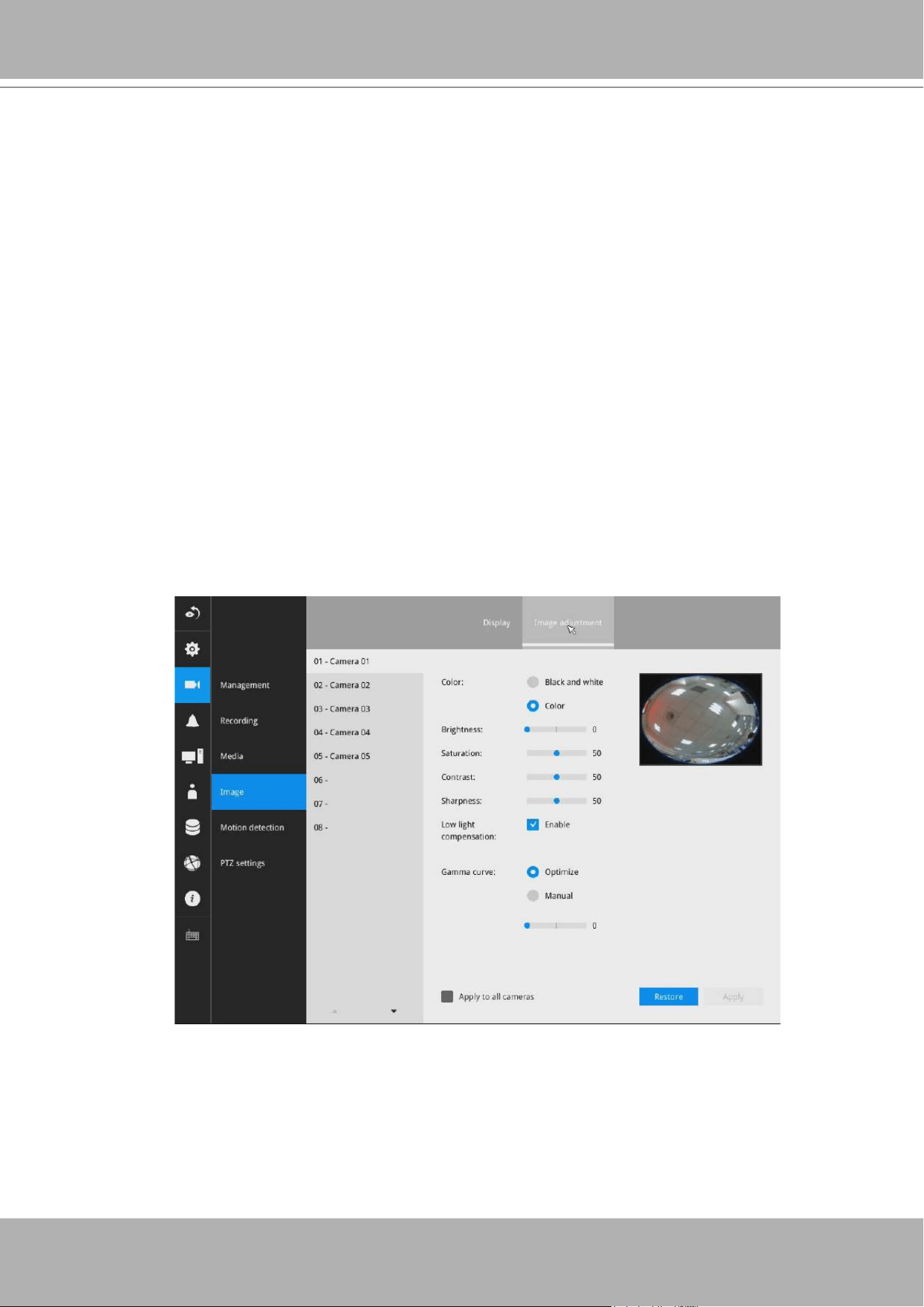
VIVOTEK - Built with Reliability
78 - User's Manual
Image adjustment
The Image adjustment window allows users to tune the basics about image display
options:
1. Color: Select to display image as color or black and white.
2. Brightness.
3. Saturation.
4. Contrast.
5. Sharpness.
6. High TV line, Gamma curve, low light compensation, etc. The rest of the options
depend on the lens and image sensor type of each individual camera. Therefore,
the options here can vary. For unique options coming with each individual camera,
please refer to their User Manuals for more information.
Click Restore to poll for the original settings or click the
Apply
button to nish the
process. For features common among cameras, you may select the
Apply to all
cameras
checkbox.
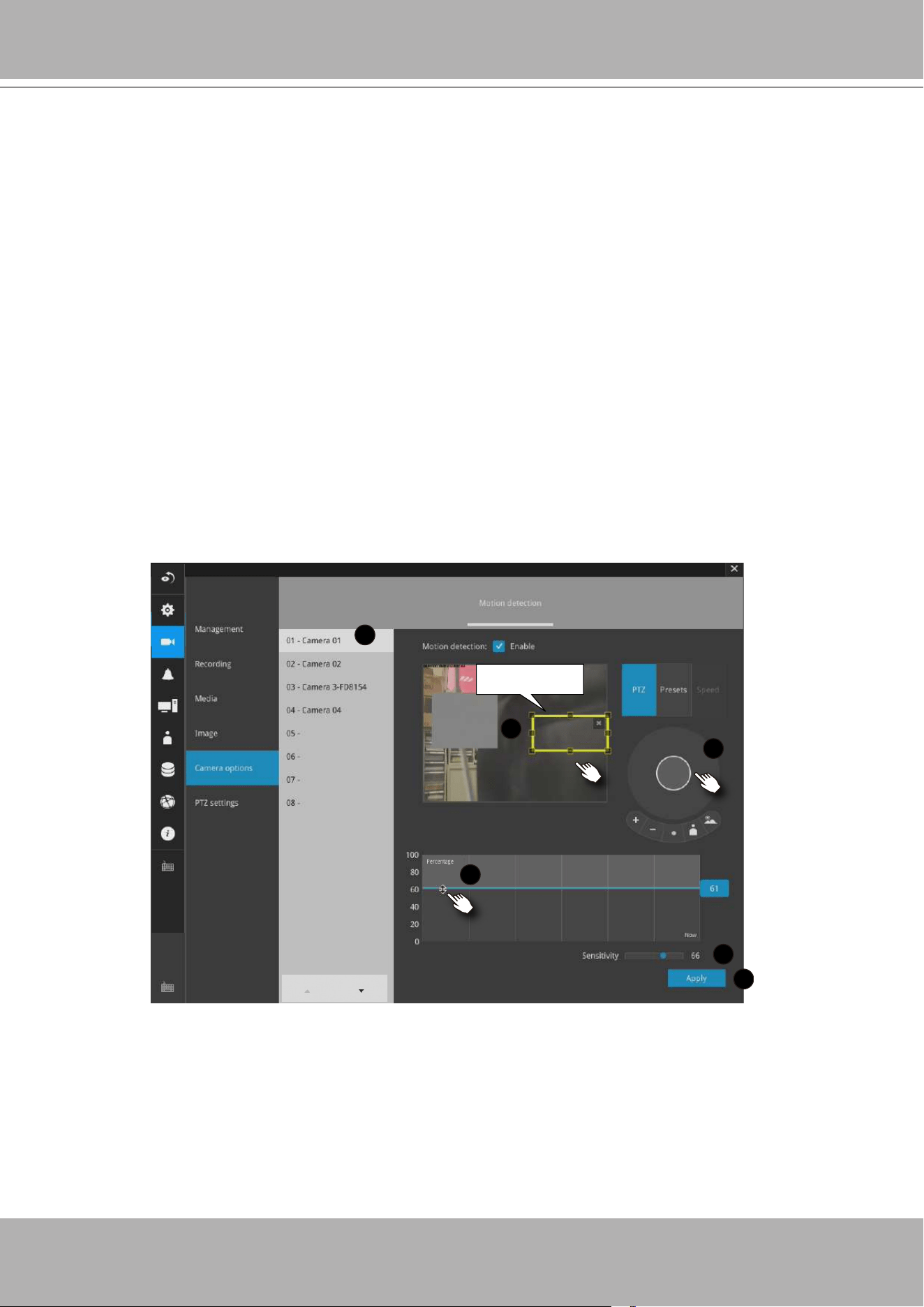
VIVOTEK - Built with Reliability
User's Manual - 79
Motion Detection
To set up a detection window:
1. Select a camera by a single click.
2. Use the PTZ panel to move to a eld of view where you want to place a detection
window.
3. Click and drag to draw a rectangular detection window.
4. Pull the detection area level up to a preferred position. An object must be larger
than the detection area to trigger an alarm.
5. Select a Sensitivity level using the slide bar.
6. Click the
Apply
button for the conguration to take effect.
The sample screen shows a connection with a speed dome camera.
If you already congured Preset positions, expand its menu and click on the
presets to move to a position.
3-5-7. Settings - Camera - Motion Detection
Detection window
1
2
3
5
6
4
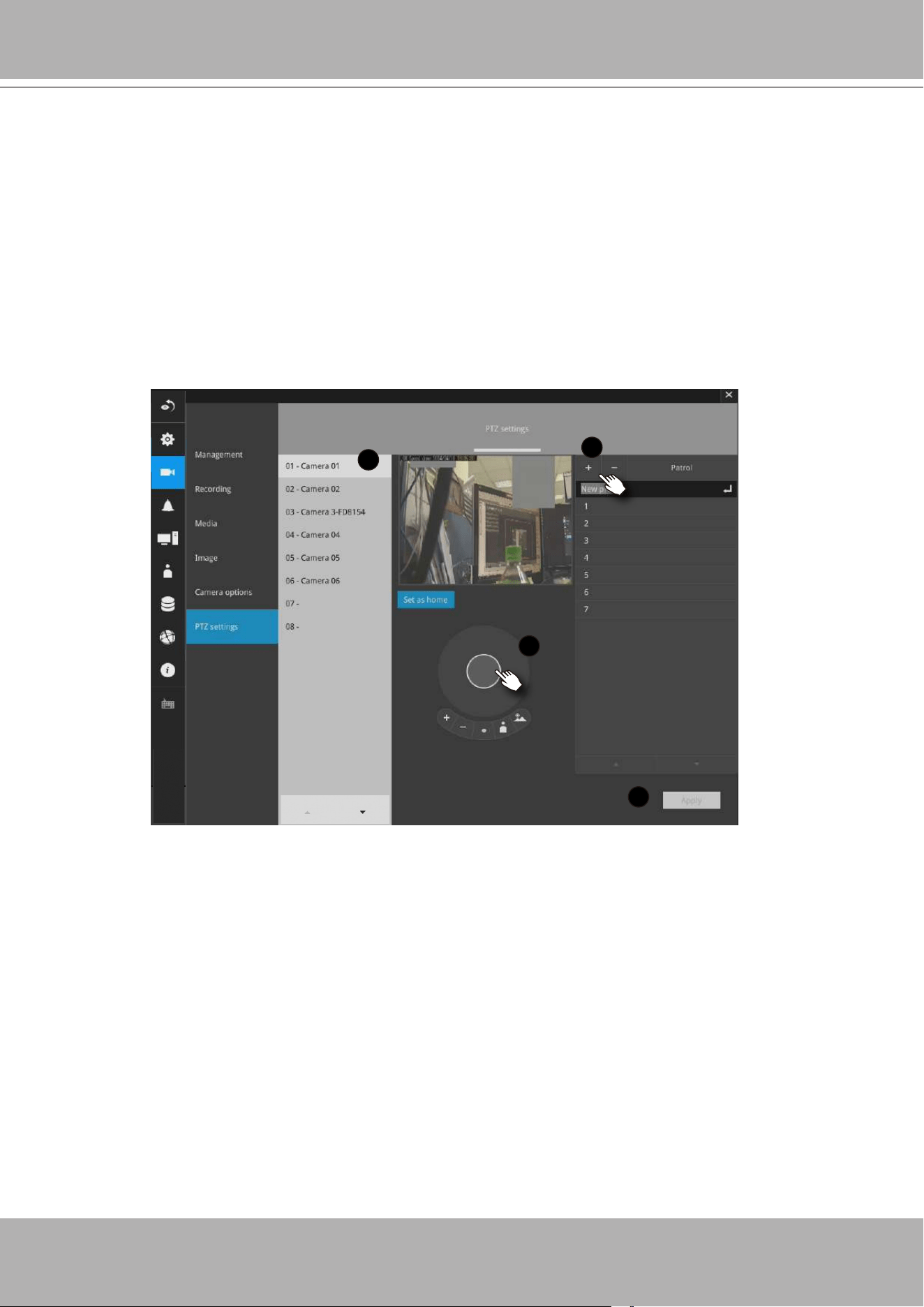
VIVOTEK - Built with Reliability
80 - User's Manual
To congure PTZ preset positions:
1. Select a PTZ camera by a single click.
2. Use the PTZ panel to move to a eld of view where you want to designate as a
preset position.
3. Click the add button, and enter a name for the position. Press Enter to proceed.
Repeat the conguration to create more positions.
4. Click the
Apply
button for the conguration to take effect.
Note that the PTZ panel can vary with different PTZ cameras.
3-5-8. Settings - Camera - PTZ settings
1
2
3
4
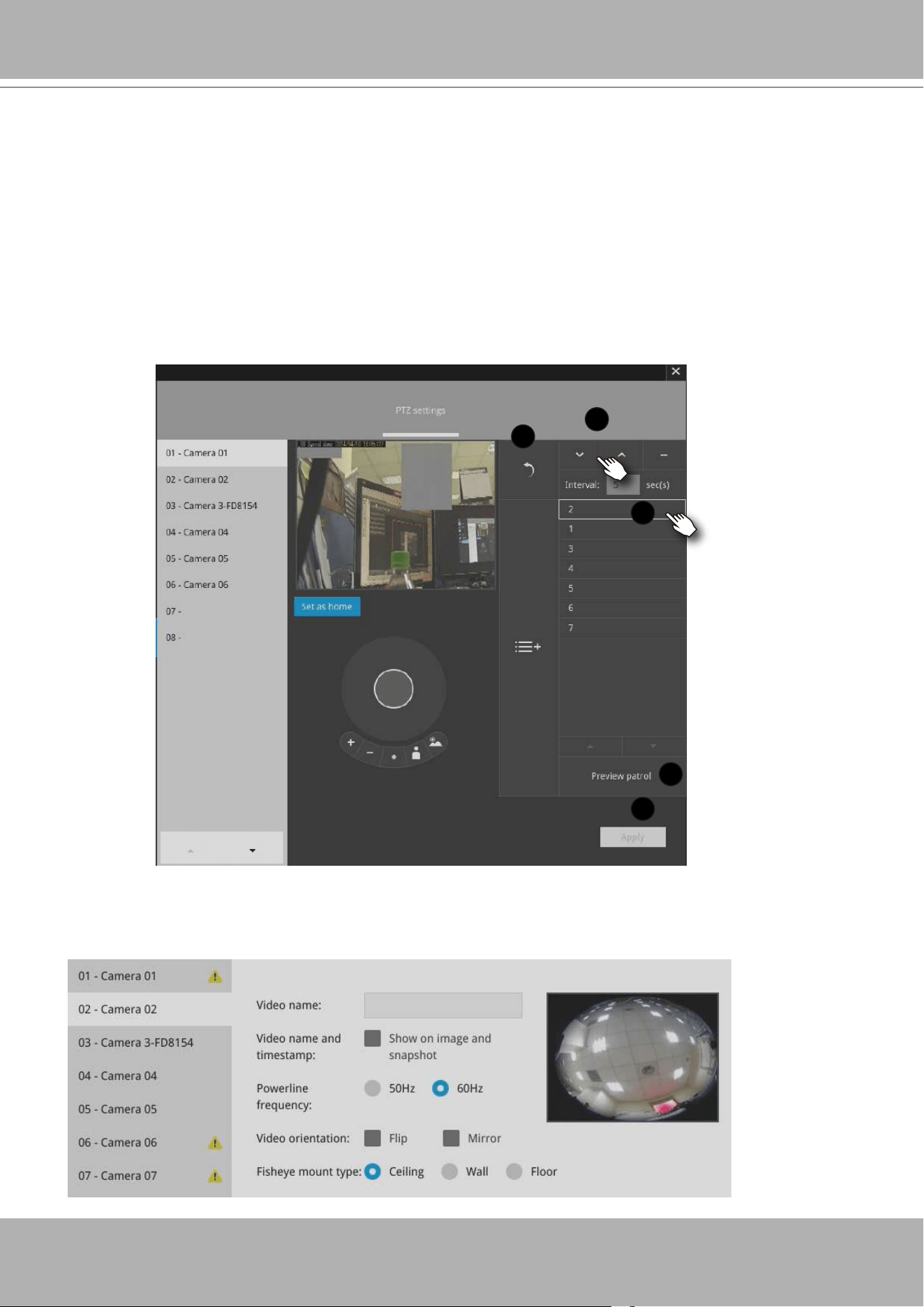
VIVOTEK - Built with Reliability
User's Manual - 81
Fisheye camera has its unique options such as the mount types.
Please refer to page 51 or the camera's User Manual for sheye display mode options.
To congure a patrol:
1. Click to enter the Patrol menu. Select a preset position if you want to change its
position on the patrolling order.
2. Click the up and down buttons to change the position on the order, or click the
remove button to disband a position from the order. You can also change the
interval to stay before moving from one position to the next position.
3. You may then click on the Preview patrol button to see if it runs as expected.
4. Click the
Apply
button for the conguration to take effect.
5. Click on the Back to preset list button to return to the preset window.
1
2
3
4
5
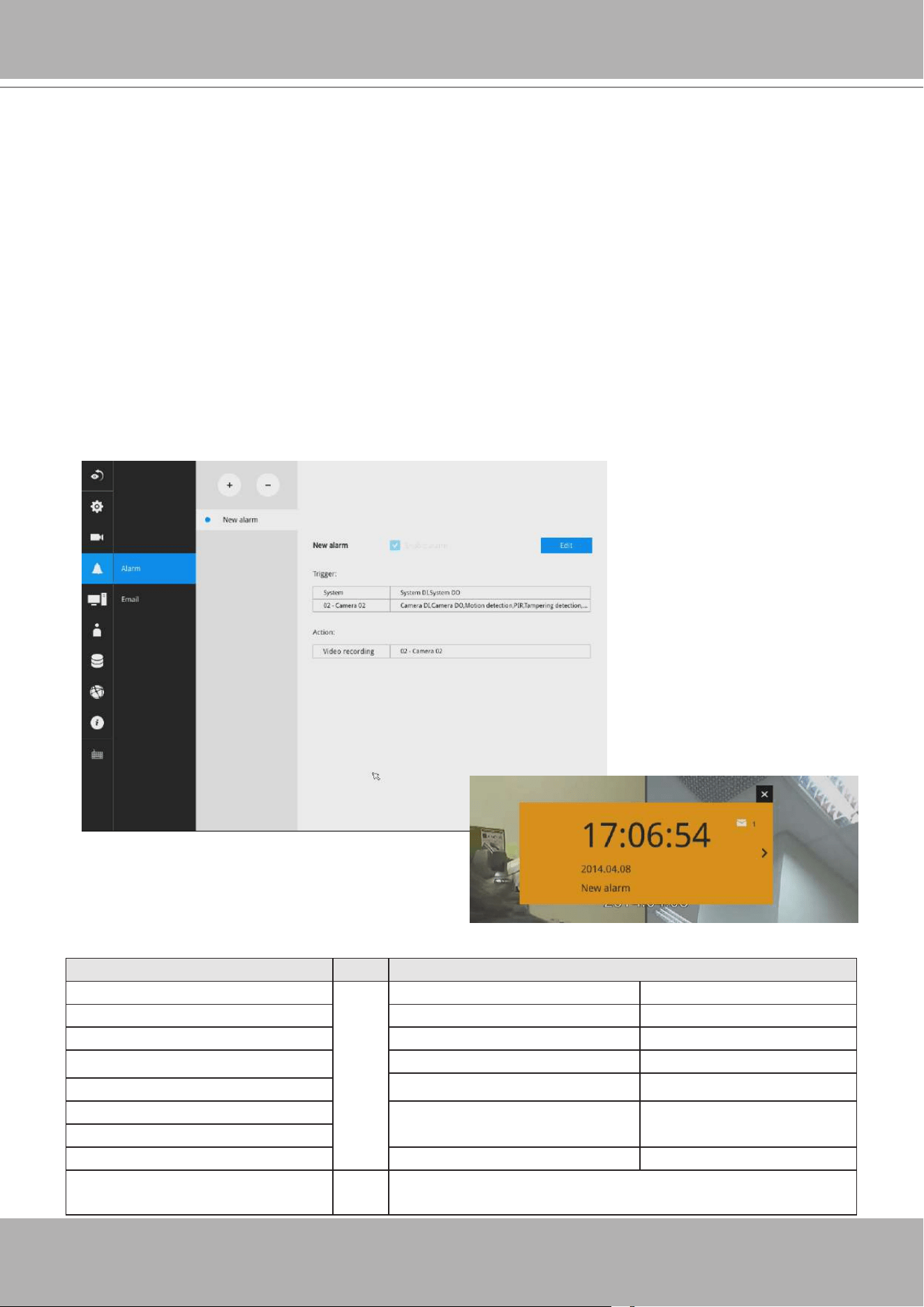
VIVOTEK - Built with Reliability
82 - User's Manual
3-5-9. Settings - Alarm - Alarm
The events reported from individual cameras' digital inputs, digital outputs, and motion detection
can be accommodated in the NVR system's alarm settings. These events will then be reported
or trigger corresponding actions as follows:
1. Reporting events via Email or system buzzer.
2. Triggering video snapshot and text message by the occurrences of events to an FTP site.
3. Triggering the camera(s) for its lens to move to a preset position.
4. Triggering the cameras' digital output.
5. Triggering an event push to VIVOCloud.
You can create up to 10 instances of alarm.
Hardware connections to DIs or DOs, e.g., window sensors, should be made separately. The
motion detection conguration can be made in the Camera conguration window.
Below is a glimpse of alarm sources and alarm actions:
Sources Actions
Camera/ system DI ► Video recording ►video footage
Camera/ system DO Email ►snapshots
Motion detection Buzzer
Disk full FTP ►snapshots
Camera preset points ►Pan-Tilt-Zoom
Disk failure
PIR Camera DO
Tampering
Camera disconnected Event push to VIVOCloud
Fan error
* Camera DI/DO, motion detection, and tampering are not
supported for ONVIF cameras.
When an alarm is triggered, a message prompt
will appear on the Liveview or any conguration
window.
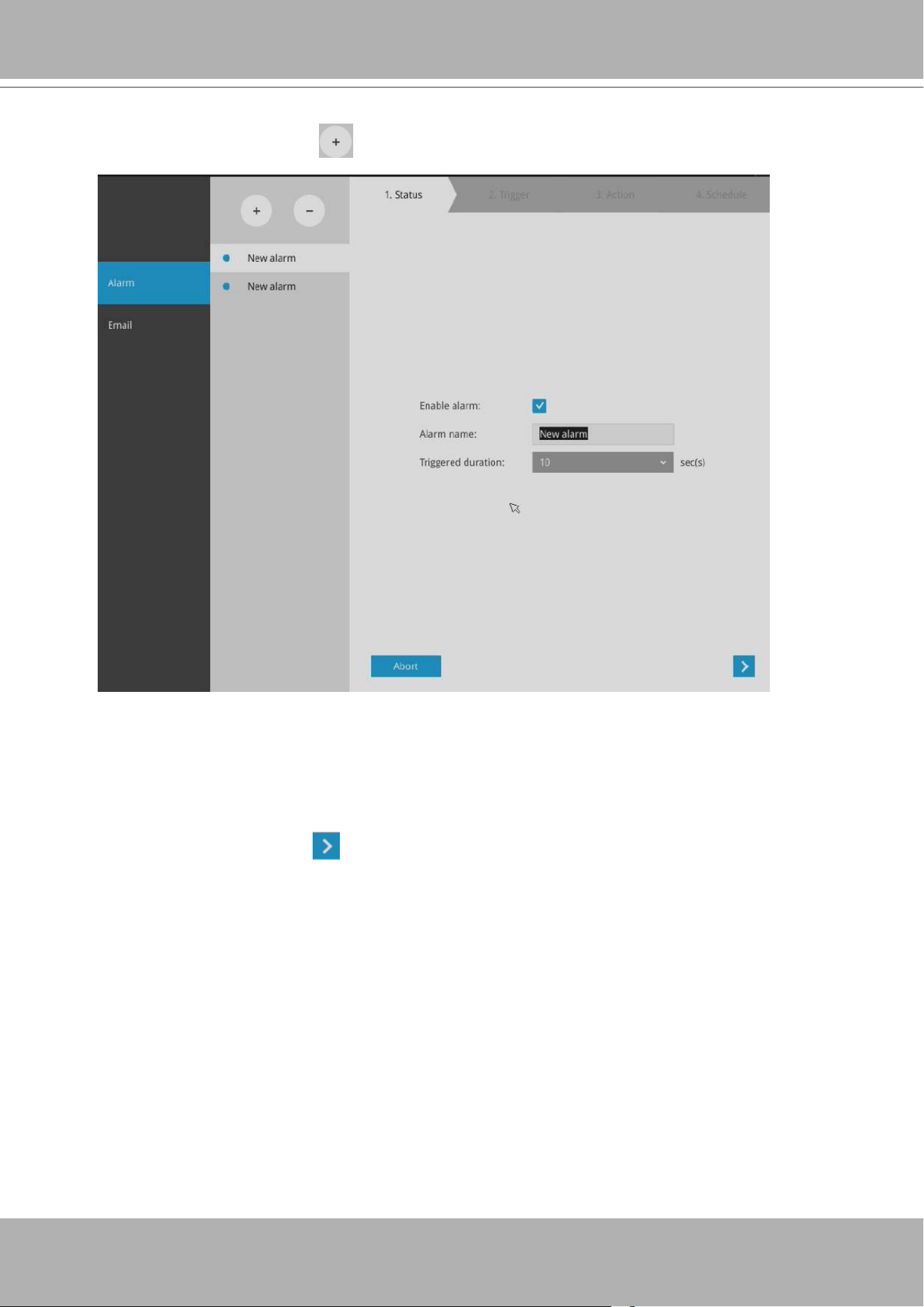
VIVOTEK - Built with Reliability
User's Manual - 83
Please note that on a sheye camera's Motion window, you can click and move the corner
marks of a window to change its shape. The Motion window does not have to be a square.
To create an alarm,
1. Click on the
Add
button .
You can manually enter a name for the current setting. You can enter up to 16 numeric
or alphabetic characters for the name, including symbols such as [0-9][a-z][A-Z][_][ ]. You
can also designate the interval between one alarm and the next triggered alarm to avoid
the situation that the alarms can be too frequently triggered.
Click on the next button to proceed.
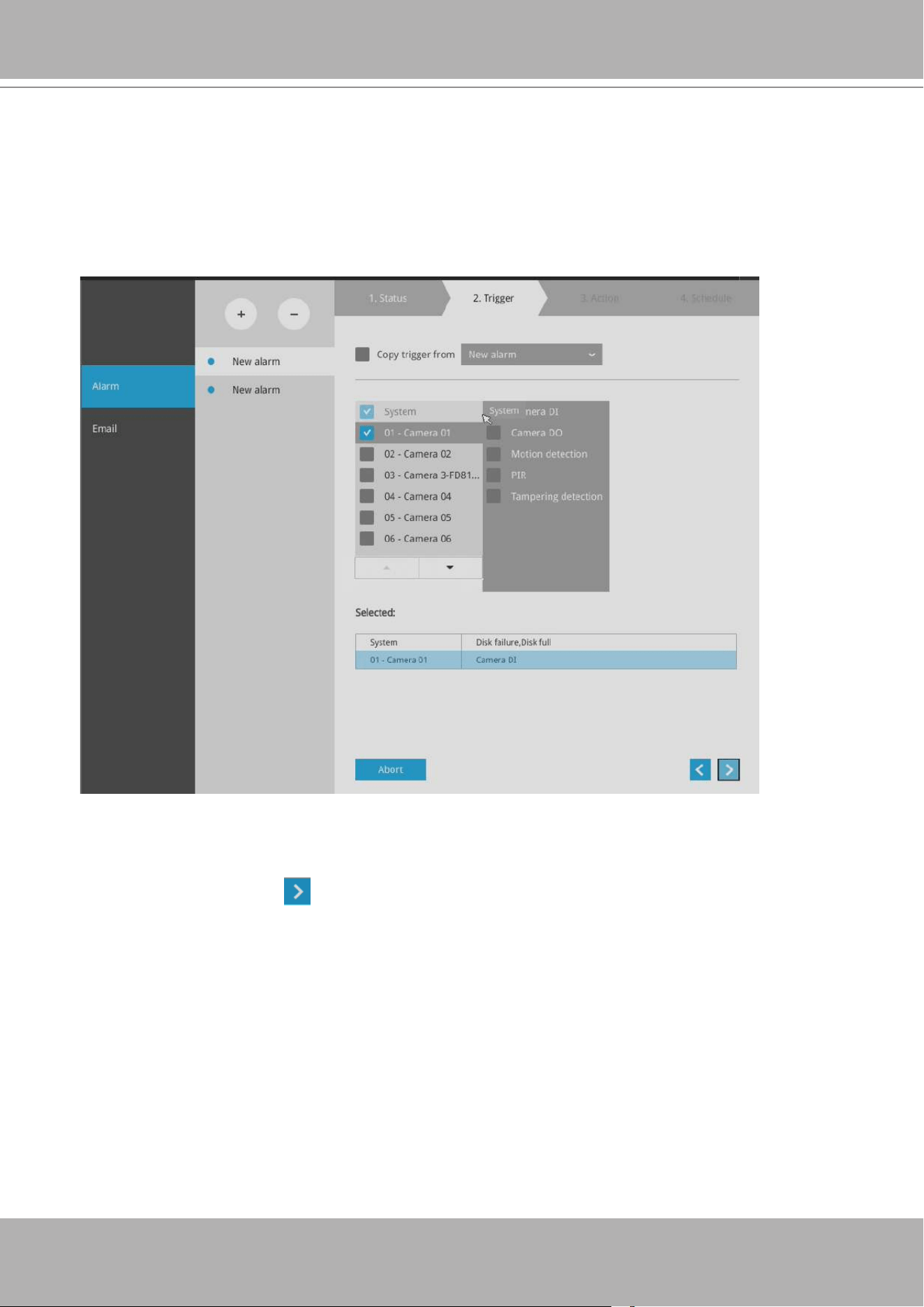
VIVOTEK - Built with Reliability
84 - User's Manual
3. On the
Trigger
window, select system triggering conditions, or one or more cameras by
selecting their checkboxes. The number of DI or DOs on each camera is automatically
detected and displayed through individual checkboxes. The
Motion detection
function, if
there are many detection windows congured on a camera, is all triggered by one checkbox.
Note that the triggering sources will be listed even if the camera is currently not connected.
You may also select the "Copy trigger from" menu to borrow the setting you previously
congured.
Click on the next button to proceed.
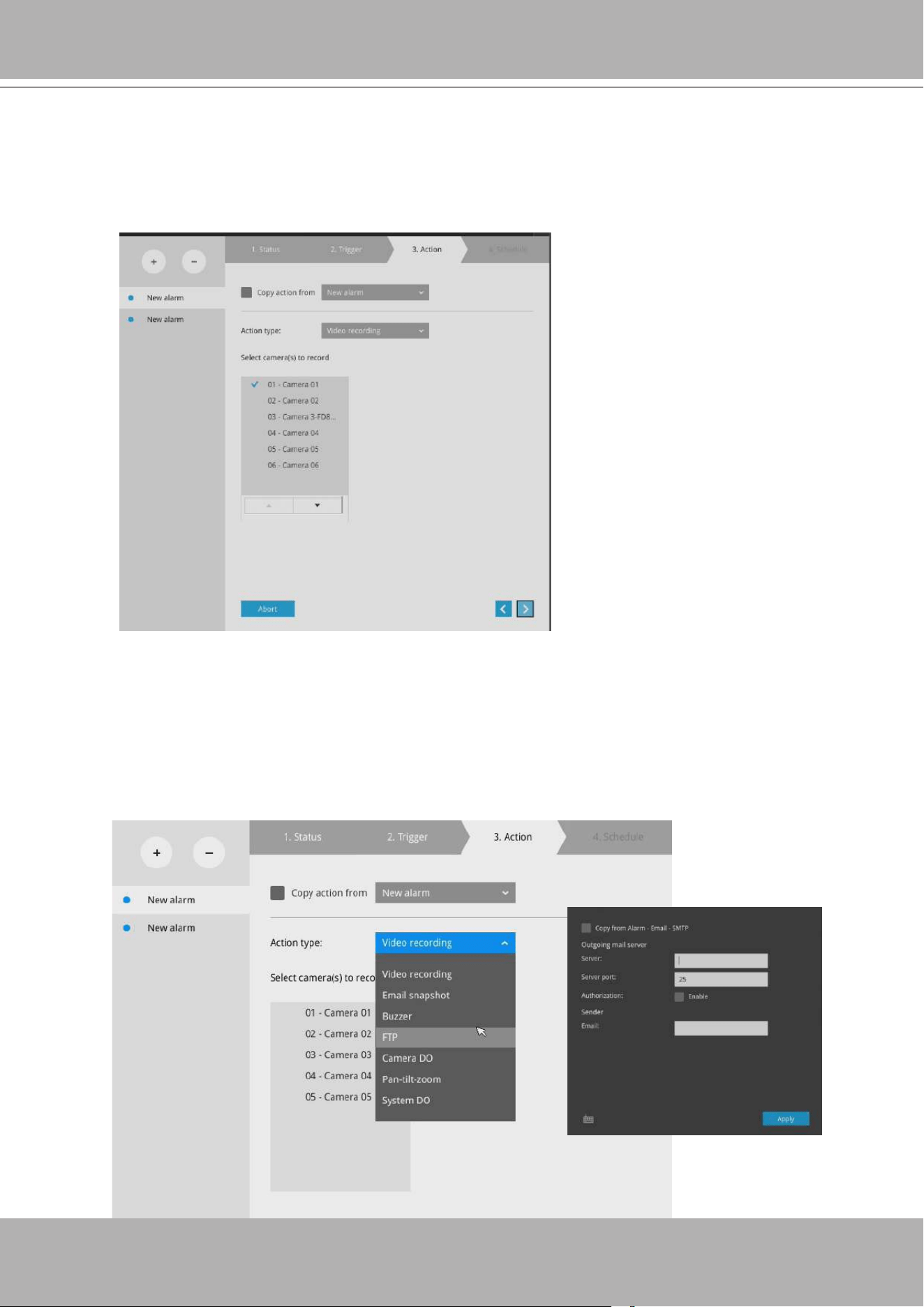
VIVOTEK - Built with Reliability
User's Manual - 85
4. On the
Action
window, you can select the Action type from a drop-down menu. The
conguration details of each action type is discussion below.
4-1.
Recording
- When an event is triggered, the selected camera will record a video footage of
the length dened by the pre-/post-event setting, to the NVR system.
4-2.
Email
- The Email action sends an Email to the administrator along with a snapshot of the
event.
To congure Email notication, enter valid Email addresses as the Sender and Recipient
addresses, an Email subject, and the SMTP server address through which the Email will
be delivered. If you need to log in to SMTP server to deliver an Email, enter the User name
and password for access to that account.
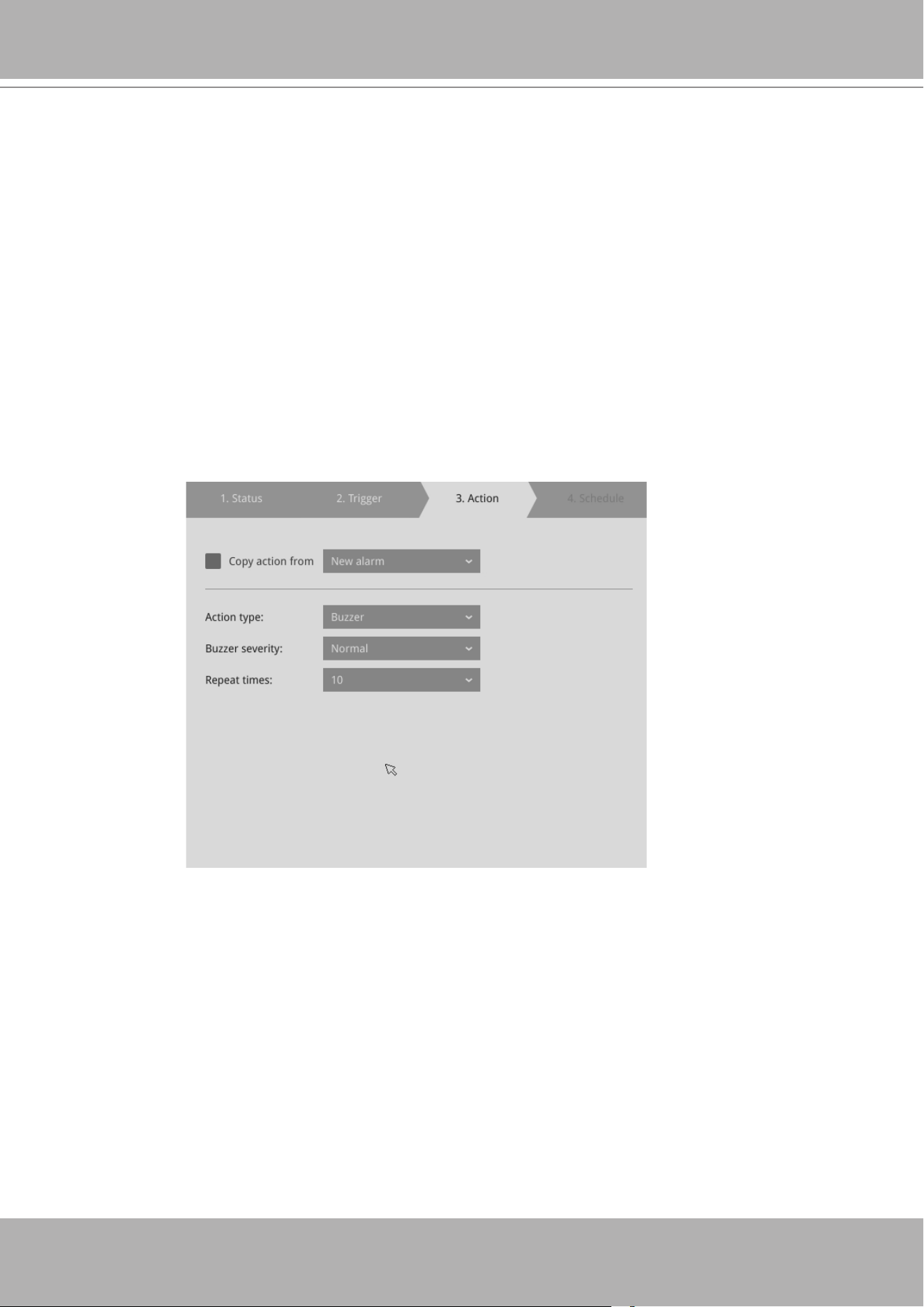
VIVOTEK - Built with Reliability
86 - User's Manual
The Email subject and addresses can be composed of 254 characters in numeric or
alphabetic characters including: [0-9][a-z][A-Z][_][ ][-][.][,][@]. You can enter the addresses
of multiple recipients. Use semicolons, (;), to separate the addresses of multiple recipients.
4-3.
Buzzer
- The buzzer is sounded on the occurrence of the event. The buzzer tones are
categorized into:
Critical
(1 long, 1 sec interval)
Major
(1 long 2 shorts, 1 sec interval),
Normal
(3 shorts, 2 sec interval),
Minor
(2 shorts, 2 sec interval), and
Notify
(2 very shorts)
depending on the importance of an event. Select a Buzzer modulation from the drop-down
list.
A long tone has a duration of 1 second, while a short tone 0.5 second. A very short tone
lasts only for 0.1 second.
Select how many times the buzzer tones will be repeated on the occurrence of an event.
If events of different importance are issued at the same time, e.g., one major and one minor
event, system will ignore the minor event and sound the buzzer tone for the major event
only. The buzzer can be sounded either by the Alarm actions or the system events. If Alarm
actions and system service events occur at the time, Alarm actions have the higher priority.
If multiple Alarm actions occur, the currently-sounded events can be depleted by the new
event.
There are conditions that the system will sound the buzzer, and the conditions are not
congurable.
1. Disk failure - missing drives or SMART detected failures.
2. Disk full - the free space is too small for recording tasks.
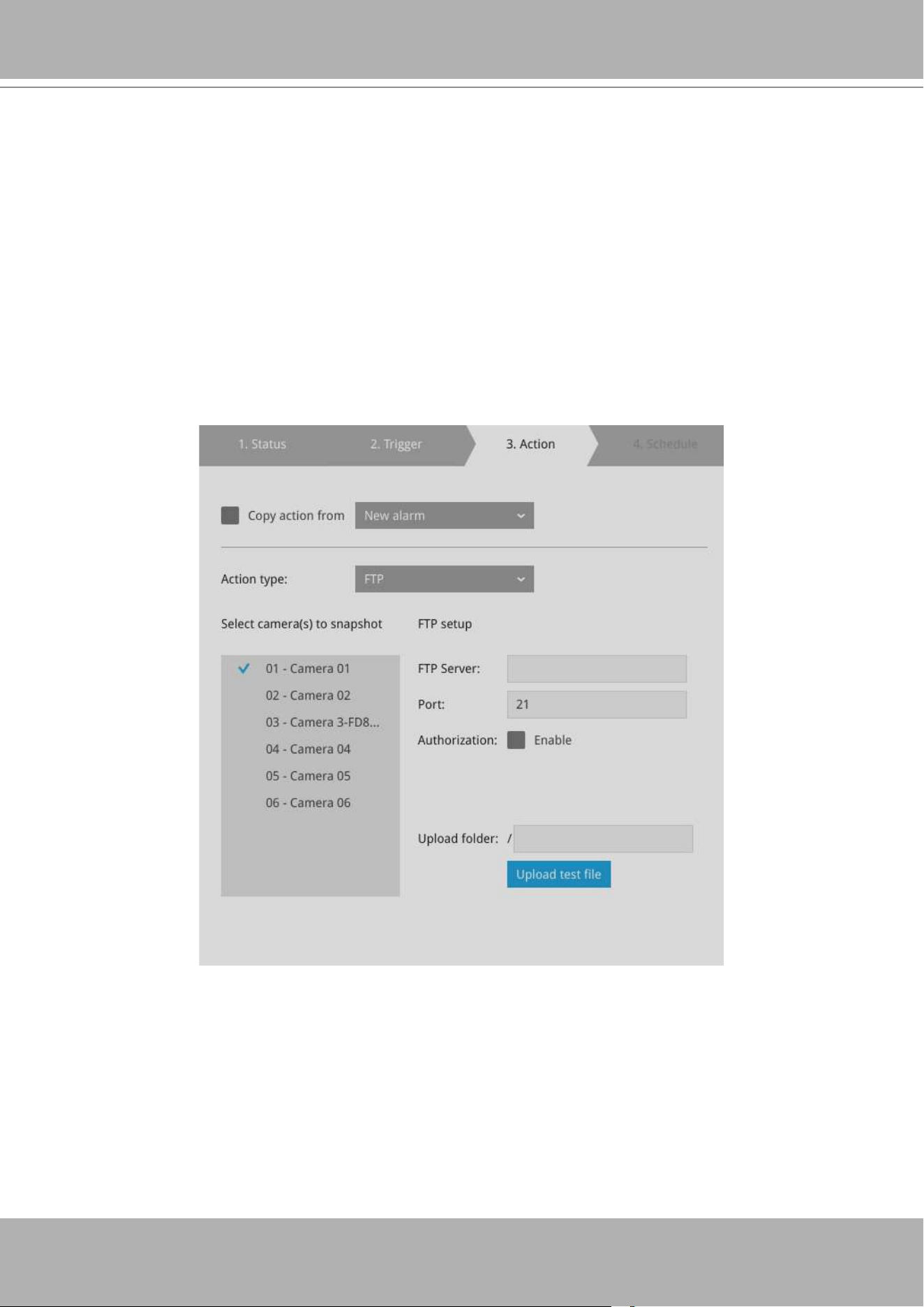
VIVOTEK - Built with Reliability
User's Manual - 87
4-4.
FTP
- Snapshots from specied cameras can be uploaded to an FTP site on the
occurrence of an event. Enter the FTP site address in the dotted-decimal notation, e.g.,
159.22.151.20. Enter the login name and password for the user account. You can enter
a directory name you prefer on the FTP site. The server port default is 21, a different
number between 1025 and 65535 can also be assigned.
The snapshot thus delivered has a size of 320x240 pixels.
If authentication is not applied, login will proceed using the [anonymous] account.
The le names of the snapshot jpeg les will look like this:
[MAC]_[DATE]_[TIME]_[CAMERA_INDEX].jpg - If similar les already exist, an
additional index number will be added to the end of le name.
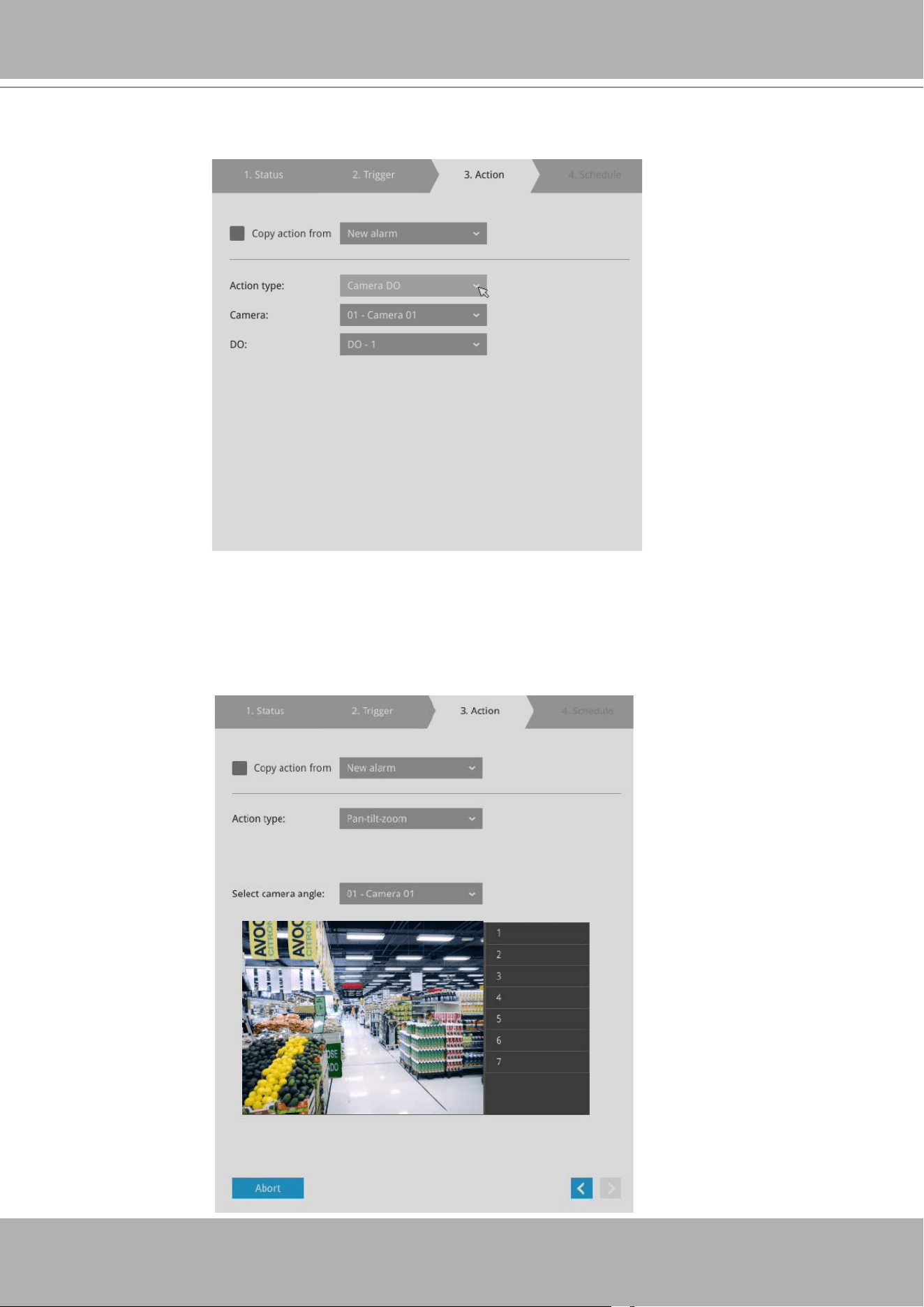
VIVOTEK - Built with Reliability
88 - User's Manual
4-5.
Camera DO
- A triggered alarm triggers a camera's DO, e.g., an alarm siren.
4-6.
Camera pan-tilt-zoom
- A PTZ capable camera can move its lens to the preset position
in case of a triggered alarm. For example, a triggered sensor may indicate an area of
interest has been intruded, and a camera's eld of view should be moved to cover that
area. The precondition is that you properly set up preset positions on your PTZ cameras
using a local or a web console.
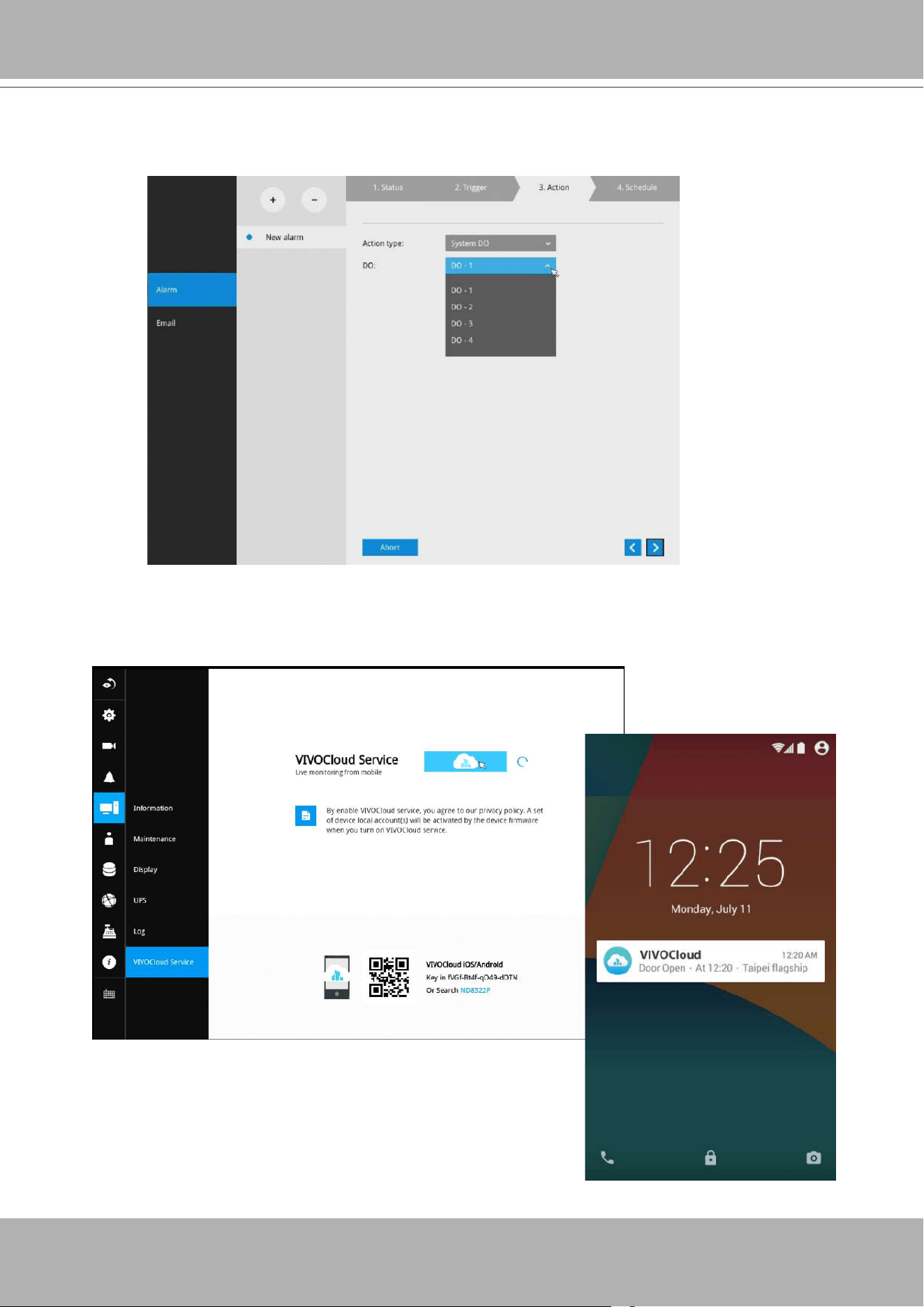
VIVOTEK - Built with Reliability
User's Manual - 89
4-7.
System DO
- A triggered alarm can be used to toggle the NVR's digital output, e.g., to
sound an alarm siren.
4-8.
VIVOCloud app notication
- A triggered alarm can be used to toggle an event notication
to the VIVOCloud utility. You will then be able to receive event notications from your cell
phone.
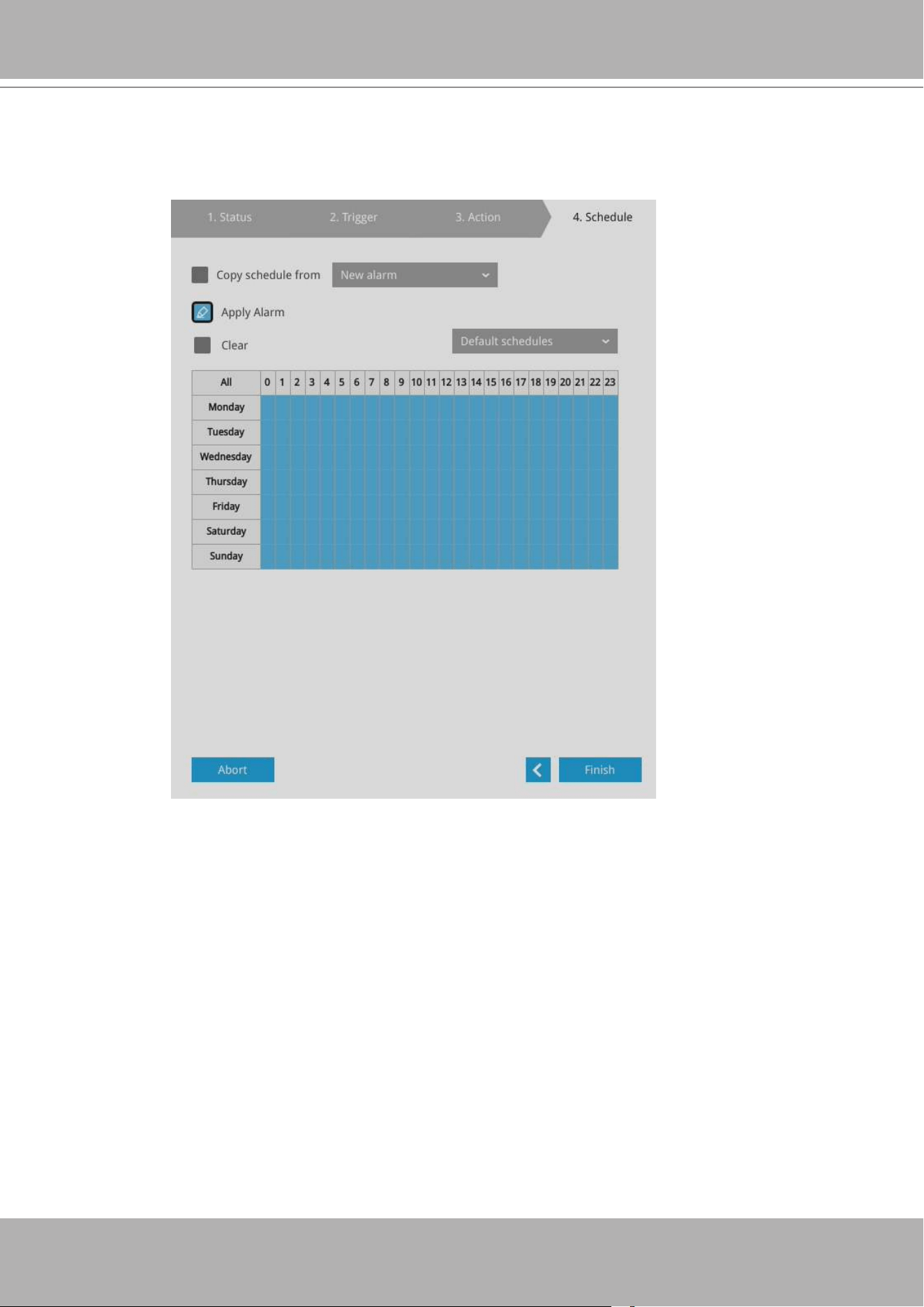
VIVOTEK - Built with Reliability
90 - User's Manual
5. On the
Schedule
page, you can select to activate or de-activate alarm triggers throughout a
specic timeline. For example, in some situations you can disable the alarm triggers during
the ofce hours, and choose to enable the triggers only during the off-ofce hours.
6. Click
Finish
to end the conguration.
7. Repeat the process above to create more alarms according to the needs in your surveillance
deployment.
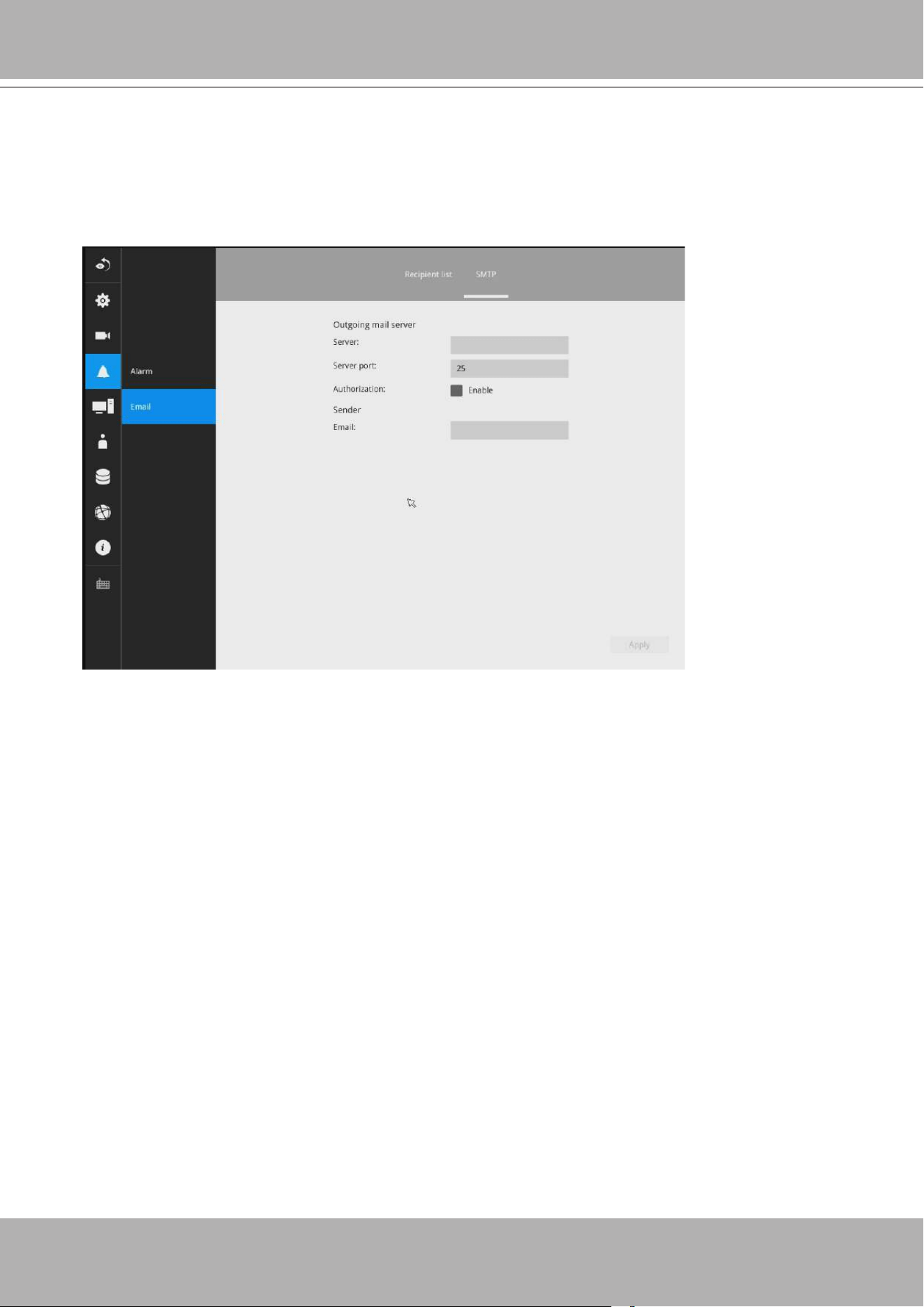
VIVOTEK - Built with Reliability
User's Manual - 91
3-5-10. Settings - Alarm - Email
This window provides an interface where you can congure the connection to a Mail server. Via
the Mail server, the system can deliver Emails containing system alarm messages to multiple
receivers. A reachable Mail server and Email accounts must be provided before you can apply
the settings.
The conguration options are identical to those found in the Email conguration in Settings -
Alarm window.
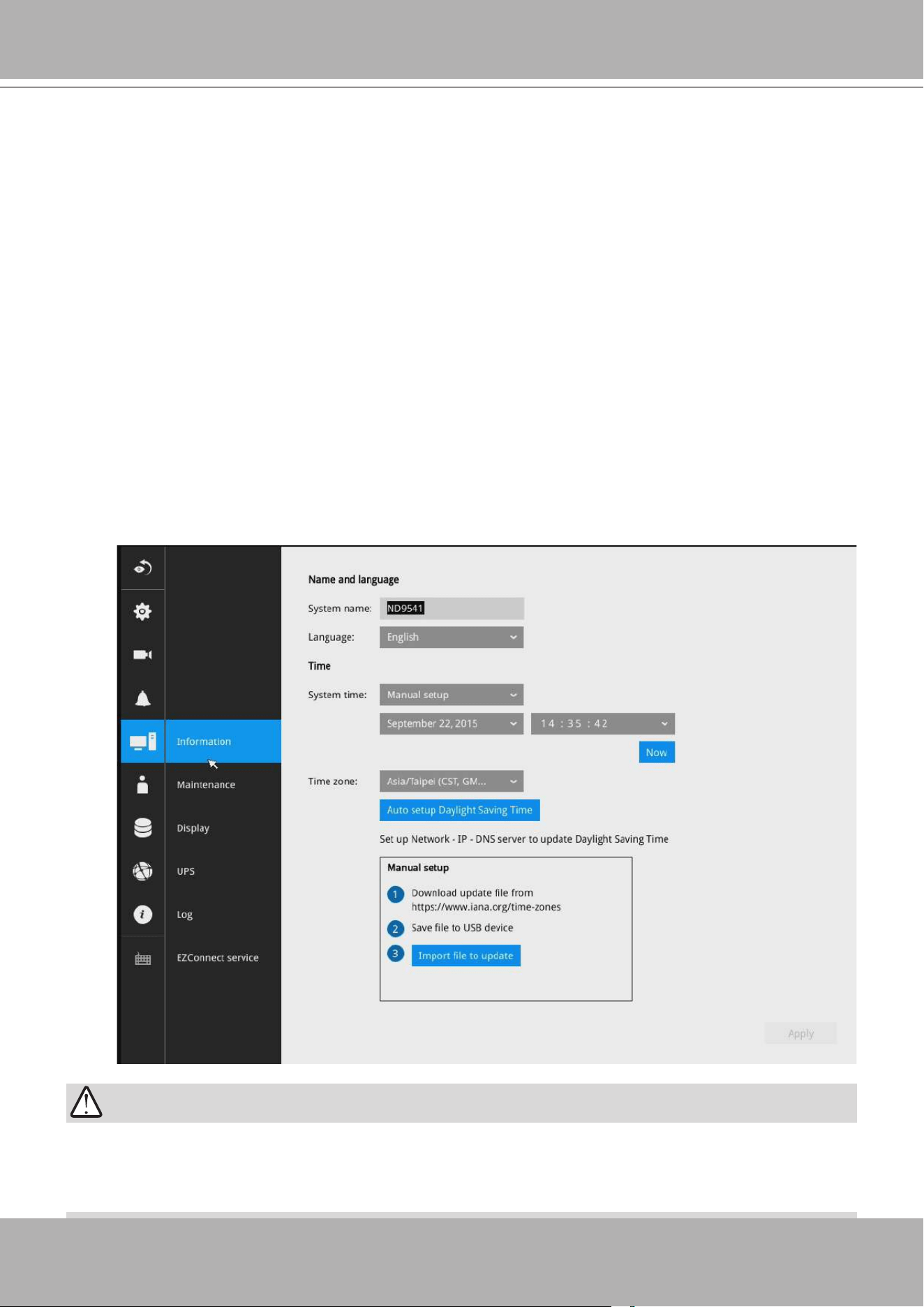
VIVOTEK - Built with Reliability
92 - User's Manual
On this window, you can congure the following:
1. Change the system name. Using a name in different languages is supported via a web
console.
2. Select the UI text language.
3. Congure system time, time zone, and if you are connected to a DNS server where
Auto Daylight Saving time can be applied, you can acquire the associated setting
from a server within your network. You can use the Auto Setup button to automatically
update the daylight saving conguration. A system reboot is required.
You can also manually update the daylight saving prole in the GZ format using the
Import le button below.
4. Click the
Apply
button for the conguration to take effect.
Note that if
NTP
time server conguration (Auto) is preferred, the system will automatically
congure all cameras to be listening to the system, and therefore to the same time server.
3-5-11. Settings - System - Information
Changing system time can produce disruptions to the existing recordings. Turning the current
system time back to a time when video recording was taking place can generate duplicate les.
And those les may not be playable.
IMPORTANT:
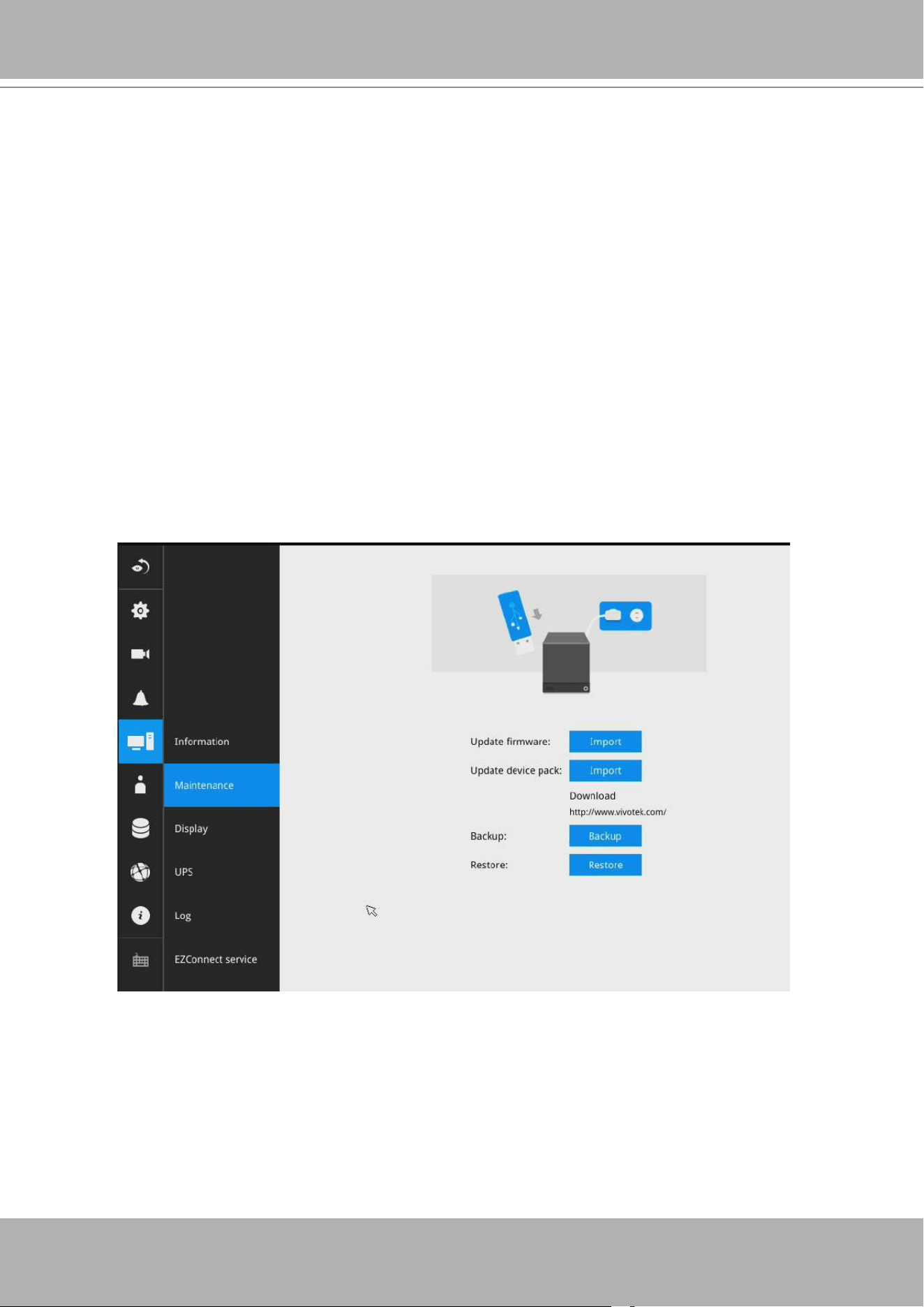
VIVOTEK - Built with Reliability
User's Manual - 93
3-5-12. Settings - System - Maintenance
If the need arises for updating system rmware, acquire the update from VIVOTEK's technical
support or download site. Locate the rmware binaries, and click the Import button. The upgrade
should take several minutes to complete. Note that during the upgrade, the recording task will
be interrupted.
On this window, you can perform 4 maintenance tasks:
1.
Update rmware
- Download rmware and save it to a USB drive in the FAT format, attach
the USB device to the NVR for rmware upgrade.
2.
Update device pack
- A device pack allows you to import associated congurations and
parameters for new camera models so that these cameras can be integrated into your NVR
conguration. The information in the device pack is related to some tunable parameters.
Note that the backup action does not involve the following:
1. Recorded videos and database,
2. Alarm records, bookmarks, and bookmarked footages.
Select a location for your backup le, then click Save to complete the process. If you back up
to a USB thumb drive, that thumb drive must be formatted using the FAT format.
4.
Restore
- If you have a previously-saved prole, you can restore your previous conguration.
Click the Restore button.
A le location window will prompt. Locate the backup le, and click Open. The Restore
process will take several minutes to complete, and system operation will be interrupted during
the process.
3.
Backup
- You can backup your system conguration using the Backup function. Click Backup,
a message window will prompt. Click Save to preserve your system congurations.
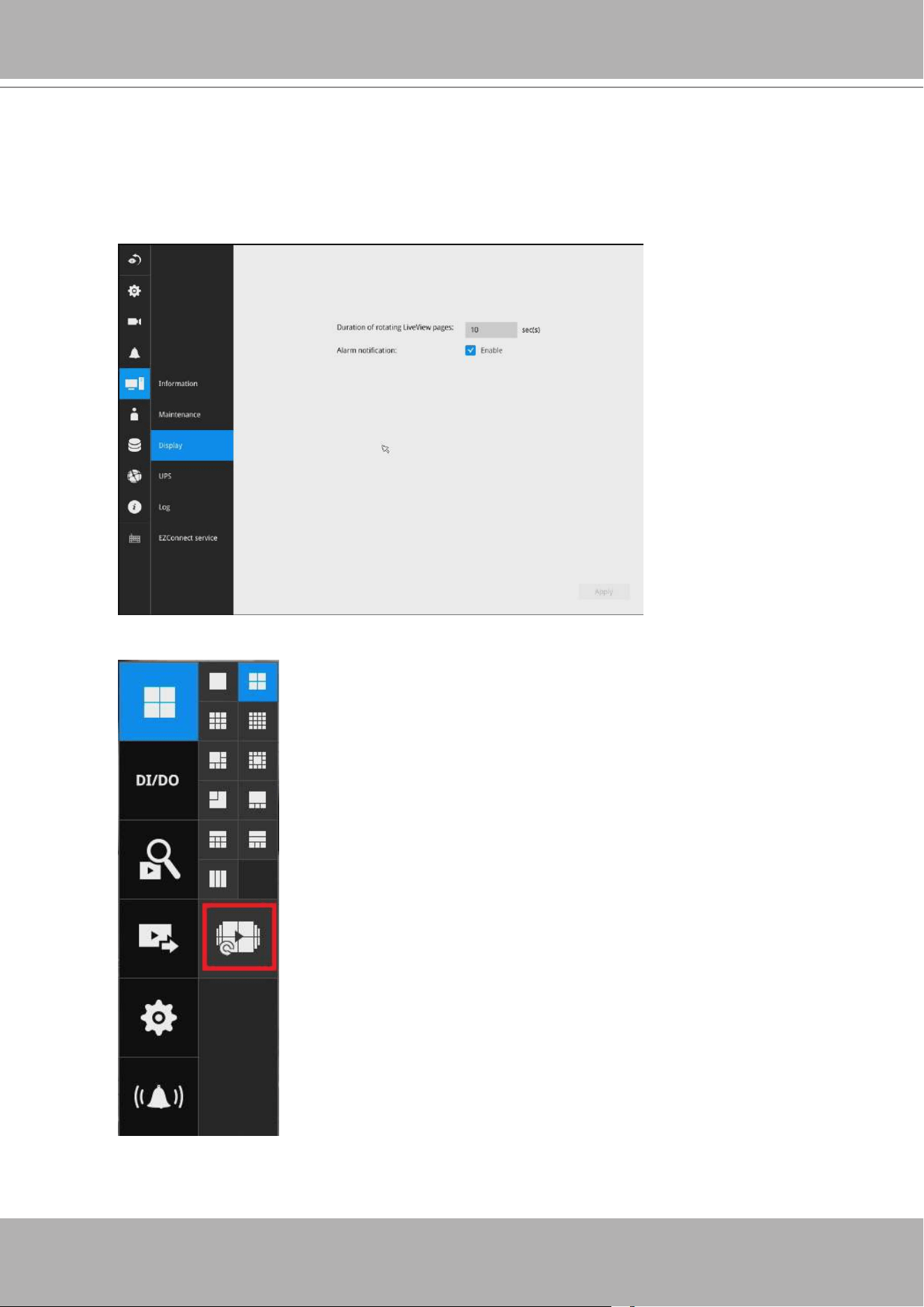
VIVOTEK - Built with Reliability
94 - User's Manual
3-5-13. Settings - System - Display
On this page, you can congure the system to consecutively display (rotate) cameras' view cells
on the Liveview window. For example, if you have 8 cameras in 2 2x2 layouts, the rotation can
let you see the live views of all cameras by every few seconds.
You can also enable or disable the Alarm notication.
To enable the rotate function, click on the rotate button on the layout panel.
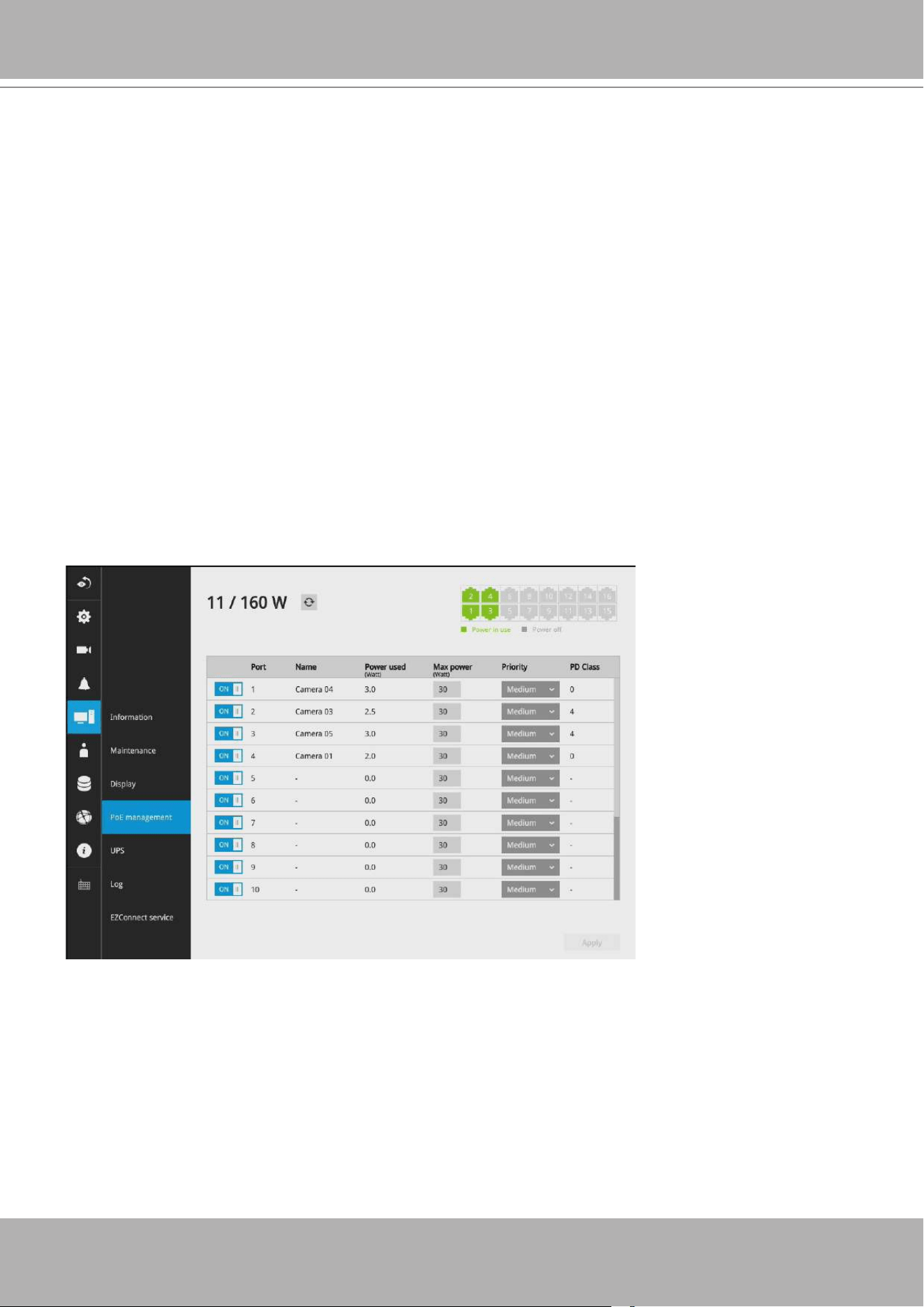
VIVOTEK - Built with Reliability
User's Manual - 95
3-5-14. Settings - System - PoE management
When IP cameras are connected to the NVR's PoE ports, their power consumption is constantly
monitored, and the power budget is displayed on the PoE management screen.
The following apply to the PoE connections and PoE management:
1. Cameras will be automatically enlisted to the NVR. The PoE connection status is polled every
10 seconds.
2. For devices that come with multiple video channels, e.g., a video server, each video stream
will occupy a video channel.
3. PoE Plug and Play takes effect after the initial setup. Any cameras connected thereafter
will automatically join the NVR conguration. If you manually delete a camera from list, you
should unplug and then re-connect it to the PoE port before joining the network back to NVR.
4. The above does not apply to ONVIF cameras.
5. The total PoE power budget is 160W. The maximum output for each port is 30W.
6. You can manually enable or disable the PoE output on each port, and congure a priority
setting for each port (should you need to run the deployment on a tight power budget).
7. If port #5, #9, and #12 are congured with Low priority, and power runs short on the NVR. The
ports with smaller port number, e.g., port #5, will be powered rst. In this case, ports #9 and #12
may not be sufciently supplied.
8. The PoE automatic enlistment does not apply for cameras that come with preset credentials,
namely, password-proteced.
9. The PoE port status can reect the following situations:
A. PoE enable –PoE is working (port icon displayed in green on the upper-right screen)
B. PoE turned OFF –PoE manually disabled (turned to OFF)
C. PoE turned OFF –Port power overload (under camera name)
D. PoE turned OFF –Total power overload (under camera name)
E. PoE turned OFF –Abnormal power supply voltage(under camera name)
F. PoE turned OFF –Non-standard powered device (under camera name)
G. PoE turned OFF –Port error (under camera name)
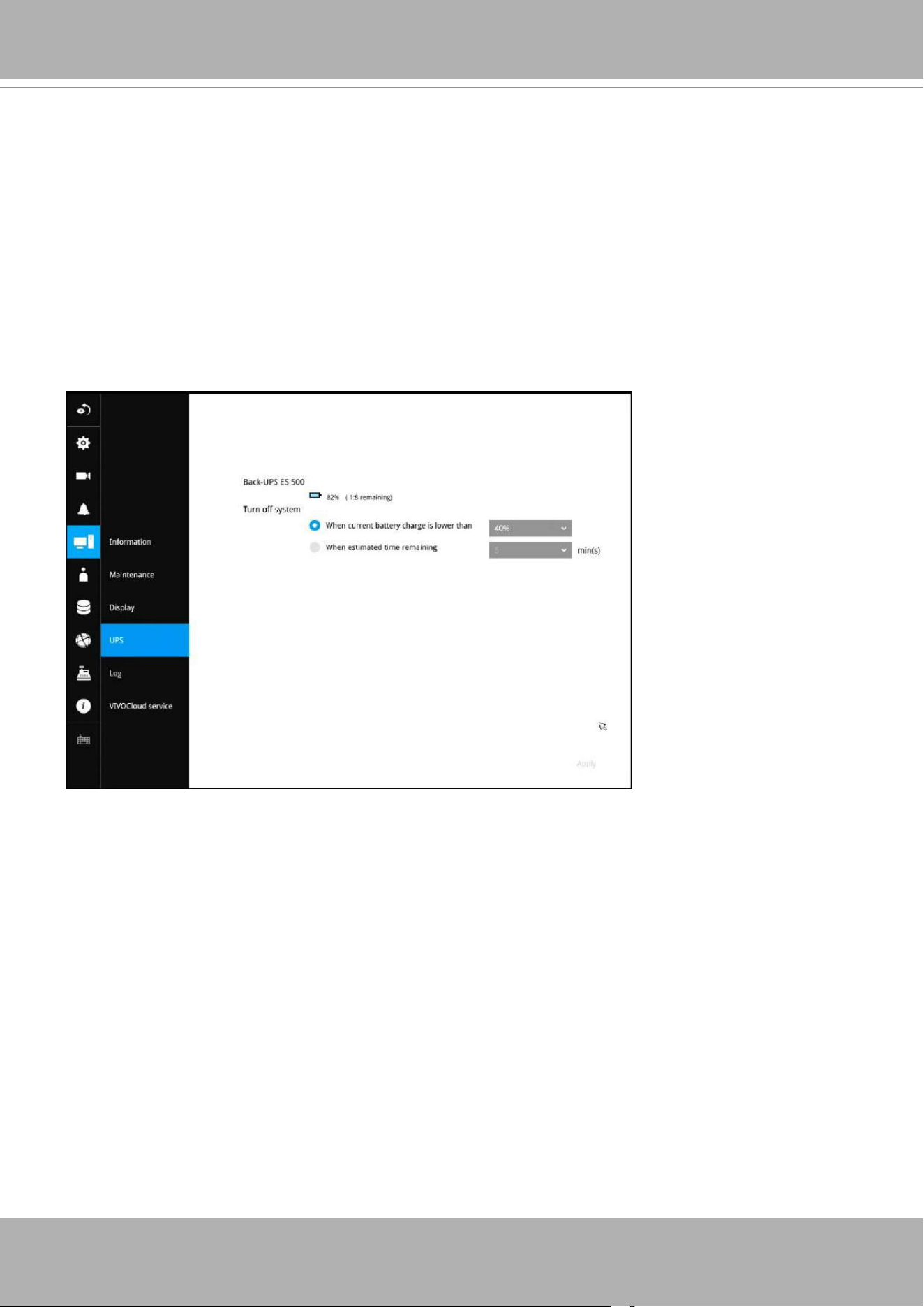
VIVOTEK - Built with Reliability
96 - User's Manual
3-5-15. Settings - System - UPS
On this page, you can congure the system to gracefully shut down when UPS battery is lower
than a certain level. You may also let it shut down when the estimated sustainable time is
reached. We support APC Black 500 UPS.
10. When the NVR has little reserved power budget, and you attach a new camera, the NVR
will stop supplying power to the new camera.
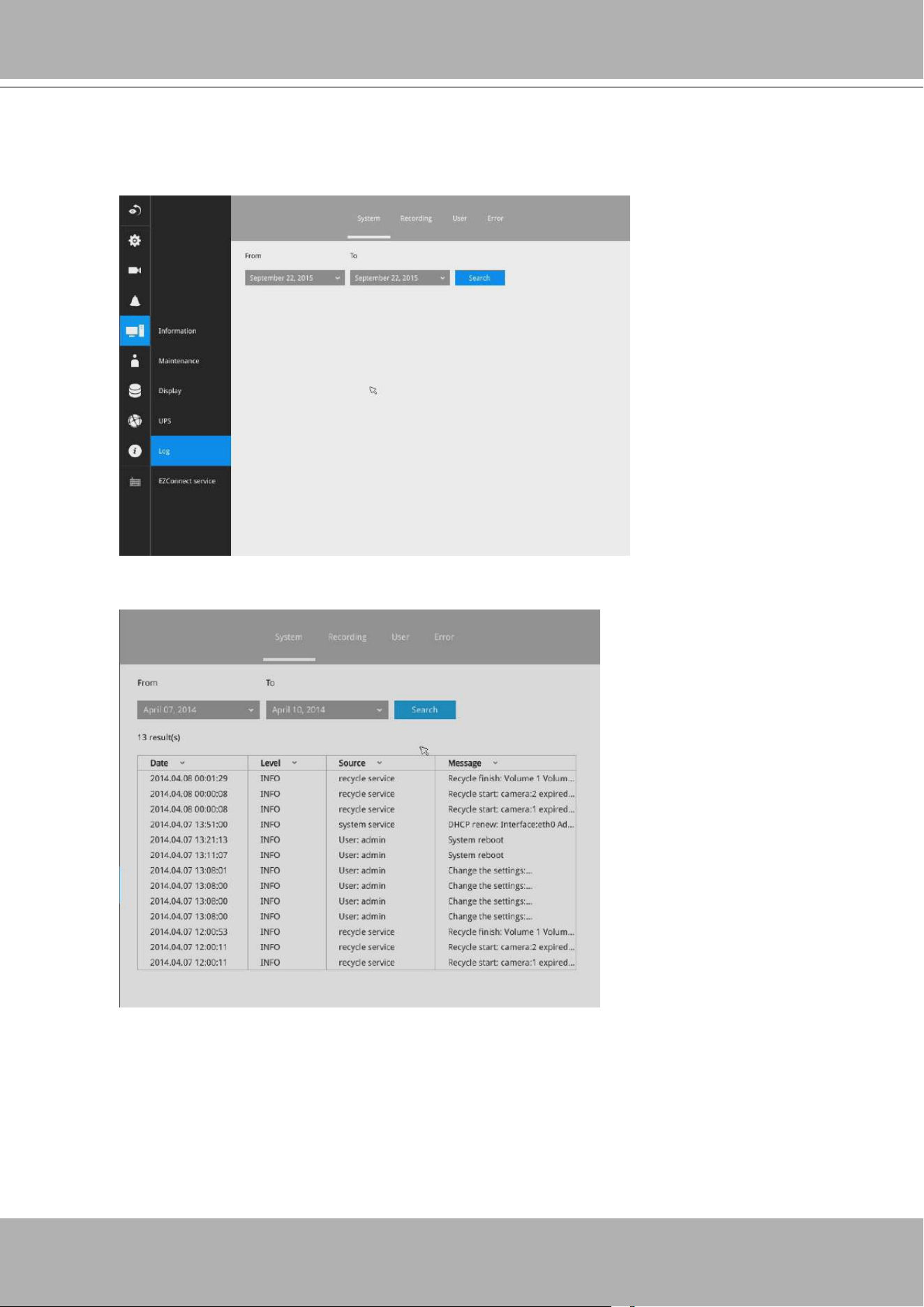
VIVOTEK - Built with Reliability
User's Manual - 97
3-5-16. Settings - System - Log
System logs are categorized as
System
,
Recording
,
User
, and
Error
.
To display system logs, select a range of time and click on the Search button.
You can search for past logs in each category window.
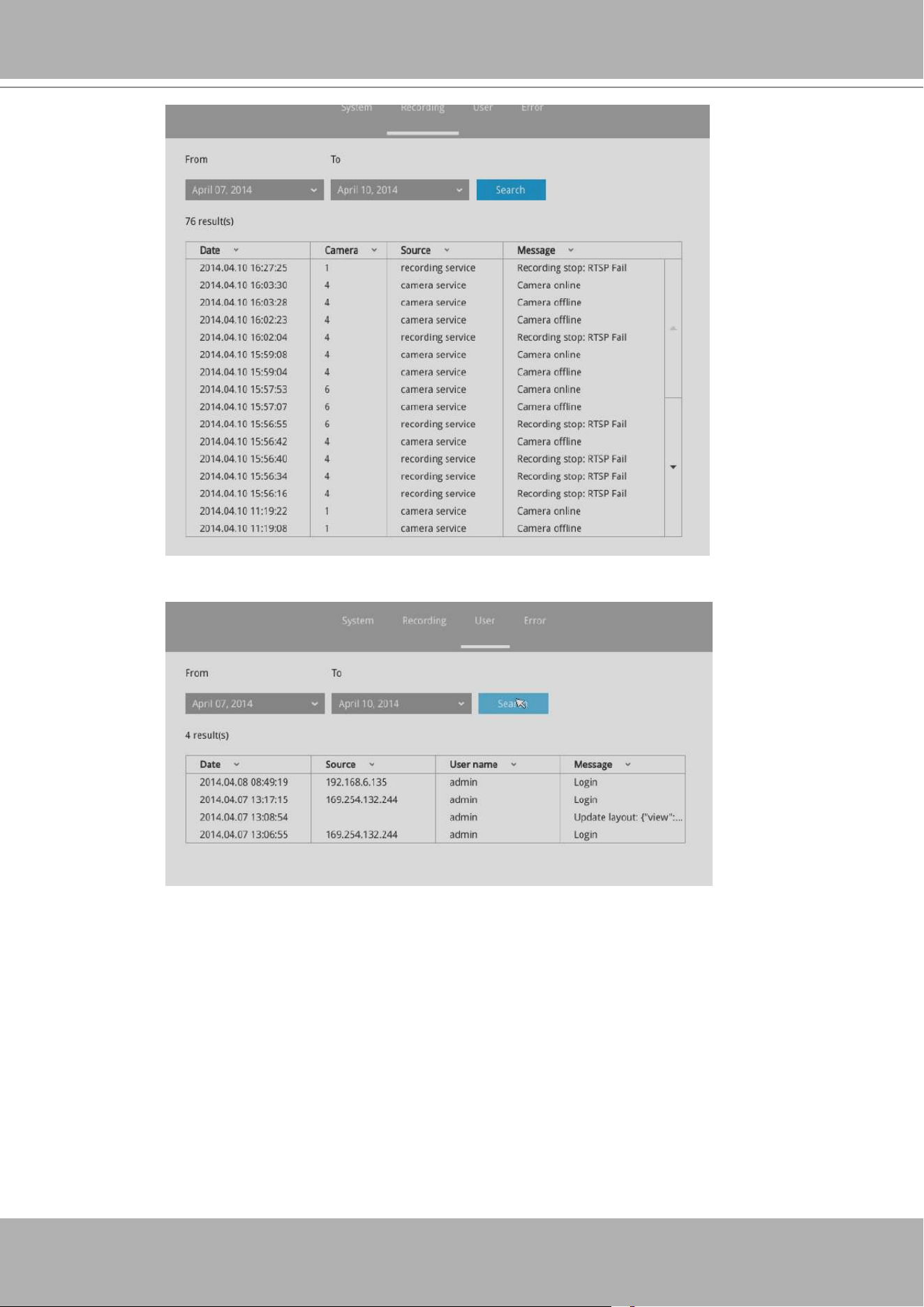
VIVOTEK - Built with Reliability
98 - User's Manual
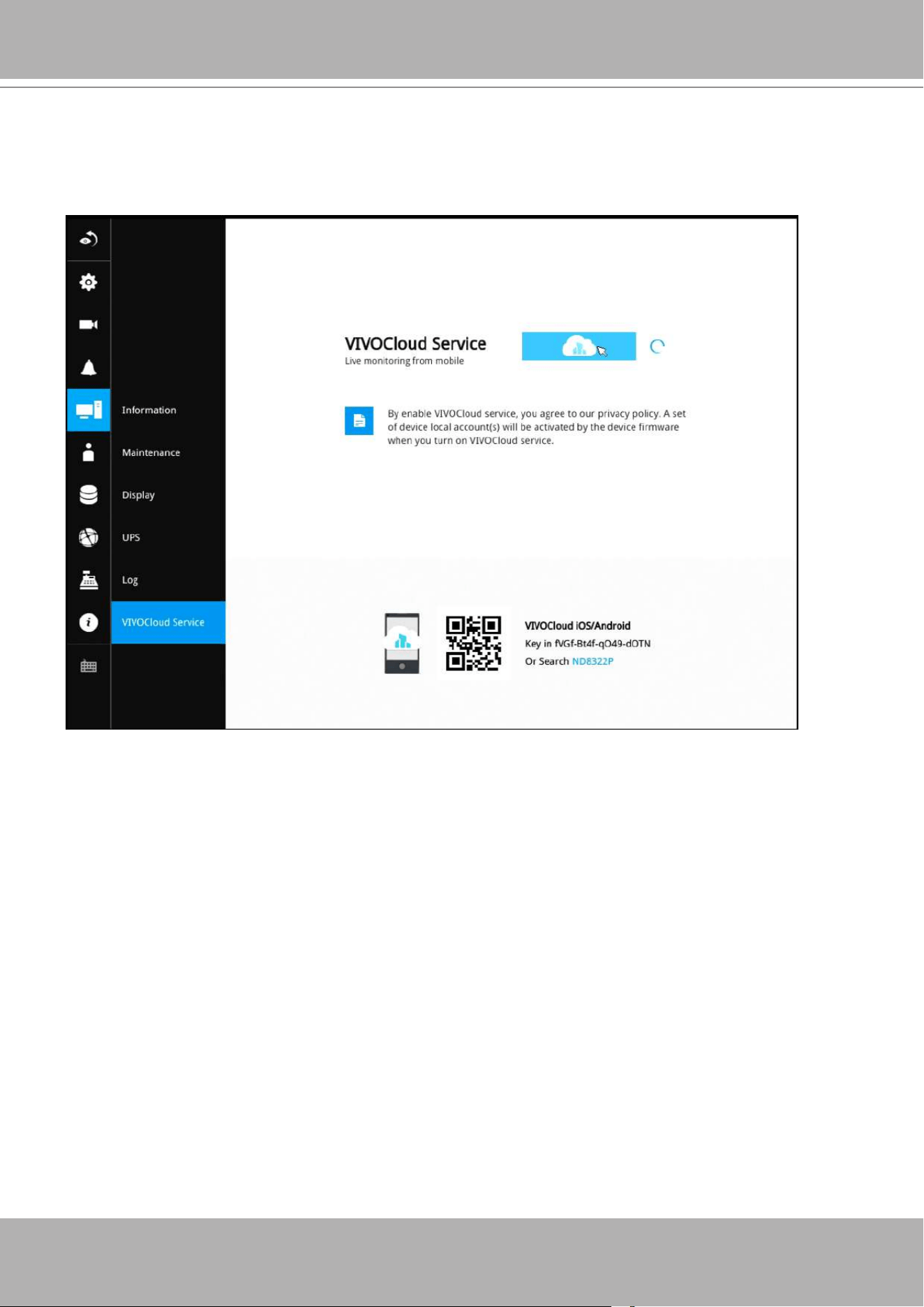
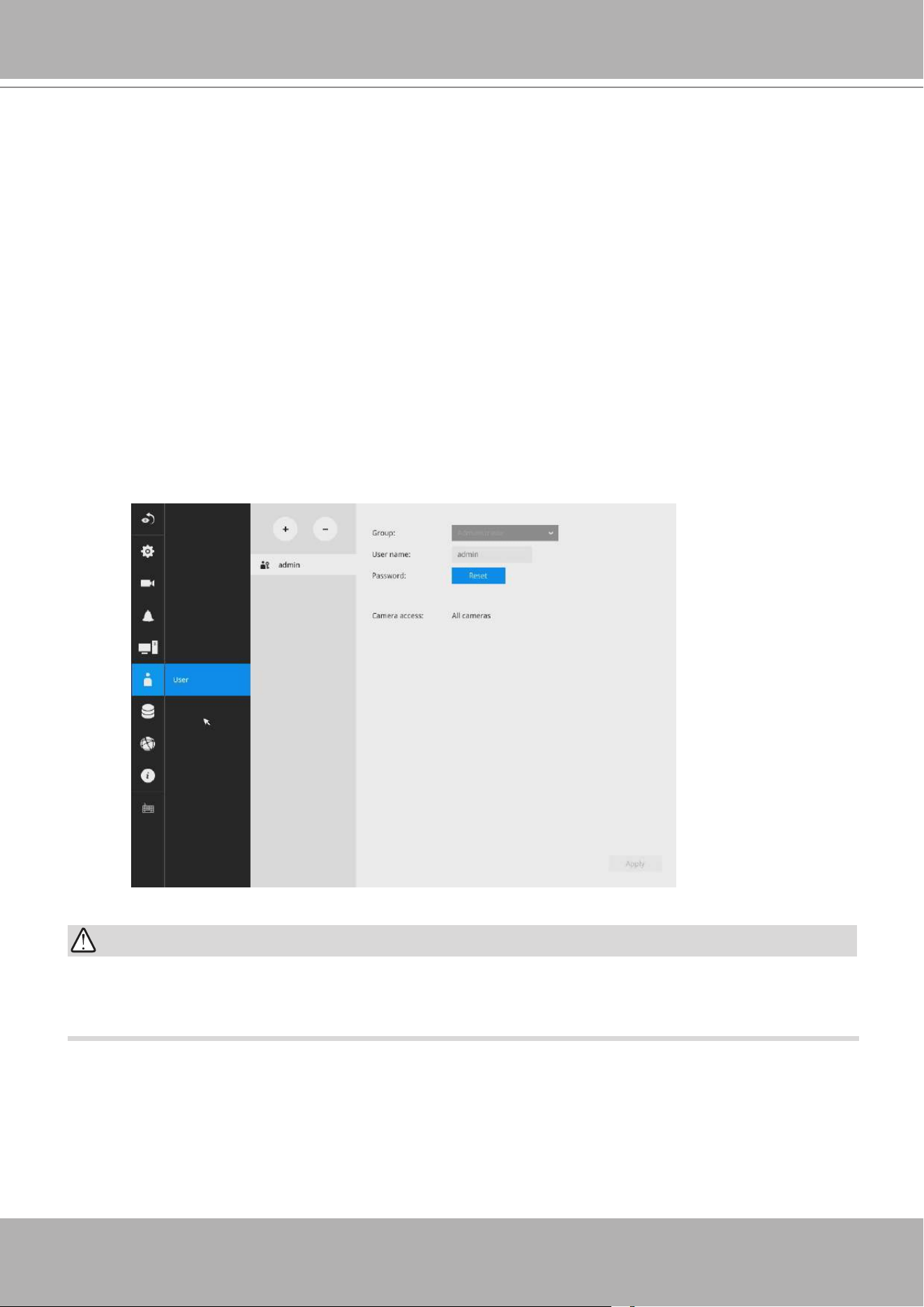
VIVOTEK - Built with Reliability
100 - User's Manual
3-5-18. Settings - User
The User window allows you to create more users, to change user password, and place
limitations on users' privileges and administration rights. Up to 16 users can be created,
including the default administrator.
1. By default, there are two user groups:
Administrator
and
Regular user
.
2. The regular users cannot access the
Settings
window, meaning that regular users can not
add or remove cameras, make changes to alarm, network, and all other system settings.
When users try to access the Settings window, the login window prohibits regular users to log
in. There is simply no regular user's name on the login window.
3. The administrator users can access all cameras recruited in the conguration; while the
regular users can be congured to have access to some or all cameras.
4. The system blocks out the video feeds from users who are denied of the access to particular
cameras. The alarms and the alarm-triggered recordings from those cameras will also be
inaccessible for unauthorized users.
The default administrator name and password are: admin and admin. It is highly recommended
to change the default password to prevent unauthorized access to the system.
IMPORTANT:
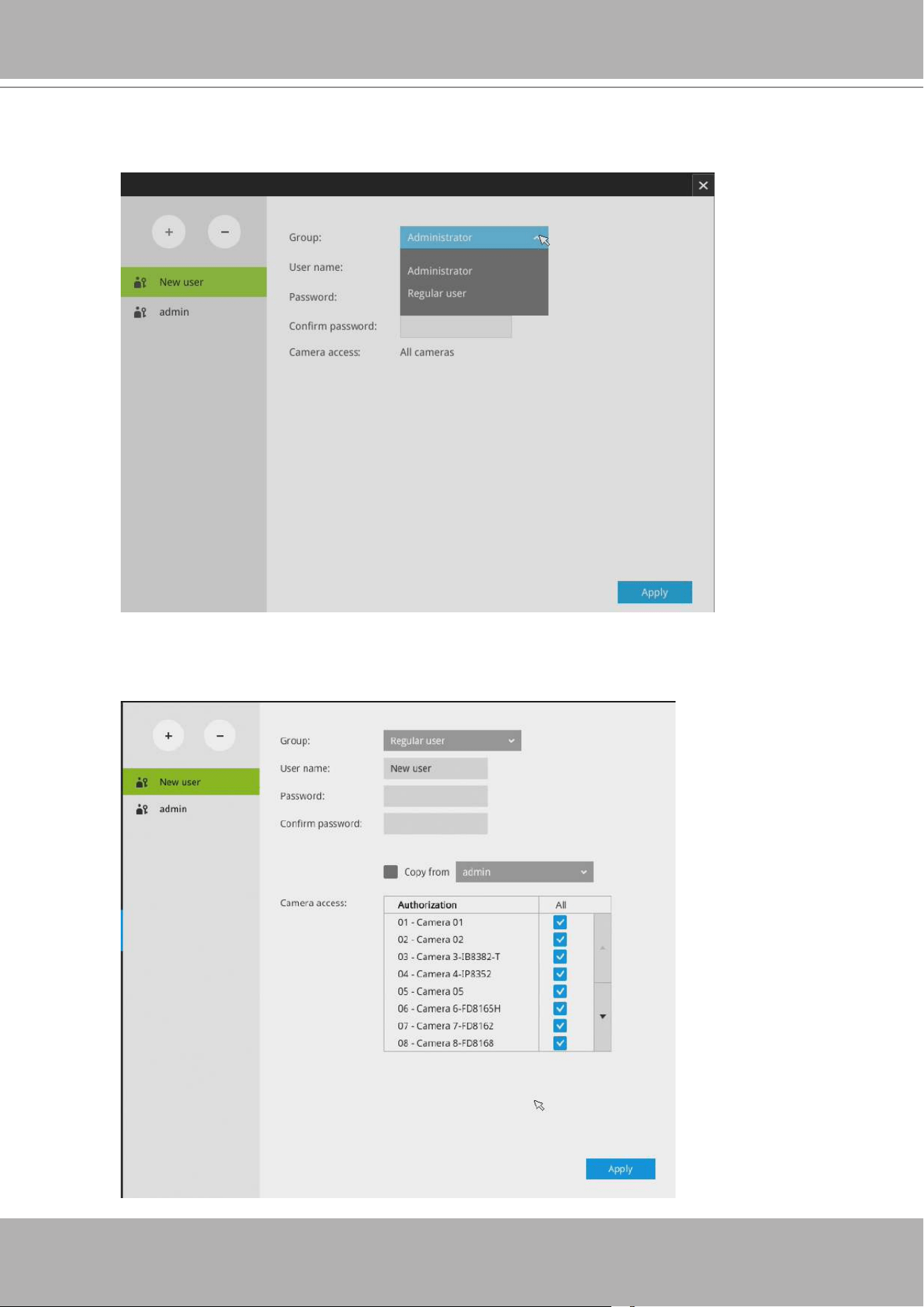
VIVOTEK - Built with Reliability
User's Manual - 101
To create or edit users,
1. Select a User group by unfolding its pull-down menu. Select either an Administrator or
regular user as the user group.
2. Enter the User name and password. The max. number of characters for a user name is
64, with alphabetic and numeric characters including [0-9][a-z][A-Z][_][ ][-][.][,][@]. The
max. number for password is also 64.
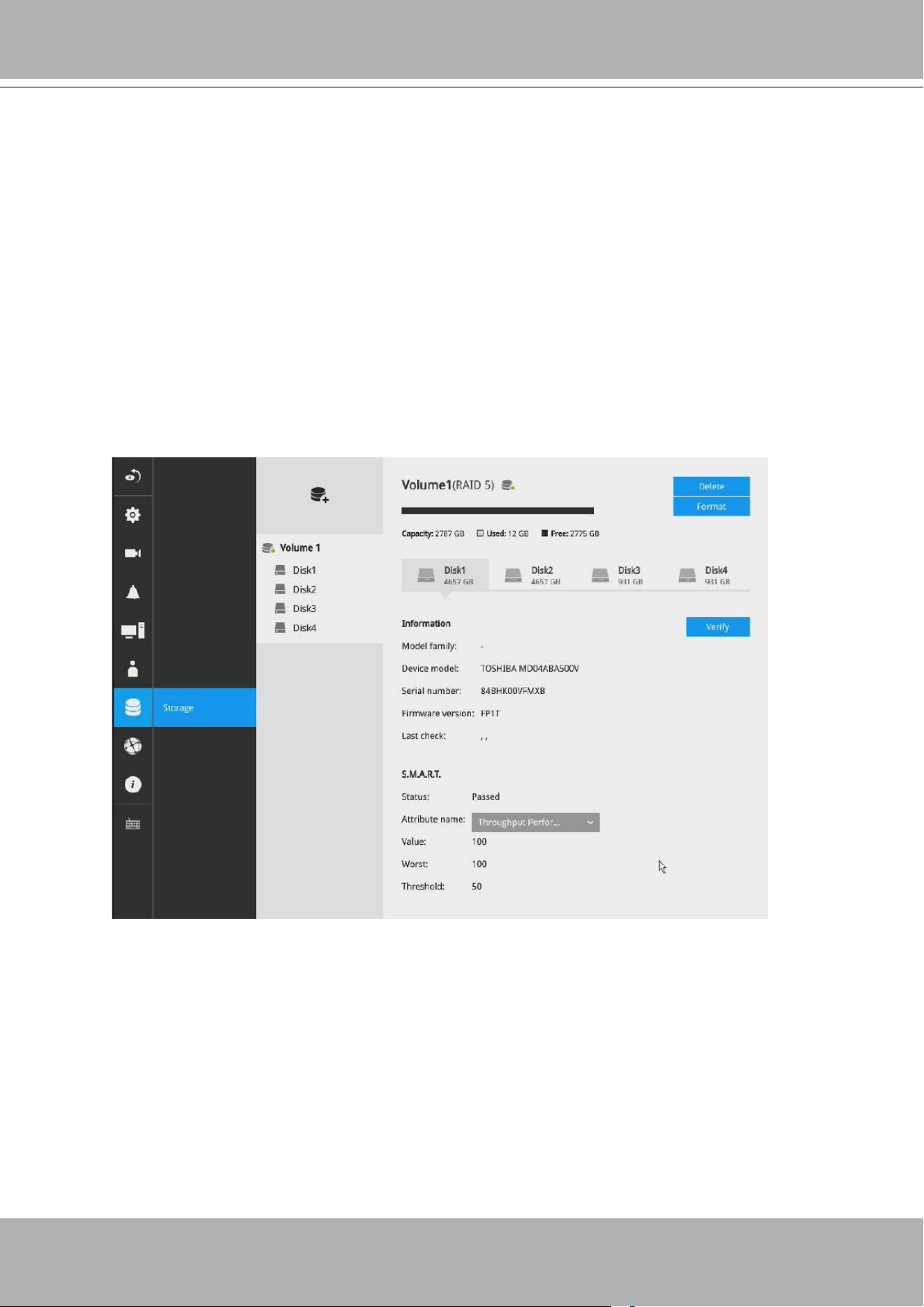
VIVOTEK - Built with Reliability
102 - User's Manual
3. If you are creating a regular user with limited access to cameras, deselect the checkboxes by
the cameras to deny the user access.
4. Click
Apply
to close the conguration window. Repeat the process to create more users.
3-5-19. Settings - Storage
The storage page displays the volume information including physcial position, total capacity,
used and free space, and associated commands such as Format and Delete. Since each
volume contains only 1 hard drive, details information about the hard drive is also displayed on
this page.
You can format an existing storage volume in situations such as when you need to re-deploy the
system elsewhere.
Disk Information:
Model family
: The brand name of the HDD manufacturer.
Device model
: The disk model name.
Serial number
: Serial number assigned to the disk drive.
Firmware version
: The version of rmware running on this disk drive.
Last check
: The bad block check or S.M.A.R.T. test previously executed on this drive.
Status
: S.M.A.R.T. status polled from the disk drive. This is not the results from a manually-
executed S.M.A.R.T. test.
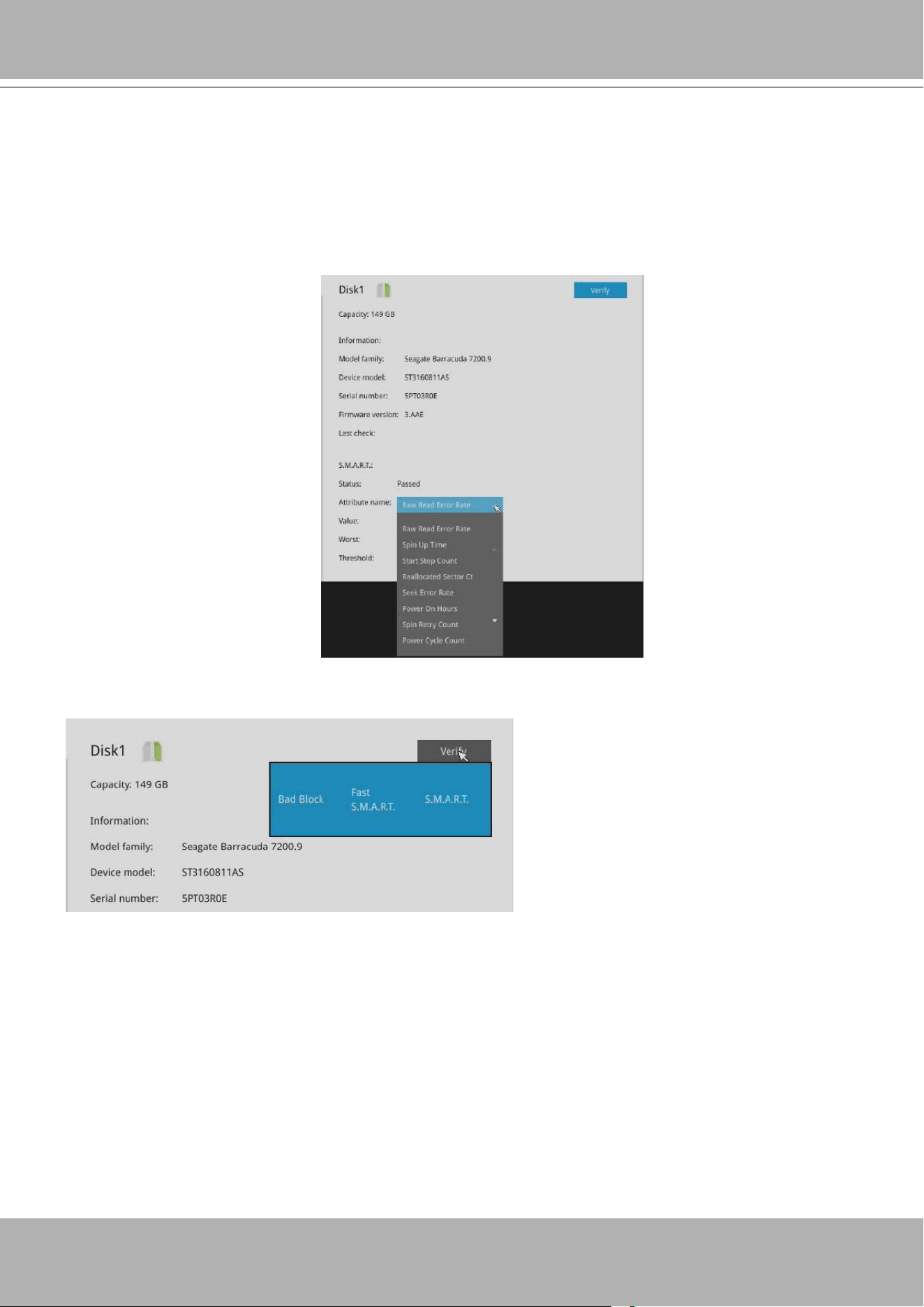
VIVOTEK - Built with Reliability
User's Manual - 103
Attribute
: The various attributes can vary from different HDD manufacturers.
Value
: Value for the currently selected attribute.
Worst
: Worst value acquired for that attribute.
Threshold
: A predened threshold or triggering value. The threshold below which the
normalized value will be considered exceeding specications.
Raw value
: The detected parameters for that attribute.
Status
: The judgement made to deem the current reading as OK or failed.
Verify:
Three types of check disk actions can be initiated through this button.
Bad block check
: Performs read/write test to drive sectors to locate bad blocks. This action
may take several hours to complete.
Fast S.M.A.R.T. test
: Tests the electronic and mechanical performance and disk read
performance, including those on disk buffer, read head, seek time, and integrity of drive
sectors. The short test is performed on a small section of disk platters, and takes about 2
minutes to complete.
S.M.A.R.T. long test
: The long test is more thoroughly and is performed to all drive sectors.
The actual completion time depends on drive sizes and the attributes put to test.
The Check disk functions mentioned above, when performed during active I/Os, can consume
system resources and cause dropped frames with the recording tasks.
Note that disk verify function
requires a volume to be temporarily
disabled; namely, the video
recording will be stopped before
disk verify can be performed.
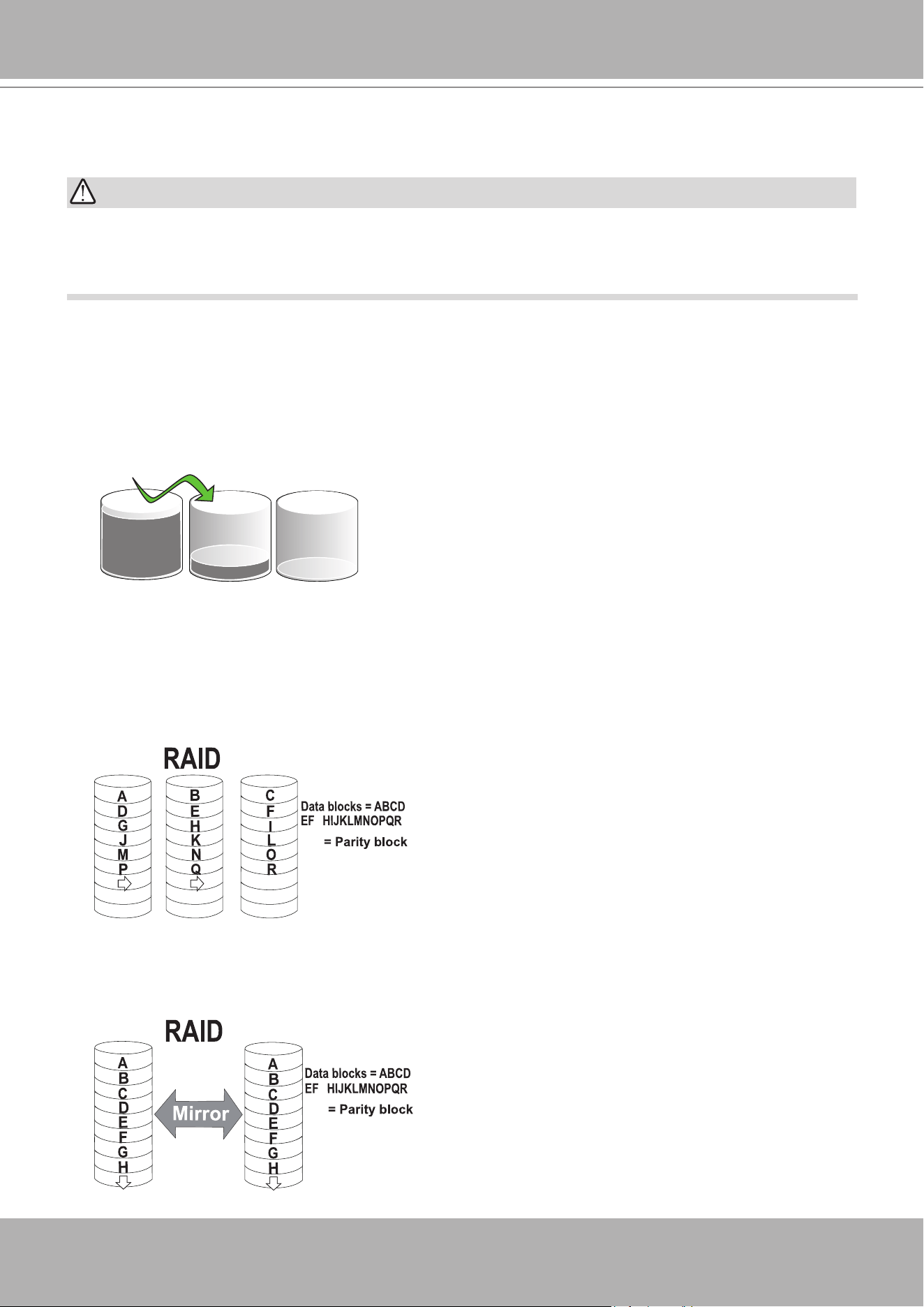
VIVOTEK - Built with Reliability
104 - User's Manual
With up to 4 disk drives, you have the following options for conguring storage volumes:
1. Single disk
: The single disk conguration provides no fault tolerance. The system stores
video recordings to one or more single disk volumes in a consecutive order.
Storage Volume RAID Levels
Single disks
Disk 0 Disk 1 Disk 2
2. RAID0
: A RAID0 volume spreads data blocks of each le across multiple disk drives. The
volume provides no redundancy. RAID0 provides high performance by simultaneously reading
or writing to disk drives, but if a drive fails, all data within is lost. Select at least 2 disks to build
a RAID0 volume.
0
N/A
Disk 0 Disk 1 Disk 2
G
3. RAID1
: A RAID1 volume provides high fault tolerance by writing the same data blocks
simultaneously to duplicate disks. Select at least 2 disks (or 4 disks) to build a RAID1 volume.
1
N/A
Disk 0 Disk 1
G
Each single disk volume contains one disk drive.
By default, the Installation Wizard congures all disk drives into individual single-disk volumes. If
you need to create RAID proteced volumes, delete these single-disk volumes to free them from
the conguration.
IMPORTANT:
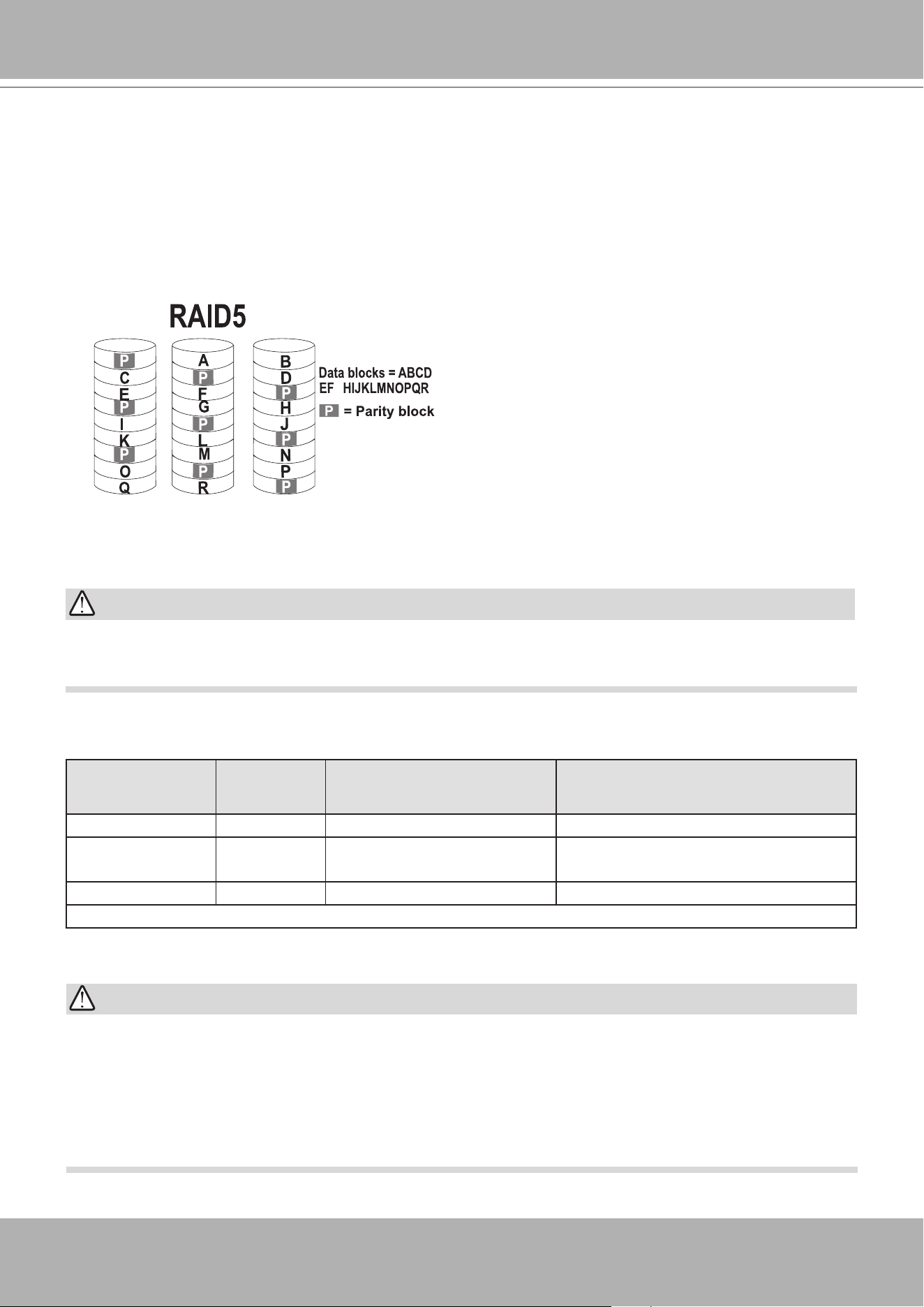
VIVOTEK - Built with Reliability
User's Manual - 105
4. RAID5
: A RAID5 volume provides a balance in performance and good fault tolerance. RAID5
stripes data and also generates error correction information (parity bits). One drive’s capacity
is needed to store the error correction information from all member drives. A RAID5 volume
requires at least 3 disk drives.
Note that if a member drive fails, the rebuild process of a RAID5 volume can take about
several days to complete (using 2TB drive members). The rebuild runs in the background,
and the rebuild progress is indicated on the volume page.
Disk 0 Disk 1 Disk 2
G
On this conguration window, a "disk" refers to a physical disk drive, a "volume" refers to the
logical conguration of disk drives which may include multiple disk drives.
If you remove a disk drive and insert it into a different drive bay, the system will consider it as a
new and different disk drive.
Some of the RAID levels provide data protection. Below is the summary of RAID level features:
RAID level No. of HDD No. of HDD failure
Allowed
Capacity
RAID0 2 0 HDD # x (smallest HDD size)
RAID1 2 or 4 1 or 2 (if counterparts in
the mirrored pair survives)
HDD # / 2
RAID5 3 1 (HDD # - 1) x (smallest HDD size)
>
=
>
=
IMPORTANT:
There are conditions that disk drives will not be available for storage conguration:
1. The disk drives are performing the Verify process.
2. The disk drives considered as "failed" drives by the S.M.A.R.T. self detection.
3. When you create a RAID volume, the disk drives in an external storage enclosure will not be
available.
IMPORTANT:
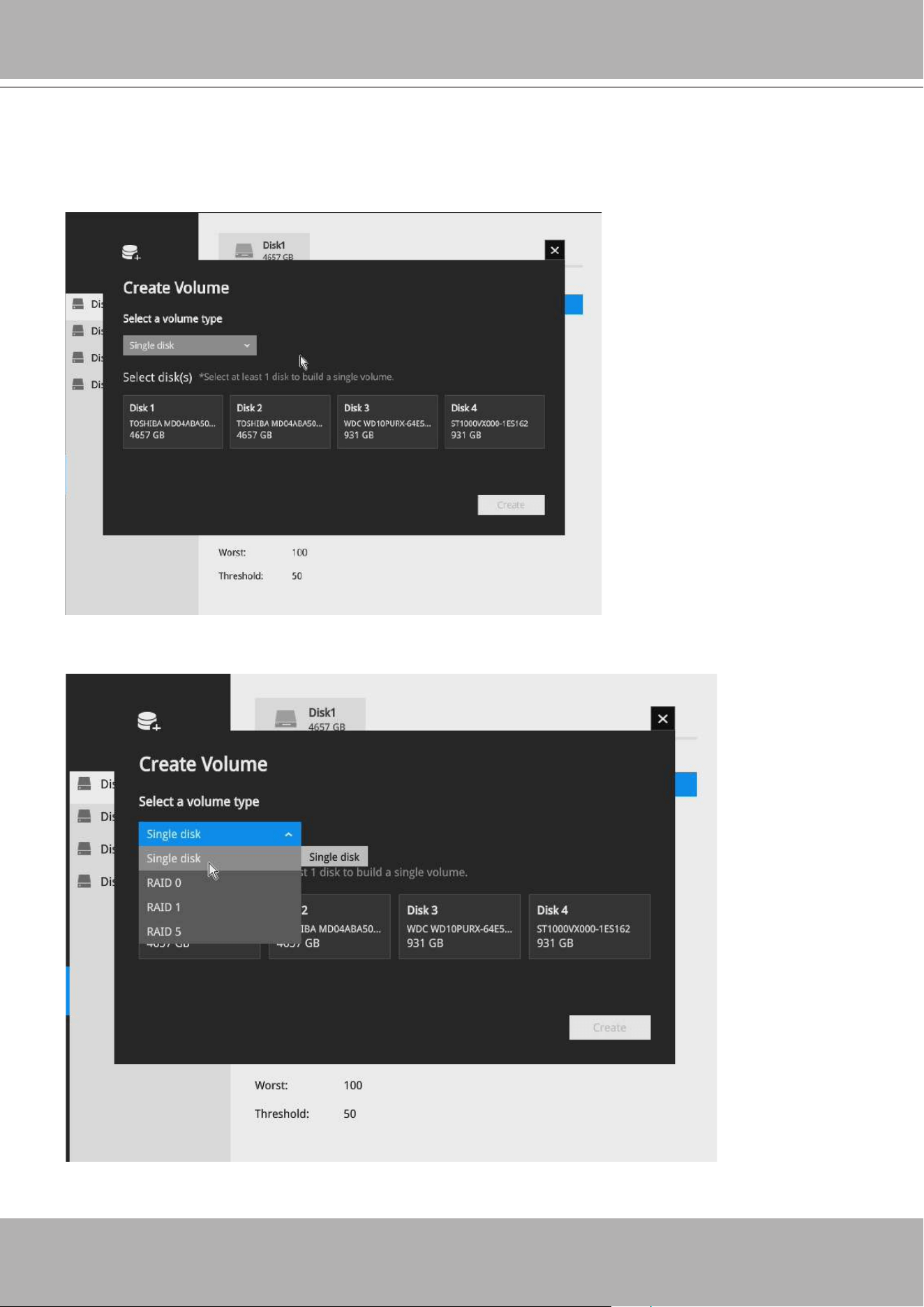
VIVOTEK - Built with Reliability
106 - User's Manual
To create a RAID volume:
1.
Click on the Create Volume button on top of the listed disk drives. The Create Volume window
will prompt
2.
Select a RAID level from the pull-down menu.
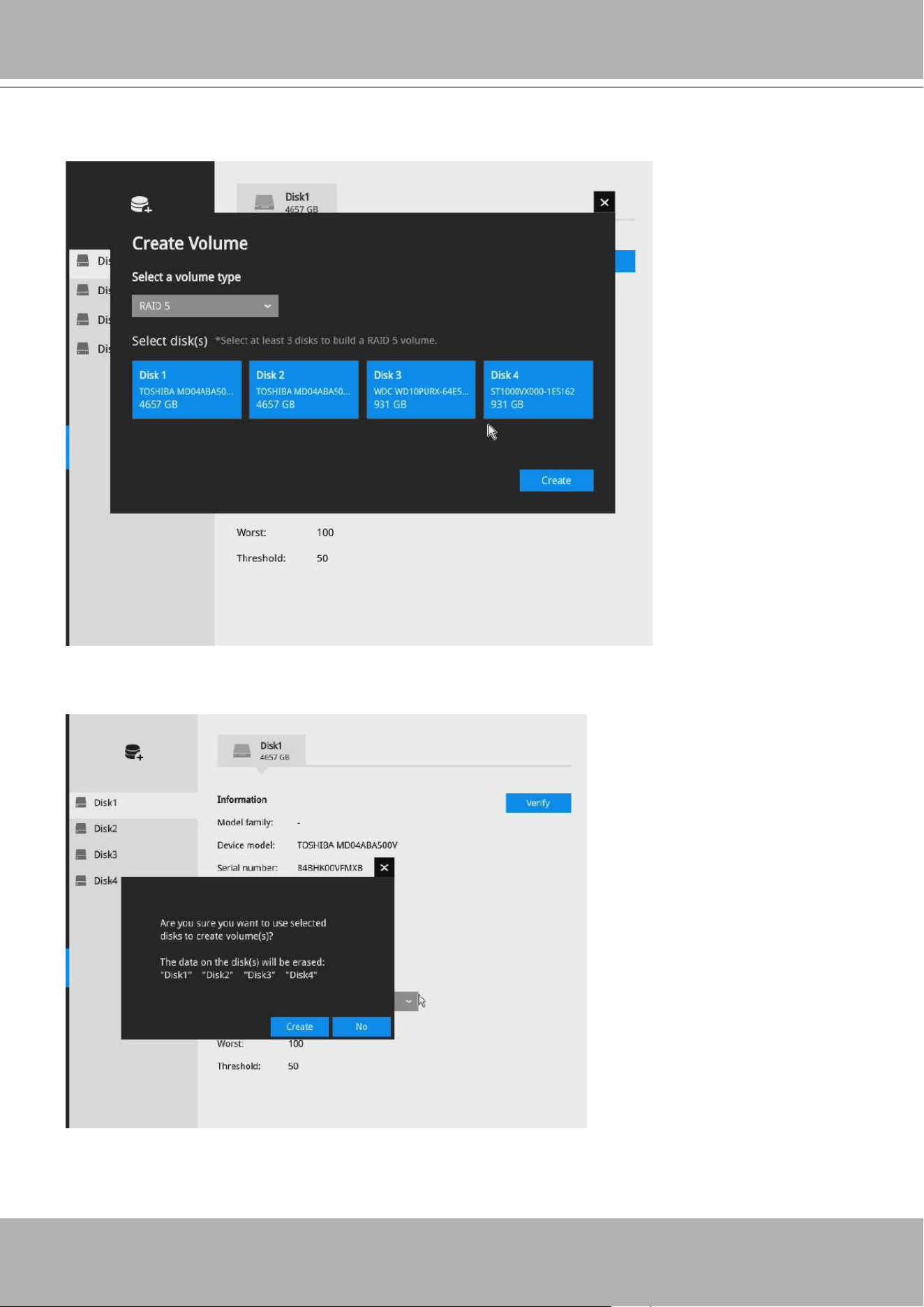
VIVOTEK - Built with Reliability
User's Manual - 107
3.
Click to select the members for the volume. When done, click Create to begin the process.
4.
Creating a RAID volume will erase all data on the member drives. A message prompt will
remind you of the situation. Click Create to continue.
VIVOTEK - Built with Reliability
108 - User's Manual
5.
The RAID volume should be created in a short while. When a volume is created, video
recording should also start immediately.
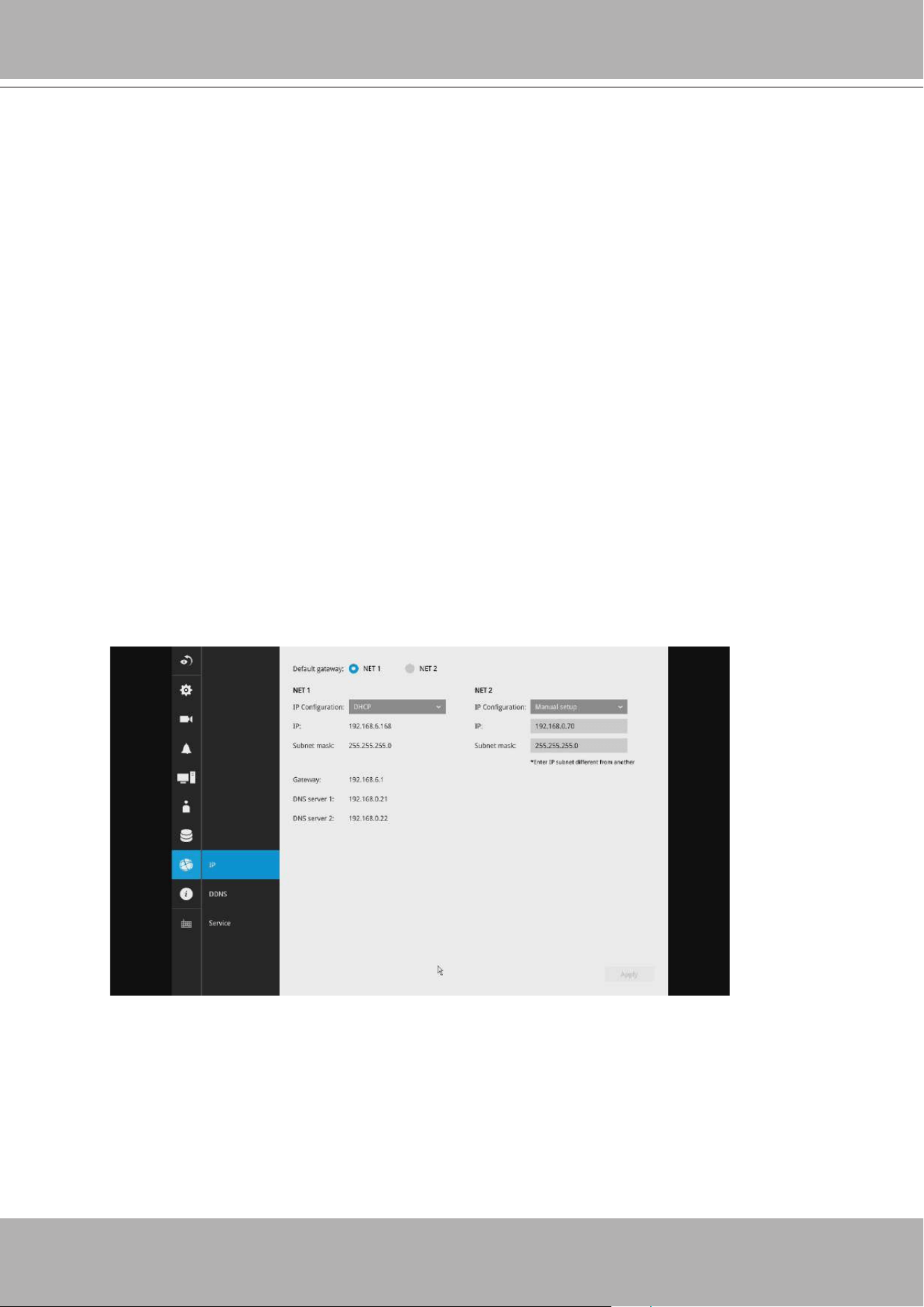
VIVOTEK - Built with Reliability
User's Manual - 109
3-5-18. Settings - Network
1. The network parameters of two Ethernet ports are independent. You can attach these two
Ethernet ports to different subnets, e.g., one for a network console or as a uplink; the other to a
PoE switch for connecting more IP cameras.
2. Access to a primary gateway should be congured with NET1. NET2 should be used to connect
to another subnet where IP cameras reside.
2. The major gateway of the system is NET1(Eth0) as the Ethernet port for a network console.
NET2(Eth1) can be used for connecting to another PoE switch and then to IP cameras.
3. Do not connect IP cameras that come with virtual IPs (cameras’ default 169.254.x.x) to
NET1(Eth0). The DRM search will not be able to nd cameras that come without a designated
IP. Also, if a DHCP server is not present in a network NET1 is attached to, you will not able to
nd the NVR using the IW2 utility.
4. Please avoid attaching NET1(Eth0) and NET2(Eth1) to the same subnet.
NOTE:
1. Cameras acquired through the NET2 connection must be congured into the same subnet as
NET1, if you need to move them into a network accessed through NET1.
2. For ONVIF cameras, only those congured with xed IPs can be found by the NVR in a network.
3. For ONVIF cameras, they can be found in a network managed by a DHCP server. However, if IP
changes occur later, NVR will not able to nd them.

VIVOTEK - Built with Reliability
110 - User's Manual
Primary DNS: The primary domain name server that translates hostnames into IP addresses.
Secondary DNS: Secondary domain name server that backups the Primary DNS.
When nished with the network settings, click on the
Apply
button.
Settings - Network - IP
DHCP: Default is selected, the server obtains an available dynamic IP address assigned by the
DHCP server each time the system is connected to the LAN.
Manual setup: Select this option to manually assign a static IP address to the Network Camera.
Enter the Static IP, Subnet mask, Default router, and Primary DNS provided by your ISP.
Subnet mask: This is used to determine if the destination is in the same subnet. The default value
is “255.255.255.0”.
Default router: This is the gateway used to forward frames to destinations in a different subnet.
Invalid router setting will fail the transmission to destinations in different subnet.
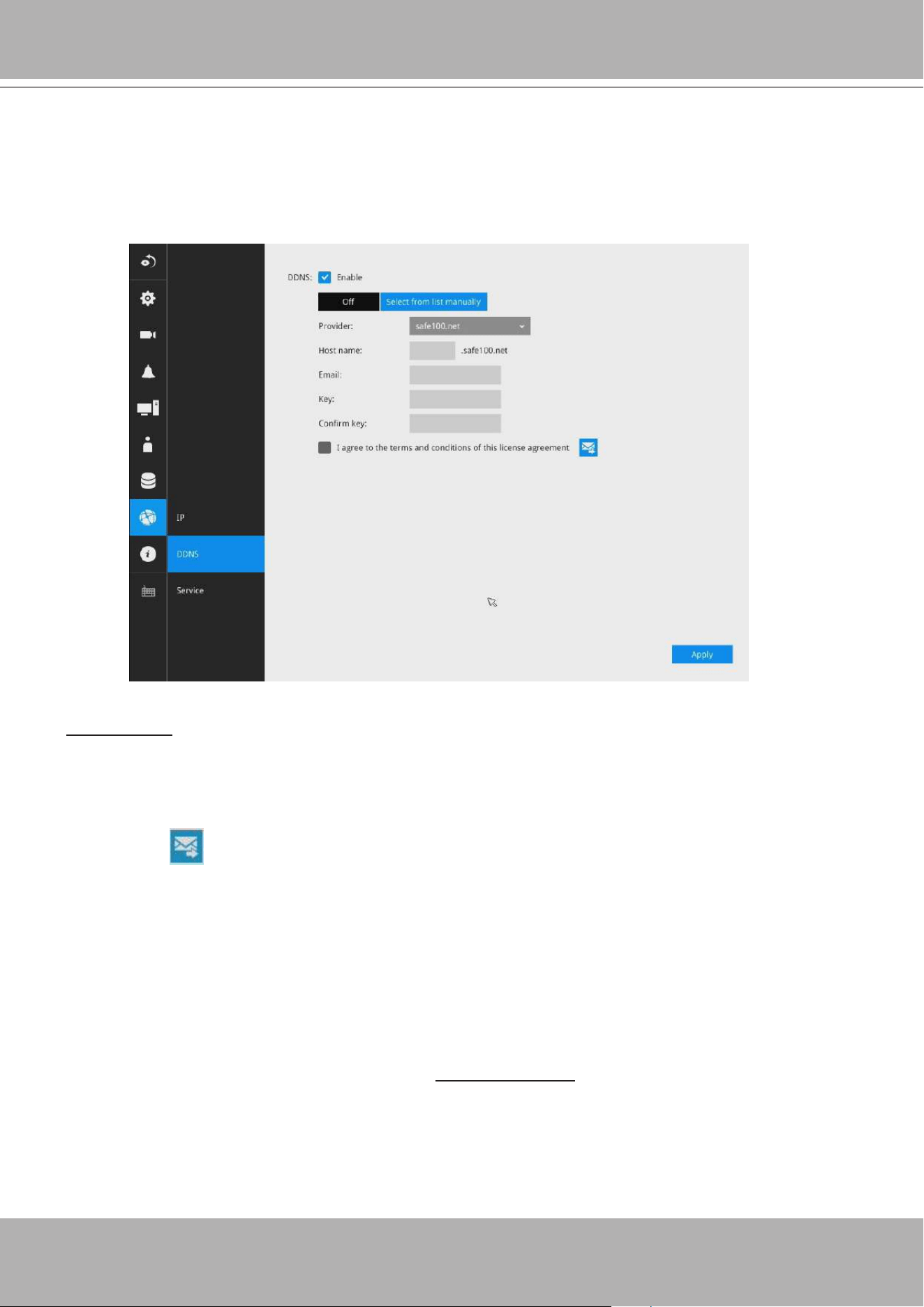
VIVOTEK - Built with Reliability
User's Manual - 111
Settings - DDNS
VIVOTEK provides Safe100.net, as a free DDNS dynamic domain name service for users who
want access from the internet or a domain name service for the NVR. VIVOTEK maintains a
database of product MAC addresses for the Safe100.net service, and you can apply one domain
name for each NVR system.
DDNS Enable: Select this checkbox to enable the DDNS setting.
Enter a Host name, Email address, and password twice, and then click
Apply
to proceed.
Make sure you have internet access.
Click the
Register
button. The terms of service agreement window is selected from a checkbox at the
bottom. Click to read the license agreement terms.
When completed, a conrm message will prompt. You will also receive a conrm Email. You
can now access your NVR system using the xxxx.safe100.net domain name address. Note
that access from the Internet should be routed to the private IP assigned to your NVR, using
methodologies such as port forwarding, etc.
The acceptable characters for email address are: [0-9][a-z][A-Z][!][#][$][%][‘][*][+][-][/][=][?]
[^][_][`][{][|][}][~][.]. Two successive periods, [..], are not acceptable. The address filed can
accommodate up to 256 characters.
Use only alphabetic and numeric characters for the password. The maximum number of
characters is 64.
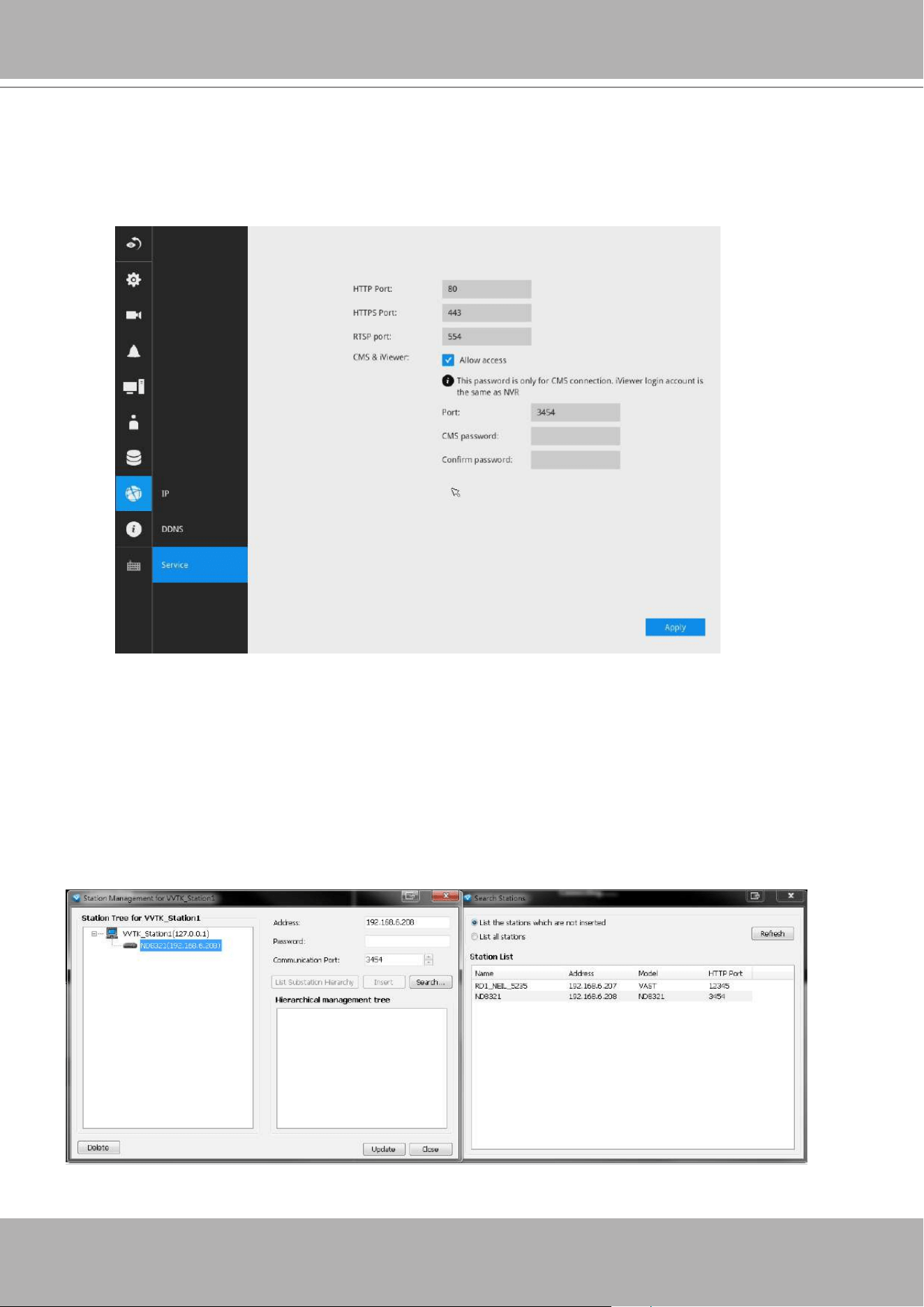
VIVOTEK - Built with Reliability
112 - User's Manual
Settings - Service
By default, the NVR service and video streaming are accessed via HTTP port 80 and RTSP port
554. You can designate a different port number if the need arises. Usually it is not necessary to
change these ports. HTTPS encrypted connection is enabled by default.
Instead of a web console, you can also access the NVR and the subordinate cameras using the
iViewer
and VIVOTEK's
VAST
software. The NVR can be managed as one of the sub-stations
in a hierarchical device structure.
Set up a password for access from the VAST server before you can join the NVR to a VAST
conguration. For access from the iViewer, you log in using the same user name and password
for the login to the NVR.
Below is the screen showing the sub-station recruitment process from a VAST server.
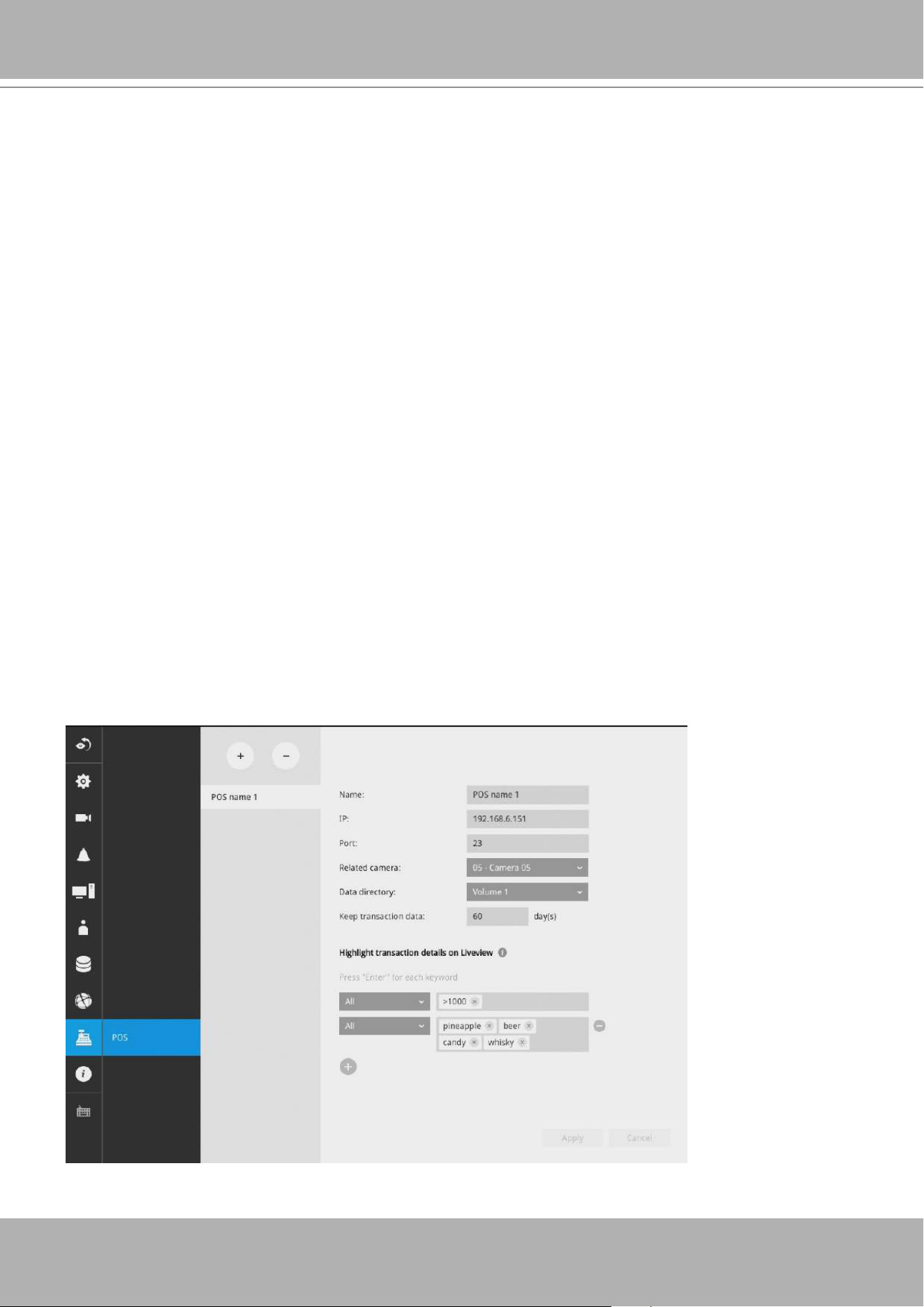
VIVOTEK - Built with Reliability
User's Manual - 113
3-6. POS
This window allows the integration of a customized POS machine with the NVR.
The benets of NVR POS integration benets include:
1. POS exception report that includes item void, bill void, abnormal bill clear, customer returns,
contents changed after sale, unmatched amount of products in stock, unusual transactions
in a short time, aborted bill attempts.
2. Exception report with video.
3. Managing the sales of retail goods and record the transactions.
4. The register acquires the information of members and products from each transaction, then
sends data to a POS server (for management and later analysis). POS should be able to list
abnormal situations and notify the manager
5. Disputes between cashiers and customers can be resolved with video evidence.
To congure the association with a POS machine.
1.
Enter a name for the POS machine and the machine/server's IP address. The default port
number, 23, need not be changed.
2
. Select a related camera, e.g., one that has its eld of view covering the checkout area.
3
. Select a data directory, a storage volume, where transaction data will be kept.
4.
Enter the transaction details that will be highlighted on the live view window. For example, you
can choose to highlight the amounts larger than a preset number, >$1000, or enter the item
name. You can enter multiple hightlighting criteria.
Note that the integration between NVR and a POS machine requires management of POS data.
Please contact VIVOTEK for the supported POS machines.
VIVOTEK - Built with Reliability
114 - User's Manual
For example, for an amount exceeding $2000, the number on screen is highlighted in a
different color.
To allow remote access from a VAST server, go to Settings > Service. Select the Allow access
checkbox and provide a CMS password to allow remote access.
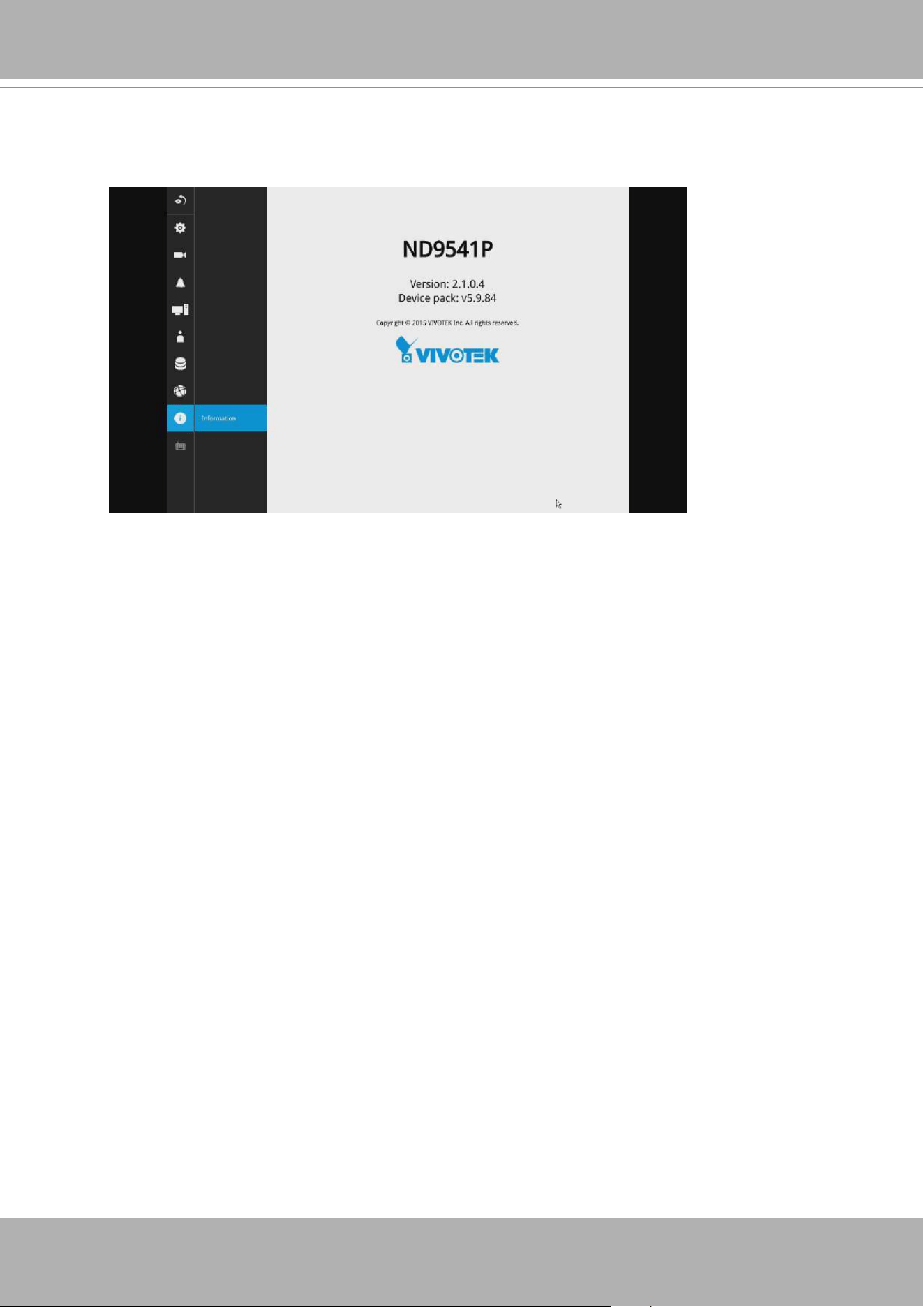
VIVOTEK - Built with Reliability
User's Manual - 115
3-7. Information
This window shows the revision number of the rmware running on this machine.
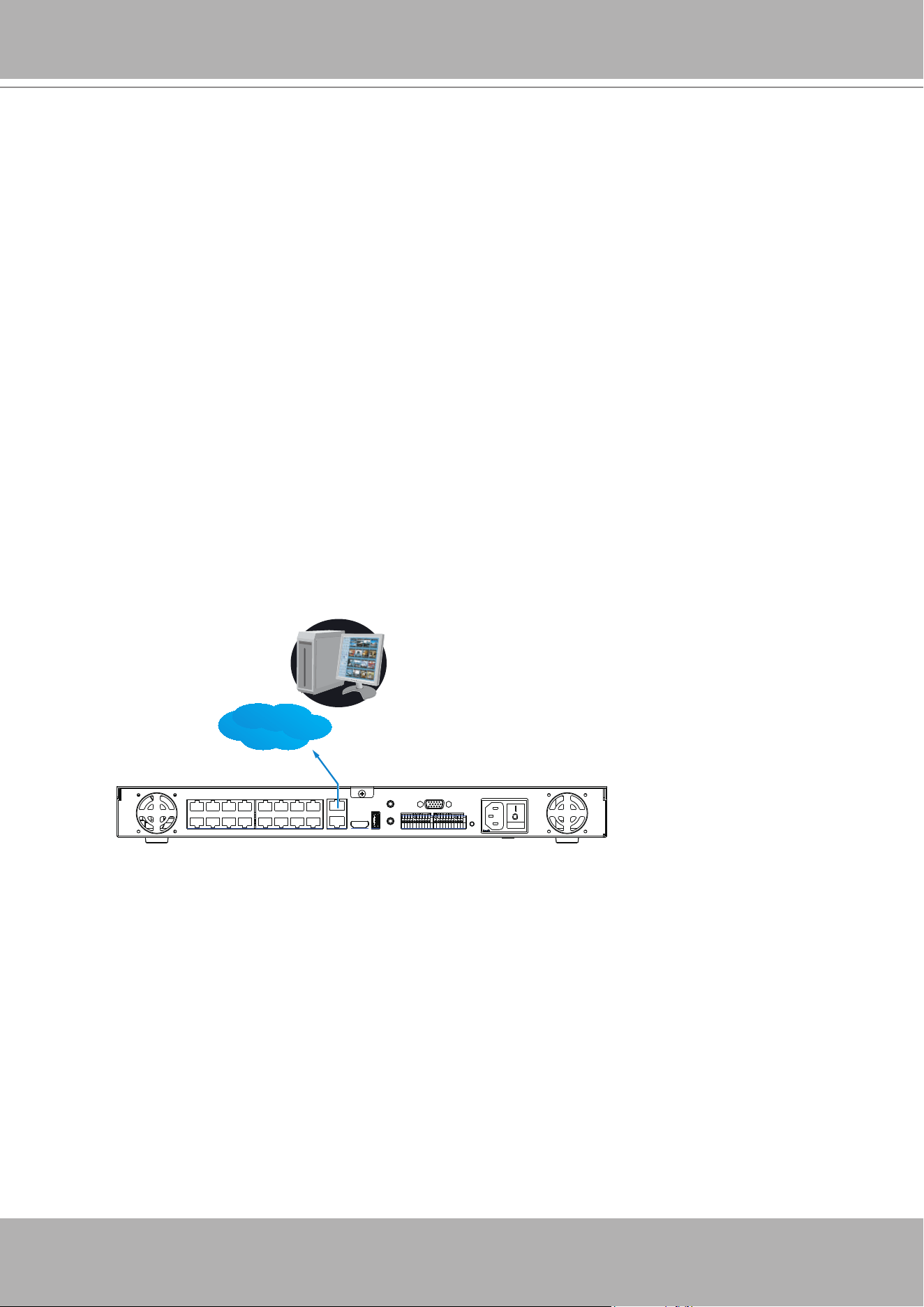
VIVOTEK - Built with Reliability
116 - User's Manual
Section Two
Management over a Web Console
There are two different interfaces on the system:
1. One is connecting mouse and keyboard, and an HDMI cable to a TV screen or monitor. The
local management thus made is described in
Section One
of this manual.
2. The other is accessed through the Ethernet connection. Management via a web console will
be described in
Section Two
of this manual.
LAN / WAN
Web console
Note that when accessed over the network, the total streaming throughput is 96Mbps.
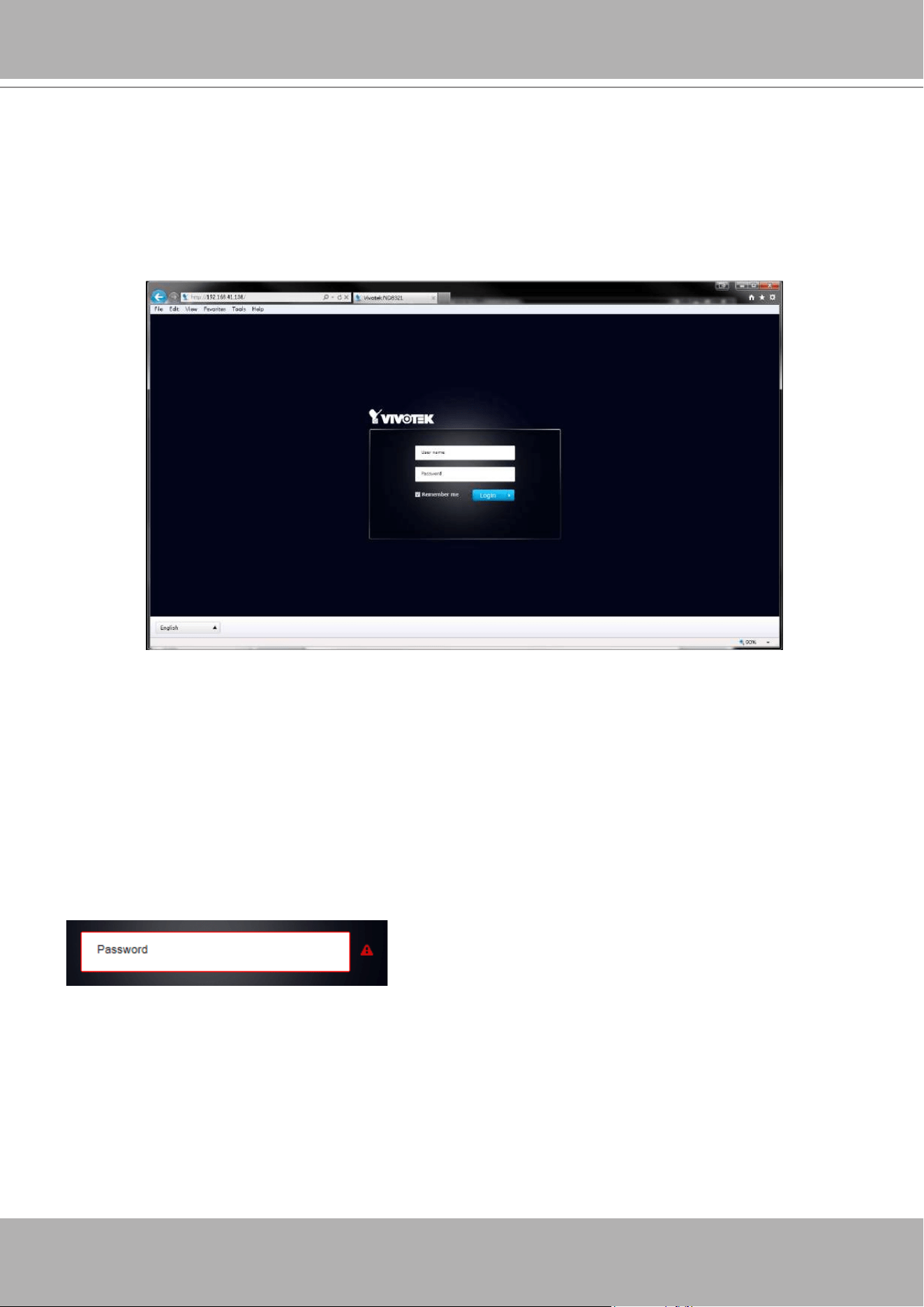
VIVOTEK - Built with Reliability
User's Manual - 117
Chapter Four Login and Getting Started
4-1. Login
This is the login page on the browser. The minimum for resolution is 1280x960.
If you enable the IE7 compatible mode when using the IE8 browser, please disable the
compatibility function. While you are in the browser, press F12 to check its status.
It is highly recommended that you should change the default password. Please refer to
Settings
>
Security
>
User account
page to see how to prevent unauthorized access. The system will
prompt you if you entered an incorrect user name or password.
Remember me
: Your user name will be preserved in browser cookies for two days if you select
the Remember me checkbox. The user name will be automatically erased if you do not log in to
the system for two days.
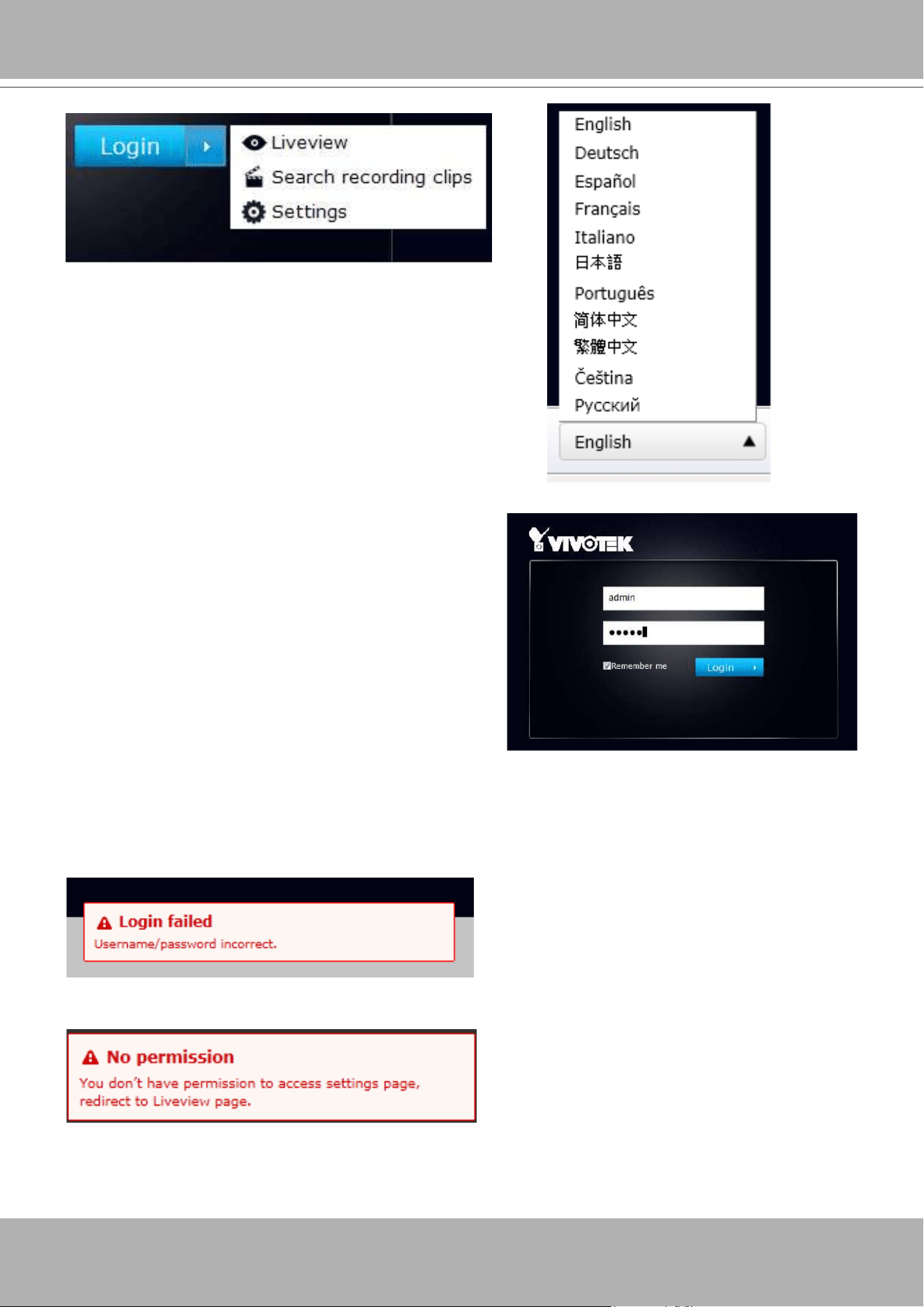
VIVOTEK - Built with Reliability
118 - User's Manual
You may login to a different software utility by unfolding
the side panel on the
Login
button.
You can also select a different language using the
Multilingual
selector menu on the
lower left
corner
of the Login screen. The functional items, menus, and
dialogues will then be displayed using the selected
language.
Login errors
: below are the login errors that might occur.
A Login failure can result from the incorrect user name and passwords.
The No permission error occurs when a user logs in using an authentication that has no access
rights to the Settings page. He will then be re-directed to the Liveview page.
Remember me
:
Select the checkbox to save your user name for use
on the next login. The user name will be preserved
in browser cookies for two days. If you do not login
within the next two days, the user name will be
erased.
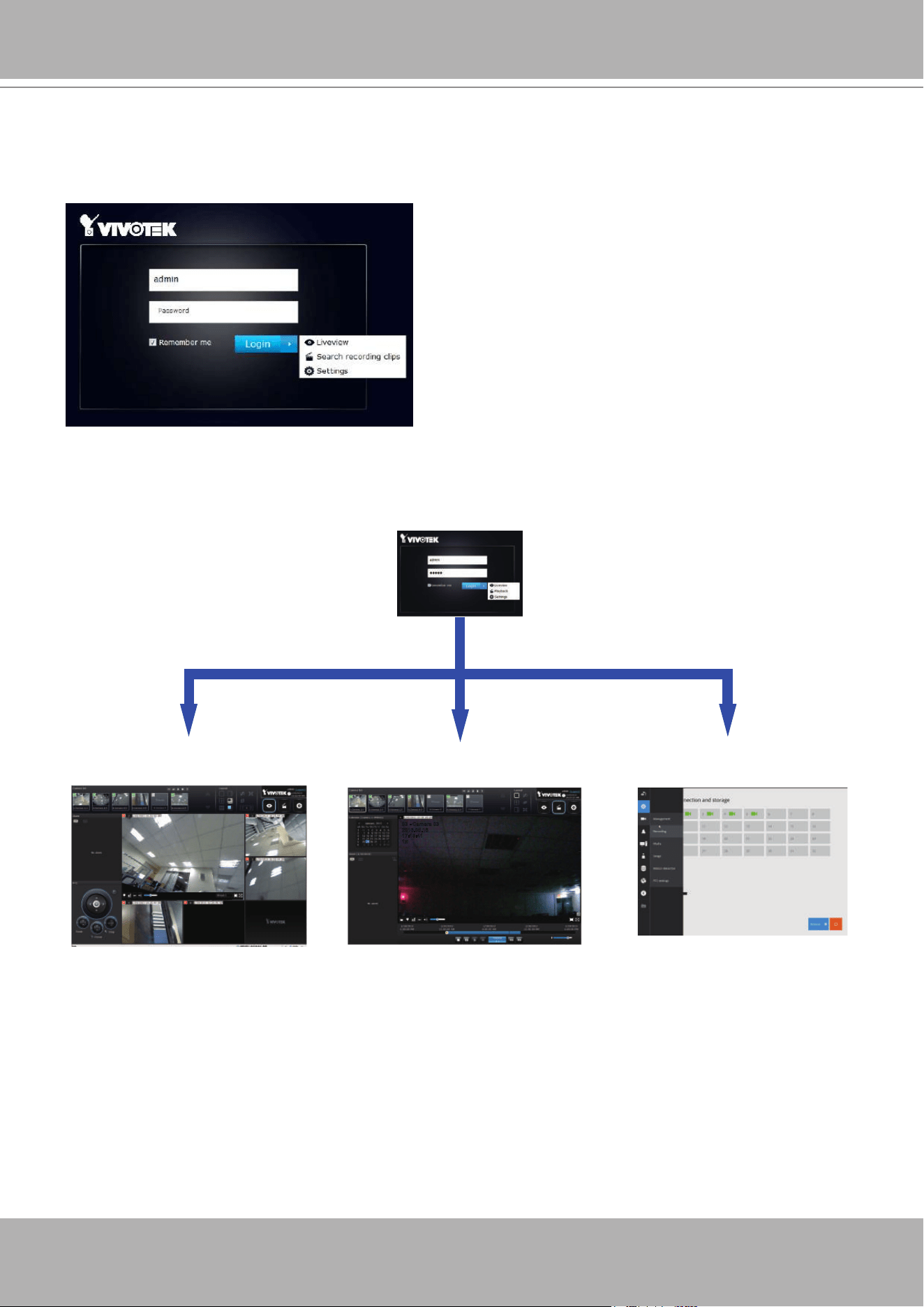
VIVOTEK - Built with Reliability
User's Manual - 119
Login options:
You may also mouse over the Login button to display the login options. You can then enter the
Liveview, Playback, or Settings window.
Liveview Search recording clips Settings
2016.05.16
03 - Camera 03
17:15:41
1x
The NVR system features a simple UI structure which consists of a Liveview window, a
Playback utility, and a system Settings window. Once logged in, you can move from one window
to another by selecting the hot link buttons on the upper right of the screen.
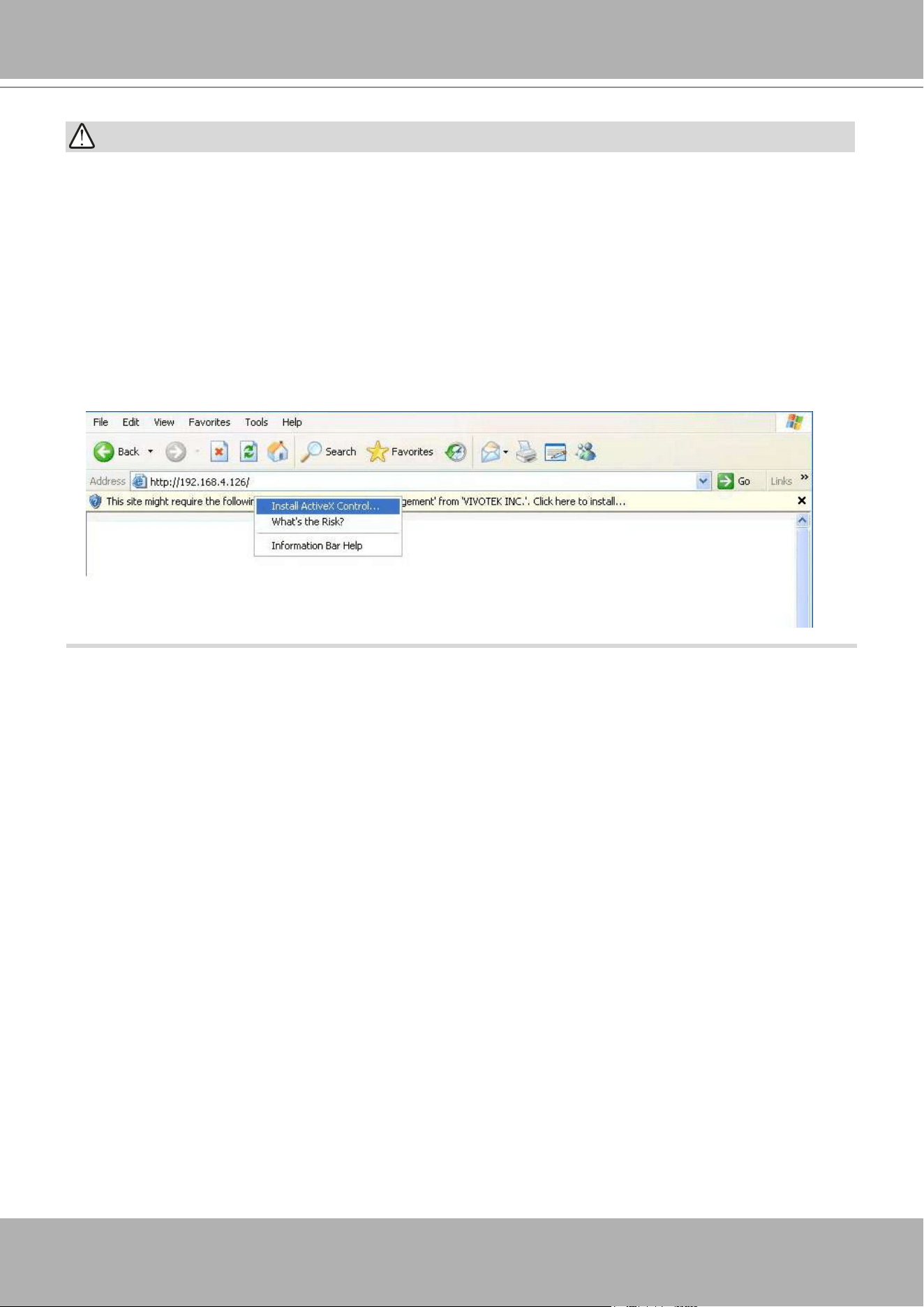
VIVOTEK - Built with Reliability
120 - User's Manual
1. Before operating the NVR, make sure you have properly installed hard drives and congured
the storage volumes. Otherwise, you will not be able to operate some of the system's
functionality.
2. Since the NVR system comes with 32-bit plug-ins for screen control, if your PC runs a default
64-bit IE browser and you manually enter the NVR's address on the browser, your browser
session may malfunction. Instead, if you double-click on the discovered NVR on the IW2
utility, a 32-bit IE browser will open.
3. When you log in to the Liveview or Playback interface to stream a live or recorded video,
install the ActiveX plug-ins. If it does not prompt when you log in, install plug-ins when you try
to playback a recorded video. You may then need to re-start the IE browser console.
IMPORTANT:
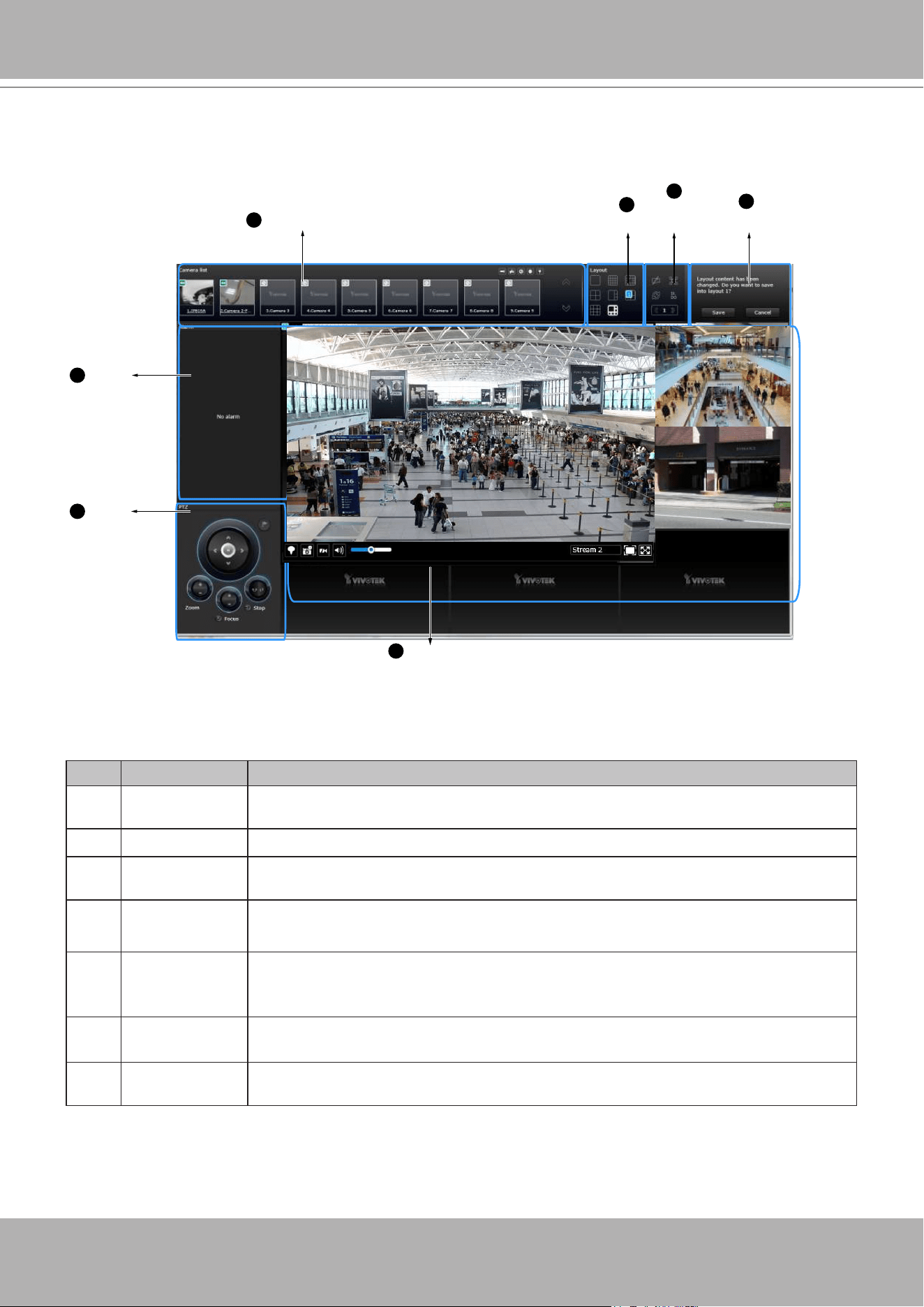
VIVOTEK - Built with Reliability
User's Manual - 121
Camera list
Layout
Layout
contents
Logo & Menu
Viewcell panel
Alarm
panel
PTZ
panel
1
2
3
4
5
6
7
4-2. Graphical Layout and Screen Elements - Liveview
Once you log in, the system defaults to the Liveview page, which provides access to other
conguration utilities, live view screen, and other functional panels. The screen elements are
described as follows:
Item Name Description
1
Camera List Provides a glimpse of all cameras inserted into your conguration. Basic
information is also provided along with a screenshot.
2
Layout Provides access to various layouts
3
Layout contents Provides functions to extend, rotate, and redo the layout. System DI/DOs are
also shown in here.
4
Logo & Menu Provides access to the
Playback
and System
Settings
utilities, as well as
system time and logout function.
5
View cell panel Displays video streams from one or multiple cameras. Snapshot, streaming,
bookmark, and audio control functions are also available on individual view
cells.
6
PTZ panel Exerts Pan/Tilt control on a selected view cell if the camera comes with
mechanical PTZ mechanism.
7
Alarm panel Reports alarms transmitted via cameras' DI connections or those by the Motion
Detection, Tampering, etc.
Each panel will be described in further discussions.
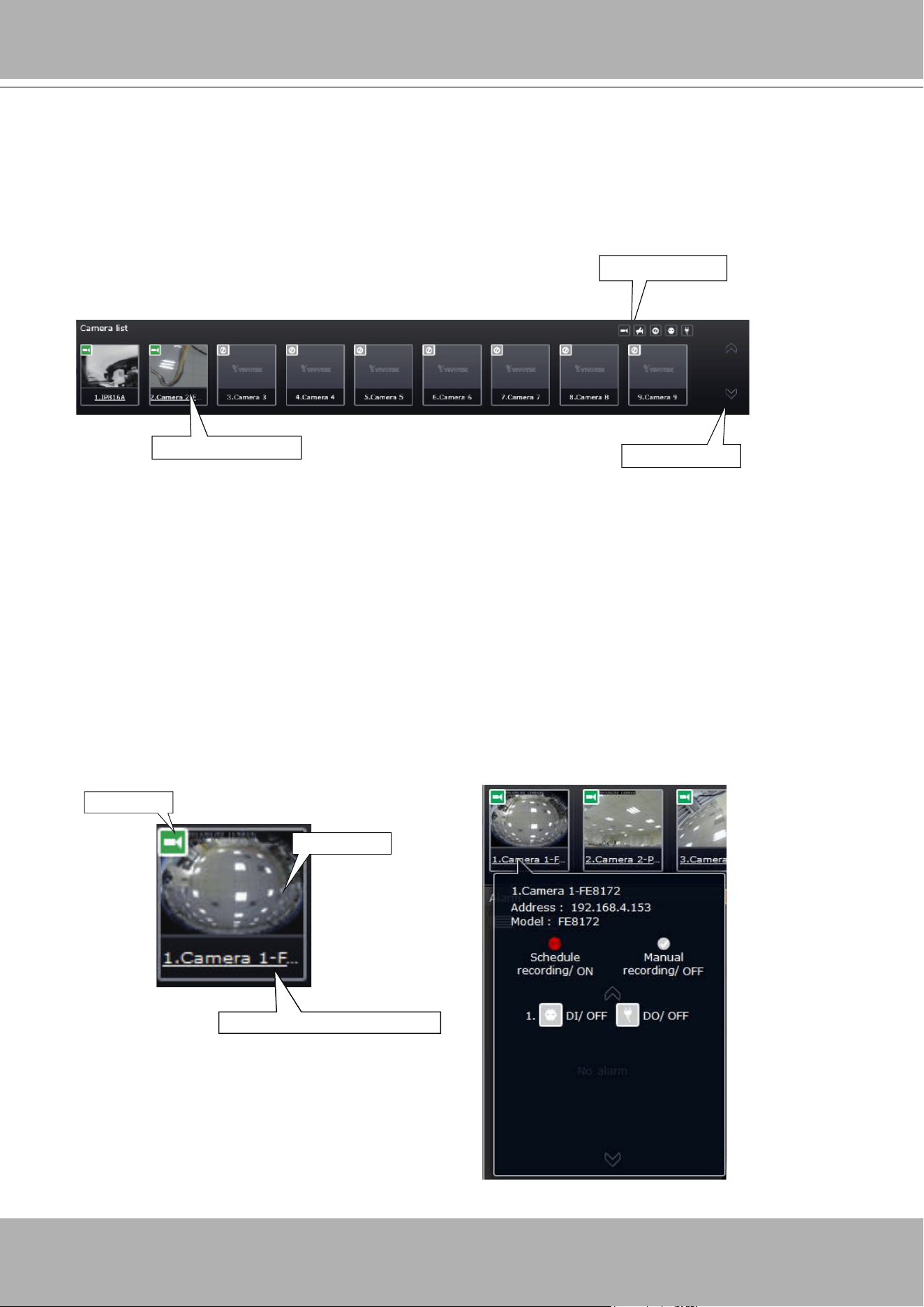
VIVOTEK - Built with Reliability
122 - User's Manual
4-2-1. Camera List Panel
The camera list displays the recruited cameras by the sequential numbering order you
congured in the System Settings utility.
Sorting criteria
Page switcher
Camera thumbnails
Depending on the size and screen resolution of your monitor, the snapshots of 8 cameras are
displayed in this panel. If a user logged in using a credential of a limited access, he may only
see cameras that he can access instead of all of the cameras.
To arrange a view cell layout, users can click and drag a camera to a view cell. Once connected,
a camera's video stream is displayed in the view cell.
Camera Thumbnail:
A mouse click on the camera name under the thumbnail brings forth the summary of IP address,
model name, recording setup and DI/DO information.
Camera index and camera name
Snapshot
Status
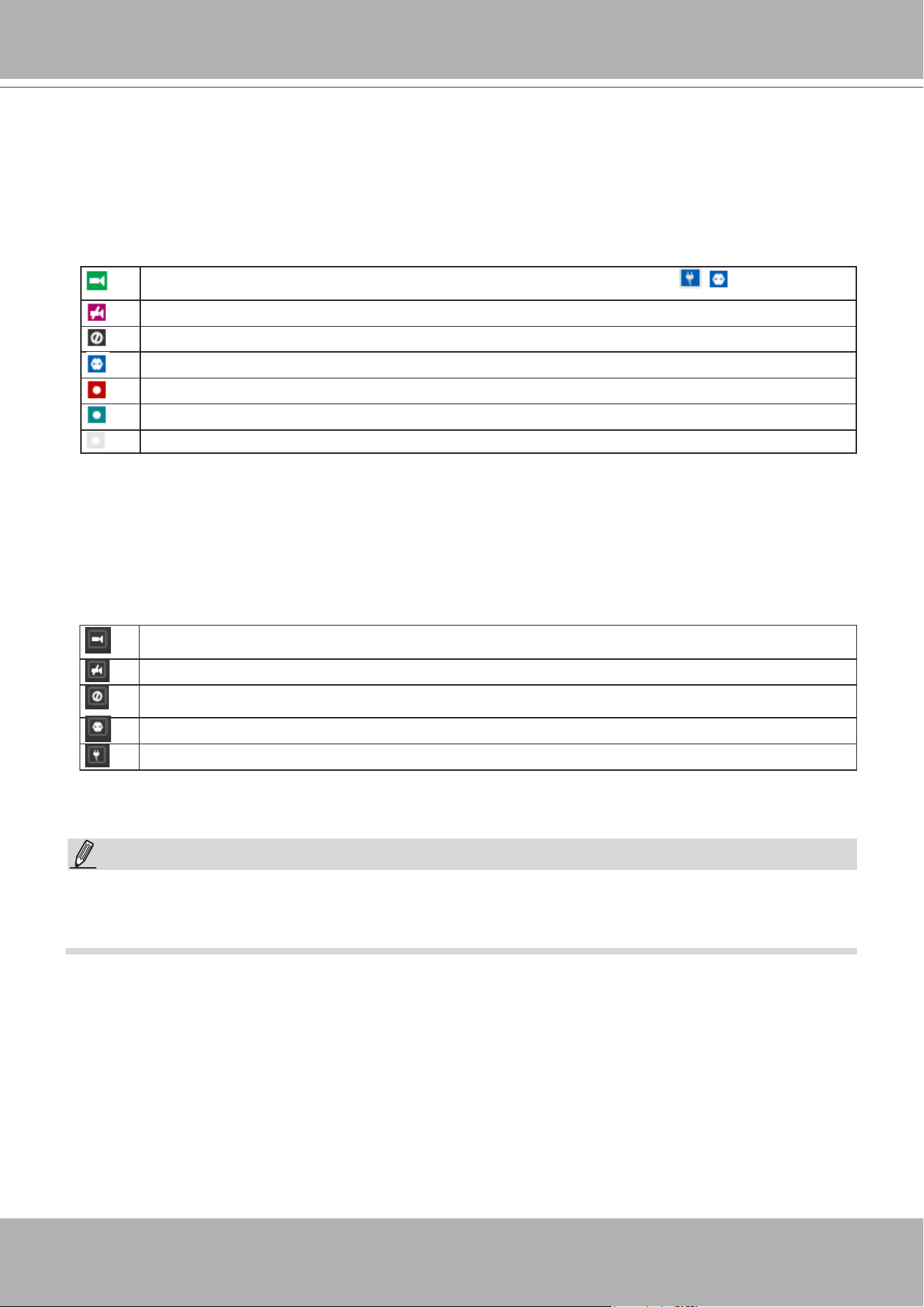
VIVOTEK - Built with Reliability
User's Manual - 123
*
Snapshot
: the camera's image snapshot is replenished every 5 minutes. If a camera is
disconnected, the last image taken will be used to represent a camera.
*
Camera index & Camera name
: Placing the mouse cursor on top of a camera text displays
the camera index number and the camera name. You can click on the camera index to display
the information box.
*
Status
:
Online: the online status can be accompanied by the DI/DO icon
Ofine: camera is disconnected.
An uncongured camera instance
Digital input is triggered
Connected and recording video to system storage
Connected with live streaming
Disconnected or trying to establish a connection
Sorting criteria
Use the sorting buttons to re-arrange the order of the cameras on the list. Cameras that match
the condition will be brought to higher places on the list (front of the order) regardless of its
original camera index.
Online: the online cameras.
Ofine: the ofine cameras.
Uncongured camera instances
Cameras whose Digial inputs have been triggered
Cameras whose Digial outputs have been triggered
For online cameras, the snapshots on the camera list are refreshed by every 5 minutes, and
therefore may not represent the latest occurrences on the surveillance areas.
NOTE:
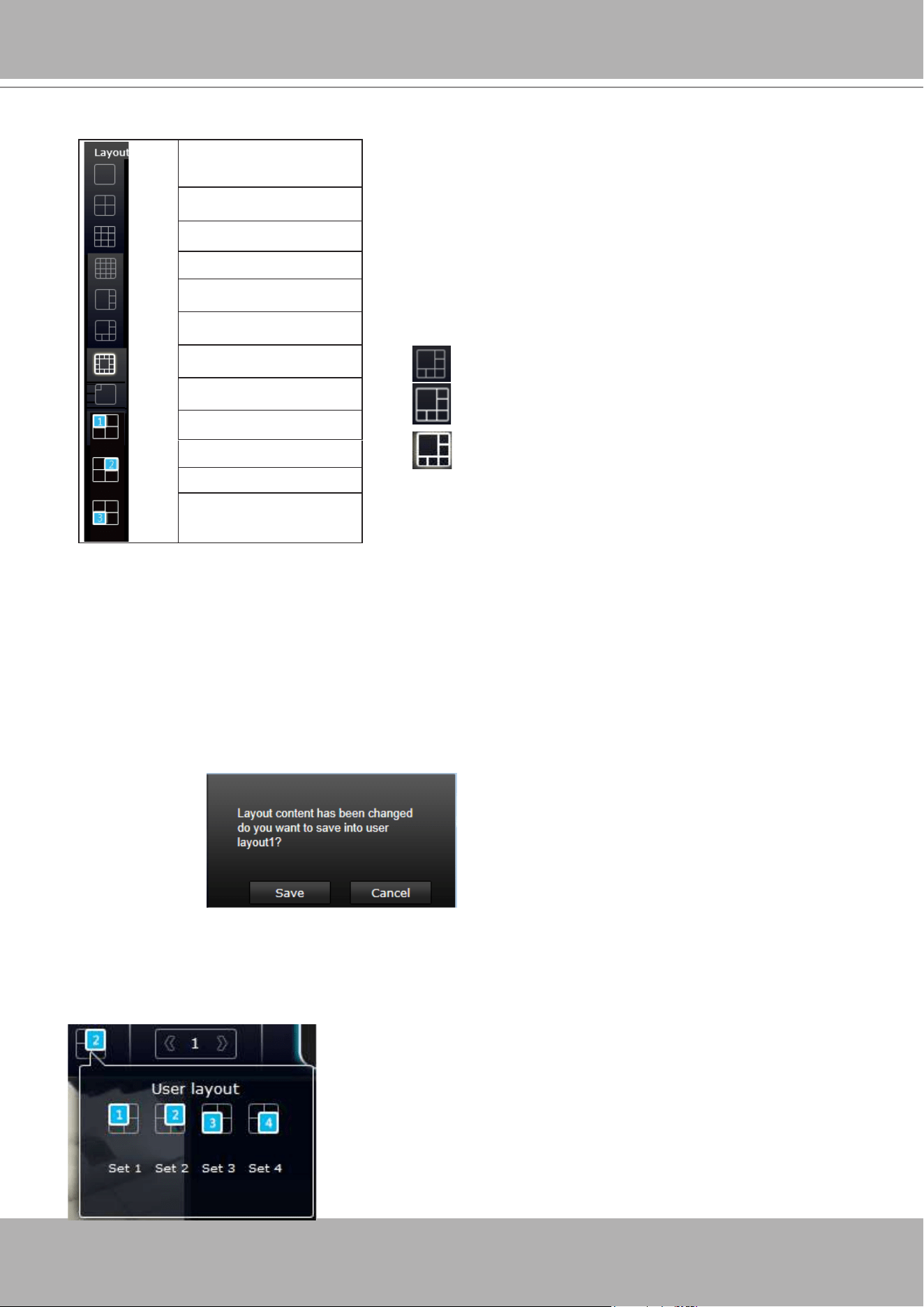
VIVOTEK - Built with Reliability
124 - User's Manual
4-2-2. Layout
Note that a user who did not log in as an administrator can change a layout, but his conguration
changes (with cameras placed on view cells)
will not
be saved.
User Layouts
There are another 4 user layouts that can be individually
congured. An administrator can insert camera views into
these layouts, and save the conguration. These user layouts
can be seen by all users.
If you click the
Rotate
button before the conguration changes
can be saved, your conguration changes will be lost.
Only an administrator can change and preserve a custom layout, and every user can designate
a specic layout to be displayed when he/she logs in. The default layout for each user is stored
in a browser's cookies.
Whenever changes are made to the current layout, a message prompt will appear on the side of
the layout panel reminding you to save your current setting.
1x1
2x2
3x3
4x4
1P+3
1M+5
1M+12
1M+31
User layout #1
User layout #2
User layout #3
User layout #4
By default, 5 typical layouts are provided for the user.
They include: 1x1, 2x2, 3x3, 4x4, 1P+3, 1M+5, 1M+12,
and 1M+31. System default is the 4x4 layout. Cameras
that do not t into the rst page of a layout, say, a 3x3
layout, will be displayed on the succeeding layout pages.
Each functional button on the screen is activated by a
mouse hover. For example, the below states designate
user's operation on a button:
1. : not selected.
2. : moused over, and is ready for selection.
3. : selected, and is taking effects.
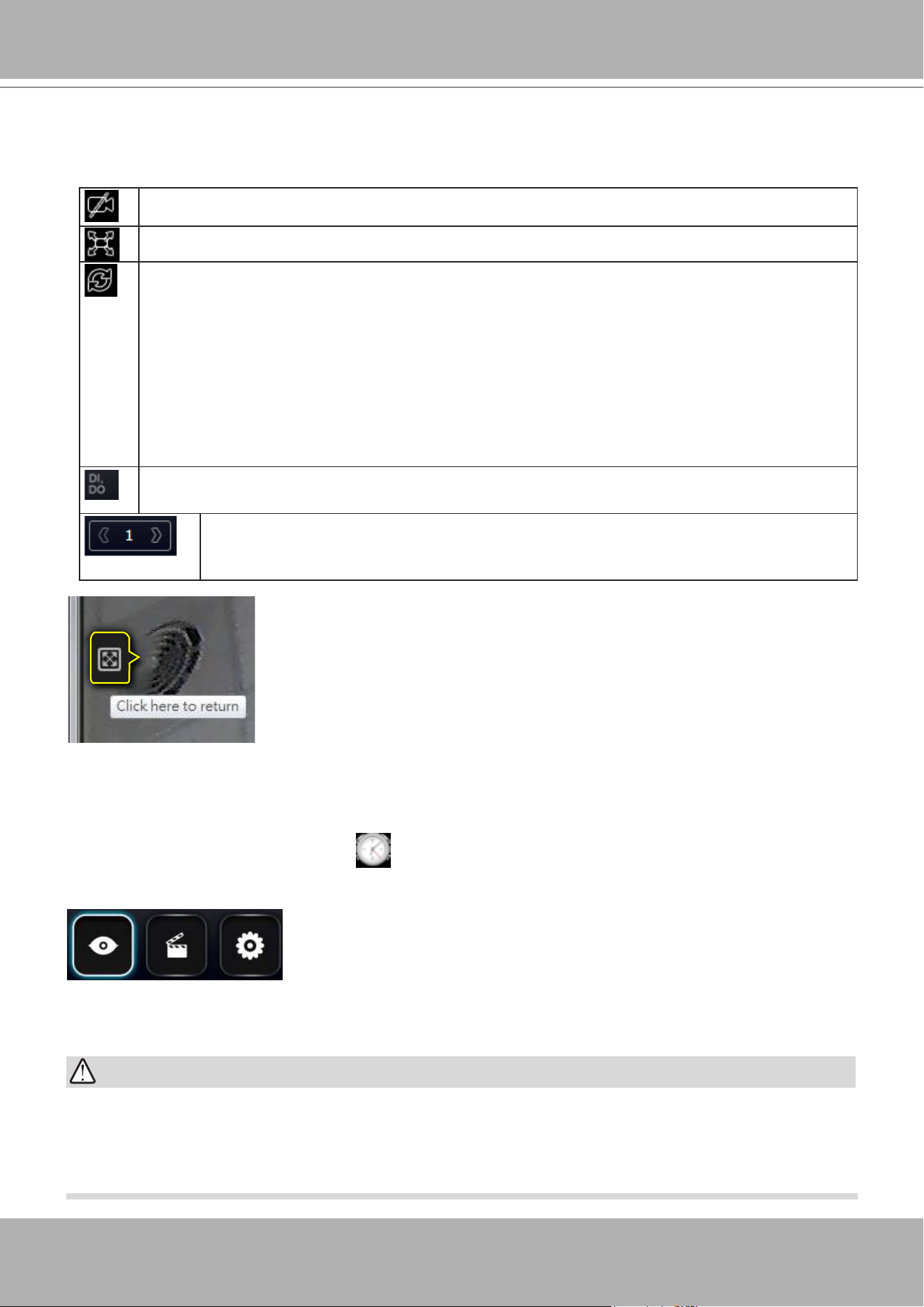
VIVOTEK - Built with Reliability
User's Manual - 125
4-2-3. Layout contents
A few functional buttons are available on the Layout contents page.
Clears
all view cells on the current layout.
Full view
: extends the view cells on the current layout to the full of the screen.
Rotate
: the rotate function lets system display successive layout pages by the
intervals of
10
seconds. The layout page that does not contain camera views will be
skipped.
A Rotate action will stop when you
1. move to another page,
2. move to a user layout,
3. click to select a view cell,
4. remove a camera from view cell.
Click to display the NVR's DI/DO statuses.
If your current layout spans across multiple pages, use the arrow buttons to
switch from one page to another. The index number of the current page will be
shown between the arrow buttons.
When your current layout is displayed in a full view, move your cursor
to the left center of the screen to return to the default Liveview screen.
The
Return
button will appear.
4-2-4. Logo & Menu
A logout button, system time panel , and 3 hot link buttons to access the
Liveview
,
Search
recording clips,
and
System Settings
utilities.
The system date and time refers to the date and time kept on the
NVR system's real time clock.
Due to the limited space for the user name, user name may be
partially displayed until you hover your mouse cursor.
Your conguration changes will be lost if you click one of the hot link buttons to move to another
utility window. For example, you have changed your Live View layout and then click on the
Playback button, you will enter the Playback window without saving your conguration.
Save
your changes before you use these buttons.
IMPORTANT:
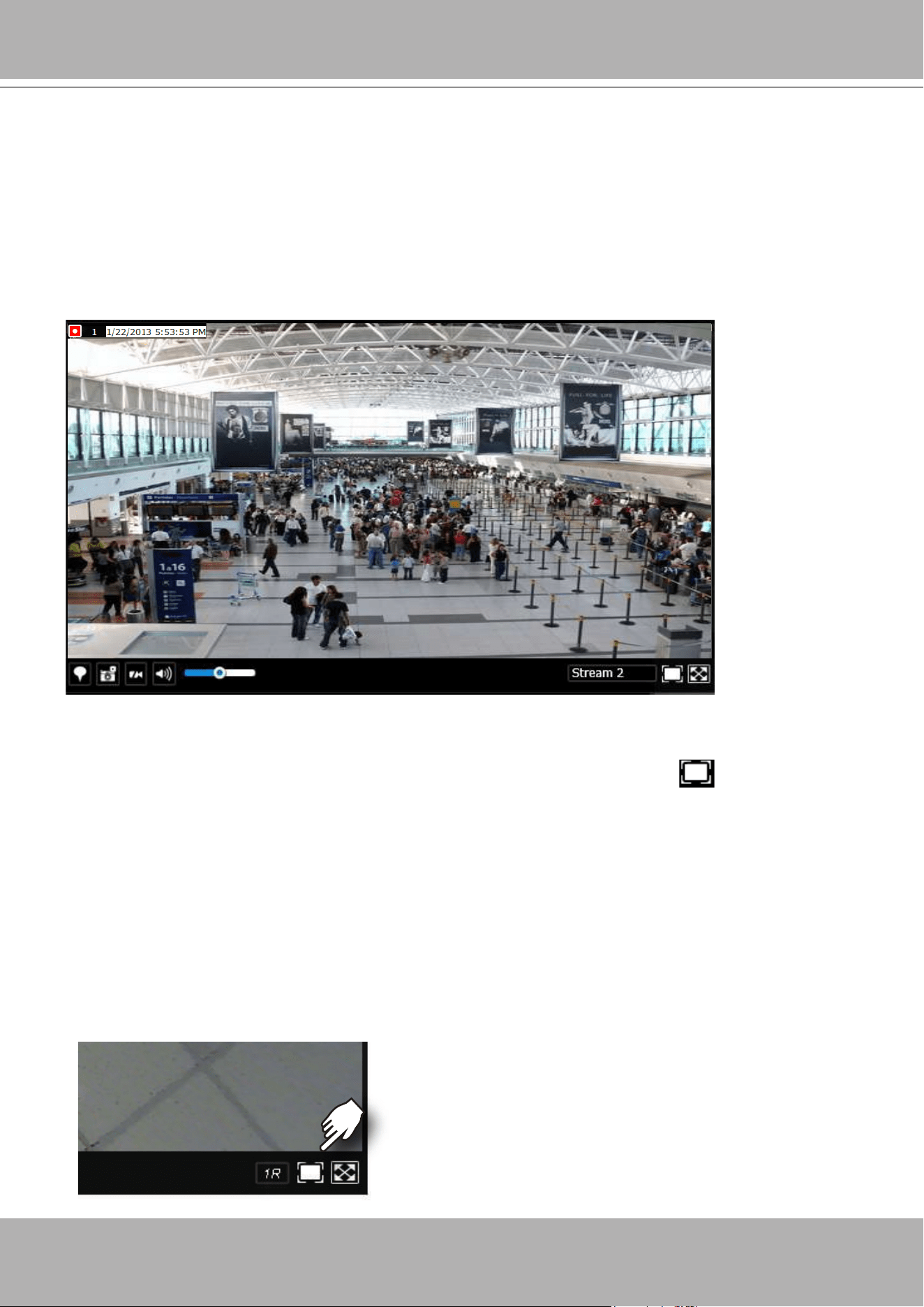
VIVOTEK - Built with Reliability
126 - User's Manual
4-2-5. View Cell panel
A single view cell is shown below. Each view cell contains a video stream display area, an
information bar, and functional buttons at the bottom. A view cell is displayed in Normal,
Focused, or Maximized mode.
1.
A single click
selects a view cell from the View Cell panel, enables its function buttons, and
turn it into the Focused mode.
2.
The 2nd click
maximizes the size of the view cell to the full of the panel.
3.
The 3rd click
shrinks the maximized view back into the focused mode.
Although the system automatically selects the video stream to display on the view cell, you can
still manually select a different video stream from the Stream tab below.
To deselect a view cell and return to the normal view, click on the
Restore
button at the
lower right of the window.
Adding Cameras to View Cells
1. Click and drag a camera from the camera list to an unoccupied view cell.
2. Double-click a camera on the camera list. The camera will be added to the rst available view
cell.
To deselect a view cell and return to the normal view, click on the
Restore
button at the lower
right of the window. You can also click on another view cell to continue adding other cameras.
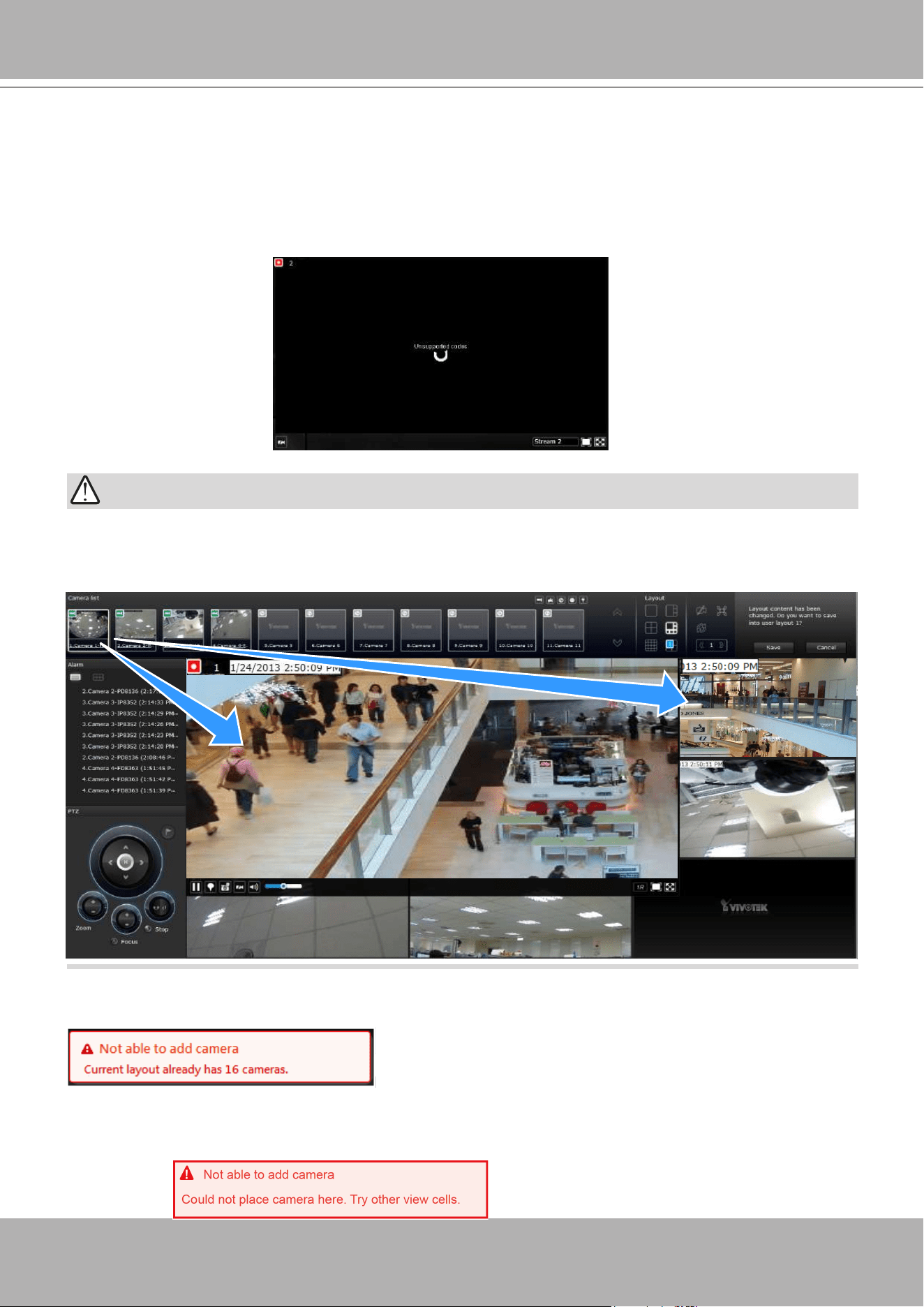
VIVOTEK - Built with Reliability
User's Manual - 127
A camera can be inserted into multiple view cells. This way, a camera with a wide eld of view, ,
can simultaneously display different regions of interest on different view cells.
IMPORTANT:
If the current layout already contain the max. number of cameras, e.g., 16 for the ND9441, the
following message will prompt.
If you are using the 16-CH ND9441, there can be more than 16 view cells across multiple layout
pages, e.g., on the second page of the 1M+12 layout. Placing a camera in the 17th to 18th view
cells will bring out the following message.
A view cell attempting to connect to a network camera will look like this. If the connection
attempt takes a long time, it may result from network problems or incorrect conguration with
video streaming. For example, you may have congured the camera to be streaming a 5MP
stream. The NVR uses video stream #1 for recording, and stream #2 from cameras for live
viewing. You should then open an individual web console with the network camera to change its
video streaming conguration.
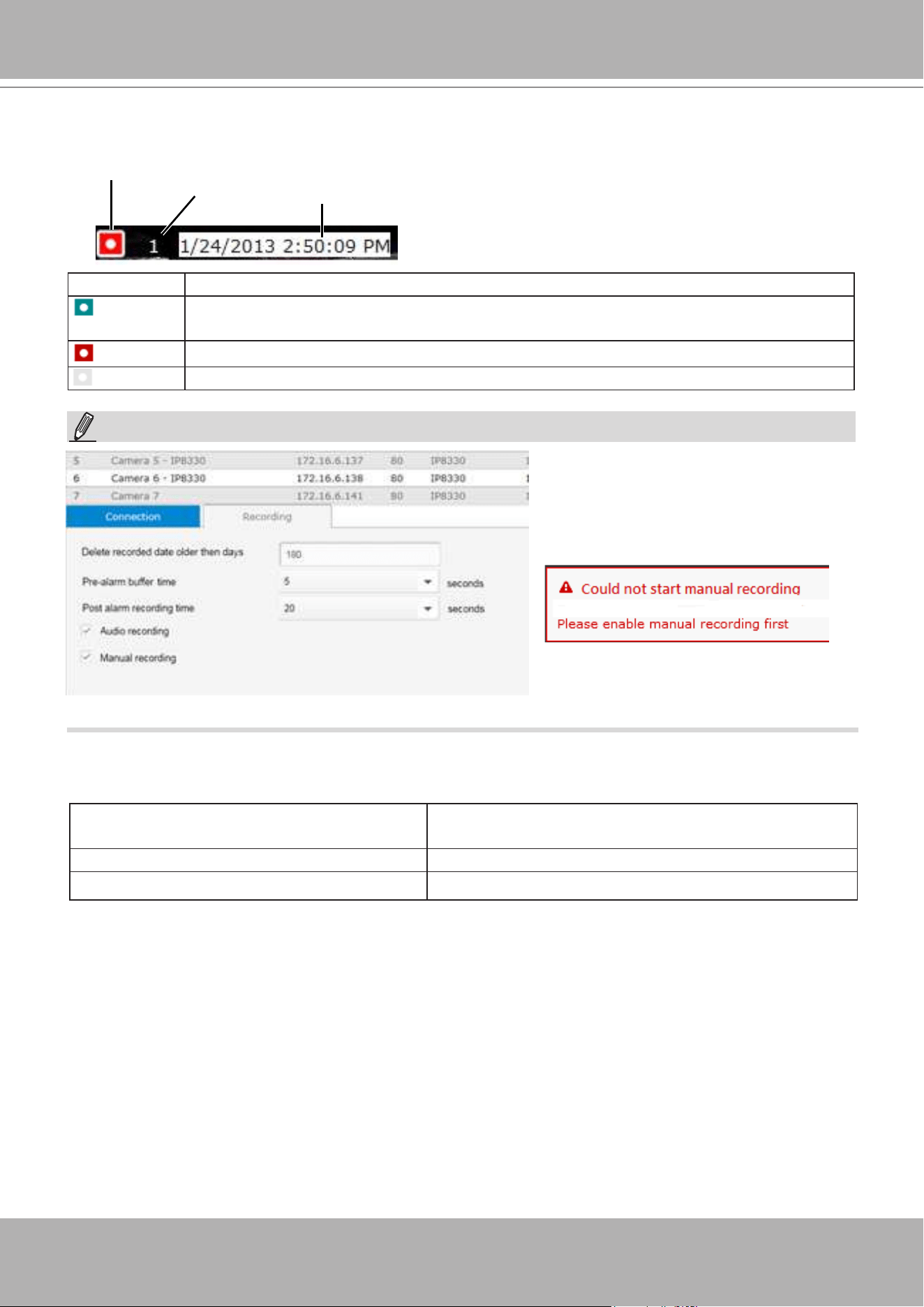
VIVOTEK - Built with Reliability
128 - User's Manual
Information Bar
Status icon Description
Connected with live streaming; a single click on this icon can trigger a manual
recording.
Connected and recording video to system storage.
Disconnected or trying to establish a connection.
If you disable the
Manual recording
function on the
Settings
page, you
will not be able to use the Manual
Recording function on the Liveview.
A mouse hover over the status icon will produce the following messages:
1. "Connecting..." or "Cannot connect" Connecting to a camera, or connection problem
might have occurred.
2. "Live streaming" Video is being streamed.
3. "Recording" Currently recording the video stream.
Status icon
Camera index
Video time
Video time
: The time congured on the NVR system is displayed here.
Camera index
: an index number appointed to a camera following the order you inserted
cameras during the initial setup.
NOTE:
Fisheye display modes - if the view cell contains video from a sheye camera, the
sheye display mode selector will be available:
1O: the orginal circular view.
1P: the panoramic view.
1R: the regional view.
Please refer to the sheye camera's User Manual for more information.
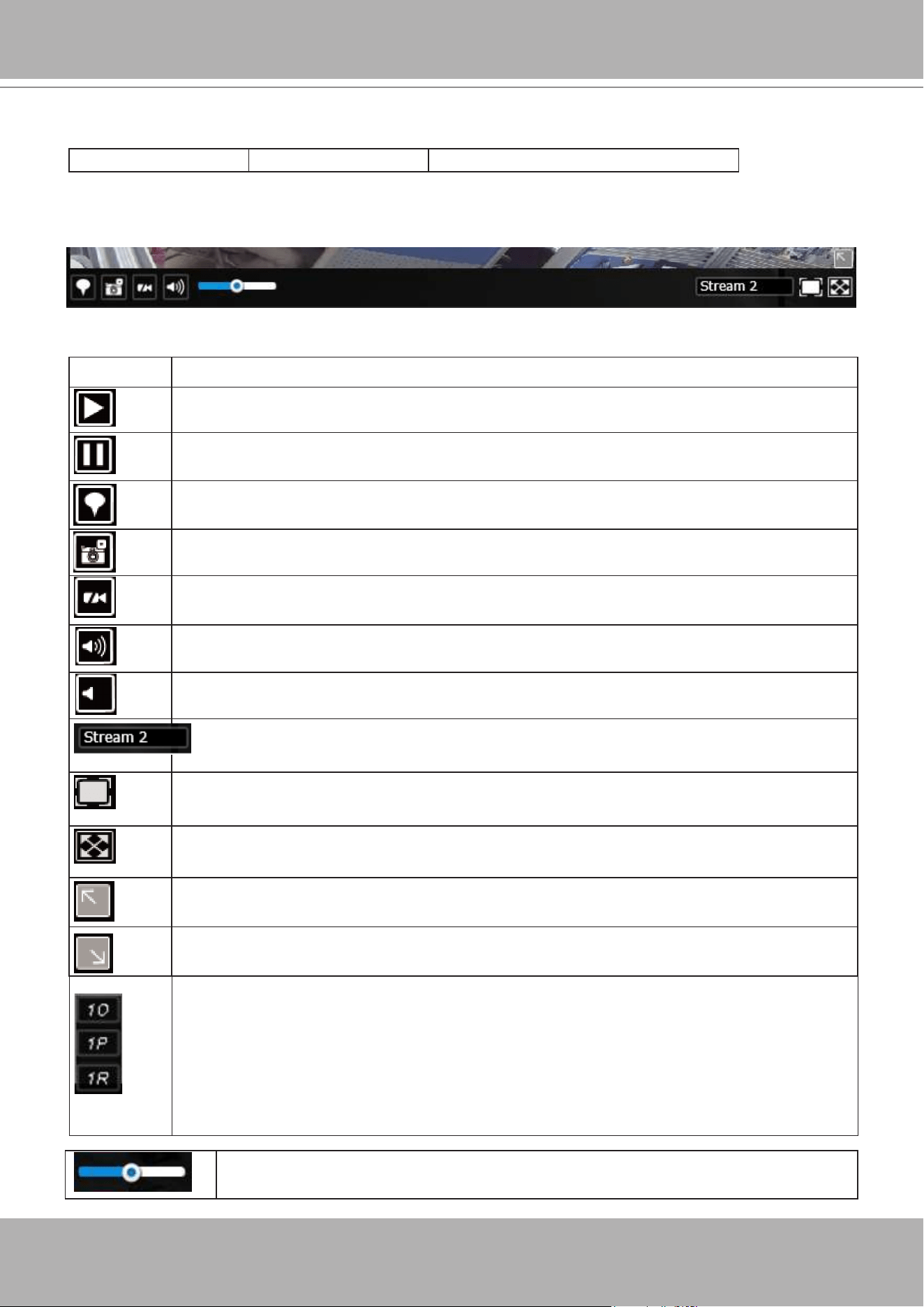
VIVOTEK - Built with Reliability
User's Manual - 129
The time display format is as follows:
yyyy/m/d/yyyy hh:mm:ss 2014.05.05 16:15:41
Tool Bar Buttons
Buttons Description
Resumes streaming.
Pauses a video stream.
Adds a Bookmark (that saves a short description and a one-minute footage from
the current feed)
Takes a snapshot.
Removes camera from the view cell.
Mutes (if there is audio input from the camera.)
Unmutes
Stream selector.
Restores the view cell's original position on the Liveview panel.
Maximize the size of current view cell.
Activates the PiP function.
Disables digital zoom (PiP).
Volume controller
Fisheye display modes - if the view cell contains video from a sheye camera, the
sheye display mode selector will be available:
1O: the orginal circular view.
1P: the panoramic view.
1R: the regional view.
Please refer to the sheye camera's User Manual for more information.
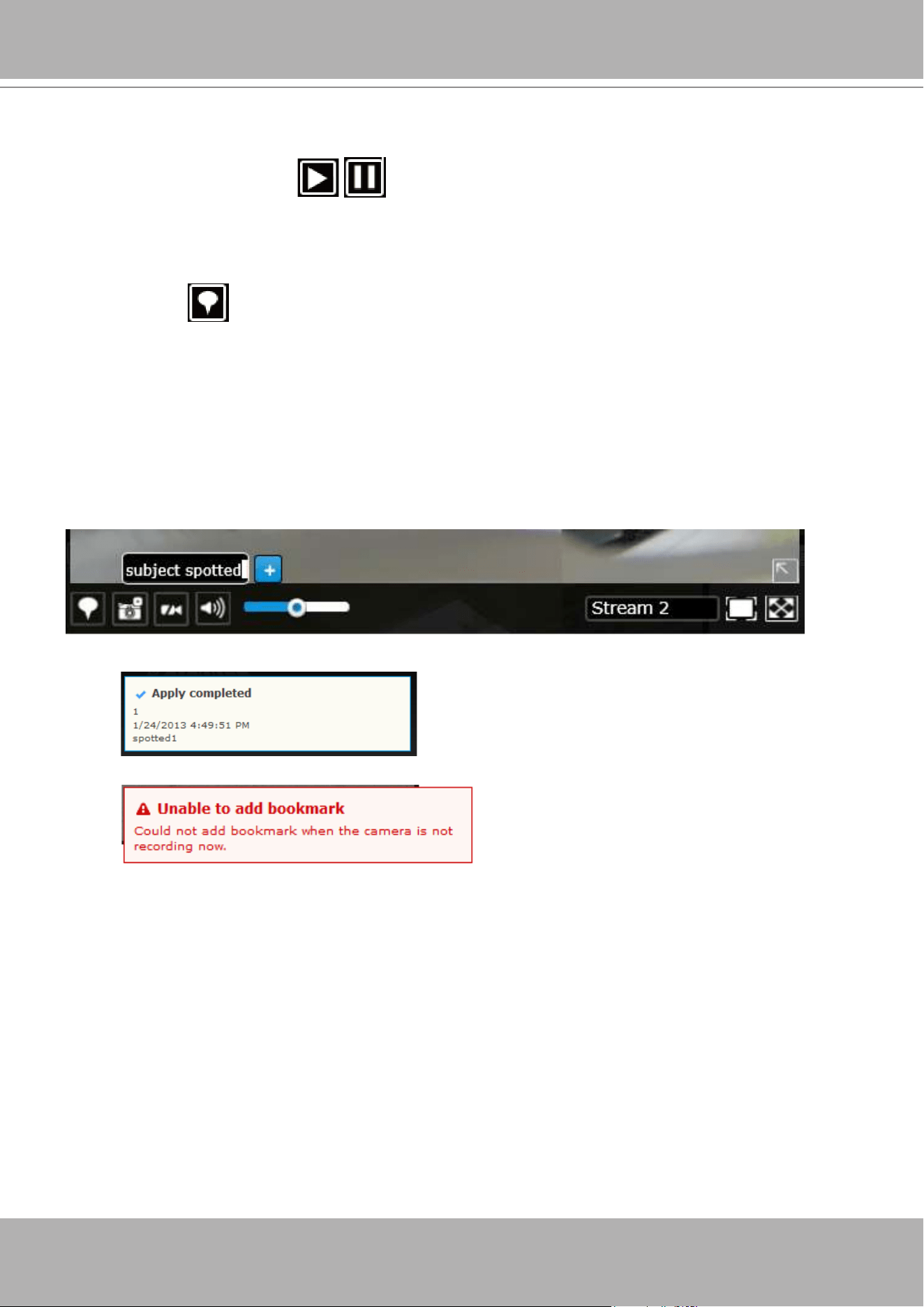
VIVOTEK - Built with Reliability
130 - User's Manual
Tool Bar Functions in Details
1.
Play
and
Pause
buttons:
These buttons pause and resume a video stream currently being played on your web browser.
Note that this operation does not affect the video recording taking place between a camera and
the NVR system.
2.
Bookmark
:
This function allows you to place a bookmark on a recorded stream when you observe a
situation from your live view window. The bookmark is preserved as a one-minute footage along
with a short description of a particular incident. The precondition of using this function is that
the video stream, while you are watching it on the view cell, must be recorded to the NVR at the
same time.
To add a bookmark,
1. Click on the button,
2. Enter a short description that can be as long as 120 characters.
3. A conrm message will prompt at the lower right of the screen.
If the current video feed is not being recorded to storage, you will receive the following message:
Errors with creating bookmarks may also result from network and server errors.
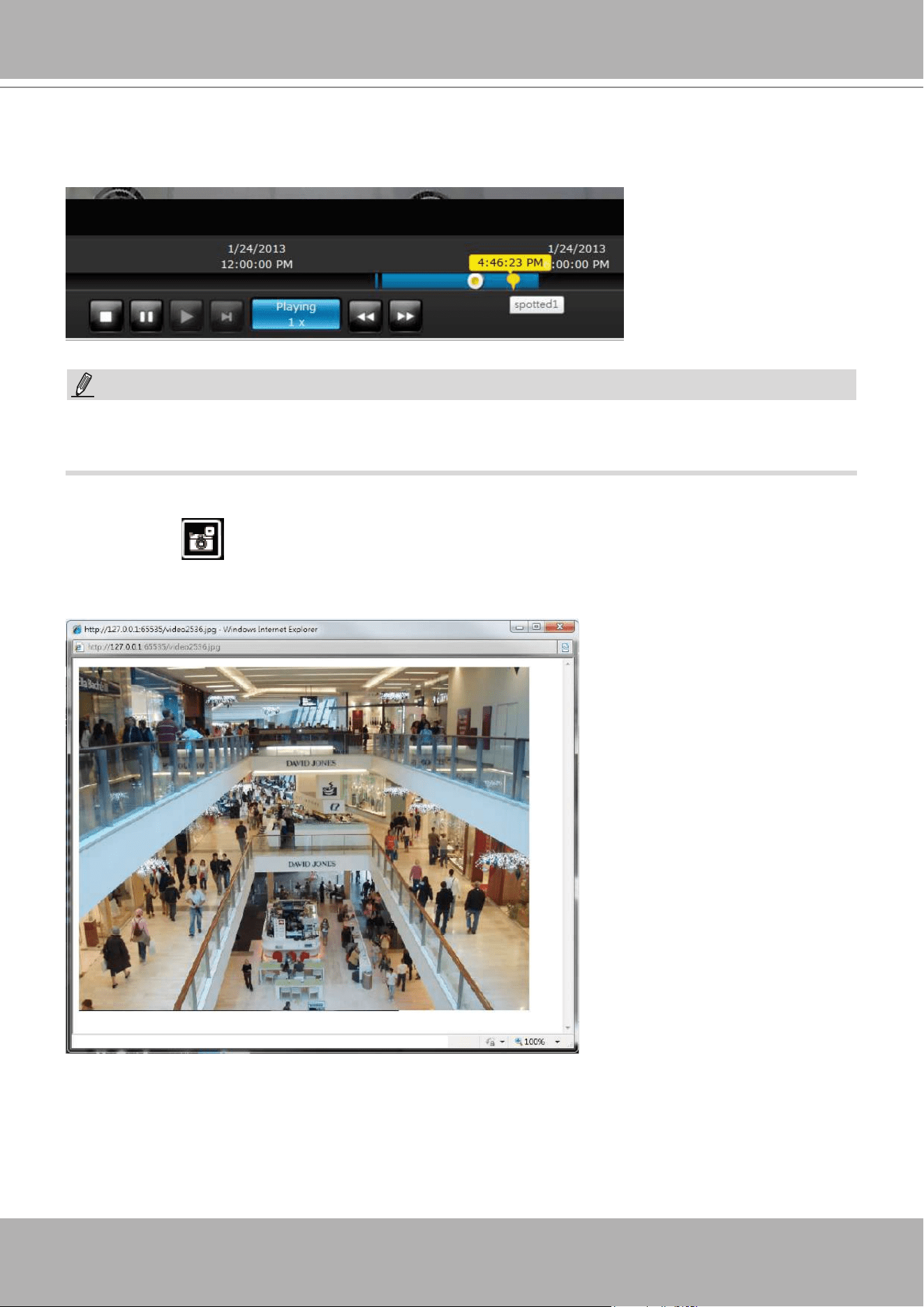
VIVOTEK - Built with Reliability
User's Manual - 131
Below are two bookmarks (yellow tags) shown along with a recorded video in the Playback utility
screen. Bookmarks help nd and retrieve important moments in a recoded video.
3.
Snapshot
:
This button produces a snapshot prompt. You may then right-click on the snapshot image to
save it to a preferred location.
Bookmarks will be erased if the user/system erases the video clips they were appended to. For
example, system will recycle storage space by deleting old videos along with their bookmarks.
Note that the size of a snapshot is equal to the frame size set for the video stream.
NOTE:
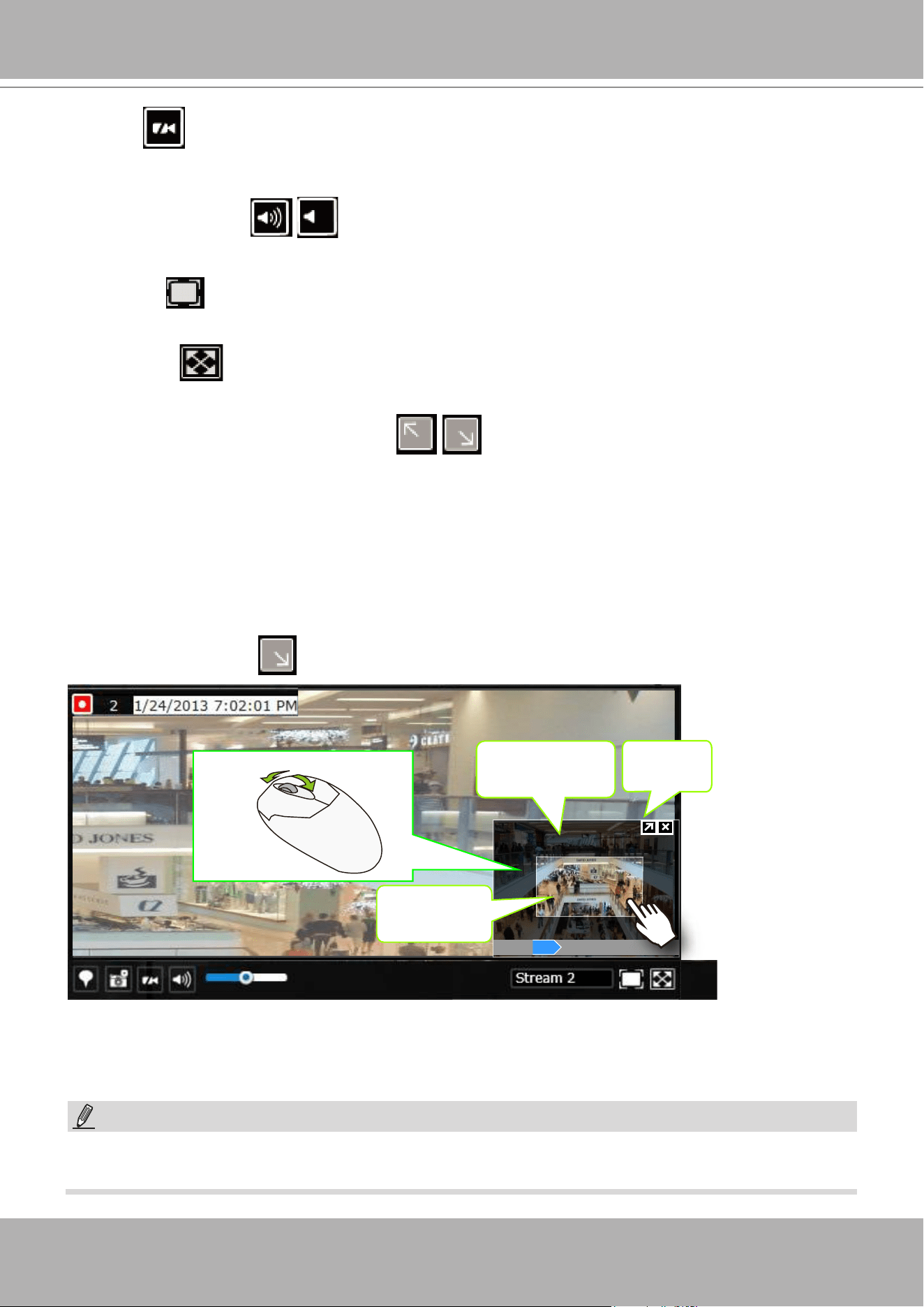
VIVOTEK - Built with Reliability
132 - User's Manual
4.
Clear
:
This button removes camera from the current view cell. The view cell will then be available for
other cameras
5.
Mute
and
Unmute
:
These buttons stops or resumes audio from a live stream.
6.
Restore
:
This button restores the view cell's original position on the Liveview panel.
7.
Maximize
:
This button extends the size of current view cell to the full of the Liveview panel.
8. Activate and Deactivate
PiP
function:
PiP is short for
Picture in Picture
, a function that provides digital zoom into a live video.
When activated, a Global view window will appear at the lower right of the view cell as shown
below. You can display only a portion of the complete video frame as an area of your interest.
Using a click and drag on the ROI window, you can instantly move to other areas within the
video frame.
Global view
Zoom In Zoom Out
160%
ROI
Shrink/
Expand
Note that not every camera supports the PiP function.
You can resize the ROI window by a mouse hover on the lower-right corner of the window until
the resize mark appears. The default size of the ROI window is 25% of the Global view.
Click on the deactivate button to close the PiP window.
The Talk function in the two-way audio is currently not supported.
NOTE:
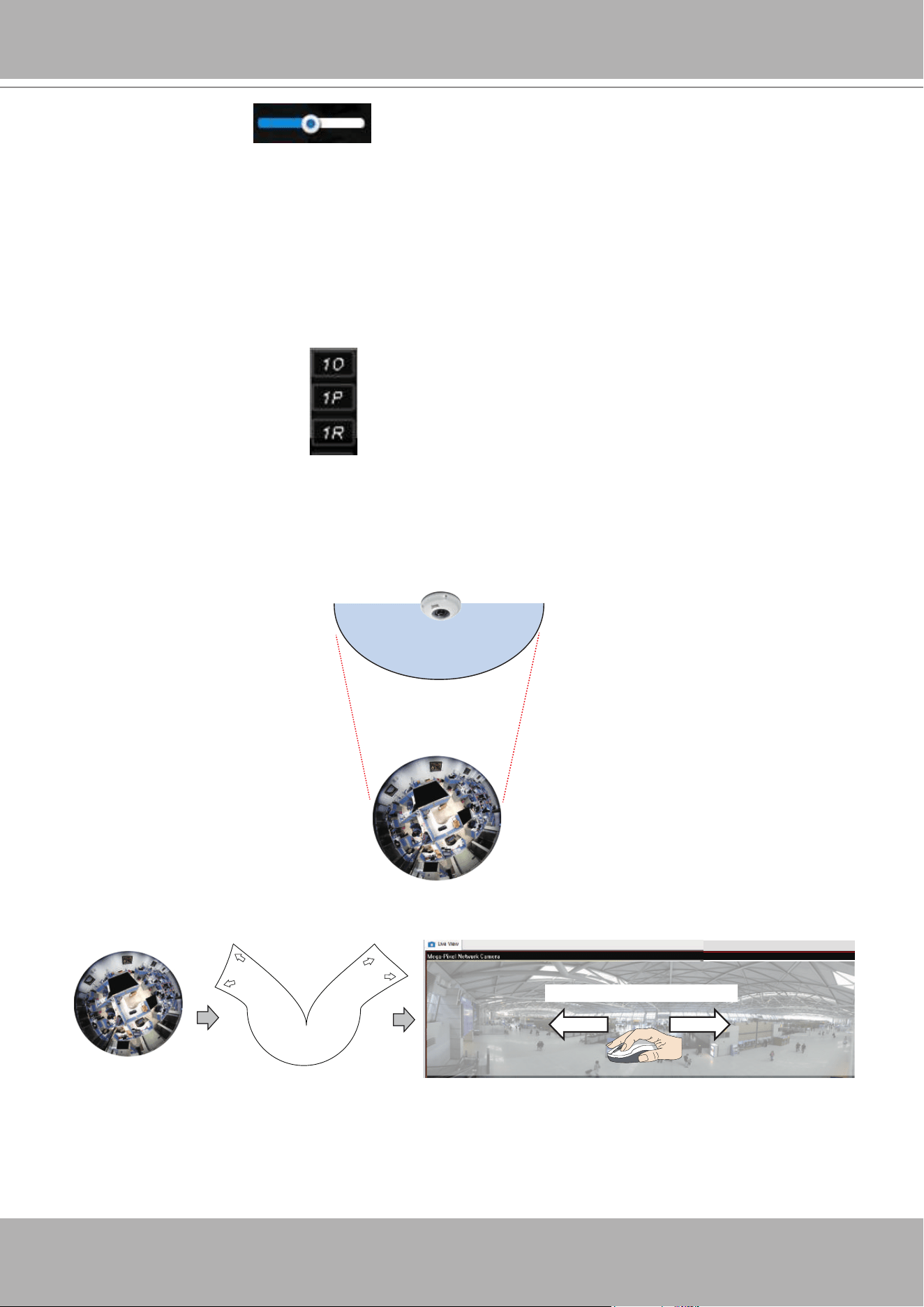
VIVOTEK - Built with Reliability
User's Manual - 133
9.
Volume controller
:
The volume control takes effect when audio input from the network camera is available. Audio
is heard only from a focused window, one that you selected by a mouse click from the Liveview
panel. Some network cameras do not come with an embedded microphone, and its audio is
disabled by system default. The actual sound level is also dependent on the system volume of
the PC having a web console with the NVR.
The sound volume conguration will not be preserved when a camera is removed from a view
cell, web console is restarted, or when the Liveview layout is re-congured.
10.
Fisheye display modes
:
A view mode selector icon appears in a view cell of a sheye camera. You can click to select a
viewing mode. The viewing modes are illustrated as follows:
1O View (Original View)
180° Hemispheric
Swipe to scroll horizontally
1O (Original view)
1P (Panoramic view)
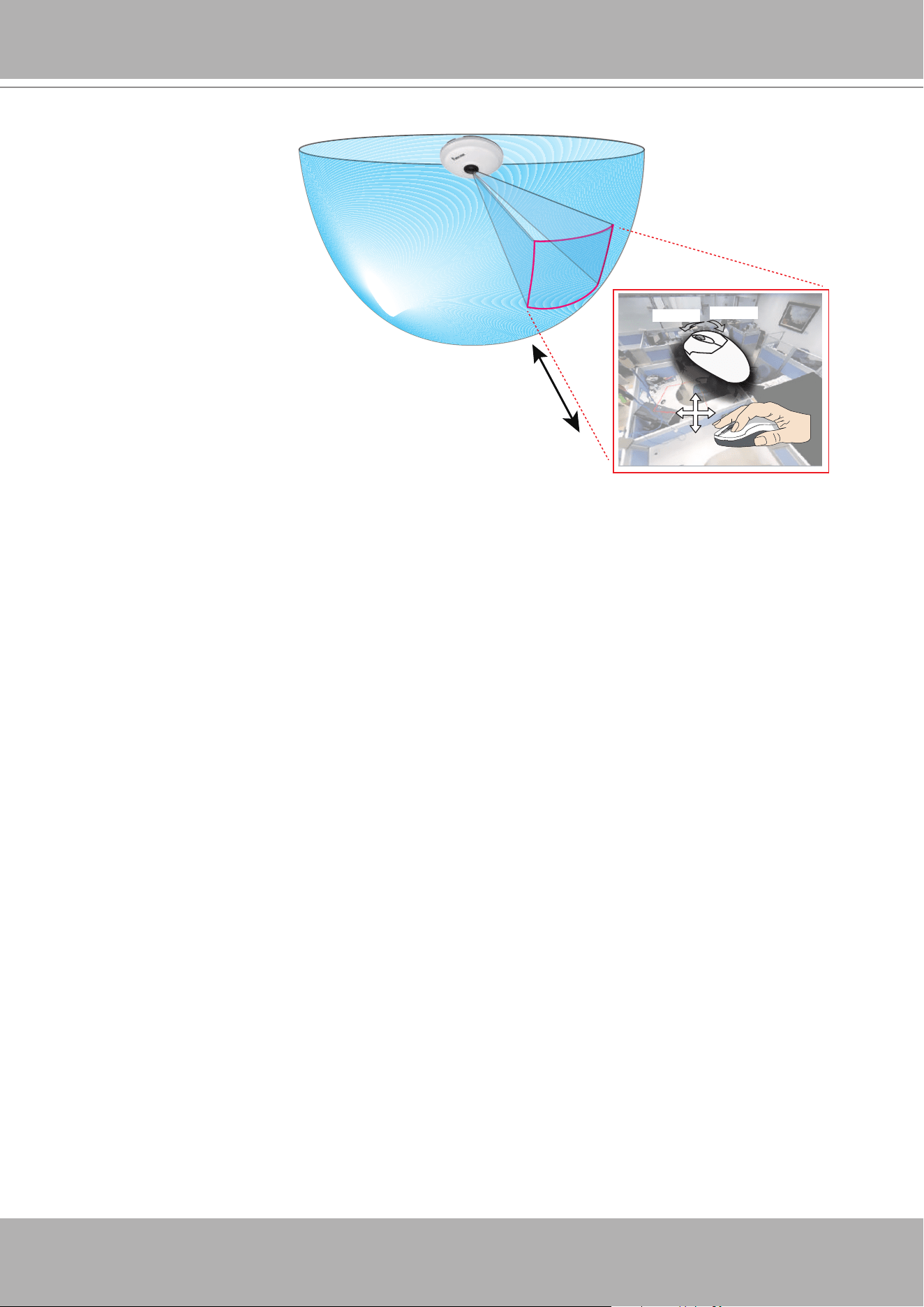
VIVOTEK - Built with Reliability
134 - User's Manual
1R (Regional view)
The 1R mode (or rectilinear) provides access to one image section within the hemisphere. You can zoom
in or out (using the mouse wheel or PTZ panel) or travel through to other areas within the hemisphere
using simple mouse clicks and drags. A single click on a particular object can bring the object to the
center of your view window. Click and hold down the left mouse button, and you can swipe the view both
horizontally and vertically.
1R View (Single Regional View)
Zoom in/out
&
all-directional
navigation control
Zoom In
Zoom Out
Note that if your sheye mounting type is set to the
Wall Mount
type, your screen control in the view cell
will be limited to 90
°
pan and tilt. Make sure your mounting type and camera settings have been properly
congured.
Because sheye lens can cover a wide surveillance area, you can insert a sheye camera into multiple
view cells, and let different regional views display in these view cells. In this way, you can have a glimpse
of multiple areas of interest, and the conguration of these different view windows will be preserved when
you save your layout settings.
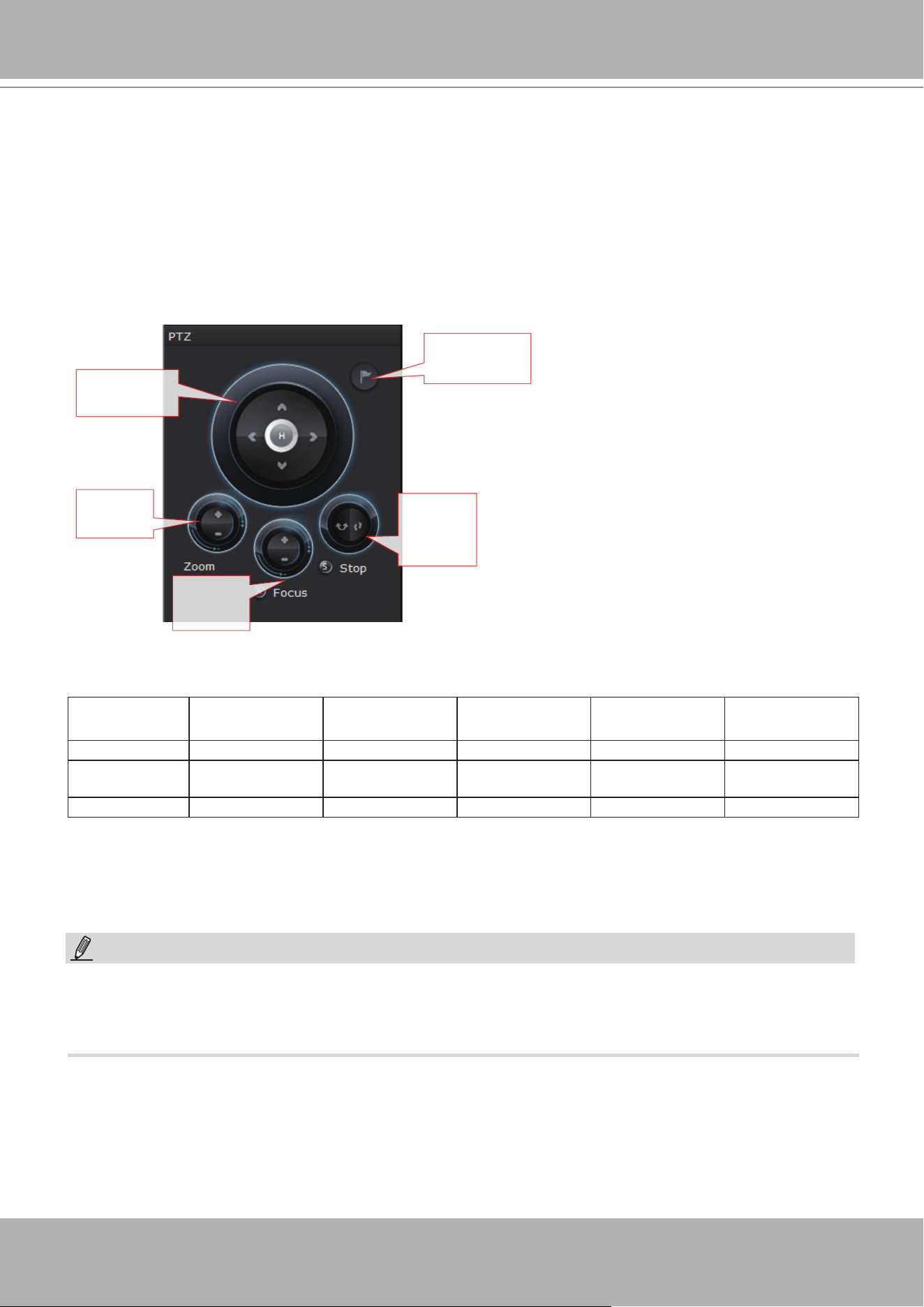
VIVOTEK - Built with Reliability
User's Manual - 135
4-2-6. PTZ panel
The PTZ panel takes effect for cameras that come with mechanical PTZ functions. It does not
support digital PTZ functions. To utilize its functions, select a view cell populated by a PTZ
camera, such as a speed dome.
Depending on the individual functions that come with PTZ cameras, some functions will not be
available for every cameras. For example, the zoom controller will not apply for a PTZ camera
that comes without a mechanized zoom module, such as PD8136 and PT8133.
Pan/Tilt
controller
Preset locaon
selector
Zoom
controller
Auto
pan/patrol
controller
Focus
controller
Model (series) Pan/tilt
controller
Preset location Zoom controller Focus controller Auto Pan/Patrol
controller
PD Yes Yes No No Yes
VS (VS8100
and 8102)
* Depends Depends Depends Depends No
VS84xx/88xx Depends Depends Depends Depends Depends
Listed below are the camera models and the types of supported PTZ controls:
* If the analogue cameras connected through the video server support PTZ mechanism.
On the Liveview window, currently the Continuous Move and the Click-on-image functions for
PTZ cameras are not supported. Neither can you zoom in/out using the mouse wheel.
NOTE:
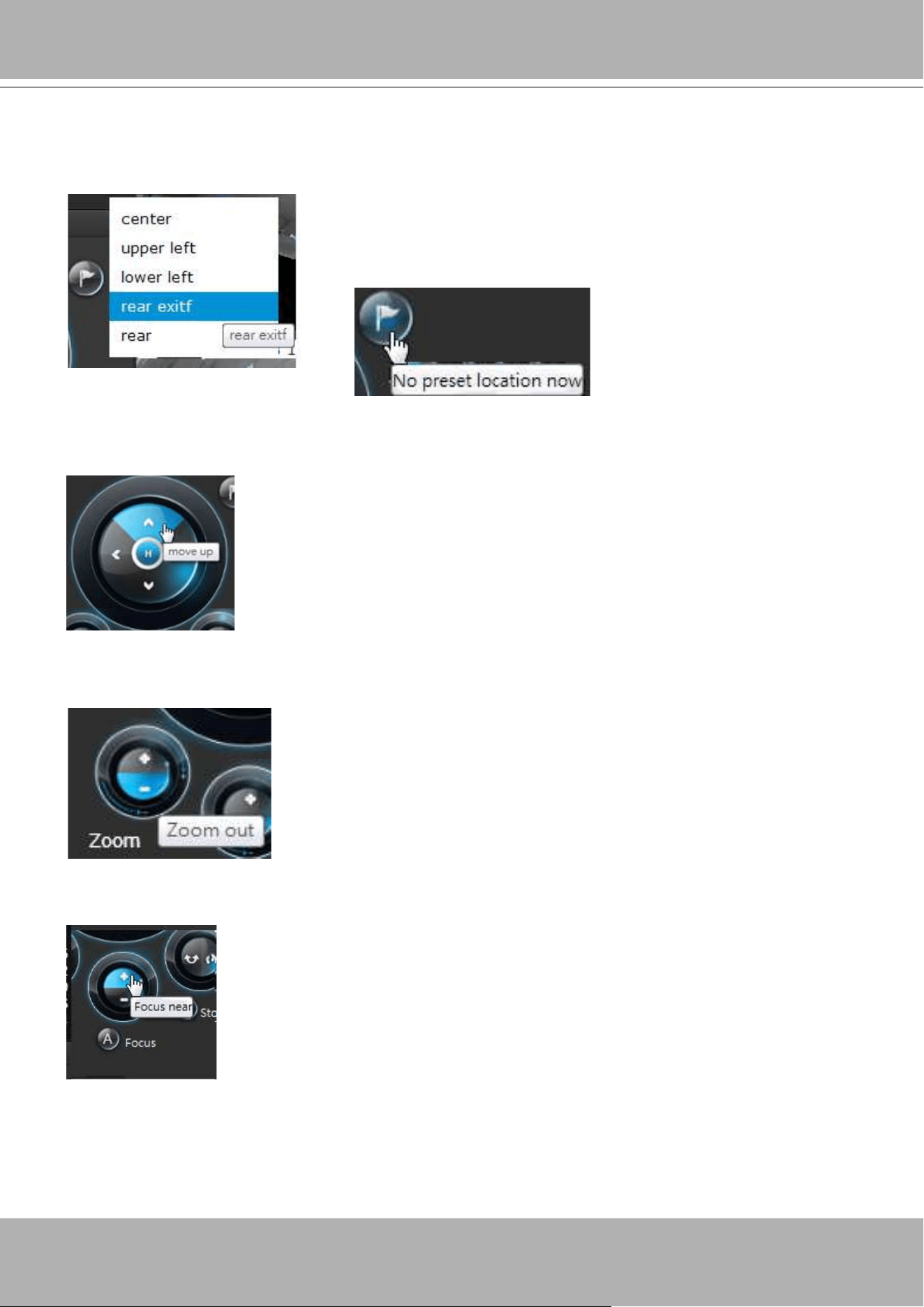
VIVOTEK - Built with Reliability
136 - User's Manual
PTZ presets
: If your PTZ cameras have preset locations, click on the button to unfold the preset
menu. Click on any of the preset locations to move to the area of your interest. Refer to your
camera's User Manual for how to congure preset locations.
The following message will prompt if the camera has no
preset locations.
Pan/Tilt controller
: A mouse hover over the arrow buttons activates the arrow button. Use the
buttons to navigate to a preferred location.
Zoom controller
: The zoom controller buttons only apply to cameras that come with an optical
zoom module, such as a speed dome camera.
Focus controller
: The focus controller buttons apply to cameras that come with focus control
over its lens module, such as a speed dome camera.
Auto Focus
: If your camera supports the auto focus function, use this
button to acquire an optimal focus point.
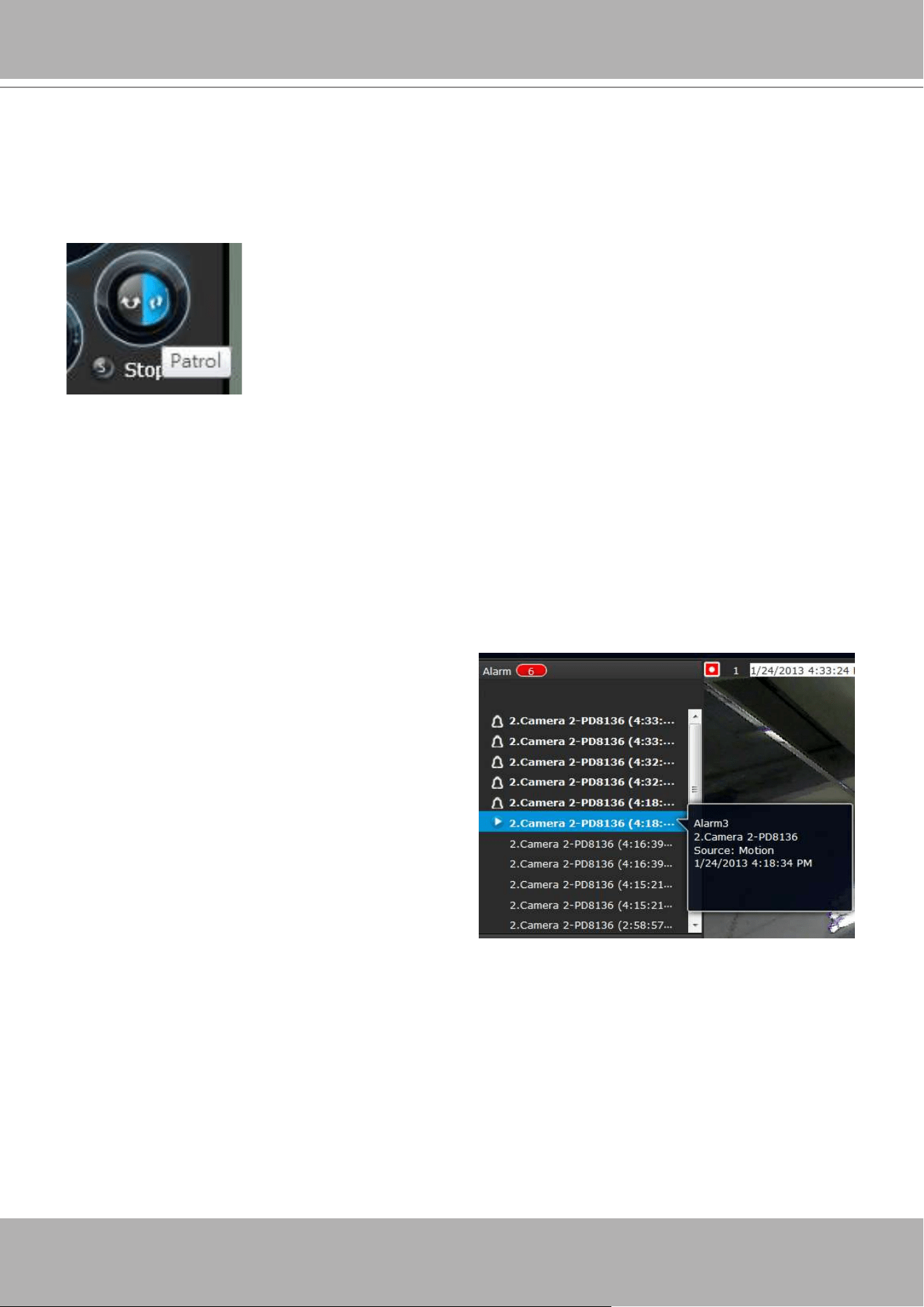
VIVOTEK - Built with Reliability
User's Manual - 137
Auto pan/patrol controller
: These buttons provides pan and patrol functions provided that
preset locations have been congured on the camera. For a speed dome camera, the pan
command tells the camera to continuously pan 360 degrees until it is stopped by a user
command. For PZ or PT series cameras, the pan action only takes place once to cover
reachable areas.
The
Stop
button ends a pan or patrol tour.
4-2-7. Alarm panel
To receive alarms from cameras, you need to congure alarm triggers in the
Settings
>
Alarm
conguration window (see page 82). Network cameras' digital inputs, digital outputs, or motion
detection can all be used to detect conditions in external environments. When the alarms are
triggered, you can congure certain kind of actions to take place in response to the alarms, such
as:
1.
recording
the immediate image,
2. sending an
Email
,
3. sounding the
buzzer
,
4, sending snapshots to an
FTP
server,
5. sending event messages to
web server
,
6. moving camera lens to a
preset
location,
7. triggering a camera
digital output
.
The alarm panel displays the latest 10 alarm
entries with the latest alarm on top of the list.
The alarm list keeps up to 200 events. Older
events will be erased if the number exceeds
200.
The alarm panel is polled every 10 seconds. A mouse hover on an alarm entry displays full
information of the event.
Note that multiple alarms can be triggered by one incident. See page 82 for how to congure the
alarm settings.
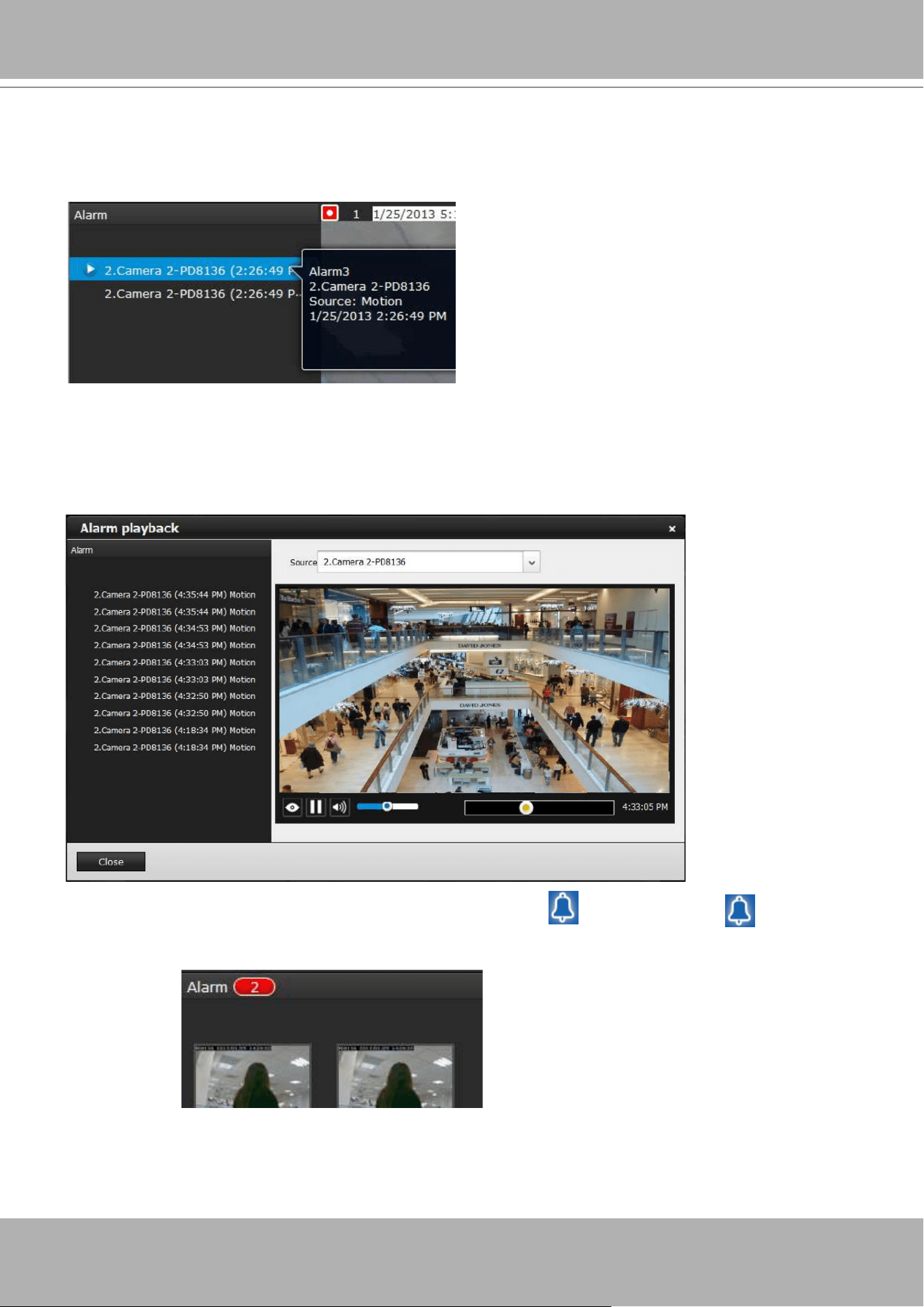
VIVOTEK - Built with Reliability
138 - User's Manual
If an event is congured with a recording action, there will be a play button to the left of the
alarm message.
Click and read a text-only alarm will turn off the alarm icon . The alarm icons indicate
unread alarms. The number of unread alarms will be listed on the title bar.
The alarm playback window will begin playback of a footage taken
10 seconds
before the
occurrence of an alarm. The playback of an alarm-triggered recording will normally last for
one
minute
. If, however, you congured a shorter pre- and post-alarm recording time, your alarm
recording may be slightly shorter. The default for
pre-
and
post-alarm
buffer time are 5 seconds
and 20 seconds.
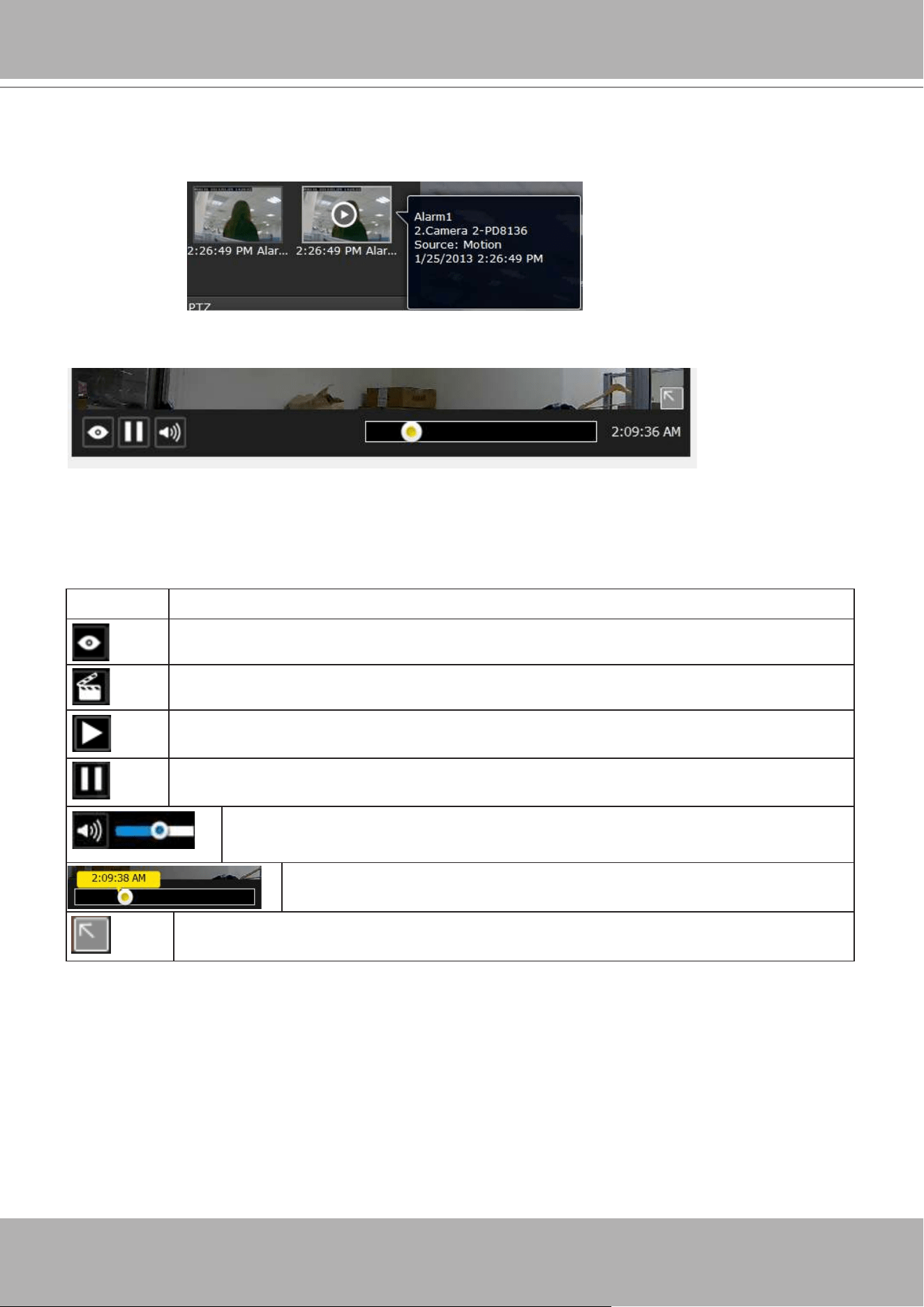
VIVOTEK - Built with Reliability
User's Manual - 139
Move your cursor over an alarm with a recorded
footage. The Play button will become available.
Buttons Description
View live video: displays the live view streaming instead of the alarm recording.
Resumes the alarm playback.
Begins the alarm playback.
Pauses the current playback.
Mute or unmute the audio with the current playback. Drag the controller to
change the audio volume level.
Use the playback slider to quickly change the playback position.
Click to enable the digital zoom function.
The following buttons are available in the alarm playback window.
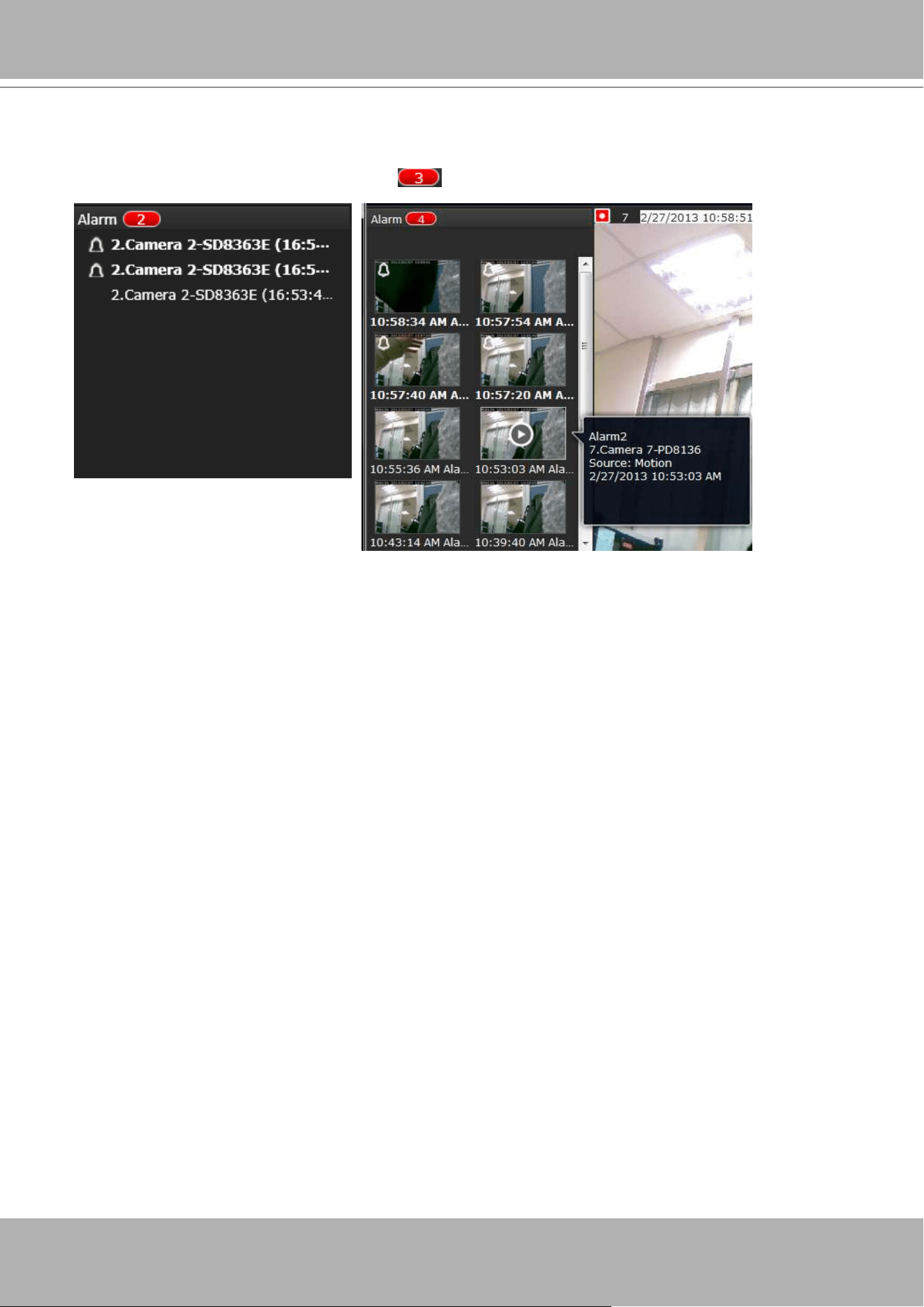
VIVOTEK - Built with Reliability
140 - User's Manual
Incoming Alarms
New alarms will be indicated by the messages in bold letters, the alarm bell icons, and the
increasing number of unread messages on the title bar.
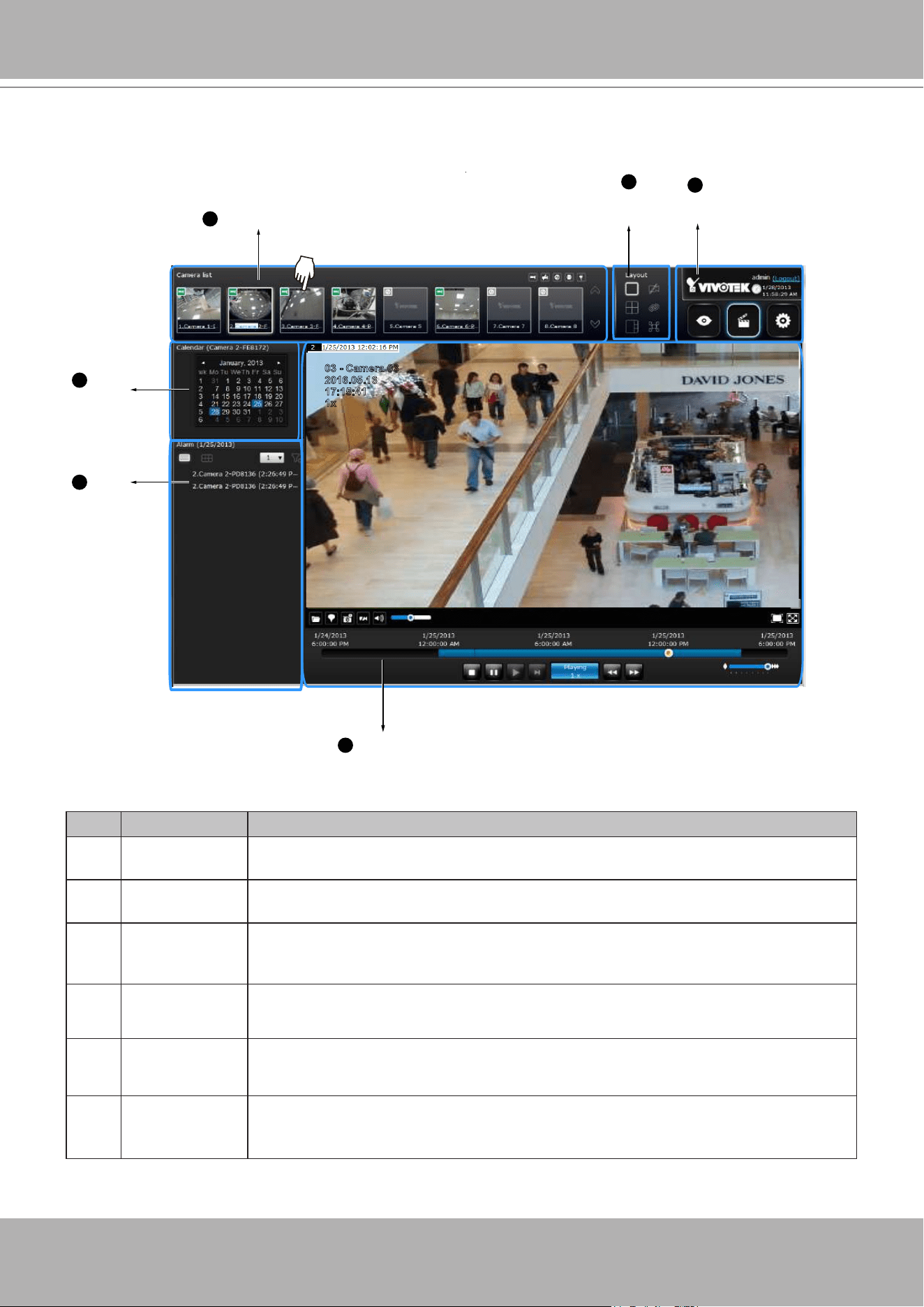
VIVOTEK - Built with Reliability
User's Manual - 141
4-3. Graphical Layout and Screen Elements - Search recording
clips
Camera list
Layout
contents
Logo & Menu
Playback panel
Alarm
panel
Calendar
1
2
3
4
5
6
2016.05.16
03 - Camera 03
17:15:41
1x
The screen elements of the
Playback
window are described as follows:
Item Name Description
1
Camera List Provides a glimpse of all cameras that have recorded data. Basic information is
also provided along with a screenshot.
2
Layout contents Provides functions to extend, rotate, redo the layout, and the synchronous
playback.
3
Logo & Menu Provides access to the
Playback
and System
Settings
utilities, as well as
system time and logout function.
4
Playback panel Displays the playback functions. Snapshot, bookmark, and export functions are
also available on individual view cells.
5
Alarm panel Reports alarms transmitted via cameras' DI connections or those by the Motion
Detection, etc.
6
Calendar Shows when the recording took place, and thus enables users to quickly locate
a specic part of recording in history.
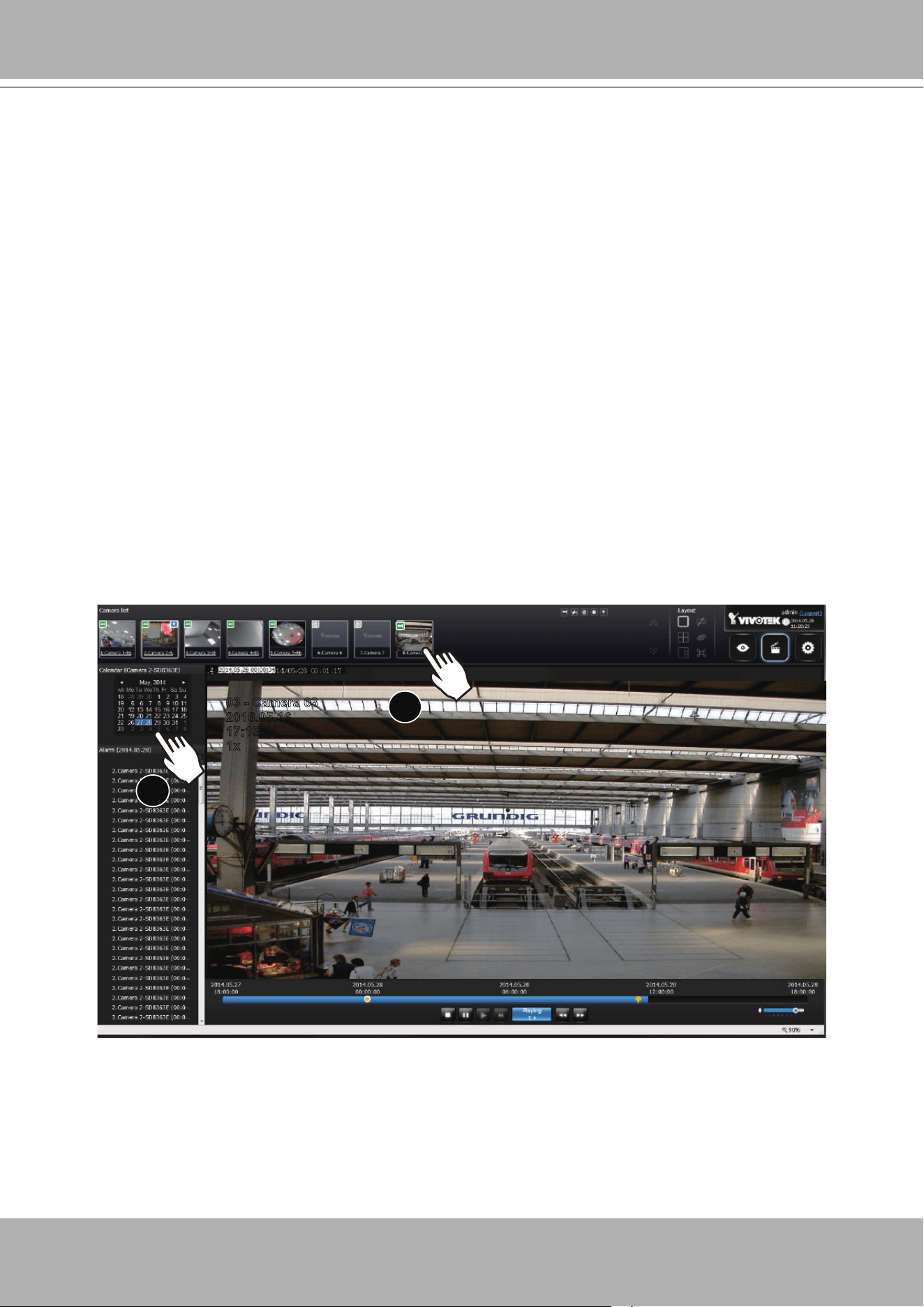
VIVOTEK - Built with Reliability
142 - User's Manual
4-3-1. Camera List Panel
The camera list displays the 8 recruited cameras by the sequential numbering order you
congured in the System
Settings
window on page 62. The elements in the Camera list on a
Search recording clips
window are identical to those on a
Liveview
window. Please refer to
page 122 for details on the Camera list panel.
To begin playback and search for past recordings,
1. Double-click on a camera.
2. The
Calendar
panel will display the days video recording actually took place. And those days
will be highlighted by a blue background (as the 25th and 28th in the screen below.)
x2
2
3
2016.05.16
03 - Camera 03
17:15:41
1x
There are two key differences between the Camera List on Liveview and that on the Playback
window:
1. Users
can not
click and drag a camera thumbnail to a playback view cell.
2. A double-click on a camera
does not
display video in a view cell. A double-click displays a
calendar
where days with recorded videos are shown.
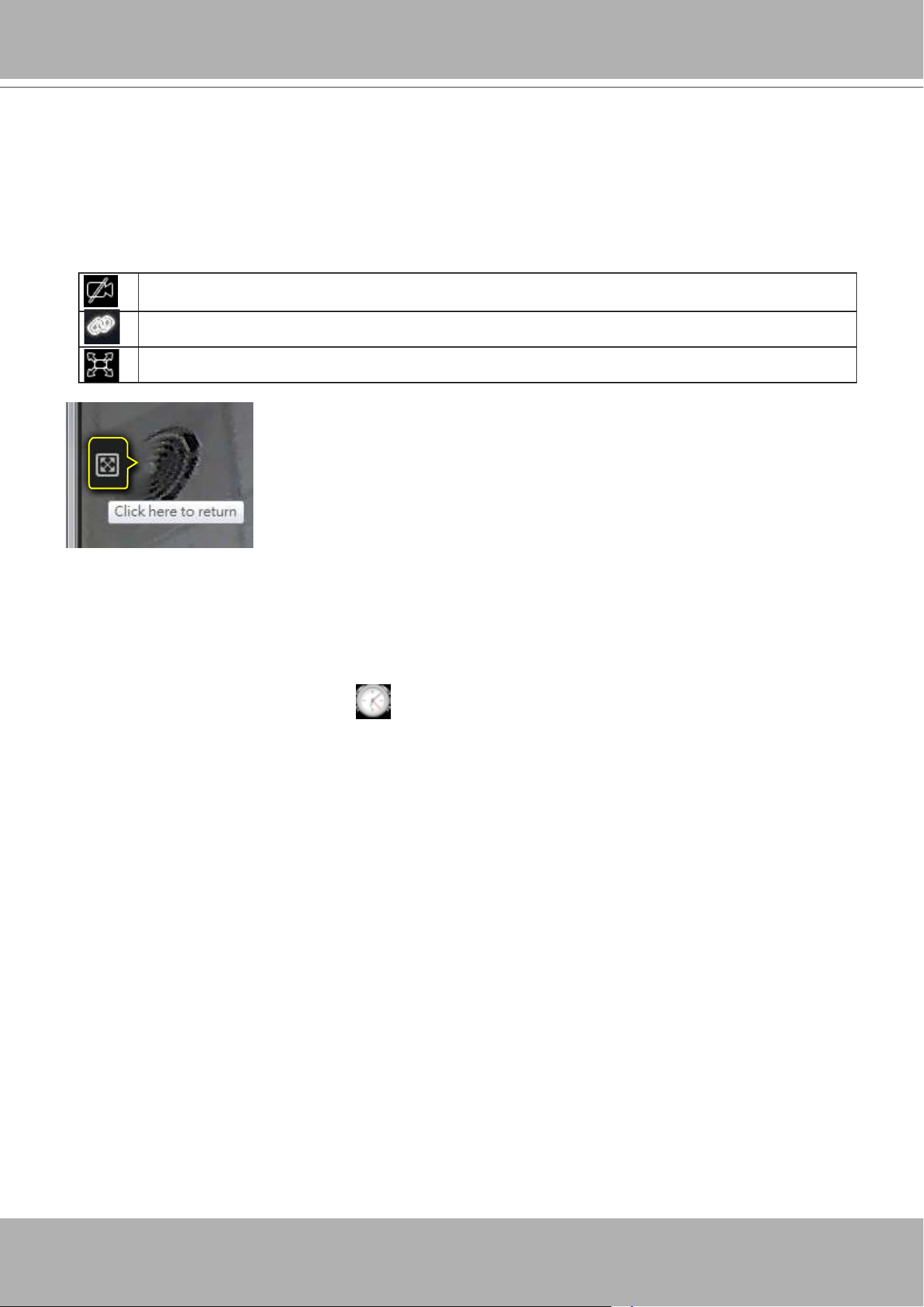
VIVOTEK - Built with Reliability
User's Manual - 143
4-3-2. Search Recording Clips Layout
3 types of layouts are provided for the Search recording clips window: 1x1, 2x2, and 1+3.
In the Search recording clips window, users can simultaneously playback up to 4 recorded
videos.
Clears all view cells on the current layout
Starts or stops the Synchronous playback.
Full view: extends the view cells on the current layout to the full of the screen.
When your current layout is displayed in a full view, move your cursor
to the left center of the screen to return to the default Liveview screen.
The
Return
button will appear.
4-3-3. Logo & Menu
A logout button, system time panel , and 3 hot link buttons to access the
Liveview
,
Playback,
and
Settings
utilities. This panel is identical to that on the Liveview window.
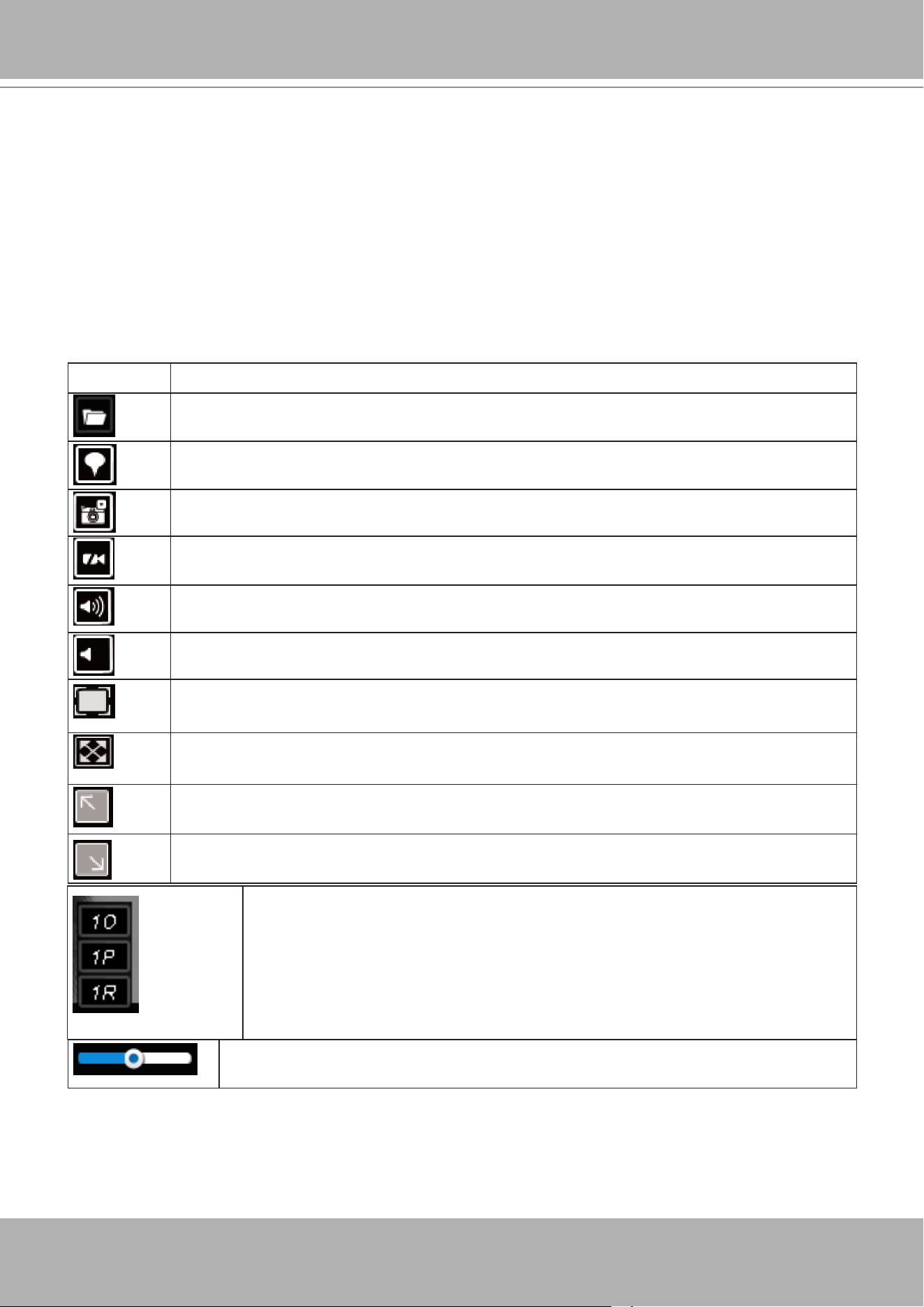
VIVOTEK - Built with Reliability
144 - User's Manual
4-3-4. View Cells in Search Recording Clips
The view cells in Liveview and Playback windows are similar. Their differences are listed as
follows:
1. 3 simple layout types are supported as previously described.
2. The information bar displays camera index and video time information only.
3. The Play and Pause buttons are not available on the Tool bar. One Export function is added
on a playback view cell.
The functional buttons on an individual view cell are descrbed as follows:
Buttons Description
Exports a section of the video into a 3GP or Windows exe le. The length of
exported video is congurable to 1, 3, 5, or 10 minutes.
Adds a Bookmark (that saves a short description and a one-minute footage from
the current feed)
Takes a snapshot.
Removes camera from the view cell.
Mutes (if there is audio input from the camera.)
Unmutes
Restores the view cell's original position on the liveview panel.
Maximizes the size of current view cell.
Enables the digital zoom.
Disables digital zoom (PiP).
Volume controller
Fisheye viewing modes - if the view cell contains video from a sheye
camera, the sheye display mode selector will be available:
1O: the orginal circular view.
1P: the panoramic view.
1R: the regional view.
Please refer to the sheye camera's User Manual for more information.
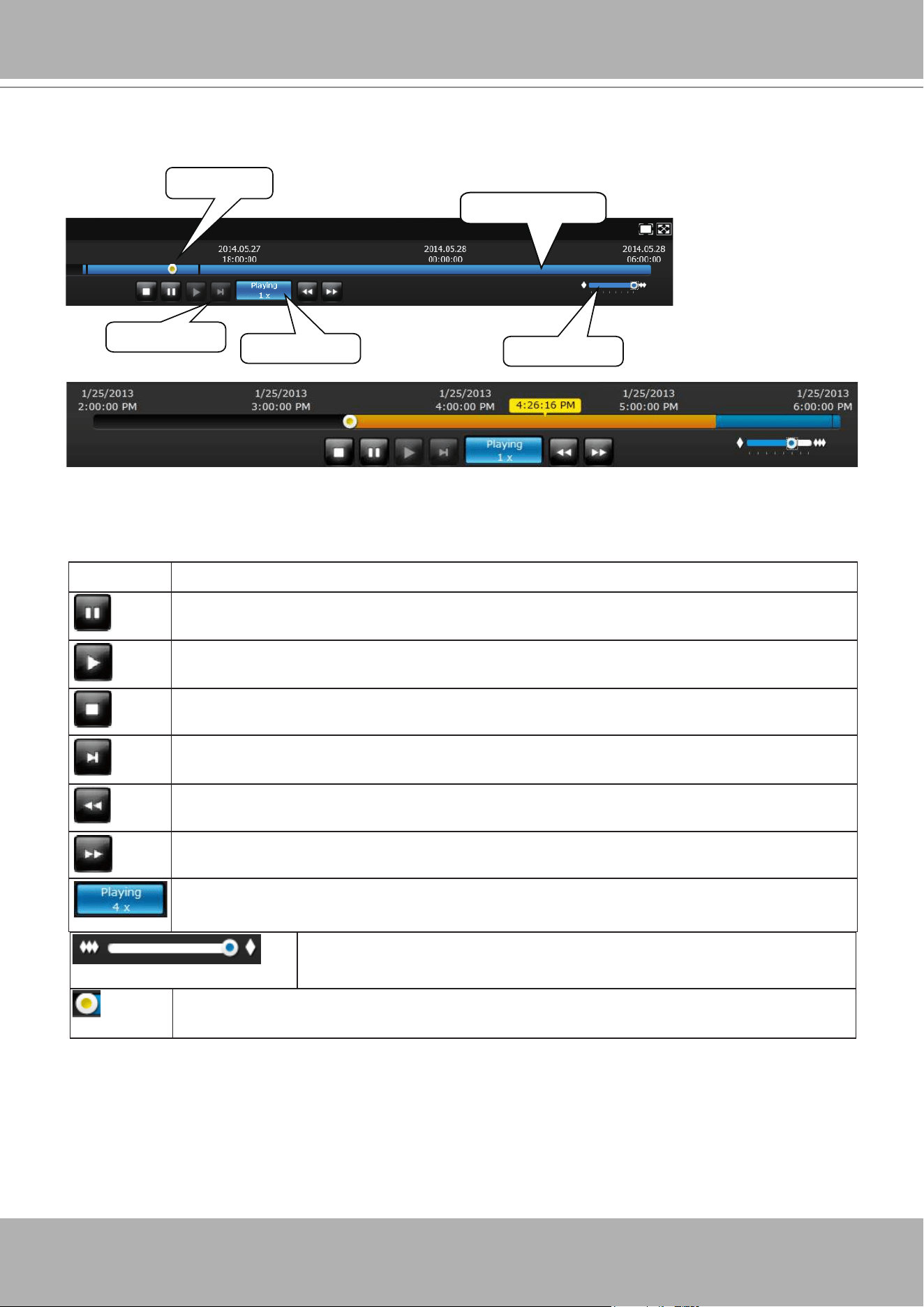
VIVOTEK - Built with Reliability
User's Manual - 145
Search Recording Clips Control Panel
The time slide bar enables quick skimming through the recording. Its functional buttons are
described as follows:
Buttons Description
Pause
Play. This button is available after you manually pause a playback.
Stops the current playback.
Next frame. After you paused a playback, use this button to browse video frame by
frame.
Speeds down by 1/2. The slowest speed is 1/8.
Speeds up. Increases the playback speed, to 2x, 4x, 8x, 16x, and then to a
maximum of 32x.
Displays the current playback status, such as Playing, Pause, play speed, or Stop.
Timeline slider
Timeline zoomer
Playback info
Control buttons
Span of existing
recording
Timeline zoomer. Use the zoomer to zoom in for more precise
skimming.
Timeline slider thumb. Click and drag this thumb button to move along and reach
a specic point in time. A click on the time line will also work.
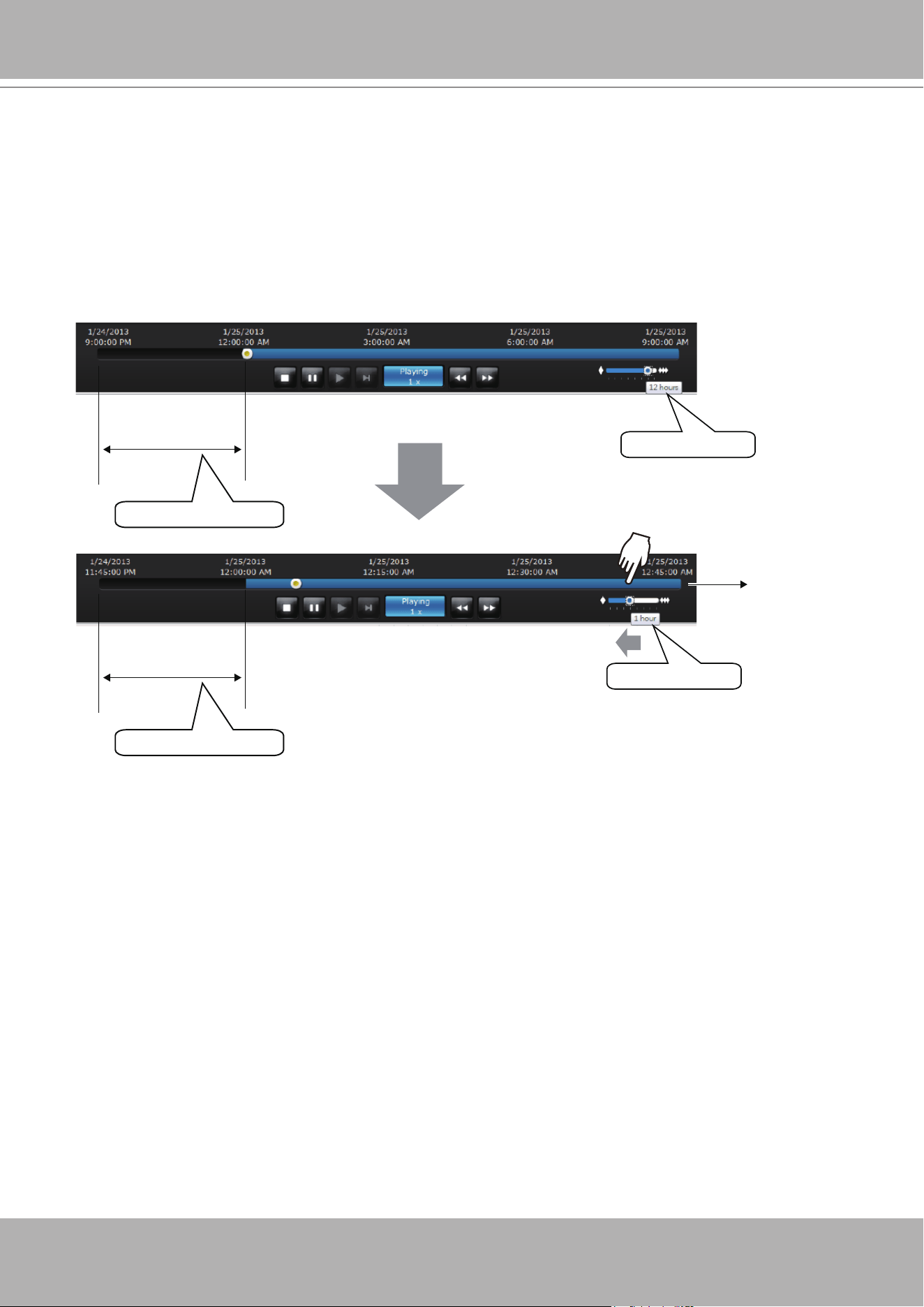
VIVOTEK - Built with Reliability
146 - User's Manual
Time span =12 hrs
Time span =1 hrs
Each section =15 mins
Each section =3 hrs
Total time span
The time line shows the length of existing recording taken on a specic time span. You can use
the timeline zoomer to scale down the span of time. For example, if the time span is reduced
to 1 hour, then each section on the time line represents 15 minutes of recording. The total time
span of a timeline starts from the minimal of 4 minutes, 20 minutes, 40 minutes, 1 hour, and up
to a maximum of 24 hours.
In the Synchronous play mode, a change to the zoomer will be reected by all synchronously
playing view cells.
If recordings take place by an event-triggered recording, the intervals between recordings can
be down to 1 minute, and the individual recordings will not be easily discernible. In this situation,
you can mouse over the timeline to pinpoint individual recording instances.
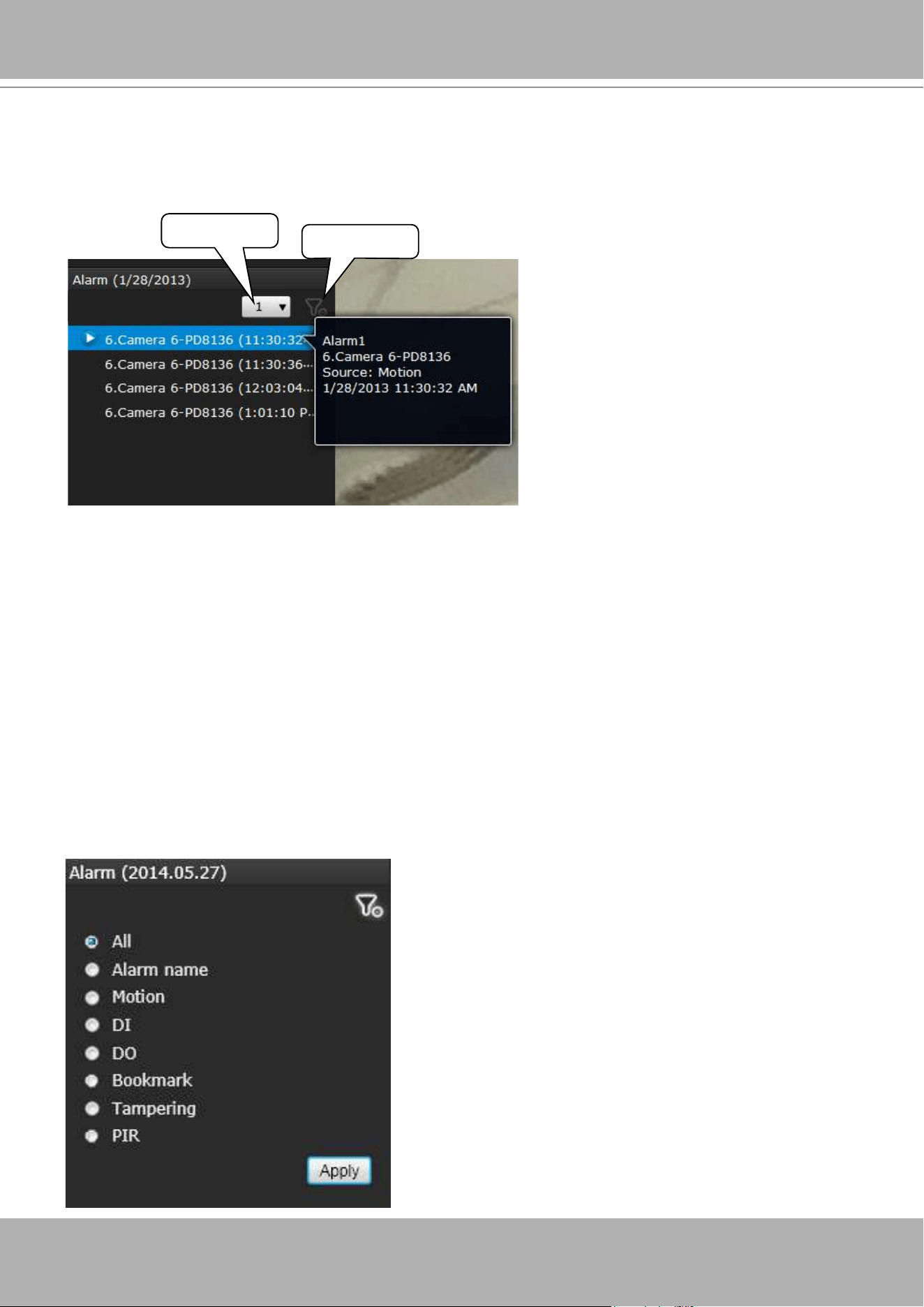
VIVOTEK - Built with Reliability
User's Manual - 147
4-3-5. Alarm Panel
Page selector
Alarm filter
The alarm panel displays the alarms or bookmarks recorded by the day of recording. Two
additional buttons are available:
Page selector
and
Alarm lter
.
• A playback button will be available with an alarm-triggered recording. The alarm panel in the
Playback window also supports the List mode and Icon mode that are similar to that in the
Liveview window.
• There can be numerous alarms occurring in a day. Use the page selector to display different
pages of alarm entries. Up to 200 entries can appear on one page. Note that the new alarms
that occurred seconds or minutes ago may not be instantaneously listed on the page.
If bookmarks are listed in the Alarm list, a bookmark entry will look like this:
Camera index. camera name (time) - bookmark
Alarm lter:
Use the alarm lter to nd out specic alarms. Use the check circles below to narrow down your
search criteria by Alarm name or alarm type by Motion detection, DI, DO, Tampering, PIR, or
those manually marked down as Bookmarks.
The alarm name is dened by users in the
Settings
>
Alarm
page.
See page 82 for how to congure
alarms.
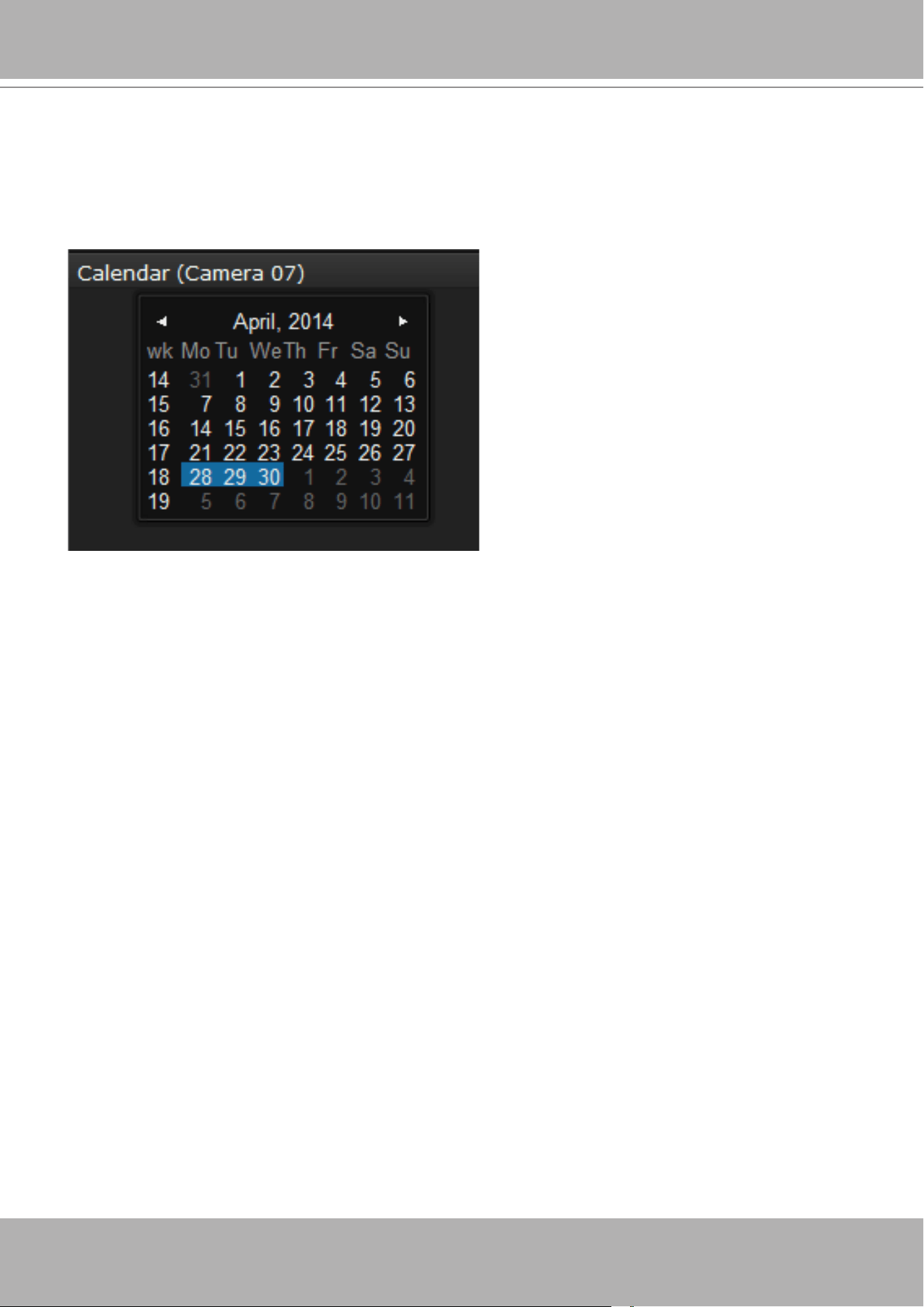
VIVOTEK - Built with Reliability
148 - User's Manual
You may use the arrow button to view the records in other months. If there are no recordings in
the current month, the recordings taken in the days of the following month will be shown stead.
4-3-6. Calendar Panel
Double-click on any of the existing cameras to display the Calendar panel. Days with recorded
videos will be highlighted in blue regardless of the length of existing recordings that occurred in
that day. You may then click on a day to begin viewing the past recordings.
2 31
4
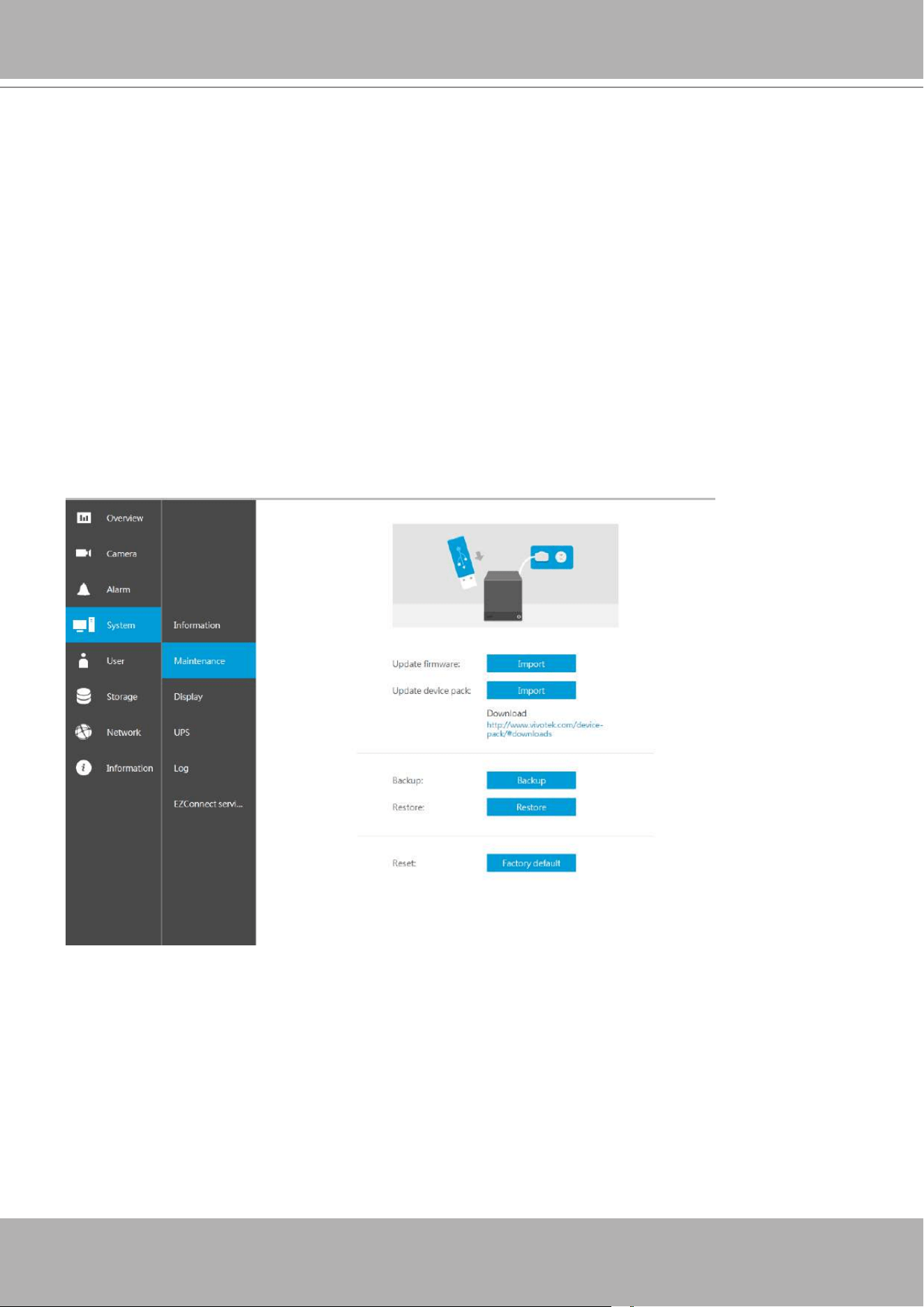
VIVOTEK - Built with Reliability
User's Manual - 149
Chapter Five System Settings
Since revision 2.0.0.x, the System Settings pages are made identical to those on the local
console. Since the Setting pages are identical, the following pages will be omitted. Please refer
to page 62 for the description of System Settings via a local console.
Some minor differences between the web console and local console exist. One is the Restore
Factory default function. It is only available on the web console.
The restore function is not available on the local console, for users can use the reset button to
perform the system default restoration.
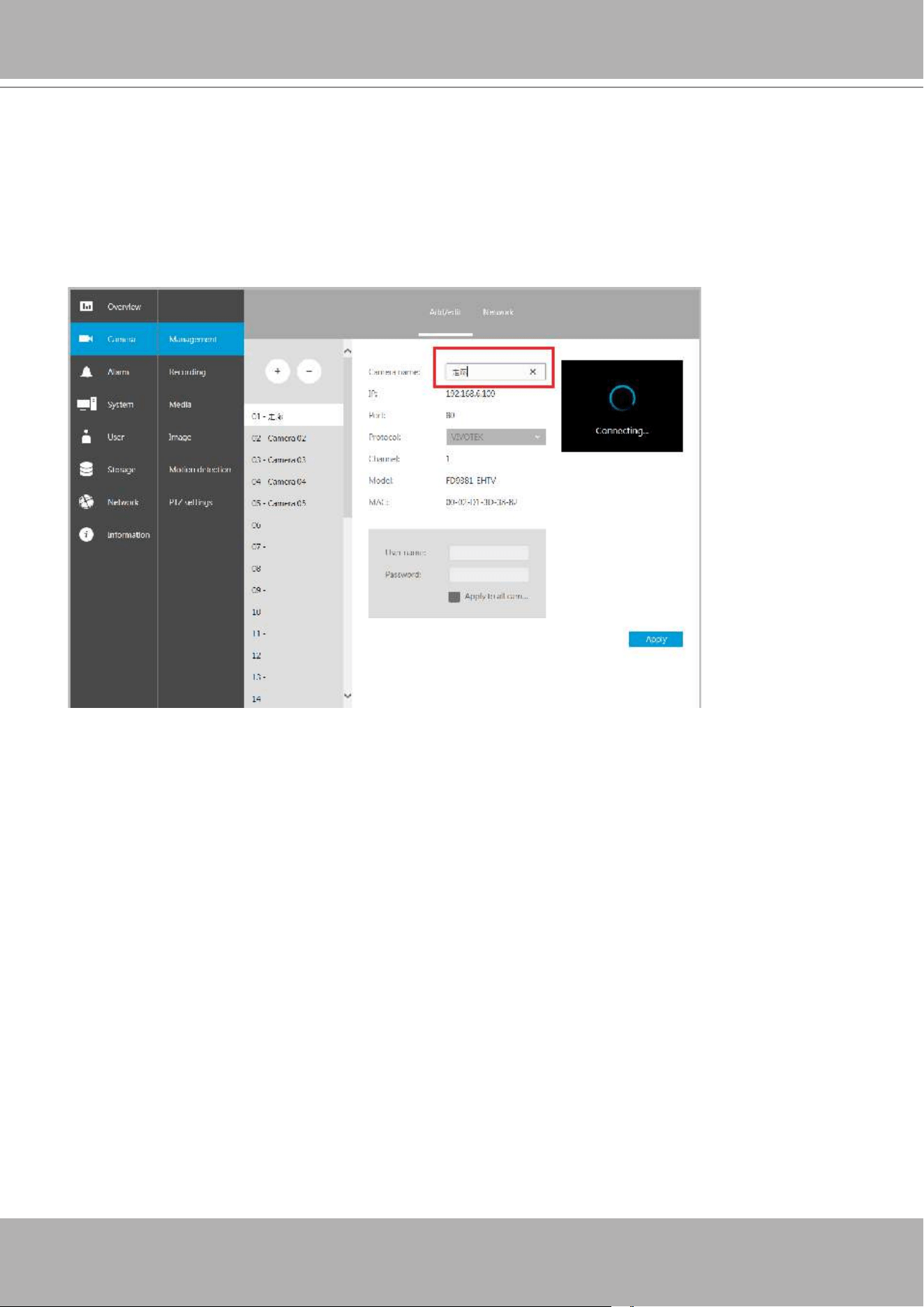
VIVOTEK - Built with Reliability
150 - User's Manual
Another difference is the ability to enter a camera or system name using languages other than
English. The NVR's system name also supports the use of other lanaguages. This is only
achievable through a web console.
The following characters are not supported:
[>][<][)][(]["][%][;][#][&][+][-][\]
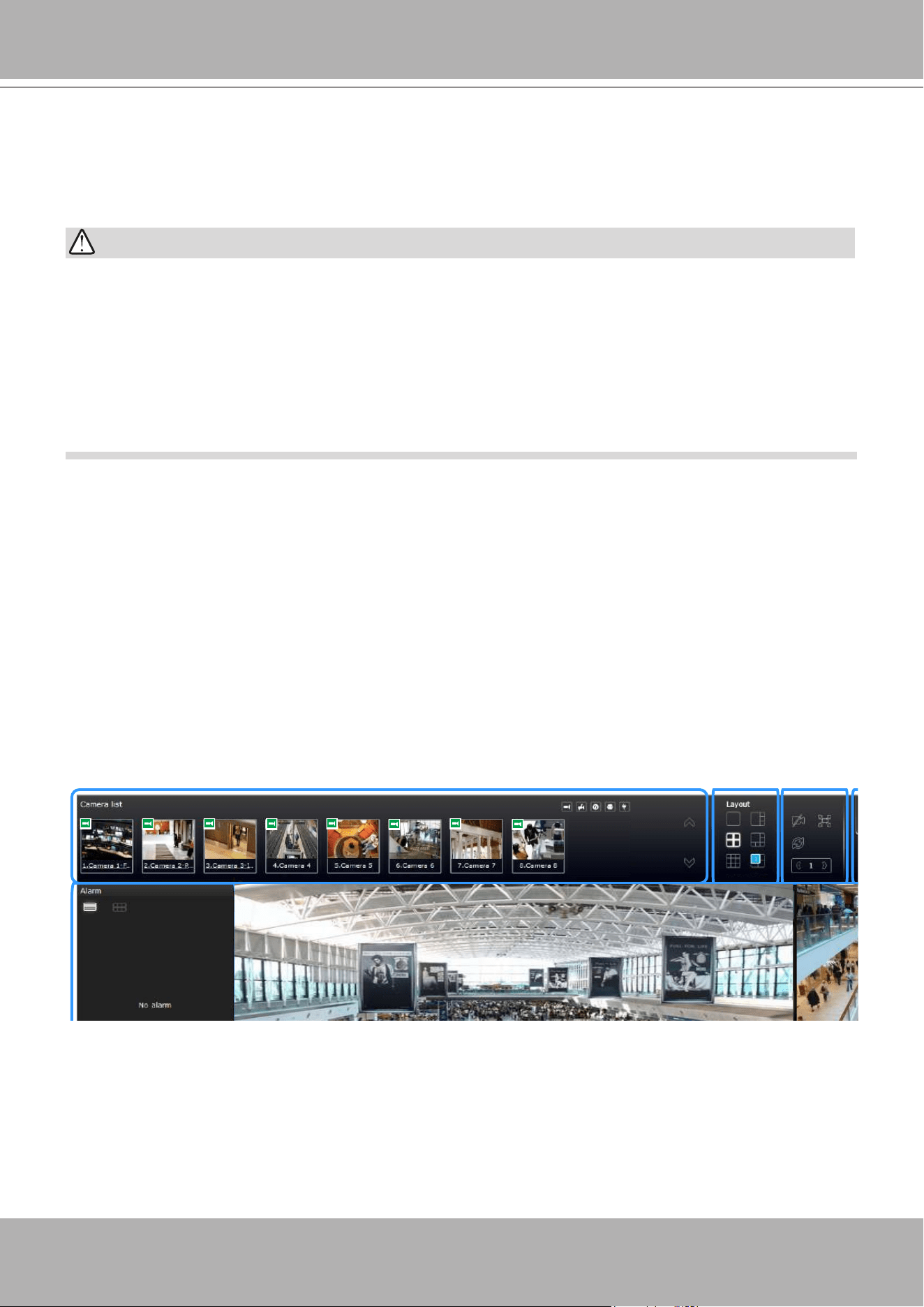
VIVOTEK - Built with Reliability
User's Manual - 151
Chapter Six Operation
6-1. Liveview
Legends and denitions of icons on the layout panel have been described on page 63.
6-1-1. Placing Cameras into the Layout
It is presumed that you have properly inserted all network cameras in your deployment as
previously described on page 63. All 8 cameras should be listed on the Camera list.
Camera list
Layout
Layout
contents
1. Before operating the NVR, make sure you have properly installed hard drives and congured
the storage volumes. Otherwise, you will not be able to operate most of the system's
functionality.
2. Since the NVR system comes with 32-bit plug-ins for screen control, if your PC runs a default
64-bit IE browser and you manually enter the NVR's address on the browser, your browser
session may malfunction. Instead, if you double-click on the discovered NVR on the IW2
utility, a 32-bit IE browser will open.
Note that layout design can only be performed by the system administrator.
IMPORTANT:
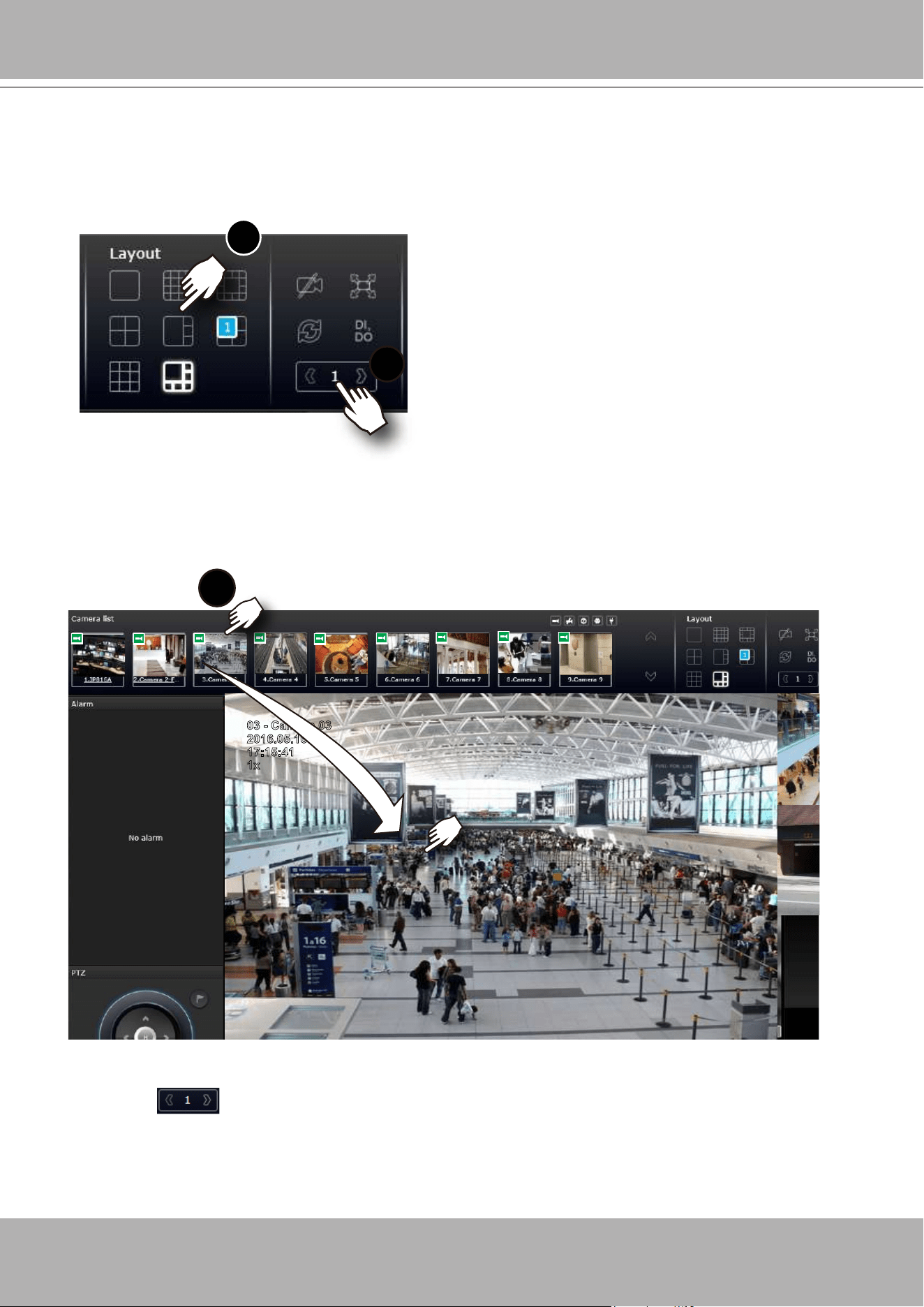
VIVOTEK - Built with Reliability
152 - User's Manual
2. Click and drag cameras from the Camera list to empty cells on your layout. Repeat the
action until you placed all your cameras into the layout. You may also double-click on a
camera's thumbnail to ll it into the rst unoccupied view cell.
To begin the design of your layout,
1
3
1. Select a layout pattern by a single click. The options are: 1x1, 2x2, 3x3, 4x4, 1P+3, 1M+5,
1M+12, and 1M+31, where 4x4 and 1M+12 are available for the 16-CH model.
Camera list
2
2016.05.16
03 - Camera 03
17:15:41
1x
3. When you lled up the current layout, e.g., 6 camera into the 1M+5 layout, click the page
switch button to continue on the next layout page.
4. On completion, click
Save
to preserve your setting.
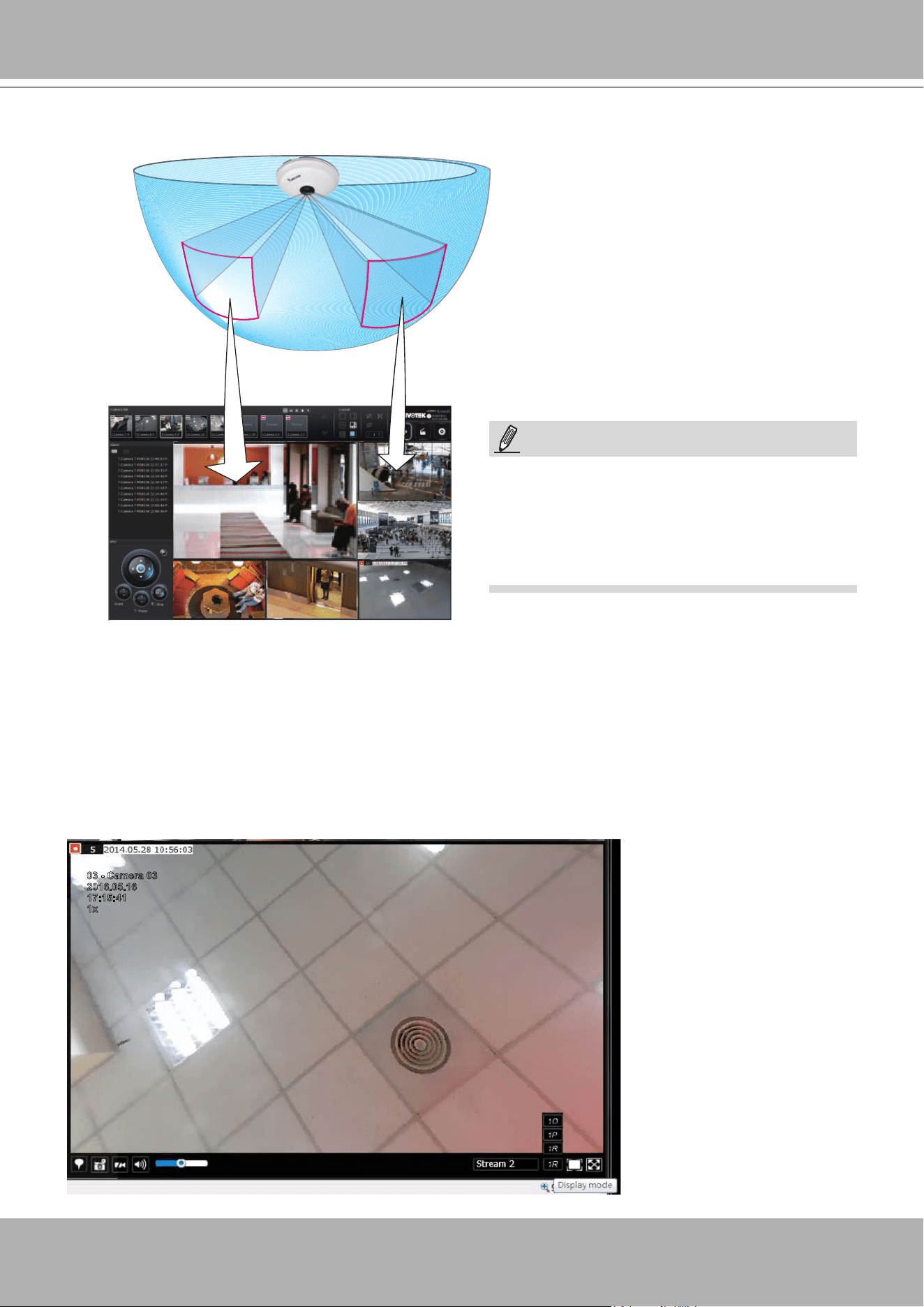
VIVOTEK - Built with Reliability
User's Manual - 153
2016.05.16
03 - Camera 03
17:15:41
1x
The sheye mode button is available on the view cell where you inserted a sheye camera.
When a regional view is displayed, the shooting angle and image orientation is kept with the
layout. See page 133 to see more about sheye viewing modes.
1R View
(Single Regional View)
Placing different regional views of a sheye camera into view cells will look like this:
In addition to sheye cameras, if a camera has a wide eld of view, you may also display its
different elds of view in multiple view cells. Some view cells may also contain a PiP view that is
digitally zoomed.
Only an administrator can alter the display
modes of sheye cameras. Although ordinary
users can make changes to a regional view,
his changes will not be preserved after a
console is re-started.
NOTE:
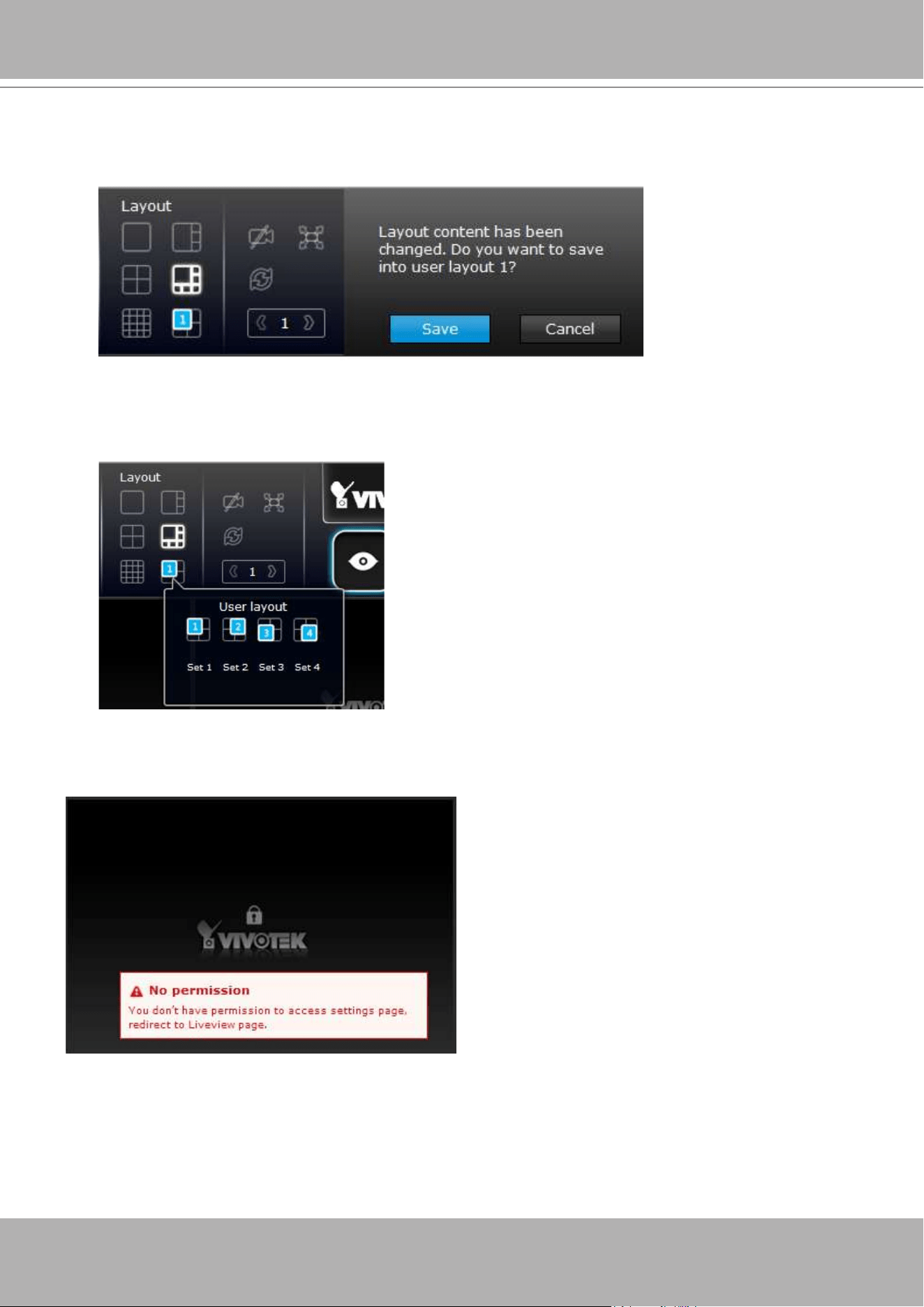
VIVOTEK - Built with Reliability
154 - User's Manual
4. When you are done with the current layout design, i.e., the user layout 1, click
Save
to
preserve your settings. This message prompts on the screen whenever any change is made
to the current layout.
5. You can create more user layouts by mouse-overing the user layout button. You may create
more user layouts for different purposes, such as for the use of different users, or playing
different views of a camera on multiple view cells.
If users were created and some cameras are excluded from their access, a user may log in and
see the locked-on cells as shown below:
A user who has limited access rights may still re-arrange the layout of view cells. However,
his conguration change will not be saved after he leaves the current console.
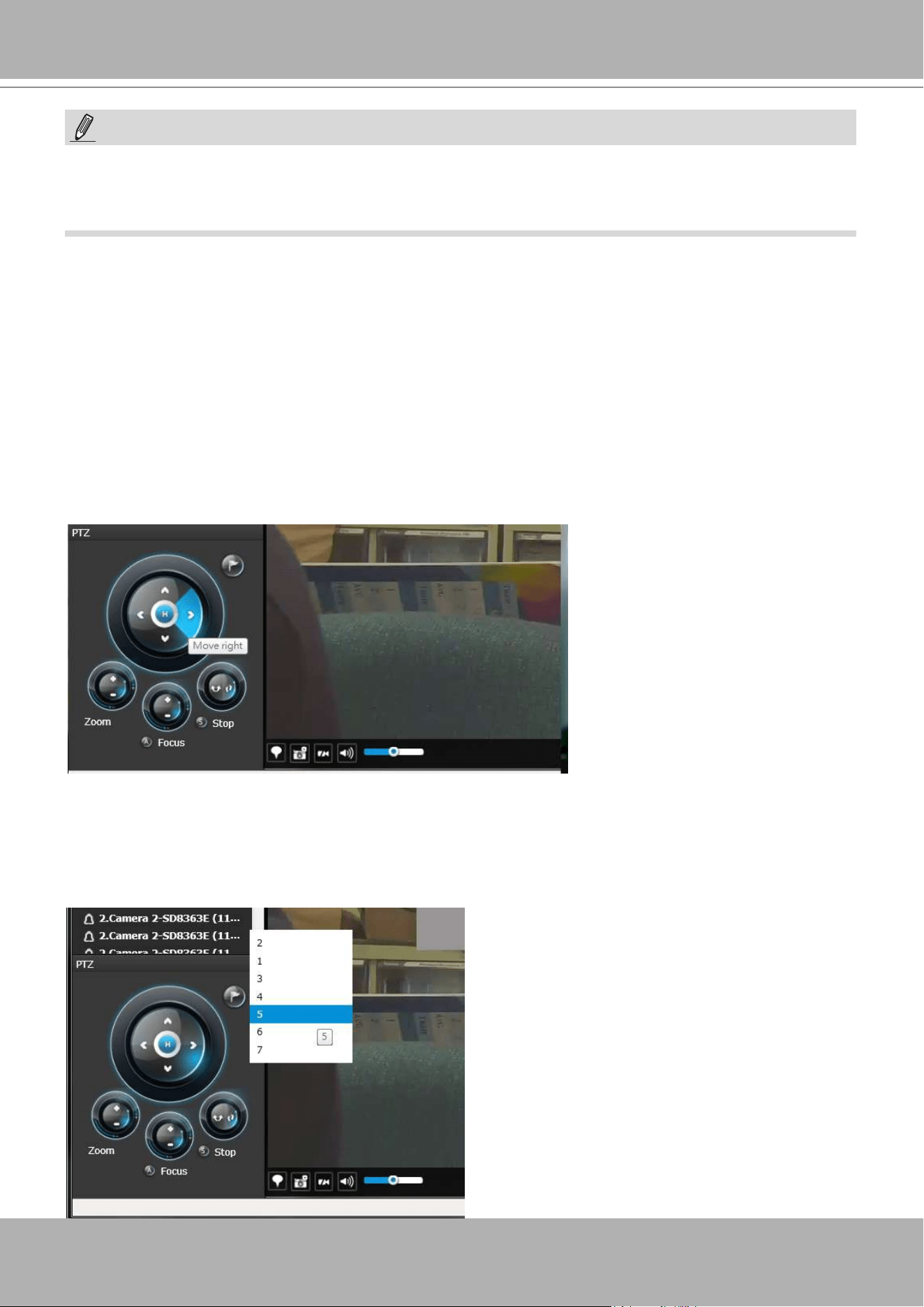
VIVOTEK - Built with Reliability
User's Manual - 155
Note that the PTZ control panel only applies when you select a view cell with a camera that
comes with mechanical PTZ functions. Currently the e-PTZ function is not supported by the
NVR system.
6-1-2. PTZ and Other Screen Controls
With a PTZ camera, the buttons on the PTZ panel become functional when you mouse over
its GUI elements. For all compatible cameras and exerting Zoom, Focus, and Patrol functions,
please refer to page 135 for details. The Zoom function, for example, requires a camera that
comes with a motorized zoom module, and may not be applicable to every PTZ camera.
The preset positions and the patrol functions require the associated conguration on the
cameras via a web console. Before you make use of these functions, you should set up
the preset positions on a web console with the camera. The NVR GUI does not provide the
conguration options with PTZ preset positions.
You can use
Preset
button to display preset
positions and tell the camera to move and
point at the preset direction, and to perform
a camera tour to visit these positions in a
consecutive order.
By default, every users or administrator logs in to the Live view window to the last layout page
he visited. The last layout page a user visited during the previous console becomes the default
layout.
NOTE:
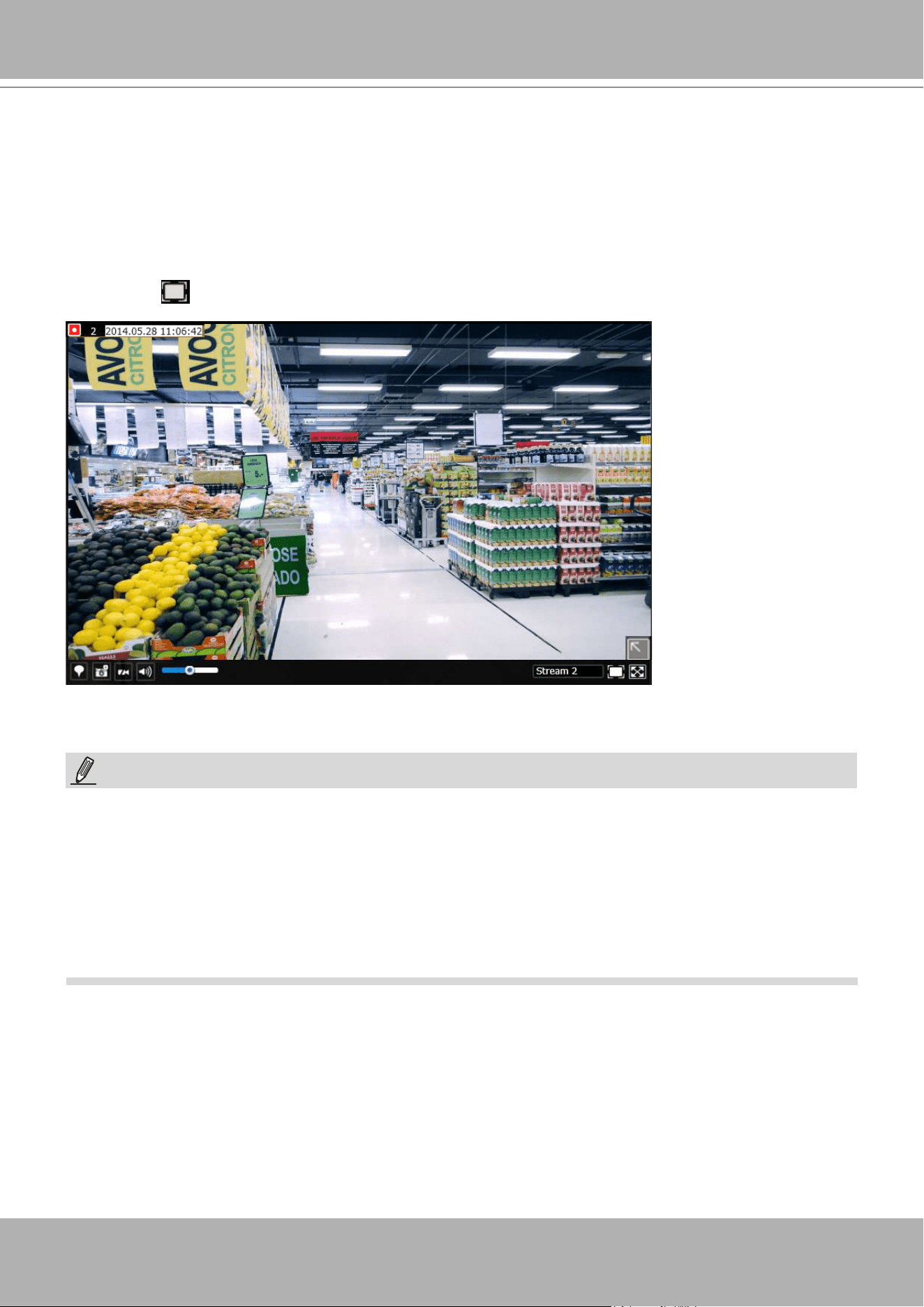
VIVOTEK - Built with Reliability
156 - User's Manual
To access live view control,
1.
Click
on a view cell. The view cell will become a focused view cell. The streaming control
buttons will be listed at the bottom of a view cell. These buttons have been discussed on
page 129.
2.
The 2nd click
on a view cell enlarges it to the full of the live view area.
The 3rd click
reduces its size to the original focused view.
3. To deselect a view cell, you can click on another view cell in the display area or click on the
Restore button.
A selected, focused,
view cell.
If you have concerns with the display quality and frame rate per second, refer to page 72 for
how to congure video feeds for live viewing as well as for video recording. The conguration
options can be found in
Settings
>
Camera
>
Video
.
Note that the constant bit rate methodology is applied in this system and it sets an upper
threshold on the size of IP packets sent with the video streams. Image quality will be slightly
compromised if reaching the ceiling of allowable bandwidth.
NOTE:
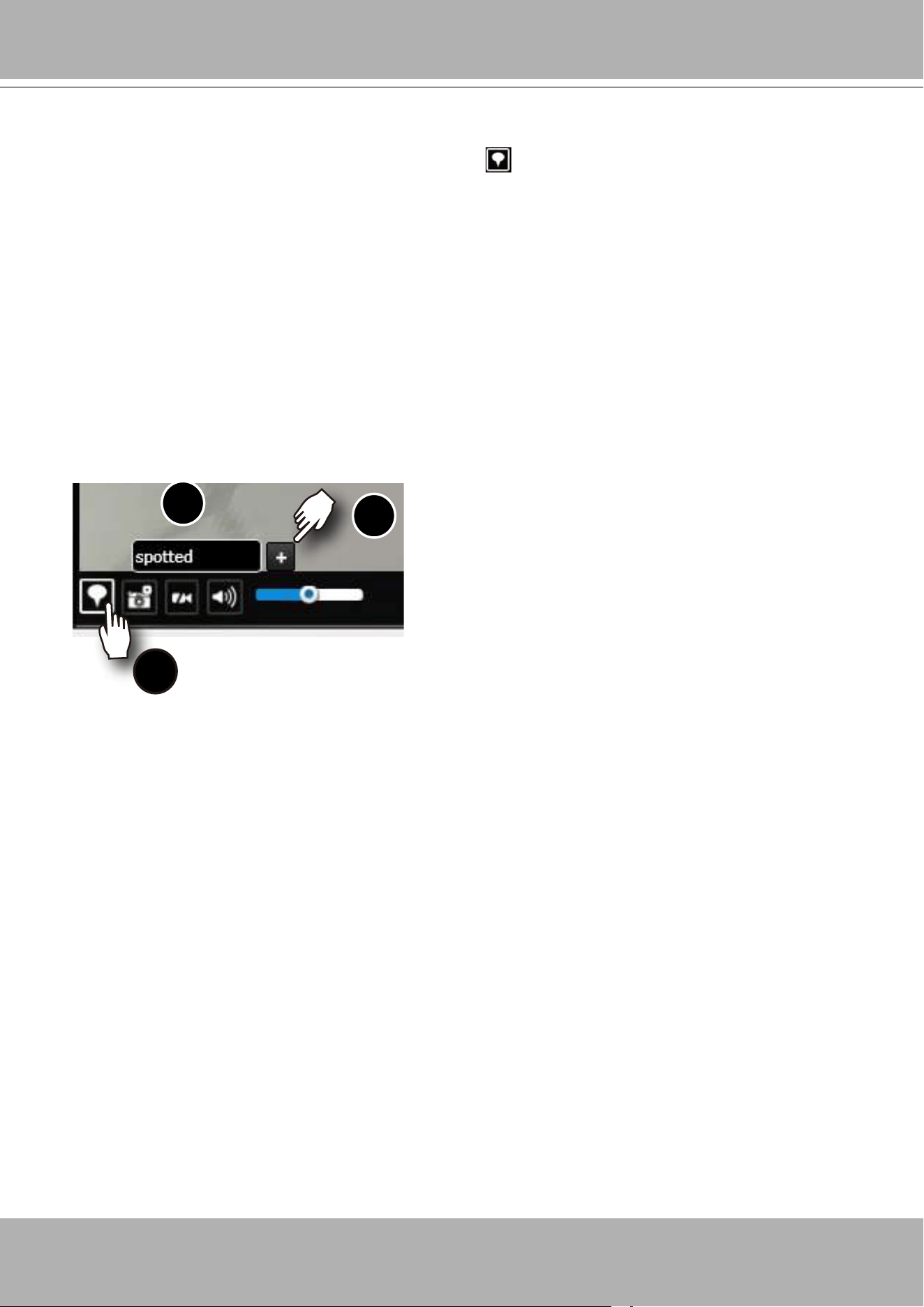
VIVOTEK - Built with Reliability
User's Manual - 157
The bookmark function can be executed on a live or recorded stream when you observe a
situation from your Live view or Playback window. The precondition of using this function is that
the video stream, while you are watching it on the view cell, must be recorded to the NVR at the
same time.
To add a bookmark,
1. Click on the button,
2. Enter a short description that can be as long as 120 characters.
3. Click on the + button or simply press Enter on your keyboard.
1
2
3
To place bookmarks and exert screen controls,
On a focused view cell, you can place a bookmark that saves a short description and a one-
minute footage from the current feed. The bookmark is also displayed along with the recorded
video, and therefore it is easier to look for a specic moment in time when you need to trace
back for a scenario later.
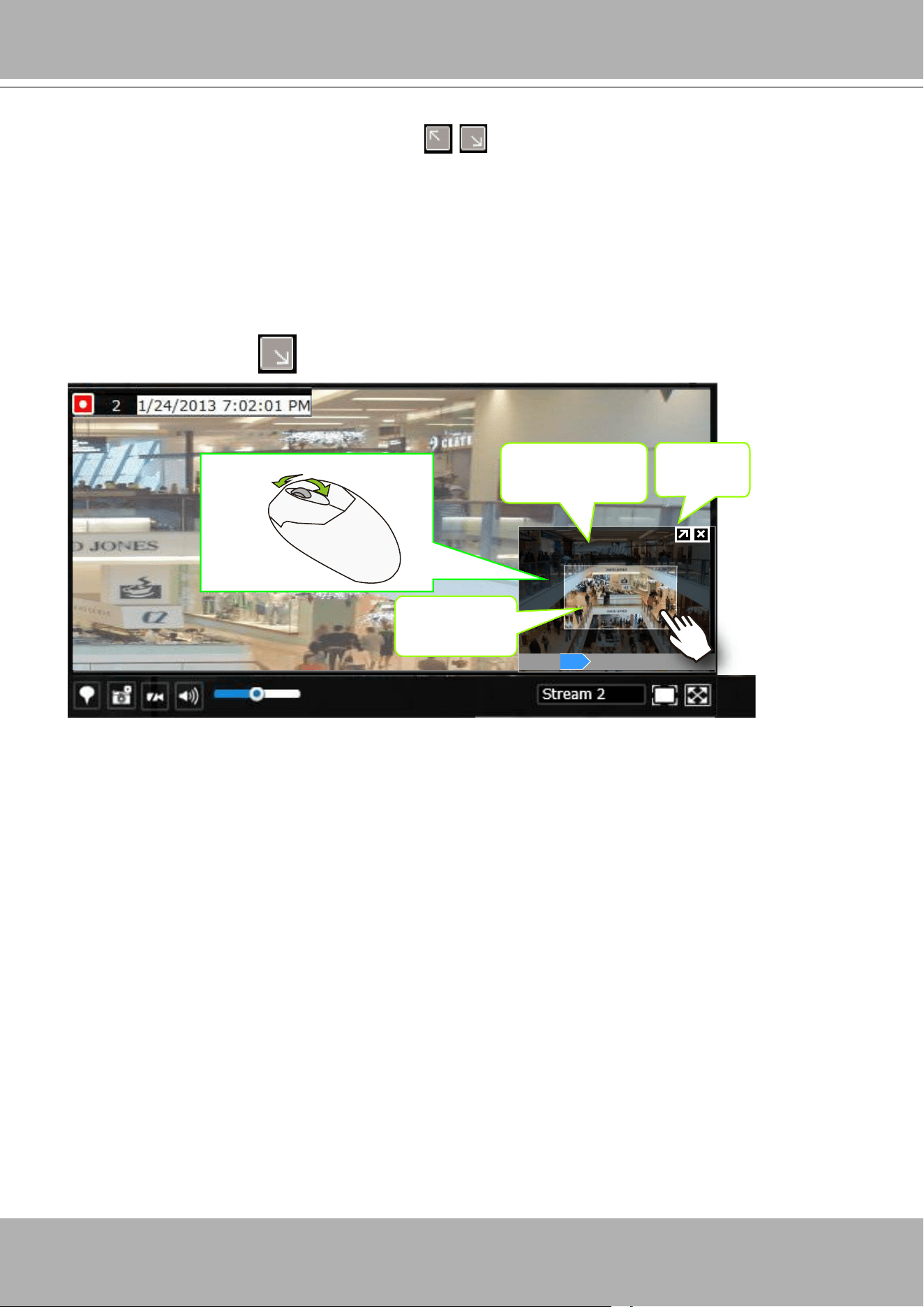
VIVOTEK - Built with Reliability
158 - User's Manual
To Activate and Deactivate PiP function,
PiP is short for Picture in Picture, a function that provides digital zoom into a live video.
When activated, a Global view window will appear at the lower right of the view cell as shown
below. You can display only a portion of the complete video frame as an area of your interest.
Using a click and drag on the ROI window, you can instantly move to other areas within the
video frame.
Global view
Zoom In Zoom Out
160%
ROI
Shrink/
Expand
Note that not every camera supports the PiP function. For example, PTZ cameras do not
support the PiP feature.
You can resize the ROI window by a mouse hover on the lower-right corner of the window until
the resize mark appears. The default size of the ROI window is 25% of the Global view.
Click on the deactivate button to close the PiP window.
Refer to page 129 for GUI legends and individual functionality.
Audio is only transmitted through the camera in a view cell that is currently selected. You can
manually tune the volume level, mute, or unmute the audio feed through a view cell.
6-1-3. Audio
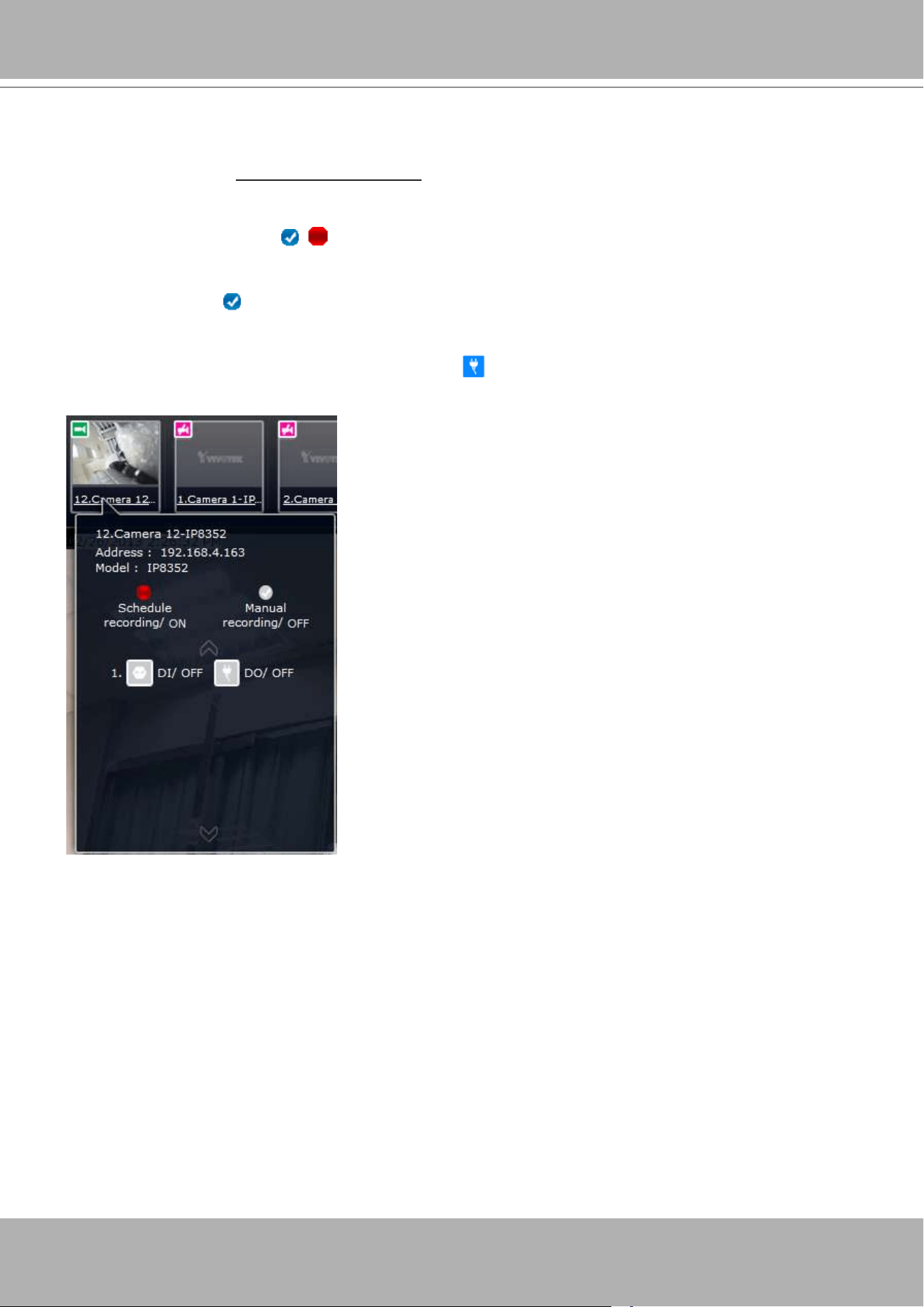
VIVOTEK - Built with Reliability
User's Manual - 159
You can click on the underlined name entry of a camera on the camera list to open its properties
window. Here you can nd a short description of the camera name, address, and model name.
You can also enable or disable the scheduled or continuous recording set for the camera. Click
on their associated icons, , , to change their recording status.
For a camera that is not performing a continuous recording, you can click on the Manual
Recording button, , to start a manual recording. The recording will stop using the same
button.
You can also manually turn on the digital output , e.g., to trigger an external alarm that is
connected to a specic camera.
6-1-4. Camera Properties and Controls
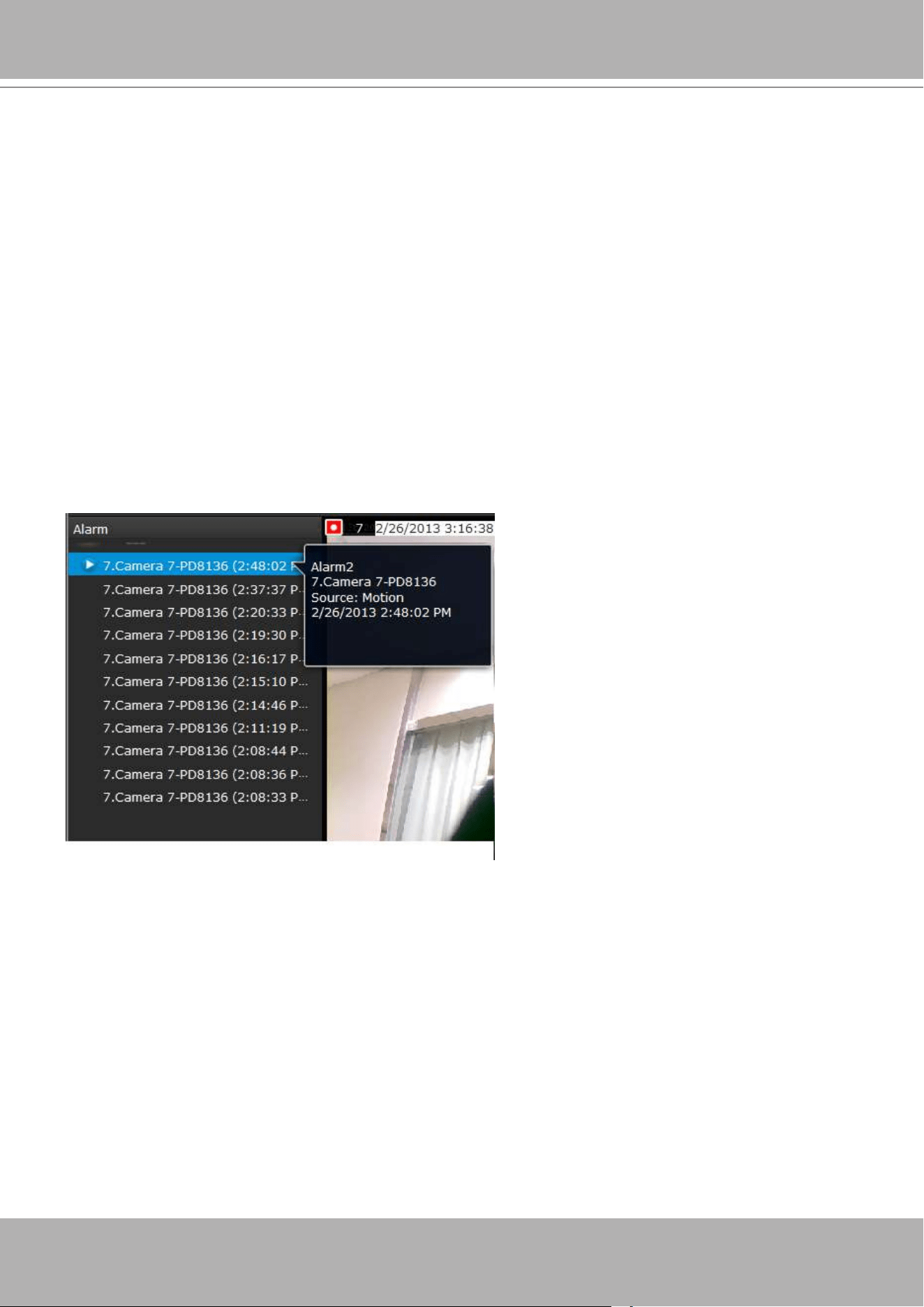
VIVOTEK - Built with Reliability
160 - User's Manual
To receive alarms from cameras, you need to congure alarm triggers in the
Settings
>
Alarm
conguration window (see page 82). Network cameras' digital inputs, digital outputs, or motion
detection can all be used to detect conditions in external environments. You can congure
certain kind of actions to take place in response to the alarms: such as,
1. recording the immediate image,
2. sending an Email notication,
3. sounding the onboard buzzer,
4, sending snapshots to an FTP server,
5. sending videos to a web server,
6. moving camera lens to a preset location,
7. triggering a camera's digital output.
The operation details of the
Alarm panel
and
Alarm Playback
utility have been described on
page 137.
6-1-5. Alarm Panel
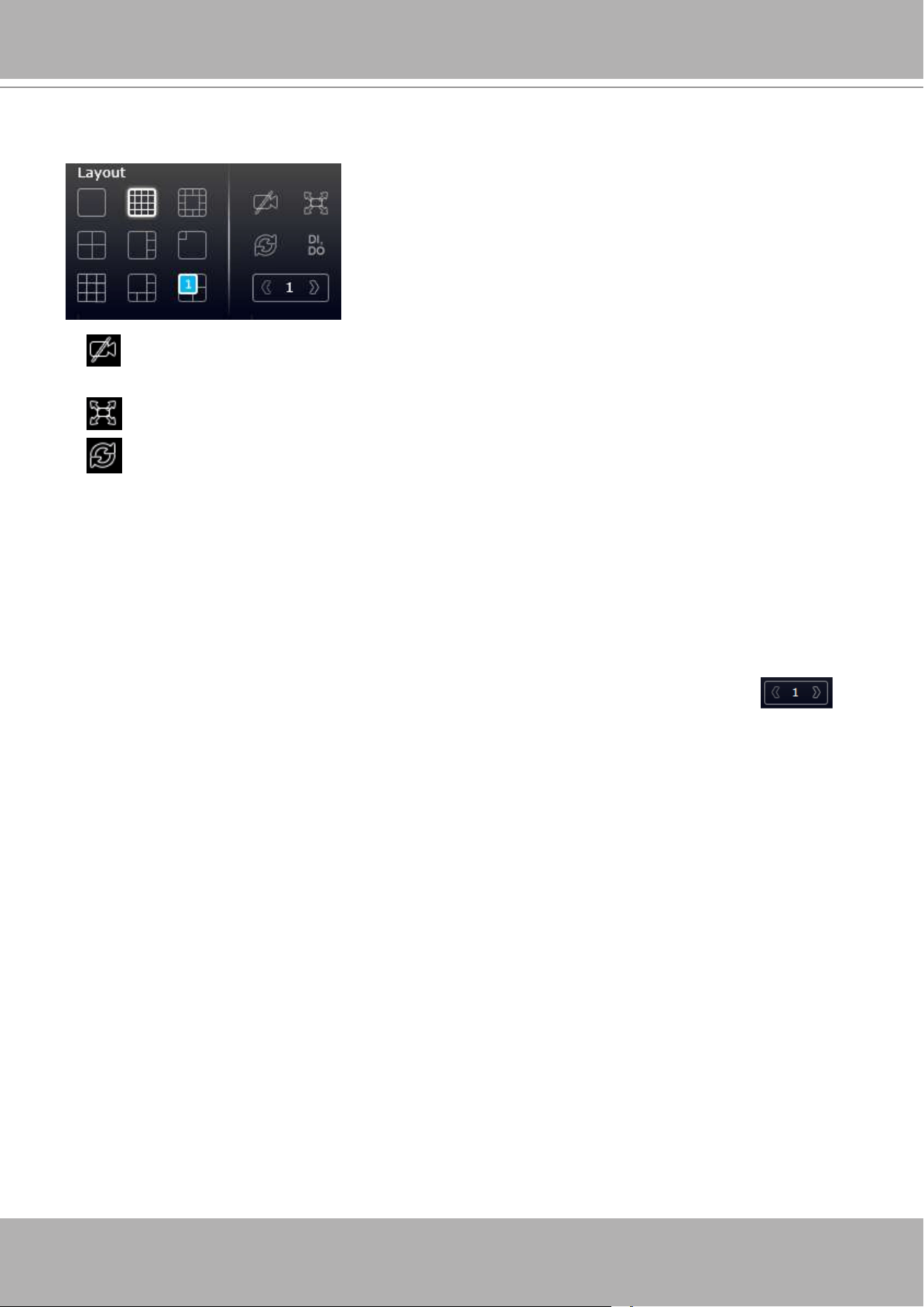
VIVOTEK - Built with Reliability
User's Manual - 161
6-1-6. Layout view Control Buttons
1. When editing a user layout, you can use this button to clear all view cells of inserted
cameras.
2. This button extends the current layout to the full of the screen.
3. The Rotate function lets system display successive pages in a user layout by the
intervals of
10
seconds. The layout page that does not contain camera views will be skipped.
A Rotate action will stop when you
1. move to another page in the user layout,
2. move to another user layout,
3. click to select a view cell,
4. remove a camera from view cell,
5. click to disable the rotation function.
When your current layout spans across multiple pages, use the arrow buttons to
switch from one page to another. The index number of the current page will be shown between
the arrow buttons.
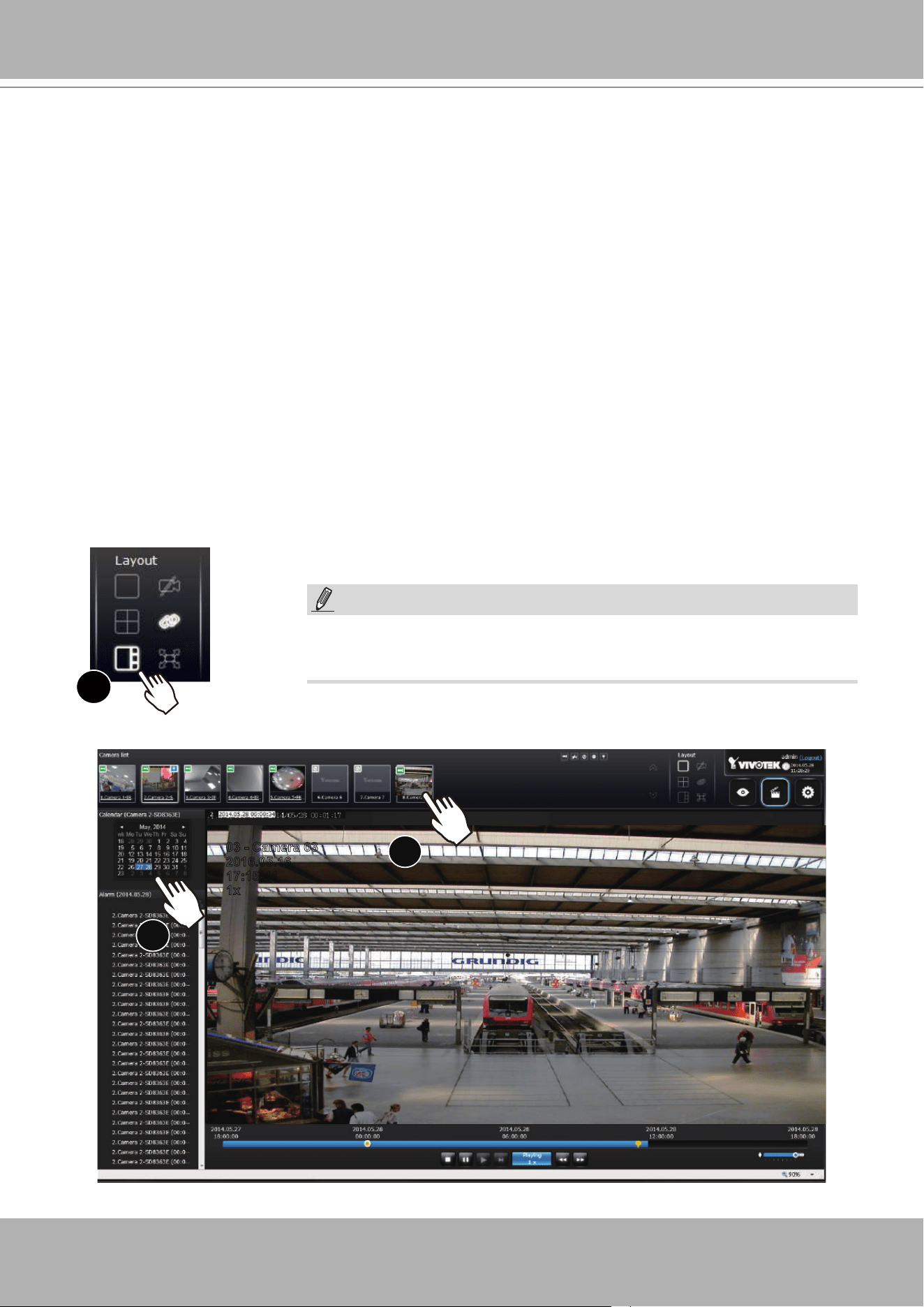
VIVOTEK - Built with Reliability
162 - User's Manual
6-2. Search Recording Clips
The elements in the Camera list on a
Search recording clips
window are similar to those on a
Liveview
window. Please refer to page 122 for details on the Camera list panel.
1. Select a layout. You can display the playback views of multiple cameras on one screen.
2. Double-click on a camera.
3. The
Calendar panel
will display the days video recording actually took place. And those days
will be highlighted by a blue background (as the 25th and 28th in the screen below.)
x2
2
3
2016.05.16
03 - Camera 03
17:15:41
1x
However, on a Search recording clips window,
1. You
cannot
click and drag a camera thumbnail to a playback view cell.
2. A double-click on a camera does not display video in a view cell. A double-click displays a
calendar
where days with recorded videos are shown.
6-2-1. Begin Playback and Search for Past Recordings
1
NOTE:
If a video stream was recorded in the
MPEG-4
format, it will not be
playable on the Playback window.
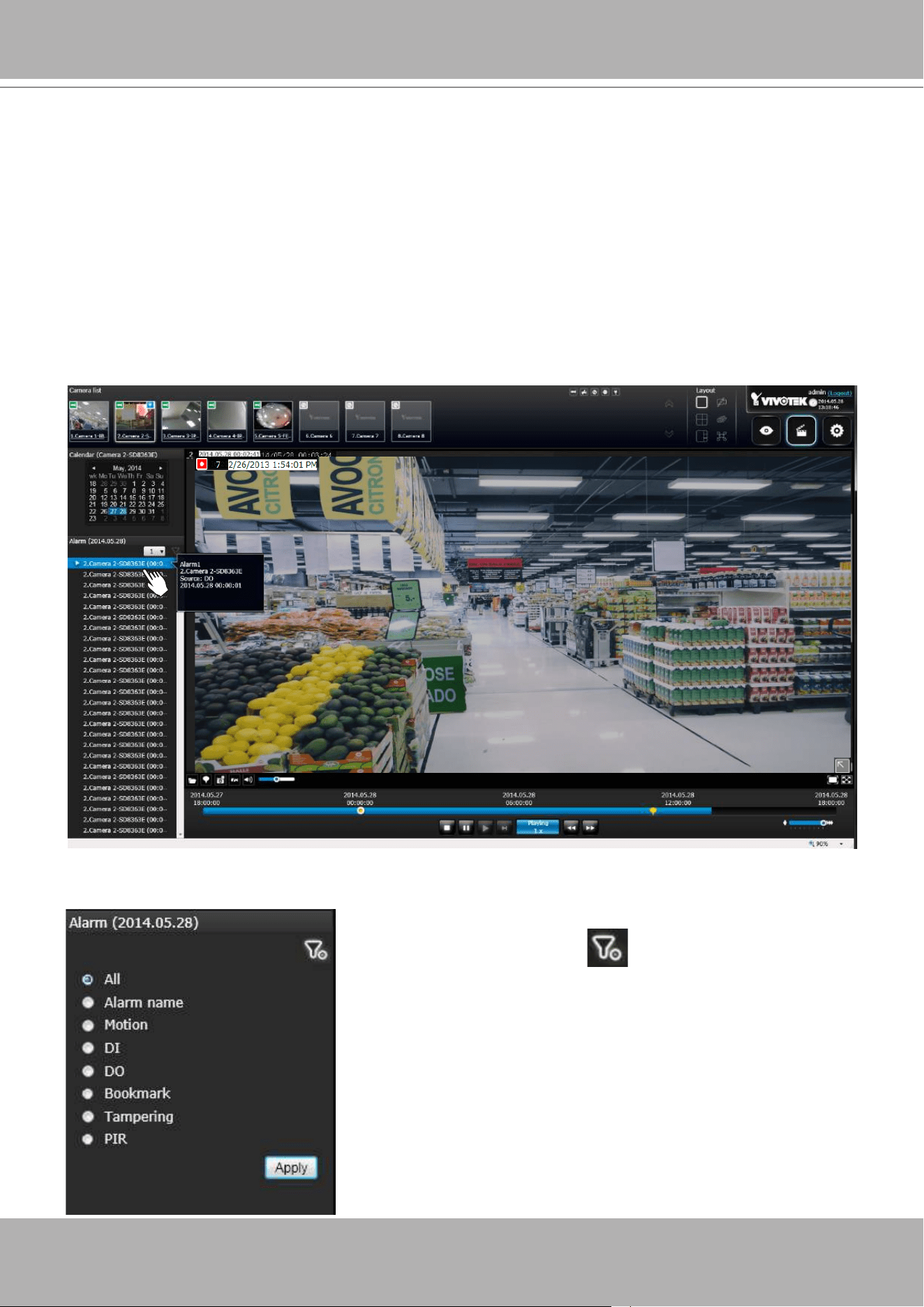
VIVOTEK - Built with Reliability
User's Manual - 163
When you selected a day when alarms took place on a camera, the alarms will be listed on
the Alarm panel. Up to 200 entries can be listed on a single page, and a max. of 1,000 entries
across multiple pages.
You may then,
1. Mouse over the alarm thumbnails and click on the play button. The Playback window will then
play back the video recorded by the time of the occurrence.
2. Unlike the
Alarm playback
function on the Liveview window, which only plays back the
related video for only one minute, the alarm playback will continue throughout the recording
of that day.
6-2-2. Past Alarms and Bookmarks
If you set up multiple triggering sources on a camera,
you can use the
Alarm lter
button to nd the alarms of
a specic type.
You can select the check circles to narrow down the types of
listed alarms using search criteria by
Alarm name
,
Motion
,
DI
,
DO
,
Bookmark, Tampering,
or
PIR
.
Note that if searching by the Alarm name, the search does
not apply to the camera model name that is automatically
appended to the description of an alarm. Only the name of an
alarm will apply in the search.
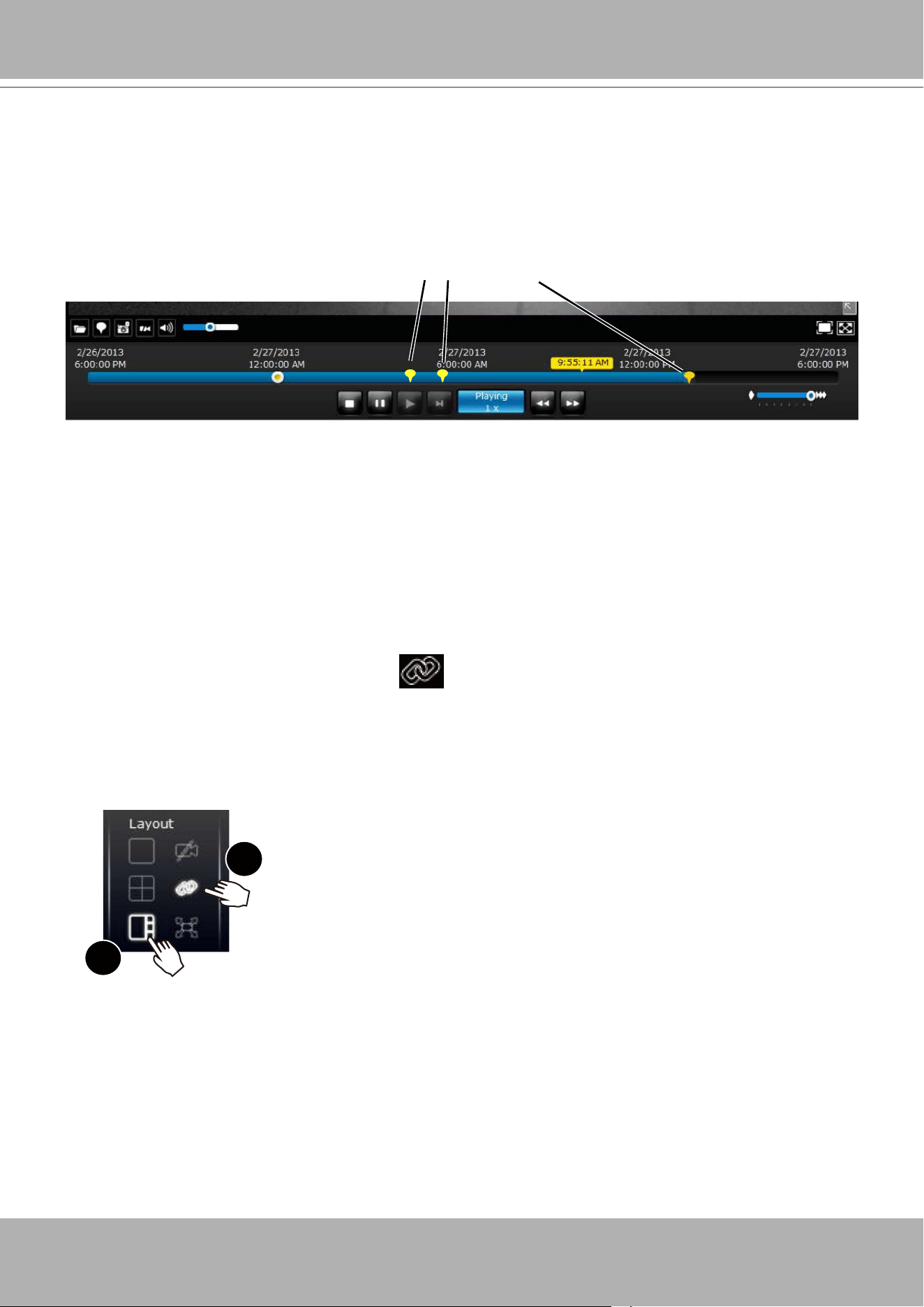
VIVOTEK - Built with Reliability
164 - User's Manual
Note that the bookmarks you inserted on the Liveview window will be listed on the Alarm panel,
and the bookmarks will also appear on the slide bar of the Playback window.
To retrieve or view the video clip tagged by the bookmark, click on it to play the video that was
recorded by the time bookmark was inserted.
Bookmarks
6-2-3. Synchronous Playback
The NVR supports synchronous playback, which allows you to review video clips from up to
4
cameras at the same time. These video clips will be retrieved simultaneously all playing for a
specic point in time.
To perform synchronous playback:
1. Select a layout from the Layout panel, e.g., a 2x2 layout.
2. Click on the
Synchronous playback
button.
3. Double-click to select a camera from the camera list. This camera becomes the Master
camera.
4. When the Calendar panel appears, click to select a date you prefer.
5. Click and drag other cameras from the camera list to the empty view cells. These cameras
will play back videos according to your operation on the Master camera.
1
2
Note the following when using the Synchronous playback:
1. Only the alarms triggered on the Master camera will be shown. In the Synchronous mode,
you can not nd the alarms or bookmarks generated for other cameras.
2. The playback speed, selection of video clips, and alarm playback of all cameras are made
synchronous.
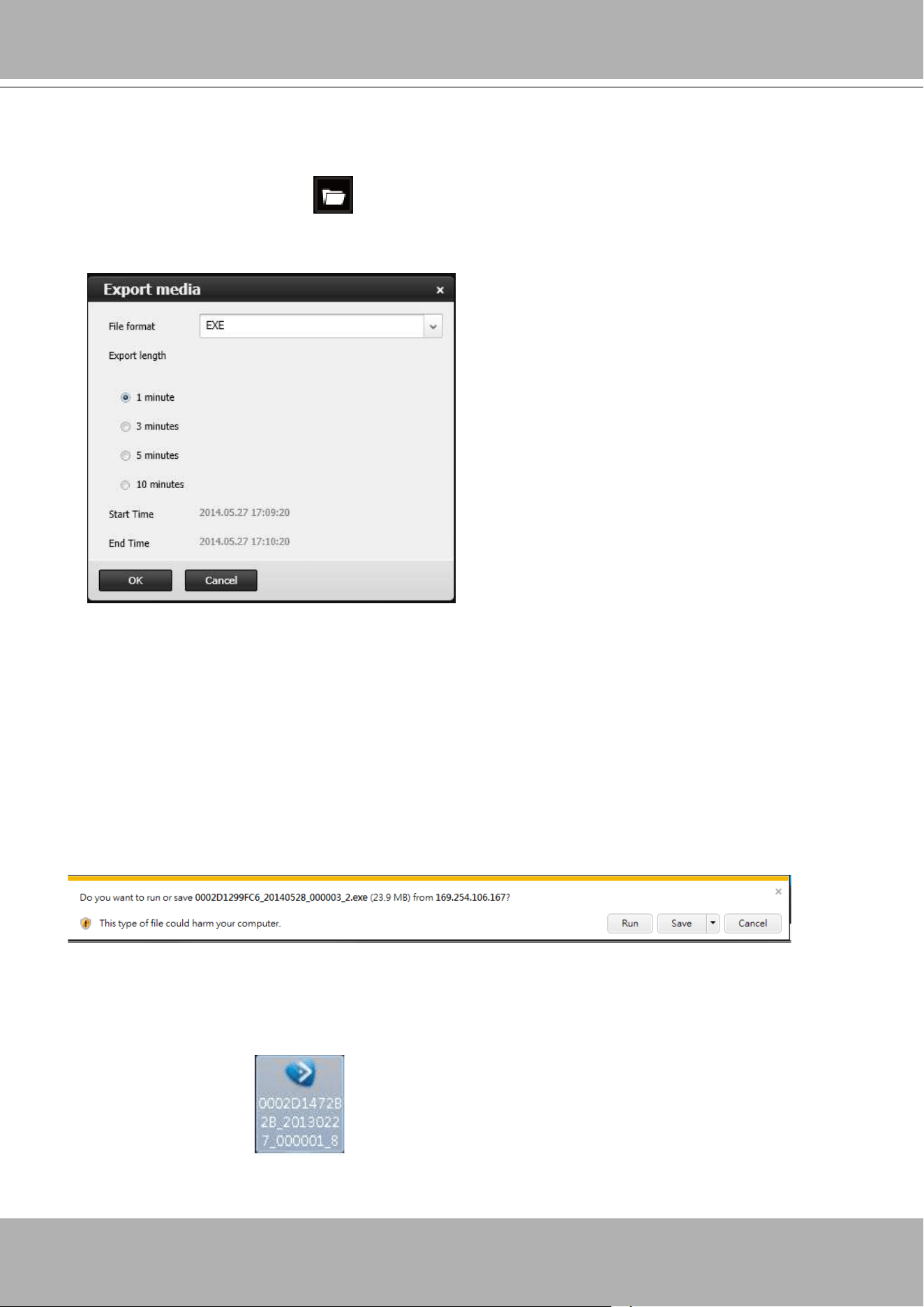
VIVOTEK - Built with Reliability
User's Manual - 165
6-2-4. Export media
To export video clips,
1. Click on the
Export media
button on the tool bar, while the Playback window is playing
a video section of your interest.
2. An Export media window will prompt.
3. Select the le format using the pull-down menu. An
EXE
le is an self-executable le playable
by an embedded Media Player. The 3GP format is a multimedia container format for 3G
UMTS services. These les can be played on QuickTime, RealPlayer, and VLC. The le
name will look like this: [MAC]_ [DATE]_[TIME]_ [CAMERA_INDEX].[3gp/exe].
4. Select an export length of video by 1, 3, 5, or 10 minutes. The actual length can be longer
due to the fact that the program needs to trace back to the previous I-frame for a complete
rendering of video frames into the media.
5. Click
OK
to proceed.
6. System will prompt you for the EXE le. Click
Save
to proceed.
7. The exported media le should be saved to the default download folder.
8. A self-executable EXE le should look like this.
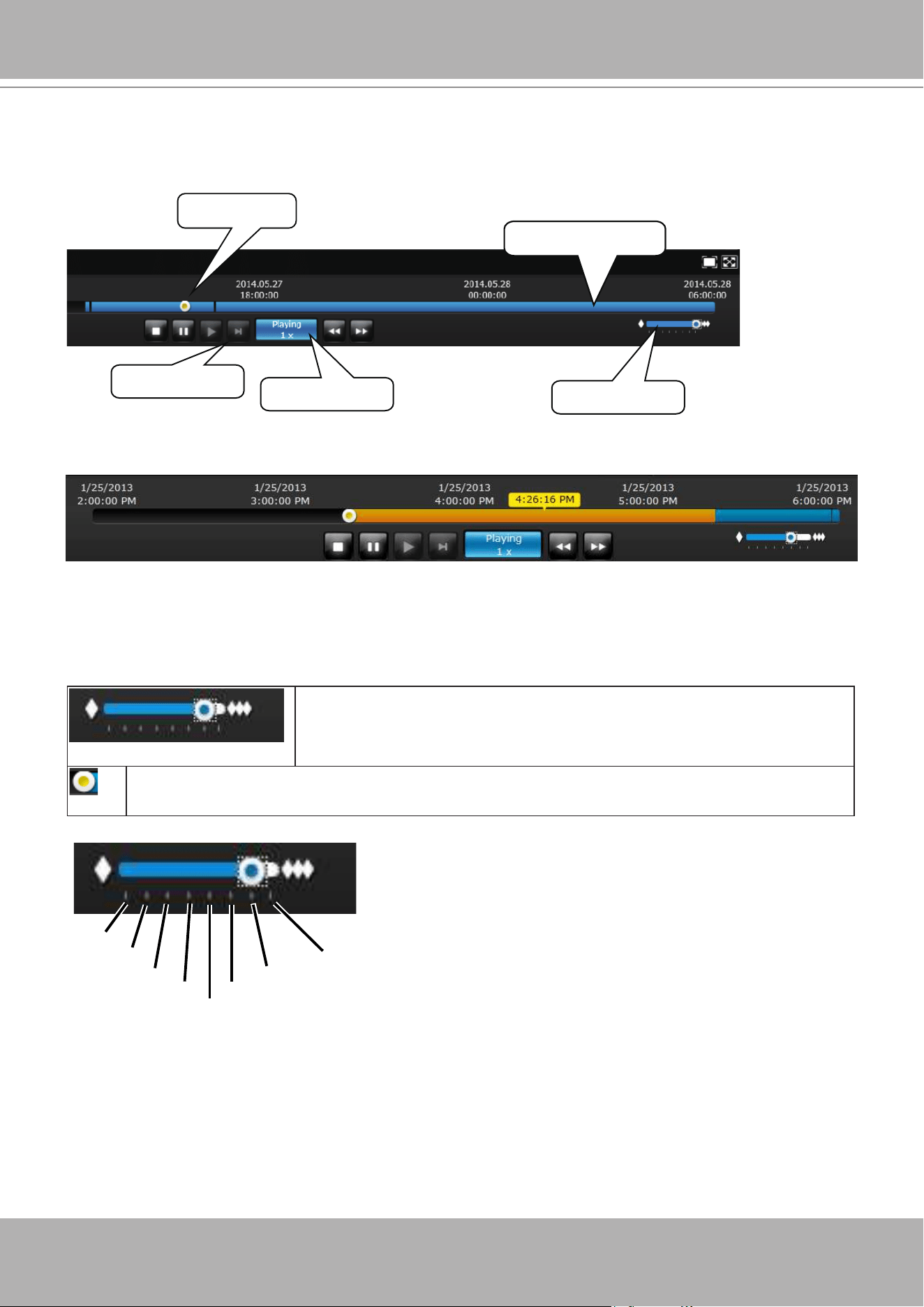
VIVOTEK - Built with Reliability
166 - User's Manual
6-2-5. Time Search
Use the time line slide bar to nd the nearest recording from a specic point in time.
Timeline slider
Timeline zoomer
Playback info
Control buttons
Span of existing
recording
If the need arises to more accurately pin-point the occurrence of an event, you can use the
Timeline zoomer and the slider thumb on the time line for a closer view into the existing
recording.
Timeline zoomer. Use the zoomer to zoom in for more precise
skimming.
Timeline slider thumb. Click and drag this thumb button to move along and reach a
specic point in time.
Details of the control bar in the Playback window can be found on page 145.
You can use the timeline zoomer to scale down the span of time. For example, if the time span
is reduced to 1 hour, then each section on the time line represents 15 minutes of recording. The
total time span on a timeline starts from the minimal of 4 minutes, 20 minutes, 40 minutes, 1
hour, and up to a maximum of 24 hours.
In the Synchronous play mode, a change to the zoomer will be reected by all synchronously
playing view cells.
24 hrs
12 hrs
4 hrs
2 hrs
1 hr
40 mins
20 mins
4 mins
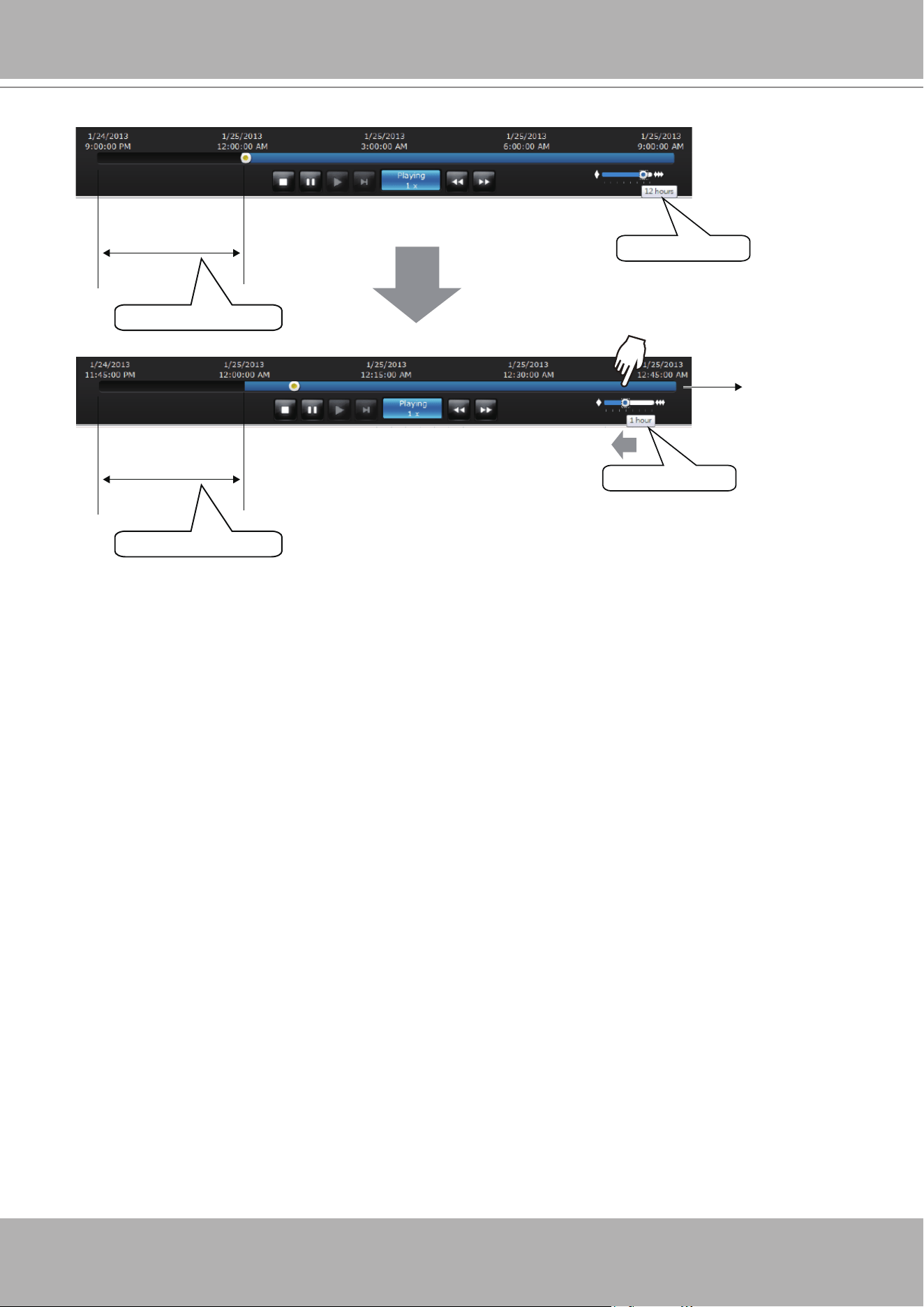
VIVOTEK - Built with Reliability
User's Manual - 167
Time span =12 hrs
Time span =1 hrs
Each section =15 mins
Each section =3 hrs
Total time span
If recordings take place by an event-triggered recording, the intervals between recordings can
be down to 1 minute, and the individual recordings will not be easily discernible. In this situation,
you can mouse over the timeline to pin-point individual recording instances.

VIVOTEK - Built with Reliability
168 - User's Manual
Technical Specications
Technical Specifications
Hardware Information
System
OS Embedded Linux
CPU ARM Processor
Flash 256 MB
RAM 2 GB 4 GB
Watchdog Hardware + Software
Power Restoration System Restart Automatically after Power Recovery
Storage
HDD Devices Internal x4
HDD Max. Capacity 6 TB x4
Disk Management
Create, Format and Remove Disk
HDD S.M.A.R.T
Video & Audio
Video Output HDMI x1, VGA x1
Resolution 1920x1080, 1280x720
Graphics Decoder Hardware decoding
Decoding Capacity
H.265/H.264:
2560x1920 @ 30 fps (1-CH)
1920x1080 @ 120 fps (4-CH)
1280x720 @ 240 fps (8-CH)
1280x720 @ 480 fps (16-CH)
H.265/H.264:
2560x1920 @ 30 fps (1-CH)
1920x1080 @ 120 fps (4-CH)
1280x720 @ 240 fps (8-CH)
1280x720 @ 480 fps (16-CH)
720x480 @ 960 fps (32-CH)
Camera Position Change the viewcell position on the Live View screens
External Interface
USB Interface
Front: 2 (USB 2.0)
Back: 1 (USB 3.0)
Alarm In 8
Alarm Out 4
Audio
3.5 Phone Jack Audio Output x1
3.5 Phone Jack Audio Input (Reserved) x1
RS485 1 Port (Reserved)
Network
Network Interface 10/100/1000Mbps Ethernet (RJ-45) x 2
Protocols IPv4, TCP/IP, HTTP, HTTPS, UPnP, RTSP/RTP/RTCP, SMTP, FTP, DHCP, NTP, DNS, DDNS, IP Filter
Power
Power Input DC 56V 2.5A
Power Consumption Max. 120 W
LED Indicator
LED Indicator Status, Record, HDD1, HDD2, HDD3, HDD4, Net1, Net2
Mechanic
Form Factor Desktop
Operation Buttons Power (Front) / Reset (Back)
Dimensions 430 (W) x 400 (D) x 44.5 (H) mm
Weight 3.87 kg (without HDD)
Operating Temperature 0°C ~ 40°C (32°F ~ 104°F)
Humidity 0 ~ 95%
General
Safety Certifications CE, LVD, FCC, VCCI, UL
Warranty 24 months
Client PC Requirements
Operating System Microsoft Windows OS: XP/Vista/7/8/2008/2012
CPU Intel Celeron or above
Memory 2 GB or above
Ethenet 10/100Mbps
Display Resolution 1024x768 pixels or above
Web Browser Internet Explorer 10 (32 bit) or above
Software AP Installation Wizard 2, ST7501, VAST
Mobile/Tablet App EZConnect (iOS/Android), iViewer (iOS/Android)
Accessories
CD User's Manual, Quick Installation Guide (QIG), Installation Wizard 2
Others Power Adapter, Power Cord, Quick Installation Guide, 32 x H.D.D. Screws, 8 x H.D.D. Brackets, 1 x USB Mouse, 4 x SATA Cables
Software Information
Record
Maximum Channel 16 32
Record Throughput (MB) 192 Mbps 192 Mbps
Network Throughput (MB) 96 Mbps
Audio Format G.711, G.726
Video Format MJPEG, H.264, H.265
Video Resolution VGA, 1MP, 2MP, 3MP, 5MP & 12MP Camera
Recording Time (sec.)
Pre-Record: 5 (Max. 10)
Post-Record: 20 (Max. 300)
Recording Stream Single
Recording Mode Continuous, Schedule, Manual, Event, Activity Adaptive Streaming
Recording Setting Recycle (unit: Day)
Recording Path Local Path
Record Video Format 3GP
LiveView (Local Display)
Stream Application Auto Adaptive Stream
LiveView Display
16 Channels
Multi Layout display:
1x1, 1x3 (Corridor View), 2x2, 3x3, 4x4, 1+5, 1+3, 1+12, 1+1+3 (1P),
1+3+3 (1P)
32 Channels
Multi Layout display:
1x1, 1x3 (Corridor View), 2x2, 3x3, 4x4, 1+5, 1+3, 1+12, 1+1+3 (1P),
1+3+3 (1P), 1+31
Model
ND9441
16-CH H.265 Embedded NVR
ND9541
32-CH H.265 Embedded NVR
Technical Specifications
Model
ND9441P
16-CH Embedded Plug & Play NVR
ND9541P
32-CH Embedded Plug & Play NVR
Hardware Information
System
OS Embedded Linux
CPU ARM Processor
Flash 256 MB
RAM 2 GB 4 GB
Watchdog Hardware + Software
Power Restoration System Restart Automatically after Power Recovery
Storage
HDD Devices Internal x4
HDD Max. Capacity 8 TB x4
Disk Management
Create, Format and Remove Disk
HDD S.M.A.R.T
RAID 0, 1, 5
Video & Audio
Video Output HDMI x1, VGA x1
Resolution 1920x1080, 1280x720
Graphics Decoder Hardware decoding
Decoding Capacity
H.265/H.264:
2560x1920 @ 30 fps (1-CH)
1920x1080 @ 120 fps (4-CH)
1280x720 @ 240 fps (8-CH)
1280x720 @ 480 fps (16-CH)
H.265/H.264:
2560x1920 @ 30 fps (1-CH)
1920x1080 @ 120 fps (4-CH)
1280x720 @ 240 fps (8-CH)
1280x720 @ 480 fps (16-CH)
720x480 @ 960 fps (32-CH)
Camera Position Change the viewcell position on the Live View screens
External Interface
USB Interface
Front: 2 (USB 2.0)
Back: 1 (USB 3.0)
Alarm In 8
Alarm Out 4
Audio
3.5 Phone Jack Audio Output x1
3.5 Phone Jack Audio Input (Reserved) x1
External HDD USB 3.0 Port x 1
RS485 1 Port (Reserved)
Network
Network Interface 10/100/1000Mbps Ethernet (RJ-45) x 2
PoE 16x 802.3at/af Compliant PoE Ports (Total Max. 160W)
Protocols IPv4, TCP/IP, HTTP, HTTPS, UPnP, RTSP/RTP/RTCP, SMTP, FTP, DHCP, NTP, DNS, DDNS, IP Filter
Power
Power Input 100-240V AC, 50/60Hz
Power Consumption Max. 260 W
LED Indicator
LED Indicator Status, Record, HDD1, HDD2, HDD3, HDD4, Net1, Net2, CH1 ~ CH16
Mechanic
Form Factor Desktop
Operation Buttons Reset (Back)
Dimensions 430 (W) x 400 (D) x 44.5 (H) mm
Weight 4.5 kg (without HDD)
Operating Temperature 0°C ~ 40°C (32°F ~ 104°F)
Humidity 0 ~ 95%
General
Safety Certifications CE, LVD, FCC, VCCI, C-Tick, UL
Warranty 24 months
Client PC Requirements
Operating System Microsoft Windows OS: XP/Vista/7/8/2008/2012
CPU Intel Celeron or above

VIVOTEK - Built with Reliability
User's Manual - 169
Technical Specifications
Model
ND9441P
16-CH Embedded Plug & Play NVR
ND9541P
32-CH Embedded Plug & Play NVR
Hardware Information
System
OS Embedded Linux
CPU ARM Processor
Flash 256 MB
RAM 2 GB 4 GB
Watchdog Hardware + Software
Power Restoration System Restart Automatically after Power Recovery
Storage
HDD Devices Internal x4
HDD Max. Capacity 8 TB x4
Disk Management
Create, Format and Remove Disk
HDD S.M.A.R.T
RAID 0, 1, 5
Video & Audio
Video Output HDMI x1, VGA x1
Resolution 1920x1080, 1280x720
Graphics Decoder Hardware decoding
Decoding Capacity
H.265/H.264:
2560x1920 @ 30 fps (1-CH)
1920x1080 @ 120 fps (4-CH)
1280x720 @ 240 fps (8-CH)
1280x720 @ 480 fps (16-CH)
H.265/H.264:
2560x1920 @ 30 fps (1-CH)
1920x1080 @ 120 fps (4-CH)
1280x720 @ 240 fps (8-CH)
1280x720 @ 480 fps (16-CH)
720x480 @ 960 fps (32-CH)
Camera Position Change the viewcell position on the Live View screens
External Interface
USB Interface
Front: 2 (USB 2.0)
Back: 1 (USB 3.0)
Alarm In 8
Alarm Out 4
Audio
3.5 Phone Jack Audio Output x1
3.5 Phone Jack Audio Input (Reserved) x1
External HDD USB 3.0 Port x 1
RS485 1 Port (Reserved)
Network
Network Interface 10/100/1000Mbps Ethernet (RJ-45) x 2
PoE 16x 802.3at/af Compliant PoE Ports (Total Max. 160W)
Protocols IPv4, TCP/IP, HTTP, HTTPS, UPnP, RTSP/RTP/RTCP, SMTP, FTP, DHCP, NTP, DNS, DDNS, IP Filter
Power
Power Input 100-240V AC, 50/60Hz
Power Consumption Max. 260 W
LED Indicator
LED Indicator Status, Record, HDD1, HDD2, HDD3, HDD4, Net1, Net2, CH1 ~ CH16
Mechanic
Form Factor Desktop
Operation Buttons Reset (Back)
Dimensions 430 (W) x 400 (D) x 44.5 (H) mm
Weight 4.5 kg (without HDD)
Operating Temperature 0°C ~ 40°C (32°F ~ 104°F)
Humidity 0 ~ 95%
General
Safety Certifications CE, LVD, FCC, VCCI, C-Tick, UL
Warranty 24 months
Client PC Requirements
Operating System Microsoft Windows OS: XP/Vista/7/8/2008/2012
CPU Intel Celeron or above
Technical Specifications
Model
ND9441P
16-CH Embedded Plug & Play NVR
ND9541P
32-CH Embedded Plug & Play NVR
Memory 2 GB or above
Ethenet 10/100Mbps
Display Resolution 1024x768 pixels or above
Web Browser Internet Explorer 10 (32 bit) or above
Software AP Installation Wizard 2, Shepherd, VAST
Mobile/Tablet App VIVOCloud (iOS/Android), iViewer (iOS/Android)
Accessories
CD User's Manual, Quick Installation Guide, Installation Wizard 2
Others
Power Adapter, Power Cord, Quick Installation Guide, 32x H.D.D. Screws, 8x H.D.D. Brackets, 1x
USB Mouse, 4x SATA Cables
Software Information
Record
Maximum Channel 16 32
Record Throughput (MB) 192 Mbps
Network Throughput (MB) 96 Mbps
Audio Format G.711, G.726
Video Format MJPEG, H.264, H.265
Video Resolution Up to 12MP Camera
Recording Time (sec.) Pre-Record: 5 (Max. 10) Post-Record: 20 (Max. 300)
Recording Stream Single
Recording Mode Continuous, Schedule, Manual, Event, Activity Adaptive Streaming
Recording Setting Recycle (unit: Day)
Recording Path Local Path
Record Video Format 3GP
LiveView (Local Display)
Stream Application Auto Adaptive Stream
LiveView Display
16 Channels
Multiple Layout Display:
1x1, 2x2, 3x3, 1P+3, 2P+3, 1M+5, 1P+6, 3V,
1M+12, 4x4
32 Channels
Multiple Layout Display:
1x1, 2x2, 3x3, 1P+3, 2P+3, 1M+5, 1P+6, 3V,
1M+12, 4x4, 1M+31
Monitor Enhancement
OSD Display (NVR), OSD Display (Camera), Camera Information, Remote I/O Control, Event
Notification, Aspect Ratio, Fisheye Dewarp (1O,1P,1R,1O3R, 1O8R)
PTZ Control Panel Control/joystick
PTZ Opera
tion Direction Control, Home, Iris, Preset, Patrol (Group), PiP Control
Playback (Local Display)
Playback Display
4 Channels
Multi Layout Display: 2x2, 1V+3, 1P+3
Playback Control
Regular (Play, Pause, Stop), Rewind, Next/Previous Frame, Speed Control, Calendar, Event,
Timeline, Timeline Scale, Thumbnail (Storyboard)
Video Search By Calendar, Date/Time, Alarm
Thumbnail Explorer (Storyboard) Listing the thumbnail of recorded video (Max. 2 CH)
Monitor Enhancement
OSD
Display (Camera), Event Notification, Aspect Ratio, PiP Control,
Fisheye Dewarp (1O,1P,1R,1O3R, 1O8R)
Snapshot JPEG
Video Clip Export EXE
LiveView (Remote)
Stream Application Stream Selection
Audio Capability One Way
LiveView Display
16 Channels
Multiple Layout Display: 1x1, 2x2, 3x3, 4x4,
1V+3, 1M+5, 1M+12
32 Channels
Multiple Layout Display: 1x1, 2x2, 3x3, 4x4,
1V+3, 1M+5, 1M+12, 1M+31
Monitor Enhancement
OSD Display (NVR), Drag & Drop, Image Freeze, Audio Control, Remote I/O Control, Event
Notification, Bookmark, Fisheye Dewarp (1O, 1P, 1R)
PTZ Control Panel Control
PTZ Operation Direction Control, Home, Zoom, Focus, Iris, Preset, Patrol (Group), PiP Control
Snapshot JPEG
Watermark Supported

VIVOTEK - Built with Reliability
170 - User's Manual
Technical Specifications
Model
ND9441P
16-CH Embedded Plug & Play NVR
ND9541P
32-CH Embedded Plug & Play NVR
Playback (Remote)
Playback Display
4 Channels
Multi Layout Display: 1x1, 2x2, 1V+3
Playback Control
Regular (Play, Pause, Stop), Next Frame, Speed Control, Calendar, Timeline, Timeline Scale,
Bookmark
Monitor Enhancement OSD Display (NVR), Drag & Drop, Audio Control, PiP Control, Fisheye Dewarp (1O, 1P, 1R)
Snapshot JPEG
Video Clip Export EXE
Alarm Management
Schedule Type Continuous, Schedule, Manual
Event
Motion Detection, PIR Detection, Tampering Detection, Digital Input (Camera), Digital Output
(Camera), Connection Abnormal, Storage Abnormal, Storage Full, Camera Network Loss, DI, DO
Action
Record, Email (Text), Email (Snapshot), FTP, Buzzer, ePTZ Control (Go to Preset), NVR DO,
Camera DO
Recording Time (sec.) Pre-Record: 5 (Max. 10), Post-Record: 20 (Max. 300)
Backup
Manual USB Dongle (FAT Format)
System
User Management
User Account: 16
User Account Time Limit: 10 mins
User Level: Administrator, Regular User
User Feature Definition: By Camera
Log System, Recording, User, Error
Date&Time Time Zone, Manual, Automatic Sync NTP, Daylight Saving Time
Firmware Manual update
Restore Default Supported
Backup/Restore (Configuration) Supported
Language
Czech, English, French, German, Italian, Japanese, Korean, Portuguese, Russian, Spanish,
Simplified Chinese, Traditional Chinese, Polish
Camera Intergration
Insert Camera Manual, Search
ONVIF Compliant Supported
Video (Media) Setting Compression, Resolution, FPS, Video Quality
Image Setting Image Display, Image Adjustment
PTZ Control Panel Control, Joystick
PTZ Operation Direction Control, Home, Preset, Patrol (Group)
Motion Detection Supported
Device Intergration
UPS APC Model Compatible
Joystick IPD-USB, AJ001
Dimensions
430 mm
400 mm
45 mm
All specifications are subject to change without notice. Copyright © VIVOTEK INC. All rights reserved. Ver. 2
6F, No.192, Lien-Cheng Rd., Chung-Ho, New Taipei City, 235, Taiwan, R.O.C. | T: +886-2-82455282 | F: +886-2-82455532 | E: sales@vivotek.com | W: www.vivotek.com
VIVOTEK - Built with Reliability
User's Manual - 171
Technical Specifications
Model
ND9441P
16-CH Embedded Plug & Play NVR
ND9541P
32-CH Embedded Plug & Play NVR
Playback (Remote)
Playback Display
4 Channels
Multi Layout Display: 1x1, 2x2, 1V+3
Playback Control
Regular (Play, Pause, Stop), Next Frame, Speed Control, Calendar, Timeline, Timeline Scale,
Bookmark
Monitor Enhancement OSD Display (NVR), Drag & Drop, Audio Control, PiP Control, Fisheye Dewarp (1O, 1P, 1R)
Snapshot JPEG
Video Clip Export EXE
Alarm Management
Schedule Type Continuous, Schedule, Manual
Event
Motion Detection, PIR Detection, Tampering Detection, Digital Input (Camera), Digital Output
(Camera), Connection Abnormal, Storage Abnormal, Storage Full, Camera Network Loss, DI, DO
Action
Record, Email (Text), Email (Snapshot), FTP, Buzzer, ePTZ Control (Go to Preset), NVR DO,
Camera DO
Recording Time (sec.) Pre-Record: 5 (Max. 10), Post-Record: 20 (Max. 300)
Backup
Manual USB Dongle (FAT Format)
System
User Management
User Account: 16
User Account Time Limit: 10 mins
User Level: Administrator, Regular User
User Feature Definition: By Camera
Log System, Recording, User, Error
Date&Time Time Zone, Manual, Automatic Sync NTP, Daylight Saving Time
Firmware Manual update
Restore Default Supported
Backup/Restore (Configuration) Supported
Language
Czech, English, French, German, Italian, Japanese, Korean, Portuguese, Russian, Spanish,
Simplified Chinese, Traditional Chinese, Polish
Camera Intergration
Insert Camera Manual, Search
ONVIF Compliant Supported
Video (Media) Setting Compression, Resolution, FPS, Video Quality
Image Setting Image Display, Image Adjustment
PTZ Control Panel Control, Joystick
PTZ Operation Direction Control, Home, Preset, Patrol (Group)
Motion Detection Supported
Device Intergration
UPS APC Model Compatible
Joystick IPD-USB, AJ001
Dimensions
430 mm
400 mm
45 mm
All specifications are subject to change without notice. Copyright © VIVOTEK INC. All rights reserved. Ver. 2
6F, No.192, Lien-Cheng Rd., Chung-Ho, New Taipei City, 235, Taiwan, R.O.C. | T: +886-2-82455282 | F: +886-2-82455532 | E: sales@vivotek.com | W: www.vivotek.com
Information on Disposal for Users of Waste Electrical & Electronic
Equipment (private households)
This symbol on the products and/or accompanying documents means that used
electrical and electronic products should not bemixed with general household
waste.
For proper treatment, recovery and recycling, please take these products to
designated collection points, where they will beaccepted on a free of charge
basis. Alternatively, in some countries you may be able to return your products to
your local retailerupon the purchase of an equivalent new product.
Disposing of this product correctly will help to save valuable resources and prevent
any potential negative effects on humanhealth and the environment which could
otherwise arise from inappropriate waste handling. Please contact your local
authorityfor further details of your nearest designated collection point.
Penalties may be applicable for incorrect disposal of this waste, in accordance with
national legislation.
For business users in the European Union
If you wish to discard electrical and electronic equipment, please contact your dealer
or supplier for further information.
Information on Disposal in other Countries outside the European Union
This symbol is only valid in the European Union.If you wish to discard this product,
please contact your local authorities or dealer and ask for the correct method of
disposal.
Safety and Compatibility
Federal Communications Commission (FCC) Statement
This Equipment has been tested and found to comply with the limits for a Class A
digital device, pursuant to Part 15 of the FCC rules. These limits are designed to
provide reasonable protection against harmful interference when the equipment is
operated in a commercial environment. This equipment generates, uses and can
radiate radio frequency energy and, if not installed and used in accordance with the
instructions, may cause harmful interference to radio communications. Operation of
this equipment in a residential area is likely to cause harmful interference in which
case the user will be required to correct the interference at his own expense.
Warning:
[A shielded-type power cord is required in order to meet FCC emission limits and also
to prevent interference to the nearby radio and television reception. It is essential that
only the supplied power cord be used. ]
[Use only shielded cables to connect I/O devices to this equipment.]
You are cautioned that changes or modications not expressly approved by the party
responsible for compliance could void your authority to operate the equipment.
[ ]: depend on EUT condition.
VIVOTEK - Built with Reliability
172 - User's Manual
Japan VCCI Class A statement
ACA (Australian Communications Authority)
CAUTION
RISK OF EXPLOSION IF BATTERY IS REPLACED
BY AN INCORRECT TYPE.
DISPOSE OF USED BATTERIES ACCORDING TO THE INSTRUCTIONS