
22
Table of Contents
Revision History ......................................................................................................................................4
Chapter 1: Hardware Installation and Initial Conguration ......................................................................6
Introduction ..............................................................................................................................................6
Special Features ............................................................................................................................................... 6
Safety ................................................................................................................................................................ 7
Installation Instructions ...........................................................................................................................8
Power Supply .................................................................................................................................................... 9
Environmental Specications ............................................................................................................................ 9
Grounding Requirements ................................................................................................................................ 10
Physical Description ............................................................................................................................11
Drive Bay Numbering Sequence......................................................................................................................11
Front View ........................................................................................................................................................11
Rear View ....................................................................................................................................................... 14
Display ............................................................................................................................................................ 15
Rack-mounting ......................................................................................................................................16
Installing Hard Disk Drives ....................................................................................................................20
Connecting Interfaces ...........................................................................................................................22
Initial Conguration ................................................................................................................................22
RAID Basics ..........................................................................................................................................37
Log in .....................................................................................................................................................63
Introducing VSS ....................................................................................................................................64
Installation Option - OpenVPN ..............................................................................................................66
Chapter 1 Basics: .................................................................................................................................69
Control and Elements ............................................................................................................................69
Hot Keys ..............................................................................................................................................82
View Cell Elements ...............................................................................................................................85
Server and Client Components .............................................................................................................88
Chapter 2: Starting Up ...............................................................................................................................90
2-1. Selecting Devices ...........................................................................................................................91
2-2. Recording Options .........................................................................................................................92
Seamless Recording ....................................................................................................................................... 96
Activity Adaptive Stream ................................................................................................................................. 98
Adding NAS (Network Attached Storage) as a Storage Option ...................................................................... 99
2-3. Storage .........................................................................................................................................102
2-4. Starting Up - Main Page ...............................................................................................................103
2-5. Saving a View ..............................................................................................................................106
2-6. Add More Live Views ....................................................................................................................107
2-7. Save Your Preferences ................................................................................................................108
2-8. Customizable Layout ....................................................................................................................110
2-9. Dashboard ....................................................................................................................................112
2-10. E-Map .........................................................................................................................................114
Placing DI/DO Devices ........................................................................................................................ 117
Conguring GIS or Google Map and GPS ..........................................................................................118

33
2-11. Event Search ..............................................................................................................................124
2-12. PTZ Control ................................................................................................................................127
2-13. Playback .....................................................................................................................................129
2-14. Alarm ..........................................................................................................................................137
Group Alarm .................................................................................................................................................. 151
2-15. Search Panel ..............................................................................................................................155
2-16. Smart search ..............................................................................................................................157
2-17. Tour ............................................................................................................................................167
2-18. Thumbnail search .......................................................................................................................169
2-19. Deep search ...............................................................................................................................171
Chapter 3: Applications: ..........................................................................................................................178
3-1. I/O DI/DO Devices ........................................................................................................................178
IO Box and Related Conguration ................................................................................................................ 178
Conguring I/O Box DI/DO as a Trigger or Action in Alarm .................................................................180
3-2. Conguring Redundant Servers - Failover ...................................................................................184
Failover Conguration Process ...........................................................................................................191
3-3. Counting Report ...........................................................................................................................195
3-4. VSS Software License .................................................................................................................208
Chapter 4: Settings ..................................................................................................................................216
4-1. Settings > System > Preferences .................................................................................................216
4-2. Settings > Device > Cameras ......................................................................................................225
Streaming URL ............................................................................................................................................. 226
4-3. Logical Folders .............................................................................................................................228
4-4. Settings > Recording > Recording Options ..................................................................................231
4-5. Settings > Recording > Backup ...................................................................................................233
Storage ................................................................................................................................................236
4-6. Settings > Device > Stations ........................................................................................................237
Multicasting .........................................................................................................................................240
4-7. Settings > Device > Local DB ......................................................................................................244
4-8. Settings > System > SMTP ..........................................................................................................248
4-9. Settings > IO Box and Related Conguration ..............................................................................248
4-10. Settings > User Management.....................................................................................................249
4-11. Settings > VIVOCloud ................................................................................................................254
Appendix A: VSS Service Control Tool ................................................................................................258
Appendix B: Fisheye Camera Dewarp Modes ....................................................................................259
Appendix C: Matrix ............................................................................................................................266
Appendix D: Joystick Support ...........................................................................................................271
Appendix E: Network Audio Solution .................................................................................................277
Appendix F: Upload Device Pack ......................................................................................................282
Appendix G: Using LPR Related Functions w/ Data Magnet ..............................................................284
Appendix H: Enable Smart Tracking for Speed Dome Cameras .........................................................300
Appendix I: Multi-factor Authentication for Access Control ..................................................................301

44
Revision History
Rev. 1.0: Initial release.
Rev. 1.1: Add updated content and x bugs
1. Do not format or initialize the
Disk 0: drive on your NVR. The Disk 0: drive contains the operating
system. Doing so will disable the system.
2. No storage system is completely fail-safe. Damage to data might occur due to le system corruption,
operating system malfunction, virus infection, HDD component failures, and so on. Therefore, it is
highly recommended to regularly back up your data, and VIVOTEK disclaims responsibilities of data
loss or recovery.
3. Always power o the system using the power down button on system desktop. Do not disconnect
the power cord while the system is still operating. Doing so will result in data inconsistencies. The
normal power-o procedure allows cached data to be written to disks.
WARNING:
Technology License Notice
Notices from HEVC Advance:
THIS PRODUCT IS SOLD WITH A LIMITED LICENSE AND IS AUTHORIZED TO BE USED ONLY IN
CONNECTION WITH HEVC CONTENT THAT MEETS EACH OF THE THREE FOLLOWING QUALIFICATIONS:
(1) HEVC CONTENT ONLY FOR PERSONAL USE; (2) HEVC CONTENT THAT IS NOT OFFERED FOR SALE;
AND (3) HEVC CONTENT THAT IS CREATED BY THE OWNER OF THE PRODUCT. THIS PRODUCT MAY
NOT BE USED IN CONNECTION WITH HEVC ENCODED CONTENT CREATED BY A THIRD PARTY, WHICH
THE USER HAS ORDERED OR PURCHASED FROM A THIRD PARTY, UNLESS THE USER IS SEPARATELY
GRANTED RIGHTS TO USE THE PRODUCT WITH SUCH CONTENT BY A LICENSED SELLER OF THE
CONTENT. YOUR USE OF THIS PRODUCT IN CONNECTION WITH HEVC ENCODED CONTENT IS DEEMED
ACCEPTANCE OF THE LIMITED AUTHORITY TO USE AS NOTED ABOVE.
セキュリティ基準(新規則第34条の10)
「本製品は 電気通信事業者(移動通信会社、固定通信会社、インターネットプロバイダ等)
の通信回線(公衆無線 LAN を含む )
に直接接続することができません。本製品をインターネットに接続する場合は、必ずルータ等
を経由し接続してください。」

55
Symbols and Statements in this Document
i
INFORMATION:
provides important messages or advices that might help prevent inconvenient
or problem situations.
NOTE
: Notices provide guidance or advices that are related to the functional integrity of the
machine.
Tips
: Tips are useful information that helps enhance or facilitae an installation, function, or
process.
WARNING!
or
IMPORTANT
: These statements indicate situations that can be dangerous or
hazardous to the machine or you.
Electrical Hazard
: This statement appears when high voltage electrical hazards might occur
to an operator.
Read Before Use
The use of surveillance devices may be prohibited by law in your country. The Network Camera
is not only a high-performance web-ready camera but can also be part of a exible surveillance
system. It is the user’s responsibility to ensure that the operation of such devices is legal before
installing this unit for its intended use.
It is important to first verify that all contents received are complete according to the Package
Contents listed below. Take note of the warnings in the Quick Installation Guide before the
Network Camera is installed; then carefully read and follow the instructions in the Installation
chapter to avoid damage due to faulty assembly and installation. This also ensures the product is
used properly as intended.
The Network Camera is a network device and its use should be straightforward for those who
have basic networking knowledge. It is designed for various applications including video sharing,
general security/surveillance, etc. The Configuration chapter suggests ways to best utilize the
Network Camera and ensure proper operations. For creative and professional developers, the
URL Commands of the Network Camera section serves as a helpful reference to customizing
existing homepages or integrating with the current web server.
Package Contents
■ NR9682-v3
■ Power cords
■ Mouse
■ Quick Installation Guide
■ Screws and slide rails
The operating system and management software are installed on a ash memory mounted on
the main board. Except for the plug-ins for onscreen display, there is no need to install software.
NOTE:

66
Chapter 1: Hardware Installation and Initial
Conguration
Introduction
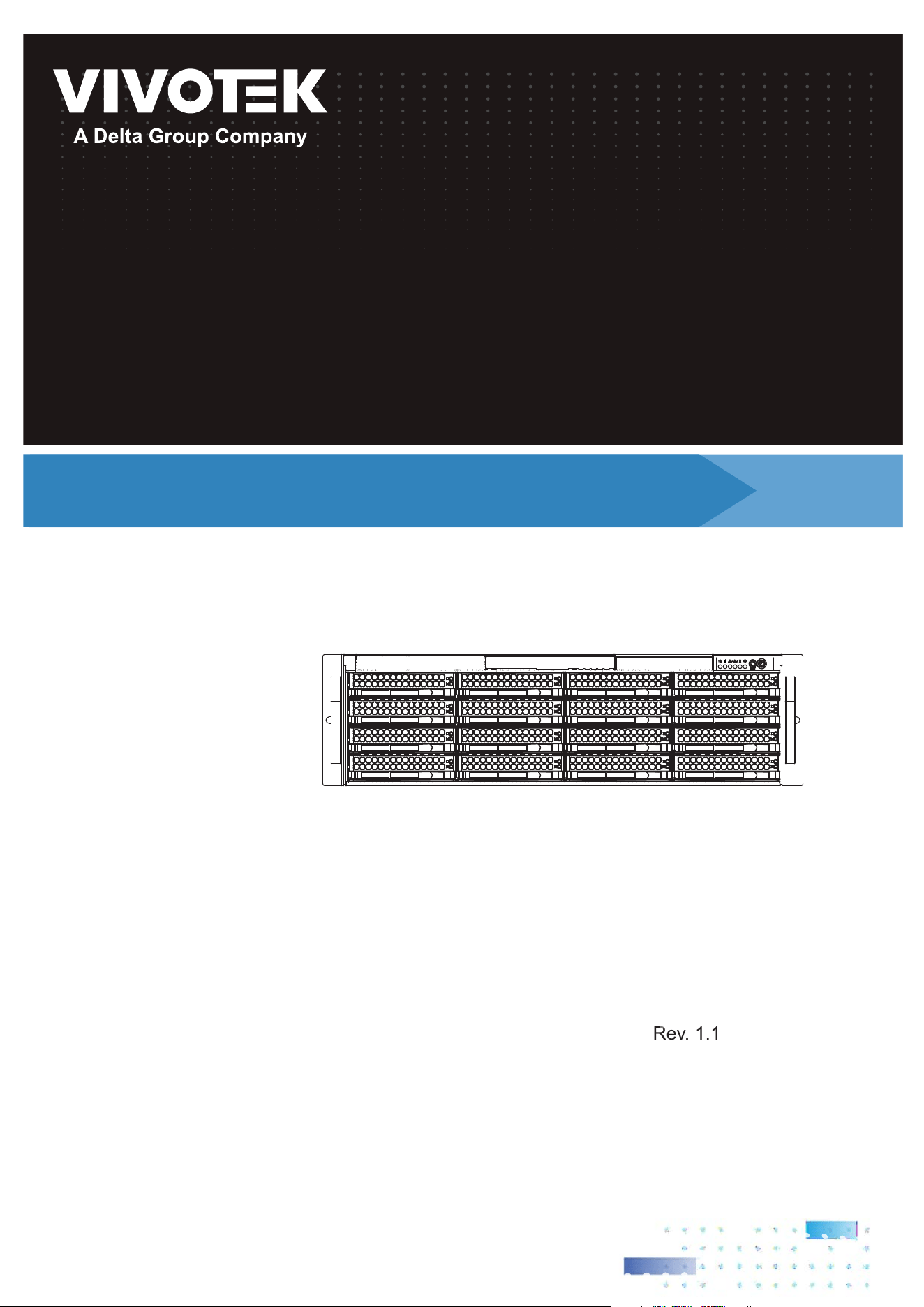
NR9682-v3 is the latest 64-channel (expandable up to 192-channel) H.265, RAID-protected
NVR from VIVOTEK, bringing stable and efcient system operation under a wide range of
recording/network management/system settings. The unit supports all VIVOTEK camera
models, including the latest 5-Megapixel and sheye cameras. The support for RAID 1/5/6/10
provides data security in the event of disk drive failure.
The unit is equipped with two 2.5 Gigabit Ethernet RJ45 ports which provide network failover
functionality to avoid the risk of recording loss. When one network line is disconnected, the
system will shift to the other network automatically, providing continuous access for video data.
Up to 16 HDDs can be installed in the NR9682-v3. The hot-swappable HDD trays are available
in the front of the unit, with hot-swap functionality for easy replacement.
A VSS CMS server runs on the machine that manages surveillance recording and playback.
The compatibility with the iViewer application allows for remote access to the NR9682-v3
on handheld devices. By integrating all of the components together using VIVOTEK’s NVR,
network cameras, VSS, and iViewer software, users can realize a fully-featured and robust next-
generation surveillance system. This ingenious NVR also features the remote management
capability with a full range of server/client structures and thus is capable for robust and diverse
applications.
Special Features
● Runs on embedded Windows
● 3U Rack Mount Design
● RAID 0, 1, 5, 6, 10, 50, 60 in virtual drive storage congurations
● 16 x HDD Tray.
● 2 x 2.5 Gigabit RJ45 Ethernet ports
● Back USB 2.0 x 2, USB 3.2 x 4
● Size: 132 (H) x 437 (W) x 647 (D) mm
● 192-CH Live View & 16-CH Synchronous Playback
● H.265/H.264/ MJPEG
● PTZ Support
● Snapshot / Export Media
● PiP Video Control
● Bookmark Design
● Fast Conguration Backup / Restore
● Pre-installed VIVOTEK VSS Central Management Software*
● Full Integration with VIVOTEK Network Cameras
● VIVOTEK iViewer Support (iOS/Android)

77
Safety
1. Ensure that all maintenance and repair work is handled by qualied personnel such as
electrical engineers or network specialists.
2. Read these safety instructions carefully.
3. Keep this User Manual for later reference.
4. Disconnect this equipment from any AC outlet before cleaning. Use a damp cloth. Do not use
liquid or spray detergents for cleaning.
5. For plug-in equipment, the power outlet socket must be located near the equip-ment and
must be easily accessible.
6. Keep this equipment away from humidity.
7. Put this equipment on a reliable surface during installation. Dropping it or letting it fall may
cause damage.
8. For rack-mount equipment, please rmly install the device with pallets or sliding rails in the
rack.
9. Do not leave this equipment in an environment unconditioned where the storage temperature
under 0° C (32° F) or above 40° C (104° F), it may damage the equipment.
10. The openings on the enclosure are for air convection. Protect the equipment from
overheating. DO NOT COVER THE OPENINGS.
11. Make sure the voltage of the power source is correct before connecting the equipment to the
power outlet.
12. Position the power cord so that people cannot step on it. Do not place anything over the
power cord.
13. All cautions and warnings on the equipment should be noted.
14. If the equipment is not used for a long time, disconnect it from the power source to avoid
damage by transient overvoltage.
15. Never pour any liquid into an opening. This may cause re or electrical shock.
16. Never open the equipment. For safety reasons, the equipment should be opened only by
qualied service personnel.
17. If one of the following situations arises, get the equipment checked by service personnel:
The power cord or plug is damaged.
Liquid has penetrated into the equipment.
The equipment has been exposed to moisture.
The equipment does not work well, or you cannot get it to work according to the user's
manual.
The equipment has been dropped and damaged.
The equipment has obvious signs of breakage.
18.
CAUTION
: The computer is provided with a battery-powered real-time clock circuit. There is
a danger of explosion if battery is incorrectly replaced. Replace only with same or equivalent
type recommended by the manufacturer. Discard used batteries according to the manufac-
turer’s instructions.
19. This device complies with Part 15 of the FCC rules. Operation is subject to the
following two conditions: (1) this device may not cause harmful interference, and (2)
this device must accept any interference received, including interferencethat may
cause undesired operation.

88
Installation Instructions
Warning:
Read the installation instructions before connecting the system to the power source.
Warning:
This product relies on the building’s installation for short-circuit (overcurrent) protection.
Ensure that the protective device is rated not greater than: 250V, 20 A.
Warning:
The system must be disconnected from all sources of power and the power cord.re-
moved from the power supply module(s) before accessing the chassis interior to install or
remove system components.
Warning:
Only trained and qualifiedpersonnel should be allowed to install, replace, or service this
equipment.
Warning:
This unit is intended for installation in restricted access areas. A restricted access area
can be accessed only through the use of a special tool, lock and key, or other means of
security. (This warning does not apply to workstations). The access can only be gained
by Skilled person or by Instructed person. Only authorized by well trained professional
person can access the restrict access location.
Warning:
There is the danger of explosion if the battery is replaced incorrectly. Replace the bat-
tery only with the same or equivalent type recommended by the manufacturer. Dispose of
used batteries according to the manufacturer’s instructions.
CAUTION:
This unit has redundant power sources. Please disconnect all the power cords before
servicing.
20. CAUTION: Always completely disconnect the power cord from your chassis whenever
you work with the hardware. Do not make connections while the power is on.
Sensitive electronic components can be damaged by sudden power surges.
21. CAUTION: Always ground yourself to remove any static charge before touching
the motherboard, backplane, or add-on cards. Modern electronic devices are very
sensitive to static electric charges. As a safety precaution, use a grounding wrist
strap at all times. Place all electronic components on a static-dissipative surface or in
a static-shielded bag when they are not in the chassis.
22. CAUTION: Any unveried component could cause unexpected damage. To ensure the
correct installation, please always use the components (e.g., screws) provided with
the accessory box.
Warning:
Do not alter the hardware configuration by installing, replacing, or upgrading hardware
components. Doing so will void our warranty.
99
Warning:
Hazardous voltage or energy is present on the backplane when the system is operating.
Use caution when servicing.
Warning:
Installation of the equipment must comply with local and national electrical codes.
Warning:
Ultimate disposal of this product should be handled according to all national laws and
regulations.
Warning:
The fans might still be turning when you remove the fan assembly from the chassis. Keep
fingers,screwdrivers, and other objects away from the openings in the fan assembly’s
housing.
Warning:
When installing the product, use the provided or designated connection cables, power
cables and AC adaptors. Using any other cables and adaptors could cause a malfunction
or a fire.Electrical Appliance and Material Safety Law prohibits the use of UL or CSA -cer-
tified cables (that have UL/CSA shown on the code) for any other electrical devices than
products designated by the manufacturer only.
Power Supply
Watt 920W max. (80+ Gold, PFC) (1+1 Redundant 2U)
Input rating 100 ~ 240 Vac ~ 8A-4A, 50-60Hz
Output voltage +12Vdc, 45.8A; +12Vsb, 2.1A, total output power: max. 550W
Minimum load +12V @ 0.5 A
Safety UL/TUV/CCC
Environmental Specications
Environment Operating
Temperature
5 ~ 35°C (41 ~95°F)
Humidity 5 ~ 95%
Safety CE, FCC, VCCI, C-Tick, UL, CB, BSMI, BIS
Some low quality Ethernet cables with smaller core diameter can seriously reduce the transmission
rate. Use CAT5e or CAT6 cables with a wire gauge of 24AWG for NVR’s uplink port. A thicker core 24
AWG network cable can oer less resistance than a 26 AWG or 28 AWG network cable.
Use shielded cables in high noise environments where cross talk and EMI can occur.
IMPORTANT:
1010
Grounding Requirements
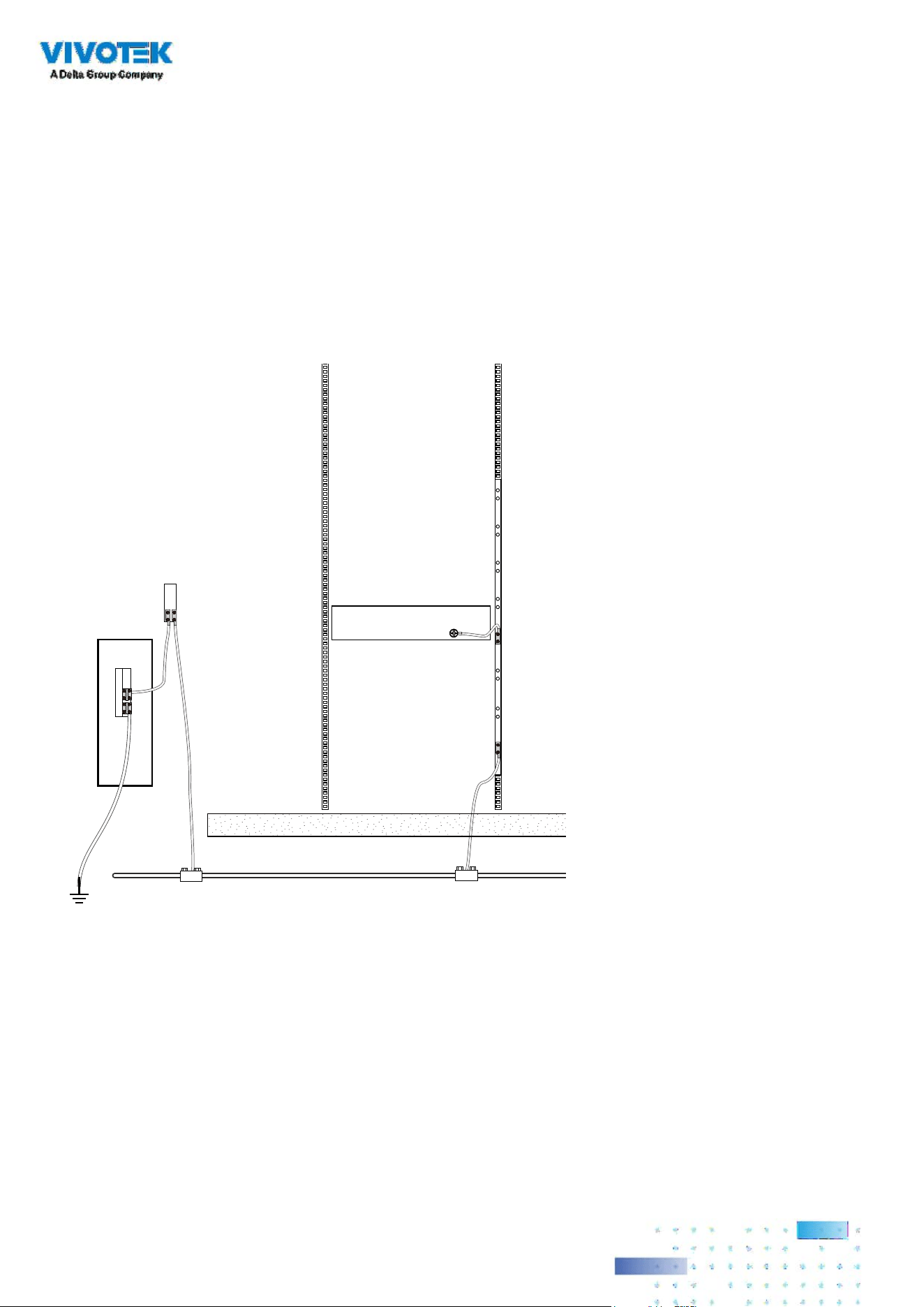
1. The enclosure is designed to be rack-mounted, in an equipment room which has limited hu-
man access.
2. In addition to the grounding via the power cords, make sure your equipment rack is properly
grounded. If the equipment rack is not properly grounded, connect the ground wire to a go-
runding bus bar, which is then connected to an earth ground.
3. Use a green and yellow ground wire of a copper cross section of at least 16AWG.
4. Connect the system to an earthed main power outlet.
Ground screw
Main grounding bus
bar
Rack ground bar
Earth
ground
Mesh common bonding
1111
Physical Description
Front View
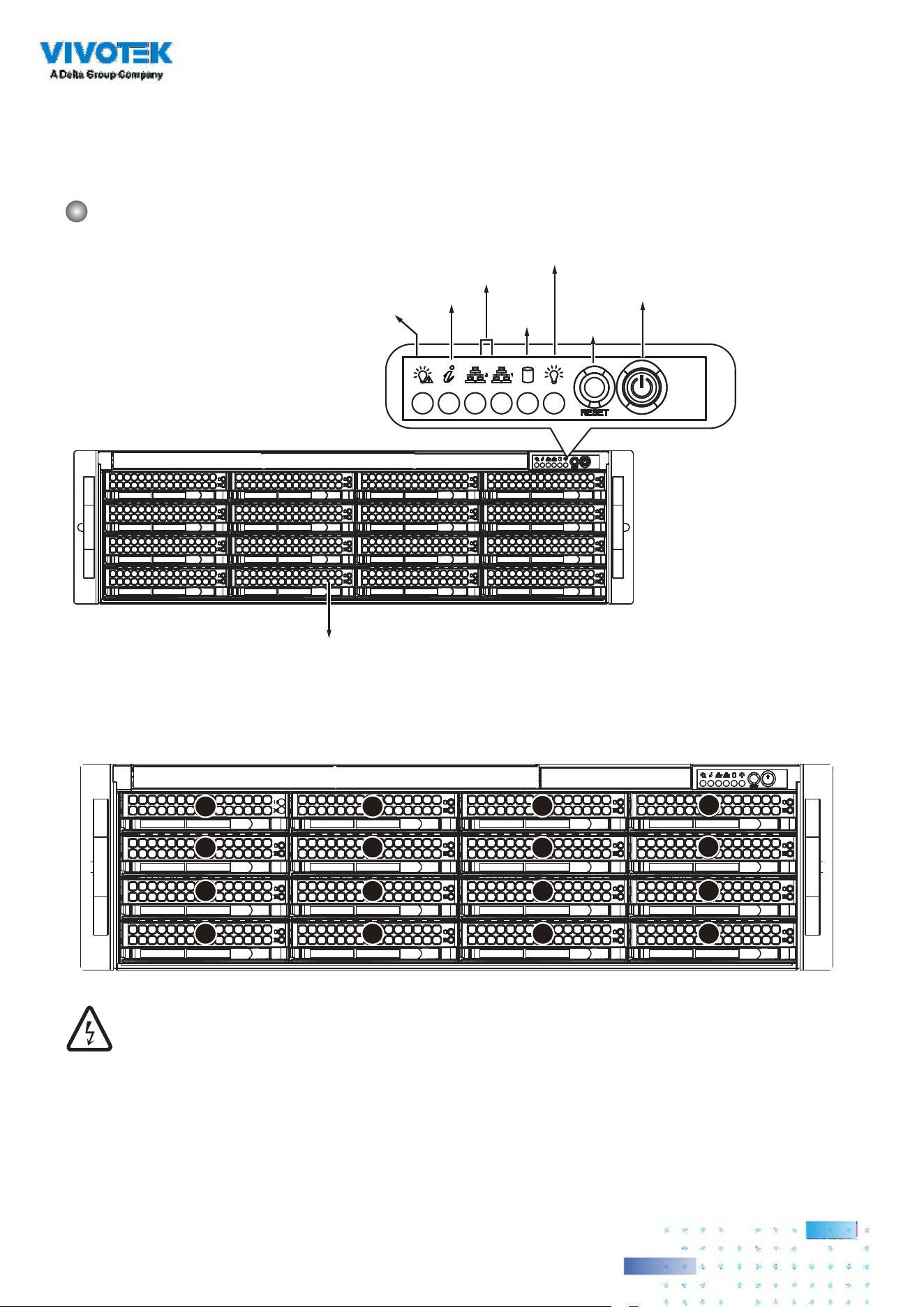
Power switch
Reset
button
LAN LED
Power LED
HDD
LED
Information
LED
Power failed
LED
Hot-swappable 2.5”/3.5” HDD trays
Drive Bay Numbering Sequence
Warning:
Knowing the correct positions of hard drives is very important. For example, if a hard
drive fails in a RAID5 Virtual Drive, you can initialize a rebuild by locating and replacing
the failed drive. If you replace the wrong drive, it means that you have 1 failed drive and
another mistakenly failed drive. Having 2 failed drives in a RAID5 configuration renders
all data inaccessible. All data in the RAID5 Virtual Drive will be lost.
9
8
7
6
5
4
3
2
1
0
11 15
13
10 14
12

1212
Control Panel buttons and LEDs
Power switch Press this switch to turn the system power on or off. Please use
system shutdown or press this switch for a few seconds to turn o
the system ATX power.
The main power switch is used to apply or remove power from the
power supplies to the server. Turning off system power using this
button removes the main power but keeps standby power supplied
to the system. You must unplug the system before servicing
components inside the chassis.
Reset button Press this button to reboot the system.
Power LED Blue Red
ON: Normal N/A
LAN status LED ON: Normal N/A
Blinking: transmitting data. N/A
HDD LED* Blinking: data access. N/A
OFF: idle N/A
Information: PEF occurred by
motherboard's BMC
N/A ON: System abnormal.
Information LED
Status Description
Solid red An overheat condition has occurred (possibly caused by cable congestion)
Blinking red (1Hz) Fan failure, check for an inoperative fan.
Blinking red (0.25Hz) Power supply failure
Solide blue UID has been activated locally to locate the server in a rack environment.
Blinking blue UID has been activated using IPMI to locate the server in a rack environment.
1313
Activity
Status
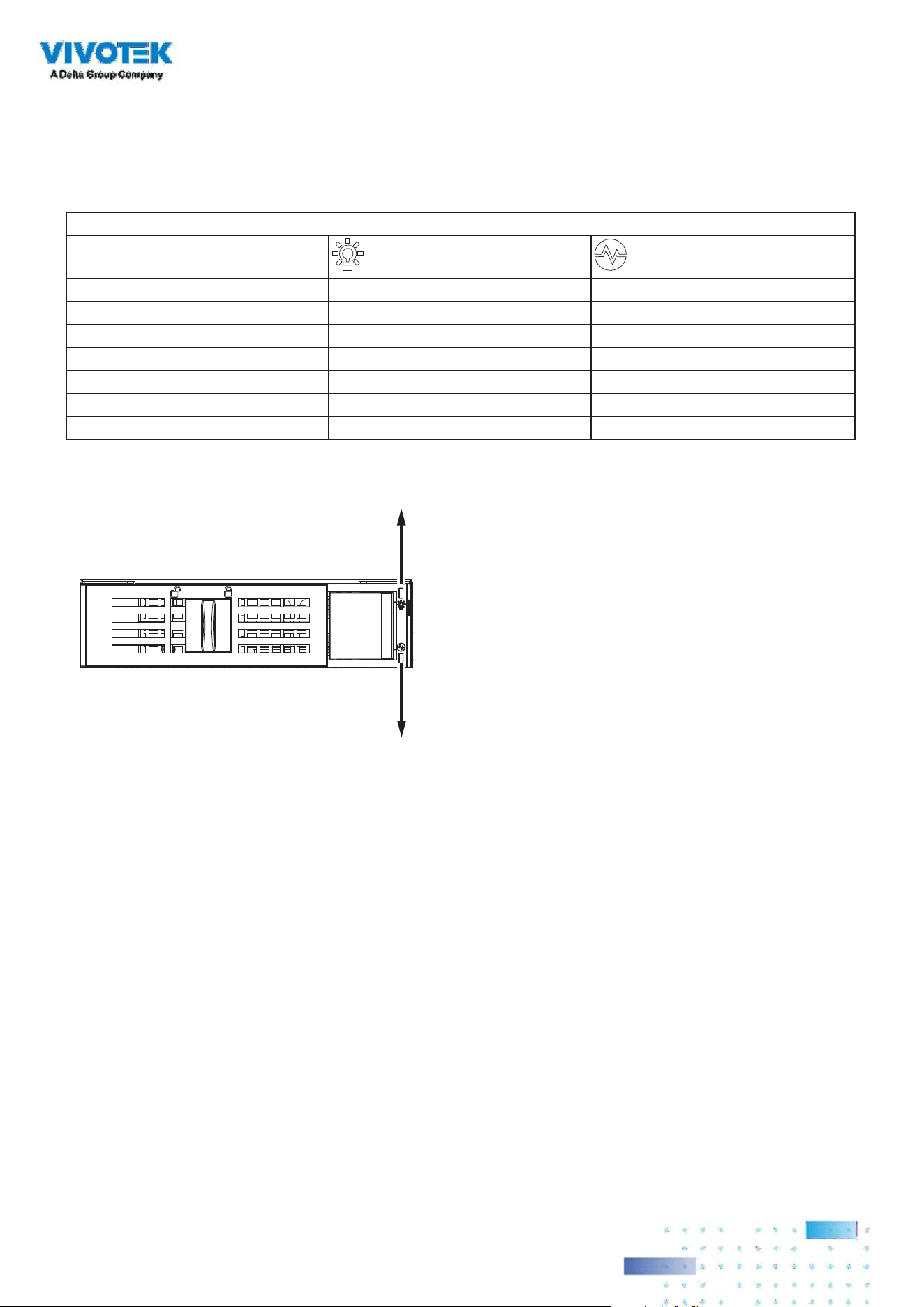
Front Hot-swappable Drive Tray LEDs
Activity LED: Green
Status LED: Amber
Drive not present OFF OFF
Drive present, no activity
ON OFF
Drive present, activity 4Hz
blinking OFF
Locate (Identify) OFF 4Hz
blinking
Fail OFF ON
Rebuild OFFF 1Hz blinking
* The HDD LED here only displays the status for those attached to the motherboard. They do not display the
status for the hard disks in the 16 drive bays
1414
Rear View
7 6 5 4 3 2 1
Camera 01
Camera 02
Camera 03
Camera 04
Camera 06
Camera 05
Camera 07
Camera 08
Camera 09
LAN/WAN
AC100~240V
50/60Hz, 11-3.5A
LAN1
LAN2

1515
IMPORTANT:
It is important to leave a clearance of 76cm to the rear side of the chassis. The clearance is required to
ensure an adequate airow through the chassis to ventilate heat. A 64cm clearance is also required on
the front of the chassis.
To ensure normal operation, maintain ambient airow. Do not block the airow around chassis such as
placing the system in a closed cabinet.
30”
76cm
25”
64cm
Display
Interface Resolution
HDMI
Supports max resolution HDMI x 1 4096 x 2160
DVI Supports max. resolution DVI x 1 1920 x 1200
Display port Supports max resolution DP x1 7680 x 4320
eDP Internal pin header, supports max. resolution 3840 x 2160 @ 60 Hz (on board)
VGA VGA x 1, Max resolution 1920 x 1200
Triple display eDP/ VGA + DP++ + HDMI, eDP/ VGA + HDMI + DVI-D, DP++ + eDP/ VGA + DVI-D,
DVI-D + DP++ + HDMI
Dual display DP++ + HDMI, DP++ + DVI-D, DP++ + eDP/ VGA, HDMI + DVI-D, HDMI + eDP/ VGA,
eDP, VGA + DVI-D

1616
Rack-mounting
If you have either a round-holed or square-holed rack, install cage nuts or clip nuts to the desired
positions on the rack posts.
The instructions below are based on the installation to a 4-post equipment rack.
IMPORTANT:
1. Remove the inner rail from the slide rail assembly.
PULL
Outer Rail
Middle Rail
Inner Rail
1
3
4
2

1717
2. Secure the inner rails to the sides of the chassis using the included screws.
1
2
1
3
3. The middle and outer rail assemblies look like this.

1818
4. Attach the slide rails to the front rack post by hanging them to the rack holes. You may secure them
with screws.
Optional
Screws
5. Extend the rails as necessary, and repeat the previous step to hang the slide rails to four rack posts.
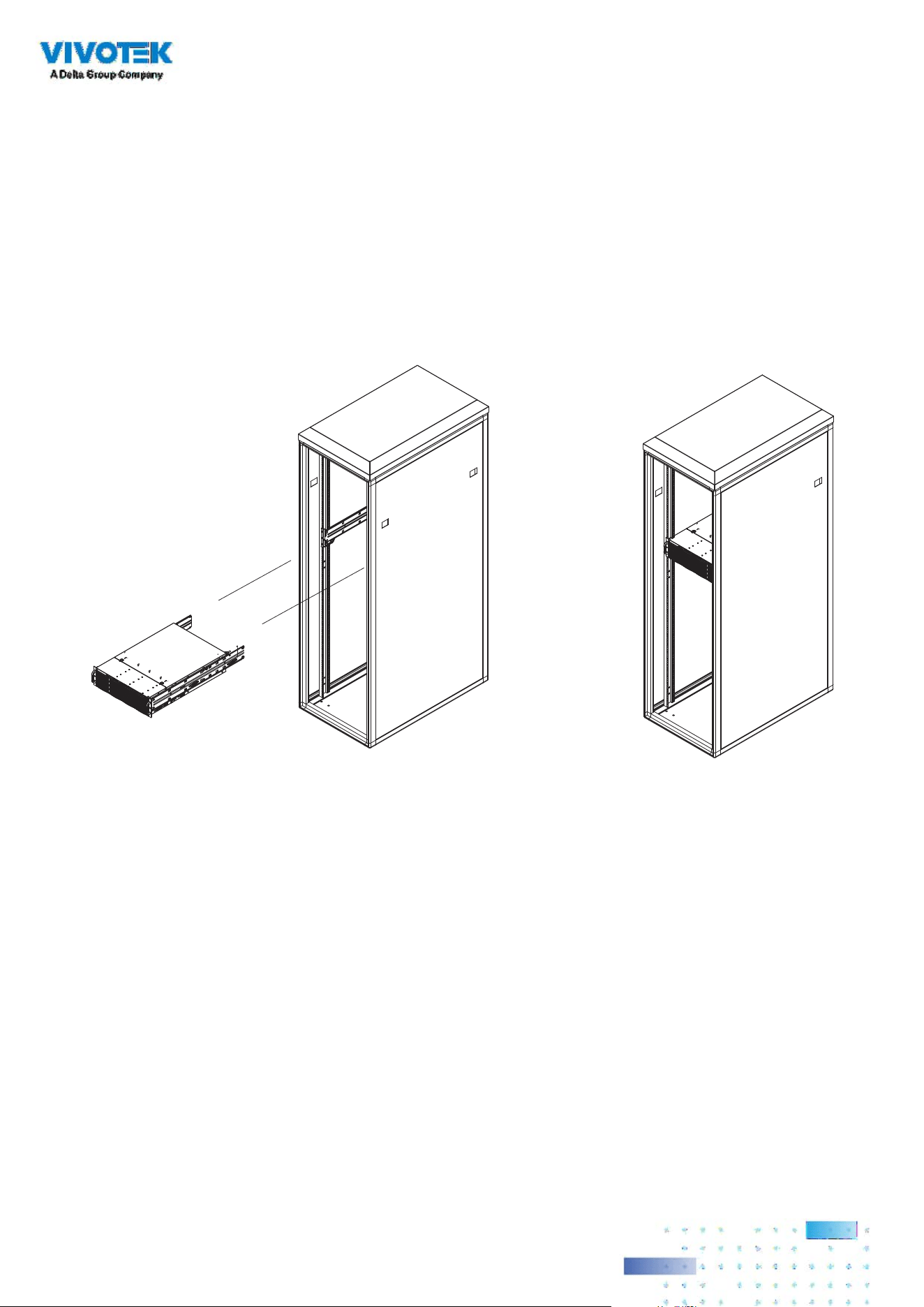
1919
6. Pull the middle rail out of the front end, and make sure the ball bearing shuttle is locked at the front
of the middle rail.
Align the tips of the inner rails with the middle rails, and then push the chassis until it clicks into the
slide rails.
2020
• Refer to VIVOTEK's website for the hard disk compatibility information.
• Avoid touching the hard drive's circuit board or connector pins. Doing so can damage the hard
drive by electro-static discharge.
IMPORTANT:
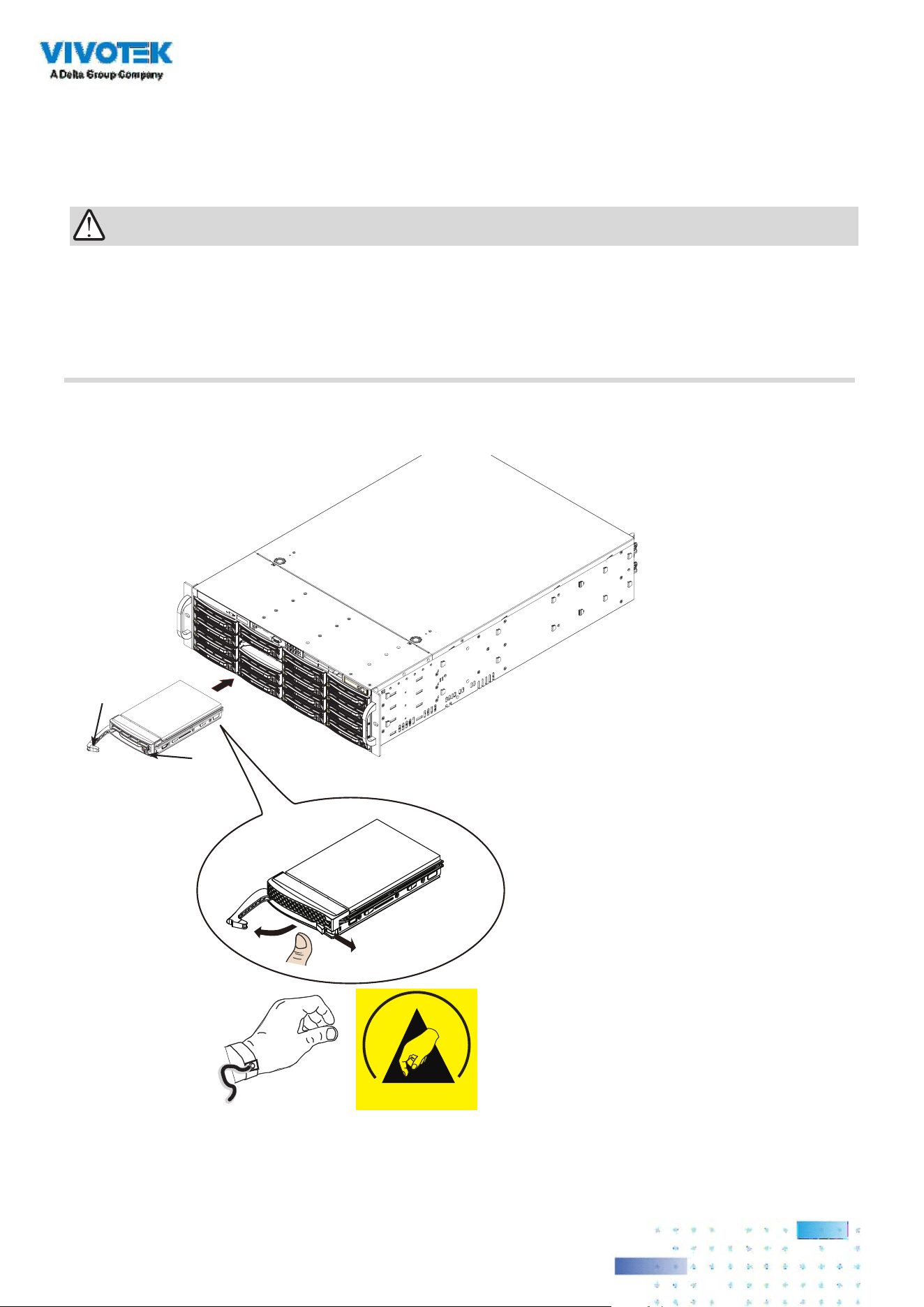
Installing Hard Disk Drives
1. Remove drive trays from the chassis. Push the release tab to the side, the tray lever will pop out. Pull
the lever to remove drive trays.
Release Button
Handle
ESD

2121
2. Use a Phillips screwdriver to remove screws from the side and then remove the plastic Dummy Drive.
Drive Carrier
Dummy Drive
1
1
3. Install hard drives by driving screws from the sides. When done, gently install the drive trays into the
chassis.
Drive Carrier
SAS/SATA
Hard Drive
4
4
X8
ESD
It is recommended to wear an anti-static wrist strap
when handling hard drives.
2222
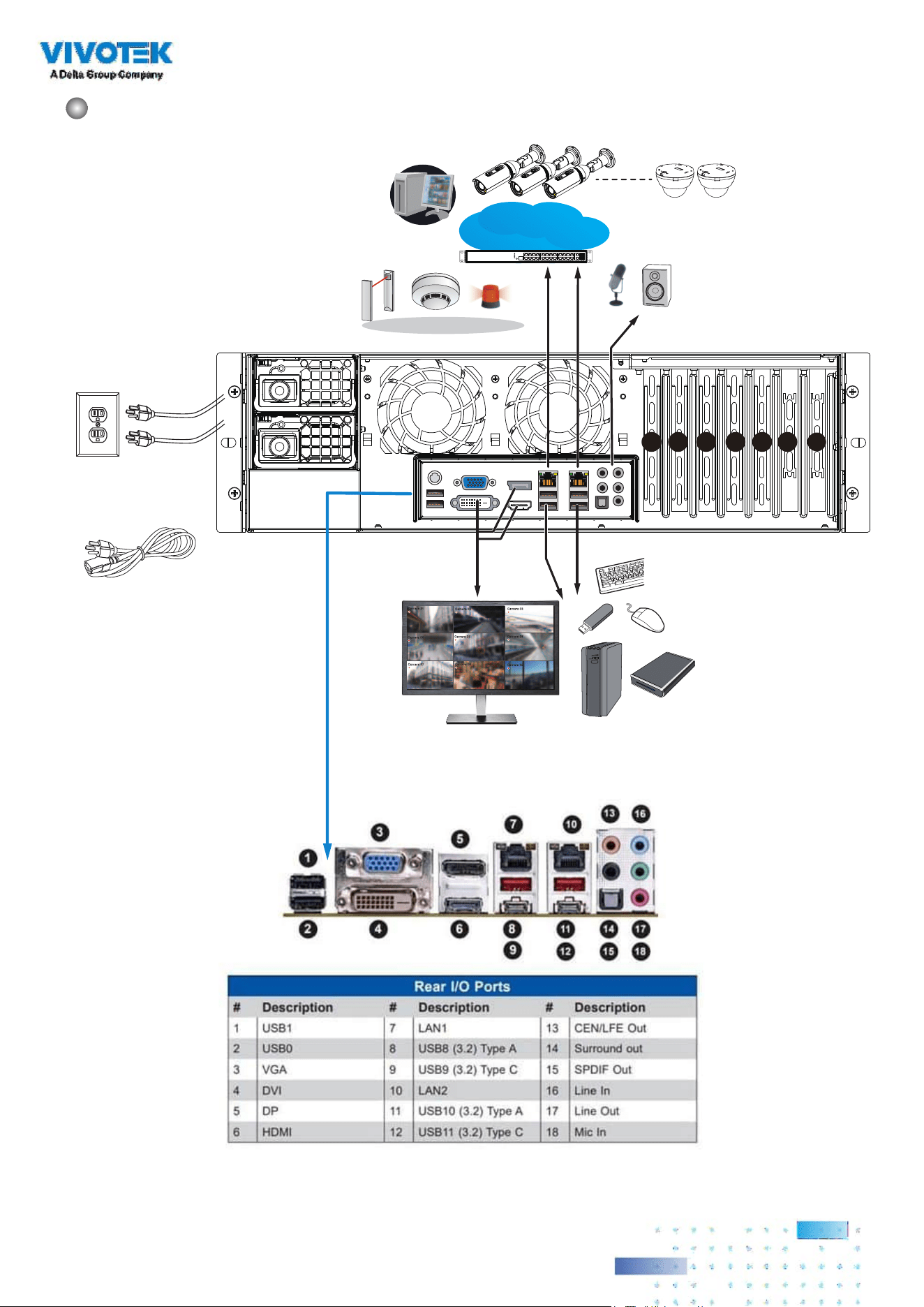
Connecting Interfaces
Refer to page 13 for the interface connections.
1. Make sure all cameras have been properly installed, either they are powered by 12V power lines or
using one or several PoE switches or mid-spans. Refer to the cameras' documentation for details.
2. Connect all other interfaces to USB mouse/keyboard, one or two monitors, and audio input/output
devices.
3. Make sure you connect both power supplies to power mains. An alarm will be sounded if you
connect only 1 of the power supplies.
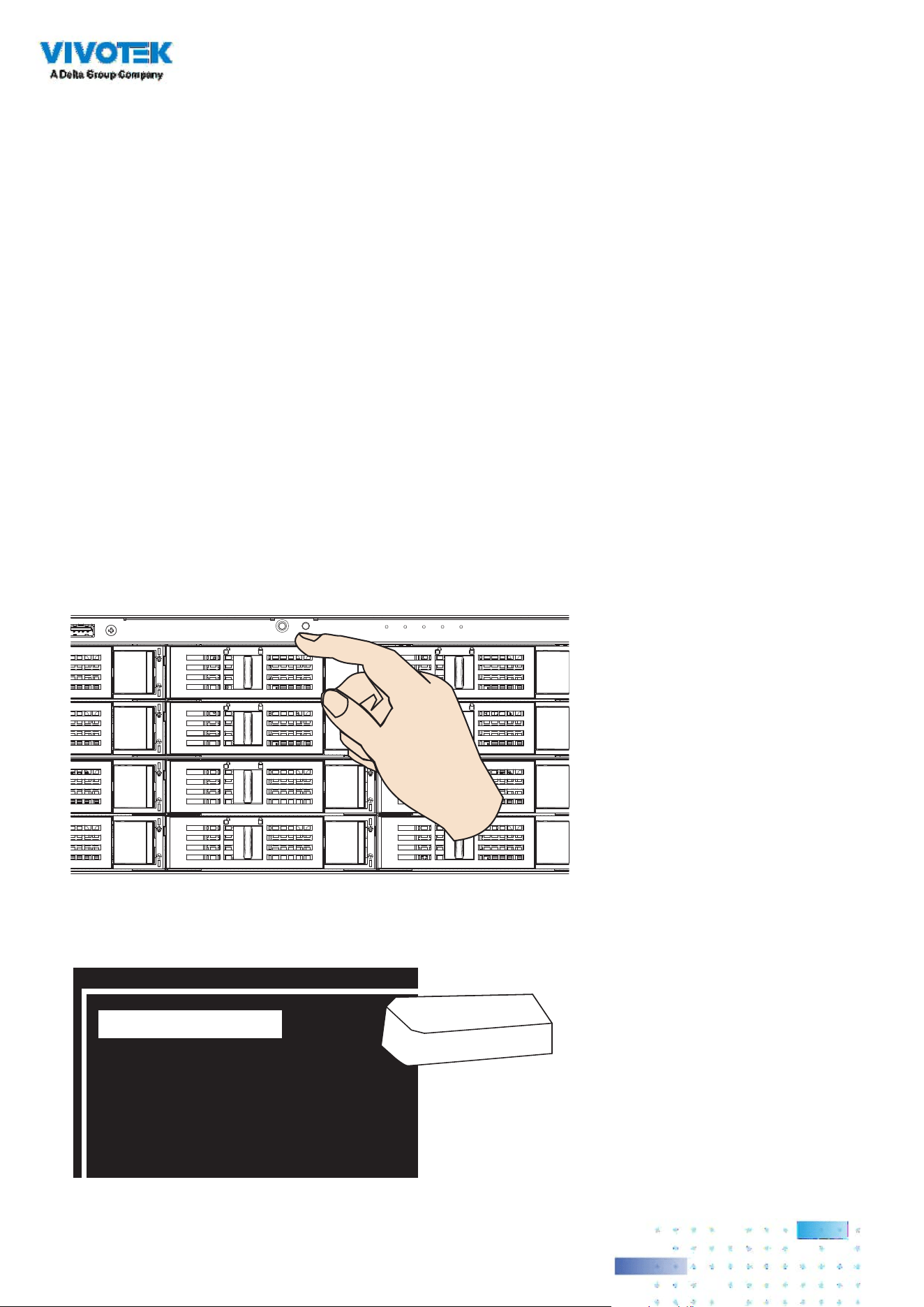
Initial Conguration
1. Power up the system by pressing the power on button.
2. Skip the BIOS screens and select Enter NVR at the selection screen. The system will start. Wait for the
start-up process to complete.
0 Enter NVR
1 Restore to default
2 Reboot
3 Shutdown
Enter
2323
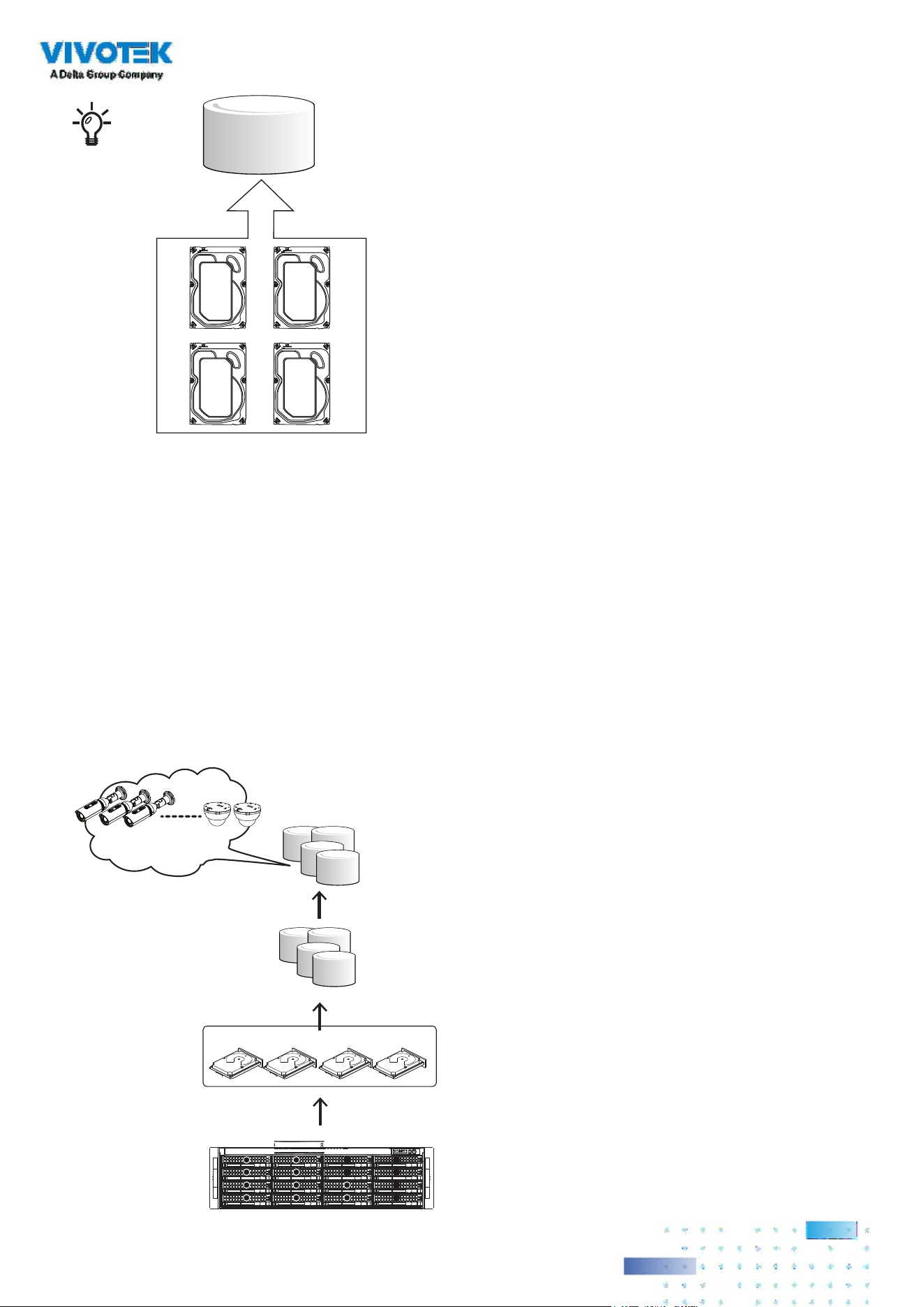
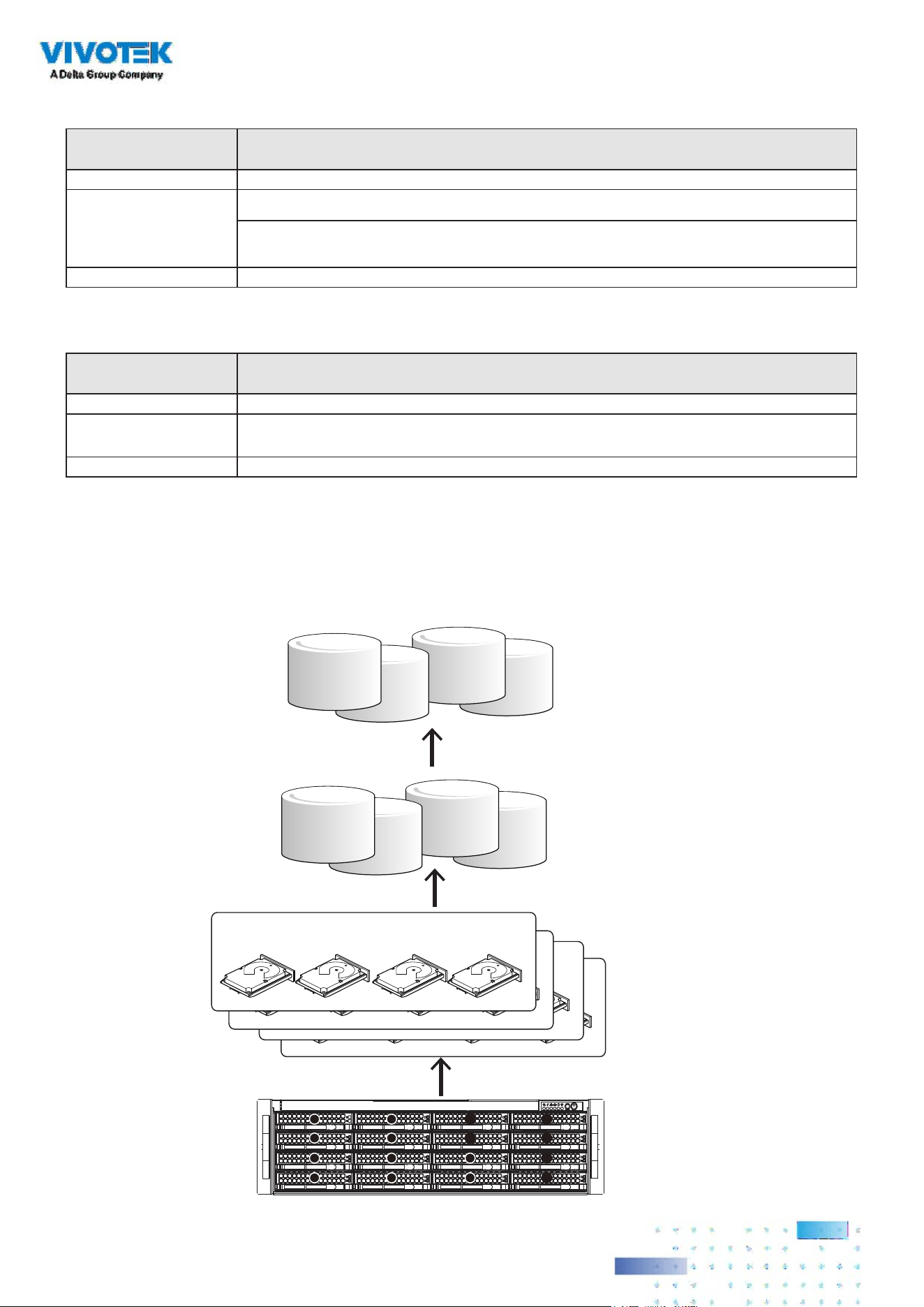
Our default recommendation is to combine 4 hard drives into 1 drive group. The capacities of these
drives will be utilized to form 1 Virtual Drive. If all 16 drive bays are populated, you can create 4
Virtual Drives. A 4-member Virtual Drive can receive the video feeds from 64 to 192 cameras. You can
also create two 8-member Virtual Drives to receive the video feeds from 64 to 192 cameras (CH, or
channels.)
Recording will not take place unless you create a Virtual Drive first. Select RAID5 as the RAID level
during the conguration process.
RAID5/6/10
Drive Group
Virtual Drive
Virtual Drive
Drive Group
LUN - Volume
x4
4 members (RAID5)
48 CH,
each LUN
9
8
7
6
5
4
3
2
1
0
11 15
13
10 14
12
x4
x4
2424
The default conguration for a conguration of 192 cameras should look like the following:
Physical & Logical
components
Conguration
Hard drive 16
Virtual Drive 4, each has 4 members. Congured in RAID5.
If using 6TB drives, the available capacity in each Virtual Drive will be,
4 x 6TB-1 x 6TB(parity drive)= 18TB.
Volume 4, each created from 1 Virtual Drive.
The camera conguration should look like this,
Physical & Logical
components
Conguration
Cameras 192
Recording Group 4, each responds to 48 cameras, and each Recording Group is associated with 1
Virtual Drive volume.
Volume 4, each created from 1 Virtual Drive, and associated with 1 Recording Group. .
Virtual Drive
Drive Group
LUN - Volume
x4
4 members
4 members
4 members
x4
x4
4 members (RAID5)
9
8
7
6
5
4
3
2
1
0
11 15
13
10 14
12
A Virtual Drive appears to the host system (Windows) as a logical disk partition. The logical parition,
when formatted, becomes a disk volume.
2525
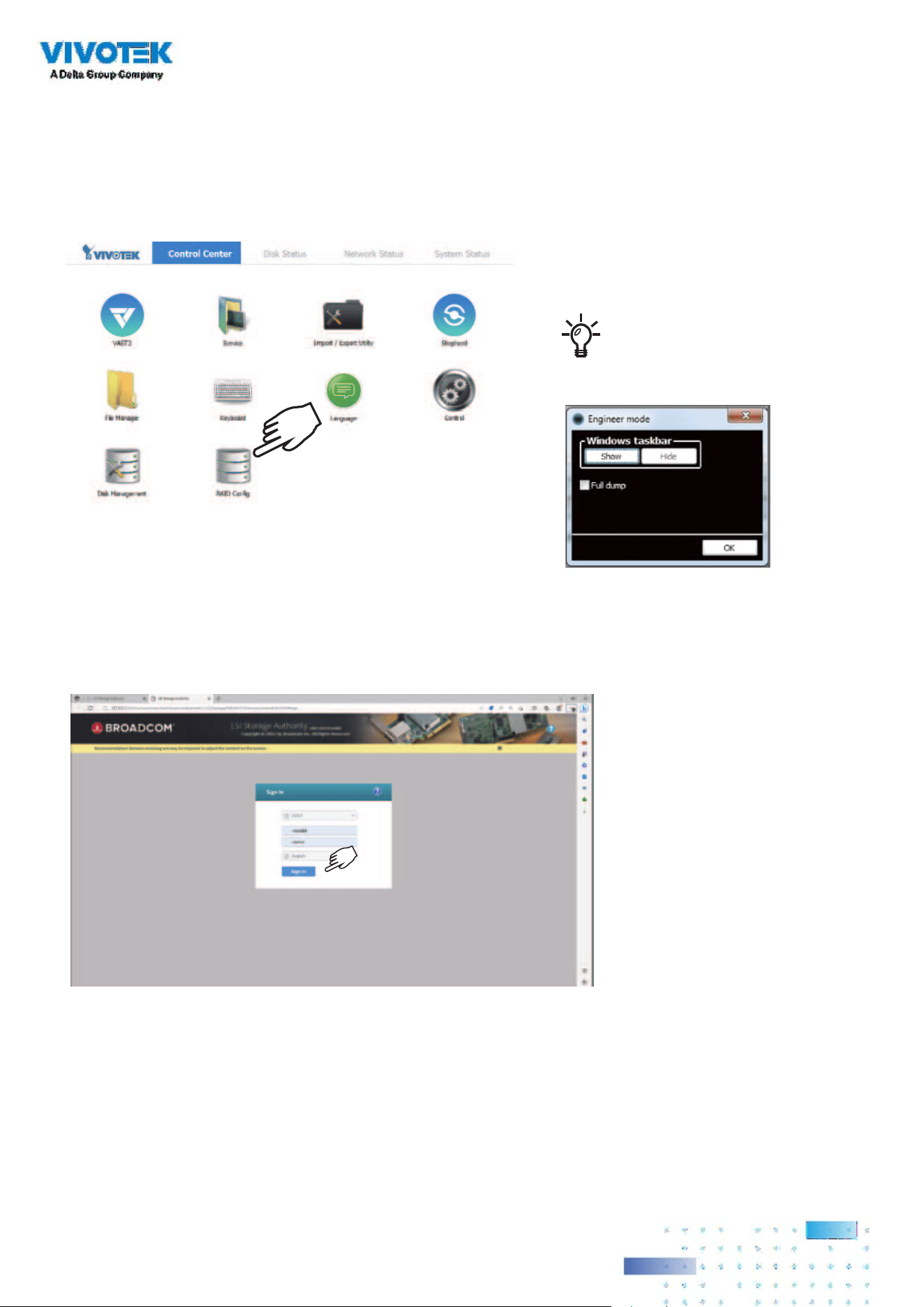
1. The system will boot up to the system main screen. Double-click on the RAID Cong shortcut to start
the MegaRAID storage conguration utility.
2. Enter vivotek/vivotek as the User Name and Password. Click Login to proceed.
Ctrl + Alt + F12 ->
X2
Start this utility 10 seconds after you
install H.D.D.
2626
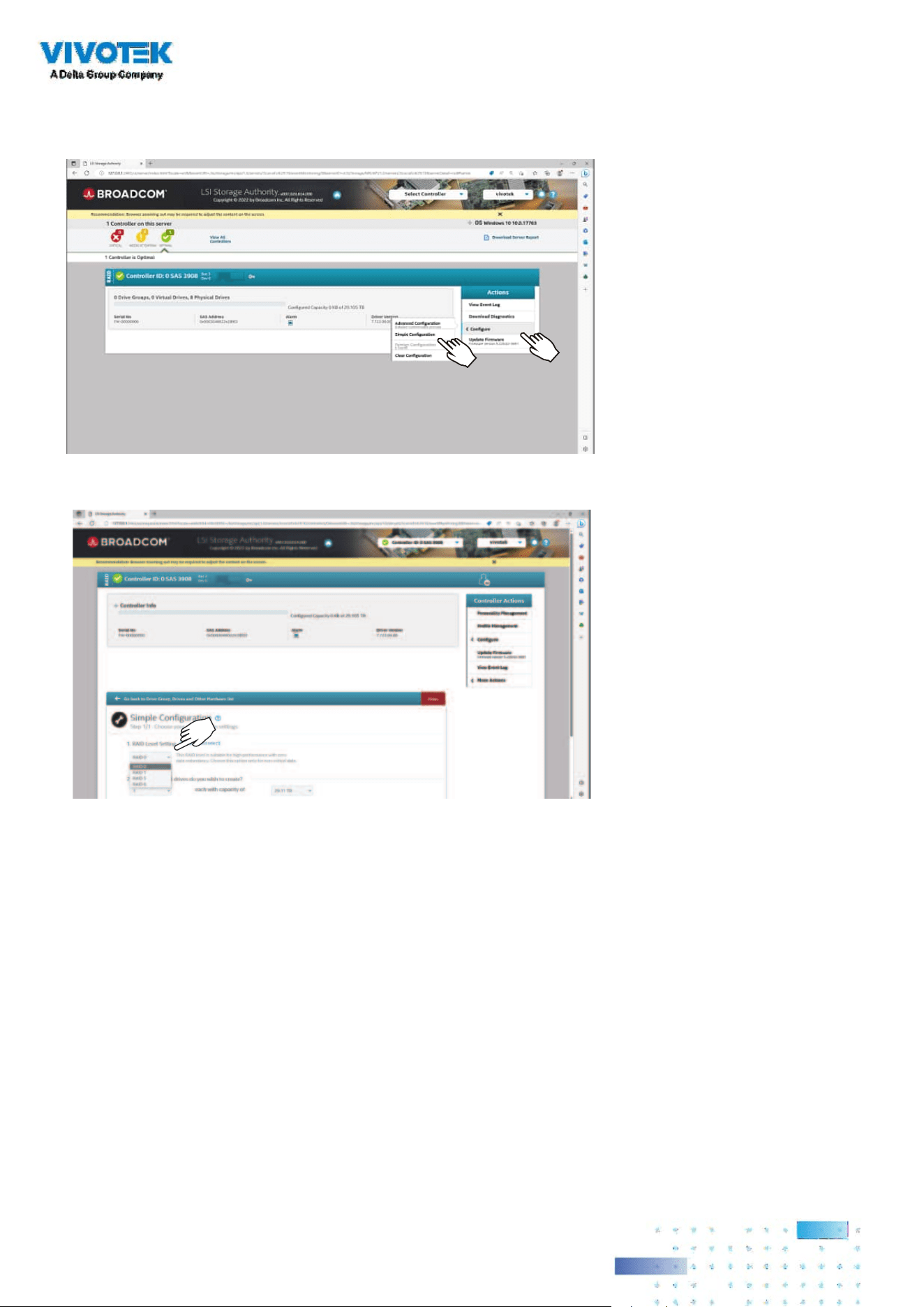
3. Select Conguration > Simple conguration.
4. Select a RAID level.
Refer to the next section: RAID Basics on page 40, for details about RAID levels.

2727
5. Select the number of the Virtual Drive you want to create. If you have 16 hard drives, and you create
2 Virtual Drives, then each Virtual Drive will contain 8 member drives.
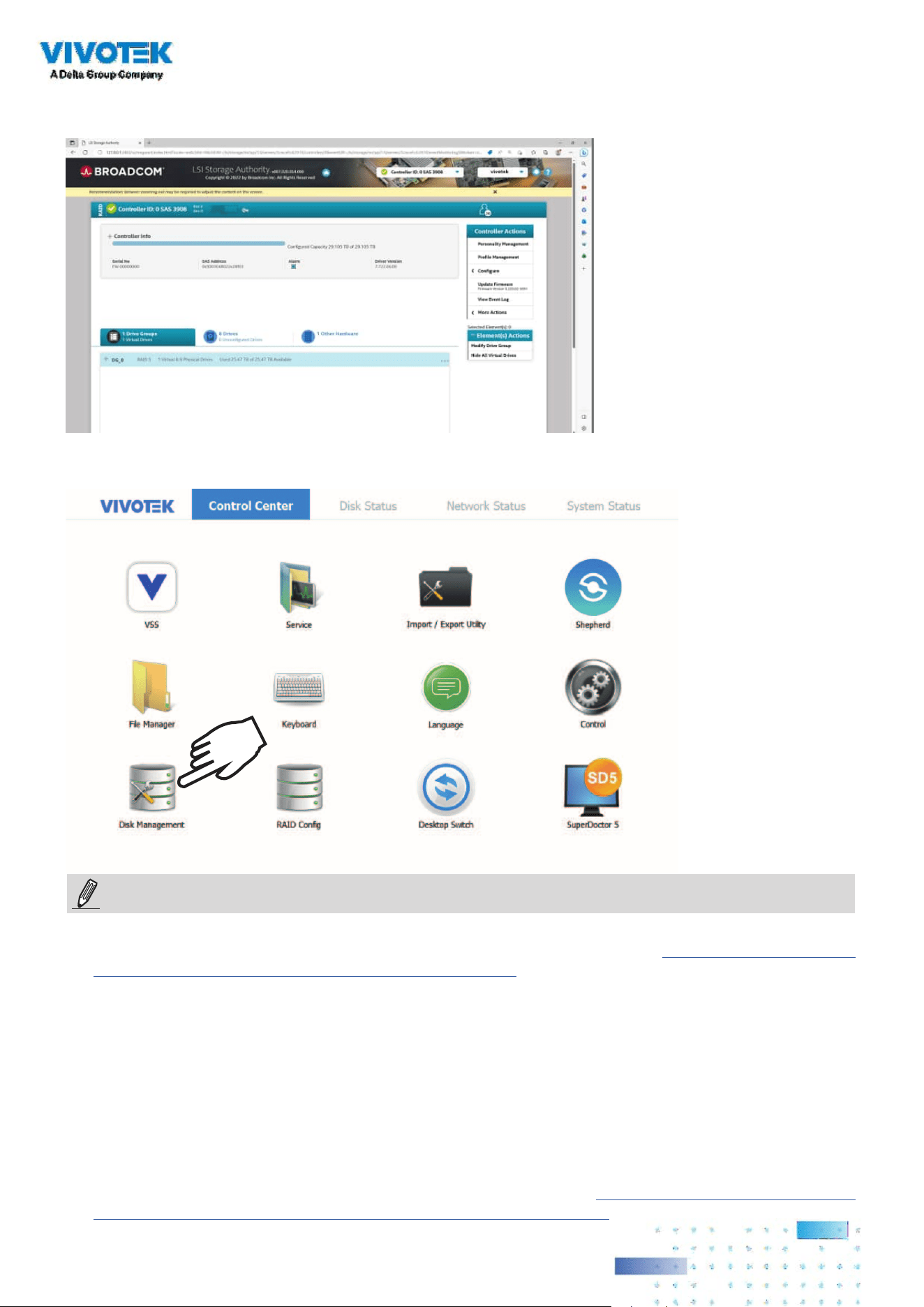
6. A completed conguration will look like this.
2: 8 HDD RAID5 x 2
2828
7. Review your Virtual Drive status.
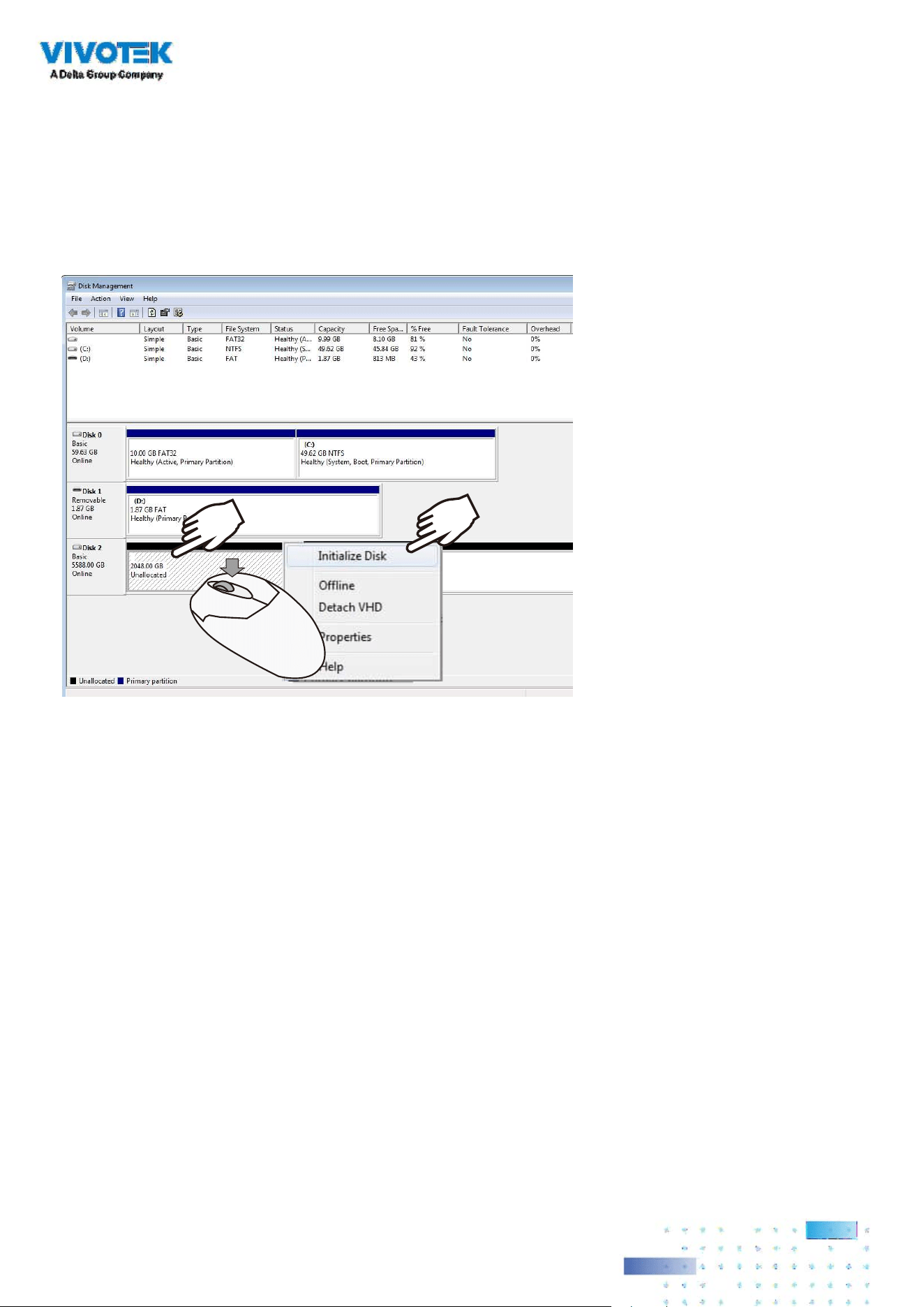
8. Double-click on the Disk Management shortcut on the desktop to open the utility.
X2
1. You can nd SuperDoctor® 5 (SD5), which monitors the hardware health or availability of the target
node systems in data centers in real time and alerts administrators. Visit https://www.supermicro.
com/en/solutions/management-software/superdoctor for details (including user manual).
2. In SD5, the following items on System info may display only general information and come with
limited functionalities.
• Desktop Monitor
• Raid Card S/N number
• Power supply
• System cfg options
• Update BIOS
3. You can also nd the RAID CARD management tool. Please visit
https://www.supermicro.com/en/
products/accessories/addon/AOC-S3908L-H8IR_S3916L-H16IR.php for more information.
NOTES:
2929
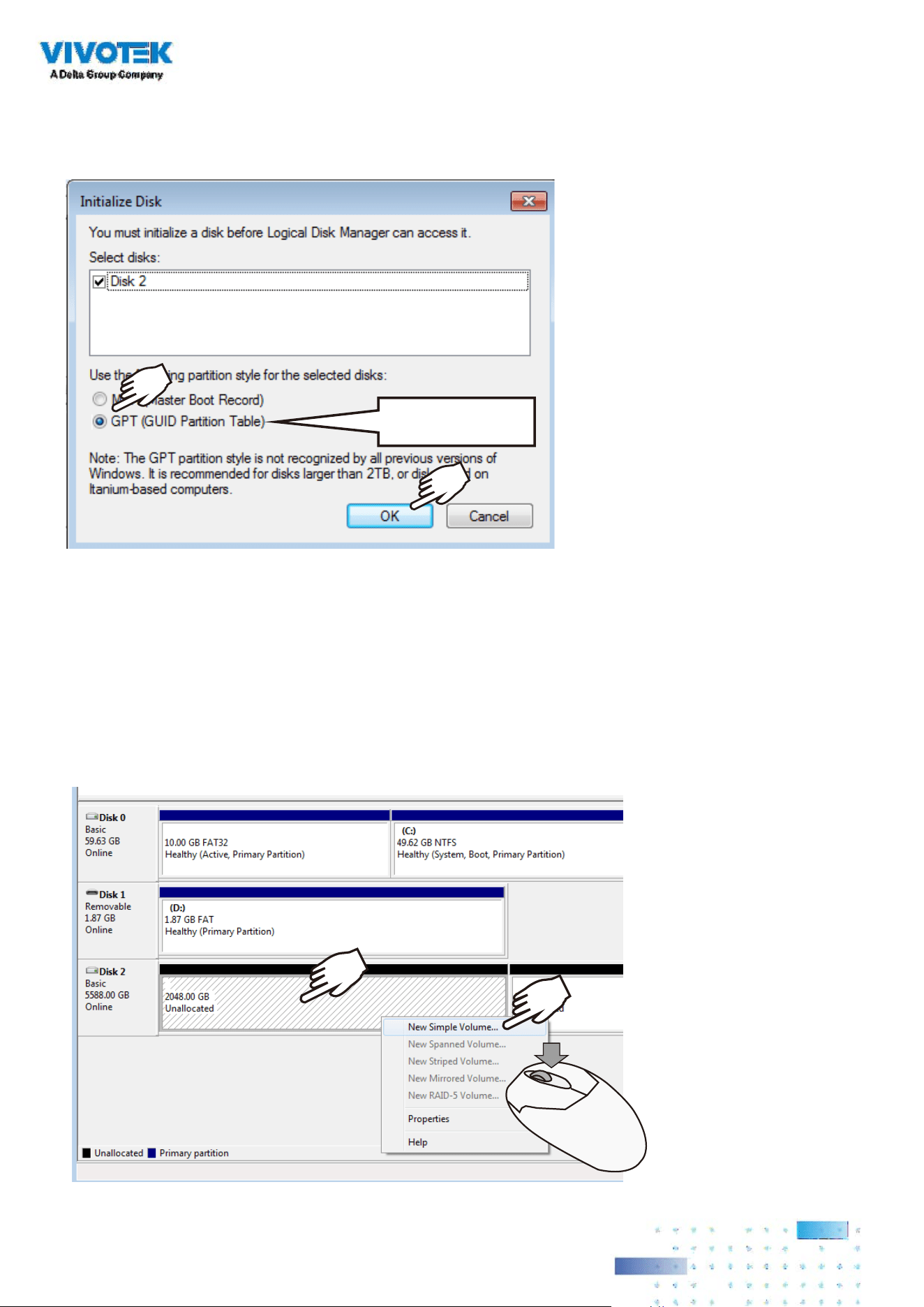
9. The virtual drive you created should appear as a new disk partition. You need to initialize and format
the partition before using the disk capacity. Left-click to select and then right-click to display the
command menu. Click Initialize Disk to proceed.
3030
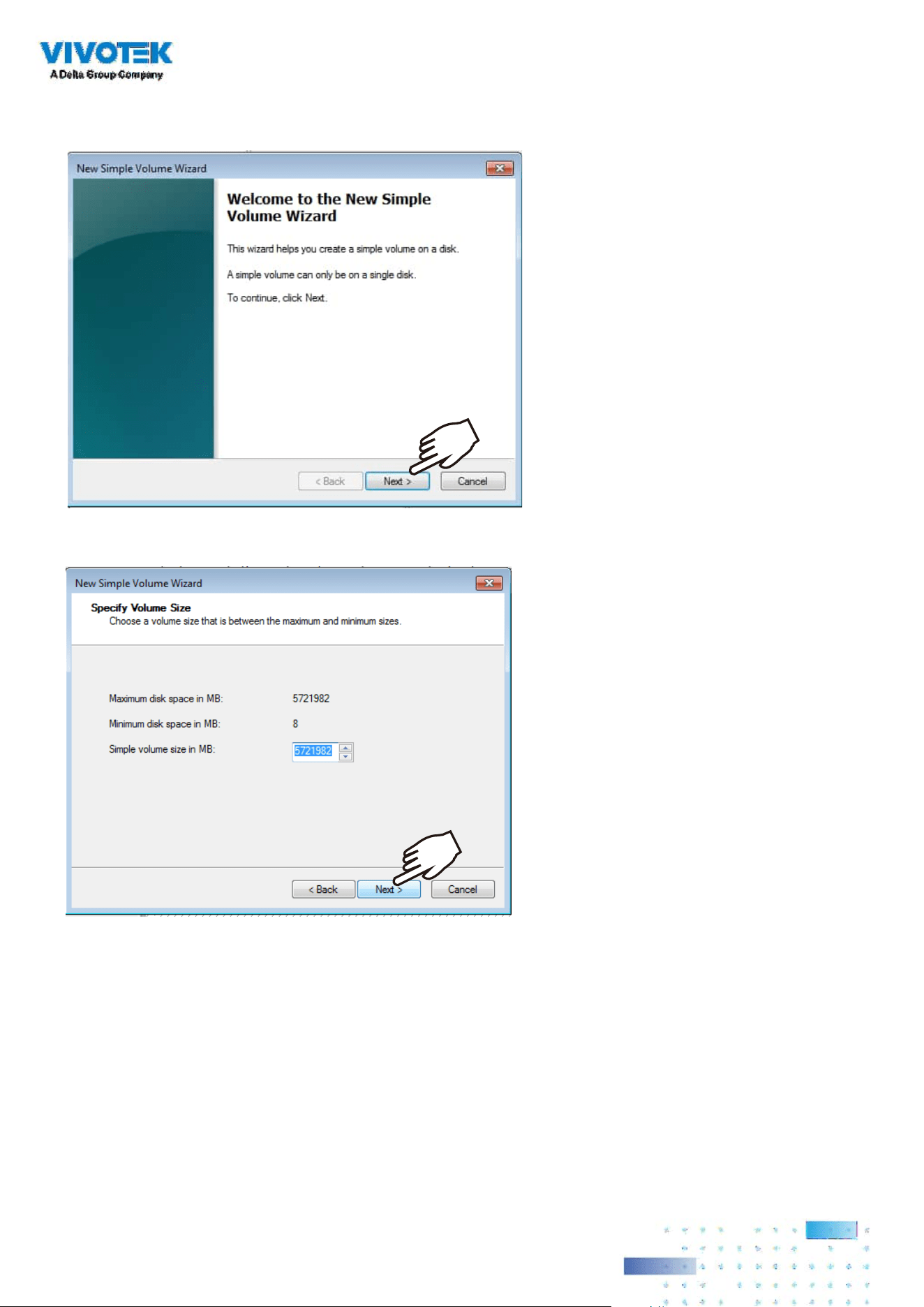
10. Select GPT (GUID Partition Table), and then click OK to proceed. This window may automatically
pop up when Disk Management is started.
GPT
11. Once initialized, you can create a new volume. Right-click to display the New Simple Volume
command. Click to proceed.
Please do not format drive C:. Doing so will disable the system.
3131
12. The New Simple Volume Wizard will prompt. Click Next to proceed.
13. Leave the volume size unchanged. Click Next to proceed.

3232
15. On the Format Partition page, select the Allocation unit size as 64KB. When done, click Next to
proceed.
64 KB
14. When prompted to assign a drive letter, click Next to proceed.

3333
16. Click Finish to end the wizard.
17. The formatting process will run in the background. When done, the new volume shall be indicated
as a healthy new volume. Close the Disk Management window.

3434
18. Start VIVOTEK VSS management software by double-clicking its shortcut. Enter admin and admin
as the User Name and default Password. You can change the password later in the utility. Click Log in
to proceed.
Top row
Control Center:
the default desktop.
Disk Status: Displays the current storage volume status (system drive and RAID
volumes).
Network Status: Displays the information for the current network connections.
System Status: Displays the current system status, license information, and VAST
service.
Desktop Shortcuts
VSS
Starts the VSS recording and management software.
Service Enables you to start, stop, or restart the VAST server instance.
Import/
Export
Allows you to import or export VAST congurations.
Shepherd Use the Shepherd utility to locate cameras within your network.
File
Manager
Provides access to the les in system disk drive volumes.
Keyboard Toggles the virtual keyboard in case you do not have a physical
keyboard.
Language Changes the UI language. .
Control Opens the operating system's control panel.
Disk
Managment
Starts the Disk Management utility in Windows.
RAID
Cong.
Starts the RAID card storage conguration utility.
X2
admin / admin
3535
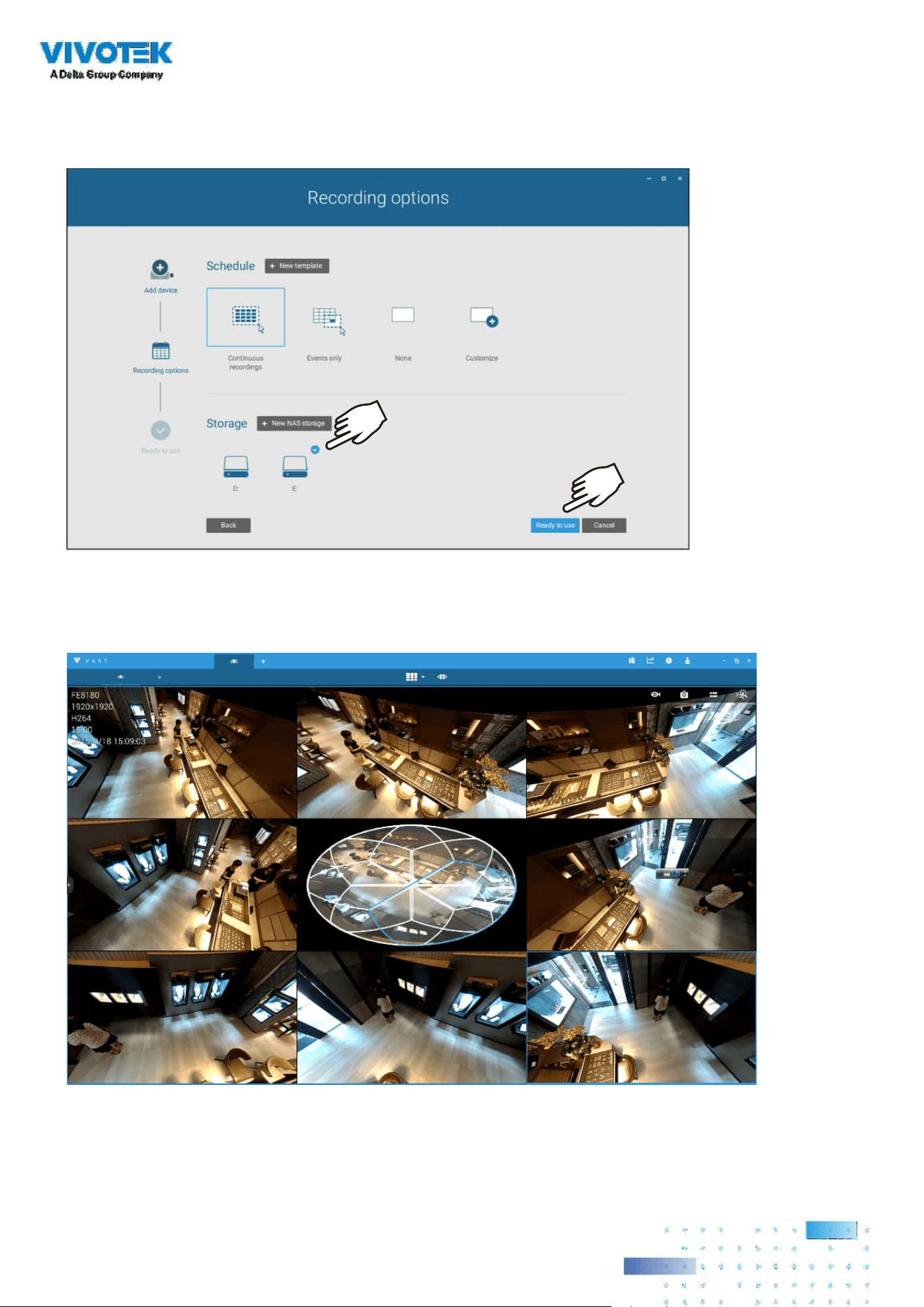
26. Select the recording volumes, such as the E:/ volume you just created. When done, click the Ready
to use button.
27. You should then enter the Liveview of the VSS software. Follow the discussions in later sections for
how to congure your VSS deployment.

3636
1. Cameras and the NVR must reside in the same subnet. Otherwise, the NVR will not be able to
recruit them into a recording conguration.
2. It is recommended all network cameras use static IPs. If you let a DHCP server assign IPs to these
cameras, IPs may be changed later and the NVR may not recognize them.
NOTE:
If preferred, change the language of UI text using the Language shortcut on the desktop.

3737
RAID Basics
A Redundant Array of Independent Disks is an array, or group, of multiple independent physical drives
that provide high performance and fault tolerance. A RAID drive group improves I/O performance and
reliability. The RAID drive group appears to the host computer as a single storage volume or as multiple
virtual units. An I/O transaction is expedited because several drives can be accessed simultaneously.
A RAID drive group improves data storage reliability and fault tolerance compared to single drive
storage. Data loss resulting from a drive failure can be prevented by reconstructing missing data from
the remaining drives. The benets of RAID come from the improvement of I/O performance and the
increased reliability.
What are the Virtual drives?
Virtual drives are drive groups that are available to the operating systems. The storage space in a
virrtual drive comes from all the members in the drive group.
The RAID functions available for virtual drives include:
Hot spare drives.
Drive group and virtual drive congurations.
Initializing one or more virtual drives.
Individual access to controllers, virtual drives, and disk drives.
Failed drive rebuild.
Verication of redundancy data in virtual drives using RAID levels 1, 5, 6, 10, 50, and 60.
Reconstructing virtual drives after the RAID levels or adding a drive to a drive group.
Indepently selecting a host controller to work for.
For a RAID volume conguration, it is recommended you use hard drives of the same model featuring
the same capacity and rotation speed. It is also preferred that these drives are running the same
version of rmware.
IMPORTANT:

3838
RAID conguration components
Drive group: a group of physical drives. These drives will be managed in partitions
known as virtual drives.
Virtual drive: a partition in a drive group made of continguous data segments from the
individual disk drives. A virtual drive can consist of the following components:
An entire drive group.
More than one entire drive group.
A part of drive group.
Parts of more than one drive group.
A combination of any two of the conditions above.
3939
RAID Fault Tolerance
RAID Level Number of Tolerable Drive Failures
0 No fault tolerance
1 1, each drive group
5 1
6 2
10 multiple, as long as each failure is in a separate drive
group
50 1 in each drive group
60 2 in each drive group
RAID10
Mirror
Mirror
Mirror
Mirror
Mirror
Mirror
RAID0
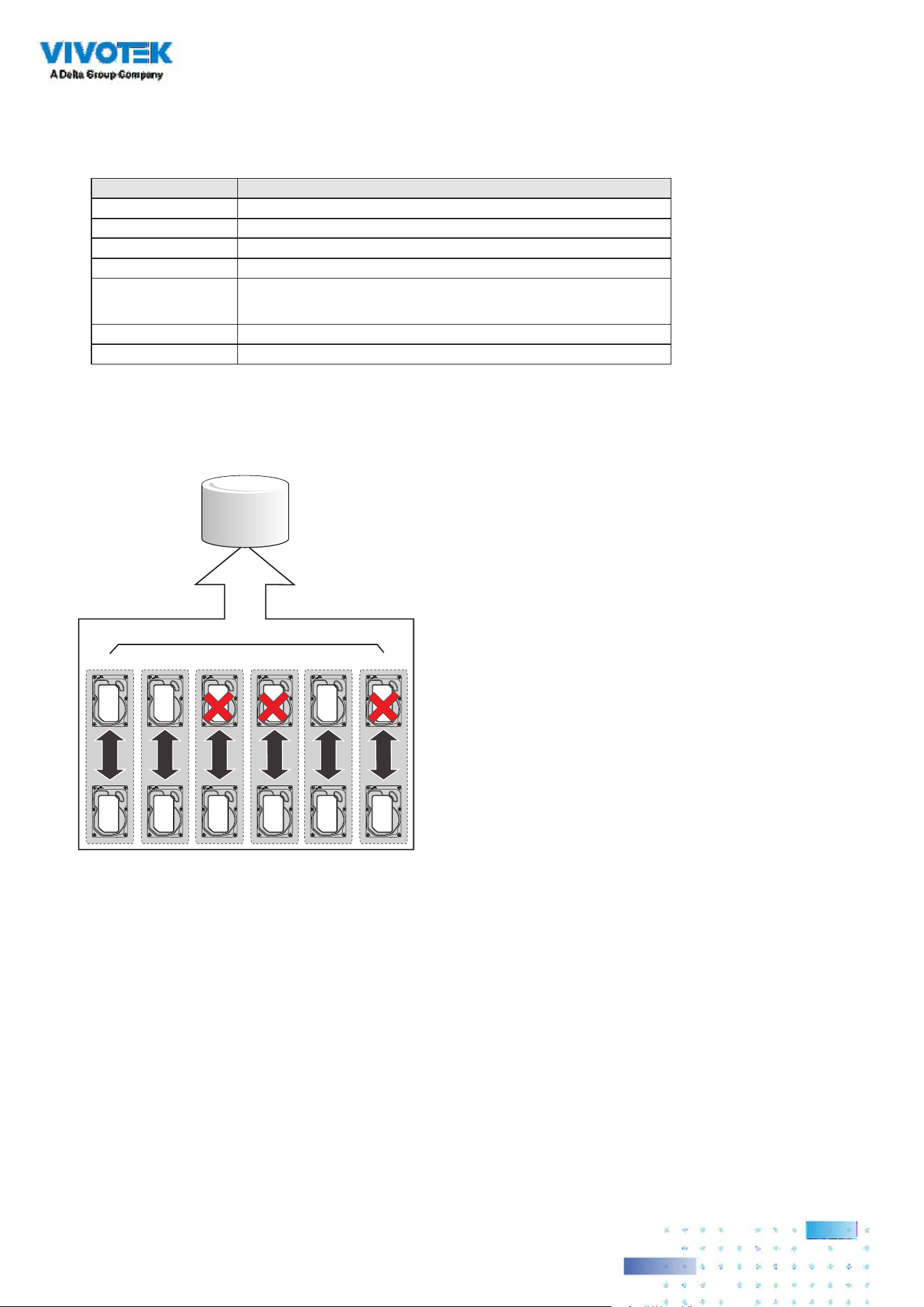
RAID1 RAID1 RAID1 RAID1 RAID1 RAID1
For example, if disk failure occurs in different drive groups, a RAID10 conguration can
tolerate multiple drive failures. In each RAID1 drive group, data is mirrored to a counterpart
disk drive. Data remains intact if one disk drive should fail in each drive group.
Consistency Check
The consistency check operation verifies the correctness of the data in virtual drives that use RAID
levels 1, 5, 6, 10, 50, and 60. RAID0 does not provide data redundancy. In a system with parity, check
consistency means calculating the data on one drive and comparing the results to the contents of the
parity drive.

4040
Background Initialization
Background initialization is a check for media errors on the drives when you create a virtual drive. It is
an automatic operation that starts ve minutes after you create a virtual drive. This check ensures that
striped data segments are the same on all of the drives in the drive group.
Background initialization is similar to a consistency check. The difference between the two is that a
background initialization is forced on new virtual drives and a consistency check is not.
New RAID 5 virtual drives and new RAID 6 virtual drives require a minimum number of drives for a
background initialization to start. If fewer drives exist, the background initialization does not start. The
background initialization needs to be started manually. The following number of drives are required:
New RAID 5 virtual drives must have at least ve drives for background initialization to start.
New RAID 6 virtual drives must have at least seven drives for background initialization to start.
The default and recommended background initialization rate is 30 percent. Before you change
the rebuild rate, you must stop the background initialization or the rate change will not affect the
background initialization rate. After you stop background initialization and change the rebuild rate,
the rate change takes eect when you restart background initialization.2.1.7Patrol Read

4141
Disk Striping
Disk striping lets you write data across multiple drives instead of just one drive. Disk striping
involves partitioning each drive storage space into stripes that can vary in size from a minimum
of 64 KB to 1 MB for MegaRAID controllers and 64 KB for Integrated MegaRAID controllers. The
LSISAS2108 controller allows stripe size from 8 KB to 1 MB. These stripes are interleaved in a
repeated sequential manner. The combined storage space is composed of stripes from each
drive. It is recommended that you keep stripe sizes the same across RAID drive groups.
For example, in a four-disk system using only disk striping (used in RAID level 0), segment 1 is
written to disk 1, segment 2 is written to disk 2, and so on. Disk striping enhances performance
because multiple drives are accessed simultaneously, but disk striping does not provide data
redundancy.
Segment 1
Segment 5
Segment 9
Segment 2
Segment 6
Segment 10
Segment 3
Segment 7
Segment 11
Segment 4
Segment 8
Segment 12

4242
Disk Mirroring
With disk mirroring (used in RAID 1 and RAID 10), data written to one drive is simultaneously written
to another drive. The primary advantage of disk mirroring is that it provides 100 percent data
redundancy. Because the contents of the disk are completely written to a second disk, data is not lost
if one disk fails. In addition, both drives contain the same data at all times, so either disk can act as the
operational disk. If one disk fails, the contents of the other disk can run the system and reconstruct the
failed disk.
Disk mirroring provides 100 percent redundancy, but it is expensive because each drive in the system
must be duplicated. The following gure shows an example of disk mirroring.
Stripe Width
Stripe width is the number of drives involved in a drive group where striping is implemented. For
example, a four-disk drive group with disk striping has a stripe width of four.
Stripe Size
The stripe size is the length of the interleaved data segments that the RAID controller writes across
multiple drives, not including parity drives. For example, consider a stripe that contains 1 MB of drive
space and has 64 KB of data residing on each drive in the stripe. In this case, the stripe size is 1 MB and
the strip size is 64 KB.
Strip Size
The strip size is the portion of a stripe that resides on a single drive.
Parity
Parity generates a set of redundancy data from two or more parent data sets. The redundancy data can
be used to reconstruct one of the parent data sets in the event of a drive failure. Parity data does not
fully duplicate the parent data sets, but parity generation can slow the write process. In a RAID drive
group, this method is applied to entire drives or stripes across all of the drives in a drive group. The
types of parity are described in the following table.
4343
A RAID 5 drive group combines distributed parity with disk striping. If a single drive fails, it can be
rebuilt from the parity and the data on the remaining drives. An example of a RAID 5 drive group is
shown in the following gure. A RAID 5 drive group uses parity to provide redundancy for one drive
failure without duplicating the contents of entire drives. A RAID 6 drive group also uses distributed
parity and disk striping, but adds a second set of parity data so that it can survive up to two drive
failures.
Parity Type Description
Dedicated The parity data on two or more drives is stored on an additional disk.
Distributed The parity data is distributed across more than one drive in the system.
Segment 1
Segment 7
Segment 13
Segment 2
Segment 8
Segment 14
Segment 3
Segment 9
Segment 15
Segment 4
Segment 10
Parity (11 to 15)
Segment 5
Parity (6 to 10)
Segment 11
Parity (1 to 5)
Segment 6
Segment 12
Segment 19
Segment 25
Parity (26 to 30)
Segment 20
Parity (21 to 25)
Segment 26
Parity (16 to 20)
Segment 21
Segment 27
Segment 16
Segment 22
Segment 28
Segment 17
Segment 23
Segment 29
Segment 18
Segment 24
Segment 30
Disk Spanning
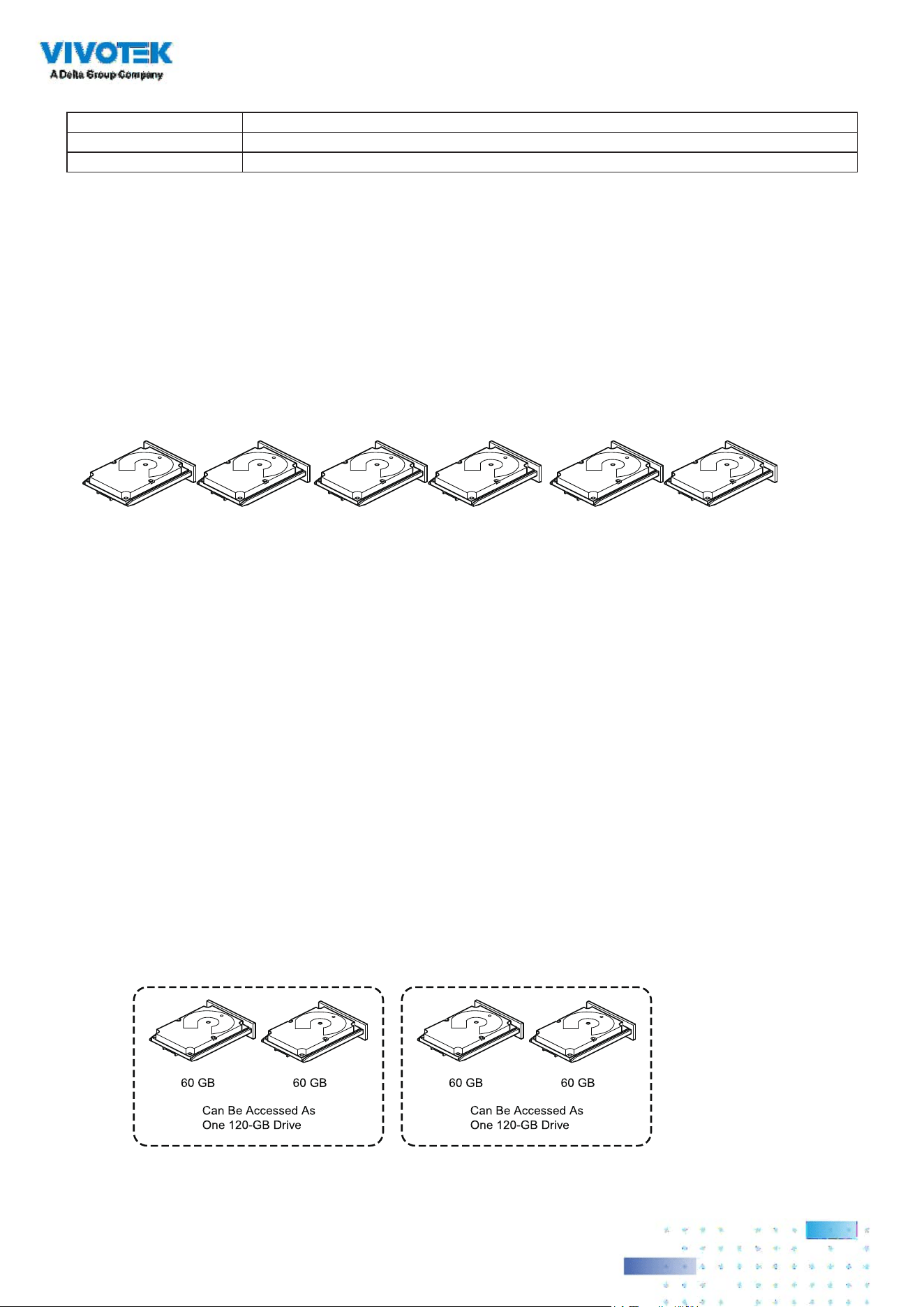
Disk spanning allows multiple drives to function like one big drive. Spanning overcomes lack
of disk space and simplifies storage management by combining existing resources or adding
relatively inexpensive resources. For example, four 20-GB drives can be combined to appear to the
operating system as a single 80-GB drive.Spanning alone does not provide reliability or performance
enhancements. Spanned virtual drives must have the same stripe size and must be contiguous. In the
following gure, RAID 1 drive groups are turned into a RAID 10 drive group.

4444
Spanning two contiguous RAID 0 virtual drives does not produce a new RAID level or add
fault tolerance. It does increase the capacity of the virtual drive and improves performance by
doubling the number of spindles.
Spanning for RAID 00, RAID 10, RAID 50, and RAID 60 Drive Groups
The following table describes how to configure RAID 00, RAID 10, RAID 50, and RAID 60 drive
groups by spanning. The virtual drives must have the same stripe size and the maximum number
of spans is 8. The full drive capacity is used when you span virtual drives; you cannot specify a
smaller drive capacity.

4545
Level Description
00 Congure a RAID 00 by spanning two or more contiguous RAID 0 virtual drives, up
to the maximum number of supported devices for the controller.
10 Congure RAID 10 by spanning two or more contiguous RAID 1 virtual drives, up
to the maximum number of supported devices for the controller. A RAID 10 drive
group supports a maximum of 8 spans. You must use an even number of drives in
each RAID virtual drive in the span. The RAID 1 virtual drives must have the same
stripe size.
50 Configure a RAID 50 drive group by spanning two or more contiguous RAID 5
virtual drives. The RAID 5 virtual drives must have the same stripe size.
60 Configure a RAID 60 drive group by spanning two or more contiguous RAID 6
virtual drives. The RAID 6 virtual drives must have the same stripe size.
Hot Spares
A hot spare is an extra, unused drive that is part of the disk subsystem. It is usually in Standby mode,
ready for service if a drive fails. Hot spares let you replace failed drives without system shutdown or
user intervention. The MegaRAID SAS RAID controllers can implement automatic and transparent
rebuilds of failed drives using hot spare drives, which provide a high degree of fault tolerance and zero
downtime.
The RAID management software lets you specify drives as hot spares. When a hot spare is needed, the
RAID controller assigns the hot spare that has a capacity closest to and at least as great as that of the
failed drive to take the place of the failed drive. The failed drive is removed from the virtual drive and
marked ready awaiting removal after the rebuild to a hot spare begins. You can make hot spares of the
drives that are not in a RAID virtual drive.
You can use the RAID management software to designate the hot spare to have enclosure affinity,
which means that if drive failures are present on a split backplane conguration, the hot spare will be
used rst on the backplane side in which it resides.If the hot spare is designated as having enclosure
anity, it tries to rebuild any failed drives on the backplane in which it resides before rebuilding any
other drives on other backplanes.
The hot spare can be of two types:
• Global hot spare
• Dedicated hot spare

4646
Global Hot Spare
Use a global hot spare drive to replace any failed drive in a redundant drive group as long as its
capacity is equal to or larger than the coerced capacity of the failed drive. A global hot spare
dened on any channel should be available to replace a failed drive on both channels.
Dedicated Hot Spare
Use a dedicated hot spare to replace a failed drive only in a selected drive group. One or more
drives can be designated as a member of a spare drive pool. The most suitable drive from the
pool is selected for failover. A dedicated hot spare is used before one from the global hot spare
pool.

4747
Hot spare drives can be located on any RAID channel. Standby hot spares (not being used in RAID drive
group) are polled every 60 seconds at a minimum, and their status made available in the drive group
management software. RAID controllers oer the ability to rebuild with a disk that is in a system but
not initially set to be a hot spare.
Observe the following parameters when using hot spares:
• Hot spares are used only in drive groups with redundancy: RAID levels 1, 5, 6, 10, 50, and 60.
• A hot spare connected to a specic RAID controller can be used to rebuild a drive that is connected
only to the same controller.
• You must assign the hot spare to one or more drives through the controller BIOS or use drive group
management software to place it in the hot spare pool.
• A hot spare must have free space equal to or greater than the drive it replaces. For example, to
replace a 500-GB drive, the hot spare must be 500-GB or larger.
Disk Rebuilds
When a drive in a RAID drive group fails, you can rebuild the drive by re-creating the data that was
stored on the drive before it failed. The RAID controller re-creates the data using the data stored
on the other drives in the drive group. Rebuilding can be performed only in drive groups with data
redundancy, which includes RAID 1, 5, 6, 10, 50, and 60 drive groups.
The RAID controller uses hot spares to rebuild failed drives automatically and transparently, at user-
dened rebuild rates. If a hot spare is available, the Rebuild operation can start automatically when a
drive fails. If a hot spare is not available, the failed drive must be replaced with a new drive so that the
data on the failed drive can be rebuilt.
The failed drive is removed from the virtual drive and marked ready awaiting removal when the
Rebuild operation to a hot spare begins. If the system goes down during a Rebuild operation, the RAID
controller automatically resumes the rebuild after the system reboots.

4848
NOTE:
When the Rebuild operation to a hot spare begins, the failed drive is often removed from
the virtual drive before management applications detect the failed drive. When this removal
occurs, the event logs show the drive rebuilding to the hot spare without showing the failed
drive. The formerly failed drive will be marked as ready after a Rebuild operation begins to
a hot spare. If a source drive fails during a rebuild to a hot spare, the Rebuild operation fails,
and the failed source drive is marked as oine. In addition, the rebuilding hot spare drive is
changed back to a hot spare. After a Rebuild operation fails because of a source drive failure,
the dedicated hot spare is still dedicated and assigned to the correct drive group, and the
global hot spare is still global.
An automatic drive Rebuild operation will not start if you replace a drive during a RAID-level
migration. The Rebuild operation must be started manually after the expansion or migration
procedure is complete. (RAID-level migration changes a virtual drive from one RAID level to
another.)

4949
Hot Swap
A hot swap is the manual replacement of a defective drive unit while the computer is still running.
When a new drive has been installed, a Rebuild operation occurs automatically if these situation
occurs:
• The newly inserted drive is the same capacity as or larger than the failed drive.
• The newly inserted drive is placed in the same drive bay as the failed drive it is replacing.
The RAID controller can be congured to detect the new drives and rebuild the contents of the drive
automatically.
Parity Type Description
Online A drive that can be accessed by the RAID controller and is part of the virtual drive.
Uncongured Good A drive that is functioning normally but is not congured as a part of a virtual drive
or as a hot spare.
Hot Spare A drive that is powered up and ready for use as a spare in case an online drive
fails.
Failed A drive that was originally configured as Online or Hot Spare, but on which the
rmware detects an unrecoverable error.
Rebuild A drive to which data is being written to restore full redundancy for a virtual drive.
Uncongured Bad A drive on which the firmware detects an unrecoverable error; the drive was
Uncongured Good or the drive could not be initialized.
Missing A drive that was Online but which has been removed from its location.
Ofine A drive that is part of a virtual drive but which has invalid data as far as the RAID
conguration is concerned.
Shield State An interim state of physical drive for diagnostic operations.
Copyback A drive that has replaced the failed drive in the RAID conguration.
Drive States
A drive state is a property indicating the status of the drive. The drive states are described in the
following table.

5050
Parity Type Description
Online The virtual drive operating condition is good. All congured drives are online.
Degraded The virtual drive operating condition is not optimal. One of the congured drives
has failed or is ofine.
Partial Degraded The operating condition in a RAID 6 virtual drive is not optimal. One of the
congured drives has failed or is ofine. A RAID 6 drive group can tolerate up to
two drive failures.
Failed The virtual drive has failed.
Ofine The virtual drive is not available to the RAID controller.
Virtual Drive States
The virtual drive states are described in the following table.
RAID Levels
The RAID controller supports RAID levels 0, 00, 1, 5, 6, 10, 50, and 60. The supported RAID levels are
summarized in the following section.
In addition, the RAID controller supports independent drives (congured as RAID 0 and RAID 00 drive
groups) The following sections describe the RAID levels in detail.
Summary of RAID Levels
A RAID 0 drive group uses striping to provide high data throughput, especially for large files in an
environment that does not require fault tolerance.
A RAID 1 drive group uses mirroring so that data written to one drive is simultaneously written to
another drive. The RAID 1 drive group is good for small databases or other applications that require
small capacity but complete data redundancy.

5151
A RAID 5 drive group uses disk striping and parity data across all drives (distributed parity) to provide
high data throughput, especially for small random access.A RAID 6 drive group uses distributed parity,
with two independent parity blocks per stripe, and disk striping.
A RAID 6 virtual drive can survive the loss of any two drives without losing data. A RAID 6 drive group,
which requires a minimum of three drives, is similar to a RAID 5 drive group. Blocks of data and parity
information are written across all drives. The parity information is used to recover the data if one or
two drives fail in the drive group.
A RAID 00 drive group is a spanned drive group that creates a striped set from a series of RAID 0 drive
groups.A RAID 10 drive group, a combination of RAID 0 and RAID 1 drive groups, consists of striped
data across mirrored spans.
A RAID 10 drive group is a spanned drive group that creates a striped set from a series of mirrored
drives. A RAID 10 drive group allows a maximum of 8 spans. You must use an even number of drives in
each RAID virtual drive in the span. The RAID 1 virtual drives must have the same stripe size. A RAID 10
drive group provides high data throughput and complete data redundancy but uses a larger number
of spans.
A RAID 50 drive group, a combination of RAID 0 and RAID 5 drive groups, uses distributed parity and
disk striping. A RAID 50 drive group is a spanned drive group in which data is striped across multiple
RAID 5 drive groups. A RAID 50 drive group works best with data that requires high reliability, high
request rates, high data transfers, and medium-to-large capacity.
NOTE
Having virtual drives of dierent RAID levels, such as RAID Level0 and RAID Level5, in the same drive
group is not allowed. For example, if an existing RAID5 virtual drive is created out of partial space in
an array, the next virtual drive in the array has to be RAID Level 5 only.

5252
NOTE
The MegaSR controller supports the standard RAID levels – RAID0, RAID1, RAID5, and RAID10.
The MegaSR controller comes in two variants, SCU and AHCI, both supporting a maximum of
eight physical drives. A maximum of eight virtual drives can be created (using RAID0, RAID 1,
RAID5, and RAID10 only) and controlled by the MegaSR controller. One virtual drive can be
created on an array (a maximum of eight if no other virtual drives are already created on the
MegaSR controller), or you can create eight arrays with one virtual drive each. However, on a
RAID10 drive group, you can create only one virtual drive on a particular array.
A RAID 60 drive group, a combination of RAID level 0 and RAID Level 6, uses distributed parity,
with two independent parity blocks per stripe in each RAID set, and disk striping. A RAID 60
virtual drive can survive the loss of two drives in each of the RAID 6 sets without losing data. A
RAID 60 drive group works best with data that requires high reliability, high request rates, high
data transfers, and medium-to-large capacity.

5353
Uses Provides high data throughput, especially for large files.Any environment that
does not require fault tolerance.
Strong points Provides increased data throughput for large les.
No capacity loss penalty for parity.
Weak points Does not provide fault tolerance or high bandwidth.All data is lost if any drive fails.
Drives 1 to 32
RAID 0 Drive Groups
A RAID 0 drive group provides disk striping across all drives in the RAID drive group. A RAID0 drive
group does not provide any data redundancy, but the RAID 0 drive group oers the best performance
of any RAID level. The RAID 0 drive group breaks up data into smaller segments, and then stripes the
data segments across each drive in the drive group. The size of each data segment is determined by
the stripe size. A RAID 0 drive group oers high bandwidth.
By breaking up a large le into smaller segments, the RAID controller can use both SAS drives and SATA
drives to read or write the le faster. A RAID 0 drive group involves no parity calculations to complicate
the write operation. This situation makes the RAID 0 drive group ideal for applications that require high
bandwidth but do not require fault tolerance. The following table provides an overview of the RAID 0
drive group. The following gure provides a graphic example of a RAID 0 drive group.
NOTE
RAID level 0 is not fault tolerant. If a drive in a RAID 0 drive group fails, the entire virtual drive (all drives
associated with the virtual drive) fails.
Segment 1
Segment 3
Segment 5
Segment 2
Segment 4
Segment 6
Segment 7 Segment 8

5454
RAID 1 Drive Groups
In RAID 1 drive groups, the RAID controller duplicates all data from one drive to a second drive in the
drive group. A RAID 1 drive group supports an even number of drives from 2 through 32 in a single
span. The RAID1 drive group provides complete data redundancy, but at the cost of doubling the
required data storage capacity. The following table provides an overview of a RAID1 drive group. The
following gure provides a graphic example of a RAID1 drive group.
Uses Use RAID 1 drive groups for small databases or any other environment that
requires fault tolerance but small capacity.
Strong points Provides complete data redundancy.A RAID 1 drive group is ideal for any
application that requires fault tolerance and minimal capacity.
Weak points Requires twice as many drives.
Performance is impaired during drive rebuilds.
Drives 2 through 32 (must be an even number of drives)
Segment 1
RAID 1
Segment 1
Duplicate
Segment 5 Segment 5
Duplicate
...
Segment 2 Segment 2
Duplicate
Segment 6 Segment 6
Duplicate
...
Segment 3
Segment 3
Duplicate
Segment 7 Segment 7
Duplicate
...
Segment 4 Segment 4
Duplicate
Segment 8 Segment 8
Duplicate
...
RAID 1 RAID 1 RAID 1
RAID 5 Drive Groups
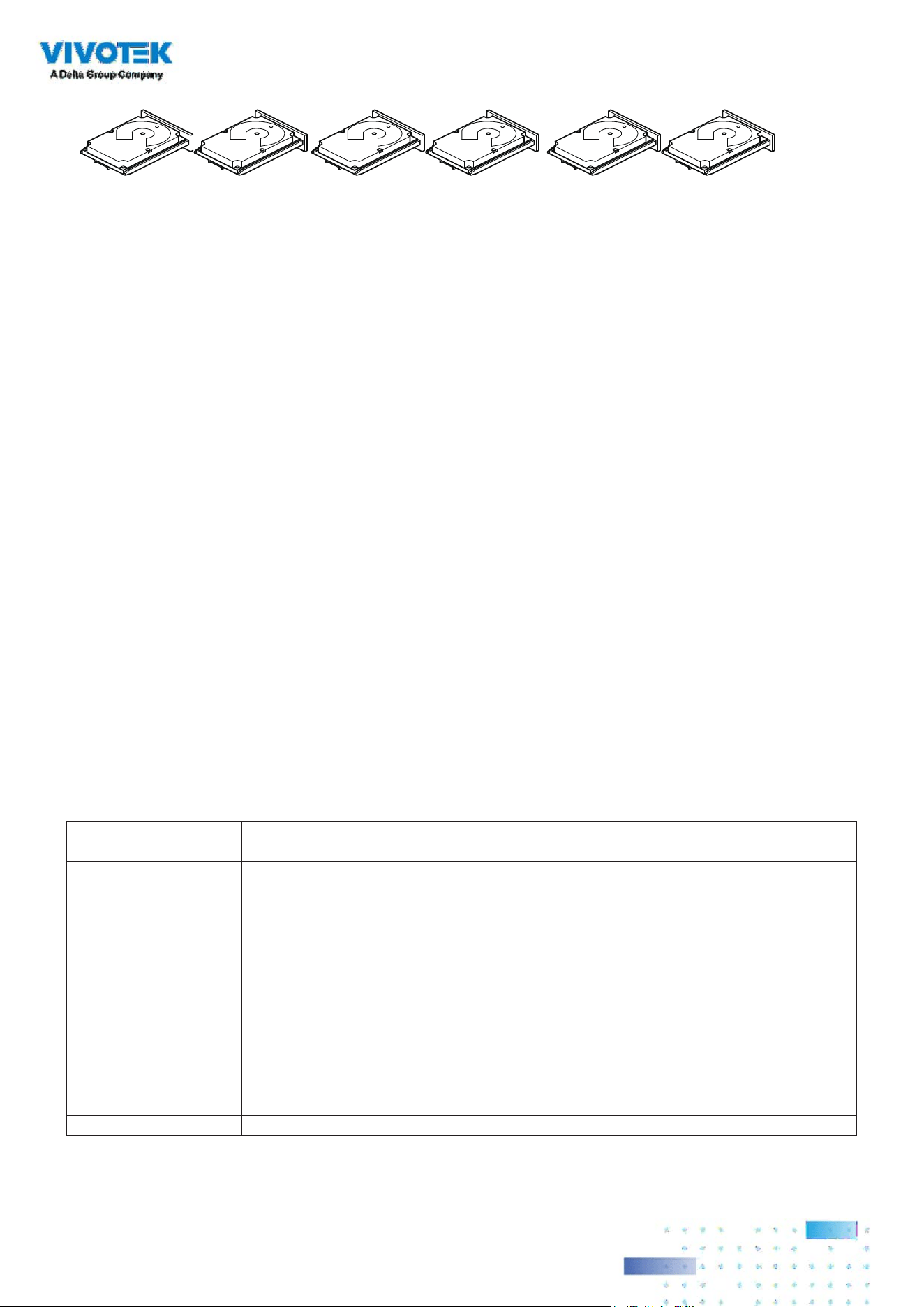
A RAID 5 drive group includes disk striping at the block level and parity. Parity is the data’s property of
being odd or even, and parity checking is used to detect errors in the data. In RAID5 drive groups, the
parity information is written to all drives. A RAID5 drive group is best suited for networks that perform
a lot of small input/output (I/O) transactions simultaneously.The following table provides an overview
of a RAID5 drive group. The following gure provides a graphic example of a RAID5 drive group.
Uses Provides high data throughput, especially for large les.
Use RAID 5 drive groups for transaction processing applications because each
drive can read and write independently.
If a drive fails, the RAID controller uses the parity drive to re-create all missing
information.Use also for online customer service that requires fault tolerance.
Use for any application that has high read request rates but random write request
rates.
Strong points Provides data redundancy, high read rates, and good performance in most
environments.Provides redundancy with lowest loss of capacity.
Weak points Not well suited to tasks requiring lots of small writes or small block write
operations.Suffers more impact if no cache is used.
Drive performance is reduced if a drive is being rebuilt.
Environments with few processes do not perform as well because the RAID drive
group overhead is not offset by the performance gains in handling simultaneous
processes.
Drives 3 through 32
5555
Segment 1
Segment 7
Segment 13
Segment 2
Segment 8
Segment 14
Segment 3
Segment 9
Segment 15
Segment 4
Segment 10
Parity (11 to 15)
Segment 5
Parity (6 to 10)
Segment 11
Parity (1 to 5)
Segment 6
Segment 12
Segment 19
Segment 25
Parity (26 to 30)
Segment 20
Parity (21 to 25)
Segment 26
Parity (16 to 20)
Segment 21
Segment 27
Segment 16
Segment 22
Segment 28
Segment 17
Segment 23
Segment 29
Segment 18
Segment 24
Segment 30
RAID 6 Drive Groups
A RAID6 drive group is similar to a RAID5 drive group (disk striping and parity), except that instead of
one parity block per stripe, there are two. With two independent parity blocks, A RAID6 drive group
can survive the loss of any two drives in a virtual drive without losing data. A RAID6 drive group
provides a high level of data protection through the use of a second parity block in each stripe. Use a
RAID6 drive group for data that requires a very high level of protection from loss.
In the case of a failure of one drive or two drives in a virtual drive, the RAID controller uses the parity
blocks to re-create all of the missing information. If two drives in a RAID6 virtual drive fail, two drive
rebuilds are required, one for each drive. These rebuilds do not occur at the same time. The controller
rebuilds one failed drive, and then the other failed drive.The following table provides an overview of a
RAID6 drive group.
Uses Use for any application that has high read request rates but low random or small
block write rates.
Strong points Provides data redundancy, high read rates, and good performance in most
environments.Can survive the loss of two drives or the loss of a drive while
another drive is being rebuilt.Provides the highest level of protection against drive
failures of all of the RAID levels.Performance is similar to that of a RAID5 drive
group.
Weak points Not well-suited to tasks requiring a lot of small and/or random write operations.A
RAID 6 virtual drive must generate two sets of parity data for each write operation,
which results in a signicant decrease in performance during write operations.
Drive performance is reduced during a drive Rebuild operation.Environments with
few processes do not perform as well because the RAID overhead is not offset by
the performance gains in handling simultaneous processes.
A RAID6 drive group costs more because of the extra capacity required by using
two parity blocks per stripe.
Drives 3 through 32

5656
The following figure shows a RAID6 drive group data layout. The second set of parity drives is
denoted by Q. The P drives follow the RAID5 drive group parity scheme.
5757
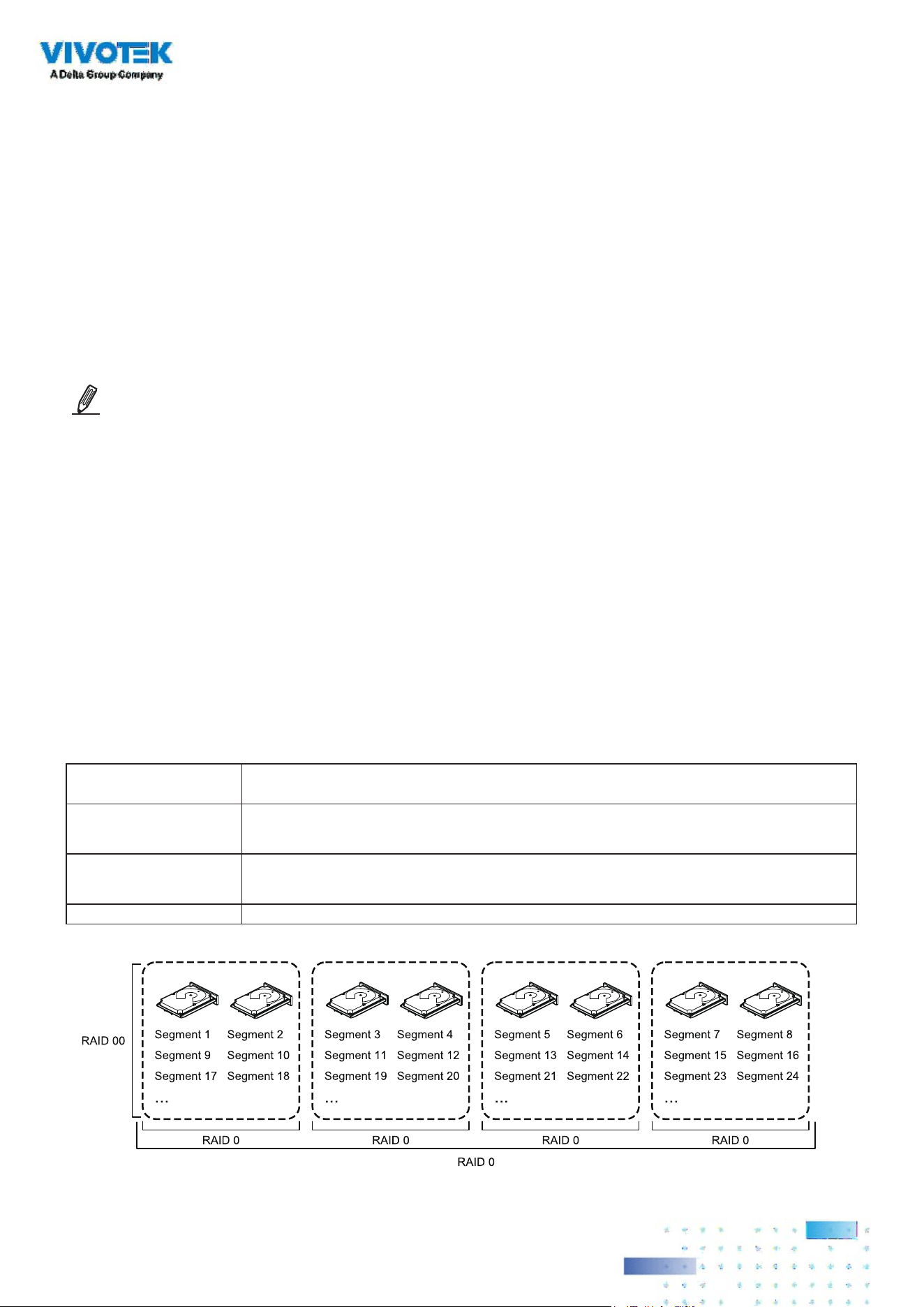
RAID 00 Drive Groups
A RAID 00 drive group is a spanned drive group that creates a striped set from a series of RAID0 drive
groups. A RAID00 drive group does not provide any data redundancy, but, along with the RAID0 drive
group, does oer the best performance of any RAID level. A RAID00 drive group breaks up data into
smaller segments and then stripes the data segments across each drive in the drive groups. The size of
each data segment is determined by the stripe size. A RAID00 drive group oers high bandwidth.
Uses Provides high data throughput, especially for large files.Any environment that
does not require fault tolerance.
Strong points Provides increased data throughput for large les.
No capacity loss penalty for parity.
Weak points Does not provide fault tolerance or high bandwidth.
All data lost if any drive fails.
Drives 2 through 256
NOTE
RAID level 00 is not fault tolerant. If a drive in a RAID 0 drive group fails, the entire virtual drive (all drives
associated with the virtual drive) fails.
By breaking up a large file into smaller segments, the controller can use both SAS drives and SATA
drives to read or write the le faster. A RAID00 drive group involves no parity calculations to complicate
the write operation. This situation makes the RAID00 drive group ideal for applications that require
high bandwidth but do not require fault tolerance. The following table provides an overview of the
RAID00 drive group. The following gure provides a graphic example of a RAID 00 drive group.

5858
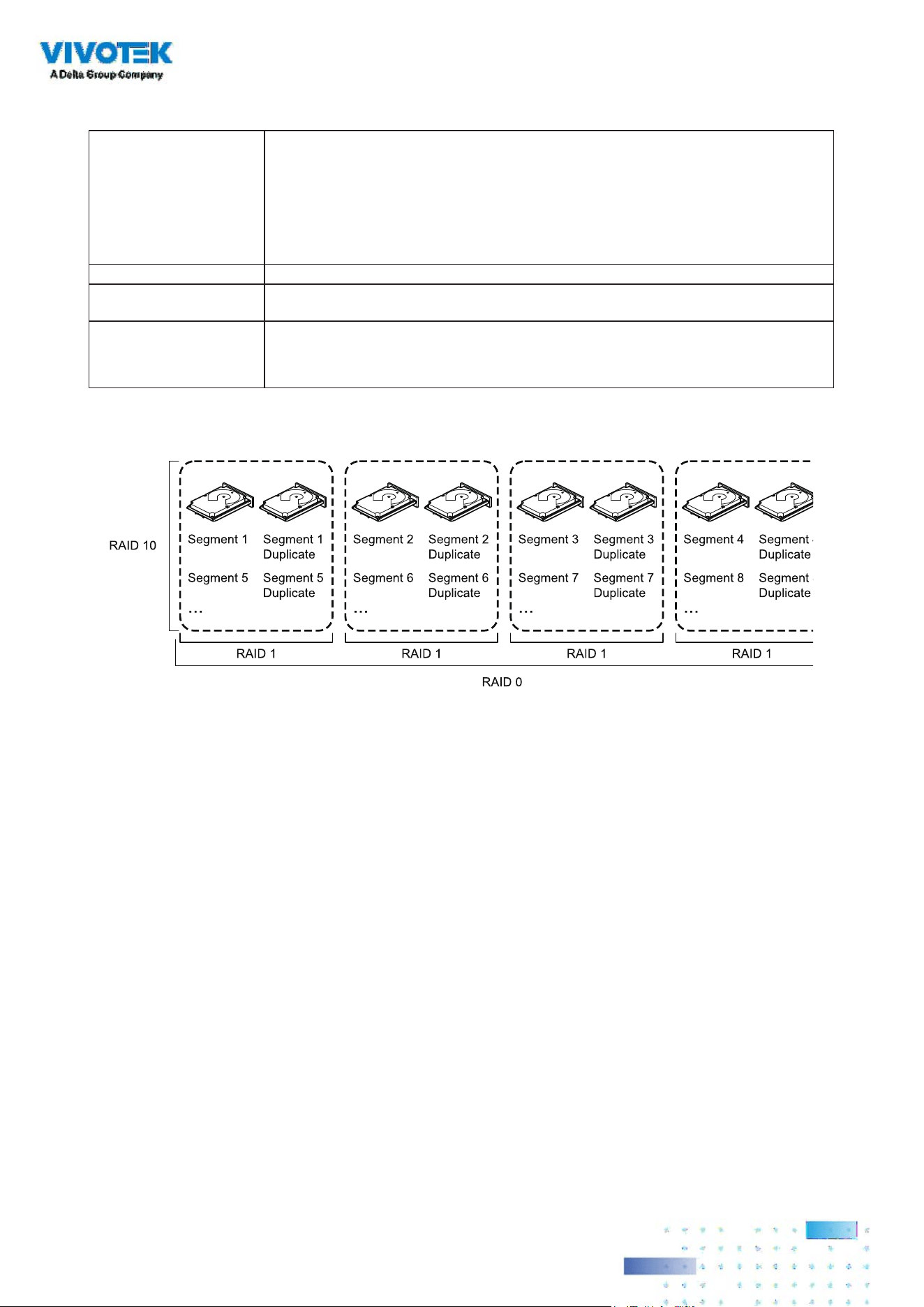
RAID 10
A RAID10 drive group is a combination of RAID level 0 and RAID level 1, and it consists of stripes across
mirrored drives. A RAID10 drive group breaks up data into smaller blocks and then mirrors the blocks
of data to each RAID1 drive group. The rst RAID1 drive in each drive group then duplicates its data to
the second drive. The size of each block is determined by the stripe size parameter, which is set during
the creation of the RAID set. The RAID 1 virtual drives must have the same stripe size.
Spanning is used because one virtual drive is defined across more than one drive group. Virtual
drives defined across multiple RAIDlevel 1 drive groups are referred to as RAID level 10, (1+0). Data
is striped across drive groups to increase performance by enabling access to multiple drive groups
simultaneously.
Each spanned RAID 10 virtual drive can tolerate multiple drive failures, as long as each failure is in a
separate drive group. If drive failures occur, less than total drive capacity is available.
Congure RAID 10 drive groups by spanning two contiguous RAID1 virtual drives, up to the maximum
number of supported devices for the controller. A RAID10 drive group supports a maximum of 8spans,
with a maximum of 32drives per span. You must use an even number of drives in each RAID10 virtual
drive in the span.
NOTE
Other factors, such as the type of controller, can restrict the number of drives supported by RAID 10
virtual drives.
5959
Uses Appropriate when used with data storage that needs 100 percent redundancy
of mirrored drive groups and that also needs the enhanced I/O performance
of RAID 0 (striped drive groups.)
A RAID10 drive group works well for medium-sized databases or any
environment that requires a higher degree of fault tolerance and moderate-
to-medium capacity.
Strong points Provides both high data transfer rates and complete data redundancy.
Weak points Requires twice as many drives as all other RAID levels except in RAID 1
drive groups.
Drives 4 to 32 in multiples of 4 — The maximum number of drives supported by the
controller (using an even number of drives in each RAID 10 virtual drive in
the span).
The following table provides an overview of a RAID10 drive group.
In the following gure, virtual drive 0 is created by distributing data across four drive groups (drive
groups 0 through3).
6060
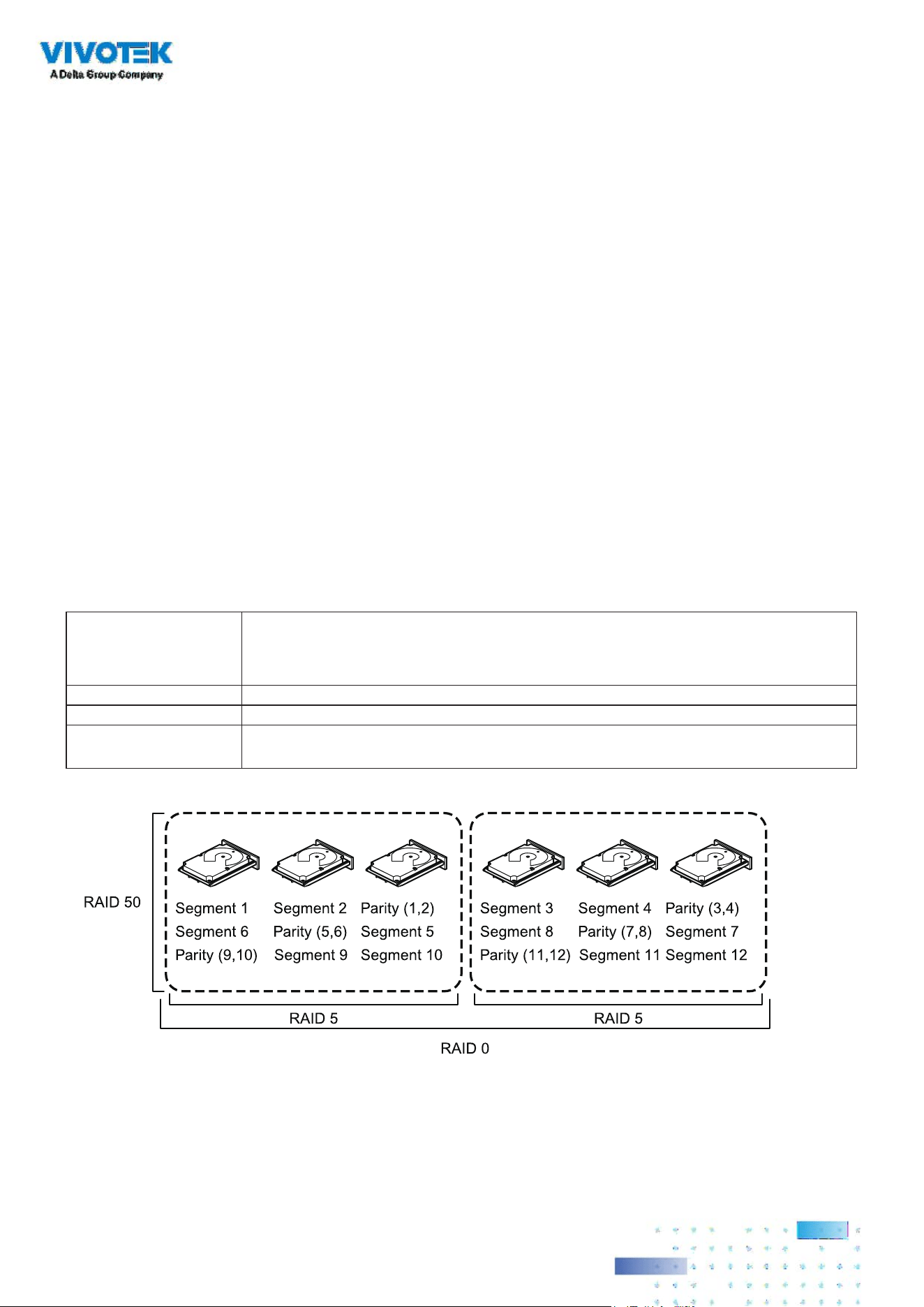
RAID 50
A RAID50 drive group provides the features of both RAID0 and RAID5 drive groups. A RAID50 drive
group includes both distributed parity and drive striping across multiple drive groups. A RAID50 drive
group is best implemented on two RAID5 drive groups with data striped across both drive groups.
A RAID50 drive group breaks up data into smaller blocks and then stripes the blocks of data to each
RAID5 disk set. A RAID5 drive group breaks up data into smaller blocks, calculates parity by performing
an exclusive OR operation on the blocks, and then performs write operations to the blocks of data
and parity to each drive in the drive group. The size of each block is determined by the stripe size
parameter, which is set during the creation of the RAID set.
A RAID level 50 drive group can support up to eight spans and tolerate up to eight drive failures,
though less than total drive capacity is available. Though multiple drive failures can be tolerated, only
one drive failure can be tolerated in each RAID 5 level drive group.
The following table provides an overview of a RAID50 drive group.
Uses Appropriate when used with data that requires high reliability, high request rates,
high data transfer, and medium-to-large capacity.
Also used when a virtual drive of greater than 32 drives is needed.
Strong points Provides high data throughput, data redundancy, and very good performance.
Weak points Requires two times to eight times as many parity drives as a RAID 5 drive group.
Drives Eight spans of RAID 5 drive groups that contain 3 to 32 drives each (limited by the
maximum number of devices supported by the controller)

6161
RAID 60
A RAID 60 drive group provides the features of both RAID 0 and RAID 6 drive groups, and includes both
parity and disk striping across multiple drive groups. A RAID6 drive group supports two independent
parity blocks per stripe. A RAID 60 virtual drive can survive the loss of two drives in each of the RAID6
drive group sets without losing data. A RAID60 drive group is best implemented on two RAID6 drive
groups with data striped across both drive groups.
A RAID60 drive group breaks up data into smaller blocks and then stripes the blocks of data to each
RAID6 disk set. A RAID6 drive group breaks up data into smaller blocks, calculates parity by performing
an exclusive-OR operation on the blocks, and then performs write operations to the blocks of data and
writes the parity to each drive in the drive group. The size of each block is determined by the stripe size
parameter, which is set during the creation of the RAID set.
A RAID60 drive group can support up to 8spans and tolerate up to 16 drive failures, though less than
total drive capacity is available. Two drive failures can be tolerated in each RAID 6 level drive group.
Uses Provides a high level of data protection through the use of a second parity block
in each stripe. Use a RAID60 drive group for data that requires a very high level of
protection from loss.
In the case of a failure of one drive or two drives in a RAID set in a virtual drive, the
RAID controller uses the parity blocks to re-create all of the missing information.
If two drives in a RAID 6 set in a RAID60 virtual drive fail, two drive Rebuild
operations are required, one for each drive. These Rebuild operations can occur at
the same time.
Use for online customer service that requires fault tolerance. Use for any
application that has high read request rates but low write request rates. Also used
when a virtual drive of greater than 32 drives is needed.
Strong points Provides data redundancy, high read rates, and good performance in most
environments. Each RAID6 set can survive the loss of two drives or the loss of a
drive while another drive is being rebuilt.Provides the highest level of protection
against drive failures of all of the RAID levels.
Weak points Not well-suited for small block write or random write operations. A RAID 60
virtual drive must generate two sets of parity data for each write operation, which
results in a significant decrease in performance during write operations.Drive
performance is reduced during a drive Rebuild operation. Environments with few
processes do not perform as well because the RAID overhead is not offset by the
performance gains in handling simultaneous processes.
A RAID6 drive group costs more because of the extra capacity required by using
two parity blocks per stripe.
Drives A minimum of 6.
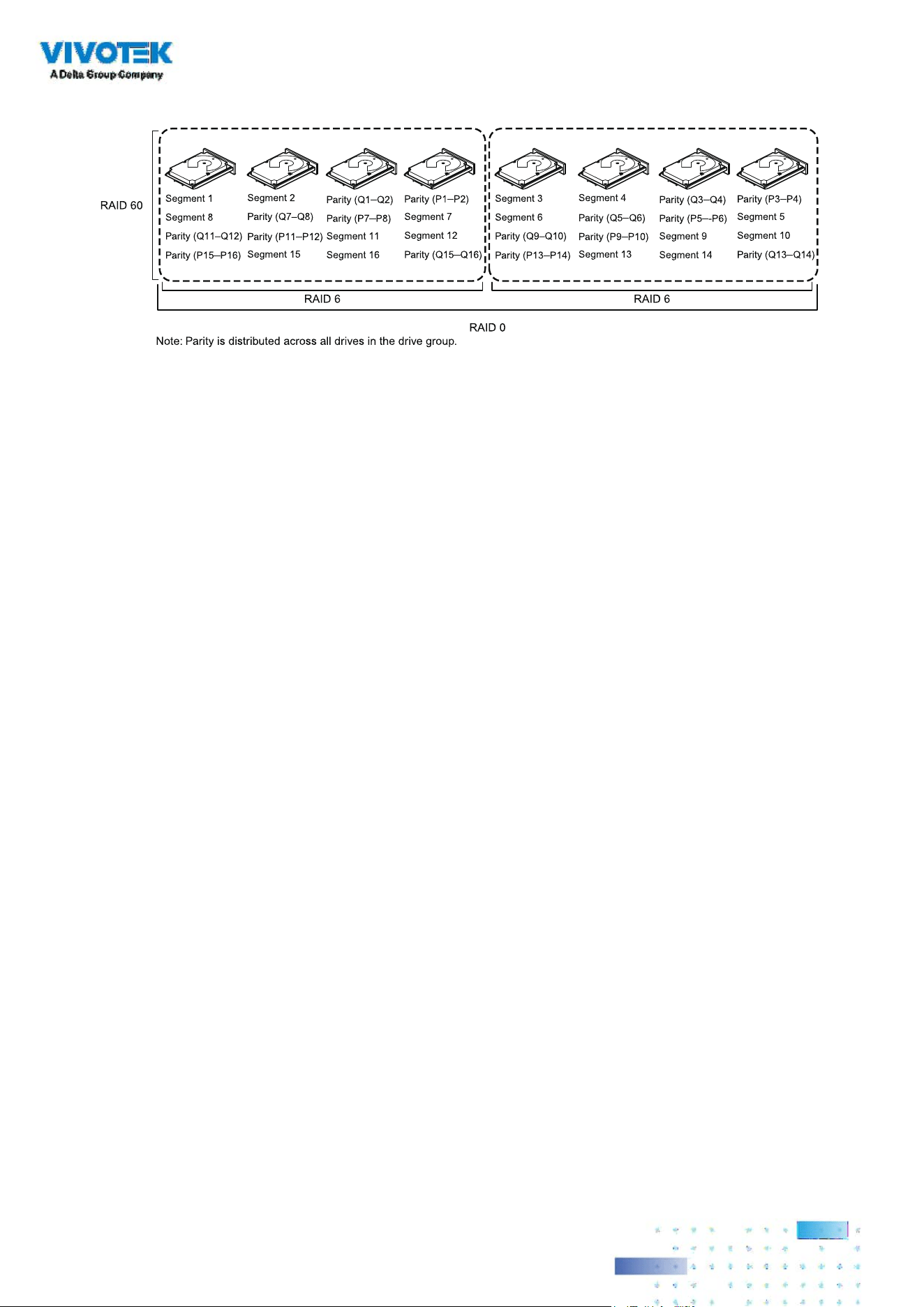
6262
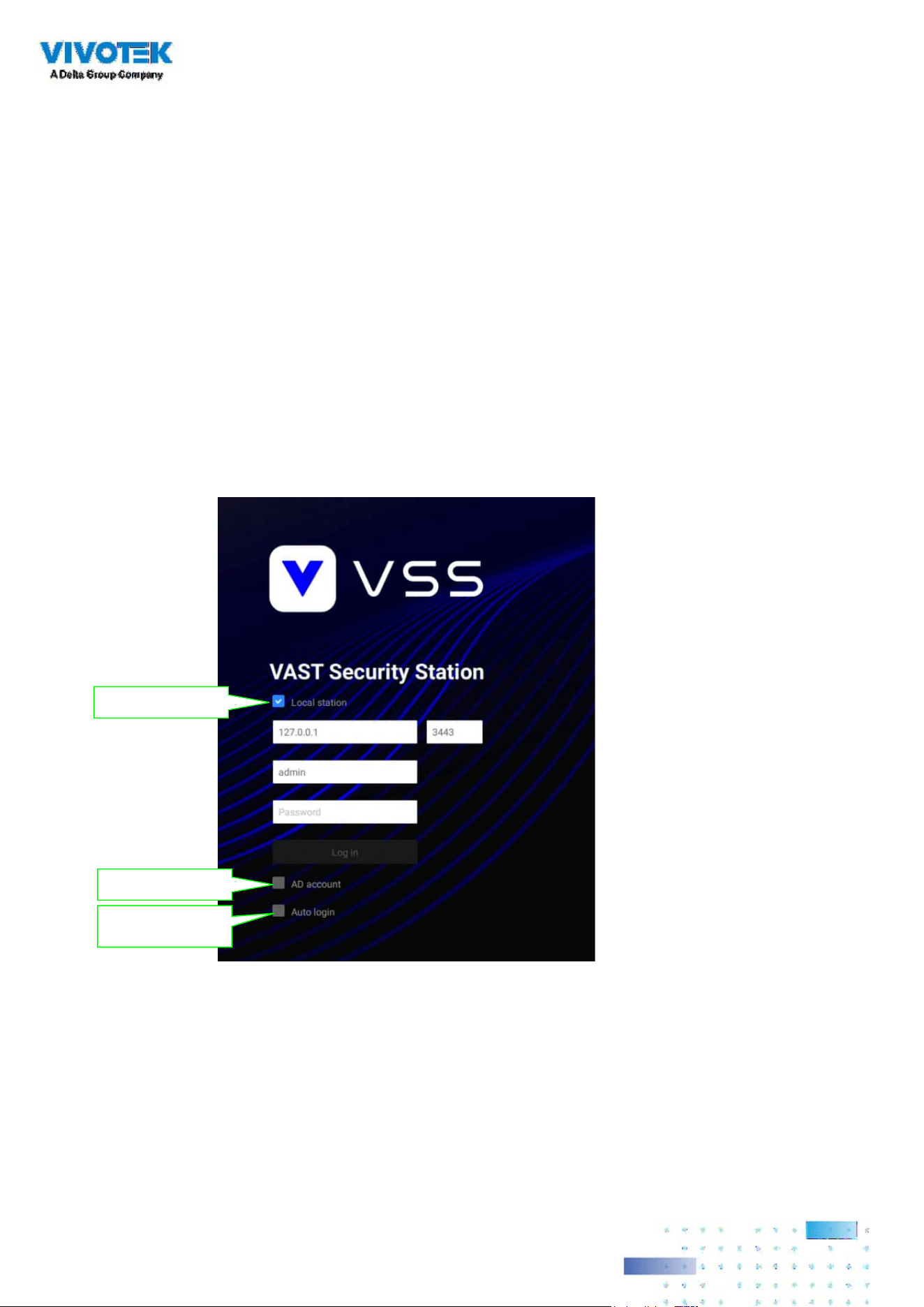
6363
Log in
To log in,
1. Enter the server's IP address and TCP port number (3443 as the default). If logging in from the
server itself, you can select the Local station checkbox.
2. Enter the credentials for login. The credentials were created during the installation.
3. You can use an existing AD ccount for login. See page 245 for user management and AD count
conguration.
4. Auto login: After you enter the credentials for the first time, the server will not prompt for
credentials the next time you start the VSS software.
Login from the local machine
using a loop-back address
login using an existing AD
account
Automatically login after the
first time you entered the cre-
dentials

6464
Introducing VSS
VIVOTEK VSS (VAST Security Station) is the professional video / central management software
designed for managing all VIVOTEK IP surveillance products with intuitive functions and
numerous features. It supports hundreds of cameras and stations in a hierarchical structure of
system for monitoring, recording, playback and event trigger management with ease-of-use and
ecient control.
VSS integrates VIVOTEK network cameras to provide diverse solutions and applications, with
the cameras for uninterrupted video recording, Smart Search II, Smart VCA, and Cybersecurity
management solution. VSS performs remote management with full range of the server & client
structure and constitutes a robust system for various applications, such as stores, banking and
the public space.
Key Features
• Deep Search wth attributes, scenes, and Re-search functions
• Smart Search II Plus: Dynamic Forensic Search
- Line Crossing: Detection of crossing a user-dened line and direction
- Loitering: Detection of Loitering in an area for a congurable stay time.
- Intrusion: Detection of intrusion into a zone or leaving from a zone.
• Smart Tracking: Speed Dome's People Tracking.
• Live Multicast: Reduced network trac and optimized bandwidth usage.
• CMS Failover: 1+1 redundancy for Central Management server.
• Data Overlay on screen.
• User dened role for group authorities
• Recording encryption

6565
• License plate recognition solution and data magnet
• Cybersecurity Management Solution
• Smart VCA: AI Powered Video Analytics
• System Overview dashboard
• Multi-sensor display modes
• Evidence Lock: Automatically Bookmark Related Recordings When Alarm Triggered.
• Evidence Export: Manually Export Video Recordings or Alarm Clips.
• Matrix for Video Wall Solution
• Automatic Problem Feedback Mechanism
• Multiple Fisheye Dewarp Modes
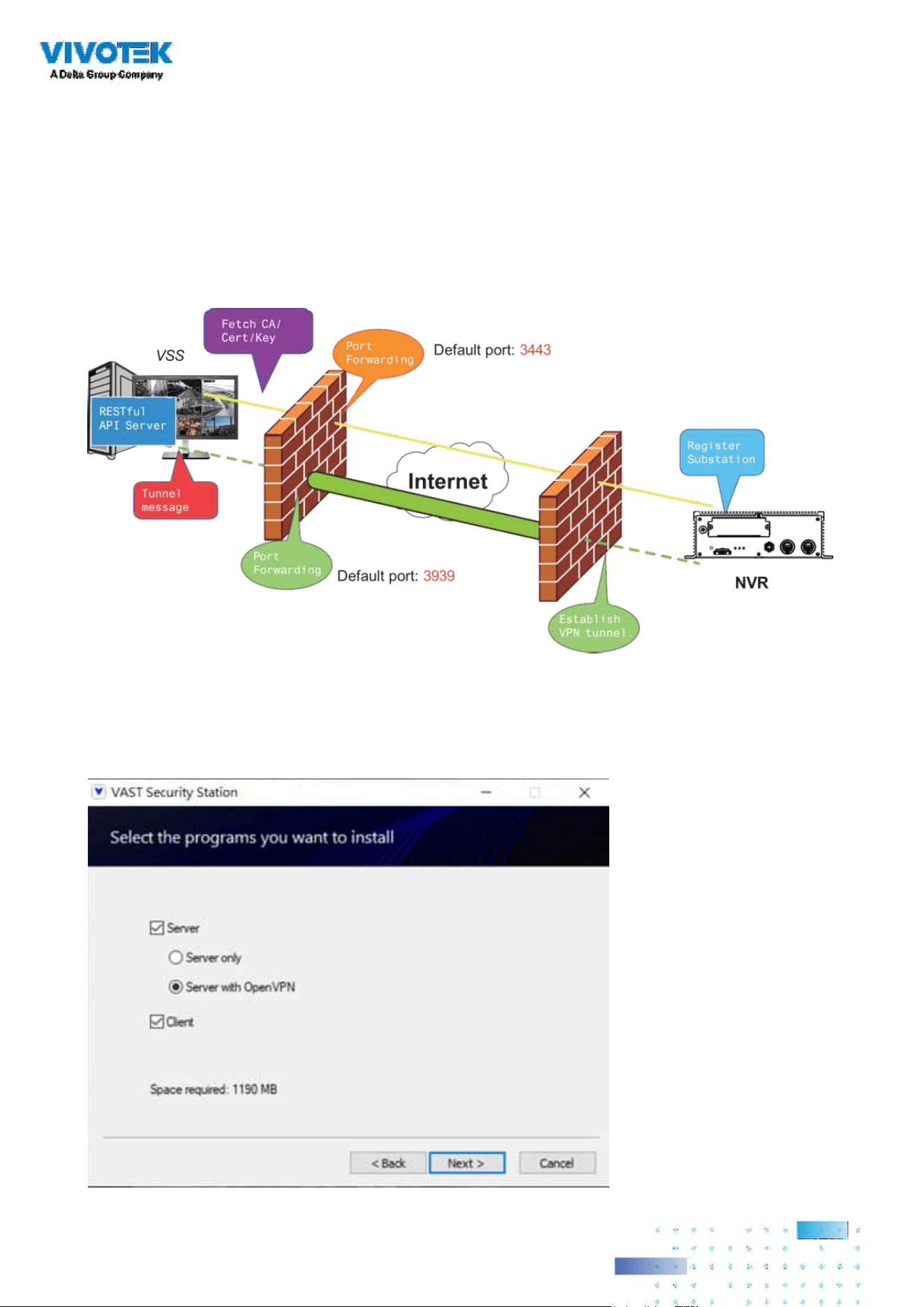
6666
Installation Option - OpenVPN
NAT-traversal with OpenVPN
A remote connection between a VSS server and an NVR with 3G/4G/LTE network can be made
through an OpenVPN tunnel. The figure below shows the methodology comprising HMAC au-
thentication and TLS encryption over an encrypted UDP connection.
Sample installation steps are shown below:
Step 1: Install VSS by selecting the Server with OpenVPN option.
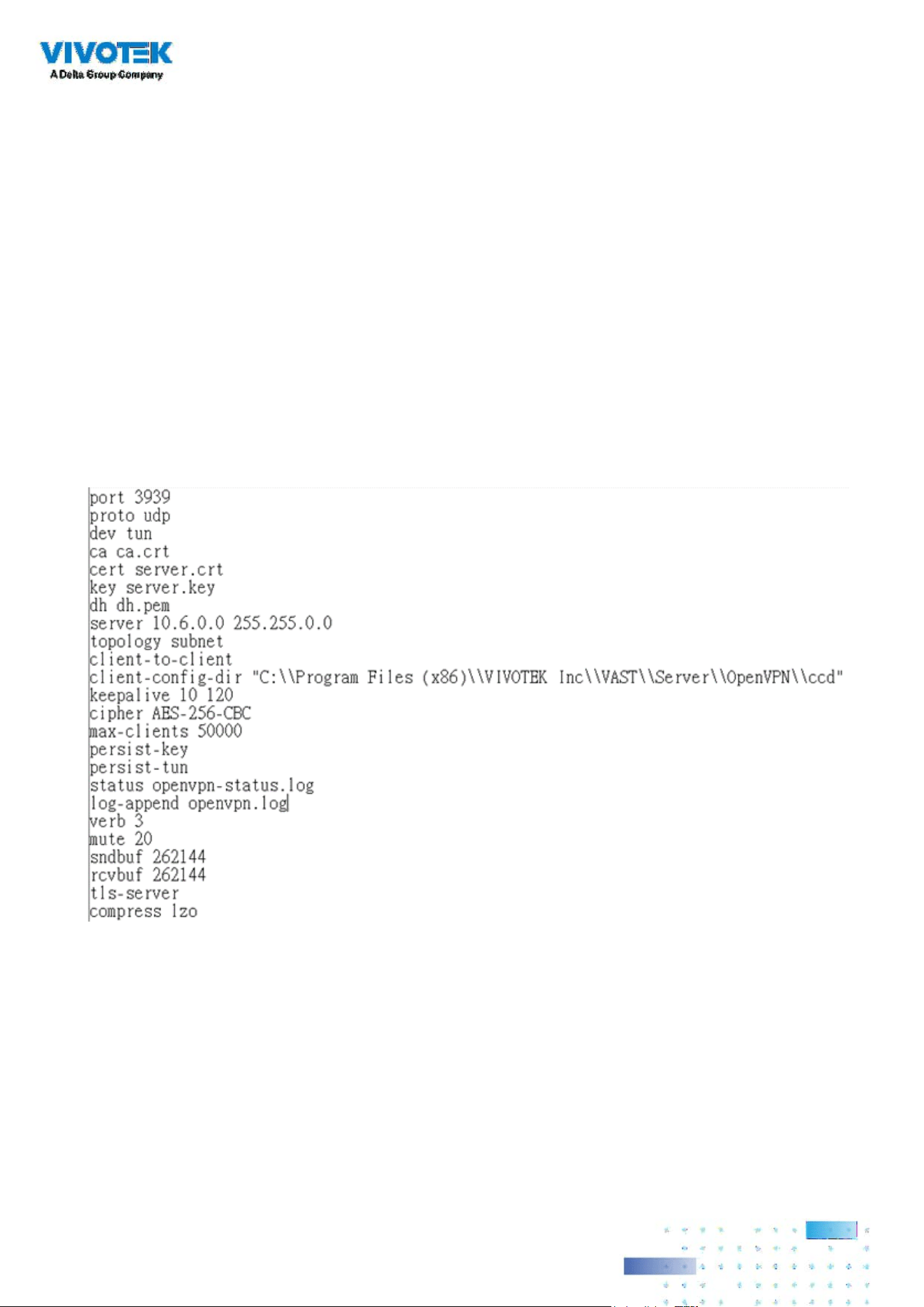
6767
Step 2: Enable the public IP of the VSS Server.
For the NVR to establish an OpenVPN connection with the VSS Server, the user must activate the
public IP of that server. (Note that the specic steps depend on the user's network environment
and relevant IT policies.)
After activating the Public IP, ensure the accessibility of the HTTPS port and OpenVPN port. (Note
that the VSS OpenVPN port by default is 3939, so the user must set up port forwarding with UDP.)
If the default HTTPS port (3443) is unavailable, the user must modify the corresponding port
number under VSS Settings > Device > Stations. If the default port for OpenVPN (3939) is not
available, the user needs to modify the configuration file of OpenVPN (located in C:\Program
Files (x86)\VIVOTEK Inc\VAST\Server\OpenVPN\cong\server\server.ovpn).
You can directly edit the port number in this text le (le content is shown below):

6868
Step 3: Congure the NVR OpenVPN connection.
Once you have obtained the VSS Server public IP, congure the NVR settings under Network >
Service > CMS. Then, enter the VSS server public IP/credentials/API service port (HTTPS). (Note
that if the HTTPS port on the VSS end is not 3443, you must modify the corresponding port
number.)
After configuring the settings for VSS and NVR, the OpenVPN connection will be established.
Once the connection is established, this NVR will be automatically added to the VSS server. (Note
that the NVR and VSS server should have a similar time setting when exchanging certificate
information. Otherwise, the mutual handshake authentication process may fail.)
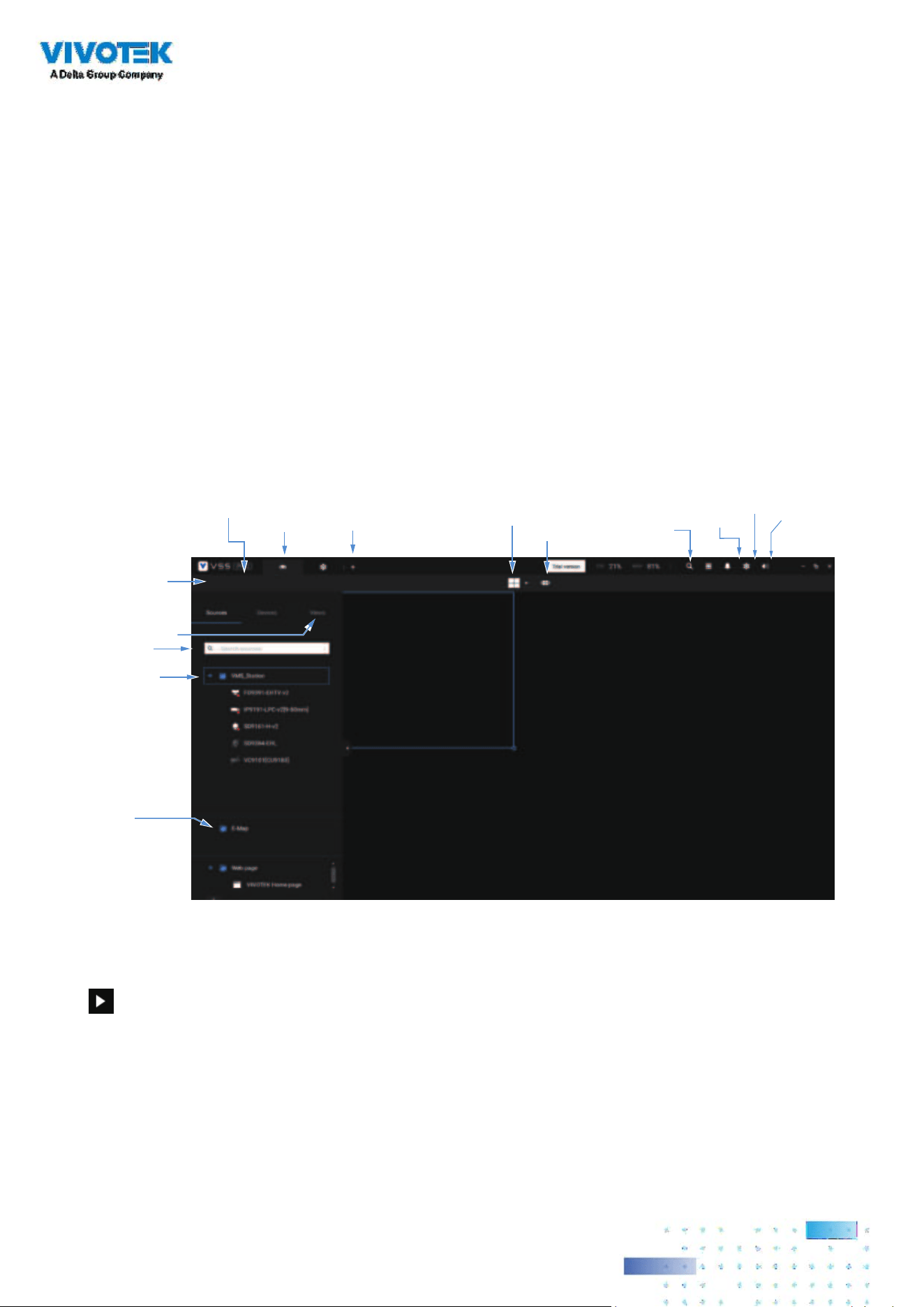
6969
Chapter 1 Basics:
Control and Elements
The basic screen elements of VSS live view, playback, and search pane are shown below:
Live view
LiveView
Layout
Tabs
Camera tour
Hide Pane
Bu�on
View
View Cell
Device Tree
Search
View
configura�on
Se�ngs
System
resources
Applica�ons
Alarm
list/search
New
Tab
E-Map
Playback is evoked when a view cell is selected, and you click the Playback button
on the upper right of the view cell.

7070
Search Panel
Playback Control
Search pane
LiveView
Layout
Tabs
View
Search
Camera tour
Se�ngs
System
resources
Applica�ons
Alarm
list
Volume
Search
Histogram
Adjustment
Export
Speed Control
Playback Timeline & Histogram
Playhead
Synchronous
Playback Control Buon
Time Search
Events
Highlights
06:44:23
Mouse-over
indicator
Return to Live
Drag to move along
meline

7171
Top Tool Bar
Se�ngs
Applica�ons
Alarm
System
Resources
Search
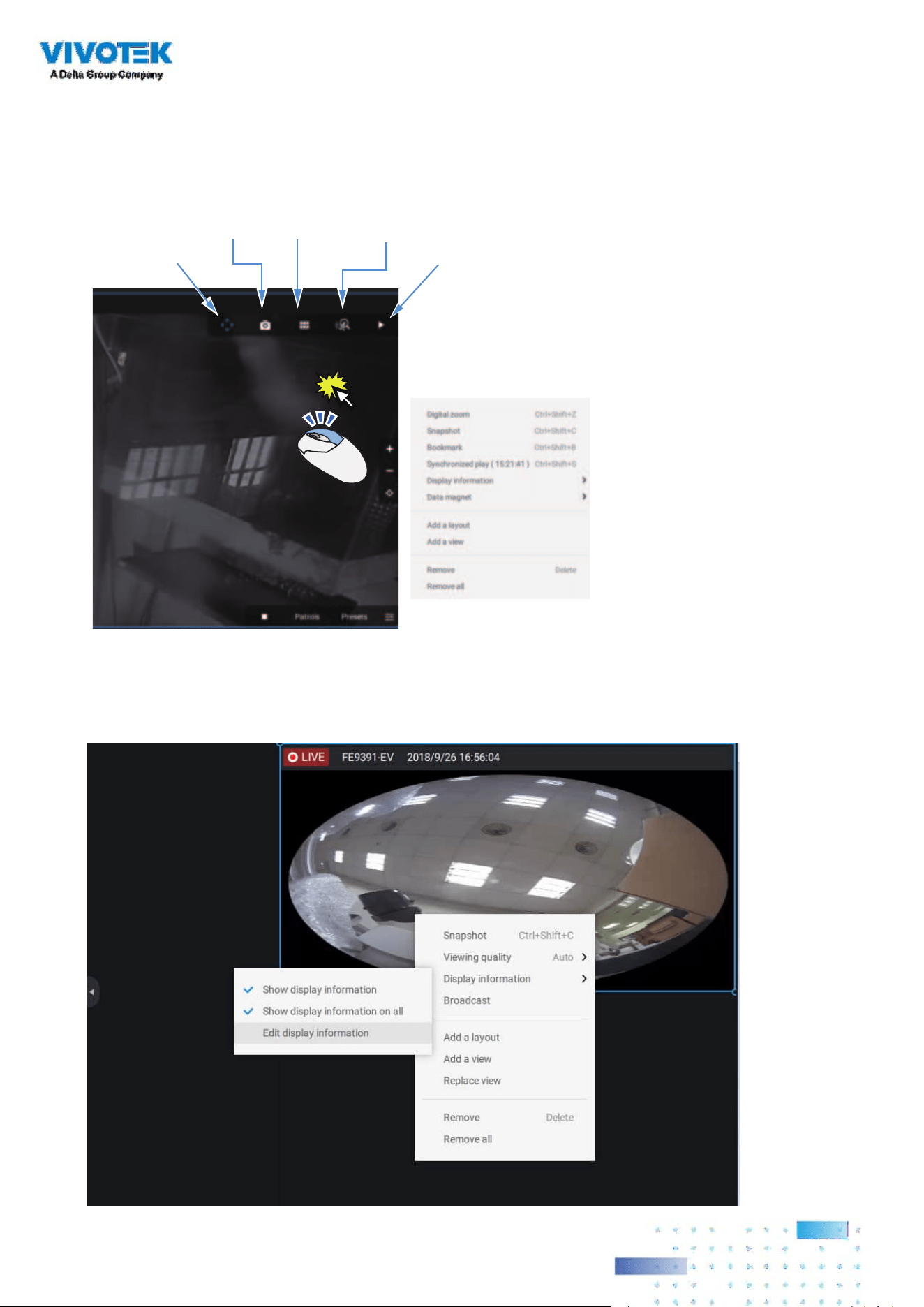
7272
View cell control
Some controls and functions are available when a view cell is selected or via the right-click
menus.
Smart
Search II
Snapshot
Thumbnail
Search
Camera-specific
Replay
Text overlay
Single-click to select a view cell, right-click and select Display information. The Edit display
information tab will appear.
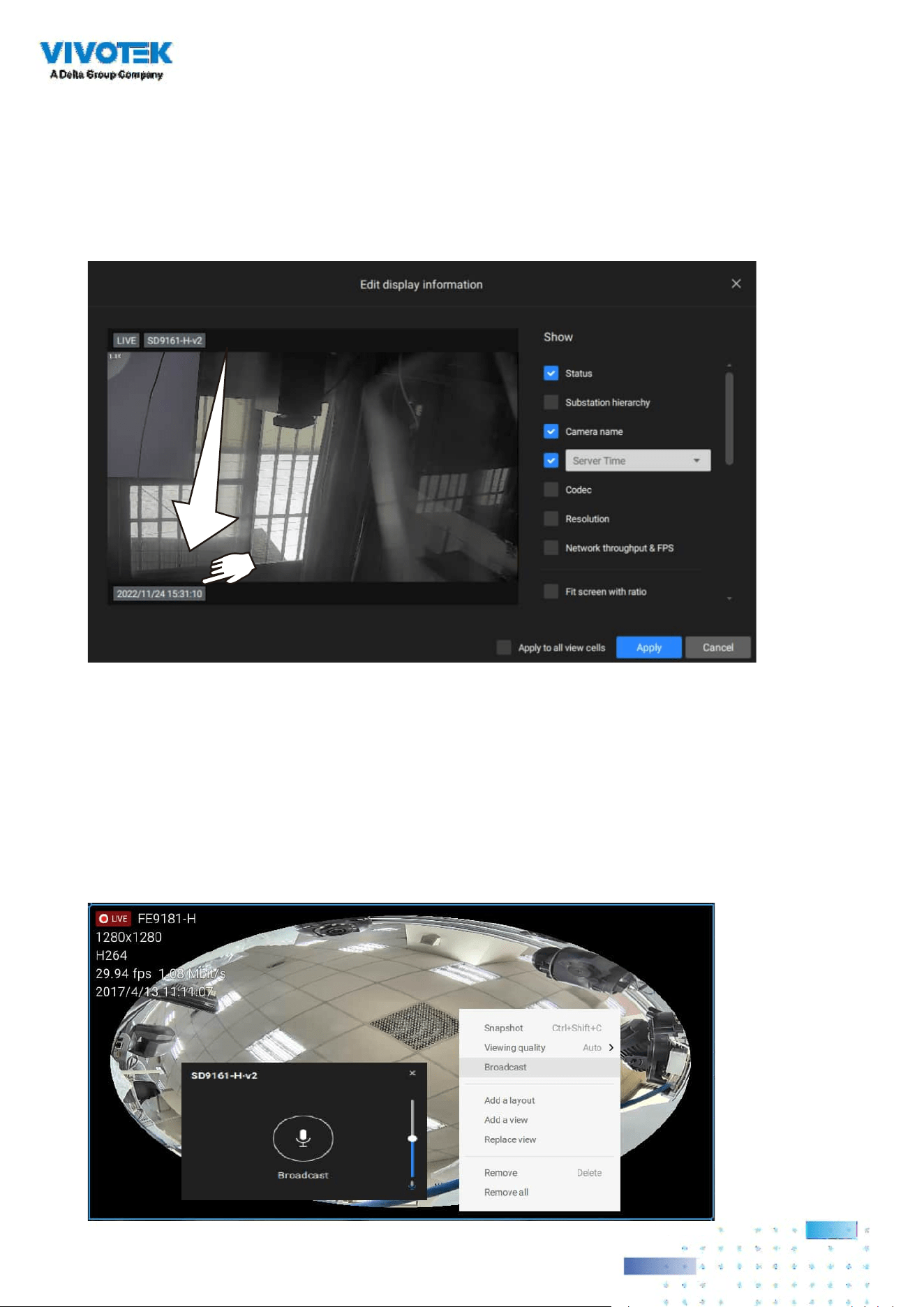
7373
Two Way Audio
If your cameras support the Two Way Audio feature and the microphone and audio output to
an amplified speakers have been connected, you can right-click on the camera to display the
Broadcast function. Click on the Microphone icon in the middle to start speaking. Click again
to stop the Two Way Audio.
Note that the Broadcast option only appears when you select a camera that supports the
Two Way Audio feature. Currently the VSS software supports 1 to 1 broadcast.
Select the checkboxes to determine what kind of text overlay will display on view cells. Note that
you can place the overlay either on top or at the lower screen. Simply click and drag an overlay
item to a preferred location. When done, click the Apply button.
You can apply your current conguration to all view cells by selecting the Apply to all view cells
checkbox. Note that you can also display the VCA rules and areas on screen.
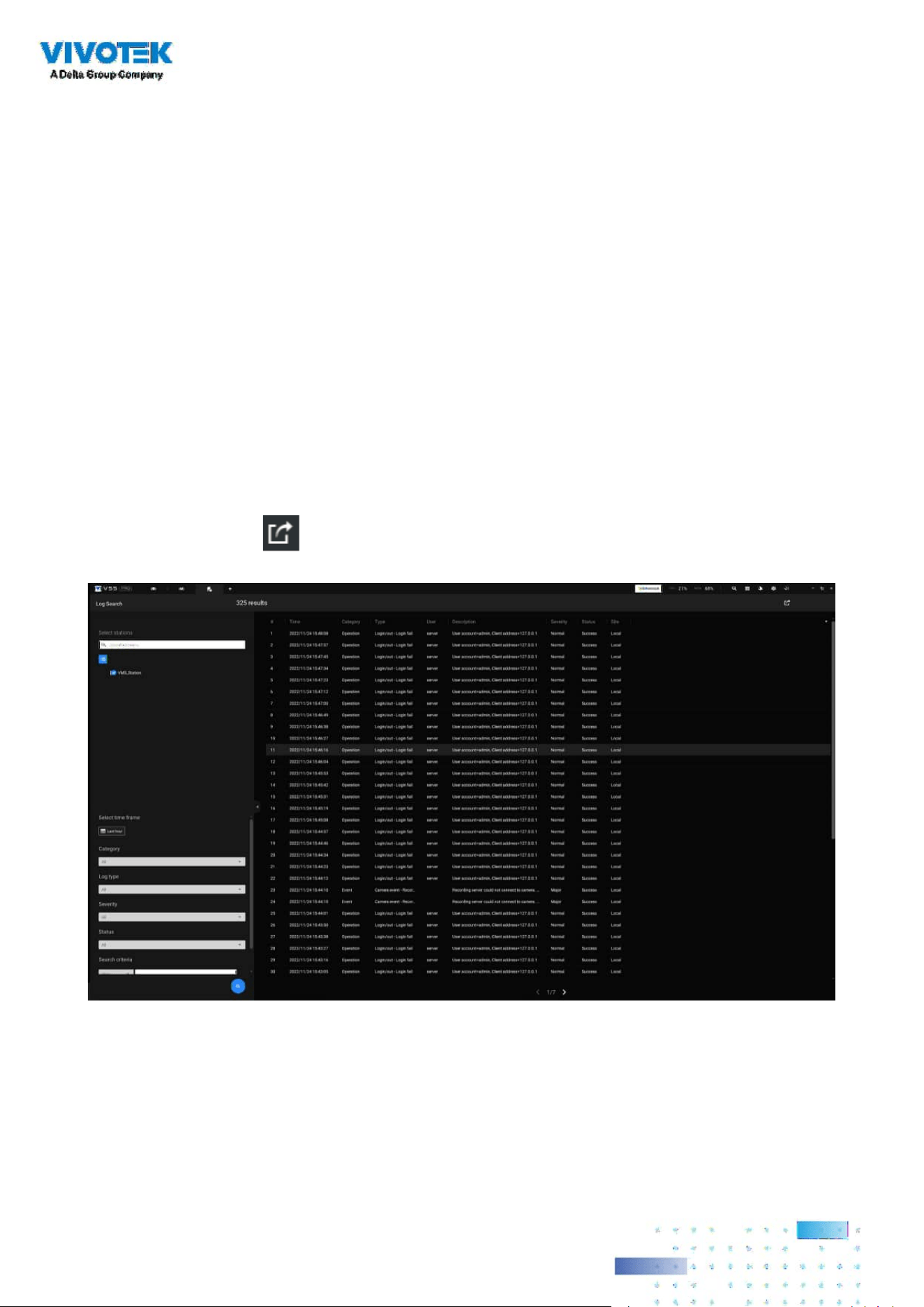
7474
Log Search
System logs can be found via the tool bar tab. All system events will be listed in the Log
search panel. If you have multiple server, substations, select a server. You can search
specific events by the event types (All triggers, camera, system/station, external devices), or
by the time of occurrence using the calendar tool.
Use the Export button to export the system log as an individual log le.
Full Screen
The full screen function maximizes the display of view cells, concealing all other tool bar or
navigation panels. To return to the normal view, press the ESC key on keyboard.
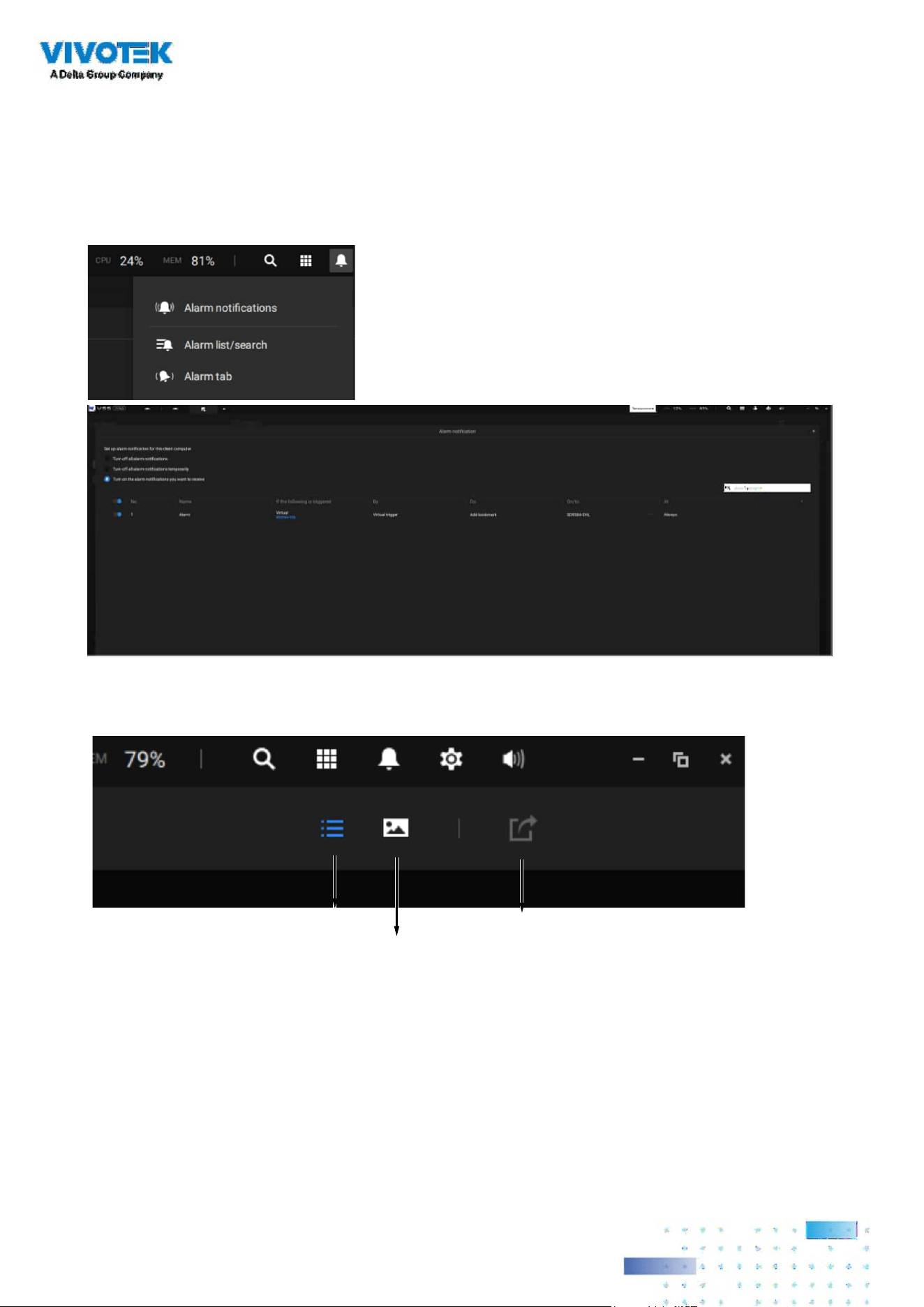
7575
Alarm list
The Alarm list is accessed from the top tool bar. The Alarm list provides easy access to all
triggered alarms, such as tampering alarms, alarms reported by VCA analytics, external
devices connected via a camera's DI pin, etc.
The Alarm list can be displayed in either the List view or Thumbnail view.
List view
Thumbnail view
Export
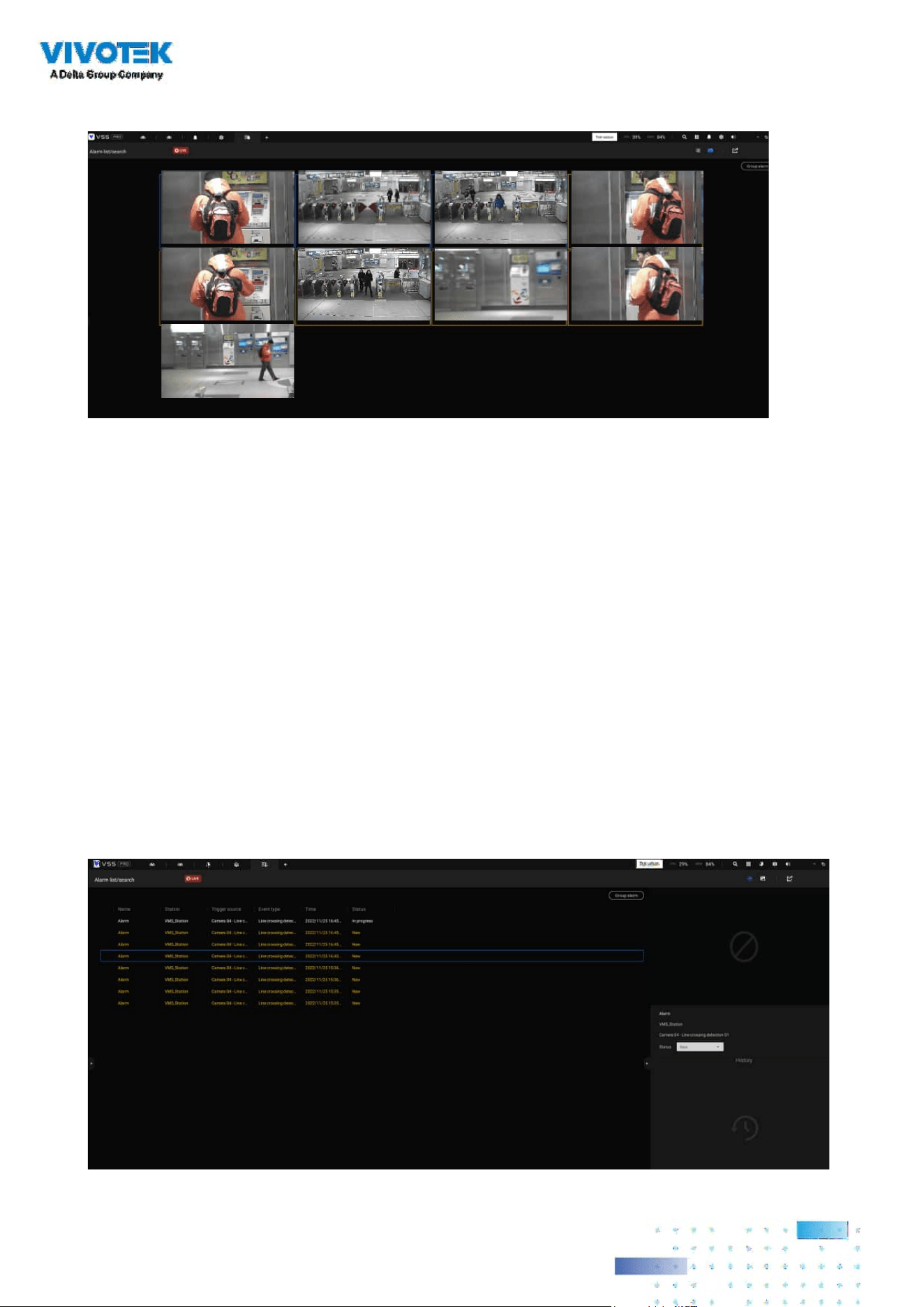
7676
On the Alarm list, you can double-click to select a triggered alarm. A related snapshot and
configuration panel will appear. An operator can select the Status menu to change the event
management status. The congurable statuses can be:
1. New: An event that has not been handled.
2. In progress: Select to indicate that the event is being handled, e.g., a security personnel
has been sent to verify the cause of the event.
3. False alarm: Used to indicate the event has been veried as a false alarm.
4. Close: A closed case event will be erased from the event list.
When done with designating event status, click the Acknowledegment button.
Below is an example of a Thumbnail view.
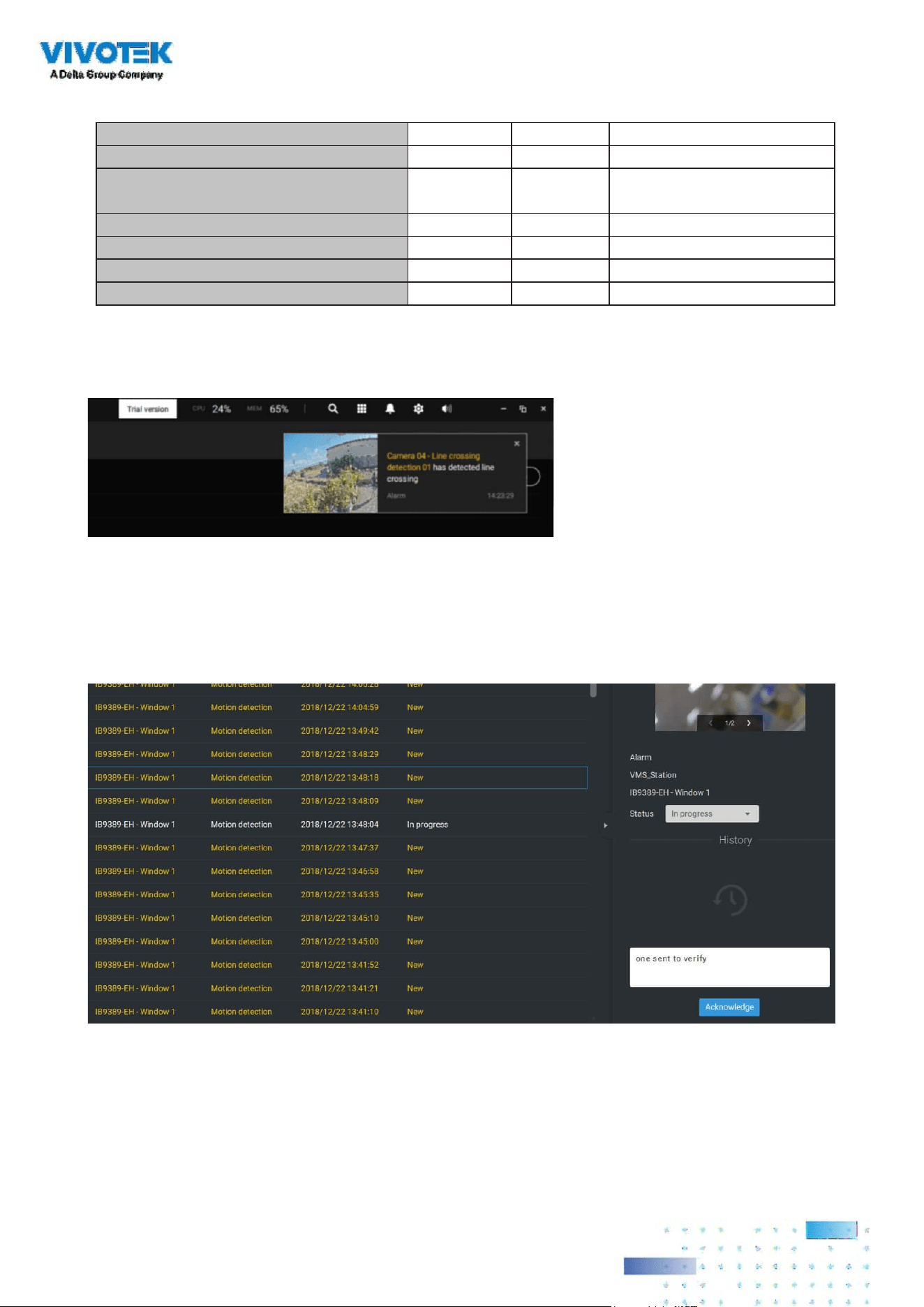
7777
The Alarm list also supports Hot keys.
Alarm list window
Mute the current alarm Ctrl m
Designate the selected alarms as
false alarms
Ctrl f
Select all alarms Ctrl a
Select one or multiple alarms Ctrl left mouse button
Select multiple alarms Shift left mouse button
Select different alarms Up/Down/Left/Right
When an alarm is muted, a message will prompt asking for how long the alarm will be
muted. Enter a number, and the alarm will disappear from the list temporarily.
When an alarm is designated as a false alarm, it is immediately removed from the list.
When an alarm is designated as In progress, you can add a comment on the current
condition, and click Acknowledge to change its status.
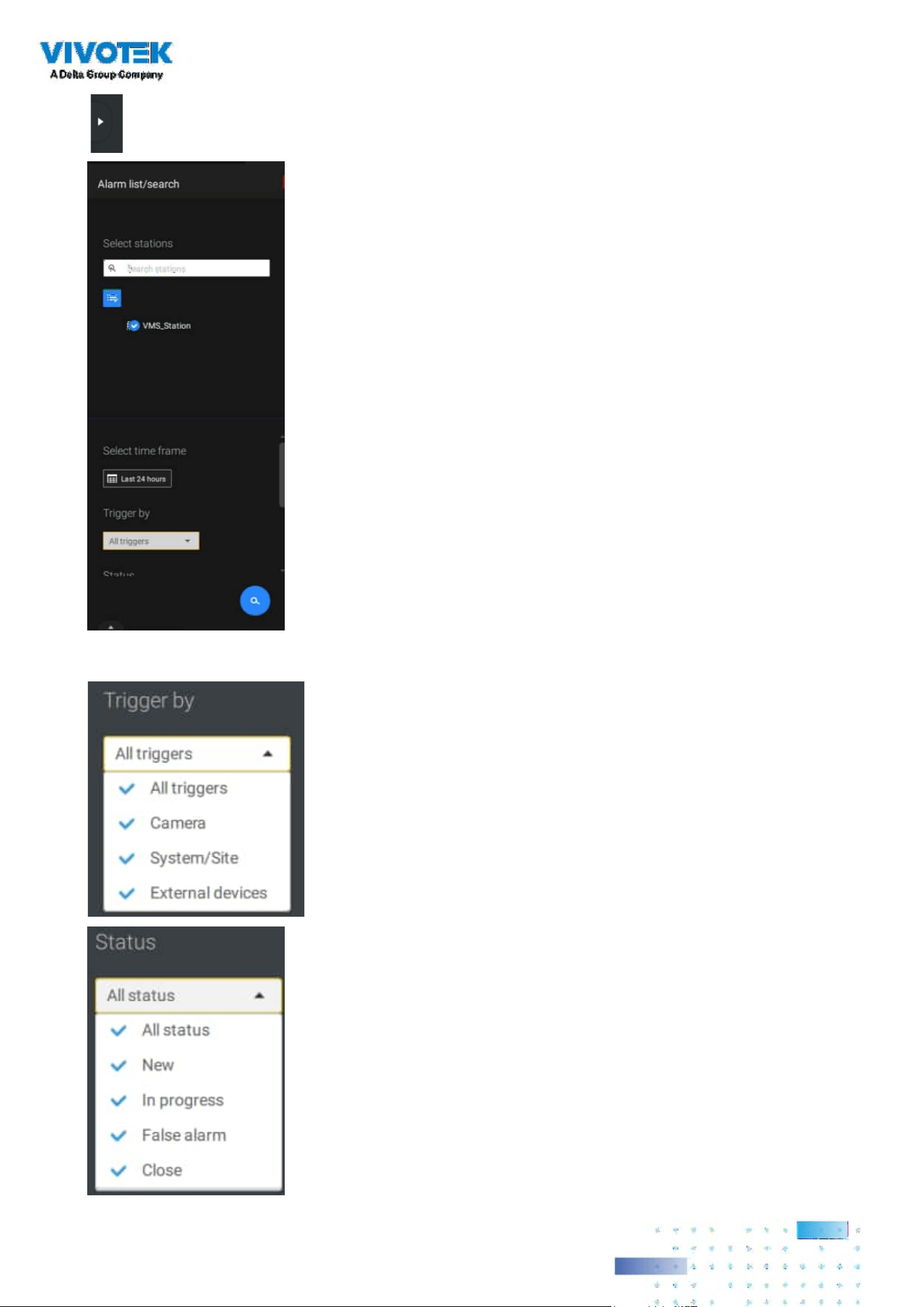
7878
To find alarms of specific types, time of occurrences, and alarm
status, click the side tab to reveal the search panel.
You can select the trigger source, e.g., when you need to see
camera alarms only.
You can check to see alarms of a specific status. For example,
you can select to search for the "In progress" alarms only.
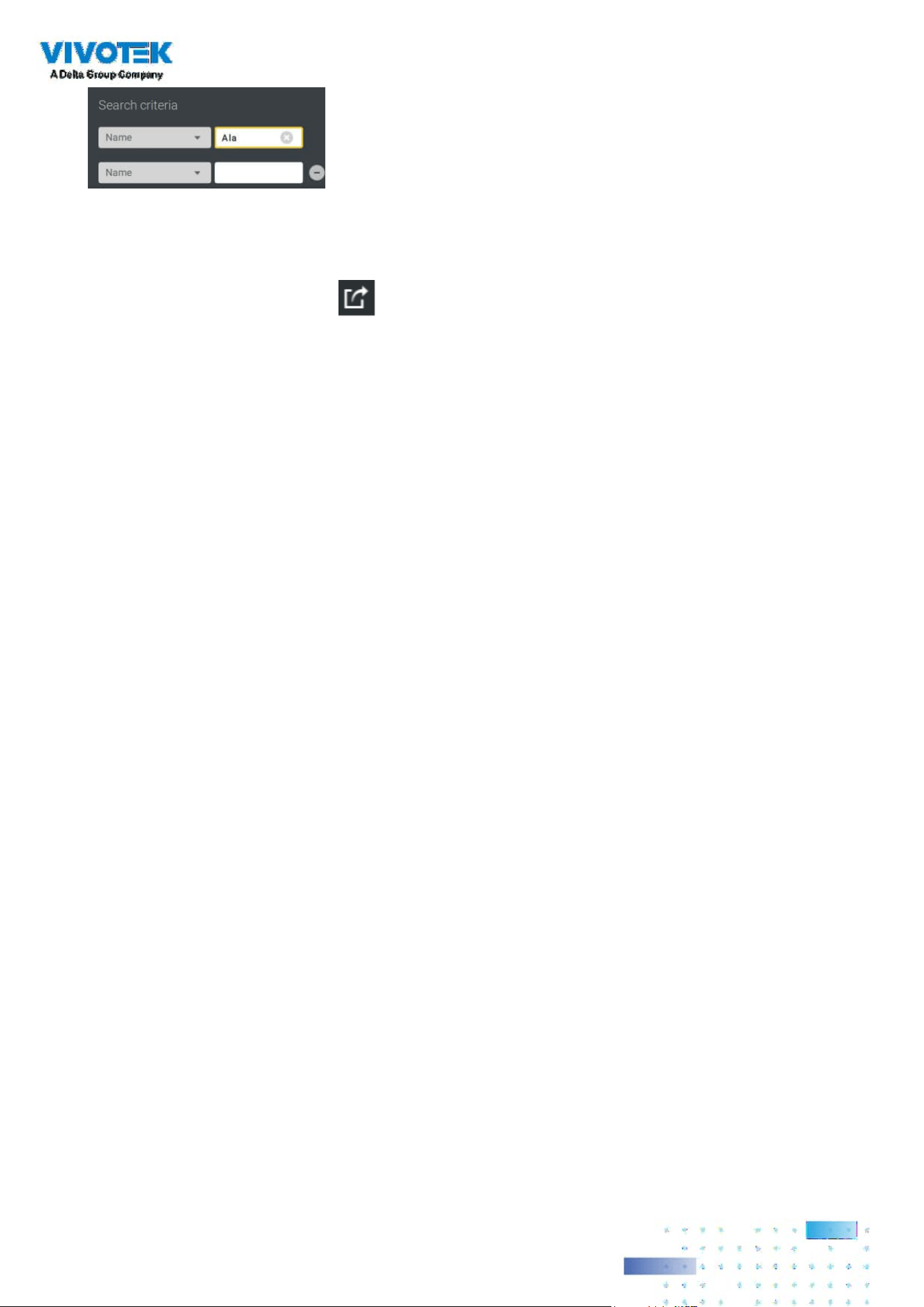
7979
You can use the Export button to export a full list of all triggered events into a CSV file.
The event type, receiving station, triggering device, time of occurrence, and event status will
all be listed. You can also export alarm-triggered videos.
You can also add a comment for an event by entering the description in the comment entry
eld.
You can enter one or multiple keywords as the search criteria.
For example, if you have an alarm named as "Alarm3-
sidewalk," use the name as the keyword to search for the
related alarms.
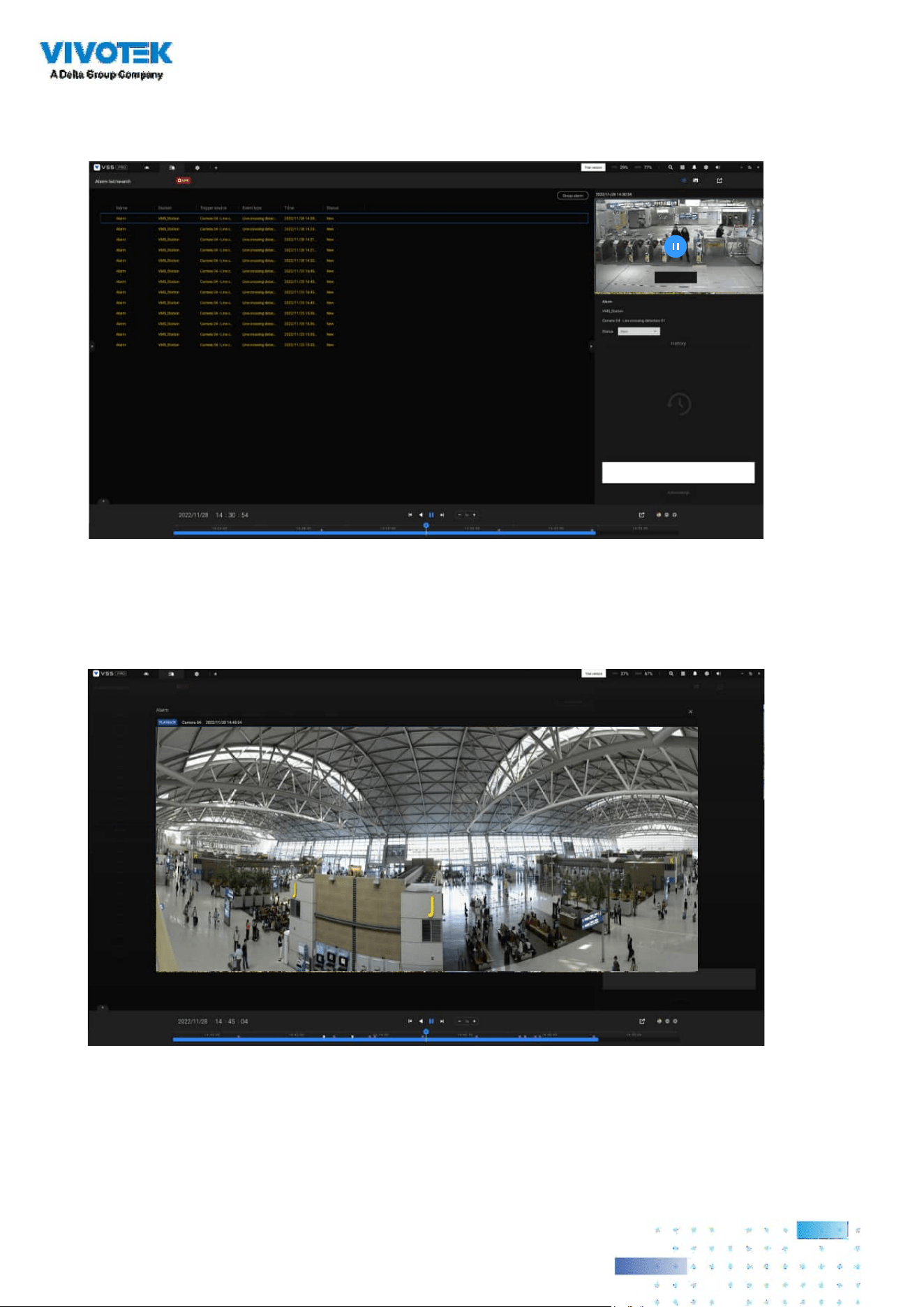
8080
To review the alarm-related video, click to select an alarm, double-click to playback. The
Playback window will appear on the upper right of the screen.
< 1/2 >
Double-click on the small playback screen again to bring it to the full view. The playback
control, time line, export, and alarm tags will be available on screen.
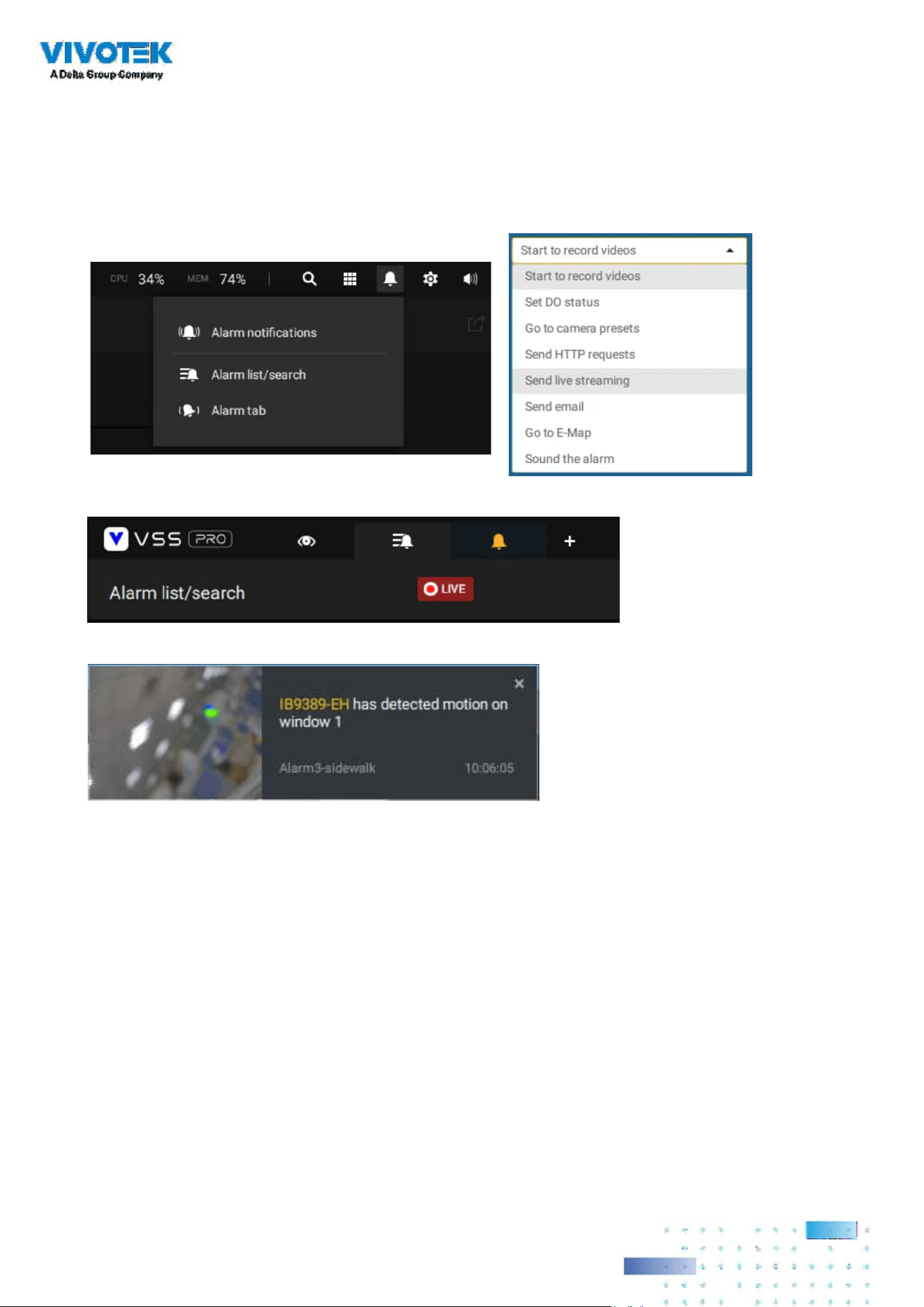
8181
Alarm tab
The Alarm tab is an automated streaming window displaying live videos brought by the
triggered alarms. If you configure an alarm action as "Send live streaming," the alarm
streaming will be displayed in this window. Note that this window does not display other
types of alarms.
When a live streaming is sent by an alarm, an orange ringing bell icon will display.
An alarm prompt will also display on the screen.
You can click on the ringing bell icon to open the Alarm tab window. The alarm-trigged
streamings will be available on screen.

8282
Hot Keys
Open online document F1
Close current tab Ctrl (Win) /
Command
(MacOS)
W
Open new Live / Playback
tab
Ctrl (Win) /
Command
(MacOS)
T
Full screen
Ctrl (Win) /
Command
(MacOS)
Shift F
Exit full screen Ctrl (Win) /
Command
(MacOS)
Shift F
Exit full screen Esc
View cell
Select view cell Arrow keys
Digital zoom Ctrl (Win) /
Command
(MacOS)
Shift Z
Snapshot Ctrl (Win) /
Command
(MacOS)
Shift C
Instant bookmark Ctrl (Win) /
Command
(MacOS)
Shift B
Remove camera from cell Del
Move to preset position Ctrl (Win) /
Command
(MacOS)
Digits (1,2,3,...)
PTZ model up, down, left,
right
Arrow keys
Save current layout as a
customized layout
Ctrl (Win) /
Command
(MacOS)
S
Undo layout modication Ctrl (Win) /
Command
(MacOS)
Z
Redo layout modication Ctrl (Win) /
Command
(MacOS)
Y
Timeline
Sync Playback mode Ctrl (Win) /
Command
(MacOS)
Shift S
Pause (Play/Rewind) Space
Play Ctrl (Win) /
Command
(MacOS)
Arrow right
Rewind Ctrl (Win) /
Command
(MacOS)
Arrow left
Speed up Ctrl (Win) /
Command
(MacOS)
Up
Speed down Ctrl (Win) /
Command
(MacOS)
Down
Next frame Shift Arrow right
Previous frame Shift Arrow left
Reset speed to 1x Ctrl (Win) /
Command
(MacOS)
1 (one)
8383
Bookmark search
Select more bookmarks Ctrl (Win) /
Command
(MacOS)
Click
Select more bookmarks Shift Click
Back to bookmark page Esc
Next bookmark Arrow right
Previous bookmark Arrow left
Thumbnail search
Select thumbnail Arrow keys
Play a selected thumnail Enter
Back to Thumbnail page Esc
Next Thumbnail Arrow right
Previous Thumbnail Arrow left
Emap Setup
- Google map
Remove selected GPS Del
DI/DO Device Settings
Remove selected external I/
O device
Del
SMTP Settings
Remove selected SMTP
server
Del
Camera Management
Rename selected camera F2
Rename selected folder F2
Remove selected camera
from system
Del
Stations Management
Rename selected station F2
Remove selected station
from system
Del
Users Settings
Remove selected user Del
Schedule Settings
Remove scheduled time
frame
Del
Smart search II
- Conguration page
Delete detection range Esc
8484
Data Magnet
Move selected row Up / Down
Show detail of selected row Enter
View management
Rename selected view F2
Delete selected view Del
Alarm management
Delete selected alarm Del
Alarm list window
Mute the current alarm Ctrl (Win) /
Command
(MacOS)
m
Designate the selected
alarms as false alarms
Ctrl (Win) /
Command
(MacOS)
f
Select all alarms Ctrl (Win) /
Command
(MacOS)
a
Select one or multiple
alarms
Ctrl (Win) /
Command
(MacOS)
left mouse button
Select multiple alarms Shift left mouse button
Select different alarms Up/Down/Left/Right
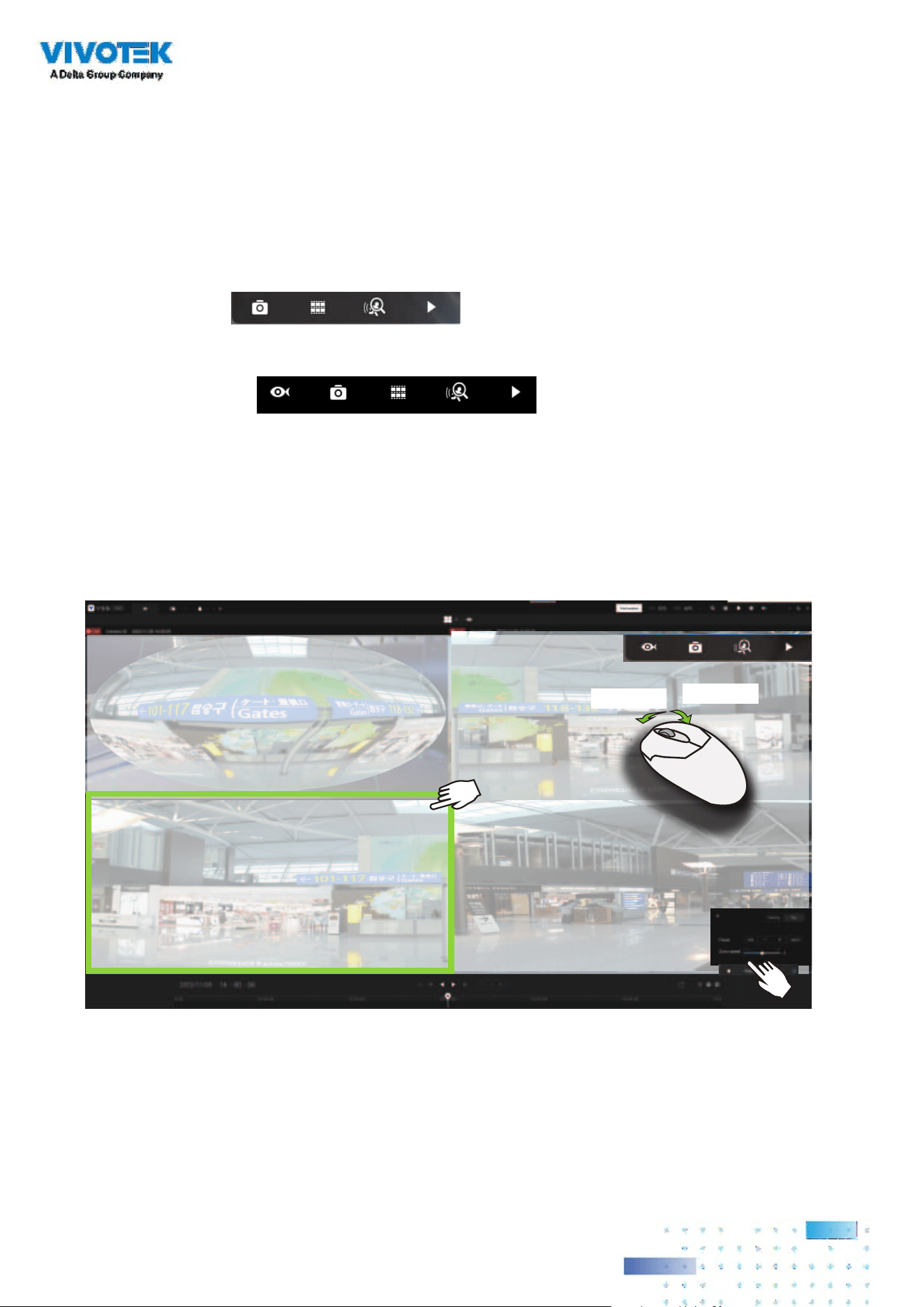
8585
View Cell Elements
On a view cell, the control elements are different with different types of network cameras. 3
major types are listed below with applicable screen elements:
1. Fixed cameras:
Snapshot - Thumbnail search - Smart search -
Replay.
2. Fisheye cameras:
Fisheye display mode - Snapshot -
Thumbnail search - Smart search - Replay.
Zoom In
Zoom Out
The Auto pan function applies only to the Regional views. Select a regional view, and click the
Auto pan button. The Regional view will pan from side to side to cover more viewable regions.
If a fisheye is mounted on wall, a regional view with auto pan can cover a panoramic view
region.
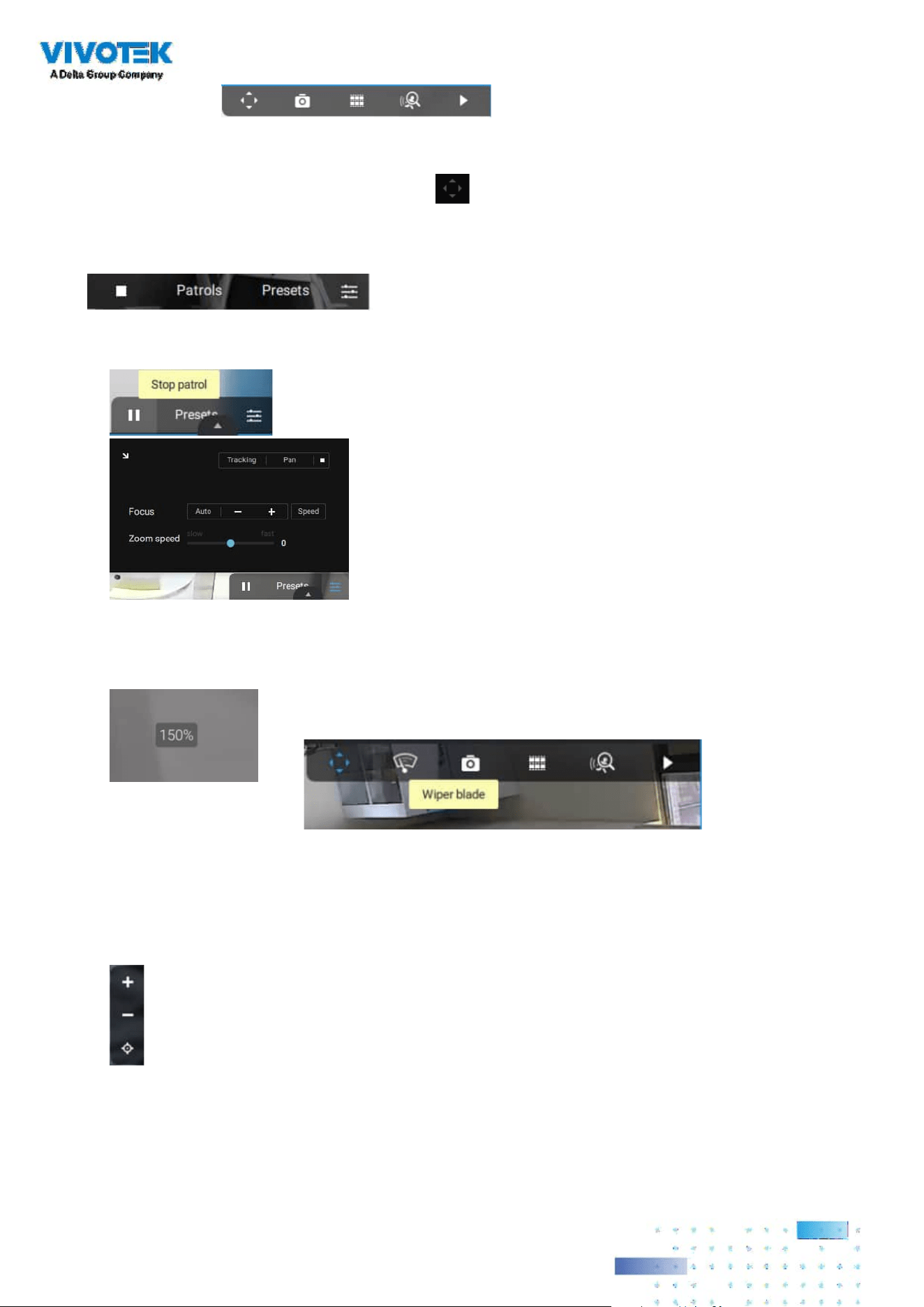
8686
You can use the mouse wheel to zoom in or zoom out on the screen. The zoom ratio is shown on
screen for half a second.
When PTZ is enabled, the zoom buttons and a home button are displayed on the right hand side
of the view cell.
For more information about Snapshot, Thumbnail search, and the Replay functions, please refer
to their specic help pages.
3. PTZ cameras: PTZ - Snapshot - Thumbnail search - Smart
search - Replay. For information about PTZ control, refer to the discussion on PTZ on page 127.
To exert PTZ control, rst click on this button
to enable PTZ control.
When PTZ control is enabled, the following controls are available on screen:
Click Patrols or Presets if these have been congured on the PTZ camera. You will need to open a
web console to the camera to congure preset positions.
The PTZ settings tab allows you to enable PTZ Tracking and the Pan functions. You can also adjust
the Zoom and Focus speed, or manually adjust the focus. Please refer to the camera User Manual
for more information about these functions.
For speed dome cameras that come with a wiper blade, the wiper blade control button will be
available on the tool bar.

8787
3. Motorized lens cameras: Enable Optical - Snapshot -
Thumbnail search - Smart search - Replay.
For cameras that come with motorized zoom lens, click on the Enable Optical button. You can
zoom in or zoom out on the scene.
Click on the Focus adjustment button to bring out the focus panel. If you nd the image is out of
focus, you can use the +, -, or Auto buttons to regain the best image focus.
You can use the Auto scan function to let the camera automatically find the best focus. The
process may take up to 20 seconds.
Enable Optical
Zoom in
Zoom out
Focus adjustment
Audio
For a view cell housing a camera with an
audio input, you can tune its volume using
the slide bar on the tab panel.
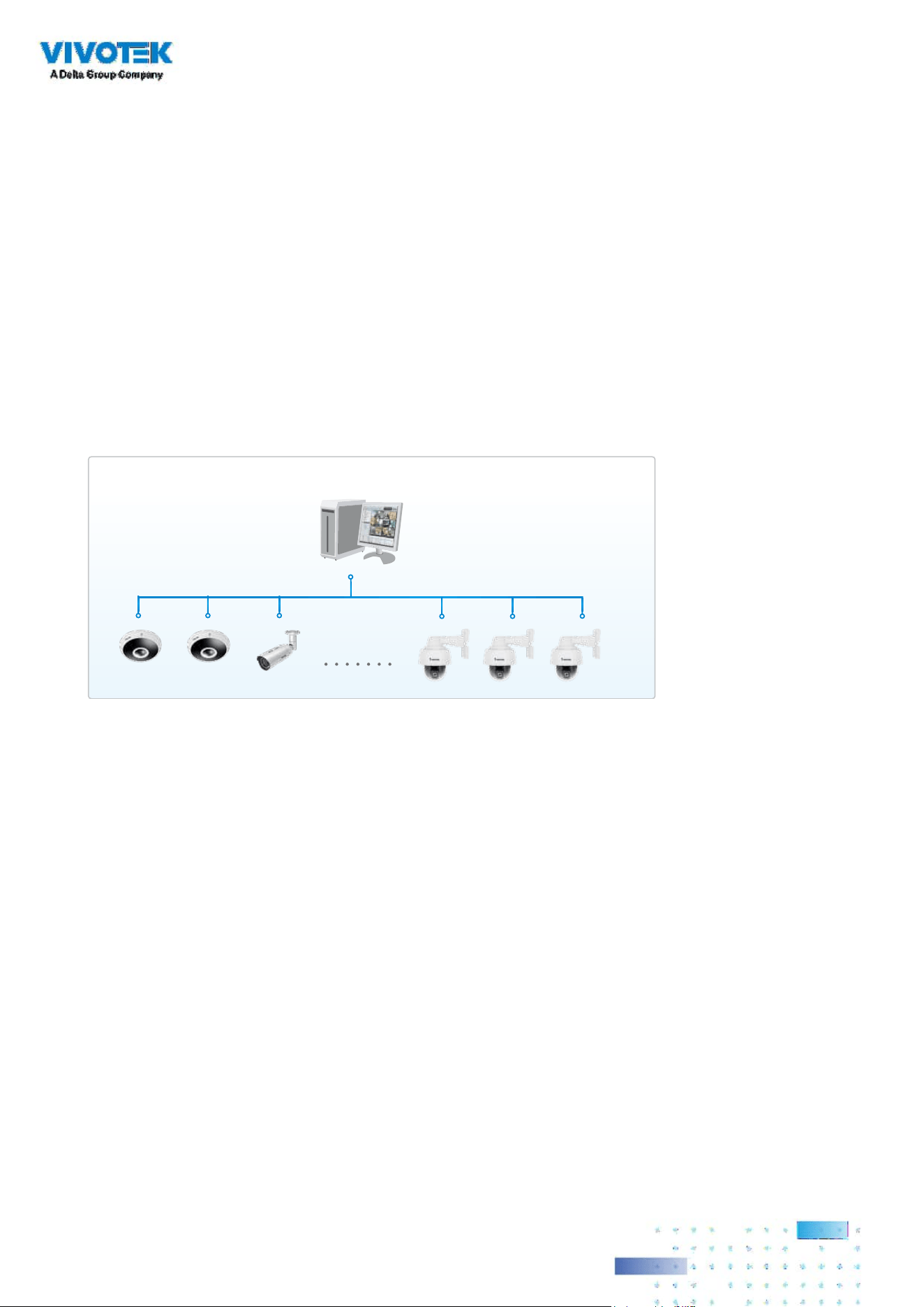
8888
Server and Client Components
VSS Server provides a centralized management site for video recording. Users can login and
modify the server's conguration, edit the server's recording storage, congure schedules and
many other functions. You can browse the recorded video database and video clips related to
specic events on the server.
VSS Server
Network Cameras
Stand-alone site
Local Server Structure
For users who manage large-scale surveillance deployments, please plan the hierarchical
structure rst. Then you can start to add cameras to each station and connect these sub-stations
to the root station. The whole hierarchical management system is thus constructed. VIVOTEK's
NVR stations can also be included as sub-stations. The Logical Tree view becomes the default.

8989
Please refer to the Stations page for how to enlist VSS sub-stations.
Unlimited No. of Network Cameras , Video Servers...
Remote Server Structure
Login
Login
Client VSS
(Root station)
VSS CMS Server
VSS Server
(Sub-stations)
NVR
Multiple Server Applications
A host with the VSS installed is recognized as a stand-alone station. All the functions can be
simultaneously performed on one single station.

9090
Chapter 2: Starting Up
Double-click the VSS icon on the desktop to start the VSS main page.
When started the first time, the server automaticallly polls the local network for reacheable
network cameras. For cameras that come with pre-congured User Name and Passwords, the
server prompts for entering credentials for the access to cameras. Check out the cameras' MAC
addresses to identify the cameras.
The cameras found within the network will be listed. If the need should arise, you can use the
Search panel on top to locate specic cameras using their IP, MAC, Port, Model name, or brand
name (ONVIF/VIVOTEK).
Use the Add device button to manually add a camera with its known IP or domain name.
Use the Import Device List button to recruit cameras in a previously-saved device list (CSV
les).
Use the Authorize button if the camera found in the Search panel needs credentials.
When search is done, delete the alpha-numeric characters in the search field to return to the
device list.
Use the Refresh button to search the local network again.
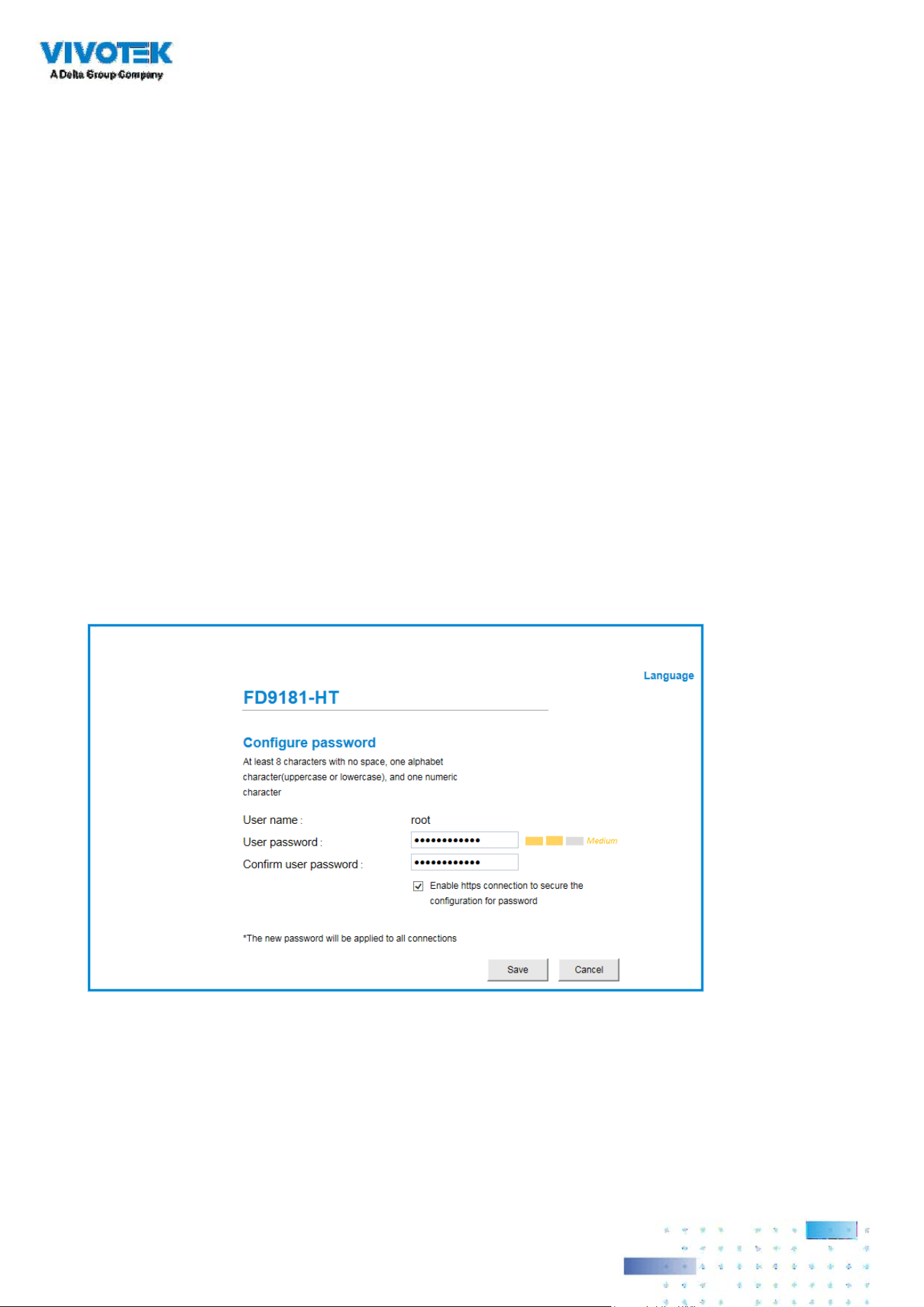
9191
NOTE:
For cameras that come without a password protection, you should open the Shepherd utility
to locate and open a web console, and configure a password for protecting the access to the
camera. If a brand new camera (with no password) is selected for your VSS conguration, it will
join your conguration without the password protection.
2-1. Selecting Devices
Use the checkboxes in front of the listed devices to determine which devices will be recruited to
your conguration. By default, all cameras are selected. When the selection is done, click on the
Next button at the lower right screen.
If any of the selected devices requires credentials, the authorization window will prompt.
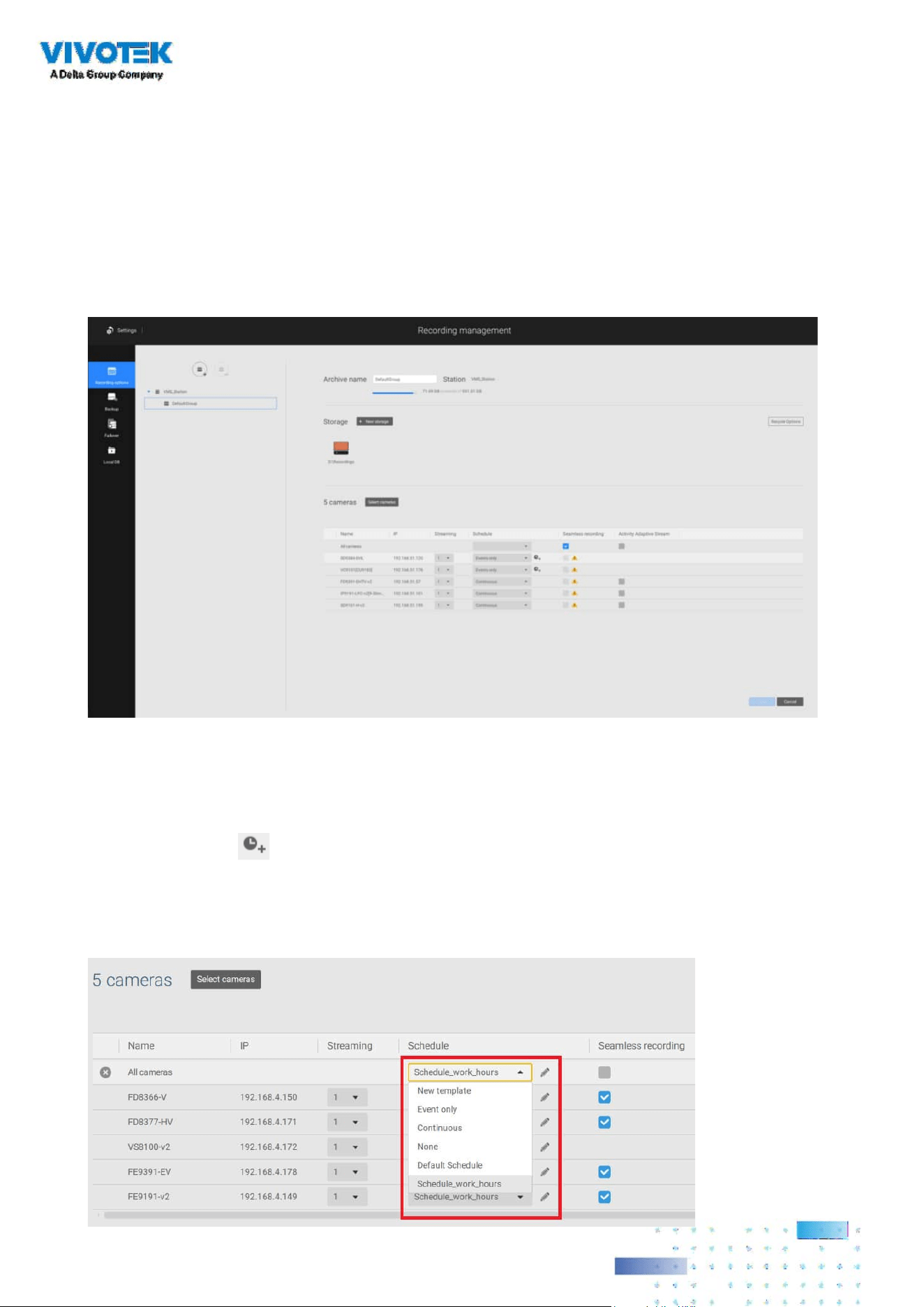
9292
2-2. Recording Options
Click Settings > Recording > Recording options. The Recording options window will prompt.
You can congure recording schedules or select the storage options, including the conguration
of an external NAS storage.
Click on the Schedule column on the Camera list for a recording option: Continuous recordings,
Events only, None, or Default Schedule, or New template. You can apply a schedule template
for all cameras or configure individual schedules for different cameras. When using the Event-
triggered recording, a pre-event and post-event time can be congured. An Edit pane is available
by clicking the Edit button.
You can manually create a recording template using the New template option. When done, each
congured template will be listed below.

9393
Click and hold down on the time cells, and drag the mouse to include the time span of your
preferrence. The minimum selectable unit is half an hour. You can select separate and multiple
time spans on the template.
Enter a name for the template, and click Add to save your template.
Event types can be selected when
The same configuration window apply to both the Schedule template and the customize
schedule windows.
If the Events only option is selected for the new template, you can determine what kinds of
events will trigger the recording. Use the pull-down menu to select Events only.

9494
When Events only is selected, click on the Settings button to proceed.
The applicable event types will be listed. Select the types of event triggers that you prefer. Click
Apply to leave this page. By deault, all applicable event triggers will be selected.
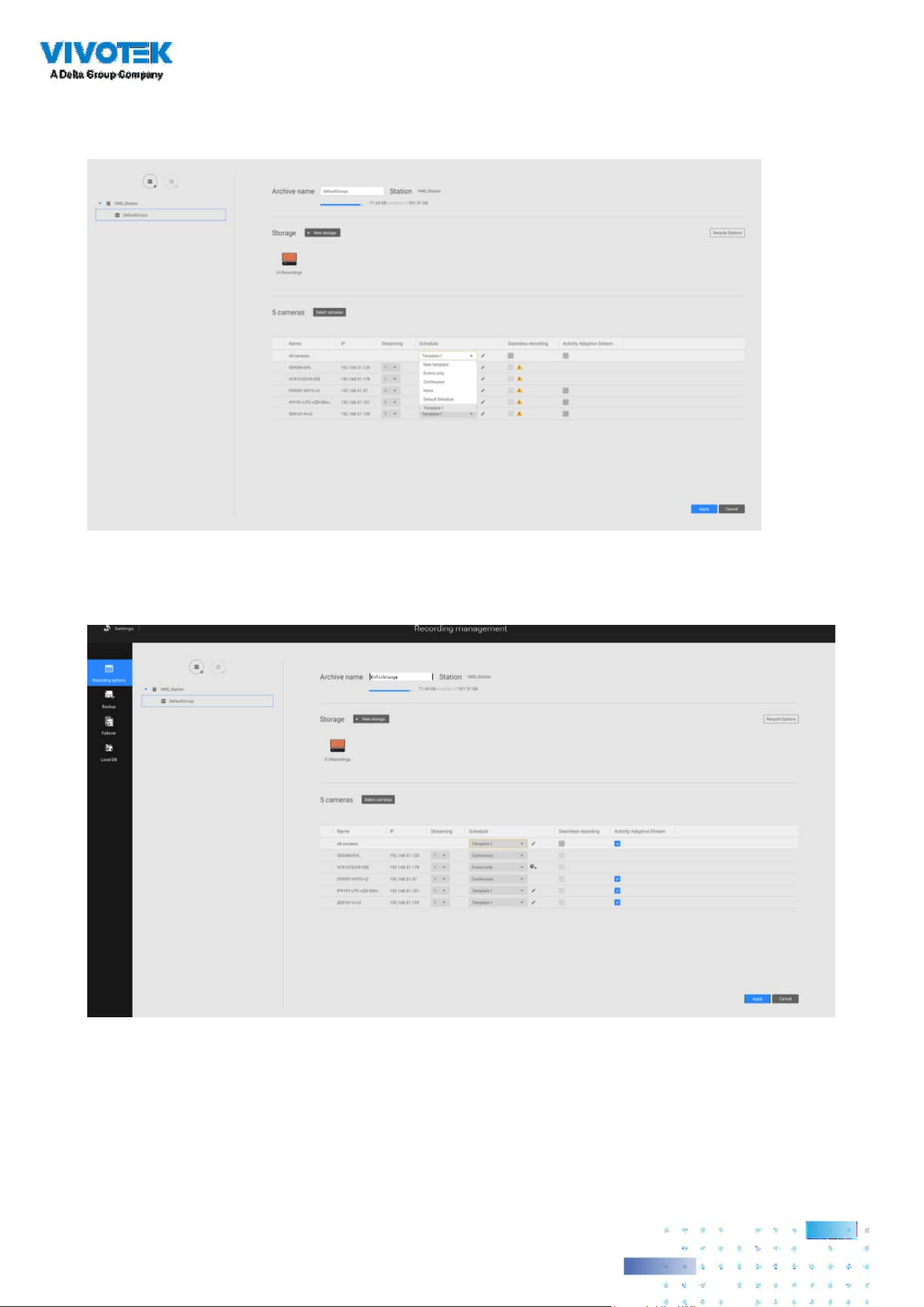
9595
Back on the Recording options page, select the new template as a scheduling option. Use the
menu on the top to select a scheduling template for all cameras.
Make sure a Schedule mode is selected when you leave this conguration step.
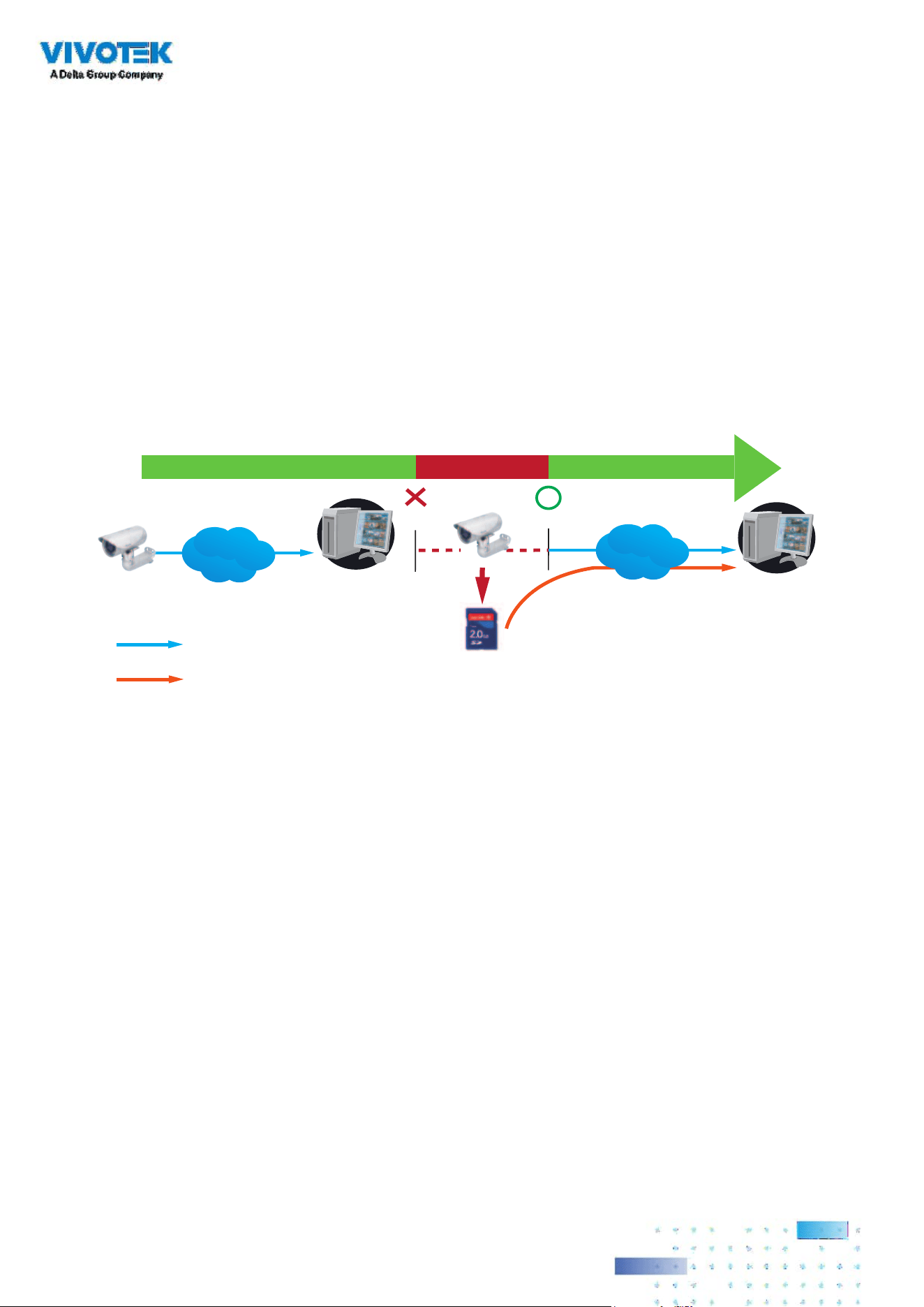
9696
Seamless Recording
Seamless Recording safeguards critical videos in the occurences of network disconnection. In the
event of temporary disconnection, video is stored in individual cameras' SD/SDHC/SDXC card;
and once the connection is restored, a VSS server can automatically resume the recording. More
remarkable is that, a VSS server can simultaneously retrieve the time-tagged videos that were
temporarily stored on SD/SDHC/SDXC cards. For information about the latest rmware/software
revisions that support this feature, please contact your sales representatives or technical support.
Server Station
14:30 14:50
Disconnect Restored
Timeline
LAN/WAN
Server Station
LAN/WAN
1
4
:
3
0
~
1
4
:
5
0
Seamless Recording
SD/SDHC/SDXC
Normal recording
Retrieval
The video data retrieved from SD/SDHC/SDXC card also include event-triggered recordings such
as pre- or post-event footages, if events were detected during the network outage.

9797
The Seamless Recording feature is enabled when inserting, updating, or batch inserting cameras
in the Camera Management window. The firmware/hardware compatibility of this feature
is automatically detected, i.e., this feature is not available when a non-compliant camera is
attached. If a compatible camera is attached, a checkbox will be available as shown below.
If a camera comes without an SD card, the SD card presence is detected with a warning message.
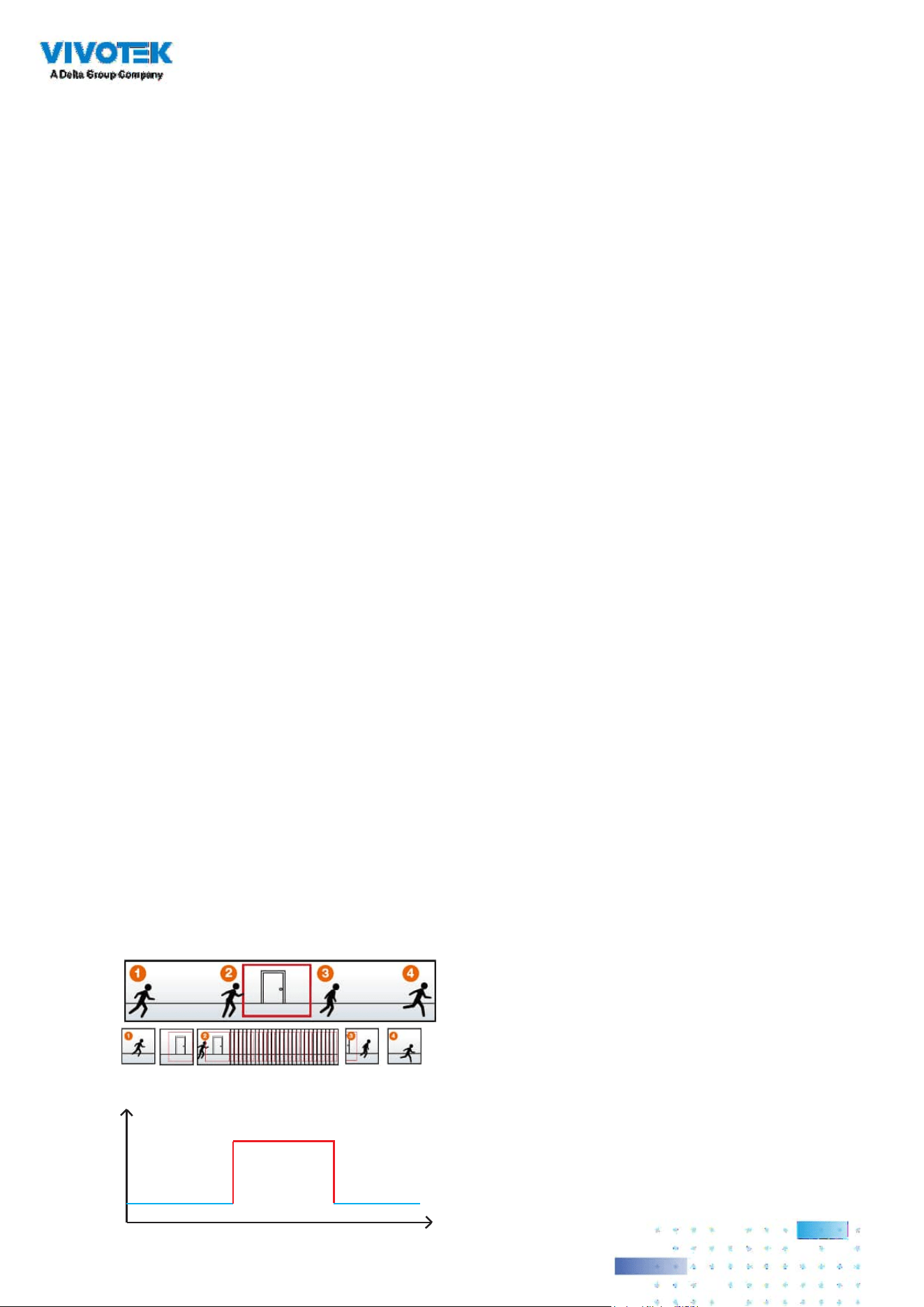
9898
Activity Adaptive Stream
■
Activity Adaptive Stream: (Note that this feature may not be available for some older
models)
This option will activate the frame rate control according to alarm trigger.
The frame control means that when there is a triggered alarm, the frame rate will raise up
to the value you’ve congured on the Video quality page.
If you enable adaptive recording on a camera, only when an event is triggered on a camera
will the server record the full frame rate streaming data; otherwise, it will only request the I
frame data during normal monitoring, thus eectively saves bandwidth and storage space.
The alarm trigger includes: motion detection and DI detection.
On individual cameras, you can congure the following:
■
Pre-event recording and post-event recording
The Network Camera has a buffer that temporarily holds data for a period of time.
Therefore, when an event occurs, the camera can restrieve image frames taken several
seconds ago. Enter a number to define the duration of recording before and after a
trigger is activated.
■
Priority: Select the relative importance of this recording (High, Normal, or Low).
Recording with a higher priority setting will be executed rst.
■
Source: Select a video stream as the recording source.
Time
Bandwidth
Bandwidth
Activity Adaptive Streaming
for Dynamic Frame Rate Control
I frame ---> Full frame rate ---> I frame
Continuous recording
NOTES:
* To enable adaptive recording, please make sure you have congured the trigger sources such
as Motion Detection, DI input, or Manual trigger.
* When there is no alarm trigger:
- JPEG mode: record 1 frame per second.
- H.264 mode: record the I frame only.
* When the I frame period is > 1 second on the Video settings page, rmware will force decrease
the I frame period to 1 second when the Activity Adaptive Recording feature is enabled.
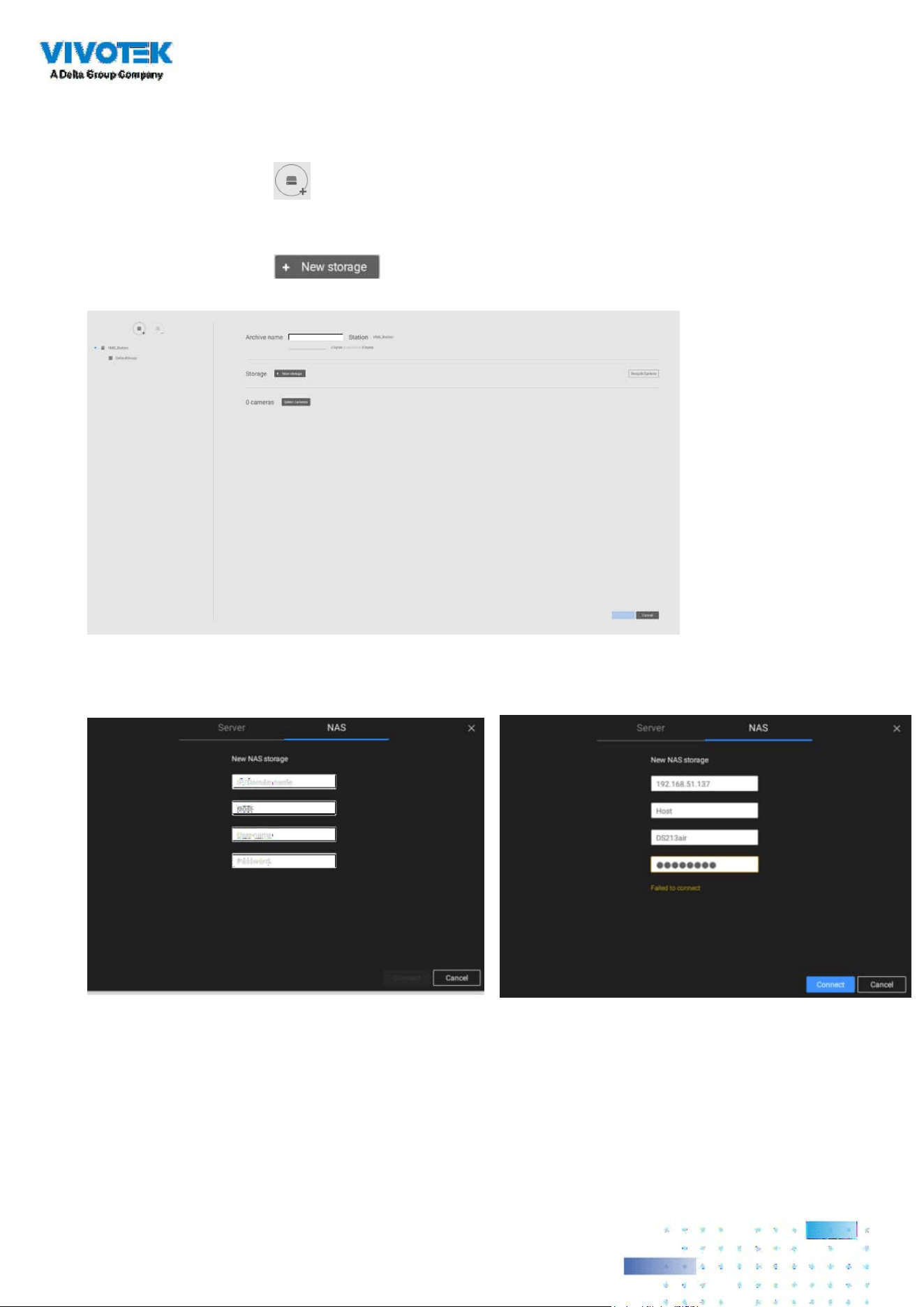
9999
Adding NAS (Network Attached Storage) as a Storage Option
You can also record videos to a networked storage.
1. Click the Add archive
button.
2. Enter a name for the conguration.
3. Click the Add storage
button.
4. Click the + New NAS button.

100100
5. Enter the NAS storage's address and the credentials for access to the networked storage. When
done, click the Connect button.
6. The NAS storage should appear on screen. The connection may take several seconds. Single-
click on the NAS storage to select its network shares.
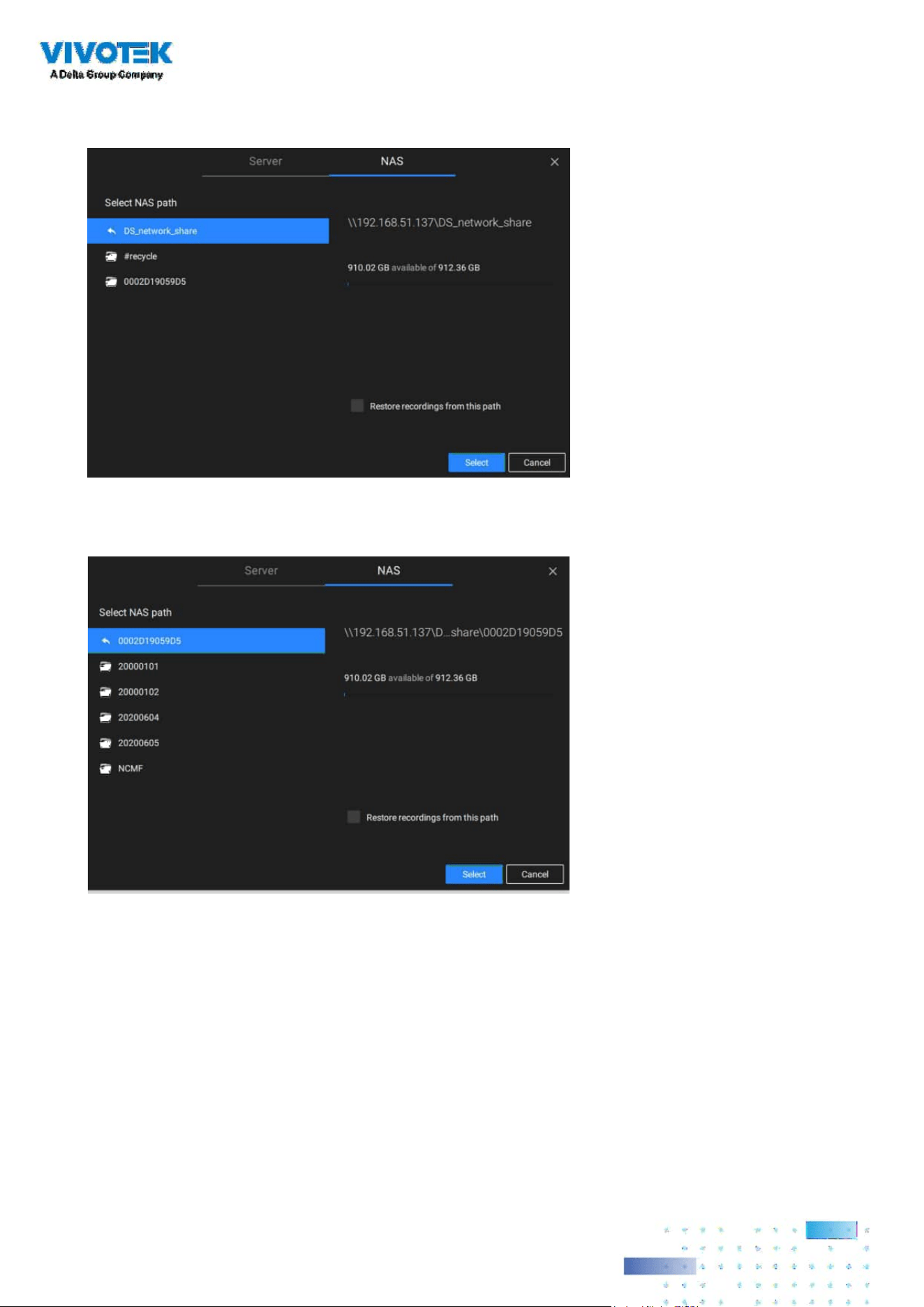
101101
7. The NAS storage's network shares should be listed. Single-click to select a network share.
8. Click Select when done. Note that you can repeat the previous process to select multiple
network shares from a single NAS storage.
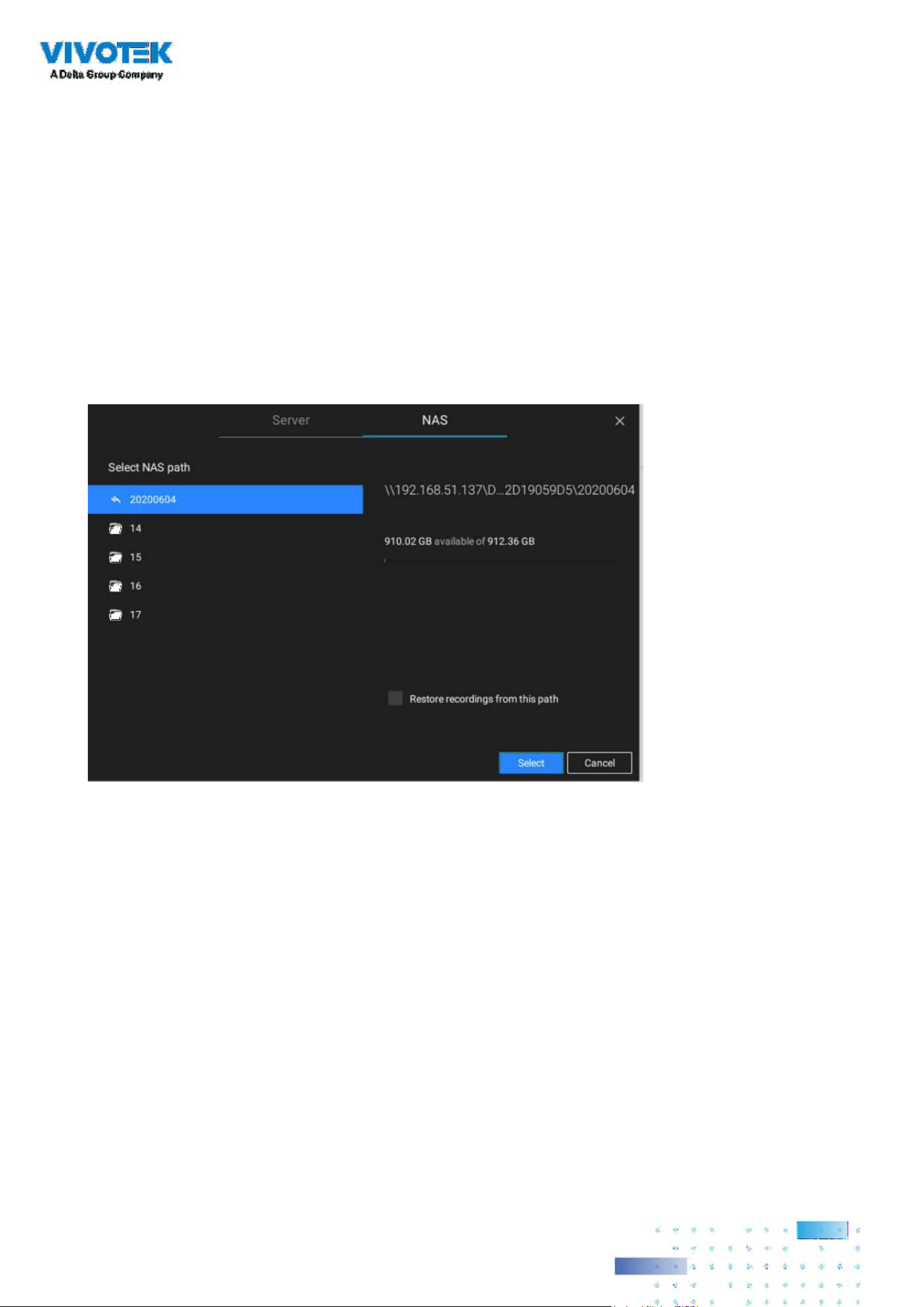
102102
2-3. Storage
By default, VSS will check if the D: drive is available. If no other disk drives can be specied, the
system drive C: will still be dened as a storage option. Other disk drives in the system, and the
default storage volume (congured in the initial setup) will be listed.
You can add a NAS storage's share volume as the additional storage option. Enter the necessary
information for access to a network share. Enter and select a NAS path. The share will then be
available for video recording.
Select storage volumes each by a single click.
Click Ready to use to continue. The server will take several minutes synchronizing conguration
between server and cameras, and the time settings between them.

103103
2-4. Starting Up - Main Page
You will be defaulted to the Live view once the main page displays. Another tab window is the
Search panel where you can search recorded events and recorded videos.
Live
Search
On the initial start up, the server should ll the live camera feed to the available 2x2 view cells (4).
You should then select a preferred layout, e.g., 3x3 or others, using the Layout pull-down menu.
The available layouts are categorized into 4 types: Equal, Panorama, Focus, and Vertical.
Equal: 1x1, 2x2, 3x3, 4x4, 5x5, 6x6, 7x7, 8x8.
Panorama: 1P(Panoramic)+6, 2P, 2P+3, 3P. (applies to sheye cameras)
Focus: 1+12, 1+16, 1+3, 1+5, 1+7, 1+9, 2+8.
Vertical: 1V+6, 2V+2, 2V+3, 3V, 3V+4, 4V, 4V+4, 5V. (applies to corridor view)
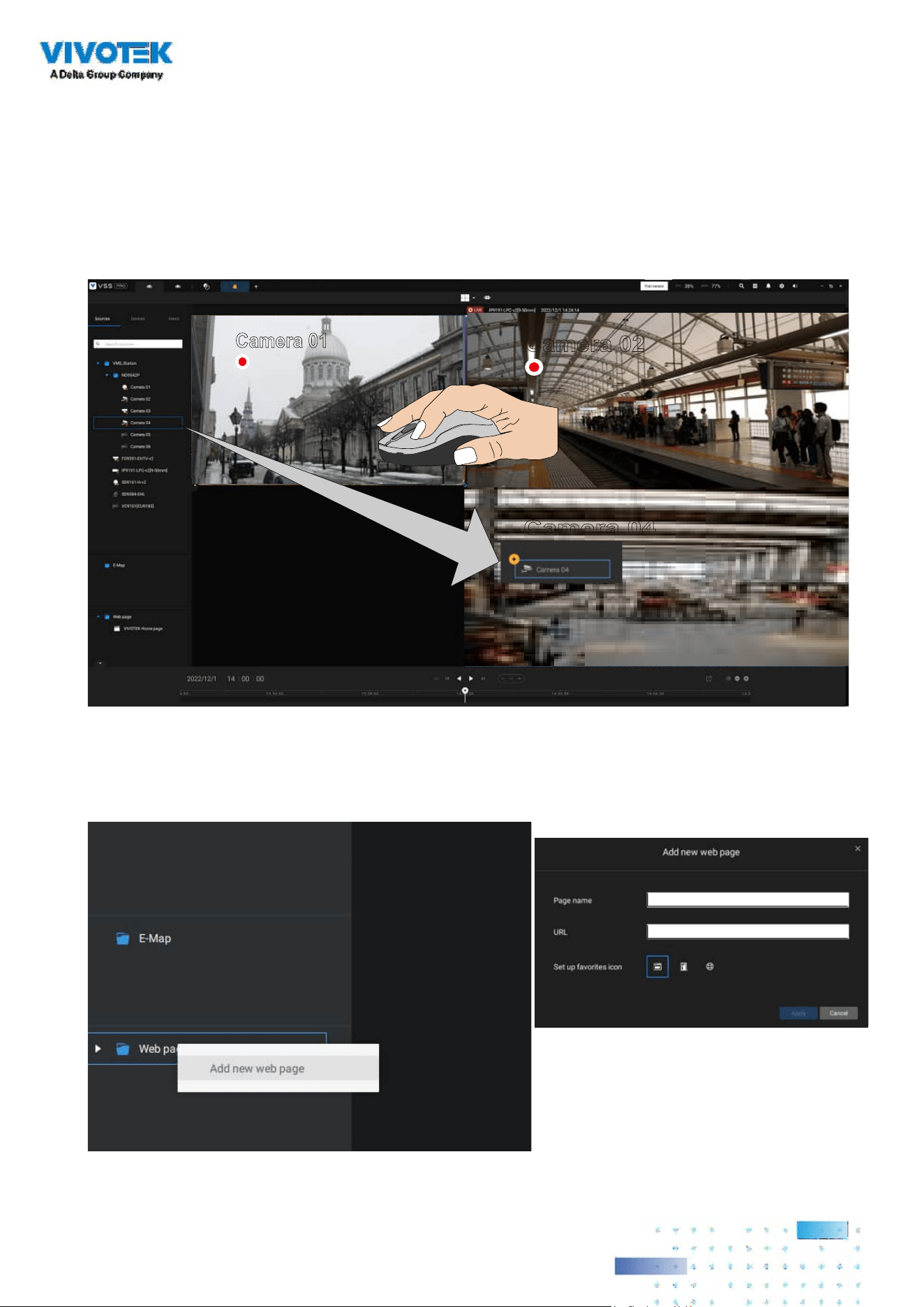
104104
To design and customize a layout, please refer to the Customizable Layout page.
You can then ll in the view cells by dragging and dropping cameras into the view cells. While
dragging, a name tag displays. All cameras should be listed under the VMS_Station Device Group.
You can swap two view cells by dragging one on top of another.
Camera 01
Camera 02
Camera 04
You can also congure a view cell to display a web page by a right-click on the Web page option
on the left device pane. Enter a name and the URL address.
When configuring a web page to be
displayed in view cell, You can select a
favorite icon.
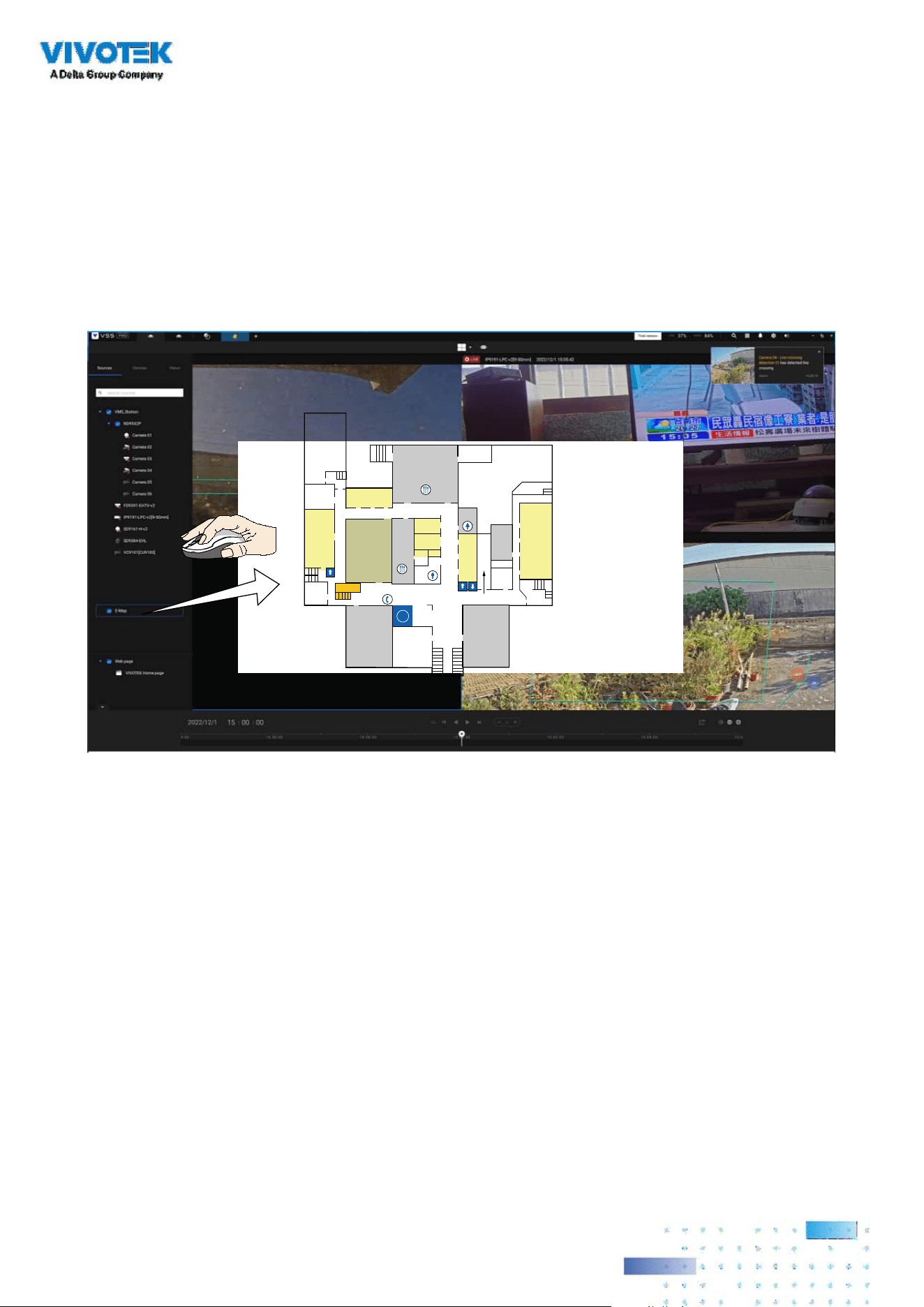
105105
You can also fill in an Emap by dragging and dropping a pre-configured Emap into a specific
view cell. Click on the E-Map tab to select a pre-congured E-Map. Note that an E-Map should be
placed into a larger view cell.
Depending on the resolution of your monitor, a view cell can be too small for an E-Map.
For example, for an HD monitor (1920x1080), a single view cell from a 3x3 layout will have a
resolution of 640x360. View cells larger than 330 (width) x 300 (height) pixels can contain an
E-Map.
i
EXIT
EXIT

106106
2-5. Saving a View
When done with arranging view cells, click the View tag.
Save your current layout and view cell arrangement as a new view.

107107
2-6. Add More Live Views
With many cameras in your deployments, you can click the New Tab "+" button to add more Live
views.
An empty live view will display, and you should repeat the above process to select a layout, and
ll in the view cells. When done, save the view.
Right-click on the screen to display the right-click menu. Select Add a view.
Enter a name for the new view and click Add to proceed. The new view will be listed in the View
panel.
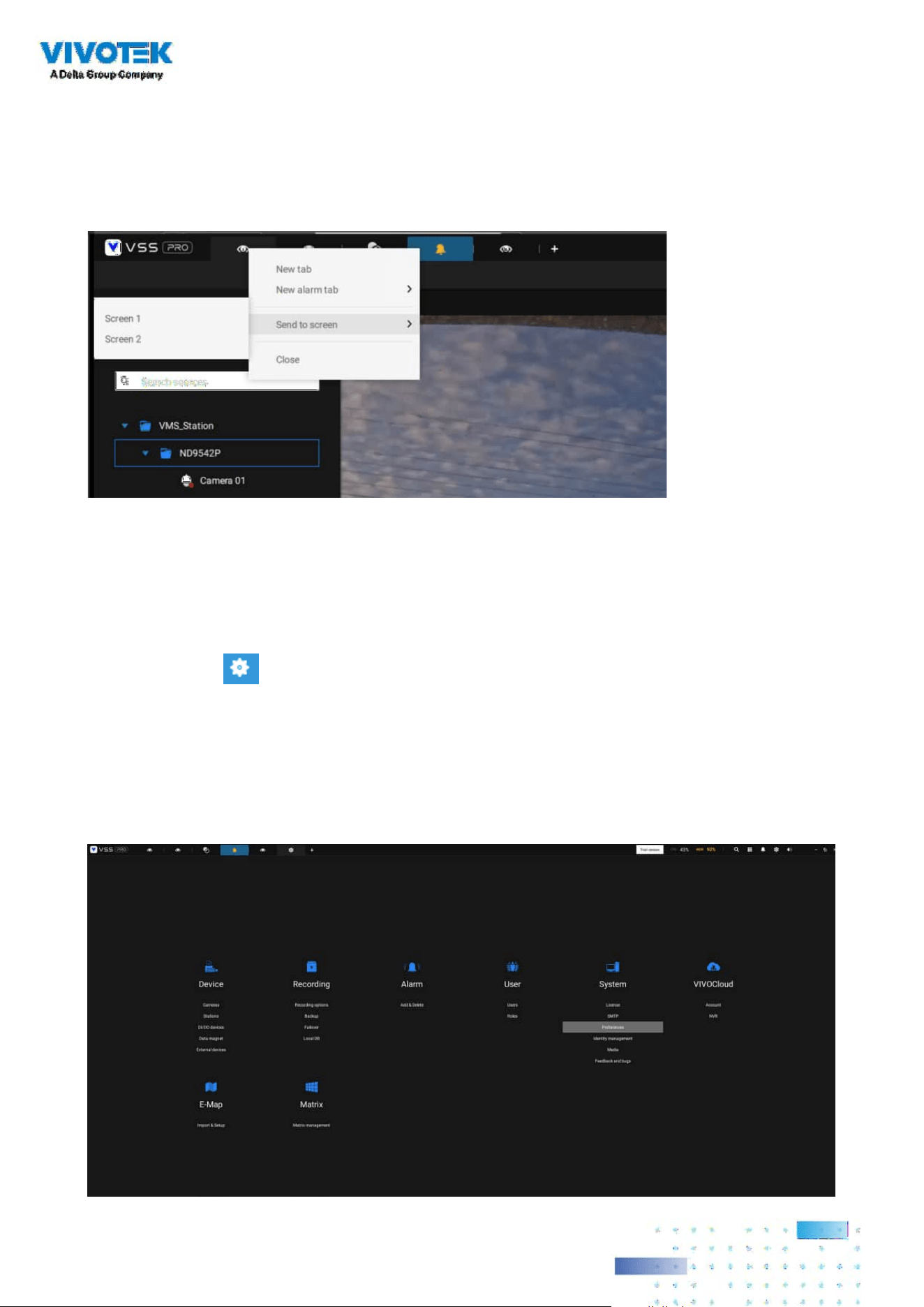
108108
If you have multiple monitors attached to your server station, you can drag a live tab to a
dierent screen. In this way, you can display live views simultaneously on multiple screens.
Live views can be placed on multiple monitors. Please note that the number of monitors to
display live views is determined by the capability of your system.
2-7. Save Your Preferences
Go to Settings > System > Preferences to save your current layout and display
congurations.
Select the options in the startup choices menu to decide what to display whenever your VSS
client starts. You can display Live view, Tour, Dashboard, E-Map, or Alarm tab simultaneously on
multiple screens.
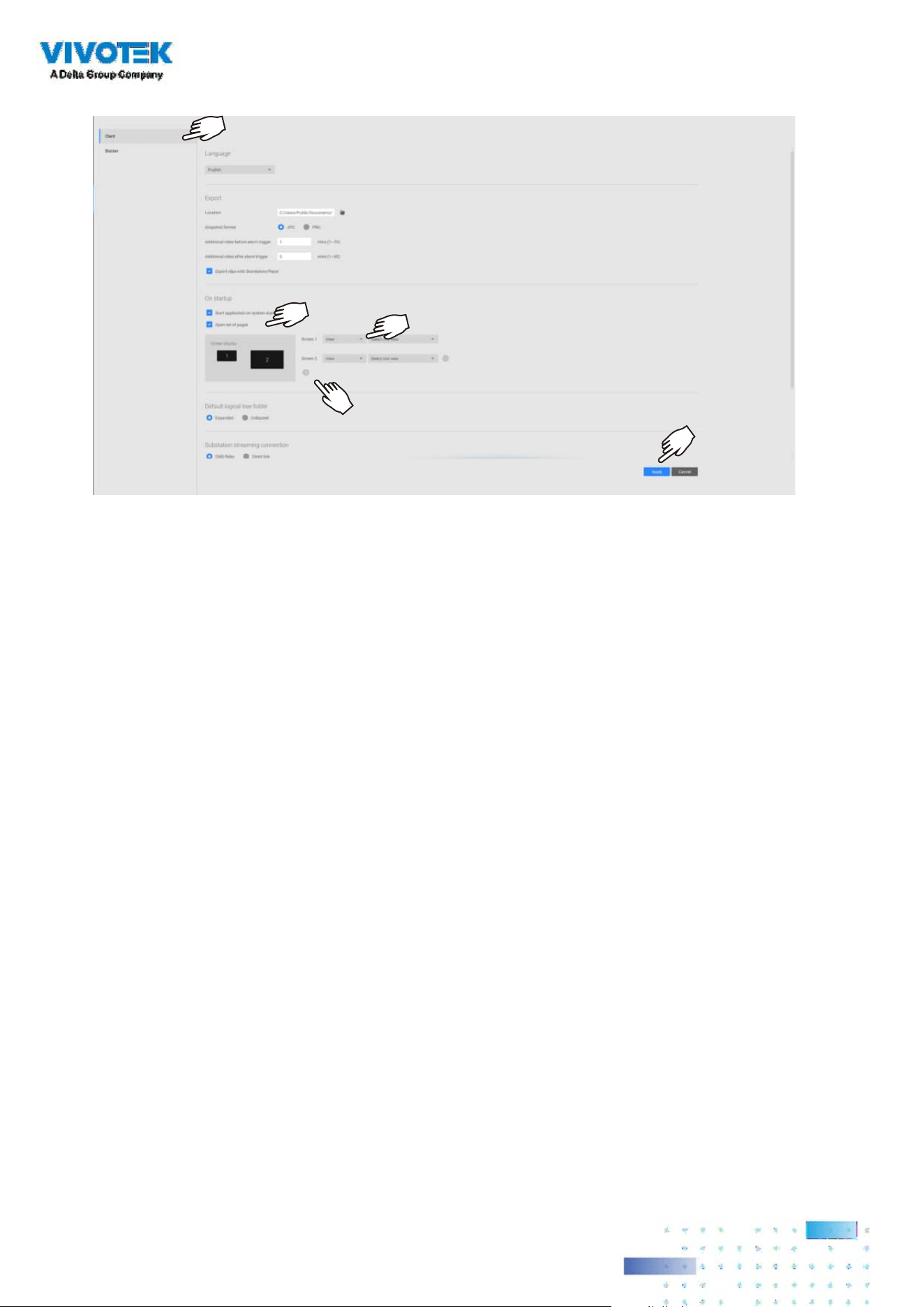
109109
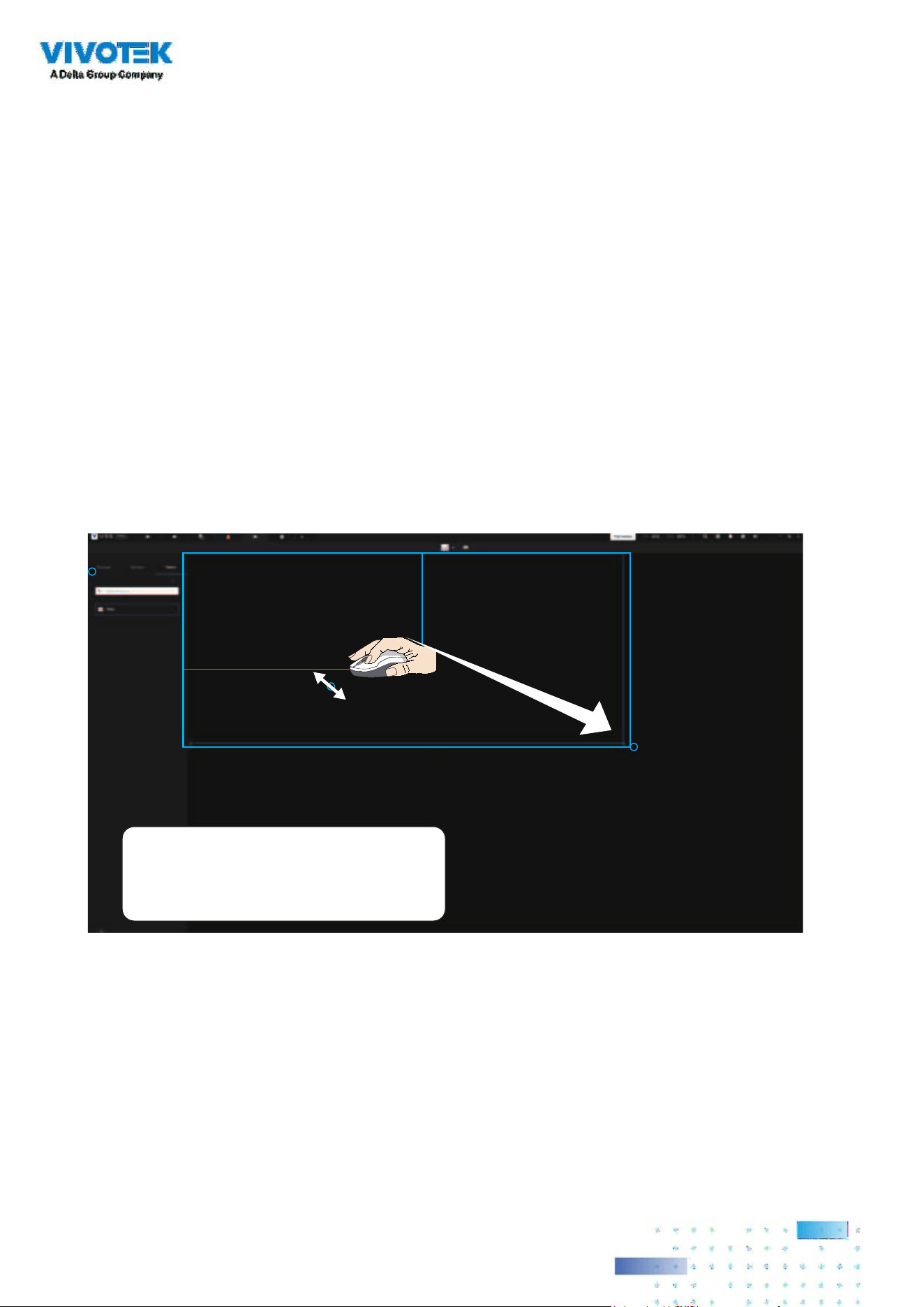
110110
2-8. Customizable Layout
The standard layouts can be manually congured to form layouts of your choice. Depending on
the complexity of your design, you should start with a multi-cell layout.
Click and drag the corner mark on a view cell. Drag across the screen and release the mouse
button to enlarge the view cell. Choose a standard layout of many view cells, e.g., 7x7 or 8x8,
if you want to design a complex customized layout. You can create a special layout, e.g., an
especially wide view cell for a multi-sensor camera, such as the panoramic MS-8392.
To abandon a customized layout, simply select a new layout from the layout window. You can
also use the
Ctrl + Z keys to undo your changes on the layout.
Use “Ctrl + Z” to undo
layout change

111111
To preserve your customized layout, click to open the layout window. Click on the Add current
layout
button. You may then change the name of your layout by a double-click on its name.
To remove a congured layout, drag it to the garbage can icon on the upper right.
You can also right-click on the screen to display the Add layout option.
You can then click Device Group, and start filling your customized layout with camera views.
When done, click Add a view.
Also remember to save the current layout as a view, and save your conguration in Settings >
Preferences.
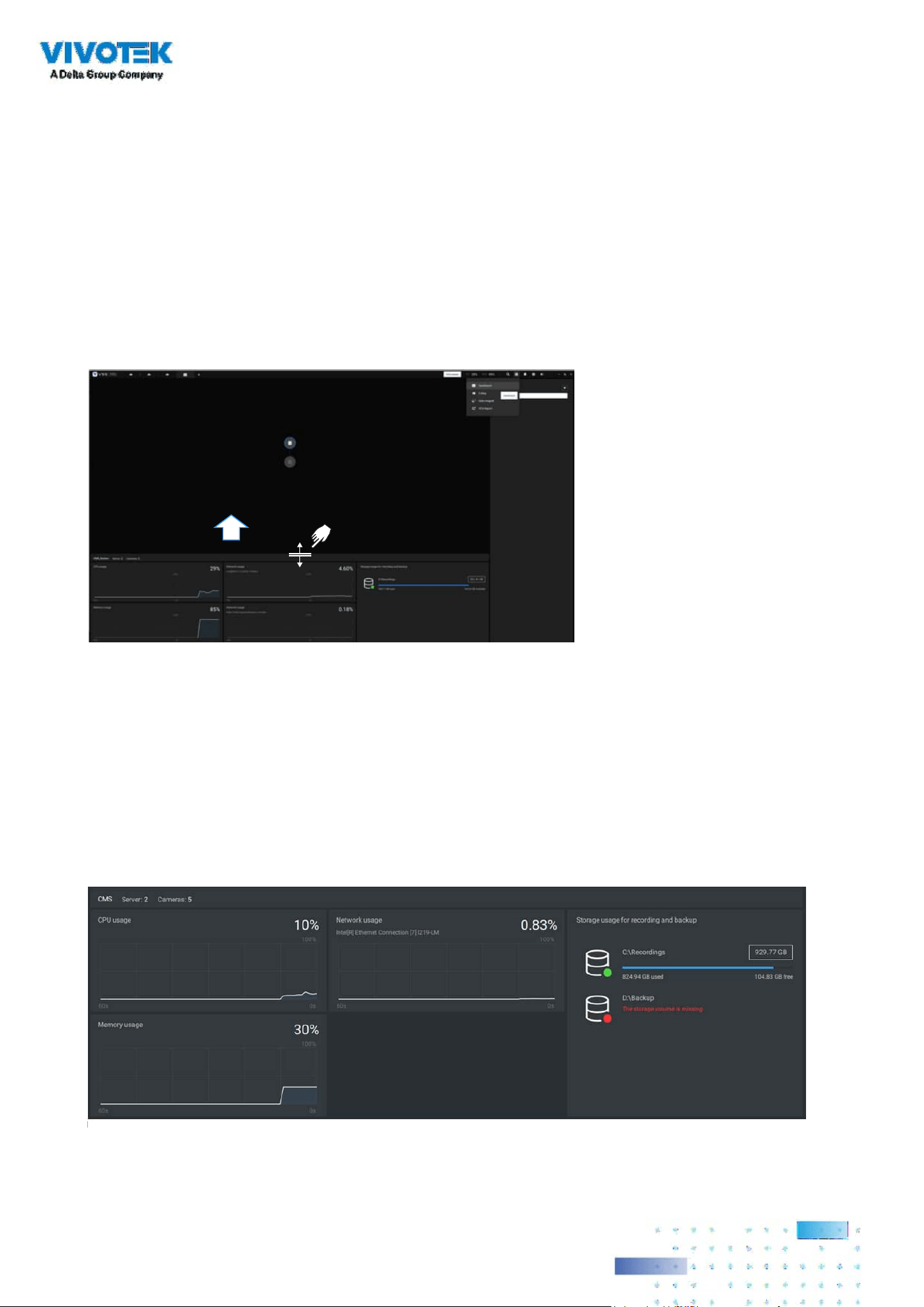
112112
2-9. Dashboard
Select to open the Dashboard utility from the tool bar. The Dashboard displays the system
resources of a CMS server along with those of its sub-stations. This provides a glimpse of the load
on machines when performing the recording and monitoring tasks.
Mouse over the edge of the bottom row to reveal the expansion mark. Pull the status row up to
display the system resource statuses.
If you have multiple LAN cards or virtual HBAs, the status row can be pulled to reveal all of their
statuses. The storage volume status is also displayed in terms of recording and backup with the
total, used, available size displayed. If a volume went down or is disconnected, notications will
appear on the status panel.
The possible system abnormalities
can be:
CPU utilization over 90%
Memory usage over 90%
Network usage over 90%
Camera disconnected
Station disconnected

113113
If you have multiple sub-stations, single-click to select and reveal their individual status,
including CPU usage, memory usage, network usage, and storage usage.
Note that VSS servers of the earlier revisions and NVRs running older firmware do not deliver
their statuses to your Dashboard.
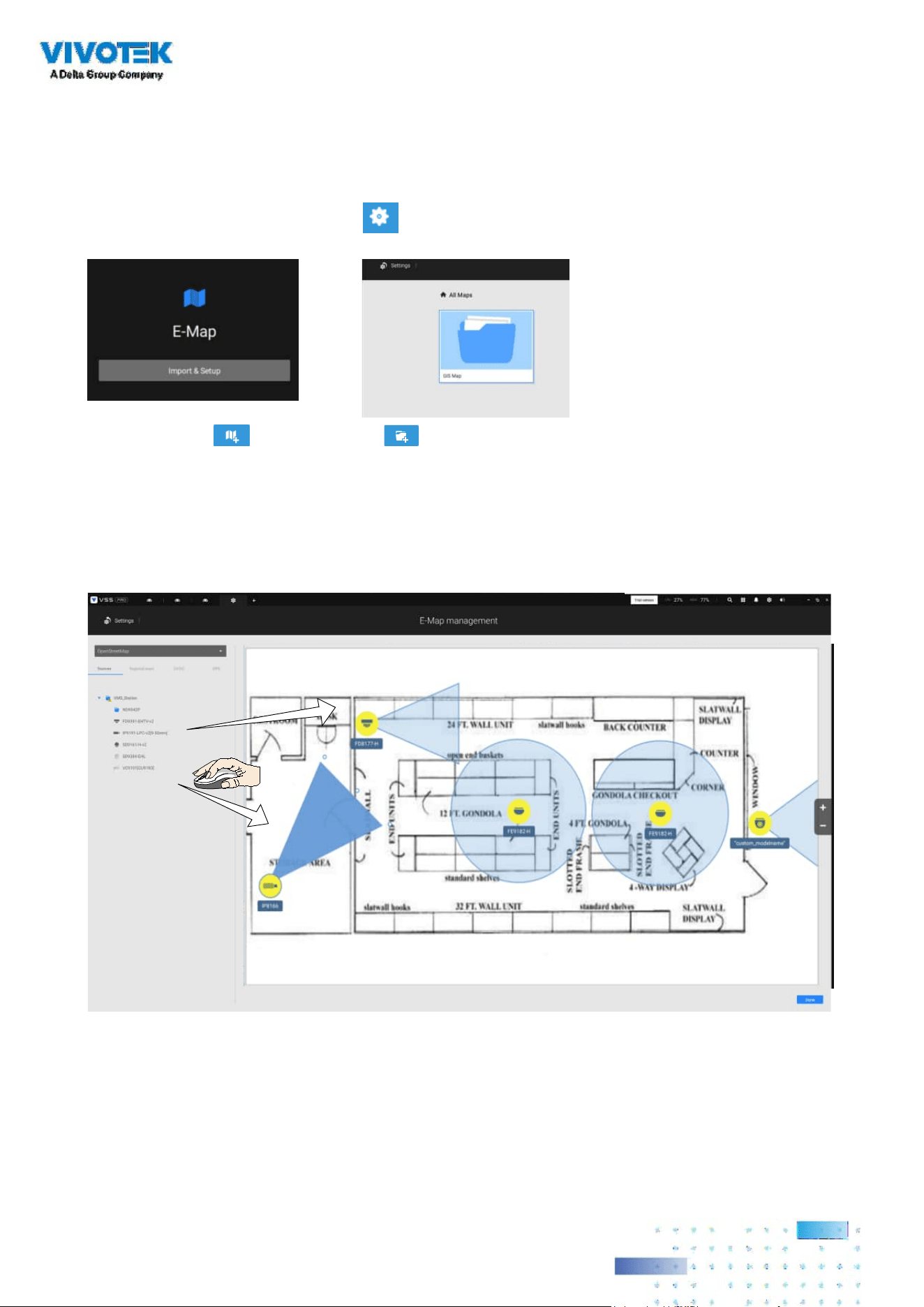
114114
2-10. E-Map
To create your E-Map, click Settings . Click Import & Setup. Click E-Map.
Click Import le or Import folder . An entire folder can be imported.
When done, double-click on the snaphot of E-Map image to congure the E-Map.
Your cameras will be listed on the left. Drag and drop the cameras to the corresponding locations
on the map.

115115
When the camera is in place, drag the FOV indicators on the edge to change the shooting angle
and the coverage range.
Drag the FOV to change the shooting direction to match the actual installation.
Click on the camera icon. You can also change the color of camera icon and the FOV type. Fisheye
cameras, when ceiling mounted, have a round shape coverage.
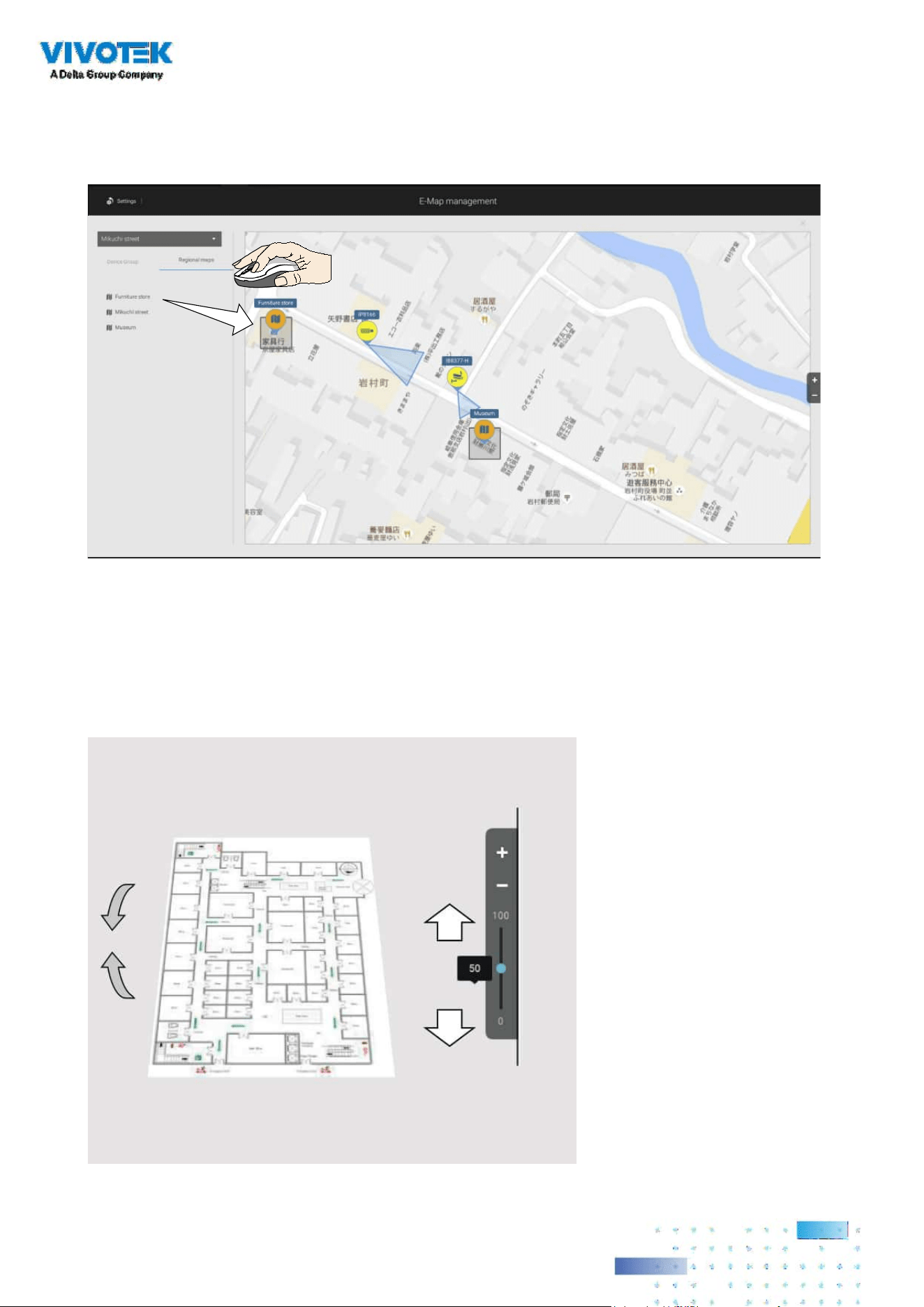
116116
If you have a larger regional map that covers a geographical area, say, a street block, you can drag
one or many E-Maps into it. For example, you can place another E-Map that is used to indicate
the camera deployment inside a building that is located on the street.
To see live streams from cameras, click on the camera icons in the E-Map.
When conguring an E-Map, you can use the tilt bar on the right to tilt the E-Map image. Doing
so creates a sense of distance and depth of view.
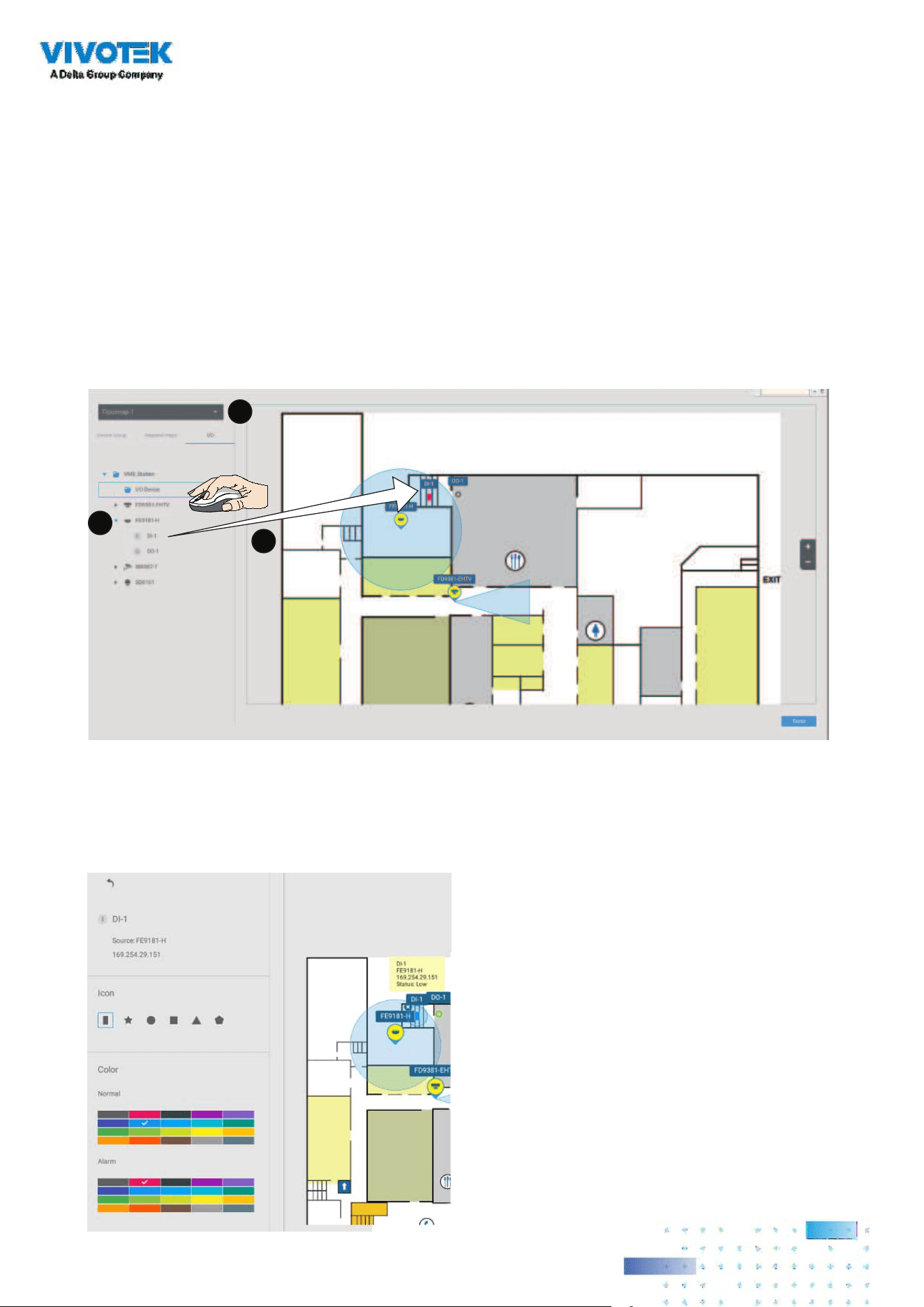
117117
Placing DI/DO Devices
I/O devices can also be planted into an Emap, such as alarm or various kinds of detectors. The I/O
boxes (such as Advantech's Adam series) or the DI/DO connections on an NVR also apply.
1. Select a oor map from the pull-down menu.
2. Unfold the sub-trees beneath the network camera, (taking camera DI/DO devices as an
example).
3. Select a DI/DO device. Click and drag to a preferred location on map.
2
1
3
4. When a DI/DO device is selected, you can select the display colors of its icons. Configure
dierent colors for the device status when it is normal or triggered.
5. When done with placing all DI/DO devices, click the Done button on the lower right of the
conguration screen.
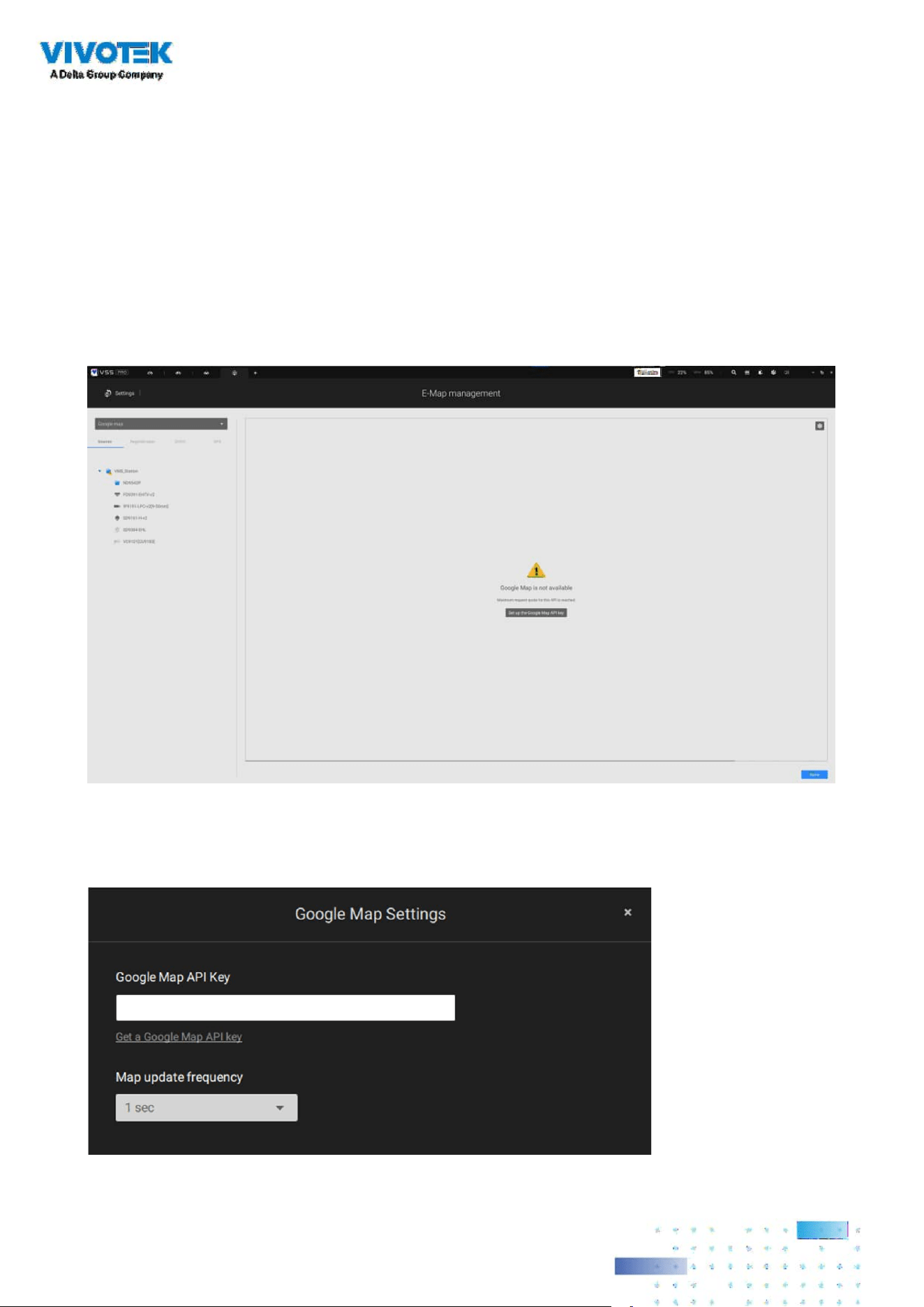
118118
Conguring GIS or Google Map and GPS
Since Google Map changed its access policy, using the Google Maps feature requires user
entering a billing API key. Using Maps, Routes, and Places APIs requires an API key.
For applying a Google API key, https://cloud.google.com/maps-platform/maps/
Visit Settings > Emap > All Maps.
Enter the Google API key you previously registered (if using Google Map).
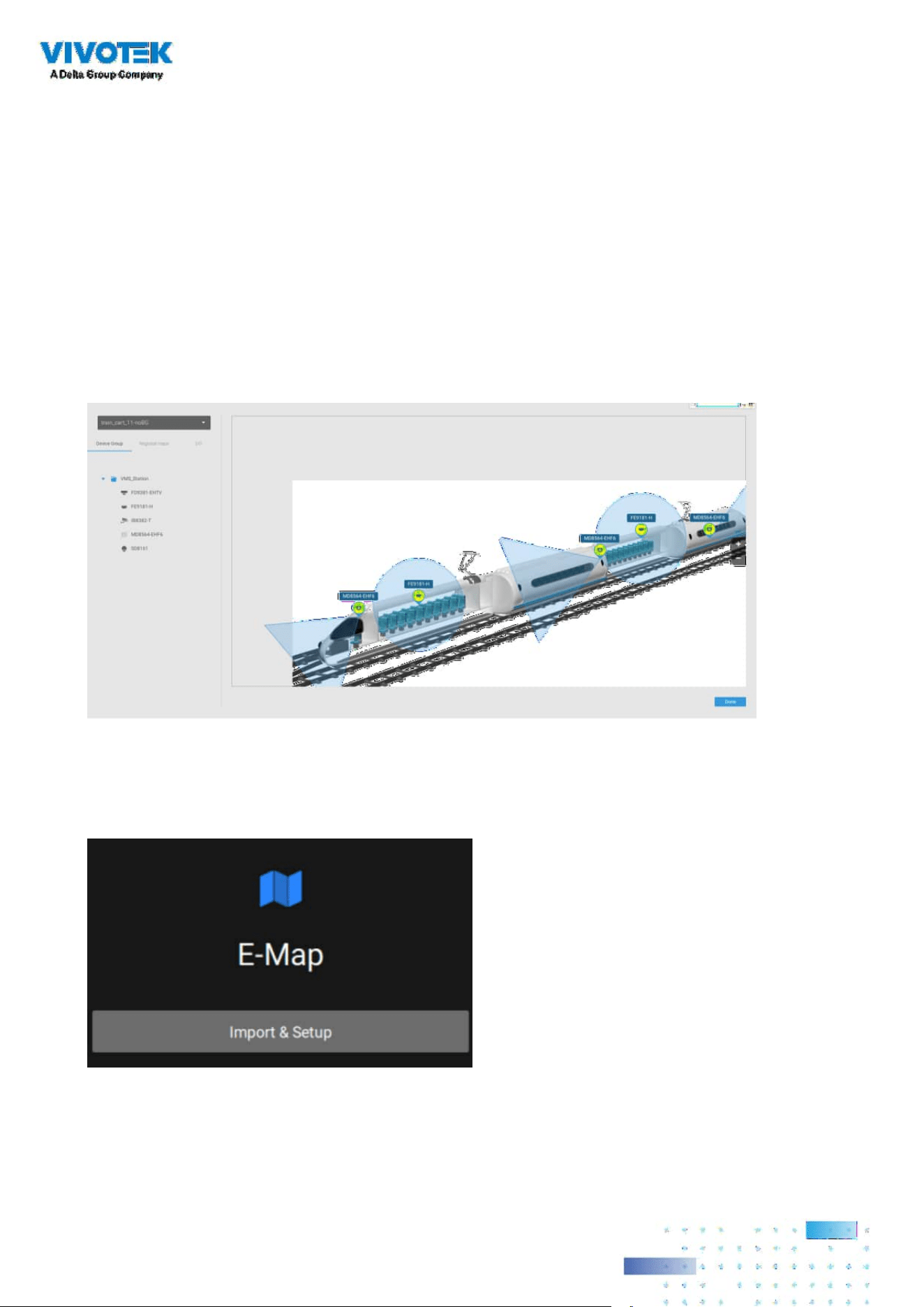
119119
NOTE: In this revision, Google Map only supports installation on a GPS-enabled vehicles. Placing
cameras on a static location on Google Map is currently not supported.
Before configuration on a Google Map, you should prepare an E-map drawing for special
installations, such as that on a vehicle. The vehicle, e.g., a train, should come with a GPS-GSM/
GPRS module to collect the position information and pass this information to a web-server.
As new data is constantly inserted to the database, the VSS server will update the location
information containing coordinates, speed, distance, time, etc.; and when video recording is
required, the location information and time tags will be available.
This applies to a mobile NVR that comes with GPS functionality.
Open the E-Map Import & Setup window.
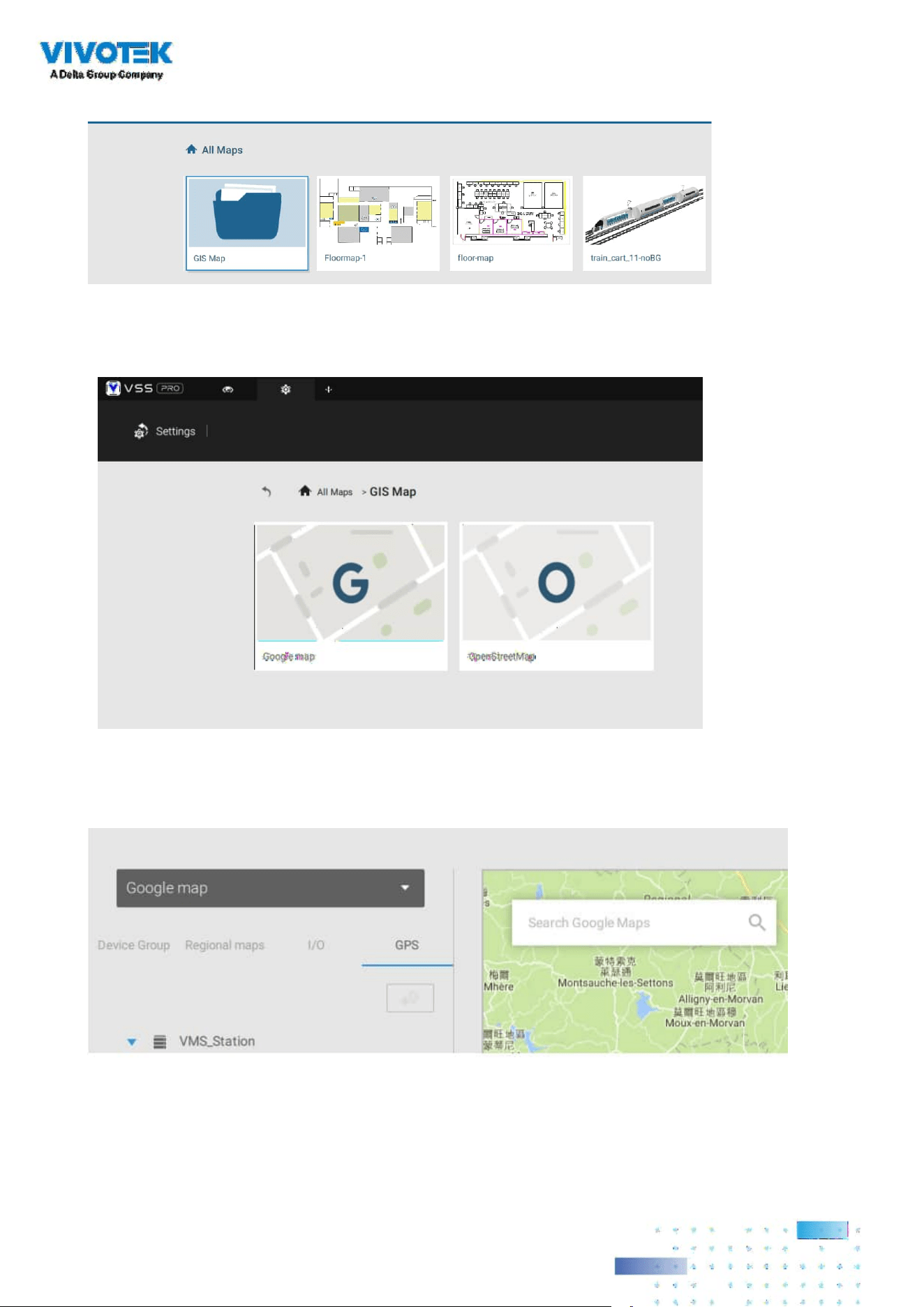
120120
Click to enter the GIS (Geographic Information System) Map and then Google Map window.
Click on the GPS tab. Select a VMS station or mobile NVR to apply the conguration, and then
select the GPS Add button .
Click on either the Google map or the OpenStreetMap.

121121
Enter a name for the GPS/GNSS server on the vehicle, its IP address, and server port number.
You can select an E-map that will display when you click on the GPS location icon. Select the
checkbox and an E-Map that corresponds to the deployment on the vehicle. When done, click
the Apply button.
You can skip this setting for the mobile NVR that
comes with a built-in GPS module.
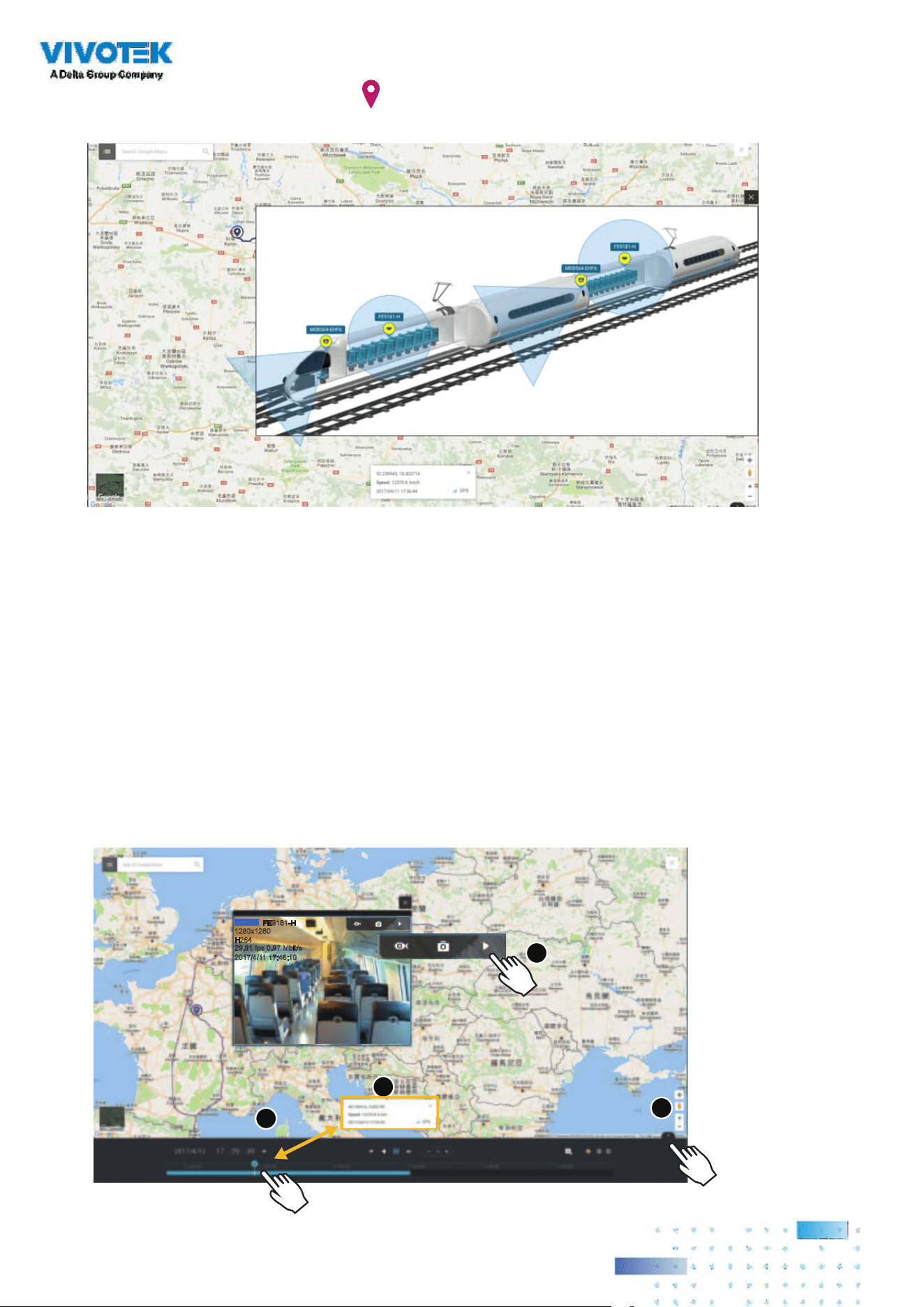
122122
You can click on the location icon to bring up the E-Map. The coordinates, speed, and time
information also display on the map.
You can click on any cameras on the E-map to search through past recordings. One click displays
the live view. A live stream window will display.
To search and review recordings when an event occurs,
1. Click on the Playback button.
2. Click the Pane button to display the Playback control panel.
3. To search for the video of past events, pull the Playhead to a point in time on the timeline.
4. The GPS coordinates and time will change to those corresponding to the time you selected.
You can then acquire the corresponding location information while tracing the occurrence of
an event.
29.91 fps 0.97 Mbit/s
2017/4/11 17:46:10
PLAYBACK
FE9181-H
1280x1280
H264
2
1
3
4
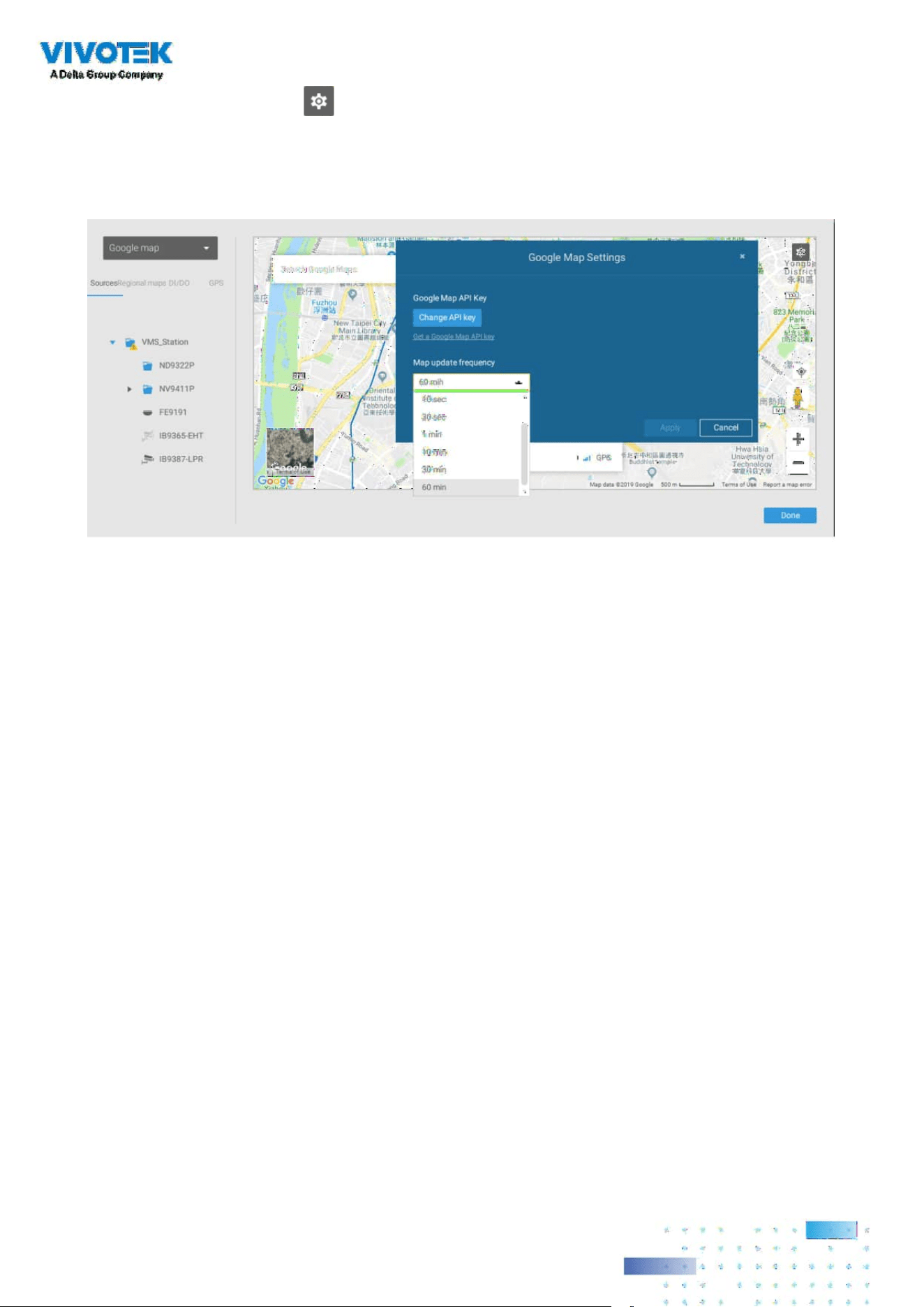
123123
Click on the Setting button on the map to bring up the Map update frequency option. Your
GPS target may travel to the outside of the map through time without the map being updated.
The map will update by the interval you congure here.

124124
2-11. Event Search
The Event Search window is accessed from the top tool bar.
Below is the comparison between the Alarm list and the Event search windows:
Alarm List Event Search
Reports alarms triggered by user-
congurable events, such as DI/DOs,
Motion Detection, tampering, VCA analytics,
cybersecurity, and so on.
The events on the Event Search window
require no user configurations. The Event
Search window displays system events and
provides a glimpse of all general events.
The event types include: General events,
Video Content Analysis events, and Trend
Micro IoT Security events.
The sample screen for VCA-related events is shown below:
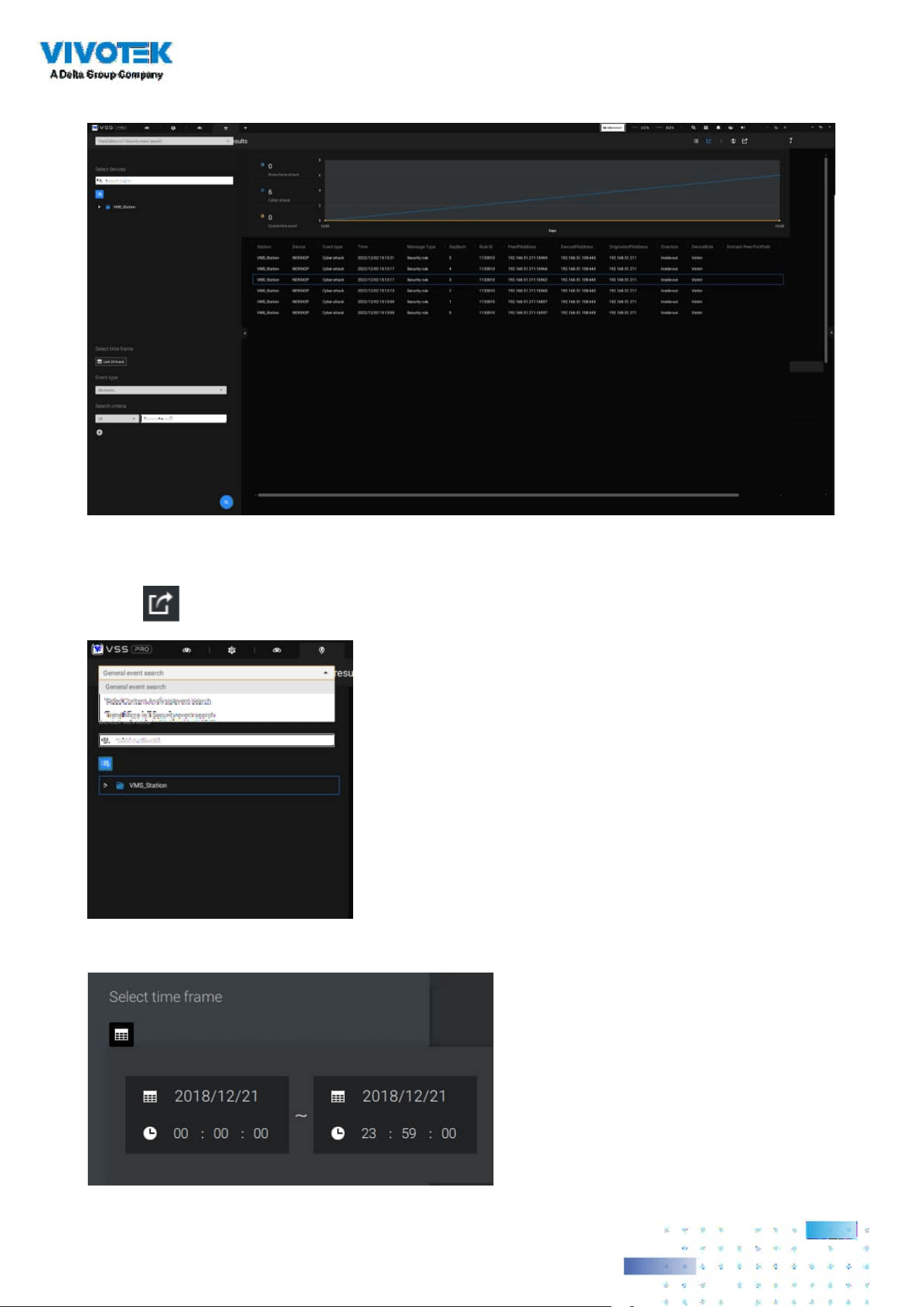
125125
From the Search Event window, you can view and search events by its event types, and use the
Export button to save a record of these events (in the CSV format).
The sample screen for network security-related events is shown below:
Use the calendar tool to specify the span of time as the search range.

126126
Use the Event type menu to narrow down the types of events. Select or deselect the event types
for search. You may also enter one or several keywords as the search criteria in the following
menus.
Click the search button to generate search results.

127127
2-12. PTZ Control
PTZ on this page refers to the mechanical PTZ. The discussion on this page applies to cameras
that come with PTZ mechanisms that are capable of directional and zoom control.
To begin the PTZ control, click on the PTZ
button.
Click and drag your left mouse button across the screen, towards the direction you wish to move.
A light blue trace will appear. The longer the trace, the faster the move.
Note that while the camera is moving, you can change the move direction keeping the mouse
button hold down. Release the button to stop moving.
See Appendix D Joystick support if you use VIVOTEK's joystick.
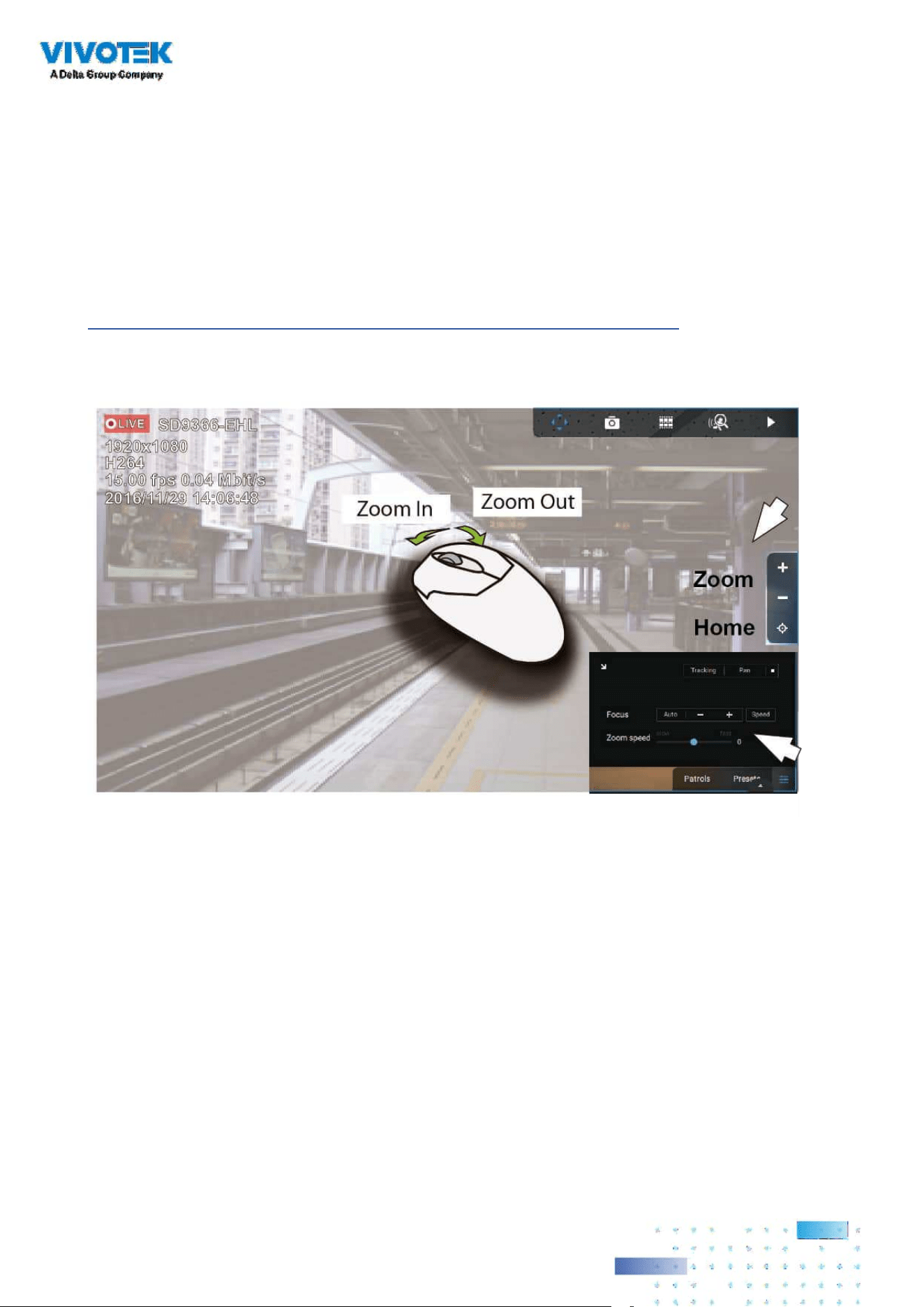
128128
You can also use the mouse wheel to zoom in or zoom out. You can also mouse over the right
side of the screen to display the zoom button. A home button is also provided.
The Patrol, Presets, and PTZ control panel is located at the lower right of the screen. You can click
to begin a pre-congured patrol, preset points, or enable a Tracking or Pan action.
You can also adjust the Zoom speed, and/or manually adjust the Focus and the Focus speed.
See Appendix H Smart Tracking for how to enable the Smart Tracking feature.
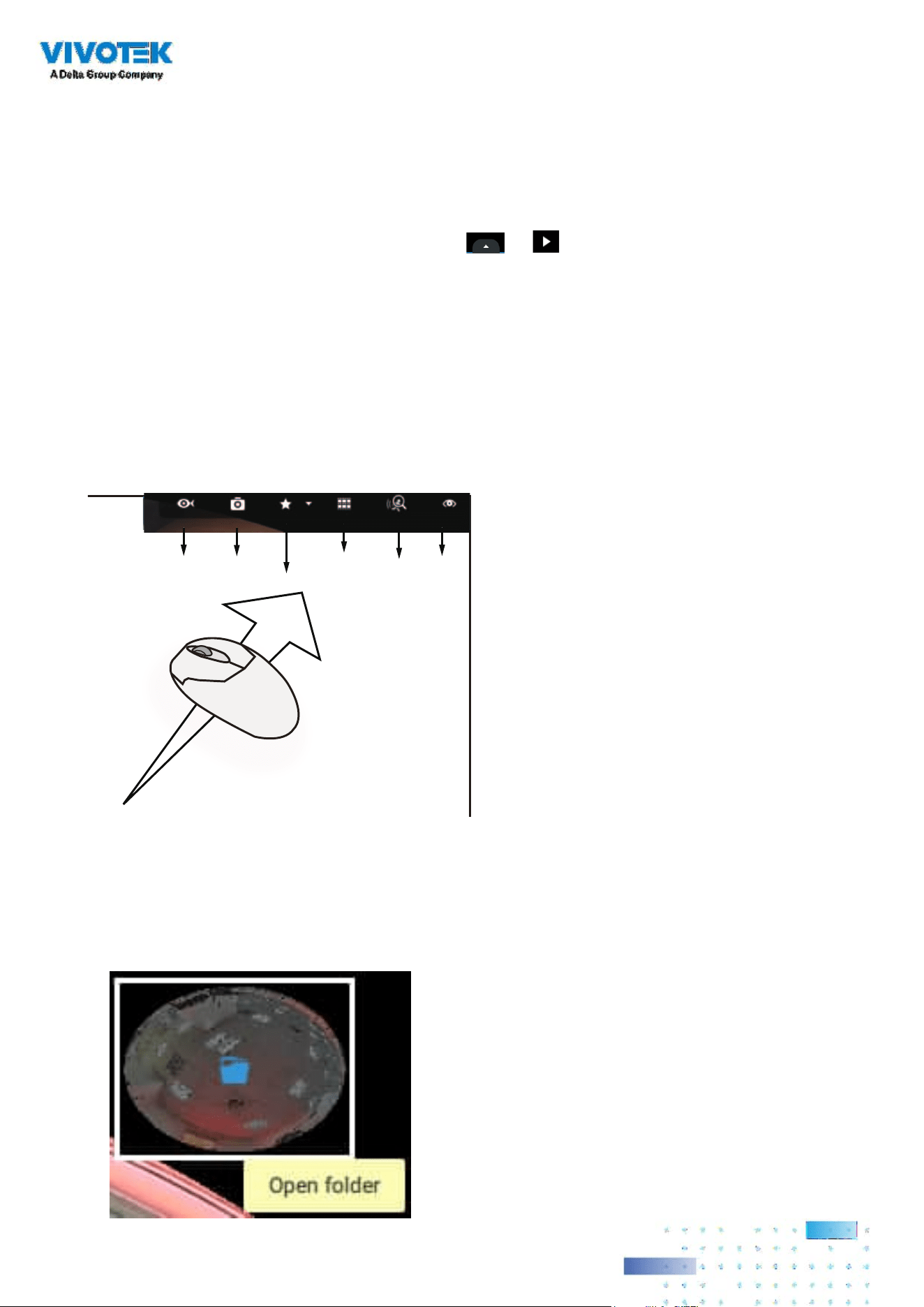
129129
2-13. Playback
To start the playback function, select a camera's view cell (whether in full view or ordinary cell
size), then click the playback initiative button ( or ). The button can be found on the
upper right of the view cell or at the lower right corner of the view cell in the full view.
Default Time: When started, system normally rolls back to the start of the hour, e.g., your current
time is 10:30:00, and the default playback position on the timeline is 10:00:00.
Playback control can be found in 3 places:
1. Float Panel: When Playback is started, swipe your mouse to the upper-right of the view cell to
display the Playback oat panel.
Fisheye
Dewarp
Snapshot
Bookmark
Thumbnail
search
Smart
search II
Liveview
Fisheye Dewarp: For a fisheye camera, you can select different dewarped views during a
playback. Click to select an option.
Snapshot: Click to take a snapshot. A small oating window will stay for 2 seconds. You can
click the folder icon to access the snapshot les.
Note that a dewarped, regional view allows producing a snapshot of the regional view.
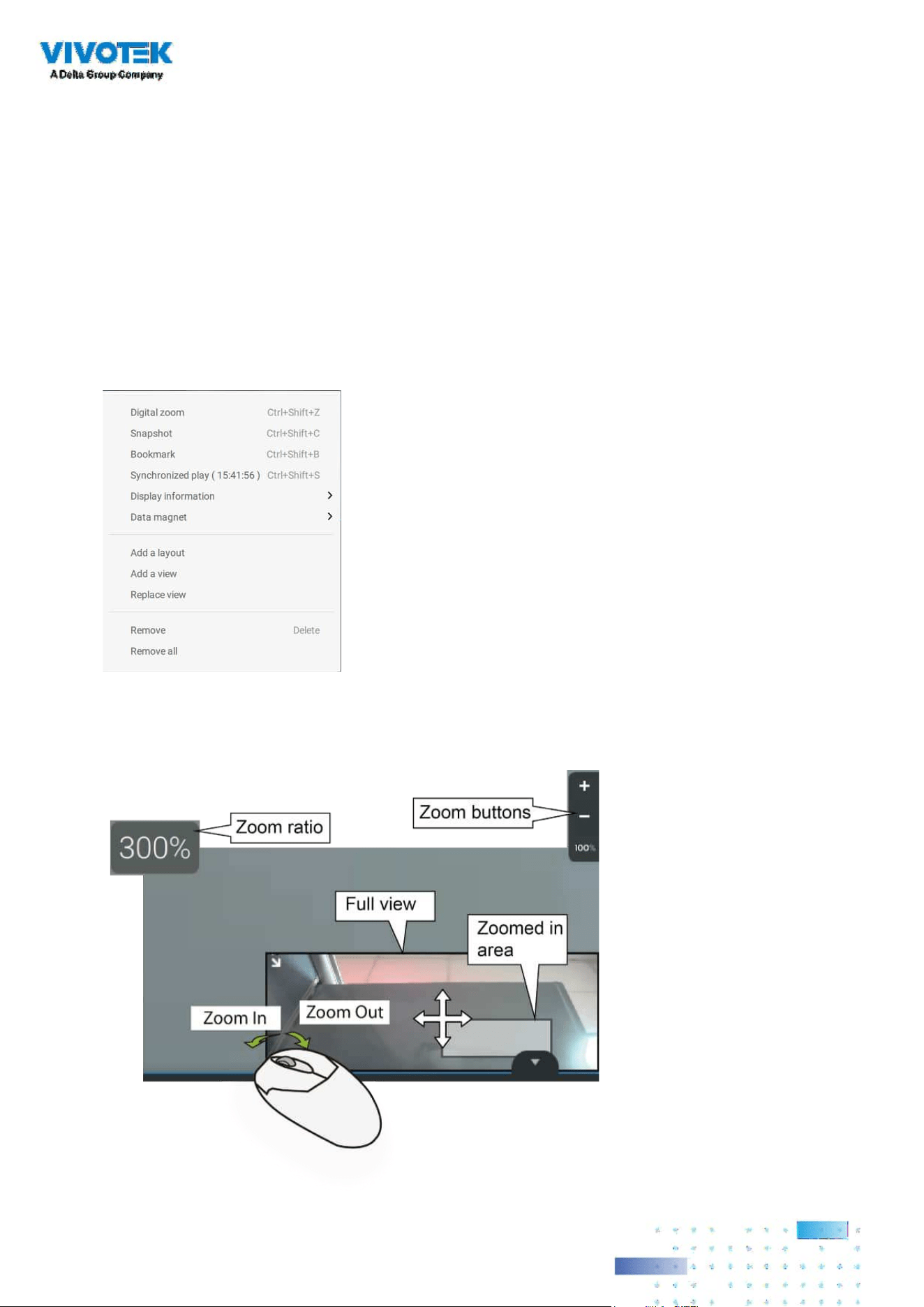
130130
Bookmark: If you nd anything of your interest when viewing the playback, click this button
to create a bookmark. It helps when you need to return to the point in time after you review
all through the recorded videos. Note that the bookmarked video clips are free from storage
recycles. They will not be erased when storage runs short and needs to be recycled.
Smart search II: Smart search II is an independent function. See page 155 for details.
Liveview: Click to return to Live view.
2. Right-click Menu: Right-click on the Playback screen to display this menu.
Digital zoom: If you nd anything of your interest when viewing the playback, click this button
to create a bookmark. It helps when you need to return to the point in time after you review
all through the recorded videos.

131131
Synchronized play: When enabled, all cameras in the same view will be playing the video of
the same point in time.
The following commands are general purpose commands.
Snapshot: Click to take a snapshot. A small oating window will stay for 2 seconds. You can
click the folder icon to access the snapshot les.
Bookmark: If you nd anything of your interest when viewing the playback, click this button to
create a bookmark. It helps when you need to return to the point in time after you review all
through the recorded videos.
Display information: By default, all display elements will appear on screen for all playback
windows. You can use the Edit display information to select more display elements.
They include:
Status, Camera name, Server time, Codec, Resolution, Network throughput & FPS, Fit screen
with ratio, POS transaction details (for POS), Data magnet data (Data overlay on screen /
Hide data after idle), Motion detection, Rules (VCA), Rule name, Motion cells, Tracking block,
Tracking dot, Exclusive area, People detection area.
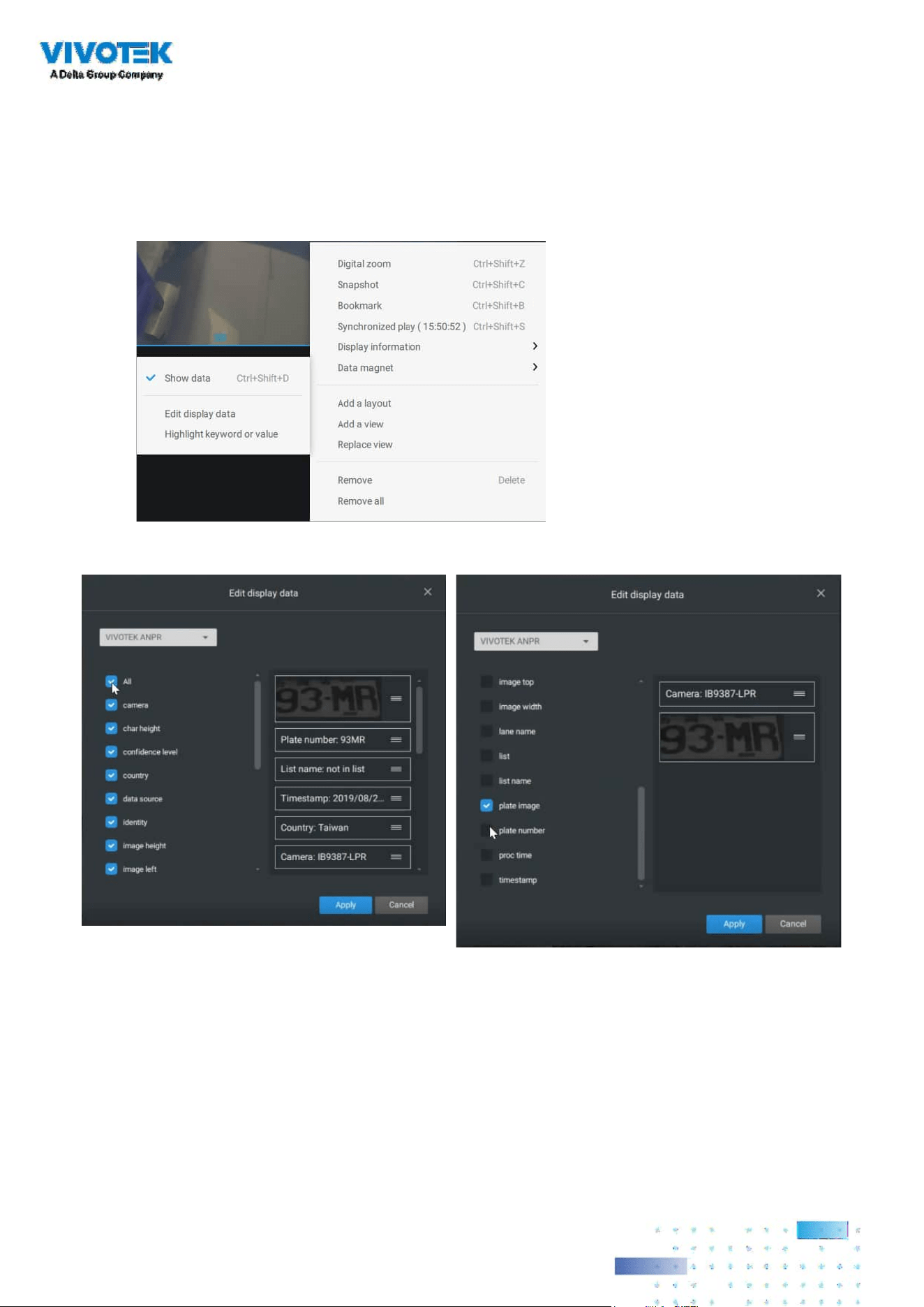
132132
Data magnet: For 3rd-party applicatioins, such as VIVOTEK's license plate recognition software,
you can select to display dierent types of information. You can use the Edit display data to
select or deselect the display elements.
Please note that the display elements can vary for dierent applications.
Below are the sample screens for applications implemented via the Data magnet.

133133
3. Timeline Panel: This panel appears when Playback is initiated.
Starting from left to right, timeline control functions will be described as follolws:
1. Time Search: Click on the current date to open a calendar. If you want to review videos
recorded in another day, select it from the calendar.
Timescale is adjustable (minutes, hours, days, to a max. of 3 days) so you can easily find the
required time period and begin playback from that point.
Histogram
Adjustment
Export
Speed Control
Playback Timeline & Histogram
Playhead
Synchronous
Playback Control Buon
Time Search
Events
Highlights
06:44:23
Mouse-over
indicator
Return to Live
Drag to move along
meline
Blue: days with recordings.
Orange bottom line: Today.
White: days with no recordings.

134134
Click on the current time. You can use the arrow buttons to change the time you wish to
playback, or simply enter a preferred number. You can also pull the playhead along the timeline.
Timeline magnication levels: The default time span is 6 hours. You can change the magnication
level for easier browsing. Click the Zoom in and Zoom out buttons to change the timeline time
span. The congurable time spans are shown below:
3 days, 1 day, 12hr, 6hr, 3hr, 1hr, 12mins, 1 min
2. Playback control:
From left to right,
2-1. Synchronous play: This lets all cameras in the same view to playback video of the same point
in time. If you perform synchronous playback on a multi-cell view, your computer can be
stressed. It is recommended you create a new view with a 2x2 layout, select and insert camera
views into it, and begin the Synchronous playback.
2-2. Frame by frame buttons: Click to move forward or backward to flick through the video
frames. This may only display the I-frames.
2-3. Forward playback and reverse playback: Click to view the video in the forward or reverse
playback manner.
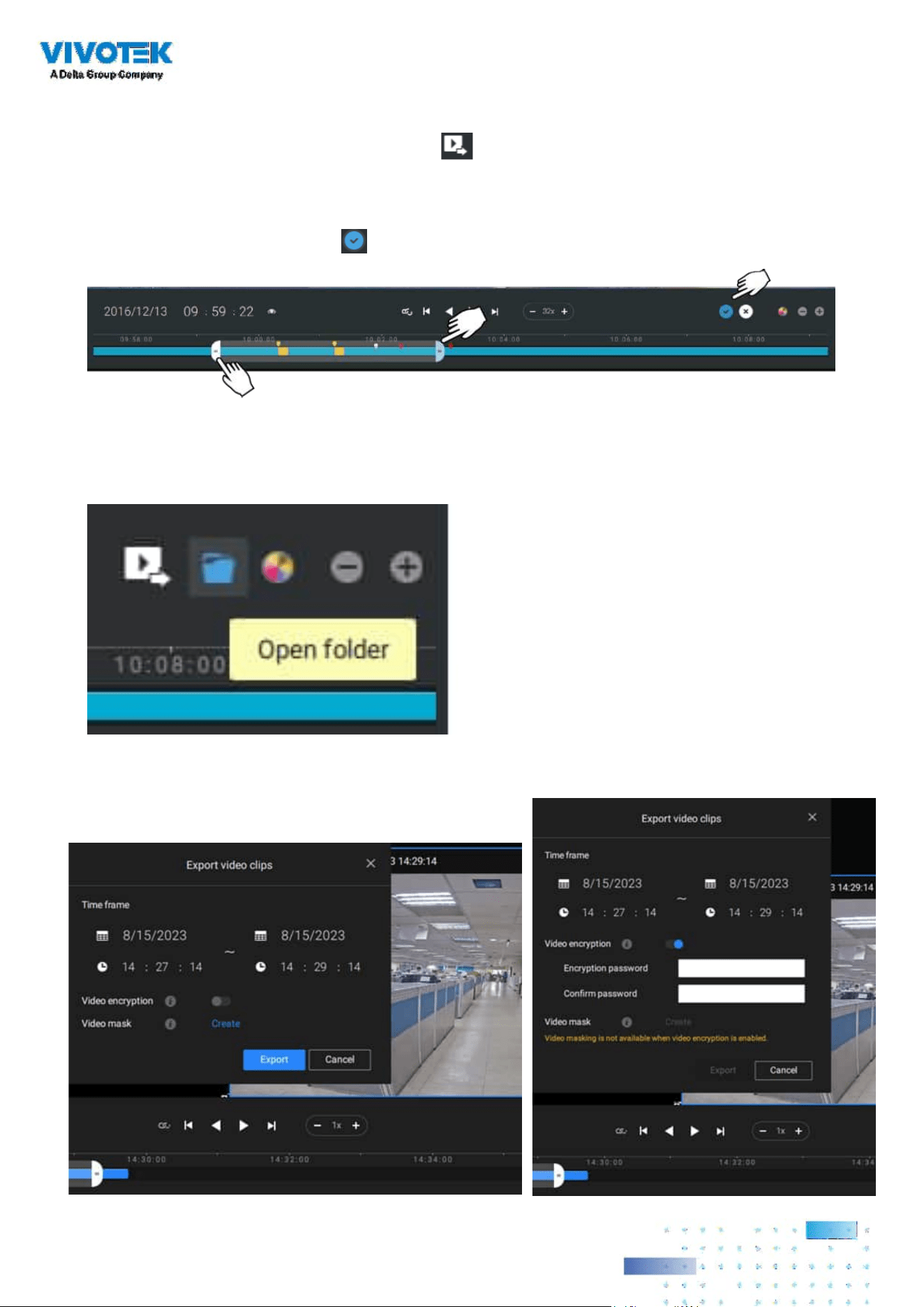
135135
2-4. Speed selector: The selectable speed ranges from 1/64x to 64x.
3. Export Clips: Click the Export Clips button
. A range selector will appear. Pull the ends to
include the time span you want to export. Note that each end of the selector, when clicked
and selected, will turn white, and its location on the timescale is shown on the time line. When
done, click the Start to export
button.
Depending on the length of video clips to export, it may take minutes to export. When the
export is completed, a shortcut to the exported clips is shown. You may then open the folder
where the clips are located.
When you export a video, you can assign a password for the encrypted video. Once encrypted,
you cannot play the video using ordinary video players. You can only play the video using VSS
standalone player after you enter the correct password.
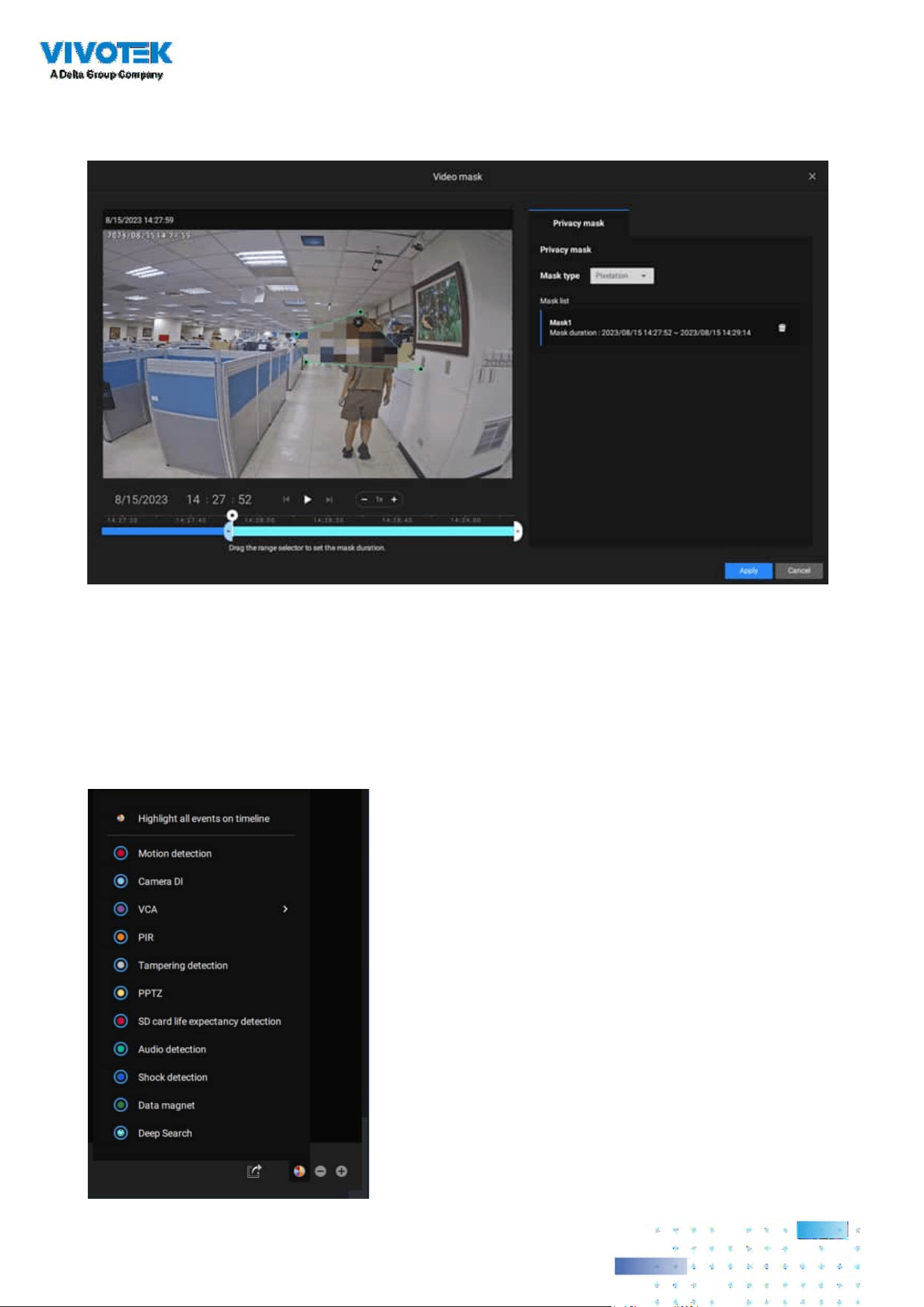
136136
Event Highlights on timeline: Select one or all of the event types to display event tags on the
timeline that match those have occurred in the past.
Note that on the VIVOTEK's Linux-based NVR, the timeline will display the occurrence of an
event for a length of 10 seconds since its occurrence.
When video encryption is o (default), you can create video masks (available on VSS Professional
only; black or pixelated) for specic time frames to protect privacy in the video to be exported.
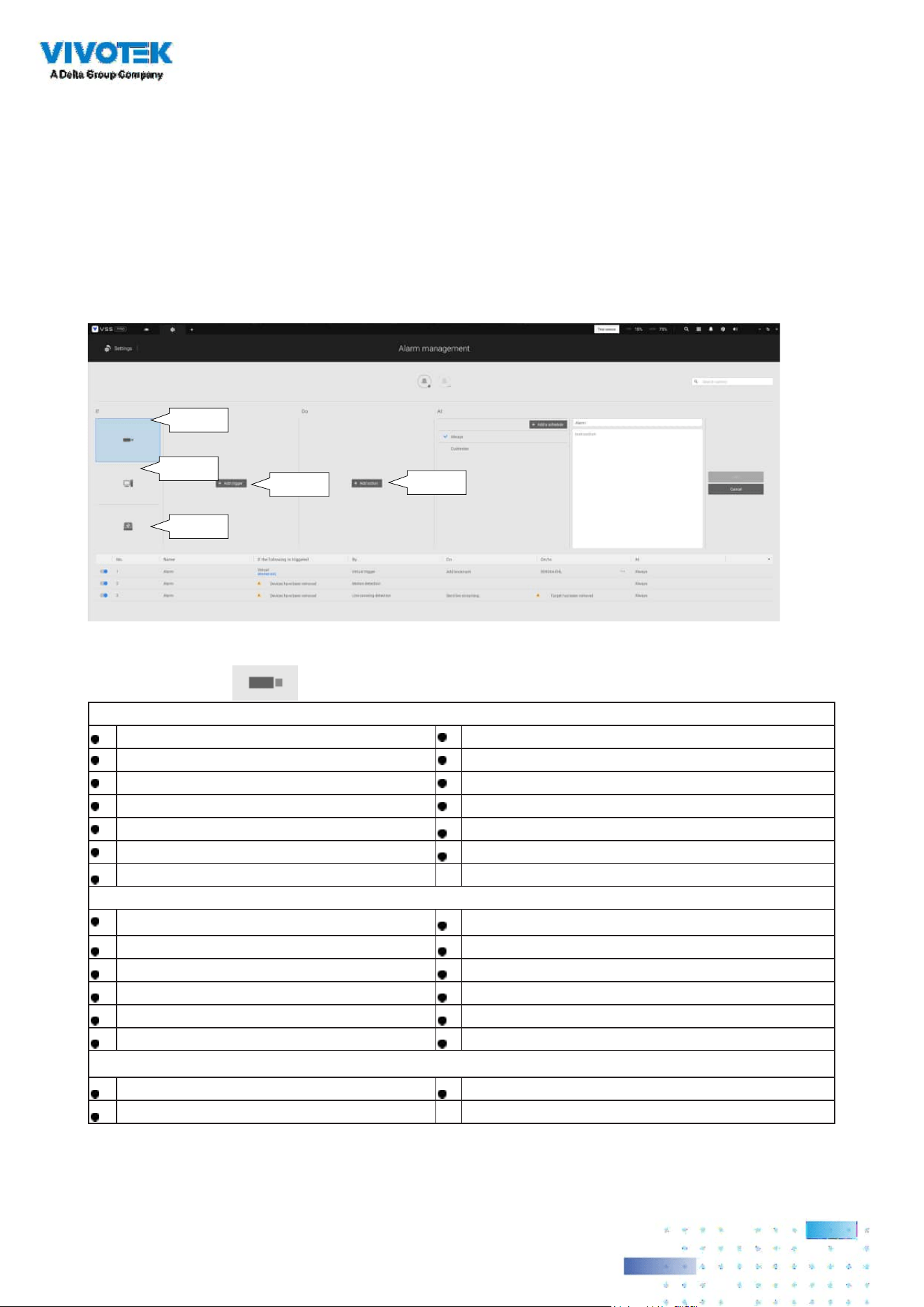
137137
2-14. Alarm
The Alarms can be congured to perform a series of actions when dierent events occur. Alarms
can be used to automatically react to possible threats. For example, the VSS server can start a
recording or send an Email notication when Motion detection is triggered.
A wide variety of triggering conditions can be applied, including:
1. Camera triggers
General
Motion detection IR (Infrared)
Camera DI PIR (Passive Infrared)
Camera DO Tampering detection
Temperature Stop recording
Recording error Audio detection
Video loss (Video server only) Shock detection
SD card life expectancy detection
Video Content Analysis
Line crossing (VCA) Intrusion detection
Loitering detection Face detection
Missing object detection Unattended object detection
Crowd detection Smart tracking
Zone detection People running detection
Parking Violation detection Restricted Zone detection
Trend Micro IoT Security
Brute force attack Cyber attack
Quarantine event
Camera
Server
I/O box &
external
Select
triggers
Select
actions
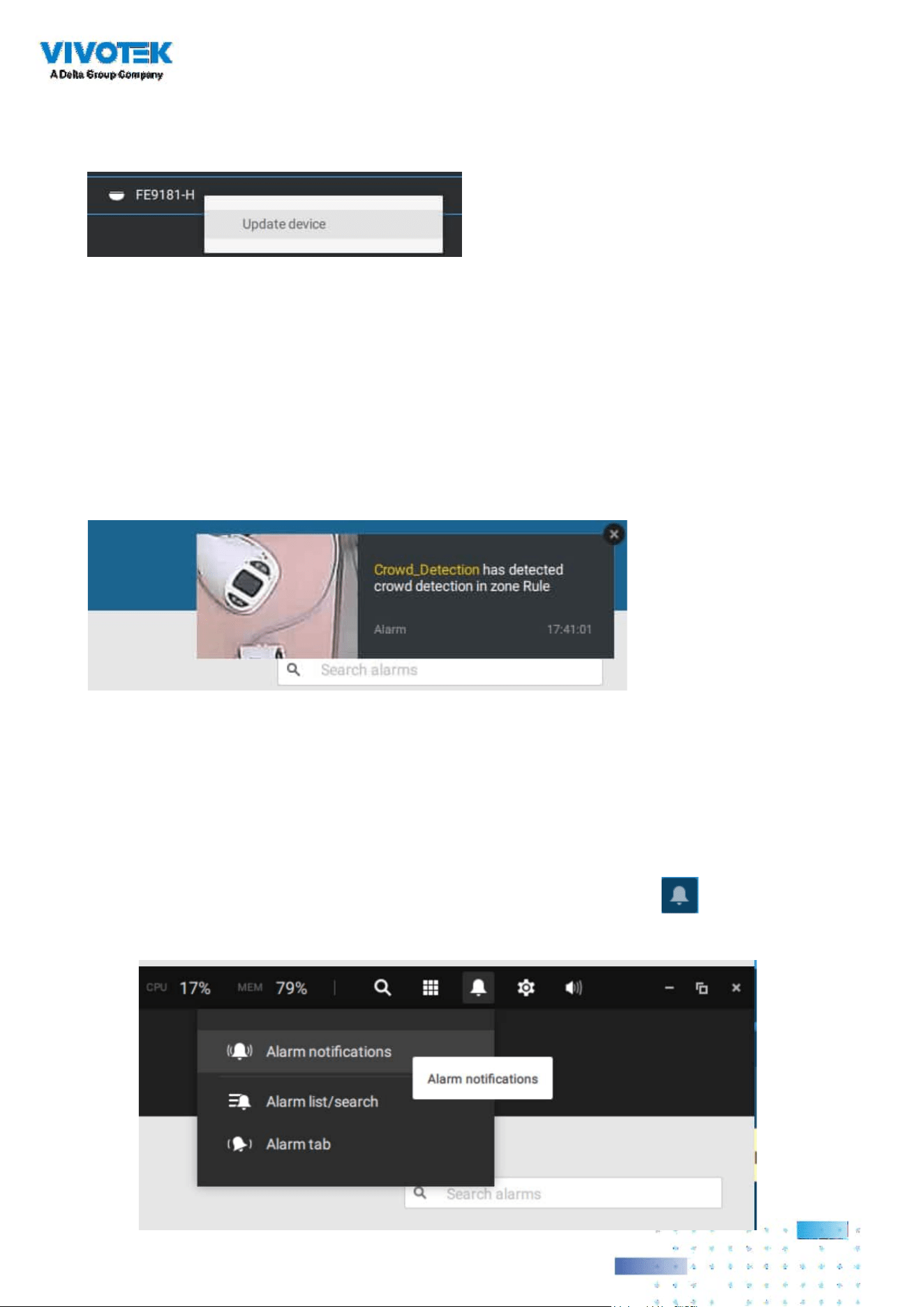
138138
Note that some of the triggers require that you open a web console to individual cameras. For example,
VCA and Motion detection windows have to be manually congured on each camera before they can be
congured in the Alarm settings.
If a triggering condition is associated with event recording, an event prompt will pop up on the
screen when a triggering condition is met. For example, the number of people exceeds a preset
threshold in a Crowd Detection conguration. The sample prompt is shown below. The related
footage can be played back by clicking on the event entry.
If you select a trigger and you cannot find a corresponding device, you need to open a web
console to that device. Make sure the corresponding VADP is running. Open the VSS device tree,
right-click on the device to perform a manual refresh "Update device" to acquire the lastest
conguration update.
The alarm notification can be turned off by clicking on the Alarm tab. You can enter the time
span when you do not want to receive notications and the notications will automatically turn
on after the time span. Enter the number in the mins eld. The max. time span is 9,999 minutes.
The notication conguration is kept on the client computer.
When the Alarm notication is turned o, the Alarm tab icon is greyed out .
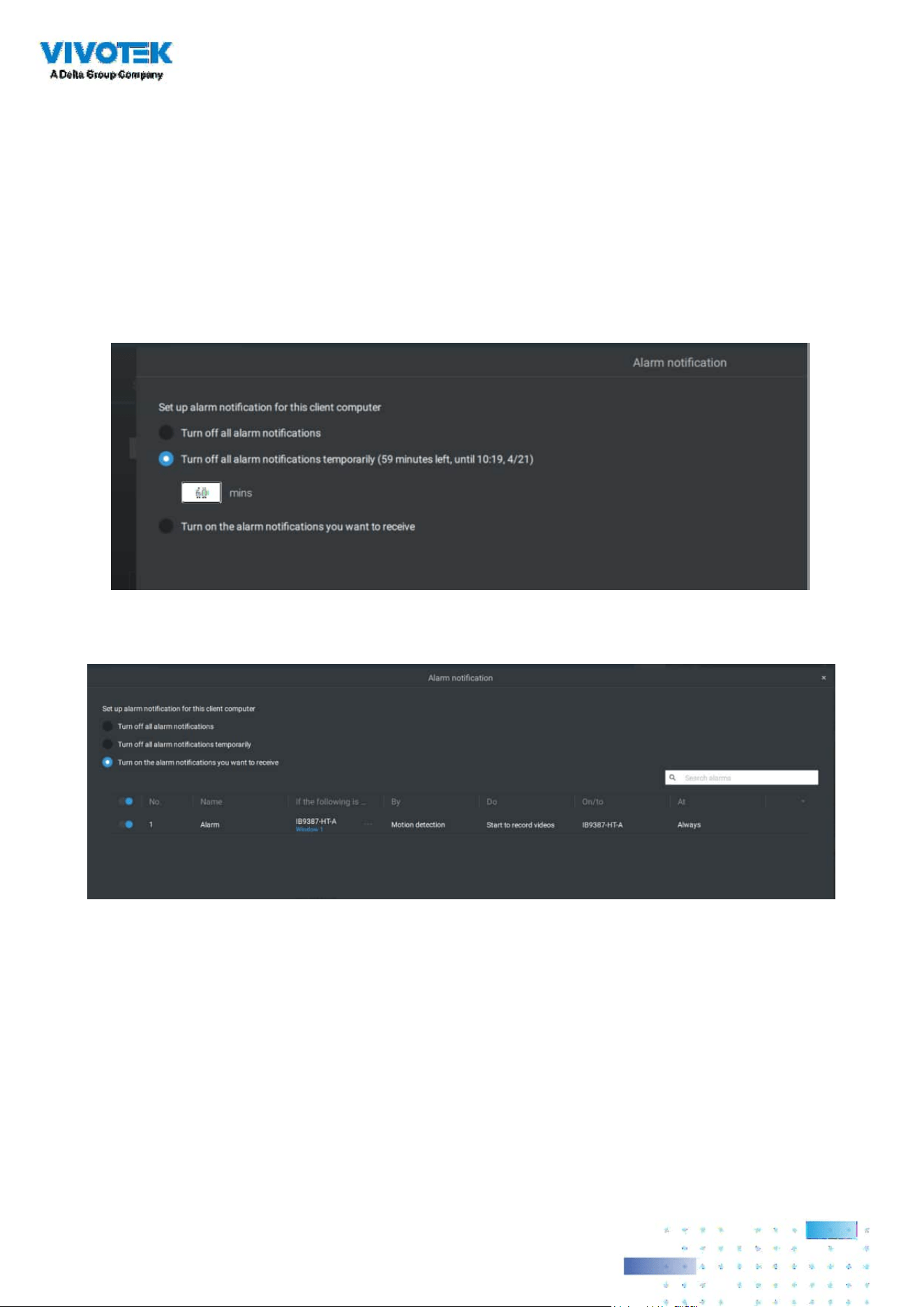
139139
Note that the default for the alarm notification is "Turn on the alarm notification you want to
receive." If you turn off the alarm notification, you need to re-activate it after you turn off the
notication the rst time.
Individual VSS clients can congure which kinds of alarms can be delivered to them by selecting
the alarm types listed in "Turn on the notifications you want to receive." When the individual
alarms are turned off, the following client-side alarm actions will be disabled on the client
computers:
1. Notication.
2. Send live streaming.
3. Go to E-map.
4. Sound the alarm.
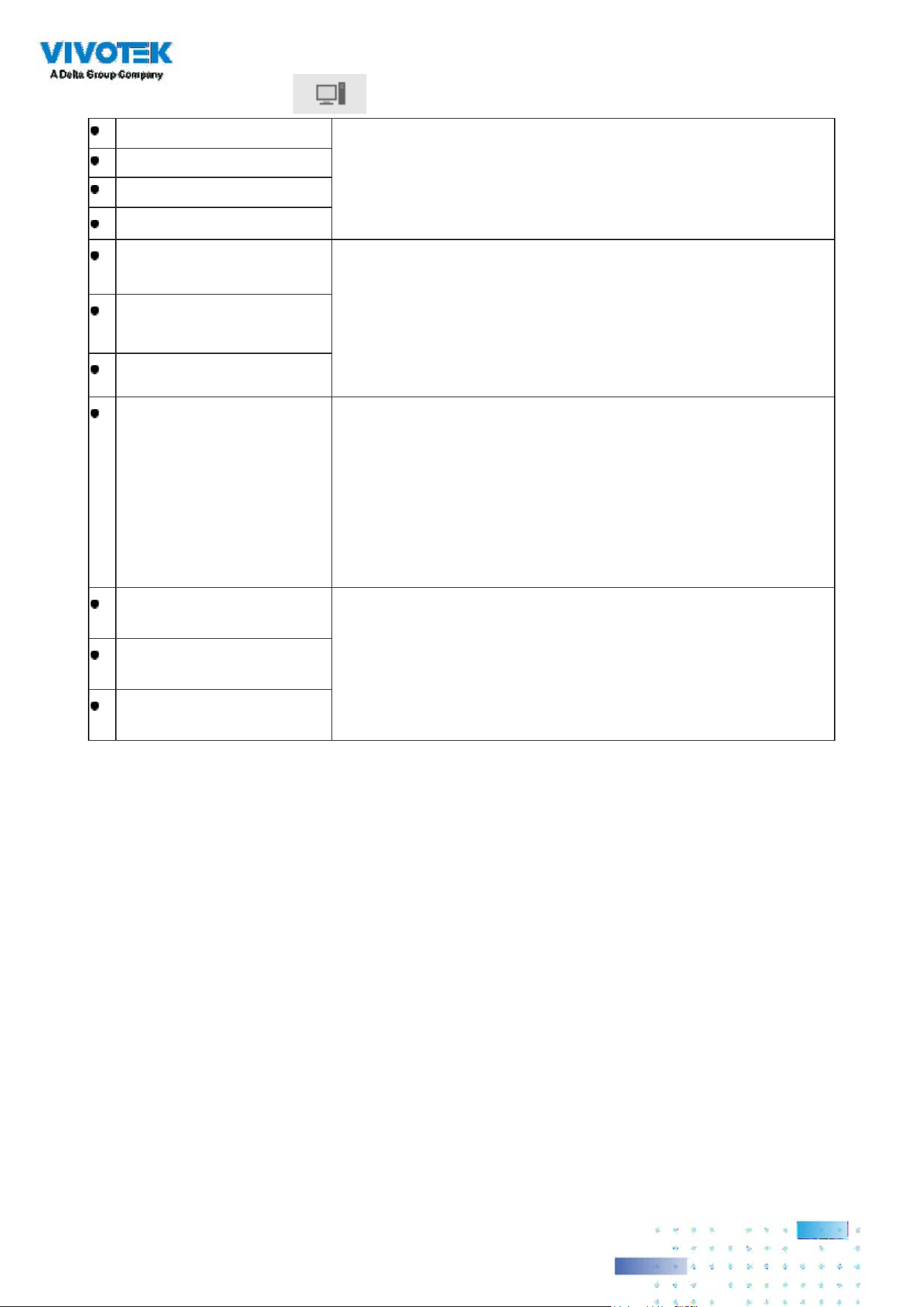
140140
2. Server and NVR triggers
Network disconnected These can be used to send maintenance notications.
Storage failure
Storage full
Fan status
GPS disconnected (Mobile
NVR)
The GPS and G-sensor related options apply to the Mobile NVR
that comes with the GPS and G-sensor. GPS can be used to track
the speed and location of a vehicle, while the G-sensor can be
used to detect abnormal impact.
Abnormal G-sensor motion
(Mobile NVR)
Speeding (Mobile NVR)
Number of remaining
people
For VCA-capable cameras, the alarm can be triggered when the
number of people staying within a specific area has exceeded
the preset threshold. For example, when too many people are
waiting in line in front of a cashier.
This function requires appropriate conguration on the counting
camera(s).
Brute force attack (Trend
Micro IoT)
These can be configured as alarm triggers to notify the
administrator that malicious attacks have occurred. Note that
these triggers are available with NVRs that come with the
protection of Trend Micro IoT packages.
Cyber attack (Trend Micro
IoT)
Quarantine event (Trend
Micro IoT)
* Note that you should use the pull-down menu to select a triggering condition, and then click to
select a mobile NVR.

141141
Note that the alarms will be received into the Alarm list window. The previous Alarm Search
window is replaced by the Alarm list function.
The Alarm tab window is used to display the live video stream when an alarm is triggered, and its
responding action is congured as "Send live streaming."
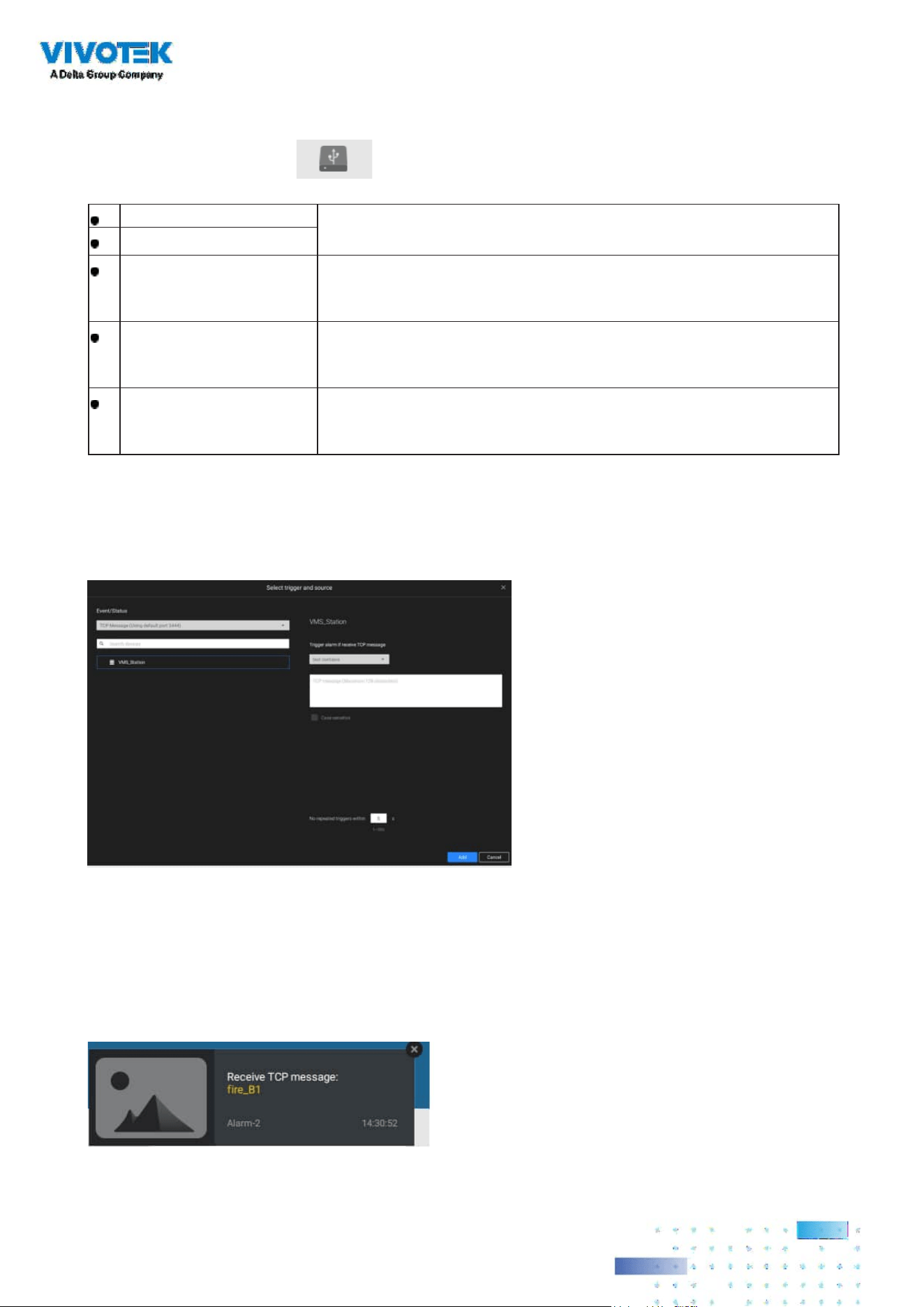
142142
For I/O box conguration, please refer to the I/O Box page.
3. I/O box and TCP triggers
DI/DO Device DI This applies when an external I/O box is applied, e.g., Advantech's
ADAM I/O box.
DI/DO Device DO
TCP Message TCP message comes from the peer VSS servers or external sources
(such as an access control system) via the analysis of received TCP
message over the 3444 port. This is a paid feature.
Data Magnet Triggering conditions can be acquiring data from 3rd-party
software, such as the character height, image width, list, list name,
country, from an LPR software, etc.
Virtual trigger A virtual trigger allows users to create a button on live view to
trigger Alarm actions, e.g., go to a camera preset, add bookmark,
play an audio le, send HTTP requests, etc.
To congure a TCP message trigger,
Select TCP message as a trigger type, and enter a description, such as a short term, for VSS to
listen and analyze data packages.
You can use Telnet to send a small amount of data matching the term you entered in the TCP
message conguration window. A TCP message event will be triggered, and you should see the
event prompt as follows.
Below are the messaging parameters:
1. text contains: Messages will be
received if some of the textual
messages match the keywords.
2. text matches: Textual messages must
be exactly identical.
3. Case sensitive: The upper or lower
cases letters used in the messages
must match within the messages.

143143
To congure a Virtual trigger,
Go to Settings > Alarm > Add alarm.
Select the External device event, and then click on the Add trigger button.
The Select trigger and source window will prompt.
Virtual triggers have the following benets:
1. More operation control, e.g., got to camera preset, add bookmark, play audio le with netwok
audio devices.
2. Integrating 3rd-party systems and devices, using the Send HTTP requests, Set DO status
commands.
Select the alarm action.
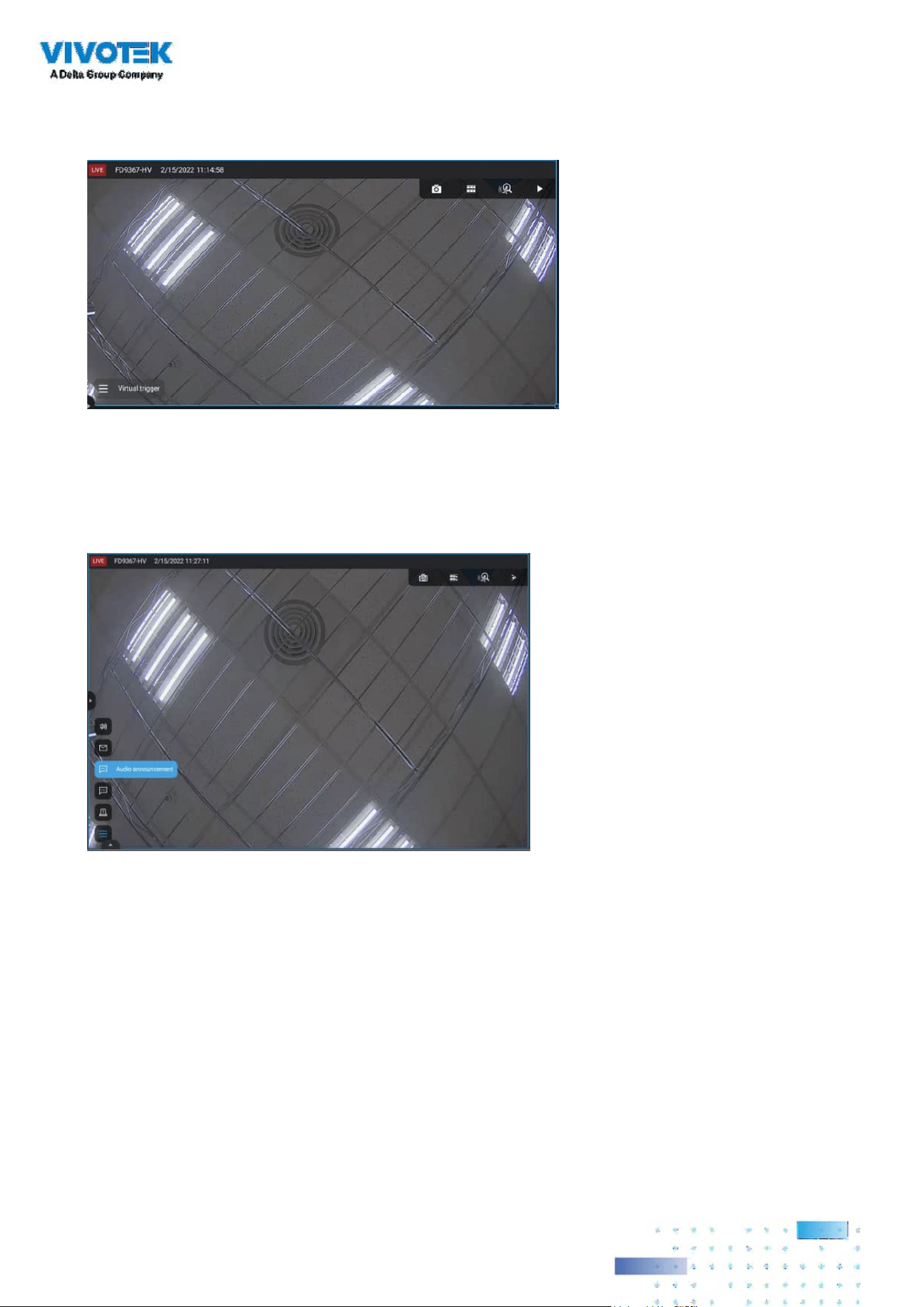
144144
With a pre-congured virtual trigger, a trigger button appears on the live view.
When activated, all of virtual trigger buttons will appear allowing you to perform the associated
actions.
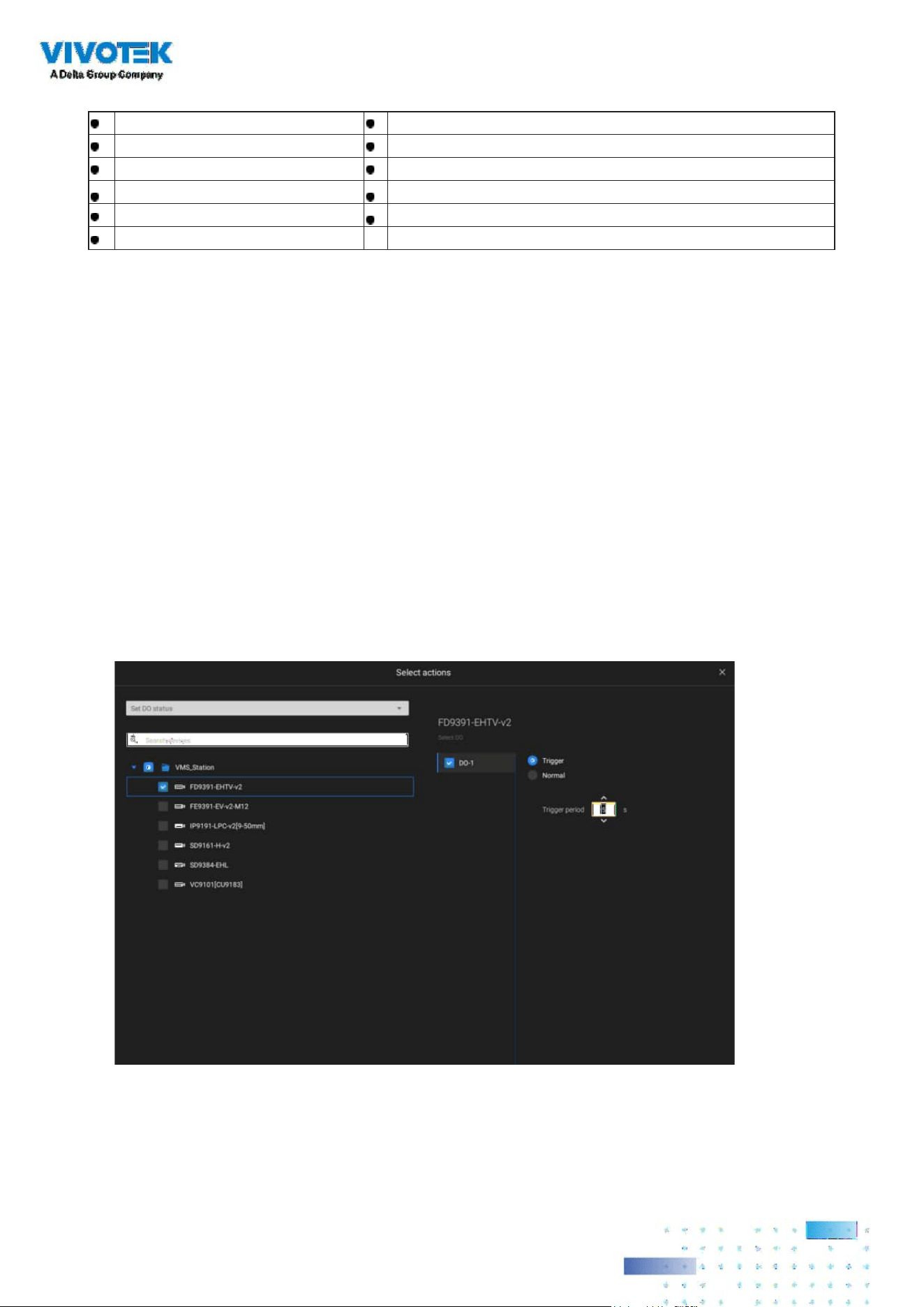
145145
The available actions include:
Start to record video Send HTTP requests
Set DO status Send live streaming
Go to camera presets Send email
Go to E-map Sound the alarm
Add bookmark Play audio le with network audio device
Send mobile notication
The
Start to record video will record a video clip of the length of 10 seconds (default) on the
occurrence of an event. The event recording pre / post event time is congurable. Except for Stop
recording, all the other triggering conditions can be associated with this action.
The Set DO status will activate a DO connection. For example, to light an illuminator or sound an
alarm.
You can select a camera, and its DO pins will appear on the right. You can congure the duration
of the DO trigger, e.g., 15 seconds.
If no Trigger period is configured and when there are multiple instances of DO trigger,
administration troubles may occur. Use the arrow marks to congure a trigger period. You may
also manually enter a number.
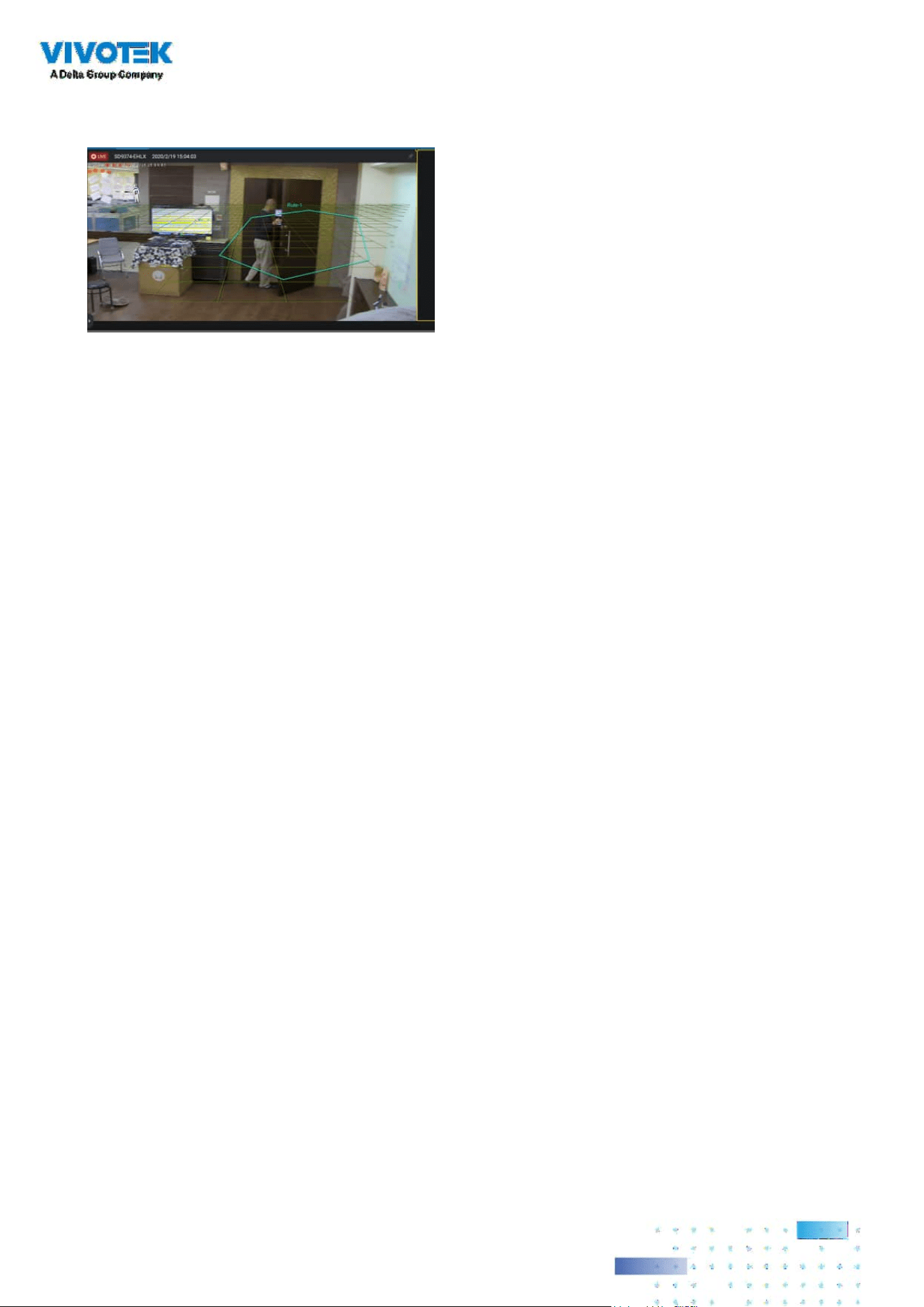
146146
The Send live streaming action will bring up a video prompt to the Alarm tab window, showing
the realtime video feed from a specic camera.
The Go to camera presets requires you to congure preset points on a PTZ camera before the
Alarm conguration, such as a speed dome. Once triggered, the PTZ camera lens will move to a
preset position.
The VSS server automatically disables unavailable options. For example, when the DO option is
selected, the cameras that do not support DO connections will be hidden.
The Send email opens a configuration page where you should enter valid email addresses
as sender and recipients. It is required that you configure an SMTP server for mail delivery in
Settings > SMTP. Enter Subject and contents. Select the checkbox for including a snapshot of the
event. When done, click Add to enable the action.
The Go to E-map opens a pre-congured E-map of where the triggering condition occurs. The
user can then click on the camera icon on the E-map for an instant viewing.
The Add bookmark function saves a video clip of a 10-seconds length. Once triggered, you
can open a new view tab > Search > Bookmark search to find the existing bookmarks. The
bookmarked video clips will not be recycled during the storage cleaning cycles.

147147
The Sound the alarm action provides 5 alarm sounds that will be sounded on the VSS client or
server. Your VSS client or server should have speakers for playing the audible alarm.
A reacheable Mail server and Email accounts must be provided before you can apply the settings.
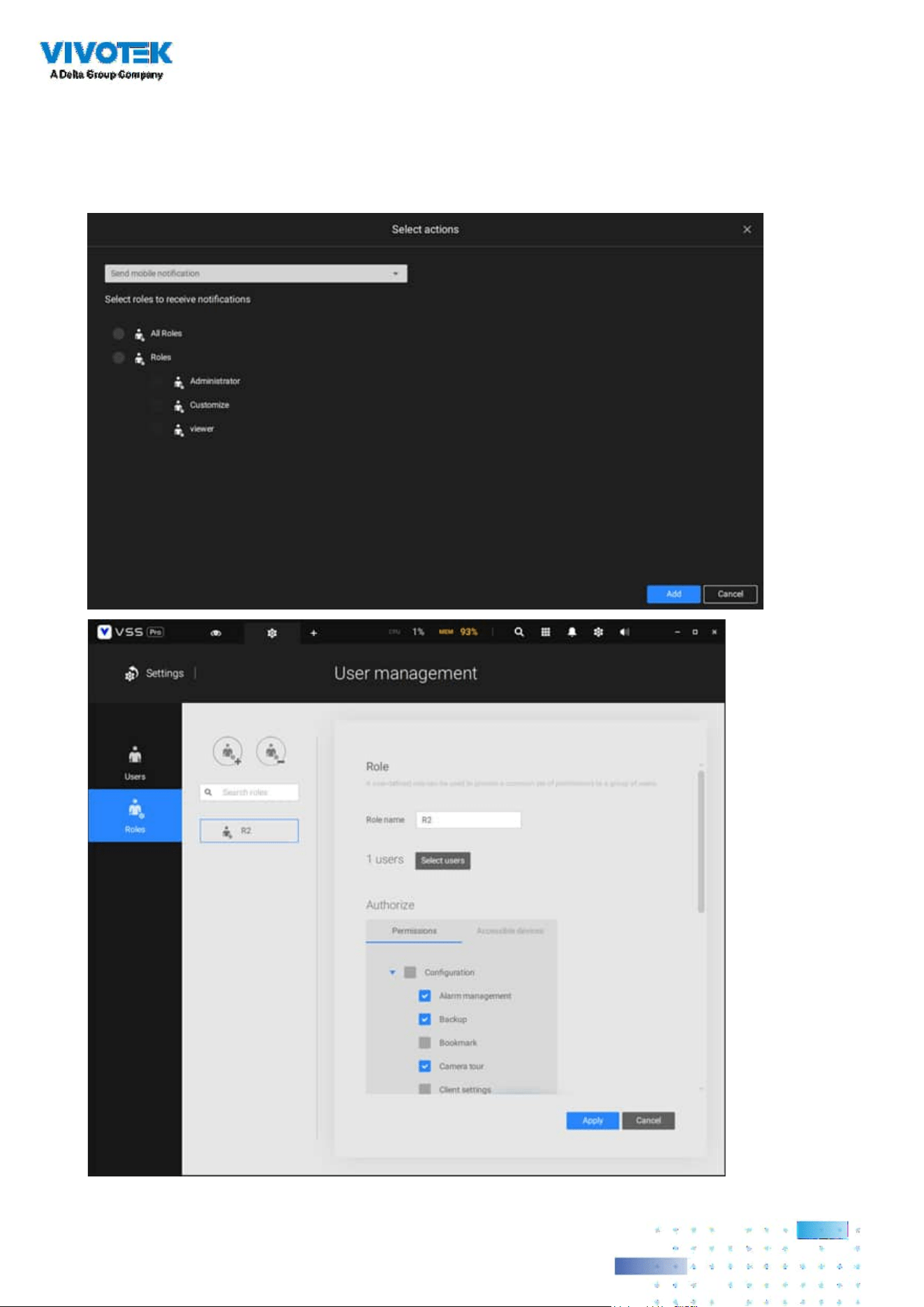
148148
Send mobile notication, by default, pushes instant alarm contents to the iViewer mobile app on
the smartphones of users. Meanwhile, the User-dened roles option is available (only on VSS Pro)
for choosing a set of roles and saving the set as a role prole. So, it is easier to assign a user to a
user-dened role.

149149
In addition, the administrator can click Settings > Device > External devices > Mobile device to
query which mobile devices are using iViewer to log in VSS and to turn on (default) or turn o
sending the push notication to a user’s mobile device (phone).
In other words, every user joining the VSS server can receive push alarm notications by default.
Once you remove a user from the notication list here, if this user logs in to VSS again, the user
can still get alarm notications. Therefore, if you must remove the user from the notication list
permanently, change the user’s password or delete the user account directly.

150150
On the Schedule page, you can select to activate or de-activate alarm triggers throughout a
specic timeline. For example, in some situations you can disable the alarm triggers during the
oce hours, and choose to enable the triggers only during the o-oce hours.
Click on any of the options on the Schedule panel for the alarm to take eect: Customize, Always,
or Add a schedule.
You can manually create a effective time template using the New template
button.

151151
Click and hold down on the time cells, and drag the mouse to include the time span of your
preferrence. The minimum selectable unit is half an hour. You can select multiple time spans on
the template. Enter a name for the template, and click Add to save your template.
The same configuraion window apply to both the Schedule template and the customize
schedule windows.
Make sure a Schedule mode is selected when you leave this conguration step.
Enter a name and instructions for users to follow, and then click Add to complete the Alarm
setting.
All congured alarms will be listed on the Alarm settings page.
Group Alarm
Multiple triggered alarms can be presented as group alarms. Alarms triggered by the same event
type, and by the same camera can be grouped together. In this way, multiple similar alarms can
be listed under one entry.
On the alarm list, click the
button to display the alarm group.
Click to reveal the video viewing panel.
In the list mode, you can expand the right-hand-side panel. The video of the latest alarm will
display.

152152
The same applies to the thumbnail view. To leave the group alarm view, click the Group alarm
button again.
When the alarm-triggered action is congured as sounded alarm, you can mute all alarms in the
group by clicking the alarm sound icon.

153153
When the alarm action is set to "Send live streaming," the videos coming from the same camera
will occupy only one view cell.
In the Alarm tab window, use the thumbtack
button to freeze the current screen. If
thumbtacked, the other incoming alarms will not aect the current screen.
On arrival, the latest alarm will display with a blinking red frame. A selected view cell will display
with a yellow frame.
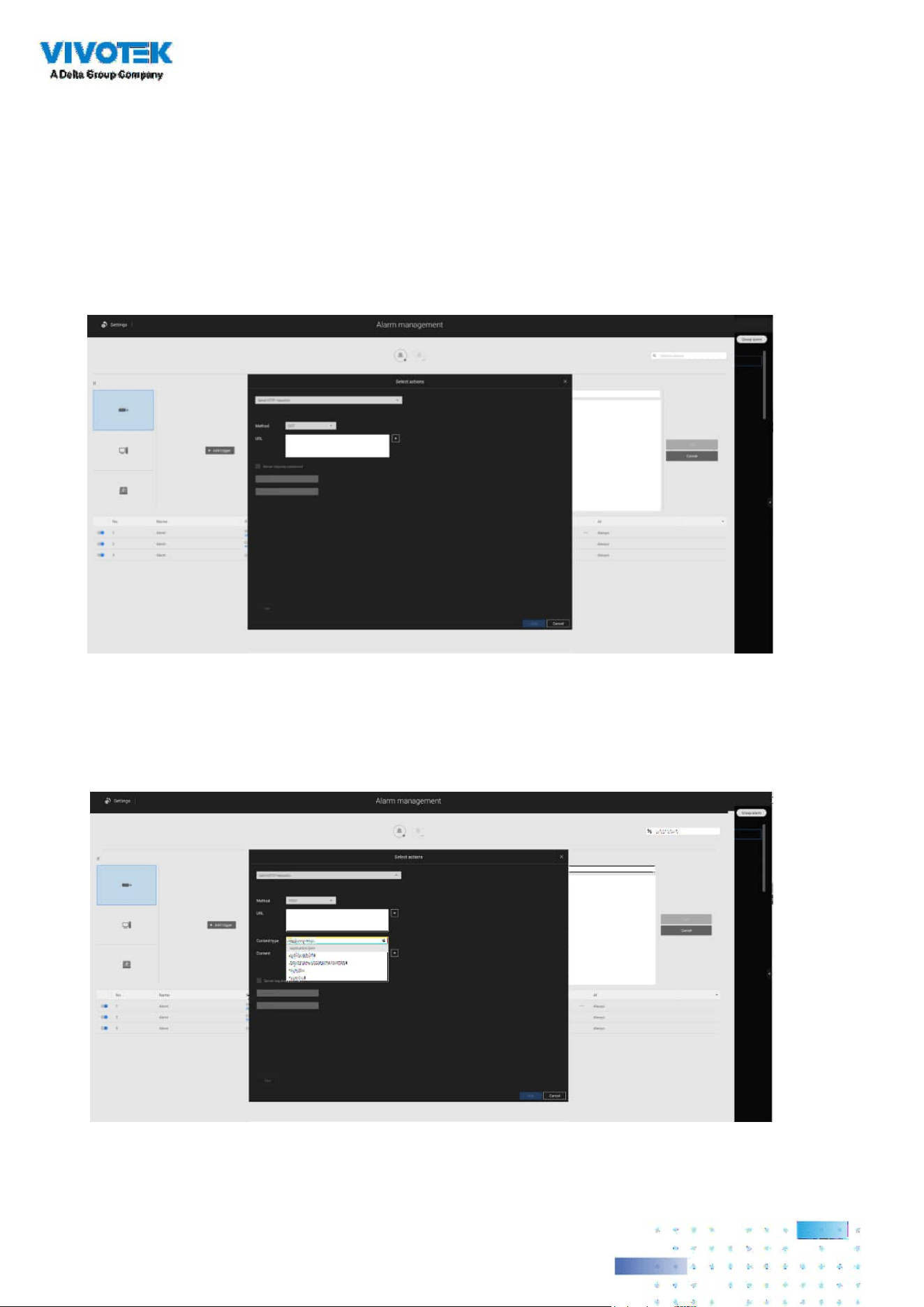
154154
Conguring Send HTTP requests
When configured, the server will send an HTTP request protocol to a 3rd-party device or
application. The HTTP request supports GET and POST commands.
The GET method is to request data from a specied resource.
The POST method is used to send data to a server to create or update a resource.
Below is a screen for setting the GET command. Enter the target resource's URL address.
Below is a screen for setting the POST command. Enter the target resource's URL address, the
content, and select the content type. If the need should arise for more content types, you can
contact VIVOTEK's technical support.
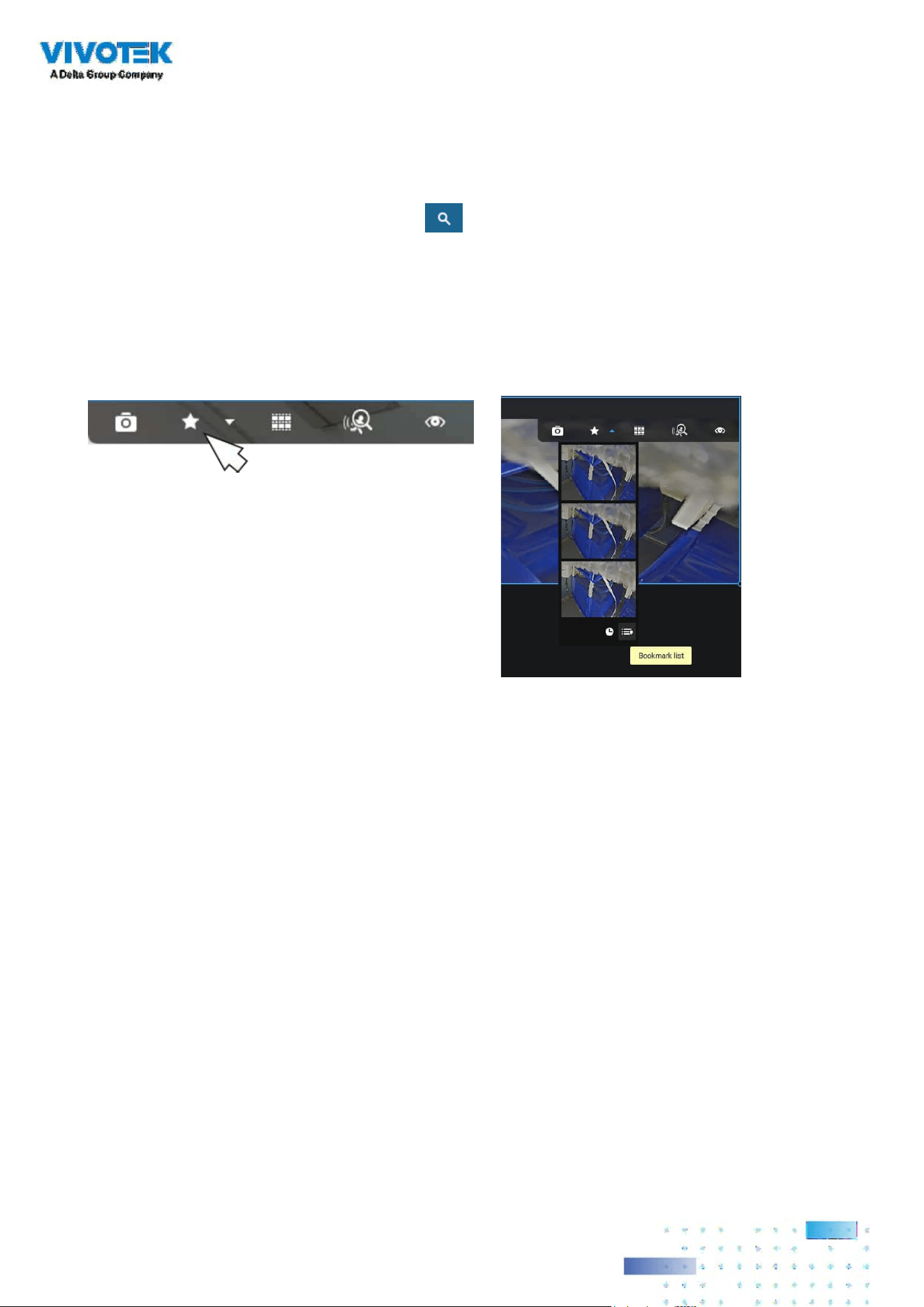
155155
2-15. Search Panel
The Search panel is accessed via the Search button. 4 key functions are provided:
Bookmark search, Deep serach, Event search, and Smart search.
1. Search by Bookmark:
Bookmarks are manually created when users review recorded videos in
the Playback mode. Each bookmark comes as a 10-second video clip.
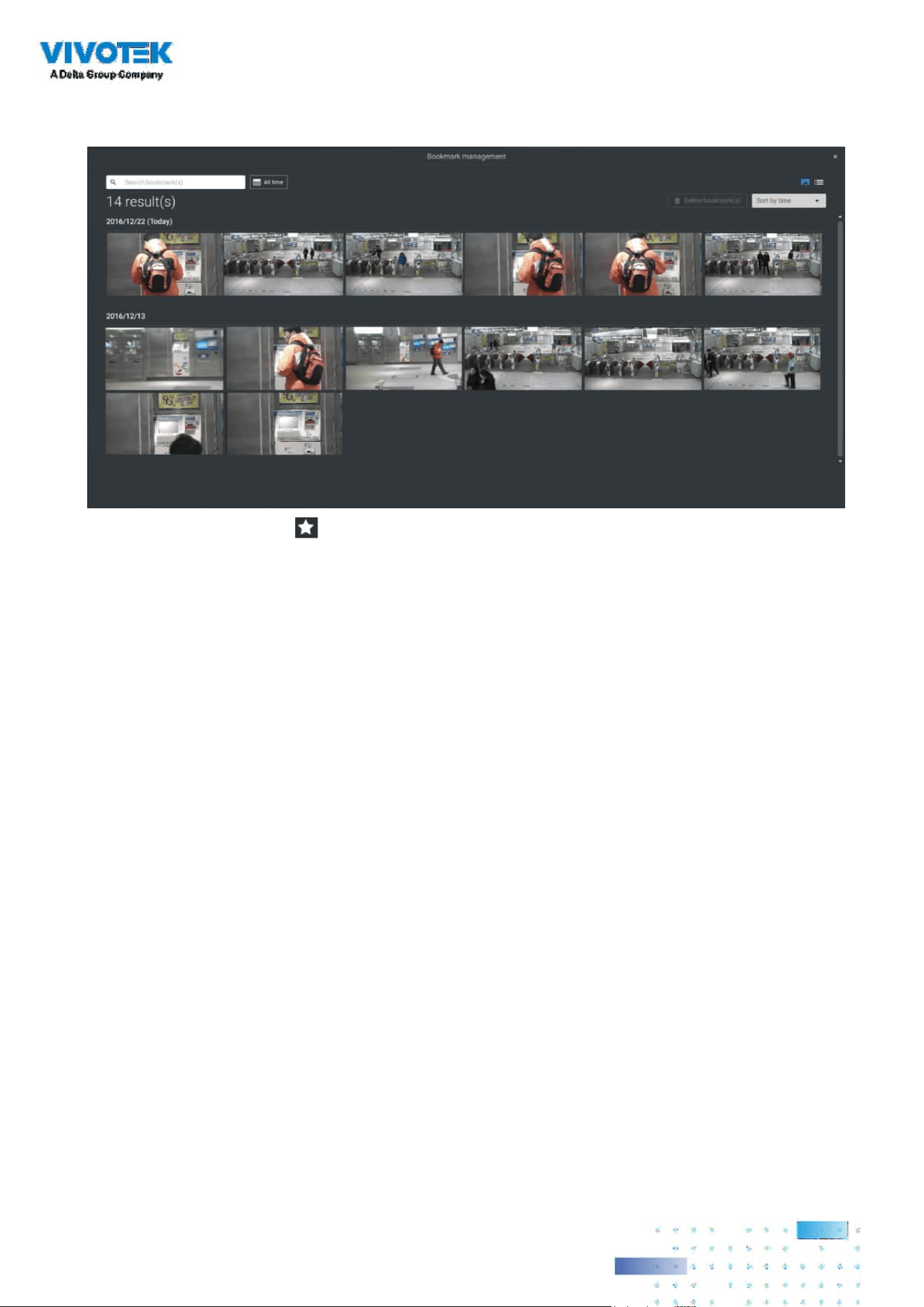
156156
In the Bookmark search panel,
Click the Bookmark search button. The Bookmark Management window will prompt.
All existing bookmarks will be listed with thumbnails.
a. On this window, you can specify a range of time during which the video streams were recorded
and its points in time when bookmarked.
b. You can then click on a bookmark to display the short video clip extracted from within the
recorded video. The default is 10 seconds.
c. To remove an existing bookmark, left-click to select an entry, and then click the Delete
bookmark(s) button. Bookmarks will be indicated as "Invalid" if the videos where the
bookmarks were appended were erased, e.g., when the original recording was erased by
cyclic recording.
d. Currently you can search for bookmarks using the name of the camera.
e. You can also select the display types for the bookmark search in either the thumbnails or list
mode.

157157
2-16. Smart search
The Smart search function enables a quick glimpse of activities occurred within a user-
configurable detection area from the recorded videos. Smart search is available in both the
Liveview and Playback mode.
Click to select a camera view cell. Click on the
Smart search button to enter the Smart search
window.
There are two Smart Search modes: Smart search II and Smart search I. The Smart search II applies
to the recordings of the cameras that come with the
Smart Motion, and other VCA capabilities.
There are two kinds of metadata polled from camera VCA packages:
1. Motion cell: Pixel-based information. The search results will include all moving objects in
the scene.
2. Object information: Human-based information. If People or Vehicle detection is selected,
only objects detected as human or vehicle will be displayed as the search results.
Please refer to VIVOTEK's website pages that are related to the Smart motion and Smart VCA
features for the supported cameras.
Note that not all cameras support the latest vehicle detection feature.
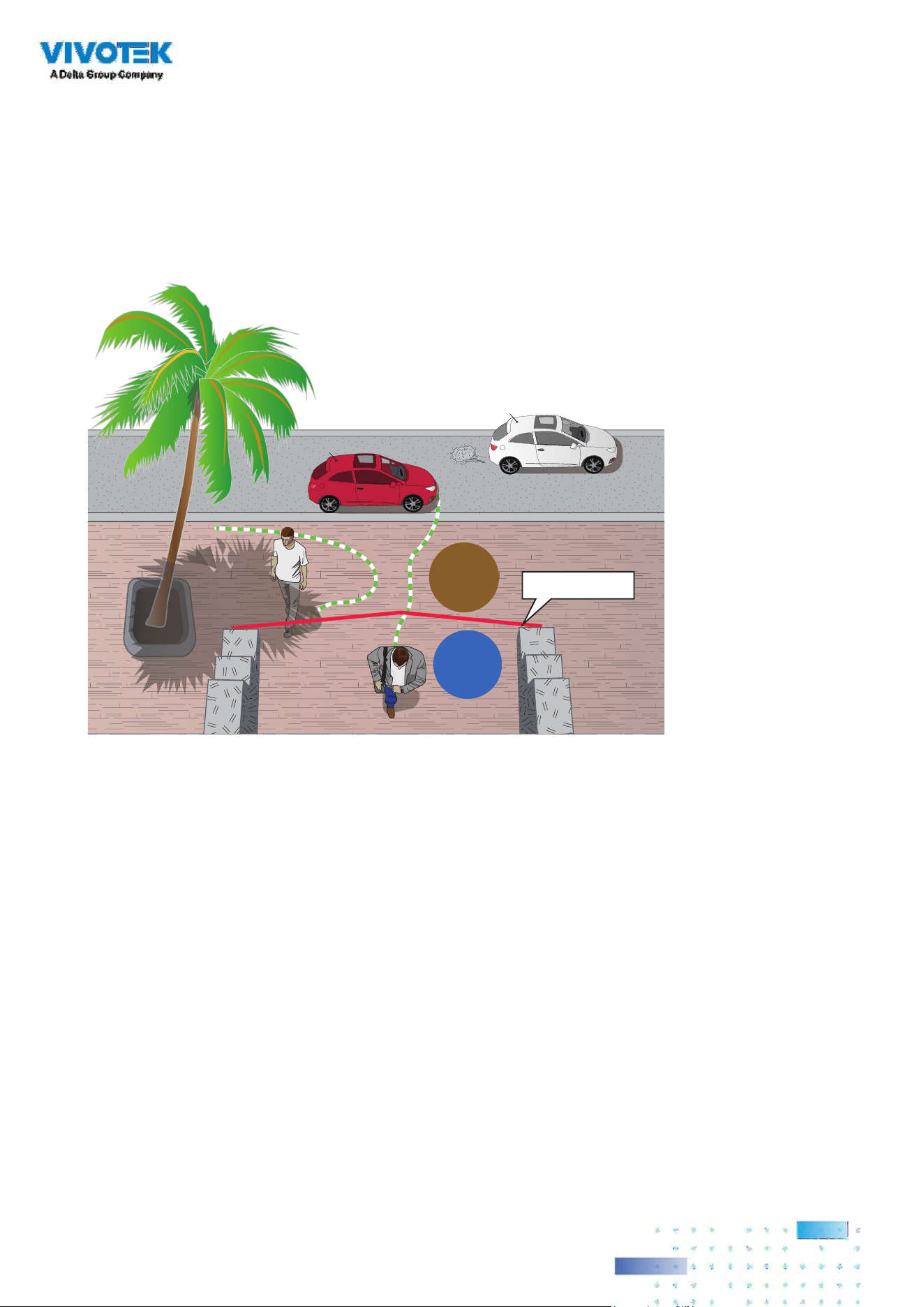
158158
Line Crossing Detection
The Line Crossing detection detects one or multiple persons crossing a virtual trip-
wire. The trafc direction can be assigned on screen for persons passing the line in
one specic direction or in both directions.
Out
In
Detection line
The applicable scenarios of this feature can be:
* Detects someone who enters a drive way, entrance, or exit through the virtual line.
* Detects and triggers an alarm in a predetermined direction.
* The detection line can be used as a fence boundary to know if someone has
crossed the articulated line around a perimeter.
Below are short description for the Line Crossing, Loitering, and Intrusion detection functionality:

159159
Loitering Detection
The Loitering detection can be used to detect a person or a group of people
lingering in an area for longer than a preset time threshold.
ATM
Intrusion Detection
VIVOTEK Intrusion Detection can be used to detect people entering or leaving a
virtual area in the camera eld of view.
The applicable scenarios of this feature can be:
* Detects when a person enters a bank vault or school after the ofce hours.
* Detects when a person leaves an emergency exit or re escape, or any place that
is normally forbidden from access.
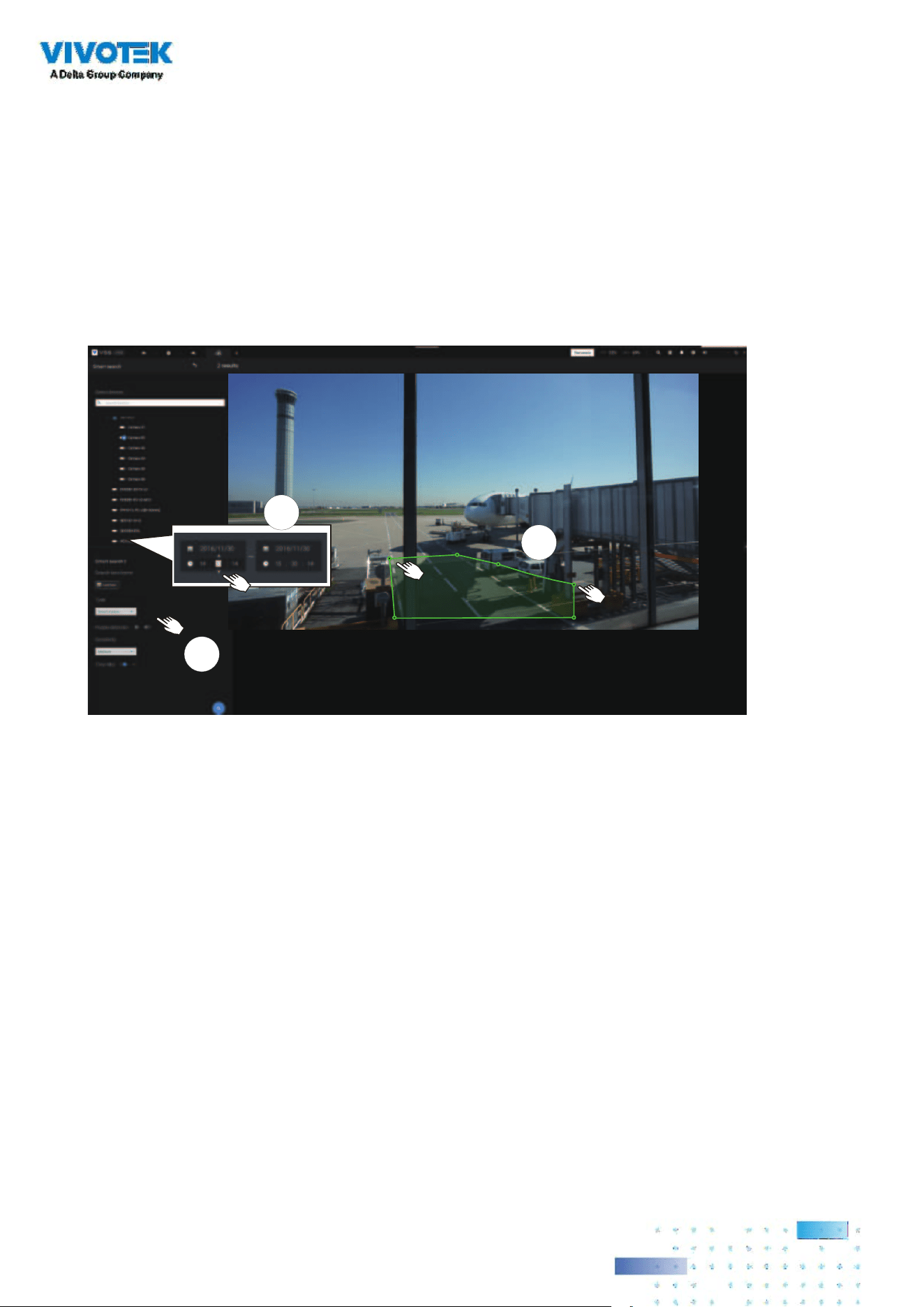
160160
1
2
3
To use Smart search,
1. Use the date and time selectors to specify a time span on which to perform the Smart search.
2. Select a Type (Smart motion, Line crossing, Loitering, or Intrusion). Selecting Line crossing
detection may require you to adjust the position of the detection line.
3. There are different parameters for each detection Type. Refer to each VCA feature's
documentation for details. You can tune the parameters for each VCA feature. See next page
for the congurable parameters.
4. You can draw one polygon with multiple mouse clicks to include areas where activities of your
interest have occurred. You can draw one or more cross lines for Cross line detection. Double-
click to close a polygon.
5. Click the Search button.

161161
Search parameters:
Search time frame Use the calendar tool pane to specify the time span within which the
activities in scene will be searched.
Type If the selected camera supports multiple Smart VCA detection features, the
supported types will be listed:
Smart motion
,
Line crossing
,
Loitering
, or
Intrusion
.
Parameters
(determined by Type)
Smart motion Line crossing Loitering Intrusion
People detection* People walking
direction
Stay time Direction:
Into the zone /
Leaving the zone
Sensitivity**
Time lter
* People or Vehicle
detection
People or Vehicle detection enables the display of the alarms detected via the
human or vehicle silhouettes algorithm. This can be used to lter out video
analytics alarms that are not related to human or vehicle activities, such as swaying
vegetation, or small animals.
** Sensitivity Congure the sensitivity for the detection of the activities in scene. Low for near
scene, high sensitivity for long distance scenes.
Note that dierent cameras support dierent VCA functions. Please refer to the documentation
for Smart VCA or Smart tracking features, such as the Smart VCA User Guide.
IMPORTANT:
Running Smart Search II requires cameras that support the following:
1. Smart motion.
2. Firmware version above 0113d, 0117b or 0100i (Authwebsocket support is needed)
3. VCA package version above 6.1.3a.
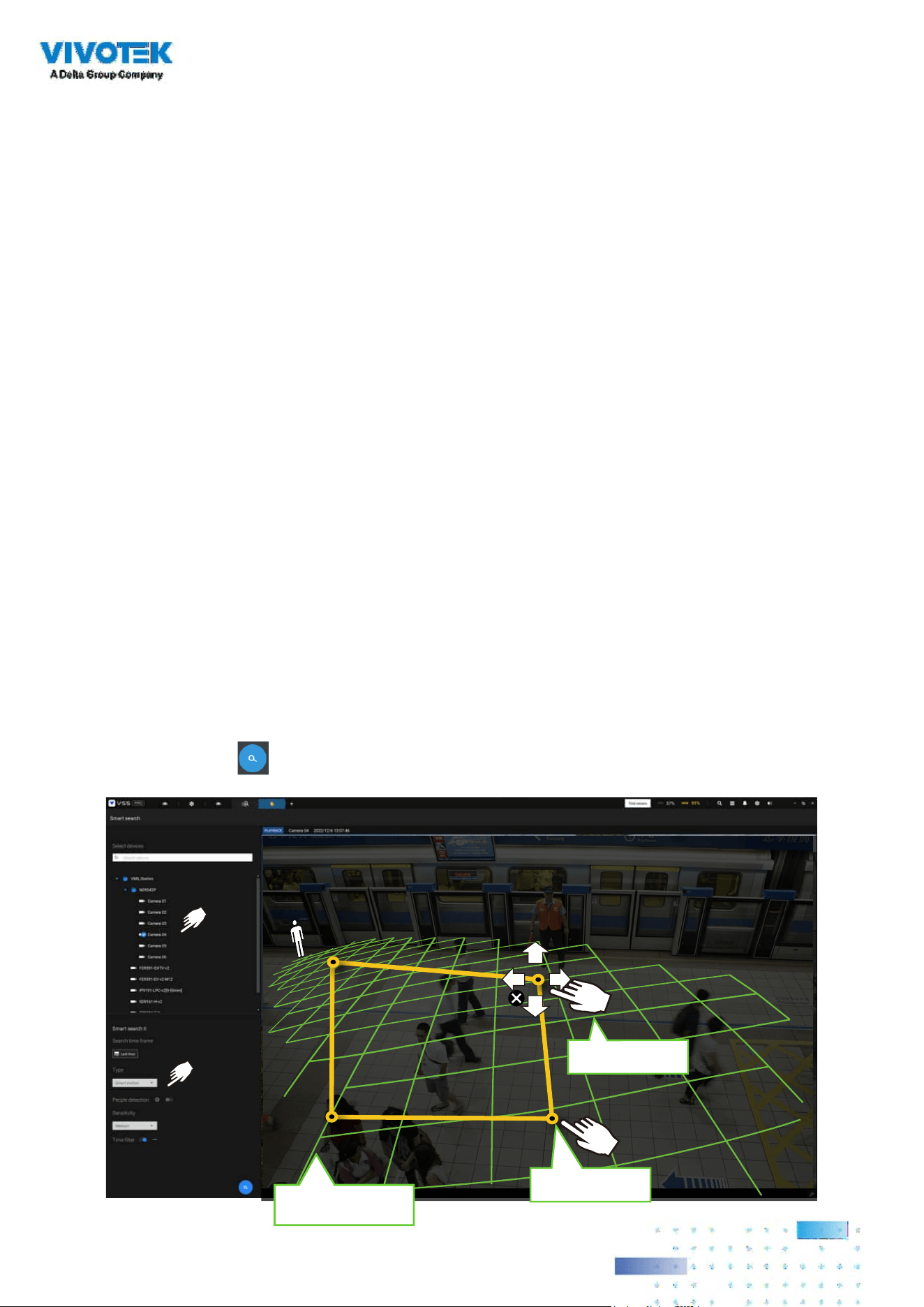
162162
Green horizontal grid
as People detection area
Click to create.
Drag to change shape
If your camera supports Smart VCA features, you can manually create detection rules on the
configuration screen. Note that you may not need to do this if you have already configured
detection rules on the camera.
1. Select a VCA camera.
2. Select a VCA type from the pull-down list: Smart Motion, Line crossing, Loitering, or Intrusion.
For a camera that supports only one VCA feature, such as Smart tracking on a speed dome,
there is no "type" option.
3. You can then draw a detection zone, or detection line on the screen.
4. Select a time frame using the calendar tool.
5. Select to enable or disable the People detection feature and congure the Time lter, or other
parameters.
6. Click the Search button.
In most cases, it is presumed that you have congured VCA detection zones and detection rules
such as lines to detect people crossing. You can also congure a detection zone or lines on the
VSS server and then search for the detection results from the recorded videos.
NOTE:
* Smart search II supports people detection whether the camera comes with a Smart motion
license or not. However, the Line crossing, Loitering, Intrusion features will not be available.
* With a valid VCA package and license, the abovementioned features will be available in the
Smart search II.

163163
4. The search results display as the snapshots of the associated video clips. Click to playback the
video clips with activities in the detection zones.
Hover the screen with your mouse, and the length of each video clip is displayed.
Note that unless interrupted, the playback continues with all detection zone clips, by continuing
to the successive clips.
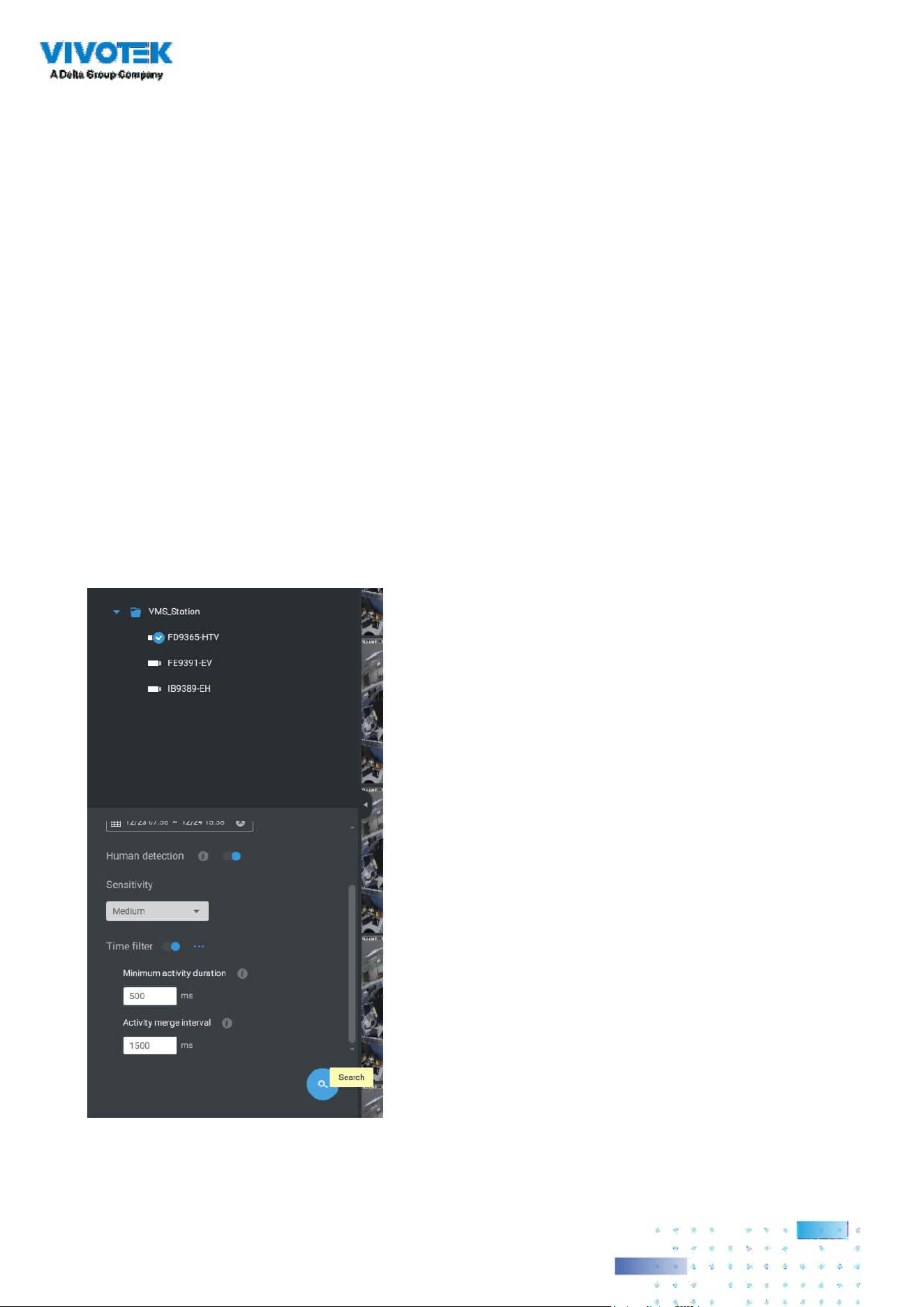
164164
Smart search II is available only for newer line of cameras that come with Smart Motion
detection and other Smart VCA features. Smart search II has the following benets:
1. Faster search: Metadata is saved with videos coming from the cameras running Smart VCA
detection. With the help of the metadata, the search focuses on the eective alerted vectors
and the adverse eects, e.g., headlights causing dramatic contrast or small animals passing
through, have already been eliminated by the camera. The search can be more rapidly
completed.
2. People detection: The search can be conducted for human activities only. Activities matching
the silhouettes of human will be considered as eective results.
3. Multiple-point polygon: Users can select a region of interest by drawing a easily-congured
polygon. In addition to the pre-congured detection rules on VCA cameras, users can create
their own Smart VCA Detection rules on the VSS search panel screen.
You can specify the time span, People detection,
Sensitivity level, and time filter parameters in a Smart
Search II panel.

165165
5. You can then click to open any clip of your interest. Each marked event clip will be indicated by
a lighter color on the time line. Select and double-click on a video clip, and then right-click or
select the bookmark or snapshot functions from the upper-right.
Move your cursor to the upper right corner of the playback window to display the Snapshot
and Bookmark buttons. Use them to congure the current play time as a bookmark or take a
snapshot.
While in the full-screen Playback window, you can right-click to select or deselect the display
elements including motion cells, tracking block, and tracking dot.

166166
6. If you nd important events, use the Export function to mark the start and end points on the
timeline to export a video clip. Use the pull tabs on time line to determine the export length.
By default, the export length is 2 minutes long.
The playback control in the Smart search window is identical to that on the Playback window.
PLAYBACK
FE9391-EV
2992x2992
H264
15.00 fps 0.04 Mbit/s
2017/11/29 14:06:48
Dierent events on the timeline are indicated by tags of dierent colors. Click on the event
highlights button to verify their colors.
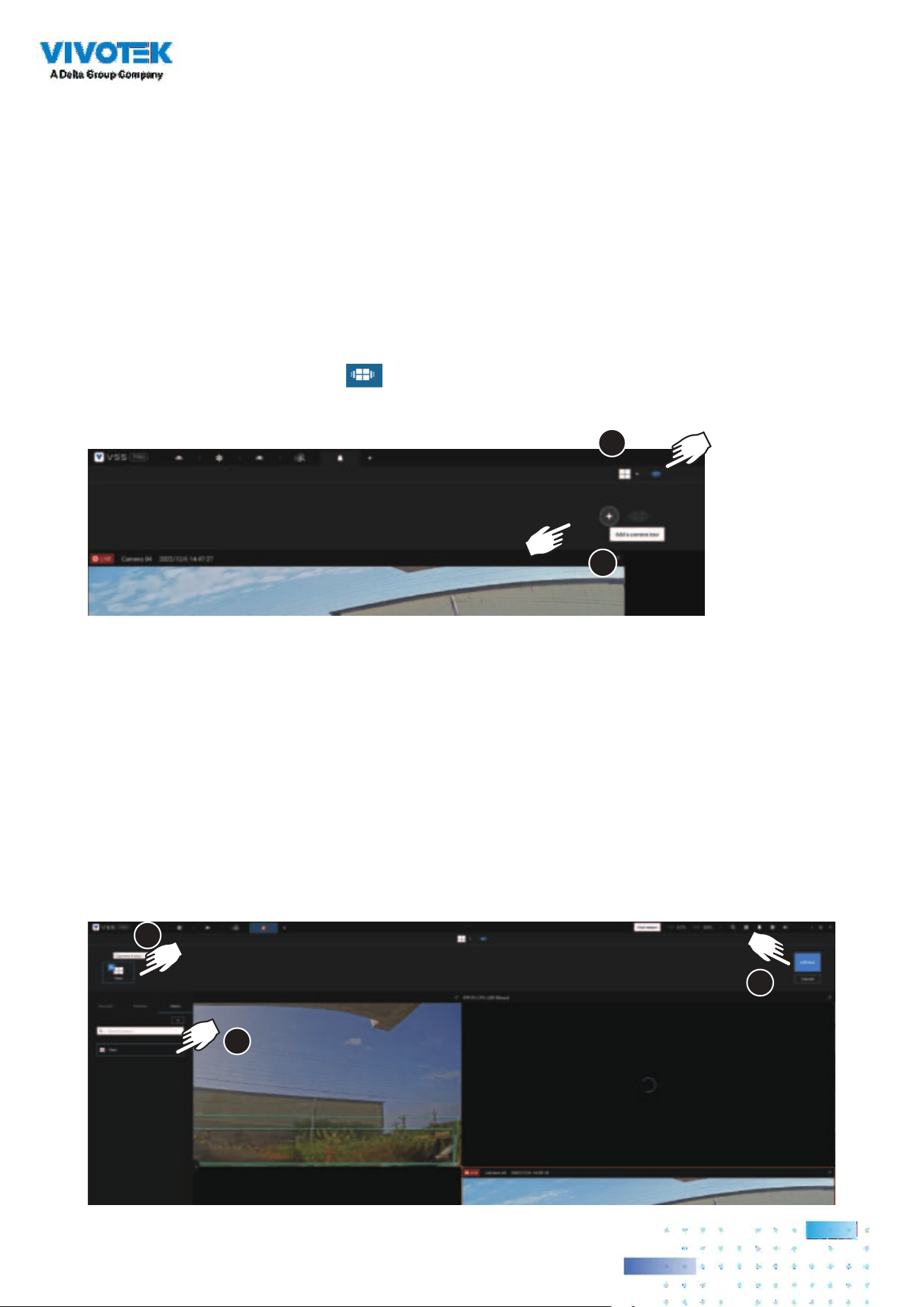
167167
2-17. Tour
A tour can be congured to consecutively display multiple views. A tour allows users to quickly
glimpse through many view cells in a timed pattern. As a tour can contain multiple views, you
should design and congure camera views before conguring a tour.
To congure a tour,
1. Click on the Add a camera tour
button.
2. Click the Add button.
1
2
3. Enter a name for the tour.
4. Single-click to select a view. Select multiple views each by a single click.
5. Click the Add Tour button.
3
4
5

168168
The default for the duration of the display of each view is 5 seconds. You can right-click on each
view to display the Duration of each view. You can apply the same duration of all views, or allow
each view to display on screen for a dierent span of time.
Mouse over a congured tour, and then click to start a tour.
When playing a tour, and you want to stop the tour, you can left-click or right-click on the screen.
Click the Tour icon
again to return to the singular live view.
You can enable the Audio tour option which plays the audio inputs from each view cell for a
specic period of time.
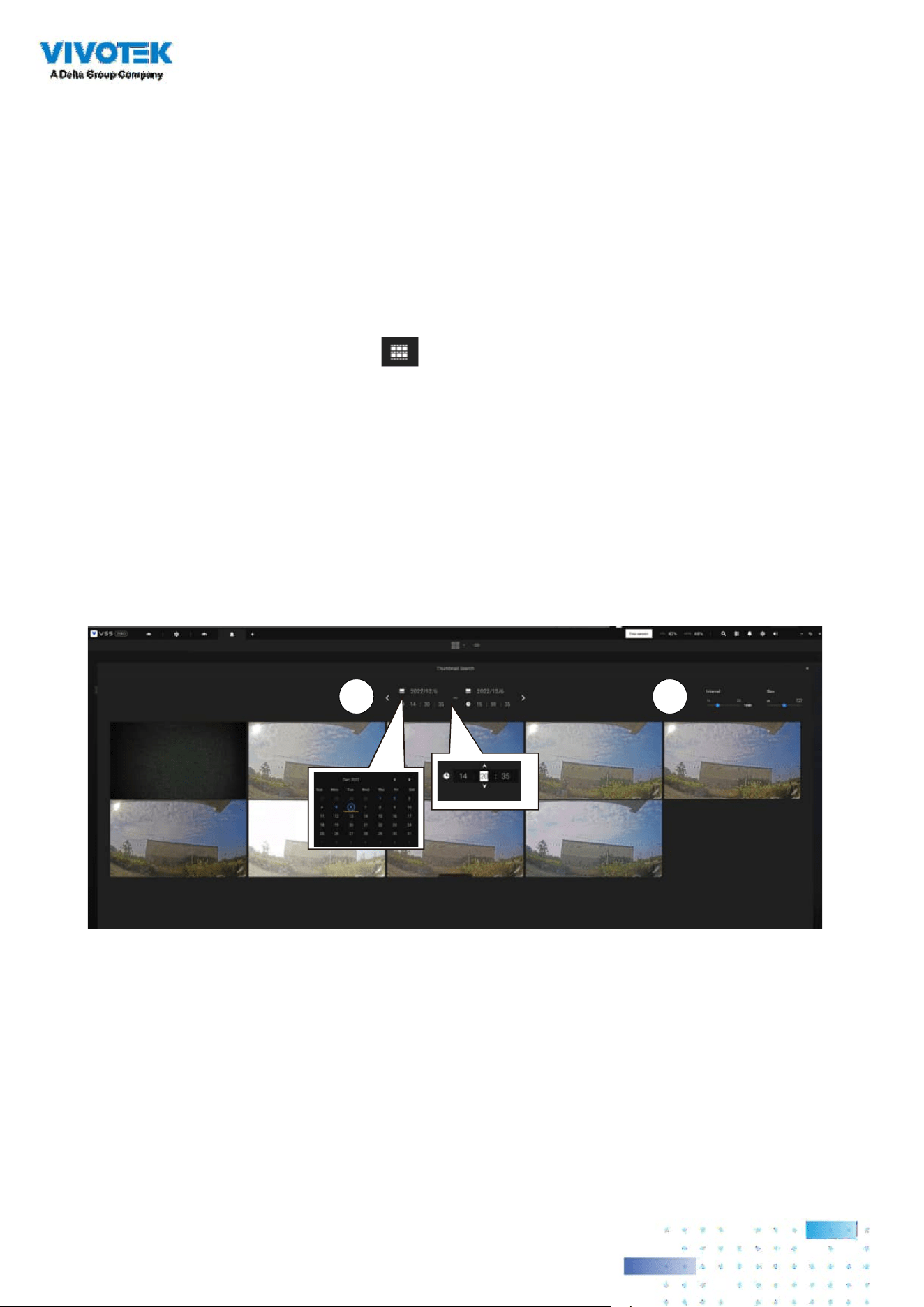
169169
2-18. Thumbnail search
The Thumbnail search function is like doing a post-production editing in lm making. Screens
from across dierent time spans are shown to facilitate the search for evidence.
VSS now supports the search for the instances stored on VIVOTEK's Linux-based NVRs.
Click on the Thumbnail search button to enter the Thumbnail search window.
The default time span is 100 minutes, starting an hour earlier of the current system time.
To use Thumbnail search,
1. Use the date and time selectors to specify a time span during which you suspect the event of
your interest has occurred.
2. If preferred, tune the interval and clip size. The default length for each clip is 10 seconds.
3. If you nd a clip might contain an event of your interest, you can click to select, and then slide
left and right to watch the activities within.
21
4. Hover your cursor to the lower center of a clip to display the Play and the More snapshots
options. If you click More snapshots, another window will prompt to display all frames within
the clip.
When you select to display the clip details (specic time span), the time span and the interval
information will change accordingly.

170170
When you nd an event of your interest, you can play that video clip and use the export function
on screen to output the evidence. You may also place a bookmark on the timeline.
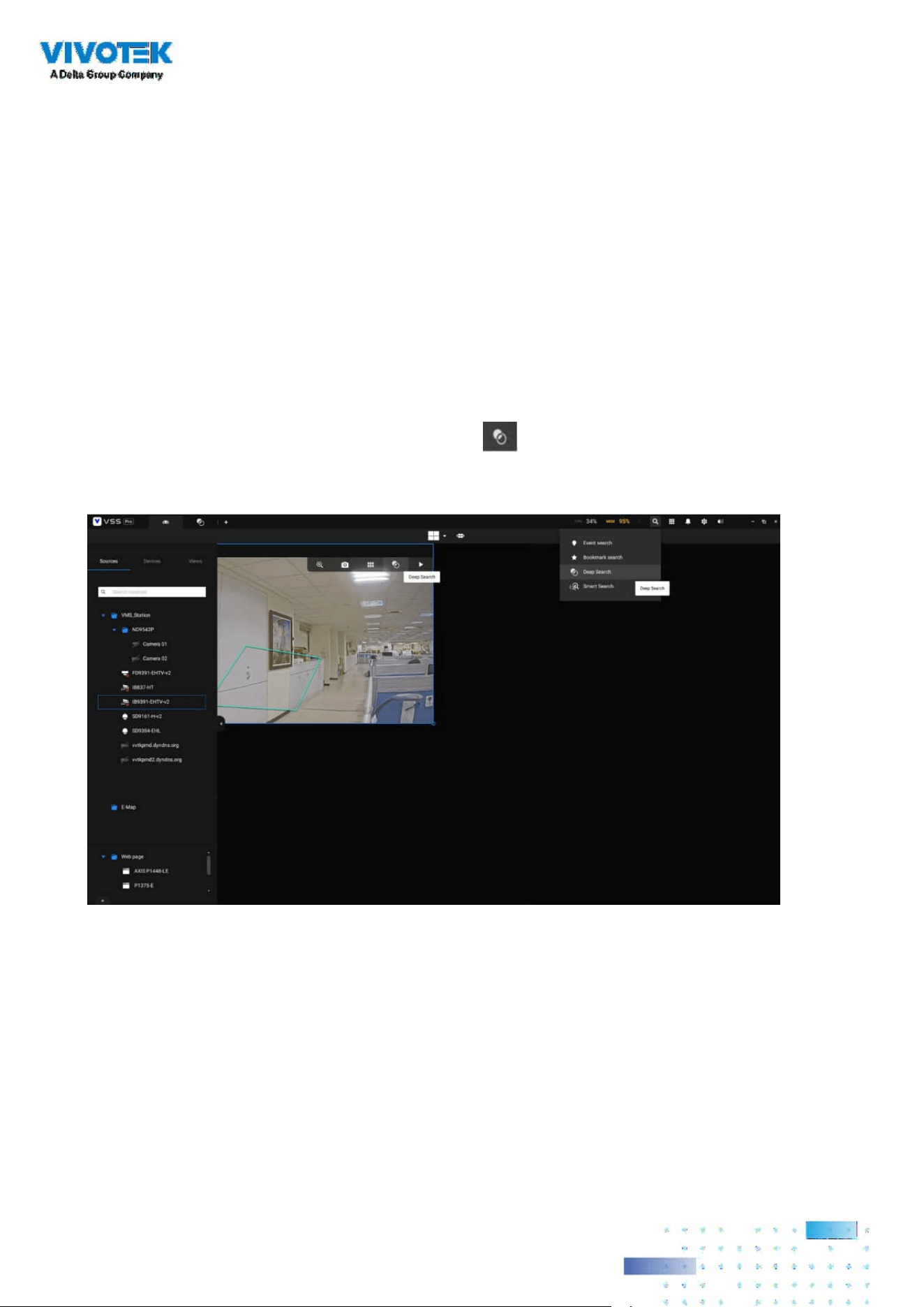
171171
2-19. Deep search
The Deep Search function uses AI empowered by VIVOTEK AI cameras to improve search
functionality, and it comprises three main functions: Attribute Search, Scene Search, and Re-
Search (VSS Professional edition only). Without relying on scrolling through the video footage
frame by frame, VIVOTEK AI cameras provide object-based metadata to enable intelligent video
evidence search. By utilizing object-based metadata-dened attributes and rules, Deep Search
helps users search for the target of interest smarter and faster.
To use the Deep Search function, make sure you have added the cameras that support Deep
Search and have the time synchronizing among VSS client, VSS server, and cameras. There are
two ways to access the Deep Search function; one is to click the search icon and select Deep
Search, and the other is to click the associated icon on a live view cell.

172172
Select the object type in the conguration area, including people, vehicle, people appearance,
and vehicle appearance. Select people or vehicle objects if you want to search people or vehicles
in the recorded video. Select people appearance or vehicle appearance object if you want to nd
people or vehicles and know their appearance.
Note that not all cameras support finding all the object types. When users select one type of
object, only the supported cameras will appear in the camera list.
By default, all the cameras that support the object type will be selected. Users can click the
device list and choose the cameras.
Select a time frame using the pull-down menu.
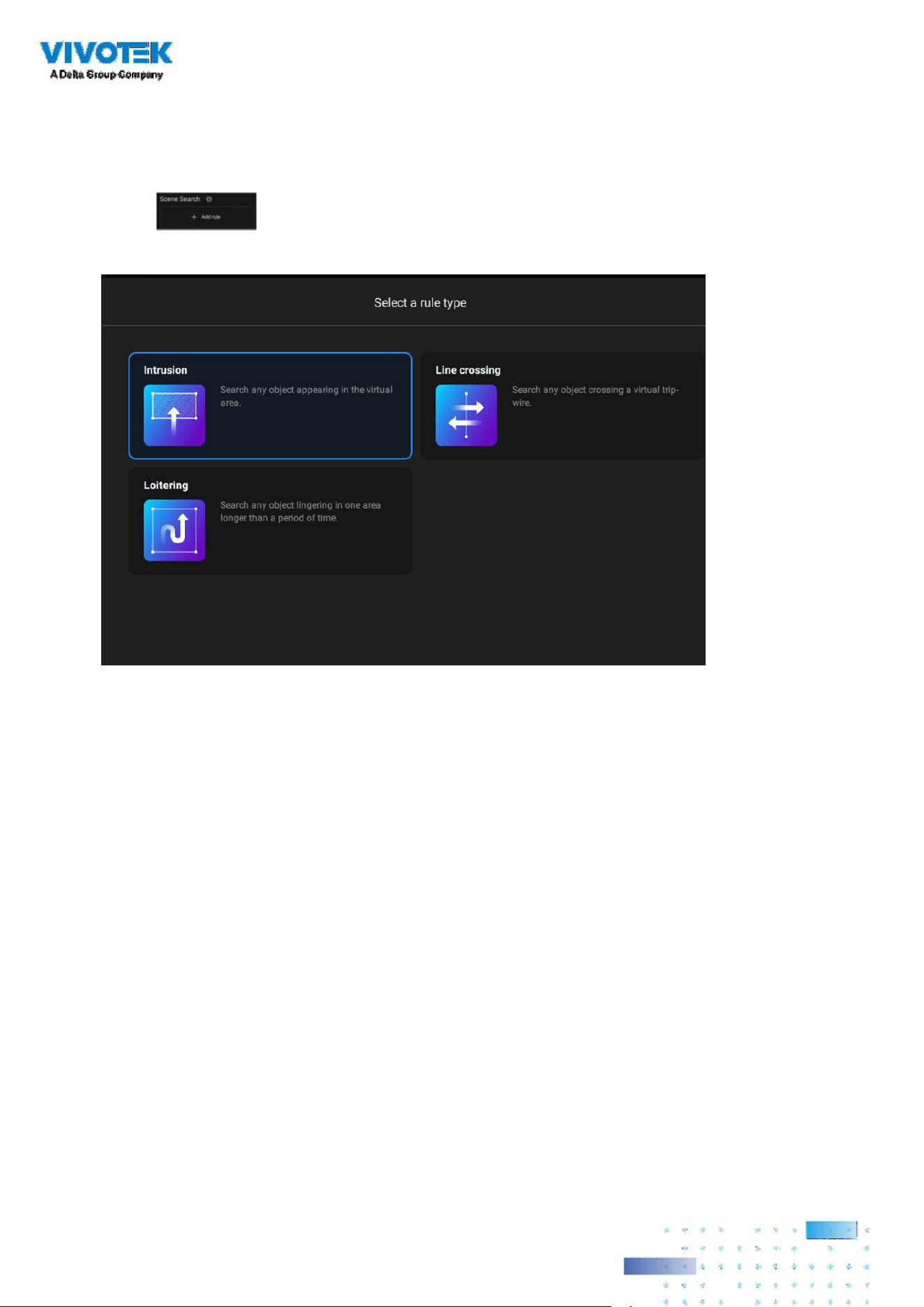
173173
Select Scene Search or Attribute Search.
3A. Scene Search: Search for the object appearing or lingering in the virtual area or crossing a
virtual tripwire. Note that this search can only be used if you select a single camera. Users can
click the button to select a search rule type.
• Intrusion: Draw a closed area in which you want to nd related people or vehicles staying in
this virtual area.
• Line crossing: Move the nodes to draw a tripwire to nd related people or vehicles crossing
this virtual wire.
• Loitering: Draw a closed area in which you want to nd related people or vehicles staying in
this virtual area for more than a specied period.
If there are search results after performing Deep Search, you can play each corresponding video
thumbnail and take snapshots as needed.
3B. Attribute Search: filter the object with selected appearance. Note that this search is only
available when users select the people appearance or vehicle appearance object. The supported
appearance for vehicle and people is listed in the table below.
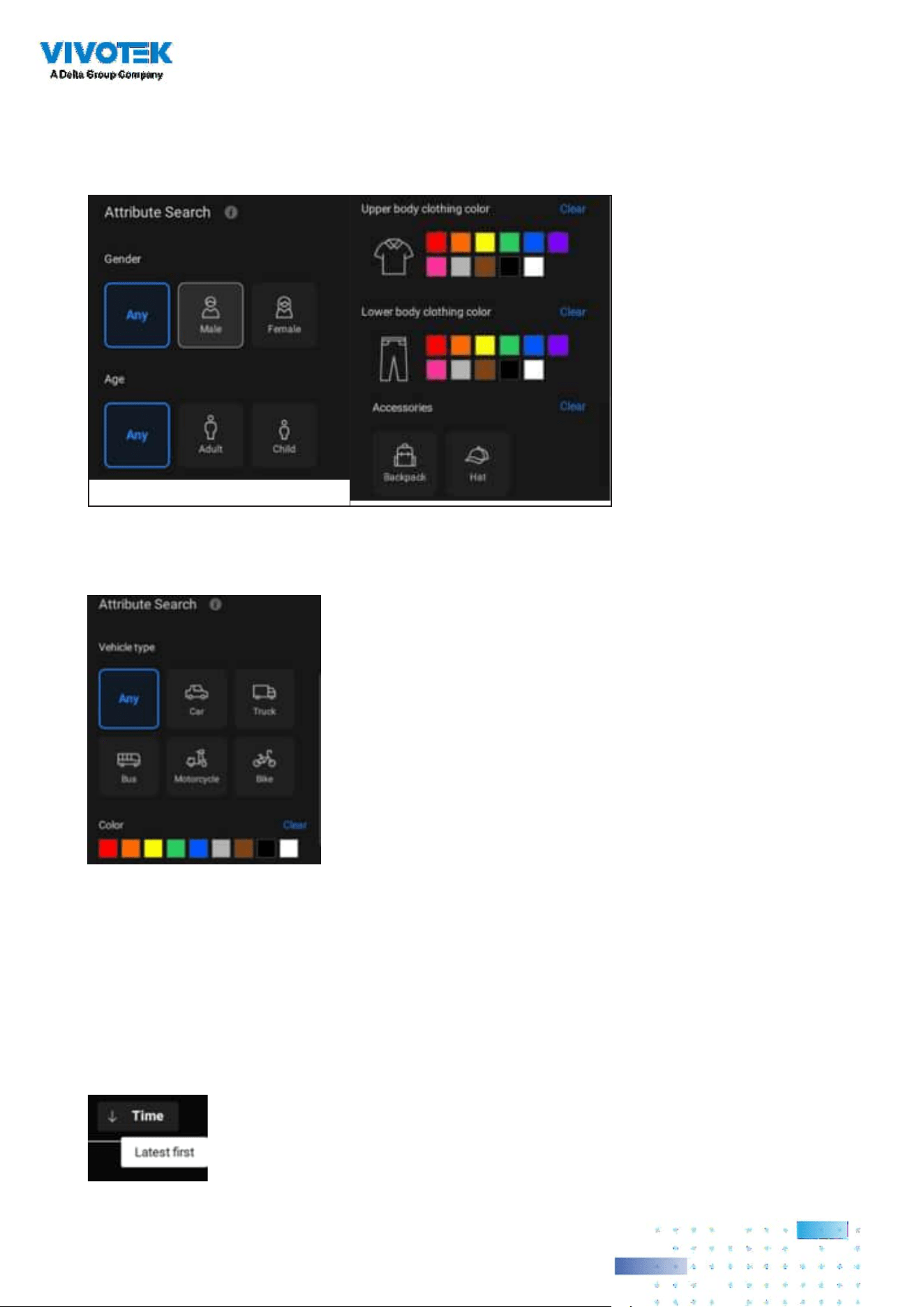
174174
Object Appearance:
• People with Attribute
People
->
Gender, Age, Clothing color
Accessories
->
Backpack, Hat
• Vehicle with Attribute
Vehicle
->
Type, Color
Click the search icon, and the results will display in the results area. The number of results will be
shown at the top of the results area. Each result contains a snapshot of the object and a video
clip of trajectory for the object, and user can click the video clip to playback the video. Also, users
can click the sorting icon on the top-right of the results area to sort the results from the latest to
the earliest or vice versa. If there are more than 200 search results, only the latest 200 results will
be listed. Hence, by default, the rst 200 results will be listed if the time is sorted from the latest
to the earliest.

175175
The rst 200 results will be listed if the time is sorted from the earliest to the latest.
VIVOTEK AI cameras with supported Deep Learning VCA package versions can capture and
provide not only body snapshots and metadata but also face snapshots and metadata to VSS.
Users can see object details, including snapshots and attributes, by hovering over a snapshot.

176176
Re-Search (VSS Professional edition only):
After all the search results shown by the above three lters, users can click the snapshot of the
object to search for similar appearance. Users can select to apply Re-Search based on:
• Current selected device and time frame: Click “Search with current settings” to start Re-Search
based on the currently selected device and time frame.
or
• Custom settings: Click “Search with custom settings” to start Re-search based on the re-
selected device and time frame.
When Re-Searching the face snapshot of an object, the results will show both objects with similar
faces and similar bodies in the descending order of similarity.
IMPORTANT:
1. If one or more colors are selected in the clothing or vehicle color option, the object
containing at least one selected color for the clothing or vehicle will be listed in the search
results.
2. When searching for people with accessories, the search results will show people with both
backpack and hat.
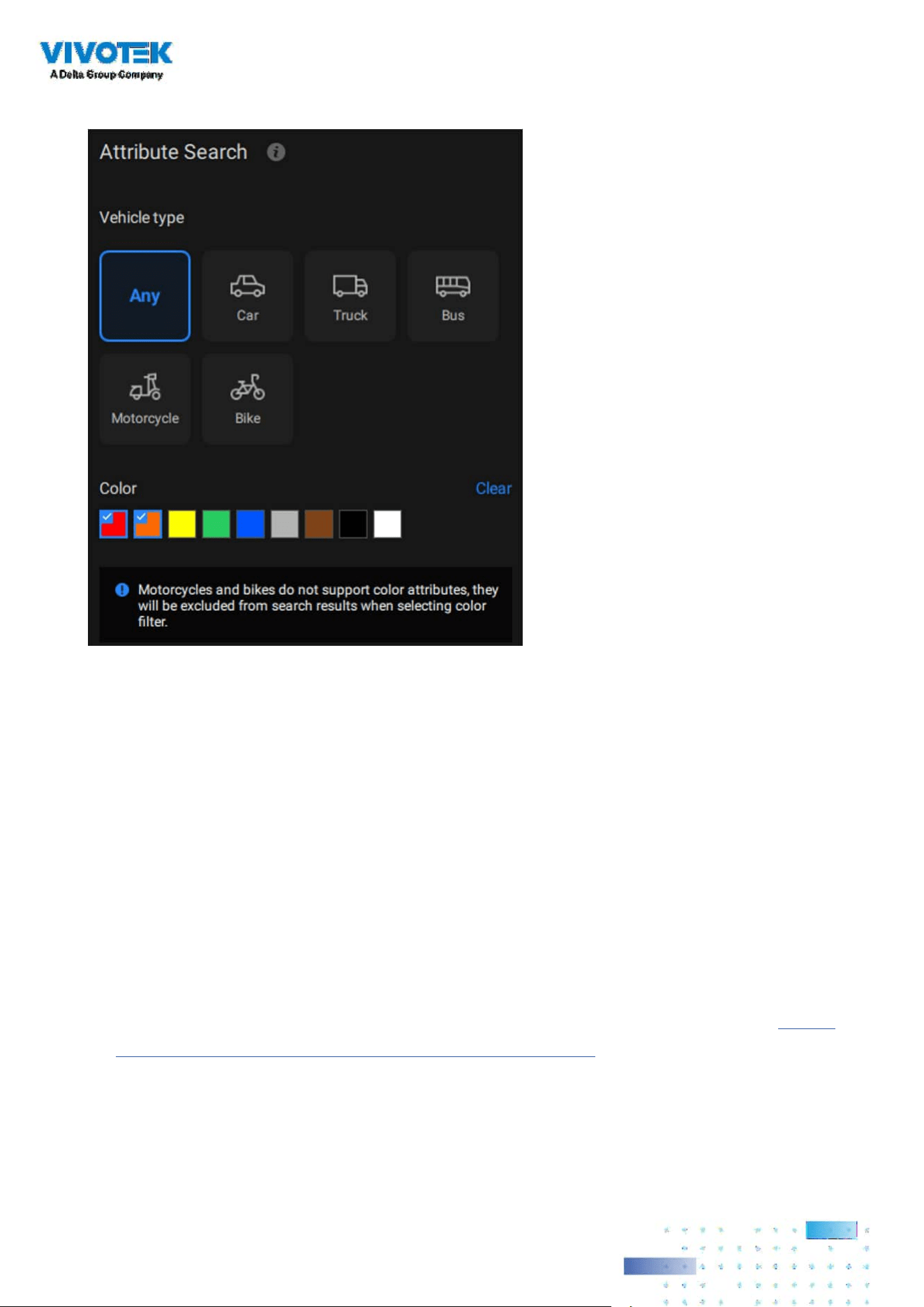
177177
3. When searching for motorcycles or bikes, color attributes are not supported.
4. For Re-Search, a broader time frame and more selected cameras result in a longer search
time. If the VSS server is busy checking and calculating a significant amount of metadata,
it may reach a 90-second timeout with no search results. To avoid this scenario, consider
shortening the time frame and reducing the selected camera count, and keep in mind that
CPU and storage throughput will also inuence the search speed.
5. The snapshots and metadata of Deep Search are stored in the same path as recordings and
recycled based on the recording recycle setting. An object can generate approximately 0.25
MB of data. For mid-to-high activity scenes, such as parking lots, with about 10 objects per
minute, the data capacity can take up approximately 150 MB of storage space per hour per
camera.
6. To comply with regional privacy laws, the Deep Search function can be managed by users
with an admin account in Settings > Preferences > Station > Deep Search.
7. Please refer to the VIVOTEK’S website and check supported cameras for Deep Search. (https://
www.vivotek.com/ai-driven/deep-search-system-requirement)
8. With a newly added camera, Deep Search takes 3 to 5 minutes to acquire search data. The
searched results will be acquired after another 2 to 3 minutes.

178178
Chapter 3: Applications:
3-1. I/O DI/DO Devices
IO Box and Related Conguration
Use the software utility that comes with the IO box, e.g., Advantech's Adam/Apax.NET utility,
to configure IP address, and test the DI/DO connectivity. The connections to external devices
should be completed before conguration on the software.

179179
Enter the I/O box's IP addess and credentials, and select the correct model name from the pull-
down list on the right. Click the Apply button to proceed. The current I/O connections are also
displayed on screen, such that the status is displayed when DI pins are connected to detection
devices.
Enter Settings > Device > DI/DO Device. Click the add I/O button on top.

180180
The Select trigger and source window will prompt.
Select either the I/O Box DI or DO as the triggering source.
Conguring I/O Box DI/DO as a Trigger or Action in Alarm
Enter the Settings > Alarm window. Click the Add alarm button on top.
Select the External Device event , and then click the Add trigger button.
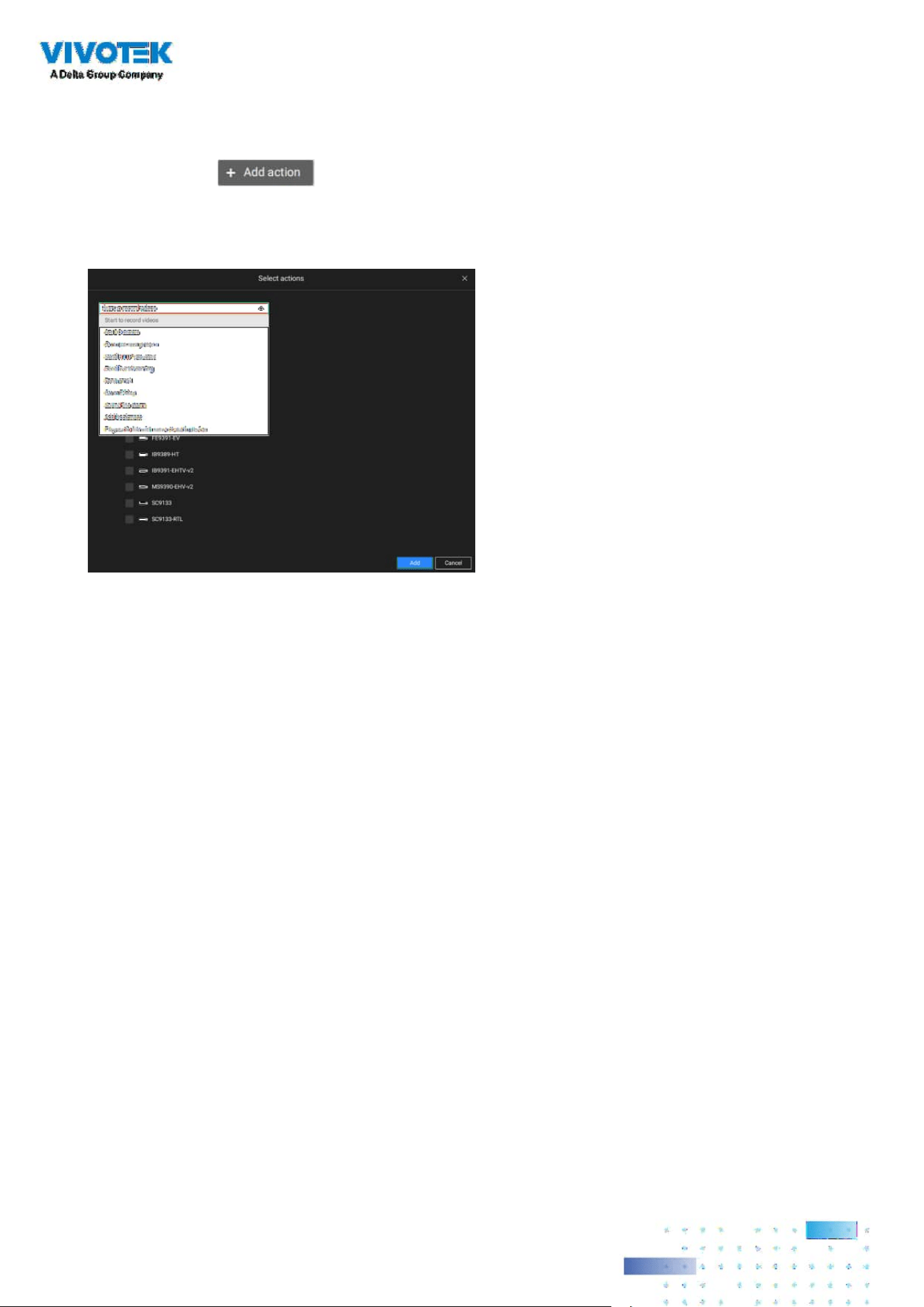
181181
Select one or multiple DIs as the triggering source and click the Apply button.
Click Add action , and select a corresponding action, such as sending live streaming,
record videos, trigger a DO, sending an HTTP request, or sending an Email. When done, click the
Add button.

182182
Enter a name for your Alarm, and add description for your conguration, e.g., "intrusion detected
on the front door." When done, click the Add button. The Alarm configuration takes effect
immediately.
Configure a schedule during which the Alarm configuration will take effect. If no special time
span is needed, you can simply select Always.

183183
NOTE:
If an I/O module is started later than the VSS server, you may not be able to access the I/O
module. You should then re-start the VSS service.

184184
3-2. Conguring Redundant Servers - Failover
VSS servers can be congured into two groups: Active and Redundant. The Active
group performs daily recording and monitoring tasks, while the Redundant group
acts as the standby servers. In the event of server failures, the Redundant group
becomes active, and takes over the recording task.
The Redundant server group conguration consists of the following:
1. One VSS server designated as the CMS (Central Management server) VSS central
management server. Another VSS server can serve as a CMS failover server.
2. At least one VSS server in the Active group.
3. At least one VSS server in the Redundant group.
4. Gb/s network or higher-speed connections among the servers. All Active and
Redundant groups can reside in different subnets, provided that static IPs are
congured for these servers.
Active VSS servers Redundant VSS servers
CMS VSS
Active Group Redundant Group
Node 1
Node 2
Node 1
Node 2
Node 3
External storage /
NAS
Network Cameras
. . . . .
Server Group
CMS Failover
LAN
IMPORTANT:
For a Redundant server configuration, you must first enlist VSS servers in the
Stations conguration page before conguring the Redundant server groups. See
the Stations conguration page.
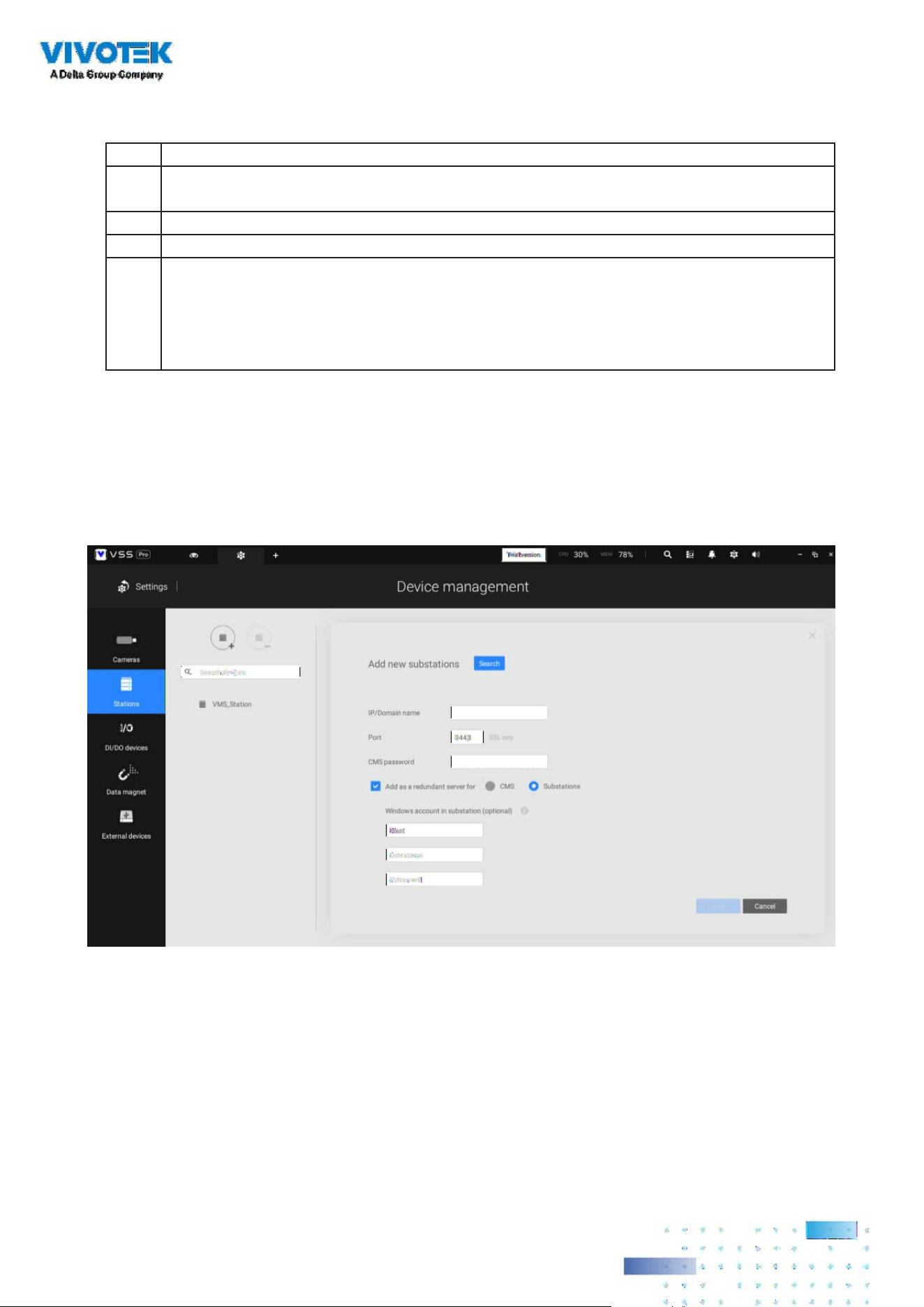
185185
Below are the denitions of server roles:
1. CMS VSS server: The main access portal for the conguration.
1-1. CMS server is where the Failover conguration takes place.
1-2. CMS continuously polls to check the hearbeats to monitor the statuses of
all Active and Redundant servers.
1-3. CMS regularly backs up the congurations on Active servers.
1-4. CMS assigns redundant server(s) to the takeover of a failed Active server.
1-5. In a Redundant server configuration, the CMS is supposed to be up and
running at all time. If the CMS server fails, the server failover and failback
operation will not take place. It is therefore preferrable to congure a CMS
redundant server, and install the CMS server at a high up-time environment,
such as on a VMWare conguration.
3. Active servers: Active VSS servers are the work horses that perform recording
and monitoring tasks.
4. Redundant servers: The Redundant servers are actually active-standbys. They
participate to continue video recording in the event of active server failures.
It is recommended for the Redundant servers to have an equivalent or higher
processing power than the Active servers. The same applies to the size of storage
volumes and the disk drives' write performance.
Note that you cannot congure a Redundant server by opening a local console.
2. CMS Redundant server: This is a failover server that serves as the backup for the
CMS server.
Note that this redundant server is configured in Settings > Devices > Stations.
Click Add Stations, and select "Add as a redundant server for" "CMS." See next
section for the conguration procedure.
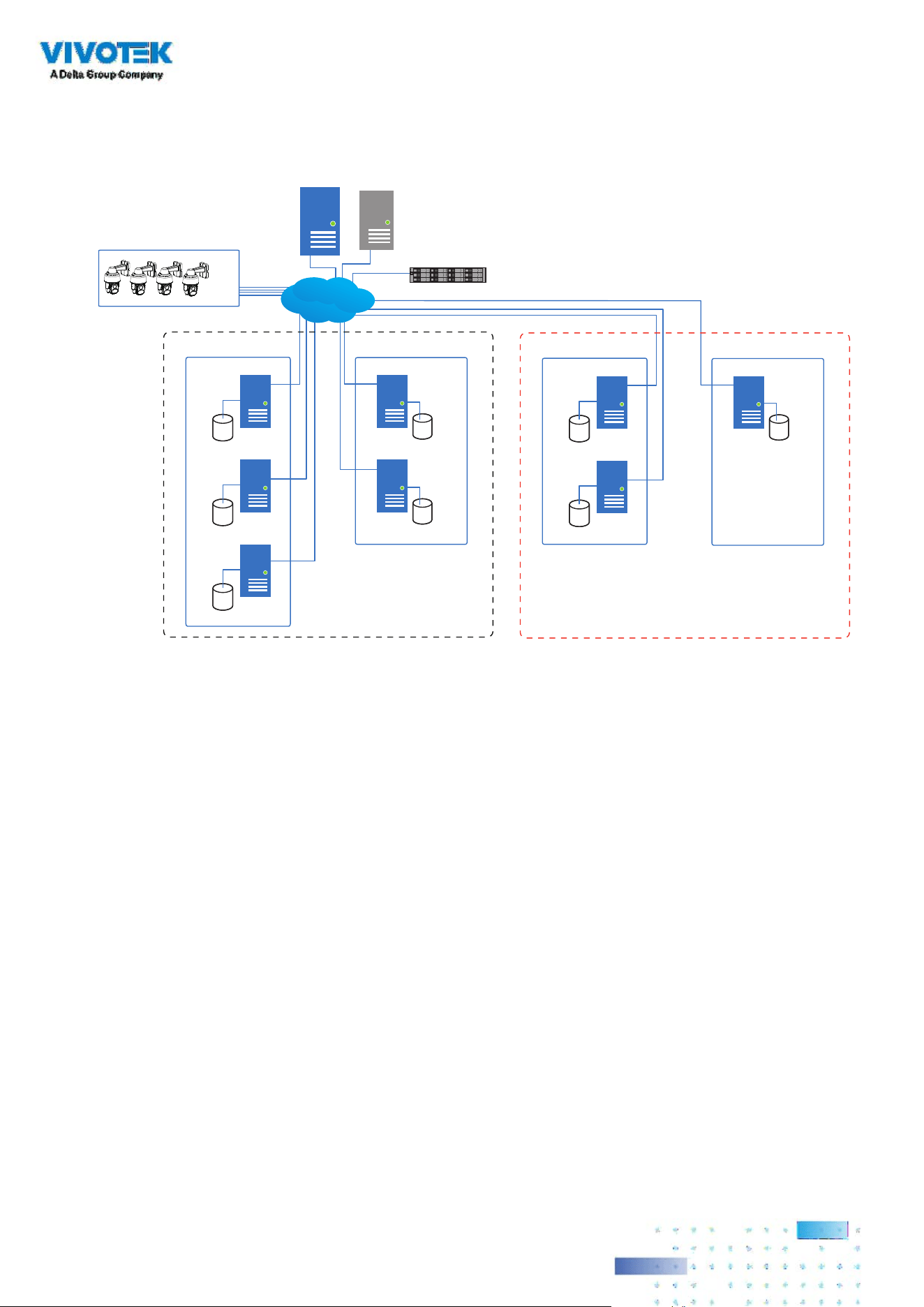
186186
Multiple Active and Redundant groups can be created.
Active VSS servers Redundant VSS servers
CMS VSS
Active Group Redundant Group
Node 1
Node 2
Node 1
Node 2
Node 3
External storage /
NAS
Network Cameras
. . . . .
Server Group 1
Active VSS servers Redundant VSS servers
Active Group Redundant Group
Node 1
Node 1
Node 2
Server Group 2
CMS Failover
LAN
Each Redundant server can serve as the backup for ONE Active server.
Depending on the number of the Active and Redundant servers, if the number
of failed servers exceeds the number of Redundant servers, the failover will be
abandoned. For example, if 2 Active servers failed, and there is only 1 Redundant
server available, the second Active server that failed will be abandoned.
The conditions during the failover process are illustrated below:

187187
In the event of a server failover, a VSS server in the Redundant group takes over the
recording task. Note that depending on the network environment, the takeover can
take up to 5 minutes.
Active VSS servers Redundant VSS servers
Active Group Redundant Group
Node 1
Node 2
Node 1
Node 2
Node 3
Server Group
Recording
LAN
Failed!
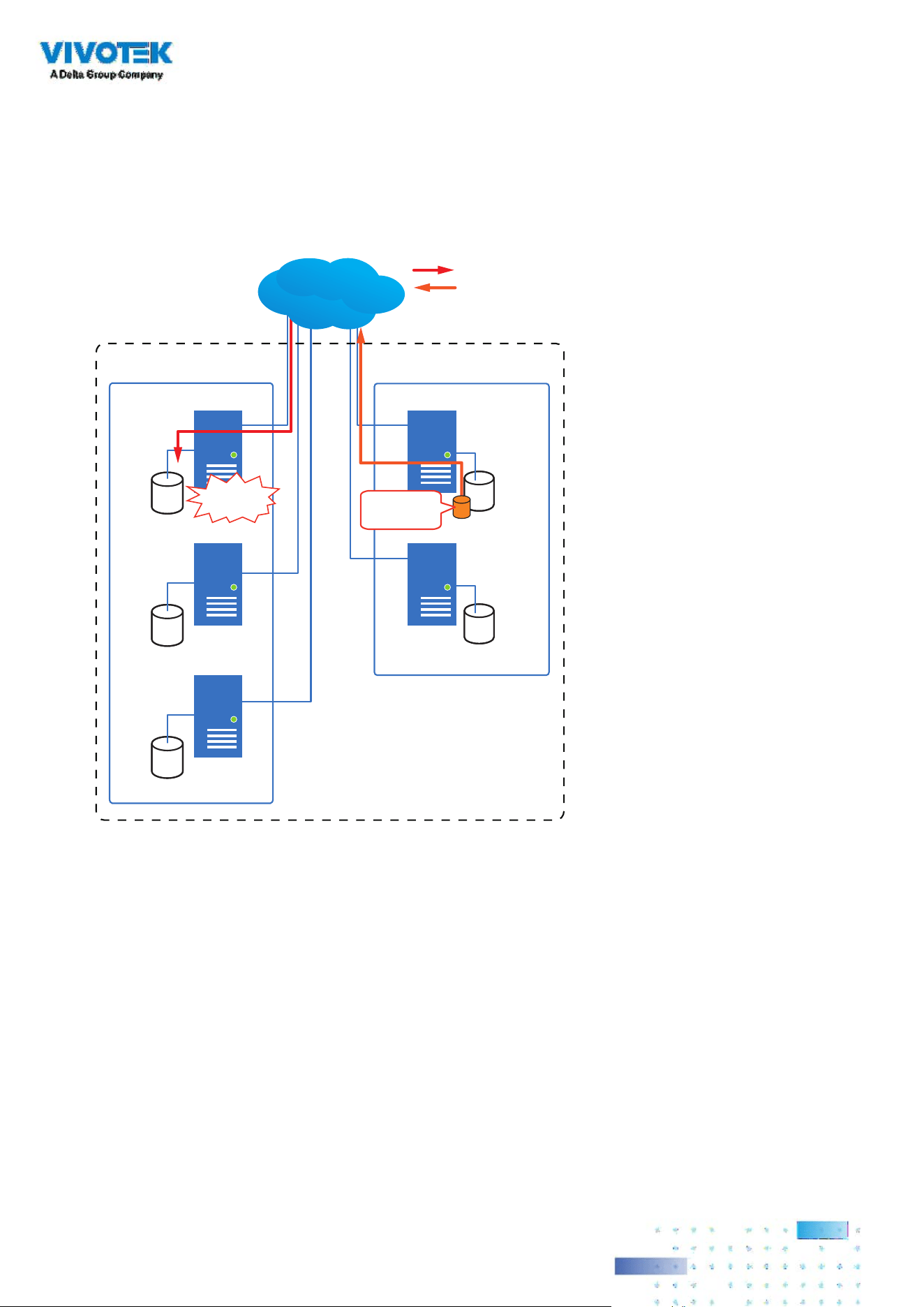
188188
Once the server in the Active group is restored to normal operation, and a CMS
server requests for the recordings and data occurred during the time the active
server failed, the requests will be fulfilled by a shared volume on the redundant
server. Due to the concerns with network bandwidth and processing power, the
restored active server does not synchronize its recording pool with that on the
redundant server after the failover and failback process.
Active VSS servers Redundant VSS servers
Active Group Redundant Group
Node 1
Node 2
Node 1
Node 2
Node 3
Server Group
Recovered!
Shared
Volume
LAN
Recording
Playback & Search
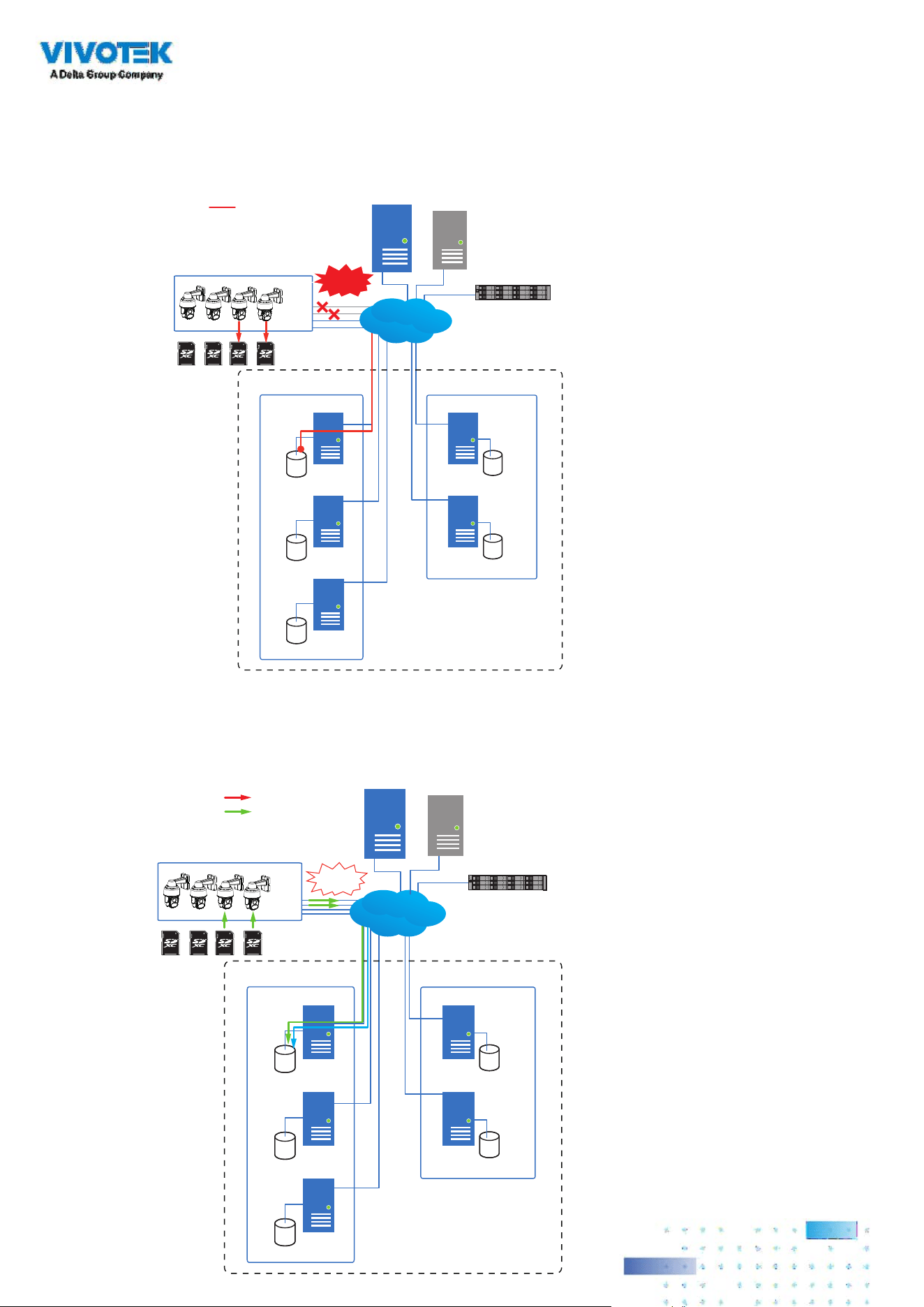
189189
In terms of network failure, the VSS configuration supports Seamless Recording.
For cameras equipped with an SD card, video is recorded to the SD cards in the
event of network failure. Of course, the cameras must have a backup power source,
such as a DC 12V input. In cases such as the only PoE switch or PoE mid-span fails,
power is lost.
Active VSS servers Redundant VSS servers
CMS VSS
Active Group Redundant Group
Node 1
Node 2
Node 1
Node 2
Node 3
External storage /
NAS
Network Cameras
. . . . .
Server Group 1
Network
Failure
Recording
CMS Failover
LAN
Once the network connection is restored, the VSS servers resume the recording
task and also retrieve video segments from the SD cards. The video segments
recorded during the network failure will be stitched up with those occurred before
and after the network failure. The retrieval speed varies depending on the available
network bandwidth and CPU resources.
Active VSS servers Redundant VSS servers
CMS VSS
Active Group Redundant Group
Node 1
Node 2
Node 1
Node 2
Node 3
External storage /
NAS
Network Cameras
. . . . .
Server Group 1
Recording
Retrieval
LAN
Recovered!
CMS Failover
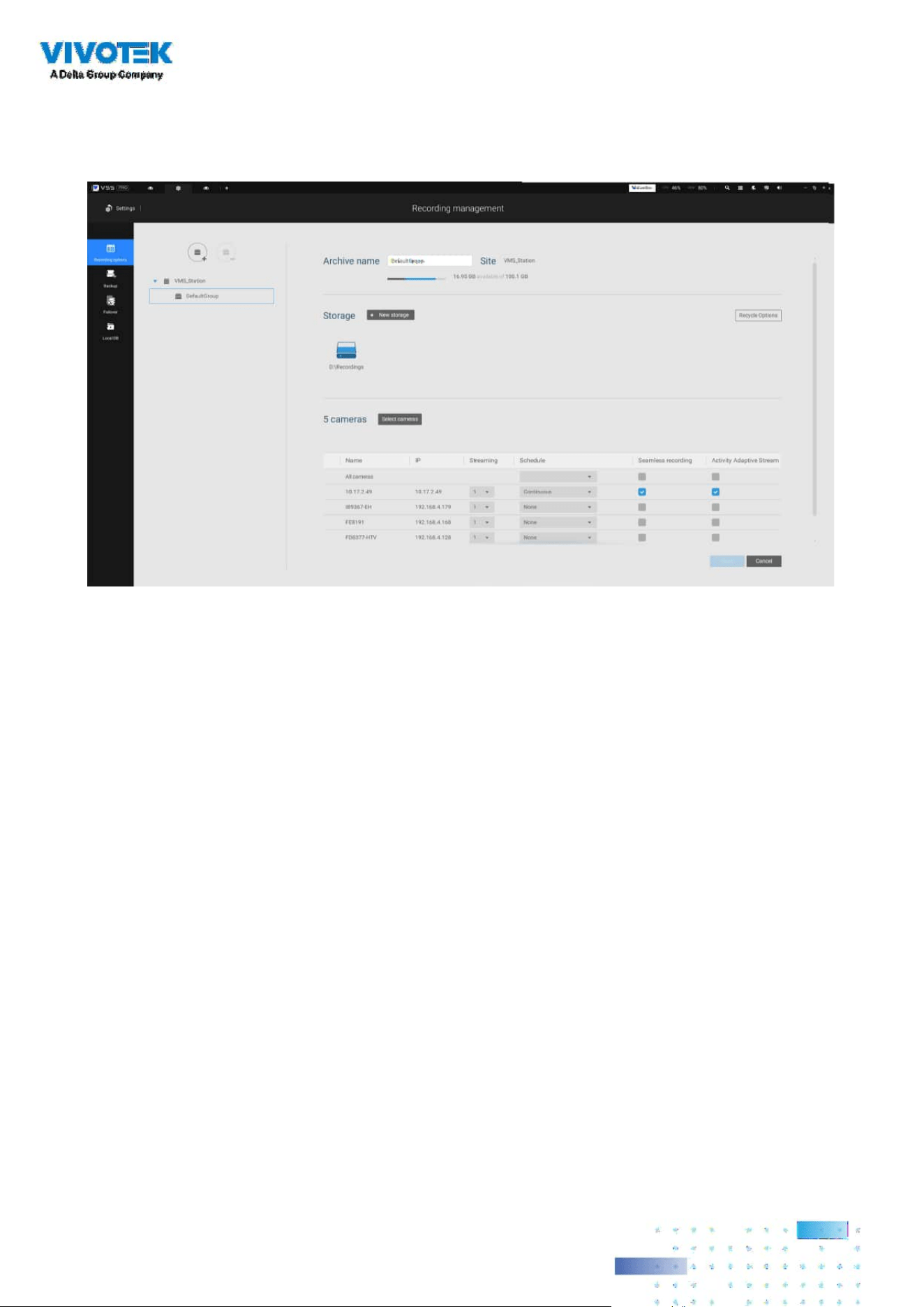
190190
To enable Seamless recording, nd the associated option in Settings > Recording
options, and select the Seamless recording checkboxes. Camera models that
support the Seamless recording option will have it listed.

191191
Before Failover configuration, you need to add other servers to your Failover
conguration. Below is a screen from the Stations management window.
• If you are adding a Redundant server, select the "Add as a redundant server"
checkbox, for either a CMS server or VSS Substations.
• If you are adding a server without selecting this checkbox, it will be considered
as an Active server.
• When adding a Redundant server, you can provide a Windows account 802.1x
domain user name and password. A Redundant server requires this because
a full access to the recorded data is required during the failover and failback
process.
Failover Conguration Process
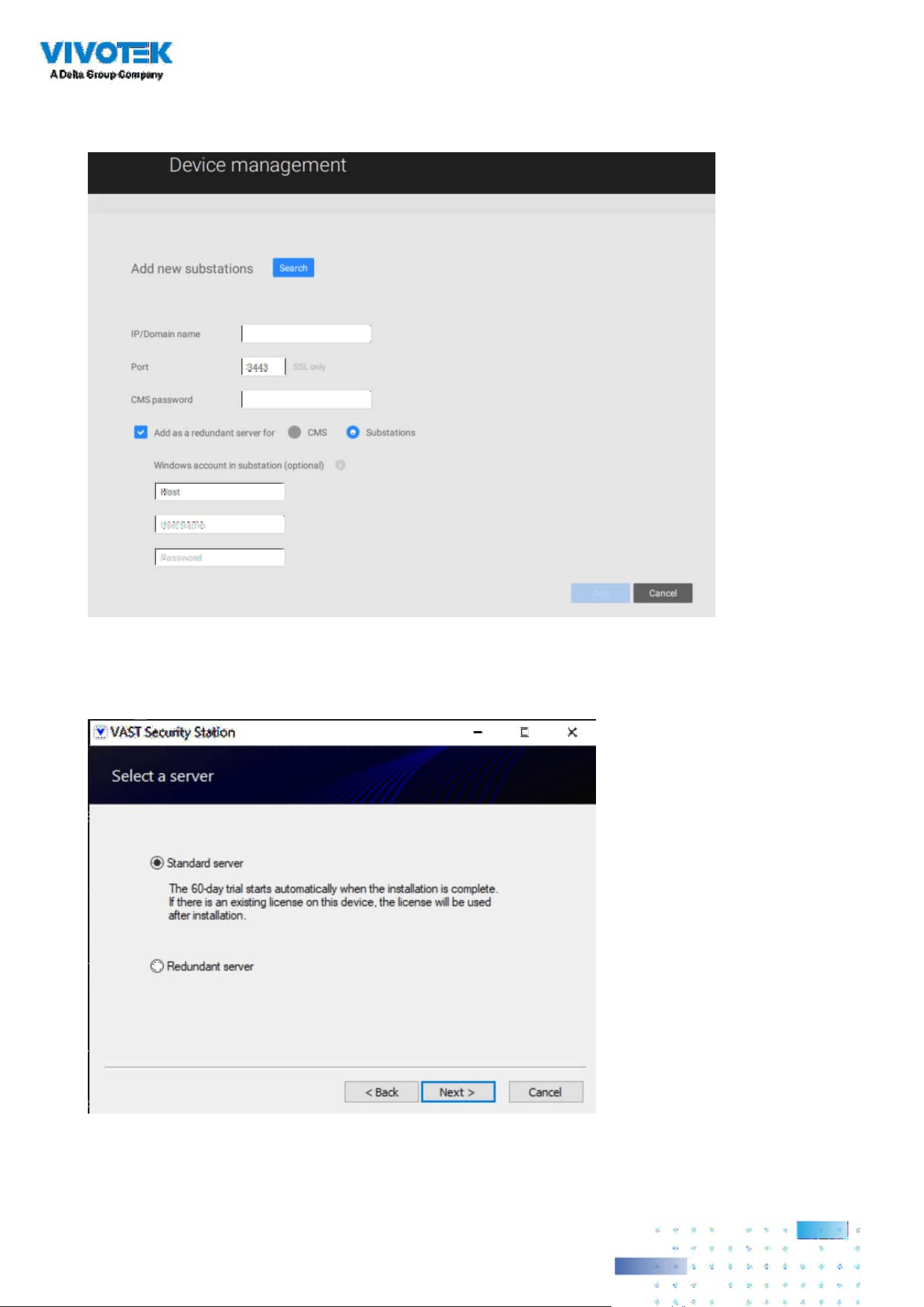
192192
When the "Add as a redundant server" checkbox is selected, enter the name of your
Windows domain and the user credentials for a full access to the Redundant server.
Note that it is a must for the Redundant server to be installed differently by selecting
a "Redundant server" checkbox during the installation process.
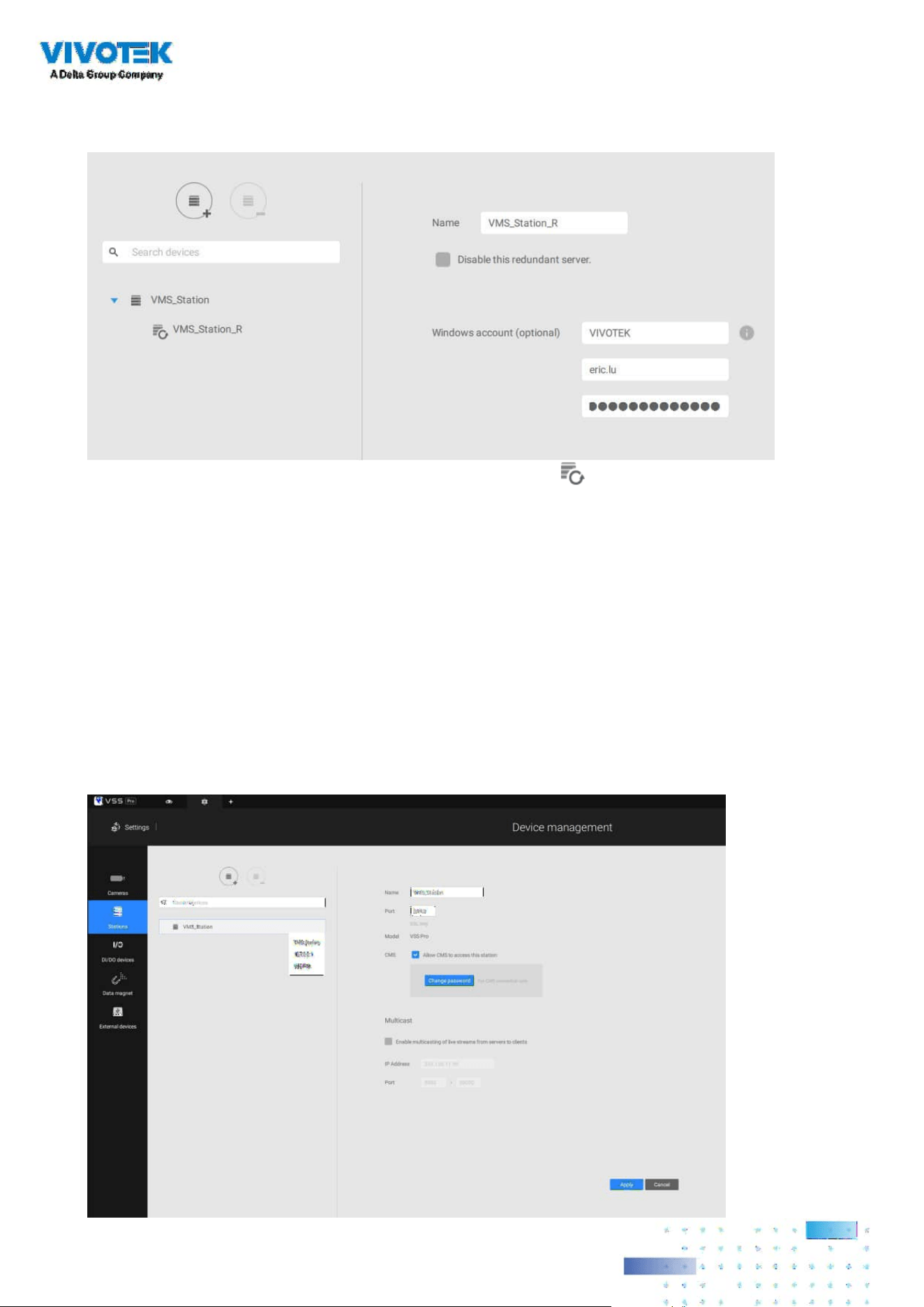
193193
Note that on the Active servers, you should configure them as the subordinates
to your CMS VSS server. On a web console to these servers, open the Station
management page, and select "Allow CMS to access this station." Create a common
password for the CMS hierarchy.
When a Redundant server is successfully added, the server will be listed under your
VMS station.
A Redundant server comes with an associated icon, .
An Active server must have a CMS password configured for the hierarchical
conguration.

194194
Two agents will be running on the Active and Redundant servers, "stunnel" and "VMSWebServer."
Make sure they are not blocked out by your rewall. These agents can be found in the default
folders below:
C:\Program Files (x86)\VIVOTEK Inc\sTunnel\stunnel.exe
C:\Program Files (x86)\VIVOTEK Inc\VAST\Server\VMSWebServer.exe
Click on the Add button to create a Redundant server group. The Active and
Redundant servers you enlisted on the Stations page should all be listed below.
Select the members of the Redundant group, and click Add to complete.
The default for the network disconnection timeout is 30 seconds. It is not
recommended to congure a very short timeout, e.g., 5 seconds, because if doing
so, a temporary network disorder can make servers consider the Active server(s)
have failed.
1
2
3

195195
3-3. Counting Report
The Counting Report utility is started from the tool bar on top. The Counting Report utility
provides comprehensive graphs and line charts for quick access to the data collected through
VIVOTEK's People Counting modules, such as the SC8131 stereo camera. Statistical results is
refreshed by hour or minutes, and you can compare the results acquired through dierent time
periods or among different surveillance areas. These data help figuring the customer flow in
retails so that shop owners can optimize the arrangement of store layout, or mange queues more
eciently.
Note that the configuration of detection methods in People Counting still occurs on a web
console to individual cameras. It is not congurable through the VSS LiveClient.
Prerequisites:
The prerequisites for using the Counting Report are:
1. The monitoring server running the Counting Report utility must be up and running during
the time the counting VCA is taking place. If you power o the server, the counting metadata
generated during the server down time will not be available for analysis. The VSS server
instance runs in the background. The VSS management console does not need to be started
during the Counting Report data collection process.
2. Cameras running the VCA utilities have been congured and added into the VSS deployment.
The instances of available VCA rules will be listed in the Area panel.
3. The life expectancy of VCA records is 5 years.
4. Currently the utility supports Windows XP, 7, 8, and 10.
5. The latest revision VSS supports Seamless Recording, in order to retrieve collected data
and recording during Ethernet disconnection. Provided that an SD card is installed on the
VCA-enabled cameras, the VSS station gradually retrieves data from the SD card after the
connection is restored.

196196
To start Counting Report:
1. Click on Counting Report button on the tool bar.
2. Select People Counting.
3. Click on the Add area button.
4. Select a camera that is VCA-enabled, and then click the Create button.

197197
5. The pre-congured counting rules (areas) will automatically display. Select a counting rule
and enter a name for the area. When done, click the Create button. If only one camera is
selected, its name will apply as the Area name. If not, enter a name for the area.
6. Click to select one or multiple areas. Those selected will be highlighted in a dierent color.

198198
7. Select Date & Time
7-1. By default, the time displayed on the calendar is the current system time on the client
computer running the utility. Select from the Date selector on top.
7-2. Select a date or span of time from the calendar or use the Time
selector to select a span
of time.
> Single-click to select a date or click and drag to select multiple dates.
> You can select a month or a year using a single click. If you select a month, the timeline unit will
be days within the month. If you select a year, the timeline units will be the months in a year.
> In the Month or Year panel, single click to select the entire month or an entire year. Double-
click to select sub-units, e.g., days within a month. If you double-click on a Month panel, you
will enter the Day panel.
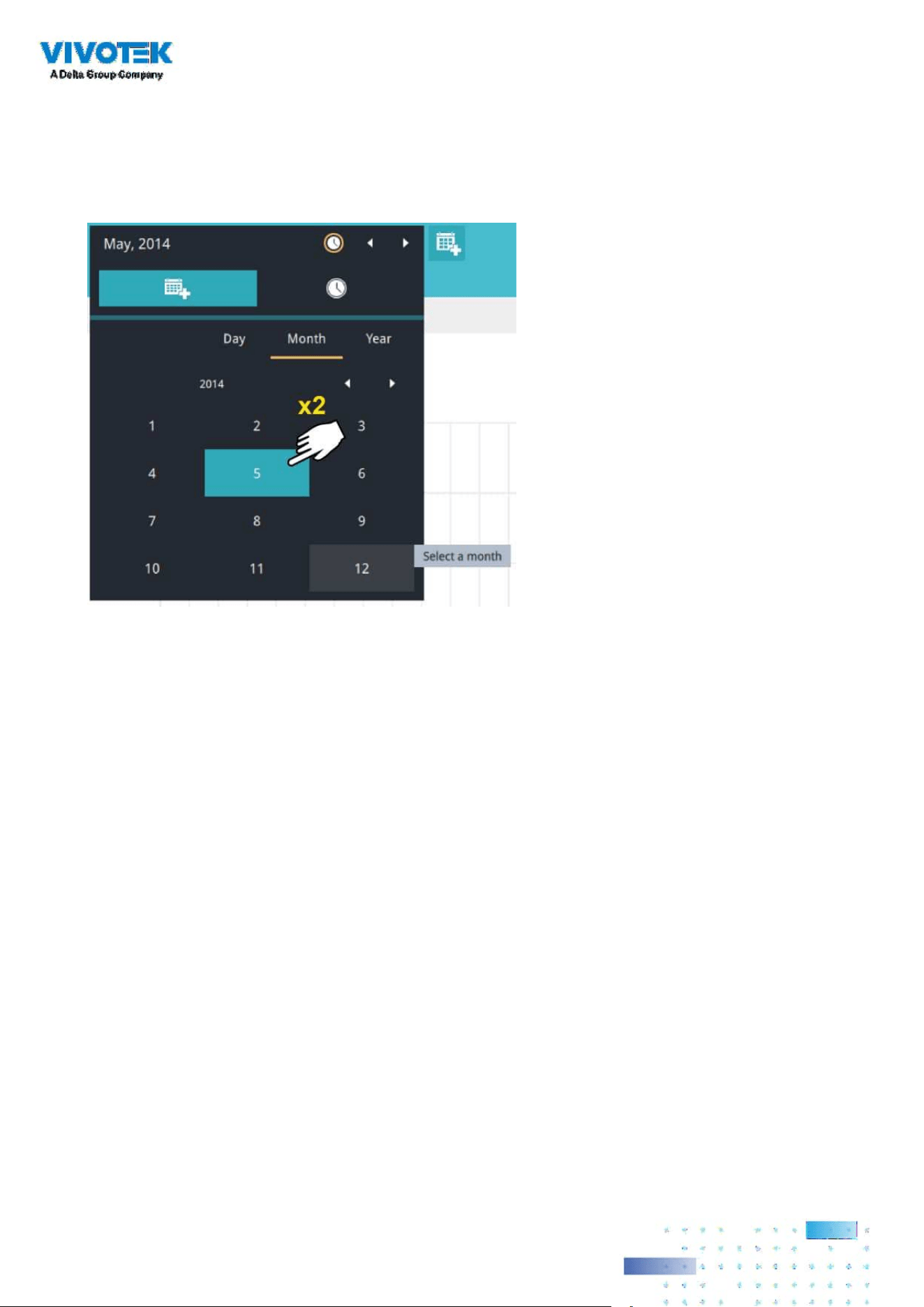
199199
You can select a dierent month in the Month or Year panels. The Calendar panel disappears if
left unattended for 2 seconds.
On a Month panel, double-click to select a month, and the Day panel for that particular month
will display.
Note the following when making the conguration:
• When a date is selected, the Date and Time panel will not automatically close, and the
conguration changes will not take eect until it is closed. You can click on the outside of the
panel to leave the panel.
• You can select multiple days to form a span of time. Select one date with a single click and
select multiple dates by draging your cursor across the screen to an end date you prefer.
• To select a year, click to open the Year panel. Single click to select a year. Multiple years can be
selected using the click and drag method.
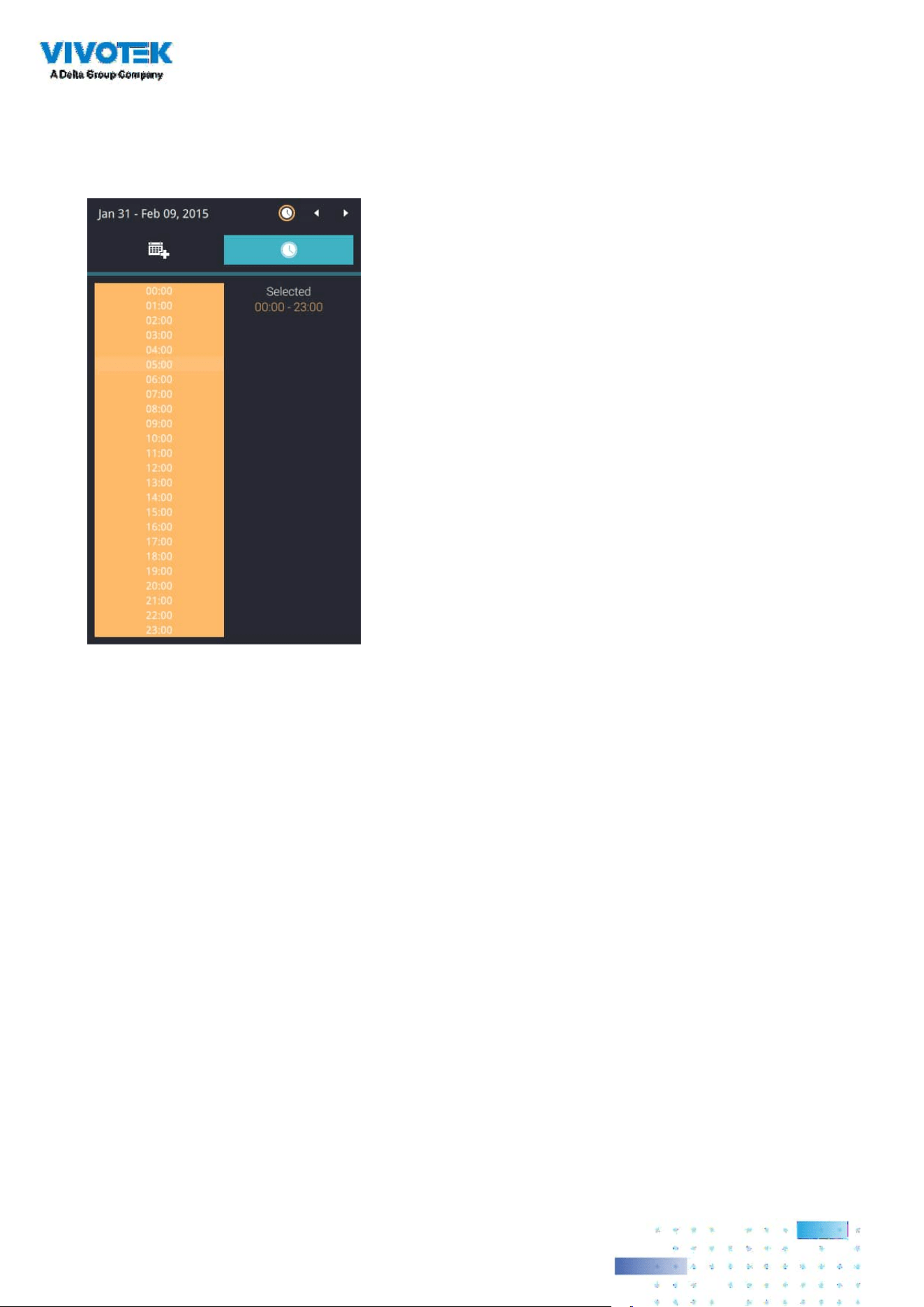
200200
7-3. Select the hours to be included in the statistical poll using multiple clicks on the
chart.
Single-click to select an hour or click and drag to select multiple hours.
Note that you can only compare the counting results from two spans of time if you select only
one Area. If you selected multiple Areas, you can not compare the results from multiple time
spans.
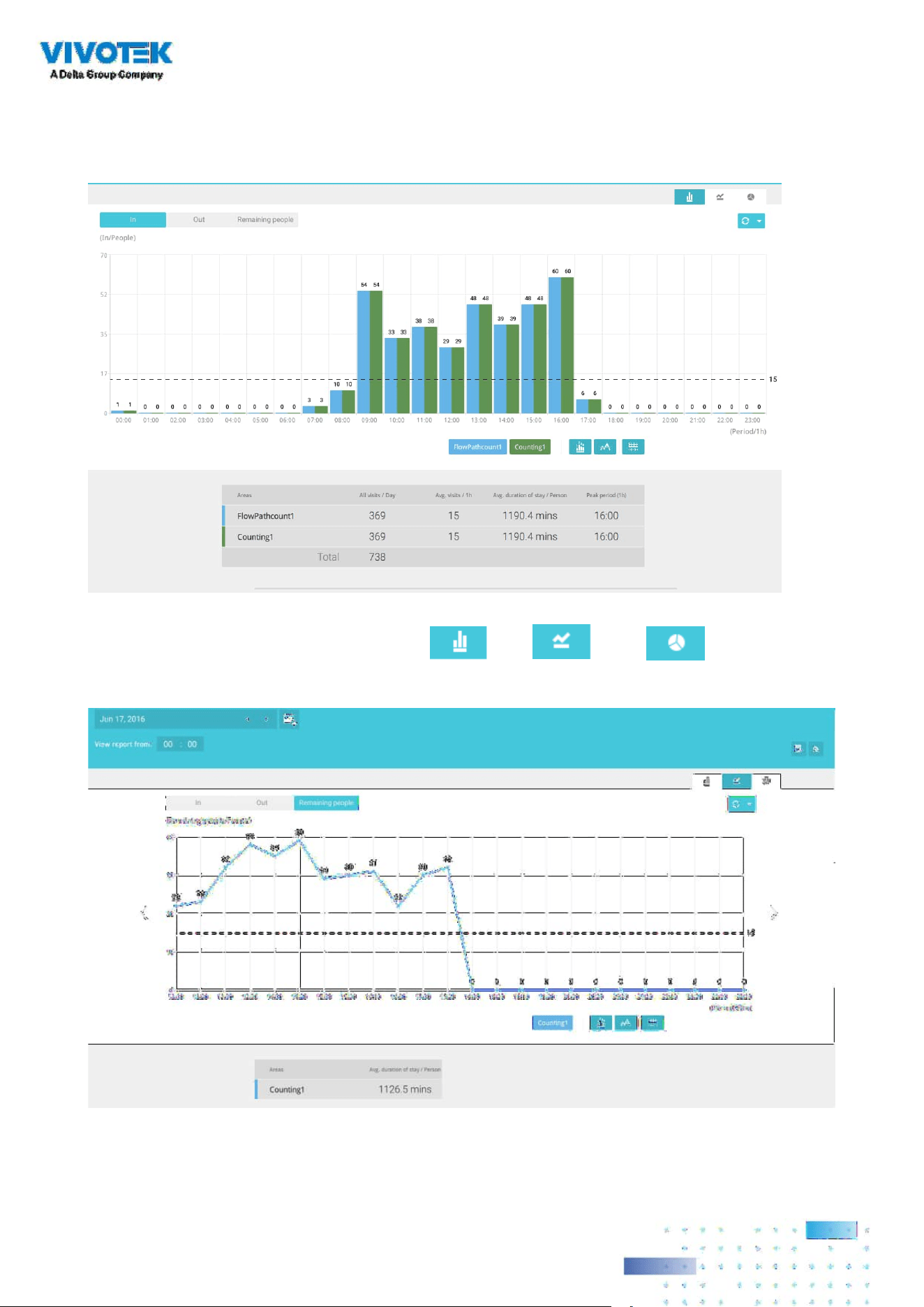
201201
7-4. Click outside the Calendar panel. The statistical results will display. The default display is the
bar chart. Below is a sample screen showing the results polled from 3 areas. Up to 8 areas can
be selected in one view.
Select dierent display modes using the Bar , Line , or Pie chart buttons.

202202
Note that the timeline units can vary depending on the span of time you selected on the
Calendar panel. If a date was selected, hourly data will display in chart. If a year was selected,
monthly data will display in chart.
Use the following functional buttons to change the display parameters
Show data on chart
: Displays the collected numbers on chart.
Average : Displays the average number per time span unit (e.g., per hour). If the interval
is changed to 30 mins, the average number will be halved comparing to the number acquired by
every hour.
Report Interval : Congure the intervals for polling data from the camera. The default for
displaying results is by every hour. If you enter 30 minutes as the display interval, all data will be
listed on the basis of the 30 minutes time span. The congurable range is 1 to 1440 mins.
You can use the update menu on the side of the Refresh button to determine an automatic
update schedule. You can let the statistic chart update itself by a regular interval.
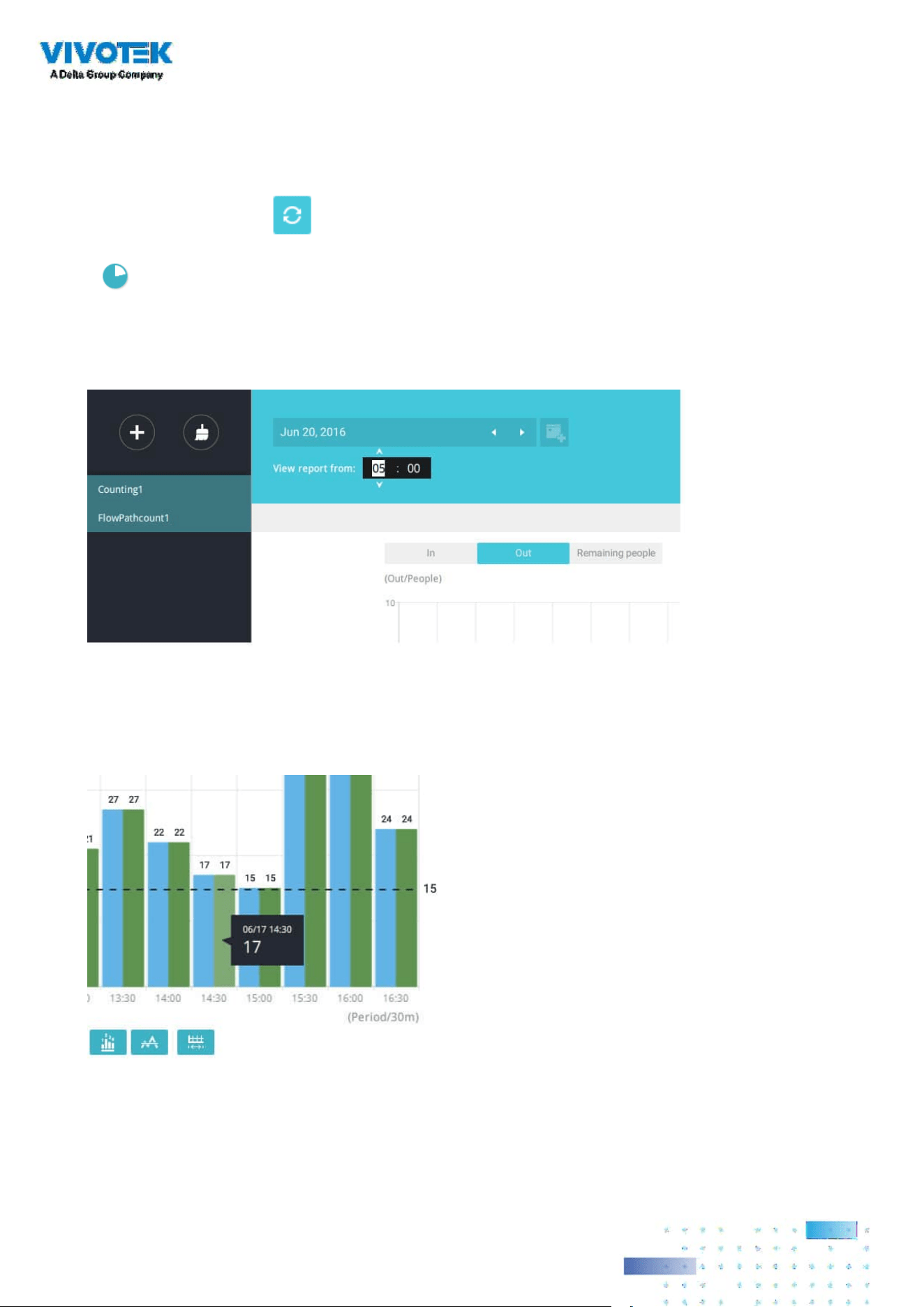
203203
Use the Refresh button to poll the latest data from camera.
Use the time selector on the View Report from pane to select the start time of your statistics view
window. Data collected before that time will not be displayed.
A number is displayed when you mouse over an area on the chart. Move your cursor to an area
on chart, and the number is displayed.
If you selected only one area, you can use the Shift key to select multiple areas (or two spans of
time). You can select multiple dates in the Calendar panel.
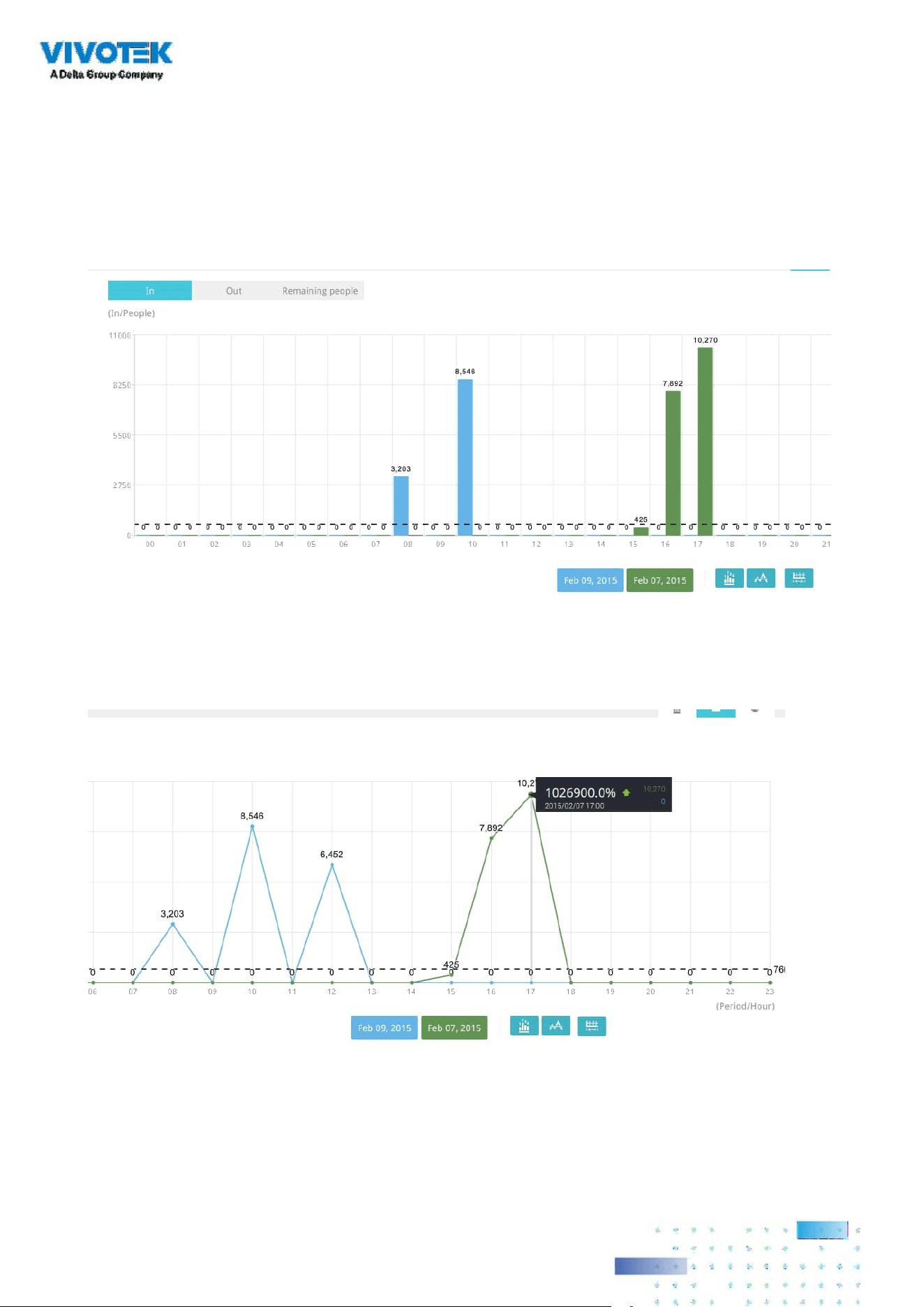
204204
Data on a time line will be generated. To close the window, use the close button on the second
date information. Equivalent spans of time can also be used for comparison. For example, you
can compare the data in a span of 4 days against another span of 4 days.
Note that the Compare function only applies when you select to display only one area on the
screen.
In a comparison result displayed in a line chart, mouse over to the peak value to display the
percentage of an increase or decrease rate.
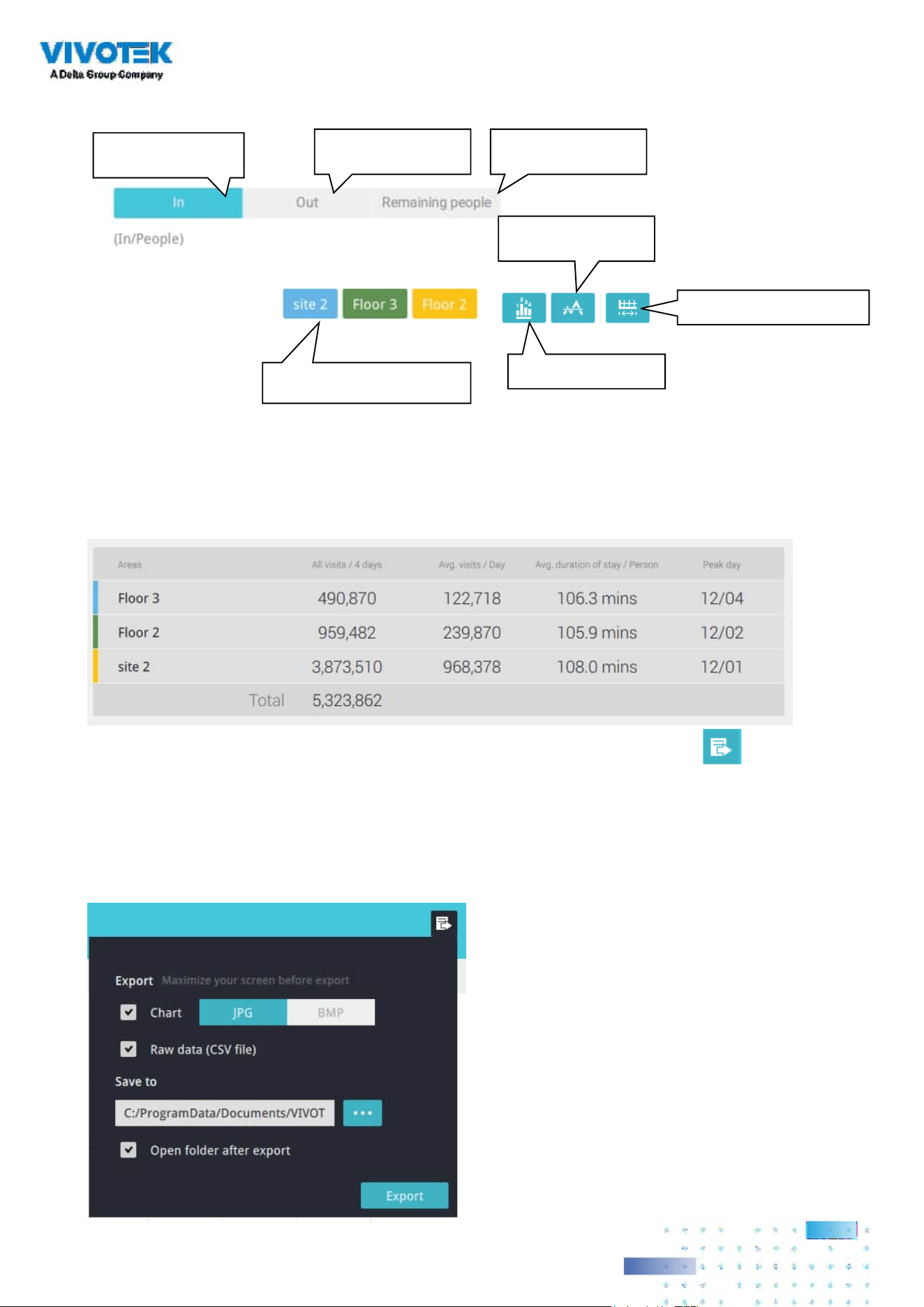
205205
See below for the functions of buttons on screen.
Click to display or
hide the results for an area
No. of people who
entered the area
No. of people who
left the area
No. of people who
remain in the area
Show an average
number
Show data on chart
Change the report interval
In addition to the charts, a summary of displayed data will be listed below showing the areas
involved, visits/Day or Month, Average visits / Hours / Days, Average duration of stay / person,
and the Peak hour.
8. When done with displaying the results, you can use the Export button to
produce an image le to preserve the current results. Both a spreadsheet and a
graphic chart will be produced.
By default, the exported report is placed in:
C:\Users\Public\Documents\VIVOTEK Inc\VAST\Client\VCAReport
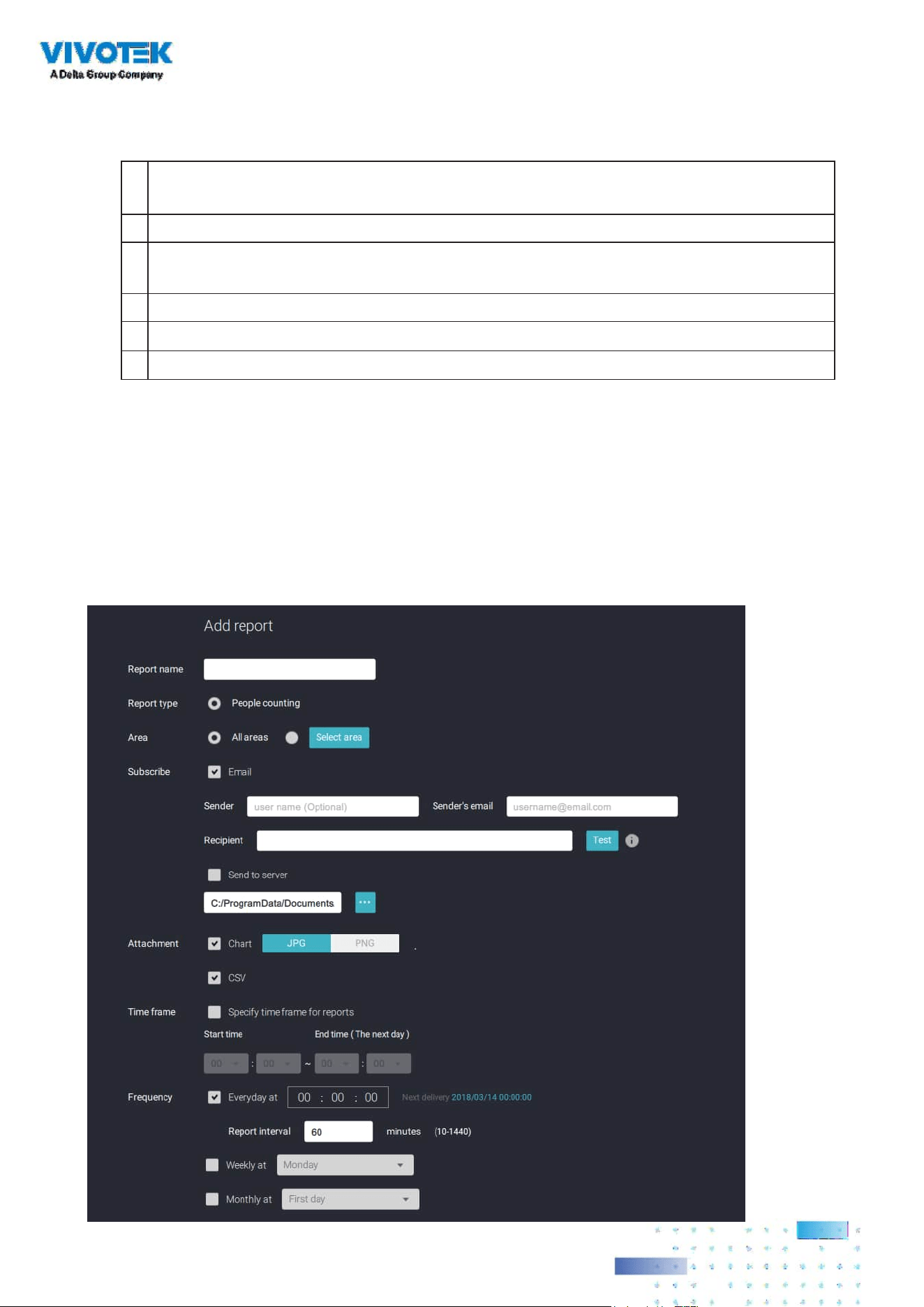
206206
9. Click the Reports Subscription button to configure the regular report sent to your Email
account or a specic location on the server itself.
Select the following:
1.
Report type: People counting results, or Heatmap (Heatmap does not produce the CSV
le)
2.
Area: All areas or a precongured area.
3.
Subscribe: Enter the sender and recipient Email addresses. You can also configure to
send the report to a specic location on the server.
4. Attachment: Select to attach graph Charts in JPG or PNG, and the CSV
data les
.
5. Time frame: Select the time coverage of the report, during which data is collected.
6. Frequency: Species when and how frequently to deliver the reports.
Select the time to deliver your mail notification. Enter valid Email addresses as the sender
and receiver addresses and make sure the SMTP mail server conguration has been properly
congured on your VSS server. This VCA mail notication utilizes the mail service on VSS for
regular notication. You can then receive Email notication every day on your Email account.
You can enter up to 5 recipient addresses.
Select the report interval to determine how often you receive an aggregated report.
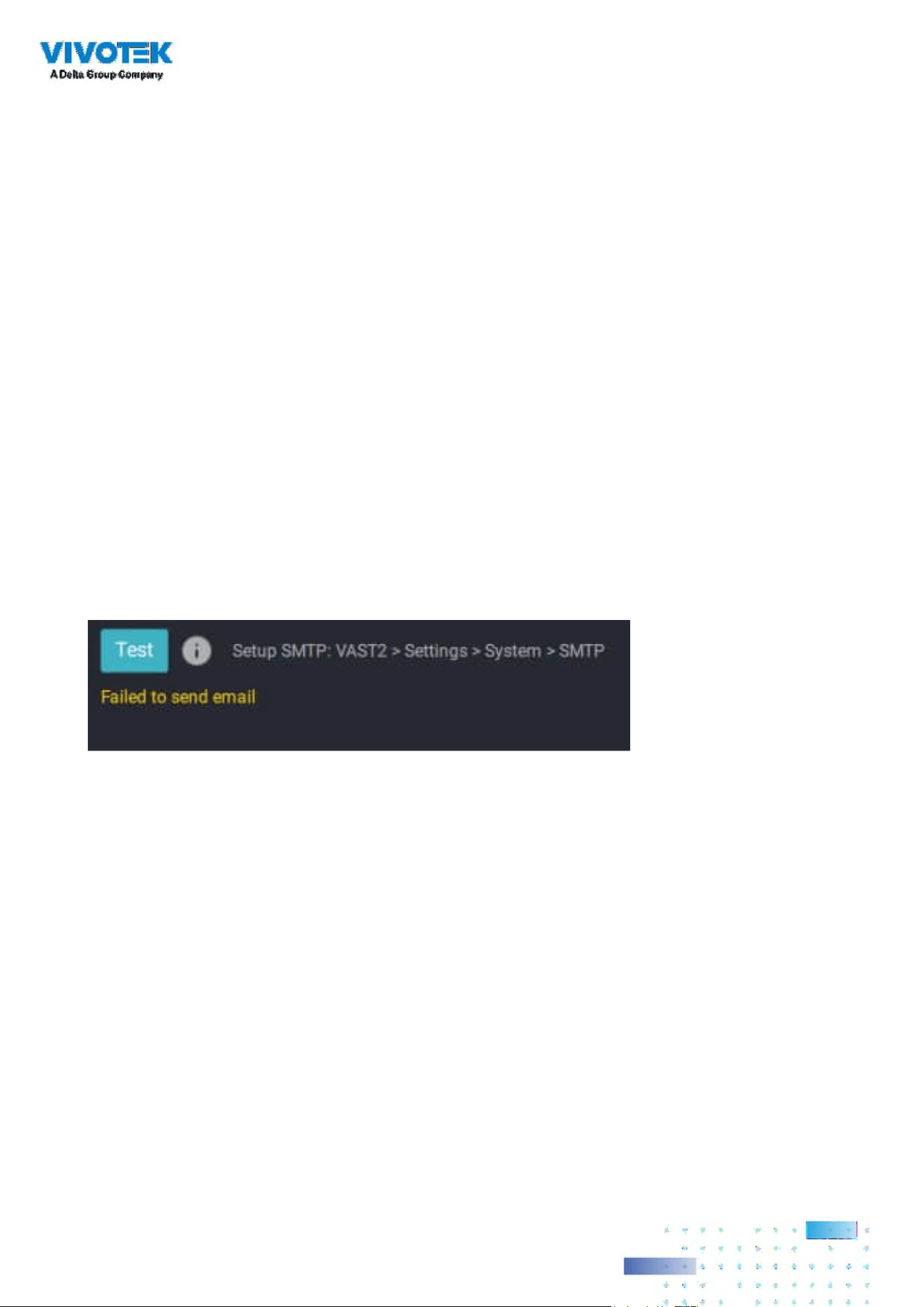
207207
Note that the notication contents is your current eld of view, including a Bar, Line, and Pie
chart combined into one image file. The In/Out/Remaining results will be generated into
3 charts. Each Area will generate one CSV file, and each CSV data file will contain In/Out/
Remaining/Summary information.
The generated file names will look like this: 20160226_test02_Remain.jpg for charts
and 20160226_Summary.csv for CSV files. The Email subject will be "VCA Daily Report -
2016/02/26."
Note that if you manually export a report, the default is sending the data collected until one
hour before the manual export. For example, if you generate the report at 14:07, the report
will only cover the data collected until 13:59. You may use the Refresh button to manually
generate an immediate data inputs (those occurred between 14:00 and 14:07).
You may congure to receive regular VCA report as Weekly or Monthly using the associated
menus.
Below are the messages with the Email test function.
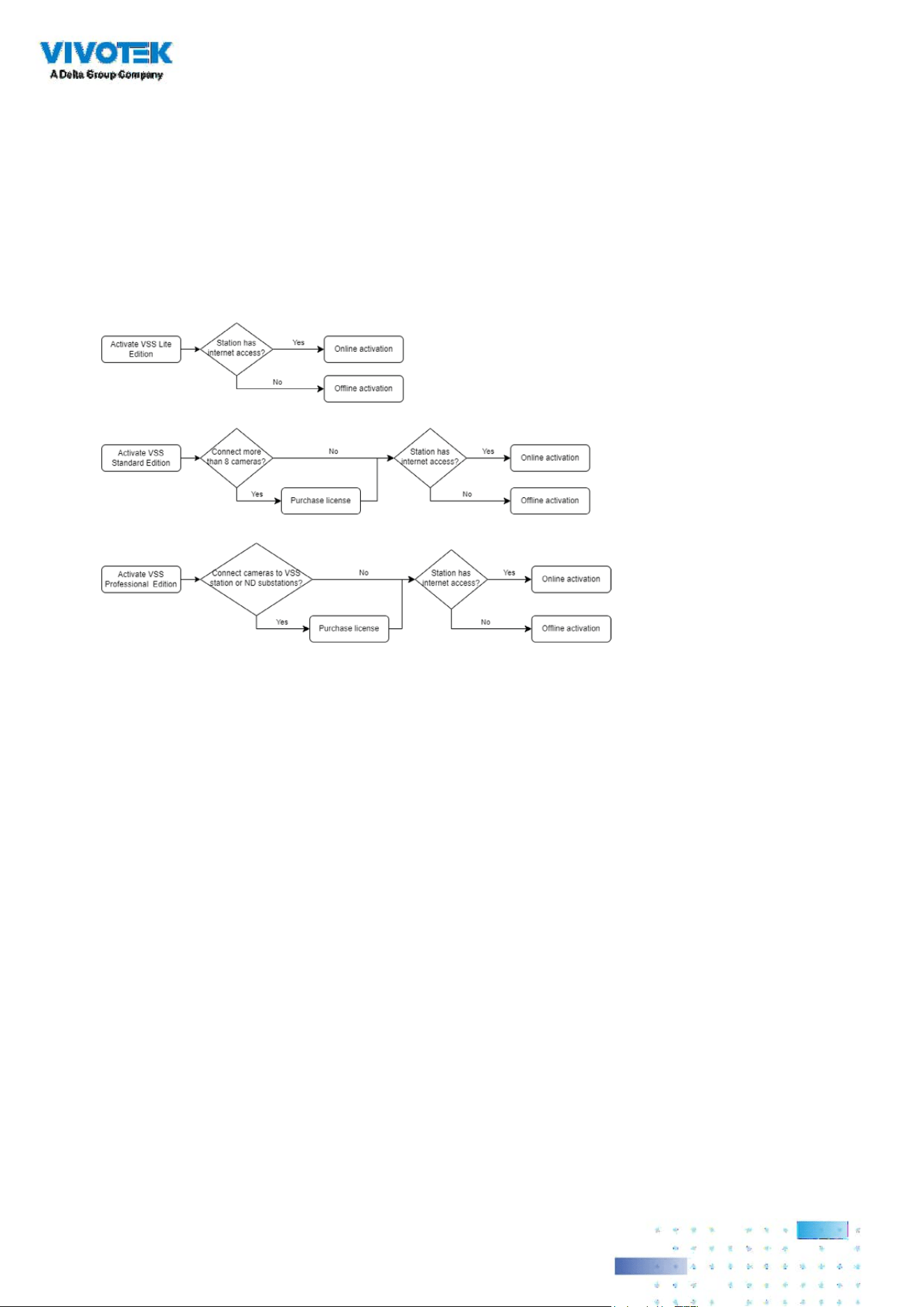
208208
3-4. VSS Software License
To activate the software, refer to the ow chart below:
After VSS is installed, a 60-day trial version will be started automatically.
Users must select one VSS edition and activate the licenses online or offline before the trial
expires. The camera live view, playback, and recording services will stop after a 60-day trial.
Online activation
If the VSS station has internet access, activate the license using the online activation method. The
license request le of the VSS station (.req le) will be sent to the licensing server via the internet
automatically. The licensed le (.lic le) will be received from the licensing server if the activation
process is successful.
Online activation is recommended over oine activation. However, if online activation fails or
internet access is unavailable, see Oine Activation in the next section below.
Steps:

209209
1
. The edition menu will show you if you are required to purchase licenses to activate each
edition based on your current VSS deployment.
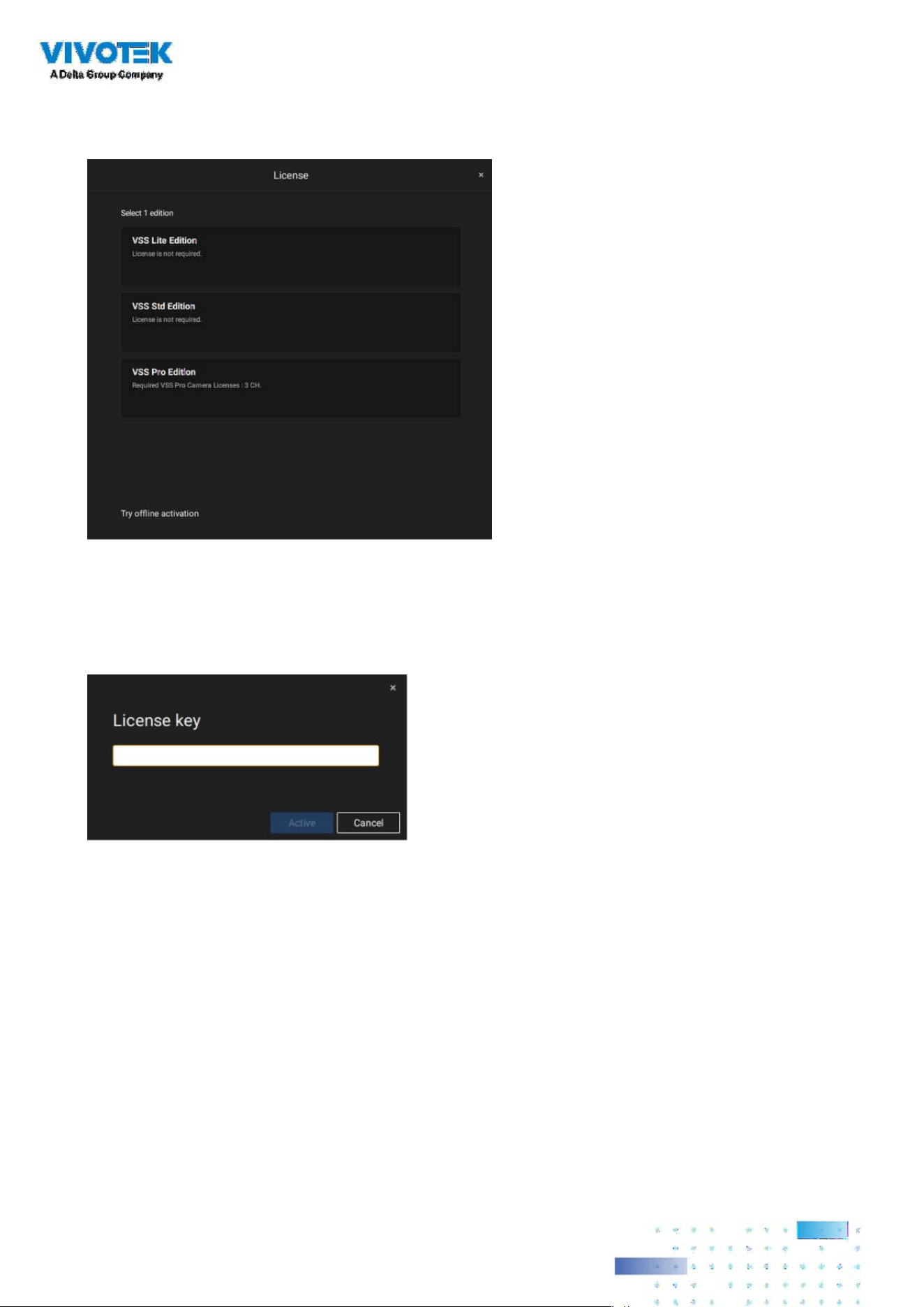
210210
If the purchased license is required, a license key window will pop up after you select the edition.
Type in the license key you purchased and acquired from your distributor or VIVOTEK local sales
and click Activate, then the activation process with the licensing server will begin.
If the purchased license is not required, click on the edition, and the activation
process with the licensing server will begin.

211211
If you select Activate with license key, slect the station where the license key will apply to.
Enter the license key.
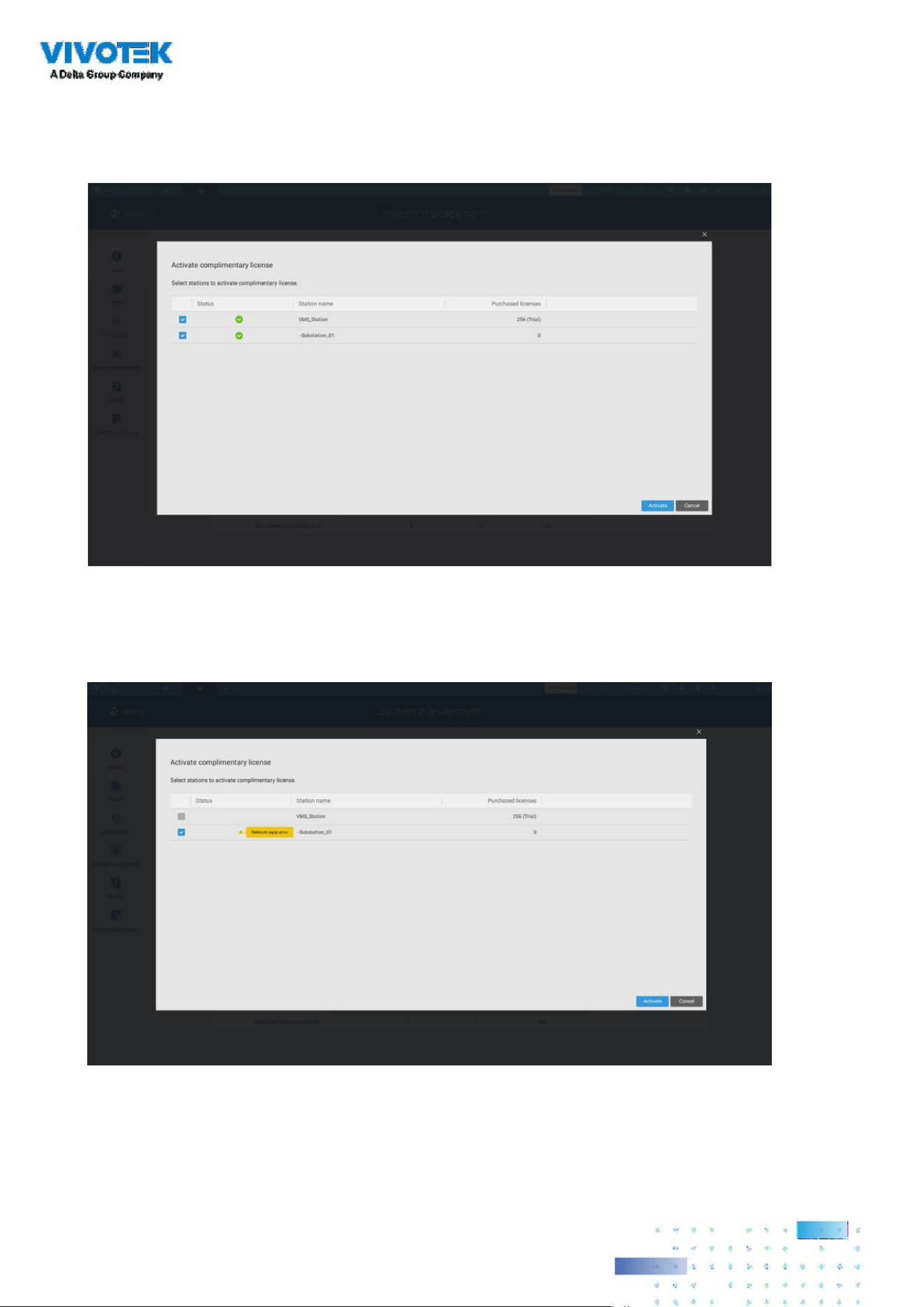
212212
When successfully activated, the associated check circles will turn grren. Click the Close button
on the upper right of the screen.
If you fail, status bar will turn yellow with an alarm icon, and the possible reason will be listed.
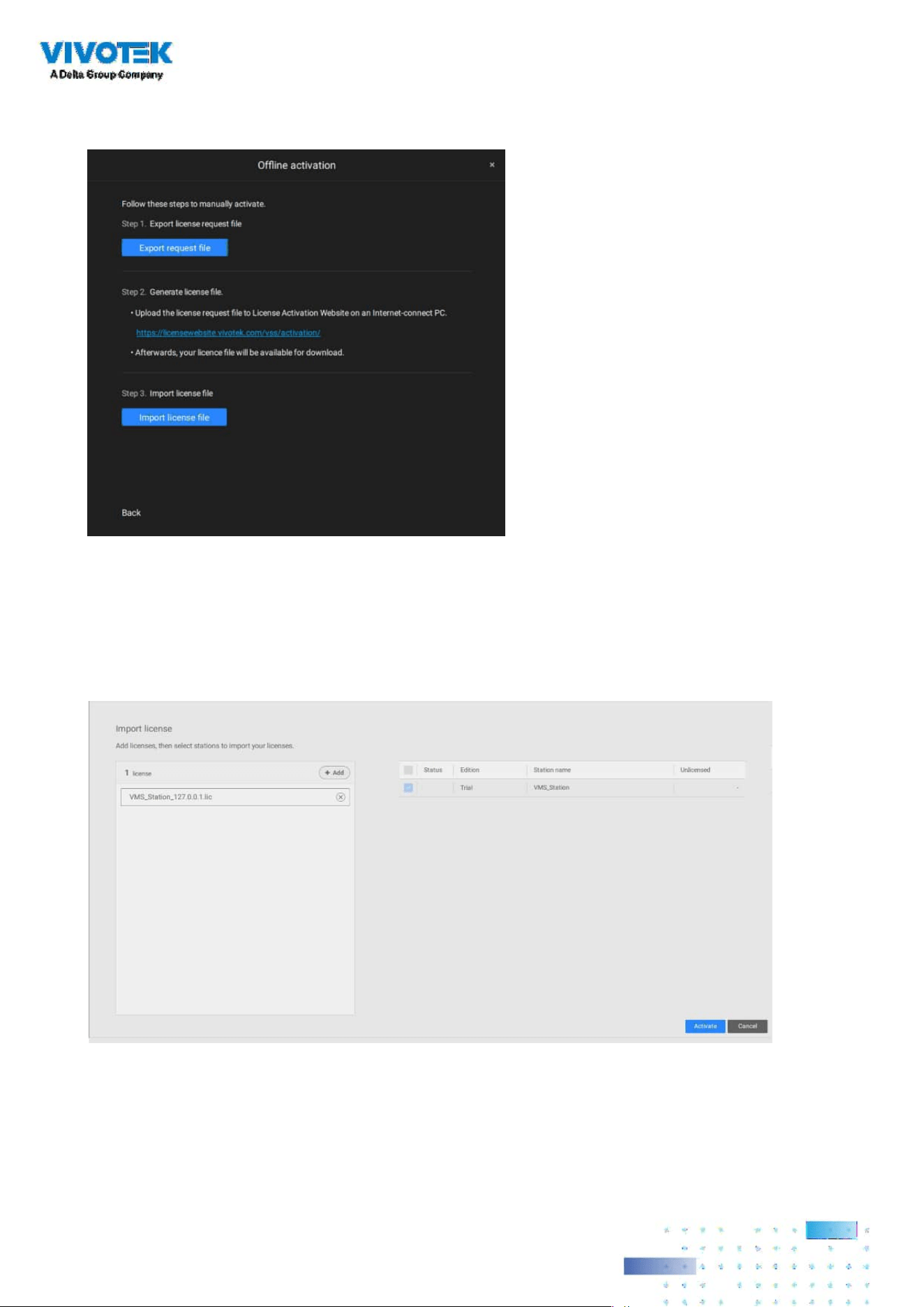
213213
If your VSS station has no Internet connetion, Click Try oine activation.
According to the instructions on screen,
1. Export licensse request le.
2. Select the station to export the license request, click Export, and select the destination of the
request le.
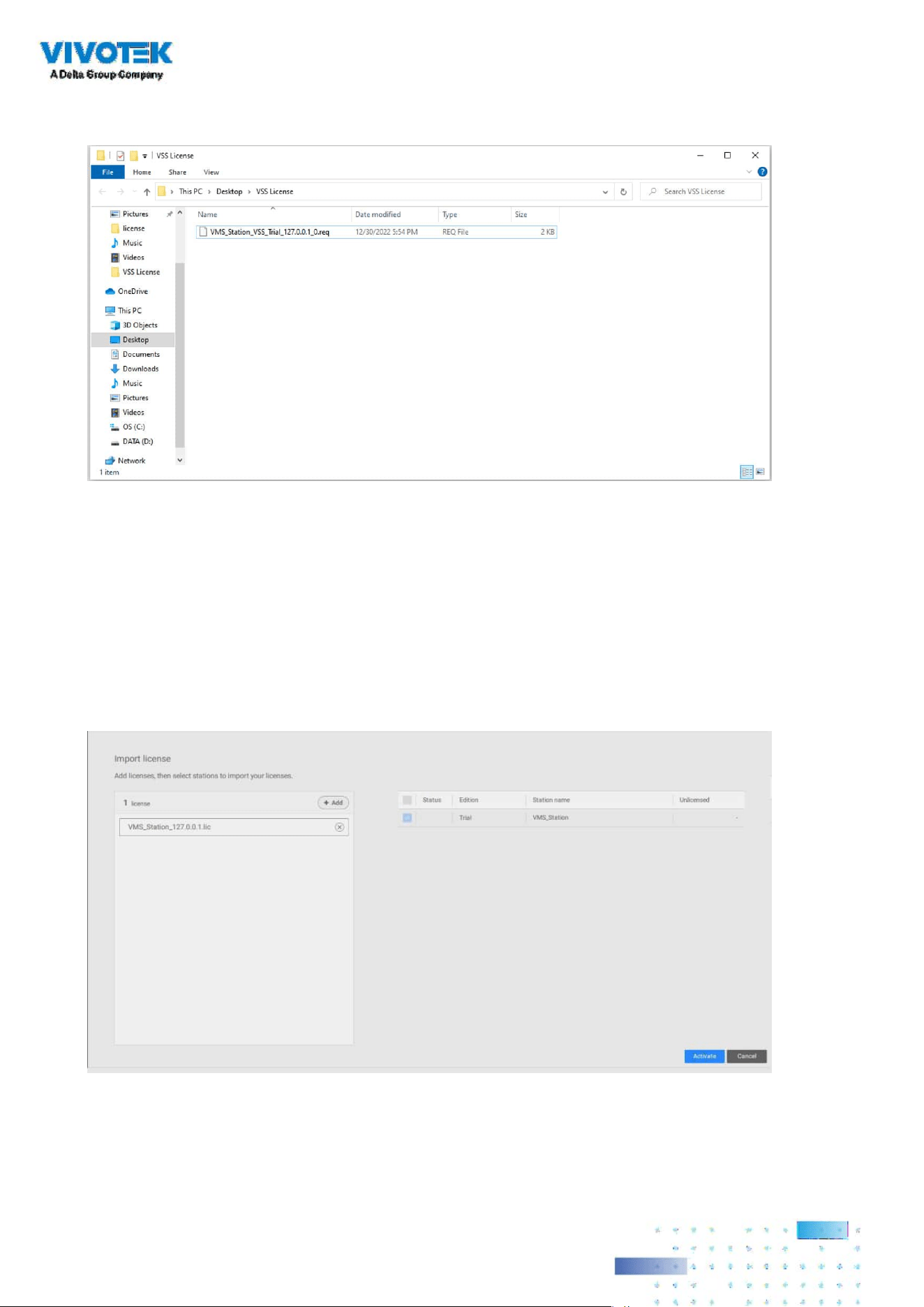
214214
The REQ le looks like the following.
3. Find a computer to upload the license request le (.req) to VIVOTEK's license activation portal
at https://licensewebsite.vivotek.com/vss/activation/.
4. Follow the instructions on the license activation portal to generate and download the license
le (.lic). Upload or copy the le to your VSS station.
5. Go back to the oine activation window on your VSS station, select Import license le, click
Add to select the license le (.lic) and click Activate.

215215
5. On your VSS station, select import license le, click Add to select the license le (.LIC le), and
click Activate.
License Protection Mechanisms
The software license is verified by identifying the unique characteristics of the user's PC. The
license le contains data on the VSS station’s basic hardware conguration (Motherboard, CPU
Processor, Graphics Card, RAM, and Network Card). The software license will become invalid if the
user changes any three of these essential hardware components.
NOTE:
• Keep a copy of the license key, license request le(.req), and license le (.lic) for future reference.
• Without sucient licenses, the camera live view, playback, and recording services will stop in 14
days.
• VAST1 license, VAST2 license, and dongle license are incompatible and unable to use as the VSS
license.
• An identical software license applies to VIVOTEK and ONVIF cameras. You do not need to
activate two dierent kinds of software licenses.
• If the VSS server application is removed and re-installed, the number of licensed channels
remains intact.
• Users can upgrade the VSS edition by activating appropriate edition licenses. Downgrading the
edition via the license is not supported.
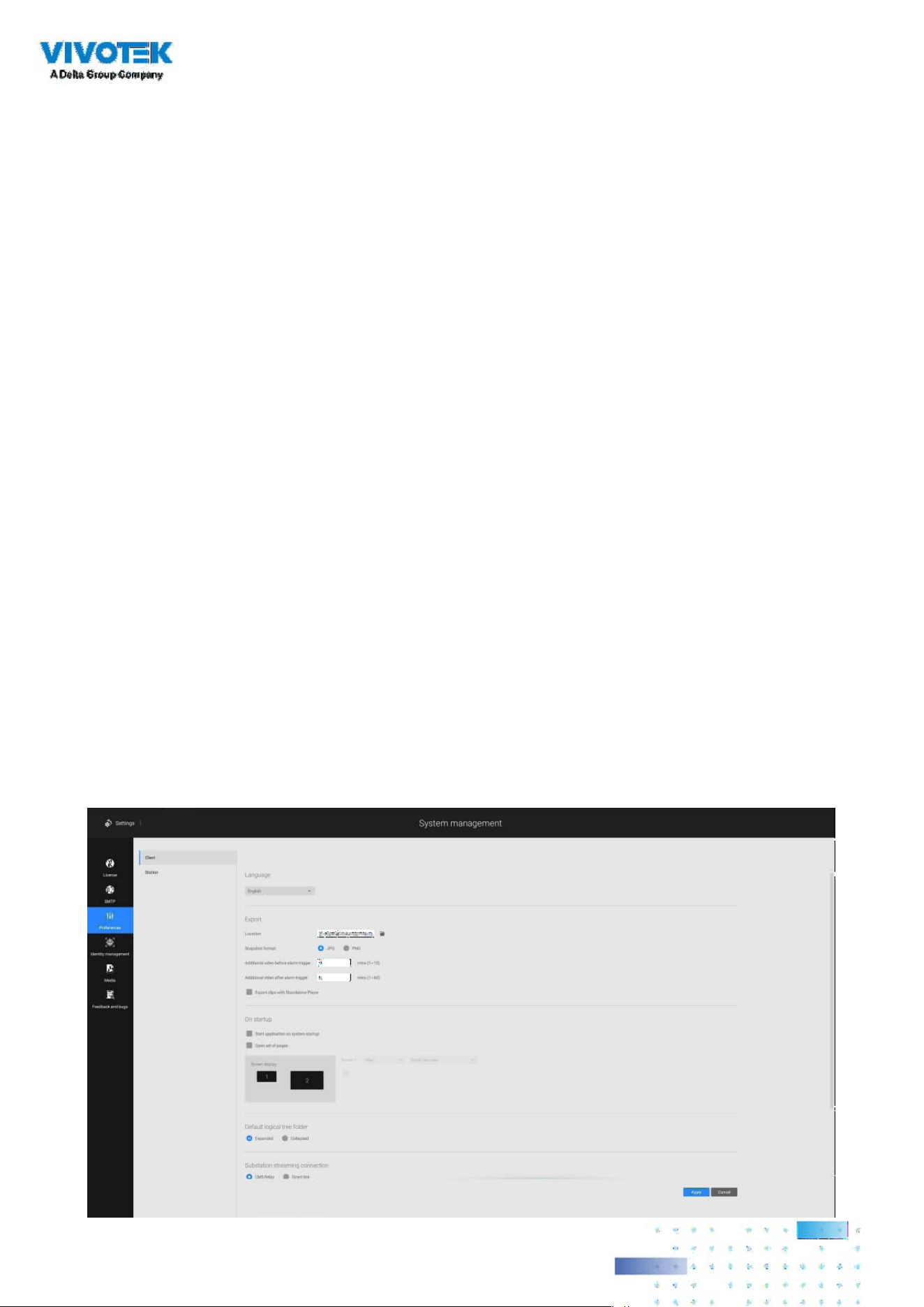
216216
Chapter 4: Settings
4-1. Settings > System > Preferences
The Preferences page for VSS client and Station sides allows you to congure the following:
Client Setting:
1. Select the UI text language.
2. Congure a default destination for exporting video, snapshots, or conguration backups. The
default is "C:\Users\Public\Documents\VIVOTEK Inc\VAST\Downloads". You can change the
media format via the checkboxes.
3. Select the format for the snapshot as either JPG or PNG.
4. You can select the length of the Alarm-triggered videos by specifying pre- and post-alarm
recordings.
5. You can designate the VSS client interface to automatically start once the client computer is
started.
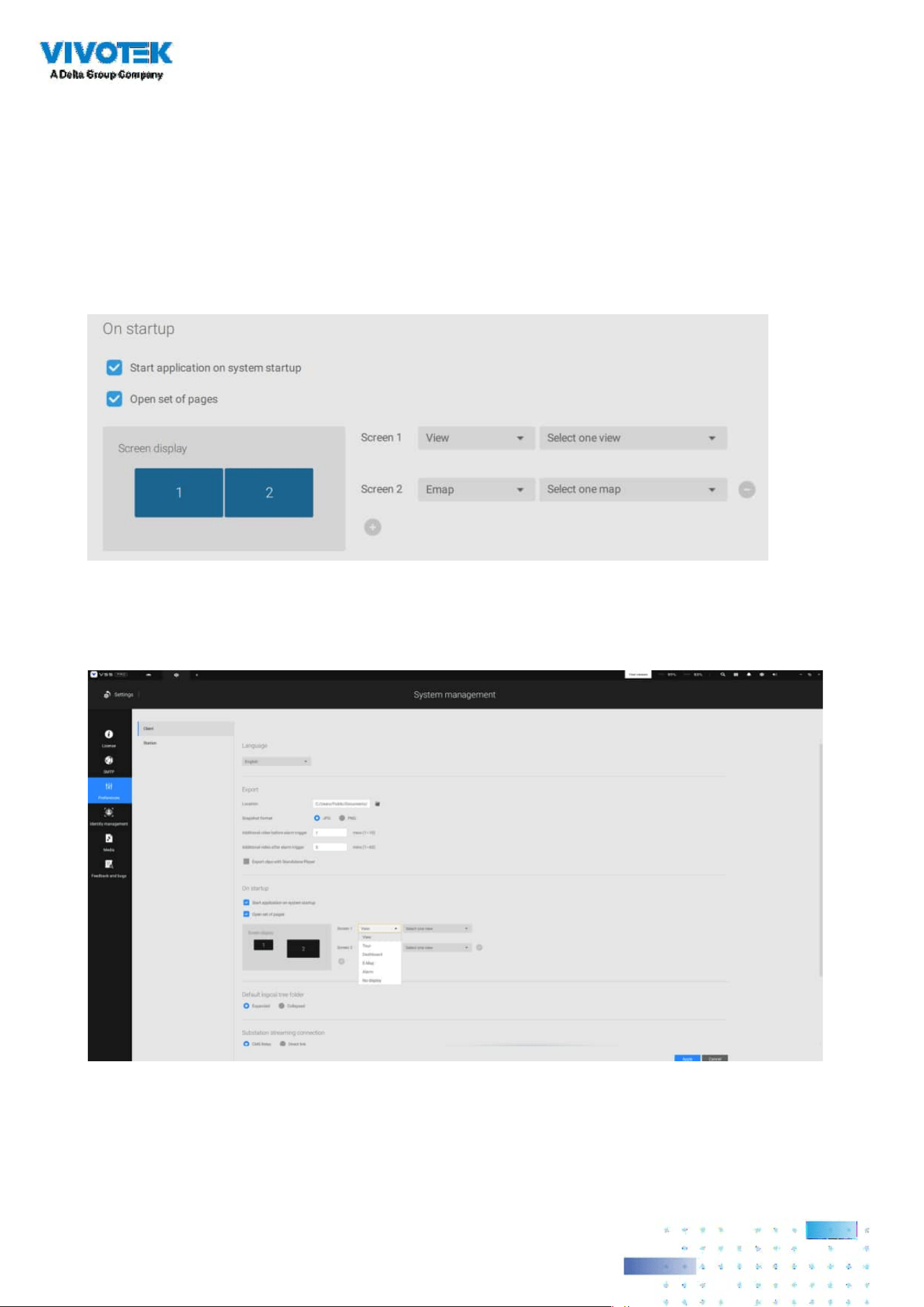
217217
6. The default Live view, which may span across multiple monitor screens and display Live view,
Tour, Dashboard, E-Map, or Alarm prompts. The precondition is that you should congure one
or many views before making the Startup conguration.
Below is a server/client with dual monitors, you can select one view to be displayed on one
monitor, or place an E-Map on another.
Click the Apply button for the conguration to take eect.
If you plan to have one monitor to be working for other purposes, select No display for this
monitor.

218218
Below are the additional system parameters:
Default logical tree folder: Expanded or collapsed.
Substation streaming connection: CMS Relay or Direct link. Direct link allows a client station to
access camera live stream from the sub-station under a CMS main station. CMS relay
-
A client
accesses live stream via the CMS main station.
Show system warning: When
a client computer is running short of virtual memory, a warning
will display.
Image resamplig method: Select a resampling methold if the need should arise.
Click the Apply button for the conguration to take eect.

219219
Station Setting:
1. Deep Search - Only users with an admin account can see and manage this setting. Turning it
on allows VSS to utilize and store person attributes and full-body/face images for improved
people search. The stored data will be recycled with recordings based on the recording
recycle setting. Before turning it on, ensure compliance with regional privacy laws and obtain
consent from individuals for using their attributes and images if required. Once the Deep
Search function is turned o, Deep Search cannot function, and the Deep Search icon on the
view cell for the VIVOTEK AI cameras will be switched to the Smart Search icon. Note that the
setting will not be applied successfully if the software versions among clients and servers are
incompatible.
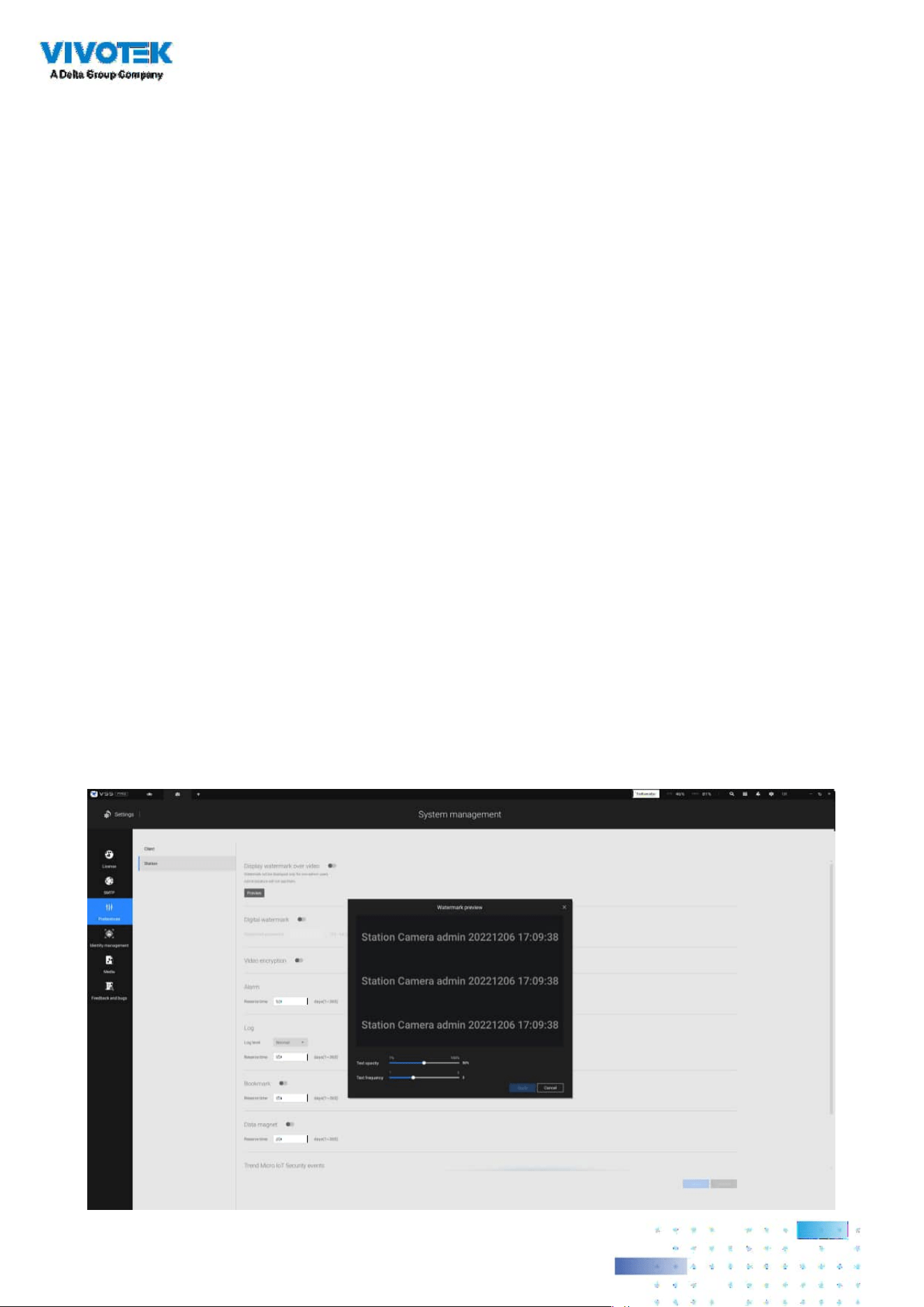
220220
2. Display Watermark over video - Administrators can select to display watermarks on the video
feeds of the VSS clients. The opacity and display frequency can be adjusted.
Encrypted watermark for authentication:
To ensure your video is authentic and has not forgerized, adding an encrypted watermark on
the data stream can be achieved with a customized password. You can use the Standalone
Player to verify which frames in the video footage have been tampered with.
If enabled, the following will be displayed: camera name + substation name + VSS user name
+ user computer current time
. The purpose of watermark is to preserve evidence if the video
screen is recorded using cell phones or other devices.
Station Setting:
3. Digital watermark - To prevent forgery of recorded or exported video clips, and to prove the
validity of surveillance evidence, digital watermark can be appened to recorded video.
Note that only non-administrator users will see watermarks.
To enable text watermark, use the slide button. Use the Preview function to tune the text
opacity and text frequency display on screen.

221221
To enable Digital watermark, enter a password that is at least 16 characters long. Once a valid
password is available, you can click the Apply button to preserve your setting.
When you export a video clip, a StandalonePlayer is generated with the exported les.
Right-click on the StandalonePlayer screen to display the "Verify watermark" function.
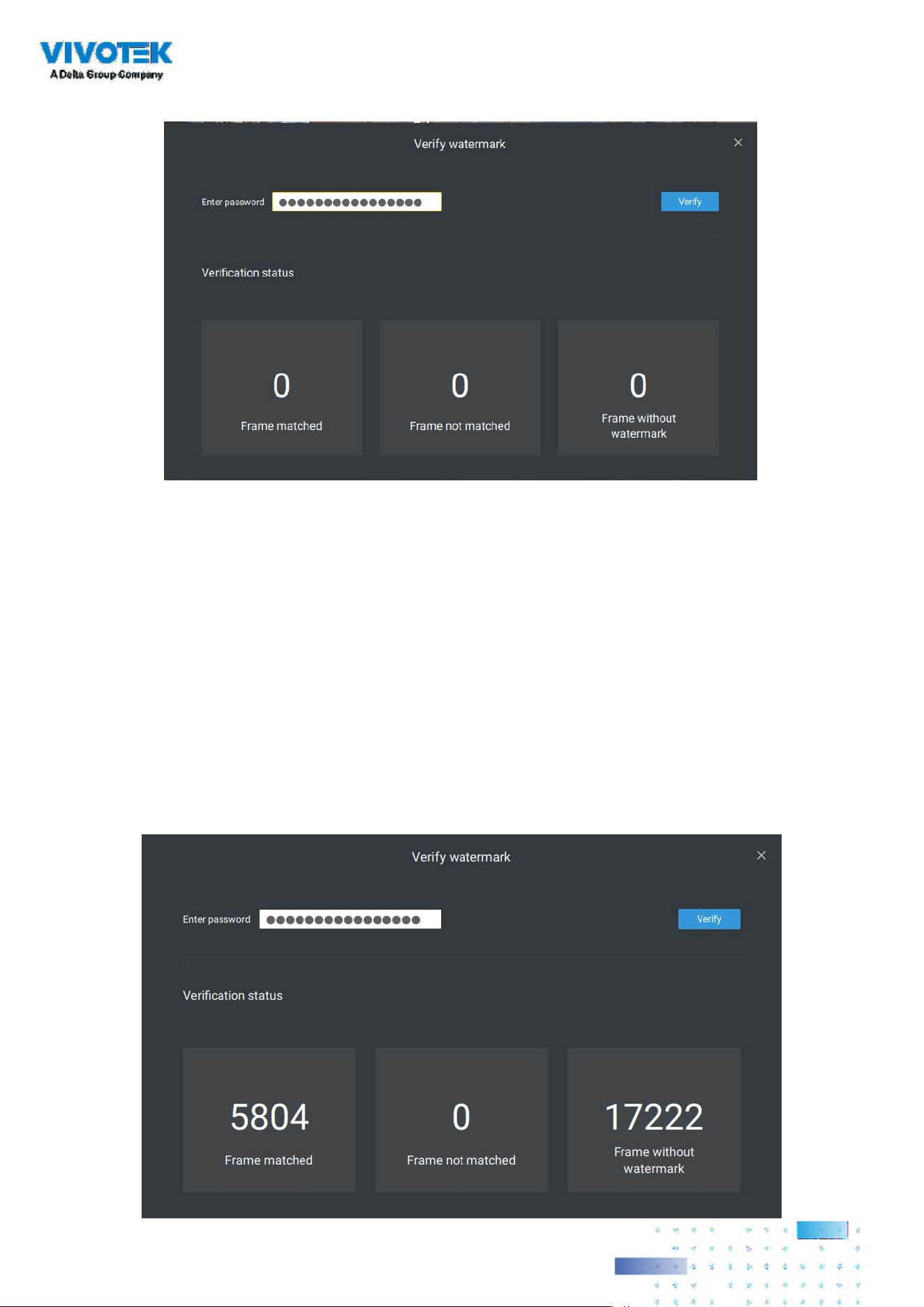
222222
The Verify screen will display. Enter the pre-congured password. Click Verify.
The below result shows that the video is authentic and has not been forgerized.
Frame matched: Your video was exported with the digital password, and you entered the
correct password.
Frame not matched: Your video was exported with the digital password, and you entered the
incorrect password.
Frame without watermark: a. If your video wasn't exported with the digital password.
b. If your video was exported with the digital password, and your video has been tampered.
If the numbers in the "Frame not matched" or "Frame without watermark" are not zero, it
means your video is probably not correct.

223223
4. Alarm - Reservation time: Congure the preservation time of the alarms and logs. Note that
some alarms can be triggered with recorded videos. Conguring a preservation time can help
reduce the use of storage space on server.
5. Log: Use the menu to congure the preservation time of the Major, Normal, or Minor logs.
6. Bookmark: Congure the days of preservation for bookmarks.
7. Data magnet: Congure the days of preservation for data related to Data Magnet.
8. Trend Micro events: Congure the days of preservation for events related to cyber security.
9. Database: Congure the destination of the database folder. The database contains information
for system log, alarms, Bookmarks, data magnet, VCA reports, POS transaction data, snapshots,
and Trend Micro IoT security information.
Recording Encryption - Recording encryption allows users to encrypt the recording videos
with password protection. Playing the encrypted video on the original VSS server does not
require entering the password.
Playing on other VSS servers or disabling recording encryption will require entering the
password. The password is not able to recover or reset if you forget the original password.
Encrypted video les (.3gp) cannot be played in other media players. Please use the following
two methods to view the video les outside the original VSS server.
1. Import to other VSS servers as Local DB
a. Copy the entire recording folder from the original VSS server to another location.
b. Enter Settings > Recording > Local DB in another VSS server.
c. Add local DB with VMS/CMB backup type.
d. The recording will be mounted as a local DB and listed sub-tree.
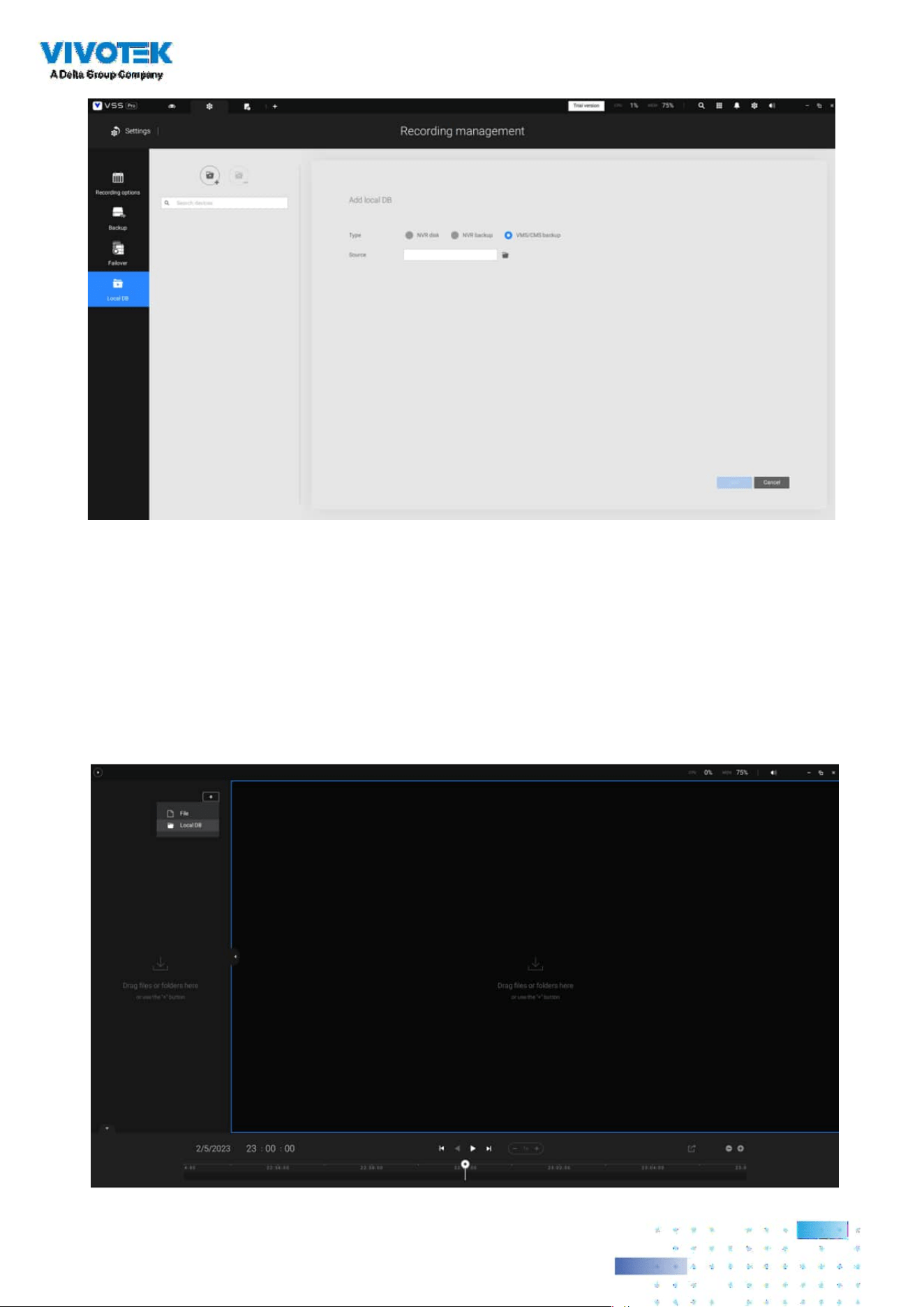
224224
2. Import to VSS Standalone player as Local DB
a. Copy the entire recording folder from the original VSS server to another location.
b. Launch Standaloneplayer.exe in C:\Program Files (x86)\VIVOTEK Inc\VAST\Client\VSS\
c. Add local DB with VMS/CMB backup type by dragging the entire recording folder or using the
“+” button.
d. The recording will be mounted as a local DB.
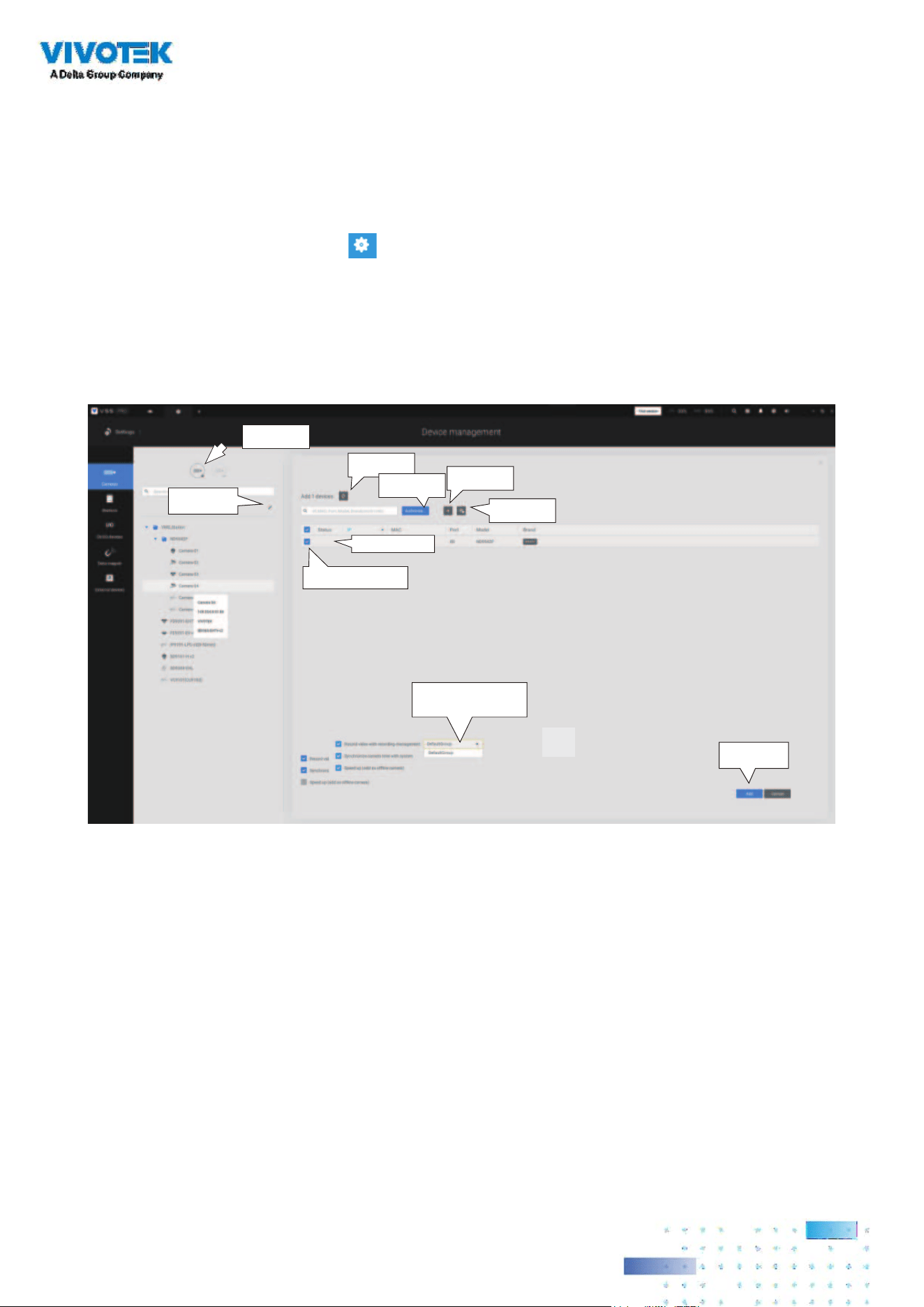
225225
4-2. Settings > Device > Cameras
In addition to the add device process during the initial setup, you can add more cameras or
arrange the device list in Settings > Cameras.
Below are the locations of the functions for adding devices to the VSS server.
Start Scanning
Import CSV
Manual Add
Refresh
Authorize...
Click to select or deselect
Password protected
Edit device list &
Logical folders
Final confirm
Camera Options
Note that you must know the credentials for password-protected cameras. You will not be
allowed to enlist cameras that come with unknown credentials.
For cameras outside the local network, you can manually enter its IP address, or use a pre-
congured device list to automatically introduce new devices.
If all devices come with the same credentials, you can select these devices and click Authorize to
enter the credentials.
Record video with recording management: You can decide which recording group to record the
videos to using a pull-down menu.

226226
Streaming URL
This is an optional feature. You can enter a camera's IP address to add a camera's
RTSP streaming for live view and recording, and playback. The feature enables the
support for obsolete models.
To insert a camera using the URL-like command,
1. Select the camera Brand as "RTSP."
2. Enter the camera's IP address.
3. Enter the camera's MAC address as printed on the camera label, or one found by
the Shepherd utility.
Retrieve RTSP streaming on specific port: The default port for RTSP streaming is 554.
If you want to change this port, please check this item and fill in a desired port number.
Speed up (add as oine cameras): Normally, you should have all the credentials for the access
to all network cameras. However, in the condition that you add a large number of cameras using
the "import devices from device list" function, you can temporarily use this speed up option to
add these cameras.
This appllies when the cameras have not been installed (have been prepared for installation), but
you want to add them to the camera list. When cameras have all been installed, VSS will attempt
to connect with them.

227227
6. For administrators who need to synchronize device time with a NTP server, he can
deselect the "Synchronize camera time with system" checkbox.
4. Enter "554" in the Conguration port.
5. Enter "live.sdp" in the URL field, as this is part of the original RTSP streaming
command: "
rtsp://172.18.204.58:554/live.sdp". If streaming stream #2, enter live2.
sdp.
6. Select a preferred protocol.
Only the live view, recording, and playback functions are supported if thus
connected. All other functions are not supported, such as auto streaming size or
changing to another video stream. Neither are camera DI/DO supported.

228228
4-3. Logical Folders
The Logical Folders allow you to re-define the logical relationships between the real-world
deployment and the physical devices (cameras). For example, according to your deployments,
you can designate several cameras to be listed under a logical sub-directory named as "Building
A," and the other cameras into "Building B." In this way, you can re-arrange your cameras and
devices on a tree view that is geographically more accurate.
1. On the Settings > Cameras page, click the Edit button.
2. Click on the Add a folder button.
3. Enter a name for the folder, e.g., 1st oor, 2nd oor,... according to your needs as shown below.
4. Repeat the process to create more folders.
5. Make sure you enlisted all cameras in your deployment. You can start moving cameras to
specic folders. Click on the Move Selected Items button.
To create logical folders,
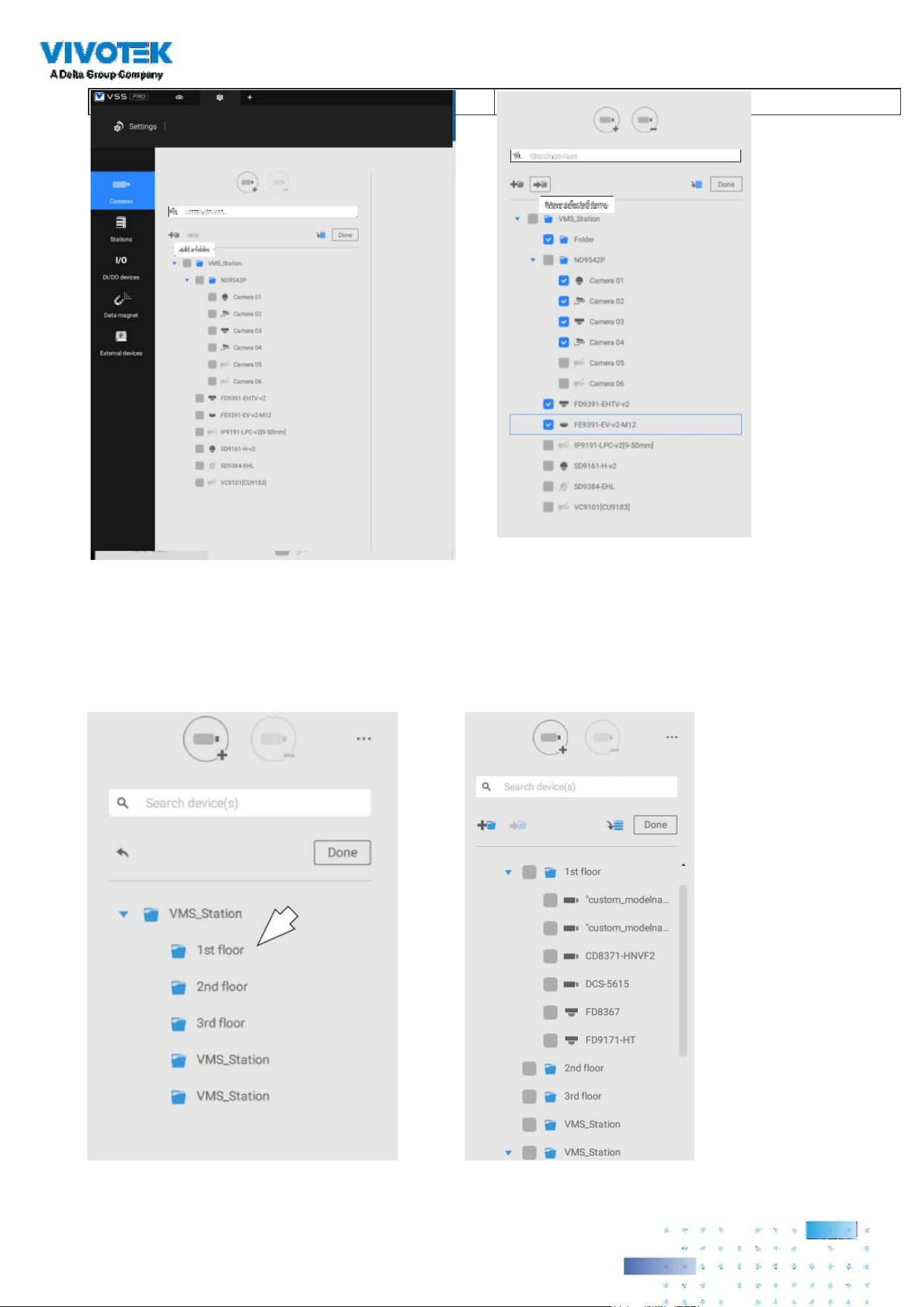
229229
6. Select a logical folder to move the devices to. The selected devices will be listed under the
logical folder you selected. Repeat the process to move cameras to each logical folder.
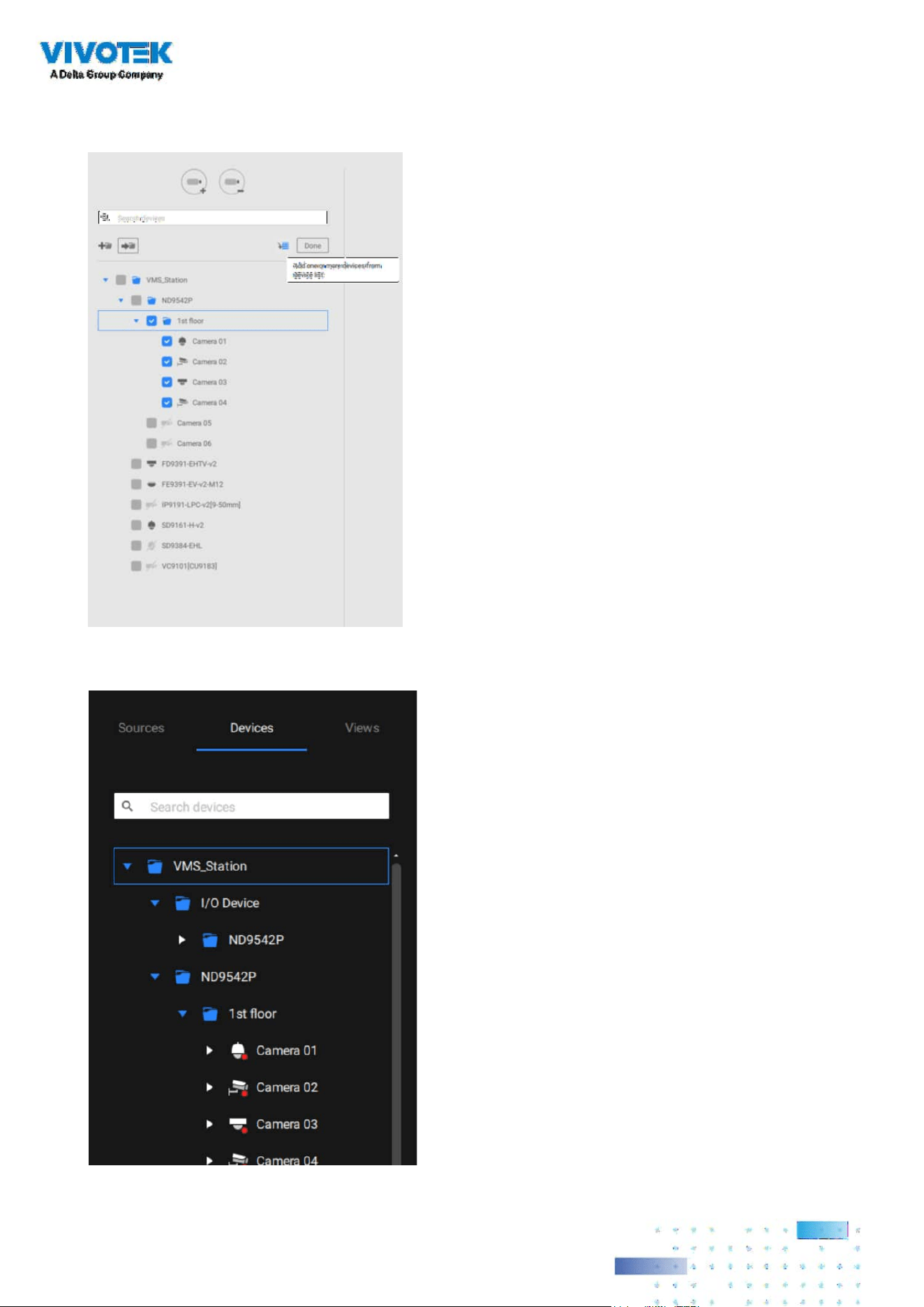
230230
You can also use the add device button to select devices from the list and move them to a
specic folder.
Return to live view, and you can see the conguration change takes eect.
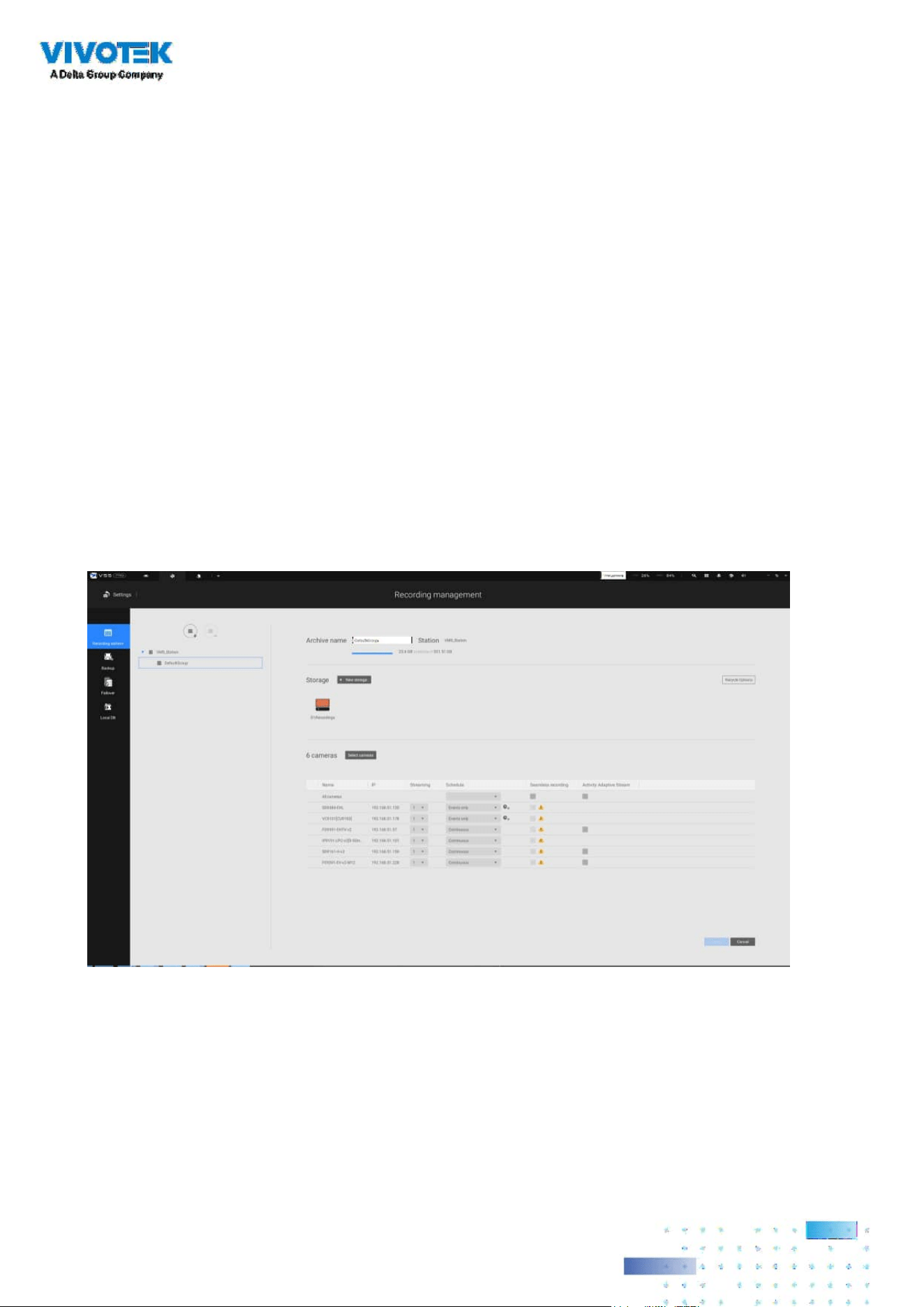
231231
4-4. Settings > Recording > Recording Options
Click Settings > Recording options. The Recording options window will prompt.
You can congure recording schedules or select the storage options, including the conguration
of an external NAS storage. You can designaate a recording folder of your choice.
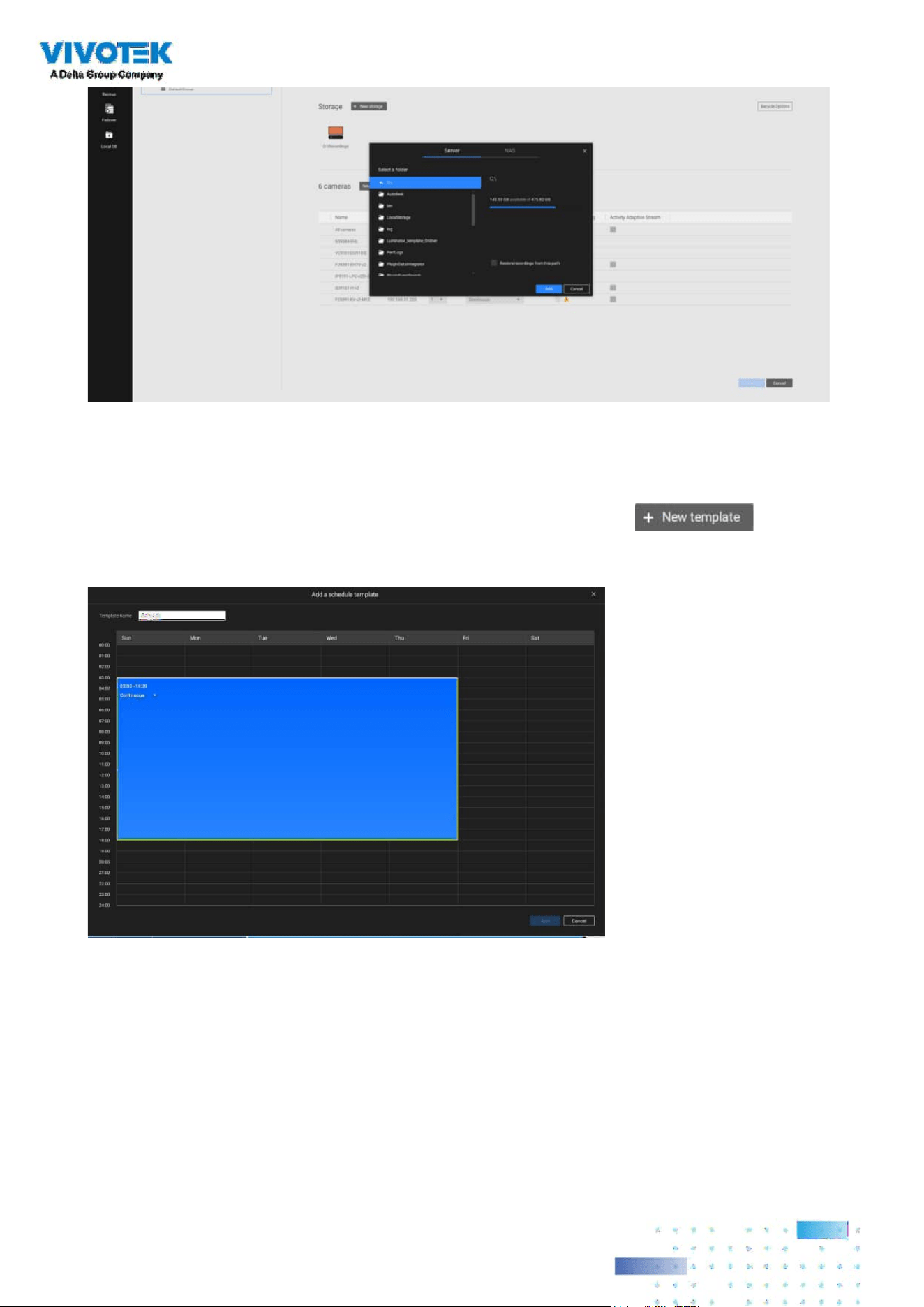
232232
Click and hold down on the time cells, and drag the mouse to include the time span of your
preferrence. The minimum selectable unit is half an hour. You can select multiple time spans on
the template. Enter a name for the template, and click Add to save your template.
The same configuraion window apply to both the Schedule template and the customize
schedule windows.
Make sure a Schedule mode is selected when you leave this conguration step.
Click on any of the options on the Schedule panel for a recording option: Continuous recordings,
Events only, None, or Customize.
You can manually create a recording template using the New template
button.
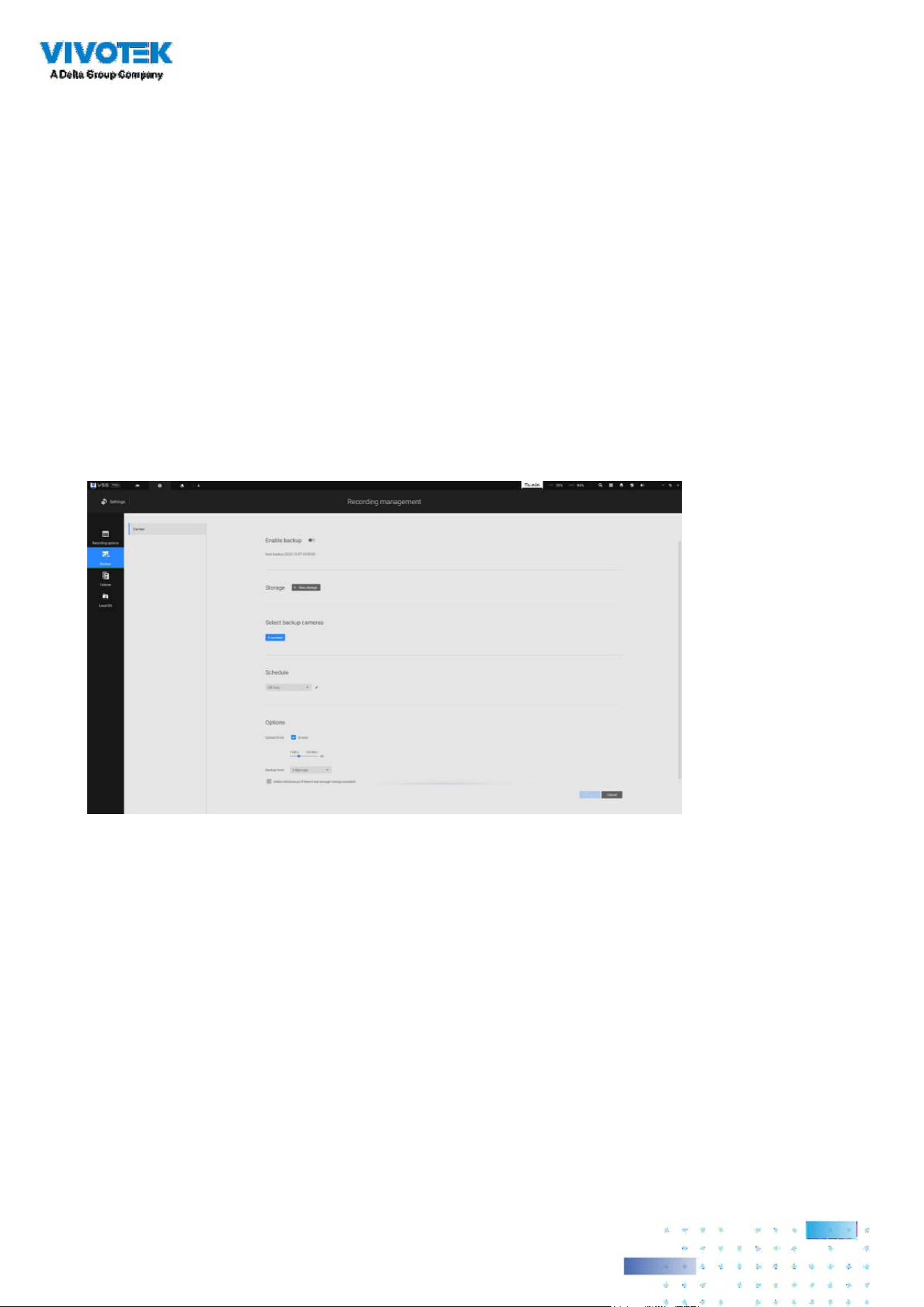
233233
4-5. Settings > Recording > Backup
The Backup function allows you to regularly back up the video recordings of one
or multiple cameras to local hard disks or a Network Attached Storage device.
Currently, the VSS server does not support backup to external storage devices
such as a storage devices connected via Fibre Channel. VSS supports backup to an
external storage attached through a USB 3.0 connection.
Note that the alarms associated with individual cameras will not be backed up.

234234
To enable a backup schedule,
1. Enable the backup by selecting the "Enable backup" slide switch.
2. Click to add New storage. A configuration window will prompt showing all
accessible storage. Click the NAS tab to enable access to a network share.
3. Select the cameras whose videos will be backed up.
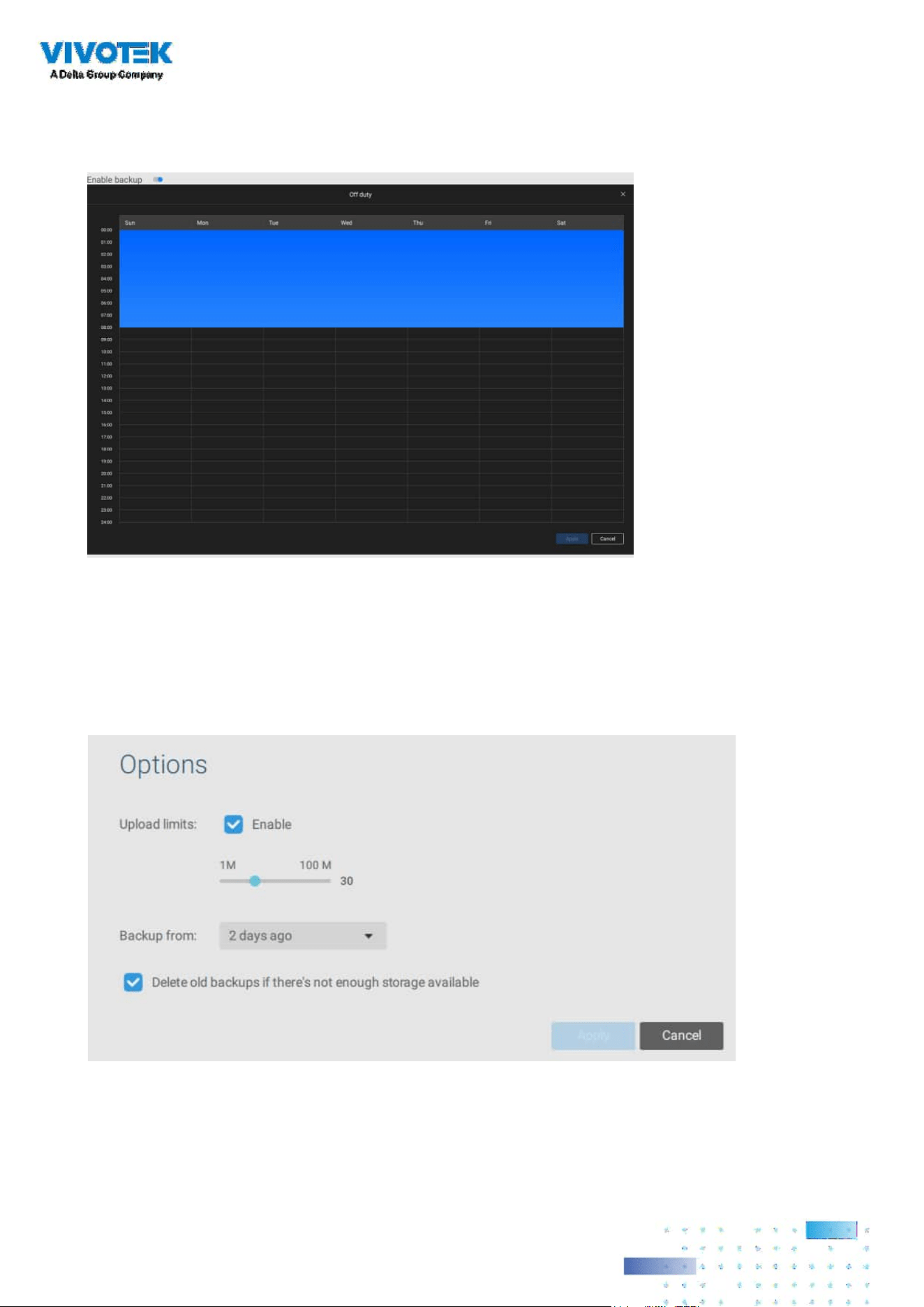
235235
4. Select or congure a new schedule template for the backup process to take place.
You can select a time when the network load is low, such as the off-ofce hours,
to avoid network congestions.
5. On the Options pane, you can configure an upper bandwidth threshold (in
Megabytes) for the backup operation (for all selected cameras/channels).
You can select the extension of time, such as starting from how many days ago,
of your backup task. You can select to remove old backups when you run short of
storage volume.

236236
Storage
By default, VSS will check if there is a D: drive. If not, system drive C: will still be dened as the rst
storage option. Other disk drives in the system and the default storage volume (congured in the
initial setup) will be listed.
You can add a NAS storage's shared volumes as the additional storage option. Enter the
necessary information for access to a network share. Enter and select a NAS path. The share will
then be available for video recording.
Select storage volumes each by a single click.
Click Ready to use to continue.
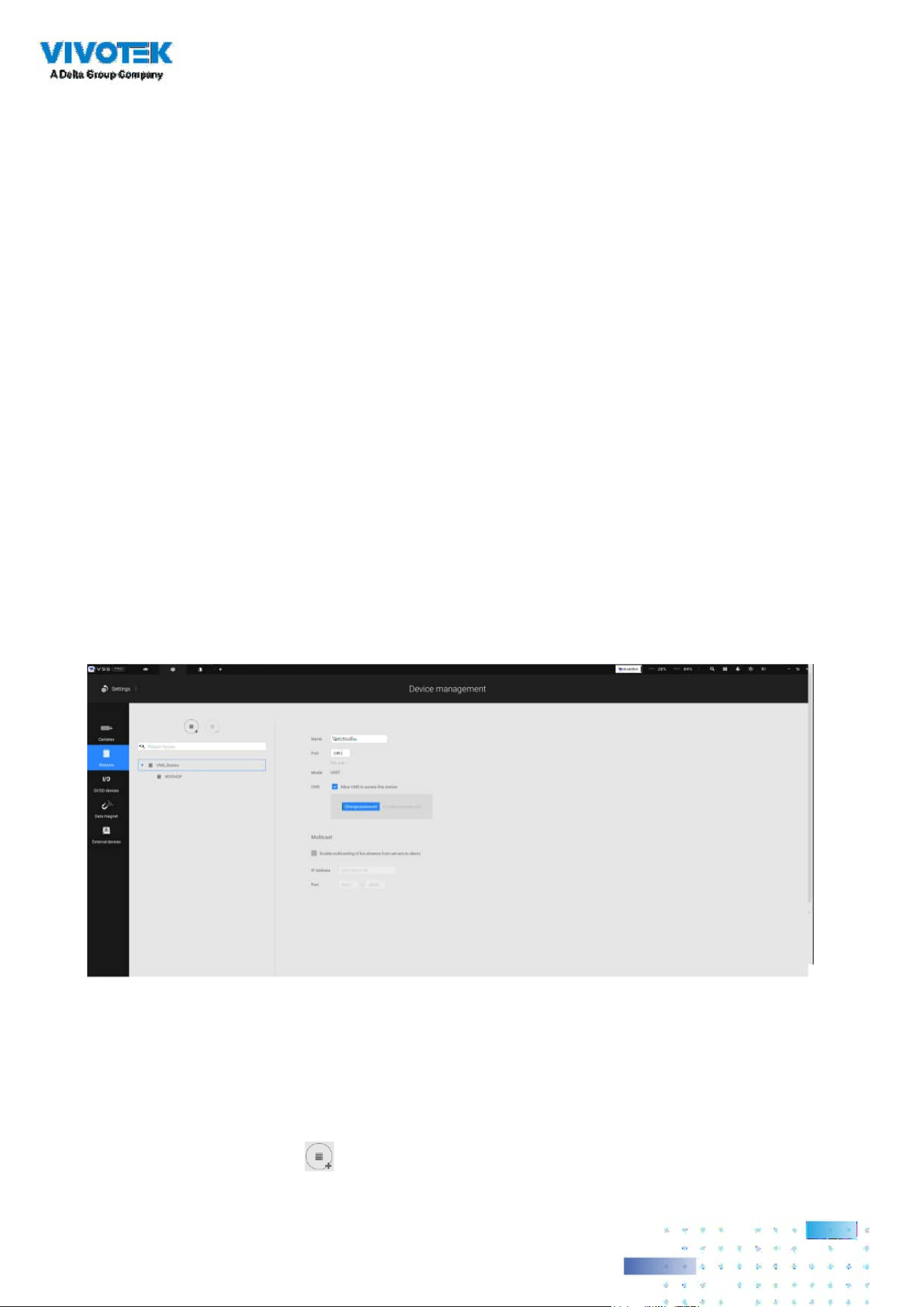
237237
4-6. Settings > Device > Stations
The VSS allows a deployment consisting of multiple VSS instances at dierent locations. A VSS
server can be selected as the CMS (Central Management Server) to manage sub-stations in a
hierarchical structure.
Each individual VSS station manages its own surveillance deployments. To build a hierarchy,
proceed with the following:
1. Open the VSS client on a substation.
2. Enter Settings > Stations.
3. Enter a TCP Port number if your network conguration requires a dierent port.
4. Select Allow CMS to access this station.
5. Click Change password. This password will be used to authenticate the connection between a
CMS VSS server and substations.
6. Click the Apply button.
7. Open the VSS client on the server chosen as the CMS.
8. Click the Add substations
button.

238238
9. You can click the Search button if the substation is reacheable in a local network, or manually
enter the IP address and password for making the connection.
10. Enter the password you configured for the Stations configuration, and then click the
Authorize button.
Click the Apply button for the conguration to take eect.
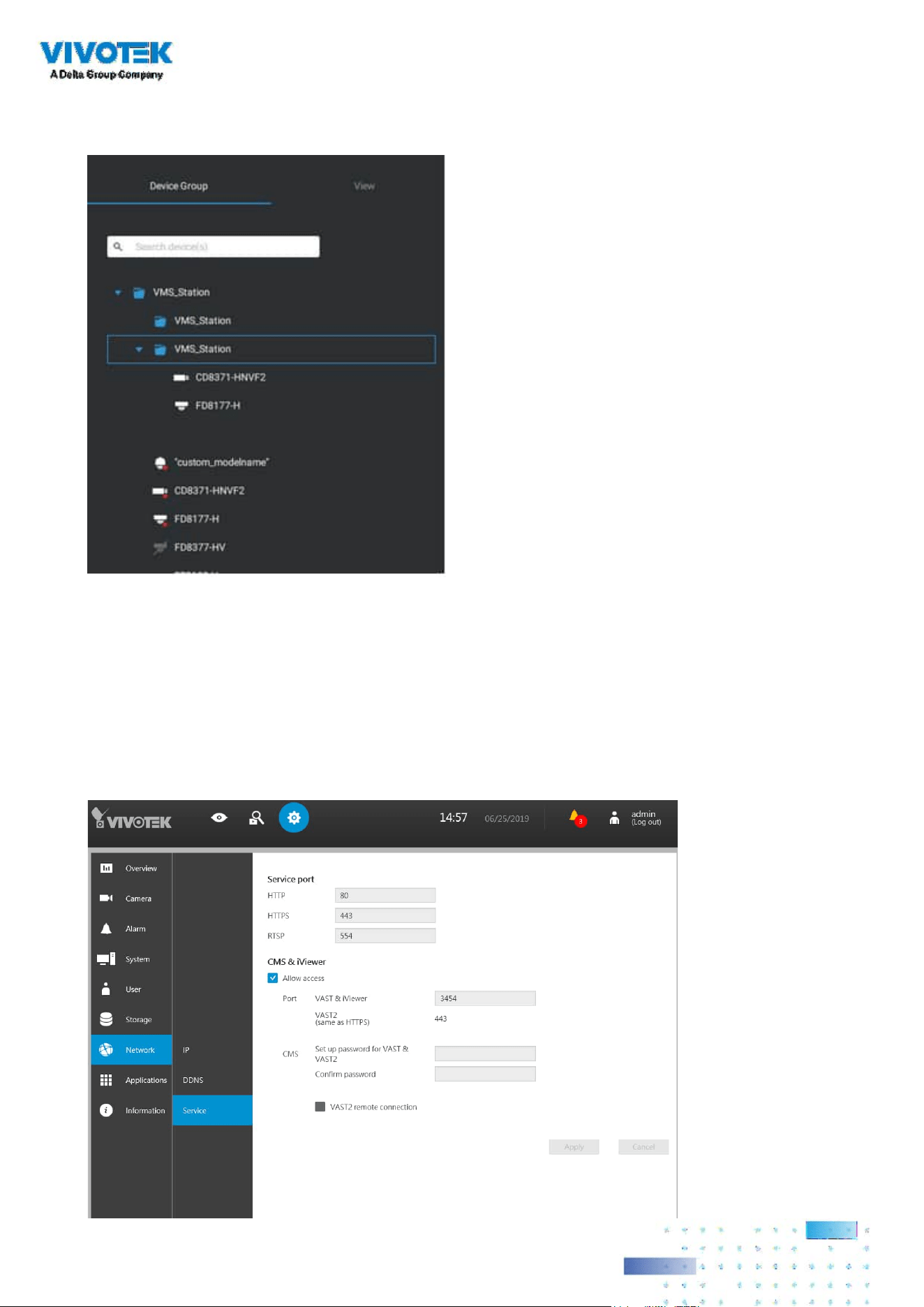
239239
The substations and its subordinate devices should be immediately listed under the CMS station.
You can create separate views to place the substations' cameras.
When you want to enlist an NVR into your configuration, please remember to
enable the access from VSS server in the NVR's Service page.
The connection between VSS and NVR is made via encrypted https.
If the connection port is changed to a non-SSL port, the access from VSS to NVR
will fail. For adding the ND series NVR, use port 443.
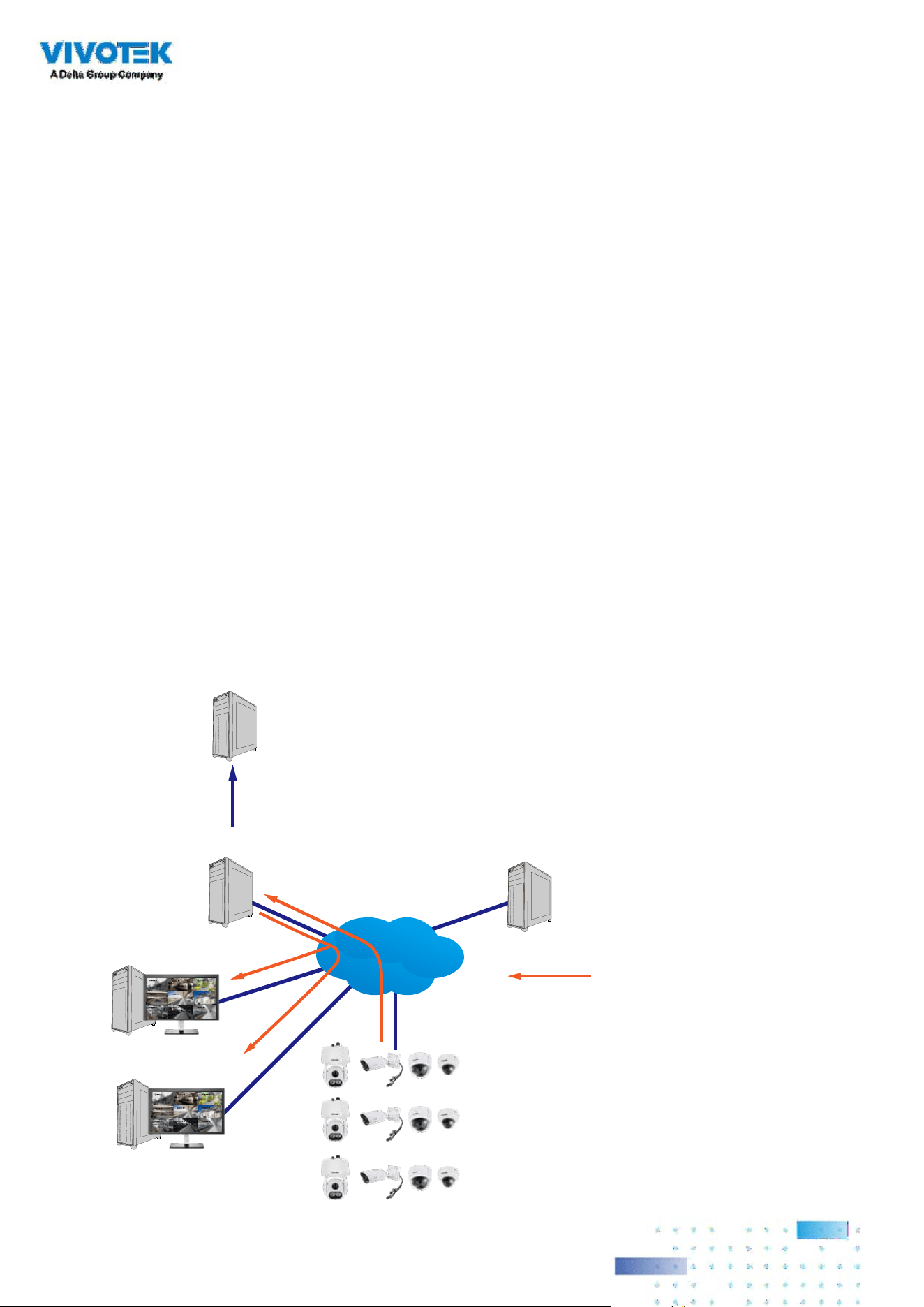
240240
Multicasting
The VSS supports multicasting of live streams from server to clients. If multiple VSS clients
demand live videos from the same camera, multicasting cna help save considerable system
resources.
Multicasting should be enabled on a VSS server and also on individual cameras.
There are prerequisites:
Multicasting is not supported under the following conditions:
* A CMS local client can only access the live stream from the cameras managed by the CMS
server using unicast connections.
* If the need arises for access to cameras managed by VSS sub-stations, the multicasting
conguration should take place on the sub-stations instead of on the CMS server.
CMS VSS
LAN
Video streaming
Camera 01
Camera 02
Camera 03
Camera 04
Camera 06
Camera 05
Camera 07
Camera 08
Camera 09
VSS Client
Camera 01
Camera 02
Camera 03
Camera 04
Camera 06
Camera 05
Camera 07
Camera 08
Camera 09
VSS Client
VSS Substation
VSS Substation
241241
* To enable multicasting, your network infrastructure must support the IP multicasting
standard IGMP (Internet Group Management Protocol). Your server and clients should be on
the the same network segment.
* Multicasting is only possible for live streams, not applicable to the recorded video or audio.
* Multicast streams are not encrypted, even if the the recording server uses encryption.
* The IPv4 multicast address range is: 224.0.0.0 to 239.255.255.255.
* A layer 2 network switch that supports IGMP is required in the conguration.
* If the streaming connection for a sub-station is configured as CMS Relay, you should
congure the multicasting settings on the CMS server.

242242
To enable Multicasting on a VSS server:
1. Enter Settings > Device > Stations.
2. Single-click to select a server for which you want to enable the Multicasting.
3. Click the checkbox to enable the conguration and enter the multicast address.
4. Click the Apply button.
Starting the Multicasting service will restart the VSS server.

243243
To enable Multicasting on a camera:
1. Enter Settings > Device > Cameras.
2. Single-click to select a camera for which you want to enable the Multicasting.
3. Click to select the Multicast tab.
4. Click the Multicasting slide button.
5. Click the Apply button.
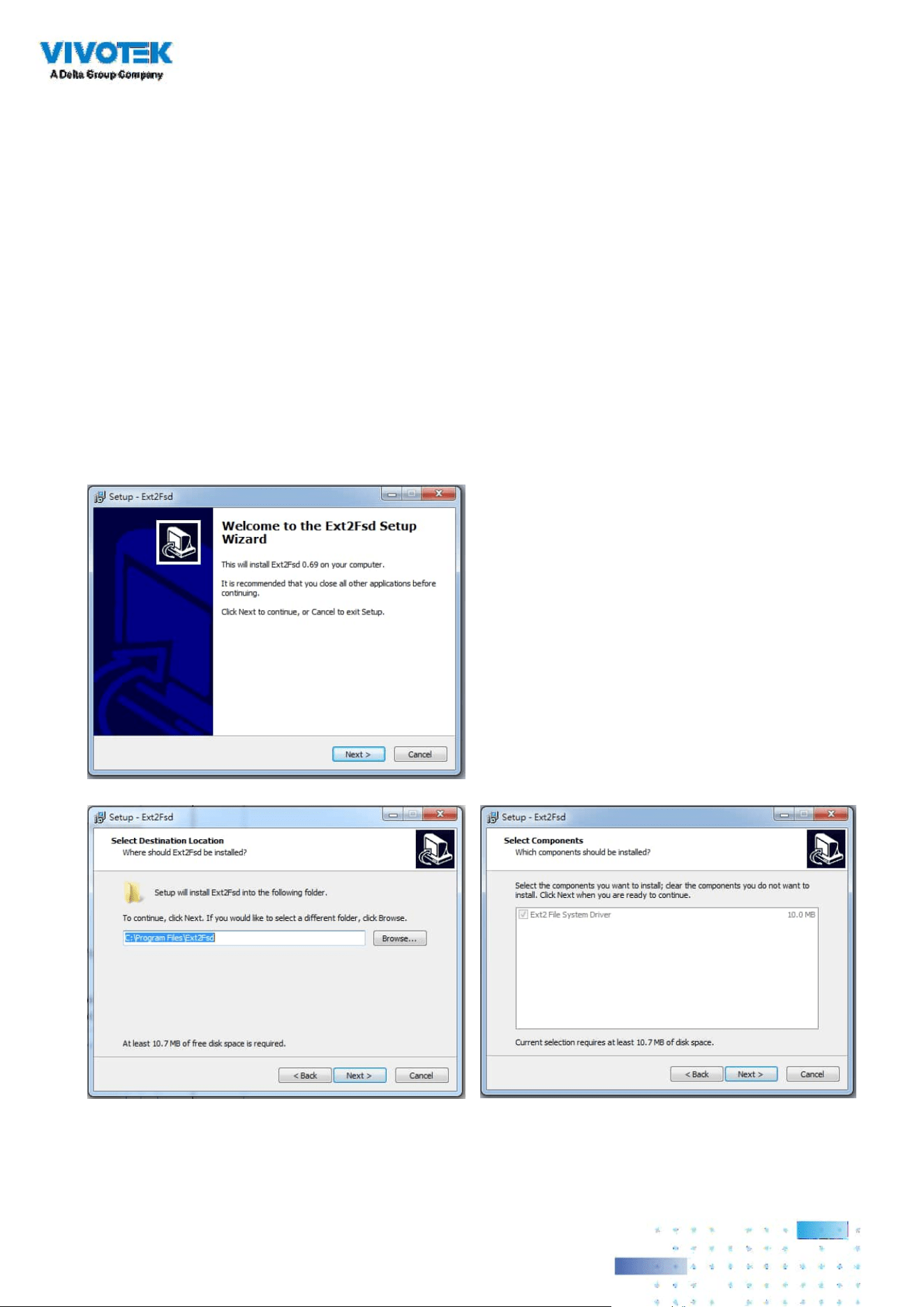
244244
4-7. Settings > Device > Local DB
Since some of VIVOTEK's NVRs run on Linux, you have to install the Ext2 File System Driver for
Windows to access the recording les from a NVR hard disk.
The le system driver can be found here: https://sourceforge.net/projects/ext2fsd/?source=typ_
redirect
Run and install the Ext2fsd-0.xx.exe. Follow the onscreen instructions to complete the
installation.
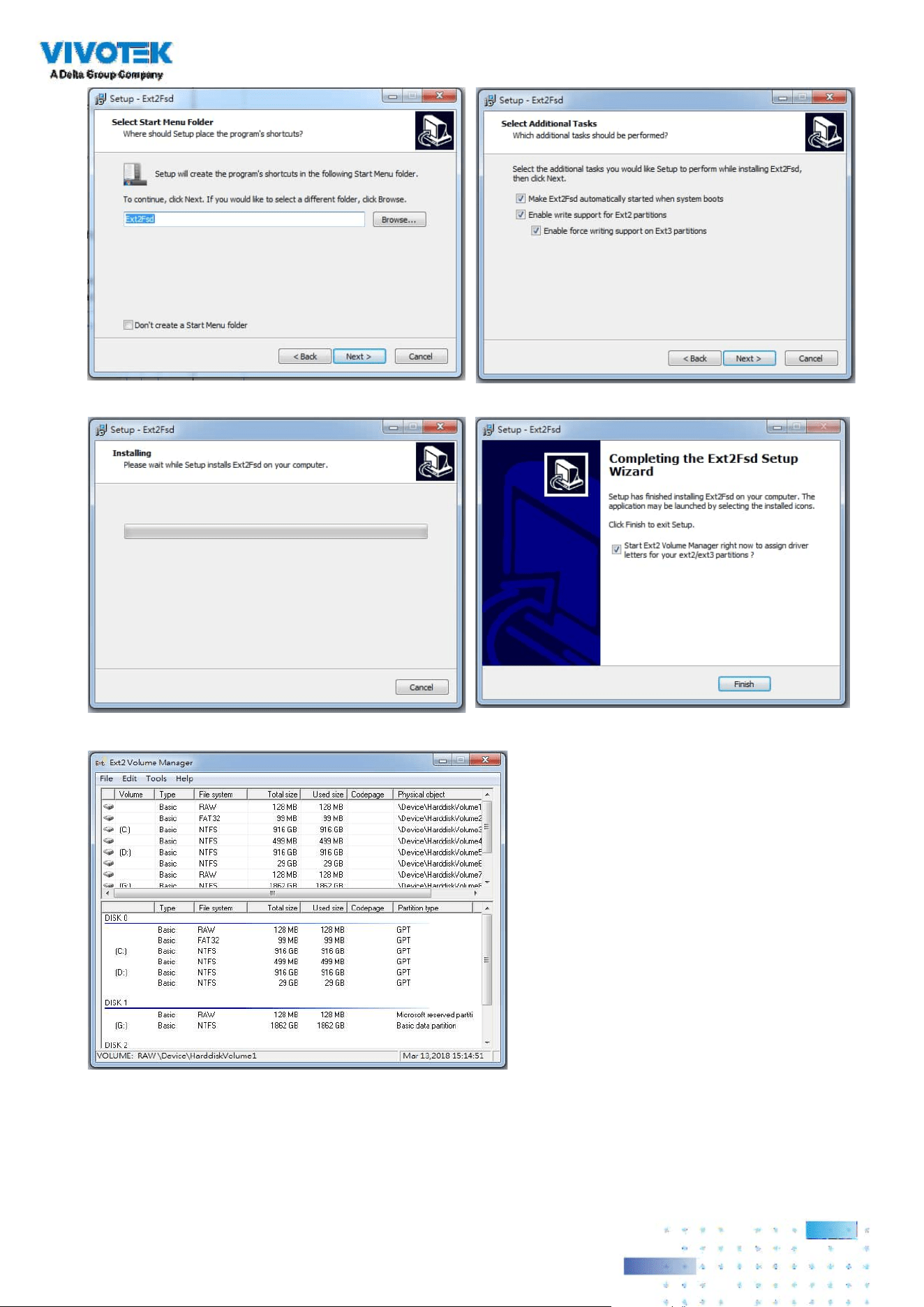
245245
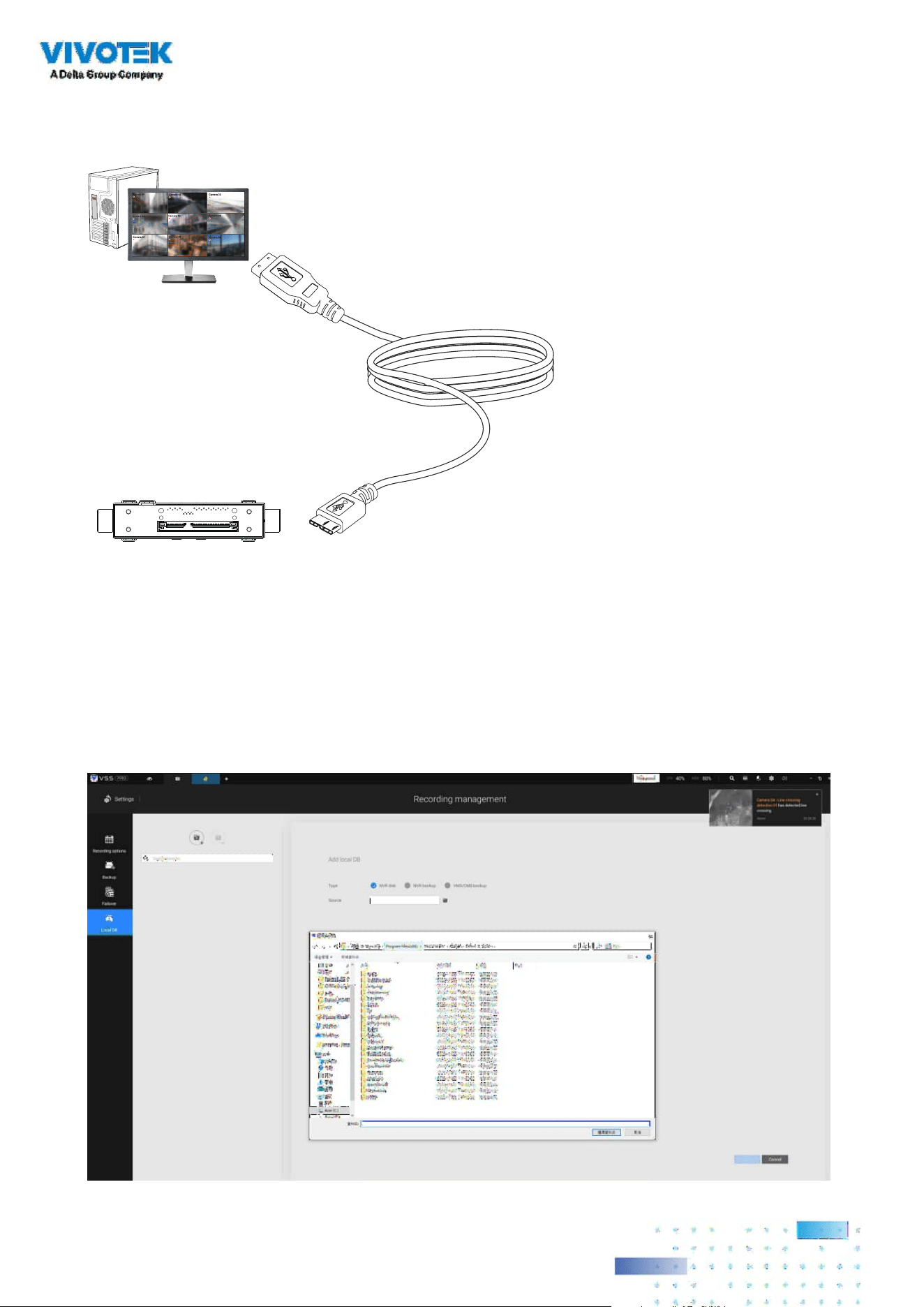
246246
1. Remove the disk tray box from a mobile NVR.
2. Connect the disk tray box to your VSS server using a USB 3.0 type A to Micro B cable.
Camera 01
Camera 02
Camera 03
Camera 04
Camera 06
Camera 05
Camera 07
Camera 08
Camera 09
VSS
USB Micro BMobile NVR
Disk Tray
3. From VSS, enter Settings > Device > Locabl DB.
4. There are 3 import types:
1. NVR disk: the drive tray box removed from a mobile NVR.
2. NVR backup: the recorded videos exported from an NVR using a USB thumb disk or portable
drive.
3. VSS backup: scheduled backup from the local machine. They include: VSS backups from
previous software releases, and scheduled backups.

247247
5. Taking a mobile NVR's disk drive as an example, click the Source select button to locate
the disk drive.
6. The NVR will be mounted as a local DB.
7. A Local DB sub-tree will be listed under your server, and you can view the existing recordings
on the NVR's disk drive.

248248
4-8. Settings > System > SMTP
Configure a mail server via which the system alarms or notifications can be delivered to a
receiver.
Enter the Settings page, select . Click on the Add SMTP button.
Enter your mail server's domain name or IP address. Enter credentials for access to the mail
service.
If SSL encrypted transmission is preferred, select its checkbox.
Click Add to complete the conguration.
4-9. Settings > IO Box and Related Conguration
Please refer to page 173 for information.

249249
4-10. Settings > User Management
The User Add & Delete page allows you to create users with the permissions for different
operational capabilities.
To specify the authorized privileges, select Customize in the Role menu, then select the
Permissions and/or the Accessible devices tabbed menus.
Use the Customize option to limit the authorized actions of a user.
In the Permissions tab, click the expand button
to unfold the Operation and Conguration
menus. Select or deselect the checkboxes to
congure the user privileges. For example, you may not want
a user to operate Alarm and E-Map. If so, deselect these
checkboxes.
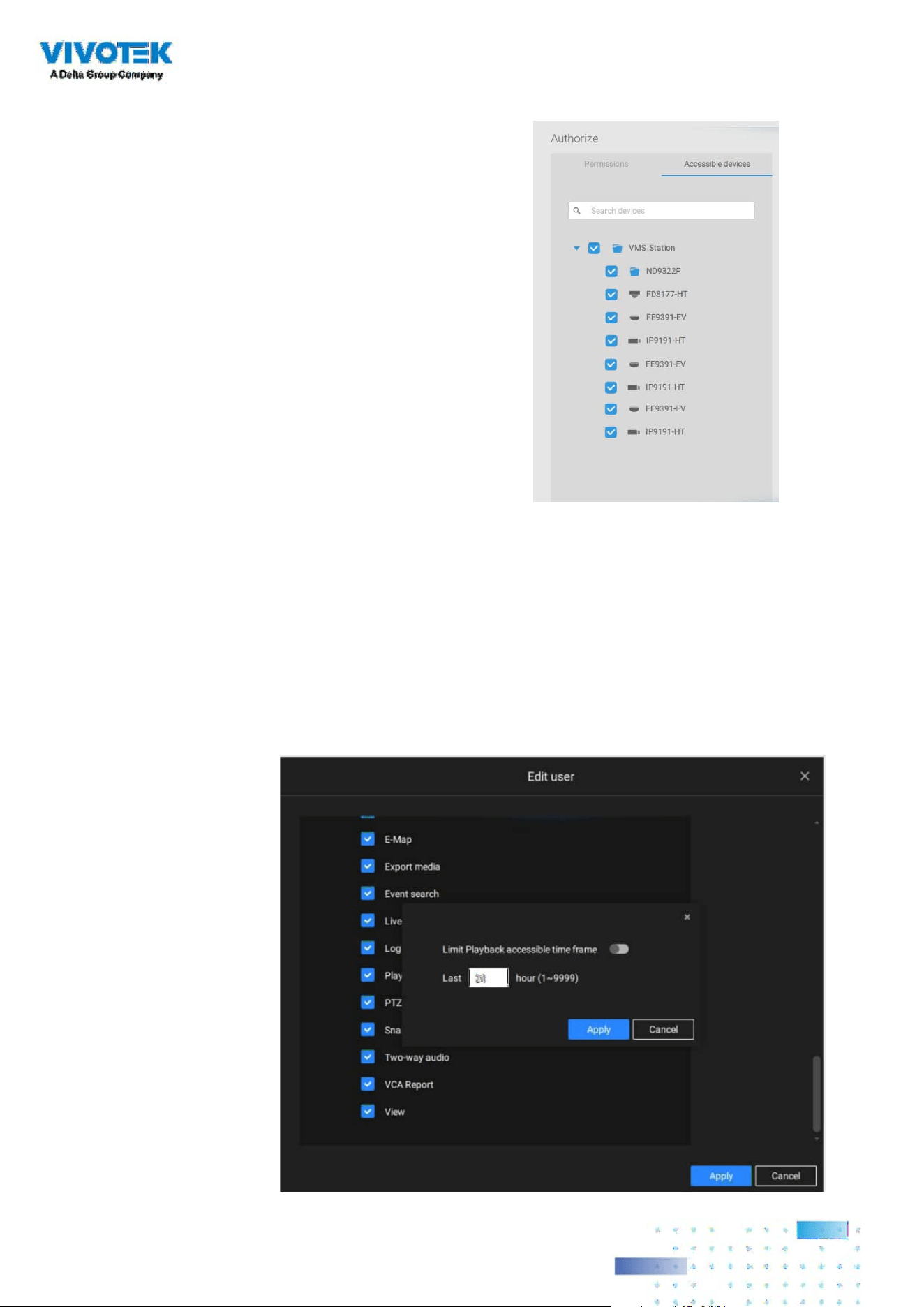
250250
When done with the privilege settings, click Add to create a new user.
The new users will be listed under the Administrator's icon. Repeat the process to create more
users.
In the Accessible devices tab, click to select the cameras that a user can access. Some users may
only need to access specic devices.
Note that you can place a limitation on a user's access right to the recorded videos by setting a
barrier for access to the older recordings. Recordings older than a congurable period of time
will not be accessible.
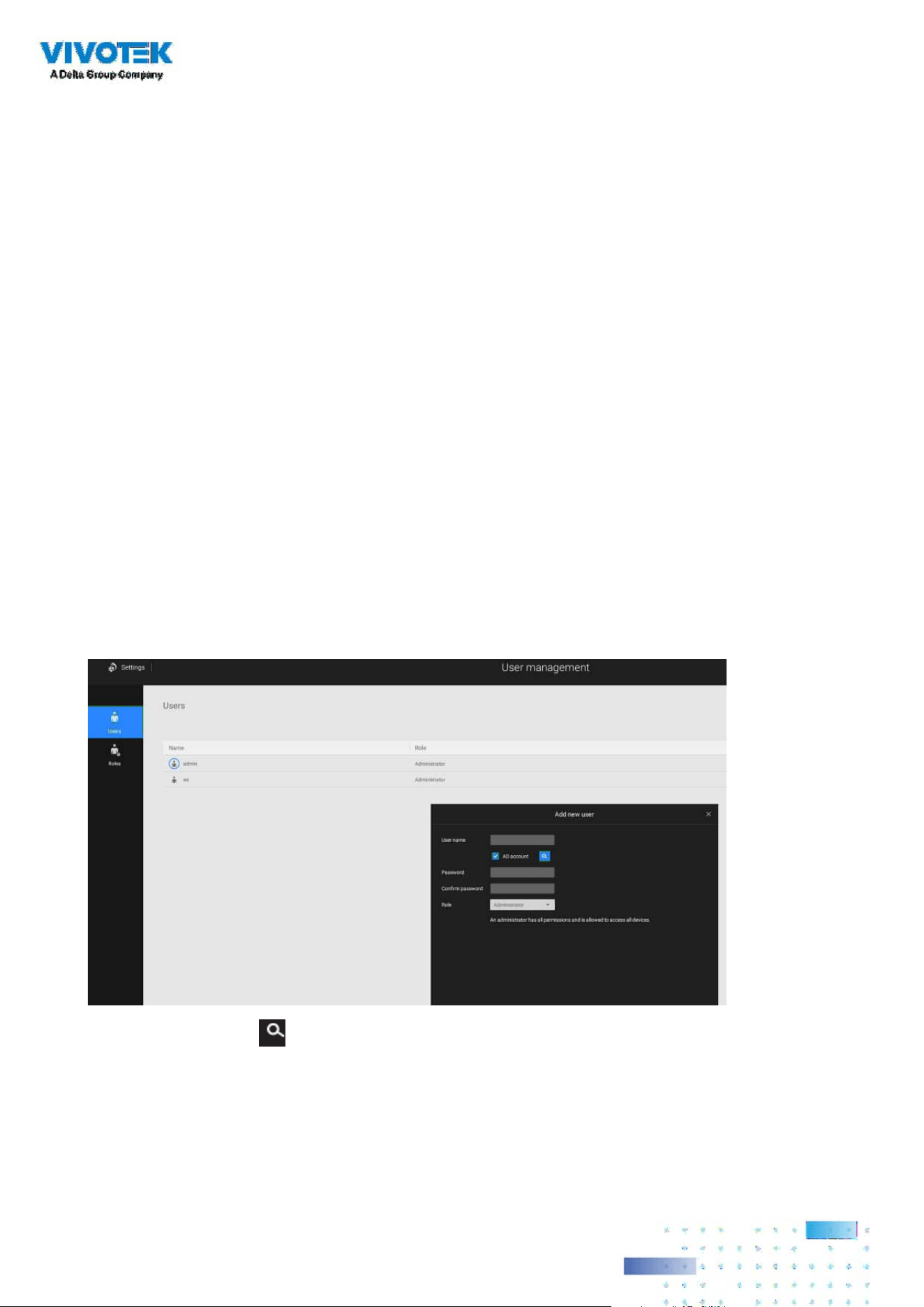
251251
Add a New User Account - Windows AD Account
In an established, enterprise network environment, the support for Windows AD (Active
Directory) infrastructure enables ease of integration using the credentials of existing users.
Using the same AD authentication methodologies, you can configure the clients or users in
an established network to access the VSS server conguration.
Note the following with Windows AD support:
1. If you install VSS server on a Windows XP machine with Postqre SQL server, the login
using a Windows AD account will not work.
2. The VSS server must reside in a domain managed by the AD server.
3. This function does not support the environment that spans across multiple AD domains.
4. A user account hosted by an AD server cannot be modied in VSS.
5. A User Group and its members congured in AD cannot be managed in VSS.
6. You cannot add an account having the same name as one you used to log in VSS.
7. There are 3 types of account for VSS: VIVOTEK account, AD single user, AD group.
8.The userPrincipalName of your Windows AD account can be different from the
sAMAccountName. However, You can only use the sAMAccountName to login VSS.
9. The userPrincipalName eld of your Windows AD account should not be empty.
To add an existing AD user,
1. Select the AD account checkbox.
2. Click the Search button.
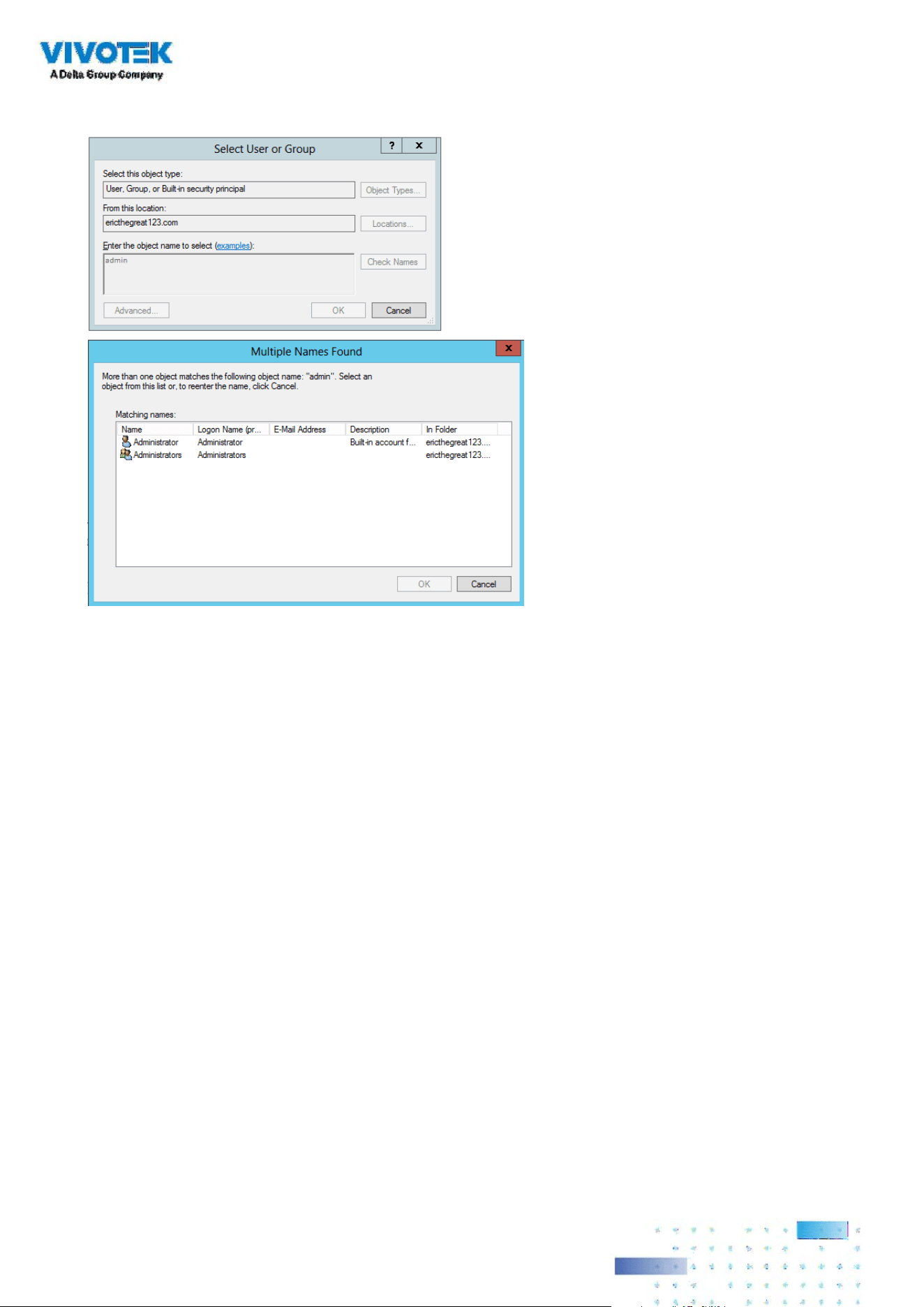
252252
3. Enter a user name or group name to search, e.g., Frank. Click OK when done.
4. Enter the password twice for the AD user.
5. Select the privilege role for the user, configure his/her privilege settings as
described above and then click Add.
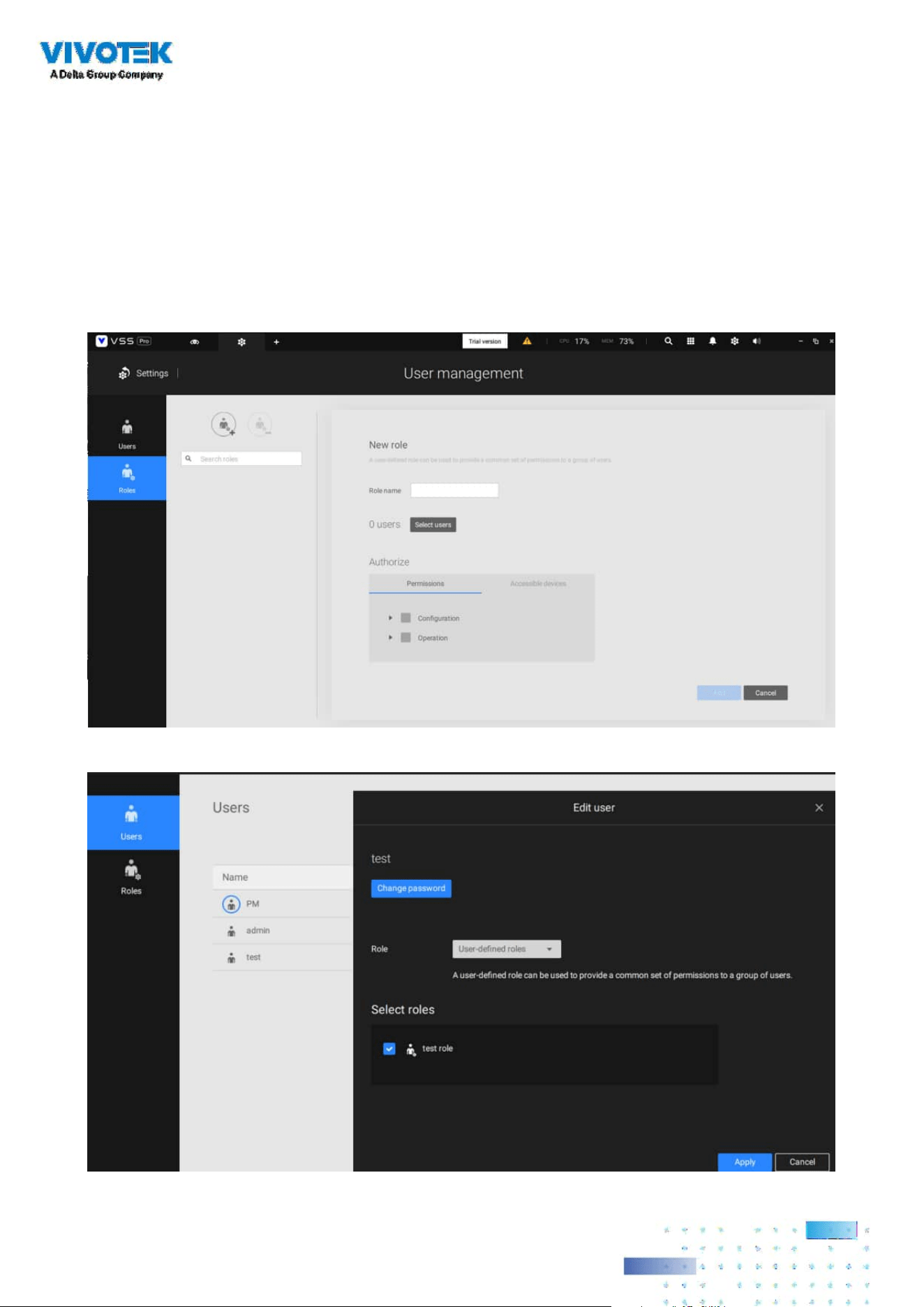
253253
User Roles
A user-defined role allows you to define a common set of permission a for group of users,
reducing the setup time for dierent groups of users.
You can specify the role name in the rst column. Also, you can select existing users for this new
role. Note that once the users are selected for a new role, it will change its role and corresponding
authorities. Each role can be assigned with the permissions and accessible devices like customized
settings in user accounts. Users can select more than one role and have the unied settings for all
roles’ permissions.
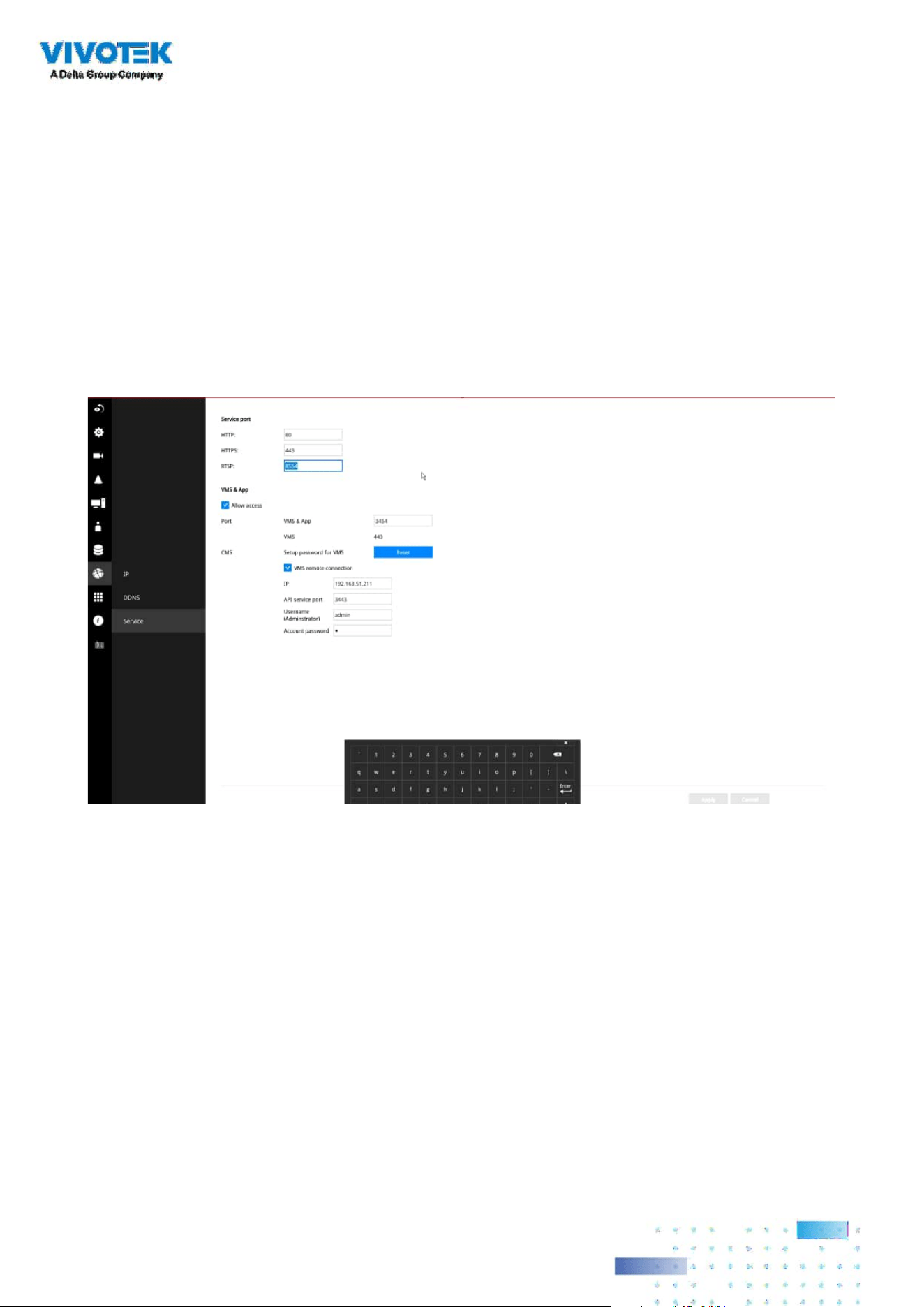
254254
4-11. Settings > VIVOCloud
If users have an existing VIVOCloud account, they can join their current conguration with VSS,
such as an NVR and the cameras managed by it.
The precondition is, you must allow the NVR to be accessed from a VSS server. Open a console to
the NVR, and enter IP > Service, to click on Allow access.
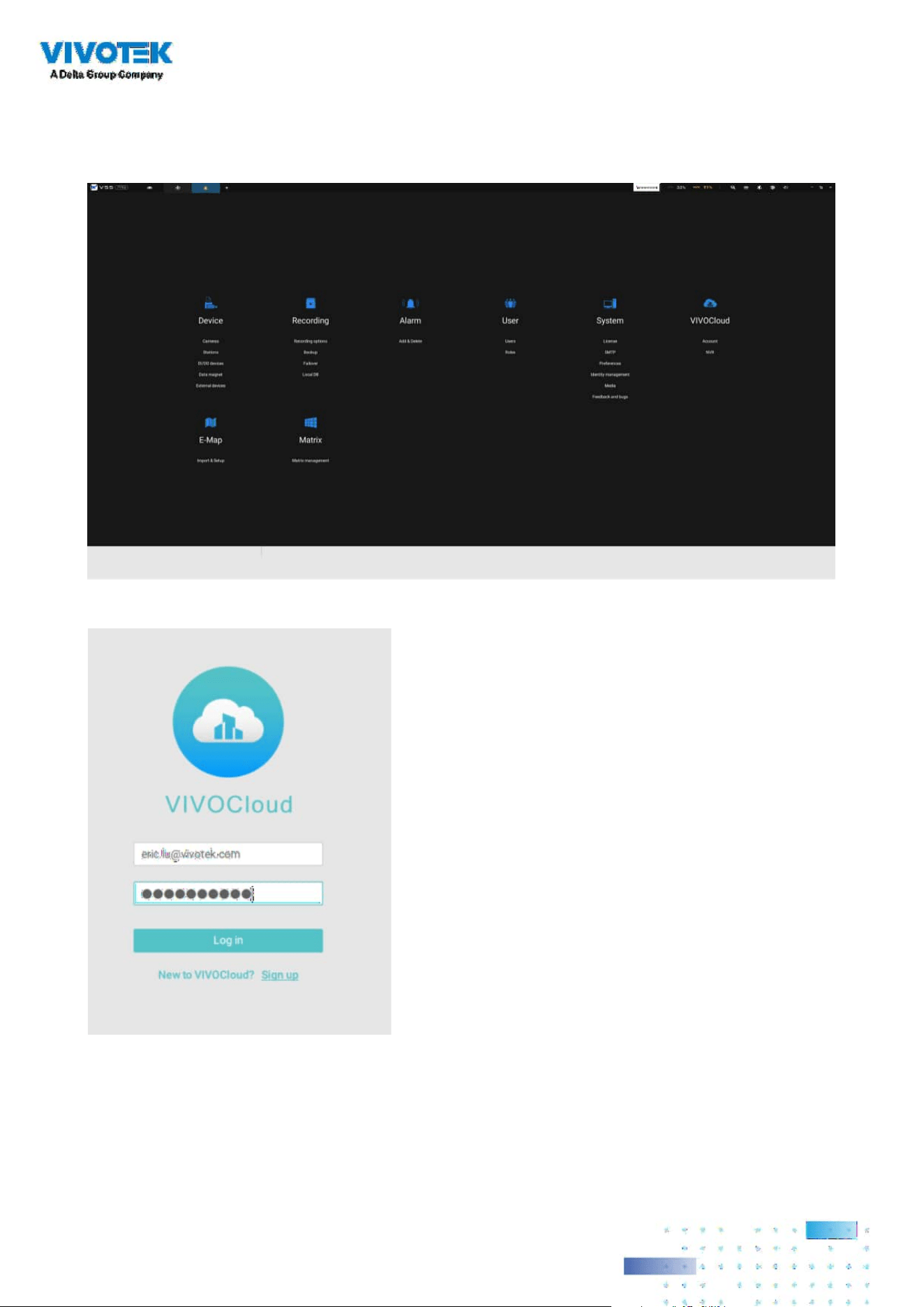
255255
Log in using your VIVOCloud credentials.
On the VSS client, click Settings > VIVOCloud.

256256
The NVR will be listed under the VIVOCloud device tree.

257257
If the NVR managed through the VIVOCloud is connected via a local or P2P network, the
connection should be normal. If the NVR is connected through VIVOCloud Relay, a 28 minutes
timeout will be imposed, and you can use the connect button to re-connect.
You can encounter this message with connection problems or you did not allow the access from
a VSS server. You have to log out your VIVOCloud account and log in again after you solve the
above problems.
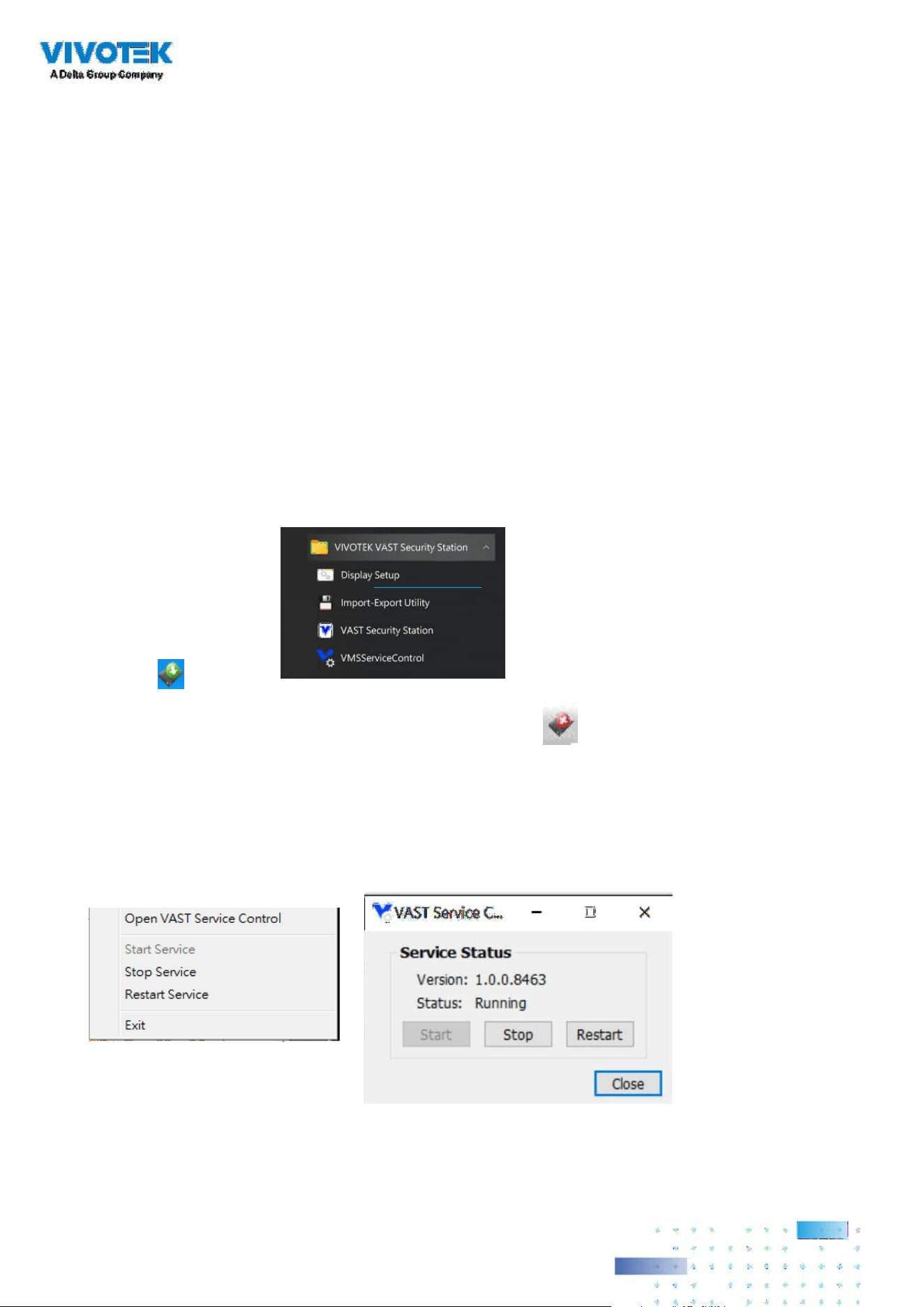
258258
Appendix A: VSS Service Control Tool
VSS service control tool is a tool for server control and for user to be aware of the VSS Server
status. It starts up as Windows OS startup.
Under Microsoft Windows, choose "Start > All Programs > VIVOTEK Security Station >
VMServiceControl."
You may also find it in the system tray icon of the tool bar, which indicates that the service is
running:
It shows a disconnection icon when the service is stopped:
A menu for the service control tool will pop up when you right-click on the icon:
Here you can manually start, stop and restart the service.
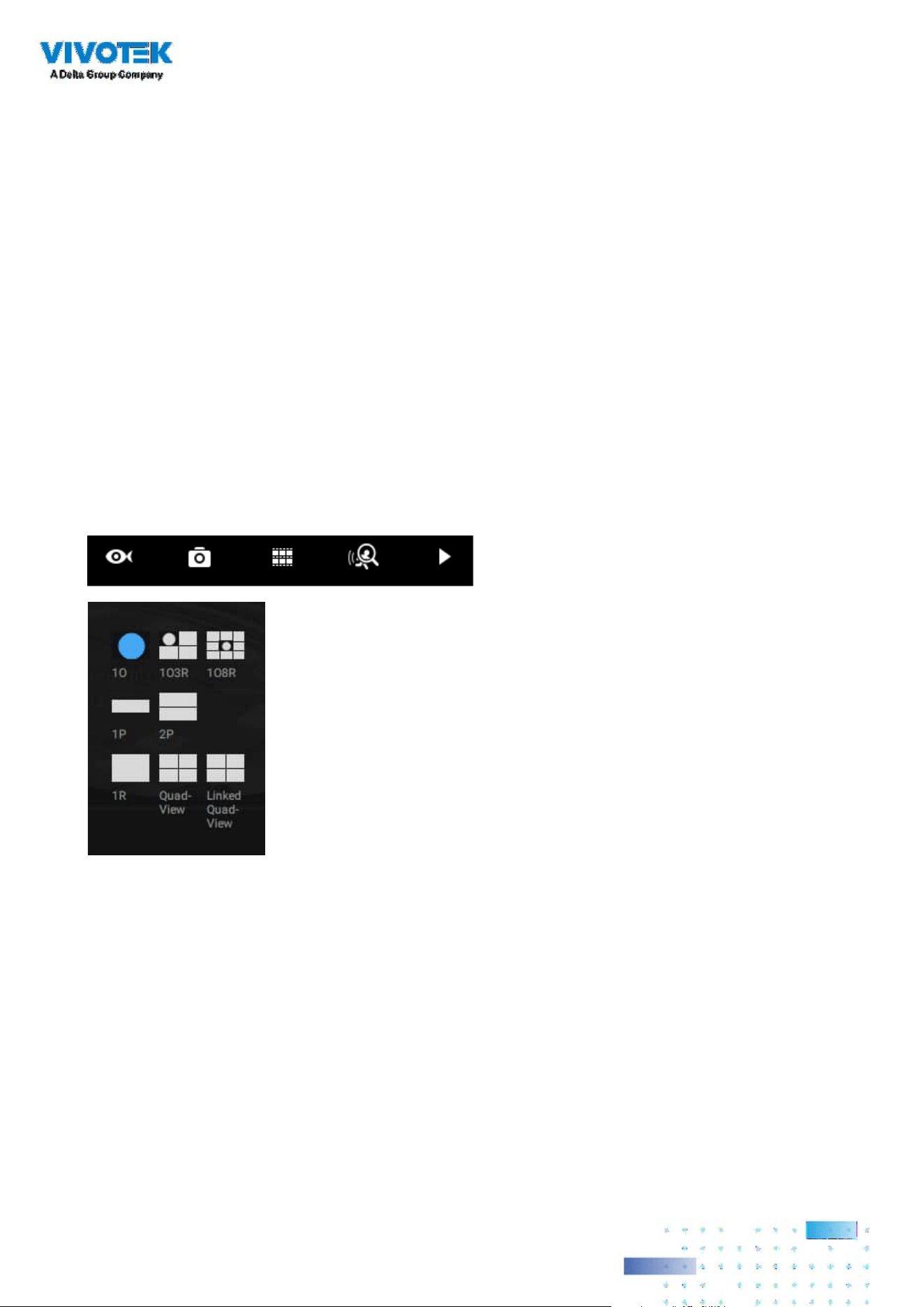
259259
Appendix B: Fisheye Camera Dewarp Modes
By default, a circular view is displayed when a fisheye camera is successfully connected. To
display Regional, Panoramic, or the combination of dierent views,
1. Mouse over the view cell of a sheye camera.
2. The onscreen control panel will appear. Click on the Fisheye button.
3. The Dewarp mode pane will prompt. Select a dewarp mode.
The display modes available are: 1O (Original), 1P (Panoramic), 1R (Regional), 2P (2 Panoramic),
1O3R (1 Original & 3 Regional), 4R (Quad Regional), 1O8R (1 Original & 8 Regional), and 4R Pro (4
Proactive) modes.

260260
Fisheye Display Modes: below are conceptual drawings for dierent display modes.
1O View (Original View)
180° Hemispheric
1R View (Single Regional View)
Zoom in/out
&
all-direction
navigation control
Zoom In
Zoom Out
An Original oval view covers the hemisphere taken by the sheye lens.
A Regional view crops a portion of the hemisphere as a region of interest. You can zoom in or out
or move the view area elsewhere from on the regional view.
A Regional view is dewarped, by correcting images from the distorted oval view to a rectangular
and visually proportional image.
1O (Single Original) Display mode:
1R (Single Regional) Display mode:

261261
Swipe to scroll horizontally
1P (Single Panoramic) Display mode:
With image correction algorithms in firmware, the hemispheric image is transformed into a
rectilinear stripe in the 1P display mode. Viewers can use the PTZ panel or simply use mouse
control to quickly move through the 360º panoramic view.
Note that the 1P view is apt for an overview, the Zoom in/out function does not apply in this
mode.
1P (Panoramic) Mode Screen Control
Swipe to scroll horizontally
2P (2 Panoramic) Display mode:
Two dewarped rectangular views are placed one on top of another each showing 180 degree of
panoramic view. The 2P view looks like the upper view shows the front of hemisphere, and the
lower view the rear half of the hemisphere.
2P (Panoramic) Mode Screen Control

262262
Zoom in/out
&
all-direction
navigation control
* Only two regional views are shown for simplicity reason
Fisheye cameras also support the display of multiple regional views taken from within the same
hemisphere, and they can be displayed with or without an Original view in its view cell.
3R View (Regional View)
1O3R (One Original & 3 Regional) Display mode:
NOTE:
The various display modes require the support of D3D technologies by your display card on the
LiveClient or Playback station. Most o-the-shelf display cards today support this feature.
The onscreen mouse control is very agile. Therefore, use the PTZ panel for more delicate moves
in a field of view. Pan and Patrol moves are also supported if you have configured preset PTZ
positions in the camera's firmware. Note that the Pan move takes place in the Panoramic and
Regional views, while the Patrol function through preset positions applies only in the Regional
views.

263263
PTZ Mouse Control
The "Mount type" setting also determines the display modes available to your display modes.
Please refer to sheye camera's User Manual for more information.
A highly versatile mouse control is implemented with sheye cameras. The same control takes
eect on a browser management session, on the LiveClient utility, and even on a video playback
screen. See the drawing below for how it works.
You can click and hold down the left mouse button to quickly swipe through the eld of view,
change the view angle, or use the mouse wheel to zoom in/out on a region of interest. However,
the PTZ mouse control is only available in the "R" (Regional) mode. In the Panoramic mode, you
can only scroll horizontally across the 180º or 360º panoramic view.
Current screen selection
Zoom In
Zoom Out
Click to bring into
center of view
Pan or tilt
1
2
3
Interactive
regional FOV indicators
Click and hold down
the button
1O3R (Original & Regional) Mode Screen Control
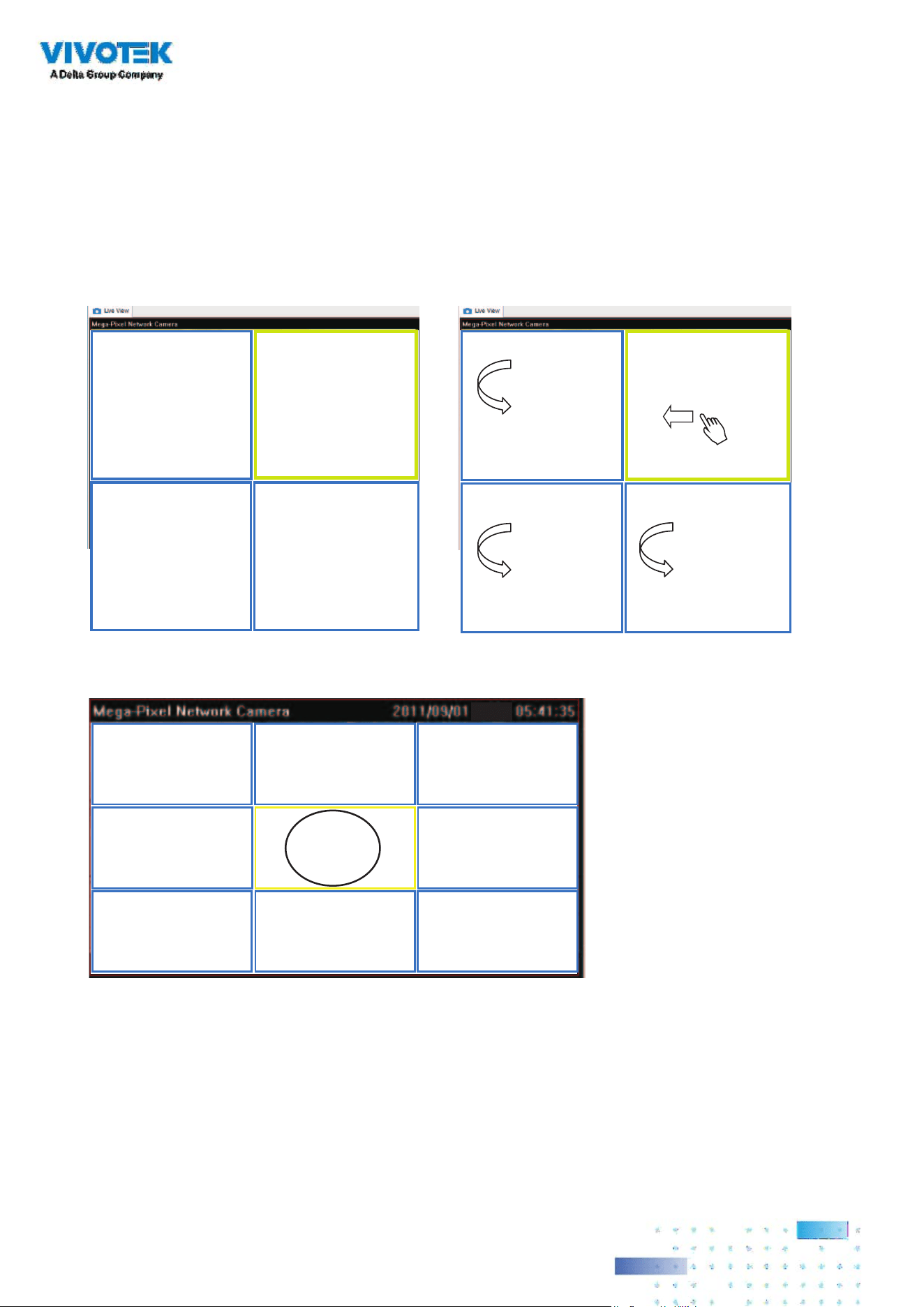
264264
Regional View #1
Regional View #3
Regional View #2
Regional View #4
Regional View #1Regional View #2
Original View
Regional View #3
Regional View #6Regional View #5 Regional View #7
Regional View #4 Regional View #8
Regional View #1
Regional View #3
Regional View #2
Regional View #4
Below are the conceptual drawings for the other display modes. The available display modes can
dier with dierent mount types:
Regular: 1O, 1P, 1R, 1O3R, 4R.
Wall mount: 1P2R, 1P3R.
For more information, you can refer to sheye camera's user documents.
4R (Quad Regional) Display mode:
1O8R (One Original & 8 Regional) Display mode:
4RPro (4 Regional Proactive) Display mode:

265265
3rd-party Fisheye Dewarp
Via manual calibration, users can utilize dewarp functions for 3rd-party sheye cameras through
the Enable sheye lens dewarping, and select a mount type. You can then align the blue cirlce
with the sheye's circular view.
When the calibration is done, you can select dierent dewarp modes in VSS using the transition
button on the upper right of the view cell.

266266
Appendix C: Matrix
Camera 01
Camera 02
Camera 03
Camera 04
Camera 06
Camera 05
Camera 07
Camera 08
Camera 09
VSS Server
Camera 01
Camera 02
Camera 03
Camera 04
Camera 06
Camera 05
Camera 07
Camera 08
Camera 09
Camera 01
Camera 02
Camera 03
Camera 04
Camera 06
Camera 05
Camera 07
Camera 08
Camera 09
Camera 01
Camera 02
Camera 03
Camera 04
Camera 06
Camera 05
Camera 07
Camera 08
Camera 09
Camera 01
Camera 02
Camera 03
Camera 04
Camera 06
Camera 05
Camera 07
Camera 08
Camera 09
VSS Matrix
Camera 01
Camera 02
Camera 03
Camera 04
Camera 06
Camera 05
Camera 07
Camera 08
Camera 09
VSS Client
The virtual matrix feature enables the display of any cameras on any monitors in an IP
surveillance network. Combinations of live or playback streams can be displayed simultaneously.
In addition of pre-congured live views, E-maps, Google maps, and Alarm panes can all be
placed on a remote matrix. Users gain realtime awareness of scenes and access to past events.

267267
Prerequisites:
1. One VSS server and another computer running the Matrix client utility.
2. The rst 2 digits of software revision numbers of VSS server and Matrix client must be the
same: e.g., 2.3.x.x and 2.3.x.x.
3. Sucient network bandwidth among network cameras, VSS servers, and Matrix clients.
Conguration procedure:
1. Install the Matrix client utility on a computer equipped with multiple monitors. Follow the
onscreen instructions to install the utility.
2. On the VSS server, create a user account for the Matrix client. Depending on the operation on
the client computer, assign the client user with adequate operation privileges.

268268
3. Open the Matrix utility, log in to the VSS server address, using the Matrix client account
credentials.
4. From the VSS server, open the Settings > Matrix Management window.
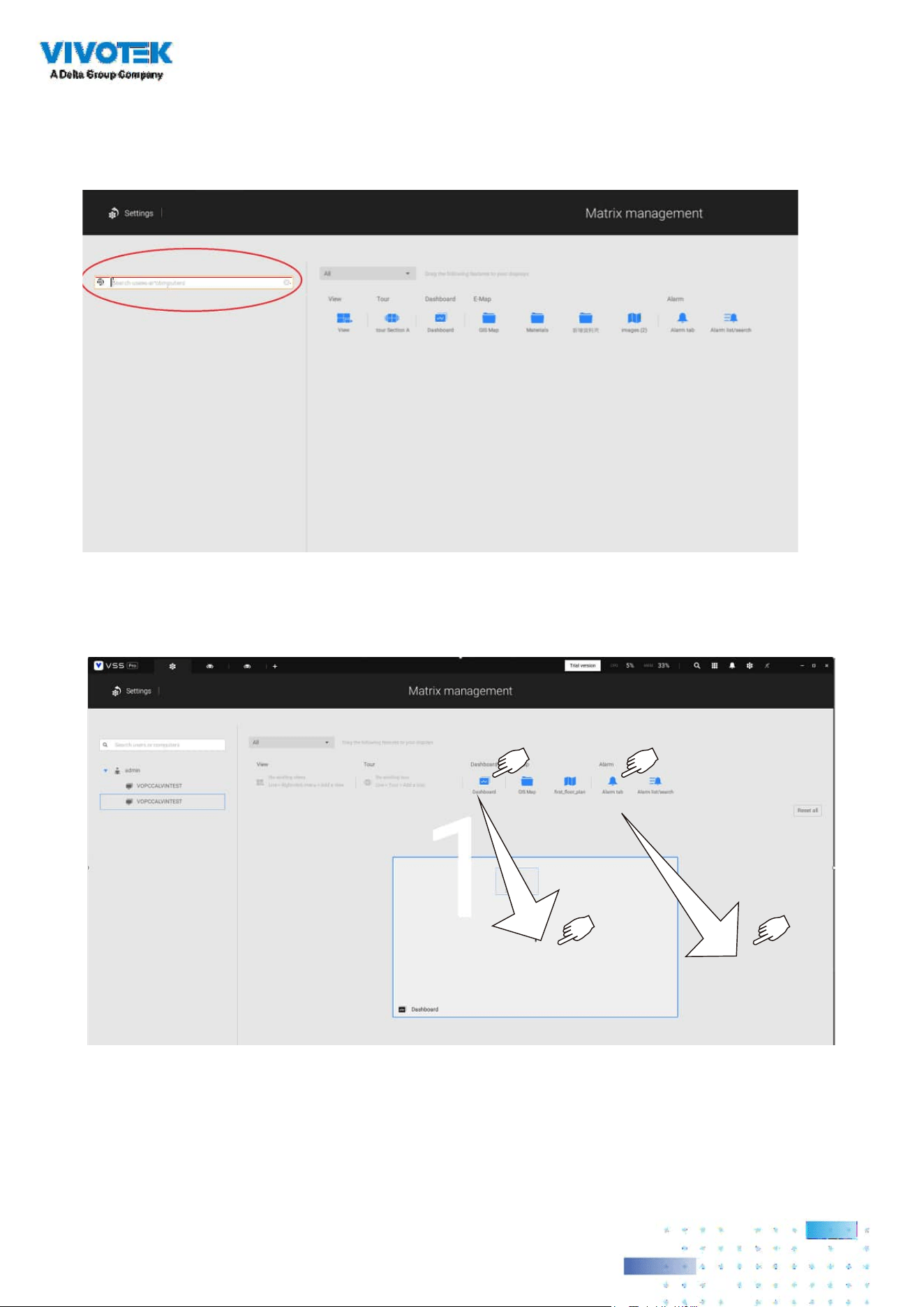
269269
5. Enter the name of your Matrix client, e.g., Matrix_client in the search pane of the Matrix
Management window. Note that the Matrix client must have logged in to establish the
connection before the VSS server can nd it (as previously described).
6. Once the VSS server nds the Matrix client, the available monitors will be listed. Click and drag
the pre-congured Views, Tour, Dashboard, E-maps, or Alarm panel to any of the monitors.
7. The views should immediately appear on the Matrix monitors.
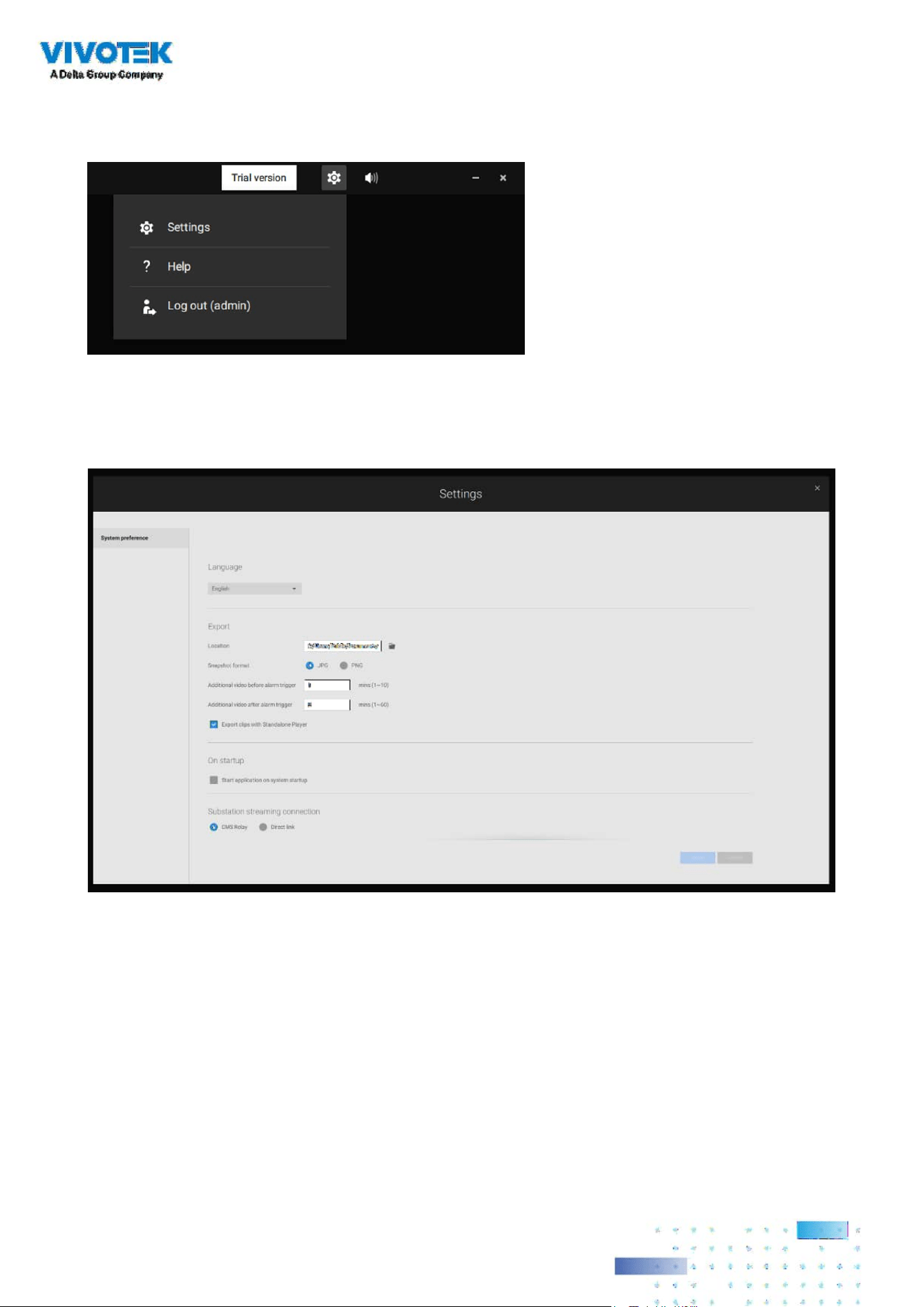
270270
8. If you need to log out, move your mouse cursor to the top of the Matrix client screen to end
the session.
If necessary, change your client settings. Here you can change the displayed language, Export
target folder, Start-up option, and the streaming connection options.
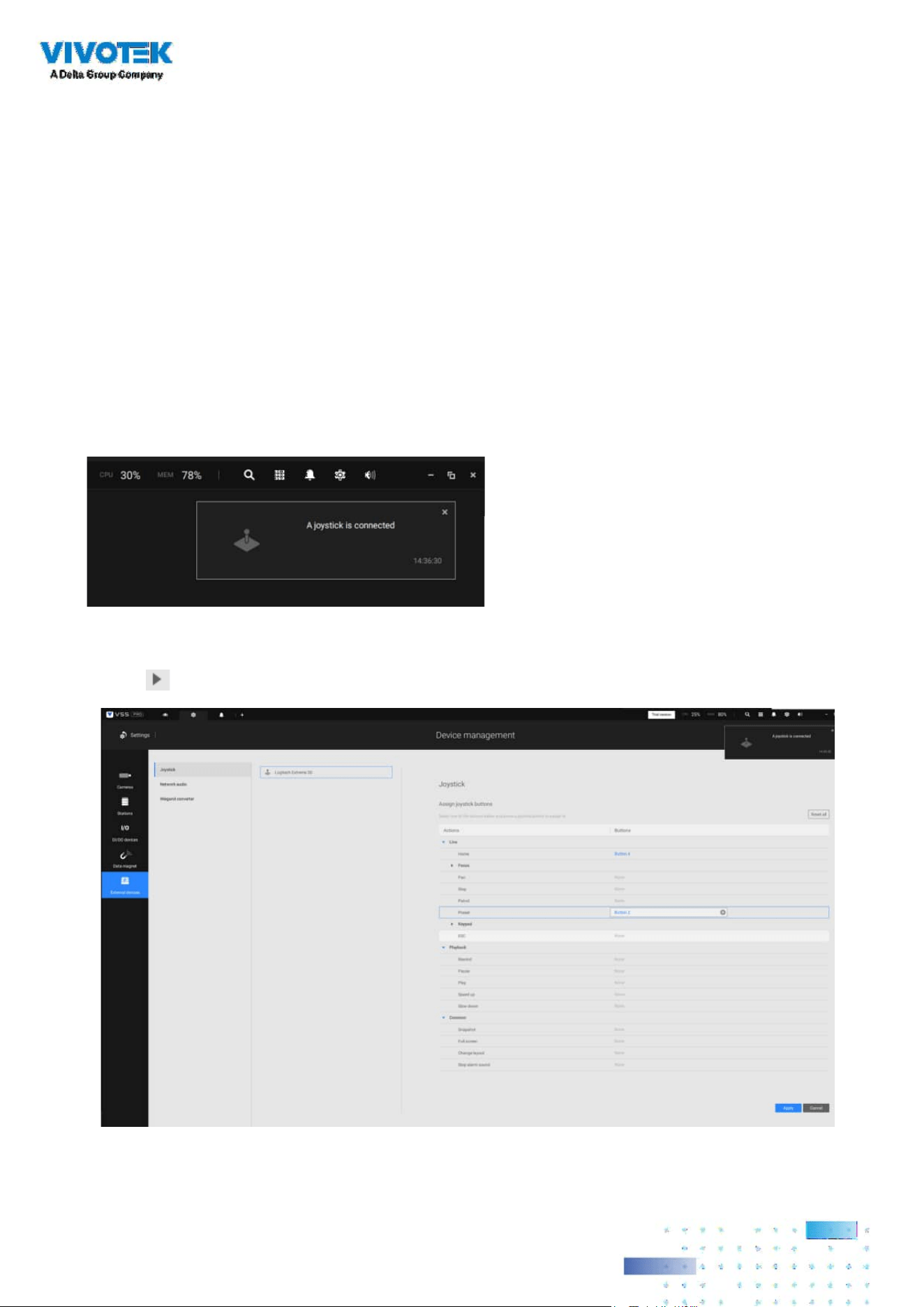
271271
Appendix D: Joystick Support
Congurable joystick buttons
1. Connect the joystick's USB cable between the USB ports on the joystick and a VSS server/client.
2. Once connected, you should be prompted by a connection message.
3. Enter Settings > Device > External devices.
4. Single-click to select the detected joystick. The congurable buttons will be listed.
Click
to expand the Live, Playback and Common menus.
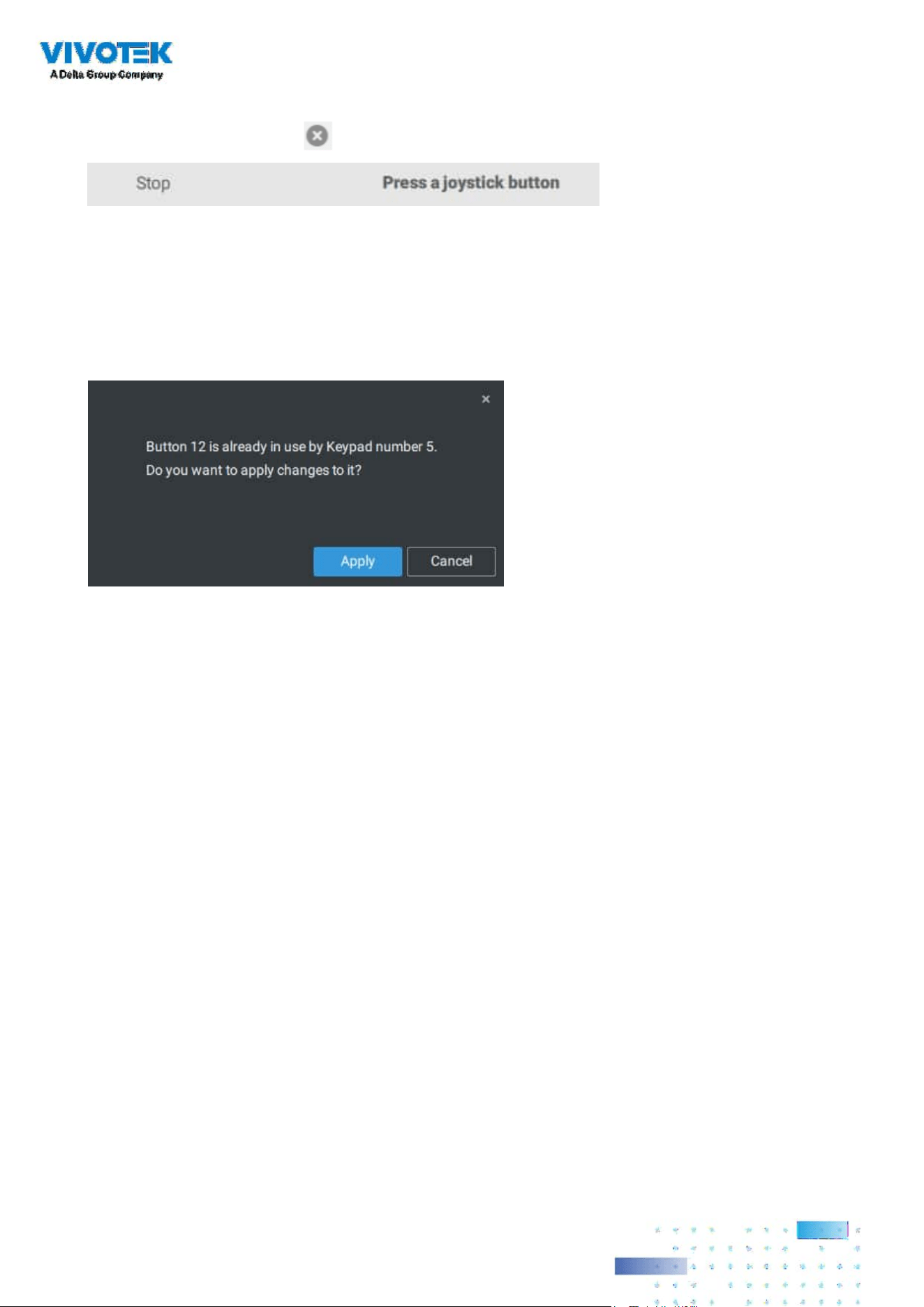
272272
5. To assign or re-assign a button's function, single-click on the button number besides a
function. Click the Delete
button. The below message will display.
Press a preferred button on your joystick to complete the setting.
If a button conict occurs, (another function has already been assigned to the same button),
the below message will prompt. You can Cancel or click Apply to change the assignment.
Repeat the above process and click the Apply button to preserve your settings.
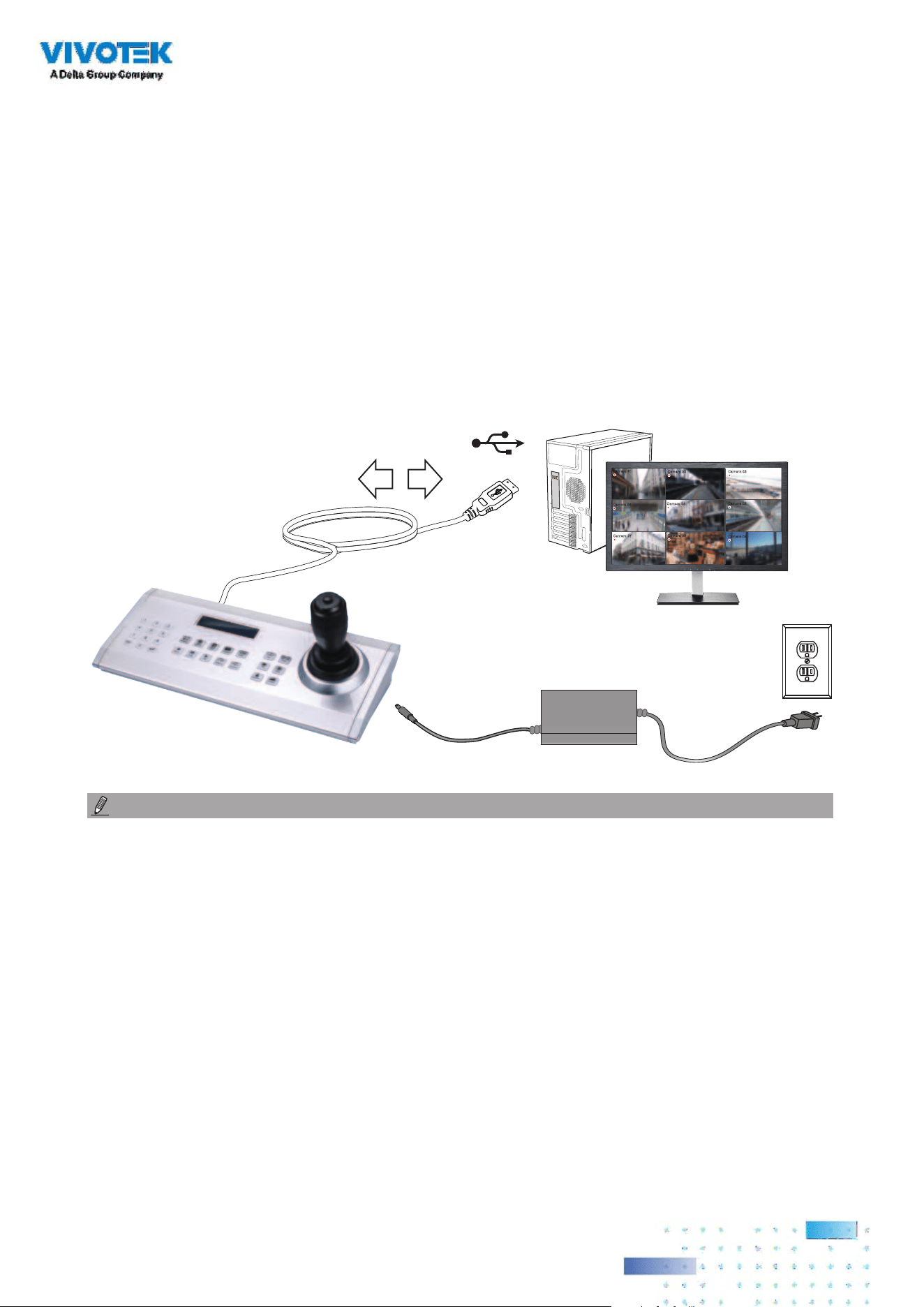
273273
Camera 01
Camera 02
Camera 03
Camera 04
Camera 06
Camera 05
Camera 07
Camera 08
Camera 09
X2
VSS
12V DC
The AJ-002 is a USB joystick with HID 3-axis PTZ control, a twist wheel for zoom in/zoom out, and
29 congurable function buttons for use on a VSS server station.
Following are the conditions for making the connection:
1. The joystick can either be powered by a DC 12V adaptor or via the USB. If powered by USB,
plug the USB cable twice to the USB port to enable USB power.
2. Connect the included USB cable between the USB ports on the joystick and a VSS server.
1. Avoid spilling water onto the device. Avoid using this device in a high-moisture
environment.
2. This device should be operated in the indoor environment.
3. When the temperature is lower than -10ºC, the LCD panel may not function normally.
4. If the included power adapter should be replaced, use a 9-15V/1000mA alternative.
5. Avoid impact to the device.
6. This product is manufactured to comply with the requirements of the following directives:
89/336/EEC, 92/31/EEC, 93/68/EEC.
NOTE:
VIVOTEK's joysticks
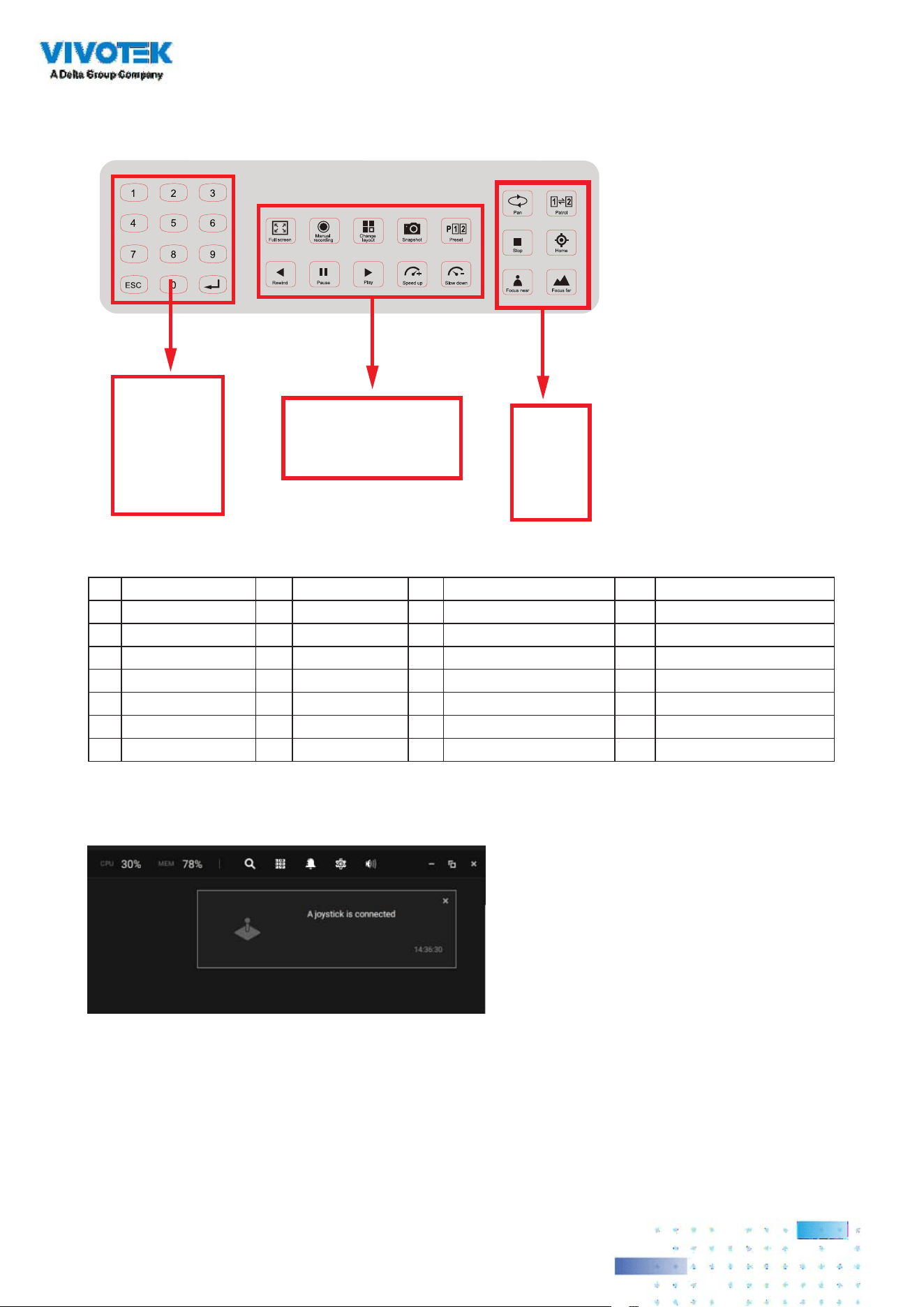
274274
KEYPAD DEFINITION
1 2
3 4
5 6
8
28
21 22
24 25
23 7
26 27
9 10
12 13
11
14
15 16
18 19
17
20
Below is the keypad numbering sequence:
The following keypad functions will be available as the defaults for the joystick.
1 Pan 9 #1 17 #9 25 Pause
2 Patrol 10 #2 18 Cancel/Clear/Esc 26 Play (Playback)
3 Stop 11 #3 19 #0 27 Speed Up
4 Home 12 #4 20 Enter 28 Speed Down
5 Focus Near 13 #5 21 Full Screen
6 Focus Far 14 #6 22 Manual recording
7 Snapshot 15 #7 23 Change Layout
8 Preset 16 #8 24 Rewind
When a joystick is connected, the VSS server should automatically detect the connection.
The following controls are available:
* PTZ control – Basic PTZ control: Direction, Home, Zoom in/out, and Focus near/far.
* Playback control – Play, Pause, Stop, Rewind, Speed up and Slow down.
* View switch – Switch to existing View (Users need to create views rst).
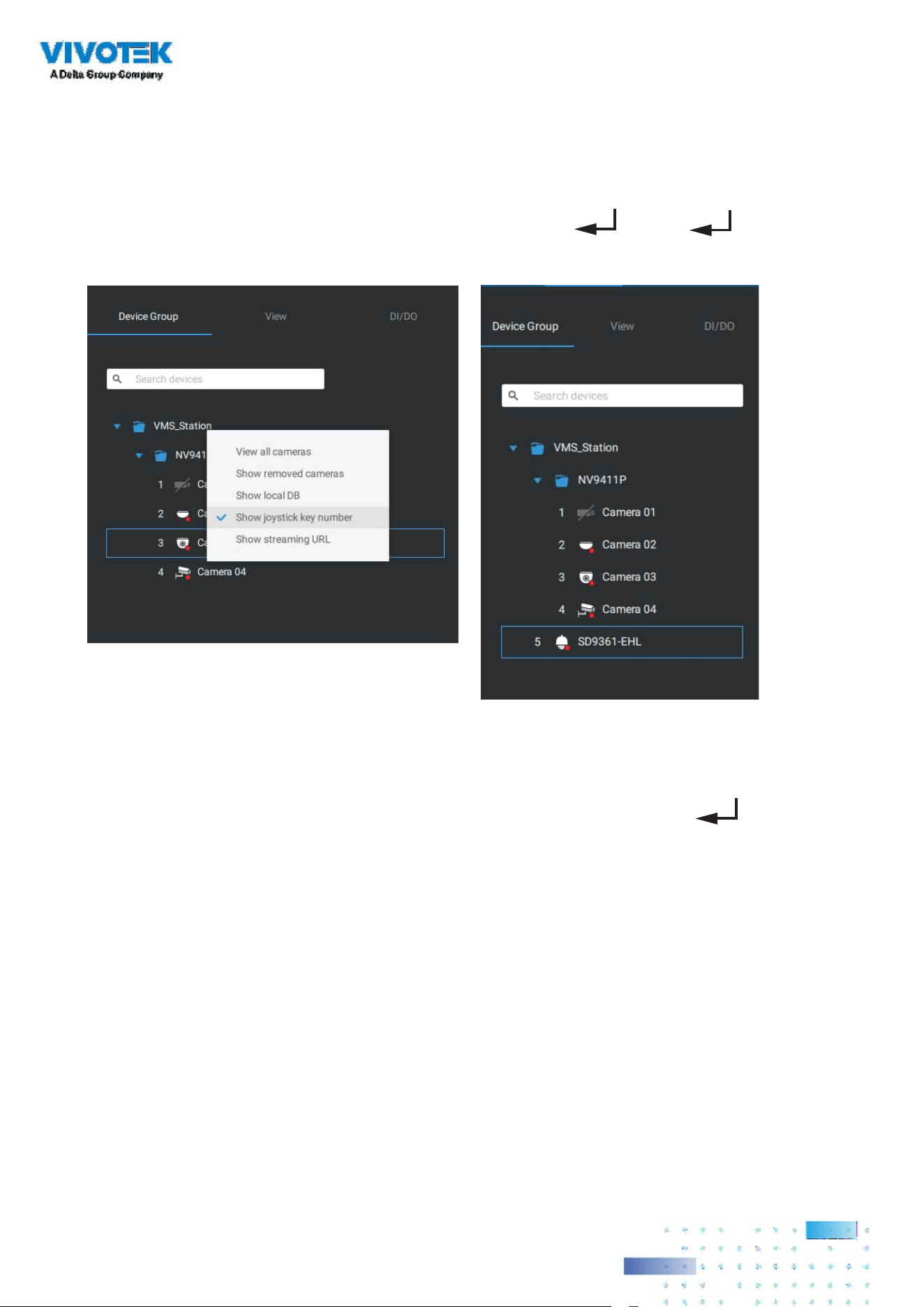
275275
Left-click to select your server on the device tree, and right-click to display and select the
"Show joystick key number." The camera key numbers are determined by the sequence when
the cameras were added to the VSS conguration, and cannot be changed. By default, the key
numbers are not shown.
Press the key number on the joystick keypad and the Enter key
, e.g., 5 + . The full
view of the selected camera will display.
Press the ESC key to leave the full view.
To move to a preset position, press the number key + Preset, and the Enter key . The
number key corresponds to the sequence number for the preset position regardless of the name
of the preset.
Note that the RS232/485 terminal connection is currently not supported.
Note that the Manual Recording button is currently not effective.
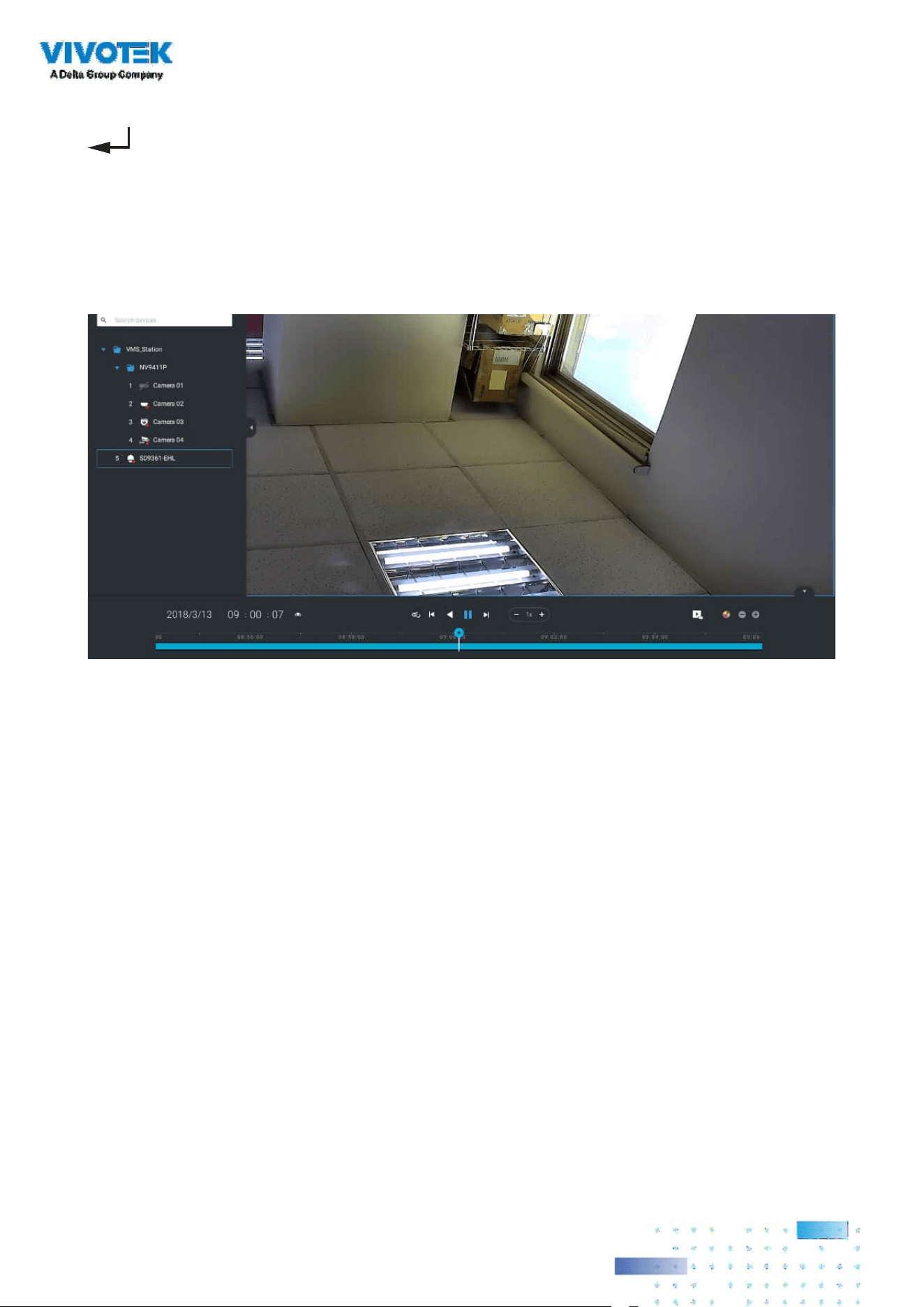
276276
If you have multiple views, press the number key and the Change Layout, and the Enter key
to switch to a dierent view. The number key corresponds to the sequence number for the
view you congured regardless of the name of the view (layout).
The Play button toggles the playback window. From here you can trace back the past recordings.
You can use speed up, slow down, and rewind buttons here. Once the Playback mode is toggled,
the point-in-time defaults to the start of the current hour.
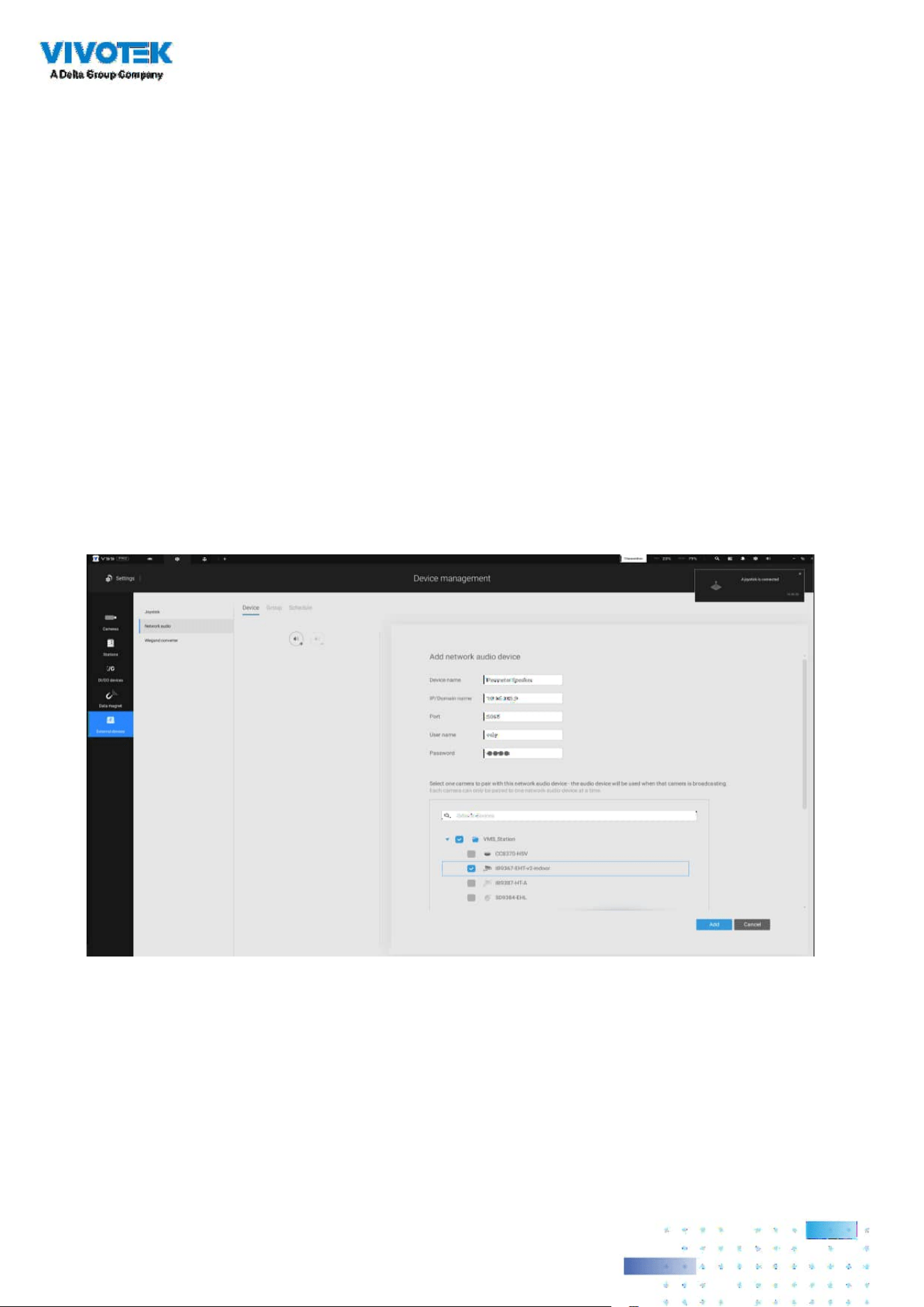
277277
Appendix E: Network Audio Solution
1. Connect the network speaker to a local network.
2. Once connected, enter its IP address, User Name, Password, Port number (default is 5060).
3. You can associate one network camera with the speaker.
You can add network speakers to your workstation in Settings > External Devices > Network
Audio.

278278
4. You can use the Broadcast function on the right of the screen to test the connectivity.
5. You can right-click on the live view to nd the Broadcast function to speak or broadcast a
audio clip.
6. On the occurrence of a triggered alarm (Motion or VCA event), you can congure the alarm
settings so that system can broadcast an audio clip. Congure audio clip settings in System >
Media, and select "Play audio le with network audio device" in the Alarm action page.
Note that the pre-recorded audio clip should be uploaded from System > Media. The supported
audio le is WAV: 8Khz, Mono, 16-bit, PCM.
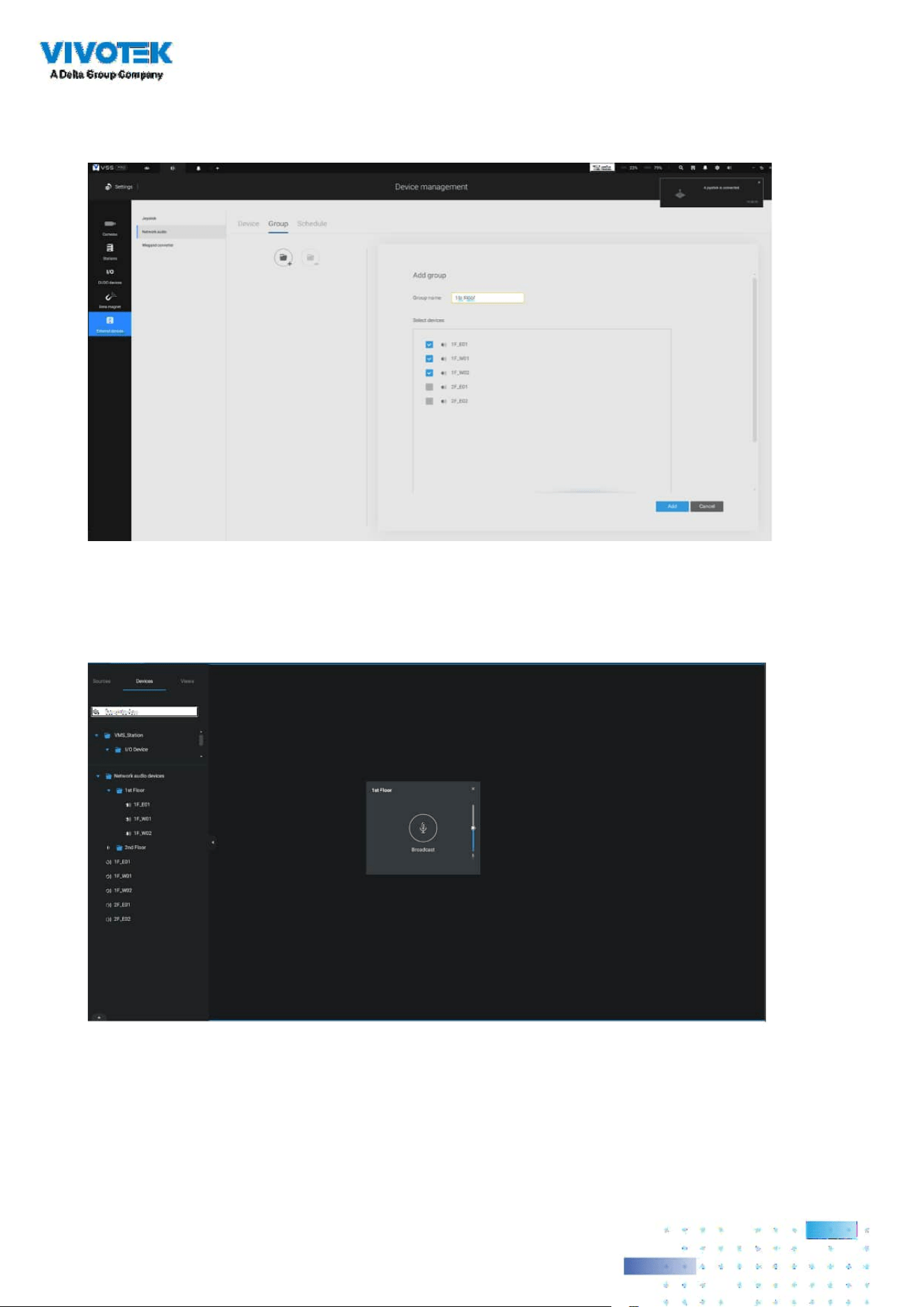
279279
You can create groups for dierent audio devices. Use the Group tab to create audio groups.
Select devices for the group.
With audio groups, you can select audio devices from the Devices tab on a live view so that
you can broadcast audios to a group of devices.

280280
You can create a schedule to play a pre-selected audio le. In Network aduio > schedule, create
a schedule. Select a start time. Select an audio le for broadcast. Select a repeating pattern by
hour, by day, or by the week days. You can also specify an audio group to play by the schedule.

281281
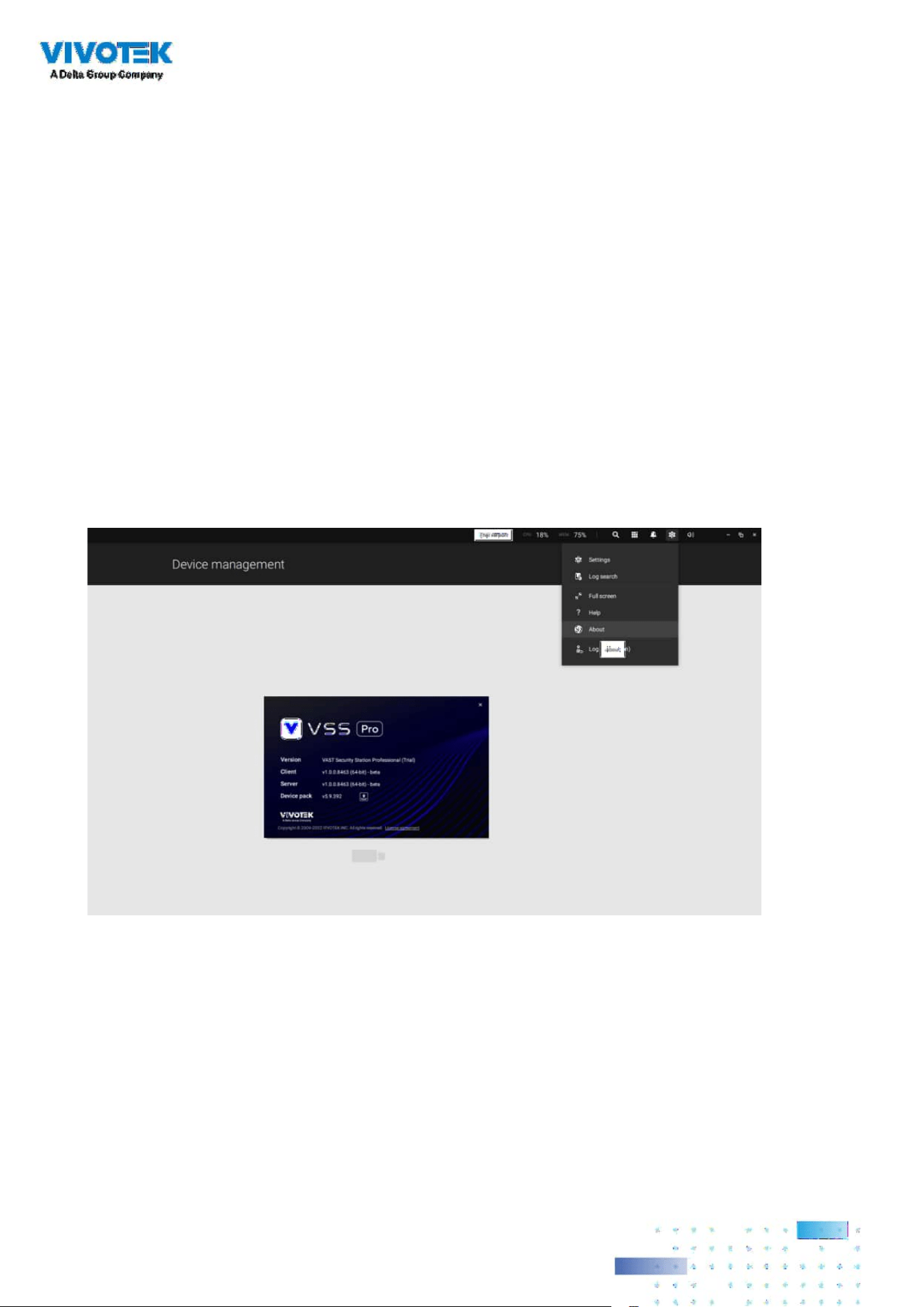
282282
Appendix F: Upload Device Pack
A device pack is contantly updated for the latest proles of VIVOTEK's new camera/NVR models. If
you install new cameras/NVRs to your conguration, you can visit VIVOTEK's website for the latest
device pack updates, and upload the pack le to your VSS server. New functional parameters and
functions in the new cameras are available through the device pack.
Enter Settings > About to see the upload button.

283283
A device pack le looks like the following.
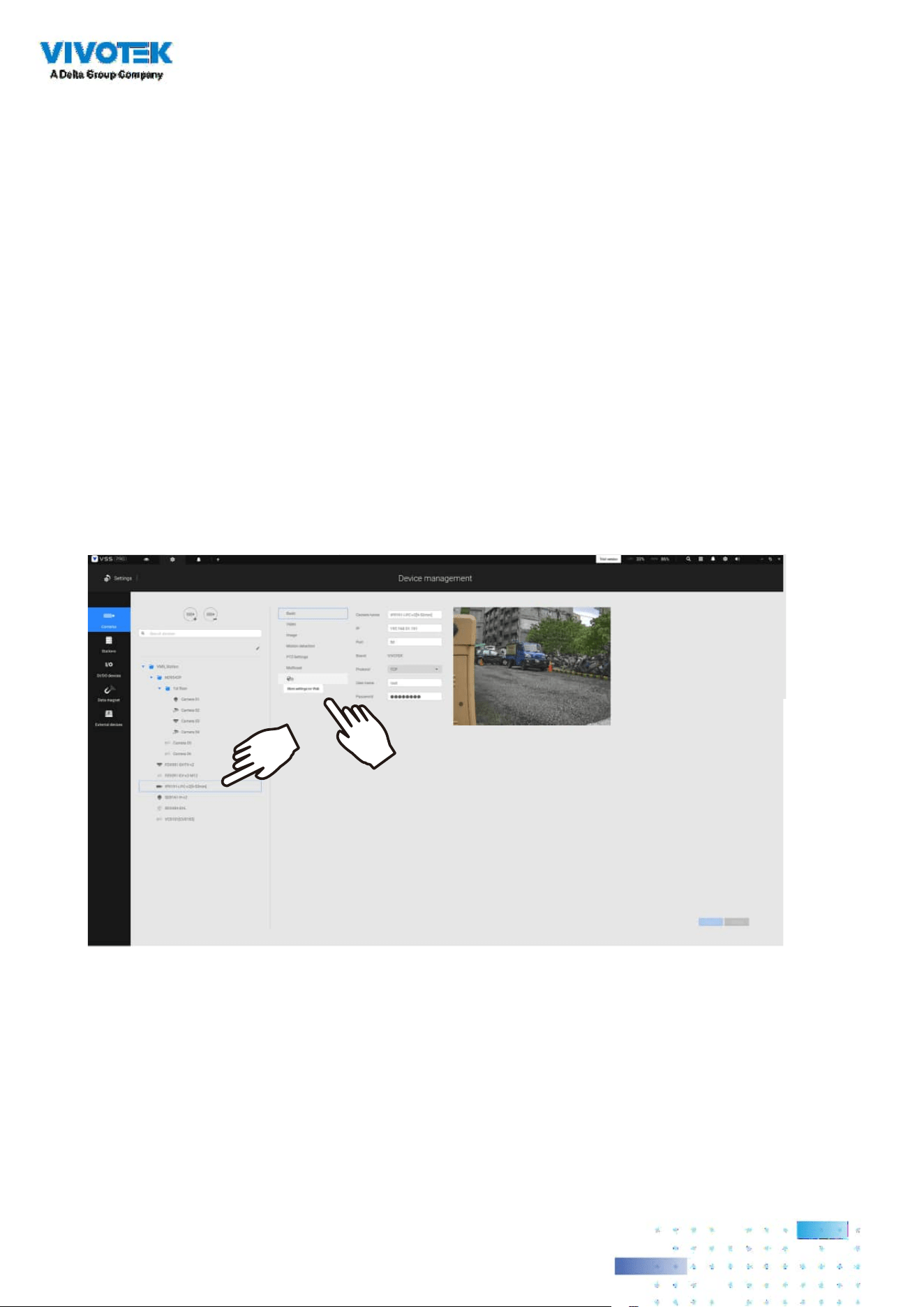
284284
Appendix G: Using LPR Related Functions w/ Data Magnet
Acquiring data sources from 3rd-party software:
1. Select a camera that comes with the LPR (License Plate Recognition) functionality, e.g., IB9387-
LPR as shown below. Click "More settings on Web" to open a web console to the camera.

285285
2. On the web console, enter Conguration > Applications > Package management. Click on
ANPR to open a web console to the license plate recognition software.
3. Click on the Lists tab.
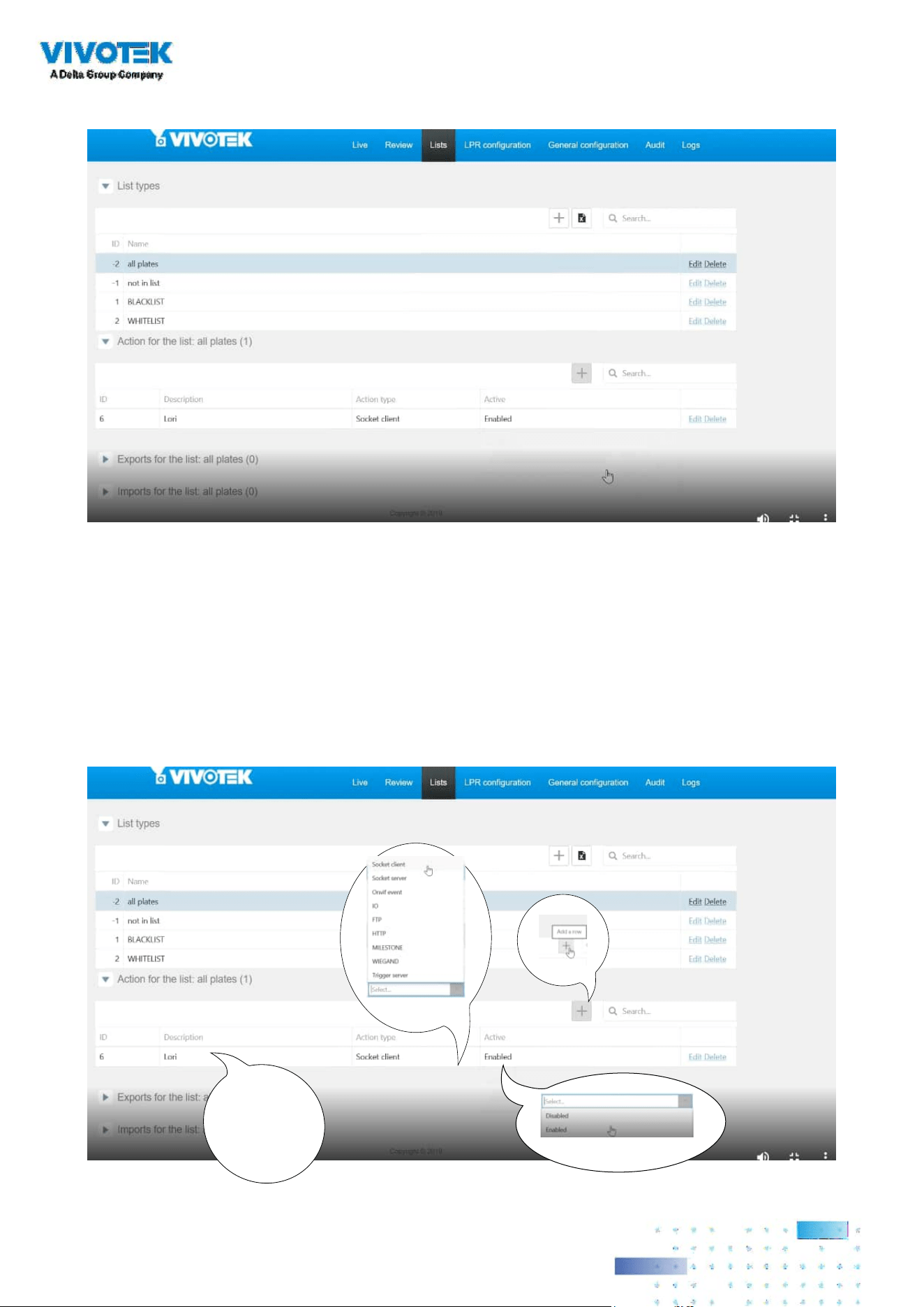
286286
4. Select a list whose data will be transmitted to the VSS server.
5. 5-1. Find the "Action for the list" pane. Click the "+" Add a row button.
5-2. Enter a short description for the row.
5-3. Select "Socket client" as the action type.
5-4. Click to select Enabled.
5-5. Click the Save button.
1
2
enter a
short description
3
4

287287
6. Roll down to enter your VSS server's IP address. If necessary, select XML_IMG as the le format
for your data that will be collected on VSS.
7. Close the web console and return to the VSS Settings > Device management > Data magnet
page.
Click the Add button, and click the License Plate Recognition button.

288288
If you need the development document for integrating 3rd-party software, please contact
VIVOTEK's technical support.
You can designate how many days the data from the data sources is retained on server in
Settings > System management > Preferences.
NOTE
:
1. The VSS server port for License Plate Recognition data source can be customized; It is not
limited to 17000.
2. If you have more than one VIVOTEK LPR camera, you only need to (and can only) add a License
Plate Recognition data source.
3. If you add a 3rd-party data source but you name it as "VIVOTEK ANPR", it will be recognized as
a VIVOTEK ANPR (License Plate Recognition) data source.
4. Dierent Data sources cannot have the same name.
5. Dierent 3rd-party data sources can share the same server port, but they cannot use the same
port the License Plate Recognition is using.
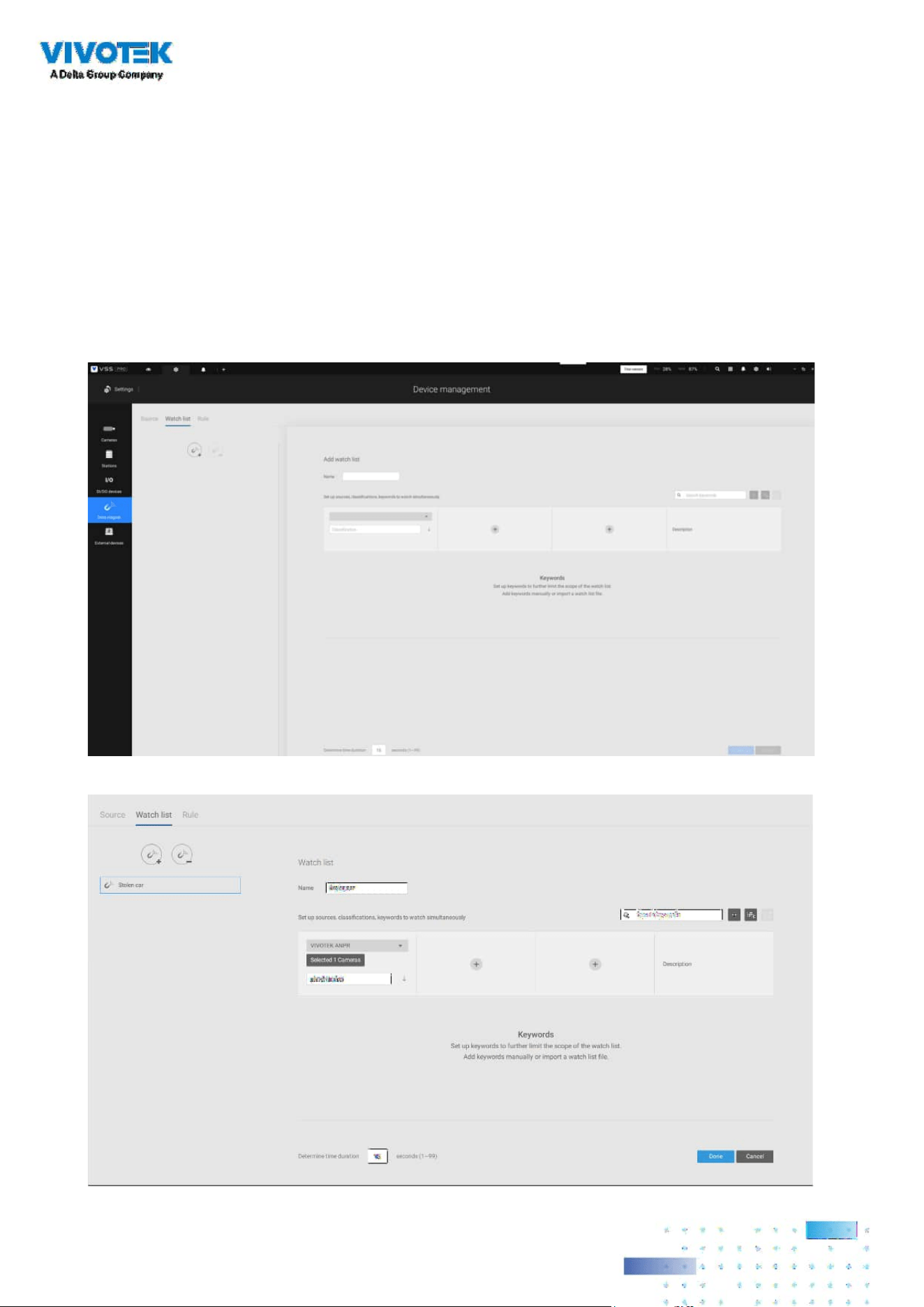
289289
Conguring a Black or White list:
With a license plate application, you can congure either a Black list for suspicious plate numers,
such as those for unwelcome or stolen cars, or a White list for VIP customers or the employees
of your facility.
1. Click and select Watch list in the Data Magnet window. Click the Add button, and enter a name,
e.g., Stolen car. Select "VIVOTEK ANPR" and camera as a data source, and enter a classication
for the referential parameter in your Data Magnet json, e.g., PlateNumber.
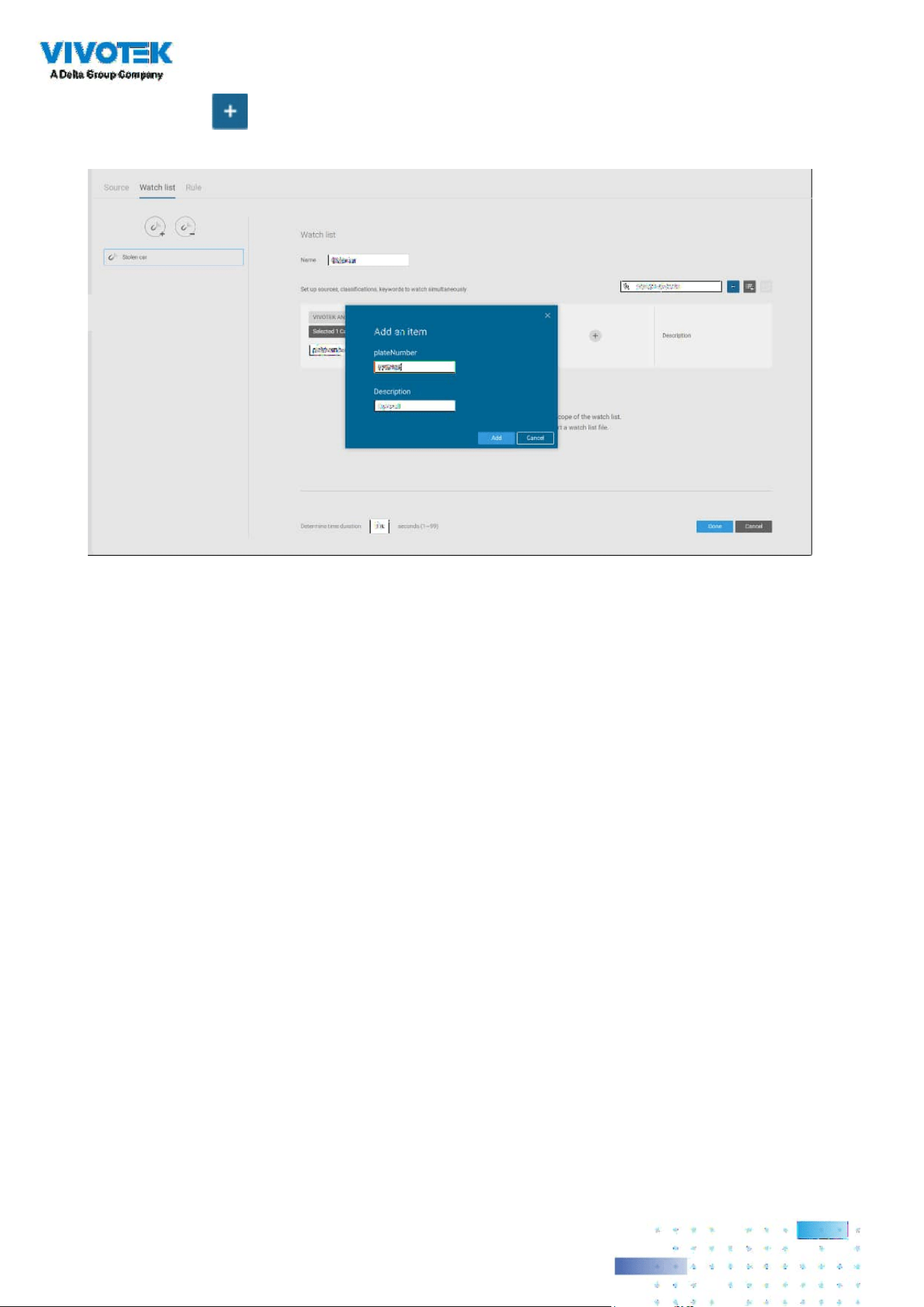
290290
2. Click the Add button and enter a plate number such as one for a stolen car. Click Add to
nish, and repeat the process for more items.
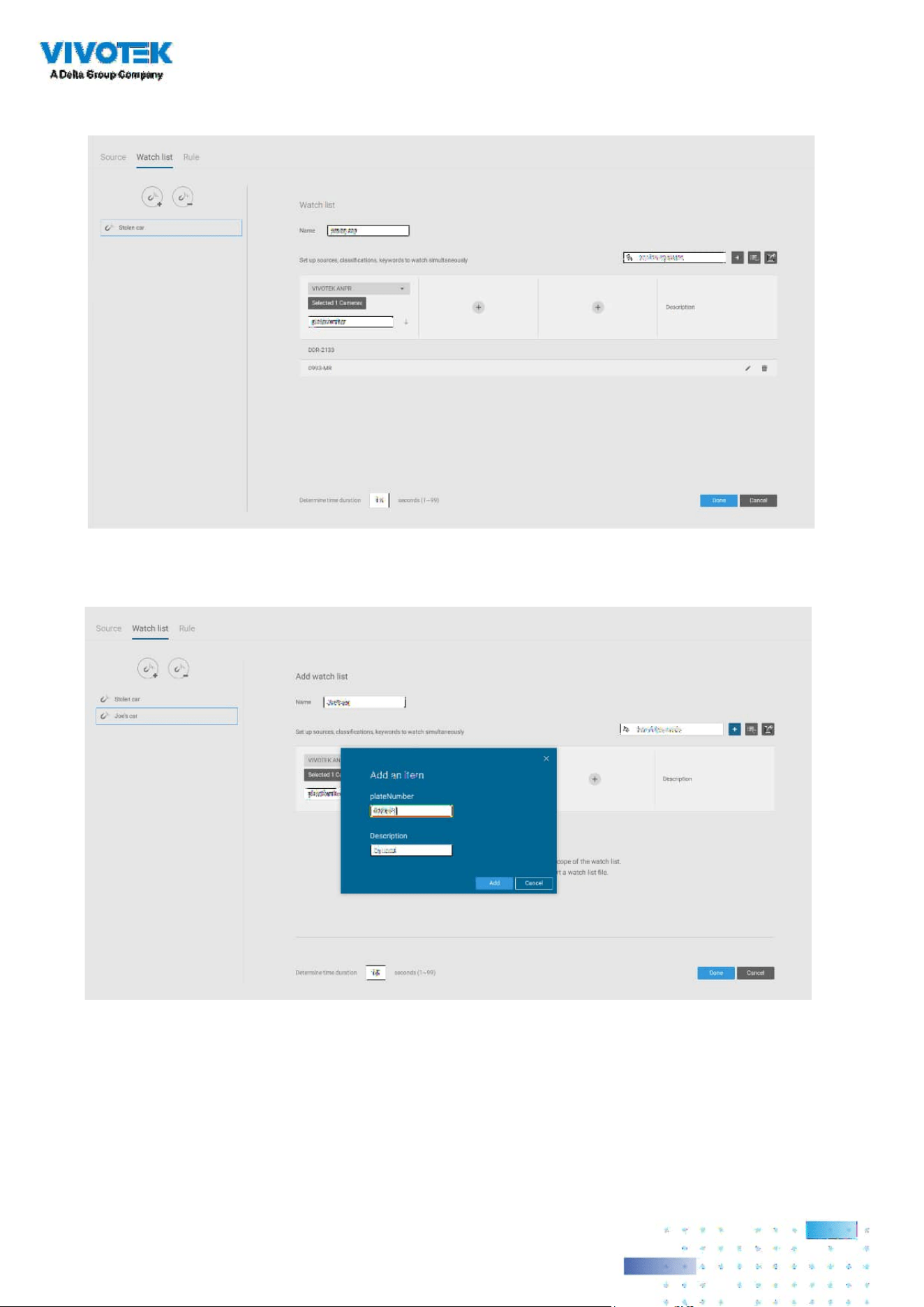
291291
3. The added items will be listed. When done, click the Done button below.
4. Using the same method, you can create a White list for some plate numbers to gain access,
such as VIP customers.
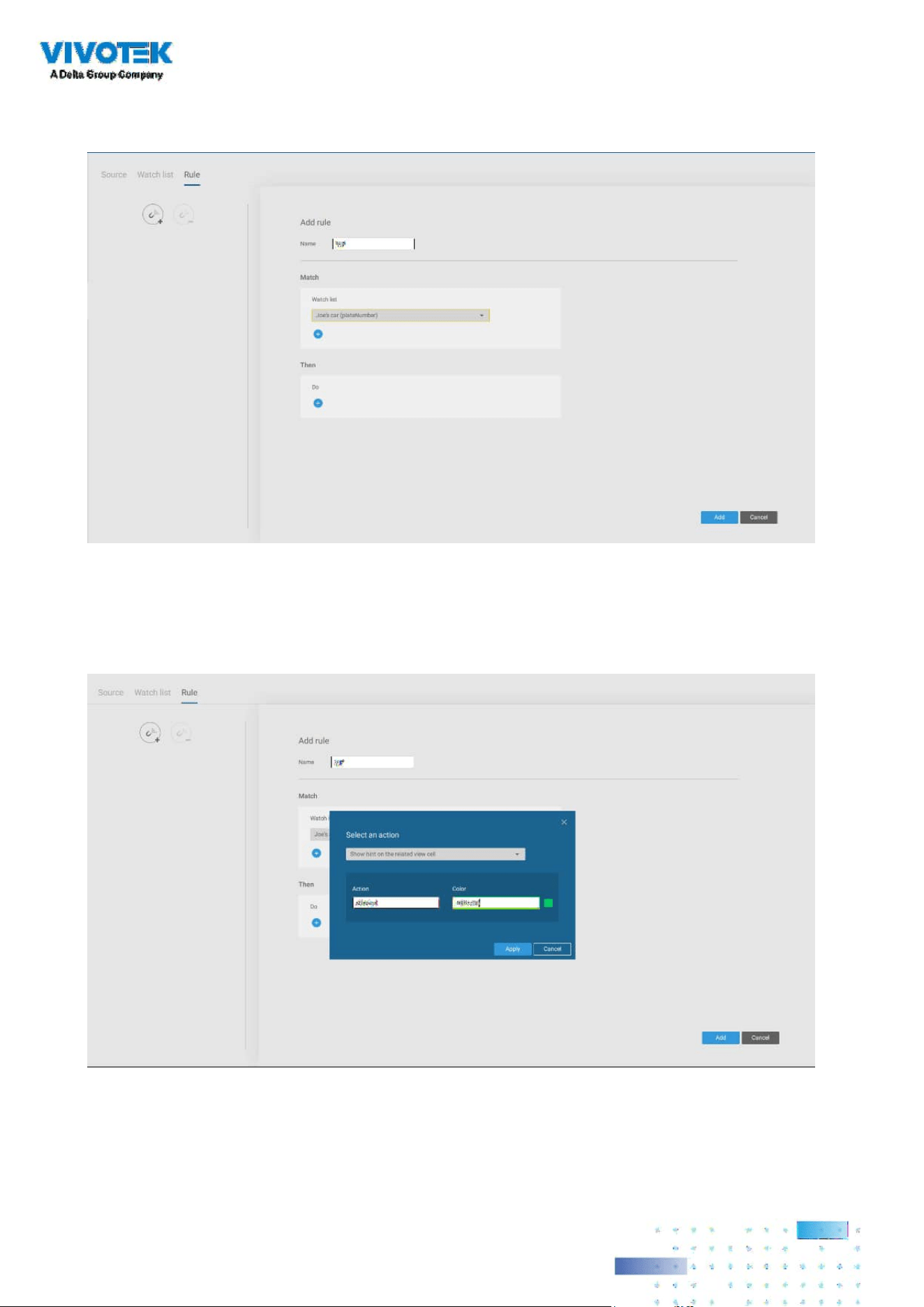
292292
5. Click on the Rule tab. Click the Add rule button then enter a name for the rule. Select a Watch
list you previously congured.
6. Select an action such as Show hint on the related view cell.
Enter a word you want to show on the related view cell. Enter hex color code for the word
displayed on view cell. Click Add to nish the conguration.
.
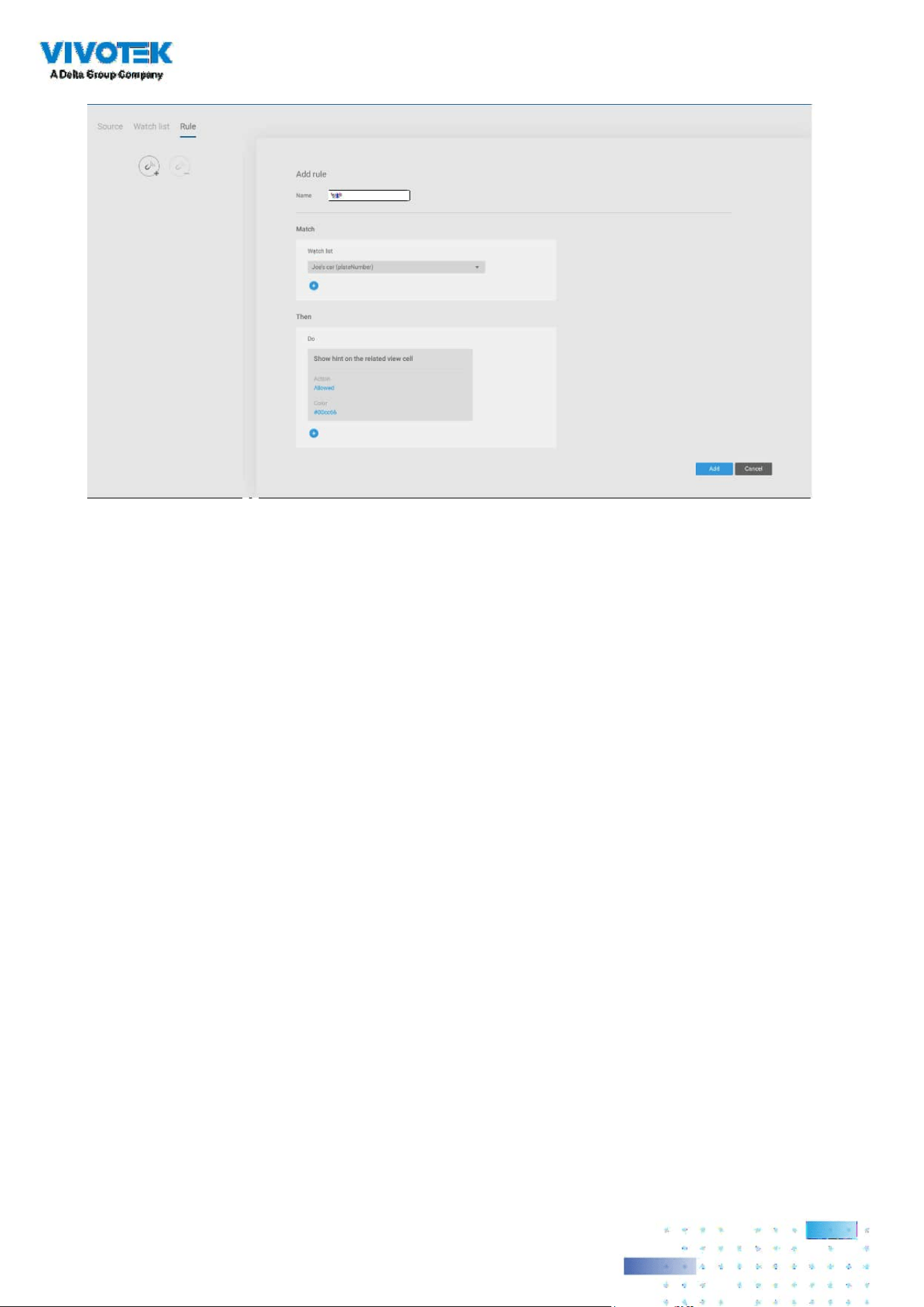
293293

294294
7. On the VSS view cell, the ALLOWED or DENIED rule message will display along with your watch
list and other information.
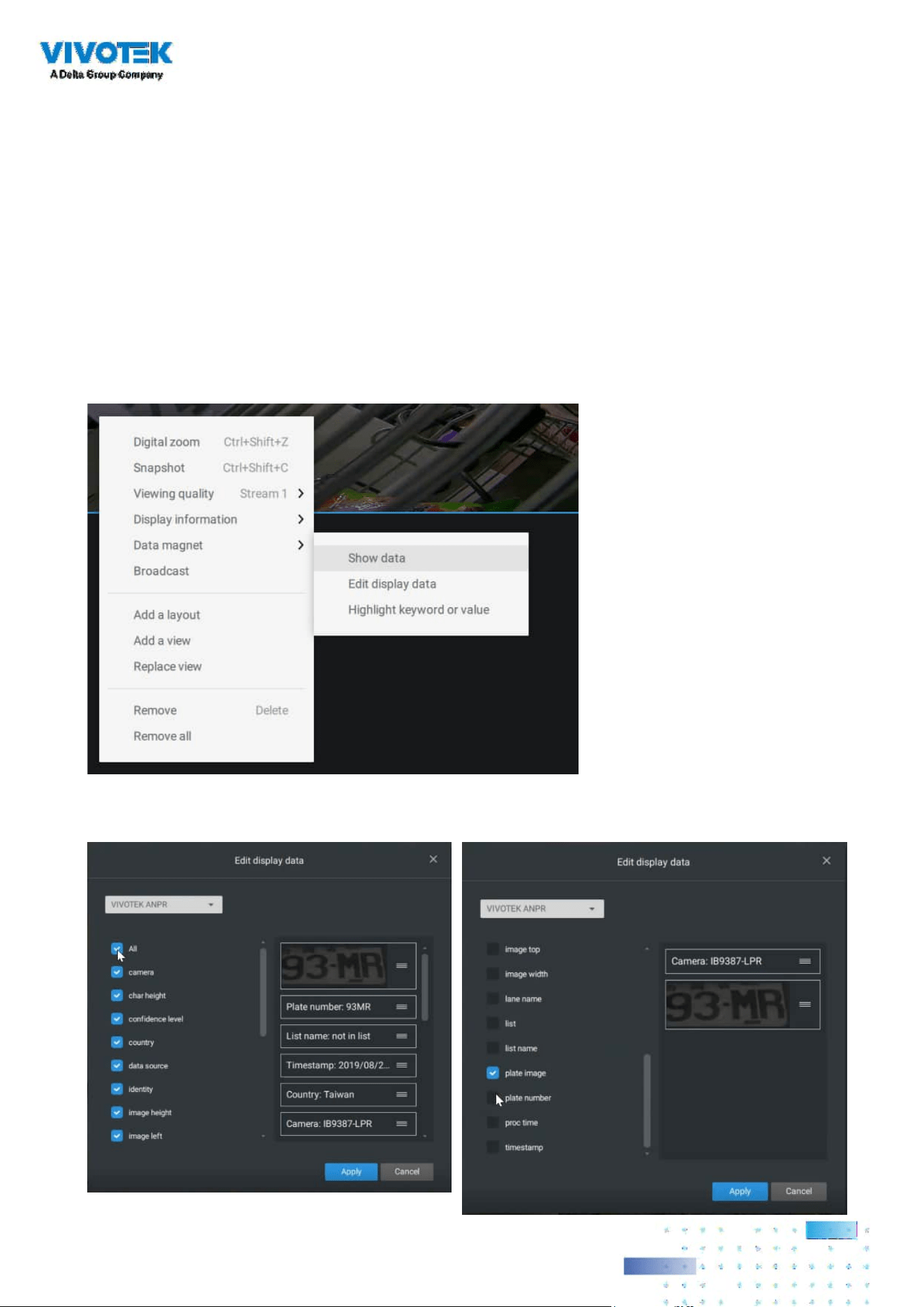
295295
Selecting data display options:
1. On the VSS live view, right-click on screen to display Data Magnet > Edit display data.
If Show data is selected, a portion of the view cell will be used to display the captured data.
2. On the Edit pane, select all or manually select multiple display elements.
There are two dierent ways to show data:
1. Right-click: Data Magnet > Show data.
2. Right-click: Display information > Edit display information > Data magnet data.
The display options are: with or without Data overlay on screen. If the overlay is not enabled,
the data will display on the right pane of the view cell.
The data on the overlay can be
congured to automatically
disappear after a congurable
time, when no new data is
received (Hide data after idle _s).

296296
3. Click and drag individual elements to change their top-down positions on the screen. When
done, click the Apply button.
4. Click Highlight keyword or value. You can display information of unusual data, such as the
specic numbers or characters of forbidden license plates. When such data is met, the
occurrence will be highlighted in a bright yellow color.
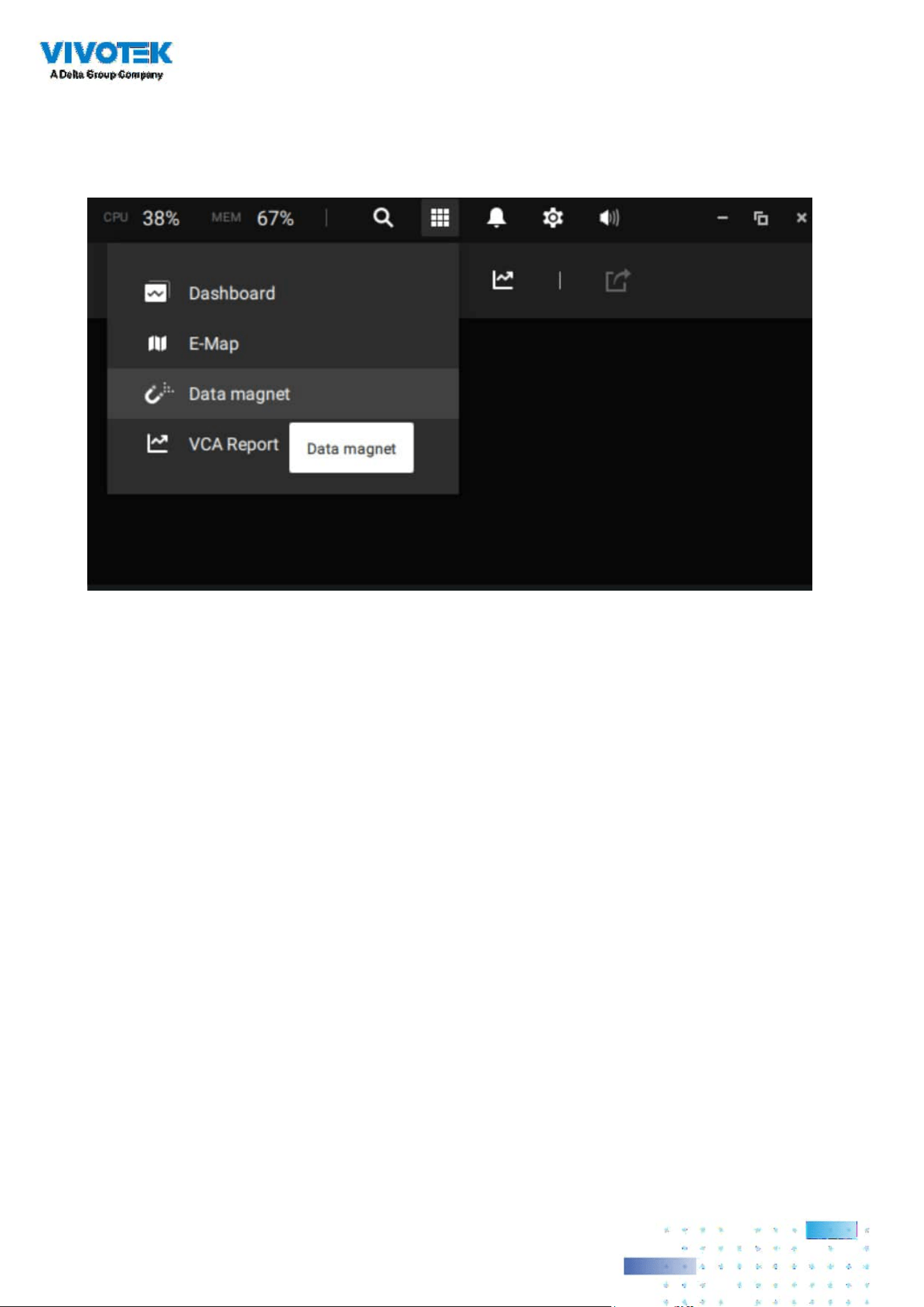
297297
Searching for data and linked recordings:
1. On the VSS live view, click on the Applications tab.

298298
2. On the Data Magnet window, select the LPR camera, and then begin with conguring the
search conditions. Select the time span from the calendar. Select to display character height,
country, data source, identity, image height, lane name, list name, or enter a plate number. You
can select multiple ltering conditions.
3. Click the Search button. The search results will display. Single-click to display the related video.
You can also review the video in a full-screen mode.
You can click and drag the display names of individual columns to switch their positions on
the screen. The changes to layout are stored on the client computer. After you re-arrange the
order of columns in search results, the display order will also be applied to the exported CSV
le.
4. You can select and export a license plate capture using the Export function. Click on the
export button. A folder button will display. Click on it to access the exported le.
The target directory will open. Open the exported CSV le to view the search results.
You can also open a chart view by clicking the
Chart view button. The chart view can also
be exported as a png le.
An evidence image will be available with the search result along with the plate picture.

299299
Conguring Data Magnet alarms:
1. Enter Settings > Alarm > Add & Delete to create a new alarm setting. Click to select
External devices.
2. Select VIVOTEK ANPR as your triggering source. Select and create triggering conditions such
as character height, image width, list, list name, country, etc. Use "=" for text matching, "~" for
text containing, or approximately matching specic characters, and also ">," "<," ">=," "<=" for
numbers larger or smaller than a preset value.
3. Continue to congure your triggering conditions. You can create multiple conditions.
4. Continue to congure the actions for a triggered alarm, such as sending live streaming.
5. When done, enter a name for the alarm and click the Add button to complete.
6. You can now receive alarm notications triggered by license plate recognition via the Data
Magnet.
Note that if you select "Include event-triggering camera" during the alarm conguration stage,
the camera delivering the data source will be automatically selected.

300300
Appendix H: Enable Smart Tracking for Speed Dome Cameras
The Smart tracking function is available on speed dome cameras, such as SD9374-EHLX. The
Smart tracking feature is separately congured on the camera side. Please refer to Smart Tracking
User Guide for conguration details.
To display Smart tracking on VSS,
1. Enter Settings > Devices > Cameras.
2. Select the speed dome camera that supports this feature.
3. Select PTZ Settings, and the Track mode menu. Select Smart tracking as the tracking display
mode. A hyperlink is provided for the Smart tracking conguration page.
It is recommended to always enable "Enable track if the camera idles for xx seconds." Manual
PTZ control always has a higher priority and will interrupt tracking.
4. Click the Apply button.
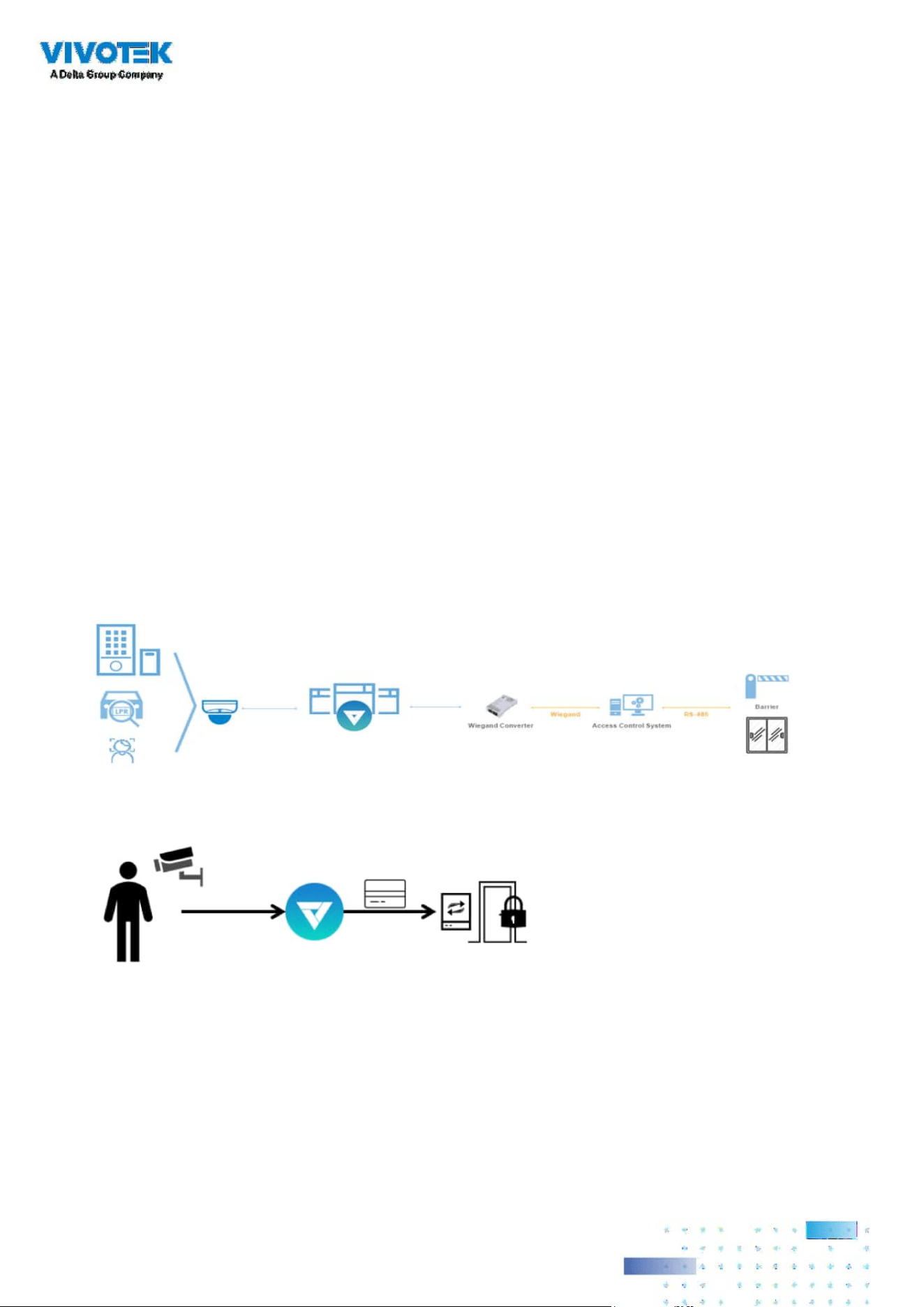
301301
Appendix I: Multi-factor Authentication for Access Control
Via multiple data magnet sources, access authentication can be achieved for the following:
1. License plate recognition system, Face recognition system, 3. Access control system.
For example, in a parking lot, if someone wants to leave, the LPR system at the gate will recognize
the license plate, and the face recognition will verify the driver's identity. If both recognition
succeed, the gate will open allowing the driver to leave.
In an oce, an access control system can be combined with Face recognition mechanism to
avoid someone using someone else' card to cheat the attendance system.
The scenario shows one holds an ID card and via the Face recognition system, his identity is
veried as one employee in the database. VSS then acquires his ID card serial no., passes it on to
an Wiegand converter. The Wiegand converter then passes it to the access control. In addition
to the original ID card access control, multiple utilities can be combined into the access control
mechanism.
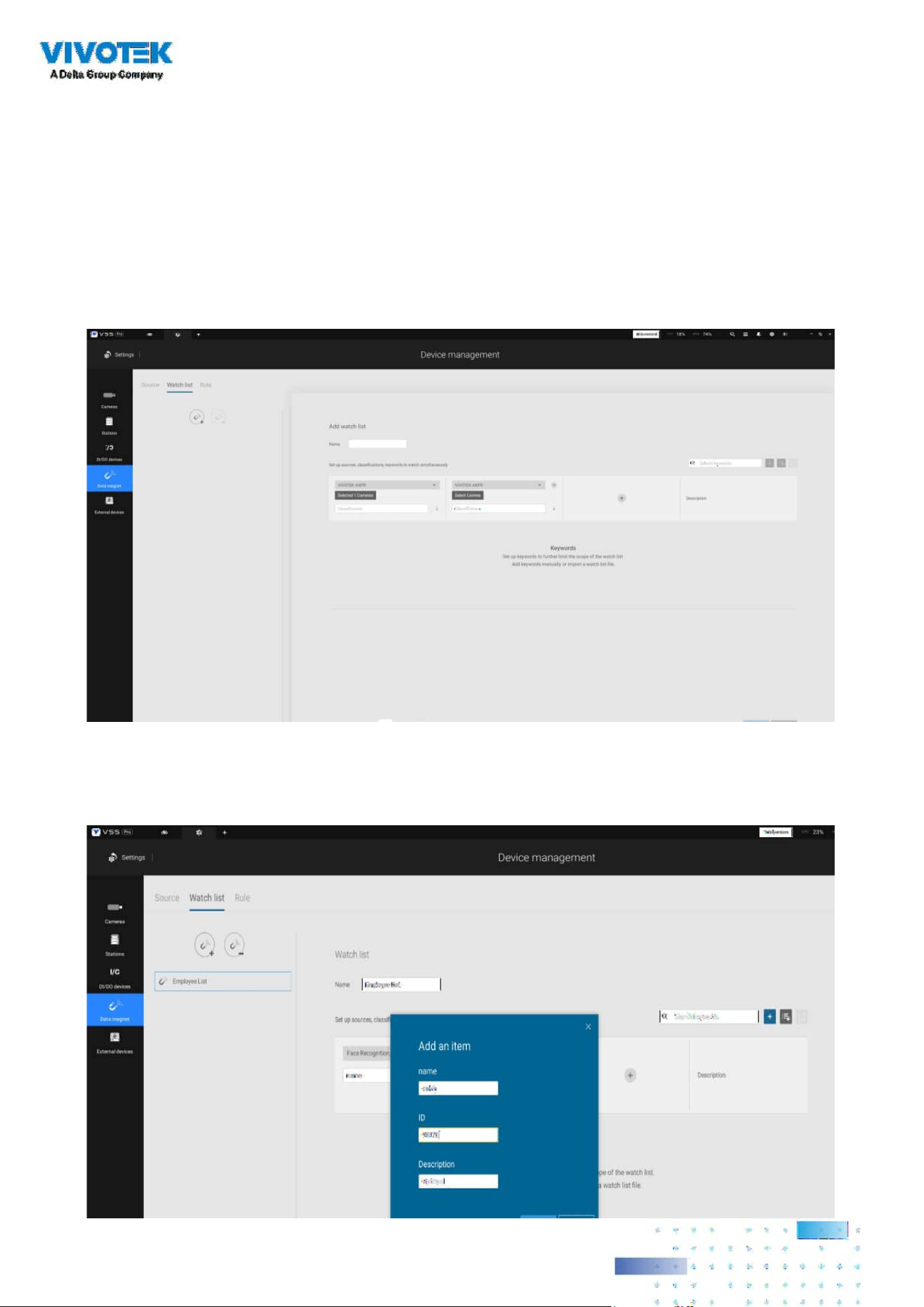
302302
To acquire data from multi-factor systems, we use the Watch list on Data Magnet.
1. Depending on your applications, congure mutiple data magnet sources, so that data can be
transferred and acquired by VSS.
2. Click and select Watch list in the Data Magnet window. Click the Add watch list button, and
enter a name, e.g., Employee list. Select 2 or 3 pre-congured data sources, and enter the
classication you would like to watch for the referential parameter in your Data Magnet json,
e.g., name, ID.
3. Click the Add item button and enter a name and employee ID such as one for an employee.
Click Add to nish, and repeat the process for more items.

303303
4. At the lower screen, enter the time threshold for receiving data from multiple sources. For
example, If set to 15 seconds, VSS will need to receive within this time the facial recognition
and the card ID no. from the access control reader. Both data will be veried and checked
against the data on the watch list, e.g., name=Chris, ID=90223.
5. Click on the Rule tab. Click the Add rule button, and then enter a name for the rule. In the
Match block, select a Watch list you previously congured. In the Then eld, you can congure
your rule action. There are 2 actions available:
1. Show hint on the related view cell. 2. Select data to send to Wiegand converter.
If you apply your rule to be an alarm management trigger, you can bypass the Then action
settings.

304304
How to congure "Select data to send to Wiegand converter?"
VSS has incorporated the support for Wiegand converter AO-20W (https://www.vivotek.com/AO-
20W)
The Wiegand converter can transfer the ID Badge card number through the Wiegand protocol to
an access control system. The access control system then decides whether to open a gate or
not. The VSS station sends an employee's card number to the Wiegand converter, the Wiegand
converter then delivers it to an access control system.
To Select data to send to Wiegand converter, rst select a watch list classication, and then select
a Wiegand converter.
For example, a watch list's employee name=Chris and ID=90223 is veried, you can send the
ID card umber to the Wiegand converter. If a watch list's data is not the card number, but the
data contains name=Chris, employee ID=90223, you can select "Map data to Wiegand card
number." Via the Identity management process, the identity data (such as name) is transferred
into a corresponding ID Badge Wiegand card number, and then is sent to a Wiegand converter.
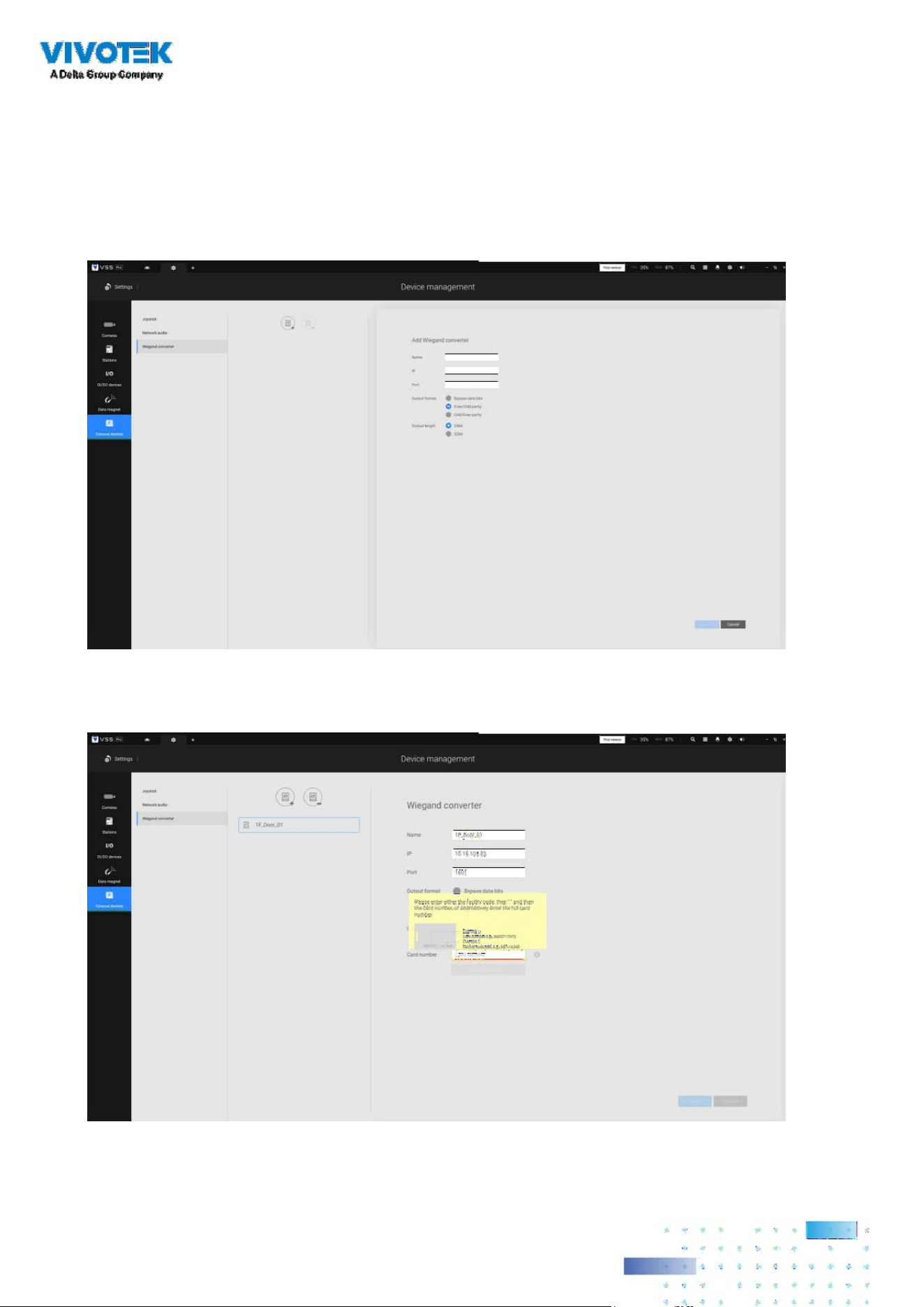
305305
How to add a Wiegand converter to VSS?"
In Settings > External devices > Wiegand Converter, click the add Wiegand converter button.
Enter the converter's IP, Port, Output format, and Output length. You can acquire the
converter's data via a web console to it.
When adding is completed, enter a card number in the Card number eld to test if the converter
can successfully receive a card number.
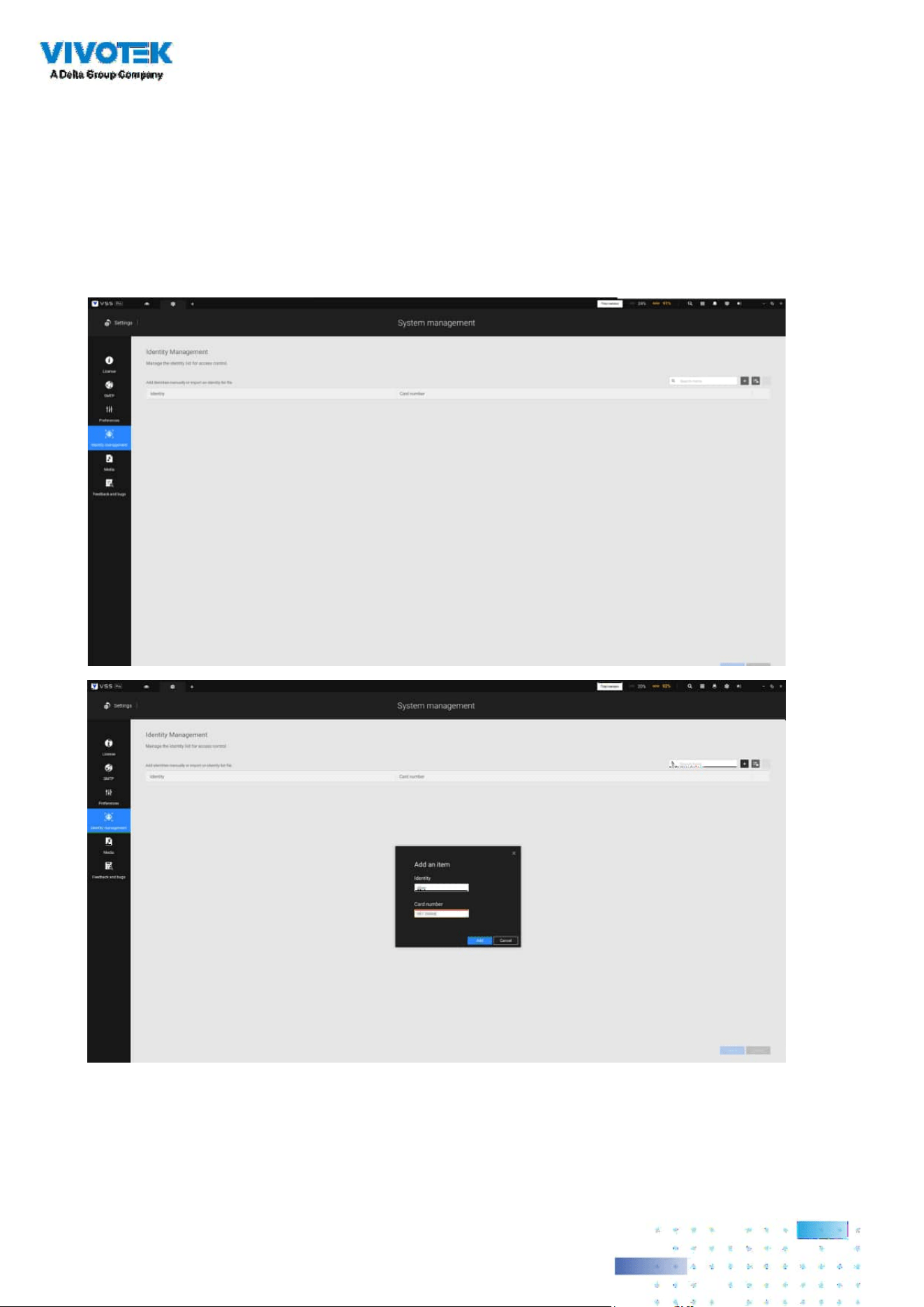
306306
How to congure Identity management?"
In Settings > System > Identity Management, click the add an item button and enter the identity
and card number.
Identity is the information such as name or employee ID or car license plate. The Card number is
the ID Badge's Wiegand card number.
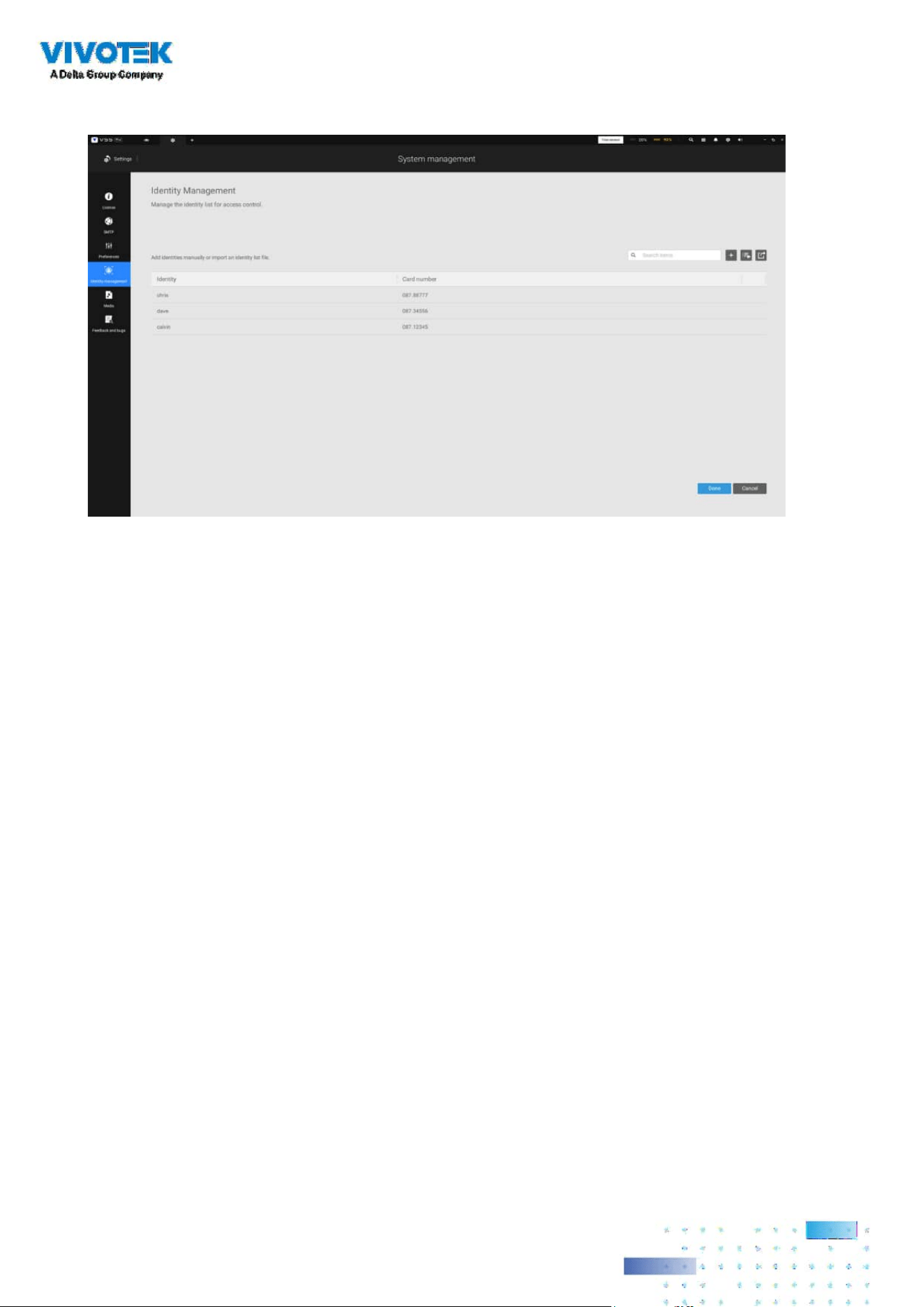
307307
An identity table should look like this.