Register your product and get support at
DCM250/12
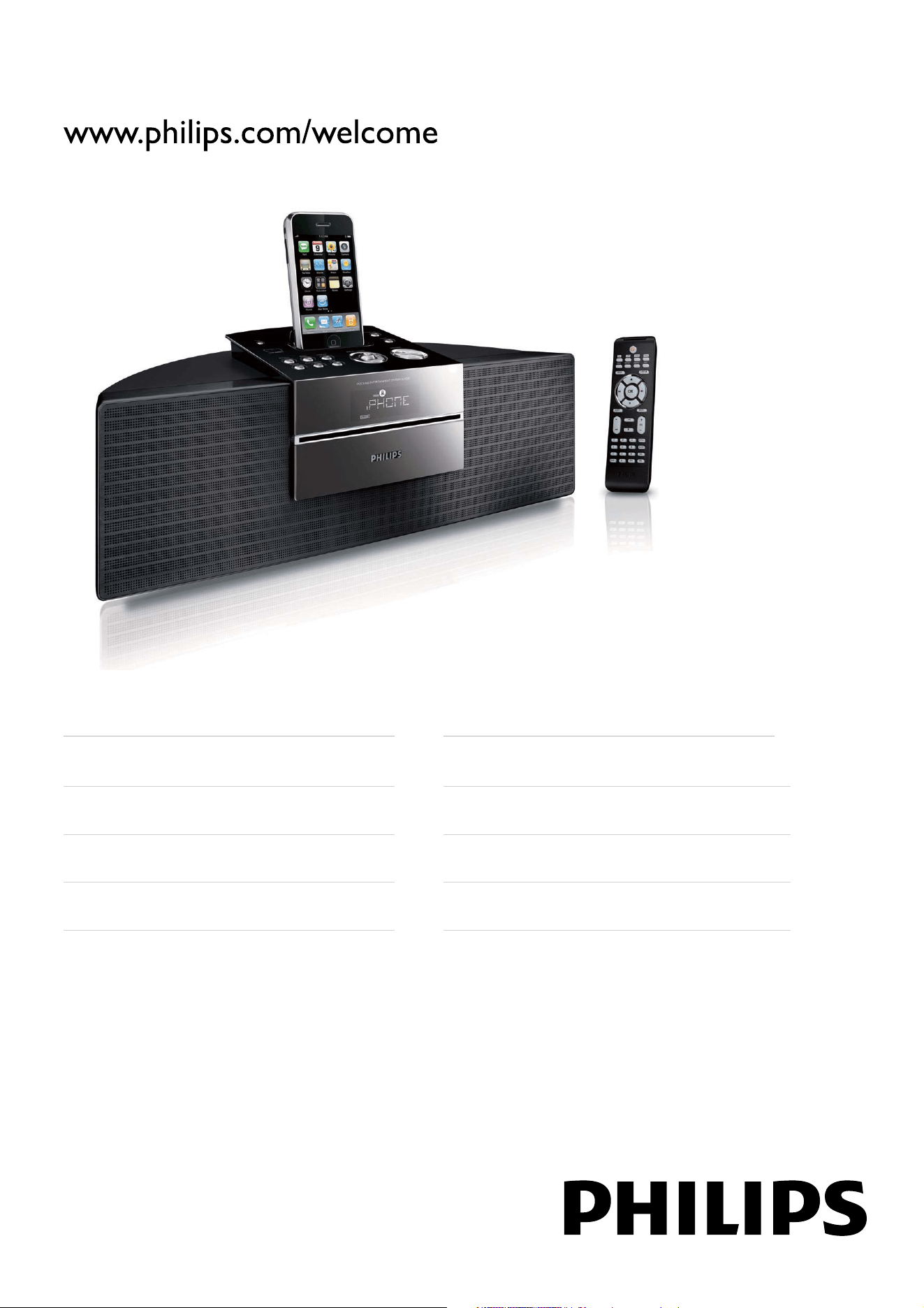
Docking Entertainment System
FR Mode d’emploi
IT Manuale utente
NL Gebruiksaanwijzing
SV Användarhandbok
EN User manual
DA Brugervejledning
DE Benutzerhandbuch
ES Manual del usuario

EN 1
English
Contents
1 Important 2
Safety 2
Notice 3
2 Your Docking Entertainment System 5
Introduction 5
What’s in the box 5
Overview of the main unit 6
Overview of the remote control 7
3 Get started 9
Connect FM antenna 9
Connect MW antenna 9
Connect power 10
Prepare the remote control 10
Auto install radio stations 11
Set clock 11
Turn on 11
4 Play disc 12
5 Play from USB 13
6 Play options 14
Skip to a track 14
Pause/resume play 14
Search within a track 14
Display play information 14
Repeat play 14
Random play 14
Program tracks 14
7 Play iPod/iPhone 15
Compatible iPod/iPhone 15
Load the iPod/iPhone 15
Listen to the iPod/iPhone 15
Play video from iPod/iPhone 15
Charge the iPod/iPhone 16
Remove the iPod/iPhone 16
8 Listen to the radio 17
Tune to a radio station 17
Program radio stations automatically 17
Program radio stations manually 17
Select a preset radio station 17
Show RDS information 17
9 Adjust sound 19
Adjust volume 19
Select a preset sound effect 19
Enhance bass 19
Mute sound 19
10 Other features 20
Set the sleep timer 20
Set the alarm timer 20
Listen to an external device 20
Listen through headphone 20
11 Product information 21
Specifi cations 21
USB playability information 22
Supported MP3 disc formats 22
RDS program types 23
12 Troubleshooting 24
2 EN
1 Important
Safety
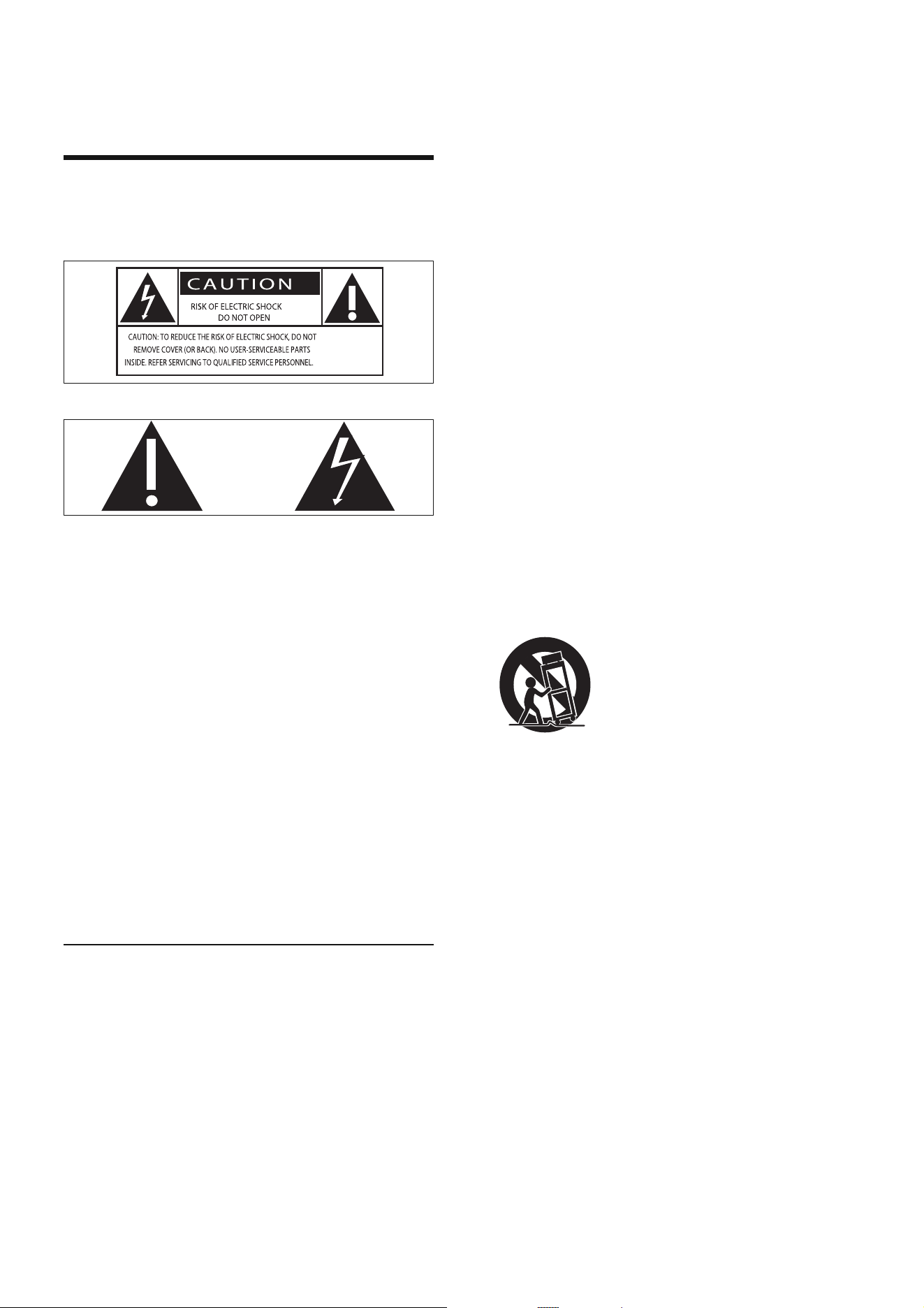
Know these safety symbols
This ‘bolt of lightning’ indicates uninsulated
material within your unit may cause an
electrical shock. For the safety of everyone
in your household, please do not remove
product covering.
The ‘exclamation point’ calls attention to
features for which you should read the
enclosed literature closely to prevent
operating and maintenance problems.
WARNING: To reduce the risk of fi re or
electric shock, this apparatus should not be
exposed to rain or moisture and objects fi lled
with liquids, such as vases, should not be
placed on this apparatus.
CAUTION: To prevent electric shock, match
wide blade of plug to wide slot, fully insert.
Important Safety Instructions
a Read these instructions.
b Keep these instructions.
c Heed all warnings.
d Follow all instructions.
e Do not use this apparatus near water.
f Clean only with dry cloth.
g Do not block any ventilation openings.
Install in accordance with the
manufacturer’s instructions.
h Do not install near any heat sources
such as radiators, heat registers, stoves,
or other apparatus (including amplifi ers)
that produce heat.
i Protect the power cord from being
walked on or pinched, particularly at
plugs, convenience receptacles, and
the point where they exit from the
apparatus.
j Only use attachments/accessories
specifi ed by the manufacturer.
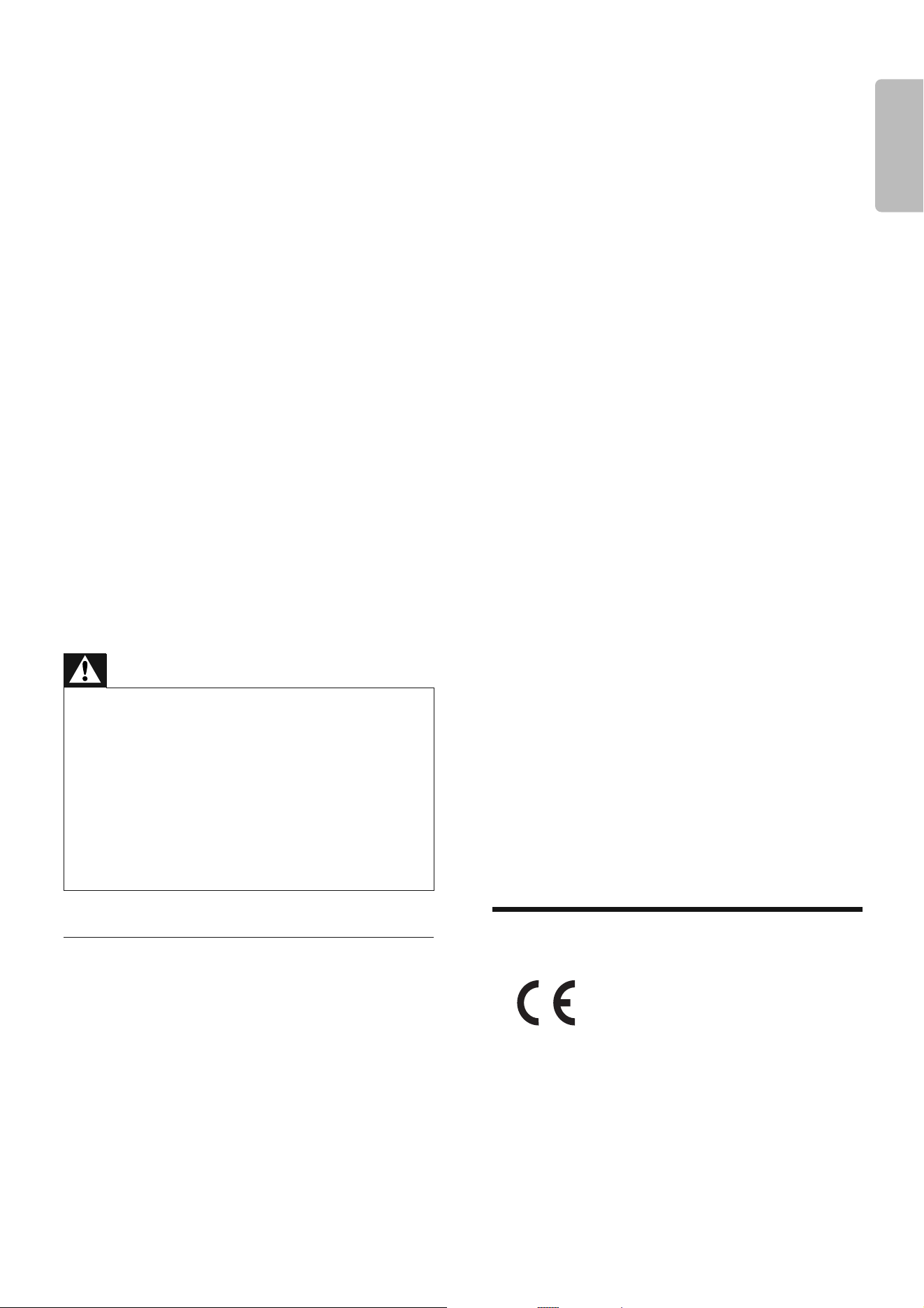
k Use only with the cart, stand, tripod,
bracket, or table specifi ed by the
manufacturer or sold with the apparatus.
When a cart is used, use caution when
moving the cart/apparatus combination
to avoid injury from tip-over.
l Unplug this apparatus during lightning
storms or when unused for long periods
of time.
m Refer all servicing to qualifi ed service
personnel. Servicing is required when
the apparatus has been damaged in any
way, such as power-supply cord or plug
is damaged, liquid has been spilled or
objects have fallen into the apparatus,
the apparatus has been exposed to rain
or moisture, does not operate normally,
or has been dropped.
n Battery usage CAUTION – To prevent
battery leakage which may result in
bodily injury, property damage, or
damage to the unit:
EN 3
English
Install all batteries correctly, + and - •
as marked on the unit.
Do not mix batteries (old and new •
or carbon and alkaline, etc.).
Remove batteries when the unit is •
not used for a long time.
o Apparatus shall not be exposed to
dripping or splashing.
p Do not place any sources of danger on
the apparatus (e.g. liquid fi lled objects,
lighted candles).
q This product may contain lead and
mercury. Disposal of these materials
may be regulated due to environmental
considerations. For disposal or recycling
information, please contact your local
authorities or the Electronic Industries
Alliance: www.eiae.org.
Where the MAINS plug or an appliance •
coupler is used as the disconnect device,
the disconnect device shall remain readily
operable.
Warning
Never remove the casing of this apparatus. •
Never lubricate any part of this apparatus.•
Never place this apparatus on other electrical •
equipment.
Keep this apparatus away from direct sunlight, naked •
fl ames or heat.
Never look into the laser beam inside this apparatus.•
Ensure that you always have easy access to the power •
cord, plug or adaptor to disconnect this apparatus
from the power.
Hearing safety
Listen at a moderate volume.
Using headphones at a high volume can •
impair your hearing. This product can
produce sounds in decibel ranges that
may cause hearing loss for a normal
person, even for exposure less than a
minute. The higher decibel ranges are
offered for those that may have already
experienced some hearing loss.
Sound can be deceiving. Over time your •
hearing ‘comfort level’ adapts to higher
volumes of sound. So after prolonged
listening, what sounds ‘normal’ can
actually be loud and harmful to your
hearing. To guard against this, set your
volume to a safe level before your hearing
adapts and leave it there.
To establish a safe volume level:
Set your volume control at a low setting. •
Slowly increase the sound until you can •
hear it comfortably and clearly, without
distortion.
Listen for reasonable periods of time:
Prolonged exposure to sound, even •
at normally ‘safe’ levels, can also cause
hearing loss.
Be sure to use your equipment •
reasonably and take appropriate breaks.
Be sure to observe the following guidelines
when using your headphones.
Listen at reasonable volumes for •
reasonable periods of time.
Be careful not to adjust the volume as •
your hearing adapts.
Do not turn up the volume so high that •
you can’t hear what’s around you.
You should use caution or temporarily •
discontinue use in potentially hazardous
situations. Do not use headphones while
operating a motorized vehicle, cycling,
skateboarding, etc.; it may create a traffi c
hazard and is illegal in many areas.
Notice
This product complies with the radio
interference requirements of the European
Community.
This product complies with the requirements
of the following directives and guidelines:
2004/108/EC + 2006/95/EC
4 EN
Any changes or modifi cations made to this
device that are not expressly approved by
Philips Consumer Lifestyle may void the user’s
authority to operate the equipment.
Recycling
Your product is designed and manufactured with
high quality materials and components, which can
be recycled and reused.
When you see the crossed-out wheel bin symbol
attached to a product, it means the product is
covered by the European Directive 2002/96/EC:
Never dispose of your product with other
household waste. Please inform yourself about
the local rules on the separate collection of
electrical and electronic products. The correct
disposal of your old product helps prevent
potentially negative consequences on the
environment and human health.
Your product contains batteries covered by the
European Directive 2006/66/EC, which cannot
be disposed of with normal household waste.
When you see the crossed-out wheel bin
symbol with the chemical symbol ‘Pb’, it
means that the batteries comply with the
requirement set by the directive for lead:
Please inform yourself about the local rules on
separate collection of batteries. The correct
disposal of batteries helps prevent potentially
negative consequences on the environment
and human health.
Environmental information
All unnecessary packaging has been omitted.
We have tried to make the packaging easy to
separate into three materials: cardboard (box),
polystyrene foam (buffer) and polyethylene
(bags, protective foam sheet.)
Your system consists of materials which can
be recycled and reused if disassembled by
a specialized company. Please observe the
local regulations regarding the disposal of
packaging materials, exhausted batteries and
old equipment.
This apparatus includes this label:
Windows Media and the Windows logo are
trademarks, or registered trademarks of
Microsoft Corporation in the United States
and/or other countries.
Norge
Typeskilt fi nnes på apparatens underside.
Observer: Nettbryteren er sekundert
innkoplet. Den innebygde netdelen er
derfor ikke frakoplet nettet så lenge
apparatet er tilsluttet nettkontakten.
For å redusere faren for brann eller
elektrisk støt, skal apparatet ikke utsettes
for regn eller fuktighet.
EN 5
English
2 Your Docking
Entertainment
System
Congratulations on your purchase, and
welcome to Philips! To fully benefi t from the
support that Philips offers, register your product
at www.philips.com/welcome.
Introduction
With this DCM250, you can enjoy audio from
audio discs, USB devices, iPod players, iPhone
and other external devices, or listen to radio
stations.
The DCM250 offers you multiple sound effect
settings that enrich sound with Digital Sound
Control (DSC) and Dynamic Bass Boost (DBB).
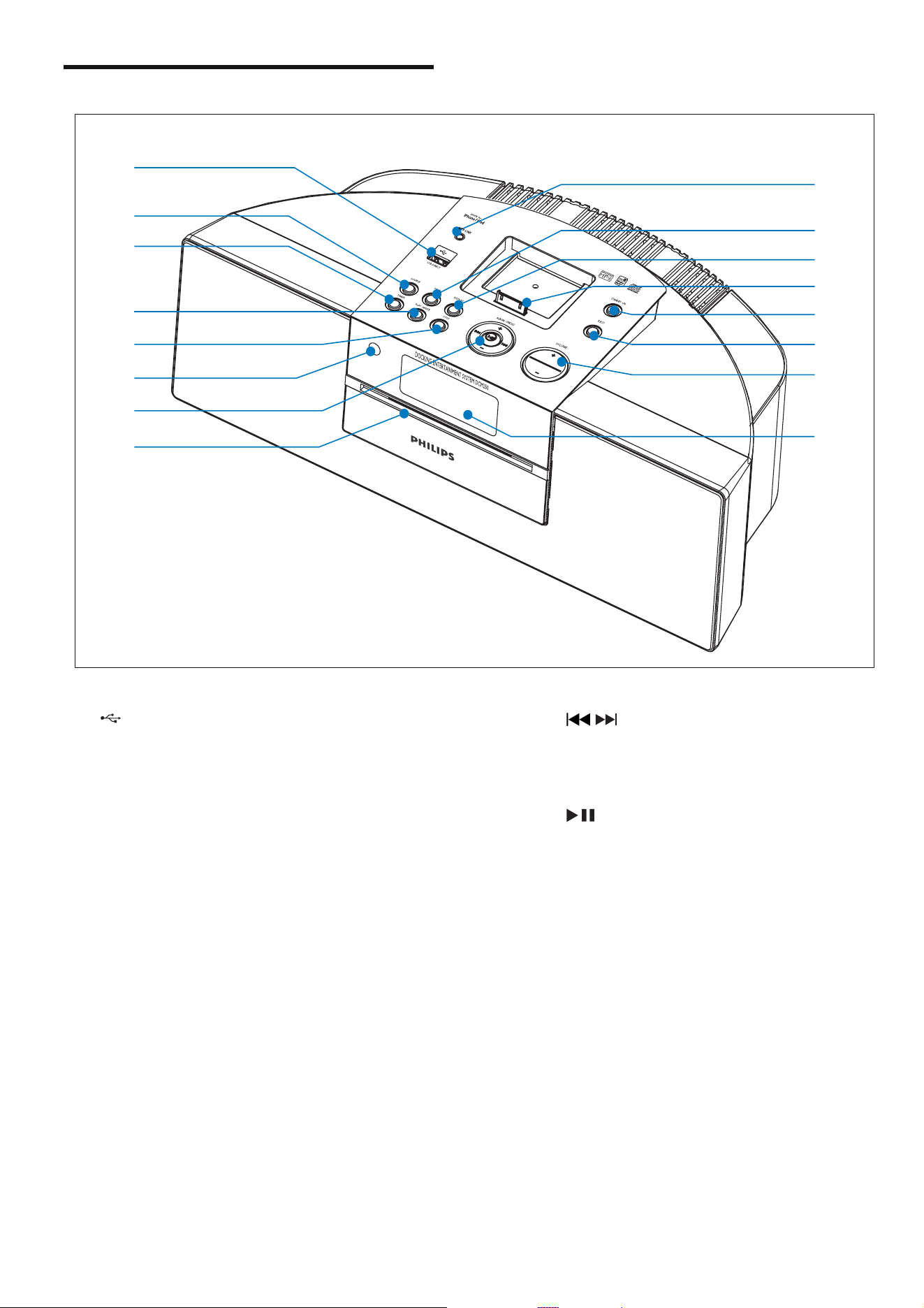
The DCM250 supports the following media
formats:
What’s in the box
Check and identify the contents of your
package:
Main unit•
Remote control with battery•
FM antenna•
MW antenna•
Video cable•
Back plate•
AC adaptor•
Power cord•
MP3 link cable•
User manual•
Quick start guide•
6 EN
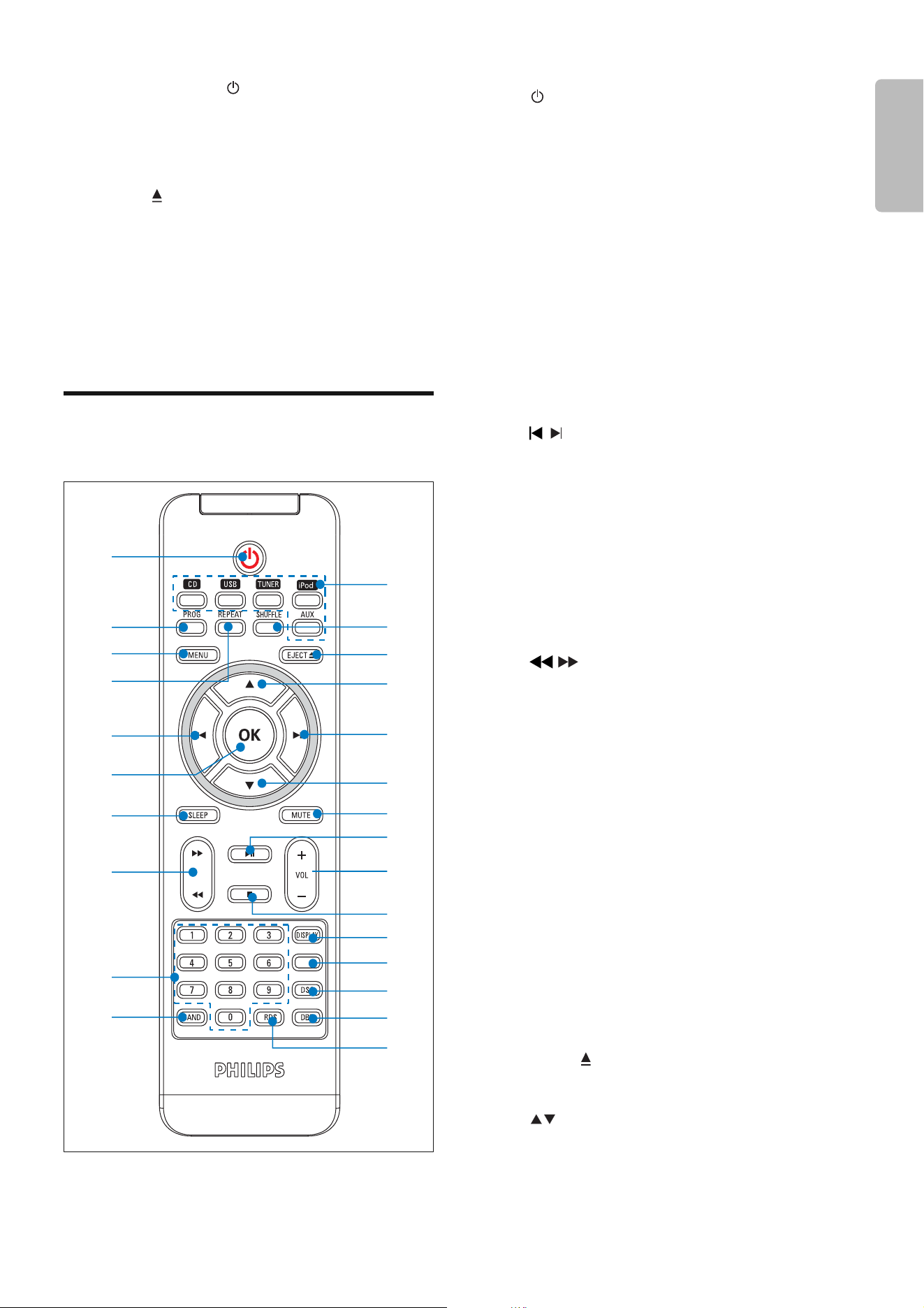
Overview of the main unit
a
Jack for a USB mass storage device. •
b SOURCE
Select a source: DISC, USB, iPod, •
TUNER, or MP3 LINK.
c TIMER
Set the alarm timer.•
d PLAY·MODE
Select repeat/shuffl e mode. •
e STOP
Stop play or erase a program.•
f IR sensor
g ALBUM·PRESET +/-
Select a preset radio station.
Skip to the previous/next album.
Adjust time.
p
j
i
k
m
n
o
l
a
f
d
e
g
b
c
h
• /
Skip to the previous/next track.
Search within a track/ disc/USB.
Tune to a radio station.
•
Start or pause play.
h Disc compartment
i MP3-LINK
Jack for an external audio device.•
j PROG
Program tracks.•
Program radio stations.•
Set the clock.•
k DISPLAY
During play, select display •
information.
l Dock for iPod/iPhone
EN 7
English
m STANDBY-ON
Turn on the apparatus, switch •
to standby mode, or Eco Power
standby mode.
n EJECT
Eject the disc.•
o VOLUME +/-
Adjust volume.•
p Display panel
Show current status.•
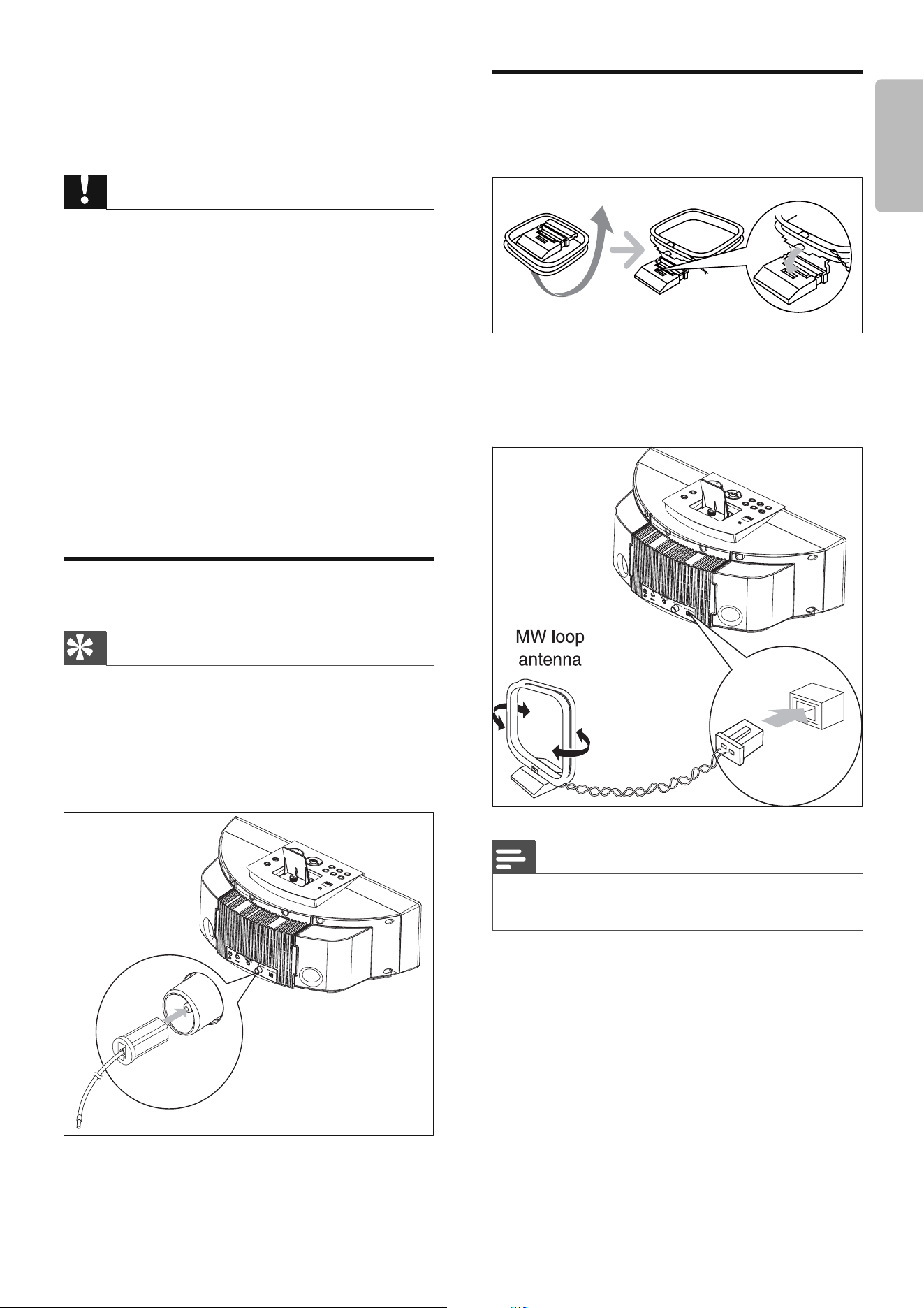
Overview of the remote
control
TIMER
a
b
c
d
e
f
g
h
i
j
k
l
m
n
e
n
o
p
q
r
s
t
u
v
w
a
Turn on the apparatus, switch •
to standby mode, or Eco Power
standby mode.
b PROG
Program tracks.•
Program radio stations.•
Set the clock.•
c MENU
Access the iPod/iPhone menu.•
d REPEAT
Select a repeat play mode.•
e
/
Skip to the previous/next track.•
Navigate through the iPod/iPhone •
menu.
f OK
Confi rm a selection.•
g SLEEP
Set the sleep timer.•
h
/
Search within a track/disc/USB/iPod/•
iPhone.
Tune to a radio station.•
i Numeric keypad
Select a track from a disc directly.•
j BAND
Select a waveband: FM or MW.•
k Source selection keys ( CD , USB ,
TUNER ,iPod ,AUX )
Select a source: CD, USB, TUNER, •
iPod/iPhone or AUX(MP3 LINK).
l SHUFFLE
Play tracks randomly.•
m EJECT
Eject the disc.•
n
Skip to the previous/next album.•
Navigate through the iPod/iPhone •
menu.

8 EN
o MUTE
Mute volume.•
p
Start or pause play.•
q VOL +/-
Adjust volume.•
r
Stop play or erase a program.•
s DISPLAY
During play, select display •
information.
t TIMER
Set the alarm timer.•
u DSC
Select a preset sound setting.•
v DBB
Turns on or off dynamic bass •
enhancement.
w RDS
Display available RDS (Radio Data •
System) information of an FM radio
station.
EN 9
English
3 Get started
Caution
Use of controls or adjustments or performance of •
procedures other than herein may result in hazardous
radiation exposure or other unsafe operation.
Always follow the instructions in this chapter in
sequence.
If you contact Philips, you will be asked for the
model and serial number of this apparatus. The
model number and serial number are on the
bottom of the apparatus. Write the numbers
here:
Model No. __________________________
Serial No. ___________________________
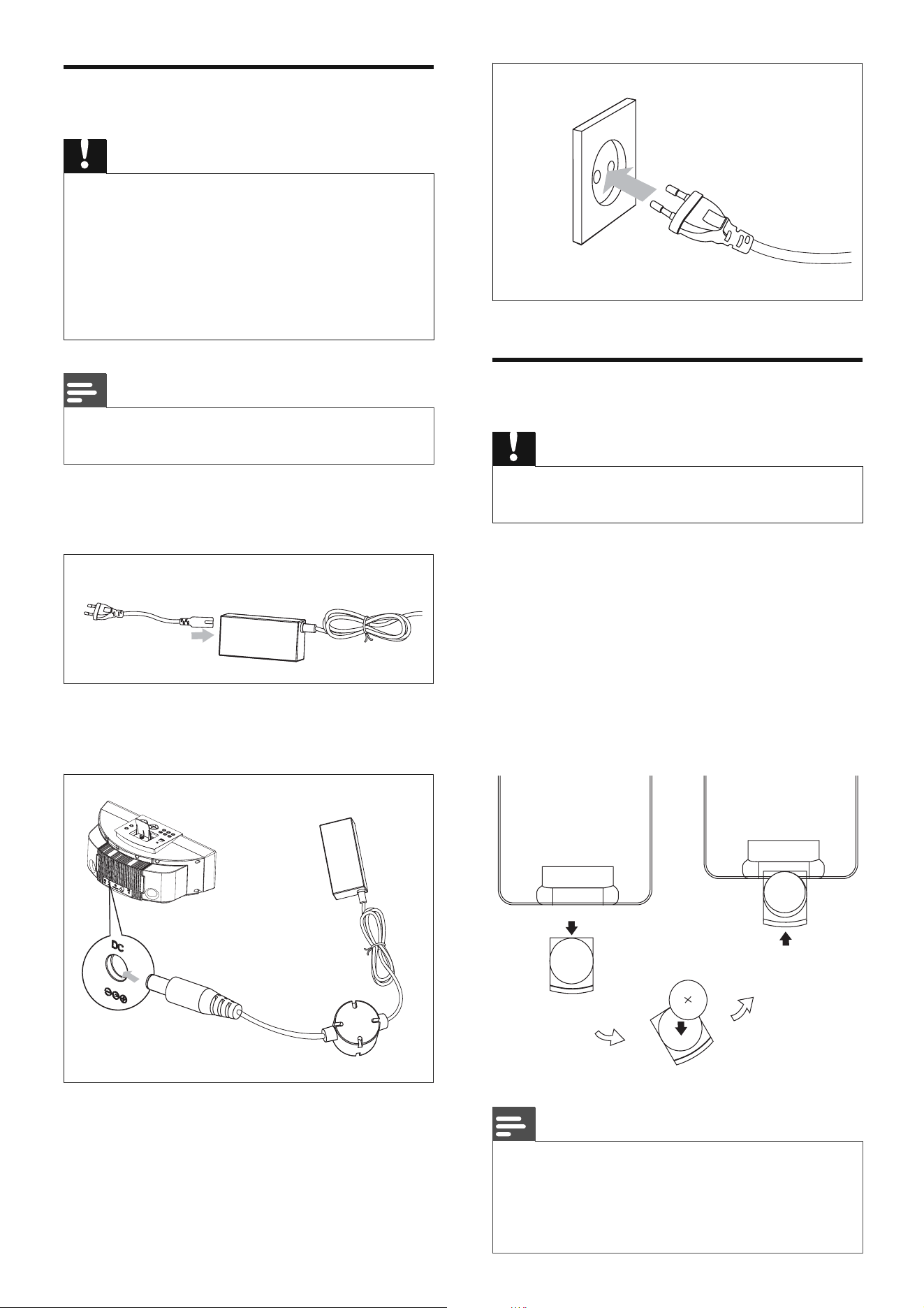
Connect FM antenna
Tip
For optimal reception, fully extend and adjust the •
position of the antenna.
1 Connect the supplied FM antenna to the
FM AERIAL jack on the main unit.
FM AERIAL
Connect MW antenna
1 Assemble the MW loop antenna.
2 Connect the MW loop antenna to the
MW AERIAL jack on the rear of the main
unit.
Note
Position the antenna as far as possible from a TV, VCR •
or other radiation source.
MW AERIAL
10 EN
Connect power
Caution
Risk of product damage! Ensure that the power supply •
voltage corresponds to the voltage printed on the back
or the underside of the unit.
Risk of electric shock! When you unplug the AC power
•
cord, always pull the plug from the socket. Never pull
the cord.
Before connecting the AC power cord, ensure you •
have completed all other connections.
Note
The type plate is located on the bottom of the main •
unit.
1 Connect the power cord to the AC
adaptor.
2 Connect one end to the DC socket on
the main unit.
3 Connect the other end to the wall socket.
Prepare the remote control
Caution
Risk of explosion! Keep batteries away from heat, •
sunshine or fi re. Never discard batteries in fi re.
For fi rst-time use:
1 Remove the protective tab to activate the
remote control battery.
To replace the remote control battery:
1 Open the battery compartment.
2 Insert 1 CR2025 battery with correct
polarity (+/-) as indicated.
3 Close the battery compartment.
Note
Before pressing any function button on the remote •
control, fi rst select the correct source with the remote
control instead of the main unit.
If you are not going to use the remote control for a •
long time, remove the battery.

EN 11
English
Auto install radio stations
When you connect power and no radio
stations are stored, the DCM250 automatically
begins to store radio stations.
1 Connect the DCM250 to the power
supply.
[AUTO INSTALL - PRESS PLAY] (auto »
install - press the PLAY button) is
displayed.
2 Press on the main unit to start
installation.
The DCM250 automatically stores »
radio stations with suffi cient signal
strength.
When all the available radio stations »
are stored, the fi rst preset radio station
is broadcast automatically.
Set clock
1 In standby mode, press PROG to activate
the clock setting mode.
The 12 hour or 24 hour format is »
displayed.
2 Press / to select 12 hour or 24 hour
format.
3 Press PROG.
The hour digits are displayed and begin »
to blink.
4 Press / to set the hour.
5 Press PROG.
The minute digits are displayed and »
begin to blink.
6 Press / to set the minute.
7 Press PROG to confi rm.
Turn on
1 Press .
The DCM250 switches to the last »
selected source.
Switch to standby
1 Press to switch the DCM250 to
standby mode.
The backlight on the display panel is »
reduced.
The clock (if set) appears on the »
display panel.
To switch the DCM250 to Eco Power
Standby mode:
1 In standby mode, press and hold for
more than 2 seconds.
The backlight on the display panel »
turns off.
12 EN
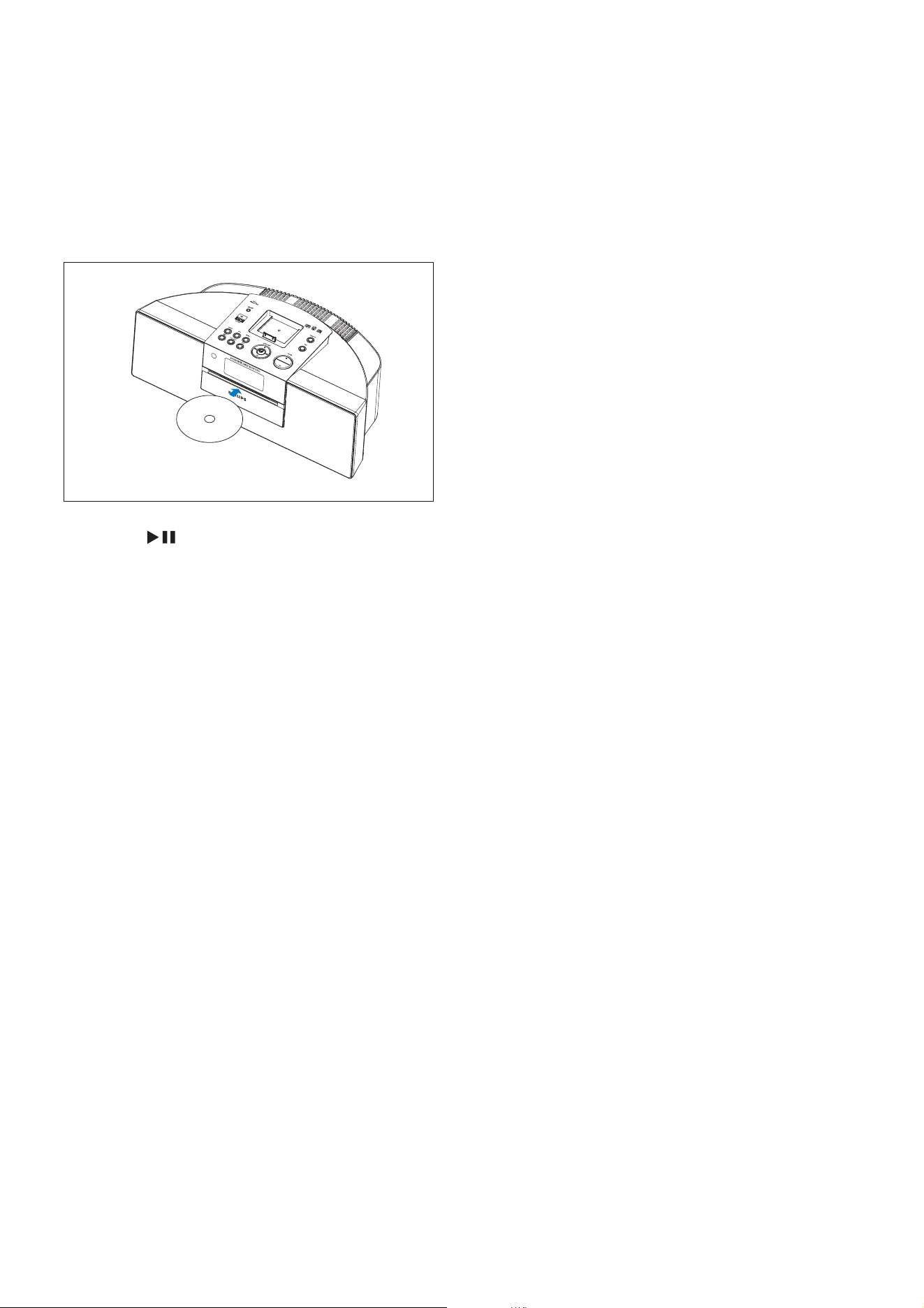
4 Play disc
1 Press CD to select the disc source.
2 Insert a disc into the disc compartment
with the printed side facing up.
3 Press to start play.
L
a
b
e
l
s
i
d
e
EN 13
English
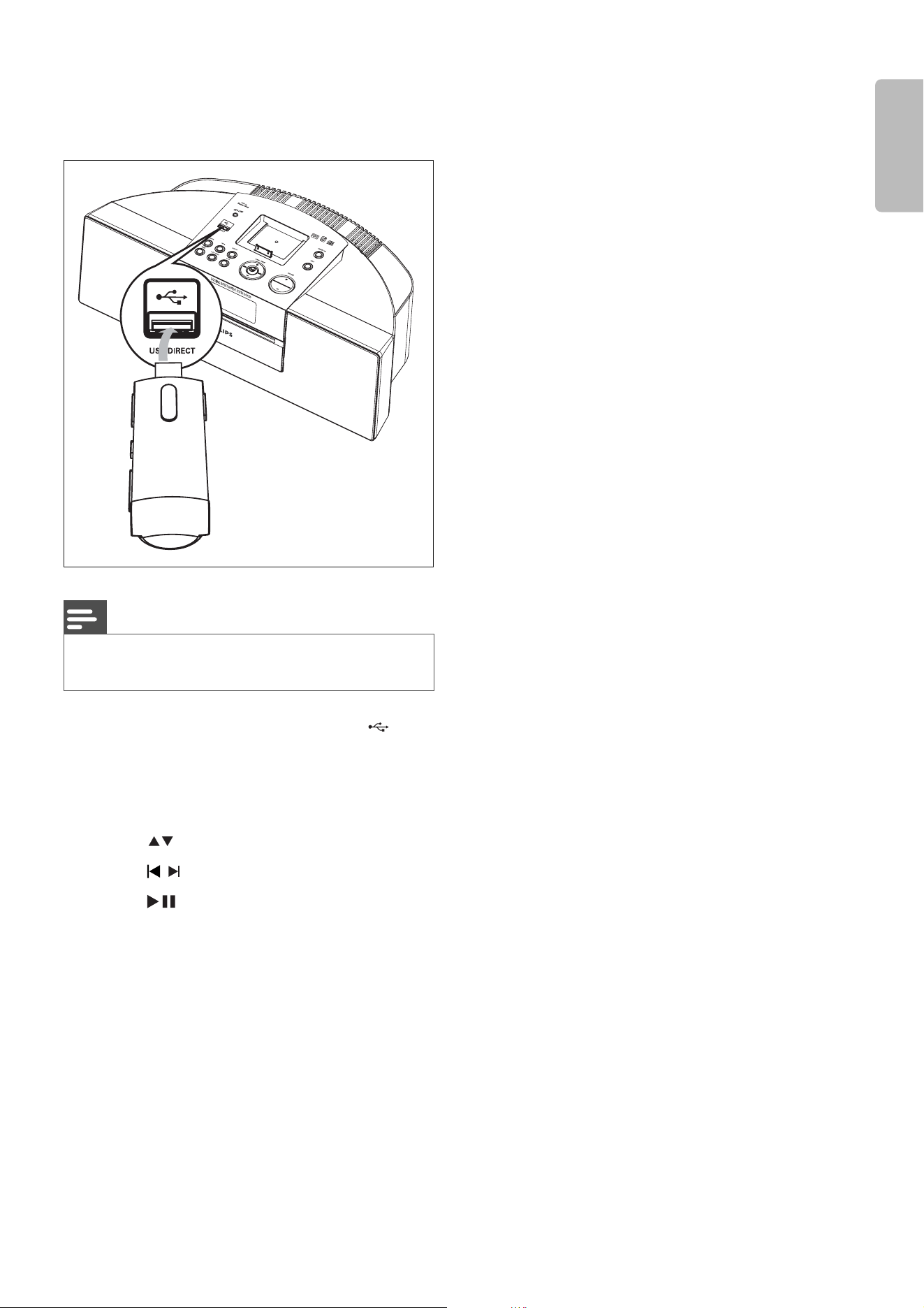
5 Play from USB
Note
• Ensure that the USB device contains playable audio
content (see ‘USB playability information’ on page 22 ).
1 Connect the USB device into the
socket.
2 Press USB to select the USB source.
The total number of tracks is displayed.»
3 Press to select a folder.
4 Press / to select a fi le.
5 Press to start play.
14 EN
6 Play options
Skip to a track
For CD:
1 Press / to select another track.
To select a track directly, you can •
also press a key on the numerical
keypad.
For MP3 disc and USB:
1 Press to select an album or folder.
2 Press / to select select a track or fi le.
Pause/resume play
1 During play, press to pause/resume
play.
Search within a track
1 During play, press and hold / .
2 Release to resume normal play.
Display play information
1 During play, press DISPLAY repeatedly to
select different play information.
Repeat play
1 During play, press REPEAT repeatedly to
select:
•
: The current track is played
repeatedly.
•
: All tracks are played
repeatedly.
For MP3/WMA and USB: • and
[ALB]. The current album is played
repeatedly.
2 To return to normal play, press REPEAT
repeatedly until the repeat mode is no
longer displayed.
Random play
1 Press SHUFFLE.
»
is displayed. All tracks are played in
a random sequence.
2 To return to normal play, press SHUFFLE
again.
Tip
The repeat and shuffl e functions cannot be activated at •
the same time.
Program tracks
You can program a maximum of 40 tracks.
1 At CD/USB mode, at the stop position,
press PROG to activate the program
mode.
[PROG] (program) blinks on the »
display.
2 For MP3/WMA tracks, press to select
an album.
3 Press / to select a track number, then
press PROG to confi rm.
4 Repeat steps 2 to 3 to program more
tracks.
5 Press to play the programmed tracks.
During play, [PROG] (program) is »
displayed.
To erase the program, in the stop •
position, press
.
EN 15
English
7 Play iPod/iPhone
You can enjoy audio/video from iPod/iPhone
through this DCM250.
Compatible iPod/iPhone
Apple iPod and iPhone models with a 30-pin
dock connector:
iPod classic, iPod touch, iPod nano, iPod •
5th generation (video), iPod with color
display, iPod mini.
iPhone, iPhone 3G.•
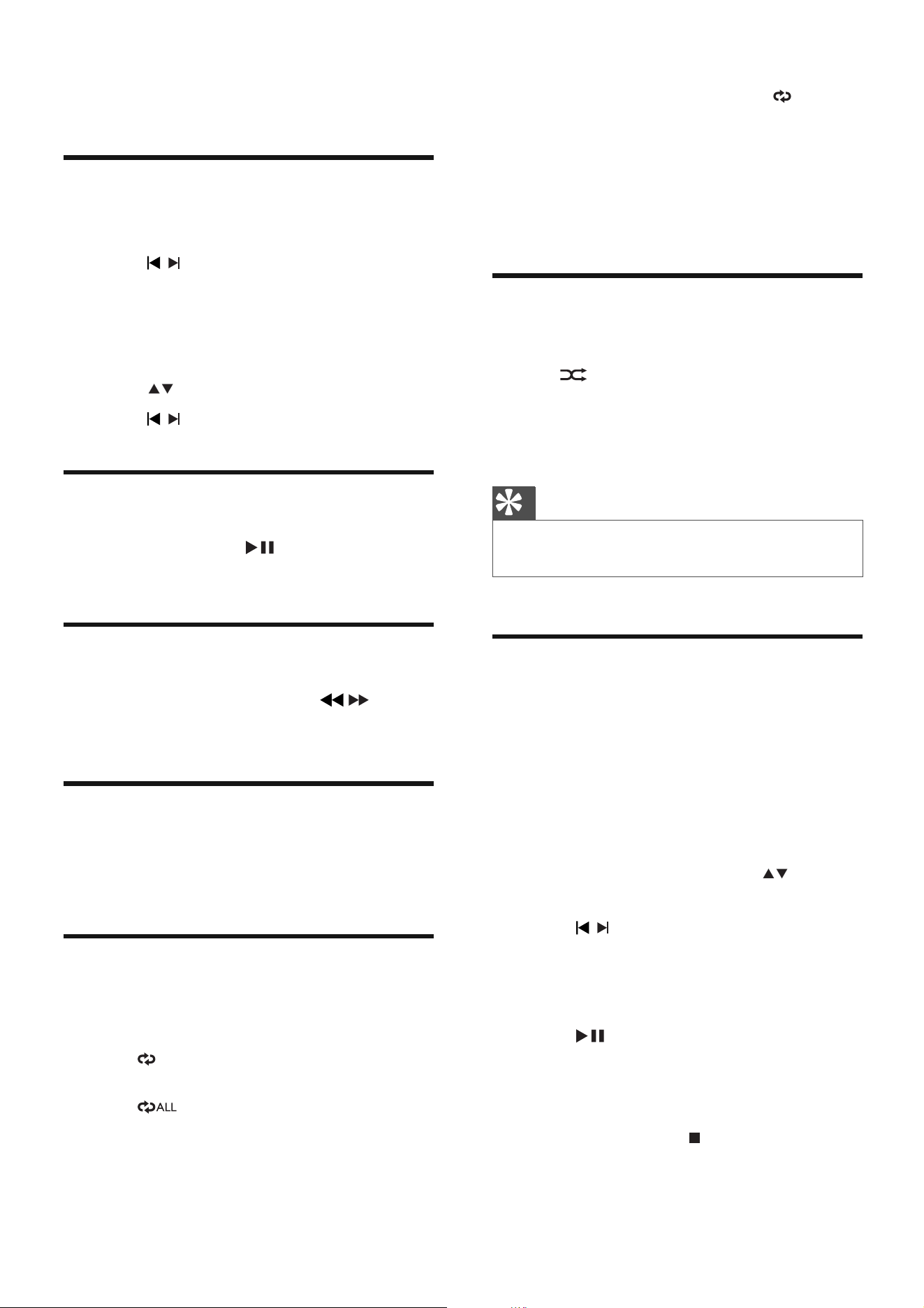
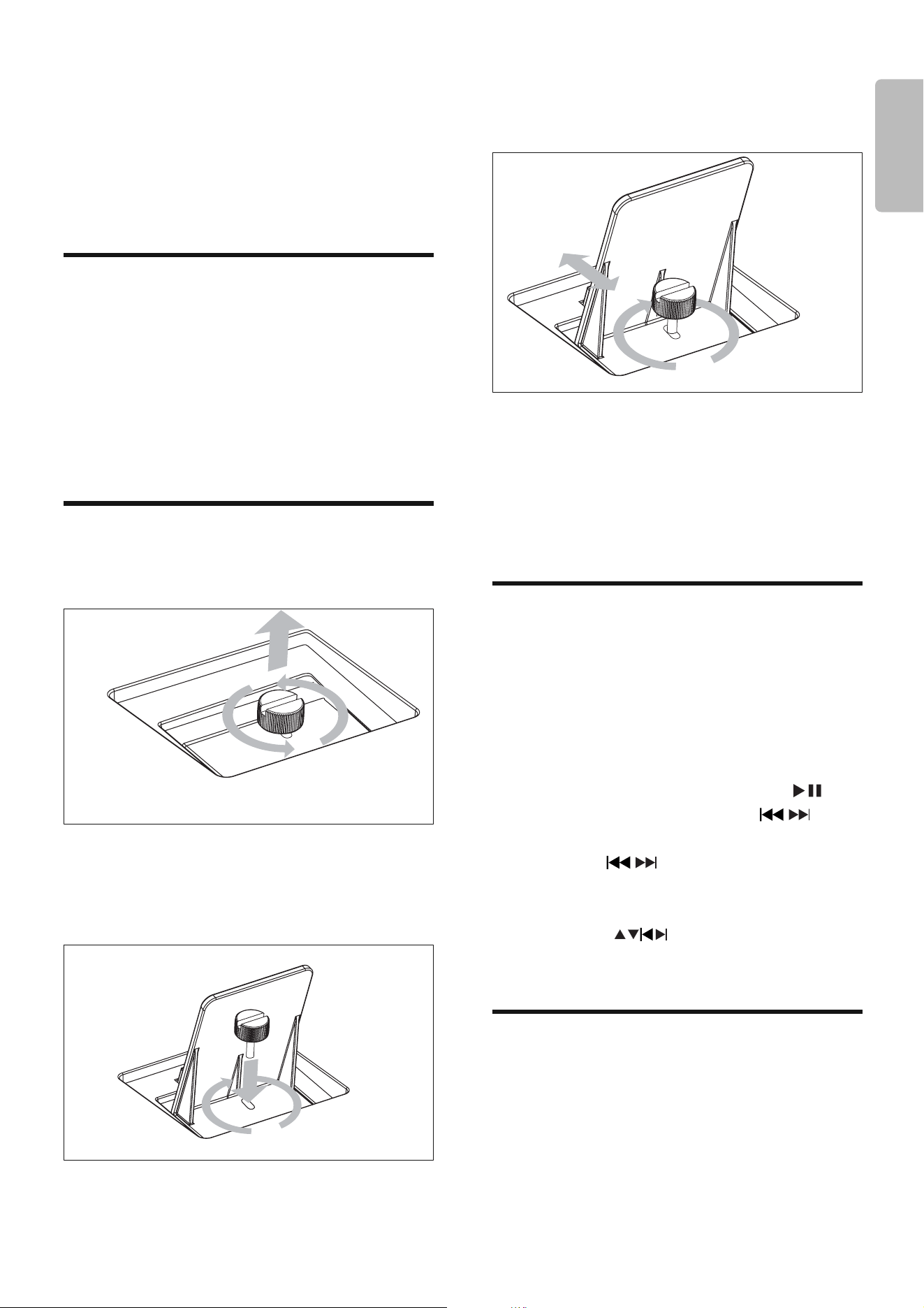
Load the iPod/iPhone
1 Remove the screw on the dock.
2 Place the back plate upright.
3 Place the screw in its original position.
Note: Do not tighten the screw.•
4 Place the iPod/iPhone in the dock.
5 Adjust the position of the back plate to fi t
the iPod/iPhone securely.
6 When the back plate is in the correct
position, tighten the screw.
When the DCM250 is connected to »
power, the docked iPod/iPhone begins
to charge.
Listen to the iPod/iPhone
1 Ensure that the iPod/iPhone is loaded
correctly.
2 Press iPod to select iPod/iPhone source.
The connected iPod/iPhone plays »
automatically.
To pause/resume play, press •
.
To skip to a track, press •
/ .
To search during play: press and •
hold
/ , then release to resume
normal play.
To navigate the menu: press • MENU,
press
to select, then press
OK to confi rm.
Play video from iPod/iPhone
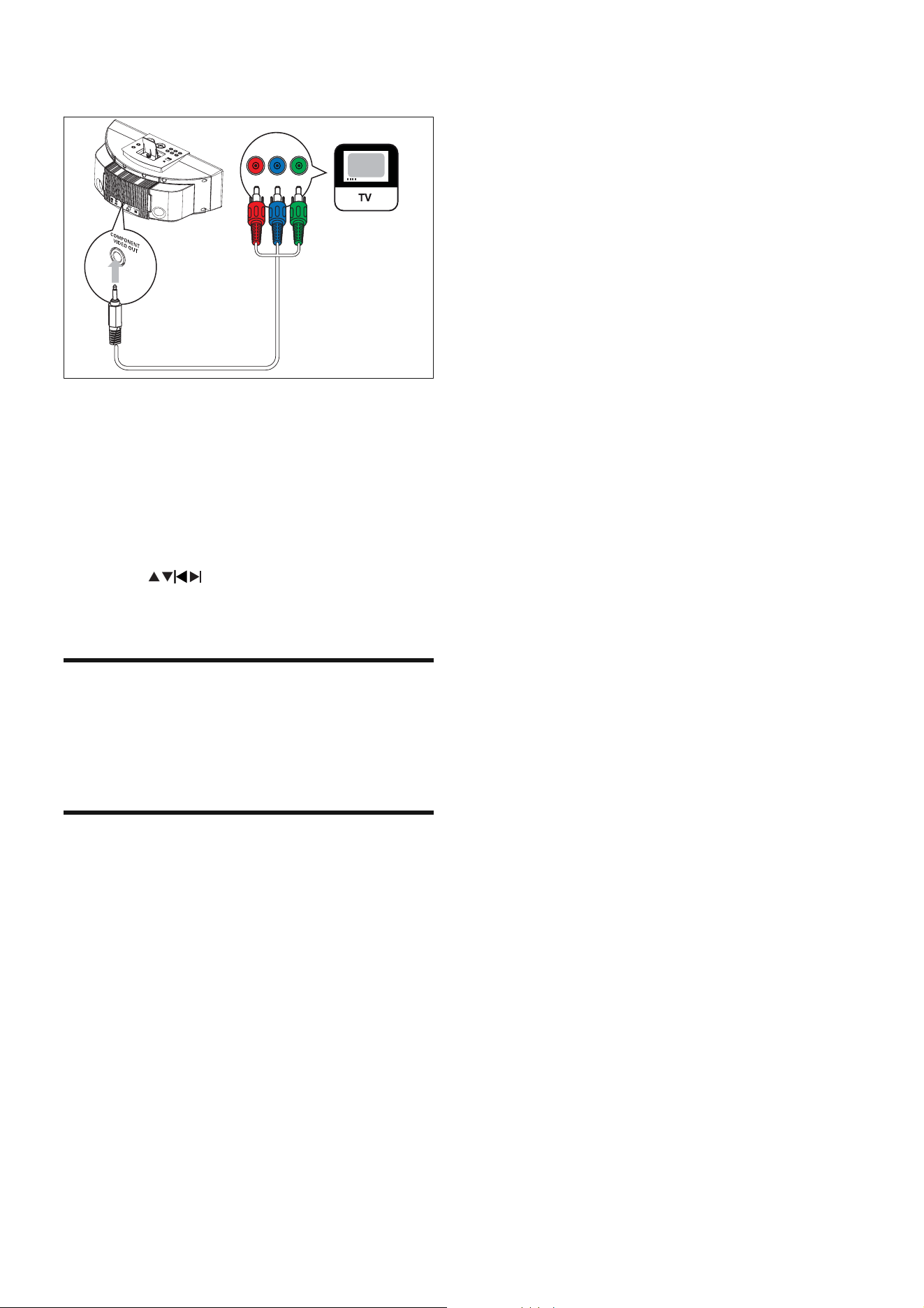
You can connect the unit to a TV to enjoy video
from the iPod/iPhone.
1 Connect the supplied video cable to:
the • COMPONENT VIDEO OUT
jack on the unit.
16 EN
the video input jacks on the TV.•
2 Ensure that the iPod/iPhone is loaded
correctly.
3 Press iPod to select the iPod/iPhone
source.
4 Press MENU to enter the iPod/iPhone
menu.
5 Press to select a video fi le.
6 Press OK to confi rm.
Charge the iPod/iPhone
When the DCM250 is connected to power, the
docked iPod/iPhone begins to charge.
Remove the iPod/iPhone
1 Pull the iPod/iPhone out of the dock.
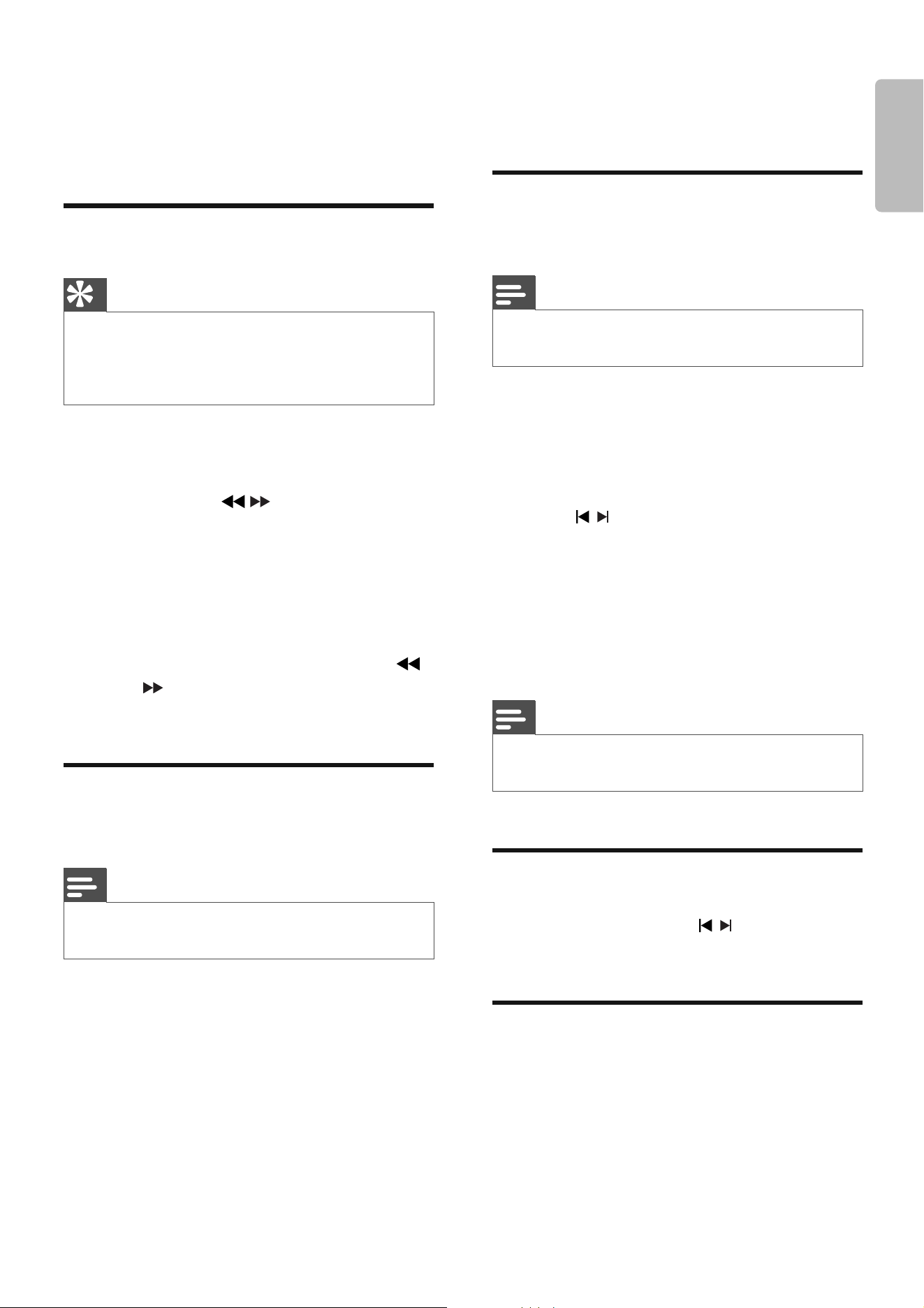
PbPr Y
EN 17
English
8 Listen to the
radio
Tune to a radio station
Tip
For optimal FM reception, fully extend and adjust the •
position of the FM antenna.
For optimal MW reception, adjust the position of the
•
MW loop antenna.
1 Press TUNER to select the tuner source.
2 Press BAND to select FM or MW.
3 Press and hold / for more than 2
seconds.
[SEARCH] (search) is displayed.»
The radio tunes to a station with »
strong reception automatically.
4 Repeat step 2 to tune to more stations.
To tune to a weak station, press •
/ repeatedly until you fi nd optimal
reception.
Program radio stations
automatically
Note
You can program a maximum of 40 preset radio •
stations.
1 In tuner mode, press and hold PROG for
2 seconds to activate automatic program
mode.
[AUTO] (auto) is displayed.»
All available stations are programmed »
in the order of waveband reception
strength.
The fi rst programmed radio station is »
broadcast automatically.
Program radio stations
manually
Note
You can program a maximum of 40 preset radio •
stations.
1 Tune to a radio station.
2 Press PROG to activate program mode.
[PROG] (program) blinks on the »
display.
3 Press / to allocate a number (1 to 40)
to this radio station, then press PROG to
confi rm.
The preset number and the frequency »
of the preset station are displayed.
4 Repeat the above steps to program other
stations.
Note
To overwrite a programmed station, store another •
station in its place.
Select a preset radio station
1 In tuner mode, press / to select a
preset number.
Show RDS information
RDS (Radio Data System) is a service
that allows FM stations to show additional
information. If you tune to a RDS station, a RDS
icon and the station name are displayed.
When automatic programming is used, RDS
stations are programmed fi rst.
18 EN
1 Tune to a RDS station.
2 Press RDS repeatedly to scroll through
the following information (if available):
Station name»
Program type such as » [NEWS] (news(,
[SPORT] (sport), [POP M] (pop
music)...
Radio text messages»
Frequency»
Note
• The defi nitions of RDS program types are available
(see ‘RDS program types’ on page 23 ).

EN 19
English
9 Adjust sound
Adjust volume
1 During play, press VOL +/- to increase/
decrease the volume.
Select a preset sound effect
1 During play, press DSC repeatedly to
select:
[POP] (pop)•
[JAZZ] (jazz)•
[CLASSIC] (classic)•
[ROCK] (rock)•
Enhance bass
1 During play, press DBB to turn on or off
dynamic bass enhancement.
If DBB is activated, DBB is displayed.»
Mute sound
1 During play, press MUTE to mute/unmute
sound.
20 EN
10 Other features
Set the sleep timer
This DCM250 can switch to standby
automatically after a set period of time.
1 When the DCM250 is turned on, press
SLEEP repeatedly to select a set period of
time (in minutes).
When sleep timer is activated, the »
display shows [SLEEP](sleep)
.
To deactivate sleep timer
1 Press SLEEP repeatedly until “OFF” is
displayed.
When sleep timer is deactivated, »
[SLEEP](sleep)
disappears on the
display.
Set the alarm timer
This DCM250 can be used as an alarm clock.
The DISC, TUNER, USB or iPod is activated to
play at a preset time.
1 Ensure that you have set the clock
correctly.
2 Press and hold TIMER.
3 Press CD, USB, TUNER or iPod to select
a source.
4 Press TIMER to confi rm.
The hour digits are displayed and begin »
to blink.
5 Press / to set the hour.
6 Press TIMER to confi rm.
The minute digits are displayed and »
begin to blink.
7 Press / to set the minute.
8 Press TIMER to confi rm.
The timer is set and activated.»
Activate and deactivate the alarm
timer
1 Press TIMER repeatedly to activate or
deactivate the timer.
If the timer is activated, the display »
shows
.
If the timer is deactivated, »
disappears on the display.
Note
If DISC/USB/iPod source is selected and the track •
cannot be played, tuner is activated automatically.
Listen to an external device
You can also listen to an external audio device
through this unit.
1 Press AUX to select MP3 link source.
2 Connect the supplied MP3 link cable to:
the • MP3 LINK jack on this unit
the headphone jack on the device•
3 Start to play the device. (See the device
user manual)
Listen through headphone
1 Plug a headphone into the socket on
the unit.
EN 21
English
11 Product
information
Note
Product information is subject to change without prior •
notice.
Specifi cations
Amplifi er
Rated Output
Power
2X15W RMS
Frequency
Response
100 Hz - 16 kHz, ±3dB
Signal to Noise
Ratio >70dB
Aux Input 0.5 V RMS 20kohm
Disc
Laser Type Semiconductor
Disc Diameter 12cm/8cm
Support Disc CD-DA, CD-R, CD-
RW, MP3-CD, WMA-
CD
Audio DAC 24Bits / 44.1kHz
Total Harmonic
Distortion <1%
Frequency
Response 60Hz -16kHz (44.1kHz)
S/N Ratio >65dBA
Tuner
Tuning Range FM: 87.5 - 108
MHz; MW: 531 -
1602 kHz
Tuning grid 50 KHz
Sensitivity
- Mono, 26dB S/N Ratio
- Stereo, 46dB S/N Ratio
<22 dBu
<45 dBu
Search Selectivity <28 dBu
Total Harmonic
Distortion <3%
Signal to Noise Ratio >45 dB
Speakers
Speaker
Impedance 4 ohm
Speaker Driver 3.5”woofer+0.8” tweeter
Sensitivity >82 dB/m/W
General information
AC power (power
adaptor)
Input: 100-240V~,
50/60Hz 1.5A MAX;
Output: 15V
3A;
(Brand name: Philips;
Model No.: OH-
1048A1503000U-u)
Operation Power
Consumption 16W
Standby Power
Consumption <4W
Eco Standby Power
Consumption <1W
USB Direct Version 2.0/1.1
Dimensions
- Main Unit (W x H
x D)
390 x140.5 x
200.5mm
Weight
- With Packing
- Main Unit
4 kg
3.32 kg

22 EN
USB playability information
Compatible USB devices:
USB fl ash memory•
(USB 2.0 or USB1.1)
USB fl ash players •
(USB 2.0 or USB1.1)
memory cards (requires an additional •
card reader to work with this
DCM250)
Supported formats:
USB or memory fi le format FAT12, •
FAT16, FAT32 (sector size: 512 bytes)
MP3 bit rate (data rate): 32-320 Kbps •
and variable bit rate
WMA v9 or earlier•
Directory nesting up to a maximum •
of 8 levels
Number of albums/ folders: •
maximum 99
Number of tracks/titles: maximum •
999
ID3 tag v2.0 or later•
File name in Unicode UTF8 •
(maximum length: 128 bytes)
Unsupported formats:
Empty albums: an empty album is an •
album that does not contain MP3/
WMA fi les, and is not be shown in
the display.
Unsupported fi le formats are •
skipped. For example, Word
documents (.doc) or MP3 fi les with
extension .dlf are ignored and not
played.
AAC, WAV, PCM audio fi les•
DRM protected WMA fi les (.wav, •
.m4a, .m4p, .mp4, .aac)
WMA fi les in Lossless format•
Supported MP3 disc formats
ISO9660, Joliet•
Maximum title number: 512 (depending •
on fi le name length)
Maximum album number: 255•
Supported sampling frequencies: 32 kHz, •
44.1kHz, 48 kHz
Supported Bit-rates: 32~256 (kbps), •
variable bit rates

EN 23
English
RDS program types
NO TYPE No RDS programme
type
NEWS News services
AFFAIRS Politics and current
affairs
INFO Special information
programs
SPORT Sports
EDUCATE Education and advanced
training
DRAMA Radio plays and
literature
CULTURE Culture, religion and
society
SCIENCE Science
VARIED Entertainment programs
POP M Pop music
ROCK M Rock music
MOR M Light music
LIGHT M Light classical music
CLASSICS Classical music
OTHER M Special music programs
WEATHER Weather
FINANCE Finance
CHILDREN Children’s programs
SOCIAL Social Affairs
RELIGION Religion
PHONE IN Phone In
TRAVEL Travel
LEISURE Leisure
JAZZ Jazz Music
COUNTRY Country Music
NATION M National Music
OLDIES Oldies Music
FOLK M Folk Music
DOCUMENT Documentary
TES Alarm Test
ALARM Alarm

24 EN
12 Troubleshooting
Warning
Never remove the casing of this apparatus. •
To keep the warranty valid, never try to repair
the system yourself.
If you encounter problems when using this
apparatus, check the following points before
requesting service. If the problem remains
unsolved, go to the Philips web site (www.
philips.com/welcome). When you contact
Philips, ensure that the apparatus is nearby
and the model number and serial number are
available.
No power
Ensure that the AC power plug of the •
unit is connected properly.
Ensure that there is power at the AC •
outlet.
To save power, the system switches •
off automatically 15 minutes after track
play reaches the end and no control is
operated.
No sound or poor sound
Adjust the volume.•
Disconnect the headphones.•
No response from the DCM250
Disconnect and reconnect the AC power •
plug, then turn on the system again.
Remote control does not work
Before pressing any function button, fi rst •
select the correct source with the remote
control instead of the main unit.
Reduce the distance between the remote •
control and the DCM250.
Insert the battery with its polarities (+/– •
signs) aligned as indicated.
Replace the battery.•
Aim the remote control directly at the •
sensor on the front of the DCM250.
No disc detected
Insert a disc.•
Check if the disc is inserted upside down.•
Wait until the moisture condensation at •
the lens has cleared.
Replace or clean the disc.•
Use a fi nalized CD or correct format disc.•
Cannot display some fi les in USB device
The number of folders or fi les in the USB •
device has exceeded a certain limit. This
phenomenon is not a malfunction.
The formats of these fi les are not •
supported.
USB device not supported
The USB device is incompatible with the •
DCM250. Try another one.
Poor radio reception
Increase the distance between the •
DCM250 and your TV or VCR.
Fully extend the FM antenna.•
Timer does not work
Set the clock correctly.•
Switch on the timer.•
Clock/timer setting erased
Power has been interrupted or the power •
cord has been disconnected.
Reset the clock/timer.•
© 2009 Koninklijke Philips Electronics N.V.
All rights reserved.
Document order number: