
RIGOL
User’s Guide
DSA700 Series
Spectrum Analyzer
Mar. 2017
RIGOL TECHNOLOGIES, INC.


RIGOL
User’s Guide for DSA700 Series
I
Guaranty and Declaration
Copyright
© 2016 RIGOL TECHNOLOGIES, INC. All Rights Reserved.
Trademark Information
RIGOL is a registered trademark of RIGOL TECHNOLOGIES, INC.
Publication Number
UGD18102-1110
Software Version
DSA705/DSA710: 00.01.17
Software upgrade might change or add product features. Please acquire the latest
version of the manual from RIGOL website or contact RIGOL to upgrade the
software.
Notices
RIGOL products are covered by P.R.C. and foreign patents, issued and
pending.
RIGOL reserves the right to modify or change parts of or all the
specifications and pricing policies at the company’s sole decision.
Information in this publication replaces all previously released materials.
Information in this publication is subject to change without notice.
RIGOL shall not be liable for either incidental or consequential losses in
connection with the furnishing, use, or performance of this manual, as well as
any information contained.
Any part of this document is forbidden to be copied, photocopied, or
rearranged without prior written approval of RIGOL.
Product Certification
RIGOL guarantees that this product conforms to the national and industrial
standards in China as well as the ISO9001:2008 standard and the ISO14001:2004
standard. Other international standard conformance certifications are in progress.
Contact Us
If you have any problem or requirement when using our products or this manual,
please contact RIGOL.
E-mail: service@rigol.com
Website: www.rigol.com

RIGOL
User’s Guide for DSA700 Series
II
Safety Requirement
General Safety Summary
Please review the following safety precautions carefully before putting the
instrument into operation so as to avoid any personal injury or damage to the
instrument and any product connected to it. To prevent potential hazards, please
follow the instructions specified in this manual to use the instrument properly.
Use Proper Power Cord.
Only the exclusive power cord designed for the instrument and authorized for use
within the local country could be used.
Ground the Instrument.
The instrument is grounded through the Protective Earth lead of the power cord.
To avoid electric shock, connect the earth terminal of the power cord to the
Protective Earth terminal before connecting any input or output terminals.
Connect the Probe Correctly.
If a probe is used, the probe ground lead must be connected to earth ground. Do
not connect the ground lead to high voltage. Improper way of connection could
result in dangerous voltages being present on the connectors, controls or other
surfaces of the oscilloscope and probes, which will cause potential hazards for
operators.
Observe All Terminal Ratings.
To avoid fire or shock hazard, observe all ratings and markers on the instrument
and check your manual for more information about ratings before connecting the
instrument.
Use Proper Overvoltage Protection.
Ensure that no overvoltage (such as that caused by a bolt of lightning) can reach
the product. Otherwise, the operator might be exposed to the danger of an electric
shock.

RIGOL
User’s Guide for DSA700 Series
III
Do Not Operate Without Covers.
Do not operate the instrument with covers or panels removed.
Do Not Insert Objects Into the Air Outlet.
Do not insert objects into the air outlet, as doing so may cause damage to the
instrument.
Use Proper Fuse.
Please use the specified fuses.
Avoid Circuit or Wire Exposure.
Do not touch exposed junctions and components when the unit is powered on.
Do Not Operate With Suspected Failures.
If you suspect that any damage may occur to the instrument, have it inspected by
RIGOL authorized personnel before further operations. Any maintenance,
adjustment or replacement especially to circuits or accessories must be performed by
RIGOL authorized personnel.
Provide Adequate Ventilation.
Inadequate ventilation may cause an increase of temperature in the instrument,
which would cause damage to the instrument. So please keep the instrument well
ventilated and inspect the air outlet and the fan regularly.
Do Not Operate in Wet Conditions.
To avoid short circuit inside the instrument or electric shock, never operate the
instrument in a humid environment.
Do Not Operate in an Explosive Atmosphere.
To avoid personal injuries or damage to the instrument, never operate the
instrument in an explosive atmosphere.
Keep Instrument Surfaces Clean and Dry.
To avoid dust or moisture from affecting the performance of the instrument, keep
the surfaces of the instrument clean and dry.

RIGOL
User’s Guide for DSA700 Series
IV
Prevent Electrostatic Impact.
Operate the instrument in an electrostatic discharge protective environment to
avoid damage induced by static discharges. Always ground both the internal and
external conductors of cables to release static before making connections.
Use the Battery Properly.
Do not expose the battery (if available) to high temperature or fire.
Keep it out of the reach of children. Improper change of a battery (lithium battery)
may cause an explosion. Use the RIGOL specified battery only.
Handle with Caution.
Please handle with care during transportation to avoid damage to keys, knobs,
interfaces, and other parts on the panels.
RIGOL
User’s Guide for DSA700 Series
V
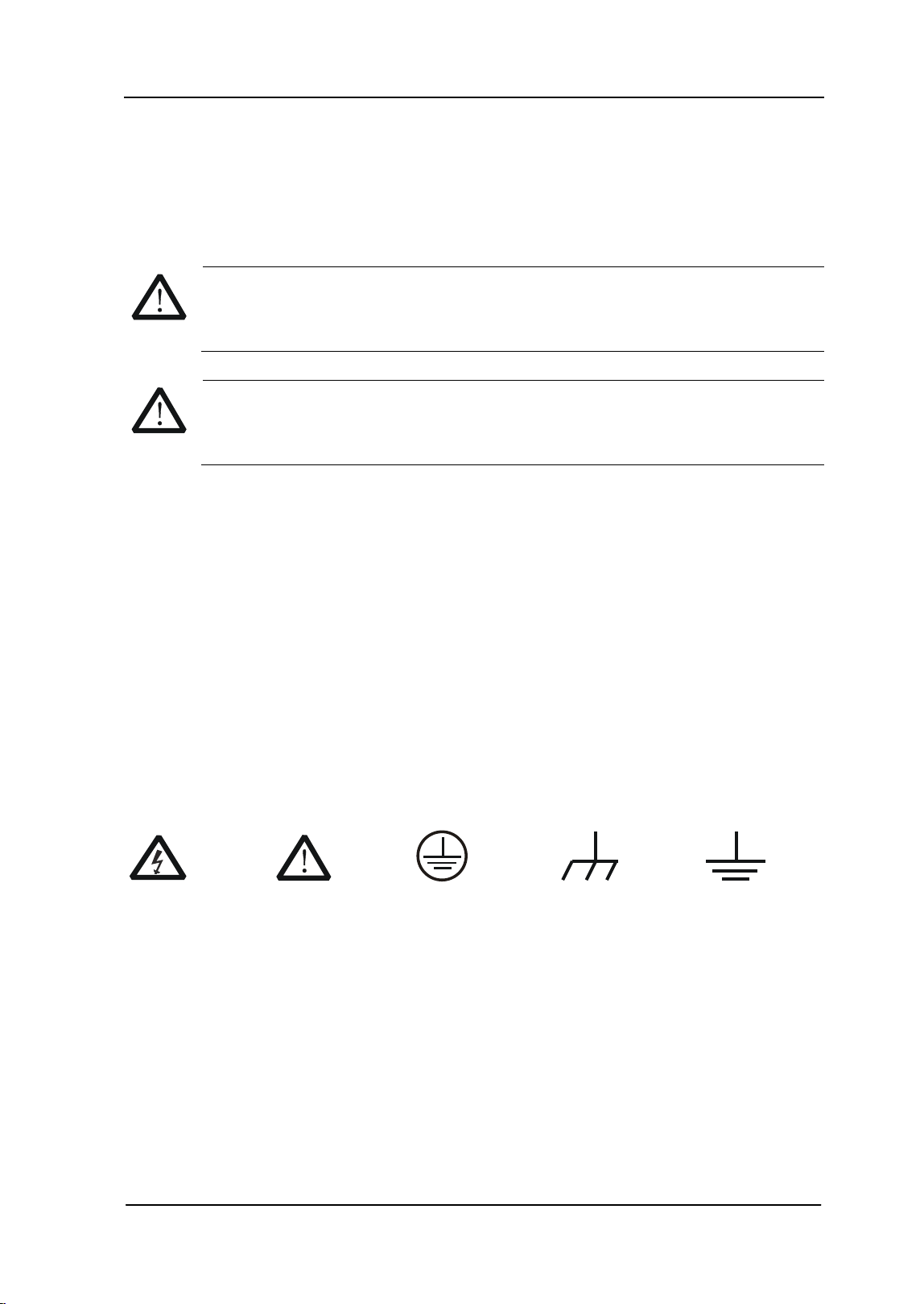
Safety Notices and Symbols
Safety Notices in this Manual:
WARNING
Indicates a potentially hazardous situation or practice which, if not
avoided, will result in serious injury or death.
CAUTION
Indicates a potentially hazardous situation or practice which, if not
avoided, could result in damage to the product or loss of important data.
Safety Terms on the Product:
DANGER
It calls attention to an operation, if not correctly performed, could
result in injury or hazard immediately.
WARNING It calls attention to an operation, if not correctly performed, could
result in
potential injury or hazard.
CAUTION It calls attention to an operation, if not correctly performed, could
result in
damage to the product or other devices connected to the
product.
Safety Symbols on the Product:
Hazardous
Voltage
Safety
Warning
Protective
Earth
Terminal
Chassis
Ground
Test
Ground

RIGOL
User’s Guide for DSA700 Series
VI
Allgemeine Sicherheits Informationen
Überprüfen Sie diefolgenden Sicherheitshinweise
sorgfältigumPersonenschädenoderSchäden am Gerätundan damit verbundenen
weiteren Gerätenzu vermeiden. Zur Vermeidung vonGefahren, nutzen Sie bitte das
Gerät nur so, wiein diesem Handbuchangegeben.
Um Feuer oder Verletzungen zu vermeiden, verwenden Sie ein
ordnungsgemäßes Netzkabel.
Verwenden Sie für dieses Gerät nur das für ihr Land zugelassene und genehmigte
Netzkabel.
Erden des Gerätes.
Das Gerät ist durch den Schutzleiter im Netzkabel geerdet. Um Gefahren durch
elektrischen Schlag zu vermeiden, ist es unerlässlich, die Erdung durchzuführen.
Erst dann dürfen weitere Ein- oder Ausgänge verbunden werden.
Anschluss einesTastkopfes.
Die Erdungsklemmen der Sonden sindauf dem gleichen Spannungspegel des
Instruments geerdet. SchließenSie die Erdungsklemmen an keine hohe Spannung
an.
Beachten Sie alle Anschlüsse.
Zur Vermeidung von Feuer oder Stromschlag, beachten Sie alle Bemerkungen und
Markierungen auf dem Instrument. Befolgen Sie die Bedienungsanleitung für
weitere Informationen, bevor Sie weitere Anschlüsse an das Instrument legen.
Verwenden Sie einen geeigneten Überspannungsschutz.
Stellen Sie sicher, daß keinerlei Überspannung (wie z.B. durch Gewitter verursacht)
das Gerät erreichen kann. Andernfallsbestehtfür den Anwender die
GefahreinesStromschlages.
Nicht ohne Abdeckung einschalten.
Betreiben Sie das Gerät nicht mit entfernten Gehäuse-Abdeckungen.

RIGOL
User’s Guide for DSA700 Series
VII
Betreiben Sie das Gerät nicht geöffnet.
Der Betrieb mit offenen oder entfernten Gehäuseteilen ist nicht zulässig. Nichts in
entsprechende Öffnungen stecken (Lüfter z.B.)
Passende Sicherung verwenden.
Setzen Sie nur die spezifikationsgemäßen Sicherungen ein.
Vermeiden Sie ungeschützte Verbindungen.
Berühren Sie keine unisolierten Verbindungen oder Baugruppen, während das
Gerät in Betrieb ist.
Betreiben Sie das Gerät nicht im Fehlerfall.
Wenn Sie am Gerät einen Defekt vermuten, sorgen Sie dafür, bevor Sie das Gerät
wieder betreiben, dass eine Untersuchung durch RIGOL autorisiertem Personal
durchgeführt wird. Jedwede Wartung, Einstellarbeiten oder Austausch von Teilen
am Gerät, sowie am Zubehör dürfen nur von RIGOL autorisiertem Personal
durchgeführt werden.
Belüftung sicherstellen.
Unzureichende Belüftung kann zu Temperaturanstiegen und somit zu thermischen
Schäden am Gerät führen. Stellen Sie deswegen die Belüftung sicher und
kontrollieren regelmäßig Lüfter und Belüftungsöffnungen.
Nicht in feuchter Umgebung betreiben.
Zur Vermeidung von Kurzschluß im Geräteinneren und Stromschlag betreiben Sie
das Gerät bitte niemals in feuchter Umgebung.
Nicht in explosiver Atmosphäre betreiben.
Zur Vermeidung von Personen- und Sachschäden ist es unumgänglich, das Gerät
ausschließlich fernab jedweder explosiven Atmosphäre zu betreiben.
Geräteoberflächen sauber und trocken halten.
Um den Einfluß von Staub und Feuchtigkeit aus der Luft auszuschließen, halten Sie
bitte die Geräteoberflächen sauber und trocken.
Schutz gegen elektrostatische Entladung (ESD).
Sorgen Sie für eine elektrostatisch geschützte Umgebung, um somit Schäden und

RIGOL
User’s Guide for DSA700 Series
VIII
Funktionsstörungen durch ESD zu vermeiden. Erden Sie vor dem Anschluß immer
Innen- und Außenleiter der Verbindungsleitung, um statische Aufladung zu
entladen.
Die richtige Verwendung desAkku.
Wenneine Batterieverwendet wird, vermeiden Sie hohe Temperaturen bzw. Feuer
ausgesetzt werden. Bewahren Sie es außerhalbder Reichweitevon Kindern auf.
UnsachgemäßeÄnderung derBatterie (Anmerkung: Lithium-Batterie) kann zu einer
Explosion führen. VerwendenSie nur von RIGOL angegebenenAkkus.
Sicherer Transport.
Transportieren Sie das Gerät sorgfältig (Verpackung!), um Schäden an
Bedienelementen, Anschlüssen und anderen Teilen zu vermeiden.
RIGOL
User’s Guide for DSA700 Series
IX
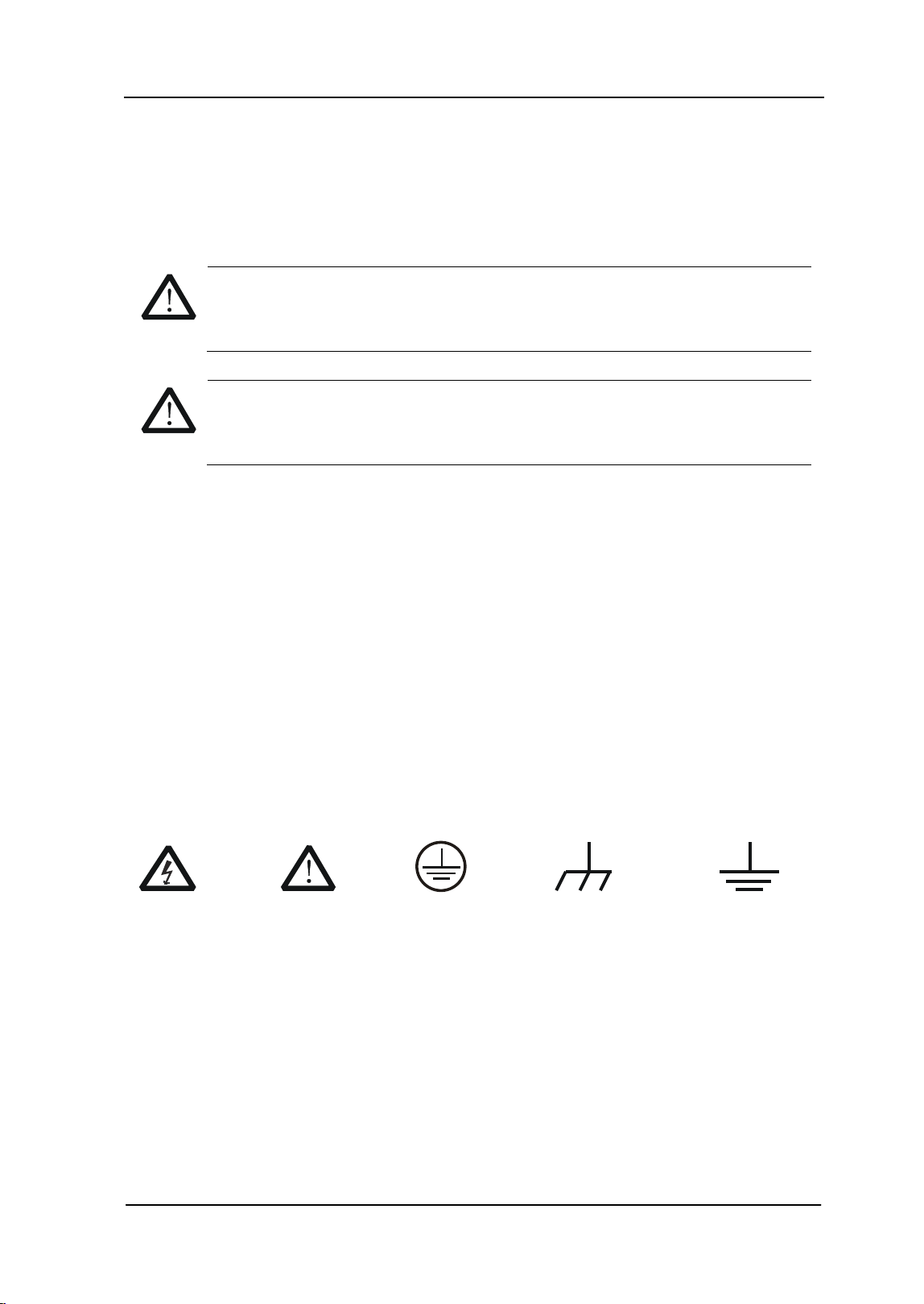
Sicherheits Begriffe und Symbole
Begriffe in diesem Guide:
WARNING
Die Kennzeichnung WARNING beschreibt Gefahrenquellen die leibliche
Schäden oder den Tod von Personen zur Folge haben können.
CAUTION
Die Kennzeichnung Caution (Vorsicht) beschreibt Gefahrenquellen die
Schäden am Gerät hervorrufen können.
Begriffe auf dem Produkt:
DANGER
weist auf eine Verletzung oder Gefährdung hin, die sofort
geschehen kann.
WARNING weist auf eine Verletzung oder Gefährdung hin, die möglicherweise
nicht sofort geschehen.
CAUTION weist auf eine Verletzung oder Gefährdung hin und bedeutet, dass
eine mögliche Beschädigung des Instruments oder anderer
Gegenstände auftreten kann.
Symbole auf dem Produkt:
Gefährliche
Spannung
Sicherheits-
Hinweis
Schutz-erde Gehäusemasse Erde
RIGOL
User’s Guide for DSA700 Series
X
Care and Cleaning
Care
Do not store or leave the instrument where it may be exposed to direct sunlight for
long periods of time.
Cleaning
Clean the instrument regularly according to its operating conditions.
1. Disconnect the instrument from all power sources.
2. Clean the external surfaces of the instrument with a soft cloth dampened with
mild detergent or water. When cleaning the LCD, take care to avoid scarifying
it.
CAUTION
To avoid damage to the instrument, do not expose it to caustic liquids.
WARNING
To avoid short-circuit resulting from moisture or personal injuries, ensure
that the instrument is completely dry before connecting it to the power
supply.
RIGOL
User’s Guide for DSA700 Series
XI
Environmental Considerations
The following symbol indicates that this product complies with the WEEE Directive
2002/96/EC.
Product End-of-Life Handling
The equipment may contain substances that could be harmful to the environment or
human health. To avoid the release of such substances into the environment and
avoid harm to human health, we recommend you to recycle this product
appropriately to ensure that most materials are reused or recycled properly. Please
contact your local authorities for disposal or recycling information.
RIGOL
User’s Guide for DSA700 Series
XII

RIGOL
User’s Guide for DSA700 Series
XIII
DSA700 Series Overview
DSA700 series spectrum analyzers which are small, light and cost-effective, are
portable spectrum analyzers designed for starters. Configured with
easy-to-operate numeric keyboard, high-resolution color LCD display and various
remote communication interfaces, they can be widely used in various fields, such
as education, company research and development as well as industrial
manufacture.
Main features:
The highest frequency: 500 MHz/1 GHz
Displayed Average Noise Level (DANL): <-130 dBm (Typical)
Phase Noise: <-80 dBc/Hz @ 10 kHz offset (Typical)
Level Measurement Uncertainty: <1.5 dB
Minimum Resolution Bandwidth (RBW): 100 Hz
EMI Filter and Quasi-Peak Detector Kit (Option)
Standard with Preamplifier and AM/FM Demodulation Function
Various measurement functions (option)
8 inche (800×480 pixels) high-definition display with clear, vivid, and
easy-to-use graphical interface
Various interfaces such as LAN, USB Host, USB Device and GPIB (option)
Compact Size, Light Weight Design

RIGOL
User’s Guide for DSA700 Series
XIV
Document Overview
Topics in this manual:
Chapter 1 Quick Start
This chapter introduces the front/rear panel and user interface as well as
announcements during first use of the analyzer.
Chapter 2 Front Panel Operation
This chapter gives detailed function descriptions of the front panel keys with their
associated menu keys.
Chapter 3 Remote Control
This chapter shows how to control the analyzer in remote mode.
Chapter 4 Troubleshooting&Message
This chapter lists the troubleshooting information and messages that may appear
during the use of the analyzer.
Chapter 5 Specifications
This chapter lists the specifications and general specifications of the analyzer.
Chapter 6 Appendix
This chapter lists the options and accessories that can be ordered along with your
analyzer as well as the service and support information.
RIGOL
User’s Guide for DSA700 Series
XV
Format conventions in this manual:
1. Keys:
The keys at the front panel are usually denoted by the format of "Key name
(Bold) +textbox". For example, FREQ denotes the FREQ key.
2. Menu keys:
The menu softkeys are usually denoted by the format of "Menu word (Bold)
+character shading". For example, Center Freq denotes the center
frequency menu item under the FREQ function key.
3. Connectors:
The connectors at the front or rear panel are usually denoted by the format of
"Connector name (Bold) +square brackets (Bold)", such as [GEN OUTPUT
50Ω].
4. Operation steps:
"" represents the next step of operation. For example, FREQ Center
Freq indicates pressing FREQ at the front panel and then pressing the menu
softkey Center Freq.
Content conventions in this manual:
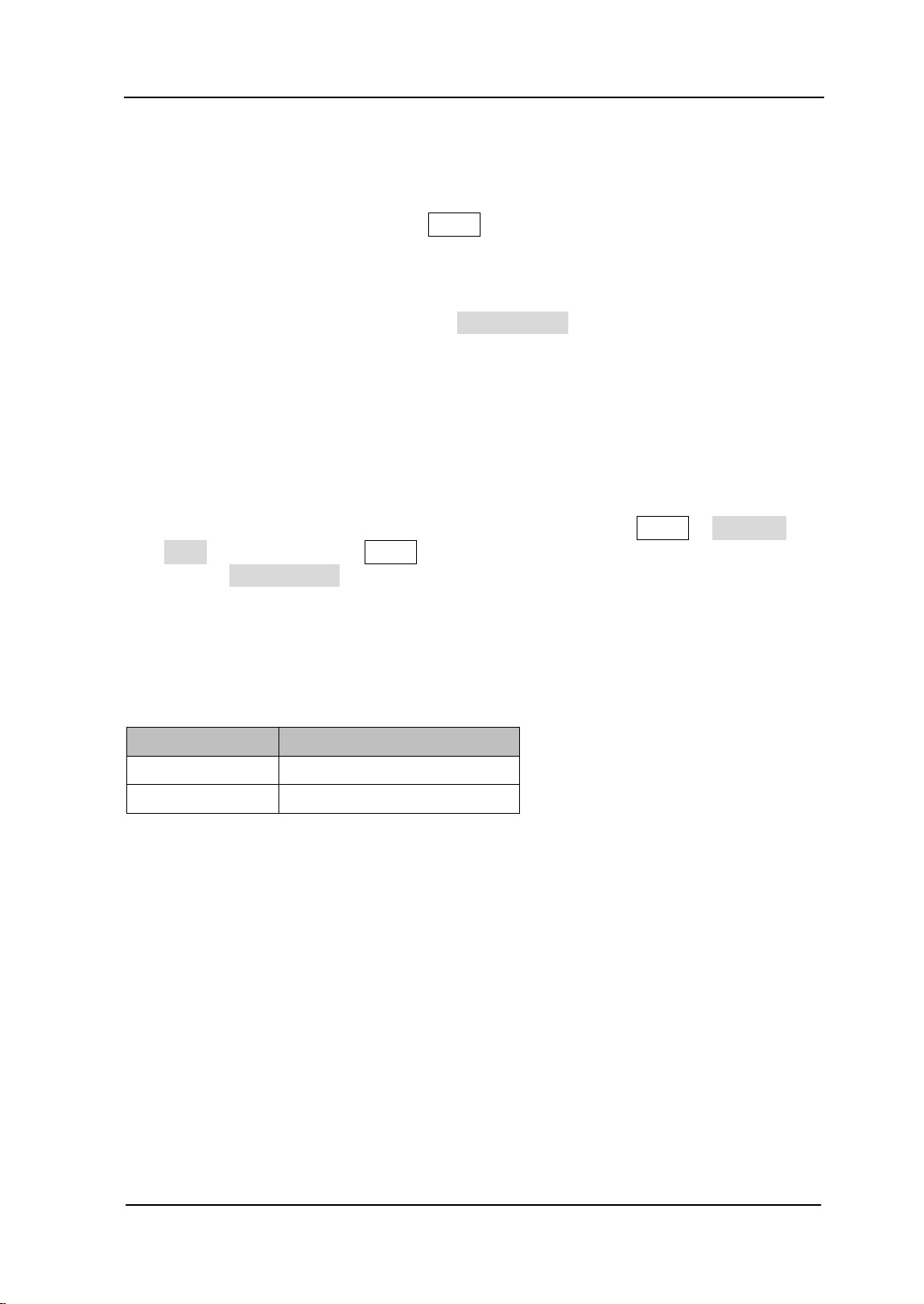
The DSA700 series spectrum analyzer includes the following two models. The
illustrations in this manual are based on DSA710.
Model
Frequency Range
DSA705 100 kHz to 500 MHz
DSA710 100 kHz to 1 GHz
User manuals provided with this product:
User’s Guide, Quick Guide, Programming Guide, Data sheet etc. For the desired
manual, please download it from www.rigol.com.

RIGOL Contents
User’s Guide for DSA700 Series
XVI
Contents
Guaranty and Declaration ......................................................................... I
Safety Requirement ................................................................................. II
General Safety Summary........................................................................... II
Safety Notices and Symbols ...................................................................... V
Allgemeine Sicherheits Informationen ....................................................... VI
Sicherheits Begriffe und Symbole .............................................................. IX
Care and Cleaning .................................................................................... X
Environmental Considerations ................................................................... XI
DSA700 Series Overview ..................................................................... XIII
Document Overview ............................................................................. XIV
Chapter 1 Quick Start ........................................................................ 1-1
General Inspection ................................................................................. 1-2
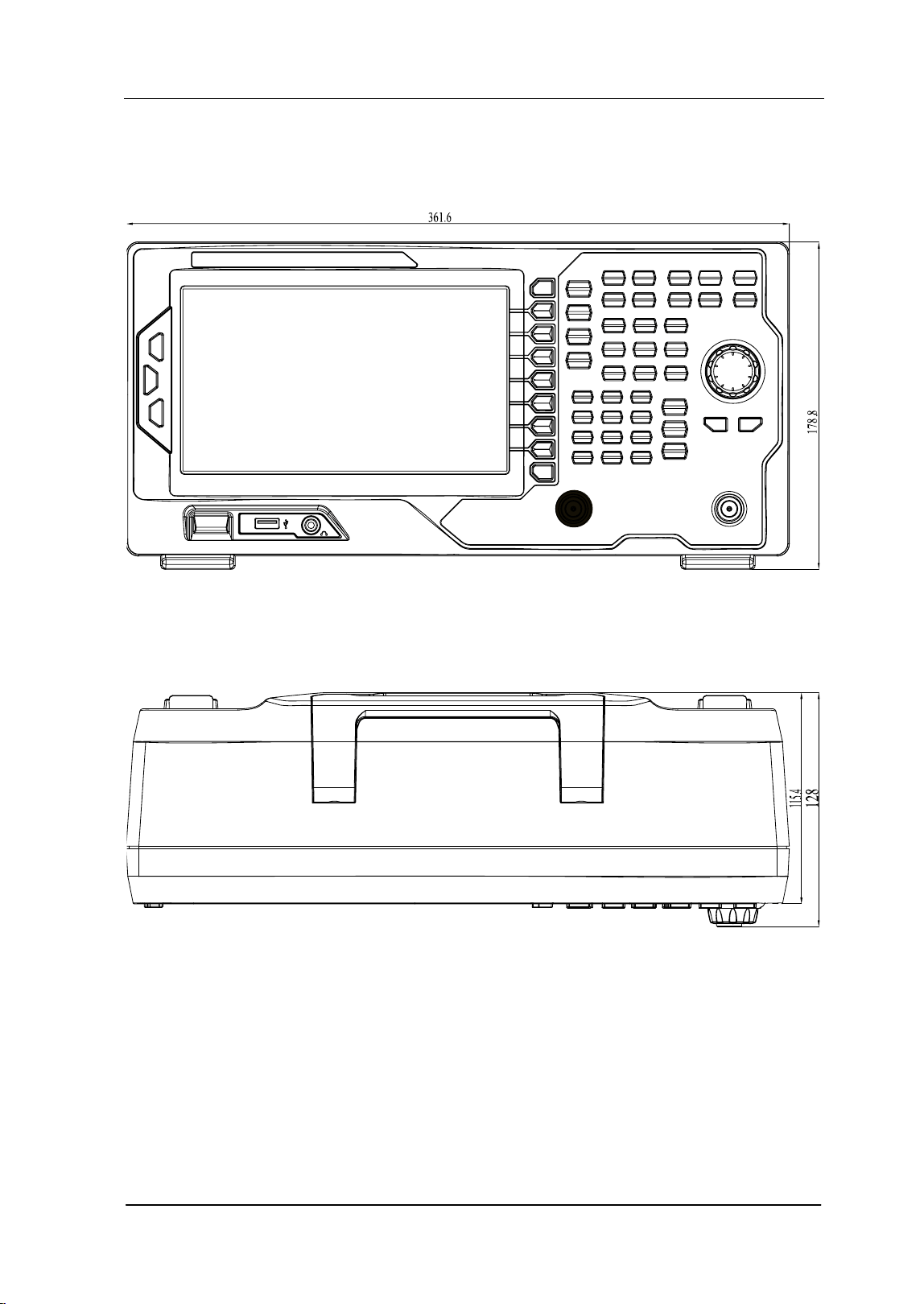
Appearance and Dimensions ................................................................... 1-3
To Prepare for Use ................................................................................. 1-4
To Adjust the Supporting Legs .......................................................... 1-4
To Connect to Power ........................................................................ 1-5
Power-on Inspection ........................................................................ 1-6
Self-calibration ................................................................................ 1-6
To Set the System Language ............................................................. 1-6
Front Panel ............................................................................................ 1-7
Front Panel Function Keys ................................................................ 1-8
Front Panel Key Backlight ............................................................... 1-10
Front Panel Connectors .................................................................. 1-11
To Use the Numeric Keyboard ......................................................... 1-13
Rear Panel ........................................................................................... 1-15
User Interface ...................................................................................... 1-17
Menu Operation ................................................................................... 1-20
Parameter Setting ................................................................................ 1-22
To Input Filename ................................................................................ 1-24
To Lock the Keyboard ........................................................................... 1-27
To Use the Built-in Help ........................................................................ 1-28
To Use the Security Lock ....................................................................... 1-30
Contents RIGOL
User’s Guide for DSA700 Series
XVII
To Replace the Fuse ............................................................................. 1-31
Chapter 2 Front Panel Operation ........................................................ 2-1
Basic Settings ....................................................................................... 2-2
FREQ ............................................................................................. 2-2
SPAN ............................................................................................. 2-8
AMPT ............................................................................................ 2-11
Sweep and Function Settings ................................................................. 2-21
BW/Det ......................................................................................... 2-21
Sweep/Trig .................................................................................... 2-25
Trace/P/F ...................................................................................... 2-30
Measurement Settings .................................................................... 2-36
Meas ............................................................................................ 2-36
Meas Setup ................................................................................... 2-41
Demod ......................................................................................... 2-60
Marker Measurements........................................................................... 2-62
Marker .......................................................................................... 2-62
Marker-> ...................................................................................... 2-69
Marker Fctn ................................................................................... 2-71
Peak ............................................................................................. 2-74
Shortcut Key ........................................................................................ 2-78
Auto ............................................................................................. 2-78
User Key ....................................................................................... 2-80
Preset ........................................................................................... 2-81
Print ............................................................................................. 2-87
System Settings ................................................................................... 2-88
System ......................................................................................... 2-88
Print Setup .................................................................................. 2-101
Storage ....................................................................................... 2-104
Chapter 3 Remote Control .................................................................. 3-1
Remote Control Overview ....................................................................... 3-2
Remote Control Method ......................................................................... 3-3
User-defined Programming .............................................................. 3-3
To Use PC software ......................................................................... 3-6
Chapter 4 Troubleshooting&Message ................................................. 4-1
Troubleshooting .................................................................................... 4-2
Messages ............................................................................................. 4-4

RIGOL Contents
User’s Guide for DSA700 Series
XVIII
Information Message ....................................................................... 4-6
Error Message ................................................................................. 4-9
Status Message ............................................................................. 4-21
Chapter 5 Specifications .................................................................... 5-1
Technical Specifications .......................................................................... 5-2
Frequency ....................................................................................... 5-2
Amplitude ....................................................................................... 5-3
Distortion ........................................................................................ 5-6
Sweep ............................................................................................ 5-7
Trigger ........................................................................................... 5-7
SSC-DSA (Option) ............................................................................ 5-7
Input /Output .................................................................................. 5-8
General Specifications ............................................................................ 5-9
Chapter 6 Appendix ........................................................................... 6-1
Appendix A: Ordering Infomation ............................................................. 6-1
Appendix B: Warranty ............................................................................. 6-2
Index ........................................................................................................ 1

Chapter 1 Quick Start RIGOL
User’s Guide for DSA700 Series
1-1
Chapter 1 Quick Start
This chapter guides users to quickly get familiar with the appearance, dimensions,
front/ rear panel and the user interface, as well as announcements during first use
of DSA700 series spectrum analyzer.
Subjects in this chapter:
General Inspection
Appearance and Dimensions
To Prepare for Use
Front Panel
Rear Panel
User Interface
Menu Operation
Parameter Setting
To Input Filename
To Lock the Keyboard
To Use the Built-in Help
To Use the Security Lock
To Replace the Fuse

RIGOL Chapter 1 Quick Start
User’s Guide for DSA700 Series
1-2
General Inspection
1. Inspect the packaging
If the packaging has been damaged, do not dispose the damaged packaging
or cushioning materials until the shipment has been checked for completeness
and has passed both electrical and mechanical tests.
The consigner or carrier shall be liable for the damage to the instrument
resulting from shipment. RIGOL would not be responsible for free
maintenance/rework or replacement of the instrument.
2. Inspect the instrument
In case of any mechanical damage, missing parts, or failure in passing the
electrical and mechanical tests, contact your RIGOL sales representative.
3. Check the accessories
Please check the accessories according to the packing lists. If the accessories
are damaged or incomplete, please contact your RIGOL sales
representative.
RIGOL Chapter 1 Quick Start
User’s Guide for DSA700 Series
1-4
To Prepare for Use
To Adjust the Supporting Legs
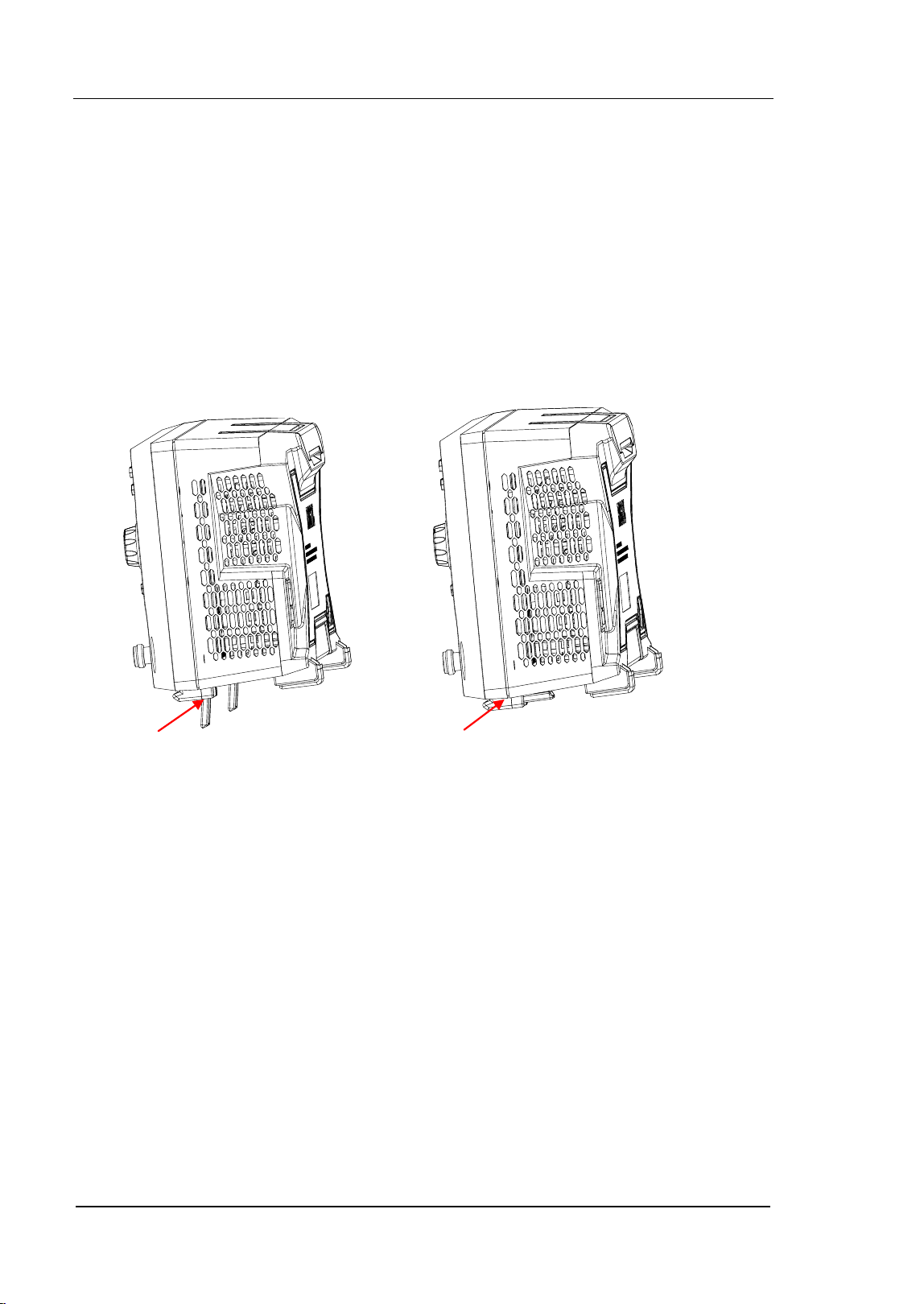
Users can unfold the supporting legs to use them as stands to tilt the instrument
upwards for easier operation and observation. Users can also fold the supporting
legs when the instrument is not in use for easier storage or shipment.
Figure 1-3 To Adjust the Supporting Legs
To unfold the supporting legs
To fold the supporting legs
Chapter 1 Quick Start RIGOL
User’s Guide for DSA700 Series
1-5
To Connect to Power
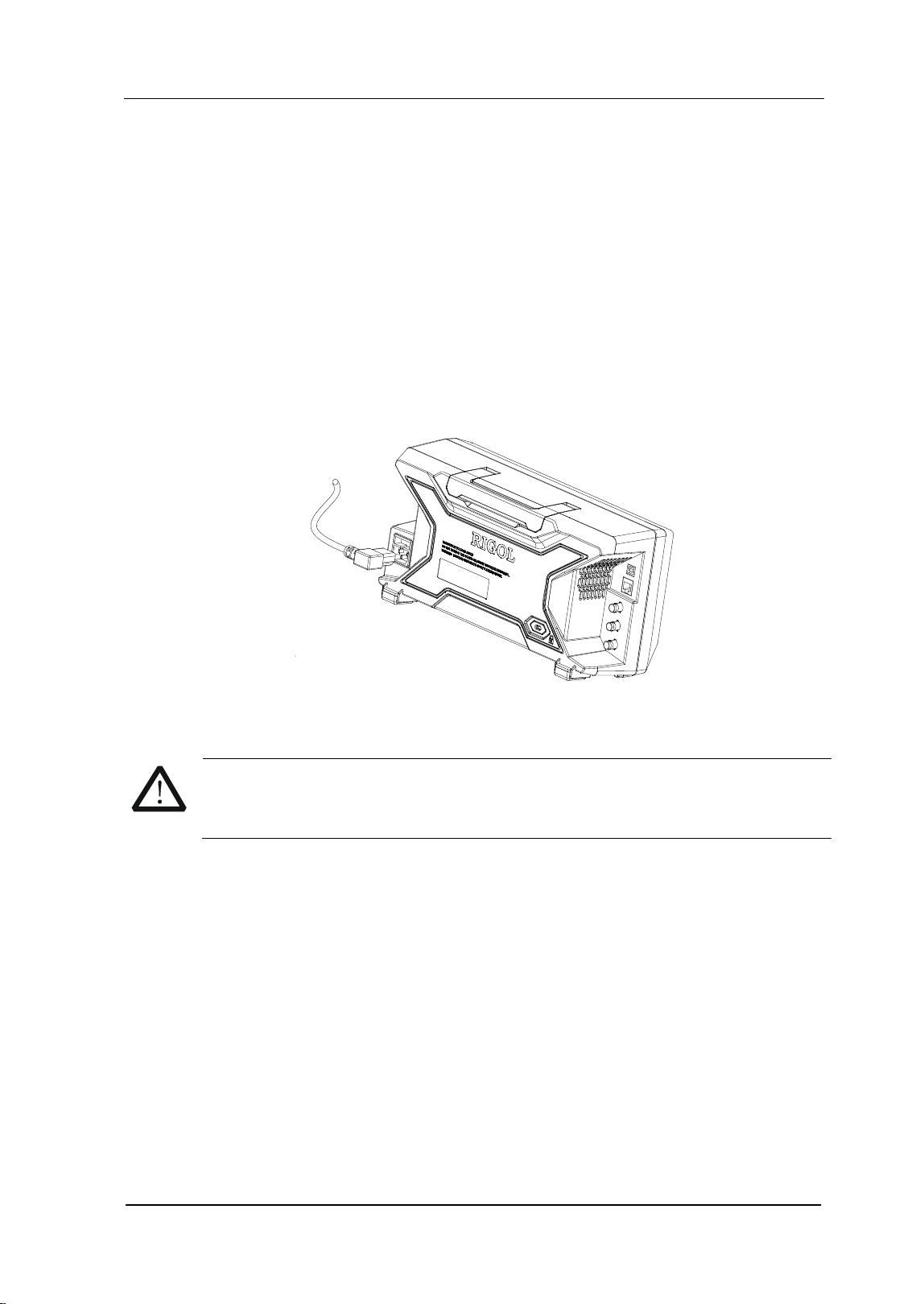
Please use the power cord provided with the accessories to connect the spectrum
analyzer to AC power source as shown in the figure below. The AC power supply
specification of this spectrum analyzer is 100-240 V, 45-440 Hz. The power
consumption of the instrument cannot exceed 50 W. When the spectrum analyzer
is connected to AC power supply via the power cord, the instrument select the
correct voltage range automatically and users do not need to select the voltage
range manually.
Figure 1-4 Power Cord Connection
CAUTION
Make sure that the instrument is properly grounded to avoid electric
shock.
RIGOL Chapter 1 Quick Start
User’s Guide for DSA700 Series
1-6
Power-on Inspection
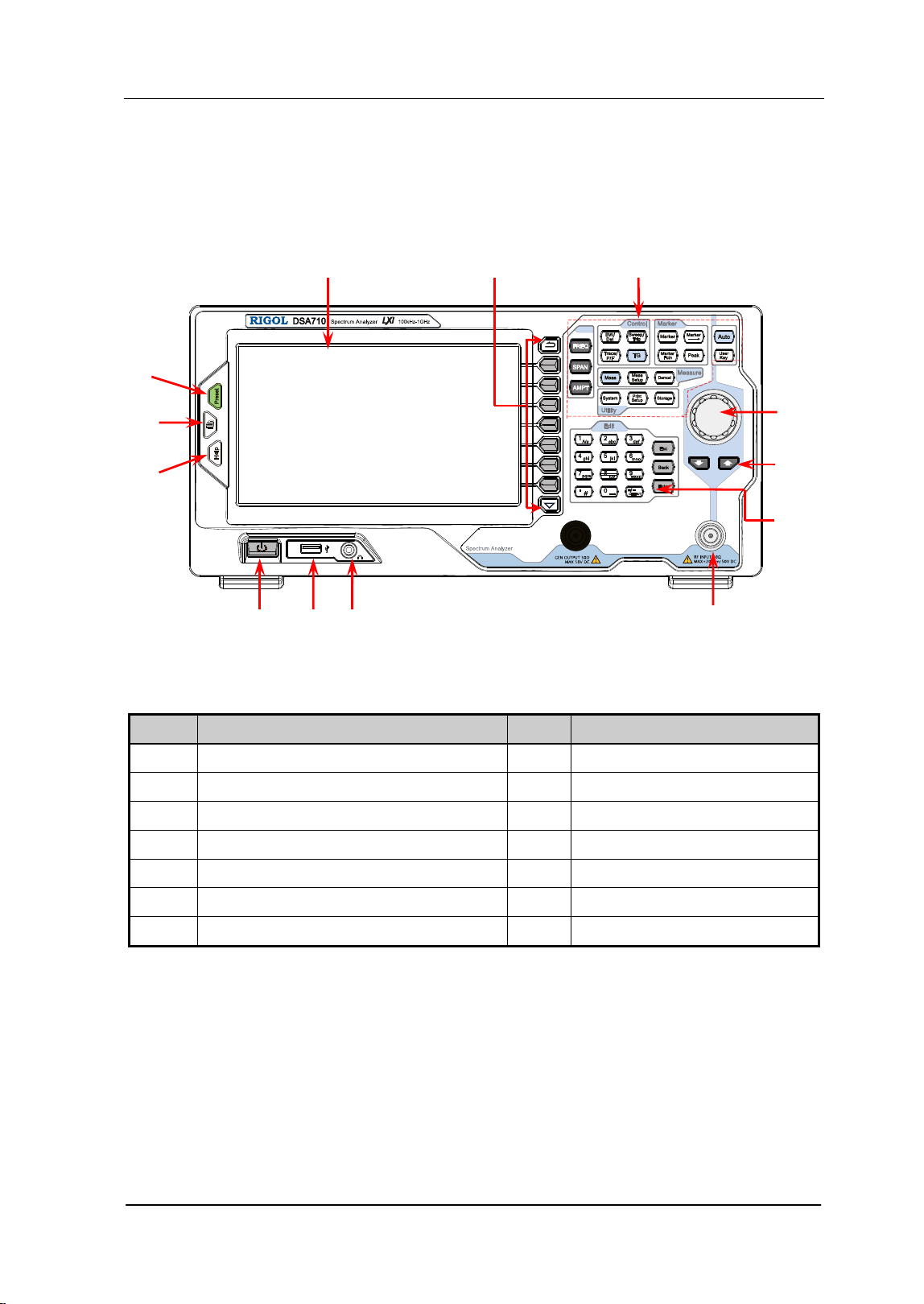
After connecting the instrument to power source correctly, press at the front
panel to start the spectrum analyzer. Following the start-up screen which shows
the start-up initialization process information, the sweep curve is displayed.
Self-calibration
After the instrument starts, execute self-calibration.
Press System Calibrate Cal Now and the instrument will perform
self-calibration using the internal calibration source.
To Set the System Language
DSA700 series spectrum analyzer supports multiple system languages. You can
press System Language to switch the system language.
Chapter 1 Quick Start RIGOL
User’s Guide for DSA700 Series
1-7
Front Panel
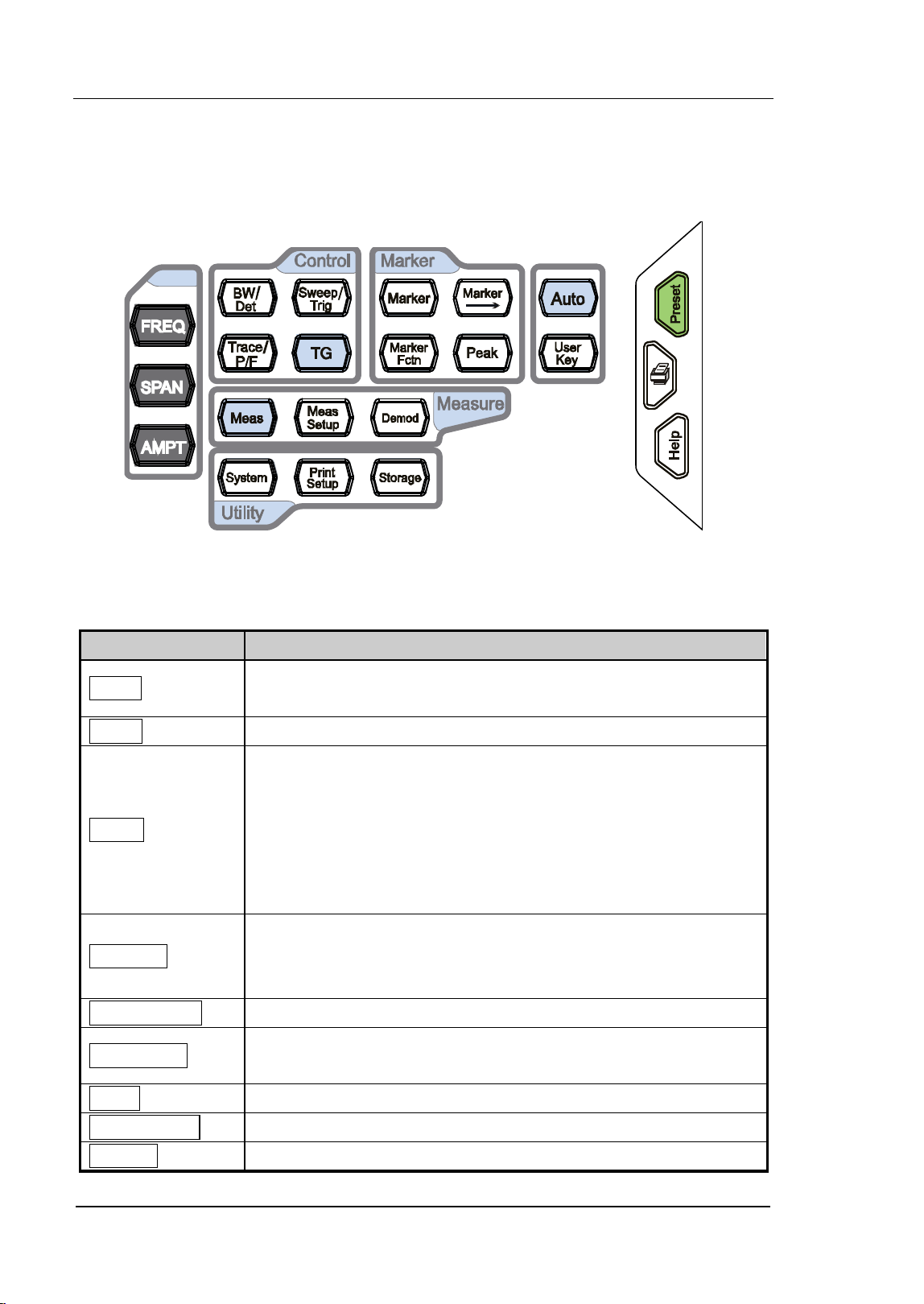
The front panel of DSA700 is as shown in the figure below.
Figure 1-5 Front Panel
Table 1-1 Front Panel Description
NO. Description NO. Description
1 LCD 8 Earphone jack
2 Menu softkeys/menu control keys 9 USB Host
3 Function key area 10 Power switch
4 Knob 11 Help
5 Direction keys 12 Print
6 Numeric Keyboard 13 Preset
7 RF input --
--
1
2
3
13
12
11
10 9 8 7
4
5
6
RIGOL Chapter 1 Quick Start
User’s Guide for DSA700 Series
1-8
Front Panel Function Keys
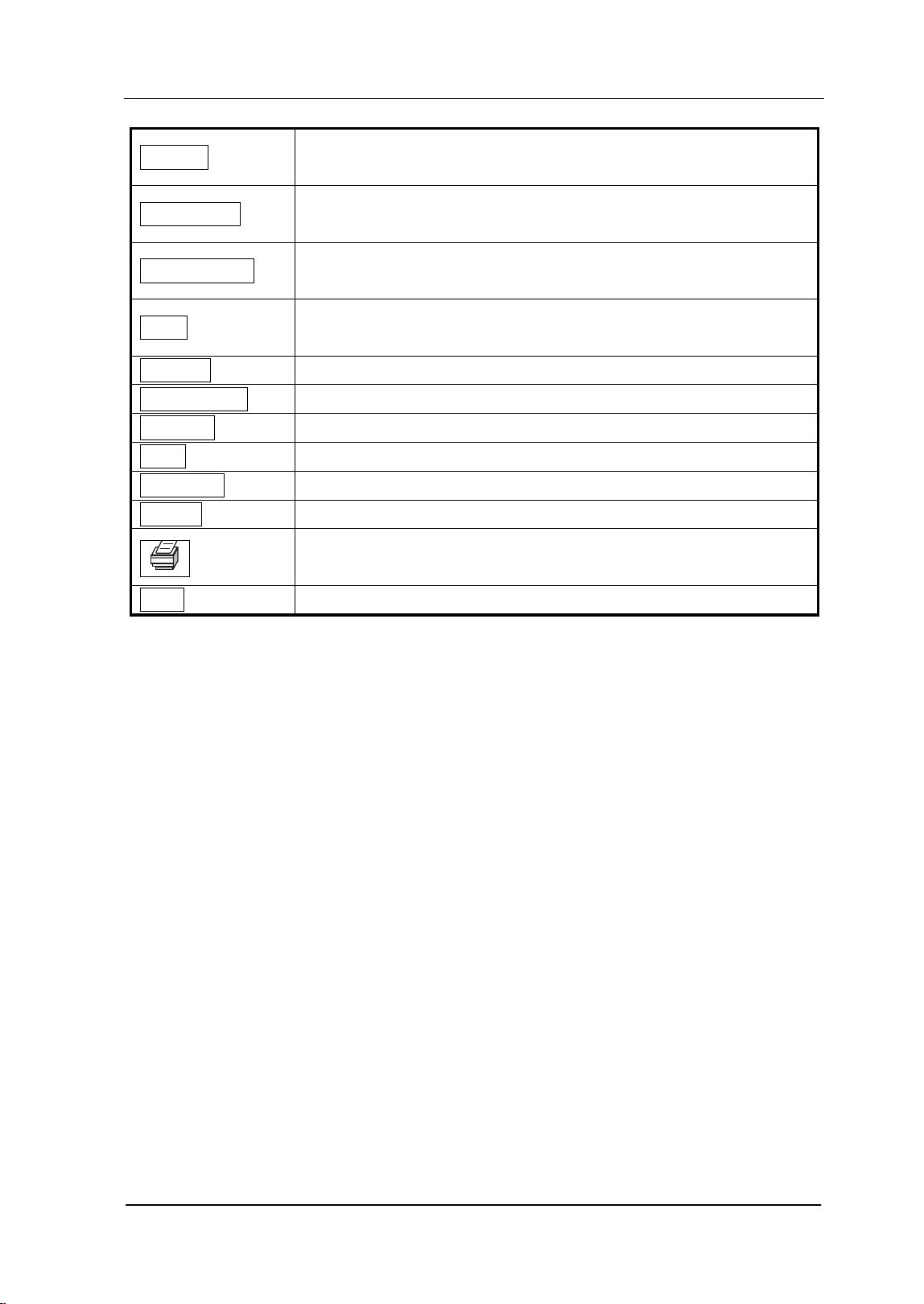
Figure 1-6 Function Key Area
Table 1-2 Function keys description
Key Description
FREQ
Set the center, start and stop frequency, etc; enable the
signal tracking function.
SPAN Set the frequency span of the sweep.
AMPT
Set the reference level, RF attenuator, scale and the unit of
Y-axis, etc.
Set the reference level offset, maximum mixing level and
input impedence.
Execute auto scale and auto range as well as turn on the RF
preamplifier.
BW/Det
Set the resolution bandwidth (RBW), video bandwidth (VBW)
and V/R ratio.
Set the detector and filter types.
Sweep/Trig Set the sweep and trigger parameters.
Trace/P/F
Set the parameters related to trace.
Configure the Pass/Fail test.
Meas Select and control the measurement function**.
Meas Setup Set the parameters for the selected measurement function**.
Demod Set the demodulation function.
Chapter 1 Quick Start RIGOL
User’s Guide for DSA700 Series
1-9
Marker
Read the amplitude, frequency and sweep time of a certain
point on the trace via marker.
Marker—>
Set other system parameters on the basis of the current
marker value.
Marker Fctn
Special functions of the marker such as noise marker, N dB
bandwidth measurement and frequency counter.
Peak
Open the peak search menu and search for peaks
immediately.
System Set the system parameters.
Print Setup Set the print parameters.
Storage Provide file storage and recall functions.
Auto Search for signals automatically within full frequency range.
User Key User-defined shortcut key.
Preset
Restore the system to factory settings or user-defined state.
Print or save the current screen.
Help Turn on the built-in help.
Note:
**This function is only applicable for DSA700 with the corresponding option.
RIGOL Chapter 1 Quick Start
User’s Guide for DSA700 Series
1-10
Front Panel Key Backlight
The on/off state and the color of the backlights of some keys at the front panel
indicate the working state of the spectrum analyzer. The states are as listed below.
1. Power Switch
Flash on and off alternatively, in breathing state: indicate the unit is in
stand-by state.
Constant on: indicate the instrument is in normal operating state.
2. Auto
When Auto is pressed, the backlight turns on. The instrument starts sweeping
within the full frequency range, searches for the signal with the maximum
amplitude and moves it to the center of the screen. Then the backlight turns off.
3. Meas**
The backlight of Meas turns on when any of the advanced measurements is
enabled and stays on until all measurement functions are disabled.
Note:
**This function is only applicable to DSA700 installed with the corresponding option.
Chapter 1 Quick Start RIGOL
User’s Guide for DSA700 Series
1-11
Front Panel Connectors
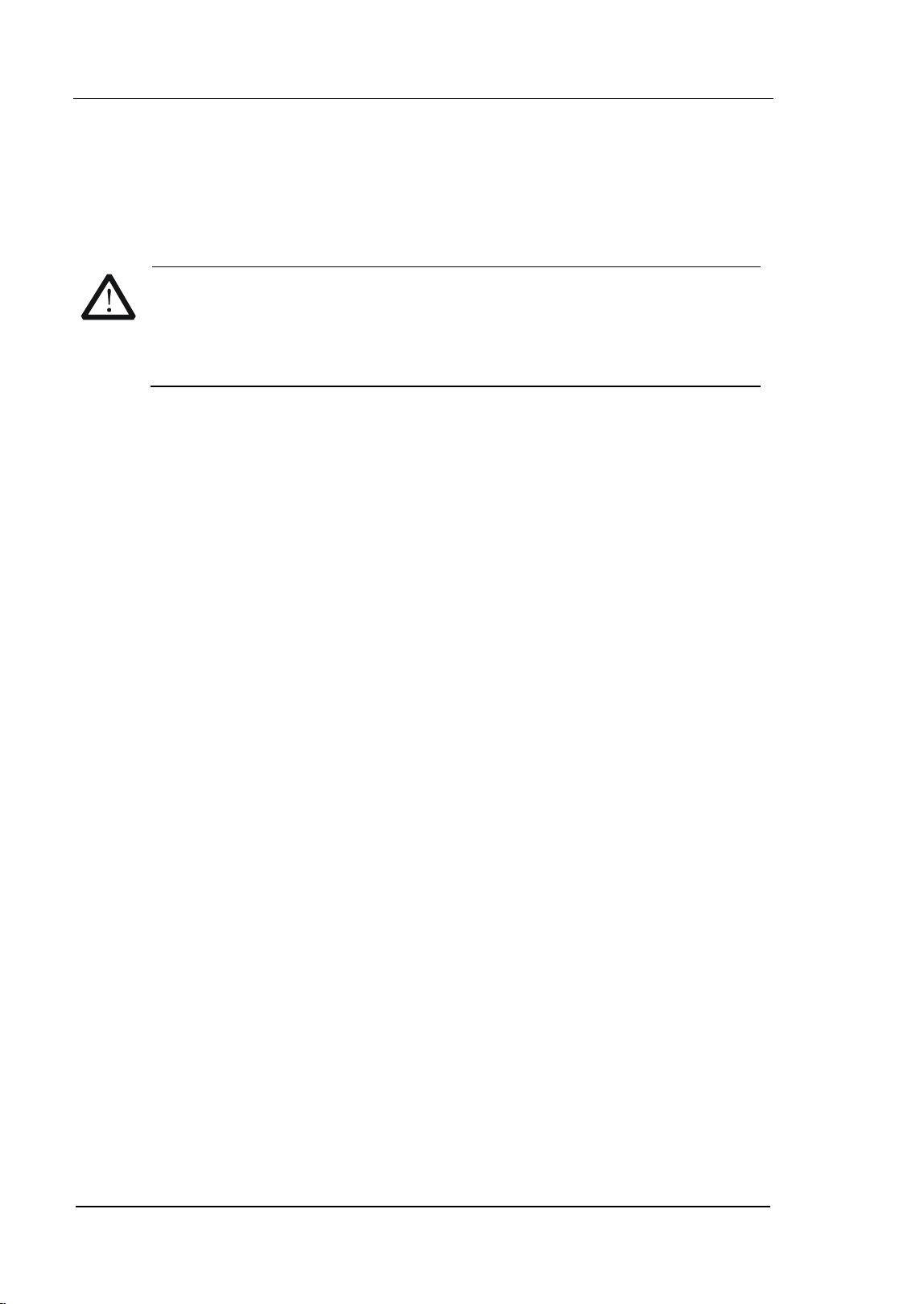
Figure 1-7 Front Panel Connectors
1. USB Host
The analyzer can serve as a "host" device to connect external USB devices.
This interface is available for USB storage devices and USB-GPIB interface
converter.
USB Storage Device
Read the trace or state file stored in the USB storage device, store the
current instrument state or trace in the USB storage device or store the
contents currently displayed on the screen in the USB storage device in
".bmp", ".jpg" or ".png" format.
USB-GPIB Interface Converter
Extend a GPIB interface for the analyzer.
2. Earphone Jack
The analyzer provides AM and FM demodulations. Insert the earphone to the
jack to aquire the audio output of the demodulated signal. You can turn on or
off the earphone output and adjust the volume via Demod Demod
Setup.
CAUTION
For fear of damaging your hearing, please turn the volume down to zero
and gradually turn the volume up after putting on the earphone.
USB Host
RF input
Earphone jack
RIGOL Chapter 1 Quick Start
User’s Guide for DSA700 Series
1-12
4. RF INPUT 50Ω
The input terminal of the signal under measurement. [RF INPUT 50Ω] can
be connected to the device under measurement via a cable with an N male
connector.
CAUTION
To avoid damage to the instrument, for the signal input from the RF
input terminal, the DC voltage component and the maximum continuous
power of the AC (RF) signal component can not exceed 50 V and +20
dBm respectively.
Chapter 1 Quick Start RIGOL
User’s Guide for DSA700 Series
1-13
To Use the Numeric Keyboard
DSA700 provides a numeric keyboard at the front panel (as shown in the figure
below). The numeric keyboard which supports the Chinese characters, English
uppercase/lowercase characters, numbers and common symbols (including
decimal point, #, space and +/-) are mainly used to edit file or folder name (refer
to "To Input Filename") and set parameters (refer to "Parameter Setting").
Figure 1-8 Numeric Keyboard
The numeric keyboard consists of the following parts:
1.
The input mode is fixed at number input during parameter setting. During
parameter setting, press this key to input the symbol ("+" or "-") of the
figure. When the key is pressed for the first time, the parameter symbol
is "-" and "+" when the key is pressed again.
Press
to switch among Chinese, English and number input during
file or folder name editing.
2. Number/Letter
Multiplexing keys for numbers and letters. They are used to directly input
the desired number or letter.
: press this key to input 1 in number input and switch between
uppercase and lowercase letter in English input. This key is invalid in
Chinese input.
RIGOL Chapter 1 Quick Start
User’s Guide for DSA700 Series
1-14
is the multiplexing key for 0 and space. Press this key to input 0 in
number input and space in Chinese or English input.
3.
Press this key to input a decimal point at the current cursor position in
number input.
Press this key to input "#" in English input.
This key is invalid in Chinese input.
4.
When pressed during parameter editing process, the system will
complete the input and insert a default unit for the parameter
automatically.
While in the process of file name editing, this key is used to input the
character currently selected by the cursor.
5.
During parameter editing process, press this key to clear the inputs in the
active function area and exit parameter input.
While in the process of file name editing, press this key to delete
characters that have been entered.
Press this key to turn off the display of the active function area when the
main measurement screen is displayed.
Press this key to exit the current test mode in keyboard test.
Press this key to unlock the screen when it is locked.
When the instrument is in remote mode, use this key to return to local
mode.
6.
During the process of parameter editing, press this key to delete the
character on the left of the cursor.
While in the process of file name editing, press this key to delete the
character on the left of the cursor.
Chapter 1 Quick Start RIGOL
User’s Guide for DSA700 Series
1-15
Rear Panel
The rear panel of DSA700 is as shown in the figure below.
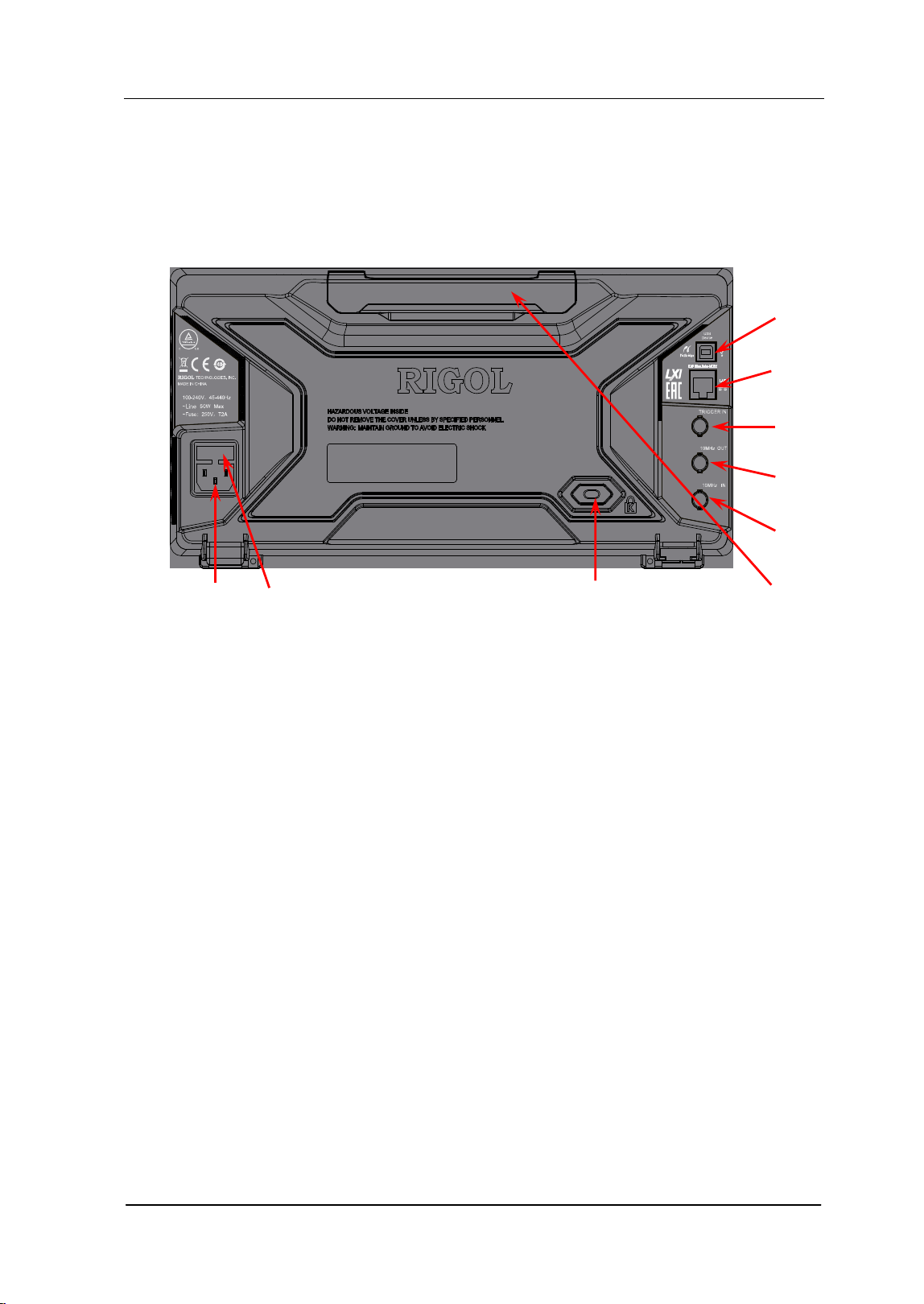
Figure 1-9 Rear Panel
1. AC Power Connector
The AC power supply specification of this spectrum analyzer is 100-240 V,
45-440 Hz.
2. Fuse Seat
You can replace the fuse. DSA700 supports 250V AC, T2A fuse.
3. Security Lock Hole
If needed, you can use a security lock (buy it yourself) to lock the analyzer to
a desired location.
4. Handle
Users can adjust the handle to the vertical position for easier carry of the
analyzer.
5. 10MHz IN
DSA700 can use internal or external reference source.
When a 10 MHz external clock signal is received through the [10MHz IN]
9
8
7
6
5
4
1 2 3

RIGOL Chapter 1 Quick Start
User’s Guide for DSA700 Series
1-16
connector, this signal is used as the external reference source and "Ext
Ref" is displayed in the status bar of the user interface. When the
external reference is lost, transfinite or not connected, the instrument
swithes to its internal reference source automatically and "Ext Ref" on the
screen disappears.
The [10MHz IN] and [10MHz OUT] connectors are usually used to
build synchronization among multiple instruments.
6. 10MHz OUT
DSA700 can use internal or external reference source.
When internal reference source is used, the [10MHz OUT] connector
can output a 10 MHz clock signal generated by the analyzer. This signal
can be used to synchronize other instruments.
The [10MHz OUT] and [10MHz IN] connectors are usually used to
build synchronization among multiple instruments.
7. TRIGGER IN
In external trigger mode, the connector receives an external trigger signal
through a BNC cable.
8. LAN Interface
Through this interface, the analyzer can be connected to your local network
for remote control. An integrated testing system can be built quickly, as the
analyzer conforms to LXI Core 2011 Device instrument standards.
9. USB Device Interface
The analyzer can serve as a "slave" device to connect external USB devices.
Through this interface, a PictBridge printer can be connected to print screen
image or a PC can be connected to control DSA700 remotely through
programming or PC software.
Chapter 1 Quick Start RIGOL
User’s Guide for DSA700 Series
1-17
User Interface
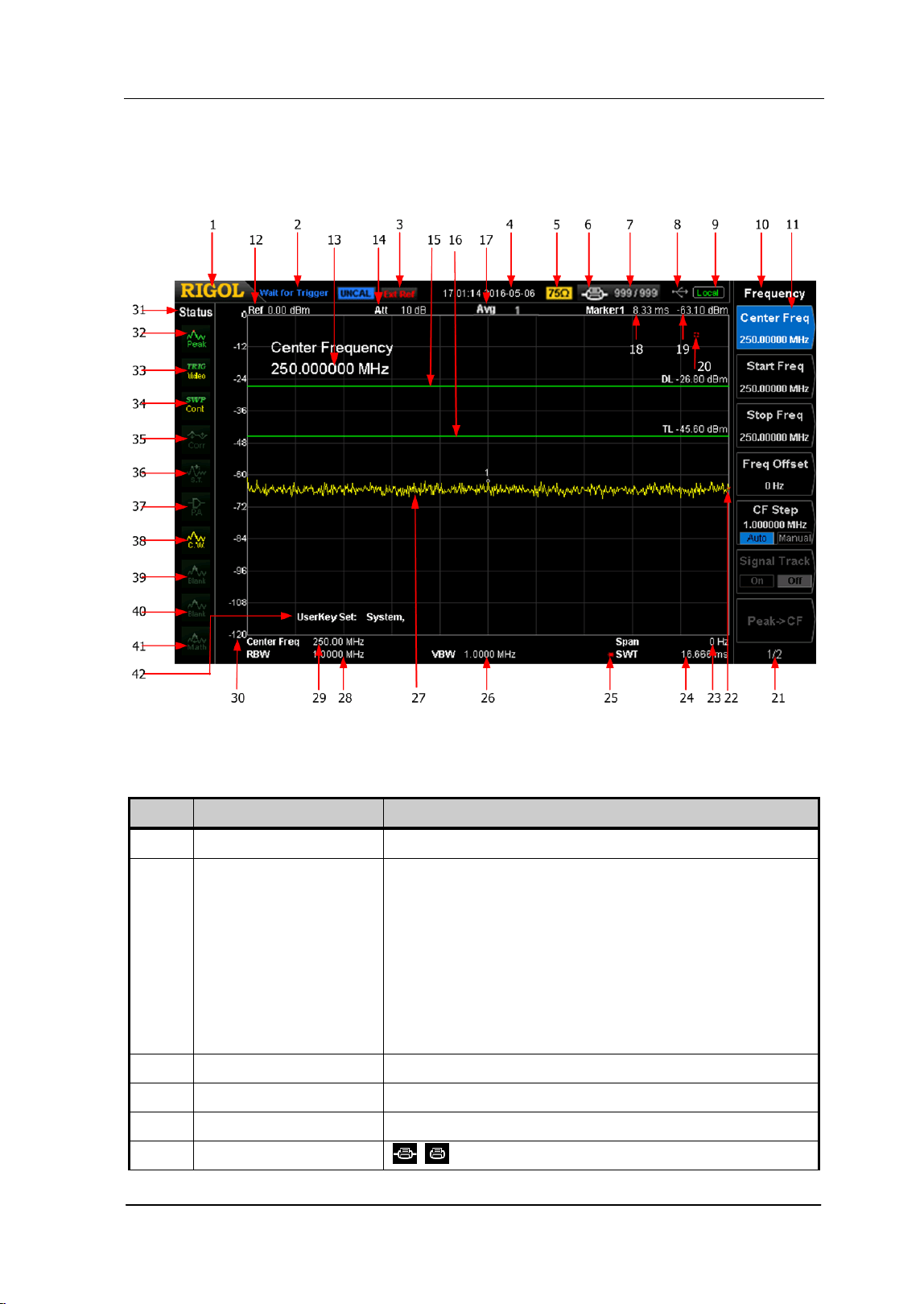
Figure 1-10 User Interface
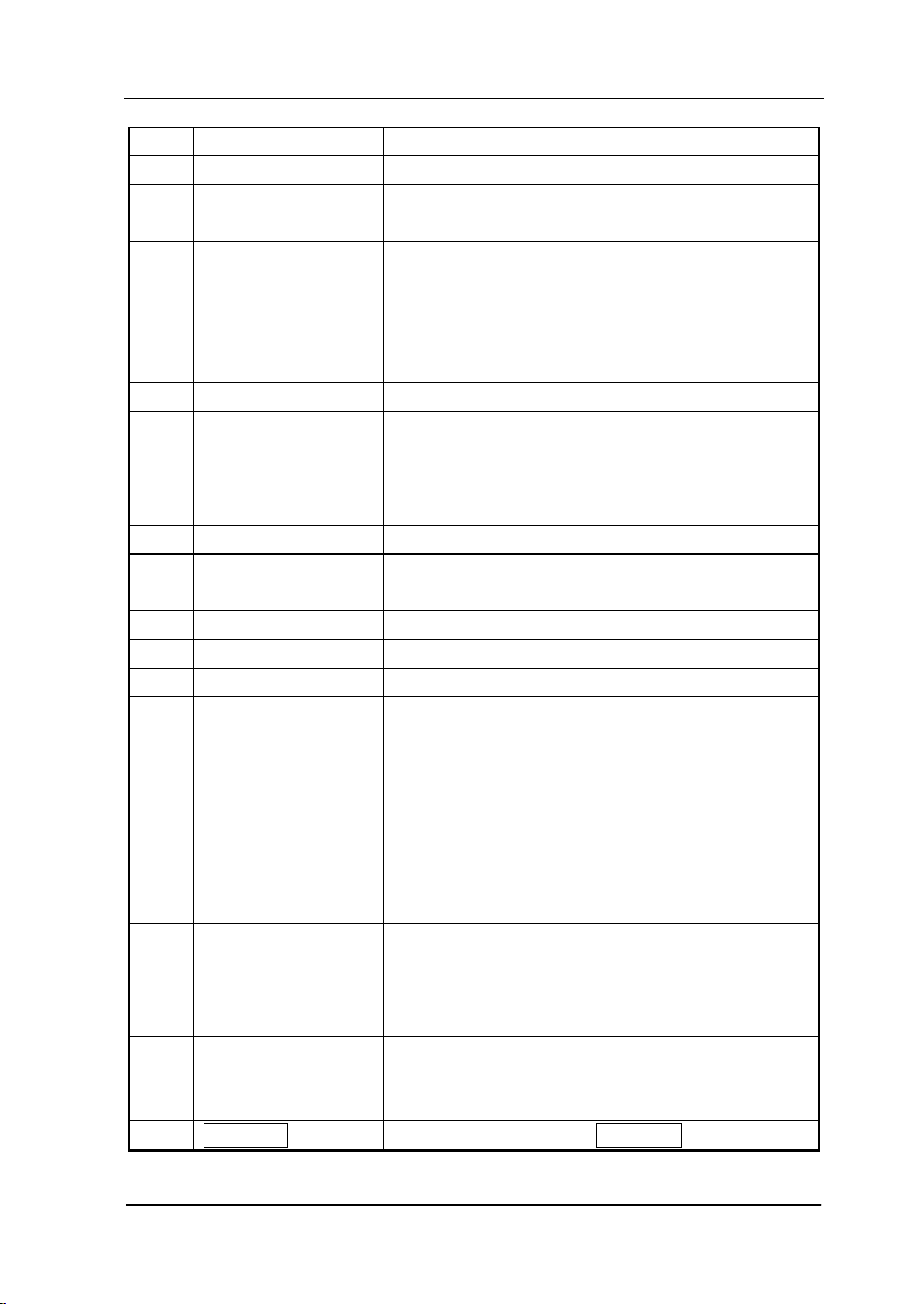
Table 1-3 User interface labels
NO.
Name
Description
1
RIGOL
Logo of
RIGOL
2 System status
( "UNCAL" and
"Identification…"
are displayed in
different place as
others; refer to the
figure above)
Auto Tune
Auto Range
Wait for Trigger
Calibrating
UNCAL (Measurement is not calibrated)
Identification… (LXI instrument is identified)
3 External reference Ext Ref
4 Time System time
5 Input impedance Show "75Ω" if the current input impedance is 75Ω.
6 Printer status
: displayed alternatively, denote the printer
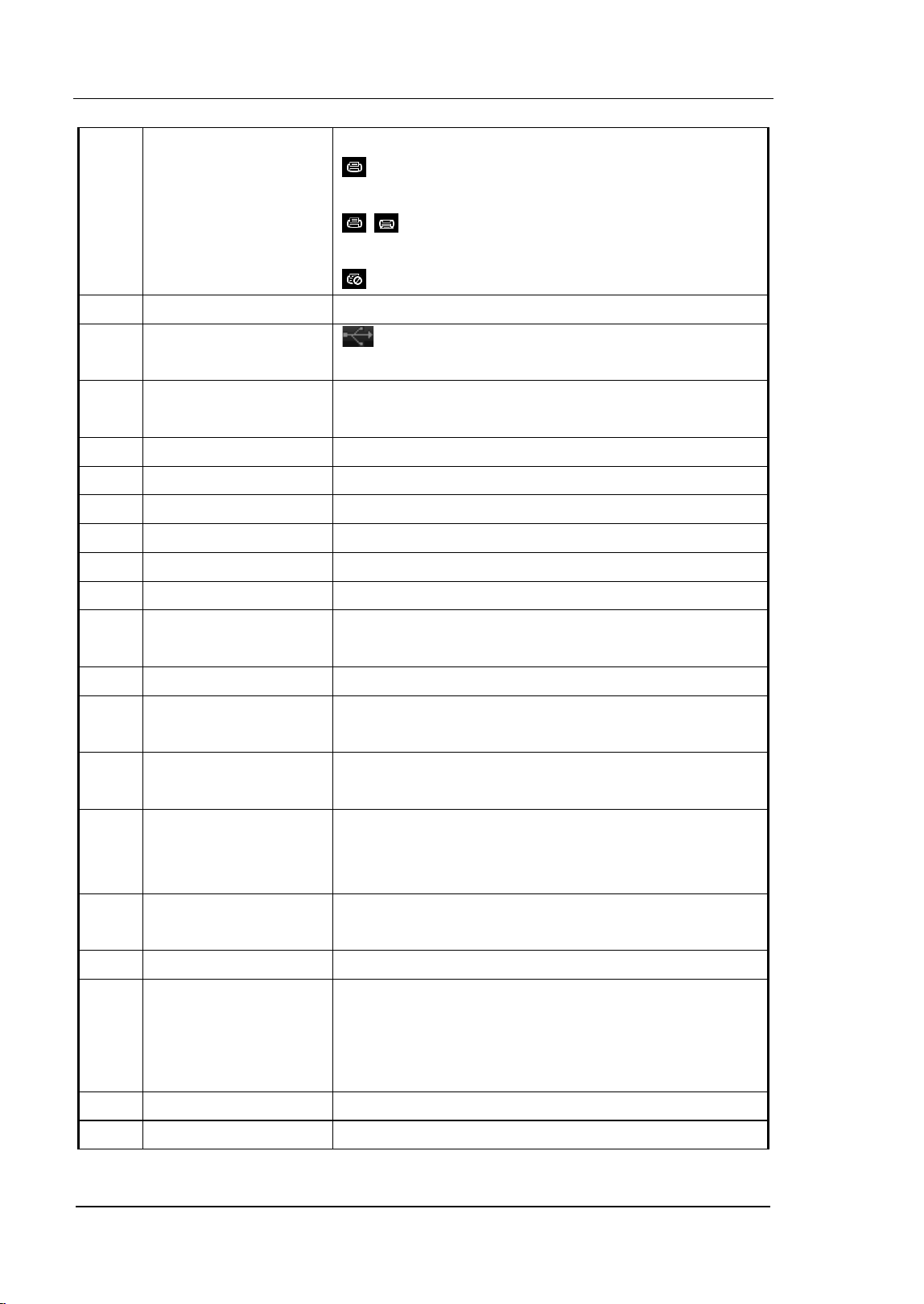
RIGOL Chapter 1 Quick Start
User’s Guide for DSA700 Series
1-18
connection is in process.
: denote the connection succeeds, the print
finishes or the printer is idle.
: displayed alternatively, denote the print is
in process.
: denote the print has been paused.
7 Print process Show the current print copy and total print copies.
8 USB storage device
status
is displayed when USB storage device is
installed.
9 Operation status Display "Local" (in local mode) or "Rmt" (in remote
mode).
10 Menu title Function of the current menu.
11 Menu items Menu items of the current function.
12 Reference level Reference level.
13 Active function area Current parameter and its value.
14 Attenuator settings Attenuator settings.
15 Trigger level Set the trigger level in video trigger.
16 Display line Reading reference and threshold condition for
peak value display.
17 Average times Average times of trace.
18 Cursor X Current X value of the cursor. Note that X indicates
different physical quantities in different functions.
19 Cursor Y Current Y value of the c
ursor. Note that Y indicates
different physical quantities in different functions.
20 Invalid data Current measured data is invalid as a full sweep
dosen’t complete after the system parameters
have been modified.
21 Menu page number Show the current page number and total number
of pages.
22 Sweep position Current sweep position.
23 Span or stop
frequency
The frequency range of the current sweep channel
can be expressed by the combination of center
frequency and span or the combination of start
frequency and stop frequency.
24 Sweep time Sweep time.
25 Manual setting The corresponding parameter is in manual setting
Chapter 1 Quick Start RIGOL
User’s Guide for DSA700 Series
1-19
symbol mode.
26 VBW Video bandwidth.
27 Spectrum line
display area
Display the spectrum line.
28 RBW Resolution bandwidth.
29 Center or start
frequency
The frequency range of the current sweep channel
can be expressed by the combination of center
frequency and span or the combination of start
frequency and stop frequency.
30 Y scale Label of Y scale.
31 Parameter status Icons on the left side of the screen indicate the
status of system parameters.
32 Detector type Pos peak, Neg peak, Sample, Normal, RMS Avg,
Voltage Avg and Quasi-Peak.
33 Trigger type Free, video and external.
34 Sweep mode Continuous or Single sweep (with the current
number of sweeps)
35 Correction switch Turn amplitude correction on or off.
36 Signal tracking Enable or disable the signal tracking function.
37 Preamplifier status Enable or disable the preamplifier.
38 Trace 1 type and
status
Trace types: Clear Write, Max Hold, Min Hold,
Video Avg, Power Avg and Freeze.
Trace status: yellow denotes On and gray denotes
Off.
39 Trace 2 type and
status
Trace types: Clear Write, Max Hold, Min Hold,
Video Avg, Power Avg and Freeze.
Trace status: purple denotes On and gray denotes
Off.
40 Trace 3 type and
status
Trace types: Clear Write, Max Hold, Min Hold,
Video Avg, Power Avg and Freeze.
Trace status: light blue denotes On and gray
denotes Off.
41 MATH trace type and
status
Trace types: A-B, A+Const, A-Const.
Trace status: green denotes On and gray denotes
Off.
42
User Key
definition Display the definition of
User Key
.
RIGOL Chapter 1 Quick Start
User’s Guide for DSA700 Series
1-20
Menu Operation
There are 7 types of menus according to their operation modes. Each type of menu
and its operation method are introduced below.
1. Parameter Input
2. State Switching
3. Enter Lower Menu (with parameter)
4. Enter Lower Menu (without parameter)
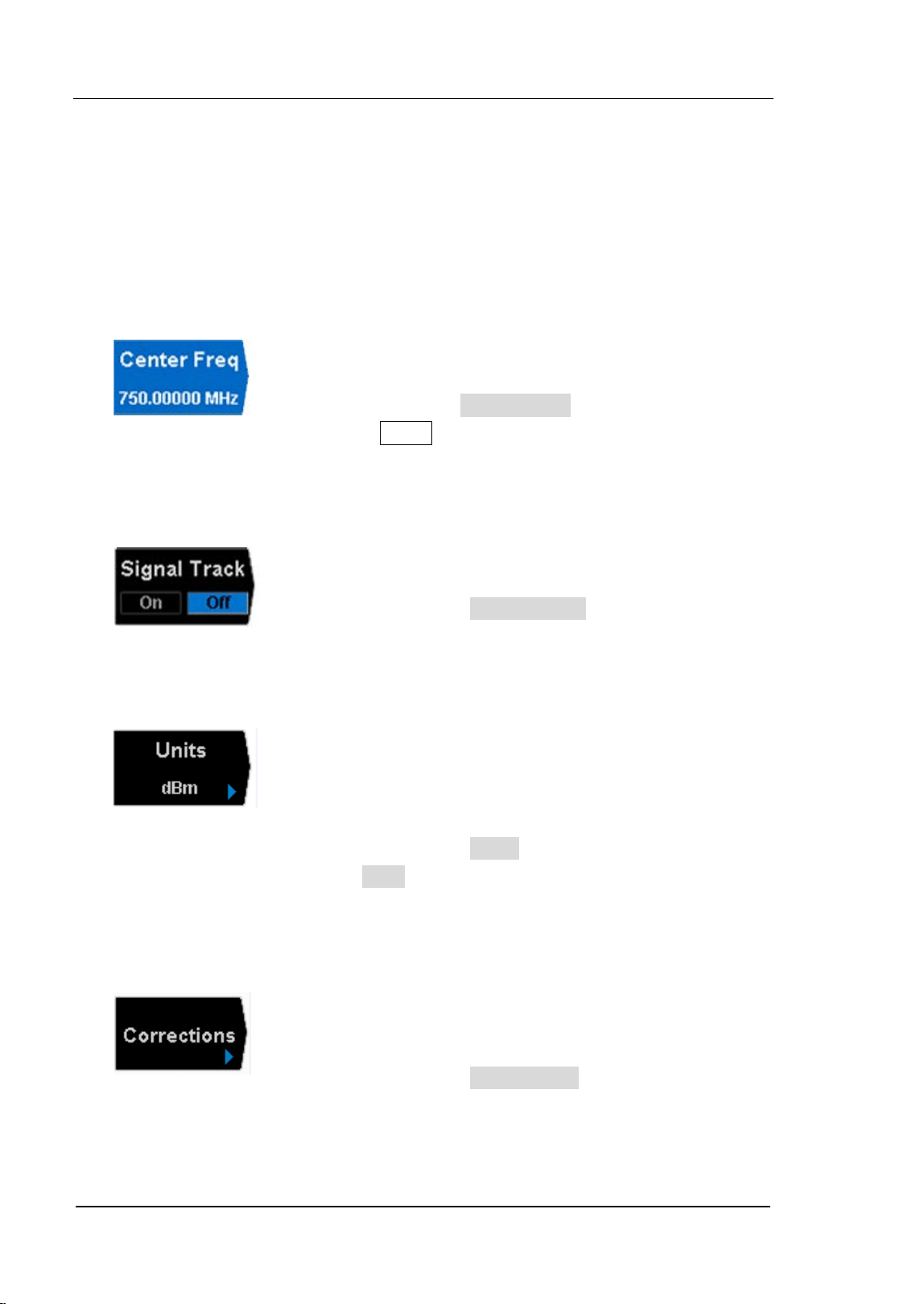
When selected, use the numeric keys to modify the
parameters directly.
For example, select Center Freq, input the desired figure
and press Enter to change the center frequency.
Press the corresponding menu key to switch between
the sub-options.
For example, press Signal Track to enable or disable
the signal tracking function.
Press the corresponding menu key to enter the lower
menu and change the option currently selected. The
parameter in the upper menu will change when you
return to the upper menu.
For example, press Units to enter the lower menu.
Select dBm and return to the previous menu. The unit
of Y-axis changes to dBm.
Press the corresponding menu key to enter the lower
menu.
For example, press Corrections to enter the lower
menu directly.
Chapter 1 Quick Start RIGOL
User’s Guide for DSA700 Series
1-21
5. Direct Execution
6. Function Switch + Parameter Input
7. State Selection
Press the key to execute the corresponding function.
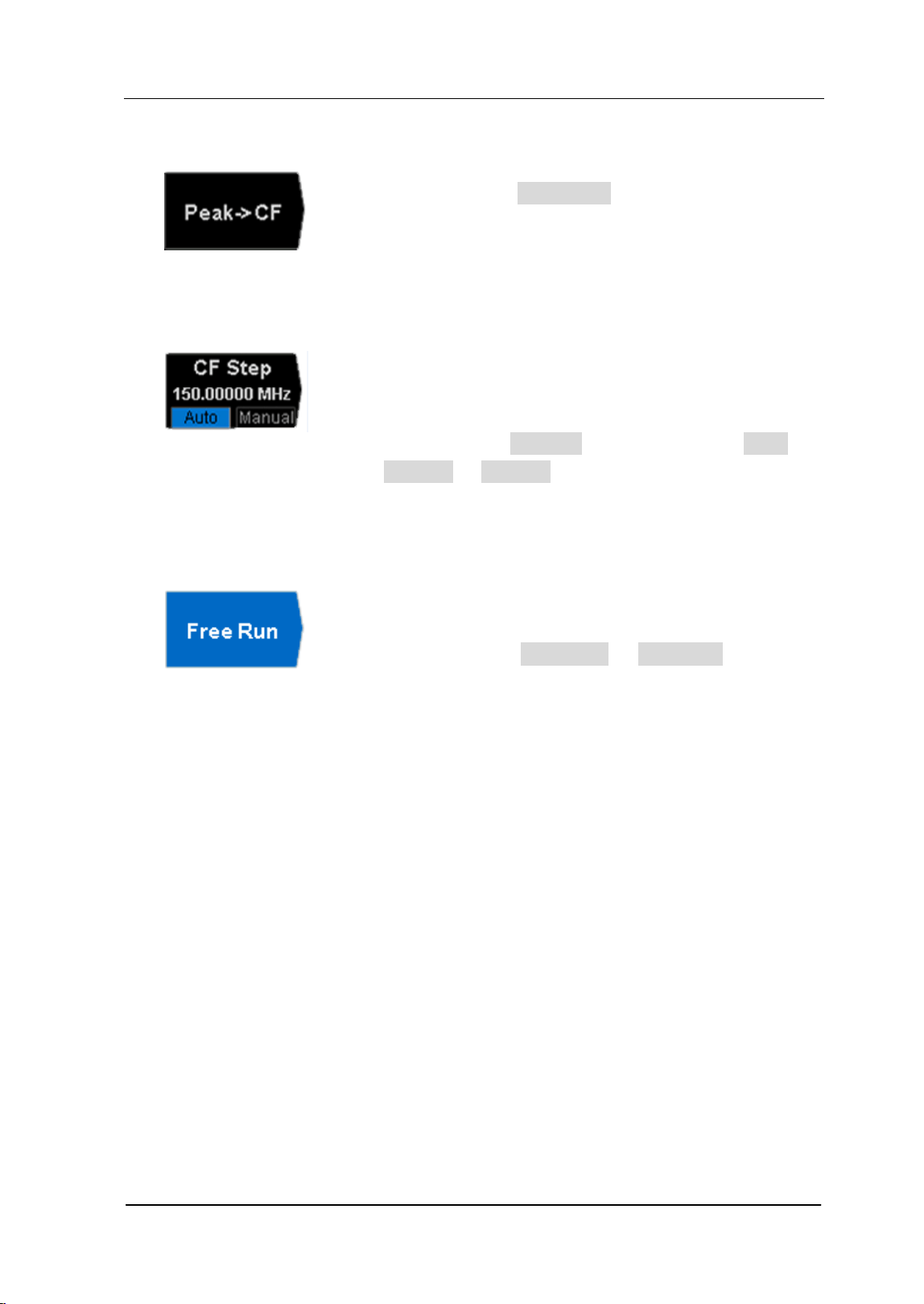
For example, press Peak->CF to execute a peak search
and set the center frequency of the analyzer to the
frequency of the current peak signal.
Press the corresponding menu key to switch between
functions; change the parameter directly using the
numeric keys.
For example, press CF Step to switch between Auto
and Manual; if Manual is selected, you can directly
input the desired number to change the CF Step.
Press the corresponding menu key to modify the
parameter and return to the menu one level up.
For example, press Trig Type
Free Run to select
free trigger and the analyzer is in Free Run state at
present.
RIGOL Chapter 1 Quick Start
User’s Guide for DSA700 Series
1-22
Parameter Setting
Users can enter the desired parameter values using the numeric keys, knob or
direction keys.
This section describes the three methods of parameter setting
through an example (to set the center frequency to 300 MHz).
1. Use the numeric keyboard
1) Press FREQ Center Freq;
2) Input 300 using the numeric keys;
3) Select the desired unit (MHz) from the popup menu.
2. Use the knob
When the parameter is editable (namely when the parameter is selected),
turn the knob clockwise to increase or counterclockwise to decrease the
parameter value at the specified step.
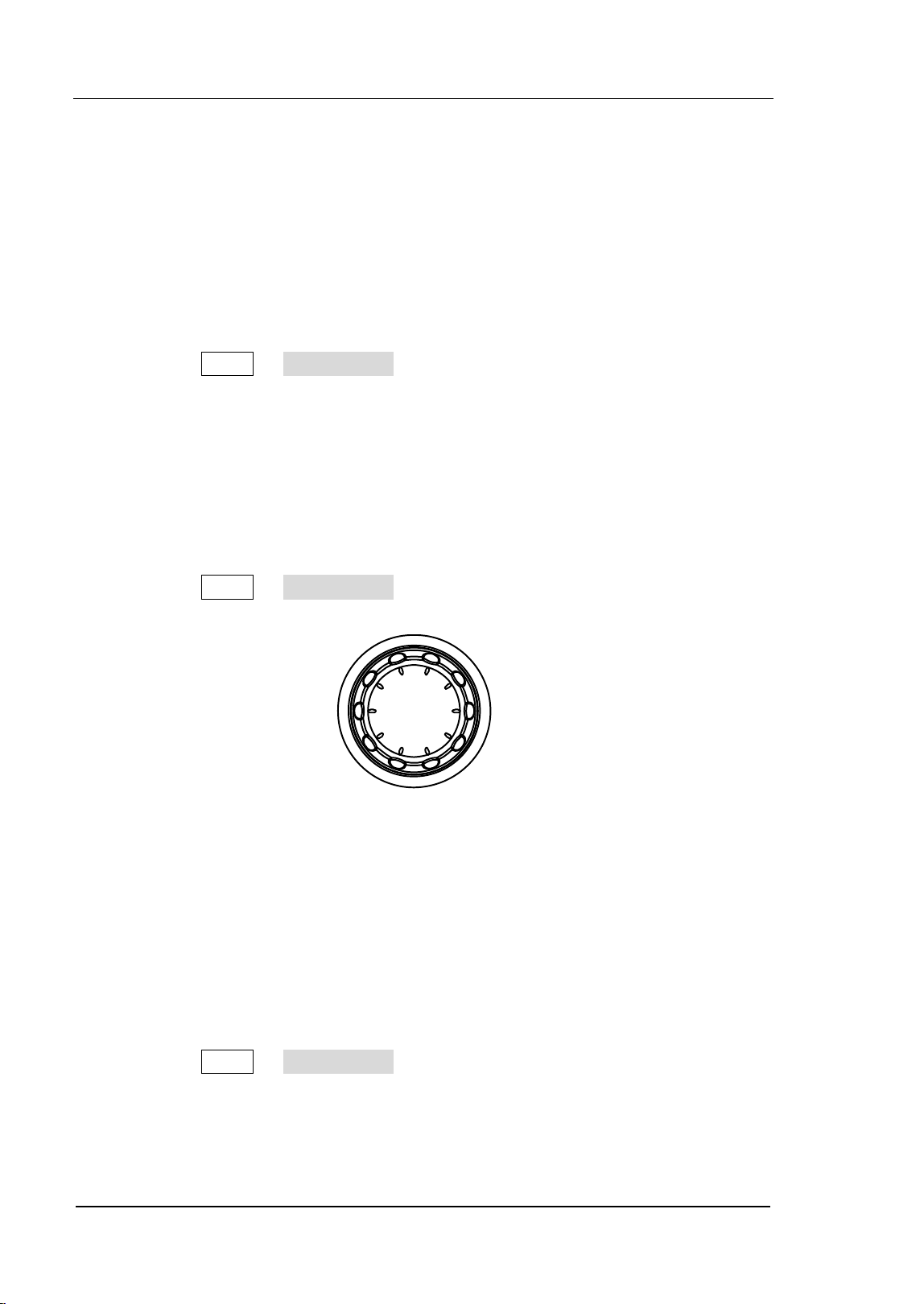
1) Press FREQ Center Freq;
2) Rotate the knob until the parameter is set to the desired value (300 MHz).
Figure 1-11 The Knob
Note: In the storage function, the knod can also be used to select the
currentpath or file.
3. Use the direction keys
When the parameter is editable (namely when the parameter is selected), you
can increase or decrease the parameter value at the specific step using the
direction keys.
1) Press FREQ Center Freq;
2) Press the up/down direction key until the parameter is set to the desired
value (300 MHz).
RIGOL Chapter 1 Quick Start
User’s Guide for DSA700 Series
1-24
To Input Filename
DSA700 supports filenames consisting of Chinese characters, English letters,
numbers and #.
1. Enter the filename input interface
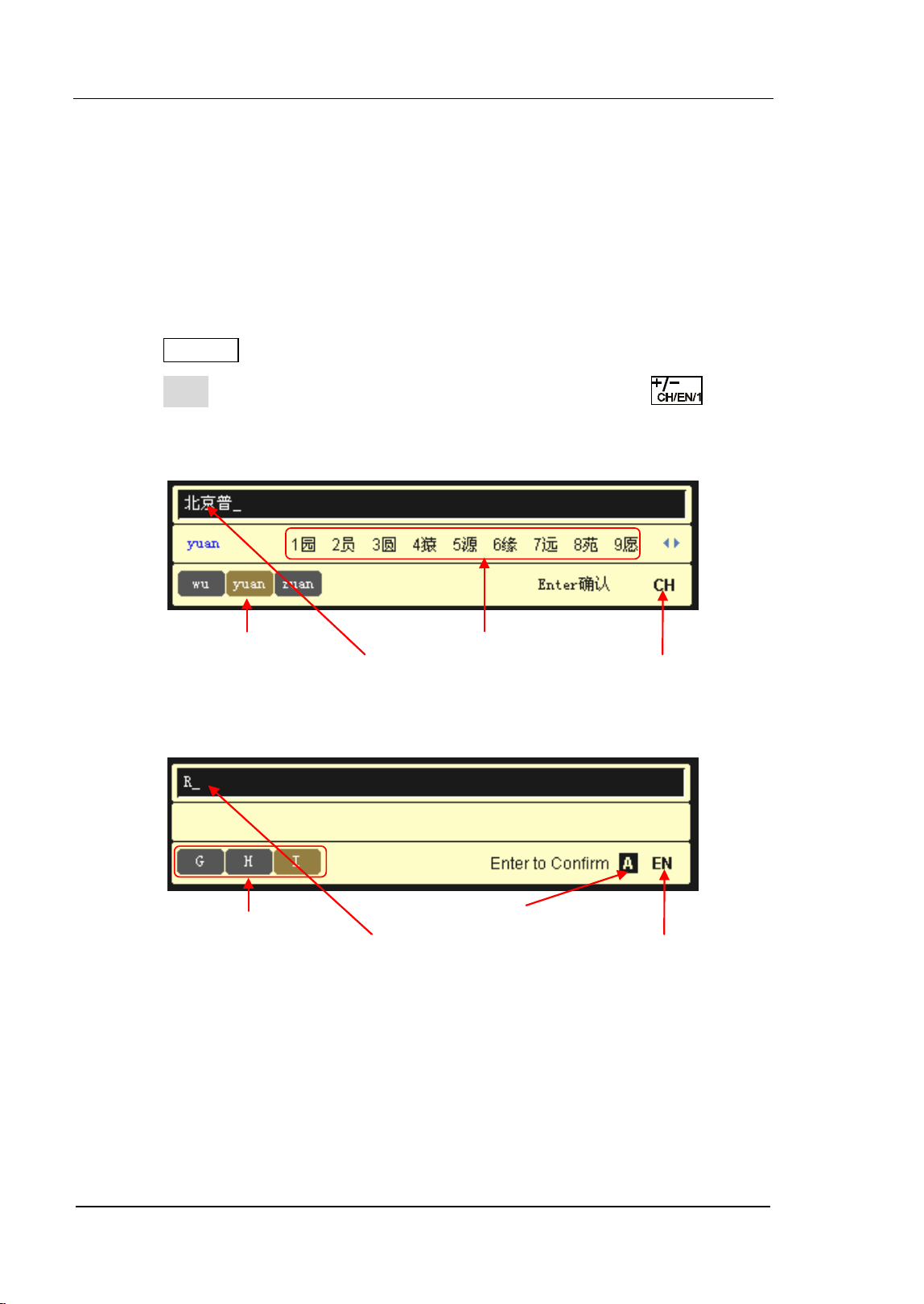
Press Storage and select the desired file type and storage location. Then
press Save to enter the filename input interface. You can press to
switch among English, Chinese and number input modes.
(a) Chinese Input Mode
(b) English Input Mode
Letter Selecting Area Uppercase/Lowercase
Letters Entered English Input Mode
Pinyin Selecting Area Chinese Character Selecting Arear
Chinese Characters Entered Chinese Input Mode
Chapter 1 Quick Start RIGOL
User’s Guide for DSA700 Series
1-25
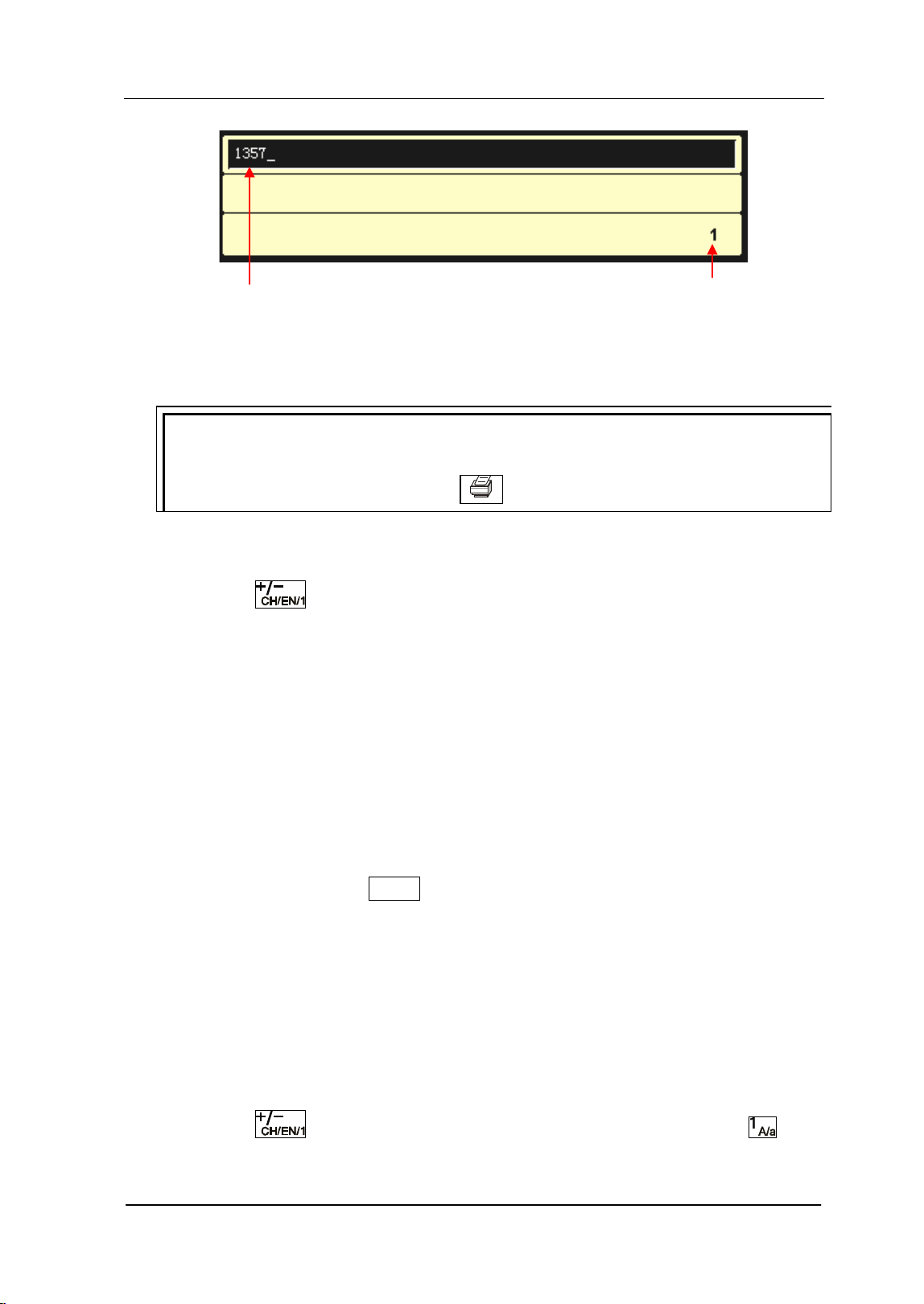
(c) Number Input Mode
Figure 1-13 Filename Input Interface
Tip:
If a USB storage device is currently connected, the instrument will also enter
the filename input interface when
is pressed.
2. Input Chinese Filename
1) Press
to switch to Chinese input mode. At this point, the
corresponding label is displayed at the lower right corner of the filename
input interface.
2) Press the key of the first letter of the pinyin of the Chinese character. At
this point, the pinyins available are displayed in the pinyin selecting
area and the corresponding Chinese characters of the pinyin currently
selected are displayed in the Chinese character selecting area. If the
desired pinyin is displayed, refer to 3). Otherwise, please continue to
input the other letters in the pinyin and then refer to 3).
3) Rotate the knob until the background color of the desired pinyin becomes
brown. Then, press Enter to select the pinyin. At this point, the
corresponding Chinese characters are numbered and displayed in the
Chinese character selecting area. Use the numeric keys to select the
desired Chinese character. You can also use the the direction keys to open
the previous or next page in the Chinese character selecting area.
4) Use the same method to input the other Chinese characters.
3. Input English Filename
1) Press
to switch to English input mode. You can also press to
Numbers Entered
Number Input Mode
RIGOL Chapter 1 Quick Start
User’s Guide for DSA700 Series
1-26
switch between upper and lower cases. At this point, the corresponding
label is displayed at the lower right corner of the filename input interface.
2) Press the key of the desired letter. At this point, the letters available are
displayed in the letter selecting area. Press this key repeatedly or
retate the knob until the desired letter is selected (the background color
of the letter becomes brown). Then press Enter to input the desired
letter.
3) Use the above method to input the other letters.
Tip:
If you need to use numbers as the filename (or part of the filename), press
to switch to number input mode and use the numeric keys to input the desired
number.
Chapter 1 Quick Start RIGOL
User’s Guide for DSA700 Series
1-27
To Lock the Keyboard
You can lock one or more function keys or all keys (except the power switch) and
knob at the front panel using keyboard lock commands.
1. The intrudction of keyboard lock commands
:SYSTem:KLOCk ON|OFF|1|0,<key> /* Lock or unlock the specified key*/
:SYSTem:KLOCk? <key> /* Query whether the specified key is
locked*/
Wherein, the parameter <key> is used to specify the keys. The range of this
parameter is as follows.
FREQ|SPAN|AMP| /*FREQ, SPAN, AMPT keys*/
BW|SWEEP|TRACE| /*BW/Det, Sweep/Trig, Trace/P/F
keys*/
MARK|MARKFUNC|MARKTO|PEAK| /*Marker, Marker Fctn, Marker->, Peak
keys*/
TUNE| /*Auto key*/
MEAS|MEASSET|DEMOD| /*Meas, Meas Setup, Demod keys*/
SYSTEM|PRINTSETUP|STORAGE| /*System, Print Setup, Storage keys*/
PRESET|PRINT /* Preset, Print keys*/
The parameter ON|OFF|1|0 is used to lock or unlock the key. Select ON|1
to lock the specified key; select OFF|0 to unlock the specified key. When
more than one key is locked or unlocked at the same time, please use "," to
separate the keys.
:SYSTem:KLOCk ON|1,ALL /*Lock all keys (except the power
switch) and knob at the front panel*/
:SYSTem:KLOCk OFF|0,ALL /*Unlock all keys and knob at the front
panel*/
2. Send the commands to lock or unlock the keyboard via Ultra Sigma
Build the communication between spectrum analyzer and the PC.
Start up the Ultra Sigma and search for the instrument resources.
Open the remote command control panel and send the above commands.
RIGOL Chapter 1 Quick Start
User’s Guide for DSA700 Series
1-28
To Use the Built-in Help
The built-in help system provides information about every function key at the front
panel and every menu softkey.
1. How to acquire built-in help
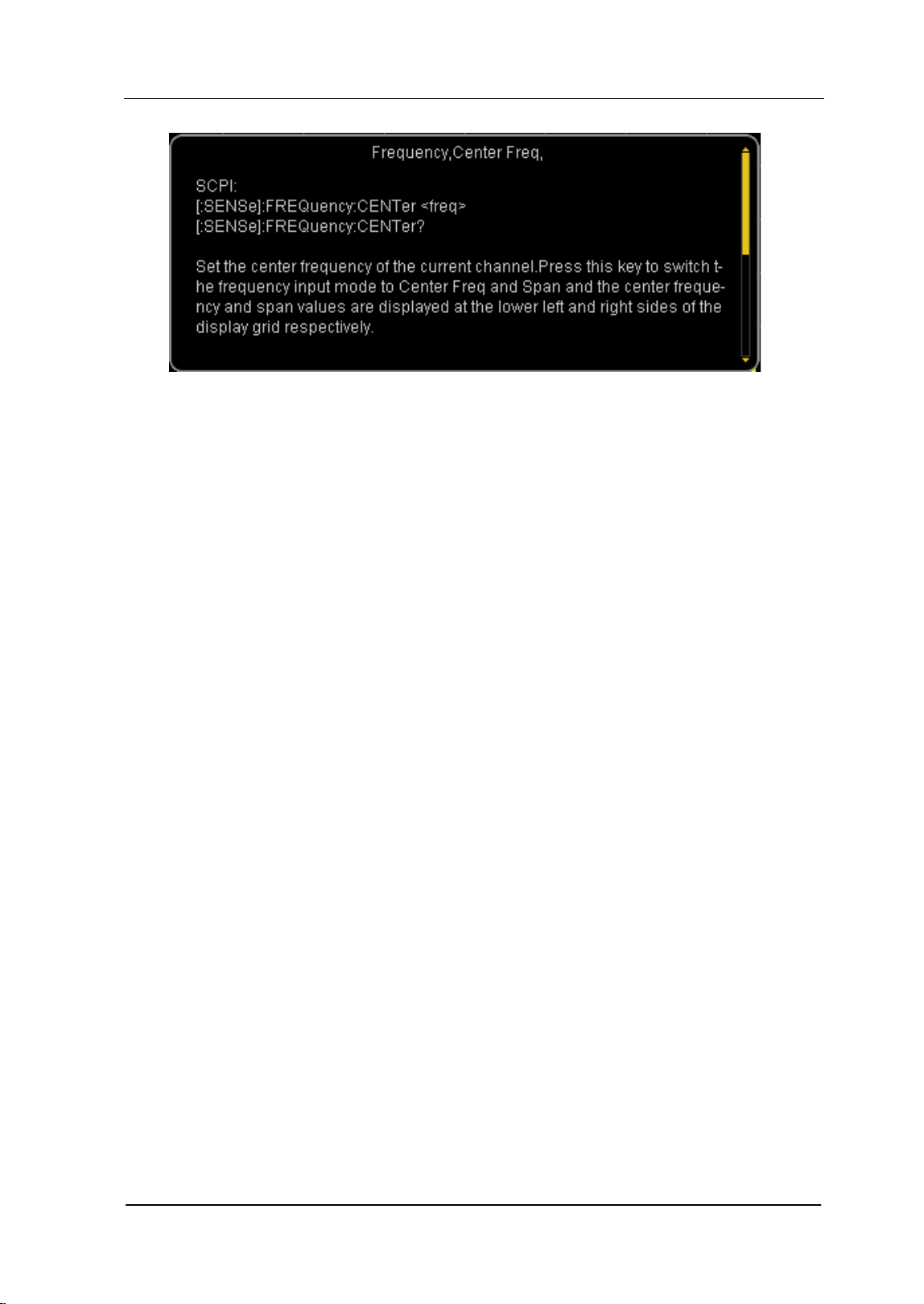
Press Help and a prompt about how to obtain help information will be shown
at the center of the screen. Then, press the key that you want to get help of
and the relevant help information will be shown at the center of the screen.
2. Page up and down
If there is more than one page of information, you can read the help
information on the previous or next page using the direction keys or the knob.
3. Close the current help information
Press any key at the front panel to close the help information currently
displayed at the center of the screen.
4. Acquire the menu help
Press Help and the help information display window is displayed at the center
of the screen. Then, press the menu key and the help information of the
corresponding menu item is displayed.
5. Acquire the help information of any function key
Press Help and the help information display window is displayed at the center
of the screen. Then, press any function key and the corresponding function
help information is displayed.
RIGOL Chapter 1 Quick Start
User’s Guide for DSA700 Series
1-30
To Use the Security Lock
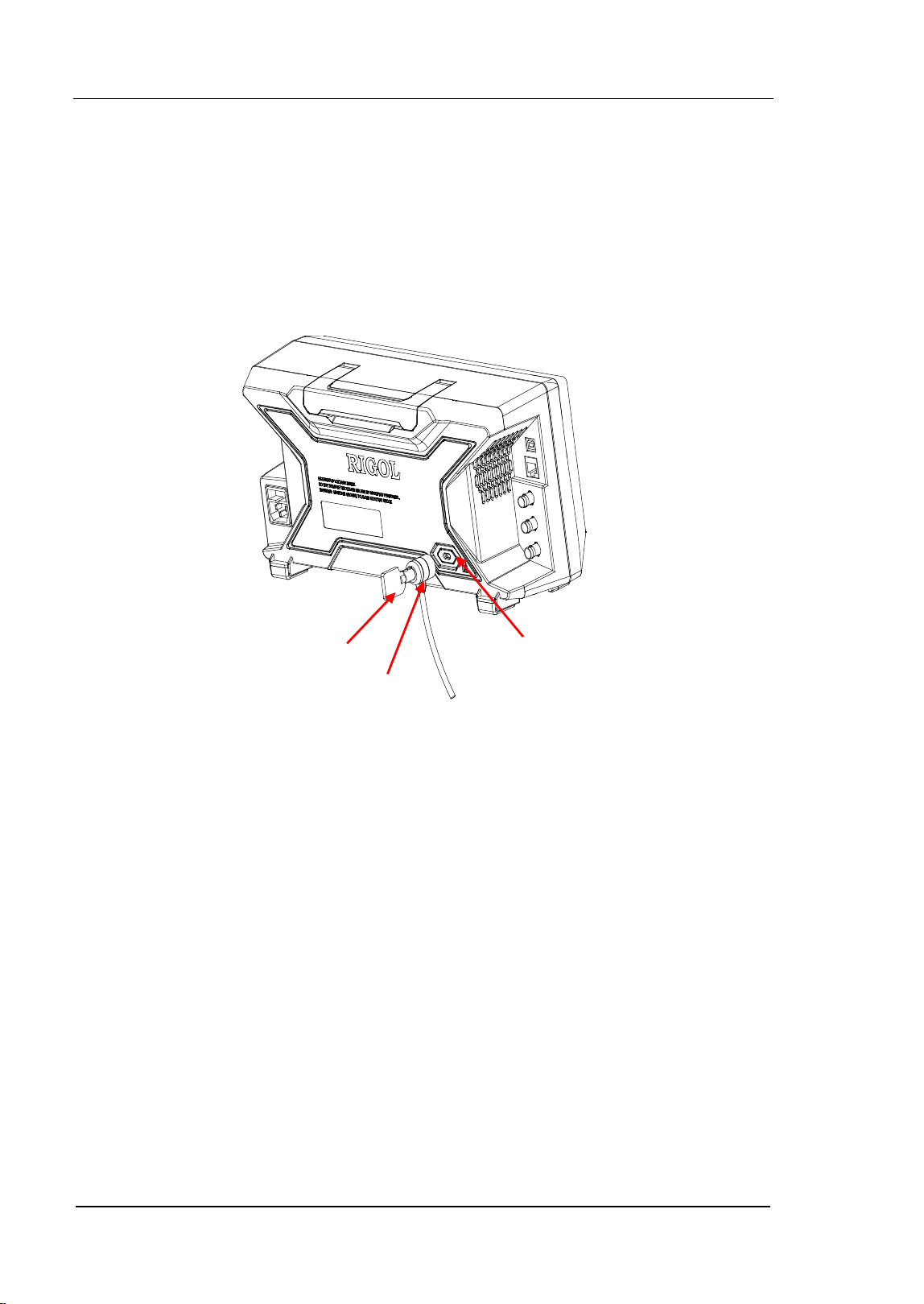
If necessary, use a security lock to lock the analyzer in a desired location. As shown
in the figure below, align the lock with the lock hole and plug it into the lock hole
vertically, turn the key clockwise to lock the instrument and then pull the key out.
Figure 1-15 To Use the Security Lock
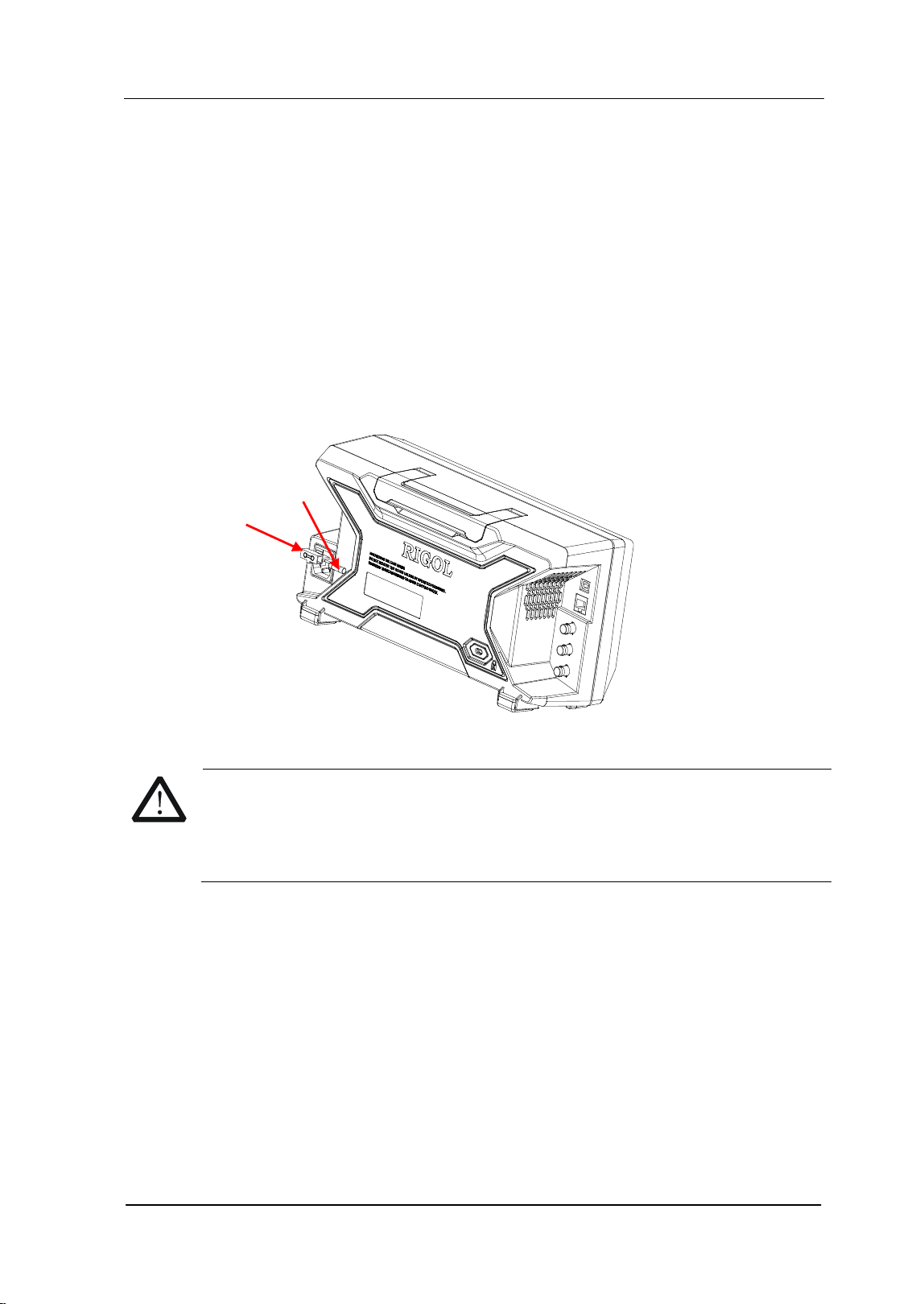
Note: Please do not insert other articles into the security lock hole to avoid
damaging the instrument.
Key
Security Lock Hole
Security Lock
Chapter 1 Quick Start RIGOL
User’s Guide for DSA700 Series
1-31
To Replace the Fuse
Please replace the old fuse with specified fuse according to the following steps
when needed:
1. Turn off the instrument, cut off the power and remove the power cord.
2. Use a small straight screw driver to prize out the fuse seat.
3. Take out the fuse seat.
4. Replace the old fuse with a specified fuse.
5. Install the fuse seat.
Figure 1-16 To Replace the Fuse
WARNING
Please ensure that the instrument has been turned off, the power source
has been cut off and the fuse to be used is a specified one before
replacing the fuse in order to avoid electric shock.
Fuse Seat
Fuse


Chapter 2 Front Panel Operation RIGOL
User’s Guide for DSA700 Series
2-1
Chapter 2 Front Panel Operation
This chapter describes in detail the function keys at the front panel and the
associated functions.
Subjects in this chapter:
Basic Settings
Sweep and Function Settings
Measurement Settings
Marker Measurements
Shortcut Key
System Settings

RIGOL Chapter 2 Front Panel Operation
User’s Guide for DSA700 Series
2-2
Basic Settings
FREQ
Set the frequency parameters of the analyzer. The analyzer sweeps within a
specified frequency range and restarts sweeping every time the frequency
parameters are modified.
The frequency range of a channel can be expressed by either of two groups of
parameters: Start Frequency and Stop Frequency (
start
f
/
stop
f
); or Center
Frequency and Span (
center
f
/
span
f
). If any of the parameters is changed, the
others would be adjusted automatically in order to ensure the coupling relationship
among them:
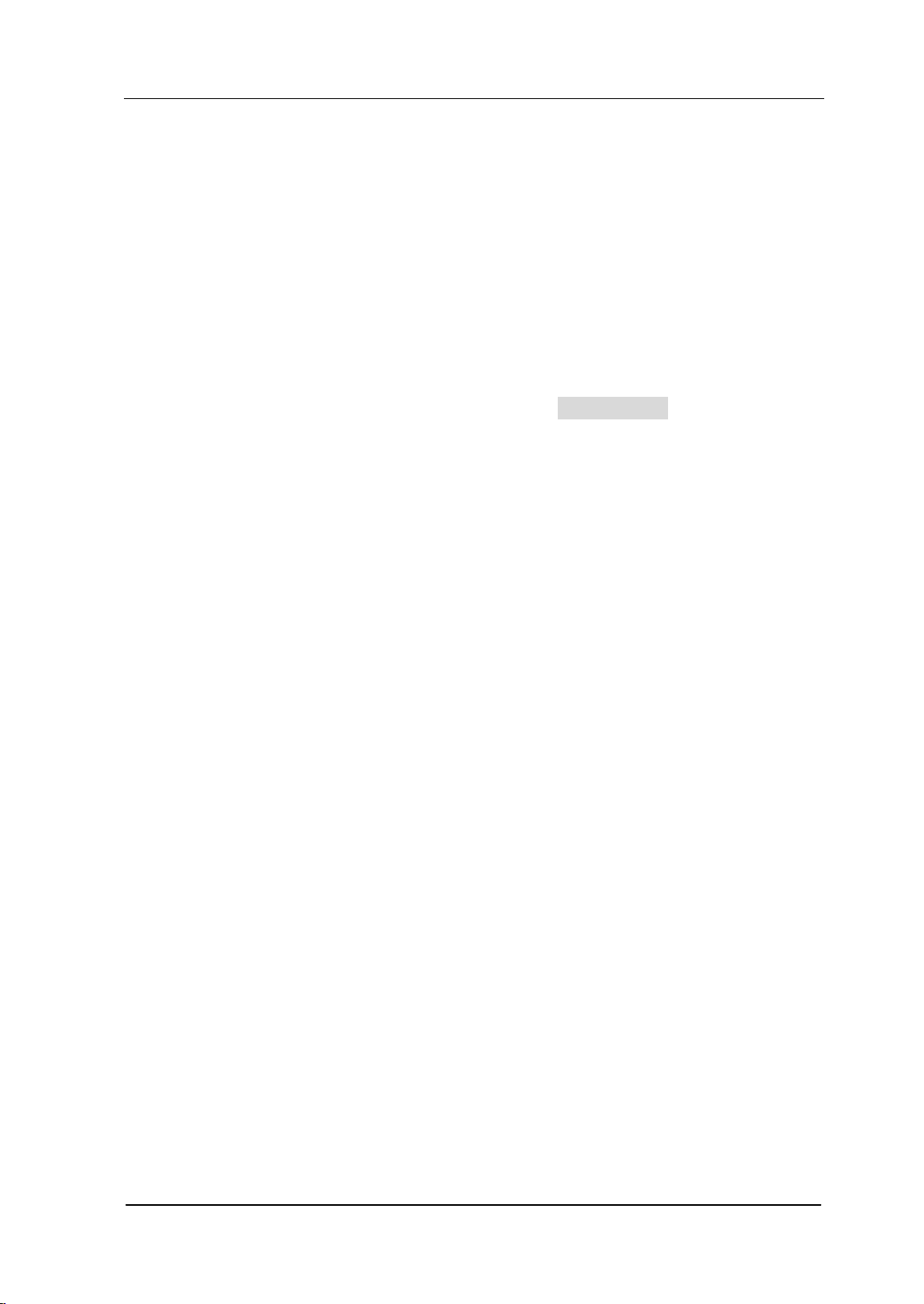
2)(
startstopcenter
fff +=
(2-1)
startstopspan
fff −=
(2-2)
Chapter 2 Front Panel Operation RIGOL
User’s Guide for DSA700 Series
2-3
Center Freq
Set the center frequency of the current channel. Press this key to switch to center
frequency/span input mode. The center frequency and span values are displayed
at the lower left and right sides of the grid respectively.
Key Points:
The start and stop frequencies vary with the center frequency when the span
is constant.
Changing the center frequency horizontally shifts the current channel and the
adjustment is limited by the specified frequency range.
In Zero Span mode, the start frequency, stop frequency and center frequency
are always the same. If one is changed, the others are updated to match.
You can modify this parameter using the numeric keys, knob or direction keys.
Refer to "Parameter Setting" for more details.
Start Freq
Set the start frequency of the current channel. Press this key to switch to
start/stop frequency input mode. The start and stop frequencies are displayed at
the lower left and right sides of the grid respectively.
Key Points:
The span and center frequency vary with the start frequency. The change of
span would affect other system parameters. For more details, please refer to
"Span".
In Zero Span mode, the start frequency, stop frequency and center frequency
are always the same. If one is changed, the others are updated to match.
You can modify this parameter using the numeric keys, knob or direction keys.
Refer to "Parameter Setting" for more details.

RIGOL Chapter 2 Front Panel Operation
User’s Guide for DSA700 Series
2-4
Stop Freq
Set the stop frequency of the current channel. Press this key to switch to start/stop
frequency input mode. The start and stop frequencies are displayed at the lower
left and right sides of the grid respectively.
Key Points:
The span and center frequency vary with the stop frequency. The change of
span would affect other system parameters. For more details, please refer to
"Span".
In Zero Span mode, the start frequency, stop frequency and center frequency
are always the same. If one is changed, the others are updated to match.
You can modify this parameter using the numeric keys, knob or direction keys.
For more details, please refer to "Parameter Setting".
Freq Offset
You can set a frequency offset value to account for frequency conversions between
the device under test and the input terminal of the spectrum analyzer.
Key Points:
The change of this parameter only changes the display values of the center
frequency, start frequency and stop frequency; but does not impact any
hardware settings of the spectrum analyzer.
You can modify this parameter using the numeric keys, knob or direction keys.
For more details, please refer to "Parameter Setting".
To eliminate an offset, you can perform Preset operation or set the frequency
offset to 0Hz.
Chapter 2 Front Panel Operation RIGOL
User’s Guide for DSA700 Series
2-5
CF Step
Set the step of center frequency. Changing the center frequency in a fixed step
continuously switches the channel to be measured.
Key Points:
The CF step can be set in "Manual" or "Auto" mode. In Auto mode, the CF step
is 1/10 of the span in Non-zero span mode or equals the RBW while in Zero
span mode; in Manual mode, you can set the step using the numeric keys.
After you set an appropriate CF step and select Center Freq, use the up and
down direction keys to switch between measurement channels in a specified
step in order to sweep the adjacent channel manually.
You can modify this parameter using the numeric keys, knob or direction keys.
For more details, please refer to "Parameter Setting".
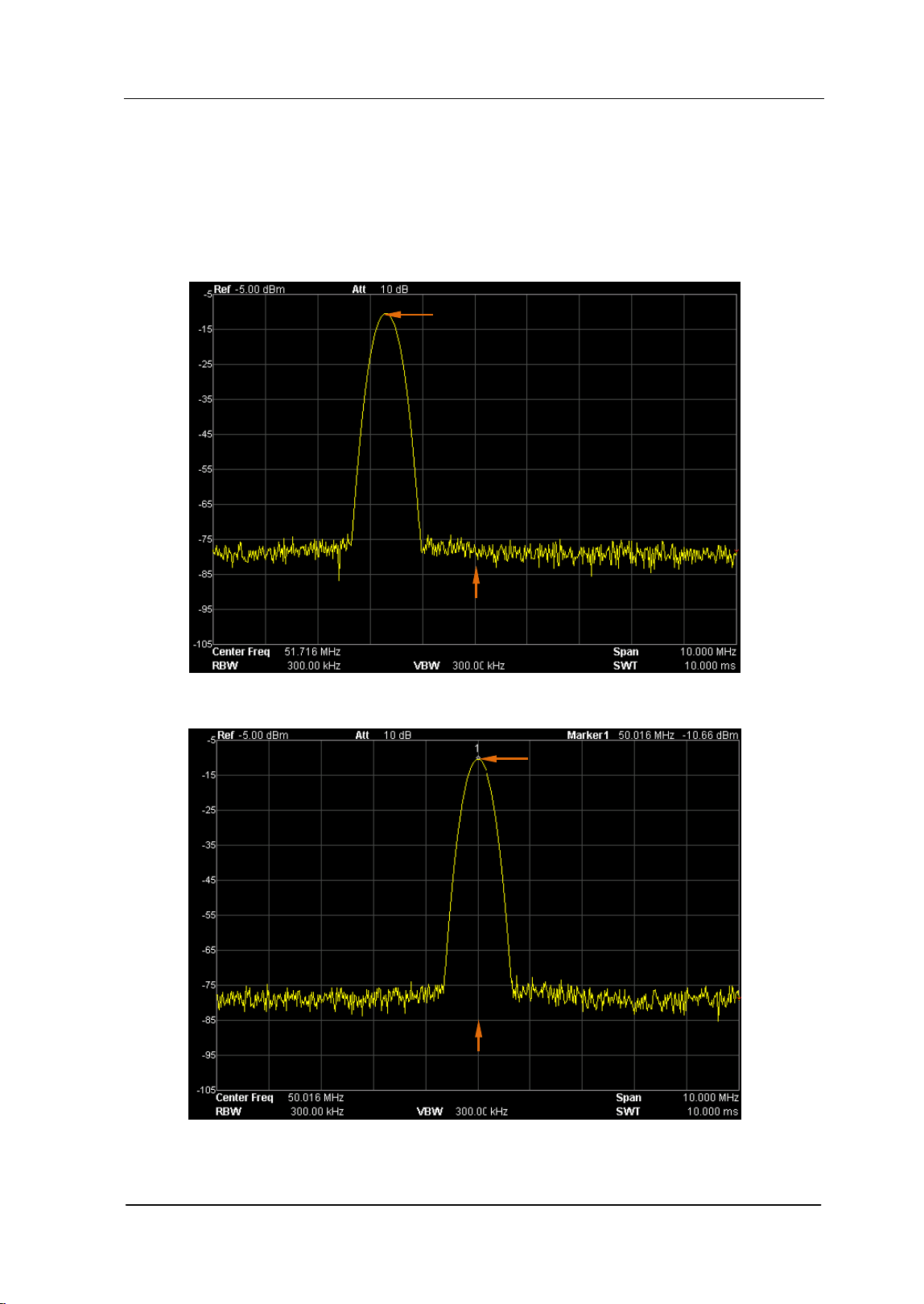
Signal Track
Turn on or off signal track. This function is used to track and measure signal with
unstable frequency and less than 3 dB transient variation in amplitude. Place
Marker1 (see "Marker Measurements") onto the signal under measurement to
track and measure the variation of the signal continuously.
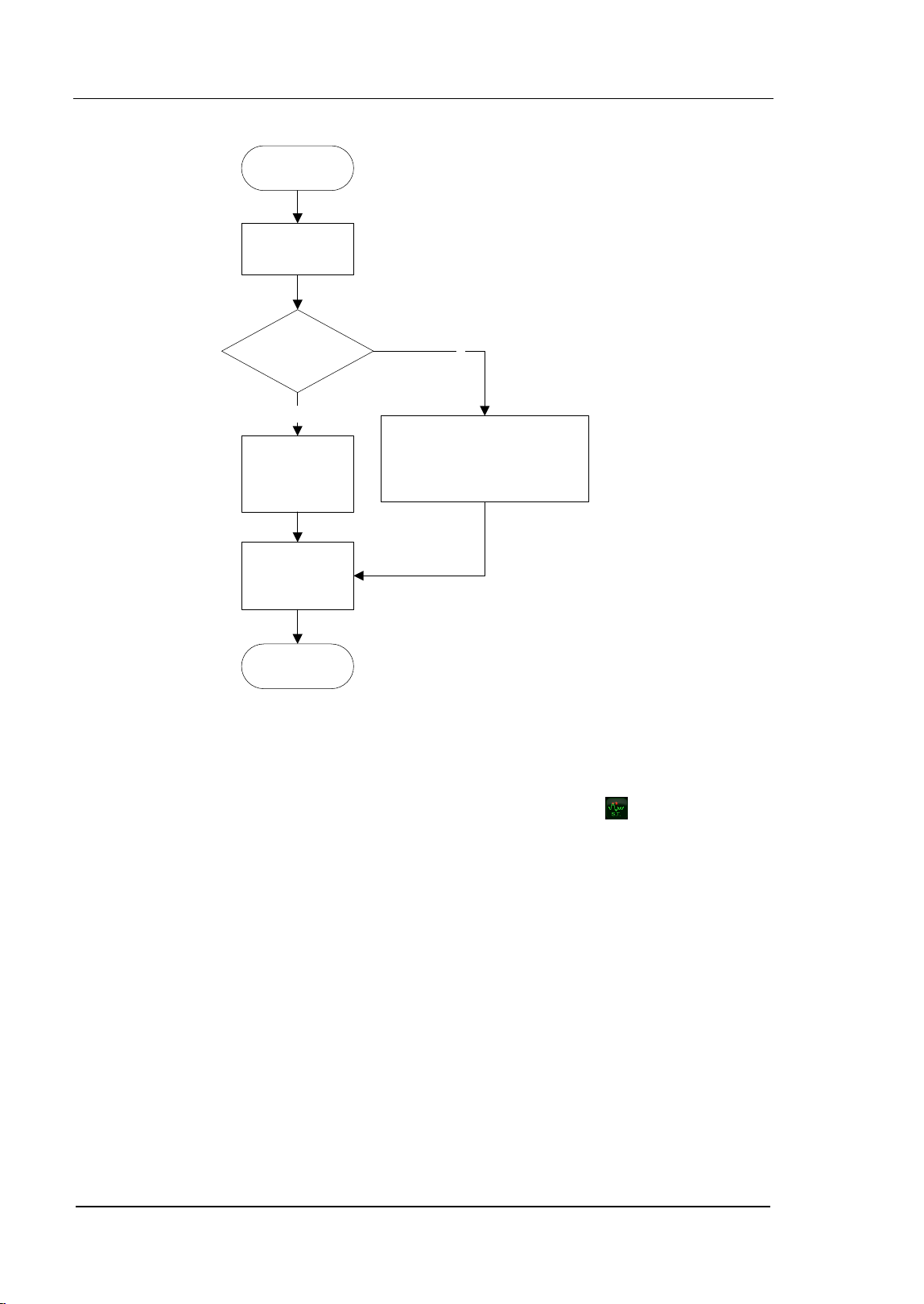
The signal track process is as shown in the figure below:
RIGOL Chapter 2 Front Panel Operation
User’s Guide for DSA700 Series
2-6
Start
Execute a
sweep
Search
for
peak and
mark it as
Marker
Active Marker
exists?
N
Set marker
frequency to
center freq
Y
Execute the
next sweep
Search
for and mark the
frequency p
oint
(variation
< 3dB) near the Marker
Figure 2-1 Process of Signal Track
Key Points:
When Signal Track is turned on, the ST (Signal Track) icon
is highlighted
in the status bar at the left of the screen.
If an active marker currently exists, when Signal Track is enabled, the
instrument will search for and mark the point (with no more than 3 dB
variation in amplitude) near the marker as well as set the frequency of this
point as the center frequency to hold the signal at the center of the screen.
If no marker is currently active, when Signal Track is enabled, the instrument
will activate Marker 1, execute a peak search automatically and set the
frequency of the current peak as the center frequency to hold the signal at the
center of the screen.
In continuous sweep, the system tracks the signal continuously; in single
sweep, the instrument only performs a single signal track; in Zero Span,
Signal Track is invalid.
Chapter 2 Front Panel Operation RIGOL
User’s Guide for DSA700 Series
2-7
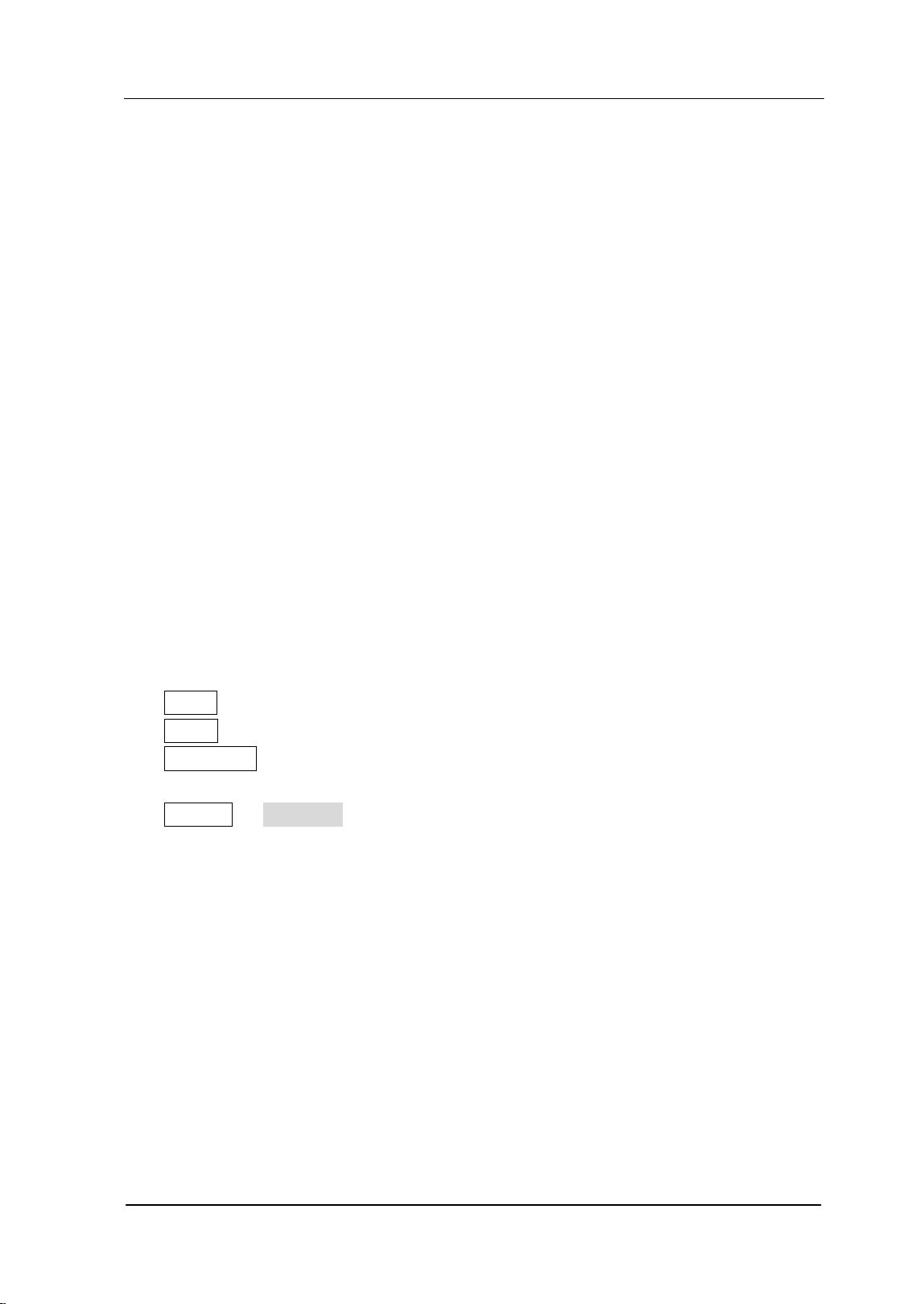
Peak -> CF
Execute a peak search and use the frequency of the current peak as the center
frequency (CF) of the analyzer. The function is invalid in Zero Span mode.
Figure 2-2 Before Peak->CF
Figure 2-3 After Peak->CF
Peak
Peak
Center Freq
Center Freq

RIGOL Chapter 2 Front Panel Operation
User’s Guide for DSA700 Series
2-8
CF -> Step
Set the current center frequency as the CF step. At this point,
the CF step will switch to "Manual" mode automatically. This function is usually
used with channel switching. Take harmonic waveform measurement for example:
locate a signal at the center frequency of a channel, execute CF-> Step and then
press the down direction key continuously to measure each order of harmonic in
sequence.
SPAN
Set the span of the analyzer. The change of this parameter will affect the frequency
parameters and restart the sweep.
Span
Set the frequency range of the current channel. Press this key to switch to center
frequency/span input mode. The center frequency and span are displayed at the
lower left and right sides of the grid respectively.
Key Points:
The start and stop frequencies vary with the span when the center frequency
is constant.
In manual span mode, the span can be set down to 100 Hz (the only way into
the zero-span mode is pressing the Zero Span menu option) and up to the
full span described in "
Specifications". When the span is set to the
maximum, the analyzer enters full span mode.
Modifying the span in non-zero span mode may cause an automatic change in
both CF step and RBW if they are in Auto mode. Besides, the change of RBW
may influence VBW (in Auto VBW mode).
Variation in the span, RBW or VBW would cause a change in the sweep time.
In non-zero span mode, neither "Video" trigger nor "1/Δtime" readout
function is valid.
You can modify this parameter using the numeric keys, knob or direction keys.
Chapter 2 Front Panel Operation RIGOL
User’s Guide for DSA700 Series
2-9
For more details, please refer to "Parameter Setting".
Full Span
Set the span of the analyzer to the maximum.
Zero Span
Set the span of the analyzer to 0 Hz. Both the start and stop frequencies will equal
the center frequency and the horizontal axis will denote time. The analyzer
measures the time domain characteristics of the amplitude of the corresponding
frequency point on the input signal.
Key Points:
As opposed to Non-zero span, the screen shows the time domain characteristics of
the fixed frequency component of the signal in zero span mode.
The following functions are invalid in Zero span mode:
FREQ: Peak->CF and Signal Track;
SPAN: Zoom In, Zoom Out and X Scale;
Marker->: Mkr->CF, Mkr->Step, Mkr->Start, Mkr->Stop, MkrΔ->CF and
MkrΔ->Span;
Marker Readout: Frequency, Period and 1/ΔTime (valid in Delta marker
type).
Zoom In
Set the span to half of its current value. At this point, the signal on the screen is
zoomed in to observe signal details.

RIGOL Chapter 2 Front Panel Operation
User’s Guide for DSA700 Series
2-10
Zoom Out
Set the span to twice the current value. At this point, the signal on the screen is
zoomed out to gain more information about the signal.
Last Span
Set the span to the previous span setting.
X Scale
Select the scale type of X-axis to Lin or Log. The default is Lin.
Key Points:
In Log scale type, the frequency scale of X-axis is displayed in the logarithmic
form.
When the scale type of X-axis is set to Log and any advanced measurement
function (including T-Power, ACP (Adjacent Channel Power), Chan Pwr
(Channel Power), OBW (Occupied Bandwidth), EBW (Emission Bandwidth),
C/N Ratio, Harmo Dist (Harmonic Distortion) and TOI (Third Order
Intermodulation)) is selected, the instrument switches the scale type of X-axis
to Lin automatically.
Chapter 2 Front Panel Operation RIGOL
User’s Guide for DSA700 Series
2-11
AMPT
Set the amplitude parameters of the analyzer. Through modifying these
parameters, signals under measurement can be displayed in a proper mode for
easier obsercation and minimum error.
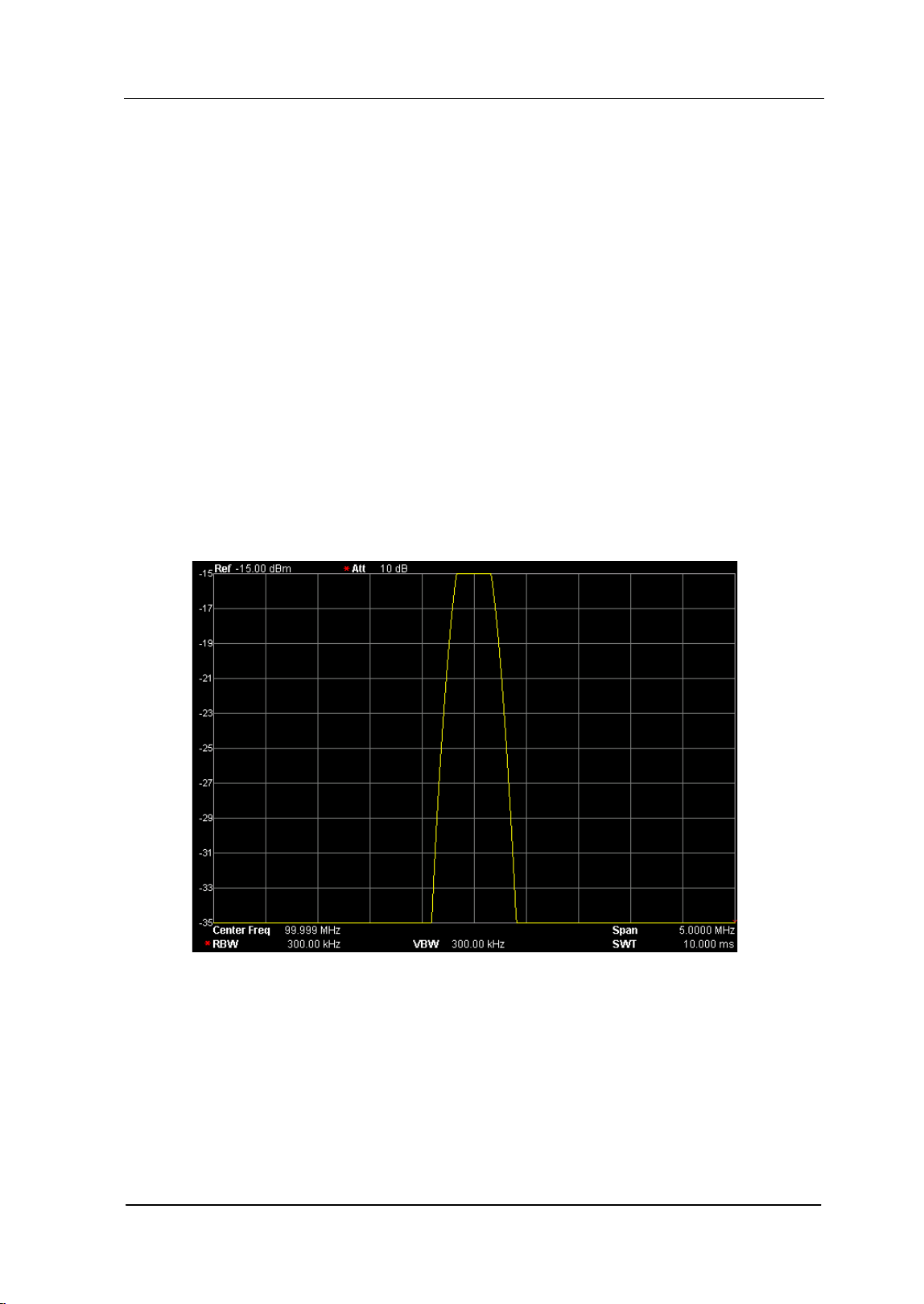
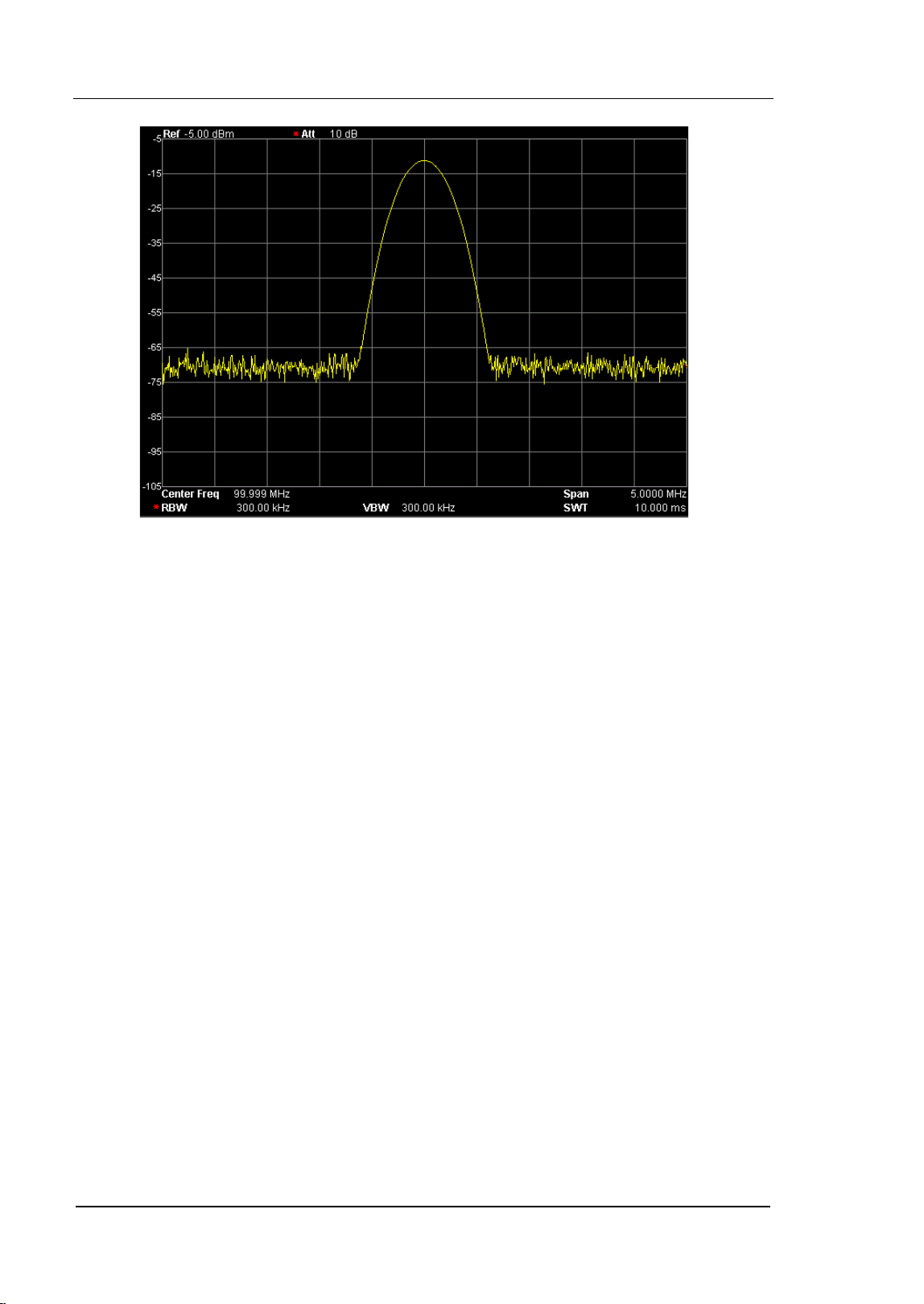
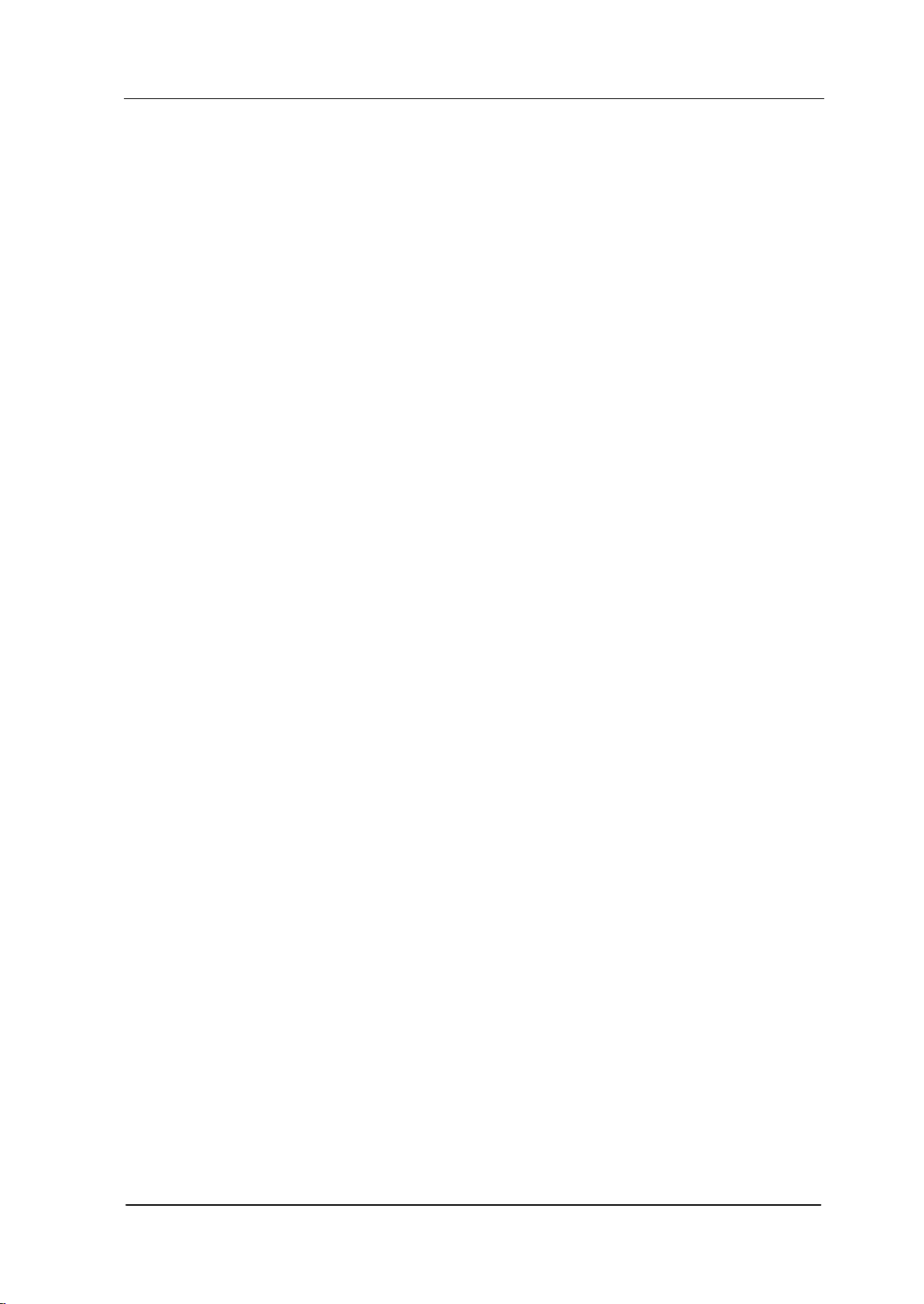
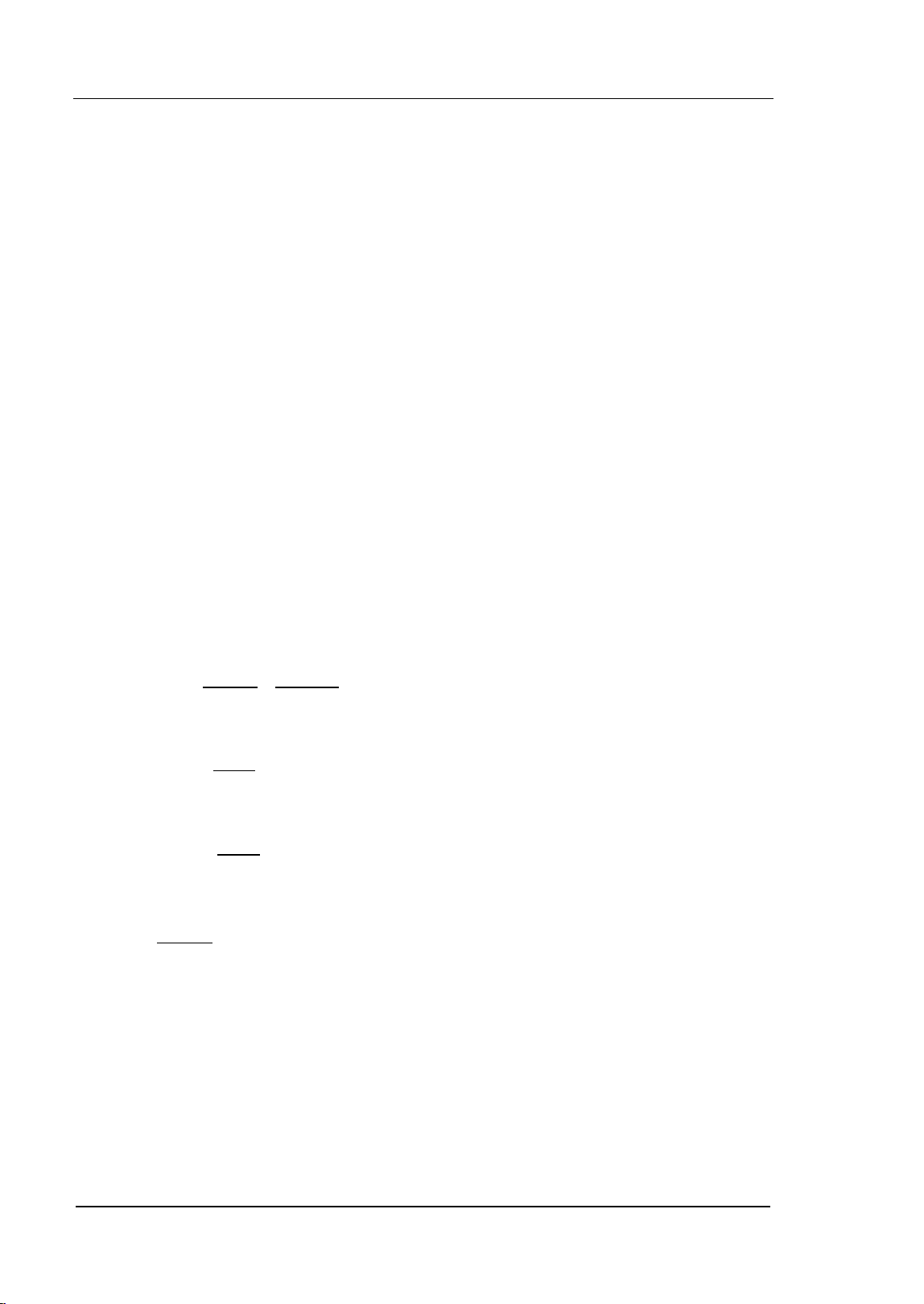
Auto Scale
This function enables the readout resolution of the Y-axis to be the maximum
possible while at the same time ensures the completeness of the signal. When
enabled, the system sets the reference level automatically in order to place the
peak of the signal within the topmost grid for easier observation of the trace.
Figure 2-4 Before Auto Scale
RIGOL Chapter 2 Front Panel Operation
User’s Guide for DSA700 Series
2-12
Figure 2-5 After Auto Scale
Ref Level
Set the maximum power or voltage can be currently displayed in the window. The
value is displayed at the upper left corner of the screen grid.
Key Points:
The maximum reference level available is affected by the maximum mixing
level, input attenuation and preamplifier. When you adjust it, the input
attenuation is adjusted under a constant maximum mixing level in order to
fulfill the following inequality:
mixPA
RFRef
La
aL ≤+
−
(2-3)
Wherein,
Ref
L
,
RF
a
,
PA
a
and
mix
L
denote the reference level, input
attenuation, preamplifier and maximum mixing level respectively.
You can modify this parameter using the numeric keys, knob or direction keys.
For more details, please refer to "Parameter Setting".
Chapter 2 Front Panel Operation RIGOL
User’s Guide for DSA700 Series
2-13
Input Atten
Set the front attenuator of the RF input in order to ensure big signals (or small
signals) to pass through the mixer with low distortion (or low noise).
Key Points:
When the preamplifier is turned on, the input attenuation could be set up to
30 dB. You can adjust the reference level to ensure that the specified
parameter meets the inequality (2-3).
You can modify this parameter using the numeric keys, knob or direction keys.
For more details, please refer to "Parameter Setting".
Scale/Div
Set the logarithmic units per vertical grid division on the display. This function is
only available when the scale type is set to "Log".
Key Points:
By changing the scale, the amplitude range available is adjusted.
The range of the amplitude that can be displayed:
Minimum: reference level – 10 × the current scale value
Maximum: the reference level.
You can modify this parameter using the numeric keys, knob or direction keys.
For more details, please refer to "Parameter Setting".
Scale Type
Set the scale type of Y-axis to Lin or Log. The default is Log.
Key Points:
In Log scale type, the Y-axis denotes the logarithmic coordinate; the value
shown at the top of the grid is the reference level and each grid represents the
scale value. The unit of Y-axis will automatically switch to the default unit
RIGOL Chapter 2 Front Panel Operation
User’s Guide for DSA700 Series
2-14
(dBm) in Log scale type when the scale type is changed from Lin to Log.
In Lin scale type, the Y-axis denotes the linear coordinate; the values shown
at the top of the grid and the bottom of the grid are the reference level and 0
V respectively. Each grid represents 10% of the reference level and the scale
setting function is invalid. The unit of Y-axis will automatically switch to the
default unit (Volts) in Lin scale type when the scale type is changed from Log
to Lin.
The scale type does not affect the unit of Y-axis.
Units
Set the unit of the Y-axis to dBm, dBmV, dBuV, Volts or Watts. Wherein, dBm,
dBmV and dBuV are for Log scale; Volts and Watts are for Linear scale. The default
is dBm.
Key Points:
The conversion relationships between units are as follows.
×=
WR
Volts
B
001.0
1
log10md
2
(2-4)
=
V
Volts
VB
µ
µ
1
log20d
(2-5)
=
V
Volts
VB
m1
log20md
(2-6)
R
Volts
Watts
2
=
(2-7)
Wherein,
R
denotes the reference resistance.
Chapter 2 Front Panel Operation RIGOL
User’s Guide for DSA700 Series
2-15
Ref Offset
Assign an offset to the reference level to compensate for gains or losses generated
between the device under measurement and the analyzer.
Key Points:
The change of this value changes both the reference level readout and the
amplitude readout of the marker; but does not impact the position of the
curve on the screen.
You can modify this parameter using the numeric keys. For more details,
please refer to "Parameter Setting".
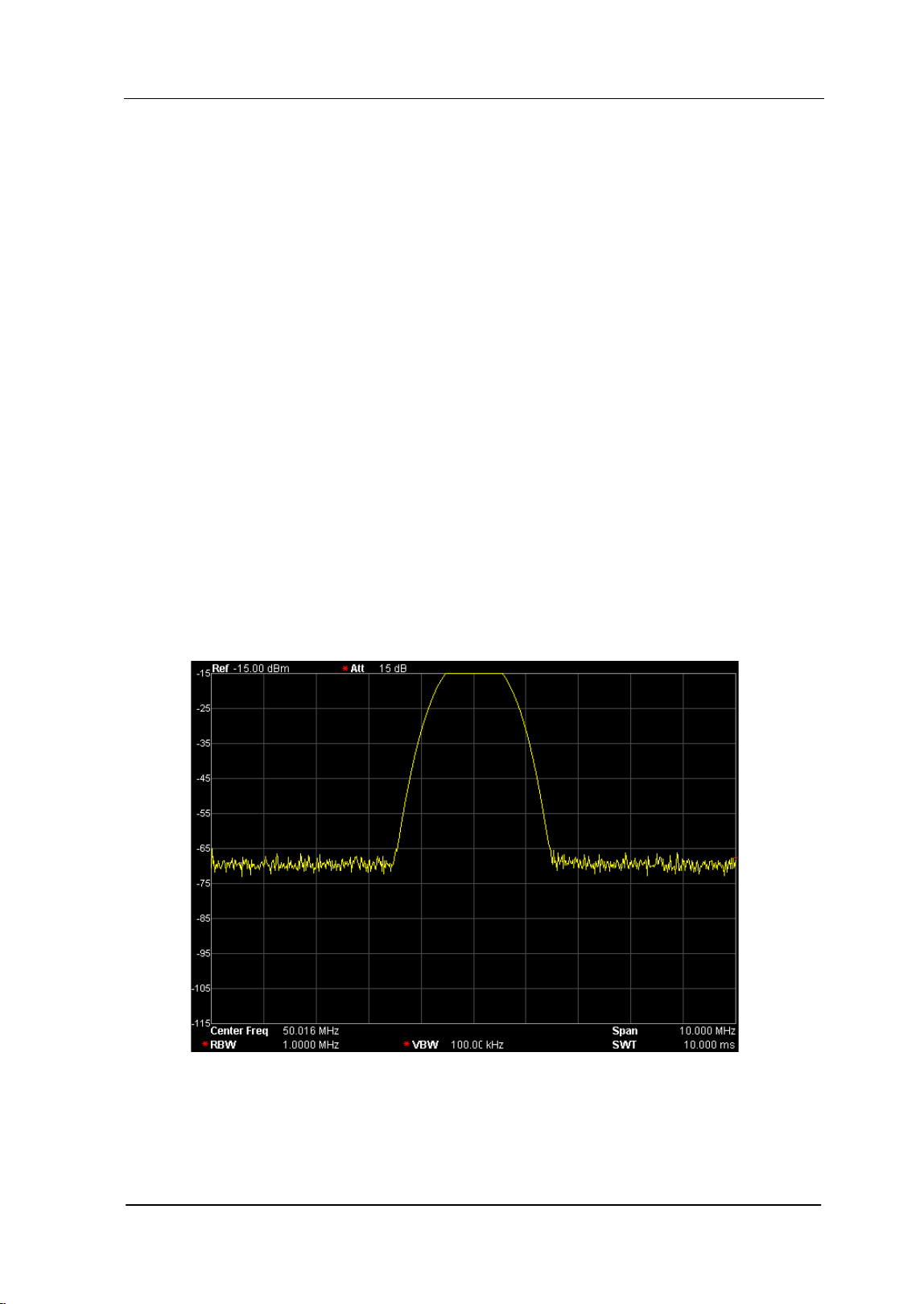
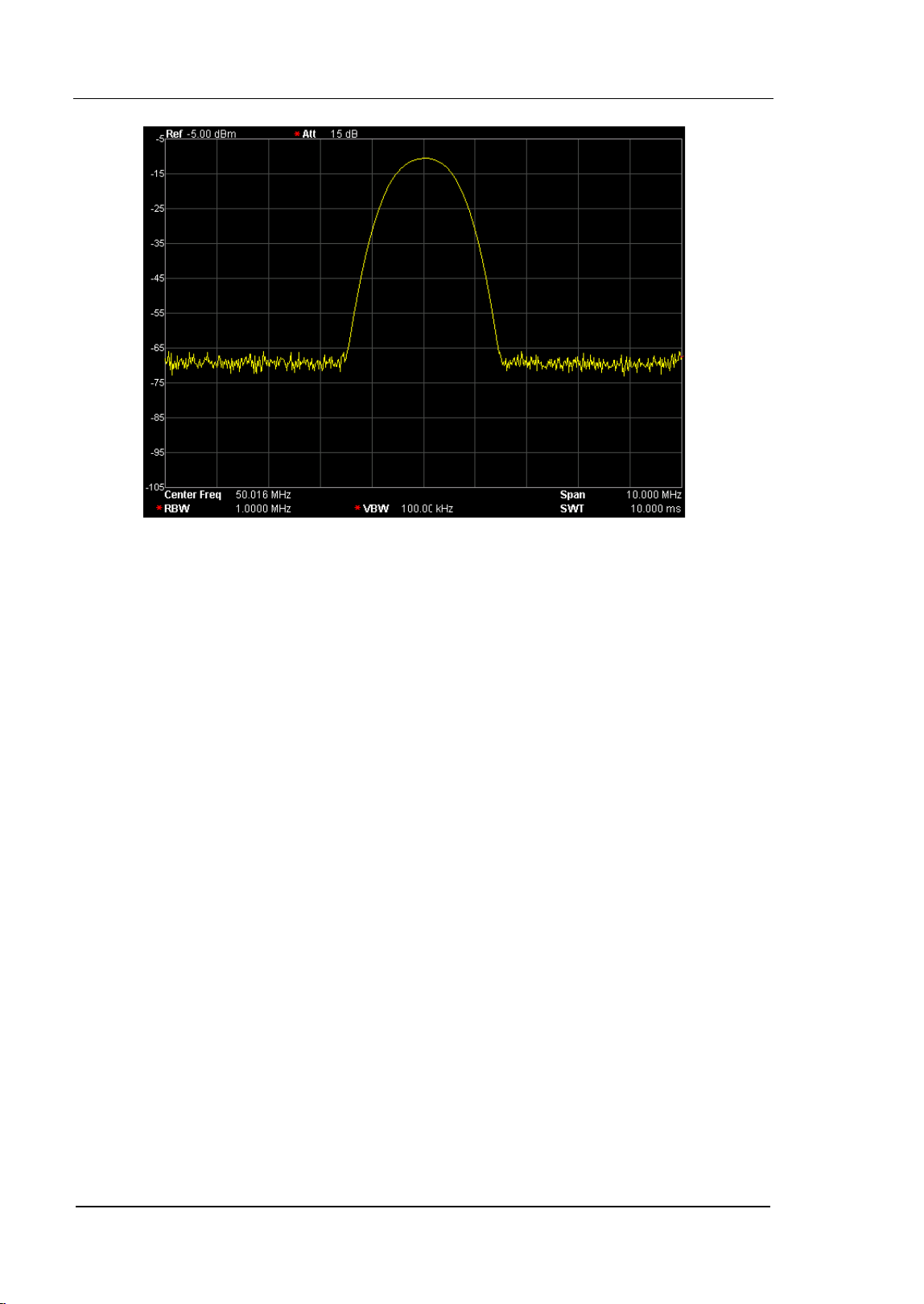
Auto Range
Adjust the amplitude parameters within the current span range automatically in
order to display the whole signal optimally on the screen.
Figure 2-6 Before Auto Range
RIGOL Chapter 2 Front Panel Operation
User’s Guide for DSA700 Series
2-16
Figure 2-7 After Auto Range
Key Points:
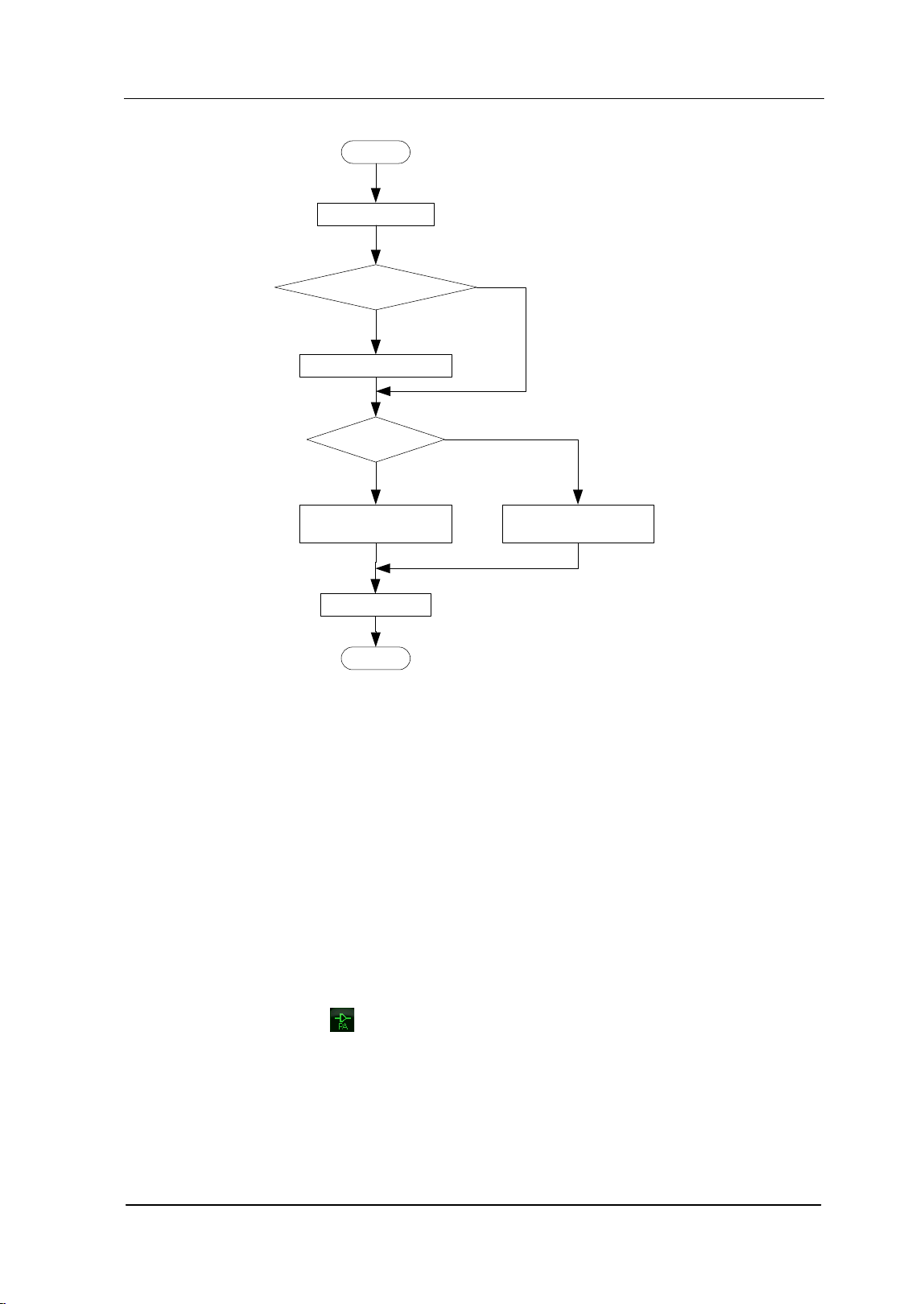
Unlike Auto Scale, this function can solve the problem of signal overrange due
to parameter settings and adjust the maximum mixing level according to the
signal under measurement.
Unlike Auto, this function adjusts the signal within the current channel and
does not modify the channel frequency setting. While, Auto will search for
signal within the full frequency range and locate the signal at the center
frequency.
Chapter 2 Front Panel Operation RIGOL
User’s Guide for DSA700 Series
2-17
Start
Peak Search
Adjust Ref Level
Peak > Ref Level?
Decrease maximum
mixing level
Stop
Increase maximum
mixing level
Large signal?
Auto Scale
N
N
Y
Y
Figure 2-8 Process of Auto Range
RF Preamp
Turn on or off the preamplifier located at the front of the RF signal path. When the
signal under measurement is small, turning on the preamplifier can reduce the
displayed average noise level; therefor, you can distinguish small signals from the
noise.
Key Points:
The corresponding icon
will be highlighted in the status bar at the left side of
the screen when the preamplifier is turned on.
RIGOL Chapter 2 Front Panel Operation
User’s Guide for DSA700 Series
2-18
Correction
Correct the amplitude in order to compensate for the gain or loss from external
devices such as Antenna and Cable. When using this function, you can view the
correction data table and save or load the current correction data. When amplitude
correction is turned on, both the trace and related measurement results will be
corrected; the corresponding icon
is highlighted in the status bar at the left of
the screen.
1. Select
Select a correction factor from Antenna, Cable, Other and User for the current
correction and the default is Off (turn off all the correction factors). After
choosing the desired correction factors, press Correction to enable the
correction factors selected. Multiple correction factors can be enabled at the
same time.
2. Correction
Enable or disable amplitude correction and the default is Off.
When amplitude correction is enabled, the data of the correction factor
currently selected is used for amplitude correction. If multiple factors are
enabled, all related data will be used for amplitude correction.
3. Edit
Edit the frequency of the correction factor and the correction data of the
corresponding amplitude. You can modify this parameter using the numeric
keys, knob or direction keys. For details, refer to the table on the next page.
Note: The edited correction data can be stored in the internal or external
memory of the analyzer and can be recalled when needed. When correction
data editing is finished, press Storage to save the correction data using the
method introduced in "Storage". You can increase the number of point to 2
after "point 1" is edited.
Chapter 2 Front Panel Operation RIGOL
User’s Guide for DSA700 Series
2-19
Table 2-1 Edit menus of amplitude correction
Menu Explanation
Point Create or edit the data point of a correction factor.
Range: 1 to 200
Frequency
Set the frequency of the specified point in the correction
factor.
Amplitude
Set the amplitude correction of the specified point in the
correction factor.
Range: -120 dB to 100 dB
Del Point
Delete the specified point data in the correction factor:
frequency and amplitude correction.
4. Freq Interp
Set the interpolation type of the points between two points in the correction
table during amplitude correction.
In Lin mode, the frequency and amplitude use a Lin and Log unit to
perform interpolation respectively.
In Log mode, both of the parameters use a Log unit.
5. Delete
Clear all the frequency and amplitude correction data of the selected
correction factor.
6. Corr Table
Turn on the correction table to view the correction data edited. At this
moment, the screen is divided into two parts with the upper showing the
measurement curve and the lower showing the points edited, frequency and
amplitude.
7. Corr View
All: view the data of all the correction factors.
Sel: view the data of the selected correction factor.

RIGOL Chapter 2 Front Panel Operation
User’s Guide for DSA700 Series
2-20
MaxMixL
Set the max input level of the mixer according to the magnitude of the signal.
Key Points:
For a larger input signal, select a smaller maximum mixing level to increase
the input attenuation and reduce the distortion of the signal; for a smaller
input signal, select a larger maximum mixing level to reduce the input
attenuation and noise.
Parameters in inequality (2-3) are always modified on the basis of the
maximum mixing level.
You can modify this parameter using the numeric keys, knob or direction keys.
For more details, please refer to "Parameter Setting".
Input Impedance
Set the input impedance for voltage-to-power conversions (refer to equation (2-4)).
The default is 50 Ω. To measure a 75 Ω device, you should use a 75 Ω to 50 Ω
adapter (option) supplied by RIGOL to connect the analyzer with the system
under test and then set the input impedance to 75 Ω.
Note: "75 Ω" will be shown in the status bar on the screen in this situation.
Chapter 2 Front Panel Operation RIGOL
User’s Guide for DSA700 Series
2-21
Sweep and Function Settings
BW/Det
Set the RBW (Resolution Bandwidth), VBW (Video Bandwidth) and detector type
parameters of the analyzer.
RBW
Set the desired resolution bandwidth in order to distinguish between signals which
are close in frequency.
Key Points:
Reducing RBW will increase the frequency resolution, but will increase the
sweep time (Sweep Time is affected by a combination of RBW and VBW when
it is in Auto mode).
RBW varies with the span (non-zero span) in Auto RBW mode.
You can modify this parameter using the numeric keys, knob or direction keys.
For more details, please refer to "Parameter Setting".
Note: If the detector type is "Quasi-Peak" or the filter type is "EMI", RBW can be
200 Hz, 9 kHz or 120 kHz only.
VBW
Set the desired video bandwidth in order to filter out the noise outside the video
band.
Key Points:
Reducing the VBW will smooth the spectrum line to differentiate small signals
from noise, but will increase the sweep time (Sweep Time is affected by a
combination of RBW and VBW when it is in Auto mode).

RIGOL Chapter 2 Front Panel Operation
User’s Guide for DSA700 Series
2-22
VBW varies with RBW when it is set to Auto. While in Manual mode, VBW is
not affected by RBW.
You can modify this parameter using the numeric keys, knob or direction keys.
For more details, please refer to "Parameter Setting".
V/R Ratio
Set the ratio of VBW to RBW.
Key Points:
This value is different while measuring different kinds of signals:
Sine signal: use 1 to 3 (for faster sweeps)
Pulse signal: use 10 (to reduce the influence on the amplitude of transient
signals)
Noise signal: generally use 0.1 (to obtain the average of noises)
You can modify this parameter using the numeric keys, knob or direction keys.
For more details, please refer to "Parameter Setting".
Detector Type
The analyzer displays the sweeped signal on the screen in the form of trace.
For each trace point, the analyzer always captures all the data within a specific
time interval and processes (Peak, Average,etc.) the captuered data using the
detector currently selected, then display the processed data (one point) on the
screen .
Key Points:
Select an appropriate detector type according to the actual application in
order to ensure the accuracy of the measurement.
The available types are Pos Peak, Neg Peak, Sample, Normal, RMS Avg,
Voltage Avg and Quasi-Peak. The default is Pos Peak.
The corresponding icon (as shown in the figure below) of the detector type
selected is displayed in the status bar at the left side of the screen.
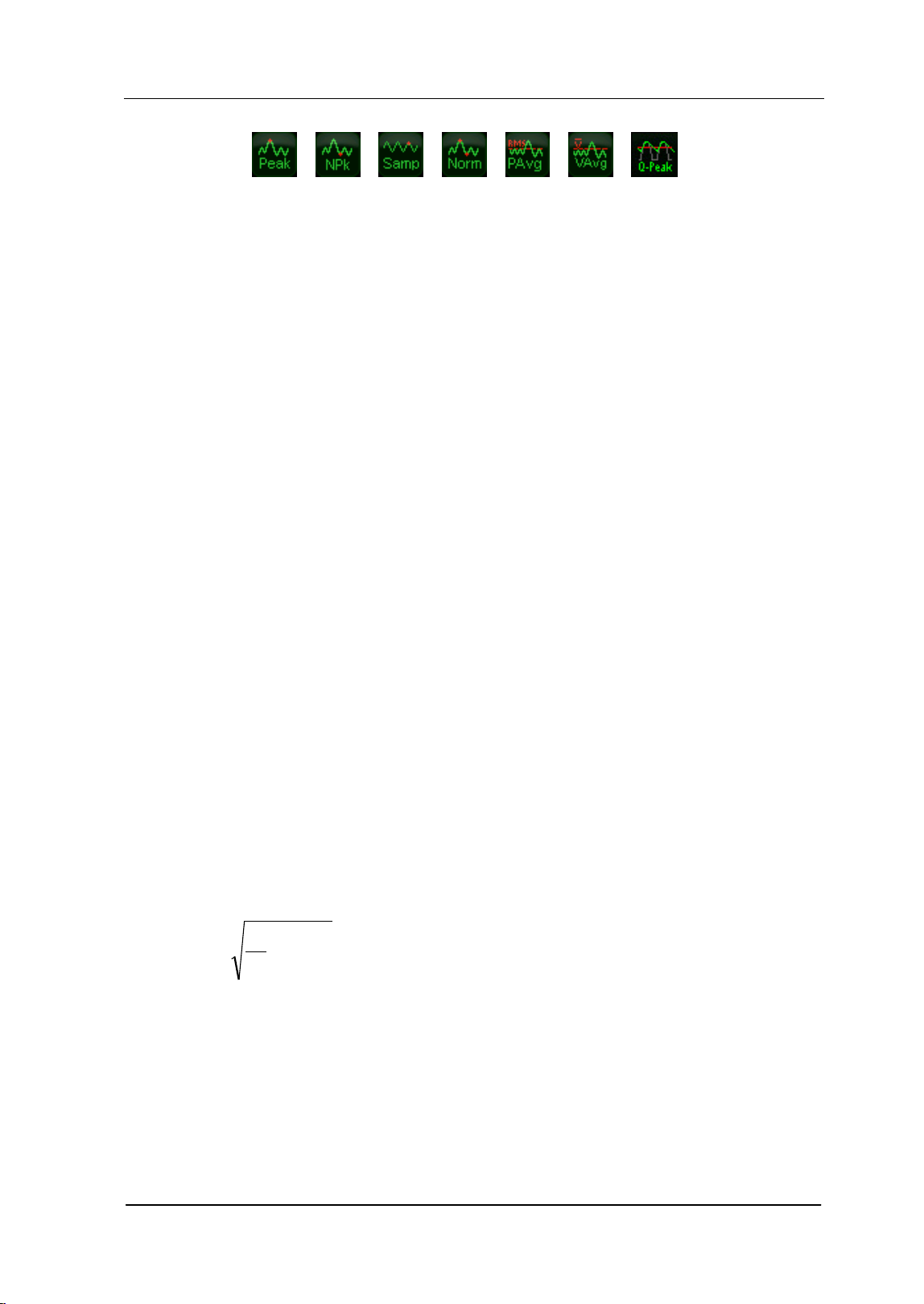
Chapter 2 Front Panel Operation RIGOL
User’s Guide for DSA700 Series
2-23
Pos Peak
For each trace point, Positive Peak detector displays the maximum value of
data sampled within the corresponding time interval.
Neg Peak
For each trace point, Negative Peak detector displays the minimum value of
data sampled within the corresponding time interval.
Sample
For each trace point, Sample detector displays the transient level
corresponding to the central time point of the corresponding time interval.
This detector type is applicable to noise or noise-like signal.
Normal
Normal detector (also called rosenfell detector) displays the maximum value and
the minimum value of the sample data segment in turn; namely for an
odd-numbered data point, the maximum value is displayed; for an
even-numbered data point, the minimum value is displayed. In this way, the
amplitude variation range of the signal is clearly shown.
RMS Avg
For each data point, perform mean square root operation (see equation (2-8))
of the sampled data within the corresponding time interval and display the
result. In this type, noise can be rejected and weak signals can be clearly
observed.
∑
=
×=
N
iRMS
v
N
V
1i
2
1
(2-8)
Wherein,
RMS
V
is the mean square root of voltage in V;
N
is the number of
sampled values for each point displayed;
i
v
is the envelop of the sampled
value in V. The reference impedance
R
can be used for power calculation:

RIGOL Chapter 2 Front Panel Operation
User’s Guide for DSA700 Series
2-24
R
v
P
RMS
2
=
.
Voltage Avg
For each data point, average (see equation (2-9)) all the sampled data within
the corresponding time interval and display the result.
∑
=
×
=
N
iAV
v
N
V
1i
1
(2-9)
Wherein,
AV
V
is the average of voltage in V;
N
is the number of sampled
values for each point displayed;
i
v
is the envelop of the sampled value in V.
Quasi-Peak (an option for DSA700)
It is a weighted form of peak detector. For each data point, the detector detects
the peaks within the corresponding time interval. The peaks detected are
weighted using circuit with specified charge and discharge structures as well as
the display time constant specified in the CISPR Publication 16 standards and
the result is displayed. Quasi-Peak detector is applicable to EMI testing.
Note: Compared to the discharge time, the charge time of Quasi-Peak
detector is much shorter and can reflect the amplitude as well as time
distribution of the signal.
Filter Type
Set the RBW filter type.
Key Points:
DSA700 supports two kinds of RBW filters: "Gause" (-3 dB bandwidth) and
"EMI" (-6 dB bandwidth).
When "EMI" is selected, resolution bandwidth can be 200 Hz, 9 kHz or 120
kHz only.
The default is "Gause"; the instrument will switch to "EMI" filter automatically
when "Quasi-Peak" detector is selected.
Chapter 2 Front Panel Operation RIGOL
User’s Guide for DSA700 Series
2-25
Sweep/Trig
Set parameters about the Sweep and Trigger functions, including sweep time, auto
sweep time, sweep mode, number of sweep, trigger type, etc.
Sweep Time
Set the time needed for the spectrum analyzer to finish a sweep within the span
range. The sweep time can be set in "Auto" or "Manual" mode and the default is
"Auto".
Key Points:
In non-zero span, the analyzer selects the shortest sweep time on the basis of
the current RBW and VBW settings if Auto is selected.
Decreasing the sweep time would speed the measurement. However, an error
may be caused if the specified sweep time is less than the minimum sweep
time in Auto coupling; at this point, "UNCAL" is shown in the status bar on the
screen.
You can modify this parameter using the numeric keys, knob or direction keys.
For more details, please refer to "Parameter Setting".
Auto SWT
Set the auto setting method of the sweep time to "Normal" or "Accy". The sweep
will be faster if "Normal" is selected; while in "Accy" type, higher measurement
precision can be obtained.
Mode
Set the sweep mode to "Single" or "Cont". The default is "Cont". The
corresponding icon of the sweep mode will be displayed in the status bar at the left
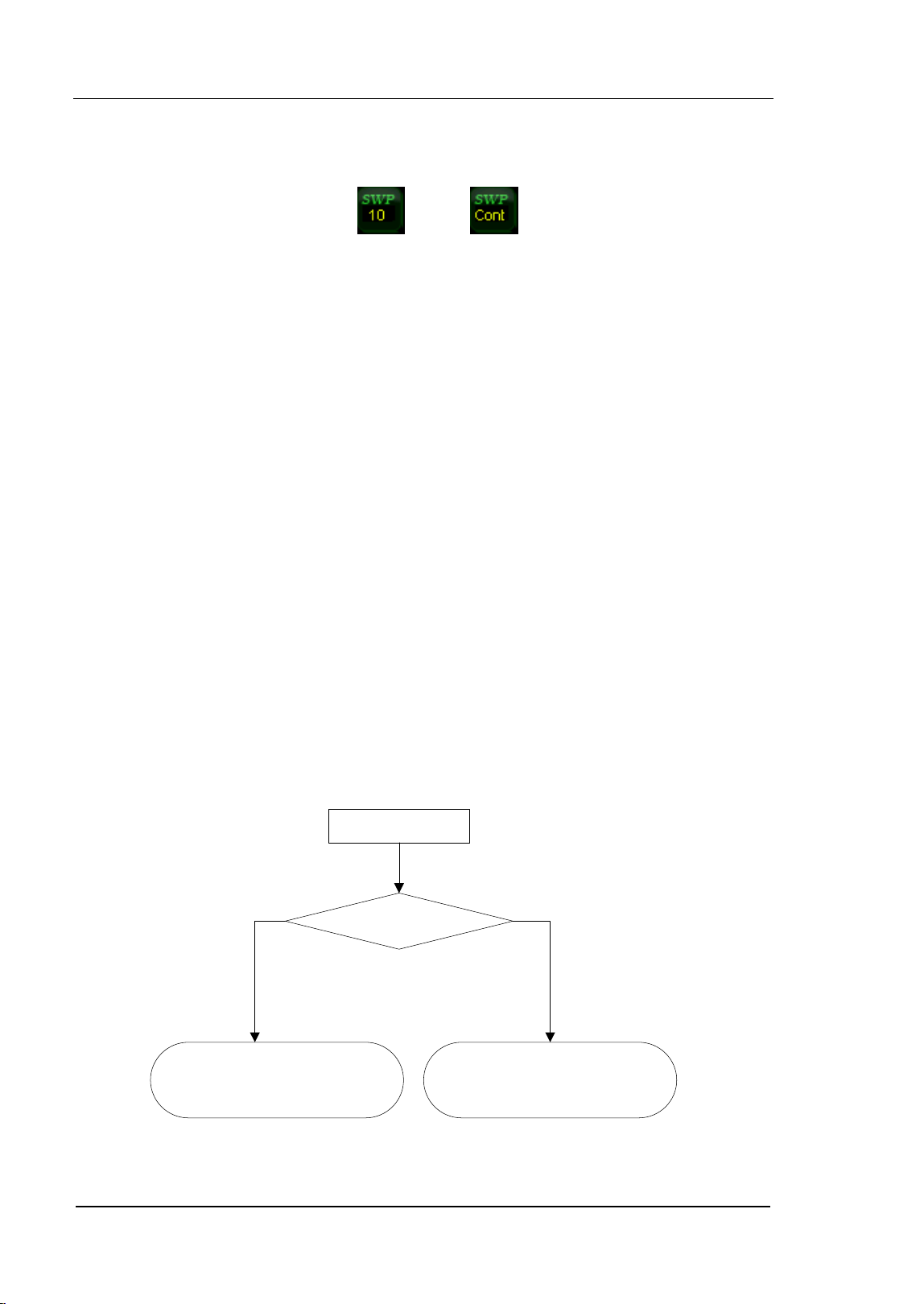
RIGOL Chapter 2 Front Panel Operation
User’s Guide for DSA700 Series
2-26
side of the screen.
Single Continuous
1. Single
Set the sweep mode to "Single". The number 10 on the parameter icon
denotes the current sweep number.
2. Cont
Set the sweep mode to "Cont". The character Cont on the parameter icon
denotes the analyzer is sweeping continuously.
Key Points:
If the instrument is in single sweep mode and no measurement function is
enabled, press this key and the system will enter continuous sweep mode and
sweep continuously if the trigger conditions are satisfied.
If the instrument is in single sweep mode and a measurement function is on,
press this key and the system will enter continuous sweep mode and measure
continuously if the trigger conditions are satisfied.
In continuous sweep mode, the system will send a trigger initialization signal
automatically and enter the trigger condition judgment directly after each
sweep.
Enter continuous sweep mode and
wait for trigger condition
Sweep again and
wait for trigger
condition
Select “Cont”
Single sweep status
?
Y
N
Figure 2-9 Process of Continuous Sweep
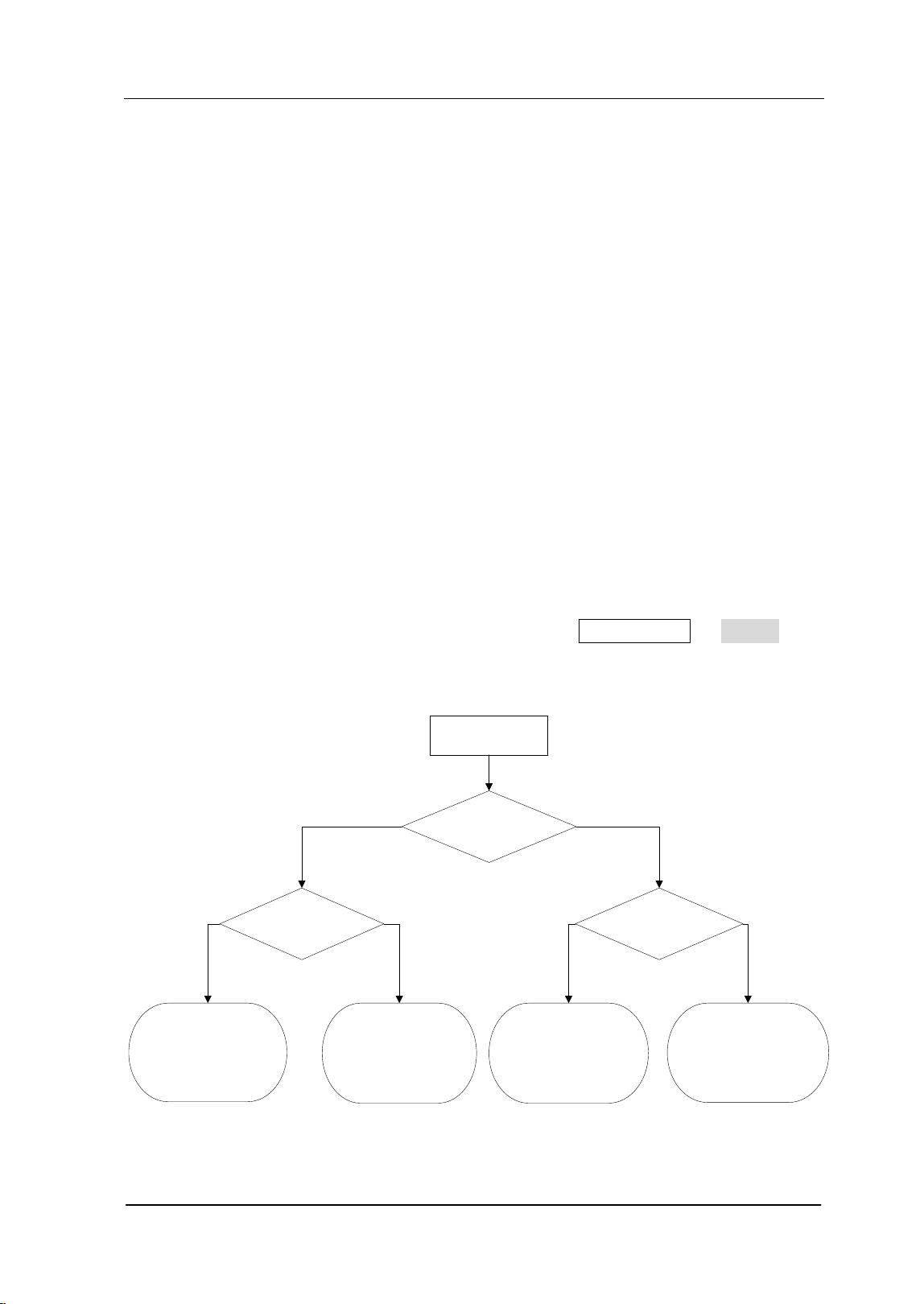
Chapter 2 Front Panel Operation RIGOL
User’s Guide for DSA700 Series
2-27
Single
In single sweep mode, this menu is used to execute trigger initialization. After that,
the analyzer will execute the specified number of sweeps (or measurements) if the
trigger conditions are satisfied.
Key Points:
If the instrument is in continuous sweep mode and no measurement function
is enabled, press this key and the system will enter single sweep mode and
execute the specified number of sweeps if the trigger conditions are satisfied.
If the instrument is in continuous sweep mode and a measurement function is
on, press this key and the system will enter single measurement mode and
execute the specified number of measurements if the trigger conditions are
satisfied.
If the system is already in single sweep mode, press this key and the system
will execute the specified number of sweeps (or measurements) if the trigger
conditions are satisfied.
In single sweep mode, trigger initialization (press Sweep/Trig Single or
send the ":INIT" command through the remote interface) should be executed
before trigger condition judgment.
Press
“Single”
Measurement
status?
Single sweep
mode? Single sweep mode?
Enter
single sweep mode
and
wait for trigger
condition
Enter single
sweep/
measurement
mode and
wait for trigger condition
Sweep again and wait
for
trigger condition
Wait for trigger condition
and make single
measurement
again
N
N
N
Y
Y
Y
Figure 2-10 Process of Single Sweep
RIGOL Chapter 2 Front Panel Operation
User’s Guide for DSA700 Series
2-28
Numbers
Set the number of sweeps for a single sweep. In single sweep mode, the system
executes the specified number of sweeps and the number shown on the icon in the
status bar at the left of the screen varies with the process of the sweep.
Trig Type
The trigger type can be Free Run, Video or External. The corresponding icon of the
trigger type will be displayed in the status bar at the left of the screen.
1. Free Run
The trigger conditions are satisfied at any time and the analyzer generates
trigger signals continuously.
2. Video
A trigger signal will be generated when the system detects a video signal of
which the voltage exceeds the specified video trigger level.
Note: This function is invalid in non-zero span mode or RMS Avg detection or
Voltage Avg detection in zero span mode.
3. External
In this mode, an external signal (TTL signal) is input from the [TRIGGER IN]
connector at the rear panel and trigger signals are generated when this signal
fulfills the specified trigger edge condition.
Chapter 2 Front Panel Operation RIGOL
User’s Guide for DSA700 Series
2-29
Trig Setup
1. Trigger Level
Set the trigger level in video trigger. At this point, the trigger level line (TL)
and value are displayed on the screen. You can use the numeric keys, knob or
direction keys to modify this parameter. Please refer to "Parameter
Setting" for more details.
2. Edge
Set the trigger edge in external trigger to the rising (Pos) or falling (Neg) edge
of the pulse.
Note: When "Free Run" is selected, Trig Setup is grayed out and disabled.
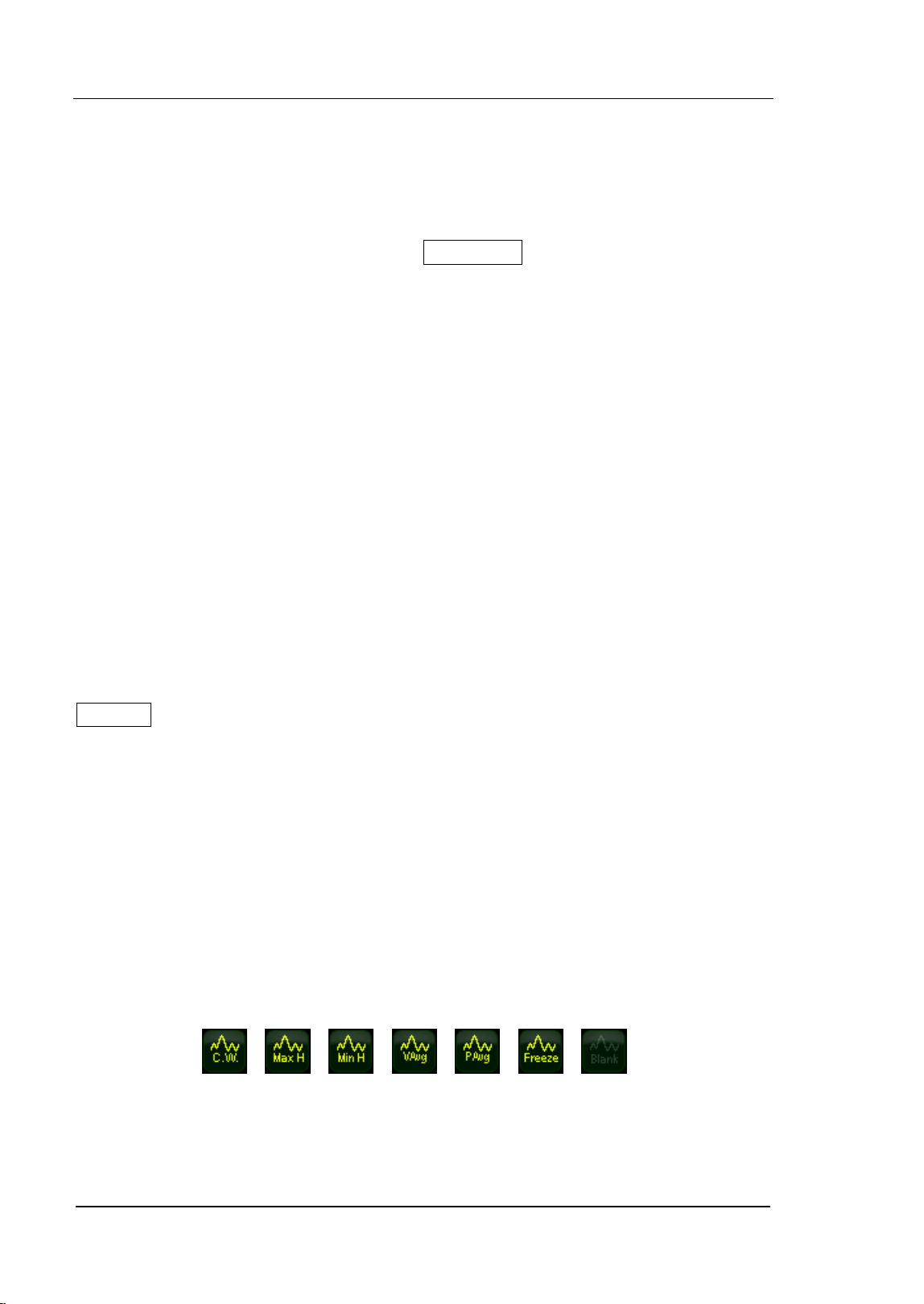
RIGOL Chapter 2 Front Panel Operation
User’s Guide for DSA700 Series
2-30
Trace/P/F
The sweep signal is displayed as a trace on the screen. In addition, DSA700
provides the Pass/Fail (P/F) test function. Trace/P/F is used to set parameters
related to the trace and P/F test.
Select Trace
DSA700 allows for up to four traces to be displayed at the same time. Each trace
has its own color (Trace 1 - yellow, Trace 2 - purple, Trace 3 - light blue and Trace
4 - green). All traces can be set freely except Trace 4 (a math operation trace that
can only be obtained using the other three traces).
Select Trace 1, Trace 2 or Trace 3 to set the corresponding parameters. By default,
Trace 1 is selected and turned on. The default trace type is Clear Write.
Note: The trace currently displayed on the screen can be stored in the internal or
external memory of the analyzer and can be recalled when needed. Press
Storage to save the trace according to the method introduced in "Storage
".
Trace Type
Set the type of the current trace or disable it. The system calculates the sampled
data using a specific operation method according to the trace type selected and
displays the result. Trace types include Clear Write, Max Hold, Min Hold, Video Avg,
Power Avg and Freeze. The corresponding icon of the trace type will be displayed
in the status bar at the left of the screen. Take Trace 1 (yellow) as an example and
the icons are as shown in the figure below.
1. Clear Write
Set the trace data to the minimum, and display the data sampled in real-time
Chapter 2 Front Panel Operation RIGOL
User’s Guide for DSA700 Series
2-31
of each point on the trace.
2. Max Hold
Display the maximum from multiple sweeps for each point of the trace and
update the data if a new maximum is generated in successive sweeps.
3. Min Hold
Display the minimum from multiple sweeps for each point of the trace and
update the data if a new minimum is generated in successive sweeps.
4. Video Avg
Display the logarithmic average of data from multiple sweeps for each point of
the trace. Traces in this type are smoother.
5. Power Avg
Display the average of data from multiple sweeps of each point of the trace.
Traces in this type are smoother.
6. Freeze
Stop updating the trace data to observe the trace and read the measurement
data. This type is generally used by traces loaded from storage devices or
remote interface as default.
7. Blank
Disable the trace display and all measurements of this trace.
Average Times
Set the number of averages of the selected trace.
Key Points:
More averages can reduce the noise and the influence of other random signals;
thus highlighting the stable signal characteristics. The larger the number of
averages is, the smoother the trace will be.
You can use the numeric keys to modify this parameter. Please refer to
"Parameter Setting" for more details.

RIGOL Chapter 2 Front Panel Operation
User’s Guide for DSA700 Series
2-32
Trace Math
1. Function
Set the computational method of the math trace.
A-B: subtract Trace B from A
A+Constant: add a constant to Trace A
A-Constant: subtract a constant from Trace A
2. A
Select "T1", "T2" or "T3". Assign a value to A from Trace1, Trace 2 or Trace 3.
The default is Trace 1 (T1).
3. B
Select "T1", "T2" or "T3". Assign a value to B from Trace1, Trace 2 or Trace 3.
The default is Trace 2 (T2).
4. Constant
Set the value of the constant.
You can use the numeric keys to modify this parameter. Please refer to
"Parameter Setting" for more details.
5. Operate
Enable or disable the display of the math trace and the default is Off.
Note: This menu is valid only when A or B is set to the selected type of trace.
Blank All
Disable all the traces displayed on the screen. This operation will stop the current
advanced measurement as there is not valid data source.
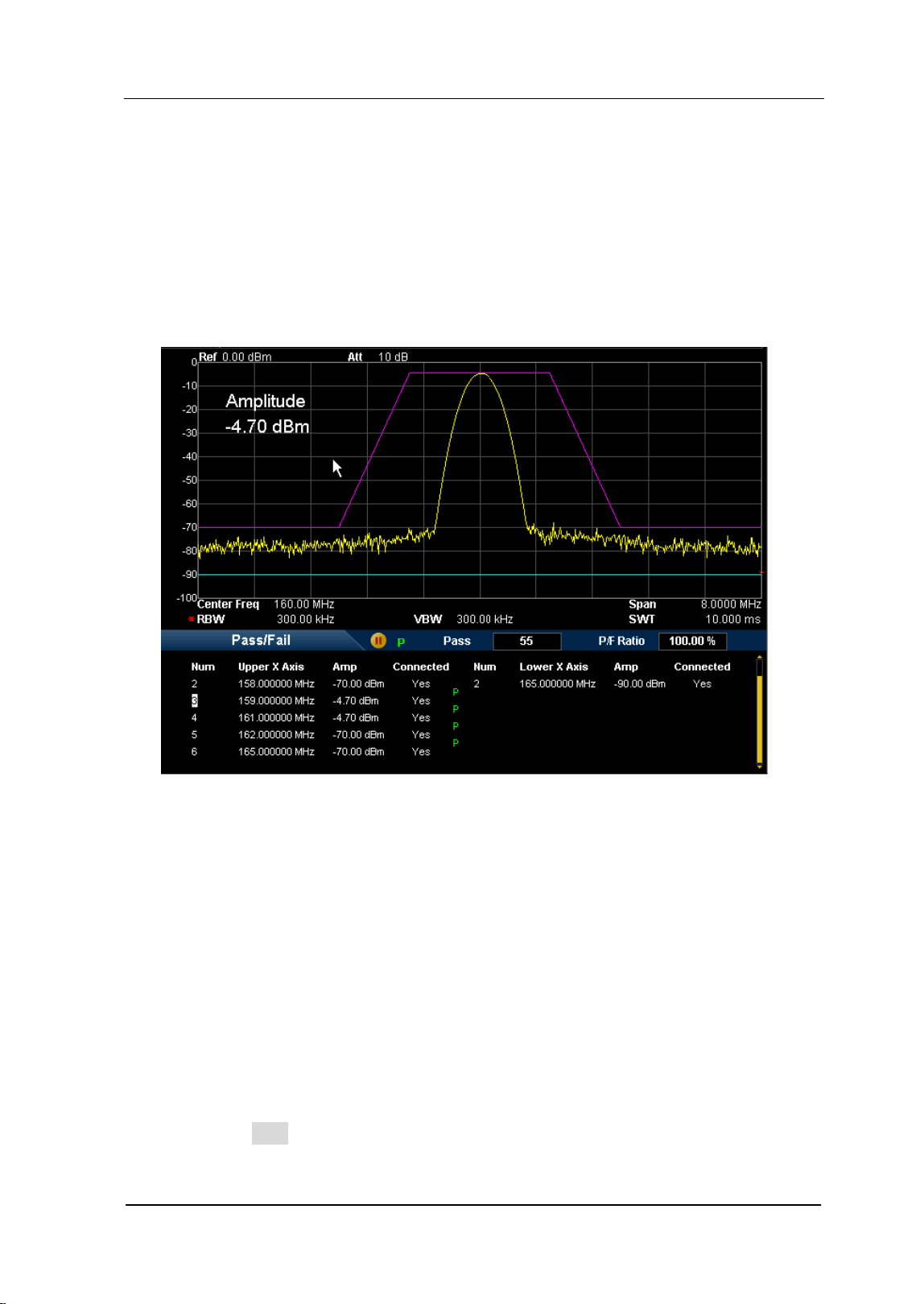
Chapter 2 Front Panel Operation RIGOL
User’s Guide for DSA700 Series
2-33
Pass/Fail
DSA700 supports the Pass/Fail test function. In this function, the measured curve
is compared with the pre-edited curve. If the related rules are met, the result is
"Pass"; or else is "Fail". The measurement interface is as shown in the figure
below.
Figure 2-11 Interface of Pass/Fail Test
Result:
The results of Pass/Fail test contain the pass number and the pass ratio.
1. Switch
Enable or disable the Pass/Fail test function and the default is "Off". When the
function is enabled, the system changes to split-screen display. At this point,
T2 and T3 are used for marking the upper and lower limits separately.
2. Settings
Limit: select the desired limit line (upper or lower) for editing. Then,
press Edit to set the limit conditions.
Test: enable or disable the test function. Each limit line has its own
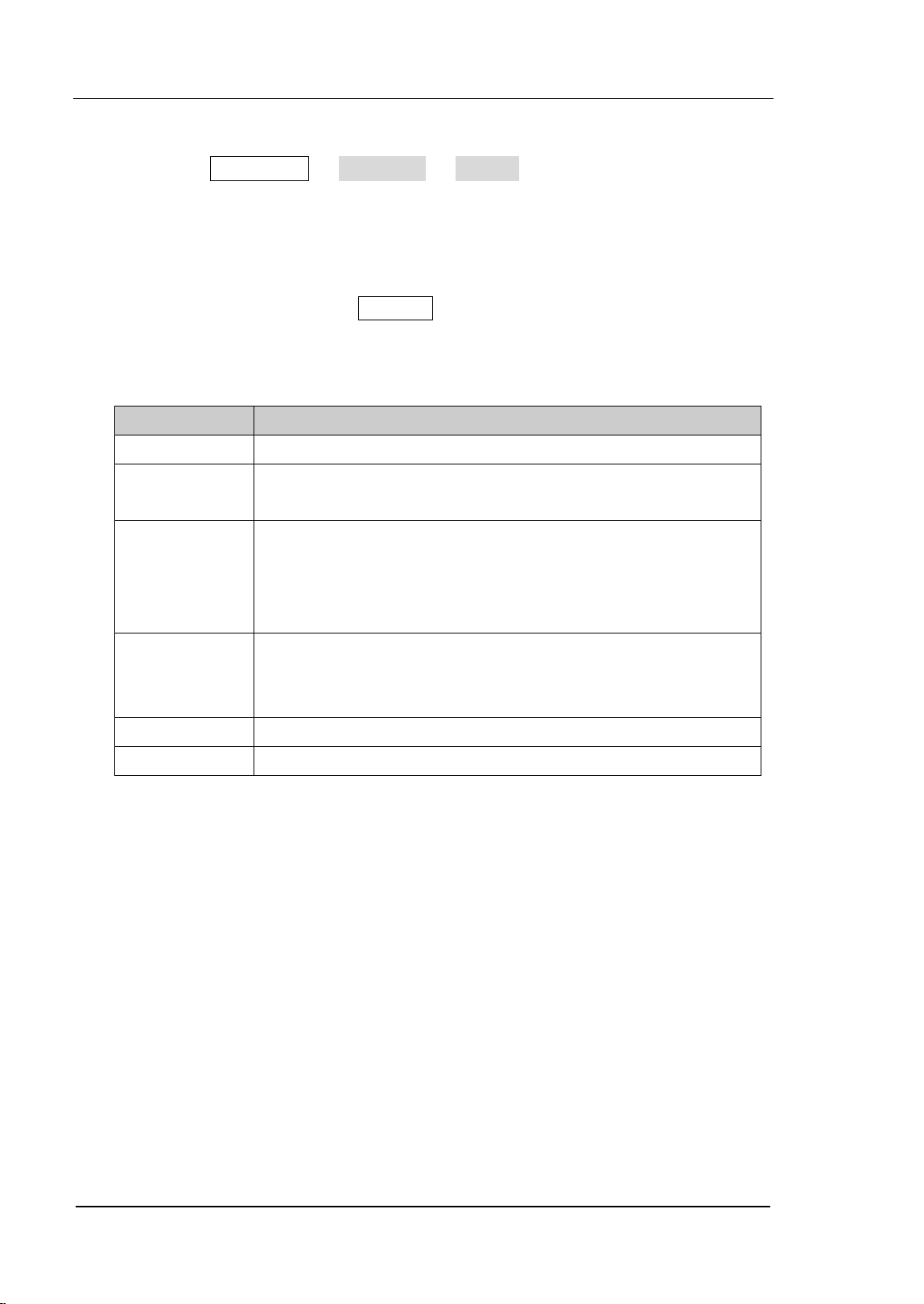
RIGOL Chapter 2 Front Panel Operation
User’s Guide for DSA700 Series
2-34
switch. You can test according to both together, either one or neither.
Note: Trace/P/F Pass/Fail Switch is only used to enable or
disable the setting menu of Pass/Fail test, not the test itself.
Edit: edit the properties of the limit lines.
Note: The edited limit line data can be stored in the internal or external
memory of the analyzer and can be recalled when needed. After the
editing is finished, press Storage to store the data according to the
method introduced in "Storage".
Table 2-2 Pass/Fail menu
Function Explanation
Limit Quickly select the limit line to be edited.
Point Set the number of the point to be edited. The range is from
1 to 200.
X-axis Edit the X-axis value (frequency or time) of the current
point. If the X-axis unit is frequency and the Rel Freq is
enabled, edit the frequency difference between the
frequency of the current point and the center frequency.
Amplitude Edit the amplitude of the current point. If the Rel Ampt is
enabled, edit the amplitude difference between the
amplitude of the current point and the reference level.
Connected Connect this point with the previous one or not.
Del Point Delete the point you are editing.
X Axis: set the X-axis unit to frequency or time unit. Note that all the
points of the current limit line will be deleted when the X-axis unit
changes.
Freq Interp: set the Freq Interp to Log or Lin. In Log mode, both the
frequency and amplitude use Log unit to make interpolation operation; in
Lin mode, the frequency uses a Lin unit and the amplitude uses a Log unit
for interpolation operation.
Rel Setting: enable or disable Relative Frequency (Rel Freq) or Relative
Amplitude (Rel Ampt). When the Rel Freq is enabled, the frequency you
are editing is the difference between the frequency of the current point
and the center frequency. When the Rel Ampt is enabled, the amplitude
you are editing is the difference between the amplitude of the current
point and the reference level.
Chapter 2 Front Panel Operation RIGOL
User’s Guide for DSA700 Series
2-35
Del Limit: delete the limit line you are editing.
Fail Stop: select whether to perform the next sweep if the test fails.
Beeper: turn on or off the beeper. When the beeper is on, it beeps when
the test fails.
3. Restart
Re-execute the active or suspended test.
4. Pause
Suspend the test after the current test is finished. At this point, the
measurement data stops updating, but the sweep continues.
is displayed
in the test result display window.
5. Resume
Resume the suspended test and the test data begins updating again.
is
displayed in the test result display window.
6. Meas Mode
Set the measurement mode to single or continuous. In single mode, the
analyzer stops after the specified number of tests. After this, every time when
Single is pressed, the system executes the specified number of tests and
updates the test data. In continuous mode, the analyzer tests continuously.
7. Single
In single mode, the analyzer stops after the specified number of tests. After
this, every time when Single is pressed, the system executes the specified
number of tests and updates the test data.
Average Reset
Achieve the recalculation of the trace average.
Note: You can use this function only when the trace type is set to "Video Avg" or
"Power Avg".
RIGOL Chapter 2 Front Panel Operation
User’s Guide for DSA700 Series
2-36
Measurement Settings
Meas
Provide various advanced measurement functions, including T-Power, ACP
(Adjacent Channel Power), Chan Pwr (Channel Power), OBW (Occupied
Bandwidth), EBW (Emission Bandwidth), C/N Ratio, Harmo Dist (Harmonic
Distortion) and TOI (Third Order Intermodulation). For advanced measurement
functions, the measurement mode can be single or continuous; you can restart,
pause and resume the measurement.
Measurement Function
This function is an option for DSA700 and is only available when the advanced
measurement kit is installed. When a measurement function is selected, the screen
is divided into two windows with the upper window (the basic measurement
window) displaying the sweep trace and the lower window displaying the
measurement results.
1. T-Power
Ths system enters zero span mode and calculates the power within the time
domain. The types of powers available include Peak, Average and RMS.
Select T-Power and press Meas Setup to set the corresponding
parameters.
2. ACP
Measure the powers of the main channel and adjacent channels as well as the
power difference between the main channel and each of the adjacent
channels. When this function is enabled, the span and resolution bandwidth of
the analyzer are adjusted to smaller values automatically.
Select ACP and press Meas Setup to set the corresponding parameters.
3. Chan Pwr
Measure the power and power density within the specified channel bandwidth.
When this function is enabled, the span and resolution bandwidth are
Chapter 2 Front Panel Operation RIGOL
User’s Guide for DSA700 Series
2-37
automatically adjusted to smaller values.
Select Chan Pwr and press Meas Setup to set the corresponding
parameters.
4. OBW
Integrate the power within the whole span and calculate the bandwidth
occupied by this power according to the specified power ratio. The OBW
function also indicates the difference (namely "Transmit Freq Error") between
the center frequency of the channel under measurement and the center
frequency of the analyzer.
Select OBW and press Meas Setup to set the corresponding parameters.
5. EBW
Measure the bandwidth between two points on the signal which are X dB
below the highest point within the span.
Select EBW and press Meas Setup to set the corresponding parameters.
6. C/N Ratio
Measure the powers of the carrier and noise with the specified bandwidth as
well as their power ratio.
Select C/N Ratio and press Meas Setup to set the corresponding
parameters.
7. Harmo Dist
Measure the power of each order of harmonic and THD (total harmonic
distortion) of the carrier. The highest order of harmonic available is 10 and the
fundamental wave amplitude must be greater than -50 dBm; or else the
measurement will be invalid.
Select Harmo Dist and press Meas Setup to set the corresponding
parameters.
8. TOI
Measure the parameters of the TOI production of two signals with the same
amplitude and similar frequency. Those parameters include the frequencies
and amplitudes of the Base Lower, Base Upper, 3rd Order Lower and 3rd
Order Upper signal, as well as the Intercepts of both the Base Lower and Base
Upper.
RIGOL Chapter 2 Front Panel Operation
User’s Guide for DSA700 Series
2-38
Select TOI and press Meas Setup to set the corresponding parameters.
Restart
Re-execute the active or suspended measurement. This setting is only available for
advanced measurement functions.
Pause
Suspend the measurement after the current measurement is finished. The
measurement data stops updating, but the sweep continues.
is displayed in
the measurement result display window. This setting is only available for advanced
measurement functions.
Resume
Resume the suspended measurement and the measurement data begins updating
again.
is displayed in the measurement result display window. This setting is
only available for advanced measurement functions.
Meas Mode
Set the measurement mode to single or continuous. In single mode, the analyzer
stops after the specified number of measurements. After this, every time when
Single is pressed, the system executes the specified number of measurements
and updates the measurement data. In continuous mode, the analyzer measures
continuously. This setting is only available for advanced measurement functions.
Chapter 2 Front Panel Operation RIGOL
User’s Guide for DSA700 Series
2-39
Single
In single mode, the analyzer stops after the specified number of measurements.
After this, every time when Single is pressed, the system executes the specified
number of measurements and updates the measurement data. This setting is only
available for advanced measurement functions.
Sig Capture (Option)
The Sig Capture function can continuously capture signals whose power values
change suddenly. This function is only available when the SSC-DSA option is
installed. You can press Sig Capture to set the related parameters.
Note: Under the two conditions below, the instrument screen turns dark for a few
seconds; this is a normal phenomenon for mode switching.
When pressing Sig Capture to enable the Sig Capture function.
When pressing Preset to exit the Sig Capture function.
1. RT Trace
Turn the real time trace on or off. RT Trace, MaxHold and 2FSK are mutually
exclusive.
2. MaxHold
Turn max hold on or off. When max hold is turned on, the signal captured
each time will be compared with the previously captured signal, the greater
value of which will be displayed. RT Trace, MaxHold and 2FSK are mutually
exclusive.
3. MaxHold Rst
Delete the original signal and capture new signals for the max hold trace reset.
The reset operation has no effect on the user settings. You can also turn max
hold off and then turn it on to realizing the function of MaxHold Rst.
4. 2FSK
Enable or disable the 2FSK function. When the 2FSK function is enabled, the
RIGOL Chapter 2 Front Panel Operation
User’s Guide for DSA700 Series
2-40
user interface is divided into two areas automatically (the upper side is the
basic measurement window and displays the sweep trace; the lower side is
the measurement result display window). You can press Meas Setup to set
the related parameters. RT Trace, MaxHold and 2FSK are mutually exclusive.
Tip:
1. After the Sig Capture function is enabled, the instrument will automatically
set Span to 1.5 MHz. Pressing Preset to exit Sig Capture function can
restore the instrument to the default settings.
2. After the Sig Capture function is enabled,
The Start Freq and Stop Freq menus under FREQ are grayed out and
disabled.
All the menus under SPAN, BW/Det, Sweep/Trig, Trace/P/F,
Marker -> and Demod are grayed out and disabled.
All the menus under System Calibrate are grayed out and disabled.
The Peak Peak Table
State menu is grayed out and disabled.
The Marker Fctn Freq Count State menu is grayed out and
disabled.
If 2FSK is turned on, the Marker Mkr Table
State menu is
grayed out and disabled.
The Sig Capture function and the advanced measurement functions are
mutually exclusive.
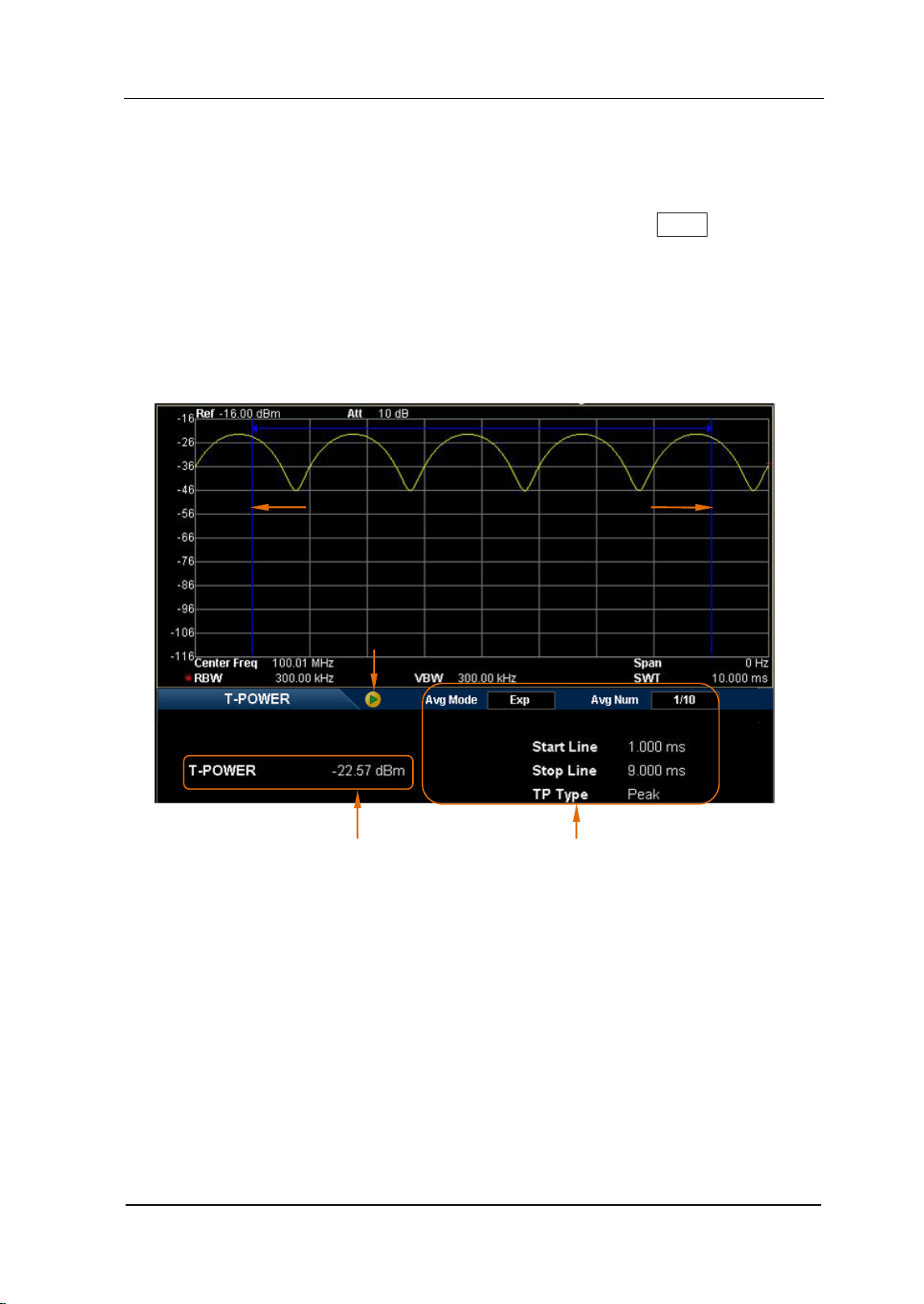
Chapter 2 Front Panel Operation RIGOL
User’s Guide for DSA700 Series
2-41
Meas Setup
Open the parameter setting menu of the function selected in the Meas menu. This
key is only available when a measurement function is enabled.
T-Power
Measurement Interface:
Figure 2-12 T-Power Measurement Interface
Measurement Result: T-power, namely the power of the signal from the start
line to the stop line.
Measurement Parameters: average number, average mode, TP type, start line
and stop line.
1. Avg Num
Specify the number of averages used when calculating the measurement
result. The default is "Off". You can use the numeric keys, knob or direction
Measurement Result Measurement Parameters
Measurement Control
Start Line Stop Line

RIGOL Chapter 2 Front Panel Operation
User’s Guide for DSA700 Series
2-42
keys to modify this parameter.
2. Avg Mode
Set the average operation mode to "Exp" or "Repeat" and the default is "Exp".
When "Exp" is selected, the result is the exponential average of the
current N (N is specified in "Avg Num") measurement results.
When "Repeat" is selected, the result is the arithmetic average of the
current N (N is specified in "Avg Num") measurement results.
3. TP Type
Peak
Display the power of the signal with the maximum amplitude between the
start line and stop line. The detector type is set to "Pos Peak"
automatically.
Average
Display the average power of signals between the start line and stop line.
The detector type is set to "Voltage Avg" automatically.
RMS
Display the mean square root (in power unit) of the voltages of signals
between the start line and stop line. The detector type is set to "RMS
Avg" automatically.
4. Start Line
Set the left margin (in time unit) of T-Power measurement. The data
calculated under this measurement is between the start line and stop line.
You can use the numeric keys, knob or direction keys to modify this
parameter.
5. Stop Line
Set the right margin (in time unit) of T-Power measurement. The data
calculated under this measurement is between the start line and stop line.
You can use the numeric keys, knob or direction keys to modify this
parameter.
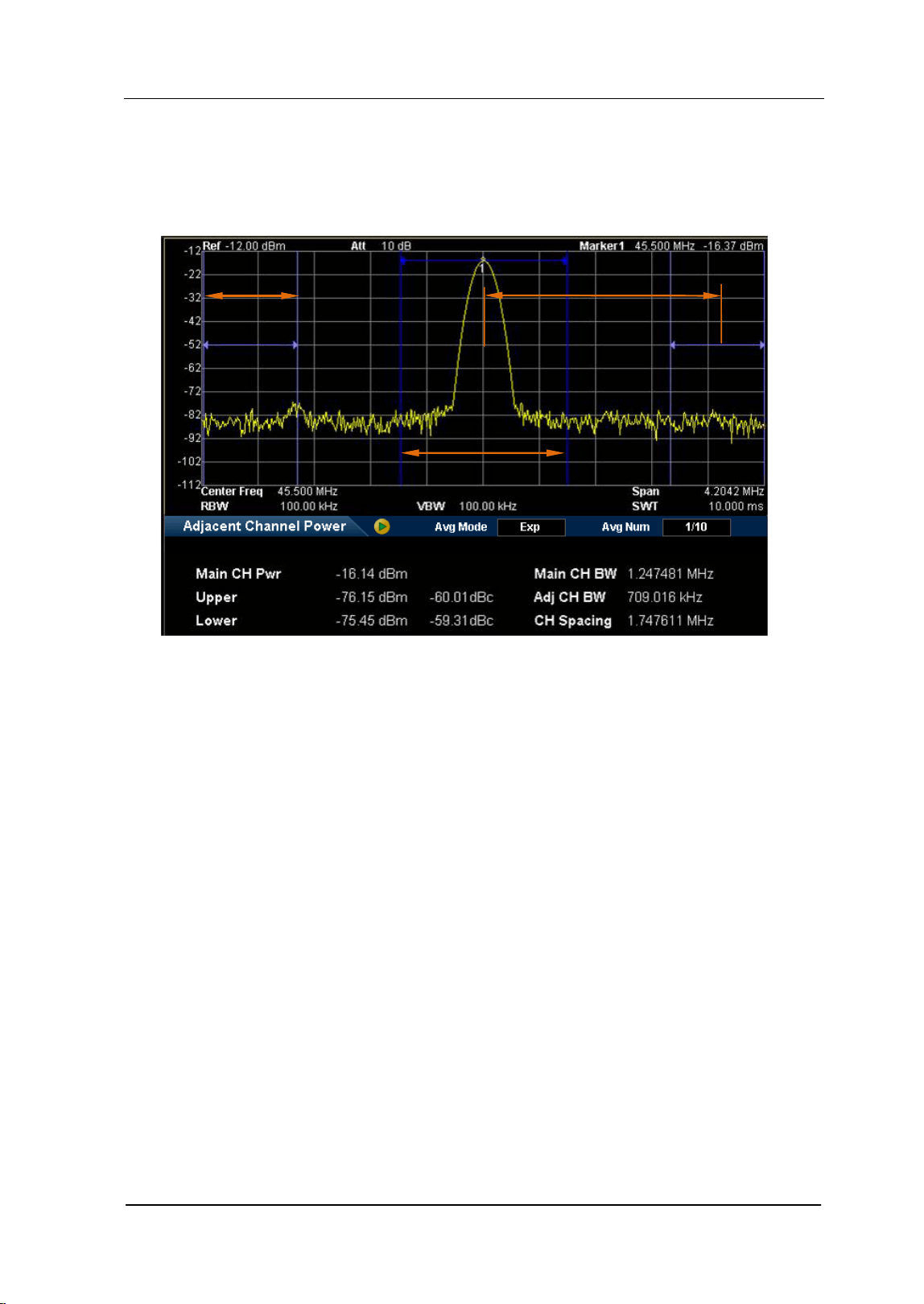
Chapter 2 Front Panel Operation RIGOL
User’s Guide for DSA700 Series
2-43
ACP
Measurement Interface:
Figure 2-13 Adjacent Channel Power Measurement Interface
Measurement Results: Main CH Pwr, Upper and Lower.
CH Pwr: display the power within the bandwidth of the main channel.
Upper: display the power of the upper channel and the power difference
between the upper channel and the main channel (in dBc).
Lower: display the power of the lower channel and the power difference
between the lower channel and the main channel (in dBc).
Measurement Parameters: average number, average mode, main channel
bandwidth, adjacent channel bandwidth and channel spacing.
1. Avg Num
Specify the number of averages used when calculating the measurement
result and the default is "Off". You can use the numeric keys, knob or direction
keys to modify this parameter.
Main Channel Bandwidth
Adjacent Channel Bandwidth
Channel Spacing

RIGOL Chapter 2 Front Panel Operation
User’s Guide for DSA700 Series
2-44
2. Avg Mode
Set the average operation mode to "Exp" or "Repeat" and the default is "Exp".
When "Exp" is selected, the result is the exponential average of the
current N (N is specified in "Avg Num") measurement results.
When "Repeat" is selected, the result is the arithmetic average of the
current N (N is specified in "Avg Num") measurement results.
3. Main CH BW
Set the bandwidth of the main channel and the power of the main channel is
the power integral within this bandwidth. You can use the numeric keys, knob
and direction keys to modify this parameter.
4. Adj CH BW
Set the frequency width of the adjacent channels.
The adjacent channel bandwidth is related to the main channel
bandwidth and the range available is from mian channel bandwidth/20 to
mian channel bandwidth×20.
You can use the numeric keys, knob or direction keys to modify this
parameter.
5. CH Spacing
Set the difference between the center frequency of the main channel and the
center frequency of the adjacent channels.
Adjusting this parameter will also adjust the distance between the
upper/lower channel and the main channel.
You can use the numeric keys, knob or direction keys to modify this
parameter.
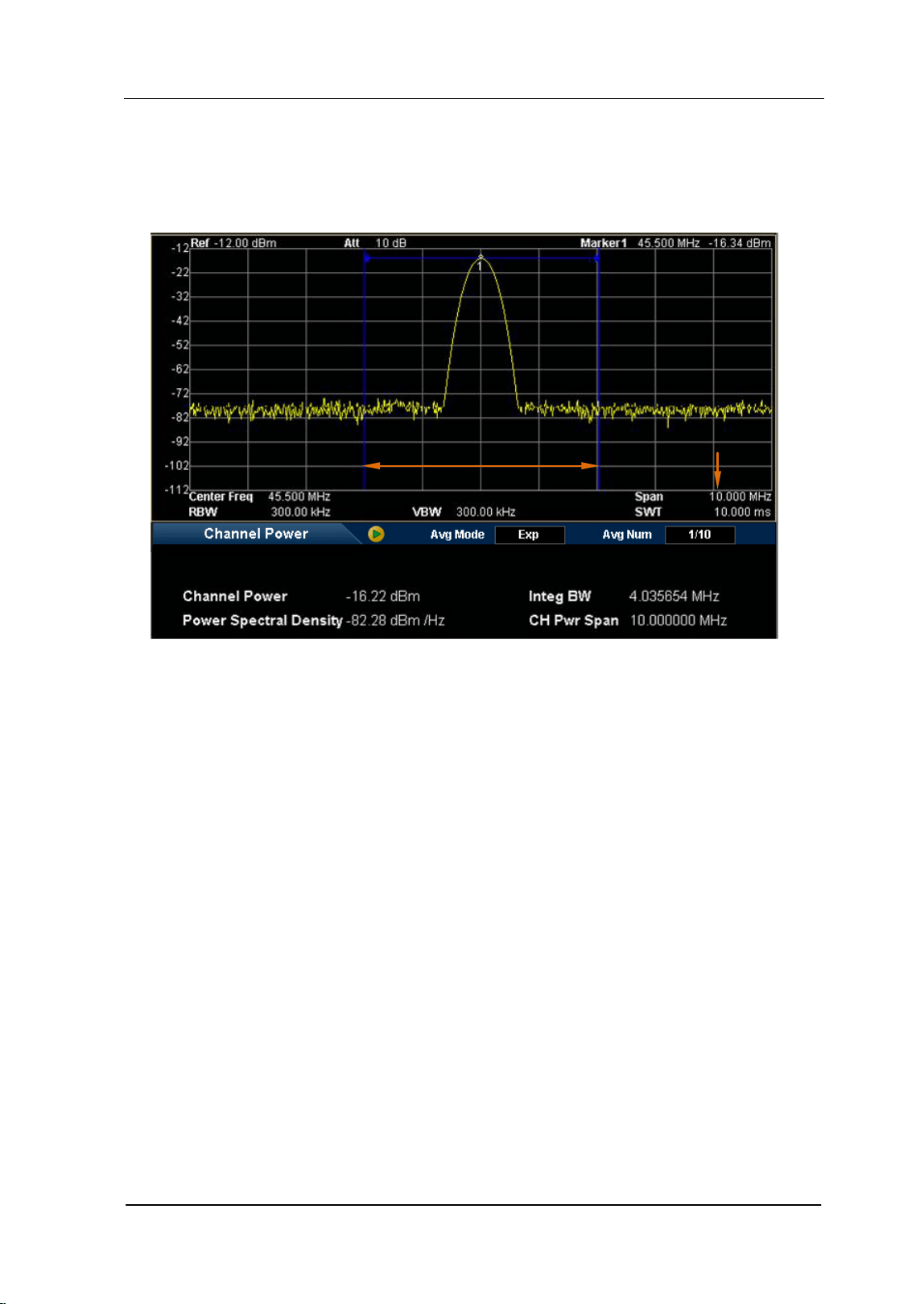
Chapter 2 Front Panel Operation RIGOL
User’s Guide for DSA700 Series
2-45
Chan Pwr
Measurement Interface:
Figure 2-14 Channel Power Measurement Interface
Measurement Results: channel power and power spectral density.
Channel Power: power within the integration bandwidth.
Power Spectral Density: power (in dBm/Hz) normalized to 1 Hz within the
integration bandwidth.
Measurement Parameters: average number, average mode, integration
bandwidth and channel power span.
1. Avg Num
Specify the number of averages used when calculating the measurement
result and the default is "Off". You can use the numeric keys, knob or direction
keys to modify this parameter.
2. Avg Mode
Set the average operation mode to "Exp" or "Repeat" and the default is "Exp".
When "Exp" is selected, the result is the exponential average of the
current N (N is specified in "Avg Num") measurement results.
Integration Bandwidth Channel Power Span

RIGOL Chapter 2 Front Panel Operation
User’s Guide for DSA700 Series
2-46
When "Repeat" is selected, the result is the arithmetic average of the
current N (N is specified in "Avg Num") measurement results.
3. Integ BW
Set the frequency width of the channel to be tested and the power of the
channel is the power integral within this bandwidth. You can use the numeric
keys, knob or direction keys to modify this parameter.
4. CH Pwr Span
Set the frequency range of the channel. This span which is the same with the
span of the analyzer is the frequency range of the sweep. Modifying this
parameter will change the span of the analyzer.
The channel power span is related to the integration bandwidth and the
range available is from integration bandwidth to integration
bandwidth×20.
You can use the numeric keys, knob or direction keys to modify this
parameter.
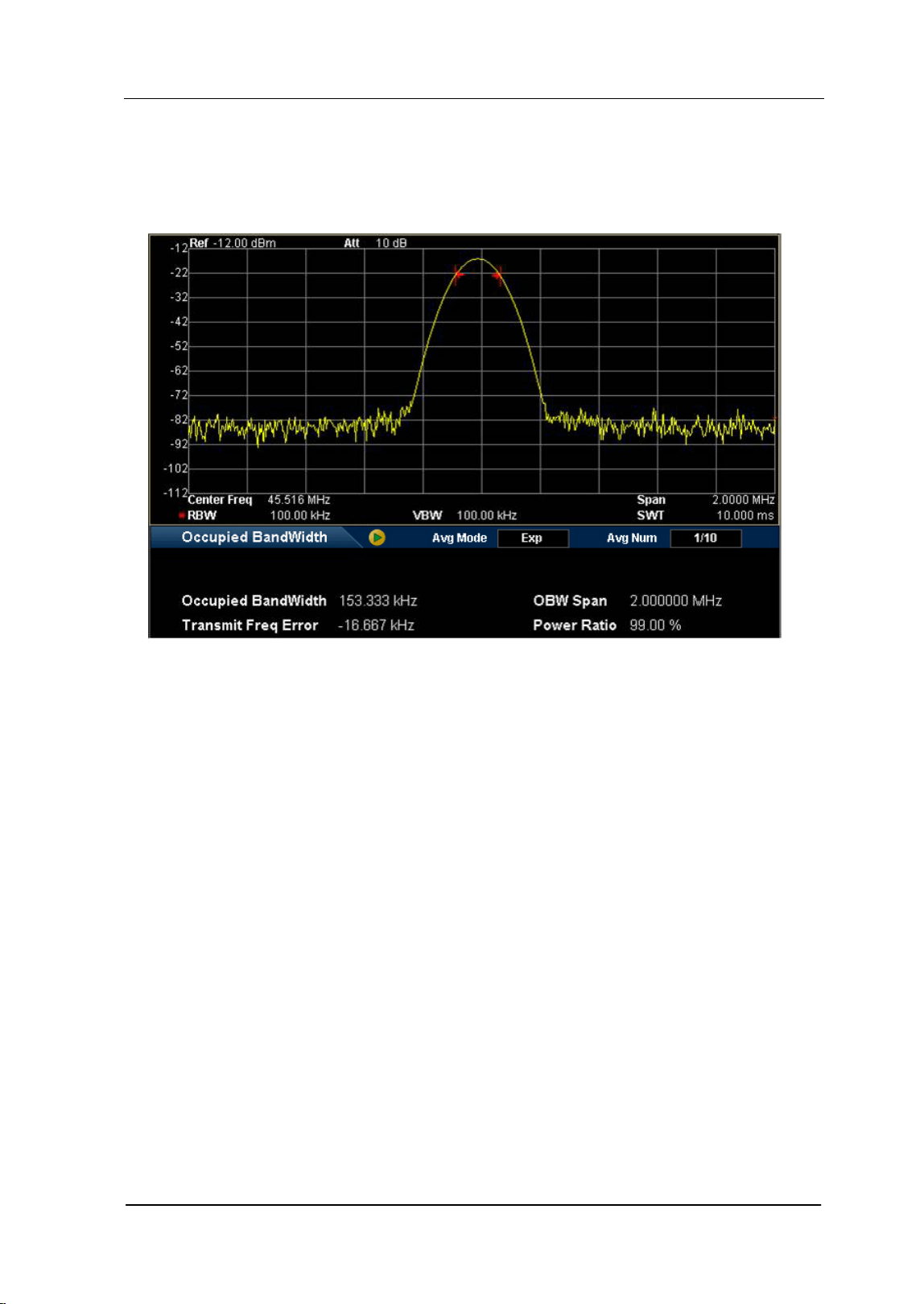
Chapter 2 Front Panel Operation RIGOL
User’s Guide for DSA700 Series
2-47
OBW
Measurement Interface:
Figure 2-15 OBW Measurement Interface
Measurement Results: occupied bandwidth and transmit frequency error.
Occupied Bandwidth: integrate the power within the whole span and then
calculate the bandwidth occupied by the power according to the specified
power ratio.
Transmit Frequency Error: difference between the center frequency of the
channel and the center frequency of the analyzer.
Measurement Parameters: average number, average mode, max hold, span
and power ratio.
1. Avg Num
Specify the number of averages used when calculating the measurement
result and the default is "Off". You can use the numeric keys, knob or direction
keys to modify this parameter.
2. Avg Mode
Set the average operation mode to "Exp" or "Repeat" and the default is "Exp".

RIGOL Chapter 2 Front Panel Operation
User’s Guide for DSA700 Series
2-48
When "Exp" is selected, the result is the exponential average of the
current N (N is specified in "Avg Num") measurement results.
When "Repeat" is selected, the result is the arithmetic average of the
current N (N is specified in "Avg Num") measurement results.
3. Max Hold
Enable or disable max hold and the default is "Off".
When Max Hold is enabled, each measurement result is compared with
the previous result and the maximum is displayed.
When Max Hold is disabled, the current measurement result is displayed.
Max Hold and average measurement mode are mutually exclusive and
average measurement mode will be automatically disabled when Max
Hold is enabled.
4. OBW Span
Set the frequency range of integration. This span which is the same with the
span of the analyzer is the frequency range for the sweep. Modifying this
parameter will also change the span of the analyzer. You can use the numeric
keys, knob or direction keys to modify this parameter.
5. Power Ratio
Set the percentage the signal power takes up in the whole span power. You
can use the muneric keys, knob or direction keys to modify this parameter.
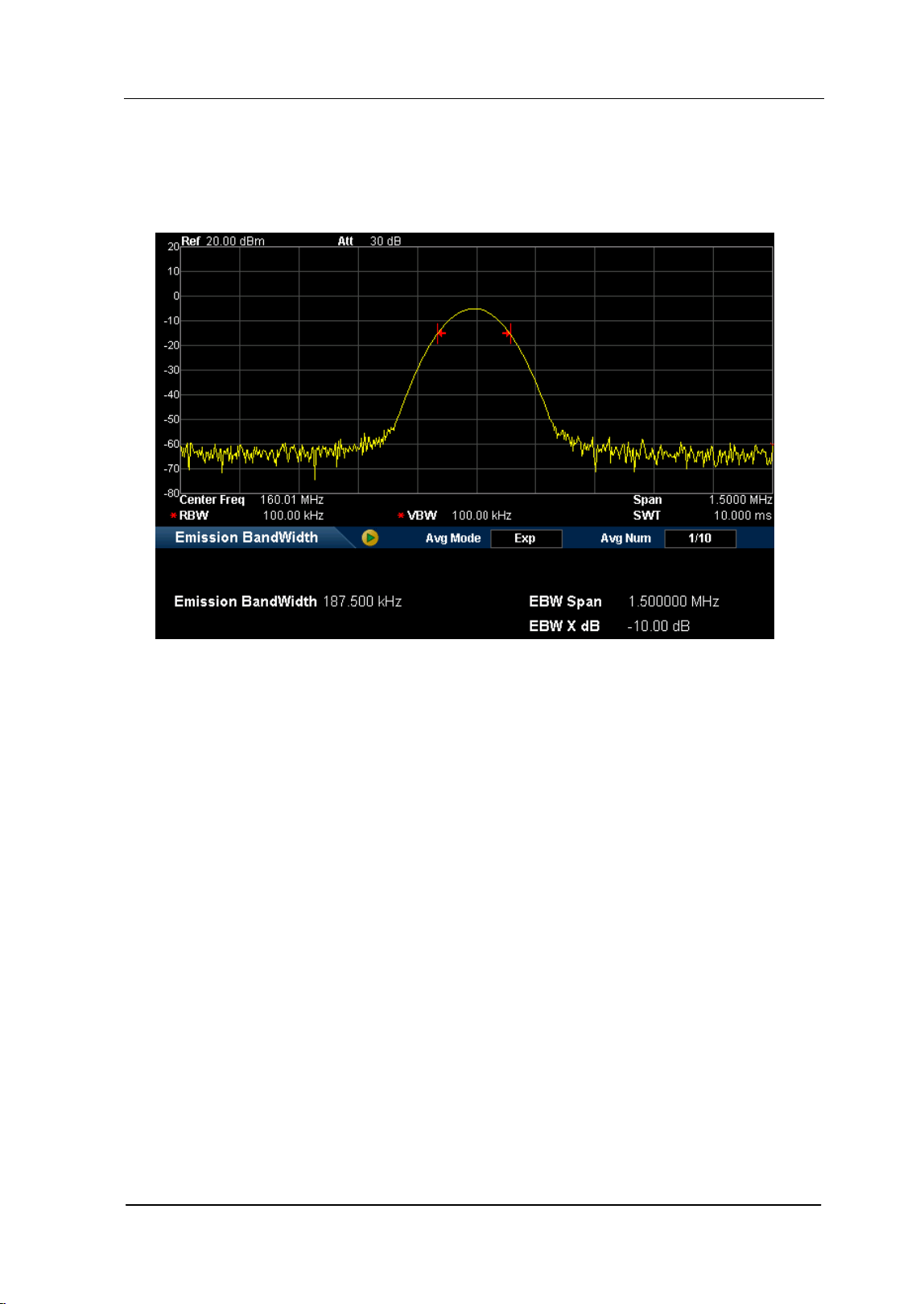
Chapter 2 Front Panel Operation RIGOL
User’s Guide for DSA700 Series
2-49
EBW
Measurement Interface:
Figure 2-16 EBW Measurement Interface
Measurement Results: emission bandwidth, namely the bandwidth between
two points on a signal which are X dB below the highest point within the span.
During the measurement, the analyzer first determines the frequency (f
0
) of the
maximum amplitude point within the span and then finds the two frequency points
(f
1
and f
2
) at each side of f
0
at which the signal amplitude is X dB below the
maximum amplitude. The emission bandwidth is f
2
-f
1
.
Measurement Parameters: average number, average mode, max hold, span
and X dB.
1. Avg Num
Specify the number of averages used when calculating the measurement
result and the default is "Off". You can use the numeric keys, knob or direction
keys to modify this parameter.
2. Avg Mode
Set the average operation mode to "Exp" or "Repeat" and the default is "Exp".

RIGOL Chapter 2 Front Panel Operation
User’s Guide for DSA700 Series
2-50
When "Exp" is selected, the result is the exponential average of the
current N (N is specified in "Avg Num") measurement results.
When "Repeat" is selected, the result is the arithmetic average of the
current N (N is specified in "Avg Num") measurement results.
3. Max Hold
Enable or disable max hold and the default is "Off".
When Max Hold is enabled, each measurement result is compared with
the previous result and the maximum is displayed.
When Max Hold is disabled, the current measurement result is displayed.
Max Hold and average measurement mode are mutually exclusive and
average measurement mode will be automatically disabled when Max
Hold is enabled.
4. EBW Span
This span which is the same with the span of the analyzer is the frequency
range for the sweep. Modifying this parameter will also change the span of
the analyzer. You can use the numeric keys, knob or direction keys to modify
this parameter.
5. EBW X dB
Set the value of X dB used for EBW calculation. You can use the numeric keys,
knob or direction keys to modify this parameter.
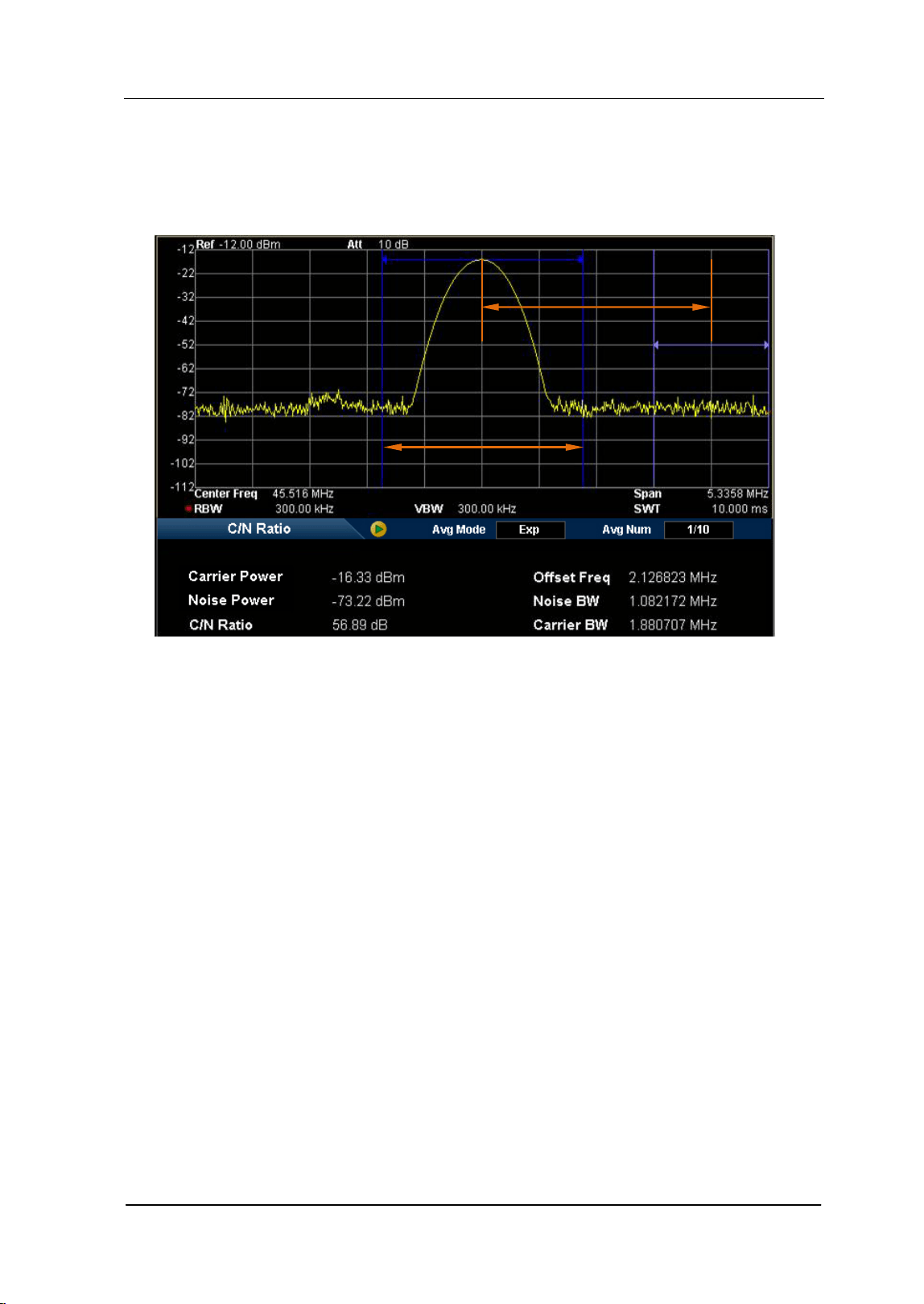
Chapter 2 Front Panel Operation RIGOL
User’s Guide for DSA700 Series
2-51
C/N Ratio
Measurement Interface:
Figure 2-17 C/N Ratio Measurement Interface
Measurement Results: carrier power, noise power and C/N ratio.
Carrier Power: power within the carrier bandwidth.
Noise Power: power within the noise bandwidth.
C/N Ratio: the ratio of the carrier power to the noise power.
Measurement Parameters: average number, average mode, offset frequency,
noise bandwidth and carrier bandwidth.
1. Avg Num
Specify the number of averages used when calculating the measurement
result and the default is "Off". You can use the numeric keys, knob or direction
keys to modify this parameter.
2. Avg Mode
Set the average operation mode to "Exp" or "Repeat" and the default is "Exp".
When "Exp" is selected, the result is the exponential average of the
current N (N is specified in "Avg Num") measurement results.
Offset Frequency
Carrier Bandwidth
Noise Bandwidth

RIGOL Chapter 2 Front Panel Operation
User’s Guide for DSA700 Series
2-52
When "Repeat" is selected, the result is the arithmetic average of the
current N (N is specified in "Avg Num") measurement results.
3. Offset Freq
Set the difference between the carrier center frequency and the noise center
frequency. You can use the numeric keys, knob and direction keys to modify
this parameter.
4. Noise BW
Set the bandwidth of the noise to be measured. You can use the numeric keys,
knob or direction keys to modify this parameter.
5. Carrier BW
Set the bandwidth of the carrier to be measured.
The carrier bandwidth is related to the noise bandwidth and the range
available is from noise bandwidth/20 to noise bandwidth×20.
You can use the numeric keys, knob or direction keys to modify this
parameter.
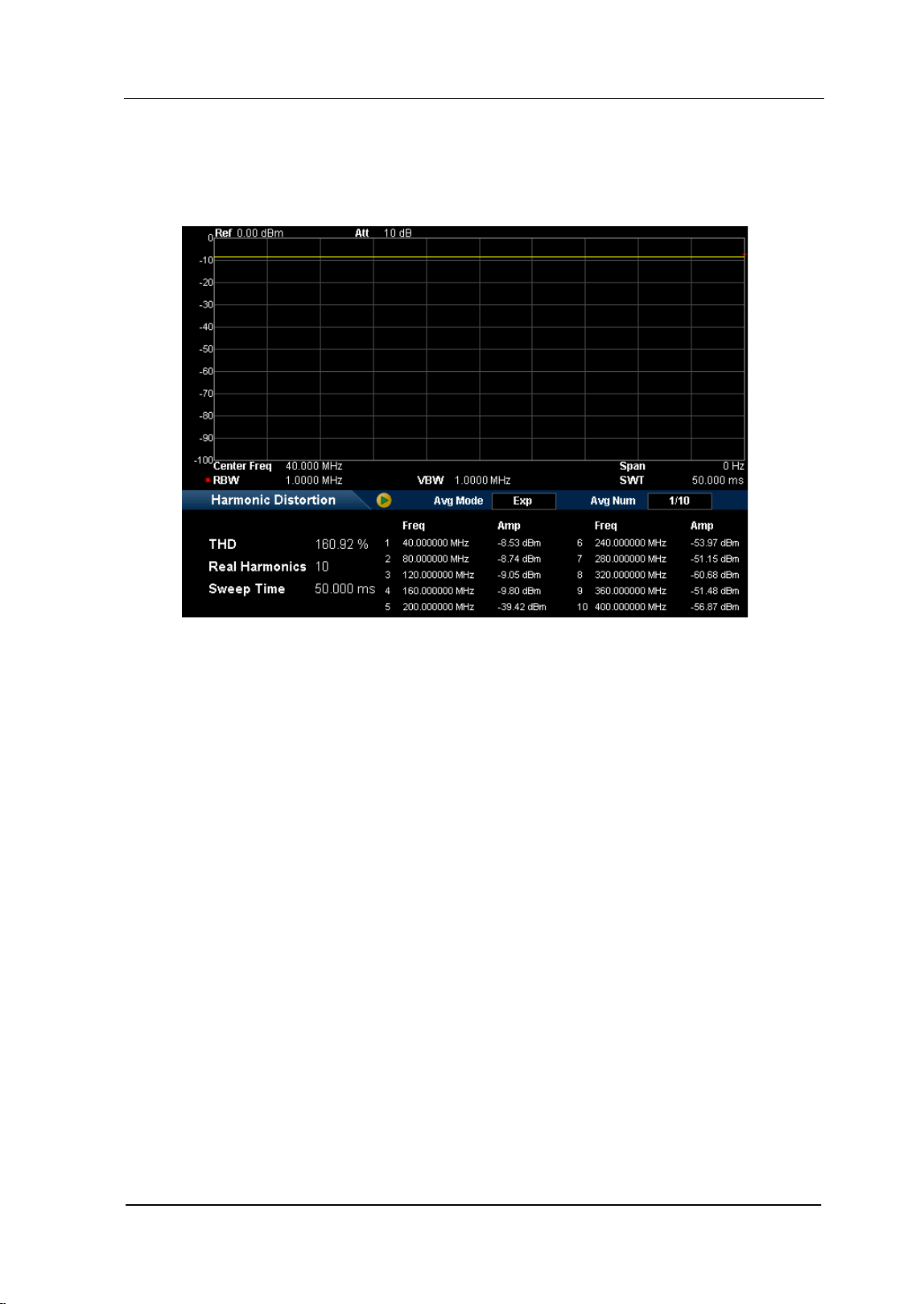
Chapter 2 Front Panel Operation RIGOL
User’s Guide for DSA700 Series
2-53
Harmo Dist
Measurement Interface:
Figure 2-18 Harmonic Distortion Measurement Interface
Measurement Results: amplitude of each order of harmonic and total harmonic
distortion. Up to 10
th
order of harmonic can be measured.
Measurement Parameters: average number, average mode, number of
harmonics and sweep time.
1. Avg Num
Specify the number of averages used when calculating the measurement
result and the default is "Off". You can use the numeric keys, knob or direction
keys to modify this parameter.
2. Avg Mode
Set the average operation mode to "Exp" or "Repeat" and the default is "Exp".
When "Exp" is selected, the result is the exponential average of the
current N (N is specified in "Avg Num") measurement results.
When "Repeat" is selected, the result is the arithmetic average of the
current N (N is specified in "Avg Num") measurement results.

RIGOL Chapter 2 Front Panel Operation
User’s Guide for DSA700 Series
2-54
3. NO.of Harmo
Set the number of the harmonics to measure before calculating the total
harmonic distortion. You can use the numeric keys, knob or direction keys to
modify this parameter.
4. Harmonic ST
Set the sweep time of the harmonic measurement, namely the sweep time of
the analyzer. You can use the numeric keys, knob or direction keys to modify
this parameter.
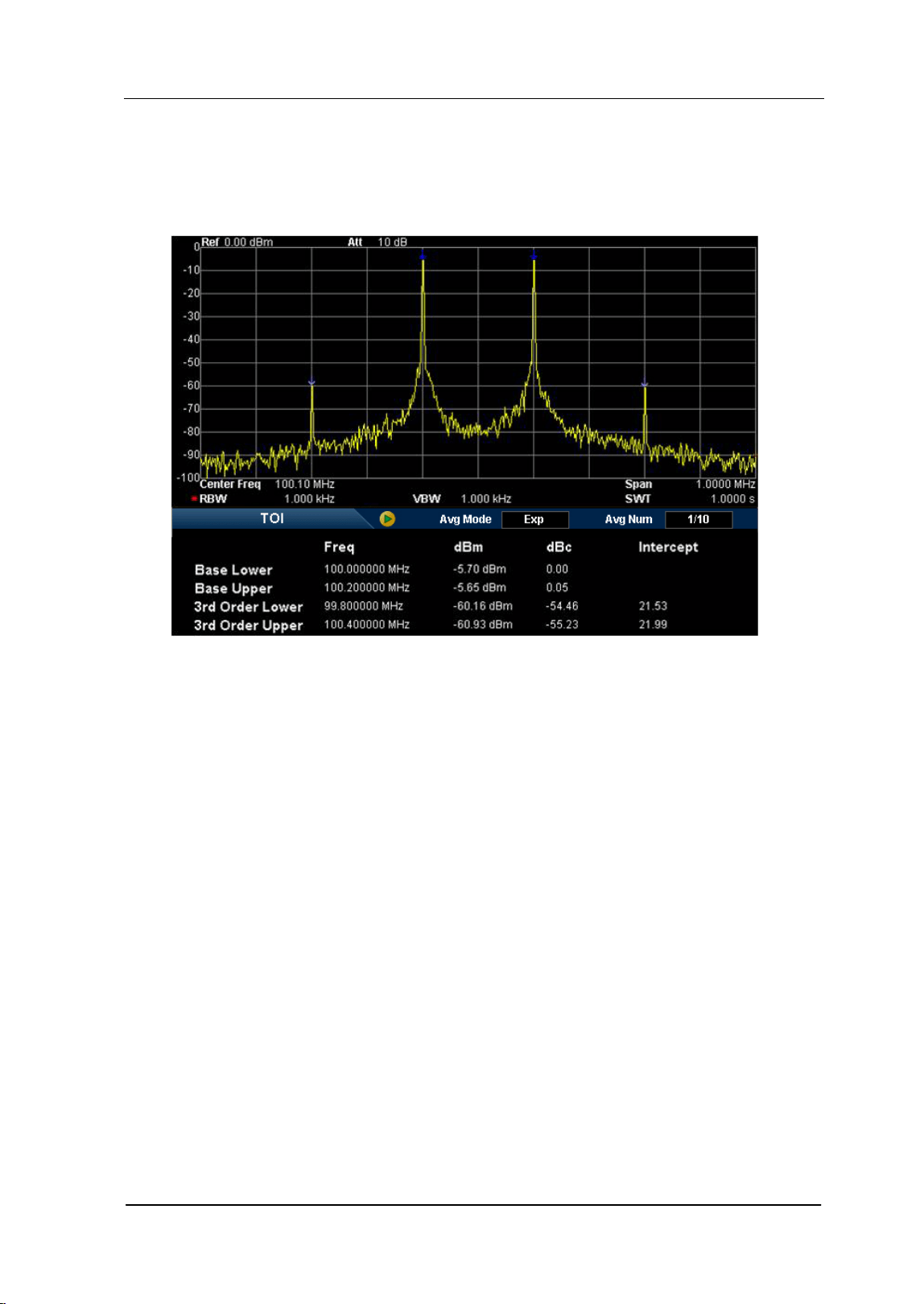
Chapter 2 Front Panel Operation RIGOL
User’s Guide for DSA700 Series
2-55
TOI
Measurement Interface:
Figure 2-19 TOI Measurement Interface
Measurement Results: Base Lower, Base Upper, TOI (3rd Order Lower), TOI
(3rd Order Upper), the frequency and amplitude of each kind of signal, the
amplitude difference between each kind of signal and the base lower as well as the
intercepts of the base lower and base upper.
Wherein, the intercept of 3rd Order Lower = (Base Lower Power - 3rd Order Lower
Power)/2 + Base Lower Power; the intercept of 3rd Order Upper = (Base Upper
Power - 3rd Order Upper Power)/2 + Base Upper Power.
Measurement Parameters: average number, average mode and span.
1. Avg Num
Specify the number of averages used when calculating the measurement
result and the default is "Off". You can use the numeric keys, knob or direction
keys to modify this parameter.
2. Avg Mode
Set the average operation mode to "Exp" or "Repeat" and the default is "Exp".
3rd Order Lower
3rd Order Upper
Base Lower
Base Upper

RIGOL Chapter 2 Front Panel Operation
User’s Guide for DSA700 Series
2-56
When "Exp" is selected, the result is the exponential average of the
current N (N is specified in "Avg Num") measurement results.
When "Repeat" is selected, the result is the arithmetic average of the
current N (N is specified in "Avg Num") measurement results.
3. Span
This span which is the same with the span of the analyzer is the frequency
range for sweep. Modifying this parameter will also change the span of the
analyzer. You can use the numeric keys, knob or direction keys to modify this
parameter.
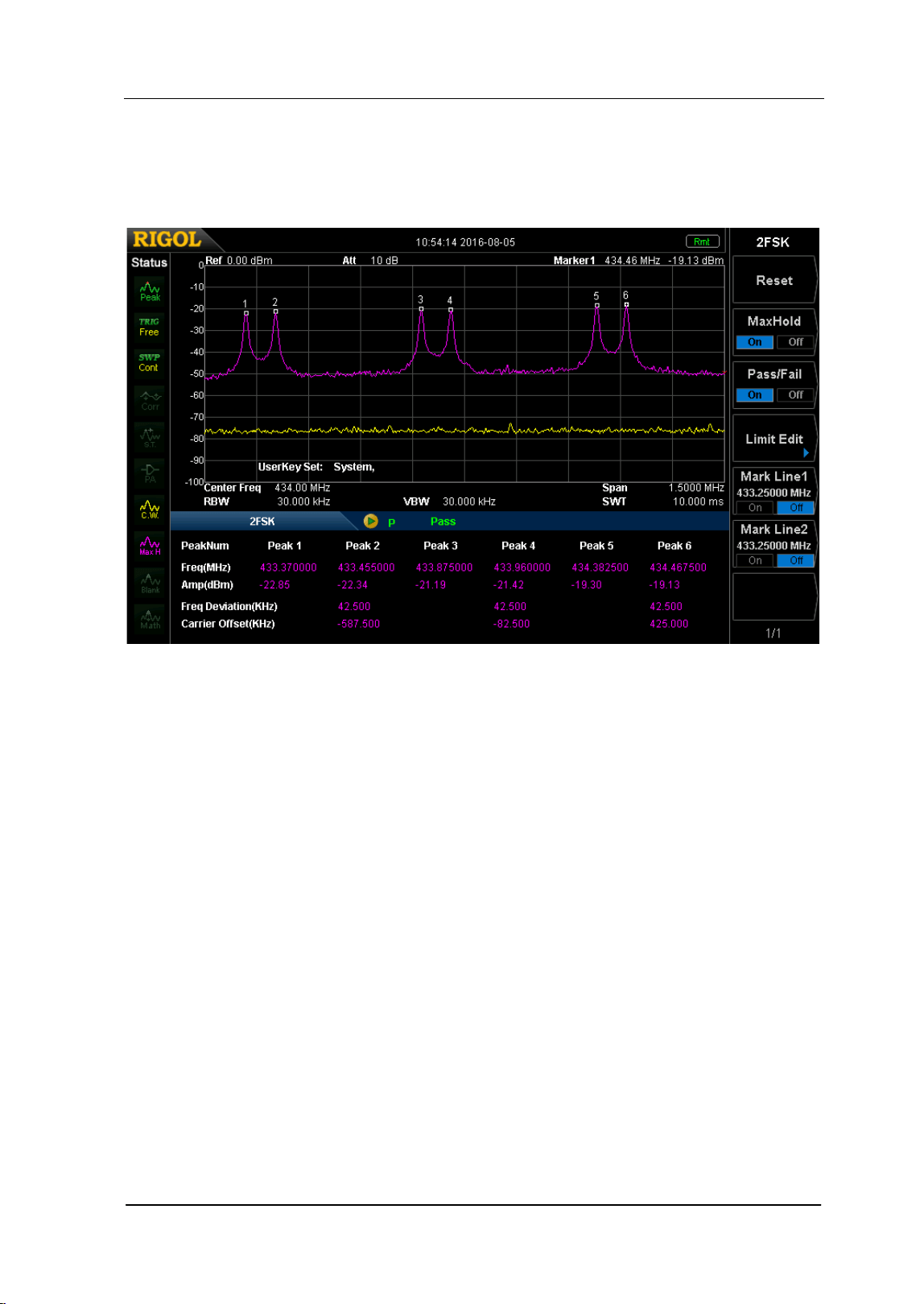
Chapter 2 Front Panel Operation RIGOL
User’s Guide for DSA700 Series
2-57
2FSK
Measurement Interface:
Figure 2-20 2FSK Measurement Interface
Measurement Results:
For the three pairs of 2FSK signals, the frequency and amplitude of each peak, the
Freq Deviation and Carrier Offset are shown.
Taking the first pair of 2FSK signal as an example,
Freq Deviation = |Peak 1 Freq – Peak 2 Freq|/2
Carrier Offset = (Peak1 Freq + Peak2 Freq)/2 - Center Frequency
The measurement results are based on the max hold trace if the max hold is
turned on. If else, the measurement results are based on the real time trace.
1. Reset
Delete the original signal and capture new signals. The reset operation has no
effect on the user settings.
2. MaxHold
Turn max hold on or off. When max hold is turned on, the signal captured
RIGOL Chapter 2 Front Panel Operation
User’s Guide for DSA700 Series
2-58
each time will be compared with the previously captured signal, the greater
value of which will be displayed as the max hold trace. The max hold trace is
displayed in pink and the real time trace is displayed in yellow.
3. Pass/Fail
Enable or disable the pass/fail function. Before enabling the pass/fail function,
edit the amplitude limits referring to the introduction below.
On:
is displayed in the test result display window. If the amplitudes of
the six peaks are within the amplitude limit range, the instrument passes
the test and the test result display window shows "P" (green) and "Pass".
If else, the test fails and the test result display window shows "F" (red)
and "Fail".
Off:
is displayed in the test result display window. The test result
display window shows "
- -
" and "---".
4. Limit Edit
Set the amplitude limit range of each peaks in the pass/fail test.
Signal: select the signal to be modified. The signal and the corresponding
peaks are shown in the table below.
Signal
Peaks
1 Peak 1 and Peak 2
2 Peak 3 and Peak 4
3 Peak 5 and Peak 6
Ampt Up: set the amplitude upper limit.
Ampt Down: set the amplitude lower limit.
5. Mark Line1
Turn Marker1 on or off. When Marker1 is turned on, a blue vertical line is
displayed in the basic measurement window. In addition, the frequency at
Marker1 is displayed in this menu or you can set the frequency at Marker1 via
this menu. You can use the numeric keys, knob or direction keys to modify this
parameter.
6. Mark Line2
Turn Marker2 on or off. When Marker2 is turned on, a red vertical line is
displayed in the basic measurement window. In addition, the frequency at
Marker2 is displayed in this menu or you can set the frequency at Marker2 via
Chapter 2 Front Panel Operation RIGOL
User’s Guide for DSA700 Series
2-59
this menu. You can use the numeric keys, knob or direction keys to modify this
parameter.
Note: If the frequencies at Marker1 and Marker2 are the same, the two vertical
lines will overlap with the red vertical line corresponding to Marker2 being
displayed at the upper layer.
RIGOL Chapter 2 Front Panel Operation
User’s Guide for DSA700 Series
2-60
Demod
Press Demod at the front panel to enter the demodulation setting menu. Both AM
and FM demodulations are available in this device.
Demod
Set the demodulation type to AM or FM; or disable the demodulation function. The
default is Off.
Key Points:
The system will enable a marker automatically, place it at the center
frequency and perform AM (or FM) demodulation on this frequency point after
you enable AM (or FM) demodulation.
DSA700 provides earphone jack and the demodulated signal can be output in
audio frequency (AF) mode through the earphone. The frequency and
intensity of AF denotes the frequency and amplitude of the signal respectively.
Demod Setup
1. Earphone
Set the status of the earphone. When it is on, the demodulated signal can be
heard through the earphone during the demodulation. By default, it is Off.
2. Volume
Set the volume of the earphone.
3. Demod Time
Set the time for the analyzer to complete a signal demodulation after each
sweep. If Earphone is set to "On", you will hear the demodulated signal
through the earphone during the demodulation. You can use the numeric keys,
knob or direction keys to modify this parameter. For more details, please refer
to "
Parameter Setting".
Chapter 2 Front Panel Operation RIGOL
User’s Guide for DSA700 Series
2-61
4. Signal Gain
Set the signal gain to adjust the signal energy. When the signal amplitude is
small, the better demodulation effect can be obtained by adjusting the gain
value. You can use the numeric keys, knob or direction keys to modify this
parameter. For more details, please refer to "Parameter Setting".
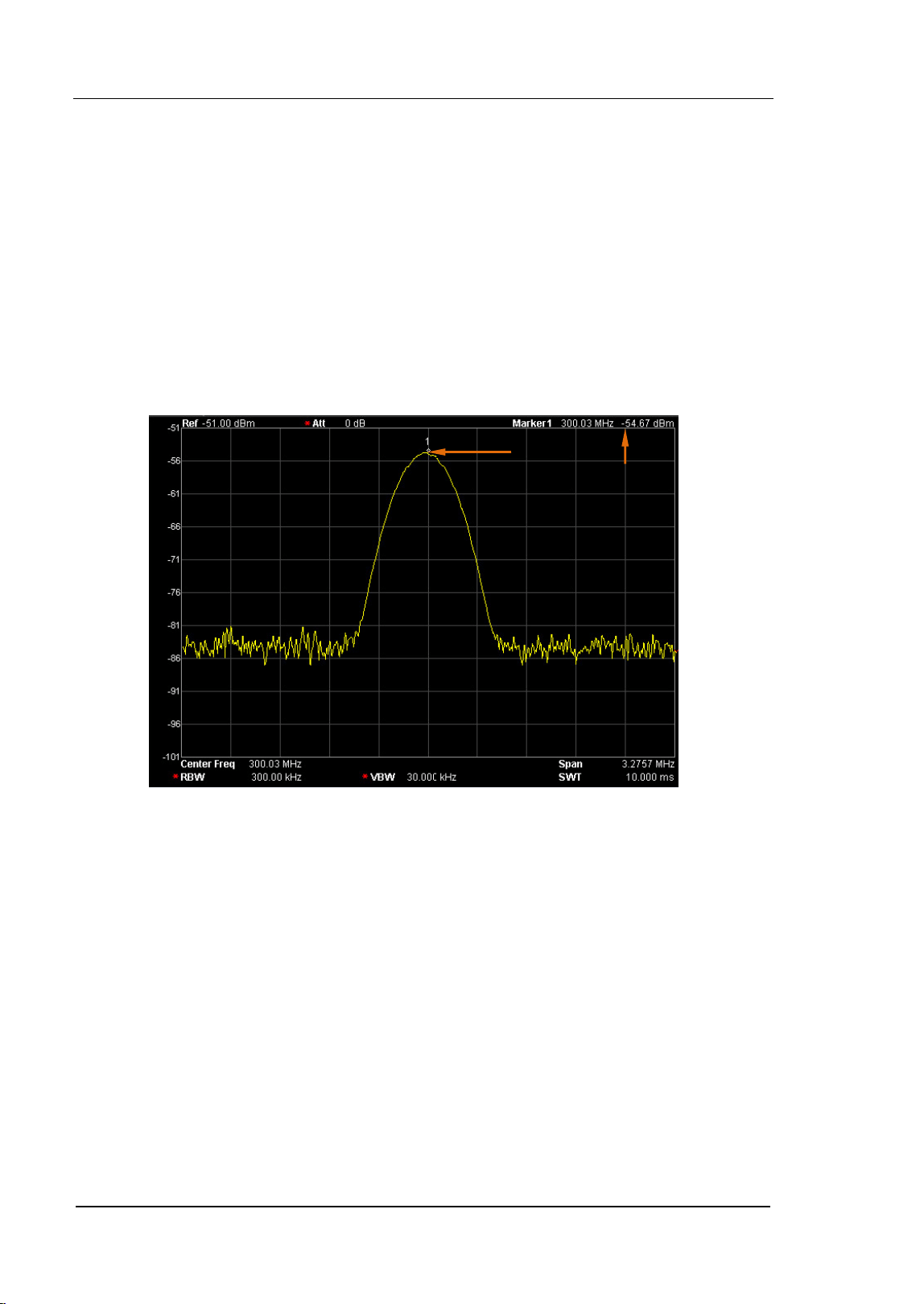
RIGOL Chapter 2 Front Panel Operation
User’s Guide for DSA700 Series
2-62
Marker Measurements
Marker
The marker appears as a rhombic sign (as shown below) for identifying the point
on the trace. You can easily read the the amplitude, frequency and sweep time of
the marked point on the trace.
Figure 2-21 Schematic of the Marker
Key Points:
The analyzer allows for up to four pairs of markers to be displayed at one time,
but only one pair or a single marker is active every time.
You can use the numeric keys, knob or direction keys to modifiy the desired
frequency or time as well as view the readouts of different points on the trace.
Marker
Marker
Readings
Chapter 2 Front Panel Operation RIGOL
User’s Guide for DSA700 Series
2-63
Select Mkr
Select one of the four markers and the default is Marker1. When a marker is
selected, you can set its type, trace to be marked, readout type and other related
parameters. The enabled marker will appear on the trace selected through the
Mkr Trace option and the readouts of this marker are also displayed in the active
function area and at the upper right corner of the screen.
Normal
One of the marker types. It is used to measure the X (Frequency or Time) and Y
(Amplitude) values of a certain point on the trace. When selected, a marker with
the number of the current marker (such as "1") appears on the trace.
Key Points:
If no active marker exists currently, a marker will be enabled automatically at
the center frequency of the current trace.
You can use the numeric keys, knob or direction keys to move the marker. The
readouts of the marker will be displayed at the upper right corner of the
screen.
The readout resolution of the X-axis (frequency or time) is related to the span.
For higher readout resolution, reduce the span.
RIGOL Chapter 2 Front Panel Operation
User’s Guide for DSA700 Series
2-64
Delta
One of the marker types. It is used to measure the delta values of X (Frequency or
Time) and Y (Amplitude) between the reference point and a certain point on the
trace. When selected, a pair of markers appears on the trace: Reference Marker
(marked by a combination of the marker number and letter "R", such as "1R") and
the Delta Marker (marked by the marker number, such as "1").
Key Points:
A reference marker will be activated at the position of the current marker if an
active marker currently exists; or else both the reference marker and delta
marker will be simultaneously activated at the center frequency.
The location of the reference marker is always fixed (both on the X-axis and
the Y-axis); while the Delta Marker is active. You can use the numeric keys,
knob or direction keys to change the location of the Delta Marker.
The frequency (or time) delta and amplitude delta between the two markers
are displayed at the upper right corner of the screen.
There are two methods for defining a point as the reference point:
a) Open a "Normal" marker and locate it onto a point. Then, switch the
marker type to "Delta"; at this time, this point is the reference point. You
can modify the location of the delta point to achieve delta measurement.
b) Open a "Delta" marker and locate it onto a point. Then, reselect the
Delta menu to locate the reference marker onto this point. You can
modify the location of the delta point to achieve delta measurement.
When the Noise Mkr function under the Marker Fctn menu is activated, the
result of the noise measurement will be corrected automatically and be
normalized to 1 Hz.
The application of "Delta" marker
Measure the signal-noise ratio of single spectrum signal:
Place the reference and delta Markers onto the signal and noise respectively, the
amplitude in the measurement result is the signal-noise ratio.

Chapter 2 Front Panel Operation RIGOL
User’s Guide for DSA700 Series
2-65
Delta Pair
One of the marker types. When selected, a pair of markers will appear on the trace:
Reference Marker (marked by a combination of the marker number and letter "R",
such as "1R") and the Delta Marker (marked by the marker number, such as "1").
Key Points:
You can use the numeric keys, knob or direction keys to set the locations of
the reference marker (selecting "Ref") and the delta marker (selecting "Delta")
respectively.
This is different from the Delta type marker in that you can modify both the
reference (selecting "Ref") and delta (selecting "Delta") points. Additionally,
both the X and Y values of the reference marker are stable for "Delta" marker
during the sweep; but the Y value of the reference marker updates along with
the sweep for "Delta Pair" marker.
Span Pair
One of the marker types. When selected, a pair of markers will appear on the trace:
Reference Marker (marked by a combination of the marker number and letter "R",
such as "1R") and the Delta Marker (marked by the marker number, such as "1").
Key Points:
You can use the numeric keys, knob or direction keys to set the locations of
both the reference marker and delta marker at the same time.
If "Span" is selected, setting the "Span Pair" will keep the center position of
the two markers unchanged and move them towards the two sides (value
increases) or the middle (value decreases).
If "Center" is selected, setting the "Span Pair" will keep the relative distance
between the two markers unchanged and move their center position left
(value decreases) or right (value increases).
This is different from the "Delta" type marker in that you can modify both the
reference marker and delta marker at the same time.

RIGOL Chapter 2 Front Panel Operation
User’s Guide for DSA700 Series
2-66
Off
Turn off the marker currently selected. The marker information displayed on the
screen and functions based on the marker will also be turned off.
Mkr Trace
Select the trace to be marked by the current marker from 1, 2, 3, Math or Auto
(default). When Auto is selected, the system searches for the desired trace in the
order of Clear Write, Max Hold, Min Hold, Video Avg, Power Avg and Freeze; then
selects one from them in the sequence of the trace number 1, 2 and 3 if more than
two traces are found.
Readout
Select a desired readout type of the X-axis for the marker and different markers
can use different readout types. This setting will change the readout type and
affect the marker readings in the active function area and at the upper right corner
of the screen, but will not change the actual value.
Frequency
In this type, Normal marker shows the absolute frequency; while Delta
marker, Delta Pair marker and Span Pair marker show the frequency
difference between the delta marker and reference marker. The default
readout mode in non-zero span mode is "Frequency".
Note: This type is invalid in Zero span mode.
Period
In this type, Normal marker shows the reciprocal of frequency; while Delta
marker, Delta Pair marker and Span Pair marker show the reciprocal of
frequency difference. When the frequency difference is zero, the reciprocal is
infinite and 10 Ts is displayed.
Note: This type is invalid in Zero span mode.
Chapter 2 Front Panel Operation RIGOL
User’s Guide for DSA700 Series
2-67
ΔTime
In this type, Normal marker shows the time difference between the marker
and the start of the sweep; while Delta marker, Delta Pair marker and Span
Pair marker show the sweep time difference between the delta marker and
reference marker.
The default readout mode in Zero span mode is ΔTime.
1/ΔTime
In this type, the reciprocal of sweep time difference between the delta marker
and reference marker will be shown. When the time difference is zero, the
reciprocal is infinite and 100 THz is displayed.
Note: This type is available only in Zero span mode when a Delta type
marker is selected and is suitable for the frequency measurement of a video
signal.
Mkr Table
Enable or disable the Marker Table.
Display all the markers enabled on the lower portion of the screen, including
marker number, trace number, marker readout type, X-axis readout and amplitude.
Through this table you can view the measurement values of multiple points. The
table allows for up to eight markers to be displayed at one time.
Note: The marker table currently opened can be stored in external memory and
be recalled when needed. Press Storage to save the marker table according to
the method introduced in "Storage".
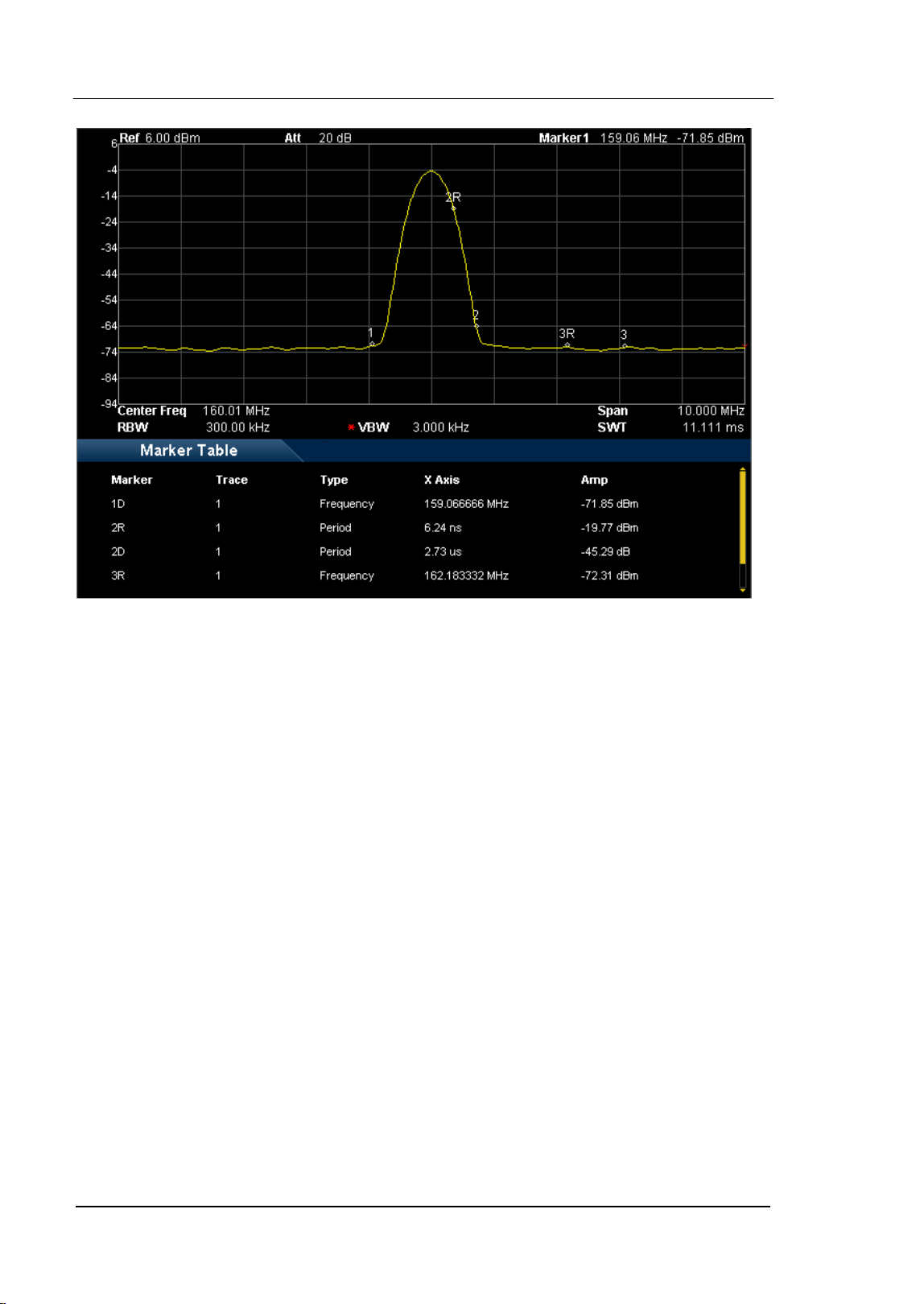
Chapter 2 Front Panel Operation RIGOL
User’s Guide for DSA700 Series
2-69
Marker->
Set the other system parameters (such as center frequency and reference level)
using the current marker readings. Press Marker-> to enable a marker
automatically if no marker is currently enabled.
Mkr->CF
Set the center frequency of the analyzer to the frequency of the current marker.
If Normal marker is selected, the center frequency will be set to the
frequency of the current marker.
If Delta, Delta Pair, or Span Pair marker is selected, the center frequency
will be set to the frequency of the Delta Marker.
The function is invalid in Zero span mode.
Mkr->Step
Set the center frequency step of the analyzer to the frequency of the current
marker.
If Normal marker is selected, the center frequency step will be set to the
frequency of the current marker.
If Delta, Delta Pair or Span Pair marker is selected, the center frequency
step will be set to the frequency of the Delta Marker.
The function is invalid in Zero span mode.
Mkr->Start
Set the start frequency of the analyzer to the frequency of the current marker.
If Normal marker is selected, the start frequency will be set to the frequency
of the current marker.
If Delta, Delta Pair or Span Pair marker is selected, the start frequency will
be set to the frequency of the Delta Marker.
The function is invalid in Zero span mode.

RIGOL Chapter 2 Front Panel Operation
User’s Guide for DSA700 Series
2-70
Mkr->Stop
Set the stop frequency of the analyzer to the frequency of the current marker.
If Normal marker is selected, the stop frequency will be set to the frequency
of the current marker.
If Delta, Delta Pair or Span Pair marker is selected, the stop frequency will
be set to the frequency of the Delta Marker.
The function is invalid in Zero span mode.
Mkr->Ref
Set the reference level of the analyzer to the amplitude of the current marker.
If Normal marker is selected, the reference level will be set to the amplitude
of the current marker.
If Delta, Delta Pair, or Span Pair marker is selected, the reference level will
be set to the amplitude of the Delta Marker.
MkrΔ->CF
Set the center frequency of the analyzer to the frequency difference between the
two markers in Delta, Delta Pair, or Span Pair marker type.
If Normal marker is selected, this function is invalid.
The function is invalid in Zero span mode.
MkrΔ->Span
Set the span of the analyzer to the frequency difference between the two markers
in Delta, Delta Pair or Span Pair marker type.
If Normal marker is selected, this function is invalid.
The function is invalid in Zero span mode.
Chapter 2 Front Panel Operation RIGOL
User’s Guide for DSA700 Series
2-71
Marker Fctn
Special marker functions including Noise Mkr, N dB BW and Freq Count.
Select Mkr
Select the marker to be used for the specified measurement function and the
default is marker 1.
Noise Mkr
Execute the Noise marker function for the selected marker and read the noise
power spectral density.
Key Points:
If the current marker is "Off" in the Marker menu, pressing Noise Mkr will
first set it to Normal type automatically; then measure the average noise level
at the marked point and normalize this value to 1 Hz bandwidth. During this
process, certain compensation is always made on the basis of the detection
and trace types. The measurement will be more precise if RMS Avg or Sample
detection type is used.
This function can be used for measuring the C/N ratio.
N dB BW
Enable the N dB BW measurement or set the value of N dB.
The N dB BW denotes the frequency difference between two points that are
located on both sides of the current marker and with N dB fall (N<0) or rise (N>0)
in amplitude as shown in the figure on the next page.
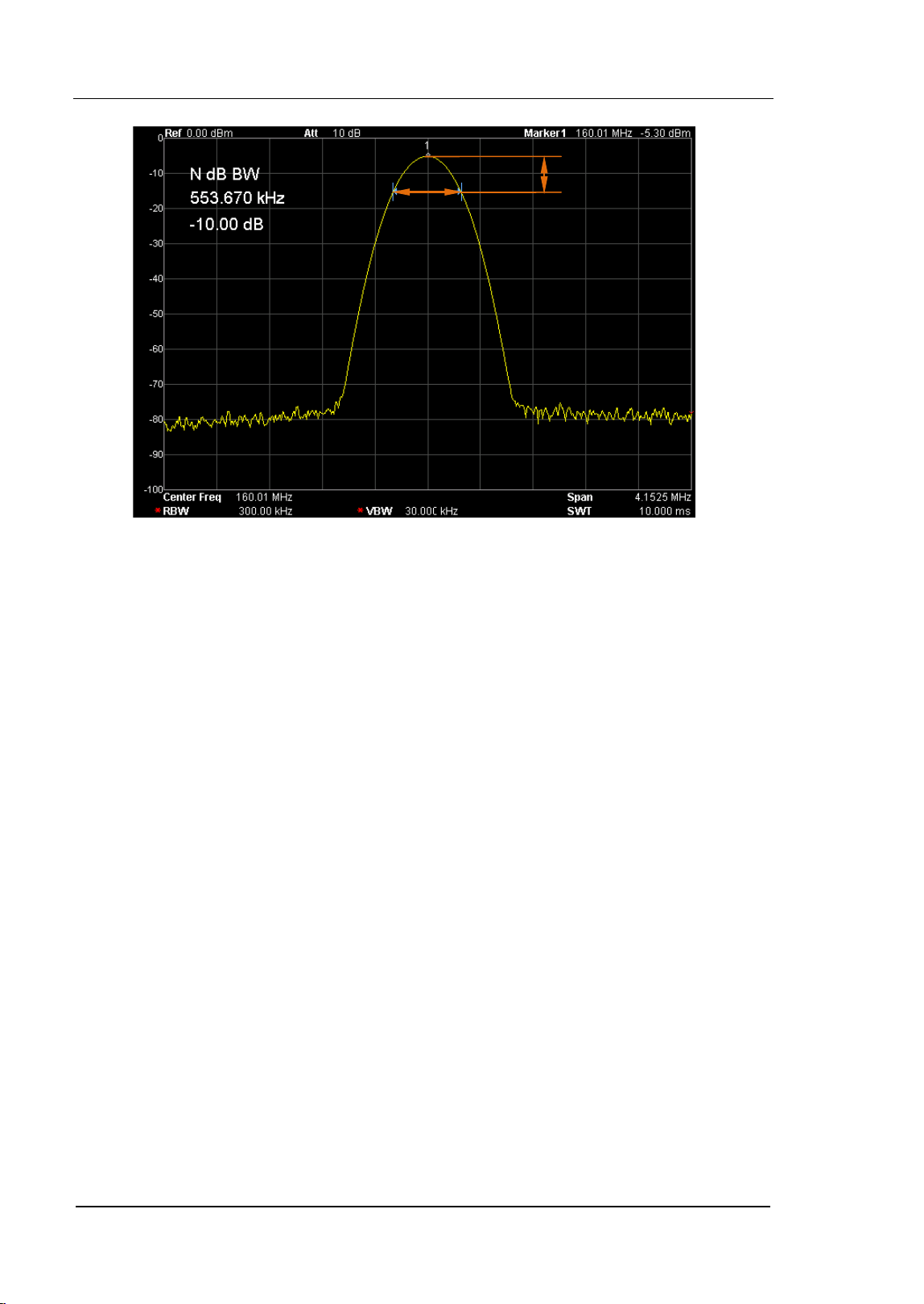
RIGOL Chapter 2 Front Panel Operation
User’s Guide for DSA700 Series
2-72
Figure 2-23 N dB BW measurement
Key Points:
When the measurement starts, the analyzer will search for the two points
which are located at both sides of the current point with N dB fall or rise in
amplitude and display the frequency difference between the two points in the
active function area. "----" would be displayed if the search fails.
You can use the numeric keys, knob or direction keys to modify the value of N,
for more details please refer to "Parameter Setting".
Function Off
Turn off the noise marker enabled or N dB BW measurement, but not the marker
itself.
N dB
N dB
Bandwidth
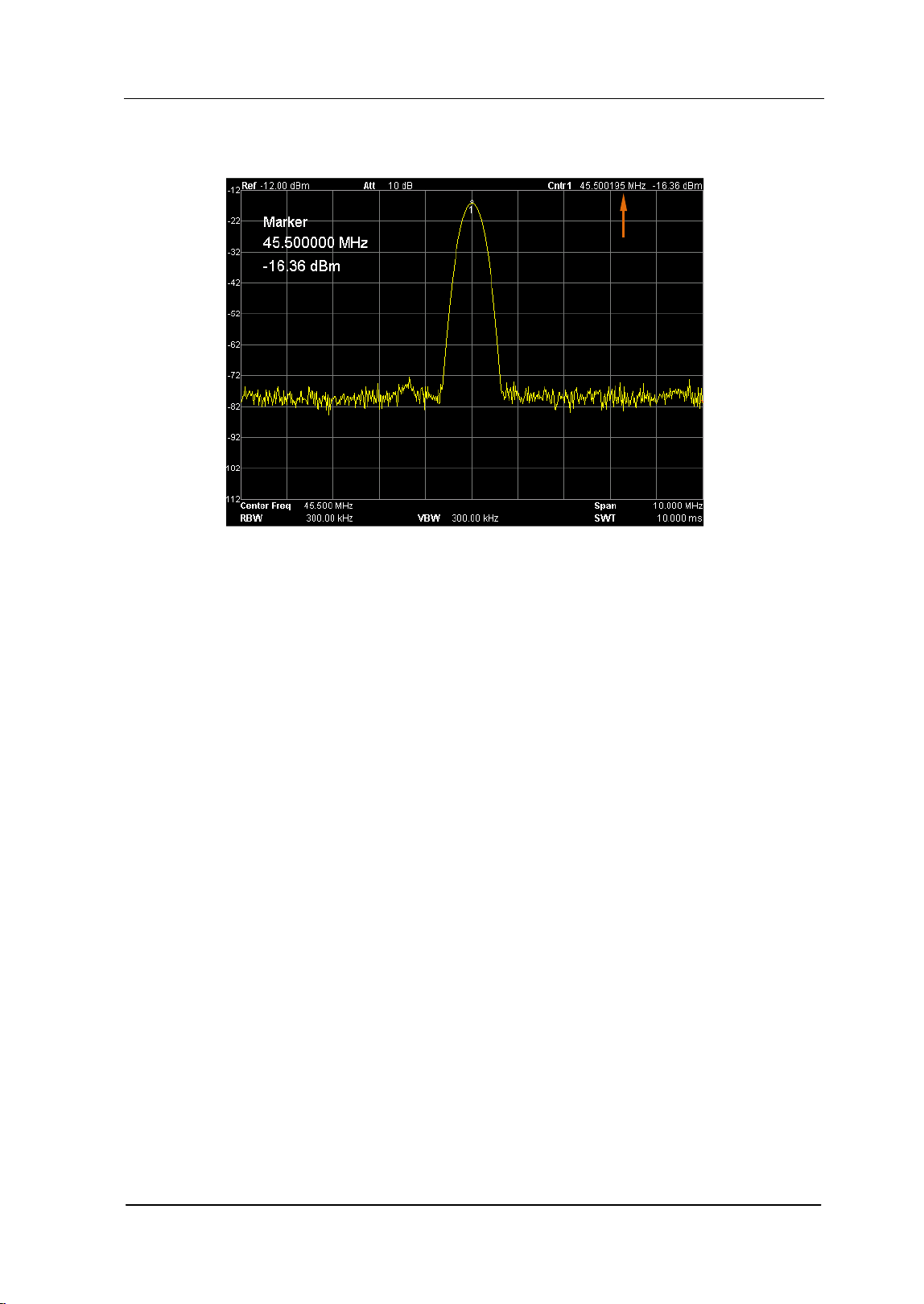
Chapter 2 Front Panel Operation RIGOL
User’s Guide for DSA700 Series
2-73
Freq Count
Figure 2-24 Frequency Counter Measurement
1. State
Turn on or off the frequency counter.
Key Points:
If no active marker currently exists, turning on the frequency counter will
open a Normal marker automatically.
The frequency readout is more accurate when the frequency counter is
enabled.
The frequency counter measures the frequency near the center
frequency in Zero span mode.
2. Resolution
Set the resolution of the frequency counter manually or automatically. The
available resolutions are 1 Hz, 10 Hz, 100 Hz, 1 kHz, 10 kHz and 100 kHz.
Counter Readings

RIGOL Chapter 2 Front Panel Operation
User’s Guide for DSA700 Series
2-74
Peak
Open the peak search setting menu and execute peak search.
Key Points:
If Max is selected in Search Para Peak Search, the system will search
for and mark the maximum on the trace.
If Param is selected in Search Para Peak Search, the system will search
for and mark the peak that meets the peak search condition.
The search of Next Peak, Peak Right, Peak Left or peaks in the peak table
must meet the specified peak search condition.
The spurious signal caused by LO feed through at zero frequency is ignored.
When no peak that meets the specified peak search condition is found, "No
peak found" is displayed.
Next Peak
Search for and mark the peak whose amplitude is closest to that of the current
peak and which meets the peak search condition.
Peak Right
Search for and mark the nearest peak which is located at the right side of the
current peak and meets the peak search condition.
Peak Left
Search for and mark the nearest peak which is located at the left side of the
current peak and meets the peak search condition.
Chapter 2 Front Panel Operation RIGOL
User’s Guide for DSA700 Series
2-75
Min Search
Search for and mark the peak with the minimum amplitude on the trace.
Peak Peak
Execute peak search and minimum search at the samt time and mark the results
with delta pair markers. Wherein, the result of peak search is marked with the
delta marker and the result of minimum search is marked with the reference
marker.
Cont Peak
Enable or disable continuous peak search and the default is Off. When enabled, the
system will always execute a peak search automatically after each sweep in order
to track the signal under measurement.
The difference between Cont Peak and Signal Track
In Cont peak, the system always searches for the maximum in the current
channel; while in Signal Track, the system will search for and mark the point
(with no more than 3 dB variation in amplitude) near the marker before Signal
Track is enabled, as well as set the frequency of this point as the center
frequency.
Search Para
Define the conditions of peak search for various peak searches. A real peak should
meet the requirements of both the "PK Excursn" and "PK Thresh".
1. PK Excursn
Set the excursion between the peak and the minimum amplitude on both
sides of it. Peaks whose excursions are beyond the specified excursion are
treated as real peaks.
RIGOL Chapter 2 Front Panel Operation
User’s Guide for DSA700 Series
2-76
2. PK Thresh
Assign a minimum for the peak amplitude. Peaks whose amplitudes are
greater than the specified peak threshold are treated as real peaks.
3. Peak Search
Set the peak search condition. The available options are Maximum and Para.
If Max is selected, the system searches for the maximum on the trace.
If Para is selected, the system searches for the peak that meets the
parameter condition on the trace.
Note: This setting applies only to the peak search executed by pressing Peak
at the front panel; while other searches such as Next Peak, Peak Right, Peak
Left and Min Search are all based on the Para.
Peak Table
Open the peak table (in the lower window) which lists the peaks (with frequency
and amplitude) that meet the peak search condition. Up to 10 peaks can be
displayed in the table.
The peak table currently opened can be stored in external memory and be recalled
when needed. Press Storage to save the peak table according to the method
introduced in "Storage".
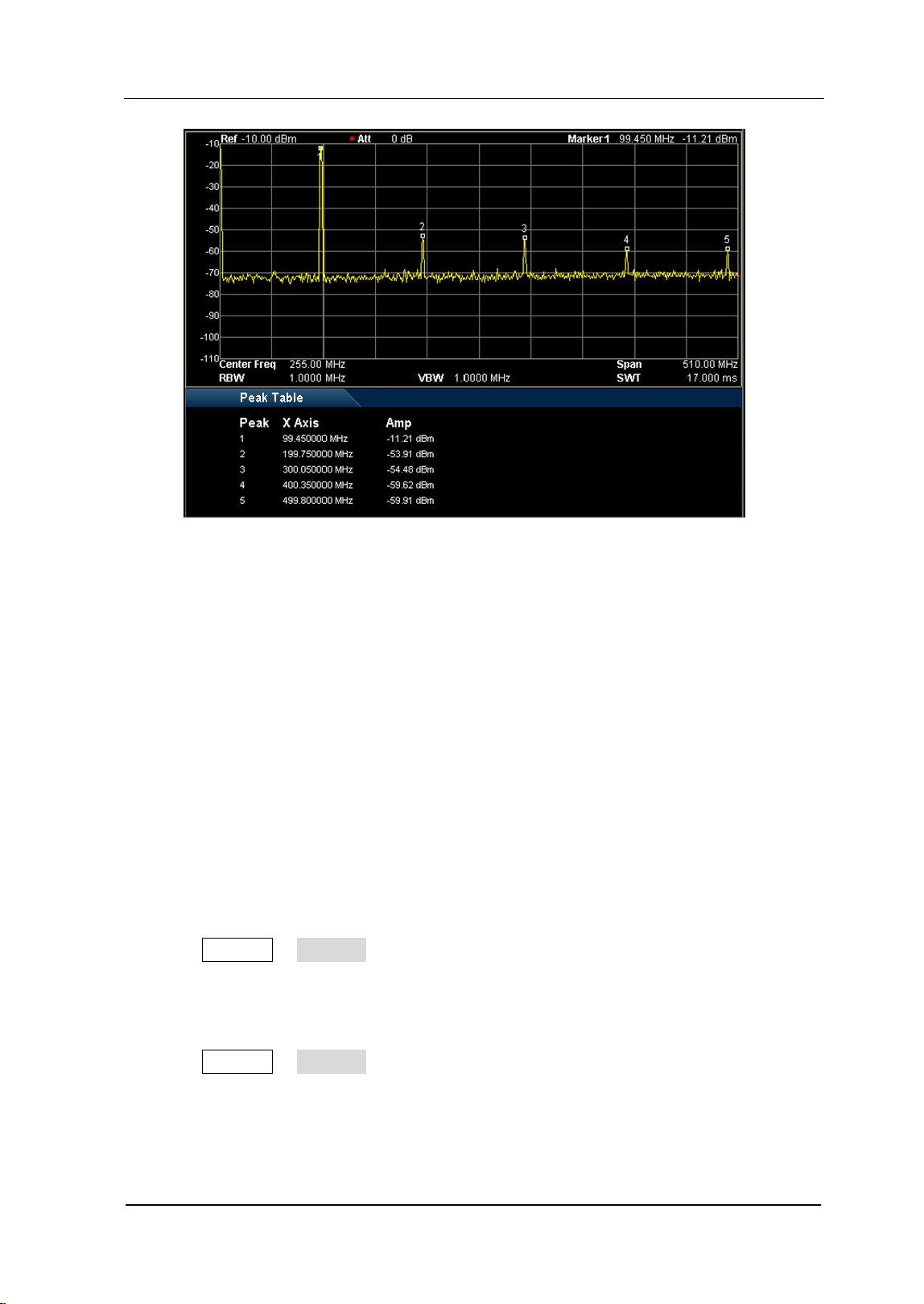
Chapter 2 Front Panel Operation RIGOL
User’s Guide for DSA700 Series
2-77
Figure 2-25 Peak Table
1. State
Turn on or off the peak table and the default is Off.
2. Peak Sort
Select a rule for peak sorting and the default is frequency ascending.
3. Pk Readout
Set the peak display condition to Normal, >DL or <DL.
Normal
Display the first ten qualified peaks in the table.
>DL
Display the first ten peaks that not only meet the peak search conditions
but also have amplitudes greater than the specified display line (set in
System Display) in the table.
<DL
Display the first ten peaks that not only meet the peak search conditions
but also have amplitudes lower than the specified display line (set in
System Display) in the table.
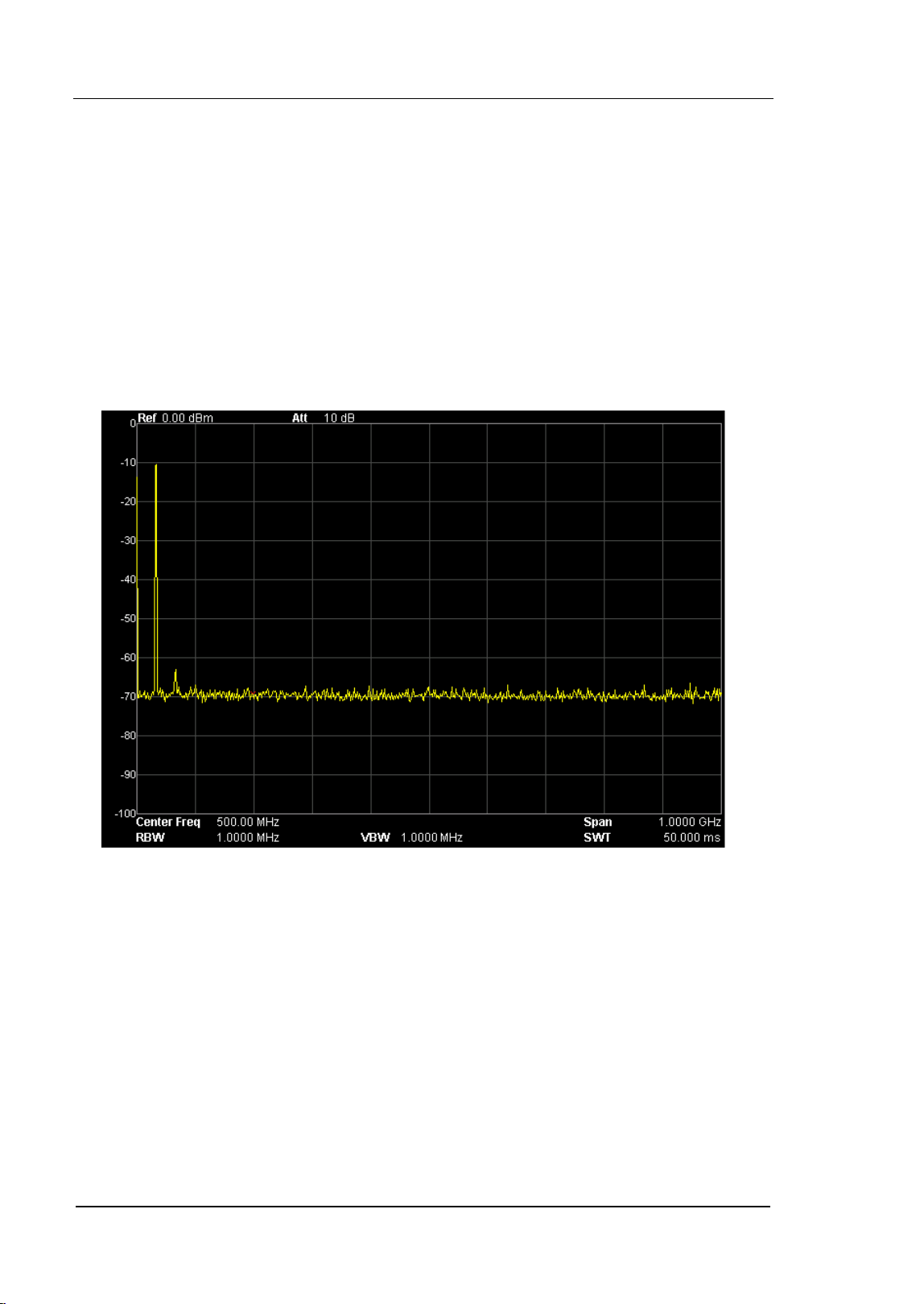
RIGOL Chapter 2 Front Panel Operation
User’s Guide for DSA700 Series
2-78
Shortcut Key
Auto
Search for signals automatically throughout the full frequency range; adjust the
frequency and amplitude for optimum display effect of the signal to realize one-key
signal search and auto setting of parameters.
Figure 2-26 Before Auto Search
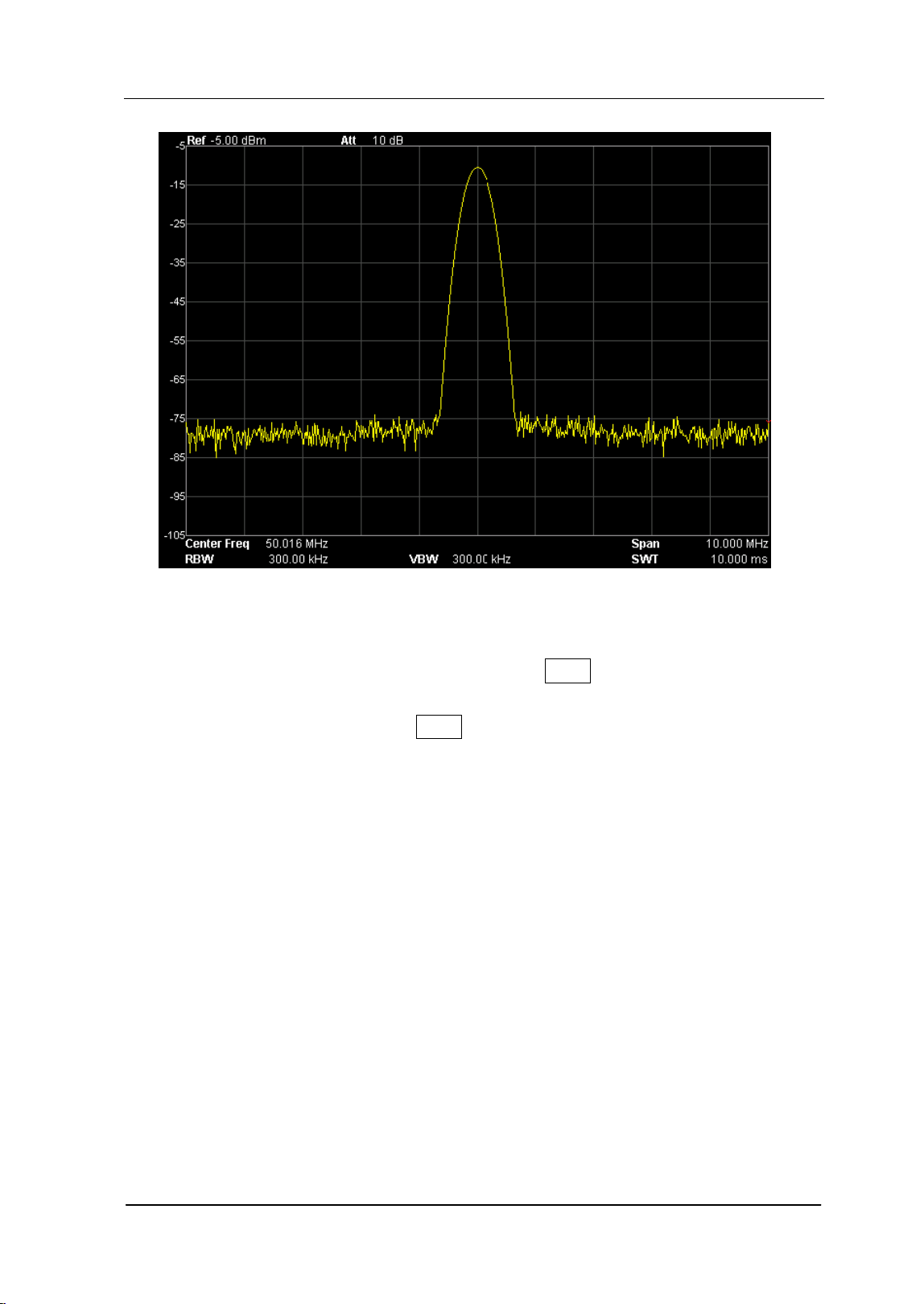
Chapter 2 Front Panel Operation RIGOL
User’s Guide for DSA700 Series
2-79
Figure 2-27 After Auto Search
Key Points:
In the process of auto search, the backlight of Auto turns on and "Auto Tune"
is shown in the status bar on the screen until the search is finished.
During the auto search, press Auto to stop the search.
Some parameters such as the reference level, scale, input attenuation and
maximum mixing level may be changed during the auto search.
RIGOL Chapter 2 Front Panel Operation
User’s Guide for DSA700 Series
2-80
User Key
User-defined shortcut key. For some hard-to-find but commonly used function
menu, users can define it as shortcut key (for the defining method, refer to the
introduction in "UserKey Setting
"). After that, press the shortcut key under any
operation interface to quickly open and set the desired menu or function.
Note: You can use User Key to define all the keys at the front panel as well as
the sub-menus of these keys (except Storage).
Chapter 2 Front Panel Operation RIGOL
User’s Guide for DSA700 Series
2-81
Preset
Recall the preset setting and restore the analyzer to a specified status.
Key Points:
Press System Reset Preset Type to select "Factory" or one of "User1"
to "User6".
Press Preset to load the factory settings listed in the following table (except
items marked with "**") or User-defined settings.
Table 2-3 Factory Settings
Parameter Default
Frequency
Center Freq 500 MHz
Start Freq 0 Hz
Stop Freq 1 GHz
CF Step Auto, 100 MHz
Signal Track Off
Span
Span 1 GHz
Amplitude
Ref Level 0 dBm
Ref Offset 0 dB
Scale/Div 10 dB
Input Atten Auto, 10 dB
Scale Type Log
Units dBm
RF Preamp Off
Input 50 Ω
MaxMixL -10 dBm
Corrections Off
BW/Det
BW
RBW Auto, 1 MHz
VBW Auto, 1 MHz
RIGOL Chapter 2 Front Panel Operation
User’s Guide for DSA700 Series
2-82
V/R Ratio 1
Detector
Det Type Pos Peak
Filter Type Gauss
Sweep/Trig
Sweep
Time Auto, 33.333 ms
Auto SWT Normal
Mode Cont
Numbers 1
Trig
Trig Type Free Run
Trig Level 0 dBm
Edge Positive
Trace/P/F
Trace
Select Trace 1
Trace Type of Trace 1 Clear Write
Avg Times 100
Function A-B
A T1
B T2
Const 0 dB
Operate Off
P/F
Switch Off
Meas Mode Cont
Limit Upper
Test Off
X-axis Freq
Freq Interp Lin
Fail Stop On
Beeper Off
Rel Freq Off
Rel Ampt Off
Measure*
Chapter 2 Front Panel Operation RIGOL
User’s Guide for DSA700 Series
2-83
Meas Mode Cont
Meas Fctn Off
Measure Setup*
T-Power
Avg Num Off, 10
Avg Mode Exp
TP Type Peak
Start Line 0 us
Stop Line 33.333 ms
ACP
Avg Num Off, 10
Avg Mode Exp
Main CH BW 2 MHz
Adj CH BW 2 MHz
CH Spacing 2 MHz
Chan Pwr
Avg Num Off, 10
Avg Mode Exp
Integ BW 2 MHz
CH Pwr Span 3 MHz
OBW
Avg Num Off, 10
Avg Mode Exp
Max Hold Off
OBW Span 2 MHz
Power Ratio 99%
EBW
Avg Num Off, 10
Avg Mode Exp
Max Hold Off
EBW Span 2 MHz
EBW X dB -10 dB
C/N Ratio
Avg Num Off, 10
Avg Mode Exp
Offset Freq 2 MHz
RIGOL Chapter 2 Front Panel Operation
User’s Guide for DSA700 Series
2-84
Noise BW 2 MHz
Carrier BW 2 MHz
Harmo Dist
Avg Num Off, 10
Avg Mode Exp
NO.of Harmo 10
Harmonic ST Auto, 33.333 ms
TOI
Avg Num Off, 10
Avg Mode Exp
TOI Span 2 MHz
Demod
Demod Off
Earphone Off
Volume 100
Demod Time 100 ms
Marker
Select Mkr 1
Mkr Type Normal
Delta Pair Delta
Span Pair Center
Mkr Trace Auto
Readout Frequency
Mkr Table Off
Peak
Cont Peak Off
Peak Search Max
Pk Excursn 10 dB
Pk Thresh -90 dBm
Peak Table Off
Peak Sort Freq
Pk Readout Normal
Marker Fctn
Mkr Fctn Off
N dB BW -3 dB
Freq Count State Off
Chapter 2 Front Panel Operation RIGOL
User’s Guide for DSA700 Series
2-85
Resolution Auto, 1 kHz
System**
Preset Type Factory
Power On Preset
Language English
Remote I/O Off
DHCP On
Auto-IP On
Manual-IP Off
USB Dev Class TMC
Dev Addr 1
GPIB Address 18
Front Switch On
UserKey Set Off
Time/Date On
Self-Cal On
Display Line Off, 0 dBm
Active Fctn Top
Graticule 3
Scr State On
Brightness 2
UserKey On
Msg Switch On
Storage**
File Type All
Format BIN
File Source T1
Browser File
Input Style English
Prefix Switch Off
Print Setup**
Orientation Landsc
Page Size Default
Inverted Off
Palette Gray
Copies 1
Chapter 2 Front Panel Operation RIGOL
User’s Guide for DSA700 Series
2-87
Print
Press
to save or print the current screen.
Key Points:
When a printer is currently connected, press this key and the analyzer prints
the current screen image according to the print settings (please refer to the
introduction in "Print Setup").
If a USB storage device rather than printer is currently connected, press this
key and the analyzer switches to the storage and recall interface. You can
save the current screen data (with the specified filename) in ".bmp", ".jpg" or
".png" format under the specified directory in the USB storage device.
If the key is pressed when neither a printer nor a USB storage device is
successfully connected, "Missing media" is displayed and the operation is
ignored.
RIGOL Chapter 2 Front Panel Operation
User’s Guide for DSA700 Series
2-88
System Settings
System
Set the system parameters.
Language
DSA700 supports multi-language menu, Chinese and English bulid-in help and
popup messages.
Press this key to select the desired display language.
Reset
Functions include: select the instrument settings to be recalled after the analyzer is
powered on ("Last" or "Preset"); set the preset type ("Factory" or one of "User1" to
"User6") and save system configuration.
1. Power On
Set the power on setting to "Last" or "Preset".
When "Last" is selected, settings before the last power-off would be
recalled automatically at power on.
When "Preset" is selected, settings defined in Preset Type would be
recalled automatically at power on.
2. Preset Type
Set the preset type to factory (default) or one of User1 to User6.
When Power On is set to "Preset", the specified preset type will be
recalled at power on.
After the instrument starts, press Preset at the front panel under any
operation interface will recall the specified preset type.
Chapter 2 Front Panel Operation RIGOL
User’s Guide for DSA700 Series
2-89
3. Save Preset
Save the current instrument setting as user-defined setting into the internal
non-volatile memory. You can store and name up to 6 system states
(correspond to "User1" to "User6" in the preset type).
When one of "User1" to "User6" is selected in Preset Type, press Save
Preset and the instrument automatically opens the filename input interface
(refer to "
To Input Filename" to store the setting).
Note: This menu is grayed out and disabled when "Factory" is selected in
Preset Type.
Calibrate
1. Cal Now
Press this key and the analyzer will use the internal calibration source to
perform a self-calibration immediately. Self-calibration would last about 5 s
and "Calibrating" is displayed in the user interface status bar during the
calibration.
2. Self-Cal
When auto calibration is enabled, the analyzer executes self-calibration
regularly. Within half an hour after power-on, the analyzer executes a
self-calibration every 10 minutes and per hour after being powered on for
more than half an hour.
3. Acc Cal
Press this key and the analyzer executes comprehensive calibration which
includes the amplitude calibration when the preamplifier is turned on/off and
the spurious signal calibration. "Calibrating" is displayed in the user interface
status bar during the calibration.
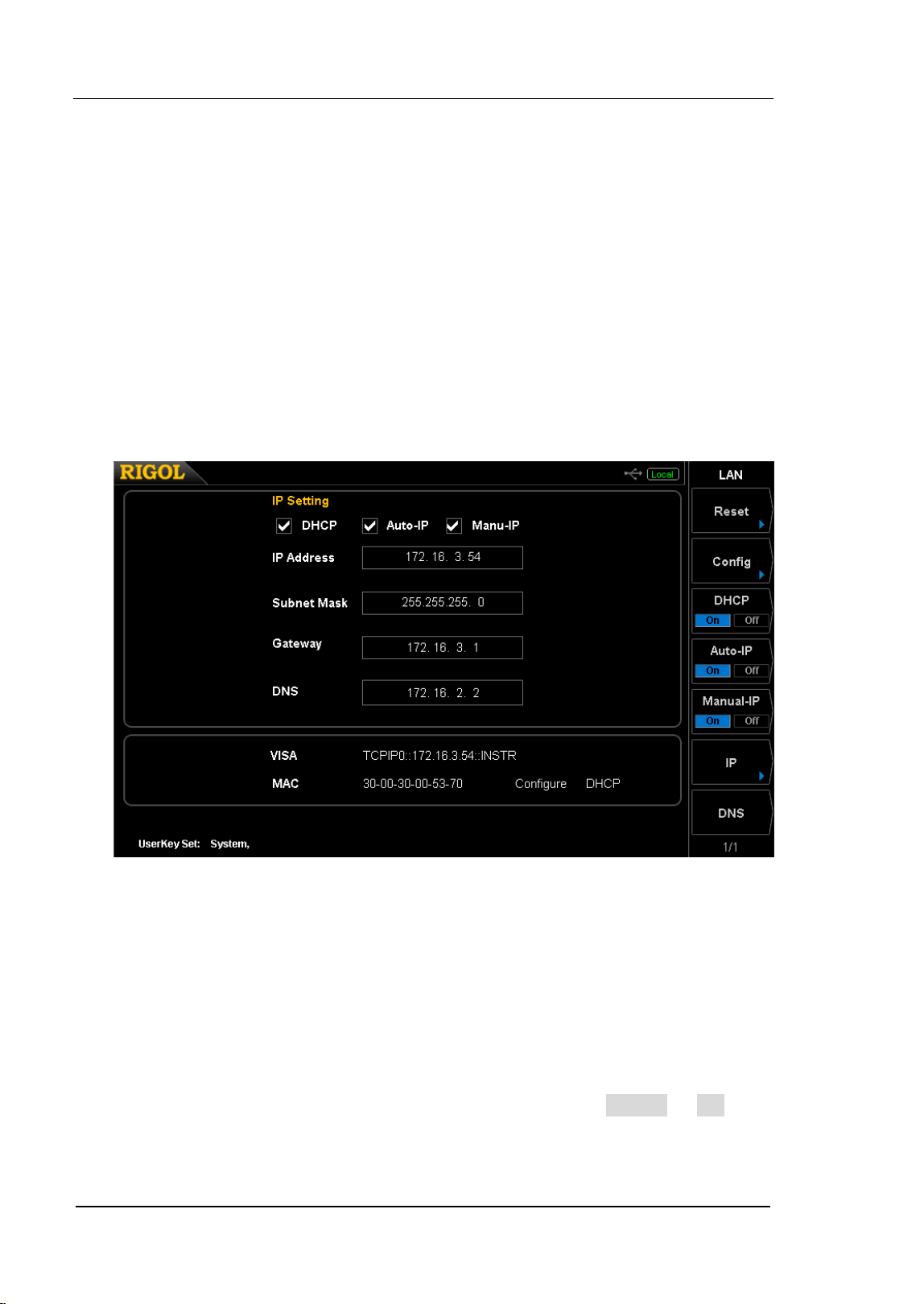
RIGOL Chapter 2 Front Panel Operation
User’s Guide for DSA700 Series
2-90
I/O Settings
This analyzer supports communications through LAN, USB and GPIB interfaces.
Both LAN and USB are standard interfaces, and GPIB should be configured by
using a USB-GPIB interface converter (option) provided by RIGOL.
1. Remote I/O
Selete LAN, USB or GPIB, or disable all the three interfaces.
2. LAN
Set or reset the LAN parameters.
Figure 2-28 LAN parameter setting
The following items can be set through the front panel or remote interface.
Reset:
Turn on DHCP and Auto-IP, turn Manual-IP off. Clear the network
password set to restore it to factory setting.
Config:
After the LAN interface configuration is finished, press Config OK to
apply the configuration.
Chapter 2 Front Panel Operation RIGOL
User’s Guide for DSA700 Series
2-91
DHCP:
One of the setting methods of IP address. When DHCP is enabled, the
DHCP server assigns network parameters (such as the IP address, subnet
mask and gateway) to the analyzer on the basis of the current network
configuration.
Auto-IP:
One of the setting methods of IP address. When auto IP is enabled, the
analyzer obtains an IP address (from 169.254.0.1 to 169.254.255.254)
and the subnet mask 255.255.0.0 automatically.
Manual-IP:
One of the setting methods of IP address. When manual IP is enabled,
users can define a desired IP address for the analyzer.
IP:
Set the IP address, subnet mask and gateway manually.
a) Press IP Address and use the numeric keys to input the desired IP
address.
The format of IP address is nnn.nnn.nnn.nnn. Wherein, the range of
the first nnn is from 1 to 223 (except 127) and the ranges of the
other three nnn are from 0 to 255. It is recommended that you ask
your network administor for an available IP address.
b) Press Mask and use the numeric keys to input the desired subnet
mask.
The format of subnet mask is nnn.nnn.nnn.nnn, wherein, the range
of nnn is from 0 to 255. It is recommended that you ask your
network administor for an available subnet mask.
c) Press Gate and use the numeric keys to input the desired gateway.
The format of gateway is nnn.nnn.nnn.nnn. Wherein, the range of
the first nnn is from 1 to 223 (except 127) and the ranges of the
other three nnn are from 0 to 255. It is recommended that you ask
your network administor for an available gateway.
Note: The analyzer always tries to get an IP address in the order of DHCP,
Auto-IP and Manual-IP. These three methods cannot be disabled at the
same time.
RIGOL Chapter 2 Front Panel Operation
User’s Guide for DSA700 Series
2-92
Domain Server (DNS):
Set the IP address of the DNS server. The format of domain server
address is nnn.nnn.nnn.nnn. Wherein, the range of the first nnn is from 1
to 223 (except 127) and the ranges of the other three nnn are from 0 to
255. It is recommended that you ask your network administor for an
available address. Press DNS and use the numeric keys to input the
desired address.
3. USB
DSA700 provides a USB Device interface at the rear panel.
Dev Class:
The analyzer may serve as a "slave" device to connect computer or PictBridge
printing device through this interface. You can set the class and address of the
USB slave device. The device classes include Auto Configure, TMC (default)
and Printer.
Auto Configure: the device class depends on the USB host device.
TMC: use the analyzer as a Test & Measurement Class device.
Printer: use the analyzer as a Printer Class device.
Dev Addr:
View the device address. The device address shows the current USB address
and can’t be edited by users.
4. GPIB
Set the GPIB address.
You can modify this parameter using the numeric keys, knob or direction keys.
For more details, please refer to "Parameter Setting".
Chapter 2 Front Panel Operation RIGOL
User’s Guide for DSA700 Series
2-93
Display
Control the screen display of the analyzer, such as setting the display line, active
function area, grid brightness, screen state, brightness, UserKey status and
message switch.
1. Display Line
Turn on or off the display line or change its position. This line can be used as
either the reference for you to read the measurement result or the threshold
condition for the peaks displayed in the peak table.
Key Points:
This line is a horizontal reference of which the amplitude is equal to the
set value and the corresponding amplitude unit is the same as the Y-axis
unit.
You can modify this parameter using the numeric keys, knob or direction
keys. For more details, please refer to "Parameter Setting".
2. Active Fctn
Set the position of the active function area for convenient observation of the
trace. Selectable positions are Top (default), Center and Bottom of the screen.
Pressing Esc key closes the display of the active function area.
3. Graticule
Set the brightness of the grid to highlight the trace.
You can modify this parameter using the numeric keys, knob or direction keys.
For more details, please refer to "Parameter Setting".
4. Scr State
Turn on or off the screen and the default is "On". If you select "Off", "The
display was locked, please press Esc to unlock." will be displayed. At this point,
the screen stops updating and the measurement speed is improved. In
remote mode, the screen is always locked.
5. Brightness
Set the LCD brightness of the analyzer.
You can modify this parameter using the numeric keys, knob or direction keys.
RIGOL Chapter 2 Front Panel Operation
User’s Guide for DSA700 Series
2-94
For more details, please refer to "Parameter Setting".
6. Userkey
Turn on or off the display of the definition of User Key in the main interface.
7. Msg Switch
Enable or disable the display of messages. The types of messages in this
analyzer include Information Message, Error Message and Status Message. Only
Information Messages will be dispayed if the message display is turned off. For
more details about messages, refer to "Messages".
Work Setting
1. Front Switch
Set the status of the front switch and the default is "On".
On: when the analyzer is powered on, press the power switch at the front
panel to start up the analyzer.
Off: when the analyzer is powered on, it starts automatically.
2. Line Mode
Enter line mode. In line mode, in order to avoid fault operation, all the keys at
the front panel except the following are disabled.
Menu softkeys: select the desired preset type.
Esc: exit line mode.
3. UserKey Setting
Define a relative function for User Key at the front panel (the defining
method is as described below). After that, pressing User Key under any
operation interface can quickly enable the pre-defined function.
Press UserKey Set and select "On".
Open the desired function menu, such as: System Self-Test Key
Test.
Press User Key and the definition is finished. UserKey Set turns off
automatically.
Chapter 2 Front Panel Operation RIGOL
User’s Guide for DSA700 Series
2-95
Coupl Param
Set all the related parameters automatically according to the coupling relationship.
Definitions of the auto coupling parameters:
1. CF Step
This parameter maintains a coupling relationship with RBW (or span) in zero
span (or non-zero span) mode. Refer to "CF Step" for more details.
2. Reference level
The reference level, input attenuation, preamplifier and maximum mixing
level maintain coupling relationships. Refer to the introduction of equation
(2-3) in "Ref Level" for more details.
3. Input Attenuation
The input attenuation, reference level, preamplifier and maximum mixing
level maintain coupling relationships. Refer to the introduction of equation
(2-3) in "Ref Level" for more details.
4. RBW
This parameter maintains a coupling relationship with the span. Refer to "RBW"
for more details.
5. VBW
This parameter maintains a coupling relationship with RBW. Refer to "VBW"
for more details.
6. Sweep Time
The sweep time, RBW, VBW and span maintain coupling relationships. Refer
to "BW/Det" for more details.
RIGOL Chapter 2 Front Panel Operation
User’s Guide for DSA700 Series
2-96
Information
View the system information or messages recently shown on the screen.
1. System Information
Model
Serial Number
Version of Main Board
Version of Radio Frequency Board FPGA
Version of Digital Board FPGA
Version of Firmware
Version of Boot
2. System Message
View the system messages recently displayed (up to 71 items). For more
information about system messages, refer to "Messages".
Self-Test
1. Screen Test
Test whether the screen has a dot defect using five colors: White, Red, Green,
Blue and Black. Press any key to switch the screen color and exit the test.
2. Key Test
Enter the keyboard test interface. Press the function keys at the front panel
one by one and observe whether the corresponding key lights. If not, an error
may have occurred in that key. To exit the test, press Esc three times.
Note: If the keys at the front panel are transparent, the corresponding
backlight will go on when testing it.
Chapter 2 Front Panel Operation RIGOL
User’s Guide for DSA700 Series
2-97
Time/Date
The system time is displayed in "hh:mm:ss YYYY-MM-DD" format in the DSA700
user interface. The output file can include the time information when printing or
storing interface image according to your setting.
1. Time/Date
Enable or disable the Time/Date display.
2. Set Time
Set the display time of the analyzer. The time format should be hhmmss, for
example, 231211 (denotes 23:12:11).
3. Set Date
Set the display date of the analyzer. The date format should be YYYYMMDD,
for example, 20160424 (denotes April 24th, 2016).
License
DSA700 provides many kinds of options to fulfill various measurement
requirements. To order the corresponding option, please contact RIGOL.
1. To Acquire the License
1) Please order the desired option and the option key is provided.
2) Log in RIGOL website (www.rigol.com); click "SERVICE" and select
"Software License Register" to enter the software license register
interface.
3) Input the correct option key, instrument serial number (press System
Information System Info to acquire the serial number) and
verification code as well as click "Generate" to acquire the corresponding
option license.
2. To install and view the option
Press License to enter the option management interface to view the option
status and the license key of the installed option as well as install the desired
RIGOL Chapter 2 Front Panel Operation
User’s Guide for DSA700 Series
2-98
option.
1) Option Info
Press Option Info to view the installation status of options.
2) License Info
Press License Info to view the license key of the option installed.
3) Install
Press Install and use the numeric keypad and the knob on the front
panel to enter the option license. For example,
DASXZJWFDAMPGSN7VAW9HTM8YCCA. After all the characters are
entered, press OK to finish the input. The analyzer identifies the entered
license key and matches it to the corresponding option automatically. At
this point, the option is installed and activated (Y is displayed in the Active
column).
Tips:
You can also install the option by controlling the spectrum analyzer remotely.
1. Build the communication between the analyzer and PC using USB, LAN or
GPIB (option) interface. About the connection method, please refer to the
descriptions of "Remote Control".
2. Send the :SYSTem:LKEY <license key> command, for
example, :SYSTem:LKEY DASXZJWFDAMPGSN7VAW9HTM8YCCA, the
analyzer identifies the received license key and matches it to the
corresponding option automatically. At this point, the option is installed and
activated (Y is displayed in the Active column).
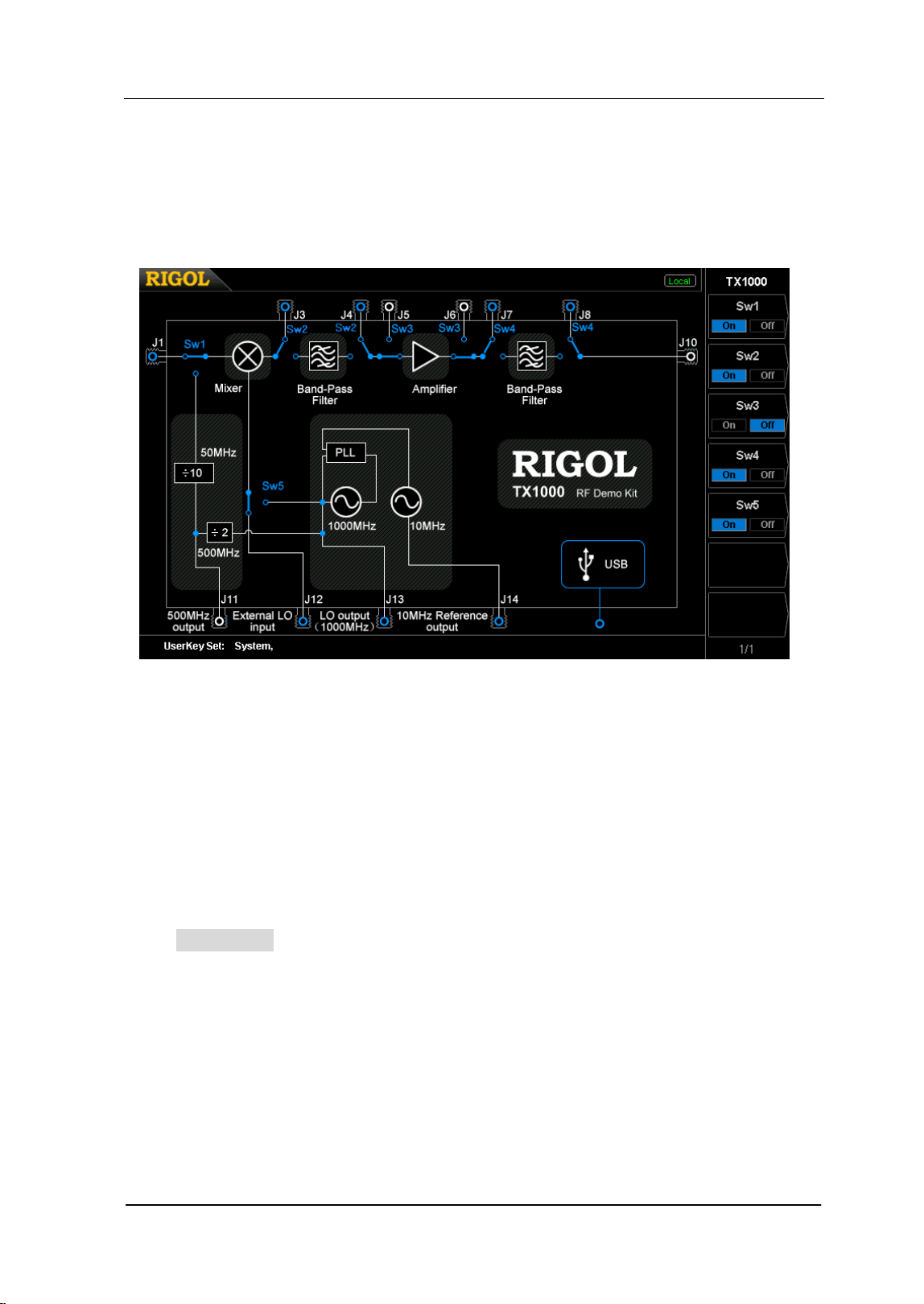
Chapter 2 Front Panel Operation RIGOL
User’s Guide for DSA700 Series
2-99
TX1000 (Option)
DSA700 supports RIGOL TX1000 series spectrum analyzer RF Demo Kit. Press
this key to open the TX1000 control panel as shown in the figure below.
Figure 2-29 TX1000 control panel
Note: This function is available only when the analyzer is connected with the
TX1000 option. For the detailed application of TX1000, please refer to
TX1000_ApplicationNote
.
Sanitation
Press Sanitation to clear all data set by user and restore them to factory settings.
The user data saved in the NVRAM and NorFlash are restored to factory settings.
HOST NAME, IP address and password in LXI are restored to factory settings.
RIGOL Chapter 2 Front Panel Operation
User’s Guide for DSA700 Series
2-100
Screenshots
Press Screenshots, you can select "BMP", "JPEG" or "PNG". If a USB storage
device is currently connected, press
and you can save the current screen
data (with the specified filename) in ".bmp", ".jpg" or ".png" format under the
specified directory in the USB storage device.
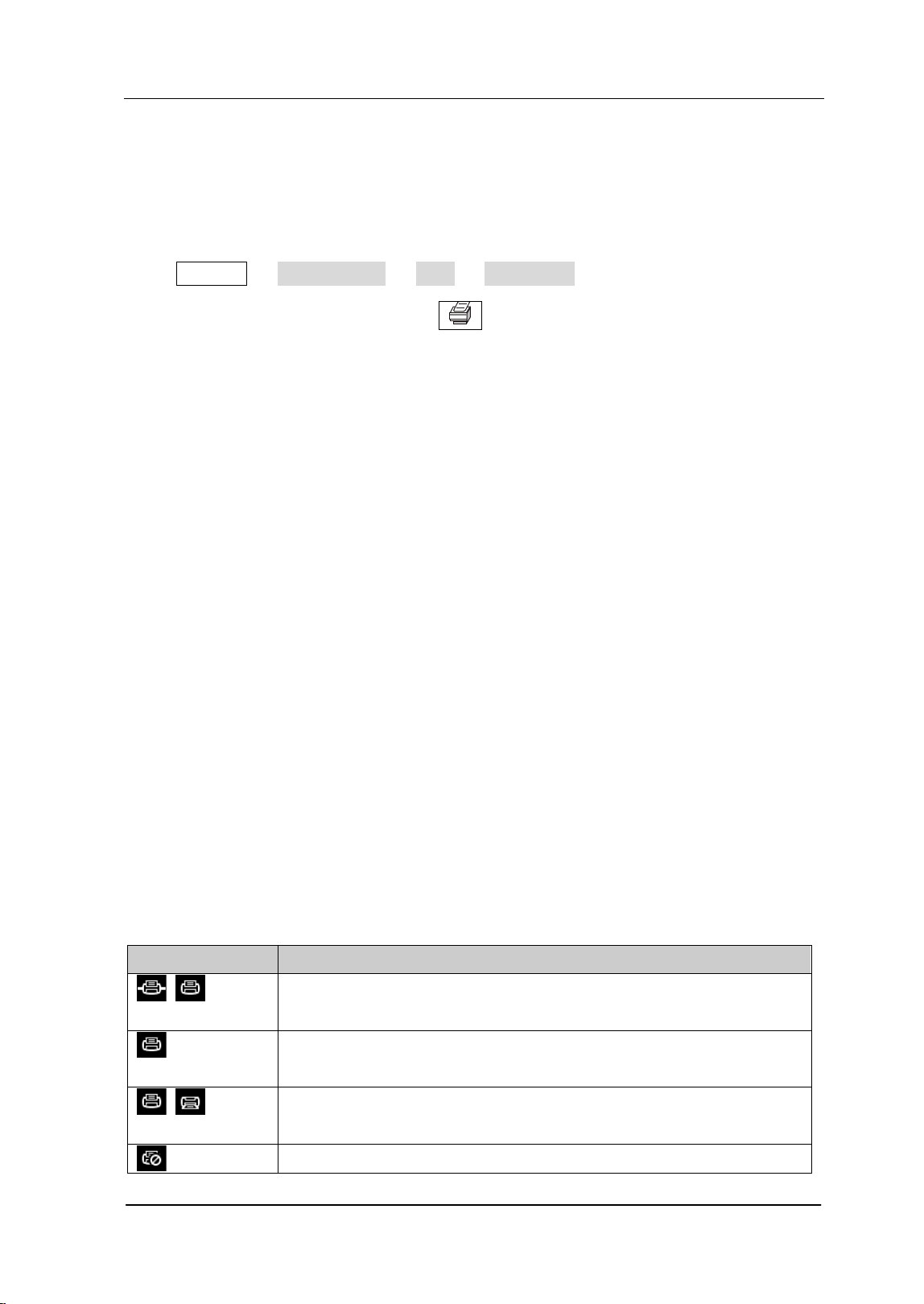
Chapter 2 Front Panel Operation RIGOL
User’s Guide for DSA700 Series
2-101
Print Setup
Set the print parameters. The analyzer supports PictBridge printer. Connect the
analyzer (USB Device interface) with the PictBridge printer using a USB cable.
Press System I/O Setting USB Dev Class "Printer" and set the
desired print parameters; then press to print the current measurement
results.
Ptinter Connection and Printing Procedures:
(1) Turn on the PictBridge printer and wait until the power-on initialization is
finished.
(2) Use the USB cable provided in the accessories to connect the analyzer with
the PictBridge printer.
(3) "PictBridge printer connected." is shown on the analyzer screen to prompt
you that the instrument now is initializing the driver and the print module.
(4) If the printer is successfully installed, "PictBridge printer installed
successfully." will be displayed on the analyzer screen. At this point, you can
set the print parameters and start to print.
(5) After the corresponding measurement is done, set the sweep mode to
"Single" to stop the sweep and save the frozen measurement result. Then,
execute the print operation.
(6) The printer symbol, print state and process are shown in the status bar on the
analyzer screen during the printing.
(7) You can pause and resume the printing if necessary.
(8) The printer enters idle state and waits for the next task after the printing is
finished.
Table 2-4 Printing state icons
Icon Explanation
The two icons are displayed alternately, indicating that the
printer now is connecting.
The printer is successfully connected, the printing is finished or
the printer is idle.
The two icons are displayed alternately, indicating that the
printing is in progress.
The printing has been paused.
RIGOL Chapter 2 Front Panel Operation
User’s Guide for DSA700 Series
2-102
1. print
Print the current screen according to print parameter settings when the
printer has been successfully installed and is in idle state.
2. Resume
Resume the print task that has been paused.
3. Cancel
Stop the current print task.
4. Orientation
Set the print orientation to "Landscape" or "Portrait" and the default is
"Landscape".
5. Page Size
Set the page size to "Default", "A4", "A5", "A6" or "B5". When "Default" is
selected, the page size depends on the printer currently connected.
6. Inverted
Turn on or off the inverted print and the default is "Off".
7. Palette
Set the print color to "Gray" or "Color" and the default is "Gray".
8. Copies
Set the print copies and the default is 1. The range available is from 1 to 999.
9. Date Print
Turn on or off the date print and the default is "Off". When it is turned on, the
file printed will contain the system date.
10. Qualities
Set the print quality to "Normal", "Draft", "Fine" or "Default". When "Default"
is selected, the quality depends on the printer connected.
Tip:
"Fine" printing may consume more ink than others.
Chapter 2 Front Panel Operation RIGOL
User’s Guide for DSA700 Series
2-103
11. File Type
Set the printing file type to "Default" or "Exif/JPEG". When "Default" is
selected, the type depends on the printer currently connected.
Tip:
The analyzer can automatically identify the characteristics of the printer,
such as the page size, during the printer installation. If some
configuration is not supported by the current printer, the corresponding
menu in the analyzer is invalid. For example, if the current printer does
not support color printing, the "Color" option in the Palette menu is
invalid.
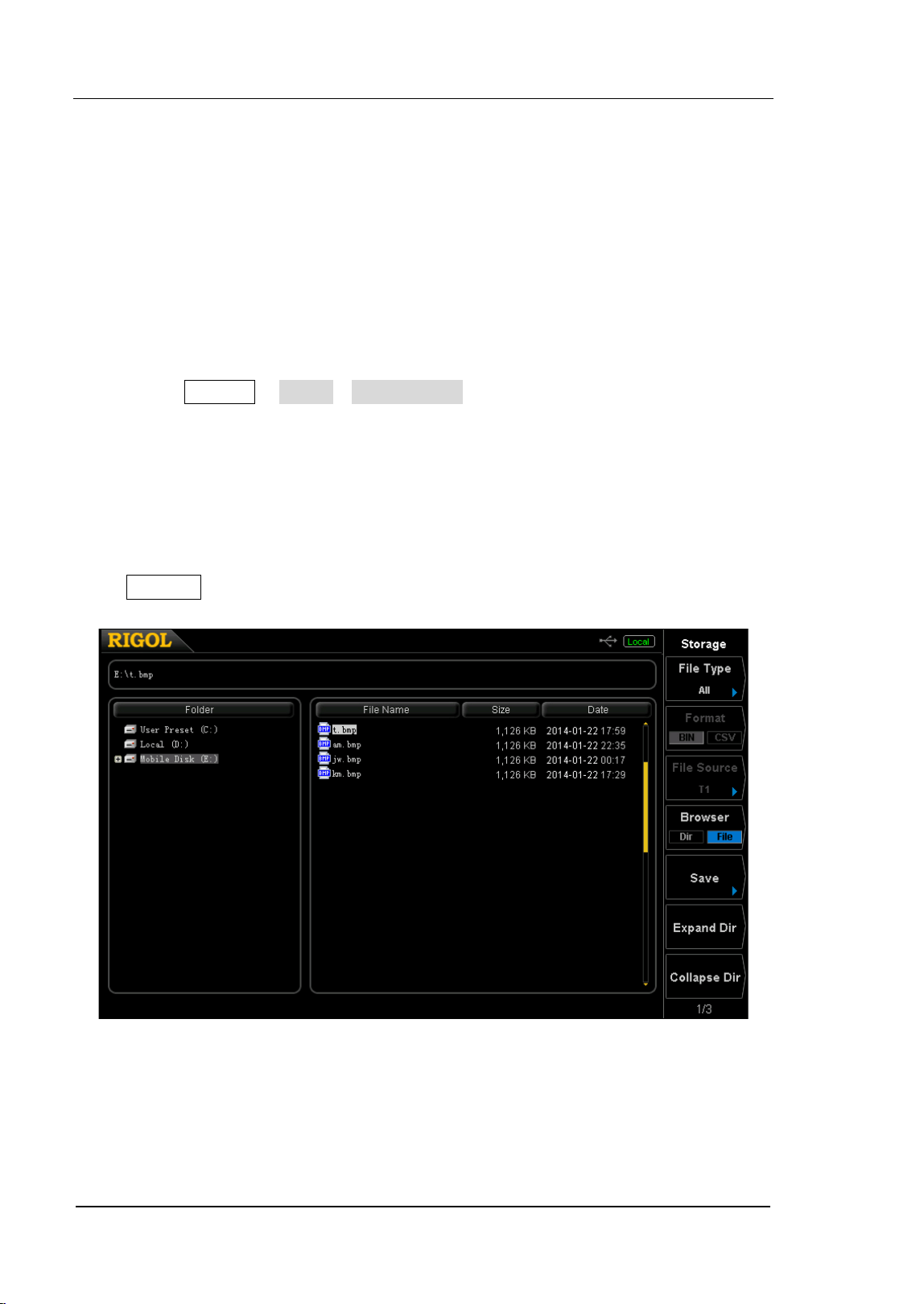
RIGOL Chapter 2 Front Panel Operation
User’s Guide for DSA700 Series
2-104
Storage
DSA700 allows users to store and recall various kinds of files in internal or external
memory.
DSA700 provides a storage space (User Preset (C:)) for user-defined instrument
states, a local memory (Local (D:)) and an external memory (Mobile Disk (E:)).
C disk: provide 6 state file storage locations. Users can store 6 state files
through System ResetSave Preset.
D disk: provide storage locations for various kinds of files, such as setup, state
and trace.
E disk: available when a USB storage device connected to the USB Host
interface at the front panel is detected (you can save the file with the same type
as D disk).
Press Storage at the front panel to enter the storage and recall interface.
Figure 2-30 File Manager
Note: DSA700 can only recognize files with filenames consisting of Chinese
characters, English characters and numbers. If the filename or folder name
contains other characters, the file or folder might not be displayed normally in the
storage and recall interface.
Chapter 2 Front Panel Operation RIGOL
User’s Guide for DSA700 Series
2-105
File Type
Press Storage File Type to select the desired file type. The file types available
include All, Setup, State, Trace, Corrections, Measure, Marker Table, Peak Table
and Limit. The default is All. For the details about each type of file, see the table
below.
Note:
1) The State file only stores all the settings which are affected by pressing
Preset (see Table 2-3
). The Setup file not only stores all the settings which
are affected by pressing Preset but also stores the amplitude correction list
(the frequencies and amplitudes of the points to be corrected), the current
trace data (up to four traces) and the marker information (the readout type,
readings and the display status of the markers).
2) Measure, Marker Table and Peak Table in File Type are only available when
the corresponding functions are enabled.
3) When no external memory is connected, the various types of files will be
saved in BIN format by default.
Table 2-5 File type*
File Type Format Extension
Setup BIN .set
State BIN .sta
Trace
BIN .trc
CSV .csv
Amplitude
correction
BIN .cbl
CSV .csv
Measurement data CSV .csv
Marker table BIN .mkr
CSV .csv
Peak table CSV .csv
Limit BIN .lim
Note: *Mobile Disk (E:) supports all types of files; User Preset (C:) only supports "State" files
and Local (D:) supports all types of files except "Measure", "Marker Table" and "Peak Table".
RIGOL Chapter 2 Front Panel Operation
User’s Guide for DSA700 Series
2-106
Format
Press Storage Format to set the storage format of the file to BIN (default) or
CSV.
BIN: the current file can be saved in binary format and you can recall it when
required.
CSV:
the current file can be saved to a USB storage device in character format.
After that, you can open the file to view the table information or process the
corresponding data using the spreadsheet program on the computer.
Tips: You can also generate a csv file using the spreadsheet program on the
computer. Then, you can open the file to edit the required parameters in the
excel table directly, and save it to a USB storage device. In addition, you can
also load the file to the spectrum analyzer when required.
Note: This menu is available only when external memory is connected and the
corresponding file type is selected.
File Sourse
Press Storage File Sourse to set the file source of the storage to T1, T2, T3,
Math Trace or All. Note that this menu is available only when the File Type is set
to "Trace", the Format is set to "CSV" and external memory is connected. In
addition, the file source type is available only when the corresponding trace type is
turned on.
T1: only store the data of Trace 1.
T2: only store the data of Trace 2.
T3: only store the data of Trace 3.
Trace Math: only store the data of the math operation trace.
Trace All: store the data of all the traces currently displayed on the screen.
Chapter 2 Front Panel Operation RIGOL
User’s Guide for DSA700 Series
2-107
Browser
Press Storage Browser to set browser type to "Dir" (directory) or "File". You
can use the direction keys or the knob to select the desired disk or file.
Dir: when selected, use the knob or direction keys to switch among C, D and E
(when a USB storage device is connected) disks.
File: when selected, use the knob or direction keys to switch among files or
folders under the current directory. You can view at most 50 files under the
same folder.
Save
Save the file using the specified file type, file format and file source. Press this key
to enter the filename editing interface and refer to "To Input Filename
" to edit
the new filename. Note that the length of a filename is limited to 48 characters.
After finishing the filename editing, press Save to save the file to the directory
currently selected. Press Cancel to cancel the storage operation.
When storing a file in a USB storage device, if the filename is already in use, select
Cover file or Reenter.
Cover file: press this key to replace the original file or folder.
Reenter: press this key to return the filename input interface. You can reenter a
filename.
Expand Dir
Expand E disk or the folder currently selected in E disk when a USB storage device
is installed.
RIGOL Chapter 2 Front Panel Operation
User’s Guide for DSA700 Series
2-108
Collapse Dir
Collapse E disk or the folder currently selected in E disk when a USB storage device
is installed.
Recall
Read the selected file and load it into the system.
Rename
Rename a stored file. Press this key to enter the filename editing interface and
refer to the "To Input Filename" to edit the new filename. Then, press Save to
save the file with the new filename.
Delete
Detele the selected file.
Copy
1. Copy From
Copy files or folders.
When "Dir" is selected in Browser, pressing this key will copy all the files
or folders under the current path.
When "File" is selected in Browser, pressing this key will copy the
selected file or folder.
2. Copy To
Paste the directory or file.
Chapter 2 Front Panel Operation RIGOL
User’s Guide for DSA700 Series
2-109
When the copy path is the same as the paste path and the current path
has contained a file or folder with the same name, the corresponding
copy file with the "dup" prefix is generated after performing the paste
operation.
When the copy path is different from the paste path and the current path
has contained a file or folder with the same name,
— Replace file: press this key to replace the original file or folder.
— Cancel: press this key to cancel the paste operation.
Note: This operation is only available when the USB storage device connected
is recognized by the analyzer.
3. Apply To
Apply the state file selected in the external memory to the specified
user-defined configuration (User1 to User6).
4. Browser
A shortcut key. Refer to "Browser".
5. Expand Dir
A shortcut key. Refer to "Expand Dir".
6. Collapse Dir
A shortcut key. Refer to "Collapse Dir".
Create Dir
Create a folder. Note that the length of the folder name is limited to 48 characters.
Press this key to enter the filename editing interface and refer to "
To Input
Filename" to edit the folder name. Then, press Save to create an empty folder
under the current directory.
Note: This operation is only available when the USB storage device connected is
recognized by the analyzer.

RIGOL Chapter 2 Front Panel Operation
User’s Guide for DSA700 Series
2-110
Disk Info
View the disk information, including the disk name, type, file system, the used
space and the total space.
Note: This menu is available only when external storage device is selected.
Name Prefix
1. Prefix Switch
Enable or disable the edited prefix name. The input box will automatically load
the prefix name after you press Save when Prefix Switch is set to "On".
2. Edit Prefix
Edit the desired prefix name using the numeric keyboard. Up to 15 characters
can be entered.
System Update
Press this key to update the analyzer software after selecting the update file in the
USB storage device.

Chapter 3 Remote Control RIGOL
User’s Guide for DSA700 Series
3-1
Chapter 3 Remote Control
Users can control DSA700 sesies spectrum analyzer through USB, LAN or GPIB
(option) remote interface. This chapter introduces remote control as well as the
control method.
Subjects in this chapter:
Remote Control Overview
Remote Control Method
RIGOL Chapter 3 Remote Control
User’s Guide for DSA700 Series
3-2
Remote Control Overview
DSA700 supports communication with PC via USB, LAN or GPIB (option) interface
for remote control. The remote control is realized on the basis of SCPI (Standard
Commands for Programmable Instruments) command set. DSA700 supports SCPI
1999.1 version.
When the instrument is in remote mode, the
icon is displayed in the user
interface and the front panel keys (except Esc) are locked. At this point, you can
press Esc to exist the remote mode.
Chapter 3 Remote Control RIGOL
User’s Guide for DSA700 Series
3-3
Remote Control Method
The remote control of the analyzer on the basis of SCPI commands can be realized
through two ways:
1. User-defined programming.
2. PC software.
User-defined Programming
Users can program and control DSA700 by using the SCPI commands on the basis
of NI-VISA (National Instrument – Virtual Instrument Software Architecture)
library.
1. Install NI-VISA Library
You need to install the VISA library of NI (download from
http://www.ni.com/visa/ ) on your PC. NI-VISA is an application program
interface developed by NI according to the VISA standards. You can use
NI-VISA to realize the communication between the analyzer and PC through
instrument buses (such as USB). VISA defines a set of software commands
with which users can control the instrument without the need to understand
how the interface bus works. For details, please refer to the NI-VISA Help.
2. Build Communication between Instrument and PC
You need to build the communication between the analyzer and PC.
USB interface:
Use a USB cable to connect the analyzer and PC. At this point, the "Found
New Hardware Wizard" is displayed. Then, follow the instructions to install
the "USB Test and Measurement Device (IVI)".
The procedures are as follows:
1) Select "Install from a list or specific location (Advanced)" and press
"Next".
2) Select "Don’t search. I will choose the driver to install." and press
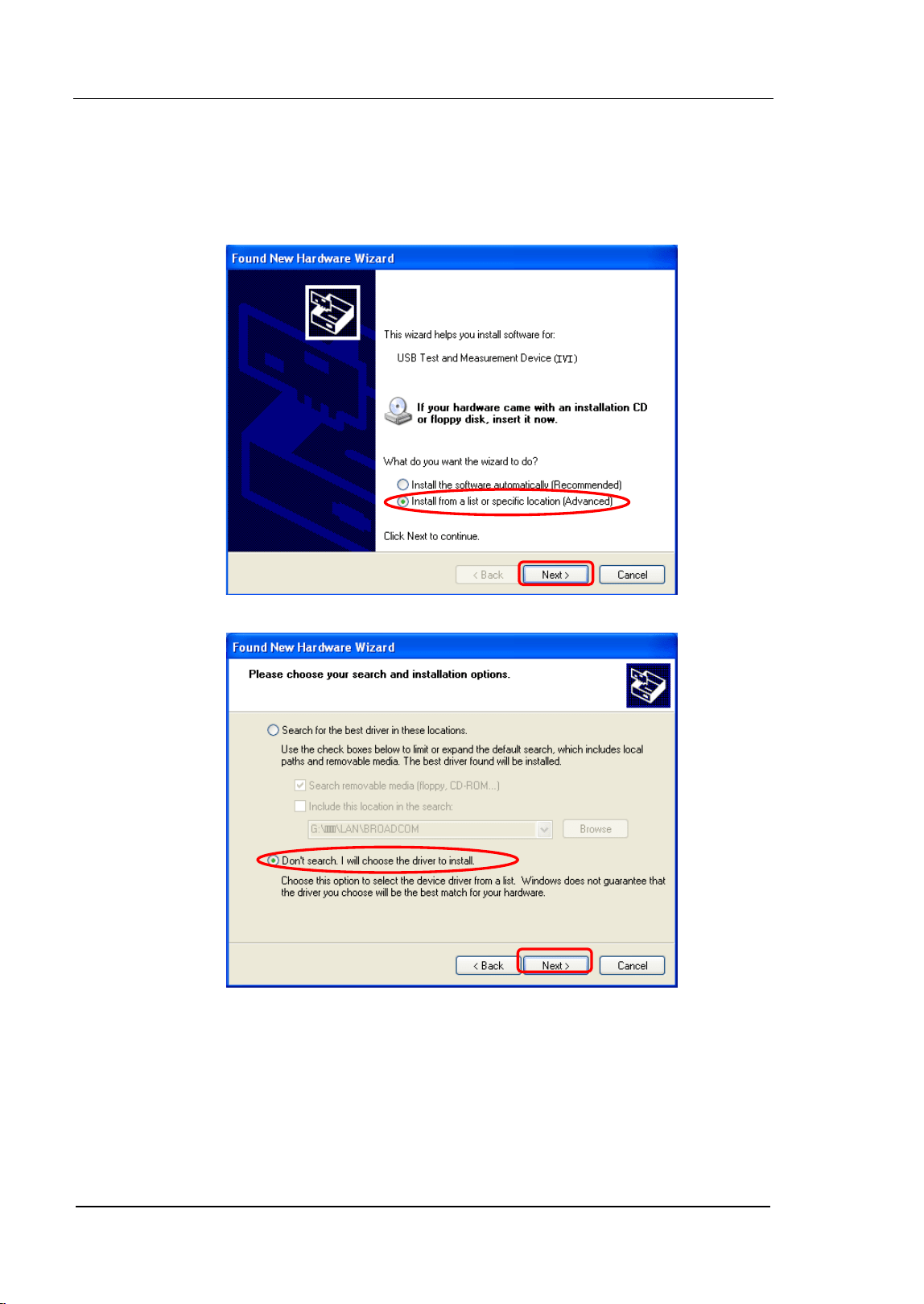
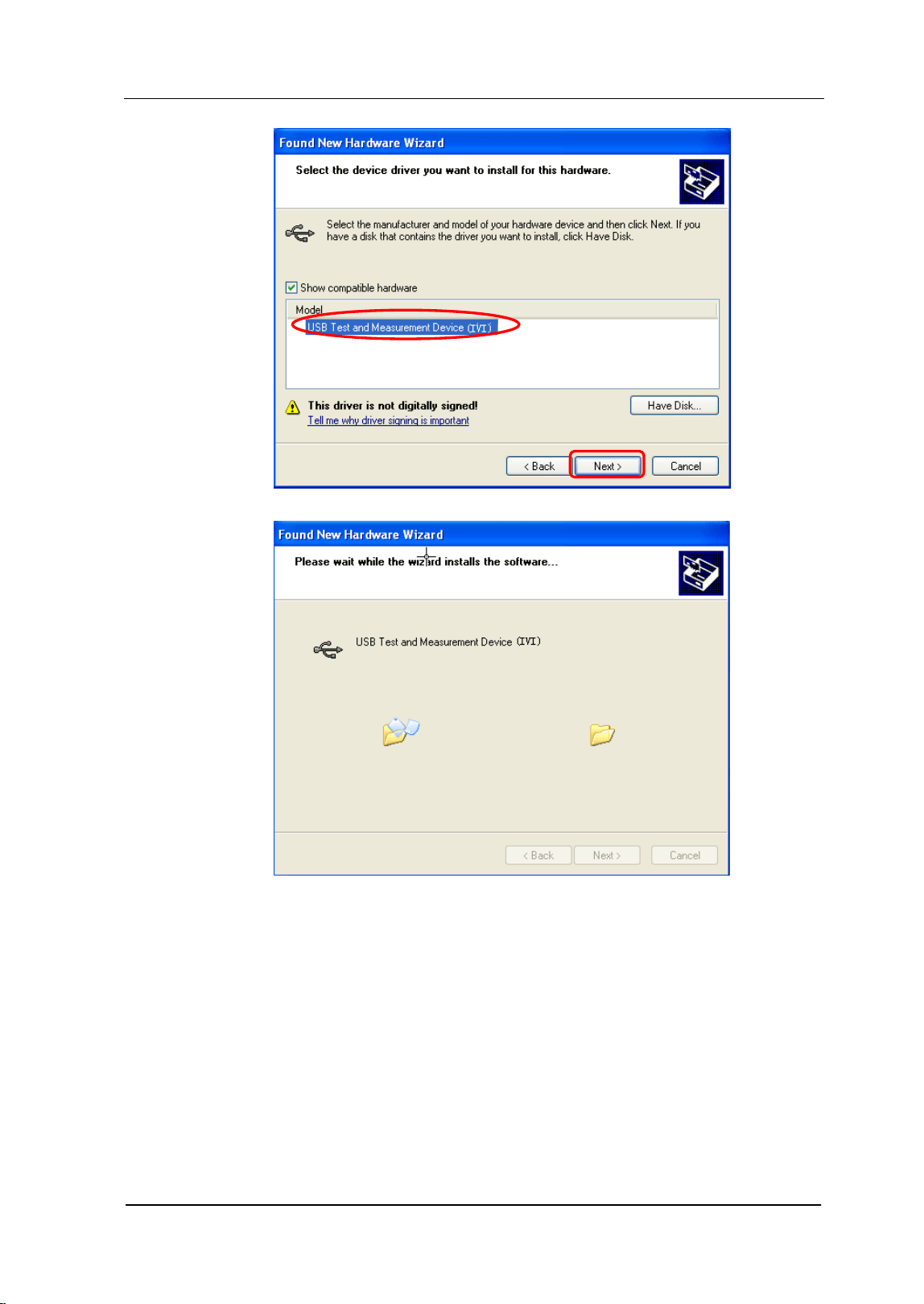
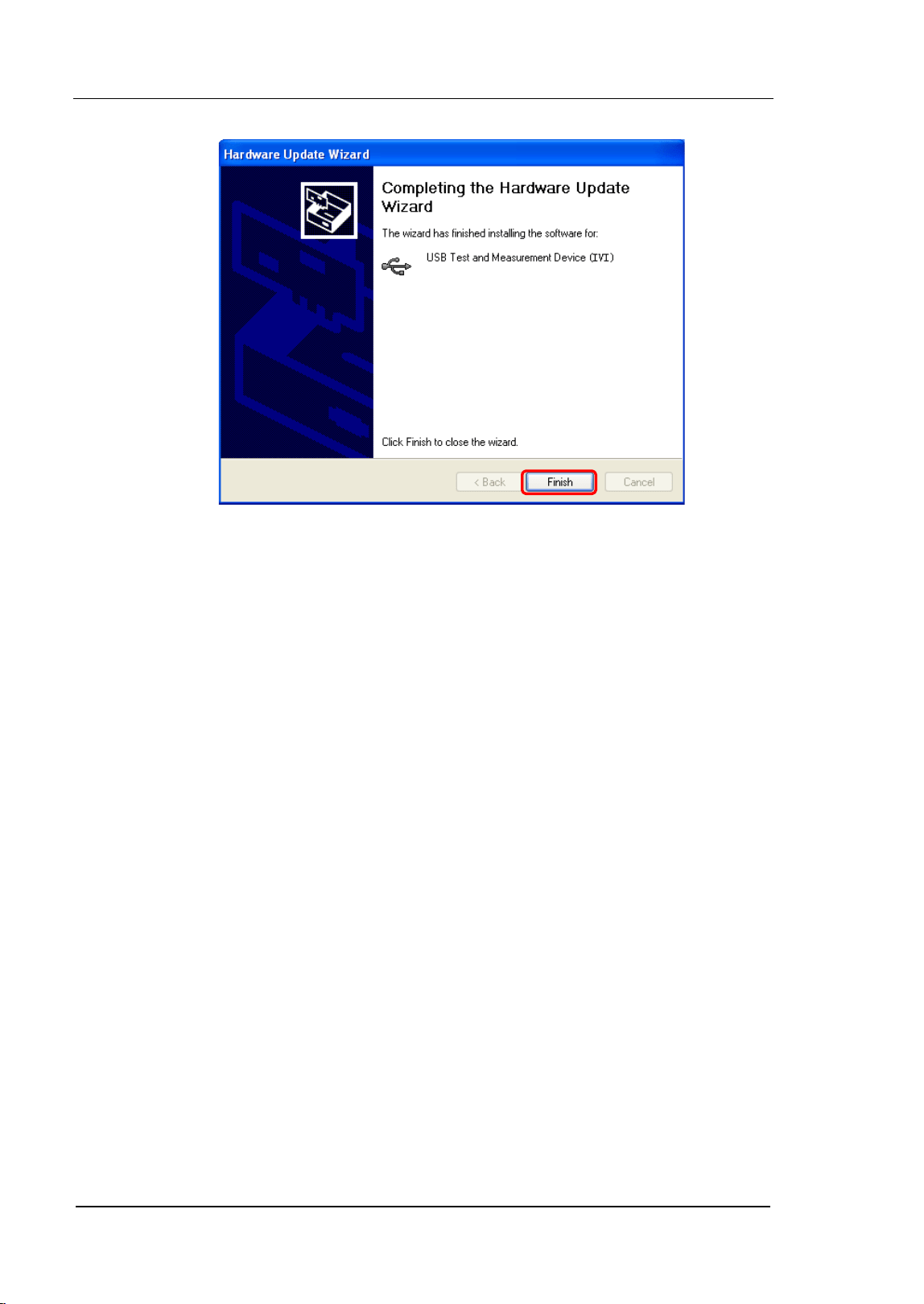
RIGOL Chapter 3 Remote Control
User’s Guide for DSA700 Series
3-6
LAN interface:
Connect your analyzer to the local area network of the PC and set the
network parameters correctly following the instructions in "I/O Settings
".
GPIB interface:
Use the USB-GPIB interface converter (option) to connect the analyzer to
PC with GPIB card through the USB Host interface and set the GPIB address
correctly following the instructions in "I/O Settings
".
3. Programming
Then, you can select a familiar software developing tool for programming. The
developing tools available include Visual C++ 6.0, Visual Basic 6.0, LabVIEW
8.6 and etc. For detailed information about SCPI commands and programming
method, refer to
DSA700 Programming Guide
.
To Use PC software
Users can also use the PC software to send commands and control the analyzer
remotely. The PC softwares supported by DSA700 include:
7
Chapter 3 Remote Control RIGOL
User’s Guide for DSA700 Series
3-7
1. General PC software Ultra Sigma of RIGOL
2. Measurement & Automation Explore of NI (National Instrument Corporation)
3. Agilent IO Libraries Suite of Agilent (Agilent Technologies, Inc.)
This section introduces in details how to use Ultra Sigma to send commands
through each kind of interface to control the analyzer. Please refer to Ultra Sigma
Help to install the software and the components required correctly. You can
download the latest version of the software from www.rigol.com.
1. Remote Control via USB
1) Connect the devices
Connect the analyzer (USB Device) with PC (USB Host) using a USB cable.
2) Install the USB drive
As the analyzer is a USBTMC device, after you connect the analyzer to the
PC and turn both on (the analyzer will be configured as USB interface
automatically), the PC will display the "Found New Hardware Wizard".
Please install the "USB Test and Measurement Device" driver following
the directions of the wizard. For the procedures, refer to "User-defined
Programming".
3) Search for device resource
Start-up Ultra Sigma. The software starts searching for the analyzer
resources currently connected to the PC; or click
to search
manually.
4) View the resource
The resources found are shown under the "RIGOL Online Resource"
catalog. The instrument model and USB interface information are also
displayed.
For example, DSA710
(USB0::0x1AB1::0x0960::DSA8A134400008::INSTR).
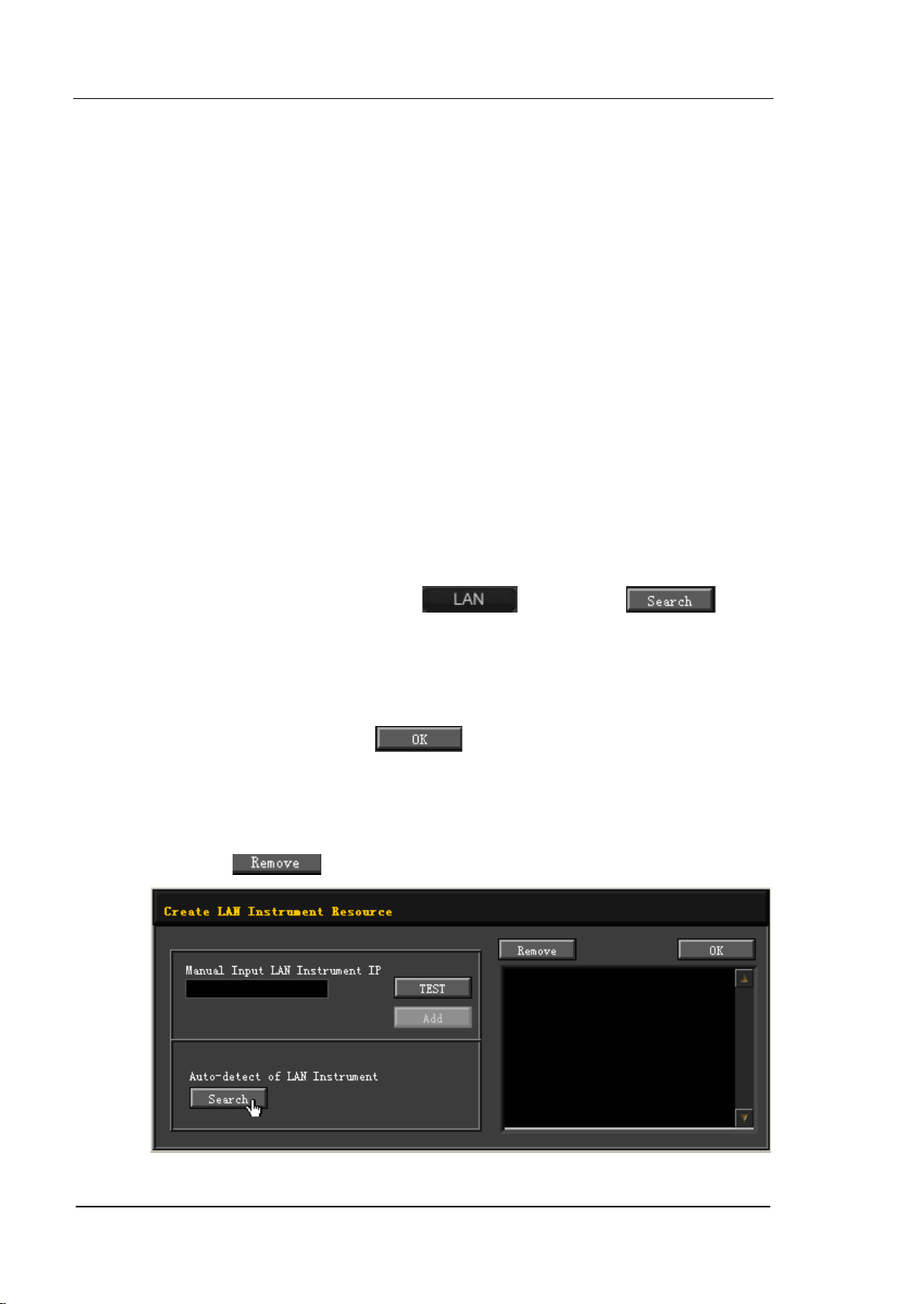
RIGOL Chapter 3 Remote Control
User’s Guide for DSA700 Series
3-8
5) Communication test
Right click the resource name such as
DSA710 (USB0::0x1AB1::0x0960::DSA8A134400008::INSTR)
and select SCPI Panel Control to open the remote control panel from
which you can write commands and read data. For detailed information
about SCPI commands, refer to
DSA700 Programming Guide
.
2. Remote Control via LAN
1) Connect the devices
Connect the analyzer to your LAN.
2) Configure LAN parameters
Select LAN interface according to the description in "LAN" of "I/O
Settings".
3) Search device resource
Start-up Ultra Sigma and click
. Then, click in
the pop-up window and the software starts searching for the analyzer
resources connected to LAN. When a LAN resource is found, its name will
be displayed in the resource box on the right side of the panel. Select the
desired resource and click
to add the resource.
Note: The resource selected should keep consistency with the IP address
of the LAN interface of the spectrum analyzer. In addition, if you want to
remove the unwanted resource, click the corresponding resource name
and click
.
Chapter 3 Remote Control RIGOL
User’s Guide for DSA700 Series
3-9
4) View the resource
The resources found are shown under the "RIGOL Online Resource"
catalog.
For example, DSA710 (TCPIP::172.16.3.82::INSTR).
5) Communication test
Right click the resource name such as
DSA710 (TCPIP::172.16.3.82::INSTR) and select SCPI Panel
Control to open the remote control panel from which you can write
commands and read data.
6) Load LXI webpage
The analyzer conforms to LXI Core 2011 Device standards. You can load
LXI webpage conveniently through Ultra Sigma (right-click the resource
name and select "LXI-Web"). By default, some important information
about the analyzer such as the model, manufacturer, serial number,
description, MAC address and IP address is displayed on the webpage.
Note: If you want to view or modify the network settings of this
instrument, please click "Network Settings" and input the initial password
"RIGOL" (must be uppercase letters) in the pop-up window (by default,
the user name is empty ). In addition, you can click "Security" to reset the
password.
3. Remote Control via GPIB
1) Connect the devices
Connect the analyzer to the PC (configured with GPIB card) using
RIGOL USB-GPIB interface converter (option).
2) Install the device driver of the GPIB card
Install the driver of the GPIB card connected to the PC.
3) Set the GPIB address
Set the GPIB address of the analyzer according to the description in
"GPIB" of "I/O Settings".
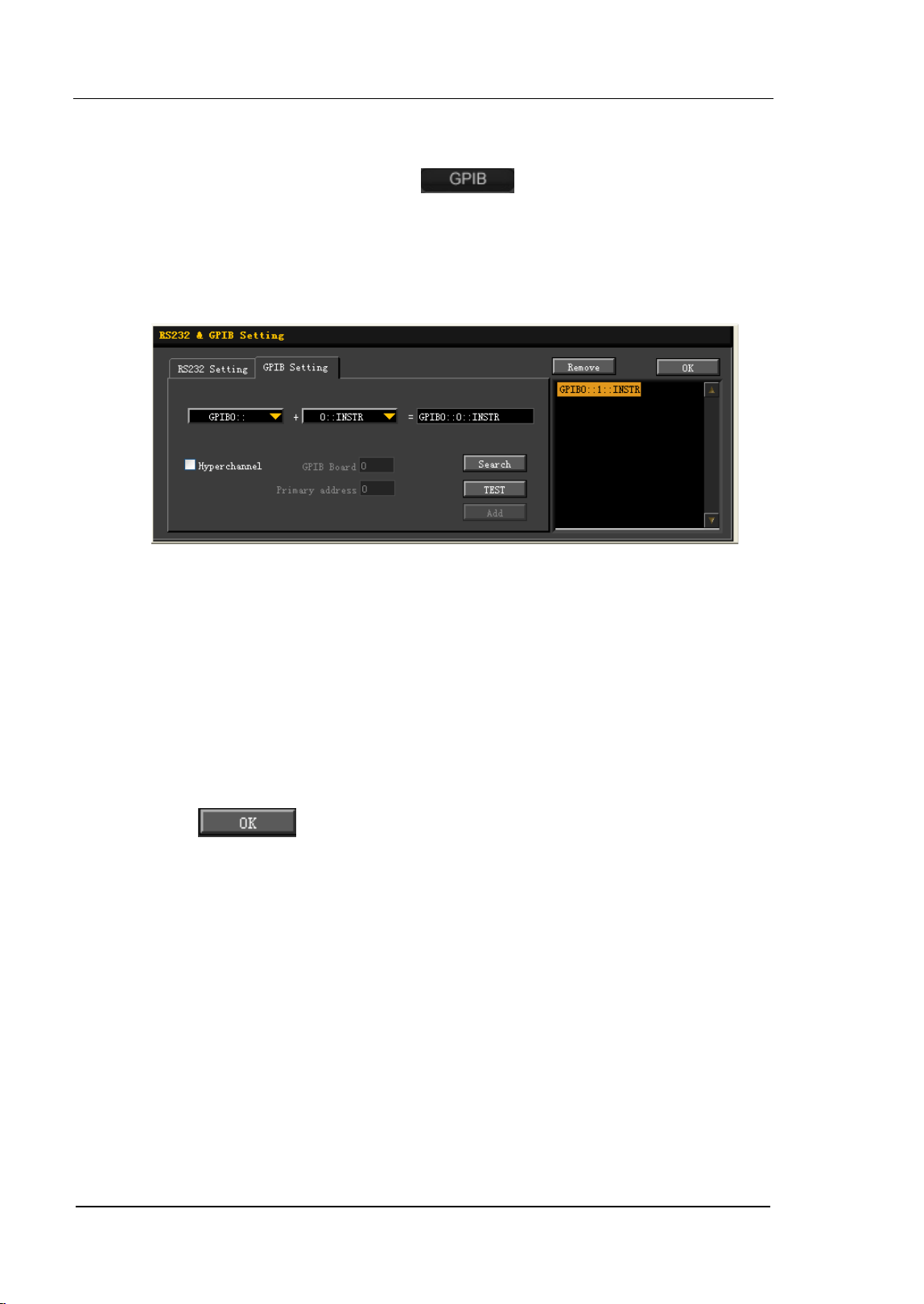
RIGOL Chapter 3 Remote Control
User’s Guide for DSA700 Series
3-10
4) Search device resource
Start-up Ultra Sigma and click
to open the panel as shown
in the figure below. Then, click "Search" and the software starts
searching for the GPIB device resources connected to the PC
automatically. When a GPIB resource is found, its device source
descriptor will be displayed on the right side of the panel.
If resources cannot be found automatically:
Select the GPIB card address of the PC and the GPIB address of the
analyzer from the "GPIB::" and "INSTR::" dropdown boxes
separately.
Click "Test" to see if the GPIB communication works normally; if not,
please follow the prompt messages step by step.
5) View the resource
Click
and return back to the main interface of Ultra Sigma.
The resources found are shown under the "RIGOL Online Resource"
catalog.
For example: DSA710 (GPIB0::1::INSTR).
6) Communication test
Right-click the resource name DSA710 (GPIB0::1::INSTR) and select
SCPI Panel Control to open the remote control panel from which you
can write commands and read data.

Chapter 4 Troubleshooting&Message RIGOL
User’s Guide for DSA700 Series
4-1
Chapter 4 Troubleshooting&Message
This chapter lists the commonly encountered failures of the analyzer and their
solutions. In addition, the meaning of each message in the message list is also
introduced.
Subjects in this chapter:
Troubleshooting
Messages
RIGOL Chapter 4 Troubleshooting&Message
User’s Guide for DSA700 Series
4-2
Troubleshooting
The commonly encountered failures and their solutions are listed below. When you
encounter those problems, please solve them following the corresponding steps. If
the problem remains still, please contact RIGOL and provide your device
information (System Information System Info).
1. The screen is still dark (no display) after power on:
(1) Check whether the fan is running:
— If yes, the connection of the internal screen cable may be loose.
— If not, the instrument has failed to start up and please refer to step (2).
(2) Check the power:
— Check whether the power supply has been connected correctly and the
power switch has been turned on.
— Check whether the power fuse is burned. If a new fuse needs to be
installed, please use a specified fuse ( 250V AC, T2A; 5 mm×20 mm).
2. The key is unresponsive or gives a wrong response:
(1) Press all the keys at the front panel to check if all of them are normal after
power on.
(2) Press System Self-Test Key Test to check if all the keys are
working properly.
(3) If a key is not working, the numeric keyboard connection might be loose or
the numeric keyboard is broken. Do not disassemble the instrument by
yourself and contact RIGOL.
3. The spectrum lines on the screen do not update for a long period of
time:
(1) Check whether the screen is locked; if so, press Esc to unlock it.
(2) Verify whether all the trigger conditions have been met and whether there
is a valid trigger signal.
(3) Check whether the analyzer is in single sweep.
(4) Check whether the current sweep time is too long.
Chapter 4 Troubleshooting&Message RIGOL
User’s Guide for DSA700 Series
4-3
4. Wrong measurement results or poor precision:
To calculate the system errors and check the measurement results and precision,
refer to the introductions in "Specifications". To reach these specifications,
please:
(1) Check whether all the external devices are successfully connected and are
working normally.
(2) Get some knowledge of the signal under measurement and set appropriate
instrument parameters.
(3) Make measurements under proper conditions; for example, warm-up the
instrument appropriately and operate the instrument under the specified
environment temperature.
(4) Calibrate the instrument regularly to reduce or avoid errors that might
occur over time.
— If you need a specific calibration after the stated calibration period,
contact RIGOL or get paid service from authorized measurement
agencies.
— The analyzer provides auto calibration function. If required, press
System Calibrate Self-Cal and select "On". The instrument
will perform self-calibration regularly. Within half an hour after
power-on, the analyzer executes a self-calibration every 10 minutes
and per hour after being powered on for more than half an hour.
— Press System Calibrate Cal Now to make a self-calibration
immediately.
5. Pop-up Message:
The instrument may display prompt messages, error messages or state
messages according to the current working status. These messages are
displayed to help you to use the instrument correctly and are not instrument
failures. For information of the pop-up messages, please refer to
"Messages".
RIGOL Chapter 4 Troubleshooting&Message
User’s Guide for DSA700 Series
4-4
Messages
Messages fall into three types on the basis of their purpose and severity:
Information Message, Error Message and Status Message. These messages can
help you to get accurate measurements and know the working status of the
analyzer.
1. Information Message
Inform you that the current task has been finished or the analyzer has entered
a specified state. Information messages are always marked with
. They are
displayed on the screen in message box for several seconds and then
disappear automatically. You can also press any key to clear the message.
Message number: 1 - 199.
2. Error Message
Warn you that the current operation cannot be executed and has been
ignored or paused for some reason. Error messages are always marked with
. They are displayed on the screen in message box for several seconds and
then disappear automatically. You can also press any key to clear the error
massage.
On the basis of the cause of the error, error messages are divided into
Command Error, Execution Error, Device Specific Error and Query Error. Each
kind of error corresponds to a specific bit in the Standard Event Status
Register (see IEEE 488.2,11.5.1). In remote mode, if you observe an error in
the standard event status register, send the :SYSTem:ERRor? command to
get the specific error message and locate the cause of the error.
(1) Command Error:
Indicate a command error is detected by the parser while in remote control
(see IEEE488.2,6.1.6). Possible reasons are:
The parser detects a syntax error (see IEEE488.2,7.1.2.2) ;
An unrecognized header causes semantic error (see IEEE488.2,10) .
Message number: -199 to -100.
Chapter 4 Troubleshooting&Message RIGOL
User’s Guide for DSA700 Series
4-5
(2) Execution Error:
Indicate an execution error is detected by the Execution Control Block.
Possible reasons are:
A parameter following the command header is evaluated by the
device as being outside of its legal input range.
The command could not be properly responded to due to the current
device condition.
Message number: -299 to -200.
(3) Device Specific Error:
The command cannot be correctly executed due to the current settings of
the hardware and software of the device.
Message number: -399 to -300 (defined in SCPI standard) and 300 to
1000.
(4) Query Error:
Indicate a query error is generated when the output queue controller
detects a Message Exchange Protocol error (see IEEE488.2,6.1.10).
Possible reasons are (see IEEE488.2,6.5.7) :
When trying to read the output queue, the queue has no data or is
being suspended.
Data in the output queue has been lost.
Message number: -499 to -400.
3. Status Message:
Warn you that the analyzer is now in a certain or abnormal condition and
should be paid attention to. Status messages are always marked with
.
They are displayed on the screen until the instrument exits the condition, the
Esc key is pressed or the *CLS command is sent. The status messages are
stored in the corresponding status register, and can be queried by
sending :Status or :SYSTEM:ERROR[:NEXT]?.
Message number: 200 to 299.

RIGOL Chapter 4 Troubleshooting&Message
User’s Guide for DSA700 Series
4-6
Information Message
Number
Message Description
1
PictBridge printer connected.
PictBridge printer is connected successfully and is waiting for
initialization.
2 PictBridge printer installed successfully.
PictBridge printer has already been installed successfully and is ready
for printing.
3 PictBridge printer disconnected.
4 Printing task finished.
5 Printing task paused.
Printing task is paused due to an error. Please solve the problem and
select "RESUME". For the cause of the error please refer to the message
list.
6 Printing task stopped.
An irretrievable error occurred during printing. Please select "Cancel" to
stop the printing.
7 Printing task canceled.
8 Printing task resumed.
10 U Disk connected.
A USB storage device is connected and is waiting for initialization.
11 U Disk installed successfully.
12 U Disk removed.
13
Start updating firmware.
The firmware is updating; please wait and keep the USB storage device
connected. For any problem, please contact
RIGOL
technical support.
14 Updating firmware completed.
Firmware update is finished. The new firmware program will be
executed automatically as soon as you restart the device.
15 Saving file completed.
16
Overwrite file existed.
17
Load data with old revision.
Load old version data into the current system. The data might not be
correctly recognized and the instrument might not work normally.
18
The last spell char is allowed to input.
Chapter 4 Troubleshooting&Message RIGOL
User’s Guide for DSA700 Series
4-7
19 Please select the valid file type.
20
U Disk is not connected.
30
LAN connected.
31
32
LAN disconnected.
Network settings will be reset, press yes to continue?
40 Welcome to Super Mode.
41
Welcome to User Mode.
42
Welcome to Production Mode.
43
Welcome to Maintenance Mode.
44
Welcome to Color Egg Mode.
50
Please confirm, and press again.
51 The display was locked, please press Esc to unlock.
52 Display unlocked.
54 Please select the valid file.
55 It is not allowed to delete folder.
56 Fail to load file.
57 Local disk is being formatted, please wait for a moment.
58 Formatting is finished.
60 Software version does not match, file loading fails.
61 Invalid source.
62 Select where to load, antenna, cable, user or others.
63 Option is activated.
64 Option is deleted.
65 The edited frequency already exists.
80 Limit lines are cleaned because of change of X Axis type.
81 Copy completed.
82 Do you want to overwrite the existing file?
83
Please select the file to be copied.
84
Fail to copy, as the destination is the same as the source.
85
Updating the reference trace…
86
Enter line mode.
87 Exit line mode.
88 Please press ESC to exit remote control mode.
89 The USB cable became disconnectable.
90 Safety clear succeeded.
91 Press the keys to be locked and then press ESC.

Chapter 4 Troubleshooting&Message RIGOL
User’s Guide for DSA700 Series
4-9
Error Message
Command Error
Number
Message Description
-100
Command error.
A generic syntax error indicates that the device cannot detect more
specific errors. This code indicates that only Command Error defined in
IEEE 488.2,11.5.1.1.4 has been found.
-101 Invalid character.
The syntactic element contains an invalid character; for example, the
command header contains an ampersand (SETUP&). This error might
be used in place of errors -114, -121, -141 and perhaps some others.
-102 Syntax error.
An unrecognizable command or data type was encountered; for
example, a string not supported by the device was received.
-103 Invalid separator.
The parser was expecting a separator but recieved an illegal character;
for example, the semicolon following a program message was omitted:
*EMC 1:CH1:VOLTS 5.
-104
Data type error.
The parser recognized a data element other than the one allowed; for
example, numeric or string data was expected but block data was
encountered.
-105 GET not allowed.
A Group Execute Trigger was contained in a program message (see
IEEE 488.2, 7.7).
-108 Parameter not allowed.
More parameters were received than expected for the command
header; for example, the *EMC common command only accepts one
parameter, so *EMC 0, 1 is not allowed.
-109 Missing parameter.
Fewer parameters were contained than required in the command
header; for example, the *EMC common command requires one
parameter, so *EMC is not allowed.
-110
Command header error.

RIGOL Chapter 4 Troubleshooting&Message
User’s Guide for DSA700 Series
4-10
An error was detected in the command header. This error message is
always used when the device cannot detect more specific errors
described in errors -111 to -119.
-111
Header separator error.
An illegal command header separator was encountered while parsing
the command header; for example, no space is allowed following the
command header, thus *GMC"MACRO" is wrong.
-112 Program mnemonic too long.
The command header contains more that twelve characters (see IEEE
488.2, 7.6.1.4.1).
-113 Undefined header.
The command header is syntactically correct, but it is not defined by
the device; for example, *XYZ is not defined by any device.
-114
Header suffix out of range.
A numeric suffix value was attached to a program mnemonic, making
the header invalid.
-115 Unexpected number of parameters.
The number of parameters received does not correspond to the
number of parameters expected. This is typically due to an
inconsistency with the number of the instrument in the selected group
(see INSTrument:DEFine:GROup).
-120 Numeric data error.
This error, as well as errors -121 to -129, is generated when parsing a
numeric data element and non-decimal number is contained in the
numeric representation area. This error message is always used when
the device cannot detect a more specific error.
-121 Invalid character in number.
An invalid character for the data type being parsed was encountered;
for example, an alpha in a decimal numeric or "9" in octal data.
-123 Exponent too large.
The exponent was larger than 32000 (see IEEE 488.2,7.7.2.4.1).
-124
Too many digits.
The mantissa of a decimal numeric data element contained more than
255 digits excluding leading zeros (see IEEE 488.2, 7.7.2.4.1).
-128 Numeric data not allowed.
A legal numeric data element was received, but the device does not
support one in this position for the header.
Chapter 4 Troubleshooting&Message RIGOL
User’s Guide for DSA700 Series
4-11
-130 Suffix error.
This error, as well as errors -131 to -139, is generated when parsing a
suffix. This error message is always used when the device cannot
detect a more specific error.
-131
Invalid suffix.
The
suffix does not follow the syntax described in IEEE 488.2, 7.7.3.2,
or the suffix is inappropriate for this device.
-134 Suffix too long.
The suffix contained more than 12 characters (see IEEE 488.2,
7.7.3.4).
-138 Suffix not allowed.
A suffix was encountered after a numeric element which does not
allow suffixes.
-140
Character data error.
This error, as well as errors -141 to -149, is generated when parsing a
character data element. This error message should be used if the
device cannot detect a more specific error.
-141 Invalid character data.
The command header is invalid when the character data element
contains an invalid character or a particular character.
-144 Character data too long.
The character data element contains more than twelve characters (see
IEEE 488.2, 7.7.1.4).
-148
Character data not allowed.
A legal character data element was used in a position prohibited by the
device.
-150 String data error.
This error, as well as errors -151 to -159, is generated when parsing a
string data element. This error message is always used when the
device cannot detect a more specific error.
-151 Invalid string data.
A string data element was expected, but was invalid for some reason
(see IEEE 488.2, 7.7.5.2); for example, an END message was received
before the terminal quote character.
-158 String data not allowed.
A legal string data element was encountered but was not allowed by
the device at this point in parsing.

RIGOL Chapter 4 Troubleshooting&Message
User’s Guide for DSA700 Series
4-12
-160 Block data error.
This error, as well as errors -161 to -169, is generated when parsing a
block data element. This error message is always used when the
device cannot detect a more specific error.
-161 Invalid block data.
A block data element was expected, but was invalid for some reason
(see IEEE 488.2, 7.7.6.2); for example, an END message was received
before the length was satisfied.
-168
Block data not allowed.
A legal block data element was encountered but was not allowed by
the device at this point in parsing.
-170 Expression error.
This error, as well as errors -171 to -179, is generated when parsing an
expression data element. This error message is always used when the
device cannot detect a more specific error.
-171 Invalid expression.
The expression data element was invalid (see IEEE 488.2, 7.7.7.2); for
example, unmatched parentheses or an illegal character.
-178
Expression data not allowed.
A legal expression data was encountered but was not allowed by the
device at this point in parsing.
-180 Macro error.
This error, as well as errors -181 to -189, is generated when defining a
macro or executing a macro. This error message is always used when
the device cannot detect a more specific error.
-181 Invalid outside macro definition.
Indicate that a macro parameter placeholder ($<number) was
encountered outside of a macro definition.
-183
Invalid inside macro definition.
Indicate that the program message unit sequence, sent with a *DDT
or *DMC command, is syntactically invalid (see IEEE 488.2, 10.7.6.3).
-184 Macro parameter error.
Indicate that the command parameter type or value inside the macro
definition is wrong.
Chapter 4 Troubleshooting&Message RIGOL
User’s Guide for DSA700 Series
4-13
Execution Error
Number Message Description
-200 Execution error.
A generic syntax error indicates that the device cannot detect more
specific errors. This code indicates that only an Execution Error defined in
IEEE 488.2, 11.5.1.1.5 has occurred.
-201 Invalid while in local.
Indicate that a command is not executable while the device is in local
mode (see IEEE 488.2, 5.6.1.5); select a proper communication interface
to switch to remote mode.
-203
Command protected.
Indicate that a legal password-protected program command or query
could not be executed because the command was disabled.
-220 Parameter error.
Indicate that a program data element related error occurred. This error
message is always used when the device cannot detect the more specific
errors described in errors -221 to -229.
-221 Settings conflict.
Indicate that a legal program data element was parsed but could not be
executed due to the current device state (see IEEE 488.2, 6.4.5.3 and
11.5.1.1.5.)
-222 Data out of range.
Indicate that a legal program data element was parsed but could not be
executed because the interpreted value was outside of the legal range
defined by the device (see IEEE 488.2, 11.5.1.1.5.)
-223
Too much data.
Indicate that a legal program data element of block, expression or string
type was received but could not be executed because it contained more
data than the device could handle due to memory or related device
requirements.
-224
Illegal parameter value.
Used where the specified value in the parameter list was expected.
-225 Out of memory.
The device has insufficient memory to perform the requested operation.
-233 Invalid version.
Indicate that a legal program data element was parsed but could not be

RIGOL Chapter 4 Troubleshooting&Message
User’s Guide for DSA700 Series
4-14
executed because the version of the data is incorrect for the device. This
particular error message is always used when file or block data formats
can be recognized by the instrument but cannot be executed due to
version incompatibility. For example, an unsupported file version, an
unsupported instrument version.
-240 Hardware error.
Indicate that a legal program data or query could not be executed
because of a hardware problem in the device. This error message is
always used when the device cannot detect the more specific error
described in error -241.
-241 Hardware missing.
Indicate that a legal program data or query could not be executed
because the option was not installed.
-250
Mass storage error.
Indicate that a mass storage error occurred. This error message is always
used when the device cannot detect the more specific errors described in
errors -251 to -258.
-251 Missing mass storage.
Indicate that a legal program command or query could not be executed
because the mass storage was not installed.
-252 Missing media.
Indicate that a legal program command or query could not be executed
because no disk can be found.
-253
Corrupt media.
Indicate that a legal program command or query could not be executed
because of a bad disk or wrong disk formatting.
-254 Media full.
Indicate that a legal program command or query could not be executed
because there is not enough space on the disk.
-256 File name not found.
Indicate that a legal program command or query could not be executed
because the file to be read or copied does not exist.
-257 File name error.
Indicate that a legal program command or query could not be executed
because the name of the file to be copied is already in use.

RIGOL Chapter 4 Troubleshooting&Message
User’s Guide for DSA700 Series
4-16
Device Specific Error
Number Message Description
-300
Device-specific error.
A generic device-dependent error indicates that the device cannot detect
more specific errors. This code indicates that only a Device-Dependent
Error defined in IEEE 488.2, 11.5.1.1.6 has occurred. Please report the
error to your
RIGOL
sales or technical support team.
-310 System error.
Indicate that some error, termed "system error" by the device, has
occurred. Please report the error to your RIGOL sales or technical
support team.
-311
Memory error.
Indicate that local C disk is not formatted or an error occurred during
self-test. If restarting the device is still of no effect, please report the
error to your
RIGOL
sales or technical support team.
-314 Save/recall memory lost.
Indicate that the nonvolatile data saved by the *SAV? command has been
lost.
-315 Configuration memory lost.
Indicate that nonvolatile configuration data saved by the device has been
lost.
-321
Out of memory.
An internal operation needed more memory than that was available.
Please report the error to your
RIGOL
sales or technical support team.
-330 Self-test failed.
The self-test failed. For more information, please refer to the result of the
Self-test.
-340 Calibration failed.
The calibration failed. Please report the error to your RIGOL sales or
technical support team.
-350 Queue overflow.
Error occurs when the code enters into the queue. This message
indicates that there is no room in the queue and an error occurred but
was not recorded.
-360 Communication error.
-365 Time out error.
Communicating with USB-GPIB interface converter times out. Please
Chapter 4 Troubleshooting&Message RIGOL
User’s Guide for DSA700 Series
4-17
restart the converter.
300
Print paper error.
Fail to print. Please check whether print papers are available and in the
correct position.
301
Print ink error.
Fail to print. Please check the quantity of ink or confirm whether the ink is
installed correctly.
302 Printer hardware error.
Fail to print. A printer hardware error occurred and please check it.
303
Print file type error.
Fail to print owing to wrong print file type.
304
Unknown print error.
310
Updating error with wrong image file.
An error occurred when updating firmware because the format of the
image file is incorrect or the file has already been damaged.
311
Updating error with wrong revision.
An error occurred when updating firmware because of a revision
incompatibility.
312 Updating error with failing to write flash.
An error occurred when updating firmware owing to a failure to write to
the flash.
320 Invalid file path.
The file path received may not exist or an illegal path format was
received.
321 Invalid input.
An illegal string has been received.
322 File name too long.
The file name is too long. The length should not exceed 48 characters.
323 U-Disk failed to install.
The USB storage device can not be correctly installed and please examine
it for possible damage. For any question, please contact RIGOL technical
support.
324
File name existed.
The file name received already exists and please re-input.
325 Input empty.
The input is empty. Please input a legal string before saving.
326 Fail to save file.

RIGOL Chapter 4 Troubleshooting&Message
User’s Guide for DSA700 Series
4-18
327 Other language except English not supported.
Any other languages are disabled except English.
328 File operation failed.
329 No space to save file.
The file or folder can not be created or saved owing to limited space.
331 Invalid license key.
The length of the license key must be no more than 20 characters.
332 Invalid File Type to load.
333 Invalid installation, please insert U disk again.
334 Invalid sweep data, confirm to continue?
340 DHCP renew failed.
Fail to configure IP address with DHCP server. Please try manual IP.
341 IP conflict.
The IP address received is already in use. Please try another IP address.
342 Invalid IP.
The IP address received is invalid.
350
Can’t auto-couple sweep time in zero span.
Sweep time can not be coupled automatically in zero span. Please set it
manually.
351
Zero span unavailable for other measurements except T-power.
354 Pre-amplifier can not be enabled.
Please adjust the settings of the reference level, attenuator as well as
maximum mixing level.
355 Scale/div invalid in linear scale mode.
356 Invalid function in zero span.
In zero span, the following operations cannot be executed: Signal Track
On, Span Zoom In, Span Zoom Out, Peak->CF, Mkr->CF, Mkr->Step,
Mkr->Start, Mkr->Stop, Mkr Delta->CF, Mkr Delta->Span, setting the
Mark readout as FREQ or PERIOD.
357 Invalid function in non-zero span.
Video trigger and the1/ΔTime in marker readout are invalid in non-zero
span.
358 Invalid mark readout type.
For Delta Pair marker, the 1/ΔTime marker readout type is invalid; and
for normal marker, MkrΔ->CF and MkrΔ->Span are invalid.
359 Invalid function when trace is not enabled.
A marker could not be assigned to a trace when the trace is not enabled.
Chapter 4 Troubleshooting&Message RIGOL
User’s Guide for DSA700 Series
4-19
360 User preset failed.
The user preset has failed because the edition of the saved status data is
incorrect or the status data has been damaged. In this situation, the
system will execute Factory settings as the defaults.
400 Input signal power out of range.
Indicate that the input signal power is out of range. Working in this state
for a long time would cause damage to the device. Please reduce the
input power.
401
1st LO unlock.
The first LO is unlocked. Please report the error to your RIGOL sales or
technical support.
402 2nd LO unlock.
The second LO is unlocked. Please report the error to your RIGOL sales
or technical support.
412 DA overrange due to volume adjustment in FM.
413 Intermediate frequency signal out of range.
420 Option not installed.
The desired operation cannot be performed because the option required
is not installed.
460 No peak found.
No signal peak that meets the criteria was found under Peak Search.
461 No fundamental wave found.
Indicate that no fundamental wave greater than 50dBm is found.
462 No two-tone signal found.
463 Invalid function as cursor is not enabled.
The cursor cannot be set to the reference level unless it is enabled.
464 Menus under Storage can not be set to Userkey.
465 Invalid function.
470 Calibration memory lost.
Indicate that the calibration data before delivery or last valid calibration
data has been lost. Please report the error to your RIGOL sales or
technical support team.
472
USB firmwarte lost.
473
Device information lost.
474
Data of menu, help, message and font lost.
475
Preset data to load is damaged.

RIGOL Chapter 4 Troubleshooting&Message
User’s Guide for DSA700 Series
4-20
Query Error
Number Message Description
-400 Query error.
A generic query error indicates that the device cannot detect more
specific errors. This code indicates that only a Query Error defined in IEEE
488.2, 11.5.1.1.7 and 6.3 has occurred.
-410 Query INTERRUPTED.
Indicate that an INTERRUPTED Query error occurred due to some reason
(see IEEE 488.2, 6.3.2.3); for example, a query was added to DAB or GET
before a response was completely sent.
-420
Query UNTERMINATED.
Indicate that an UNTERMINATED Query error occurred due to some
reason (see IEEE 488.2, 6.3.2.2); for example, the device was addressed
to communicate but an incomplete program message was received.
-430 Query DEADLOCKED.
Indicate that a DEADLOCKED Query error occurred due to some reason
(see IEEE 488.2, 6.3.1.7); for example, both input buffer and output
buffer are full and the device cannot continue.
-440 Query UNTERMINATED after indefinite response.
Indicate that a query was received before the error response generated
from the previous query was solved (see IEEE 488.2, 6.5.7.5).
Chapter 4 Troubleshooting&Message RIGOL
User’s Guide for DSA700 Series
4-21
Status Message
Number
Message Description
202
Auto range…
203
Auto tune…
204 Calibrating…
205 Waiting for triggered…
If it is not in freerun mode, the system will keep waiting until it receives
a trigger signal.
252 Auto range finished.
253 Auto tune finished.
254 Self-calibration finished.
255 Triggered.


Chapter 5 Specifications RIGOL
User’s Guide for DSA700 Series
5-1
Chapter 5 Specifications
Specifications are valid under the following conditions: the instrument is within the
calibration period, is stored for at least two hours at 0℃ to 50℃ temperature and
is warmed up for 40 minutes. Unless otherwise noted, the specifications in the
manual include the measurement uncertainty.
Typical (typ.): characteristic performance, which 80 percent of the measurement
results will meet at room temperature (approximately 25℃). This data is not
warranted and does not include the measurement uncertainty.
Nominal (nom.): the expected mean or average performance or a designed
attribute (such as the 50Ω connector). This data is not warranted and is measured
at room temperature (approximately 25℃).
Measured (meas.): an attribute measured during the design phase which can be
compared to the expected performance, such as the amplitude drift variation with
time. This data is not warranted and is measured at room temperature
(approximately 25℃).
Note: All charts in this manual are the measurement results of multiple instruments at room
temperature unless otherwise noted.
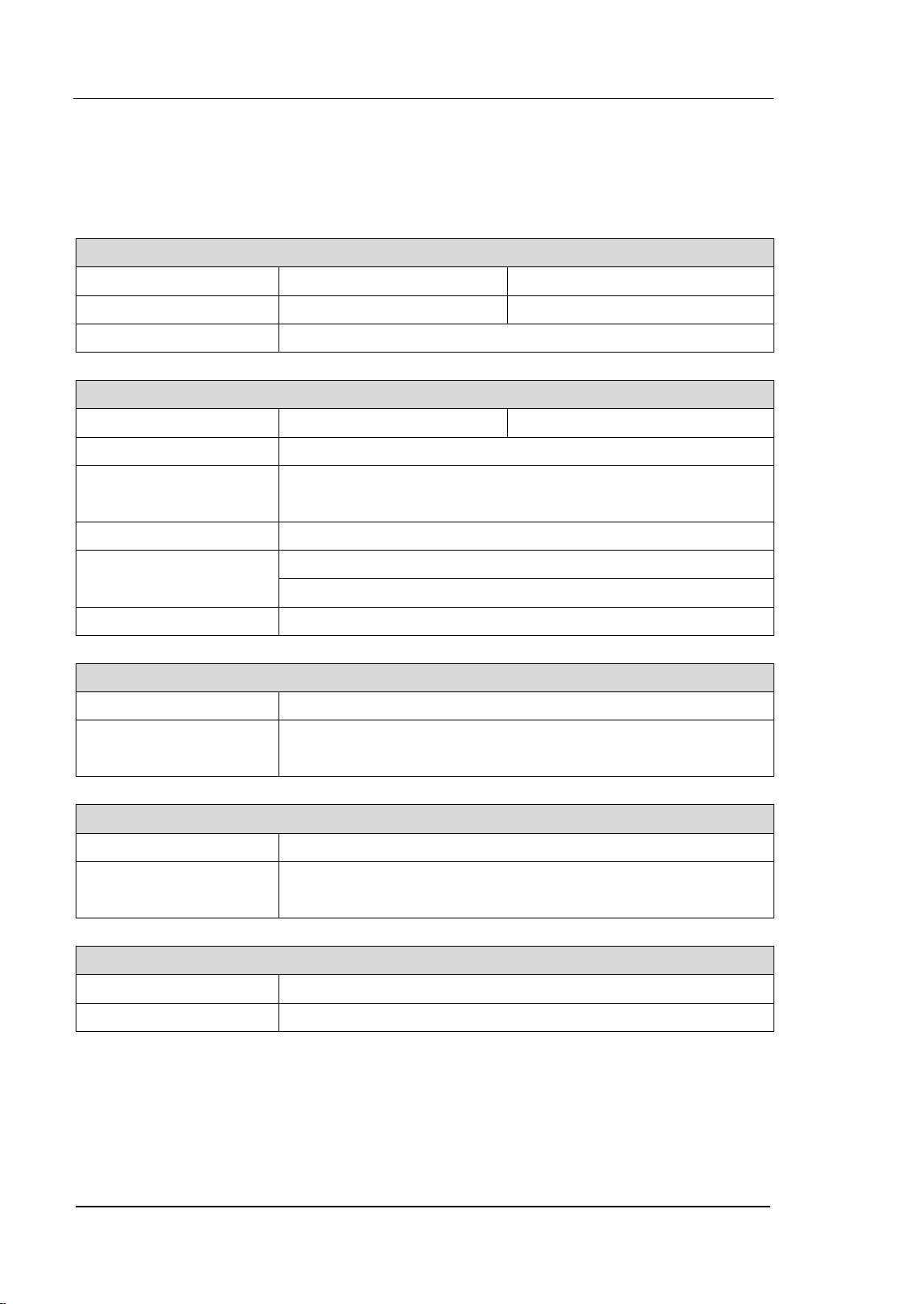
RIGOL Chapter 5 Specifications
User’s Guide for DSA700 Series
5-2
Technical Specifications
Frequency
Frequency
DSA705 DSA710
Frequency range 100 kHz to 500 MHz 100 kHz to 1 GHz
Frequency resolution 1 Hz
Internal Reference Frequency
DSA705 DSA710
Reference frequency 10 MHz
Accuracy
±[ (time since last calibration × aging rate) + temperature stability
+ calibration accuracy]
Initial calibration accuracy <1 ppm
Temperature stability
0℃ to 50℃, reference to 25℃
<2 ppm
Aging rate <2 ppm/year
Frequency Readout Accuracy
Marker resolution span/ (number of sweep points - 1)
Marker uncertainty
±(frequency indication × reference frequency accuracy + 1% ×
span + 10% × resolution bandwidth + marker resolution)
Frequency Counter
Resolution 1 Hz, 10 Hz, 100 Hz, 1 kHz, 10 kHz, 100 kHz
Uncertainty
±(frequency indication × reference frequency accuracy + counter
resolution)
Frequency Span
Range 0 Hz, 100 Hz to maximum frequency of instrument
Uncertainty ±span/ (number of sweep points - 1)
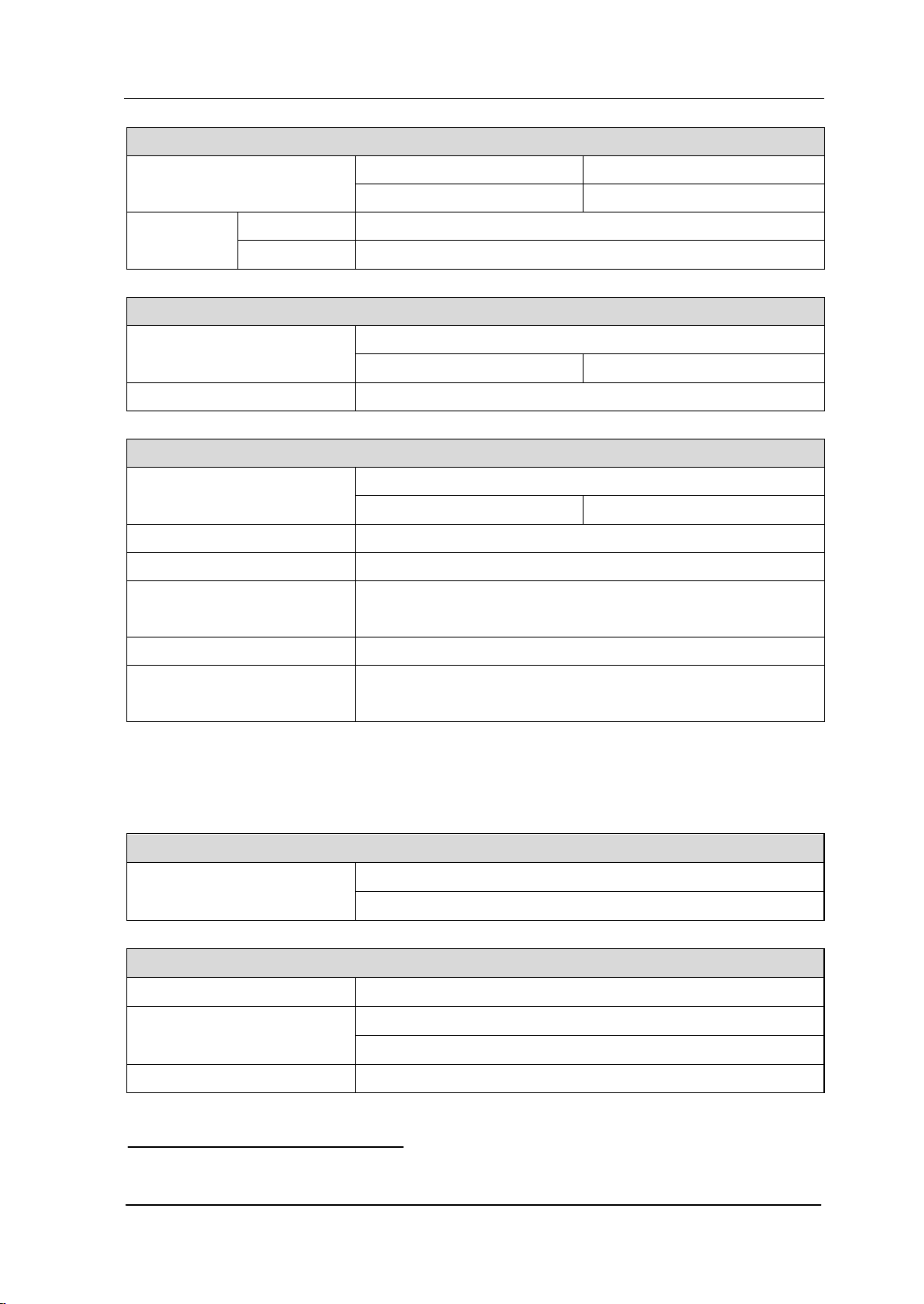
Chapter 5 Specifications RIGOL
User’s Guide for DSA700 Series
5-3
SSB Phase Noise
DSA705 DSA710
20℃ to 30℃, f
c
= 500 MHz 20℃ to 30℃, f
c
= 1 GHz
Carrier offset
10 kHz <-80 dBc/Hz
100 kHz <-100 dBc/Hz (typ.)
Residual FM
20℃ to 30℃, RBW = VBW = 1 kHz
DSA705 DSA710
Residual FM <50 Hz (nom.)
Bandwidths
Set "Auto SWT" to "Accy"
DSA705 DSA710
Resolution bandwidth (-3 dB) 100 Hz to 1 MHz, in 1-3-10 sequence
RBW uncertainty <5% (nom.)
Resolution filter shape factor
(60 dB : 3 dB)
<5 (nom.)
Video bandwidth (-3 dB) 1 Hz to 3 MHz, in 1-3-10 sequence
Resolution bandwidth (-6 dB)
(EMI-DSA800 option)
200 Hz, 9 kHz, 120 kHz
Amplitude
Measurement Range
Range
f
c
≥ 10 MHz
DANL to +20 dBm
Maximum Input Level
DC voltage 50 V
CW RF power
attenuation = 30 dB
+20 dBm (100 mW)
Max. damage level* +30 dBm (1 W)
Note: *When f
c
≥ 10 MHz, input level > +25 dBm and PA is Off, the protection switch will be on.
RIGOL Chapter 5 Specifications
User’s Guide for DSA700 Series
5-4
Displayed Average Noise Level (DANL)
DSA705 DSA710
Frequency
attenuation = 0 dB, RBW = VBW = 100 Hz, sample detector, trace
average ≥ 50, 20℃ to 30℃, input impendence = 50 Ω
PA
off
100 kHz to 1 MHz <-90 dBm, <-110 dBm (typ.) <-90 dBm, <-110 dBm (typ.)
1 MHz to 500 MHz <-100 dBm, <-110 dBm (typ.)
<-100 dBm, <-110 dBm (typ.)
500 MHz to 1 GHz
PA
on
100 kHz to 1 MHz <-110 dBm, <-130 dBm (typ.) <-110 dBm, <-130 dBm (typ.)
1 MHz to 500 MHz <-120 dBm, <-130 dBm (typ.)
<-120 dBm, <-130 dBm (typ.)
500 MHz to 1 GHz
Level Display
Logarithmic level axis 1 dB to 200 dB
Linear level axis 0 to reference level
Number of display points 601
Number of traces 3 + math trace
Trace detectors
normal, positive-peak, negative-peak, sample, RMS, voltage
average
quasi-peak (with EMI-DSA800 option)
Trace functions clear write, max hold, min hold, average, view, blank
Units of level axis dBm, dBmV, dBμV, nV, μV, mV, V, nW, μW, mW, W
Frequency Response
DSA705 DSA710
Frequency response
f
c
≥ 100 kHz, attenuation = 10 dB, relative to 50 MHz, 20℃ to
30℃
PA
off
100 kHz to 500 MHz <0.7 dB
<0.7 dB
500 MHz to 1 GHz
f
c
≥ 1MHz, attenuation = 10 dB, relative to 50 MHz, 20℃ to 30℃
PA
on
100 kHz to 500 MHz <1.0 dB
<1.0 dB
500 MHz to 1 GHz
Input Attenuation Switching Uncertainty
DSA705 DSA710
Setting range 0 dB to 30 dB, in 1 dB step
Switching uncertainty
f
c
= 50 MHz, relative to 10 dB, 20℃ to 30℃
<0.5 dB
Chapter 5 Specifications RIGOL
User’s Guide for DSA700 Series
5-5
Absolute Amplitude Uncertainty
DSA705 DSA710
Uncertainty
f
c
= 50 MHz, peak detector, preamplifier off, attenuation =
10 dB, input signal level = -10dBm, 20℃ to 30℃
<0.4 dB
RBW Switching Uncertainty
Uncertainty
relative to 1 kHz RBW
<0.1 dB
Reference Level
Range -100 dBm to +20 dBm, in 1 dB step
Resolution
log scale 0.01 dB
linear scale 4 digits
Preamplifier
DSA705 (standard) DSA710 (standard)
Gain
100 kHz to 500 MHz 20 dB (nom.)
20 dB (nom.)
500 MHz to 1 GHz
Level Measurement Uncertainty
DSA705 DSA710
95% confidence level, S/N > 20 dB, RBW = VBW = 1 kHz,
preamplifier off, attenuation = 10 dB, -50 dBm < input
level ≤ 0 dBm, f
c
> 10 MHz, 20℃ to 30℃
Level measurement uncertainty <1.5 dB (nom.)
RF Input VSWR
DSA705 DSA710
attenuation ≥ 10 dB
VSWR
300 kHz to 500 MHz <1.5 (nom.)
<1.5 (nom.)
500 MHz to 1 GHz
RIGOL Chapter 5 Specifications
User’s Guide for DSA700 Series
5-6
Distortion
Second Harmonic Intercept
DSA705 DSA710
Second harmonic intercept (SHI)
f
c
≥
50 MHz, input signal level = -20 dBm, attenuation = 10
dB
+40 dBm
Third-order Intercept
DSA705 DSA710
Third-order intercept (TOI)
f
c
≥
50 MHz, two -20 dBm tones at input mixer spaced by
200 kHz, attenuation = 10 dB
+10 dBm
1dB Gain Compression
1dB compression of input mixer
(P
1dB
)
f
c
≥
50 MHz, attenuation = 0 dB
>0 dBm
Spurious Response
Spurious response, inherent
DSA705 DSA710
input terminated 50 Ω, attenuation = 0 dB, 20℃ to 30℃
<-88dBm (typ.)
Intermediate frequency <-60 dBc
System related sidebands
referenced to local oscillators, referenced to A/D
conversion, referenced to subharmonic of first LO,
referenced to harmonic of first LO
<-60 dBc
Input related spurious
mixer level = -30 dBm
<-60 dBc
Chapter 5 Specifications RIGOL
User’s Guide for DSA700 Series
5-7
Sweep
Sweep
DSA705 DSA710
Sweep time
span ≥ 100 Hz 10 ms to 500 s 10 ms to 1000 s
zero span 20 μs to 500 s 20 μs to 1000 s
Sweep time
uncertainty
span ≥ 100 Hz 5% (nom.)
zero span (sweep time
setting value > 1 ms)
5% (nom.)
Sweep mode continuous, single
Trigger
Trigger
Trigger source free run, video, external
External trigger level 5 V TTL level
SSC-DSA (Option)
Signal Seamless Capture (SSC)
Measurement bandwidth 1.5 MHz
RIGOL Chapter 5 Specifications
User’s Guide for DSA700 Series
5-8
Input /Output
Front Panel Connectors
RF input
impedance 50 Ω (nom.)
connector N female
Internal/ External Reference
Internal reference
frequency 10 MHz
output level +3 dBm to +10 dBm, +8 dBm (typ.)
impedance 50 Ω (nom.)
connector BNC female
External reference
frequency 10 MHz ± 5 ppm
input level 0 dBm to +10 dBm
impedance 50 Ω (nom.)
connector BNC female
External Trigger Input
External trigger input
impedance 1 kΩ (nom.)
connector BNC female
Communication Interface
USB host
connector A plug
protocol version2.0
USB device
connector B plug
protocol version2.0
LAN
LXI core 2011
device
10/100Base, RJ-45
IEC/IEEE (GPIB) bus (USB-GPIB option) IEEE488.2
Chapter 5 Specifications RIGOL
User’s Guide for DSA700 Series
5-9
General Specifications
Display
Type TFT LCD
Resolution 800 x 480 pixels
Size 8 inch
Colors 64k
Printer Supported
Protocol PictBridge
Mass Memory
Mass memory
flash disk (internal),
USB storage device (not supplied)
Power Supply
Input voltage range, AC 100 V to 240 V (nom.)
AC supply frequency 45 Hz to 440 Hz
Power consumption 35 W (typ.), max. 50 W with all options
Environmental
Temperature
operating temperature
range
0℃ to 50℃
storage temperature
range
-20℃ to 70℃
Humidity
0℃ to 30℃
≤ 95% rel. humidity
30℃ to 40℃
≤ 75% rel. humidity
Altitude operating height up to 3,000m
RIGOL Chapter 5 Specifications
User’s Guide for DSA700 Series
5-10
Electromagnetic Compatibility and Safety
EMC
in line with EMC instruction (2014/30/EU),
in line with or exceed IEC61326-1: 2013/EN61326-1: 2013 Group 1 Class A standard
CISPR 11/EN 55011
IEC 61000-4-2:2008/EN
61000-4-2
±4.0 kV (contact discharge), ±8.0 kV (air discharge)
IEC 61000-4-3:2002/EN
61000-4-3
3 V/m (80 MHz to 1 GHz); 3 V/m (1.4 GHz to 2 GHz); 1 V/m
(2.0 GHz to 2.7 GHz)
IEC 61000-4-4:2004/EN
61000-4-4
1 kV power lines
IEC 61000-4-5:2001/EN
61000-4-5
0.5 kV (phase to neutral); 0.5 kV (phase to PE); 1 kV
(neutral to PE)
IEC 61000-4-6:2003/EN
61000-4-6
3 V, 0.15-80MHz
IEC
61000-4-11:2004/EN
61000-4-11
voltage dip: 0% UT during half cycle; 0% UT during 1 cycle;
70% UT during 25 cycles
short interruption: 0% UT during 250 cycles
Electrical safety
IEC 61010-1:2010 (Third Edition)/EN 61010-1:2010,
UL 61010-1:2012 R4.16 and CAN/CSA-C22.2 NO.
61010-1-12+ GI1+ GI2
Dimensions
(W × H × D)
361.6 mm × 178.8 mm × 128 mm
(14.2 in × 7.0 in × 5.0 in)
Weight
DSA705 DSA710
Standard 4.25 kg (9.4 lb)
Calibration Interval
Recommended calibration
interval
1 year
Chapter 6 Appendix RIGOL
User’s Guide for DSA700 Series
6-1
Chapter 6 Appendix
Appendix A: Ordering Infomation
Description
Order Number
Model
spectrum analyzer, 100 kHz to 500 MHz (with
preamplifier)
DSA705
spectrum analyzer, 100 kHz to 1 GHz (with
preamplifier)
DSA710
Standard
accessories
quick guide (hard copy)
-
power cable -
Options
EMI filter & quasi-peak detector
EMI-DSA800
advanced measurement kit
AMK-DSA800
DSA PC software
Ultra Spectrum
signal seamless capture
SSC-DSA
Optional
accessories
include: N-SMA cable, BNC-BNC cable, N-BNC
adaptor, N-SMA adaptor, 75 Ω to 50 Ω adaptor,
900 MHz/1.8 GHz antenna (2pcs), 2.4 GHz
antenna (2pcs)
DSA Utility Kit
include: N(F)-N(F) adaptor (1pcs), N(M)-N(M)
adaptor (1pcs), N(M)-SMA(F) adaptor (2pcs),
N(M)-BNC(F) adaptor (2pcs), SMA(F)-SMA(F)
adaptor (1pcs), SMA(M)-SMA(M) adaptor (1pcs),
BNC T type adaptor (1pcs), 50 Ω SMA load
(1pcs), 50 Ω BNC impedance adaptor (1pcs)
RF Adaptor Kit
include: 50 Ω to 75 Ω adaptor (2pcs)
RF CATV Kit
include: 6dB attenuator (1pcs), 10dB attenuator
(2pcs)
RF Attenuator Kit
30dB high power attenuator, max. power 100W
ATT03301H
N(M)-N(M) RF cable
CB-NM-NM-75-L-12G
N(M)-SMA(M) RF cable
CB-NM-SMAM-75-L-12G
RF demo kit (transmitter)
TX1000
RF demo kit (receiver)
RX1000
near field probe
NFP-3
EMI pre-compliance test software
S1210 EMI Pre-compliance
Software
rack mount kit
RM-DSA800
soft carrying bag
BAG-G1
USB cable
CB-USBA-USBB-FF-150
USB to GPIB interface converter for instrument
USB-GPIB
Note: For more option and accessory information, please contact RIGOL salesman
or local distributor.

RIGOL Chapter 6 Appendix
User’s Guide for DSA700 Series
6-2
Appendix B: Warranty
RIGOL warrants that the product mainframe and product accessories will be free
from defects in materials and workmanship within the warranty period.
If a product proves defective within the respective period, RIGOL guarantees free
replacement or repair of any defective products within a reasonable period of time.
To get repair service, please contact with your nearest RIGOL sales or service
office.
There is no other warranty, expressed or implied, except such as is expressly set
forth herein or other applicable warranty card. There is no implied warranty of
merchantability or fitness for a particular purpose. Under no circumstances shall
RIGOL be liable for any consequential, indirect, ensuing or special damages for
any breach of warranty in any case.

Index RIGOL
User’s Guide for DSA700 Series
1
Index
1/ΔTime ................................. 2-67
2FSK ............................... 2-39, 2-57
3rd Order Lower ....................... 2-55
3rd Order Upper ....................... 2-55
Accurate Calibrate ..................... 2-89
ACP ................................. 2-36, 2-43
Active Fctn ............................... 2-93
Adj CH BW ............................... 2-44
AM .......................................... 2-60
Amplitude Correction ................. 2-18
Auto ........................................ 2-78
Auto Range .............................. 2-15
Auto Scale ................................ 2-11
Auto SWT ................................ 2-25
Auto-IP .................................... 2-91
Average ................................... 2-42
Average Reset .......................... 2-35
Average Times ......................... 2-31
Avg Mode ................................. 2-42
Avg Num .................................. 2-41
Base Lower .............................. 2-55
Base Upper .............................. 2-55
BIN ....................................... 2-106
Brightness ................................ 2-93
C/N Ratio ......................... 2-37, 2-51
Calibrate Now ........................... 2-89
Carrier BW ............................... 2-52
Carrier Power ........................... 2-51
center frequency ......................... 2-3
CF -> Step ................................. 2-8
CF step ...................................... 2-5
CH Pwr .................................... 2-43
CH Pwr Span ............................ 2-46
CH Spacing .............................. 2-44
Chan Pwr ................................. 2-36
Channel Power ......................... 2-45
Clear Write ............................... 2-30
Collapse Dir .................. 2-108, 2-109
Constant .................................. 2-32
Cont Peak ................................ 2-75
Continuous sweep ..................... 2-26
correction factor ....................... 2-18
Correction Table ........................ 2-19
Couple Parameter ...................... 2-95
CSV ....................................... 2-106
Delta Marker
............................. 2-64
Delta Pair ................................. 2-65
Demod Time ............................. 2-60
demodulation type ..................... 2-60
Detector Type ........................... 2-22
DHCP ....................................... 2-91
Display Line .............................. 2-93
DNS ......................................... 2-92
Earphone .................................. 2-60
EBW ............................... 2-37, 2-49
EBW X dB ................................. 2-50
Edit Prefix .............................. 2-110
EMI filter .................................. 2-24
Expand Dir.............................. 2-107
External Trigger ......................... 2-28
Factory Settings ........................ 2-81
File Sourse .............................. 2-106
File Type ................................. 2-105
FM ........................................... 2-60
Free Run Trigger ....................... 2-28
Freeze ...................................... 2-31
Frequency Counter .................... 2-73
Frequency Interpolation ............. 2-19
Front Switch ............................. 2-94
Full Span ................................... 2-9
Function ................................... 2-32
gateway ................................... 2-91
GPIB ........................................ 2-92
Graticule ................................... 2-93
Harmo Dist ............................... 2-37
Harmonic ST ............................. 2-54
Input attenuation ...................... 2-13
Input Impedance ....................... 2-20
Install ...................................... 2-98
Integ BW .................................. 2-46
intercepts ................................. 2-55
IP address ................................ 2-91
Key Test ................................... 2-96
LAN ......................................... 2-90

RIGOL Index
User’s Guide for DSA700 Series
2
Language ................................ 2-88
Last Span ................................ 2-10
License Info ............................. 2-98
Line Mode ................................ 2-94
Local (D:) ............................... 2-104
Main CH BW ............................. 2-44
Manual-IP ................................ 2-91
Marker Table ............................ 2-67
marker types ............................ 2-63
Max ......................................... 2-74
Max Hold ................ 2-31, 2-48, 2-50
MaxMixL .................................. 2-20
Min Hold .................................. 2-31
Min Search ............................... 2-75
Mkr Trace ................................ 2-66
Mkr->CF .................................. 2-69
Mkr->Ref ................................. 2-70
Mkr->Start ............................... 2-69
Mkr->Step ............................... 2-69
Mkr->Stop ............................... 2-70
MkrΔ->CF ................................ 2-70
MkrΔ->Span ............................ 2-70
Mobile Disk (E:) ....................... 2-104
Msg Switch .............................. 2-94
N dB BW .................................. 2-71
Neg Peak ................................. 2-23
Next Peak ................................ 2-74
NO.of Harmo ............................ 2-54
Noise BW ................................. 2-52
Noise Marker ............................ 2-71
Noise Power ............................. 2-51
Normal .................................... 2-23
OBW ............................... 2-37, 2-47
OBW Span ............................... 2-48
Offset Freq .............................. 2-52
Option Info .............................. 2-98
Param ..................................... 2-74
Pass/Fail .................................. 2-33
Peak ........................................ 2-42
Peak -> CF ................................ 2-7
Peak Left ................................. 2-74
Peak Peak ................................ 2-75
Peak Right ............................... 2-74
Peak Search ............................. 2-76
peak search ............................. 2
-74
Peak Sort ................................. 2-77
Peak Table ................................ 2-76
PK Excursn ............................... 2-75
Pk Readout ............................... 2-77
PK Thresh ................................ 2-76
Pos Peak .................................. 2-23
Power Avg ................................ 2-31
Power On ................................. 2-88
Power Ratio .............................. 2-48
Power Spectral Density .............. 2-45
preamplifier .............................. 2-17
Prefix Switch .......................... 2-110
Preset ...................................... 2-81
Preset Type .............................. 2-88
Printing state icons .................. 2-101
Quasi-Peak ............................... 2-24
RBW ........................................ 2-21
RBW filter ................................. 2-24
readout type ............................. 2-66
reference level .......................... 2-12
reference level offset ................. 2-15
Reference Marker ...................... 2-64
Relative Amplitude .................... 2-34
Relative Frequency .................... 2-34
Reset ....................................... 2-88
Resolution Bandwidth ................ 2-21
RMS ......................................... 2-42
RMS Avg .................................. 2-23
Sample .................................... 2-23
Save Preset .............................. 2-89
scale type ................................. 2-13
Scale/Div .................................. 2-13
Scr State .................................. 2-93
Screen Test .............................. 2-96
Search Para .............................. 2-75
Self-Calibrate ............................ 2-89
Sig Capture .............................. 2-39
signal track ................................. 2-5
Single Sweep ............................ 2-26
Span ........................................ 2-56
span .......................................... 2-8
Span Pair ................................. 2-65
start frequency ........................... 2-3
Start Line ................................. 2-42
stop frequency ............................ 2-4
Stop Line .................................. 2-42
subnet mask ............................. 2
-91
Index RIGOL
User’s Guide for DSA700 Series
3
Sweep Time ............................. 2-25
sweeps number ........................ 2-28
System Information ................... 2-96
System Message ....................... 2-96
Time/Date ................................ 2-97
TOI ......................................... 2-37
TP Type ................................... 2-42
T-Power ........................... 2-36, 2-41
Trigger Edge ............................. 2-29
Trigger Level ............................ 2-29
TX1000 .................................... 2-99
USB ......................................... 2-92
User Preset (C:) ...................... 2-104
UserKey ........................... 2-80, 2-94
UserKey Setting ......................... 2-94
V/R Ratio .................................. 2-22
VBW ........................................ 2-21
Video Avg ................................. 2-31
Video Bandwidth ....................... 2-21
Video Trigger ............................ 2-28
Voltage Avg .............................. 2-24
Volume ..................................... 2-60
Y-axis unit ................................ 2-14
Zero Span .................................. 2-9