Register your product and get support at
www.philips.com/welcome
AD6000W/10
EN User manual

3
English
EN
Contents
1 Important 4
Safety 4
Notice 5
2 Your Entertainment System 7
Introduction 7
What’s in the box 7
What else you need 7
Overview of the main unit 8
Get started to use AirPlay 8
3 Prepare 9
Connect power 9
Turn AD6000W on 9
4 Connect to your home Wi-Fi network
for AirPlay
10
Scenario 1: Connect to a WPS router 10
Scenario 2: Connect to a non-WPS router 11
5 Play 17
Stream audio from your iTunes music library
to AD6000W 17
Control play 18
Use advanced sound settings 18
Play/charge your iPod/iPhone/iPad through
USB socket 19
Play from an external device 19
6 Updatermware 20
Download the update le 20
Update from the conguration page 20
7 Product information 22
Specications 22
8 Troubleshooting 23
4
g Do not block any ventilation openings.
Install in accordance with the
manufacturer’s instructions.
h
Do not remove the casing of this product.
i Do not expose the product to dripping /
splashing water, rain or high humidity.
j
Keep this product away from direct
sunlight,nakedamesorheat.
k Do not install near any heat sources
such as radiators, heat registers, stoves,
or other electrical equipment (including
ampliers).
l Do not place any other electrical
equipment on the product.
m
Do not place any sources of danger
on the product (e.g. objects containing
liquids,burningcandles).
n Where the mains plug or an appliance
coupler is used as the disconnect device,
the disconnect device shall remain readily
operable.
Warning
• Never remove the casing of this apparatus.
• Never lubricate any part of this apparatus.
• Never place this apparatus on other electrical
equipment.
• Keep this apparatus away from direct sunlight, naked
ames or heat.
• Ensure that you always have easy access to the power
cord, plug or adaptor to disconnect this apparatus from
the power.
Risk of overheating! Never install this apparatus
in a conned space. Always leave a space of
at least four inches around this apparatus for
ventilation. Ensure curtains or other objects
never cover the ventilation slots on this
apparatus.
1 Important
Safety
Information for Europe:
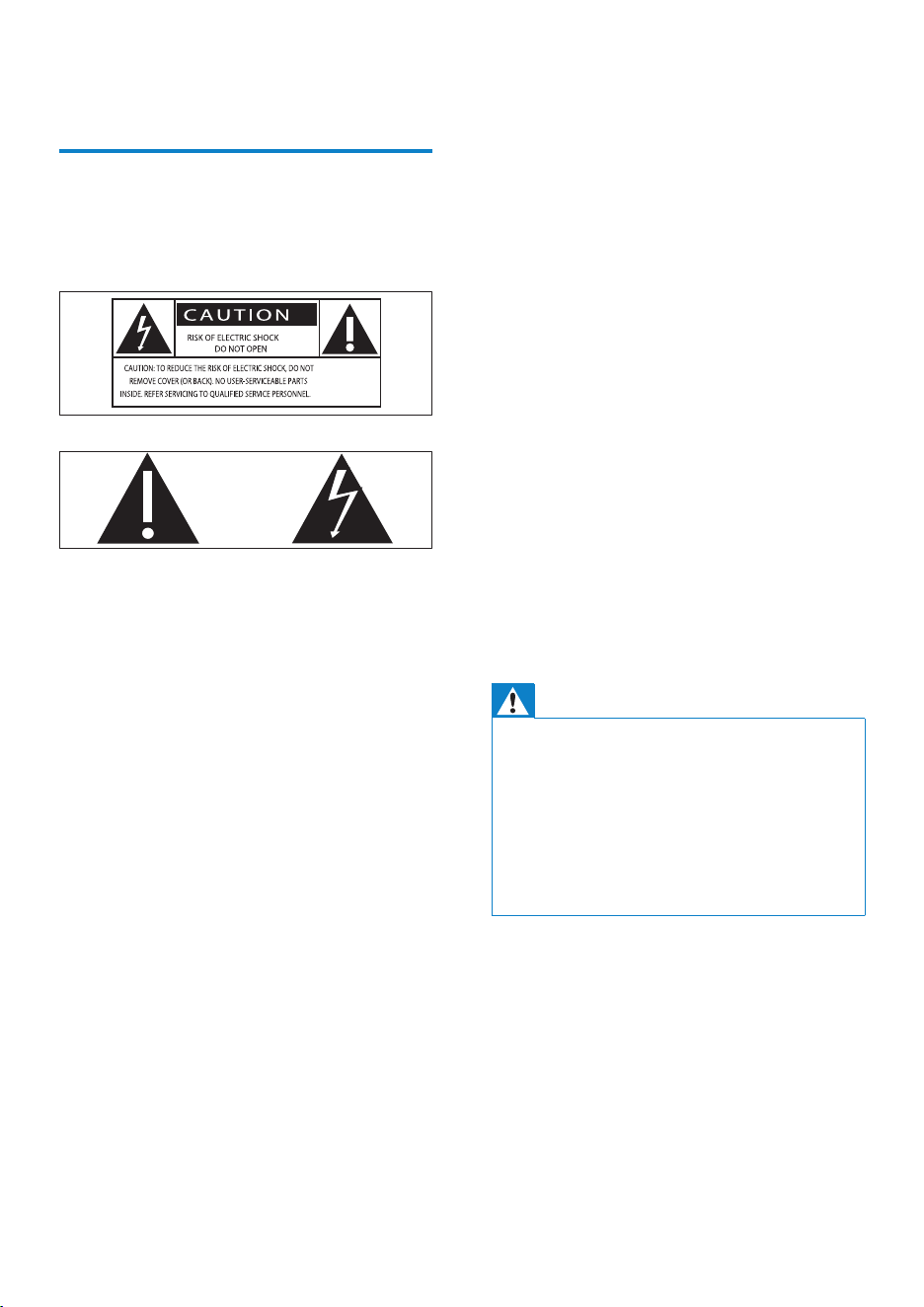
Know these safety symbols
The ‘exclamation mark’ calls attention to
features for which you should carefully read the
supplied literature to prevent operating and
maintenance problems.
The ‘lightening bolt’ symbol indicates uninsulated
components within the product that can cause
an electric shock.
To reduce the risk of re or electric shock, do
not expose the product to rain or moisture and
do not place any objects lled with liquids, such
as vases, on the product.
a
Read these instructions.
b Keep these instructions.
c Heed all warnings.
d Follow all instructions.
e Do not use this product near water.
f Clean only with dry cloth.
EN
5
English
Please inform yourself about the local separate
collection system for electrical and electronic
products.
Please act according to your local rules and
do not dispose of your old products with your
normal household waste. Correct disposal of
your old product helps to prevent potential
negative consequences for the environment and
human health.
Environmental information
All unnecessary packaging has been omitted.
We have tried to make the packaging easy to
separate into three materials: cardboard (box),
polystyrene foam (buffer) and polyethylene
(bags, protective foam sheet.)
Your system consists of materials which can
be recycled and reused if disassembled by
a specialized company. Please observe the
local regulations regarding the disposal of
packaging materials, exhausted batteries and old
equipment.
“Made for iPod,” “Made for iPhone,” and “Made
for iPad” mean that an electronic accessory
has been designed to connect specically to
iPod, iPhone, or iPad, respectively, and has
been certied by the developer to meet
Apple performance standards. Apple is not
responsible for the operation of this device
or its compliance with safety and regulatory
standards. Please note that the use of this
accessory with iPod, iPhone, or iPad may affect
wireless performance.
Notice
This product complies with the radio
interference requirements of the European
Community.
The device can be operated in the EU without
restrictions indoor, but cannot be operated
outdoors in France in the whole of the band
until further notice.
This product complies with the requirement of
the 1999/5/EC directive.
Modications
Modications not authorized by the
manufacturer may void user’s authority to
operate this product.
Your product is designed and manufactured
with high quality materials and components,
which can be recycled and reused.
When this crossed-out wheeled bin symbol is
attached to a product it means that the product
is covered by the European Directive 2002/96/
EC.
EN

6
AirPlay, iPod, and iPhone are trademarks of
Apple Inc., registered in the U S. and other
countries. iPad is a trademark of Apple Inc.
Class II equipment symbol:
CLASS II apparatus with double insulation, and
no protective earth provided.
Note
• The type plate is located on the bottom of the
apparatus.
EN

7
English
Tip
• Please visit www.philips.com/welcome for information
about more Philips AirPlay-enabled devices.
With AD6000W, you can also:
• charge your iPod/iPhone/iPad through
the USB socket with an Apple USB
cable (not supplied).
• play your iTunes music library on your
iPod/iPhone/iPad through the USB
socket directly while charging.
• play music from other audio devices
through the MP3-LINK socket.
What’s in the box
Check and identify the contents of your
package:
• Main unit (with a built-in Wi-Fi
module)
• 1 x AC power adapter
• 1 x MP3 link cable
• User manual (in CD-ROM)
• Quick start guide
What else you need
To stream audio wirelessly by AirPlay, you need:
• A Wi-Fi certied router
• A host for your iTunes music library,
for example, an iPod touch/iPhone/
iPad installed with iOS 4.3 (or later)
or a Wi-Fi enabled PC/Mac installed
with iTunes 10 (or later)
Your AD6000W should be connected to the
same local network as your iTunes host device
through the Wi-Fi router.
2 Your
Entertainment
System
Congratulations on your purchase, and
welcome to Philips! To fully benet from the
support that Philips offers, register your product
at www.philips.com/welcome.
If you contact Philips, you will be asked for the
model and serial number of this apparatus. The
model number and serial number are on the
bottom of the apparatus. Write the numbers
here:
Model No. __________________________
Serial No. ___________________________
Introduction
Apple AirPlay technology enables you to play
your iTunes music library, hosted on a Mac, PC,
iPhone, iPod touch, or iPad on any AirPlay-
enabled device (for example, your AD6000W)
connected to the Wi-Fi network.
With an AirPlay-enabled device (for example,
your AD6000W), you can:
• stream audio from your iTunes music
library to any room in your house
• choose which AirPlay-enabled devices
you want to play music on (if you
have more than one such devices in
your house)
• stream audio to multiple AirPlay-
enabled devices at the same time
(from the iTunes music library on your
PC/Mac only)
EN
8
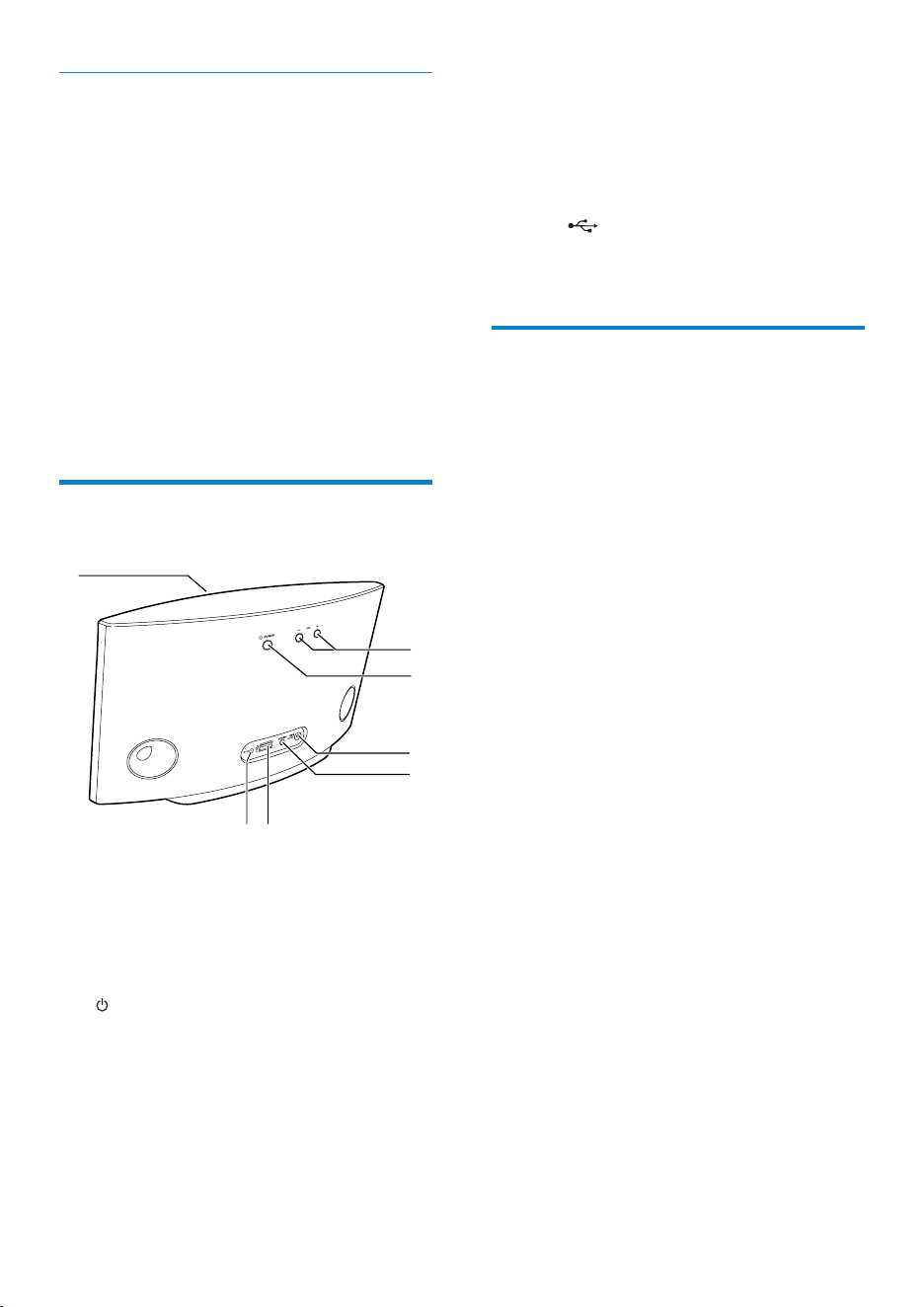
e MP3-LINK
• Connect an external audio player
through the supplied MP3 link cable.
f
DC IN
• Connect the power adaptor.
g
USB
• Connect an iPod/iPhone/iPad through
an Apple USB cable (not supplied).
Get started to use AirPlay
To get started with AirPlay, you need to:
1 Upgrade your iPod touch/iPhone/iPad to
the latest iOS version (iOS 4.3 or later).
• Or install the latest version of iTunes
(iTunes 10 or later) on your PC/Mac.
2 Connect power to AD6000W, then turn it
on (see ‘Prepare’ on page 9).
3 Connect AD6000W to your existing home
Wi-Fi network (see ‘Connect to your
home Wi-Fi network for AirPlay’ on page
10).
4 Make sure that your iPod touch/iPhone/
iPad or PC/Mac are also connected to the
same Wi-Fi network.
List of compatible iTunes host devices
for AirPlay
In terms of AirPlay, AD6000W is compatible
with:
• a Wi-Fi enabled PC/Mac installed with
iTunes 10 (or later); and
• the following iPod/iPhone/iPad models
installed with iOS 4.3 (or later):
• iPad 2
• iPad
• iPhone 4
• iPhone 3GS
• iPod touch (2nd, 3rd, and 4th
generation)
Overview of the main unit
a
Power indicator
b +/-
• Adjust volume.
c
• Turn the unit on/off.
• (Press and hold) reset the unit.
d
WI-FI SETUP button/indicator
• Connect the unit to a Wi-Fi network.
• Show the Wi-Fi connection status of
the unit.
f
a
g
e
d
b
c
EN
9
English
Turn AD6000W on
1
Press on the back to turn the unit on.
2 Wait for successful boot-up of the unit.
» The boot-up takes about 35 seconds.
» During boot-up, the Wi-Fi SETUP
indicator on the back of the unit blinks
green quickly.
» After boot-up, if no Wi-Fi connection
has been set up for AD6000W, the
Wi-Fi SETUP indicator starts to blink
green slowly.
• To switch the unit to Eco standby mode,
press
again.
• To switch the unit on from Eco standby
mode, press
again.
3 Prepare
Always follow the instructions in this chapter in
sequence.
Connect power
Caution
• Risk of product damage! Make sure that the power
supply voltage matches the voltage printed on the
bottom of the unit.
• Risk of electric shock! When you unplug the AC
adaptor, always pull the plug from the socket. Never
pull the cord.
• Before you connect the AC adaptor, make sure that you
have completed all the other connections.
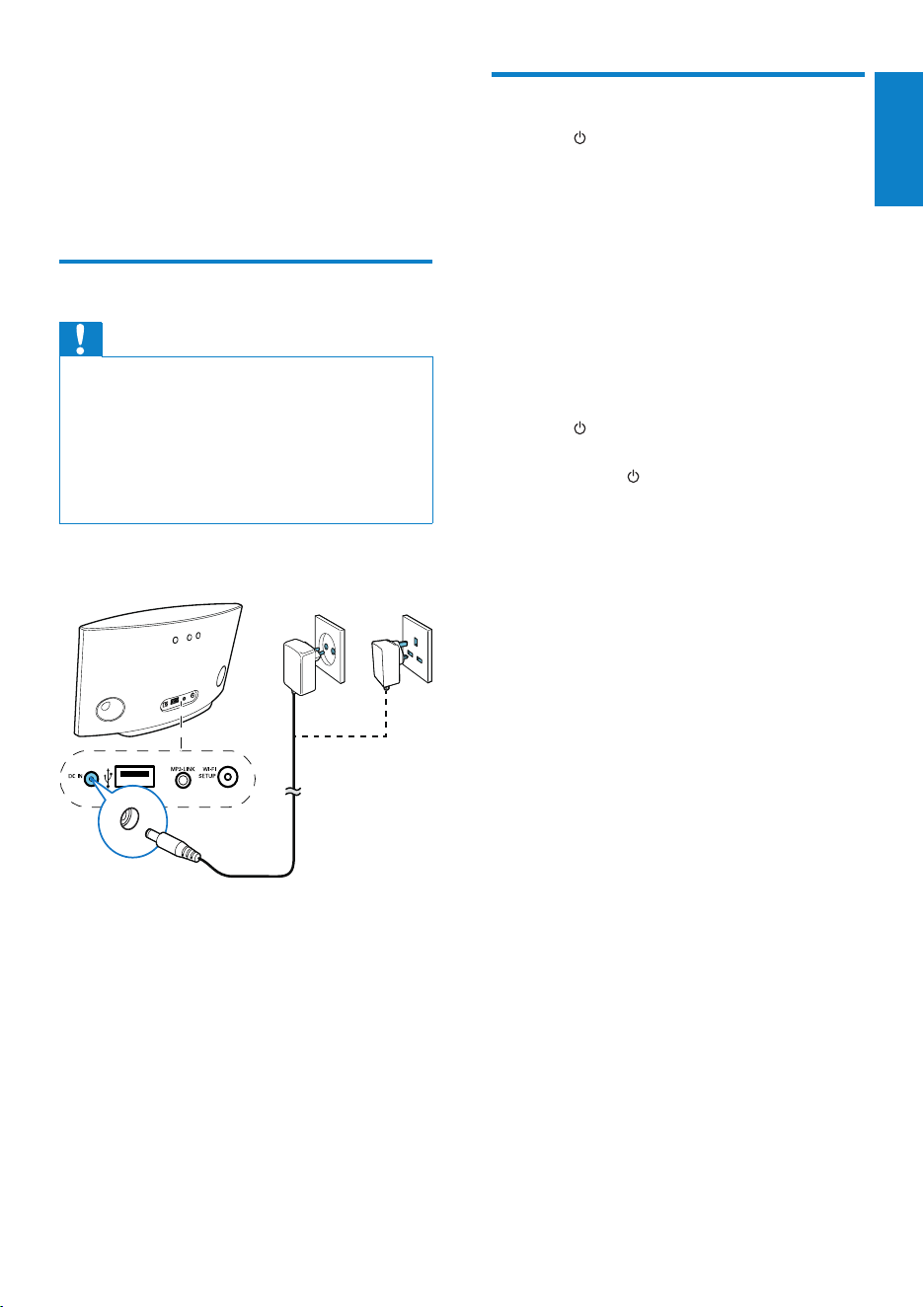
• Connect the AC power cord to
• the DC IN socket on the back of the
unit.
• the wall power socket.
EN
10
Before connection of AD6000W to you home
Wi-Fi network, check the points below.
1 Make sure that your Wi-Fi router is
powered on and working properly.
2 Make sure that AD6000W has been
powered on and booted up successfully
(see ‘Turn AD6000W on’ on page 9).
3 Identify the type of your Wi-Fi router (see
the user manual of your Wi-Fi router for
details).
Scenario 1: Connect to a
WPS router
Note
• Before you press any button on AD6000W, make sure
that AD6000W has been booted up successfully (see
‘Turn AD6000W on’ on page 9).
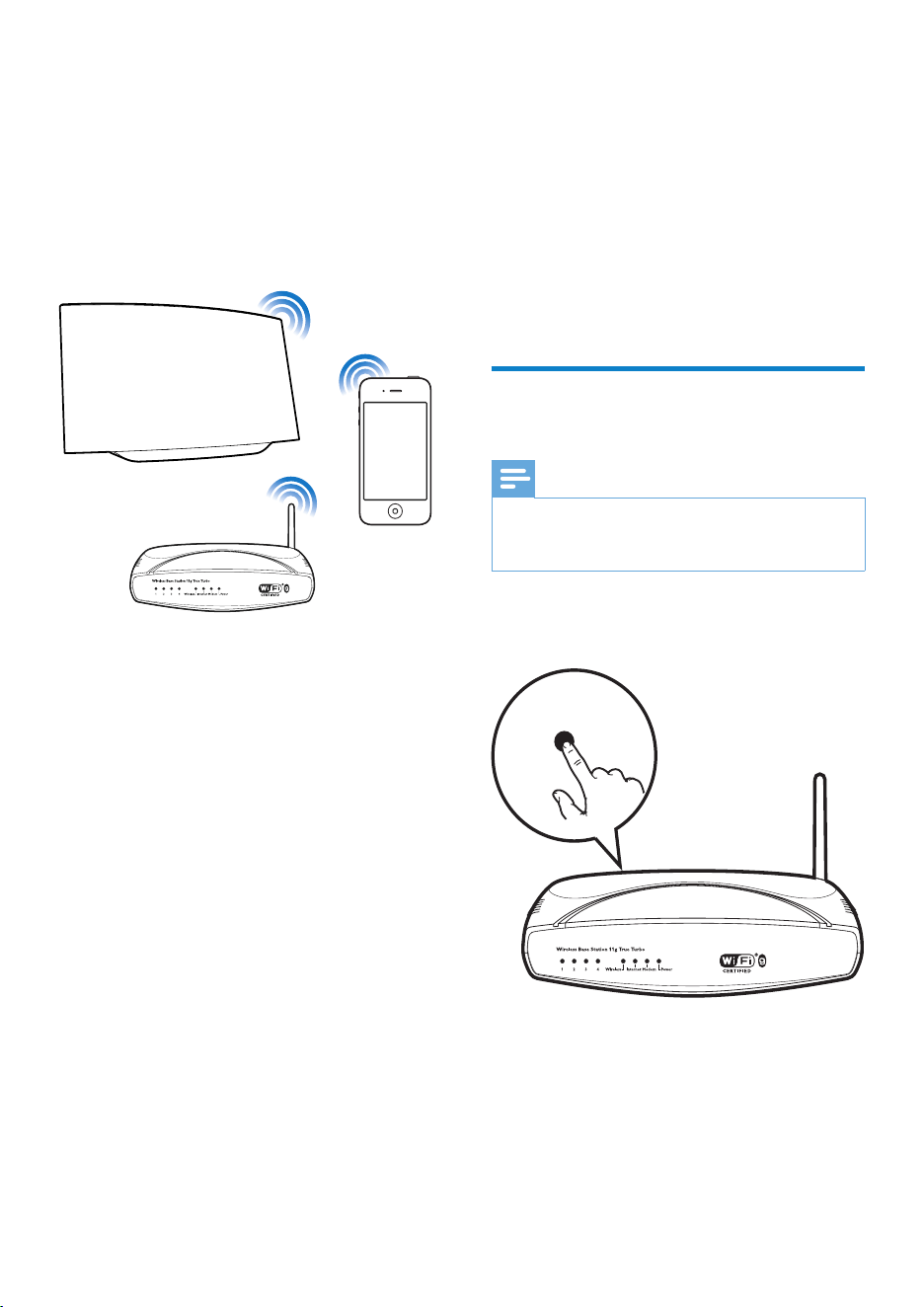
1 Press the WPS button on your home Wi-Fi
router.
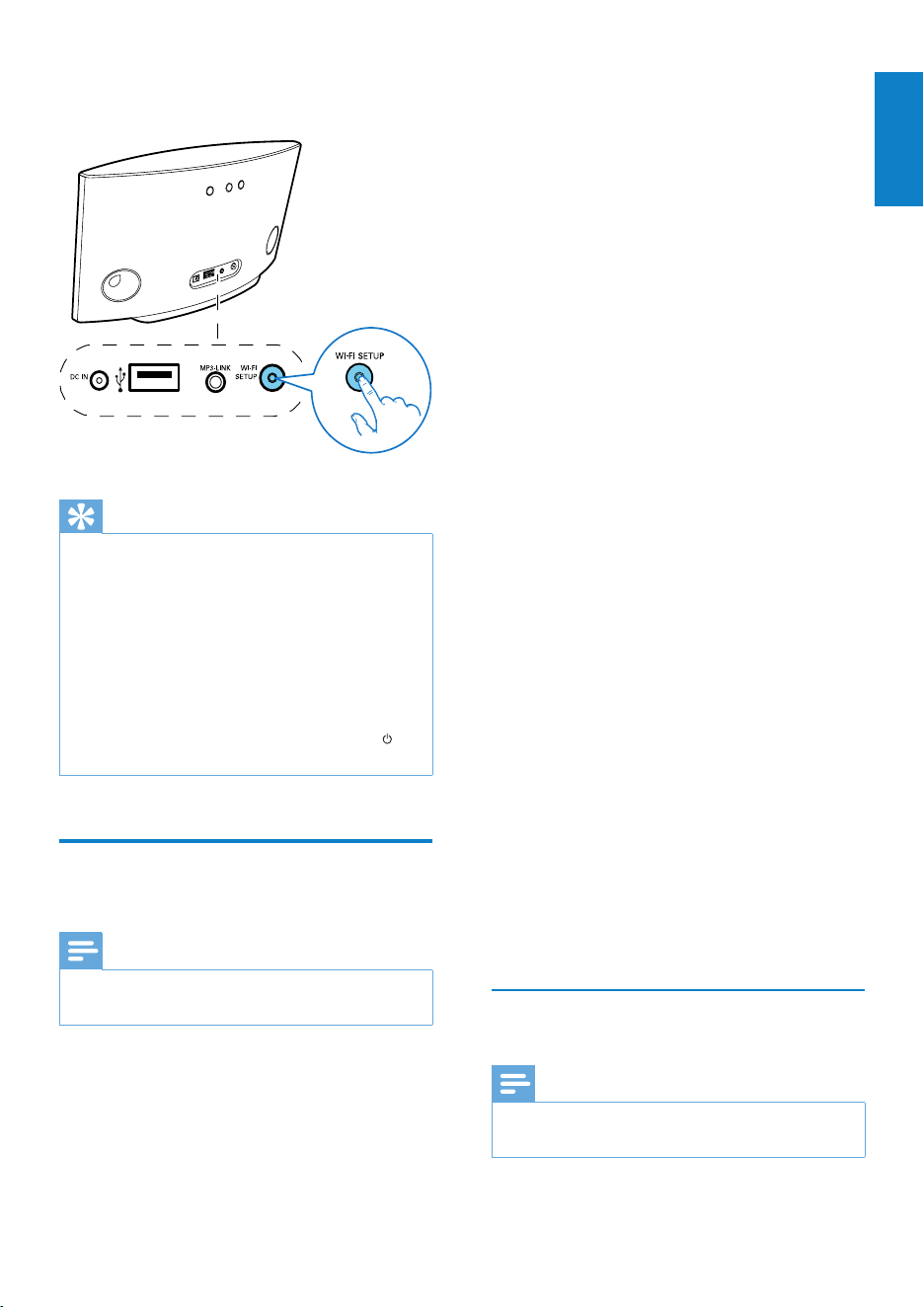
2 Shortly after step 1, press Wi-Fi SETUP on
the back of AD6000W.
» The Wi-Fi SETUP indicator blinks red,
yellow and green alternately.
» Within 2 minutes, the WI-FI SETUP
indicator stops blinking and stays green,
and the unit beeps.
WPS
4 Connect to
your home Wi-
Fi network for
AirPlay
To connect AD6000W to your existing home
Wi-Fi network, you need to apply your home
Wi-Fi settings to AD6000W.
You can do this in two ways (depending on
which type of Wi-Fi router you use):
• Automatically - if your Wi-Fi router
is WPS (Wi-Fi Protected Setup)-
enabled and supports PBC (Push
Button Connection) (see Scenario 1:
Connect to a WPS router’ on page
10)
• Manually - if your Wi-Fi router does
not support WPS (see ‘Scenario 2:
Connect to a non-WPS router’ on
page 11)
Once connected successfully, AD6000W will
remember your home Wi-Fi settings. Then
you can enjoy AirPlay whenever AD6000W is
powered on and connected to your home Wi-
Fi network automatically.
EN
11
English
The Wi-Fi enabled device can be an iPod touch/
iPhone/iPad or a Wi-Fi enabled PC/Mac.
Follow the sequence below for connection of
AD6000W to a non-WPS Wi-Fi router.
1 Collect settings of your home Wi-Fi router
and write down on paper for use during
AD6000W Wi-Fi setup (see ‘Collect
settings of your home Wi-Fi router’ on
page 11).
2 Switch AD6000W to Assisted Wi-Fi Setup
mode (see Switch AD6000W to Assisted
Wi-Fi Setup mode’ on page 12).
» A new Wi-Fi network created by
AD6000W will appear, with the
network name (SSID) of Philips Fidelio
AirPlay.
3 Connect your Wi-Fi enabled device to the
newly created Wi-Fi network temporarily
(see ‘Connect your Wi-Fi enabled device to
the newly created Wi-Fi network’ on page
12).
4 Open the built-in web page of AD6000W
with the Internet Browser of your Wi-Fi
enabled device (see ‘Open the built-in web
page of AD6000W’ on page 14).
5 Change the internal Wi-Fi settings of
AD6000W based on the settings you
wrote on paper at step 1 (see ‘Change the
internal Wi-Fi settings of AD6000W’ on
page 15).
6 Restore your Wi-Fi enabled device back
to your existing home Wi-Fi settings (see
‘Restore your Wi-Fi enabled device back to
your existing home Wi-Fi setting’ on page
16).
Collect settings of your home Wi-Fi
router
Note
• Always consult the user manual of your home Wi-Fi
router for detailed instructions.
» AD6000W is connected to your home
Wi-Fi network successfully.
Tip
• For some Wi-Fi routers, you may need to hold the
WPS button for Wi-Fi connection or enable the WPS
PBC function from the router conguration pages. See
the user manuals of the specic routers for details.
• If the Wi-Fi SETUP indicator on AD6000W blinks
yellow, it means that the Wi-Fi connection has failed.
Please wait for 2 minutes and try again. If the problem
remains, try to set up the Wi-Fi connection manually
(see ‘Scenario 2: Connect to a non-WPS router’ on
page 11).
• If the Wi-Fi connection fails again, press and hold on
the back of AD6000W to reset it, and then try again.
Scenario 2: Connect to a
non-WPS router
Note
• You can also follow the procedures below to connect
AD6000W to a WPS router manually.
To connect AD6000W to a Wi-Fi router
manually, you need access to AD6000W’s
built-in conguration web page for change of
its internal Wi-Fi settings. To do so, you need a
Wi-Fi enabled device with an Internet browser
for temporary Wi-Fi connection to AD6000W.
EN
12
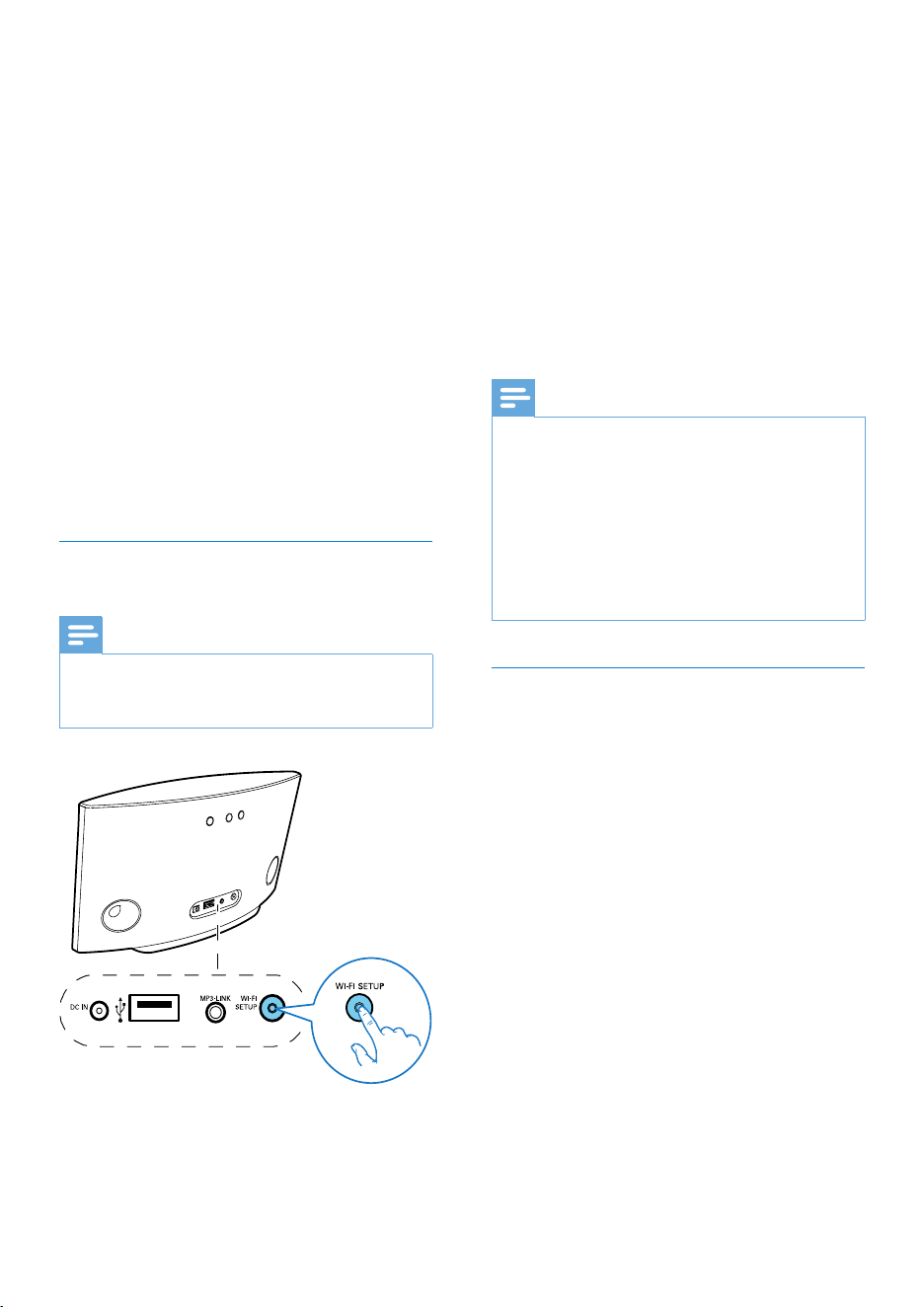
• Press and hold Wi-Fi SETUP on the back
of AD6000W for more than 5 seconds.
» The Wi-Fi SETUP indicator blinks
green and yellow alternately.
» A new Wi-Fi network created by
AD6000W will appear, with the
network name (SSID) of Philips Fidelio
AirPlay.
» It may take up to 45 seconds for
successful creation of this new Wi-Fi
network.
Note
• After you nish manual Wi-Fi setup for AD6000W,
the new Wi-Fi network created by AD6000W will
disappear.
• If you fail to enter Assisted Wi-Fi Setup mode, power
off AD6000W and power on it, then try again after
successful boot-up.
• Make sure that there are no other Philips AirPlay-
enabled devices in Assisted Wi-Fi Setup mode at the
same time. Multiple Wi-Fi networks created this way
may interfere with each other.
Connect your Wi-Fi enabled device to
the newly created Wi-Fi network
The new Wi-Fi network created by AD6000W
only allows access of one Wi-Fi enabled device.
To avoid interference from any other Wi-Fi
devices, you are recommended to temporarily
disable the Wi-Fi function on your other Wi-Fi
devices.
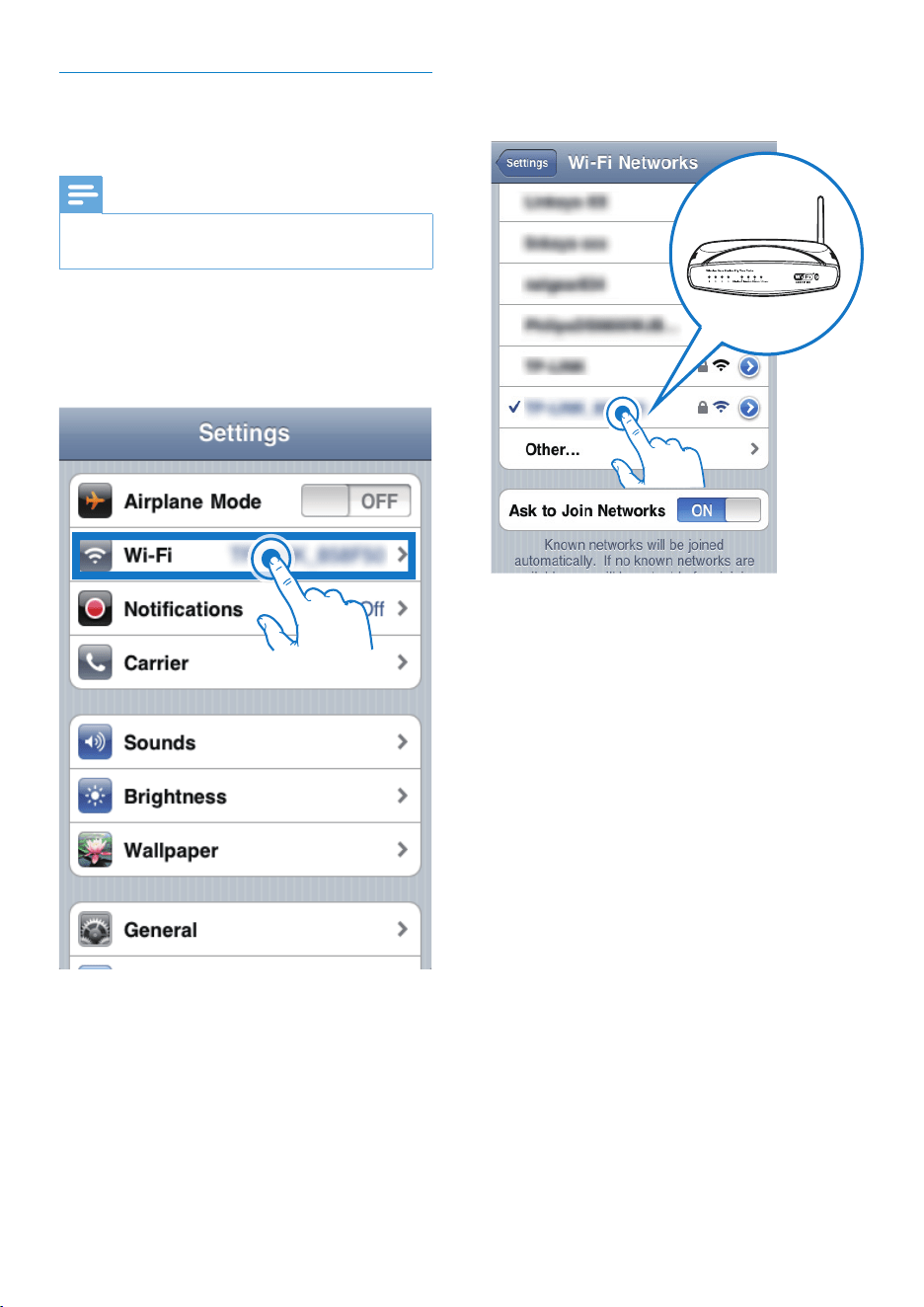
Option 1: Use your iPod touch/iPhone/iPad
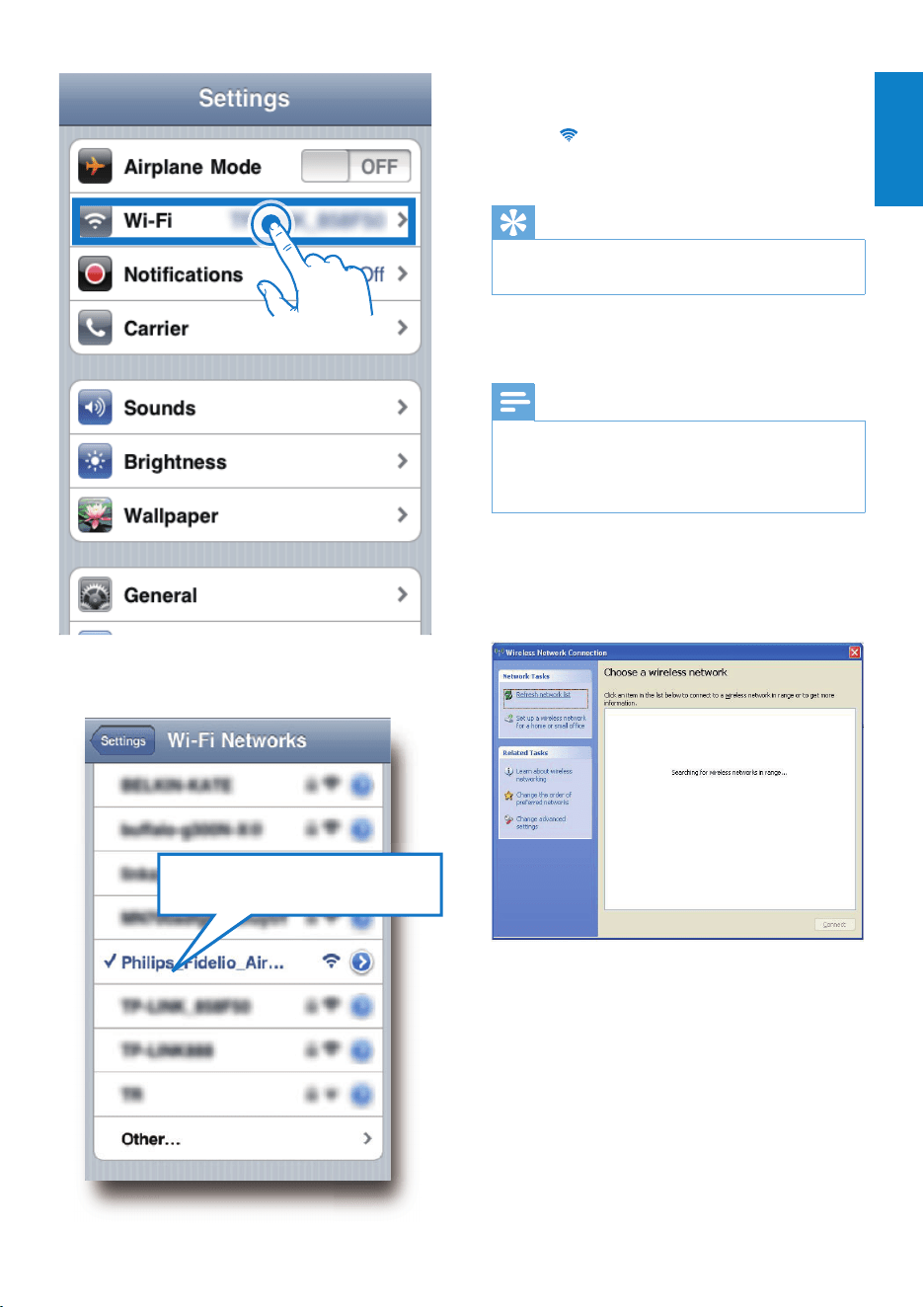
1 Select Settings -> Wi-Fi on your iPod
touch/iPhone/iPad.
1 Connect your Wi-Fi enabled device to
your existing home Wi-Fi network.
2 Launch the Internet browser (for example,
Apple Safari or Microsoft Internet
Explorer) on your Wi-Fi enabled device.
3 Open the conguration page of your
home Wi-Fi router.
4 Find the Wi-Fi settings tab and write down
the following information on paper:
A
Network name (SSID)
B Wi-Fi security mode (usually WEP,
WPA or WPA2 if enabled)
C
Wi-Fi password (if Wi-Fi security is
enabled)
D
DHCP mode (enabled or disabled)
E Static IP address settings (if DHCP
mode is disabled)
Switch AD6000W to Assisted Wi-Fi
Setup mode
Note
• Before you press any button on AD6000W, make sure
that AD6000W has been booted up successfully (see
‘Turn AD6000W on’ on page 9).
EN
13
English
3 Wait until successful Wi-Fi connection on
your iPod touch/iPhone/iPad.
» is displayed at the upper left corner
of your iPod touch/iPhone/iPad.
Tip
• If Philips Fidelio AirPlay is not in the list, try to scan the
available Wi-Fi networks again.
Use your Wi-Fi enabled PC/Mac
Note
• See the user manual of your PC/Mac for how to
connect your PC/Mac to a Wi-Fi network.
• During Wi-Fi network connection, do not connect any
network cable to your PC/Mac.
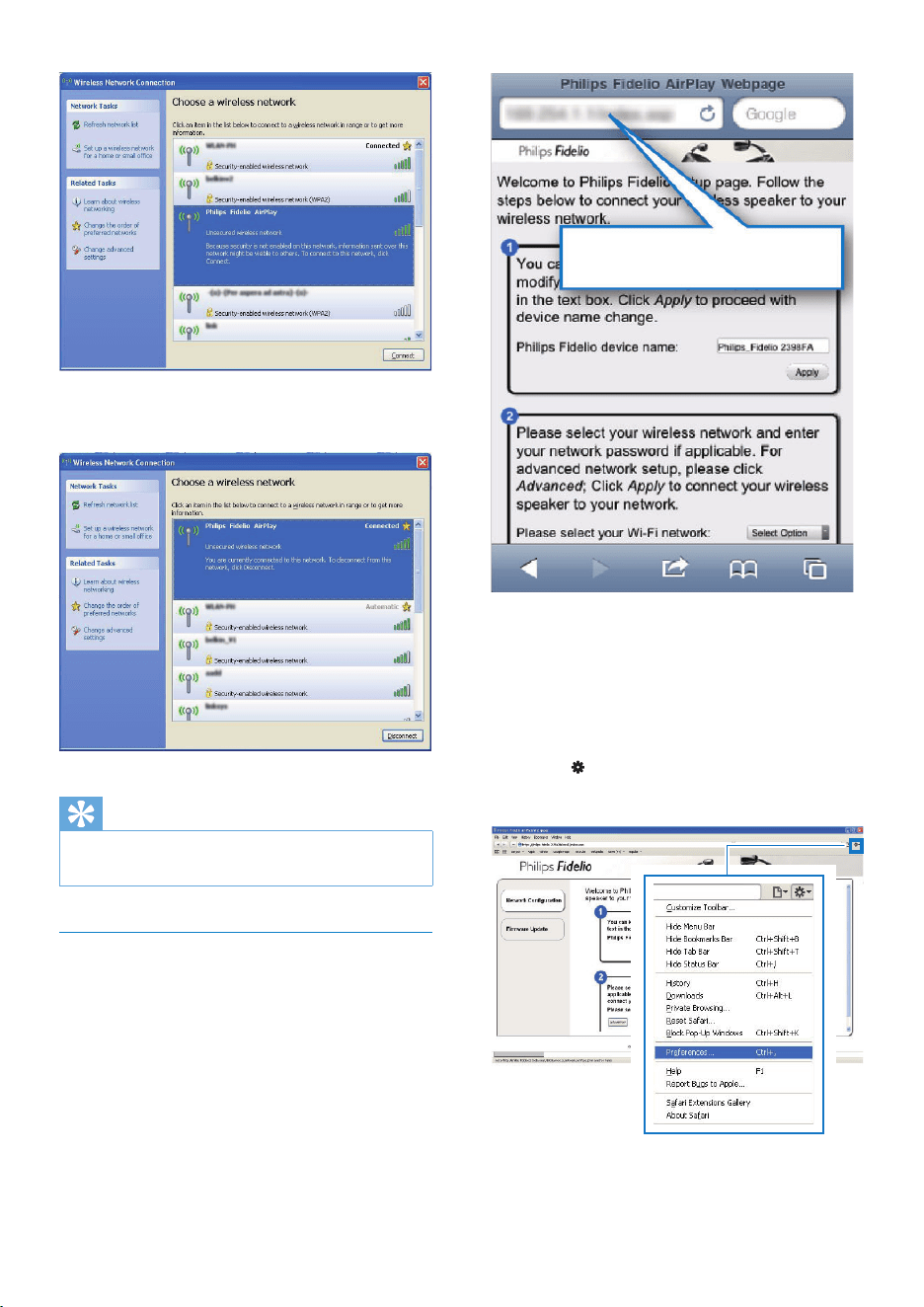
1 Open the Wi-Fi setup tool or control
panel on your PC/Mac.
2 Scan the available Wi-Fi networks.
3 Select Philips Fidelio AirPlay from the list
of available networks.
2 Select Philips Fidelio AirPlay from the list
of available networks.
Philips Fidelio AirPlay
EN
14
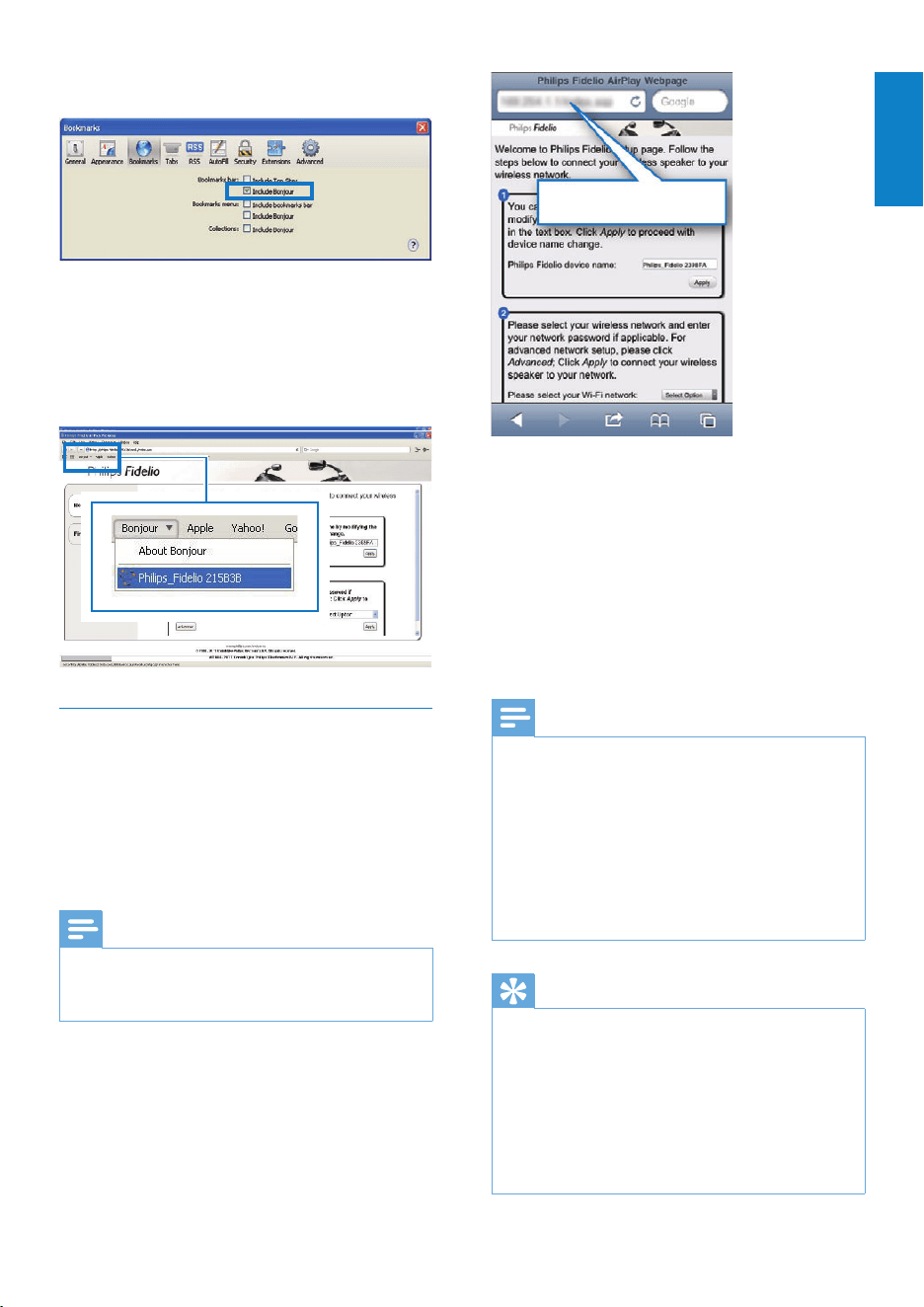
If you use Safari on your Wi-Fi enabled PC/
Mac, you can also select ‘Philips_Fidelio XXX’
from the Bonjour pull-down list to enter the
AD6000Wcongurationwebpagedirectly.
1 Click -> Preferences.
» The Bookmarks menu is displayed.
192.168.1.1
4 Wait until successful Wi-Fi connection on
your PC/Mac.
Tip
• If Philips Fidelio AirPlay is not in the list, try to scan the
available Wi-Fi networks again.
Open the built-in web page of
AD6000W
1 Launch Apple Safari browser or any other
Internet browser on your Wi-Fi enabled
device.
2 Type in 192.168.1.1 at the browser
address bar and conrm.
» The AD6000W conguration
web page is displayed.
EN
15
English
• Follow the on-screen instructions to
change and conrm the internal Wi-Fi
settings of AD6000W.
» After a while, the indicator on the back
of AD6000W stops blinking and stays
green, and the unit beeps.
» AD6000W is connected to your
existing home Wi-Fi network
successfully.
Note
• If the WI-FI SETUP indicator on AD6000W does not
stay green steadily, it means that the Wi-Fi connection
has failed. Please power off both your Wi-Fi router
and AD6000W and then power on them again to see
whether AD6000W can be connected to your home
Wi-Fi network. If the problem remains, try the above
procedures again.
• After you nish the above changes or power-off and
power-on of AD6000W, the new Wi-Fi network
created by AD6000W will disappear.
Tip
• If you like, you can change the name of your AD6000W
in Advanced settings -> AirPlay Device Name on the
AD6000W conguration web page. This is helpful when
you have multiple Philips AirPlay-enabled devices in
your house and you need to distinguish between them.
• If you want to enter the network name (SSID) manually
(for example, if you want to hide your SSID), go to
Advanced settings -> CONFIGURE MANUALLY on
the AD6000W conguration web page.
192.168.1.1
2 Tick Include Bonjour for Bookmarks bar.
3 Select ‘Philips_Fidelio XXX’ from the
Bonjour pull-down list shown at the
bookmarks bar.
» The AD6000W conguration web
page is displayed.
Change the internal Wi-Fi settings of
AD6000W
On the AD6000W conguration web page,
you can change the internal Wi-Fi settings of
AD6000W for connection of AD6000W to
your existing home Wi-Fi network.
Note
• Make sure that the settings on the conguration web
page match your home Wi-Fi network settings that you
wrote on paper.
EN
16
2 Select your network name (SSID) from the
list of available wireless networks.
3 Enter the network key if required.
4 Wait until successful Wi-Fi connection to
your home Wi-Fi network.
Restore your Wi-Fi enabled device
back to your existing home Wi-Fi
setting
Note
• Make sure that the settings at steps 2 to 3 below match
your home Wi-Fi network settings you wrote on paper.
1 Select Settings -> Wi-Fi on your iPod
touch/iPhone/iPad.
• Or open the list of available Wi-Fi
networks on your PC/Mac.
EN
17
English
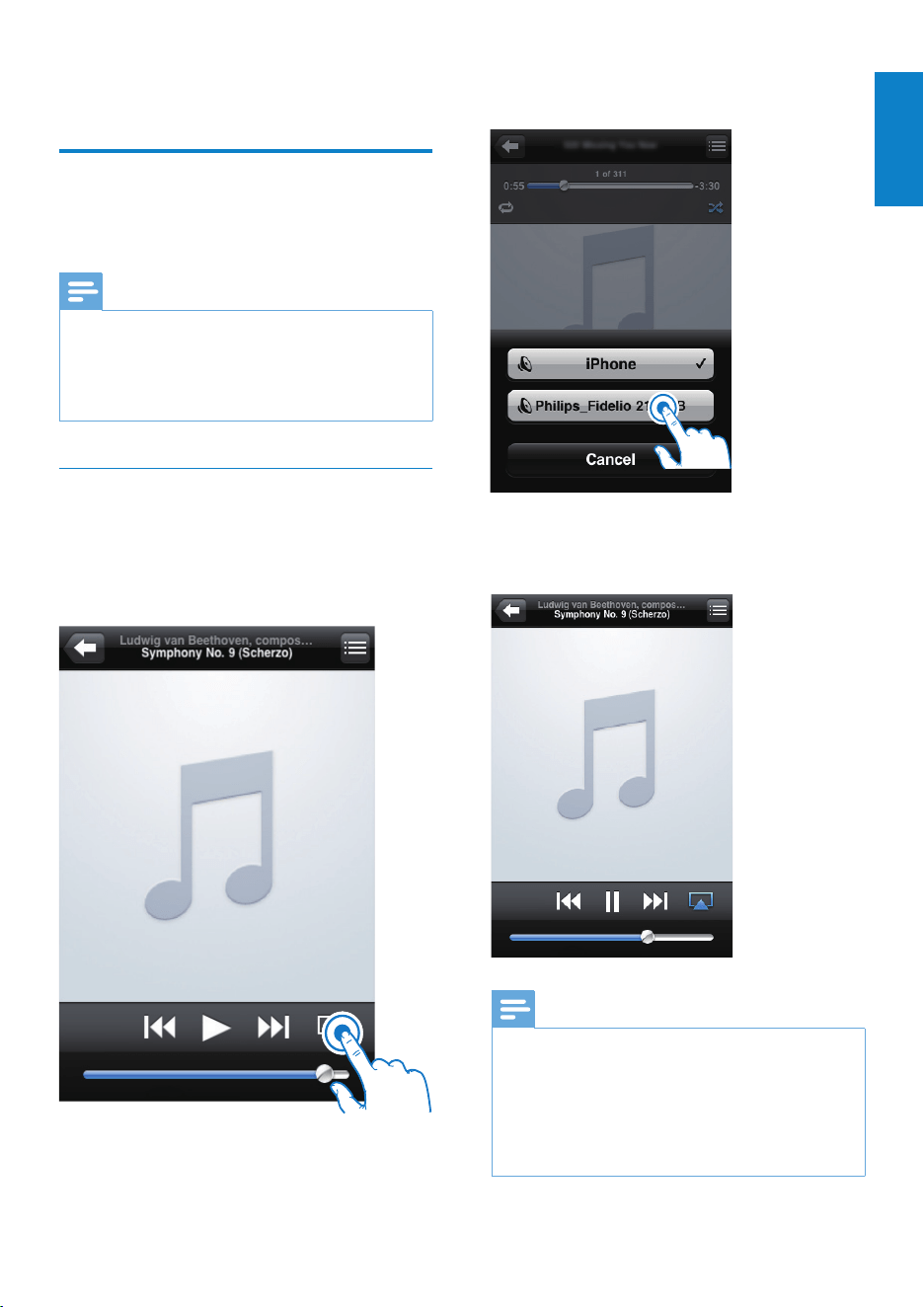
3 Select Philips_Fidelio XXXX (or user
customized name) from the AirPlay list.
4 Select a media le and start play.
» After a while, you will hear music from
AD6000W.
Note
• If you fail to hear music after successful setup, do one of
the following on your iPod touch/iPhone/iPad:
• (1) Disconnect and then re-connect to the same Wi-Fi
router again;
• (2) Close all applications running at the background;
• (3) Power off and then power on your iPod touch/
iPhone/iPad again.
5 Play
Stream audio from your
iTunes music library to
AD6000W
Note
• Make sure that your iTunes host device is connected
to the same Wi-Fi network as AD6000W. Your iTunes
device can be an iPod touch/iPhone/iPad installed with
iOS 4.3 (or later) or a Wi-Fi enabled PC/Mac installed
with iTunes 10 (or later).
Stream from your iPod touch/iPhone/
iPad
1 Launch the iPod/Music application on your
iPod touch/iPhone/iPad.
2 Tap on the AirPlay icon.
EN
18
Tip
• When you stream audio from your iTunes music library
on a PC/Mac, you can select more than one AirPlay-
enabled devices (if available) at step 3 to stream music
to all of them at the same time.
• If you are using an earlier version of iTunes, the AirPlay
icon may be
instead of .
Control play
You can select different play options from either
your iTunes host device or AD6000W.
Note
• Make sure that you have successfully streamed audio
from your iTunes music library to AD6000W.
• To pause or resume play, press .
• To adjust volume, press +/- repeatedly.
Tip
• If you are streaming music from a PC/Mac, to control
music play from AD6000W, launch iTunes and tick
Allow iTunes audio control from remote speakers
in Edit (for Windows) or iTunes (for Mac) ->
Preferences... -> Devices.
Use advanced sound settings
If your iTunes host device is an iPod touch/
iPhone/iPad:
For advanced sound settings and additional
features, you can use your iPod touch/iPhone/
iPad to download the Philips Fidelio application
from Apple App Store. It is a free application
from Philips.
If your iTunes host device is a Wi-Fi enabled
PC/Mac:
For advanced sound settings, you can use the
equalizer available on iTunes directly (View ->
Show Equalizer).
Tip
• See the iTunes help documentation for more details.
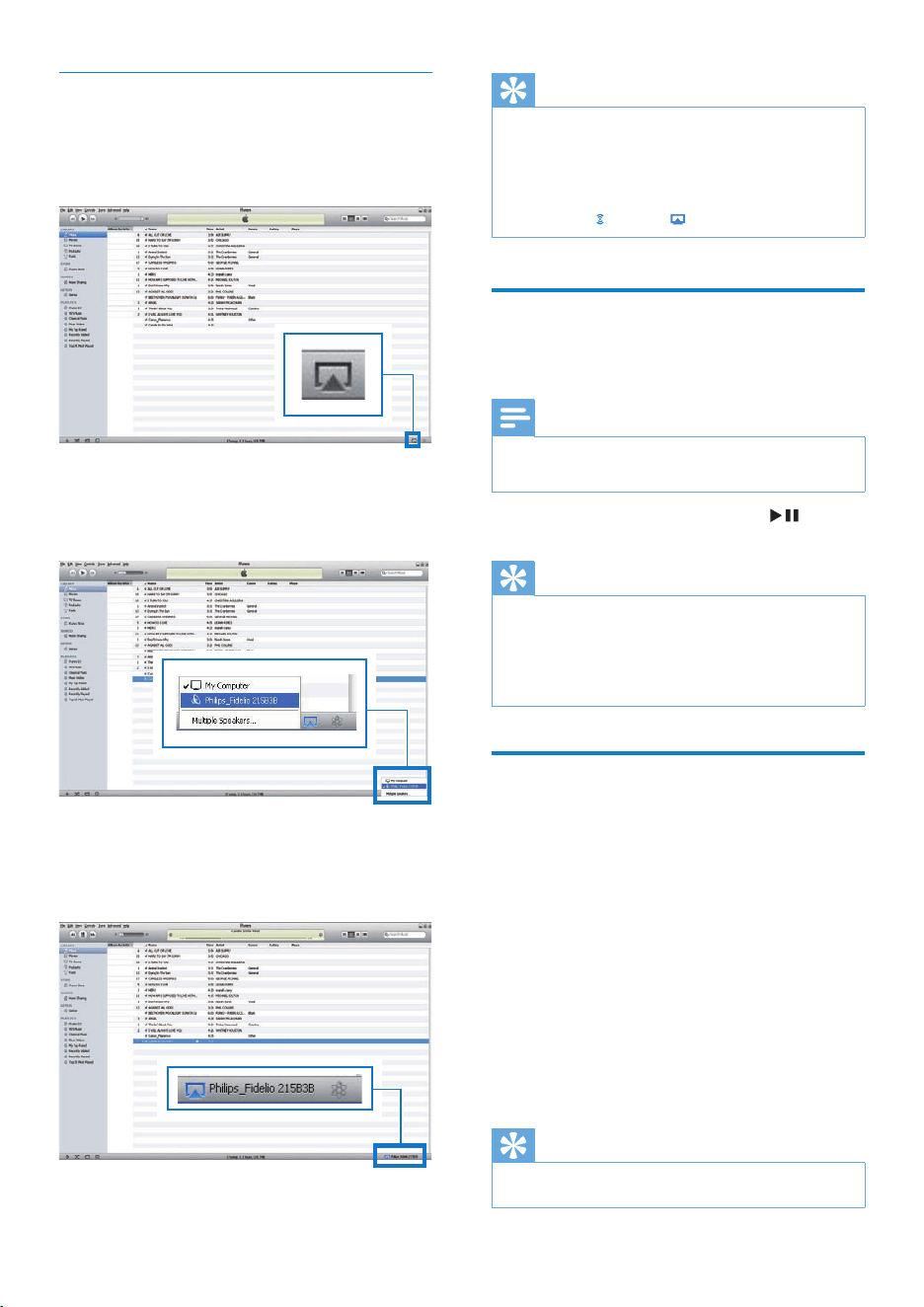
Stream from your PC/Mac
1 Launch iTunes 10 (or a later version) on
your PC/Mac.
2 Click the AirPlay icon on the window.
3 Select Philips_Fidelio_AirPlay XXXX (or
user customized name) from the AirPlay
list.
4 Select a media le and start play.
» After a while, you will hear music from
AD6000W.
EN
19
English
• iPhone 3GS
• iPhone 3G
• iPhone
• iPod classic
• iPod 5G
• iPod 4G
• iPod nano (2nd, 3rd, 4th, 5th, and 6th
generation)
• iPod touch (1st, 2nd, 3rd, and 4th
generation)
Play from an external device
You can also listen to an external audio player
through the unit.
If you have stopped both audio streaming
by AirPlay and play through the USB socket,
the unit switches to the MP3 link source
automatically.
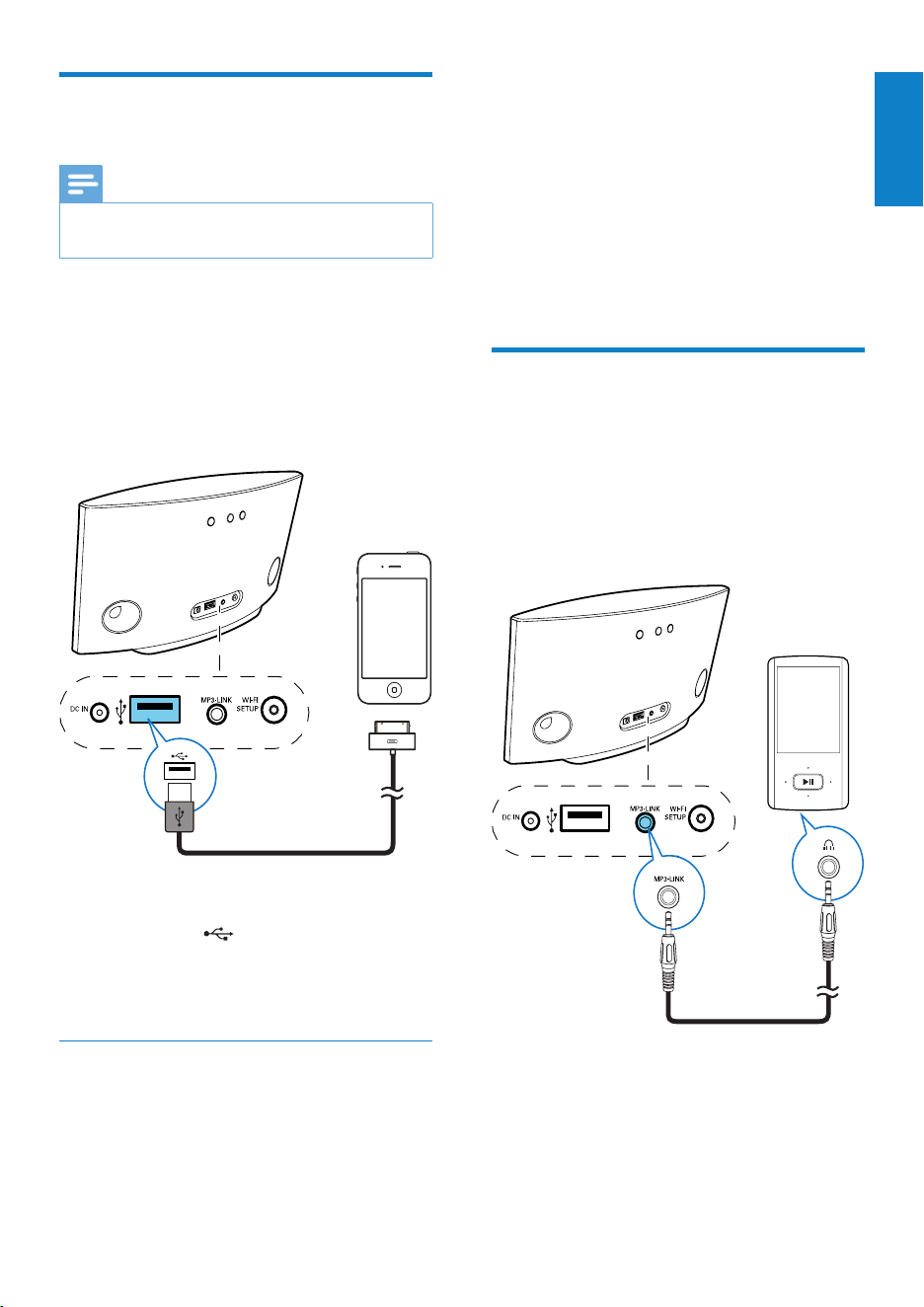
• Connect the supplied MP3 link cable to:
• the MP3-LINK socket on the back of
the unit.
• the headphone jack on an external
audio player.
Play/charge your iPod/iPhone/
iPad through USB socket
Note
• The USB socket is only compatible with iPod/iPhone/
iPad.
You can play or charge your iPod/iPhone/iPad
through the USB socket with an Apple USB
cable (not supplied).
If you have stopped audio streaming by AirPlay,
after successful USB connection, the unit
switches to the USB source automatically.
• Connect an Apple USB cable (not
supplied) to:
• the USB socket on the back of
AD6000W.
• the dock connector on your iPod/
iPhone/iPad.
Compatible iPod/iPhone/iPad
The USB socket supports play and charge of
the following iPod, iPhone, and iPad models.
• iPad 2
• iPad
• iPhone 4
EN
20
Update from the
congurationpage
Warning
• Always connect your AD6000W to AC power for
rmware upgrade. Never power off your AD6000W
during rmware upgrade.
Note
• To use an Internet browser other than Apple Safari
on your PC/Mac, remember to go to the Wi-Fi router
conguration page and write down the IP address of
your AD6000W. See the user manual of your Wi-Fi
router for how to nd the IP addresses of devices
connected to the Wi-Fi router.
1 Power on AD6000W (see ‘Turn
AD6000W on’ on page 9).
» It takes about 35 seconds for the unit
to boot up. During boot-up, the WI-FI
SETUP indicator on the back of the
unit blinks green quickly.
» After boot-up, you can hear a beep
and the WI-FI SETUP indicator
turns to green steadily. AD6000W is
connected to the last congured Wi-Fi
network automatically.
2 Make sure that AD6000W and your PC/
Mac are connected to the same Wi-Fi
router.
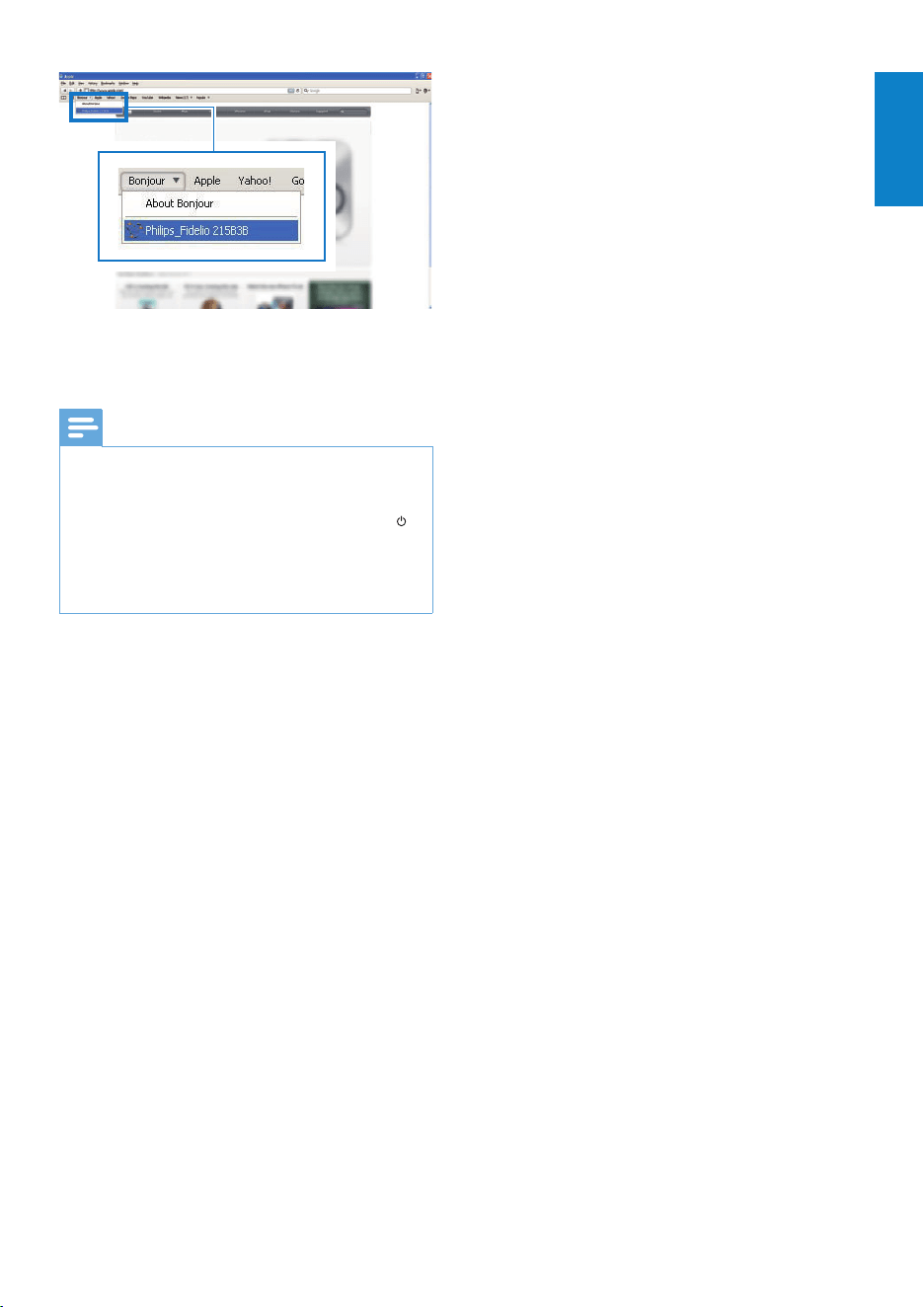
3 Open Apple Safari on your PC/Mac, then
select ‘Philips_Fidelio XXX’ from the
Bonjour pull-down list.
• Or open any other Internet browser
on your PC/Mac, then type in the IP
address of AD6000W (available on
the Wi-Fi router conguration page)
at the address bar.
» The AD6000W conguration
web page is displayed.
6 Update
firmware
Note
• You can only update the rmware from a PC/Mac.
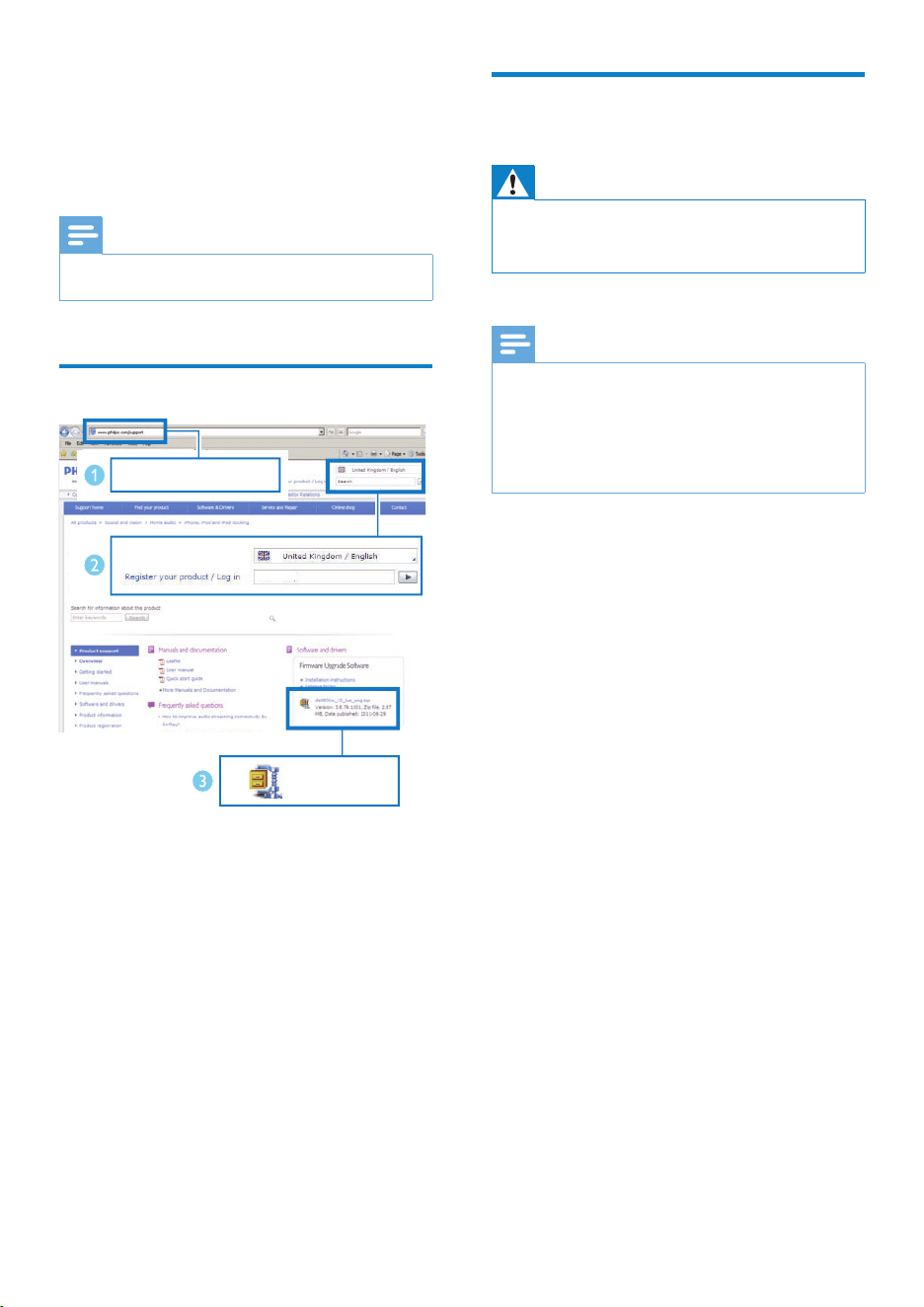
Downloadtheupdatele
1 On your PC/Mac, go to www.philips.com/
support.
2 Enter the model number to nd the latest
rmware upgrade le available.
3 Save the upgrade le to your hard drive.
www.philips.com/support
XXXX
XXXX. zip
EN
21
English
4 Follow the on-screen instructions to
complete the rmware update.
Note
• In case the rmware update fails, you can try the above
procedures again.
• After successful rmware update, if there is any
problem with the Wi-Fi connection, press and hold
on AD6000W for more than 5 seconds to reset the
device, and then try to set up the Wi-Fi network for
AD6000W again (see ‘Connect to your home Wi-Fi
network for AirPlay’ on page 10).
EN
22
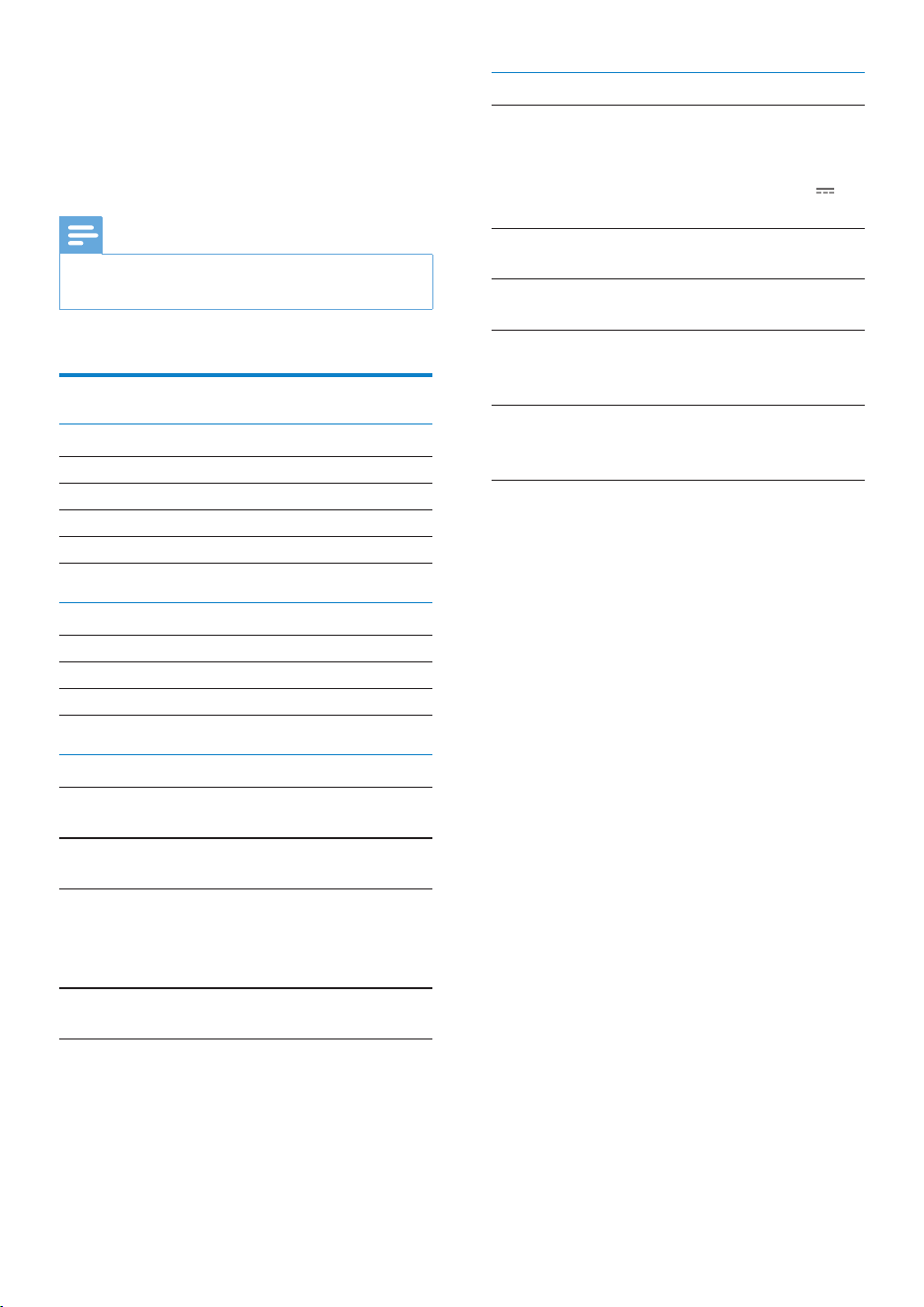
General information
AC power Input: 100 - 240
V~, 50/60 Hz
1A/1.2 A
Output: 12 V
3.0 A
Operation Power
Consumption
25 W
Power Consumption in
Standby Mode
< 0.5 W
Dimensions
- Main Unit (L x W x H) 298 x 98 x
168 mm
Weight
- With Packing
- Main Unit
2.02 kg
1.36 kg
7 Product
information
Note
• Product information is subject to change without prior
notice.
Specications
Amplier
Rated Output Power 2 X 5 W RMS
Frequency Response 63 Hz - 18 kHz, ±3 dB
Signal to Noise Ratio > 90 dB
MP3 Link 600 mV RMS 20 kohm
Speakers
Speaker Impedance 8 ohm
Speaker Driver 66 mm full range
Sensitivity 82 dB/m/W
Wireless
Wireless
standard
802.11b/g
Wireless
security
WEP (64 or 128 bit),
WPA/WPA2 (8-63 characters)
Frequency
range
2412 - 2462 MHz (CH1-
CH11) (for /79, /37, /55, /97)
2412 - 2472 MHz (CH1-
CH13) (for /12, /10, /05)
PBC (one
button push)
Ye s
EN

23
English
Wi-Fi network connection failed
• Check if your Wi-Fi router is Wi-Fi
802.11b/g certied. This device is only
compatible with Wi-Fi 802.11b/g certied
routers.
• If your Wi-Fi router is Wi-Fi 802.11n
certied, make sure to enable the
802.11b/g mode. AD6000W does not
support connection to routers with
802.11n only.
• This device does not support the WPS-
PIN method.
• If your Wi-Fi router supports WPS and the
WPS-PBC method but fails to connect to
AD6000W, try the manual Wi-Fi setup
method (see Scenario 2: Connect to a
non-WPS router’ on page 11).
• Enable SSID broadcast on the Wi-Fi router.
• Keep away from potential sources of
interference which may affect Wi-Fi signal,
such as microwave ovens.
• If you fail to use your PC for Wi-Fi network
setup, check whether your PC is using a
Wi-Fi network. You cannot use Ethernet
connection for AirPlay network setup.
• Make sure that the SSID name of your
home router consists of alphanumeric
characters, with no space or special
characters like %/#/* inserted.
• If you choose to rename the AirPlay device
‘Philips_Fidelio XXXX’ in the setting
menu, do not use special characters or
symbols.
• For some new types of Wi-Fi routers, a
network name (SSID) may be created
automatically when you use WPS for
connection. Always change the default
network name (SSID) to a simple one that
consists of alphanumerical characters, and
also change the Wi-Fi security mode to
secure your network.
8 Troubleshooting
Warning
• Never remove the casing of this apparatus.
To keep the warranty valid, never try to repair
the system yourself.
If you encounter problems when using this
apparatus, check the following points before
requesting service. If the problem remains
unsolved, go to the Philips web site (www.
philips.com/welcome). When you contact
Philips, ensure that the apparatus is nearby
and the model number and serial number are
available.
No power
• Make sure that the AC power plug of the
device is connected properly.
• Make sure that there is power at the AC
outlet.
No sound
• Adjust the volume.
• Check the Wi-Fi network connection.
Set up the network again if needed (see
‘Connect to your home Wi-Fi network for
AirPlay’ on page 10).
No response from the unit
• Press and hold on AD6000W for more
than 5 seconds to reset the device. Then
set up the Wi-Fi network for AD6000W
again (see ‘Connect to your home Wi-Fi
network for AirPlay’ on page 10).
• Disconnect and reconnect the AC power
plug, and then switch on the device again.
EN

24
Occasional breaking of AirPlay music streaming
Do one or all of the following:
• Move AD6000W closer to your Wi-Fi router.
• Remove any obstacles between AD6000W
and your Wi-Fi router.
• Avoid using Wi-Fi channel which is
overlapped by the nearby Wi-Fi network.
• Check if your network speed is fast enough
(in cases where multiple devices share the
same router, the AirPlay performance may
be affected). Turn off the other devices
connected to your home router.
• Enable the Quality of Service (QoS)
option (if available on the Wi-Fi router).
• Turn off other Wi-Fi routers.
No AirPlay icon on my iTunes host device
• Make sure that AD6000W is already
connected to your home Wi-Fi network.
• Before you open iTunes, make sure that
you have enabled Bonjour service in
your PC. Take Windows XP for example:
to enable the service, you can click
Start->Control Panel, and double-click
Administrative Tools-> Services->Bonjour
Service, then click Start followed by OK
on the pop-up menu.
• If the problem remains, try to restart
AD6000W.
AirPlay connection failed with Mac or PC
• Temporarily disable the rewall and
security software to see whether it blocks
the ports that AirPlay uses to stream
content. See the help documentation of
your rewall and security software on how
to unblock the ports used by AirPlay.
• When you use iPod Touch/iPhone/iPad/
Mac/PC for AirPlay, if the music play breaks
or stops, try to restart your iPod Touch/
iPhone/iPad, iTunes or AD6000W.
• Video streaming or FTP downloads may
overload your router and therefore may
cause interruptions during AirPlay music
play. Try to reduce the load of your router.
EN

© 2012 Koninklijke Philips Electronics N.V.
All rights reserved.
AD6000W_10_UM_V1.1