SCD973
User manual

Table of contents
Introduction ����������������������������������������������������������������������������������������������������������������������� 4
General description ���������������������������������������������������������������������������������������������������������� 4
Know these safety symbols�������������������������������������������������������������������������������������������� 5
IMPORTANT SAFETY INSTRUCTIONS ��������������������������������������������������������������������������� 5
Disclaimer ������������������������������������������������������������������������������������������������������������������������������� 6
Battery safety instructions ������������������������������������������������������������������������������������������������� 7
Caution ����������������������������������������������������������������������������������������������������������������������������������� 8
Adult supervision ����������������������������������������������������������������������������������������������������������������� 8
Preparing for use �������������������������������������������������������������������������������������������������������������� 9
Download the Baby Monitor+ app ��������������������������������������������������������������������������������� 9
Security and privacy �����������������������������������������������������������������������������������������������������������10
How to mount your Baby Unit����������������������������������������������������������������������������������������12
Parent Unit ���������������������������������������������������������������������������������������������������������������������������19
Using the baby monitor ������������������������������������������������������������������������������������������������ 21
How to pair your Baby and Parent Unit �����������������������������������������������������������������������21
Features and settings ����������������������������������������������������������������������������������������������������� 24
Menu features ���������������������������������������������������������������������������������������������������������������������24
Settings ���������������������������������������������������������������������������������������������������������������������������������32
Status light ���������������������������������������������������������������������������������������������������������������������������33
Volume ����������������������������������������������������������������������������������������������������������������������������������35
Display brightness ��������������������������������������������������������������������������������������������������������������36
Sound level lights ��������������������������������������������������������������������������������������������������������������� 36
Modes and sensitivity��������������������������������������������������������������������������������������������������������37
Soothing sounds ����������������������������������������������������������������������������������������������������������������40
True talk-back ���������������������������������������������������������������������������������������������������������������������� 42
Cleaning and maintenance ������������������������������������������������������������������������������������������ 43
Storage ������������������������������������������������������������������������������������������������������������������������������ 44
Ordering accessories ������������������������������������������������������������������������������������������������������ 45
Disposal ����������������������������������������������������������������������������������������������������������������������������� 45
Removal of built-in rechargeable battery �������������������������������������������������������������������45
Support ����������������������������������������������������������������������������������������������������������������������������� 46
Troubleshooting ������������������������������������������������������������������������������������������������������������� 46
Compliance information ���������������������������������������������������������������������������������������������� 52
Electromagnetic elds (EMF) ������������������������������������������������������������������������������������������53
Wall mount template ����������������������������������������������������������������������������������������������������54
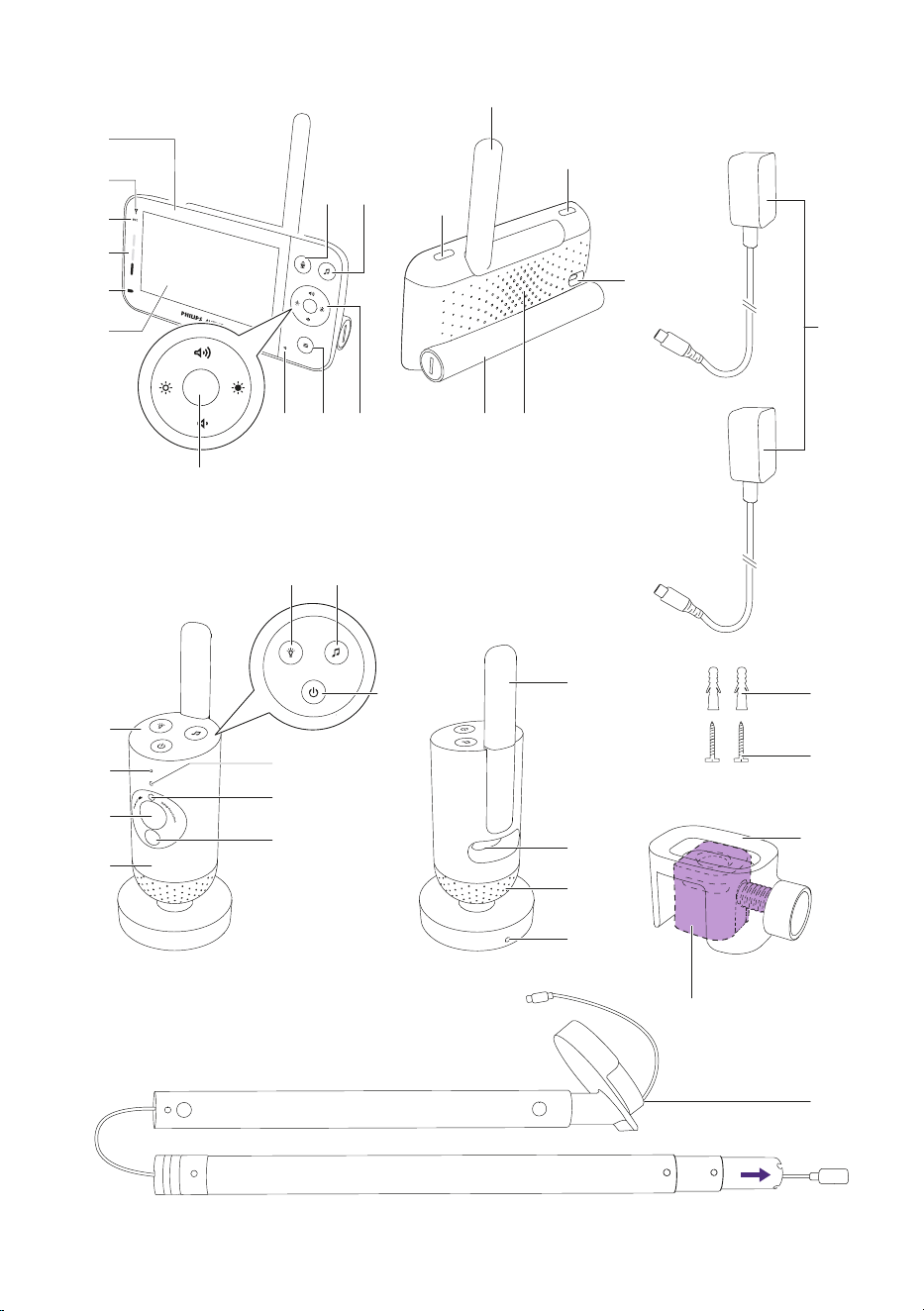
2
1
3
4
5
6
20
26
27
25
28
19
29
16
30
31
32
21
22
7
8
13
15
14
11
12
10
9
23
18 17
24
33
34
35
38
36
37

- 4 -
Introduction
Congratulations on your purchase and welcome to Philips Avent! To fully
benet from the support that Philips Avent oers, register your product at
www.philips.com/welcome�
Philips Avent Premium Connected Baby Monitor with SenseIQ technology
makes the invisible visible for complete reassurance� It’s simple and intuitive
for parents to see, hear, and know their baby is safe and sound from home
or away� SenseIQ helps parents stay connected with wearable-free sleep
and breathing rate tracking providing a real-time picture of their baby’s
wellbeing. Personalized notications and auto-generated sleep logs gives
parents quick and easy insights and understanding into their baby’s sleep
patterns and cycles�
General description
1 Parent Unit
2 Link light
3 Eco-mode light
4 Sound level lights
5 Battery status light
6 Display
7 Conrm button
8 Microphone
9 Menu button
10 Control button (menu navigation/volume/brightness)
11 True talk back button
12 Soothing sounds button
13 On/O button
14 Foldable antenna
15 Mode button
16 USB-C socket
17 Speaker
18 Battery compartment
19 Baby Unit
20 Microphone
21 Camera
22 Nightlight
23 Nightlight button
24 Soothing sounds button
25 On/O button
26 Status light
27 Ambient light sensor
28 Infrared light
29 Antenna
30 USB-C socket
31 Speaker
32 Temperature sensor
33 Power adapter(2x)
34 Anchor (2x)
35 Screw (2x)
36 Clamp
37 Wall mount bracket
38 2-in-1 mount (Crib mount & Wall mount)
- 5 -
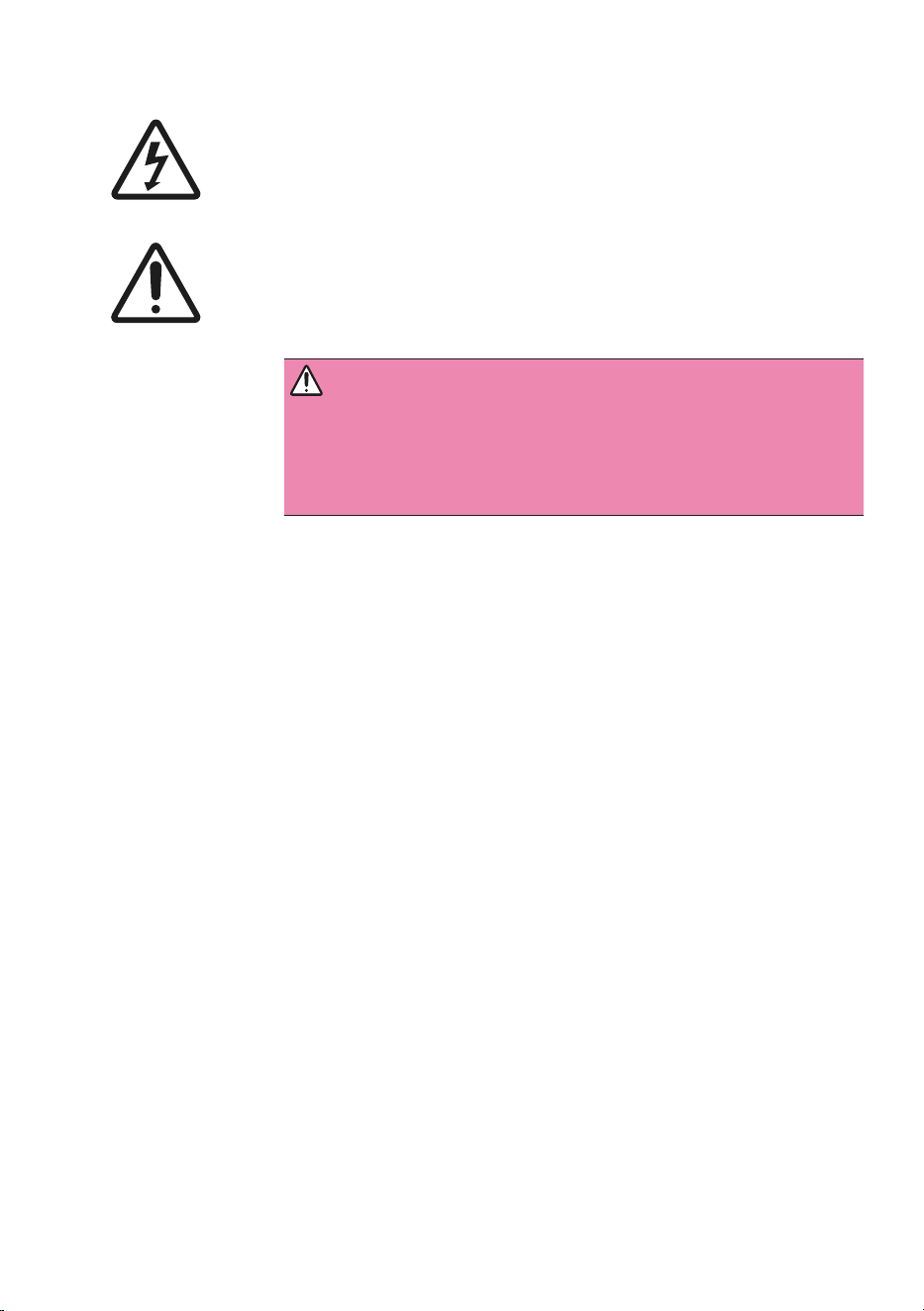
Know these safety symbols
This “bolt of lightning” indicates uninsulated material within your
unit may cause an electrical shock. For the safety of everyone in your
household, please do not remove product covering.
The exclamation mark calls attention to features that require you to
read the enclosed user information closely to prevent operating and
maintenance problems�
WARNING: To reduce the risk of re
or electric shock, this appliance should not be
exposed to rain or moisture and objects lled with
liquids, such as vases, should not be placed on this
appliance.
IMPORTANT SAFETY INSTRUCTIONS
1 Read these instructions�
2 Keep these instructions�
3 Heed all warnings�
4 Follow all instructions.
5 Do not use this appliance near water�
6 Do not use the product while you are in a bathtub, shower or pool.
Immersion of the product in water could cause an electrical shock�
7 Clean only with dry cloth�
8 Never put any object on top of the baby monitor and do not cover
it� Do not block any ventilation openings� Install according to the
manufacturer’s instructions�
9 Do not install near any heat sources such as radiators, heat registers,
stoves or other appliance (including ampliers) that produce heat.
10 Installed batteries shall not be exposed to excessive heat such as
sunshine, re or the like.
11 Protect the power cord from being walked on or pinched particularly
at plugs, convenience receptacles, and the point where they exit from the
appliance�
12 Only use attachments/accessories specied by the manufacturer.
13 Use this appliance only for its intended use as described in this
manual�
14 Unplug this product from the wall outlet before cleaning� Do not use
liquid cleaners or aerosol cleaners�
15 Unplug this appliance during lightning or when unused for long
periods of time�
16 Unplug the product immediately and do not use it if the adapter, the
cord or the product itself is damaged�
- 6 -
17 Refer all servicing to qualied service personnel. Servicing is required
when the appliance has been damaged in any way, such as power supply
cord or plug is damaged, liquid has been spilled or objects have fallen
into the appliance, the appliance has been exposed to rain or moisture,
does not operate normally, or has been dropped. Please check the power
cord periodically to prevent potential damages, such as worn or cut cord.
For assistance, visit our website www.philips.com/ support or contact the
Philips Consumer Care Center in your country. You nd its contact details
in the worldwide guarantee leaet.
18 Keep screws and small items out of the reach of the baby�
19 All the required markings are located on the bottom of the appliance
and on the adapter�
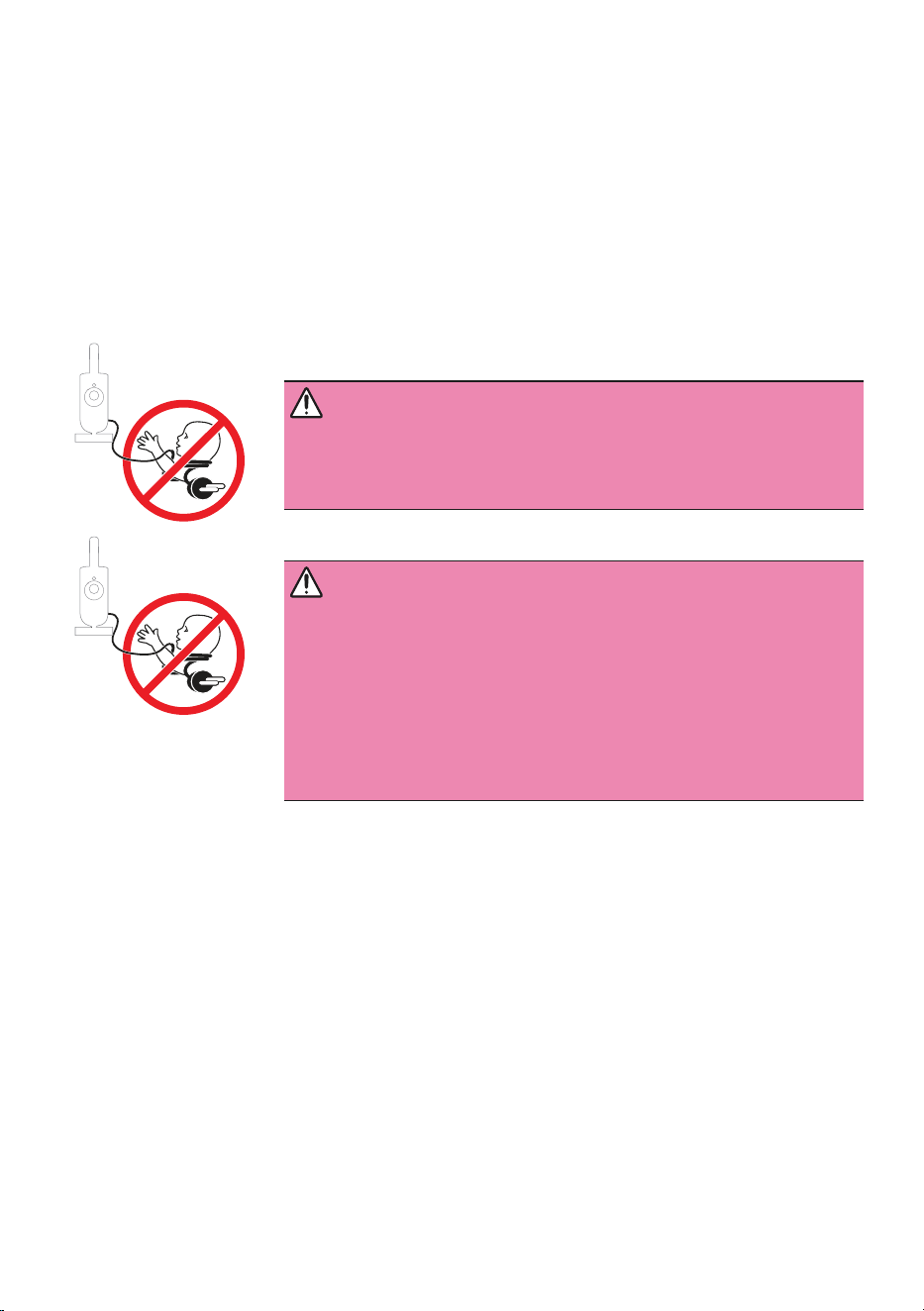
WARNING: STRANGULATION HAZARD.
Children have STRANGLED in cords. Keep this cord
out of the reach of children (more than 3.5feet
(1meter) away). Do not remove the tag.
WARNING: STRANGULATION HAZARD.
Children have STRANGLED in cords. Always
use protective covering and extend the tube
suciently when used within 3feet of crib. Check
before each use to ensure that the cord is not
exposed to your child. Immediately discontinue use
if protective covering is damaged or broken. Do not
remove this tag.
Disclaimer
Please note that you use this baby monitor at your own risk� Koninklijke
Philips N�V� and its subsidiary companies are not responsible for the
operation of this baby monitor or your use of it and therefore do not
accept any liability in connection with your use of this baby monitor�
Philips Avent Premium Connected Baby Monitor is not a medical
device.Philips Avent Baby Monitor+ App is not a medical app.
The Philips Avent Premium Connected Baby Monitor is in NO way
intended to diagnose, treat or cure any disease or other health related
condition, including but not limited to, Sudden Infant Death Syndrome
(SIDS), and is therefore NOT a medical device. This baby monitor is
intended for household use only and is a connected consumer product
designed and intended to help understand how a baby sleeps, moves and
cries�

- 7 -
This product is NOT intended to detect breathing interruptions, breathing
disorders or other medical conditions� This product will NOT notify users
of all their baby’s breathing or sleep irregularities, patterns, cries and/or
current status that may occur�
The Philips Avent Premium Connected Baby Monitor should never be a
substitute or replacement for adult supervision, nor aect the decision
to consult a medical professional� Users should consult a medical
professional if concerned about their baby’s health and should NEVER
solely rely on the readings from this product to diagnose and make
medical decisions about their baby’s health and care�
Alwaysfollow ocial safe sleep, health, and care guidelines to ensure
your child’s safety and wellbeing. Please note, FDA regulations and
standards apply to products only sold in the United States�
Battery safety instructions
- Only use this product for its intended purpose and follow the general
and battery safety instructions as described in this user manual� Any
misuse can cause electric shock, burns, re and other hazards or
injuries�
- To charge the battery, only use the detachable supply unit* provided
with the product. Do not use an extension cord.
- Charge, use and store the product at a temperature between
0°C/ 32°F and 40°C/ 104 °F.
- Always unplug the product when it is fully charged�
- Do not burn products and their batteries and do not expose them to
direct sunlight or to high temperatures (e.g. in hot cars or near hot
stoves). Batteries may explode if overheated.
- If the product becomes abnormally hot, gives o an abnormal smell,
changes color or if charging takes much longer than usual, stop using
and charging the product and contact your local Philips dealer�
- Do not place products and their batteries in microwave ovens or on
induction cookers�
- This product contains a rechargeable battery that is non-replaceable�
Do not open the product to replace the rechargeable battery�
- When you handle batteries, make sure that your hands, the product
and the batteries are dry�
- To prevent batteries from heating up or releasing toxic or hazardous
substances, do not modify, pierce or damage products and batteries
and do not disassemble, short-circuit, overcharge or reverse charge
batteries�
- To avoid accidental short-circuiting of batteries after removal, do not
let battery terminals come into contact with metal object (e.g. coins,
hairpins, rings). Do not wrap batteries in aluminium foil. Tape battery
terminals or put batteries in a plastic bag before you discard them�
- If batteries are damaged or leaking, avoid contact with the skin or eye.
If this occurs, immediately rinse well with water and seek medical care.

- 8 -
Caution
- Do not install the appliance near any heat sources such as radiators,
heat registers, stoves or other apparatus (including ampliers) that
produce heat�
- Make sure that your hands are dry when you handle adapters, plugs
and the mains cord�
- Screw covers / rubber pad can detach from the appliance, check on a
regular basis�
- All required markings on the baby unit, parent unitand power adapter
are located on the bottom of the baby unit, parent unit and power
adapter�
- The mounting accessory works best on a crib of which the square bar
width is between 15 mm/ 0.59 in to 32 mm/ 1.25 in. Avoid using it on
Round or soft rails�
- If your baby bed has a round edge, the mounting bracket is best
mounted to the wall�
- Remove the crib mount from your baby‘s crib and mount it on the wall
when your baby can pull themselves up on their own or show signs of
standing�
Adult supervision
- This baby monitor is intended as an aid� It is not a substitute for
responsible and proper adult supervision and should not be used as
such�
- Never place the baby monitor inside or directly over the baby bed or
playpen�
- To prevent overheating, do not cover the baby monitor with a towel,
blanket or any other items�
- For their safety, keep the baby monitor and its accessories away from
your baby and children� Do not allow children to touch and play with
the baby monitor, the adapter and the accessories. THIS IS NOT A TOY.
- 9 -
Preparing for use
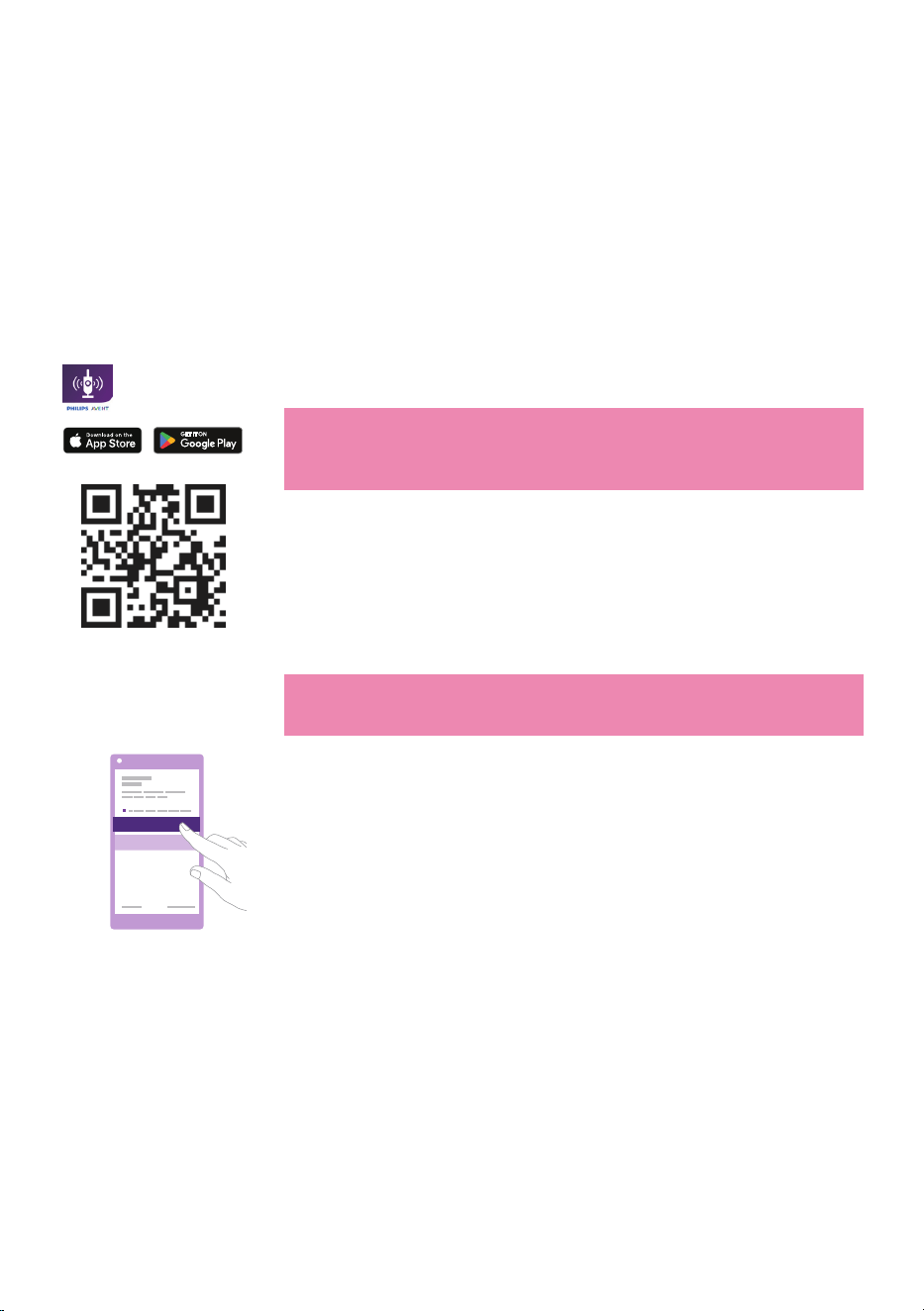
Download the Baby Monitor+ app
To fully experience and activate the SenseIQ and Cry Translation features,
we recommend downloading the Baby Monitor+ app before using your
baby monitor�
With the Philips Avent Baby Monitor+ app, you can see and hear your
baby and check on their wellness from anywhere in the world by using
Wi-Fi or mobile internet.
Philips Avent
Baby Monitor+
Before you start the set-up procedure, make sure:
- You have wireless Internet access (2.4 GHz Wi-Fi).
- You have a good Wi-Fi signal.
Note: If you use a Wi-Fi extender, make sure that your router and your
Wi-Fi extender have the same SSID (the network name) and that you
use the same password for the router and the extender. Also make
sure the Wi-Fi extender supports 2.4 GHz Wi-Fi.
- You have the password of your Wi-Fi network at hand.
Always connect the baby monitor to a secure network (see the
''Security and privacy'' chapter).
1 Download the app�
Scan the QR code or search the keywords ''Philips Avent Baby
Monitor+'' in the App Store or Google Play Store.
2 Launch the app�
Tip: Connect your phone to the Internet via Wi-Fi. Use of data
connection may involve extra charges from your provider, depending
on your subscription�
Create new account
Log in
3 Create your account by following the on-screen instructions�
a Make sure that you use a working email address on which you can
always be reached�
b Use a strong password (see the ''Strong passwords'' section).
c When you receive the verication email, follow the instructions in
the email to continue creating your account�
4 Set up your baby monitor by following the instructions in the app�

- 10 -
Security and privacy
Network security
Do not use the app on an unsecured Wi-Fi network. We advise you to use
the baby monitor only on a Wi-Fi network protected with WPA2 or higher
encryption. With the app, you can also use your phone's data network
(often referred to as 4G or 5G).
Wi-Fi hotspots in public places, such as airports and hotels, are
convenient, but they are often not secure.
We advise you to use the baby monitor only on a Wi-Fi network protected
with WPA2 or higher encryption� We advise you not to use the baby
monitor on a network that uses WEP encryption�
Note: Wi-Fi networks that do not require a password are not secure.
Strong passwords
Passwords are essential to protect your Wi-Fi network and your account
against unauthorised access. The stronger your password, the better
protected your Wi-Fi network and your account is.
The rules for a strong password are:
1 Has at least 8 characters�
2 Does not contain your name, your baby's name, another real name or
a brand name�
3 Does not contain a complete word�
4 Is very dierent from passwords that you have used before.
5 Contains at least 3 out of 4 types of the following characters:
- Uppercase characters (A - Z)
- Lowercase characters (a - z)
- Numeric characters (0 - 9)
- Special characters (e.g., #$%&)
Personal data security
To delete and therefore protect your personal data, factory-reset your
Baby Unit by long pressing the On/O button for 10 seconds when the
Baby Unit is on, before discarding the device. It is strongly advised to
disconnect the Baby Unit from the Philips Avent Baby Monitor+ app by
selecting ''Disconnect Baby Monitor'' option in the Baby Unit settings of
the app�
If you are a second-hand owner, we advise you to perform the following
steps to factory-reset your Baby Unit to secure your device:
1 Turn on your Baby Unit�
2 Once the LED has changed from orange to green or white, press the
On/O button for more than 10 seconds until the LED ashes between
green and orange, and the Baby Unit will factory-reset.
In case you do not perform the factory-reset, Philips will not
be responsible for the performance and functionalities of the device,
and your privacy might be compromised�

- 11 -
Account management
There are dierent access rights for the Admin user and Guest users. You
can invite relatives or friends as guest users and allow them to monitor
your baby on their smart devices�
Admin User Guest Users
Monitoring Video
Audio
SenseIQ
Cry Translation
Temperature
Background monitoring
Video
Audio
Background
monitoring
Alerts
notication
Sound detection
Movement detection
SenseIQ associated notication
Cry detection
Cry Translation
Temperature range detection
NA
Soothing
features
Nightlight, soothing sounds,
lullabies, true talk-back
Voice recording
NA
Account
management
Admin user invitation
Guest user invitation
NA
Note: The Baby Monitor+ app supports two admin accounts, you can
invite your partner to sign up as the other admin and share the same
access rights� Do not share admin credentials with anyone outside of
your immediate household�
Provision of security updates
Compatibility
We continuously monitor the security of the software used in the
product. If necessary, security updates will be provided through software
updates. Software updates may also be provided to oer bug-xes and
performance improvements, or to introduce new product features.
Updates may be provided to the Baby Unit and Parent Unit
rmware, or in
the mobile app� Updates are wirelessly delivered to the product without
the usage of special cables or equipment�
Philips will provide the necessary updates for a period of at least two years
after the delivery of the product�
iOS system: Requires iOS 13.0 or later
Android system: Requires Android 6.0 or later
Note: The compatibility is subject to change over time�
- 12 -
How to mount your Baby Unit
For the optimal monitoring experience with the sleep tracking feature
oered by SenseIQ, we highly recommend utilizing the 2-in-1 mount to
attach the Baby Unit to either a crib or a wall. By doing so, you will be able
to position the camera in the most suitable location with an excellent
view, allowing you to monitor your baby's sleep and breathing patterns
with ease and eciency.
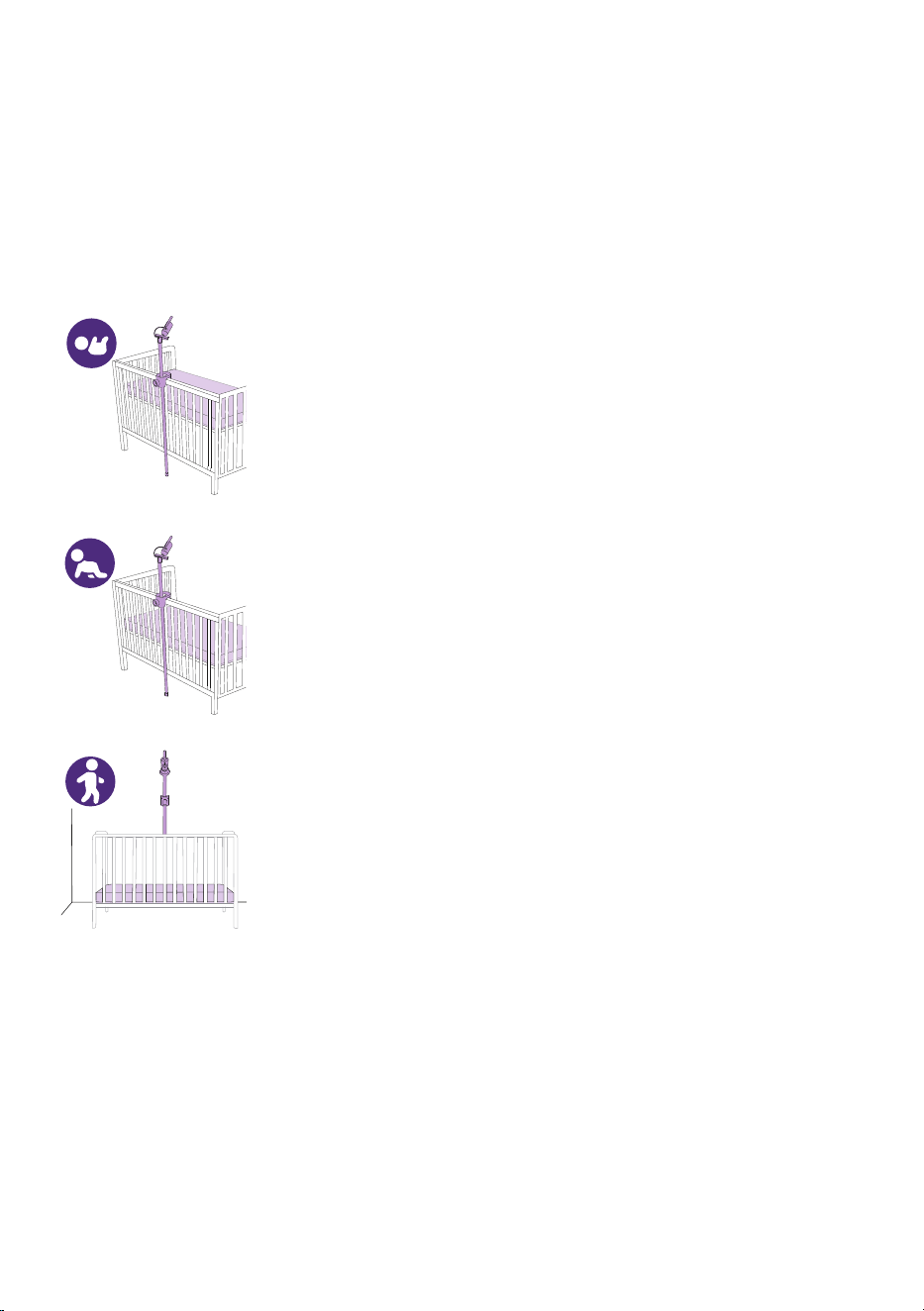
Which mounting solution to choose?
The highest mattress position is typically used for newborns and
smaller babies�
We recommend using the crib mount when the mattress is in this
position�
It is advised to move the mattress down when your baby can push
themselves up onto their knees and show signs of sitting up� In this
case using the crib mount is still preferred�
When your baby can start to pull themselves up on their own and
show signs of standing, it is best to lower the mattress to the lowest
position� We recommend using the wall mount for mattresses at lower
positions�
- 13 -
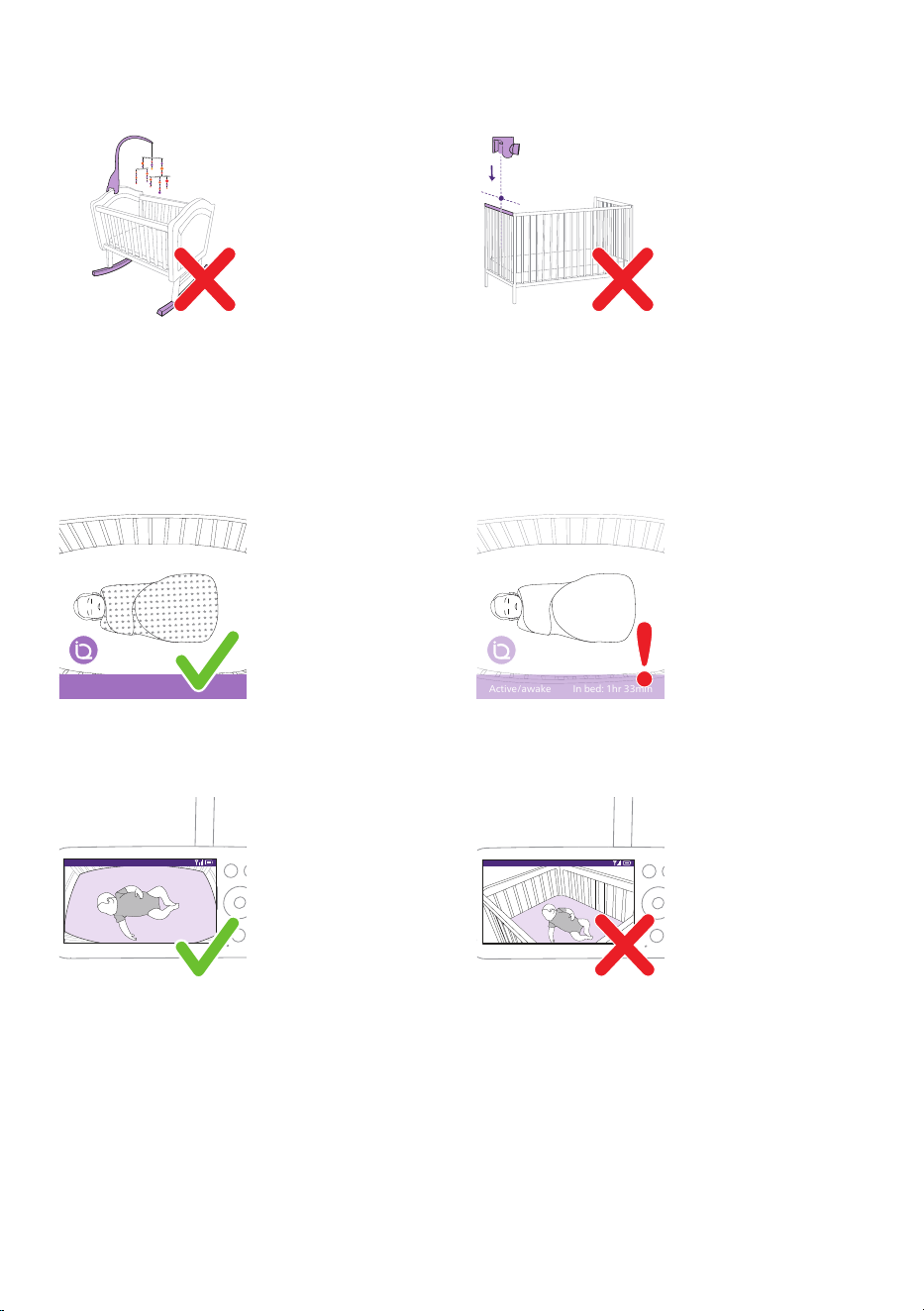
Dos and Don'ts
Try and keep your baby’s crib and sleeping area
free from hanging mobiles, toys, or moving
lights. The fewer objects cluttering the view, the
better your baby monitor will work�
The monitor is sensitive to movement, avoid
using a rocking crib or bassinet�
Avoid mounting your Baby Unit over the short
side of the crib� This will limit how well you will
see your baby�
Active/awake In bed: 1hr 33min
Active/awake In bed: 1hr 33min
Sleep-sacks, bedding and patterned clothes are
great to use with this baby monitor�
Try to avoid thick clothes and bedding that are all
the same color, as the Baby Unit uses contrast to
detect motion�
68.5
o
F
Video
68.5
o
F
Video
The mattress should appear as a straight
horizontal rectangle on your screen� The
straighter the mattress is on screen, the better.
The Baby Unit or mattress should not be placed
at an angle�
- 14 -
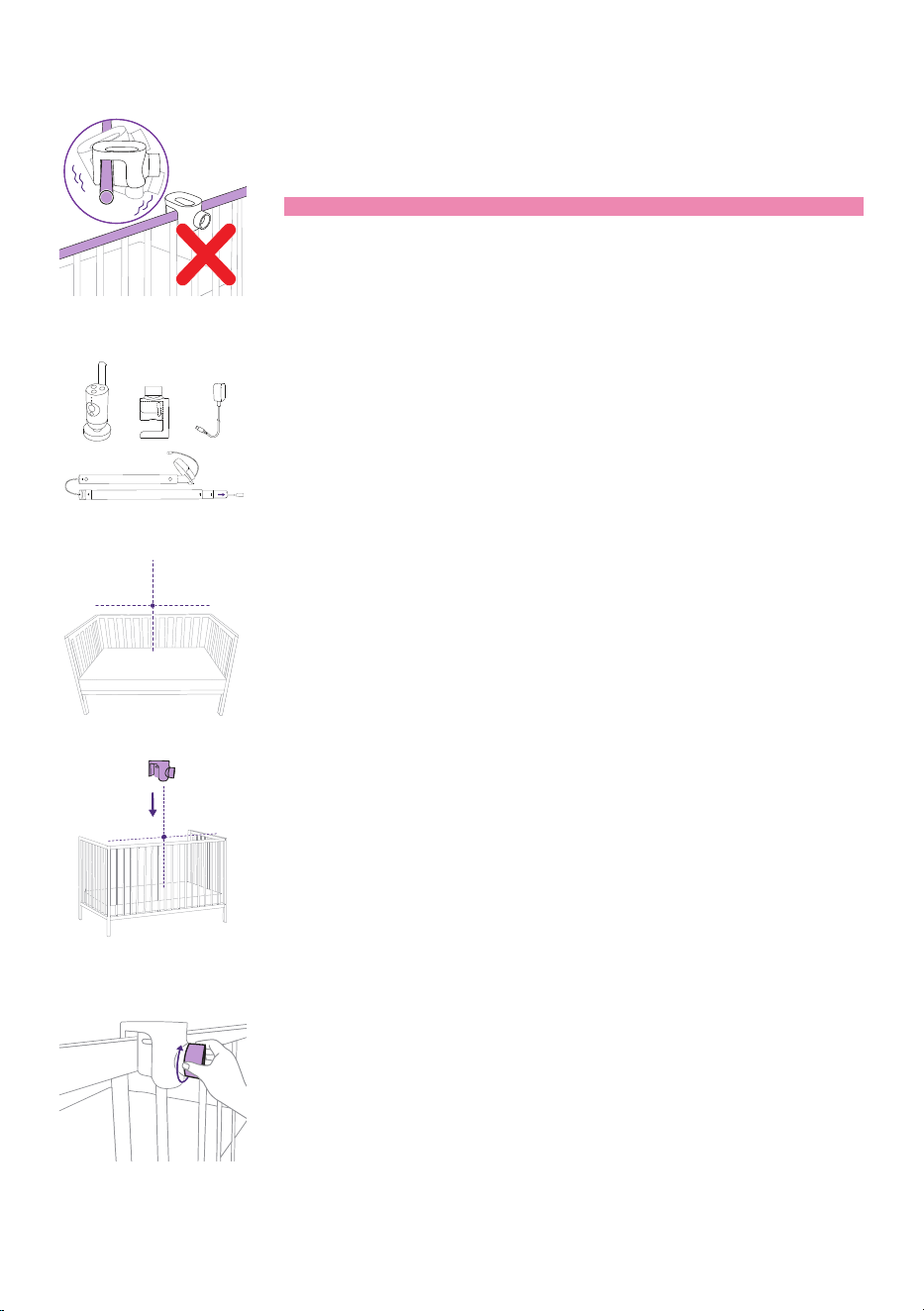
Crib mount
Note: For cribs with round bars please use the wall mount.
1 Take out the 2-in-1 mount, clamp, power adapter, and Baby Unit.
2 For the best results, mount the Baby Unit centered and over the long
side of the crib�
3 Attach the clamp to the middle of the long side of the crib by lowering
it onto the railing.
4 Turn the knob clockwise to secure it onto the bar�
- 15 -
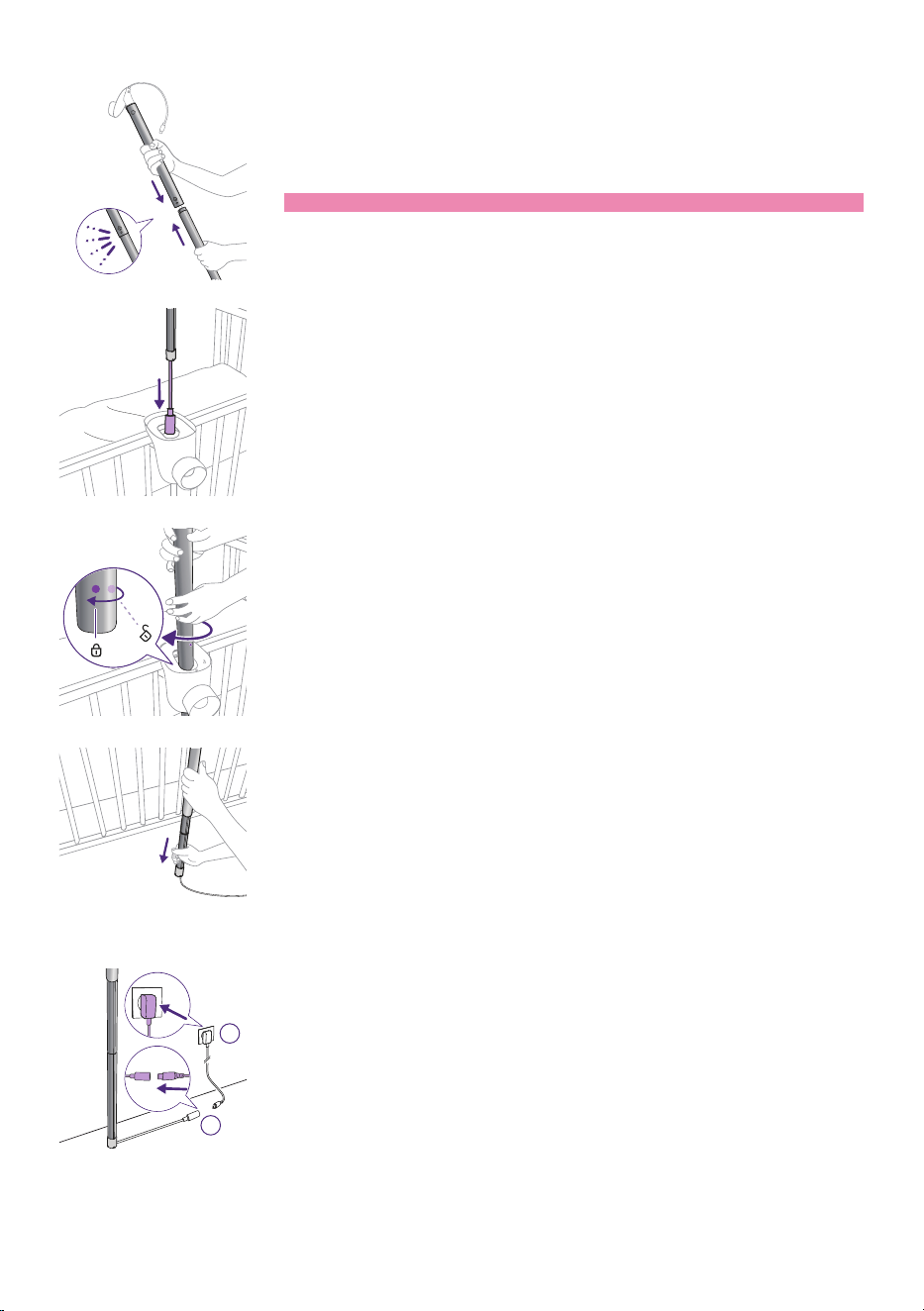
5 Push the two poles together to make one longer pole�
Note: You will hear a small click when they are secure.
6 Then, with the power cord rst, insert the pole through the opening of
the clamp�
7 Align the pole into position by using the dots on the pole and clamp,
and rotate it 45° clockwise to lock it into place.
8 The bottom of the pole is telescopic, so you can extend it down to the
oor.
Make sure to place the power cord in one of the slots provided at the
end of the tube towards a power outlet�
1
2
9 Run the cord where the oor and wall meet.
Using the provided power adapter, attach the cord from the pole and
plug it into a power outlet�
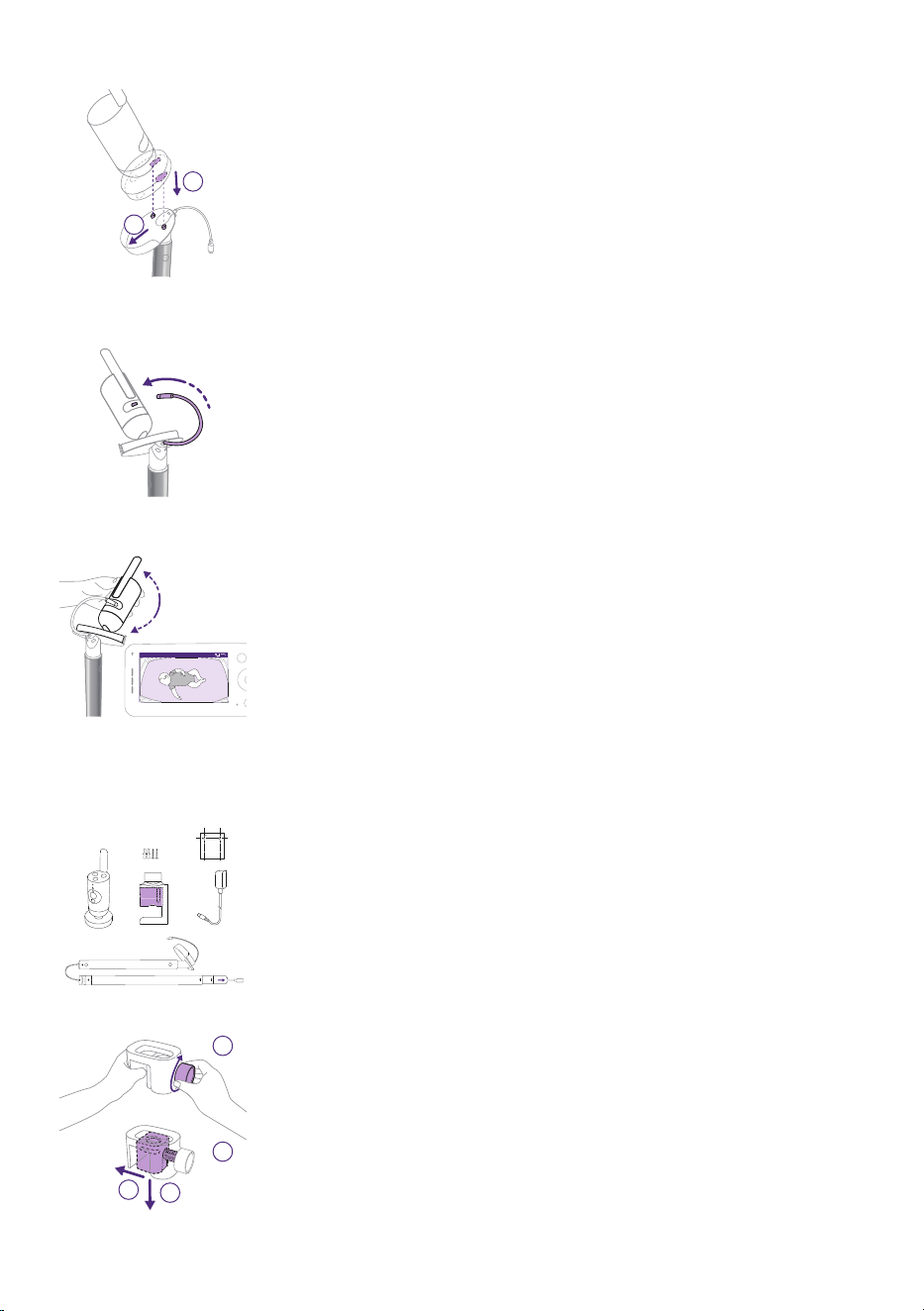
- 16 -
1
2
10 Attach the Baby Unit to its cradle by aligning the pegs to the holes at
the bottom of the Baby Unit and pushing down�
11 Slide the Baby Unit forward to lock it into place and connect the USB-C
power cable into the back of the Baby Unit�
68.5
o
F
Video
12 Tilt your Baby Unit slightly up, down, right, or left to ensure the
mattress becomes entirely visible with your baby in the center�
Use your Parent Unit or Baby Monitor+ app to ensure the Baby Unit is
in the best position� Adjust the Baby Unit to see your baby’s mattress is
centered and level on the screen�
Wall mount
2 x Φ6
1 Take out the 2-in-1 mount, clamp, power adapter, screws and anchors,
wall mount template, and the Baby Unit.
1
2
2a
2b
2 Remove the wall mount bracket from the clamp by turning the knob
counterclockwise with one hand while guiding the bracket out with
the other hand�
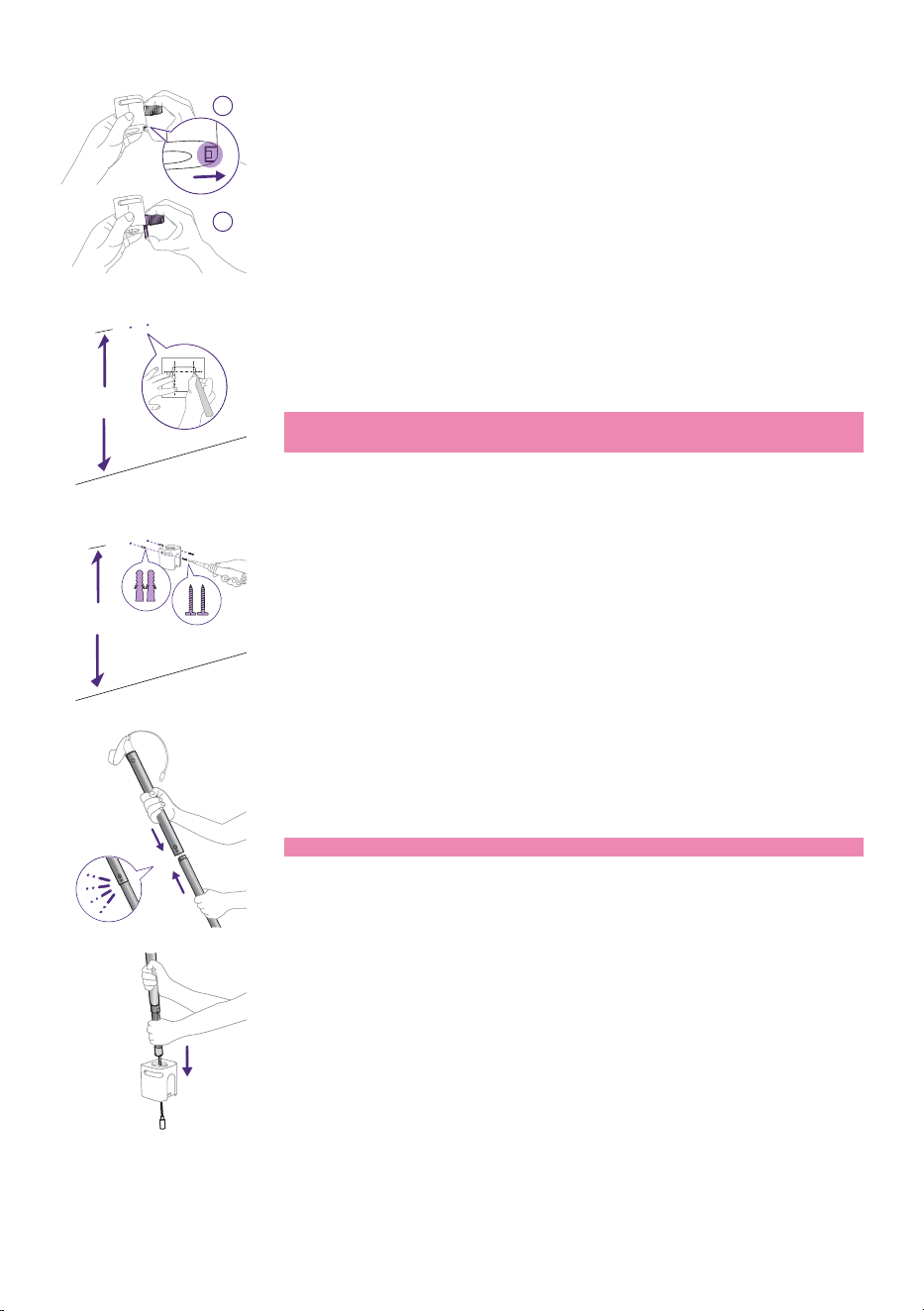
- 17 -
1
2
3 Remove the screw section of this inner piece by unlocking it with your
thumb and sliding it down and o.
You are now left with the piece that will be used as the wall mount�
1.1 m / 43 in
4 Find the wall mount template and use a ruler to measure 1.1 meters /
43 inches up from the oor and mark where the two screws should go.
Drill small holes into the wall and push in the anchors provided�
Tip: The wall mount template (see the ''Wall mount template''
chapter) can be found at the end of this user manual.
1.1 m / 43 in
5 Take the wall mount bracket and align the holes with the anchors�
Attach the wall mount bracket to the wall securely by using the screws
provided�
6 Take the two poles and push them together to make one longer pole�
Note: You will hear a small click when they are secure.
7 Then, with the power cord rst, insert the pole through the opening of
the clamp�
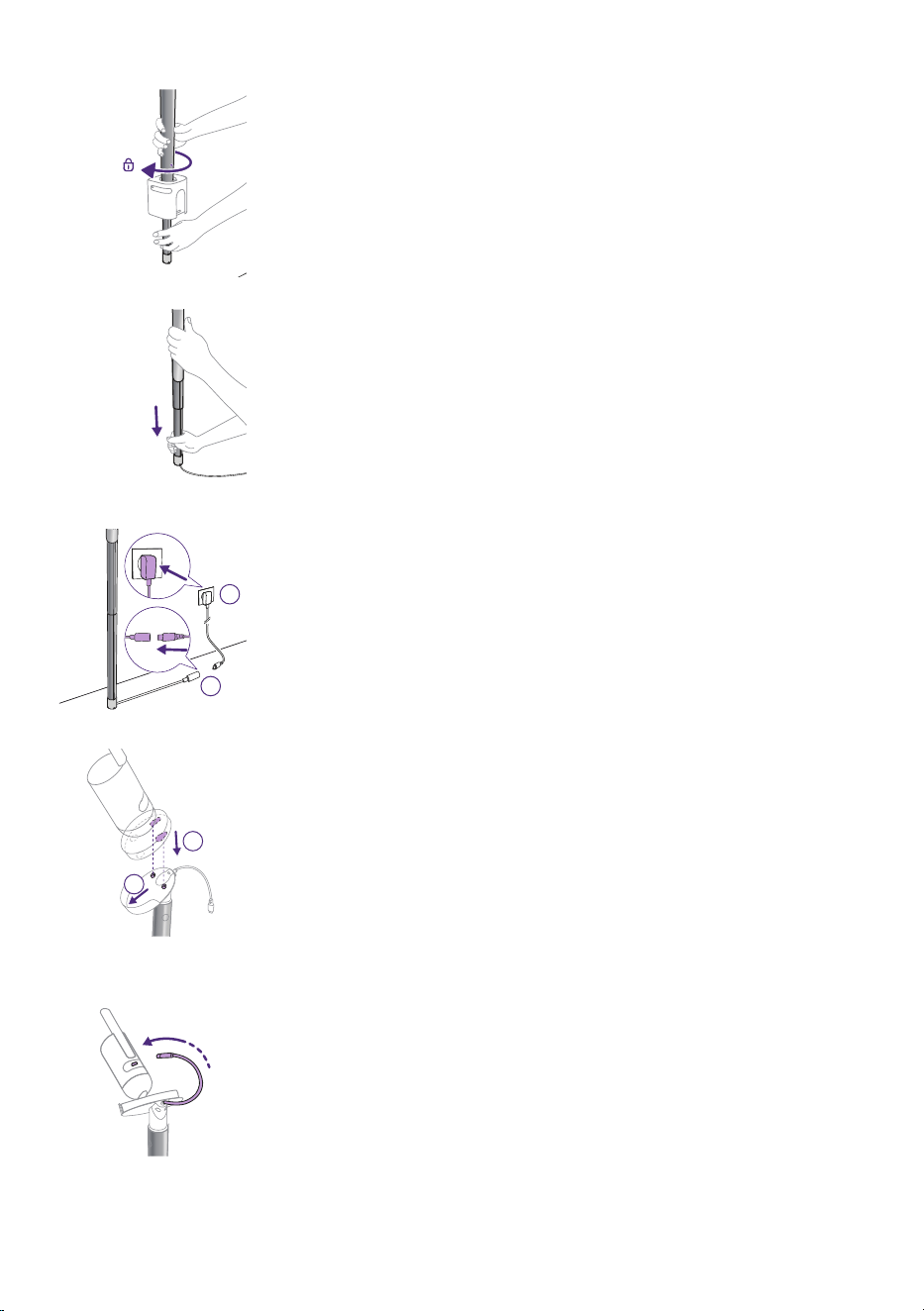
- 18 -
8 At about the half-way point, the pole will no longer slide down
through the mount and needs to be locked into position�
Using the dots on the pole and clamp, align the pole into position, and
rotate it 45° clock-wise to lock it into place.
9 The bottom of the pole is telescopic, so you can extend it down to the
oor.
Make sure to place the power cord in one of the slots provided at the
end of the tube towards a power outlet�
1
2
10 Run the cord where the oor and wall meet.
Using the provided power adapter, attach the cord from the pole and
plug it into a power outlet�
1
2
11 Attach the Baby Unit to its cradle by aligning the pegs in the craddle to
the holes at the bottom of the Baby Unit and pushing down�
12 Slide the Baby Unit forward to lock it into place and connect the USB-C
power cable into the back of the Baby Unit�
- 19 -
68.5
o
F
Video
13 Tilt your Baby Unit slightly up, down, right, or left to ensure the
mattress becomes entirely visible with your baby in the center�
Use your Parent Unit or Baby Monitor+ app to ensure the Baby Unit is
in the best position� Adjust the Baby Unit to see your baby’s mattress is
centered and level on the screen�
Parent Unit
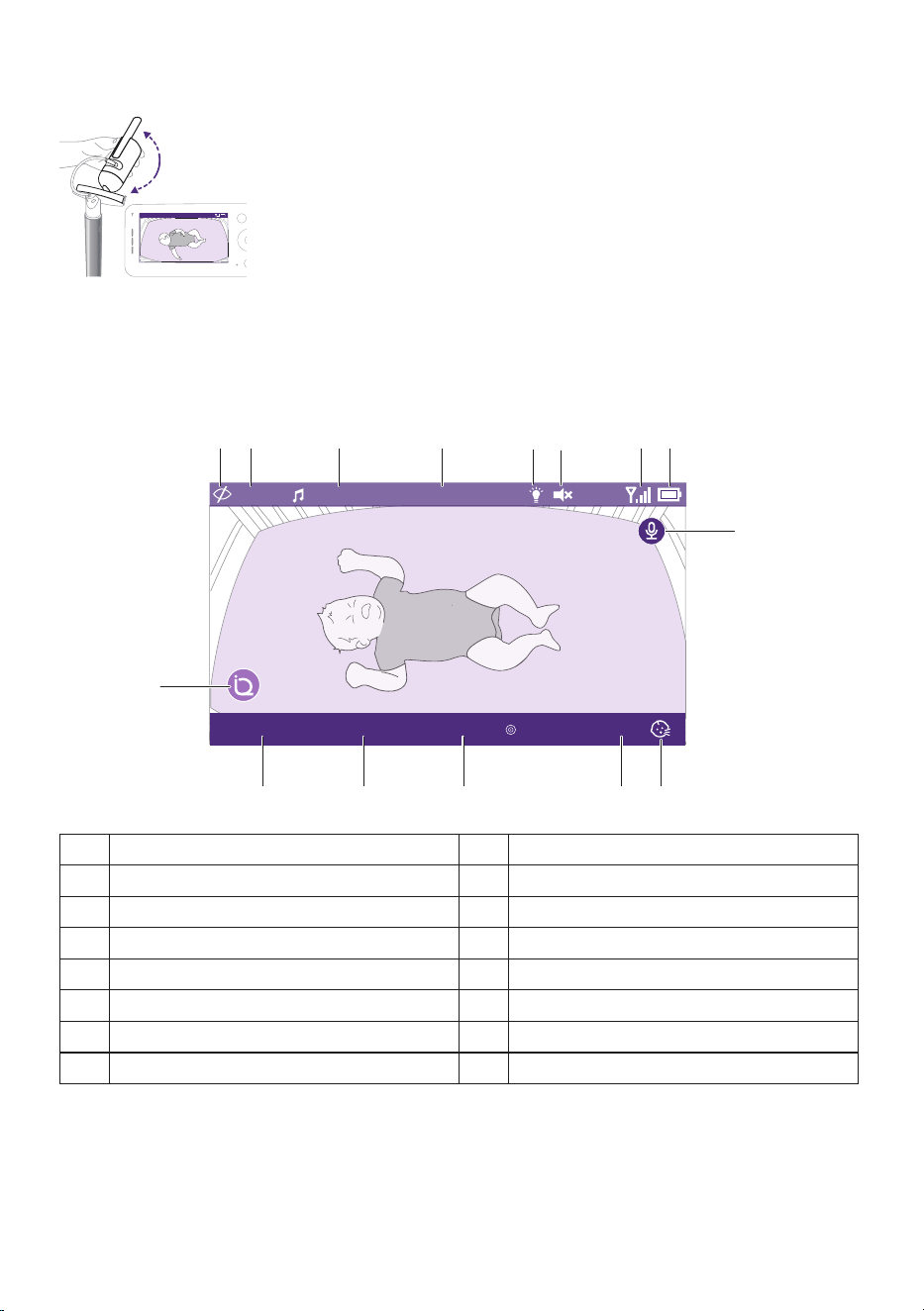
Display overview
Video
Active/awake In bed: 1hr 33min 30 Breath/m Hungry
68.5
o
F
Rockabye....
1
9
9
10 11 12 13 14
15
78 23456
1 Battery level indicator 9 SenseIQ (Active)
2 Signal strength indicator 10 Sleep stage indicator
3 Mute (On) 11 In bed duration
4 Nightlight (On) 12 Average breathing rate
5 Room temperature 13 Cry Translation result
6 Selected soothing sound (On) 14 Cry Translation (Active)
7 Selected Parent Unit monitoring mode 15 Talk back feature (On)
8 Privacy mode (On)
- 20 -
Charging the Parent Unit
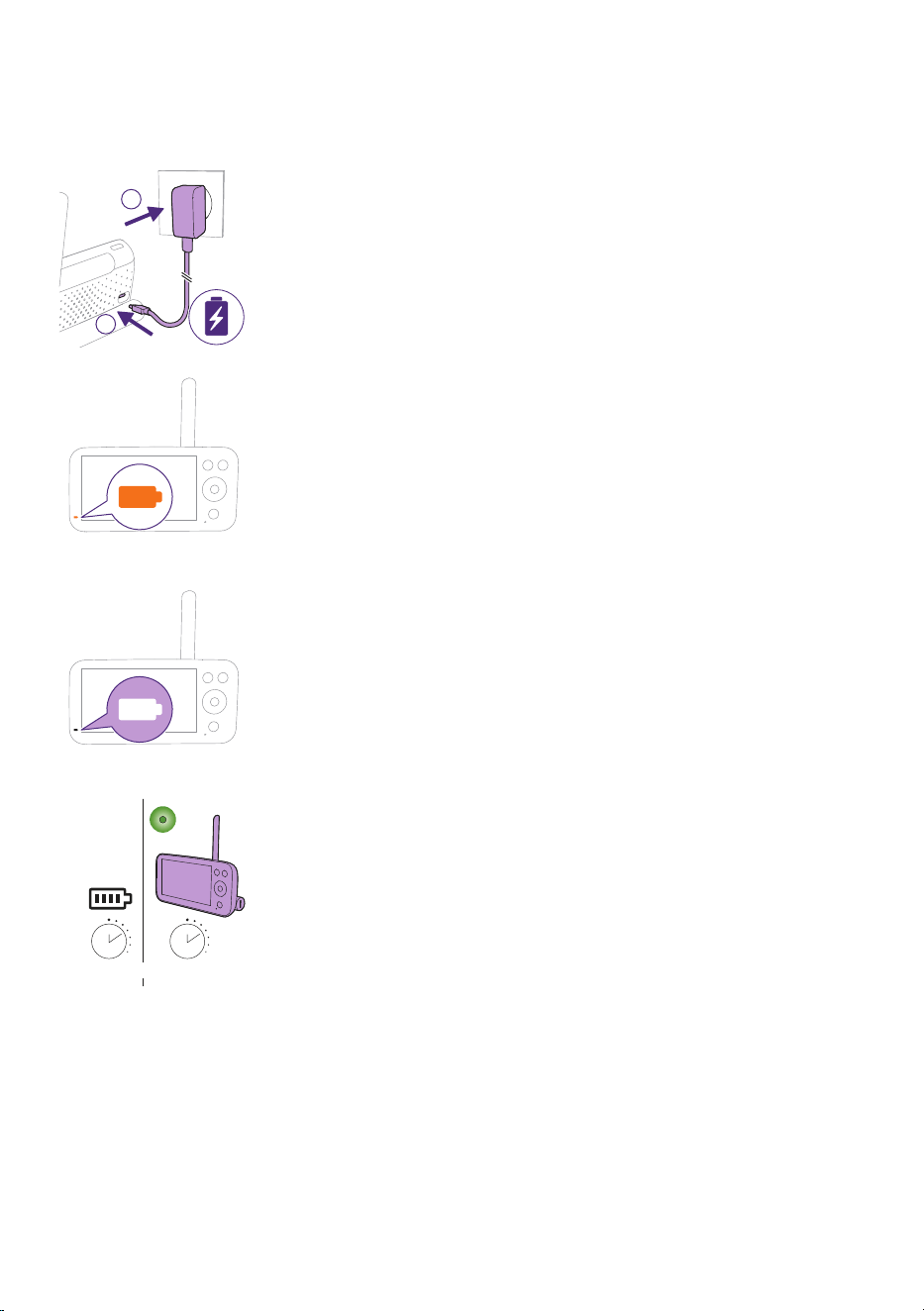
The Parent Unit runs ona built-in rechargeable Lithium-ion battery.
Follow the steps below to charge the Parent Unit:
2
1
1 Plug the power adapter into the Parent Unit and the wall socket�
2 The battery status light turns solid orange to indicate that the Parent
Unit is charging�
3 When the battery is fully charged, the battery status light turns to solid
white�
12 hr=3 hr
eco
When you charge the Parent Unit for 3 hours, it can be used cordlessly
for up to 12hours in Eco mode.
If the Parent Unit is switched on during charging, charging takes
approximately twice as long.
- 21 -
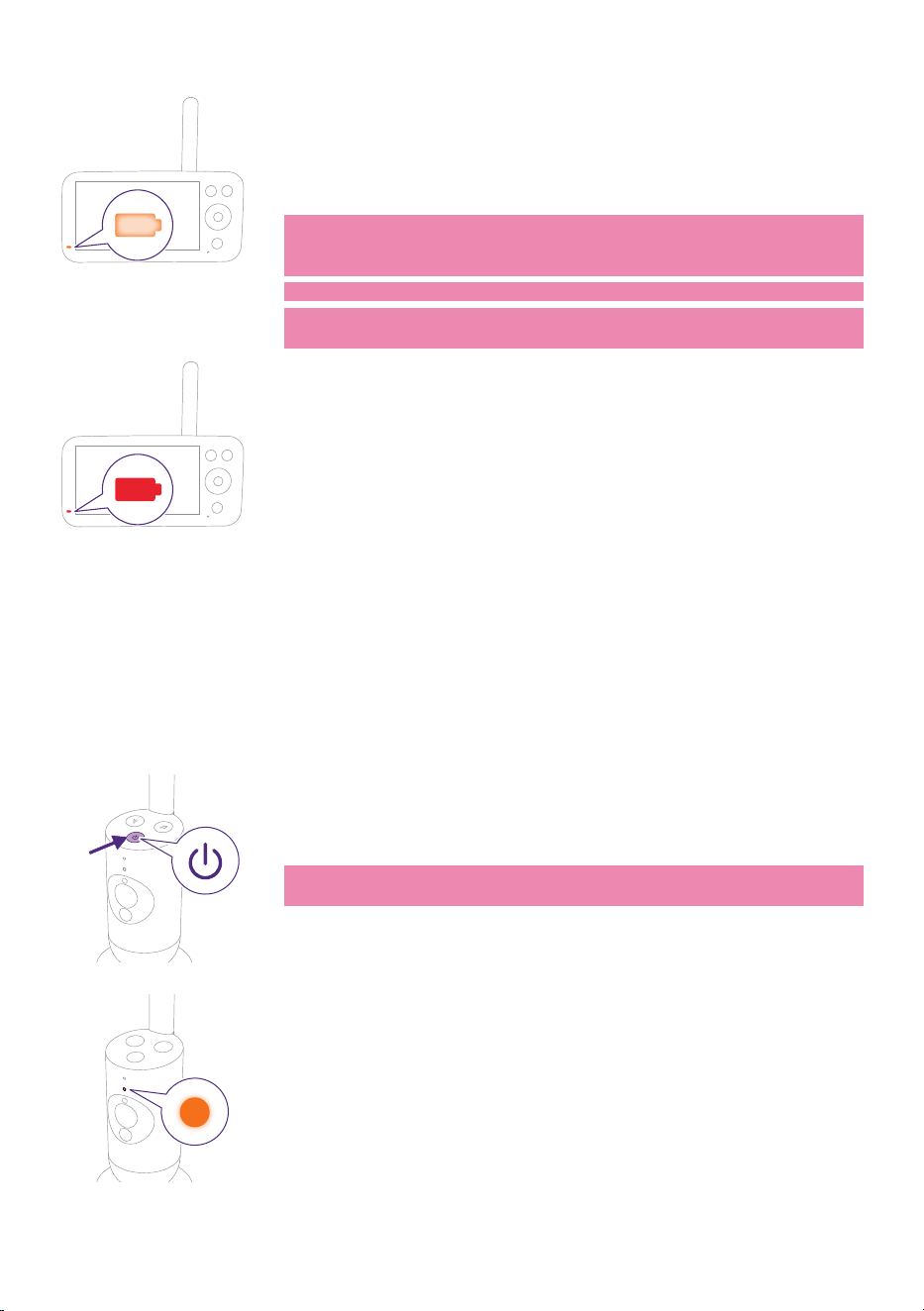
When the Parent Unit is not connected to the mains power and
battery is almost empty (lower than 10%), the battery status light
ashes orange and the low battery alert will sound.
If the Parent Unit battery is empty and is not connected to the mains
power, the Parent Unit will switch o and connection to the Baby Unit
will be lost�
Tip: Keep the Parent Unit connected to the mains power during the
night as if the battery runs low, the low battery alert sound may wake
you up�
Tip: To save battery, switch o the Parent Unit when not in use.
Note: The battery gradually and very slowly discharges, even when the
Parent Unit is switched o.
If the battery status light on the Parent Unit is showing a solid red color
when it is connected to the mains power, it means there is an issue
with the battery and you should contact the Consumer Care Centre in
your country�
Using the baby monitor
How to pair your Baby and Parent Unit
For the best connection possible, keep the Baby Unit and Wi-Fi router in
the same room� Solid walls or other electronics can disrupt the signal�
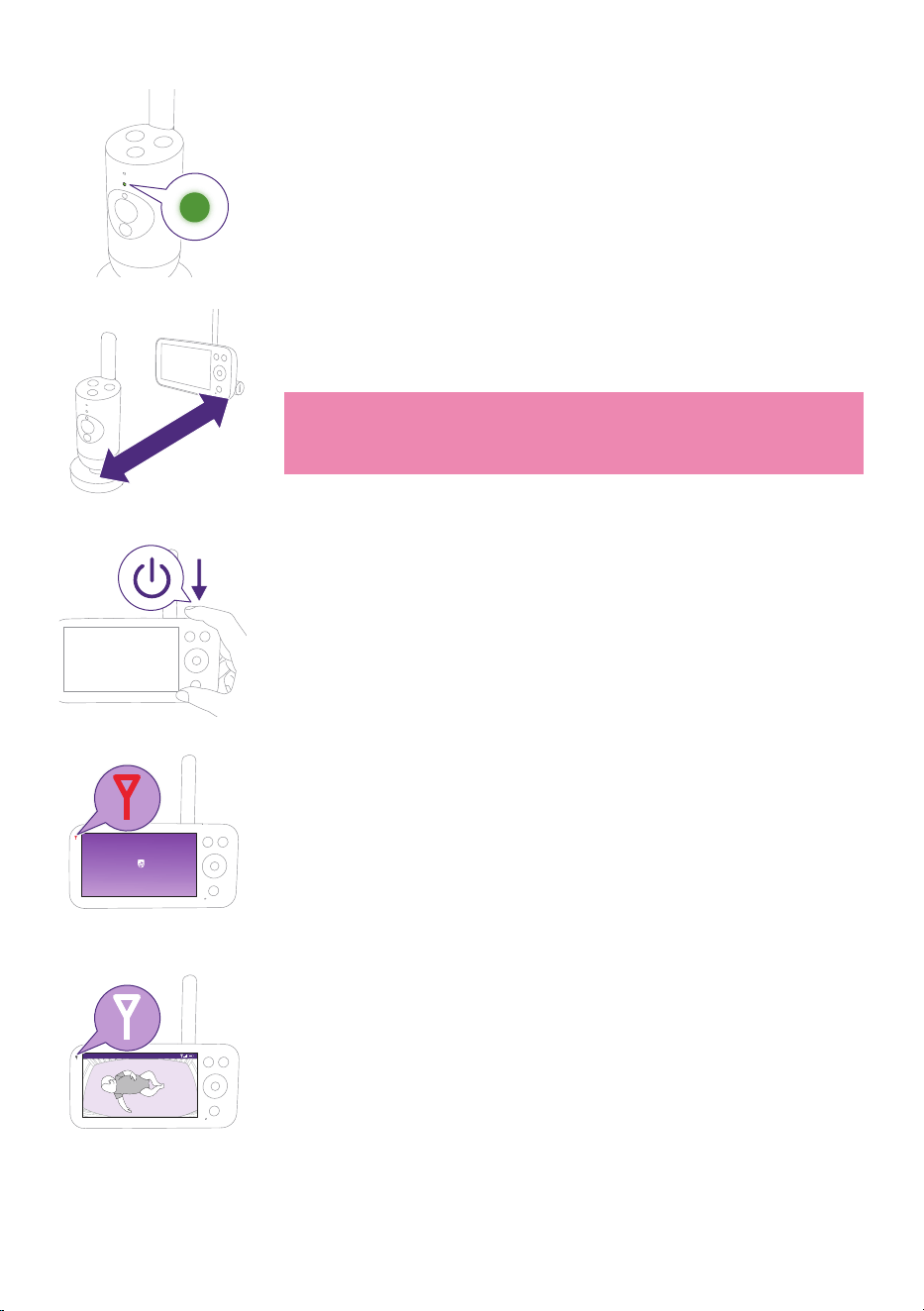
1 Press the On/O button for 1.5 seconds to turn on the Baby Unit.
Note: The Baby Unit will automatically turn on once you plug it into
the power outlet�
2 When the Baby Unit is powered on, the status light turns orange
momentarily during the boot-up process�
- 22 -
3 The status light will change to green when the Baby Unit is ready to
pair�
>2.5m / 8.2 ft
4 Make sure that the Parent Unit and the Baby Unit are at least
2.5meters / 8.2 feet away from each otherto avoid acoustic feedback.
Note: If you use a cordless phone, wireless video, Wi-Fi network,
microwave oven or Bluetooth device on 2.4GHz and you might
experience interference on either the Parent Unit or Baby Unit, move
the Parent Unit until there is no more interference�
5 Press the On/O button for 1.5seconds to turn on the Parent Unit.
Philips Avent Baby Monitor
The display turns on, the Philips shield appears on the display and the
link light turns red� The Parent Unit starts to search for the Baby Unit�
Video 68.5
o
F
When the Parent Unit and Baby Unit are linked, the link light turns
white on the Parent Unit and one or more signal strength bars appear
on the display�
- 23 -
--.-
o
FVideo
?
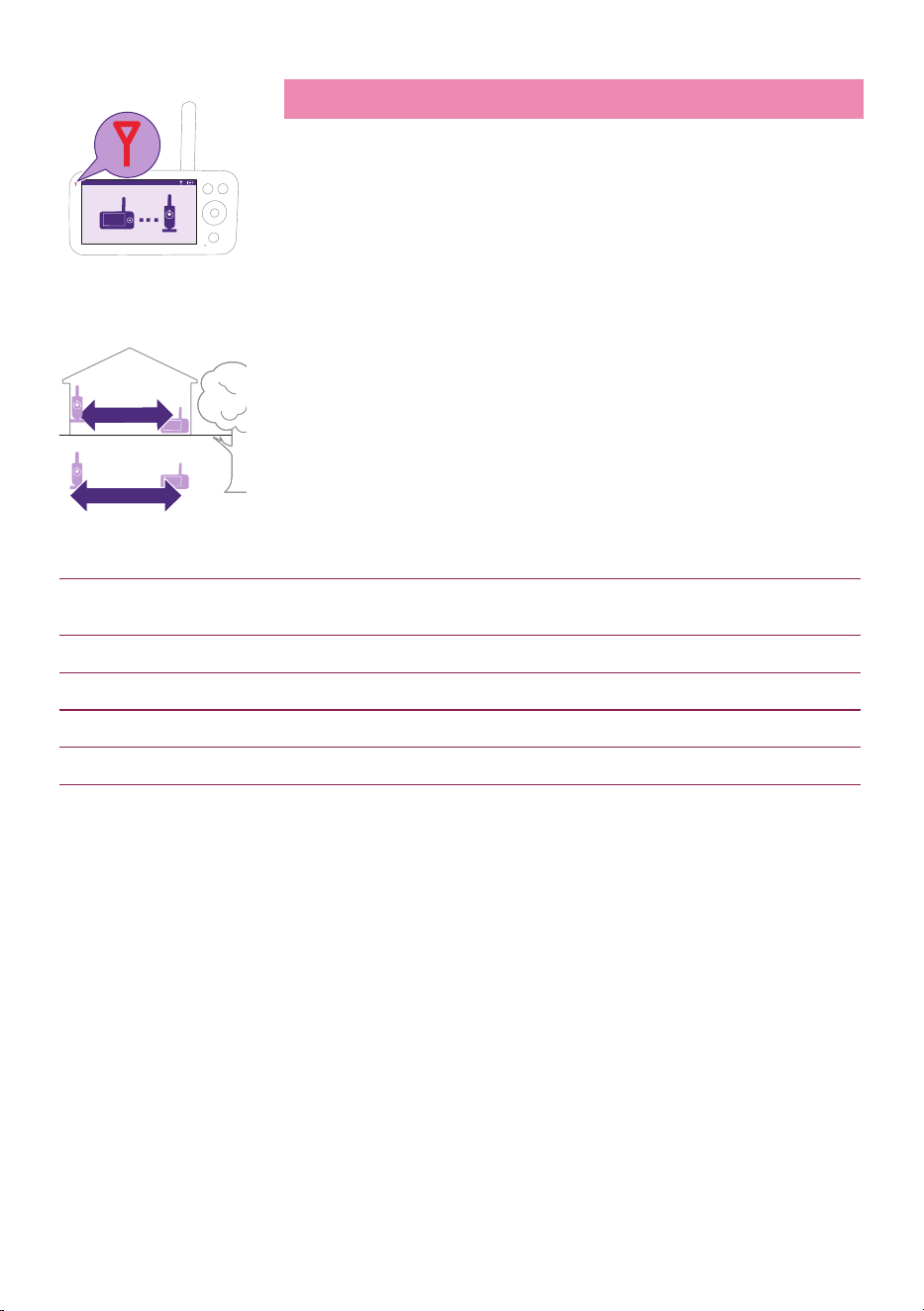
Note: It takes about 15 seconds to establish the link between the
Parent Unit and the Baby Unit�
Make sure that the Baby Unit is switched on. When theBaby Unit is
switched o, the display of the Parent Unit will show the out of range
image�
If no connection has been established, the link light turns red, the
Parent Unit alert will sound about every 25 seconds and the out of
range image appears on the display�
<400m / 1312 feet
<50m / 164 feet
The operating range is up to 50meters / 164 feet indoors and
400meters/ 1312 feet outdoors. The operating range of the baby
monitor varies depending on the surroundings and factors that cause
interference� Wet and moist materials cause so much interference that the
range loss is up to 100%.
Dry materials Material thickness Loss of range
Wood, plaster, cardboard, glass (without metal,
wires or lead)
< 30cm (12 in) 0-10%
Brick, plywood < 30cm (12 in) 5-35%
Reinforced concrete < 30cm (12 in) 30-100%
Metal grills or bars < 1cm (0.4 in) 90-100%
Metal or aluminium sheets < 1cm (0.4 in) 100%
- 24 -
Features and settings
Menu features
>
SenseIQ
Cry translation
Connection to Baby Unit
Nightlight
Zoom
Menu
Settings
Temperature alert
The Philips Avent Premium Connected Baby Monitor equipped with six
excellent features to help parents monitor their baby with ease. These
features include:
SenseIQ - uses AI technology to detect your baby's sleep and breaths�
Cry Translation - gives you translations of your baby's cries, so you can
better understand their needs�
Connection to the Baby Unit - allows for two connection options
(Auto and Direct) between the Baby Unit and the Parent Unit to ensure
you are always connected to your little one�
Nightlight - provides soft, gentle lighting to soothe your baby and
create a calming sleep environment�
Zoom - enables you to zoom in on your baby's crib, providing you with
a closer look at your little one�
Temperature alert - informs you if the baby's room temperature is too
high or too low�
68.5
o
F
All features described in the following sections can be operated
through the menu of the Parent Unit or app�
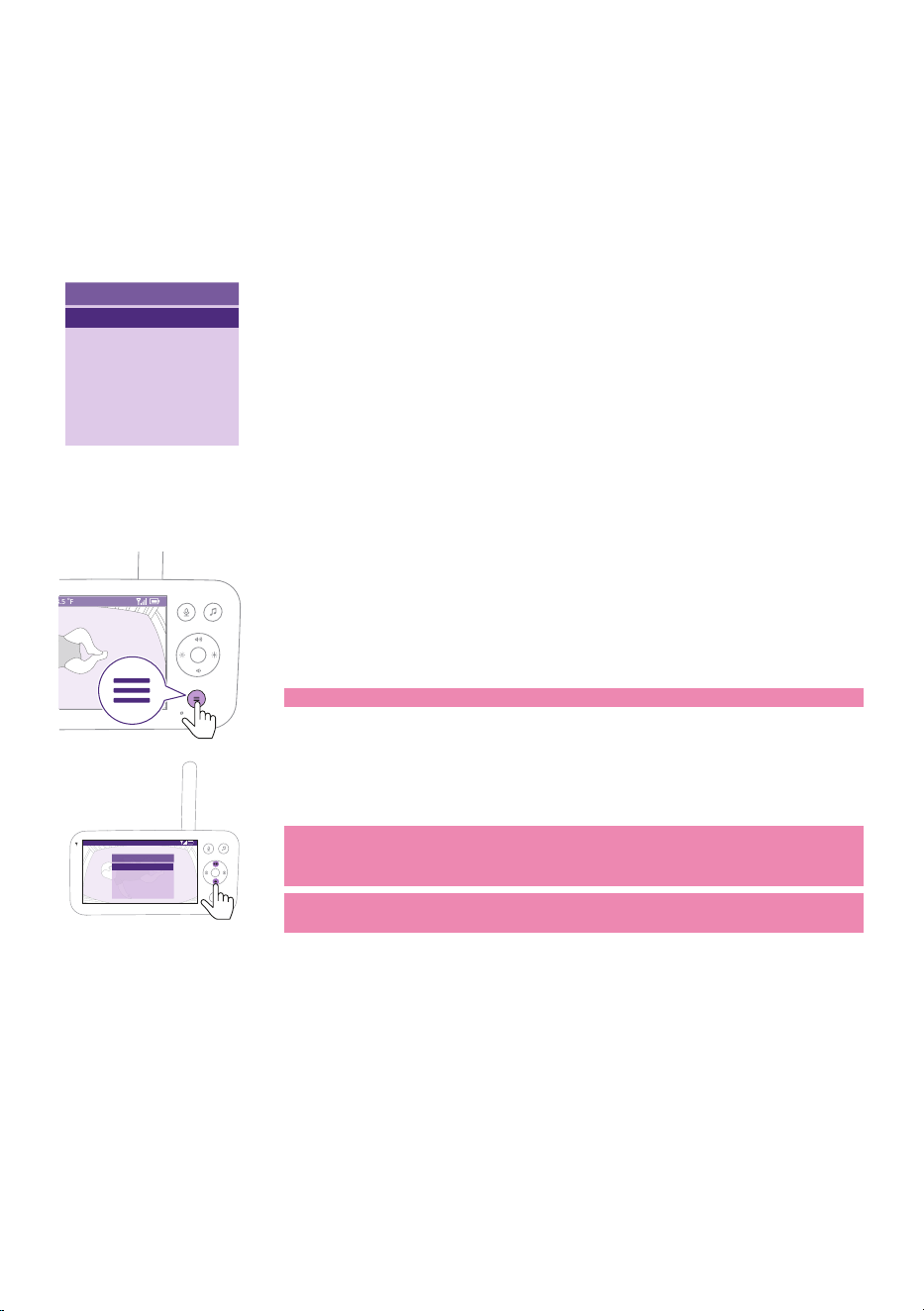
1 Press the menu button on the bottom right of the Parent Unit to enter
the menu list�
Note: You will leave the menu when pressing the menu button again.
>
SenseIQ
Cry translation
Connection to Baby Unit
Nightlight
Zoom
Menu
Video 68.5
o
F
2 Use the control button to navigate through the menu� The selected
menu item is highlighted purple�
Note: If you are already in one of the sub menus and you want to
switch between menu features,press the menu button again to
navigate back to the main menu�
Note: If you are in the menu but do not press a button for 8 seconds,
the menu will exit without saving changed settings.
- 25 -
SenseIQ
Philips Avent Premium Connected Baby Monitor with SenseIQ technology
analyzes every movement and breath to give parents the clearest
picture into their baby's wellbeing. Intuitive and wearable-free, SenseIQ
technology produces real-time breath and sleep status updates, so
parents can rest easy knowing they'll always be connected, and their baby
is safe and sound�
To activate SenseIQ, please download the Baby Monitor+ app (see the
''Download the Baby Monitor+ app'' chapter) and follow the steps in the
app to turn it on�
68.5
o
F
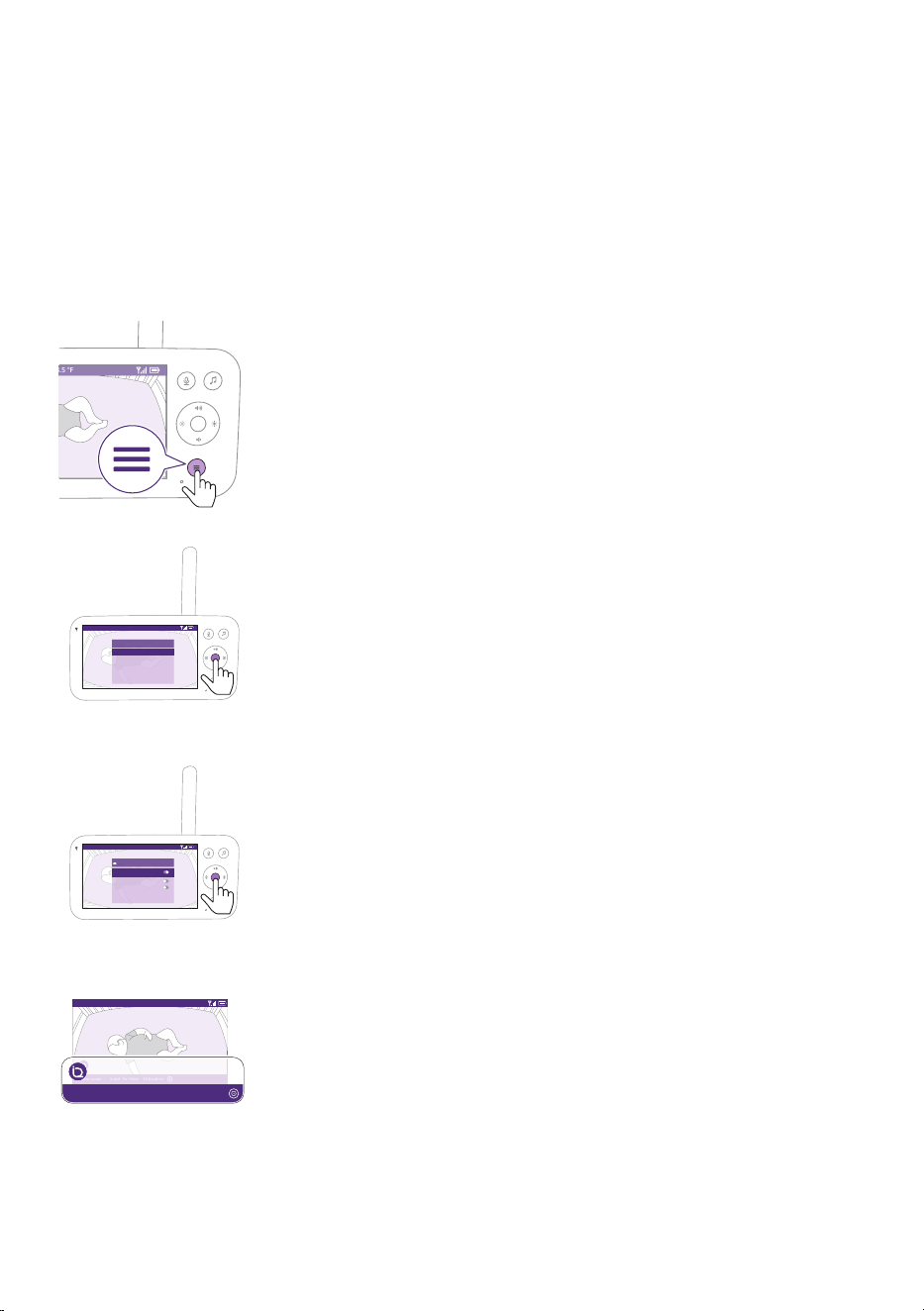
1 Press the menu button on the bottom right of the Parent Unit�
Video 68.5
o
F
>
SenseIQ
Cry translation
Connection to Baby Unit
Nightlight
Zoom
Menu
2 Select ''SenseIQ'' and press the conrm button to access the SenseIQ
feature�
Video 68.5
o
F
On/Off
SenseIQ can only be unlocked once
App is installed
No signal alert
Active/Awake alert
Active/Awake alert delay Off
SenseIQ
Video
Active/awake In bed: 1hr 33min 30 Breath/m
68.5
o
F
Video
Active/awake In bed: 1hr 33min 30 Breath/m
20.3
o
C
3 Press the conrm button to set the SenseIQ feature on or o.
The display shows the sleep stage, in bed duration, and average
breathing rate in the bottom bar�
- 26 -
Cry Translation
The Cry Translation service, powered by Zoundream
TM
, oers a useful tool
to help you understand your baby’s dierent cries and tells you what they
might mean� However, it is important to remember that this tool is not
meant to replace parental judgment and it is recommended to seek the
advice of a medical professional when necessary�
To activate Cry Translation, please download the Baby Monitor+ app (see
the ''Download the Baby Monitor+ app'' chapter) and follow the steps in
the app to turn it on�
Cry Translation service is available for a 90-day free trial period�
Afterwards you can continue using it by signing up for a subscription
service with Zoundream
TM
� Terms and conditions apply� Usage will be
measured in days, and any activity within a day will be considered as a full
day of usage�
Note: Cry Translation only works when your Baby Unit is connected to
the internet�
68.5
o
F
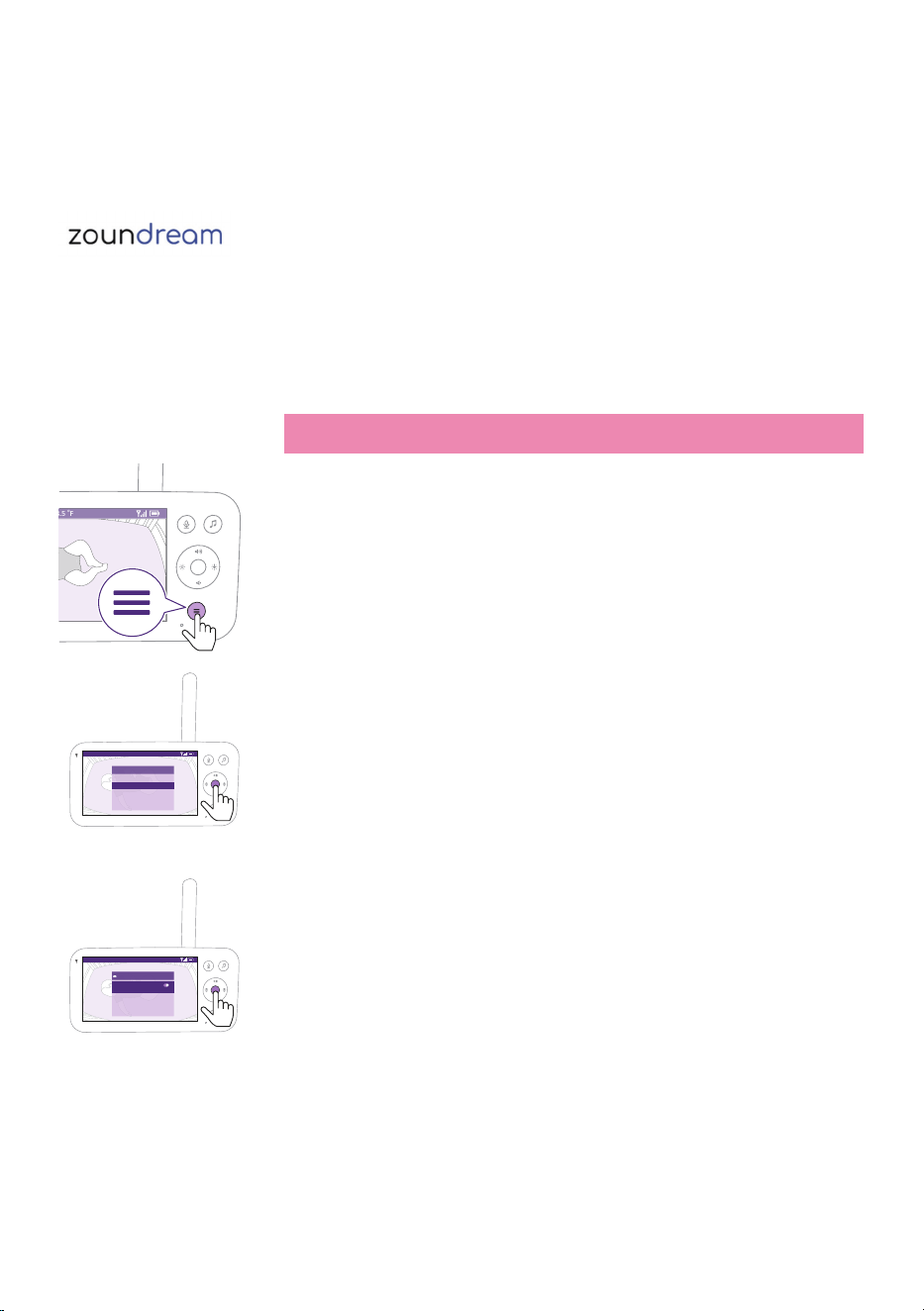
1 Press the menu button on the bottom right of the Parent Unit�
Video 68.5
o
F
>
SenseIQ
Cry translation
Connection to Baby Unit
Nightlight
Zoom
Menu
2 Select ''Cry Translation'' and press the conrm button to access the Cry
Translation feature�
Video 68.5
o
F
On/Off
Enable/disable Cry Translation noti�cations
on this Parent Unit and the app. See app for
more details.
Cry translation
3 Press the conrm button to set the Cry Translation feature on or o.
- 27 -
Video 68.5
o
F
Active/awake Movement HungryIn bed: 1hr 33min
The display shows the Cry Translation result in the bottom bar�
Tip: Be patient when using the Cry Translation feature, as it can take up
to 30 seconds to analyze the cry�
Tip: Keep any sounds emitting devices, such as fans or white noise
machines, away from the Baby Unit to avoid interfering with the
microphone and disrupting the feature's accuracy�
Note: The Cry Translation service is provided by Zoundream
TM
, Philips is
not liable for the translation results�
Connection to the Baby Unit
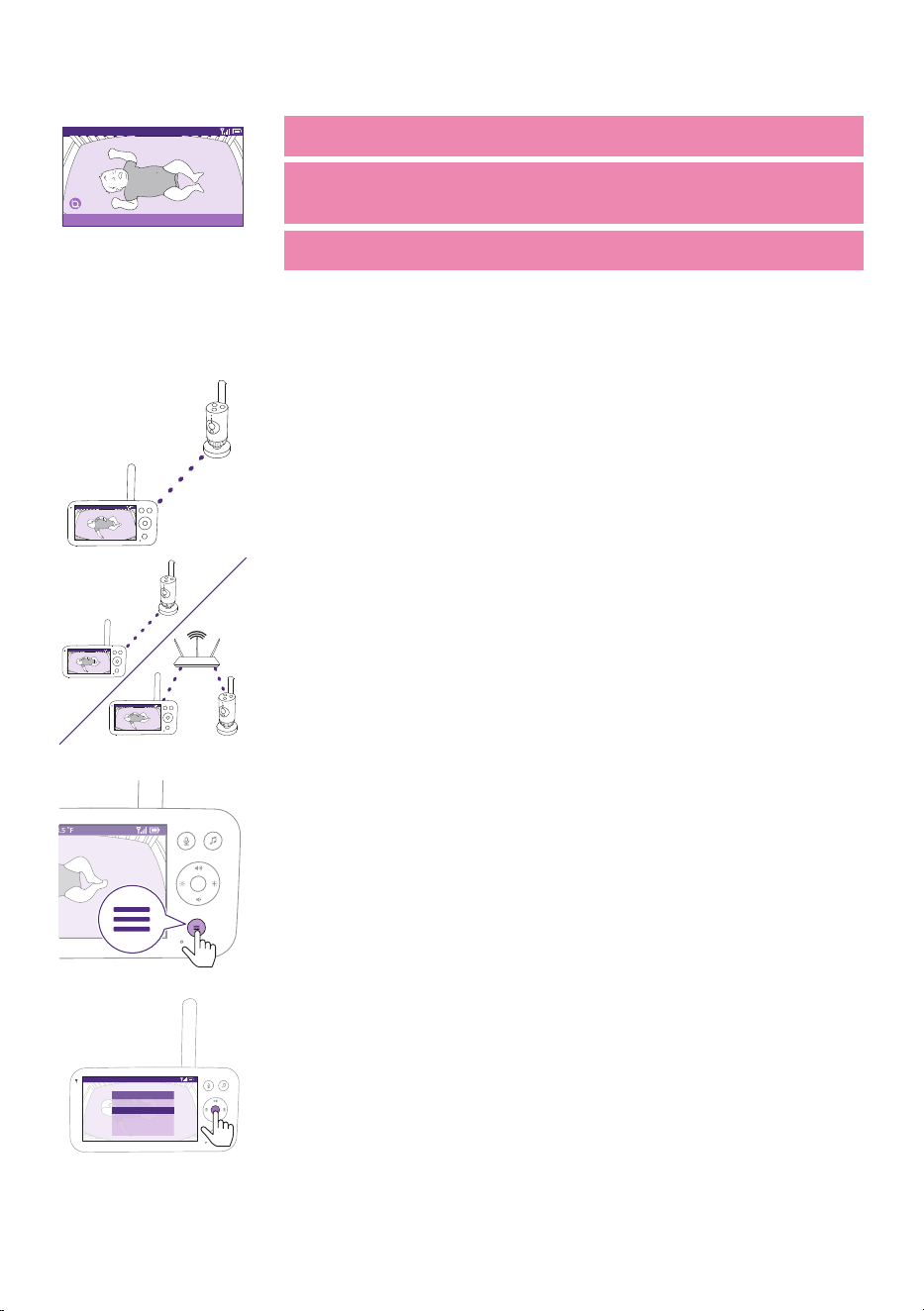
You can choose dierent connection options with this menu feature.
Video 68.5
o
F
Video 68.5
o
F
Video 68.5
o
F
Direct: The Parent Unit and the Baby Unit are pre-paired and will connect
to each other directly�
Auto: Direct or Wi-Fi: This setting optimizes the connection between the
Baby Unit and Parent Unit by automatically choosing the best connection
using either direct mode or Wi-Fi network.
68.5
o
F
1 Press the menu button on the bottom right of the Parent Unit�
Video 68.5
o
F
>
Temperature alert
Cry translation
Connection to Baby Unit
Nightlight
Zoom
Menu
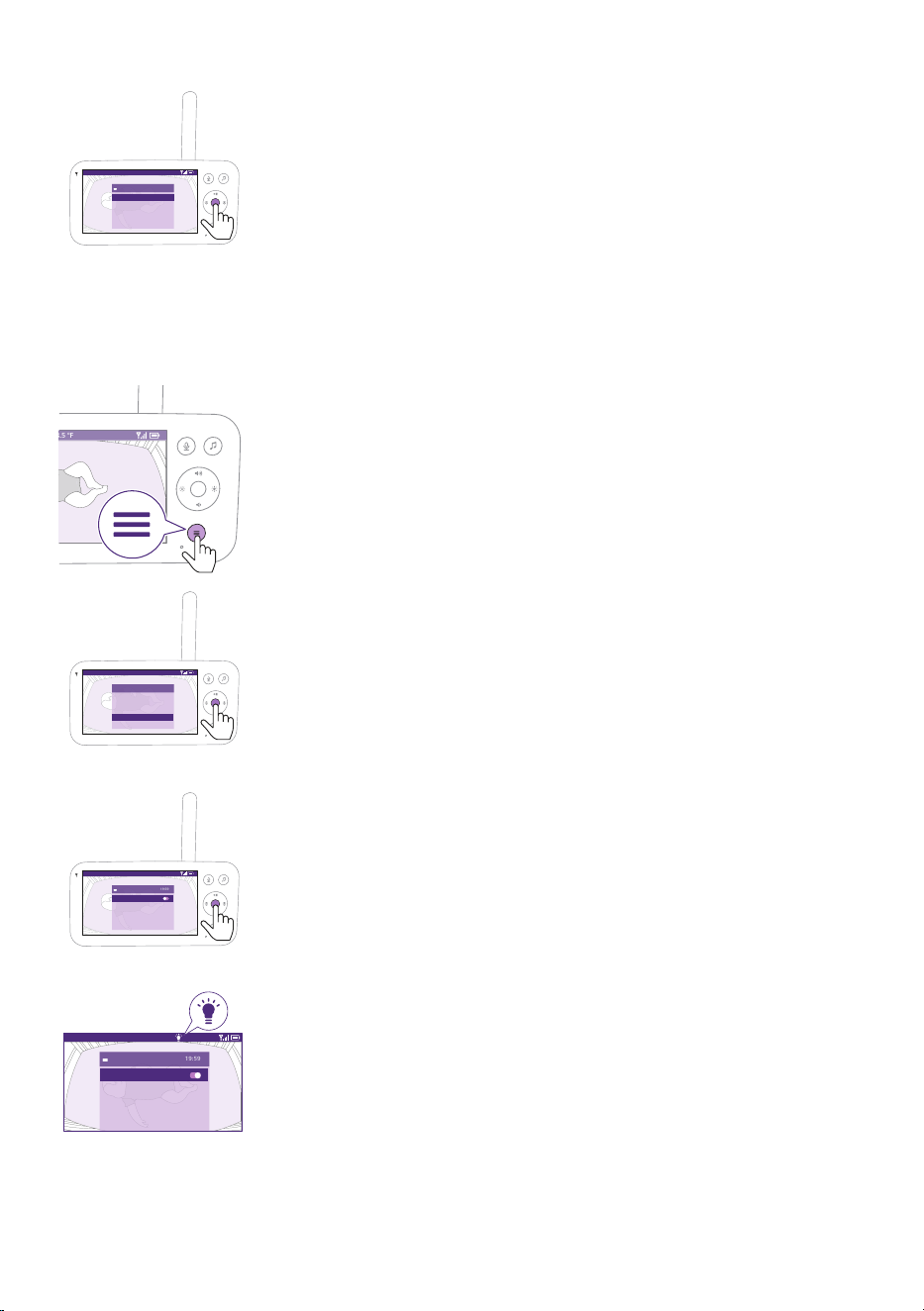
2 Select ''Connection to the Baby Unit'' and press the conrm button to
access the Connection to the Baby Unit menu�
- 28 -
Video 68.5
o
F
Direct
Auto: Direct or Wi-Fi
>
Connection to Baby Unit
3 Press the top or bottom part of the control button and the conrm
button to choose the desired connection�
Nightlight
To activate the Nightlight function from the Parent Unit, follow the
instructions below:
68.5
o
F
1 Press the menu button on the bottom right of the Parent Unit�
Video 68.5
o
F
>
SenseIQ
Cry translation
Connection to Baby Unit
Nightlight
Zoom
Menu
2 Select ''Nightlight'' and press the conrm button to enter the
Nightlight feature�
Video 68.5
o
F
Nightlight
On/Off
Brightness
Timer
19:59
5 min
low
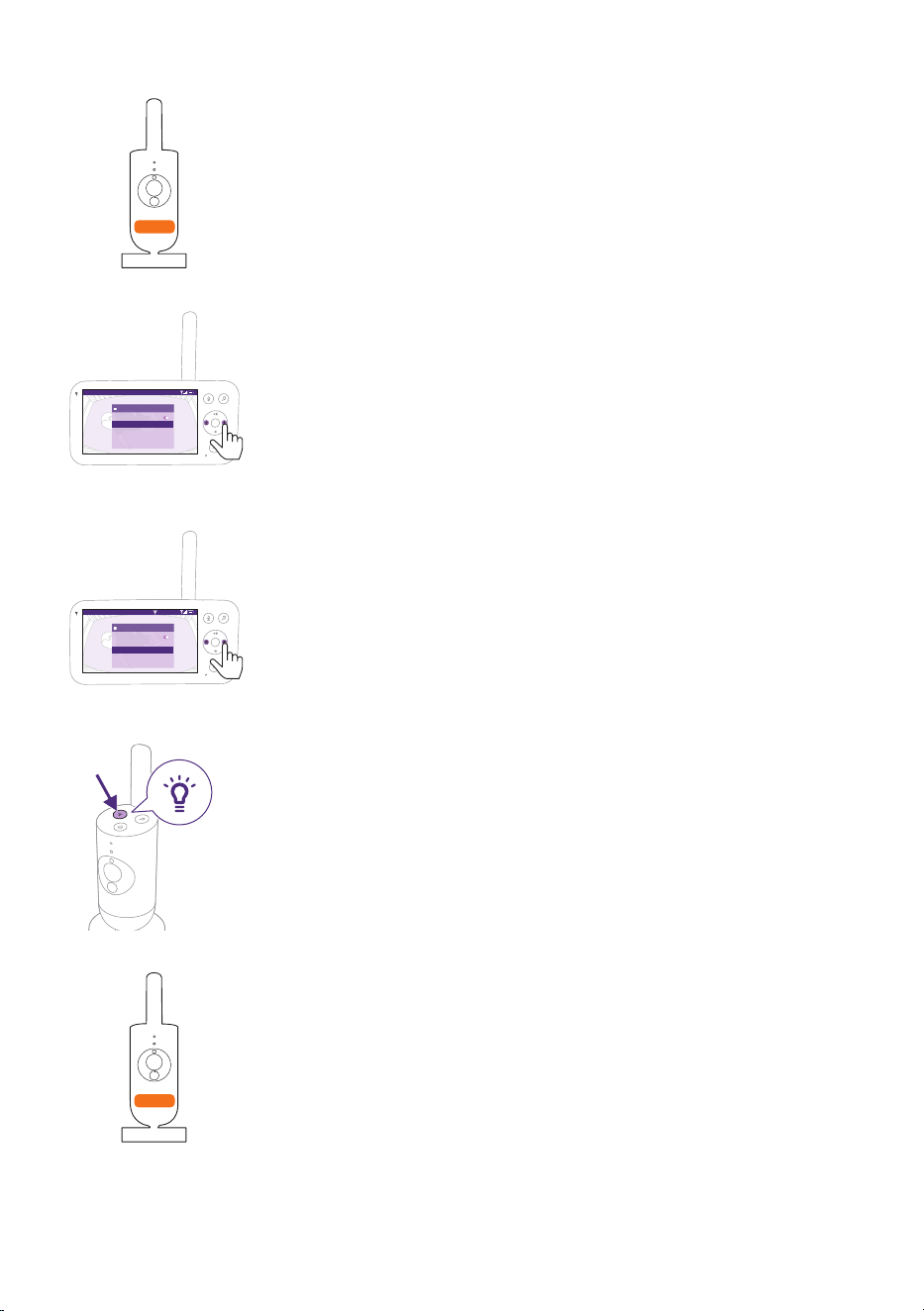
3 Press the conrm button to switch on and o the Nightlight feature.
Video 68.5
o
F
Nightlight
On/Off
Brightness
Timer
19:59
20 min
low
The display shows a light icon in the status bar when the Nightlight is
on�
- 29 -
The Nightlight of the Baby Unit turns on�
Video 68.5
o
F
Nightlight 19:59
Switch off
Brightness low
Timer
20 min
><
You can set the brightness level of the Nightlight from the Parent Unit�
Press the left or right part of the control button to choose low,
medium or high�
Video 68.5
o
F
Nightlight 19:59
Switch off
Brightness high
Timer
20 min
>
<
You can set the timer of the Nightlight from the Parent Unit�
Press the left or right part of the control button to choose the time you
prefer�
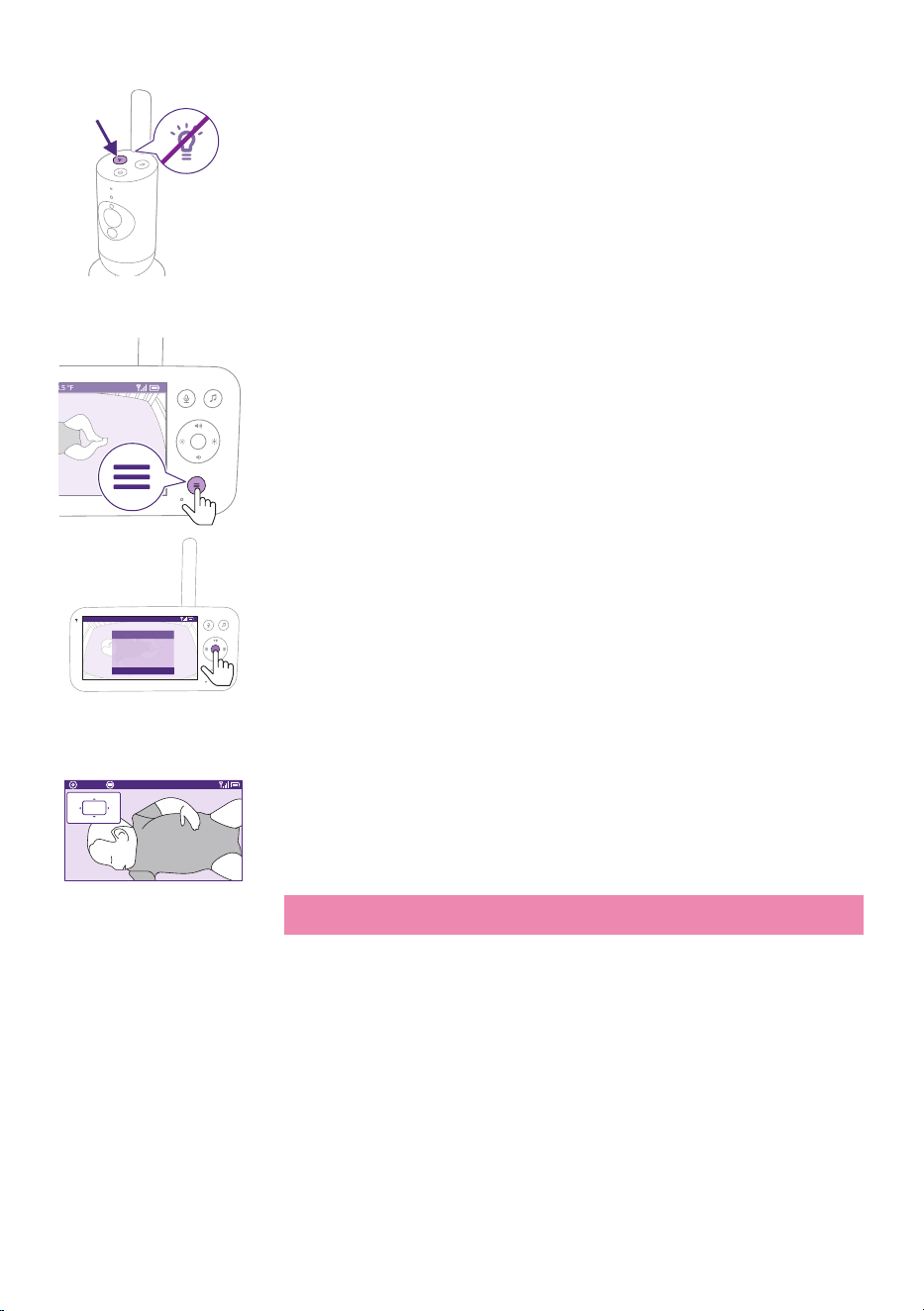
You can also control the Nightlight from the Baby Unit�
1 Press the Nightlight button on the Baby Unit to turn on the function�
The Nightlight turns on�
- 30 -
2 Press the Nightlight button again to switch o.
Zoom
68.5
o
F
1 Press the menu button on the bottom right of the Parent Unit�
Video 68.5
o
F
>
SenseIQ
Cry translation
Connection to Baby Unit
Nightlight
Zoom
Menu
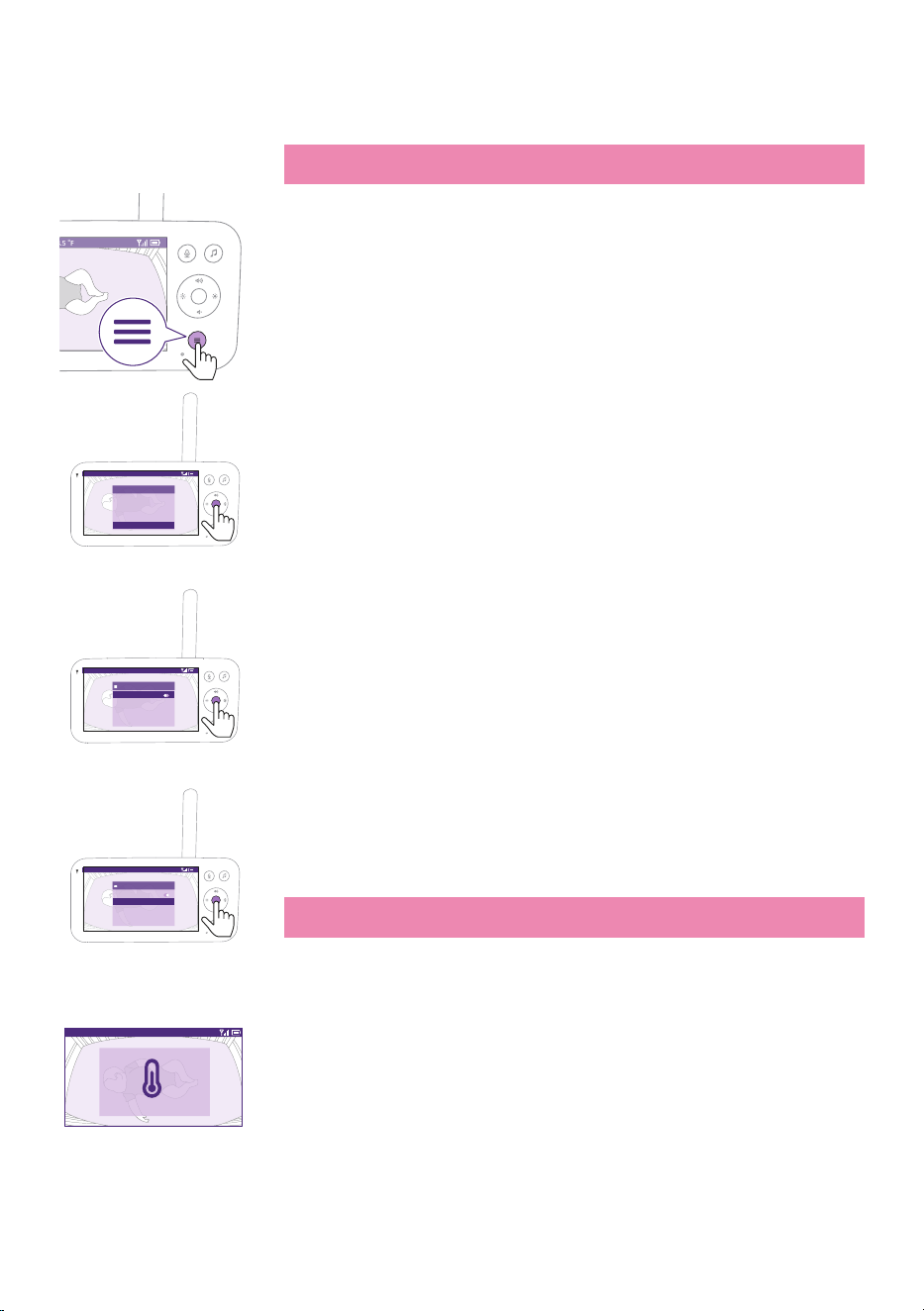
1 Select ''Zoom'' and press the conrm button to access the zoom
feature�
Zoom Exit 68.5
o
F
2x
2 Press the conrm button to adjust the video image. You can use the
top/bottom/right/left part of the control button to choose what part
of the image will be shown on the Parent Unit�
3 Press the menu button to save the new setting and exit.
4 If you want to zoom out the image on the Parent Unit, go to the zoom
menu and turn o the zoom function.
Tip: Long-press the conrm button for two seconds to get a quick
access to the Zoom function.
- 31 -
Temperature alert
The temperature sensor enables you to monitor the temperature in your
baby's room�
Note: The current temperature in your baby's room is shown in the
status bar of the Parent Unit�
68.5
o
F
1 Press the menu button on the bottom right of the Parent Unit�
Video 68.5
o
F
>
Temperature alert
Cry translation
Connection to Baby Unit
Nightlight
Zoom
Menu
2 Select ''Temperature alert'' and press the conrm button to access the
temperature alert feature�
Video 68.5
o
F
Temperature alert
Switch on
High
Low
Set Unit
20
16
°F
3 The temperature alert can be set on or o, press the conrm button to
turn it on or o.
Video 68.5
o
F
Temperature alert
Switch on
High
Low
Set Unit
20
16
°C
4 To change the maximum and minimum temperatures for the
temperature alert, select the desired temperatures in the temperature
menu�
Tip: You can switch the temperature unit between C (Celsius) and
F(Fahrenheit) by selecting the unit option.
Video 68.5
o
F
High temperature alert
5 Press the left part of the control button to save the new setting and
return to the main menu�
The Parent Unit shows this alert when the measured temperature goes
outside the range between the minimum and the maximum values.
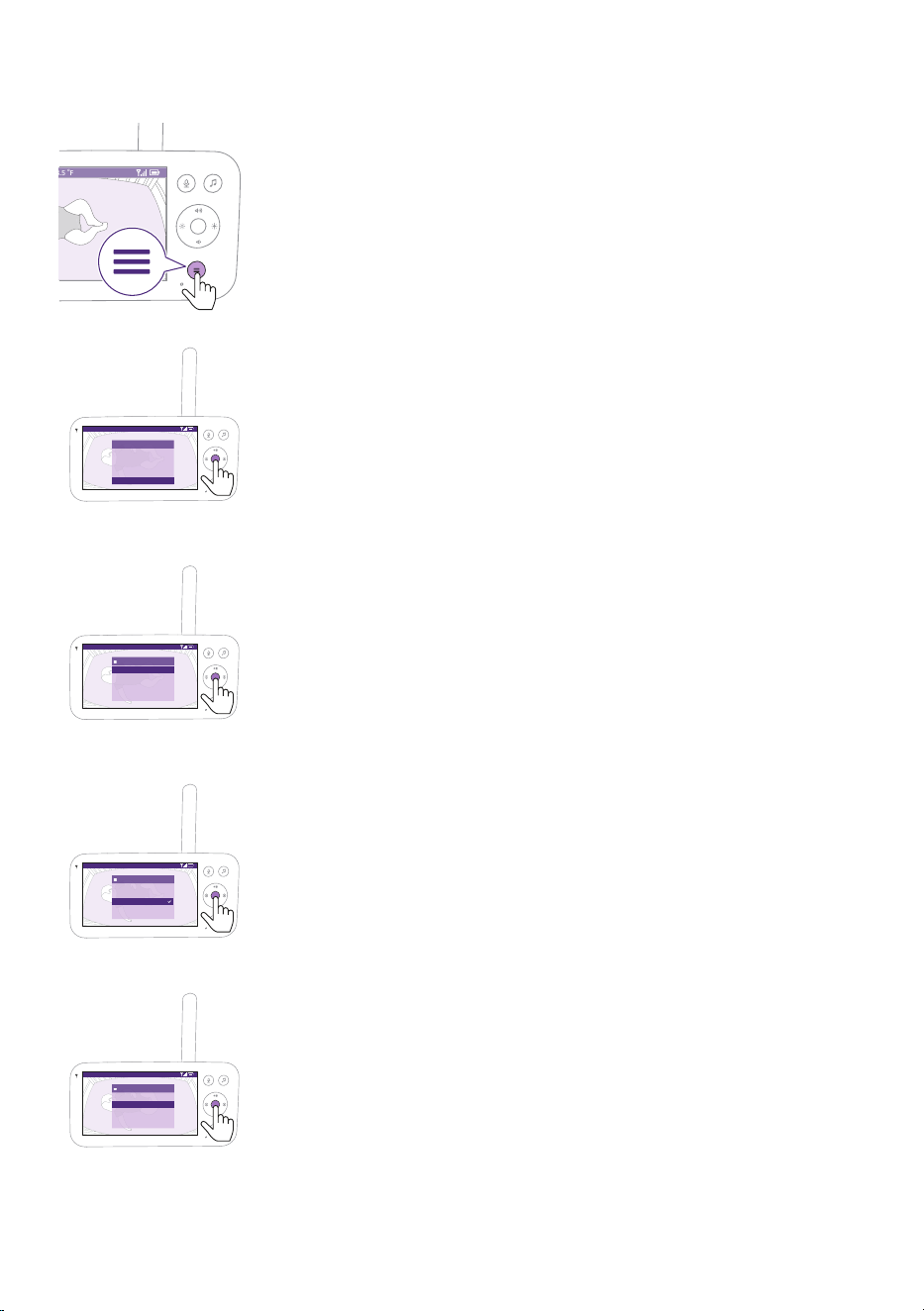
- 32 -
Settings
68.5
o
F
1 Press the menu button on the bottom right of the Parent Unit�
Video 68.5
o
F
>Settings
Temperature alert
Connection to Baby Unit
Nightlight
Zoom
Menu
2 Select ''Settings'' and press the conrm button to access the settings
menu�
Video 68.5
o
F
Settings
Language
>
Firmware
Licenses
Download the app
You can change the language setting of the Parent Unit�
1 Press the conrm button to access the list of languages.
2 Press the top or bottom part of the control button to scroll through all
the languages and then press the conrm button to select the desired
language�
Video 68.5
o
F
Select language
Čeština
Deutsch
English
Español
Français
3 Press the conrm button to save the new setting and return to the
main menu�
Video 68.5
o
F
Settings
Language
>
Firmware
Licenses
Download the app
You can check the current rmware version of the baby monitor.
1 Press the conrm button to enter the rmware menu.
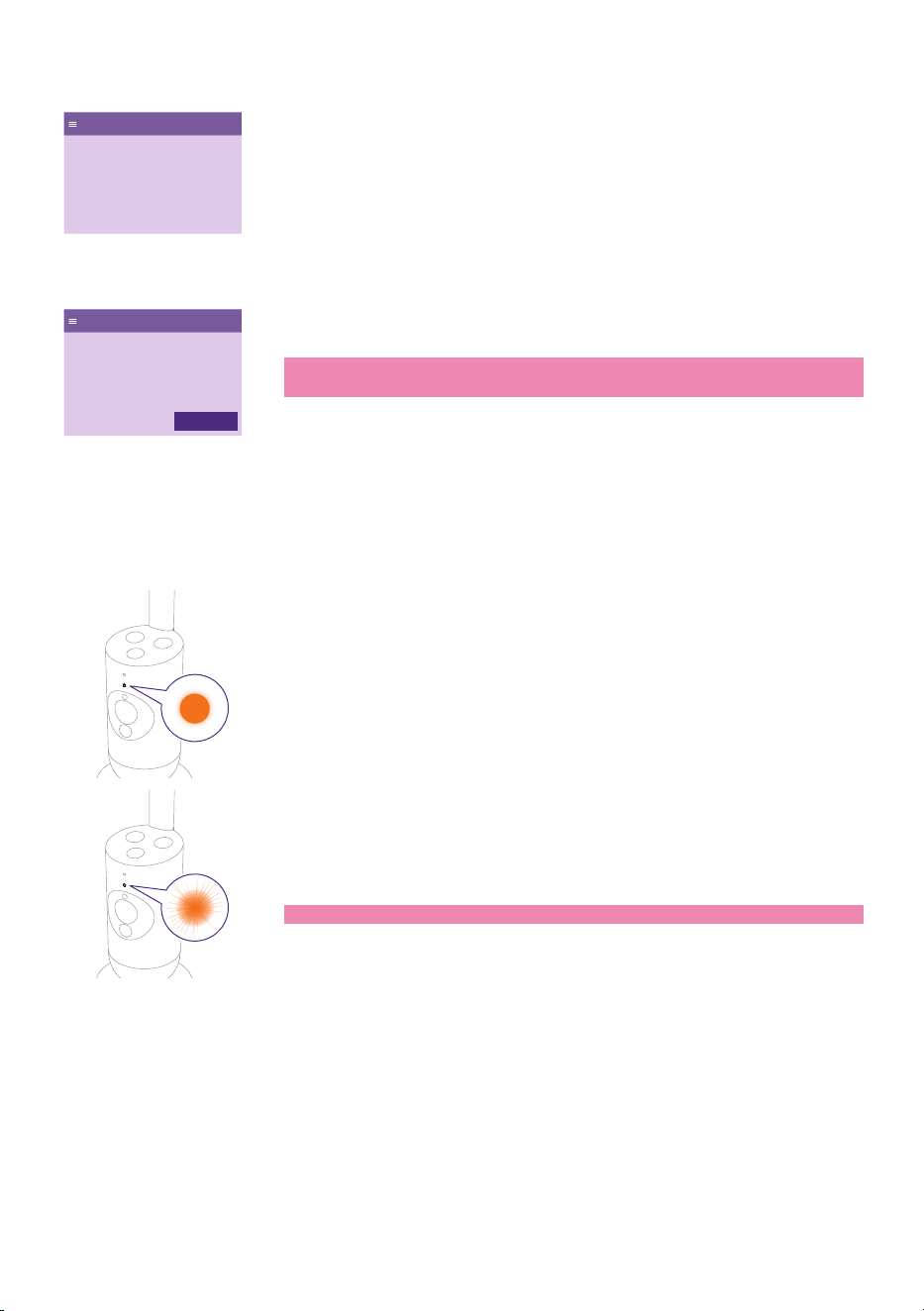
- 33 -
Firmware
Baby unit �rmware version: X.X.X
Parent unit �rmware version: X.X.XX
Your �rmware is up to date.
2 The display shows the latest rmware version of the Parent Unit and
the Baby Unit�
Firmware update
New �rmware is available for the
parent unit.
Installation will start soon. It should
take a few minutes.
OK
Note: In case a rmware update is available, it will be installed
automatically, and you will receive a notication.
Status light
Orange
1 Solid orange: the Baby Unit is booting up.
2 Flashes orange: the Baby Unit is upgrading its rmware. Do not switch
it o during the upgrade.
Note: The Baby Unit might reboot briey during the rmware upgrade.
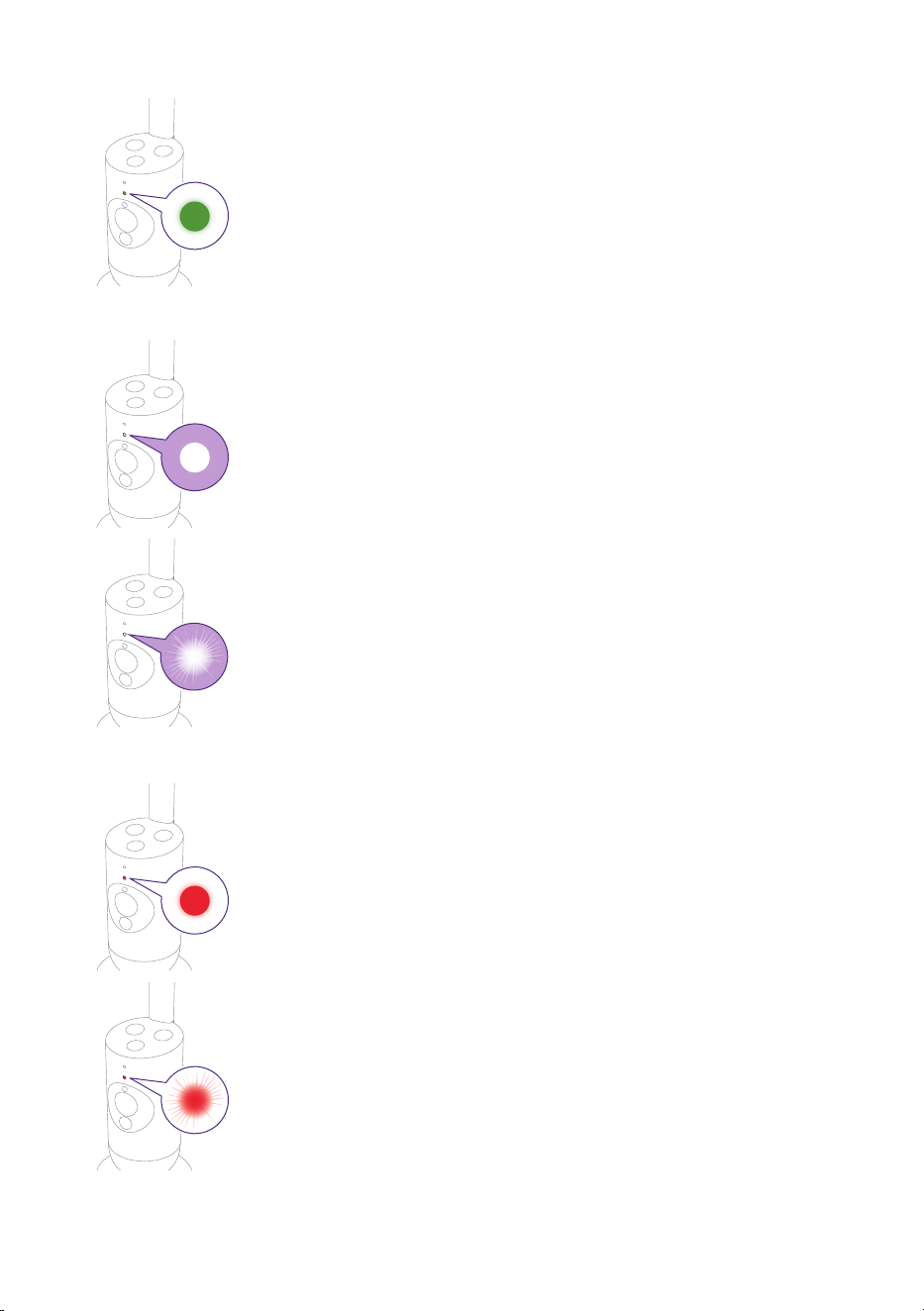
- 34 -
Green
Solid green: the Baby Unit is ready to connect to the Parent Unit.
White
1 Solid white: the Baby Unit is ready to connect to the Parent Unit and
app�
2 Flashes white: the Baby Unit is searching for the home network.
Red (Set up only)
1 Solid red: the baby monitor failed to connect to internet.
2 Flashes red: you have entered a wrong SSID or password.
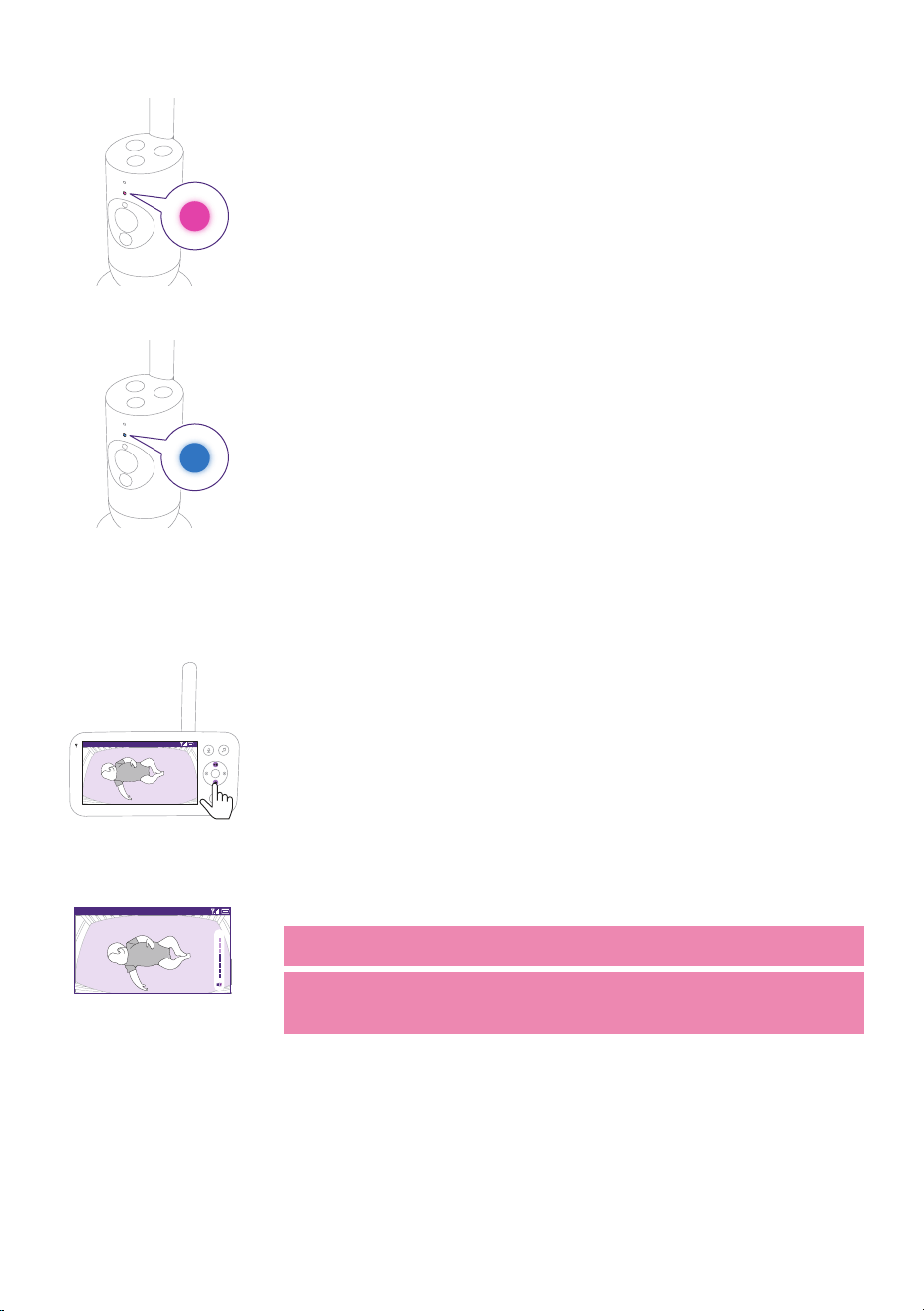
- 35 -
Purple
Solid purple: video live streaming is turned on for one or more app
users�
Blue
Solid blue: Privacy mode is activated.
Volume
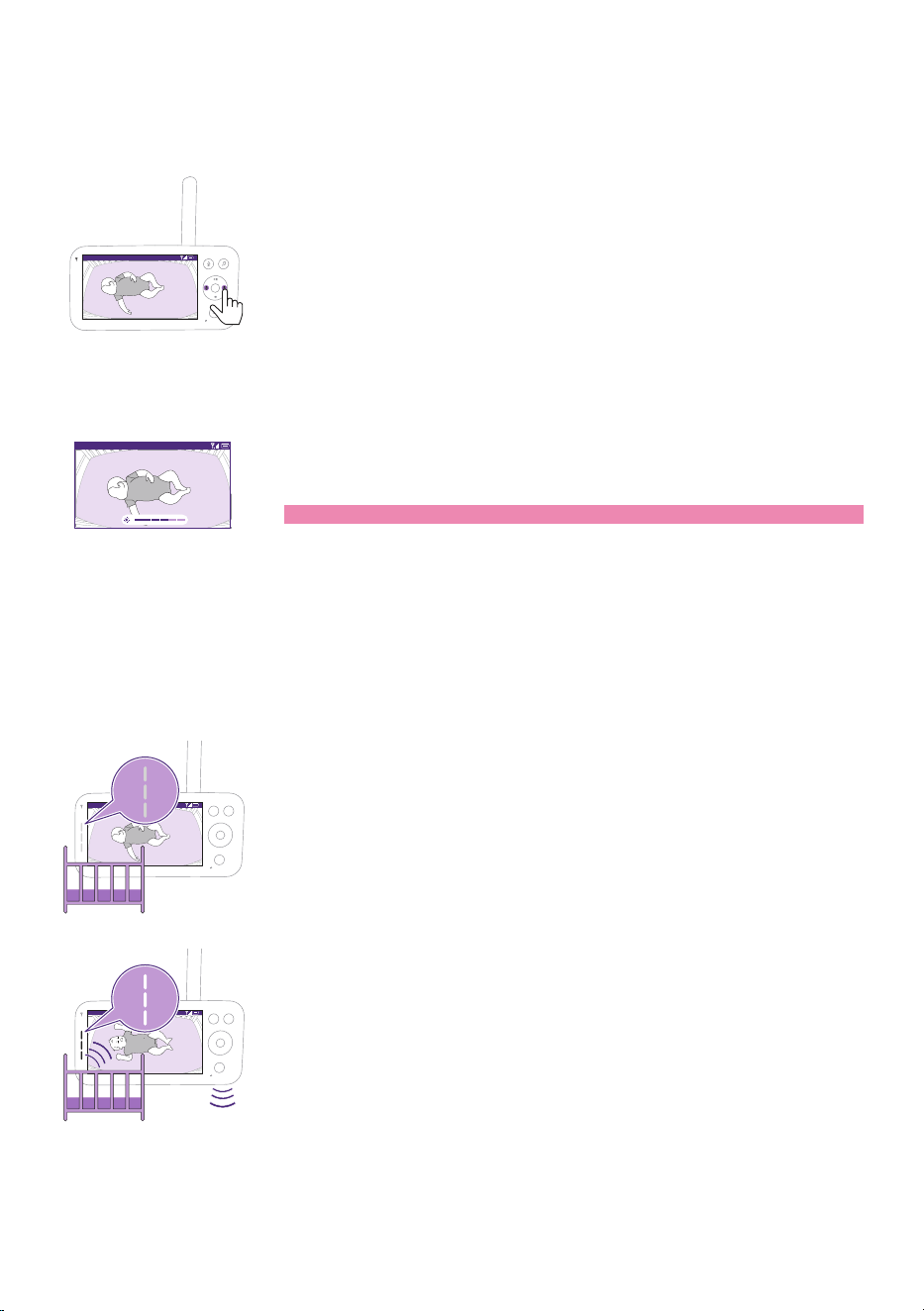
You can adjust the speaker volume of the Parent Unit to the level you
prefer�
Video 68.5
o
F
1 Press the top or bottom part of the control button to adjust the
volume�
Video 68.5
o
F
2 The volume bar appears on the display to show the selected volume
level�
Note: If the volume is set to a high level, the Parent Unit consumes
more power�
Note: When the volume bar is at its minimum, the volume is muted.
The Parent Unit shows a mute icon in the status bar and you will only
receive alerts and video from the Parent Unit�
- 36 -
Display brightness
You can adjust the display brightness of the Parent Unit to the level you
prefer�
Video 68.5
o
F
1 Press the left or right part of the control button to adjust the
brightness of the display on the Parent Unit�
Video 68.5
o
F
2 The brightness bar appears on the display to show the selected
brightness level�
Note: The Parent Unit consumes more power with a higher brightness.
Sound level lights
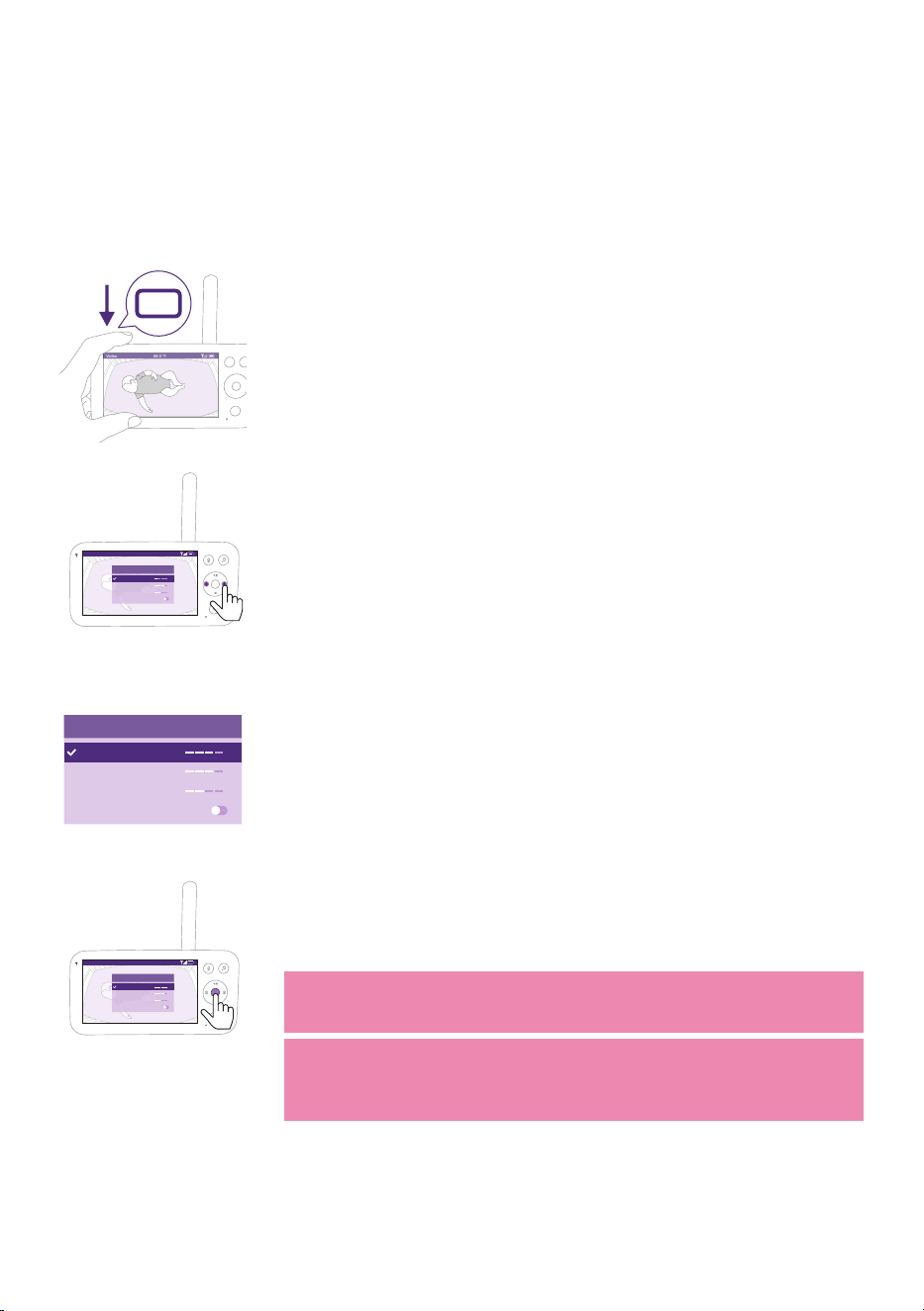
The Parent Unit continuously monitors the sound level in your baby's
room� The sound level lights on the Parent Unit let you know if there is
any sound picked up in the baby's room�
Video 68.5
o
F
As long as no sound is detected, the sound level lights are o.
Video 68.5
o
F
When the Baby Unit picks up a sound, one or more sound level lights
on the Parent Unit turn white� The number of lights depends on the
loudness of the sound picked up�
- 37 -
Modes and sensitivity
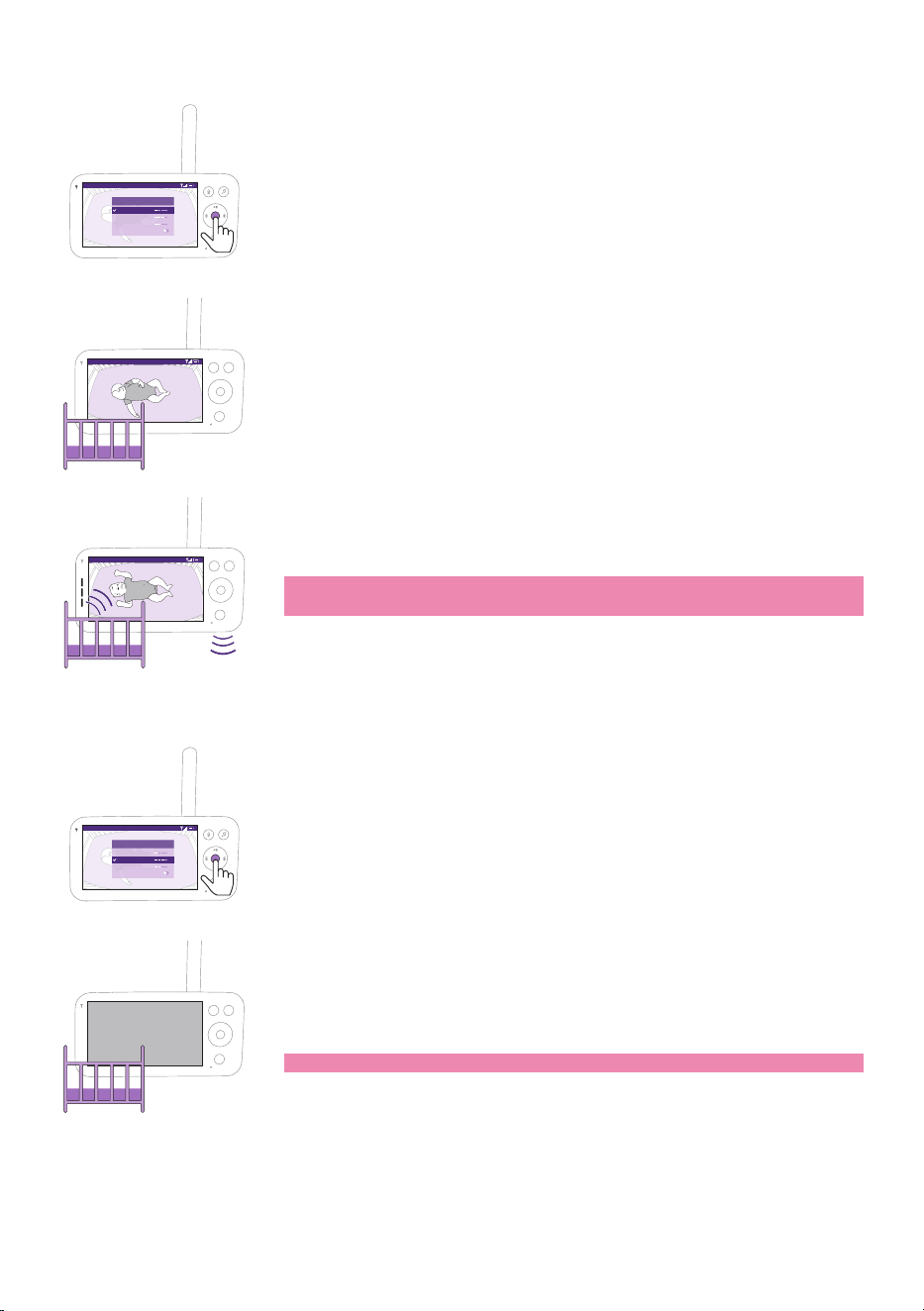
This baby monitor has three dierent modes that allow you to choose
how you want to monitor your baby: Video, Audio, Eco.
The sensitivity level of the Baby Unit denes what you hear through the
Parent Unit. When the level is set to high, you will hear many sounds,
including soft background sounds. When the sensitivity level is set low,
you will hear only the louder sounds�
Video 68.5
o
F
With the baby monitor on, press the mode button on the top left of
the Parent Unit, press the top or bottom part of the control button
to switch between these dierent modes, and then press the conrm
button to select the desired mode�
Video 68.5
o
F
Modes & Volume sensitivity
Video
<
Audio
Eco
Privacy
>
Baby Unit is accessible through the Baby Monitor+ App
You can choose dierent sensitivity levels for dierent modes by
pressing the left or right part of the control button�
Modes & Volume sensitivity
Video
<
Audio
Eco
Privacy
>
Baby Unit is accessible through the Baby Monitor+ App
The display shows the selected mode�
The selected mode is also indicated in the status bar�
When turning on the device, the mode that was last used will be
active�
Video 68.5
o
F
Modes & Volume sensitivity
Video
<
Audio
Eco
Privacy
>
Baby Unit is accessible through the Baby Monitor+ App
If your baby only makes soft sounds, the sensitivity of the Baby Unit
needs to be set to a high level on the Parent Unit�
The louder your baby sounds, the lower the sensitivity can be set on
the Parent Unit�
Note: In Audio and Video mode, you will have continuous sound when
the sensitivity level is set to the highest. Otherwise, low sounds will be
muted�
Tip: The sensitivity level can be adjusted so you will always hear your
baby without the disruption of other sounds� When there is a lot of
background noise, turn down the sensitivity so that you will not hear
these sounds through the Parent Unit�
Press the conrm button to save the new setting.
- 38 -
Video mode
Video 68.5
o
F
Modes & Volume sensitivity
Video
<
Audio
Eco
Privacy
>
Baby Unit is accessible through the Baby Monitor+ App
1 Press the mode button on the top left of the Parent Unit�
2 Press the conrm button to select the Video mode�
Video 68.5
o
F
When the Video mode is activated, the display is always on.
Video 68.5
o
F
Note: Set the sensitivity level to the highest to have continuous sound
on the Parent Unit�
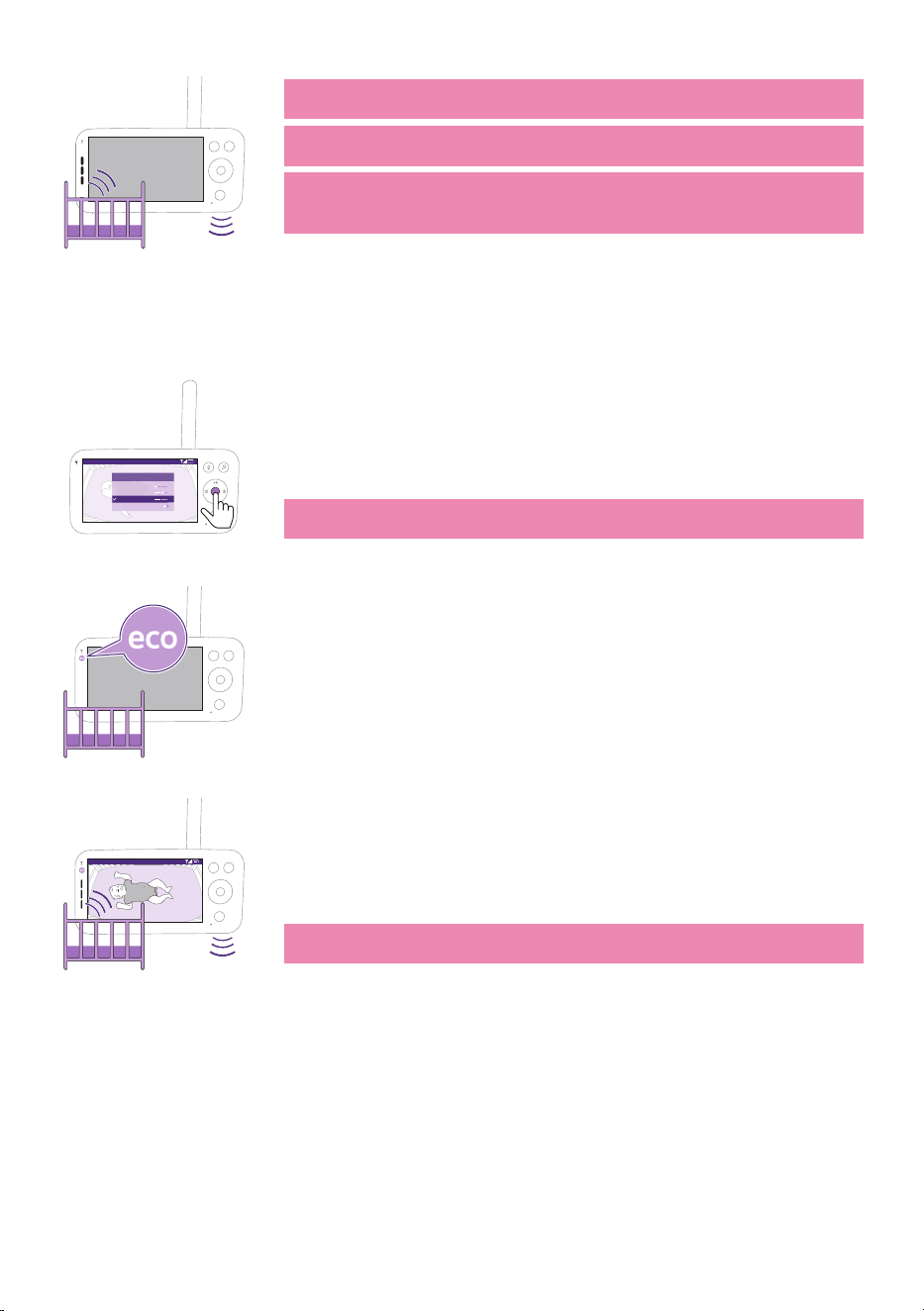
Audio mode
Audio 68.5
o
F
Video
<
Audio
Eco
Privacy
>
Modes & Volume sensitivity
Baby Unit is accessible through the Baby Monitor+ App
1 Press the mode button on the top left of the Parent Unit�
2 Press the bottom part of the control button to switch to Audio mode�
3 Press the conrm button to select the Audio mode.
When the Audio mode is activated, the display of the Parent Unit
switches o after 3 seconds.
Note: The status bar is not visible when the display is o.
- 39 -
Note: The white link light shows that the Parent Unit is still on and
connected to the Baby Unit�
Note: When sensitivity is not set to the highest level, low sounds will
be muted�
Note: Set the sensitivity level to the highest to have continuous sound
on the Parent Unit� Please see the ''Modes and sensitivity'' chapter for
more information�
If your baby makes any sound, the sound level lights turn on and the
sounds detected by theBaby Unitare transmitted to the Parent Unit.
As long as no sound is detected, the sound level lights are o.
Eco mode
Video 68.5
o
F
Video
>
>
Audio
Eco
Privacy
Modes & Volume sensitivity
Baby Unit is accessible through the Baby Monitor+ App
1 Press the mode button on the top left of the Parent Unit�
2 Press the bottom part of the control button to switch to Eco mode�
3 Press the conrm button to select the Eco mode.
Note: When the display is on, the selected mode will be visible in the
status bar. The status bar is not visible when the display is o.
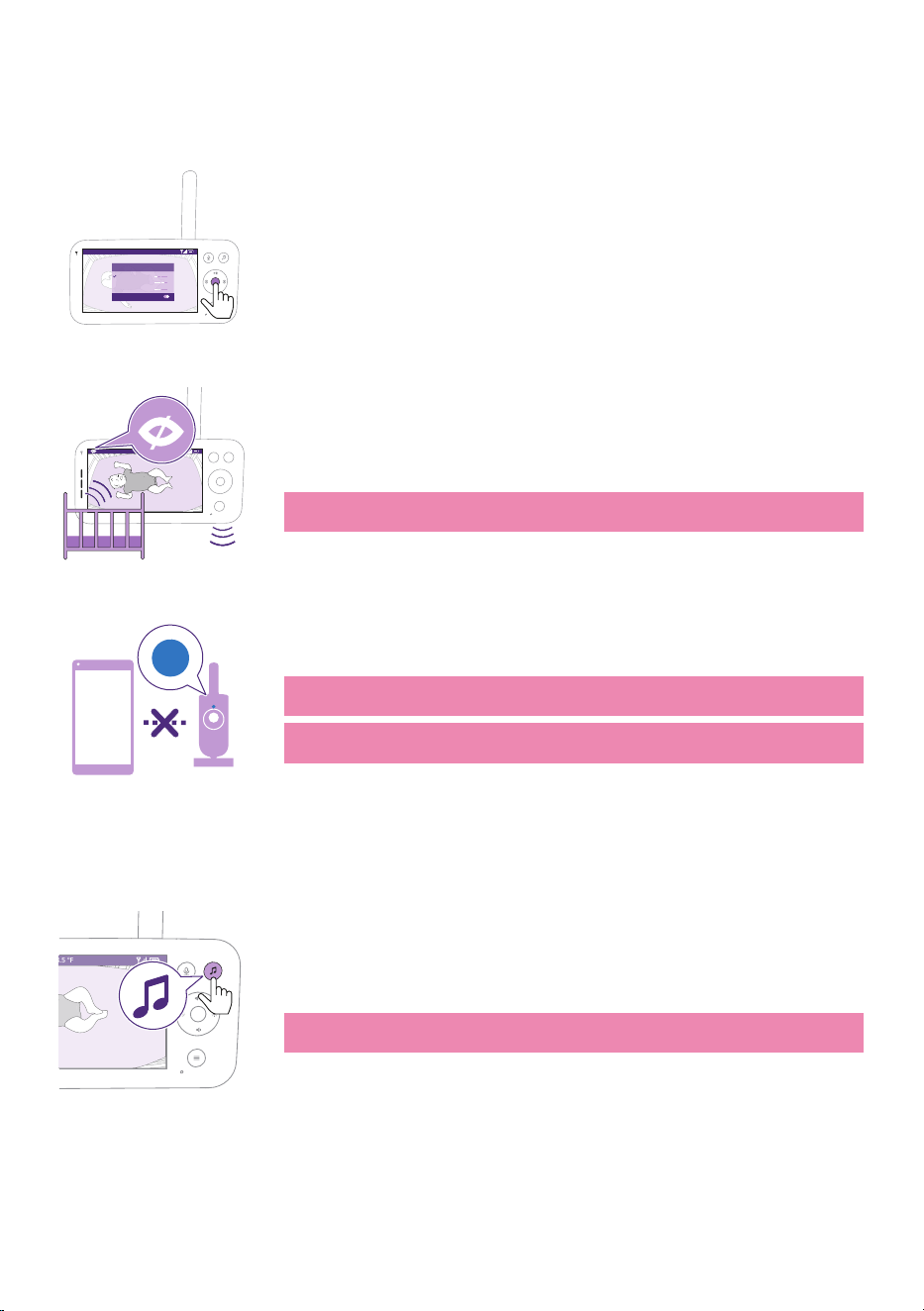
The display and sound level lights switch o when there is no sound
detected for 20seconds. TheEco-mode light turns white to indicate
that the Parent Unit is still on and Eco mode is active�
eco 68.5
o
F
Whensound is picked up by the Baby Unit, the displayand sound level
light of the Parent Unit turn on immediately.The video and sounds are
transmitted to the Parent Unit and the sound level lights turn white�
As long as no sound is detected, the sound level lights are o.
Note: The minimum sound level to activate sound and display is
dened by the sensitivity setting.
- 40 -
Privacy mode
Privacy mode allows you to temporarily disable the camera's live feed
to the app� You can still monitor your baby from the Parent Unit in the
selected mode�
Video 68.5
o
F
Modes & Volume sensitivity
Video
Audio
Eco
Privacy
Baby Unit is not accessible through the Baby Monitor+ App
1 Press the mode button on the top left of the Parent Unit�
2 Press the bottom part of the control button to switch to Privacy mode�
3 Press the conrm button to activate the Privacy mode�
68.5
o
F
Video
When the Privacy mode is activated:
1 You can still monitor your baby from the Parent Unit�
Note: When the display is on, the privacy mode indicator is shown in
the status bar. The status bar is not visible when the display is o.
App
2 You cannot monitor your baby from the app�
Note: The status light of the Baby Unit turns blue. You will receive a
push notication from the app.
Note: When you try to monitor via the app it will display that the Baby
Unit is in Privacy mode�
Soothing sounds
To activate it from the Parent Unit, follow the instructions below:
68.5
o
F
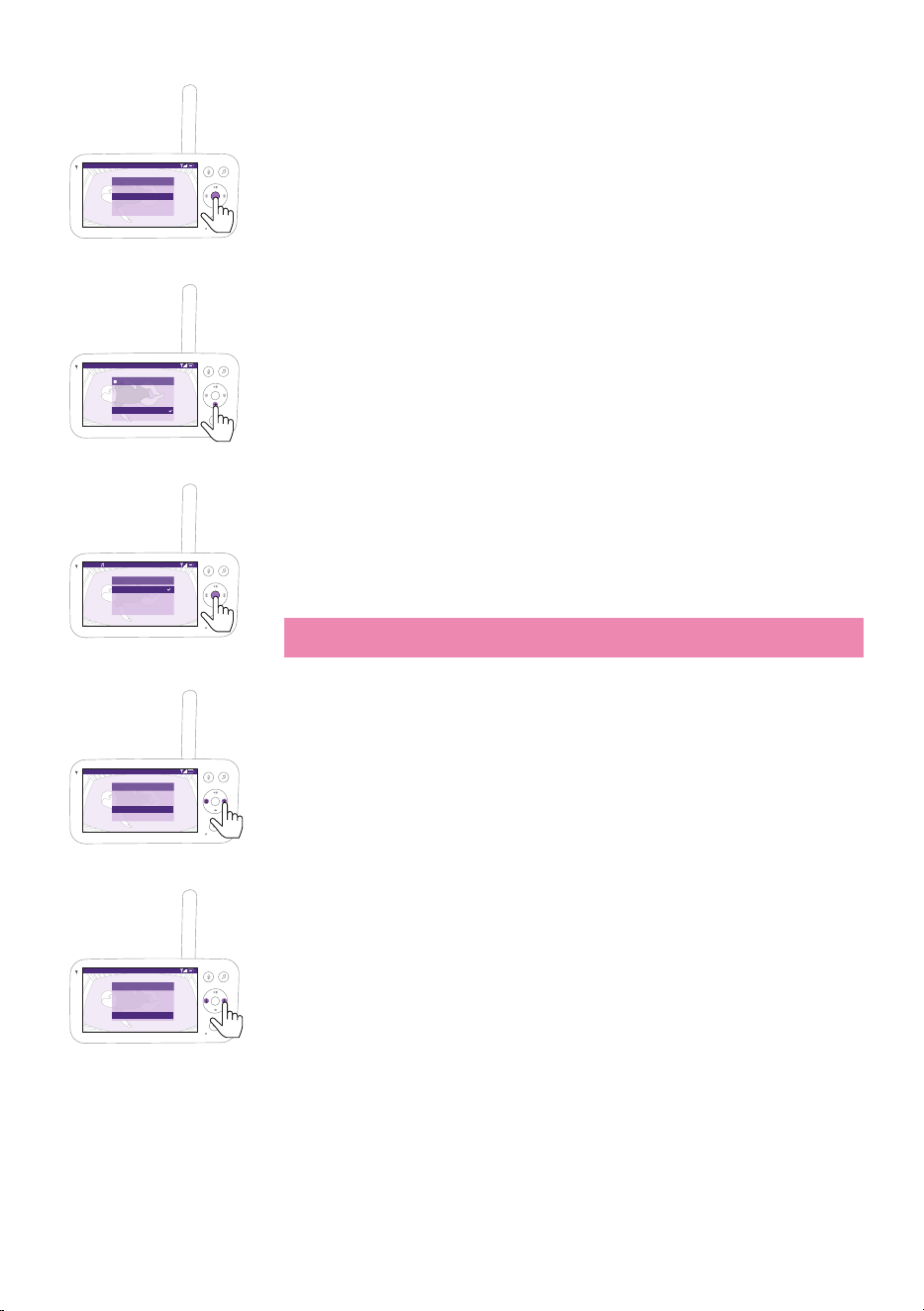
1 Press the soothing sounds button on the Parent Unit to open the
menu�
Note: Pressing the button while the menu is already open, will close
the menu�
- 41 -
Video 68.5
o
F
Lullabies and sounds
Play
Select sound
Volume
Timer
>
6/8
20 min
2 Press the bottom part of the control button to scroll down to ''Select
sound'' menu item, press the conrm button to enter the soothing
sounds list�
Video 68.5
o
F
Select lullaby or sound
All lullabies
Baa Baa Black Sheep
Brahms’ Lullaby
Golden Slumbers
Rock-a-bye Baby
3 Press the top or bottom part of the control button to scroll through
the list�
4 Press the conrm button to select or deselect the one you want to
play. You can also select ''All lullabies'' to playback the rst 5 lullabies.
Video 68.5
o
F
Soothing sound
Stop
Select sound
Volume
Timer
5/8
10 min
Rockabye....
5 Navigate to ''Play'' and press the conrm button to start playing the
selected sound�
If you want to stop, press the conrm button again.
The status barof the Parent Unit shows the name of sound thatis
being played�
Tip: Long-press the soothing sounds button to start or stop playing the
selected sound�
Video 68.5
o
F
Soothing sound
Play
Select sound
Volume
Timer
6/8
10 min
><
You can set the volume level of the sound or lullaby from the Parent
Unit�
Press the left or right part of the control button to choose the volume
level�
Video 68.5
o
F
Soothing sound
Play
Select sound
Volume
Timer
6/8
15 min
><
You can set a timer for the soothing sound to stop� Do this from the
Parent Unit�
Press the left or right part of the control button to choose the time you
prefer�
- 42 -
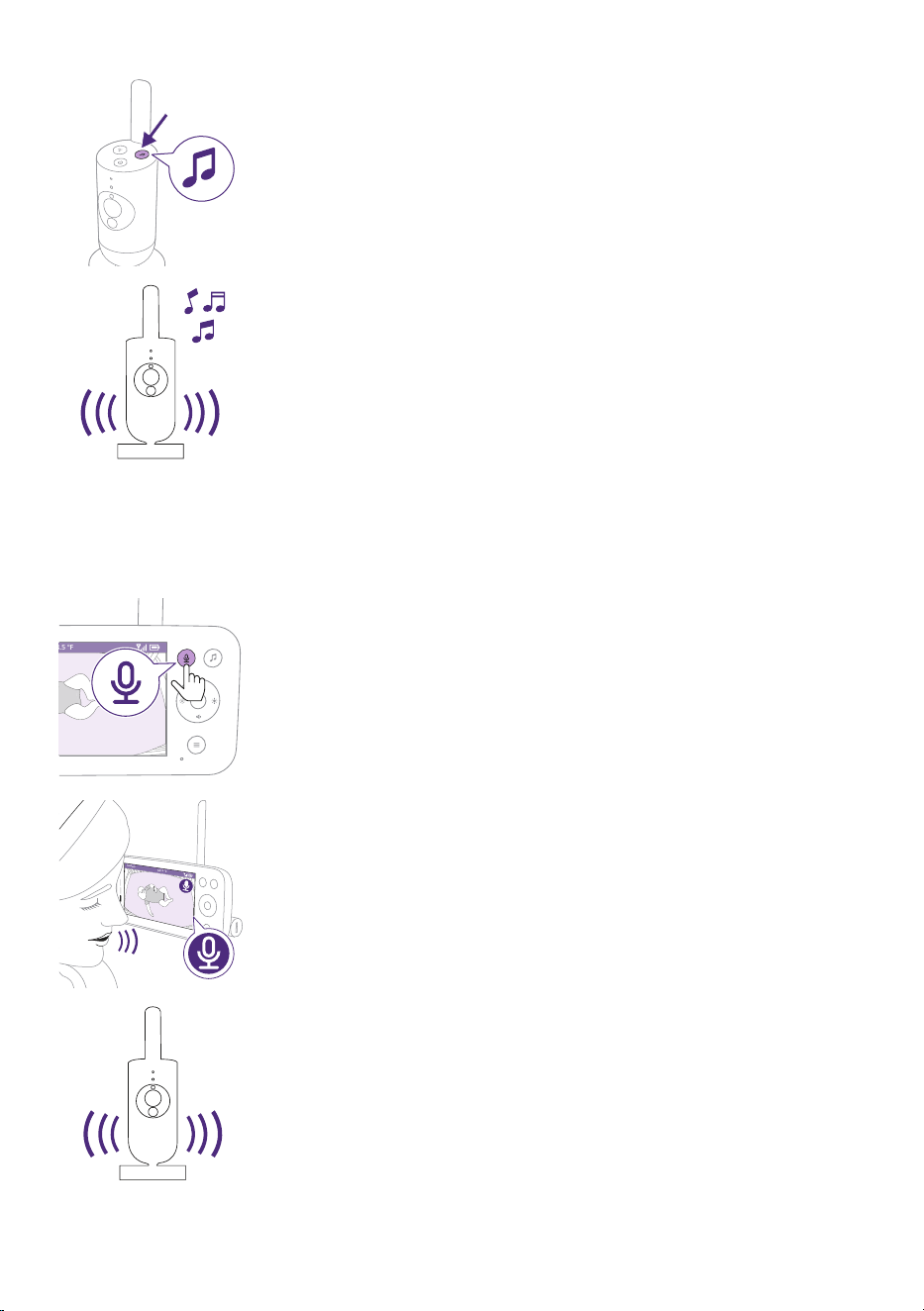
To activate the soothing sounds feature from the Baby Unit, press the
soothing sounds button on the Baby Unit�
The latest sound selected on the Parent Unit starts to play continuously
according to the last timer setting�
To stop the soothing sounds on the Baby Unit, press the soothing
sounds button again�
True talk-back
You can use the true talk-back button on the Parent Unit to talk to your
baby�
68.5
o
F
1 Press the true talk back button on the Parent Unit�
Video
68.5
o
F
2 The display of the Parent Unit shows the true talk back icon, indicating
the active connection. Talk clearly into the microphoneat the front of
the Parent Unit from a distance between 15-30 cm / 0.5-1 ft.
The baby can hear you talking into the Parent Unit. At the same time,
you will hear any sounds your baby makes�
- 43 -
68.5
o
F
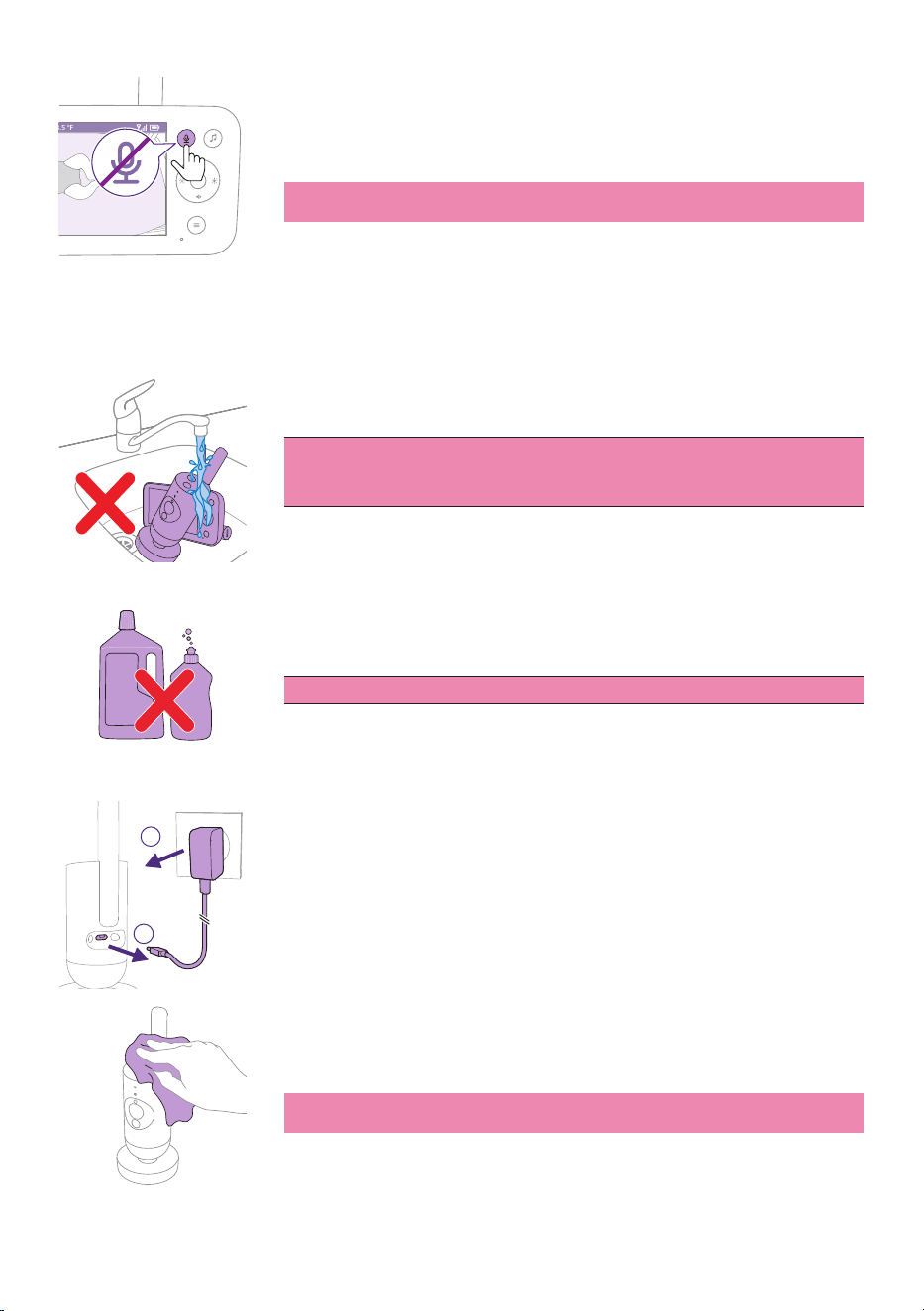
3 Press the true talk-back button again to turn o when you have
nished talking.
Note: It is important to turn o talkback when you're nished using it
in order to avoid any unexpected sounds coming from the Baby Unit.
Cleaning and maintenance
Warning: Do not immerse the Parent Unit, Baby Unit and
power adapters in water and do not clean them under the
tap.
Warning: Do not use cleaning sprays or liquid cleaners.
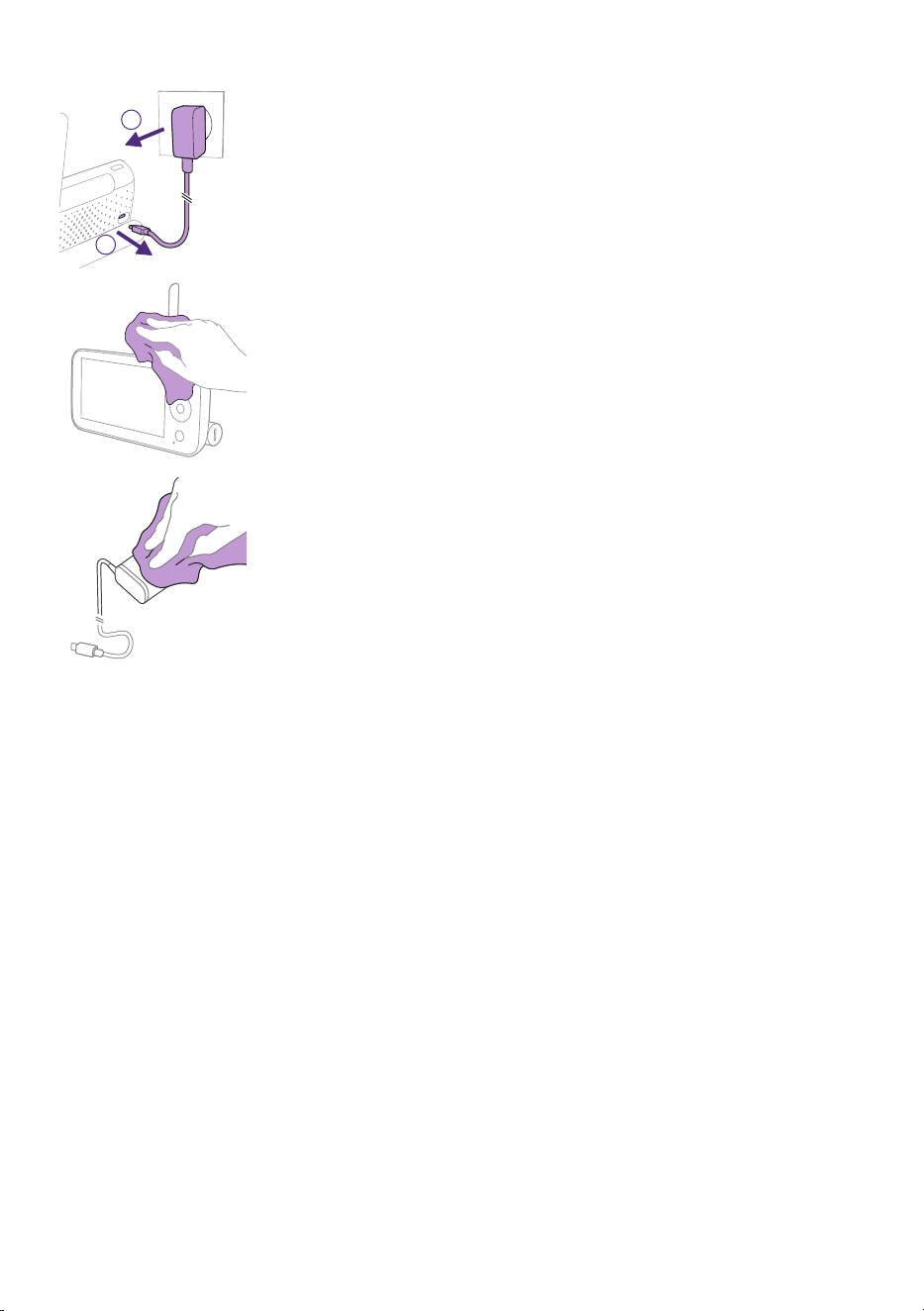
2
1
1 Switch o the Baby Unit, remove the power adapter from the Baby
Unit and remove the power adapter from the wall socket�
2 Clean the Baby Unit with a dry cloth�
Note: Fingerprints or dirt on the lens of the Baby Unit may aect the
camera's performance. Avoid touching the lens with your ngers.
- 44 -
1
2
3 Switch o the Parent Unit, remove the power adapter from the Parent
Unit and wall socket�
4 Clean the Parent Unit with a dry cloth�
5 Clean the adapters with a dry cloth�
Storage
When you are not going to use the baby monitor fora long time, store
the Parent Unit, the Baby Unit and adapters in a cool and dry place.
To optimize battery lifespan during long periods of inactivity or storage, it
is recommended that you charge your Parent Unit to 50% before turning
it o.
Storage precautions
Do not expose the baby unit and parent unit to extreme cold or heat or to
direct sunlight�
Do not put the baby unit and the parent unit close to a heating source�

- 45 -
Ordering accessories
To buy accessories or spare parts, visit www.philips.com/parts-and-
accessories or go to your Philips dealer� You can also contact the Philips
Consumer Care Centre in your country (see the international warranty
leaet for contact details).
Disposal
- This product contains a rechargeable lithium-ion battery which must
be disposed of properly�
- Contact your local town or city ocials for battery disposal
information� You can also call 1-800-822-8837 or visit
www.call2recycle.org for battery drop-o locations.
- For assistance, visit our website www.philips.com/support or call
1-800-822-8837 toll free�
- Your product is designed and manufactured with high quality
materials and components, which can be recycled and reused. For
recycling information, please contact your local waste management
facilities or visit www.recycle.philips.com�
Removal of built-in rechargeable battery
The built-in rechargeable battery must only be removed by a qualied
professional when the appliance is discarded� Before removing the
battery, make sure that the appliance is disconnected from the wall socket
and that the battery is completely empty�
Note: Take any necessary safety precautions when you handle tools to
open the appliance and when you dispose of the rechargeable battery�
Note: When you handle batteries, make sure that your hands, the
product and the batteries are dry�
Note: To avoid accidental short-circuiting of batteries after removal,
do not let battery terminals come into contact with metal objects (e.g.
coins, hairpins, rings). Do not wrap batteries in aluminum foil. Tape
battery terminals or put batteries in a plastic bag before you discard
them�
Procedure:
1 Use a coin to unlock the openings of the battery compartment on the
back of the Parent Unit�
2 Remove the 2 rubber feet at the bottom of the Parent Unit�
3 Remove the 2 screws that are now visible at the bottom of the Parent
Unit�
4 Pull apart the battery compartment from the Parent Unit�
5 Remove the battery�
If there is no collection/recycling system for electronic products in your
country, you can protect the environment by removing and recycling the
battery before disposing the product�
- 46 -
Support
For all product support, please visit www.philips.com/support�
Troubleshooting
This chapter summarizes the most common problems you could
encounter with the product� If you are unable to solve the problem with
the information below, visit www.philips.com/support for a list of
frequently asked questions or contact the consumer care centre in your
country�
PARENT UNIT
Problem Solution
Why can't I connect my
Parent Unit to other
Philips Avent Baby Units?
The Philips Avent Premium Connected Baby Monitor’s Parent Unit can
only connect to the Baby Unit which is included in the same package�
If you want to view other Philips Avent baby monitors (SCD641, SCD643,
SCD921, SCD923), you can add them in the Philips Avent Baby Monitor+
app�
Why doesn't the Parent
Unit charge when I plug
it in?
Perhaps the adapter is damaged�
Check if this issue persists by using the other adapter supplied in the
package. If the adapter is damaged, always have it replaced with an
original one in order to avoid hazards. (see the ''Ordering accessories''
chapter)
Perhaps there is a battery error�
Check the battery status light on the Parent Unit. If it is solid red, contact
the consumer care centre in your country�
Why can the charging
time of the Parent Unit
exceed 3hours?
Video 68.5
o
F
Please use the adaptor provided
?
Perhaps temperature has exceeded the charging tolerance that could
potentially cut o the charging circuit as a safety protection mechanism.
To resume charging, move the charging station away from any heat
sources such as radiators, heat registers, stove or other appliances
(including ampliers) that produce heat.
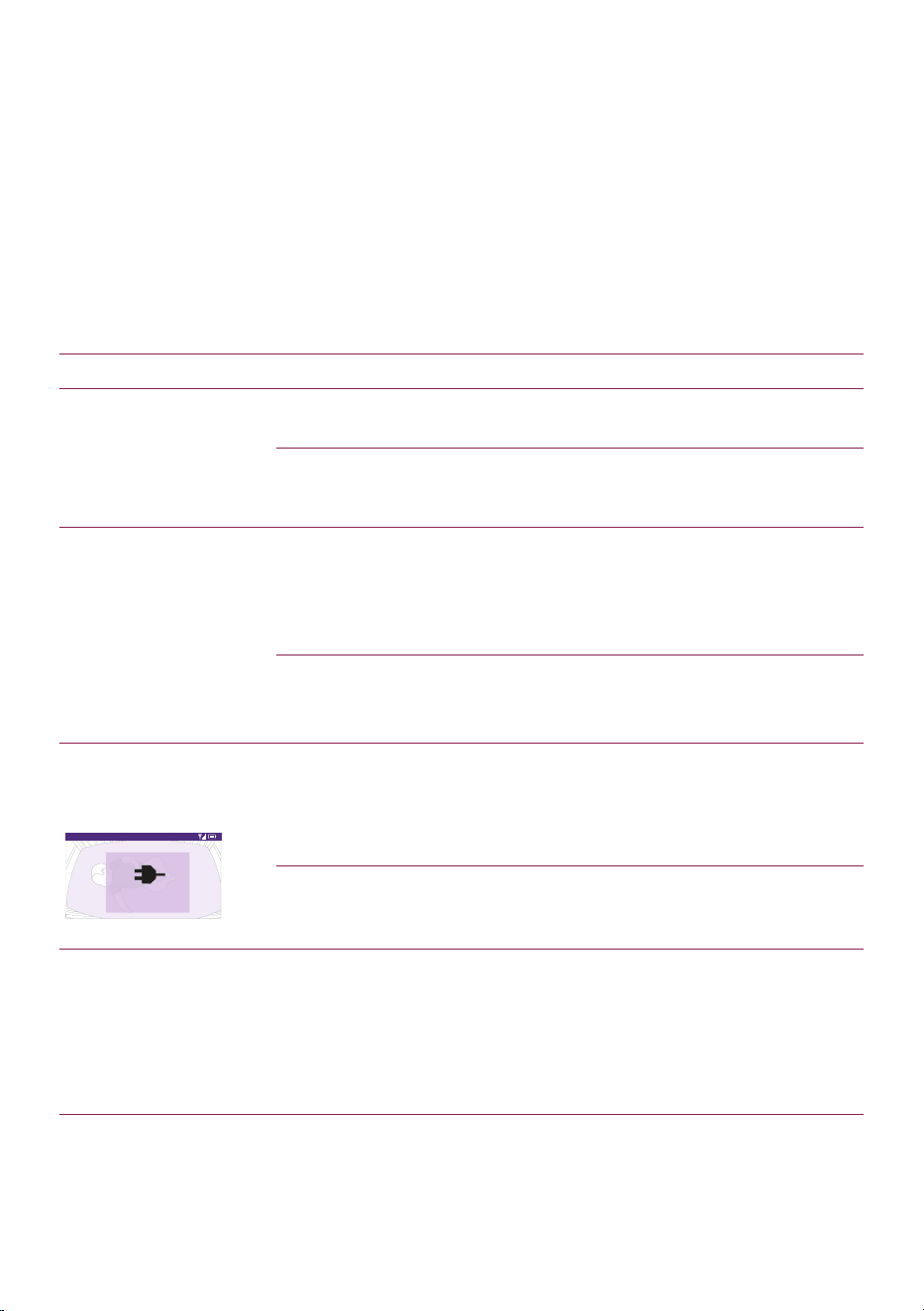
Perhaps you are not using the right power adapter� If you see the icon on
the left, it means an incorrect power adapter is detected. Always use the
provided adapter for optimal charging performance�
Why does my baby
monitor manage a much
smaller distance than
specied in this user
manual?
The specied operating range between the Parent Unit and Baby Unit
is up to 400 meters / 1312 ft, and it's only valid outdoors in open air
and in the line of sight� Depending on the surroundings and other
disturbing factors, the operating range may be smaller.
Inside your house, the operating range is up to 50meters / 164 feet,
which is also limited by the number and type of walls and/or ceilings
between the Parent Unit and the Baby Unit�

- 47 -
PARENT UNIT
Problem Solution
Why can't I establish a
connection between
the Parent Unit and
Baby Unit? Why is
the connection lost
every now and then?
Why are there sound
interruptions?
The Baby Unit and the Parent Unit are probably close to the outer limits
of the operating range or there is interference from other 2.4 GHz
wireless devices�
Try a dierent location, decrease the distance between the units or
switch o other 2.4 GHz wireless devices (laptops, mobile phones,
microwaves, etc). It can take up to 15 seconds to re-establish the
connection between the units�
Maybe the router connection of the Baby Unit is not strong or steady�
Check the router signal strength of your Baby Unit on the Baby Monitor+
app, if it is weak, try moving the router closer to the Baby Unit or using
Wi-Fi extenders to ensure a strong and steady connection for an optimal
performance�
Why does the app/Parent
Unit react too quickly to
other sounds than my
baby makes?
The sensitivity level may be set too high� When your baby makes soft
sounds, the sensitivity has to be higher. However, the noisier the nursery
room is, the lower the sensitivity level can be set. You can change the
sensitivity of your baby monitor on the Parent Unit's menu�
Why don't I hear a
sound from the Parent
Unit?Why the Parent
Unit is not transmitting
sounds?
Perhaps the Parent Unit is muted� Unmute it by pressing the top part of
the control button and adjust the volume�
Perhaps you have muted on the app� Unmute it by tapping the mute icon
on the video screen�
The sensitivity is set too low� Increase the sensitivity in the Parent Unit's
menu or the app to a higher level�
The Baby Unit may be too far away from your baby� Make sure the Baby
Unit is not further than 1.5 meters / 5 feet away from your baby for
optimal sound detection�
Why do I get interference
on the Parent Unit? Why
does the video display on
the Parent Unit icker?
Why does the Parent Unit
make a buzzing sound?
Interference may occur when the Parent Unit is out of range of the Baby
Unit� If there are too many walls or ceilings between the Parent Unit and
the Baby Unit. Or when other 2.4 GHz wireless devices are switched on
(e.g. microwave, Wi-Fi router).
Put the Parent Unit in a dierent place, closer to the Baby Unit, or switch
o other wireless devices.

- 48 -
SenseIQ/Cry Translation
Problem Solution
Why is there no breathing
and movement analysis?
Maybe you haven't activated / turned on the SenseIQ feature.
Download the Philips Avent Baby Monitor+ app (see the ''Download the
Baby Monitor+ app'' chapter) on your phone, and then activate / turn on
the SenseIQ feature in the menu of the Parent Unit or app�
Maybe the mattress area is not set up properly�
To ensure everything’s mounted and positioned well, you can do a
positioning check found in the Tutorials and Tips section of the Help and
support menu in the app� Completing the positioning check should allow
for SenseIQ to function without interruption after enabling it�
Avoid using patterned blankets or baby clothes, use a solid-colored
blanket or sleeping bag to improve visibility� Make sure you have contrast
between the baby blanket/sleeping bag and the mattress cover.
Maybe the Baby Unit is too far away from your baby�
When using the crib mount, make sure to put the mount on the long
side of the crib. When using the wall mount, ensure that the distance
between the crib and the Baby Unit is not too much� This will help ensure
that the whole baby mattress area is clearly seen and that you can
monitor your baby eectively.
Cry Translation is not
working, what should I
do?
Perhaps the Wi-Fi connection is weak or not stable.
Check the Wi-Fi signal strength on the setting page of the app and it
works best when it shows "Excellent" or "Good".
Perhaps the Baby Unit connection is not good�
Make sure the Baby Unit is properly connected to the Parent Unit or the
App�
Ensure that the Baby Unit is placed close to the baby to detect the baby's
cry and minimize interference from ambient noise�
Perhaps the subscription has expired.
The Cry Translation service is available for a 90-day free trial period� If
you want to continue using it, you would need to sign up for a paid
subscription service with Zoundream
TM
�
Perhaps there are too many environmental noises�
Avoid positioning the Baby Unit near loud sources like televisions or
devices that produce sounds and vibrations, such as smartphones on
vibration mode� These noises can interfere with the device's ability to
accurately detect and translate your baby's cries�

- 49 -
APP
Problem Solution
I can't connect to the
baby monitor� Each time I
end up in the connection
error screen� What is the
matter?
Make sure your smart device uses the same Wi-Fi network you want to
connect the baby monitor to�
Check the status light of the Baby Unit, if it is ashing red, the Wi-Fi
password entered was wrong� Restart the set up process� Re-enter the
Wi-Fi password and make sure that the password is correct.
Perhaps the router SSID (the network name) or the password contains
special symbols. If it does, change the name of your router SSID or the
password accordingly�
If the status light turns solid red while trying to connect, the baby monitor
successfully connected to the router but fails to connect to the internet�
Then check if you have access to 2.4 GHz Wi-Fi by trying to access other
apps like YouTube, Facebook etc. If other apps do not respond, please
make sure you have internet access. If there is internet access, the server
could be temporarily unavailable� Please try to set up again later�
Perhaps you have been tying to connect the baby monitor to a 5 GHz
network�
Please check that you have chosen a SSID of a network that supports
2.4GHz.
I have problems making
my baby monitor read
the QR code on my smart
device� What can I do?
Make sure that you hold the QR code at approx. 20 cm / 7.8 inch distance
from the baby monitor lens. Try moving the smart device slightly up,
down, left or right to ensure the QR code is directly in front of the baby
monitor lens� You can also try moving the smart device closer to or
further away from the baby monitor lens to allow proper focussing� Make
sure that there is enough light in the room, but avoid too bright light.
When the baby monitor has read the QR code, you hear a conrmation
sound and the status light of the Baby Unit turns white�
Perhaps part of your hand covers the QR code� Hold your device in such a
way that your hand does not cover the QR code�
I lose connection to the
app frequently� What is
the matter?
If the status light on the front of the baby monitor is solid white and
you keep losing connection, there may be a problem with the Internet
connection of your router, smartphone or baby monitor. Check the Wi-Fi
signal on your smartphone or the 4G or 5G speed by trying to watch a
movie, e.g. on YouTube. Or reset your Wi-Fi router.
Why can't I get video live
streaming on the app?
Check the Wi-Fi signal strength on the setting page of the app and it
works best when it shows "Excellent" or "Good".
Perhaps there are already three people monitoring your baby� The
app only allows three people to watch simultaneously� If you have
administrator rights, you can remove access for one of the guests to be
able to watch yourself�
Perhaps the privacy mode is on which will temporarily disconnect the
connection with the Baby Unit. You can turn o the privacy mode in the
Parent Unit. (see the ''Privacy mode'' chapter)

- 50 -
APP
Problem Solution
Why do I get black and
white images instead of
colour ones?
The baby monitor has switched to night vision mode because the room
where the baby monitor is placed is dark�
If there is enough light in the room, the light sensor on the baby monitor
may be covered or dirty. Make sure that this sensor is fully exposed to the
light in the room�
Why does the app not
notify me that the baby is
crying?
Check the Wi-Fi signal strength on the setting page of the app and it
works best when it shows "Excellent" or "Good".
The sound threshold for notication may have been set too low. In that
case, the app will only notify you when the baby produces a lot of sound.
Open the app setting to set the sound threshold higher to ensure that
you are notied sooner.
Perhaps you have muted your smart device, turn on the volume.
Check if you have activated the notication function in the setting of the
app�
Check if you have activated the notication function in the setting of
your smart device�
Check if you have viewing rights as a guest. The notication function is
disabled for guest users�
Why can't my partner
and I connect to the baby
monitor at the same
time?
The secondary admin user does not need to go through the same
connection process again, you only need to invite your partner to sign up
as an admin user�
If you do not wish your partner to have full access, invite your partner to
login as a guest user� Access rights of guest users have limitations� Please
refer to the ''Account management'' chapter for details�
Why can't I talk to the
Baby Unit after pressing
the talk back button from
the app?
Perhaps the talk back feature is active via the Parent Unit or your
partner's app�
The Parent Unit has a higher priority in using talk back function�
I am a guest user already,
why can't I get video live
streaming?
Perhaps the administrator has temporarily turned on the Privacy mode�
You should have received a notication about this.
The baby monitor may be oine. To receive a notication when the baby
monitor goes oine in future, switch on app notications from the app's
settings menu�
Do I have to keep the
app open to monitor my
baby?
No, the app can monitor in the background while you do other things.
Switch on background monitoring from the Monitoring and Video
settings menu of the Baby Monitor settings, put the app in the
background by locking the smartphone or going to the home screen of
your smartphone� You will be able to hear your baby's sounds even if the
app is not open. Furthermore you can still receive push notications.

- 51 -
APP
Problem Solution
Why can't I hear sound
from multiple Baby Units/
cameras?
You can view multiple live steamings in split screen format on the
preview page of app, but you can only hear sound from the Baby Unit/
camera you selected�
Is the baby monitor
hacker-proof?
We take every possible measure to prevent hacking and ensure the
highest level of security� This includes issuing security updates as
appropriate to maintain our standards� Please make sure that you always
use the latest app software and baby monitor rmware. If you lose your
smart device, factory-reset the baby monitor to remove any connections
to it� You can also log in to the app from another smart device and delete
your account. If you are the only administrator, all guest users will be
disconnected from the baby monitor too�
I have lost my phone�
How can I prevent
strangers from viewing
my baby?
Log in to the app from another smart device and delete your account� If
you are the only administrator, this will disconnect all guest users of the
app from the baby monitor� You can also factory-reset the baby monitor
to disable all connections to the device you lost. Long-press the On/O
button of the Baby Unit for 10seconds to factory-reset.
Why am I not notied
of the upgrades of the
app or the baby monitor
software?
Maybe you have set the App Updates to manual in the App store or Play
store. To ensure you are using the most up-to-date version, periodically
check for updates. If an update is available, the App store or Play store
will prompt you to install it�
General Information
Lithium-ion rechargeable battery (2600 mAh)
Modulation type: IEEE 802.11 b/g/n
Operating frequency range: 2412 - 2462 MHz
Maximum radio-frequency power: ≤ 30 dBm
Supply unit:
Model: ASSA105A-050100
Input: 100-240 V~, 50/60 Hz, 0.35 A
Output: 5.0 Vdc, 1.0 A, 5.0 W
Average active eciency: ≥ 73.62 %
No-load power consumption: < 0.1 W
DoE level: Level VI

- 52 -
Compliance information
This device complies with Part 15 of the FCC Rules and contains licence-
exempt transmitter(s)/receiver(s) that comply with Innovation, Science
and Economic Development Canada’s licence-exempt RSS(s). Operation
is subject to the following two conditions: (1) this device may not cause
harmful interference, and (2) this device must accept any interference
received, including interference that may cause undesired operation.
Radio interference
This equipment has been tested and found to comply with the limits
for a Class B digital device, pursuant to Part 15 of the FCC Rules and
ICES-003 of Innovation, Science and Economic Development Canada’s
licence-exempt RSS(s). These limits are designed to provide reasonable
protection against harmful interference in a residential installation� This
equipment generates, uses and can radiate radio frequency energy and,
if not installed and used in accordance with the instructions, may cause
harmful interference to radio communications. However, there is no
guarantee that interference will not occur in a particular installation� If
this equipment does cause harmful interference to radio or television
reception, which can be determined by turning the equipment o and on,
the user is encouraged to try to correct the interference by one or more of
the following measures:
- Reorient or relocate the receiving antenna�
- Increase the separation between the equipment and receiver�
- Connect the equipment to an outlet on a circuit dierent from that to
which the receiver is connected�
- Consult the dealer or an experienced radio/TV technician for help.
RF Radiation Exposure Statement
This equipment complies with FCC RF radiation exposure limits set forth
for an uncontrolled environment� This equipment should be installed
and operated with a minimum distance of 7 3/4 inches / 20 centimeters
between the radiator and your body. For handheld/body-worn operation,
this equipment has been tested and meets the FCC RF/Innovation,
Science and Economic Development Canada’s licence-exempt RSS(s)
RF exposure guideline when used with the belt clip supplied with this
product�
Canada:
This device contains licence-exempt transmitter(s)/receiver(s) that comply
with Innovation, Science and Economic Development Canada’s licence-
exempt RSS(s). Operation is subject to the following two conditions:
(1)this device may not cause harmful interference, and (2) This device
must accept any interference received, including interference that may
cause undesired operation of the device�
CAN ICES-3(B)/NMB-3(B)

- 53 -
IC Radiation Exposure Statement:
This equipment complies with Canada radiation exposure limits set forth
for uncontrolled environments�
This transmitter must not be co-located or operating in conjunction with
any other antenna or transmitter�
Use of other accessories may not ensure compliance with FCC RF/
Innovation, Science and Economic Development Canada’s licence-
exempt RSS(s) RF exposure guidelines. This equipment also complies with
Innovation, Science and Economic Development Canada’s licence-exempt
RSS(s) RSS-102 with respect to Canada’s Health Code 6 for Exposure of
Humans to RF Fields.
Electromagnetic elds (EMF)
This Philips appliance complies with all applicable standards and
regulations regarding exposure to electromagnetic elds.
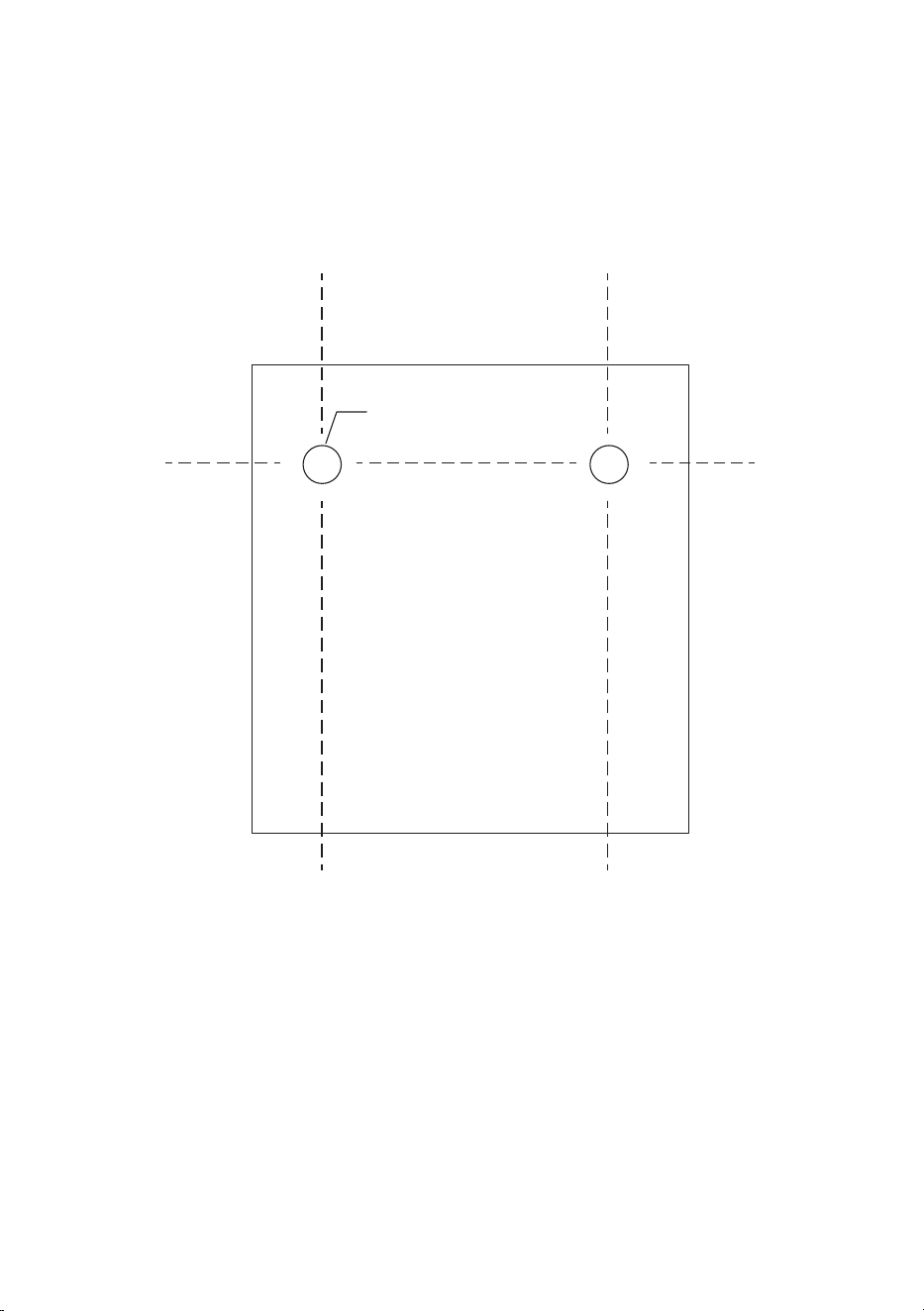
- 54 -
Wall mount template
Printing instructions:
Print this page in scale 100% and use the template to accurately mark the
position of the holes for the screws on the wall�
2 x Φ6

© 2025 Koninklijke Philips
N.V. All rights reserved.
08/09/2025