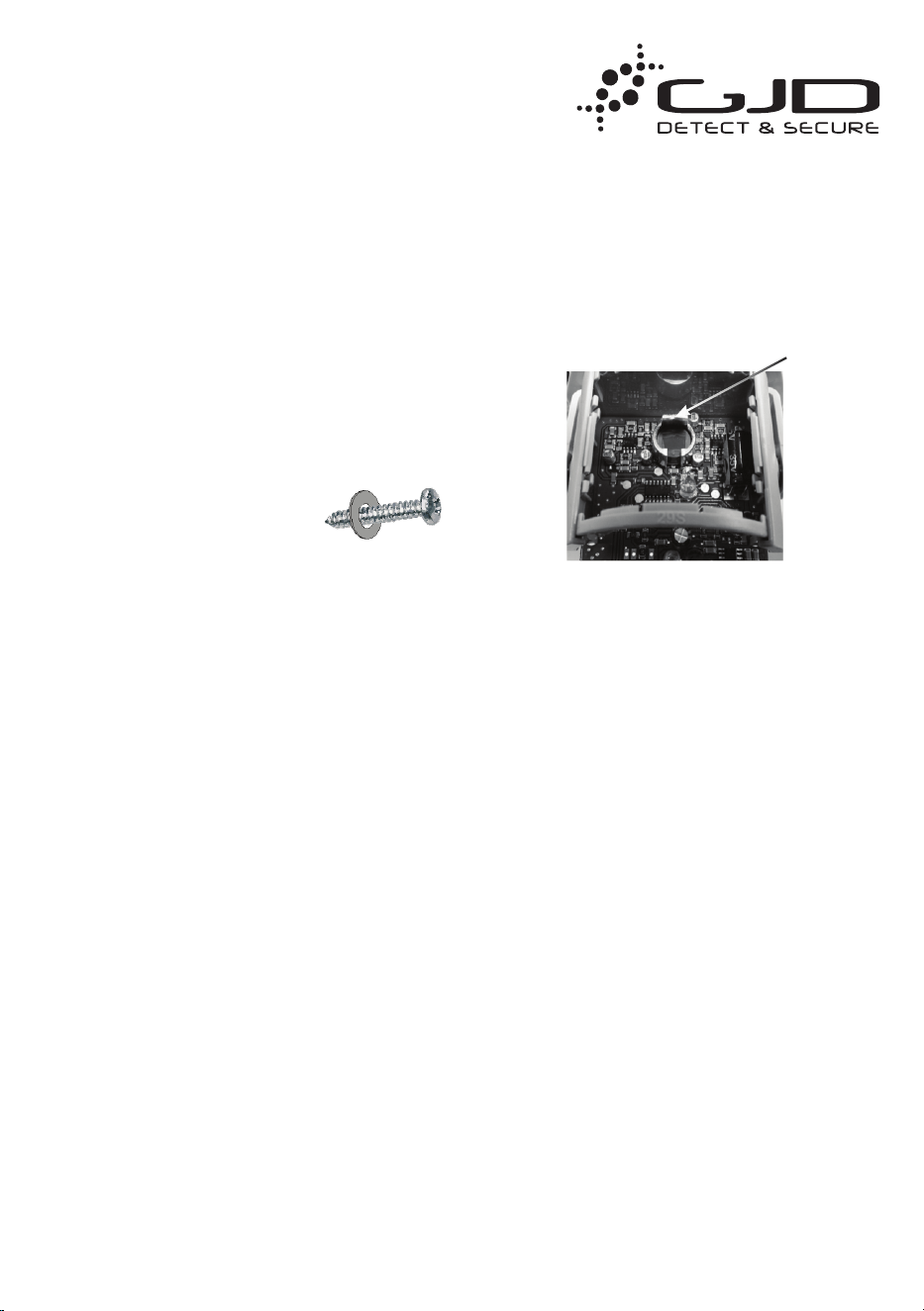
PACKAGE CONTENTS
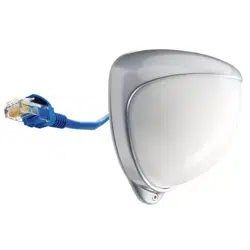
• 1 x D-TECT 50 IP
• 1 x Drilling template for xing holes
• 3 x 31.75mm wall plugs
• 3 x 31.75mm screws
• 2 x Tamper feet
• 1 x Tamper cup
• 1 x Installation manual
INTRODUCTION
The D-TECT 50 IP is a highly sophisticated, but user
friendly, IP-based motion detection device and alarm trigger
that harnesses the power of IP with PoE (Power over
Ethernet) connectivity, advanced signal processing, quad
pyro scanning and unique optical systems to provide state-
of-the-art alarm capture.
MOUNTING THE UNIT
WARNING
• NYLON WASHERS PROVIDED MUST BE USED
WITH SCREWS
• ENSURE CABLE ENTRY AND SCREW HOLES ARE
SEALED WITH WATER BASED SEALANT
• DO NOT USE SILICONE BASED SEALANT
During installation, protect the electronics against water, as
trapped moisture can affect or damage the unit.
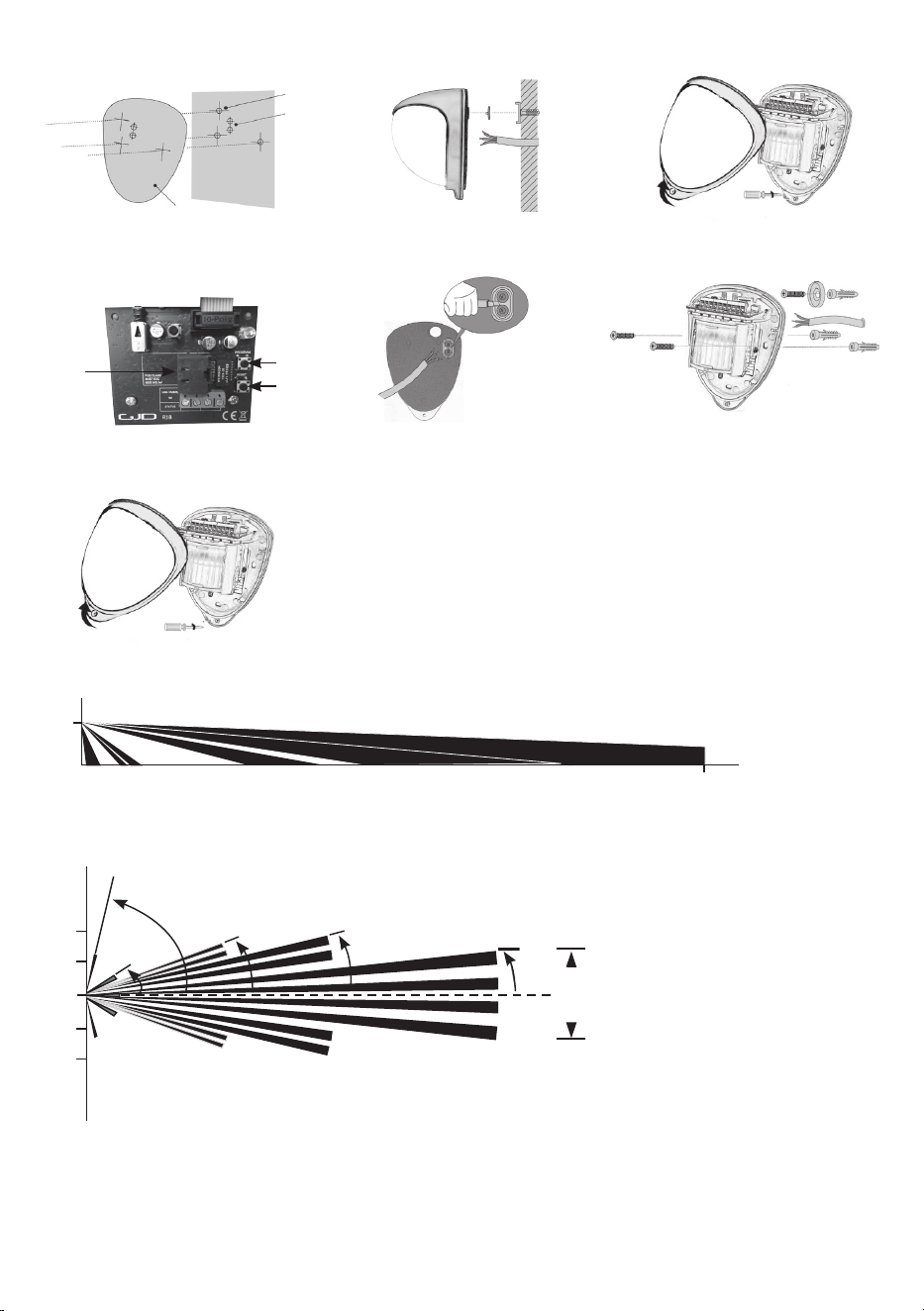
1. Drill the wall to accept the xing screws, the cable
entry, and the tamper cup (if used). See Figures 1
and 2. A hole-drilling template is provided. Note: GJD
recommend using the tamper cup on uneven wall
surfaces.
2. Remove the cover assembly by loosening the locking
screw. The cover hinges from the top and lifts out of the
location slot. See Figure 3.
3. Feed standard CAT5 cable into the cable entry. See
Figures 2, 4 & 5.
4. Screw the unit to the wall ensuring that the rear tamper
pin is correctly located and that the tamper micro switch
is closed. See Figure 6. To aid installation, two spare
tamper feet are provided. One is 1mm longer and the
other is 2mm longer than the tamper foot originally
tted. The tamper foot is a push t and can be removed
by carefully pulling it from the pin. See Figure 2.
5. When the detector is aligned, connected, and
programmed to suit the installation, replace the front
cover and lock as shown. See Figure 7.
CONNECTING THE UNIT
Fit the RJ45 plug to the cable and plug into the socket
on the top PCB. This must be done before the cable is
connected to the PoE switch.
There are 2 volt free relay contacts on the top PCB for
connecting auxiliary equipment. These are programmable
in the web browser set-up page.
BEAM ALIGNMENT
The PIR circuitry detects changes in heat and movement in
the beam pattern; therefore items such as trees, shrubs,
ponds, boiler ues, and animals should be considered
when positioning the detector.
The detector is tted with a mirror on the pyro sensor to
provide a detection zone directly underneath the detector.
Note: The maximum mounting height is 3 metres when
utilising the creep detection zone.
When using the pet immune conguration the mirror should
be removed.
Note: The PIR sensor is more sensitive to movement
across the beams, and less sensitive to movement
directly towards or away from the beams.
When coverage exceeds the desired detection area, adjust
the module as required to avoid unwanted detection.
Figures 14 and 8 illustrates alignment recommendations for
when the detector is mounted close to a wall.
The alignment shown in Figure 14 is not recommended. If
the detector module is orientated at an angle of 90° to the
perimeter, the mounting wall may cut off short and medium
range beams. The long range beam will still detect an
intruder, however the wall can cause false alarms when
heated by sunlight.
Figure 8 shows the recommended alignment. The detector
module is orientated at a 55° angle to the perimeter. As a
result, short and medium range beams are parallel to the
perimeter, but the detection range along the perimeter is
reduced to 25 metres.
PROGRAMMING
There are 2 different ways of programming the detection
range, pulse count and LED setting.
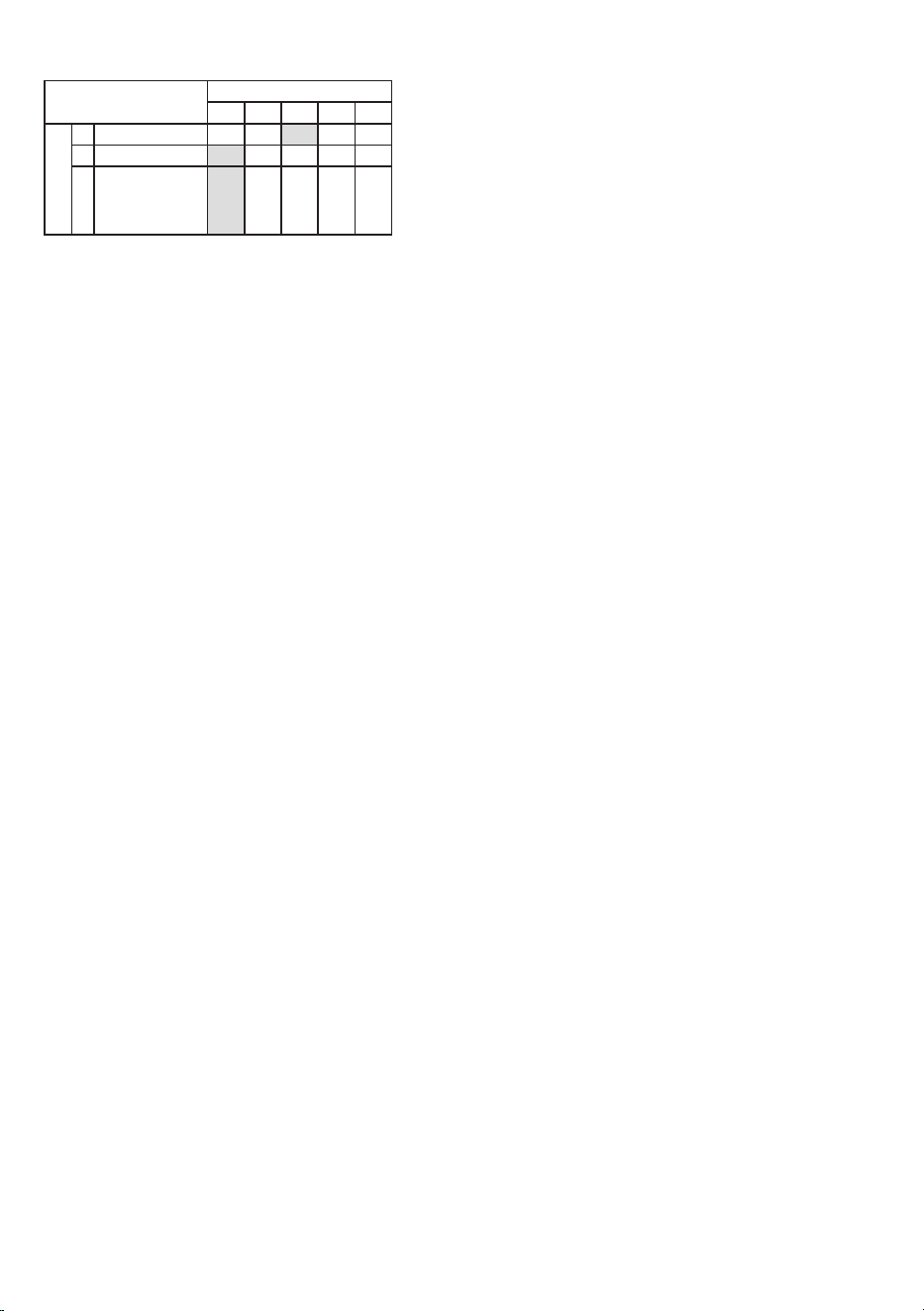
1. Using the programming button, programming LED and
programming chart below.
2. Via the web based interface. The user can individually
program a number of congurable settings, as
illustrated in the programming chart.
D-TECT 50 IP
GJD250 IP Motion Detector
Using programming button
Programming Chart
SETTING
1 2 3 4 5
O
P
T
I
O
N
S
1 RANGE (m) 25 30 40 45 50
2 Pulse Count 1 2
3 LED Off On
To change any of the D-TECT 50 IP settings:
1. Press the program button, as shown in gure 4, for
the number of the Option to be changed, i.e. once for
range, twice for pulse count, three times for LED.
2. Wait until the blue LED indicator goes off (typically four
seconds).
3. The indicator will then ash out the existing settings.
4. To change the settings for that option, press the
program button the number of times for the required
new setting.
5. The indicator blinks twice and the changes are stored
in the D-TECT 50 IP’s non volatile memory.
Example: To change the LED setting from OFF to ON:
1. Press the program button three times.
2. Wait until the blue LED indicator goes off (typically four
seconds).
3. The indicator will then ash once, indicating the current
LED setting is OFF.
4. Press the program button twice to change the setting
to ON.
5. The indicator blinks twice and the changes are stored
in the D-TECT 50 IP ’s non-volatile memory.
PROGRAMMING OPTIONS DEFINITIONS
Pulse Count
This is the number of times the unit has to detect on both of
its sensors before signalling an output.
LED
LED Off – LED disabled.
LED On – LED signals a detection
Relay outputs
Output 1 and output 2
These are magnetically immune volt free relay contacts
used to trigger alarm inputs on connected equipment.
The contacts are rated at a maximum of 24V AC/DC @
50mA.
The contact operating timer can be adjusted in the web
based user interface.
WALK TEST
In walk test mode, the detection LED option is set to ON,
and the pulse count option is set to 1.
1. The detection LED lights each time the D-TECT 50 IP
detects your presence
2. To enter the walk test mode, press the programming
button once. The detection LED is enabled and pulse
count 1 is automatically selected. Alternatively, the
walk test mode can be entered via the web based user
interface. The unit can then be aligned.
3. The test mode ends automatically ve minutes after the
last activation. Alternatively, press the program button
three times, to cancel the walk test mode.
Note: When you conduct a walk test, make sure that
the front cover is in place. Do not conduct walk tests
with the cover removed.
The range of the detector increases without the protective
front cover. Therefore the front cover must be tted to
establish the correct beam pattern. Use programming chart
to adjust the range as necessary. Pan and tilt the lens
module over the eld of view to obtain the correct coverage
area.
1 2
3
4 5 6
7
8
9
RJ45
Program
Reset
3m
50m
0m
2.5m
5m
2.5m
5m
77º
29º
21.5º
14º
6.5º
10m
Before operation
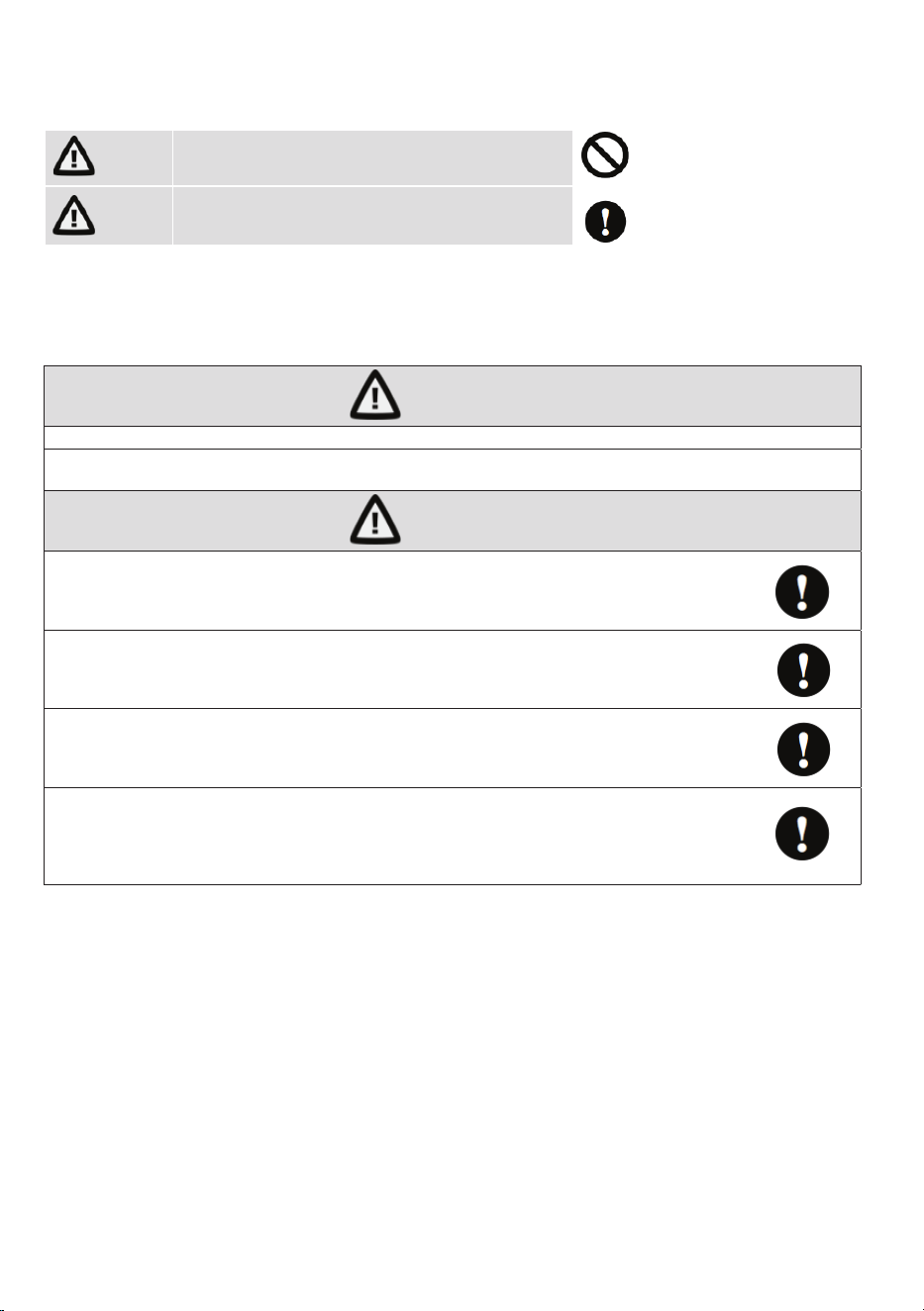
This section of the manual uses the following warning indications to provide information regarding usage of the product to
prevent you and others from being harmed and your assets from being damaged. These warning indications are described
below. Ensure you understand these precautions before proceeding with the installation.
Warning
Failure to follow the instructions provided by this warning
and improper handling may cause death or serious injury
Caution
Failure to follow the instructions provided by this caution
and improper handling may cause injury and/or property
damage
This symbol indicates prohibition.
The specic prohibited action is
provided in and/or around the
gure.
This symbol requires an action
or gives an instruction.
Warning
Never attempt to disassemble or repair the product. It may cause re or damage to the devices.
Hold the main unit securely when you install or service it. Exercise care not to bump the product against nearby
objects or drop it inadvertently.
Caution
Only use approved Power over Ethernet power supplies.
Never try to power the device other than with the
RJ45 PoE connection.
Do not touch the unit connections with a wet hand or when
the products is wet from rain. It may cause a short circuit and
damage the unit.
Clean and check the products periodically for safe use.
If any problem is found, contact GJD or authorised
partners to solve the issue before continuing to use the
product.
This product is intended to detect people and is not
designed to prevent theft, disasters or accidents.
The manufacturer shall not be held liable for any
damage to user’s property resulting from theft,
disasters or accidents.
PROGRAMMING - USING PROGRAMMING BUTTON
General connection
1. Connect the network cable and verify that the unit powers up and that the network connection is working.
Factory reset
1. Disconnect the network cable.
2. Press and hold the reset button, while reconnecting the network cable.
3. The unit will change IP address to the default IP and login.
4. The unit will restart in the bootloader.
USER INTERFACE
Settings are made through the web based user interface: all that is needed is a modern web browser to access and
change settings .
The instructions for the user interface described below are valid for rmware 1.32.
Factory default settings
When using the system for the rst time, or if a factory reset has been made, the following settings are used:
Product IP number 192.168.0.10
Subnet mask 255.255.255.0
Default router 192.168.0.1
Login
1. Open a web browser.
2. In the address eld, type in the selected unit is IP-address. Default is 192.168.0.10.
3. The user interface login page is shown.
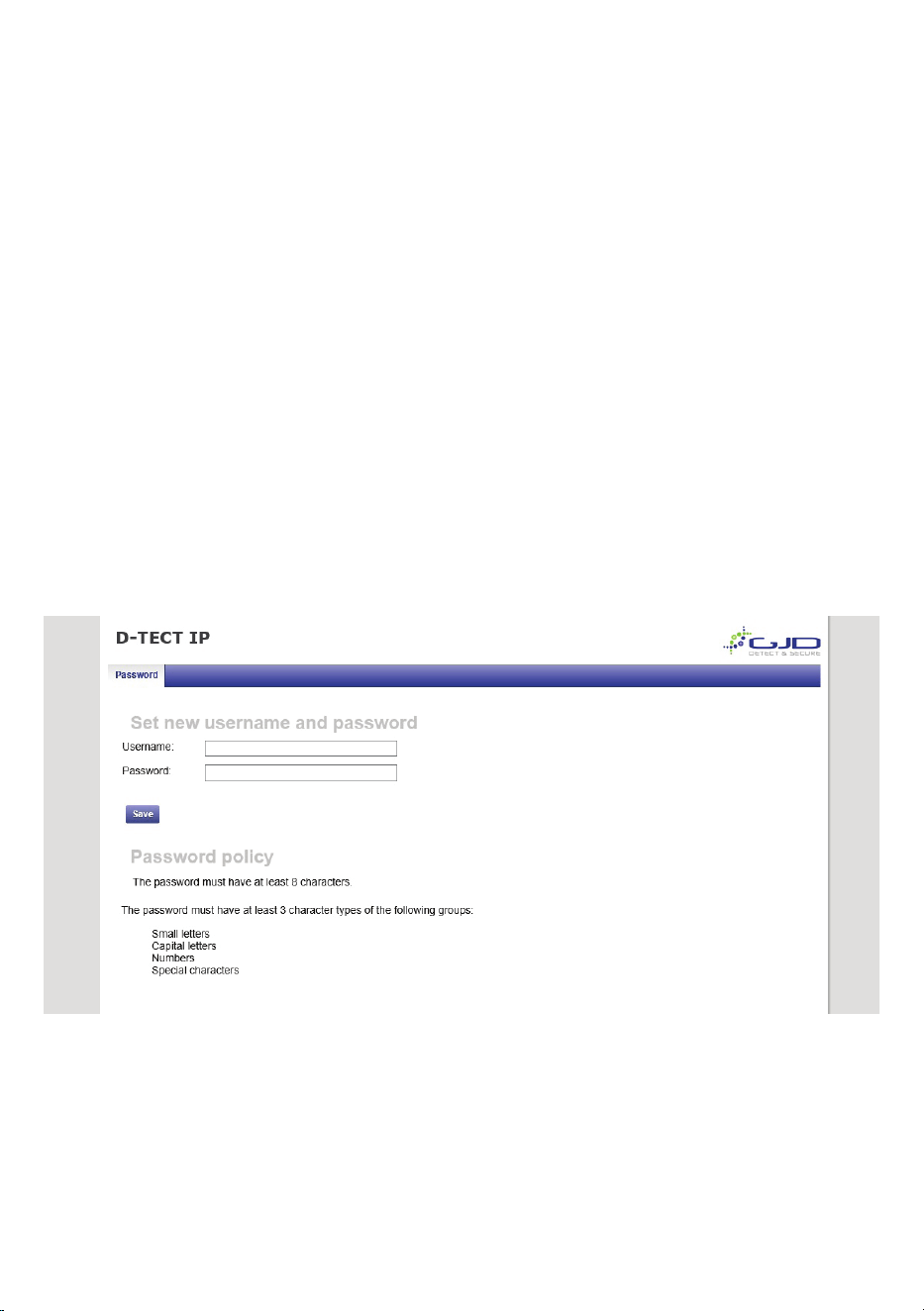
4. The user is prompted to create a username and password based on the password policy.
INSTALLATION AND CONFIGURATION
Detector conguration
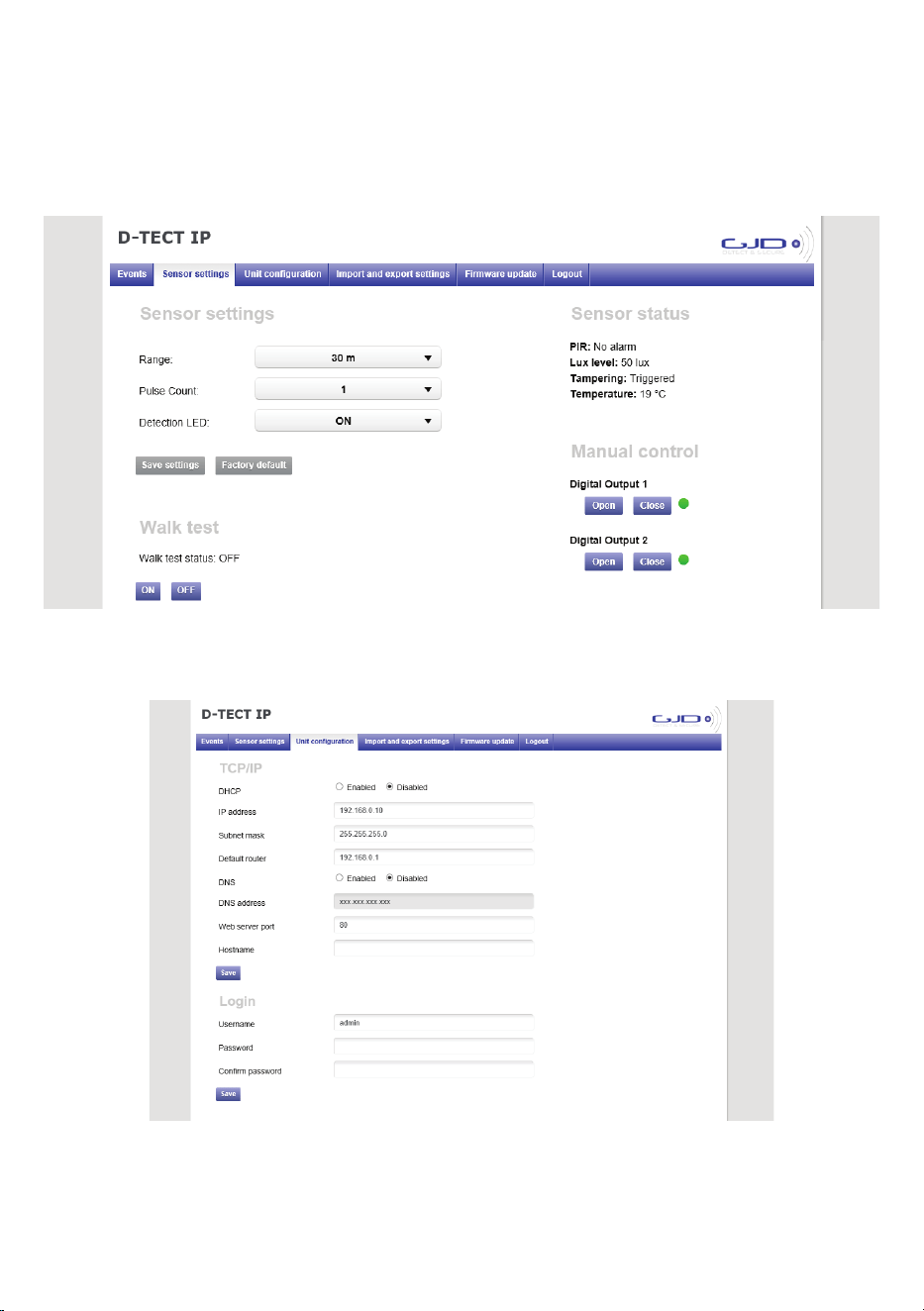
1. Open the sensor settings tab.
2. Pressing the Factory default button then the Save settings button will restore the default range, pulse count and LED
settings.
3. To change any of the detectors settings use the drop down boxes to select the required setting
4. To enable walk test mode press the Walk test ON button and to disable walk test mode press the Walk test OFF
button.
Unit conguration
1. Open the unit conguration tab.
2. Current settings are shown.
3. Enter desired settings and press the save button. Remember to reload the page with the new IP address if changed.
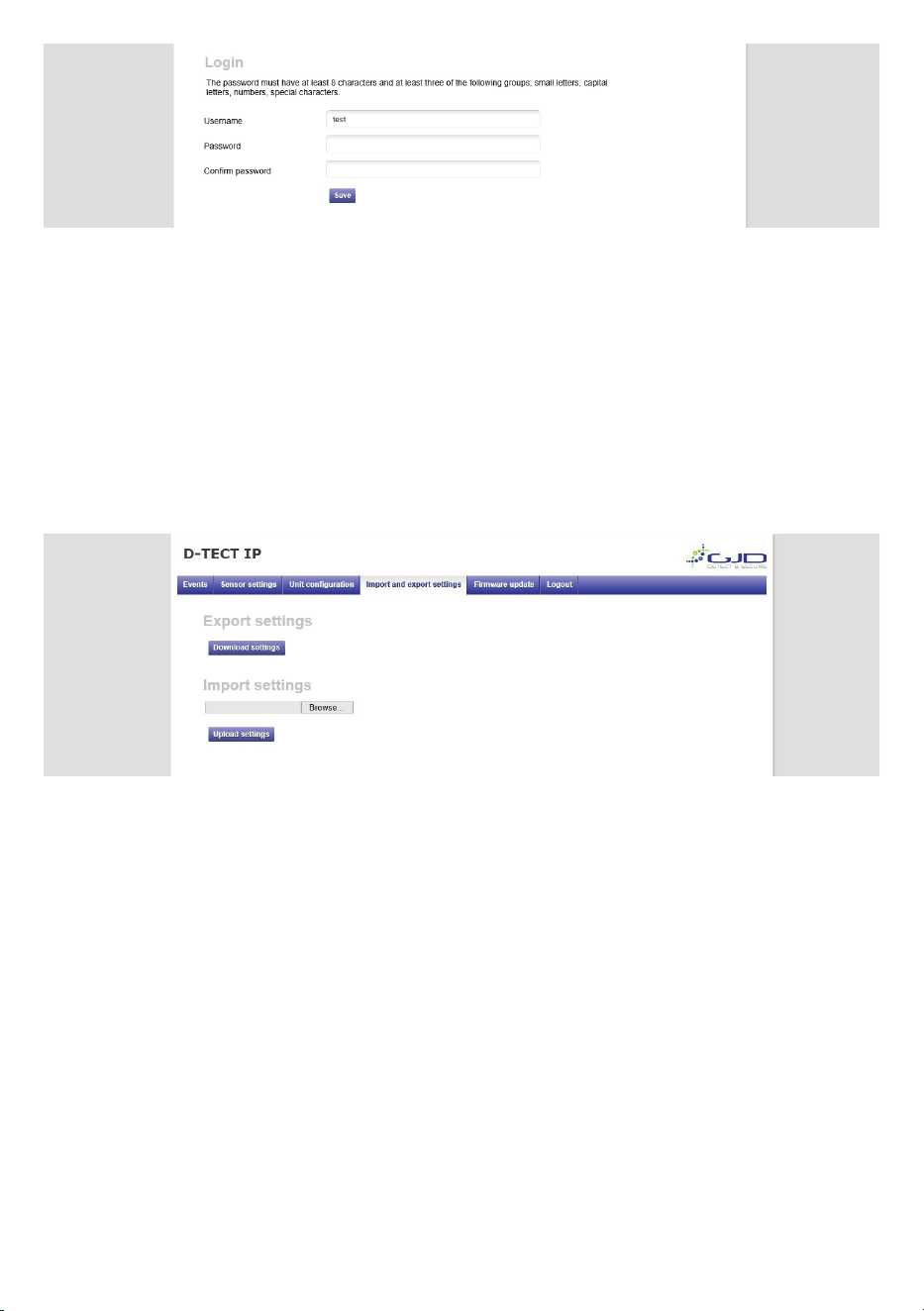
4. To change login, enter a new username and password.
5. Press the save button to conrm.
Import and export settings
Alarm settings and I/O conguration can be exported as a le for backup purposes and to copy the settings to other units.
IP address and Login settings are not included in this le.
1. Open the import and export settings tab.
2. Export all current alarm settings and I/O conguration by pressing the Download button. Pay attention to the le
location on your hard drive. The le name is individual for each unit as it includes the unit MAC-address.
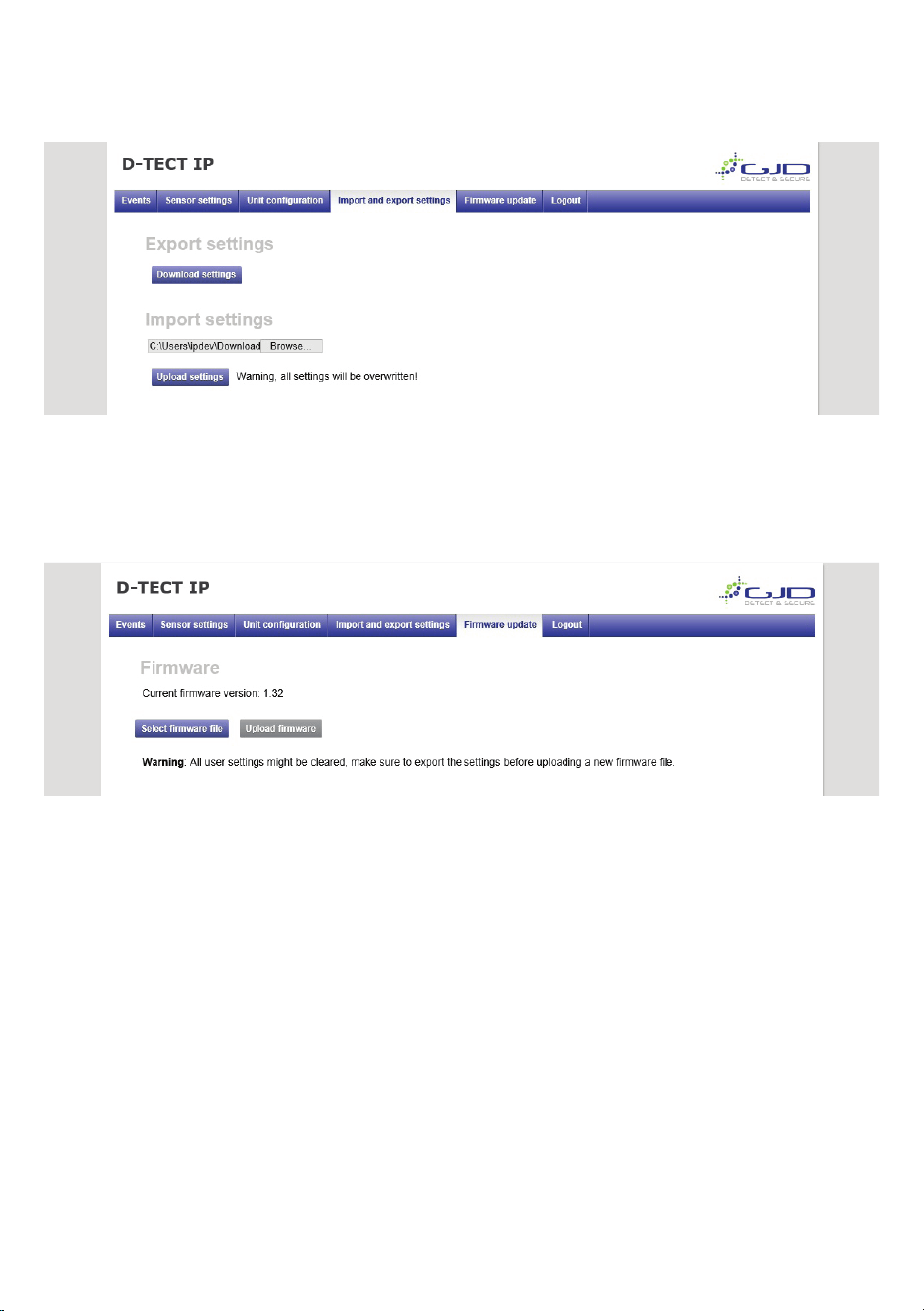
1. To import a setting le, press Browse button and navigate to the location of your setting le on your hard drive.
2. When the le is selected it is possible to import it with the Upload button. Pay attention to the status message next to
the button. Importing a setting le will overwrite all current settings.
Firmware update
The D-Tect IP rmware can be updated to add new functions or resolve software issues.
1. Open the Firmware update tab. The current rmware version is displayed.
2. Press the select rmware le button. Locate the downloaded rmware le, then click open.
3. The selected le will be present. Click upload rmware.
4. When back onto the login page, this indicates that the rmware has uploaded.
Alarm settings
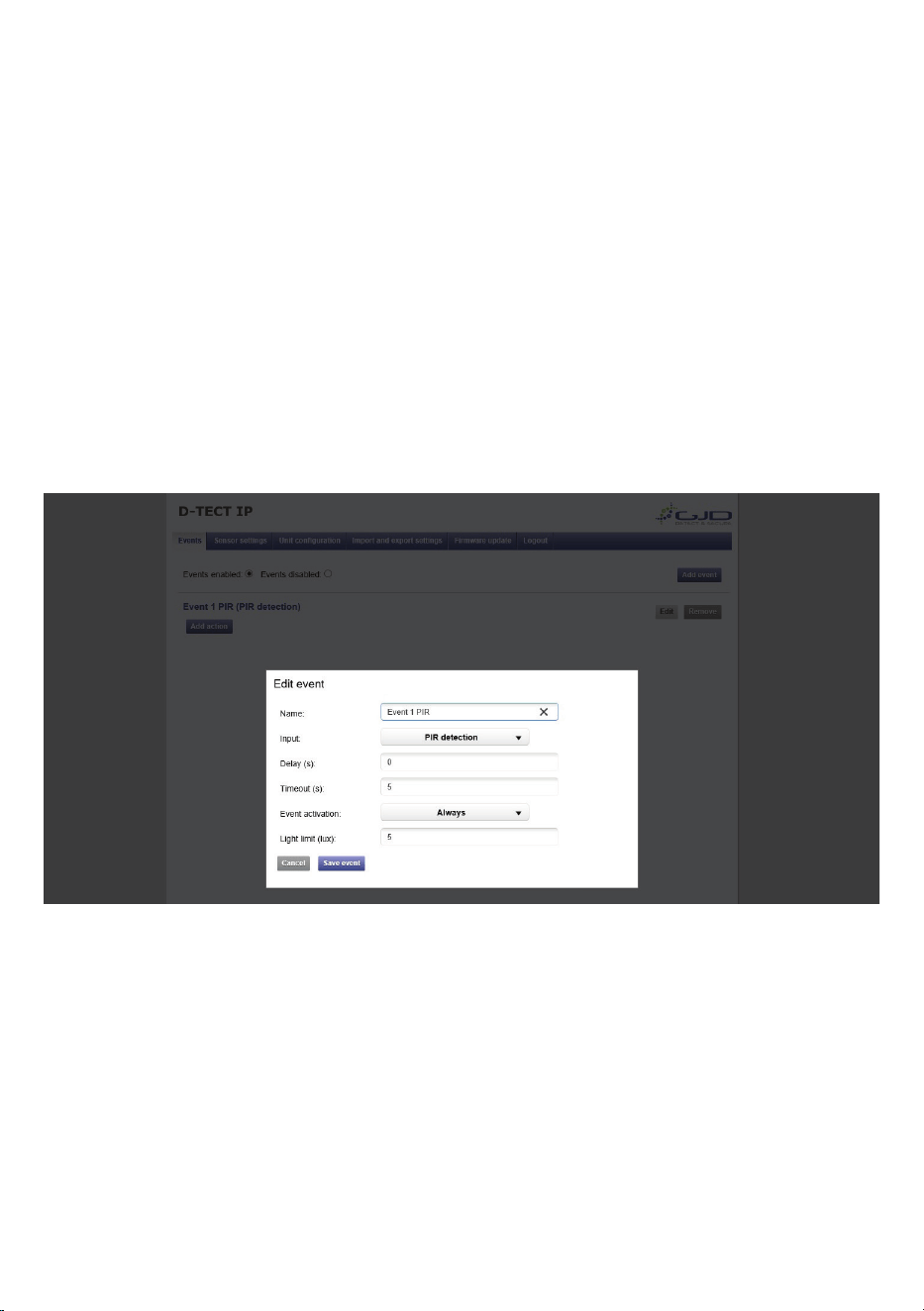
All alarm settings are made in the events tab. The D-Tect IP works on the principle “Alarm - Action”. This means that
alarms are created based on all types of input signals. For each alarm it is possible to create one or more actions. The
actions can be a network alarm message or to trigger a relay.
Alarm inputs
1. Go to the events tab.
2. Press “Add event button”.
3. Enter a unique alarm name.
4. From the Input dropdown menu, choose the action to generate the alarm.
Delay Alarm delay species the time for which the alarm conditions must be continuously
fullled before the alarm is enabled. Default value is 0 seconds, maximum is 120
seconds.
Timeout Timeout species the time before the alarm is disabled after the alarm conditions are no
longer met. Default value is 0 seconds, maximum is 120 seconds.
Alarm activation Always – Always active
Above light limit – Will become active when LUX level is above the light limit setting.
Below light limit – Will become active when LUX level is below the light limit setting.
Light limit This is the light level (LUX) that the Above light limit and Below light limit reacts.
6. Press the Add event button to save.
7. Repeat step 2 to 6 for all required alarm actions.
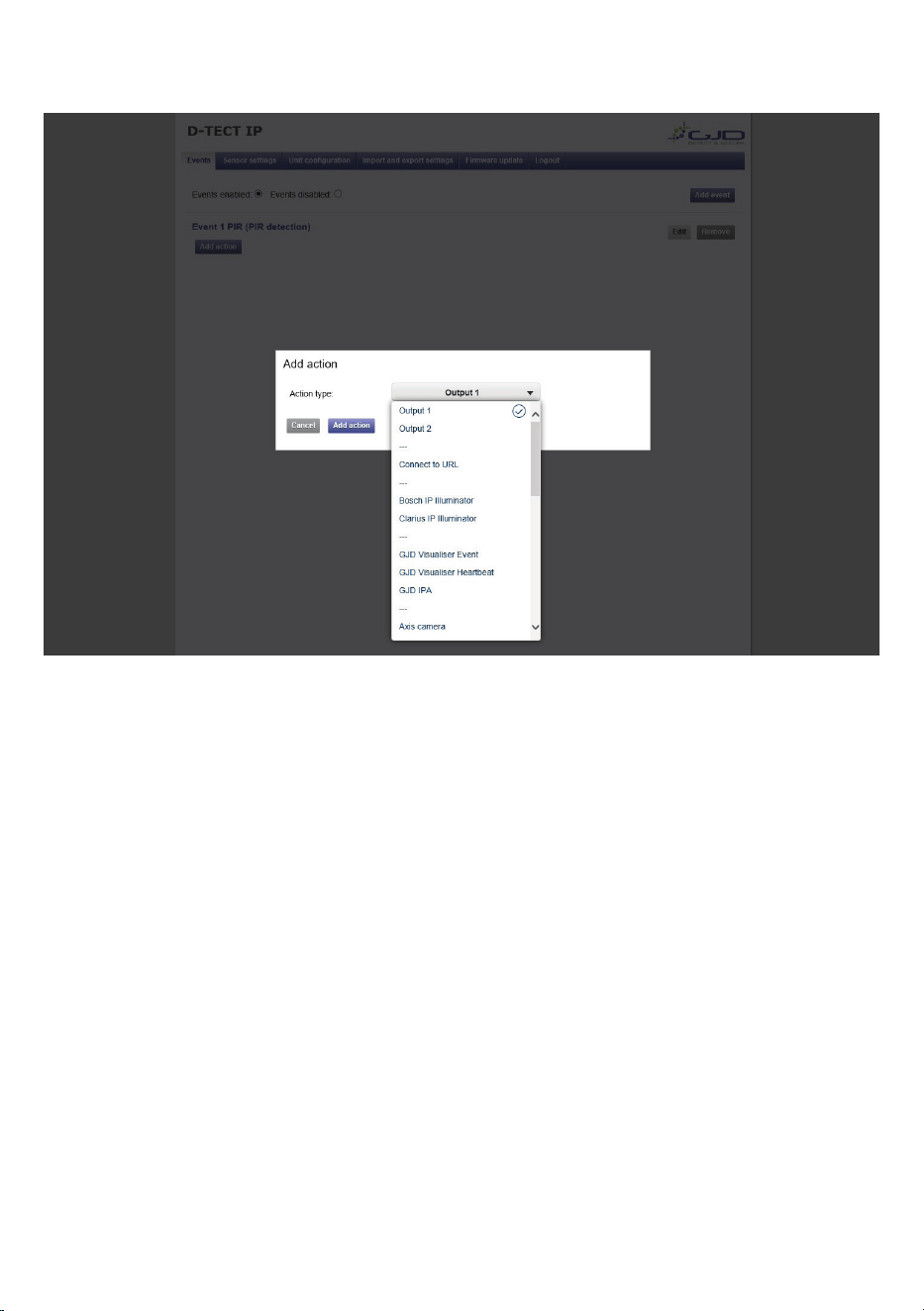
Create alarm actions
1. Press + Add action under the desired alarm. Input elds appear to the right.
2. Choose action type from the Event type dropdown menu.
Connect to URL Connect to URL is used to create any type of network alarm. This allows one URL
request at alarm enable and one URL request at alarm disable.
Output 1 This turns output 1 on when the detector is activated and turns it off when the alarm clears.
Output 2 This turns output 2 on when the detector is activated and turns it off when the alarm clears.
Partner list The products listed have a built-in wizard in the D-Tect IP that creates the specic URL request
needed for the application. This list is continuously expanding. Please refer to separate
documents regarding integration of these products.
3. Fill in required data elds for the selected Event type.
4. Press the Add action button to save the action.
5. Press Test next to the action for an alarm to test the action.
6. Repeat step 1-5 for each alarm.