User Manual
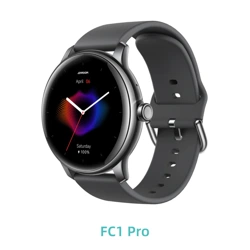
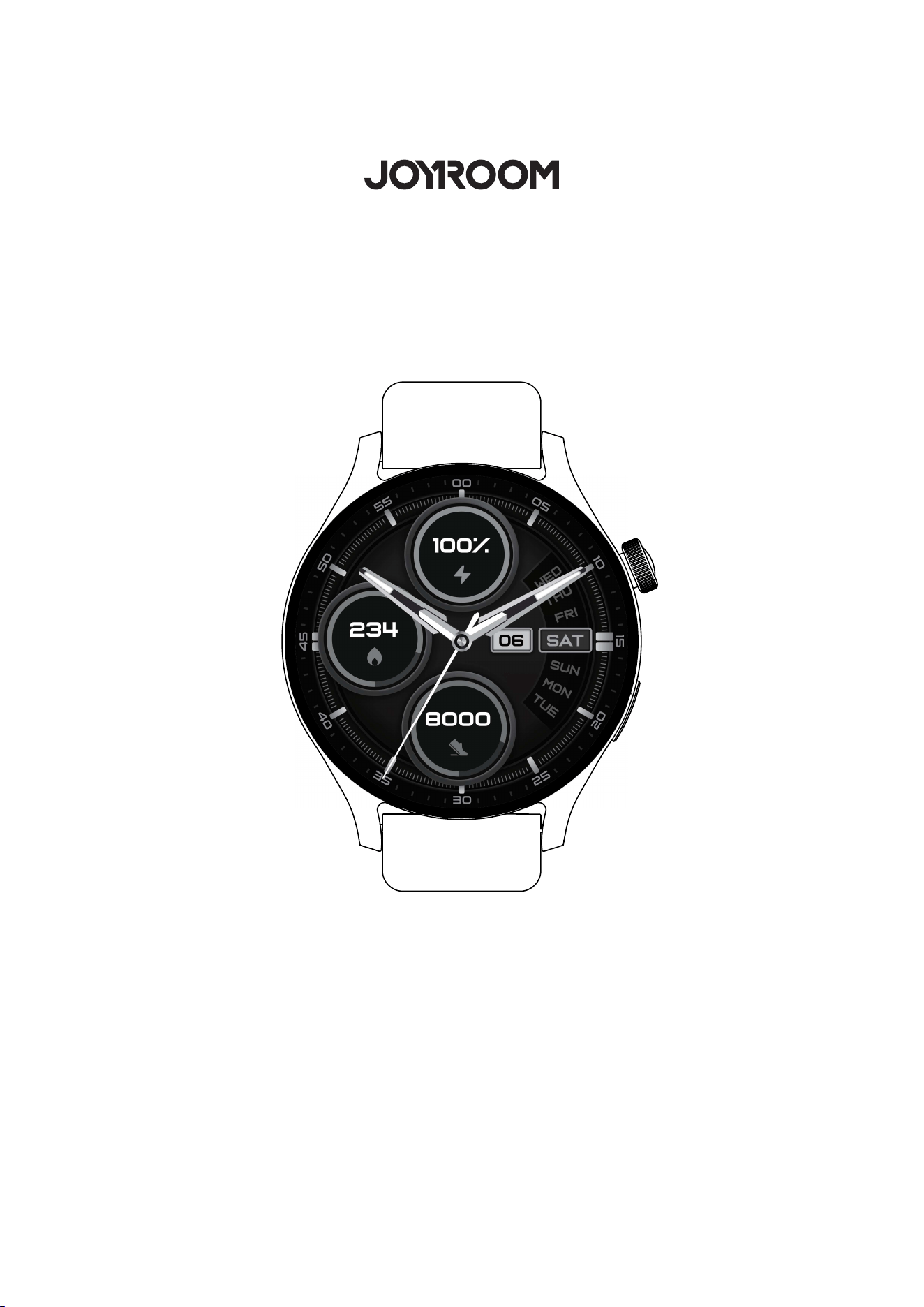
Classic Series JR-FC2 Pro Smart Watch
(Answer/Make Call)
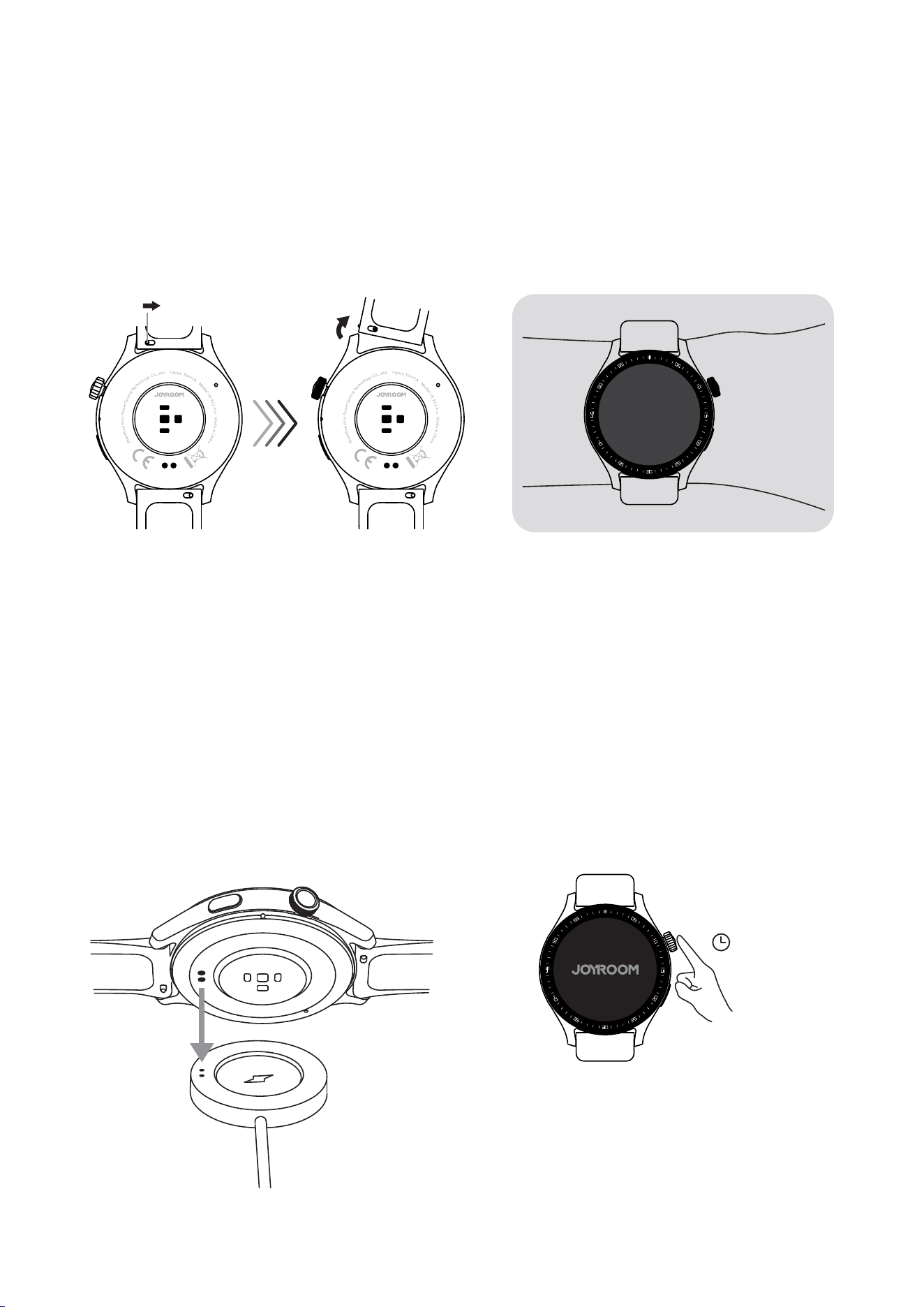
Assembling/disassembling watch band & wearing the watch
Ⅰ.Toassemble/disassemblethewatchband,pleaserefertothefigurebelow;
Ⅱ.Towearthewatchproperly,pleaserefertothefigurebelow.
Note:Whenwearingthewatch,pleasekeepitincomfortablecontactwithwristskin(inproper
tightness).Donotwearitonthewristjoint
2S
2.Turningonthewatchinturnedoffstatus:
①Pressandholdthepowerbuttonfor2stoturnit
onmanually
②Chargethewatchtohaveitturnonautomatically
Charging&turningon/offthewatch
1.Chargingthewatch:Alignthemagneticchargingdockwiththemetalchargingcontactsofthe
watch,connecttheotherendtothechargerandconnectpoweruntilthescreendisplayscharging
capacity
Notes:①Nooperationisallowedduringthechargingprocessotherthanviewingthecharging
interface
②Whenthewatchindicateslowbattery,pleasechargeitintime.Itisrecommendedtousea
chargerwitharatedoutputof5V/1AoracomputerUSBporttogetherwiththeincludedcableto
chargeit
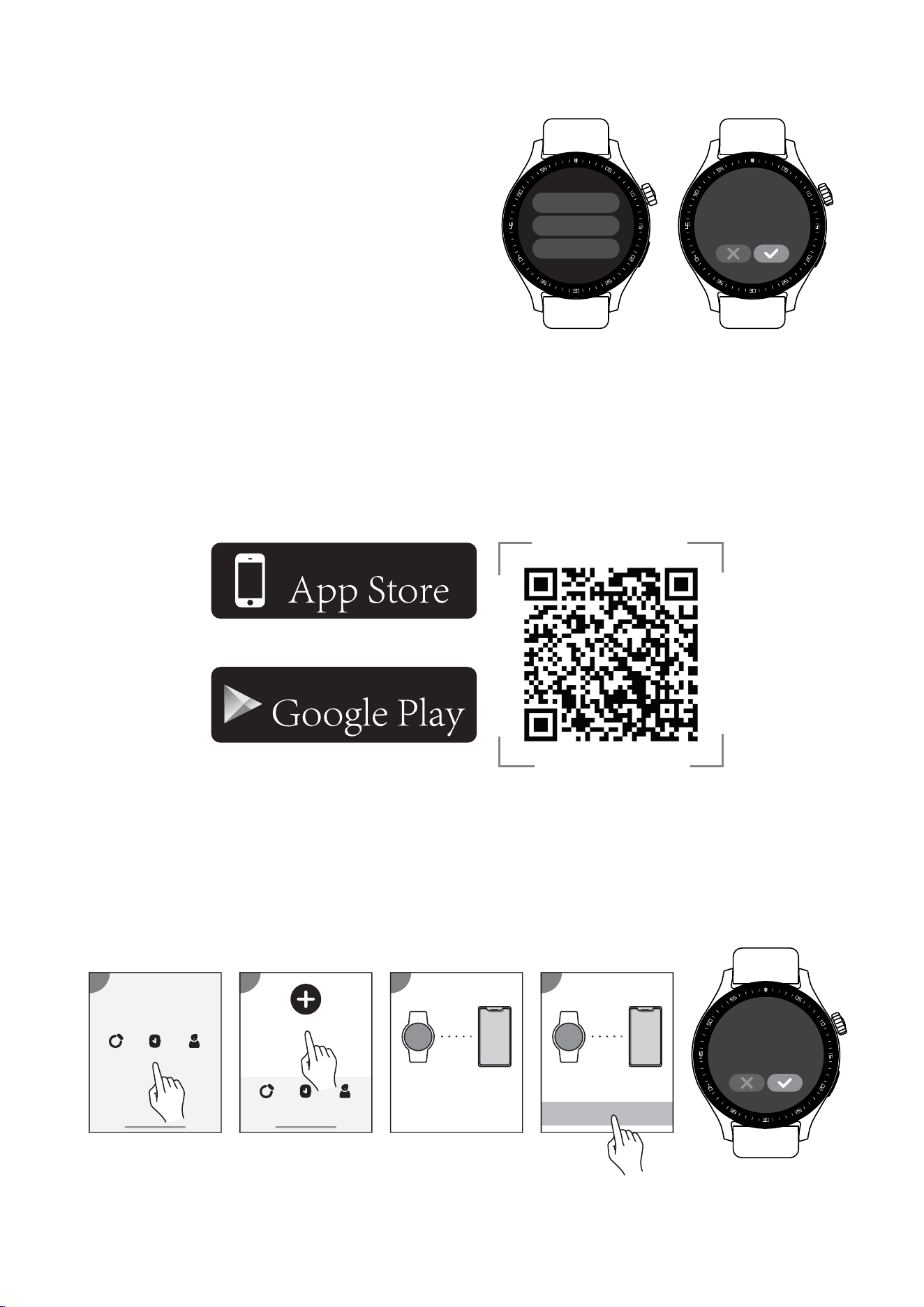
2.OpentheAPP,select“Device”→“Adddevice”→select“JoyroomClassicFC2Pro_xxxx”→
clickConnect→click√onyourwatch”tofinishconnection(oryoucanscantheQRcodeonthe
watchviatheAPPtofinishconnection)
Note:Whenconnectingforthefirsttime,Androidusersneedtocomplete“BTconnection”
accordingtotheoperationtipsoftheAPP
3.Turningoffthewatchinturnedonstatus
(displayonstatus):
①Pressandholdthepowerbuttonfor3sor
enterSettings,select“Poweroff”→“√”
②Thewatchwillturnoffautomaticallyifnot
boundtothephoneandnooperationis
madewithin30minutesafteritisturnedon
Reboot
Powero�
Reset
Powero�?
Downloading APP, pairing the watch & factory reset
1.ScantheQRcodebelowortheQRcodeonthewatchwithyourmobilephonetodownloadthe
JRSmartAPP,registeranaccountandlogin(Note:ThephonesystemisrequiredtobeAndroid6.0
oriOS11.0orabove)
Pair with
thisdevice?
Bind device
Searching device
Bring the device
close to the phone
3
Me
1
DeviceHealth
Add device
2
MeDeviceHealth
Bind device
Search complete
4
Joyroom Classic FC2 Pro_xxxx
APPStore:JRSma
GooglePlay:JRSma
Download on the
Android app on

4.Factoryreset
①OpenJRSmartAPP,select“Device”→“Unbind”
②Select“Settings”onthewatch→select“Reset”
③Underdisplayonstatus,pressandholdthepowerbuttonfor3s→select“Reset”
(Note:AfterunbindingfromaniOSphone,pleasedisabletheBTfunctionofthephone,andthen
makeconnectionstootherphones)
3.Afterbindingsuccessfully,youcanstarttouseallthefunctionsofthewatch,andthedata
generatedbyitcanalsobesavedtotheAPPsynchronously
Notes:
①Pleasekeepthephone’sBTfunctiononduringuse,otherwisethemessagesonthephone
cannotbesynchronizedtothewatch
②Select"Device"→"Messagenotification"→EnablerelatedAPPpermissionsonthephoneAPP,
thenrelevantmessageswillbesynchronizedtothewatch,suchascallremindersandmessage
reminders,etc
1. Operation of the buttons:
①Underdisplayoffstatus:shortpressthepowerbuttonorsportsbuttontoactivateit
②Underdisplayonstatus:shortpressthepowerbuttononthehomescreentoentertheAPP
menu(Note:ShortpressthepowerbuttonNOTonthehomescreentoreturntopreviouslevel)
③Underdisplayonstatus:shortpressthesportsbuttononthehomescreentoenterthesports
menu
④Duringworkout,shortpressthepowerbuttontochooseto“Continue”or“Stop”thesport
⑤Duringaheartratemeasurement,shortpressthepowerbuttontochooseto“Continue”or
“Exit”themeasurement
(Thedatameasuredisforreferenceonlyandcannotbetakenasclinicalevidence)
⑥Underlockedscreenstatus:longpressthepowerbuttontounlockit
⑦Underdisplayonstatus:rotatethepowerbuttononthehomescreentoswitchwatchfaces
⑧Underdisplayonoroffstatus:5-clickthepowerbuttonquickly,thewatchwillenterCall
EmergencyContactsconfirminterface
(Note:SOSfunctionisdisabledbydefault.Ifyouneedtouseit,pleasegotoJRSmartAPP→select
“Device”→enableSOS)
⑨Underdisplayonstatus:pressandholdthepowerbuttonfor3s,youcanchooseto
Reboot/Poweroff/Resetthewatch
Operation instructions
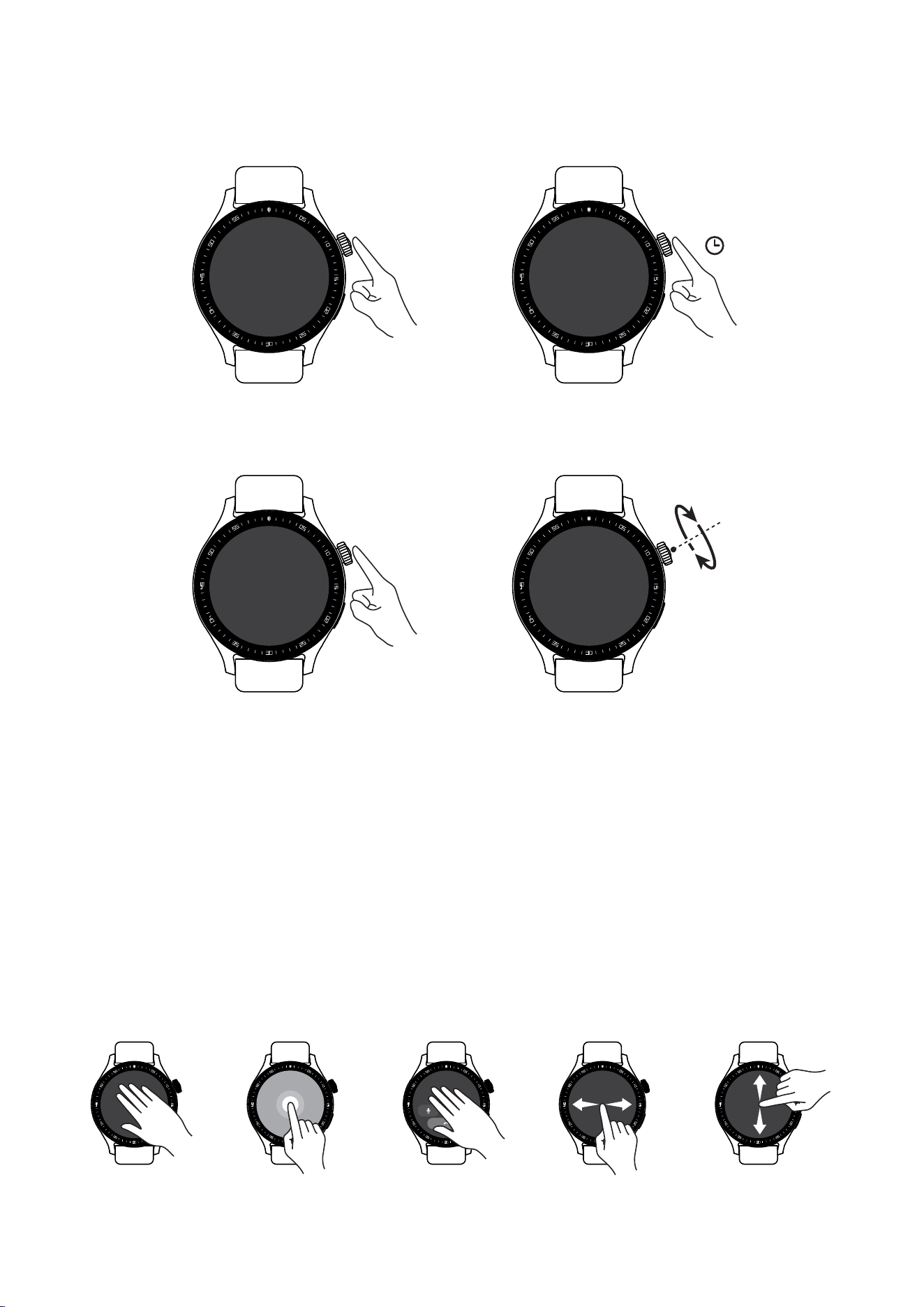
2. Operation of the display:
①Underdisplayonstatus:coverthedisplaywithyourhand,itwillgooff
②Underdisplayonstatus:longpressthedisplayonthehomescreentoenterwatchfaceselection
interface
③Underincomingcallstatus:coverthedisplaywithyourhandtomuteit
④Ifyouareplayingmusiconyourphone,youcanvolumeup/downandplay/pausethemusic,or
skiptoprevious/nexttrackviathewatch
⑤Swipeleft/rightorup/downtonavigatethewatch
3sx1
x5
5-click Rotate the button
Short press Long press

Operation instructions:
(1) Short press the power button on the home page, select “Sports” in the APP
list→selectadesiredsportsmode
(Pleasewearthewatchproperlywhendoingsports,andyoucanchecksuch
dataassportstime,heartrate,distance,calories,steps,etc.onthewatch)
(2)Toquitsportsmode,justshortpressthepowerbuttonandselect“End”
(3)Youcanadd,deleteorsortthesportsmodesinthephoneAPP:select
"Device"→"Settings"→"SportsModes"
Check sports record
(1)Shortpressthepowerbuttononthehomepage,select“SportsRecord”in
theAPPlist,youcancheckrecentsportsdata
(2)AfterbindingthewatchtophoneAPP,thesportsdatawillbesynchronizedto
theAPP.Youcancheckthesportsdatain“Health”.Clickasportsrecordto
checkthedetailedsportsdata
Set sports goals
YoucansetgoalsforyoursportsonthephoneAPP:OpentheAPP,click
“Me”→“SetGoals”→afterselectingdesiredsportsgoals(suchassteps,
distanceandcalories),click“Save”tofinishsetup
120+ sports modes available in the JR Smart APP
Operation instructions
(1) Short press the power button on the home page, select “Heart Rate” or “Blood
Oxygen” in the APP list for measurement (or select “Rapid Health” for one-tap
measurement of heart rate, blood oxygen, stress)
(2) After completing measurement on the watch, open the JR Smart APP on the phone to
check the latest measurement data and history data by day, week, and month
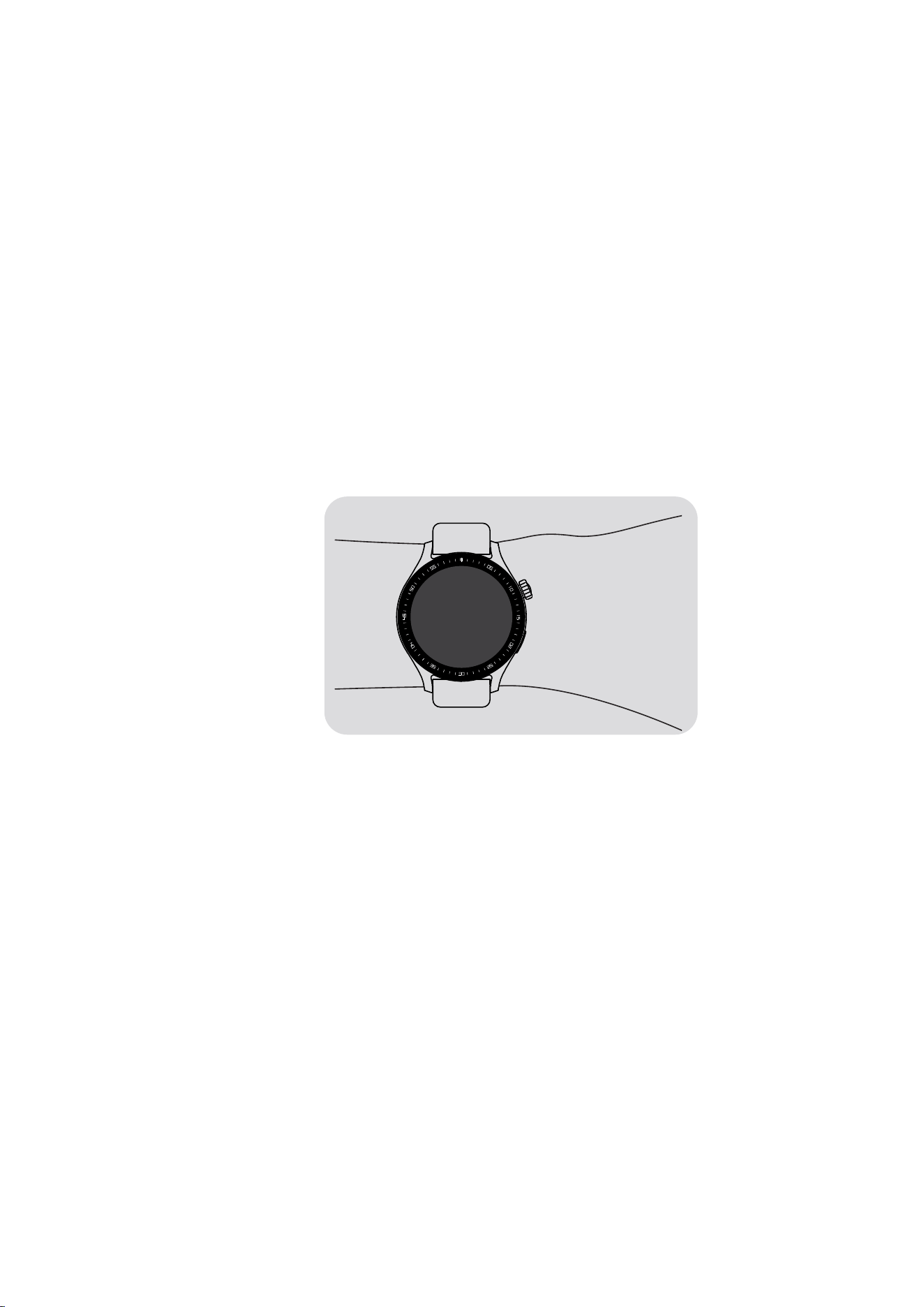
To ensure the accuracy of the measurement, please keep the wrist skin clean. During
measuring, keep your body still, keep the screen upward, and keep the watch in close
contact with your wrist
Operation instructions
Wear the watch, short press the power button on the home page, select “Stress” in the
APP list for measurement. After the measurement is completed, you can check the stress
data on the APP by day, week, and month
The measurement
results are for reference
only and should not be
taken as the basis for
medical diagnosis. If
you feel unwell, please
see a doctor in time
Heart Rate & Blood Oxygen Measurement
Stress is calculated by the change of HRV values, which is used to measure the body
status. The higher the value is, the higher the stress is. In case of high stress, you should
take some rest to have your body recovered
Stress Monitoring

Operation instructions
Short press the power button on the home page, select “Breathe”, click “Start”,
breathing test will start after a 3-second countdown. After the test is completed, you can
check the test data
Note: The breathing time can be set to 1-3 minutes (1 minute by default), and the
breathing speed can be set to three levels: fast, moderate, and slightly slow (moderate
by default)
Slight slow: exhale for 7s and inhale for 7s each time
Moderate: exhale for 4s and inhale for 4s each time
Fast: exhale for 2s and inhale for 2s each time
Breathing Test
(1) Sleep monitoring is to monitor the state of people from they fall asleep to wake up
naturally. The watch can record the time of deep sleep and light sleep
①Deepsleepreferstosuchastateassmallbodymovementandlowheartrateduring
sleep
②Lightsleepreferstosuchastateasbigbodymovementandhighheartrateduring
sleep
(2) The default sleep monitoring starts from 23:00 p.m. to 7:00 a.m. of the next day. When
sleeping out of this time period, the sleep data will not be recorded or displayed. When
sleeping,youneedtowearthewatchproperly.Themonitoringresultsmaydifferdueto
differentwatchwearingstatus
Sleep Quality Monitoring
Open the JR Smart APP on the phone, you can check the latest night sleep data and
history sleep data by day, week, and month
Check Sleep Data:

1. Calling
The watch supports calling function. After BT connection to the phone, you can make,
answer or reject calls on the watch; or check call history, dial a number, call back, use the
contacts and other functions on the watch (Refer to the User Manual for connection
method)
Note: when using this function, you need to keep:
①Thephone’sBTfunctionturnedonnormally
②ThephoneAPPandthewatchconnectednormally
Operation instructions
(1) Dial: Short press the power button on the home page, select “Dial Pad” in the APP
list. Enter the phone number in the dialing interface, then press to make a call
(2) Contacts: After adding contact information to the phone APP, select "Contacts" in the
watch APP list, then click the desired contact to make a call
(3) Call Log: Short press the power button on the home page, select "Call History" in the
APP list, slide up or down to check the call history, and click any desired record to make a
call
2.MessageNotifications
The watch can synchronously receive calls, text messages, QQ & WeChat messages sent
to the phone, as well as messages sent to other application software of the phone, and
remind you by vibration
Note: when using this function, you need to keep:
①Thephone’sBTfunctionturnedonnormally
②ThephoneAPPandthewatchconnectednormally
Operation instructions
(1)OpentheJRSmartAPPonthephone,select“Device”→“MessageNotification”
andenablerelatednotificationpermissions
(2)Whenthereisanewmessagenotificationonthephone,thewatchwillremindyouby
vibration. You can swipe down on the home page of the watch to enter the Message
NotificationInterfaceandchecktheunreadmessage

3. Music Control
When playing music on the phone, you can control the music (play/pause, skip to
previous/next track, volume up/down) via the watch
Note: when using this function, you need to keep:
①Thephone’sBTfunctionturnedonnormally
②ThephoneAPPandthewatchconnectednormally
Operation instructions
(1) Short press the power button on the home page, select “Music” in the APP list
(2) Open the music APP on your phone and play music
(3) Now you can control the music playing on the phone (play/pause, skip to
previous/next track, volume up/down) via the watch
4. Female Health Monitoring
The female health monitoring function is used for female cycle tracking. When the
menstrual period is coming, the watch will remind you by vibration
Operation instructions
(1)OpentheJRSmartAPPonthephone,select"Health"→"FemaleHealth",youcanset
menstrual period length, cycle time, menstrual period reminder time, etc.
(2) Short press the power button on the home page, select "Cycle Tracker" in the APP list
to set menstrual period length and cycle time etc.
5. Stopwatch
The watch supports lap time, split time and reset operation. For split time, the watch can
store up to 50 records (maximum)
Operation instructions
(1) Short press the power button on the home page, select “Stopwatch” in the APP list

(2) Click “ ” to start timing
(3) Click “ ” to record split time
(4) Click “ ” to pause the stopwatch
(5) Under pause status, click “ ” to return to the original status
(6) During the timing process, swipe right or short press the power button, the watch will
prompt“Stopwatchcan’truninbackground.Exit?”
6. Timer
The watch supports specifying time length and customizing timer operation
Operation instructions
(1) Short press the power button on the home page, select “Timer” in the APP list
(2) Select time length as needed and start the timer
(3) During the countdown process, click “ ” to stop the countdown
(4) Under pause status, click “ ” to continue the countdown; or click “ ” to
return to the countdown home page
7. Alarm
You can set an alarm on the watch, so that it can remind you by vibration at the set time
Operation instructions
(1) Short press the power button on the home page, select “Alarm” in the APP list
(2)Aftersettingthetimeandrepetitionperiod,click"√"
(3)YoucanalsosetanalarmonthephoneAPP,"Device"→"ReminderSetup"→"Alarm
Reminder"

8. World Clock
Youcancheckthetimeof5differentcitiesonthewatch
Operation instructions
(1)OpentheJRSmartAPPonthephone,select“Device”→“WorldClock”,short
press to add a city (5 at most)
(2) Short press the power button on the home page, select "World Clock" in the APP list,
youcancheckthetimeof5differentcitiesatmost(IfnocityisaddedonthephoneAPP,
the watch will prompt: Open the APP to add a city)
9. Reminders
(1)OpentheJRSmartAPPonthephone,select“Device”→"ReminderSetup"→
“Reminders”, set the reminder name, reminder date and time, and click “Save”. After
saving successfully, the reminder will be synchronized to the watch. When the time
arrives, the watch will remind you by vibration (You can set 5 reminders at most)
(2) Short press the power button on the home page, select “Reminders" in the APP list,
youcancheck5reminders(maximum)onthewatch(Ifnoreminderisaddedonthe
phone APP, the watch will prompt: Please add or edit reminders on the APP)
10. Change View Style
The watch has 3 built-in view styles, you can switch between them freely
Operation instructions
(1)Shortpressthepowerbuttononthehomepage,select"Settings"→"MenuView"inthe
APP list to switch to grid/list/surround view
Note: Grid view by default
(2) Click the desired view, then return to the APP list to see the current view style

11. Switch Watch Faces
The watch supports 7 local watch faces + 1 custom watch face
Operation instructions (Watch)
(1) Short press the power button on the home page, select “Watch Face” in the APP list,
click the desired watch face, then you can check the new watch face on the home page
(2) Under display on status, long press the home page to switch watch faces
Operation instructions (Phone)
OpentheJRSmartAPPonthephone,select“Device”→"WatchFaceCenter"→“My
Watch Face”, select the desired watch face, click “Set as Current Watch Face”, then the
new watch face will be transferred to the watch
Note: when using this function, you need to keep:
①Thephone'sBTfunctionturnedonnormally
②ThephoneAPPandthewatchconnectednormally
12. Change Watch Language
The watch supports switching between 18 languages, including English, Arabic, Polish,
SimplifiedChinese,Spanish,Italian,Persian,German,French,Russian,Portuguese,Czech,
Hebrew,Thai,Vietnamese,Turkish,Dutch,Malay
Operation instructions (watch)
Youcanchoosethelanguageyouneedafterturningonthewatchforthefirsttime
Operation instructions (phone)
OpentheJRSmartAPPonthephone,select“Device”→“DeviceLanguage”,clickthe
desired language, the language on the watch will automatically change with the phone
system

13. Find the Watch
OpentheJRSmartAPPonthephone,select“Device”→“FindtheDevice”,thewatch
will play the ringtone for you to locate it
14. Find the Phone
14.Swipeuponthehomepage,findinthestatuspanel,clicktofind,thephonewill
play the ringtone for you to locate it
15. Taking Picture Control
The watch supports controlling the phone to take pictures
Operation instructions
(1) Wear the watch properly on your wrist
(2)OpentheJRSmartAPPonthephone,select“Device”→“ShaketoTakePictures",
The APP initiates a photo shoot, and the watch receives a prompt: Shake & take that
perfect shot. At this time, the user can control the phone to take a picture by shaking the
watch
16. Flashlight
Short press the power button on the home page, select “Flashlight” in the APP list to
turnon/offtheflashlight
17. Weather
Short press the power button on the home page, select “Weather” in the APP list, you
can check the current temperature and the temperatures for the next 3 days of the city

18. Calculator
Short press the power button on the home page, select "Calculator" in the APP list to use
the calculator functions
19. Lock Screen Passcode
You can set a lock screen passcode on the watch to protect your privacy
Operation instructions
(1)Shortpressthepowerbuttononthehomepage,select"DevicePasscode"→"Turn
Passcode On" in the APP list. After the password is successfully set, you need to enter the
passcode to unlock the screen before you can use it
(2)Youcanalsochangeorturnoffthelockscreenpasscodefollowingabovesteps

1. Turning on and connecting
Q: Why can’t the watch be turned on?
A:①Itmaybethatyoudidnotpressitlongenoughoryoupressedatawrongposition.Please
pressandholdthepowerbuttonformorethan2seconds
②Orthatthebatteryofthewatchistoolow.Pleasechargethewatchfor1hourbeforeuse
Q:WhytheBTfunctionisnotconnectedorcannotbeconnected?
A:①Theaddresscodemaybeincorrect.PleasecheckwhethertheBTaddresscodeofthewatchis
consistentwiththatofthephoneAPP
②Thewatchmaybeconnectedtoanotherphone.Youneedtodeleteordisconnectthedevice
namefromthephonebeforeusing.Awatchcanonlybeconnectedtoonemobilephone.Please
restarttheBTfunctiononyourphoneandconnectagain
③PleaserestarttheBTfunctionofthewatchandthephoneandmakeareconnection
2. Accuracy of measurement
Q:Whyisthemeasurementofheartrate/bloodoxygeninaccurate?
A:Generally,itiscausedbypoorcontactbetweenthesensorofthewatchandthehumanbody.
Duringmeasurement,pleasekeepthesensingareaofthewatchinfullcontactwiththewrist,no
foreignmatterisallowedbetween.Donotwearitonthewristjointorwearittooloosely.When
doingsports,pleasewearthewatchalittlebitmoretightlythanusual
Q:Whyissleepdatainaccurate?
A:①Sleepmonitoringistomonitorthestateofpeoplefromtheyfallasleeptowakeup.Thewatch
mustbewornproperlyduringsleep
②Ifyougotosleeptoolateorstarttowearitjustbeforefallingasleep,thesleepdatamaybe
inaccurate
③Thedefaultsleepmonitoringstartsfrom23:00p.m.to7:00a.m.ofthenextday.Whensleeping
outofthistimeperiod,thesleepdatawillnotberecordedordisplayed

3. Message synchronization
Q:Whycan'tthewatchsyncphonemessage?
A:①Themessagereminderpermissionmaynotbeenabled.PleaseopenJRSmartAPP,select
“Device”→“MessageNotification”,andcheckwhetherthemessagereminderpermissionof
relevantapplicationsoftwareisenabled
②Thewatchmaybein"DoNotDisturb"Mode.PleaseswipeupontheHomePage→,andturn
off"DoNotDisturb"mode
③Pleasecheckwhether"AllowAPPtoRunintheBackground"isopenedonthemobilephone.If
not,afterthebackgroundexitsthewatchAPP,themobilephonewillnotsynchronizeitsdataand
connections.YouneedtoreopenandrefreshtheAPPtohaveitsynchronizedata
4. Battery and charging
Q:Whycan'tthewatchbecharged?
A:①Pleasecheckwhetherthechargingcontactofthewatchandthechargingdockofthecable
areblockedbyforeignmatters.Ifso,useanalcoholcottonswabtocleanthembeforecharging
②Whencharging,Alignthemagneticchargingdockwiththemetalchargingcontactsofthe
watch,connecttheotherendtothechargerandconnectpoweruntilthescreendisplayscharging
capacity
③WerecommendusingacomputerUSBportorabrandchargertogetherwiththeincludedcable
tochargethewatch
For more FAQs, please check the App: Me ->Help Center